
smart glasses
User Guide
Precautions
It is prohibited to charge in damp or wet places
It is prohibited to use high-power chargers for charging; use a
standard 5V/1A charger and the charging cable provided with
this product for charging
This product is prohibited from being soaked in water, exposed
to rain, or wiped clean promptly after contact with water
The material of this product is relatively soft. Please handle it
gently and avoid throwing or hitting it
This product has both video recording and photo-taking
functions. Please clean the camera lens and remove any foreign
objects on the surface in a timely manner to avoid affecting the
photo-taking effect
The lenses of this product (smart glasses) can be replaced. You
can visit your local eyeglasses shop to replace the lenses
according to your own needs
This product supports photo and video recording
functions. Please refrain from using this product for
unauthorized photography and strictly adhere to
local laws and regulations. When using this product
for photo or video recording, the flash on the left side
will illuminate. If any issues are noticed, please
repair it promptly.
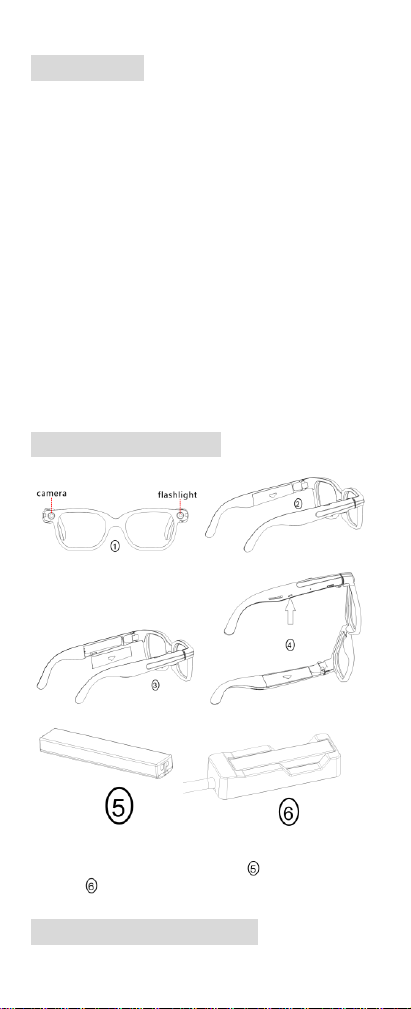
Product Illustration
This product features a detachable battery. It comes
standard with two batteries and two chargers. One
charger can be used to charge the batteries individually,
while the other charger can charge the entire device.
Connection instructions
1. This smart glasses is a standalone product, and some of its
functions require connection to a mobile phone to be used
2. You can search for "DA ECHO" in the mobile app
download section, download and install it on your phone
for use
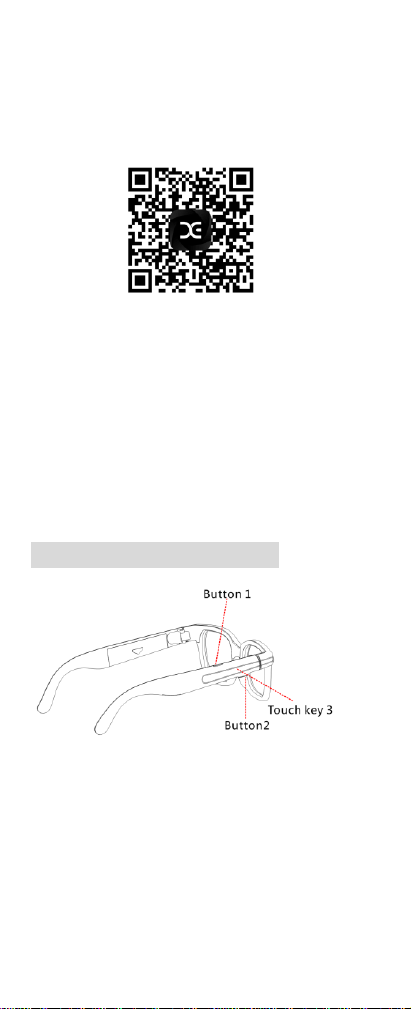
3. You can scan the QR code to download, install, and use it;
the QR code is shown in the picture
4. Enter the APP and click "Add Device", then click "Go to
Pair Bluetooth". A selection box will pop up for pairing, and
the Bluetooth connection will be successful.
5. Unbind device: For iOS phones, to unbind, open the app
settings, select "Remove Device", click "Confirm", enable
Bluetooth on the phone, click the corresponding device, and
then "Forget This Device". For Android devices, to unbind,
open the app settings, select "Remove Device", and click
"Confirm"
Key definition description
Button 1:
1) In the shutdown state, press and hold for 3 seconds to power on
2) When the device is powered on, long press for 5 seconds to shut
it down
3) In the powered-on state, a short press takes a photo and
activates the flash; the photo is automatically stored in the local
memory of the product and can be imported to a mobile phone
via an APP (directly imported via Wi-Fi)
4) In the powered-on state, quickly pressing twice initiates video
recording, with the flashlight continuously illuminated,
indicating that recording has begun. Pressing once ends the
recording. The recorded video is automatically stored in the
local memory of the product and can be imported to a mobile

phone via the connected APP (directly importing through
Wi-Fi)
Button 2:
1) In the powered-on state, short press once to wake up the AI
voice assistant
2) In the powered-on state, quickly press twice to activate quick
image recognition
3) In the powered-on state, long press the button to start recording.
During the recording process, short press once to end the
current recording. The recorded audio will be automatically
stored in the local memory of the product and can be imported
to the phone by connecting to the APP (directly imported via
Wi-Fi)
In the case of an incoming call, when Bluetooth is connected,
pressing key 1 or 2 briefly answers the call, and pressing it again
during the call disconnects it
Touch button 3:
1) In the case of music playback/call, slide left and right to adjust
volume up and down
2) In the music playback state, a single click on the slider pauses
the music; in the music paused state, a single click on the slider
plays the music
3) When playing music, double-click the slider to play the next
track, and triple-click the slider to play the previous track
Kindly Reminder
When the battery level drops below 10%, the device
ceases to take photos and record videos
As it is a smart product, the software will be updated
regularly, and the APP will provide prompts;
Cannot upgrade when battery level is below 60%. Can be used
again after charging
When the battery level drops below 30%, the device will
stop data transmission. It can be used again after charging
This product supports WiFi transmission, which can only
be achieved after connecting the phone to the APP
During the process of video recording and data
transmission, there is high power consumption, and prolonged
video recording and data transmission can lead to heat
generation. However, the system will quickly return to normal
after the video recording and data transmission are stopped
After pairing an Android phone with an APP ,
navigate to "Phone Settings", then "Bluetooth", and find the
paired glasses ID (the setting icon on the right). Turn on the
"Synchronize Bluetooth Device Volume with Phone" switch to
synchronize the volume
Unbind the product. In the phone settings, go to Bluetooth
and enable "Sync on ignore" to facilitate other phones
connecting to this device

FCC Warning
This device complies with part 15 of the FCC Rules. Operation is subject to the following two conditions:
(1) This device may not cause harmful interference, and (2) this device must accept any interference
received, including interference that may cause undesired operation.
Any Changes or modifications not expressly approved by the party responsible for compliance could
void the user's authority to operate the equipment.
Note: This equipment has been tested and found to comply with the limits for a Class B digital device,
pursuant to part 15 of the FCC Rules. These limits are designed to provide reasonable protection
against harmful interference in a residential installation. This equipment generates uses and can radiate
radio frequency energy and, if not installed and used in accordance with the instructions, may cause
harmful interference to radio communications. However, there is no guarantee that interference will not
occur in a particular installation. If this equipment does cause harmful interference to radio or television
reception, which can be determined by turning the equipment off and on, the user is encouraged to try to
correct the interference by one or more of the following measures:
-Reorient or relocate the receiving antenna.
-Increase the separation between the equipment and receiver.
-Connect the equipment into an outlet on a circuit different from that to which the receiver is
connected.
-Consult the dealer or an experienced radio/TV technician for help.
The device has been evaluated to meet general RF exposure requirement. The device can be used in
portable exposure condition without restriction.