
—
1
—
User Manual

—
2
—
1. Home page - --------------------------------------------------------- -------------------- 03
2. Drop-down menu --------------------------------------------------------- --------------------- 04
3. Navigation ---------------------------------------------------------------- ----------------- 05
4.Radio ------------------------------------------------------------- ---------------------------- 06
5.Music ------------------------------------------------------- -------------------------------- 07
6.Video ---------------------------------------------------------------------------------------- 08
7.EQ ---------------------------------------------------------- ------------------------------------ 09
8.AV input ---------------------------------------------------------------------------------------- 10
9.Bluetooth music -------------------------------------------------------------------------------- 11
10.Bluetooth phone ------------------------------------------------------------------------------- 12
11.Document management ----------------------------------------------------------------------- 13
12.Wallpapers ------------------------------------------------------------ ------------------------ 14
13.Mobile Internet ----------------------------------------------------------------- --------------- 15
14.rearview ----------------------------------------------------------------------------------------- 17

—
3
—
FCC Statement
Note: This equipment has been tested and found to comply with the limits for a Class B digital device, pursuant to part 15 of the FCC Rules. These limits are designed to
provide reasonable protection against harmful interference in a residential installation. This equipment generates, uses and can radiate radio frequency energy and, if not
installed and used in accordance with the instructions, may cause harmful interference to radio communications. However, there is no guarantee that interference will not
occur in a particular installation. If this equipment does cause harmful interference to radio or television reception, which can be determined by turning the equipment off
and on, the user is encouraged to try to correct the interference by one or more of the following measures:
—Reorient or relocate the receiving antenna.
—Increase the separation between the equipment and receiver.
—Connect the equipment into an outlet on a circuit different from that to which the receiver is connected.
—Consult the dealer or an experienced radio/TV technician for help.
This device complies with part 15 of the FCC Rules. Operation is subject to the following two conditions:(1) This device may not cause harmful interference, and (2) this
device must accept any interference received, including interference that may cause undesired operation.
Any changes or modifications not expressly approved by the party responsible for compliance could void the user's authority to operate the equipment.
This equipment complies with FCC radiation exposure limits set forth for an uncontrolled environment. This equipment should be installed and operated with minimum
distance 20cm between the radiator & your body.
—
4
—
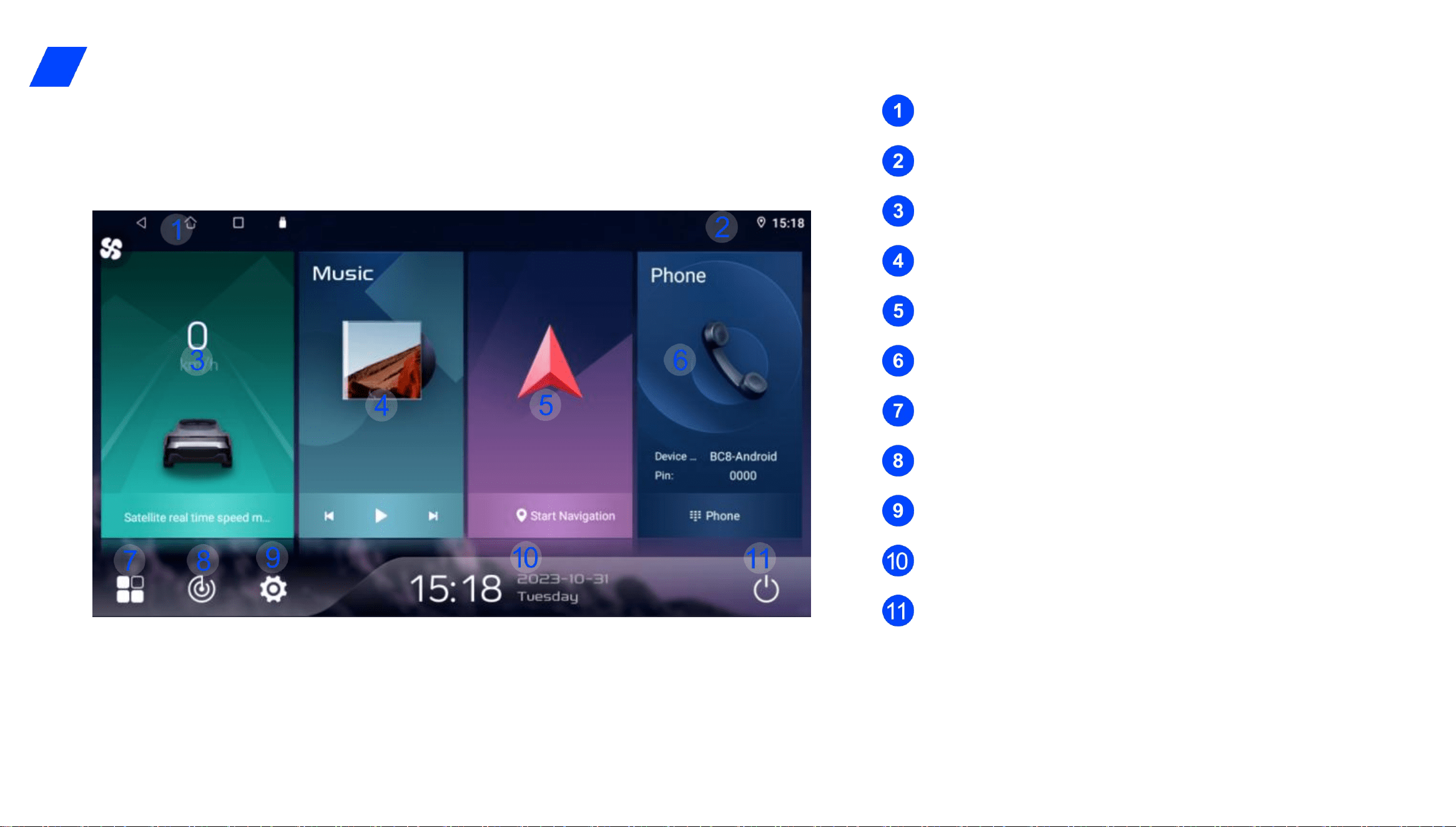
1.HOME
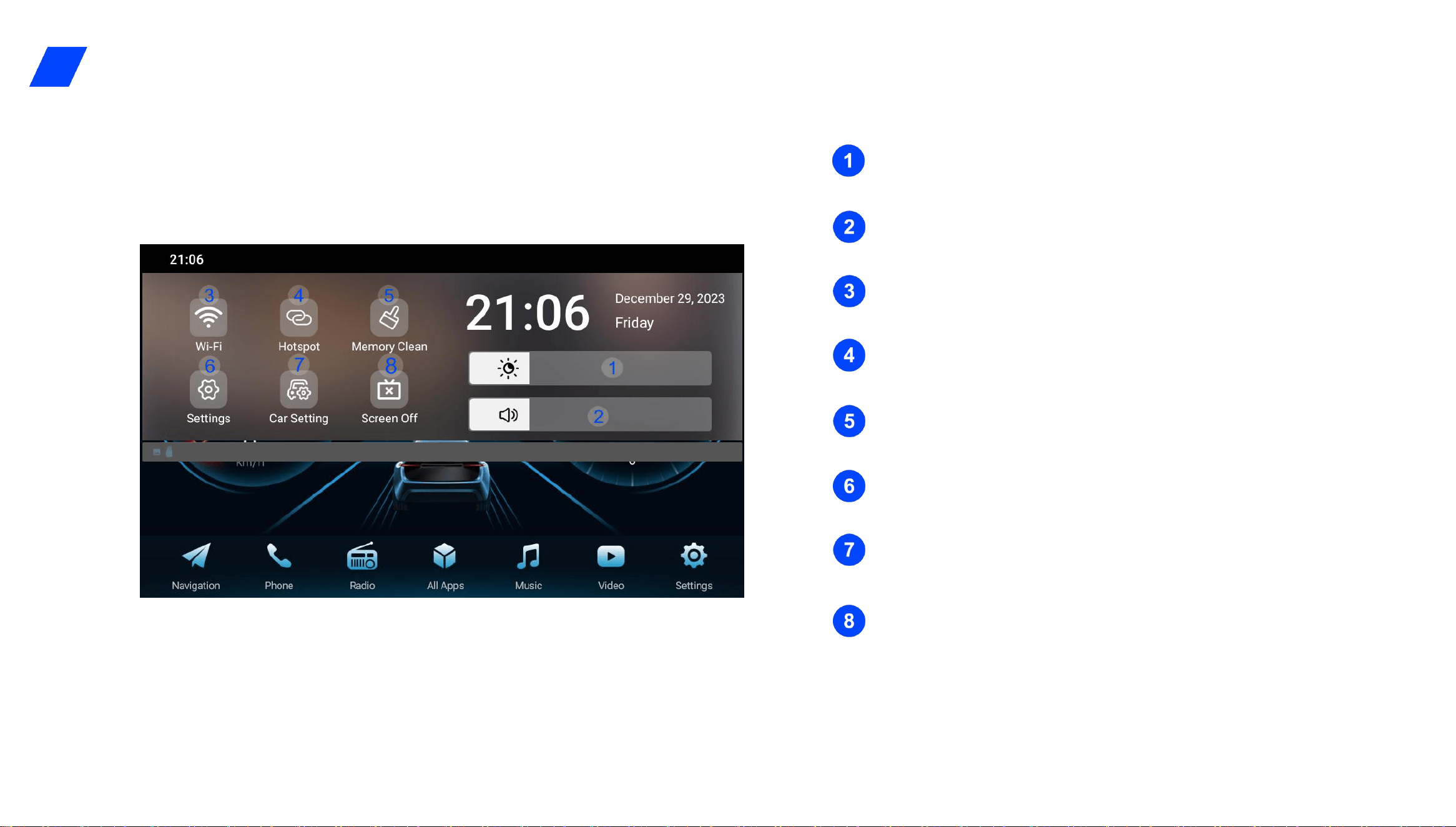
Back key, home key, task key.
Status bar: Displays the status of time, WLAN, location。
Model : Displays speed information。
Music : Click to enter the music playing page。
Navigation : Click to enter the navigation page。
Bluetooth : Click to enter the Bluetooth phone page。
More Application : Tap to enter more application screen。
adio menu: Click to enter the radio playback page.
Settings menu: Click to enter the Android Settings page.
Click to enter the clock and Weather Settings
Tapping the icon will turn off and mute the screen
—
5
—
2.Drop-down menu
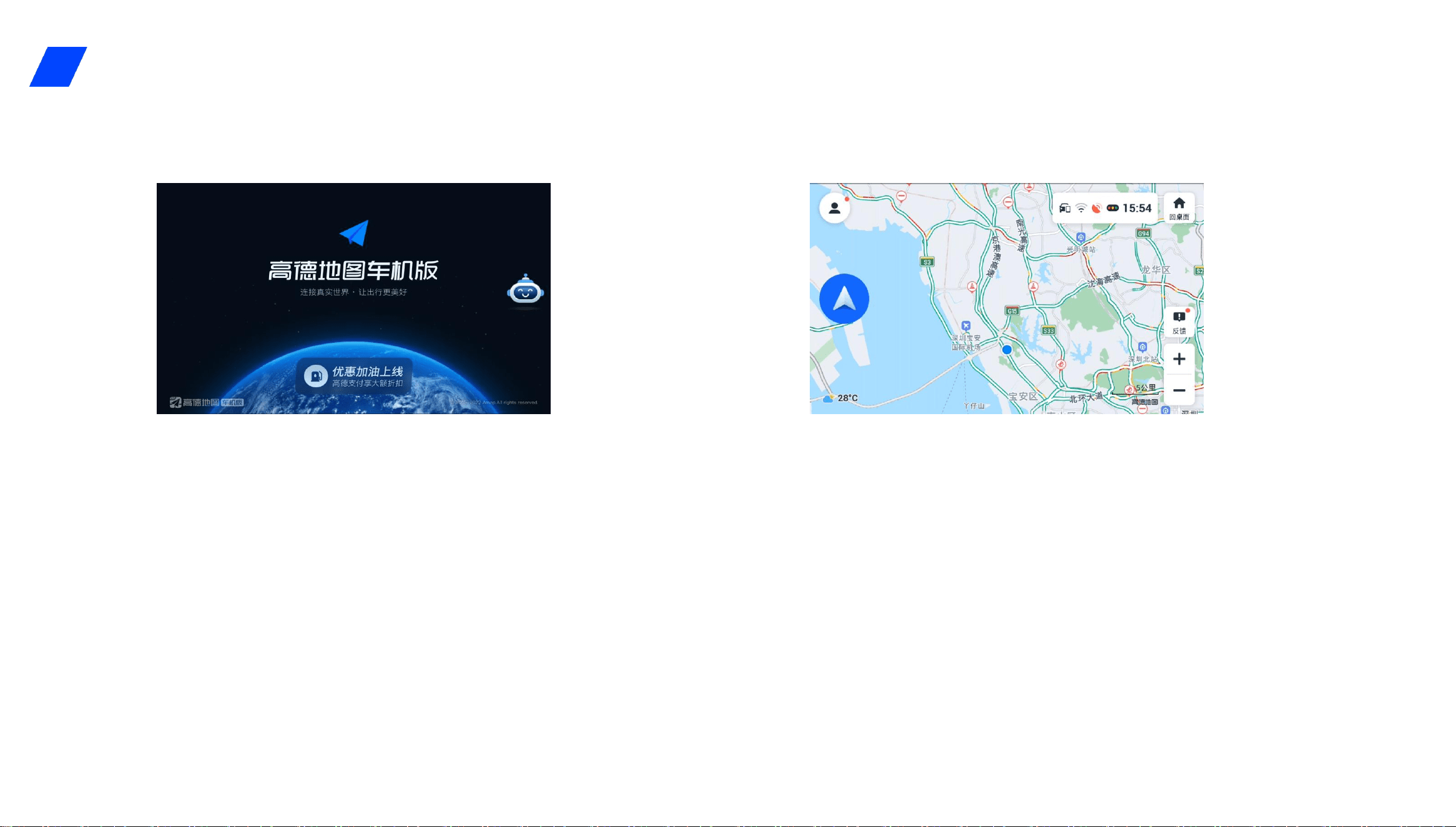
Swipe left and right to adjust the screen brightness.
Slide left and right to adjust the volume.
hold down to enter the WALN Settings page.
Tap to turn on and off the phone hotspot.
Tap to clear background apps.
Tap to enter the Android Settings screen.
Tap to enter the car Settings page.
Tap to turn off the screen and mute it, and tap again to
restore it
Slide your finger over the top edge to trigger the
drop-down menu page; The drop-down menu page
—
6
—
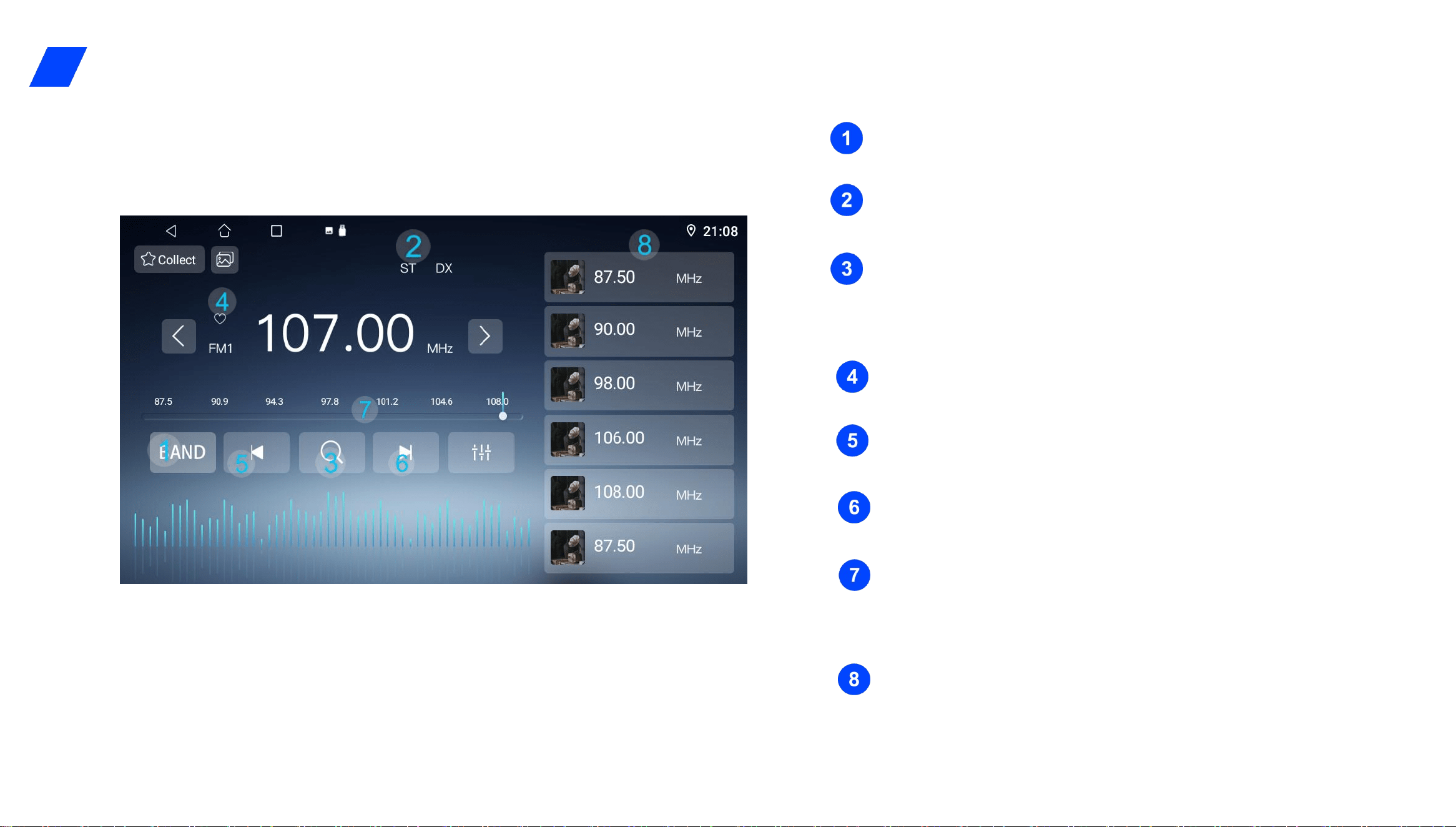
Map navigation data collection and cloud computing
advantages, and provides vehicle navigation, real-time road
conditions, location search and other functions, can help
drivers find the best route in the process of driving.
1, lane level navigation and lane level positioning, providing
accurate lane guidance and position positioning.
2, through high-precision map data and rendering
technology, to provide a more realistic map display effect, so
that users in the navigation process to get a clearer visual
experience.
3.avigation
—
7
—
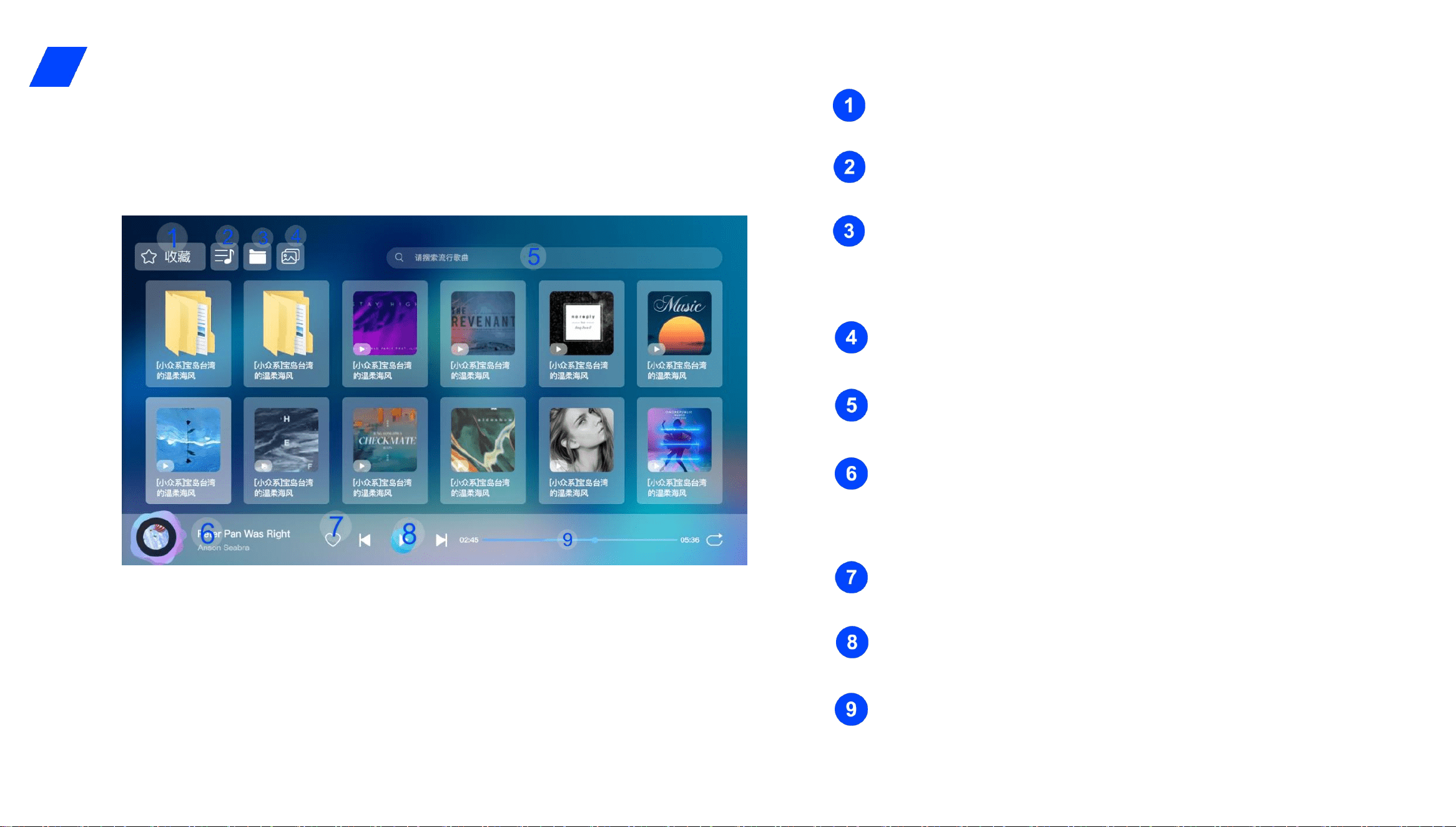
Band switching: Band range(87.5~108.0 MHz)。
ST:Stereo broadcast signal。
Short press is the automatic search platform; Long
press to browse radio stations
Click to bookmark this station
Short press is fine-tuning; Long press to go up
Short press is under tuning; Long press to search .
You can slide the frequency bar left and right. After
sliding stops, the frequency is played
Save station list: Store the search station, you can
swipe left and right to turn the page
4.Radio
—
8
—
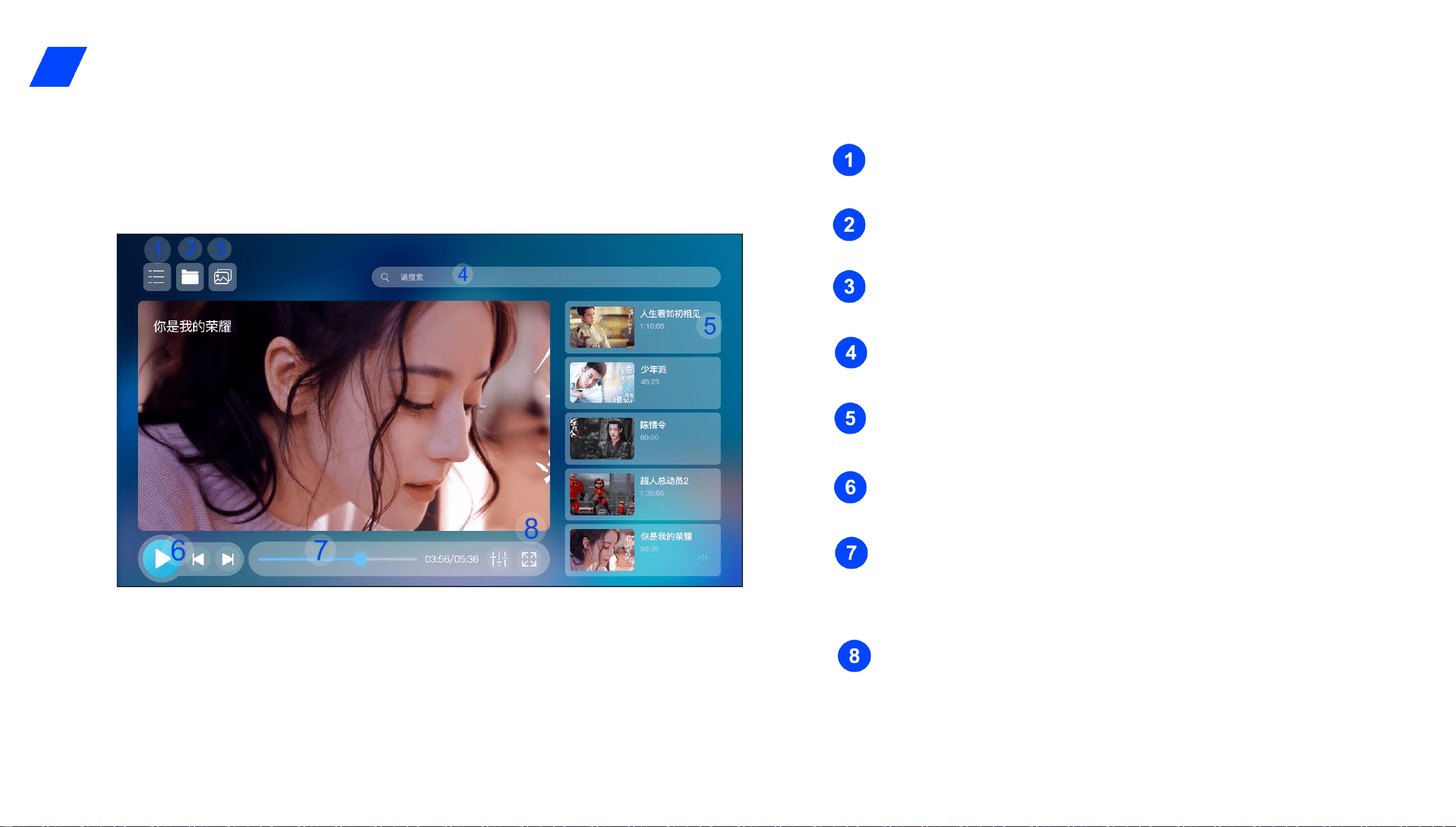
五、音乐
Click to enter the Favorites list page.
Click to toggle the playlist display.
Click to go to the folder page that contains the music
files.
Click to enter the replaceable music wallpaper.
Manually enter the search song.
Click this area to enter the display interface for
playing lyrics.
Click to save the currently playing song.
Can play, pause, up and down control
Click a point on the progress bar/drag the progress
bar dot
音效:音效设置、音场设置。
5.Music
—
9
—
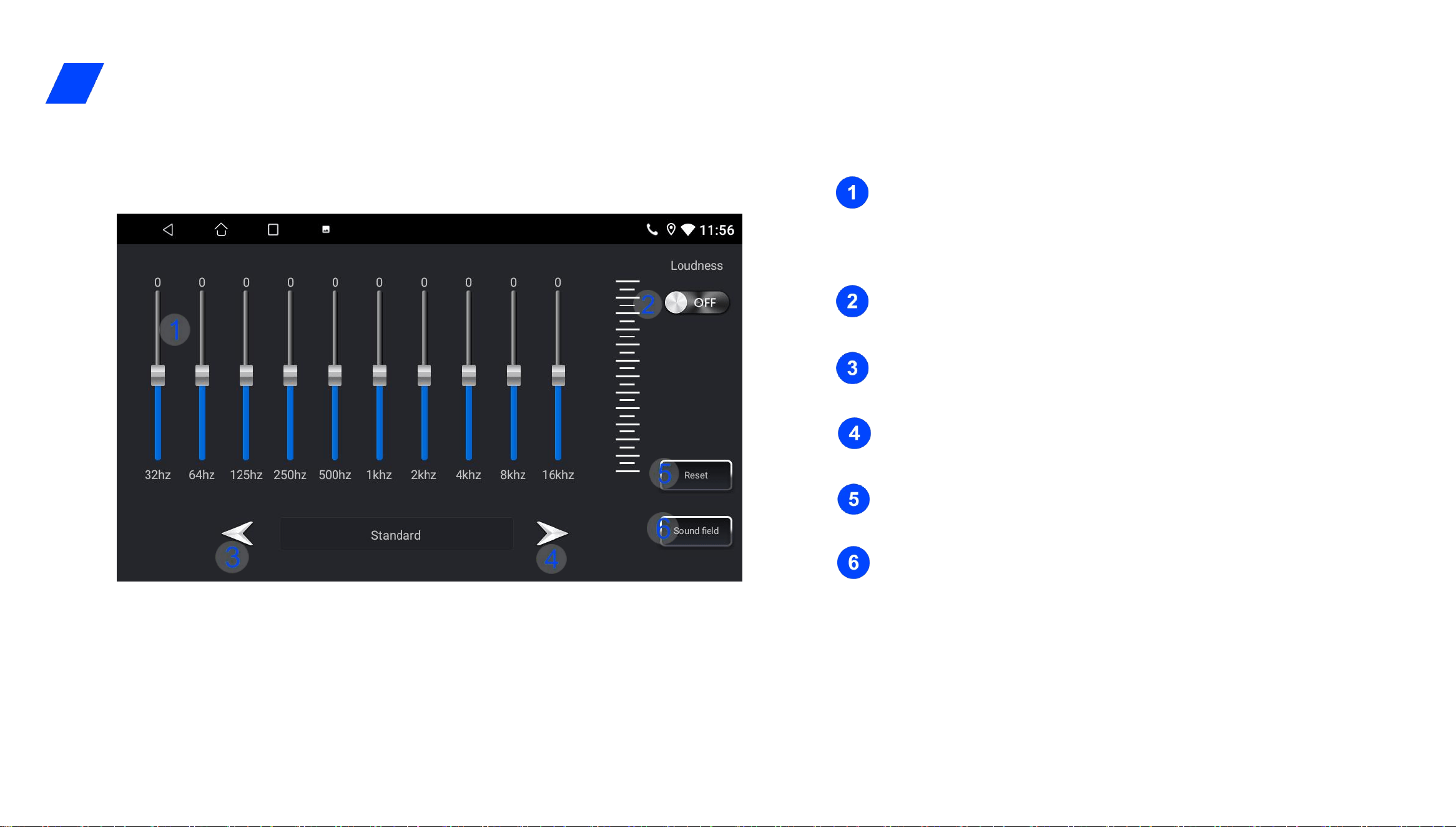
6.Video
Click to toggle the playlist display.
Displays all folders containing video files.
Click to enter the replaceable music wallpaper.
You can manually enter the search video source.
Swipe up and down to quickly navigate through a playlist.
Playback control: can play, pause, up and down
You can change the playback progress when you click a
certain point on the progress bar
Full-screen/half-screen switch: Click to switch the
full-screen/half-screen video playback.
—
10
—
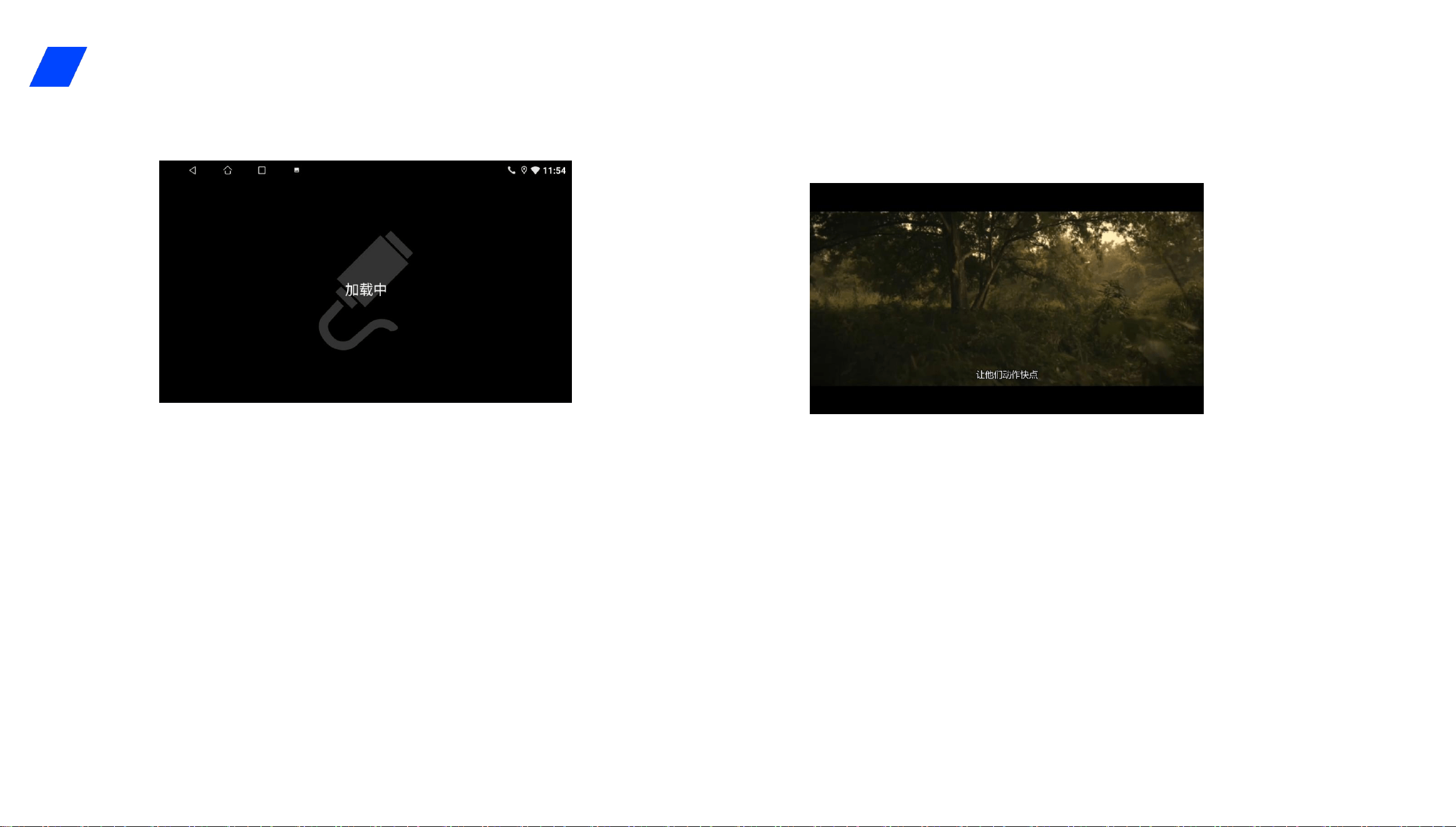
7.EQ
The sliding slider can adjust the gain size of the
corresponding frequency band
Click the button to switch the loudness function
Click to toggle the previous pre-made sound
Click to switch to the next pre-made sound
Click to restore factory default sound state
Click to enter the sound field adjustment control
interface, you can control the sound field before and
after the left and right sound algorithm
—
11
—
8.AV INPUT
1、AUDIO INPUT
A. Through the audio harness input, data sharing between
the car and the equipment can be realized, so as to achieve
the purpose of playing external audio.
b, the audio input page cannot be operated to control the
external audio, click the back button to exit the page, that is,
pause the external audio.
2、AV INPUT
A. Through the audio and video harness input, data sharing
between the vehicle and the equipment can be realized, so
as to achieve the purpose of playing external videos.
b, the audio and video input page cannot be operated to
control the external audio and video, click the back button to
exit the page, that is, pause the external audio and video
playback.
—
12
—
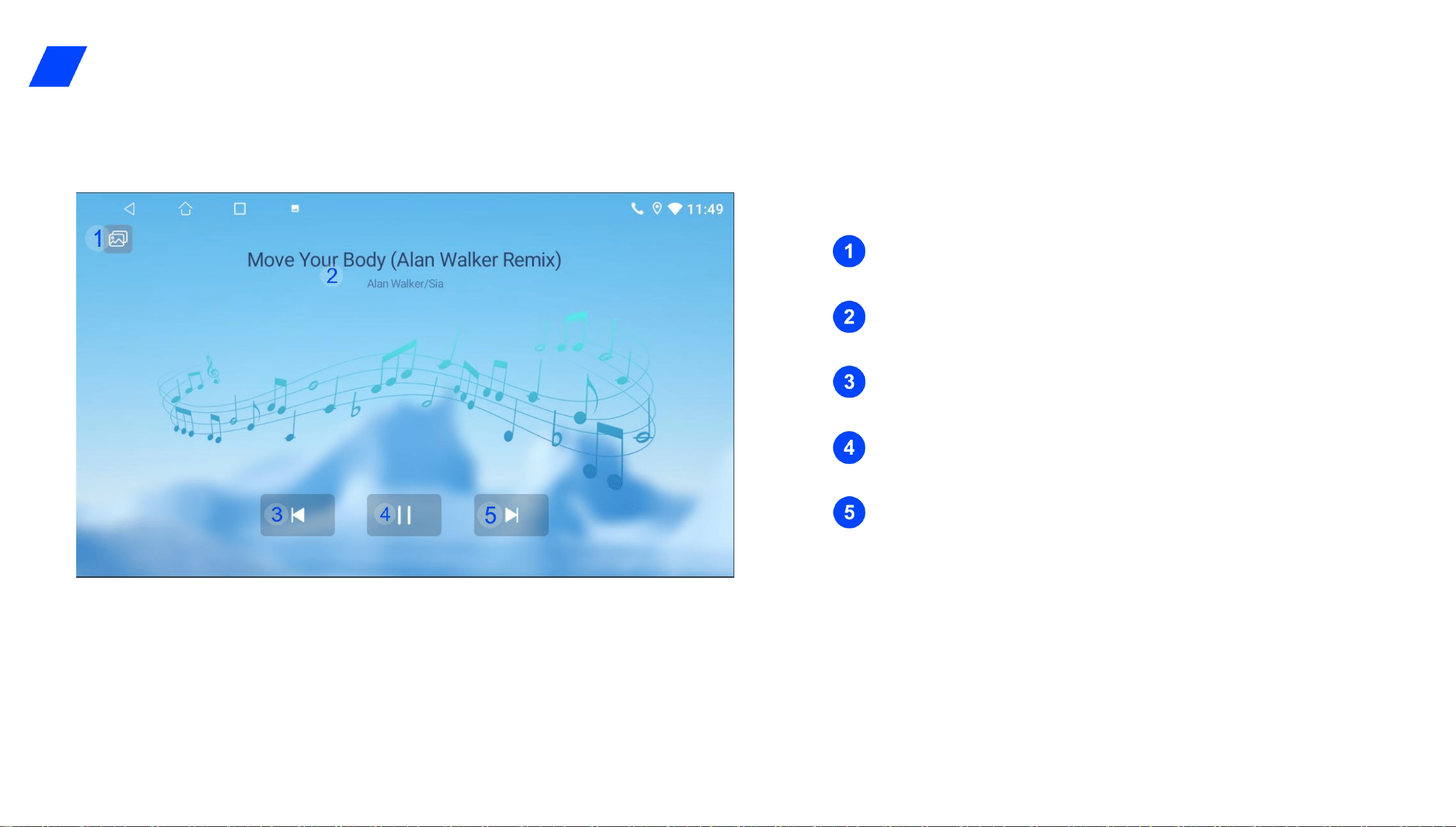
Click to enter the replaceable wallpaper
Show the name of the song and the artist
Click to switch to previous song
Click Play/Pause control
Click to switch to the next song
9.Bluetooth music
—
13
—
九、蓝牙电话
For your safety, please avoid talking on the phone while driving.
Note:
10.Bluetooth phone
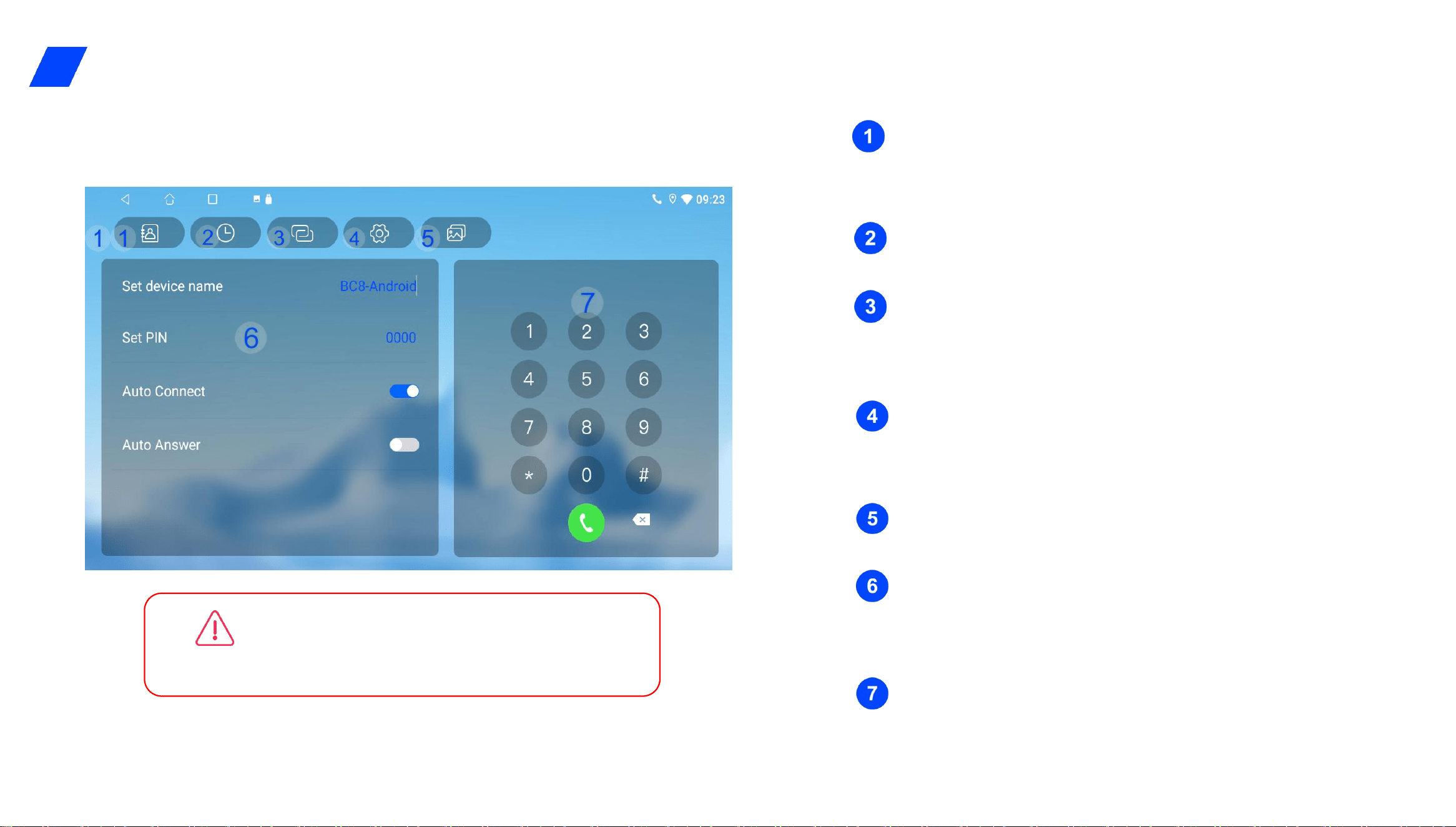
After synchronizing the phone address book, click to
display the address book。
Click to display Bluetooth phone call history.
Click to enter the Bluetooth device search connection
interface.
You can set the Bluetooth name and Bluetooth
connection key.
Click to enter the replaceable wallpaper.
Display panel: Displays contacts, call records, and
connected device lists.
Dial keyboard: Bluetooth phone dial keyboard
—
14
—
11.File manager
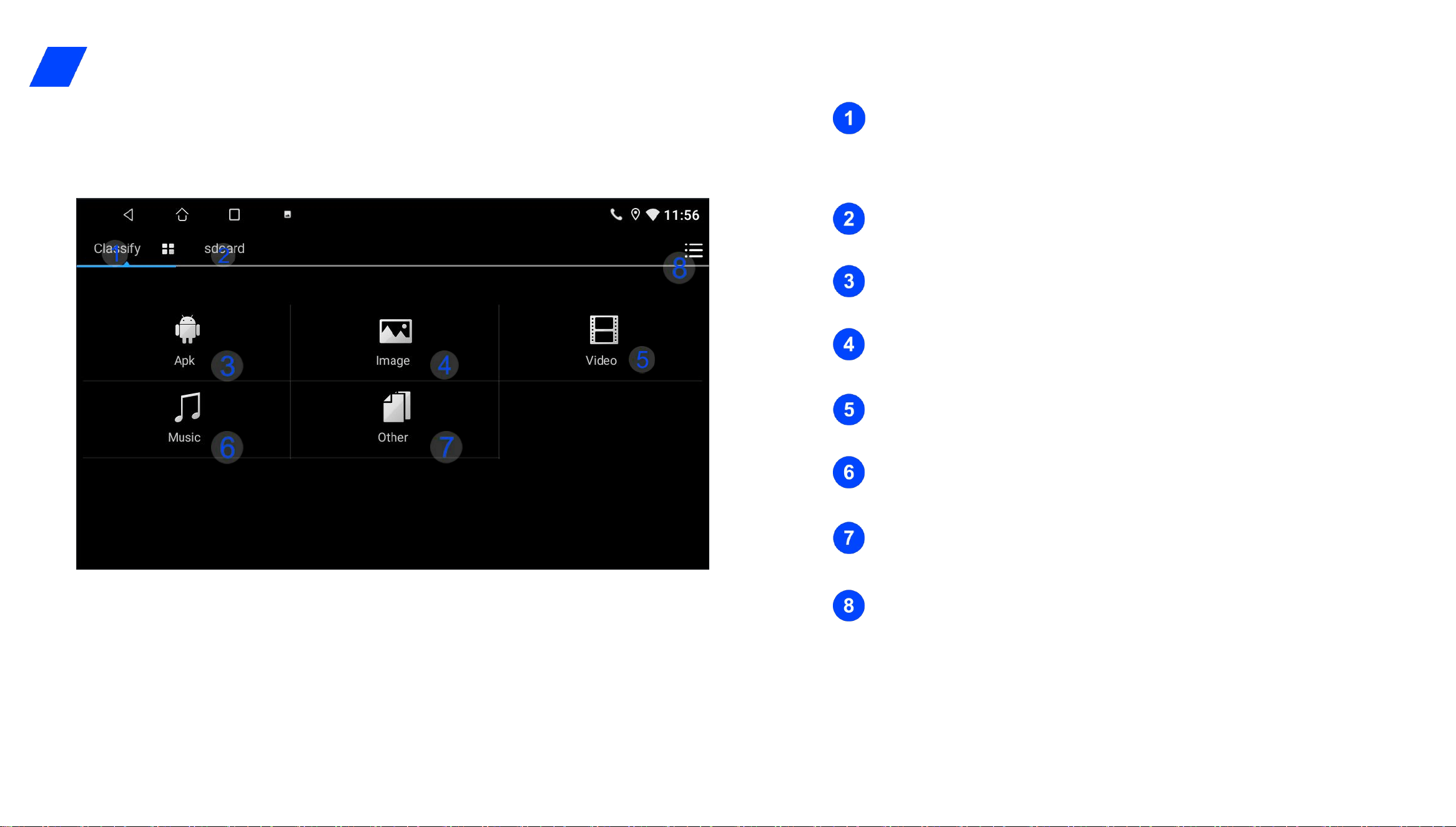
Click the category button and the file manager will display
the category specification
SDCARD local storage, USB peripheral storage, etc
Summary of APK type files
Picture file
Video file
Music file
Other file categories
More Info button
—
15
—
12.Wallpapers & applications
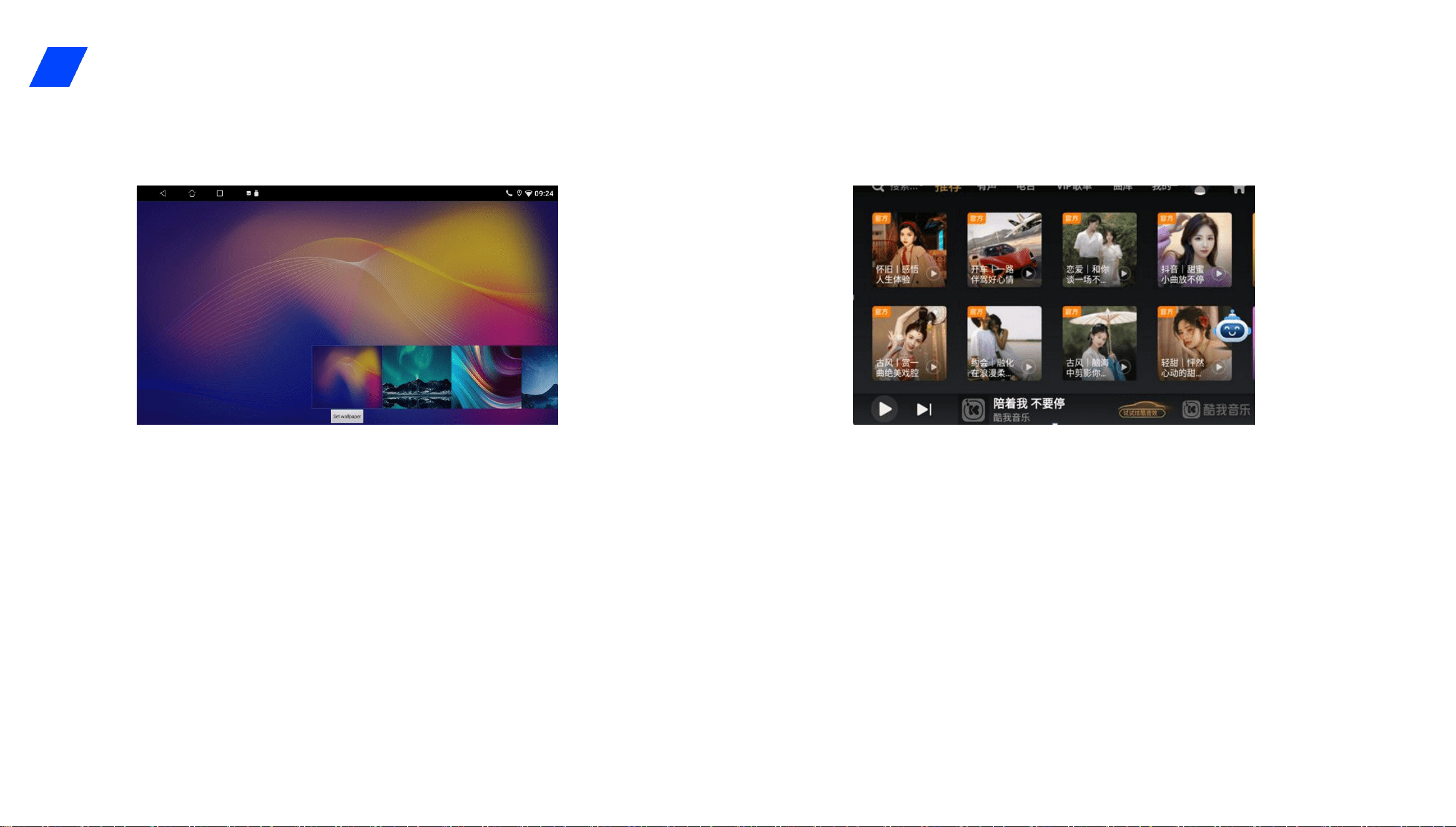
In the wallpaper application, you can customize desktop and
more application wallpapers;
Swipe left and right to select the wallpaper you want and
click Set Wallpaper to save the current wallpaper.
Kui Music is an online music player, it provides a large number of
music resources and charts, including Chinese, European, American,
Japanese and South Korean and other different styles of music, as
well as audio books, crosstalk sketches, children's stories and other
kinds of programs.
—
16
—
13.Mobile Internet
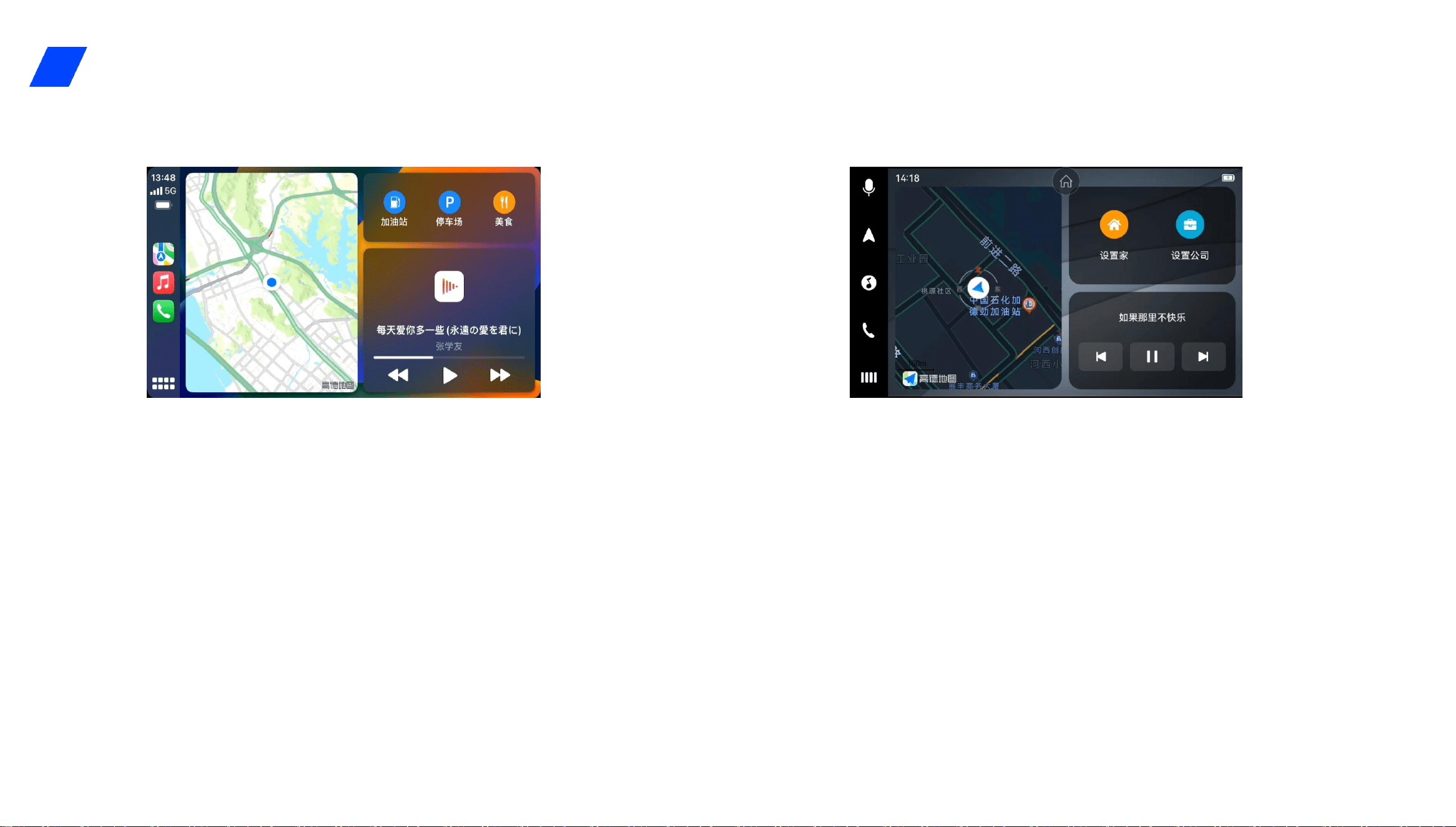
Apple CarPlay can combine the iPhone with the car system to
operate the phone function through voice control, button
control and touch on the car screen.
When you connect CarPlay, you can use iPhone functions
intelligently and securely while driving your vehicle, including
navigation, making calls, sending and receiving messages,
Apple CarPlay
Eilian mobile Internet is a technology and product that
connects mobile phones and vehicles. Through the Internet,
users can project the content of the mobile phone to the car
to achieve a more convenient and richer operation and use
1. Download and install the Yilian APP on the mobile terminal first.
2. Open the Eilian APP on the mobile end, and enter the Eilian
connection interface on the car and machine end.
3. Use the original data cable of the mobile phone to connect with
Easy connect
—
17
—
14.Mobile Internet
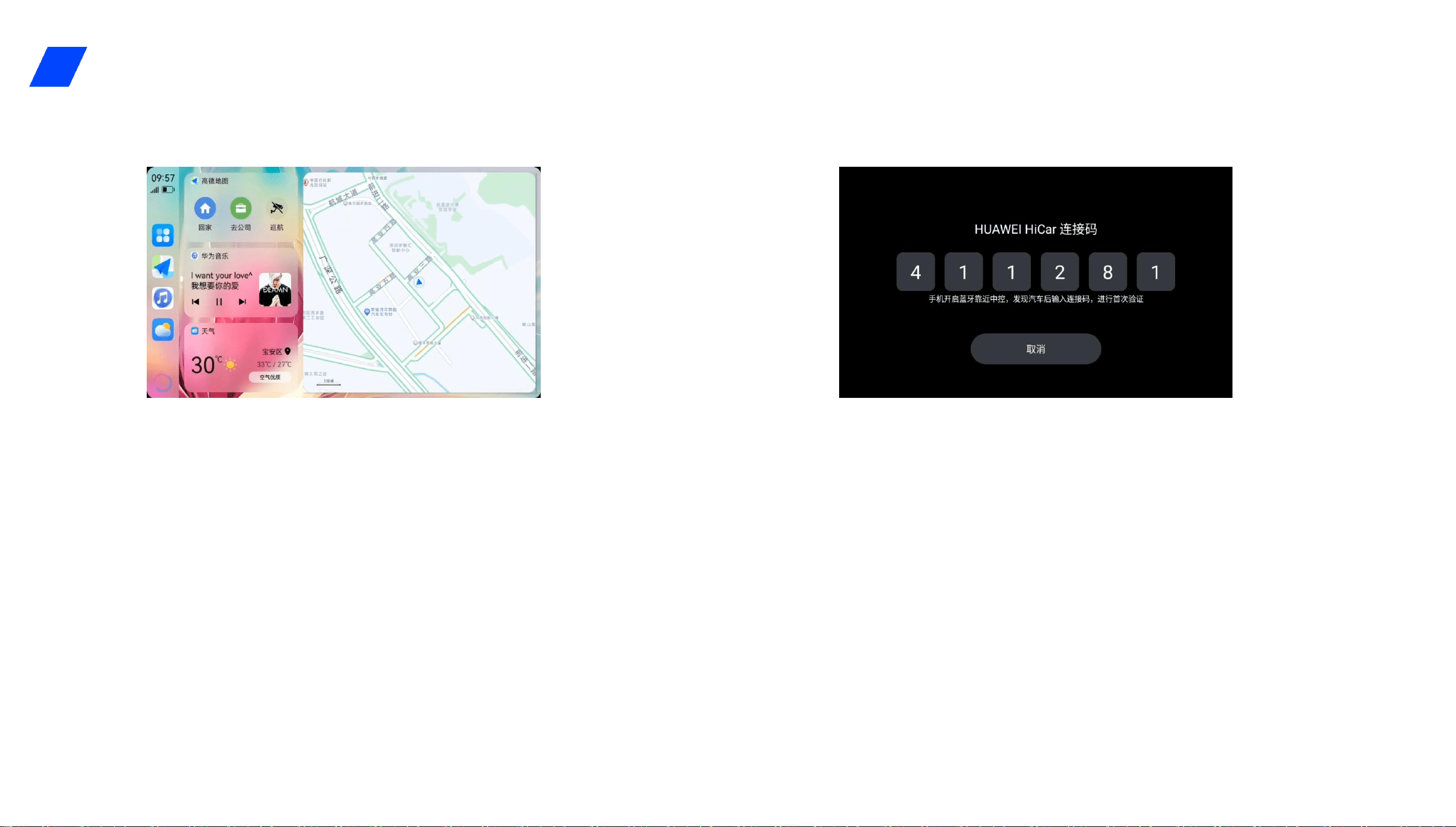
HUAWEI HiCar
1. Turn on Bluetooth on the mobile phone and get close to the car.
2, the mobile phone will pop up to prompt whether to connect the car, select
"Connect".
3. Enter the connection code of the vehicle terminal in the pop-up window of
the mobile phone. After completion, HUAWEI HiCar function can be used.
HUAWEI HiCar connects the mobile phone with the car, takes
advantage of the strong attributes of the mobile phone and
the ability of multi-device interconnection to extend the
application and service of the mobile phone to the car,
realizes the whole scene experience with the mobile phone
as the core, and creates the smart travel experience for users.
— 18 —
15. Rearview
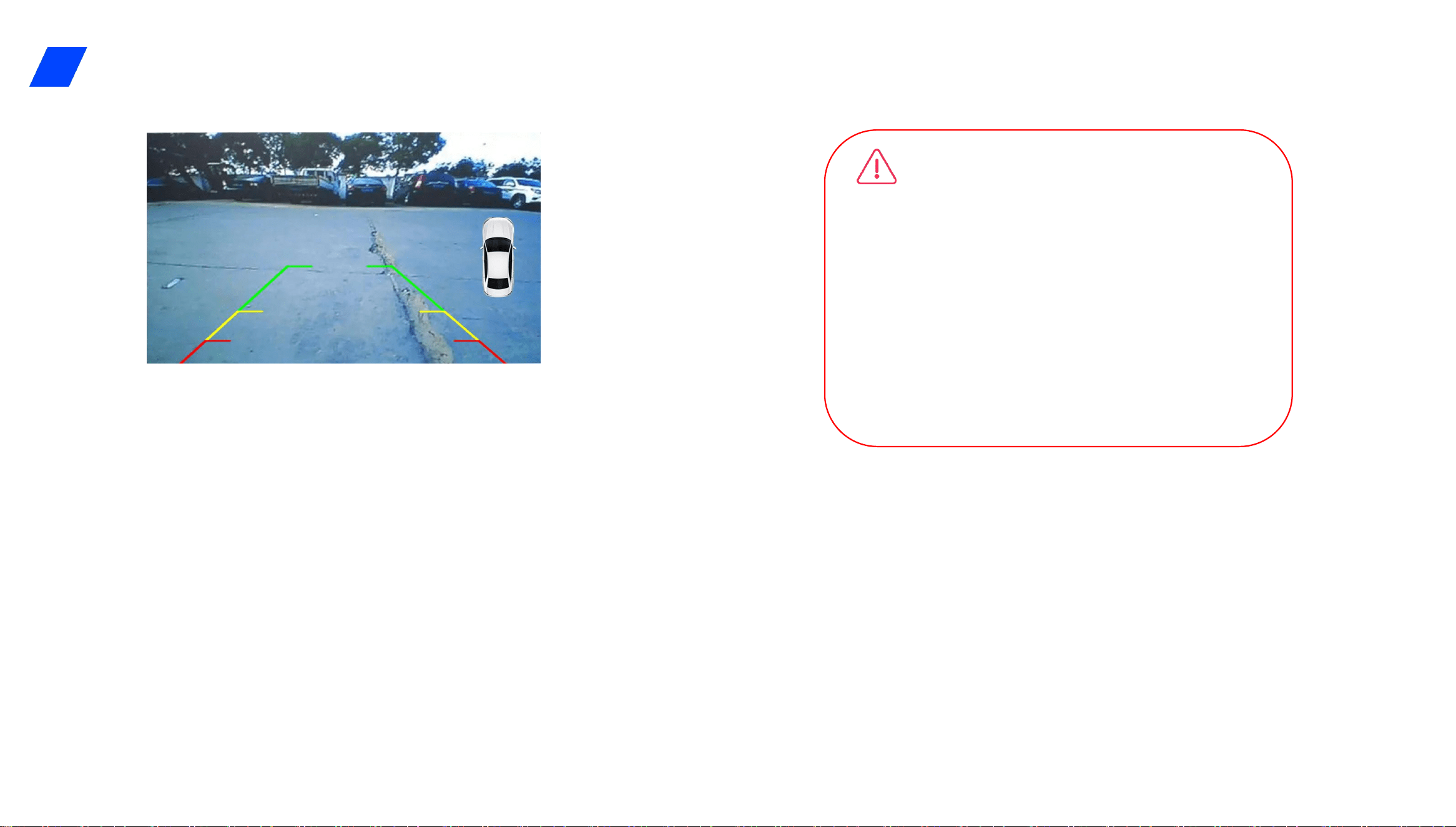
Note: The reverse interface may be different for different models. Please
refer to the actual vehicle.
A. When the system is running, the system can automatically switch to the
reverse screen when the reverse is turned on in any state, and will switch back to
the running state before the reverse after the reverse is finished.
B. The track line is divided into three sections of 0.5m, 2m and 3m lines, and the
colors are red, yellow and green respectively.
c, the left and right track line can include the area directly behind the vehicle, can
correctly display the rear road conditions, the left and right track line distance ≥
Do not rely entirely on the rear view system, please check
that the surrounding is safe while driving, the rear view
system is only for assistance. Due to the limited distance
range of the rearview system, relying solely on the
rearview system to drive can lead to accidents.
Note: