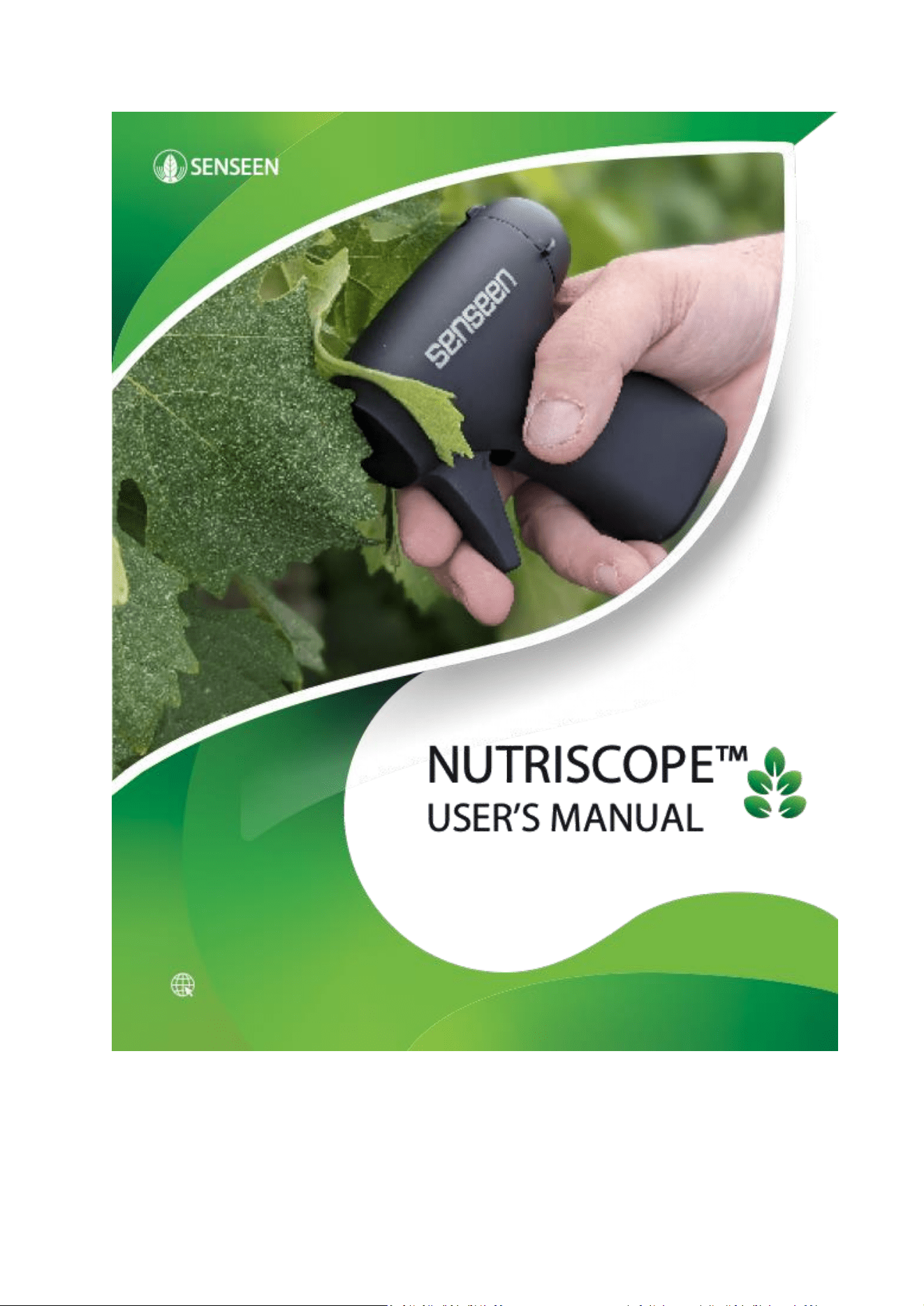

User Manual for Nutriscope™
English
Sept 2026
TABLE OF CONTENT
1. INTRODUCTION ................................................................................................................................ 4
2. KEY FEATURES AND SPECIFICATIONS ................................................................................................... 5
3. GETTING STARTED ............................................................................................................................. 7
4. SAMPLING BEST PRACTICES ............................................................................................................. 14
5. PORTAL .......................................................................................................................................... 14
6. MAINTENANCE AND TROUBLESHOOTING .......................................................................................... 18
7. MAINTENANCE AND EVOLUTIONS .................................................................................................... 19
8. THEORY OF OPERATIONS ................................................................................................................. 19
9. CUSTOMER SUPPORT AND RESOURCES ............................................................................................. 21
10. GLOSSARY OF TERMS ....................................................................................................................... 21
11. LEGAL DISCLAIMERS AND COMPLIANCE INFORMATION ...................................................................... 22
12. FEEDBACK AND UPDATES ................................................................................................................. 23
Safety instrucons
General Safety Warnings
• Avoid Exposure to Liquids: Do not immerse the device in water or expose it to excessive moisture. Nutriscope™
is not waterproof, and liquid exposure may damage the device or cause malfuncon.
• Handle with Care: Avoid dropping, striking, or applying excessive force to the device, as it may damage the sensors
or internal components.
• Avoid direct eye exposure: Never look directly into the scanner’s light source, especially. Prolonged exposure to
ultraviolet or infrared light may cause eye strain or discomfort.
• Supervised use: Keep the device out of reach of children or individuals unfamiliar with its operaon. Misuse may
result in inaccurate readings or device damage.
Baery and Charging Safety
Use Approved Chargers Only: Always use a power source that complies with the following specicaons:
• Input Voltage: DC 5V
• Input Current: 600 mA
• Avoid using fast chargers (e.g., 9V or 12V output) as they may damage the device.
• Charging Environment: Charge the device in a well-venlated area, away from heat sources or direct sunlight.
• Baery Disposal: When disposing of the device or its baery, follow local regulaons. In California and Canada,
baeries must be recycled at designated facilies.
Operaonal Safety
• Avoid Extreme Condions: Do not use the device in temperatures outside the range of 0°C to 45°C or in
environments with high humidity (above 85%). Keep the device away from direct sunlight and extreme heat when
not in use.
• Prevent Interference: Keep the device away from strong electromagnec elds or medical equipment, such as
pacemakers, to avoid interference.
Regulatory Compliance
• European Conformity. CE mark. This product is in “Compliance with the essenal requirements of European
legislaon.” This means that the product complies with all applicable European direcves and regulaons and
that the manufacturer or importer has carried out the necessary assessments to ensure compliance. The CE
marking ceres that the product can be placed on the European market.
• FCC Compliance (U.S.): This device complies with Part 15 of the FCC Rules. Operaon is subject to the following
two condions: (1) This device may not cause harmful interference; (2) This device must accept any interference
received, including interference that may cause undesired operaon.
⚠ DISCLAIMER
• Senseen shall not be held liable for any direct, indirect, incidental, or consequenal damages resulng from the
use, misuse, or inability to use the Nutriscope™ device, including but not limited to nancial loss, crop yield
reducon, or incorrect agricultural decisions.
• Nutriscope™ is a supplementary diagnosc tool designed to assist users in monitoring crop health by providing
data-driven insights. However, it is not intended to replace the professional judgment, experse, or decision-
making of farmers, agronomists, or other agricultural professionals.
• Users are solely responsible for interpreng the data, making decisions, and taking appropriate acons based on
their specic agricultural condions. Senseen Inc. does not guarantee accuracy, completeness, or suitability of
the informaon provided and shall not be liable for any damage or loss resulng from reliance on Nutriscope™
measurements or recommendaons.
• By using this device, the user acknowledges and agrees to these terms and condions of use. For best results,
always consult agricultural experts and follow established farming pracces alongside Nutriscope™ data.
1. Introducon
1.1. Nutriscope™: A lab and Crop Advisor in Your Pocket
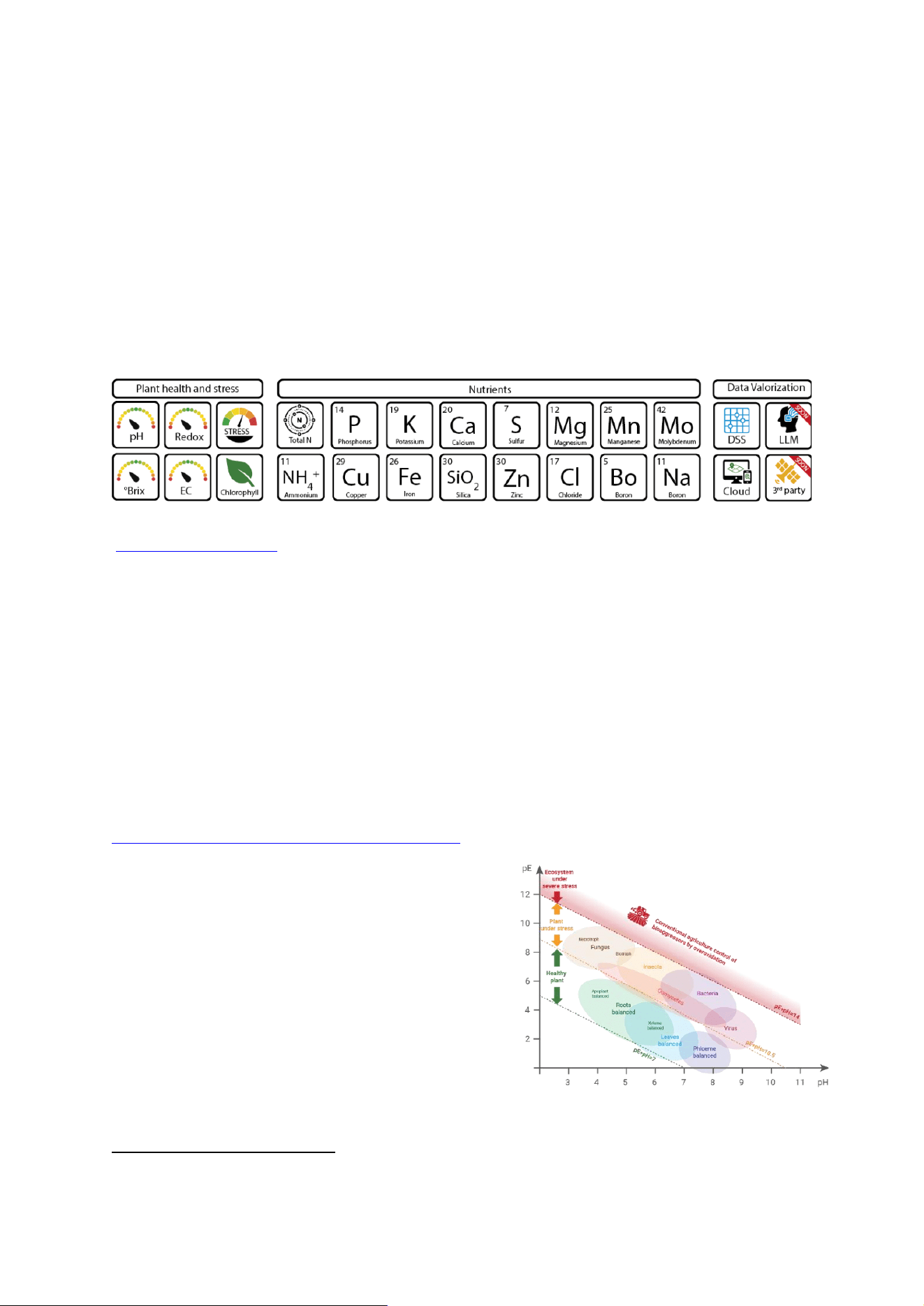
Nutriscope is a groundbreaking scanner designed for farmers and agricultural professionals, providing real-me insights into
plant stress, health, and overall vitality. By leveraging advanced photonics and arcial intelligence, Nutriscope measures a
broad range of parameters—once obtainable only through expensive wet labs or complex eld equipment—with just a single
click.
Measuring plant health and stress: The device captures crical plant health and stress metrics using (pH, Redox, approach) On
plant health, Nutriscope delivers a detailed nutrient analysis by quanfying essenal components such as total nitrogen,
ammonium, phosphorus, potassium, iron, sulfur, SiO₂, manganese, magnesium, calcium, boron, and chloride—data that is vital
for opmizing ferlizaon strategies and maximizing yield. On plan stress Nutricope ‘s measurements oer a comprehensive
view of plant condion, enabling the calculaon of a stress index according to bioelectronic approach measuring the
intensicaon of the living approach important when looking at agroecology pracces.
Your crop best ally: Beyond its measurement capabilies, Nutriscope is connuously enhancing its plaorm
(hps://portail.senseen.io/en) and app (Senseen Pencil) to unlock even more value for the farmer. The plaorm securely stores
your eld data and will soon integrate third-party sources, such as weather and satellite informaon, to oer broader
perspecves that support your own analyses. Addionally, an upcoming eld note feature will allow you to record geolocated
notes directly from your phone, seamlessly linking your observaons with precise eld data.
Our rst “redox” decision support system (DSS) is already deployed for select crops. This preliminary version will interpret scan
results, providing recommendaons for further diagnosc intervenons—such as checking the root system—or oering
targeted advice to opmize crop management. Our commitment to simplifying science will connue as we work toward
developing a Large Language Model (LLM) that integrates best pracces in crop management for something likes “ a crop
advisor in the pocket”.
1.2. Agroecology at Your Own Pace
Nutriscope™ adapts to your journey toward sustainable agriculture, whether you're taking your rst steps or enhancing exisng
pracces. At the heart of sustainable agriculture lies agroecology, a science-based approach that leverages natural processes
to build resilient farming systems, improve soil health, and enhance plant vitality. A key component of this approach is
understanding the biochemical interacons within plants—specically, the relaonship between pH and redox potenal, which
serves as a fundamental indicator of plant health. More scienc informaon at
hps://link.springer.com/arcle/10.1007/s11104-021-05047-z
Reference framework: the pH/Redox cross: Nutriscope brings this
concept to life with its innovave pH/Redox Cross measurement, a
model developed by Olivier Husson
1
based on over three decades of
research into redox regulaon in biological systems. The pH/Redox
Cross provides a framework to assess how plants respond to their
environment, helping farmers idenfy whether their crops are thriving,
experiencing stress, or struggling to maintain balance due to external
pressures.
• At the core of this model lies the Green Zone, where plants
funcon at their best, focusing energy on growth, nutrient
absorpon, and natural defenses. In this opmal state, crops
are resilient, producve, and contribute to maintaining soil
health. However, when exposed to stressors—such as
drought, nutrient imbalances, or pest infestaons—plants
shi into the Orange Zone, where they redirect energy to migate damage, leading to slower growth and increased
vulnerability to disease.
1
Husson, O., Sarthou, JP., Bousset, L. et al. Soil and plant health in relation to dynamic sustainment of Eh and pH
homeostasis: A review. Plant Soil 466, 391–447 (2021). https://doi.org/10.1007/s11104-021-05047-z

• If stress connues to escalate, the plant may enter the Red Zone, where excessive oxidaon disrupts its internal
balance. This can be exacerbated by human intervenons, such as the overuse of pescides, which increase oxidave
stress. In this state, plants can expend up to 80% of their energy on self-repair instead of growth, weakening their
resilience and reducing overall yield.
Our stress index: To help farmers keep their crops in the Green Zone, Nutriscope provides a stress index derived from real-me
pH and Redox measurements. By connuously monitoring these key indicators, farmers can detect early signs of stress, adjust
management pracces accordingly, and ensure crops remain in an opmal state for growth and producvity. With Nutriscope,
agroecological principles are not just a philosophy but a praccal, data-driven approach to achieving healthier crops, richer
soils, and a more sustainable future.
1.3. Subscripon
When you receive your Nutriscope, you can use it without a subscripon for basic measurements (pH, Redox, Brix,
Conducvity), total nitrogen, chlorophyll, stress index, and RedOx OAD by installing the Senseen app on your mobile phone.
To enhance your experience with the Nutriscope™, Senseen currently oers two subscripons:
• An annual “Minerals” subscripon (via the app): gives you access to mineral measurements on your mobile phone.
• An annual “Portal” subscripon: gives you access to the Senseen portal, where you can view all your measurements, track
their evoluon, compare them, export them, and more.
A descripon of the dierence with or without subscripon is provided below:
Features
Without Subscripon
With Subscripon
Basic measurements (pH, Redox, Brix,
Conducvity)
x
x
Total-Nitrogen, Chlorophyll
*
x
Stress Index
x
x
Nutrient levels
x
“redox” decision support systems
*
x
Futur Decision Support Systems
x
Cloud storage and history
x
Priority customer support
x
* When available
Why Subscribe?
Subscribing to Nutriscope unlocks a powerful suite of tools designed to help you make data-driven decisions for healthier
crops, improved yields, and more sustainable farming pracces. Here’s why you should subscribe:
• Comprehensive Plant Health Insights in Real Time: Gain instant access to all measurement capability for your crops
in seconds by being able to analyze and compare all your experience. Analyse your crop also with more available
data (eg NDVI, weather, soils sensors.)
• Access to Connuous advanced advices: with all data available, we will provide IA engine to provide you
suggesons of problems and soluons based on exisng scienc literature and experiments
• Data Storage & History: Keep a history of your measurements in one place, track trends over me, and compare
eld condions to make informed management decisions.
• A Growing Agroecological Network: Join a community of forward-thinking farmers, agronomists, and researchers
working together to rene best pracces based on real-world data.
By subscribing, you ensure that your Nutriscope remains at the cung edge of agricultural technology, giving you the tools
to farm smarter, opmize resources, and improve sustainability.
2. Key Features and Specicaons
2.1. Features of Nutriscope™
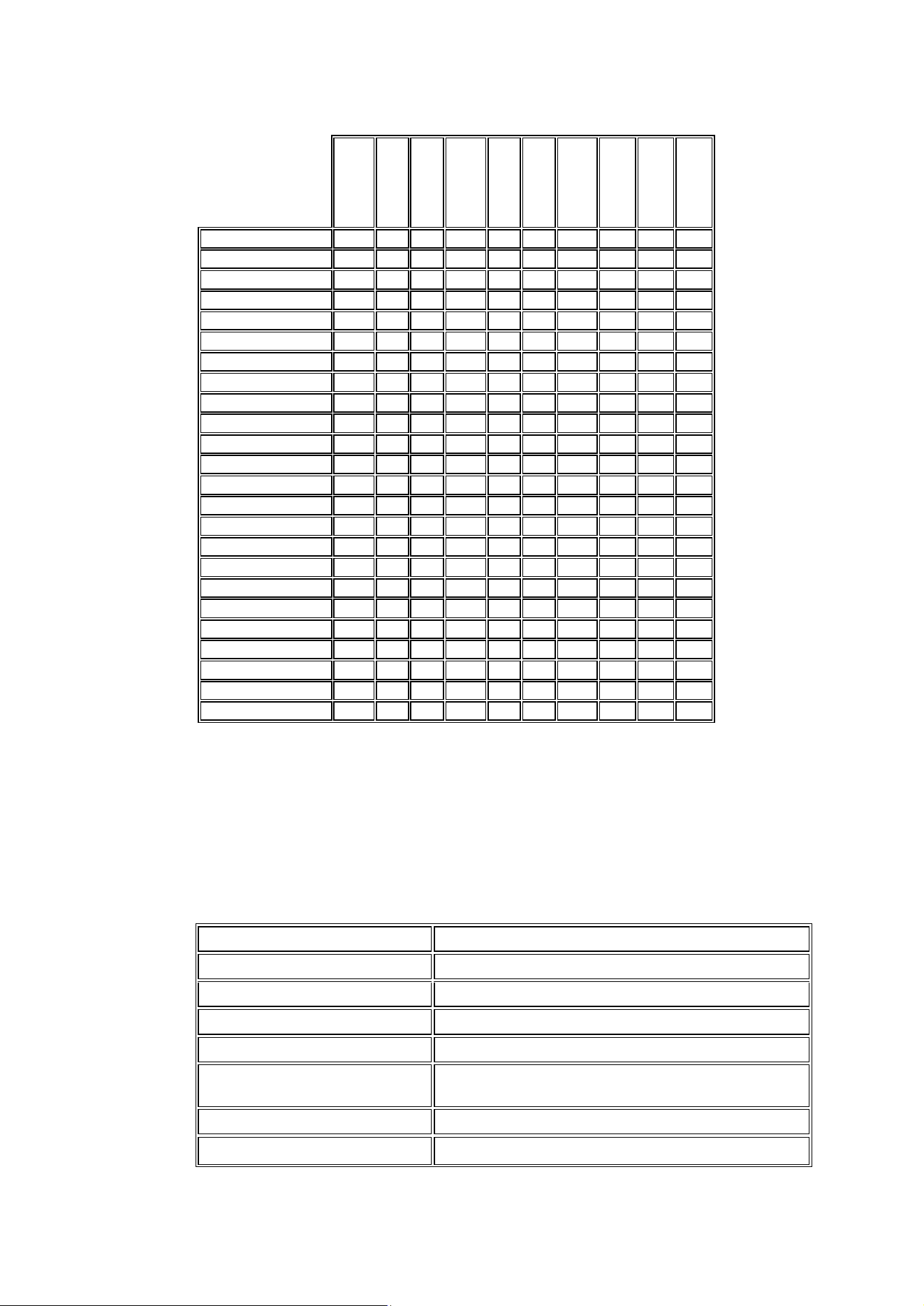
The table below outlines the measurements and features available for each crop. We are connuously collaborang with
partners to expand both the range of crops and the parameters we measure. Nutriscope’s capabilies will be automacally
updated as new measurements are validated and deemed reliable through ongoing training and development.
Grape
Tomato
Potato
Wheat
Corn
Rapeseed
Strawberry
Melon
Orange
Banana
pH
*
Redox
*
Conducvity
*
Brix
*
Chlorophyll
Stress index
*
Total Nitrogen
P - Phosphorus
K - Potassium
Fe - Iron
Beta
Ca - Calcium
*
Mn – Magnesium
Beta
Beta
Mg - Manganese
Cl - Chlorine
NH
4
+
- Ammonium
*
*
*
SiO
2
- Silica
B - Boron
S - Sulfur
*
*
Na - Sodium
*
Beta
Mo - Molybdenum
*
*
Beta
Cu- Copper
*
*
Beta
Zn- Zinc
Cloud storage
*
DSS “redox”
* = Available soon
BETA = Test mode
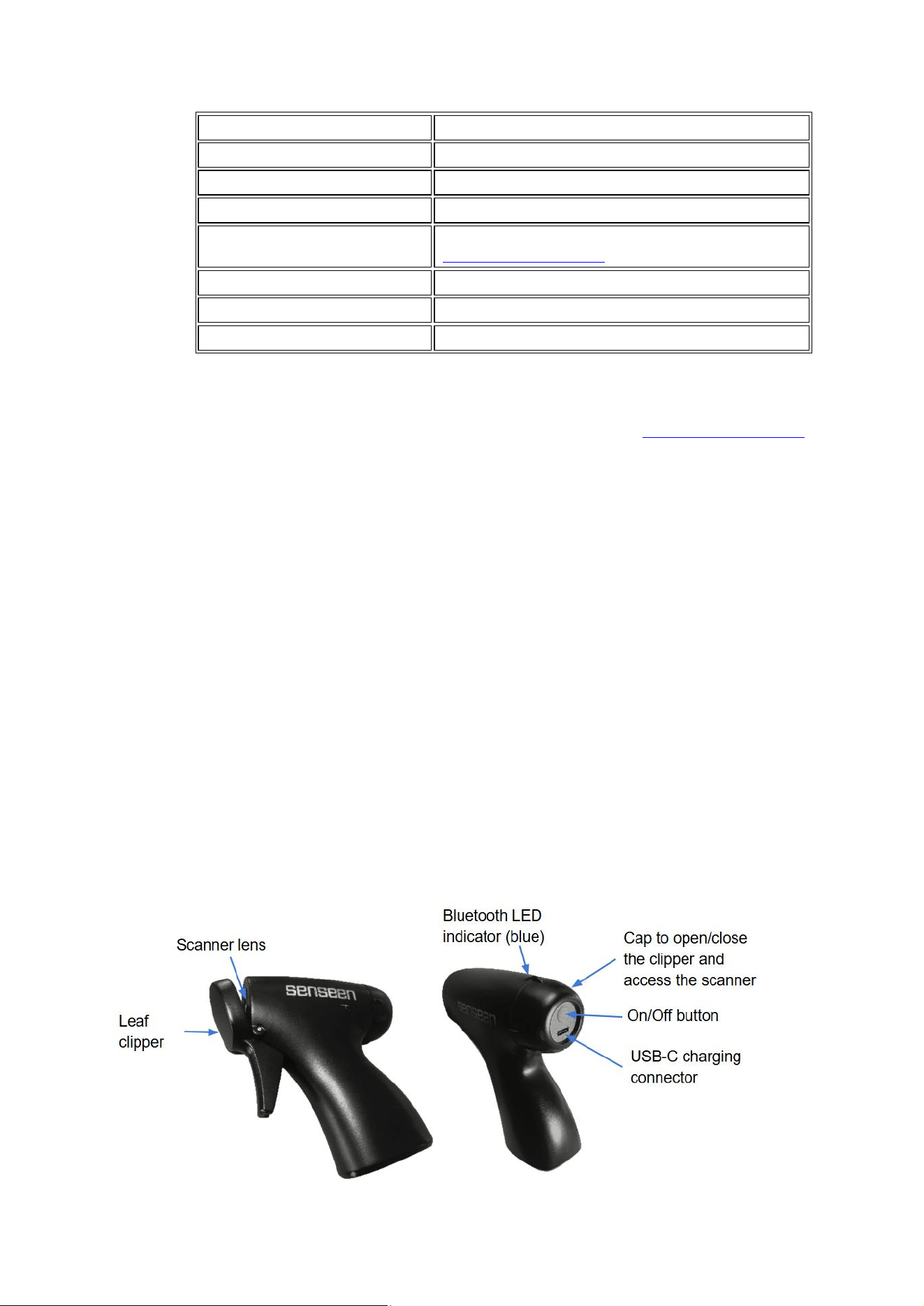
2.2. Technical Specicaons
Nutriscope™ is built with state-of-the-art technology for precise and reliable performance:
Parameter
Details
Measurement Metrics
nutrients, stress indexes( pH, Redox, Brix, conductivity,)
Scanning Technology
NIR-VIS-UV (200–1,700 nm) spectral range
Scanning Time
3 seconds per scan
Weight
7 oz (200 grams), scanner and handle
Dimensions
Compact and handheld design. Leaf gripper: 3.93*4.3*1.18
inches. Nutriscope: 3.54*0.78*0.78 inches
Power Source
Rechargeable Li-Polymer battery (via USB-C)
Input
DC 5V ⎓ 600 mA
Parameter
Details
Capacity
620 mAh 3.7V 2.3 Wh
Connectivity
Wireless (Bluetooth)
Operating Environment
0°C to 45°C, humidity up to 85%
Software Integration
Works with Nutriscope™ app (Senseen Pencil) or web platform
(https://portail.senseen.io/en)
IC
35898-NUTRI1
HVIN
NUTRI-1
FCC ID
2BXTH-NUTRI-1
2.3. Soware and App Features
Nutriscope™ integrates seamlessly with the Nutriscope™ (Senseen Pencil) App and platform (https://portail.senseen.io/en),
providing a user-friendly interface and advanced functionality:
• Data Visualization: View results in graphs, charts, and maps.
• Customizable Profiles: Add and manage different crop profiles for tailored monitoring.
• Cloud Syncing: Automatically backs up and syncs data across devices.
• Multi-Language Support: Available in multiple languages for global accessibility.
3. Geng Started
This section provides all the essential steps to set up your Nutriscope™ device and start using it effectively. Follow these
instructions to ensure a seamless experience.
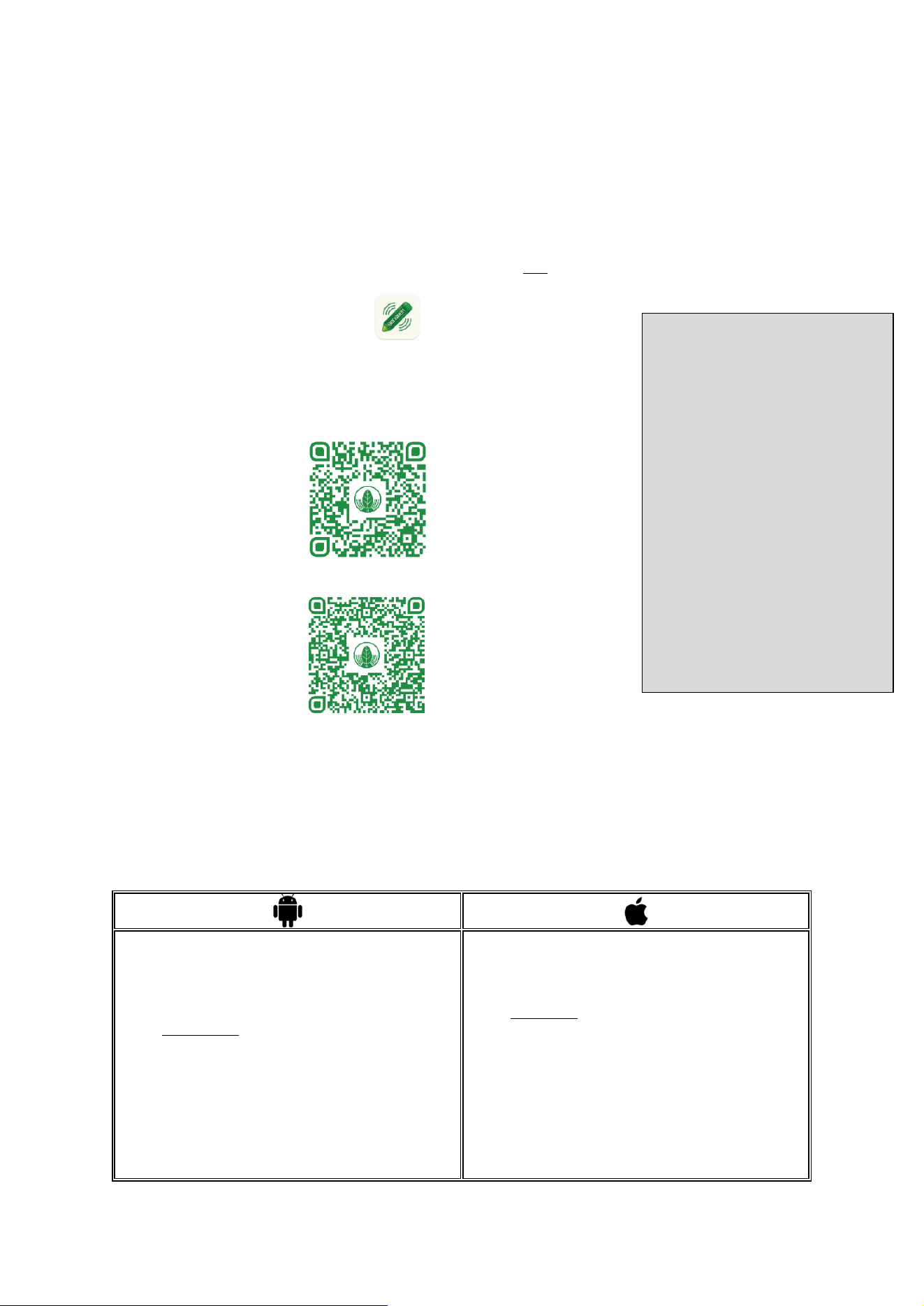
3.1. Unboxing Your Nutriscope™
When you receive your Nutriscope™ package, ensure it includes the following items:
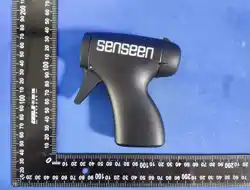
• Nutriscope™ device: Scanner and handle
• Charging cable (USB-C)
• Protective carrying case
• Quick start guide
If any item is missing or damaged, contact Nutriscope™ customer support immediately.
3.2.
3.3. How To Use Your Nutriscope™
Step 1: Charging Nutriscope
• Use the included USB-C cable to connect Nutriscope™ to a power source that meets the required technical
specifications (DC 5V, 600 mA).
• A full charge takes approximately 2 hours. The charge level will only be displayed on the mobile interface, once the
scanner has been paired with your phone, in the “scan” section.
Step 2: Downloading the Nutriscope™ App
The Nutriscope app is available for both Android and iOS devices. To download, search for
"Senseen Pencil" in your app store or visit the links below depending on your device type:
• Download “Senseen Pencil” App on App Store:
• Download Senseen App for Android:
Step 3 : Enable Bluetooth and geolocation
To ensure Nutriscope™ works properly, you need to enable Bluetooth and Geolocaon (GPS) on your device. When you open
the app, you will be prompted to grant permissions for Bluetooth and GPS locaon services; please accept to ensure proper
funconality. You can also follow the indicaon below:
Important: Do NOT pair Nutriscope™ directly from your phone's Bluetooth sengs. Instead, follow the steps below and
complete the pairing process inside the Senseen App.
Enable Bluetooth
• Open Sengs on your Android device.
• Tap Connected devices, Bluetooth or Connecons
(varies by device).
• Toggle the Bluetooth switch ON.
• Do not select Nutriscope™ in the Bluetooth menu.
Instead, open the Senseen App and follow the in-app
pairing instrucons.
Enable Geolocaon (GPS)
• Open Sengs on your Android device.
• Tap Locaon.
• Toggle the Locaon switch ON.
• Tap App permissions or Locaon Services.
Enable Bluetooth
• Open Sengs on your iPhone.
• Tap Bluetooth.
• Toggle the Bluetooth switch ON.
• Do not pair Nutriscope™ from this menu. Instead,
open the Senseen App and complete the pairing
process there.
Enable Geolocaon (GPS)
• Open Sengs on your iPhone.
• Scroll down and tap Privacy & Security.
• Tap Locaon Services.
• Toggle Locaon Services ON.
• Scroll down to nd the Senseen App and select:
• "While Using the App" for normal operaon.
Quick Start Check List
Charge Nutriscope
Download App on your phone
Enable Bluetooth on your phone
Enable geolocaon on your phone
Get your account
Login on the App
Pairing the device
Select product to scan
Choose measurement type
Scan
Analyze
• Find the Senseen App and select "Allow while using
the app" (or "Allow all the me" for connuous use).
• "Always" if connuous background tracking is
needed.
• Ensure "Precise Locaon" is ON to improve accuracy.
Troubleshoong Tips
• If Nutriscope™ doesn’t connect, make sure you haven’t paired it directly from the phone’s Bluetooth sengs.
Unpair it if needed and retry via the Senseen App.
• Restart your phone if Bluetooth or Locaon services don’t work properly.
• For Android, ensure Google Locaon Accuracy is enabled in the Locaon Sengs for beer posioning.
• Make sure the Senseen App has all necessary permissions (Bluetooth, Locaon, Nocaons).
• Some Android versions require both Bluetooth and Locaon to be enabled for successful device discovery.
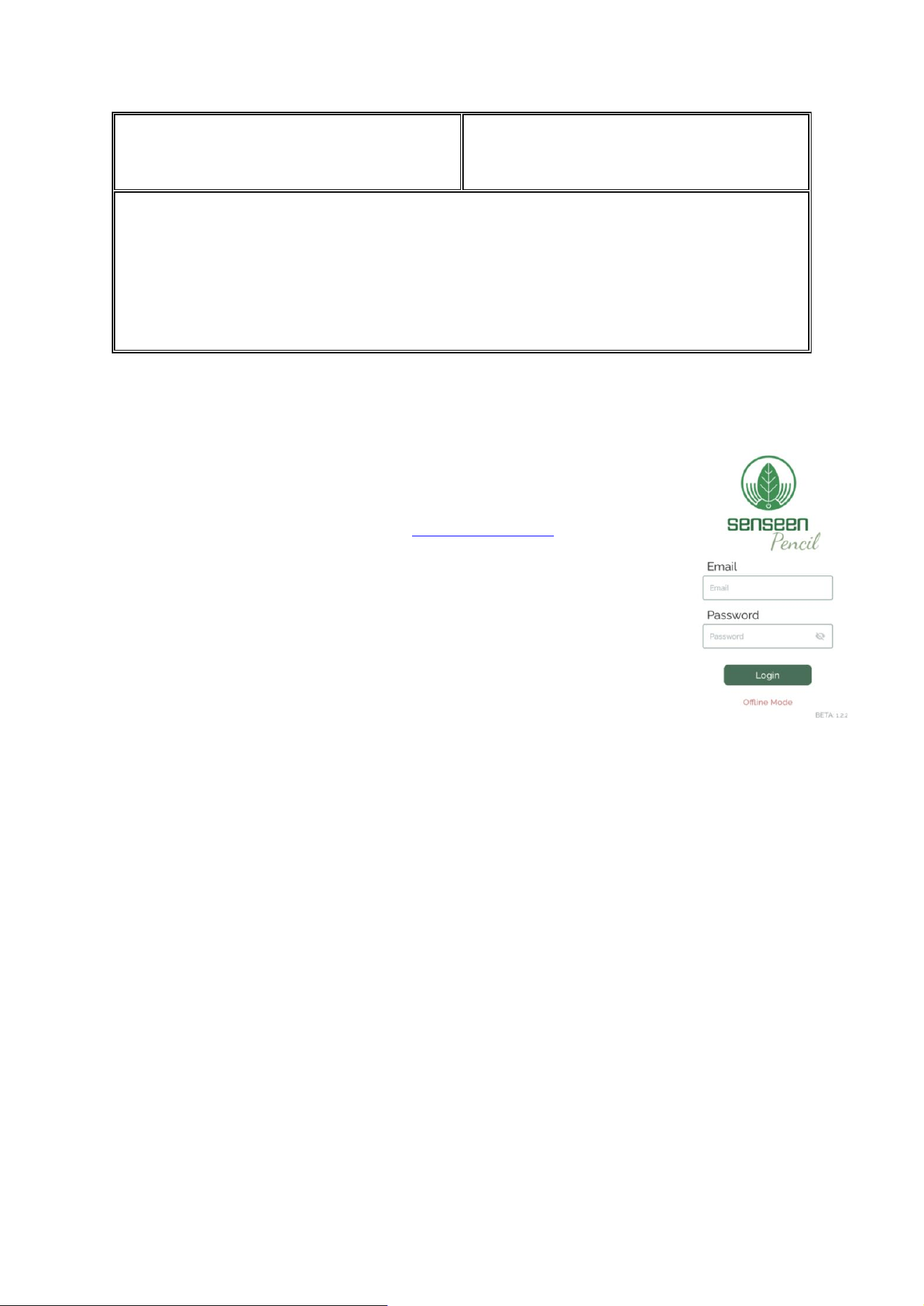
Step 4: Login on the App
When you receive your Nutriscope, you will need to register your product and request account
creation to access the platform. This registration is essential to associate the data collected by your
Nutriscope with the correct user and to provide access to Senseen’s platform. To complete your
registration, follow these steps:
1. Request an account on Senseen’s website: www.senseen.io/support
2. Select the purpose: “New Account Creation”
3. Fill out the form,
4. Registering multiple users: If you need to add multiple users, use the "Additional Users" field.
Enter one user per line, specifying the name, email address, and scanner ID for each.
Once submitted, our team will process your request, and you will receive confirmation when your
account is activated. You will then be able to connect to the App.
Step 5: Pairing the device
Note : We call crop a “product” as the Nutriscope is very generic and same app can measure for instance milk so to be generic
here “product” is the sample to scan, in most case for farmer is a crop.
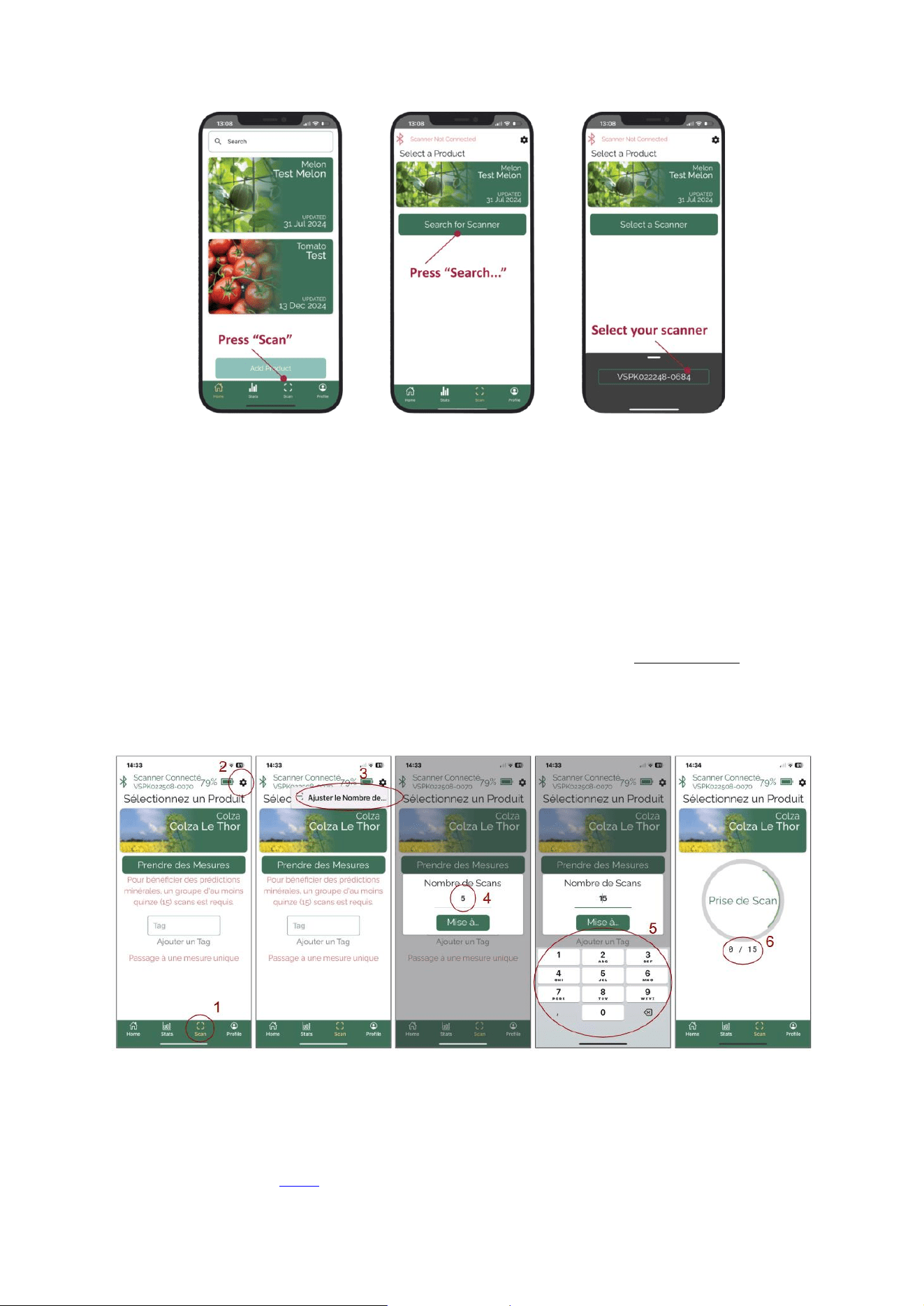
1. On the home page, you will see all the products you have created and have the opon to add a new one. To create
a new product for monitoring, click "Add Product" and select the crop type, enter a tle, and oponally provide a
descripon.
2. Choose the product you want to analyze from your list of saved products.
3. Turn on Nutriscope™ by pressing the power buon unl the Blue LED indicator blinks.
4. In the app, when you’ve chosen a product, press “scan”, a buon with “Select a Scanner” will appear as well as the
scanner ID number (VSPK######-####) of all scanners within range. If no scanners are detected, press “Search
scanner” or verify that Bluetooth and geolocaon are acvated (Step 3).
5. Select the scanner you want to pair with your mobile phone. Only one scanner can be paired at a me.
6. Once the connecon is successful, the device's LED will stop blinking and remain solid blue a nocaon displaying
"Scanner connected", its ID, and the baery status will appear. If the baery is low (indicated in red), please charge
the device before proceeding.
Step 6: Select product to scan
• Select the Product to Scan: From the Home menu, choose the product you want to analyze (e.g., tomato, grape).
The app will automacally navigate to the Stats menu, where you can view all previous measurements for the
selected product.
• Iniate Scanning: Tap the Scan buon to begin the scanning process.
Step 7: Choose measurement mode
Nutriscope™ oers two types of measurements:
• Group Measurement Scan: This mode is the “normal” one requires mulple scans before calculang an average
absorpon curve, providing results based on the aggregated data. Group measurements are strongly recommended,
as they align with Nutriscope’s original calibraon, ensuring higher accuracy and reliability.
• Single Measurement Scan: This mode provides results from a single scan, but it is not recommended as it may be
less accurate due to natural variability in plant samples.
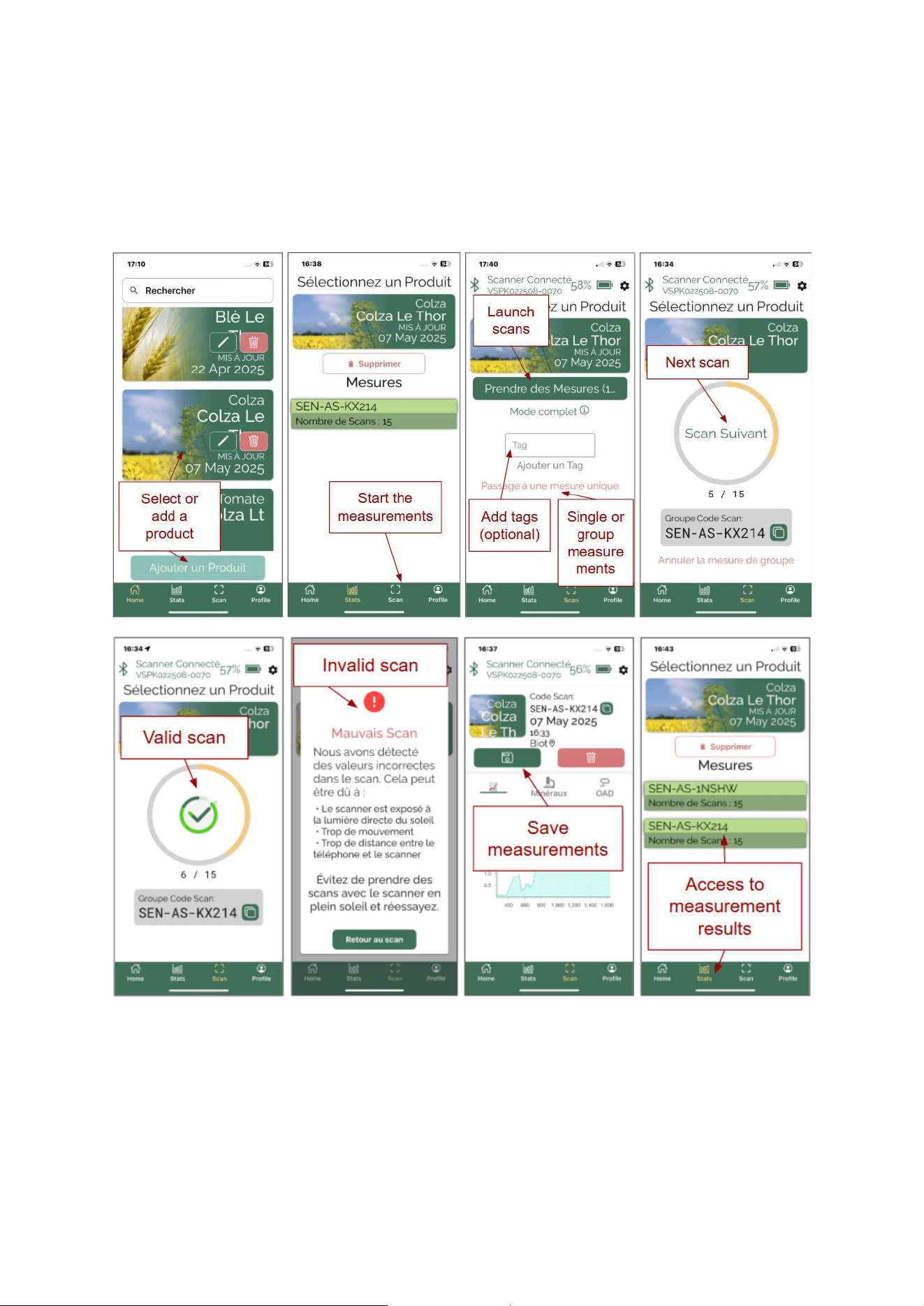
By default, the app is set to Group Measurement mode with ve scans. To adjust this number, tap the Sengs icon (gear icon)
on the top right hand corner and update the value as needed.
For best pracces on sampling methods, refer to the next secon of this document.
o If you focus on measurement parameters such as pH and Redox, we recommend choosing a seng of 5
scans minimum. Look at various protocols on our website
o If you focus on nutrients, you need to set group of 15 scans to match as best as possible the method used
by Senseen during calibraon.
o If you are looking for addional guidance, we recommend consulng the best pracces for sampling
developed by our partner Novacrops here:
▪ English
Step 8: Scan
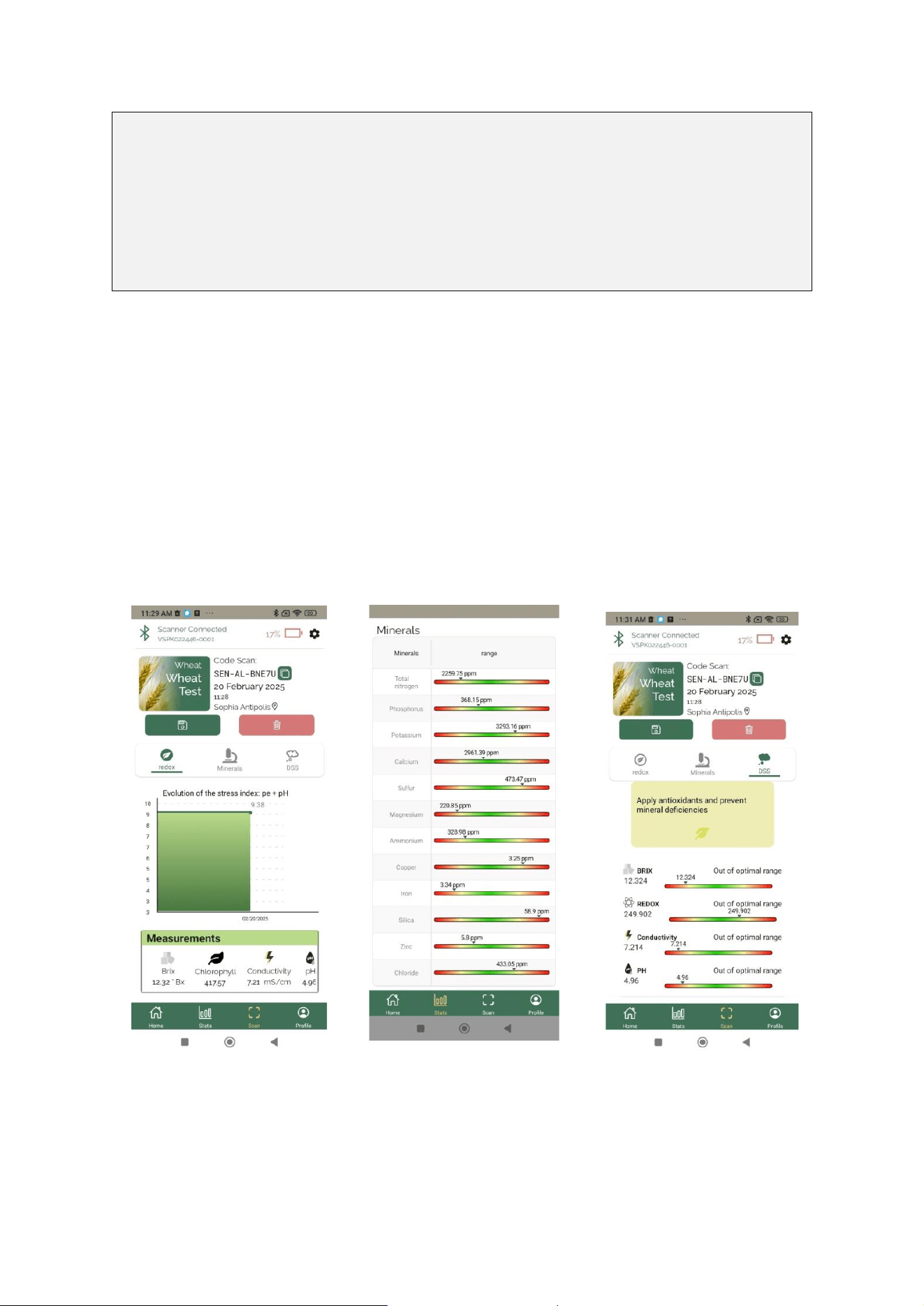
• Name your scan (oponal): Fill the “Tag” eld to give a name to your scan
• Prepare sample: Select the leaf you want to analyze and place it in the “leaf clipper”. Close the clip and make sure
outside light cannot hinder the quality of the scan.
• Launch scan: Press “Take a measurement”. Wait for few seconds to access scan results.
• If you selected “Group measurement” repeat these steps as needed.
Best Pracces for Accurate Scanning
• Consistency: Repeat your measurement process as consistently as possible (e.g., selecng the same leaves,
measuring at the same me of day). This will provide a clearer understanding of the trends aecng your crop.
• Sensive Measurements: If measuring sensive parameters like Redox, perform measurements early in the
morning (before 9 AM) as photosynthesis can introduce signicant variaons in your readings.
• Sample Placement: Ensure the scanner is in full contact with the sample surface and prevent any external light
interference for precise measurements.
• Cleanliness: Wipe the scanner sensor with a so, lint-free cloth aer each use to prevent cross-contaminaon.
• Environment: Avoid scanning in extreme weather condions or direct sunlight, as these may aect sensor
performance.
Step 9: Analyze
Press “Save Scan” to make sure, your data is stored on the plaorm or “Delete scan” if you are not sased.
With your subscripon, all measurements are automacally saved in the cloud under the product's prole, and will also be
accessible on the Senseen’s plaorm and mobile App. The results are visualized in graphs and charts for easy interpretaon.
You can also compare them with historical data to idenfy trends or anomalies.
Once the scan is complete, the app will display the results, including key metrics such as:
o Stress parameters such PH , Redox and EC levels: Indicators of soil or crop health.
Together with Brix levels: Measure of sugar content in fruits or vegetables.
Chlorophyl can also be provided
o Nutrient concentraons: Insight into the nutrional prole.
o Redox DSS when available to interpret the Stress parameters
View of the 3 possible analyses:
Screen 1: stress index and pH, redox, conducvity, Brix
Screen 2: minerals and trace elements
Screen 3: DSS redox on the interpretaon of the results of screen 1
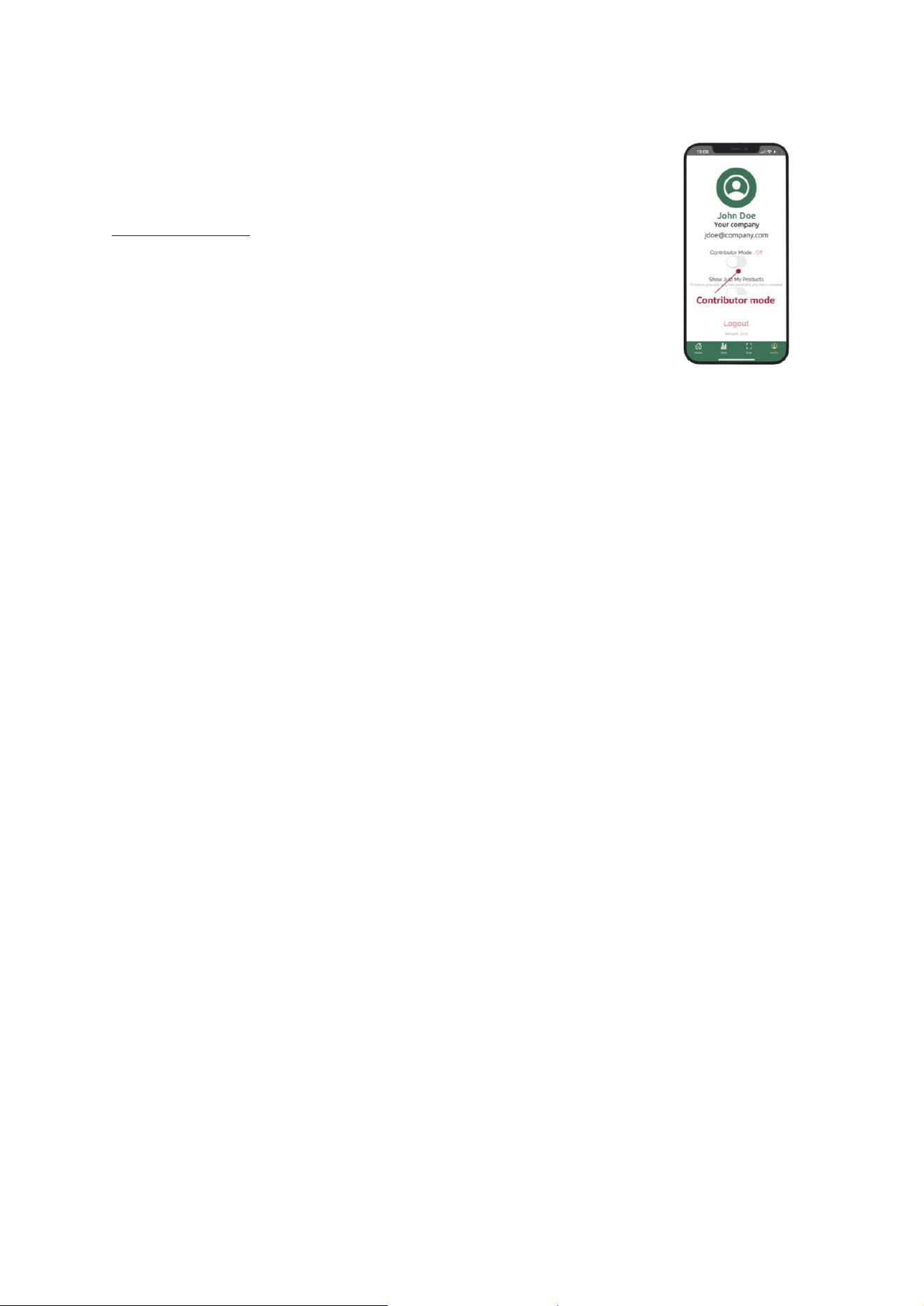
3.4. Contributor Mode
This is a special mode not to use in usual operaon. In your prole sengs, you will nd an opon
for "Contributor Mode", which should remain disabled during normal use. Contributor Mode is
designed for partners and researchers who wish to assist in calibrang Nutriscope™ for new crops.
By enabling this mode, users can contribute valuable scan data to improve measurement accuracy. If
you're interested in collaborang, please visit our contact form at:
www.senseen.io/contact
4. Sampling Best Pracces
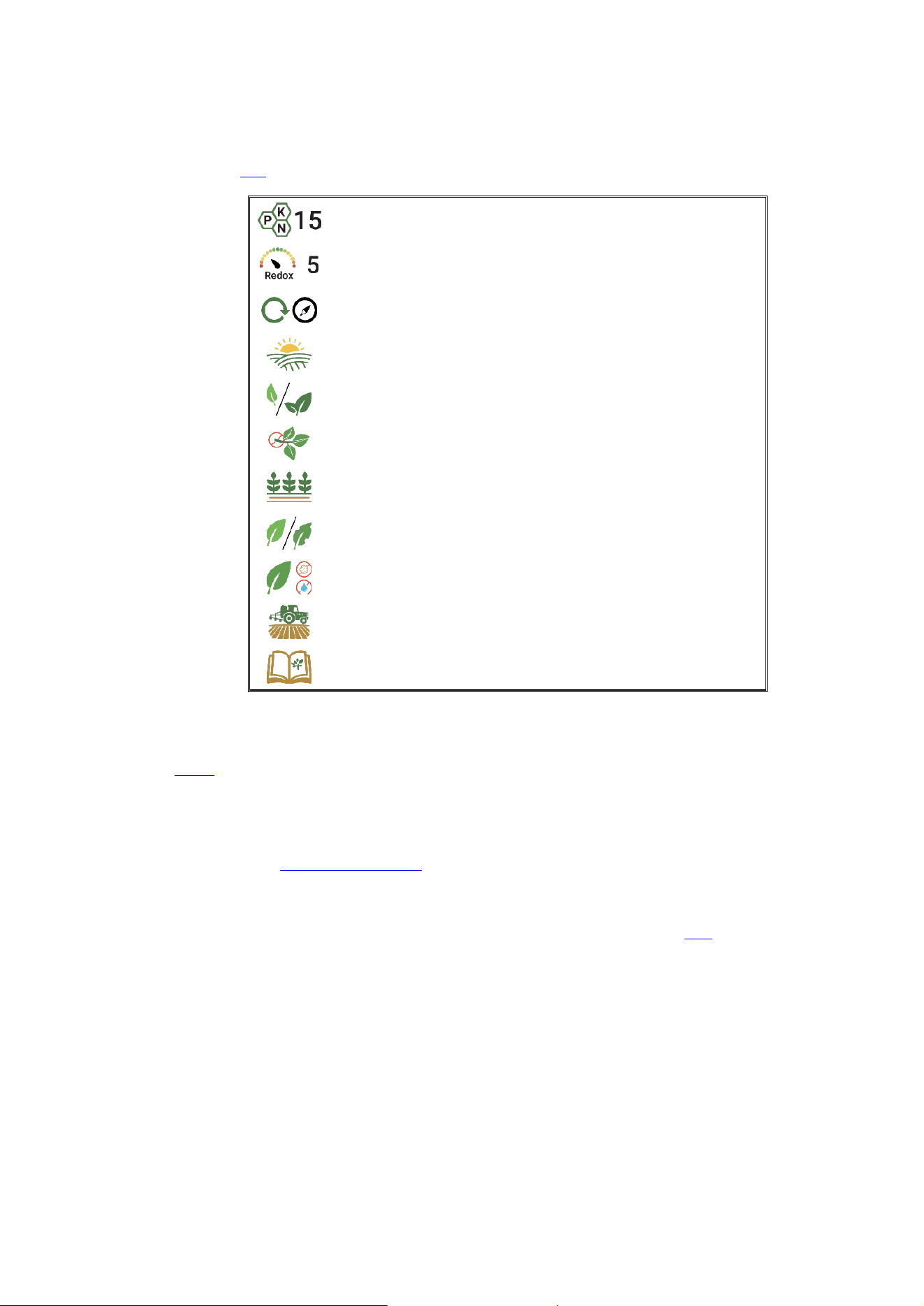
To maximize the accuracy and consistency of your Nutriscope™ measurements, follow our measurement protocols available
on our website in the “Scan” secon, as well as the recommended best pracces:
Use 15 scans (group measurement) when focusing on nutrient analysis for
the most reliable data.
Use minimum 5 scans (group measurement) when assessing plant stress
(e.g., Redox measurements).
Maintain consistency in your sampling pracces to track trends eecvely
over me and improve decision-making.
Sample early in the morning, before 9 AM to minimize variability caused by
photosynthesis
You can Sample young and old leaves separately if you want to analyse
nutrient movements.
Avoid sampling the leaf peole (leaf stalk) as it may aect measurement
consistency.
Do not sample from areas such as side paths or headlands, as these
locaons may not be representave of the crop.
Separate decient leaves from healthy leaves to beer understand stress
condions and nutrient imbalances.
Ensure samples are free from dew, moisture, or dirt to prevent
contaminaon and inaccurate readings.
Collect samples before foliar spray applicaon or wait at least one week
aer applicaon to avoid interference from treatments.
Refer to detailed sampling best pracces for addional guidance on proper
collecon techniques (see below).
Following these guidelines will help you obtain the most reliable and aconable data for opmizing plant health and nutrient
management. If you are looking for addional guidance, we recommend consulng the best pracces for sampling developed
by our partner Novacrops and used by Senseen for calibraon purpose, here:
▪ English
5. Portal
Thanks to the Senseen portal: hps://portail.senseen.io, you can access all your measurements and get a comprehensive view
of stascs and minerals. You’ll be able to select the periods you're interested in, make comparisons, visualize trends, see the
opmal ranges for each measured element… and most importantly, you’ll have the ability to export your data.
Access to the Senseen portal requires a subscripon to the annual portal subscripon, available in the store.
Your access credenals will be the same as those provided for the Senseen app.
5.1. The “Stats” Tab
In this tab, you’ll nd the results of your measurements for:
• RedOx
• pH
• Pe + pH
• Conducvity
• Brix
• Temperature
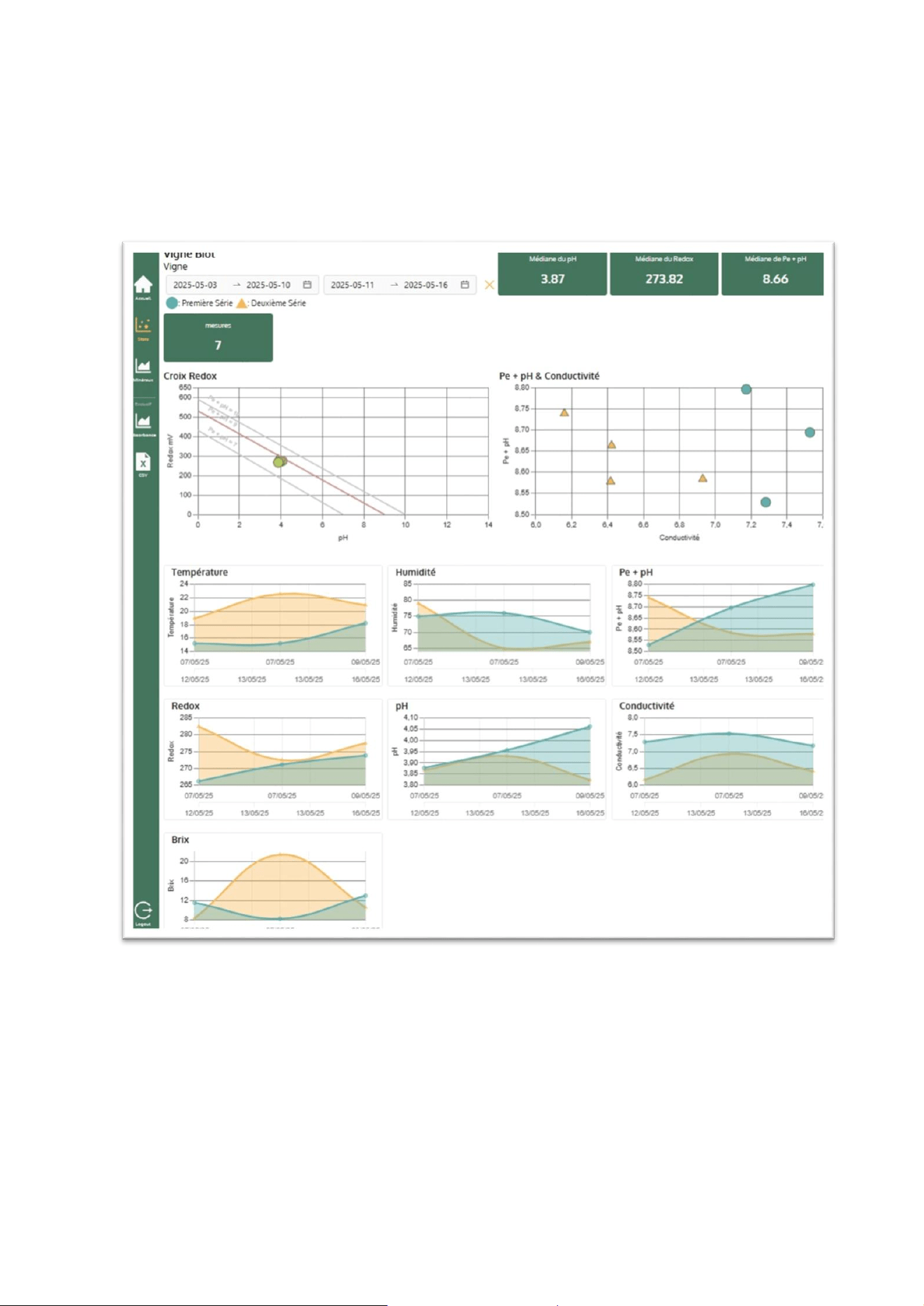
• Humidity
You can customize the data display by me period or for a specic date, and also compare mulple me periods.
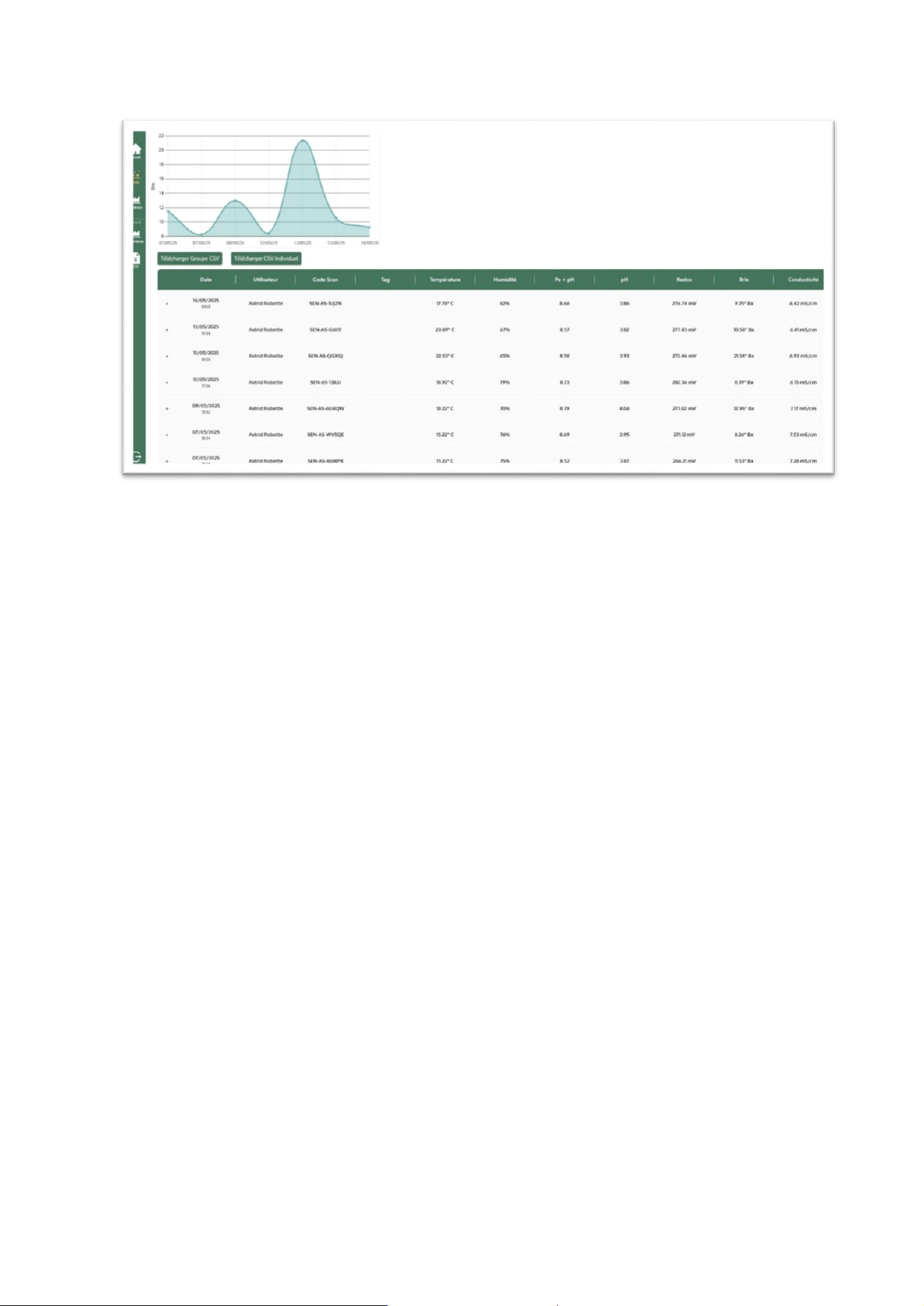
The rst secon of this tab displays your data as graphs, while the second secon shows your data in a table format, with each
row represenng one measurement. For each of them, you can view the detailed scans that make up the measurement.
Finally, the “Download Group CSV” buon lets you export all your measurements (average of the scans) into a .csv le, while
the “Download Individual CSV” buon allows you to export all individual scans.
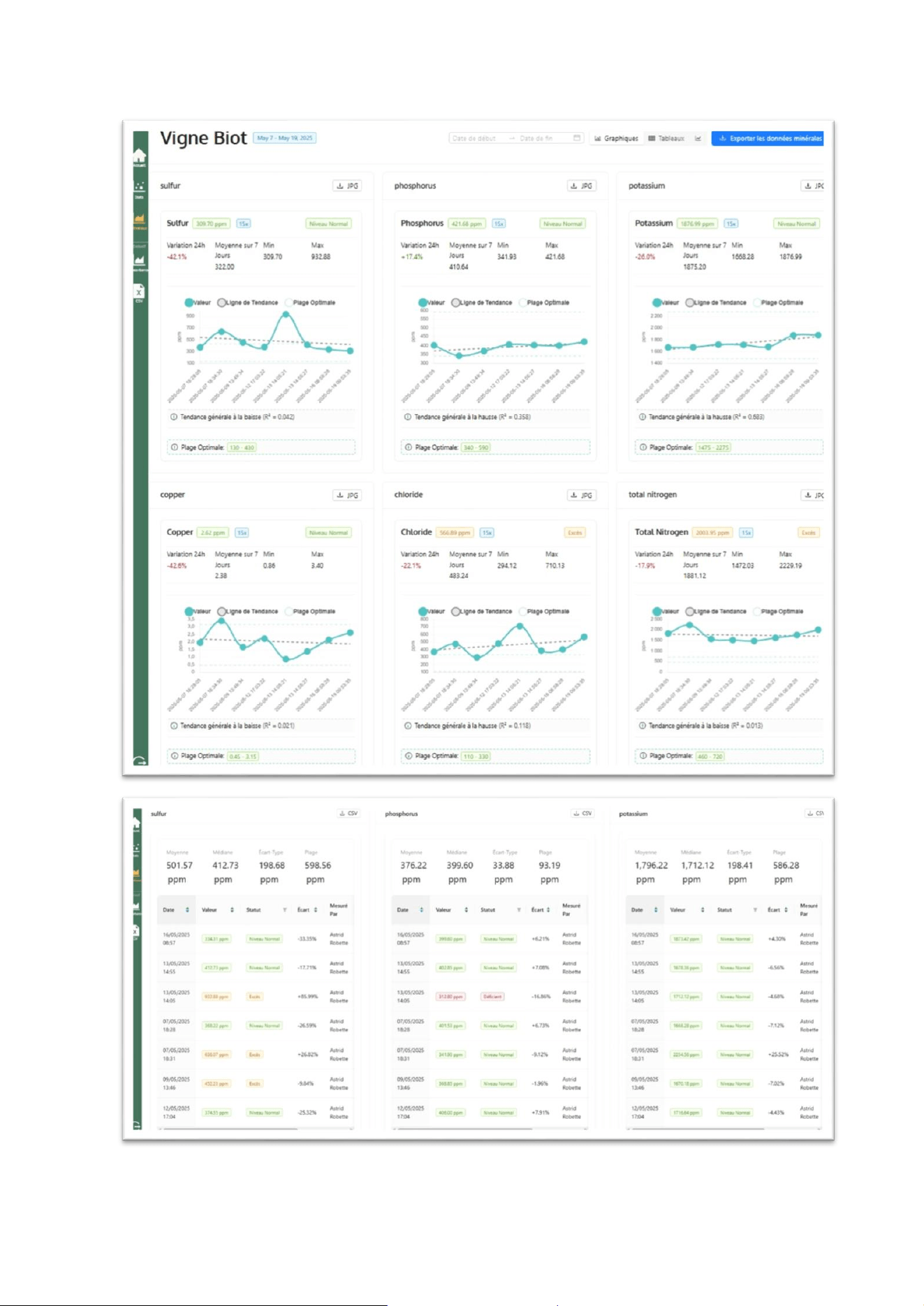
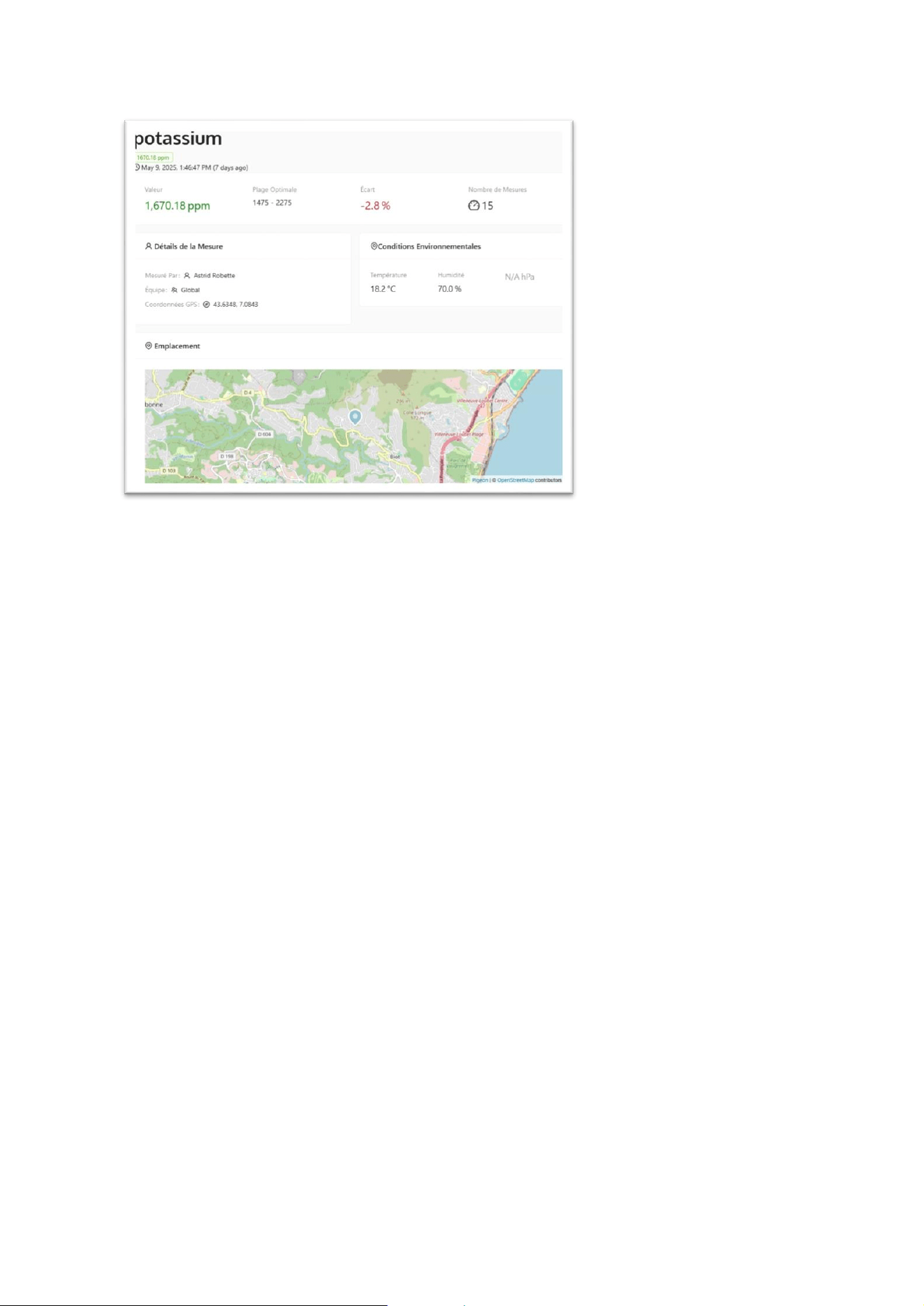
5.2. The “Minerals” Tab
In this tab, you'll nd the results of your measurements for mineral and trace element content, including: Total N, NH4+, P, K,
Ca, S, Mg, Cl, Zn, Fe, Cu, SiO₂, and soon Mn and Bo.
As with the “Stats” secon, you can customize the display of data by me period and also change the visual rendering: graphs,
tables, or curves.
For each mineral and trace element, the opmal range is shown, along with the current status of your crop (Excess, Normal,
Decient) relave to that range. The trend (R²) is also indicated.
The “Export Mineral Data” buon allows you to download either a detailed report containing:
• Summary stascs
• Mineral analysis by measurement
• Data visualizaons
• Interacve tables
• Health status indicators
Or raw data that you can use to create your own custom analyses.
6. Maintenance and Troubleshoong
This section provides guidance on maintaining your Nutriscope™ for optimal performance and resolving common issues that
may arise during use.
6.1. Maintenance Tips
To keep your Nutriscope™ functioning at its best, follow these maintenance guidelines:
• Cleaning the Sensor:
o After each use, gently clean the sensor with a soft, lint-free cloth dampened with a mild cleaning solution
or isopropyl alcohol.
o Avoid abrasive materials or harsh chemicals that could damage the sensor.
• Protecting the Device:
o Store the Nutriscope™ in the provided protective case when not in use.
o Keep the device in a cool, dry place away from direct sunlight, dust, and moisture.
• Battery Care:
o Use only a compatible USB-C charger that meets the technical specifications (DC 5V, 600 mA).
o Avoid letting the battery fully deplete. Charge the device when the battery indicator falls below 20%.
• Software Updates:
o Regularly update the Nutriscope™ app to ensure you have the latest features, crop calibrations, and
security enhancements.
6.2. Troubleshoong Common Issues
Here’s how to resolve common problems you might encounter with your Nutriscope™:
• Device Won’t Turn On:
o Ensure the device is charged. If it doesn’t respond, connect it to a power source and try again after a few
minutes.
• Device Fails to Connect to the App:
o Confirm that Bluetooth and geolocation enabled on your smartphone.
o Restart both the device and the app.
o Ensure the device is not paired with another app or account.

o Make sure you connect the scanner through the Senseen App and not through your mobile phone
Bluetooth setting.
• Inaccurate or Unstable Measurements:
o Clean the sensor and ensure the sample is properly positioned.
o Verify that the sample type matches the selected crop in the app.
• Error Messages During Scanning:
o Refer to the on-screen instructions to address the error.
o If unclear, consult the FAQs in the app or the troubleshooting section on the Nutriscope™ website.
• App Crashes or Freezes:
o Ensure your app is updated to the latest version.
o Restart the app and clear the app cache if necessary.
7. Maintenance and evoluons
Nutriscope™ is equipped with cung-edge features that go beyond basic crop health monitoring. These advanced
funconalies are designed to provide deeper insights, improve ease of use, and integrate seamlessly into modern agricultural
workows. Below is a detailed overview of these advanced features:
Nutriscope™ Soware Updates
Nutriscope™ frequently releases soware updates to opmize device performance, introduce new features, and expand crop
support. These updates include:
• Enhanced scanning algorithms for improved accuracy.
• New crop calibraon proles to extend funconality.
• Security patches and bug xes for a seamless experience.
Calibraon Updates: Calibraon updates, such as new measurements or crop proles, are automacally applied and do not
require acon from you.
Mobile App Updates: To update the Nutriscope™ mobile app:
1. Ensure your mobile phone is connected to the internet.
2. Wait for a nocaon from the app when updates are available.
3. Follow the on-screen prompts to download and install the updates.
8. Theory of operaons
8.1. How does Nutriscope works
Nutriscope™ works by shining light onto a plant and measuring how much is absorbed, reected, or transmied. Just like a
ngerprint, each plant compound (chlorophyll, nutrients, stress markers) interacts with light in a unique way. Nutriscope™
analyzes these interacons to give you real-me crop health insights.
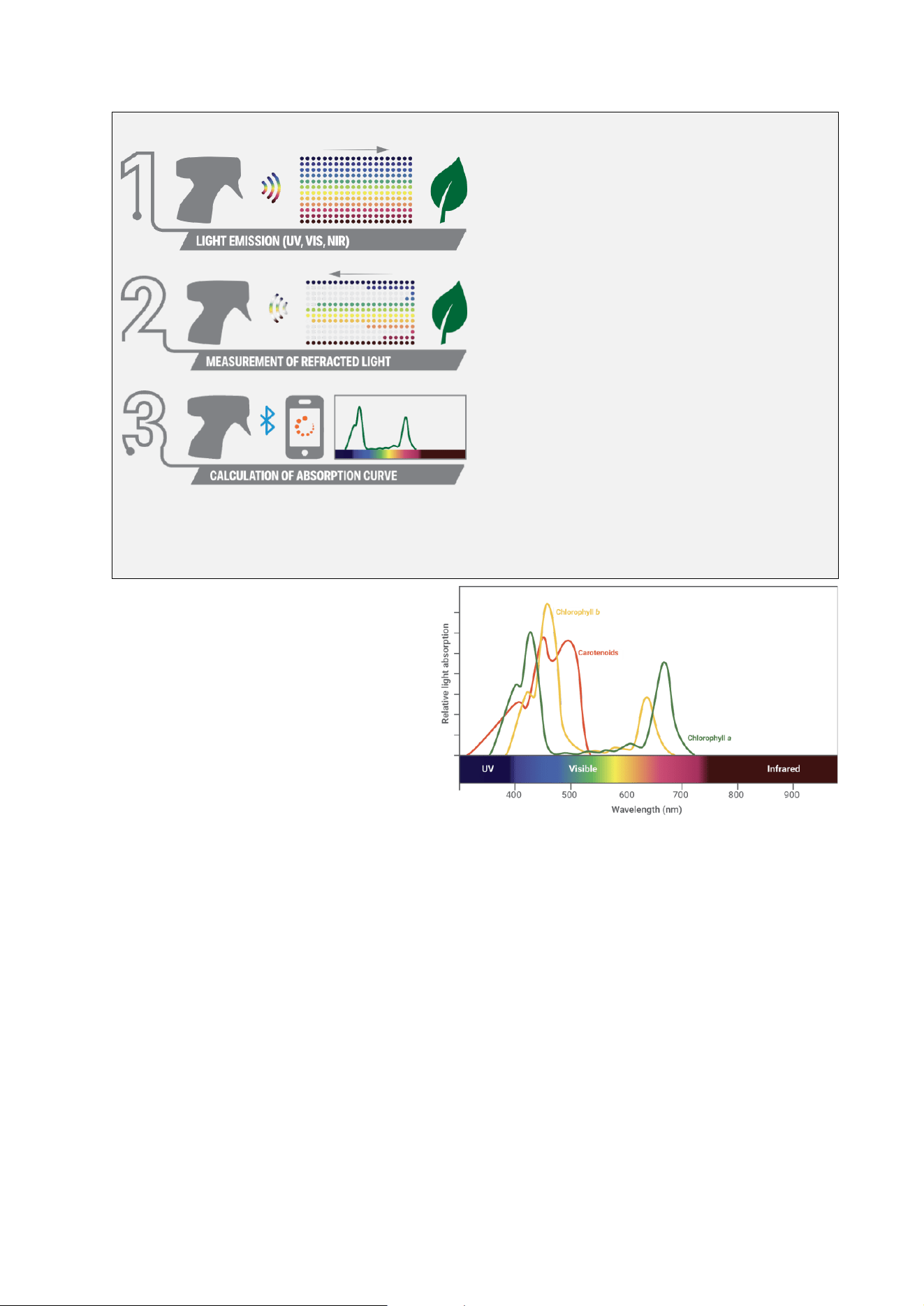
Nutriscope™ operates using a three-step process that allows for real-me, non-invasive crop health analysis:
Emission of Light onto the Plant: The device emits light from
a set of LEDs at specic UV, visible, and near-infrared (NIR)
wavelengths. These wavelengths are carefully selected to
target key biochemical properes of the plant, such as
chlorophyll content, nutrient levels, and stress markers.
Recepon of Refracted Light: As light interacts with plant
ssue, certain wavelengths are absorbed, while others are
reected. Nutriscope™’s opcal sensor precisely captures the
intensity of reected light across dierent wavelengths,
allowing for detailed spectral analysis.
Calculaon of the Absorpon Curve: Nutriscope™ determines
the absorpon curve by analyzing the dierence between
emied and received light. This curve serves as a unique
spectral ngerprint, revealing the plant's chemical
composion. Disnct peaks and valleys in the absorpon
curve—or complex paerns detected through AI-powered
analysis—indicate how specic plant compounds, such as
chlorophyll and nutrients, interact with light. By decoding
these paerns, Nutriscope™ quanes key plant health
parameters, delivering aconable insights to opmize crop
management.
The Nutriscope™ captures the absorpon curve, which
represents how dierent wavelengths interact with the
plant’s ssues. The absorpon curve is like a ngerprint
for each element or compound in a plant—it uniquely
idenes how dierent substances interact with light.
Just as every person has a unique ngerprint, chlorophyll
a, chlorophyll b, and carotenoids each have disnct
absorpon paerns at specic wavelengths (see
diagram). For example, chlorophyll a absorbs the most
light in the blue (~430 nm) and red (~665 nm) regions,
while chlorophyll b peaks around 455 nm and 640 nm,
and carotenoids absorb strongly in the blue range (~450
nm) but reect yellow and red light—which is why leaves
turn yellow in the fall. By analyzing these unique
absorpon paerns, Nutriscope™ can detect nutrient levels, stress factors, and overall plant health, giving farmers precise,
real-me insights.
8.2. How is Nutriscope calibrated?
To ensure accurate measurements, Nutriscope™ underwent a rigorous calibraon process using real-world plant samples and
advanced machine learning algorithms.
Data Collecon: Measuring the Absorpon Curve
For each crop type and measurement parameter (e.g., chlorophyll, pH, Brix levels, nutrients), we rst capture an absorpon
curve from a group of leaves—this forms a single sample. The same sample is then analyzed using independent reference
methods, such as wet lab chemical analysis or high-precision in-eld sensors.
Building the Calibraon Model
To create a robust model, we collect a few hundred samples for each crop type. 80% of the samples are used to train the
calibraon model. The remaining 20% are reserved for validaon—a "blind test" to check accuracy.
Machine Learning Calibraon
Using machine learning algorithms, Nutriscope™ learns to correlate its absorpon curves with real-world lab measurements.
The process involves:
• Idenfying paerns in the absorpon spectra across dierent crop condions.
• Mapping spectral data to actual nutrient concentraons, Brix levels, or other parameters.
• Rening the model by minimizing errors between Nutriscope™ predicons and lab results.
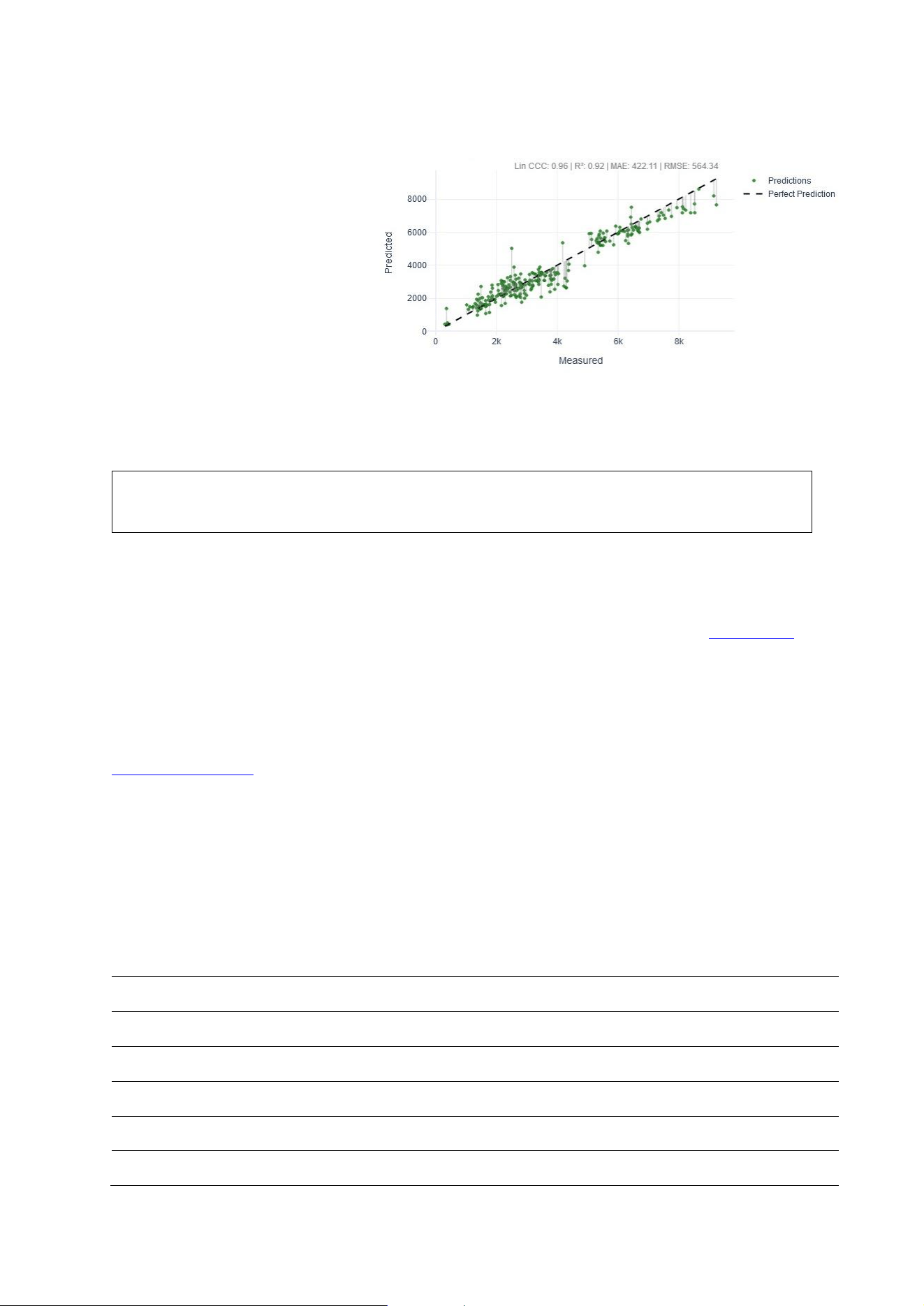
Accuracy Validaon
Once trained, we test the model using the
20% validaon samples that were not part of
the training set. Nutriscope™ predicts the
values for these samples, and we compare
them to their independent lab-measured
values (see example on the gure). The
dierence between Nutriscope™’s
predicons and the actual reference values
helps us esmate the accuracy and reliability
of the device.
Nutriscope™ measurements are based on
spectral analysis and machine learning.
Accuracy depends on crop type, environmental condions, and calibraon data. Nutriscope™ is connuously improving its
calibraon models. As we collect more data and rene our machine learning algorithms, we aim to increase accuracy across
all parameters. Updates and improvements will be regularly integrated into our system to ensure that users receive the most
reliable and aconable insights possible.
⚠ Nutriscope™ is a decision support tool and does not replace professional agronomic judgment. Accuracy levels may vary
depending on crop type, environmental condions, and proper device use. Users should interpret results as indicators not
absolute values. Senseen accepts no liability for adverse eects because of its results or advice provided.
9. Customer Support and Resources
9.1. Resources
Access to the online knowledge base, and FAQs: Users can explore our online knowledge base available at www.sensen.io to
nd detailed guides, troubleshoong ps, and best pracces for using Nutriscope™ eecvely. The FAQs secon oers quick
answers to common quesons, ensuring that users can resolve issues eciently and get the most out of their Nutriscope™
device and app.
9.2. Contacng Customer Support
If you encounter any issues during setup, contact Nutriscope™ customer support via our website for assistance at
www.senseen.io/support
9.3. Warranty and Repairs
• Nutriscope™ comes with a 1-year limited warranty covering manufacturing defects.
• If your device needs repair or replacement, contact customer support to initiate a warranty claim.
• For out-of-warranty repairs, inquire about service costs and available options.
10. Glossary of Terms
Term
Denion
Calibraon
The process of aligning the Nutriscope™ device to specic measurement standards to ensure
accurate data collecon.
Knowledge Base
An online repository of resources, including guides, tutorials, troubleshoong arcles, and detailed
informaon about Nutriscope™ features and funconalies.
Machine Learning
A subset of arcial intelligence (AI) used in Nutriscope™ to improve scanning accuracy and data
analysis by learning from collected data over me.
LLM (Large Language
Model)
A type of arcial intelligence model designed to understand and generate human-like text. Used to
interpret user inputs and provide intelligent, natural responses.
Mobile App
The Nutriscope™ applicaon installed on a smartphone or tablet, enabling users to interact with the
device, access updates, and view analysis results.
Scanning Algorithm
The computaonal process used by Nutriscope™ to analyze data collected during scans and generate
accurate results.

Security Patch
An update to the Nutriscope™ soware that addresses vulnerabilies, ensuring secure operaon and
protecng user data.
Soware Update
A release that improves the funconality of the Nutriscope™ mobile app or device by adding new
features, xing bugs, or enhancing compability.
User Forum
An online community where Nutriscope™ users can discuss their experiences, share ps, and ask
quesons to learn from one another.
FAQs (Frequently
Asked Quesons)
A collecon of commonly asked quesons and their answers, designed to help users quickly resolve
typical issues.
Internet Connecvity
The ability of a device, such as a smartphone or the Nutriscope™, to connect to the internet to access
updates, upload data, or download new features.
11. Legal Disclaimers and Compliance Informaon
Nutriscope™ is designed and manufactured in compliance with applicable industry standards and regulations to ensure safe
and effective use. Below is an overview of key legal and compliance information for users:
11.1. Disclaimer: Accuracy, Claims, and Usage of Nutriscope™
Nutriscope™ is a decision-support tool designed to provide real-me, data-driven insights into crop health. All measurements,
including nutrient levels, pH, Redox potenal, Brix, conducvity, and stress indexes, are based on spectral analysis and machine
learning calibraon models.
Measurement Accuracy & Variability
• Accuracy varies by crop type, environmental condions, and sample quality.
• Users should interpret results as indicators and trends, rather than absolute values.
• Validaon studies are available upon request.
Scienc Basis & Substanaon
• All claims regarding measurement performance are based on internally conducted calibraon studies.
• Senseen connuously updates its machine learning models to enhance precision.
• For general methodology, visit hps://www.senseen.us/validaon.
No Guarantee of Specic Outcomes
• Nutriscope™ is not a replacement for laboratory analysis or professional agronomic judgment.
• Users are encouraged to cross-reference Nutriscope™ readings with addional eld observaons or lab tests for
crical decisions.
• Senseen shall not be liable for crop yield variaons, nancial losses, or operaonal decisions made based on
Nutriscope™ data.
No Regulatory or Medical Use
• Nutriscope™ is not cered for regulatory compliance, pescide applicaon, or environmental monitoring.
• Users must verify results through cered laboratory methods when required.
Compliance with Consumer Protecon Laws
• This product complies with California Business & Professions Code §§ 17200, 17500, and Civil Code § 1770.
• Any claims related to Nutriscope™’s accuracy and eecveness are based on scienc research, internal calibraon
data, and real-world tesng.
For support, warranty, and full documentaon, visit: www.senseen.io/support.
By using Nutriscope™, the user acknowledges these limitaons and responsibilies and agrees to use the product in
accordance with best agronomic pracces.
11.2. Warranty and Limitaons of Liability
Nutriscope™ comes with a limited one-year warranty covering manufacturing defects under normal use conditions. The
warranty does not cover misuse, unauthorized modifications, or improper maintenance. Nutriscope™ disclaims all liability for
any indirect, incidental, or consequential damages arising from the use of the device or app.
11.3. Regulatory Compliance
Nutriscope™ complies with relevant regulations, including:
• CE Marking: Ensures conformity with health, safety, and environmental protection standards for products sold
within the European Economic Area (EEA).

• FCC Compliance: Certifies that the device meets U.S. Federal Communications Commission standards for electronic
emissions.
• RoHS Directive: Confirms that Nutriscope™ is free of hazardous substances, in compliance with the Restriction of
Hazardous Substances Directive.
11.4. Privacy and Data Protecon
Nutriscope™ prioritizes the protection of user data. All personal and crop data collected through the mobile app or device are
handled in accordance with our Privacy Policy, which is designed to meet GDPR and other data protection standards. Data is
used solely for improving device performance and user experience and is never shared with third parties without explicit user
consent.
11.5. User Responsibilies
Users are responsible for ensuring that they operate Nutriscope™ in compliance with local laws and regulations. It is also the
user's responsibility to follow proper maintenance and calibration procedures to achieve accurate results.
11.6. Contact Informaon
For questions or concerns about compliance, warranties, or legal information, please contact our support team:
Email: contact@sensing.green
By using Nutriscope™, users agree to these terms and conditions. Please review the full Terms of Service and Privacy Policy
available on our website.
12. Feedback and Updates
We value your input and believe collaboraon is key to innovaon and improvement. Nutriscope™ provides several ways for
users to share feedback, collaborate with others, and contribute to the community:
Providing Feedback
Your insights help us improve Nutriscope™. Users are encouraged to share feedback about the device, app, or overall
experience through:
• Support Email: Send detailed suggesons or concerns to contact@sensing.green
• Surveys: Parcipate in periodic user surveys to guide future updates and features.
Collaboraon Opportunies
Currently, Nutriscope™ is calibrated for specic parameters across certain crops, but each addional capability requires further
calibraon. With a pipeline of calibraons already in progress, we will connue to roll out new capabilies over me. We are
acvely seeking partners to collaborate on these calibraon campaigns to expand Nutriscope™’s reach to more crops and
measurements. If you’re interested in partnering with us to broaden Nutriscope™’s potenal, please contact us to discuss
opportunies.
Your feedback and collaboraon are instrumental in shaping Nutriscope™ into a tool that meets the evolving needs of its users.
We look forward to working together to improve agriculture through innovaon.

FCC warning statements:
This equipment has been tested and found to comply with the limits for a Class
B digital device, pursuant to part 15 of the FCC Rules. These limits are
designed to provide reasonable protection against harmful interference in a
residential installation. This equipment generates, uses and can radiate radio
frequency energy and, if not installed and used in accordance with the
instructions, may cause harmful interference to radio communications.
However, there is no guarantee that interference will not occur in a particular
installation. If this equipment does cause harmful interference to radio or
television reception, which can be determined by turning the equipment off and
on, the user is encouraged to try to correct the interference by one or more of
the following measures:
• Reorient or relocate the receiving antenna.
• Increase the separation between the equipment and receiver.
• Connect the equipment into an outlet on a circuit different from that to which
the receiver is connected.
• Consult the dealer or an experienced radio/TV technician for help.
Caution: Any changes or modifications to this device not explicitly approved
by manufacturer could void your authority to operate this equipment.
This device complies with part 15 of the FCC Rules. Operation is subject to the
following two conditions: (1) This device may not cause harmful interference,
and (2) this device must accept any interference received, including
interference that may cause undesired operation.
The device has been evaluated to meet general RF exposure requirement. The device
can be used in portable exposure condition without restriction.