Version 2.1.1
SA8 Instruction Manual
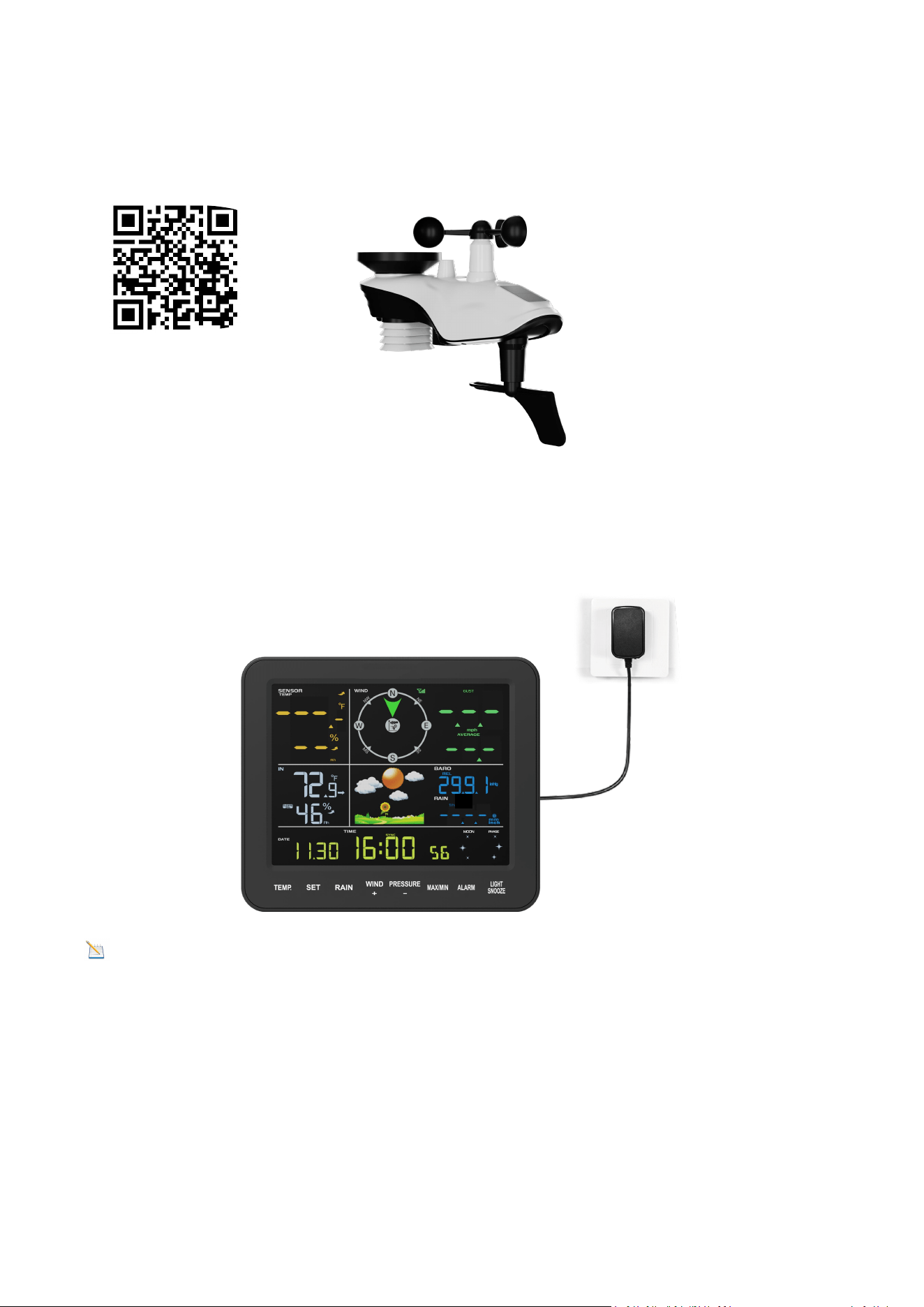
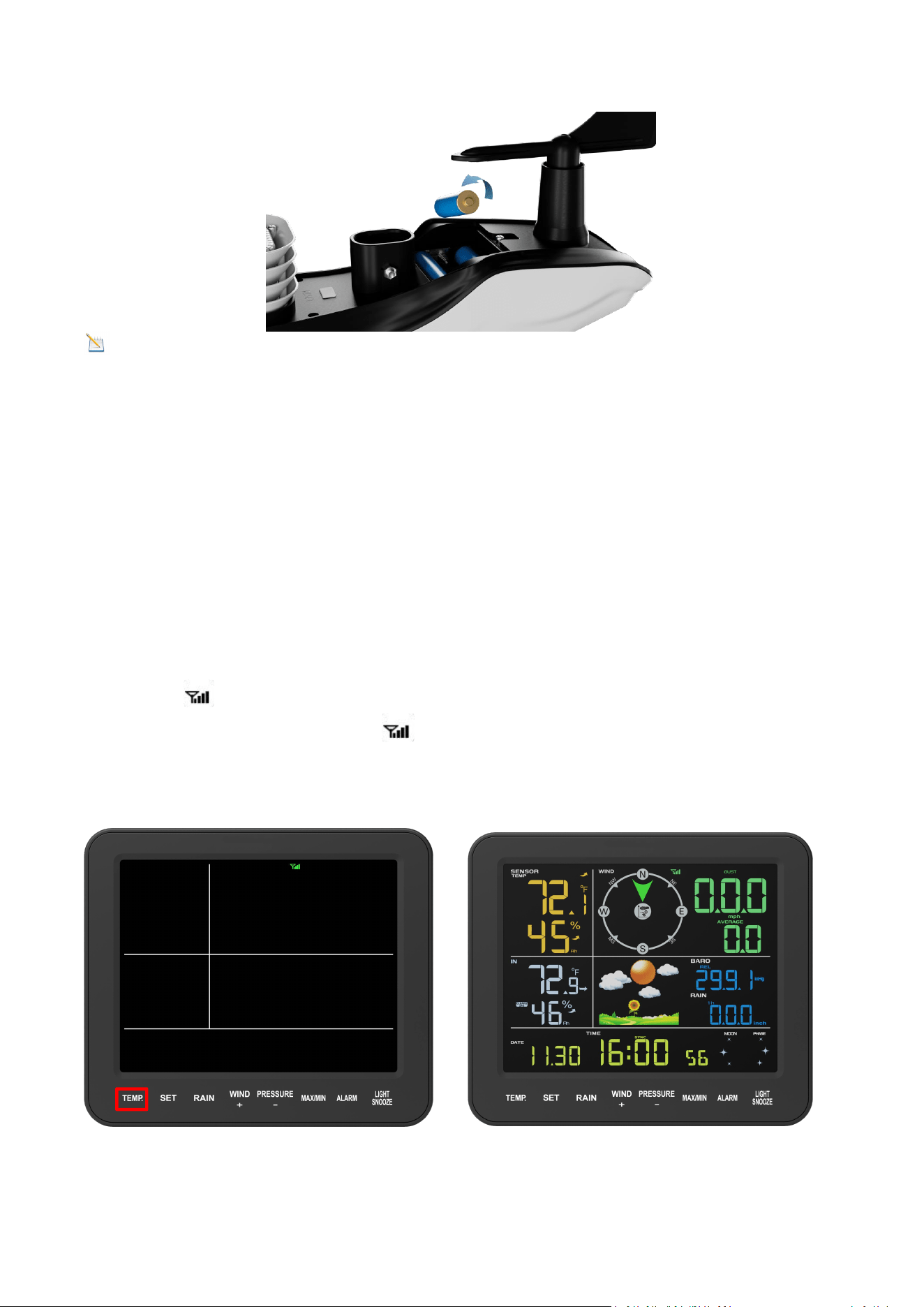
Indoor and outdoor unit connection steps:
Step 1: Plug in the display console using the power adapter.
Note: A single outdoor unit supports connecting multiple indoor units.
Step 2: Insert 3 new AA batteries and close the battery door as shown. Before
closing the battery door and tightening the set screws, make sure the washers
(around the inside perimeter of the battery door) are properly secured in their tracks.
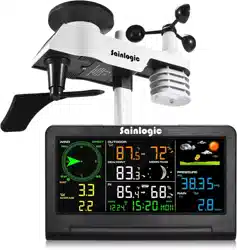
Package
Includes:
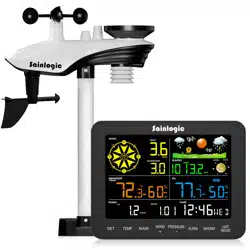
- Integrated
Outdoor
Transmitter
- Display
Console
- Mounting
Brackets and
Accessories
Scan to
Watch
Installat
2
Power Supply Principle (Solar + Capacitor + 3*AAA)
Solar: Charges capacitor first; directly powers the device on sunny days.
Auto-Switch: Automatically powered by whichever source has higher voltage.
Capacitor Mode: Operates when Capacitor V > Battery V.
Battery Mode: Operates when Capacitor V < Battery V (even in daytime).
Step 3: Pairing the indoor and outdoor units:
Press and hold the TEMP button for at least 3 seconds, then press the Reset button
on the outdoor unit once.
At this point, the display will re-receive the signal from the outdoor sensor, and the
search icon will start flashing. Once the signal is reacquired, all data will be
displayed, the remote search icon will remain lit, and the screen will show the
current values.

3
Content
1.Introduction..............................................................................................................4
2.Warning and Cautions .............................................................................................. 4
3.Quick Start Guide......................................................................................................4
4.Assembly of Sensor Arrays ........................................................................................5
5. Button Operation .....................................................................................................5
5.1. Display Console ............................................................................................. 6
5.2. Backlight Operation ...................................................................................... 7
6. Install Outdoor Unit ................................................................................................. 8
6.1. Adjusting the Sensor Mounting Direction ................................................... 10
6.1.1. Northern Hemisphere Reference ..................................................... 11
6.1.2. Southern Hemisphere Reference......................................................11
6.2. Securing the Mounting Pole ........................................................................ 12
6.2.1.Horizontal Mounting And Fixing Sensors ...........................................13
6.2.2. Vertical Mounting And Fixing Sensors .............................................. 13
7. Display Console Operation.....................................................................................14
7.1. Set Mode .....................................................................................................14
7.2. Viewing Max/Min Mode ............................................................................. 16
7.2.1. Alarm Trigger ....................................................................................17
7.2.2. Viewing High/Low Alarm Values .......................................................17
7.2.3. Setting Alarms Value ........................................................................ 18
7.3. Calibration Mode ........................................................................................ 18
7.3.1. Calibration Settings .......................................................................... 18
7.3.2. Calibration Ranges ............................................................................19
8. Moon Phase...........................................................................................................20
9. Specifications .........................................................................................................20
10. Troubleshooting Guide ........................................................................................ 21
11. Warranty Information ..........................................................................................23
FCC Statement ........................................................................................................... 24
4
1.Introduction
Thank you for purchasing the Wireless Weather Station. The following user guide
provides detailed instructions on installation, operation, and troubleshooting. This
product is continually evolving and improving, particularly in its online services and
associated applications.
To download the latest manuals and other information, please contact Customer
Support.
Website: www.sainlogic.com
Customer Support Phone: +1 (888) 513-9823 (Mon-Fri 10 a.m. - 6 p.m., Eastern
Standard Time)
Facebook:
https://www.facebook.com/sainlogicweather
YouTube: https://www.youtube.com/@sainlogicbrand
2.Warning and Cautions
WARNING: Lightning strikes can be caused by any metal object, including your
weather station mounting pole. Mounting your weather station during a storm is
prohibited.
WARNING: Installing a weather station in an elevated location may result in injury
or death, so perform as many preliminary checks and operations as possible on the
ground and inside a building or house.
WARNING: Install the weather station on a clear, dry day.
3.Quick Start Guide
The following Quick Start Guide provides the necessary steps to install and operate
the weather station.
1
Assembling and Activating the Outdoor Sensor Array
4
2
Installing and Activating the Display Console to Connect to the
Outdoor Sensors
5-6
3
Display Function Setup
7
4
Calibration Functions
7.3
5
Troubleshooting
10
5
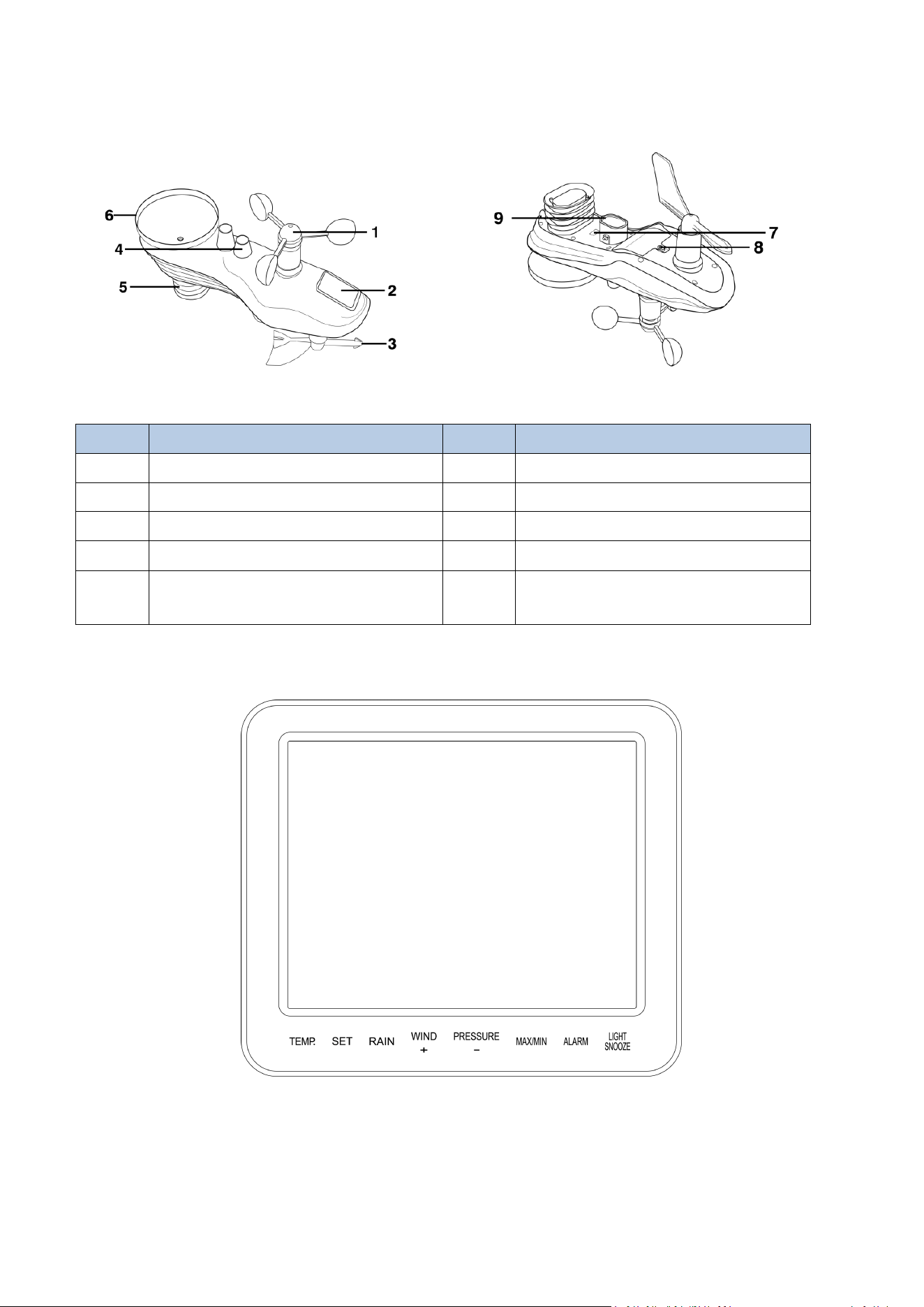
4.Assembly of Sensor Arrays
Figure 1
NO
Description
NO
Description
1
Wind Cup
6
Rain Collector
2
Solar Panel
7
Reset Button/LED Indicator
3
Wind Vane
8
Battery Door
4
Bubble Level
9
Mounting Pole Socket
5
Thermometer-Hygrometer
Sensor
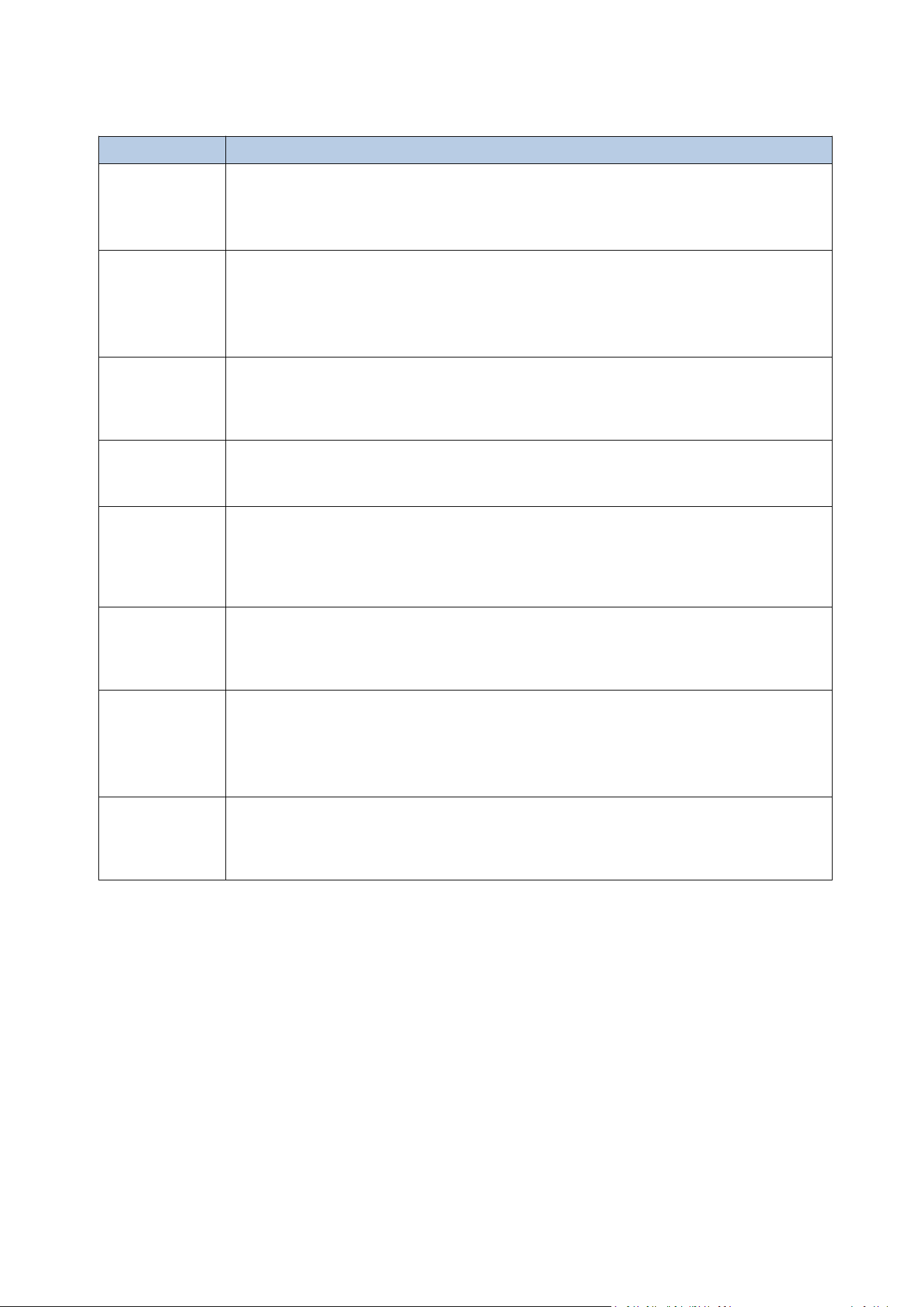
5. Button Operation
Figure 2
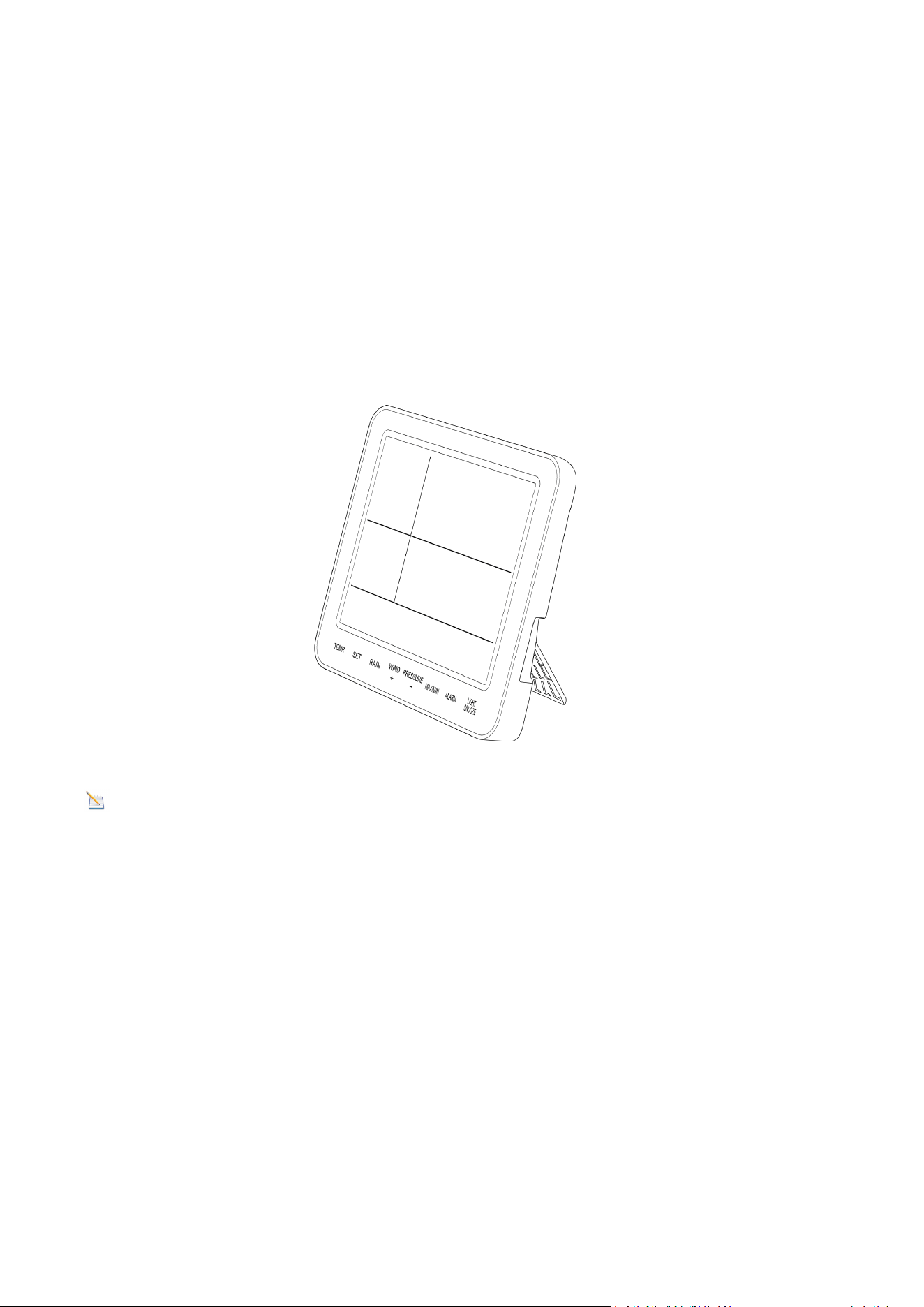
There are the following 8 keys on the console (from left to right), which are used to
set the display functions by click, long press.
6
5.1. Display Console
The following figure shows the layout of all the data on the display.
Key
Description
TEMP
1. Long press to pair the indoor and outdoor units
2. Click to switch (dew point, feels like, temp)
SET
1. Click to switch the displayed time (year, month, day, second,
week)
2. Long press to enter the settings interface and click to switch to
the next item
RAIN
1. Long press to clear rainfall
2. Click to switch rainfall display (1h, 24h, week, month, total)
WIND +
Click once to increase the value when setting parameters
PRESSURE -
1. Click to switch to display pressure (REL/ABS)
2. Reduce the value when setting parameters
MAX/MIN
1. Click to enter the maximum/minimum value interface
2. Long press to enter the calibration mode
ALARM
1. Long press to set alarm information
2. Click to enter the high alarm information interface, low alarm
interface
3. Set calibration parameters, click to clear
LIGHT
SNOOZE
1. In normal mode, click to adjust the backlight brightness
2. In setting mode, click to return to normal mode
3. Long press to turn on or off the constant light mode
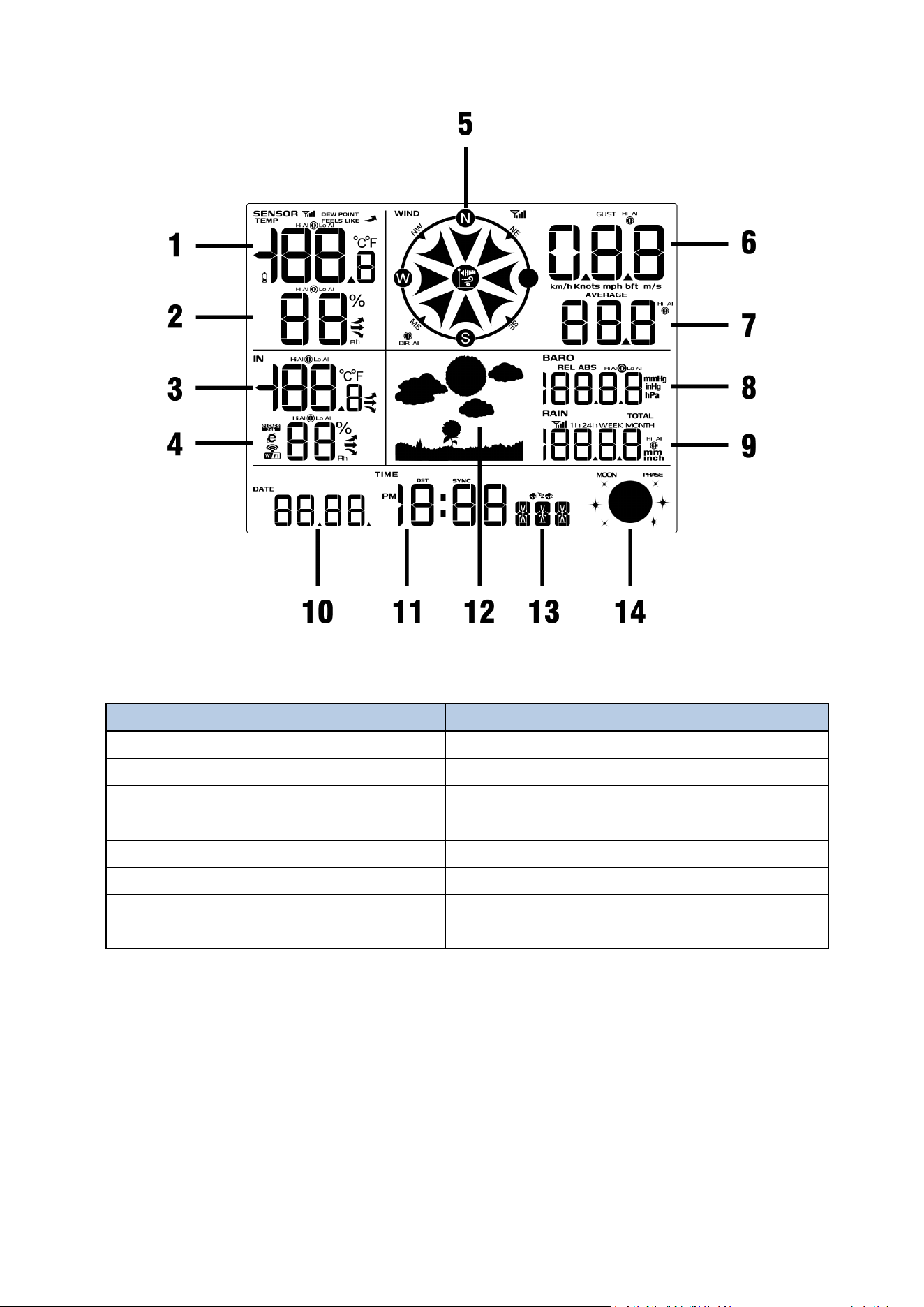
7
Figure 3
5.2. Backlight Operation
The display will remain on only when the power adapter is connected. The display
backlight has 3 levels of brightness.
When the backlight is on, short press the LIGHT SNOOZE button to switch between
the 3 levels of backlight.
No
Description
No
Description
1
Outdoor Temperature
8
Barometric Pressure
2
Outdoor Humidity
9
Rainfall
3
Indoor Temperature
10
Date
4
Indoor Humidity
11
Time
5
Wind Direction
12
Weather Icon
6
Wind Gust
13
Week/Second
7
Average Wind Speed
14
Moon Phase
8
When the backlight is off, press and hold the LIGHT SNOOZE button for 3 seconds
and the backlight will turn on permanently. The BL ON icon will be displayed in the
date area for 3 seconds.
To turn off the display backlight at any time, press and hold the LIGHT SNOOZE
button for two seconds. The BL OFF icon will appear in the date area for 3 seconds.
We recommend viewing the console at a 20-degree to 30-degree angle from above
for the best display of the screen.
Figure 4
Warning: Please use the adapter to power the device! The battery is for emergen
cy use only!The battery only lasts for a maximum of two hours!
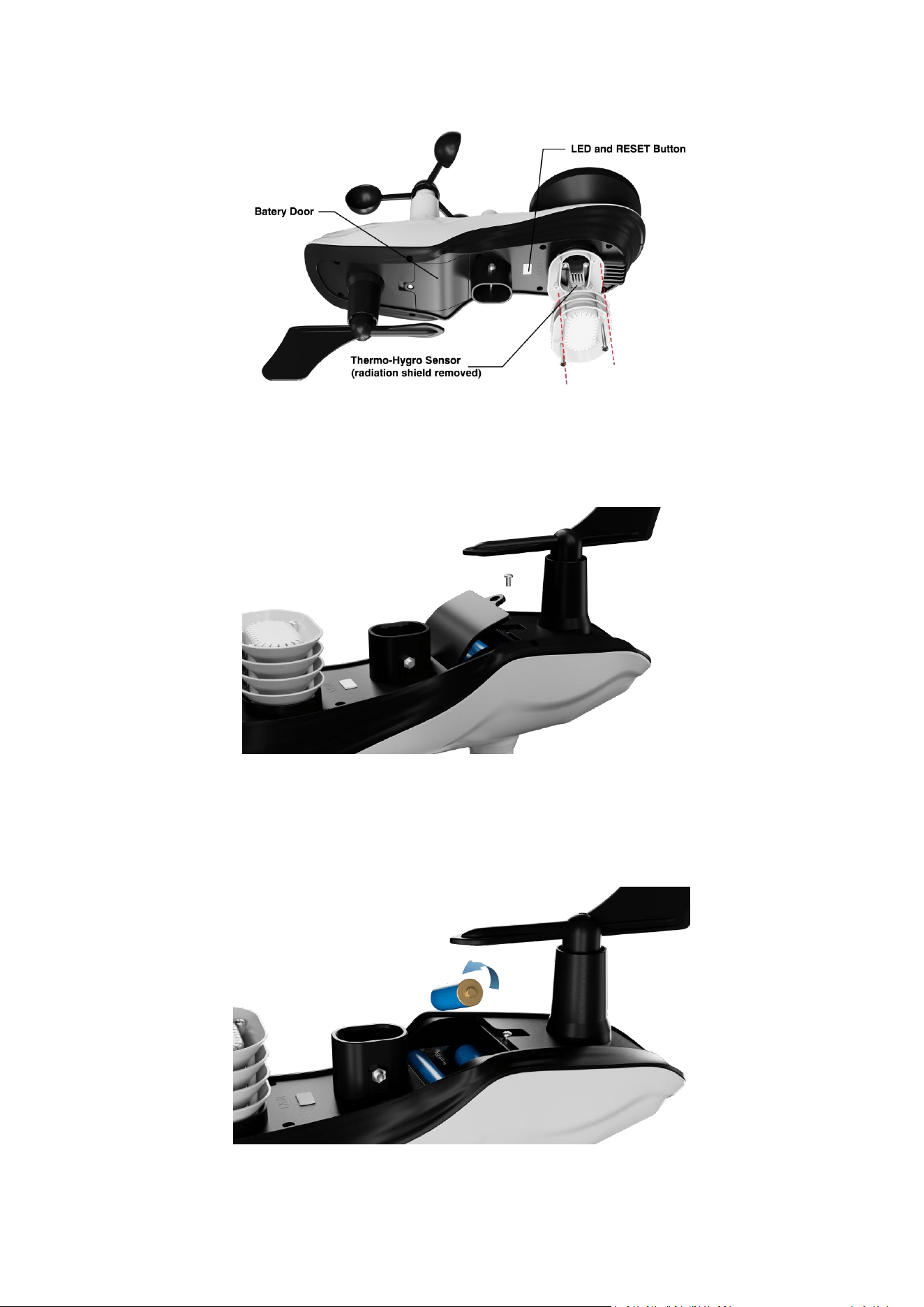
6. Install Outdoor Unit
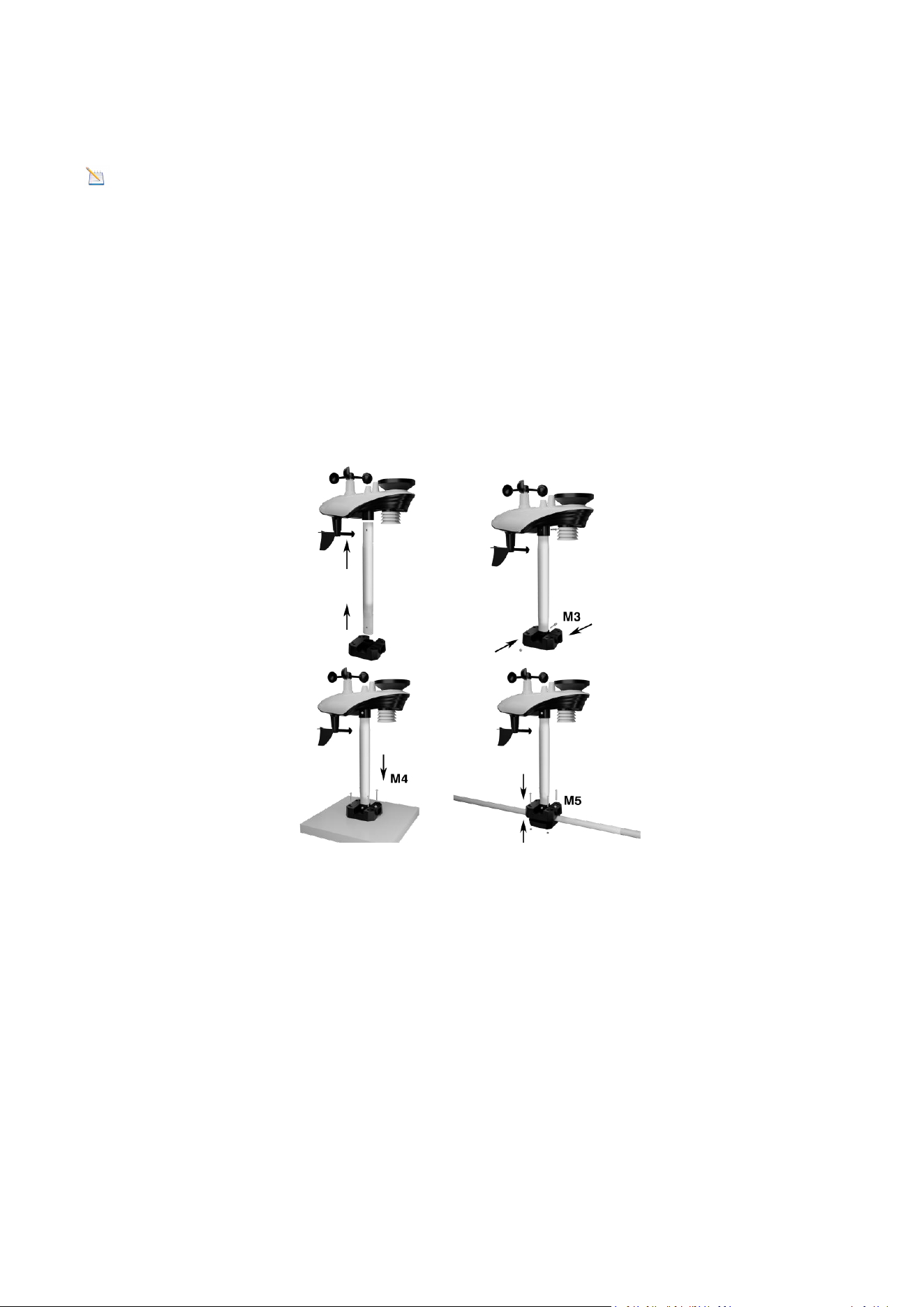
Locate the battery door at the bottom of the transmitter, as shown in Figure 5.
9
Figure 5
Remove the battery door on the back of the sensor by removing the set screw, as
show in Figure 6.
Figure 6
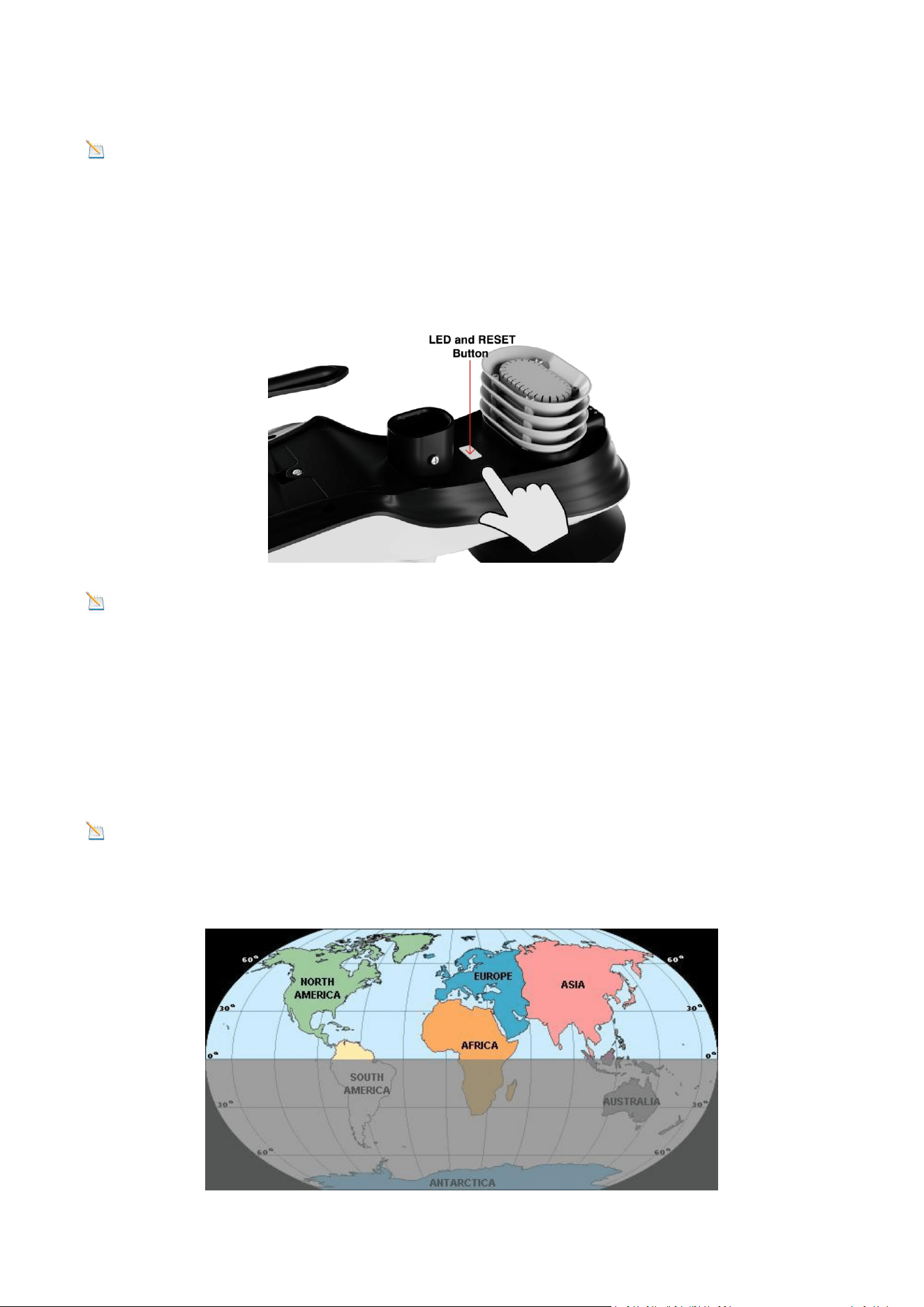
Insert 3 new AA batteries and close the battery door as shown. Before closing the
battery door and tightening the set screws, make sure the washers (around the
inside perimeter of the battery door) are properly secured in their tracks.
Figure 7
10
Note: We recommend installing AA lithium batteries for the Outdoor Sensor in
cold weather environments.
Once the battery is installed, the Integrated Outdoor Sensor LED indicator will
illuminate for 3 seconds and then blink every 60 seconds. The sensor is transmitting
data each time it blinks.
Figure 8
NOTE: If the sensor LED does not flash after inserting the batteries, press the reset
button located at the bottom of the sensor, as shown in Figure 8.
6.1. Adjusting the Sensor Mounting Direction
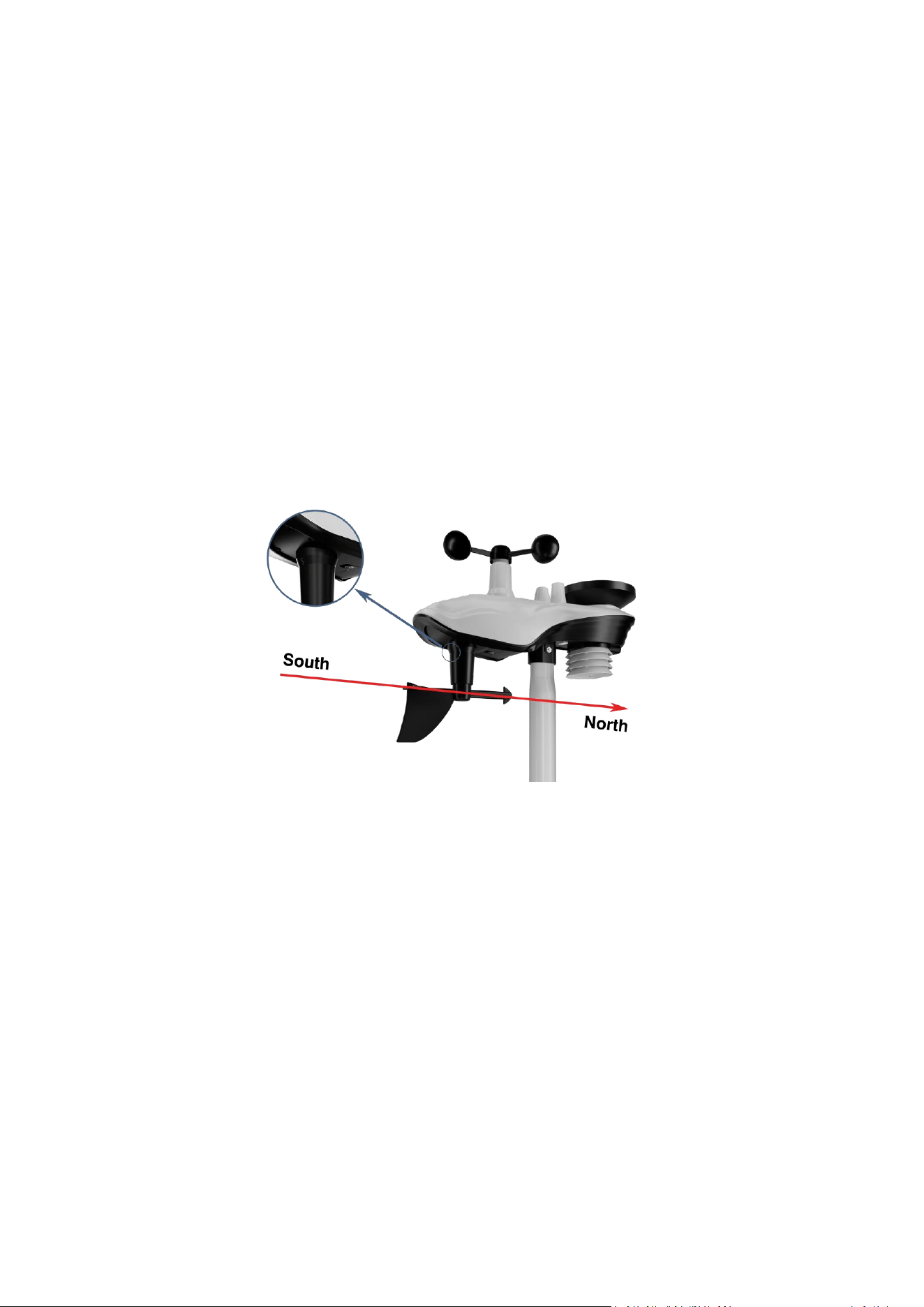
This professional weather station is suitable for use in both the Northern and
Southern Hemispheres. To ensure the accuracy of the wind direction display, please
secure the direction of the integrated outdoor sensor before installation.
Note: Wind direction is indicated by the letters N, E, S, and W. (N is north, E is
east, S is south, W is west)
Northern Hemisphere
11
Southern Hemisphere
Figure 9
6.1.1. Northern Hemisphere Reference
The body of the outdoor sensor is embossed with the four cardinal directions: N, E, S,
W, which are applicable only in the Northern Hemisphere.
Step 1: As shown in the diagram, there is an "S" indicator on the wind vane
representing south.
Using a compass, check the direction and adjust the orientation of the entire sensor
to ensure the "S" mark on the sensor aligns with the south.
Figure 10
Step 2: On the display console, set the location region to the Northern Hemisphere
(NOR will appear in the time zone).
(For detailed steps on setting the location region, see Step 18 in section 7.1).
6.1.2. Southern Hemisphere Reference
When installing, adjust the orientation of the entire outdoor sensor to ensure the
solar panel faces north (and is positioned to receive maximum sunlight), as shown in
the diagram.
Step 1: Install the Integrated Outdoor Sensor
Ensure the solar panel is positioned to face north.
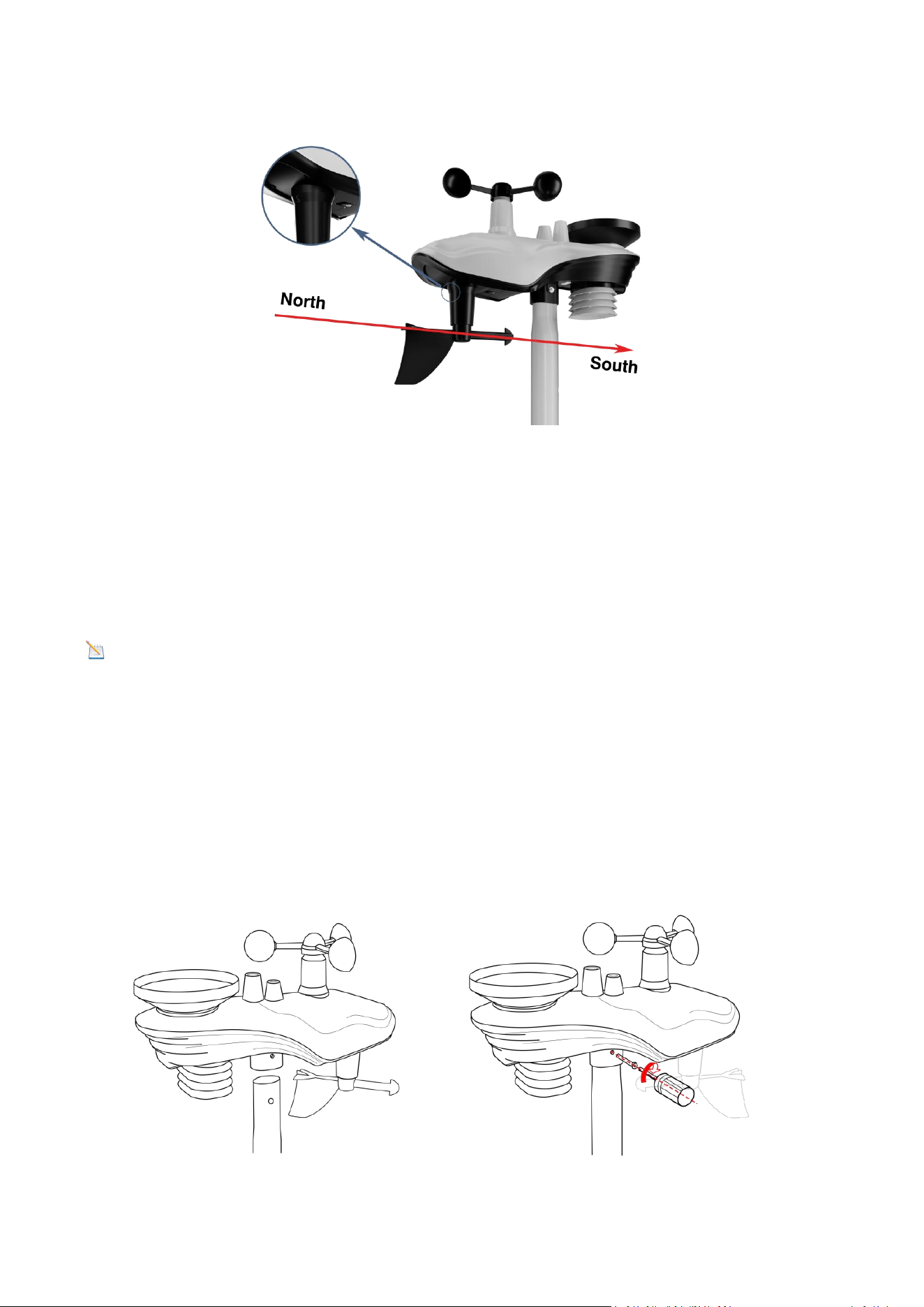
12
Figure 11
Step 2: Set the Location Region on the Display Console
Set the location region to the Southern Hemisphere (SOU will appear in the time
zone).
(For detailed steps on setting the location region, please refer to Step 18 in section
7.1).
Note: The location region (NOR or SOU) on the display console and the sensor
direction must be adjusted according to your actual location.
If the integrated outdoor sensor is not positioned correctly during installation, it
will result in permanent wind direction errors.
6.2. Securing the Mounting Pole
Observe the bubble level next to the rain gauge to ensure the bubble is stable within
the circle, keeping the sensor array completely level. If the sensor array is not level,
the rain gauge will not measure accurately.
Figure 12
13
NOTE: If the bubble level cannot be read due to mounting limitations, a
horizontal line or level can be placed across the top of the rain gauge for easier
viewing.
6.2.1.Horizontal Mounting And Fixing Sensors
Fasten the integrated outdoor sensor to the mounting bar bracket with two
mounting bolts (Ø4)/nuts (M3). Then, tighten the mounting bar to your existing
mounting bar using four bolts (Ø5) and nuts (M5), or secure it to a flat surface with
four self-tapping screws, as shown. (Figure 13 )
Figure 13
6.2.2. Vertical Mounting And Fixing Sensors
Fasten the integrated outdoor sensor to the mounting bar bracket with two
mounting bolts (Ø4)/nuts (M3). Then, tighten the mounting bar to your existing
mounting bar with four bolts (Ø5) and nuts (M5), or secure it to a flat surface with
four self-tapping screws, as shown. (Figure 14)
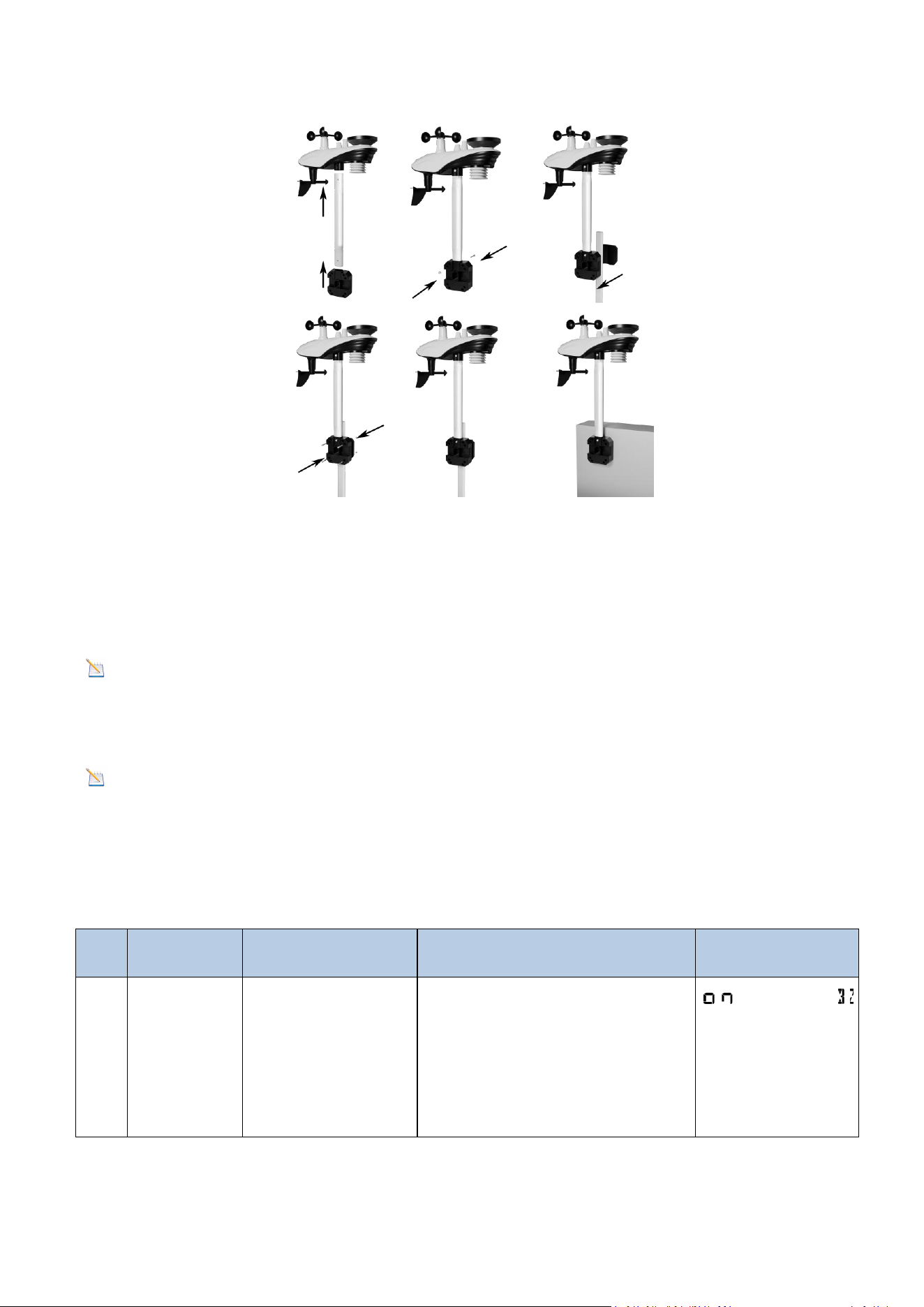
14
Figure 14
7. Display Console Operation
7.1. Set Mode
Note: In Set Mode, press the WIND+ key or the PRESSURE- key to change or scroll
the setup value. Press and hold the WIND+ key or PRESSURE- key for three seconds
to quickly increase or decrease.
Note: To exit Set Mode at any time, press the LIGHT SNOOZE key on the display
console.
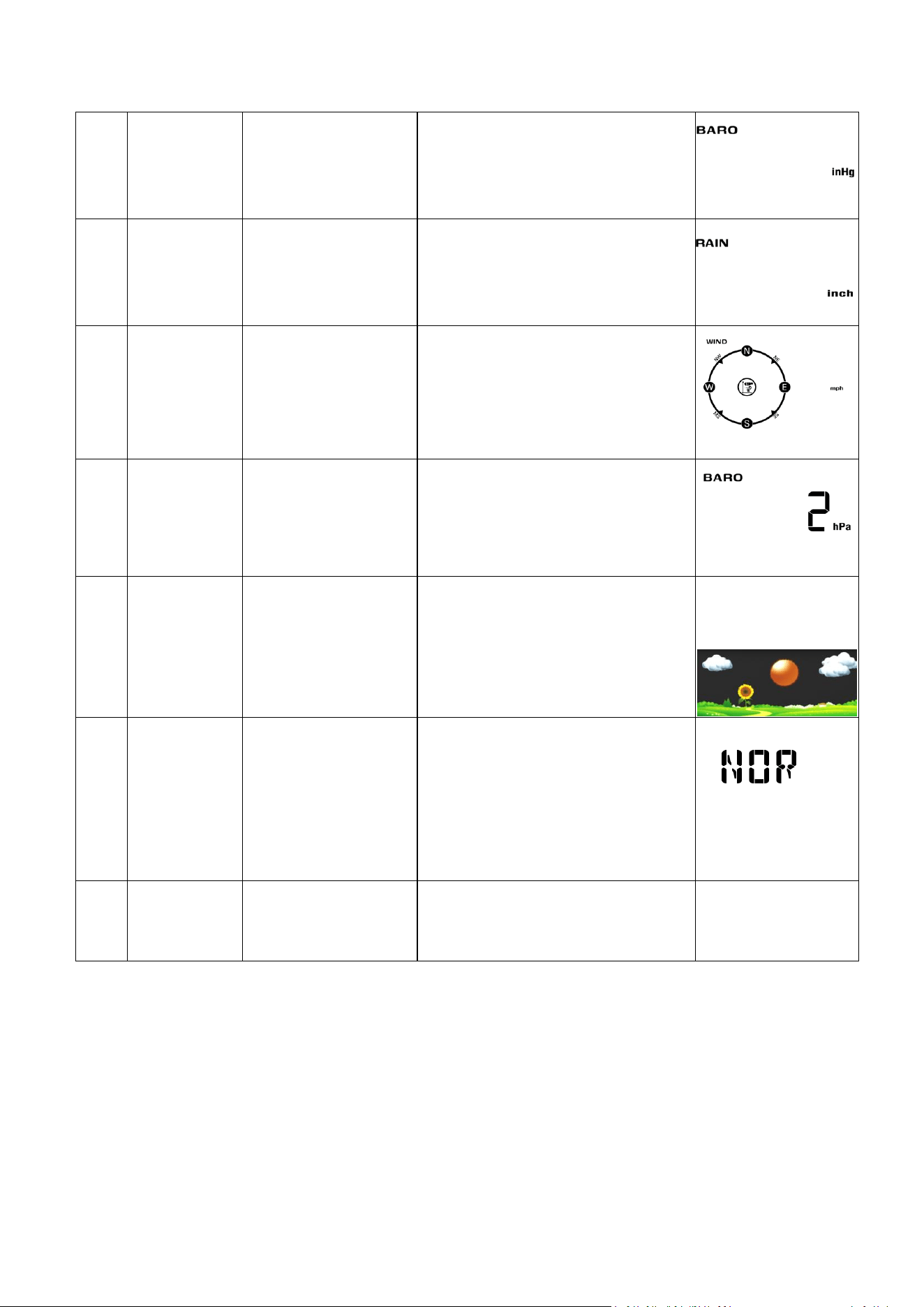
The sequence and commands for the Set mode are summarized in the following
charts:
NO
Command
Mode
Settings
Image
1
[SET]+3
sec
Enter Set Mode,
Beep On or Off
Press [WIND +] or
[PRESSURE/-] to switch OFF
and ON.
This will prevent the beep
from sounding when pressing
any button
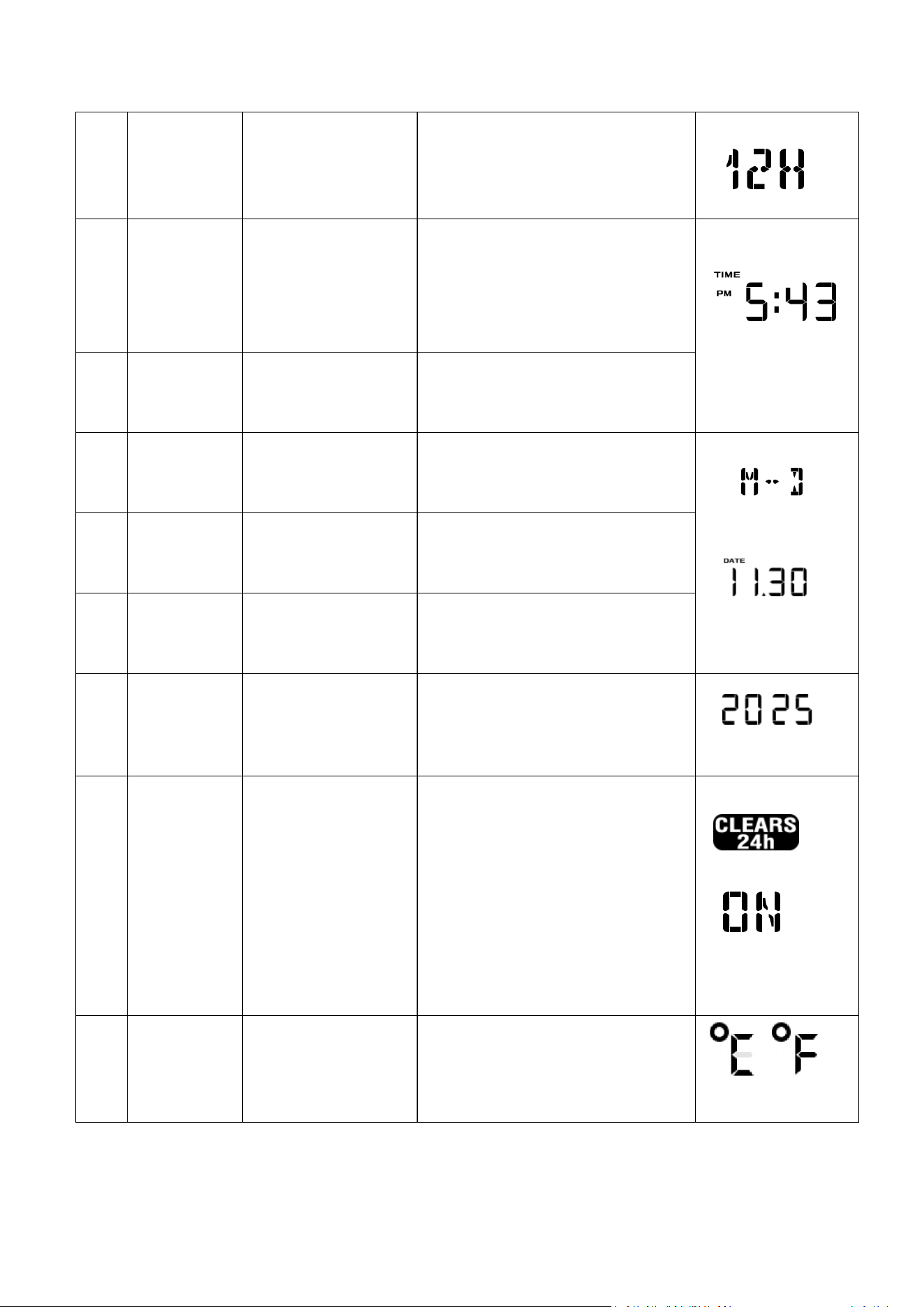
15
2
[SET]
12/24-Hour
Format
Press the [WIND +] or
[PRESSURE/-] key to toggle
between 12-hour and 24-
hour.
3
[SET]
Hour
Press the [WIND +] or
[PRESSURE/-] key to adjust
the hours up or down.
The PM icon will be displayed
during the afternoon hours.
4
[SET]
Minute
Press the [WIND +] or
[PRESSURE/-] key to adjust
the minutes up or down.
5
[SET]
Date Format
Press the [WIND +] or
[PRESSURE/-] key to toggle
between M-D and D-M.
6
[SET]
Month
Press the [WIND +] or
[PRESSURE/-] key to adjust
the calendar month.
7
[SET]
Day
Press the [WIND +] or
[PRESSURE/-] key to adjust
the calendar day.
8
[SET]
Year
Press the [WIND +] or
[PRESSURE/-] key to adjust
the calendar year.
9
[SET]
Max/Min
Clearing
The maximum/minimum
value can be set to daily
(midnight) or manually
cleared.
Press the [WIND +] or
[PRESSURE/-] key to toggle
between ON (24-hour
clearing) and OFF (manual).
10
[SET]
Temperature
Measurement
Unit
Press the [WIND +] or
[PRESSURE/-] keys to toggle
between °F and °C
measurement units.
16
11
[SET]
Barometric
Pressure Unit
Press the [WIND +] or
[PRESSURE/-] key to toggle
the pressure unit between
mmhg, inHg or hPa.
12
[SET]
Rainfall
Measurement
Unit
Press the [WIND +] or
[PRESSURE/-] key to toggle
the rainfall unit between mm
and inch.
13
[SET]
Wind Speed
Measurement
Unit
Press the [WIND +] or
[PRESSURE/-] key to toggle
the wind speed unit between
m/s, km/h, mph, knots bft or
ft/s.
14
[SET]
Pressure
Threshold Setting
Press the [WIND +] or
[PRESSURE/-] key to change
the pressure threshold from
2 hPa to 4 hPa.
15
[SET]
Weather Icon
Settings
Press the [WIND +] or
[PRESSURE/-] key to select
the initial weather icon for a
sunny, less cloudy, cloudy, or
rainy day .
16
[SET]
Location Area
Press the [WIND +] or
[PRESSURE/-] key to toggle
the geographic location of
the Northern Hemisphere
(NOR) or Southern
Hemisphere (SOU).
17
[SET]
Exit Set Mode
Press the SET or LIGHT
SNOOZE key to exit setup
mode.
*[SET] + 3 seconds means press and hold the SET button for three seconds.
*[SET] means press the SET button.
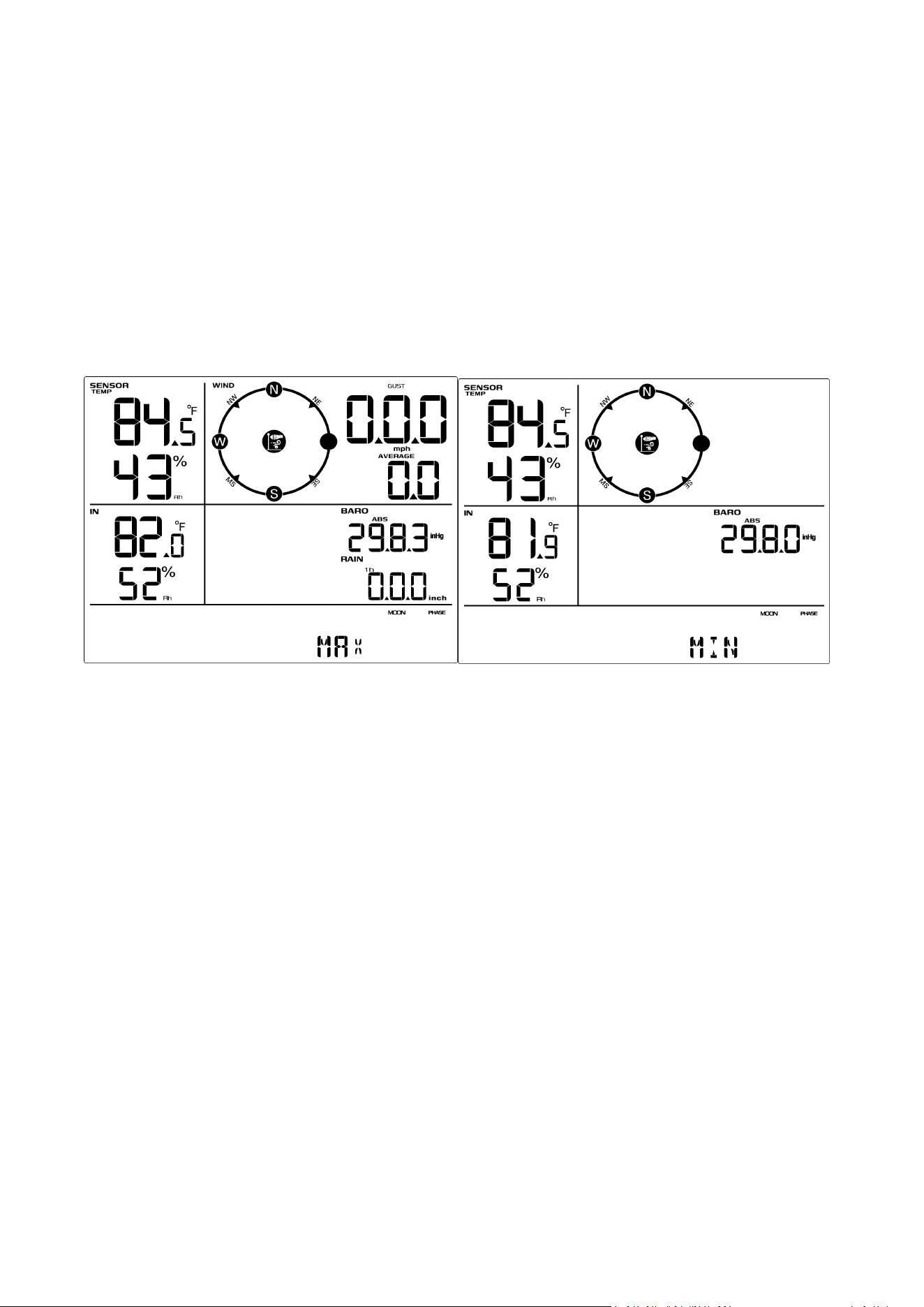
7.2. Viewing Max/Min Mode
In normal mode, press the MAX/MIN key once briefly, the MAX icon will be shown in
the date area, and the display will show the maximum values for rainfall rate, gust
and average wind speed, ABS barometric pressure, outdoor temperature, humidity,
and indoor temperature, humidity. As shown in Figure 15(a).
17
To view the MIN values, press the [MAX/MIN] button again, and the minimum values
will be displayed, as shown in Figure 15 (b).
To clear the minimum values, press and hold the [MAX/MIN] button while the
minimum values are displayed.
Press the LIGHT SNOOZE key to exit the Max/Min View and Reset mode and return to
the normal display mode.
Figure 15(a) Figure 15 (b)
7.2.1. Alarm Trigger
If the current value reaches the alarm condition, the alarm icon will flash (visual) and
the alarm buzzer will sound (audible).
To turn off the buzzer, press any key.
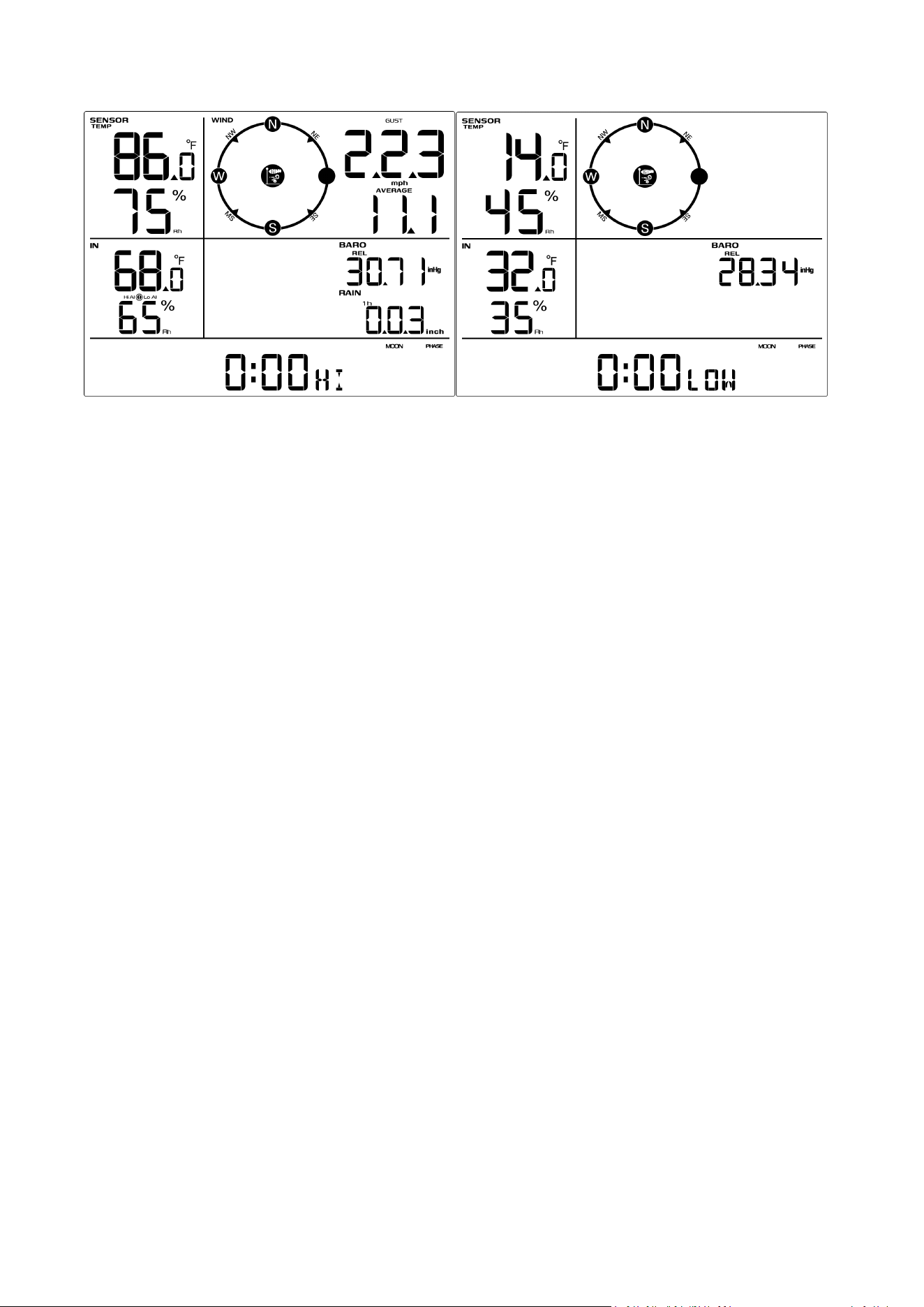
7.2.2. Viewing High/Low Alarm Values
To view the high alarm settings, press (do not hold) the [ALARM] button, and the high
alarms will be displayed, as shown in Figure 16 (a).
To view the low alarm settings, press the [ALARM] button again, and the low alarms
will be displayed, as shown in Figure 16 (b).
To return to normal mode, press the [ALARM] button again.
18
Figure 16 (a) Figure 16(b)
7.2.3. Setting Alarms Value
Please follow the steps below to set the alarm value.
1.Press ALARM key at least 3 seconds to enter the alarm mode.
2.Next, press the SET key once, the first alarm parameter will begin flashing (alarm
hour). (Note: Press the SET key to switch parameters.)
3.Press the [+] or [-] key to increase or decrease the alarm settings.
4.Press the ALARM key to turn on (the alarm icon will appear ) and off the alarm.
5.Press the SNOOZE/LIGHT key once at any time to return to the normal mode.
After 30 seconds of inactivity, the alarm mode will time out and return to normal
mode.
7.3. Calibration Mode
7.3.1. Calibration Settings
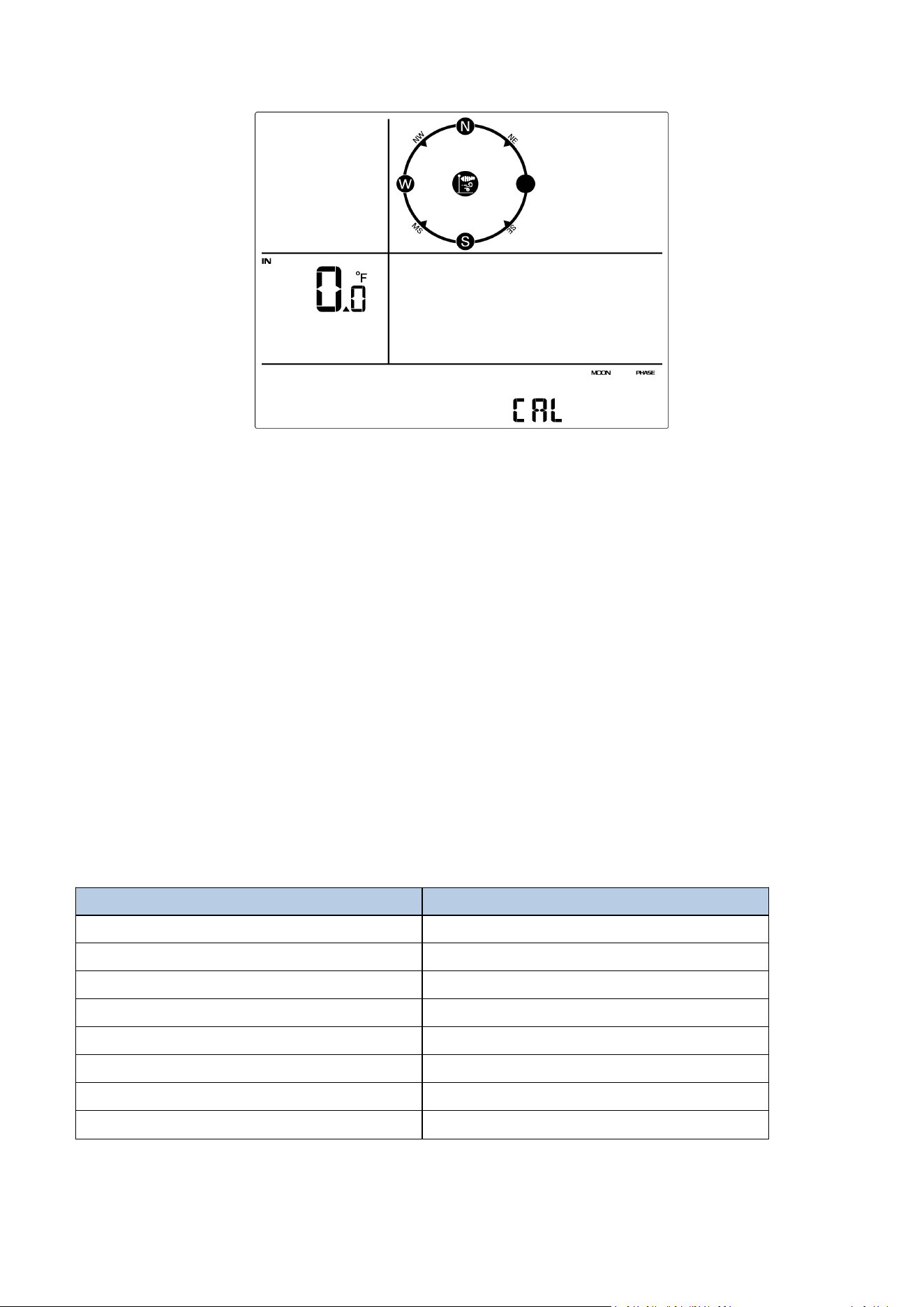
19
Figure 17
1.Press and hold the [MAX/MIN] buttons at least for 3 seconds to enter calibration
mode. The CAL icon will be displayed.
2.Press the SET key to switch.
3.Press the WIND+ key or PRESSURE- key to increase or decrease the temperature
reading.
Press and hold the WIND+ key or PRESSURE- key for three seconds to quickly
increase or decrease the temperature reading.
(After setting the data, please press the "SET" button to proceed to the next
parameter setting. This will save the settings.)
4.Press the ALARM key to reset the current value.
5.Press the LIGHT SNOOZE to exit the mode.
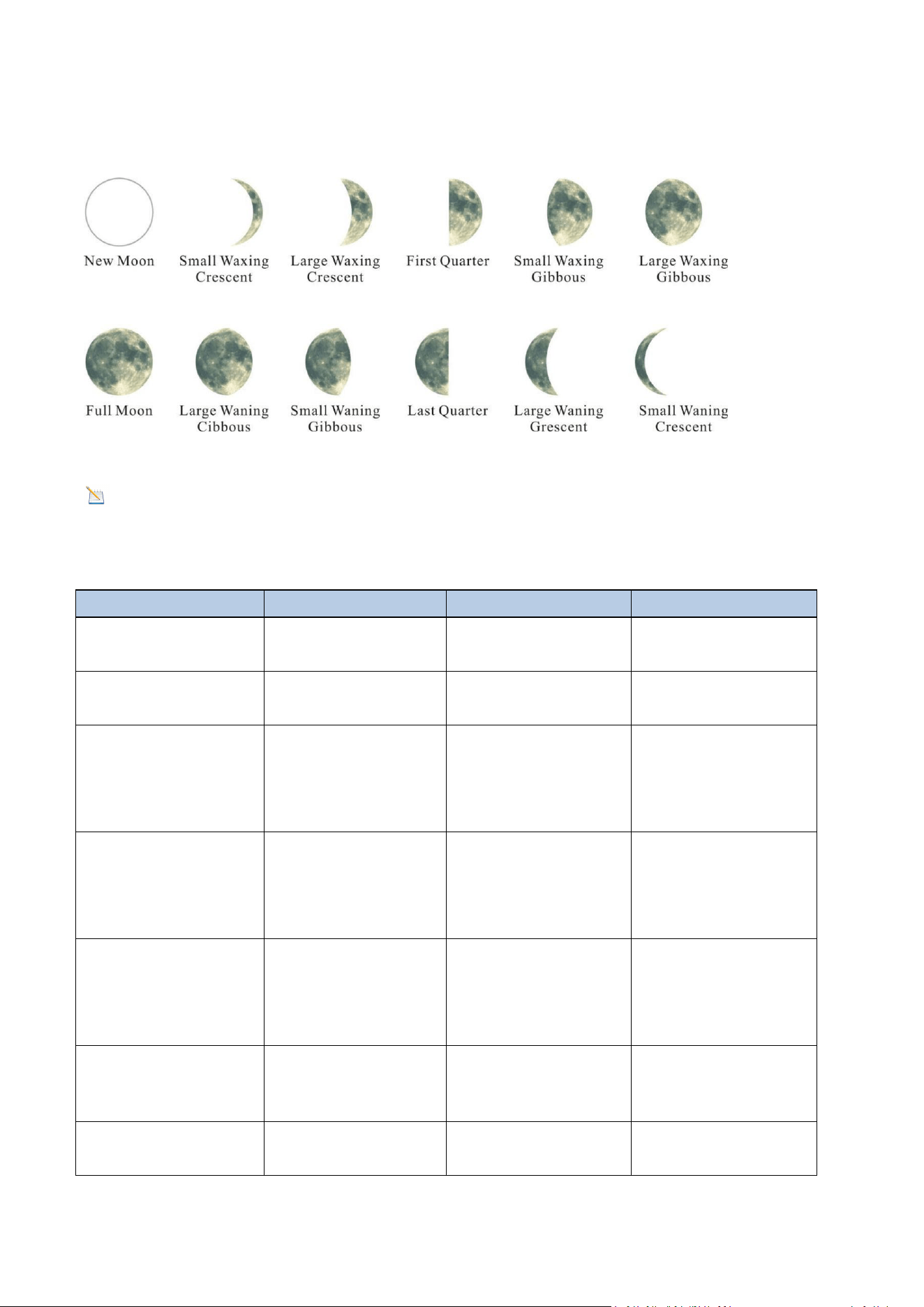
7.3.2. Calibration Ranges
The following chart summarizes the calibration ranges allowed for weather stations.
Parameter
Range
Indoor Temperature
± 9 °F (± 5 °C)
Outdoor Temperature
± 9 °F (± 5 °C)
Indoor Humidity
± 9 %
Outdoor Humidity
± 9 %
Absolute Pressure
± 0.27 inHg (± 6.8hpa)
Relative Pressure
± 0.27 inHg (± 6.8hpa)
Wind Speed
0.5-1.5
Rainfall
0.5.1.5
20
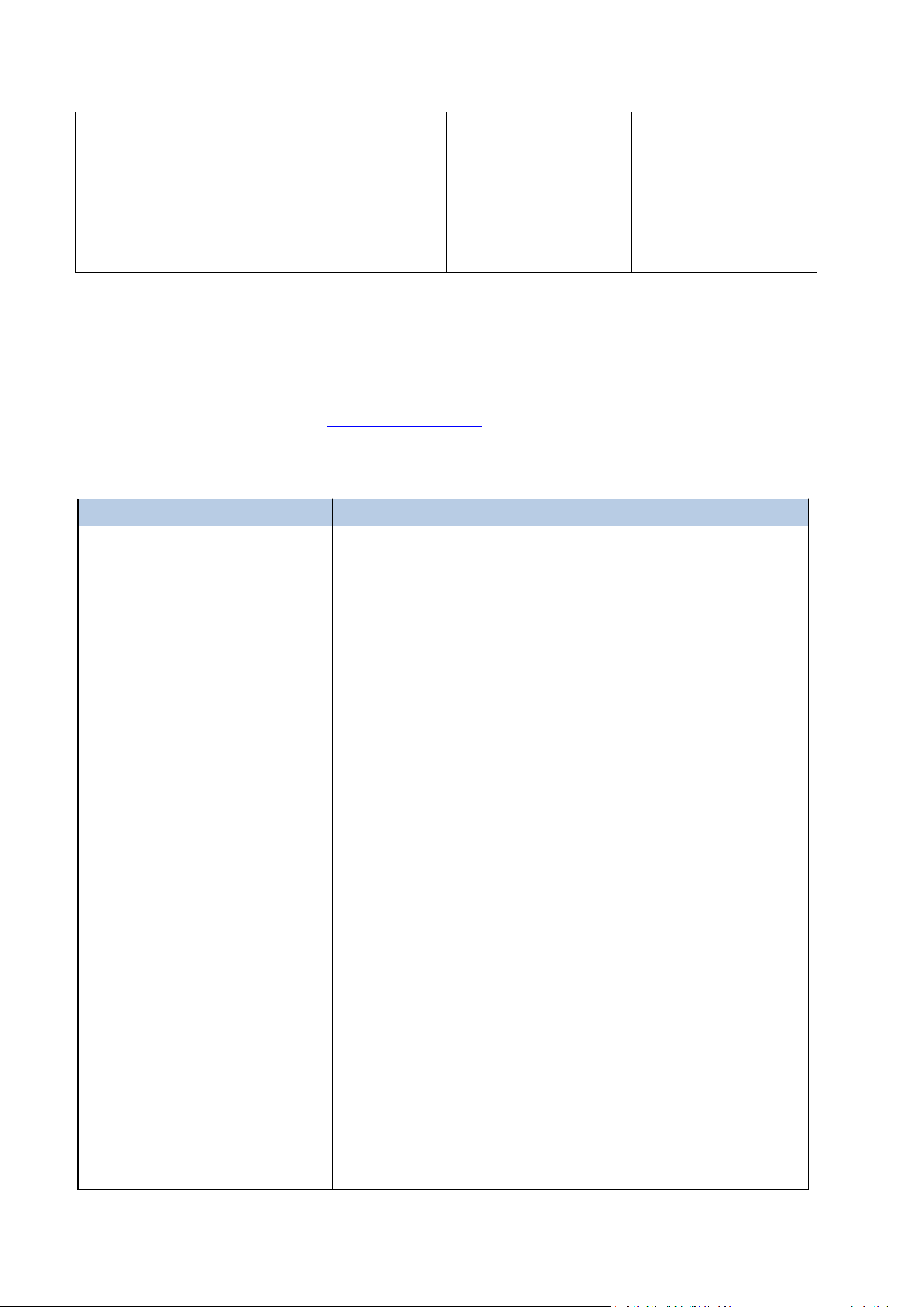
8. Moon Phase
The following moon phases are displayed according to the calendar date.
Figure 18
Note: The new moon does not show the phases of the moon.
9. Specifications
The table below provides the specifications of the measured parameters.
Measurement
Range
Accuracy
Resolution
Indoor
Temperature
0 to 60 °C
(32 to 140°F)
± 1 °C
(± 2°F)
0.1 °C(°F)
Outdoor
Temperature
-40 to 60 °C
(-40 to 140°F)
± 1 °C
(± 2°F)
0.1 °C(°F)
Indoor Humidity
10 to 99 %
± 5% (only
guaranteed
between 20
to 90%)
1%
Outdoor Humidity
10 to 99 %
± 5% (only
guaranteed
between 20
to 90%)
1%
Rainfall
0 to 9999mm
<15mm: ±1 mm,
15mm to
9999mm: ±7%
<1000mm
(0.3mm)
>1000mm
(1mm)
Wind Direction
0 - 360º
± 10º (16 point
compass)
± 1º (16 point
compass)
Wind Speed
0 to 50 m/s
2 m/s ~10
m/s:±0.3m/s
0.1 m/s
21
, 10m/s ~50
m/s: ±10%
(whichever
is greater)
Barometric
Pressure
300 to 1100
hpa
± 3 hpa
0.1 hpa
10. Troubleshooting Guide
If your question is not answered here, you can contact us by E-mail, Phone, and on
our Website:
Customer Support E-mail:info@infisync.net
Website:https://www.infisync.net/
Customer Support Phone:+1 (888) 513-9823 (Mon-Fri:10 a.m. - 6 p.m. EST)
Problem
Solution
The wireless remote
control is not reporting to
the console.
The display console has
dotted lines; dashes (--.-).
If any sensor communication is lost, dashes (--.-)
will appear on the screen. To reacquire the signal,
press and hold the TEMP button for 3 seconds,
select the lost sensor, and the remote search icon
will display continuously.
When the signal is reacquired, the remote search
icon will turn off and the current value will be
displayed.
You can also press the reset button.
After the transmitter is powered on, if the indicator
light blinks every 60 seconds it means the outdoor
unit is working properly.
Also, you can replace the batteries in the
transmitter with new ones.Install a new set of
batteries for the remote sensor. In cold weather
environments, install lithium batteries.
Make sure the remote sensor is not transmitting
through solid metal (as an RF shield) or earth
barriers (under a mountain).
Keep the display console away from devices that
22
generate electrical noise, such as computers,
televisions, and other wireless transmitters or
receivers.
Outdoor temperature
inaccurate
Please check if the outdoor temperature display
shows dew point data. If it does, please press the
TEMP button to switch the data.
Display Restore Factory
Settings
To reset the console to factory default settings
(including weather server and display settings),
follow these steps:
1. Remove the battery and disconnect the power
adapter to power off the console.
2. Connect the power adapter and power on.
3. When all layouts are displayed on the screen,
press and hold the WIND + key at the same time,
which will prompt two beeps until the console boot
process is completed.
4. Replace the battery.
Indoor temperature and
humidity data is
incorrect/the display
shows incomplete data
You can reset the display console to factory
defaults by pressing and holding the PRESSURE- key
for at least three seconds while plugging in the
power supply. Then unplug the display and plug it
back in. (Remove the batteries before doing this).
If any data is not displayed, press and hold the
WIND+ key for three seconds until a click is heard
and all data is displayed as dashed lines.
The display will reacquire the signal from the
transmitter. Once the signal is reacquired, all data
will be displayed.
Display brightness is very
dim
Adjust the backlight:
If the brightness cannot be adjusted, it means that
the power adapter or the display interface has a
poor contact problem.
Weather forecast is
inaccurate
Weather Forecast icon predicts conditions for the
next 12 to 24 hours, not current conditions.
If you are just starting to use the weather station,
wait for about a week for the pressure sensor to
slowly adapt to the environment, and then adjust
23
11. Warranty Information
We provides a 1-year limited warranty against manufacturing defects in materials
and workmanship on this product.
This limited warranty takes effect on the date of original purchase and is valid only
for the product purchased and only for the original purchaser of this product. To
obtain warranty service, the purchaser must contact us to determine the problem
and service procedure.
the data and weather forecast.
After using it for a while, if the weather forecast is
still inaccurate, you can follow the steps in the
manual to manually set the weather icon to show
the actual weather.
Rainfall display is
incorrect/zero
Please check and verify the following points when
you find you rainfall is not working or inaccurate:
1.Make sure that the level bubble is seated in the
small black circle in the installation. Sloping
installation might cause incorrect reading or even
not working.
2. Shake the sensor array back and forth. After
hearing the click sound inside the sensor array,
observe whether the rainfall reading in the console
changes.
3. Check whether the funnel in the rain collector
was blocked by tree leaves or debris. Remove the
rain collector to check whether the rain tip was
blocked by insects or debris.
4. Check whether different rainfall histories are
correct. Check the Quick Mode part in the
instruction manual to know how to get rainfall
histories in different periods.

24
Warranty
service
is
provided
solely
by
us.
Please
provide
the
original
sales
invoice
(with
the
date
shown)
as
proof
of
purchase
if
required.
Our
warranty
covers
all
defects
in
materials
and
workmanship
except:
(1)
Damage
caused
by
accident,
unreasonable
use
or
neglect
(lack
of
reasonable
and
necessary
maintenance);
(2)
Damage
caused
by
failure
to
follow
the
instructions
in
the
user's
manual;
(3)
Damage
caused
by
self-repair
or
alteration;
(4)
Equipment
not
intended
for
personal
use;
(5)
Applications
and
uses
of
this
product
that
do
not
correspond
to
the
intended
use;
(6)
The
product
is
unable
to
receive
signals
due
to
any
source
of
interference
or
metal
obstruction;
F
CC
S
t
a
t
e
m
e
n
t
1
.
Thi
s
de
vi
ce
co
m
p
li
es
wi
t
h
P
a
r
t
1
5
o
f
t
h
e
F
CC
R
u
l
es
.
O
p
e
r
a
t
i
o
n
i
s
sub
j
ec
t
t
o
t
h
e
f
o
ll
o
win
g
t
w
o
co
n
d
i
t
i
o
n
s
:
(
1
)
Thi
s
de
vi
ce
m
a
y
n
o
t
cause
h
a
rmf
u
l
in
t
e
rf
e
r
e
n
ce
,
a
n
d
(
2
)
Thi
s
de
vi
ce
m
us
t
acce
p
t
a
n
y
in
t
e
rf
e
r
e
n
ce
r
ece
iv
ed
,
in
c
l
ud
in
g
in
t
e
rf
e
r
e
n
ce
t
h
a
t
m
a
y
cause
u
n
des
ir
ed
o
p
e
r
a
t
i
o
n
.
2
.
C
h
a
n
g
es
o
r
m
od
ifi
ca
t
i
o
n
s
n
o
t
e
x
p
r
ess
l
y
a
pp
r
o
v
ed
b
y
t
h
e
p
a
r
t
y
r
es
p
o
n
s
i
b
l
e
f
o
r
co
m
p
li
a
n
ce
cou
l
d
v
o
i
d
t
h
e
use
r
’
s
au
t
h
o
ri
t
y
t
o
o
p
e
r
a
t
e
t
h
e
e
q
u
i
p
m
e
n
t
.
N
O
T
E
:
Thi
s
e
q
u
i
p
m
e
n
t
h
as
bee
n
t
es
t
ed
a
n
d
f
ou
n
d
t
o
co
m
p
l
y
wi
t
h
t
h
e
limi
t
s
f
o
r
a
C
l
ass
B
d
i
g
i
t
a
l
de
vi
ce
,
p
u
r
sua
n
t
t
o
P
a
r
t
1
5
o
f
t
h
e
F
CC
R
u
l
es
.
Th
ese
limi
t
s
a
r
e
des
i
g
n
ed
t
o
p
r
o
vi
de
r
easo
n
ab
l
e
p
r
o
t
ec
t
i
o
n
a
g
a
in
s
t
h
a
rmf
u
l
in
t
e
rf
e
r
e
n
ce
in
a
r
es
i
de
n
t
i
a
l
in
s
t
a
ll
a
t
i
o
n
.
Thi
s
e
q
u
i
p
m
e
n
t
g
e
n
e
r
a
t
es
,
uses
a
n
d
ca
n
r
ad
i
a
t
e
r
ad
i
o
fr
e
q
ue
n
c
y
e
n
e
r
gy
a
n
d
,
if
n
o
t
in
s
t
a
ll
ed
a
n
d
used
in
acco
r
da
n
ce
wi
t
h
t
h
e
in
s
t
r
uc
t
i
o
n
s
,
m
a
y
cause
h
a
rmf
u
l
in
t
e
rf
e
r
e
n
ce
t
o
r
ad
i
o
co
mm
u
ni
ca
t
i
o
n
s
.
H
o
w
e
v
e
r
,
t
h
e
r
e
i
s
n
o
g
ua
r
a
n
t
ee
t
h
a
t
in
t
e
rf
e
r
e
n
ce
will
n
o
t
occu
r
in
a
p
a
r
t
i
cu
l
a
r
in
s
t
a
ll
a
t
i
o
n
.
If
t
hi
s
e
q
u
i
p
m
e
n
t
does
cause
h
a
rmf
u
l
in
t
e
rf
e
r
e
n
ce
t
o
r
ad
i
o
o
r
t
e
l
e
vi
s
i
o
n
r
ece
p
t
i
o
n
,
whi
c
h
ca
n
be
de
t
e
rmin
ed
b
y
t
u
rnin
g
t
h
e
e
q
u
i
p
m
e
n
t
o
ff
a
n
d
o
n
,
t
h
e
use
r
i
s
e
n
cou
r
a
g
ed
t
o
t
r
y
t
o
co
rr
ec
t
t
h
e
in
t
e
rf
e
r
e
n
ce
b
y
o
n
e
o
r
m
o
r
e
o
f
t
h
e
f
o
ll
o
win
g
m
easu
r
es
:
R
eo
ri
e
n
t
o
r
r
e
l
oca
t
e
t
h
e
r
ece
ivin
g
a
n
t
e
nn
a
.
In
c
r
ease
t
h
e
se
p
a
r
a
t
i
o
n
be
t
w
ee
n
t
h
e
e
q
u
i
p
m
e
n
t
a
n
d
r
ece
iv
e
r
.
C
o
nn
ec
t
t
h
e
e
q
u
i
p
m
e
n
t
in
t
o
a
n
ou
t
l
e
t
o
n
a
c
ir
cu
i
t
d
iff
e
r
e
n
t
fr
o
m
t
h
a
t
t
o
whi
c
h
t
h
e
r
ece
iv
e
r
i
s
co
nn
ec
t
ed
.
C
o
n
su
l
t
t
h
e
dea
l
e
r
o
r
a
n
e
x
p
e
ri
e
n
ced
r
ad
i
o
/
TV
t
ec
hni
c
i
a
n
f
o
r
h
e
l
p
.
This equipment complies with FCC radiation exposure limits set forth for an
uncontrolled environment. This equipment should be installed and operated
with minimum distance 20cm between the radiator and your body.