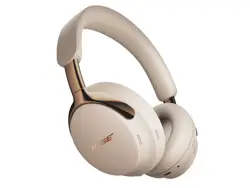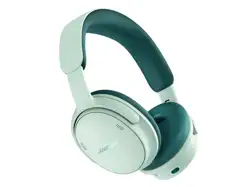
QUIETCOMFORT HEADPHONES (2
ND
GEN)
2
|
ENG
IMPORTANT SAFETY INSTRUCTIONS
Please read and keep all safety and use instructions.
Declarations of conformity can be found at: www.Bose.com/compliancewww.Bose.com/compliance
Bose Corporation hereby declares that this product is in compliance with the essential
requirements and other relevant provisions of Directive 2014/53/EU and all other applicable EU
directive requirements.
Important Safety Instructions
Do not use this apparatus near water.
Clean only with a dry cloth.
Only use aachments/accessories specified by the manufacturer.
Refer all servicing to qualified personnel. Servicing is required when the product does not operate normally or
has been physically damaged.
WARNINGS/CAUTIONS
Contains small parts which may be a choking hazard. Not suitable for children under age 3.
This product contains magnetic material. Consult your physician on whether this might aect your
implantable medical device.
This symbol means use of this product with an incompatible or improperly installed baery
could cause a safety hazard. Contact Bose customer service for baery service options or visit
bose.com/ba for more information.
• To reduce the risk of fire or electrical shock, do NOT expose this product to rain, dripping, splashing, or
moisture and do not place liquid filled objects such as vases, on or near the product.
• This product must only be operated with compatible Bose certified baeries. Contact Bose customer
service for baery service options.
• Do not expose products containing baeries to excessive heat (e.g. from storage in direct sunlight, fire or
the like).
• The baery provided with this product may present a risk of fire, explosion or chemical burn if mishandled,
incorrectly replaced or replaced with an incorrect type.
• If the baery leaks, do not allow the liquid to come in contact with the skin or eyes. If contact is made, seek
medical advice.
• Place your hands around the middle of each earcup when rotating, folding, and placing the headphones in
the case and removing from the case. Keep your fingers away from the hinges to avoid pinching.
• Product is not intended for use by children.
• To avoid hearing damage, do not use your headphones at a high volume. Turn the volume down on your
product before placing the headphones in/on your ears, then turn the volume up gradually until you reach a
comfortable, moderate listening level.
• Use of this product while operating a vehicle may be prohibited by law in some locations. Use caution and
follow applicable laws. Stop using this product immediately if it interferes with your ability to remain
aentive or interferes with your ability to hear surrounding sounds, including alarms and warning signals,
while operating a vehicle.
• Use caution if using these headphones while performing any activity that requires your aention. Do not use
the headphones when the inability to clearly hear surrounding sounds may present a danger to yourself or
others, for example while riding a bicycle or walking in or near traic, a construction site, railroad, etc.
• Do NOT use the headphones if they emit any loud unusual noise. If this happens, turn the headphones o
and contact Bose customer service.

3
|
ENG
IMPORTANT SAFETY INSTRUCTIONS
• Remove product immediately if you notice heat coming from the product.
• Keep the product away from fire and heat sources. Do NOT place naked flame sources, such as lighted
candles, on or near the product.
• Use this product only with an agency approved LPS power supply which meets local regulatory requirements
(e.g., UL, CSA, VDE, CCC).
• Do NOT make unauthorized alterations to this product.
• Do not place or install near any heat sources, such as fireplaces, radiators, heat registers, stoves or other
apparatus (including amplifiers) that produce heat.
WARNING: Do not expose product to any chemical substances that are not specified by Bose, including but
not limited to lubricants, cleaning agents, contact sprays, or hydrocarbon based solvents. Exposure to such
substances can lead to degradation of the plastic material, resulting in cracking and/or exposure to a
hazardous condition.
4
|
ENG
REGULATORY AND LEGAL INFORMATION
NOTE: This equipment has been tested and found to comply with the limits for a Class B digital device,
pursuant to Part 15 of the FCC Rules. These limits are designed to provide reasonable protection against
harmful interference in a residential installation. This equipment generates, uses, and can radiate radio
frequency energy and, if not installed and used in accordance with the instructions, may cause harmful
interference to radio communications. However, there is no guarantee that interference will not occur in a
particular installation. If this equipment does cause harmful interference to radio or television reception, which
can be determined by turning the equipment o and on, the user is encouraged to try to correct the
interference by one or more of the following measures:
• Reorient or relocate the receiving product or antenna.
• Increase the separation between the equipment and receiver.
• Connect the equipment into an outlet on a circuit dierent from that to which the receiver is connected.
• Consult the dealer or an experienced radio/TV technician for help.
Changes or modifications not expressly approved by Bose Corporation could void the user’s authority to
operate this equipment.
This device complies with part 15 of the FCC Rules and with ISED Canada license-exempt RSS standard(s).
Operation is subject to the following two conditions: (1) This device may not cause harmful interference, and
(2) this device must accept any interference received, including interference that may cause
undesired operation.
This device complies with FCC and ISED Canada radiation exposure limits set forth for general population.
This transmier must not be co-located or operating in conjunction with any other antenna or transmier.
Meets IMDA Requirements.
FCC ID: A94443644 | IC: 3232A-443644
CAN ICES (B)/NMB (B)
For Europe: Frequency band of operation 2400 to 2483.5 MHz. | Maximum transmit power less than
20 dBm EIRP.
SAR Information
Frequency Band
Maximum Reported SAR(W/kg)
Scaled SAR 1g
BT-EDR 0.00
SAR Limited(W/kg) 1.6
This symbol means the product must not be discarded as household waste, and should be delivered to
an appropriate collection facility for recycling. Proper disposal and recycling helps protect natural
resources, human health and the environment. For more information on disposal and recycling of this
product, contact your local municipality, disposal service, or the shop where you bought this product.
Low-power Radio-frequency Devices Technical Regulations: Without permission granted by the NCC, any
company, enterprise, or user is not allowed to change frequency, enhance transmiing power or alter original
characteristic as well as performance to a approved low power radio-frequency devices. The low power
radio-frequency devices shall not influence aircraft security and interfere legal communications; If found,
the user shall cease operating immediately until no interference is achieved. The said legal communications
means radio communications is operated in compliance with the Telecommunications Management Act. The
low power radio-frequency devices must be susceptible with the interference from legal communications or
ISM radio wave radiated devices.
1.8 –2.5
W
The power delivered by the charger must be between min 1.8 Was required by the radio equipment,
and max 2.5 Was in order to achieve the maximum charging speed.

5
|
ENG
REGULATORY AND LEGAL INFORMATION
Power State Information: The product, in accordance with the Ecodesign Requirements for Energy Related
Products Directive 2009/125/EC and the Ecodesign for Energy-Related Products and Energy Information
(Amendment) (EU Exit) Regulations 2020, is in compliance with Commission Regulation (EU) 2023/826. For
information about power consumption for dierent standby modes and the period after which the product
automatically reverts to those modes, visit www.Bose.com/compliance www.Bose.com/compliance and select this regulation.
Removal of the rechargeable lithium-ion baery in this product should be conducted only by a qualified
professional. Please contact your local Bose retailer or see products.bose.com/static/compliance/index.htmlproducts.bose.com/static/compliance/index.html
for further information.
Please dispose of used baeries properly, following local regulations. Do not incinerate.
R-C-Bos-443644
6
|
ENG
REGULATORY AND LEGAL INFORMATION
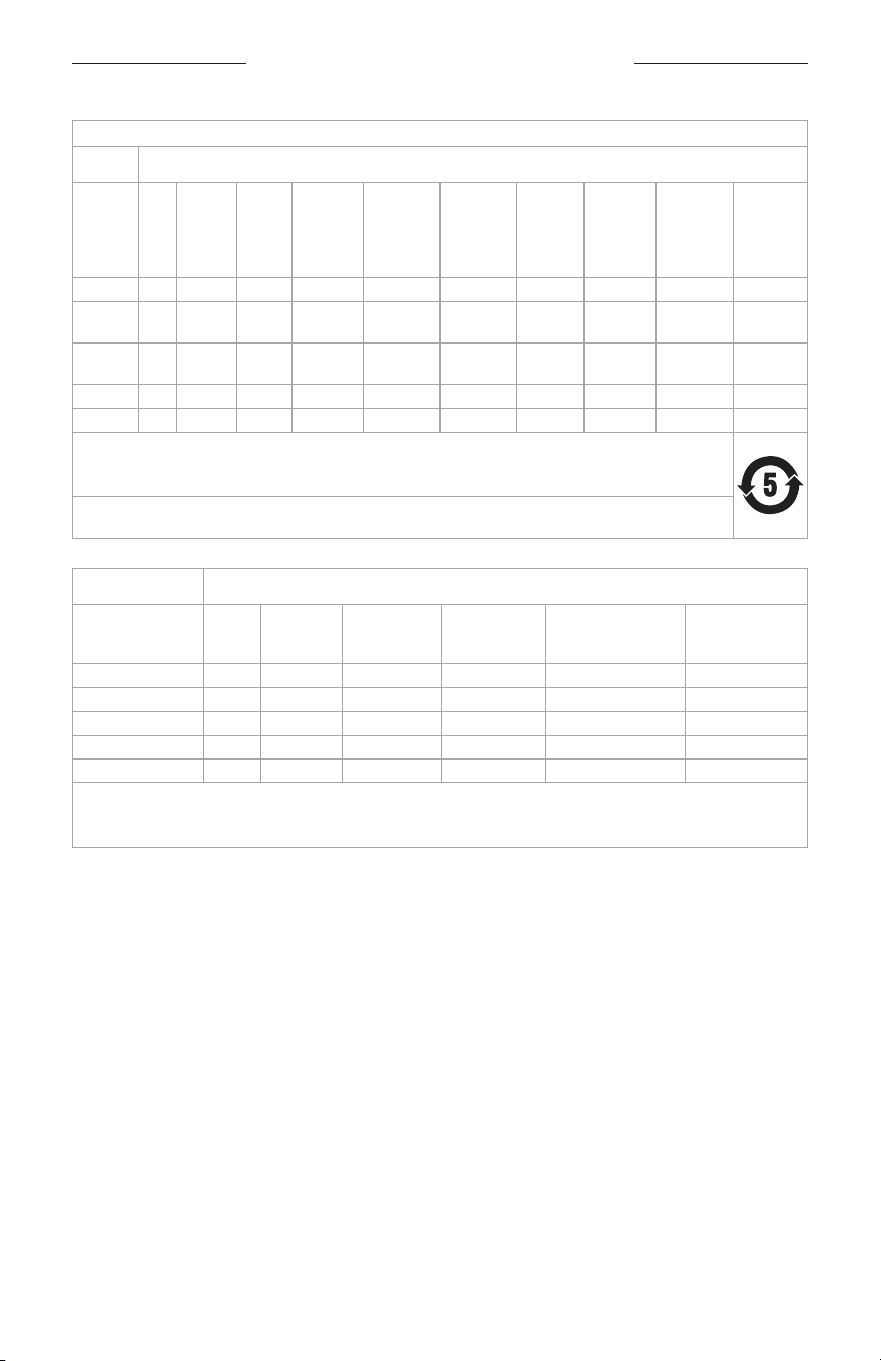
Names and Contents of Toxic or Hazardous Substances or Elements
Toxic or Hazardous Substances and Elements
Part
Name
Lead
(Pb)
Mercury
(Hg)
Cadmi-
um
(Cd)
Hexava-
lent
(CR(VI))
Polybromi-
nated
Biphenyl
(PBB)
Polybromi-
nated
diphenyle-
ther
(PBDE)
Dybutyl
phthalate
(DBP)
Diisobutyl
phthalate
(DIBP)
Butyl
benzyl
phthalate
(BBP)
Bis(2-eth-
ylhexyl)
phthalate
(DEHP)
PCBs X O O O O O O O O O
Metal
Parts
X O O O O O O O O O
Plastic
Parts
O O O O O O O O O O
Speakers X O O O O O O O O O
Cables X O O O O O O O O O
This table is prepared in accordance with the provisions of SJ/T 11364.
O: Indicates that this toxic or hazardous substance contained in all of the homogeneous materials for this part is
below the limit requirement of GB/T 26572.
X: Indicates that this toxic or hazardous substance contained in at least one of the homogeneous
materials used for this part is above the limit requirement of GB/T 26572.
Restricted substances and its chemical symbols
Unit
Lead
(Pb)
Mercury
(Hg)
Cadmium (Cd)
Hexavalent
chromium (Cr
+6
)
Polybrominated
biphenyls (PBB)
Polybrominated
diphenyl ethers
(PBDE)
PCBs −
b b b b b
Metal Parts −
b b b b b
Plastic Parts
b b b b b b
Speakers −
b b b b b
Cables −
b b b b b
Note 1: “b” indicates that the percentage content of the restricted substance does not exceed the percentage of reference
value of presence.
Note 2: The “−” indicates that the restricted substance corresponds to the exemption.
Date of Manufacture: The eighth digit in the serial number indicates the year of manufacture; “6” is 2016
or 2026.
Importers: Bose Electronics (Shanghai) Company Limited, Level 6, Tower D, No. 2337 Gudai Rd. Minhang
District, Shanghai 201100 | Bose Products B.V., Vijzelstraat 68, 1017HL Amsterdam, The Netherlands | Ingram
Micro Mexico SA de CV, Joselillo 3 Int. Piso 5 Col. El Parque, Naucalpan de Juarez, Edo Mex 53398
Phone Number: +52 55 5263 6500 | Bose Limited (H.K.), 7F., No. 2, Sec. 3, Minsheng E. Road, Zhongshan Dist.,
Taipei City 104511, Phone Number: +886-2-2514 7676 | Bose Limited, 16 Dufour’s Place, London W1F 7SP
Mexico Service Phone Number: 0800-266-0292
Input Rating: 5V p 0.5A
Model: 443644. The CMIIT ID is located inside the earcup under the fabric.
License Disclosures: To view the license disclosures that apply to the third-party software packages included
as components of the Bose QuietComfort Headphones (2
nd
Gen), use the Bose app. You can access this
information from the Seings menu.

REGULATORY INFORMATION
7
|
ENG
Apple, the Apple logo, iPad, and iPhone are trademarks of Apple Inc., registered in the U.S. and other countries.
App Store is a service mark of Apple Inc. The trademark “iPhone” is used in Japan with a license from
Aiphone K.K.
Use of the Made for Apple badge means that an accessory has been designed to connect specifically to the
Apple product(s) identified in the badge, and has been certified by the developer to meet Apple performance
standards. Apple is not responsible for the operation of this device or its compliance with safety and
regulatory standards.
The Bluetooth® word mark and logos are registered trademarks owned by Bluetooth SIG, Inc. and any use of
such marks by Bose Corporation is under license.
Google, Android, and Google Play are trademarks of Google LLC.
Spotify is a registered trademark of Spotify AB.
The Spotify Software is subject to third party licenses found here:
hps://www.spotify.com/connect/third-party-licenseshps://www.spotify.com/connect/third-party-licenses
USB Type-C® and USB-C® are registered trademarks of USB Implementers Forum.
Bose, the B logo, QuietComfort, and ActiveSense are trademarks of Bose Corporation. | Bose
Corporation Headquarters: 1-877-230-5639 | ©2026 Bose Corporation. No part of this work may be
reproduced, modified, distributed, or otherwise used without prior wrien permission.
Serial Number and Regulatory Markings Location: This information is located inside the earcups under
the inner fabric. Remove the ear cushions, grab the upper edge of fabric, and gently peel away until the
information is displayed.
Please complete and retain for your records
Serial number: ___________________________________________________________________________
Model number: 443644
Please keep your receipt. Now is a good time to register your Bose product. You can easily do this by going to
worldwide.Bose.com/ProductRegistrationworldwide.Bose.com/ProductRegistration

CONTENTS
8
|
ENG
CONTENTS
WHAT’S IN THE BOX
Contents ............................................................................................................................................................................. 11
BOSE APP
Download the Bose app ............................................................................................................................................... 12
HEADPHONE CONTROLS
Power on ............................................................................................................................................................................. 14
Power o ............................................................................................................................................................................. 15
Media playback and volume ....................................................................................................................................... 16
Phone calls ......................................................................................................................................................................... 17
Modes................................................................................................................................................................................... 18
Immersive audio seings ............................................................................................................................................. 18
Device voice control ....................................................................................................................................................... 18
SHORTCUTS
Enable, disable, or change your shortcut .............................................................................................................. 19
Use your shortcut ............................................................................................................................................................ 19
NOISE CANCELLATION
Change the noise cancellation seing .................................................................................................................. 20
Noise cancellation while on a call ............................................................................................................................ 20
Use noise cancellation only ........................................................................................................................................ 20
IMMERSIVE AUDIO
Immersive audio seings ............................................................................................................................................. 21
Change the immersive audio seing ...................................................................................................................... 22
Change the mode ................................................................................................................................................ 22
Use your shortcut ................................................................................................................................................. 22

9
|
ENG
CONTENTS
LISTENING MODES
Modes................................................................................................................................................................................... 23
Aware mode with ActiveSense ....................................................................................................................... 24
Change the mode ........................................................................................................................................................... 25
Set favorites and add or remove custom modes from the headphones ...................................... 25
BLUETOOTH® CONNECTIONS
Connect using the Bose app ...................................................................................................................................... 26
Connect using the Bluetooth menu on your device ........................................................................................ 26
Disconnect a device ...................................................................................................................................................... 27
Reconnect a device ........................................................................................................................................................ 27
Connect another device .............................................................................................................................................. 28
Switch between two connected devices when streaming audio............................................................... 28
Reconnect a previously-connected device ......................................................................................................... 29
Clear the Bluetooth headphone device list ......................................................................................................... 29
Android™ devices only ................................................................................................................................................. 30
Connect using Fast Pair .................................................................................................................................... 30
WIRED CONNECTIONS
AUX audio ........................................................................................................................................................................... 31
USB Type-C® audio ......................................................................................................................................................... 32
BATTERY
Charge the headphones ............................................................................................................................................... 33
Charging time ........................................................................................................................................................ 34
Playback time ......................................................................................................................................................... 34
See the baery level ........................................................................................................................................... 34

CONTENTS
10
|
ENG
CONTENTS
HEADPHONE STATUS
Bluetooth status ............................................................................................................................................................. 35
Baery status ................................................................................................................................................................... 36
Power and charging status ........................................................................................................................................ 36
Update and error status .............................................................................................................................................. 36
CARE AND MAINTENANCE
Store the headphones .................................................................................................................................................. 37
Service the headphone baery................................................................................................................................. 39
Update the headphones .............................................................................................................................................. 39
Clean the headphones.................................................................................................................................................. 39
Replacement parts and accessories ...................................................................................................................... 39
Limited warranty .............................................................................................................................................................. 39
Serial number and regulatory markings location ............................................................................................... 40
TROUBLESHOOTING
Reset the headphones .................................................................................................................................................. 43
Restore the headphones to factory seings ....................................................................................................... 44
11
|
ENG
WHAT’S IN THE BOX
CONTENTS
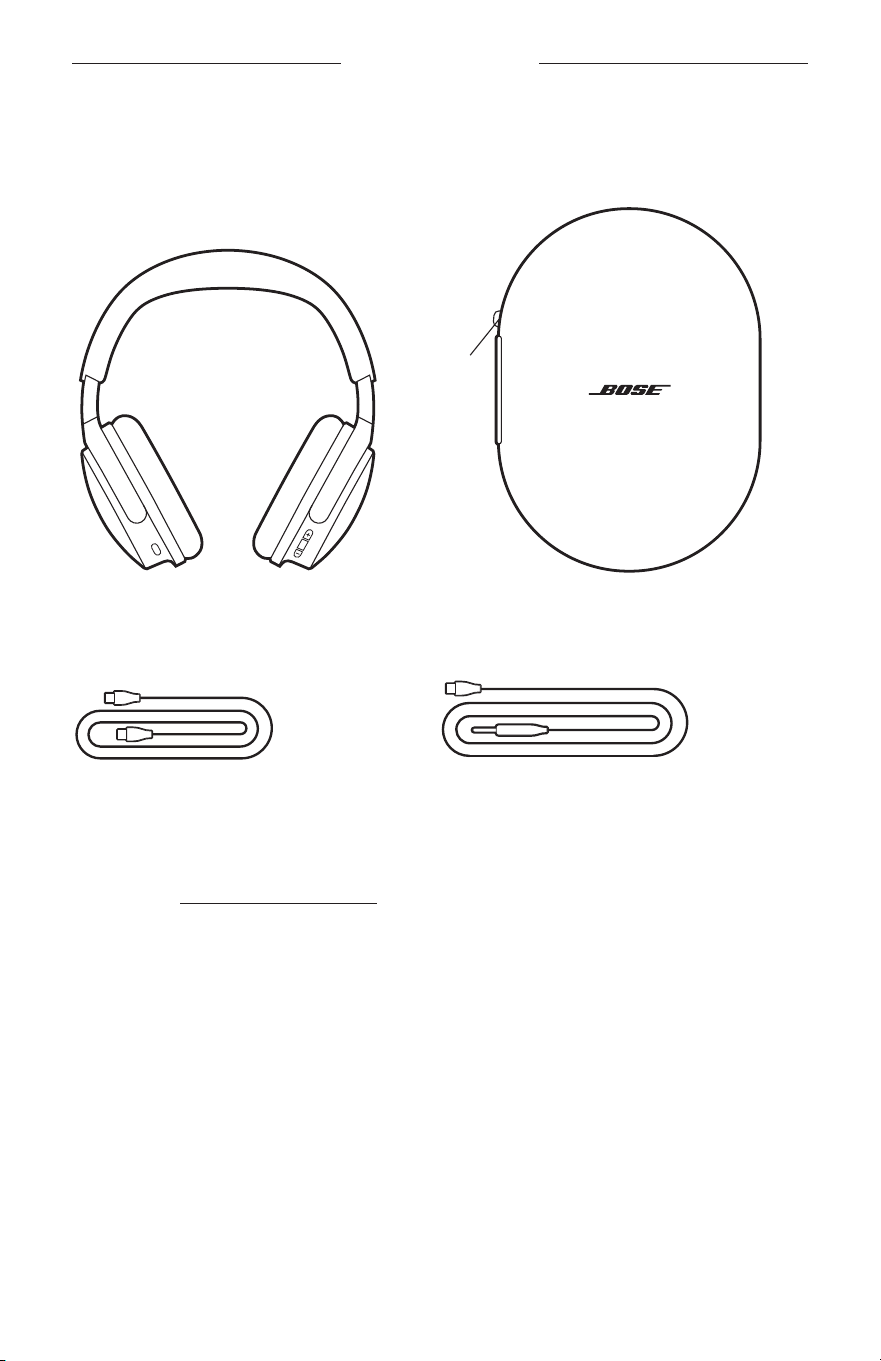
Confirm that the following parts are included:
Bose QuietComfort Headphones
(2
nd
Gen)
Carry case
USB-C® to USB-C cable USB-C to 3.5mm cable
NOTE: If any part of your product appears to be missing or damaged, don’t use it.
Visit support.Bose.com/qc2 for troubleshooting articles, videos, and
product repair or replacement.
12
|
ENG
BOSE APP
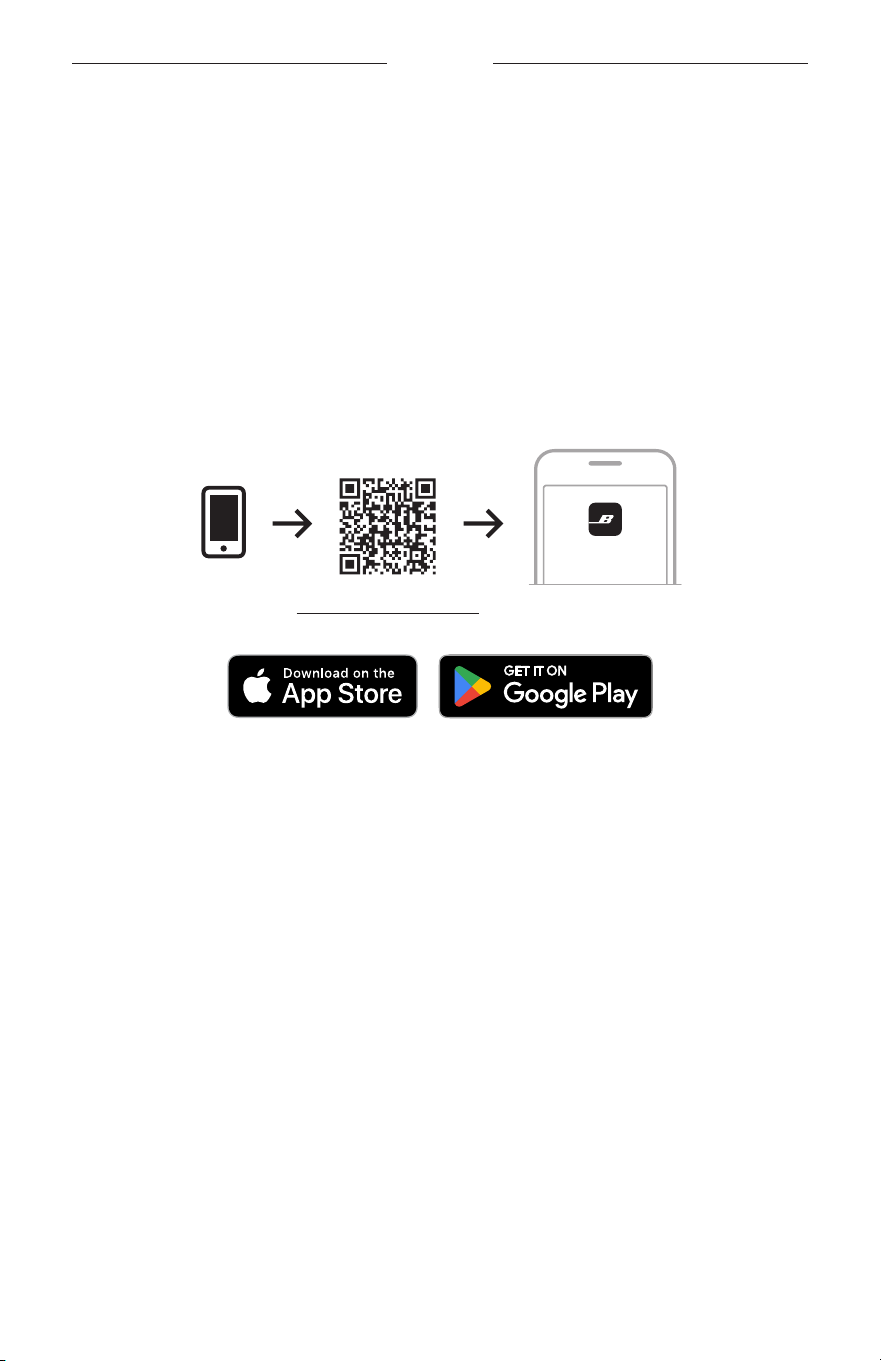
The Bose app lets you set up and control the headphones from any device, such as a
smartphone or tablet.
Using the app, you can manage Bluetooth connections, manage headphone seings,
adjust the audio, and get any future updates and new features made available
by Bose.
NOTE: If you’ve already downloaded the Bose app for another Bose product, you can
add the headphones from the product list screen.
DOWNLOAD THE BOSE APP
1. On your device, download the Bose app.
BOSE
setup.Bose.com/qc2setup.Bose.com/qc2
2. Follow the app instructions.
13
|
ENG
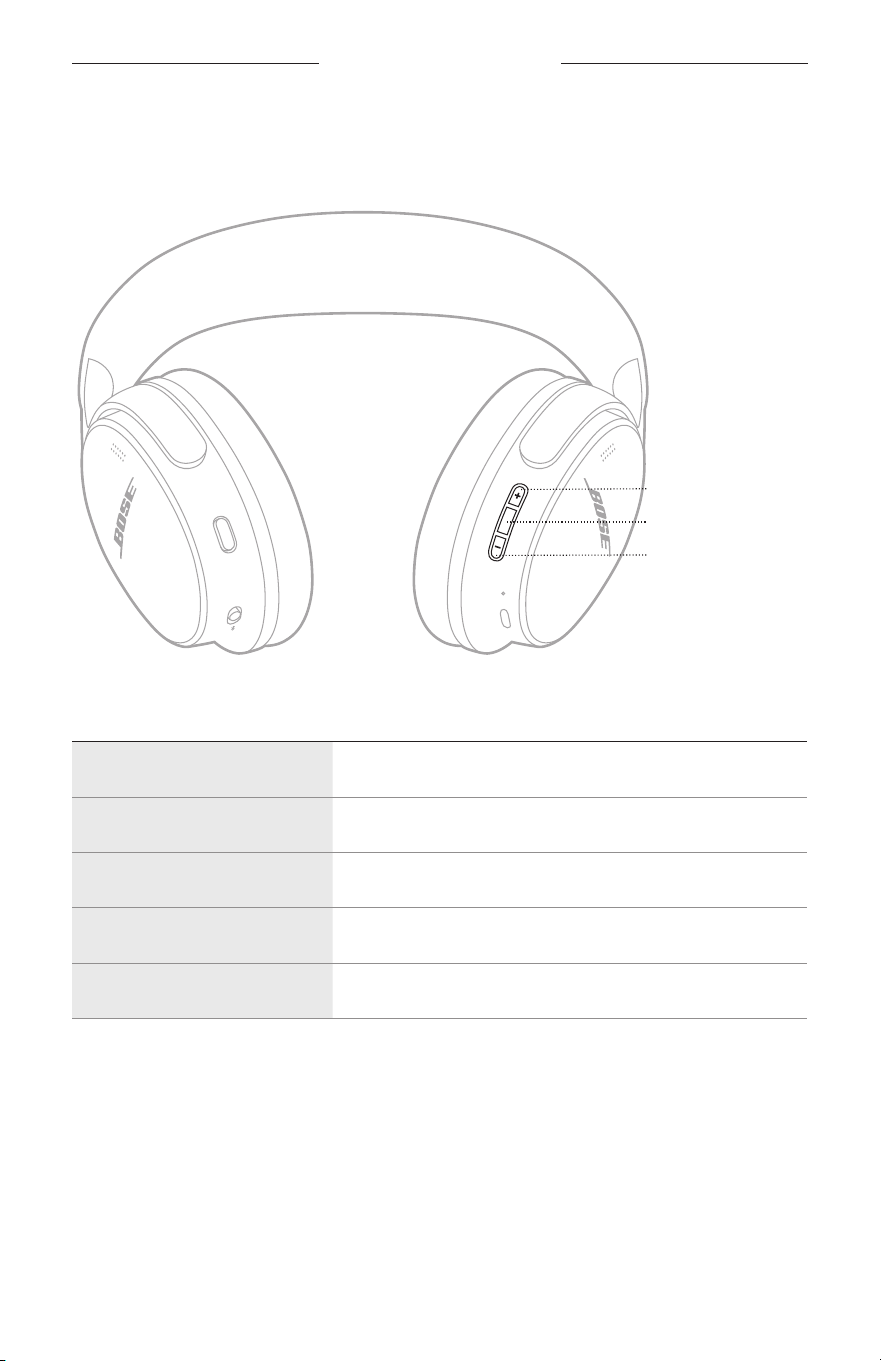
HEADPHONE CONTROLS
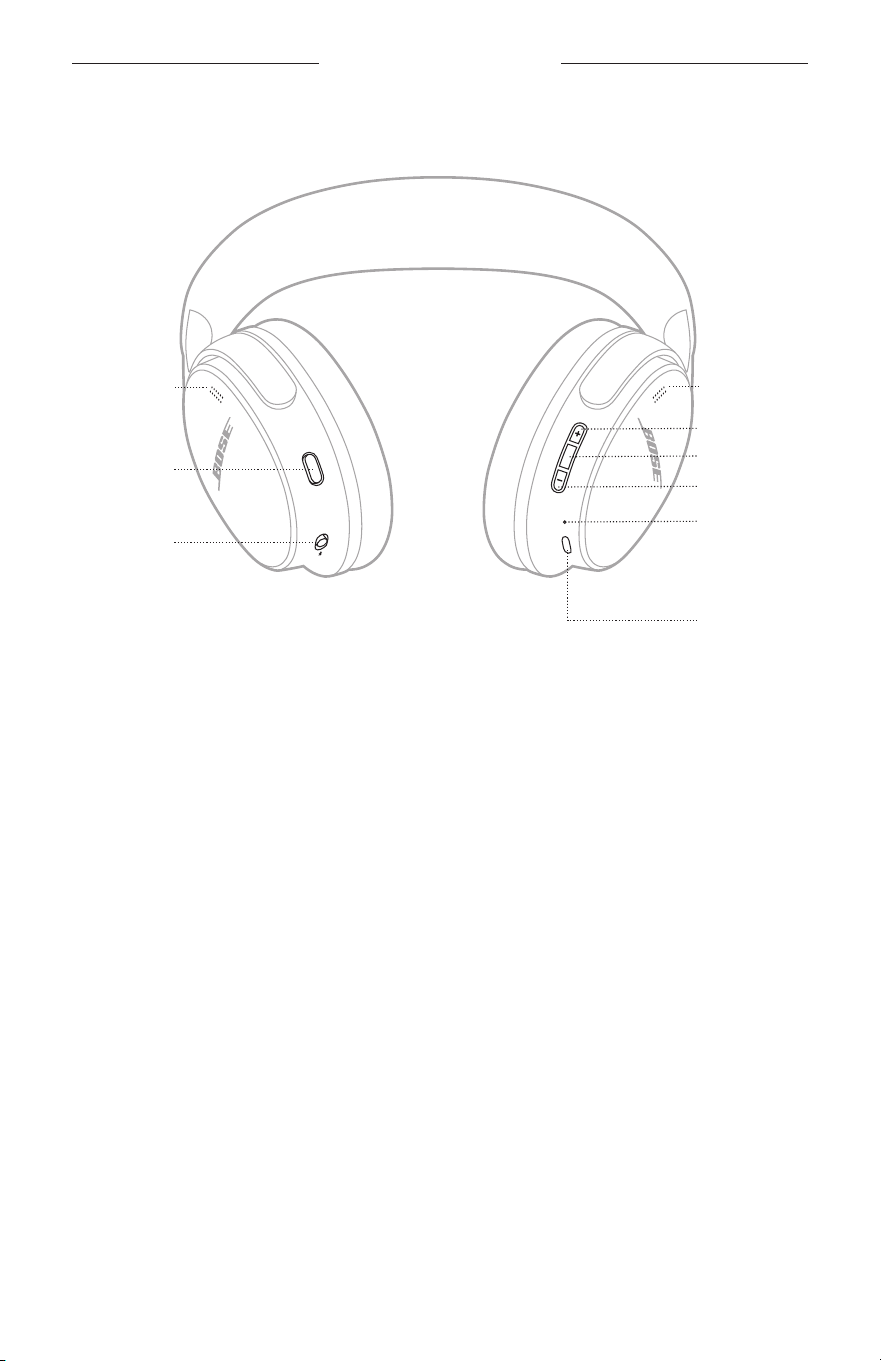
The headphone controls are located on the back of the both earcups.
Volume up
buon
Volume down
buon
Microphone
USB-C port
Multi-function
buon
Status light
Action
buon
Microphone
Bluetooth/
Power buon
14
|
ENG
HEADPHONE CONTROLS
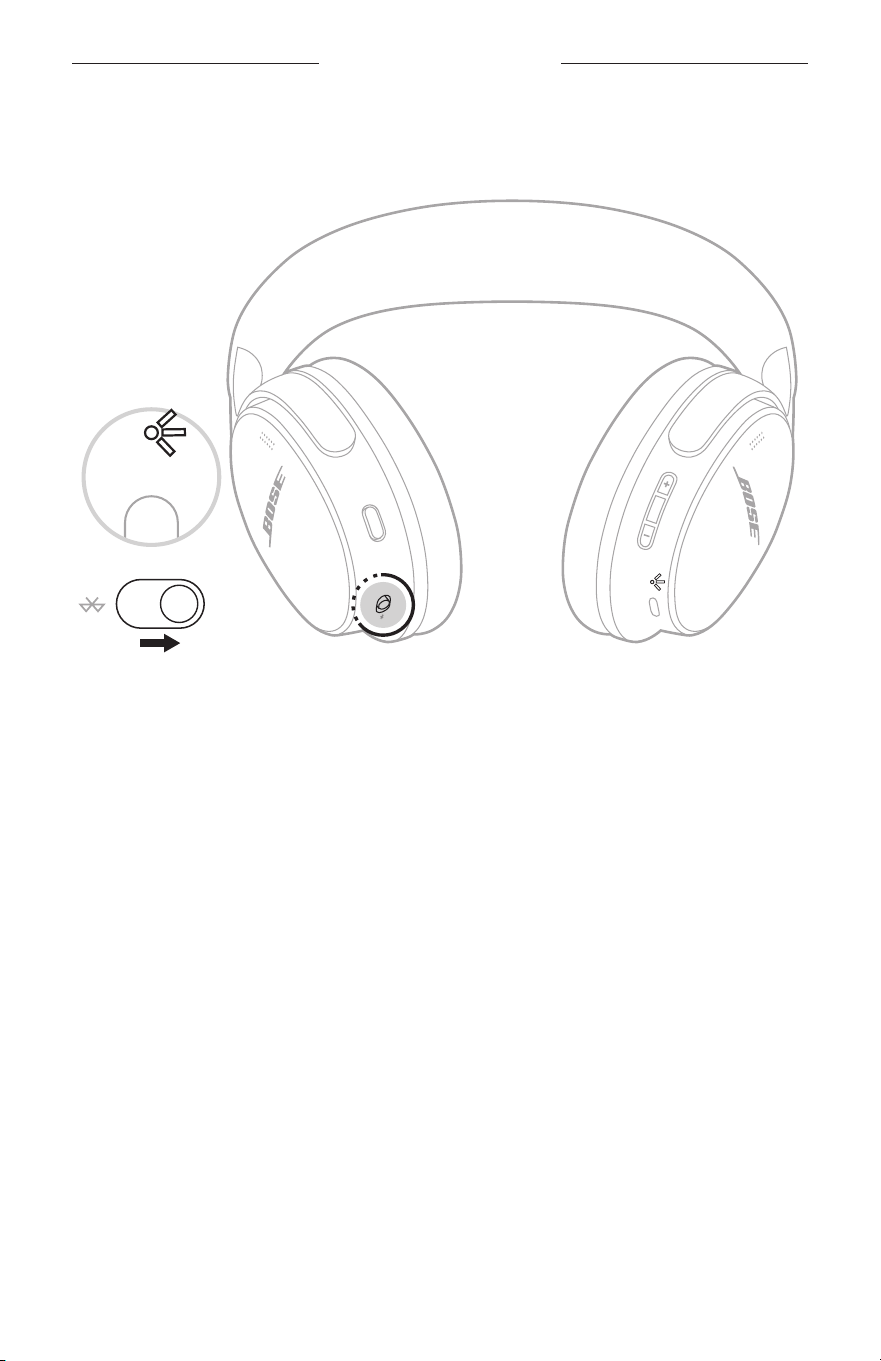
POWER ON
Slide the Bluetooth/Power switch to the center.
After a few seconds, you hear a tone. The status light glows according to the current
charge level (see page 36).
15
|
ENG
HEADPHONE CONTROLS
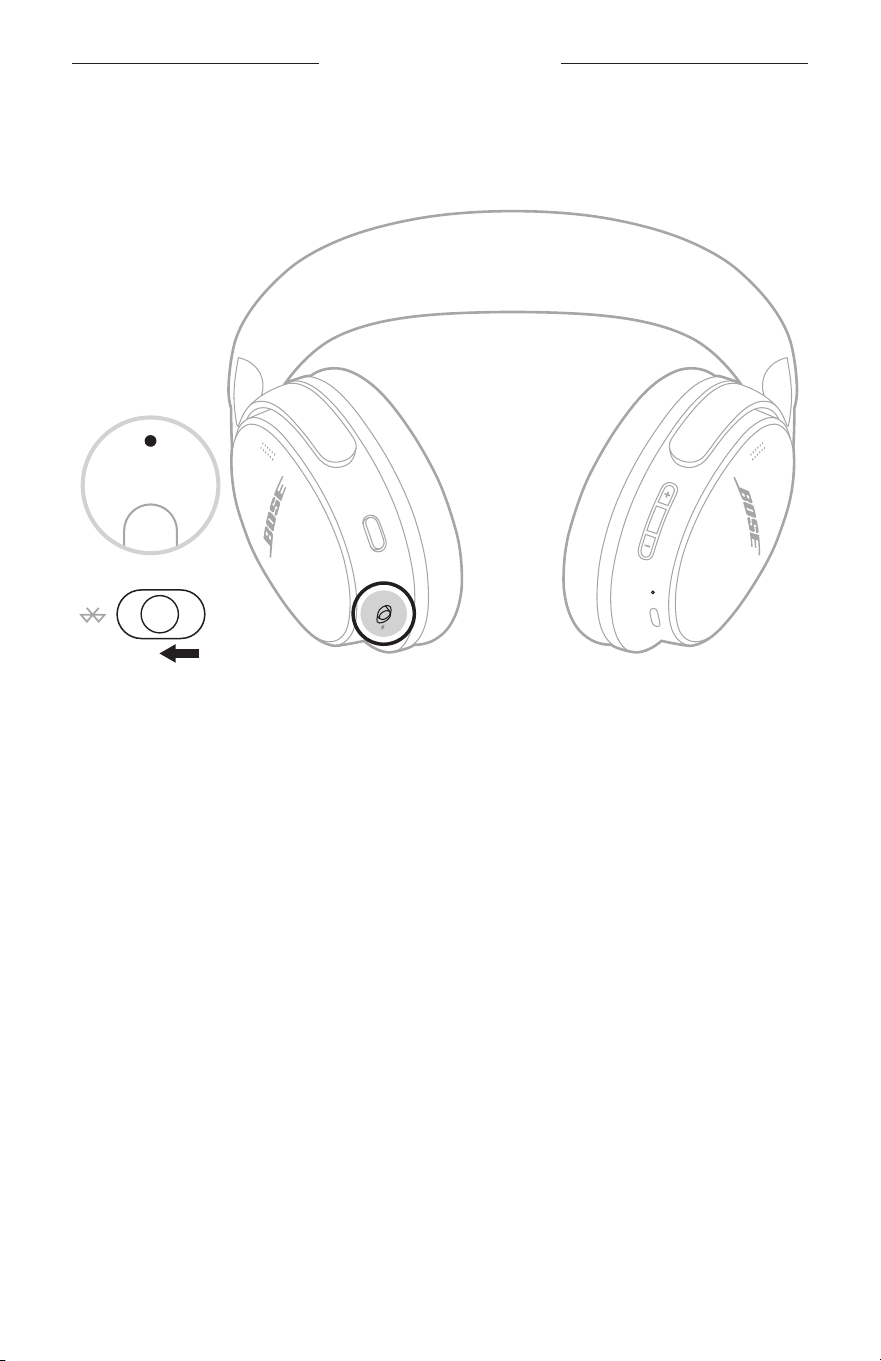
POWER OFF
Slide the Bluetooth/Power switch backward.
NOTE: When the headphones are powered o, noise cancellation is disabled.
16
|
ENG
HEADPHONE CONTROLS
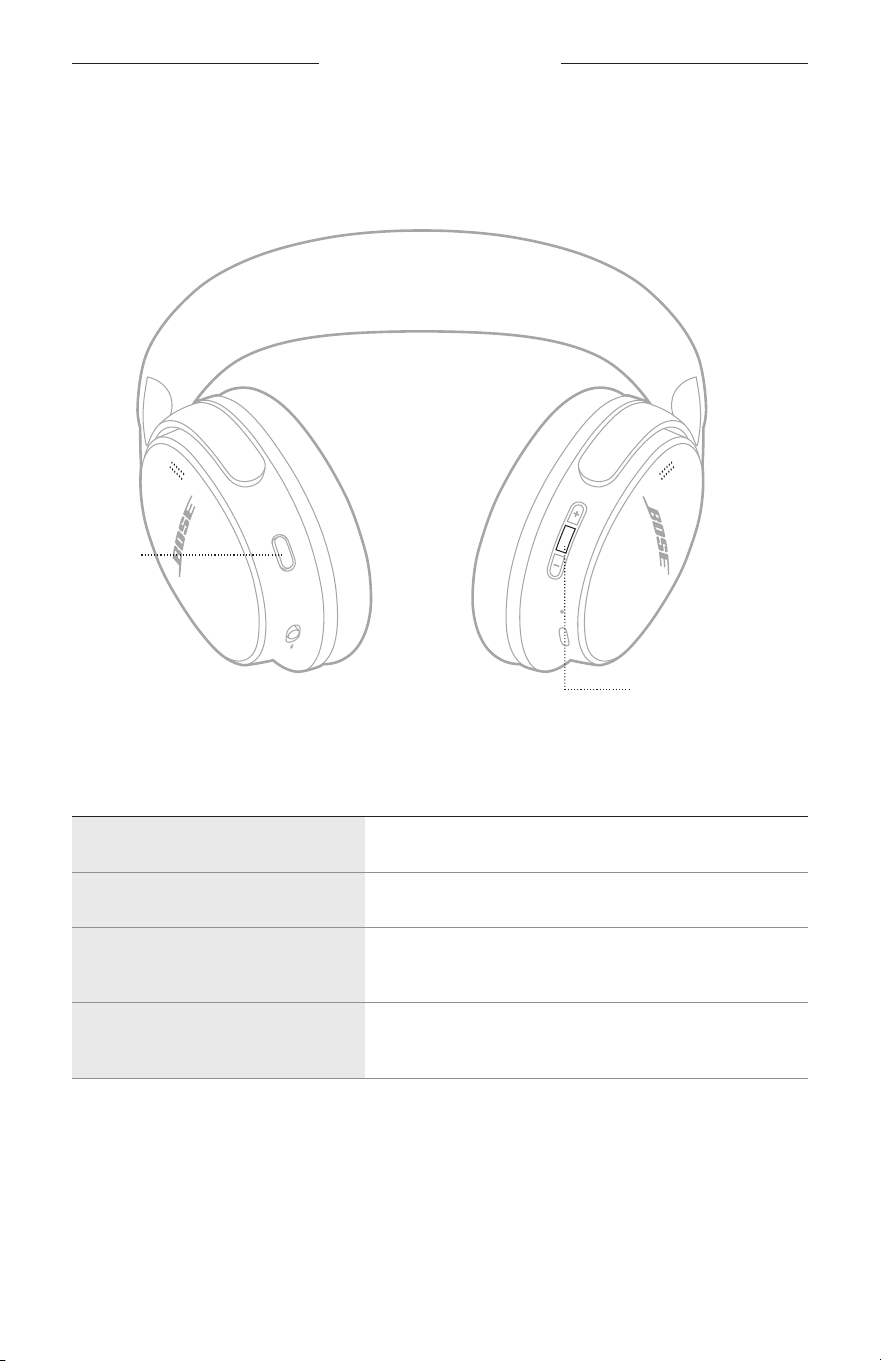
MEDIA PLAYBACK AND VOLUME
The Multi-function buon and volume buons control media playback and volume.
Multi-function buon
FUNCTION WHAT TO DO
Play/Pause Press the Multi-function buon.
Skip forward Double-press the Multi-function buon.
Skip backward Triple-press the Multi-function buon.
Volume up Press H.
Volume down Press z.
NOTES:
• To quickly increase the volume, press and hold H.
• To quickly decrease the volume, press and hold z.
Volume up buon
Volume down buon
17
|
ENG
HEADPHONE CONTROLS
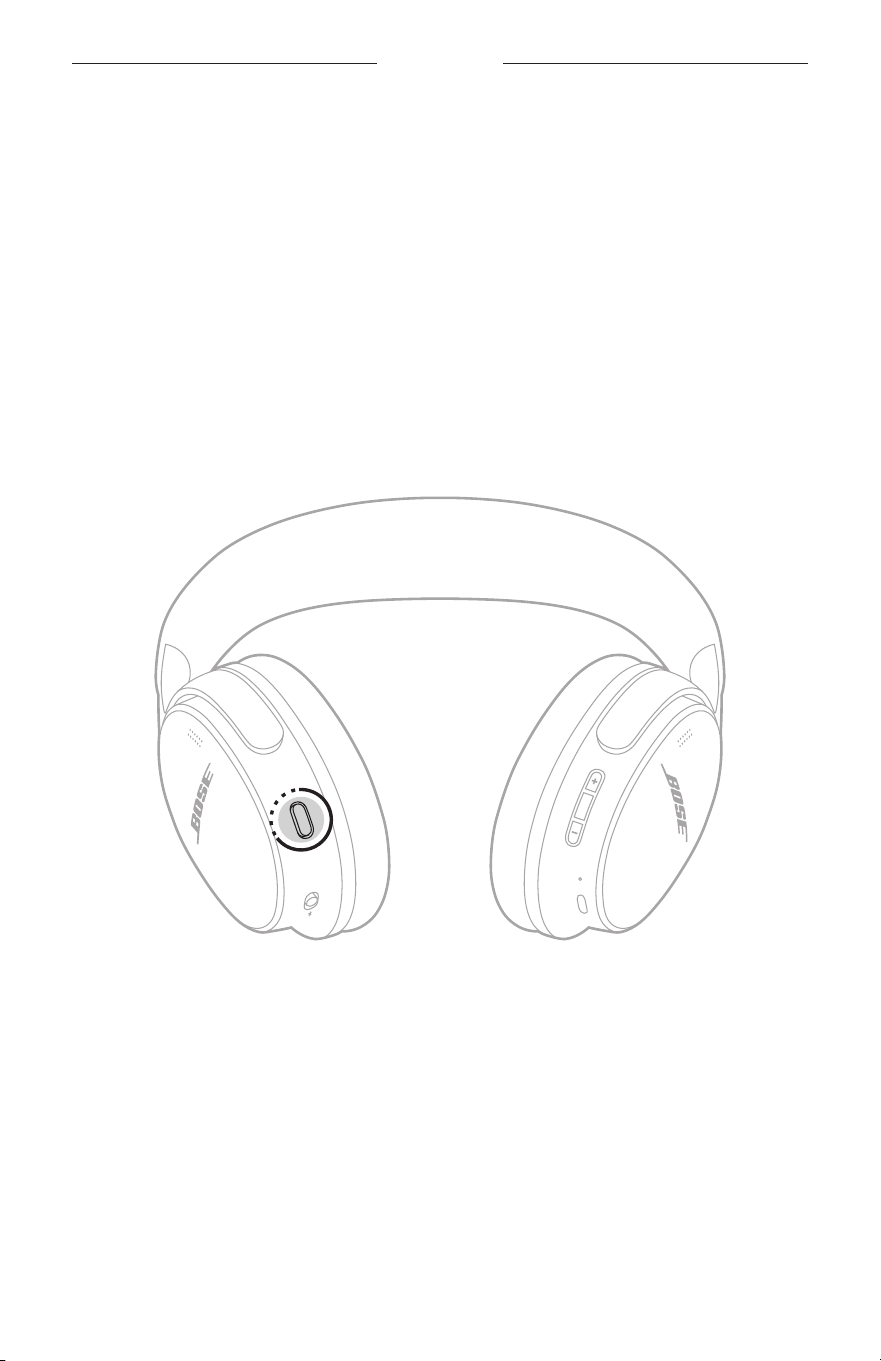
PHONE CALLS
The Multi-function buon controls phone calls.
Multi-function
buon
FUNCTION WHAT TO DO
Answer a call Press the Multi-function buon.
End/Decline an incoming call Double-press the Multi-function buon.
Answer a second incoming call
and put the current call on hold
While on a call and a second incoming call is ringing,
press the Multi-function buon.
Decline a second incoming call
and stay on current call
While on a call and a second incoming call is ringing,
press and hold the Multi-function buon for 1 second.
Action
buon

18
|
ENG
MODES
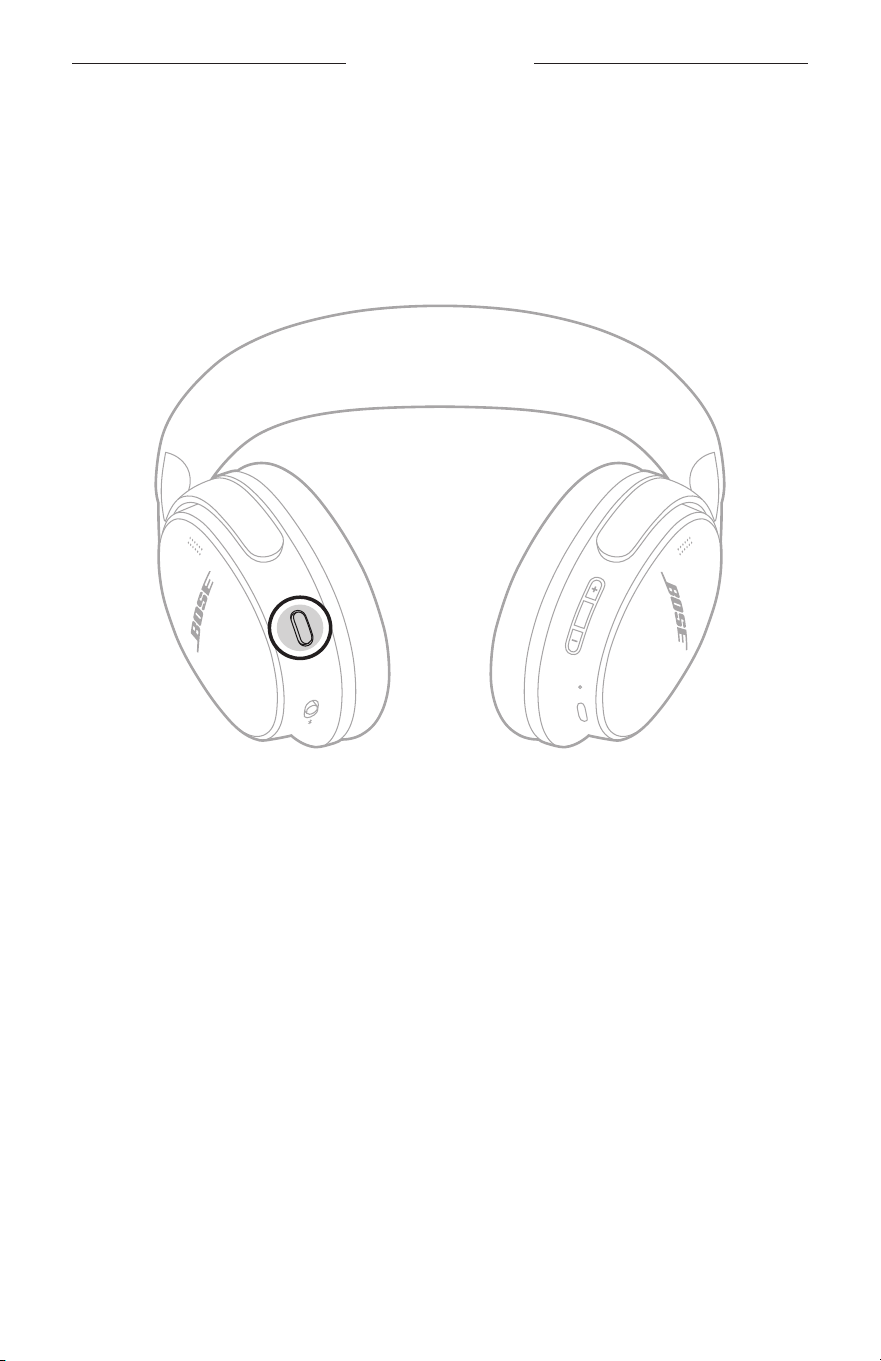
The Action buon allows you to quickly and easily switch between modes.
For information about changing the mode, see page 23.
IMMERSIVE AUDIO SETTINGS
For information about changing the immersive audio seing, see page 22.
DEVICE VOICE CONTROL
You can set a shortcut to access your device voice control using the headphones.
The microphones on the headphones act as an extension of the microphone on
your device.
For information about shortcuts, see page 19.
NOTE: You can’t access voice control while on a call.
HEADPHONE CONTROLS
19
|
ENG
SHORTCUTS
A shortcut enables you to quickly and easily access one of the following functions:
• Cycle through audio seings (see page 21)
• Play music from Spotify
• Use your device voice control (see page 18)
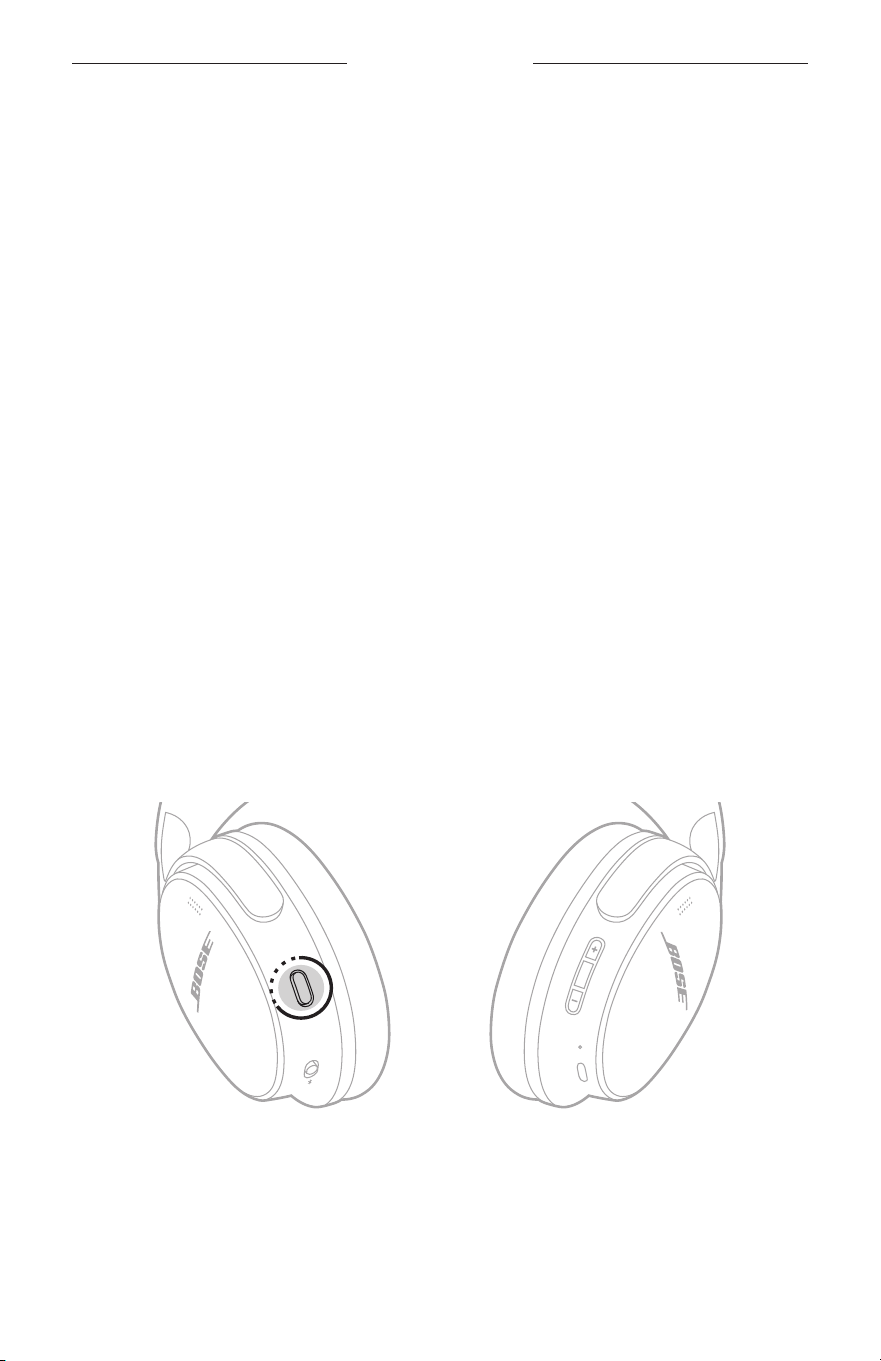
ENABLE, DISABLE, OR CHANGE YOUR SHORTCUT
To enable, disable, or change your shortcut, use the Bose app. To access this option,
tap Shortcut on the product control screen.
USE YOUR SHORTCUT
Press and hold the Action buon.

20
|
ENG
NOISE CANCELLATION
Noise cancellation reduces unwanted noise, providing a clearer, more lifelike
audio performance.
By default, the headphones power on in Quiet mode. Noise cancellation is fully
enabled (see page 23).
CHANGE THE NOISE CANCELLATION SETTING
You can switch between preset noise cancellation seings by changing the mode. For
information about modes, see page 23.
NOISE CANCELLATION WHILE ON A CALL
When you make or receive a call, the headphones remain at the current noise
cancellation seing and self voice is activated. Self voice helps you hear yourself
speak more naturally.
To adjust noise cancellation while on a call, change the mode (see page 23).
NOTE: To adjust self voice, use the Bose app. You can access this option from the
Seings menu.
USE NOISE CANCELLATION ONLY
You can use noise cancellation only, without audio or interruptions from phone calls.
1. Do one of the following:
• Disconnect your device (see page 27).
• Turn the Bluetooth feature o on your device.
2. Press and hold the Action buon to change the listening mode (see page 23).
NOTE: To reconnect your device, select the headphones from the Bluetooth list on
your device, connect using the Bose app (see page 12).

21
|
ENG
IMMERSIVE AUDIO
Immersive audio takes what you’re hearing out of your head and places it in front of
you—like you’re always in the acoustic sweet spot. It feels like the sound is coming
from outside the headphones, resulting in a more natural listening experience.
Immersive audio works on any streaming content from any source, taking it to new
heights with beer sound clarity and richer sound quality.
NOTE: When you make or receive a phone call, immersive audio is temporarily set
to O. When you end the call, the headphones return to the previous
immersive audio seing.
IMMERSIVE AUDIO SETTINGS
SETTING DESCRIPTION WHEN TO USE
Motion
Audio sounds like it's coming from two
stereo speakers in front of you that
follow the movements of your head.
NOTE: This seing is used by default
in Immersion mode.
Use for the most consistent
experience. Best for when you’re
doing activities that require you
to frequently turn your head or
look down.
Still
Audio sounds like it's coming from two
stereo speakers in front of you that
stay where they are when you move
your head.
NOTES:
• A few seconds after you stop moving
your head, the speakers recenter on
your position.
• To access this option, use the Bose
app. Tap Immersive Audio on the
product control screen.
Use for the most realistic and
powerful experience. Best for
when you’re stationary.
Off
Audio sounds like it's coming from
your headphones.
Use when you want a classic
listening experience or want to
conserve baery life.
22
|
ENG
IMMERSIVE AUDIO
CHANGE THE IMMERSIVE AUDIO SETTING
You can change the immersive audio seing by changing the mode or using a
shortcut to cycle through immersive audio seings.
TIP: You can also change the immersive audio seing using the Bose app. To access
this option, tap Immersive Audio on the product control screen.
Change the mode
To cycle through modes, press the Action buon. For information about changing the
mode, see page 23.
NOTES:
• Changing the mode changes both the immersive audio and noise
cancellation seings.
• You can also create a custom mode with your preferred immersive audio and noise
cancellation seing (see page 23).
Use your shortcut
You can use your shortcut to cycle through immersive audio seings without
aecting your current mode’s noise cancellation seing. This temporarily customizes
the current mode until you power the headphones o or change the mode.
NOTE: To change the immersive audio seing using the headphones, it must be set
as a shortcut (see page 19).
1. Press and hold the Action buon.
A voice prompt announces each immersive audio seing in a loop.
2. When you hear the name of your preferred seing, release the Action buon.

23
|
ENG
LISTENING MODES
Listening modes are preset audio seings that you can switch between based on
your listening preferences and environment. They consist of noise cancellation and
immersive audio seings.
You can choose between four pre-configured modes — Quiet, Aware, Immersion, or
Cinema — or create up to seven of your own custom modes.
MODES
MODE DESCRIPTION
Off All noise control seings are set to o.
Quiet
Full noise cancellation with Bose-optimized stereo audio. Allows you to
block out distractions using the highest level of noise cancellation.
Aware
Full transparency with Bose-optimized stereo audio. Allows you to hear
your surroundings while enjoying your audio in stereo.
Immersion
Full noise cancellation with immersive audio set to Motion. Allows you to
block out distractions and immerse yourself in lifelike audio.
Cinema
Full noise cancellation with Immersive Audio set to Still. Allows you to
experience your video content in a movie-like way by spatializing your
audio, balancing background sounds and sound eects, and enhancing
dialogue clarity.
Custom
Custom noise control (noise cancellation or wind block) and immersive
audio seings based on your listening preferences and environment.
NOTE: You can create up to seven custom modes using the Bose app.
To access this option, tap Modes on the product control screen.
NOTES:
• By default, the headphones power on in Quiet mode. When you switch modes, your
headphones power on in the last mode used.
• For information about noise cancellation and immersive audio seings, see page
20 and page 21.

24
|
ENG
LISTENING MODES
Aware mode with ActiveSense
The dynamic noise cancellation of Aware mode with ActiveSense technology allows
you to hear your surroundings while reducing unwanted noise.
Aware mode with ActiveSense allows the headphones to automatically increase noise
cancellation when sudden or loud noises occur near you, so you can maintain
awareness without intermient noise interrupting your audio. Once the noise stops,
noise cancellation automatically returns the previous seing.
To enable ActiveSense, use the Bose app. To access this option, on the product
control screen, tap Modes > Aware > .
25
|
ENG
CHANGE THE MODE
NOTE: To access a mode on the headphones, it must be set as a favorite in the Bose
app. To set your favorite modes, tap Modes on the product control screen. By
default, Quiet, Aware, and Immersion are set as favorites.
1. To cycle through modes, press the Action buon.
A voice prompt announces each mode in a loop.
2. When you hear the name of your preferred mode, release the
Action buon.
TIP: You can also change the mode using the Bose app. To access this option, tap
Modes on the product control screen.
Set favorites and add or remove custom modes from the headphones
To add or remove modes from the headphones, tap Modes on the product control
screen and customize which modes are set as your favorites.
LISTENING MODES
26
|
ENG
BLUETOOTH CONNECTIONS
You can connect the headphones to your device using the Bose app, the Bluetooth
menu on your device, or Fast Pair (Android devices only).
You can store up to six devices in the headphone device list, and the headphones can
be actively connected to up to two devices at a time (multi-point connection). You
can play audio from only one device at a time.
NOTES:
• For the best experience, use the Bose app to set up and connect your device (see
page 12).
• For information about connecting using Fast Pair, see page 30.
CONNECT USING THE BOSE APP
To connect the headphones and manage Bluetooth seings using the Bose app, see
page 12.
CONNECT USING THE BLUETOOTH MENU ON YOUR DEVICE
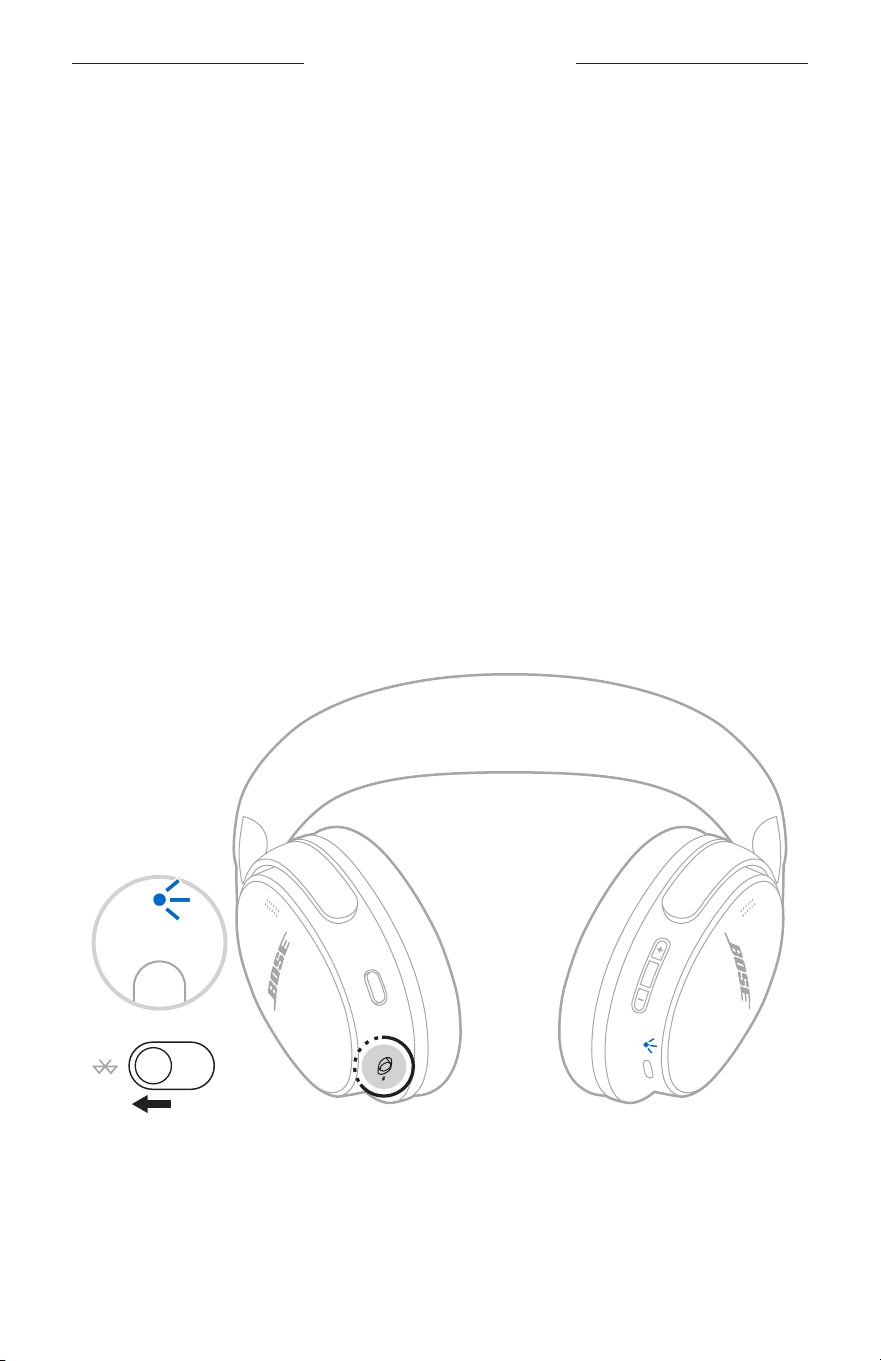
1. With the headphones powered on, slide the Bluetooth/Power switch l forward
and hold for 3 seconds, the status light pulses blue.
27
|
ENG
BLUETOOTH CONNECTIONS
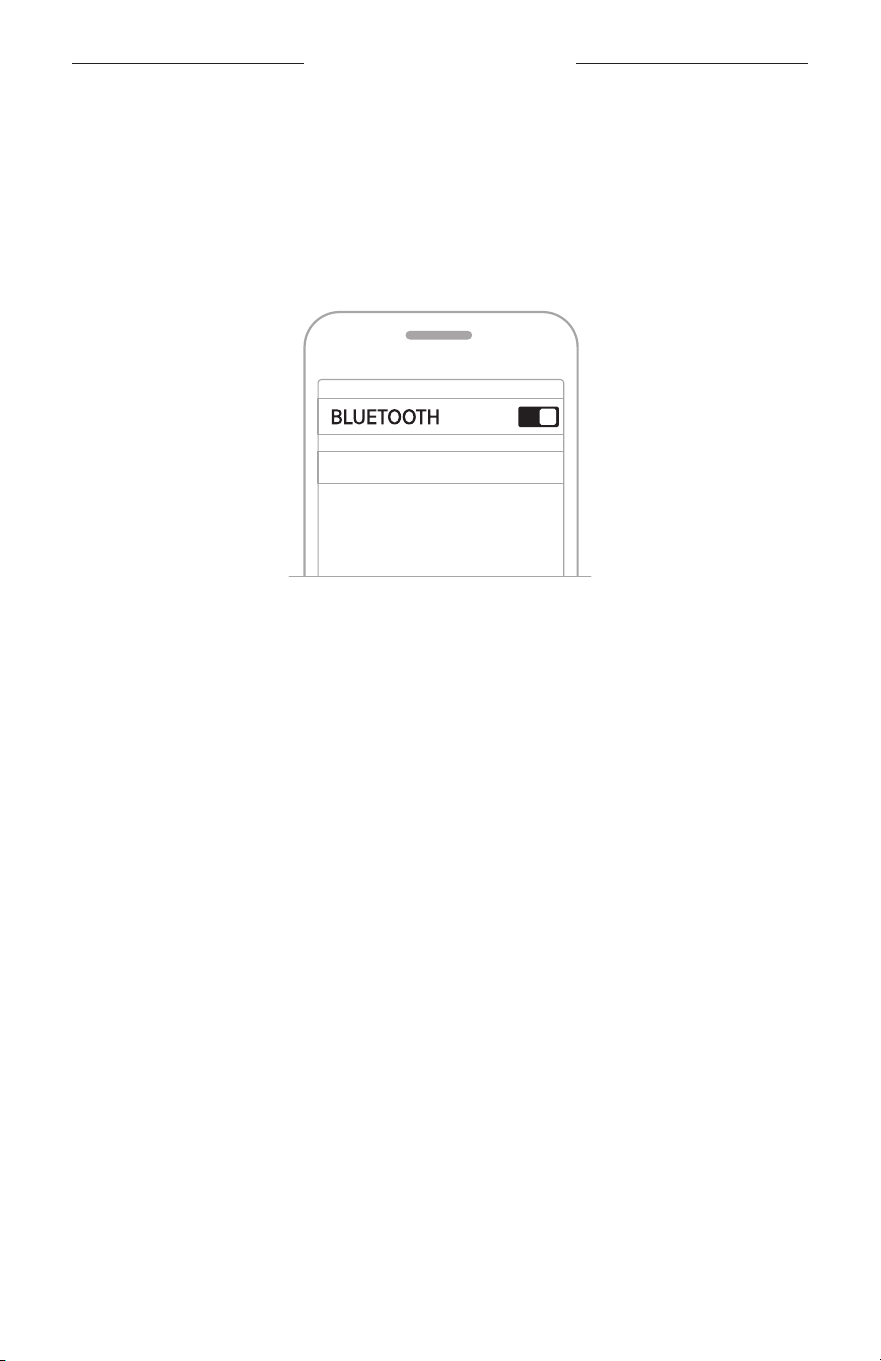
2. On your device, enable the Bluetooth feature.
NOTE: The Bluetooth feature is usually found in the Seings menu.
3. Select the headphones from the list of available products.
NOTE: Look for the name you entered for your headphones in the Bose app. If you
didn’t name your headphones, the default name appears.
BOSE QC 2 HP
Once connected, the status light glows solid blue for 10 seconds.
NOTE: If a device is already connected, a tone plays and the status light glows
solid blue for 10 seconds.
DISCONNECT A DEVICE
To disconnect a device, use the Bose app.
TIP: You can also use Bluetooth seings on your device to disconnect.
RECONNECT A DEVICE
When powered on, the headphones try to reconnect with the two most
recently-connected devices.
NOTES:
• The devices must be within range (30 ft or 9 m) and powered on.
• Make sure the Bluetooth feature is enabled on your device.
• If the multi-point connection feature is disabled, the headphones try to reconnect
with the most recently-connected device.

28
|
ENG
BLUETOOTH CONNECTIONS
CONNECT ANOTHER DEVICE
By default, the headphones can be actively connected to up to two devices at a time
(multi-point connection).
To connect another device, use one of the following options:
• The Bose app (see page 12).
• The Bluetooth menu on your device (see page 26).
• Fast Pair (Android devices only) (see page 30).
NOTES:
• You can only play audio from one device at a time.
• To manage or disable the multi-point connection feature, use the Bose app.
You can access this option from the Seings menu.
• Disabling the multi-point connection feature disconnects the second
connected device.
SWITCH BETWEEN TWO CONNECTED DEVICES WHEN
STREAMING AUDIO
1. Pause audio on your first device.
2. Play audio on your second device.
The headphones switch to that device’s audio stream.
NOTE: Your headphones receive phone calls from both devices, regardless of which
device is playing audio.
29
|
ENG
BLUETOOTH CONNECTIONS
RECONNECT A PREVIOUSLY-CONNECTED DEVICE
Reconnect a previously-connected device using the Bose app (see page 12) or
your source device Bluetooth seings.
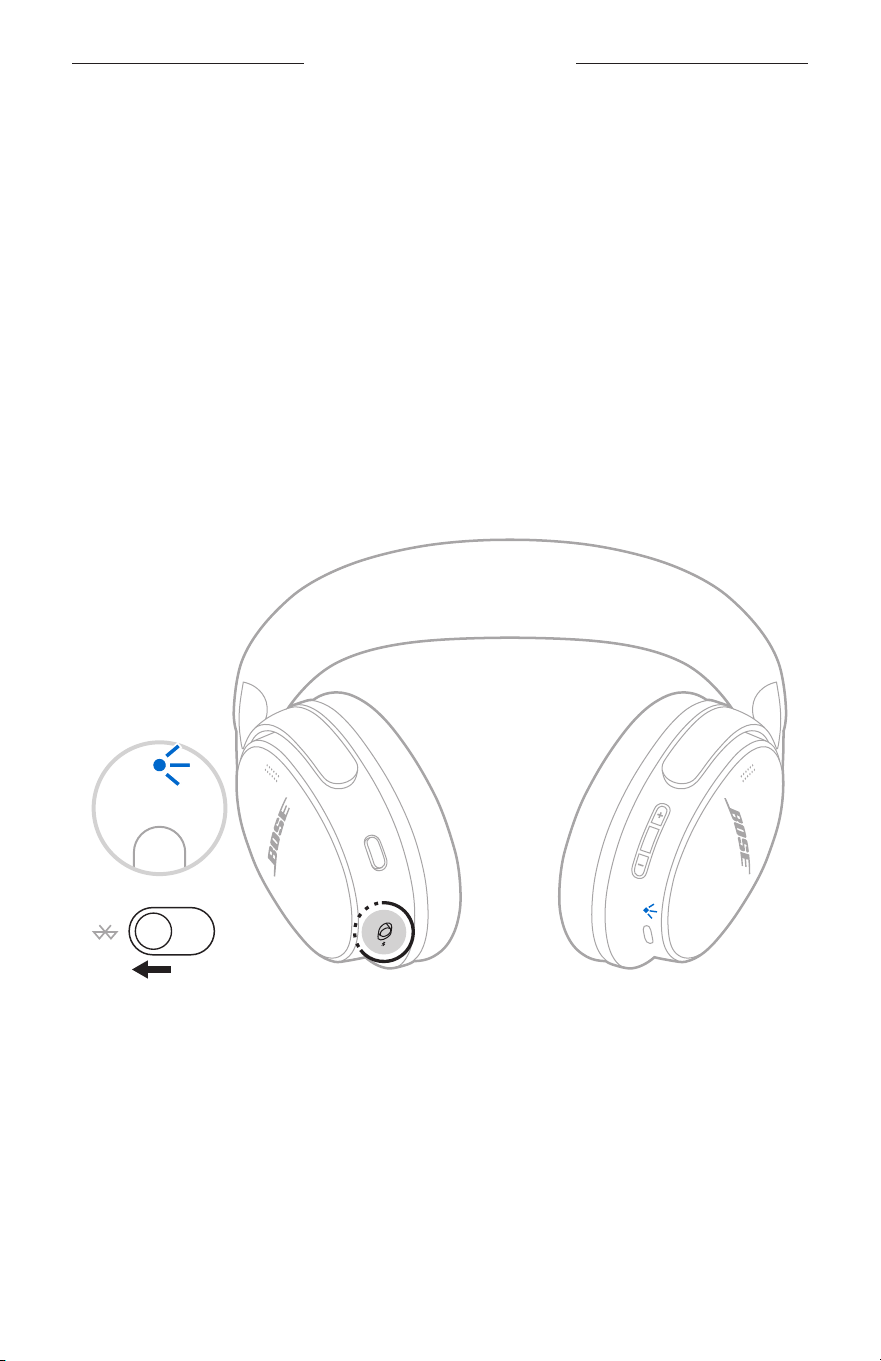
CLEAR THE BLUETOOTH HEADPHONE DEVICE LIST
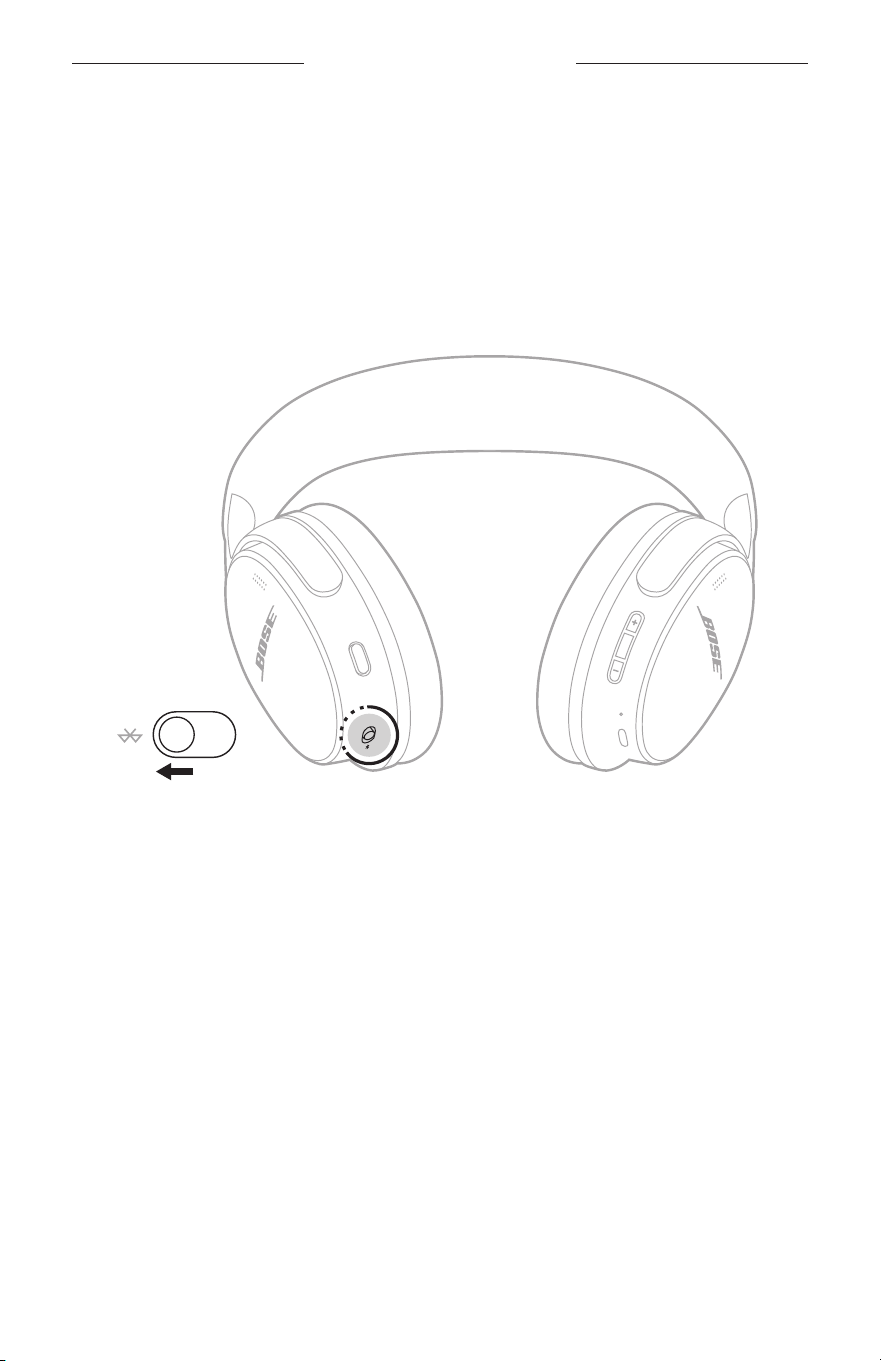
1. Slide the Bluetooth/Power switch forward l and hold for 15 seconds.
2. Delete your headphones from the Bluetooth list on your device. Repeat for each
previously-connected device.
All devices are cleared, and the headphones are ready to connect.
30
|
ENG
BLUETOOTH CONNECTIONS
ANDROID DEVICES ONLY
If you have an Android device, you can access the following additional
connection features.
Connect using Fast Pair
In one tap, the headphones enable quick, eortless Bluetooth pairing with your
Android devices.
NOTES:
• To use Fast Pair, you need an Android device running Android 6.0 or higher.
• Your Android device must have the Bluetooth and Location features enabled.
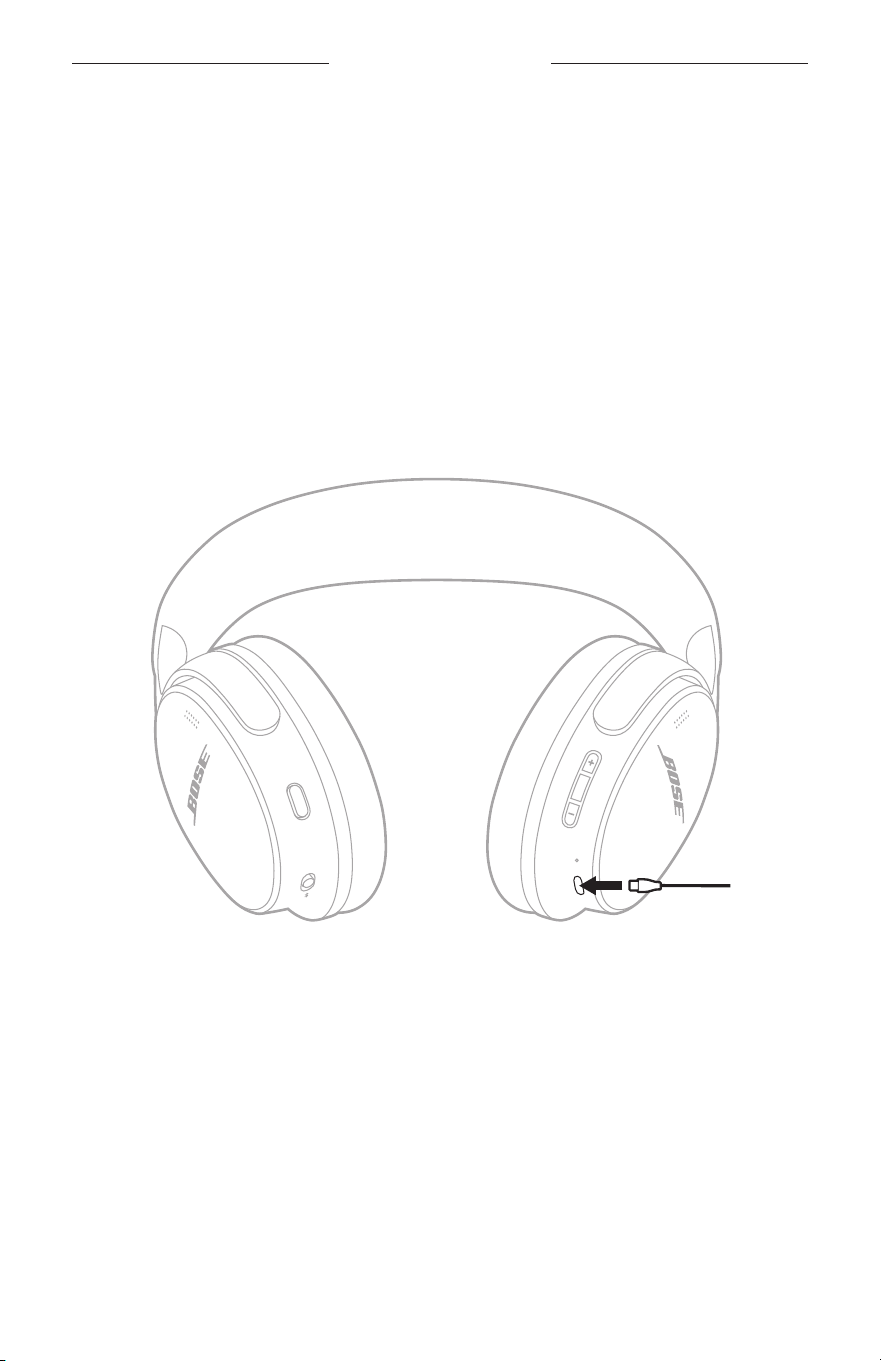
1. With the headphones powered on, slide the Bluetooth/Power forward and hold.
You hear the power o tone and the status light blinks white twice. Continue
holding until the status light pulses blue.
2. Place your headphones next to your Android device.
A notification displays on your device prompting you to pair the headphones.
NOTE: If you don’t see a notification, check that notifications are enabled for the
Google Play Services app on your device.
3. Tap the notification.
NOTE: You can also tap the buon on the notification to download the Bose app
and finish seing up the headphones.
31
|
ENG
AUX AUDIO
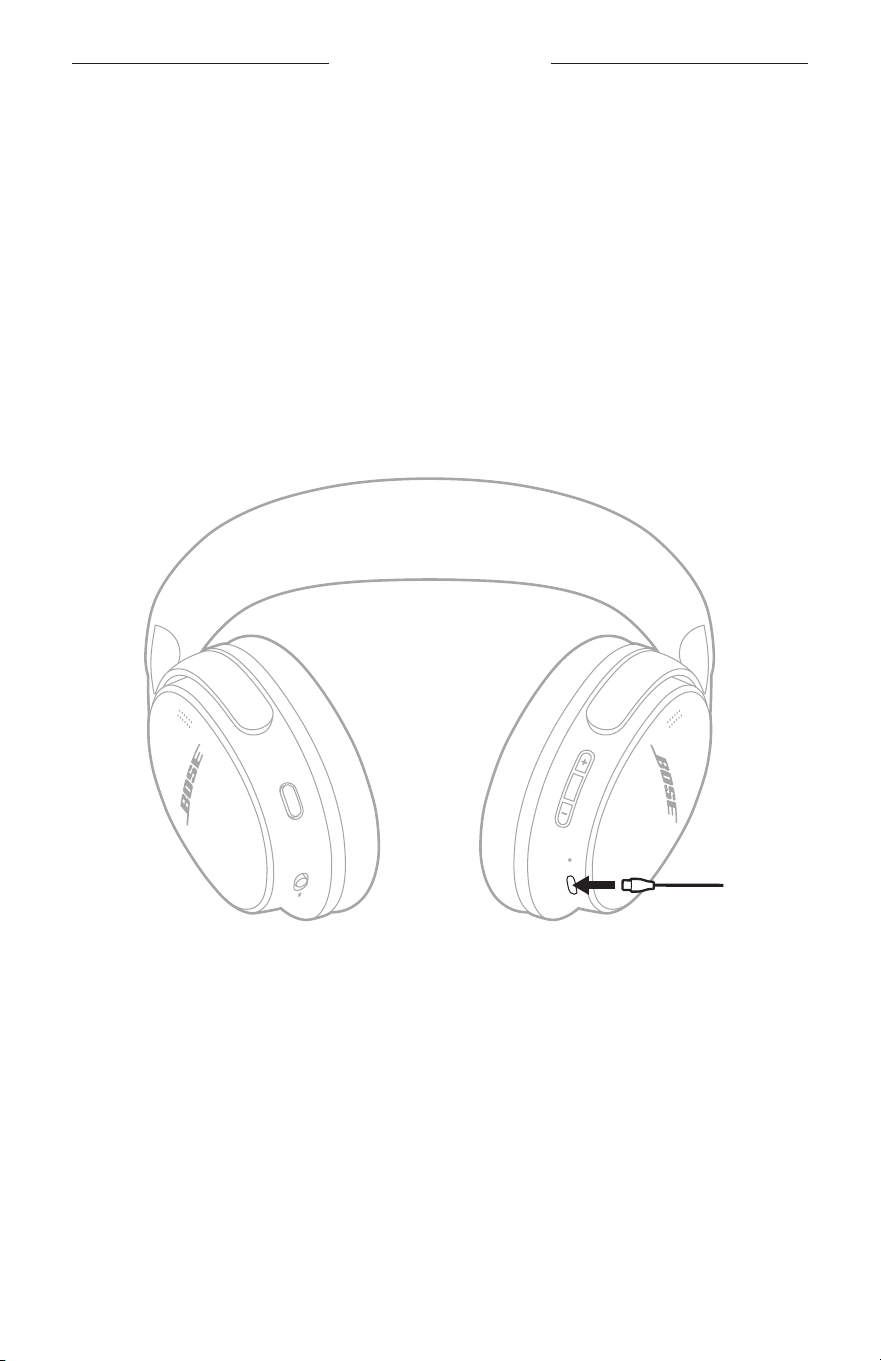
Use the USB-C to 3.5 mm audio cable to listen to audio from your source device when
a Bluetooth connection isn’t available.
NOTES:
• The headphones must be powered on for you to use the audio cable.
• Phone calls and media playback controls are disabled and must be controlled on
your source device.
• Bluetooth connection and microphone voice pick-up on the earcups are disabled.
• For the best experience, a Bluetooth connection is recommended.
1. Connect the cable to the USB-C port on the right earcup.
2. Connect the other end of the cable to the 3.5 mm port on your source device.
WIRED CONNECTIONS
32
|
ENG
WIRED CONNECTIONS
USB TYPE-C
®
AUDIO
The headphones support USB-C audio. To play audio from a source device, connect
your headphones to your device using the USB-C cable.
If the headphone baery is depleted, you can use the USB-C to USB-C cable to
connect to an external power source and still use the headphones while charging.
NOTES:
• The headphones will charge while they’re powered on.
• To continue listening to audio on your source device when the headphone baery is
depleted and a Bluetooth connection isn’t available, connect the USB-C cable.
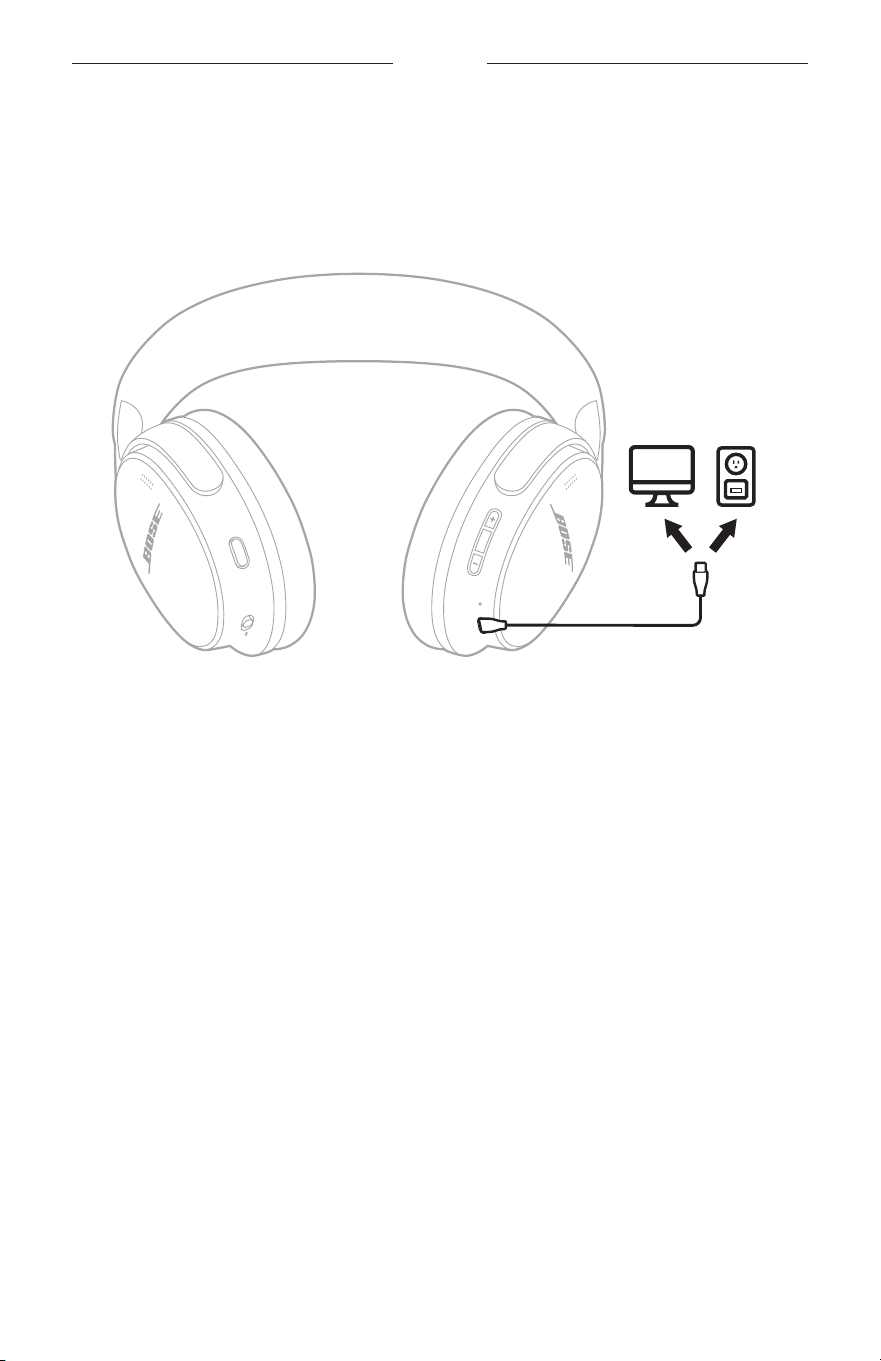
1. Connect the USB-C cable to the USB-C port on the right earcup.
2. Connect the other end to a USB-C port on your source device.
3. Power on the headphones (see page 14).
NOTE: Slide the Bluetooth/Power switch forward l to switch between your USB-C
connected device and your previously-connected Bluetooth devices
(see page 29).
33
|
ENG
BATTERY
CHARGE THE HEADPHONES
1. Connect the USB-C cable to the USB-C port on the right earcup.
2. Connect the other end to a USB-C power source such as a computer or
wall charger.
The headphones begin charging, and the status light glows solid amber. When the
headphones are fully charged, the status light glows solid white.
NOTES:
• The headphones can be used in Bluetooth or USB audio mode while they
are charging (see "USB Type-C® Audio" on page 32).
• The headphones charge faster when they are powered o (see "Charging time" on
page 34).

34
|
ENG
BATTERY
Charging time
Allow up to 3 hours to fully charge the headphones.
1
NOTE: Charging is slower when the headphones are in use.
Playback time
A full charge powers the headphones for up to:
• 24 hours with noise cancellation set to On and immersive audio set to O.
• 18 hours with noise cancellation and immersive audio set to On.
When the headphone baery level is low, a 15-minute charge powers the headphones
for up to 2.5 hours with noise cancellation set to On and immersive audio set to O.
See the battery level
To visually check the baery, see the status light l ocated on the right earcup. For more
information, see page 34.
1 Testing conducted by Bose in April 2025 using production-representative Bose QuietComfort Headphones (2
nd
Gen).
Quick charge testing consisted of charging headphones with baery depleted (to the point of no audio playback) for 15
minutes, then resuming audio playback with volume set to playback loudness of 75dBSPL, 3-band EQ set to zero, in Quiet
Mode (full noise cancellation) with Immersive Audio switched o, resulting in up to 2.5 hours playback time before baery
depletion. With Immersive Audio on, playback time was up to 2 hours before baery depletion. Time to achieve fully charged
headphones was determined by charging headphones with baery depleted (to the point of no audio playback) to 100%
baery charge. Baery life varies based on seings and usage.
IMMERSIVE AUDIO
35
|
ENG
HEADPHONE STATUS
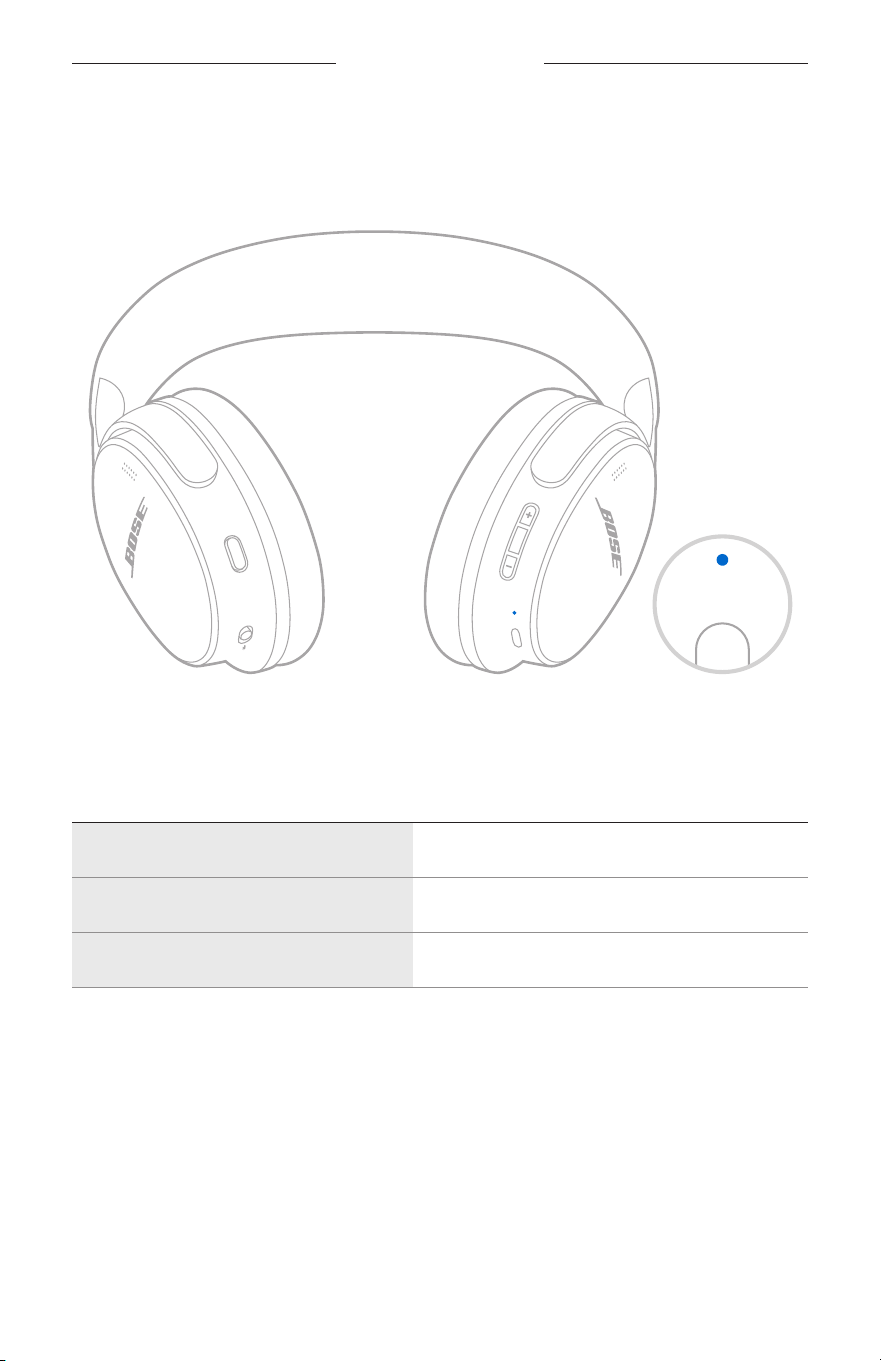
The status light is located on the right earcup. The status light glows according to
headphone status.
BLUETOOTH STATUS
Shows the Bluetooth connection status.
LIGHT ACTIVITY SYSTEM STATE
Pulsing blue Ready to connect
Solid blue (5 seconds) Connected
Blinks white 2 times Device list cleared
36
|
ENG
HEADPHONE STATUS
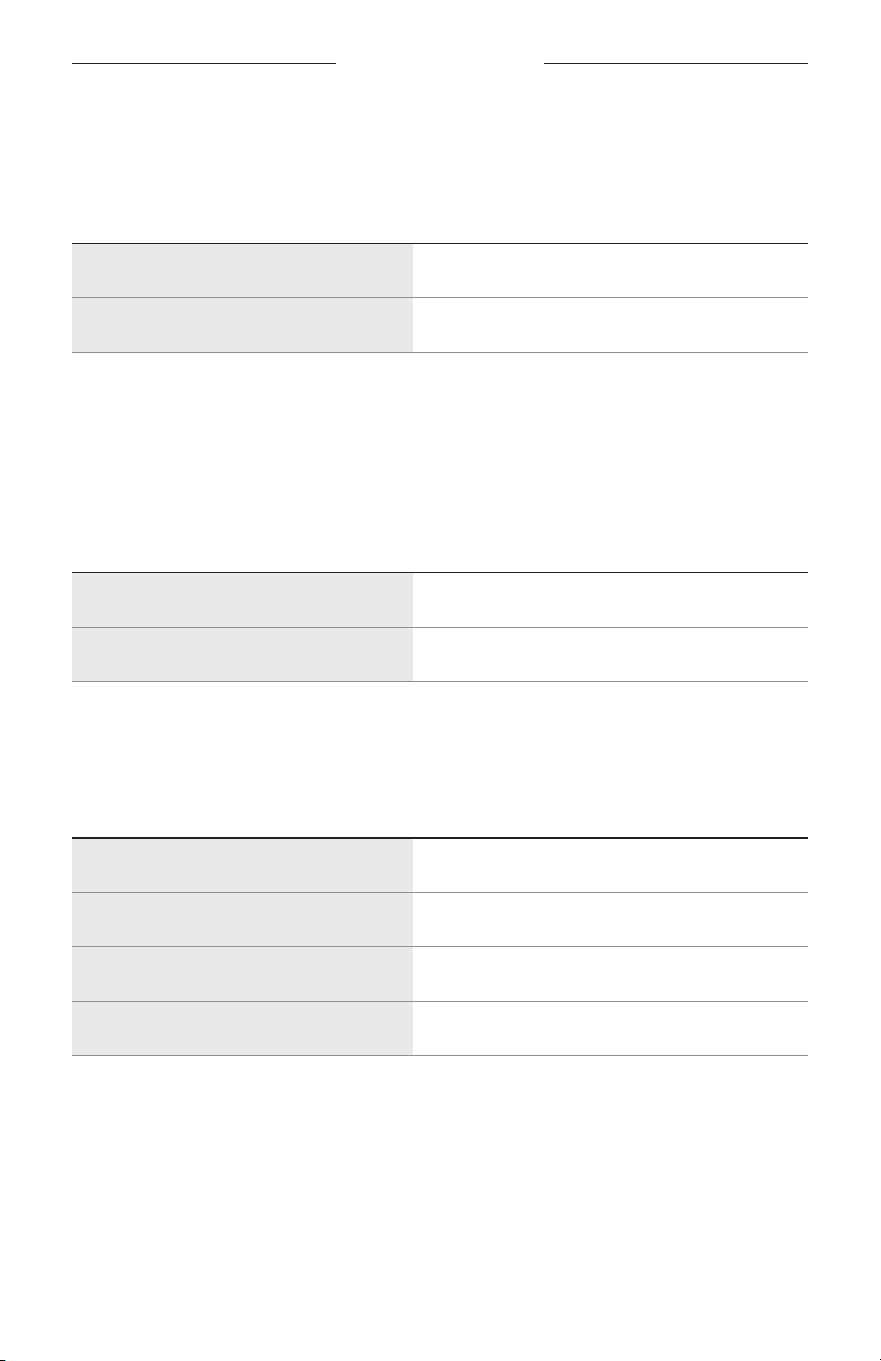
BATTERY STATUS
Shows the baery status.
LIGHT ACTIVITY SYSTEM STATE
Solid white Full charge
Solid amber Low to medium charge
TIP: You can also check the baery level using the Bose app or using your paired
source device.
POWER AND CHARGING STATUS
Shows the power and charging status.
LIGHT ACTIVITY SYSTEM STATE
Solid amber Charging
Solid white Full charge
UPDATE AND ERROR STATUS
Shows the update and error status.
LIGHT ACTIVITY SYSTEM STATE
Blinks white 3 times (repeated) Updating software (wirelessly)
Fast blinking white (10 seconds) Updating software (via USB)
Blinks white (3 seconds) Reset
Blinking amber and white Error - contact Bose customer service
37
|
ENG
CARE AND MAINTENANCE
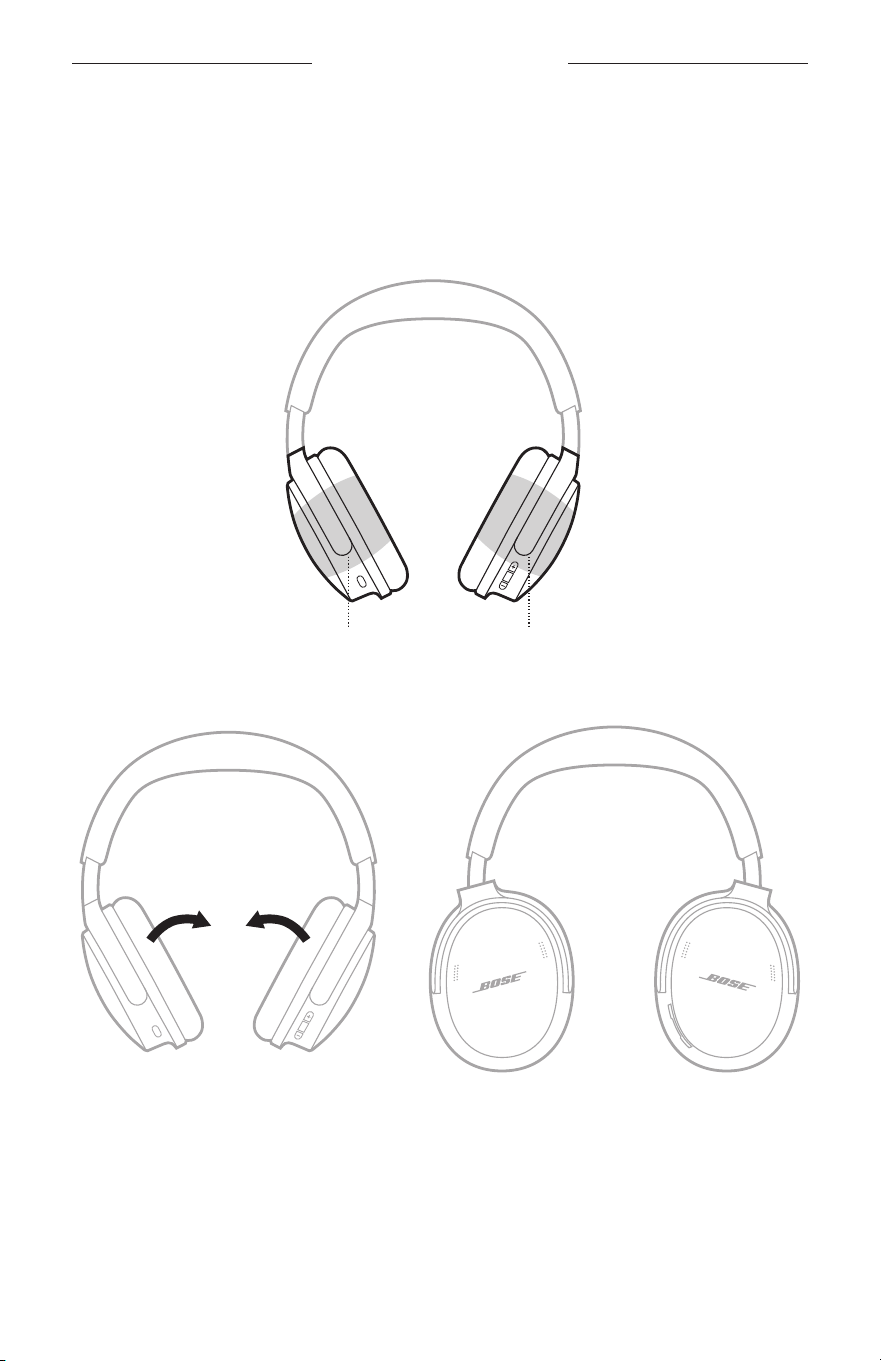
STORE THE HEADPHONES
The earcups rotate for easy, convenient storage. Place the headphones flat into
the case.
1. Place your hands around each earcup.
Left earcup Right earcup
2. Rotate both earcups inward so they lay flat.
38
|
ENG
CARE AND MAINTENANCE
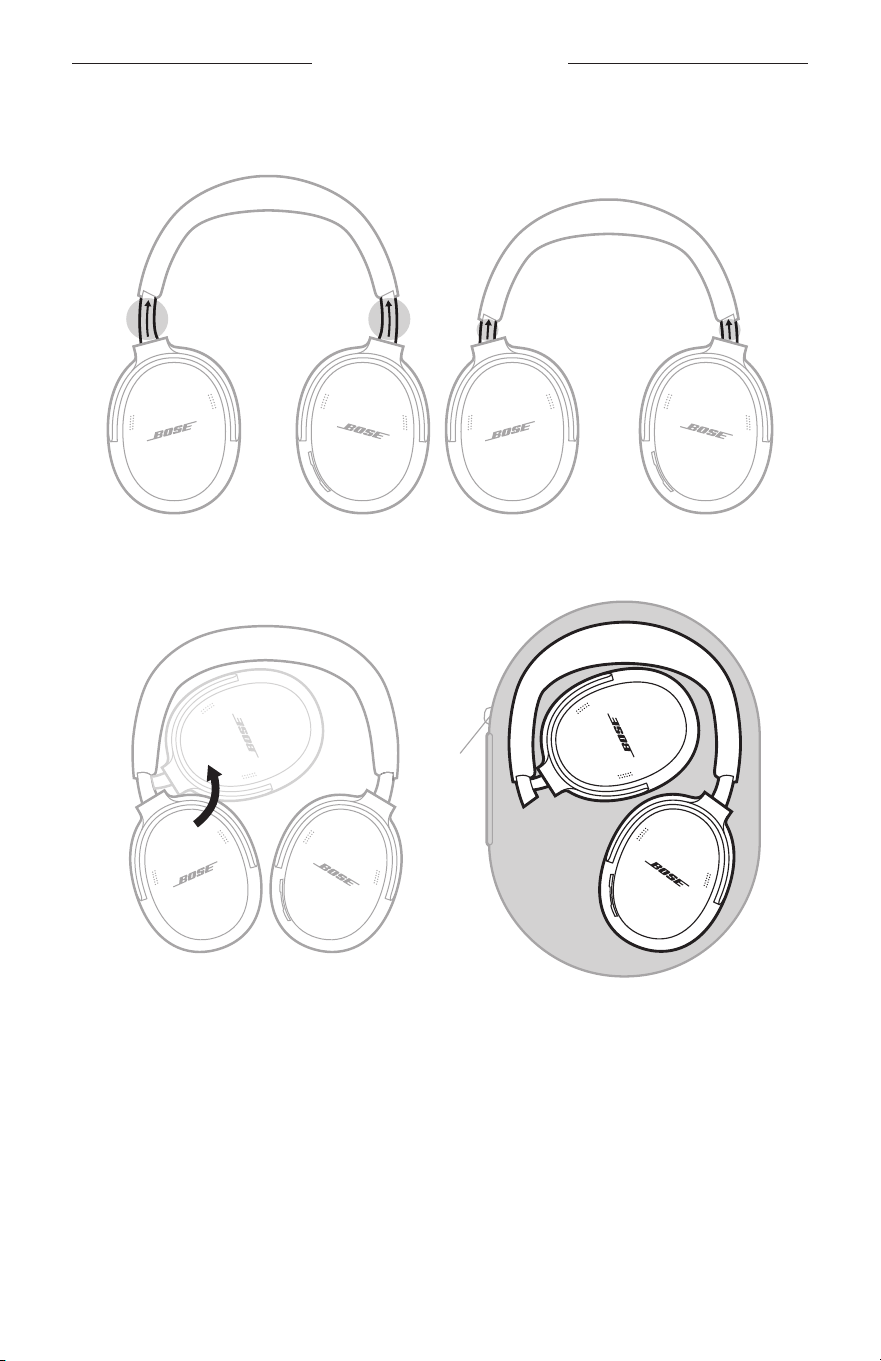
3. Slide the earcups up into the headband.
4. Fold the left earcup up toward the headband and place the headphones in
the case.

IMMERSIVE AUDIO
39
|
ENG
CARE AND MAINTENANCE
SERVICE THE HEADPHONE BATTERY
This product must only be operated with compatible Bose certified baeries. For
baery service options, contact Bose customer service or visit support.Bose.com/qc2
UPDATE THE HEADPHONES
The headphones begin updating automatically when connected to the Bose app and
an update is available. Follow the app instructions.
You can also update the headphones using the Bose updater website. On your
computer, visit: btu.Bose.combtu.Bose.com and follow the on-screen instructions.
CLEAN THE HEADPHONES
The headphones may require periodic cleaning. If the headband or other exterior
surfaces need to be cleaned, gently wipe with a slightly damp cloth.
• Use only a water dampened cloth. Don’t use cleaning products. Don’t allow any
moisture to enter the headphones through the ports or earcups.
• Don’t force any dirt or debris into the ports. Don’t blow air into or vacuum the ports
or the interior of the earcups.
REPLACEMENT PARTS AND ACCESSORIES
Replacement parts and accessories can be ordered through Bose customer service.
Visit: support.Bose.com/qc2
LIMITED WARRANTY
Your headphones are covered by a limited warranty. Visit our website at
worldwide.Bose.com/Warrantyworldwide.Bose.com/Warranty for details of the limited warranty.
To register your product, visit worldwide.Bose.com/ProductRegistrationworldwide.Bose.com/ProductRegistration for
instructions. Failure to register will not aect your limited warranty rights.
40
|
ENG
CARE AND MAINTENANCE
SERIAL NUMBER AND REGULATORY MARKINGS LOCATION
TIP: You can also view the serial number using the Bose app. You can access this
option from the Seings menu.
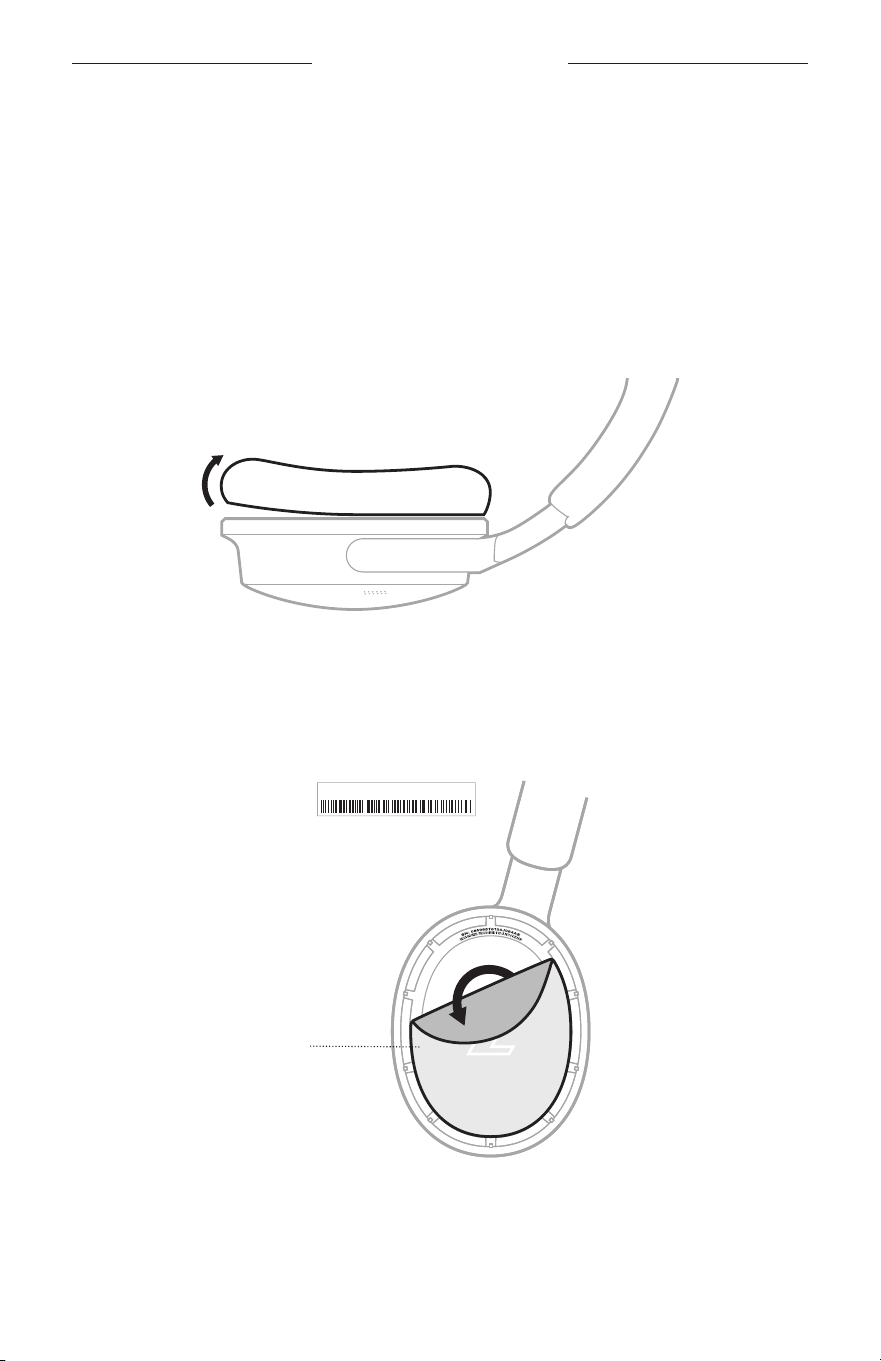
The serial number and regulatory markings are located inside the left earcup under
the inner fabric. The inner fabric covers and protects the components inside
the earcup.
1. On the left earcup, gently pull one area of the cushion away from the earcup until
all tabs around the inside rim of the earcup release.
2. Grab the upper edge of the fabric and gently peel away until the information
is displayed.
CAUTION: Be careful not to press down on or remove any other components
inside the earcup as this could damage the headphones.
SN: 085968T5134J084AE
Inner fabric
41
|
ENG
CARE AND MAINTENANCE
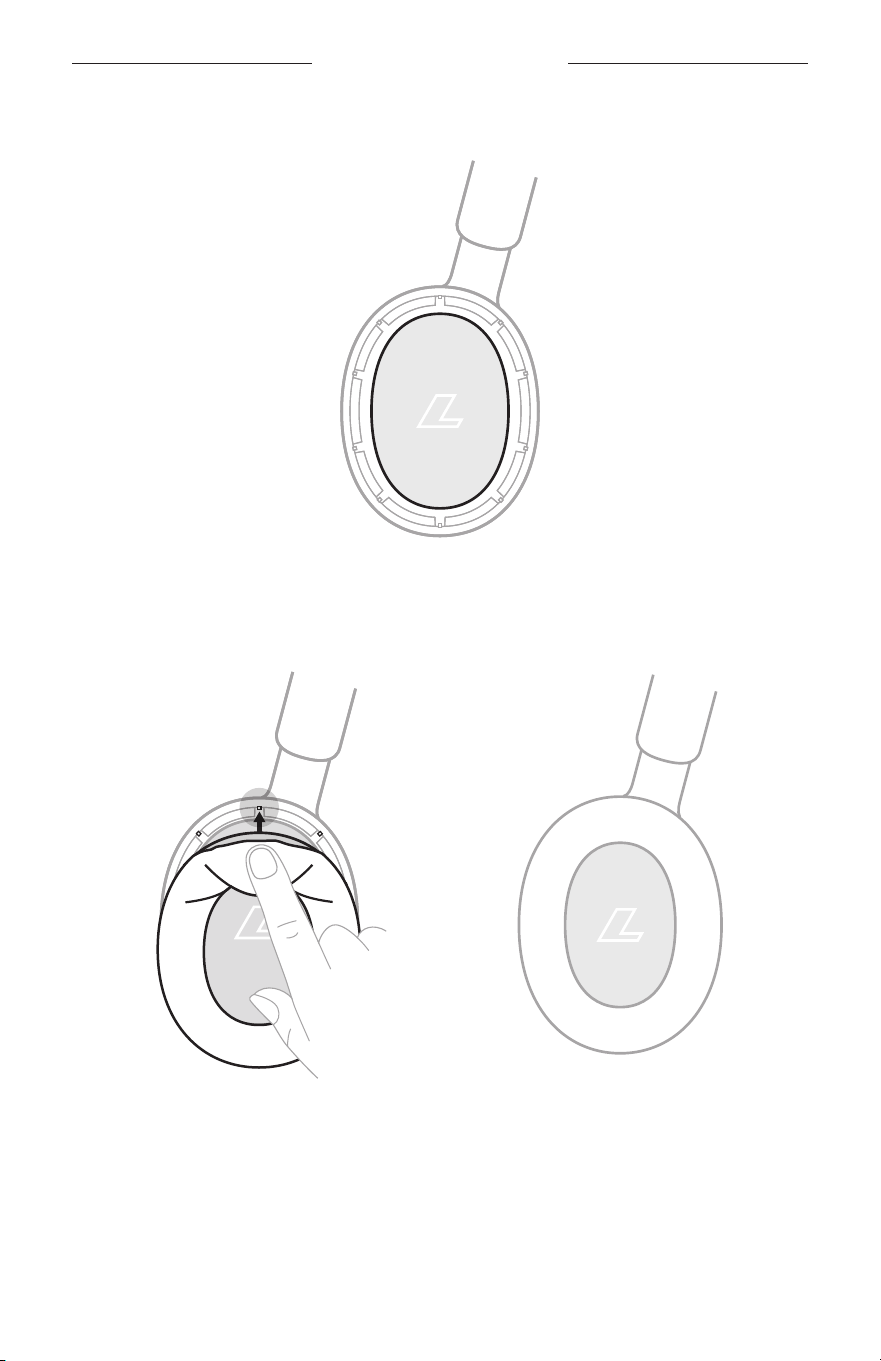
3. Secure the fabric back in place.
4. Press the edge of the cushion against the edge of the earcup until you hear and
feel a snap. Continue pressing around the edge of the earcup until all tabs snap
into place.
NOTE: To ensure proper audio performance, all tabs must be secure on
the cushion.

IMMERSIVE AUDIO
42
|
ENG
TROUBLESHOOTING
TROUBLESHOOTING
You can access troubleshooting articles, videos, and other resources at:
support.Bose.com/qc2-ogsupport.Bose.com/qc2-og
If you are unable to resolve your issue, contact Bose customer service.
Visit: worldwide.Bose.com/contactworldwide.Bose.com/contact
43
|
ENG
TROUBLESHOOTING
RESET THE HEADPHONES
If the headphones are unresponsive, you can reset them.
Reseing the headphones resets the product controls and reboots the headphones.
It doesn’t clear any device seings.
1. Remove the headphones from the Bluetooth list on your device.
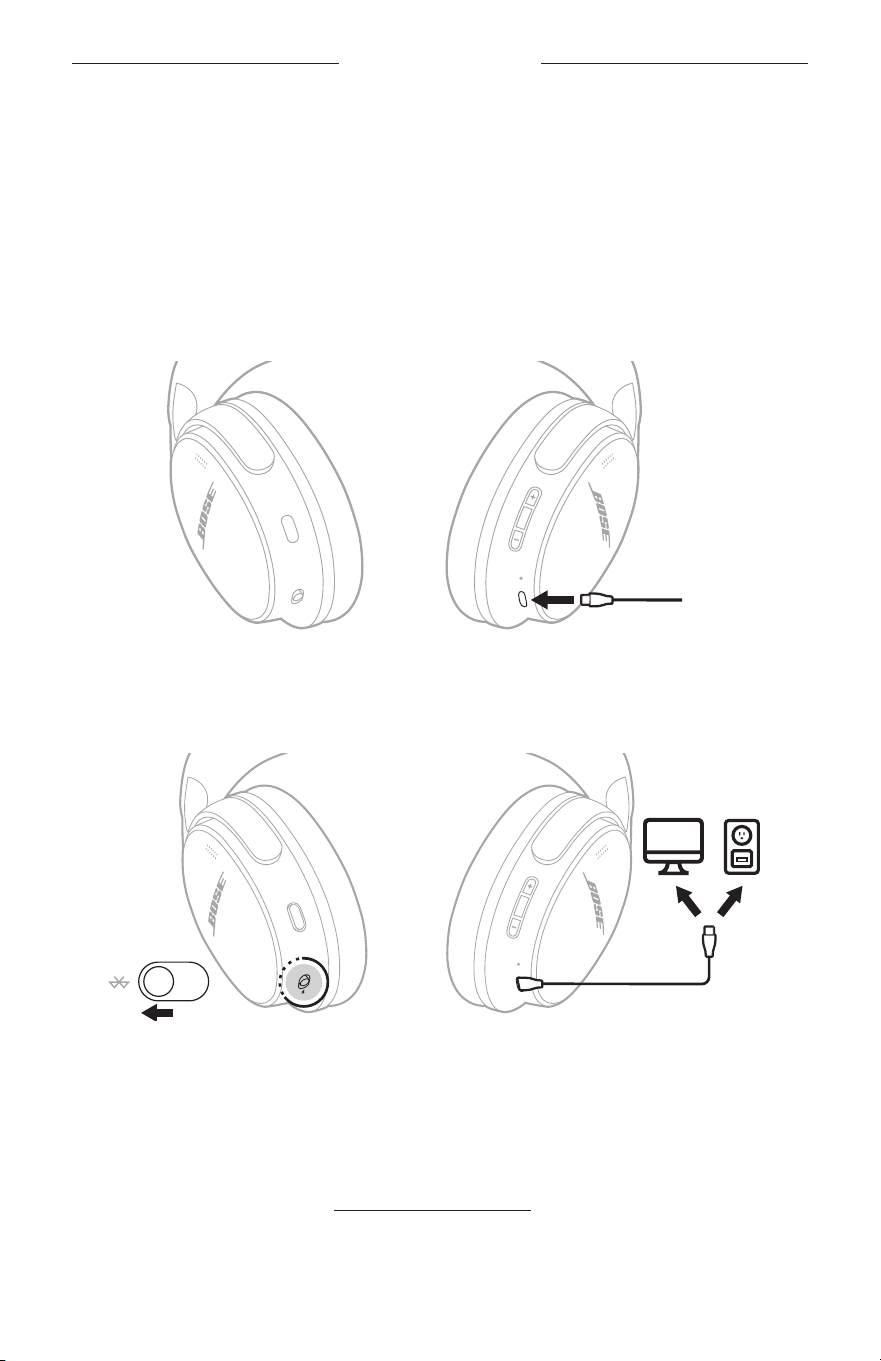
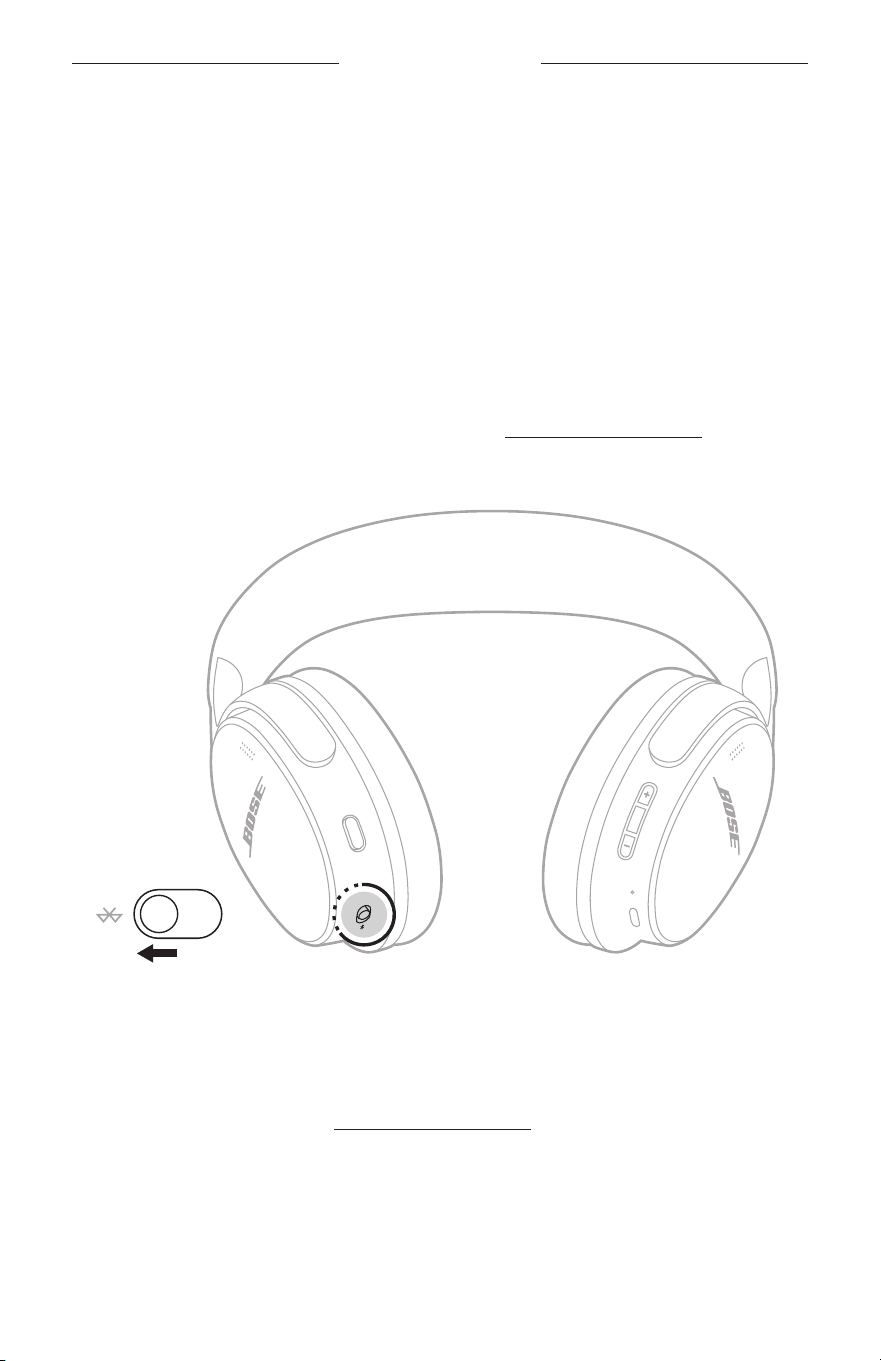
2. Connect the USB-C cable to the USB-C port on the right earcup.
3. Slide the Bluetooth/Power switch forward and hold while connecting the other
end of the USB-C cable to a USB-C power source such as a computer or
wall charger.
4. Once the USB-C cable is connected to a USB-C power source, release the
Bluetooth/Power buon.
When the reset is complete, the status light blinks white for 3 seconds, then glows
according to the current charge level (see page 36).
NOTE: If you’re unable to resolve your issue, additional troubleshooting and
support is available at: support.Bose.com/qc2support.Bose.com/qc2
44
|
ENG
TROUBLESHOOTING
RESTORE THE HEADPHONES TO FACTORY SETTINGS
A restore to factory seings clears all seings and return the headphones to their
original out-of-box state. After, the headphones can be configured as if they were
being set up for the first time.
Restoring to factory seings is only recommended if you are having issues with the
headphones or you have been instructed to do so by Bose customer service.
1. Remove the headphones from the Bluetooth list on your device.
2. Remove the headphones from your Bose account using the Bose app.
NOTE: For more information about how to remove the headphones from your
Bose account using the Bose app, visit: support.Bose.com/qc2
3. Slide the Bluetooth/Power switch forward l and hold for 20 seconds.
When the restore is complete, the status light blinks blue. The headphones are
now in their original out-of-box state.
NOTE: If you’re unable to resolve your issue, additional troubleshooting and
support is available at: support.Bose.com/qc2

©2026 Bose Corporation, 100 The Mountain Road, Framingham, MA 01701-9168 USA
AM901307-0010 Rev. 01