Help Guide
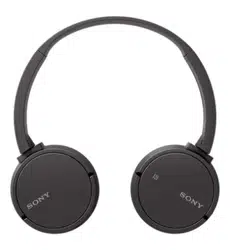
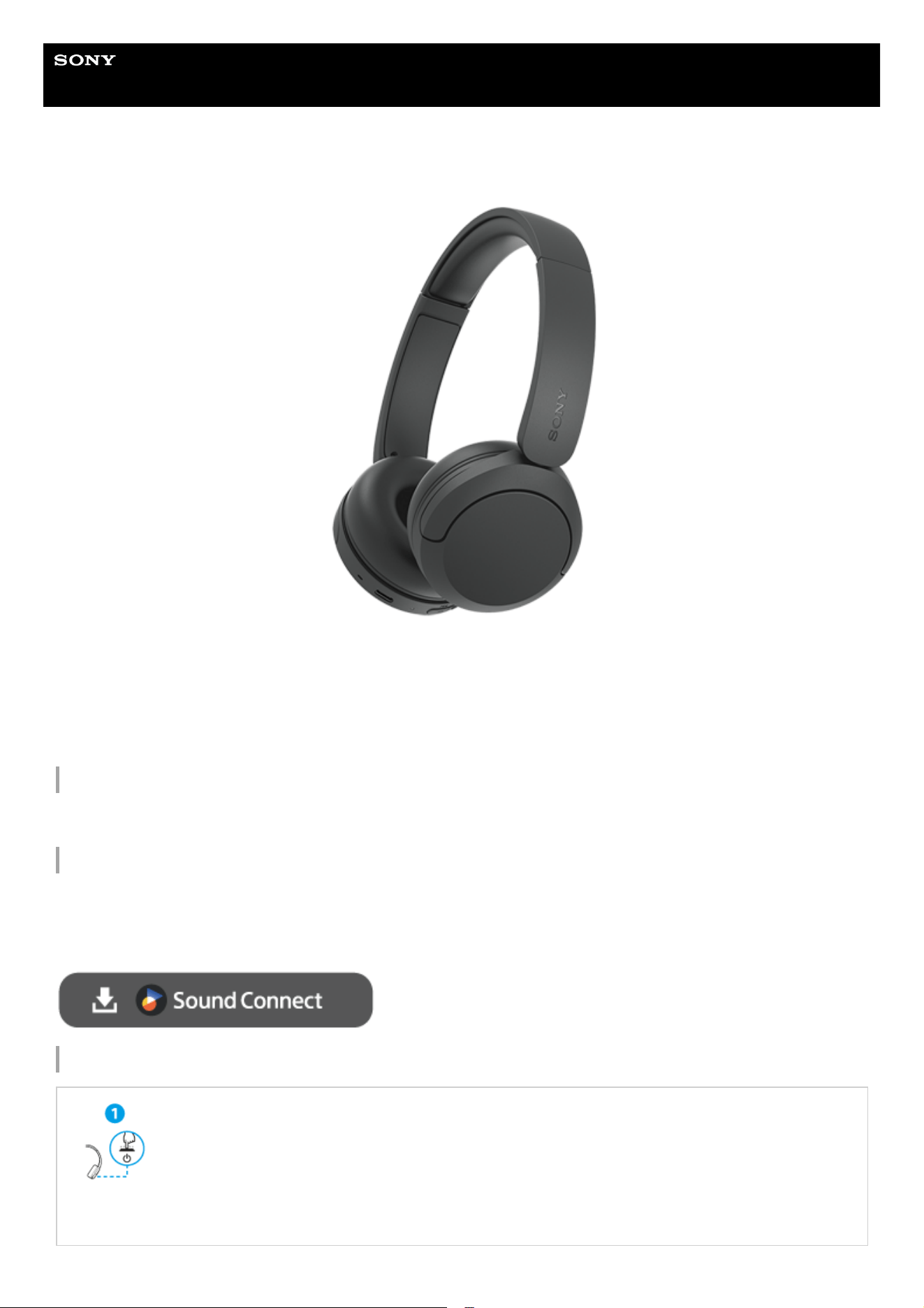
Wireless Stereo Headset
WH-CH530/ WH-CH535
Model: YY3005
Quick Start Guide
Find your fit
Wearing the headset
Download the app, and set up the headset
Many useful features are out there in your device. Download the “Sound Connect” app and get the most out of what you
have.
For the main features available with the “Sound Connect” app, see “Using the “Sound Connect” app”.
Let’s start to use
Turning on the headset
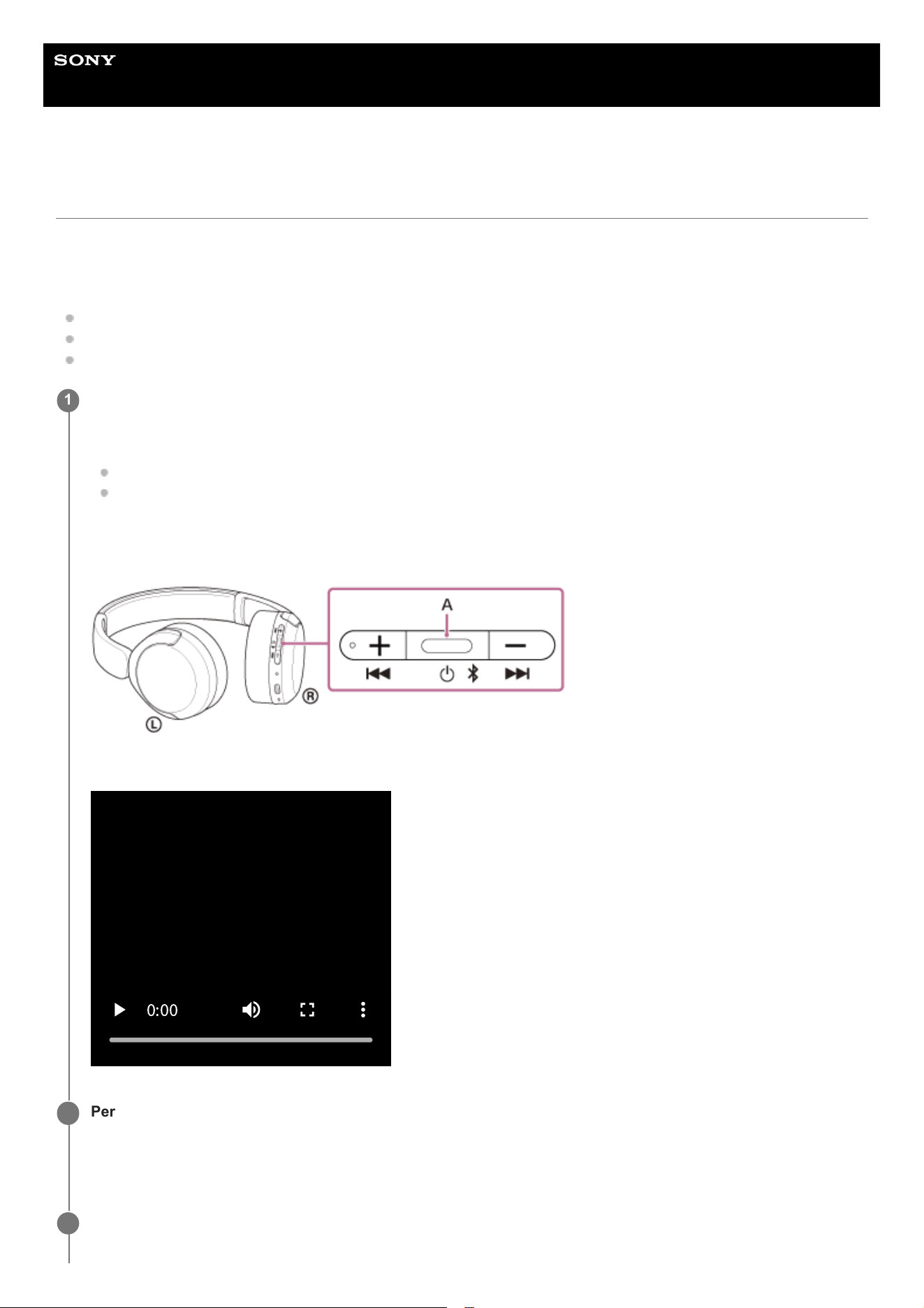
Press and hold the power button for about 2 seconds or more until the indicator flashes in blue and
the notification sounds. The headset turns on. The headset enters pairing mode automatically when
you turn on the headset for the first time after purchase.
The power button is located in the center of the 3 series of buttons on the right unit.
1
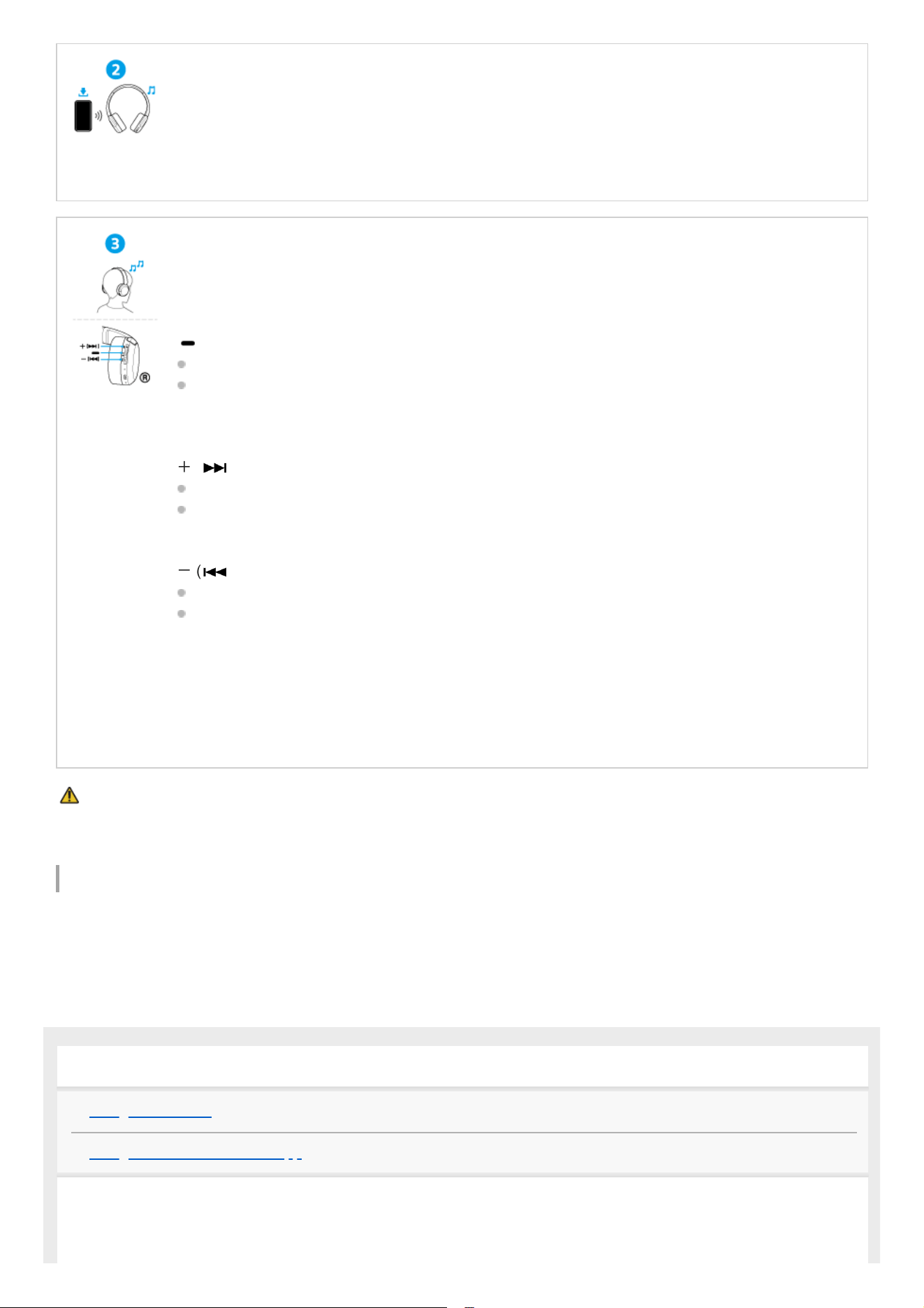
To prevent burning or malfunction due to getting wet
The headset is not waterproof.
If the headset is charged while it is wet with rain or sweat, this can result in burnout or malfunction.
Related information
Wearing the headset
Establishing a BLUETOOTH connection manually
Charging the headset
Establishing a BLUETOOTH® connection
Follow the downloaded “Sound Connect” app instructions.
Operating the headset
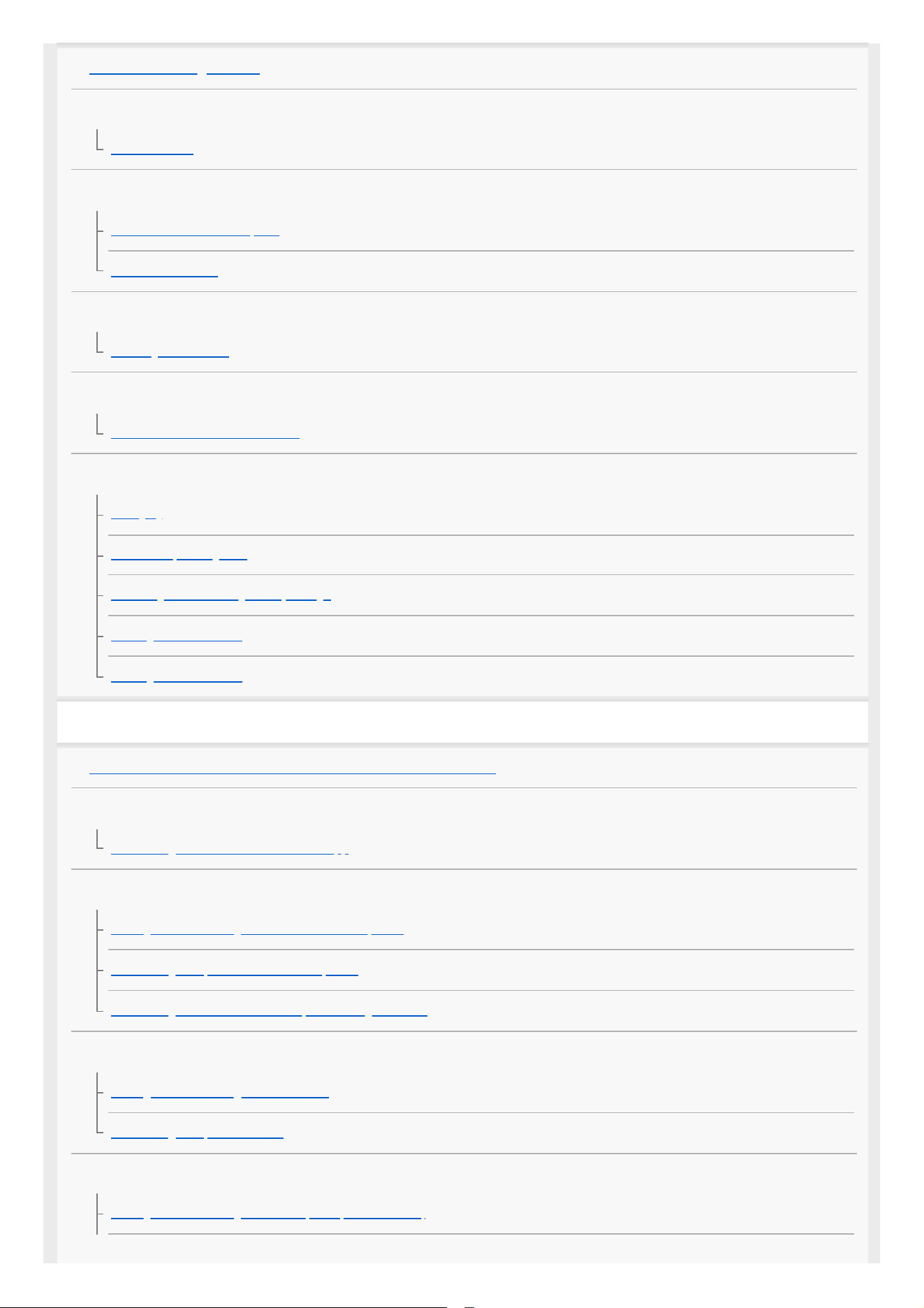
You can use the buttons on the right unit of the headset to perform the following operations.
: Play button
Press once while paused: Play
Press once during playback: Pause
There is a raised tactile bar on the button. This button is located in the center of the 3 series of
buttons.
+
( ): Volume up/next button
Press once briefly: Increase the volume
Press and hold until you hear a notification sound: Skip to the beginning of the next track
There is a tactile dot on the button.
-
( ): Volume down/previous button
Press once briefly: Lower the volume
Press and hold until you hear a notification sound: Skip to the beginning of the previous track or
the current track
The button is located opposite the volume up/next button in the 3 series of buttons. There is no
tactile dot on the button.
For more details on the operation procedure, refer to “Controlling the audio device (BLUETOOTH
connection)”.
What you can do with the headset
Using the headset
Using the “Sound Connect” app
Getting started
2
About the voice guidance
Supplied accessories
Included items
Parts and controls
Location and function of parts
About the indicator
Wearing the headset
Wearing the headset
Operating the headset
About the buttons on the headset
Power/Charging
Charging
Available operating time
Checking the remaining battery charge
Turning on the headset
Turning off the headset
Making connections
How to make a wireless connection to BLUETOOTH devices
Easy setup with app
Connecting with the “Sound Connect” app
Android™ smartphone
Pairing and connecting with an Android smartphone
Connecting to a paired Android smartphone
Connecting with an Android smartphone using LE Audio
iPhone (iOS devices)
Pairing and connecting with an iPhone
Connecting to a paired iPhone
Computers
Pairing and connecting with a computer (Windows® 11)
3
Pairing and connecting with a computer (Mac)
Connecting to a paired computer (Windows 11)
Connecting to a paired computer (Mac)
Other BLUETOOTH devices
Pairing and connecting with a BLUETOOTH device
Connecting to a paired BLUETOOTH device
Multipoint connection
Connecting the headset to 2 devices simultaneously (multipoint connection)
Switching audio between multiple devices with “audio switch”
Disconnecting BLUETOOTH connection (after use)
Listening to music
Listening to music via a BLUETOOTH connection
Listening to music from a device via a BLUETOOTH connection
Controlling the audio device (BLUETOOTH connection)
About
360 Reality Audio
Enjoying seamless playback with speakers (Auto Switch)
Making phone calls
Receiving a call
Making a call
Functions for a phone call
Making a video call on your computer
Using the voice assist function
Using the voice assist function (Google app)
Using the voice assist function (Siri)
Important information
Precautions
Supported codecs
How to keep the software up-to-date (for comfortable use of the headset)
4
Help Guide
Wireless Stereo Headset
WH-CH530/ WH-CH535
Using the headset
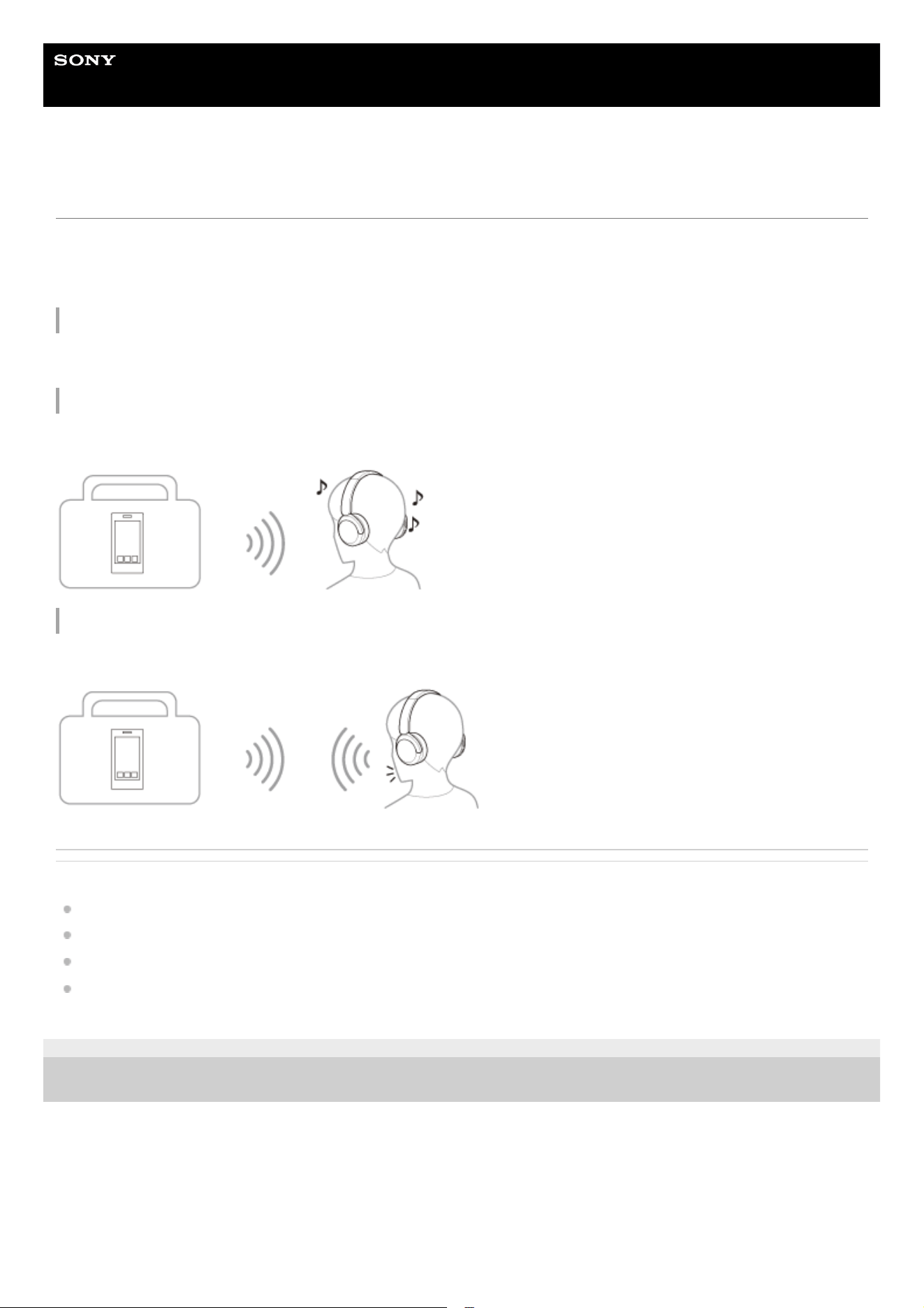
The following functions can be operated using the buttons on the headset.
For functions with detailed operating procedures described in the Help Guide, refer to the Related Topic at the bottom of
the page.
BLUETOOTH connection
You can connect to devices such as a smartphone or computer via BLUETOOTH.
Playing music from a device via a BLUETOOTH connection
You can enjoy music wirelessly from BLUETOOTH-connected devices such as a smartphone or computer.
Making calls via a BLUETOOTH-connected device
You can make wireless calls using BLUETOOTH-connected devices such as a smartphone or computer.
Related Topic
How to make a wireless connection to BLUETOOTH devices
Connecting the headset to 2 devices simultaneously (multipoint connection)
Listening to music from a device via a BLUETOOTH connection
Controlling the audio device (BLUETOOTH connection)
TP1002295054
5-075-052-11(2) Copyright 2026 Sony Corporation
6
Help Guide
Wireless Stereo Headset
WH-CH530/ WH-CH535
Using the “Sound Connect” app
Install the “Sound Connect” app on your smartphone from the Google Play store or App Store.
The following functions can be operated and set using the “Sound Connect” app.
For functions with detailed operating procedures described in the Help Guide, refer to the Related Topic at the bottom of
the page.
The following can be accessed from the [My Device] tab.
Headset controls and status display
Displaying the remaining battery charge (headset)
Equalizer
Set sound quality from presets. You can also set sound quality customized to your preferences.
DSEE
It upscales compressed audio files to CD-quality sound for playback.
Max Volume Control
You can limit the volume of your headset. Set a maximum volume limit to enjoy music without the risk of unintentional
volume increases.
BLUETOOTH Connection Quality
You can set whether to prioritize sound quality or connection stability when using Classic Audio via BLUETOOTH.
[Prioritize Sound Quality]: Prioritizes the sound quality.
[Prioritize Stable Connection]: Select this option when the connection is unstable, such as when frequent sound
interruptions occur.
When using BLUETOOTH connection with LE Audio, select [Low latency]. If [Low latency] is not displayed, set
[Headphone connection setting].
Note
The playback time may shorten depending on the sound quality and the conditions under which you are using the headset.
Depending on the ambient conditions in the area where you are using the headset, intermittent sound may still occur even if
[Prioritize Stable Connection] is selected.
Auto Switch
7

You can enjoy wireless playback while having the audio output source automatically switched between the headset and
the speaker.
Notification & Voice Guide
Switch the notification sounds and voice guidance on or off. Set the language and volume for the voice guidance as well.
Software version
Display the headset software version.
Update Software
Set how to update the headset software.
The following can be accessed from the [Discover] tab.
Listening History
It records and displays usage history, such as headset activity and the songs you have listened to, allowing you to review
your listening experience.
The following can be accessed from the [Menu] tab.
Help
Display support information for the headset.
Note
The operating instructions and screen displays of the “Sound Connect” app are subject to change without prior notice due to
future updates.
Related Topic
Connecting with an Android smartphone using LE Audio
Enjoying seamless playback with speakers (Auto Switch)
How to keep the software up-to-date (for comfortable use of the headset)
TP1002295055
5-075-052-11(2) Copyright 2026 Sony Corporation
8

Help Guide
Wireless Stereo Headset
WH-CH530/ WH-CH535
About the voice guidance
You will hear the following voice guidances depending on the operating procedure performed and the headset status.
In the factory settings, you will hear a voice guidance in English, Chinese, or Japanese via the headset.
You can change the language of the voice guidance and turn on or turn off the voice guidance using “Sound Connect”
app.
“Pairing”
When the headset enters pairing mode automatically:
The headset enters pairing mode automatically in the following cases.
When you pair the headset with a device for the first time after purchasing the headset
When there is no pairing information, such as after initialization, and you use the headset
When you manually set the headset to pairing mode
“Low battery”
When the remaining battery charge of the headset is low
“Battery is empty”
When automatically turning off due to low battery of the headset
“Battery about XX %” / “Battery fully charged”
When informing the remaining battery charge:
The “XX” value indicates the approximate remaining charge. This is a rough estimate.
“Voice guidance test”
When setting the voice guidance volume
Note
Changing the language of the voice guidance takes up to 10 minutes.
When you initialize the headset to restore to the factory settings after you change the language of the voice guidance, the
language will not return to the factory settings.
If the voice guidance is not heard, turn off the headset. Then, turn it back on again.
TP1002295056
5-075-052-11(2) Copyright 2026 Sony Corporation
9
Help Guide
Wireless Stereo Headset
WH-CH530/ WH-CH535
Included items
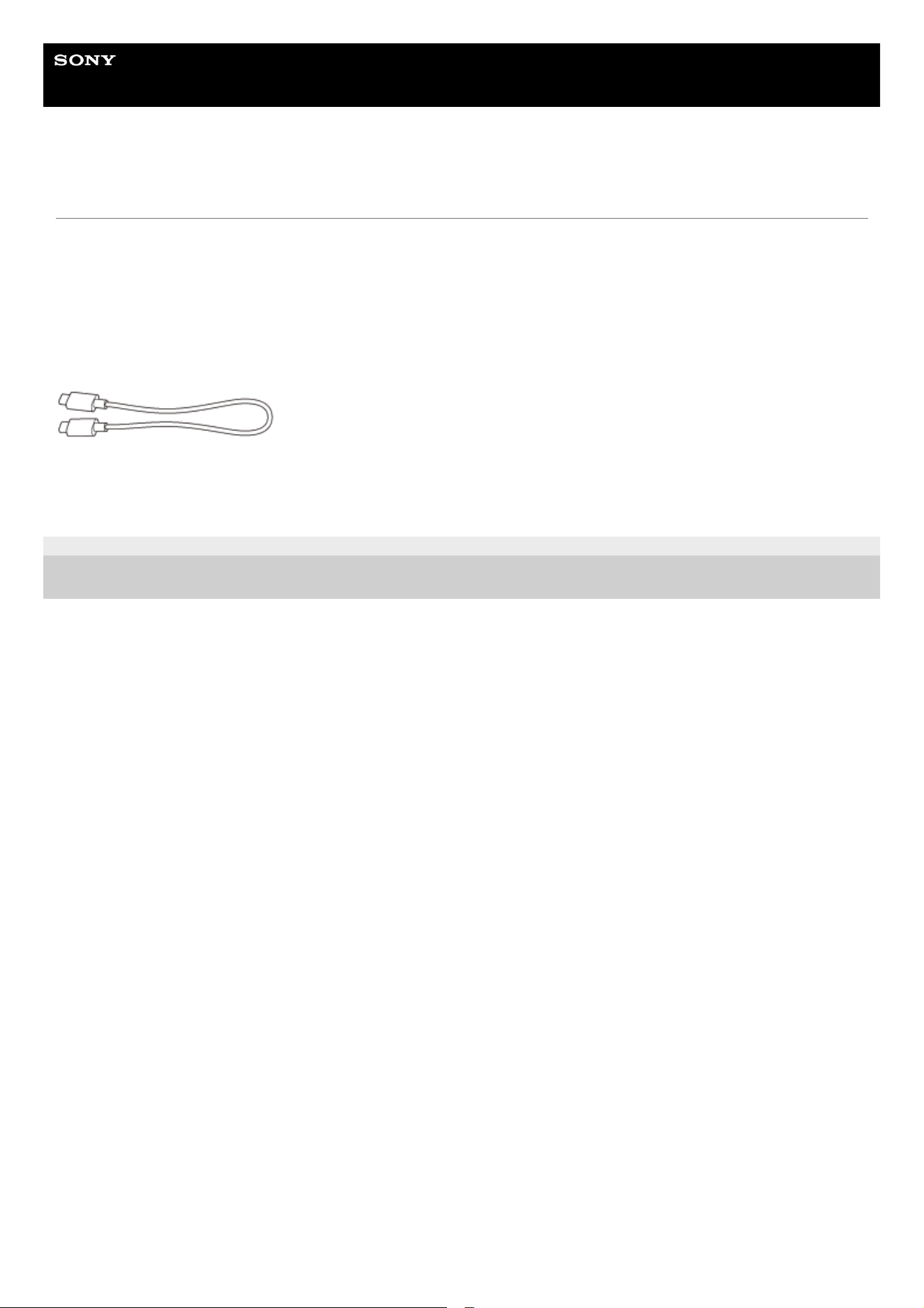
After opening the package, check that all of the items in the list are included. If any items are missing, consult the Sony
support contact or your nearest Sony dealer.
Numbers in parentheses indicate the number of items.
Wireless Stereo Headset (1)
USB Type-C® cable (USB-C® to USB-C®) (1) (Depending on the models, countries and regions)
Documents (1 set)
TP1002281721
5-075-052-11(2) Copyright 2026 Sony Corporation
10
Help Guide
Wireless Stereo Headset
WH-CH530/ WH-CH535
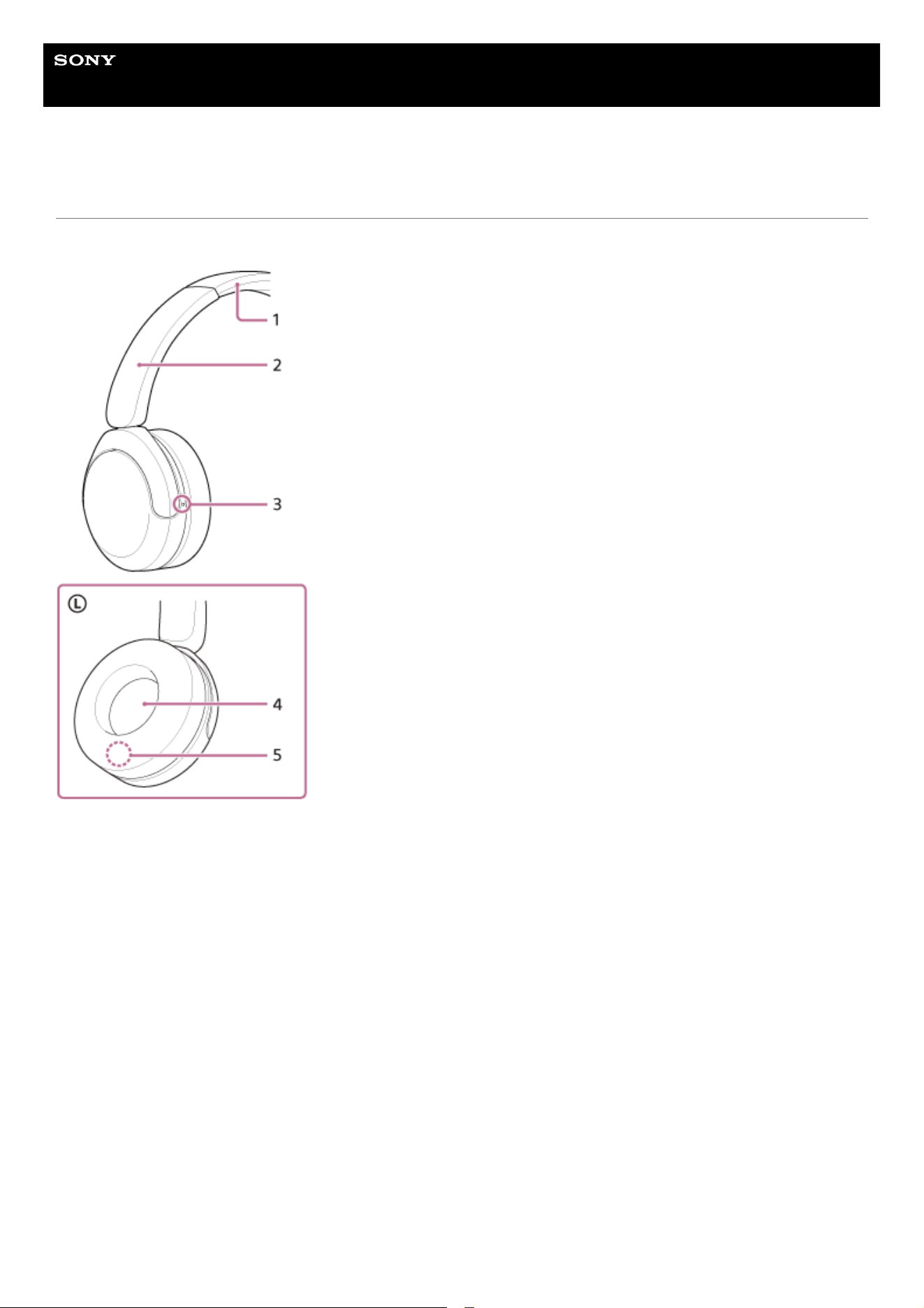
Location and function of parts
Left unit
Right unit
3 series of buttons: The volume up/next button, the play/call/power/BLUETOOTH button, and the volume down/previous
button.
Headband1.
Headband sliders
Slide to adjust the length of the headband.
2.
Tactile dot
There is a tactile dot on the left unit.
3.
L (left) mark4.
Serial number
Located inside the unit.
See “To check the serial number" below.
5.
11
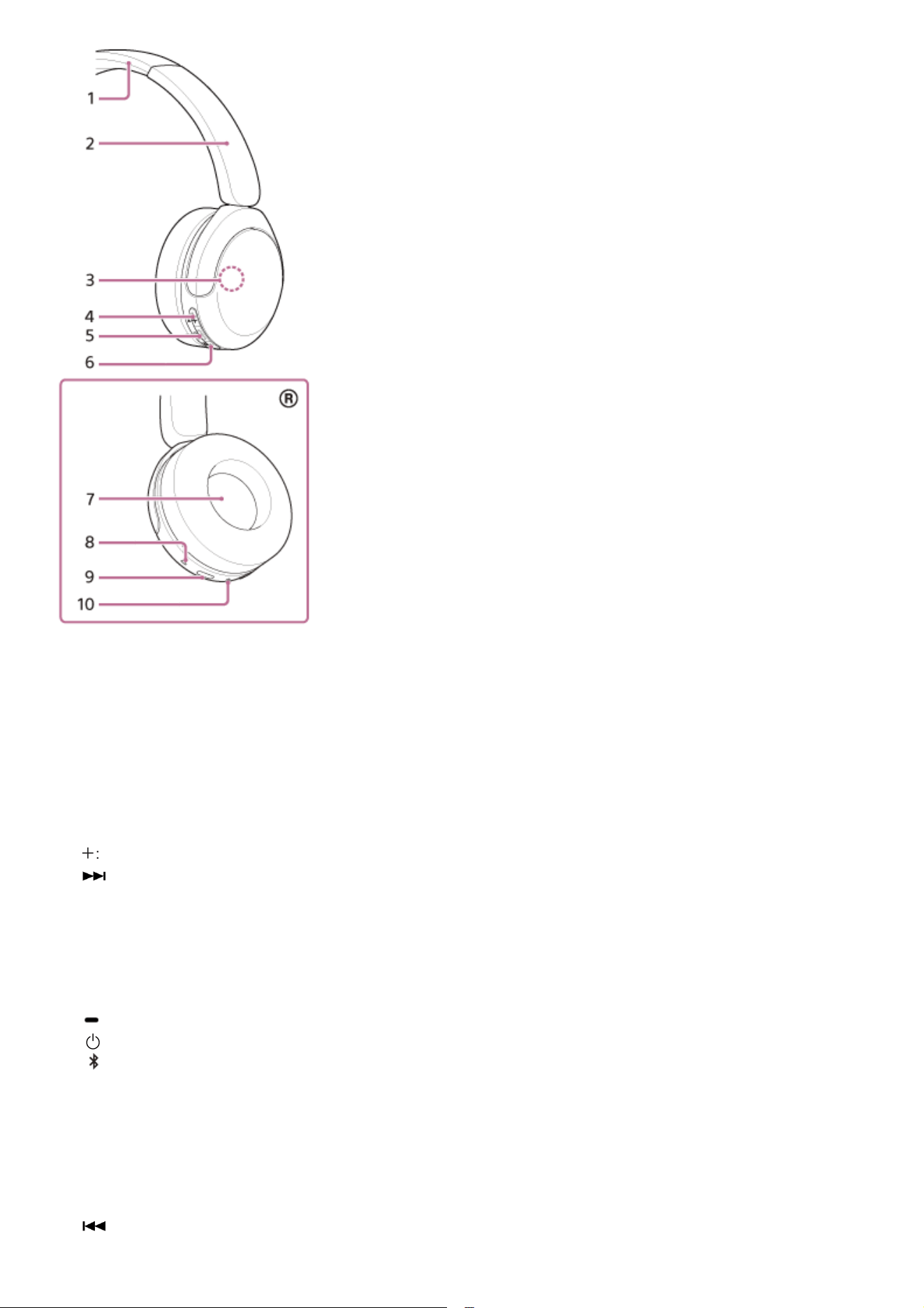
Headband1.
Headband sliders2.
Built-in antenna
A BLUETOOTH antenna is built into the headset.
3.
Volume up/next button
There is a tactile dot on the button.
Press briefly to increase the volume. Press and hold to skip to the beginning of the next track.
+
: Plus mark
: Next mark
4.
Play/call/power/BLUETOOTH button
There is a raised tactile bar on the button. This button is located in the center of the 3 series of buttons.
Press and hold for more than 2 seconds to turn the headset on or off.
Press once during playback or pause to pause or resume playback.
Press and hold for more than 5 seconds to manually set the headset to pairing mode.
: Play/call mark
: Power mark
: BLUETOOTH mark
5.
Volume down/previous button
The button is located opposite the volume up/next button in the 3 series of buttons. There is no tactile dot on the
button.
Press briefly to lower the volume. Press and hold to skip to the beginning of the previous track or the current track
during playback.
–: Minus mark
: Previous mark
6.
12
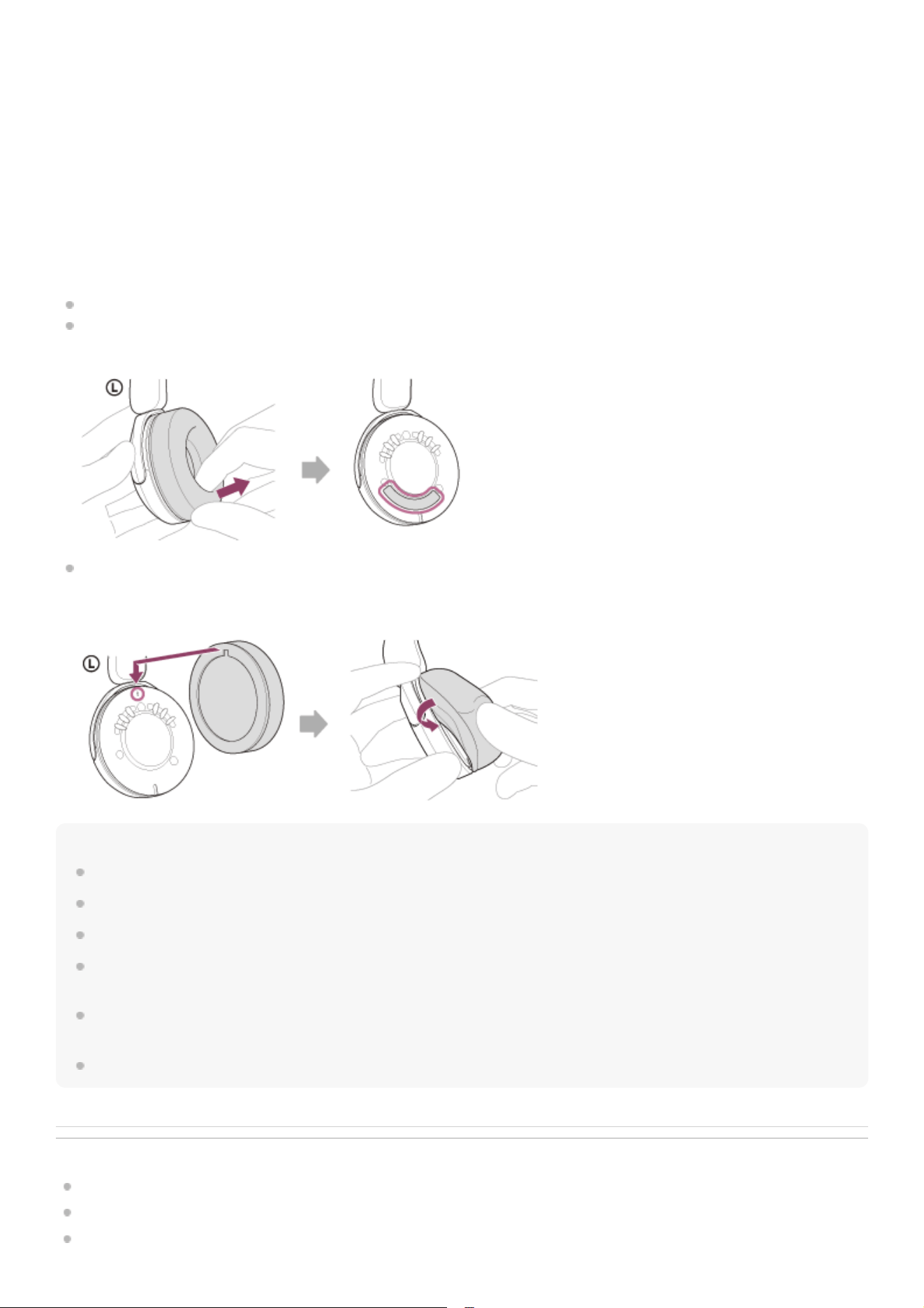
To check the serial number
Make sure the headset is turned off and the USB Type-C cable is not connected.
Pinch the inside of the left earpad and pull it to remove it.
The serial number is located on the lower center of the left unit.
Attach the removed earpad to the left unit.
Align the notch in the earpad with the step indicated by the arrow on the inside of the unit, and insert the earpad into
the groove.
Note
Do not remove the earpad unless necessary.
Before removing the earpad, make sure the headset is turned off and the USB Type-C cable is not connected.
Do not push into the interior or remove other internal parts. Doing so may damage the headset.
Do not remove earpad in the presence of iron sand or other metal objects. Iron sand or other metal objects may adhere to the
magnet inside the headset, causing the headset to malfunction.
Be sure to attach the earpad in the correct direction. If the earpad is not attached in the correct direction, you may not get the
desired acoustic performance.
Any defects caused by failure to follow the above precautions are not covered by the product warranty.
Related Topic
About the indicator
Checking the remaining battery charge
About the buttons on the headset
R (right) mark7.
Microphone8.
USB Type-C port
Connects the headset to an AC outlet with a USB AC adaptor or to a computer with a USB Type-C cable to charge
the headset.
9.
Indicator (blue/orange)
Lights up in blue or orange to indicate the power or communication status of the headset.
10.
13

TP1002281723
5-075-052-11(2) Copyright 2026 Sony Corporation
14
Help Guide
Wireless Stereo Headset
WH-CH530/ WH-CH535
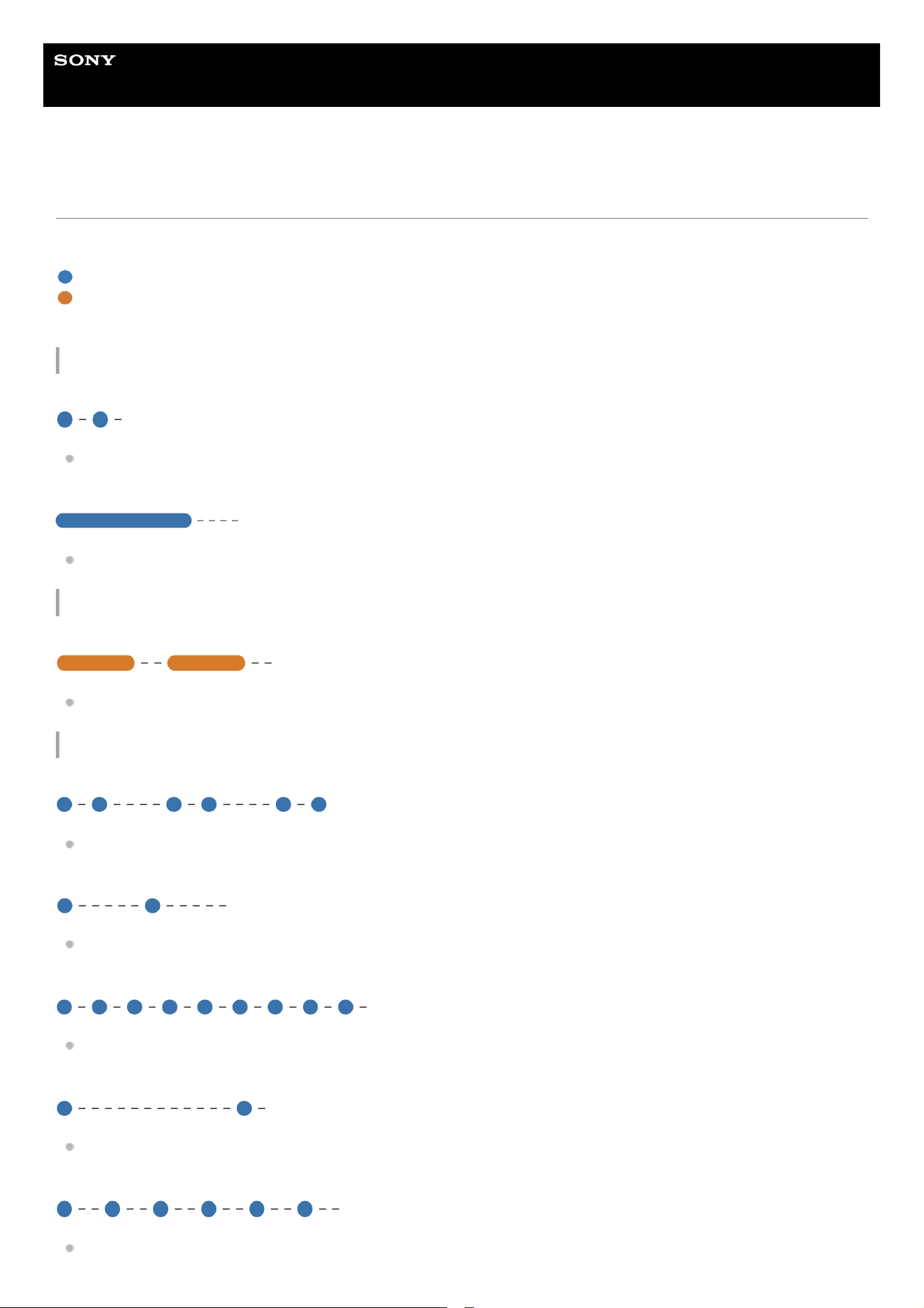
About the indicator
You can check various statuses of the headset by the indicator.
: Turns on in blue
: Turns on in orange
-: Turns off
Power status
The indicator flashes 2 times in blue.
When the headset is turned on
The indicator lights up in blue for about 2 seconds.
When turning off the headset
Indication of the remaining battery charge
The indicator repeatedly flashes slowly in orange for about 15 seconds.
When the remaining battery charge is 10% or lower
BLUETOOTH connection status
The indicator repeatedly flashes twice in blue.
When in pairing mode
The indicator repeatedly flashes in blue with an interval of about 1 second.
When the connection is not established
The indicator repeatedly flashes quickly in blue for about 5 seconds.
When the connection process is completed
The indicator repeatedly flashes in blue with an interval of about 5 seconds.
When the connection is established
The indicator repeatedly flashes quickly in blue.
When a call is incoming
15
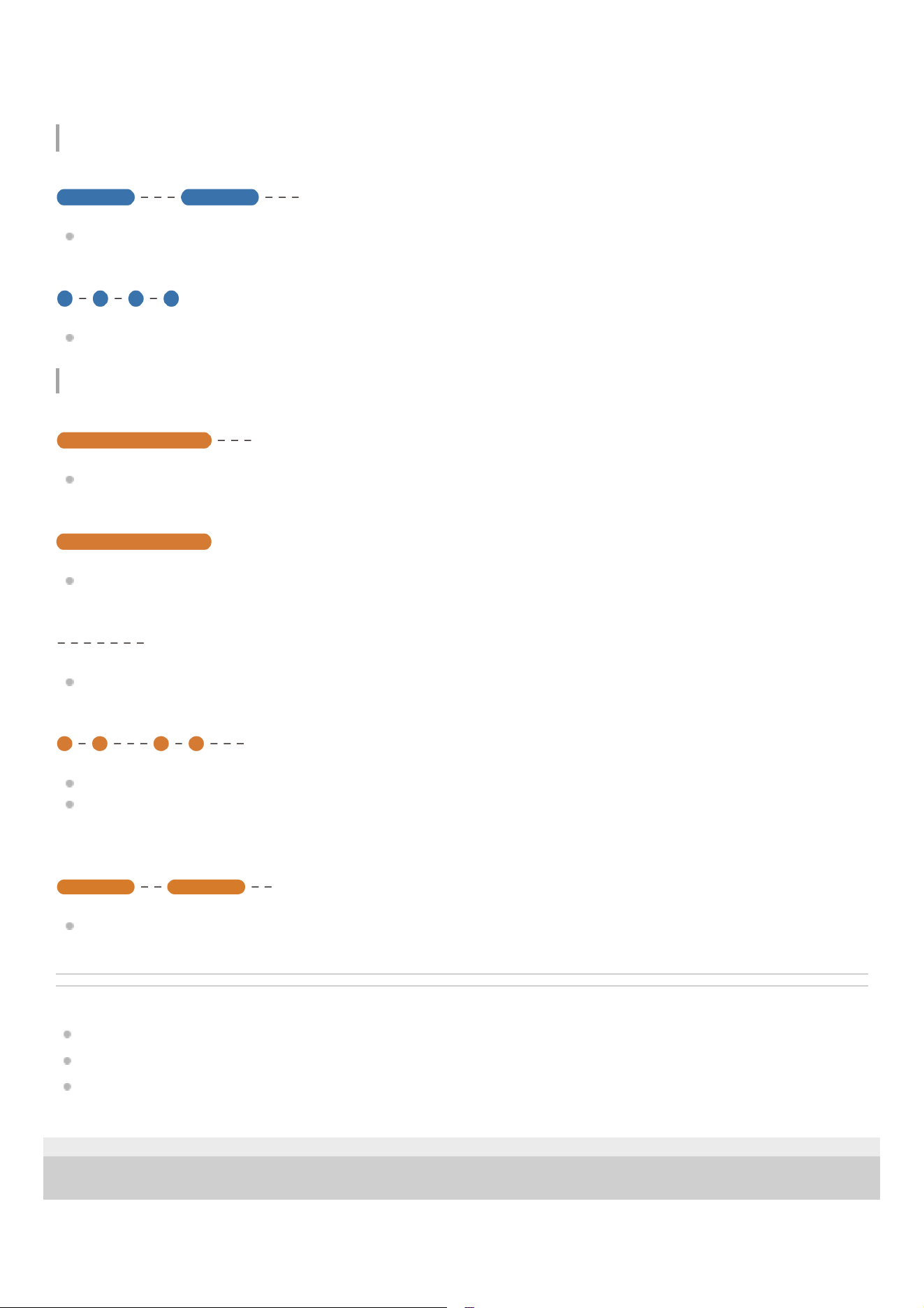
The unconnected and connected status indications automatically turn off after a period of time has passed. They start
flashing again for a period of time when an action is performed. When the remaining battery charge becomes low, the
indicator starts flashing in orange.
Other
The indicator repeatedly flashes slowly in blue.
Updating software
The indicator flashes 4 times in blue.
When the initialization process is completed
Charging status
The indicator lights up in orange for about 1 minute, and then turns off.
When the battery is fully charged when charging starts on the headset
The indicator lights up in orange.
When the headset is charging
The indicator turns off.
When the battery becomes fully charged and charging is complete
The indicator repeatedly flashes twice in orange.
When the charging temperature of the headset is abnormal
When high temperature is detected near the USB Type-C port of the headset
For details, see “High temperature detection on the charging port” in “Charging”.
The indicator repeatedly flashes slowly in orange.
When an error occurs while the headset is charging and the headset is not charged
Related Topic
Charging
Checking the remaining battery charge
Initializing the headset to restore factory settings
TP1002281764
5-075-052-11(2) Copyright 2026 Sony Corporation
16
Help Guide
Wireless Stereo Headset
WH-CH530/ WH-CH535
Wearing the headset
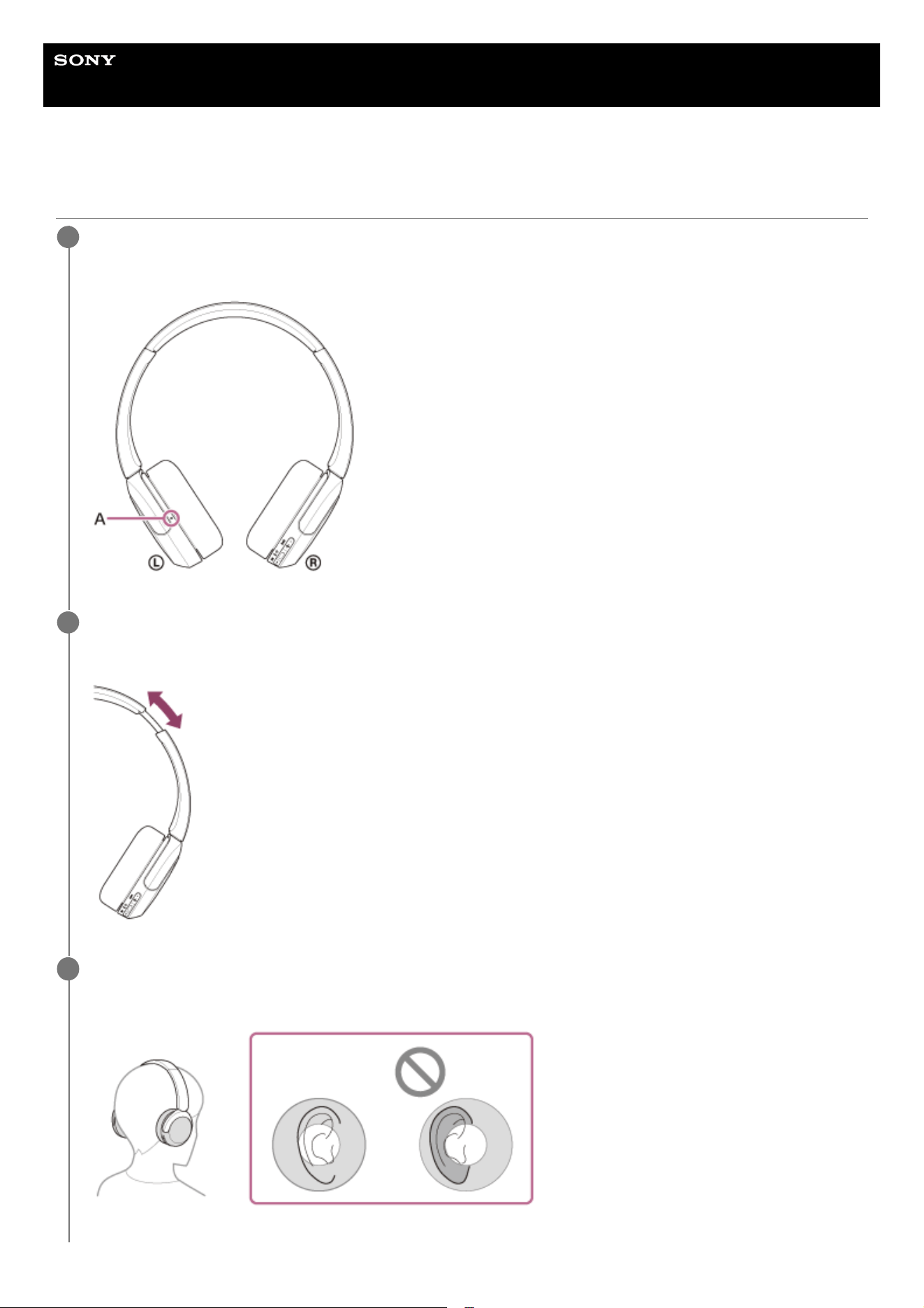
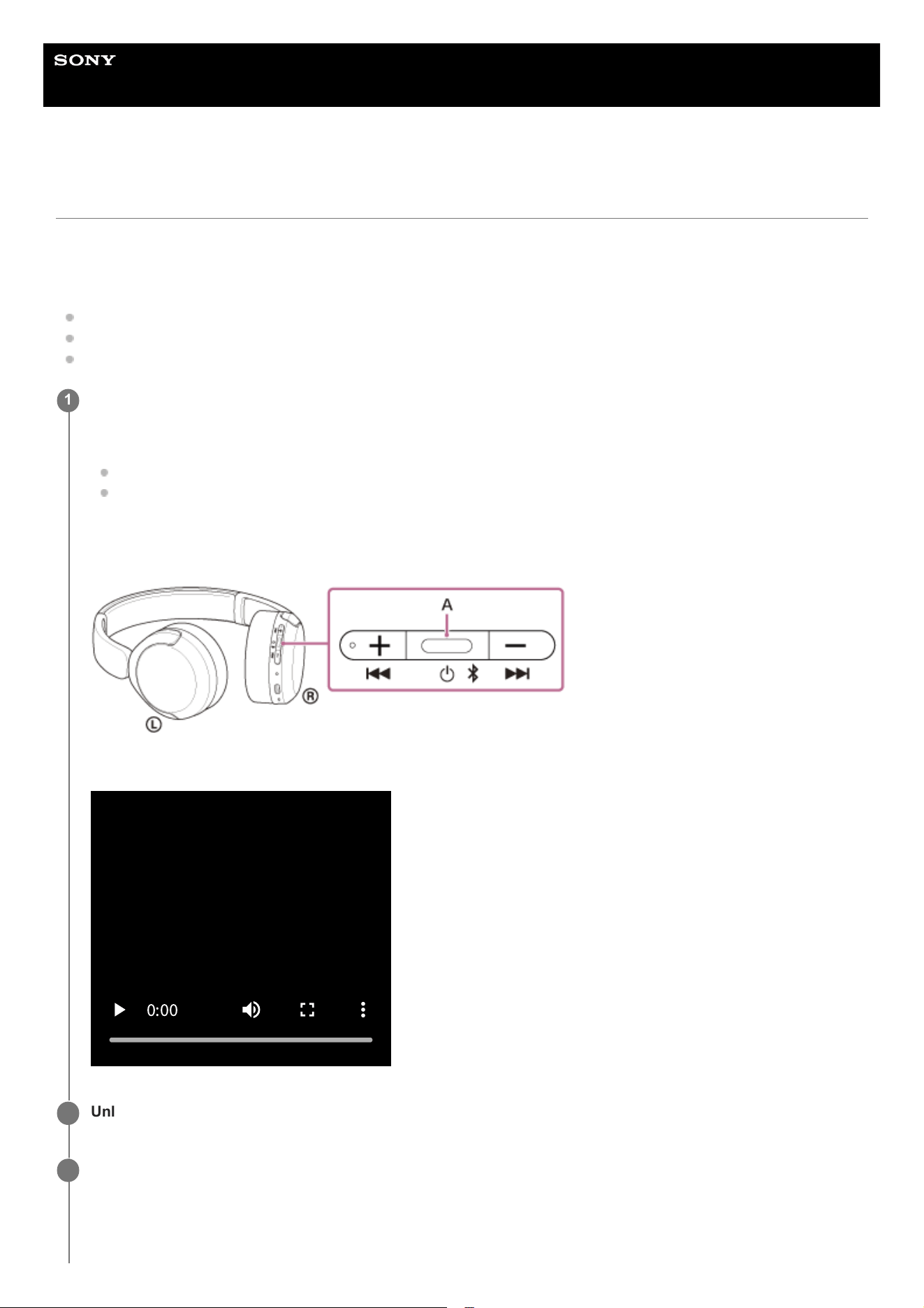
Check the left and right units of the headset.
There is a tactile dot (A) on the left unit.
1
Extend the slider.
Extend the slider to its full length before putting on the headset.
2
Put on the headset.
Put on the headset with each earpad fitting snugly over each part of your ear.
3
17
Note
External force beyond the range of normal use, such as turning the unit's rotary axis or other moving parts to the opposite side of
the normal direction or dropping the headset, may cause damage. The warranty does not cover malfunctions caused by damage
due to improper handling.
TP1002286165
5-075-052-11(2) Copyright 2026 Sony Corporation
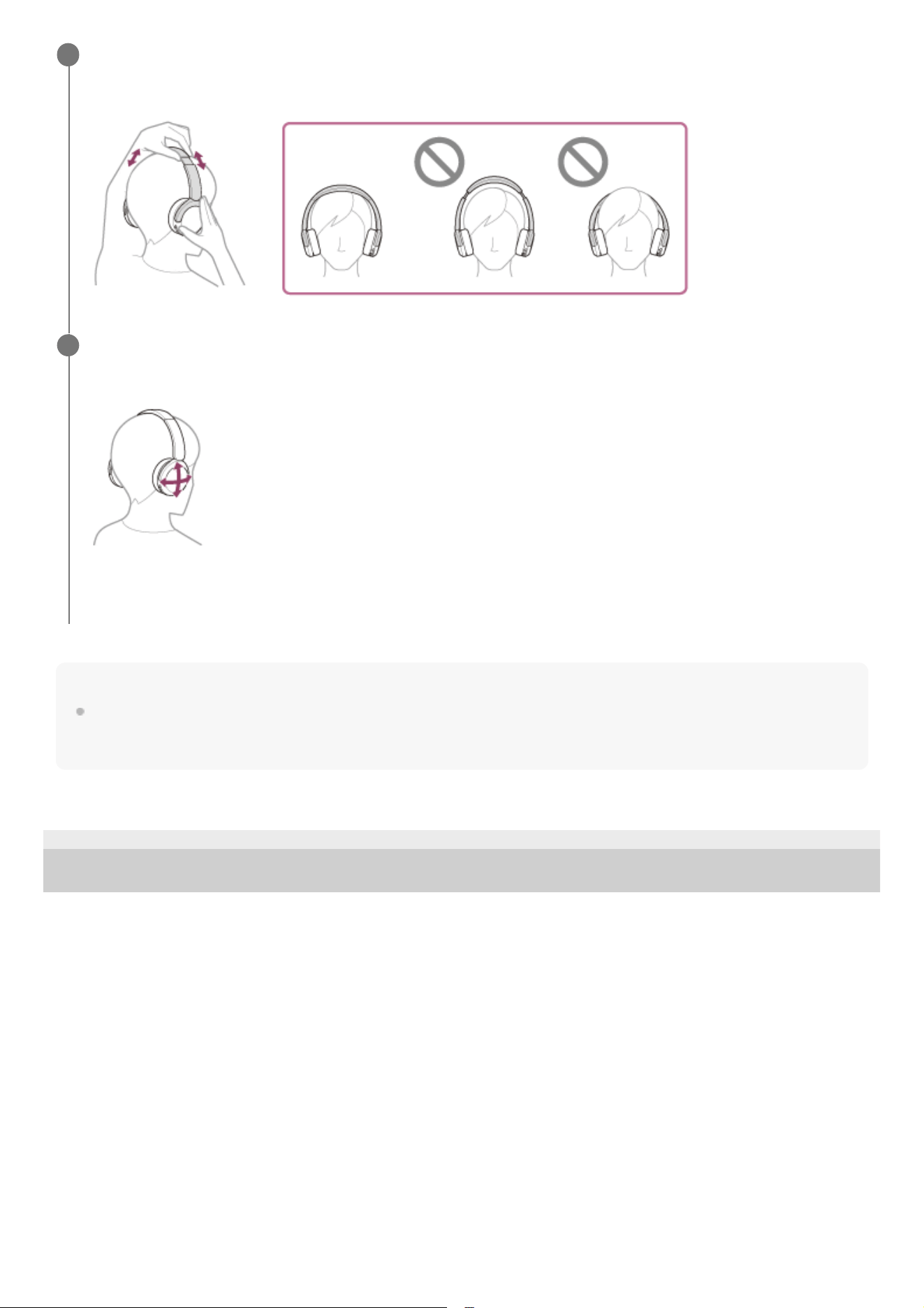
Adjust the length of the slider.
Adjust the slider to a length where the headband touches the top of your head.
4
Adjust the orientation of the units.
Adjust the orientation of the left and right units so that each earpad fits snugly over each part of your ear.
If you put on the headset without adjusting the slider, the headset may not be positioned properly on your head,
resulting in discomfort.
5
18
Help Guide
Wireless Stereo Headset
WH-CH530/ WH-CH535
About the buttons on the headset
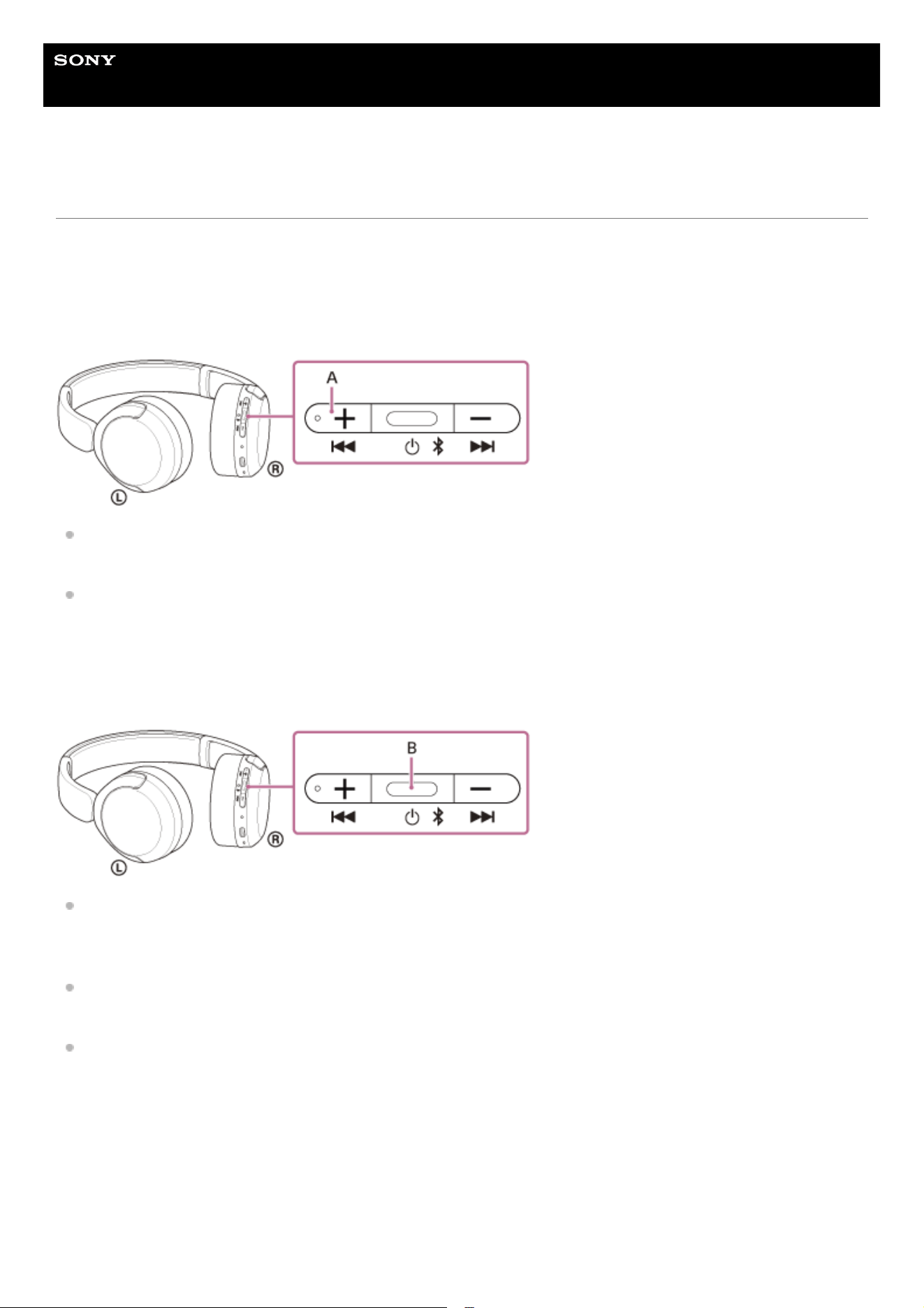
Use the buttons on the right unit of the headset for various operations, such as music playback or phone calls.
Main operations
Volume up/next button (A)
Press once briefly
Increases the volume. Repeat until the volume reaches the desired level.
Press and hold until you hear a notification sound
Skips to the beginning of the next track. After releasing the button, press it repeatedly within 1 second until a
notification sound is heard and skip to the beginning of the next track.
Play/call/power button (B)
Press once
During music playback: Plays or pauses music.
For a phone call: Receives a call when there is an incoming call. Finishes the call during a call.
Press and hold until the indicator flashes
The headset turns on.
Press and hold until the indicator turns off
The headset turns off.
Volume down/previous button (C)
19
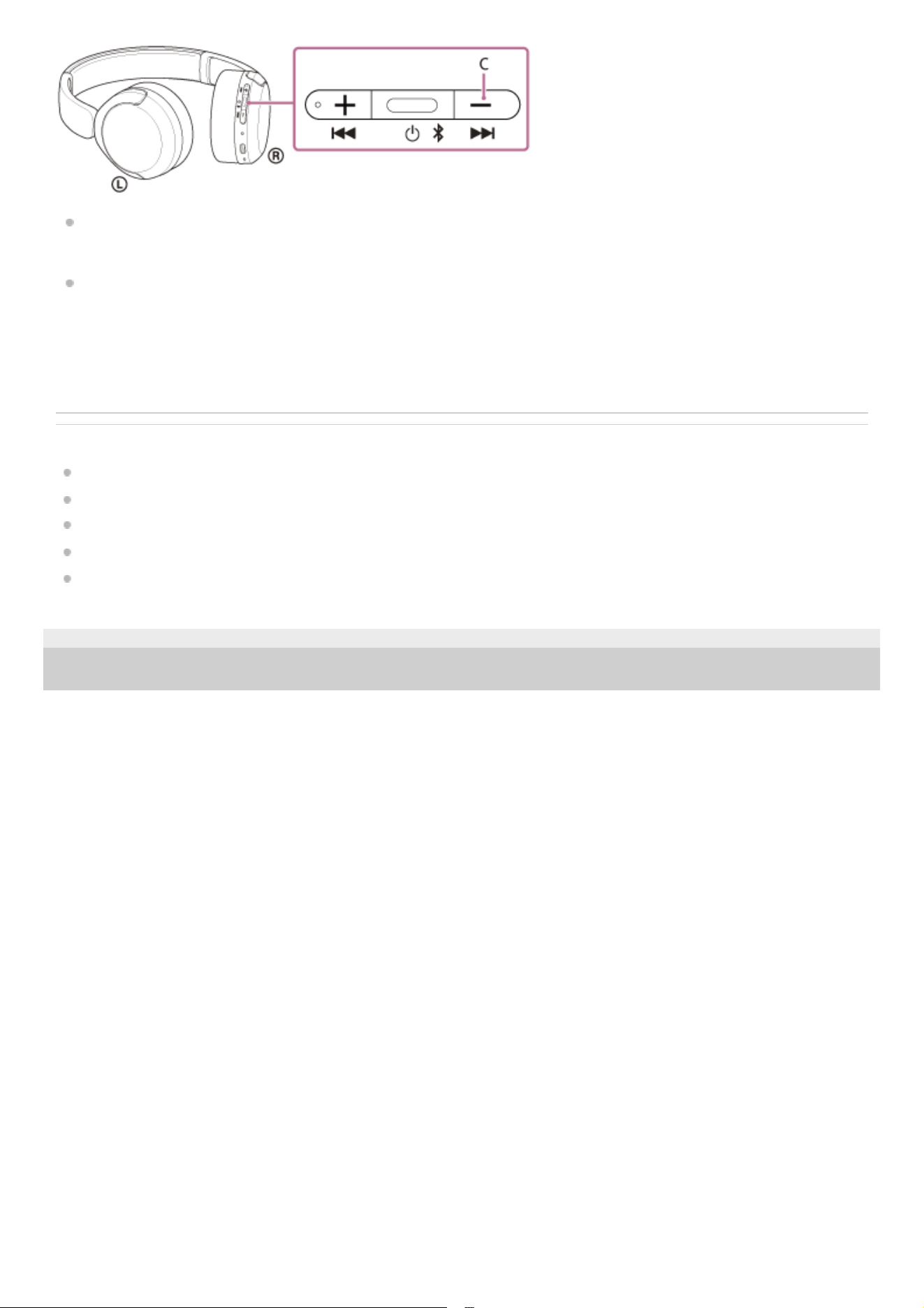
Press once briefly
Lowers the volume. Repeat until the volume reaches the desired level.
Press and hold until you hear a notification sound
Skips to the beginning of the previous track or the current track during playback. After releasing the button, press it
repeatedly within 1 second until a notification sound is heard and skip to the beginning of the previous track.
Related Topic
Using the “Sound Connect” app
Controlling the audio device (BLUETOOTH connection)
Receiving a call
Making a call
Functions for a phone call
TP1002308526
5-075-052-11(2) Copyright 2026 Sony Corporation
20
Help Guide
Wireless Stereo Headset
WH-CH530/ WH-CH535
Charging
The headset contains a built-in lithium-ion rechargeable battery. Use the USB Type-C cable to charge the headset before
use.
About the charging time
The required time for fully charging the headset is about 3 hours (*).
High temperature detection on the charging port
If a high temperature is detected near the USB Type-C port of the headset, the indicator will repeatedly flash twice in
orange to notify you that an abnormality is detected.
Disconnect the charger, and make sure the USB Type-C port is clear of any foreign objects.
If there are water droplets on the charging port, dry the charging port completely.
If foreign objects are found in the charging port, carefully remove them with a tool such as an air duster while being
careful not to damage the port.
Once the charging port cools down, the indicator will turn off and you can resume charging.
Hint
For your safety, if you are using a C to C cable compatible with USB Type-C or a USB Type-C charging adaptors, charging will
automatically stop if a high temperature is detected.
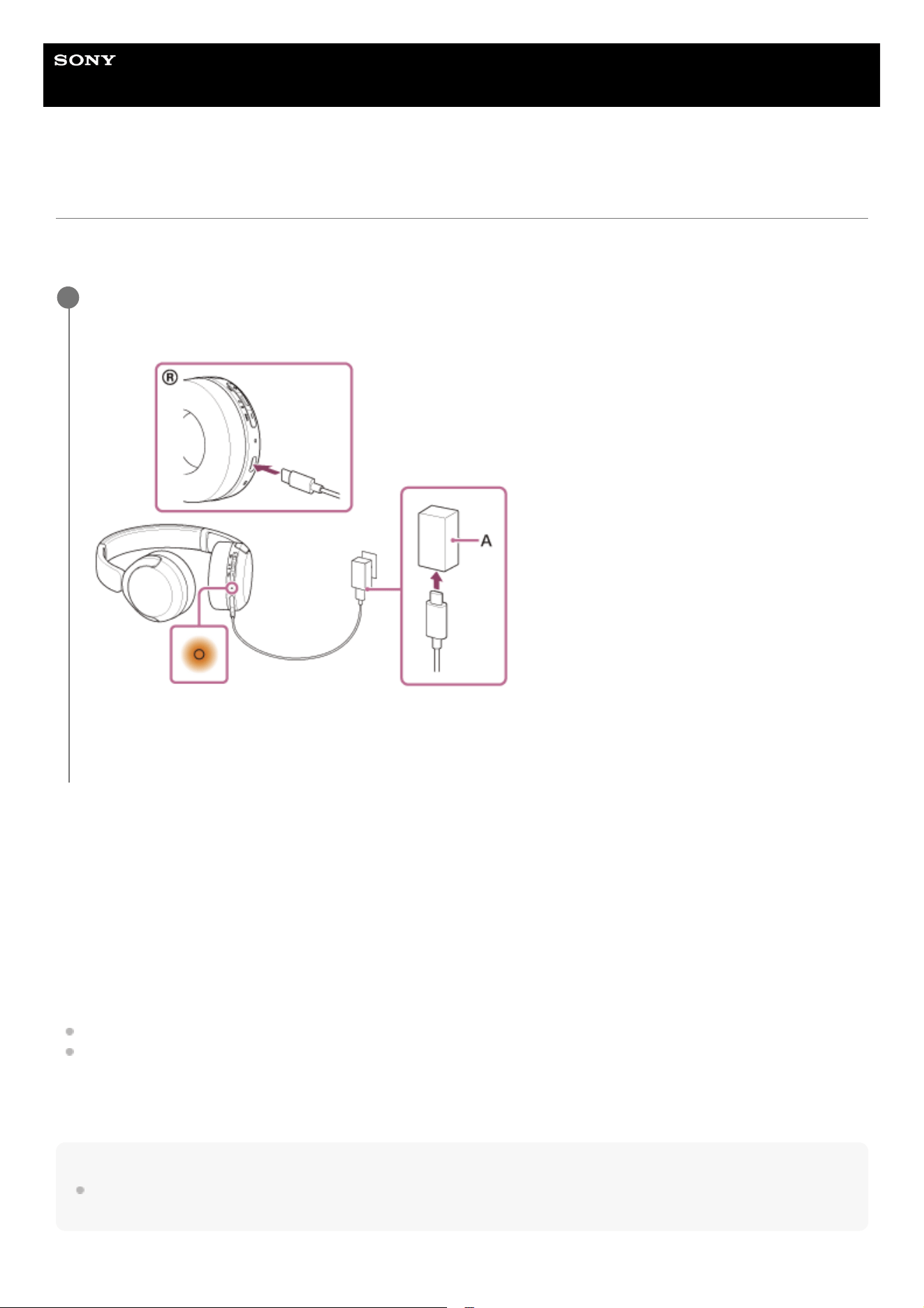
Connect the headset to an AC outlet.
Use a USB Type-C cable and USB AC adaptor (A).
The indicator on the headset lights up in orange.
When charging is complete, the indicator turns off automatically.
After charging is complete, disconnect the USB Type-C cable.
1
(*) Time required for charging an empty battery to its full capacity. The charging time may differ depending on the conditions of use.
21

System requirements for battery charge using USB
USB AC adaptor
A commercially available USB AC adaptor capable of supplying an output current of 0.5 A (500 mA) or more
USB cable
Commercially available USB Type-C cable (compliant with USB standards)
Computer
The computer equipped with a USB port as a standard
We do not guarantee that the operating procedures will work on all computers.
The operating procedures on a self-made computer are not guaranteed.
Usage hours
If the headset is not used for a long time, the battery usage hours may be temporarily reduced. Performance will
return to normal after several cycles of charging and use.
If you do not use your headset for several months, charge it at least once every 6 months to prevent battery
deterioration due to over-discharge.
If the usage hours of the battery decrease significantly, the rechargeable battery should be replaced. Consult your
nearest Sony dealer.
Hint
The headset can be also charged by connecting the headset to a running computer using the USB Type-C cable.
Note
If a USB Type-C cable is supplied, be sure to use it.
When charging is complete, remove the USB Type-C cable.
Charging may not be successful depending on the type of USB AC adaptor.
The headset cannot be charged when the computer goes into standby (sleep) or hibernation mode. In this case, change the
computer settings, and start charging once again.
If the headset is not used for a long time, it may take longer to charge the battery.
If the headset detects a problem while charging due to the following causes, the indicator (orange) flashes. In this case, charge
once again within the charging temperature range. If the problem persists, consult the Sony support contact or your nearest Sony
dealer.
Ambient temperature exceeds the charging temperature range of 5 °C to 35 °C (41 °F to 95 °F).
There is a problem with the rechargeable battery.
If the headset is not used for a long time, the indicator (orange) may not immediately light up when the headset starts charging.
Please wait a moment until the indicator lights up.
Avoid exposure to extreme temperature changes, direct sunlight, moisture, sand, dust, and electrical shock. Never leave the
headset in a parked vehicle.
When connecting the headset to a computer, make sure to connect it directly to the computer with a USB Type-C cable. Charging
will not be properly completed when the headset is connected through a USB hub.
Related Topic
About the indicator
TP1002281734
22

5-075-052-11(2) Copyright 2026 Sony Corporation
23
Help Guide
Wireless Stereo Headset
WH-CH530/ WH-CH535
Available operating time
The available operating times of the headset with the battery fully charged are as follows:
BLUETOOTH connection
Music playback time (AAC): Maximum 55 hours
Music playback time (SBC): Maximum 50 hours
Music playback time (LC3): Maximum 45 hours
About 1.5 hours of music playback is possible after 3 minutes charging. About 5.5 hours of music playback is possible
after 10 minutes charging as well.
Communication time: Maximum 35 hours
Hint
By using the “Sound Connect” app, you can check which codec is used for a connection or switch the DSEE™ function.
Note
Usage hours may be different from the time described above depending on the settings for the headset functions and usage
conditions.
If you set the following functions, the available operating time of the battery becomes shorter than the ones described above.
Equalizer
DSEE
If you run the above settings at the same time, the available operating time of the battery becomes even shorter.
Related Topic
Using the “Sound Connect” app
Supported codecs
TP1002281728
5-075-052-11(2) Copyright 2026 Sony Corporation
24

Help Guide
Wireless Stereo Headset
WH-CH530/ WH-CH535
Checking the remaining battery charge
You can check the remaining battery charge of the rechargeable battery in the following ways.
Check on your smartphone
When you are using an iPhone (iOS 13 or later)
When the headset is connected to an iPhone via an HFP (Hands-free Profile) BLUETOOTH connection, you can
check the remaining battery charge of the headset on an iPhone. For details, refer to the operating instructions
supplied with the iPhone.
The remaining charge which is displayed may differ from the actual remaining charge in some cases. This is a rough
estimate.
When you are using an Android smartphone (OS 8.1 or later)
When the headset is connected to an Android smartphone via an HFP BLUETOOTH connection, you can check the
remaining battery charge of the headset on the smartphone. For details, refer to the operating instructions supplied
with the Android smartphone.
The remaining charge which is displayed may differ from the actual remaining charge in some cases. This is a rough
estimate.
Check with the power button
When you turn on the headset, the voice guidance indicating the remaining battery charge can be heard.
“Battery about XX %” (The “XX” value indicates the approximate remaining charge.)
“Battery fully charged”
The remaining battery charge indicated by the voice guidance may differ from the actual remaining charge in some
cases. This is a rough estimate.
The indicator also flashes in orange for about 15 seconds if the remaining battery charge is 10% or lower when the
headset is turned on.
Check with the voice guidance notification
When the rechargeable battery becomes low, the voice guidance will play in the following cases.
When the headset is turned on
When using the headset
When the battery becomes completely empty, an alarm sounds. The voice guidance plays, then the headset
automatically turns off.
Hint
You can also check the remaining battery charge of the headset with the “Sound Connect” app. Android smartphones and iPhone
both support this app.
Note
If the headset and smartphone are not connected with HFP, the remaining battery charge will not be correctly displayed.
If you connect the headset to an iPhone or Android smartphone with Media audio (A2DP) only in a multipoint connection, the
remaining battery charge will not be displayed correctly.
The remaining battery charge may not be properly displayed in the following situations. In that case, repeatedly charge and
discharge the battery multiple times. The remaining battery charge will then be properly displayed.
When using the headset for the first time after purchase
When the headset has not been used for a long period of time
25

Help Guide
Wireless Stereo Headset
WH-CH530/ WH-CH535
Turning off the headset
Hint
You can also turn off the headset with the “Sound Connect” app.
Related Topic
Turning on the headset
TP1002281711
5-075-052-11(2) Copyright 2026 Sony Corporation
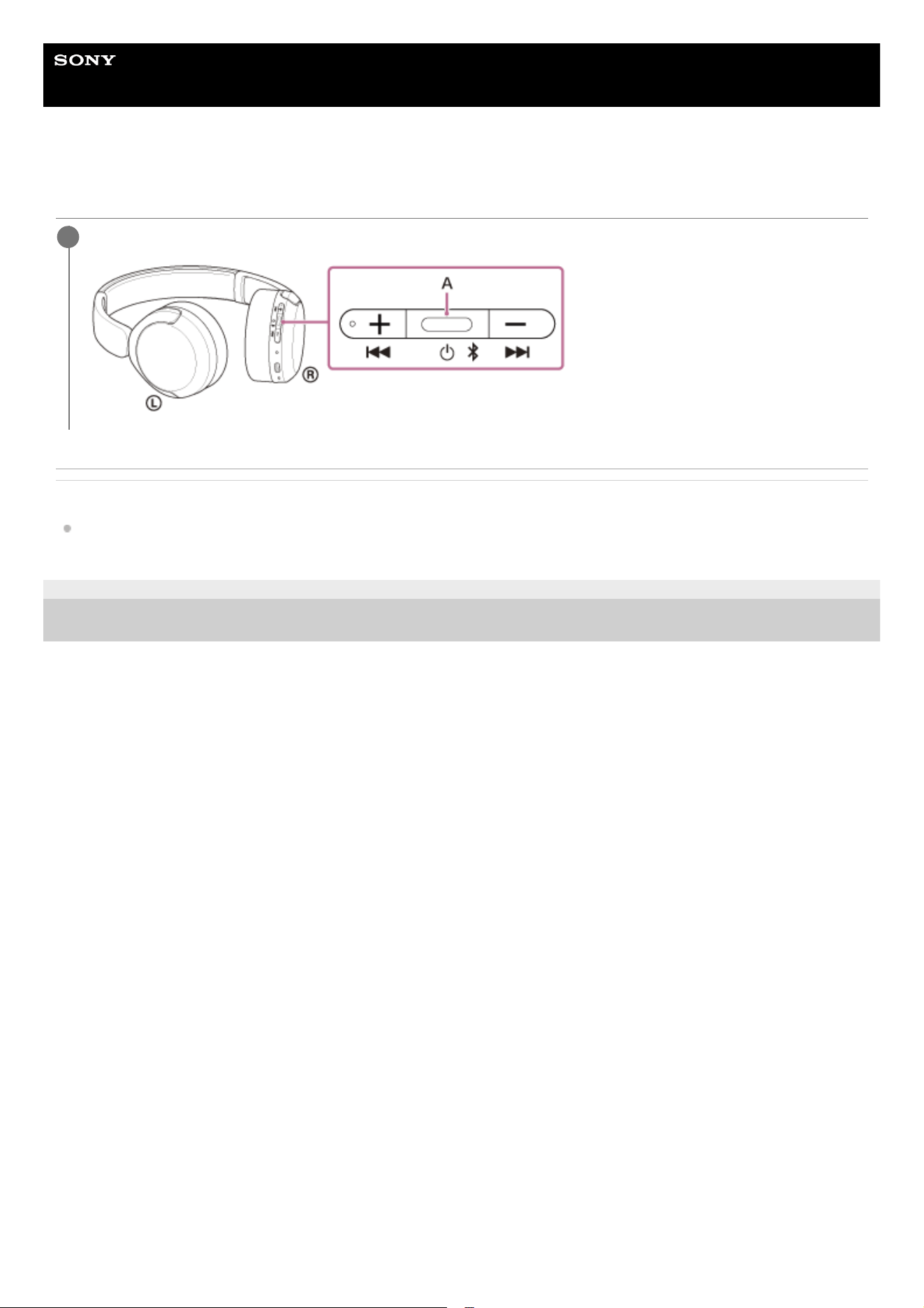
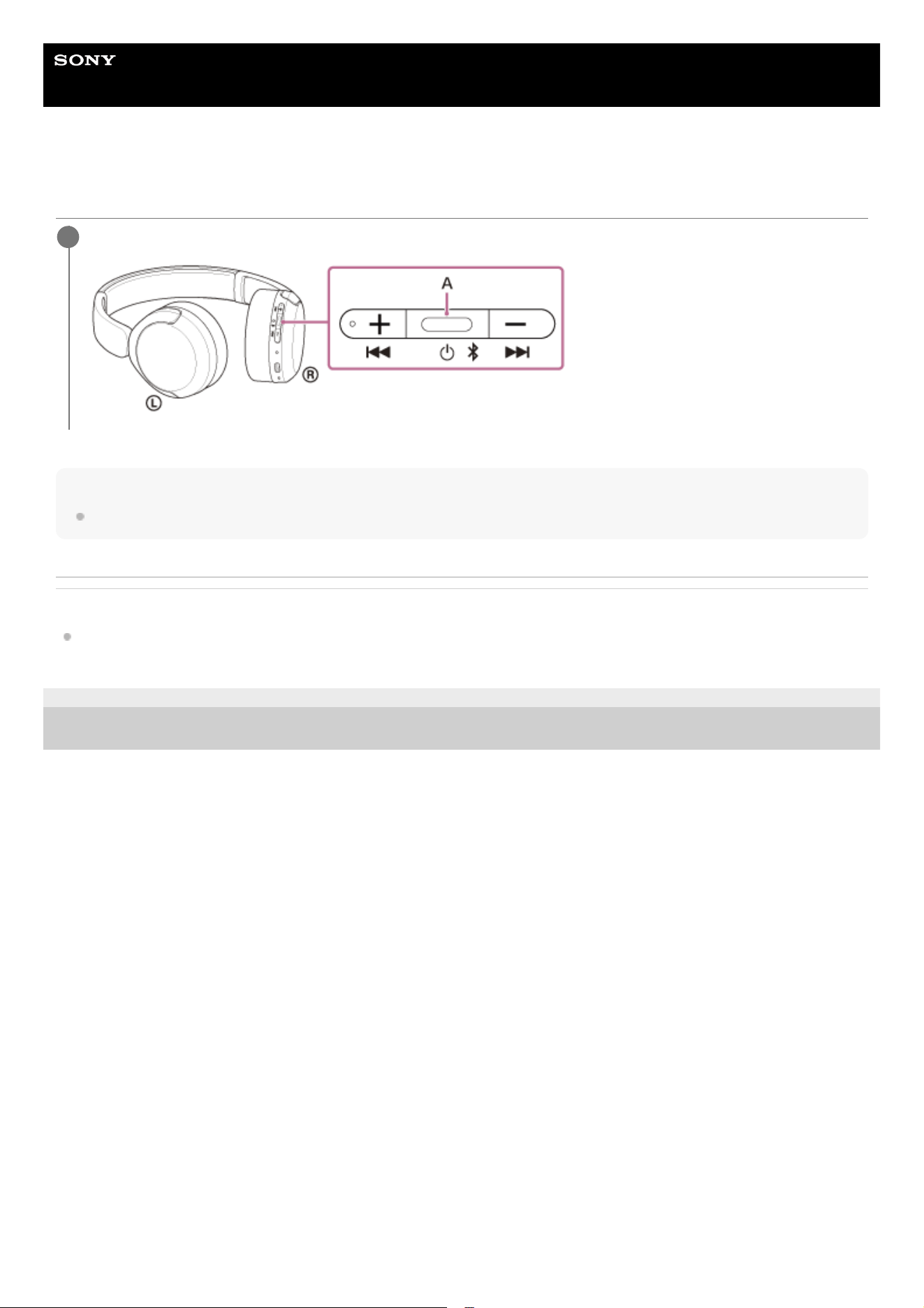
Press and hold the power button (A) for about 2 seconds or more until the blue indicator turns off.
1
28
Help Guide
Wireless Stereo Headset
WH-CH530/ WH-CH535
How to make a wireless connection to BLUETOOTH devices
You can enjoy music and hands-free calling with the headset wirelessly by using your device’s BLUETOOTH function.
Pairing
To use the BLUETOOTH function, you must register both devices that will connect with each other in advance. This
process of registration is called “pairing”.
Pair the headset and the device manually.
Connecting to a paired device
Once a device is paired, it is not necessary to pair it again. Connect to devices already paired with the headset using the
methods necessary for each device.
For details on pairing or connection methods, refer to the following Related Topic.
Related Topic
Pairing and connecting with an Android smartphone
Pairing and connecting with an iPhone
Pairing and connecting with a computer (Windows® 11)
Pairing and connecting with a computer (Mac)
Pairing and connecting with a BLUETOOTH device
Connecting to a paired Android smartphone
Connecting to a paired iPhone
Connecting to a paired computer (Windows 11)
Connecting to a paired computer (Mac)
Connecting to a paired BLUETOOTH device
TP1002281745
5-075-052-11(2) Copyright 2026 Sony Corporation
29
Help Guide
Wireless Stereo Headset
WH-CH530/ WH-CH535
Connecting with the “Sound Connect” app
Launch the “Sound Connect” app on your Android smartphone/iPhone to connect the headset to a smartphone or
iPhone.
Note
The connection between the headset and some smartphones or iPhones may become unstable when using the “Sound Connect”
app. In that case, follow the procedures in “Connecting to a paired Android smartphone”, or “Connecting to a paired iPhone” to
connect to the headset.
Related Topic
Using the “Sound Connect” app
Pairing and connecting with an Android smartphone
Pairing and connecting with an iPhone
Pairing and connecting with a computer (Windows® 11)
Pairing and connecting with a computer (Mac)
Connecting to a paired Android smartphone
Connecting to a paired iPhone
TP1002283818
5-075-052-11(2) Copyright 2026 Sony Corporation
30
Help Guide
Wireless Stereo Headset
WH-CH530/ WH-CH535
Pairing and connecting with an Android smartphone
The operating procedure to register the device that you wish to connect to is called “pairing”. First, pair a device to use it
with the headset for the first time.
Before starting the operating procedure, check the following.
The Android smartphone is placed within 1 m (3.2 ft) of the headset.
The headset is charged sufficiently.
The operating instructions for the Android smartphone are in hand.
Check the status of the headset.
The headset enters pairing mode automatically in the following cases. Proceed to step 2.
When you pair the headset with a device for the first time after purchasing the headset
After initializing the headset and clearing all pairing information
When you pair a second or subsequent device, if the headset already has pairing information for other devices,
enter pairing mode manually. Press and hold the BLUETOOTH button (A) for about 5 seconds or more.
The indicator repeatedly flashes in blue twice in a row. You will hear the voice guidance say, “Pairing”.
0
:
00
1
Unlock the screen of the Android smartphone if it is locked.
2
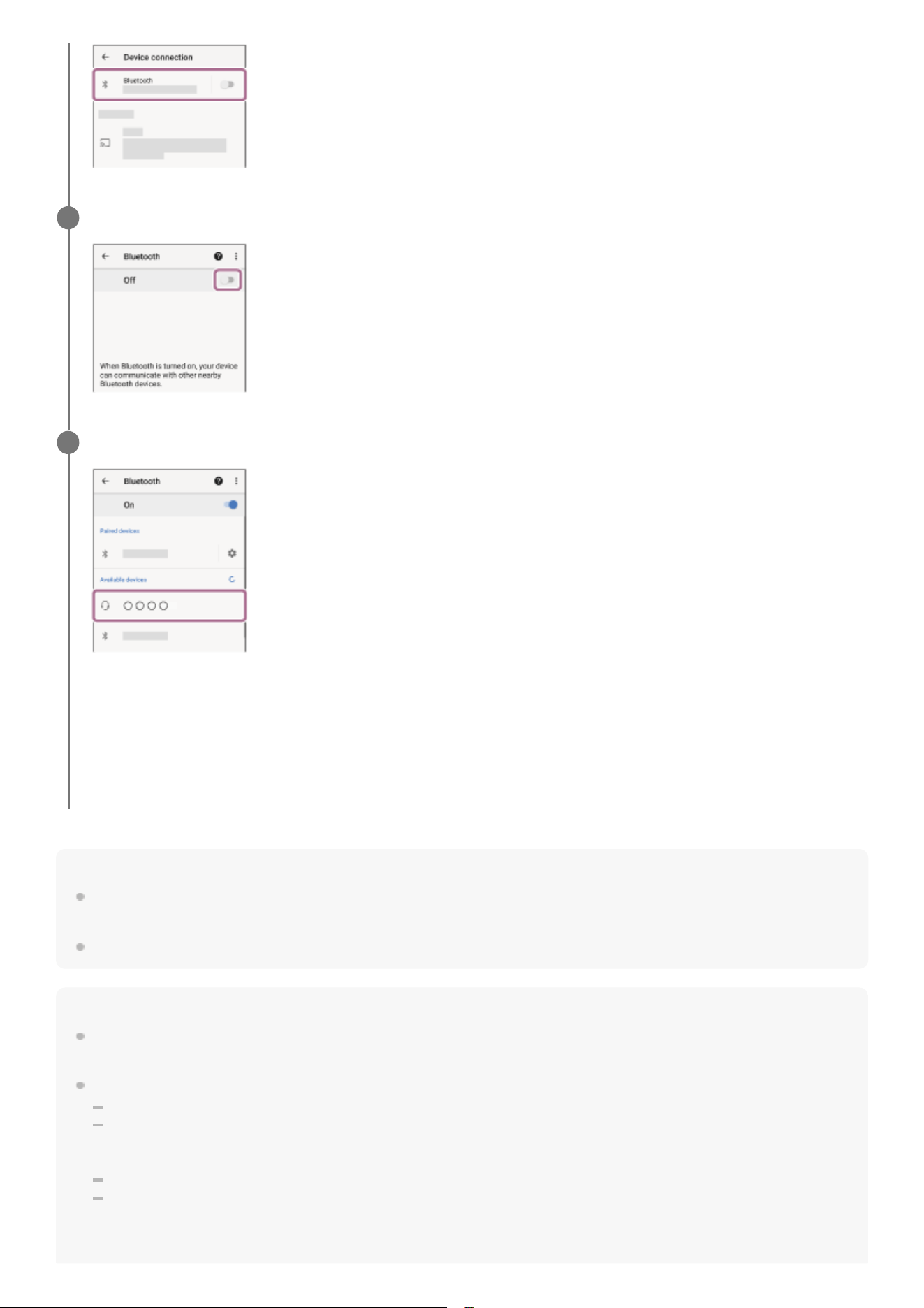
On your Android smartphone screen, select the following items.
[Settings] - [Device connection] - [Bluetooth]
3
31
Hint
The above operating procedure is an example. For more details, refer to the operating instructions supplied with the Android
smartphone.
To delete all BLUETOOTH pairing information, see “Initializing the headset to restore factory settings”.
Note
If pairing is not established within 5 minutes, pairing mode is canceled. In this case, turn off the power and start the operating
procedure again from step 1.
Once BLUETOOTH devices are paired, there is no need to pair them again, except in the following cases:
If pairing information is deleted, such as after a repair
When a 9th device is paired
The headset can be paired with up to 8 devices. If you pair a 9th device, the pairing information with the oldest connection date
and time will be overwritten with the information for the new device.
When the pairing information for the headset has been deleted from the connected BLUETOOTH device
When the headset is initialized
All of the pairing information will be deleted. In this case, delete the pairing information for the headset from the connected
device and then pair them again.
Touch the switch to turn on the BLUETOOTH function.
4
Touch [WH-CH530 series].
If Passkey (*) input is required, input “0000”.
The headset and smartphone are paired and connected with each other.
You will hear a notification sound indicating that the connection is established.
If they are not connected, see “Connecting to a paired Android smartphone”.
If [WH-CH530 series] does not appear on your Android smartphone screen, try again from step 3.
5
(*) A Passkey may be called “Passcode”, “PIN code”, “PIN number”, or “Password”.
32

The headset can be paired with multiple devices, but can only play music from 1 paired device at a time.
Related Topic
How to make a wireless connection to BLUETOOTH devices
Connecting to a paired Android smartphone
Listening to music from a device via a BLUETOOTH connection
Disconnecting BLUETOOTH connection (after use)
Initializing the headset to restore factory settings
TP1002281765
5-075-052-11(2) Copyright 2026 Sony Corporation
33
Help Guide
Wireless Stereo Headset
WH-CH530/ WH-CH535
Connecting to a paired Android smartphone
Unlock the screen of the Android smartphone if it is locked.
1
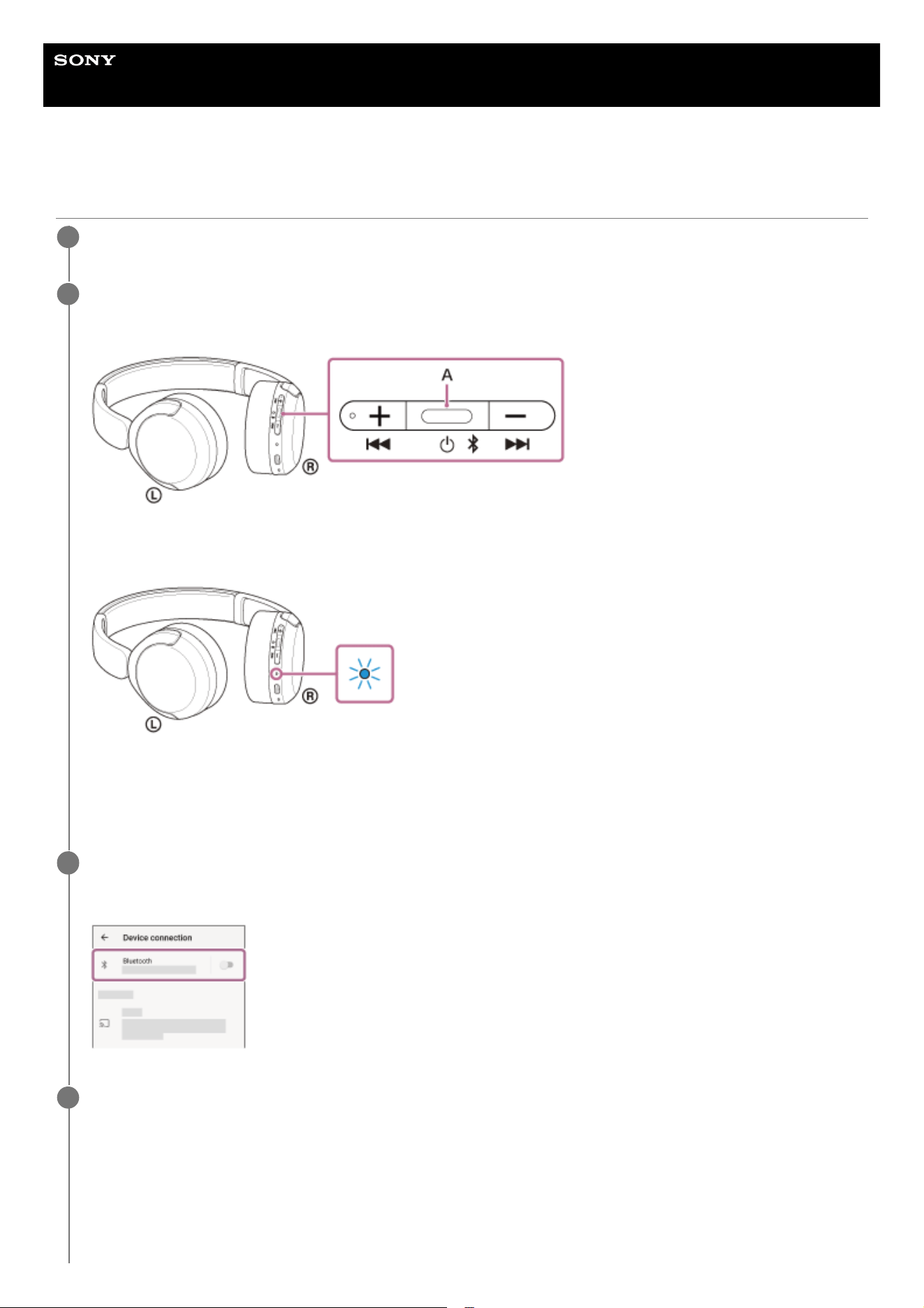
Turn on the headset.
Press and hold the power button (A) for about 2 seconds or more.
You will hear a notification sound indicating that the headset is turned on.
The indicator continues to flash in blue even after you release your finger from the button.
If the headset has automatically connected to the last connected device, you will hear a notification sound indicating
that the connection is established.
Check the connection status on the Android smartphone. If it is not connected, proceed to step 3.
2
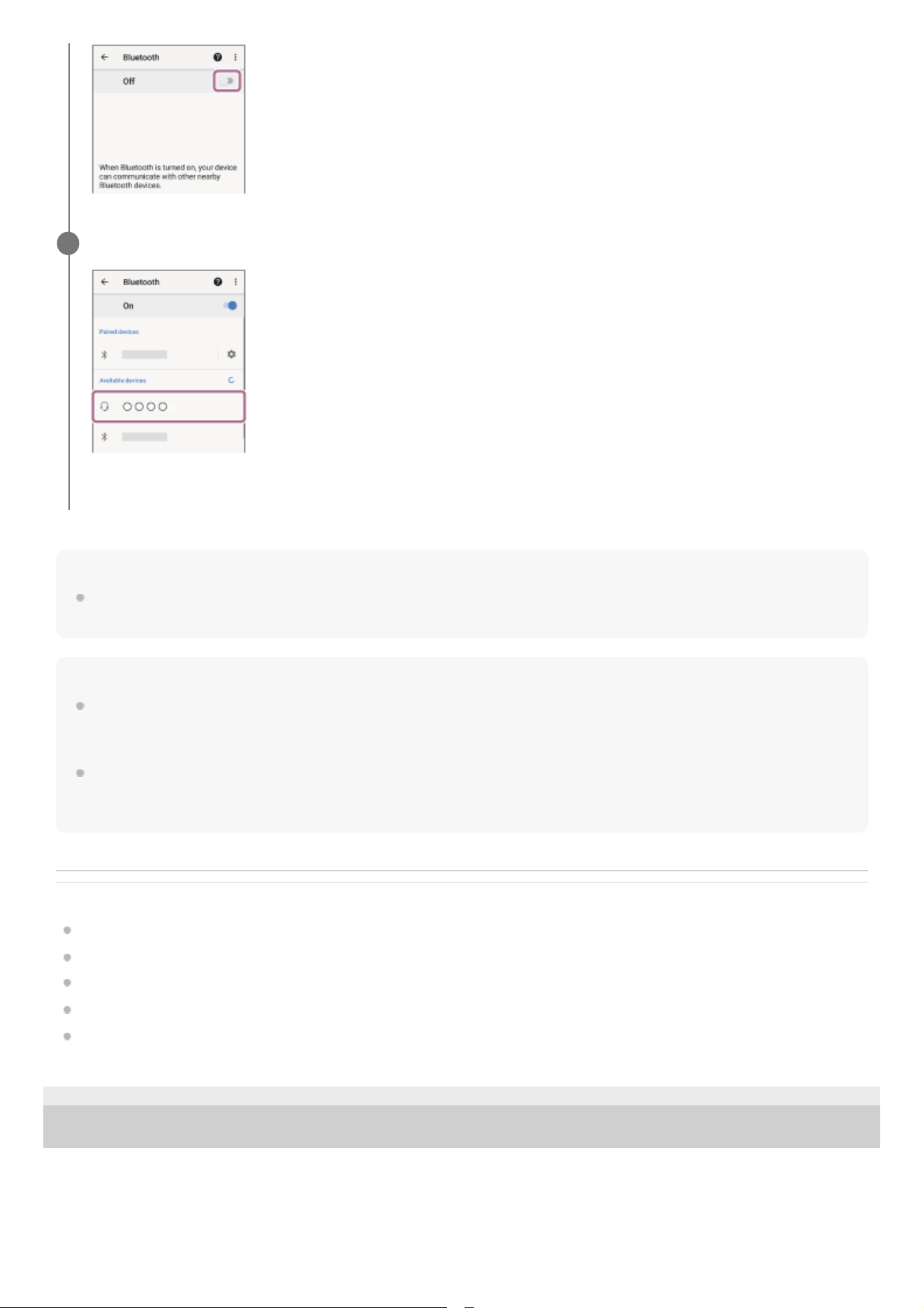
On your Android smartphone screen, select the following items.
[Settings] - [Device connection] - [Bluetooth]
3
Touch the switch to turn on the BLUETOOTH function.
4
34
Hint
The above operating procedure is an example. For more details, refer to the operating instructions supplied with the Android
smartphone.
Note
If the last-connected BLUETOOTH device is placed near the headset, the headset may connect automatically to the device by
simply turning on the headset. If this is the case, deactivate the BLUETOOTH function on the last-connected device or turn off the
power.
If you cannot connect your Android smartphone to the headset, delete the headset pairing information on your Android
smartphone. Then, pair them again. For the operating procedures on your Android smartphone, refer to the operating instructions
supplied with the Android smartphone.
Related Topic
How to make a wireless connection to BLUETOOTH devices
Pairing and connecting with an Android smartphone
Listening to music from a device via a BLUETOOTH connection
Disconnecting BLUETOOTH connection (after use)
Initializing the headset to restore factory settings
TP1002281766
5-075-052-11(2) Copyright 2026 Sony Corporation
Touch [WH-CH530 series].
You will hear a notification sound indicating that the connection is established.
5
35
Help Guide
Wireless Stereo Headset
WH-CH530/ WH-CH535
Connecting with an Android smartphone using LE Audio
When connection is established using LE Audio, you can enjoy music from an Android smartphone with less sound delay.
Set up with the “Sound Connect” app.
Devices supporting LE Audio
The Android smartphone must support LE Audio.
For the latest information on the compatible devices, refer to the support website.
About LE Audio
It supports the “LC3” codec.
When connected via LE Audio, certain headset features may not work. For details, see “Using the “Sound Connect”
app”.
Connect the headset to the Android smartphone via BLUETOOTH connection.
1
Launch the “Sound Connect” app and select the following items to switch the BLUETOOTH connection
method from Classic Audio to LE Audio.
[BLUETOOTH CONNECTION QUALITY] - [Low latency]
If [Low latency] is not displayed, select the following items.
[Headphone connection setting] - [LE Audio Priority]
2
Delete the pairing information for the headset on your Android smartphone.
3
Connect the headset to the Android smartphone via BLUETOOTH connection.
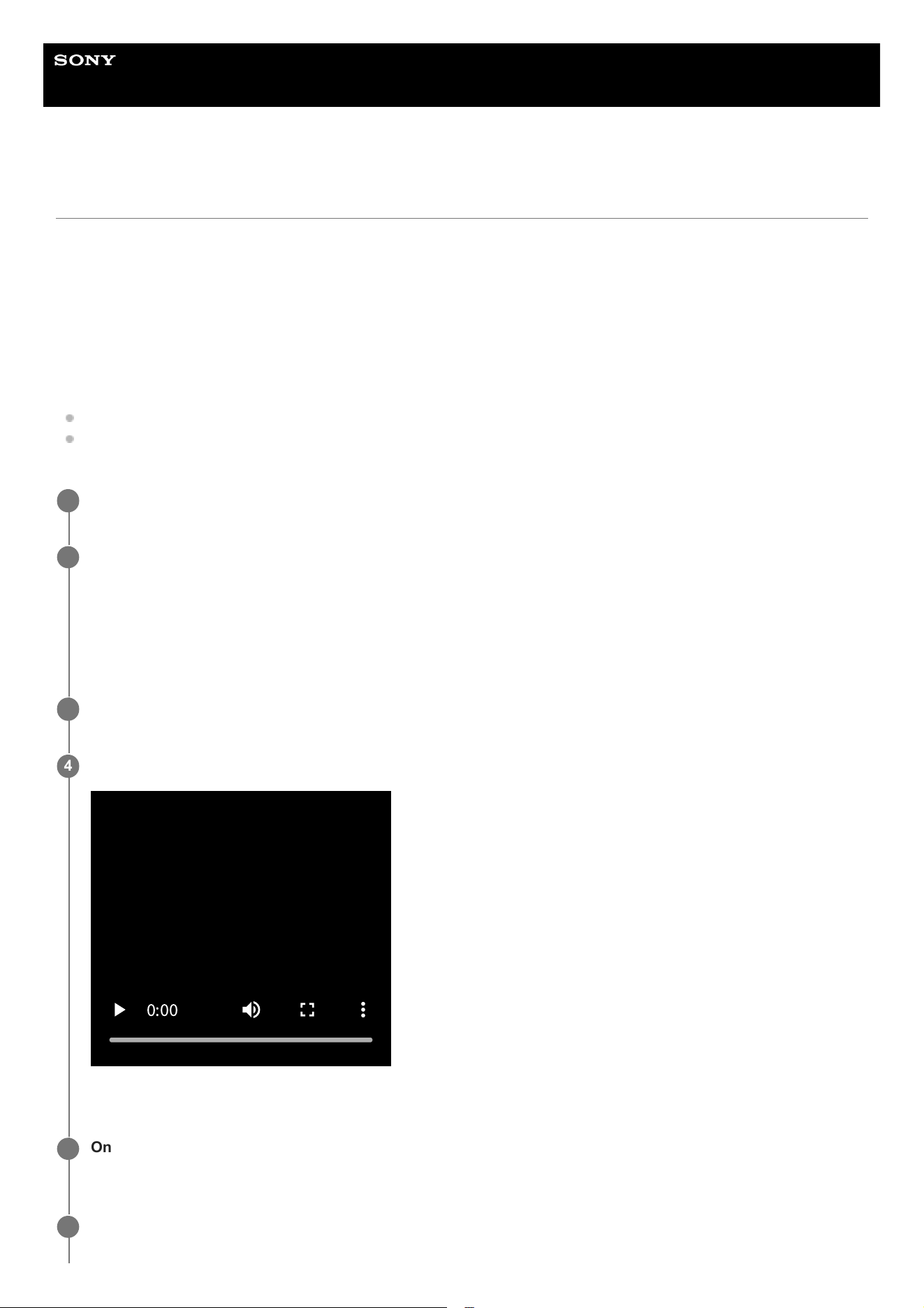
The indicator repeatedly flashes in blue twice in a row and the headset goes into pairing mode.
0
:
00
4
On your Android smartphone screen, select the following items to open the BLUETOOTH settings screen.
[Settings] - [Device connection]
5
Select [Pair new device].
6
36
To finish LE Audio
Launch the “Sound Connect” app and change the settings.
The settings you can change depend on whether the item name following [BLUETOOTH CONNECTION QUALITY] is
displayed.
If [Low latency] is displayed, select the following items.
[BLUETOOTH CONNECTION QUALITY] - [Prioritize Sound Quality] / [Prioritize Stable Connection]
If [Low latency] is not displayed, select the following items.
[Headphone connection setting] - [Classic Audio only (conventional connection method)]
Hint
The above operating procedure is an example. For more details, refer to the operating instructions supplied with the Android
smartphone.
If the sound stutters or the connection is unstable, select [Prioritize Stable Connection] from [BLUETOOTH CONNECTION
QUALITY].
Related Topic
Using the “Sound Connect” app
Connecting with the “Sound Connect” app
Pairing and connecting with an Android smartphone
Initializing the headset to restore factory settings
TP1002295057
5-075-052-11(2) Copyright 2026 Sony Corporation
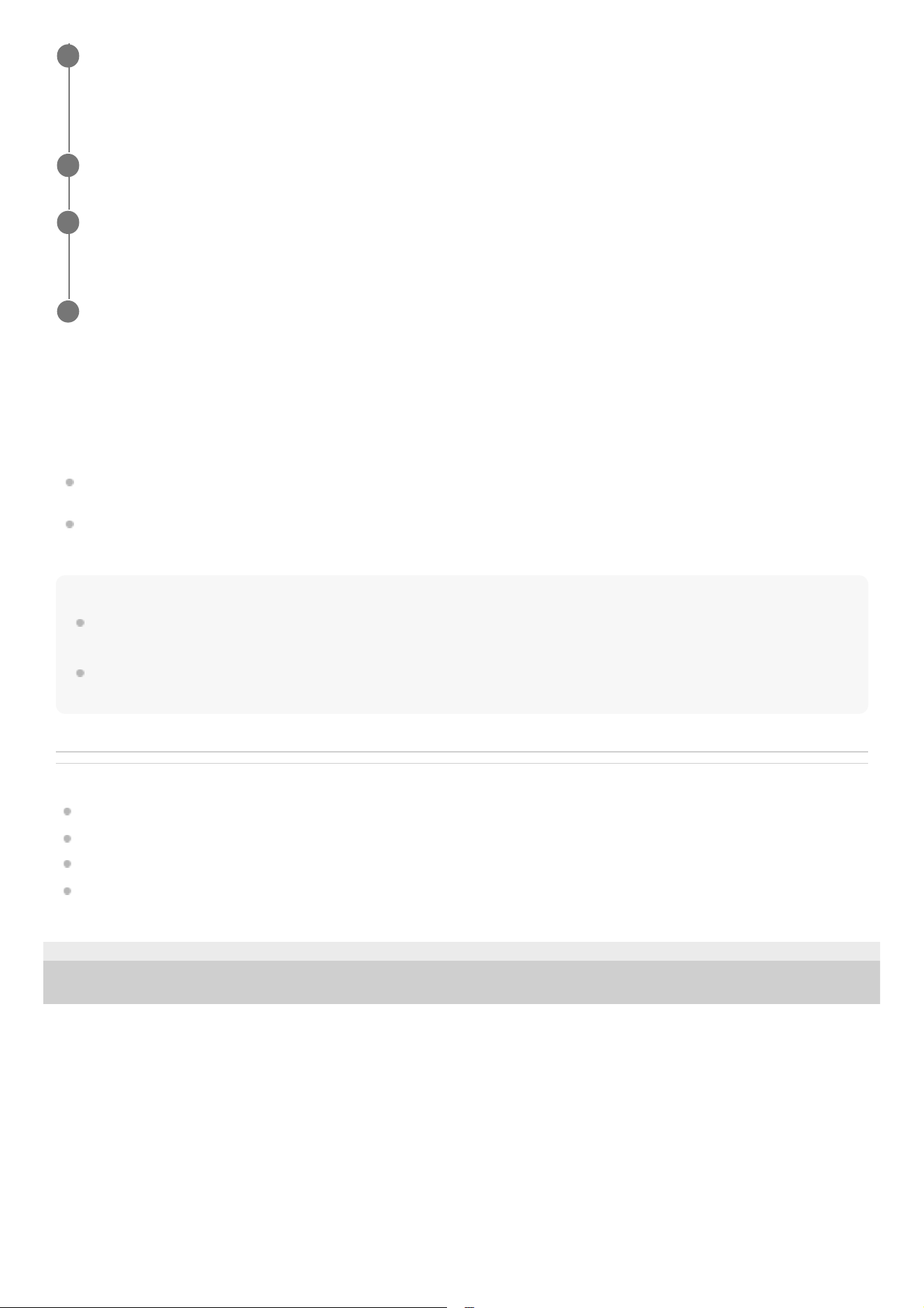
Select [Available devices] - [WH-CH530 series].
The headset and smartphone are paired and connected with each other.
You will hear a notification sound indicating that the connection is established.
7
Touch the setting icon displayed next to the connected [WH-CH530 series].
8
Check that [LE Audio] is turned on.
If it is turned off, touch the switch to turn on [LE Audio].
9
On the “Sound Connect” app screen, check that [LE Audio] is displayed under the headset name.
10
37
Help Guide
Wireless Stereo Headset
WH-CH530/ WH-CH535
Pairing and connecting with an iPhone
The operating procedure to register the device that you wish to connect to is called “pairing”. First, pair a device to use it
with the headset for the first time.
Before starting the operating procedure, check the following.
The iPhone is placed within 1 m (3.2 ft) of the headset.
The headset is charged sufficiently.
The operating instructions for the iPhone are in hand.
Check the status of the headset.
The headset enters pairing mode automatically in the following cases. Proceed to step 2.
When you pair the headset with a device for the first time after purchasing the headset
After initializing the headset and clearing all pairing information
When you pair a second or subsequent device, if the headset already has pairing information for other devices,
enter pairing mode manually. Press and hold the BLUETOOTH button (A) for about 5 seconds or more.
The indicator repeatedly flashes in blue twice in a row. You will hear the voice guidance say, “Pairing”.
0
:
00
1
Unlock the screen of the iPhone if it is locked.
2
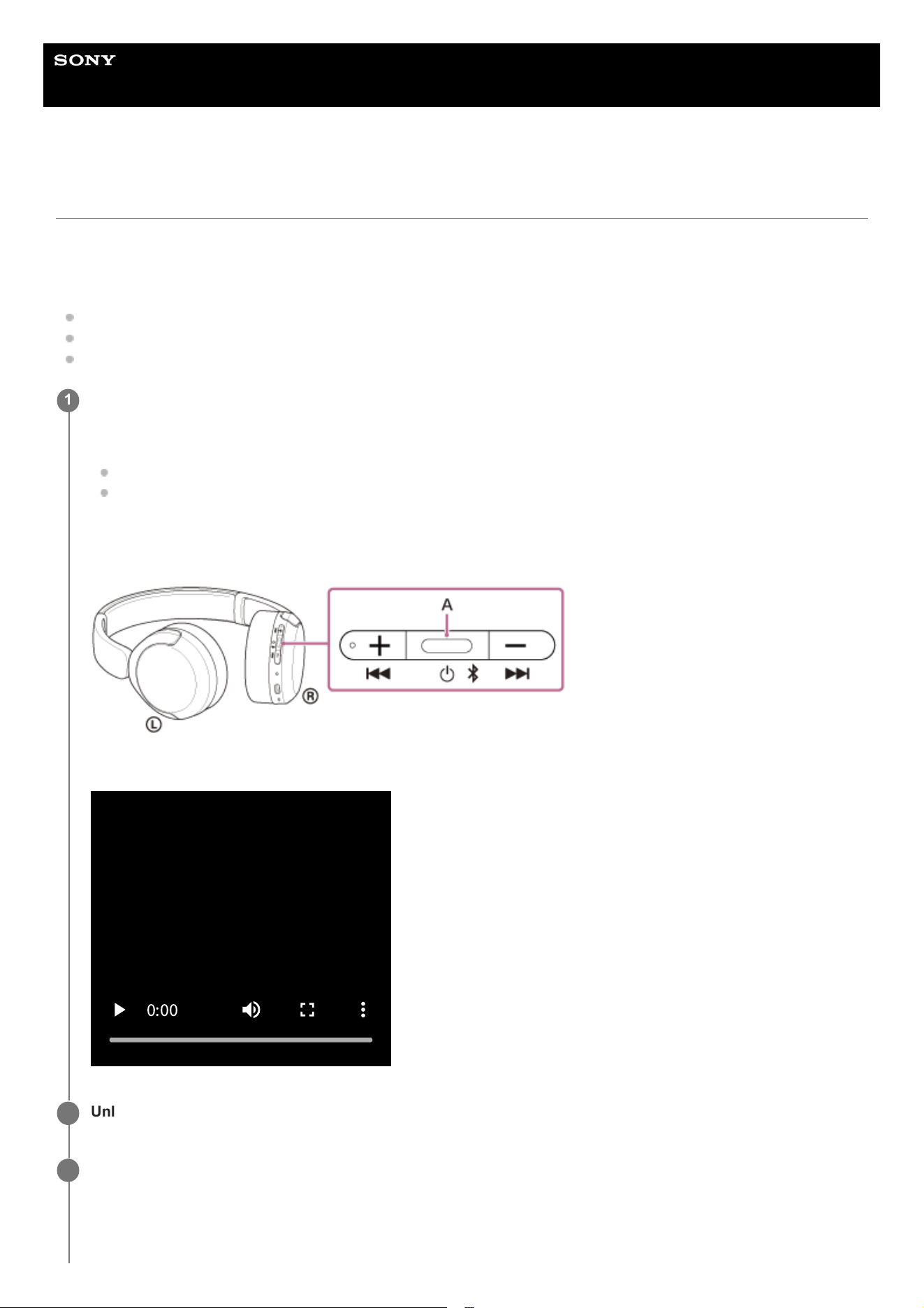
On your iPhone screen, go to [Settings] and touch [Bluetooth].
3
38
Hint
The above operating procedure is an example. For more details, refer to the operating instructions supplied with the iPhone.
To delete all BLUETOOTH pairing information, see “Initializing the headset to restore factory settings”.
Note
If pairing is not established within 5 minutes, pairing mode is canceled. In this case, turn off the power and start the operating
procedure again from step 1.
Once BLUETOOTH devices are paired, there is no need to pair them again, except in the following cases:
If pairing information is deleted, such as after a repair
When a 9th device is paired
The headset can be paired with up to 8 devices. If you pair a 9th device, the pairing information with the oldest connection date
and time will be overwritten with the information for the new device.
When the pairing information for the headset has been deleted from the connected BLUETOOTH device
When the headset is initialized
All of the pairing information will be deleted. In this case, delete the pairing information for the headset from the connected
device and then pair them again.
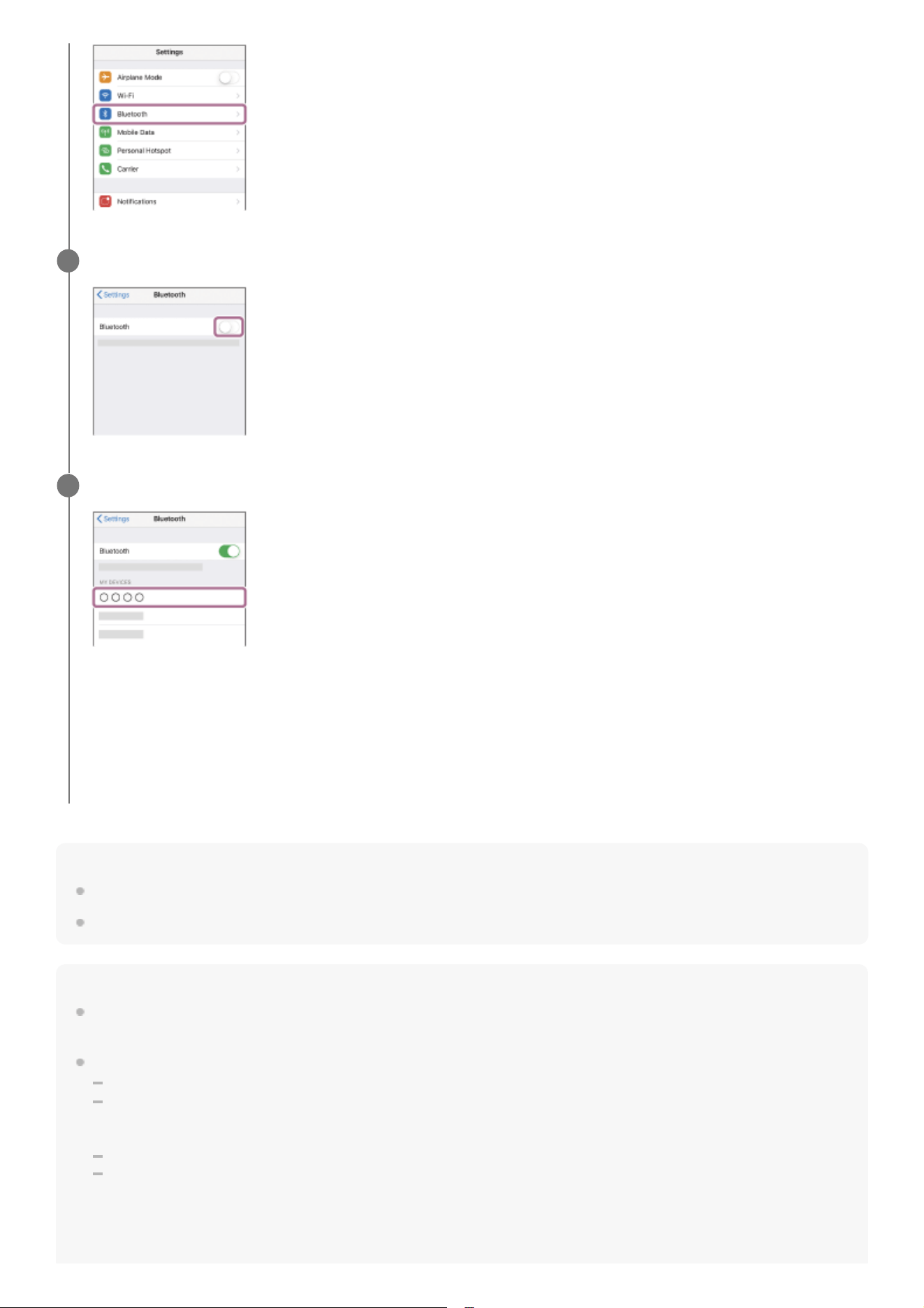
Touch the switch to turn on the BLUETOOTH function.
4
Touch [WH-CH530 series].
If Passkey (*) input is required, input “0000”.
The headset and iPhone are paired and connected with each other.
You will hear a notification sound indicating that the connection is established.
If they are not connected, see “Connecting to a paired iPhone”.
If [WH-CH530 series] does not appear on your iPhone screen, try again from step 3.
5
(*) A Passkey may be called “Passcode”, “PIN code”, “PIN number”, or “Password”.
39

The headset can be paired with multiple devices, but can only play music from 1 paired device at a time.
Related Topic
How to make a wireless connection to BLUETOOTH devices
Connecting to a paired iPhone
Listening to music from a device via a BLUETOOTH connection
Disconnecting BLUETOOTH connection (after use)
Initializing the headset to restore factory settings
TP1002281821
5-075-052-11(2) Copyright 2026 Sony Corporation
40
Help Guide
Wireless Stereo Headset
WH-CH530/ WH-CH535
Connecting to a paired iPhone
Unlock the screen of the iPhone if it is locked.
1
Turn on the headset.
Press and hold the power button (A) for about 2 seconds or more.
You will hear a notification sound indicating that the headset is turned on.
The indicator continues to flash in blue even after you release your finger from the button.
If the headset has automatically connected to the last connected device, you will hear a notification sound indicating
that the connection is established.
Check the connection status on the iPhone. If it is not connected, proceed to step 3.
2
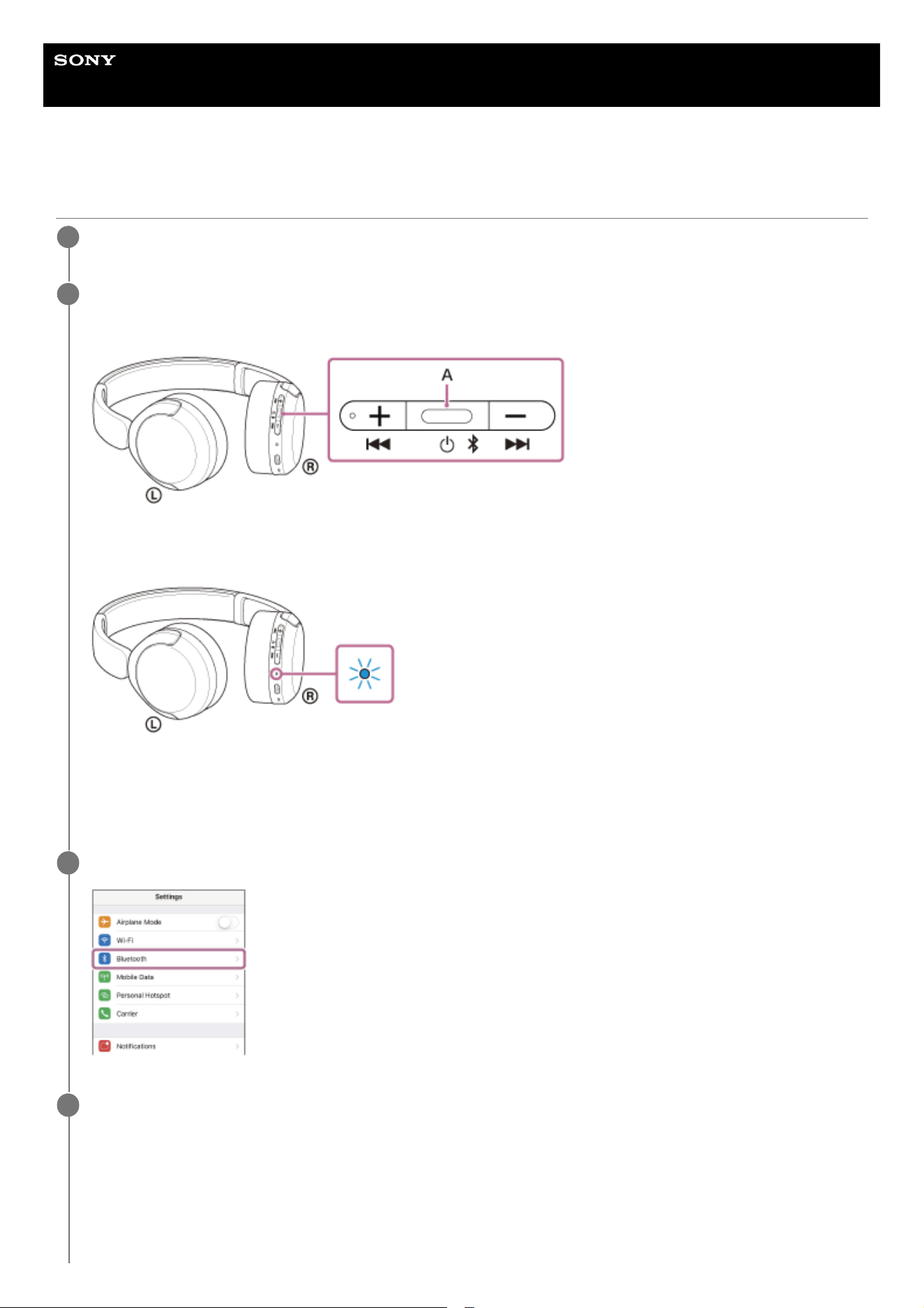
On your iPhone screen, go to [Settings] and touch [Bluetooth].
3
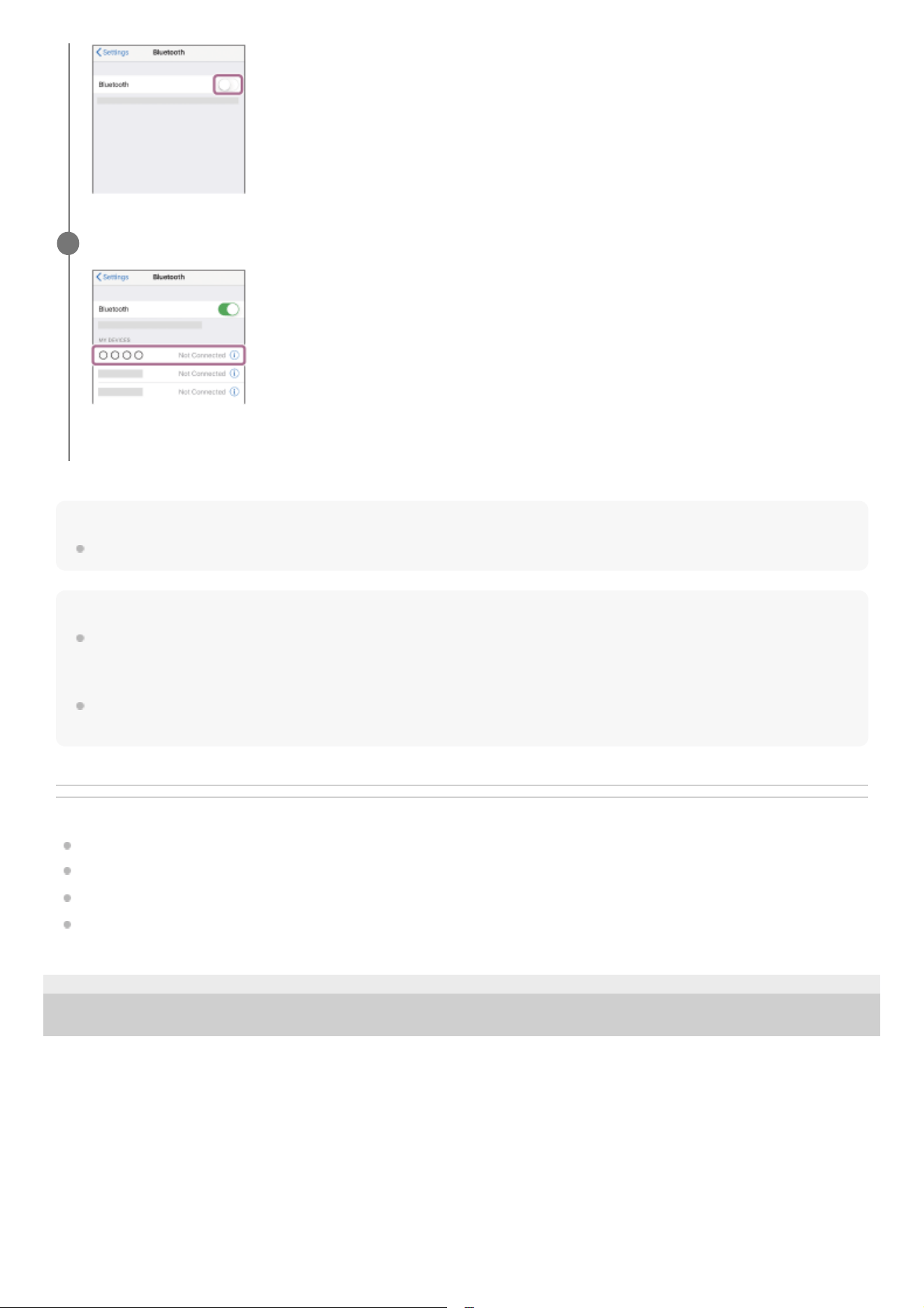
Touch the switch to turn on the BLUETOOTH function.
4
41
Hint
The above operating procedure is an example. For more details, refer to the operating instructions supplied with the iPhone.
Note
If the last-connected BLUETOOTH device is placed near the headset, the headset may connect automatically to the device by
simply turning on the headset. If this is the case, deactivate the BLUETOOTH function on the last-connected device or turn off the
power.
If you cannot connect your iPhone to the headset, delete the headset pairing information on your iPhone. Then, pair them again.
For the operating procedures on your iPhone, refer to the operating instructions supplied with the iPhone.
Related Topic
How to make a wireless connection to BLUETOOTH devices
Pairing and connecting with an iPhone
Listening to music from a device via a BLUETOOTH connection
Disconnecting BLUETOOTH connection (after use)
TP1002281740
5-075-052-11(2) Copyright 2026 Sony Corporation
Touch [WH-CH530 series].
You will hear a notification sound indicating that the connection is established.
5
42
Help Guide
Wireless Stereo Headset
WH-CH530/ WH-CH535
Pairing and connecting with a computer (Windows® 11)
The operating procedure to register the device that you wish to connect to is called “pairing”. First, pair a device to use it
with the headset for the first time.
Before starting the operating procedure, check the following.
Your computer has a BLUETOOTH function that supports music playback connections (A2DP).
When you use a video calling application on your computer, your computer has a BLUETOOTH function that supports
calling connections (HFP/HSP).
The computer is placed within 1 m (3.2 ft) of the headset.
The headset is charged sufficiently.
The operating instructions for the computer are in hand.
Depending on the computer you are using, the built-in BLUETOOTH adaptor may need to be turned on. In the
following cases, refer to the operating instructions supplied with your computer.
You do not know how to turn on the BLUETOOTH adaptor.
You want to know if your computer has a built-in BLUETOOTH adaptor.
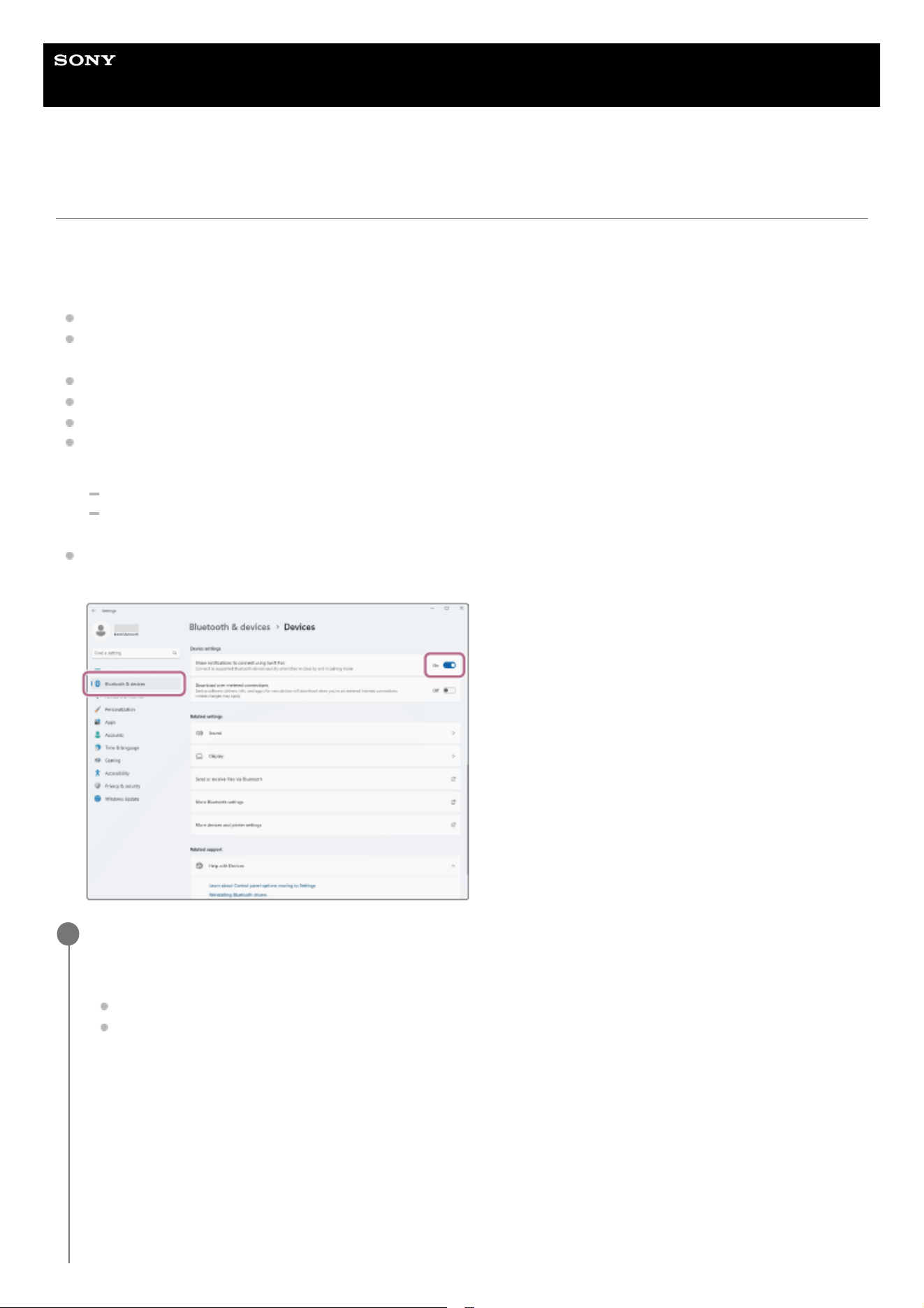
To use the Swift Pair function, click the following button, items, and switch in order to turn on the Swift Pair function.
[Start] button - [Settings] - [Bluetooth & devices] - [Show notifications to connect using Swift Pair]
Check the status of the headset.
The headset enters pairing mode automatically in the following cases. Proceed to step 2.
When you pair the headset with a device for the first time after purchasing the headset
After initializing the headset and clearing all pairing information
When you pair a second or subsequent device, if the headset already has pairing information for other devices,
enter pairing mode manually. Press and hold the BLUETOOTH button (A) for about 5 seconds or more.
1
43
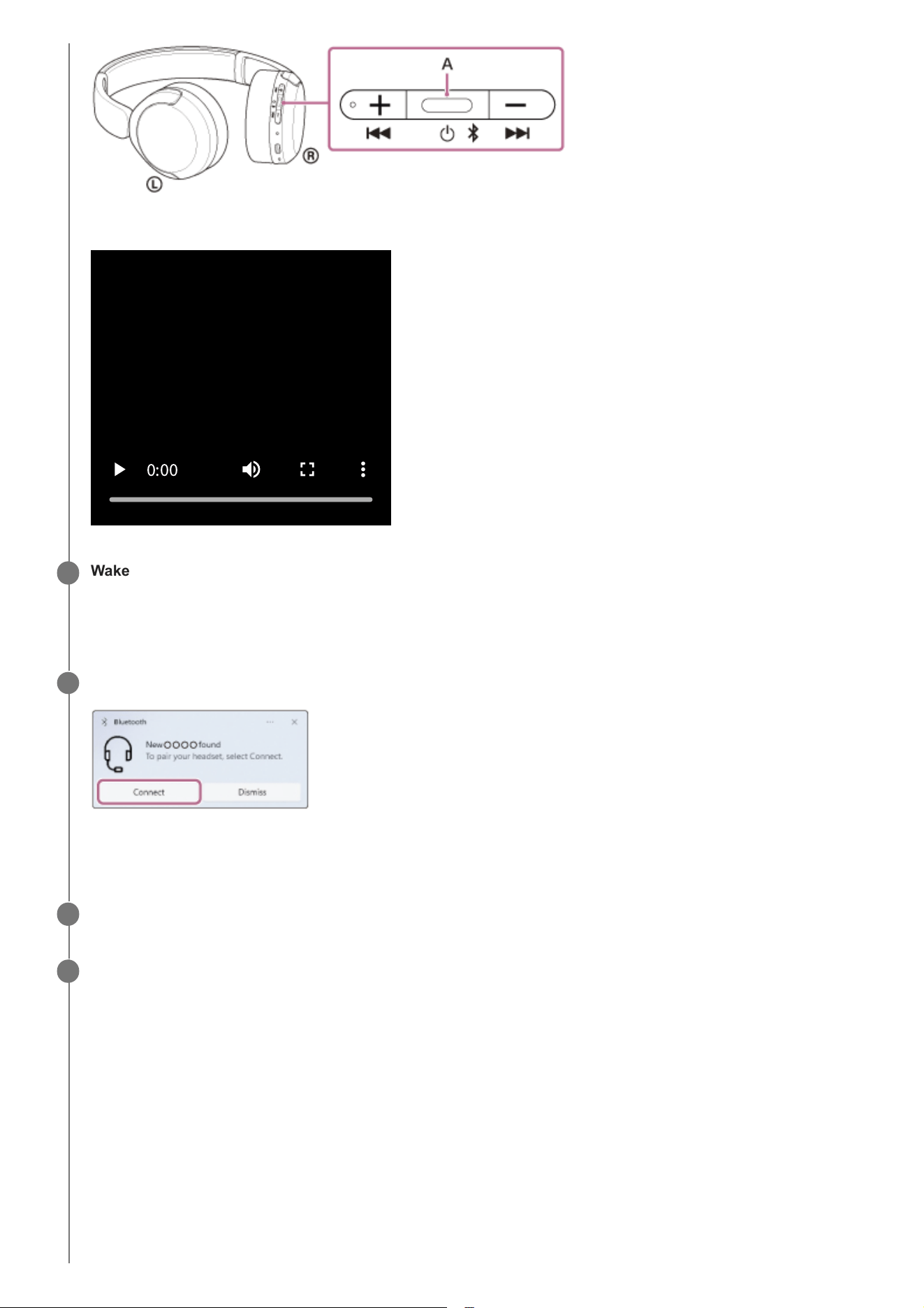
The indicator repeatedly flashes in blue twice in a row. You will hear the voice guidance say, “Pairing”.
0
:
00
Wake the computer up if the computer is in standby (sleep) or hibernation mode.
To use the Swift Pair function, proceed to step 3.
To connect without using the Swift Pair function, proceed to step 4 and continue to step 8.
2
Select [Connect] from the pop-up menu displayed on your computer screen.
The headset and computer are paired and connected with each other.
You will hear a notification sound indicating that the connection is established.
3
On your computer screen, click the [Start] button, then [Settings].
4
Click [Bluetooth & devices].
5
44
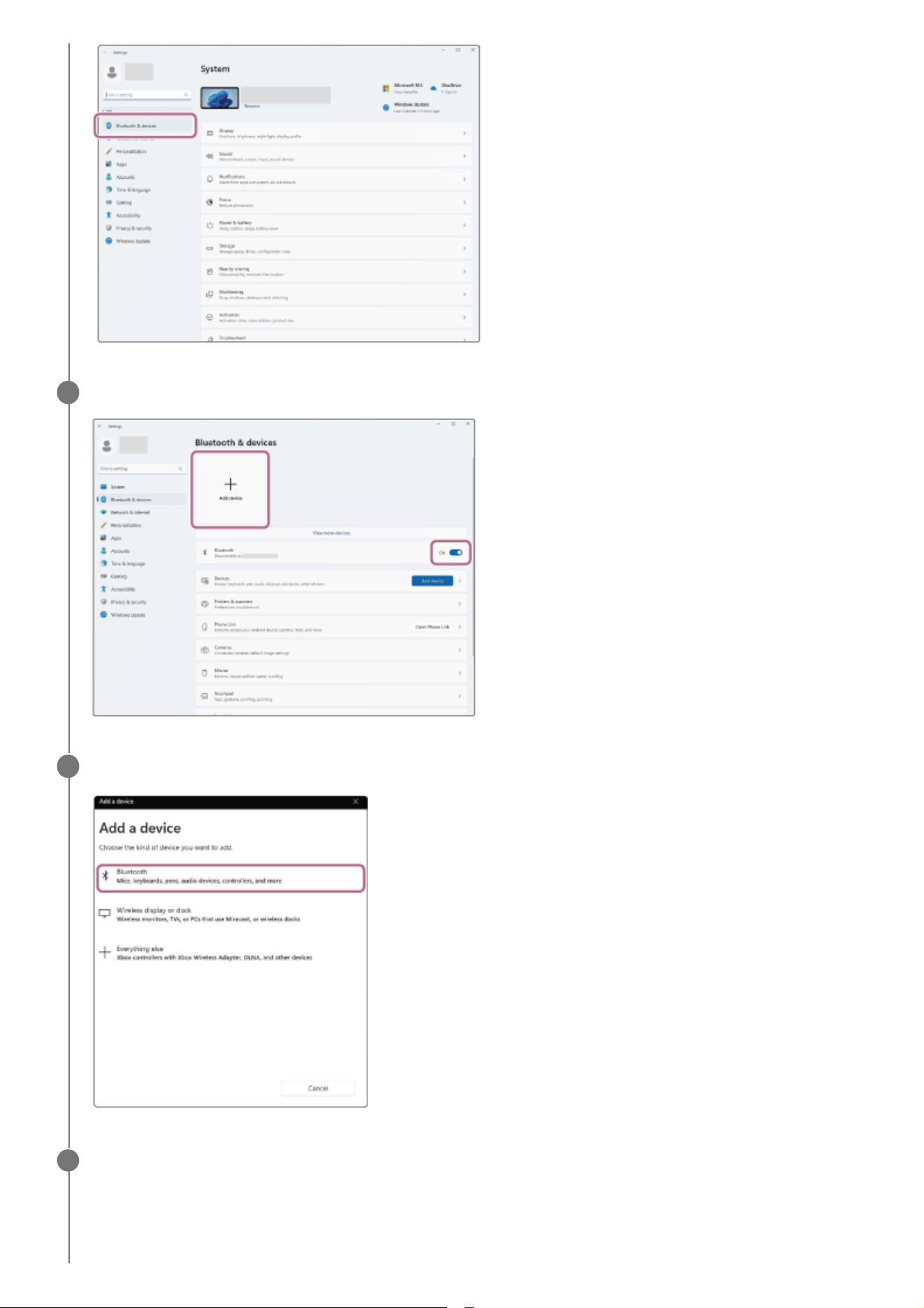
Click the [Bluetooth] switch to turn on the BLUETOOTH function. Click [Add device].
6
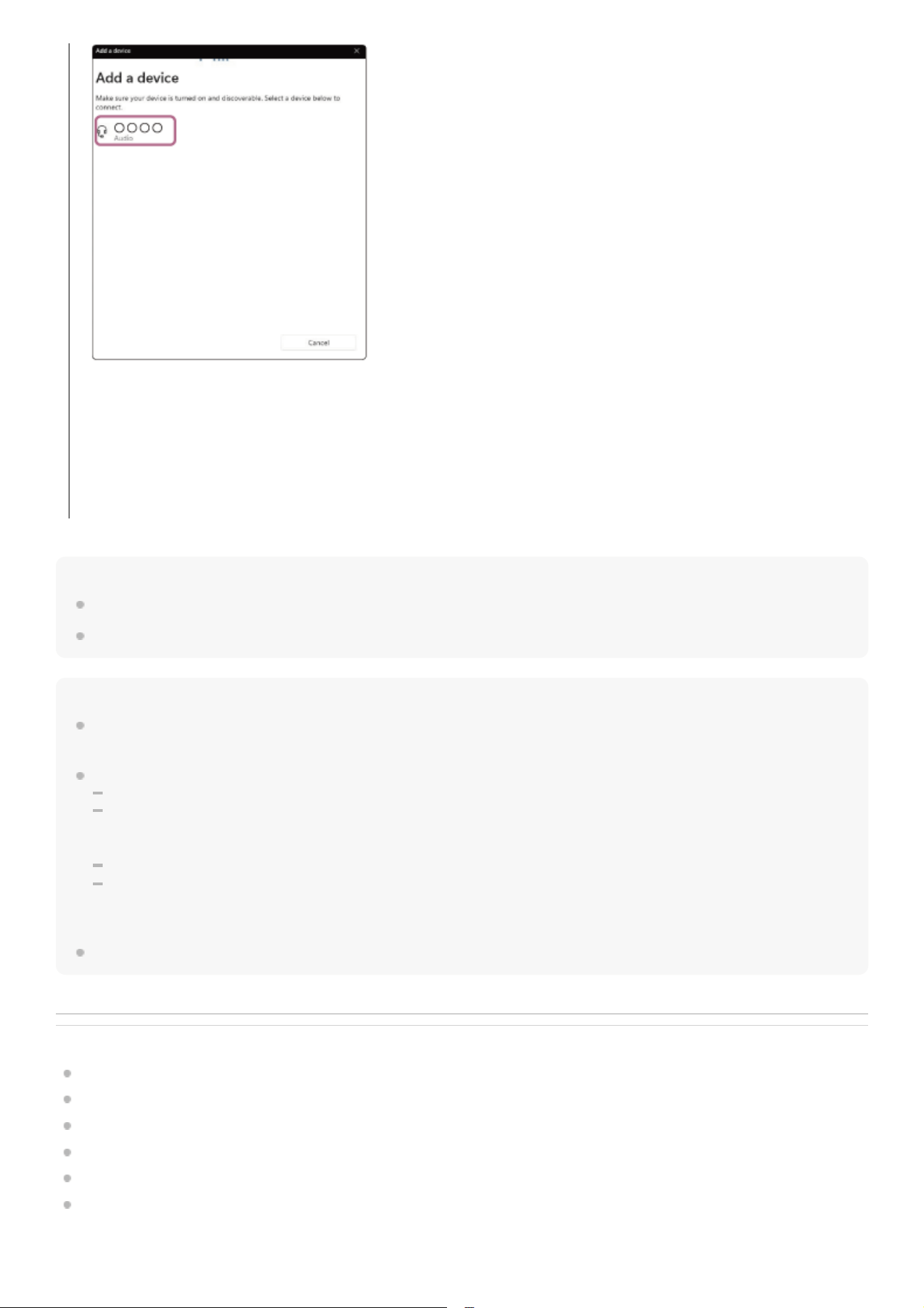
Click [Bluetooth].
7
Click [WH-CH530 series].
8
45
Hint
The above operating procedure is an example. For more details, refer to the operating instructions supplied with the computer.
To delete all BLUETOOTH pairing information, see “Initializing the headset to restore factory settings”.
Note
If pairing is not established within 5 minutes, pairing mode is canceled. In this case, turn off the power and start the operating
procedure again from step 1.
Once BLUETOOTH devices are paired, there is no need to pair them again, except in the following cases:
If pairing information is deleted, such as after a repair
When a 9th device is paired
The headset can be paired with up to 8 devices. If you pair a 9th device, the pairing information with the oldest connection date
and time will be overwritten with the information for the new device.
When the pairing information for the headset has been deleted from the connected BLUETOOTH device
When the headset is initialized
All of the pairing information will be deleted. In this case, delete the pairing information for the headset from the connected
device and then pair them again.
The headset can be paired with multiple devices, but can only play music from 1 paired device at a time.
Related Topic
How to make a wireless connection to BLUETOOTH devices
Connecting to a paired computer (Windows 11)
Listening to music from a device via a BLUETOOTH connection
Making a video call on your computer
Disconnecting BLUETOOTH connection (after use)
Initializing the headset to restore factory settings
TP1002291812
If Passkey (*) input is required, input “0000”.
The headset and computer are paired and connected with each other.
You will hear a notification sound indicating that the connection is established.
If they are not connected, see “Connecting to a paired computer (Windows 11)”.
If [WH-CH530 series] does not appear on your computer screen, try again from step 4.
(*) A Passkey may be called “Passcode”, “PIN code”, “PIN number”, or “Password”.
46

5-075-052-11(2) Copyright 2026 Sony Corporation
47
Help Guide
Wireless Stereo Headset
WH-CH530/ WH-CH535
Pairing and connecting with a computer (Mac)
The operating procedure to register the device that you wish to connect to is called “pairing”. First, pair a device to use it
with the headset for the first time.
Compatible OS
macOS (version 12 or later)
Before starting the operating procedure, check the following.
Your computer has a BLUETOOTH function that supports music playback connections (A2DP).
When you use a video calling application on your computer, your computer has a BLUETOOTH function that supports
calling connections (HFP/HSP).
The computer is placed within 1 m (3.2 ft) of the headset.
The headset is charged sufficiently.
The operating instructions for the computer are in hand.
Depending on the computer you are using, the built-in BLUETOOTH adaptor may need to be turned on. In the
following cases, refer to the operating instructions supplied with your computer.
You do not know how to turn on the BLUETOOTH adaptor.
You want to know if your computer has a built-in BLUETOOTH adaptor.
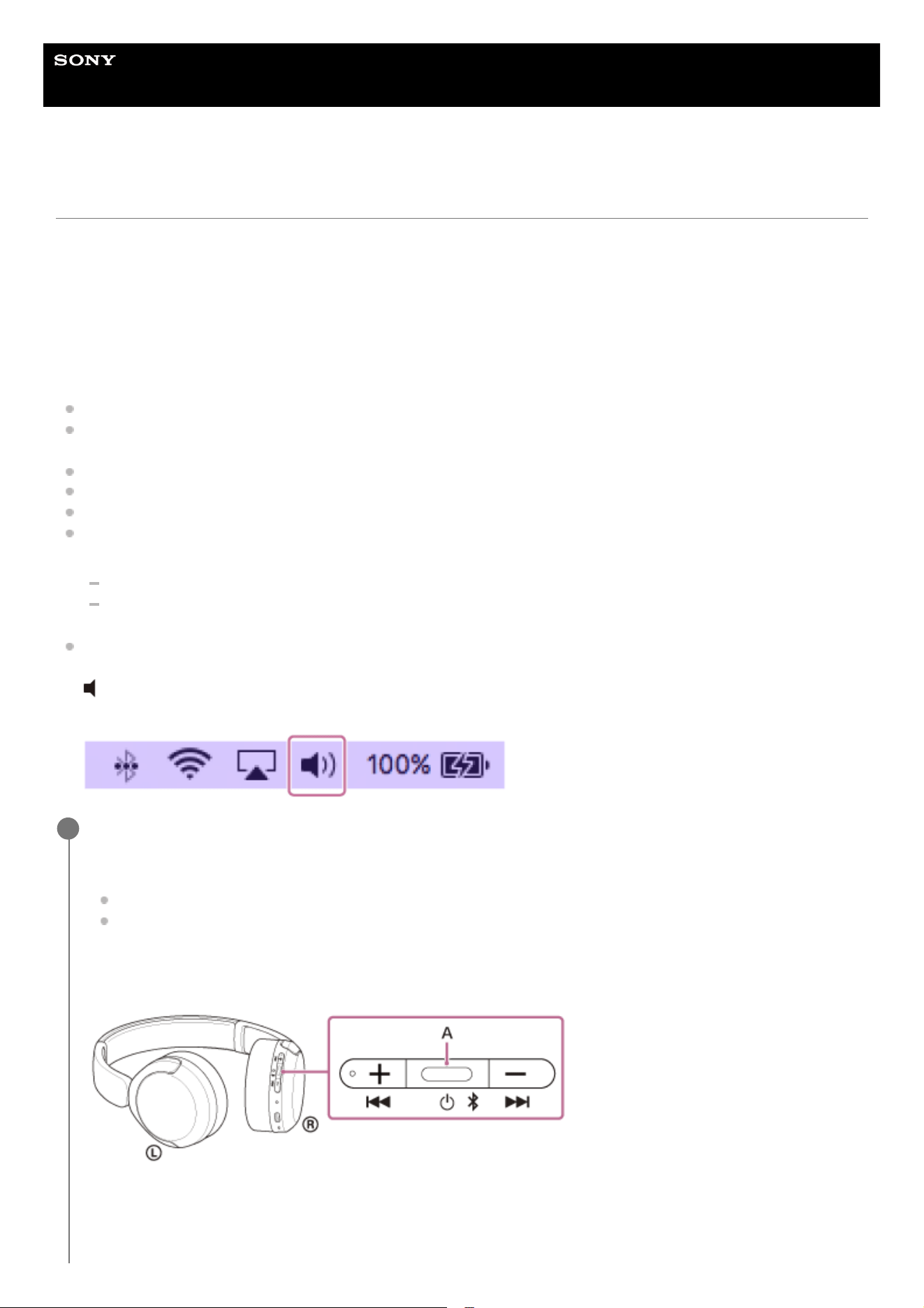
Set the computer speaker to the ON mode.
If the computer speaker is turned off, no sound can be heard from the headset.
: the icon showing the speaker is off
The icon below shows the computer speaker is turned on.
Check the status of the headset.
The headset enters pairing mode automatically in the following cases. Proceed to step 2.
When you pair the headset with a device for the first time after purchasing the headset
After initializing the headset and clearing all pairing information
When you pair a second or subsequent device, if the headset already has pairing information for other devices,
enter pairing mode manually. Press and hold the BLUETOOTH button (A) for about 5 seconds or more.
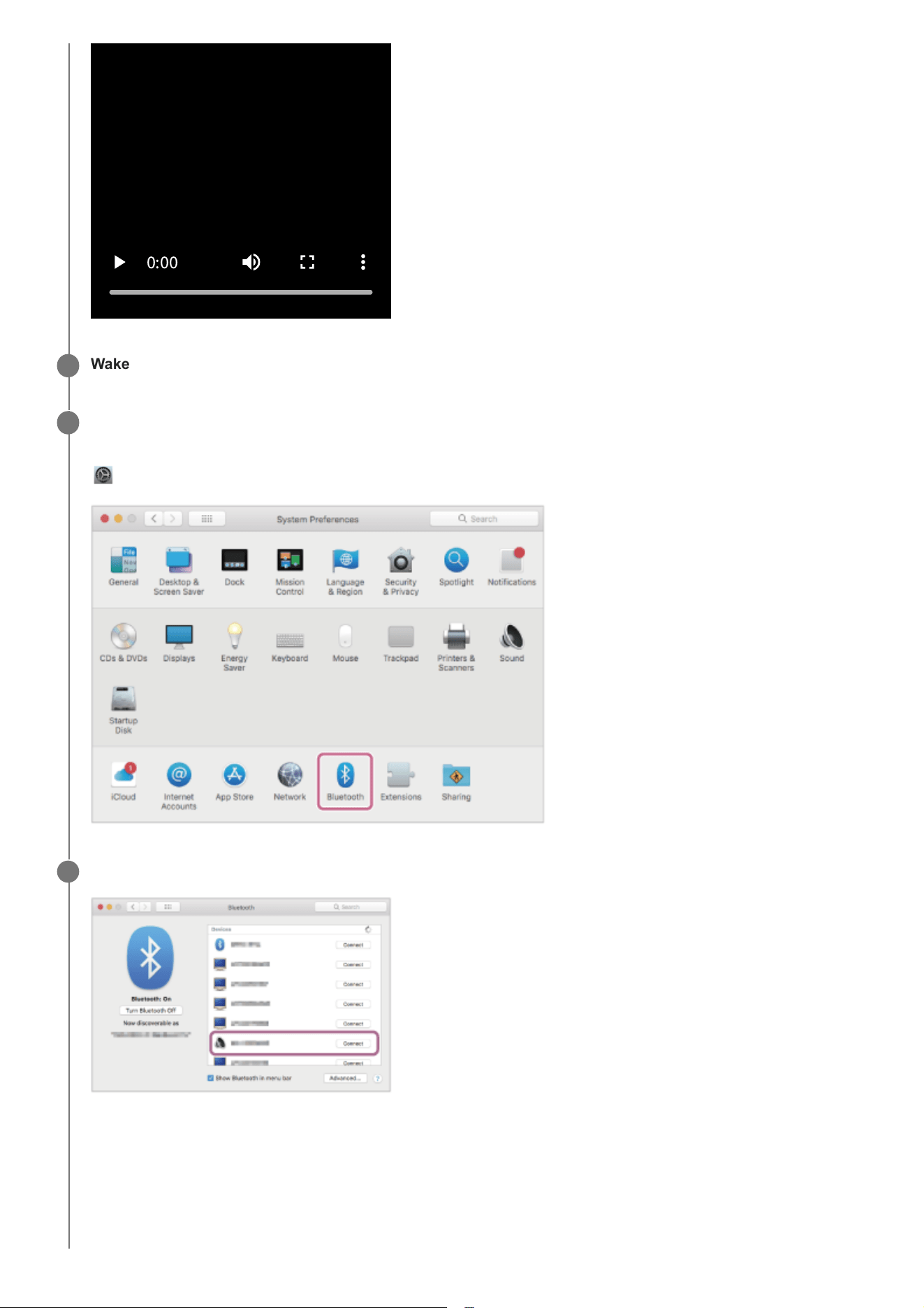
The indicator repeatedly flashes in blue twice in a row. You will hear the voice guidance say, “Pairing”.
1
48
0
:
00
Wake the computer up if the computer is in standby (sleep) or hibernation mode.
2
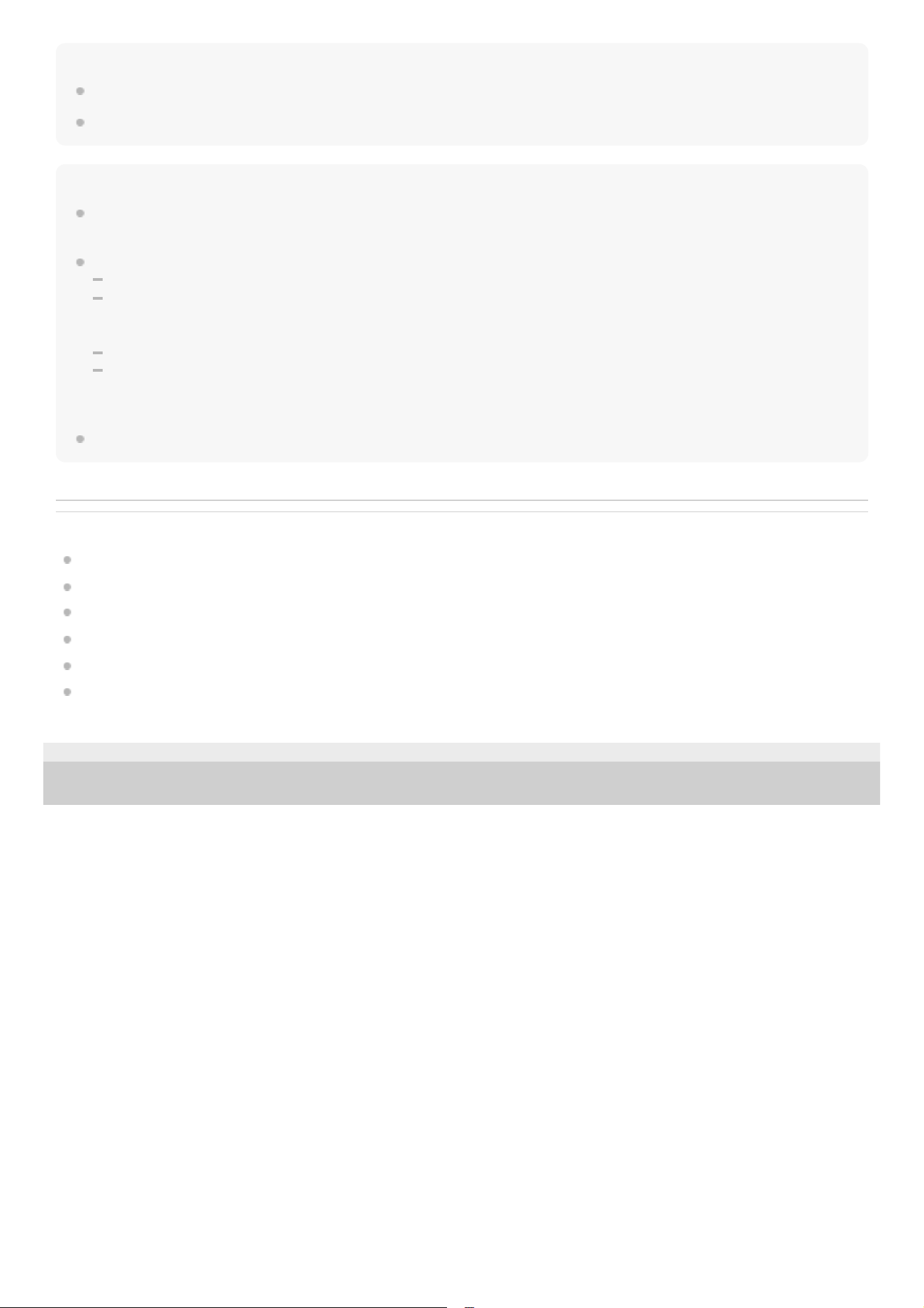
Select the following items from the Dock at the bottom of your computer screen.
[System Preferences] - [Bluetooth]
: the system preferences icon
3
Select [WH-CH530 series] on the [Bluetooth] screen and click [Connect].
If Passkey (*) input is required, input “0000”.
The headset and computer are paired and connected with each other.
You will hear a notification sound indicating that the connection is established.
If they are not connected, see “Connecting to a paired computer (Mac)”.
If [WH-CH530 series] does not appear on your computer screen, try again from step 3.
4
(*) A Passkey may be called “Passcode”, “PIN code”, “PIN number”, or “Password”.
49
Hint
The above operating procedure is an example. For more details, refer to the operating instructions supplied with the computer.
To delete all BLUETOOTH pairing information, see “Initializing the headset to restore factory settings”.
Note
If pairing is not established within 5 minutes, pairing mode is canceled. In this case, turn off the power and start the operating
procedure again from step 1.
Once BLUETOOTH devices are paired, there is no need to pair them again, except in the following cases:
If pairing information is deleted, such as after a repair
When a 9th device is paired
The headset can be paired with up to 8 devices. If you pair a 9th device, the pairing information with the oldest connection date
and time will be overwritten with the information for the new device.
When the pairing information for the headset has been deleted from the connected BLUETOOTH device
When the headset is initialized
All of the pairing information will be deleted. In this case, delete the pairing information for the headset from the connected
device and then pair them again.
The headset can be paired with multiple devices, but can only play music from 1 paired device at a time.
Related Topic
How to make a wireless connection to BLUETOOTH devices
Connecting to a paired computer (Mac)
Listening to music from a device via a BLUETOOTH connection
Making a video call on your computer
Disconnecting BLUETOOTH connection (after use)
Initializing the headset to restore factory settings
TP1002283817
5-075-052-11(2) Copyright 2026 Sony Corporation
50
Help Guide
Wireless Stereo Headset
WH-CH530/ WH-CH535
Connecting to a paired computer (Windows 11)
Before starting the operating procedure, check the following.
Depending on the computer you are using, the built-in BLUETOOTH adaptor may need to be turned on. In the
following cases, refer to the operating instructions supplied with your computer.
You do not know how to turn on the BLUETOOTH adaptor.
You want to know if your computer has a built-in BLUETOOTH adaptor.
Wake the computer up if the computer is in standby (sleep) or hibernation mode.
1
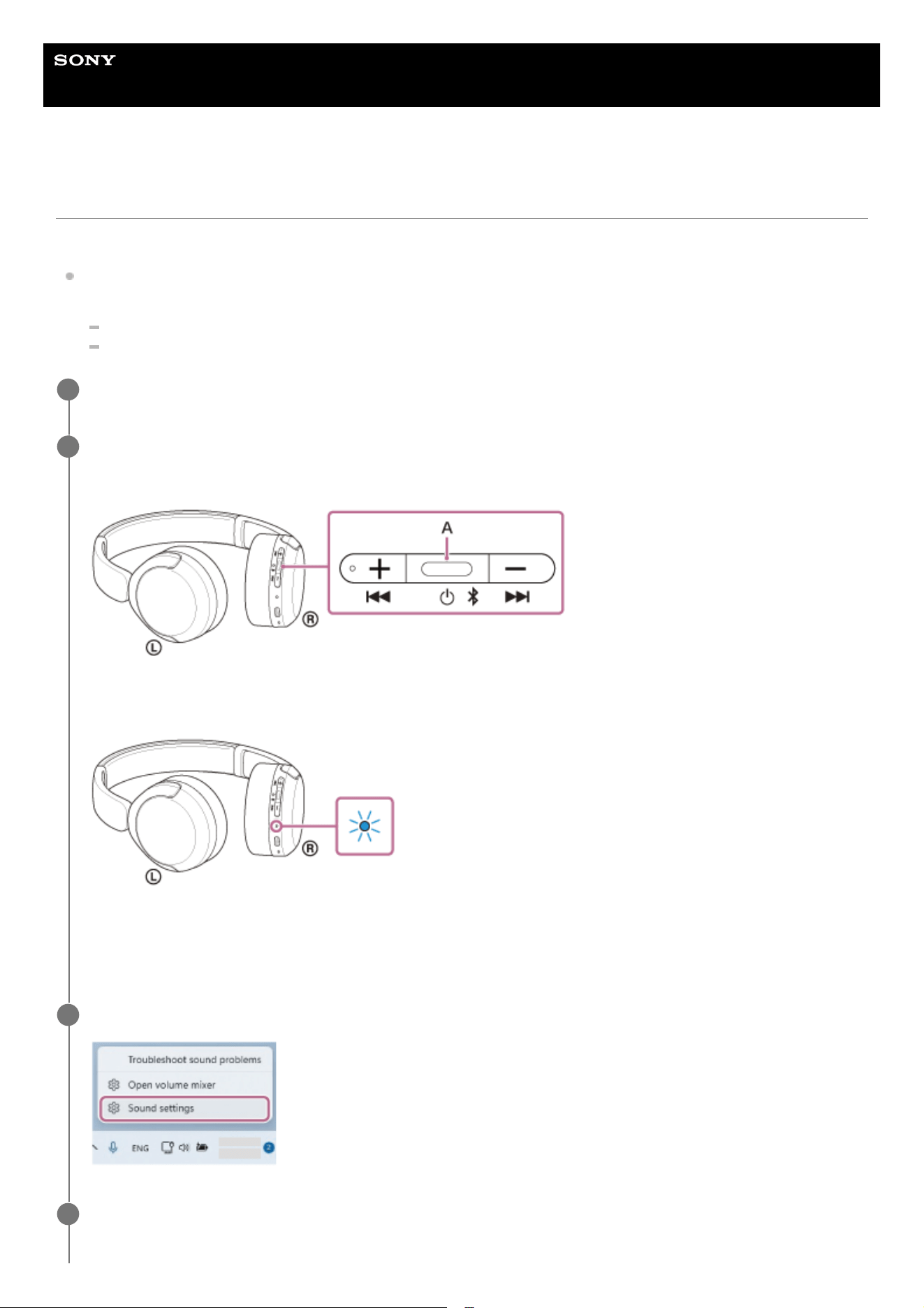
Turn on the headset.
Press and hold the power button (A) for about 2 seconds or more.
You will hear a notification sound indicating that the headset is turned on.
The indicator continues to flash in blue even after you release your finger from the button.
If the headset has automatically connected to the last connected device, you will hear a notification sound indicating
that the connection is established.
Check the connection status on the computer. If it is not connected, proceed to step 3.
2
On your computer screen, right-click the speaker icon on the toolbar, then select [Sound settings].
3
On the [Sound] screen, select [WH-CH530 series] for [Output] and [Input].
4
51
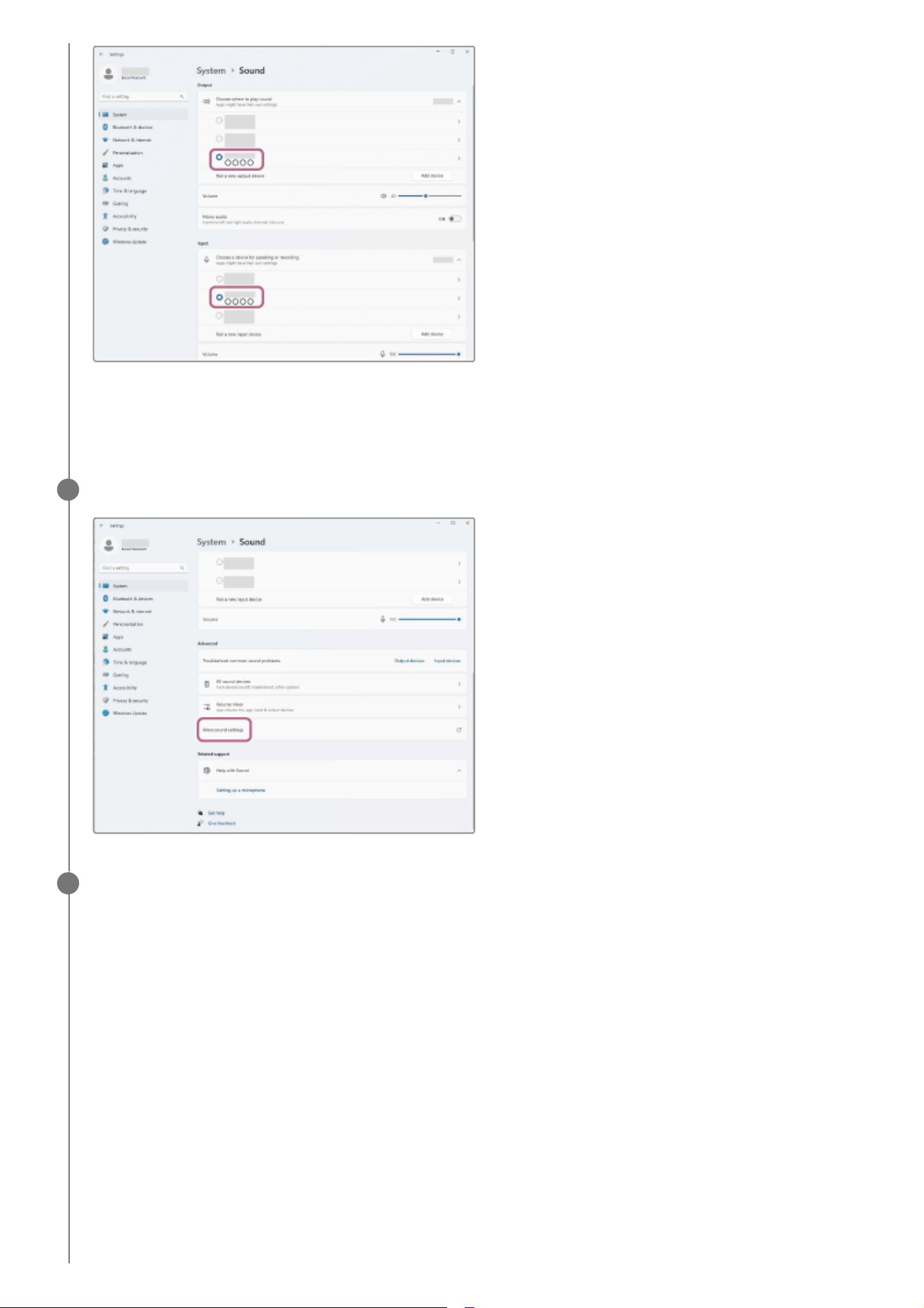
The headset and computer are paired and connected with each other.
You will hear a notification sound indicating that the connection is established.
If [WH-CH530 series] is not displayed for [Output] and [Input], proceed to step 5.
Click [More sound settings].
5
On the [Playback] tab on the [Sound] screen, select [WH-CH530 series], right-click it, and select [Connect]
from the displayed menu.
6
52
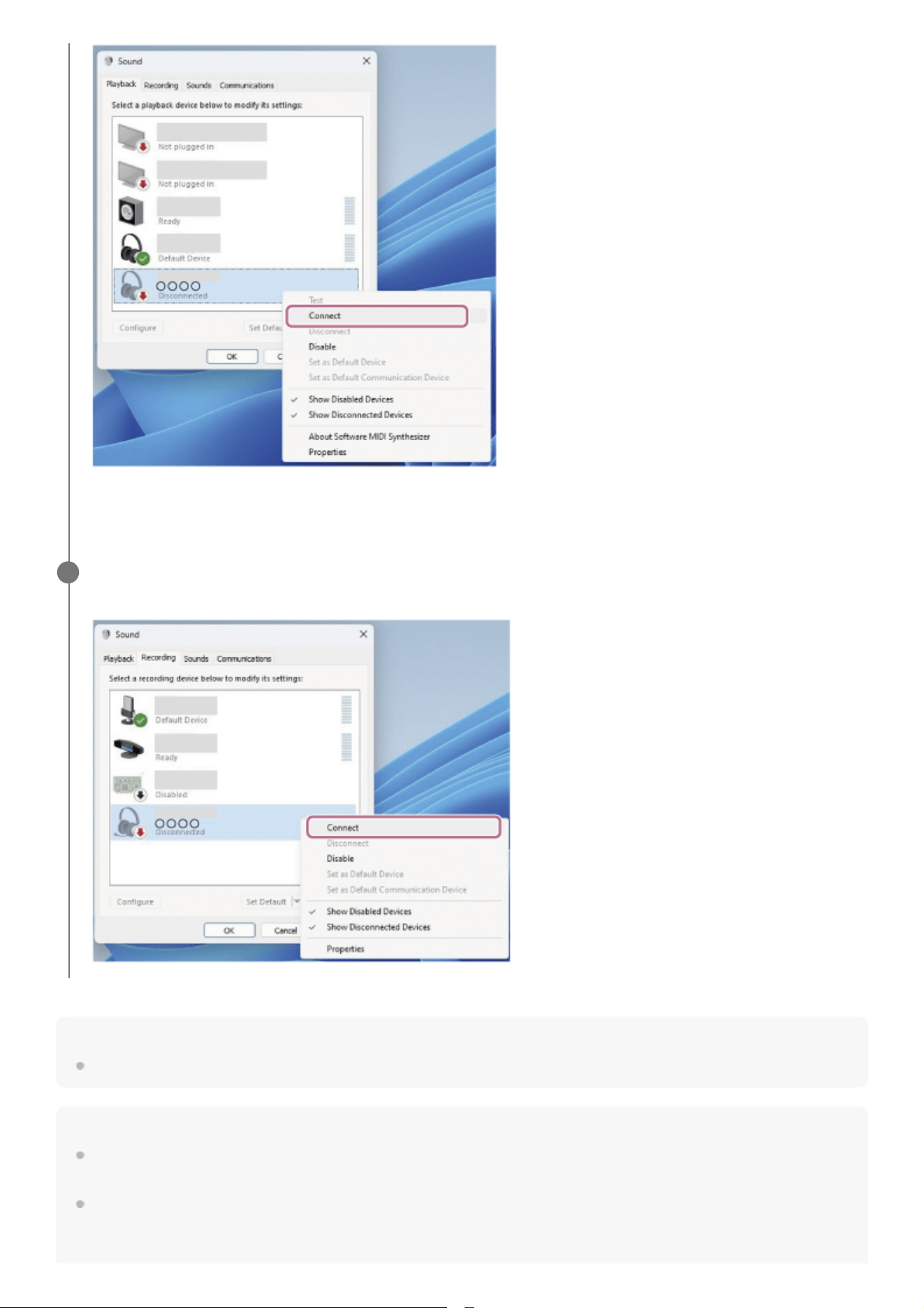
Hint
The above operating procedure is an example. For more details, refer to the operating instructions supplied with the computer.
Note
If the music playback sound quality is poor, check that the A2DP function which supports music playback connections is enabled
in the computer settings. For more details, refer to the operating instructions supplied with the computer.
If the last-connected BLUETOOTH device is placed near the headset, the headset may connect automatically to the device by
simply turning on the headset. If this is the case, deactivate the BLUETOOTH function on the last-connected device or turn off the
power.
The connection is established.
You will hear a notification sound indicating that the connection is established.
On the [Recording] tab, select [WH-CH530 series], right-click it, and select [Connect] from the displayed
menu.
7
53

If you cannot connect your computer to the headset, delete the headset pairing information on your computer. Then, pair them
again. For the operating procedures on your computer, refer to the operating instructions supplied with the computer.
Related Topic
How to make a wireless connection to BLUETOOTH devices
Pairing and connecting with a computer (Windows® 11)
Listening to music from a device via a BLUETOOTH connection
Disconnecting BLUETOOTH connection (after use)
TP1002291811
5-075-052-11(2) Copyright 2026 Sony Corporation
54
Help Guide
Wireless Stereo Headset
WH-CH530/ WH-CH535
Connecting to a paired computer (Mac)
Compatible OS
macOS (version 12 or later)
Before starting the operating procedure, check the following.
Depending on the computer you are using, the built-in BLUETOOTH adaptor may need to be turned on. In the
following cases, refer to the operating instructions supplied with your computer.
You do not know how to turn on the BLUETOOTH adaptor.
You want to know if your computer has a built-in BLUETOOTH adaptor.
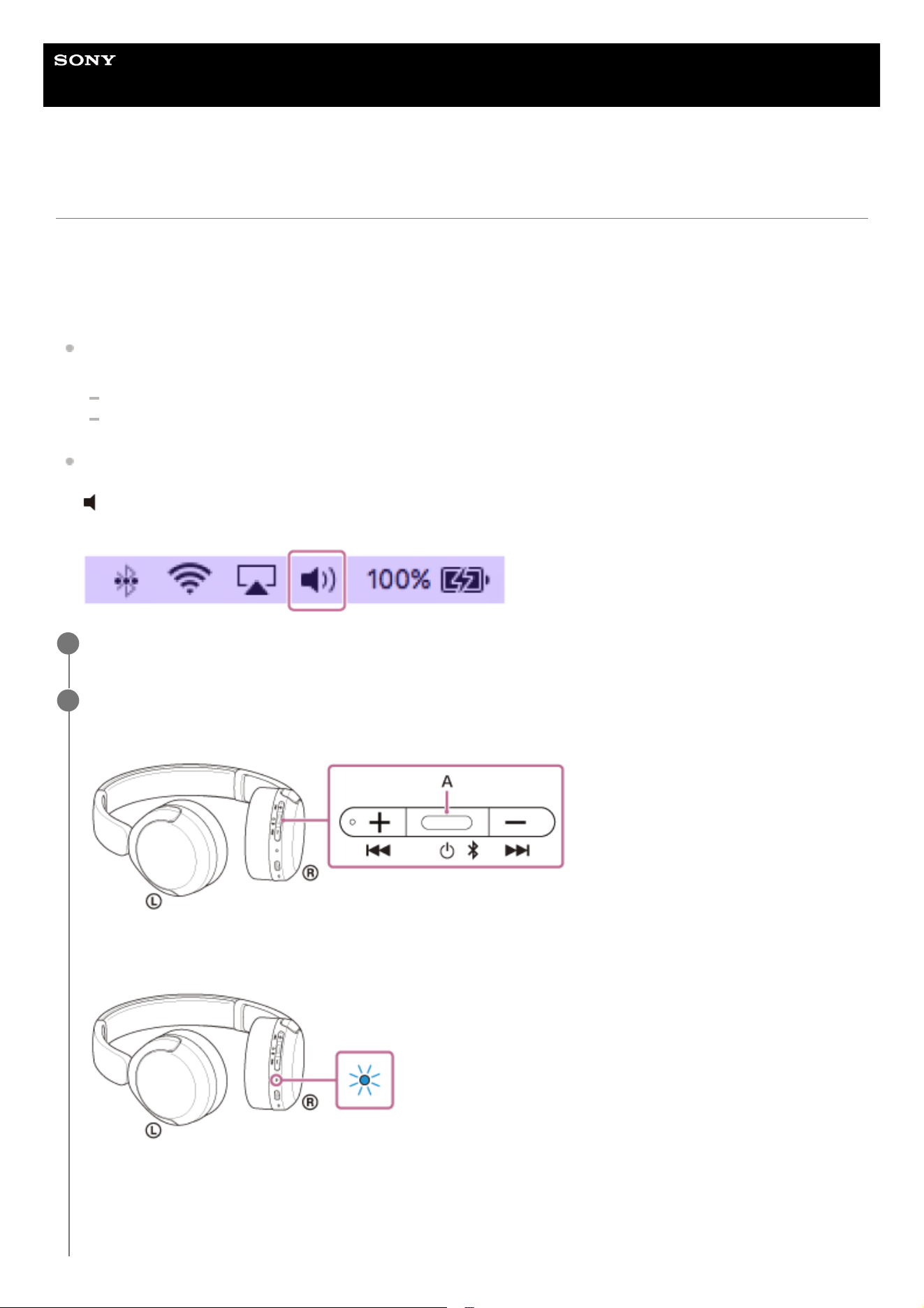
Set the computer speaker to the ON mode.
If the computer speaker is turned off, no sound can be heard from the headset.
: the icon showing the speaker is off
The icon below shows the computer speaker is turned on.
Wake the computer up if the computer is in standby (sleep) or hibernation mode.
1
Turn on the headset.
Press and hold the power button (A) for about 2 seconds or more.
You will hear a notification sound indicating that the headset is turned on.
The indicator continues to flash in blue even after you release your finger from the button.
If the headset has automatically connected to the last connected device, you will hear a notification sound indicating
that the connection is established.
Check the connection status on the computer. If it is not connected, proceed to step 3.
2
55
Hint
The above operating procedure is an example. For more details, refer to the operating instructions supplied with the computer.
Note
If the music playback sound quality is poor, check that the A2DP function which supports music playback connections is enabled
in the computer settings. For more details, refer to the operating instructions supplied with the computer.
If the last-connected BLUETOOTH device is placed near the headset, the headset may connect automatically to the device by
simply turning on the headset. If this is the case, deactivate the BLUETOOTH function on the last-connected device or turn off the
power.
If you cannot connect your computer to the headset, delete the headset pairing information on your computer. Then, pair them
again. For the operating procedures on your computer, refer to the operating instructions supplied with the computer.
Related Topic
How to make a wireless connection to BLUETOOTH devices
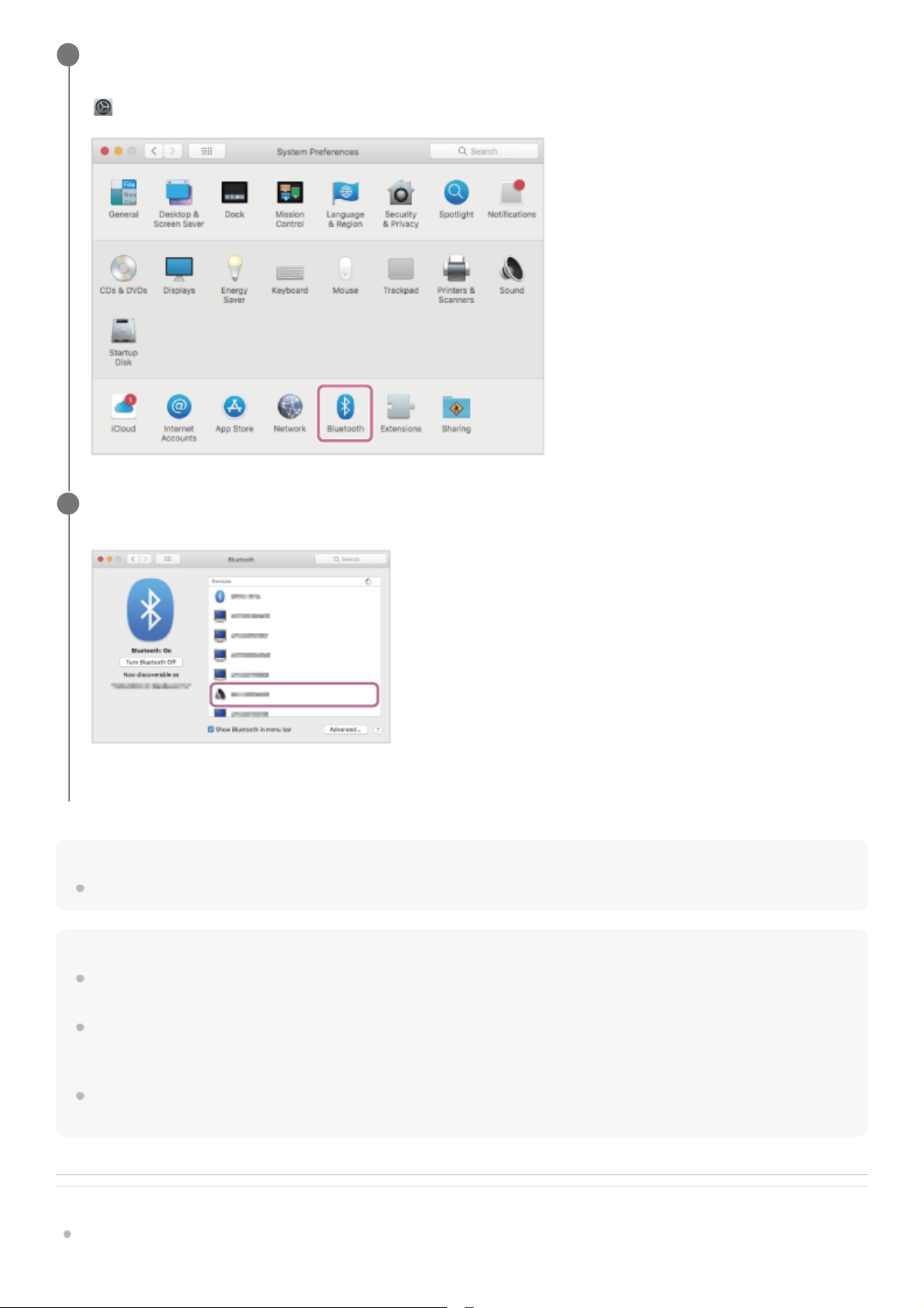
Select the following items from the Dock at the bottom of your computer screen.
[System Preferences] - [Bluetooth]
: the system preferences icon
3
Click [WH-CH530 series] on the [Bluetooth] screen while pressing the computer Control button and select
[Connect] from the pop-up menu.
The connection is established. You will hear a notification sound indicating that the connection is established.
4
56

Help Guide
Wireless Stereo Headset
WH-CH530/ WH-CH535
Pairing and connecting with a BLUETOOTH device
The operating procedure to register the device that you wish to connect to is called “pairing”. First, pair a device to use it
with the headset for the first time.
Before starting the operating procedure, check the following.
The BLUETOOTH device is placed within 1 m (3.2 ft) of the headset.
The headset is charged sufficiently.
The operating instructions for the BLUETOOTH device are in hand.
Check the status of the headset.
The headset enters pairing mode automatically in the following cases. Proceed to step 2.
When you pair the headset with a device for the first time after purchasing the headset
After initializing the headset and clearing all pairing information
When you pair a second or subsequent device, if the headset already has pairing information for other devices,
enter pairing mode manually. Press and hold the BLUETOOTH button (A) for about 5 seconds or more.
The indicator repeatedly flashes in blue twice in a row. You will hear the voice guidance say, “Pairing”.
0
:
00
1
Perform the pairing procedure on the BLUETOOTH device to search for this headset.
[WH-CH530 series] will be displayed on the list of detected devices on the screen of the BLUETOOTH device.
If it is not displayed, repeat from step 1.
2
Select [WH-CH530 series] displayed on the screen of the BLUETOOTH device for pairing.
3
58
Hint
The above operating procedure is an example. For more details, refer to the operating instructions supplied with the BLUETOOTH
device.
To delete all BLUETOOTH pairing information, see “Initializing the headset to restore factory settings”.
Note
If pairing is not established within 5 minutes, pairing mode is canceled. In this case, turn off the power and start the operating
procedure again from step 1.
Once BLUETOOTH devices are paired, there is no need to pair them again, except in the following cases:
If pairing information is deleted, such as after a repair
When a 9th device is paired
The headset can be paired with up to 8 devices. If you pair a 9th device, the pairing information with the oldest connection date
and time will be overwritten with the information for the new device.
When the pairing information for the headset has been deleted from the connected BLUETOOTH device
When the headset is initialized
All of the pairing information will be deleted. In this case, delete the pairing information for the headset from the connected
device and then pair them again.
The headset can be paired with multiple devices, but can only play music from 1 paired device at a time.
Related Topic
How to make a wireless connection to BLUETOOTH devices
Connecting to a paired BLUETOOTH device
Listening to music from a device via a BLUETOOTH connection
Disconnecting BLUETOOTH connection (after use)
Initializing the headset to restore factory settings
TP1002281759
5-075-052-11(2) Copyright 2026 Sony Corporation
If Passkey (*) input is required, input “0000”.
(*) A Passkey may be called “Passcode”, “PIN code”, “PIN number”, or “Password”.
Make the BLUETOOTH connection from the BLUETOOTH device.
Some devices automatically connect with the headset when pairing is complete.
You will hear a notification sound indicating that the connection is established.
If they are not connected, see “Connecting to a paired BLUETOOTH device”.
4
59
Help Guide
Wireless Stereo Headset
WH-CH530/ WH-CH535
Connecting to a paired BLUETOOTH device
Hint
The above operating procedure is an example. For more details, refer to the operating instructions supplied with the BLUETOOTH
device.
Note
If the last-connected BLUETOOTH device is placed near the headset, the headset may connect automatically to the device by
simply turning on the headset. If this is the case, deactivate the BLUETOOTH function on the last-connected device or turn off the
power.
If you cannot connect your BLUETOOTH device to the headset, delete the headset pairing information on your BLUETOOTH
device. Then, pair them again. For the operating procedures on your BLUETOOTH device, refer to the operating instructions
supplied with the BLUETOOTH device.
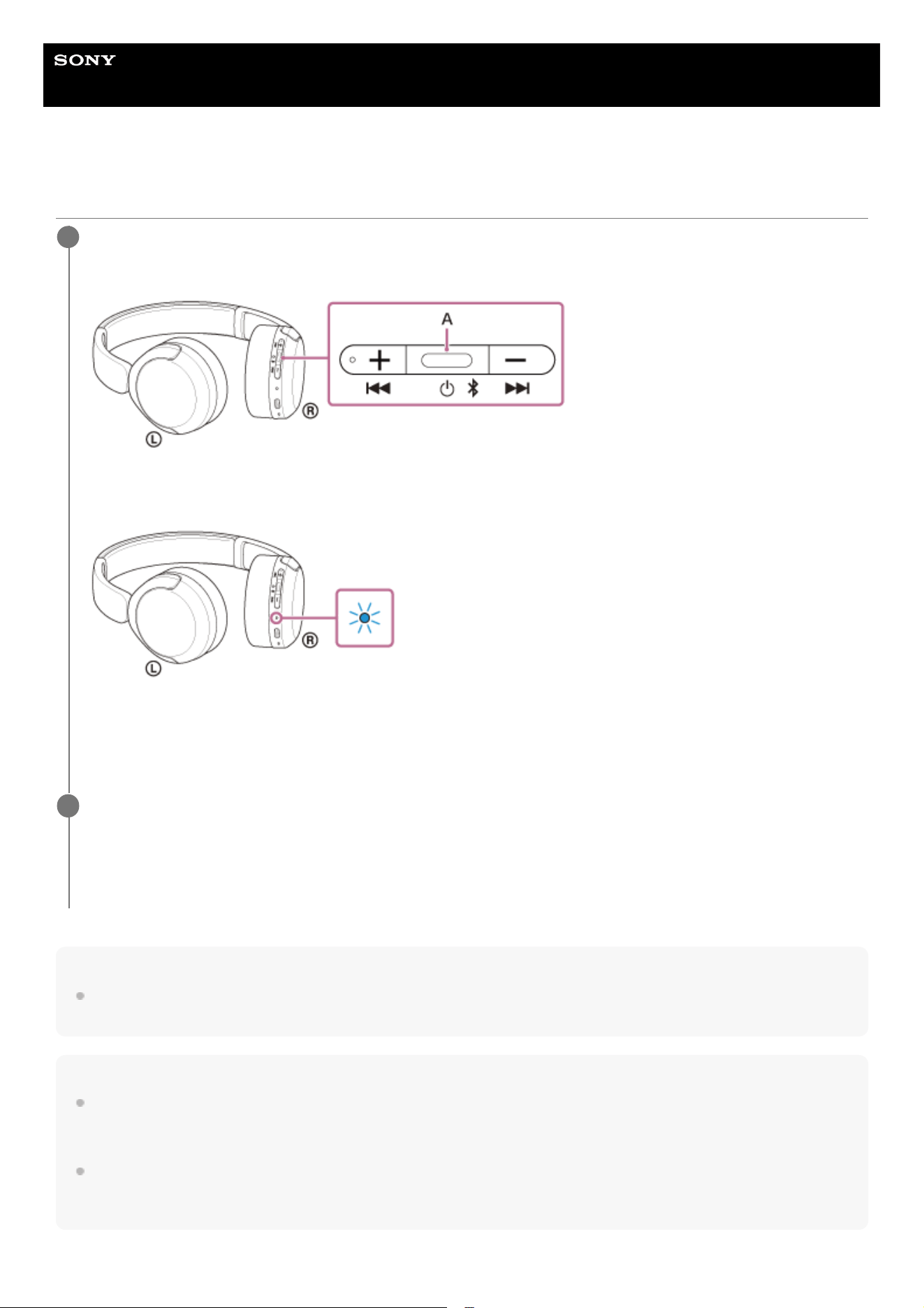
Turn on the headset.
Press and hold the power button (A) for about 2 seconds or more.
You will hear a notification sound indicating that the headset is turned on.
The indicator continues to flash in blue even after you release your finger from the button.
If the headset has automatically connected to the last connected device, you will hear a notification sound indicating
that the connection is established.
Check the connection status on the BLUETOOTH device. If it is not connected, proceed to step 2.
1
Make the BLUETOOTH connection from the BLUETOOTH device.
As for the operations on your BLUETOOTH device, refer to the operating instructions supplied with the
BLUETOOTH device.
When connected, you will hear a notification sound indicating that the connection is established.
2
60

Help Guide
Wireless Stereo Headset
WH-CH530/ WH-CH535
Connecting the headset to 2 devices simultaneously (multipoint connection)
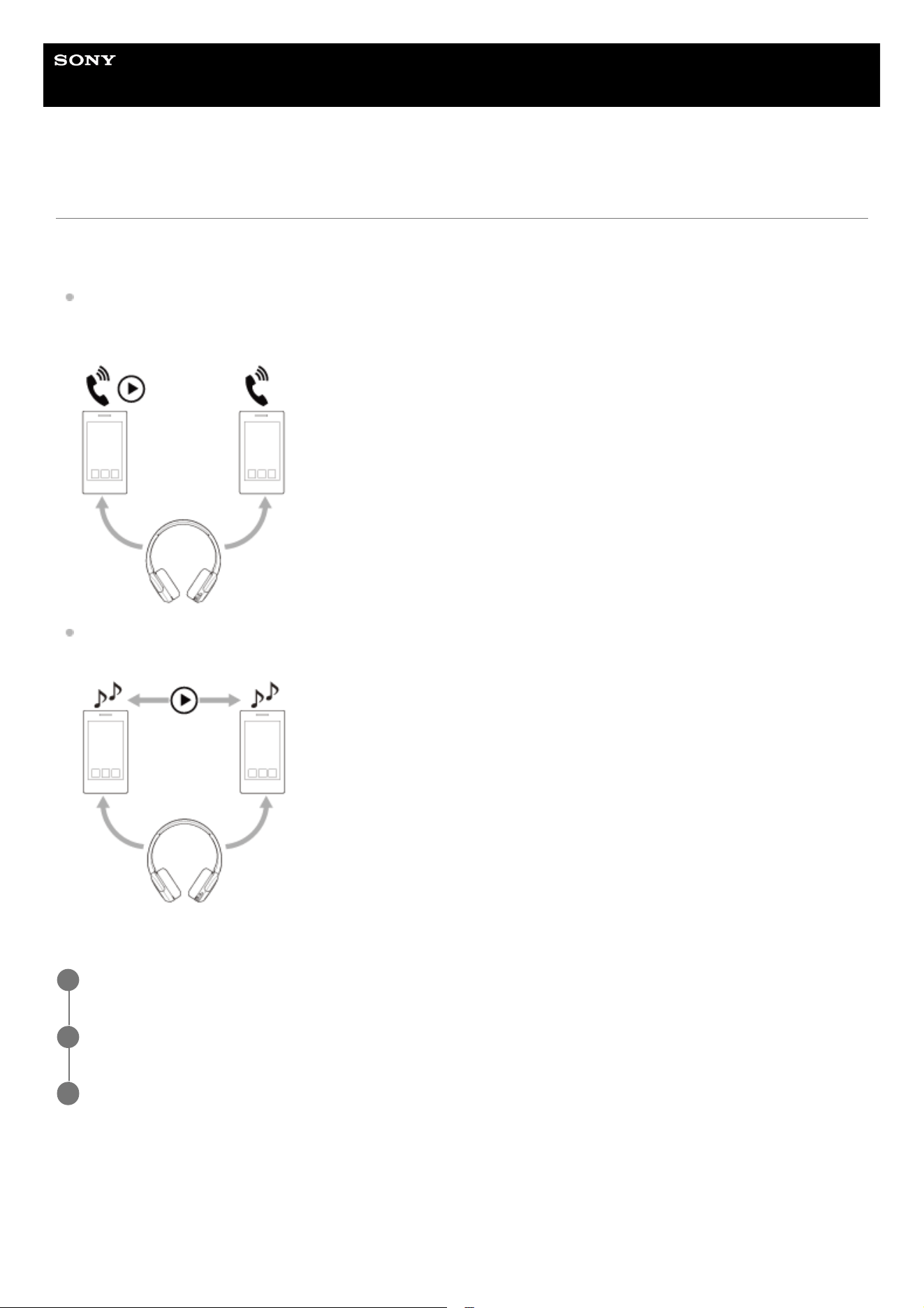
The headset can be simultaneously connected to 2 devices via BLUETOOTH connections, allowing you to perform the
following.
Waiting for an incoming call for 2 smartphones
You can listen to music played on one smartphone with the headset, wait for an incoming call for both smartphones,
and talk if an incoming call arrives.
Switching music playback between 2 devices
You can switch the music playback from one device to the other without performing a BLUETOOTH reconnection.
Connecting the headset to 2 devices simultaneously via BLUETOOTH connections
The following occurs when attempting to connect a paired third device to a headset via a BLUETOOTH connection while
2 devices are already connected via BLUETOOTH connections.
The BLUETOOTH connection with the device that was last playing music will be maintained.
The BLUETOOTH connection with the other device will be disconnected.
Then a BLUETOOTH connection between the third device and the headset is established.
Pair the headset with 2 devices, respectively.
1
Operate the first device to establish a BLUETOOTH connection with the headset.
2
Operate the second device to establish a BLUETOOTH connection with the headset.
3
62
Music playback when the headset is connected to 2 devices via BLUETOOTH
connections
When playing music by operating the headset, the music is played from the device that played last.
If you start playback by operating the second device while playing music on the first device, the music of the second
device will be heard via the headset.
Talking on the phone when the headset is connected to 2 devices via BLUETOOTH
connections
When the headset is connected to 2 smartphones via BLUETOOTH connections simultaneously, both devices will be
in standby mode.
When an incoming call arrives to the first device, a ring tone is heard via the headset.
When an incoming call arrives to the second device while talking on the headset, a ring tone is heard overlapping the
call on the first device. In this case, you can use the headset to answer or reject the second call, but you cannot end
the first call.
If you want to end the first call, you will need to operate the connected device.
If the second call is received without finishing the first call, the first call will continue silently. When the second call is
finished, the call will return to the first call.
Note
If the connected device switches at an unintended time, you may be able to prevent the device from switching by turning off the
notification and operation sound on your smartphone or lowering the volume.
Related Topic
Using the “Sound Connect” app
How to make a wireless connection to BLUETOOTH devices
Supported codecs
TP1002288513
5-075-052-11(2) Copyright 2026 Sony Corporation
63

Help Guide
Wireless Stereo Headset
WH-CH530/ WH-CH535
Switching audio between multiple devices with “audio switch”
The “audio switch” function is a Google feature that switches audio between Android devices.
Headsets that support “audio switch” can connect to multiple devices. When you use your headset on devices with “audio
switch” turned on, the audio heard from your headset seamlessly switches between devices. Your device notifies you
when the audio has switched devices.
Compatible smartphones
Android 8.0 or later
For details on “audio switch”, refer to the following URL.
https://support.google.com/android/?p=switch_audio
To use this function, you need to connect your headset and device via Google Fast Pair.
For details on Google Fast Pair, refer to the following URL.
https://support.google.com/android/answer/9417604
Note
The specifications of “audio switch” are subject to change without notice.
TP1002295058
5-075-052-11(2) Copyright 2026 Sony Corporation
64
Help Guide
Wireless Stereo Headset
WH-CH530/ WH-CH535
Disconnecting BLUETOOTH connection (after use)
Hint
When you finish playing music, the BLUETOOTH connection may terminate automatically depending on the BLUETOOTH device.
Related Topic
Turning off the headset
TP1002281817
5-075-052-11(2) Copyright 2026 Sony Corporation
Disconnect the BLUETOOTH connection by operating the BLUETOOTH device.
You will hear a notification sound.
1
Turn off the headset.
You will hear a notification sound.
2
65
Help Guide
Wireless Stereo Headset
WH-CH530/ WH-CH535
Listening to music from a device via a BLUETOOTH connection
If your BLUETOOTH device supports the following profiles, you can enjoy listening to music and control the device from
your headset via a BLUETOOTH connection.
A2DP (Advanced Audio Distribution Profile)
You can enjoy high-quality music wirelessly.
AVRCP (Audio Video Remote Control Profile)
You can adjust the volume and other settings.
The operation may vary depending on the BLUETOOTH device. Refer to the operating instructions supplied with the
BLUETOOTH device.
Hint
The headset supports SCMS-T content protection. You can enjoy music and other audio on the headset from a device such as a
portable TV that supports SCMS-T content protection.
Depending on the BLUETOOTH device, it may be necessary to adjust the volume or set the audio output setting on the device.
The headset volume during a call and during music playback can be independently adjusted. Even if you change the volume
during music playback, the volume of a call does not change.
Note
Connect the headset to a BLUETOOTH device.
1
Put the headset on your ears.
See “Wearing the headset” for how to put the headset on your ears.
2
Operate the BLUETOOTH device to start playback and adjust the volume to a moderate level.
3
Adjust the volume by pressing the volume up/volume down buttons of the headset.
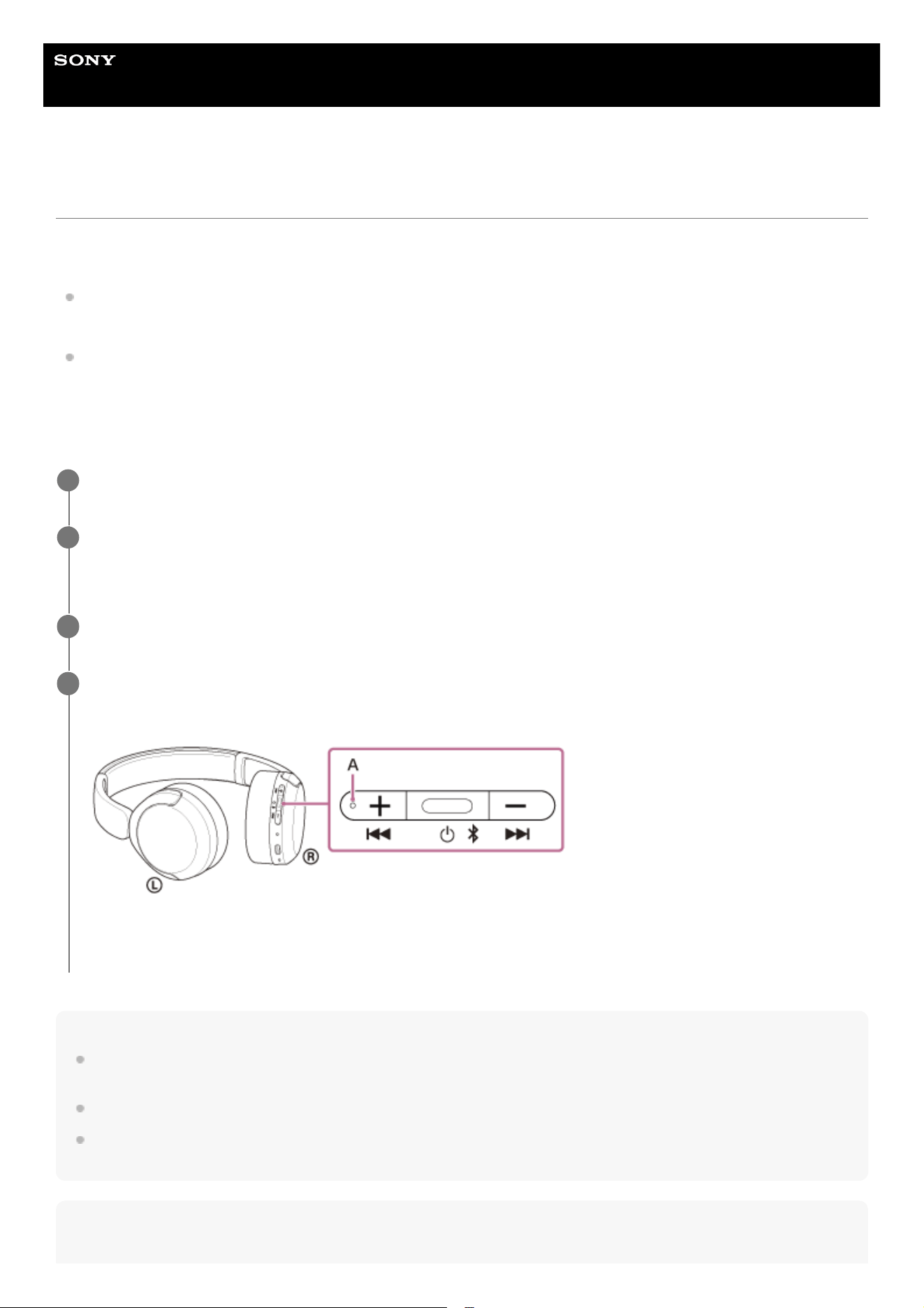
There is a tactile dot (A) on the + button.
When the volume reaches the maximum or minimum, an alarm sounds.
4
66

If the communication condition is poor, the BLUETOOTH device may malfunction in response to the operating procedure on the
headset.
Related Topic
How to make a wireless connection to BLUETOOTH devices
Controlling the audio device (BLUETOOTH connection)
TP1002281757
5-075-052-11(2) Copyright 2026 Sony Corporation
67
Help Guide
Wireless Stereo Headset
WH-CH530/ WH-CH535
Controlling the audio device (BLUETOOTH connection)
If your BLUETOOTH device supports the AVRCP profile’s operating function, the following operating procedures are
available. The available functions may vary depending on the BLUETOOTH device, so refer to the operating instructions
supplied with the device.
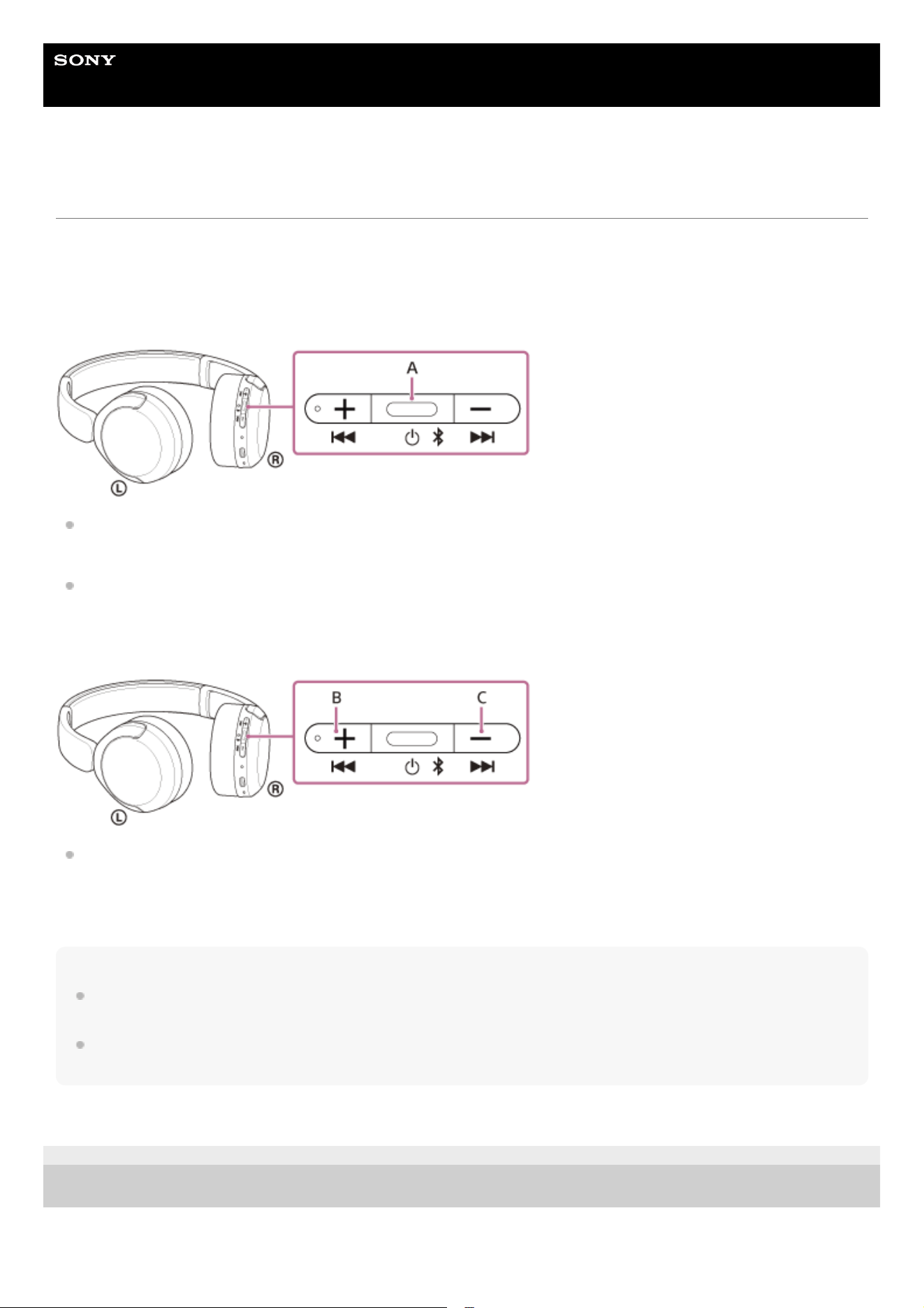
You can use the play button (A) to perform the following.
To play:
Press once briefly while paused.
To pause:
Press once briefly during playback.
You can use the volume up/next button (B) and volume down/previous button (C) to perform the following.
To adjust the volume:
Press and hold until you hear a notification sound to skip to the beginning of the previous track (or the current track
during playback)/beginning of the next track. After releasing the button, press it repeatedly within 1 second to hear a
notification sound and skip to the beginning of the previous/next track.
Note
If the communication condition is poor, the BLUETOOTH device may malfunction in response to the operating procedure on the
headset.
The available functions may vary depending on the connected device, the music software, or app used. In some cases, the device
may function differently or may not work even if the above operating procedures described are performed.
TP1002281758
5-075-052-11(2) Copyright 2026 Sony Corporation
68

Help Guide
Wireless Stereo Headset
WH-CH530/ WH-CH535
About 360 Reality Audio
360 Reality Audio is a new music experience using Sony’s 360 three-dimensional audio technology.
Positional information is attached to each sound source such as vocals, chorus, and musical instruments, and are placed
in a spherical space.
Listeners can experience a three-dimensional sound field as if they are immersed in a live performance of the artists.
Conditions of use
Download and use a music streaming service app that supports 360 Reality Audio on your smartphone or tablet equipped
with iOS or Android. The app may require a fee.
By optimizing the sound field and the acoustic feature of headset with the “Sound Connect” app, you can enjoy a more
realistic sense of reality.
For details on 360 Reality Audio, refer to the following URL.
https://www.sony.net/360RA/
Note
Service is not available in certain countries and regions.
TP1002282926
5-075-052-11(2) Copyright 2026 Sony Corporation
69
Help Guide
Wireless Stereo Headset
WH-CH530/ WH-CH535
Enjoying seamless playback with speakers (Auto Switch)
You can enjoy wireless playback while having the audio output source automatically switched between the headset and
the speaker without operating the headset or the speaker.
The Auto Switch function requires both the headset and speaker to be compatible with devices that support Auto Switch.
Set up with the “Sound Connect” app.
For details on the Auto Switch compatible devices, refer to the following URL.
https://www.sony.net/asw_comp_hp
Before using Auto Switch, make sure of the following:
Install the “Sound Connect” app on your smartphone.
Update the software of the speaker and headset to the latest version.
To adjust the volume
Adjust the volume on the headset or speaker during playback. Even if you change the volume, the volume setting on your
headset or speaker that is not playing music will not be affected.
To disable Auto Switch
Cancel the link on the “Sound Connect” app. Initializing the headset or the linked speaker cancels the link as well.
Hint
If you do not want to automatically switch the audio output source while the speaker linkage is enabled, pause music playback on
the smartphone beforehand.
Pair the Auto Switch compatible speaker with your smartphone that has the “Sound Connect” app installed.
If already paired, connect the speaker to your smartphone.
1
Check that the BLUETOOTH standby function of the speaker is enabled in the “Sound Connect” app.
2
Turn off the speaker.
3
Connect the headset to your smartphone and follow the on-screen instructions from Auto Switch to enable
the linkage with the speaker.
4
Start playing music on your smartphone.
Start playing music on the smartphone on which the “Sound Connect” app is installed and the Auto Switch settings
are specified.
When you turn off the headset while music playback from the headset is in progress, the audio output source for
music playback is automatically switched to the speaker.
If the audio output source is not switched as expected, try bringing the speaker and the headset closer to each
other.
When you turn on the headset while music playback from the speaker is in progress, the audio output source for
music playback is automatically switched to the headset.
5
70

Note
Auto Switch does not work for the hands-free function of the connected smartphone.
TP1002295061
5-075-052-11(2) Copyright 2026 Sony Corporation
71
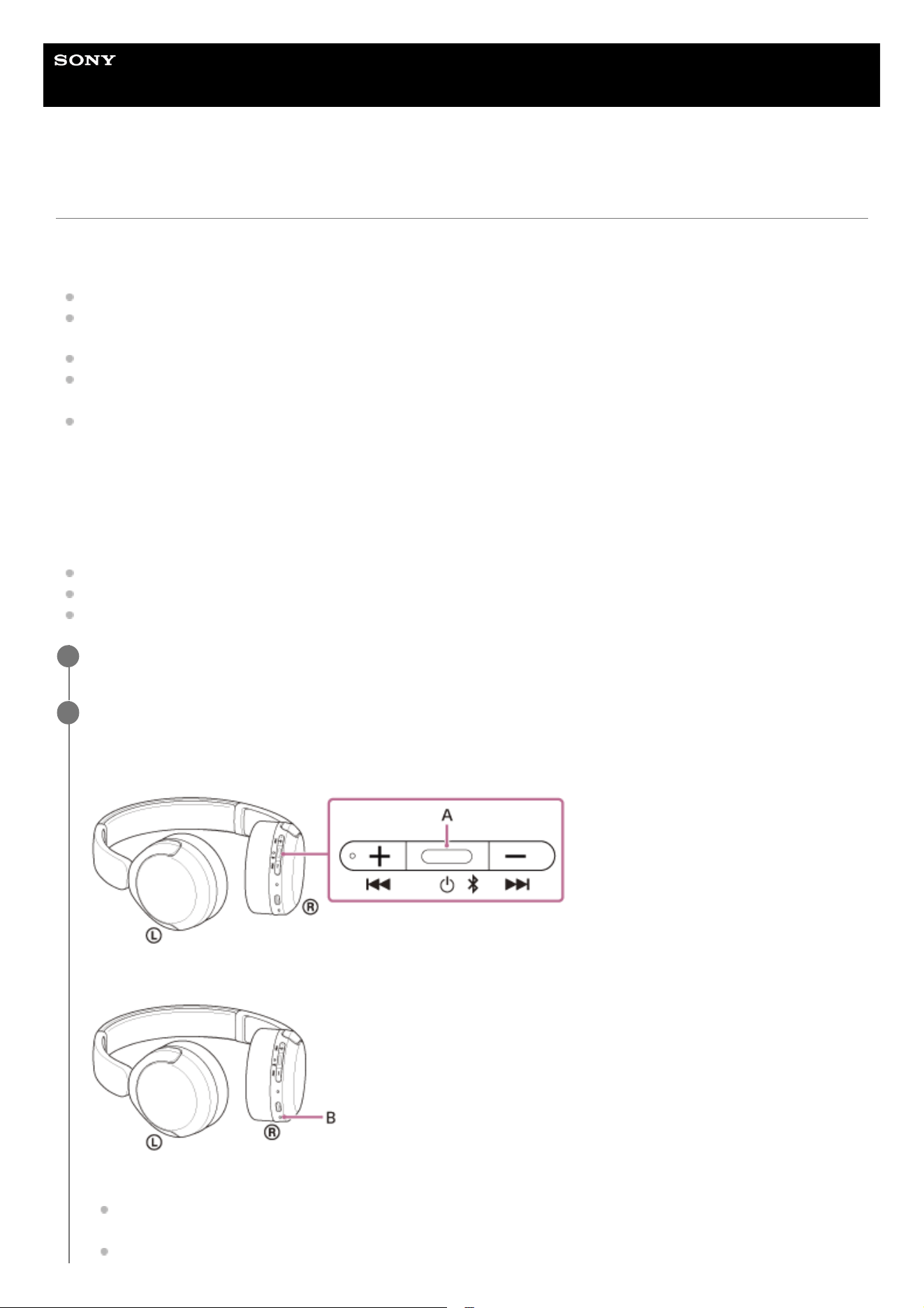
Help Guide
Wireless Stereo Headset
WH-CH530/ WH-CH535
Receiving a call
You can talk on the phone hands-free via a BLUETOOTH connection on a smartphone that supports the following
BLUETOOTH profiles.
HFP : Hands-free Profile
HSP : Headset Profile
If your smartphone supports both HFP and HSP, set it to HFP.
The operating procedure may vary depending on the smartphone. Refer to the operating instructions supplied with
the smartphone.
Depending on the connected device or the application, the functions may not work properly even if you try to operate
them with the headset.
Ring tone
When an incoming call arrives, a ring tone will be heard from the headset, and the indicator flashes quickly in blue.
You will hear either of following ring tones, depending on your smartphone.
Ring tone set on the headset
Ring tone set on the smartphone
Ring tone only for a BLUETOOTH connection set on the smartphone
Connect the headset to a smartphone via a BLUETOOTH connection beforehand.
1
When you hear the ring tone, press the call button (A) on the headset and receive the call.
When you receive an incoming call during music playback, playback pauses and a ring tone will be heard from the
headset.
You can talk using the microphone (B) on the right unit.
If no ring tone is heard via the headset
The headset may not be connected with the smartphone over HFP or HSP. Check the connection status on the
smartphone.
If music playback does not pause automatically, operate the playback device to pause playback.
2
72
Hint
When receiving a call by using a smartphone, some smartphones may receive a call on the phone instead of the headset. With an
HFP or HSP connection, switch the call to the headset by using your smartphone.
The volume for a call can be adjusted during a telephone conversation only.
The headset volume during a call and during music playback can be independently adjusted. Even if you change the volume
during a call, the volume of music playback does not change.
Note
Depending on the connected device or playback application you are using, when you receive an incoming call during music
playback, playback may not resume automatically even after you finish the call.
Use a smartphone at least 50 cm (19.68 in) away from the headset. Noise may result if the smartphone is too close to the
headset.
Your voice will be heard from the headset through the headset’s microphone (Sidetone function). In this case, ambient sounds or
the sounds of the headset operating procedure may be heard through the headset, but this is not a malfunction.
Related Topic
How to make a wireless connection to BLUETOOTH devices
Making a call
Functions for a phone call
TP1002281768
5-075-052-11(2) Copyright 2026 Sony Corporation
Adjust the volume by pressing the volume up/volume down buttons of the headset.
When the volume reaches the maximum or minimum, an alarm sounds.
3
When you finish your phone call, press the call button on the headset to end the call.
If you received a call during music playback, music playback resumes automatically after ending the call.
4
73
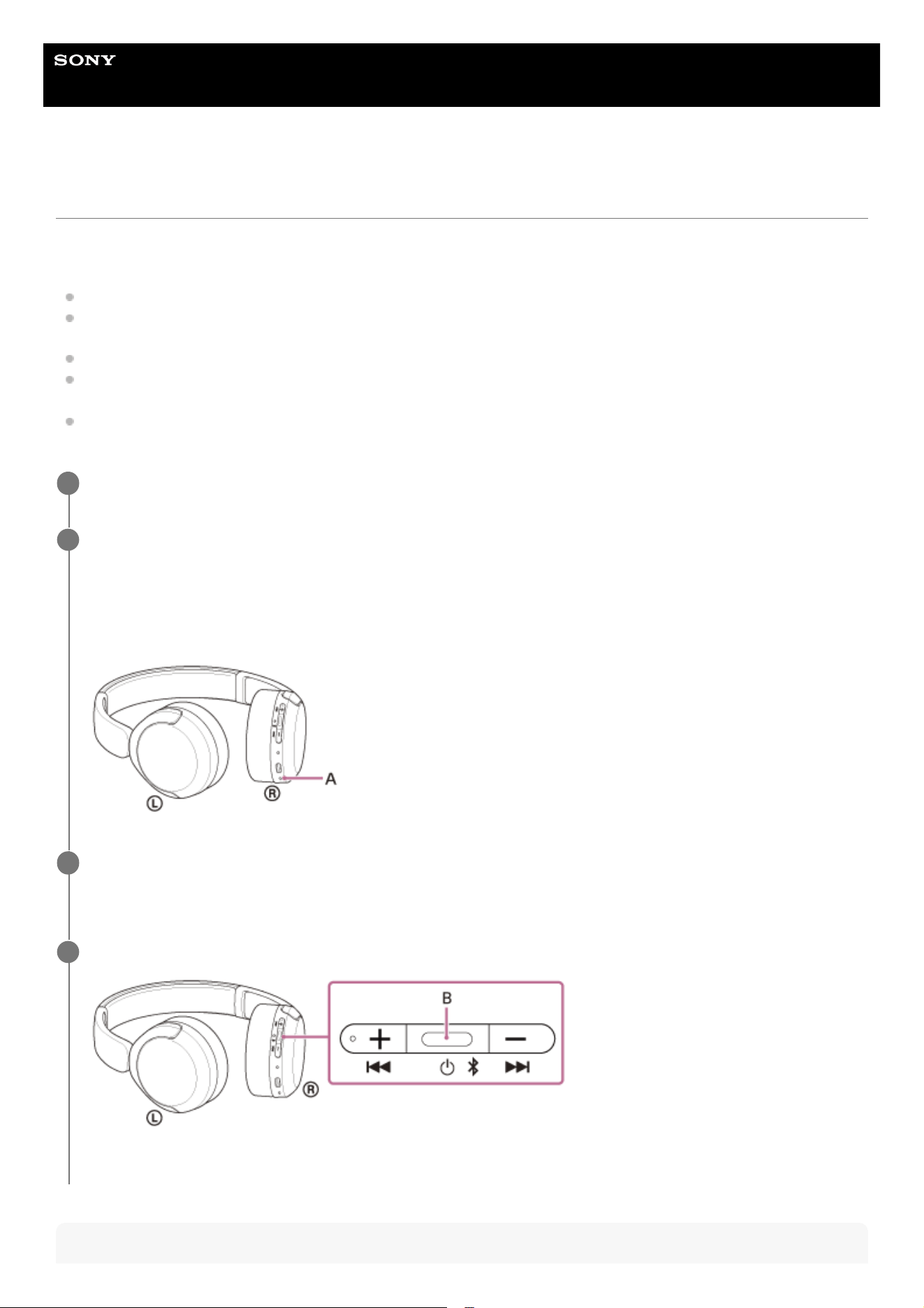
Help Guide
Wireless Stereo Headset
WH-CH530/ WH-CH535
Making a call
You can talk on the phone hands-free via a BLUETOOTH connection on a smartphone that supports the following
BLUETOOTH profiles.
HFP : Hands-free Profile
HSP : Headset Profile
If your smartphone supports both HFP and HSP, set it to HFP.
The operating procedure may vary depending on the smartphone. Refer to the operating instructions supplied with
the smartphone.
Depending on the connected device or the application, the functions may not work properly even if you try to operate
them with the headset.
Hint
Connect the headset to a smartphone via a BLUETOOTH connection.
1
Operate your smartphone to make a call.
When you make a call, the dial tone is heard from the headset.
If you make a call during music playback, playback pauses.
If no dial tone is heard via the headset, switch the call device to the headset using your smartphone.
You can talk using the microphone (A) on the right unit.
2
Adjust the volume by pressing the volume up/volume down buttons of the headset.
When the volume reaches the maximum or minimum, an alarm sounds.
3
When you finish your phone call, press the call button (B) on the headset to end the call.
If you made a call during music playback, music playback resumes automatically after ending the call.
4
74

The volume for a call can be adjusted during a telephone conversation only.
The headset volume during a call and during music playback can be independently adjusted. Even if you change the volume
during a call, the volume of music playback does not change.
Note
Depending on the connected device or playback application you are using, when you make a call during music playback,
playback may not resume automatically even after you finish the call.
Use a smartphone at least 50 cm (19.68 in) away from the headset. Noise may result if the smartphone is too close to the
headset.
Your voice will be heard from the headset through the headset’s microphone (Sidetone function). In this case, ambient sounds or
the sounds of the headset operating procedure may be heard through the headset, but this is not a malfunction.
Related Topic
How to make a wireless connection to BLUETOOTH devices
Receiving a call
Functions for a phone call
TP1002281702
5-075-052-11(2) Copyright 2026 Sony Corporation
75
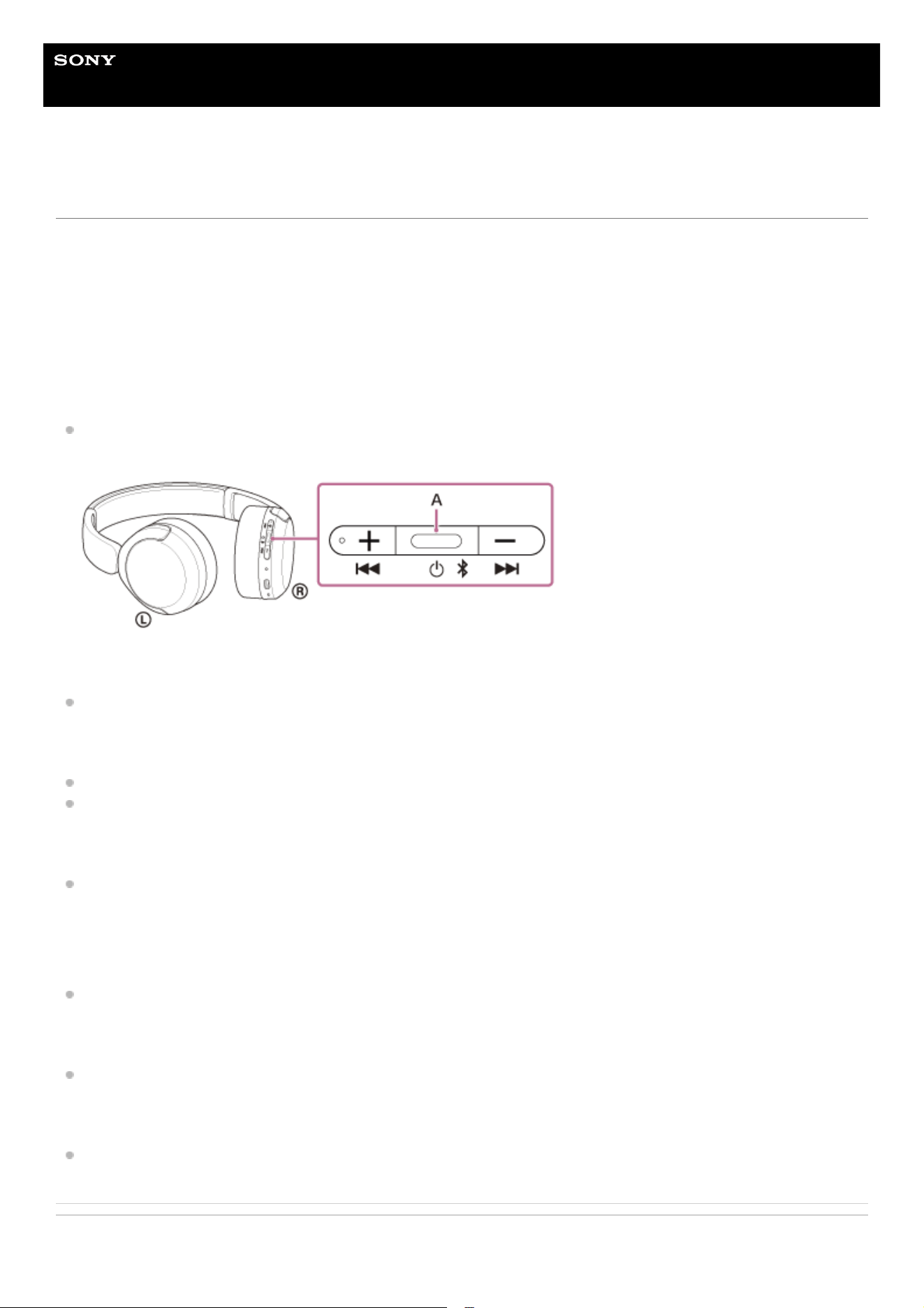
Help Guide
Wireless Stereo Headset
WH-CH530/ WH-CH535
Functions for a phone call
The functions available during a call may vary depending on the profile supported by your smartphone. In addition, even
if the profile is the same, the available functions may vary depending on the smartphone.
Depending on the connected device or the application, the functions may not work properly even if you try to operate
them with the headset.
Refer to the operating instructions supplied with the smartphone.
When the supported profile is HFP (Hands-free Profile)
During standby/music playback
Press the call button (A) twice in 0.5 seconds to start up the voice dial function of the smartphone, or activate the
Google app on the Android smartphone or Siri on the iPhone.
Outgoing call
Press the call button once to cancel an outgoing call.
Incoming call
Press the call button once to answer a call.
Press and hold the call button for about 2 seconds or more to reject a call.
During call
Press the call button once to finish a call.
When the supported profile is HSP (Headset Profile)
Outgoing call
Press the call button once to cancel an outgoing call.
Incoming call
Press the call button once to answer a call.
During call
Press the call button once to finish a call.
Related Topic
76

Help Guide
Wireless Stereo Headset
WH-CH530/ WH-CH535
Making a video call on your computer
When you make a video call on your computer, you can talk wirelessly from your headset.
Hint
In the following cases, select [Headset (WH-CH530 series Hands-Free)] on the settings of your computer to make connections.
See “Connecting to a paired computer (Windows 11)” or “Connecting to a paired computer (Mac)”.
When the video calling application settings cannot be confirmed
When you cannot select [Headset (WH-CH530 series Hands-Free)]
Note
Depending on the computer or application you are using, the headset may not work properly during a video call. This may be
improved by restarting the computer.
Related Topic
How to make a wireless connection to BLUETOOTH devices
Pairing and connecting with a computer (Windows® 11)
Pairing and connecting with a computer (Mac)
Connecting to a paired computer (Windows 11)
Connecting to a paired computer (Mac)
Disconnecting BLUETOOTH connection (after use)
TP1002288252
Connect the headset to your computer via a BLUETOOTH connection.
1
Launch the video calling application on your computer.
2
Check the settings (*) of the video calling application.
When you make a video call on your computer, select calling connections (HFP/HSP) and not music playback
connections (A2DP). If you select music playback connections (A2DP), a video call may not be available.
On the speaker settings, select calling connections [Headset (WH-CH530 series Hands-Free)] (**).
([Headphones (WH-CH530 series Stereo)] (**) is for music playback connections.)
On the microphone settings, select calling connections [Headset (WH-CH530 series Hands-Free)] (**).
Depending on the video calling application you are using, only [WH-CH530 series] may be displayed. If this is
the case, select [WH-CH530 series].
As for frequently asked questions and answers, refer to the customer support website.
3
(*) Depending on the video calling application you are using, this function may not be available.
(**) Names may vary according to the computer or the video calling application you are using.
78

5-075-052-11(2) Copyright 2026 Sony Corporation
79
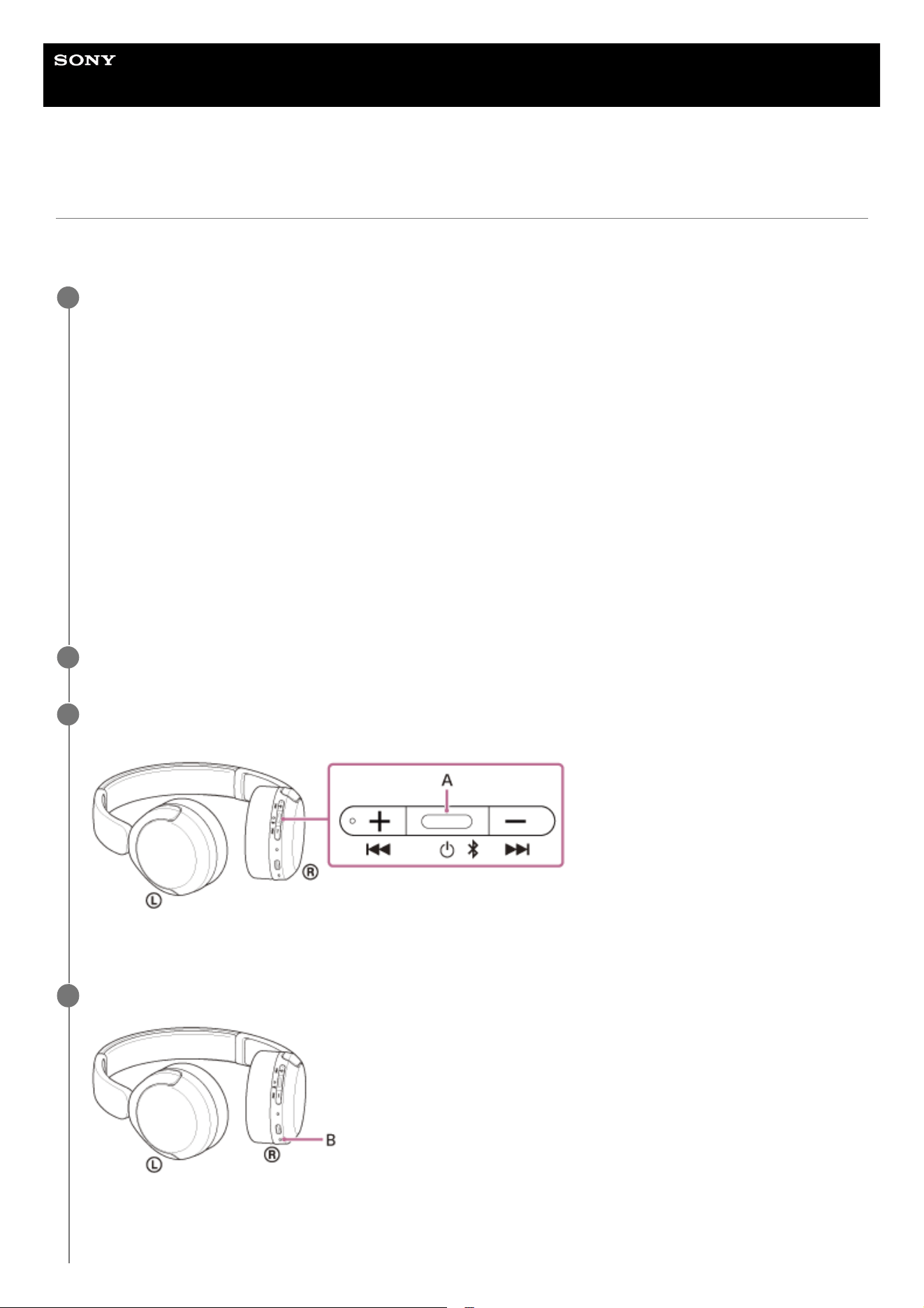
Help Guide
Wireless Stereo Headset
WH-CH530/ WH-CH535
Using the voice assist function (Google app)
By linking with the Google app on your Android smartphone, you can operate the Android smartphone by voice while
wearing the headset.
Set the assist and voice input selection to the Google app.
On the Android smartphone, select the following menus.
[Settings] - [Apps & notifications] - [Advanced] - [Default apps] - [Assist & voice input]
Then, set [Assist app] to the Google app.
The above operating procedure is an example. For more details, refer to the operating instructions supplied with the
Android smartphone.
The latest version of the Google app may be required.
Models for countries and regions excluding Chinese mainland:
For details on the Google app, refer to the operating instructions or the support website of the Android smartphone,
or the Google Play store website.
Models for Chinese mainland:
For details on the Google app, refer to the operating instructions or the support website of the Android smartphone.
The Google app may not be activated from the headset depending on specifications of the Android smartphone.
1
Connect the headset to the Android smartphone via BLUETOOTH connection.
2
When the Android smartphone is in standby or playing music, press the play/call button (A) on the headset
twice in 0.5 seconds.
The Google app is activated.
3
Make a request to Google app through the headset’s microphone (B).
For details on the apps which work with the Google app, refer to the operating instructions for the Android
smartphone.
4
80

Note
Even if “Hey Google” is enabled on your Android smartphone, you cannot use the “Hey Google” voice command to launch the
Google app.
When using the voice assist function, your voice will be heard from the headset through the headset’s microphone (Sidetone
function). In this case, ambient sounds or the sounds of the headset operating procedure may be heard through the headset, but
this is not a malfunction.
The Google app may not be activated depending on specifications of the smartphone or application version.
The Google app does not work when connected to a device not compatible with the voice assist function.
Be careful because the headset will turn off when you press and hold the play/call button.
TP1002281781
5-075-052-11(2) Copyright 2026 Sony Corporation
After launching the Google app, voice input will be disabled if no speech is recorded for a certain period of time.
81
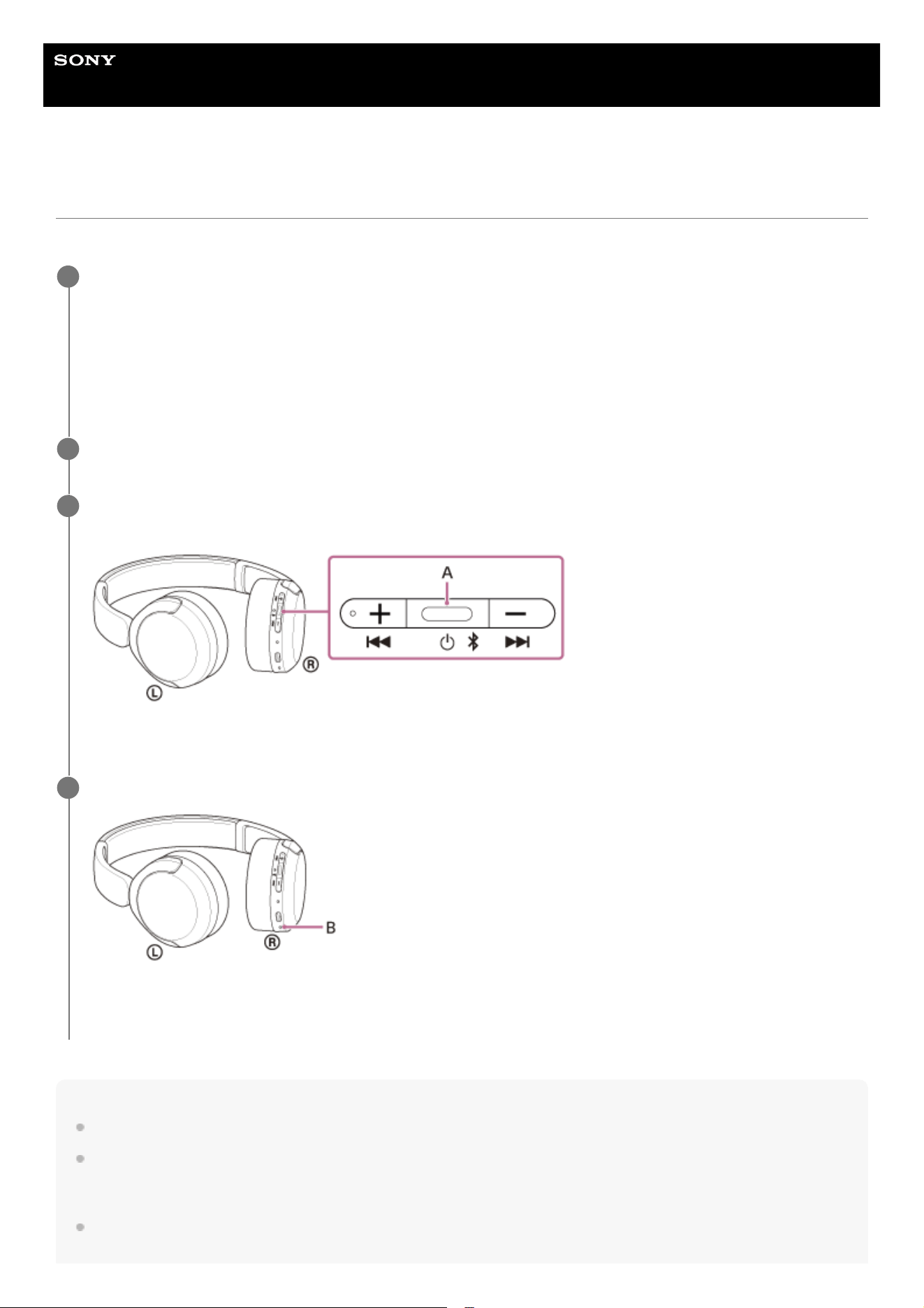
Help Guide
Wireless Stereo Headset
WH-CH530/ WH-CH535
Using the voice assist function (Siri)
By linking with Siri on your iPhone, you can operate the iPhone by voice while wearing the headset.
Note
Siri cannot be activated when you say “Hey Siri” even when the iPhone’s “Hey Siri” setting is enabled.
When using the voice assist function, your voice will be heard from the headset through the headset’s microphone (Sidetone
function). In this case, ambient sounds or the sounds of the headset operating procedure may be heard through the headset, but
this is not a malfunction.
Siri may not be activated depending on specifications of the smartphone or application version.
Activate Siri.
On an iPhone, select [Settings] - [Siri & Search].
Enable [Press Home for Siri] and [Allow Siri When Locked].
The above operating procedure is an example. For details, refer to the operating instructions supplied with the
iPhone.
For details on Siri, refer to the operating instructions or support website of the iPhone.
1
Connect the headset to the iPhone via BLUETOOTH connection.
2
When the iPhone is in standby or playing music, press the play/call button (A) on the headset twice in 0.5
seconds.
Siri is activated.
3
Talk to Siri through the headset’s microphone (B).
For details on the apps which work with Siri, refer to the operating instructions for the iPhone.
After activating Siri, Siri will be deactivated if no voice input is detected for a certain period of time.
4
82

Be careful because the headset will turn off when you press and hold the play/call button.
TP1002281775
5-075-052-11(2) Copyright 2026 Sony Corporation
83

Help Guide
Wireless Stereo Headset
WH-CH530/ WH-CH535
Precautions
On BLUETOOTH communications
BLUETOOTH wireless technology is a short-range wireless technology that enables communication between digital
devices, such as smartphones and computers. The maximum communication distance may vary depending on the
presence of obstacles (people, metal objects, walls, etc.) or the electromagnetic environment.
Depending on the BLUETOOTH device connected to the headset, the communication environment, and the
surrounding conditions, noise or sound cut out may occur.
The maximum communication distance of the headset is approximately 10 m (32.8 ft). The communication distance
may vary depending on the surrounding environment.
Microwaves emitting from a BLUETOOTH device may affect the operation of electronic medical devices. Turn off the
headset and other BLUETOOTH devices in the following locations, as it may cause an accident:
in hospitals, near priority seating in trains, locations where inflammable gas is present, near automatic doors, or
near fire alarms.
When you use the headset on an airplane, follow flight crew directions. Radio waves may affect instruments, causing
risk of accident due to malfunction.
The audio playback on the headset may be delayed from that on the transmitting device, due to the characteristics of
BLUETOOTH wireless technology. As a result, the sound may not be in sync with the image when viewing movies or
playing games.
The headset supports security functions that comply with the BLUETOOTH standard as a means of ensuring security
during communication using BLUETOOTH wireless technology. However, depending on the configured settings and
other factors, this security may not be sufficient. Be careful when communicating using BLUETOOTH wireless
technology.
Sony shall assume no responsibility for any damages or loss resulting from information leaks that occur when using
BLUETOOTH communications.
BLUETOOTH connections with all BLUETOOTH devices cannot be guaranteed.
BLUETOOTH devices connected with the headset must comply with the BLUETOOTH standard prescribed by
Bluetooth SIG, Inc., and must be certified as compliant.
Even if a connected device complies with the BLUETOOTH standard described above, the connection may fail
depending on the characteristics and specifications of the device. Additionally, differences in operation methods,
display, or performance may occur.
When using the headset to perform hands-free talking on the phone, noise may occur depending on the
connected device or the communication environment.
Depending on the device to be connected, it may require some time to start communications.
Note on temperature rise
The temperature of the headset may rise while charging or when using the headset for a long period of time. This is
not a malfunction.
Note on static electricity
If you use the headset when the air is dry, you may experience mild tingling in your ears. This is not a malfunction of
the headset, but is caused by static electricity accumulated on your body. You can reduce the effect by wearing
clothes made of natural materials that do not easily generate static electricity.
Notes on wearing the headset
After use, remove the headset from your ears slowly. The headset has a high degree of sealing. If the headset is
pressed hard or suddenly removed from the ear, you may risk damaging your eardrum.
84

When putting on the headset, noise may be generated from the diaphragm. This is not a malfunction.
Long-term use of the headset may cause symptoms such as itching and irritation in the ears.
If you experience any of the above symptoms while the headset is in use, stop using it immediately. Then, consult a
doctor, the Sony support contact, or your nearest Sony dealer.
Other notes
The headset is a precision device, so do not drop it or subject it to strong shocks. This may cause deformation or
damage, resulting in reduced performance.
The BLUETOOTH function may not work with a mobile phone, depending on the signal conditions and the
surrounding environment.
Depending on the signal conditions of your smartphone or the surrounding environment, you may not be able to use
the headset.
Do not breathe into the driver unit or the microphone.
Do not apply weight or pressure to the headset for long periods, including when it is stored, as it may cause
deformation. When storing the headset, do not apply force.
If you experience discomfort while using the headset, stop using it immediately.
The earpads are consumables. If they deteriorate or become damaged due to long-term use or storage, consult the
Sony support contact or your nearest Sony dealer.
The headset is not waterproof. If water or foreign matter enters the headset, this can result in burnout or malfunction.
If water or foreign matter enters the headset, stop use immediately. Then, consult the Sony support contact or your
nearest Sony dealer. In particular, be careful in the following cases.
When using the headset near a sink or liquid container
Be careful that the headset does not fall into a sink or container filled with water.
When using the headset in the rain or snow, or in humid locations
When using the headset while you are perspiring
If you touch the headset with wet hands or if the headset come into contact with wet clothing, the headset may get
wet.
Cleaning the headset
Dust and dirt on the exterior of the headset can be wiped off with pure water type wet wipes. Do not use the following
items as they may damage the surface finish and lead to malfunction or breakage.
Wet wipes containing alcohol
Thinner
Benzine and other similar substances
Do not use the headset near medical devices
Radio waves can affect cardiac pacemakers and medical devices. Do not use the headset in crowded places such as
crowded trains or inside a medical institution.
The headset has magnets. These magnets may interfere with pacemakers, programmable shunt valves for
hydrocephalus treatment, or other medical devices. Do not place the headset close to persons who use such medical
devices. Consult your doctor before using the headset if you use any such medical devices.
Keep the headset away from magnetic cards
The headset has magnets. If a magnetic card comes near the headset, the card magnet may be affected or become
deactivated.
TP1002281701
5-075-052-11(2) Copyright 2026 Sony Corporation
85

Help Guide
Wireless Stereo Headset
WH-CH530/ WH-CH535
Supported codecs
A codec is an “audio coding algorithm” used when transmitting sound wirelessly via a BLUETOOTH connection.
The headset supports the following codecs.
When connected using Classic Audio via an A2DP connection (for music playback): SBC, AAC
When the headset is connected using LE Audio, it supports LC3.
SBC
This is an abbreviation for Subband Codec.
SBC is the standard audio coding technology used in BLUETOOTH devices.
All BLUETOOTH devices support SBC.
AAC
This is an abbreviation for Advanced Audio Coding.
AAC is mainly used in Apple products such as iPhone that can provide a higher sound quality than that of SBC.
LC3
This is an abbreviation for Low Complexity Communication Codec.
LC3 is a codec for LE Audio and achieves low latency transmission.
When music is transmitted using one of the following codecs from a device connected via Classic Audio, the headset
automatically switches to that codec and plays back the music in the same format.
SBC, AAC
If the connected device supports a codec of higher sound quality than SBC, you may need to set the device beforehand
to enjoy music with the desired codec from the supported codecs.
Refer to the operating instructions supplied with the connected device to set the codec.
When connected to LE Audio, the music playback is performed in LC3 codec. For LE Audio connections, use the “Sound
Connect” app and set [Bluetooth Connection Quality] to [Low latency]. The [Prioritize Sound Quality] setting at the time of
purchase does not support LE Audio connection.
Refer to the operating instructions supplied with the device you are connecting to, as some settings may be necessary in
advance.
TP1002281700
5-075-052-11(2) Copyright 2026 Sony Corporation
86
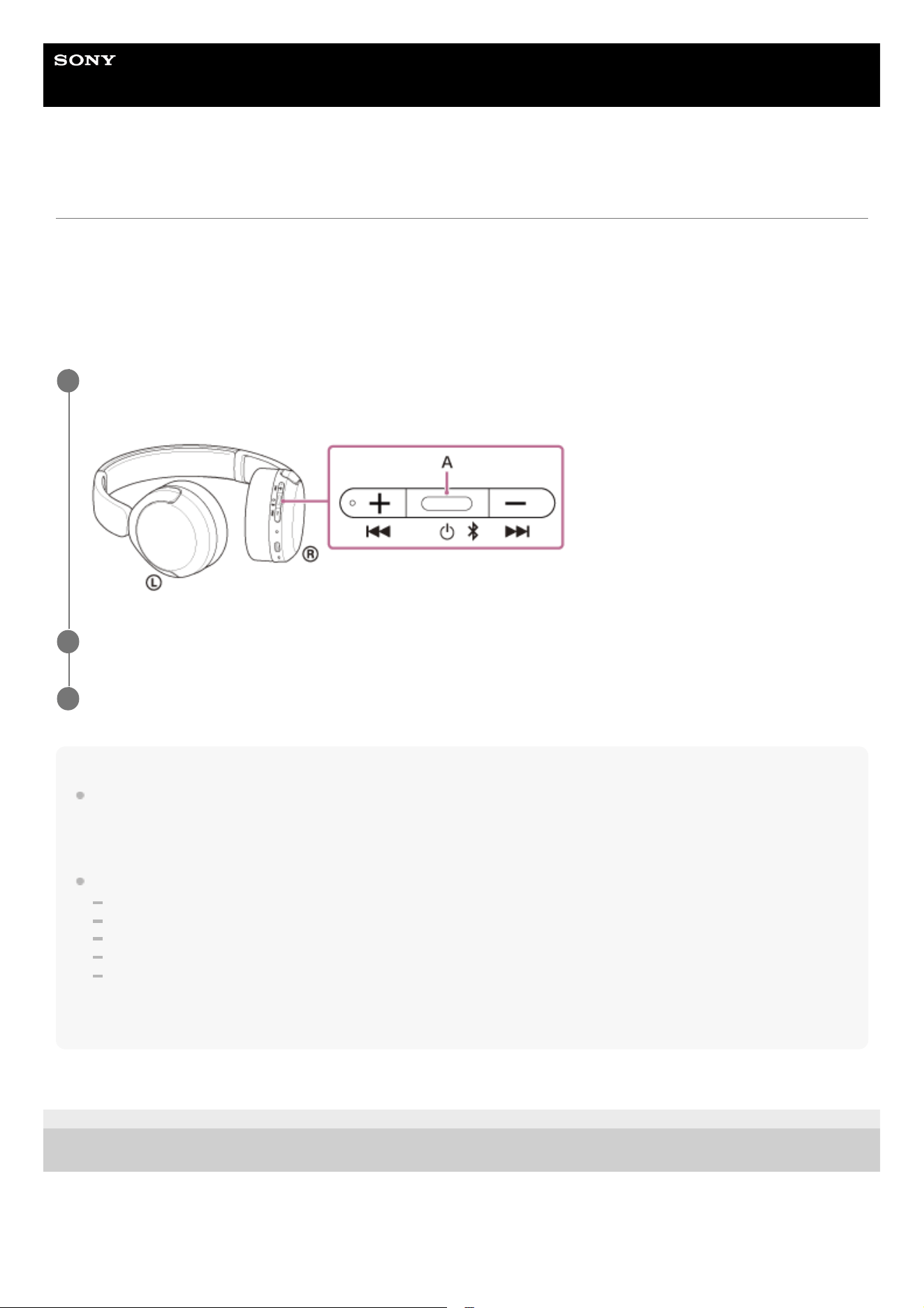
Help Guide
Wireless Stereo Headset
WH-CH530/ WH-CH535
How to keep the software up-to-date (for comfortable use of the headset)
Update the headset software to enjoy new functions and resolve certain issues. Update the headset software using the
“Sound Connect” app.
For details on the latest headset software and how to update the software, refer to the information on the support
website.
You can update the headset software in the following way.
Note
Before performing an update, disconnect any other BLUETOOTH devices connected to the mobile device being used for the
update.
Software may not be updated when the mobile device is connected with other devices compatible with BLUETOOTH Low Energy
(such as wearable devices or smart watches).
Note the following if the update cannot be completed.
Close all the apps installed on the mobile device except the “Sound Connect” app.
Fully charge the headset and the mobile device.
Put the headset and the mobile device being used for the update as close to each other as possible before starting the update.
Do not start the update if there are wireless LAN devices or other BLUETOOTH devices nearby.
Turn off the power saving mode (*) of your mobile device before updating the software.
Depending on the OS version of your mobile device, the update may not be completed under the power saving mode.
TP1002286156
5-075-052-11(2) Copyright 2026 Sony Corporation
Turn on the headset.
Press and hold the power button (A) for about 2 seconds or more.
1
Launch the “Sound Connect” app on a mobile device such as a smartphone.
2
Update the headset software following the on-screen instructions.
3
(*) Names may vary according to the mobile device you are using.
87
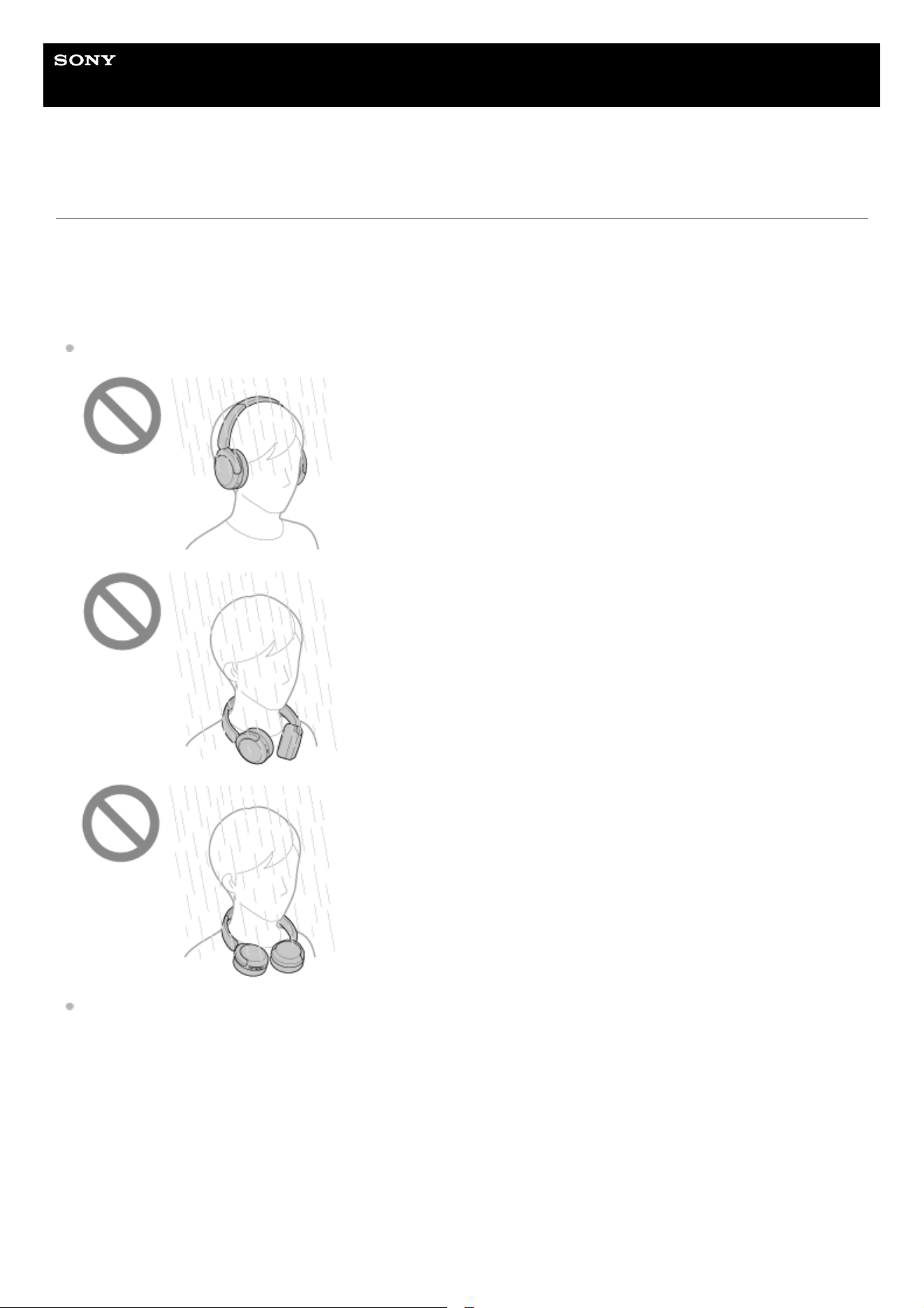
Help Guide
Wireless Stereo Headset
WH-CH530/ WH-CH535
To prevent burning or malfunction due to getting wet
On waterproof performance of the headset
The headset is not waterproof. If water or foreign matter enters the headset, this can result in burnout or malfunction.
Avoid situations such as the following and be careful not to expose the headset to moisture or dirt.
Using the headset in the rain or snow.
Touching the headset without drying wet hands after doing housework in the kitchen or washing hands in the
washroom.
88
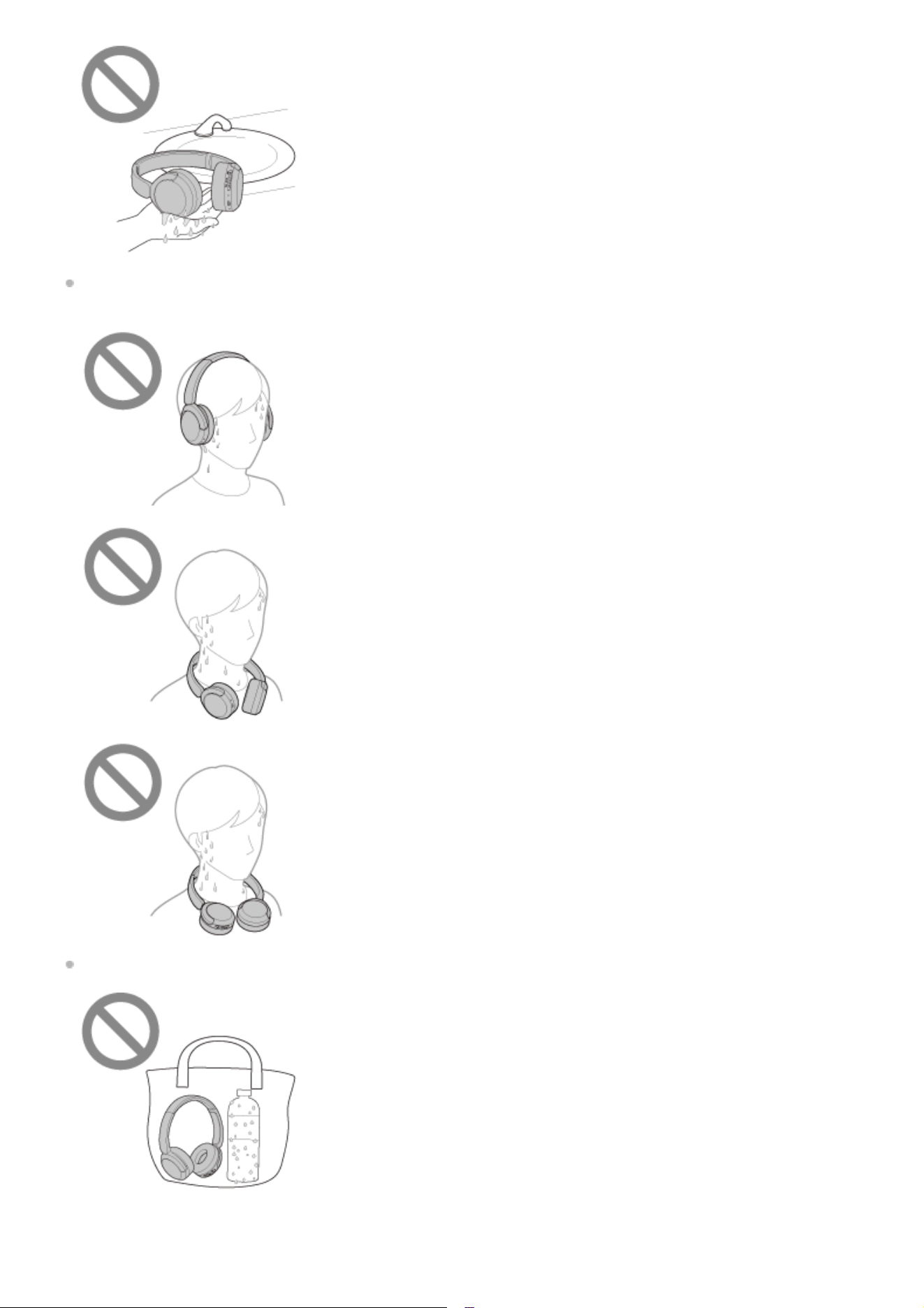
Touching the headset with sweaty hands, or using the headset in situations where the headset may get soaked in
sweat.
Putting the headset in a bag with a cold PET bottle.
If the headset gets wet, or water enters the headset
89

If a wet headset is charged or turned on, this can result in burnout or malfunction. While subjecting the headset to as little
vibration as possible, turn the earpads downward slowly, and let water drain from the earpads. Then, position the headset
upright and put a dry cloth under the USB Type-C port until no more water comes out from the inside. After that, leave the
headset in a shaded, well-ventilated place until it is completely dry.
TP1002289732
5-075-052-11(2) Copyright 2026 Sony Corporation
90

Help Guide
Wireless Stereo Headset
WH-CH530/ WH-CH535
Licenses
This product contains software that Sony uses under a licensing agreement with the owner of its copyright. We are
obligated to announce the contents of the agreement to customers under requirement by the owner of copyright for
the software. Please access the following URL and read the contents of the license.
https://rd1.sony.net/help/mdr/sl/26/
Use of the Made for Apple badge means that an accessory has been designed to connect specifically to the Apple
product(s) identified in the badge and has been certified by the developer to meet Apple performance standards.
Apple is not responsible for the operation of this device or its compliance with safety and regulatory standards.
Network services, content and the (operating system and) software of this product may be subject to individual terms
and conditions and changed, interrupted or discontinued at any time and may require fees, registration and credit
card information.
TP1002286860
5-075-052-11(2) Copyright 2026 Sony Corporation
91

Help Guide
Wireless Stereo Headset
WH-CH530/ WH-CH535
Trademarks
Google, Android and Google Play are trademarks of Google LLC.
Apple, iPhone, macOS, Mac and Siri are trademarks of Apple Inc., registered in the U.S. and other countries and
regions.
App Store is a service mark of Apple Inc., registered in the U.S. and other countries and regions.
IOS is a trademark or registered trademark of Cisco in the U.S. and other countries and is used under license.
Microsoft and Windows are registered trademarks or trademarks of Microsoft Corporation in the United States and/or
other countries.
The BLUETOOTH® word mark and logos are registered trademarks owned by Bluetooth SIG, Inc. and any use of
such marks by Sony Group Corporation and its subsidiaries is under license.
USB Type-C® and USB-C® are registered trademarks of USB Implementers Forum.
DSEE is a trademark or registered trademark of Sony Group Corporation or its affiliates.
All other trademarks and registered trademarks are trademarks or registered trademarks of their respective holders.
In this manual, ™ and ® marks are not specified.
TP1002281705
5-075-052-11(2) Copyright 2026 Sony Corporation
92
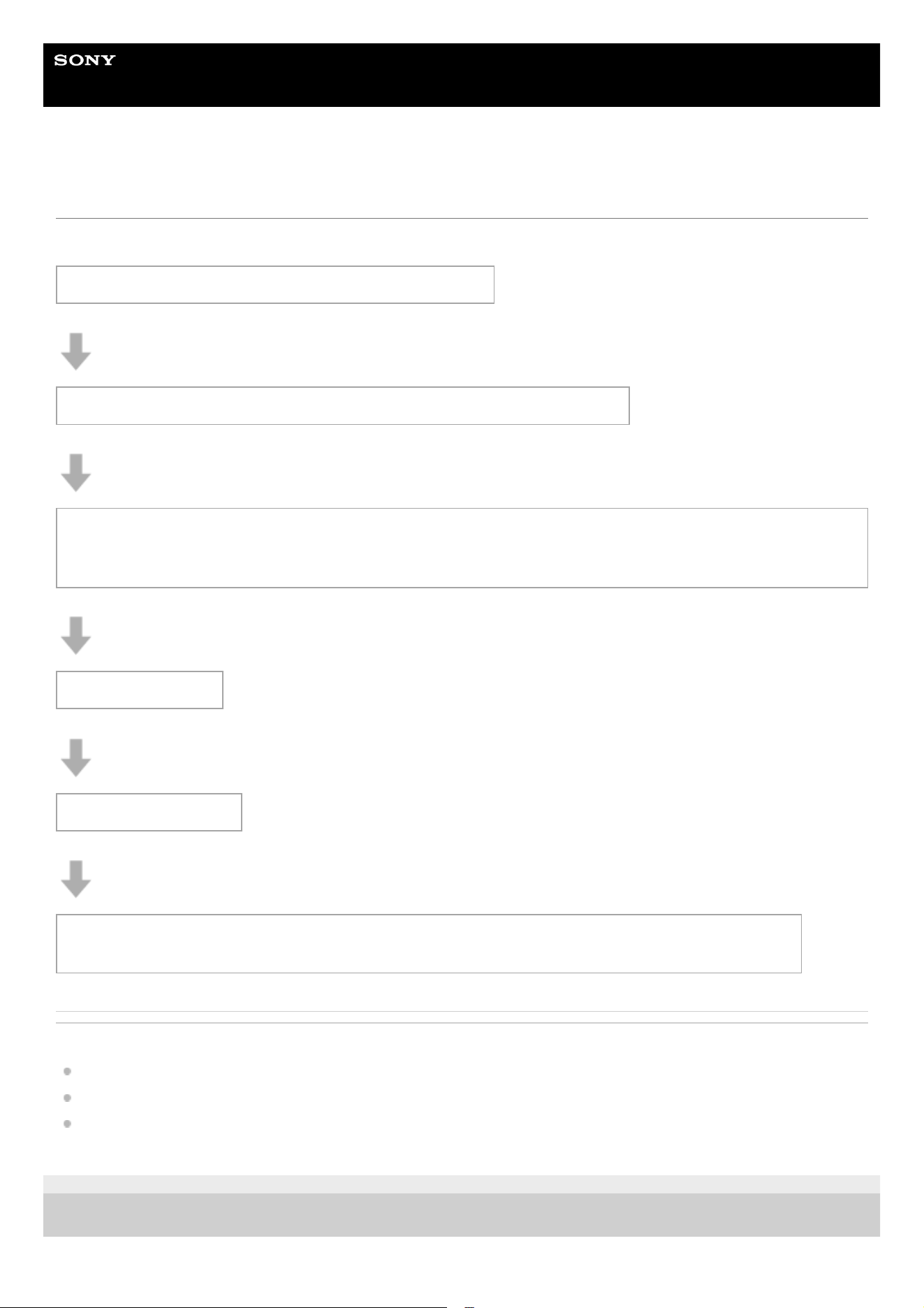
Help Guide
Wireless Stereo Headset
WH-CH530/ WH-CH535
Troubleshooting
If you have any problems, please follow the process below.
Related Topic
Charging
Resetting the headset
Initializing the headset to restore factory settings
TP1002295063
5-075-052-11(2) Copyright 2026 Sony Corporation
1. Turn the headset off, charge it, and then turn it on again.
2. Restart the device being connected such as your computer or smartphone.
3. Access the Sony support site from the menu of the “Sound Connect” app to search for the cause and
solution of the issue, or check the support site below.
https://www.sony.net/support/WH-CH530/
4. Reset the headset.
5. Initialize the headset.
6. Should any problems persist, consult the Sony support contact below or your nearest Sony dealer.
https://www.sony.net/support-contact
93
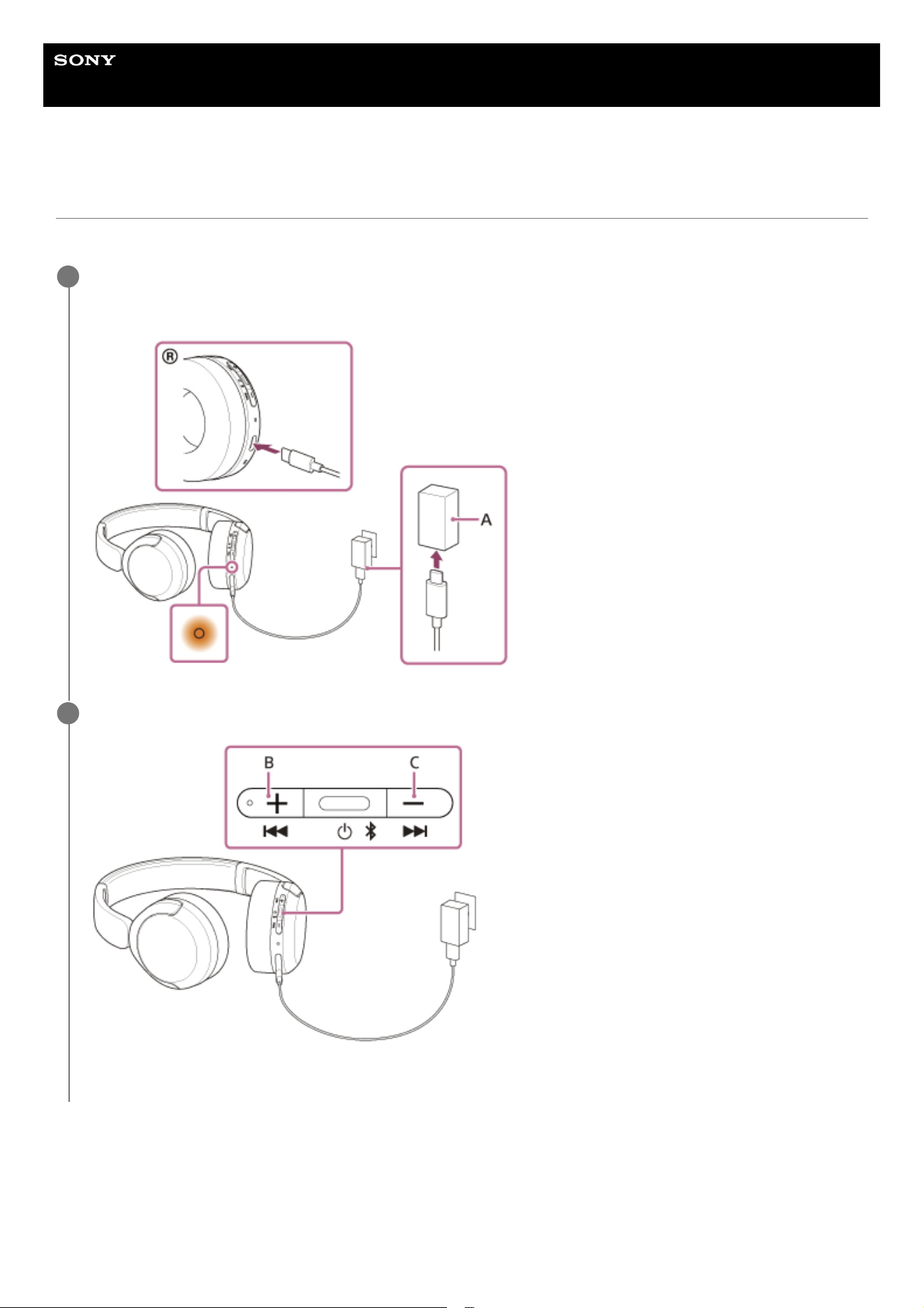
Help Guide
Wireless Stereo Headset
WH-CH530/ WH-CH535
Resetting the headset
If the headset cannot be turned on or cannot be operated even when it is turned on, reset the headset.
The pairing information and other settings are retained.
If the headset does not operate correctly even after resetting, initialize the headset to restore factory settings.
Connect the headset to an AC outlet.
Use a USB Type-C cable and USB AC adaptor (A).
1
Press the volume up button (B) and the volume down button (C) simultaneously.
The headset will be reset (the indicator turns off and then lights up again).
2
94

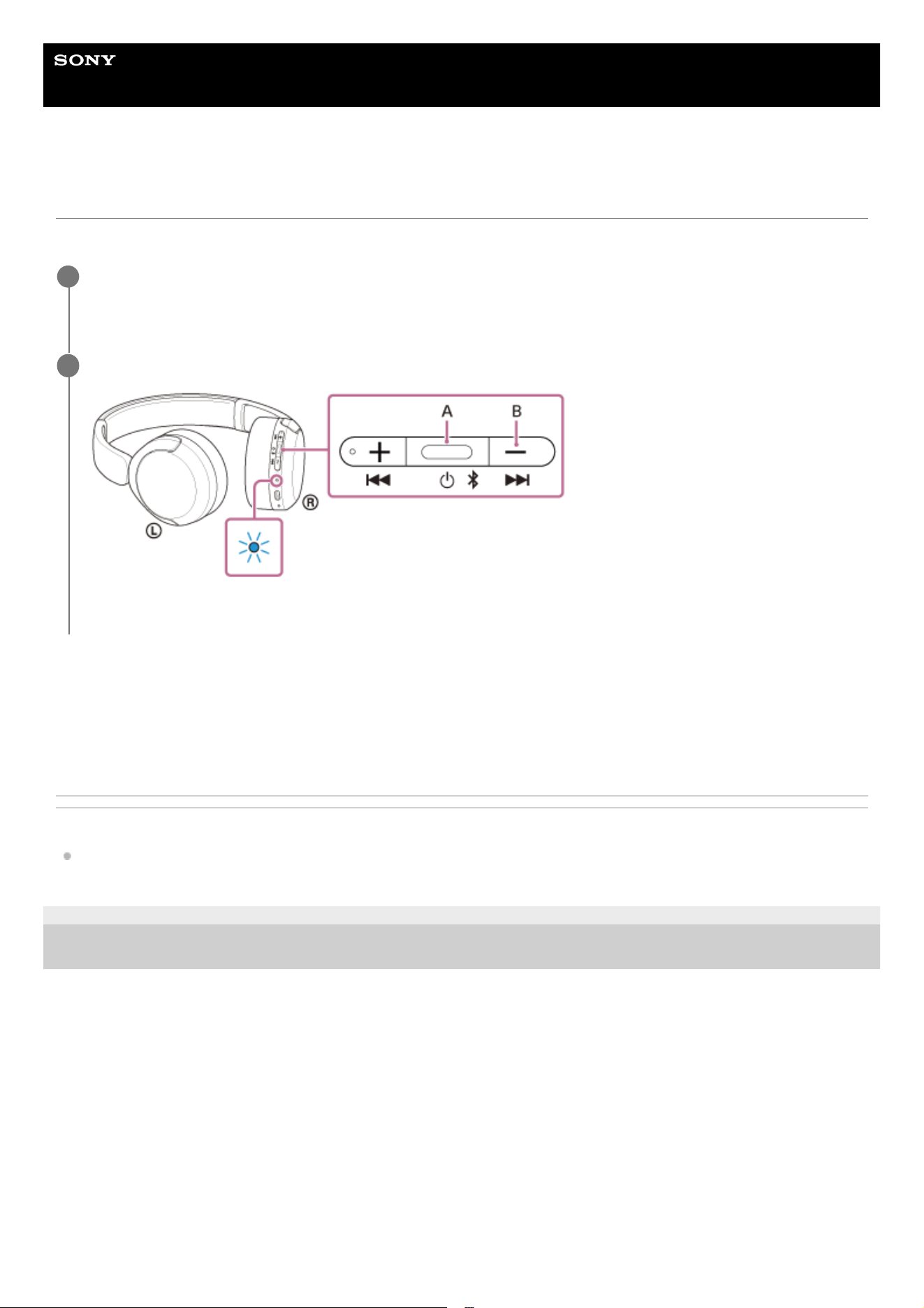
Help Guide
Wireless Stereo Headset
WH-CH530/ WH-CH535
Initializing the headset to restore factory settings
If the headset does not operate correctly even after resetting, initialize the headset.
This operating procedure resets the volume settings and other settings to the factory settings and deletes all pairing
information. In this case, delete the pairing information for the headset from the connected device and then pair them
again.
If the headset does not operate correctly even after initializing, consult your nearest Sony dealer.
Related Topic
Resetting the headset
TP1002288215
5-075-052-11(2) Copyright 2026 Sony Corporation
Turn off the headset.
Remove the USB Type-C cable.
1
Press and hold the power button (A) and volume down button (B) for about 10 seconds or more.
When initializing is complete, the indicator flashes in blue 4 times.
2
96

Help Guide
Wireless Stereo Headset
WH-CH530/ WH-CH535
Specifications
Power source:
DC 5 V (Using a commercially available USB AC Adaptor)
Using built-in lithium-ion batteries (Product Operation Power: DC 3.85 V)
Charging time:
Approx. 3 hours
Note
Charging hours may be different depending on the conditions of use.
Charging temperature:
5 °C to 35 °C (41 °F to 95 °F)
Operating temperature:
0 °C to 40 °C (32 °F to 104 °F)
Mass:
Approx. 150 g (5.3 oz)
Communication system:
BLUETOOTH
Design and specifications are subject to change without notice.
Depending on the country or region where you purchased your headset, some models may not be available for purchase.
Compatible iPhone models
iPhone 16e
iPhone 16 Pro Max
iPhone 16 Pro
iPhone 16 Plus
iPhone 16
iPhone 15 Pro Max
iPhone 15 Pro
iPhone 15 Plus
iPhone 15
iPhone 14 Pro Max
iPhone 14 Pro
iPhone 14 Plus
iPhone 14
iPhone SE (3rd generation)
iPhone 13 Pro Max
iPhone 13 Pro
iPhone 13
97

iPhone 13 mini
iPhone 12 Pro Max
iPhone 12 Pro
iPhone 12
iPhone 12 mini
iPhone SE (2nd generation)
iPhone 11 Pro Max
iPhone 11 Pro
iPhone 11
(As of April 2026)
Depending on the iOS supported by the above models, the “Sound Connect” app may not be usable.
TP1002288214
5-075-052-11(2) Copyright 2026 Sony Corporation
98