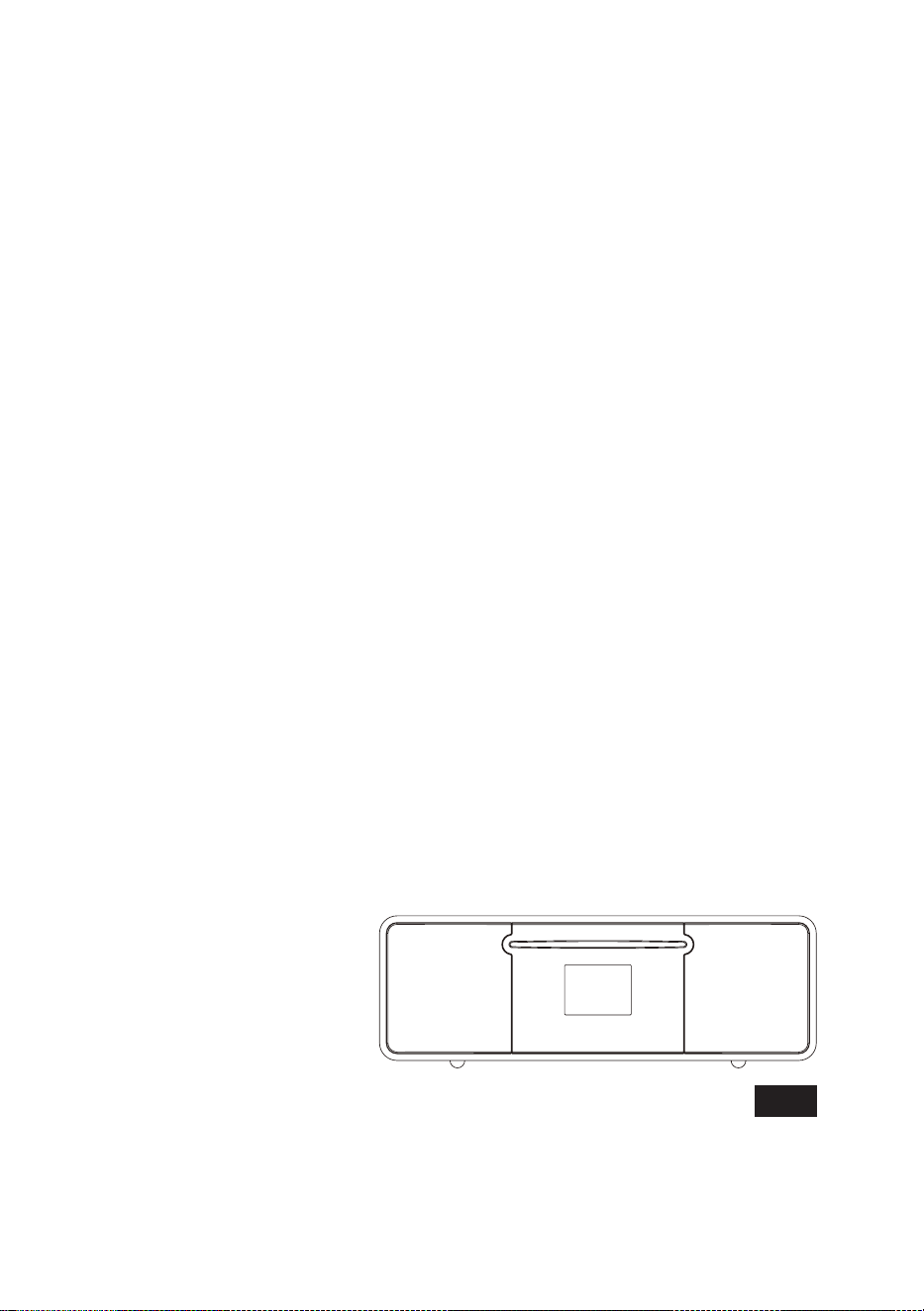
GB
Version 1
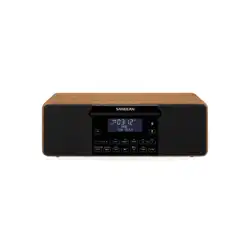
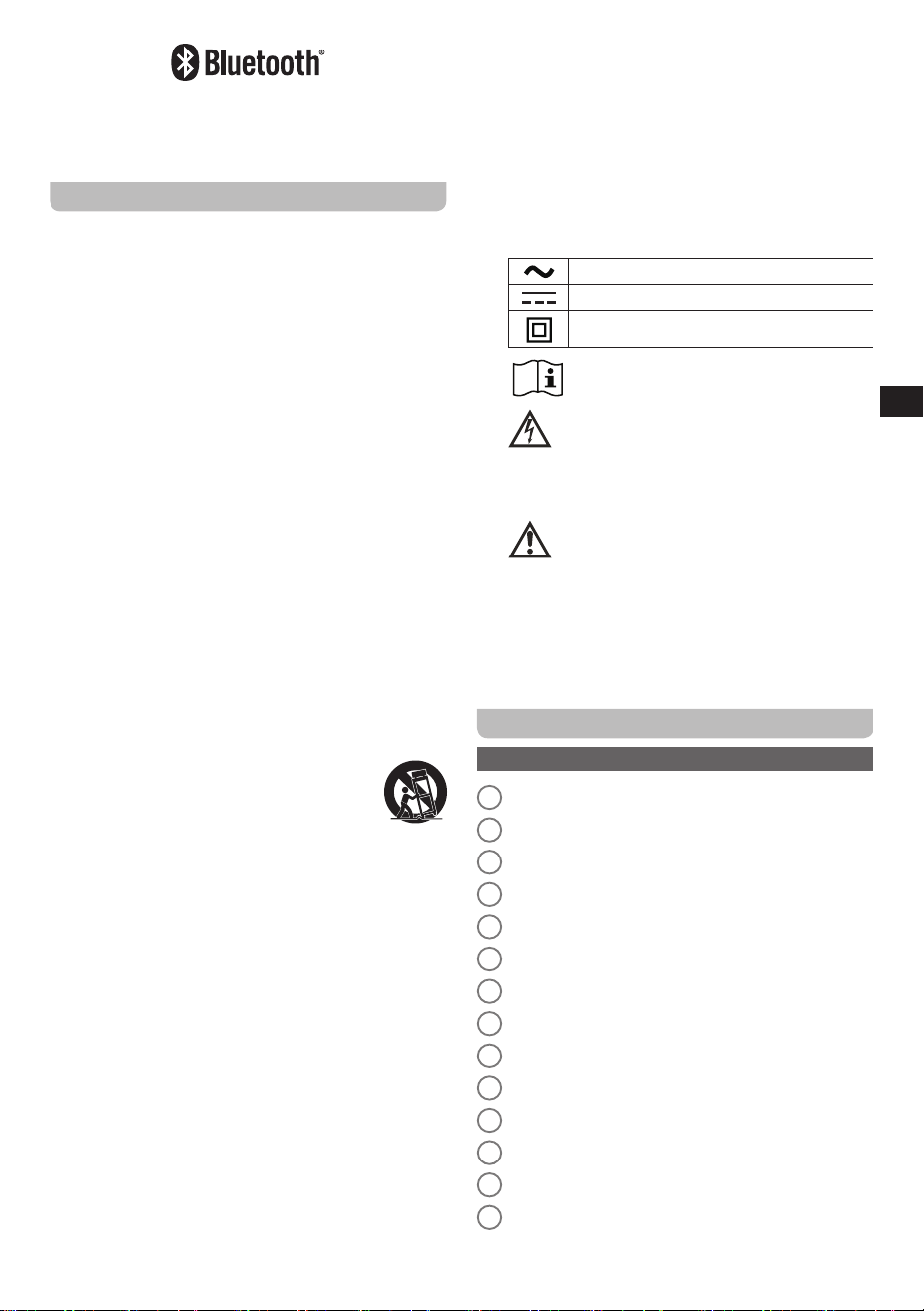
DDR-55BT
02
1
78910111213
2 63 4 5
14
19 16
18
15
20
21
22 17
b
c
d
e
f
h
i
g
a
j
k
u
t
v
s
r
q
p
o
n
m
l
03
GB
The Bluetooth
®
word mark and logos are registered
trademarks owned by Bluetooth SIG, Inc. and any use of
such marks by SANGEAN ELECTRONICS. INC. is under
license.
Important safety instructions
1.
Read these instructions.
2.
Keep these instructions.
3.
Heed all warnings.
4.
Follow all instructions.
5.
Do not use this apparatus near water.
6.
Clean only with dry cloth.
7.
Do not block any ventilation openings. Install in
accordance with the manufacturer’s instructions.
8.
Do not install near any heat sources such as
radiators, heat registers, stoves, or other apparatus
(including ampliers) that produce heat.
9.
Do not defeat the safety purpose of the polarized or
grounding-type plug. A polarized plug has two blades
with one wider than the other. A grounding type plug
has two blades and a third grounding prong. The
wide blade or the third prong are provided for your
safety. If the provided plug does not fit into your
outlet. Consult an electrician for replacement of the
obsolete outlet.
10.
Protect the power cord from being walked on
or pinched particularly at plugs, convenience
receptacles, and the point where they exit from the
apparatus.
11.
Only use attachments / accessories specied by the
manufacturer.
12.
Use only with the cart, stand, tripod,
bracket, or table specified by the
manufacturer, or sold with the apparatus.
When a cart is used, use caution when
moving the cart / apparatus combination to avoid
injury from tip-over.
13.
Unplug this apparatus during lightning storms or
when unused for long periods of time.
14.
Refer all servicing to qualified service personnel.
Servicing is required when the apparatus has been
damaged in any way, such as power-supply cord or
plug is damaged. liquid has been spilled or objects
have fallen into the apparatus, the apparatus has
been exposed to rain or moisture, does not operate
normally, or has been dropped.
15.
To Reduce the Risk of Fire or Electric Shock, Do not
Expose This Appliance To Rain or Moisture.
16.
The Shock Hazard Marking and Associated Graphical
Symbol is provided on the rear of unit.
17.
Apparatus shall not be exposed to dripping or
splashing and no objects lled with liquids, shall be
placed on the apparatus.
18.
Excessive sound pressure on ear-and headphones
could impair the hearing ability. Higher setting that
idle on the equalizer leads to higher signal voltages
on the output for ear and headphones.
19.
The power plug should be close to the radio, and
easy to be approached that during the emergency, to
disconnect the power from the radio, just unplug the
power plug from the AC power slot.
20.
Where the MAINS plug or an appliance coupler is
used as the disconnect device, the disconnected
device shall remain readily operable.
21.
The batteries shall not be exposed to excessive heat
such as sunshine, re or the like.
22.
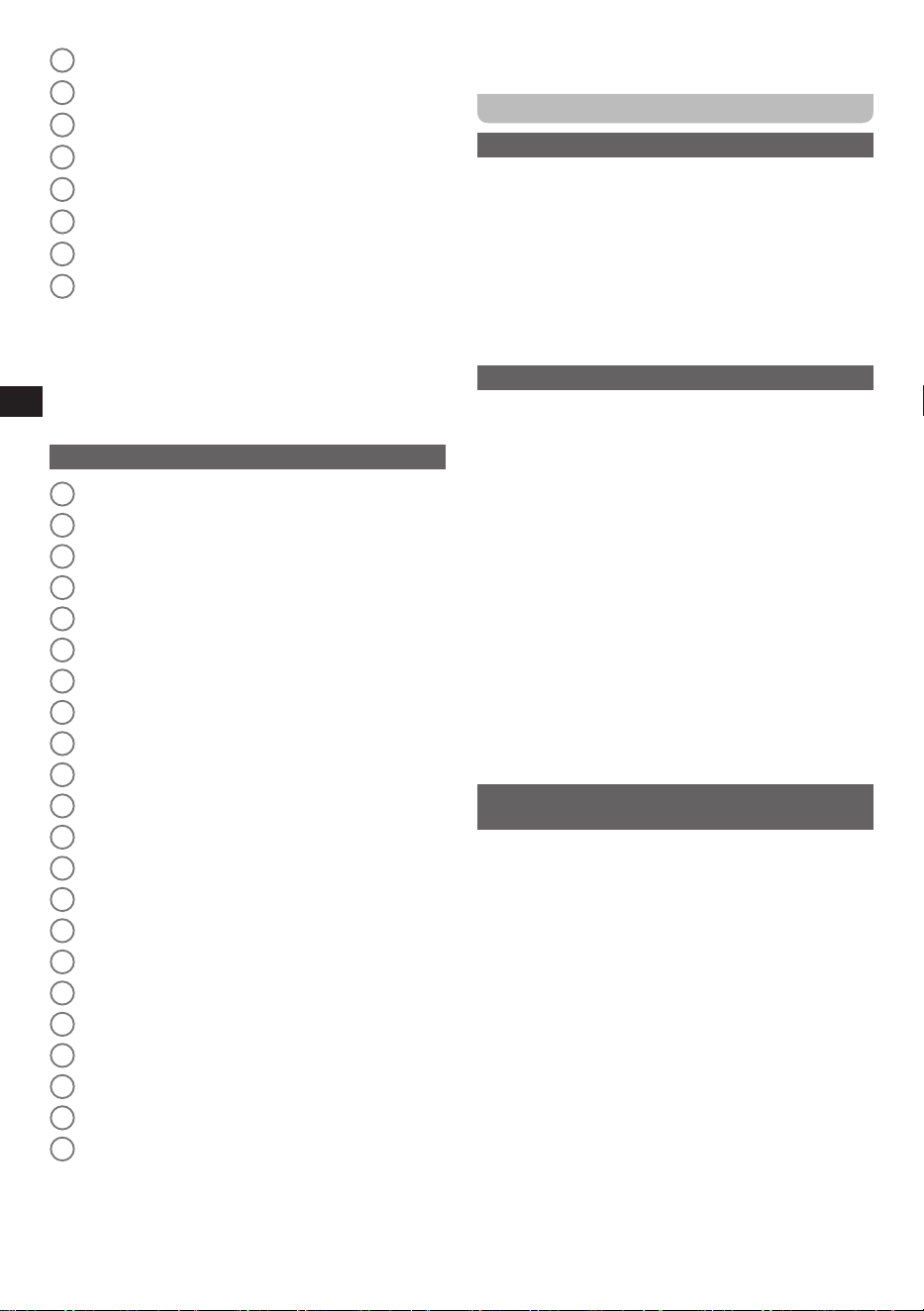
The symbol indicates AC Voltage.
The symbol indicates DC Voltage.
The symbol indicates class II equipment.
23.
Use only power supplies listed in the user
instructions.
24.
The lightning flash with arrowhead symbol,
within an equilateral triangle, is intended to
alert the user to the presence of uninsulated
“dangerous voltage” within the product’s enclosure
that may be of sufficient magnitude to constitute a
risk of electric shock to persons.
The exclamation point within an equilateral
triangle is intended to alert the user to the
presence of important operating and maintenance
(servicing) instructions.
CAUTION:
To reduce the risk of the electric shock, do not perform
any servicing other than that contained in the operating
instructions unless you are qualified to so.
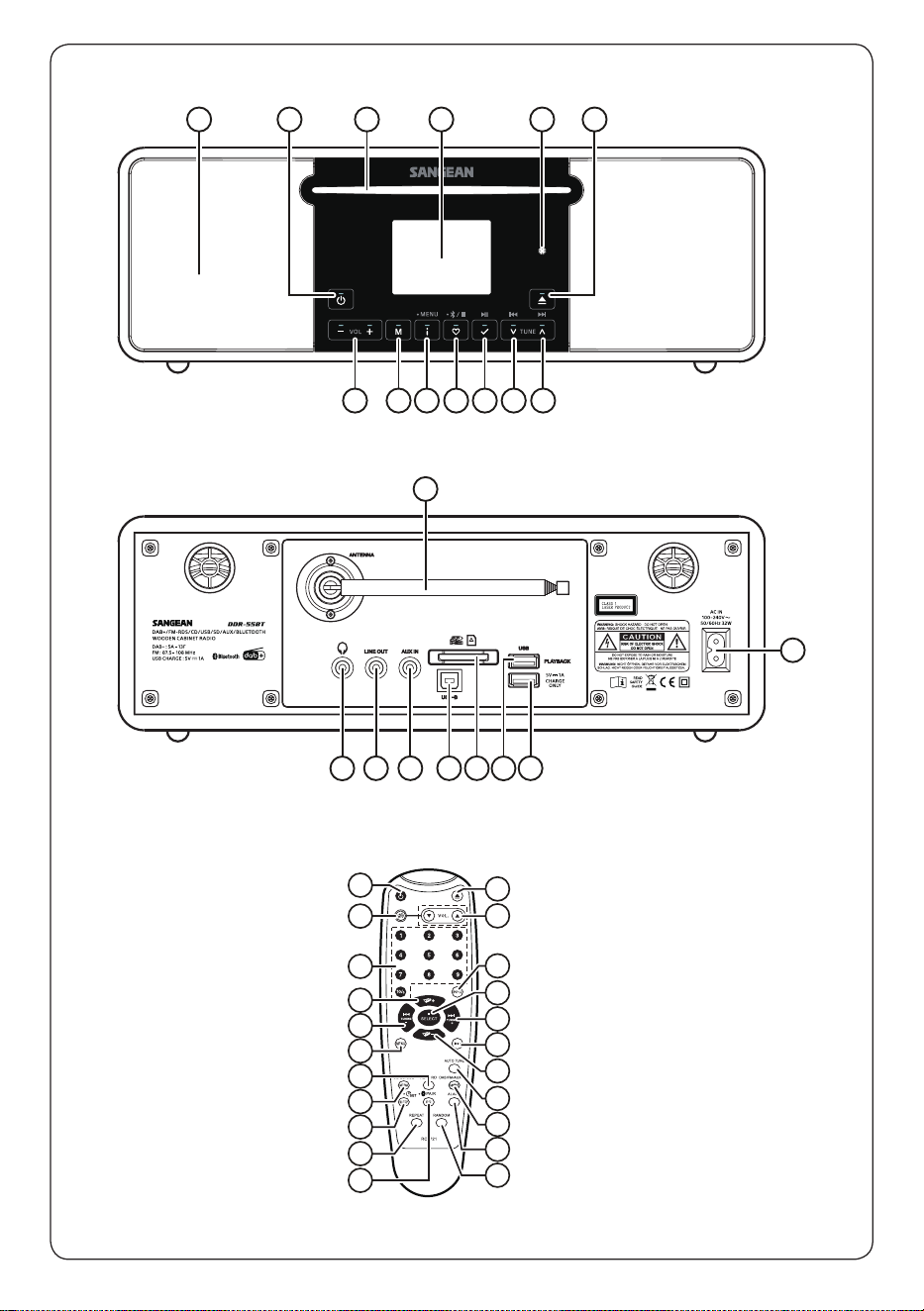
Controls
Main unit
1
Speaker
2
Power button
3
CD Slot
4
LCD display
5
IR sensor for remote control
6
CD Eject button
7
Tuning Up / Next Track / Fast Forward button
8
Tuning Down / Previous Track / Fast Reverse button
9
Select / Play / Pause button
10
Preset / BT Pairing / Stop / Record button
11
Info / Menu button
12
Mode button
13
Volume Up / Down button
14
Telescopic antenna
04
GB
15
AC IN socket
16
USB-A charging port
17
USB-A playback port
18
SD card reader
19
USB-B port for updating the radio’s software
20
AUX IN socket
21
LINE OUT socket
22
Headphones socket
Note:
All buttons on the radio are touchscreen controls.
You can simply tap or tap and hold them to operate.
In some cases, buttons have more than one function,
indicated by a dot above the button on the radio’s panel.
To use these additional features, tap and hold the
corresponding button for 2 seconds.
Remote control
a
Power button
b
Mute button
c
Number buttons
d
Folder Up button
e
Tuning Down / Fast-Reverse button
f
Menu button
g
Record button
h
CD / SD / USB button
i
Sleep / Set Time button
j
Repeat button
k
EQ / BT Pairing button
l
Random button
m
Alarm button
n
Source / DAB / FM / AUX / Bluetooth button
o
Auto Tune button
p
Folder Down button
q
Play / Pause button
r
Tuning Up / Fast-Forward button
s
Select / Stop button
t
Info button
u
Volume Up / Down buttons
v
CD Eject button
Note:
All instructions in the manual use the controls on
the radio itself. If you prefer using the remote control, use
the corresponding buttons on the remote control instead.
Please note that some features, such as Mute and the
shortcut to the
[Time Setup]
menu, are only accessible
via the remote control.
Getting started
Positioning the radio
After unpacking the radio from the box, follow these
guidelines to find a suitable location for the radio:
●
Place the radio on a flat, even surface such as a table.
●
Do not place the radio near heat sources.
●
Make sure there is sufficient space available around
the radio for proper ventilation.
●
Avoid placing the radio near appliances that can
interfere with Bluetooth reception.
Installing batteries in the remote control
The DDR-55BT’s remote control requires two 1.5V AAA
batteries (included) to operate. Follow these steps to
install the batteries:
1.
Open the battery compartment on the back of the
remote control.
2.
Insert two 1.5V AAA batteries in the battery
compartment with polarities as shown in the diagram
inside the battery compartment.
3.
Close the battery compartment on the back of the
remote control again.
Important:
Batteries should not be exposed to excessive heat such
as direct sunlight, fire or the like. After use, disposable
batteries should be taken to a suitable recycling center.
On no account should batteries be disposed of by
incineration. Do not leave batteries within reach of young
children, they can be a choking hazard.
Connecting the radio to the mains power
supply
The DDR-55BT can be powered using the supplied AC
power cord. Before connecting the AC power cord to a
wall socket, please ensure that the voltage that the socket
supplies is within the supported range (100~240 Vac, 50 /
60Hz).
If the wall socket does supply a voltage that is within the
supported range, first connect the connector of the power
cord to the radio and then insert the plug of the power
cord into the wall socket.
After the radio has been supplied with power, the radio
will turn on in the standby mode and the radio’s display
will show the default time and date (01 / 01 / 2025, 00:00).
The radio can now be switched on by pressing the
Power
button
. Refer to the instructions in the section “Manually
setting the time and date” below for a detailed explanation
on how to set the time and date.
Note:
If the radio is disconnected from and then
reconnected to the power source, the time and date will
have to be set again.

05
GB
Navigating and using the radio menu
The radio menu can be accessed from any mode,
including standby mode. In standby mode, the menu only
contains the radio’s
System Settings
. In other modes,
System Settings
appears as a submenu, while the main
radio menu for those modes also includes additional items
specific to the selected mode (if applicable).
To open the radio menu, press and hold the
Info / Menu
button
for 2 seconds until the menu appears on the
radio’s display. Then press the
Tuning Up / Down button
to select an option or a value in the menus and press the
Select button
to confirm your choice.
To exit the radio menu, press the
Info / Menu button
.
If no button is pressed within 10 seconds, the radio will
automatically exit the menu.
The radio’s current settings are indicated by an asterisk (*).
The list below provides an overview of all items in the
System Settings
submenu, which is accessible from
any mode. In some modes, the menu includes additional
options specific to that mode. These options will be
detailed in the corresponding chapter later in this manual.
●
[Time Setup]:
Select this option to configure the radio’s
time and date. After selecting
[Time Setup]
a submenu
featuring 3 items will appear:
[Set Time]:
Select this item to manually configure the
radio’s time and date.
[Set 12 / 24 Hour]:
Select this option to configure the
radio’s time format (12 / 24 hour clock).
[Auto Update]:
Select this option to configure whether
and how the radio should automatically update the time
and date. The available options for updating the time
and date are:
[No update]
,
[From Any]
(DAB or FM),
[From DAB]
, and
[From FM]
.
●
[Sleep]:
Select this option to configure the radio’s sleep
timer.
●
[Alarm]:
Your radio features 2 separate alarms. Select
this option to configure the radio’s alarms.
●
[Equaliser]:
Select this option to select the radio’s
equalizer mode.
●
[Loudness]:
Select this option to enable or disable the
radio's loudness feature.
●
[Touch Key Set]:
Select this option to configure the
sensitivity of the radio’s touch keys.
●
[Backlight]:
Select this option to configure the radio’s
backlight settings. Choose
[Timeout]
to configure the
delay before the backlight turns off, or choose
[On
Level]
or
[Standby Level]
to configure the brightness
level of the radio’s backlight in the active and standby
modes, respectively.
●
[Language]:
Select this option to configure the
language in which the radio’s menus appear.
●
[Factory Reset]:
Select this option to reset the radio to
the default factory settings. After confirmation, all user
settings and preset stations will be erased.
●
[SW Version]:
Select this option to view the radio’s
software version.
Note:
Detailed instructions for configuring the radio’s time
and date, alarms, and sleep timer are provided below.
Manually setting the time and date
If the time cannot automatically be set using the
[Auto
Update]
option in the
[Time Setup]
menu, or if you prefer
to set the time yourself, follow these steps:
1.
Press and hold the
Info / Menu button
for 2 seconds
to access the menu for the current mode.
2.
Use the
Tuning Up / Down button
and
Select
button
to navigate to the
System Settings
menu (if
applicable).
3.
Press the
Select button
to access the
[Set Time]
option.
4.
The day digits will now be blinking on the radio’s
display. Use the
Tuning Up / Down button
to set the
day and press the
Select button
to conrm the day.
5.
The month digits will now be blinking on the radio’s
display. Use the
Tuning Up / Down button
to set the
month and press the
Select button
to confirm the
month.
6.
The year digits will now be blinking on the radio’s
display. Use the
Tuning Up / Down button
to set the
year and press the
Select button
to conrm the year.
7.
The hour digits will now be blinking on the radio’s
display. Use the
Tuning Up / Down button
to set the
hour and press the
Select button
to conrm the hour.
8.
The minute digits will now be blinking on the radio’s
display. Use the
Tuning Up / Down button
to set the
minutes and press the
Select button
to confirm the
minutes.
Setting the alarms
Your radio features two separate alarms, each of which
can be set to wake you using the buzzer, DAB radio, FM
radio, CD, USB device, or SD card. Before setting an
alarm, make sure the current time is set correctly.
Follow these steps to configure the radio’s alarms:
1.
Press and hold the
Info / Menu button
for 2 seconds
to access the menu for the current mode.
2.
Use the
Tuning Up / Down button
and
Select
button
to navigate to the
System Settings
menu (if
applicable).
3.
Use the
Tuning Up / Down button
and
Select button
to access the settings for
[Alarm 1]
or
[Alarm 2]
.
After selecting the required alarm, a submenu appears
containing the following items:
[Enable]:
Select this option to configure the alarm
frequency. The available options are:
[Off]
,
[Daily]
,
[Once]
,
[Weekends]
, and
[Weekdays]
.
[Time]:
Select this option to configure the alarm time.
This works in the same way as setting the time and
date above.
06
GB
[Source]:
Select this option to configure the source for
this alarm (e.g. FM, DAB, CD, etc.).
[Preset]*:
Select this option to select a preset station
or the last listened station as the alarm source.
[Volume]:
Select this option to configure the desired
alarm volume.
[Save]:
Select this option to save the alarm settings.
*: This option will only appear if
[DAB]
or
[FM]
is
selected as the alarm source.
4.
Configure all of the above options as required, then
select
[Save]
, and press the
Select button
. Once an
alarm is enabled, the corresponding alarm icon will be
shown at the bottom of the radio’s display.
5.
To configure the other alarm, select corresponding
alarm in step 3 and repeat step 4.
Snoozing or stopping alarms
When an alarm sounds, it will start softly and gradually
increase in level (Humane Wake System) and remain active
for up to 60 minutes. For non-buzzer alarms, the volume can
be adjusted using the
Volume Up / Down button
.
An alarm can be stopped by pressing the
Power button
,
or snoozed for 5 minutes by pressing any other button
(except the
CD Eject button
).
While an alarm is snoozed, the remaining snooze time will
be shown on the radio’s display, and the alarm icon and
snooze icon will be blinking at the bottom of the display.
To cancel the snooze timer while the alarm is suspended,
press the
Power button
.
If the alarm mode is set to FM, DAB, CD, USB or SD, but
the selected mode is unavailable when the alarm sounds,
the radio will automatically switch over to the buzzer
alarm.
Setting the sleep timer
The sleep timer allows you to automatically turn off the
radio after a preset time has elapsed. It can be set from
15 to 120 minutes using the
[Sleep]
option in the
System
Settings
menu.
Follow the steps below to set the sleep timer:
1.
Press and hold the
Info / Menu button
for 2 seconds
to access the menu for the current mode.
2.
Use the
Tuning Up / Down button
and
Select button
to navigate to the
System Settings
menu (if applicable).
3.
Select [
Sleep]
and press the
Select button
.
4.
Use the
Tuning Up / Down button
to select the
desired sleep timer duration and press the
Select
button
to enable the sleep timer with the selected
duration.
5.
Once the sleep timer expires, the radio will
automatically switch to standby mode. While active, the
sleep timer icon and remaining duration are shown at
the bottom of the radio’s display.
6.
To cancel a sleep timer and turn o the radio, press the
Power button
to turn o the unit manually. To cancel
a sleep timer and leave the radio playing, go back into
the sleep timer settings (steps 1 to 3 above), and then
select
[Sleep o]
in step 4.
Listening to DAB radio
Tuning into DAB stations
To tune into DAB radio stations, follow these steps:
1.
Turn on the radio using the
Power button
.
2.
Select the DAB radio mode by repeatedly pressing
the
Mode button
or by using the
Tuning Up / Down
button
after pressing the
Mode button
.
3.
If this is the first time the DAB radio mode is being
used, the radio will automatically perform a full scan in
order to find all available DAB radio stations. During
the scanning process, as new stations are detected
the station counter will increase and the stations will be
added to the list which is stored in the radio. The bar
graph indicates the progress of the scan.
4.
When the scan is completed, the radio will list all
stations that were found.
5.
Use the
Tuning Up / Down button
to scroll through
the list of stations and press the
Select button
to tune
into a station.
Note:
Before selecting the DAB radio mode and
performing a scan, make sure the antenna at the back
of the radio is fully extended and the radio's reception is
good.
Storing and recalling DAB presets
Your DDR-55BT features 10 presets for the DAB band. A
DAB radio station can be stored as a preset by following
these steps:
1.
Make sure the radio is turned on and the DAB mode
is selected following steps 1 and 2 of the previous
section.
2.
Tune into the station to be stored as a preset, and
press and hold the
Preset button
for 2 seconds.
3.
The
Preset Store
menu appears on the radio’s display.
4.
Use the
Tuning Up / Down button
to select the
desired preset position and press the
Select button
to
save the station under the selected preset.
5.
The radio will show a message on its display indicating
that the station has been stored under the selected
preset position.
To recall a preset, follow these steps:
1.
Make sure the radio is turned on and the DAB mode
is selected following steps 1 and 2 of the previous
section.
2.
Press the
Preset button
to access the radio’s
Preset
Recall
menu.
3.
Use the
Tuning Up / Down button
to select the
desired preset and press the
Select button
to tune into
the preset DAB station.

07
GB
Note:
Presets can also be conveniently stored and
recalled using the radio’s remote control. To save the
currently playing radio station, simply press and hold
a numeric button for 2 seconds and the station will be
saved under the corresponding preset position. To recall a
preset, press the numeric button of the desired preset.
The DAB radio menu
The main menu for the DAB mode contains the following
items specific to the DAB mode:
●
[Station list]:
Select this option display all DAB radio
stations that were found and tune into one of the
stations. If no stations were previously found, the radio
will perform a new full scan.
●
[Full scan]:
Select this option to perform a full scan
and store all DAB radio stations that were found in the
station list.
●
[Manual tune]:
Select this option to manually tune into
a DAB channel / frequency.
●
[Prune Invalid]:
Select this option to delete all
unavailable stations from the station list.
●
[DRC]:
Dynamic Range Control (also known as DRC)
can make quieter sounds easier to hear when your
radio is used in a noisy environment by reducing the
dynamic range of the audio signal. Select this option to
configure the DRC level. The available options are:
●
[DRC high]:
DRC is set as sent by broadcaster.
●
[DRC low]:
DRC level is set to 1 / 2 that sent by
broadcaster.
●
[DRC off]:
DRC is switched off. Broadcast DRC will
be ignored. This is the default setting.
●
[Station Order]:
Select this option to configure
the DAB station order. The available options are
[Alphanumeric]
,
[Ensemble]
and
[Valid]
.
Showing DAB information on the display
When listening to a DAB radio broadcast, repeatedly
press the
Info / Menu button
to cycle through the
following information on the radio's display:
●
Text
●
Program type
●
Multiplex name
●
Date
●
Frequency
●
Bit rate & Audio type
●
Strength
●
Signal error
If the broadcast being received is in stereo, then the
stereo indicator will be shown at the top right of the radio's
display.
Listening to FM radio
Tuning into FM stations
To tune into FM radio stations, follow these steps:
1.
Turn on the radio using the
Power button
.
2.
Select the FM radio mode by repeatedly pressing
the
Mode button
or by using the
Tuning Up / Down
button
after pressing the
Mode button
.
3.
Press and hold the
Tuning Up / Down button
for 2
seconds to automatically tune into an FM station with
a higher or lower frequency respectively. Your radio
will stop scanning when it finds a station of sufficient
strength. The display will show the frequency of the
signal which has been found along with the RDS
indicator if RDS information is available. If the broadcast
being received is in stereo, then the stereo indicator will
be shown at the top right of the radio's display.
4.
Press the
Tuning Up / Down button
to ne-tune the
frequency with steps of 0.05MHz if needed.
5.
Repeat the steps 3 and 4 to tune into other radio
stations.
Note:
Before selecting the FM radio mode and tuning into
stations, make sure the antenna at the back of the radio is
fully extended and the radio's reception is good.
Storing and recalling FM presets
Your DDR-55BT features 10 presets for the FM band. An
FM radio station can be stored as a preset by following
these steps:
1.
Make sure the radio is turned on and the FM mode
is selected following steps 1 and 2 of the previous
section.
2.
Tune into the station to be stored as a preset and press
and hold the
Preset button
for 2 seconds.
3.
The
Preset Store
menu appears on the radio’s display.
4.
Use the
Tuning Up / Down button
to select the
desired preset position and press the
Select button
to
save the station under the selected preset.
5.
The radio will show a message on its display indicating
that the station has been stored under the selected
preset position.
To recall a preset, follow these steps:
1.
Make sure the radio is turned on and the FM mode
is selected following steps 1 and 2 of the previous
section.
2.
Press the
Preset button
to access the radio’s
Preset
Recall
menu.
3.
Use the
Tuning Up / Down button
to select the
desired preset and press the
Select button
to tune into
the preset FM station.
Note:
Presets can also be conveniently stored and
recalled using the radio’s remote control. To save the
currently playing radio station, simply press and hold
a numeric button for 2 seconds and the station will be
08
GB
saved under the corresponding preset position. To recall a
preset, press the numeric button of the desired preset.
The FM radio menu
The main menu for the FM mode contains the following
items specific to the FM mode:
●
[FM Scan Zone]:
Select this option to configure if the
radio should only look for strong signals or all signals
when pressing and holding the
Tuning Up / Down
button
for 2 seconds. Select
[Local]
to only search for
strong signals or
[Distant]
to search for all signals.
●
[Audio Setting]:
Select this option to configure if the radio
should play FM stations in stereo when possible. Select
[Stereo Allowed]
to play in stereo (when available*), or
select
[Forced Mono]
to force mono playback. Forcing
the radio to play FM broadcasts in mono can help reduce
noise when listening to FM broadcasts.
*: If stereo playback is available, an icon featuring a pair
of speakers will be shown in the bottom right corner of the
radio’s display.
Showing FM information on the display
When listening to a FM radio station that is also
broadcasting RDS information (the RDS indicator is
shown on the radio’s display), repeatedly press the
Info
/ Menu button
to cycle through the following information
on the radio's display:
●
Text message
●
Program type
●
Frequency
●
Reception type (stereo / mono)
●
Date
If no RDS information is available, the radio will be unable
to display the text message and program type. It will
display the reception type and the date, however.
Listening to Bluetooth audio
In order to stream Bluetooth music to your radio, you need
to pair your Bluetooth device with the DDR-55BT. Pairing
creates a ‘bond’ so two devices can recognize each other.
Pairing your Bluetooth device for the first
time
1.
Turn on the radio using the
Power button
.
2.
Select the Bluetooth mode by repeatedly pressing
the
Mode button
or by using the
Tuning Up / Down
button
after pressing the
Mode button
. The Bluetooth
icon on the radio’s display will start blinking, to indicate
the radio is discoverable.
3.
Enable Bluetooth on your Bluetooth device (refer to the
manual of the Bluetooth device if you are unsure about
how to do this).
4.
In the Bluetooth settings of your device, select the
device named “DDR-55BT” from the list of available
Bluetooth devices.
Note:
On some Bluetooth devices with Bluetooth
version 2.1 or earlier, you might be requested to enter a
passcode. If this is the case, enter the passcode “0000”.
5.
Once the devices are paired and connected, the radio
will play a confirmation tone. The radio’s display will
show the name of the connected Bluetooth device, and
the title of the currently playing track (if applicable). Any
audio that is played on the Bluetooth device will now be
output through the radio's speakers.
Notes:
(1)
If 2 Bluetooth devices are pairing for the rst time, both
must search for your radio, it will show its availability
on both devices. However, if one device links with this
unit rst, then the other Bluetooth device won’t nd it
on the list.
(2)
If you take your Bluetooth device out of range, the
connection between your device and the radio will be
temporarily disconnected. Your radio will automatically
reconnect if the Bluetooth device is brought back
into range. Be aware that during the period of
disconnection, no other Bluetooth device can pair or
link with your radio.
(3)
If “DDR-55BT” shows up in your Bluetooth device
list, but your Bluetooth device cannot connect with
it, please delete the item from your list and pair the
Bluetooth device with the radio again following the
steps described previously.
(4)
The effective operation range between the radio
and the paired Bluetooth device is approximately 10
meters (30 feet). Any obstacle between the system
and the device can reduce the operational range.
(5)
Bluetooth connectivity performance may vary
depending on the connected Bluetooth device. Please
refer to the Bluetooth capabilities of your device before
connecting it to your radio. Not all features may be
supported, depending on the Bluetooth device used.
(6)
With some mobile phones, making / receiving
calls, text messages, e-mails or any other activities
unrelated to audio streaming may mute the Bluetooth
audio streaming or temporarily disconnect from the
radio. Such behavior is a function of the Bluetooth
device and does not indicate a problem with your
DDR-55BT.
Audio playback in the Bluetooth mode
After you have successfully connected your radio with
the chosen Bluetooth device, you can start to play your
music using the controls on the radio or your connected
Bluetooth device.
1.
Once playback has started, the radio will show the title
of the song and the name of the connected device on
the radio's display.
2.
The volume can be adjusted both on the radio using
the
Volume Up / Down button
and on the Bluetooth
device using the volume control of the device.
3.
Playback can be controlled both on the radio and on
the Bluetooth device as well. Press the
Select button
09
GB
to start playing audio or to pause / resume playback.
Press the
Tuning Up / Down button
to go to the
next or previous track, respectively, or press and hold
the
Tuning Up / Down button
to fast forward or fast
rewind within a track. Release the button when the
desired position is reached.
Note:
Not all player applications or devices may respond
to all of these controls.
Audio playback from a previously-paired
Bluetooth device
The DDR-55BT can memorize up to 8 sets of paired
Bluetooth devices, when 8 devices have been memorized
and an additional device is added, the earliest device
with which the radio was paired will be overwritten in the
radio's memory.
If your Bluetooth device has previously paired with the
DDR-55BT previously, the radio will still remember your
Bluetooth device and attempt to reconnect with the device
that was last connected.
Showing Bluetooth information on the
display
When listening to Bluetooth audio, repeatedly press
the
Info / Menu button
to cycle through the following
information on the radio's display:
●
Title
●
Artist
●
Album
●
Date
Disconnecting your Bluetooth device
To disconnect your Bluetooth device, either turn off
Bluetooth on the Bluetooth device, press and hold the
Preset button
on the radio for 2 seconds or use the
Mode button
to switch to another mode on the radio. If
you disconnect the Bluetooth device while the radio is
in the Bluetooth mode, the Bluetooth indicator will start
blinking again to indicate that the radio is available for
pairing again.
Listening to CD audio
The DDR-55BT is capable of playing CDs, CD-Rs and
CD-RWs and can play both normal audio CDs and CDs
with MP3 and WMA files (with the exception of files
encoded using WMA lossless, WMA Voice, WMA 10
professional and files with DRM protection).
Audio playback in the CD mode
1.
Turn on the radio using the
Power button
.
2.
Select the CD mode by repeatedly pressing the
Mode
button
or by using the
Tuning Up / Down button
after
pressing the
Mode button
.
3.
After selecting the CD mode, the radio will either read
the CD that has been inserted into the CD Slot or, if no
disc is present, display the “No Disc” on its display.
4.
If no CD has been inserted, insert a CD with the label
side facing up. The radio's display will show “Reading”
while the CD is being read.
5.
Once the CD is read, press the
Select button
to start /
pause playback.
6.
Press the
Tuning Down button
to go to the start of
the current track or the previous track when the current
track is at the start. If the current track is the rst track
of a folder on a CD with MP3 or WMA les and multiple
folders, the radio will switch back to the last track of
the previous folder. Press and hold the
Tuning Down
button
to fast rewind within a track. Release the button
when the desired position is reached.
7.
Press the
Tuning Up button
to go to the next track.
If the current track is the last track of a folder on a CD
with MP3 or WMA les and multiple folders, the radio
will switch to the rst track of the next folder. Press and
hold the
Tuning Up button
to fast forward within a
track. Release the button when the desired position is
reached.
8.
Press the
Preset button
to stop playback. The radio's
display will now show the total number of folders and
tracks on the CD.
Note:
When using the remote control, you can jump
directly to the next or previous folder of an MP3 / WMA
disc using the
Folder up
and
Folder down buttons
.
Other functions, such as track selection, repeat mode,
and shuffle mode, can also be controlled directly using the
corresponding buttons on the remote.
The CD menu
The main menu for the CD mode contains the following
items specific to the CD mode:
●
[Repeat]:
Select this option to configure the repeat
mode for playback. The available options in this
menu are:
[Off]
,
[Repeat 1]
,
[Repeat All]
, and
[Repeat Folder]
. After selecting a repeat mode, the
corresponding repeat icon will appear at the bottom of
the radio’s display.
●
[Shuffle]:
Select this option to enable or disable the
radio’s shuffle mode. In shuffle mode tracks are played
in random order. After enabling the shuffle mode, the
shuffle icon will appear at the bottom of the radio’s
display.
●
[Intro]:
Select this option to enable or disable the
radio’s intro mode. In intro mode only the first 10
seconds of all tracks are played.
●
[CD Version]:
Select this option to view the radio’s CD
version.
Showing CD information on the display
When playing audio CDs with MP3 and / or WMA files,
repeatedly press the
Info / Menu button
to cycle through
the following information on the radio's display:
●
File name
●
Title

10
GB
●
Artist
●
Album
●
Date
Listening to audio from a USB device
or SD card
The DDR-55BT is capable of playing MP3 and WMA files
(with the exception of files encoded using WMA lossless,
WMA Voice, WMA 10 professional and files with DRM
protection) from USB devices or SD cards.
Playing les from a USB device or SD card
To play audio files from a USB device or SD card, follow
these steps:
1.
Turn on the radio using the
Power button
.
2.
Insert the USB device into the USB playback port or
SD card into the SD card slot.
3.
Select the USB or SD mode by repeatedly pressing
the
Mode button
or by using the
Tuning Up / Down
button
after pressing the
Mode button
.
4.
Once either of these two modes has been selected, the
radio's display will show “Reading” while the radio is
reading the content of the USB device or SD card.
5.
After the content of the USB device or SD card has
been read, playback of the rst track of the rst folder
will automatically start. The display will show “F001
T001 00:00”. The first number represents the folder
number, the second number represents the track
number within the current folder and the third number
represents the current play time.
6.
Press the
Select button
to pause / resume playback.
7.
Press the
Tuning Down button
to go to the start of
the current track or the previous track when the current
track is at the start. If the current track is the rst track
of a folder and there are multiple folders, the radio will
switch back to the last track of the previous folder .
Press and hold the
Tuning Down button
to fast rewind
within a track. Release the button when the desired
position is reached.
8.
Press the
Tuning Up button
to go to the next track. If
the current track is the last track of a folder and there
are multiple folders, the radio will switch to the first
track of the next folder. Press and hold the
Tuning
Up button
to fast forward within a track. Release the
button when the desired position is reached.
9.
Press the
Preset button
to stop playback. The radio's
display will now show the total number of folders and
tracks on the USB device or SD card.
Note:
When using the remote control, you can jump
directly to the next or previous folder on a USB device or
SD card using the
Folder up
and
Folder down buttons
.
Other functions, such as track selection, repeat mode,
and shuffle mode, can also be controlled directly using the
corresponding buttons on the remote.
The USB / SD menu
The USB / SD radio menu contains the following items
only related to these modes:
●
[Delete]:
Select this option to delete the currently
playing track.
●
[Format]:
Select this option to format the USB device
or SD card. After formatting a USB device or SD card,
all files on the device or card will be permanently lost.
●
[Repeat]:
Select this option to configure the repeat
mode for playback. The available options in this
menu are:
[Off]
,
[Repeat 1]
,
[Repeat All]
, and
[Repeat Folder]
. After selecting a repeat mode, the
corresponding repeat icon will appear at the bottom of
the radio’s display.
●
[Shuffle]:
Select this option to enable or disable the
radio’s shuffle mode. In shuffle mode tracks are played
in random order. After enabling the shuffle mode, the
shuffle icon will appear at the bottom of the radio’s
display.
●
[Intro]:
Select this option to enable or disable the
radio’s intro mode. In intro mode only the first 10
seconds of all tracks are played.
Showing track information on the display
When listening to audio from a USB device or SD card,
repeatedly press the
Info / Menu button
to cycle through
the following information on the radio's display:
●
File name
●
Title
●
Artist
●
Album
●
Date
Listening to audio via the AUX IN
socket
You can listen to the sound of an external device (such as
an iPod or MP3 player) through the speakers of the DDR-
55BT. To do this, follow these steps:
1.
Connect the external device to the radio's AUX IN
socket at the back of the radio using a 3.5 mm audio
cable (not included).
2.
Make sure both the radio and the external device are
turned on.
3.
Select the AUX IN mode by repeatedly pressing the
Mode button
.
4.
The audio output of the external device will now
be played through the speakers of the DDR-55BT.
Playback must be controlled on the external device,
while the volume can be controlled both on the radio
and on the external device.
11
GB
Other features
Recording audio to a USB device or SD card
To record audio that is being played by the radio to a USB
device or SD card, follow these steps:
1.
Turn on the radio using the
Power button
.
2.
Insert the USB device in the USB playback port or SD
card into the SD card slot.
3.
Select the desired mode and begin playback of the
audio that you wish to record.
4.
Press and hold the
Select button
for 2 seconds. The
radio will now initialize recording to the USB device or
SD card.
5.
Press and hold the
Select button
for 2 seconds again
to stop the recording.
6.
Recordings are saved as MP3 les named “RECXXX”
(XXX being the number of the recording, so the first
recording is named “REC001”, the second “REC002”,
etc.) in a folder named “REC” on the storage device.
Note:
The radio supports recording from USB to SD card
and from SD card to USB. Only WMA / MP3 files are
supported in this case.
Using headphones
Any headphones featuring a 3.5mm jack can be
connected to the
Headphones socket
at the back of the
radio. Simply plug in the 3.5mm headphone jack to listen
through headphones. After connecting headphones to the
socket, the radio’s speakers will be muted.
Important:
Excessive sound pressure from earphones and
headphones can cause hearing loss.
To prevent possible hearing damage, do not
listen at high volume levels for long periods.
Using the Line Out socket
A 3.5mm stereo Line Out socket is provided on the rear
of your sound system to permit the audio signal to be fed
to an external amplifier or other audio device. Inserting
an audio cable into this socket will not mute the internal
loudspeaker. Set the volume control to a low level if
desired (minimum level = 1). Setting the volume to MIN
may cause the line output to be muted.
Charging with USB port
The USB jack can only provide power to USB memory
sticks and most iPhone models with a maximum output
of 5V / 1A. The USB port does not support external
hard disks and most other mobile phones and electronic
devices.
Important:
Do not connect the USB charging port with your
computer’s USB port, as this may damage either device.
12
GB
Specifications
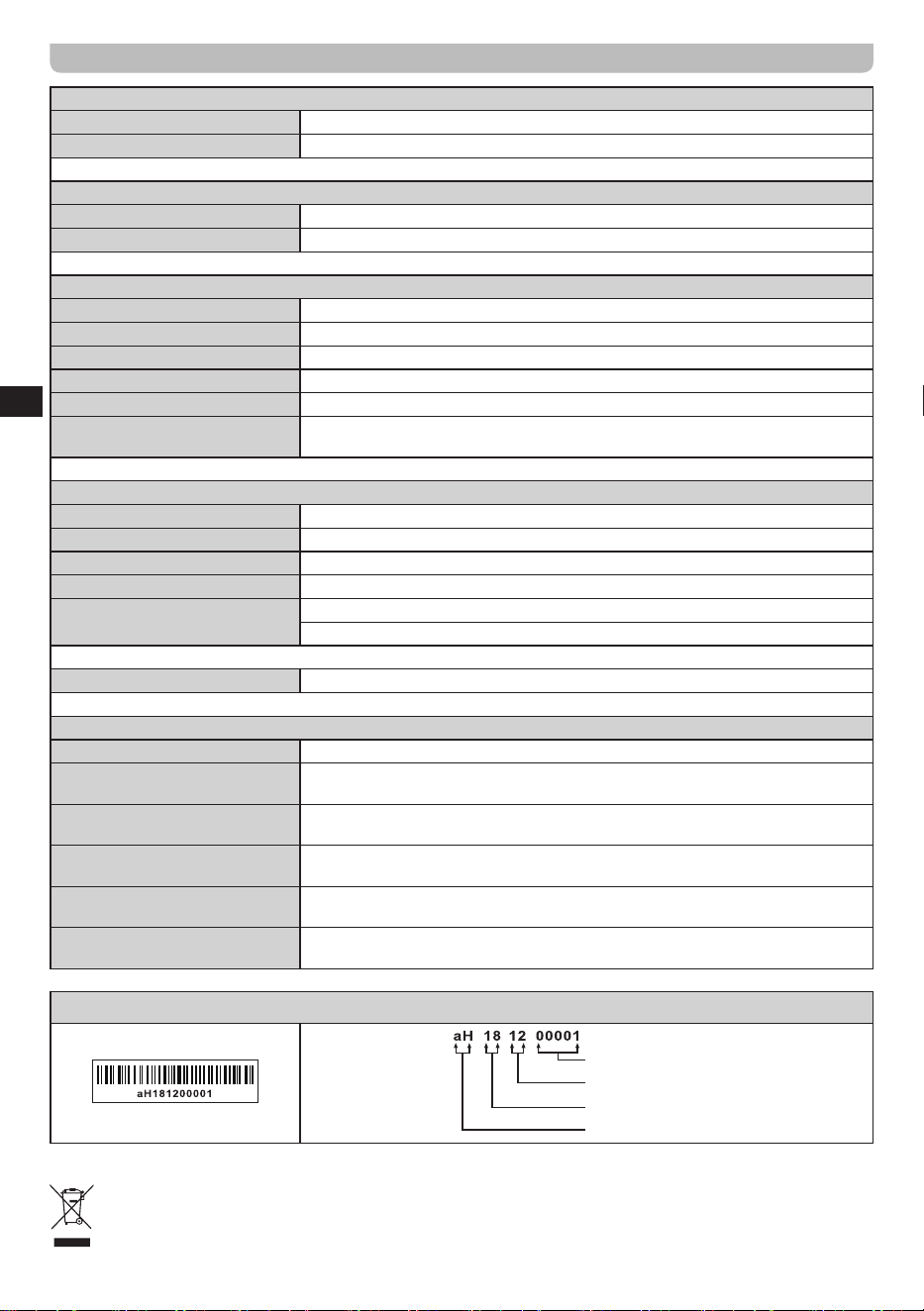
Power Requirement
Mains power supply AC 100-240 V, 50/60 Hz, 32W
Battery (Remote control) 2 x AAA
Frequency Coverage
FM 87.5-108 MHz
DAB+ 174.928-239.200 MHz
Bluetooth
Bluetooth version 5.0
Supported Bluetooth profiles A2DP, AVRCP
Supported Bluetooth codecs SBC and AAC
Transmitting Power Power Class 2
Bluetooth range approx. 10m (30feet)
Bluetooth frequency and maximum
transmitted power
2402MHz ~ 2480MHz: -0.301dBm (Bluetooth EDR)
Circuit Features
Output power 2x7 watts
Headphone socket 3.5mm diameter
Auxiliary in socket 3.5mm diameter
Line out socket 3.5mm diameter
Antenna System
FM Telescopic Antenna
DAB+ Telescopic Antenna
Operating temperature range
0°C to +35°C
Information on Power Consumption
Power standby The device has a standby mode with a power consumption of less than 0.8W.
Bluetooth mode
In Bluetooth mode, when there is no signal output, the idle power consumption is
less than 2.0W after 15 minutes.
CD mode
In CD mode, when there is no signal output, the idle power consumption is less
than 0.8W after 15 minutes.
USB mode
In USB mode, when there is no signal output, the idle power consumption is less
than 0.8W after 15 minutes.
SD mode
In SD mode, when there is no signal output, the idle power consumption is less
than 0.8W after 15 minutes.
AUX mode
In AUX mode, when there is no signal output, the idle power consumption is less
than 0.8W after 15 minutes.
※
The barcode label on the product is defined as below:
Serial number
Production month
Production year
Product code
Sangean reserves the right to amend the specifications without notice.
RECYCLING This product bears the selective sorting symbol for Waste electrical and electronic equipment (WEEE).
This means that this product must be handled pursuant to European directive 2012/19/EU in order to be recycled or
dismantled to minimize its impact on the environment.