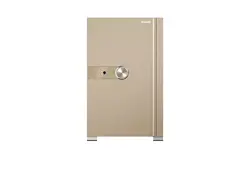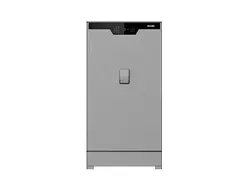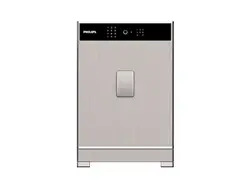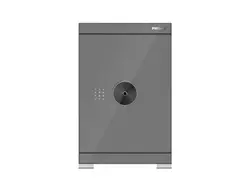
User manual
To register your product as well as obtain support, please go to:
www.philips.com/support
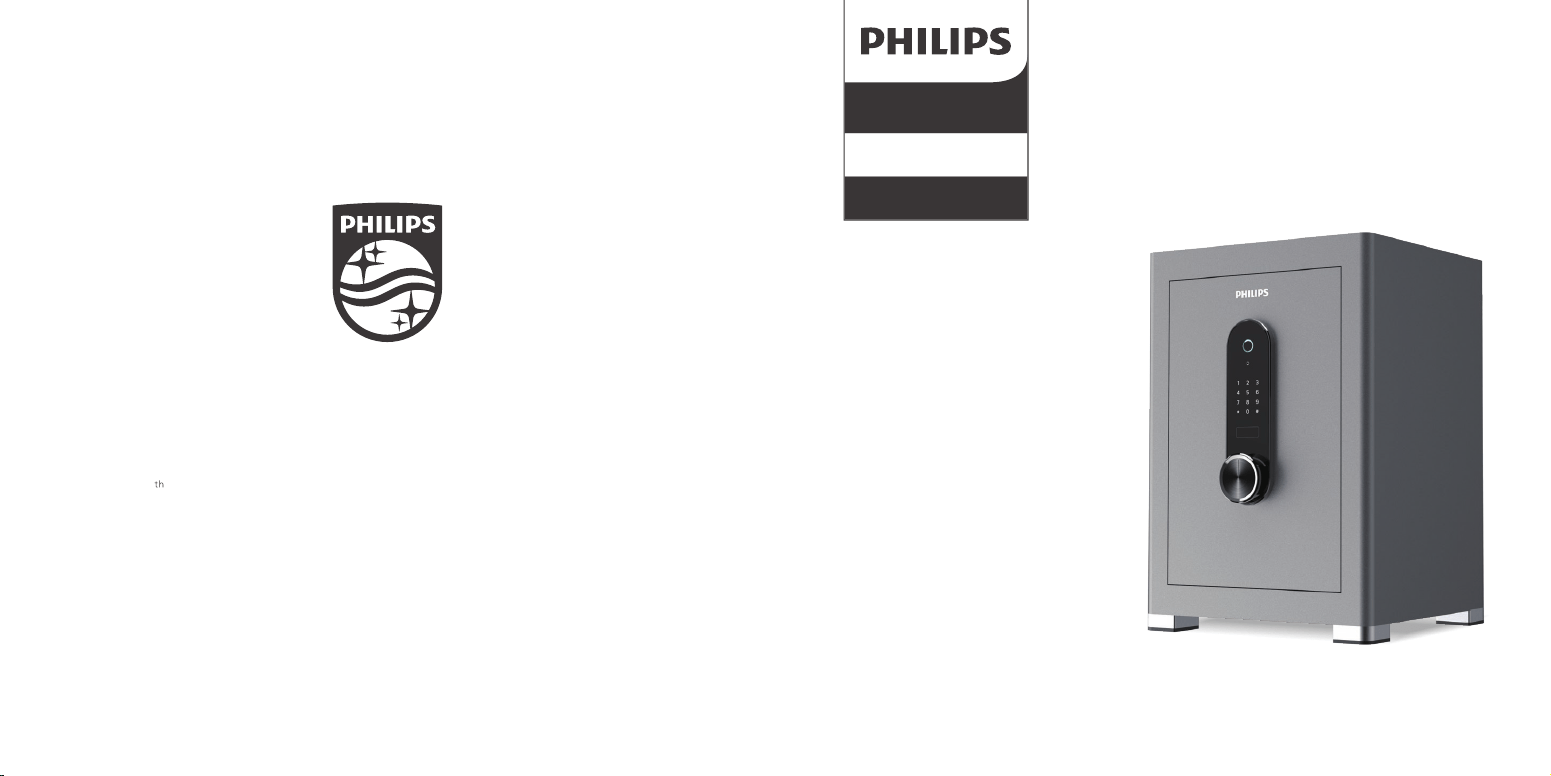
6000 Series
Smart safe box
SBX601
Shenzhen Yunyue Intelligent Technology Co., Ltd.
Address: 11 Floor, Block B, Tsinghua Info Port. No.1 Xindong Road, Songpingshan,
Songpingshan Community, Xili Street, Nanshan District, Shenzhen
Philips and the Philips Shield Emblem are registered trademarks of Koninklijke
Philips N.V. and are used under license.
This product has been manufactured by and is sold under the responsibility of
Shenzhen Yunyue Intelligent Technology Co., Ltd. and Shenzhen Yunyue Intelligent
Technology Co., Ltd. is the warrantor of this product.
© 2021 Koninklijke Philips N.V. All rights reserved. Philips smart safe box reserves the
rights to change content and product speci�cations included in this user manual
without prior notice at any time.
Version: 1.0
Please read this user manual carefully before using this product.
Thank you for purchasing Philips-branded products. For your safety, please read this user manual
carefully before using the product. Any personal injury, property or other loss caused by not
following the user manual or precautions, no liability will be assumed by Philips.
Kind reminder:
This user manual is used as a guide. The photos, pictures, or illustrations provided in the manual
are for explanation purposes, which may differ from the speci�c product, please refer to the actual
product. Due to product version upgrade or other needs, Philips may update this manual timely
without prior notice. If you need the latest version of the manual, please download it from the
Philips website (www.philips.com/sup-port). The copyright of any part from this manual, including
text, pictures or illustrations, belongs to Philips. Without written permission, no corporation or
individual may extract, copy, translate, or modify all or part of this manual in any way. Unless
otherwise agreed, Philips does not make any expressions or implied representations and
guarantees.
Models and dimensions
Content
Models
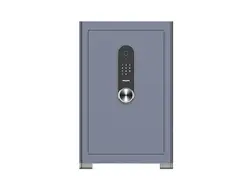
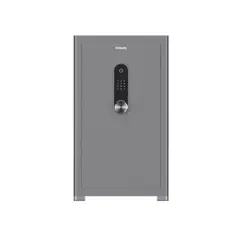
SBX601-3B0
SBX601-4B0
FDG-A10/D-55-SBX601-5B0
FDG-A10/D-65-SBX601-6B0
FDG-A10/D-75-SBX601-7B0
FDG-A10/D-85-SBX601-8B0
Dimensions (Height x Width x Depth)
350×380×320 mm
450×380×360 mm
550×400×360 mm
650×430×390 mm
750×480×430 mm
850×500×460 mm
Get to know your smart safe box
Keypad
First use
Add �ngerprint and PIN code
Delete �ngerprint and PIN code
Safe mode
Keyhole cover
Language setting
False alert
Vibrant alert
Low-voltage alert
Wall-mount instructions
After-sales policies
After-sales support
Warranty card
01
03
04
05
06
07
08
09
09
10
11
11
13
14
15
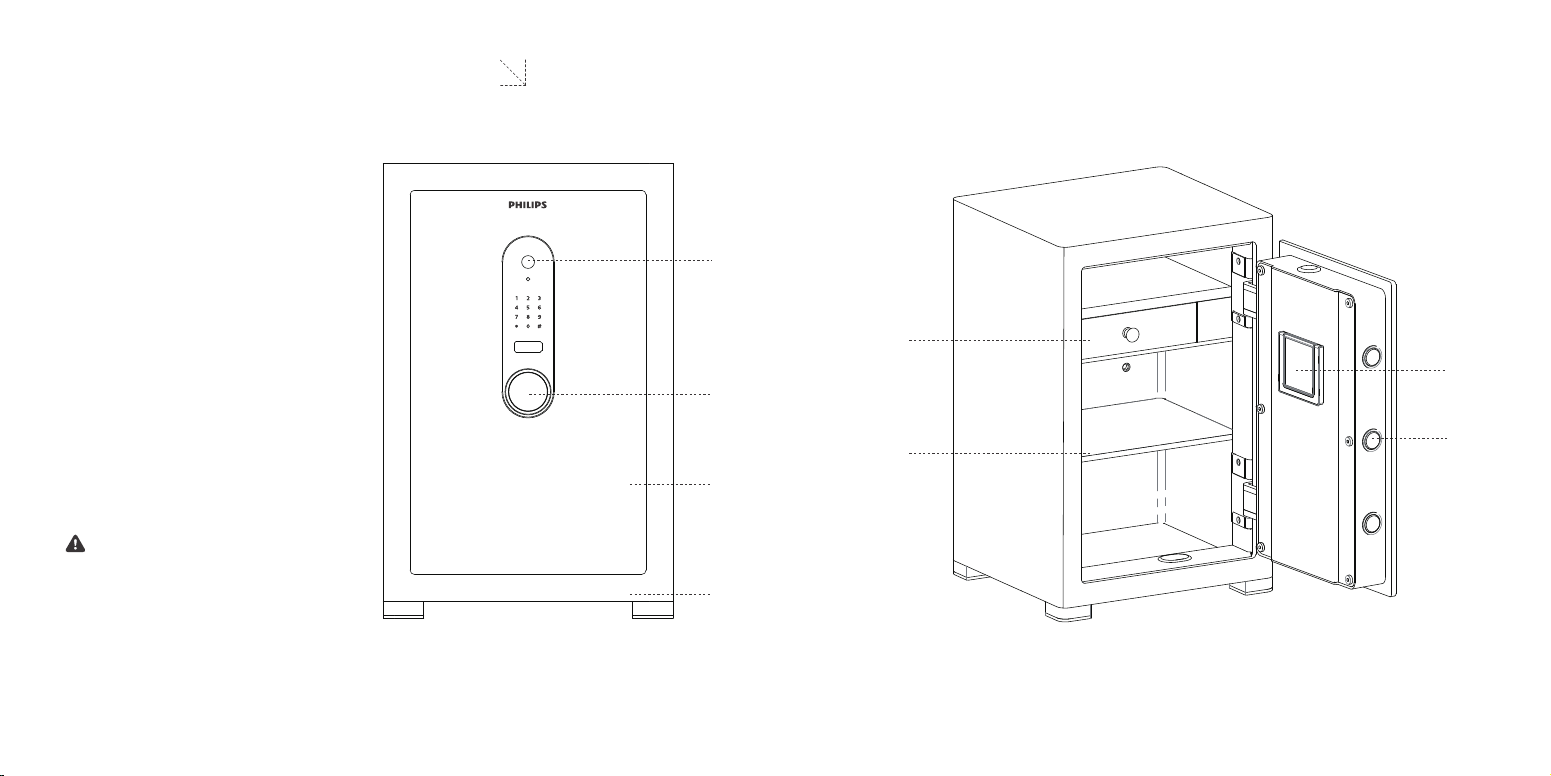
Get to know your smart safe box
Attention:
1
1. Keypad
2. Handle
3. Door
4. Base
5. Drawer
6. Divider board
7. Lock cylinder
8. Battery compartment
5
6
2
3
7
8
4
due to limited internal space,
350 mm and 450 mm high safes
are designed with no drawer.
01 02
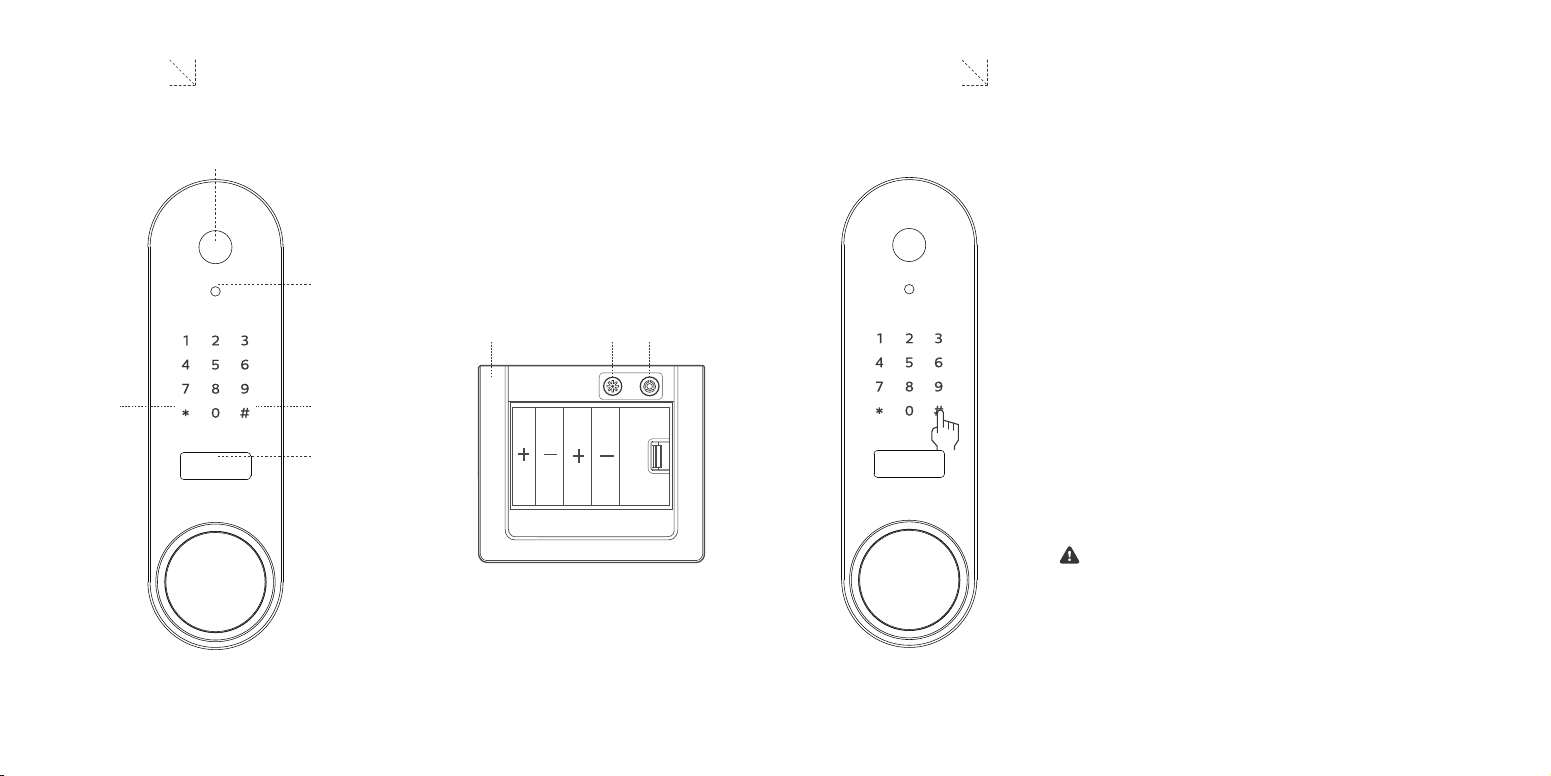
Attention: do not place the external battery box
inside the safe! Besides powering up the safe for
its �rst use, the external battery box is also for
emergency use when the main power supply is
down.
Figure 1
Cancel Confirm
Setting Safe mode
External power
connector
Fingerprint sensor
Keypad First use
Battery
compartment
1. Insert 4 AA batteries into the external battery
box, then plug it in the external power connector
on the safe.
As shown in Figure 1, enter any �ngerprint or
simply touch the panel to wake up the keypad.
Enter default PIN code '1234' and press '#' to
con�rm. After hearing a voice prompt 'Unlocking
successful', open battery compartment inside the
safe and insert in 4 AA batteries to complete the
�rst use.
2.
Keyhole cover
03 04
Attention:
this product supports a maximum of 30 �ngerprints.
Attention:
this product supports a maximum of 10 sets of PIN codes.
Add �ngerprint and PIN code Delete �ngerprint and PIN code
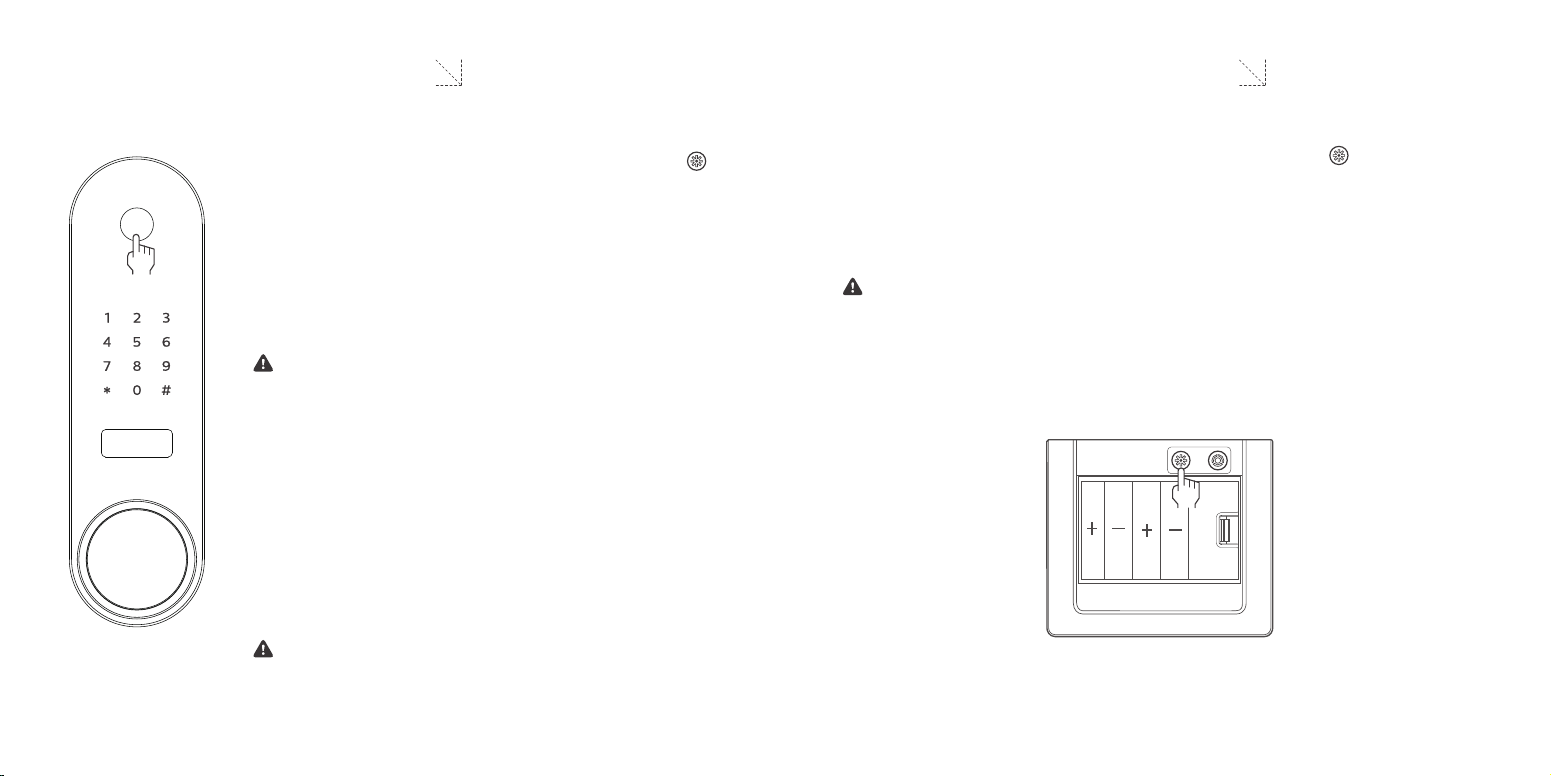
1.
Open safe door and press the red setting button ' '
on the battery compartment. After hearing a voice
prompt 'Please enter �ngerprint or PIN code', enter
your �ngerprint as shown in Figure 2. A voice prompt
'Fingerprint entering succeeded.' indicates successful
operation. If the entering fails, there will be a voice
prompt 'Fingerprint entering failed'. The system will
automatically exit if there is no entering in 8 seconds.
As shown in Figure 3, long press the red setting button ' 'on the battery
compartment for 3 seconds. There will be a voice prompt 'Initialization success-
ful', indicating that all PIN codes and �ngerprints have been successfully deleted
and the safe has restored to factory settings.
2.
After the �ngerprint is successfully entered, you can
continue with PIN code entering. Enter a 3 - 8 digit PIN
code and press '#' to con�rm. There will be a voice
prompt 'Please enter your PIN code again'. Enter the
PIN code again and press '#' to con�rm. There will be a
voice prompt 'PIN code entering successful', indicating
successful operation.
Figure 2
Figure 3
Attention
This product does not support deleting single �ngerprint or PIN code.
After the system restores to factory settings, 'Vibration alert' and 'Safe mode'
will also return to the initial settings, namely being off.
1.
2.
05 06
Attention:
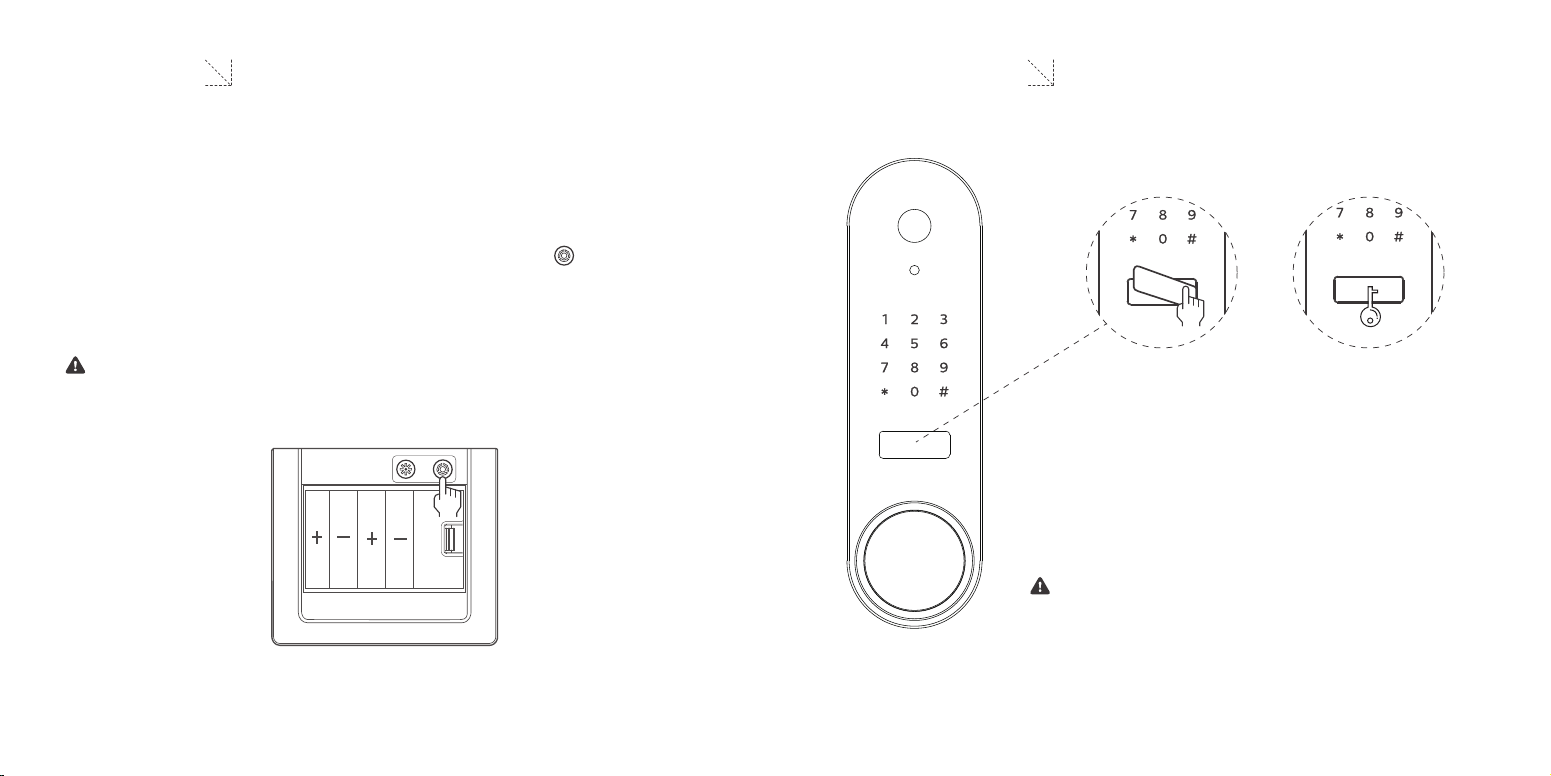
do not place the mechanical key into the safe!
Keyhole cover
1.
As shown in Figure 5, press the right end of the
keyhole cover, and the left side of the cover will jump
up. Take off cover, �nd keyhole and open the safe
with mechanical key.
Figure 4
Figure 5
Attention:
under 'Standard mode', any one set of registered PIN code or �ngerprint can
unlock the safe.
Safe mode
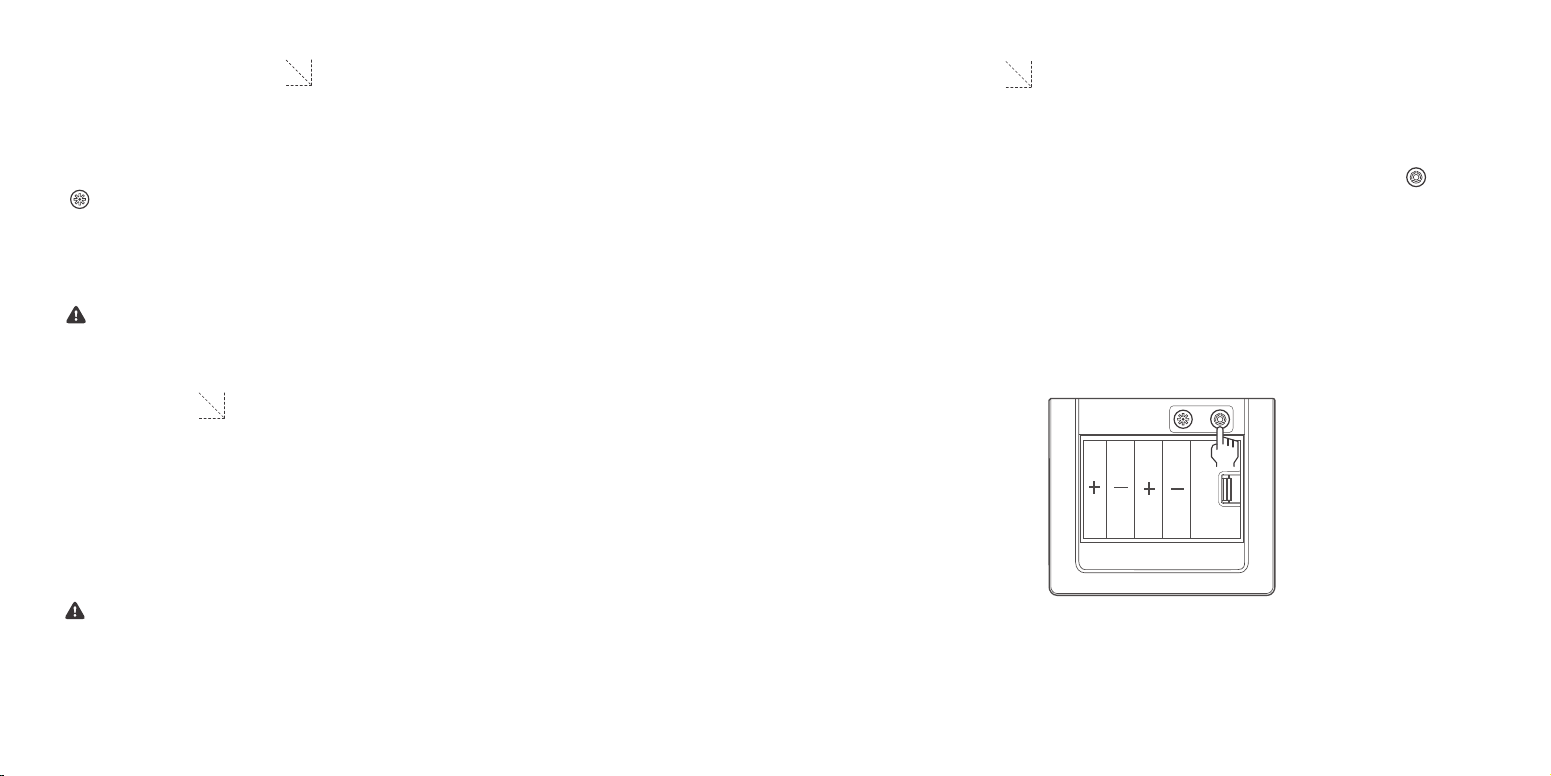
1.
2.
As shown in Figure 4, press the black safe mode button ' ' on the battery
compartment and there will be a voice prompt 'Safe mode is on', indicating
successful activation. Press the button again can turn 'Safe mode' off.
Under 'Safe mode', a combination of 2 registered passwords are required to
unlock the safe, either '�ngerprint + �ngerprint’, '�ngerprint + PIN code',
'PIN code + �ngerprint' or 'PIN code + PIN code'.
07 08
Language setting
Attention: the default language is Chinese.
Keep the battery compartment unpowered, long press the red setting button '
'on it and do not release. Put batteries into the compartment to power the
safe up, and release the button until hearing a beep, then short press the
'Setting' button 4 times to switch system language between Chinese and English.
The switch will complete in 4-5 seconds.
Vibrant alert
1.
2.
As shown in Figure 6, long press the black safe mode button ' 'for 3
seconds. There will be a voice prompt 'Vibration alert is on', indicating
successful operation. Long press it for another 3 seconds can turn the 'Vibra-
tion alert' off.
When the safe detects a certain intensity of vibration, it will activate a 20-sec-
ond vibration alert. Any registered �ngerprint or PIN code can be used to stop
the alert.
Attention:
the safe can not be operated under 'Locked' state caused by false alert.
5 times of wrong �ngerprint entering or 3 times of wrong PIN code entering will
activate false alert. The high-pitch sound alert will last for 20 seconds, while the
system to be locked for 180 seconds.
False alert
Figure 6
09 10
Low-voltage alert
Attention:
low-voltage may affect the normal use of the safe. Please replace batteries in
time when receiving low-voltage alert.
If the voltage of the main power supply goes below 4.8 V, the system will activate
a 'Low-voltage alert'. When using the safe, you will be reminded with a voice
prompt 'Low voltage, please replace battery'. Once having this alert, please
replace batteries in time.
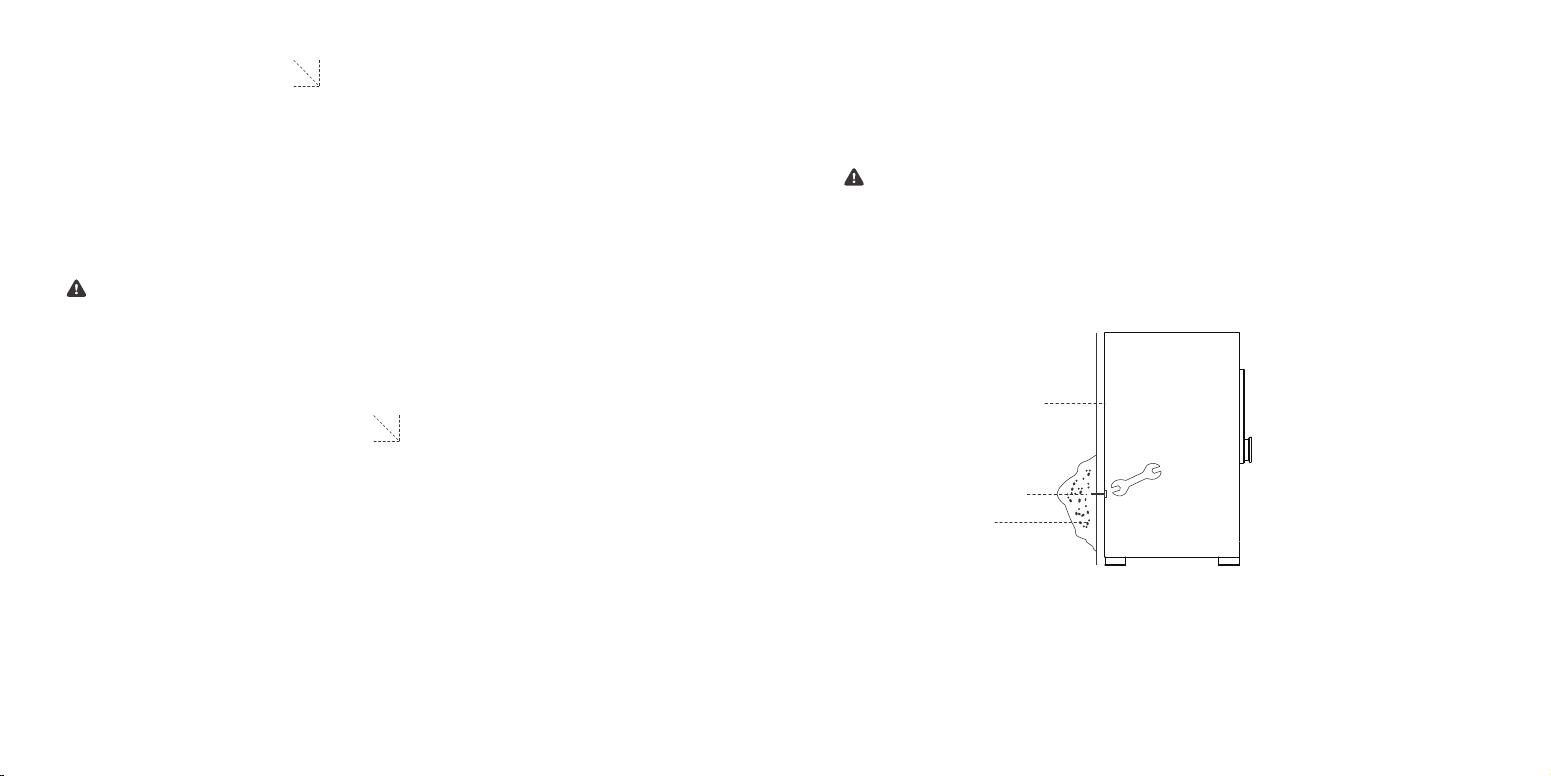
Figure 7
Wall-mount instructions
As shown in Figure 7, select an appropriate installation position, open the safe
door and take out the plugs on the back panel. Mark hole positions on the wall
or cabinet and drill holes for expansion tubes. Put expansion tubes in the holes,
attach the safe and �x it with screws.
Attention
Concrete wall is recommended for mounting the safe.
For safety reasons, please make sure the safe is �rmly attached to the wall.
1.
2.
Wall
Expansion screw
Rear side of the safe
11 12

After-sales support
If you encounter any problems when using the product, please contact local
authorized distributors.
After-sales policies
Philips smart safe box warrants:
1. Return or replacement of products that have defects caused by non-human
factors or force majeure within 7 days from the date of purchase;
2. Replacement or maintenance of products that have defects caused by non-hu-
man factors or force majeure within 8-15 days from the date of purchase;
3. Maintenance of products that have defects caused by non-human factors or
force majeure within 24 months from the date of purchase;
This warranty does no apply to (including but not limited to):
1. Damages caused by unauthorized repairs, misuse, incorrect use, abuse,
collision, negligence, �uid intake, accidents, modi�cation and alterations;
2. Products with broken or altered labels, serial number and anti-counterfeit
label;
3. Products out of warranty period;
4. Damages caused by force majeure;
5. Damages due to human factors.
13 14

Warranty card
Product model
Invoice No.
Address of seller
Date of sales
Contact of user
Date Issue
Maintenance
staff
User
signature
User name
Address of user
Seller
Product serial
number
Failure
description
Maintenance
records
15 16