
TROUBLESHOOTING
Refer to the following and you can resolve most setup issues
Special troubleshooting for Apple Home Setup failures
Special troubleshooting for Alexa setup failures
Frequently Asked Question
Extend the Warranty
Refer to the following and you can resolve most setup issues
1. Please enable IPv6 Internet connection, you may refer to the instruction here
2. Ensure your phone and Matter hub are both connected to a stable 2.4 GHz Wi-Fi network, and that it has internet access during the
setup process.
3. Restart your smartphone and clear the cache of the Smart Home app.
4. Make sure the firmware of your Matter hub(or called Matter controller which is required for providing ecosystem that could be paired with
Matter-certified device.) and Smart Home app is updated to support Matter.
5. Power cycle the Matter-enabled device.

6. Matter setup mode is active for 15 minutes after the device is powered on,if this time period has expired, you will need to power cycle
the matter-enabled device to restart the clock.
7. If the Matter-enabled device has already been added to another ecosystem, you will need to get a new setup code for pairing.
If you fail to set up my connected Matter device with another smart home system, please refer to the following troubleshooting steps:
(1) If your Matter-enabled device does not show up or the pairing code cannot be created on the app where pairing has been completed.
Please reboot your Matter-certified device.
(2) Don't create pairing codes in apps of multiple smart home systems in a row. If the first created pairing code is not used or has not
expired, the subsequently created codes are invalid.
(3) Make Sure to complete the setup process before the matter code expires:
Notes:
In Google Home, the code will expire 3 minutes after it is generated.
In Apple Home, the code will expire 5 minutes after it is generated.
In Alexa, the code will expire 15 minutes after it is generated.
In Samsung SmartThings, the code will expire 15 minutes after it is generated.
(4) Please ensure that the pairing code page of the app remains open when you enter the numeric code (or scan the QR code) for your
Matter device to pair with another app.
(5) If you still cannot connect your device, reboot your Matter Hub and Smart Device, clear the cache of the apps, and restart your phone.
Then try to set up the device normally.
Note:
Before you set up your connected Matter device with Alexa, please upgrade the software version of your Alexa Echo to 8624646532 or later.
8. If the above steps did not help solve your problem, it’s recommended that you try to factory reset the Matter-enabled device or use
another smartphone to configure it.
9. If you cannot directly connect to the third-party APP following above steps, you may try to download our AiDot APP first, and then
connect to the third-party APP through skills (such as Alexa, Google Home and SmartThings).
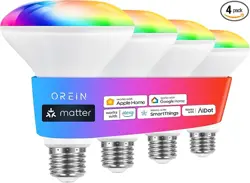
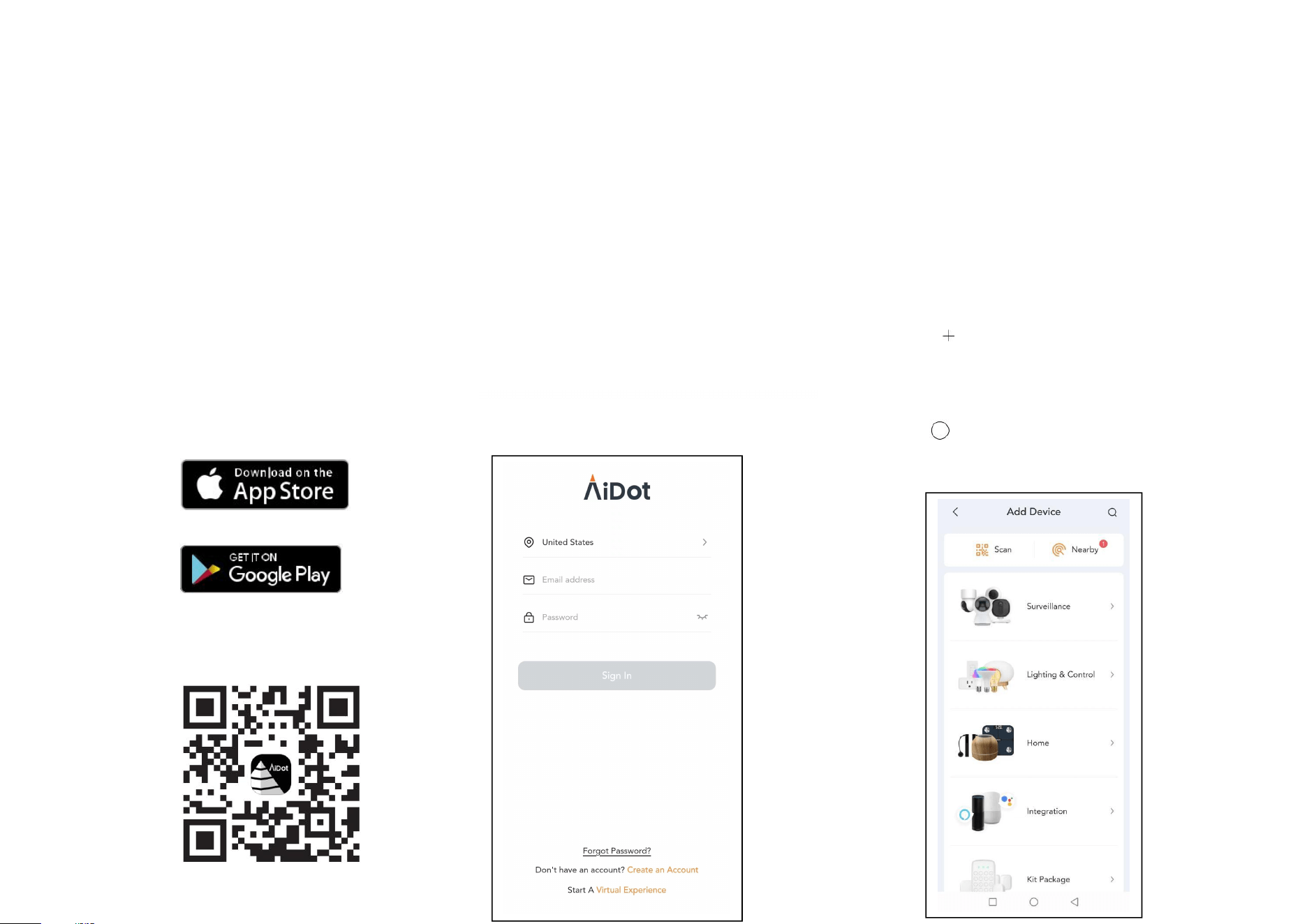
Follow the steps below to get started with your Matter bulbs:
Step 1. Download AiDot App Step 2. Log In Step 3. Add Your Bulbs
Get the AiDot app from the App
Store or Google Play, or by scanning
the QR code below.
Open the app, and log in with your AiDot
account.If you don't have an account,
create one first.
Tap the button in the AiDot app,
choose Lighting & Control, and select
your model such as Matter light Bulbs.
Follow the instructions in the AiDot app
to complete the setup. Then
Click”Aidotor” to go into Integration
Page.
OR
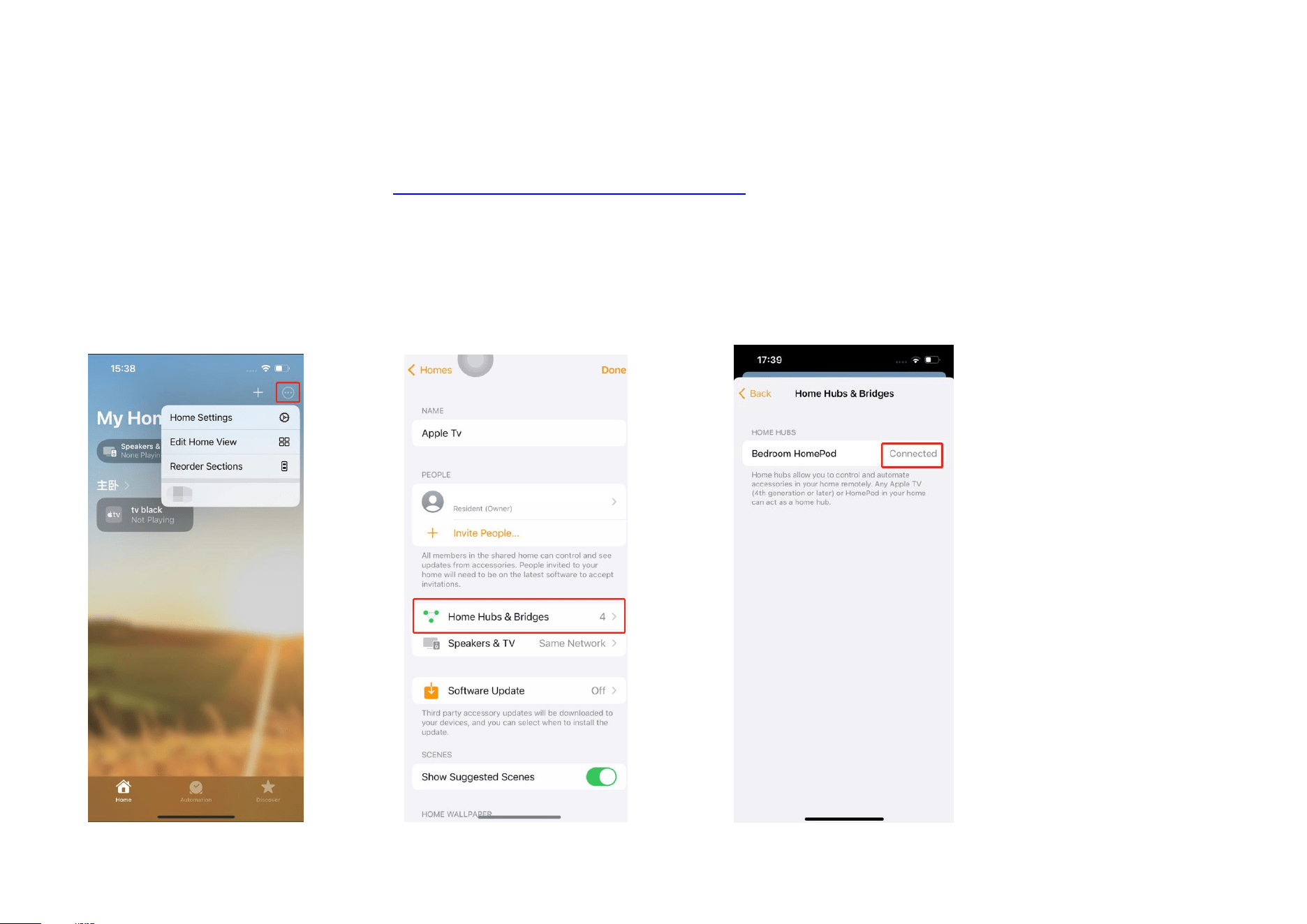
Special troubleshooting for Apple Home Setup failures
Upgrade to the new, more reliable, and more efficient Home architecture.
Please upgrade the new Home architecture, refer to the guidance from Apple.
(Click the link to get to the guidance: https://support.apple.com/en-us/HT213481)
Please reboot your phone and then create a new home in Apple Home and reset your Matter device to pair it to the new home.
If you’ve set up more than one Hub in one of your Home, please check if the hub that is listed as the first one (primary) in the Home
is connected.
Process to check:
Step 1. Tap the ‘…’ icon in the top right corner of the Home APP > Tap Home Settings > Home Hubs & Bridges.
Step 2. If the Hub listed as the first one is not located, delete the hub(s) until one of the other Hubs of the Home comes up as first.
Step 3. If the Hub listed as the first one in the Home is offline, please reboot or reset the Hub to get it connected.

Special troubleshooting for Alexa setup failures
Note: Please ensure to select the 2.4GHz Wi-Fi for your Matter device as soon as possible:
Step 1. Close the Alexa app, then disable and re-enable Bluetooth on your phone to set up your Matter device again.
Step 2. When the Wi-Fi page in the Alexa APP pop up, please select the SSID of your 2.4GHz Wi-Fi for your Matter device within 5
seconds.
Notes:
(1) Some platforms or apps may automate the setup process further automatically detecting matter-enabled devices when they're plugged in and providing an
audible or voice notification to guide you through the process.
(2) Some platforms support sharing the Matter-certified device with other accounts after it’s configured successfully. Device sharing to other accounts would
not occupy the quota of ecosystem/fabric paired with a Matter-certified device.
Take Apple for an example: https://support.apple.com/en-us/HT208709

Frequently Asked Question
1. Q:Scan code prompt error / no response
A:Please confirm whether the App software version meets the minimum version requirements.
2. Q:Can't scan the QR code on the light
A:The QR code may not be scanned when the device is turned on, you can try to scan the QR code on the instruction manual.
3. Q:Prompt that the device cannot be found
A:
a.Network distribution for the first time (the device is in the factory state): please power on the device again, and confirm that the device is in the factory state.
Confirm that the power-on time does not exceed 15 minutes.
b.Multi-ecological distribution network (the device has been configured and shared with other hub/apps): please confirm that all devices are in the same office
In the local area network (connected to the same router), and the device pairing mode has been turned on (see the above Share to other ecology
step).
4. Q:Failed to add device
A:
a.Please confirm that the mobile phone using the App is connected to 2.4GHz WiFi and the hub(controllers) is also connected to the same router
Down.
a. You can try to restart the hub/controller, App or mobile phone.
5. Q:Device shows offline
A:
a.Please try controlling the device to see if it responds normally
b.If the device does not respond, please try to power on the device again, and wait for 2 minutes to check whether the device is back online.

6. Q:How to reset the device
A:
a.Continuously switch equipment 6 times, each power-on time does not exceed 2 seconds. After the reset is successful, the device will display the light effect
R-G-B-W-W.
b.After resetting the device, the device will still be displayed on the App.
7. Q:The device name is inconsistent with what I set
A:
a. Do not restart the device while adding the device.
b. After adding, please wait for data synchronization or manually refresh to view.
8. Q:Appears offline after adding a device
A:The network may be unstable, you can try to manually refresh.
9. Q:The state of the app in the device control process jumps
A:We are currently working with Apple to resolve this issue.
10. Q: How to get support and extend the warranty?
A: Email: support@iorein.com
Support Phone: 1-844-506-1530 (Monday-Friday 9:00am-5:00pm)
Click HERE to extend 6-months warranty