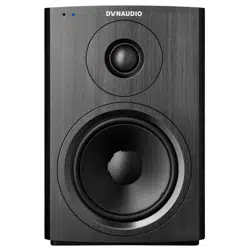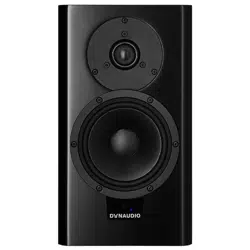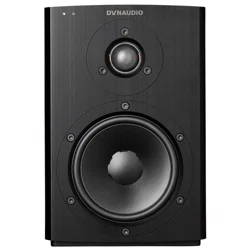
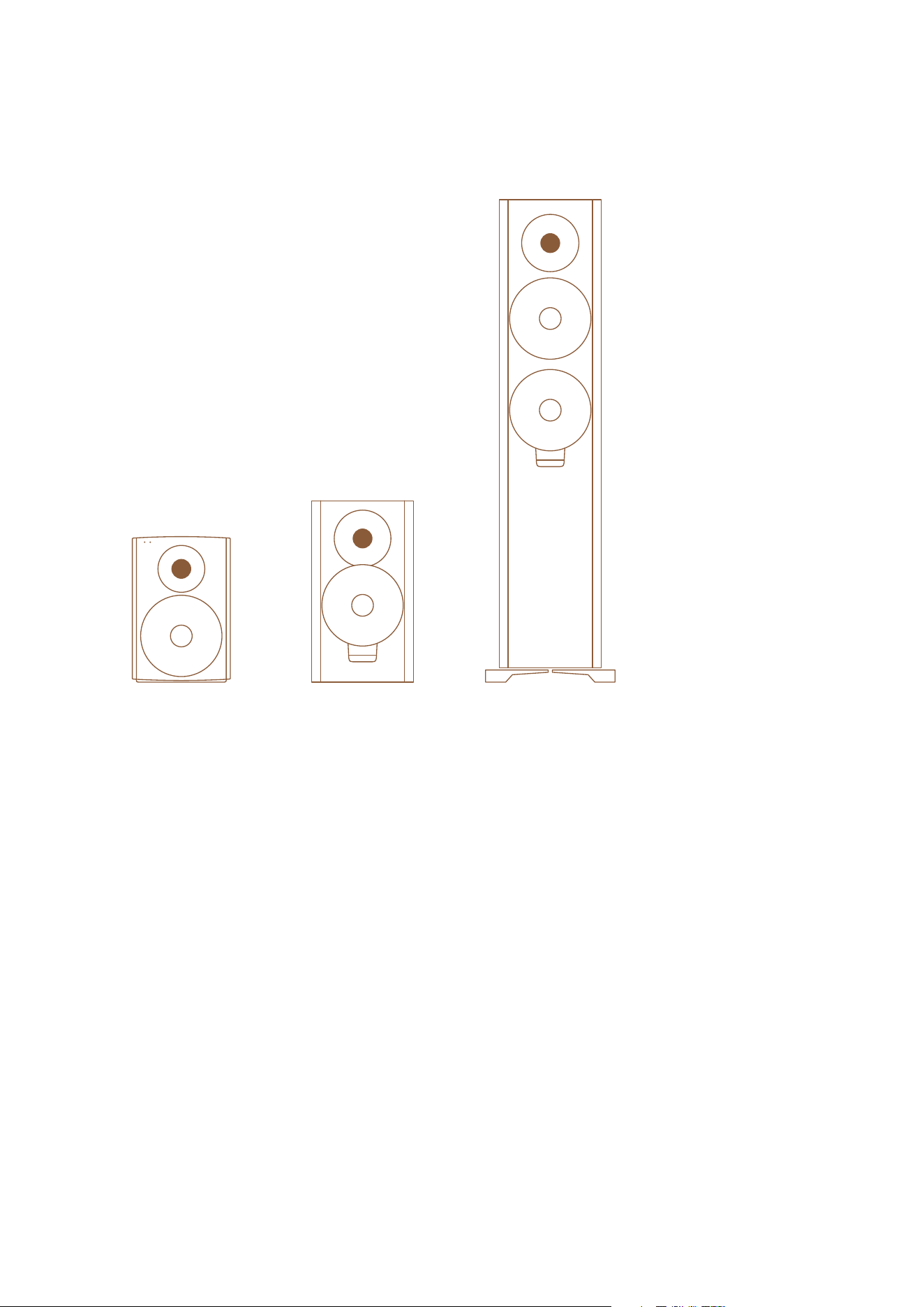
Xeo
User manual

▪ This is Xeo
▪ Thank you for choosing Dynaudio Xeo.
▪ About This Product
▪ About This Manual
▪ Important Safety Instructions
▪ Warning
▪ RISK OF ELECTRIC SHOCK! DO NOT OPEN!
▪ Remote Control Battery
▪ Chemical Burn Hazard
▪ Unpacking
▪ Removing the Protection Cap
▪ Packaging Material
▪ Disposal
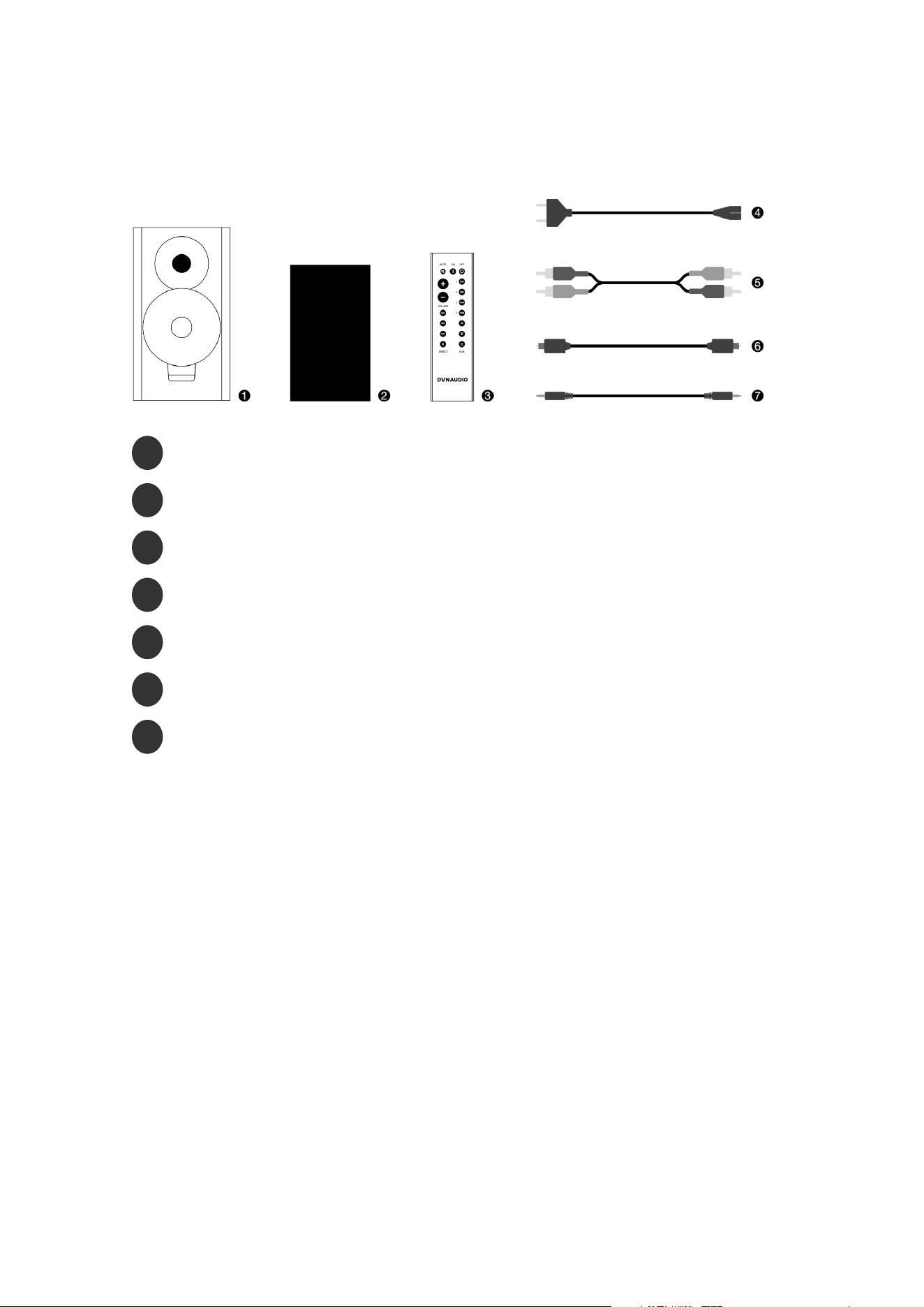
▪ Scope of Delivery
▪ Connections and Control Elements
▪ Elements on the Rear Panel
▪ Buttons on Top of the Cabinet (Xeo 10)
▪ Remote Control
▪ Connecting and Setting Up
▪ Positioning and connecting to mains voltage
▪ Cloth cover
▪ General settings
▪ Connecting sources directly
▪ Connecting a Bluetooth device
▪ Connecting sources via Hub or Connect
▪ Operation
▪ Switching on
▪ Playback of Connected Sources
▪ Playback of a Bluetooth Device
▪ Fixing the Volume
▪ To fix the volume:
▪ Standby
2 Xeo User manual

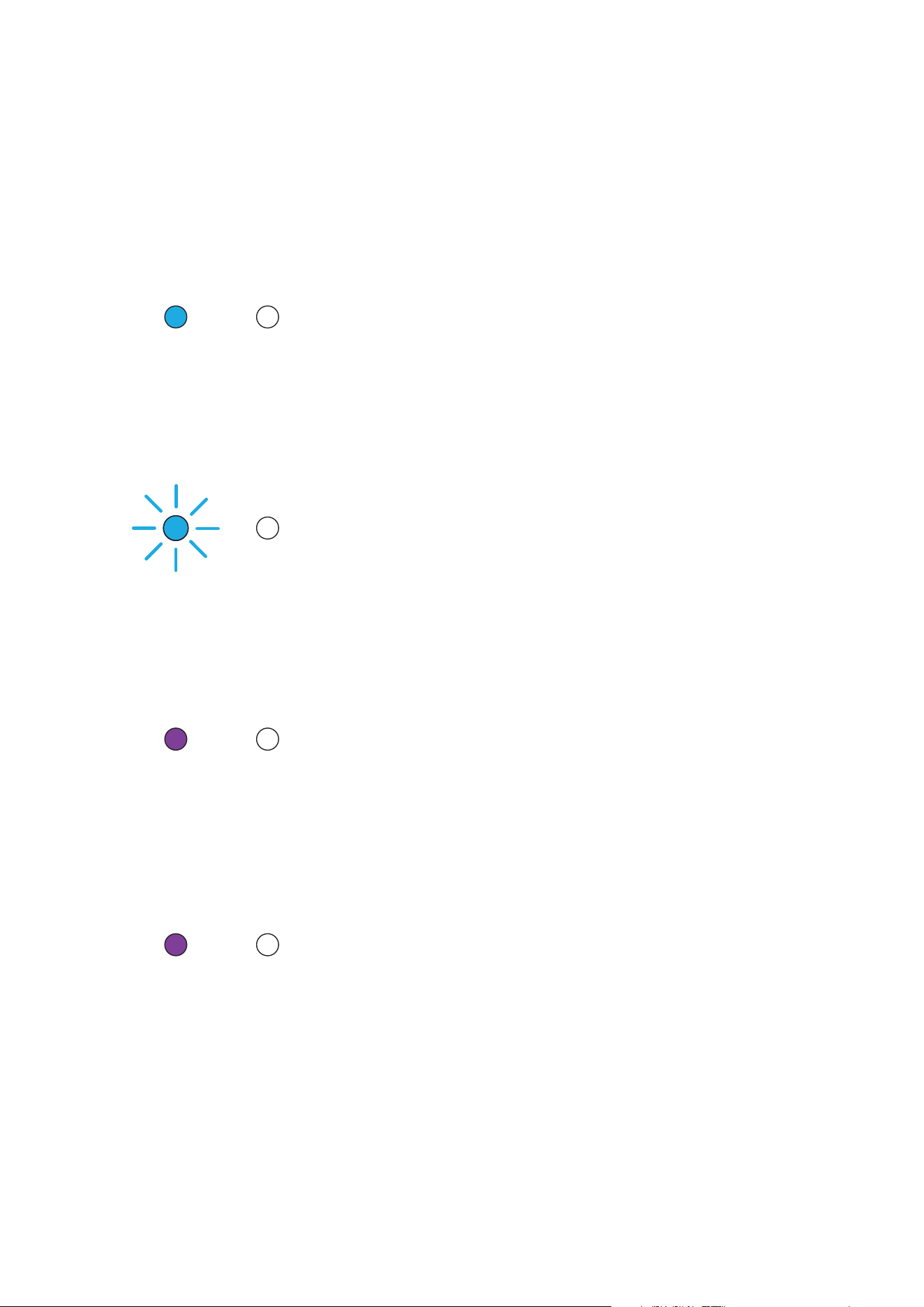
▪ Status LEDs on the front
▪ On state
▪ On state
▪ On state
▪ On state
▪ Connection
▪ Search
▪ Synchronisation / Connection
▪ Synchronisation / Connection
▪ Synchronisation / Connection
▪ Synchronisation / Connection
▪ Synchronisation / Connection
▪ Firmware loading
▪ Volume
▪ Mute
▪ O state
▪ LED Blinking Codes
▪ Malfunctions
▪ Accessories
▪ Accessories (Xeo 10)
▪ Setting up
▪ Spikes With Pointed Ends
▪ Signal Sources and Cables
▪ Notebook, Mac™, PC
▪ Smartphone, other portable devices
▪ Astell&Kern
▪ PonoPlayer
▪ Docking station, network client, Sonos, Bluesound, etc.
▪ Google Chromecast Audio
▪ Apple AirPort Express
▪ Apple TV (up to 3rd generation)
▪ Hard disk, network player, CD player
3

▪ Analog radio, digital radio
▪ Analog record player
▪ TV
▪ Stereo preamplifier
▪ Stereo power amplifier
▪ Subwoofer
▪ AV receiver, AV processor
▪ Division Into Audio Zones
▪ Components of the Xeo System
▪ Xeo speakers
▪ Xeo remote control
▪ Dynaudio Connect and Xeo Hub
▪ Xeo Extender
▪ Xeo Link
▪ Xeo System: Combination Examples
▪ Direct wired
▪ Direct wireless
▪ With Hub or Connect
▪ For Extended Range
▪ For additional speakers
▪ Legal Information
▪ Declaration of Conformity (EU only)
▪ Trademarks
▪ Xeo 30
▪ Xeo 20
▪ Xeo 10
4 Xeo User manual

5
This is Xeo
Thank you for choosing Dynaudio Xeo.
Xeo combines the latest wireless technology with impressive sound quality and makes listening to music truly
convenient and easy. The next few pages contain important information on connecting the system and its
operation to ensure perfect function and the best-possible sound quality. We hope you have a great time listening
to your favourite music.
Dynaudio
About This Product
The active Xeo 10/20/30 speakers are equipped with powerful integrated amplifiers and allow for the direct
connection of various analog and digital audio sources. A Bluetooth interface enables the operation of Bluetooth
devices and plays them back in optimal sound quality. Optional components like Xeo Hub or Dynaudio Connect
enable setting up a wireless multiroom system without any restrictions to the highest sound quality. The speakers
can be fully controlled with a remote control. The operational state of the system is indicated by two LEDs on the
front.
About This Manual
This manual describes the operation of the Xeo 10/20/30 speakers. Information about the optional Xeo modules
(Hub, Connect, Extender, Link) can be found in the Owner´s manual provided with these modules.
6 Xeo User manual

Important Safety Instructions
1. Read these instructions.
2. Keep these instructions.
3. Heed all warnings.
4. Follow all instructions.
5. Do not use this apparatus near water.
6. Clean only with dry cloth.
7. Do not block any ventilation openings. Install in accordance with the manufacturer’s instructions.
8. Do not install near any heat sources such as radiators, heat registers, stoves, or other apparatus (including amplifiers) that
produce heat.
9. Do not defeat the safety purpose of the polarized or grounding-type plug. A polarized plug has two blades with one wider
than the other. A grounding type plug has two blades and a third grounding prong. The wide blade or the third prong are
provided for your safety. If the provided plug does not fit into your outlet, consult an electrician for replacement of the
obsolete outlet.
10. Protect the power cord from being walked on or pinched particularly at plugs, convenience receptacles, and the point
where they exit from the apparatus.
11. Only use attachments/accessories specified by the manufacturer.
12. Use only with the cart, stand, tripod, bracket, or table specified by the manufacturer, or
sold with the apparatus. When a cart is used use caution when moving the cart/apparatus
combination to avoid injury from tip-over.
13. Unplug this apparatus during lightning storms or when unused for long periods of time.
14. Refer all servicing to qualified service personnel. Servicing is required when the apparatus has been damaged in any way,
such as power supply cord or plug is damaged, liquid has been spilled or objects have fallen into the apparatus, the
apparatus has been exposed to rain or moisture, does not operate normally, or has been dropped.
15. WARNING: To reduce the risk of fire or electric shock, this apparatus should not be exposed to rain or moisture and
objects filled with liquids, such as vases, should not be placed on this apparatus.
16. To completely disconnect this equipment from the mains, disconnect the power supply cord plug from the receptacle.
The mains plug of the power supply cord shall remain readily operable.
Important Safety Instructions 7
Warning
RISK OF ELECTRIC SHOCK! DO NOT OPEN!
If the speakers are connected to the mains voltage, a dangerous electrical voltage is
present inside the speakers.
Use the supplied power cable to connect the speakers to the mains voltage. Make sure that the power supply
cable is not damaged; replace it with a new one if it has been damaged.
CAUTION
▪ To reduce the risk of electric shock, do not remove the back panel and never open the speaker housing. Do not expose
the speakers to rain or moisture.
No user serviceable parts inside. Refer servicing to qualified personnel.
▪ Do not operate defective speakers and disconnect defective speakers from the mains voltage. Please contact your
Dynaudio Xeo distributor if you have any problems. Distributor addresses can be found on the Internet at dynaudio.com.
Remote Control Battery
Danger of Explosion
CAUTION
Danger of explosion if battery is incorrectly replaced.
▪ Replace only with the same or equivalent type.
Chemical Burn Hazard
CAUTION
If the coin/button cell battery is swallowed, it can cause severe internal burns in just 2
hours and can lead to death.
If you think batteries might have been swallowed or placed inside any part of the body,
seek immediate medical attention.
8 Xeo User manual
Unpacking
After unpacking, make sure the system is complete and check the device and all accessories for transport
damage. Transport damage may be expected if the packaging is already severely harmed. Do not attempt to start
up a damaged device. If the contents are incomplete or damaged, please contact your Dynaudio Xeo distributor.
Distributor addresses can be found on the Internet at dynaudio.com.
Removing the Protection Cap
The tweeter is protected by a cap to prevent damage during transport and unpacking.
▪ After you have unpacked the speaker, remove the cap by just pulling it straight out.
Packaging Material
The packaging has been designed so that it may be reused as long as it has not been damaged during transport.
Keep the packaging and use the original packaging for all further transport.
Disposal
Disposal of used electrical and electronic equipment (applicable in European countries
with separate collection systems for this equipment)
This symbol on the product or its packaging indicates that the product must not be treated as
household waste. Instead, it must be handed over to the applicable collection point for the
recycling of electrical and electronic equipment. By ensuring this product is disposed of
correctly, you will help prevent potential negative consequences for the environment and human
health. The recycling of materials helps to conserve natural resources. For more detailed
information on recycling this product, please contact your local authority, community waste
disposal oce, or the shop where you purchased the product.
Unpacking 9
Scope of Delivery
1
2 Xeo 10/20/30 speakers
2
2 Xeo 10/20/30 speaker cloth covers
3
1 Xeo 10/20/30 remote control
4
2 power cables (country-specific version, length: 2.5 m)
5
1 stereo cable (RCA – RCA, length: 1.5 m) – Xeo 10 only
6
1 optical cable (Toslink – Toslink, length: 1.5 m) – Xeo 10 only
7
1 stereo cable mini jack (3.5 mm – 3.5 mm, length: 1.5 m) – Xeo 10 only
1 Xeo first time setup manual: quick guide for installation (not shown)
10 Xeo User manual
Connections and Control Elements
On this page:
▪ Elements on the rear panel
▪ Buttons on Top of the Cabinet (Xeo 10)
▪ Remote Control
This section describes the connections and control elements. Please contact your Dynaudio Xeo distributor if you
have any problems with connection and start-up. Distributor addresses can be found at dynaudio.com.
Elements on the Rear Panel
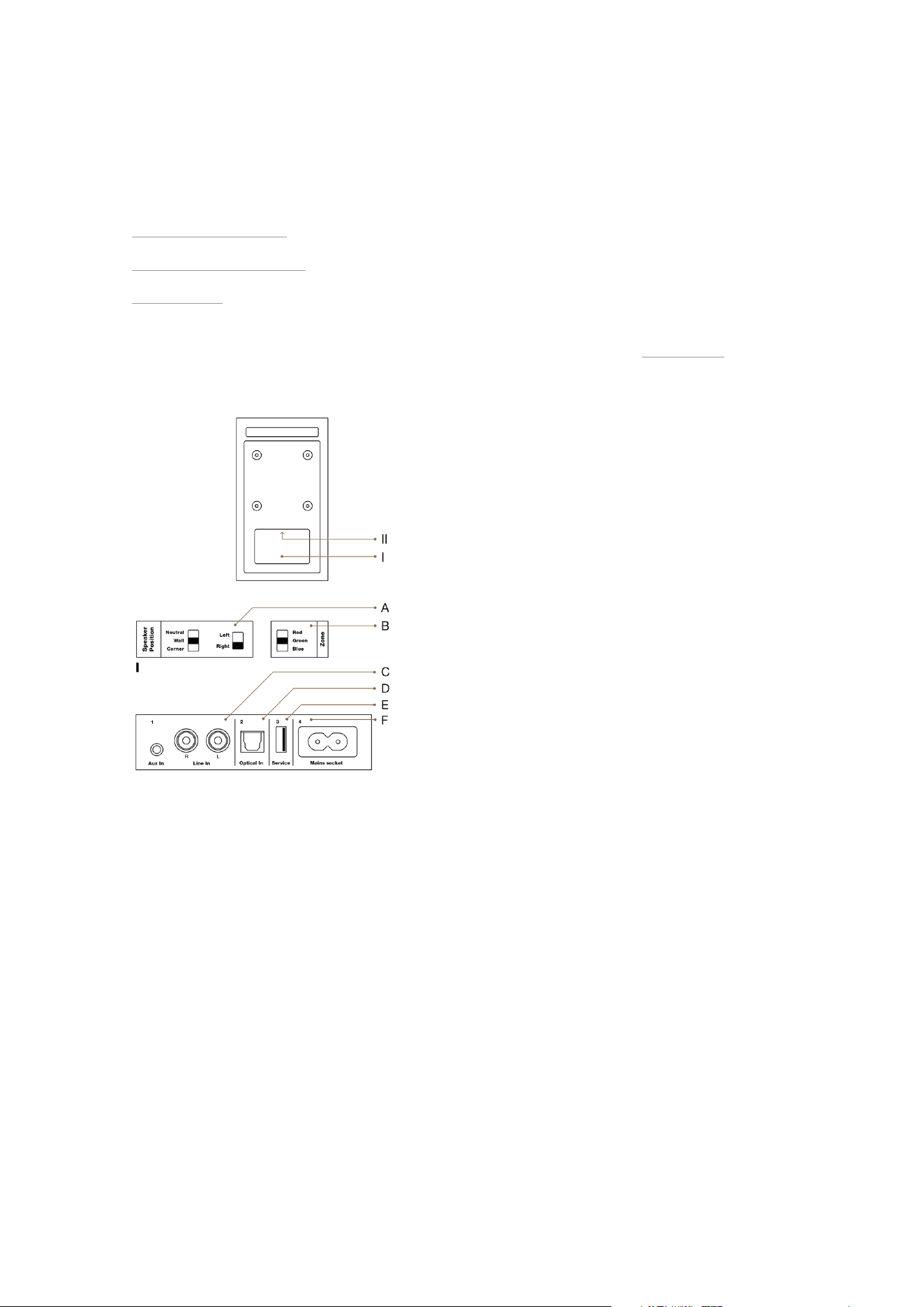
The Xeo 10/20/30 set consists of a master and a slave unit. The master unit carries the audio input interfaces.
A: Speaker position
Sound adjustment (depending on the position of the speakers)
▪ Neutral = with free-standing placement
▪ Wall = if placed near a wall
▪ Corner = if placed in a corner
Speaker placement
▪ Left = left speaker for stereo mode
▪ Right = right speaker for stereo mode
B: Speaker ID/Zone
Selection of audio zones: Speakers assigned to dierent zones can be controlled separately via the remote
control. The zones are identified as Red, Green, and Blue.
Connections and Control Elements 11
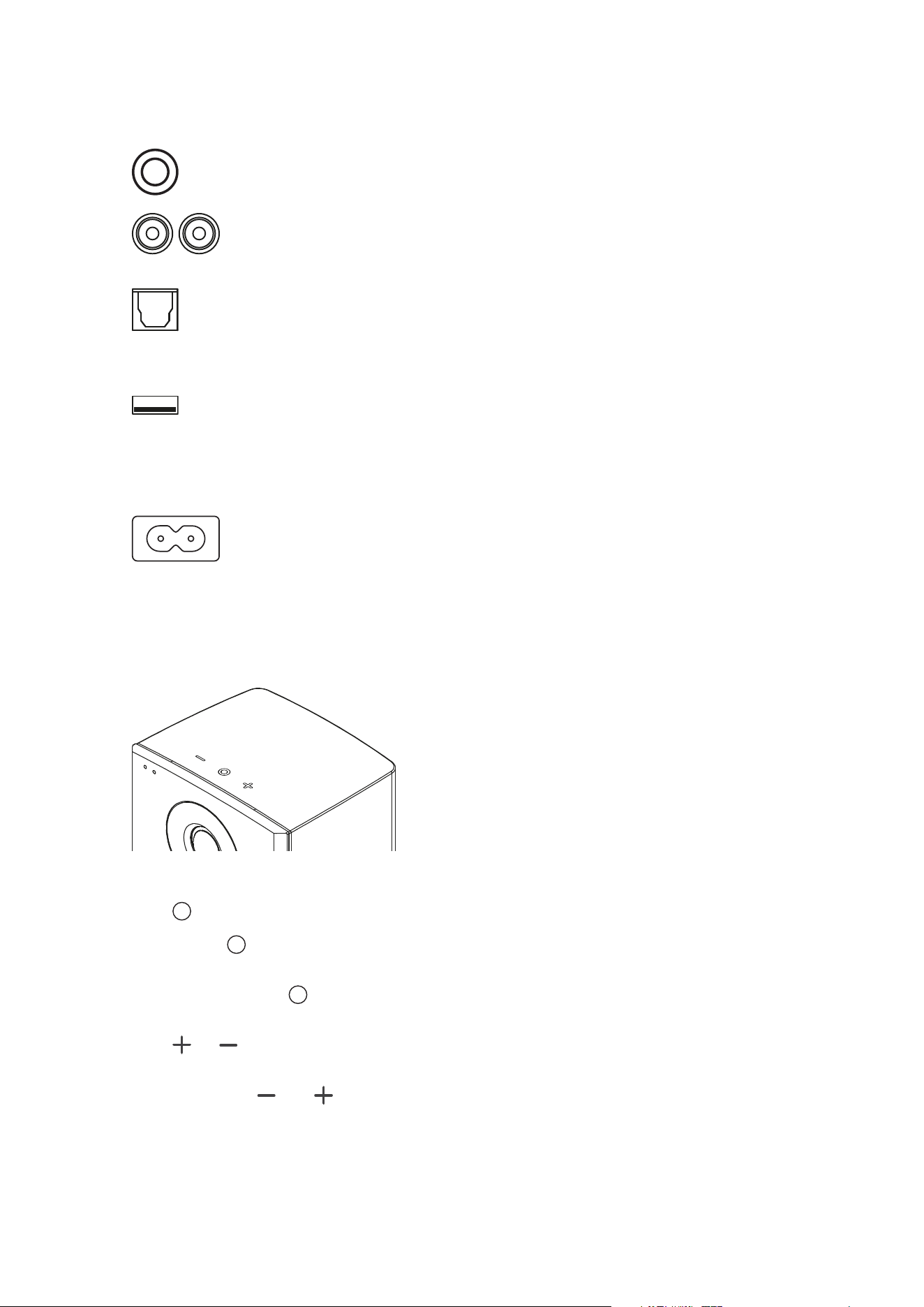
C
Aux In: To connect an analog audio source to the speaker via mini jack.
Line In: To connect an analog audio source to the speaker via RCA.
D
Optical In (Toslink): To connect a digital audio source to the speaker.
E
USB In
For firmware update only.
F
Mains socket
To connect the speaker to the mains voltage.
Buttons on Top of the Cabinet (Xeo 10)
Speaker On / O
▪ Press to switch on the speakers. The Xeo 10 will scan the inputs for a signal.
▪ Press and hold to switch o the speakers.
Input selection
▪ When switched on, press to jump to another input.
Volume control
▪ Press or to raise or lower the volume level. Press and hold for faster adjustment.
Bluetooth Pairing
▪ Press and hold both and to start pairing.
12 Xeo User manual
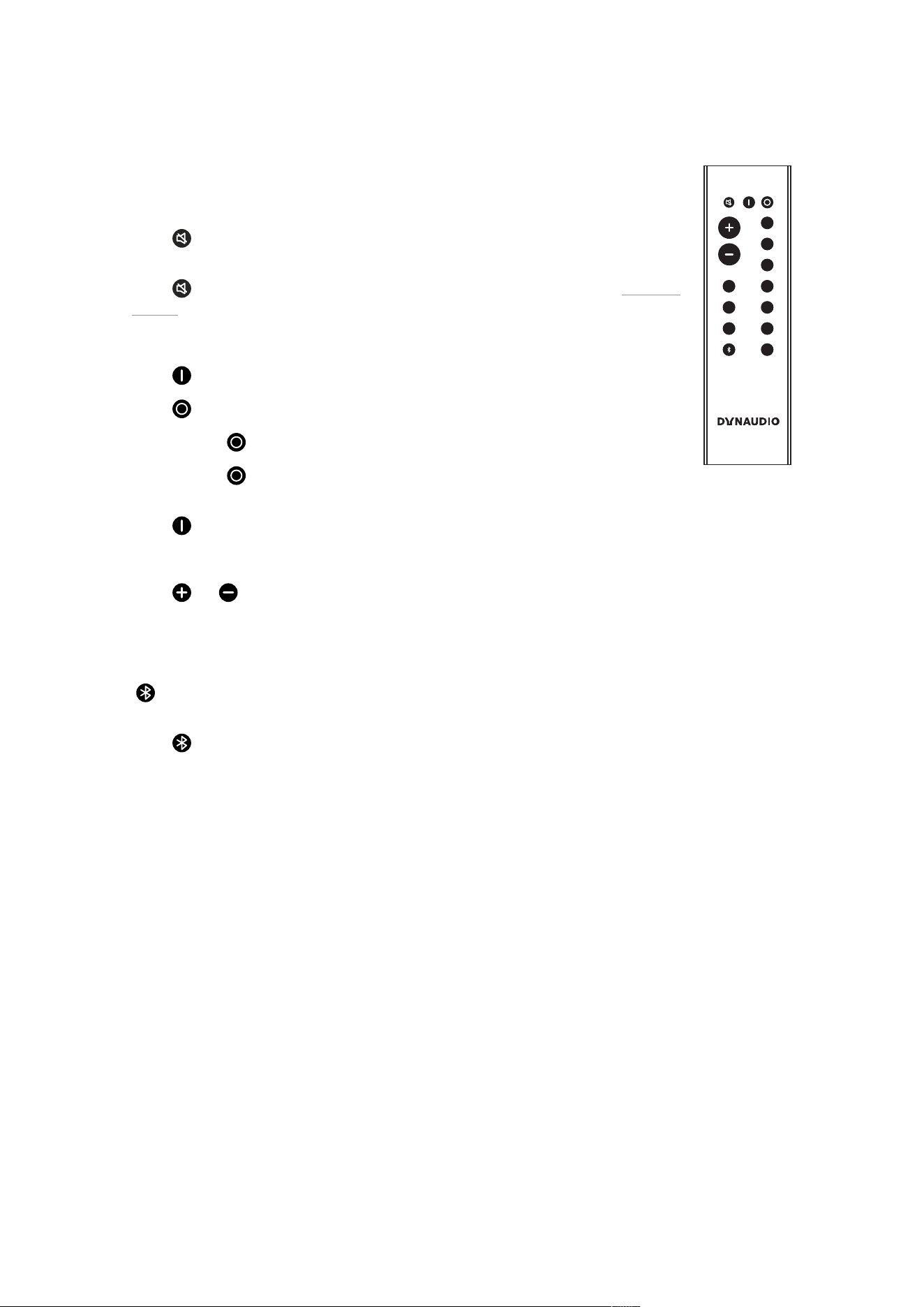
Remote Control
VOLUME
DIRECT
MUTE ON OFF
HUB
1
2
3
4
Line
Line
Opt
Opt
Aux
Coax
USB
A
B
C
Commands will always apply to both of the speakers.
MUTE
Muting the speakers
▪ Press to mute or unmute the speakers.
Fixing the volume
▪ Press for at least 2 seconds to set a high volume for the speakers (see section “Fixing the
volume”).
ON/OFF
Speaker On/O
▪ Press to switch on the speakers.
▪ Press for standby mode.
▪ Press and hold until LED turns red to put speaker in sleep mode.
▪ Press and hold for 5-9 seconds to enter night mode (Turns the LEDs o).
Reset
▪ Press for at least 5 seconds to reset the speakers to the factory settings.
VOLUME
Volume Control
▪ Press or to raise or lower the volume level.
INPUT
Signal Source
▪ Press a button to select the respective signal source.
▪ selects a Bluetooth device or Hub/Connect.
Bluetooth Pairing
▪ Press for at least 5 seconds to enter pairing mode.
Connections and Control Elements 13
Connecting and Setting Up
Positioning and connecting to mains voltage
▪ Position the speaker in the desired location.
▪ Do not expose the speaker to direct sunlight, heat, or moisture.
▪ Do not place the speaker near devices with strong electromagnetic radiation or devices that could be destroyed or
damaged by magnetic fields.
▪ Use the power cable to connect the speaker to the mains voltage.
Tip Xeo 10:
▪ For easier access, the plate at the bottom of the cabinet can be removed. Use a coin or screwdriver to loosen the screw
and attach the plate after connecting the power cable.
Cloth cover
The cloth cover has been designed so it does not influence the sound dispersion of the speaker. It is attached to
the housing with magnets and may be removed if needed.
General settings
In stereo mode:
▪ Select Left operating mode for the left speaker.
▪ Select Right operating mode for the right speaker.
▪ Set the speaker position switch that best describes the speaker’s need for
acoustic compensation.
▪ Neutral = with free-standing placement
▪ Wall = if placed near a wall
▪ Corner = if placed in a corner
▪ Select the Red, Green, or Blue zone. Select the same zone for the right
and left speakers. For additional information about the audio zones, see
“Division Into Audio Zones”.
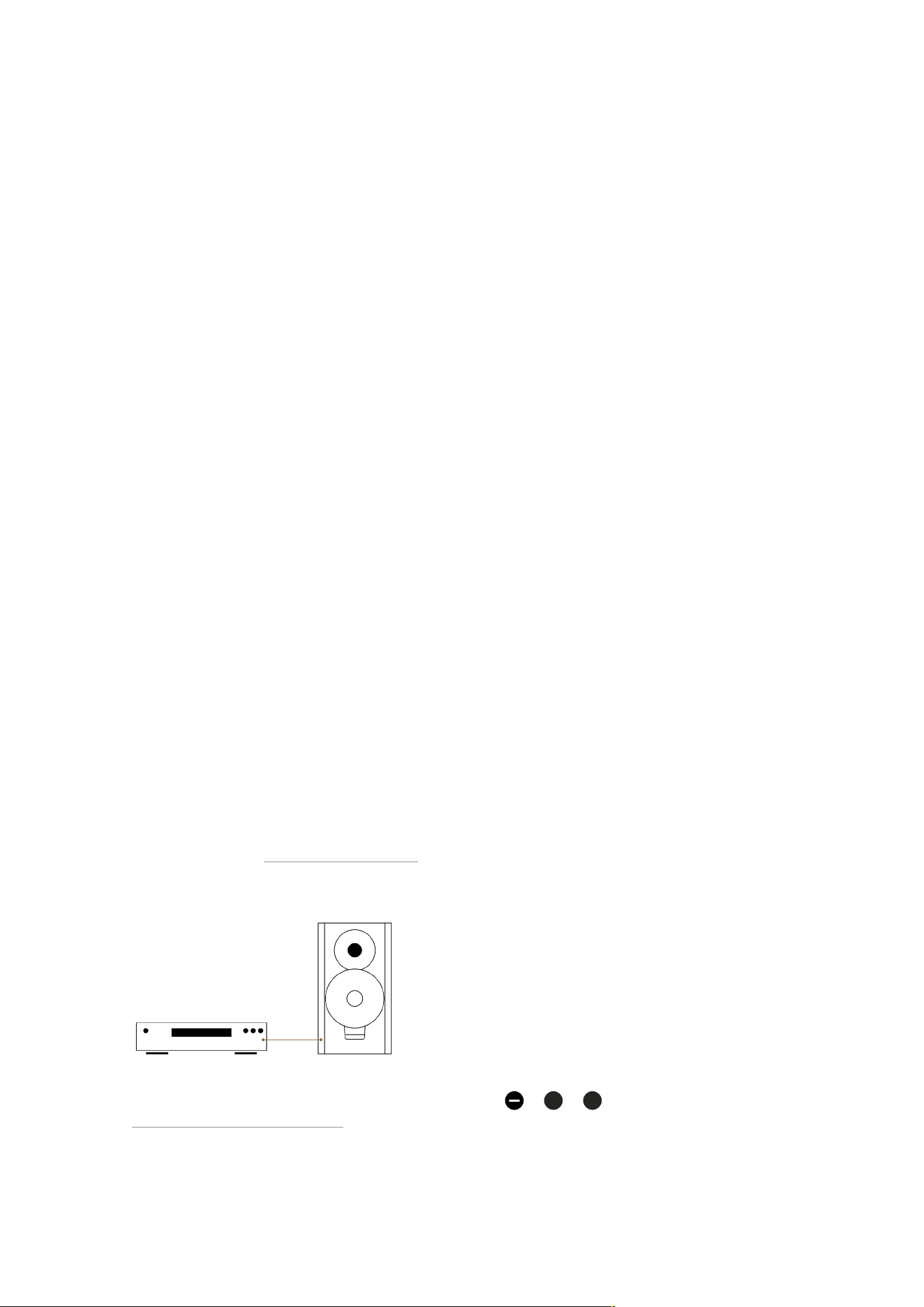
Connecting sources directly
▪ Connect your source cables to one or more of the audio inputs ,
Line
,
Opt
of the master speaker – see
“Connections and Control Elements”.
After it is turned on, the speaker automatically searches for an audio signal and then plays it back immediately. If
14 Xeo User manual
several signal sources are active, one of the signal sources will be played back.
Tip (Xeo 10):
▪ For easier access, the plate at the bottom of the cabinet can be removed. Use a coin or screwdriver to loosen the screw
and attach the plate after connecting the power cable.
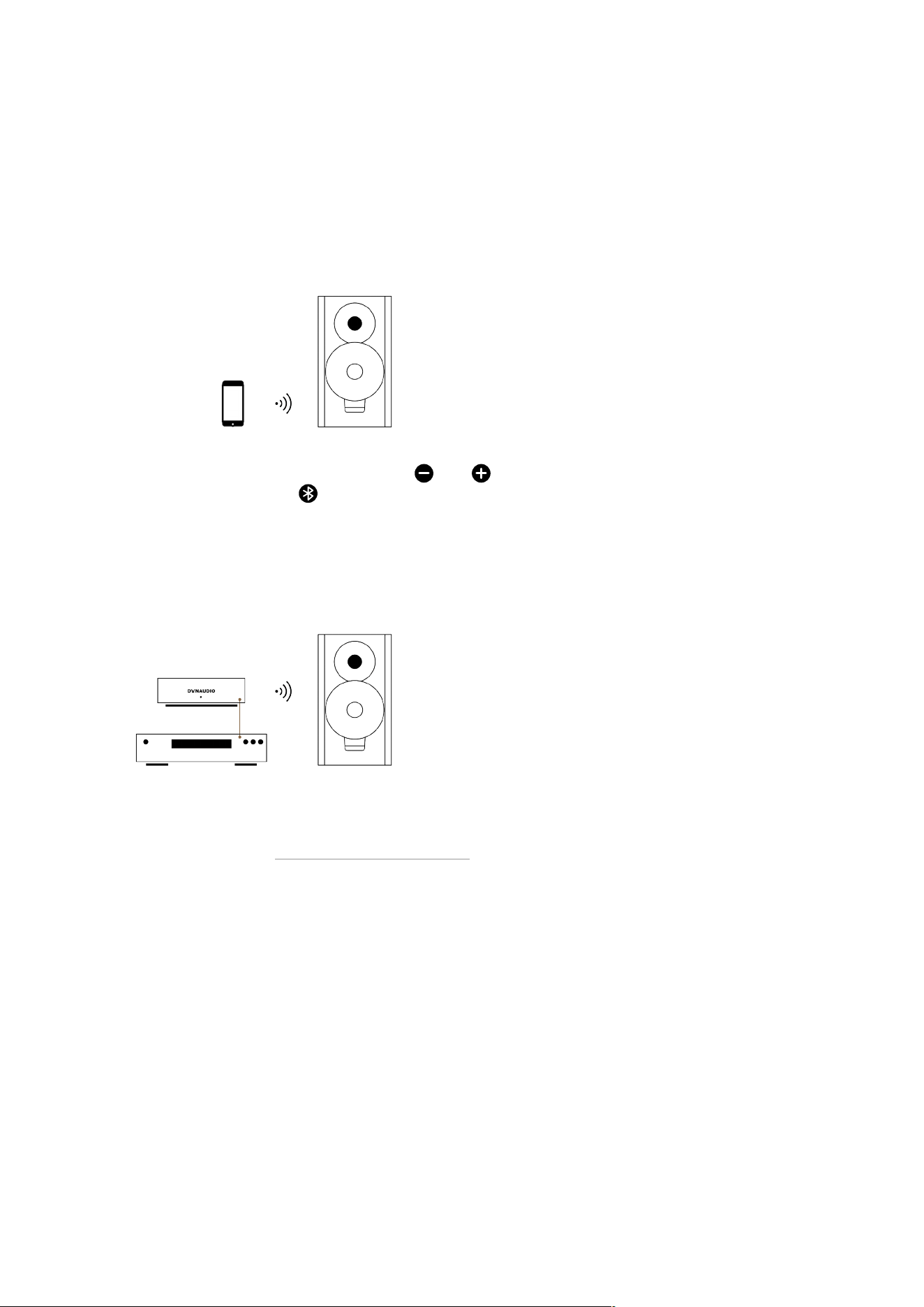
Connecting a Bluetooth device
1. To begin Bluetooth pairing, press and hold both and buttons on either one of your speakers (Xeo 10).
Alternatively, hold Bluetooth on remote for 5 seconds.
Once available for pairing, the status indicator will blink white and it will be available for pairing for one minute.
2. Go to settings on your device, find the Bluetooth sub-menu, and simply pair your device with your Xeo speaker by
selecting Red, Green, or Blue. The speaker will store your pairing.
Connecting sources via Hub or Connect
Xeo Hub and Dynaudio Connect are optional components that allow you to connect analog and digital sources
and are linked with your Xeo speaker via a wireless, lossless signal. For further information about the complete
Xeo system, please see “Components of the Xeo System”.
Connecting and Setting Up 15
Operation
Switching on
To switch the speakers on from standby mode:
Press on top of one of the speakers (Xeo 10) or point the remote control at a speaker and press .
▪ The speakers will automatically search for an active audio signal. If found, the signal will be output (autoplay function).
▪ If there is no input signal, the speakers will continue scanning the inputs for the next 20 minutes and enter sleep mode.
If there is no input signal, the speakers will go into standby mode after a certain period.
Playback of Connected Sources
▪ Once you have connected your Xeo speaker with a direct input, simply choose your desired source on the remote.
▪ The speakers will automatically detect the signal and start playback. Master and slave speaker will connect wirelessly if
set in the same zone.
▪ If no signal is applied to either input, the speakers will continue scanning the inputs for the next 20 minutes and enter
sleep mode.
Playback of a Bluetooth Device
Once you have paired your device with your Xeo 10/20/30, you can connect by choosing the Xeo 10/20/30 from
your list of Bluetooth devices.
▪ Select Bluetooth on the remote control and press play on your Bluetooth device.
Disconnect
The O button has three functions:
▪ Standby Mode: Press the button to switch o speakers (Standby Mode).
▪ Night Mode: Press and hold the button for 5 to 9 seconds to enable/disable Night Mode. The LEDs will turn o, and they
will only turn on shortly when you are interacting with the speakers.
▪ Deep Sleep: Press and hold the button until the speakers turn o. In Deep Sleep mode, auto-sensing functionality is
turned o and low-wattage mode is engaged.
16 Xeo User manual
Fixing the Volume
You can set the speaker to a higher volume using the function to fix the volume. This setting also remains in eect
in standby mode. If a signal source is connected to the Xeo 10/20/30 with its own volume control, you have the
option to change the output volume across a broad range with the signal source.
To fix the volume:
▪ Point the remote control at a speaker and press for at least 2 seconds. To undo fixing, press one of the two volume
buttons.
Standby
To switch speakers to sleep mode:
▪ Point the remote control at a speaker and press or press on top of one of the speakers.
▪ The speakers will enter sleep mode.
▪ The speakers also enter sleep mode if there is no audio signal for 20 minutes.
▪ In this mode, the wireless network is active and all connected units remain synchronized.
▪ Sleep mode power consumption is <2 W.
To switch speakers to low-power standby mode:
▪ Press and hold on the remote control for at least 5 seconds.
▪ The speakers go to low-power standby mode.
▪ In this mode, the wireless network is disabled and the speakers are not connected to each other.
▪ Low-power standby mode power consumption is <0.5 W.
To turn o auto standby:
▪ Press and hold
Opt
on the remote control for at least 5 seconds.
Fixing the Volume 17
Status LEDs on the front
The two LEDs in the upper left corner of the cabinet front indicate the operational state of the speakers and
system with various colours and blinking functions.
On state
Illuminated in blue
The speaker is switched on, connected to a Hub or Connect, and an audio signal is played back.
On state
Slow blinking in blue
The speaker is switched on, connected to a Hub or Connect, but an audio signal cannot be found.
On state
Illuminated in purple
The speaker is switched on, connected to a local input, and an audio signal is played back.
On state
Slow blinking in purple
The speaker is switched on, connected to a local input, but an audio signal cannot be found.
18 Xeo User manual
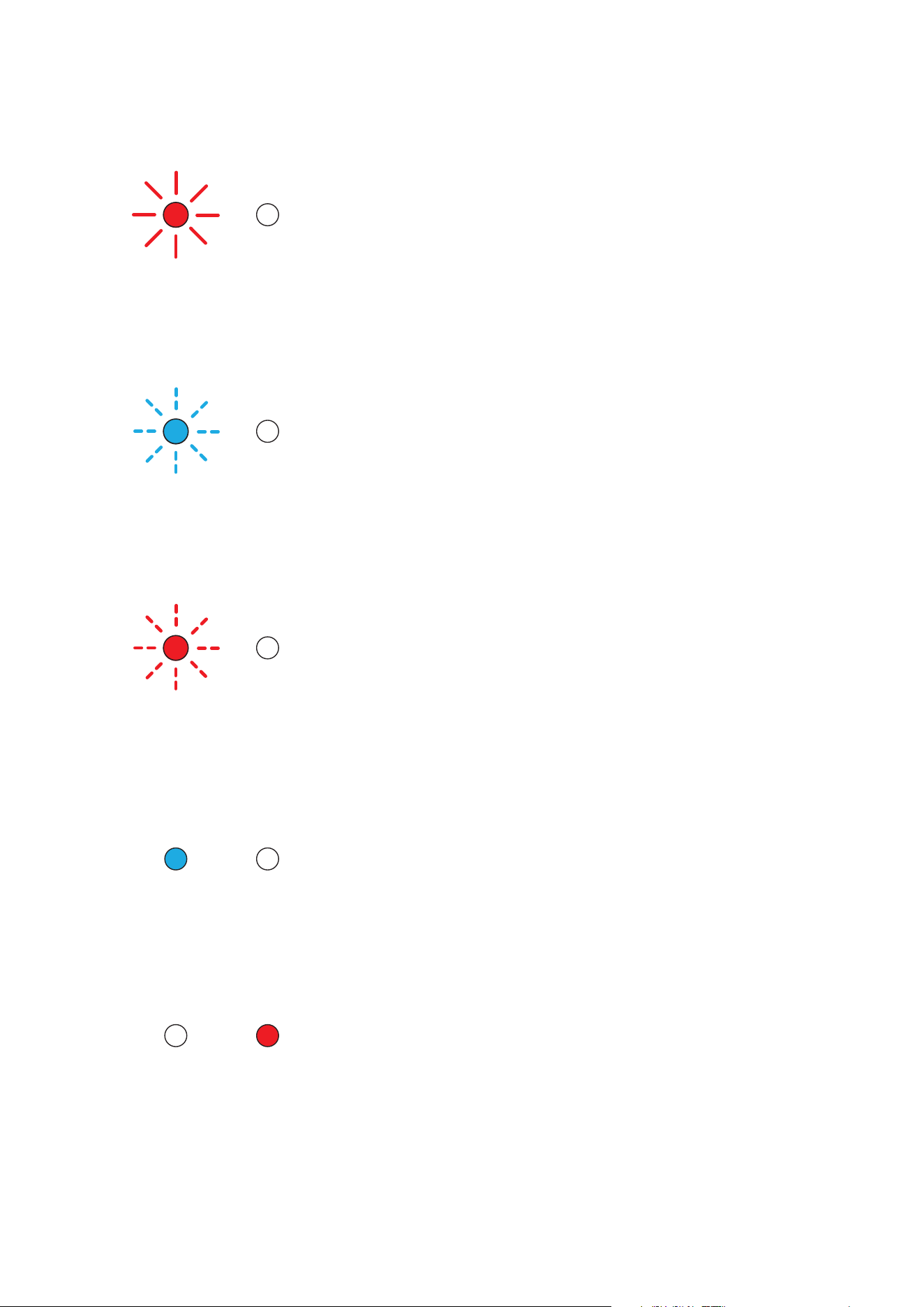
Connection
Slow blinking in red
There is no active transmitter (Hub, Connect, mobile device…) / master, or a connection is not possible.
Search
Fast blinking in blue for 20 min
Searching for an active input.
Synchronisation / Connection
Fast blinking in red for 10 s
System synchronization during no transmitter (Hub, Connect, mobile device…) / master connection.
Synchronisation / Connection
Blue LED is turned o for 0.2 s
New transmitter (Hub, Connect, mobile device…) ID, transmitter input, or a direct input is selected.
Synchronisation / Connection
Illuminated in red for 5 s
Status LEDs on the front 19
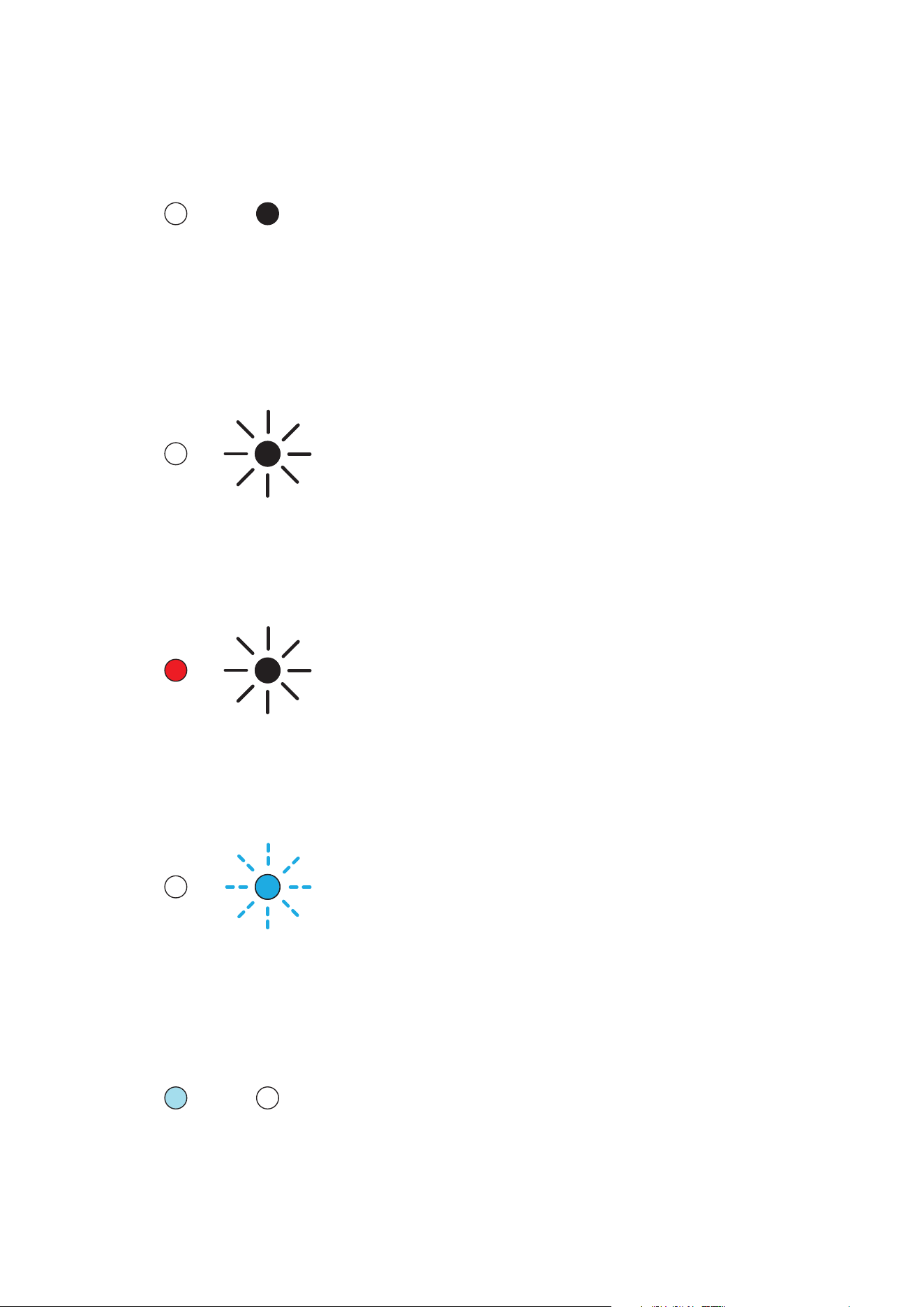
Receiver mode is changing.
Synchronisation / Connection
Illuminated in white
A Bluetooth connection is established.
Synchronisation / Connection
Slow blinking in white
The speaker is in pairing mode.
Firmware loading
White LED: slow to fast blinking during the load sequence, Red LED: illuminated
Speaker firmware is being loaded.
Volume
Fast blinking in blue
The speaker volume is being adjusted.
Mute
20 Xeo User manual
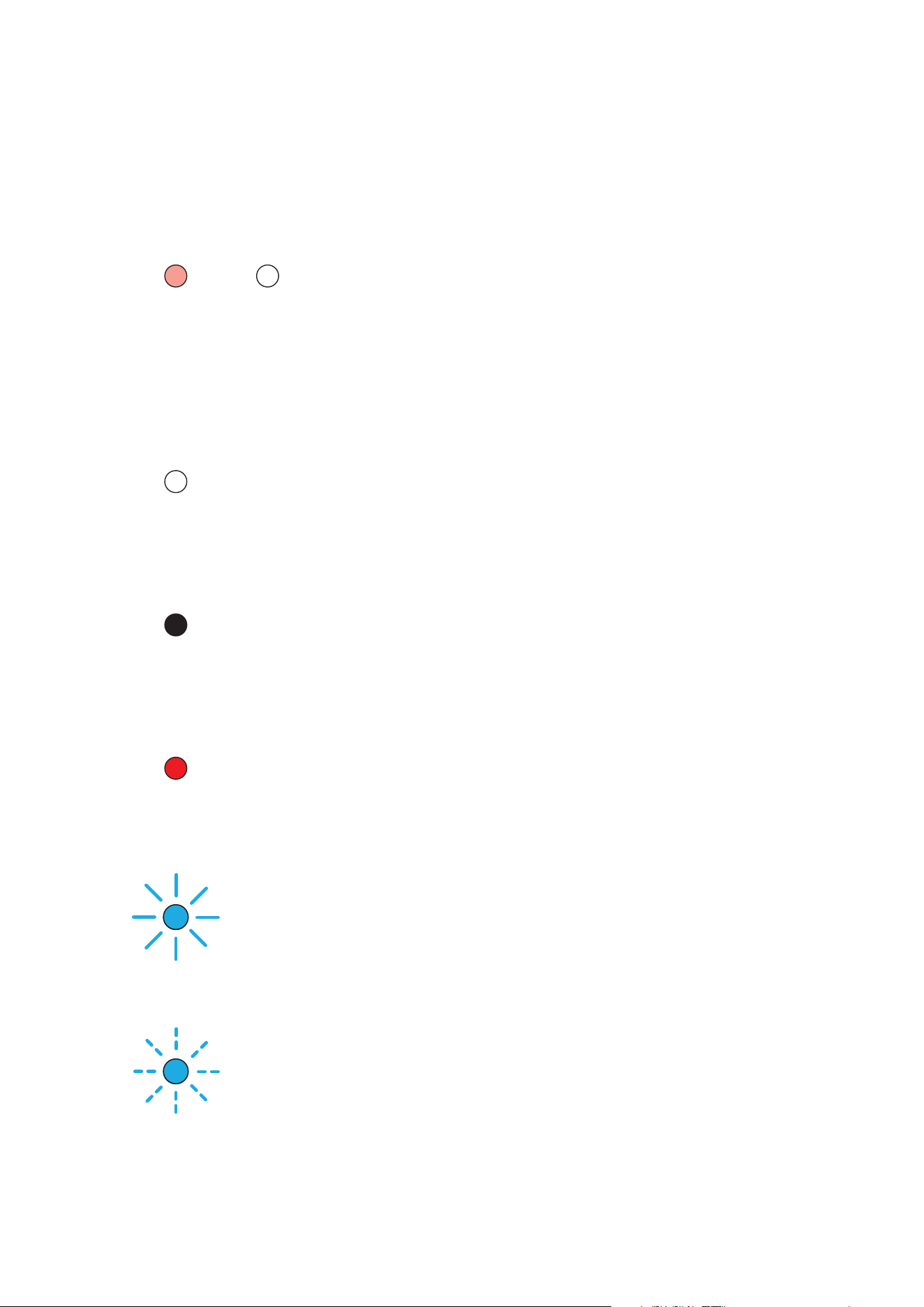
Fading in and out
The speaker is muted.
O state
Illuminated dimly in red
The speaker is in standby mode.
LED Blinking Codes
O
Illuminated in white
Illuminated in a colour
Slow blinking (1 or 2 Hz)
Fast blinking (3 or 4 Hz)
Status LEDs on the front 21

Malfunctions
Interruptions, clicking noises, or other audible interference when playing music is usually not caused by radio
transmission in the Xeo system. Often, other external causes influence the transmission quality.
Below are a few tips for improving transmission quality:
1. Position all radio transmitters and receivers away from each other. WLAN devices, radio receivers, and radio systems may
influence each other if they are too close together. Test out various locations for each device.
2. Switch o the automatic search function in WLAN devices. WLAN devices and other radio systems permanently scan for
available frequencies, thus sending signals that could disrupt other radio systems. This automatic search function can
usually be switched o.
3. Xeo technology radio signals can, of course, transmit through walls. However, walls may consist of very dierent
materials, such as wood fibreboard, stone, or even steel. The walls may also contain complex cable installations for
electrics, phones, TVs, and radios, as well as water pipes and air shafts. These can divert radio signals. This is why you
should test dierent locations for the Xeo Hub, Extender, and Link and favour the most direct radio path between the Xeo
components.
4. Some electrical devices, such as microwaves, generate strong electromagnetic fields that could disrupt radio systems.
Do not operate such electrical devices near Xeo components.
You can ask your Dynaudio Xeo distributor for assistance at any time.
Or go to dynaudio.com/support to read the FAQ or to contact the Customer Support Team.
Further information can also be found on the Xeo website at dynaudio.com/xeo.
22 Xeo User manual
Accessories
Accessories (Xeo 10)
A desk stand or wall brackets extend the range of applications of your Xeo 10 speakers. For further information,
please see the website at dynaudio.com or contact your Dynaudio distributor. Distributor addresses can also be
found at dynaudio.com
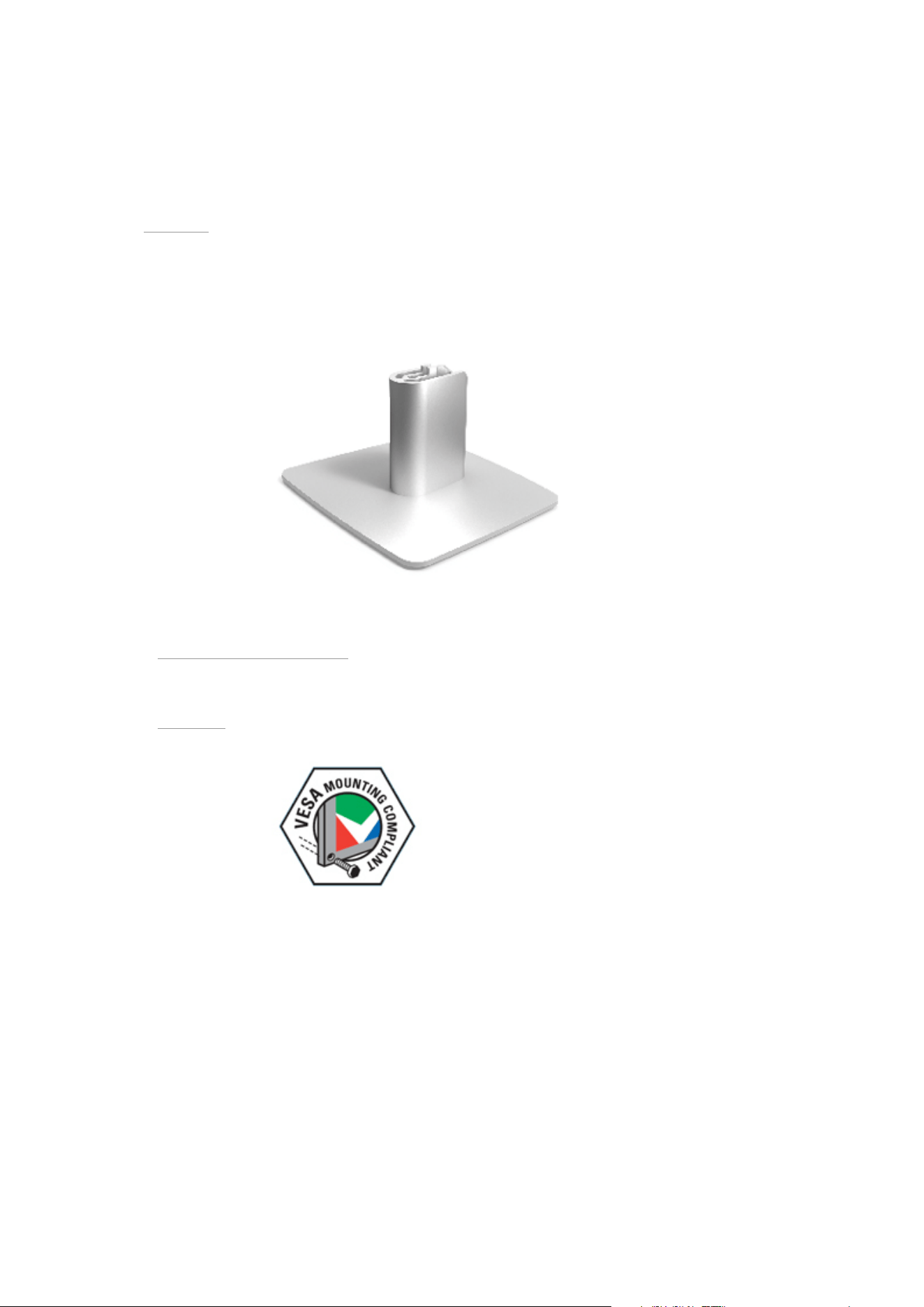
Desk Stand
The Dynaudio Desk Stand for Xeo 10 is an elegantly designed stand for placing the speakers on a desk or shelf.
Installation instructions are provided with the stand.
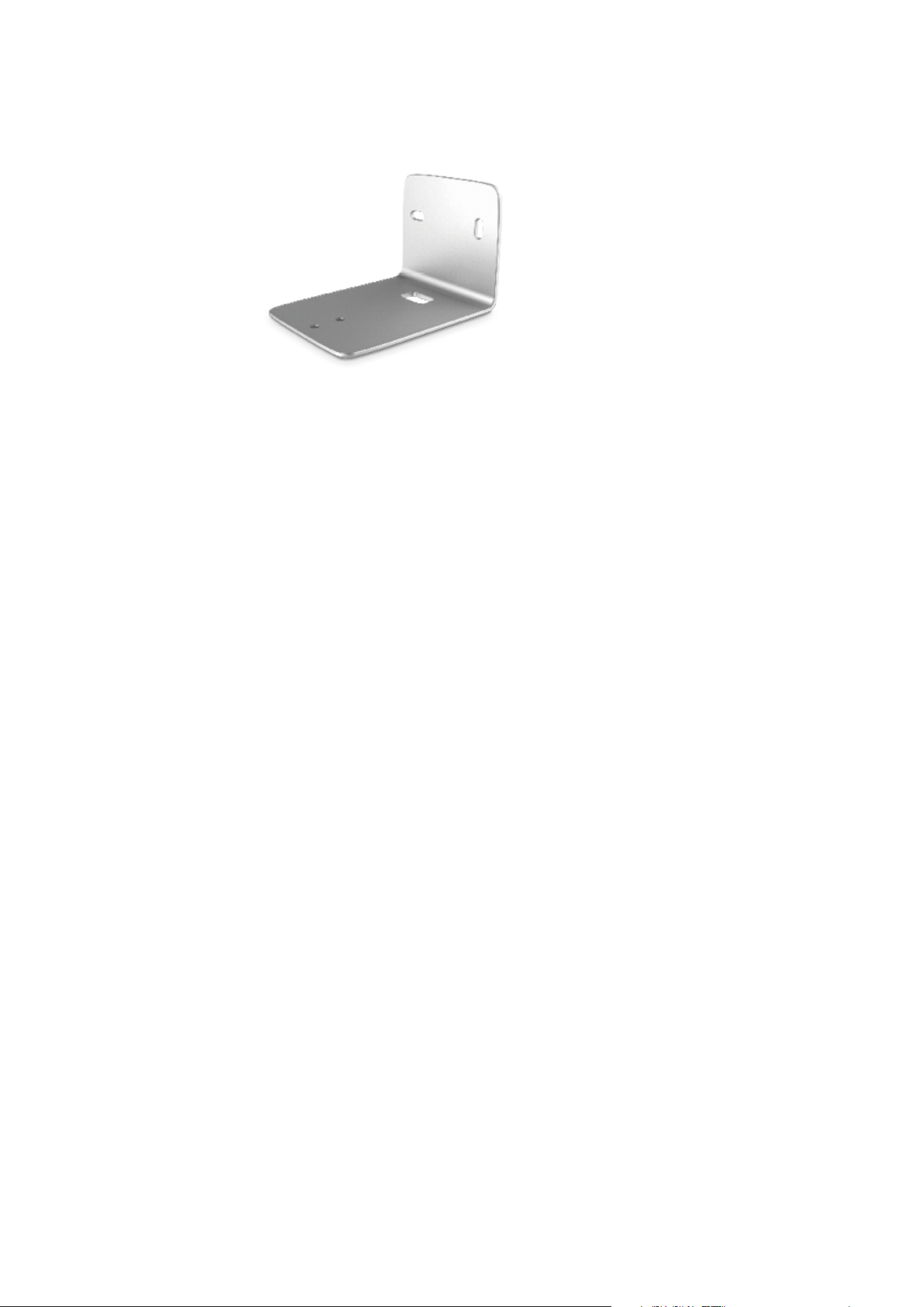
Wall Bracket
The wall bracket allows you to mount the Xeo 10 speakers on the wall.
VESA 100 Bracket (Xeo 10/20)
VESA is a standard for wall brackets developed by the Video Electronics Standards Association. The Xeo 10 and
Xeo 20 speakers allow you to mount brackets according to the VESA 100 standard. This means that the screws
on the back plate are spaced 100 mm apart.
Accessories 23
Mounting a VESA 100 bracket (Xeo 10):
1. Loosen the four screws (Torx type) and unmount the back plate.
2. Keep the back plate for future use.
3. Follow the instructions provided with the bracket you want to mount.
24 Xeo User manual
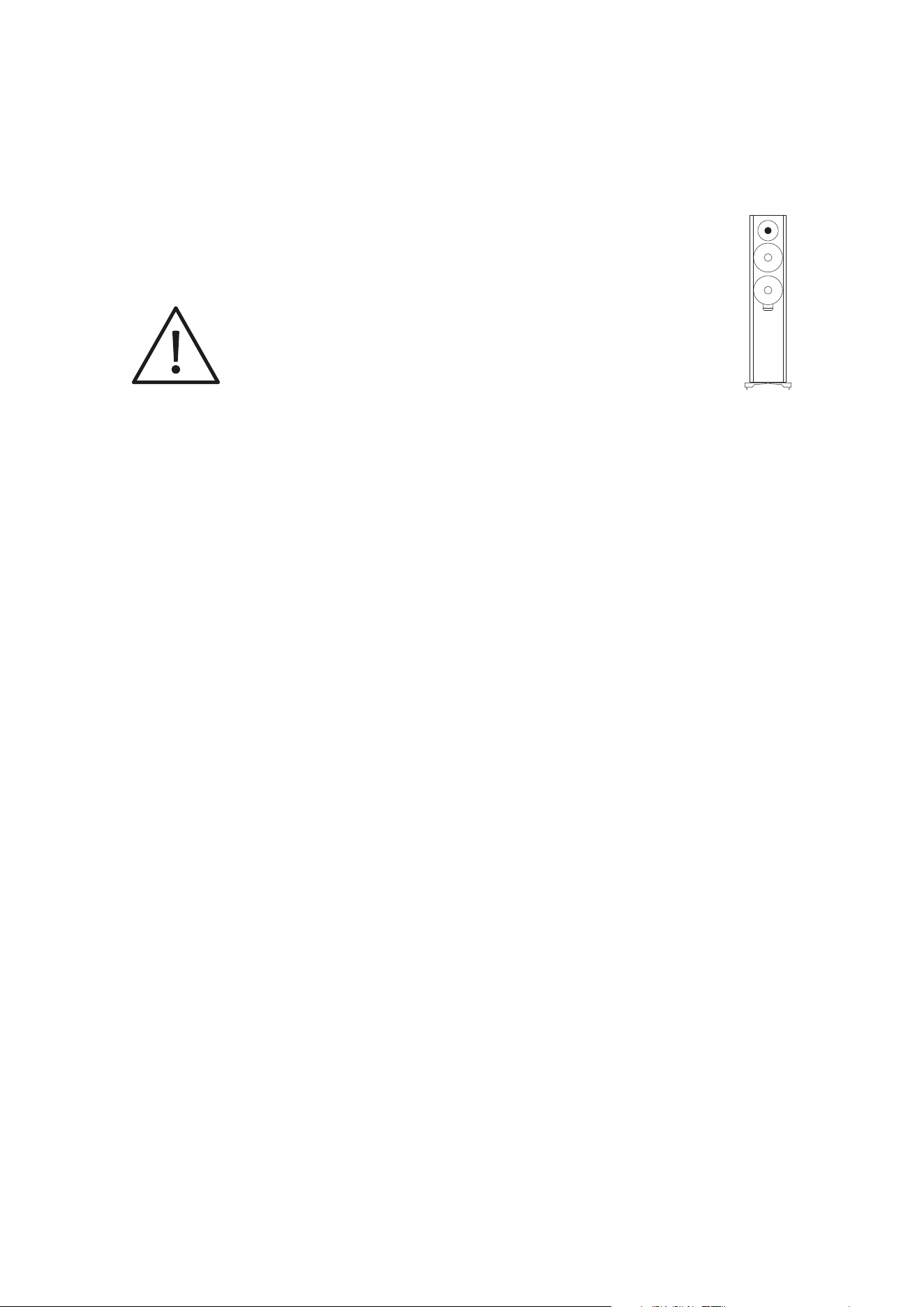
Setting up
Spikes With Pointed Ends
Xeo 30 floor-standing speakers are delivered with spikes for permanent installation
on the floor. The pointed ends of the spikes may result in injuries
and damage delicate floors.
▪ Pay attention that you do not injure yourself with the spikes.
▪ We recommend inserting the spikes in aluminium feet if you have delicate floors, such as parquet or laminate.
▪ Position the speaker in the desired location.
▪ Do not expose the speakers to direct sunlight, heat, or moisture.
▪ Do not place the speakers near devices with strong electromagnetic radiation or devices that could be destroyed or
damaged by magnetic fields.
Setting up 25

Signal Sources and Cables
Connect your signal source to the appropriate input on the Xeo 10/20/30 speaker.
The following section presents various signal sources and options for connecting to the Xeo speaker.
Notebook, Mac™, PC
Signal source output: Optical (if available)
Xeo 10/20/30 input: Optical In
Cable: Toslink – Toslink
Signal source output: Line out
Xeo 10/20/30 input: Line in
Cable: RCA – RCA
Signal source output: Headphones
Xeo 10/20/30 input: Aux in
Cable: Jack 3.5 mm – 3.5 mm
Smartphone, other portable devices
Signal source output: Headphones
Xeo 10/20/30 input: Aux in
Cable: Jack 3.5 mm – 3.5 mm
Astell&Kern
Signal source output: Headphones
Xeo 10/20/30 input: Aux in
Cable: Jack 3.5 mm – 3.5 mm
Signal source output: Optical
Xeo 10/20/30 input: Optical In
Cable: Toslink – Toslink
PonoPlayer
Signal source output: Jack
Xeo 10/20/30 input: Aux in
Cable: Jack 3.5 mm – 3.5 mm
Docking station, network client, Sonos, Bluesound, etc.
Signal source output: Line out
Xeo 10/20/30 input: Line in
Cable: RCA – RCA
Signal source output: Optical (if available)
Xeo 10/20/30 input: Optical In
Cable: Toslink – Toslink
26 Xeo User manual

Google Chromecast Audio
Signal source output: Line out
Xeo 10/20/30 input: Aux in
Cable: Jack 3.5 mm – 3.5 mm
Signal source output: Optical
Xeo 10/20/30 input: Optical In
Cable: Mini Toslink – Toslink
Apple AirPort Express
Signal source output: Optical
Xeo 10/20/30 input: Optical In
Cable: Mini Toslink – Toslink
Apple TV (up to 3rd generation)
Signal source output: Optical
Xeo 10/20/30 input: Optical In
Cable: Toslink – Toslink
Hard disk, network player, CD player
Signal source output: Line out
Xeo 10/20/30 input: Line in
Cable: RCA – RCA
Signal source output: Optical (if available)
Xeo 10/20/30 input: Optical In
Cable: Toslink – Toslink
Analog radio, digital radio
Signal source output: Line out
Xeo 10/20/30 input: Line in
Cable: RCA – RCA
Signal source output: Optical (if available)
Xeo 10/20/30 input: Optical In
Cable: Toslink – Toslink
Analog record player
Signal source output: Line out (on phono preamplifier)
Xeo 10/20/30 input: Line in
Cable: RCA – RCA
TV
Signal source output: Headphones
Xeo 10/20/30 input: Aux in
Cable: Jack 3.5 mm – 3.5 mm
Signal Sources and Cables 27

Signal source output: Line out
Xeo 10/20/30 input: Line in
Cable: RCA – RCA
Signal source output: Optical (if available)
Xeo 10/20/30 input: Optical In
Cable: Toslink – Toslink
Stereo preamplifier
Signal source output: Pre-out, main out
Xeo 10/20/30 input: Line in
Cable: RCA – RCA
Stereo power amplifier
Signal source output: Tape out
Xeo 10/20/30 input: Line in
Cable: RCA – RCA
Signal source output: Pre-out, main out (Disconnect bridge)
Xeo 10/20/30 input: Line in
Cable: RCA – RCA
Signal source output: Second pre-out
Xeo 10/20/30 input: Line in
Cable: RCA – RCA
Subwoofer
Signal source output: Analog output
Xeo 10/20/30 input: Line in
Cable: RCA – RCA
AV receiver, AV processor
Signal source output: Optical
Xeo 10/20/30 input: Optical In
Cable: Toslink – Toslink
Signal source output: Pre-out, main out
Xeo 10/20/30 input: Line in
Cable: RCA – RCA
28 Xeo User manual
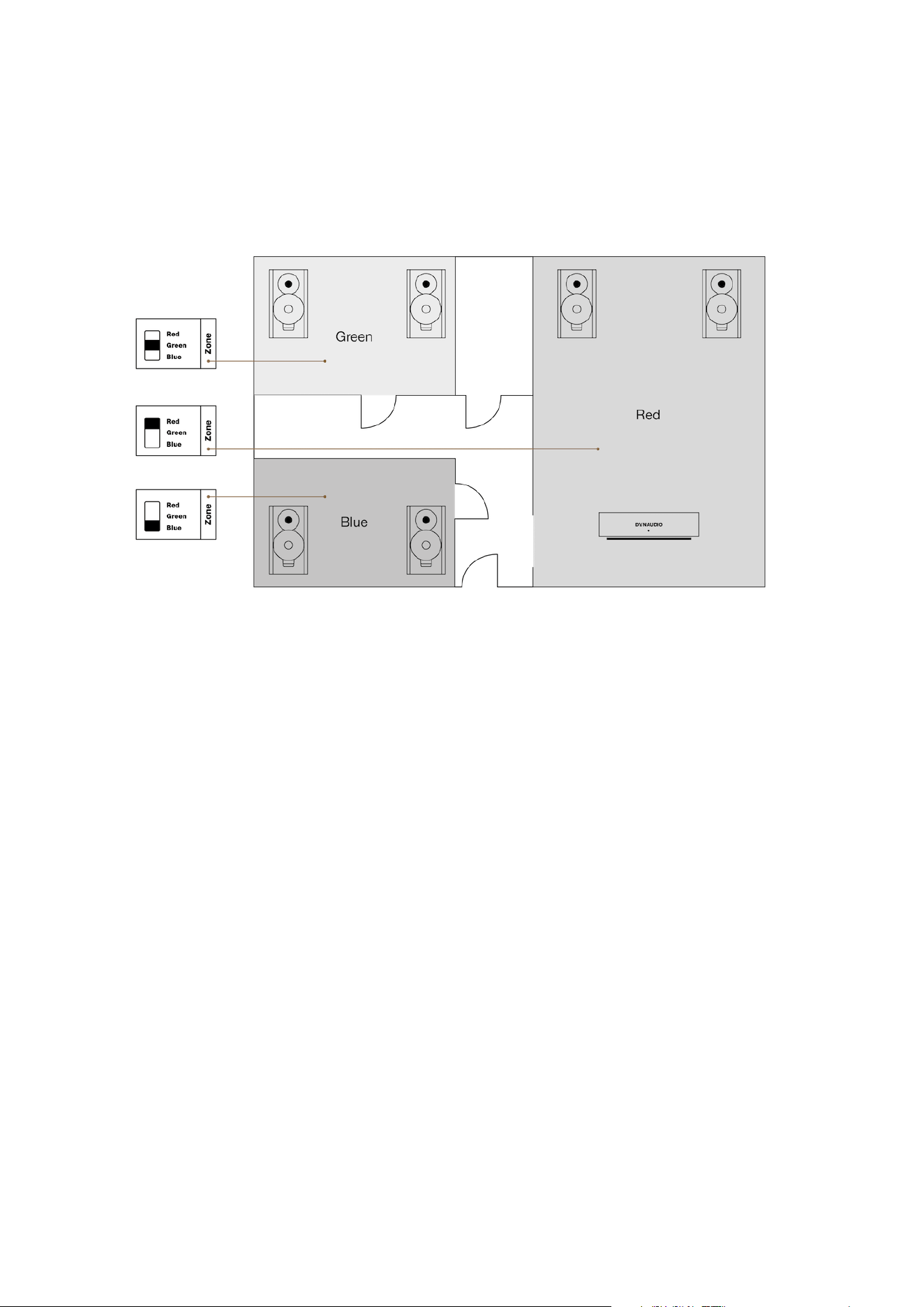
Division Into Audio Zones
The Xeo speakers (as well as Xeo Link) can be assigned to audio zones using the Zone selector switch. All
components assigned to the same zone can be operated together via the remote control.
The picture shows a possible zone configuration.
Division Into Audio Zones 29
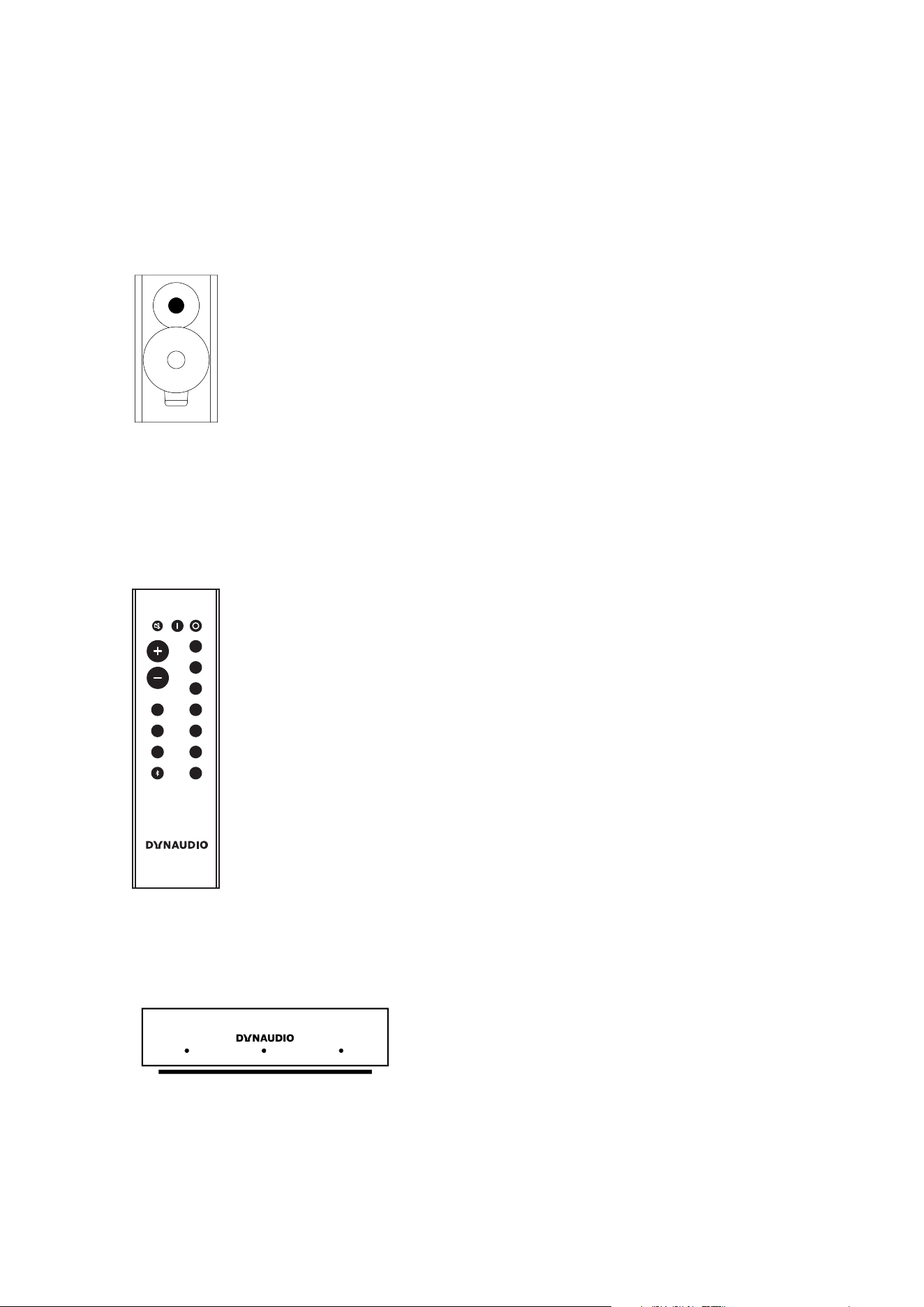
Components of the Xeo System
Xeo consists of several high-quality components that are optimally matched. When combined, they can fulfil the
most demanding requirements for a wireless multi-room and multi-source system.
Xeo speakers
The active Xeo speakers Xeo 10/20/30 receive the wireless signals from the Hub or Connect and play them back
in optimal sound quality. In addition, the Xeo 10/20/30 can be connected directly to various audio sources. All
speakers have an integrated amplifier and can be controlled with a remote control. Display elements indicate the
operating state of the system and controls on the cabinet let you switch it on/o or change the volume without
using the remote control.
Xeo remote control
VOLUME
DIRECT
MUTE ON OFF
HUB
1
2
3
4
Line
Line
Opt
Opt
Aux
Coax
USB
A
B
C
The Xeo remote control can be used to turn the speakers on and o, change the volume, and select a Hub or
Connect and its connected signal sources.
Dynaudio Connect and Xeo Hub
30 Xeo User manual
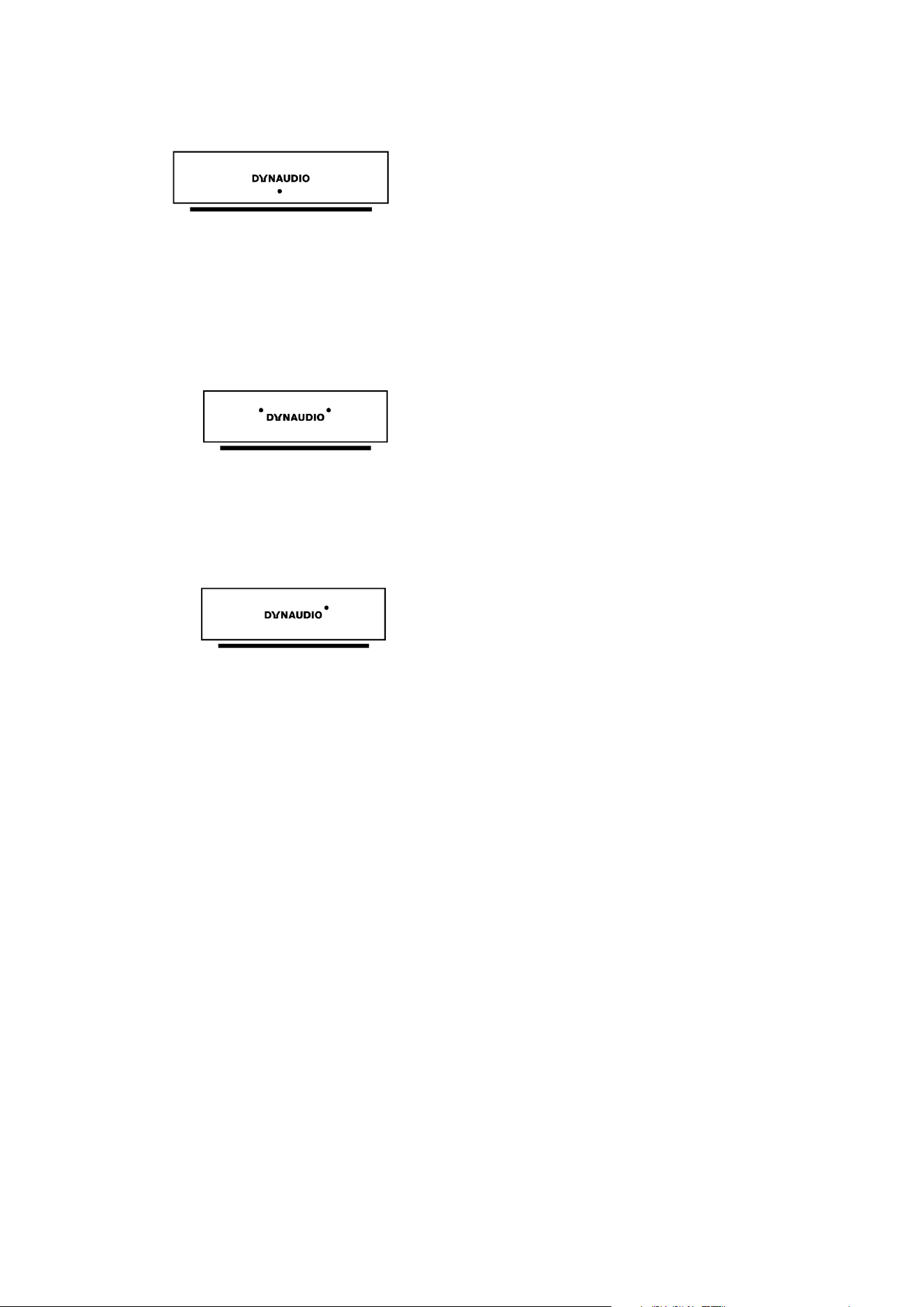
The Dynaudio Connect and Xeo Hub are the control centres for the Xeo system. Both oer a new level of wireless
connectivity and convenience. Signal sources such as tuners, receivers, CD players, TVs, streaming clients,
network players, MP3 players, or computers are connected to them. Signals are sent wirelessly and lossless to
the connected Xeo or Focus XD speakers (or Xeo Link) where they are then played back.
Xeo Extender
The Xeo Extender extends the reception range of the Xeo Hub. As a result, Xeo speakers or other Xeo
components can be operated further away from the Xeo Hub or Dynaudio Connect.
Xeo Link
The Xeo Link receives wireless signals from a Xeo Hub or Dynaudio Connect and outputs analog and digital
signals from its connections. As a result, you can also connect active subwoofers, active speakers, or other
components to the Xeo system.
Components of the Xeo System 31
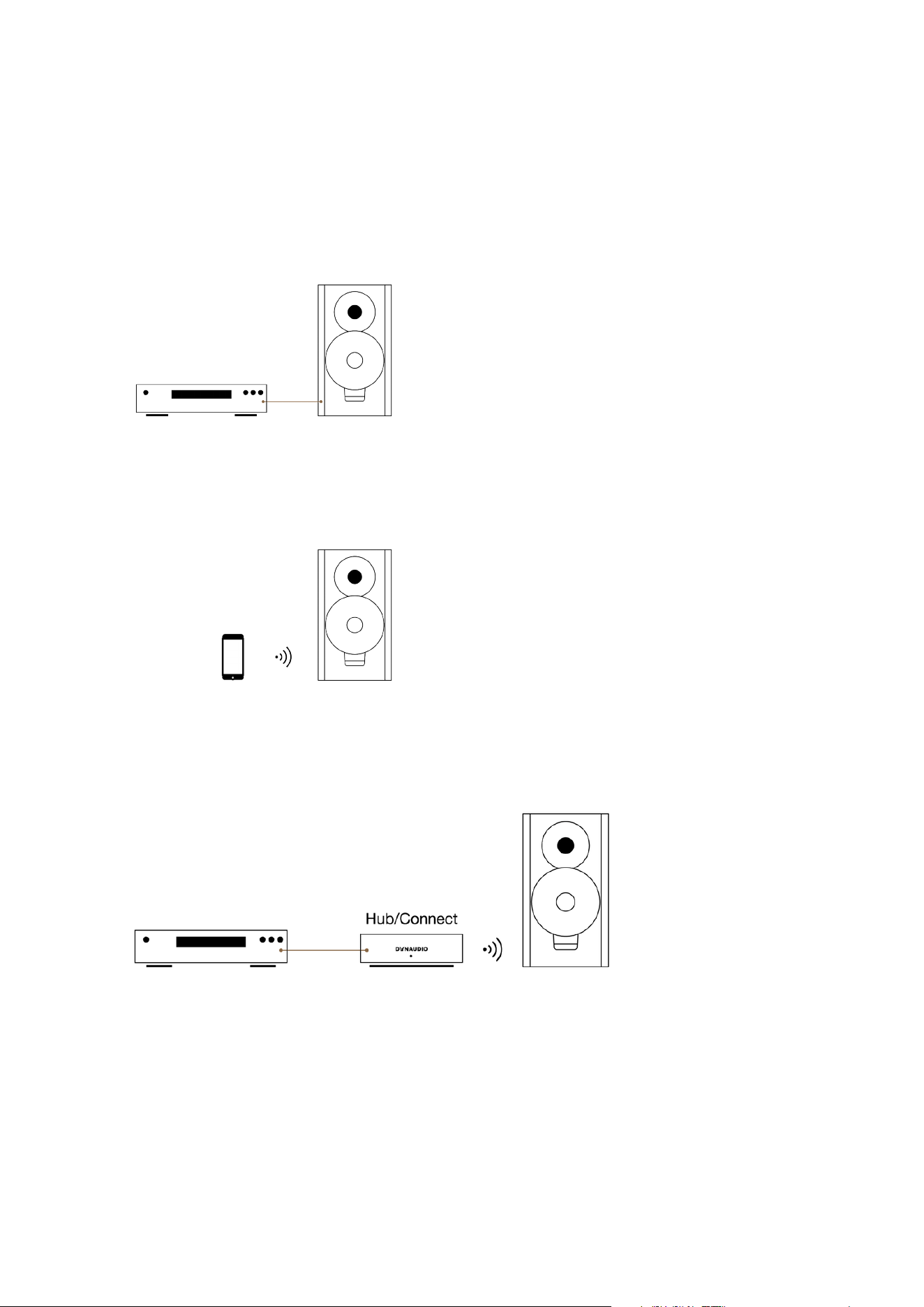
Xeo System: Combination Examples
Below you will find several examples of Xeo component combinations. The high level of flexibility in the Xeo
system enables even more variants. Ask your Dynaudio distributor to find the perfect solution for your needs.
Direct wired
Analog/digital audio sources
+ Xeo 10/20/30
Direct wireless
Bluetooth device (mobile phone, etc.)
+ Xeo 10/20/30
With Hub or Connect
Analog/digital audio sources
+ Hub or Connect
+ Xeo speaker
32 Xeo User manual
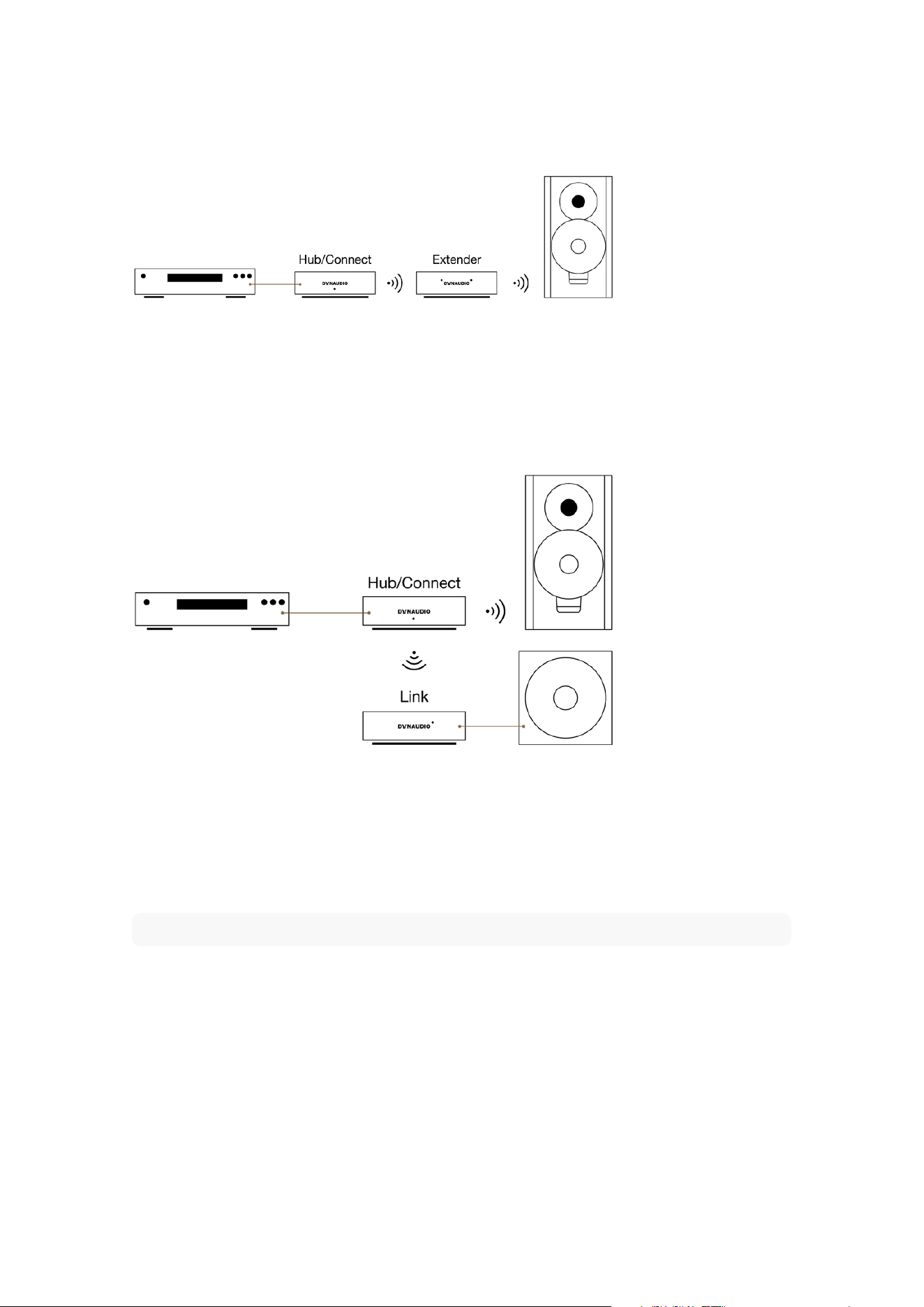
For Extended Range
Analog/digital audio sources
+ Hub or Connect
+ Extender
+ Xeo speaker
For additional speakers
Analog/digital audio sources
+ Hub or Connect
+ Xeo speaker
+ Link
+ active component (e.g. active subwoofer, active speakers, or power amplifier and passive speakers)
Note
The Extender and Link may also be combined.
Xeo System: Combination Examples 33
Legal Information
Declaration of Conformity (EU only)
Dynaudio A/S hereby declares, that the product Dynaudio Xeo 10 / Xeo 20 / Xeo 30 is in
conformity with the following directives:
▪ 2001/95/EF (Product Safety)
▪ 2014/53/EU (RE directive)
▪ 2014/30/EU (EMC directive)
▪ 2011/65/EU (ROHS directive)
▪ 1275/2008 (ErP, Ecodesign directive)
The Declaration of Conformity is available on the Internet at dynaudio.com/support/manuals.
Trademarks
All Apple products are trademarks of Apple Inc.
All Sony products are trademarks of Sony Electronics Inc.
All Sonos products are trademarks of Sonos Inc.
The Bluetooth word mark and logos are registered trademarks owned by Bluetooth SIG, Inc.
All Google products are trademarks of Google Inc.
Other trademarks and trade names are those of their respective owners.
An update to this manual may be necessary due to product improvements and new functions.
The latest version of this manual is available at dynaudio.com/support/manuals
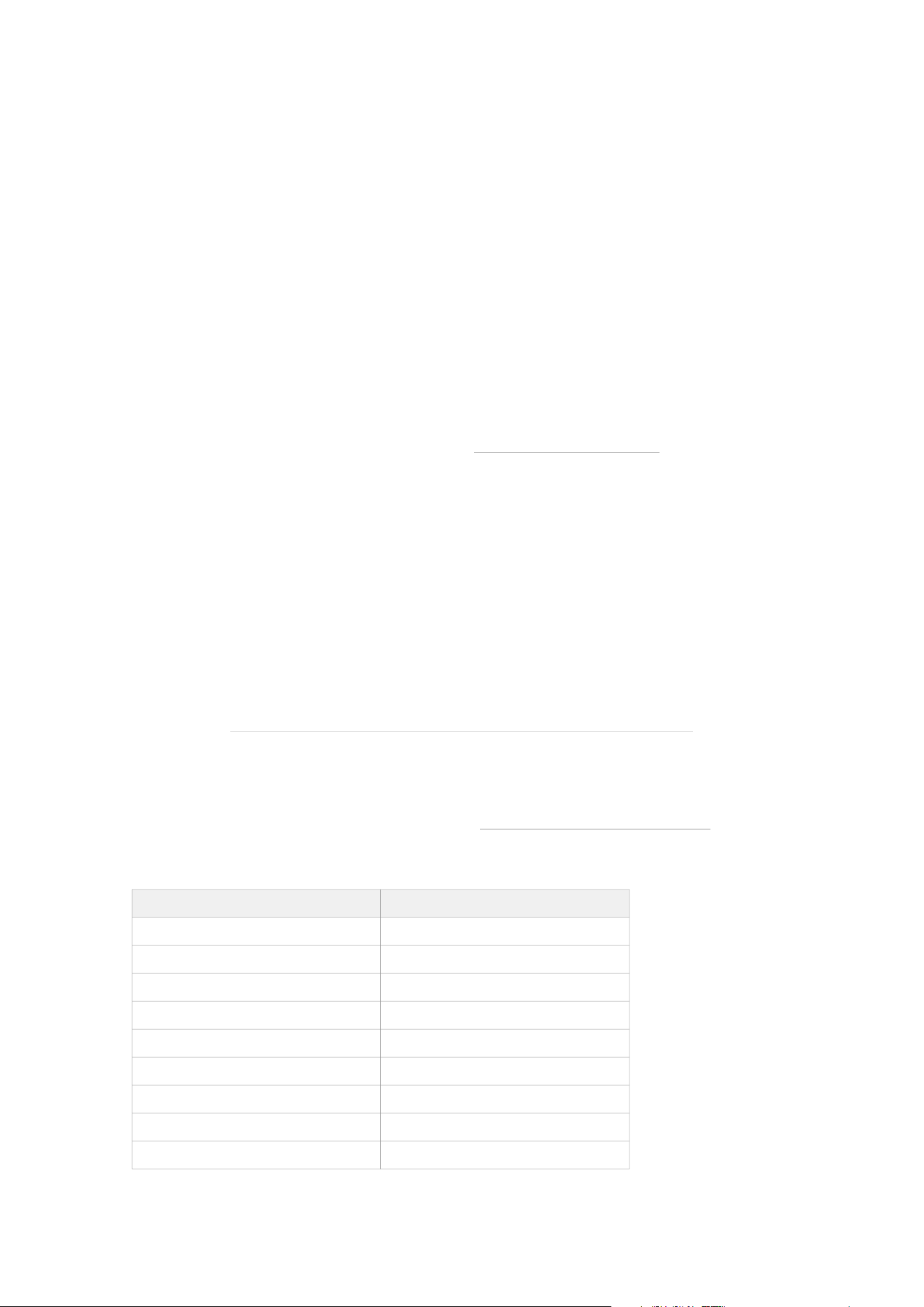
Xeo 30
Parameter Value
Analog inputs Mini-Jack (1V Max), RCA Stereo (2V Max)
Digital inputs Toslink
Wireless 24 bit / 96 kHz
Frequency response (± 3 dB) 36 Hz to 21 kHz
Box principle Bass Reflex
Crossover 2½-way DSP based
Crossover frequencies 200/4300 Hz
Woofer 2 x 14 cm MSP
Midrange -
34 Xeo User manual
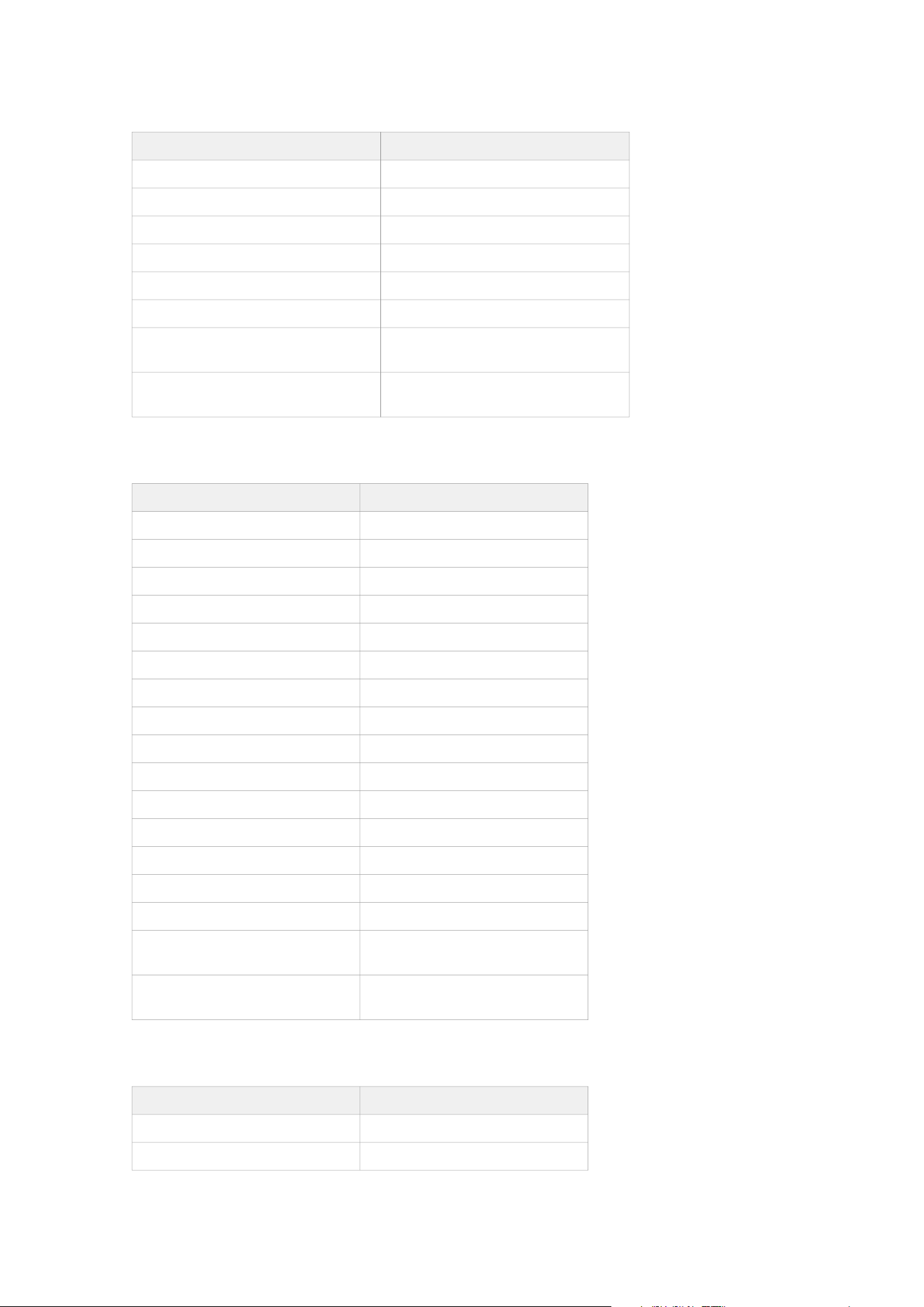
Parameter Value
Tweeter 28 mm soft dome
Amplifier power 3 x 65 W
AC power input 100 V to 240 V, 50/60 Hz
Standby power consumption <0.5 W
Maximum power consumption 165 W
Weight 13.4 kg / 29.5 lbs
Dimensions (W x H x D)
180 x 825 x 246 mm
7.1 x 32.5 x 9.7 in
Dimensions with feet/grille (W x H x D)
228 x 852 x 275 mm
9.0 x 33.5 x 10.8 in
Xeo 20
Parameter Value
Analog inputs Mini-Jack, RCA stereo
Digital inputs Toslink
Wireless 24 bit / 96 kHz
Frequency response (± 3 dB) 40 Hz to 21 kHz
Box principle Bass Reflex
Crossover 2-way DSP Based
Crossover frequencies 4700 Hz
Woofer 14 cm MSP
Midrange -
Tweeter 28 mm soft dome
Amplifier power 2 x 65 W
AC power input 100 V to 240 V, 50/60 Hz
Standby power consumption <0.5 W
Maximum power consumption 100 W
Weight 6.2 kg / 13.7 lbs
Dimensions (W x H x D)
180 x 320 x 257 mm
7.1 x 12.6 x 10.1 in
Dimensions with feet/grille (W x H x D)
180 x 320 x 265 mm
7.1 x 12.6 x 10.4 in
Xeo 10
Parameter Value
Analog inputs Mini-Jack, RCA stereo
Digital inputs Toslink
Legal Information 35

Parameter Value
Wireless 24 bit / 96 kHz
Frequency response (± 3 dB) 40 Hz to 21 kHz
Box principle Bass Reflex
Crossover 2-way DSP Based
Crossover frequencies 5000 Hz
Woofer 14 cm MSP
Midrange -
Tweeter 28 mm soft dome
Amplifier power 2 x 65 W
AC power input 100 V to 240 V, 50/60 Hz
Standby power consumption <0.5 W
Maximum power consumption 100 W
Weight
4 kg
8.8 lb
Dimensions (W x H x D)
173 x 255 x 154 mm
6.8 x 10 x 6.1 in
Dimensions with feet/grille (W x H x D)
173 x 255 x 164 mm
6.8 x 10 x 6.5 in
36 Xeo User manual