Register your Philips products and get support at below website:
www.philips.com/support
Tips:
1.This guide is a general document for Philips EasyKey. Actual product may not appear or work exactly as shown due to dierent product models.
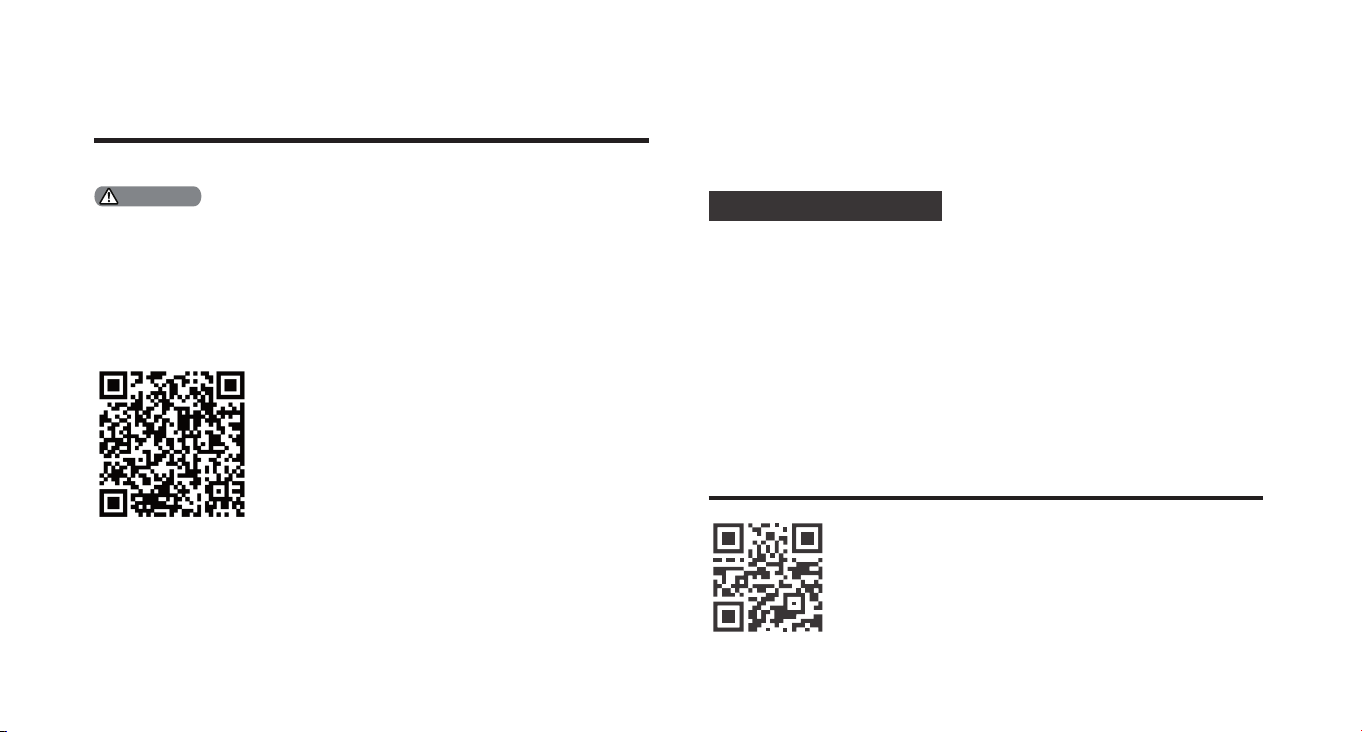
2.To refer to the specic features of door lock, please scan the QR code in this guide to check and download the user manual.
Quick Start Guide
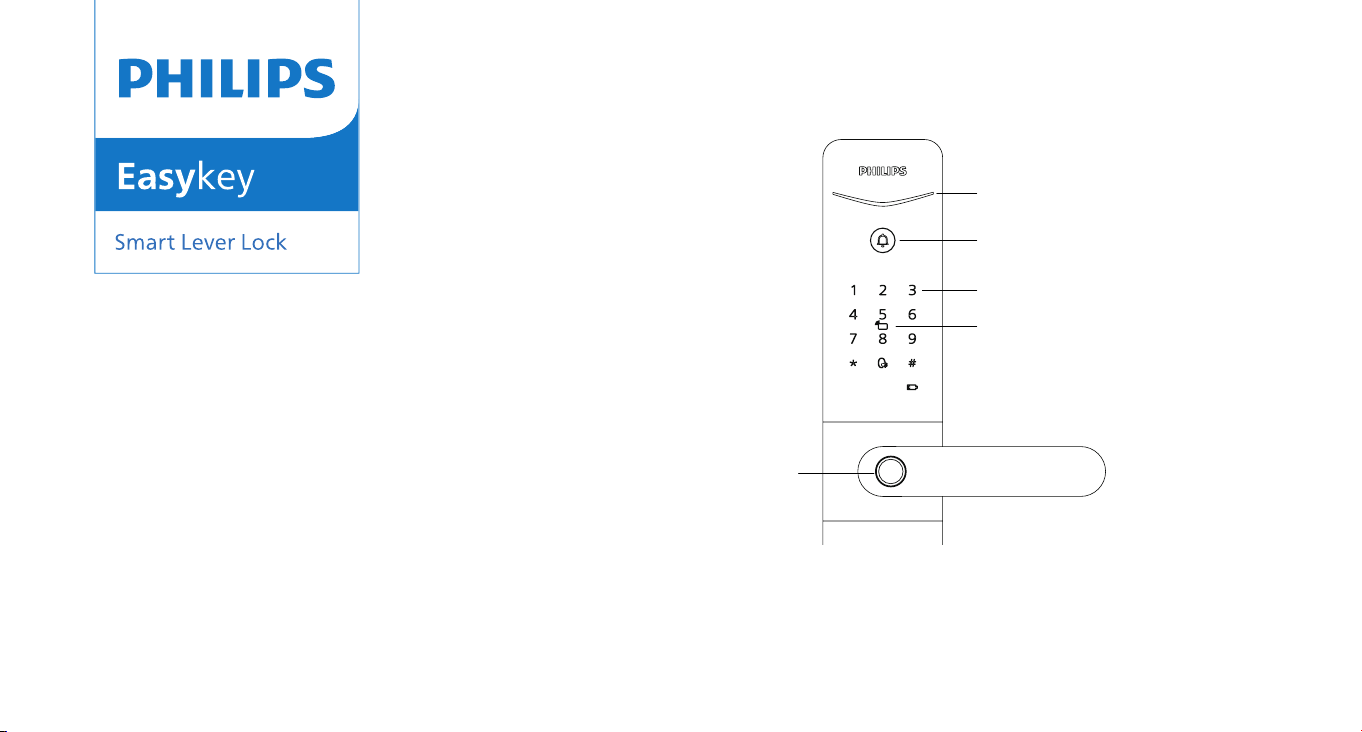
Door lock status indicator
Doorbell
Keypad
Card reader
Fingerprint sensor


1
Content
English
繁體中文
Bahasa Indonesia
Português
02
08
14
20
26

2
Important Information
Safety
Before using this product, please
carefully read and understand all
instructions. Damage resulting from
failure to follow these instructions
is not covered by the warranty.
Please only use the accessories/components
specified by the manufacturer.
Please only use the alkaline batteries
provided with the product or replace them
with alkaline batteries of the same type.
Please do not attempt to forcibly
disassemble the product to trigger
an alarm or cause damage.
Please avoid using sharp objects to
scrape the fingerprint sensor, as this
may result in permanent damage.
Please avoid exposing the product to
areas where water may leak or splash.
To prevent damage to the protective
cover, do not expose the product
to corrosive substances.
◆
◆
◆
◆
◆
◆
◆
◆
◆
◆
◆
◆
◆
◆
◆
◆
◆
◆
Please avoid hanging objects on
the handle as it may interfere with
the functioning of the lock.
Please use a soft cloth dampened with
water to wipe away ngerprints or dirt
from the surface of the assembly.
Please do not remove the batteries while
setting up or operating the device.
Please select professional personnel for
door lock installation and follow the
installation instructions provided by our
company. Do not disassemble the door
lock privately and ensure the relevant
sealed stickers are kept properly.
After completing the installation and
troubleshooting, please change the default
master PIN code immediately. Ensure that
the mechanical keys are stored properly and
do not share the PIN codes with others.
After the door lock triggers a low battery
alert, promptly replace all batteries and
ensure correct polarity during installation.
Caution
Do not place the batteries near sources
of ignition to prevent explosions.
Do not use any power supply that
does not meet safety requirements
to power the product.
Please avoid short-circuiting the
battery’s polarity with metal
objects to prevent explosions.
Please ensure that installation or any
component replacement is carried out
by Philips, a Philips authorized service
center, or professional technicians.
Please refrain from using accessories or
parts made by unauthorized manufacturers
or not explicitly recommended by
Philips. Using such accessories and
parts may void the warranty.
1. The default initial PIN code for this device is
12345678.
2. PIN code length should be between 6 and 12
digits.
Attention
3
Settings
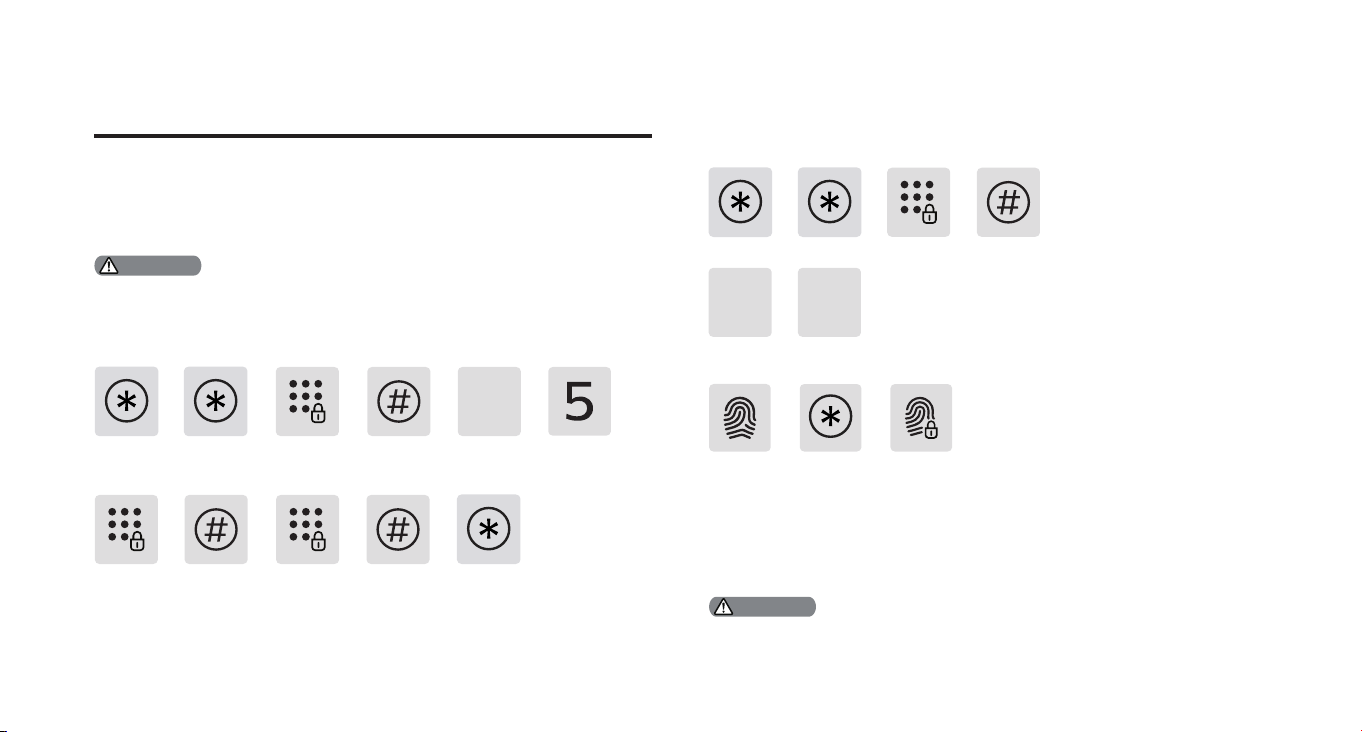
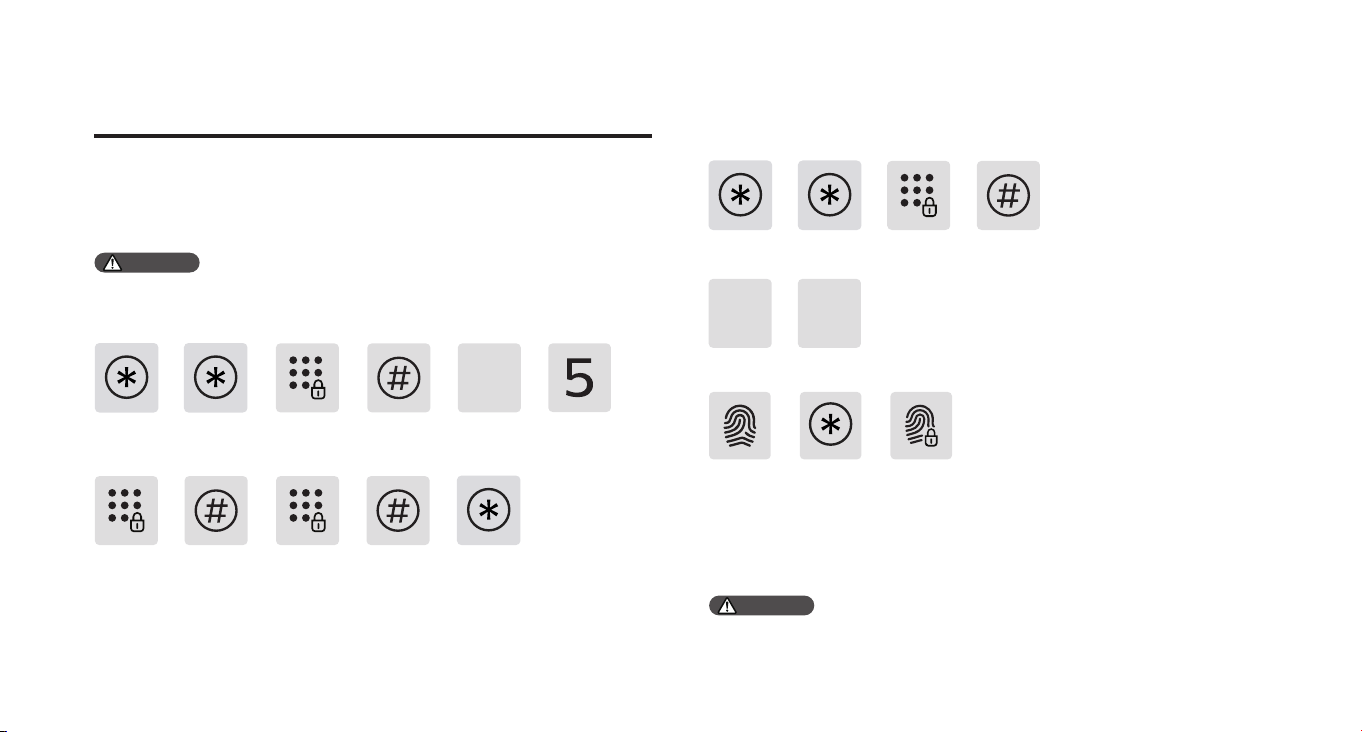
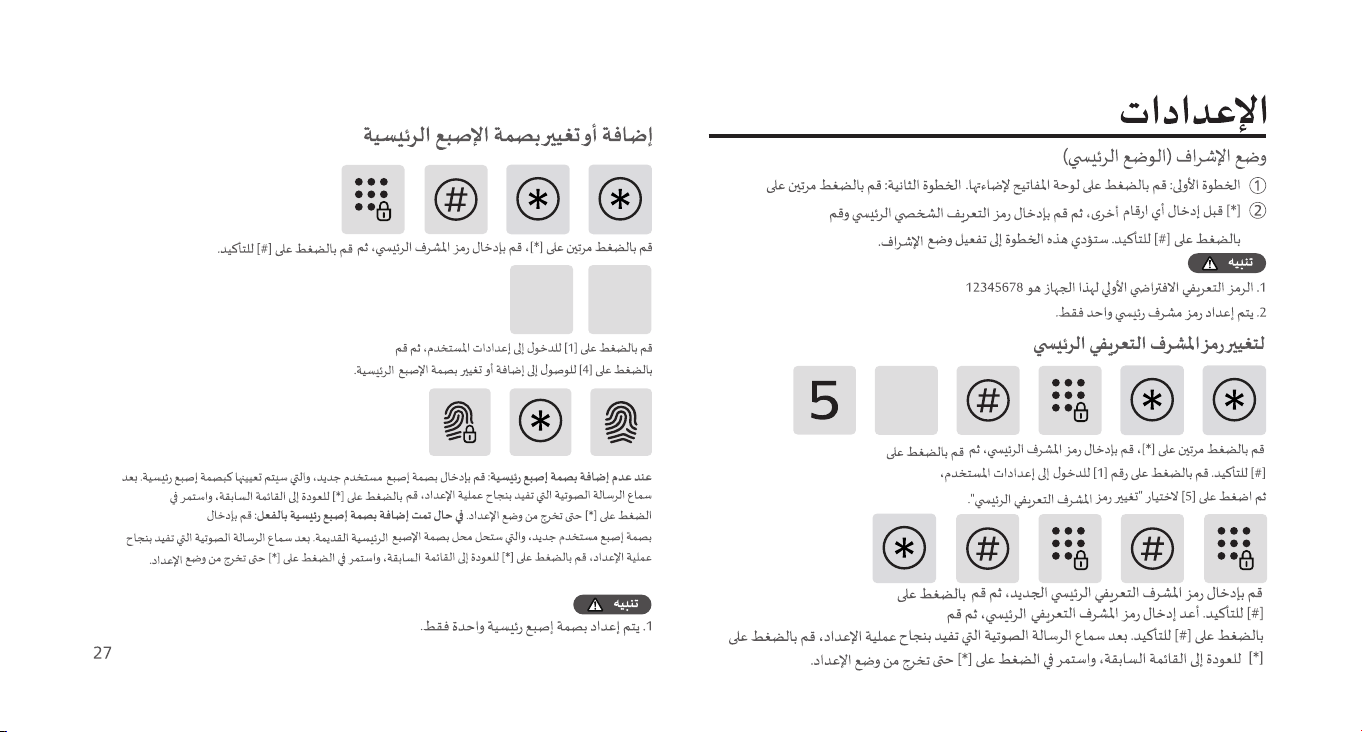
Master mode
Add or change the master ngerprint
Step1: Light up the keypad.
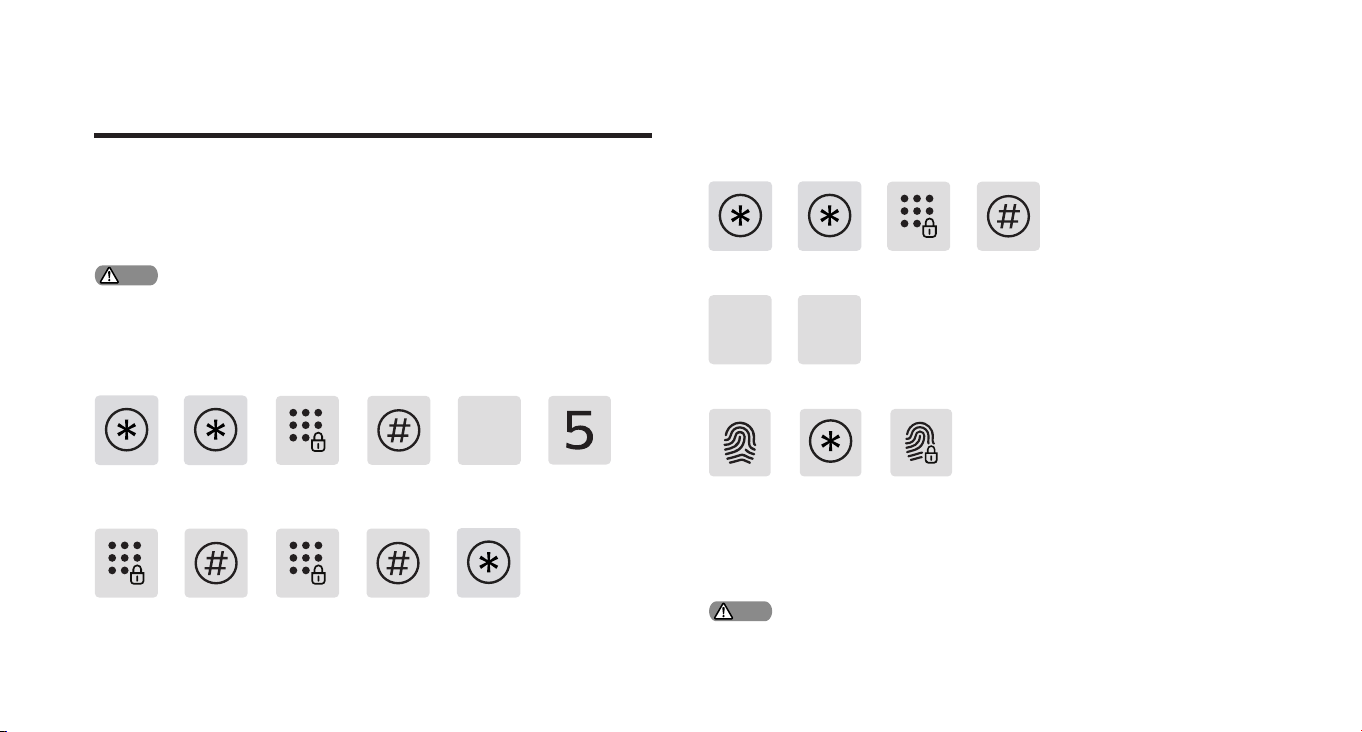
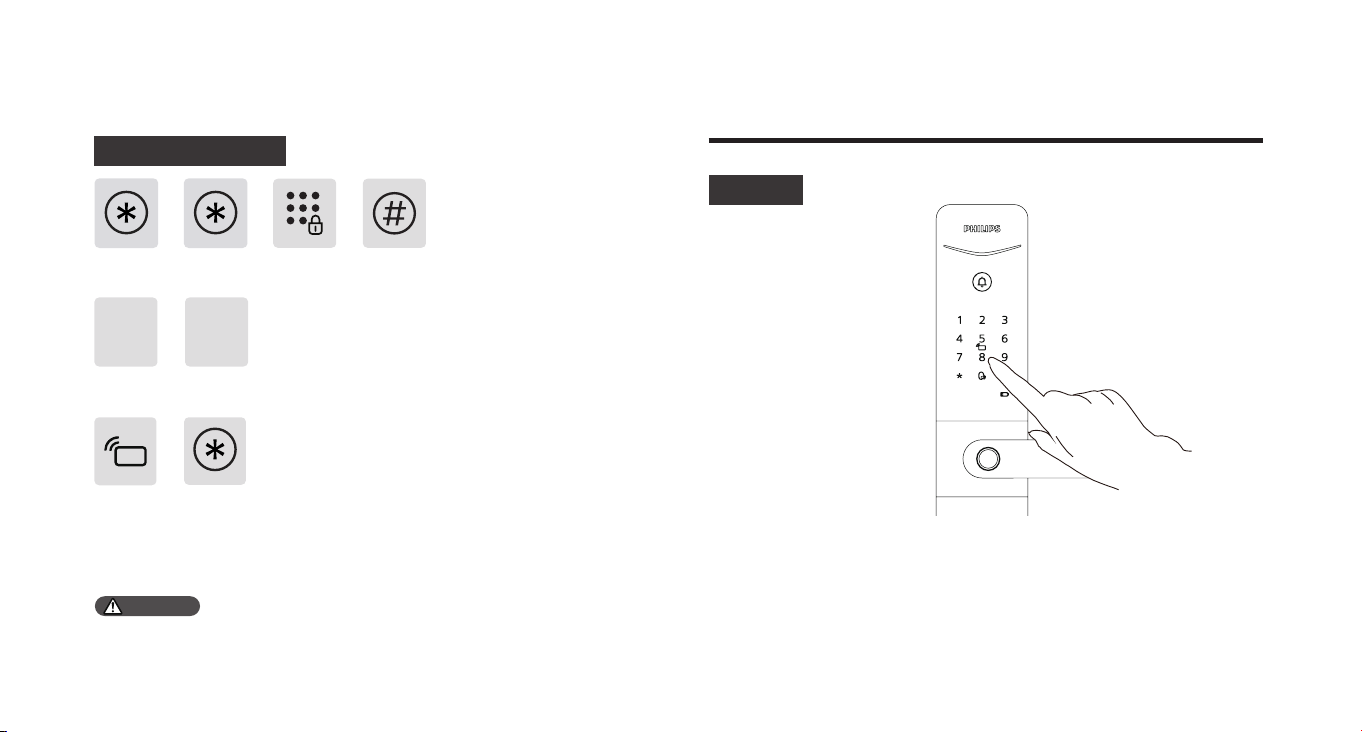
Step2: Press [*] twice before entering other numbers, then enter the
master PIN code and conrm with [#]. This will activate the master
mode.
1. The default initial master PIN code is 12345678.
2. The master PIN code is one set.
Change the master PIN code
Enter a new master PIN code, then press [#] to conrm. Re-enter the master
PIN code, then press [#] to conrm. After hearing the voice prompt for
successful setup, press [*] to return to the previous menu, and keep pressing
[*] until you exit the setup mode.
Press [*] twice, enter the master PIN code, then press [#] to conrm. Press [1] to enter
user settings, then press [5] to select “Change Master PIN Code”.
Press [*] twice, enter the master PIN code, then press [#] to conrm.
Press [1] to enter user settings, then press [4] to access adding or changing
the master ngerprint.
When no master ngerprint has been added: Enter a new user ngerprint,
which will be set as the master ngerprint. After hearing the voice prompt
for successful setup, press [*] to return to the previous menu, and keep
pressing [*] until you exit the setup mode.
When a master ngerprint has already been added: Enter a new user
ngerprint, which will replace the old master ngerprint. After hearing the
voice prompt for successful setup, press [*] to return to the previous menu,
and keep pressing [*] until you exit the setup mode.
1. The master ngerprint is one set.
Attention
Attention
1
1
4
4
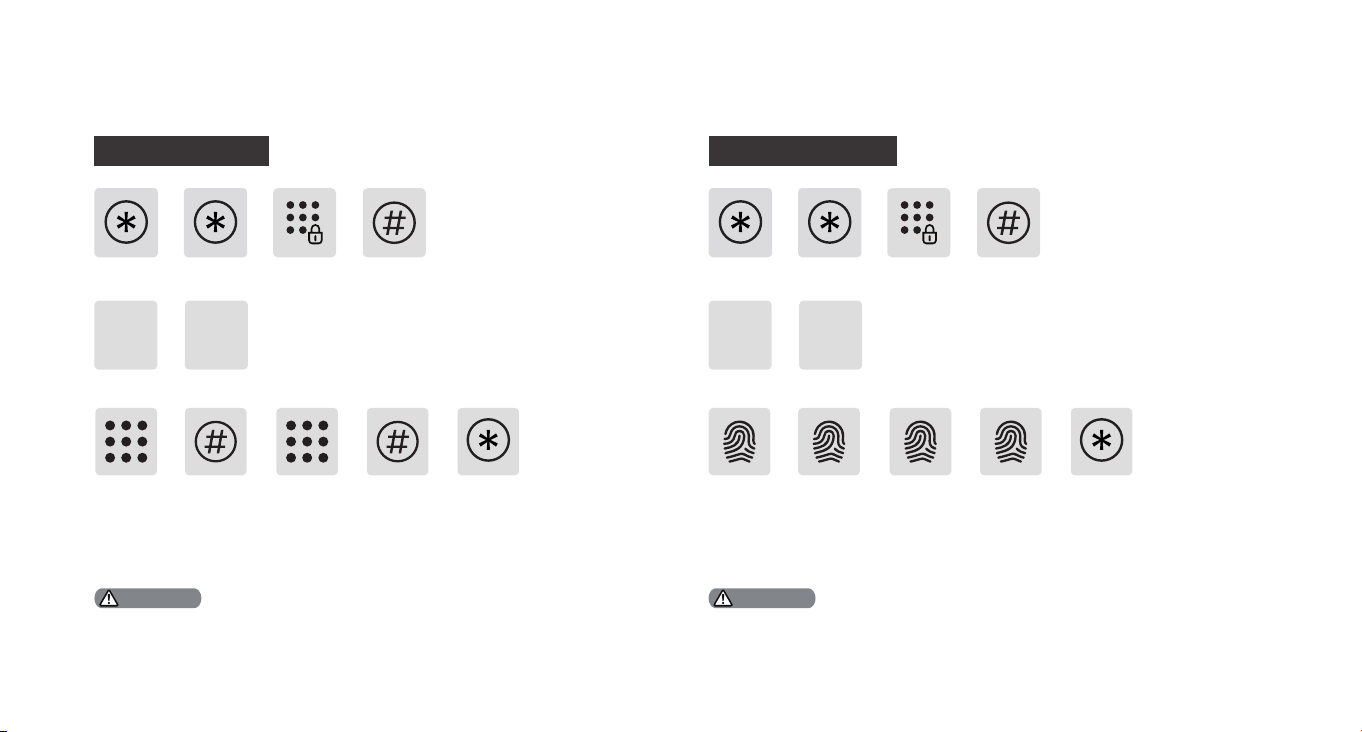
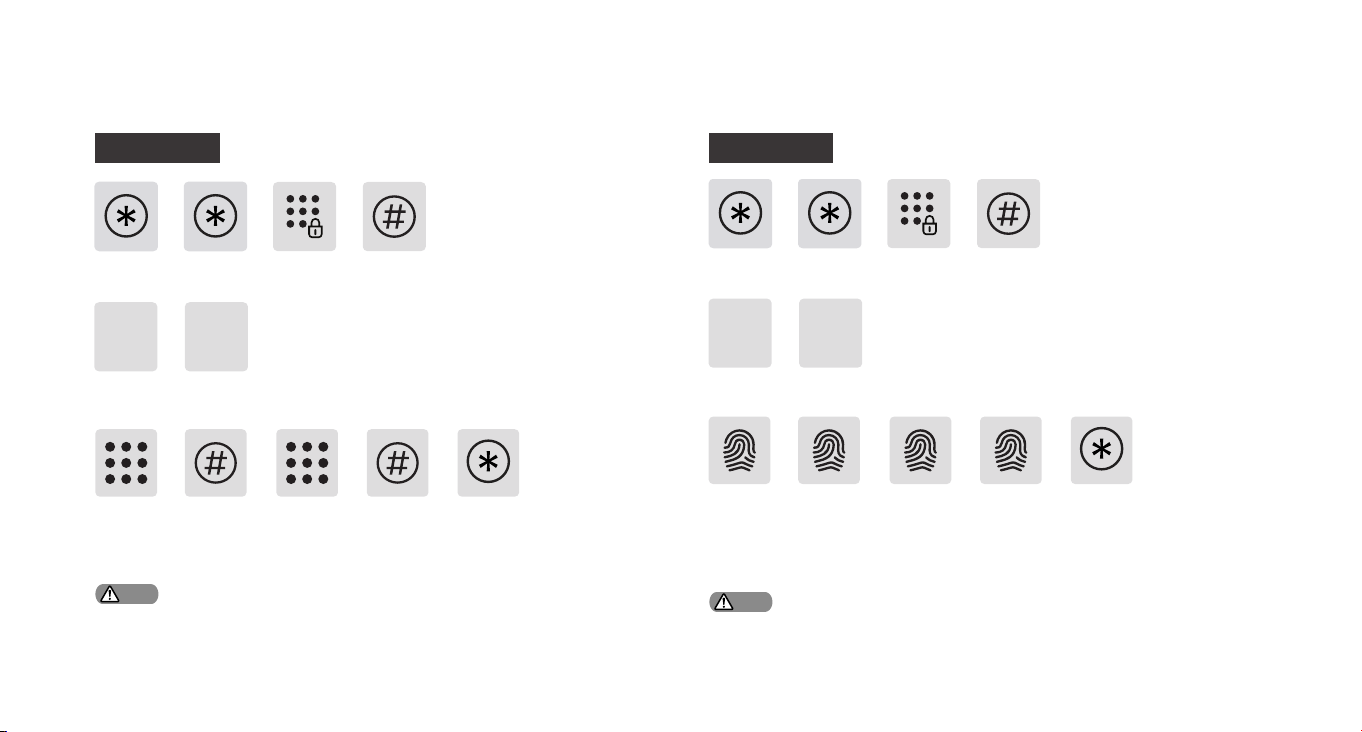
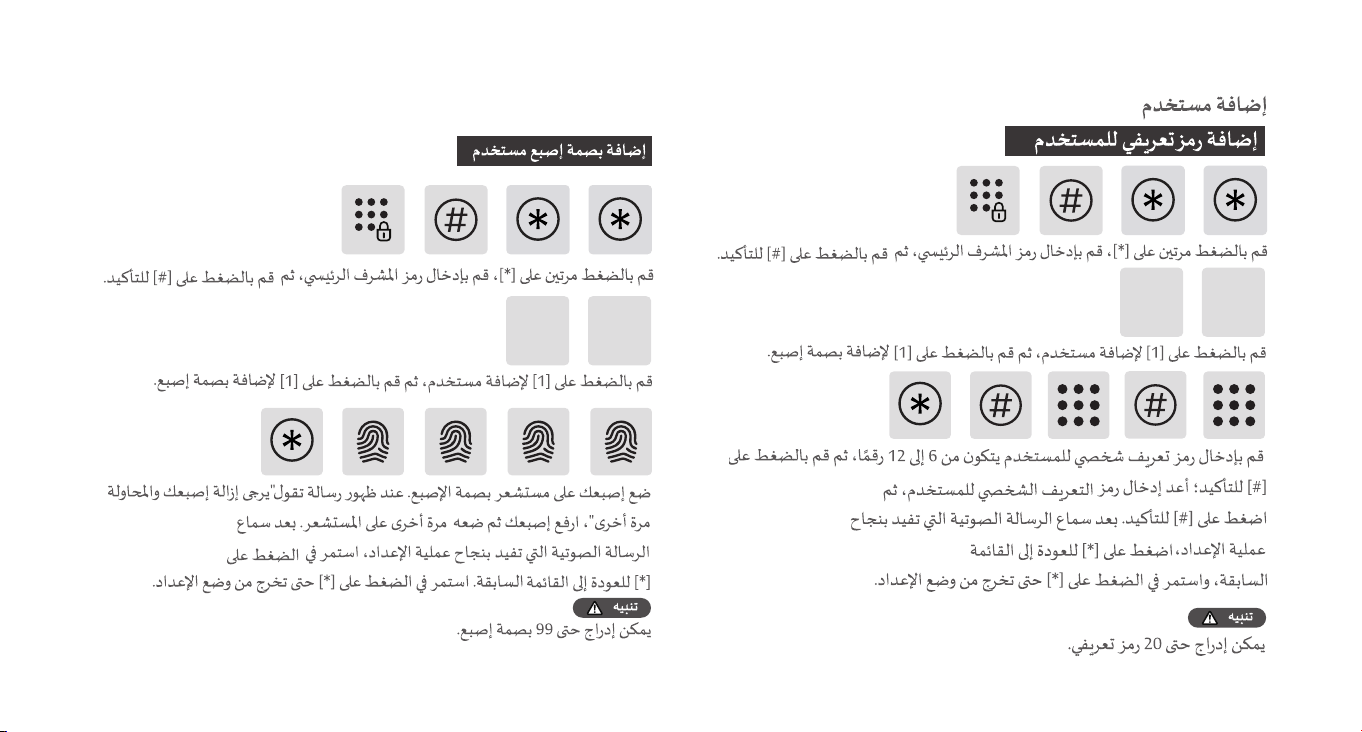
Enter a 6-12 digit user PIN code, then press [#] to conrm; re-enter the
user PIN code, then press [#] to conrm. After hearing the voice prompt
for successful setup, press [*] to return to the previous menu, and keep
pressing [*] until you exit the setup mode.
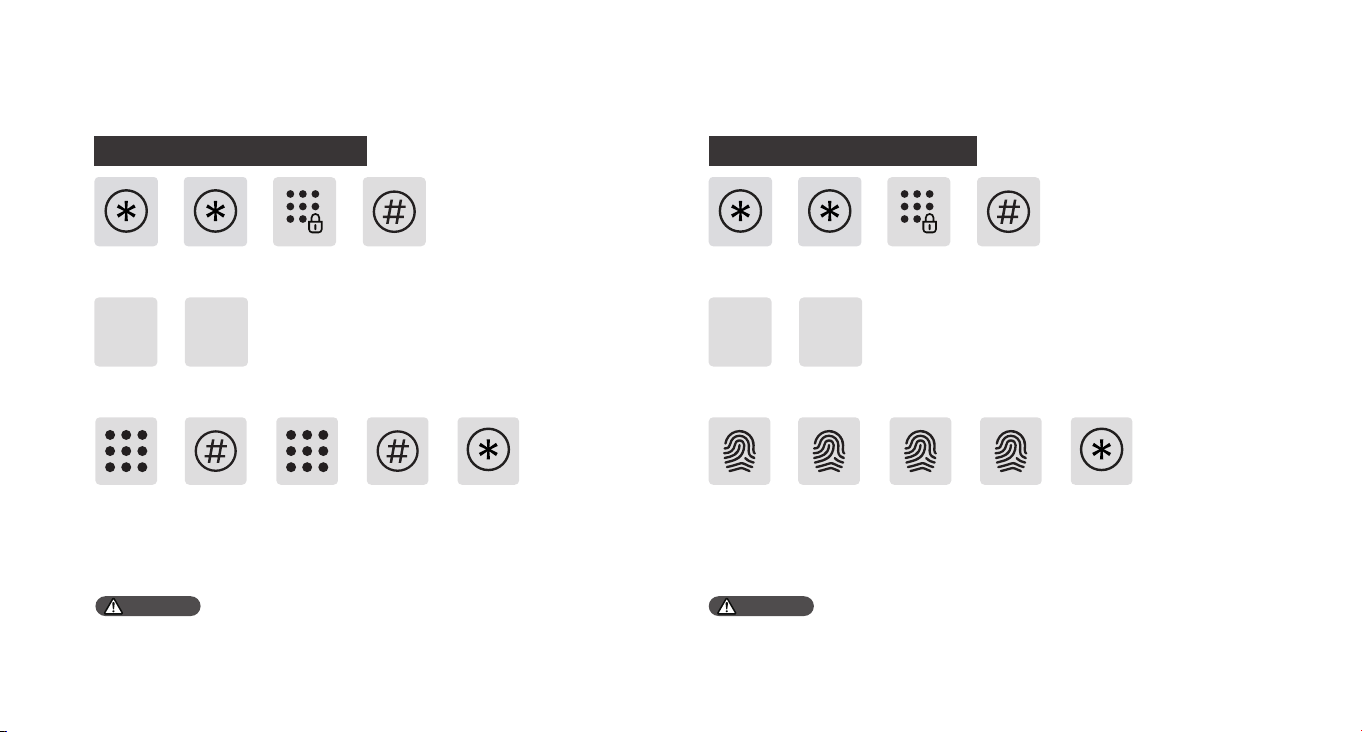
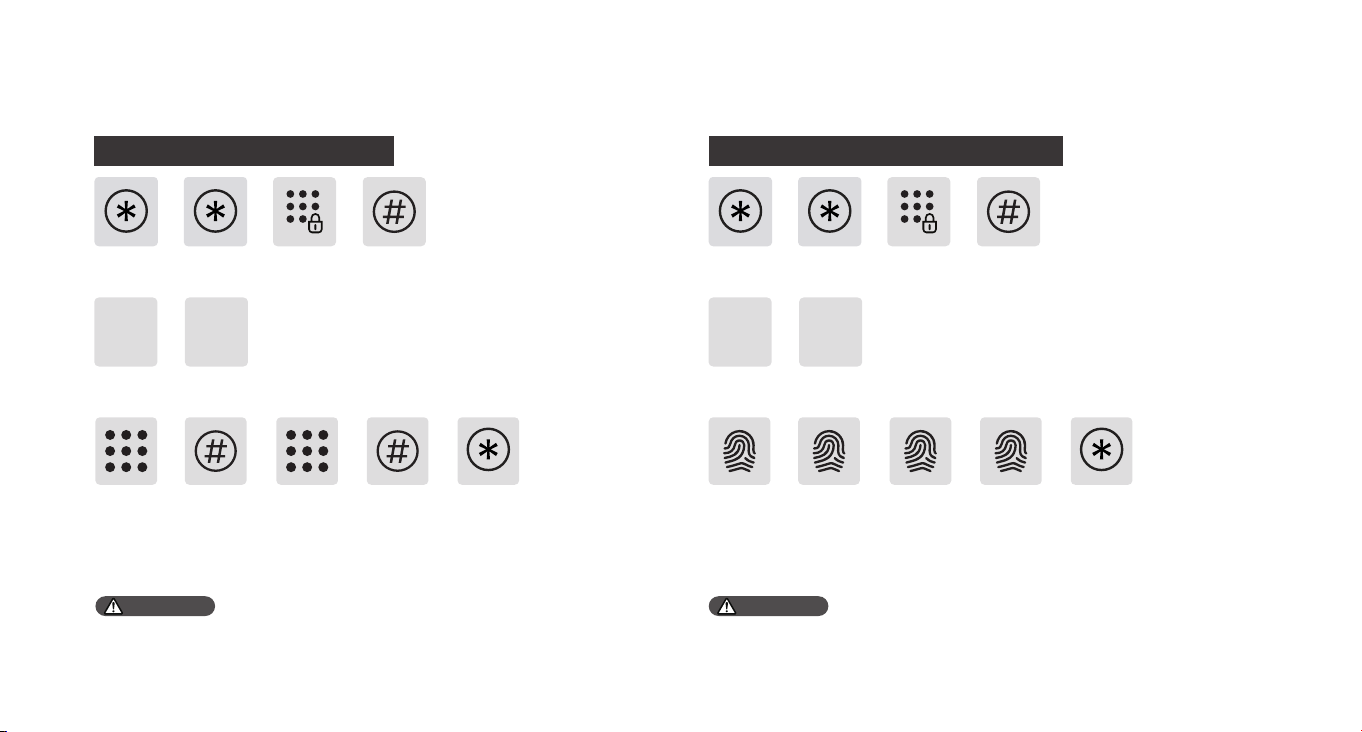
Press [1] to add a user, then press [1] to add a user PIN code. Press [1] to add a user, then press [1] to add a user ngerprint.
Add a user PIN code
Place your nger on the ngerprint sensor. When prompted with
‘Please remove your nger and try again’, lift your nger and then
place it back on the sensor. After hearing the voice prompt conrming
successful setup, keep pressing [*] to return to the previous menu.
Continue to keep pressing [*] until you exit the setup mode.
Add a user ngerprint
Press [*] twice, enter the master PIN code, then press [#] to conrm. Press [*] twice, enter the master PIN code, then press [#] to conrm.
The user ngerprint capacity is 99 sets. The user PIN code capacity is 20 sets.
Attention Attention
1 1
Add a user
1 1
5
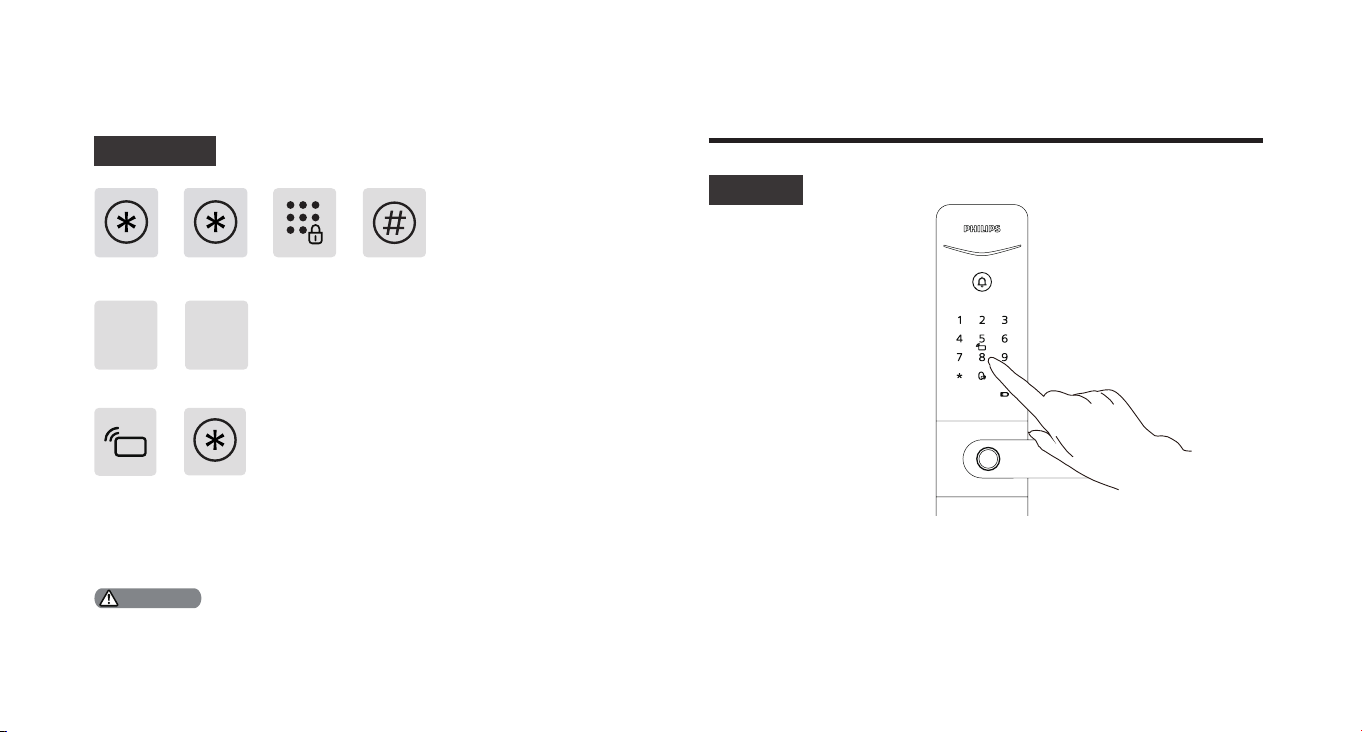
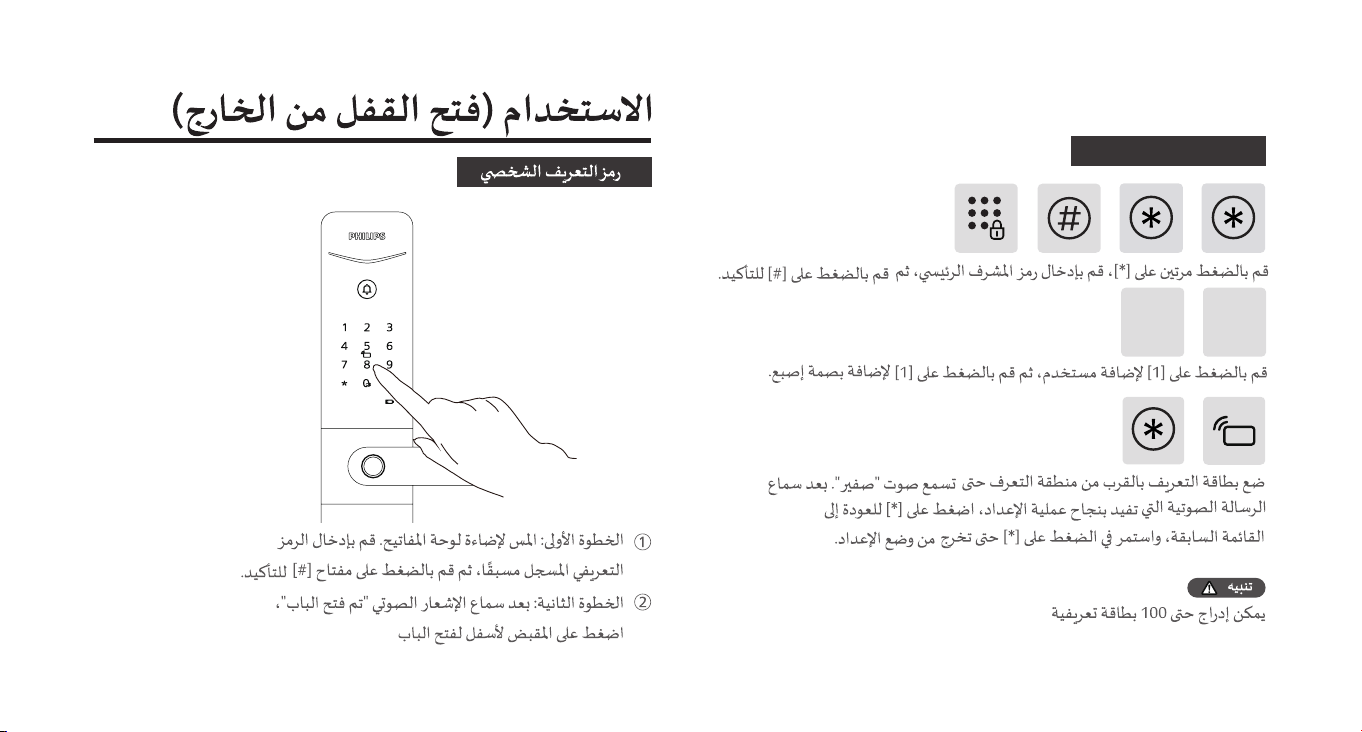
Add a key tag
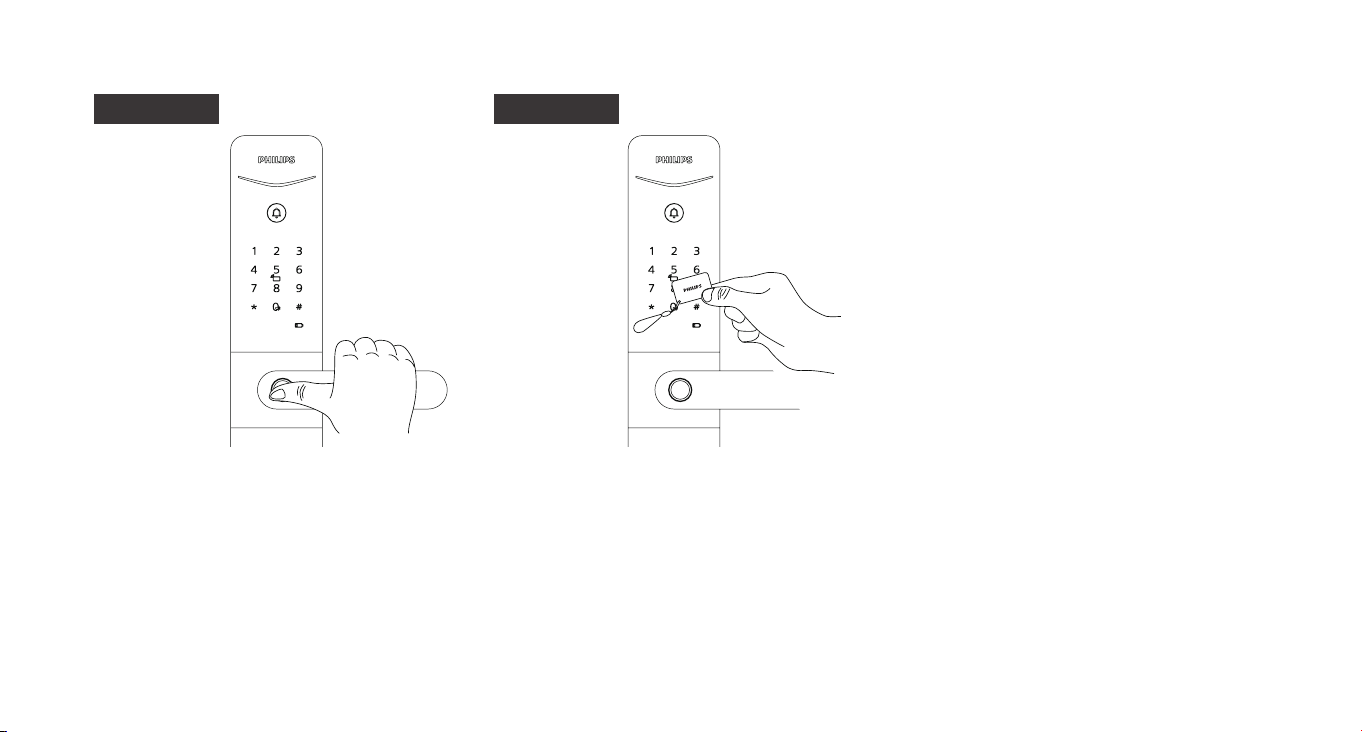
Usage(Unlock from outside)
PIN code
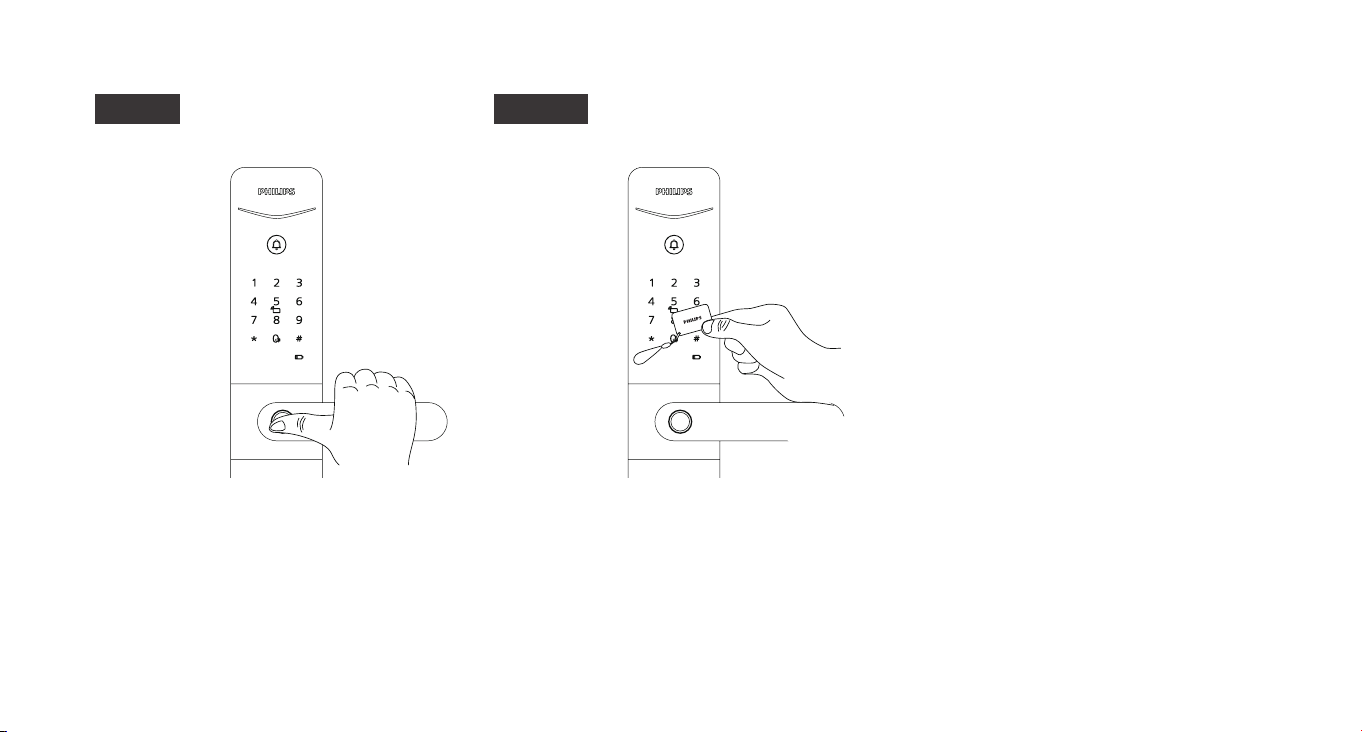
Step1: Touch to light up the keypad. Enter the pre-enrolled PIN code,
then press [#] key to conrm.
Step2: After hearing the voice prompt "Door opened", push down the
handle to open the door.
The key tag capacity is 100 sets.
Attention
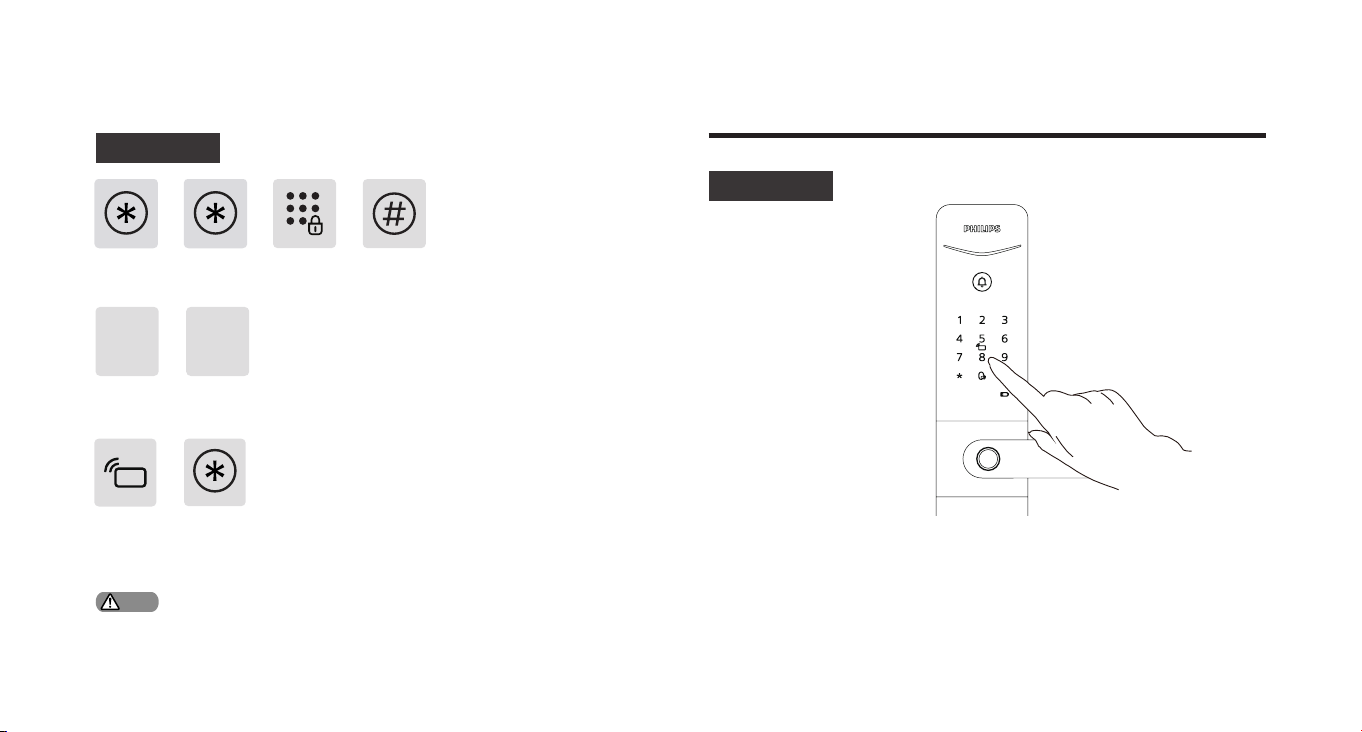
Press [*] twice, enter the master PIN code, then press [#] to conrm.
Press [1] to add a user, then press [1] to add a key tag.
Place the key tag near the recognition area until you hear a "beep"
sound. After hearing the voice prompt for successful setup, press [*] to
return to the previous menu, and keep pressing [*] until you exit the
setup mode.
1 1
6
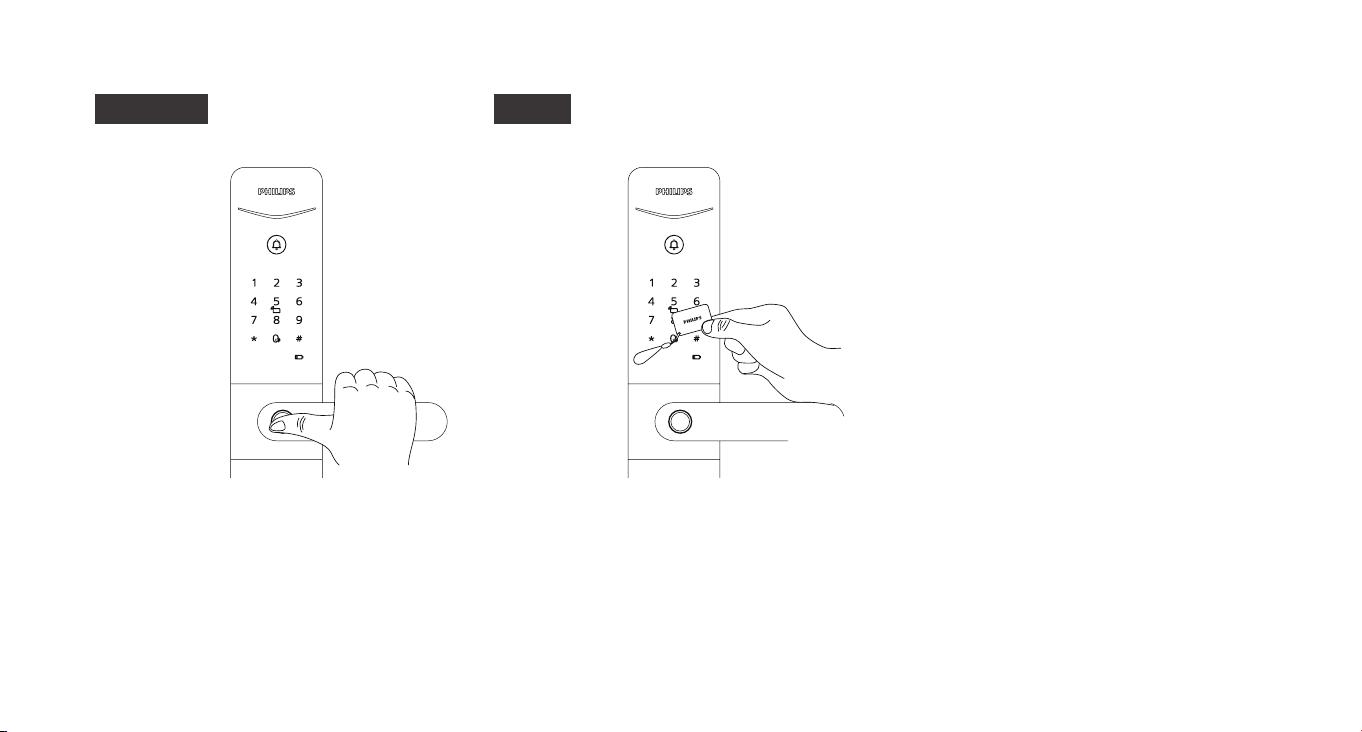
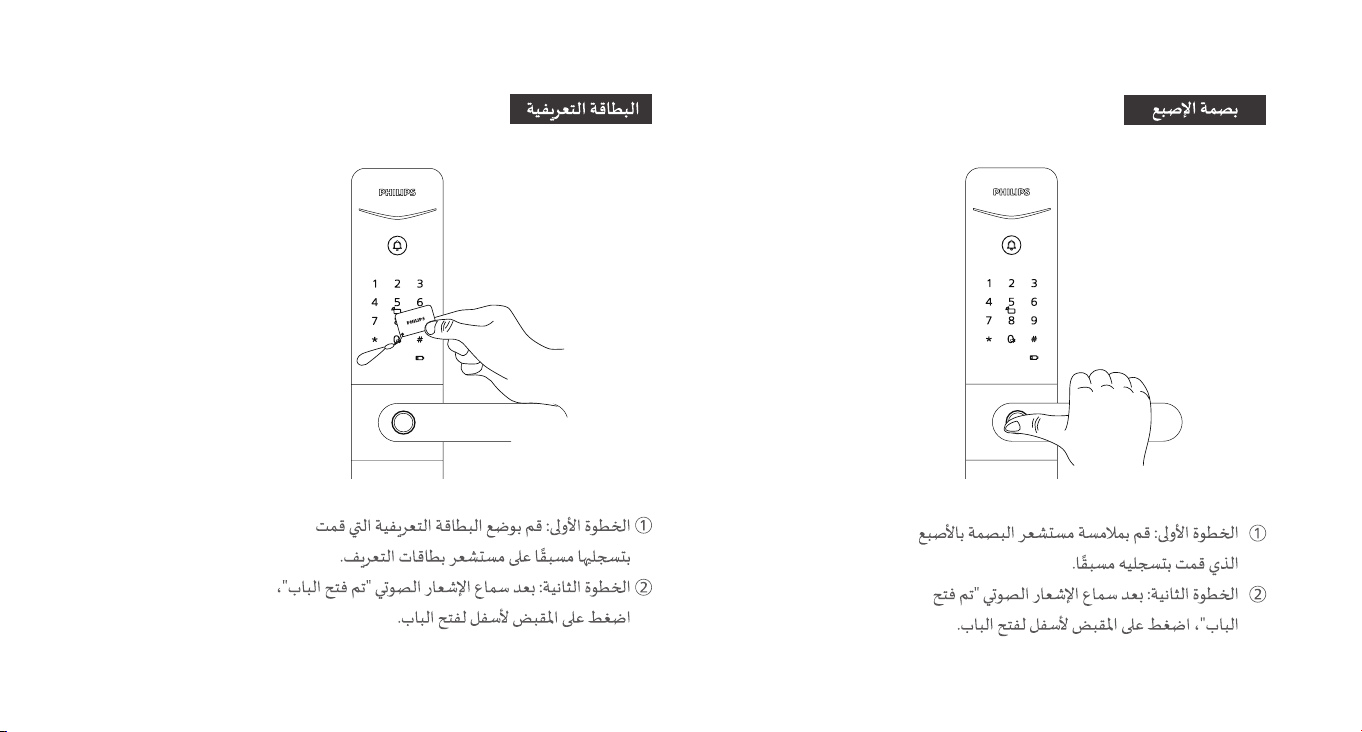
Fingerprint
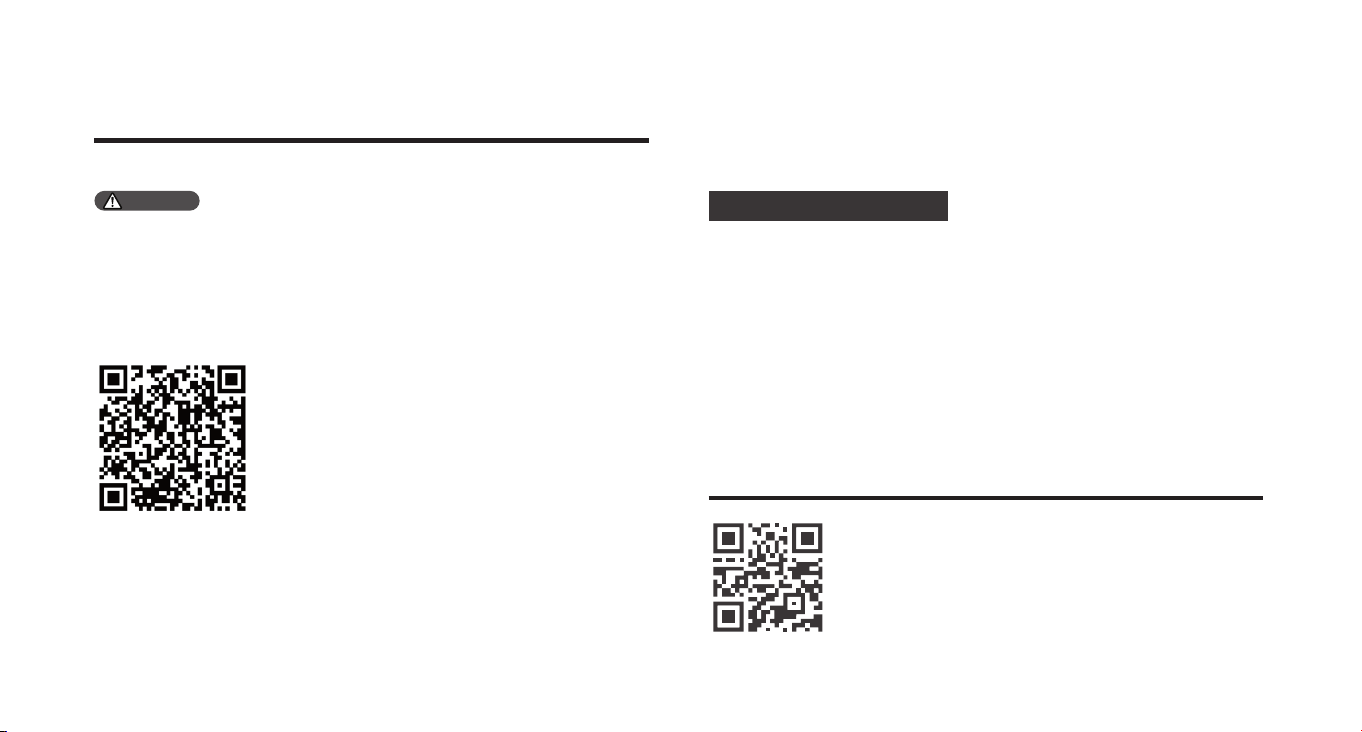
Step1: Place the pre-enrolled nger on the
ngerprint sensor.
Step2: After hearing the voice prompt "Door
opened", push down the handle to open the
door.
Key tag
Step1: Place the pre-enrolled key tag on the
card recognition area.
Step2: After hearing the voice prompt "Door
opened", push down the handle to open the
door.
7
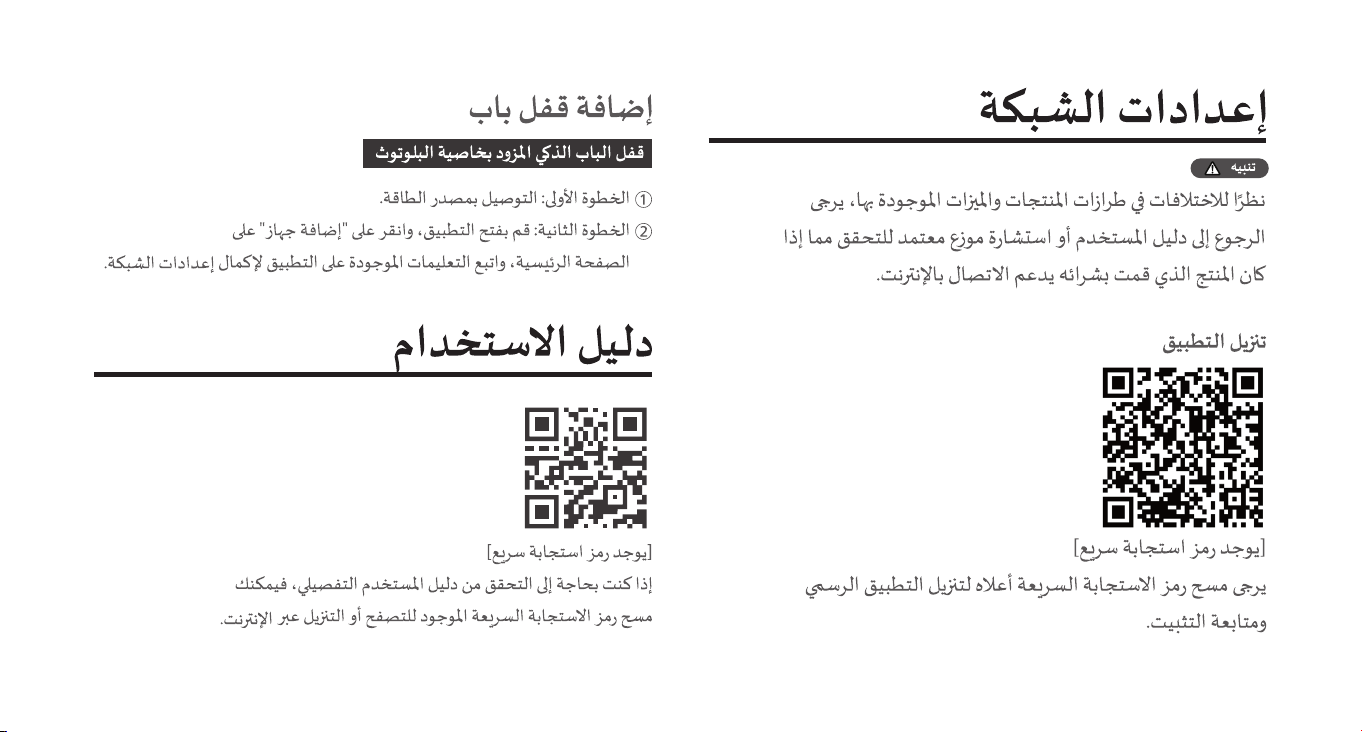
Smart Bluetooth door lock
Network settings
User manual
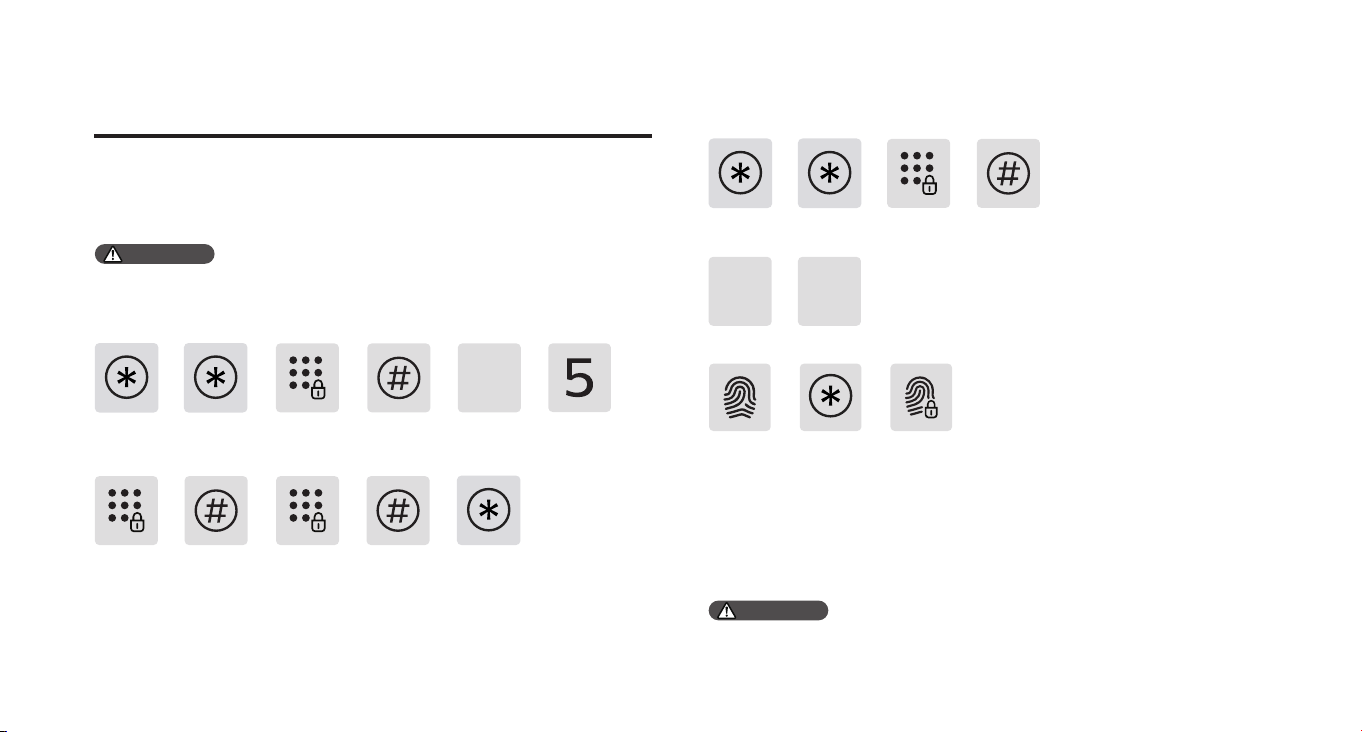
Step1: Connect to power supply;
Step2: Open the app, click on "Add a device" on the homepage, and
follow the prompts on the app to complete the network settings.
Download
Add a door lock
If you need to check the detailed user manual, you
can scan the QR code on the left for online browsing
or downloading.
Due to dierences in product models and features, please refer to
the user manual or consult with an authorized dealer to verify if the
product you have purchased supports Internet connectivity.
Please scan the QR Code above to download the ocial app and
proceed with installation.
Attention

8
重要信息
安全
在使用智能鎖前,請閱讀並理解所有說明,因
未遵守說明而造成的損壞不在保修範圍內;
建議使用制造商指定的附件 / 配件;
僅使用本產品配置的鹼性電池,或同樣規格類
型的電池;
請勿強行拆卸本產品,以免觸發警報或損壞產
品;
請勿用尖銳物品擦指紋採集器,否則可能造成
永久性損壞;
請勿將產品暴露在漏水或濺水環境下;
請勿將產品接觸腐蝕性物質,以免破壞外殼保
護層;
請勿在把手上懸掛物件,以免影響門鎖的正常
使用;
◆
◆
◆
◆
◆
◆
◆
◆
◆
◆
◆
◆
◆
◆
◆
◆
◆
◆
清潔產品時請用軟布擦拭;
請勿在設置操作時拆卸電池;
請您選擇專業人員安裝門鎖,並按照本公司提
供的安裝標準進行操作,切勿私自拆裝門鎖,
並保護好相關固封標志;
門鎖安裝調試合格後,請在第一時間內修改出
廠設置的默認管理密碼,並妥善保管好機械鑰
匙,不要輕易泄露密碼信息;
門鎖觸發低電量警報後,請及時更換掉全部電
池,並確保電池正負極安裝正確。
警告
不要將電池靠近火源,以免發生爆炸;
請勿使用不符合安全規定的應急電源給產品
供電;
請勿用金屬物將電池引線的兩極連接短路,以
免引起爆炸;
確保由飛利浦、飛利浦授權的服務中心或專業
的維修人員進行更換;
請 勿 使 用 由 其 它 制 造 商 生 產 的,或 未 經 飛 利 浦
特別推薦的附件或部件,如果使用此類附件和
部 件,您 的 保 固可能失效。
1.本設備默認初始密碼為12345678。
2 . 密 碼 長 度為 6 -12 位。
注意
9
1.默認初始管理密碼為12345678。
2 .管 理 密 碼 數 量 為1組。
管理指紋數量為1組。
注意
注意
輸入新的管理密碼,按【#】確認,再次輸入管理密碼,按【#】確認。語音
提 示 設 置 成 功 後,按【* 】返 回 上層選單直至退出設置模式。
1
1
按【*】號鍵兩次,輸入管理密碼後,按【#】確認。
按【 1 】進 入 用 戶 設 置,
再 按【 5 】選 擇 修 改 管 理 密 碼。
按【*】號鍵兩次,輸入管理密碼後,按【#】號鍵確認。
按【1】進入用戶設置,再按【4】進入添加或修改管理指紋。
設置
進入管理模式
修改管理密碼
添加或修改管理指紋
① 點亮數字按鍵;
② 在未輸入其他數字的情況下按【*】號鍵兩次,輸入管理密碼,按【#】確認,
進 入 管 理 模 式。
4
未添加管理指紋時:輸入新的用戶指紋,新指紋將被設置為管理指紋。待
語音提示添加成功後,按【*】返回上層菜單直至退出設置模式。
已經添加管理指紋:輸入新的用戶指紋,新指紋將會替換舊管理指紋。待
語 音 提 示 修 改 成 功後,按【 * 】返 回 上 層 菜 單 直 至 退 出 設 置 模 式。
10
添加用戶指紋
將手指按壓在指紋採集器上,待聽到語音提示“請拿開手指,再放一次”
時,拿開 手 指 重 新 放 回 指 紋 採 集 器 上。語 音 提 示 添 加 成 功 後,按【*】返 回
上層選單直至退出設置模式。
1
1
1
1
輸入6-12位用戶密碼,按【 # 】確 認;再 次 輸 入 用 戶 密 碼,按【 # 】確 認。語
音 提 示 添 加 成 功 後,按【*】返 回 上 層選單直至退出設置模式。
添加用戶密碼
添加用戶信息
按【*】號鍵兩次,輸入管理密碼後,按【#】號鍵確認。
按【*】號鍵兩次,輸入管理密碼後,按【#】號鍵確認。
按【1】進入添加用戶,再按【1】進入添加用戶密碼。
按【1】進入添加用戶,再按【1】進入添加用戶指紋。
用戶指紋容量為99組。
用戶密碼容量為20組。
注意
注意
11
添加用戶卡片
將 卡片 靠 近 卡片 識 別 區,直 到 “ 嘀 ” 聲 響。語 音 提 示 添 加 成 功 後,按【* 】返
回上層選單直至退出設置模式。
1 1
按【*】號鍵兩次,輸入管理密碼後,按【#】號鍵確認。
按【1】進入添加用戶,再按【1】進入添加用戶卡片。
① 觸摸數字鍵區域,點亮數字鍵。直接輸入已經添加的密碼,按【#】號
鍵確認;
② 語音提示“已開門”後,下壓手柄進行開門。
使 用( 室 外 開 門 )
用戶密碼解鎖
用戶卡片容量為100組。
注意
12
① 將已經添加指紋的手指以正確的方式放在指
紋 器上;
② 語音提示“已開門”後,下壓手柄進行開門。
① 將已經添加的卡片以正確的方式放在卡片識
別 區;
② 語音提示“已開門”後,下壓手柄進行開門。
用戶指紋解鎖 用戶卡片解鎖
13
① 連接電源;
② 進入官方 App,在首頁點擊添加設備,根據 APP 頁面提示完成連網
綁 定。
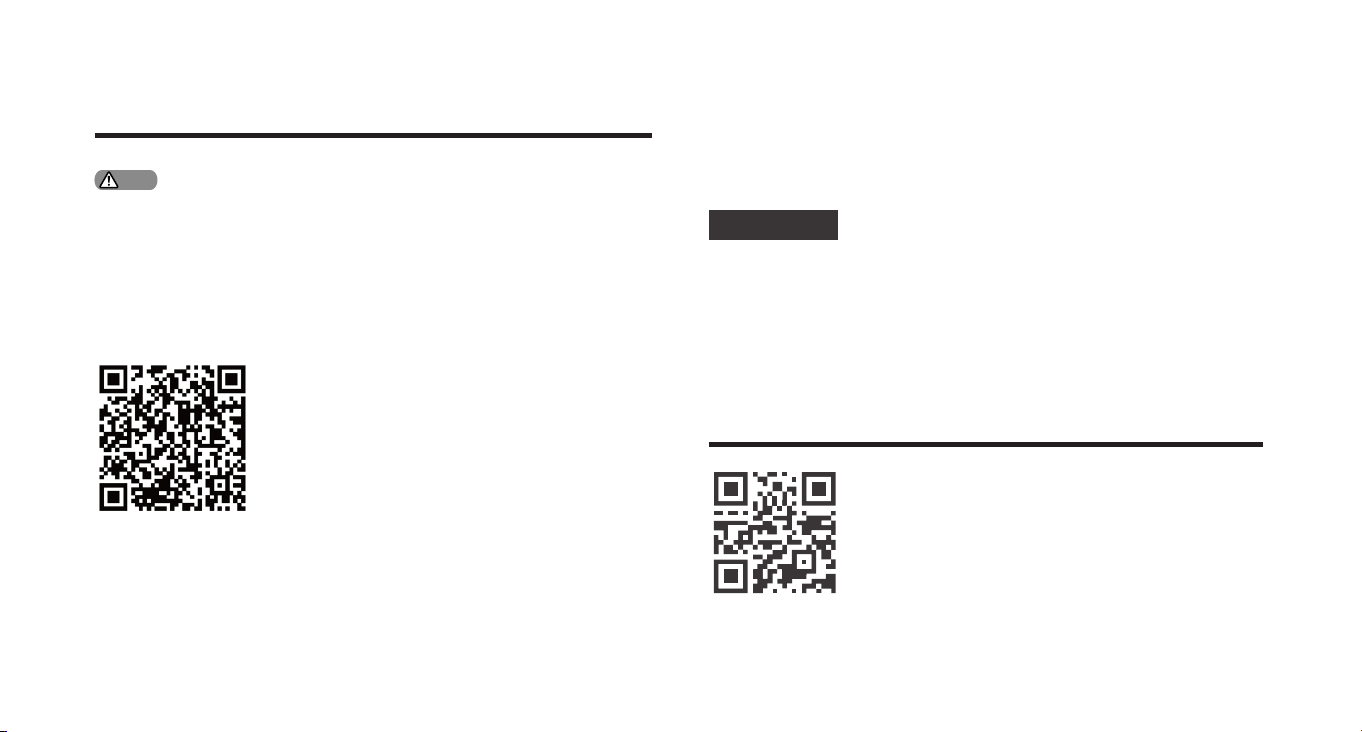
請掃描上方 QR Code下載官方 App,並進行安裝。
下載
如果您需要查閱詳細的用戶手冊,可掃描左方
QR Code 進行在線閱讀或下載。
網路連接
下載官方 App
添加門鎖
藍牙智能門鎖
由於不同型號的產品功能不同,您可通過查閱產品手冊或諮詢官方授權
銷售商確認您購買的產品是否支持聯網。
注意

14
Informasi Penting
Keselamatan
Sebelum menggunakan produk ini, harap
baca dan pahami semua petunjuk dengan
seksama. Kerusakan yang disebabkan
oleh kelalaian dalam mengikuti petunjuk
ini tidak dicakup oleh garansi.
Harap hanya gunakan aksesori/komponen
yang ditentukan oleh pabrikan.
Harap hanya gunakan baterai alkali yang
disediakan dengan produk ini atau gantilah
dengan baterai alkali jenis yang sama.
Mohon jangan mencoba membongkar
paksa produk untuk memicu alarm
atau menyebabkan kerusakan.
Harap hindari menggunakan benda
tajam untuk menggores sensor
sidik jari, karena hal ini dapat
menyebabkan kerusakan permanen.
Mohon hindari mengekspos produk
ke daerah yang mungkin bocor
atau terkena percikan air.
Untuk mencegah kerusakan pada
penutup pelindung, jangan mengekspos
produk ke zat yang bersifat korosif.
◆
◆
◆
◆
◆
◆
◆
◆
◆
◆
◆
◆
◆
◆
◆
◆
◆
◆
Harap hindari menggantung benda
di pegangan karena hal ini dapat
mengganggu fungsi kunci.
Harap gunakan kain lembut yang dibasahi
dengan air untuk membersihkan sidik jari
atau kotoran dari permukaan perakitan.
Mohon jangan mengeluarkan baterai saat
mengatur atau mengoperasikan perangkat.
Mohon pilih personel profesional untuk
instalasi kunci pintu dan ikuti petunjuk
instalasi yang disediakan oleh perusahaan
kami. Jangan membongkar kunci pintu
secara pribadi dan pastikan stiker yang
relevan tetap disimpan dengan baik.
Setelah menyelesaikan instalasi dan
pemecahan masalah, mohon ubah segera
kode PIN master default. Pastikan kunci
mekanis disimpan dengan baik dan jangan
membagi kode PIN dengan orang lain.
Setelah kunci pintu memberikan peringatan
baterai lemah, segera ganti semua baterai dan
pastikan polaritas yang benar saat instalasi.
Peringatan
Jangan letakkan baterai dekat sumber
api untuk mencegah ledakan.
Jangan gunakan catu daya yang tidak
memenuhi persyaratan keselamatan
untuk menghidupkan produk.
Mohon hindari penyortiran singkat
polaritas baterai dengan benda
logam untuk mencegah ledakan.
Pastikan bahwa instalasi atau
penggantian komponen dilakukan
oleh Philips, pusat layanan resmi
Philips, atau teknisi profesional.
Mohon hindari menggunakan aksesori
atau suku cadang yang dibuat oleh
produsen yang tidak sah atau tidak secara
eksplisit direkomendasikan oleh Philips.
Penggunaan aksesori dan suku cadang
seperti itu dapat membatalkan garansi.
1. Kode PIN awal default untuk perangkat ini
adalah 12345678.
2. Panjang kode PIN harus antara 6 dan 12 digit.
Catatan
15
Pengaturan
Mode Master
Tambahkan atau ubah sidik jari master.
1: Nyalakan keypad
2: Tekan [*] dua kali sebelum memasukkan angka lain, kemudian masukkan
kode PIN master dan konrmasikan dengan [#]. Ini akan mengaktifkan
mode master.
1. Kode PIN master awal default adalah 12345678.
2. Kode PIN master hanya disetel satu kali.
Ubah kode PIN master.
Masukkan kode PIN master baru, kemudian tekan [#] untuk mengonrmasi.
Masukkan kembali kode PIN master, kemudian tekan [#] untuk
mengonrmasi. Setelah mendengar suara peringatan sukses, tekan [] untuk
kembali ke menu sebelumnya dan terus tekan [] sampai Anda keluar dari
mode pengaturan.
Tekan [*] dua kali, masukkan kode PIN master, kemudian tekan [#] untuk
mengonrmasi. Tekan [1] untuk masuk ke pengaturan pengguna, kemudian tekan
[5] untuk memilih “Ubah Kode PIN Master”.
Tekan [*] dua kali, masukkan kode PIN master, kemudian tekan [#] untuk
mengonrmasi.
Tekan [1] untuk masuk ke pengaturan pengguna, kemudian tekan [4] untuk
mengakses penambahan atau pengubahan sidik jari master.
Ketika tidak ada sidik jari master yang ditambahkan: Masukkan sidik
jari pengguna baru, yang akan diatur sebagai sidik jari master. Setelah
mendengar suara peringatan sukses, tekan [] untuk kembali ke menu
sebelumnya dan terus tekan [] sampai Anda keluar dari mode pengaturan.
Ketika sidik jari master sudah ditambahkan: Masukkan sidik jari pengguna
baru, yang akan menggantikan sidik jari master lama. Setelah mendengar
suara peringatan sukses, tekan [] untuk kembali ke menu sebelumnya dan
terus tekan [] sampai Anda keluar dari mode pengaturan.
Sidik jari master hanya disetel satu kali.
1
1
4
Catatan
Catatan
16
Masukkan kode PIN pengguna 6–12 digit, kemudian tekan [#] untuk
mengonrmasi; masukkan kembali kode PIN pengguna, kemudian
tekan [#] untuk mengonrmasi. Setelah mendengar suara peringatan
sukses, tekan [] untuk kembali ke menu sebelumnya dan terus tekan []
sampai Anda keluar dari mode pengaturan.
Tekan [1] untuk menambah pengguna, kemudian tekan [1] untuk
menambahkan kode PIN pengguna.
Tekan [1] untuk menambah pengguna, kemudian tekan [1] untuk
menambahkan sidik jari pengguna.
Tambahkan kode PIN pengguna
Tempatkan jari Anda pada sensor sidik jari. Ketika diminta dengan
‘Hapus jari Anda dan coba lagi’, angkat jari Anda dan kemudian
tempatkan kembali di sensor. Setelah mendengar suara peringatan
sukses, terus tekan [] untuk kembali ke menu sebelumnya. Lanjutkan
menekan [*] sampai Anda keluar dari mode pengaturan.
Tambahkan sidik jari pengguna
Tekan [*] dua kali, masukkan kode PIN master, kemudian tekan [#]
untuk mengonrmasi.
Tekan [] dua kali, masukkan kode PIN master, kemudian tekan [#] untuk
mengonrmasi.
Kapasitas sidik jari pengguna adalah 99 set.
Kapasitas kode PIN pengguna adalah 20 set.
1 1
Tambahkan pengguna
1 1
Catatan Catatan
17
Tambahkan tag kunci
Penggunaan(Membuka dari luar)
Kode PIN
1.Sentuh untuk menyalakan keypad. Masukkan kode PIN yang telah
terdaftar, kemudian tekan tombol [#] untuk mengonrmasi.
2: Setelah mendengar suara peringatan "Pintu terbuka", tekan gagang
ke bawah untuk membuka pintu.
Kapasitas tag kunci adalah 100 set.
Tekan [*] dua kali, masukkan kode PIN master, kemudian tekan [#]
untuk mengonrmasi.
Tekan [1] dua kali, masukkan kode PIN master, kemudian tekan [#] untuk
mengonrmasi.
Tempatkan tag kunci di dekat area pengenalan hingga Anda
mendengar suara "beep". Setelah mendengar suara peringatan sukses,
tekan [] untuk kembali ke menu sebelumnya, dan terus tekan [*] sampai
Anda keluar dari mode pengaturan.
1 1
Catatan
18
Sidik jari
1: Tempatkan jari yang sudah terdaftar di
sensor sidik jari.
2:Setelah mendengar suara peringatan "Pintu
terbuka", tekan gagang ke bawah untuk
membuka pintu.
Tag kunci
1: Tempatkan tag kunci yang sudah terdaftar di
area pengenalan kartu.
2: Setelah mendengar suara peringatan "Pintu
terbuka", tekan gagang ke bawah untuk
membuka pintu.
19
Kunci pintu pintar Bluetooth
Pengaturan Jaringan
Panduan Pengguna
1: Sambungkan ke catu daya;
2: Buka aplikasi, klik "Tambahkan perangkat" di beranda, dan ikuti
petunjuk di aplikasi untuk menyelesaikan pengaturan jaringan.
Unduh
Tambahkan kunci pintu
Jika Anda perlu memeriksa panduan pengguna yang
detail, Anda dapat memindai kode QR di kiri untuk
penjelajahan online atau pengunduhan.
Karena perbedaan dalam model produk dan tur, silakan merujuk pada
panduan pengguna atau berkonsultasi dengan dealer resmi untuk
memverikasi apakah produk yang Anda beli mendukung koneksi
internet.
Silakan pindai Kode QR di kiri untuk mengunduh aplikasi resmi dan
lanjutkan dengan instalasi.
Catatan

20
Informação importante
Segurança
Antes de usar este produto, leia atentamente
e entenda todas as instruções. Os danos
resultantes do não cumprimento destas
instruções não são cobertos pela garantia.
Utilize apenas acessórios/componentes
especificados pelo fabricante.
Utilize apenas as pilhas alcalinas
fornecidas com o produto ou substitua-
as por pilhas alcalinas do mesmo tipo.
Não tente desmontar o produto à força
para disparar um alarme ou causar danos.
Evite usar objetos pontiagudos para raspar
o sensor de impressão digital, pois isso
pode resultar em danos permanentes.
Evite expor o produto a áreas onde
a água possa vazar ou respingar.
Para evitar danos à capa protetora, não
exponha o produto a substâncias corrosivas.
Evite pendurar objetos na alça, pois isso pode
interferir no funcionamento da fechadura.
◆
◆
◆
◆
◆
◆
◆
◆
◆
◆
◆
◆
◆
◆
◆
◆
◆
◆
Use um pano macio umedecido com
água para limpar impressões digitais
ou sujeira da superfície do conjunto.
Não remova as baterias durante a
conguração ou operação do dispositivo.
Selecione pessoal prossional para instalação
de fechadura de porta e siga as instruções de
instalação fornecidas por nossa empresa. Não
desmonte a fechadura da porta em particular
e certique-se de que os adesivos lacrados
relevantes sejam guardados corretamente.
Após concluir a instalação e solução de
problemas, altere imediatamente o código
PIN mestre padrão. Certique-se de que
as chaves mecânicas sejam armazenadas
corretamente e não compartilhe os
códigos PIN com outras pessoas.
Depois que a fechadura da porta disparar
um alerta de bateria fraca, substitua
imediatamente todas as baterias e garanta
a polaridade correta durante a instalação.
Cuidado
Não coloque as baterias perto de fontes
de ignição para evitar explosões.
Não utilize nenhuma fonte de alimentação
que não atenda aos requisitos de
segurança para alimentar o produto.
Evite curto-circuitar a polaridade da bateria
com objetos metálicos para evitar explosões.
Certique-se de que a instalação ou
substituição de qualquer componente
seja realizada pela Philips, por um
centro de serviço autorizado da Philips
ou por técnicos prossionais.
Evite usar acessórios ou peças fabricadas
por fabricantes não autorizados ou que
não sejam explicitamente recomendados
pela Philips. O uso de tais acessórios
e peças pode anular a garantia.
1. O código PIN inicial padrão para este
dispositivo é 12345678.
2. O comprimento do código PIN deve ter entre
6 e 12 dígitos.
Observação
21
Congurações
Modo mestre
Adicionar ou alterar a impressão digital mestre
1: Acenda o teclado
2: Pressione [*] duas vezes antes de inserir outros números, depois insira o
código PIN mestre e conrme com [#], activará o modo mestre.
1. O código PIN mestre inicial padrão é 12345678.
2. O código PIN mestre é um conjunto.
Alterar o código PIN mestre
Insira um novo código PIN mestre e pressione [#] para conrmar. Digite
novamente o código PIN mestre e pressione [#] para conrmar. Depois de
ouvir o aviso de voz para conguração bem-sucedida, pressione [*] para
retornar ao menu anterior e continue pressionando [*] até sair do modo de
conguração.
Pressione [*] duas vezes, insira o código PIN mestre e pressione [#] para conrmar.
Pressione [1] para entrar nas congurações do usuário e, em seguida, pressione [5]
para selecionar “Alterar código PIN mestre”.
Pressione [*] duas vezes, insira o código PIN mestre e pressione [#] para
conrmar.
Pressione [1] para entrar nas congurações do usuário e, em seguida,
pressione [4] para adicionar ou alterar a impressão digital mestre.
Quando nenhuma impressão digital mestre tiver sido adicionada:
Insira uma nova impressão digital do usuário, que será denida como
impressão digital mestre. Depois de ouvir o aviso de voz para conguração
bem-sucedida, pressione [*] para retornar ao menu anterior e continue
pressionando [*] até sair do modo de conguração.
Quando uma impressão digital mestre já tiver sido adicionada: Insira uma
nova impressão digital do usuário, que substituirá a antiga impressão digital
mestre. Depois de ouvir o aviso de voz para conguração bem-sucedida,
pressione [*] para retornar ao menu anterior e continue pressionando [*] até
sair do modo de conguração.
A impressão digital mestre é um conjunto.
1
1
4
Observação
Observação
22
Insira um código PIN de usuário de 6 a 12 dígitos e pressione [#] para
conrmar; digite novamente o código PIN do usuário e pressione
[#] para conrmar. Depois de ouvir o aviso de voz para conguração
bem-sucedida, pressione [*] para retornar ao menu anterior e continue
pressionando [*] até sair do modo de conguração.
Pressione [1] para adicionar um usuário e, em seguida, pressione [1]
para adicionar um código PIN do usuário.
Pressione [1] para adicionar um usuário e, a seguir, pressione [1] para
adicionar uma impressão digital do usuário.
Adicionar um código PIN de usuário
Coloque o dedo no sensor de impressão digital. Quando for solicitado
“Retire o dedo e tente novamente”, levante o dedo e coloque-o de volta
no sensor. Depois de ouvir o aviso de voz conrmando a conguração
bem-sucedida, continue pressionando [*] para retornar ao menu
anterior. Continue pressionando [*] até sair do modo de conguração.
Adicionar uma impressão digital do usuário
Pressione [*] duas vezes, insira o código PIN mestre e pressione [#] para
conrmar.
Pressione [*] duas vezes, insira o código PIN mestre e pressione [#] para
conrmar.
A capacidade de impressão digital do usuário é de 99 conjuntos.
A capacidade do código PIN do usuário é de 20 conjuntos.
1 1
Adicionar um usuário
1 1
Observação Observação
23
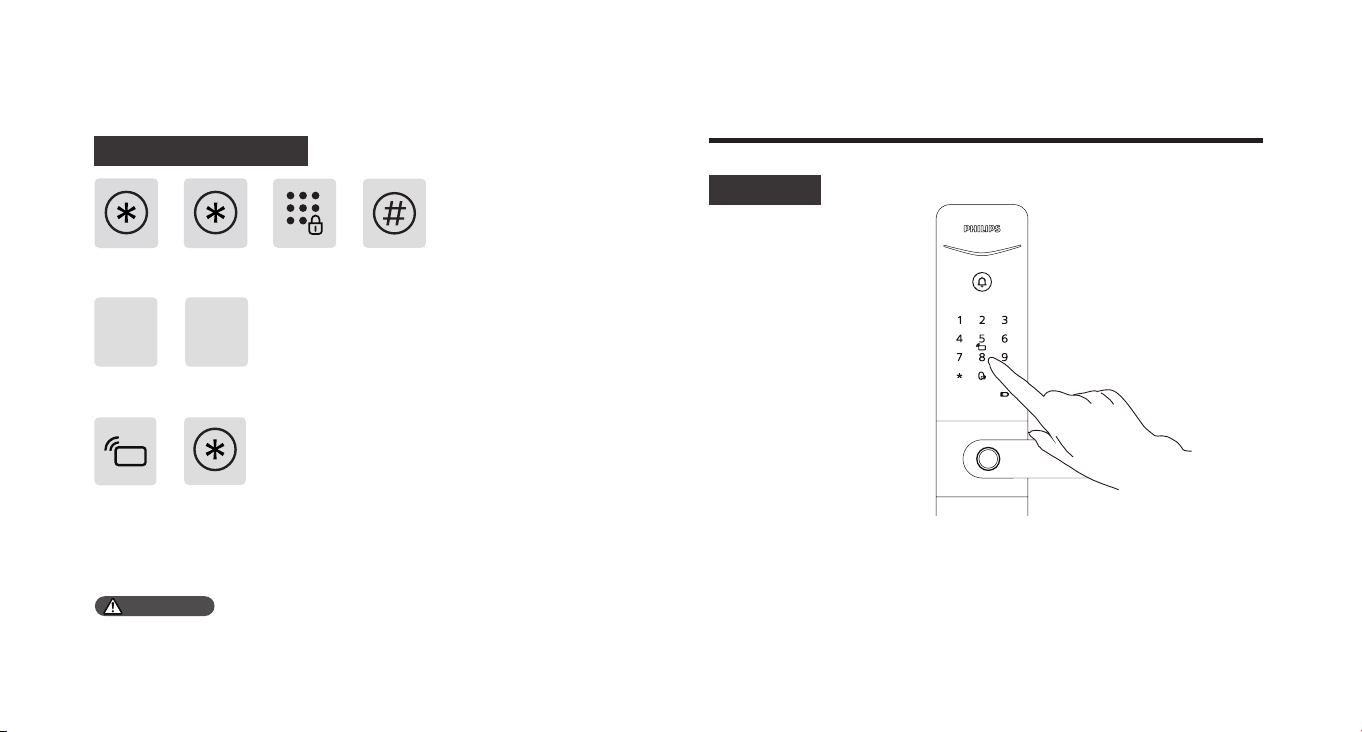
Adicionar uma tag-chave
Uso(Desbloquear de fora)
Código PIN
1.Toque para iluminar o teclado. Insira o código PIN pré-registrado e
pressione a tecla [#] para conrmar.
2: Depois de ouvir o comando de voz "Porta aberta", empurre a
maçaneta para baixo para abrir a porta.
A capacidade do key tag é de 100 conjuntos.
Pressione [*] duas vezes, insira o código PIN mestre e pressione [#] para
conrmar.
Pressione [1] para adicionar um usuário e, em seguida, pressione [1]
para adicionar um key tag.
Coloque o chaveiro próximo à área de reconhecimento até ouvir um
som de “bipe”. Depois de ouvir o aviso de voz para conguração bem-
sucedida, pressione [*] para retornar ao menu anterior e continue
pressionando [*] até sair do modo de conguração.
1 1
Observação
24
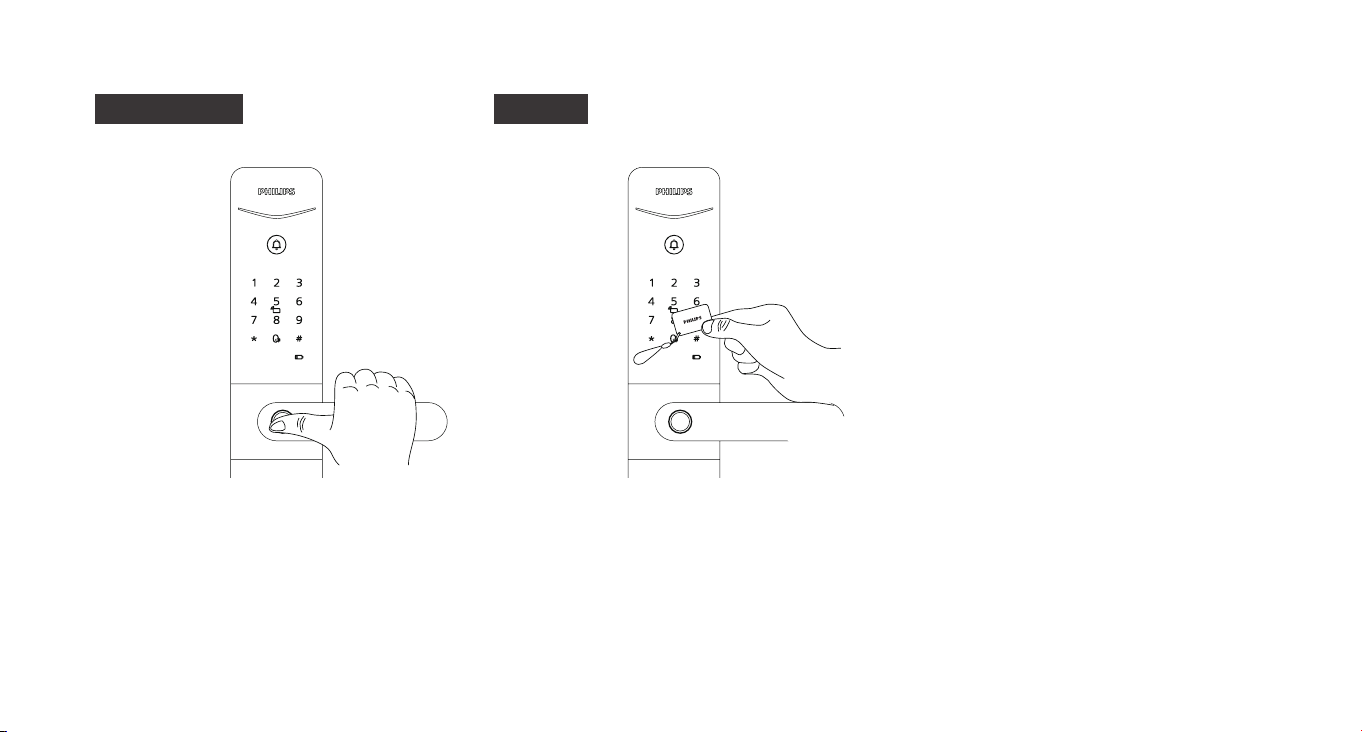
mpressão digital
1: Coloque o dedo pré-cadastrado no sensor de
impressão digital.
2:Depois de ouvir o comando de voz "Porta
aberta", empurre a maçaneta para baixo para
abrir a porta.
Chave tag
1: Coloque o chaveiro pré-cadastrado na área
de reconhecimento do cartão.
2: Depois de ouvir o comando de voz "Porta
aberta", empurre a maçaneta para baixo para
abrir a porta.
25
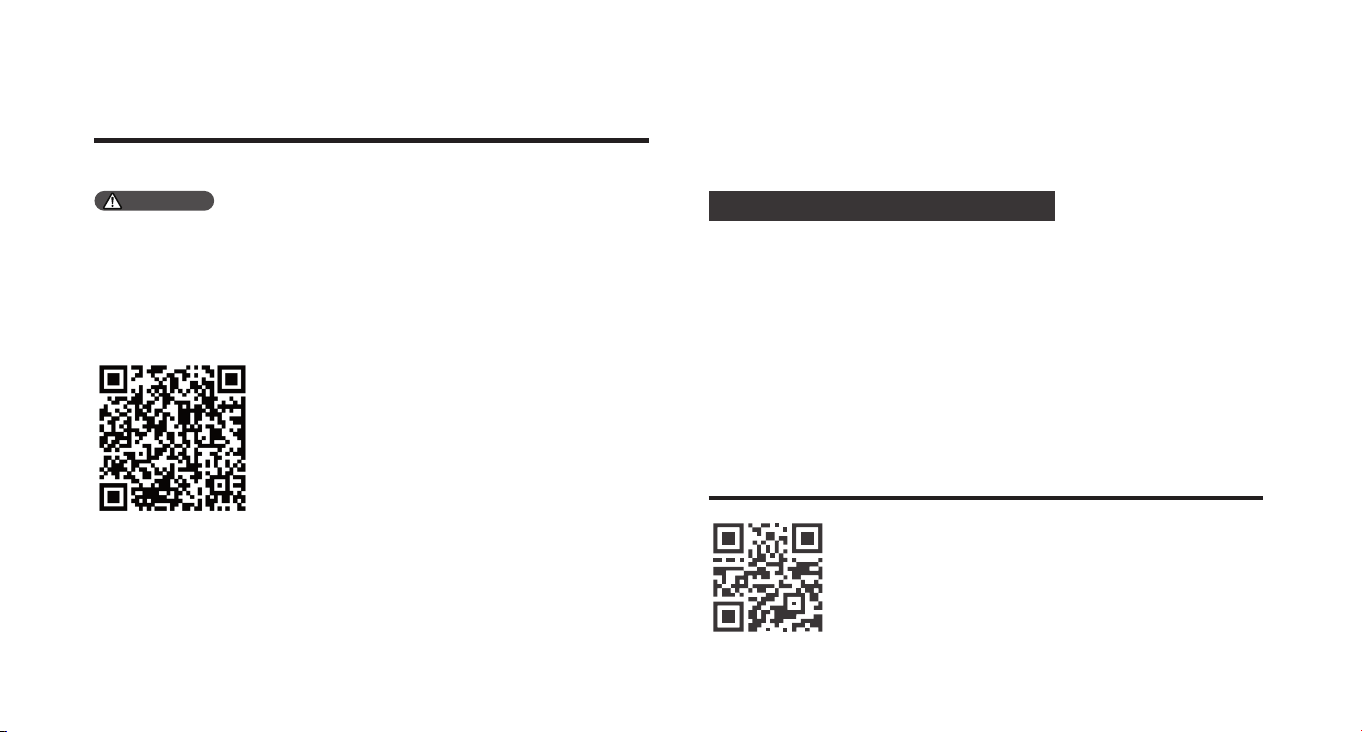
Fechadura de porta Bluetooth inteligente
Congurações de rede
Manual do usuário
1: Conecte à fonte de alimentação;
2: Abra o aplicativo, clique em "Adicionar um dispositivo" na página
inicial e siga as instruções do aplicativo para concluir as congurações
de rede.
Download
Adicionar uma fechadura de porta
Se precisar vericar o manual do usuário detalhado,
você pode digitalizar o código QR à esquerda para
navegar online ou fazer download.
Devido às diferenças nos modelos e recursos do produto, consulte
o manual do usuário ou consulte um revendedor autorizado para
vericar se o produto que você adquiriu suporta conectividade com a
Internet.
Leia o código QR à esquerda para baixar o aplicativo ocial e prosseguir
com a instalação.
Observação
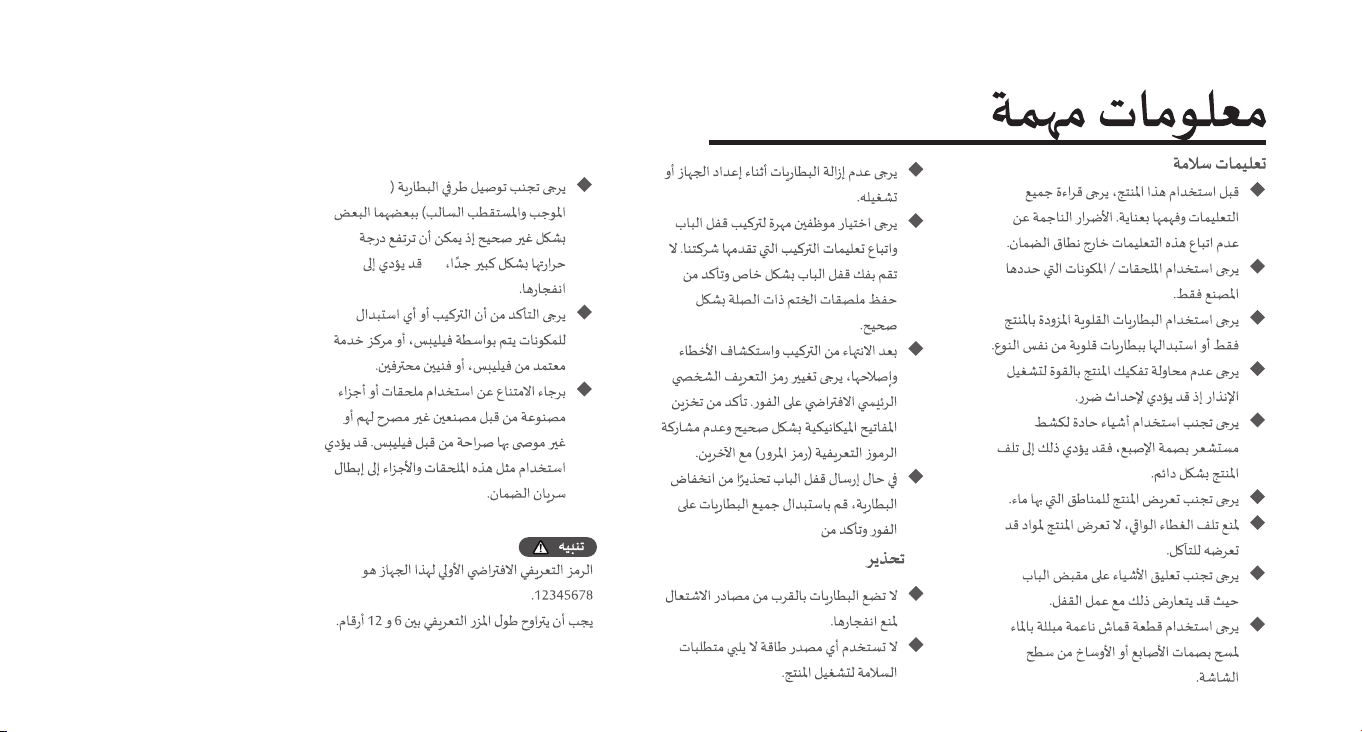
26
27
1
1
4
28
1
1
1
1
29
ة يسيئر ةمع ةفاضإ
1 1
30
31

32

33

Philips and the Philips Shield Emblem are registered trademarks of Koninklijke Philips N.V. and are used under license. This product has been
manufactured by and is sold under the responsibility of Shenzhen Conex Intelligent Technology Co., Ltd. and Shenzhen Conex Intelligent Technology
Co., Ltd. is the warrantor in relation to this product.
Version: 1.2