
Pawfit 3 User Manual
V.1.4
Latsen Technology LTD
2024

1
Contents
Section 1 – Support and how to contact us 3
Section 2 – In the box 3
Section 3 - Setting up your Pawfit tracker 3
Section 4 – Looking after your Pawfit tracker 5
Section 5 – How to charge Pawfit 5
Section 6 – Turning on/off your Pawfit 3 tracker and confirming online status. 6
6.1 – Switching your tracker on 6
6.2 – Checking the tracker is online 6
6.3 – Switching off your tracker 6
Section 7 – Tracker LED lights and colo rs explained 7
Section 8 – A guide to the Map Page 7
8.1 – How to locate you and pet on the map 7
8.2 – Tracker Status Cards 8
8.3 – Live tracking mode 9
8.4 – Light 10
8.5 – Alarm 10
8.6 – Pawfit Voice 10
8.7 – Switching between trackers 11
8.8 – Understanding the Map buttons 12
Section 9 – A guide to the Activity page 14
9. 1 – Daily Step Goal 14
9. 2 – Activity data 15
9. 3 – Switching between pets 15
9.4 – Sharing your pet’s activity data 15
Section 10 – A guide to the History page 16
10.1 – Understanding the history page. 16
10.2 – Switching between pets 16
10.3 – Exporting History data 17
Section 11 – A guide to the Walk page 18
11.1 – Before you start a Walk – adding/removing pets to the Walk 18
11.2 – Understanding the icons on the Walk map 20
11.3 – Walk Reports 21
11.4 – Pawfit Contacts 21
Section 12 – A guide to the Profile page 23
Section 13 – Your Pawfit User Profile 24

2
13.1 – Settings 24
Section 14 – Your Pet’s Profile 25
14.1 – Choosing your pet’s activity goal 25
14.2 – Family Pet Care 25
Section 15 – Advanced Settings 26
Section 16 – Safety Zones 27
16.1 – How to create a Safety Zone 27
16.2 – How to edit your zones 28
16.3 – Why is there sometimes a delay in receiving Safety Zone notifications? 28
Section 17 – Pawfit Voice 29
17.1 – How to create and manage Pawfit Voice 29
Section 18 – Pawfit Family Pet Care 31
18.1 – Before you begin 31
18.2 – Adding someone to your pet’s Family Pet Care 31
18.3 – Managing your pet’s Family Pet Care 33
18.4 – Using Walk 33
Section 19 – The Pawfit Pals Referral Program 34
19.1 – How it works 34
19.2 The finer details 34
Section 20 – Using the Pawfit app on your smart watch 35
20.1 – Navigating the Pawfit smart watch app 35
Section 21 – Using the Pawfit app on multiple devices 37
3
Section 1 – Support and how to contact us
We hope you love using your new Pawfit tracker!
If you need help setting up your tracker or using Pawfit’s various features, check out our
support page at https://support.pawfit.com. There you’ll find advice on everything from
trouble shooting to FAQs.
You can also check out some helpful How To videos on our YouTube channel -
https://www.youtube.com/channel/UCFH3EJ55ggAmhiHbMKz59xw
If you need more help, our customer support team is on hand. You can reach them by
emailing support@pawfit.com.
Section 2 – In the box
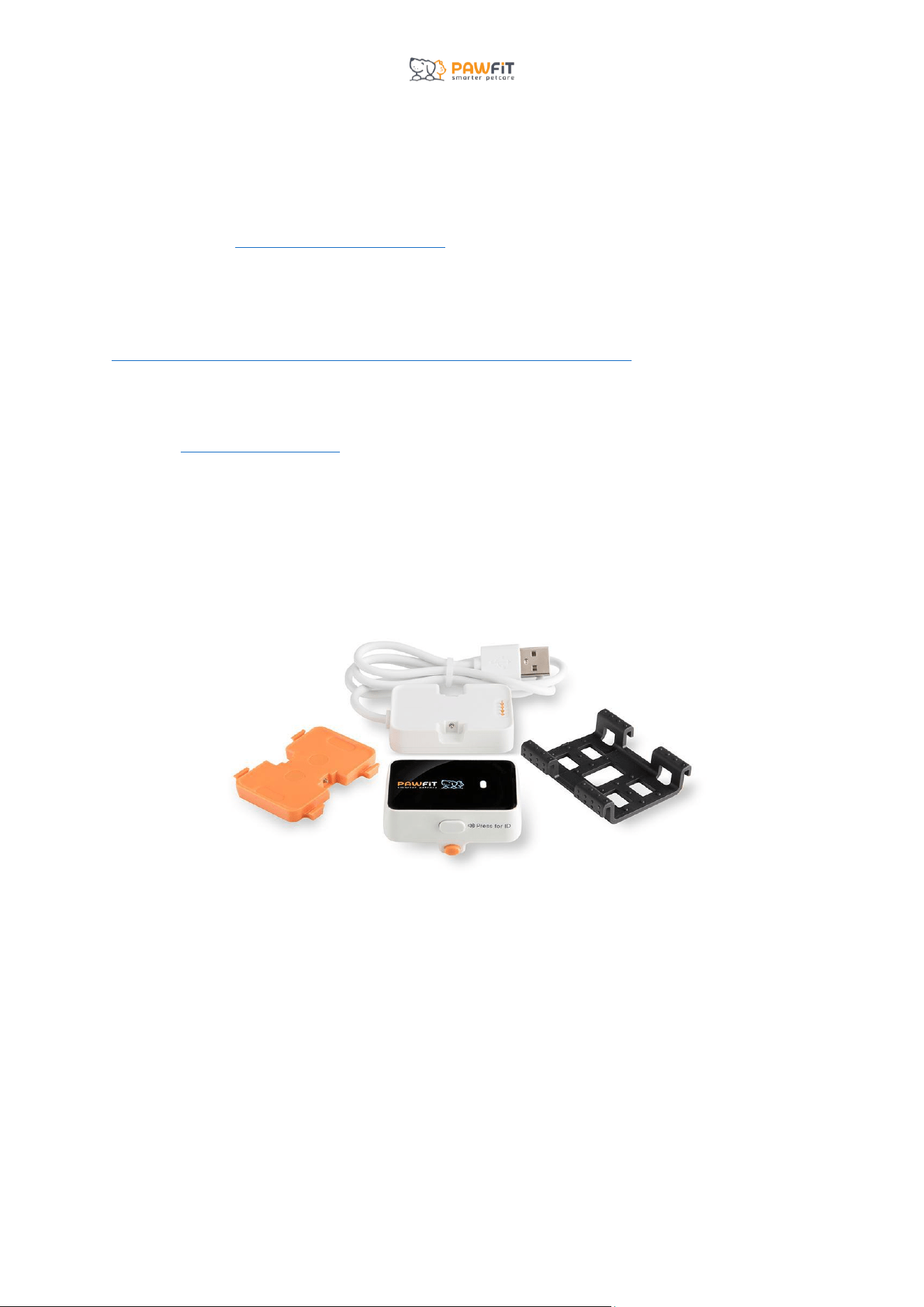
Inside your Pawfit box, you’ll find your Pawfit 3 tracker, charging dock with USB
cable, and collar attachment clips.
If there is anything missing from your Pawfit 3 box, please get in touch with our customer
support team by emailing support@pawfit.com
Section 3 - Setting up your Pawfit tracker
Before you can start setting up your Pawfit 3 tracker, it will need to be fully charged.
Pawfit charges best when you use a quality USB charger with an output no greater than 5v
and 2.1A. A poor quality USB charger cannot guarantee stable output and any sudden power
surges may trigger the protection unit to shut down the battery or possibly damage the
entire circuit.

4
Please note - the Pawfit 3 tracker only fits one way in the charging dock. Please make sure
the copper charging plates on the tracker and the charging dock are aligned when inserting
the tracker into the charging dock.
Now that your tracker is charged, it’s time to download the Pawfit app to your smartphone
.
Scan the QR on the side of your Pawfit 3 box or search for the Pawfit app in your phone’s
app store.
The Pawfit app is compatible with Apple devices using iOS 9.0 or above and A ndroid
devices using 5.0 or above.
Once you have downloaded the Pawfit app, tap its icon to open it up.
Your first step will be to create a free Pawfit account.
Once you have created an account and logged into the app, you’ll be asked if you want to
Register a Pet or Look After Other’s Pet.
Please choose the Register a Pet option and complete the following steps to set up your
tracker:
Step 1 – Pet Registration
- Enter your pet’s basic information to complete their profile.
Step 2 – Add a profile picture.
Step 3 – Add your tracker.
- Scan the QR code on the back of the tracker or the tracker box, or type in the
tracker’s ID number which is found underneath the QR code.
Step 4 – Choose a subscription
- You can choose a subscription plan that suits you from one of the available options
- Redeem a subscription gift code by entering it on the gift code page
- Transfer an existing subscription from an old tracker to your new one by selecting
the subscription you would like to transfer. Please note, once transferred, you will not
be able to transfer it back.
Step 4 – Choose a WiFi network.

5
- Identifying a WiFi network where your pet spends most of their time will optimiz e
battery life.
- You will not need to enter a password .
- This can be completed after tracker registration by going to the settings in your pet’s
profile.
Step 5 – Select a safety zone.
- Create a new safety zone or choose from an existing one.
- This can be completed after tracker registration by going to the settings in your pet’s
profile.
If you need any assistance with setting up your tracker, our customer service team is here
to help. Please send an email to sup[email protected].
Section 4 – Looking after your Pawfit tracker
Our Pawfit 3 tracker is designed to be durable and long lasting but it still requires proper
care . To ensure your Pawfit 3 tracker has a long happy life, we recommend showing it
some TLC with the following care tips:
● Before you put your tracker on the charger, make sure it’s 100% dry, especially the
copper contacts.
● Keep Pawfit 3 out of your pet’s mouth to avoid it being chewed and damaged.
● Have a dirty Pawfit 3 tracker? Rinse clean with warm water (no soap) or use an
antibacterial wipe before leaving to dry completely.
● Regularly check for any dirt and/or water blocking the speakers as this can affect the
sound quality. Give it a rinse and a shake and leave to dry thoroughly.
● After contact with saltwater , please rinse the tracker in clean water (no soap)
before you next charge it.
Section 5 – How to charge Pawfit
When the battery level is lower than 20 %, the tracker’s LED light will flash red every 10
seconds to indicate the battery is low. You will also receive a low battery notification on your
phone when the battery level is lower than 20 % and a second notification when it’s below
10% to remind you to charge it too.
Pawfit charges best when you use a quality USB charger with an output no greater than 5v
and 2.1A. A poor quality USB charger cannot guarantee stable output and any sudden power
surges may trigger the protection unit to shut down the battery or potentially damage the
entire circuit.

6
Once your tracker is fully charged, the LED light will turn green. Remove the tracker from the
charger and press the power button for 3 seconds until you hear the “Welcome to Pawfit”
message to turn the tracker back on.
We strongly advise not over charging your tracker as this can shorten the life expectancy of
its battery. Do not leave on the charger once the tracker is fully charged.
Section 6 – Turning on/off your Pawfit 3 tracker and confirming online
status.
Before you go out with your Pawfit 3 tracker, we always advise checking that it is
switched on and online. When the tracker is online, it means that it has connected to the 4G
network and is able to send and receive data to the Pawfit app.
6.1 – Switching your tracker on
To turn on your Pawfit 3 tracker, press and hold the power button for 3 seconds until you
hear the “Welcome to Pawfit” message.
6.2 – Checking the tracker is online
You can confirm the tracker is online by pressing the power button. If the status light flashes
blue, the tracker is online. If the light flashes red, the tracker is offline and is still trying to
connect to a network. Please allow at least 30 seconds for the tracker to connect to a
network after it has been turned on.
If your tracker is not connected to a network and there is insufficient 4G coverage , you
will need to move to a different location, ideally outside in open air, and restart the tracker.
To restart the tracker, you will need to press and hold the power button for 3 seconds to turn
it off. Once the light goes off, press and hold the power button again for 3 seconds to turn it
on. When the tracker restarts, you will hear the “welcome to Pawfit” message. Wait for 30
seconds and then press the power button. T he status light on the tracker should now
flash blue. If not, wait a bit longer or try again in a new location.
If you have tried multiple times without success, please contact our support team –
support@pawfit.com.
6.3 – Switching off your tracker
To switch off your Pawfit 3 tracker, press and hold the power button until you hear the
“Goodbye” message. Pressing the button again once it is switched off will turn it back on.
7
Section 7 – Tracker LED lights and colo rs explained
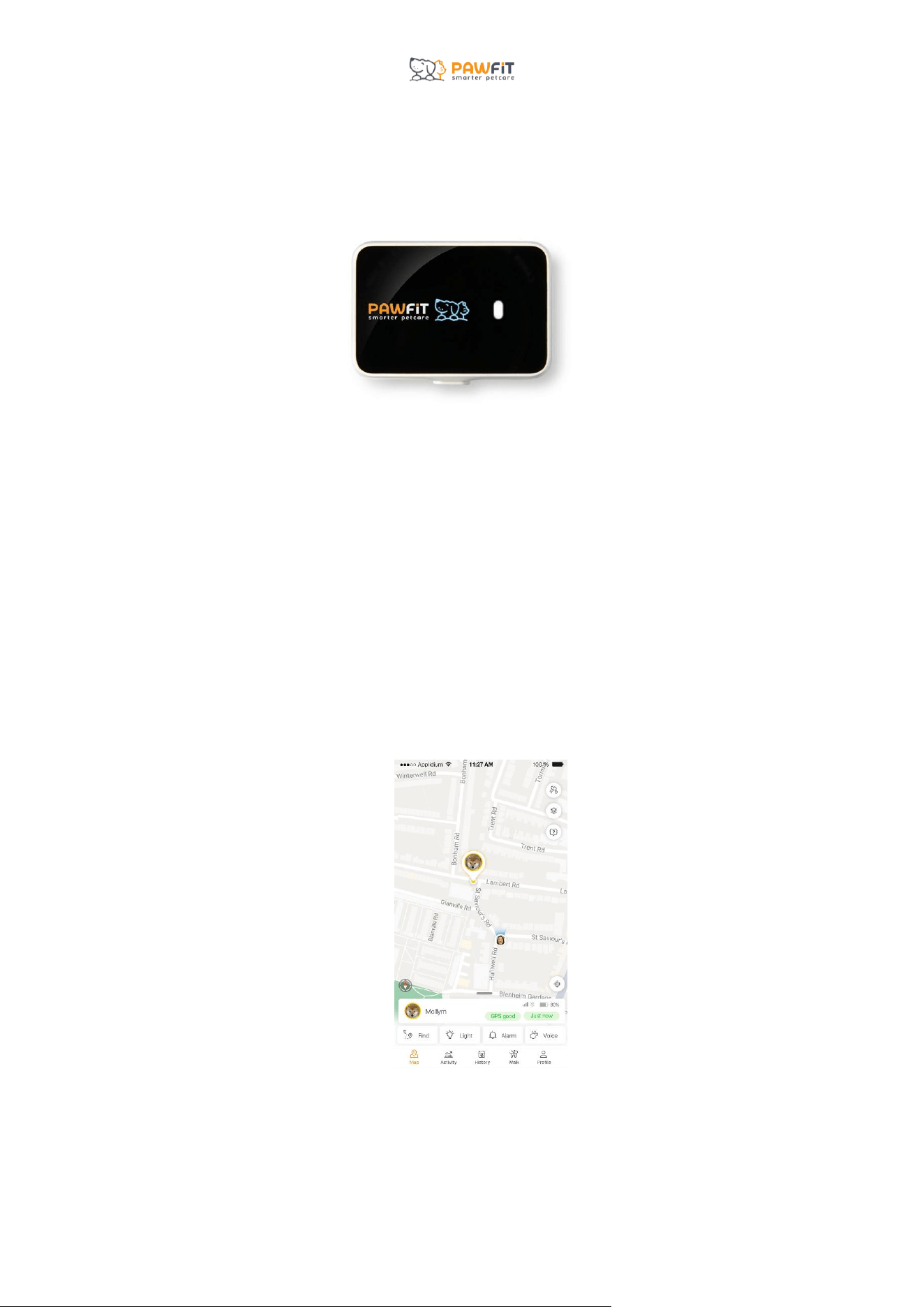
The Pawfit 3 tracker features one built in light which shows the status of your Pawfit 3
and a second LED light that can be used as a tracking light.
The status light flashes in several colo rs which each have a different meaning:
● Red – the tracker is offline and cannot connect to a network (seen when the power
button is pressed), or to show that the tracker is being charged.
● Flashing red – the tracker’s battery level is below 20 % and the tracker needs
charging.
● Blue – the tracker is online and connected to a network, (seen when the power
button is pressed).
● Green – the tracker is powering up and the tracker is fully charged.
Section 8 – A guide to the Map Page
The Map page is the Pawfit App’s home page. The Map screen will show the location of your
pet’s tracker as well as your phone’s location. The Map page is where you can access
security features like live tracking, etc.
8.1 – How to locate you and pet on the map
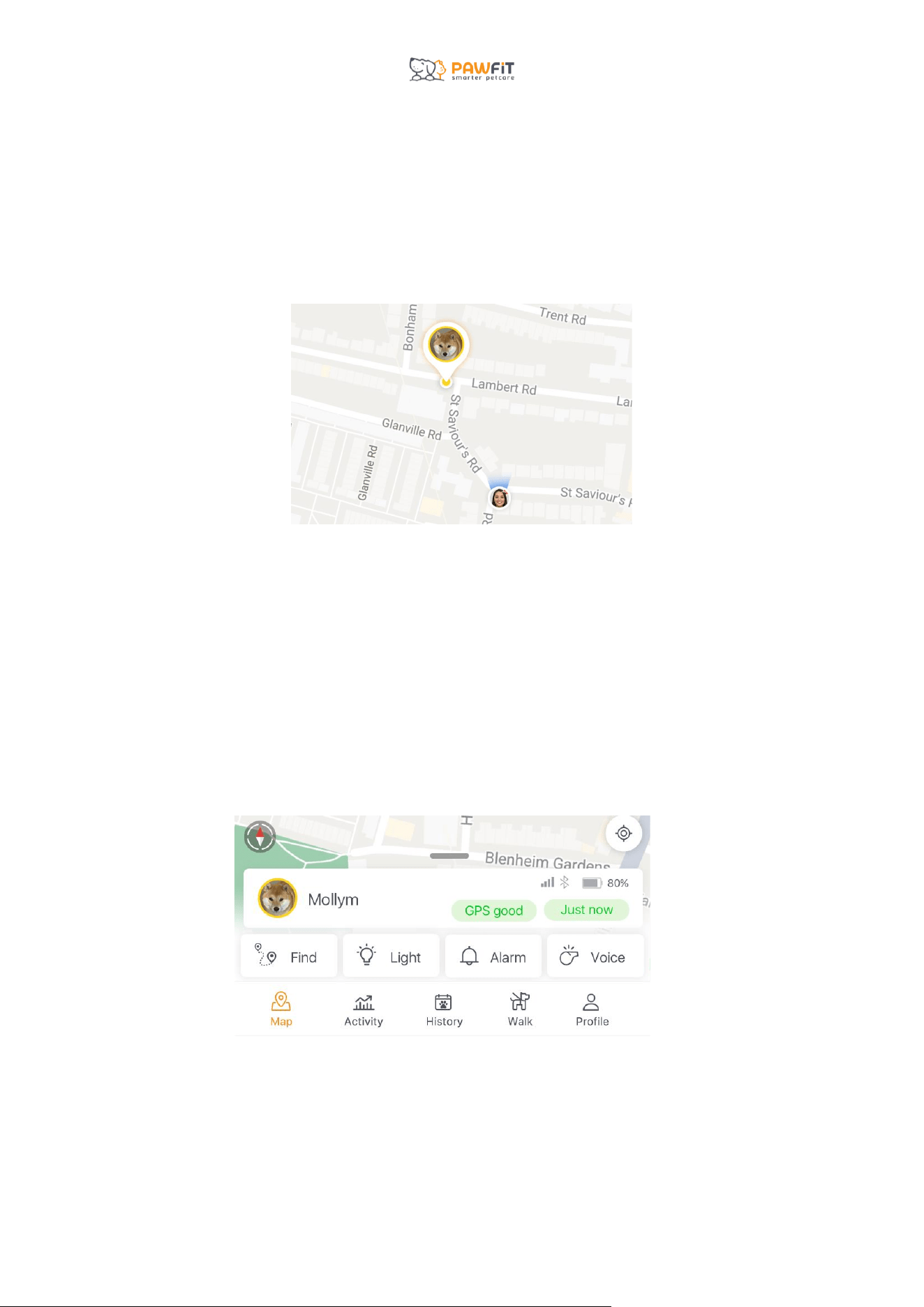
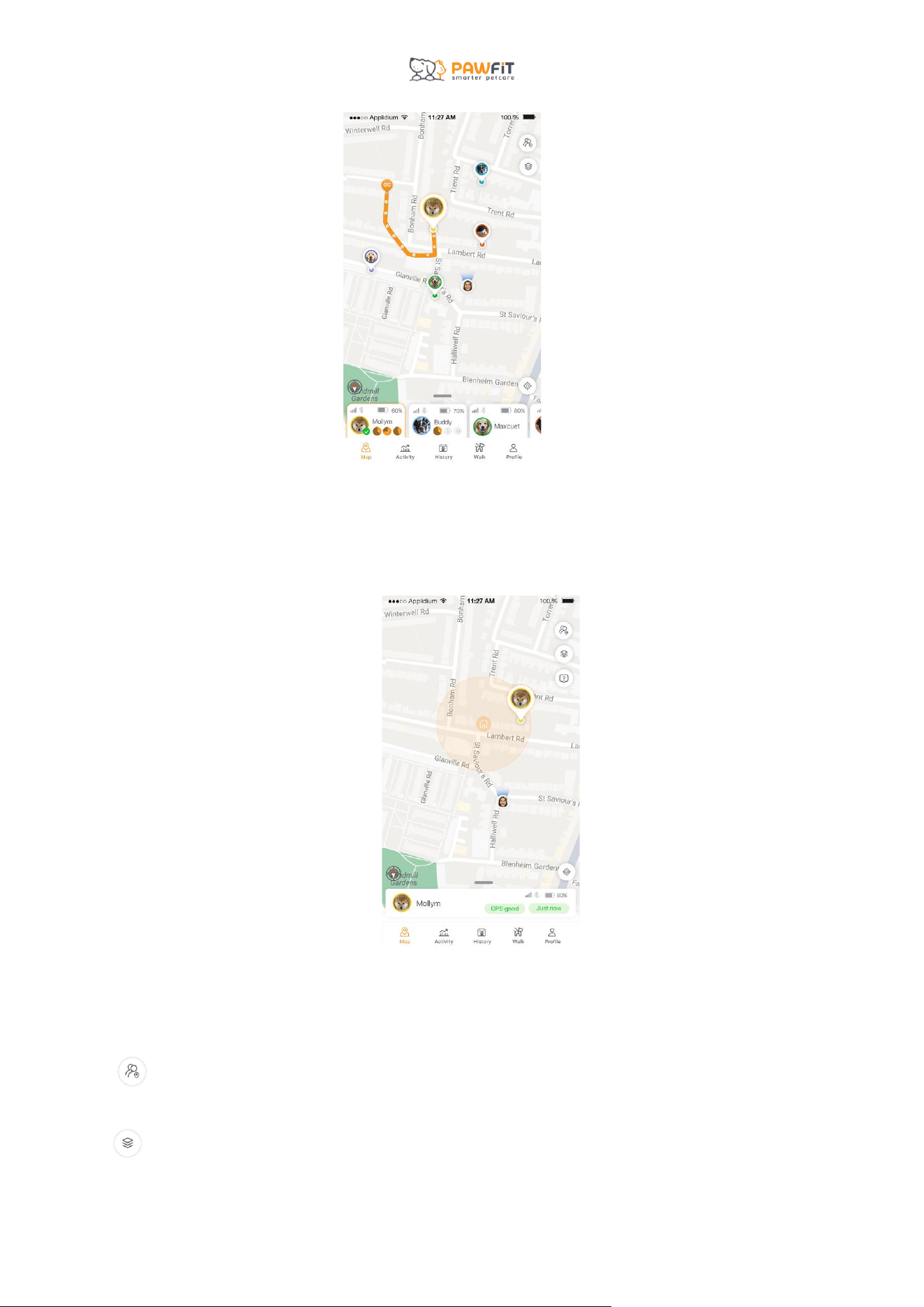
On the Pawfit map, you will see your phone’s location and your pet’ tracker location.
8
Your pet’s tracker location is represented by their profile picture or if no profile picture was
chosen, their first initial.
Your location will be your Pawfit profile picture, or if no picture was chosen -your initials.
Your icon will also have blue arrows around it. These will show the direction your phone is
pointing in in relation to your pet’s tracker. As you turn your phone, the blue arrows will rotate
around on the map.
8.2 – Tracker Status Cards
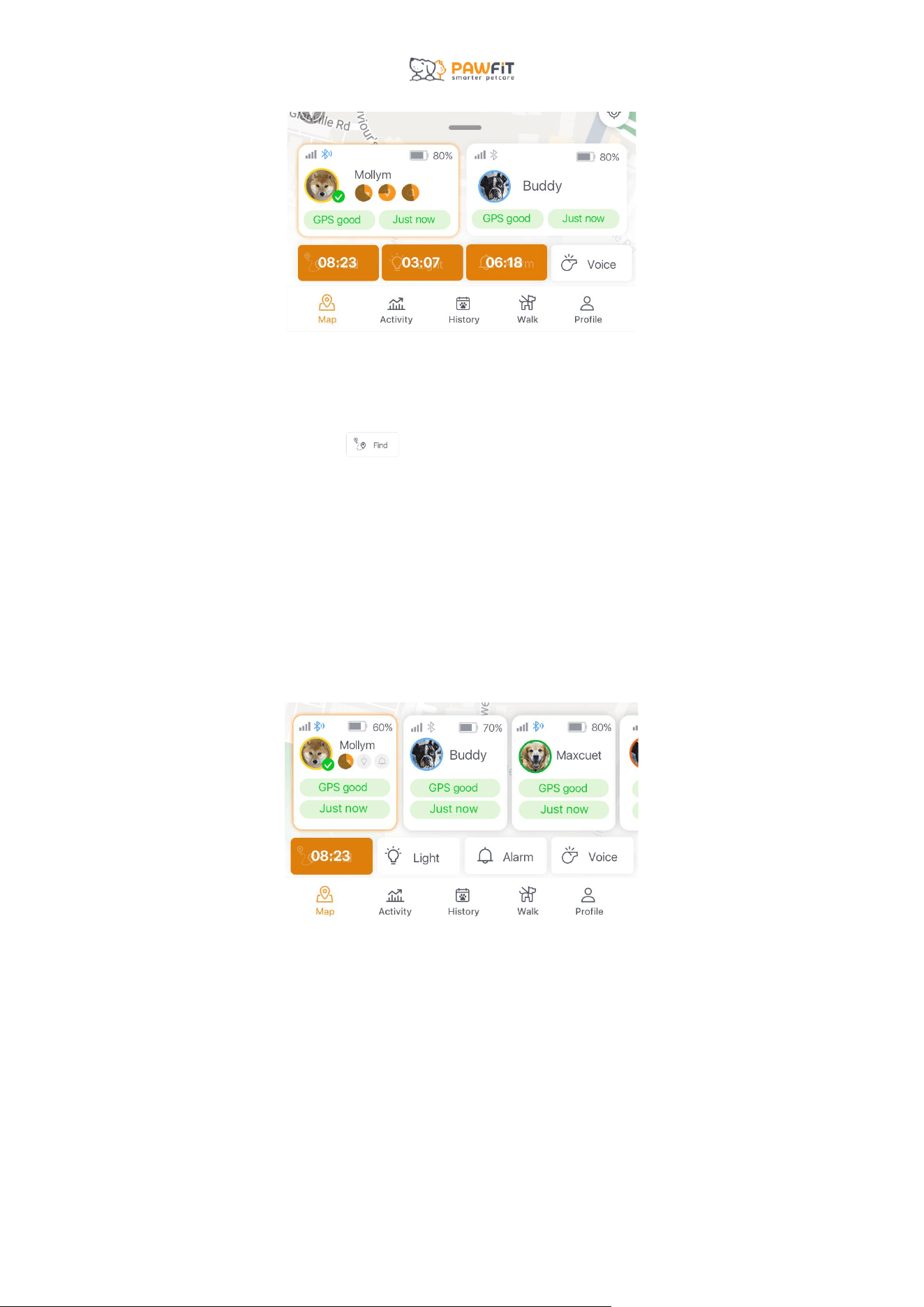
On the map page, each tracker has a status card which is located at the bottom of the map.
On each status card, you’ll be able to see your pet’s profile picture, the battery level of
each tracker, the time since the last location update, the strength of the GPS signal when the
last location update was received, the cellular network strength and whether Bluetooth is
enabled.
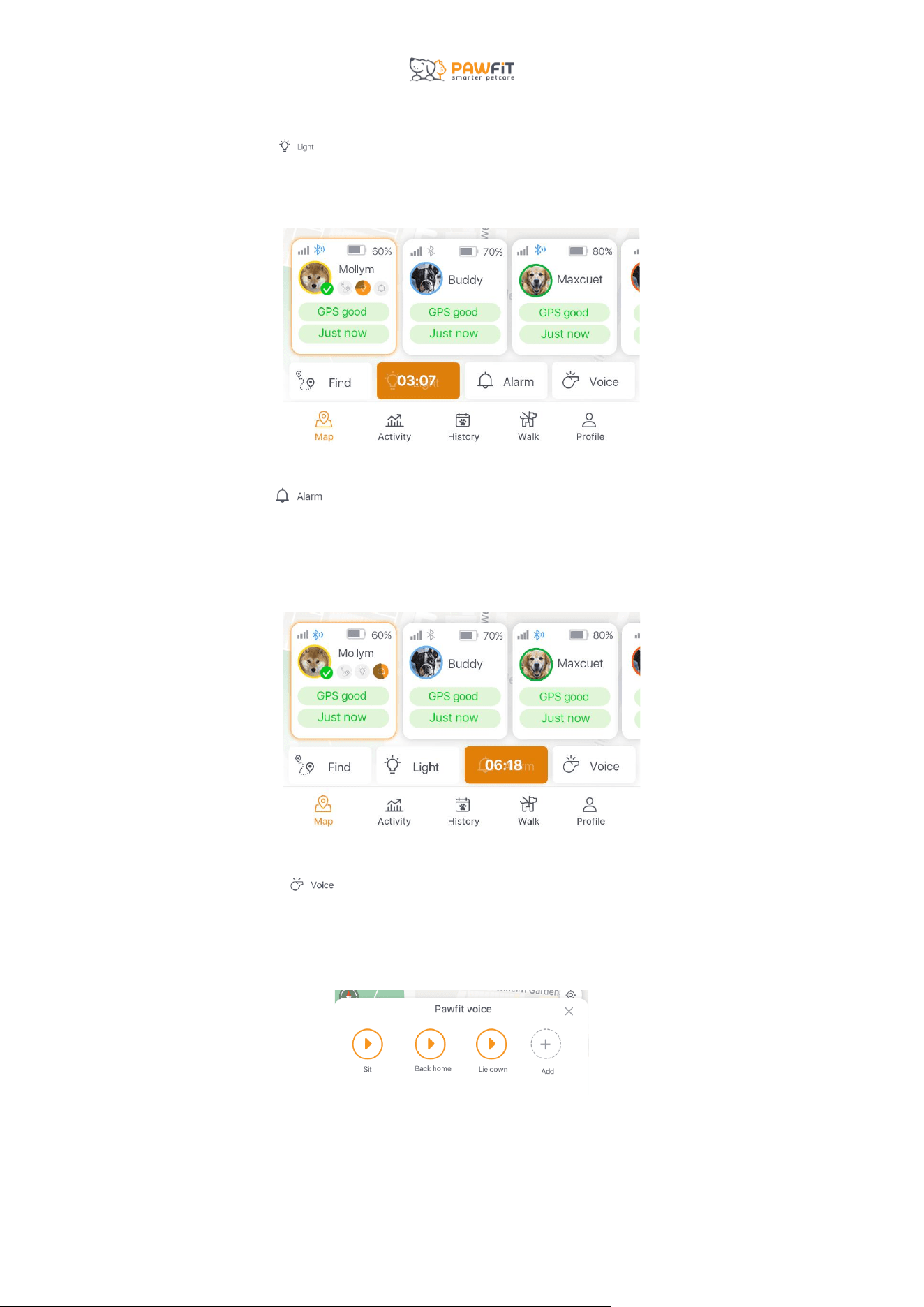
Beneath the status information, you’ll find the icons for live tracking mode (now called Find),
the alarm, light and your Pawfit voices.
Tap each icon to turn the features on. When enabled, each feature will stay on for 10
minutes and a countdown timer will appear to show how much time remains. To turn off a
feature before the timer runs out, tap the icon/timer again.
9
8.3 – Live tracking mode
In live tracking mode, your Pawfit tracker will send location updates every 5 seconds. To turn
this mode on tap the Find icon
When you are live tracking your pet, their routes will be recorded as a solid line once the
tracker is connected to a strong GPS signal. This helps you see where your pet has been and
get a better idea of where they are going.
Depending on the GPS availability and network conditions in your location, the time it takes
to find the initial GPS signal can vary. Try not to turn live tracking off while it is searching for
a GPS signal, unless you’d just like an update on the tracker’s approximate location.
10
8.4 – Light
Tapping the light icon turns on the tracker’s LED light. The bright white light will
flash for 10 minutes unless turned off by tapping the icon again.
8.5 – Alarm
Tapping the bell icon turns on the tracker’s alarm. The alarm plays out of the speaker
on your tracker for 10 minutes unless turned off by tapping the icon again.
8.6 – Pawfit Voice
Tapping the Voice icon will show your recorded Pawfit v oices and give you the
option to add new ones if space is available. To find out more about recording Pawfit
Voices, see section 17.
11
8.7 – Switching between trackers
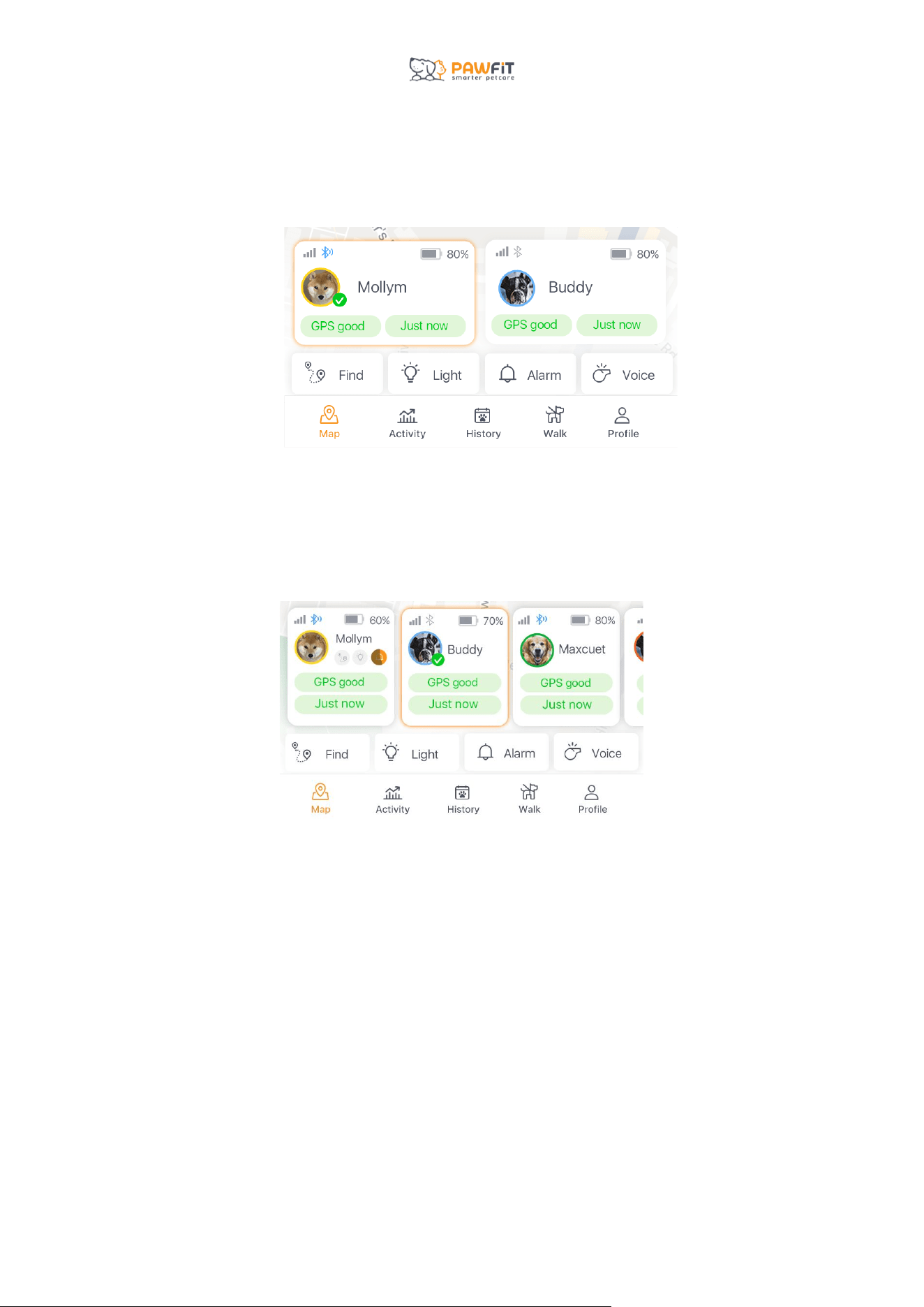
If you have more than one tracker registered to your Pawfit account and have all trackers
viewable on the map, you will see all their status cards beneath the map.
You will only be able to access the live tracking, alarm, etc., of one tracker at a time. The
status card of the tracker you are controlling will be highlighted and a green check mark will
be next to your pet’s icon. To switch between trackers, just tap a different tracker’s status
card. Tapping each tracker will also centraliz e the map on that tracker’s location.
If you turn on live tracking on one tracker and then switch to control a different tracker, you
will be able to see on the first tracker’s status card that live tracking is on and how much
time is left on the timer.
You can reorder the trackers by pressing down on a tracker’s card and dragging it to a
different position.
To hide the tracker buttons, tap the map screen. If any features have been enabled on a
tracker, you will still be able to see how much time is left on their countdown. To make the
tracker buttons reappear, tap the screen again.
12
You can also drag the tracker status cards down using the bar above them to only show your
pets’ icons, tracker battery power and signal strength. This can be used to view more of the
map at once. To show all of the status cards, drag the bar back up.
8.8 – Understanding the Map buttons
On the right-hand side of the map, you will see 4 icons
This button allows you to share your phone’s live location with your family and friends.
A request will be sent to your friend’s phone to share your location with them.
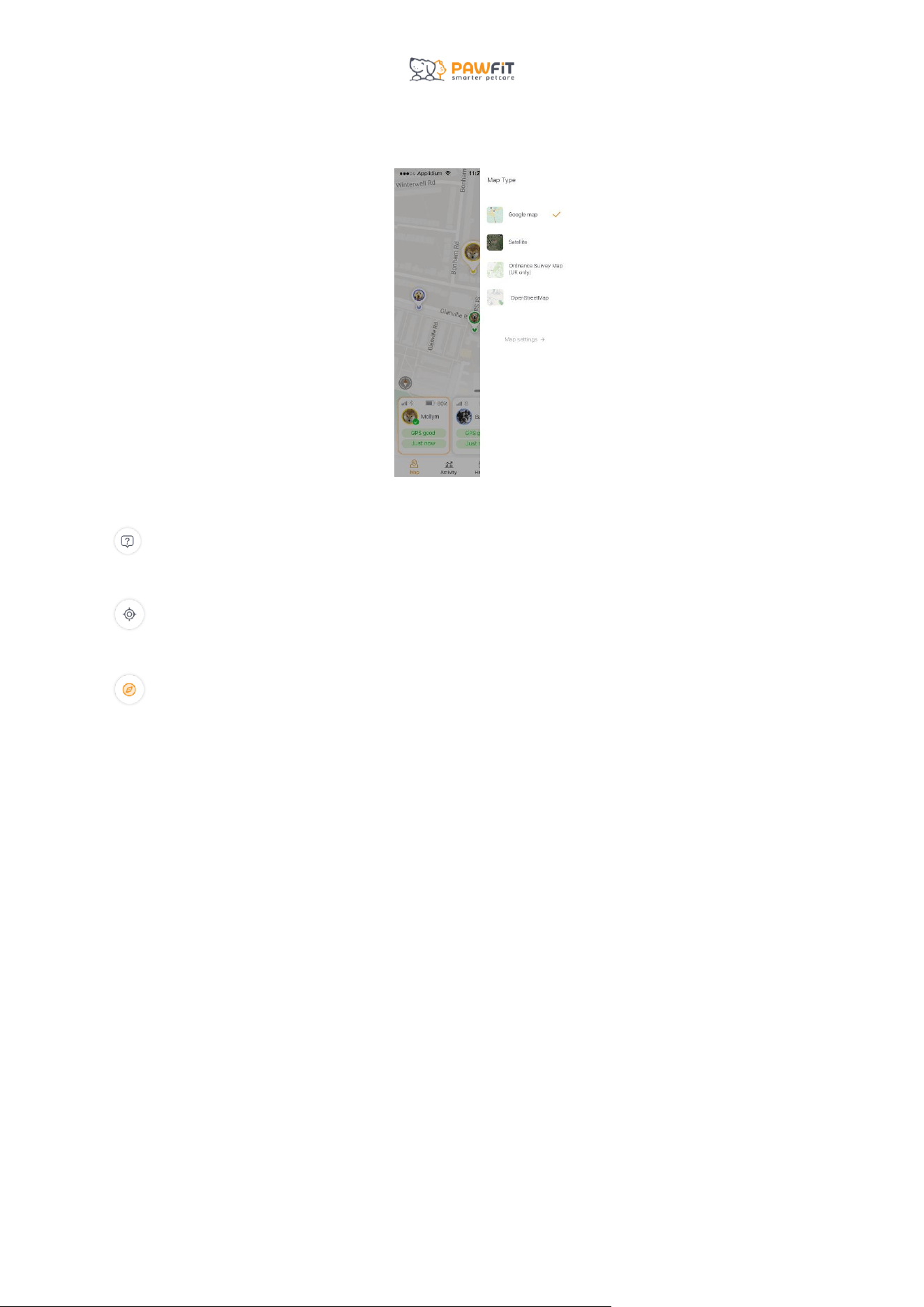
This button allows you to change the map view and access the map settings. If you
have the basic Pawfit subscription plan, you will be able to choose between Google Maps
13
and Satellite view. Depending on your location and if you have the premium subscription
plan, you can also choose Open Street View maps.
This button shows a glossary of all the icons on the Pawfit map screen. A handy
reminder in case you forget anything!
This button centraliz es the map on your location. It will also put the map in navigation
mode and rotate the map as you turn your phone,
Tapping this button again will turn off navigation mode.
14
Section 9 – A guide to the Activity page
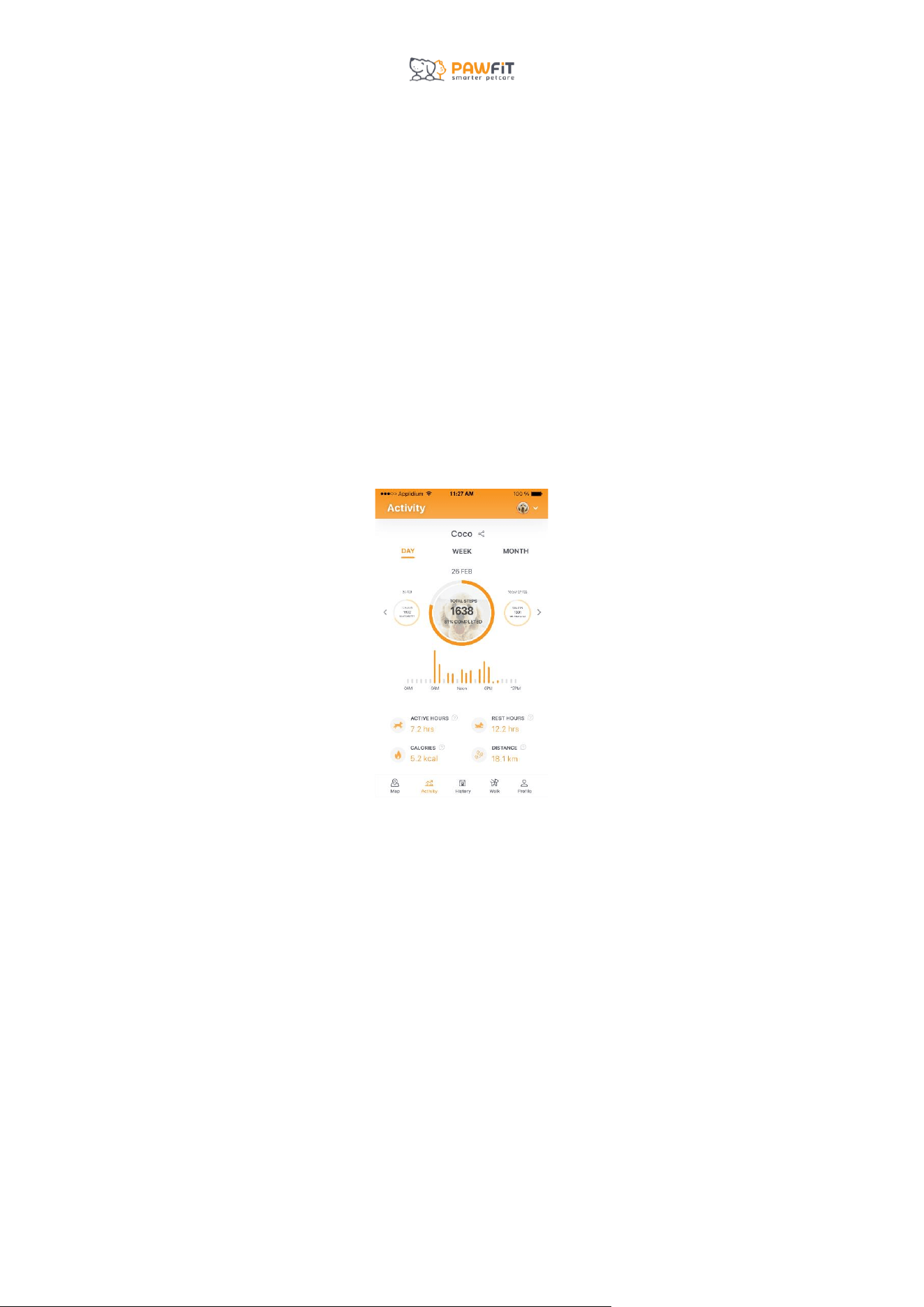
The Activity page is where you’ll find all the health and activity data for your pets. Each pet
has their own activity log, and you can see their activity on a daily, weekly, or monthly basis.
The Pawfit tracker works out your pet’s activity by using the information inputted into your
pet’s profile and the number of steps registered by the tracker. To ensure the activity page
data is as accurate as possible, make sure your pet’s weight and age are correct in their
profile.
9. 1 – Daily Step Goal
In the center of the activity page, you’ll see your pet’s daily step count and how far they are
towards reaching their daily step goal. For information on choosing your pet’s step goal,
see section 14.
Swipe left to check their performance for previous days and right to go back to the present
day.
When their step goal is achieved , the orange progress circle will be complete.
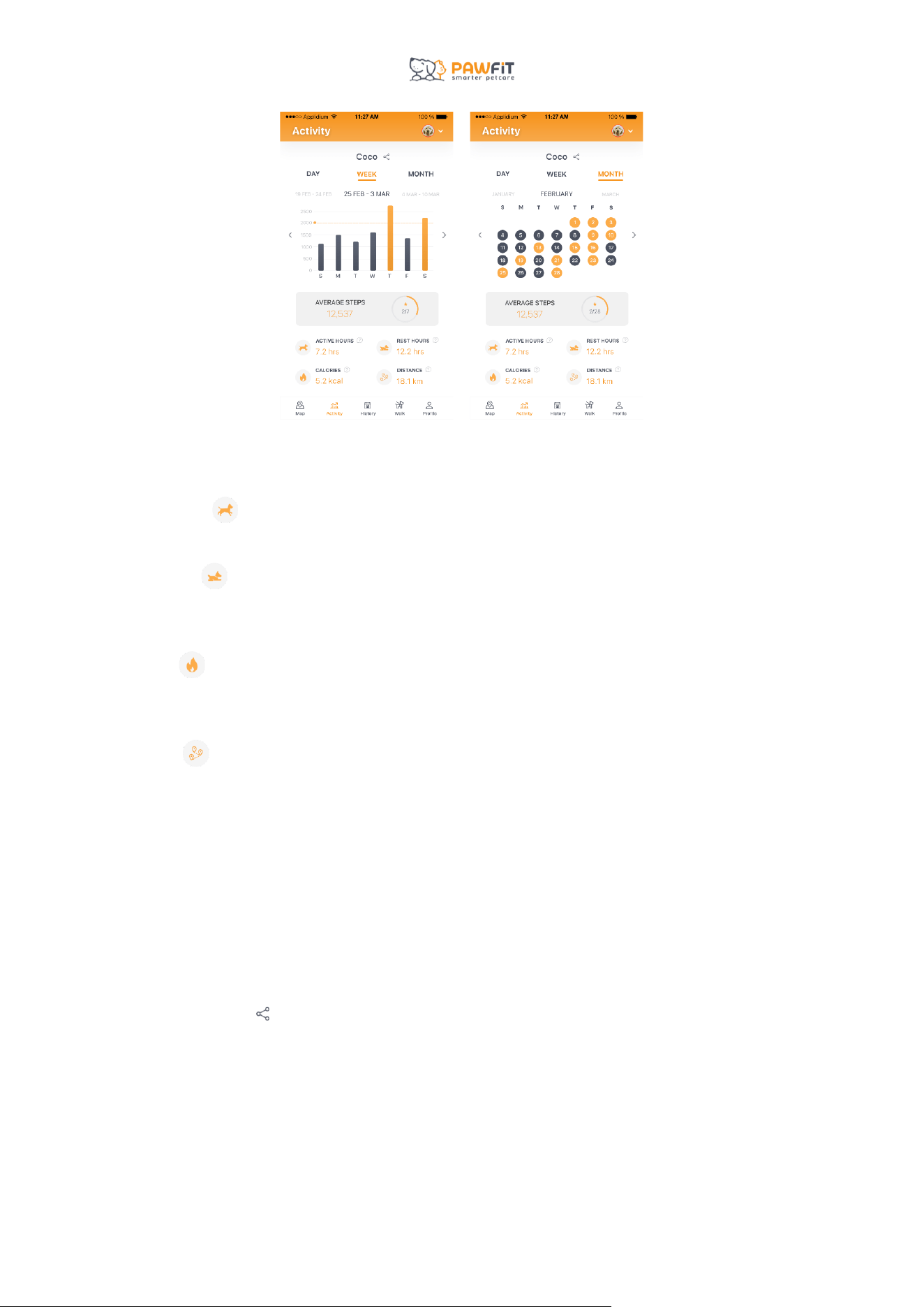
Tap Week and Month to see how often your pet achieved their daily step goal across longer
periods of time and their average daily step count.
15
9. 2 – Activity data
Beneath the step counter is the rest of your pet’s daily activity statistics.
Active hours – the total number of hours your pet has been active in a 24-hour period.
This is an estimation based on the number of steps counted by your Pawfit tracker.
Rest Hours – The total number of hours your pet has been resting in a 24-hour period.
This is an estimation based on the length of time zero steps are recorded by your Pawfit
tracker.
Calories – the total number of calories your pet has burned in a 24-hour period. This is
an estimation based on your pet’s type (cat or dog), breed, age, and weight as well as the
number of steps recorded by the tracker.
Distance – the total distance your pet has moved in a 24-hour period. This is an
estimation based on your pet’s type, breed, age, weight, and the number of steps recorded by
the tracker.
9. 3 – Switching between pets
If you have more than one pet registered to your Pawfit account, you can switch between
their activity profiles by tapping your pet’s icon in the top right corner of the screen.
9.4 – Sharing your pet’s activity data
Tap the share icon next to your pet’s name to share their activity data with friends and
family and on social media.
16
Section 10 – A guide to the History page
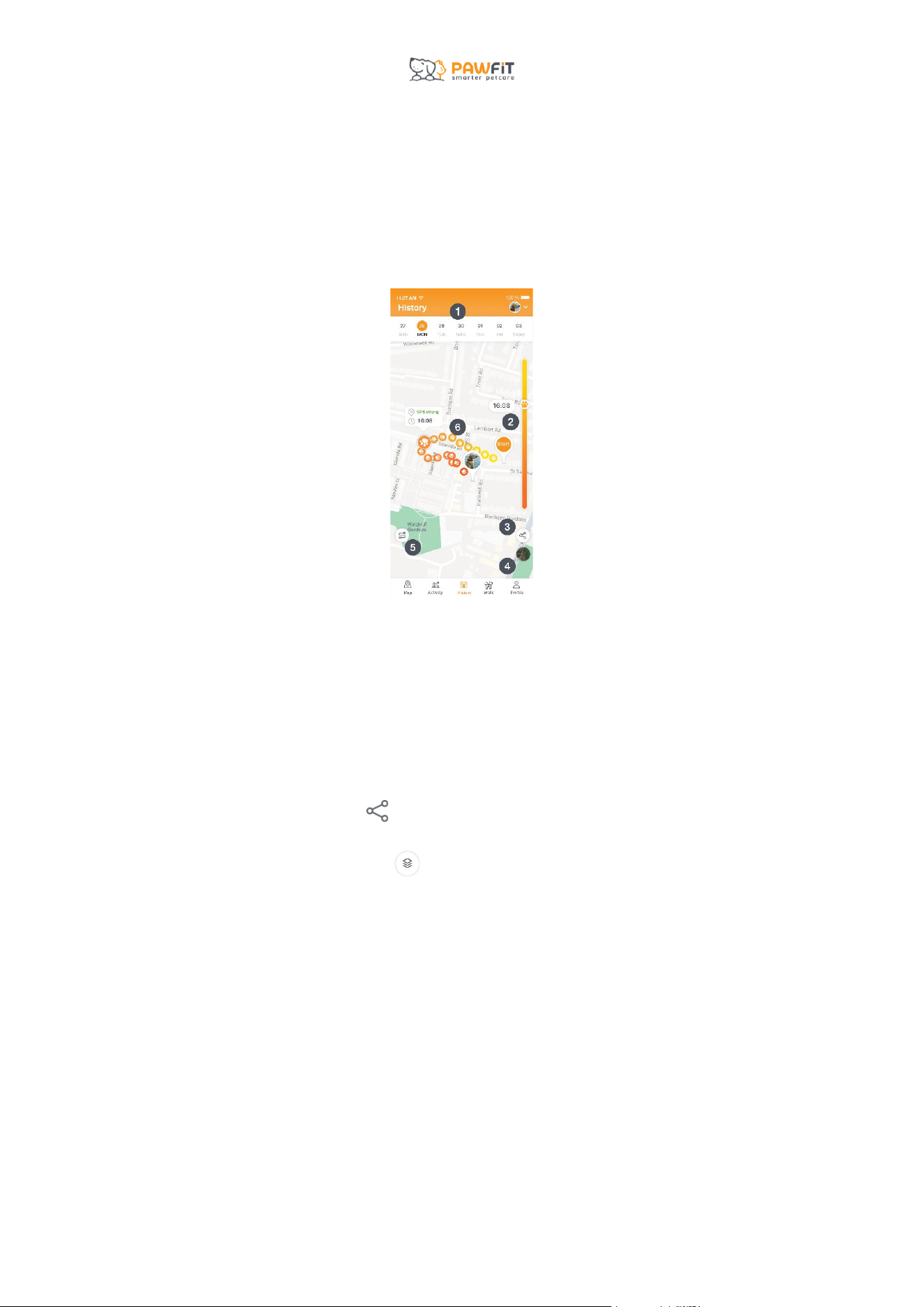
The History page is where you can see every location update for your pet’s tracker each
day. You will be able to see the location history of your pet’s tracker for the last 7 days.
10.1 – Understanding the history page.
1. Date – select the date to see each day’s location history.
2. The slider – The slider moves through your pet’s daily location updates from
beginning to end and includes time stamps for each location update and how strong
the signal was at that time.
The colo r changes from yellow to orange to show the passage of time, with yellow
being the start of the day’s location updates and orange being the end of the day’s
location updates.
3. Share – Tapping this icon allows you to share your pet’s daily history with friends
or to social media platforms.
4. Map View – tap the map icon to switch between different map views (map views
vary depending on subscription levels and location).
5. History View – tap here to change the tracking style from a solid line to individual
paw print location updates. You can also change this preference in the Map settings
on your Pawfit User profile. For more information, see section 13.
6. Pet’s location history – This shows every location recorded by your pet’s tracker.
10.2 – Switching between pets
If you have more than one pet registered to your Pawfit account, you can switch between
their daily history by tapping your pet’s icon in the top right corner of the screen.

17
10.3 – Exporting History data
If you have a premium subscription plan, you can export the history data in two formats –
GPX and KML. Otherwise, you can share your pet’s history as a screenshot.
18
Section 11 – A guide to the Walk page
The Walk page is where you’ll track your pet’s individual walks, similar to how us humans
track a workout on our smart watches. Walk will record the length of the walk, distance
travelled, average speed and total steps.
If you are walking with other dogs, you can add them to your Walk and track them via your
phone.
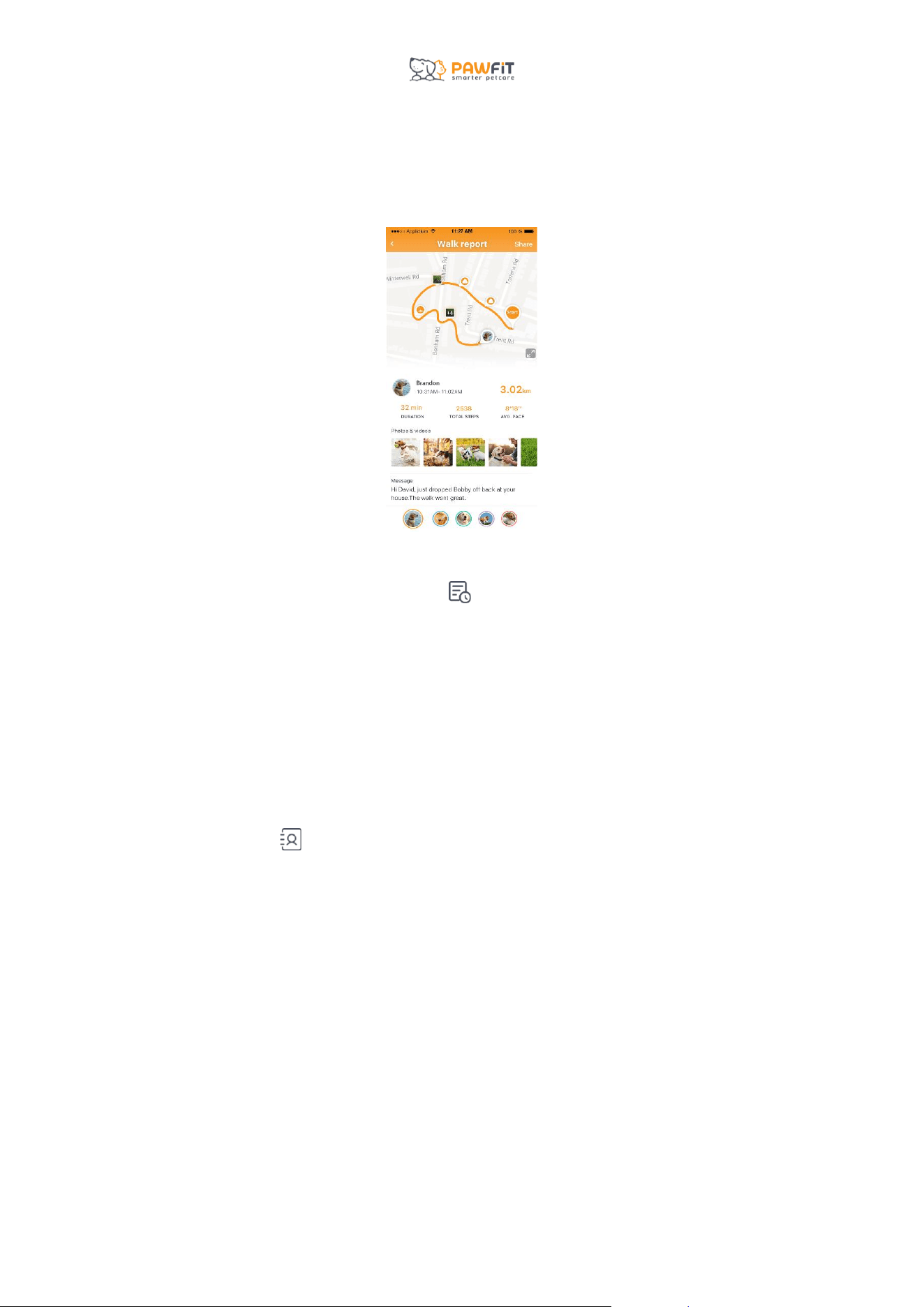
At the end of each Walk, a post Walk report will be generated which will show your pet’s
route, distance travelled, steps and average speed.
11.1 – Before you start a Walk – adding/removing pets to the Walk
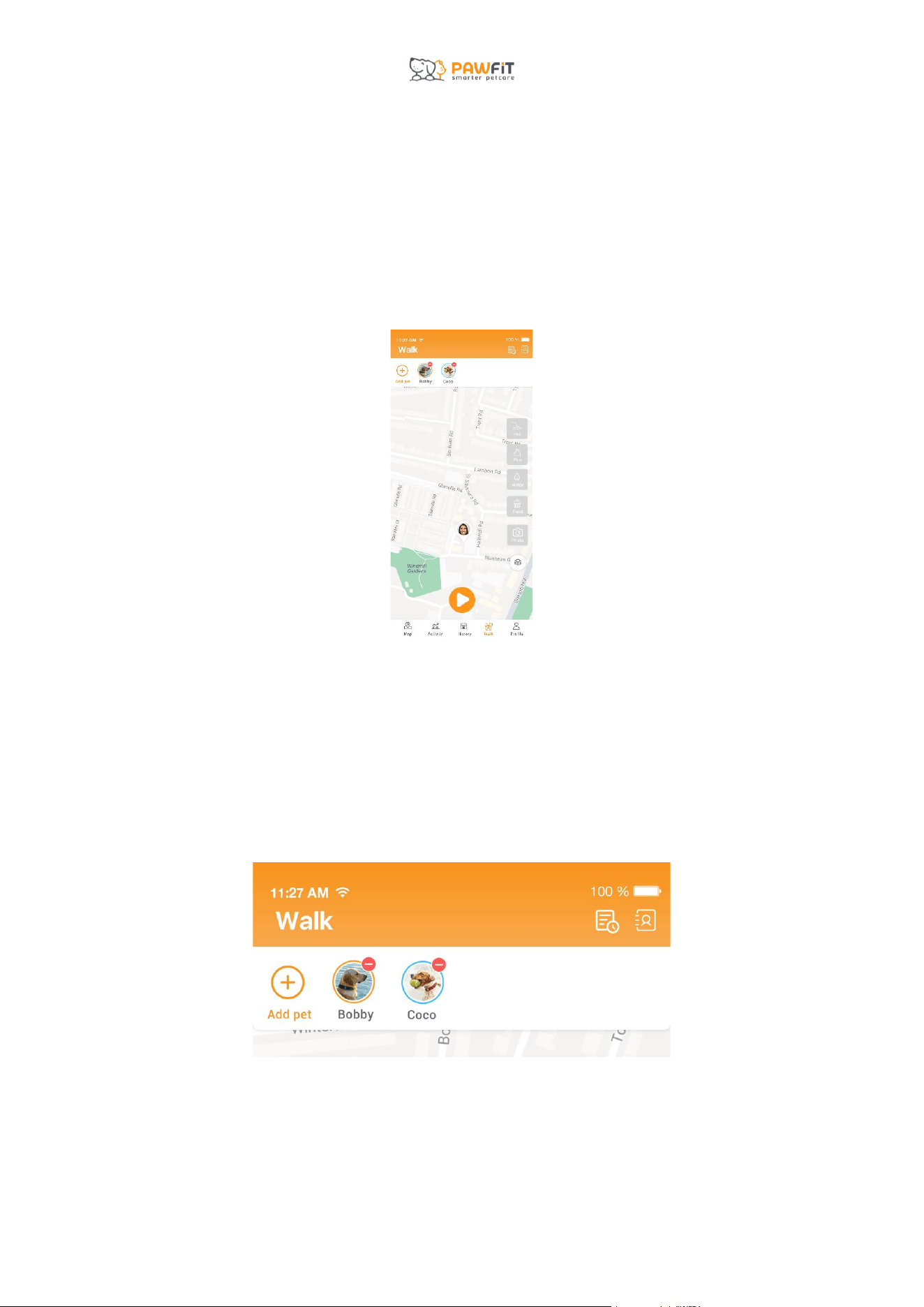
Your pet/s and their tracker/s will automatically be included in a Walk, and you will see their
profile picture/s at the top of the Walk map.
If you don’t want to include a pet in the Walk, tap the red circle next to their picture.
If one of your pets is not showing as available to include in the Walk, check that they a
ppear on m ap setting in their User Profile. For more information, see section 14).
To add more pets to the Walk, tap the orange + icon at the top left above the map.
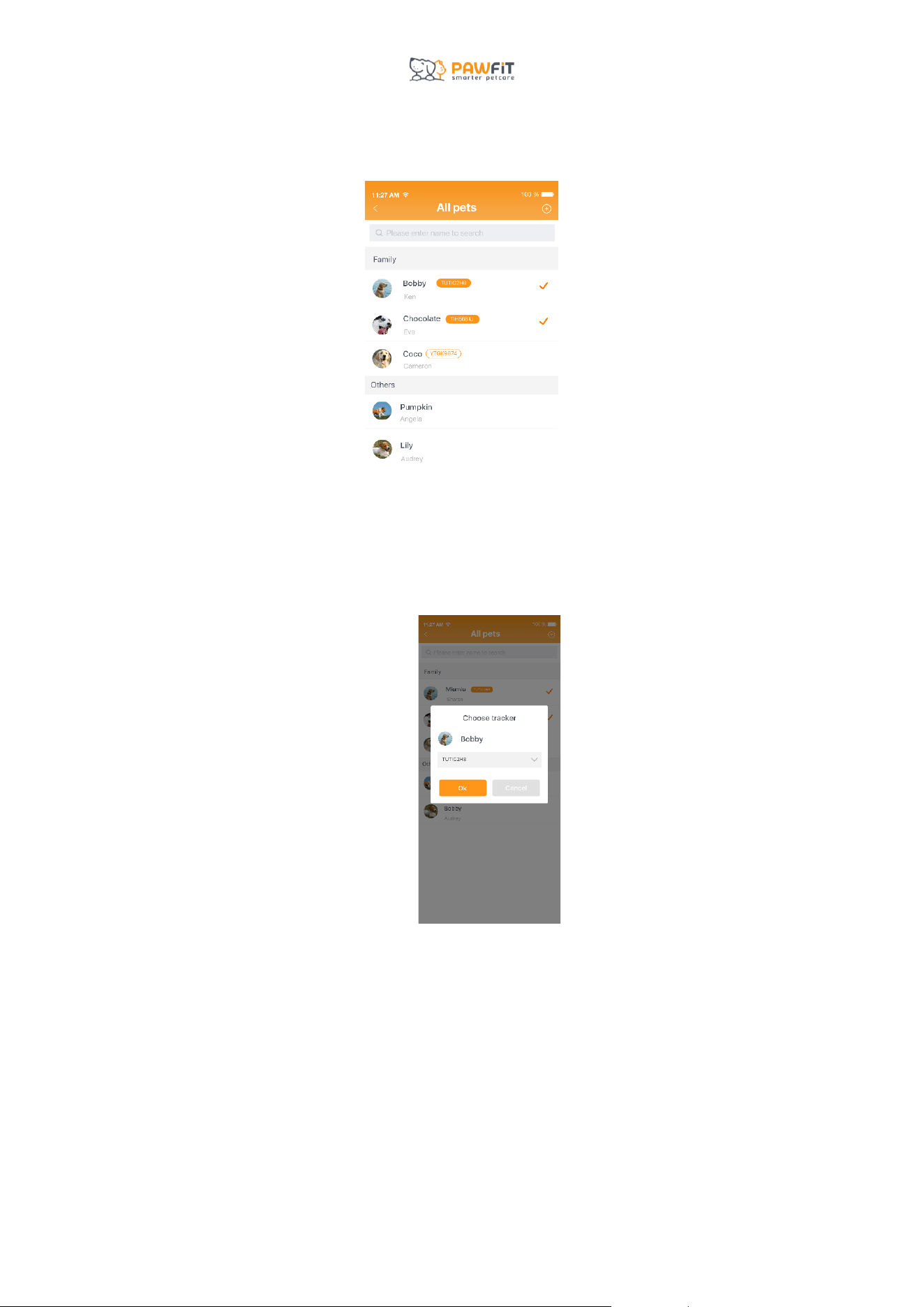
19
You will see a list of all the pets you are connected with on Pawfit.
Tap the pet from the list that you would like to include in the Walk.
Choose the device you wish to track them with by tapping the drop-down arrow:
● If you are a member of that dog’s Family Pet Care and they have a Pawfit tracker of
their own, you can choose their tracker.
● If they don’t have a tracker or you are not a member of their Family Pet Care, you can
track them via your phone.
o For dogs tracked via your phone, the information in their walk report will be
limited. There will be no step count and distance travelled will be based on
the distance your phone travels.
● To track a dog with your own tracker/s, you will need to make it available to be re-
assigned. To do this, remove your own dog/s from the Walk by either tapping their
name in the list of available pets or by tapping red X next to their picture above the
Walk map.
20
The tracker ID will now appear in the drop-down list and can be assigned to a dog
being added to the Walk.
Once you’ve chosen how to track the other dogs, press “OK” and they will be added to the
Walk. You will see their pictures above the Walk map.
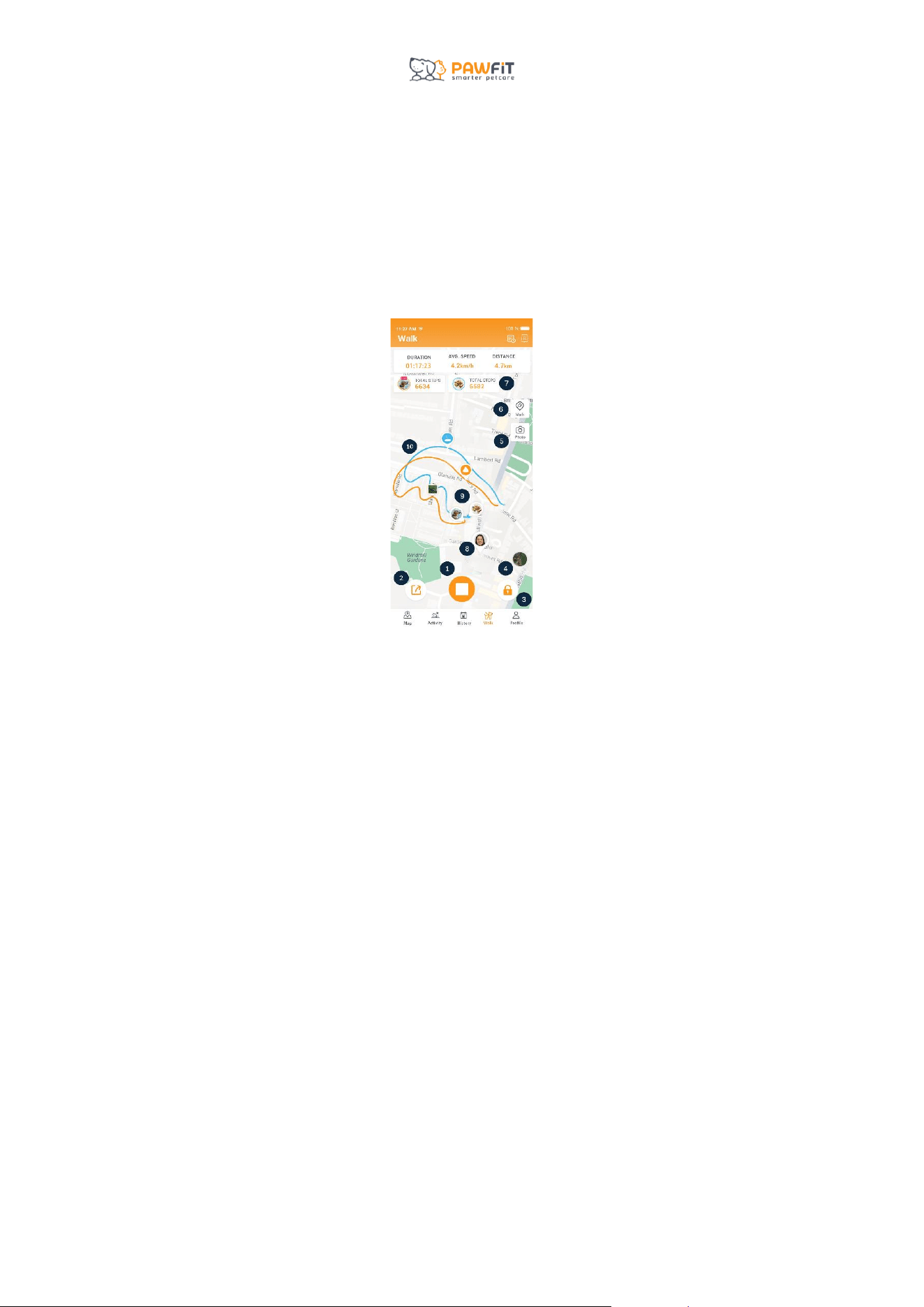
11.2 – Understanding the icons on the Walk map
1. Start/Stop – Tap this icon to start or stop your Walk.
2. Live Share – Tap this icon to live share your walk with friends and family.
3. Lock – Tap this icon to lock and unlock your walk screen to prevent other operation
disruption.
4. Map – Change Map style.
5. Photo – Tap the camera to take photos of you and your pet/s on your walk or
upload one from your phone. These will then be saved in the Walk Report to look
back at.
6. Mark– log your pet’s activity on the walk and look back at Walk Reports to spot
trends in their behavio r.
7. Walk Stats – see the Walk duration, your pet’s average speed and distance travelled.
8. Your phone’s location.
9. Your pet’s location.
10. Your pet’s route.
21
11.3 – Walk Reports
At the end of each Walk, a walk report will be generated. You can share this report with
members of your pet’s Family Pet Care and Pawfit contacts.
To access past walk reports, tap this icon in the top right corner of the screen.
Tap a report to open it up and tap Share in the top right corner of the screen with your Pawfit
contacts.
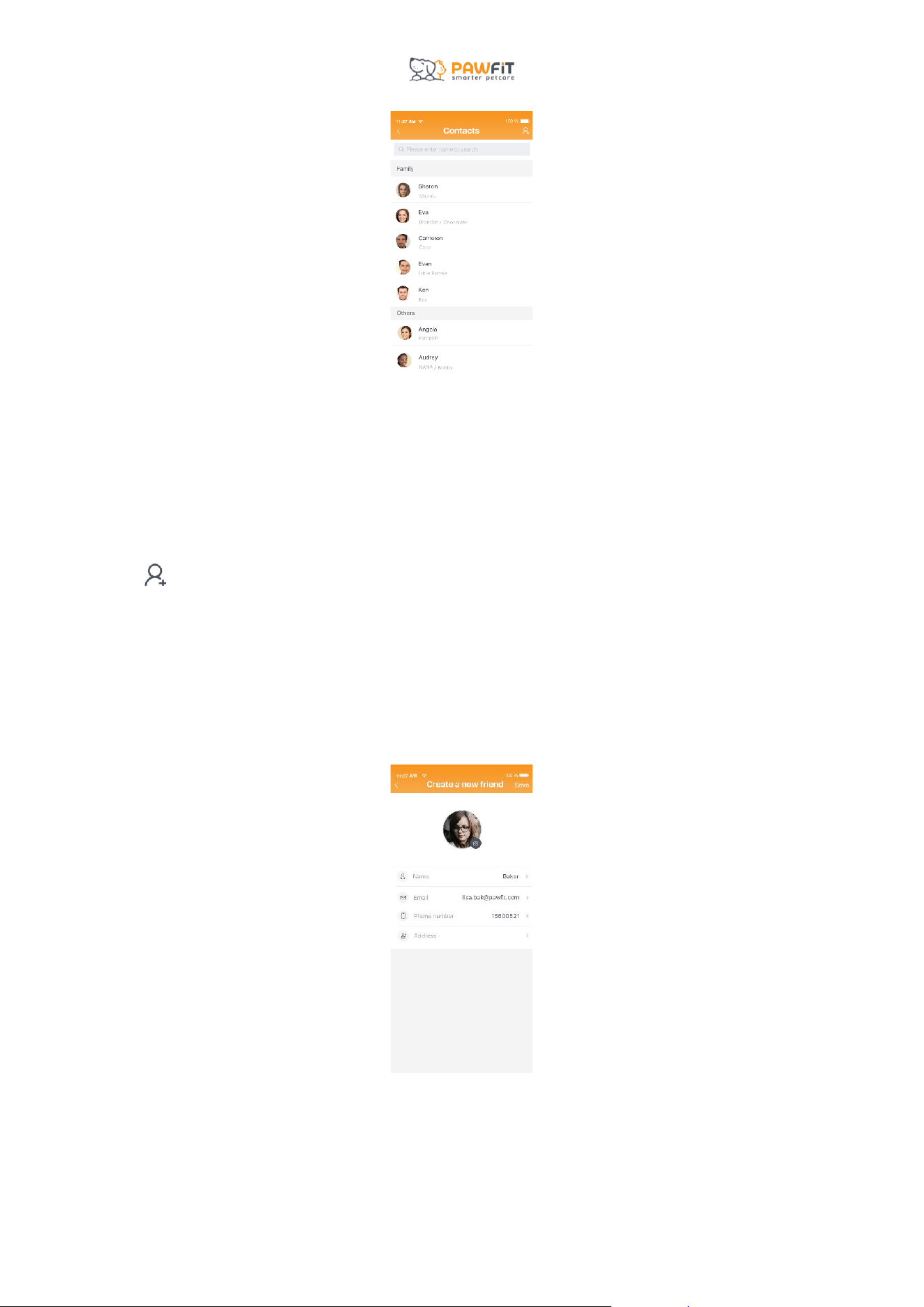
11.4 – Pawfit Contacts
Your Pawfit contacts are friends that have a Pawfit account and who you have connected
with via the Pawfit app.
With Pawfit contacts you can share your live location via the Map page and Walk reports.
Tap the address book in the top right corner of the screen to access your Pawfit
contacts.
22
Tap a contact to view their Pawfit profile, allow them to view your pet profile/s and to
remove them as a friend.
Use the search bar to search for contacts.
Tap to add new contacts.
You can search for them by entering the email address linked to their Pawfit account or scan
their Pawfit ID QR code by tapping the Scan icon.
Tap the QR code next to your Pawfit ID to open your QR code.
If your friends don’t have a Pawfit account, you can help them to create a temporary one.

23
Section 12 – A guide to the Profile page
On the Profile page, you can access your Pawfit ID profile and your pet/s profiles. This is
where you will access important information about your Pawfit subscription, manage your
Pawfit settings and more.
1. Messages – Tap to view all messages and notifications received including low
battery alerts and Walk reports that have been sent to you.
2. Scan – Tap to open your camera and scan the QR ID code of your family and or
friend’s pet to add them as a Pawfit Friend or be added to their Family Pet Care.
3. Pawfit ID – tap to open your Pawfit user ID profile.
4. Add Pet – Tap to add a new pet and tracker to your Pawfit ID and enter the
information for their profile.
5. Pet Profiles – tap each pet’s profile to open up their profile.
6. Pet Profile QR Codes – Tap the QR code next to your pet’s name to open their profile
QR code. This can be scanned by a friend or family member so they can be added to
your pet’s Family Pet Care.

24
Section 13 – Your Pawfit User Profile
Your Pawfit user profile is where you can update your personal information, view, and
manage your subscription, access your Pawfit ID and QR code and a number of user
settings.
1. Information – update your personal information here. This information will be used
for your Pawfit’s voice ID. For more information about the Pawfit voice ID, see
section 14.
2. Pawfit Subscription – Check and manage your Pawfit subscription status.
3. QR Code – Access your profile’s QR code. Your friends and family members can
scan this code using their Pawfit camera to add you to their contacts. You can also
send this QR code via email, text, iMessage or What’s App.
4. Referral Code – Your unique Pawfit Pals Referral Programme Code. Read more
about our referral program in section 19.
13.1 – Settings
In the User Settings page, you can update:
● Language
● Unit of measurement
● Temperature Unit
● Which notifications you want to receive
● Change Map page settings
● Check Pawfit’s terms of use and our privacy policies as well as our support FAQs and
our contact information

25
Section 14 – Your Pet’s Profile
In your pet’s profile you can manage and update their profile details including:
● Their photo
● Name
● Pet type
● Breed
● Sex
● Age
● Weight
● Activity goal
You can also change if your pet’s tracker appears on the Map and Walk screen and see their
tracker’s last known location update.
14.1 – Choosing your pet’s activity goal
Every pet is unique and so is their activity goal. When setting up your pet’s profile, our smart
algorithms will be able to recommend an activity goal. However, you know your pet best and
this goal is completely customiz able. You want a goal that leaves your pet tired but not
completely exhausted.
If your pet has a low activity level, we recommend setting a goal between 5,000-12,500
steps.
If your pet has a medium activity level, we recommend setting a goal between 12,500 –
25,000 steps.
If your pet has a high activity level, we recommend setting a goal of 25,000+ steps.
Each pet is different and it might take a bit of trial and error to find the right goal. Try
increasing or decreasing their step goal by a few thousand each time until you find the right
goal.
14.2 – Family Pet Care
Pawfit’s Family Pet Care feature allows you to invite your family members or friends to help
you look after your pet by being able to track their location and activity. To find out more
about how to use and manage Family Pet Care, see section 18 .

26
Section 15 – Advanced Settings
In the advanced settings of your pet’s profile, you’ll be able to access and manage various
tracker settings and security features.
Home WiFi –When you identify a Home WiFi, the tracker saves the WiFi’s location. Whenever
the WiFi network is detected, the tracker uses this saved location to provide location
updates instead of using GPS to search for and send location updates. This saves battery
power and will also improve location accuracy when you’re indoors. You can set up to 7
home WiFi's for your tracker. This is ideal if your pet spends a lot of time in certain places,
such as work or a family member’s house.
Device ID – Your pet’s Tracker ID number. You can also find it printed on the back of your
pet’s tracker and the bottom of the packaging box.
Safety Zone - Tap here to create and edit your Safety Zones. For more information on Safety
Zones, see section 16.
Walk Settings – Change the maximum duration of your Walks and the location update
frequency (only available to premium subscribers).
Pawfit Voice – Tap here to create and edit up to 5 personaliz ed voice commands. For
more information on Pawfit Voice , see section 17.
Audio ID – Tap here to manage which information you would like included in your pet’s
tracker’s audio ID.
Temperature Alert – The Pawfit tracker continually monitors the external temperature to
alert you if the environment becomes too hot or too cold for your pet. Tap here to set the
upper and lower limits of the temperature alerts.
Remote Shutdown – Here you can remotely switch off your Pawfit tracker by pressing the
Shutdown button. You can also enable the option to disable manual tracker shutdown.
When this mode is enabled, you will no longer be able to switch off the tracker by pressing
and holding the power button.
Power Saving Mode – When this mode is enabled, it saves battery by reducing the location
update and frequency during passive tracking.
Rescue Light – The Rescue Light is automatically enabled when no cellular or WIFI signal
has been detected by the tracker for more than 60 minutes. The tracking light will flash once
every 30 seconds until turned off by pressing the power button. You can turn off this feature
by tapping the slide button.
Tracker Update – You can manually update your tracker when new software updates
become available.
27
Section 16 – Safety Zones
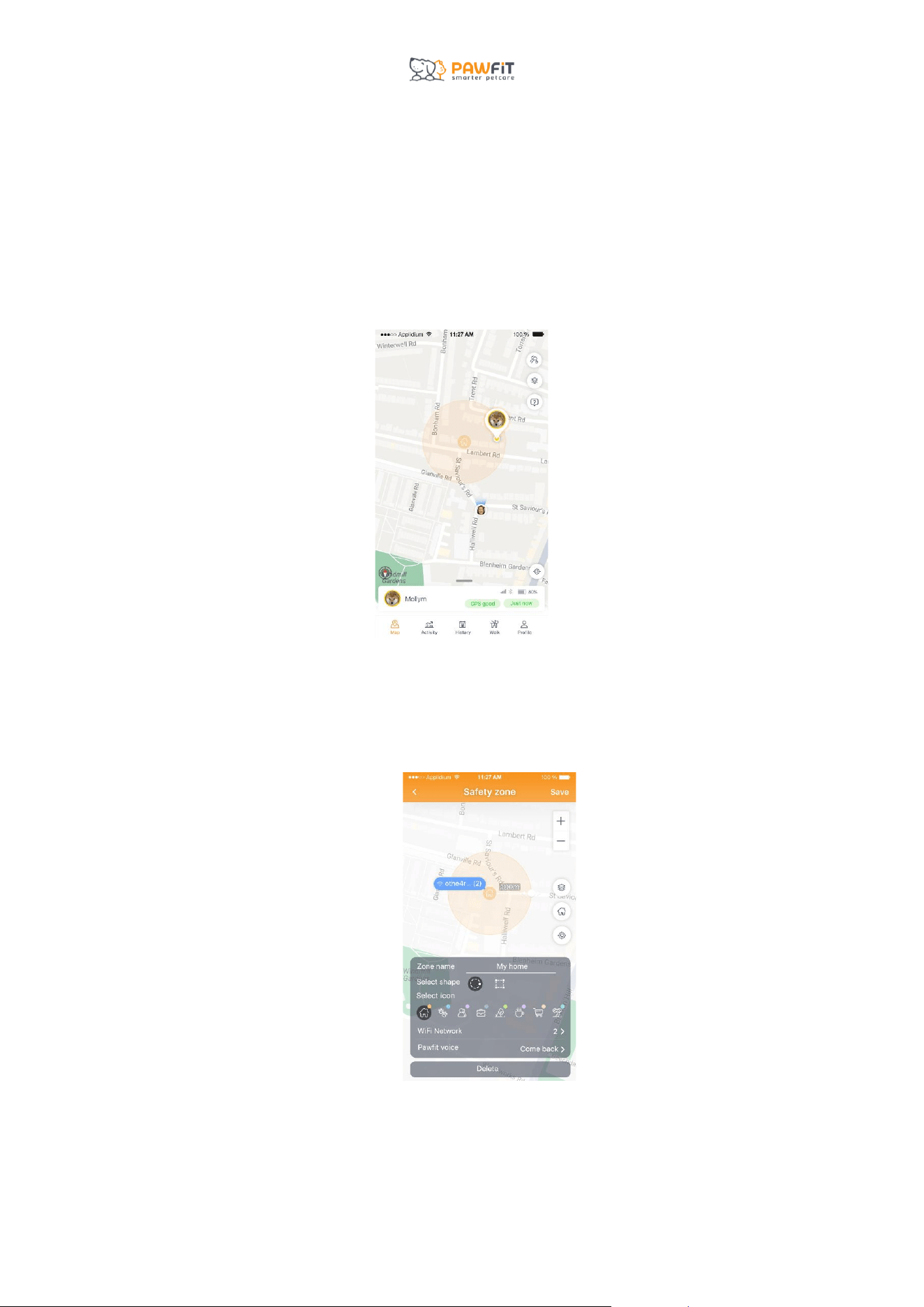
Pawfit’s Safety Zone feature allows you to set up to 10 virtual fences around your home or
any location of your choice, like a favo rite park or the home of a friend.
Perfect for pets who are prone to escaping from their home and garden, the Safety Zone
feature has been designed to give owners additional peace of mind that their pet is safe.
And if they should get out, you’ll receive an instant notification via the Pawfit app to your
mobile and smart watch.
16.1 – How to create a Safety Zone
Safety Zones are created and managed by heading to Profile > Pet Profile > Advanced
Settings > Safety Zone.
● To add your first zone, press +
● The zone will automatically appear in your current location.
● To move the zone to a different location, expand the map and use your fingers to
drag it to your desired spot.

28
● Easily adjust the size of the zone by dragging the white size arrow in and out with
your finger.
● To ensure accuracy, we recommend setting the zone to a minimum of 100 m.
● You can set the shape of your zone as either a square or circle and change the zone’s
colo r using the location icons.
● Give your zone a name.
● Once you’re done, press ‘Save.’
● To add another zone, press + and repeat the steps.
● You can also assign up to 7 WIFIs to each individual zone you create. This can
improve the Safety Zone alert accuracy and reduce false alerts. No WIFI login
credentials are required, but make sure your phone has an existing connection to the
WIFI you wish to select.
● You can associate a Pawfit voice command with each individual zone. When your pet
leaves the zone, the voice command will automatically be played from your tracker.
16.2 – How to edit your zones
● To temporarily turn a zone off, press the toggle switch.
● To edit a zone, just tap it to open it up.
● You can change the location of the zone, its size, name, and icon. Just press ‘Save’
when you’re done.
● To delete the zone, press the ‘Delete’ button.
16.3 – Why is there sometimes a delay in receiving Safety Zone notifications?
Sometimes, there is a delay in receiving the Safety Zone notification.
Pawfit will send a Safety Zone alert when the fence boundary lies in-between the latest
location and the one before it. To determine if your pet has crossed the fence line, Pawfit
needs to receive the latest location update.
Pawfit updates your pet’s location every 30 seconds to 2 hours, depending on how active
your pet is. The faster they move outside the Safety Zone, the more quickly their location is
updated and the sooner the notification is received.
If Pawfit is in live tracking mode, then you can expect the alert to be received almost
immediately after your pet crosses the virtual border.
Assigning WIFIs to zones as mentioned above can also improve accuracy and notification
speed.
29
Section 17 – Pawfit Voice
Pawfit Voice enables you to programme up to five voice commands for each pet. With the
touch of a button in the Pawfit app, you can play your voice commands via the speaker in the
tracker. It means that when your pet is out of ear shot, you can still communicate with them
effectively.
17.1 – How to create and manage Pawfit Voice
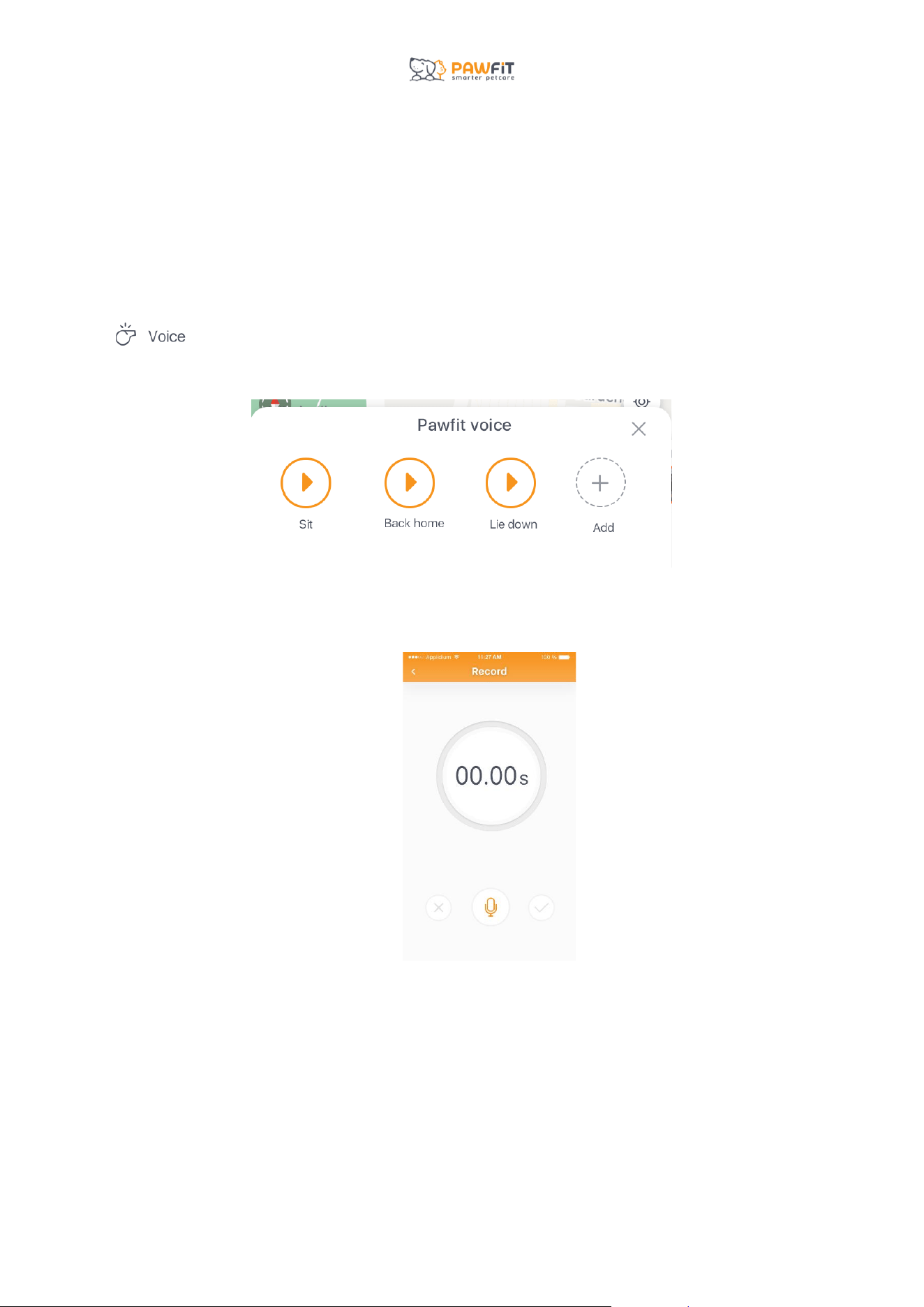
You can access voice commands via the Pawfit app home screen by tapping the Voice icon
● Press ‘Add’ to create your first voice command.
● Press the microphone button to start recording, making sure you are speaking loudly
and clearly.
● Press Stop when you are done.
● Each voice command can be up to 4 seconds long.
● Press the Play button to hear your recording back.
● If you want to re-record the command, press the Redo button.

30
● When you’re happy with your voice command, press the checkmark, give your
command a name and press Yes to save.
Once you have added your voice command, it’ll appear on the home screen under the Voice
button.
Please note, Pawfit Voices can only be updated for Pawfit 3 via Bluetooth so please ensure
your phone has Bluetooth turned on and near your tracker.
You can easily manage your commands in the Pawfit Voice section of your pet’s profile. To
access Pawfit Voices go to: Your pet’s profile > Advanced Settings > Pawfit Voice.
In Pawfit Voice you can:
● Add new voice commands.
● Record voice commands.
● Delete voice commands.
31
Section 18 – Pawfit Family Pet Care
Family Pet Care allows you to invite up to 20 friends and family members to help you look
after your pet. Once added to your family pet care, they will be able to:
● Check your pet’s current and past locations.
● Track their activity.
● Turn location modes on/off.
● Receive notifications like Safety Zone and low battery alerts.
People added to your pet’s Family Pet Care will not be able to:
● View or manage their tracker’s subscription.
● Add or edit Safety Zones.
● Add or edit Pawfit Voice .
● Make changes to the tracker’s audio ID.
● Edit pet profile or tracker settings.
18.1 – Before you begin
To add a family member or friend to your pet’s family pet care, they will need to create a free
Pawfit account. To do this, they need to download the Pawfit app and register an account
using their personal email address.
18.2 – Adding someone to your pet’s Family Pet Care
Step 1
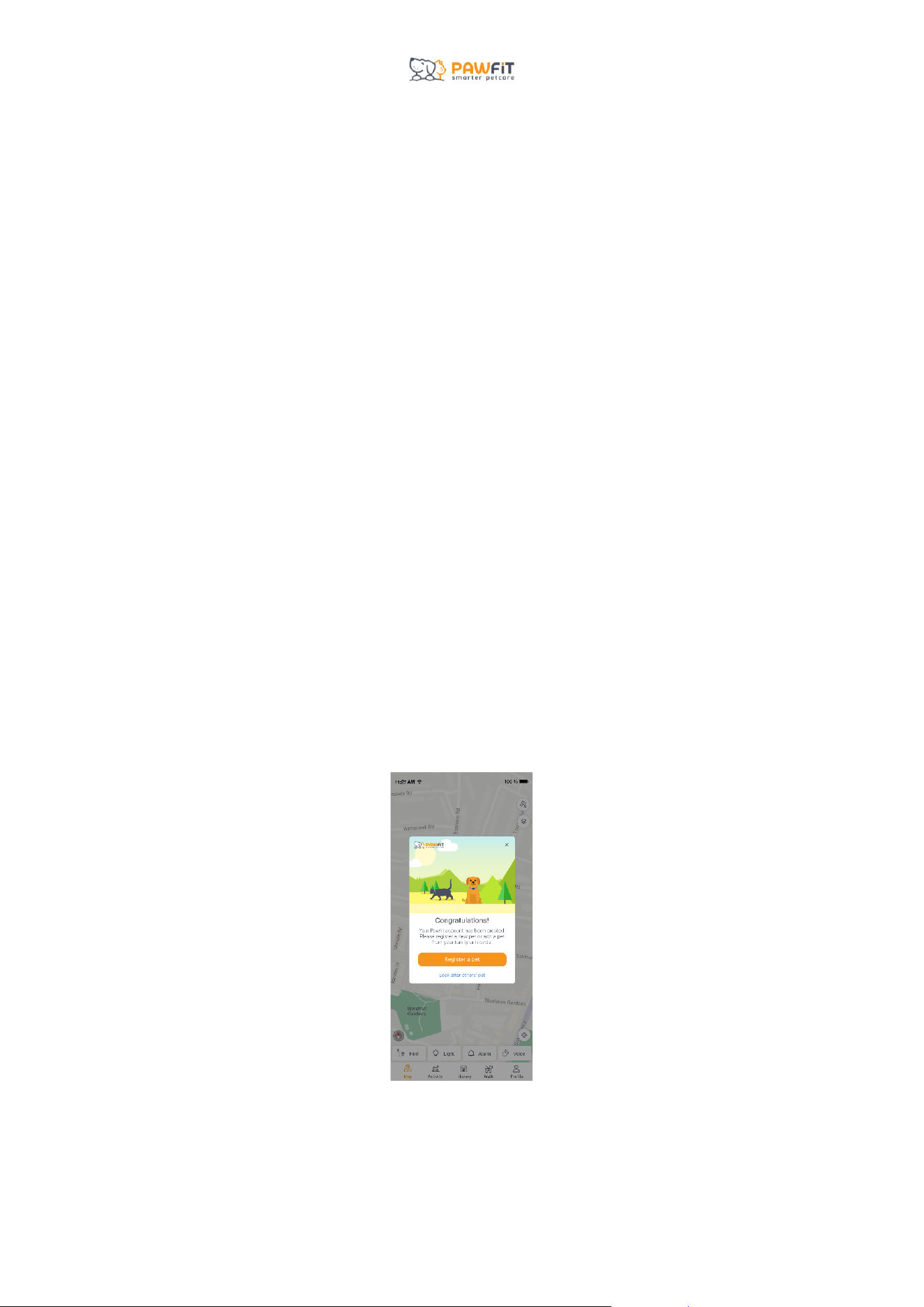
Once your family member has created their account in the app, they will see the below
image.
Select “Look after others’ pet ”.
32
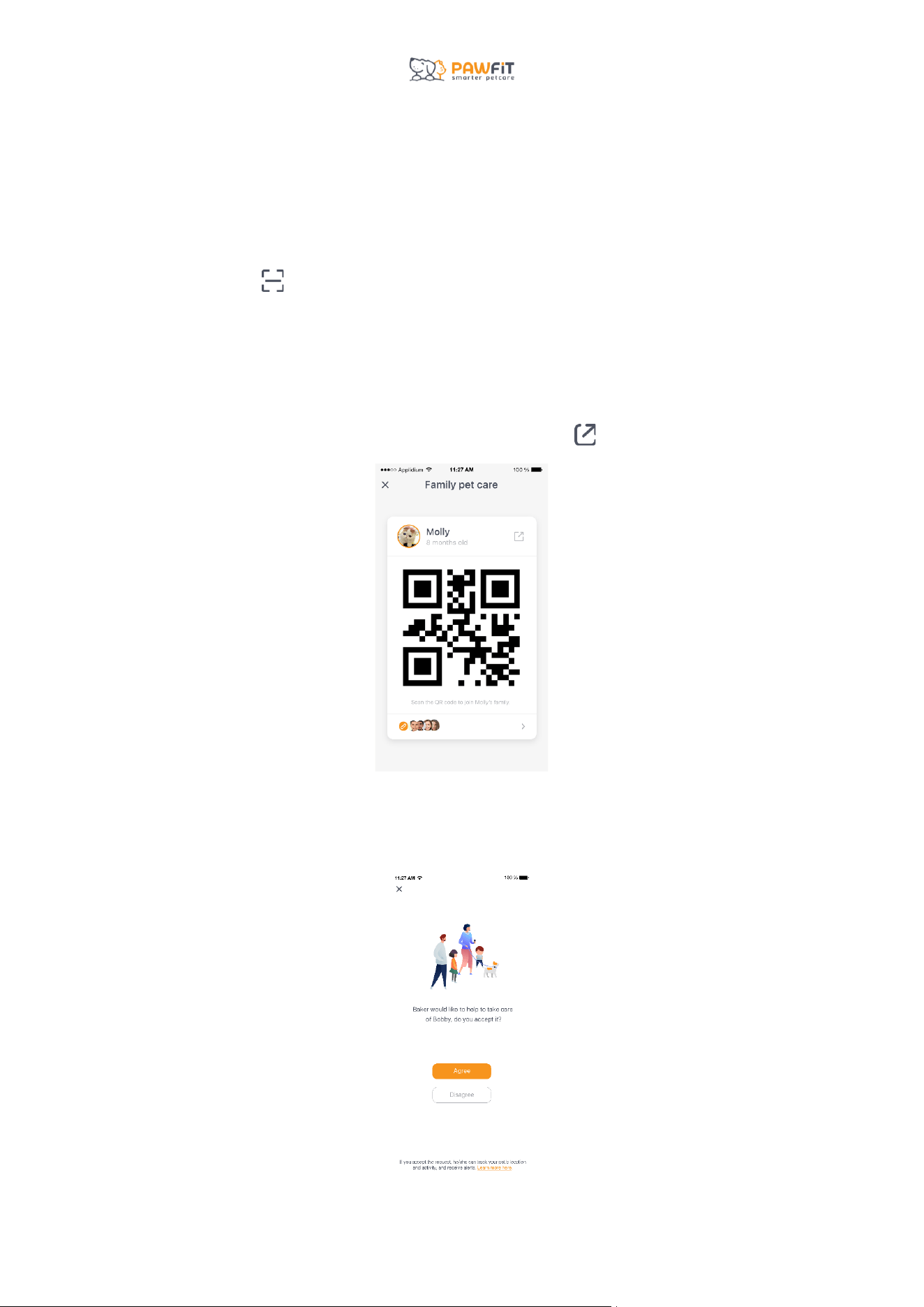
This will open the scan function of the Pawfit app and using their device’s camera, they will
need to scan your pet’s QR code (located next to your pet’s name on the Profile page. For
more information, see section 14).
If the person you want to add to your pet’s Family Pet Care already has a Pawfit account or
skipped past the above image when creating their account, they can access the app’s scan
function by tapping in the top right corner of the Profile page in their app.
If you are not with the person you are adding to Family Pet Care, you can send them a link to
your pet’s QR code via text message or email. Once received, when they click the link, they
will be redirected to the Pawfit app.
To send the link, tap your pet’s QR code to open it up and tap to share.
Step 2
Once someone has requested to join your pet’s Family Pet Care, you will receive a
notification in your Pawfit app. To accept, press ‘Agree’ or to decline, press ‘Disagree.’
33
Step 3
Once you approve the request, your pet will automatically be added to the other person’s
Pawfit account, and they will be able to see them on their Profile page.
18.3 – Managing your pet’s Family Pet Care
To view everyone who has been added to your pet’s Family Pet Care, go to their profile page,
and tap Family Pet Care.
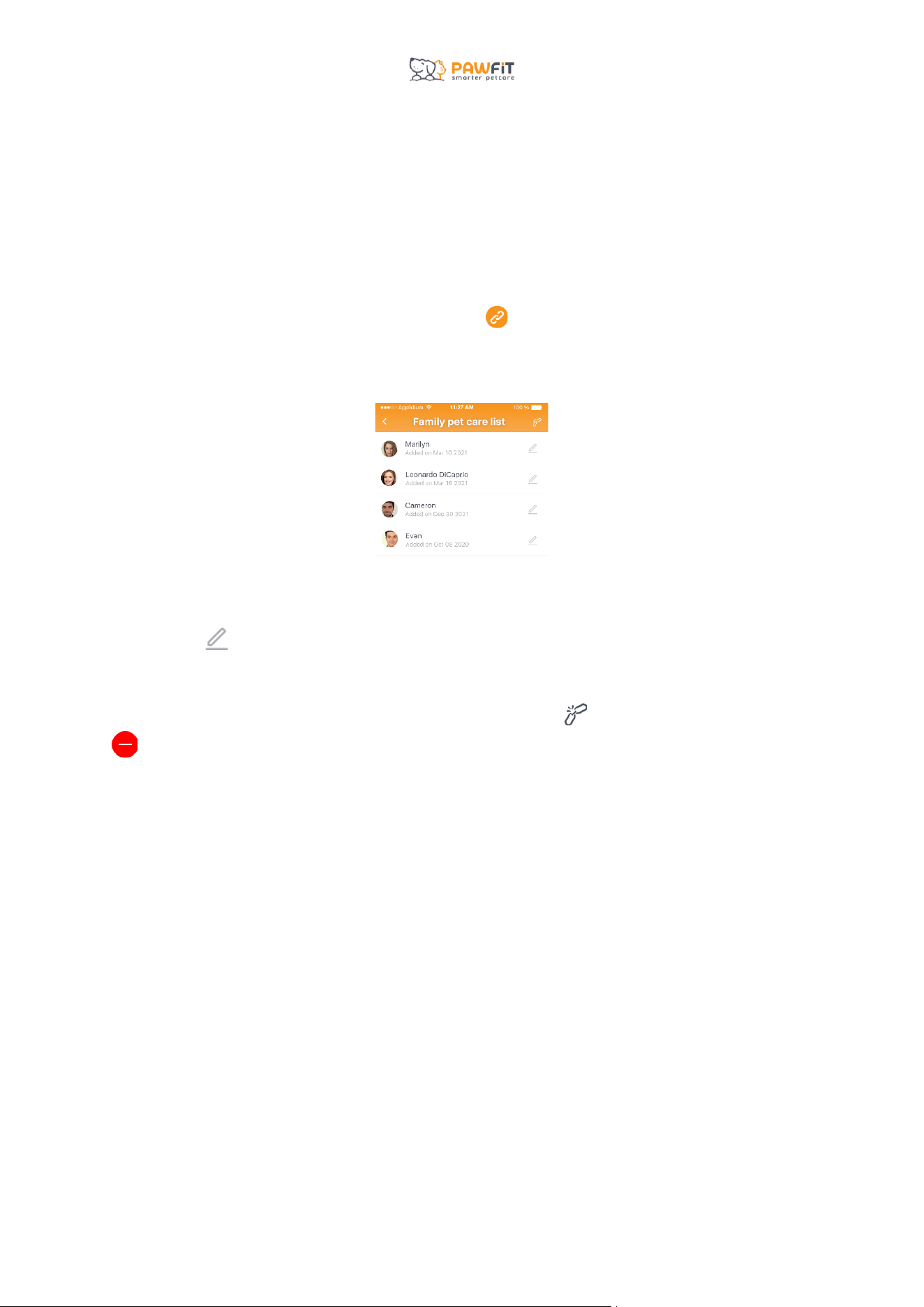
Underneath their QR code, you will see a link icon and the profile pictures of the people
added to the Family Pet Care. Tap here to view the Family Pet Care List.
You will see everyone added to your pet’s Family Pet Care and the date they were added.
Tap the pen to change someone’s name.
To remove someone from your Family Pet Care, tap the link in the top right corner and tap
next to the names of the people you wish to remove and confirm by pressing Delete.
18.4 – Using Walk
If you have someone’s pet added to your Family Pet Care and you want to include them
when using the Walk feature, you will need to add them to the Walk before you start.
For information on how to do this, see section 11.
When you take someone else’s pet for a Walk, you can generate a post Walk Report for
them. The pet’s owner will only be able to see the Walk Report if you share it with them. To
do this, see section 11.

34
Section 19 – The Pawfit Pals Referral Program
If you enjoy using your new Pawfit tracker, you can get rewarded for referring it to a friend!
19.1 – How it works
Each Pawfit customer has a unique referral code which can be found in the Pawfit App on
the User Profile page.
Once your friend has purchased their new Pawfit tracker, they can enter your unique referral
code during the Pawfit subscription set up process to claim 2-months free subscription.
When your referred friend renews their Pawfit subscription after their free period ends, you
will receive either a 2-month subscription or a £ 7 gift certificate for Amazon.
Best of all, you can refer Pawfit to an unlimited number of friends and claim up to 6 referral
rewards.
19.2 The finer details
Like with most things in life, there are some T&Cs:
● To claim a 2-month subscription, your referred friend must be a NEW Pawfit
customer and use the referral code when they ACTIVATE their new Pawfit.
● The referral offer cannot be claimed by someone who is already a Pawfit customer
and cannot be used on Pawfit devices that have already been activated or that have
an active subscription.
● To refer a friend, you need to have had an active Pawfit subscription for 14 days or
more.
● You will be able to receive your reward once your referred friend renews their
subscription for a period of 14 days or more.
35
Section 20 – Using the Pawfit app on your smart watch
The Pawfit app is available on Apple Watches and Galaxy watches versions 1, 2 and 3.
To access the Pawfit app on your smart watch:
● Download and install the Pawfit Watch App on your smart watch.
● Open the watch app and wait until a QR code is displayed. Make sure your watch is
connected to a network or your smartphone .
● Login to your Pawfit account on a smartphone , navigate to the Profile screen and
tap the scan button located in the top-right corner.
● Scan the QR code on your watch by using your phone. Once the code is accepted,
confirm ‘Log in’ on your phone to complete.
● Once you’ve logged in and launched the app, you can choose a pet profile to interact
with. Unlike on the Pawfit mobile app, you can only see one pet at a time. To interact
with a different pet’s profile, tap < in the top left corner.
20.1 – Navigating the Pawfit smart watch app
On the watch app home screen, you will be able to see:
● The number of steps your pet has done towards their daily activity goal.
● A map showing your pet’s live location as well as your own.
Tapping the arrowhead icon will centre the map on your pet’s location or your own.
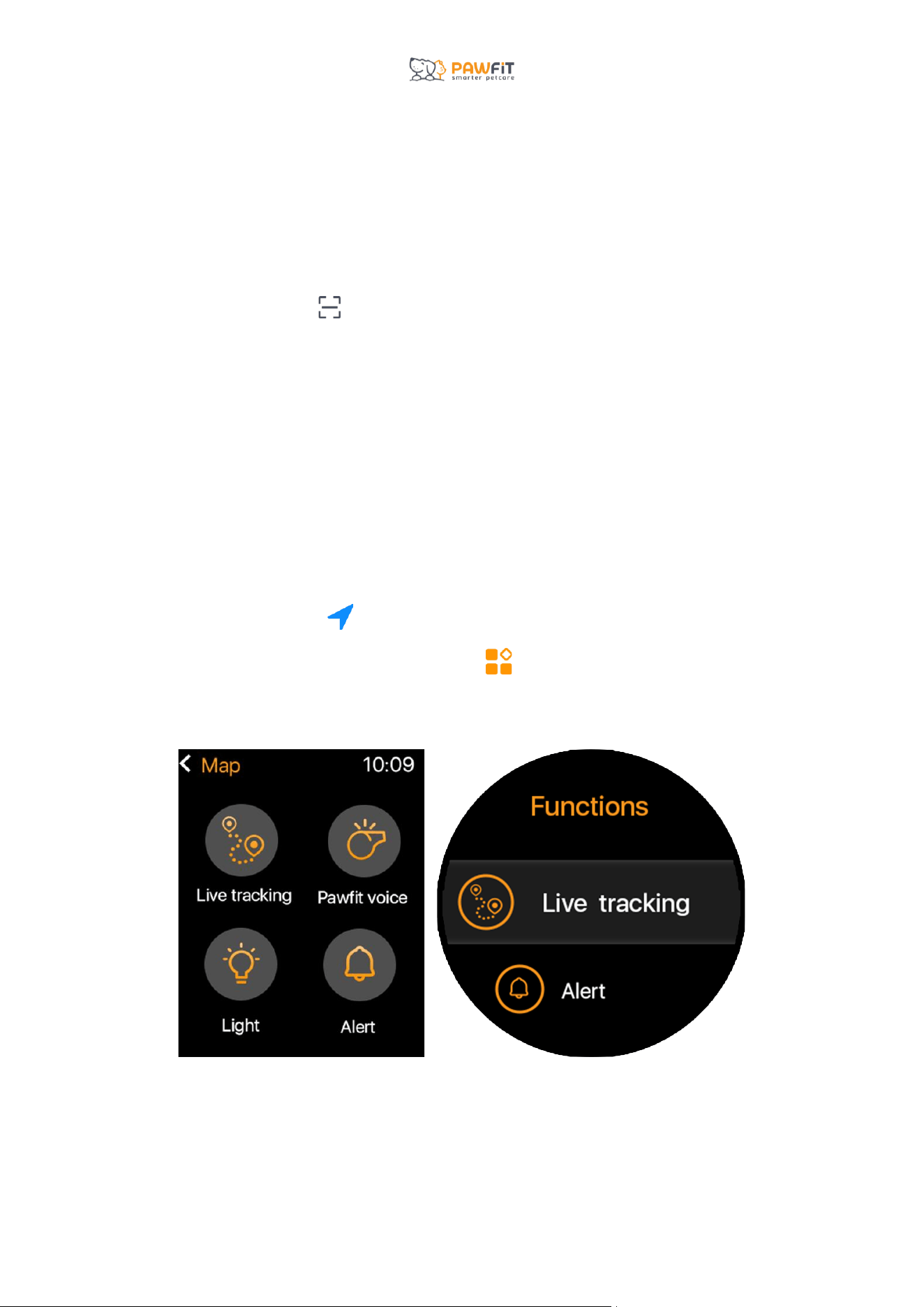
To access the security features, tap the tiles icon
From here you can play voice commands and turn the Light, Alarm, and live tracking features
on and off.
36
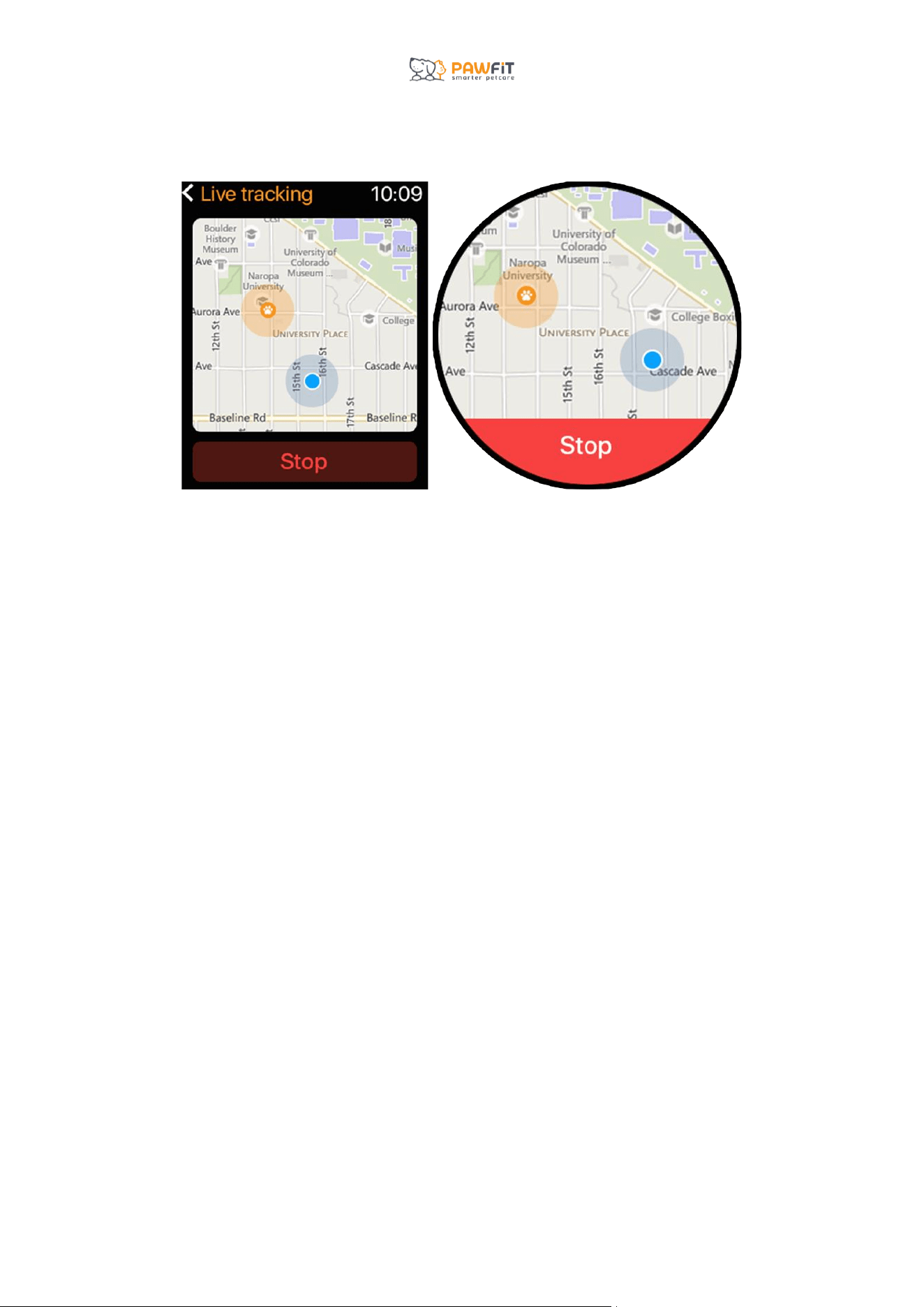
When you turn on Live Tracking, a map will appear showing the location of your pet.

37
Section 21 – Using the Pawfit app on multiple devices
You can download the Pawfit app onto multiple smart devices, but you can only log in to
your Pawfit account on one device at a time (does not apply if using the Pawfit smart watch
app). If you try to log into a new device, you will automatically be logged out of all other
devices.
If you want to share your pet’s Pawfit tracker with family members, rather than share your
account’s login details, you can ask them to create a free Pawfit account of their own and
add them to your pet’s Family Pet Care.