
މ߳ńPP
ᔢࡹ࣯ဵń߾ࡴ
܌ᓚńධᎭJዬᓍĶฆጻᎭJዬᓍ
ᎋၼńܒ࿁
ڞᔔń
ࡈፃጻĶᕥܨᆪࡅĶᎼܨධ
ࡈ࣎ጻĶᕥܨᆪධࣦධĶᎼܨᆪฆጻ
User Manual
Tablet PC All-in-one

01 02
Contents
Chapter 1 — Getting Started
03
03
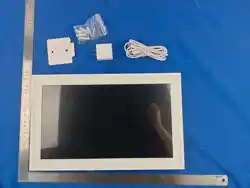
1.2 Package Contents
04
Contents
1.3 Setup & Assembly
1.4 First-Time Setup
1.1 Product Overview
05
Chapter 2 — Home Screen Overview
...........................................................................................................
.................................................................................................
.....................................................................................................
.....................................................................................................
.....................................................................................................
.........................................................................................................
05
2.1 Home Screen Layout
...........................................................................
Chapter 7 — Technical Specification
32
Chapter 8 — FAQ
33
................................................................................
Chapter 9 — Warranty & Support
35
04
04
.......................................................................................................
...........................................................................
2.3 eCalendar Page
07
...........................................................................................................
2.2 Search Page
05
15
Chapter 4 — Download New Apps
..............................................................................
16
Chapter 5 — Settings
...................................................................................................
.....................................................................................................................
16
5.1 General
..................................................................................................................
5.3 Bluetooth
19
.........................................................................................................
5.4 Personalization
19
.....................................................................................................
5.5 Device Information
20
...........................................................................................................................
5.6 Help
20
.........................................................................................................................
5.7 More
21
...................................................................................................................
5.2 Network
17
31
Chapter 6 — Device Maintenance
...............................................................................
..................................................
31
..........................................................................
6.3 Operating Temperature & Humidity
31
.................................................................................................
6.4 Long-Term Storage
31
.....................................................................................
6.5 Firmware Update & Backup
31
............................................................................................................
6.6 Factory Reset
31
............................................................
6.2 Power Adapter Guidelines (12V/3A Type-C)
31
10
Chapter 3 — Featured Apps & Functions
...................................................................
....................................................................................................
10
3.1 Oil Painting Gallery
............................................................................................................
3.3 Relax Mode
12
..............................................................................................
.......................................................................................
3.2 Photos (Photo Album)
11
.........................................................................................................................
12
3.4 Clock
.............................................................................................
3.6 Electronic Whiteboard
13
...........................................................................
3.5 Calendar (Pre-installed eCalendar)
13
..............................................................................................
3.7 Screen Casting (PTV)
14
6.1 Screen Cleaning (10-point Capacitive G+G Panel)
03
Chapter 1 — Getting Started
04
1.1 Product Overview
JT156S-H06
The Tablet PC All-in-One Series (15.6” to 32”) merges tablet, computer, digital whiteboard, and
smart calendar into one full HD display. Powered by Android 14 with GMS certification, it delivers
a secure, app-rich experience for education, enterprise, healthcare, and home use.
Introduction
Chapter 1 — Getting Started
1.2 Package Contents
·Main Unit, Use Manual, Adapter, Bracket
·Optional: Earphone /Glasses Cloth/Protective Film/Scraper/Silica Gel Set
1.3 Setup & Assembly
1.3.1 Install the rotating stand — supports 90° left/right rotation
1.3.2 Mount on wall using VESA standard brackets
1.3.3 Connect the Power Adapter
1.3.4 Insert TF card for local storage
1.4 First-Time Setup
1.4.1 Power On
1.4.2 Select System Language
1.4.3 Connect to Wi-Fi (2.4G +5G)
1.4.4 Set Time Zone, Date & City (for weather display)
1.4.5 View and accept Google Services
1.4.6 Click to enter the Tablet PC All-in-one interface and start exploring.
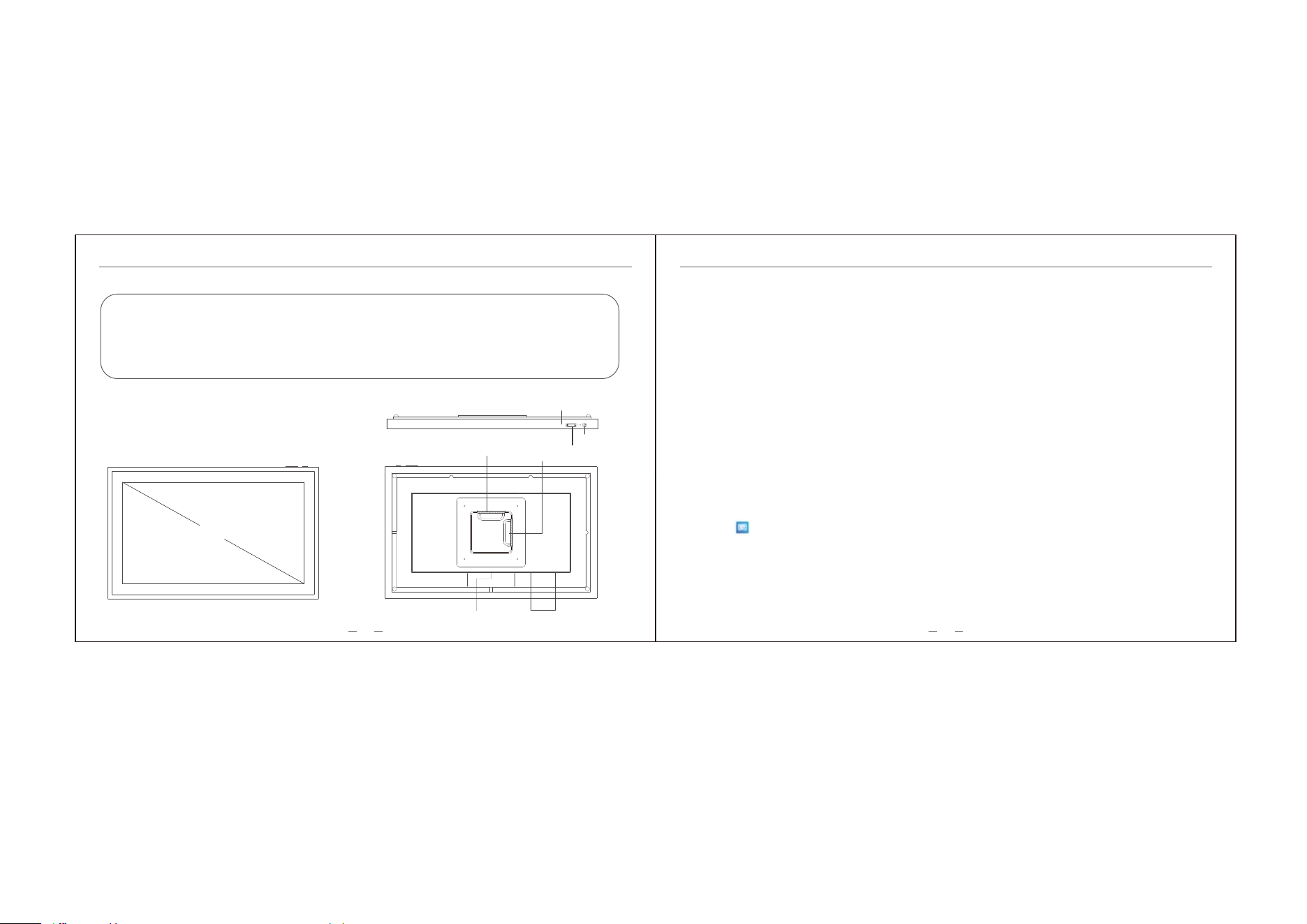
PowerButton
Volume +/-
Microphone
SpeakerType-C
Bracket hole (landscape)
Bracket hole (portrait)
05
Chapter 2 — Home Screen Overview Chapter 2 — Home Screen Overview
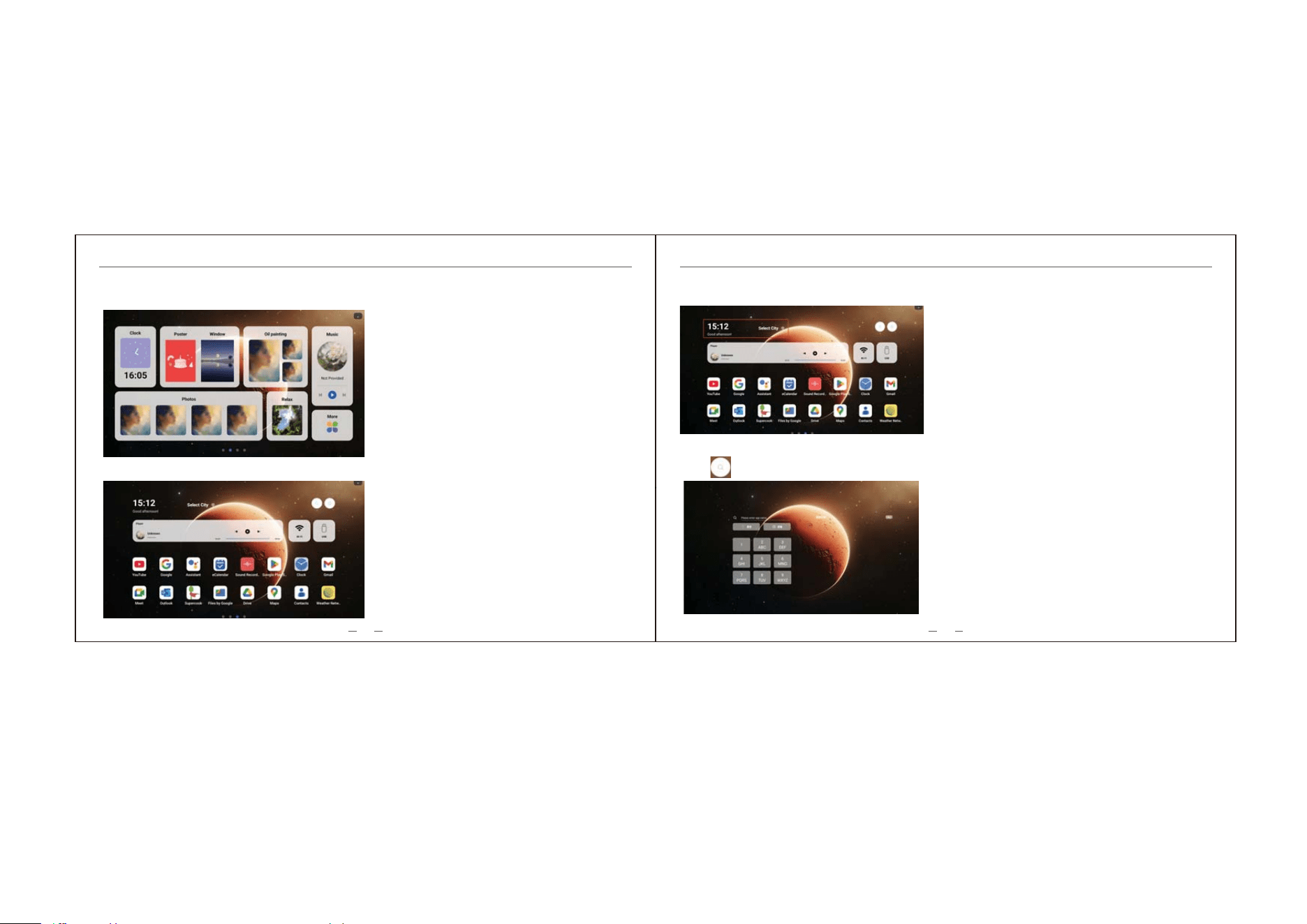
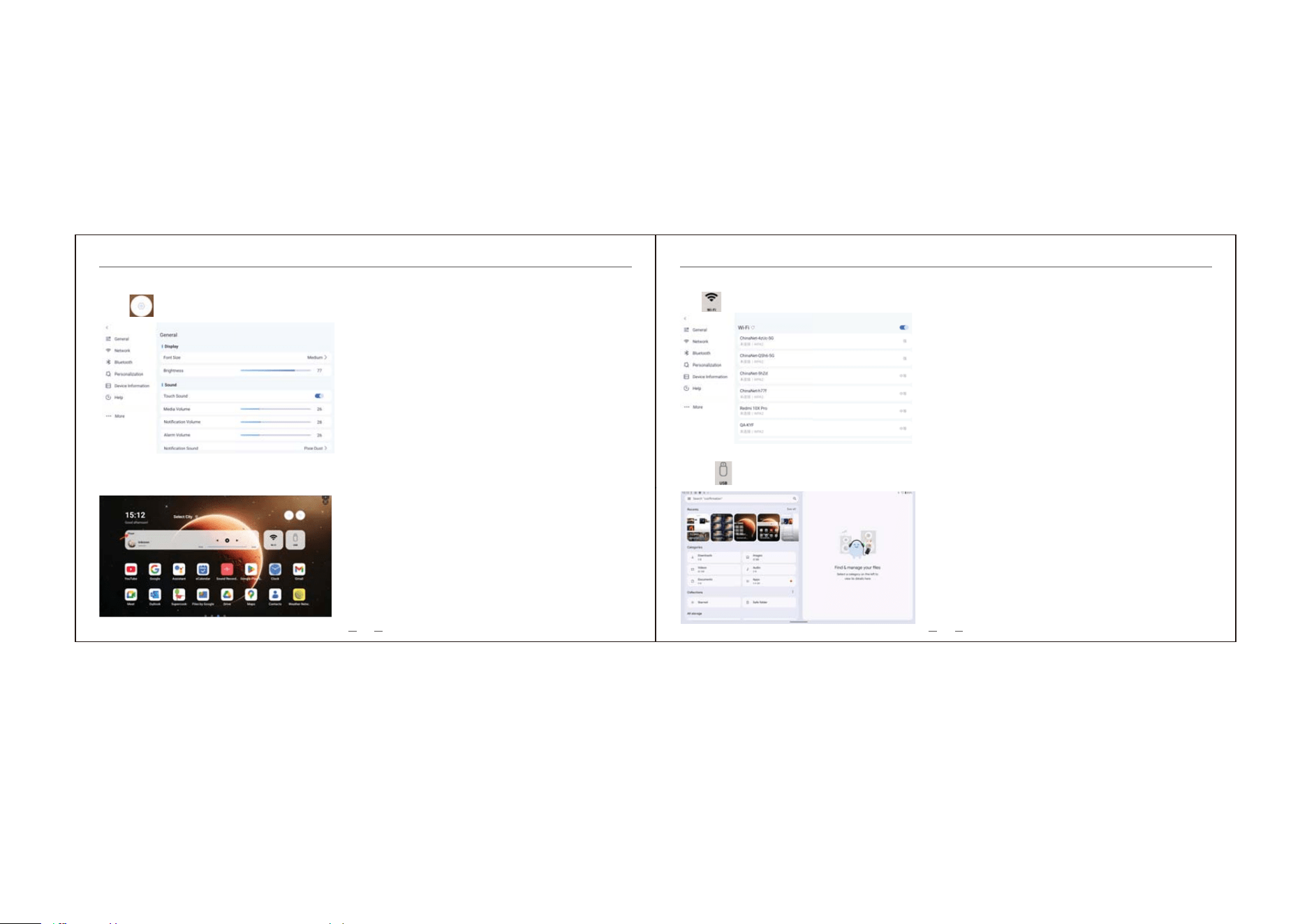
2.1 Home Screen Layout 2.2.1 Widgets
2.2.2 Search
2.2 Search Page
06
Including Clock、Poster、Window、Oil Painting、Music、Photos、Relax、and more.
Main Function Tiles:
Widgets: Display Time&Location
Click to enter Search page; Enter the app name to search.
07
Chapter 2 — Home Screen Overview Chapter 2 — Home Screen Overview
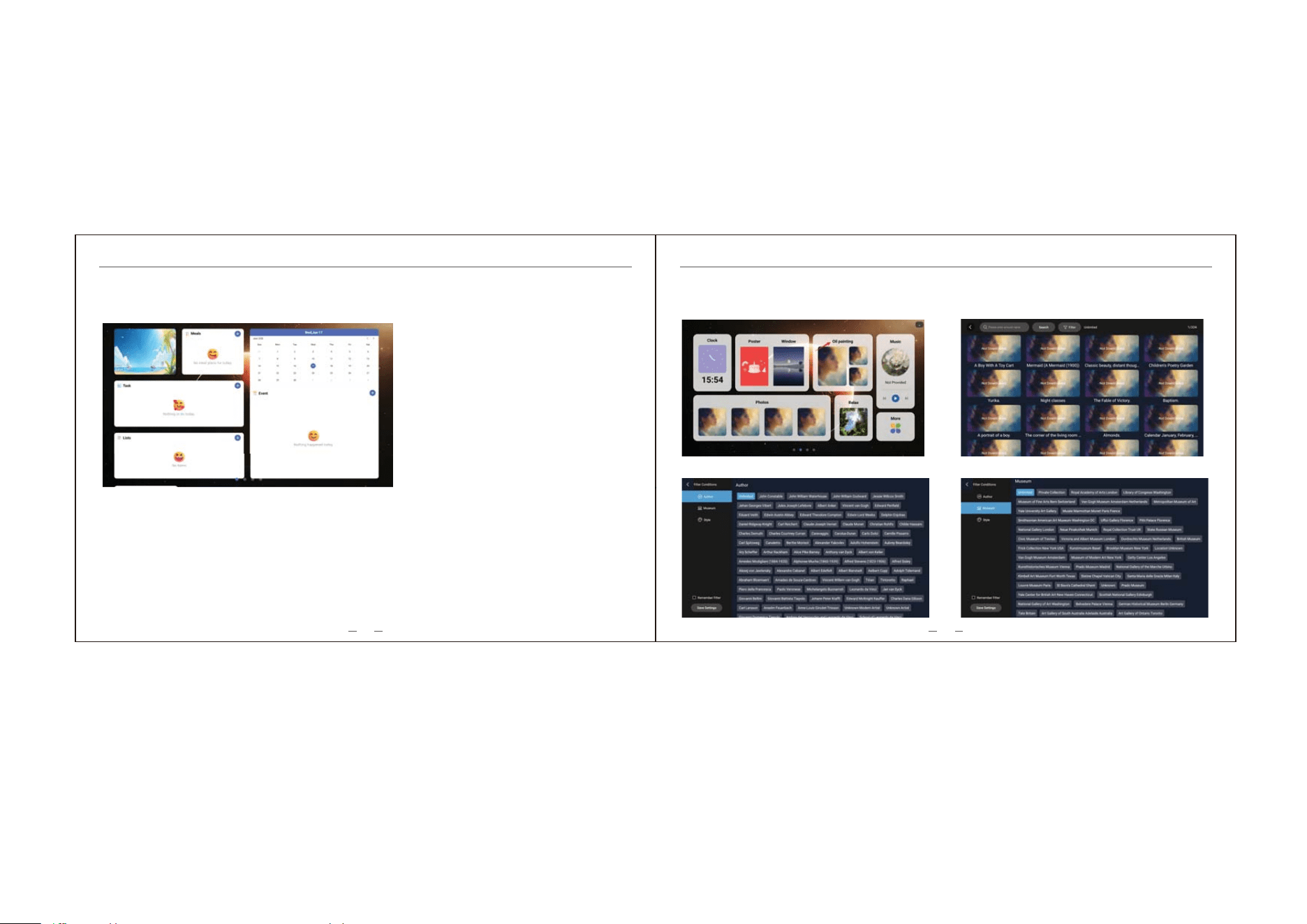
2.2.3 Settings
2.2.4 Player
08
Click to enter the Settings interface; For details on settings, refer to Chapter 5.
Music Playback: Previous track, Next track, Pause.
2.2.5 WI-FI
2.2.6 USB
Tap to enter Wi-Fi settings.
Check USB connection status; Manage files on connected devices.
09
Chapter 2 — Home Screen Overview Chapter 3 — Featured Apps & Functions
2.3 eCalendar Page
10
Quickly view and manage Weather、Event、Meals、Tasks、Lists.
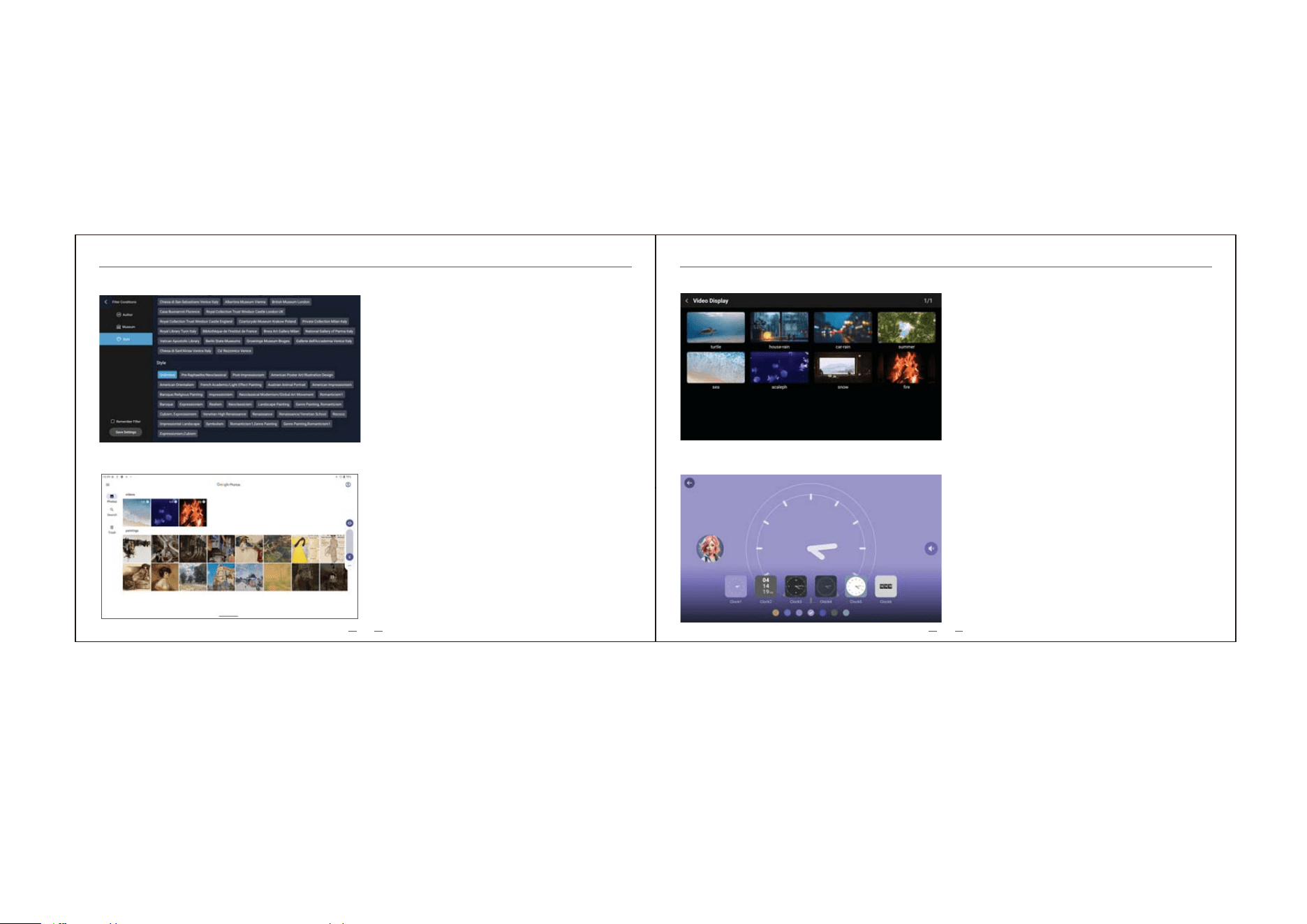
3.1 Oil Painting Gallery
Click "Oil Painting" to view, search, and filter oil
paintings.
View
)LOWHU&RQGLWLRQVĺ$XWKRU )LOWHU&RQGLWLRQVĺ0XVHXP
11
Chapter 3 — Featured Apps & Functions Chapter 3 — Featured Apps & Functions
12
3.2 Photos (Photo Album)
3.3 Relax Mode
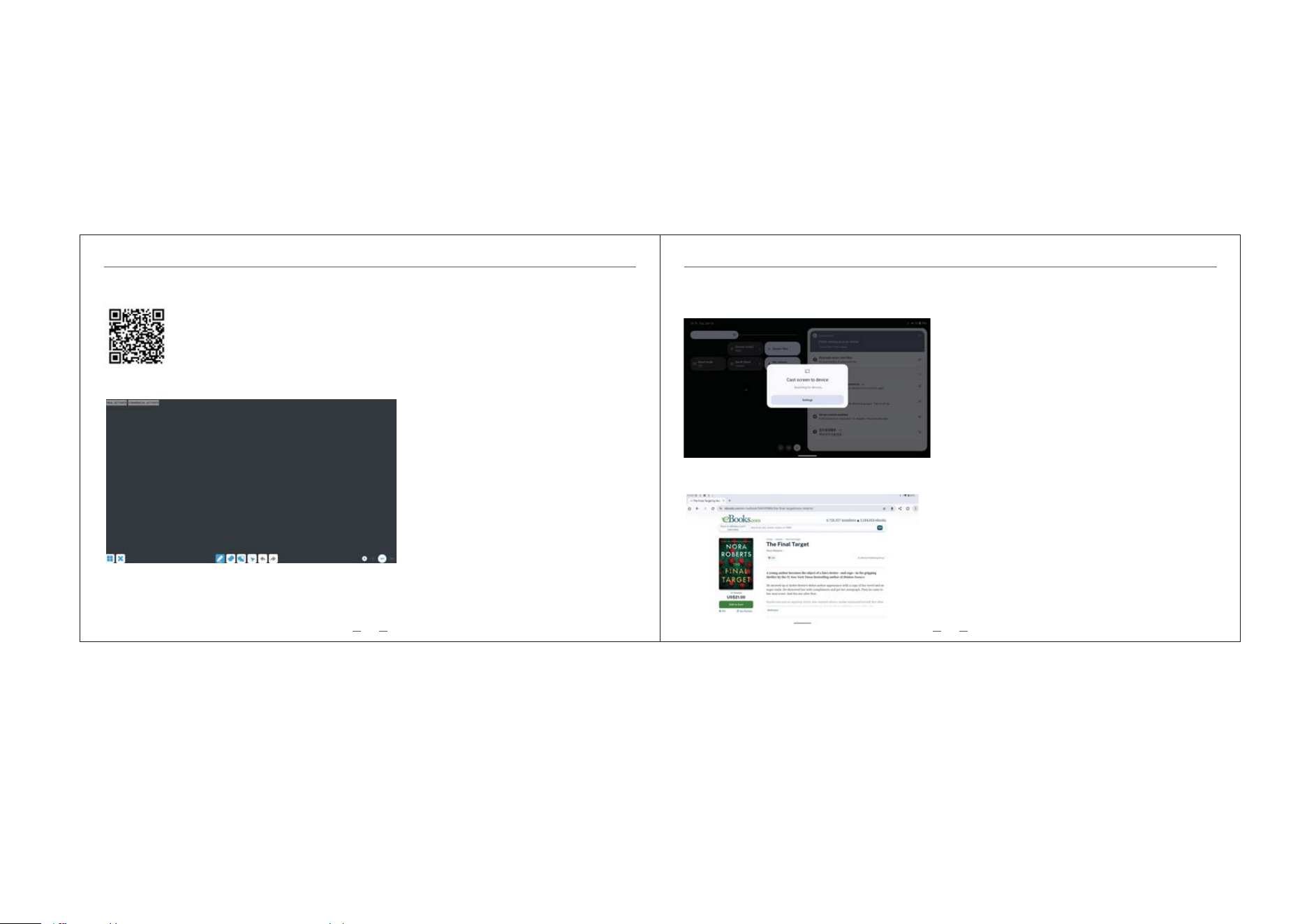
3.4 Clock
Offers a variety of dial styles and background colors to choose from.
)LOWHU&RQGLWLRQVĺ6W\OH
13 14
Chapter 3 — Featured Apps & Functions Chapter 3 — Featured Apps & Functions
3.5 Calendar (Pre-installed eCalendar)
eCalendar APP offers many features. Scan the QR code for the full manual:
Enter Settings > Screen Cast, then search for your device to start casting, or share images and videos wirelessly
via Bluetooth.
3.6 Electronic Whiteboard
3.7 Screen Casting
Supprot TXT, EPUB, PDF,WORD,EXCEL, POWERPOINTS
3.8 E-BOOK
15 16
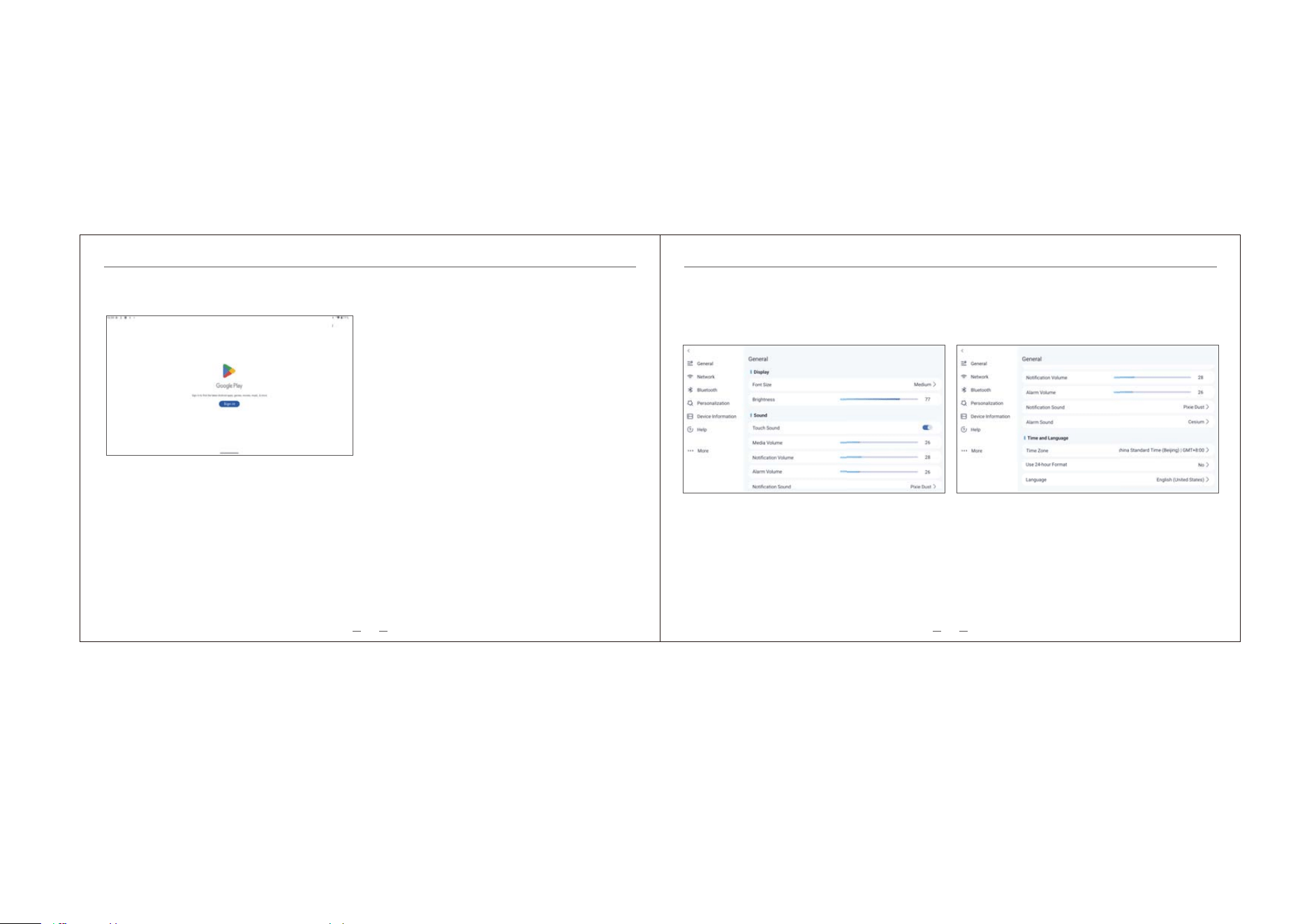
Log in to your Google account and download apps from Google Play.
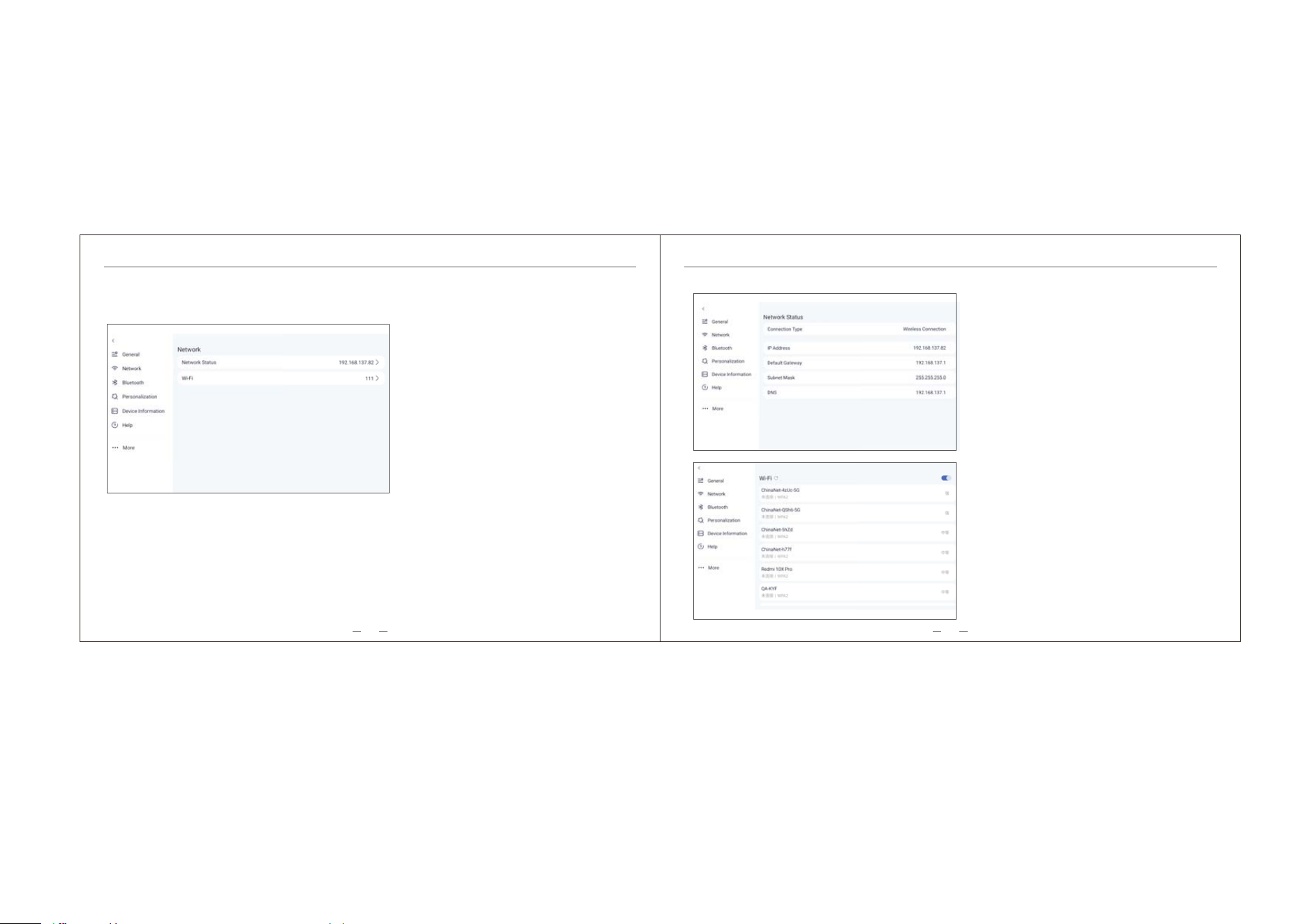
Includes: Display(Brightness and font size settings)
Sound(media,Notification,Alarm volume settings,)
Time and Language settings(Set local time and language)
4.1 Google Play Store
Supports downloading, installing, and using APK apps.
4.2 APK Apps
Chapter 4 — Download New Apps Chapter 5 — Settings
5.1 General
17 18
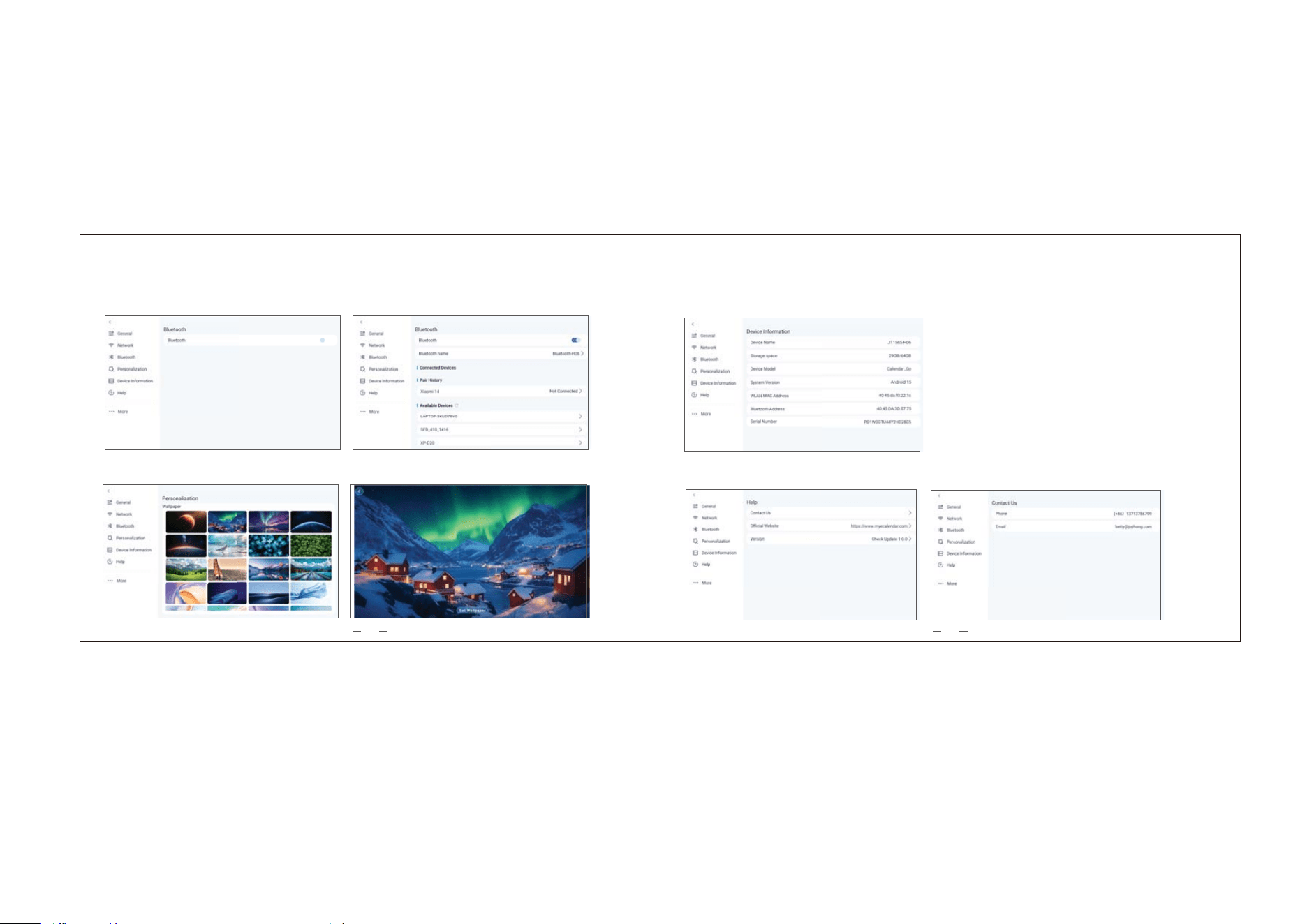
Includes: Network Status, Wi-Fi settings (Turn on Wi-Fi, select network connection)
Chapter 5 — Settings Chapter 5 — Settings
5.2 Network
19 20
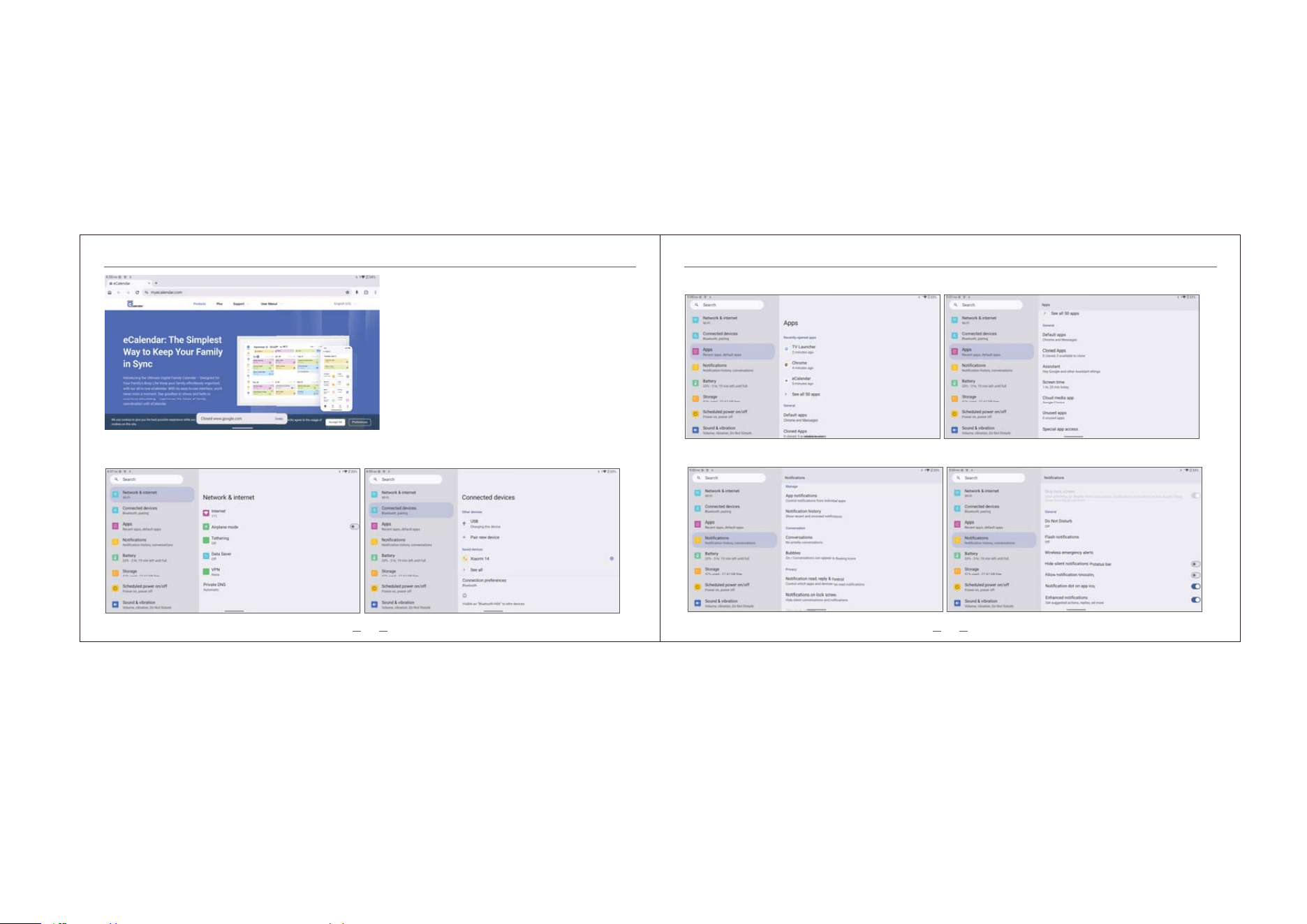
Includes: Device Name,Storage space,Device Model , System Version, WLAN MAC Address , Bluetooth ,
Address, Serial Number (View the information of this device like Device name Storage space and so on )
Chapter 5 — Settings Chapter 5 — Settings
5.5 Device Information
Includes:Contact Us, Official Website, Version (If you encounter any device issues, please contact us.)
5.6 Help
Includes:Open Bluetooth.,Connected Devices
(1.Turn on Bluetooth switch. 2.Pairing and connecting Bluetooth devices)
5.3 Bluetooth
Includes:Wallpaper (Select and set a favorite wallpaper)
5.4 Personalization
21 22
Chapter 5 — Settings Chapter 5 — Settings
Network & internet (Open the Internet and connect)
Connected devices (Open and search for devices,
connect to devices)
5.7 More
Apps(APP settings)
Notifications(APP Notifications control)
23 24
Chapter 5 — Settings Chapter 5 — Settings
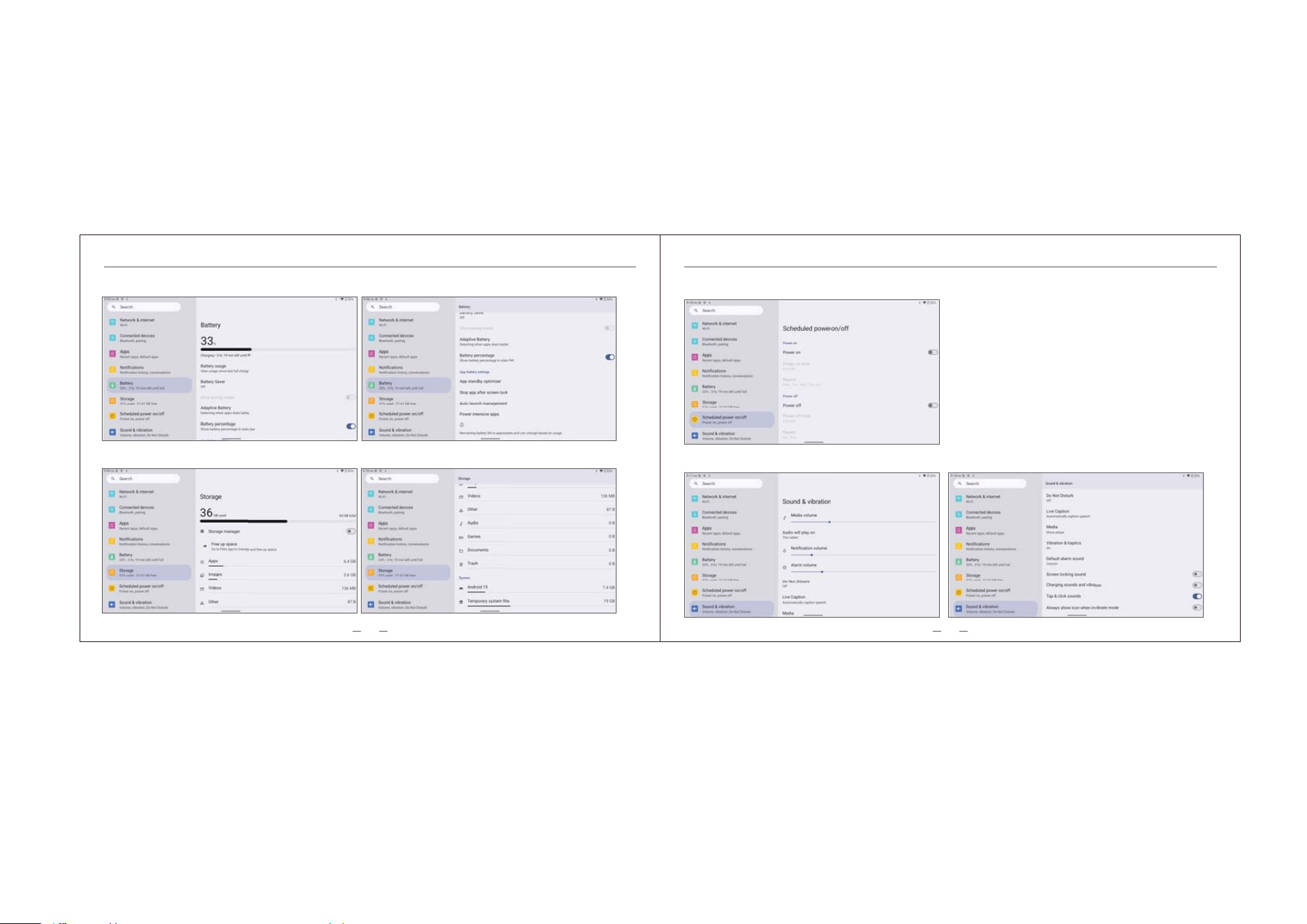
Battery (Check battery level)
Storage (Storage manager)
Scheduled power on/off (Timer settings,Scheduled power on/off)
Sound & vibration(Media, notification, and alarm volume settings)
25 26
Chapter 5 — Settings Chapter 5 — Settings
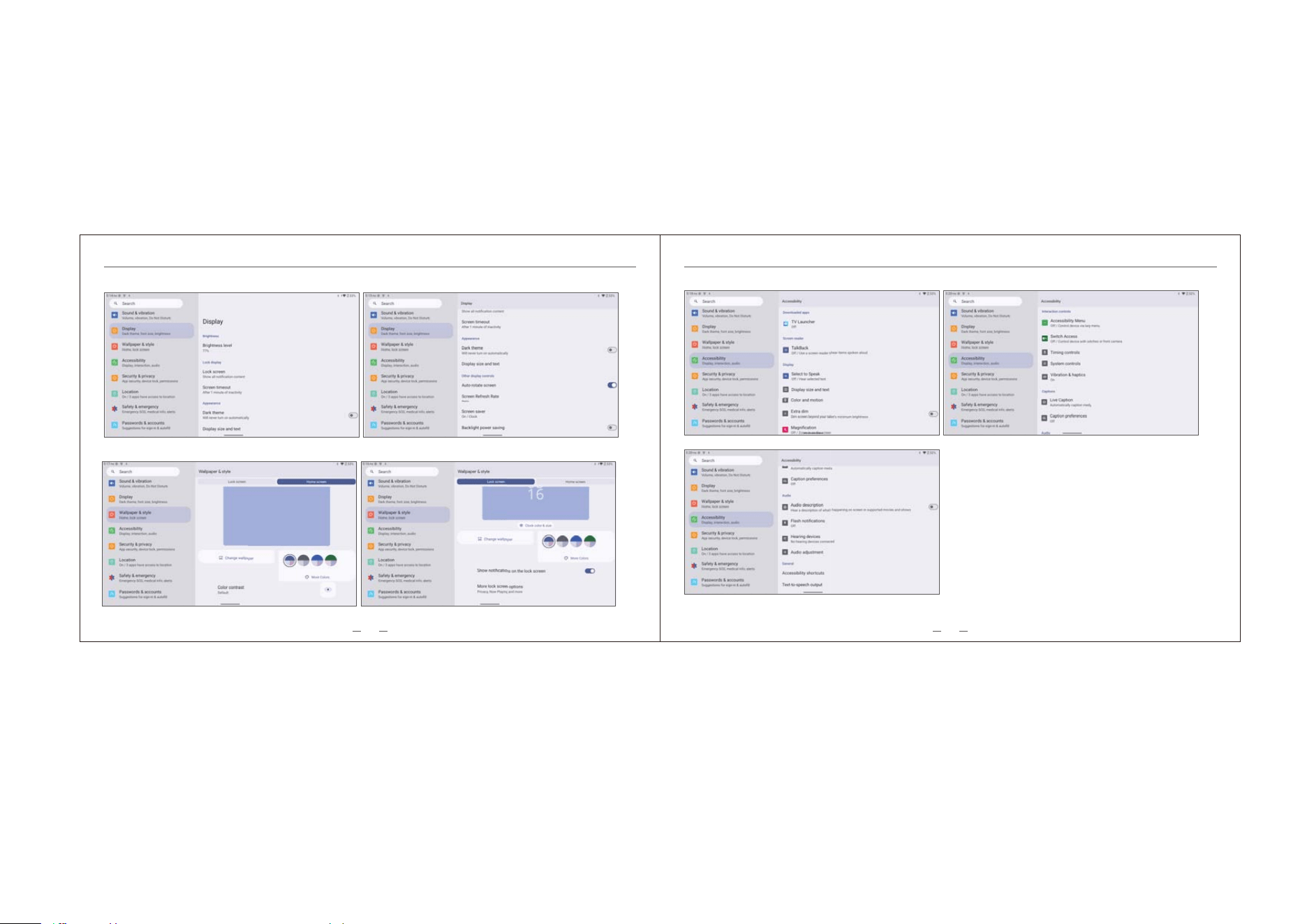
Display(Screen brightness, screen lock settings)
Wallpaper & style(Choose and set your favorite wallpaper style.)
Accessibility (Setting access display,interaction,audio)
27 28
Chapter 5 — Settings Chapter 5 — Settings
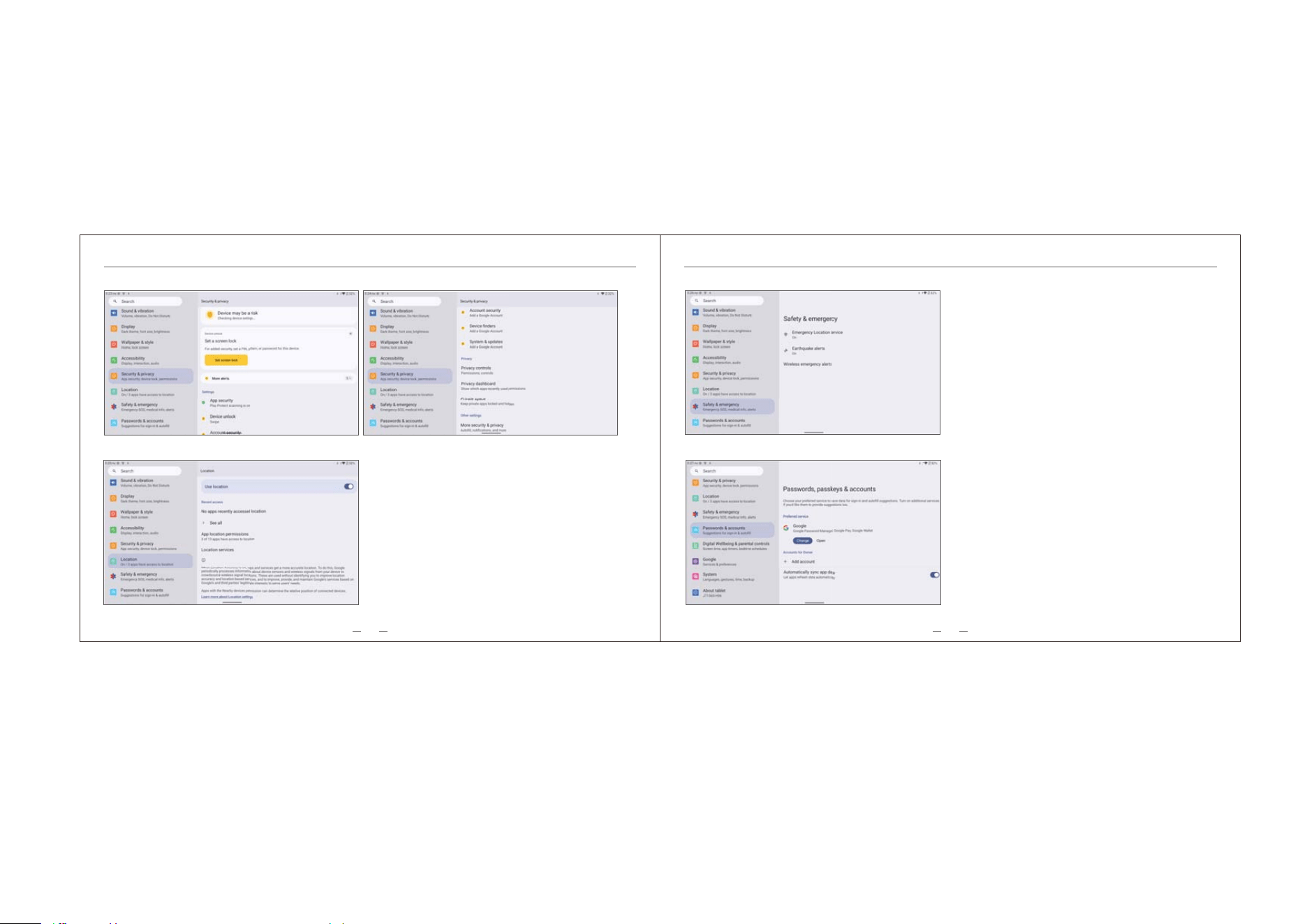
Security & privacy (Set screen,app,device lock to protect privacy information )
Location (Turn on location, allow the app to access location information.)
Safety &emergency (Open Emergency sos ,medical info,alerts to stay safe.)
Passwords & accounts (Log in to Google account)
29 30
Chapter 5 — Settings Chapter 5 — Settings
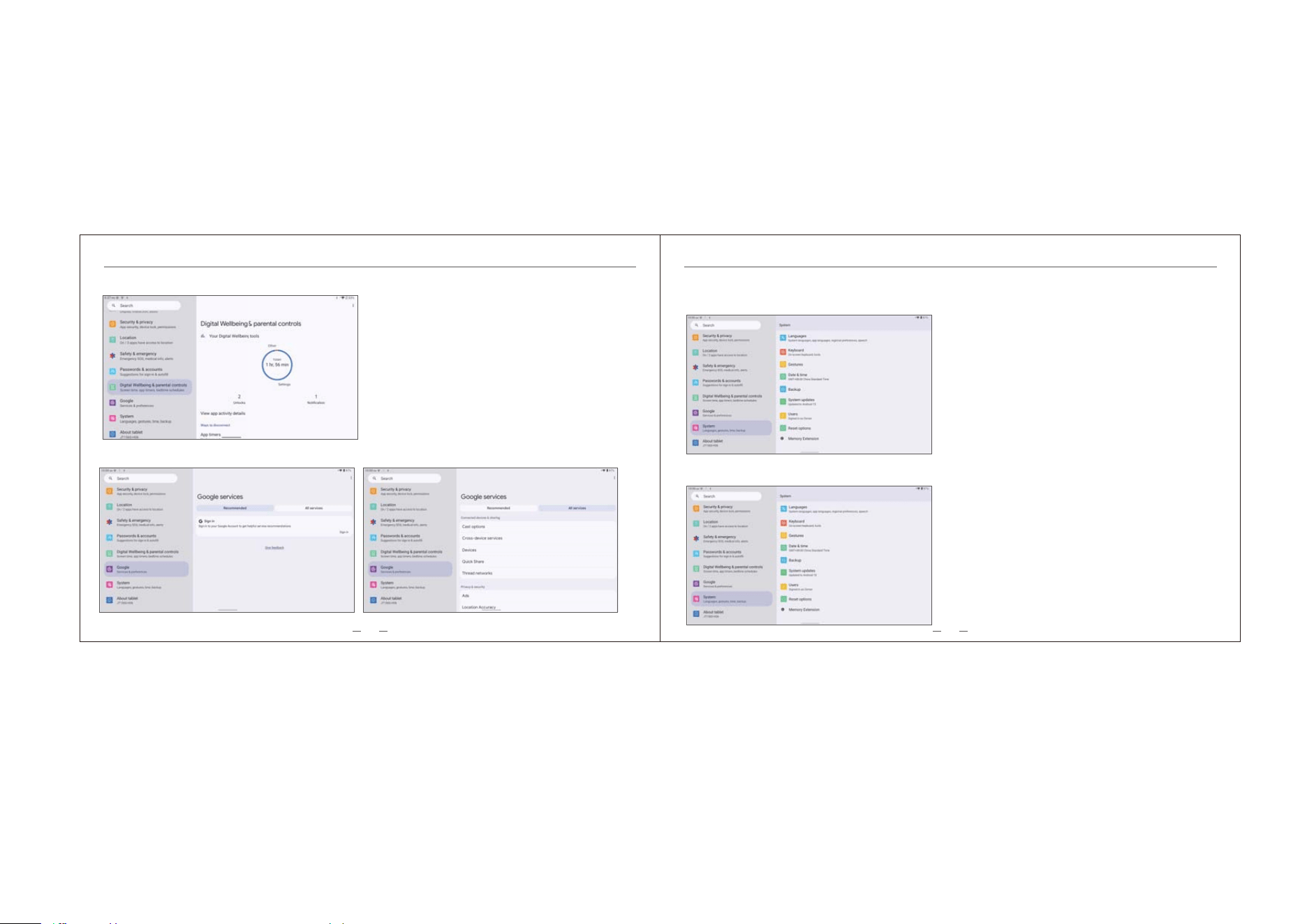
Digital Wellbeing & parental controls (View Screen time, app time and bedtime schedules)
Includes:Languages,Keyboard,Gestures,Date&time,Backup,System updates,Users,Reset options, Memory
Extension (Can set language, local time, etc.)
System
Includes:Device,Ram,Screen,Battery,CPU,CAMERA (View device information about the tablet)
About tablet
Google (Log in to Google and provide Google services)
31 32
Chapter 6 — Device Maintenance Chapter 7 — Technical Specification
6.1 Screen Cleaning (10-point Capacitive G+G Panel)
Power off before cleaning. Use microfiber cloth + neutral screen cleaner only.
Do not spray liquid directly on screen; no alcohol, tissue or rough cloth.
Wipe gently, no hard scraping to protect anti-fingerprint coating.
6.2 Power Adapter Guidelines (12V/3A Type-C)
Use original 12V/3A PD adapter only. Mismatched power causes hardware damage.
Handle cable and connector gently; keep adapter ventilated and dry.
Unplug mains power for long idle periods.
6.3 Operating Temperature & Humidity
Ambient Temperature: 0℃ ~ +40℃
Relative Humidity: 20% ~ 80% (Non-condensing)
6.4 Long-Term Storage
Fully power off and remove peripherals before storage. Cover with anti-static bag.
Storage range: -10~35℃, 10%~70% RH, away from sunlight.
Power on 30 mins monthly if stored over 30 days to protect lithium battery.
Solution: T606
Memory: 4GB RAM + 64GB ROM
Display Resolution: 1920 × 1080
WiFi: Dual-band WiFi (2.4GHz + 5GHz)
Power Interface: USB-C, support 5V 3A, 9V 2.22A,12V 1.67A
Bluetooth: BT 5.0
6.5 Firmware Update & Backup
Keep power connected during firmware upgrade; back up all data first.
Use official firmware; follow on-screen update guide.
Regular data backup is suggested to avoid file loss after reset/update.
6.5 Firmware Update & Backup
Backup all data before reset.
Do not cut power during reset; all custom settings will revert to factory defaults.

33
Chapter 8 — FAQ
34
Chapter 8 — FAQ
8.1 Device won't power on / restarts automatically.
① Check power connection; Force restart: long-press the hold power button 5–10 sec.
② Auto-restart causes: low battery, overheating, or system crash.
8.2 Cannot connect to Wi-Fi (2.4G vs 5G troubleshooting)
① Switch between 2.4GHz / 5GHz bands.
② Complete captive portal login (hotels, cafes).
③ )RUJHWQHWZRUNĺUHFRQQHFW
8.3 Touch screen unresponsive
① Clean screen, remove screen protector.
② Calibrate in settings, Clear cache.
8.4 Cannot log into Google Play / download failures
① Set date & time to auto.
② Clear Play Store cache.
③ Check storage space and GMS support.
8.5 eCalendar sync fails
① Check Wi-Fi connection.
② Trigger manual sync in settings.
③ Verify enterprise calendar permissions.
8.6 Screen casting fails
① Both devices on same Wi-Fi (5GHz recommended).
② Disable VPN or firewall temporarily.
8.7 Bluetooth speaker / display scenarios issue
① Ensure Bluetooth is on and paired.
② Keep within 10m range.
③ Enable Bluetooth Speaker mode.
8.8 Home screen weather / time inaccurate
① Enable auto time zone and network time.
② Grant location permission. Refresh widget.
8.9 Charging issues / adapter heat
① Original the adapter recommended.
② Mild warmth = normal. Excessive heat = stop use & contact support.
8.10 External devices not recognized
① USB OTG Not Recognized
② Use correct USB port.
③ Format drive to FAT32 or exFAT.
④ Test one device at a time.
8.11 System update failure
① %DWWHU\UHTXLUHG
② Restart update if interrupted.
③ Contact support for bootloop recovery.
8.12 Cannot activate after factory reset
① FRP: log in with previous Google account.
② MDM: re-enroll with IT admin.
③ Contact us support if still locked.

Chapter 9 — Warranty & Support Chapter 9 — Warranty & Support
35
1.The warranty covers failures caused by defective raw materials and manufacturing defects under normal
operating conditions.
6.If remote troubleshooting cannot resolve the issue, follow official instructions to send the unit to designated
service centers for maintenance.
This device complies with part 15 of the FCC Rules. Operation is subject to the following two conditions:
(1) This device may not cause harmful interference, and (2) this device must accept any interference received,
including interference that may cause undesired operation.
Any Changes or modifications not expressly approved by the party responsible for compliance could void the
user's authority to operate the equipment.
This equipment has been tested and found to comply with the limits for a Class B digital device, pursuant to
part 15 of the FCC Rules. These limits are designed to provide reasonable protection against harmful
interference in a residential installation. This equipment generates uses and can radiate radio frequency
energy and, if not installed and used in accordance with the instructions, may cause harmful interference to
radio communications. However, there is no guarantee that interference will not occur in a particular
installation. If this equipment does cause harmful interference to radio or television reception, which can be
determined by turning the equipment off and on, the user is encouraged to try to correct the interference by
one or more of the following measures:
-Reorient or relocate the receiving antenna.
-Increase the separation between the equipment and receiver.
-Connect the equipment into an outlet on a circuit different from that to which the receiver is connected.
-Consult the dealer or an experienced radio/TV technician for help.
FCC RF exposure statement:
The equipment complies with FCC radiation exposure limits set forth for an uncontrolled environment. This
equipment should be installed and operated with minimum distance between 20cm the radiator your body.
Contact Us
For any inquiries with our products, please feel free to contact us, we will respond within 24 hours.
Email: [email protected]
FCC Warning
5.Contact our official customer service via email, online chat or service hotline for troubleshooting guidance.
4.Malfunction or damage from water immersion, liquid spillage, dust corrosion, extreme temperature or
physical impact.
3.Damage caused by improper operation, unauthorized disassembly, modification or firmware flashing.
2.Free repair or replacement of spare parts will be provided within the valid warranty period.
36