Sync volume with phone
UNPAIR
Media audio
Share contacts and call
history
Do not
share
Call audio
Rename
>
T20
T20
>
H3 User Manual
Please read the instructions before use
User Manual
English
2.Turn on Bluetooth
Click <H3> to Pair
1.Long press to power on
(Automatic reconnection device) "Sync volume with phone "
option turned on
3.Connection successful, click
Bluetooth
Device name
Nova7 >
H3
Reset
If the headset has connection or function issues, please reset the headset:
1. When the headset is powered on and connected (or not connected), press the
power button five times
1. Turn on Bluetooth on your phone, open the app, and tap “Add Device”
2. Wait for the device to appear: “H3"
1. Tap Single lmage. Choose Camera /Album
2.
3. Select the matching color on the device page and tap to complete pairing
Select a photo and adjust size
3. Preview and Upload
Single image
1. Tap Video. Choose GlF/Video
2. Select a video and trim it
3. Preview and Upload
GIF/Video
1. Tap Slideshow. Set the interval
2. Tap Add and select multiple photos
3. Arrange order and Upload
Slideshow
1. Higher brightness= more battery use
2. Video/GlF transfers take longer
3. lf frozen, hold power 7s to restart
Tips
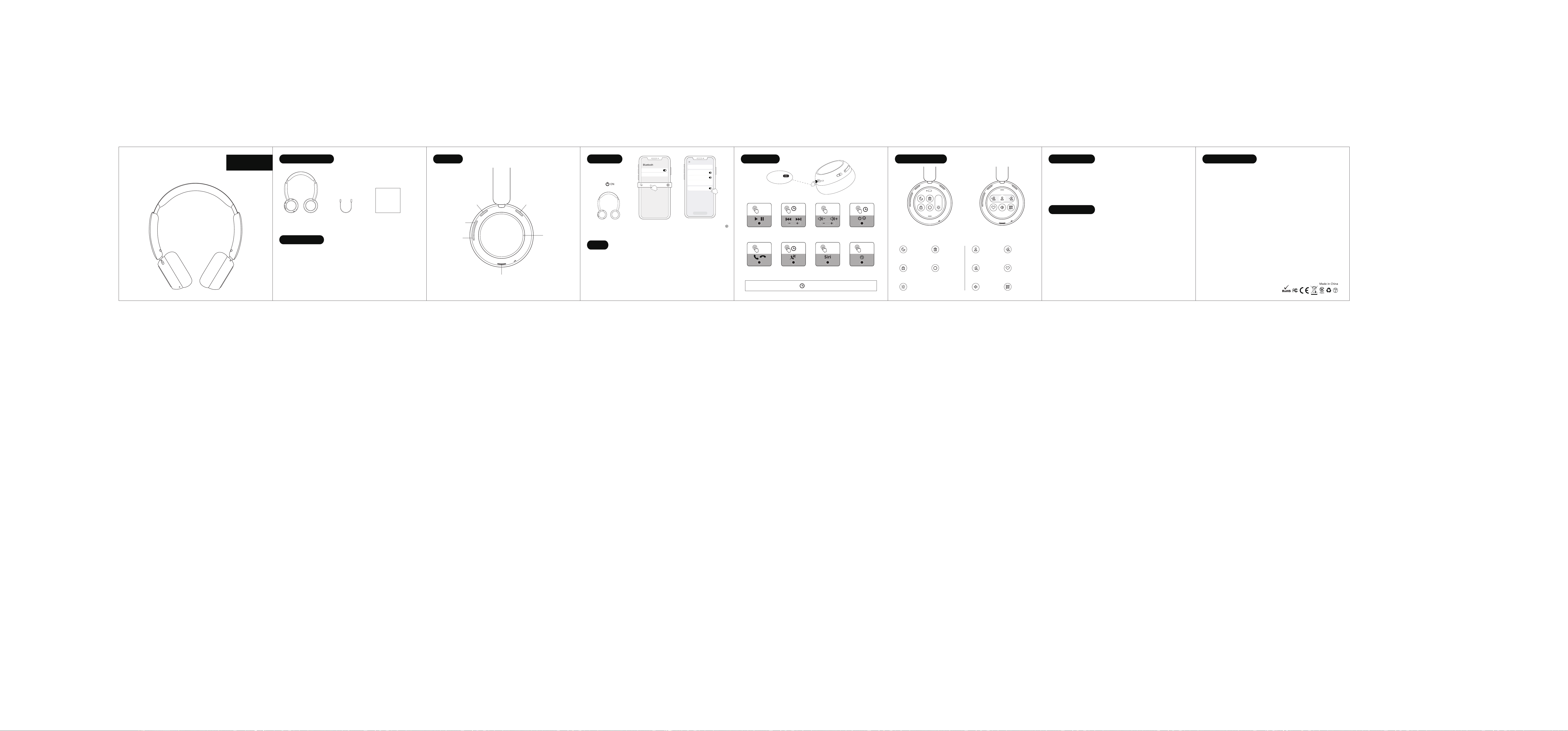
Power button(MFB)
Volume+ button
Volume- button
USB-C charging port
Touch screen
ANC noise cancellation button
2. Delete the Bluetooth pairing information of the device and turn off Bluetooth
3. Power on again, wait for the headset, and re-pair/connect with your device.
(If the above steps do not work, please retry)
Package Contents
Specifications
Model: H3
Full charge time: 2h
wireless version: 6.0
Music playback time: 14h (at 50% battery)
specification: Φ40*7.3mm 32Ω
Talk time: 5.5h (at 70% battery)
Call distance: ≤15m
Charging port: Type-C
Music connection distance: ≤22m
Battery capacity: 650mAh
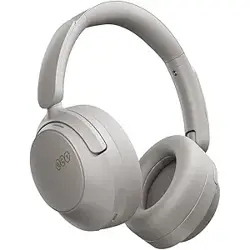
Over-ear
headphone ×1
Type-C
charging cable ×1
User manual ×1
Buttons
Instructions
X1: single press once 2S: press and hold for 2 s econds
X1
1S
X1
X1
2S
X3 X5
Switch music Adjust volumePlay /Pause
Single press Single press Volume-/
Volume+
Power on/off
Drop-down menu
Sleep
Screen off in
10 minutes
Delete
Delete interface
Lock screen
Screen locked
Screen off
Turn off the screen
Brightness
Adjust brightness
Normal
Normal mode
ANC
Noise cancelling
TP
Transparency
Flash
Flashing mode
Volume
Adjust volume
APP
QR code
Pull-up menu
Long press Volume-/
Volume+
Long press
Reject incoming call Wake up Siri
Answer/End call
Single press Long press for 2 seconds Triple press
Clear pairing
Short press 5 times in a row
“Single press”
Switch ANC mode
Screen operations Safety Instructions
Connection
APP connection
Content upload
Warning:
Changes or modifications to this unit not e xpressly approved by the party responsible for compliance could void the user ’s
authority to operate the equipment.
NOTE:
This device complies with part 15 of the FCC Rules. Operation is subject to the following two conditions: (1) This device may not
cause harmful interference, and (2) this device must accept any interference received, including interference that may cause
undesired operation.
FCC Statement:
This equipment has been tested and found to comply with the limits for a Class B digital device, pursuant to part 15 of the FCC Rules.
These limits are designed to provide reasonable protection against harmful interference in a residential installation. This e quipment
generates, uses and can radiate radio fre quency energy and, if not installed and used in accordance with the instructions, may cause
harmful interference to radio communications. However, there is no guarantee that interference will not occur in a particular
installation. If this equipment does cause harmful interference to radio or television reception, which can be determined by turning
the equipment off and on, the user is encouraged to try to correct the interference by one or more of the following measures:
—Reorient or relocate the receiving antenna.
—Increase the separation between the e quipment and receiver.
—Connect the equipment into an outlet on a circuit different from that to which the receiver is connected.
—Consult the dealer or an experienced radio/TV technician for help.