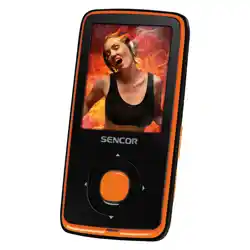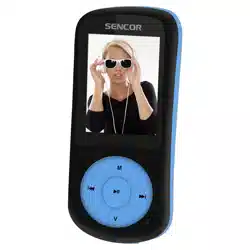
USER’S MANUAL SLIM MP3/MP4 PLAYER
NÁVOD K POUŽITÍ SLIM MP3/MP4 PŘEHRÁVAČ
NÁVOD NA POUŽITIE SLIM MP3/MP4 PREHRÁVAČ
HASZNÁLATI ÚTMUTATÓ SLIM MP3/MP4 LEJÁTSZÓ
INSTRUKCJA OBSŁUGI SLIM ODTWARZACZ MP3/MP4
EN CZ SK HU PL
SFP 6270


EN - 1
1. Key features
● 1.8 inch (4,6 cm) TFT screen
● Support MP3, WMA formats audio
● Support MPEG-4 (AVI) format video
● Support FM Radio
● Lyric display synchronously
● Multi EQ modes and repeat modes
● Support JPG format picture view
● Built-in microphone for long time recording
● Support txt E-book reading
● Multi-Languages OSD menu
● Video playing time: 6 hours
● Audio playing time: 16 hours
● Dimensions: 78 x 39 x 8 mm
● Weight: 28 g
EN - 2
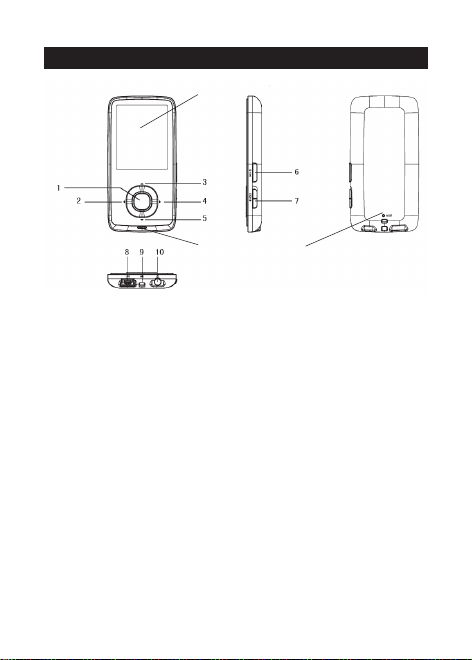
2. Player Layout
11
12
13
1. Menu / OK
2. last / fast backward
3. volume +
4. next / fast forward
5. volume -
6. Power on/off & play/pause
7. lock button
8. usb port
9. neckstrap
10. earphone port
11. microphone
12. display
13. reset
EN - 3
3. Operation instruction
● Power On/Off
In the status of power off, long press \ button to turn
on the player;
In the status of power on, long press \ button to turn
off the player.
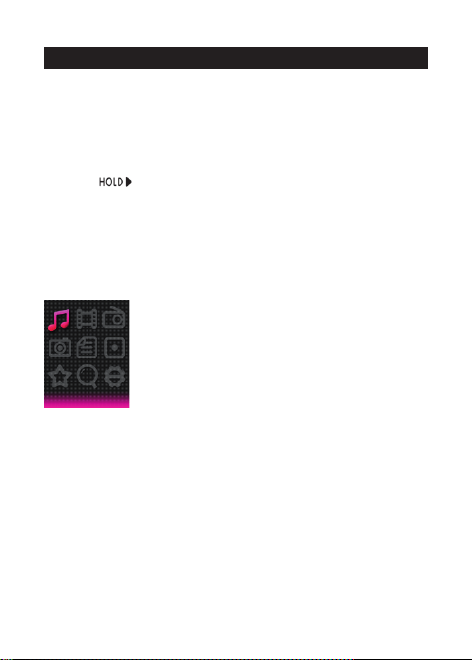
● Lock/Hold:
Push
to arrow direction to lock the player, push
inversely to unlock the player.
● Basic Operation
In main menu interface, press / or / to select
option, press Menu / OK button to enter. Long press
Menu / OK button to get back to main menu interface.
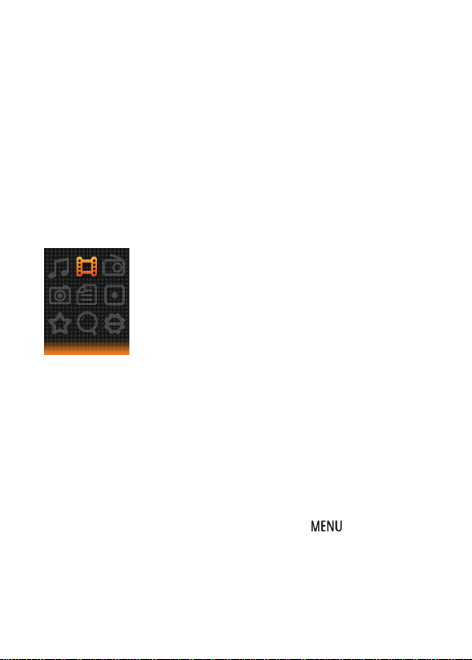
3.1 Music
In Main interface, press / or / to select Music menu,
then press Menu / OK button to enter music play interface.
Play / Pause: short press \ to play or pause the music
playing.
Last / next: short press or to get to last music or next
music.
Fast backword / Fast forward: long press or to fast
backwards or forwards the music.
Volume: short press / to adjust volume up or down.
A-B repeat: long press button to set repeat start point A,
long press again to set repeat end point B. Then player will
repeat the segment. The third time long press will cancel A-B
repeat and resume normal playback.
EN - 4
Lyric show: To show the lyric, the lyric fi le (eg. Abcde.lrc)
should be in same name as music fi le (eg. Abcde.mp3) and
both fi les should be in the same folder.
Music fi le list: in playback interface, short press Menu / OK
button to get to folder/fi le list. Press / to select music fi le,
press Menu / OK button to play it.
Set EQ: please get to Settings > Music to set EQ. (reference
to 3.8.1)
Set Play/Repeat mode: please get to Settings > Music to set
Play mode. (reference to 3.8.1)
Remark: the player support audio formats of .mp3, .wma, .wav.
3.2 Video
In Main interface, press / or / to select Video menu,
then press Menu / OK button to enter video fi le list. Press
/ to select video fi le, press Menu / OK button to enter
video playback interface.
Play / Pause: short press \ to play or pause the video
playing.
Last / next: short press or to get last or next video.
Fast backword / Fast forward: long press or to fast
backwards or forwards the video.
Volume: press / to adjust volume up or down.
Video fi le list: in playback interface, press button to
get to folder/fi le list. Press / to select video fi le, press
Menu / OK button to play it.
Remark: the player support video formats of .avi. Resolution
should be 160x128. Please use the video conversion tool found

EN - 5
in the memory of the player to convert videos into a format
supported by this player (see chapter 5).
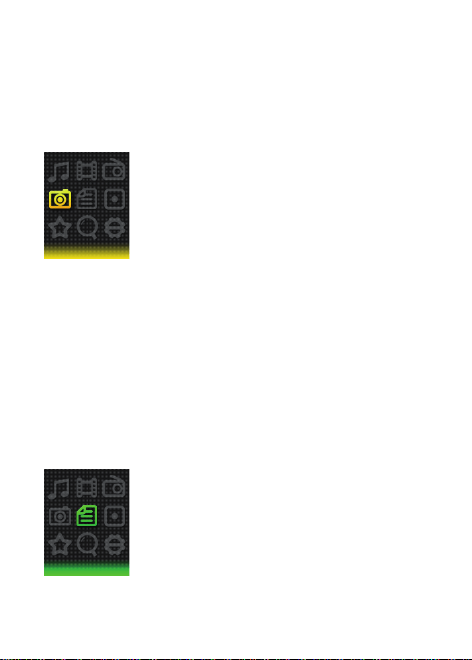
3.3 FM Radio
In Main interface, press / or / to select FM Radio
menu, then press Menu / OK to enter FM radio interface.
Manual Scan: press Menu / OK button to show options, press
/ to select Manual then press Menu / OK button. Short
press or to select frequency manually. Long press or
player will auto scan and stop till it fi nd channel.
Auto Scan: press Menu / OK button to show options, press
/ to select Auto then press Menu / OK button. Then the
player will scan channels and set the found channels to Preset
one by one. After auto scan, it’ll get to the fi rst preset channel.
Press or to get to preset channels one by one.
Save Channel: press Menu / OK button to show options, short
press / to select Memory then press Menu / OK button.
Then press / to select position to save. Press \ will
pop a warning, select Yes and press Menu / OK button to
confi rm saving channel, or select No and press Menu / OK
button to cancel saving channel.
Preset: press Menu / OK button to show options, short press
/ to select Preset then press Menu / OK button. Press
/ to get to preset channel one by one.
Delete Channel: press Menu / OK button to show options,
short press / to select Delete then press Menu / OK
button. Then press / to select to be deleted channel. Press
\ will pop up a warning, select Yes and press Menu / OK
EN - 6
button to confi rm deleting channel, or select No and press
Menu / OK button to cancel deleting channel.
Volume: press / to adjust volume up or down.
Remark: Earphone should connect to player as an antenna.
Otherwise the player can not receive channels.
3.4 Photo
In Main interface, press / or / to select Photo menu,
then press Menu / OK button to enter picture list. Press /
to select picture fi le, press Menu / OK button to view the
picture.
Last / next: short press or to display last or next picture.
Auto Browse: short press \ the play will display pictures
one by one automatically. (Auto Browse setting reference to
point 3.8.5)
Photo fi le list: in photo display interface, press Menu / OK
button to get to folder/fi le list. Press / to select photo fi le,
press Menu / OK button to display it.
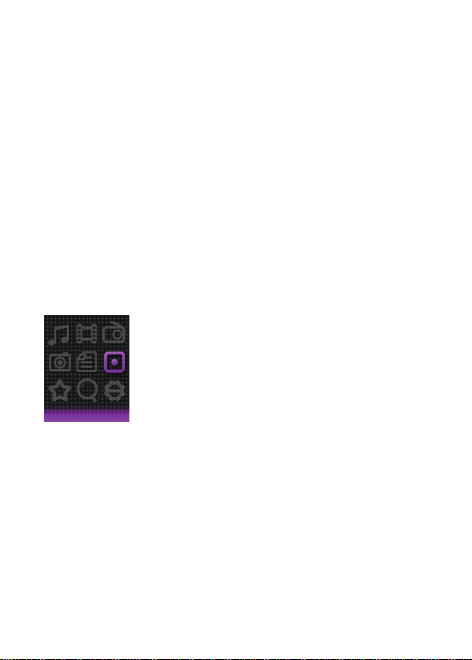
3.5 Text
In Main interface, press / or / to select Text menu,
then press Menu / OK button to enter E-book fi le list. Press
EN - 7
/ to select E-book fi le, press Menu / OK button to view
the text.
Manual Browse: short press / to browse up or down page
by page.
Auto Browse: short press \ to browse page by page
automatically. (Auto Browse setting reference to point 3.8.3).
Save Bookmark: long press will pop up Save Bookmark
message, press / to select save position, press Menu / OK
button to save.
Load Bookmark: short press will pop up Load Bookmark
message, press / to select bookmark, press OK button
to load.
Text fi le list: in text browse interface, press Menu / OK button
to get to folder/fi le list. Press / to select text fi le, press
Menu / OK button to browse it.
3.6 Record
In Main interface, press / or / to select Record menu,
then press Menu / OK button to enter recording interface.
Record / Pause: short press \ to record or pause.
Stop: long press Menu / OK to save fi le and get to main
interface, or long press \ button to save fi le and turn off
the player. File of recorded voice are saved in folder of VOICE.
EN - 8
3.7 Game
In Main interface, press / or / to select Game menu,
then press Menu / OK button to enter game interface.
Key function:
\ : play or pause
: Change cube direction
/ : move cube left or right
: draw cube down a little faster.
Menu / OK: fast fall down the cube.
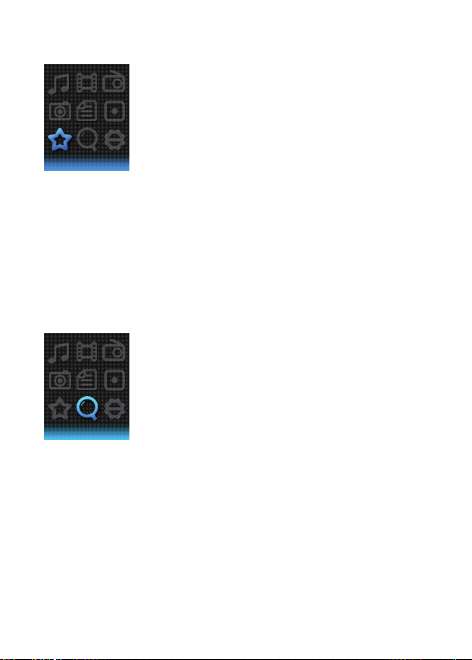
3.8 Navigation
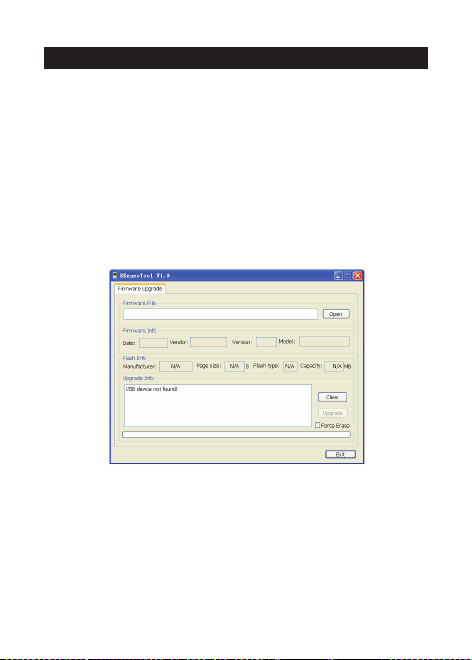
In Main interface, press / or / to select Navigation
menu, then press Menu / OK button to list folders/fi les in
memory.
Play / Open fi le: press / to select fi le/folder, press
Menu / OK button to play or open it. If the fi le is not supported
by this player, it can not play or open.
Delete fi le: in fi le list, press / to select fi le then press ,
there will be a warning, select Yes to delete fi le, or select No to
cancel deleting.

EN - 9
3.9 Settings
In Main interface, press / or / to select Settings
menu, then press Menu / OK button to enter setting options.
(In submenu, press to get to upper menu.)
3.9.1 Music:
Repeat mode
Once: play one music one time.
Repeat one: repeat current music again and again.
Folder once: play all music in current folder one time.
Folder repeat: repeat all music in current folder.
All once: play all the music in memory one time.
All repeat: repeat all the music in memory.
Intro: play the fi rst 10 seconds of each music.
Play mode
Order: play music in order.
Shuffl e: play music in random.
EQ Select
Normal, MS PlayFX, Rock, Pop, Classic, Bass, Jazz, User EQ
MS PlayFX Set
3D HeadPhone, Pure Bass
User EQ Set
Set EQ by user. Press / to select, press / to adjust the
frequency, press Menu / OK button to confi rm and get back.
3.9.2 Record:
Record Quality
Set high or normal record quality.
Record Volume
Set record volume level.

EN - 10
3.9.3 Text:
Auto play SW:
Turn on or off for text auto page.
Auto play time:
Set gap time for text auto page.
3.9.4 FM Radio:
Stereo SW
Set FM stereo on or off.
FM Region
Set FM receiving region. Four options: China, Europe, Japan,
USA.
3.9.5 Photo:
Auto play SW:
Turn on or off for photo auto scroll.
Auto play time:
Set gap time for photo auto scroll.
3.9.6 Display:
Backlight Time
Set the time if no operation on play, the backlight will turn off.
Lum / Brightness
Set the display brightness level.
Backlight Mode
Normal: screen will be semi dark when time’s up;
Power Save: screen will be all dark when time’s up.
3.9.7 Power Off Time:
Set auto power off time.
3.9.8 Language:
Set player menu language.
3.9.9 System:
About
View the player information of fi rmware version, date and
memory status.

EN - 11
Upgrade
Upgrade fi rmware setting. (Reference to point 4)
Default Set
Set the system to original.
3.9.10 Exit: to exit settings.
EN - 12
4. Firmware upgrade
Note: Within the scope of technical innovation, a CD is no longer
included with the product and all documentation can be found in the
memory of the player. Prior to updating or upgrading, backup all the
data contained on the player to prevent its accidental deletion.
If the player doesn’t work or works sub normally, fi nd the
fi rmware upgrade tool and fi rmware in gift CD to upgrade the
player. Processes as bellow:
Note before updating: a. Don’t upgrade fi rmware if playing
properly. b. Backup fi les to other storage before upgrade.
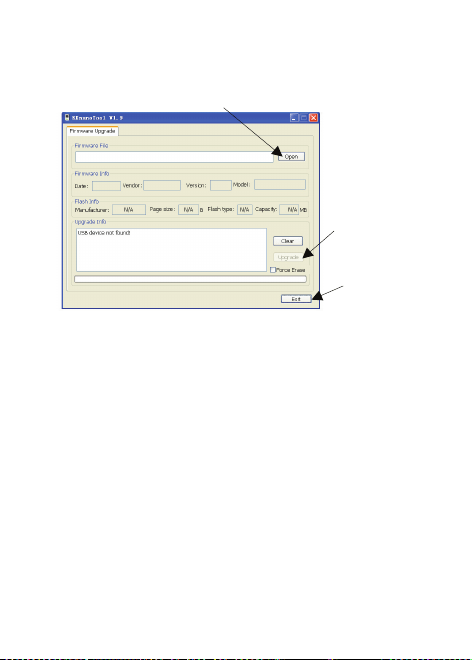
A. Find the software fi le RKnanoTool.exe from folder of
Upgrade Tool in gift CD. Click it to show below dialog box:
B. Set the player to Settings>System>Upgrade, click it show
warning of Firmware upgrade; select Yes and then connect
the player to PC using USB cable. (In case if player can’t turn
on, hold Menu / OK button and connect player to PC using
USB cable at the same time, till PC fi nd the player storage.).
If connect successful, the dialog box will show “UsbBoot
download successfully!” and show fl ash information, then do
as below point c. If connection failed, the dialog box will show
“USB device not found!”, then connect again.
EN - 13
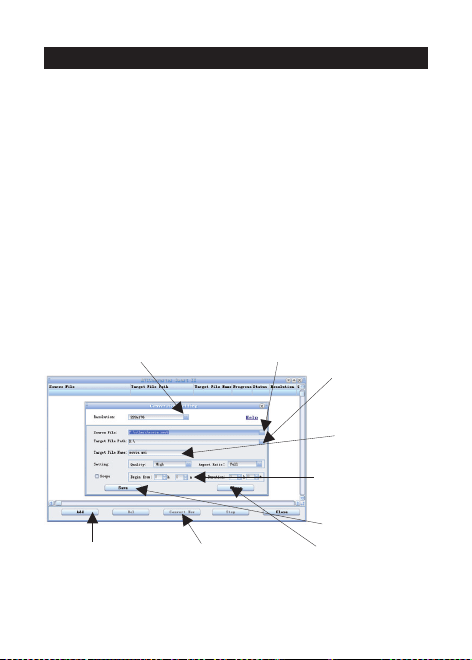
C. After connecting successfully, do as below
1) Select fi rmware. (fi rmware fi le is in
gift CD, named with extension .BIN).
2) Click
Update.
3) Till it
fi nish,
click Exit
D. Disconnect the player from PC, start the player again. The
player will work properly.
EN - 14
5. Video Convert
Note: Within the scope of technical innovation, a CD is no
longer included with the product and all documentation can be
found in the memory of the player.
The player support video of AVI format in resolution of 128x128.
Please use the software in gift CD to convert the video. The
AVIConverter supports multi kind of video formats (AVI, RM,
RMVB, MPG, MPG4, ASF, DAT, WMV, etc) convert to AVI format.
5.1 AVI Converter Tool Setup
Click software Nano_Video_convert.exe in gift CD; then follow
the steps to setup the AVI Converter tool to PC.
5.2 Convert Video to AVI format
From PC>Program to run AVIConverter as below picture and
steps for converting:
4) Select
saving
Location
2) Select Resolution:
160x128
5) Input target
fi le name
6) Select quality,
ratio and
segment.
3) Select original
input video
1) Click Add
7) Click save
9) Click Convert
8) Click close
After converting, copy the converted video fi le to the player,
then enjoy it through player.

EN - 15
6. Accessories:
Earphone 1 piece; USB cable 1 piece; user manual 1 piece.
EN - 16
INSTRUCTIONS AND INFORMATION REGARDING THE
DISPOSAL OF USED PACKAGING MATERIALS
Dispose of packaging material at a public waste disposal site.
DISPOSAL OF USED ELECTRICAL AND ELECTRONIC
APPLIANCES
The meaning of the symbol on the product, its accessory
or packaging indicates that this product shall not be treated
as household waste. Please, dispose of this product at your
applicable collection point for the recycling of electrical &
electronic equipment waste. Alternatively in some states of
the European Union or other European states you may return
your products to your local retailer when buying an equivalent
new product. The correct disposal of this product will help save
valuable natural resources and help in preventing the potential
negative impact on the environment and human health, which
could be caused as a result of improper liquidation of waste.
Please ask your local authorities or the nearest waste collection
centre for further details. The improper disposal of this type of
waste may fall subject to national regulations for fi nes.
For business entities in the European Union
If you wish to dispose of an electrical or electronic device,
request the necessary information from your seller or supplier.
Disposal in other countries outside the European Union
If you wish to dispose of this product, request the necessary
information about the correct disposal method from local
government departments or from your seller.
This product meets all the basic EU regulation requirements
that relate to it.
Changes to the text, design and technical specifi cations may occur without
prior notice and we reserve the right to make these changes.