Help Hisense and Roku improve the environment by
reducing paper waste. For detailed instructions and
feature descriptions, access the full User Manual online
at www.hisense-usa.com/support/.
20155980 ES-Y258A55-1
58QD5SR
58QD6SR
58QD50R
Please read this Quick Setup Guide carefully before
connecting your equipment and kindly keep it for
future reference.
1
WELCOME TO THE HISENSE FAMILY!
Congratulations on the purchase of your new Hisense Roku TV! This Quick Setup Guide
will walk you through a few easy steps to set up your TV.
Because we value your business, we want to keep you in the know of 'all things
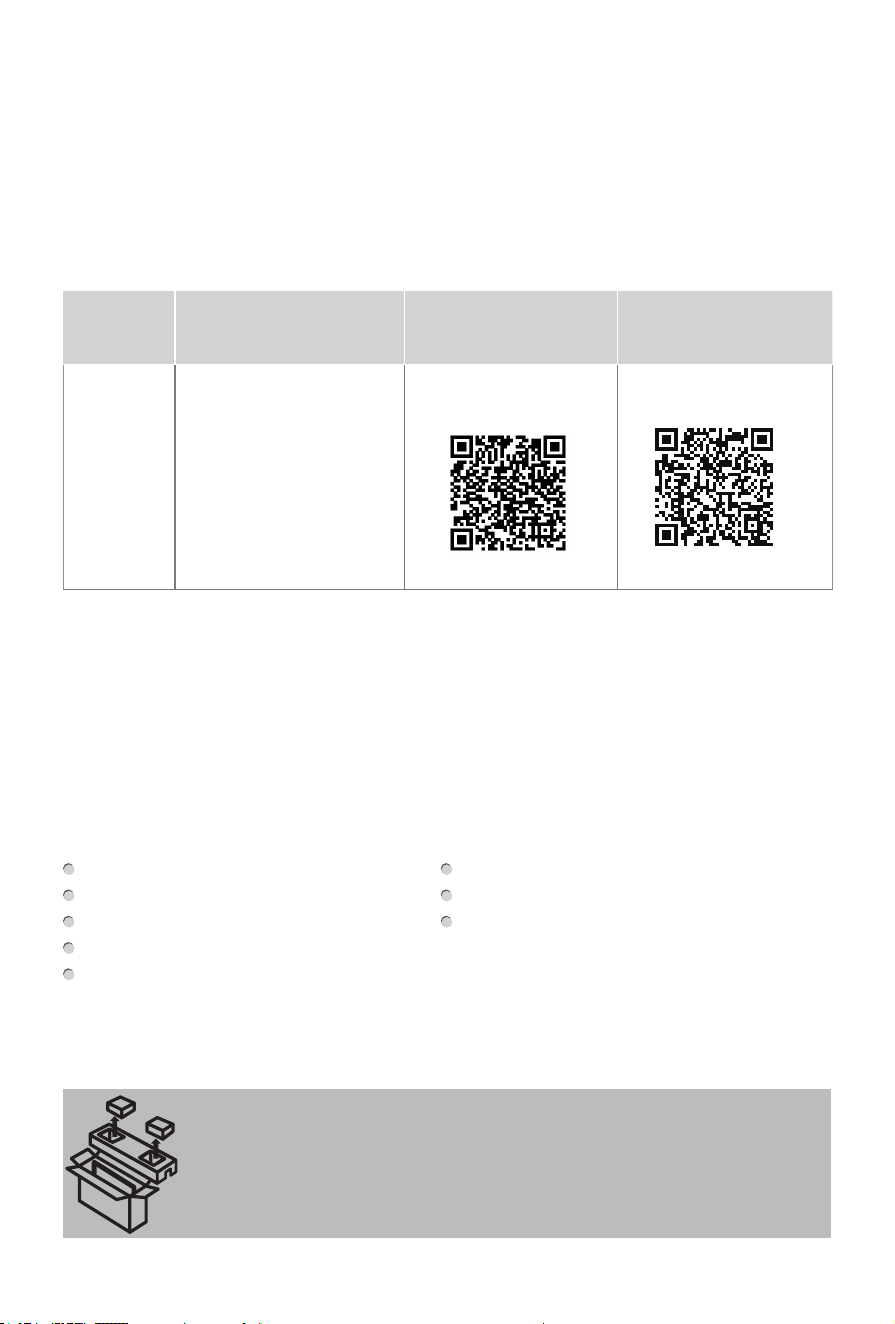
Hisense'. Using your mobile phone, scan the Registration page QR code to register
your TV. Depending on the make and model of your phone, you may need to download
a QR code scanning app.
Country
Customer Care
Center
Hisense Support
Page
REGISTER YOUR
TV
U.S.A
•Phone:
1-888-935-8880
•Hours of Operation:
Monday - Friday: 9 AM to
9 PM EST
Saturday - Sunday:
9 AM to 6 PM EST
•Service Email: Service@
hisense-usa.com
http://www.hisense-usa.
com/support/
http://www.hisense-usa.
com/support/register
Packaged contents
Your package in which you purchased your new TV contains the following items:
TV 2 AAA(1.5Vcc) batteries
Remote Control 2 stands
Quick Setup Guide (this document) Power cord
4 screws
Important Safety Information and Warranty Card leaflet
IMPORTANT:
To prevent accidentally discarding items that came with your TV, be sure to
check ALL
of the foam
in the carton box.
·
Please check foam for accessories before discarding.
·
Veuillez vérifier la mousse pour qu'il n'y ait pas d'accessoires avant de la jeter.
·
Antes de desechar la espuma, asegúrese de retirar todos los accesorios.
Disclaimer:
•
This Quick Setup Guide is intended as a general guideline to help you set up your
Hisense Roku TV. Images throughout this document are for illustrative purposes only
and may differ from the actual product.
•
Roku, Roku TV, the Roku logo, and the purple d-pad design are trademarks of Roku,
Inc. All other trademarks and logos herein are the property of their respective owners.
2
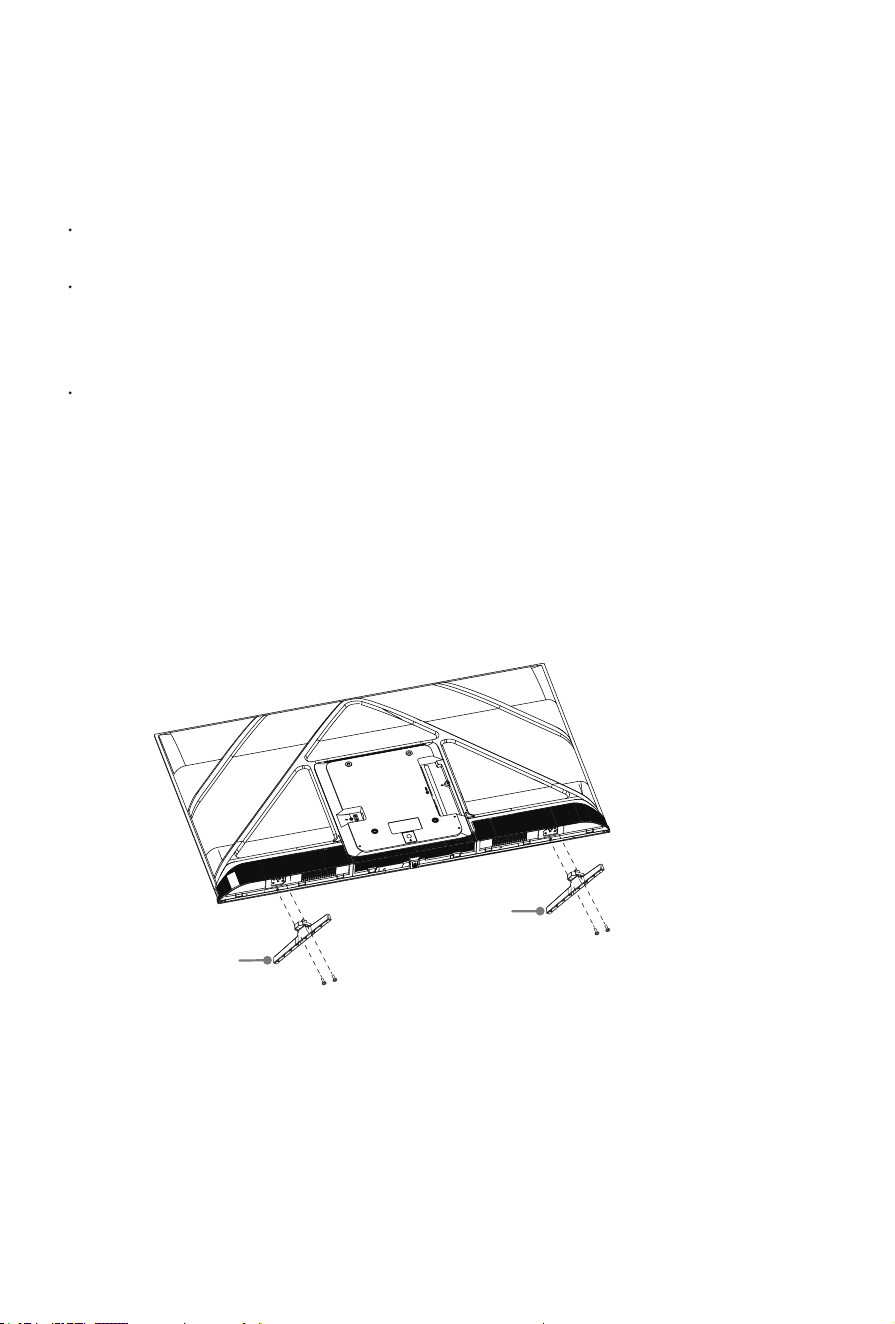
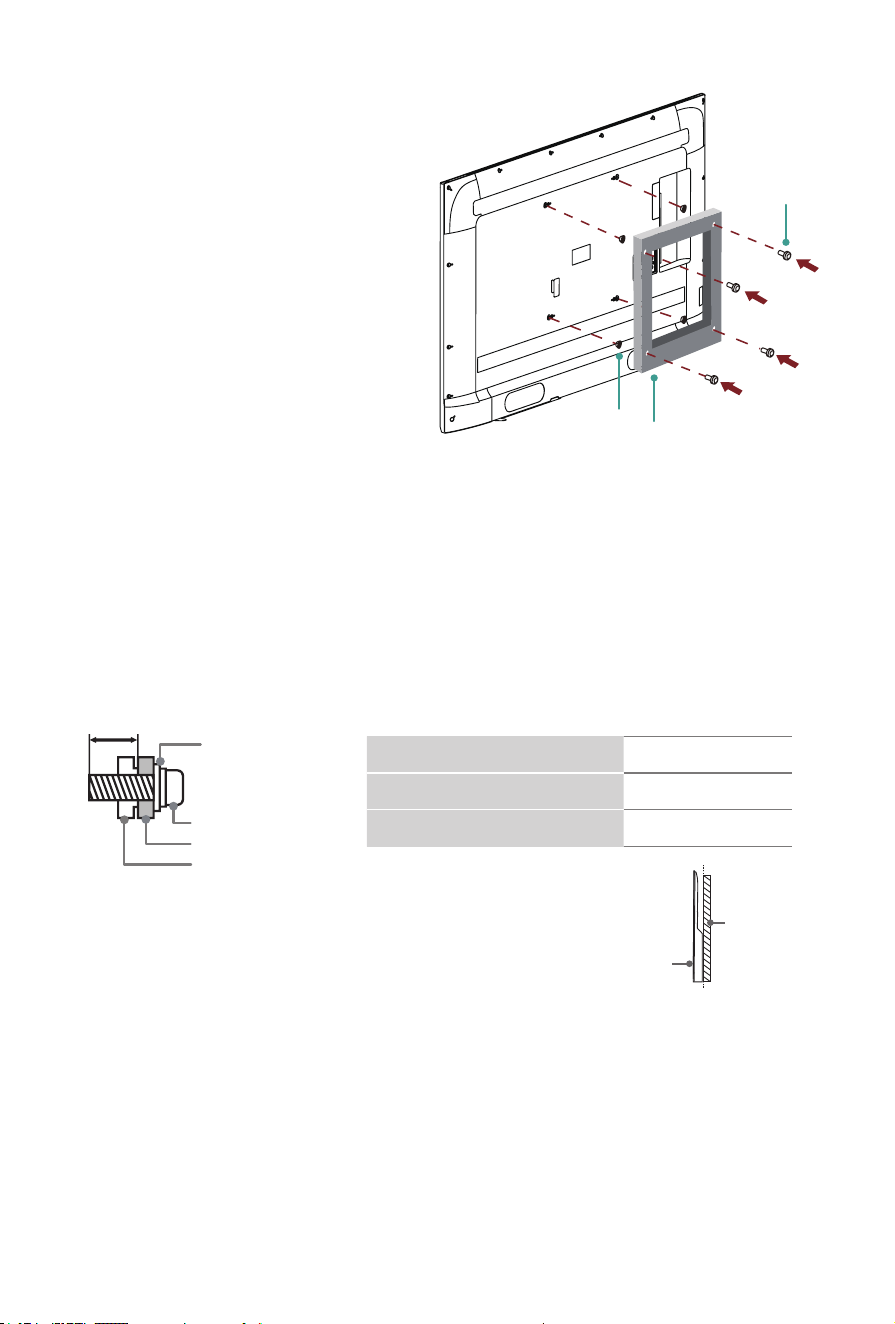
To attach the stand:
1.
Carefully place your TV on a soft, flat surface to prevent the TV from being
damaged or the screen from getting scratched.
2. Take the 2 stands out of the foam and then align the stands with the screw holes
located on the back of the TV.
3. Secure the stands with the screws in your accessory bag.
STEP 1. Attach the TV stand or wall mount bracket (not included)
Attach the TV Stand
CAUTION:
Be sure to disconnect the A/C power cord before installing the stand or Wall-Mount
brackets.
The LED display is very fragile and must be protected at all times when installing
the stand. Be sure to protect the TV screen from getting scratched or damaged by
any hard objects. In addition, DO NOT exert pressure on the TV screen at any time
because it could crack.
After the installation is completed, make sure the TV is steady on a table or firmly
attached to a wall mount, before removing all protective film, if any.
Base Stand
Base Stand
Screws:
M5×12
Screws:
M5×12
3
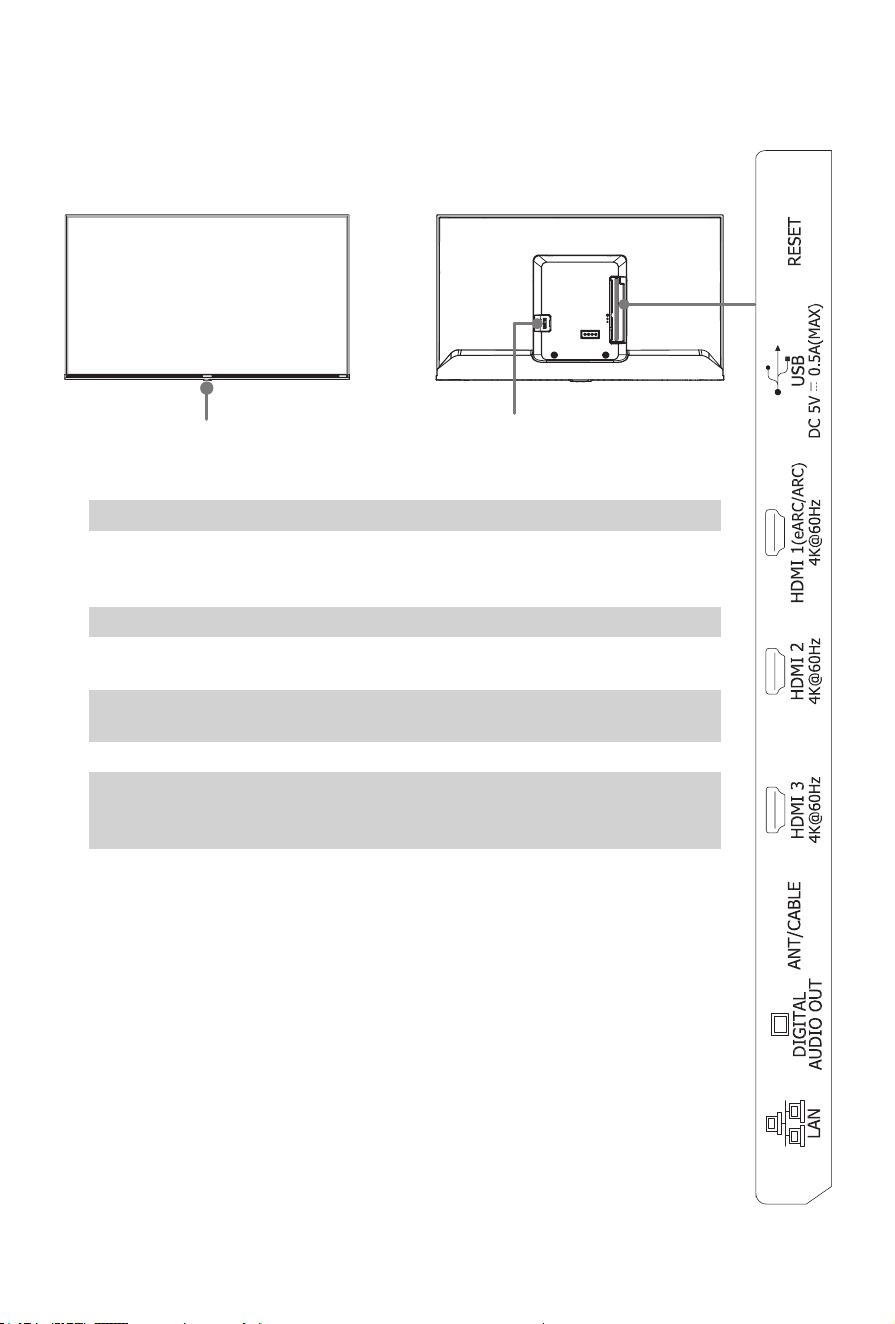
Attach the wall mount bracket (not included)
CAUTION:
• Follow instructions provided with the wall mount bracket. If it is not correctly mounted,
the TV may fall and cause property damage or personal injury.
• When you attach the mount, be sure to use spacers (provided by the third-party
manufacturer) between the TV and the bracket.
• To prevent internal damage to the TV and to ensure it is mounted securely, be sure to
use fixing screws (not included) that are 8.0 - 10.0 mm in length when measured from
the attaching surface of the rear cover.
• We do not recommend hanging the TV on a slanted wall, and
TV
screen
Vertical
surface
when wall mounting make sure your television remains
parallel to the wall and does not lean forward.
NOTE:
• If installed on a ceiling or slanted wall, or the television installed is not parallel to the
wall, the television may fall and result in property damage or severe personal injury.
• If you have additional questions, please contact the wall mount manufacturer or the
retailer from which you purchased the TV.
• The diameter and length of the screws differ depending on the wall mount bracket model.
8.0 - 10.0 mm
Wall mount bracket
Screw
Spacer
Rear cover of the TV
Wall mount hole pattern(mm) 200 × 300
Wall mount screw size M6
Number of wall mount screw 4
Screw
(not included)
Bracket
(not included)
Spacer
(not included)
Before you begin the third-party
manufacturer instructions, be sure to
do the following things:
1.
Place the TV on a clean, safe and
cushioned surface.
2.
Remove the TV stand if you have
already attached it.
3.
Place spacers (not included) in the
corresponding bracket holes.
4
STEP 2. Connect devices to your TV
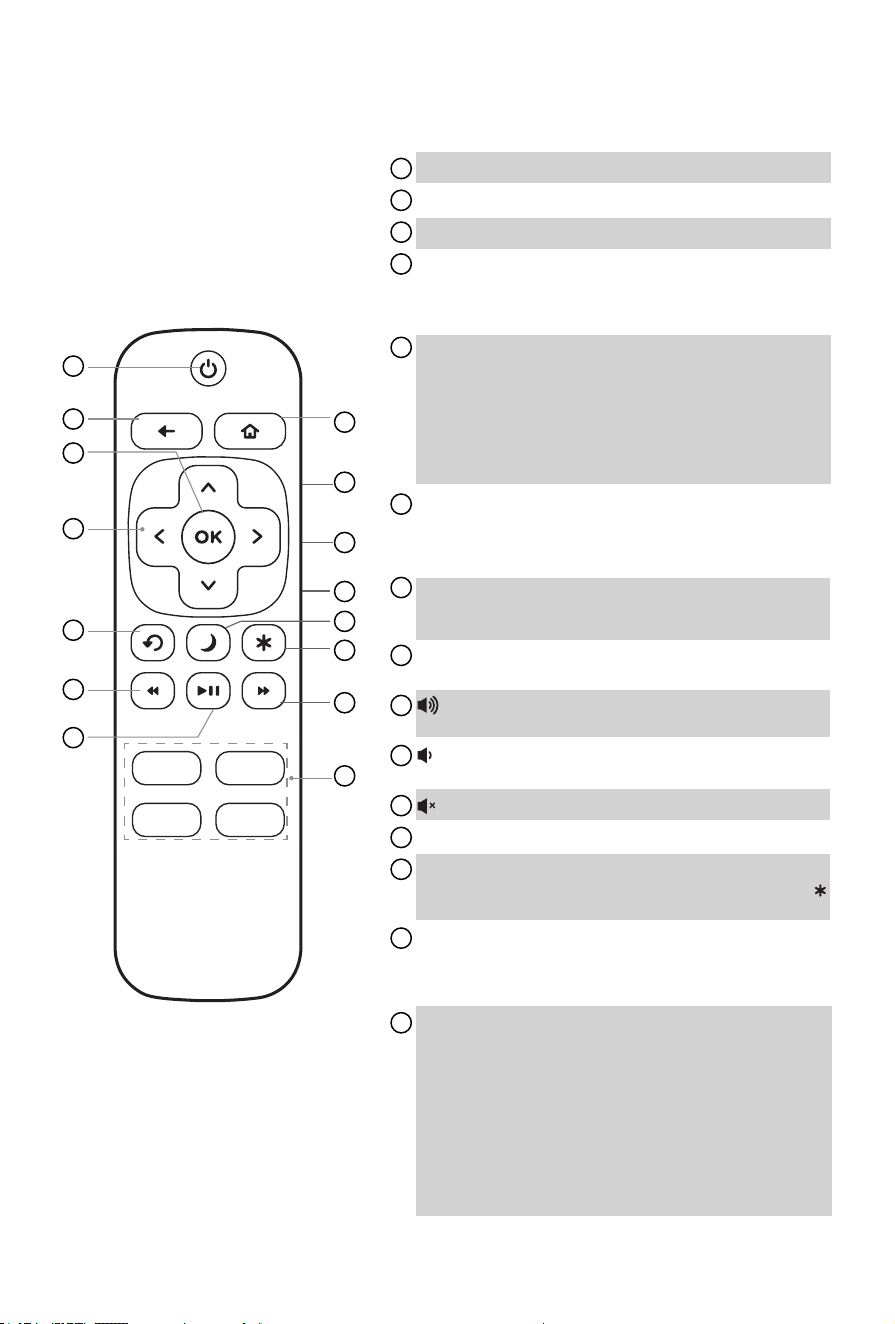
Power Input
•Power indicator
•Power button (Standby/Source)
TV BackTV Front
●
Power indicator
:
The light is white in standby mode.
●
Power button (Standby/Source)
:
When the TV is in standby mode, press the
power button, and TV will be turned on. When the TV is on, press the power
button to call up the menu, press again to change the selection.
●
ANT/CABLE
:
Connect an outdoor VHF/UHF antenna or cable.
●
HDMI
:
ConnectaHighDenitionMultimediaInterface(HDMI)cablefroman
external device.
●
LAN
:
Connect an Ethernet cable to access a network or the Internet. The TV
also has a wireless connectivity feature.
●
RESET
:
Restart or factory reset your TV.
●
USB
:
Connect a USB device for browsing photos, music and movies. Hard
disks with a total current consumption or impulse current consumption greater
than 500mA are not supported.
●
DIGITAL AUDIO OUT
:
Connect an optical cable from an external digital audio
system.
5
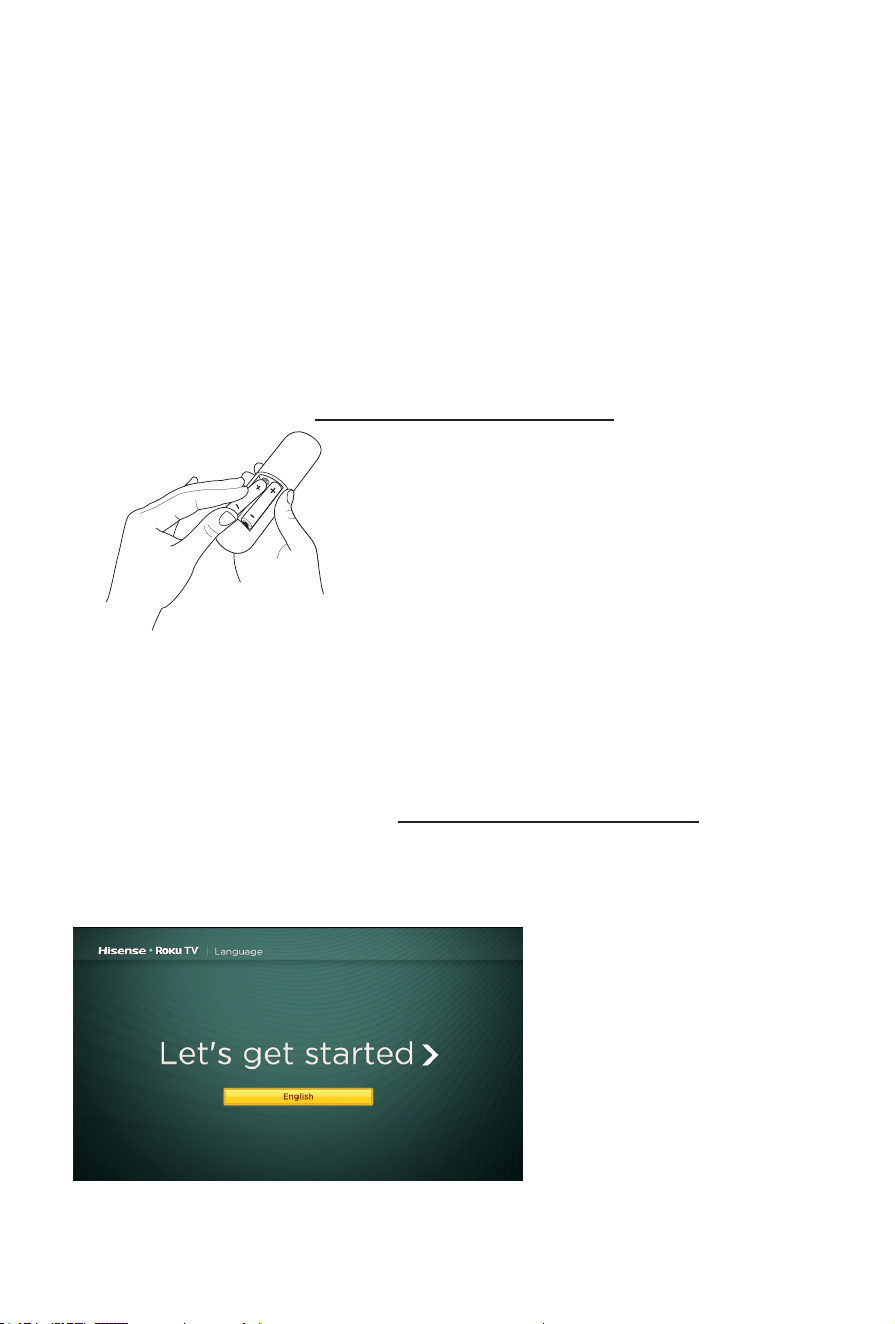
Buttons on your TV remote
Disclaimer:
* Remotes may vary.
** A 16GB USB is required.
Maximum playback of 90 minutes.
The TV remote should feel
right at home in your hand.
We designed it to be incredibly
intuitive for watching TV and
navigating on-screen menus.
1
4
5
7
9
11
13
15
2
3
6
8
10
12
14
1
POWER
:
Turn your TV on or off
2
BACK
:
Return to the previous screen
3
OK
:
Select an option from a menu
4
DIRECTIONAL KEYPAD
:
The left arrow will bring
up the antenna TV channel list or Smart Guide. The
left and right arrows are used in Live TV Pause to
select scenes.
5
CHANNEL RECALL/JUMP BACK AND INSTANT
REPLAY
:
Change to the previous channel
when viewing antenna or cable (no set-top box)
programming
Jump back one position in video when viewing
streaming content
Backspace one letter during menu entries, such as
Search
6
REWIND
:
Rewind streaming video, jump to the
previous audio track or selection, jump up one page
in menus. This button is also used to rewind paused
live TV using Live TV Pause
7
PLAY/PAUSE
:
Pause or resume playback. This
button is also used to activate and use the Live TV
Pause feature**
8
HOME
:
Display your TV's Home screen / Stop play-
back if you are watching TV or streaming content
9
VOLUME UP (Side view)
:
Increase the volume
or un-mute the sound
10
VOLUME DOWN (Side view)
:
Decrease the
volume
11
MUTE (Side view)
:
Mute or un-mute the sound
12
SLEEP
:
Set the sleep timer
13
VIEW MORE OPTIONS
:
Give you easy access to
picture settings, display options, and more / Press
on any screen to access options
14
FAST FORWARD
:
Fast forward streaming video,
jump to the next audio track or selection, jump down
one page in menus. This button is also used to fast
forward paused live TV using Live TV Pause.
15
PRE-SET STREAMING CHANNEL SHORTCUTS
:
When you press a pre-set channel button after the
TV is connected to a Roku account:
•Ifyouhavenotinstalledthechannel,itwilldisplay
a sign up page
•Ifyouhaveinstalledthechannel,itwilldisplaythe
channel's home page
•IfyourTVisoff,itwillturnonyourTVanddisplay
the channel's home page
When you press a pre-set channel button before the
TV is connected to a Roku account, there is no effect.
6
STEP 3. Begin using your remote
Power up your TV remote by inserting the included batteries.
CAUTION
• Dispose of the batteries in a designated disposal area. Do not throw them into a fire.
• Remove old batteries immediately to prevent them from leaking into the battery
compartment.
• If you do not intend to use the remote control for a long time, remove the batteries.
• Battery chemicals can cause a rash. If the batteries leak, clean the battery
compartment. If chemicals touch your skin, wash it immediately.
• Do not mix old and new batteries.
• Do not mix alkaline, standard (carbon-zinc) or rechargeable (for example, NiCd or
NiMH) batteries.
• If your remote gets warm/hot during use, discontinue use and contact customer
support immediately at www.hisense-usa.com/support.
Using Your Cable Set-top Box or Satellite Receiver
Remote as a ‘Universal Remote’.
If you prefer to use your Cable Set-top Box or Satellite Receiver Remote as a ‘Univer-
sal Remote’, please refer to the manual that your cable or satellite service provided. It
willincludeinstructionsonhowtoprogramtheirremotetoyourtelevision.Youcannd
codes that work with your Hisense Roku TV and the most common cable and satellite
provider’s universal remote control at www.roku.com/universalremote.
Turn on the TV
Connect the power cord to the power outlet.
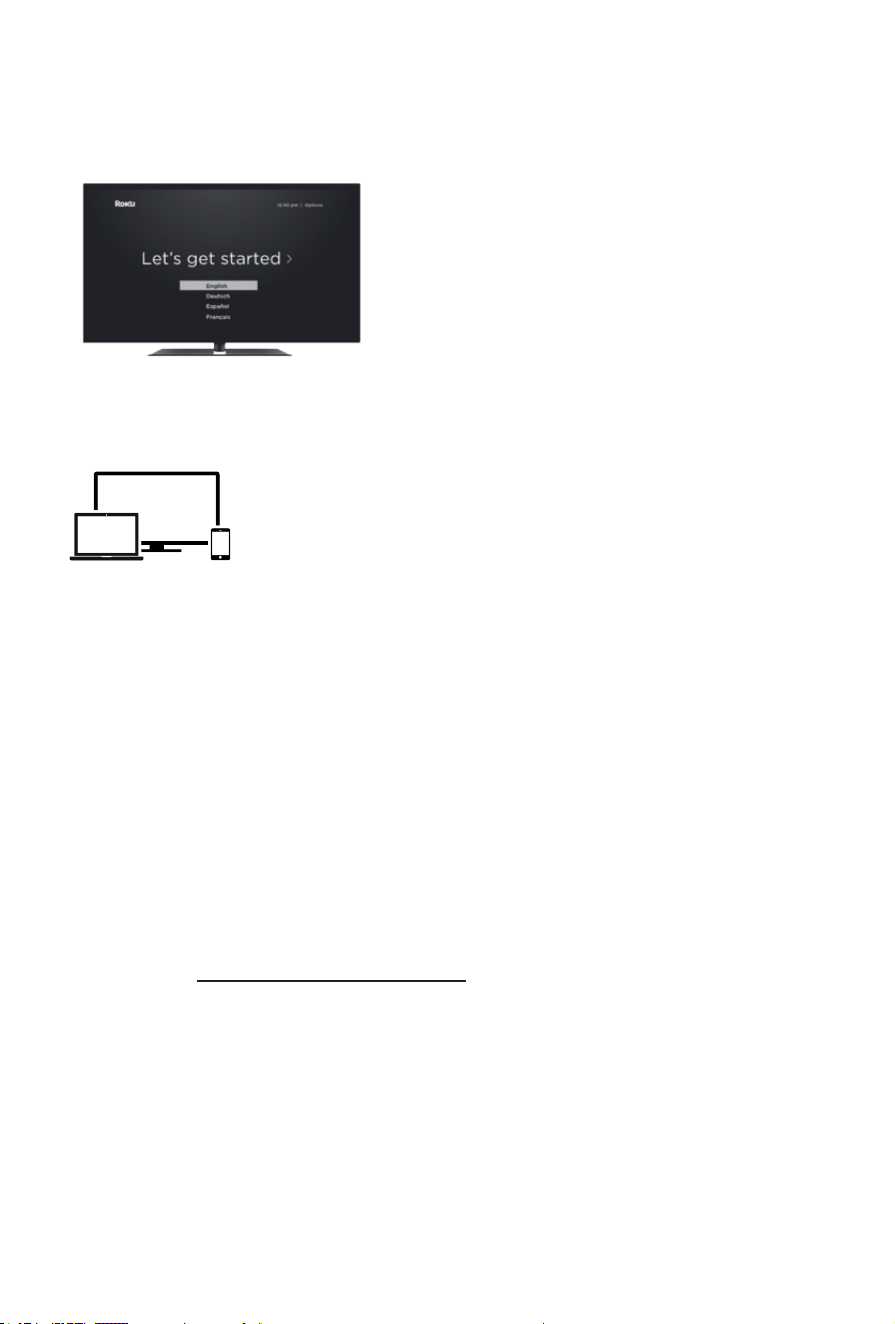
AstartupscreenappearsthatdisplaystheHisense•RokuTVlogo.
Choose Set up for home use to access all TV features and maximize low power.
NOTE:
Only retailers that need to set up the TV for display should select Set up as in-store demo.
Deutsch
Español
Français
7
STEP 4. Complete Guided Setup and Activation.
Tip: Have your wireless network name and password handy.
Follow the on-screen instructions on your Roku TV.
Activate your Roku TV using your computer, smartphone, or tablet to link to a Roku
account. You need a Roku account to activate your Roku TV and access entertainment
across thousands of streaming channels.
Note: Roku doesn’t charge for activation support – beware of scams.
Roku accounts are free and while a valid credit card number is not required to create
a Roku account, saving your credit card information makes renting, purchasing, and
subscribing to entertainment from the Roku Channel Store fast and convenient.
Once connected to your account, your TV will automatically update with the latest
software, and you can start streaming immediately.
If you aren’t ready to connect your TV to a wireless network, you can still use it as a
regular TV.
Complete the rest of the on-screen prompts and setup is done. Congratulations!
NOTE: Once you’re connected, your TV will automatically update with the latest
software—plus you can start streaming the entertainment you know and love. Unlike
other TVs, your new Hisense Roku TV automatically receives regular software
updates in the background when it’s connected to the Internet. This allows it to give
you a better experience. For more information on setting up and using your Roku TV
features, go to http://go.roku.com/tvmanual.
All software, applications, services and content accessible through the Television
belong to providers who are not controlled by or affiliated with Hisense, are protected
by copyright, patent, trademark and/or other intellectual property laws and are
the sole property of their respective owners. Software, applications, services and
content accessible through the Television are at the sole discretion and control of
such providers and are completely outside Hisense’s control. These services and/or
content may be unavailable, discontinued or suspended by such providers, temporarily
or permanently, at any time, without liability and without notice to you. HISENSE
AND ROKU EXPRESSLY DISCLAIM ANY AND ALL RESPONSIBILITY FOR THE
AVAILABILITY, CONTINUITY OF SERVICE, OR THE CONTENT PROVIDED BY ANY
OR ALL SUCH PROVIDERS.
8
Product specifications
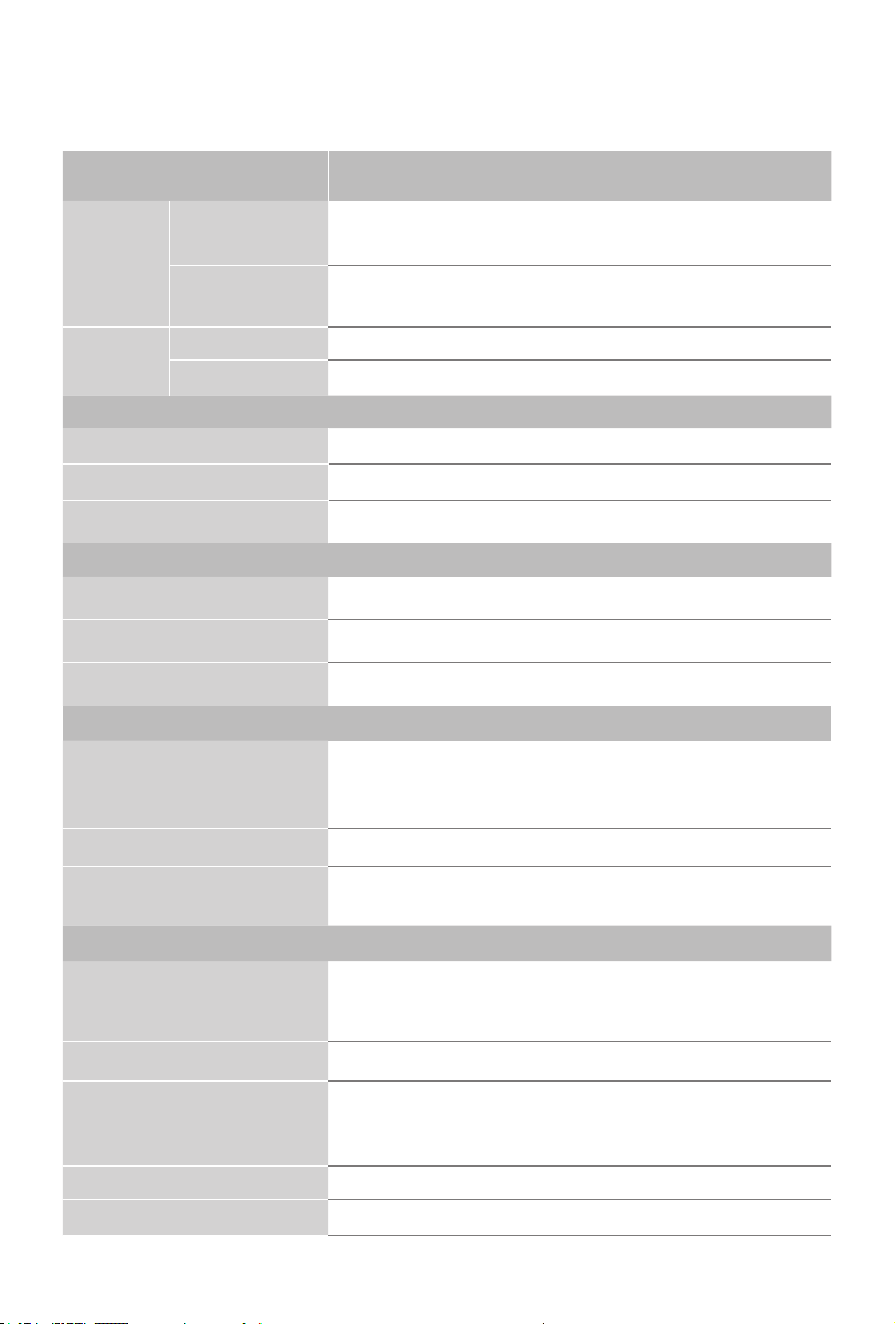
MODEL NAME 58QD5SR / 58QD6SR / 58QD50R
Dimension
(W x H x D)
Without Stand
50.7 × 29.7 × 3.2 inches
(1289 × 755 × 81 mm)
With Stand
50.7 × 31.0 × 11.7 inches
(1289 × 787 × 298 mm)
Weight
Without Stand 25.1 lbs (11.4 kg)
With Stand 25.4 lbs (11.5 kg)
DISPLAY
Active Screen Size (Diagonal) 57.5 inches
Screen Resolution 3840 × 2160
Panel Selected UltraHighDenitionbacklight
POWER
Power Supply AC 120V, 60Hz
Standby Consumption Less than 0.5W
Audio Power 8 W + 8 W
CHANNELS & SIGNALING
Receiving Channels
VHF: 2 - 13, UHF: 14 - 69, CATV: 1 - 125
Digital Terrestrial Broadcast (8VSB): 2 - 69
Digital cable (64/256 QAM): 1 - 135
Tuner Type Frequency synthesized
Receiving System
Analog: NTSC
Digital: ATSC/QAM
OTHER FEATURES
HDMI Input
RGB/60Hz (640×480, 800×600, 1024×768, 1280×1024,
1360×768, 1440×900, 1680×1050, 1920×1080, 3840×2160)
YUV/60Hz (480i, 480p, 720p, 1080i, 1080p, 2160p)
HDSupportedDenitions 480i, 480p, 720p, 1080i, 1080p, 2160p
Environmental Conditions
Temperature: 41°F - 95°F (5°C - 35°C)
Humidity: 20% - 80% RH
Atmospheric pressure: 86 kPa - 106 kPa
Storage Temperature 5°F to 113°F (-15°C to 45°C)
Storage Humidity 10% to 70%, non-condensing
9
Quick problem-solving tips
When you experience an issue with your TV, turn it off and on again. If this does not
resolve the problem, then refer to the tips below. If the problem is still not resolved,
then contact us at one of the phone numbers on Page 1.
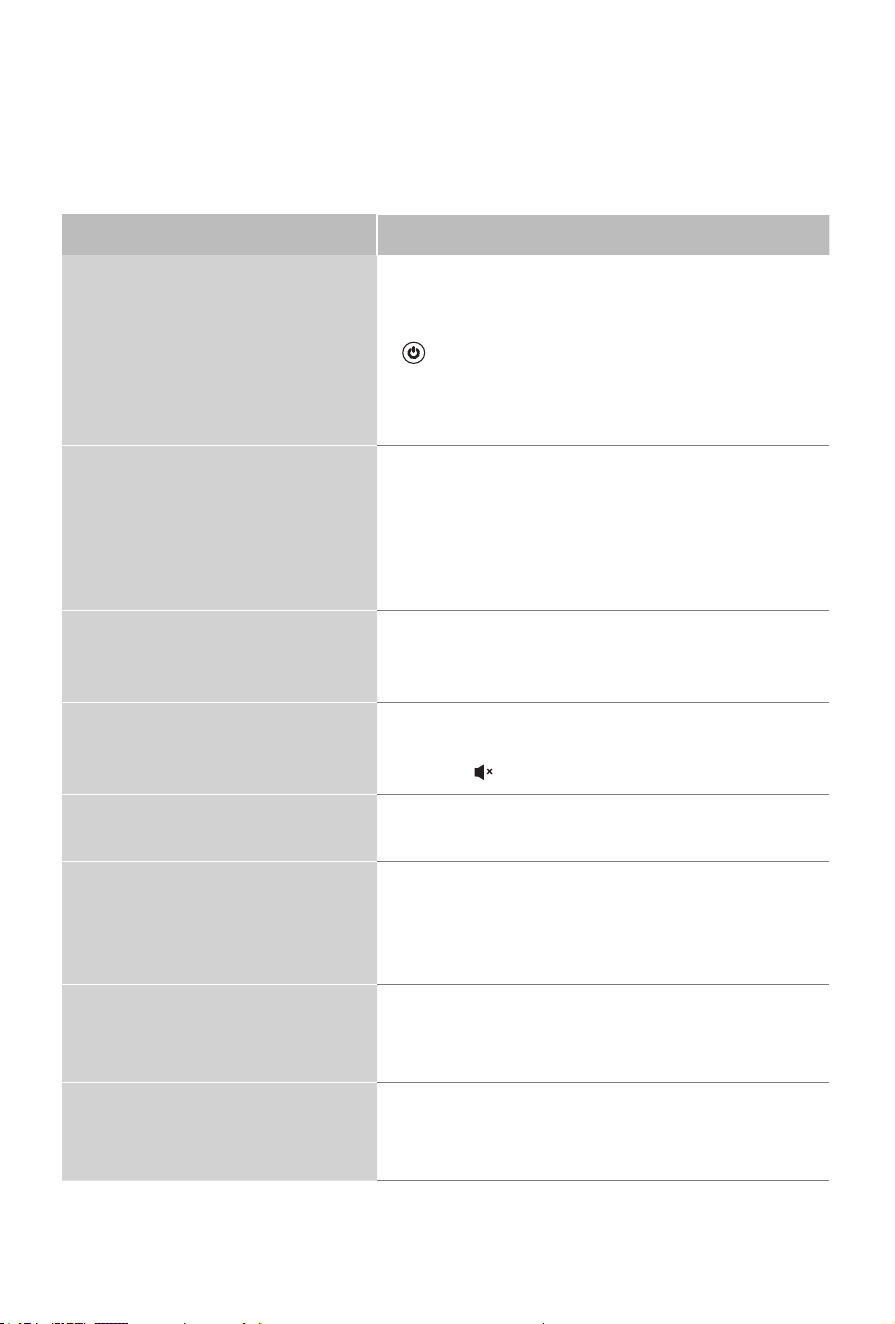
SOUND OR PICTURE ISSUES POSSIBLE SOLUTIONS
You do not see a picture when
turning on the TV
•CheckiftheLEDlightison.Ifitis,thenthereis
power to the TV.
•TheTVmaybeinStandbymode.Pressthe
Power
button on the remote control to activate the unit
from Standby.
•Checkifthepowercordispluggedintoanactive
electrical outlet.
You have connected an external
sourcetoyourTVbutcannotnd
it on the
Home
screen
•Make sure your external source is turned on.
•Checktoseeifthecorrectinputtileisselectedon
the
Home
screen for the external source you
want to view.
•Checktoseeiftheexternalsourcedevice
connection is snug and fully inserted into the TV port.
When you turn on your TV, there is
a delay for a few seconds before
the picture appears
•Thisisnormal.IfyouhavealreadysetupyourTV,it
is initializing and searching for previous setting information.
You see a normal picture but do
not hear any sound
•Checkthatvolumeisturnedup.
•Checkif“Mute”modeisON.Turnomutebypressing
the
Mute
button again, or pressing volume up.
You hear sound but picture color
is faded or in black and white
•CheckthattheColorvalueissetto50orgreater.
•Checkthecoloronanotherchannelorinputtile.
Your sound or picture is distorted
or appears wavy
•Turnoand/orremoveanyelectricalappliancethat
may be nearby the TV panel.
•InsertthepowerplugoftheTVsetintoanother
power outlet.
Your sound or picture is blurry or
cuts out
•Ifyouareusinganexternalantenna,checkthe
connectionsforasnugandtightt.
•Adjustorrepositiontheantennaplacement.
You see horizontal/vertical stripes
on the picture, or it is shaking
•Turnoand/orremoveanyelectricalappliancethat
may be nearby the TV panel.
•InserttheTVpowercordintoanotherelectricaloutlet.

10
Quick problem-solving tips (continued)
CONNECTIVITY ISSUES
POSSIBLE SOLUTIONS
You cannot connect to your
wireless network
•FromtheRokuTVhomescreen,pressthe
Directional Keypad down arrow to Settings.
Press OK on the Directional Keypad.
Press OK to select Network.
Press the bottom Directional Keypad arrow to
Check Connection.
Press OK to Check connection
• Foradditionalhelp,visitwww.hisense-usa.com/support.
REMOTE CONTROL ISSUES POSSIBLE SOLUTIONS
Your remote control is not
responding to button presses
•CheckthattheTVisstillon.
•Checkthatthebatteriesaregoodandareinserted
properly.
•Checkthattherearenoobstaclesbetweenthe
remote control and the front of the TV.
•TrymovingclosertotheTV.IftheLEDontheTV
asheswhenyoupressanyofthebuttonsonthe
remote control, the issue is not with the remote control.

11
Certification and Compliance
NOTE:
The following warnings only apply to products with such certification.
This device complies with Part 15 of the FCC Rules. Operation is subject to the
following two conditions: (1) This device may not cause harmful interference, and (2)
This device must accept any interference received, including interference that may
cause undesired operation.
Note: This equipment has been tested and found to comply with the limits for a Class
B digital device, pursuant to Part 15 of the FCC Rules. These limits are designed to
provide reasonable protection against harmful interference in a residential installation.
This equipment generates, uses, and can radiate radio frequency energy and, if not
installed and used in accordance with the instructions, may cause harmful interference
to radio communications. However, there is no guarantee that interference will not
occur in a particular installation. If this equipment does cause harmful interference to
radio or television reception, which can be determined by turning the equipment off
and on, the user is encouraged to try to correct the interference by one or more of the
following measures:
●Reorientorrelocatethereceivingantenna.
●Increasetheseparationbetweentheequipmentandreceiver.
●Connecttheequipmentintoanoutletonacircuitdifferentfromthattowhichthe
receiver is connected.
●Consultthedealeroranexperiencedradio/TVtechnicianforhelp.
The manufacturer is not responsible for any radio or TV interference caused by
unauthorized modifications to this equipment. Such modifications could void the user’s
authority to operate the equipment.
This equipment complies with FCC radiation exposure limits set forth for an
uncontrolled environment. This equipment should be installed and operated with
minimum distance of [20] cm between the radiator and your body. This transmitter must
not be co-located or operating in conjunction with any other antenna or transmitter.
Declaration of Conformity
Trade Name: Hisense
Model: 58QD5SR / 58QD6SR / 58QD50R
Responsible Party: Hisense USA Corporation
Service Address: 105 Satellite BLVD Suite I, Suwanee, GA 30024
Service Phone Number: 1-888-935-8880
This device complies with Part 15 of the FCC Rules. Operation is subject to the
following two conditions: (1) this device may not cause harmful interference, and (2)
this device must accept any interference received, including interference that may
cause undesired operation.
12
©2025. All rights reserved. Hisense and the Hisense logo are registered trademarks of Hisense.
Other brand and product names are registered trademarks of their respective owners.
The terms HDMI, HDMI High-Definition Multimedia Interface, HDMI Trade dress and the HDMI
Logos are trademarks or registered trademarks of HDMI Licensing Administrator, Inc.
THIS PRODUCT IS LICENSED UNDER THE AVC PATENT PORTFOLIO LICENSE FOR THE PERSONAL
USE OF A CONSUMER OR OTHER USES IN WHICH IT DOES NOT RECEIVE REMUNERATION TO (i)
ENCODEVIDEOINCOMPLIANCEWITHTHEAVC STANDARD(“AVCVIDEO”)AND/OR (ii) DECODEAVC
VIDEO THAT WAS ENCODED BY A CONSUMER ENGAGED IN A PERSONAL ACTIVITY AND/OR WAS
OBTAINED FROM A VIDEO PROVIDER LICENSED TO PROVIDE AVC VIDEO. NO LICENSE IS GRANTED
OR SHALL BE IMPLIED FOR ANY OTHER USE. ADDITIONAL INFORMATION MAY BE OBTAINED FROM
MPEG LA, L.L.C. SEE HTTP://WWW.MPEGLA.COM
Dolby, Dolby Vision, Dolby Audio, and the double-D symbol are trademarks of Dolby Laboratories
Licensing Corporation. Manufactured under license from Dolby Laboratories. Confidential
unpublished works. Copyright © 1992–2024 Dolby Laboratories. All rights reserved.
For DTS patents, see http://patents.dts.com. Manufactured under license
from DTS Licensing Limited. DTS, DTS Studio Sound, and the DTS logo
are registered trademarks or trademarks of DTS, Inc. in the United States
and other countries. © 2021 DTS, Inc. ALL RIGHTS RESERVED.

13