OPEN OPEN
USER MANUAL
JD-166
Version: 1.0
Scan the below QR code to talk with us.
Scannen Sie den untenstehenden QR-Code, um mit uns zu
sprechen.
Scannez le code QR ci-dessous pour parler avec nous.
Customer Support
Scan or upload this
QR code using the
WhatsApp camera
to add us
Kundenservice
Scannen oder laden
Sie diesen OR-Code
hoch, indem Sie die
WhatsApp-Kamera
verwenden, um uns
hinzuzufügen
Service client
Scannez ou téléchargez
ce code QR en utilisant
l'appareil photo
WhatsApp pour nous
ajouter.
Customer Support/Kundensupport/Service client
1-833-470-2950(English only)
support.jadens.com
Available Time:
Mon -Fri: EST 10am-10pm
Sat-Sun: EST 1pm-9pm
Scan for
product
support
Scannen Sie
den Scanner um
Produktsupport
zu erhalten.
Recherchez
l'assistance
produit.

Contents
English
1.Product Overview
2.LED Indicator
3.What's In the Box
4.Get Ready to Print
5.Mobile APP Printing
6.Computer Printing
7.Clear the Paper Jam & Maintenance
8.Warranty Information
1
2
3
4
5
6
10
11
216
210
Deutsch
1. Produktübersicht
2. LED-Anzeige
3. Was ist in der Box
4. Druckvorbereitung
5. Drucken mit der mobilen App
6. Computerdruck
7. Papierstau beheben & Wartung
8. Garantieinformationen
12
13
14
15
16
17
21
22
Français
1. Présentation du produit
2. Indicateur LED
3. Que contient la boîte
4. Préparez-vous à imprimer
5. Impression via application mobile
6. Impression informatique
7. Déblocage du papier et maintenance
8. Informations sur la garantie
23
24
25
26
27
28
32
33
34
36
Regulatory Compliance
Specifications
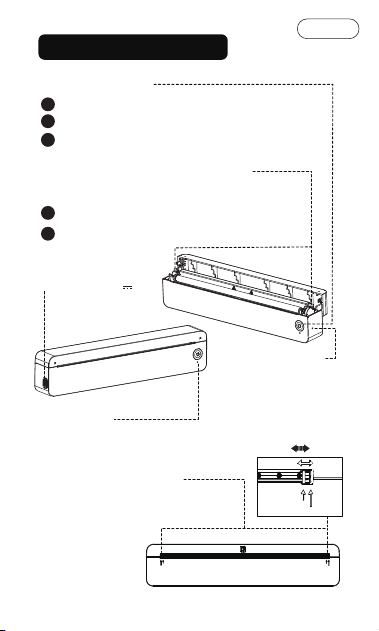
Product Overview
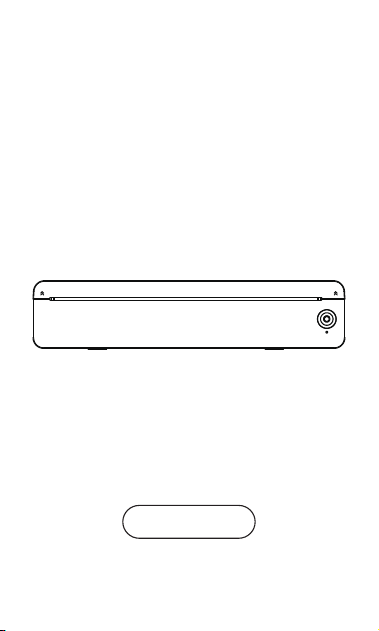
Power Button:
Long press to turn on the printer.
Short press once to retract the paper.
Short press twice to print the test page.
Clear the paper jam.
Access to printhead for maintenance.
Paper Size Switch:
US Letter / Legal Size: 216mm
A4 Size: 210mm
Feed Roller-Release Button:
Press both buttons at the same time to:
Reset pin hole
If the device is on
but unresponsive
(not due to low battery),
insert a pin and hold for
3-5 seconds to reset it.
1
1
2
2
3
USB-C Port:
Power input: 5V 2A
216
210
216
210
216
210
210 216
Indicator
OPEN
OPEN
OPEN
OPEN
Reset
English
1
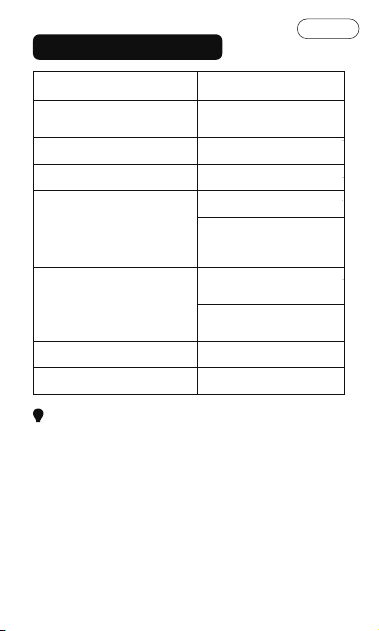
LED Indicator
IndicatorStatus
Printer Overheat / Paper
Jam / Other Malfunctions
Lack of Paper / Cover Open
Low Battery
Charging
Full Charge
Bluetooth Connect
Bluetooth Disconnect
Red light
Blue light blinks slowly
Yellow light blinks slowly
Printer on: Yellow light
Printer off: Yellow and
green light alternate
blinking slowly.
Printer on: Green light
Printer off: Green light
blinks
Light is steady on
Light blinks quickly
Notes:
1.The printer will automatically power off after 20min no ope-
-ration. It won't automatically turn off when charging via PC.
2.The light follows this priority order:
Fault > Paper Out / Cover Open > Charging > Low Battery >
Bluetooth Connection Status.
When the printer connect to PC via USB, it normally
indicates charging status (yellow light).
3.When using the printer connect via PC Bluetooth,
the indicator will only stay green when printing.
(It only activates when printing.)
English
2
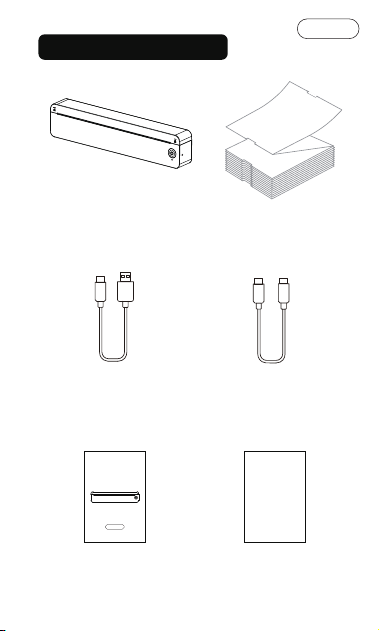
What's in the Box
Printer*1
Reset
US Letter/A4
*10 Sheets
Cable*1
USB-A to USB-C
for WIN
USB-C to USB-C
Cable
*1
for MAC
APP Guide Card*1
APP Guide Card
User Manual*1
OPEN OPEN
USER MANUAL
JD-166
Version: 1.0
English
3
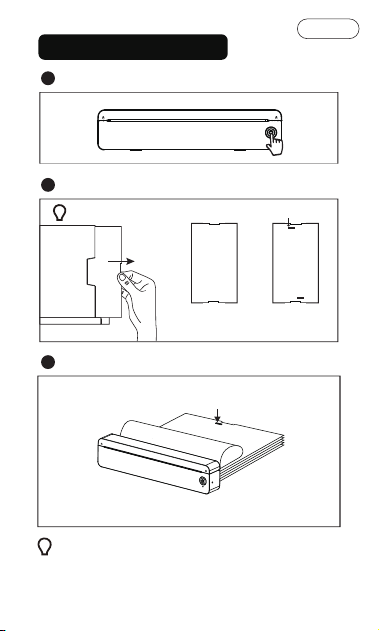
Get Ready to Print
Long press power button to turn on.
1
OPEN OPEN
Take out paper.
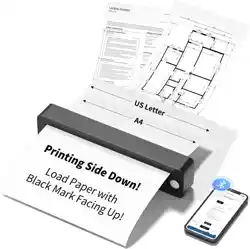
Printing side face down.
Black label
2
Load paper.
3
Black mark side (back side) faces up.Make sure the
printing side facing to the printhead.
OPEN
OPEN
Reset
Align the paper at the inlet, insert it until it is fed
in and light turn green.
If the paper is not load in properly (misaligned/upside
down), short press the power button once or repeat it
multiple times to retract the paper and re-load it.
Tip:
Front side
(printing side)
Back side
(non-printing
side)
English
4
Mobile APP Printing
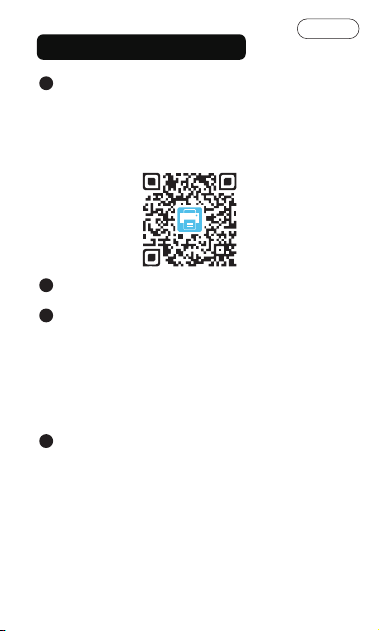
Download "Jadens Printer" APP
Option 1: Search for "Jadens Printer" on Google Play or
AppStore.
Option 2: Scan the following QR code to download APP.
App download:
1
Make sure the printer is on and paper loaded properly.
2
Select the file and print.
4
Turn on the Bluetooth on your phone and allow the APP
to use it. Connect the printer in APP:
Option 1: Open the App, and search for the printer.
(Note: Do not connect printer in the mobile phone
Bluetooth settings.)
Option 2: Open the APP, scan the device connection OR
code on test page (short press power button twice).
3
English
5
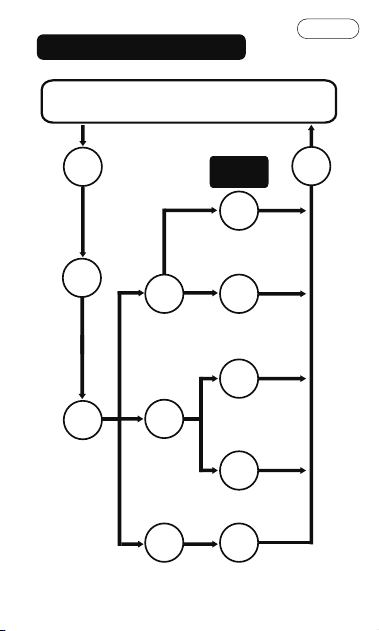
Computer Printing
Step1
Step5
Step2
Step3
Print via Computer
Power
On
Load
Paper
Connect
Printer
to PC
Step4.1
Step
4.1.1
Step
4.1.2
Step
4.2.1
Step
4.2.2
Step
4.3.1
Step4.2
Step4.3
Different
Connection
Install Printer
Driver for
Windows
Macbook
Add Extensions
on Chromebook
Wireless
Connection
by Bluetooth
Wired
Connection
by USB Cable
Download [Jadens
Printer] App in
AppStore for
Bluetooth Connection
Install Printer Driver
for USB Connection
Wired Connection
by USB Cable
Print
English
6
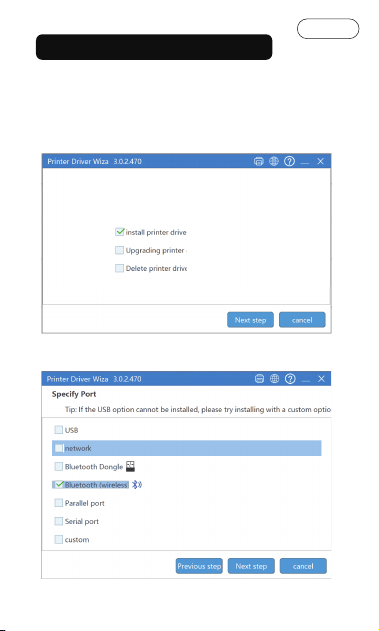
Windows Wireless Connect
1. Download the driver from:
https://jadens.com/pages/jd-166
2. Long press power button to turn on the printer and
load paper. Open the driver.
3. Choose Bluetooth(wireless).
English
7
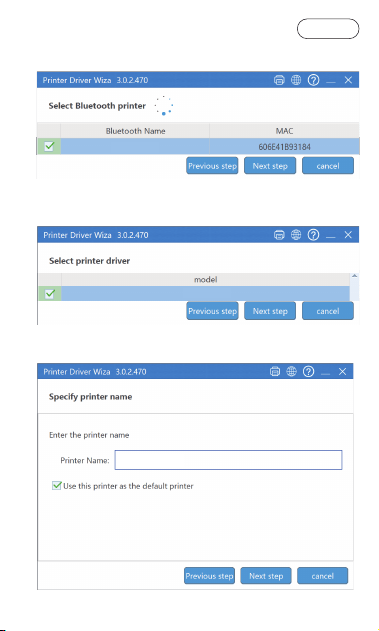
4.Select"JD-166"printer.
5.Select the model"JD-166"
6.Name your printer.
JD-166
JD-166
JD-166_Bluetooth
English
8
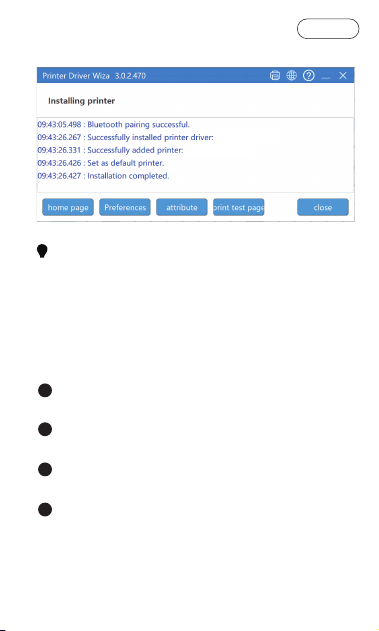
7.Driver installation completed.
1. Make sure the printer is on during the process.
2. The paper must be loaded before printing, or else it
may lead to printing content missing.
Notes:
JD-166_Bluetooth.
JD-166.
PC USB Wired Connection:
Download the driver from:
https://jadens.com/pages/jd-166 and install it.
1
Long press power button to turn on the printer and
load paper.
2
Connect the printer to computer with the original
type-C data cable.
3
When printing the required documents, select the
printer to print.
4
English
9
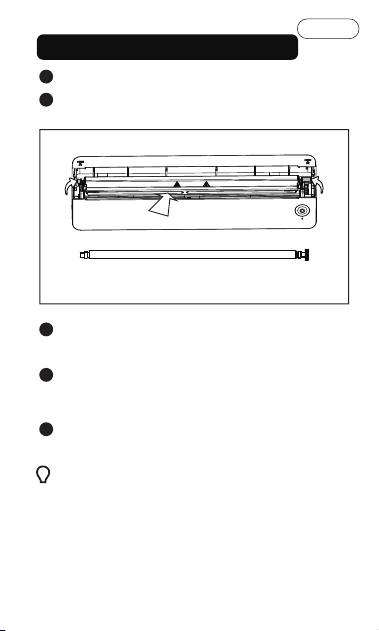
1.Regular maintenance provides long usage.
2.Clean the printhead and feed roller when print blur/
paper jam.
3.If the feed roller is not locked properly, it may
cause to cover misalignment, improper paper
feeding, or print-quality issues.
Tip:
Clear the Paper Jam & Maintenance
Turn off the printer.1
Open the cover and release the feed roller.
Clear the paper.
Press Press
2
Wipe the feed roller and printhead with a alcohol swap
or wipe pad to clean the dust and dirt.
3
Wait 2min till the printhead and feed roller dry, and
put the feed roller back. Make sure that two sides of
the feed roller locked in firmly with snap sound.
4
Close the cover.5
Printhead
Feed Roller
English
10
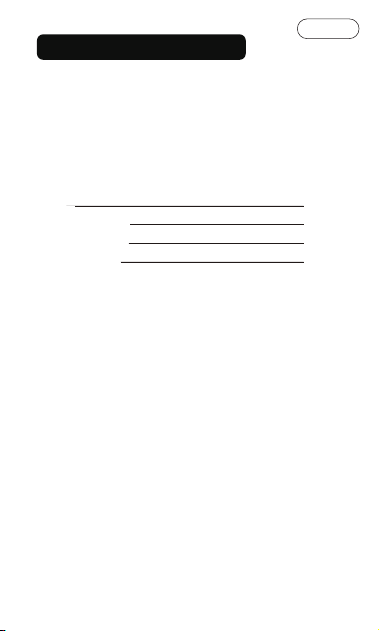
Warranty Information
1-YEAR LIMITED WARRANTY- REGISTER AND
ACTIVATE AT PHONE APPLICATION'Jadens Printer'.
This 1-year limited warranty applies to repair or replacement
if product,at JADENS's option,is found to be defective in
material or workmanship.
All warranty requests must be accompanied by proof of
purchase. When contacting us for warranty,
please have the information below.
1. This warranty only applies to hardware components
of the product that are not subject to accident, misuse,
neglect, fire or damage from other external causes,
alteration, repair or commercial use. Defects that are the
result of normal wear and tear will not be considered
manufacturing defects under this warranty.
2. This warranty does not cover damage resulting from
any unauthorized attempts to repair or from any use not
in accordance with the instruction manual.
3. This warranty applies only to the original purchaser of
this product from the original date of purchase.
This warranty applies only if the unit is purchased new
from an authorized retailer and is non-transferable from
the original purchaser of the item.Any warranties
accompanied with this product is only valid in the country
of purchase.
4. Please read the Instruction Manual carefully before setting
up or using this product. If you believe this product to be
suffering from a manufacturing fault,or if you have inquiries
about this product, please contact Customer Support:
ATTN: Customer Support
Email: [email protected]
Model:
Date of purchase:
Purchased from:
Order Number:
English
11
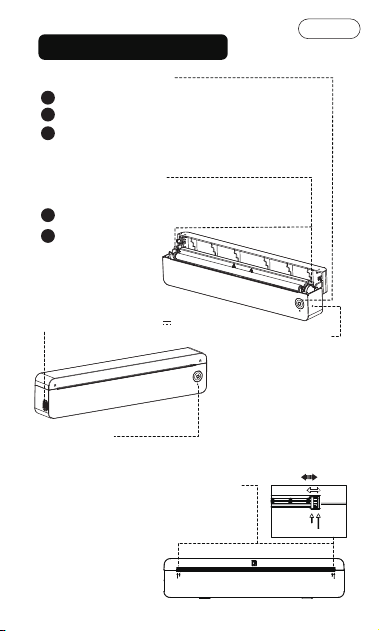
Produktübersicht
Ein-/Ausschalter:
Zum Einschalten des Druckers lange drücken.
Einmal kurz drücken, um das Papier einzuziehen.
Zum Drucken der Testseite zweimal kurz drücken.
Beseitigen Sie den Papierstau.
Zugang zum
Druckkopf für
Wartungsarbeiten.
Papierformat-Umschalter:
US Letter / Legal Format: 216 mm
A4-Format: 210 mm
Entriegelungsknopf für die
Vorschubwalze:
Drücken Sie beide Tasten gleichzeitig, um:
Reset-Stiftloch
Wenn das Gerät
eingeschaltet ist, aber
nicht reagiert (und dies
nicht an einem niedrigen
Batteriestand liegt), führen
Sie eine Nadel ein und
halten Sie diese 3-5
Sekunden lang gedrückt,
um es zurückzusetzen.
1
1
2
2
3
USB-C-Anschluss:
Leistungsaufnahme: 5V 2A
216
210
216
210
216
210
210 216
LED-
Anzeige
OPEN
OPEN
OPEN
OPEN
Reset
Deutsch
12
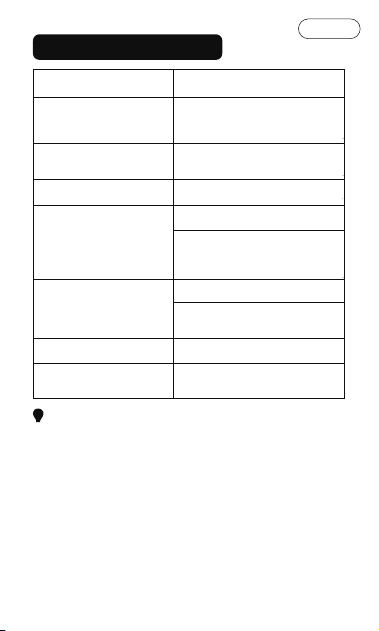
LED-Anzeige
LED-AnzeigeStatus
Druckerüberhitzung /
Papierstau / Sonstige
Störungen
Papiermangel / Deckel
offen
Niedriger Batteriestand
Laden
Volle Ladung
Bluetooth-Verbindung
Bluetooth-Verbindung
getrennt
Rotlicht
Das blaue Licht blinkt langsam
Das gelbe Licht blinkt langsam
Drucker an: Gelbe Leuchte
Drucker eingeschaltet:
Gelbe und grüne Leuchte
blinken abwechselnd langsam
Drucker an: Grünes Licht
Drucker aus: Grüne
Leuchte blinkt.
Das Licht ist konstant an
Das Licht blinkt schnell
Anmerkungen:
1.Der Drucker schaltet sich nach 20 Minuten ohne Bedienung
automatisch aus. Es schaltet sich beim Laden über den PC
nicht automatisch aus.
2.Das Licht folgt dieser Prioritätsreihenfolge:
Fehler > Papier leer / Abdeckung offen > Ladevorgang >
Niedriger Akkustand > Bluetooth-Verbindungsstatus.
Wenn der Drucker über USB mit dem PC verbunden wird,
zeigt er normalerweise den Ladezustand an (gelbe Leuchte).
3.Wenn Sie den Drucker über Bluetooth mit dem PC
verbinden, leuchtet die Anzeige nur während des
Druckvorgangs grün (sie wird nur beim Drucken aktiviert).
Deutsch
13
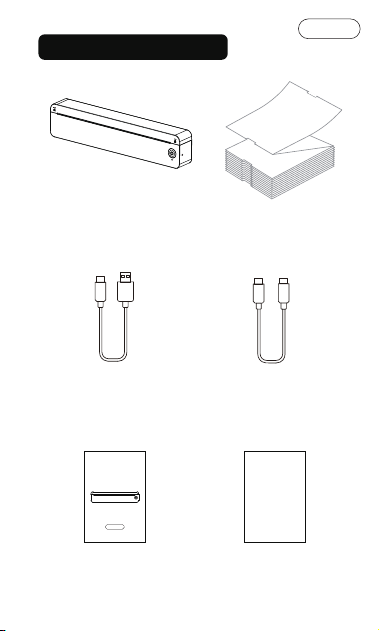
Was ist in der Box
Drucker*1
Reset
US Letter/A4
*10 Blatt
USB-A-zu-USB-C-Kabel
für Windows *1
USB-C-zu-USB-C-Kabel
für MAC *1
APP-Anleitungskarte*1
APP Guide Card
Benutzerhandbuch*1
OPEN OPEN
USER MANUAL
JD-166
Version: 1.0
Deutsch
14
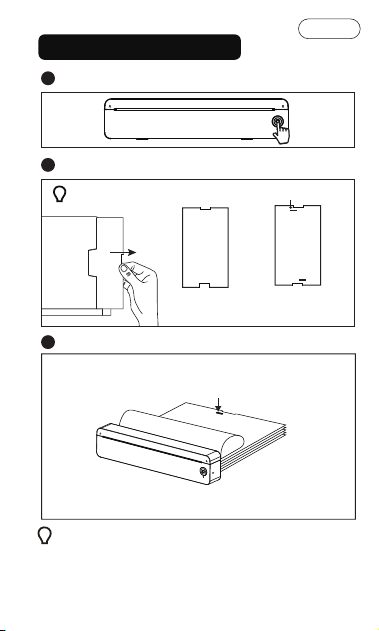
Bereit zum Drucken
Zum Einschalten den Netzschalter lange drücken.
1
OPEN OPEN
Papier herausnehmen
Die zu bedruckende Seite
zeigt nach oben.
Schwarzes Etikett
2
Papier einlegen.
3
Die Seite mit dem schwarzen Fleck (Rückseite) zeigt
nach oben. Achten Sie darauf, dass die zu bedruckende
Seite zum Druckkopf zeigt.
OPEN
OPEN
Reset
Wenn das Papier nicht richtig eingelegt ist (falsch
ausgerichtet/verkehrt herum), drücken Sie den
Netzschalter einmal kurz oder wiederholen Sie dies
mehrmals, um das Papier einzuziehen und neu einzulegen.
Tipp:
Vorderseite
(Druckseite)
Rückseite
(nicht bedruckbare
Seite)
Deutsch
15
Richten Sie das Papier am Einzug aus, führen Sie es ein,
bis es eingezogen ist und die Kontrollleuchte grün leuchtet.
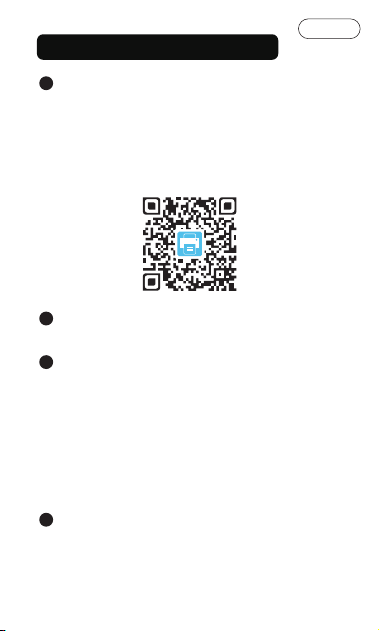
Drucken per mobiler App
Laden Sie die App „Jadens Printer“ herunter.
Option 1: Suchen Sie im Google Play Store oder App Store
nach „Jadens Printer“.
Option 2: Scannen Sie den folgenden QR-Code,
um die App herunterzuladen.
APP herunterladen:
1
Stellen Sie sicher, dass der Drucker eingeschaltet und
das Papier richtig eingelegt ist.
2
Datei auswählen und drucken.
4
Schalten Sie Bluetooth auf Ihrem Telefon ein und
erlauben Sie der App die Nutzung. Verbinden
Sie Ihr Gerät:
Option 1: Öffnen Sie die App und suchen Sie nach dem
Drucker.(Hinweis: Verbinden Sie den Drucker nicht
über die Bluetooth-Einstellungen Ihres Mobiltelefons.)
Option 2: Öffnen Sie die App, scannen Sie die
Geräteverbindung ODER den Code auf der Testseite
(drücken Sie zweimal kurz den Ein-/Ausschalter).
3
Deutsch
16
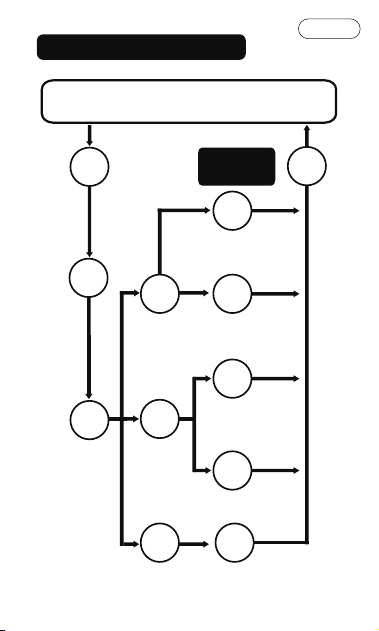
Computerdruck
Schritt
1
Schritt
5
Schritt
2
Schritt
3
Drucken über Computer
Einschalten
Papier
einlegen
Drucker
an den PC
anschließen
Schritt
4.1
Schritt
4.1.1
Schritt
4.1.2
Schritt
4.2.1
Schritt
4.2.2
Schritt
4.3.1
Schritt
4.2
Schritt
4.3
Andere
Verbindung
Druckertreiber
für Windows
installieren
MacBook
Erweiterungen auf
dem Chromebook
hinzufügen
Drahtlose
Verbindung
über Bluetooth
Kabelverbindung
über USB-Kabel
Laden Sie die Jadens
Printer App im App
Store herunter, um eine
Bluetooth-Verbindung
herzustellen.
Installieren des
Druckertreibers für
die USB-Verbindung.
Wired Connection
by USB Cable
Drucken
Deutsch
17
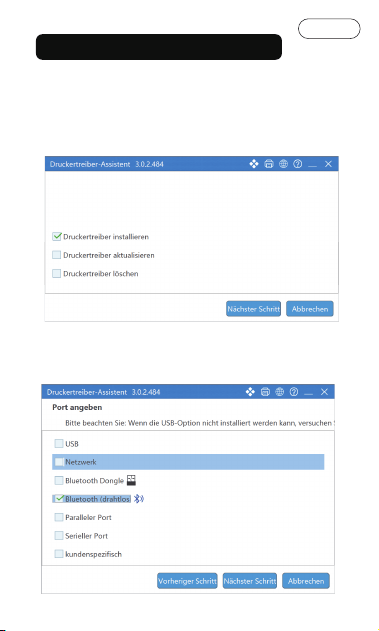
Windows Wireless Connect
1. Laden Sie den Treiber hier herunter:
https://jadens.com/pages/jd-166
2. Langes Drücken Zum Einschalten des Druckers und zum
Einlegen von Papier drücken. Treiber öffnen .
3.Bluetooth (drahtlos) auswählen.
Deutsch
18
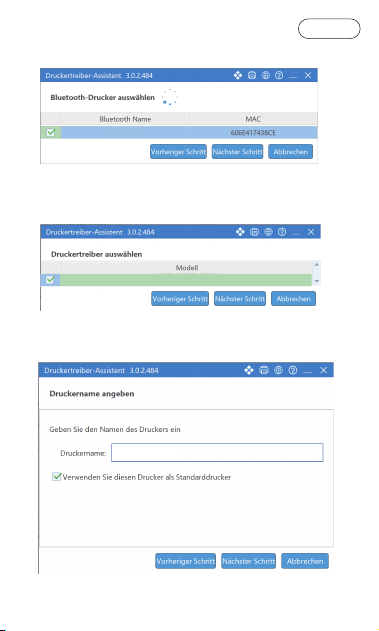
4.Drucker "JD-166" auswählen.
5.Modell "JD-166" auswählen.
6.Drucker benennen.
Deutsch
19
JD-166
JD-166
JD-166_Bluetooth
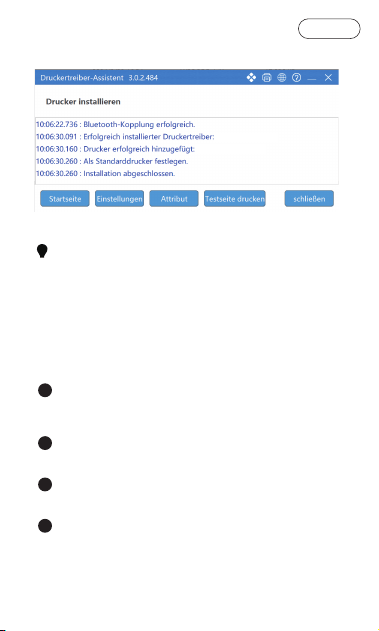
7.Treiberinstallation abgeschlossen.
1. Stellen Sie sicher, dass der Drucker während des
Vorgangs eingeschaltet ist.
2. Das Papier muss vor dem Drucken eingelegt werden,
da es sonst zu fehlenden Druckinhalten kommen kann.
Anmerkungen:
Kabelgebundene USB-Verbindung zum PC:
Laden Sie den Treiber von
https://jadens.com/pages/jd-166
herunter und installieren Sie ihn.
1
Zum Einschalten des Druckers und zum Einlegen von
Papier den Netzschalter lange drücken.
2
Verbinden Sie den Drucker mit dem Computer mithilfe
des originalen Typ-C-Datenkabels.
3
Wählen Sie beim Drucken der benötigten Dokumente
den Drucker aus.
4
Deutsch
20
JD-166_Bluetooth.
JD-166.
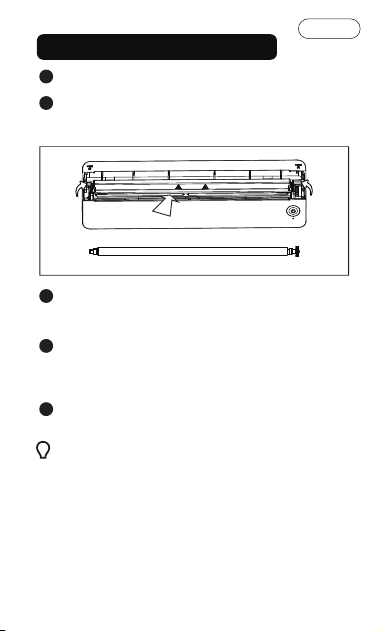
1.Regelmäßige Wartung gewährleistet eine lange
Nutzungsdauer.
2.Reinigen Sie den Druckkopf und die Einzugswalze,
wenn der Ausdruck unscharf ist oder ein Papierstau
auftritt.
3.Wenn die Einzugswalze nicht richtig arretiert ist,
kann dies zu einer Fehlausrichtung des Deckels,
zu Problemen beim Papiertransport oder zu
Problemen mit der Druckqualität führen.
Tipps:
Papierstau beheben & Wartung
Drucker ausschalten.1
Öffnen Sie die Abdeckung und lösen Sie die
Einzugswalze. Entfernen Sie das Papier.
Drücken Drücken
2
Wischen Sie die Einzugswalze und den Druckkopf mit
einem Alkoholtupfer oder einem Reinigungstuch ab,
um Staub und Schmutz zu entfernen.
3
Warten Sie 2 Minuten, bis Druckkopf und Einzugswalze
trocken sind, und setzen Sie die Einzugswalze wieder
ein. Achten Sie darauf, dass die Walze an beiden
Seiten hörbar einrastet.
4
Schließen Sie die Abdeckung.5
Druckkopf
Zuführwalze
Deutsch
21
1-JAHRIGE BESCHRÄNKTE GARANTIE - REGISTRIEREN UND
AKTIVIEREN SIE DIE GARANTIE ÜBE RDIE
SMARTPHONE-ANWENDUNG 'Jadens Printer'.
Diese 1-jahrige beschrankte Garantie gilt fur Reparatur oder
Ersatz, wenn das Produkt nach Wahl von Jadens als fehlerhaft
in Material oder Verarbeitung erkannt wird.
Alle Garantieanfragen müssen durch einen Kaufnachweis
begleitet werden, Wenn Sie uns bezüglich der Garantie
kontaktieren, halten Sie bitte die unten stehenden
Informationen bereit.
1. Diese Garantie gilt nur fur Hardwarekomponenten des
Produkts, die nicht durch Unfall, Missbrauch,
Vernachlässigung, Feuer oder Schäden durch andere äulere
Einfliisse, Anderungen, Reparaturen oder kommerzielle
Nutzung beeintrachtigt wurden, Mangel, die auf normalen
Verschleil zuruckzufuhren sind,gelten nicht als
Herstellungsfehler im Rahmen dieser Garantie.
2. Diese Garantie deckt keine Schaden ab, die durch unbefugte
Reparaturversuche oder durch unsachgemaBe Verwendung
gemäß der Bedienungsanleitung entstehen.
3. Diese Garantie gilt nur fur den Originalkaufer dieses
Produkts ab dem ursprüinglichen Kaufdatum. Sie gilt nur,
wenn das Gerat neu von einem autorisierten Handler
erworben wurde, und ist nicht ubertragbar vom
ursprüinglichen Kaufer des Artikels. Etwaige mit diesem
Produkt mitgelieferte Garantien sind nur im Land des Kaufs
gultig.
4. Lesen Sie bitte das Handbuch sorgfaltig durch, bevor Sie
dieses Produkt aufstellen oder verwenden.Wenn Sie glauben,
dass dieses Produkt unter einem Herstellungsfehler leidet,
oder wenn Sie Anfragen zu diesem Produkt haben,
kontaktieren Sie bitte den Kundensupport:
Zu Händen: Kundensupport
Email: [email protected]
Modell:
Kaufdatum:
Gekauft von:
Bestellnummer:
Gewahrleistungsinformationen
Deutsch
22
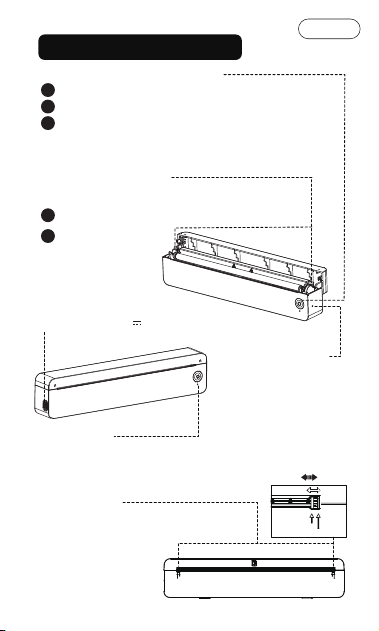
Présentation du produit
Bouton d'alimentation :
Appuyez longuement pour allumer l'imprimante.
Appuyez brièvement une fois pour rétracter le papier.
Appuyez brièvement deux fois pour imprimer la
page de test.
Dégager le bourrage papier.
Accès à la tête
d'impression pour
la maintenance.
Changement de format
de papier :
Format Lettre US/Légal : 216 mm
Format A4 : 210 mm
Bouton de déverrouillage du rouleau
d'entraînement :
Appuyez simultanément sur les deux boutons pour :
trou de
réinitialisation
Si l'appareil est allumé
mais ne répond pas (et ce
n'est pas dû à une batterie
faible), insérez une épingle
et maintenez-la enfoncée
pendant 3 à 5 secondes
pour le réinitialiser.
1
1
2
2
3
Port USB-C :
Alimentation : 5 V 2 A
216
210
216
210
216
210
210 216
Indicateur
OPEN
OPEN
OPEN
OPEN
Reset
Français
23
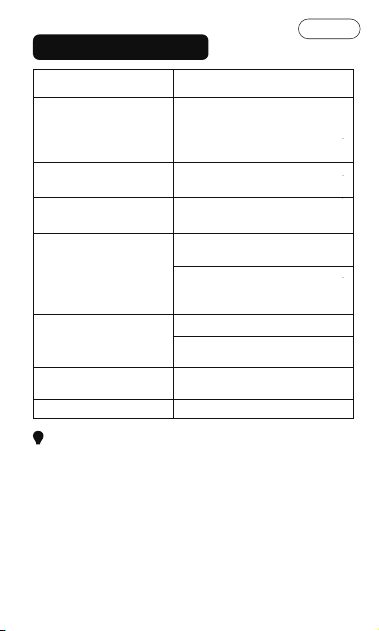
Indicateur LED
IndicateurStatus
Surchauffe de
l'imprimante /
Bourrage papier / Autres
dysfonctionnements
Manque de papier /
Couverture ouverte
Batterie faible
Chargement
Charge complète
Connexion Bluetooth
Déconnexion Bluetooth
Feu rouge
La lumière bleue clignote
lentement.
Le voyant jaune clignote
lentement.
Imprimante allumée :
voyant jaune
Imprimante allumée : les voyants
jaune et vert clignotent
lentement en alternance.
Imprimante allumée : voyant vert
Imprimante éteinte : le voyant
vert clignote
La lumière est allumée
en continu.
La lumière clignote rapidement
Remarques:
1.L'imprimante s'éteindra automatiquement après 20
minutes d'inactivité. Elle ne s'éteindra pas automatiquement
pendant la charge via PC.
2.La lumière suit cet ordre de priorité :
Défaut > Papier sorti / Couverture ouverte > En charge >
Batterie faible > État de la connexion Bluetooth.
Lorsque l'imprimante est connectée à un PC via USB, elle
indique normalement l'état de charge (voyant jaune).
3.Lorsque l'imprimante est connectée via Bluetooth à un PC,
le voyant reste vert uniquement pendant l'impression
(il ne s'active que pendant l'impression).
Français
24
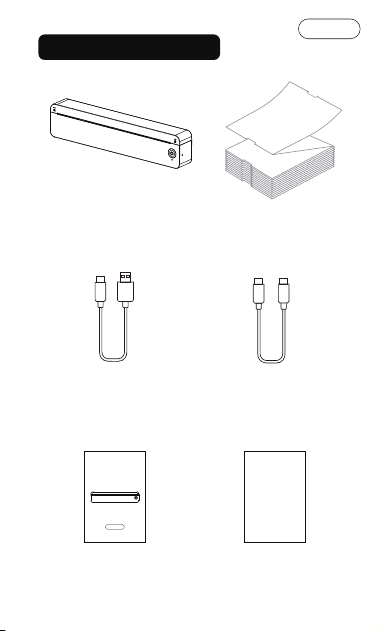
Contenu de la boîte
Imprimante*1
Reset
Format Lettre US/A4
*10 feuilles
Câble USB-A vers USB-C
pour WIN *1
Câble USB-C vers USB-C
pour MAC *1
Carte guide de l'application*1
APP Guide Card
Manuel d'utilisation*1
OPEN OPEN
USER MANUAL
JD-166
Version: 1.0
Français
25
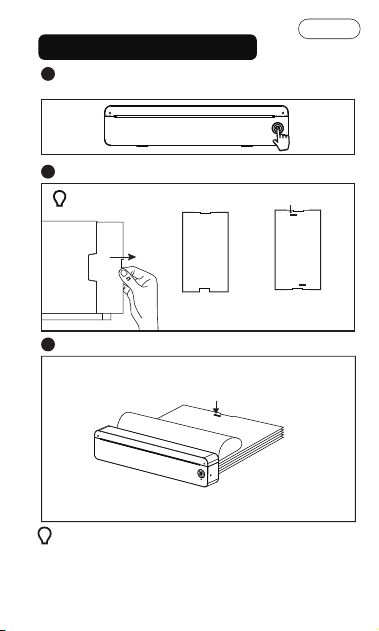
Préparez-vous à imprimer
Appuyez longuement sur le bouton d'alimentation
pour allumer.
1
OPEN OPEN
Sortez le papier
Face imprimée vers le haut.
Étiquette noire
2
Charger du papier.
3
Le côté marqué en noir (côté arrière) doit être orienté
vers le haut. Assurez-vous que la face imprimable soit
orientée vers la tête d'impression.
OPEN
OPEN
Reset
Si le papier n'est pas chargé correctement (mal aligné/à
l'envers), appuyez brièvement une fois sur le bouton
d'alimentation ou répétez l'opération plusieurs fois pour
rétracter le papier et le recharger.
Conseil:
Face avant
(côté impression)
Verso
(côté non
imprimable)
Français
26
Alignez le papier avec l'entrée, insérez-le jusqu'à ce qu'il
soit entraîné et que le voyant devienne vert.
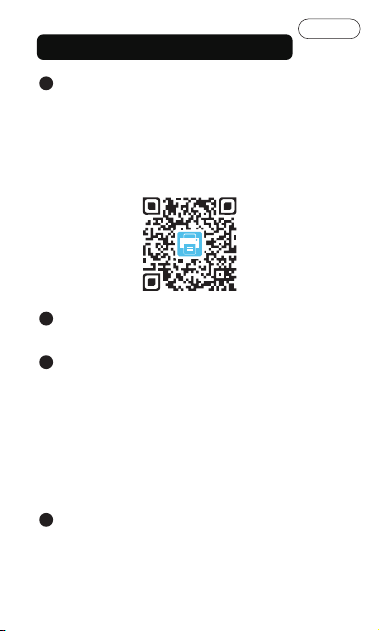
Impression via application mobile
Téléchargez l'application « Jadens Printer »
Option 1 : Recherchez « Jadens Printer »
sur Google Play ou l'App Store.
Option 2 : Scannez le code QR suivant pour télécharger l'
application.
Téléchargement de l'application :
1
Assurez-vous que l'imprimante est allumée et que le
papier est correctement chargé.
2
Sélectionnez le fichier et imprimez.
4
Activez le Bluetooth sur votre téléphone et autorisez
l'application à l'utiliser. Connectez votre appareil :
Option 1 : Ouvrez l’application et recherchez l’
imprimante.
(Remarque : Ne connectez pas l'imprimante via les
paramètres Bluetooth du téléphone mobile.)
Option 2 : Ouvrez l'application, scannez la connexion
de l'appareil OU le code sur la page de test (appuyez
brièvement deux fois sur le bouton d'alimentation).
3
Français
27
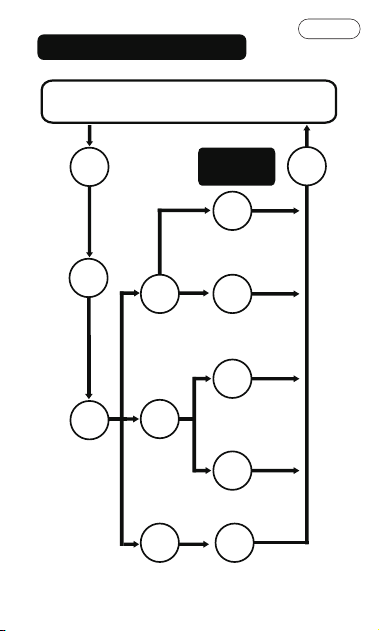
Impression informatique
Étape
1
Étape
5
Étape
2
Étape
3
Imprimer via ordinateur
Mise sous
tension
Charger le
papier
Connecter
l'imprimante
à l'ordinateur
Étape
4.1
Étape
4.1.1
Étape
4.1.2
Étape
4.2.1
Étape
4.2.2
Étape
4.3.1
Étape
4.2
Étape
4.3
Différentes
Connexions
Installer le
pilote
d'imprimante
pour Windows
MacBook
Ajouter des
extensions sur
Chromebook
Connexion sans
fil par Bluetooth
Connexion filaire
par câble USB
Téléchargez l'application
Jadens Printer sur
l'AppStore pour la
connexion Bluetooth.
Installer le pilote
d'imprimante pour
la connexion USB.
Connexion filaire
par câble USB
Imprimer
Français
28
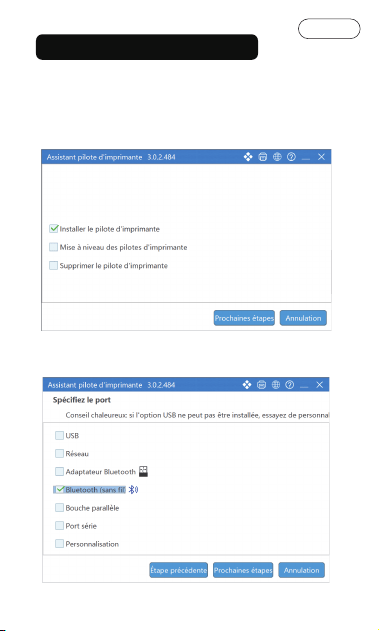
Connexion sans fil Windows
1. Téléchargez le pilote depuis :
https://jadens.com/pages/jd-166
2. Le papier doit être chargé avant l'impression, sinon cela
peut entraîner une perte de contenu à imprimer.
3.Choisissez Bluetooth (sans fil).
Français
29
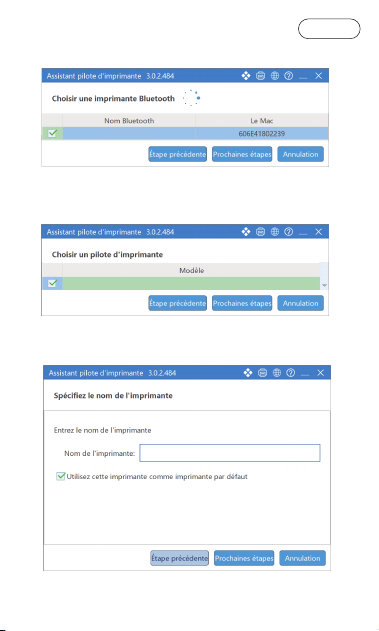
4. Sélectionnez l'imprimante "JD-166".
5. Sélectionnez le modèle "JD-166".
6. Nommez votre imprimante.
Français
30
JD-166
JD-166
JD-166_Bluetooth
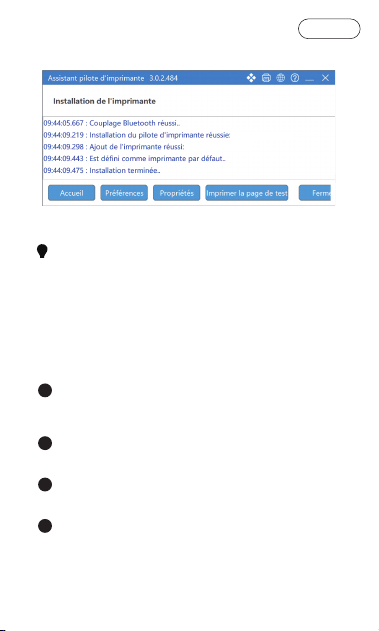
7. L'installation du pilote est terminée.
1. Assurez-vous que l'imprimante est allumée pendant
le processus.
2. Le papier doit être chargé avant l'impression, sinon cela
peut entraîner une perte de contenu à imprimer.
Remarques :
Connexion filaire USB PC :
Téléchargez le pilote depuis :
https://jadens.com/pages/jd-166 et installez- le.
1
Appuyez longuement sur le bouton d'alimentation
pour allumer l'imprimante et charger du papier.
2
Connectez l'imprimante à l'ordinateur avec le câble
de données de type C d'origine.
3
Lors de l'impression des documents requis,
sélectionnez l'imprimante à imprimer.
4
Français
31
JD-166_Bluetooth.
JD-166.
1.Un entretien régulier assure une longue durée de vie.
2.Nettoyez la tête d'impression et le rouleau
d'entraînement en cas d'impression floue ou de
bourrage papier.
3.Si le rouleau d'alimentation n'est pas correctement
verrouillé, cela peut entraîner un mauvais alignement
du couvercle, une alimentation papier incorrecte ou
des problèmes de qualité d'impression.
Conseils:
Déblocage du papier et maintenance
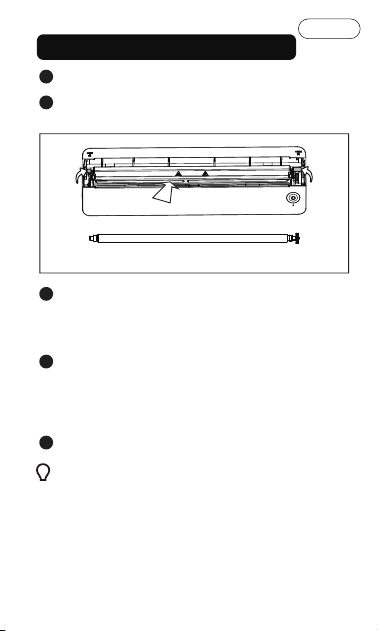
Éteignez l'imprimante.1
Ouvrez le couvercle et libérez le rouleau
d'entraînement. Retirez le papier.
Pressez Pressez
2
Essuyez le rouleau d'alimentation et la tête
d'impression avec une lingette imbibée d'alcool ou
un tampon de nettoyage pour enlever la poussière
et la saleté.
3
Attendez 2 minutes que la tête d'impression et le
rouleau d'entraînement sèchent, puis remettez le
rouleau d'entraînement en place. Assurez-vous que
les deux côtés du rouleau d'entraînement sont bien
verrouillés (un clic se fait entendre).
4
Fermez le couvercle.5
Tête d'impression
Rouleau d'alimentation
Français
32
Cette garantie limitée d'un an s'applique à la réparation ou
au remplacement du produit, à la discrétion de Jadens,
s'il est jugé défectueux au niveau du matériau ou de la
fabrication.
Toutes les demandes de garantie doivent être accompagnées
d'une preuve d'achat. Lorsque vous nous contactez pour une
garantie, veuillez avoir les informations ci-dessous.
1. Cette garantie ne s'applique qu'aux composants matériels
du produit qui ne sont pas sujets à un accident, une mauvaise
utilisation, négligence, incendie ou dommages résultant
d'autres causes externes, modification, réparation ou usage
commercial. Les défauts résultant de l'usure normale ne
seront pas considérés comme des défauts de fabrication
dans le cadre de cette garantie.
2. Cette garantie ne couvre pas les dommages résultant de
toute tentative non autorisée de réparation ou de toute
utilisation non conforme au manuel d'instructions.
3. Cette garantie s'applique uniquement à l'acheteur original
de ce produit à partir de la date d'achat originale. Cette
garantie s'applique uniquement si l'unité est achetée neuve
auprès d'un revendeur agréé et est non transférable de
l'acheteur original de l'article. Toutes les garanties
accompagnant ce produit ne sont valables que dans le
pays d'achat.
4. Veuillez lire attentivement le Manuel d'Instructions avant de
configurer ou d'utiliser ce produit. Si vous estimez que ce
produit présente un défaut de fabrication, ou si vous avez des
questions à ce sujet, veuillez contacter le service client :
À l'attention du service client
E-mail : [email protected]
GARANTIE LIMITÉE D'UN AN - ENREGISTREZ ET ACTIVEZ VIA
L'APPLICATION TÉLÉPHONIQUE 'Jadens Printer'.
Modèle:
Date d'achat:
Achété chez:
Numéro de commande:
Informations sur la garantie
Français
33

FCC Caution:
Any Changes or modifications not expressly approved by
the party responsible for compliance could void the user's
authority to operate the equipment.This device complies
with part 15 of the FCC Rules. Operation is subject to
thefollowing two conditions:
(1) This device may not cause harmful interference,
and (2) this device must accept any interference received,
including interferencethat may cause undesired operation.
IMPORTANT NOTE:
Note: This equipment has been tested and found to comply
with the limits for a Class B digital device, pursuant to part
15 of the FCC Rules. These limits are designed to provide
reasonable protection against harmful interference in a
residential installation. This equipment generates, uses and
can radiate radio frequency energy and, if not installed and
used in accordance with the instructions, may cause harmful
interference to radio communications. However, there is no
guarantee that interference will not occur in a particular
installation. If this equipment does cause harmful
interference to radio or television reception, which can be
determined by turning the equipment off and on, the user
is encouraged to try to correct
FCC Radiation Exposure Statement:
This equipment complies with FCC radiation exposure limits
set forth for an uncontrolled environment. This equipment
should be installed and operated with minimum distance
20cm between the radiator& your body.
—Reorient or relocate the receiving antenna.
—Increase the separation between the equipment and
receiver.
—Connect the equipment into an outlet on a circuit different
from that to which the receiver is connected.
—Consult the dealer or an experienced radio/TV
technician for help.
English
34
English
The crossed-out wheeled bin symbol indicates that the
item should be disposed of separately from household
waste. The item should be handed in for recycling in
accordance with local environmental regulations for
waste disposal. By separating a marked item from household
waste, you will help reduce the volume of waste sent to
incinerators or land-fi and minimize any potential negative
impact on human health and the environment. For more
information, please contact us.
Deutsch
Das Symbol mit der durchgestrichenen
Abfalltonne bedeutet, dass das Produkt
getrennt vom Haushaltsabfall entsorgt werden
muss. Das Produkt muss gem. der örtlichen
Entsorgungsvorschriften der Wiederverwertung
zugeführt werden. Durch separate Entsorgung des
Produkts trägst du zur Minderung des
Verbrennungs- oder Deponieabfalls bei und reduzierst
eventuelle negative Einwirkungen auf die menschliche
Gesundheit und die Umwelt. Für weitere Informationen
kontaktieren Sie uns bitte.
Français
Le pictogramme de la poubelle barrée indique
que le produit doit faire l'objet d'un tri. Il doit
être recyclé conformément à la réglementation
environnementale locale en matière de déchets.
En triant les produits portant ce pictogramme,
vous contribuez à réduire le volume des déchets
incinérés ou enfouis, et à diminuer tout impact négatif
sur la santé humaine et l'environnement. Pour plus
d'information, merci de contacter vous.
35
Model/Modell/Modèle: JD-166
Product name/Produktname/Nom du produit:
A4 Portable Printer
Printing method/Druckverfahren/Méthode d'impression:
Direct Thermal/Thermodirekt/Thermique directe
Supported print widths/Unterstützt Druckbreiten/Soutenu
Largeurs d'impression : 8.5"(216mm)/8.27"(210mm)
Connections/Anschlüsse/Connexions: USB connection
/Bluetooth connection
Support system/Unterstützte Systeme/Systèmes
d'exploitation compatibles: iOS, iPadOS, Android,
Windows(Windos7 or later), MacOS(V10.9 or later),
ChromeOS
Operating environment/Betrieb Umgebungstemperatur
/Opération environnement: 0°C~40°C(32°F-104°F)
30%~85%RH(No condensation)
Storage environment/Lagerung Umgebung/Stockage
Environnement: -20°C~60°C(-4°F-140°F)
0%~90%RH(No condensation)
Power Input/Stromversorgung/Alimentation: USB-C 5V 2A
Battery Capacity/Akkukapazität/Capacité de la batterie:
1800mAh
Product Size/Produktgröße/Dimensions du produit:
9.88"x1.26"x2.13"(251x32x54mm)
Xiamen AiYin Technology Co., Ltd.
4th-8th Floor, No.838 Tongfu Road, Tong'an District,
Xiamen, China
Specifications
Made in China
36