Creating a SmartThings Device Handler
8/8/2017
*NOTE: This guide goes over creating a custom device handler for SYLVANIA Smart products
that are currently not supported by SmartThings. The steps below are formatted in a way that
will make this process easier if you do not have your smart lights already connected to
SmartThings. If your SYLVANIA Smart lights are already connected to SmartThings, please
remove them before continuing to follow this guide.
1. Navigate to https://graph.api.smartthings.com/ and log in with your SmartThings
account. This account will be the same one you use to log in to the SmartThings mobile
app.
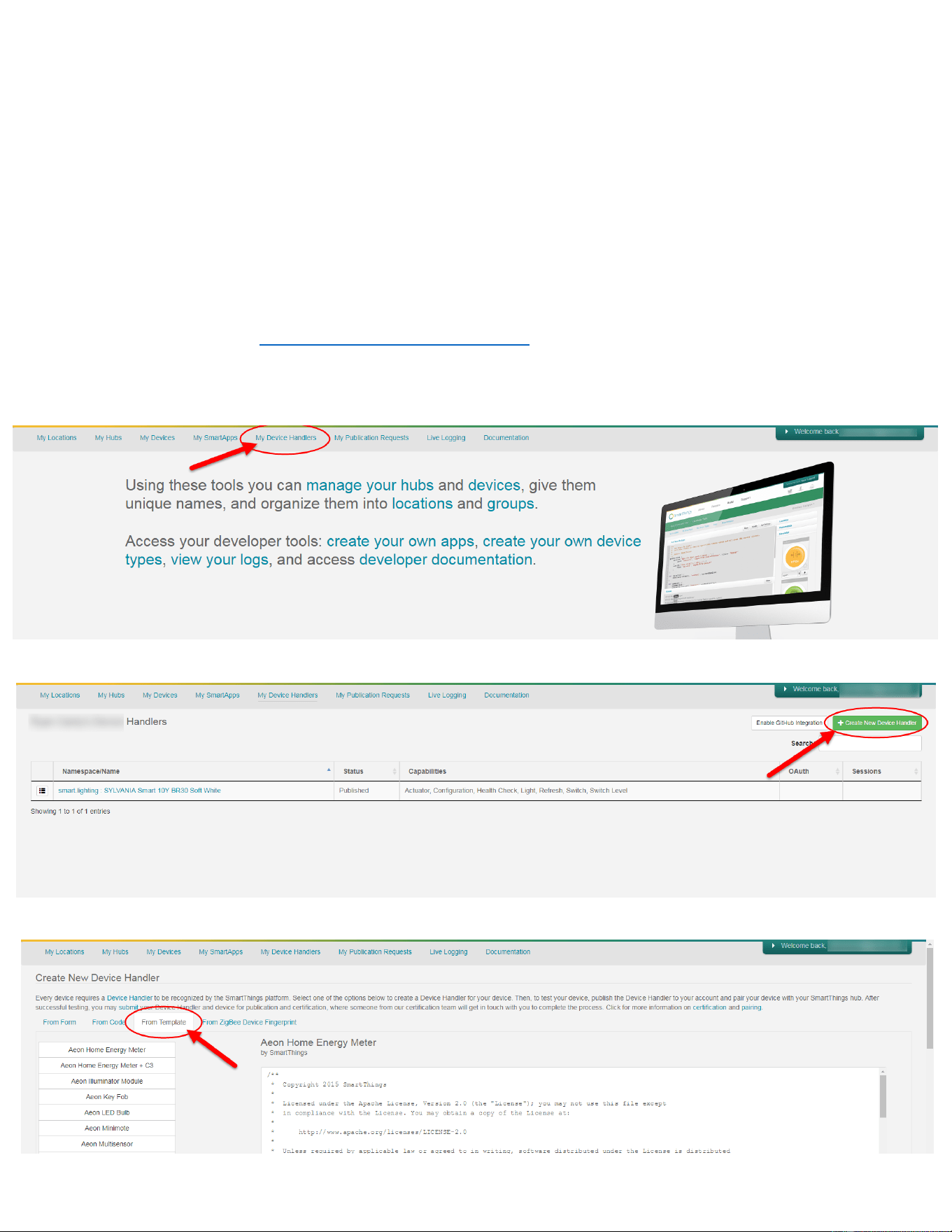
2. Once you are logged in, navigate to the “My Device Handlers” tab:
3. Click “Create New Device Handler” in the top right of the screen:
4. Click the “From Template” tab:
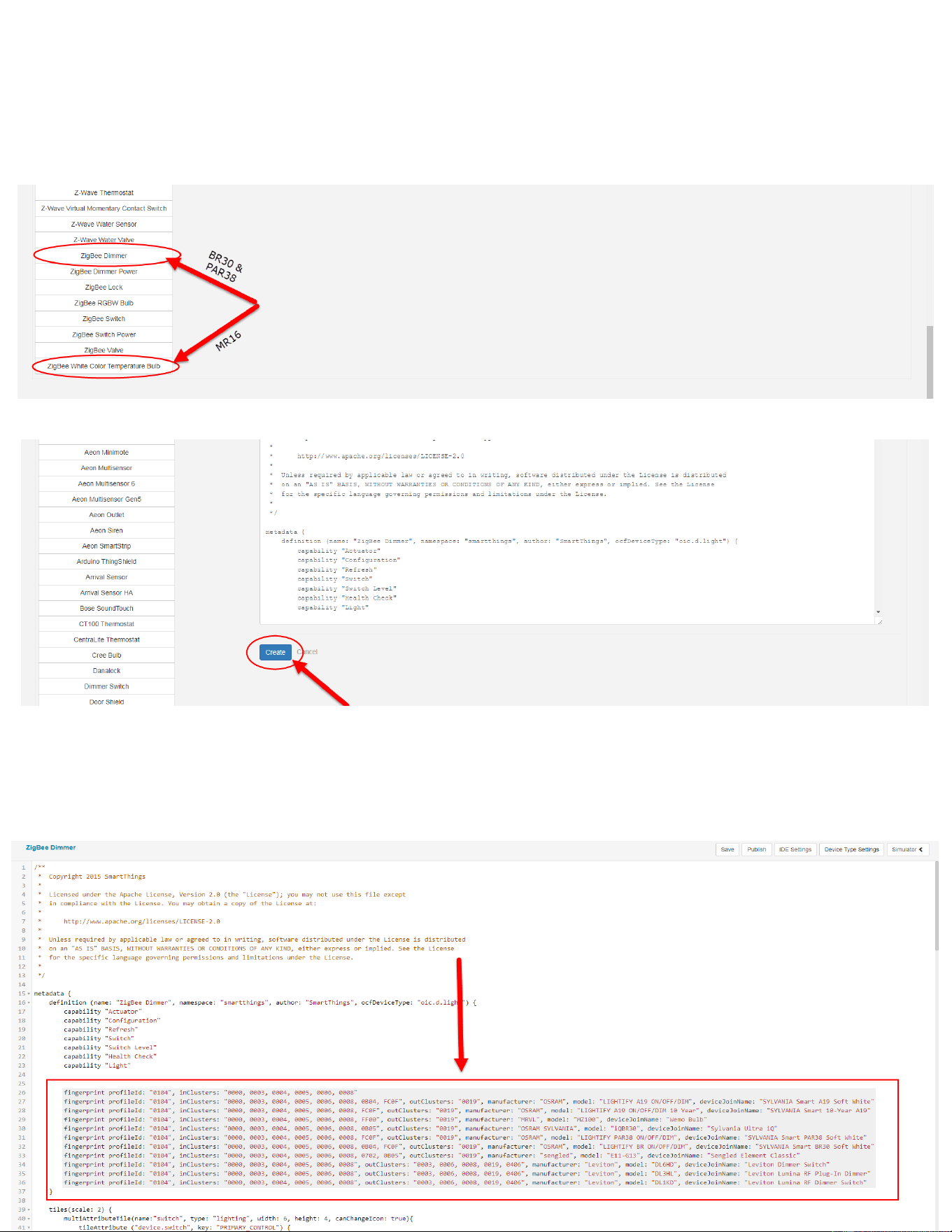
5. Scroll to the bottom of the page and:
a. For the BR30 & PAR38 click “ZigBee Dimmer”
b. For the MR16 click “ZigBee White Color Temperature Bulb”
6. Scroll back up to the top of the page and click “Create”:
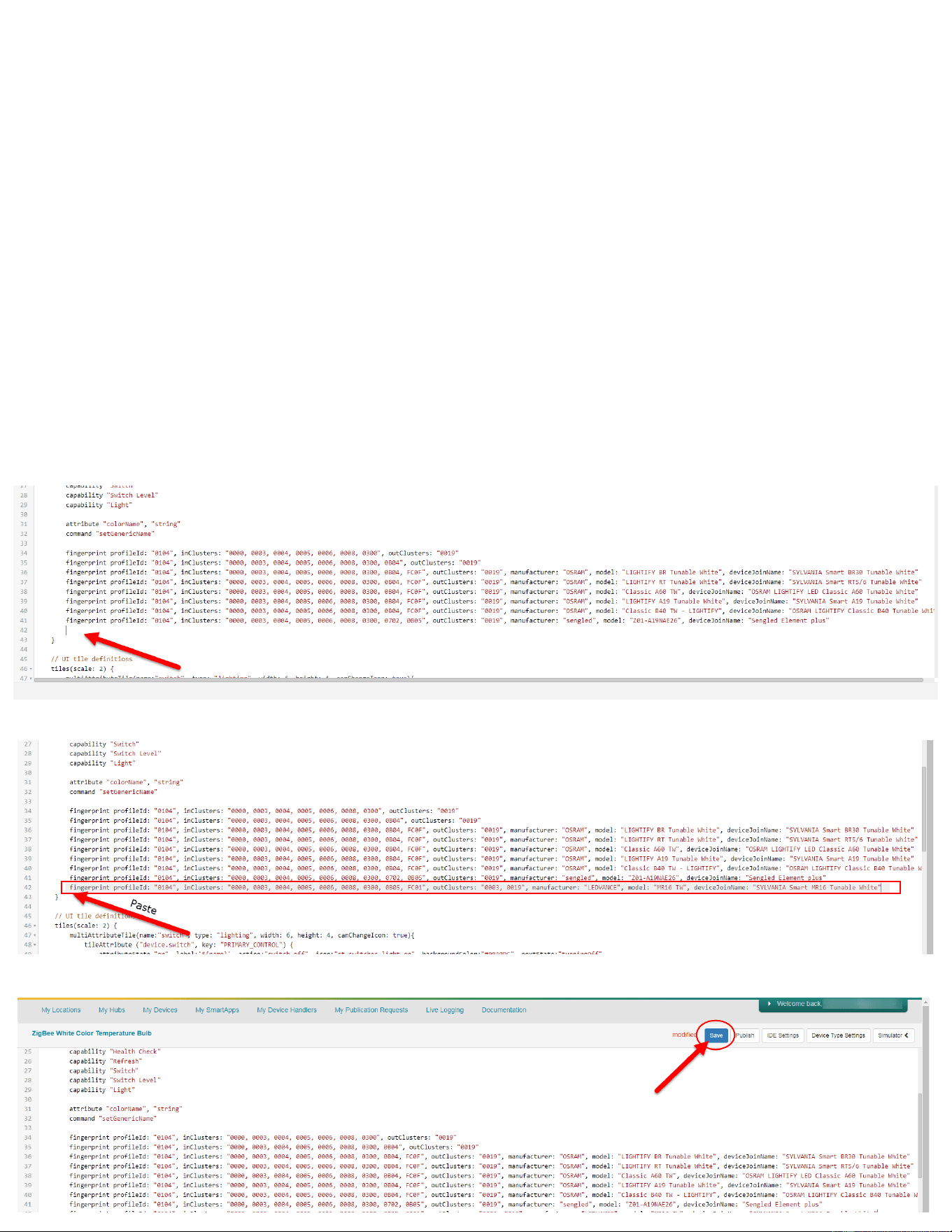
7. You will now be brought to a page where you can see the actual Device Handler code.
Locate the area of the code that looks similar to the below picture. This block of code is
located at the beginning of the device handler code, you should not have to scroll to
view it. It should be on your screen currently. Look for a group of lines that all begin with
the words “fingerprint profileId”:
8. Copy the line of code from below that corresponds to the SYLVANIA Smart bulb you
would like to add:
a. BR30:
fingerprint profileId: "0104", inClusters: "0000, 0003, 0004, 0005, 0006, 0008, 0300,
0B05, FC01", outClusters: "0003, 0019", manufacturer: "LEDVANCE", model: "BR30 W 10
year", deviceJoinName: "SYLVANIA Smart 10Y BR30 Soft White"
b. PAR38:
fingerprint profileId: "0104", inClusters: "0000, 0003, 0004, 0005, 0006, 0008, 0300,
0B05, FC01", outClusters: "0003, 0019", manufacturer: "LEDVANCE", model: "PAR38 W
10 year", deviceJoinName: "SYLVANIA Smart 10Y PAR38 Soft White"
c. MR16:
fingerprint profileId: "0104", inClusters: "0000, 0003, 0004, 0005, 0006, 0008, 0300,
0B05, FC01", outClusters: "0003, 0019", manufacturer: "LEDVANCE", model: "MR16
TW", deviceJoinName: "SYLVANIA Smart MR16 Tunable White"
9. Place your cursor at the end of the last line of code in the block of code that you found
in section 7 and press enter. This will create a new line.
10. Paste the line of code that you copied in step 8 on the new line:
11. Click “Save”
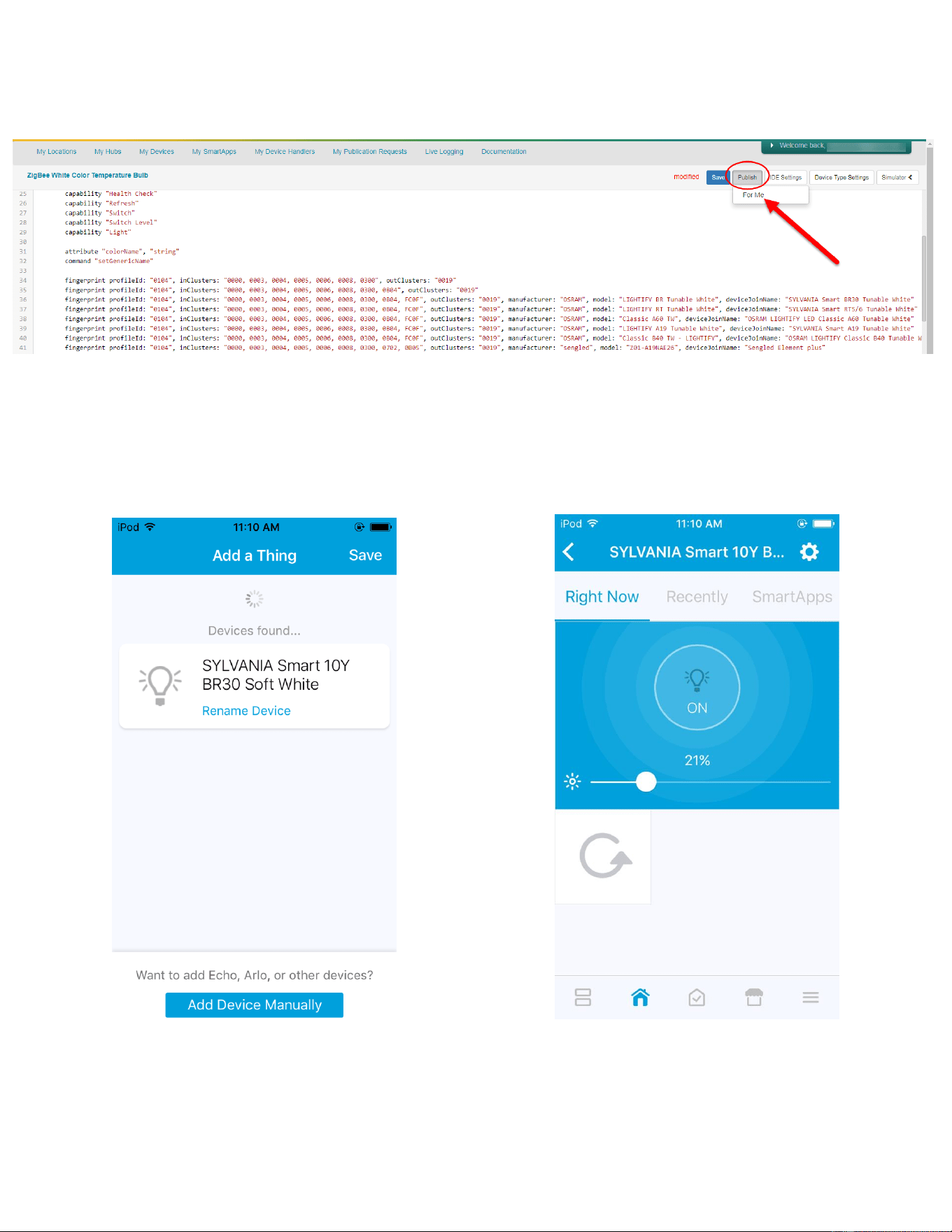
12. Click “Publish” and then “For me”:
13. Your custom Device Handler is now ready for action. Simply add the light bulb to
SmartThings as usual and instead of appearing as a “Thing” it will have a name and
control capabilities: