INSTALLATION GUIDE / USER MANUAL
PowerZone™ Connect
122 / 122D • 252 • 254 • 504 / 504D • 508 • 1008 / 1008D
2
Technical and Safety Notices
Please read the following important technical, safety
and environmental notices before installing and using
your amplier.
Technical Notices
All reasonable design and engineering steps have been taken
to ensure that these ampliers always perform satisfactorily
in their intended application and environment and will provide
appropriate levels of support to ensure that all reasonable
customer needs and expectations are met. Such support
however is contingent on the following provisions.
• These ampliers are Class-I products and should be installed
with a mains cable including the required earth connection to
comply with the Safety Class-I.
• These ampliers should always be installed by competent
and qualied personnel. Amplier damage or failure caused
by installation or operational errors may invalidate support,
warranty or guarantees of performance.
• These ampliers are not suitable for use in locations where
they may be accessible to minors.
• These ampliers are intended to be used specically for
the amplication of audio signals and for connection to
moving-coil loudspeaker systems. Use of these ampliers
for amplication of signals outside the audio band (20Hz
to 20kHz) or to drive transducers other than moving-coil
loudspeakers may invalidate support, warranty or guarantees
of performance.
• These ampliers should only be used within professionally
installed and congured audio systems comprising input
and output ancillary equipments that is known to be of an
appropriate level of performance and in good operating
condition. Any damage to, or unsatisfactory performance
from, these ampliers caused by inadequate or failed input
or output ancillaries may invalidate support, warranty or
guarantees of performance.
• These ampliers are intended to be installed and operated
indoor in a controlled environment (pollution degree, PD2)
within an ambient temperature range of 0°C to 40°C. These
ampliers are not intended for use above 2000 meters above
sea level. Ampliers installed or operated in environments
outside these limits may invalidate support, warranty or
guarantees of performance.
• Specic warranty terms are the responsibility of the amplier
re-seller.
Safety and Environmental Notices
Note: The intent of the lightning ash with arrowhead symbol
in a triangle is to alert the user to the presence of uninsulated
“dangerous” voltage within the product’s enclosure that may be of
sufcient magnitude to constitute a risk of electric shock to humans.
Note: The intent of the exclamation point within an equilateral
triangle is to alert the user to the presence of important safety, and
operating and maintenance instructions in this manual.
WARNING! TO PREVENT FIRE OR ELECTRIC SHOCK,
DO NOT EXPOSE THIS EQUIPMENT TO RAIN OR
MOISTURE.
Ambient Temperature Note: If this equipment is
operated in a conned or multiple rack installation, the
internal ambient operating temperature may exceed
the external ambient temperature.
It is important to ensure in these
circumstances that the published
maximum operating temperature for the
equipment is not exceeded.
Reduced Air Flow: Ensure that rack or
other closed installation does not restrict
the cooling airow required for safe and
reliable operation of the equipment.
3
Technical and Safety Notices
Important Safety Instructions
• Read these instructions.
• Keep these instructions.
• Heed all warnings.
• Follow all instructions.
• Do not use this apparatus near water.
• Do not submerge the equipment in water or liquids.
• Do not use any aerosol spray, cleaner, disinfectant or
fumigant on, near or into the equipment.
• Clean only with a dry cloth.
• Do not block any ventilation opening. Install in accordance
with the manufacturer’s instructions.
• Do not install near any heat sources such as radiators, heat
registers, stoves, or other apparatus (including ampliers)
that produce heat.
• To reduce the risk of electrical shock, the power cord shall be
connected to a mains socket outlet with a protective earthing
connection.
• Do not defeat the safety purpose of the polarized or
grounding type plug. A polarized plug has two blades with
one wider than the other. A grounding type plug has two
blades and a third grounding prong. The wide blade or the
third prong are provided for your safety. If the provided
plug does not t into your outlet, consult an electrician for
replacement of the obsolete outlet.
• Protect the power cord from being walked on or pinched
particularly at plugs, convenience receptacles, and the point
where they exit from the apparatus.
• Do not unplug the unit by pulling on the cord, use the plug.
• Only use attachments/accessories specied by the
manufacturer.
• Unplug this apparatus during lightning storms or when
unused for long periods of time.
• Refer all servicing to qualied service personnel. Servicing
is required when the apparatus has been damaged in any
way, such as power supply cord or plug is damaged, liquid
has been spilled or objects have fallen into the apparatus, the
apparatus has been exposed to rain or moisture, does not
operate normally, or has been dropped.
• The appliance coupler, or the AC Mains plug, is the AC mains
disconnect device and shall remain readily accessible after
installation.
• Adhere to all applicable, local codes.
• Consult a licensed, professional engineer when any doubt or
questions arise regarding a physical equipment installation.
Environmental Statement
This product complies with international
directives, including but not limited to the
Restriction of Hazardous Substances (RoHS)
in electrical and electronic equipment, the
Registration, Evaluation, Authorization and
restriction of Chemicals (REACH) and the
disposal of Waste Electrical and Electronic Equipment (WEEE).
Consult your local waste disposal authority for guidance on
how properly to recycle or dispose of this product.

4
Introduction and Overview
1. Introduction
PowerZone™ Connect power ampliers have been
designed to provide congurable, consistent and
reliable high performance audio power amplication for
residential, commercial and entertainment applications.
Please read this manual fully before installing and
using an amplier. If you have any questions regarding
amplier conguration, installation or operation please
contact the appropriate customer support portal.
Following this introduction, the manual is divided into sections
covering the following topics:
• 2. Overview
• 3. Carton Contents
• 4. Installation
• 5. Conguration
• 6. Connections
• 7. Operation
• 8. Specications
2. Amplier Overview
PowerZone™ Connect 122/122D, 252, 254, 504/504D,
508 and 1008/1008D ampliers are half rack and full rack
width, 1U format power ampliers that can drive both
conventional low impedance (Lo-Z, 4 Ω to 16 Ω) loudspeakers
and high impedance (Hi-Z, 70 V / 100 V) transformer coupled
loudspeakers.
The ampliers provide four analog inputs, one stereo S/PDIF
digital input, and either two, four or eight outputs (Lo-Z mode),
or one, two or four outputs (Hi-Z mode).
PowerZone™ Connect ampliers also incorporate automatic
power sharing technology that enables power to be shared
proportionately as required between pairs of outputs in Lo-Z
mode.
PowerZone™ Connect amplier model rack widths, output
channel counts and power outputs are as follows:
PowerZone™ Connect 122/122D
Mode Channels Max Rated Output per Channel
Lo-Z Two 60 Watts
Hi-Z One 125 Watts
PowerZone™ Connect 252
Mode Channels Max Rated Output per Channel
Lo-Z Two 125 Watts
Hi-Z One 250 Watts
PowerZone™ Connect 254
Mode Channels Max Rated Output per Channel
Lo-Z Four 60 Watts
Hi-Z Two 125 Watts
PowerZone™ Connect 504/504D
Mode Channels Max Rated Output per Channel
Lo-Z Four 125 Watts
Hi-Z Two 250 Watts
PowerZone™ Connect 508
Mode Channels Max Rated Output per Channel
Lo-Z Eight 60 Watts
Hi-Z Four 125 Watts
PowerZone™ Connect 1008/1008D
Mode Channels Max Rated Output per Channel
Lo-Z Eight 125 Watts
Hi-Z Four 250 Watts

5
Introduction and Overview
2.1 Connections
PowerZone™ Connect signal input and output connections are
accomplished via RCA Phono and Euroblock style connectors.
A GPIO (General Purpose In/Out) Euroblock connector enables
some amplier functions to be controlled, and wireless or RJ45
socket Ethernet network connection options are also provided.
PowerZone™ Connect ampliers have no mains power switch
and are operational as soon as mains power is connected via the
IEC 60320 mains socket.
2.2 Network Features
PowerZone™ Connect ampliers are TCP/IP network
connected devices that require a wired or wireless network
connection to access their conguration menus. The
conguration menus are accessed via the PowerZone™ Control
web app interface and cover Input, Zone, Output and General
Settings functions. The conguration menus are fully described
in Section 6 of this manual.
Audinate Dante
®
Half rack width PowerZone™ Connect ampliers are optionally
compatible with Audinate Dante
®
audio over IP (AoIP)
networks and installations.
Dante
®
equipped versions of PowerZone™ Connect ampliers
enable the transmission and receipt of digital audio over
an Ethernet network using the IP based Dante
®
protocol.
Conguration and management of the IP routing for Dante
®
digital audio, including the setting of network parameters
such as IP addresses and subnet masks, is administered by
Audinate’s Dante
®
Controller software application. Dante
®
Controller downloads and comprehensive guidance on the
conguration and installation of Dante
®
based audio over IP
can be found at: www.audinate.com/products/software/dante-
controller.
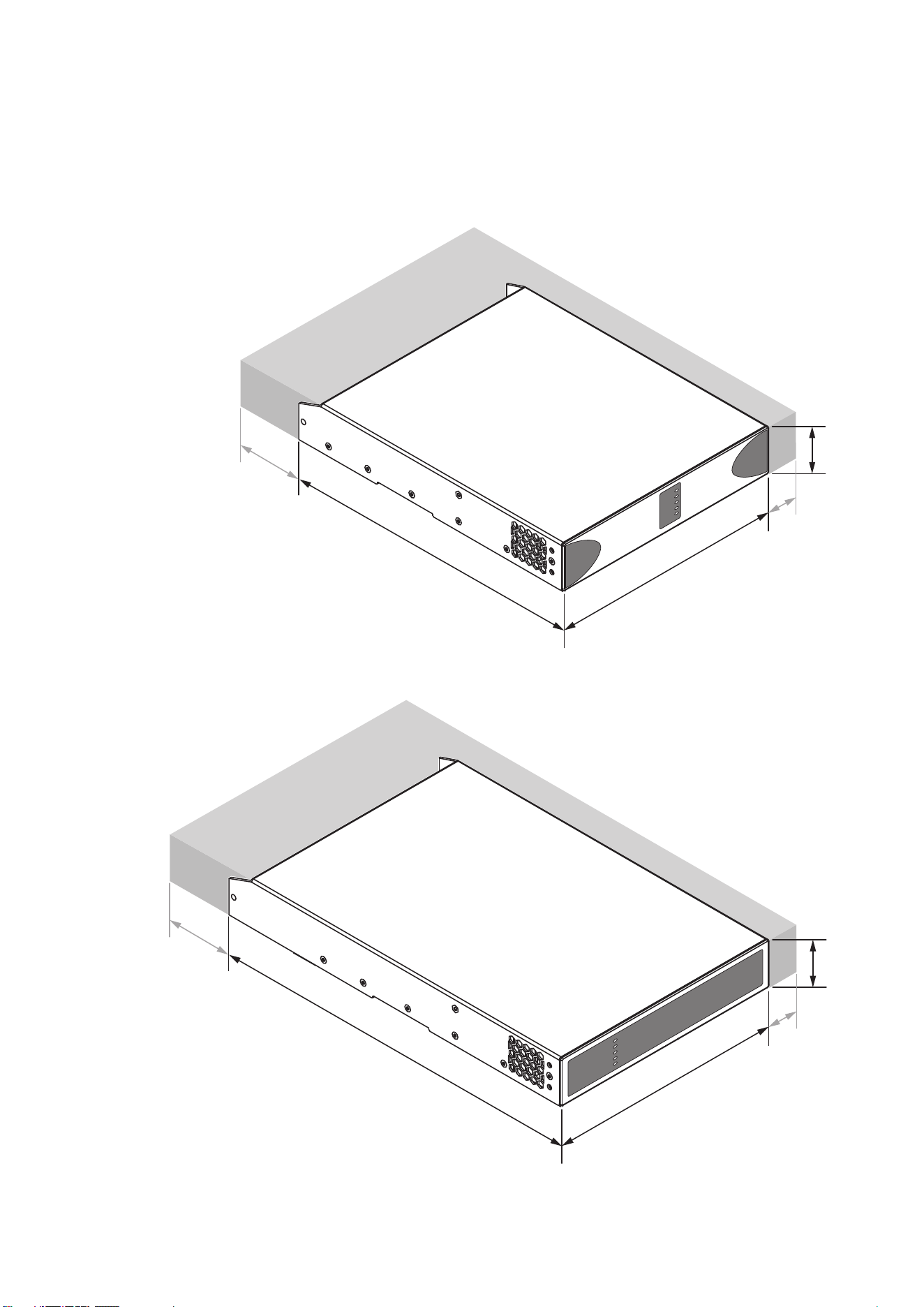
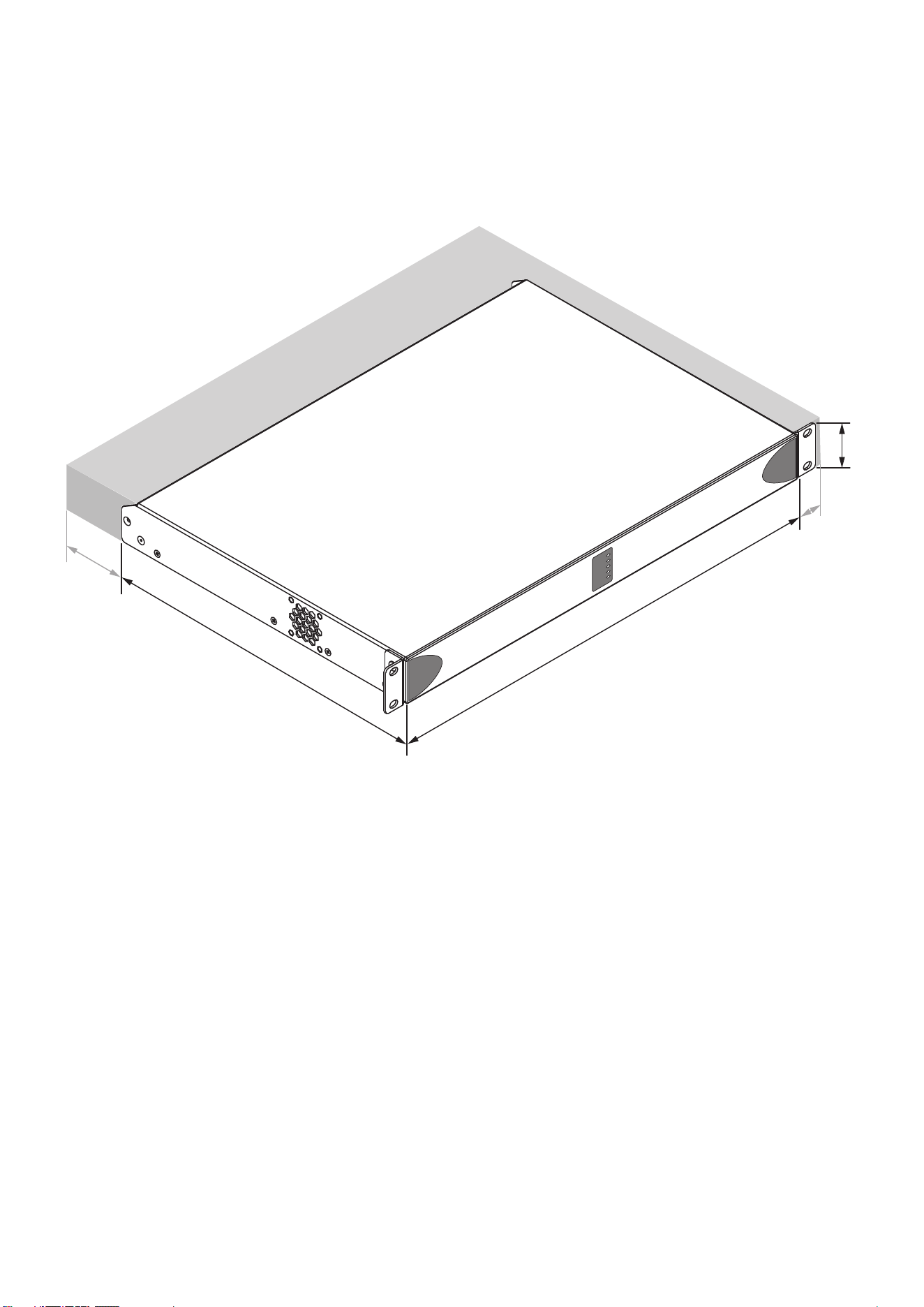
2.3 Dimensions
PowerZone™ Connect amplier dimensions and features
are illustrated in Diagrams 2A, 2B and 2C. The ampliers are
primarily intended for installation in an equipment rack but in
some cases can also be under-desk or wall mounted, or used
free standing. They are fan-cooled and must be installed such
that ventilation apertures are not obstructed.
2.4 Firmware
This manual describes the features, functions and user
interface of PowerZone™ Connect ampliers running
Firmware Version 1.8.0
It is strongly recommended that the rmware version
installed in the amplier in use is checked initially, and
regularly thereafter. If updated rmware is available,
the amplier should be updated as a priority.
The rmware installed in the amplier can be identied
and updated by selecting the Device option in the Control
web app Settings Menu. Firmware versions can be checked,
and rmware downloaded, from the PowerZone™ Connect
website:
3. Carton Contents
PowerZone™ Connect ampliers are shipped in a cardboard
carton containing the amplier unit, a mains cable appropriate
for the sales territory, an accessory pack, and a document pack.
The full contents is listed below.
• Amplier unit
• Mains power cable
• Input connector x 2
• GPIO socket connector
• Output connector x 1, 2 or 4
• Adhesive rubber feet x 4
• Document pack
6
Overview
Diagram 2B
PowerZone™ Connect four channel amplier dimensions.
(Shaded area denes ventilation space.)
Diagram 2A
PowerZone™ Connect two channel amplier dimensions.
(Shaded area denes ventilation space.)
44 mm
1.7 in
44 mm
1.7 in
220 mm
8.7 in
220 mm
8.7 in
213 mm
8.4 in
80 mm
3.1 in
80 mm
3.1 in
319 mm
12.6 in
25 mm
1.0 in
25 mm
1.0 in
7
Overview
80 mm
3.1 in
25 mm
1.0 in
Diagram 2C
PowerZone™ Connect eight channel amplier dimensions.
(Shaded area denes ventilation space.)
44 mm
1.7 in
319 mm
12.6 in
438 mm
17.2 in
8
Installation
4. Half Rack Width Amplier Installation
PowerZone™ Connect 122/122D, 252, 254 and 504/504D
Note: The rack mounting and desk/wall mounting components
described and illustrated in Sections 4.1 to 4.3 are not supplied with
PowerZone™ Connect ampliers but are available to purchase as
accessories. Contact your amplier re-seller for more information.
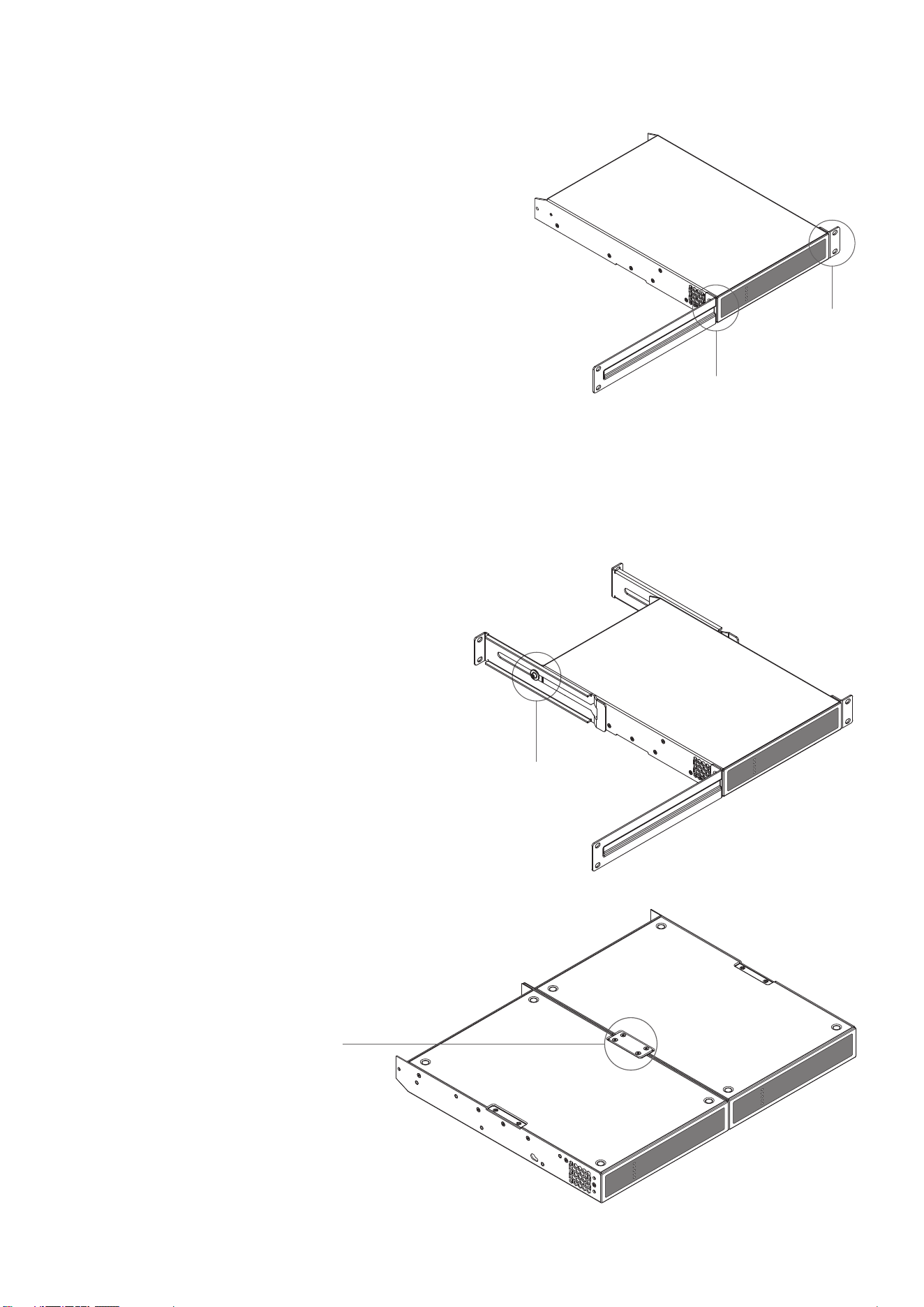
4.1 PowerZone™ Connect Mounting
PowerZone™ Connect half rack width ampliers are shipped
without rack mount hardware attached but can be congured
for rack installation using one standard rack ‘ear’ and one
half-rack extension piece as illustrated in Diagram 4A. The
installation and equipment rack should be congured to
provide appropriate ventilation airow space around the sides
and rear of the amplier. Ventilation airow space of at least
25 mm (1 in) should be maintained along at least one side of
the amplier at all times. Ventilation apertures are also located
on the rear panel of the amplier and must not be obstructed.
It is important to retain at least 80 mm (3.1 in) free space for
airow behind the amplier rear panel.
In addition to rack mount ears, rack mount rear support
hardware is optionally available and can be attached to the
amplier. Rear support hardware may be appropriate if
the amplier is to be used in a mobile rack or potentially be
subject to signicant movement. Diagram 4B illustrates the
use of rack mount rear support hardware.
Multiple PowerZone™ Connect half rack width ampliers can
also be mechanically connected using accessory connecting
plates. Diagram 4C illustrates the use of connecting plates.
Diagram 4A
PowerZone™ Connect
Rack Ear + Half-rack Extension.
Diagram 4B
PowerZone™ Connect
Rack Support hardware. 2 positions.
Rack Ear +
2 x M4 x 8
countersunk
Half-rack Extension +
2 x M4 x 8 countersunk
Rear Support + Button +
1 x M4 x 8
Connection Plate +
4 x M3 x 6 countersunk
Diagram 4C
2 x PowerZone™ Connect with Connection
Plate. 2 positions
9
Installation
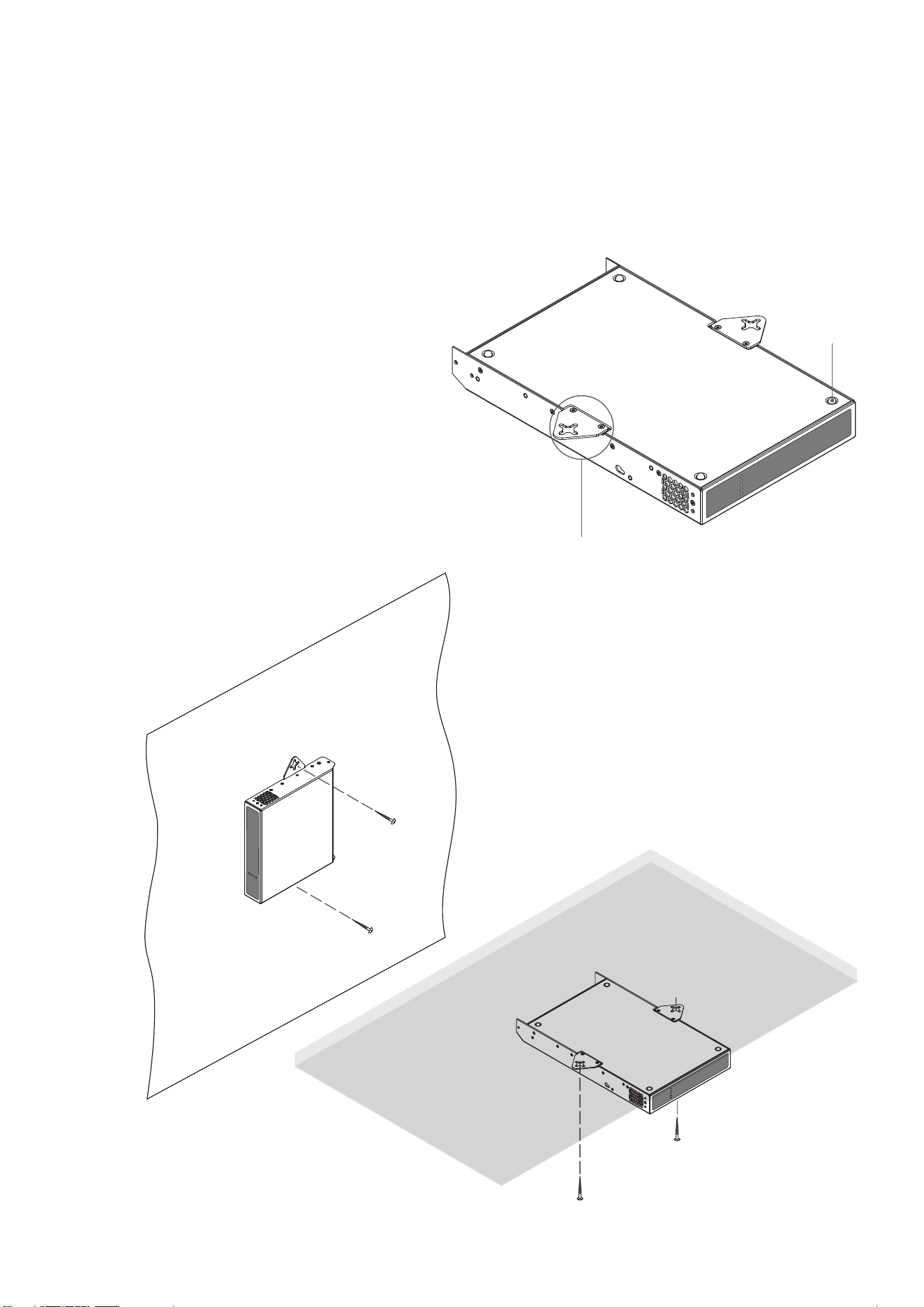
Diagram 4D
PowerZone™ Connect
with desk/wall Mounting Plate and adhesive feet.
2 positions and 4 positions.
Diagram 4E
PowerZone™ Connect
wall and under-desk mount.
4.2 Free-standing
If not installed in an equipment rack, PowerZone™ Connect
half rack width ampliers can be placed free-standing on a at
surface. Adhesive rubber feet are supplied for this purpose.
PowerZone™ Connect half rack width ampliers can also be
attached to the underside of desks or wall mounted using
connecting plate hardware. The adhesive rubber feet should
also be used in these circumstances to minimise the possibility
of vibration between the amplier and mounting surface. Wall
and desk mounting is illustrated in Diagrams 4D and 4E.
It is important in any free standing installation that airow
through the amplier’s side panel mounted fans and rear
panel ventilation apertures is not compromised by adjacent
items. At least 80 mm of free space behind the amplier and
25 mm along at least one side should be retained at all times.
Mounting Plate +
2 x M3 x 6 countersunk
Adhesive Foot
4 positions
Note: Full rack width ampliers are not suitable for under-desk or
wall mount installation.
10
Installation
5. Full Rack Width Amplier Installation
PowerZone™ Connect 508 and 1008/1008D
Note: Full rack width PowerZone™ Connect amplier models are
intended for rack mount or free-standing installation only.
5.1 Rack Mounting
PowerZone™ Connect full rack width ampliers are supplied
with rack ears tted. The installation and equipment rack
should be congured to provide appropriate ventilation airow
space around the sides and rear of the amplier. Ventilation
airow space of at least 25 mm (1 in) should be maintained
along at least one side of the amplier at all times. Ventilation
apertures are also located on the rear panel of the amplier and
must not be obstructed. It is important to retain at least 80 mm
(3.1 in) free space for airow behind the amplier rear panel.
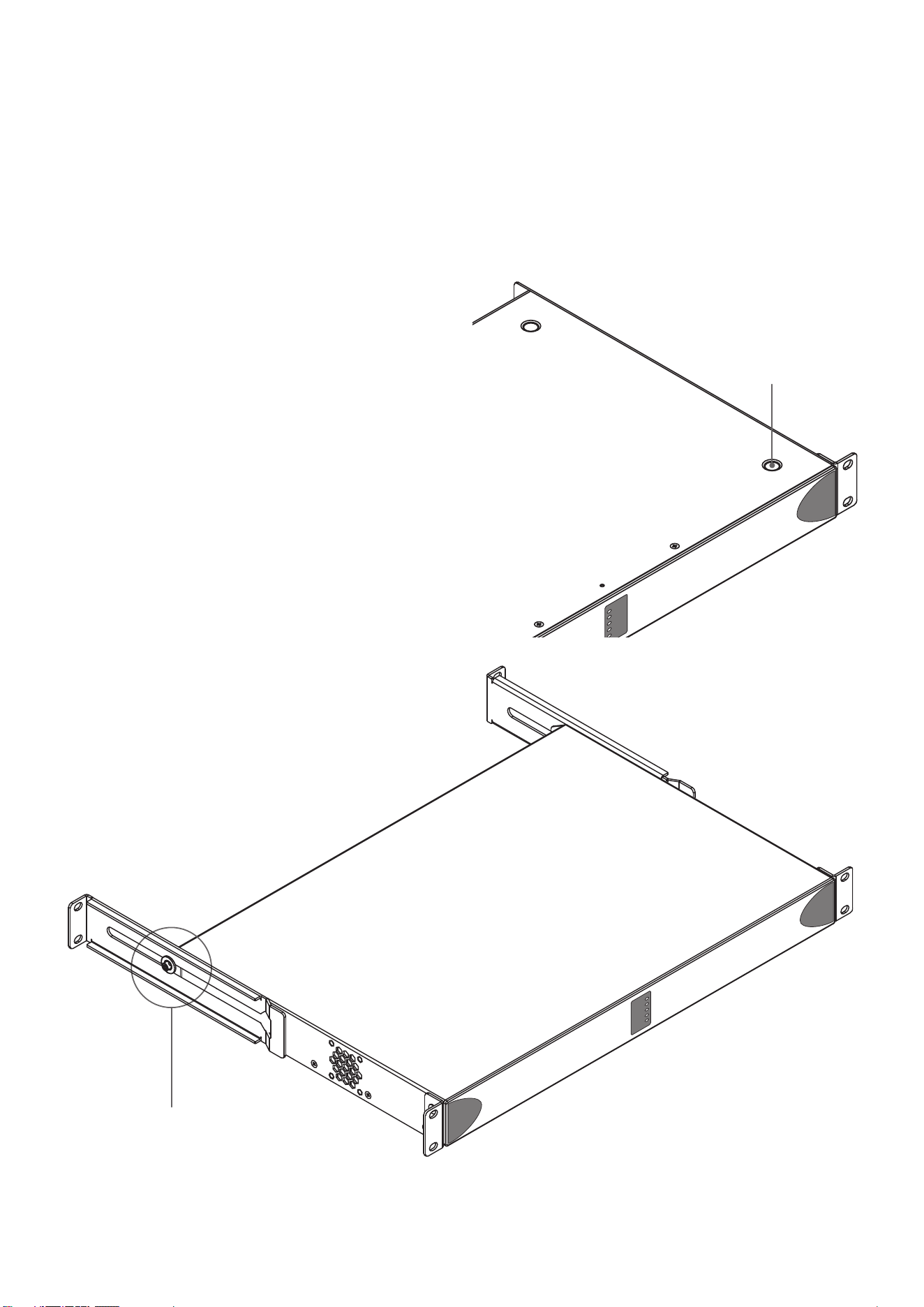
In addition to the use of rack mount ears, rack mount rear
support hardware is optionally available that can be attached to
the amplier. Rear support hardware may be appropriate if the
amplier is to be used in a mobile rack or potentially be subject
to signicant movement. Diagram 5A illustrates the use of rack
mount rear support hardware.
Diagram 5A
PowerZone™ Connect
Rack mount rear support hardware.
Diagram 5A
PowerZone™ Connect
Adhesive feet
Rear Support + Button +
1 x M4 x 8
5.2 Free-standing
If not installed in an equipment rack, PowerZone™ Connect
full rack width ampliers can be placed free-standing on a at
surface. Adhesive rubber feet are supplied for this purpose.
Diagram 5B illustrates the adhesive foot locations.
Adhesive Foot
4 positions

11
Conguration
6. Conguration
Before making input, output and GPIO connections, an
initial PowerZone™ Connect amplier conguration
should be established. It is particularly important that
the amplier output format is congured appropriately
for the speakers that are to be connected.
Conguration requires that PowerZone™ Connect
ampliers are connected to mains power and network
services. These connections are described in the
following two sections.
6.1 Mains Power Connection
PowerZone™ Connect ampliers incorporate a power factor
corrected power supply and can be used with mains input
voltage from 100 V AC to 240 V AC, 50 / 60 Hz. Use the mains
cable supplied with the amplier and connect it to a switched
mains supply.
PowerZone™ Connect ampliers have no mains power switch
and are operational as soon as mains power is connected.
6.2 Network Services
PowerZone™ Connect ampliers are congured via a
web page interface called PowerZone™ Control. Before
the conguration menus can be accessed, PowerZone™
Connect ampliers must be connected to the same TCP/
IP network as the computer or mobile device that is to
be used for conguration access.
6.2.1 Wired (Ethernet) Network Connection
To connect a PowerZone™ Connect amplier to a TCP/IP
network using a wired connection (Ethernet) follow the steps
below.
1. Use an Ethernet cable to connect the PowerZone™ Connect
amplier rear panel Network Control socket (upper socket) to
a free socket on a network router or switch, or directly to an
Ethernet equipped laptop or desktop computer.
2. Connect the PowerZone™ Connect amplier to mains
power using the supplied mains cable. Wait for the front panel
Network indicator to illuminate green to indicate that the
amplier has network connectivity.
3. The PowerZone™ Connect amplier default LAN IP address
is 192.168.64.100. Congure the laptop or desktop computer
for a xed IP address in the same IP range; eg. 192.168.64.10,
with Subnet mask of 255.255.255.0 (or prex 24) and set the
Gateway to 192.168.64.1.
4. Open a laptop or desktop web browser and enter the
address http://192.168.64.100. The PowerZone™ Control Web
App interface will open to enable amplier conguration as
required.
Note: PowerZone™ Connect ampliers can be congured
to use DHCP for network connection if required. However, if a
PowerZone™ Connect amplier using DHCP is power cycled, it
is possible that the TCP/IP network router will assign it a different
IP address, leaving its conguration page inaccessible via the
previous address. If this occurs, a network scanning app can be used
to identify the new IP address. DHCP and Fixed IP address option
settings can be found in the Settings Tab menu described in Section
6.3.
Note: The second network socket present on the amplier rear panel
is intended for Audinate Dante
®
AoIP network connection only. It
cannot be used for PowerZone™ Connect control connection.
6.2.2 Wireless (WiFi) Network Connection
To connect a PowerZone™ Connect amplier to a TCP/IP
network using a wireless connection (WiFi) follow the steps
below.
1. With the PowerZone™ Connect amplier connected
to mains power, wait for the front panel WiFi indicator to
illuminate green.
2. Use a mobile, laptop or desktop device to search for available
WiFi networks. Connect to, PowerZone™ Connect (product
serial number)’ using the password, ‘password’. The amplier
serial number can be found on its rear panel.
3. Open a computer or mobile device web browser and enter
the IP address: 192.168.4.1. The PowerZone™ Connect Control
Web App interface will open to enable amplier conguration
as required.
4. Select the Web App Settings Tab followed by WiFi > WiFi
Mode > Client to congure the amplier to connect to the
required WiFI network. The WiFi network name and password
will be required.
It is strongly recommended that the PowerZone™ Connect
amplier Access Point WiFi password is changed following
initial wireless connection.
12
Conguration
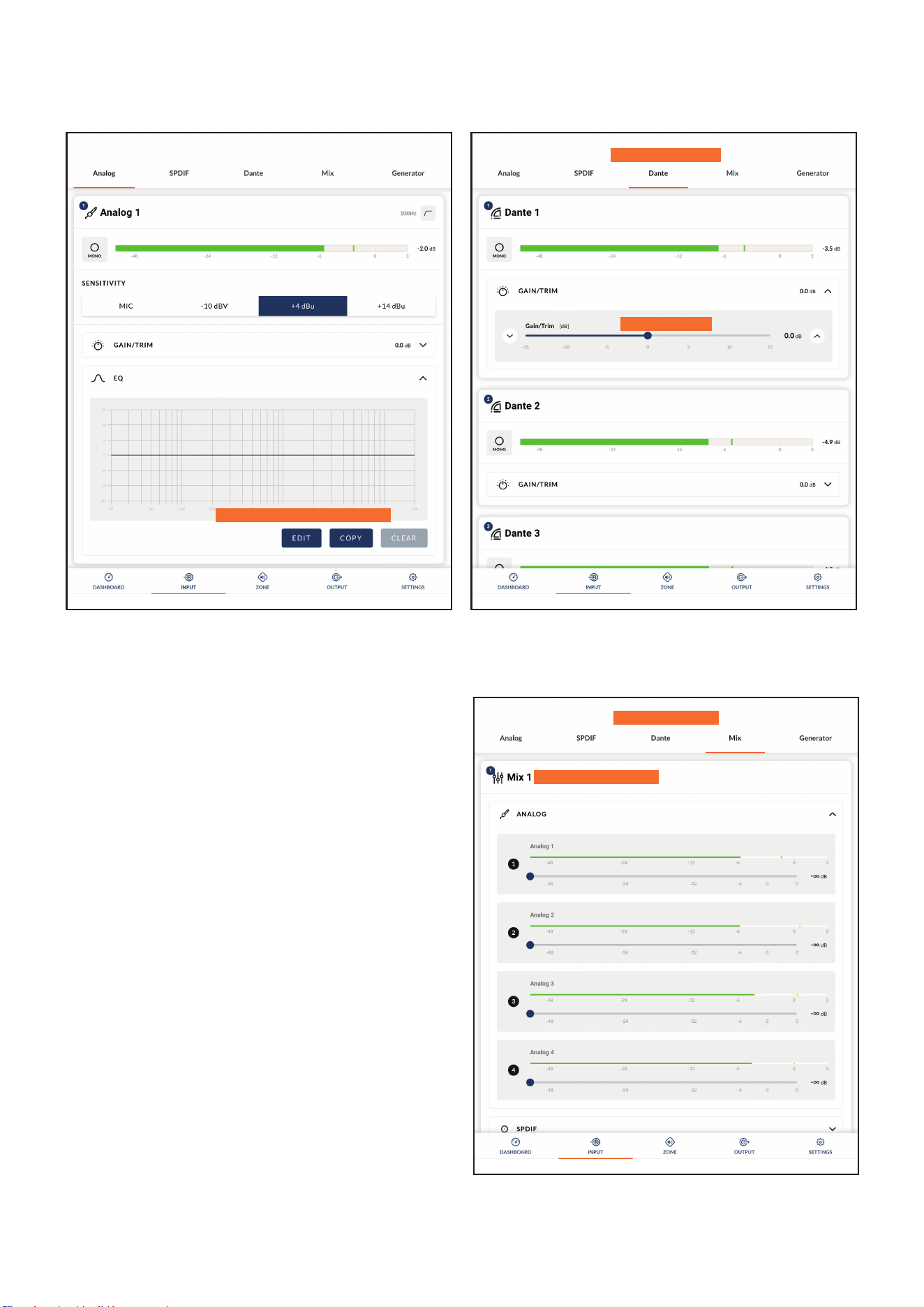
6.3.1 Input Tab
The Input Tab provides the following conguration parameters
for each amplier input channel:
• Input name
• Mono/Stereo selection
• Input sensitivity
• High-pass lter
• Gain trim
• Five band equalisation
The Input Tab also enables input signals to be mixed and routed
to specic amplier zones. The mix function enables any
amplier input, including stereo or split mono S/PDIF inputs,
to be grouped with any other input or inputs to create multiple
predened mixes.
Note: The number of individual mixes possible is equal to the
number of amplier analogue outputs (two outputs enables two
mixes, four outputs enables four mixes, eight outputs enables eight
mixes).
Note: Mix inputs are muted by default with their level adjustment
sliders set to zero.
Mix operations take place following high-pass lter, input
equalisation and mono/stereo selection.
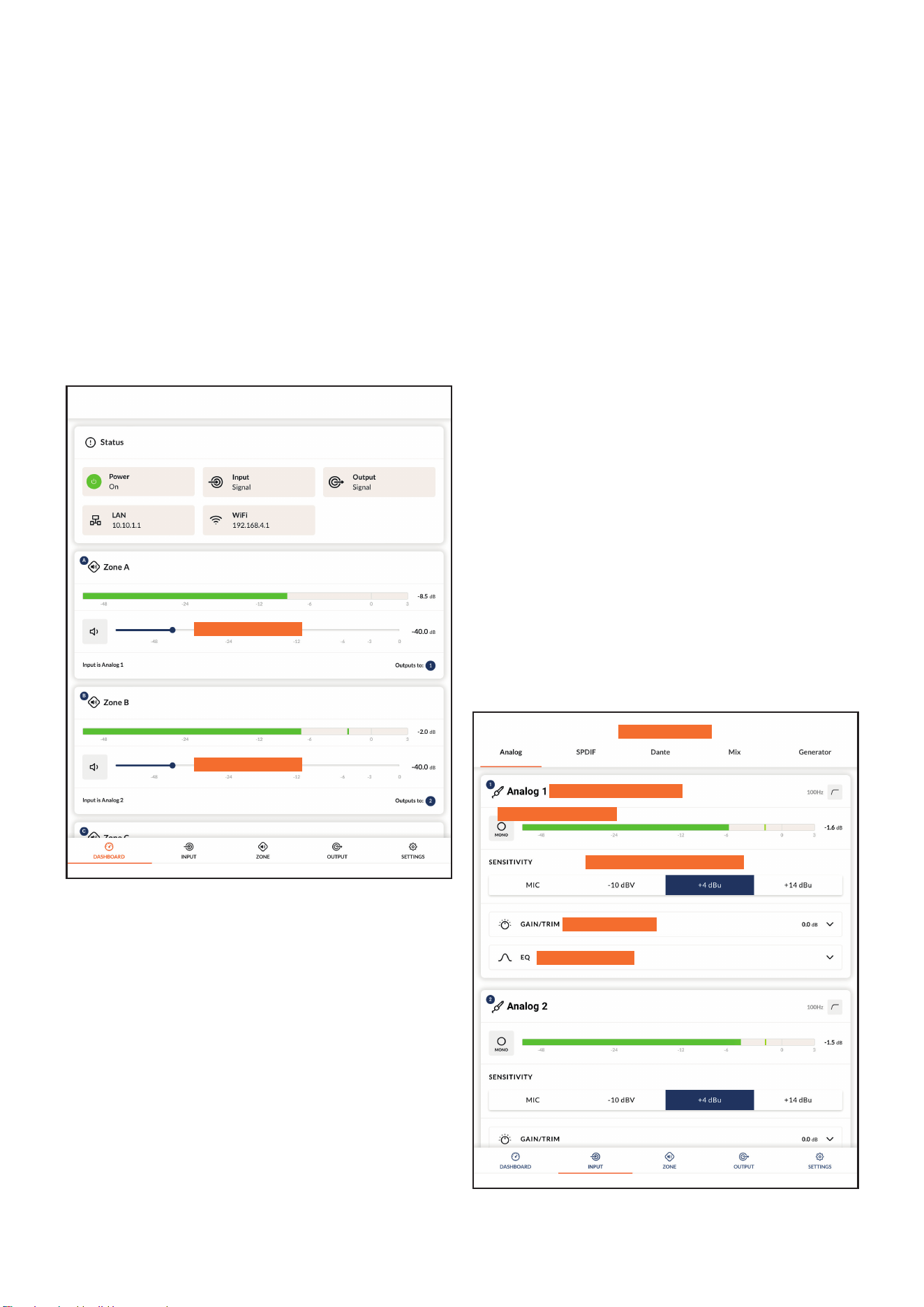
Diagram 6A
Conguration Dashboard display
Diagram 6B
Input Tab display
(two inputs only shown)
Input name - type to edit
Select mono or stereo
Select input sensitivity option
Adjust input gain
Open EQ window
Adjust zone volume
Adjust zone volume
Note: When adjusting input gain, the input level display should
remain green. If it displays red, the input gain should be reduced.
6.3 Conguration Menus
Opening a web browser that is network connected to
a PowerZone™ Connect amplier initially displays the
PowerZone™ Control Web App Dashboard illustrated in
Diagram 6A. The Dashboard is the ‘home’ page from which all
other conguration options can be accessed.
The Dashboard displays the amplier status, output zones and
the conguration menu tabs. It also enables immediate access
to zone volume control The functions available under each
conguration menu tab are described in the following sections.
Select input type
13
Diagram 6C
Input EQ display
Diagram 6D
Dante
®
Input display
Diagram 6E
Input Mix display
A pink noise or sine wave audio signal generator, appropriate
for audio system testing and set up, can also be enabled,
disabled, and adjusted for gain and frequency via the Input Tab.
Diagrams 6B, 6C, 6D and 6E illustrate the Input Tab, Dante
®
Input Tab, Input EQ and Input Mix displays respectively.
Note: The inputs displayed in the Dante
®
input tab will correspond
to those congured and enabled in the Dante
®
Controller Mac OS
or Windows application. If no inputs are displayed they must rst be
enabled in Dante
®
Controller.
6.3.2 Zone Tab
The Zone Tab enables installation zones to be dened and
named, and provides access to further sub-menus. Zones
might be bar or restaurant areas for example, or different
rooms in a home. For all Zone Tab menus, the installation zone
under conguration is selected by highlighting one of the zone
identiers (A to H depending on amplier output count) at the
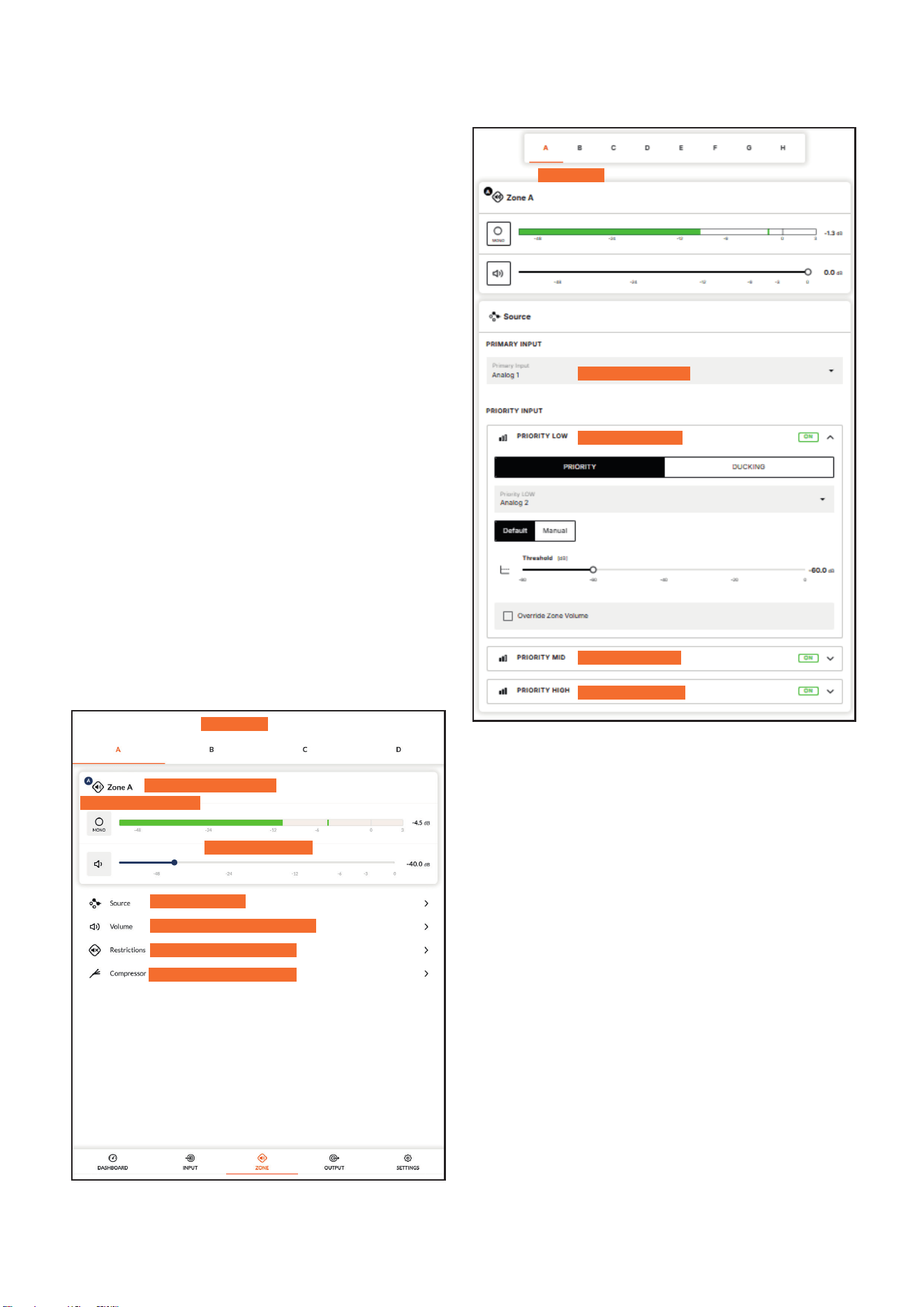
top of the display. Diagram 6F and 6G illustrates the Zone Tab
and Source menu displays.
• The Source menu enables inputs to be assigned to zones
and Input Priority or Input Ducking to be congured. The
Input Priority function enables up to three alternative
inputs to the Primary Input on each of the zones. This
provides the possibility to prioritize, replace and mute the
input(s) routed to the zone when the alternative input(s)
Select mix function
Select EDIT to apply required EQ
Mix name - type to edit
Adjust gain/trim
Conguration
Select Dante
®
input
14
Zone name - type to edit
Select zone
Select mono or stereo
Select zone input
Congure zone volume options
Congure zone restrictions
Congure zone compressor
Adjust zone volume
Diagram 6F
Zone Tab display
Conguration
exceed(s) a preset level. The Primary Input is the main
input, such as background music played in a shopping
centre. 1. Priority Low, for example commercials, takes
priority over the Primary Input. 2. Priority Mid, e.g.
paging, takes priority over both background music and
commercials. 3. Priority High, such as an emergency alarm,
takes priority over and mutes all other inputs.
The Input Ducking function enables an alternative input,
Ducking Low, to replace and attenuate the Primary Input
routed to the zone under conguration when the alternative
input exceeds a preset level.
Note: The Priority Low parameters can be either set to default
values or to its Threshold, Attack, Hold and Release values as
required (Manual). The Priority Mid and Priority High parameters
can be either set to default values or to their Threshold and Hold
values as required. All Input Priorities can also be set to ignore the
volume level set for the specied zone (Override Zone Volume).
The Ducking Low parameters can be either set to default values or
its Threshold, Depth, Attack, Hold and Release values as required.
• The Volume menu allows minimum and maximum zone
volume limits to be set, and enables external GPIO volume
control to be applied to individual zones. The GPIO
conguration menu can be found under the Settings Tab,
and notes on connecting an external volume control via the
Diagram 6G
Zone Source menu display
GPIO interface can be found in Section 6.5 of this manual.
Note: If an amplier is controlled via a third-party control system
API, volume level limits set via the Input Tab will not apply.
• The Restrictions menu enables zone inputs or input mixes
to be restricted from routing to particular zones.
Note: Routing restrictions cannot be applied to priority zone inputs.
Note: If an amplier is controlled via a third-party control system
API, input routing restrictions set via the Input Tab will not apply.
• The Compressor option enables default or custom signal
compression to be applied to individual zones.
Note: Compression can be useful to reduce the volume difference
between loud and quiet audio material. The lower the compression
threshold is set, the more the difference between loud and soft will
be reduced. The overall zone volume may need to be increased
when compression is used. The default compression parameters are
appropriate for most installations.
Select zone
Select Primary Input
Select Priority Low
Select Priority Mid
Select Priority High
Diagram 6G
Zone Source menu display
15
Diagram 6G
Zone Source menu display
Conguration
Select to congure
Select to congure
Select to congure
Select to congure
Select to congure
Select to congure
Select to congure
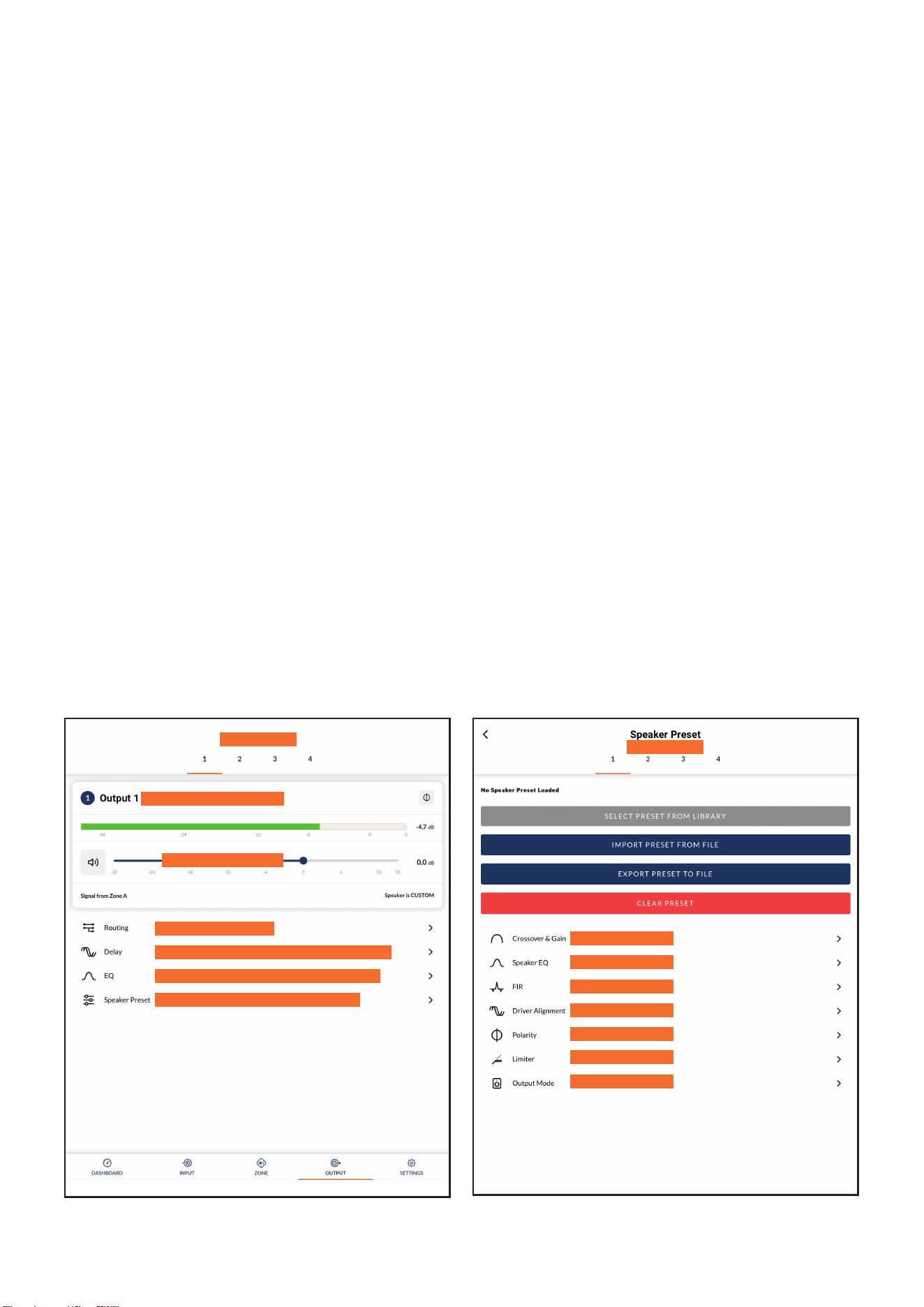
Diagram I
Speaker Preset Parameters
Select output
Output name - type to edit
Select output
Enable and congure output delay if required
Dene output routing
Enable and congure output EQ if required
Congure and manage speaker presets
Diagram 6H
Output Tab display
6.3.3 Output Tab
The Output Tab enables amplier outputs to be named, linked
to zones, and provides access to Delay, Room Equalizer and
Speaker Preset menus. Diagram 6H illustrates the Output Tab
display.
For all Output Tab menus, the amplier output under
conguration is selected by highlighting one of the output
identiers at the top of the display.
Note: The number of individual outputs available for conguration
will depend on the PowerZone™ Connect amplier model and the
input, zone and output mode conguration. The diagrams following
illustrate a four output amplier.
• The Routing menu enables zones to be assigned to amplier
outputs.
Note: Routing for zones specied as stereo will automatically offer
three output options: left channel, right channel or summed mono.
The summed mono signal can potentially be used to drive a mono
subwoofer or a 70/100V mono speaker line.
• The Delay menu enables delay to be applied to individual
amplier outputs.
• The Equalizer menu enables parametric equalization to be
applied to individual amplier outputs. Equalizer settings
congured for one amplier output can be copied and
applied to other outputs.
• The Speaker Preset menu enables a set of speaker
parameters to be adjusted, and preset congurations to be
created, exported, imported or cleared.
Speaker Presets can be simply applied to the selected
amplier output or imported, chosen from a library,
exported or cleared. The preset congurations can include
any or all of the parameters described in Section 6.3.4
and can be locked to prevent inadvertent modication.
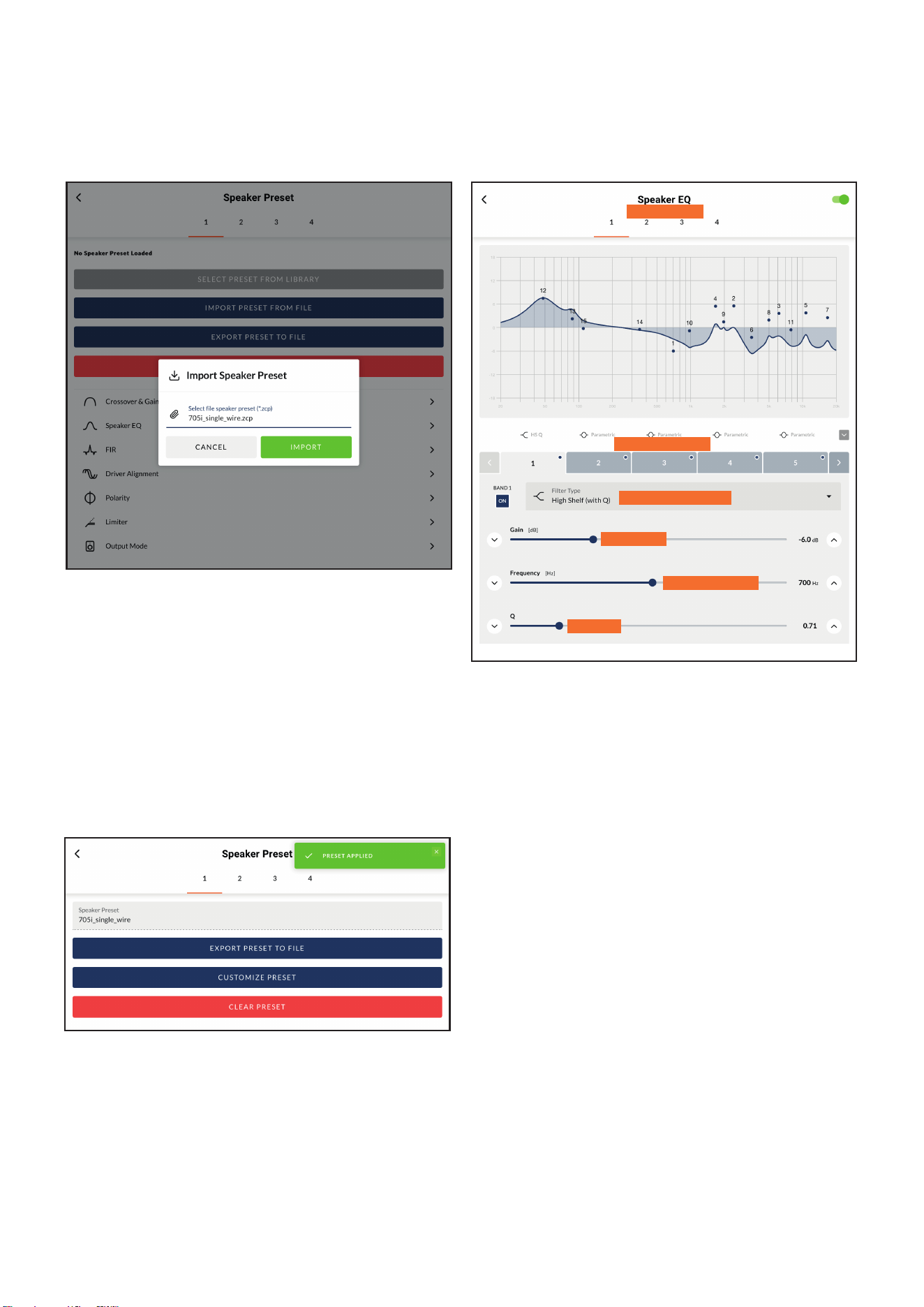
Diagrams 6I to 6L illustrate the application of speaker
presets.
Speaker Preset data provided by third parties for use with
specic speakers can be imported and applied to amplier
outputs. To import speaker preset parameters follow the
steps described below and illustrated in the diagrams.
1. Select either the IMPORT PRESET FROM
LIBRARY or SELECT PRESET FROM FILE option
from the Speaker Preset menu. If no import
option is visible, select CLEAR to delete any
existing speaker preset data.
Note: The SELECT PRESET FROM LIBRARY option will be
unavailable if no speaker preset libraries have been created. Speaker
preset library creation and management is described in Section
6.3.5.
Adjust gain if required
16
2. Select the appropriate ‘.zcp’ format speaker preset
data le to import from either a Library or a
computer folder. The preset data will be applied
to the selected amplier output as soon as the le
import is complete.
3. If the Speaker Preset data requires modication it
can be customized by selecting the CUSTOMIZE
PRESET option.
Note: If an imported Speaker Preset data le includes locked
parameters, they will be unavailable for modication.
Diagram 6J
Speaker Preset import le selection
Conguration
Diagram 6K
Speaker Preset applied
6.3.4 Speaker Preset Menu Parameters
• The Crossover & Gain preset menu enables high or low-
pass crossover lters and gain adjustment to be applied to
individual amplier outputs.
• The Speaker EQ preset menu enables parametric
equalization to be applied to individual amplier outputs.
• The FIR preset menu enables FIR (Finite Impulse Response)
based equalization lter coefcients generated by external
speaker measurement software to be imported and applied
to individual amplier outputs. The FIR lter has 512 taps at
48kHz.
Note: FIR coefcient les in either .csv or .txt format can be
imported.
• The Driver Alignment preset menu enables delay to be
applied to individual amplier outputs.
• The Polarity preset menu enables the polarity of individual
amplier outputs to be reversed.
Diagram 6L
Speaker Preset parameter adjustment
Select output
Engage EQ bands
Select band function
Adjust gain
Adjust frequency
Adjust Q
17
Conguration
Diagram 6M
Settings Tab menu
Diagram 6N
The External Devices display
• The Limiter preset menu enables signal limiting to be
engaged or bypassed on individual amplier outputs. Clip
limiting, Peak limiting and RMS limiting can be individually
or collectively engaged. The Clip limiting function offers
Fast and Normal response time options. The Peak limiting
function can be set to either Automatic or Manual
parameter values. The RMS Limiter has default parameter
values that can be adjusted but has no automatic option.
Note: In automatic mode, the peak limiter parameters adjust
automatically in response to Crossover & Gain high-pass lter
settings.
• The Output Mode preset menu enables individual
amplier outputs to be switched off or congured for Lo-Z
or Hi-Z modes. In Hi-Z modes, a high-pass lter can also
be congured and applied to the output. The number of
outputs available will depend on the amplier model, input
setup and zone setup. For example, a two output amplier
will have two outputs available if Lo-Z mode is selected but
only one output available if Hi-Z mode is selected.
Note: Use of a high-pass lter with Hi-Z mode loudspeakers is useful
to avoid the possibility of distortion caused by low frequency line
transformer saturation. Begin with the default lter setting of 70Hz.
If low frequency distortion is still audible, increase the frequency
setting one step at a time until the distortion is no longer audible.
6.3.5 Settings Tab
The Settings Tab enables miscellaneous amplier settings to be
congured and installation data to be recorded. The Settings
Tab provides access to further sub-menus. Diagram 6M
illustrates the Settings Tab.
• The System Information menu provides text elds for the
recording of installation data.
• The Device menu records amplier specic information
such as the model number and rmware version. A rmware
update routine and identier button can also be found
under the Device menu.
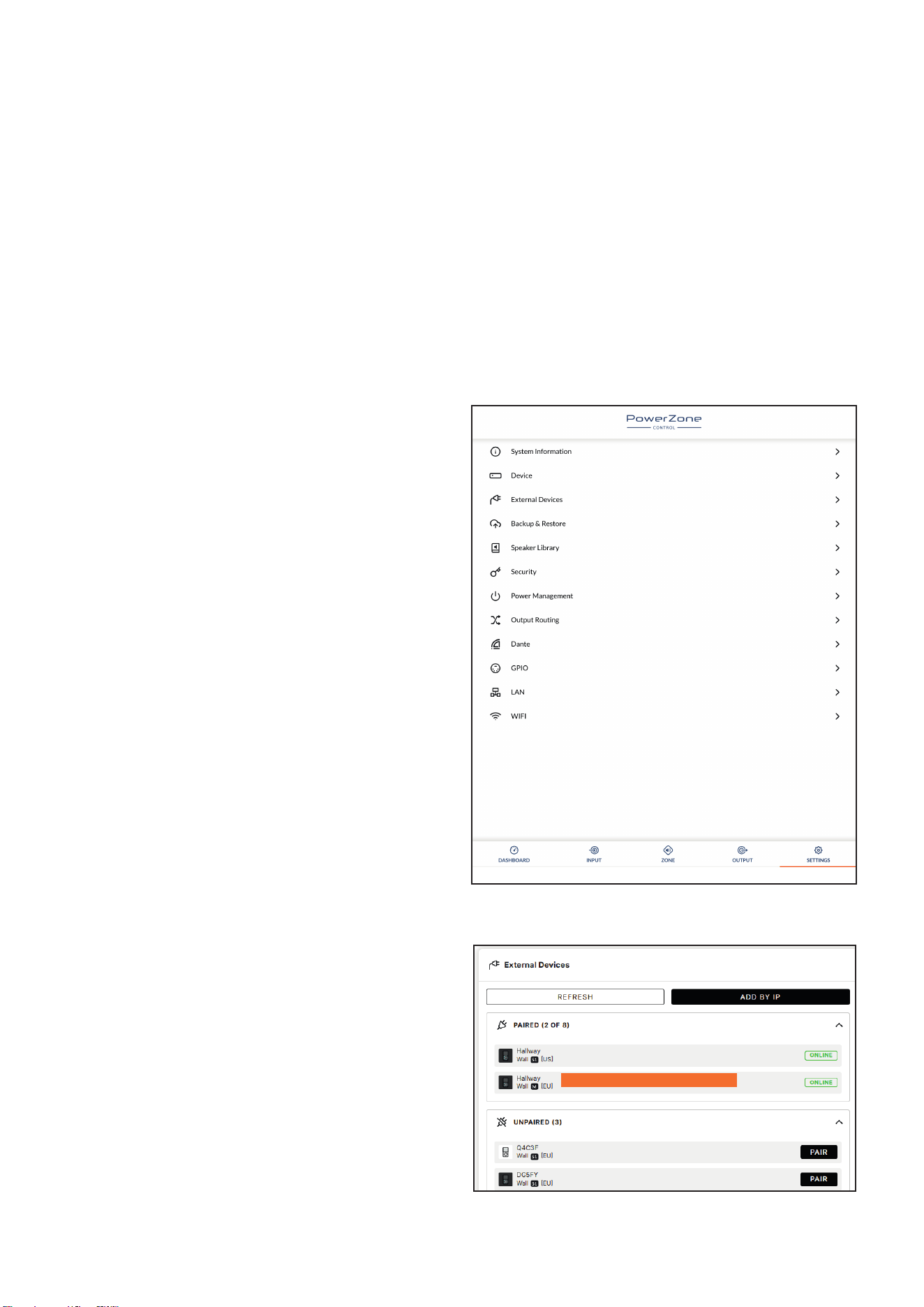
• The External Devices menu enables control panels to be
paired with an amplier and congured. Depending on
External device - tap to congure
18
Conguration
Diagram 6O
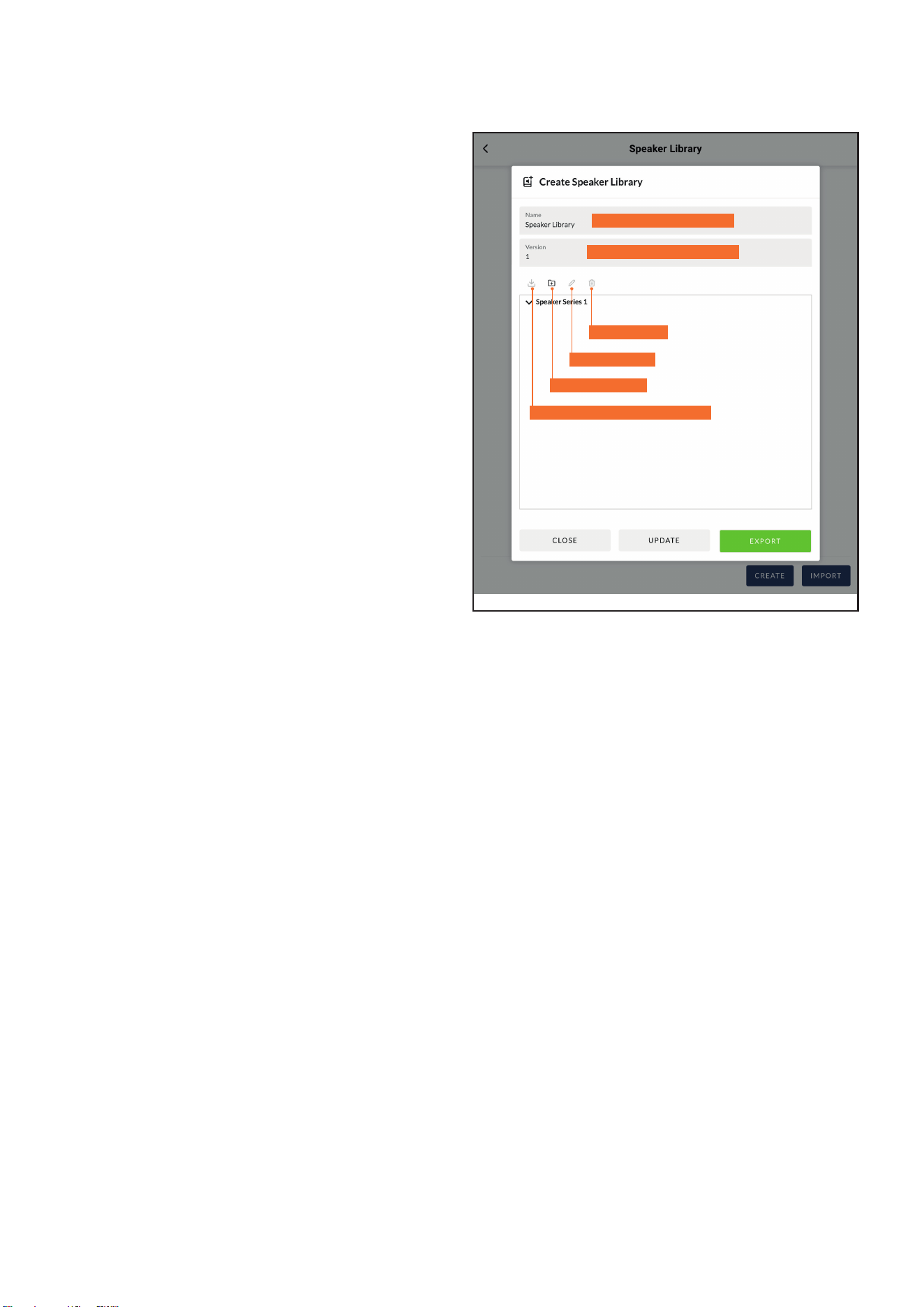
Speaker Library Creation and Management
Library name - type to edit
Library version - type to edit
Import preset data (.zcp) to library
Creat new library
Rename library
Delete library
product, setup and conguration, each device can remotely
control one single or multiple amplier zones. Diagram 6N
illustrates the External Devices display.
• The Backup & Restore menu enables amplier
conguration data to be downloaded to an external archive,
and enables previously saved conguration les to be
uploaded and adopted by the currently connected amplier.
• The Speaker Library menu enables management of speaker
preset libraries. Existing libraries of speaker preset les
(.zcl) can be created or imported, and existing libraries
edited or fully deleted. Diagram 6O illustrates the creation
and management of speaker preset libraries.
• The Security menu enables a password to be set in order
to protect against unauthorised access to the amplier
Control Web App. Password protection is particularly
important when an amplier is connected to a wired
network as the a WiFi password is no longer required to
gain access to Control Web App.
Note: It is recommended that a Control Web App password is
different from that required to gain access to the amplier via WiFi.
• The Power Management menu enables various automatic
switch-on options to be engaged. The Power Management
menu also offers timed Standby and Mute functions.
Note: In Eco mode the network is switched off during standby. When
the amplier has Dante
®
enabled use the Audio (Digital) or Network
Only settings.
• The Output Routing menu enables specied inputs or zones
to be routed to the amplier S/PDIF outputs. The output
level can also be adjusted.
Any zone or input can be routed to either digital output,
including inputs not actively assigned to a zone. Primary
or priority input status is immaterial. The specied input is
always routed to the specied output to be available for use
by downstream devices.
Note: When a zone is selected for the digital S/PDIF (or Dante
®
)
output - the output signal is variable. However, when an input signal
is routed out an S/PDIF (or Dante
®
) output, the signal will be xed.
Note: The digital output function is especially useful when ampliers
are to be daisy chained and a specic input; a central paging mic, for
example, is required to be routed to multiple ampliers.
• The Dante® menu enables identication of Dante® capable
devices present on the AoIP network. Dante® devices must
be appropriately enabled and congured using Dante®
Controller. Use Dante
®
Controller to activate AES67 mode
if required.
• The GPIO menu enables conguration of the multi-purpose
GPIO interface pins. A description of the individual settings
is detailed in PowerZone™ Control.
• The LAN menu enables conguration and reset of the wired
network options and parameters.
• The WiFi menu enables conguration and reset of the
wireless network options and parameters.
6.4 Setup and Signal Routing
Thanks to their network based conguration features,
PowerZone™ Connect ampliers offer considerable
versatility in terms of sources, signal routing, installation zones
and output modes. Inputs can be freely assigned to installation
zones, and those zones assigned freely to the available amplier
outputs in either Lo-Z or Hi-Z modes.
This versatility enables, for example, one amplier
simultaneously to drive both Lo-Z and Hi-Z speakers, or for
different inputs to be routed to different output zones.
The following paragraphs describe and illustrate the
recommended procedure for conguring input, zone and
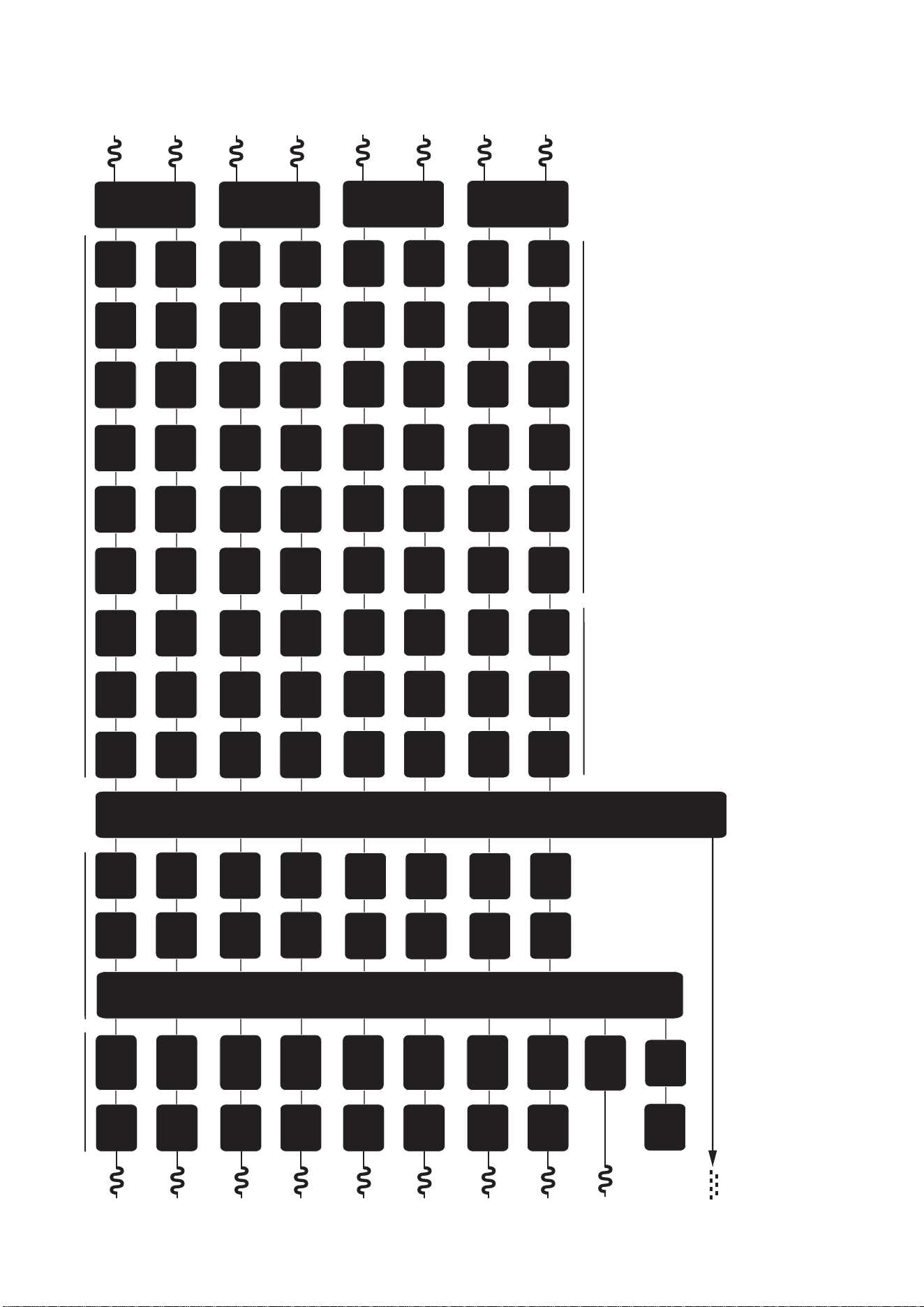
output routing. A general signal ow schematic is also
illustrated in Diagram 6P.
19
Conguration
Diagram 6P
Signal Flow Schematic
(eight output amplier)
Analog 3
Output
Matrix
Zones A - D
Outputs 1 - 8
Analog 2
Input
Sensitivity
Analog 1
Input
Gain
Input
Sensitivity
Input
Gain
Input
Sensitivity
Input
Gain
Analog 4
SPDIF (stereo)
SPDIF Out (any two input or zone signals).
Pink Noise
Gain
Delay
Level
Adjustment
Level
Adjustment
Level
Adjustment
Level
Adjustment
Compressor
Compressor
Compressor
Compressor
Level
Adjustment
Level
Adjustment
Level
Adjustment
Level
Adjustment
Compressor
Compressor
Compressor
Compressor
Delay
Delay
Delay
EQ
EQ
EQ
EQ
EQ
EQ
EQ
EQ
FIR
FIR
FIR
FIR
Polarity
Polarity
Polarity
Polarity
Limiter
BTL
Amplifier
2 x Low-Z
1 x Hi-Z
BTL
Amplifier
2 x Low-Z
1 x Hi-Z
Limiter
Limiter
Limiter
Driver
Alignment
Driver
Alignment
Driver
Alignment
Driver
Alignment
Crossover
Crossover
Crossover
Crossover
Gain Trim
Gain Trim
Gain Trim
Gain Trim
Input
Sensitivity
Input
Gain
Analog 7
Analog 6
Input
Sensitivity
Analog 5
Input
Gain
Input
Sensitivity
Input
Gain
Input
Sensitivity
Input
Gain
Analog 8
Input
Sensitivity
Input
Gain
Input
Selection
Input Setup
Zone Setup & Routing
Output Setup
Output 1
Output 2
Output 3
Output 4
Delay
Delay
Delay
Delay
EQ
EQ
EQ
EQ
EQ
EQ
EQ
EQ
FIR
FIR
FIR
FIR
Polarity
Polarity
Polarity
Polarity
Limiter
BTL
Amplifier
2 x Low-Z
1 x Hi-Z
BTL
Amplifier
2 x Low-Z
1 x Hi-Z
Limiter
Limiter
Limiter
Driver
Alignment
Driver
Alignment
Driver
Alignment
Driver
Alignment
Crossover
Crossover
Crossover
Crossover
Gain Trim
Gain Trim
Gain Trim
Gain Trim
Output
5
Output 6
Output 7
Output 8
Zone Adjustment Parameters
Speaker Preset Parameters
Input
Gain
Input
Gain
Input
Gain
Input
Gain

20
Conguration
6.4.1 Input Setup
Open the conguration Dashboard and select the Input Tab.
The Input Tab is shown in Diagram 6B.
• To edit default input names simply select and type in the
Input Name eld.
• Dene a mono or stereo input by selecting the appropriate
option. Dening a stereo input will reduce the total number
of discrete inputs available.
• Select an input sensitivity option from the drop-down
menu: +14dB, +4dB, -10dB and ‘microphone’ options
are available. Generally, the +14dB or +4dB options are
appropriate for ‘professional audio’ source hardware
with balanced outputs, while the -10dB option is more
appropriate for ‘consumer audio’ source hardware with
unbalanced outputs. The ‘microphone’ option provides the
signicantly greater sensitivity required for microphones.
Note: Only dynamic microphones are suitable for connection.
Phantom power for condenser microphones is not provided.
• If necessary, adjust the input gain using the slider or up/
down icons. Gain adjustment is intended to be used for ne
output level adjustment following initial use. If necessary,
adjust the input EQ using the 5 band equalizer.
6.4.2 Zone Setup & Routing
Open the conguration Dashboard and select the Zone Tab.
The Zone Tab is shown in Diagram 6F.
• Select the zone to be congured. The number of zones
available and their channel format (stereo or mono) will
depend on the amplier model, input setup and output
mode (Lo-Z or Hi-Z). For example, a two output amplier
can have the following zone congurations:
• 1 x stereo Lo-Z zone
• 2 x mono Lo-Z zones
• 1 x mono Hi-Z
• A four output amplier can have the following zones
congured:
• 2 x stereo Lo-Z zones
• 4 x mono Lo-Z zones
• 2 x mono Hi-Z
• 1 x mono Hi-Z + 1 x stereo Lo-Z zone
• 1 x mono Hi-Z + 2 x mono Lo-Z zones
• An eight output amplier can have the following zones
congured:
• 4 x stereo Lo-Z zones
• 8 x mono Lo-Z zones
• 4 x mono Hi-Z or zones
• 2 x mono Hi-Z or + 2 x stereo Lo-Z zone
• 2 x mono Hi-Z or + 4 x mono Lo-Z zones
Note: When congured in Hi-Z mode PowerZone™ Connect
ampliers operate in ‘bridged’ format where the output of two
channels is combined. This means that the number of output
channels available in Hi-Z mode is half that available in Lo-Z mode .
BTL mode is only allowed for speakers with an impedance of 8
Ohm or higher.
Note: Mono signals might be mono at source, created though
combining the left and right channels of a stereo signal (summed
mono) or treating the left and right channels of a stereo signal
independently (split mono).
• Name zones by typing in the Zone Name eld.
• Adjust the zone volume if required by using the slider.
• Dene a mono or stereo zone by selecting the appropriate
option. Dening a stereo zone will reduce the total number
of further zones available.
• Specify an input for the zone by selecting from the drop-
down menu. Selecting a stereo input for a mono zone will
automatically sum the stereo channels to mono.
21
Conguration
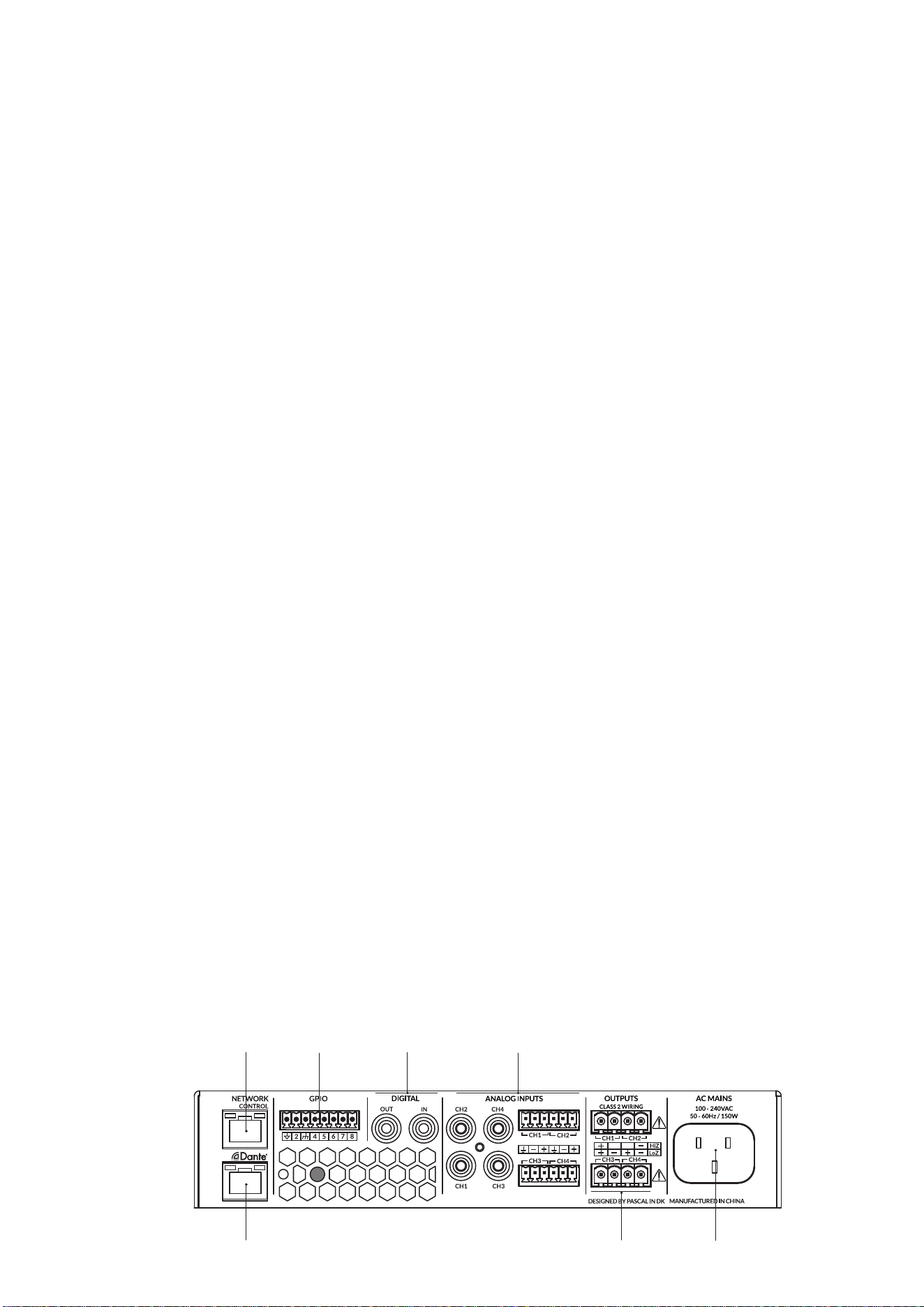
6.5 GPIO Setup and Connection
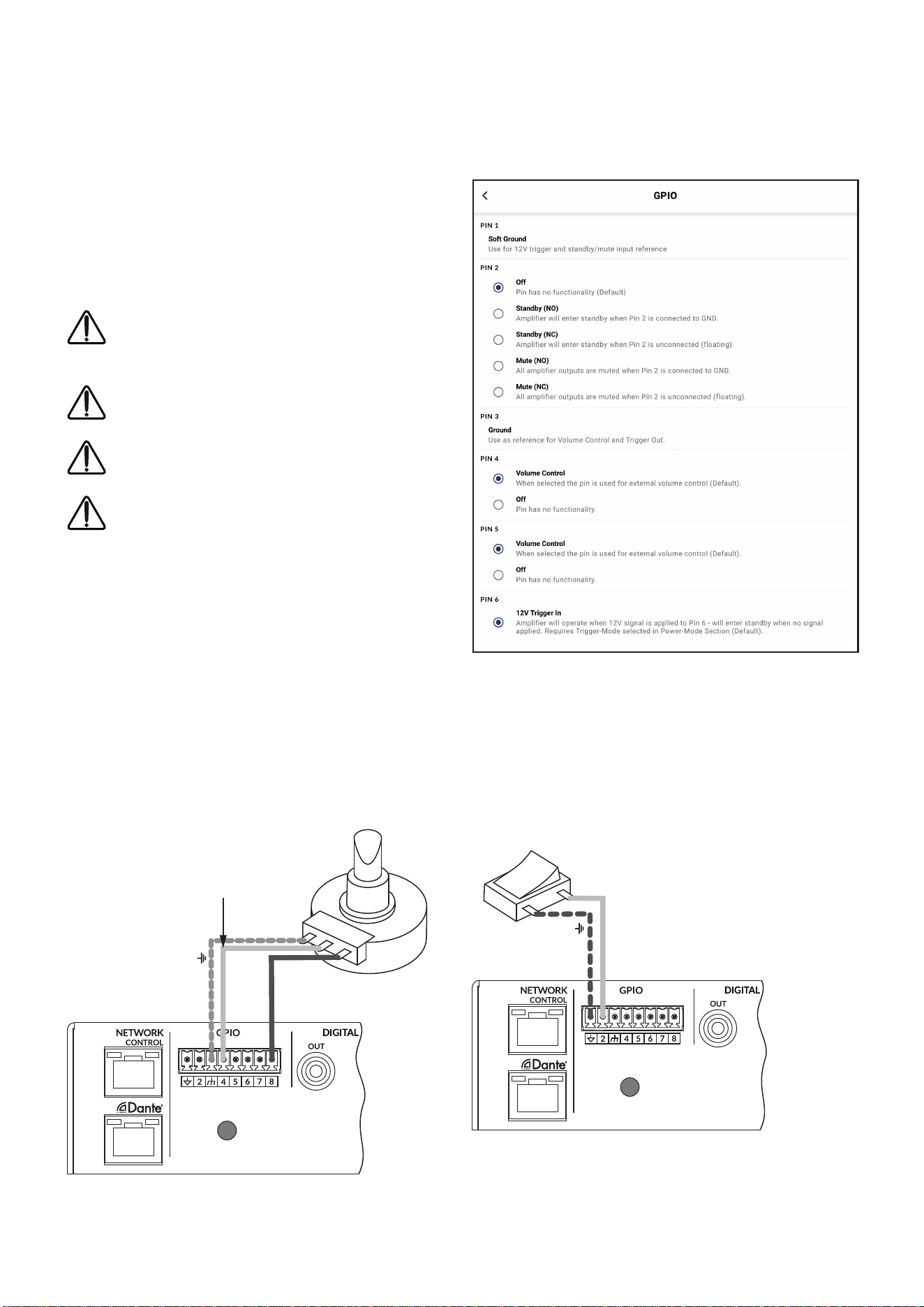
PowerZone™ Connect ampliers provide a GPIO socket that
enables remote control of volume, standby, mute and trigger
functions. The GPIO connector pin functions are described
in the GPIO Settings menu illustrated in Diagram 6Q. The
connection of GPIO based remote volume control and
standby/mute are illustrated in Diagram 6R and Diagram 6S
respectively.
Note: The GPIO connector must not be used for any
unintended purpose. Amplier damage may result from
incorrect use of GPIO.
Note: Shielded cable must be used when connecting standby
switches and potentiometers via GPIO.
Note: GPIO Pin 8 has a low output impedance and is able to
supply a maximum current of 10mA.
Note: GPIO Pin 1 and Pin 3 both offer ground connections:
Pin 1 is connected directly to the amplier chassis.
Pin 3 is connected to the chassis via a 220 Ohm resistor. The ‘soft
ground’ connection of Pin 3 is potentially useful for managing
ground loops that may cause audible hum.
Diagram 6Q
GPIO Settings Menu
Diagram 6R
Potentiometer connections for remote vol-
ume control via GPIO.
Note: Diagram 7E illustrates
use of the GPIO connector.
Diagram 6S
Connections for remote
standby/mute switch via GPIO.
Note: Diagram 7E illustrates
use of the GPIO connector.
Ground
+3V3
Ground
Standby/Mute
Potentiometer
(>10kΩ)
Connect Wiper to
Pin 4, 5, 6 or 7.
Switch open (NO) or closed
(NC) toggles Standby or
Mute depending on options
selected in the GPIO
Settings Menu
22
Connections
7. Connections
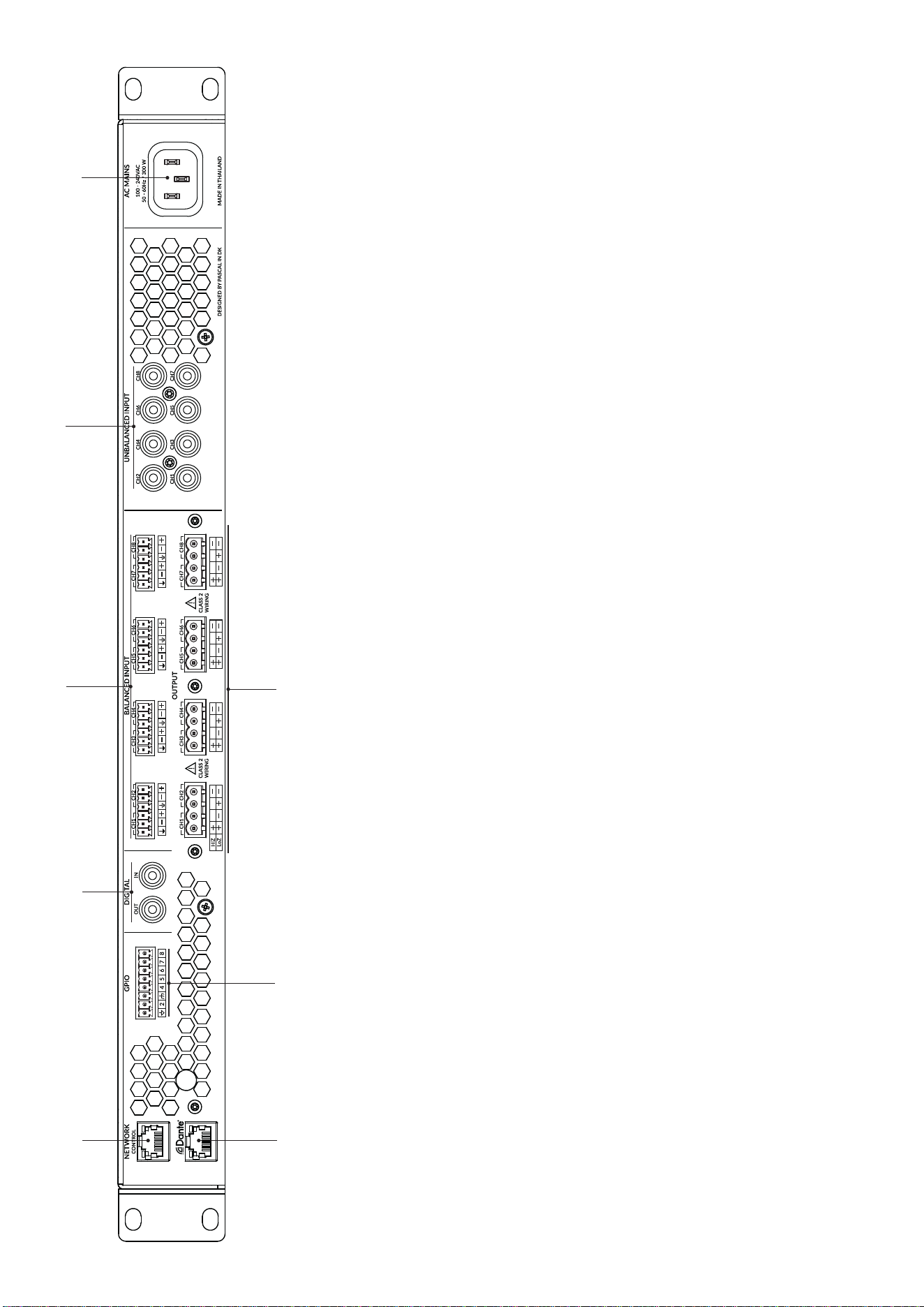
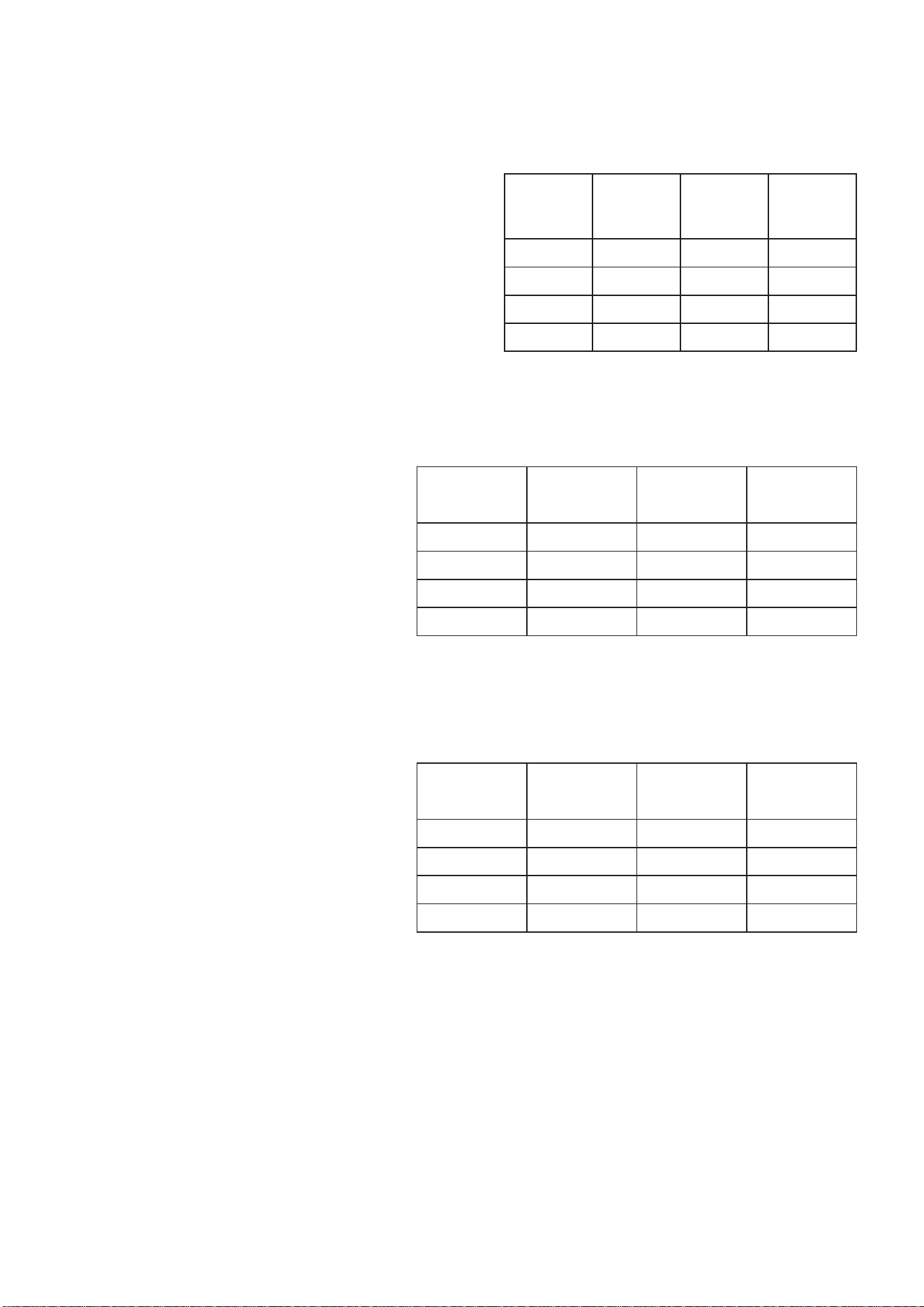
PowerZone™ Connect amplier rear panel connections
are illustrated in Diagrams 7A and 7B.
7.1 Mains Power Connection
PowerZone™ Connect ampliers incorporate a power factor
corrected universal power supply and can be used with mains
input voltage from 100V AC to 240V AC, 50/60Hz. Use the
mains cable supplied with the amplier.
PowerZone™ Connect ampliers have no mains power switch
and are operational as soon as mains power is connected.
Ensure that all signal, GPIO and output connections are made
before connecting the amplier to mains power.
7.2 Input Connection
All PowerZone™ Connect amplier models provide four
balanced or unbalanced analog audio inputs and a stereo S/
PDIF digital audio input. Any input channel can be routed to any
output channel. Input routing options can be congured via the
amplier network interface. See Section 6 of this manual.
Analog Inputs
PowerZone™ Connect analog inputs are of line level format
with a default input sensitivity of +4dBu (full output voltage
swing/sensitivity) in all output modes. Input signal levels up to
+24dBu can be handled without input clipping. Input sensitiv-
ity options can be set via the amplier network interface. See
Section 6 of this manual.
Balanced input connections to the ampliers are made via male
‘Euro Block’ connectors. Connecting cables to the supplied
female input connectors is illustrated in Diagram 7C.
Unbalanced input connections to the ampliers are made via
RCA phono sockets connected in parallel with the balanced
inputs.
Diagram 7A
Half rack width PowerZone™ Connect amplier rear panel
connections.
Note: Two output amplier model connection sockets differ only in
the deletion of channel 3 and channel 4 output connectors.
Digital Outputs
PowerZone™ Connects S/PDIF stereo digital audio output
connections are made via a single RCA Phono socket. The S/
PDIF output signal can be routed from any input or zone and is
intended to be used for daisy-chaining PowerZone™ Connect
ampliers.
Note: See the Output Routing paragraphs of Section 6.3.3 for more
information on Digital Output conguration.
Note: 75Ω RCA Phono cables specically intended for digital audio
should always be used for S/PDIF connections. Standard Phono
cables can be used but may not result in optimal performance.
Note: The S/PDIF output level is by default set at -10dB to reduce
the possibility of downstream input clipping.
7.3 Output Connections
Output connections from the ampliers are achieved via male
‘Euro Block’ connectors. Ensure that speaker connection
polarity is correct throughout the installation:
In the case of Lo-Z speaker connections, positive (+) amplier
terminals should always be connected to positive speaker
terminals and negative (–) amplier terminals always connected
to negative speaker terminals.
In the case of Hi-Z speaker connections, the two speaker cable
conductors should be connected between the positive (+)
terminal of Output 1 and the negative terminal (-) of Output 2,
and likewise for and additional Hi-Z outputs.
Output mode options (Lo-Z or Hi-Z) can be congured via the
amplier network interface. See Section 6 of this manual.
Connecting cables to the supplied female output connector is
illustrated in Diagram 7D.
Network Control
Dante
®
(optional)
Congurable
GPIO
Congurable
S/PDIF Audio I/O
Audio Inputs
Balanced: Euroblock
Unbalanced: RCA Phono
Congurable Speaker Outputs
Mains power input
23
Connections
Diagram 7B
Full rack width
PowerZone™ Connect
amplier rear panel connec-
tions.
Network
Control
Congurable GPIO
Dante
®
(optional)
Congurable
S/PDIF Audio I/O
Audio Inputs
Balanced: Euroblock
Congurable Speaker Outputs
Audio Inputs
Unbalanced: RCA Phono
Mains power input
24
Connections
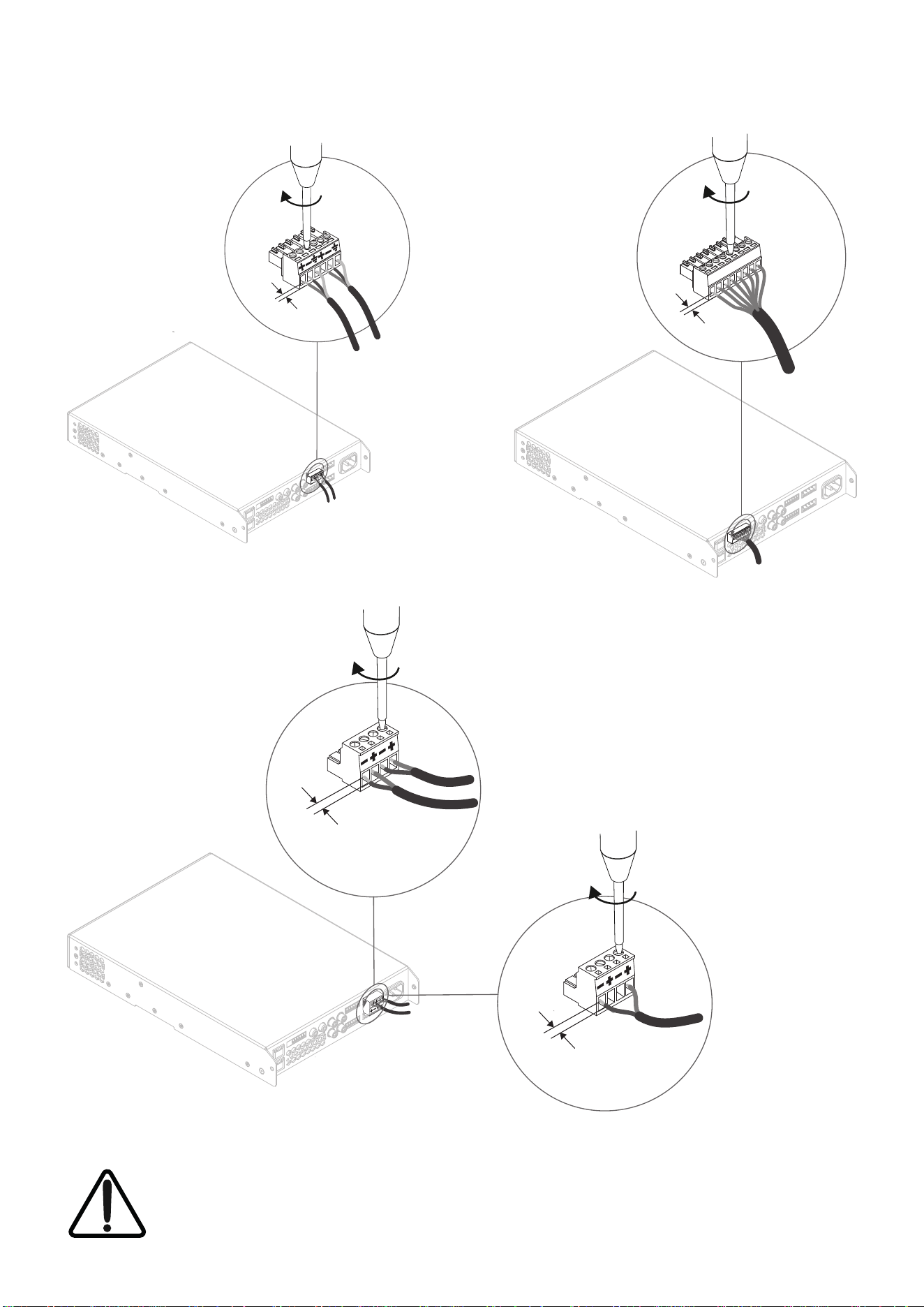
7.5 Speaker Cable Gauge
PowerZone™ Connects speaker connection cable
gauge should be chosen appropriately to reect the
type of installation. The adjacent tables specify the
appropriate cable gauge for less than 0.5dB cable loss
with different installation types and cable lengths.
7.5 GPIO Connections
If any PowerZone™ Connect GPIO functionality is
required, cables will need to be connected to the
supplied GPIO connector. Connecting cables to the
GPIO connector is illustrated in Diagrams 7E.
7.6 Network Connections
PowerZone™ Control
PowerZone™ Connect ampliers are TCP/IP network
connected devices that are congured via a web
page based interface. Wired (Ethernet) and wireless
(WiFi) connection options are available. Connecting
PowerZone™ Connect ampliers to a TCP/IP network
is described in Section 6 of this manual. If a wired
connection is used, connect an Ethernet cable to the
amplier rear panel Network Control socket.
Audinate Dante
®
Half rack width PowerZone™ Connect ampliers are
optionally compatible with Audinate Dante
®
audio
over IP (AoIP) networks and installations. Connect to
a Dante
®
network via the amplier rear panel Dante
®
socket and congure the network as required using
the Audinate Dante
®
Controller Mac OS and Windows
application available for download from:
www.audinate.com/products/software/dante-
controller.
Cable Gauge Table
Lo-Z installations, 0.5dB attenuation. 4 Ω & 8 Ω loads
Cable Gauge Table
70V Hi-Z installations, 1.0dB attenuation
20 speakers evenly distributed
Cable Gauge Table
100V Hi-Z installations, 1.0dB attenuation
20 speakers evenly distributed
Cable Cross
Section
(mm
2
)
Cable Gauge
(AWG)
Max Cable
Length
(Metres, 4 Ω
load)
Max Cable
Length
(Metres, 8 Ω
load)
0.75 ≈18 5 10
1.5 ≈16 10 20
2.5 ≈14 17 35
4.0 ≈12 28 55
Cable Cross
Section
(mm
2
)
Cable Gauge
(AWG)
Max Cable Length
(Metres),
(125 W/channel)
Max Cable Length
(Metres),
(250 W/channel)
0.75 ≈18 90 45
1.5 ≈16 180 90
2.0 ≈14 <250 150
3.5 ≈12 <250 <250
Cable Cross
Section
(mm
2
)
Cable Gauge
(AWG)
Max Cable Length
(Metres),
(125 W/channel)
Max Cable Length
(Metres),
(250 W/channel)
0.75 ≈18 190 90
1.5 ≈16 <250 180
2.0 ≈14 <250 <250
3.5 ≈12 <250 <250
Note: Cable lengths should not exceed 250m.
Note: Cable lengths should not exceed 250m.
25
5 mm
5 mm
Low-Z Mode
Hi-Z Mode /
BTL Mode
5 mm
5 mm
Connections
Diagram 7C
Balanced analog input
cable connections.
Diagram 7D
Output cable connections.
Diagram 7E
GPIO cable connections.
The exclamation point printed next to the output terminals of the ampliers is, in addition to the CLASS 2
WIRING text, intended to alert users to the risk of hazardous voltages. Output connectors that could pose a risk
are marked with the exclamation point. Do not touch the output terminals while the amplier is switched on.
Make all connections with the amplier switched off.
Note: Input, output and GPIO connection socket use
is the same for two, four and eight channel output
ampliers.

26
Operation
8. Operation
Once all connections have been made and conguration
options selected, PowerZone™ Connect ampliers
are ready for use. If an input signal above -60dB is
present on any input, the front panel Input and Standby
indicators will illuminate green to indicate normal
amplier operation. Audio will be heard from any
connected speakers.
Note: PowerZone™ Connect ampliers will not switch on from
Standby Mode unless an input signal is present, a network ‘ON’
command is received, or an external standby switch (or 12V trigger)
is operated. Standby behaviour can be congured via the Power
Management menu of the Settings Tab.
Amplier outputs will mute if no input signal is present for 5
minutes, and the amplier will switch automatically to Standby
Mode if no signal is present on any input for more than 15
minutes. Alternative standby and mute delay times can selected
via the Settings Tab. Amplier cooling fan speed is temperature
controlled. The fan will switch off when the amplier enters
standby mode.
8.1 Front Panel Indicators
PowerZone™ Connect amplier front panel indicators illumi-
nate to indicate the following operational states:
Status: Off – Mains power disconnected.
Green – Amplier operational.
Pulse Green – Standby Mode.
Amber – GPIO triggered Standby Mode
Input: Off – No input signal present.
Green – Signal present on one or more inputs.
Amber – Signal limiting/clipping on one or more
inputs.
Output: Off – No output signal present.
Green – Signal present on one or more outputs.
Amber – Signal limiting/clipping on one or more
outputs.
Red – One or more channel pair is in
overload/protection mode.
Network: Off – No Ethernet network detected.
Green – Ethernet network detected.
WiFi: Off – WiFi disabled.
Green – WiFi enabled.
8.2 Automatic Power Sharing
PowerZone™ Connect ampliers incorporate a power sharing
feature that automatically shares the total power available
from the amplier’s internal power supply across each pair of
output channels. If one channel temporarily demands more
than the amplier’s continuous power rating while other
channel is demanding less, the excess power available from the
internal power supply is automatically made available to the
over-power channel. Power sharing optimises the amplier’s
ability to deliver maximum power into dynamic loudspeaker
loads when playing music programme material.
8.3 Default Reset
PowerZone™ Connect ampliers can be returned to their
default settings via either the Control Web App Settings Tab or
the hardware reset pinhole button. The reset pinhole button is
located on the underside panel of the amplier.
To reset the amplier using the pinhole button, follow the steps
below:
• Disconnect the amplier from mains power.
• Use an appropriate tool to press and hold the reset
pinhole button while simultaneously reconnecting mains
power.
• Continue to hold the reset pinhole button for 3 seconds as
the amplier restarts.
The amplier will restart with all settings at their default state.
Any previously congured settings will be deleted.
27
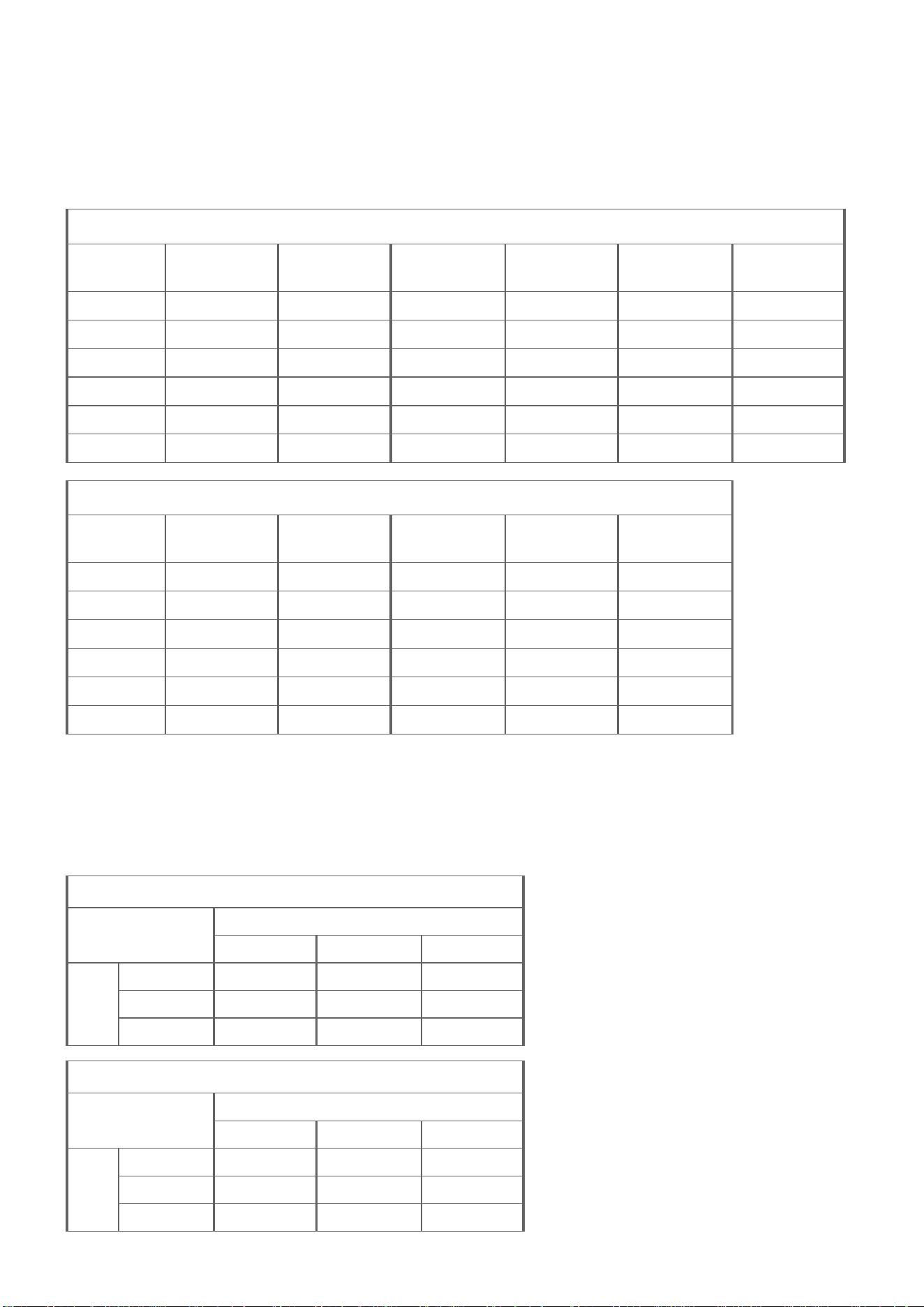
Specications
1/8th Full Power
PowerZone™
Connect Model
Load
(Ohms)
Power In
(W)
Power Out
(W)
Efciency
(%)
Thermal Loss
(W)
Thermal Loss
(BTU)
122/122D 4 32.8 15 45.7 17.8 61
252 4 54.1 31.25 57.8 22.9 78
254 4 58.7 30 51.1 28.7 98
504/504D 4 107 62.5 58.6 44.5 152
508 4 97.3 60 61.9 37.3 127
1008/1008D 4 200 125 62.5 75 256
Standby and Idle
PowerZone™
Connect Model
Standby
(mW)
Idle @ 120V
(W)
Idle @ 120V
(BTU)
Idle @ 230V
(W)
Idle @ 230V
(BTU)
122/122D <500* 9.1 31 9.8 33
252 <500* 9.1 31 9.8 33
254 <500* 13.1 45 13.6 46
504/504D <500* 14.5 49 15.9 54
508 <500* 26.6 91 26.3 90
1008/1008D <500* 27.7 94 30.2 103
Power Efciency Data
The following table describes the efciency and power performance of PowerZone™ Connect ampliers.
The table also includes the derived thermal losses.
2 & 4 Channel Ampliers
OUT
Analogue S/PDIF Dante
®
*
IN
Analogue 1177µS 458µS 1520µS
S/PDIF 1833µS 1104µS 2166µS
Dante
®
* 1895µS 1166µS 2125µS
8 Channel Ampliers
OUT
Analogue S/PDIF Dante
®
*
IN
Analogue 1307µS 600µS 1662µS
S/PDIF 1955µS 1250µS 2312µS
Dante
®
* 2017µS 1312µS 2125µS
Propagation Delay Data
The following tables describes the input/output latency performance of PowerZone™ Connect ampliers.
*Dante
®
network latency not included.
Note: Dante
®
latency is measured in a Dante
®
to
Dante
®
connection setup. The propagation delay is both
measured from both analog inputs and digital inputs.
The total delay of: Amp1 SPDIF input to Dante
®
out ->
Amp2 Dante
®
input to SPDIF output is 4333 µs. Out of
this the network latency accounts for 1000 µs and the
ASCRs accounts for 3 x 1000 µs. Out of the nal 333 µs
seconds, the DSP accounts for roughly 208 µs, leaving
125 µs for the Dante
®
chip processing. For this test the
Dante
®
process occurs twice resulting in a 62,49 µs delay
per Dante
®
transmission.
*As per compliance to ErP
©2025 Sonance. All rights reserved. Sonance is a registered trademarks of Dana Innovations.
Due to continuous product improvement, all features and specications are subject to change without notice.
For the latest Sonance product specication information visit our website at www.sonance.com.
SONANCE • 991 Calle Amanecer • San Clemente, CA 92673 USA • Phone: (949) 492-7777 • Technical Support: (949) 492-7777 • www.sonance.com • 07.01.25
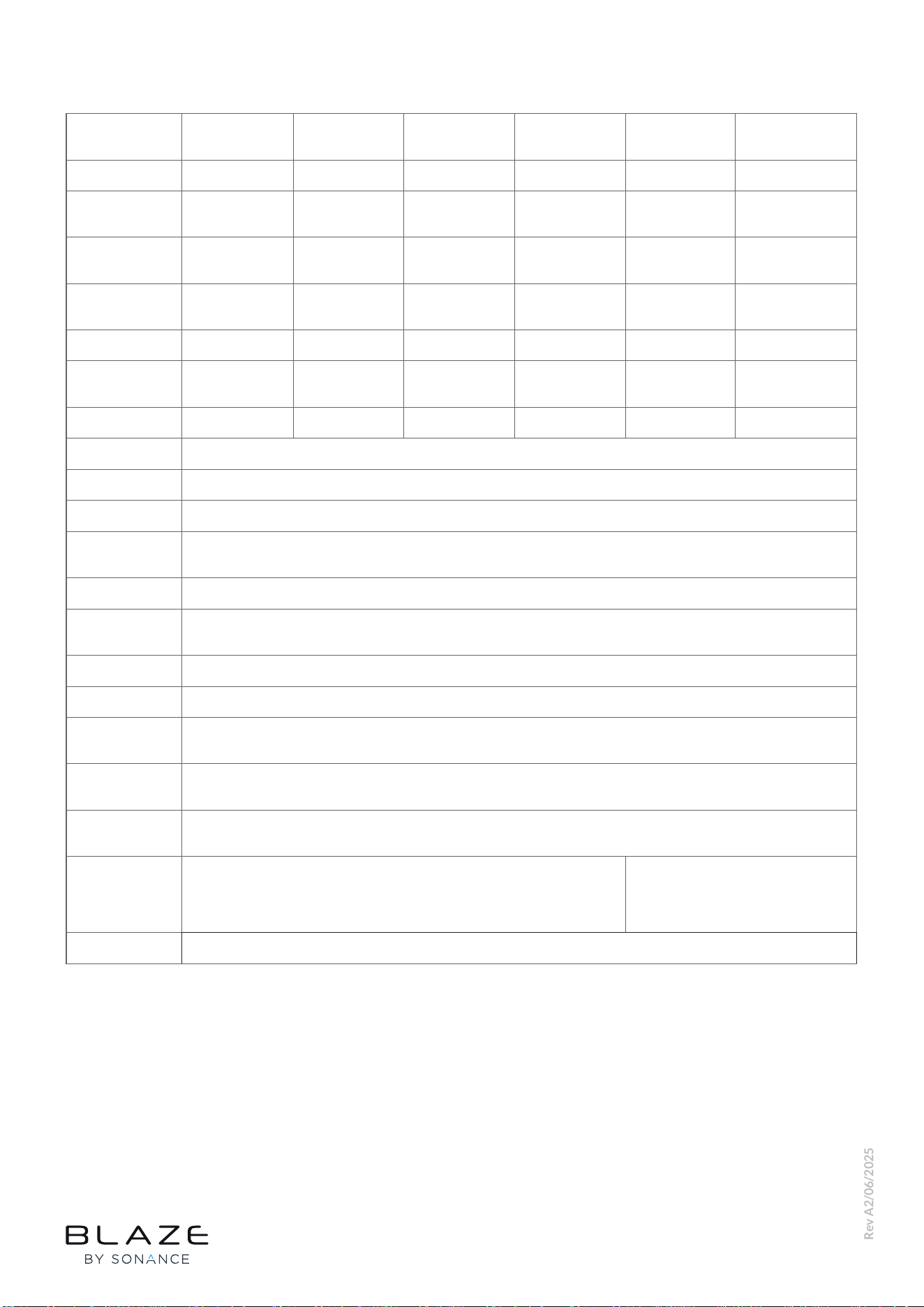
Specications
Rev A23/06/2025
Model
PowerZone™
Connect 122/122D
PowerZone™
Connect 252
PowerZone™
Connect 254
PowerZone™
Connect 504/504D
PowerZone™
Connect 508
PowerZone™
Connect 1008/1008D
Total System Power 125 W 250 W 250 W 500 W 500 W 1000 W
Output Power @
4/8 Ω
2 x 60 W 2 x 125 W 4 x 60 W 4 x 125 W 8 x 60 W 8 x 125 W
Output Power @
70/100 V*
1 x 125 W 1 x 250 W 2 x 125 W 2 x 250 W 4 x 125 W 4 x 250 W
Powershare (up to)
Across channels
1 x 125 W 1 x 250 W 1 x 250 W 2 x 250 W** 2 x 250 W*** 4 x 250 W****
Power Consumption 75 W 75 W 75 W 150 W 150 W 300 W
Dimensions
44 x 220 x 213 mm
(1.7 x 8.7 x 8.4 in)
44 x 220 x 213 mm
(1.7 x 8.7 x 8.4 in)
44 x 220 x 319 mm
(1.7 x 8.7 x 12.6 in)
44 x 220 x 319 mm
(1.7 x 8.7 x 12.6 in)
44 x 440 x 319 mm
(1.7 x 17.3 x 12.6 in)
44 x 440 x 319 mm
(1.7 x 17.3 x 12.6 in)
Weight 2 kg (4.4 lbs) 2 kg (4.4 lbs) 2.8 kg (6.2 lbs) 2.8 kg (6.2 lbs) 3.5 kg (7.7 lbs) 3.8 kg (8.4 lbs)
Power Ratings Output power measured @ 1% THD at 120 VAC 60 Hz and 230 VAC 50 Hz
Output Circuitry UMAC™ Class D - full bandwidth PWM modulator with ultra-low distortion
Output Voltage 45 Vrms (S.E) - 70 / 100 V (Hi-Z)
Signal To Noise-
Ratio
> 106 dB (A-weighted, 20 Hz - 20 kHz, 8 Ω load)
THD+N (typical) < 0.05% (20 Hz-20 kHz, 8 Ω load, 3 dB below rated power)
Frequency
Response
20 Hz - 20 kHz (+0 / -0.25 dB (8 Ω load, 3 dB below rated power)
Protection Circuits Short circuit -, DC -, Undervoltage -, Temperature - and Overload protection
Power Supply UREC™ universal mains switch mode power supply with Power Factor Correction (PFC) and standby converter
Operating
temperature
0 - 40° C
Operating Voltage/
Frequency
Universal Mains, 100 V - 240 V, 50 Hz - 60 Hz
Standby
Consumption
< 0.5 W
Accessories
2 x Rack ears
1 x ½ rack plate extension
2 x ½ rack mounting plates
2 x Rear supports
2 x Rack ears (tted)
2 x Rear supports
Options Audinate Dante® AoIP compatibility: Ultimo® Chip 4x4, 2 ows rx/tx (PowerZone™ Connect 122D/504D/1008D only)
*100 V line mode is @ -1 dB (≈ 90 V)
**PowerZone™ Connect 504: 250 W across ch 1/2 and 250 W across ch 3/4
***PowerZone™ Connect 508: 250 W across ch 1/2/3/4 and 250 W across ch 5/6/7/8
****PowerZone™ Connect 1008: 250 W across ch 1/2, 250 W across ch 3/4, 250 W across ch 5/6, 250 W across ch 7/8