
Basic operation
Basic operation of multimedia system
Settings and
registration
Registering and setting various features
Connecting a smartphone
or communication device
Using Bluetooth
®
or Wi-Fi
®
Navigation
Using the cloud navigation
Audio system
Listening to the radio and music
Hands-free calls
For hands-free cellular phone use
Connected
Services
Operating the connected services
Parking assist
system
Checking the situation around the vehicle
Appendix
Reference Information and certification
Index
Search alphabetically
1
2
3
4
5
6
7
8
9

Introduction
For your information............7
Safety instructions ..............9
Reading this manual........ 10
Pictorial index................... 12
1
Basic operation
1-1. Basic operation of multi-
media system
Display and control .......... 14
Multimedia screen over-
view................................. 16
Main menu........................ 17
Status icons...................... 19
Operating the touch
screen............................. 21
Basic screen function ...... 24
Entering letters and
numbers.......................... 26
1-2. Basic operation of naviga-
tion system
Map screen overview....... 27
Operating the map
screen............................. 28
1-3. Basic operation of audio
system
Audio system ON/OFF
and volume adjustment
........................................ 31
Changing the audio
source............................. 33
Connecting a device via
the USB Type-C port ..... 34
1-4. Intelligent Assistant
Using the Intelligent As-
sistant system ................ 35
Starting voice control ....... 38
Speaking a voice com-
mand............................... 40
Using the search func-
tion .................................. 44
2
Settings and registra-
tion
2-1. Multimedia system initial
setup
Linking a User Profile ...... 46
2-2. Various settings
Changing the various
settings ........................... 52
2-3. Driver settings
Changing and linking a
User Profile..................... 54
Setting up how to identify
a driver............................ 56
2-4. General settings
Changing general multi-
media system settings... 59
2-5. Notification settings
Notifications settings........ 62
2-6. Screen settings
Changing the screen dis-
play settings ................... 64
2-7. Sound and media settings
Changing sound and
media settings................ 66
2-8. Voice control settings
Changing the voice con-
trol settings ..................... 71
TABLE OF CONTENTS
2

2-9. Vehicle settings
Setting dealer informa-
tion .................................. 72
Changing the security
settings ........................... 73
Updating and checking
the software informa-
tion .................................. 76
2-10. Navigation system set-
tings
Displaying the navigation
system settings screen.. 82
Changing the map de-
tails settings ................... 83
Changing the route op-
tion settings .................... 85
2-11. Wi-Fi
®
Settings
Changing Wi-Fi
®
setting.. 86
Setting Wi-Fi
®
Hotspot .... 88
2-12. Bluetooth
®
Settings
Setting Bluetooth
®
devi-
ces .................................. 90
2-13. Apps settings
Apps settings.................... 94
3
Connecting a smart-
phone or communica-
tion device
3-1. Using the Bluetooth
®
function
Precautions when using
Bluetooth
®
devices ........ 96
Bluetooth
®
specifications
and compatible profiles
........................................ 99
Registering a Bluetooth
®
device from the multi-
media system ...............100
Deleting a registered
Bluetooth
®
device ........104
Connecting with a Blue-
tooth
®
device................105
Setting a Bluetooth
®
de-
vice as a primary de-
vice................................109
Setting a Bluetooth
®
de-
vice as a secondary de-
vice................................110
3-2. Connecting to a Wi-Fi
®
network
Precautions when using
Wi-Fi
®
devices .............111
Connecting to a network
using Wi-Fi
®
.................113
Establishing a connec-
tion to Wi-Fi
®
Hotspot..116
3-3. Using Apple CarPlay and
Android Auto
Precautions when using
Apple CarPlay and An-
droid Auto .....................119
Using Apple CarPlay
with an unregistered
smartphone ..................122
Using Apple CarPlay
with a registered smart-
phone............................125
Using Android Auto with
an unregistered smart-
phone............................128
TABLE OF CONTENTS
3
Using Android Auto with
a registered smart-
phone............................131
When Apple CarPlay or
Android Auto might be
malfunctioning..............134
4
Navigation
4-1. Navigation
Cloud navigation ............140
4-2. Map information
Map options screen .......141
Information displayed on
the map screen ............142
4-3. Searching for a destina-
tion
Destination search
screen...........................143
Destination search result
list screen .....................146
POI suggestion ..............147
Destination Assist ..........148
4-4. Starting route guidance
Starting route guidance .150
Full route map screen....151
4-5. Route guidance screen
Route guidance screen .153
Typical voice guidance
prompts.........................157
5
Audio system
5-1. Radio operation
Listening to the radio .....160
Troubleshooting guide ...163
Refer to the table below
to identify the problem
and take the suggested
corrective action...........164
5-2. USB flash drive operation
Playing music files on a
USB flash drive ............165
Precautions for playback
of USB flash drive ........167
5-3. iPod/iPhone operation
Playing iPod/iPhone ......169
Precautions for playback
of iPod/iPhone..............171
5-4. Apple CarPlay operation
Playing Apple CarPlay...172
Precautions for playback
of Apple CarPlay..........174
5-5. Android Auto operation
Playing Android Auto .....175
Precautions for playback
of Android Auto ............177
5-6. Bluetooth
®
audio opera-
tion
Playing Bluetooth
®
audio
......................................178
Precautions for Blue-
tooth
®
audio playback .181
5-7. Integrated Streaming
Playing Integrated
Streaming .....................183
6
Hands-free calls
6-1. Precautions when using
hands-free calls
Precautions for hands-
free calling ....................186
TABLE OF CONTENTS
4
When hands-free calling
might be malfunctioning
......................................190
6-2. Operating hands-free
calls with the steering
switches
Operating with the steer-
ing switches..................195
6-3. How to make calls
Making calls from call
history ...........................197
Making calls from the fa-
vorites list .....................198
Making calls from con-
tacts ..............................199
Making calls from key-
pad ................................200
6-4. How to receive calls
Answering calls ..............201
Declining calls ................203
6-5. In-call operations
Performing operations
from the call screen .....204
Answering a second call206
Making a call to another
party during an ongoing
call.................................207
Making conference calls208
Ending calls....................209
6-6. Changing phones for
hands-free calls
Switching phones for
hands-free calls............210
6-7. Editing contact data
Transferring contact data
......................................212
6-8. How to use the message
function
Precautions when using
the message function ..214
Making calls from the
message function.........218
7
Connected Services
7-1. Connected Services over-
view
Functional overview.......220
Type A: Function ach-
ieved by using DCM
and the system.............222
Type B: Function ach-
ieved by using DCM ....223
Type C: Function ach-
ieved by using DCM
and a smartphone........225
8
Parking assist system
8-1. SUBARU Parking Assist
monitor
SUBARU Parking Assist
monitor functions .........228
Displaying the guide
screen...........................230
Changing the guide line
display mode ................232
SUBARU Parking Assist
monitor..........................238
8-2. Panoramic view monitor
Panoramic view monitor
functions .......................248
Display mode when the
shift position is in "P" ...251
TABLE OF CONTENTS
5
Display mode when the
shift position is in "D" or
"N".................................253
Display mode when the
shift position is in "R" ...262
The screen when the
outside rear view mir-
rors are folded..............270
Zooming in on the
screen...........................271
Displaying transparent
underfloor vision...........272
Changing the panoramic
view monitor settings ...274
Precautions for the pan-
oramic view monitor.....276
9
Appendix
9-1. Appendix
Information about media
and data........................296
HD Radio™/SiriusXM
®
Satellite Radio..............307
Certification ....................310
Index......................................314
TABLE OF CONTENTS
6

Introduction
For your information
Multimedia owner’s manual
● This manual describes the operation of the multimedia system.
Please read this manual and the vehicle "OWNER’S MANUAL"
carefully to ensure proper use.
● Please be aware that the content of this manual may be different
from the system in some cases, such as due to software updates
and changes to specifications.
● This manual contains information related to system software
Ver.2225 and earlier. For the latest information, refer to the follow-
ing URL. Before using this system, be sure to read the information
relating to the latest software version. For details of the current
software version, see “Updating and checking the software infor-
mation”(→ P.76).
Depending on the country or area, the software update service
may not be available.
URL :
SUBARU of America : https://www.subaru.com/owners/vehicle-
resources.html
SUBARU Canada English : https://www.subaru.ca/manuals
SUBARU Canada French : https://www.subaru.ca/manuels
● The screens shown in this manual may differ from the actual
screen of the system depending on availability of functions, sub-
scription status, and map data available at the time this manual
was produced.
● The company names and products listed in this manual are trade-
marks and/or registered trademarks of their respective companies.
Disclaimer about data compensation
This system saves data onto the internal memory. Data saved in the
memory may become corrupted or lost due to system failure, repair,
malfunction, bugs, or other causes.
Please note that SUBARU CORPORATION takes no responsibility
whatsoever for direct and/or indirect damage, and offers no compen-
sation for data if the data that was saved in the internal memory
could not be saved properly.
Introduction
7

Removal of the 12-volt battery
When the power switch is turned off, all data is saved in the system.
If the 12-volt battery terminal is removed before the data is saved,
the data may not be saved correctly.
Introduction
8

Safety instructions
To use this system in the safest possible manner, follow all the
safety tips shown below.
This system is intended to assist in reaching the destination and,
if used properly, can do so. The driver is solely responsible for the
safe operation of the vehicle and the safety of your passengers.
Do not use any feature of this system to the extent it becomes a
distraction and prevents safe driving. The first priority while driving
should always be the safe operation of the vehicle. While driving,
be sure to observe all traffic regulations. If a traffic sign on the
road has been changed, route guidance may not have the updated
information such as the direction of a one way street.
While driving, listen to the voice instructions as much as possible
and glance at the screen briefly and only when it is safe. However,
do not totally rely on voice guidance. Use it just for reference. If the
system cannot determine the current position correctly, there is a
possibility of incorrect or delayed guidance, or no voice guidance at
all.
The data in the system may occasionally be incomplete. Road con-
ditions, including driving restrictions (no left turns, street closures,
etc.) frequently change. Therefore, before following any instructions
from the system, look to see whether the instruction can be done
safely and legally.
This system cannot warn about such things as the safety of an
area, condition of streets, and availability of emergency services. If
unsure about the safety of an area, do not drive into it. Under no
circumstances is this system a substitute for the driver’s personal
judgement.
WARNING
● For safety, the driver should not operate the system while he/she is
driving. Insufficient attention to the road and traffic may cause an acci-
dent.
● While driving, be sure to obey the traffic regulations and maintain
awareness of the road conditions.
Introduction
9
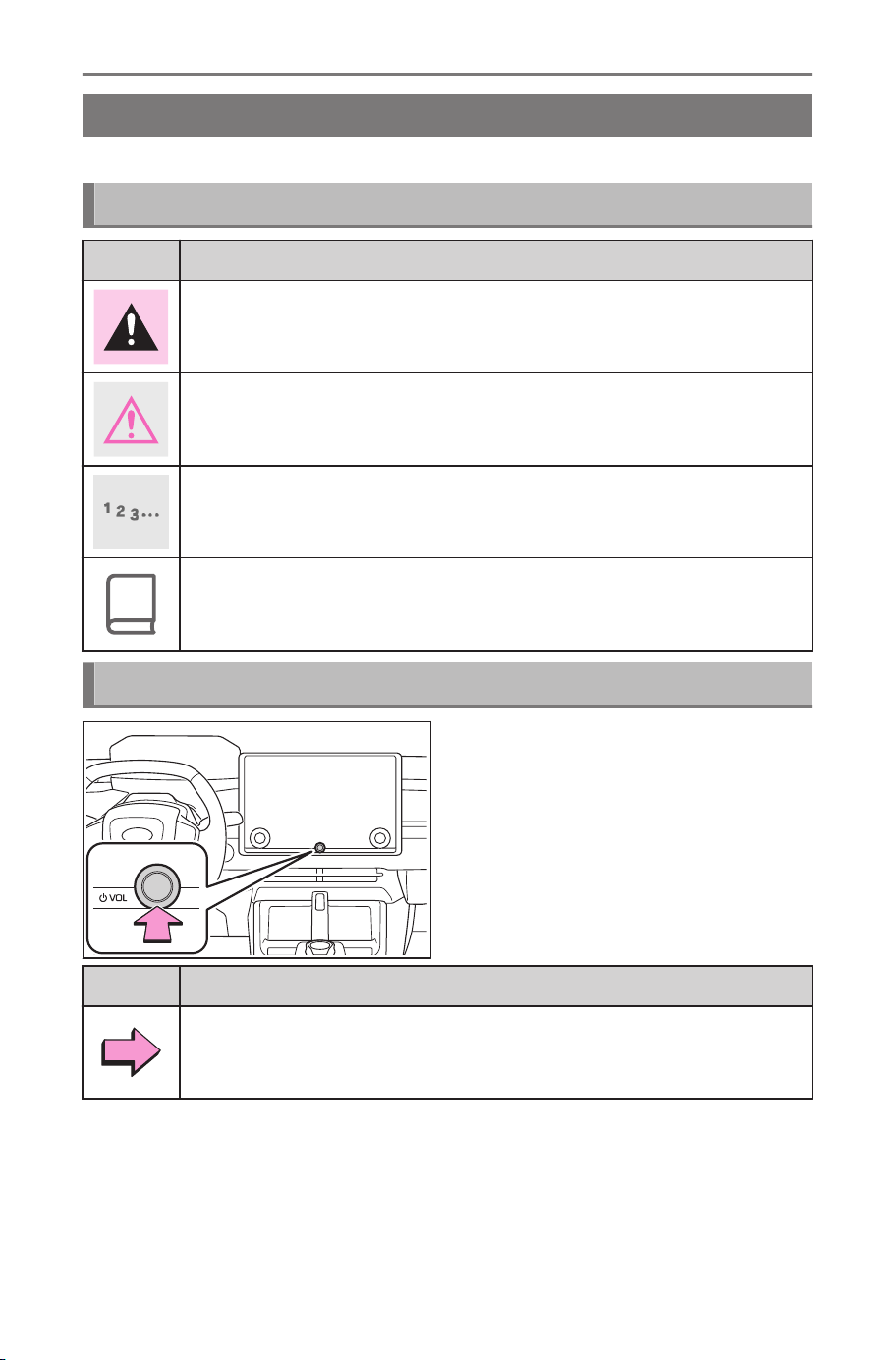
Reading this manual
Explains symbols used in this manual.
Symbols in this manual
Symbols Meanings
WARNING : Explains something that, if not obeyed, could
cause death or serious injury to people.
NOTICE : Explains something that, if not obeyed, could cause
damage to or a malfunction in the vehicle or its equipment.
Indicates operating or working procedures.
INFORMATION : Explains something other than descriptions
about operation methods and functions that you should know
and are useful to know.
Symbols in illustrations
Symbols Meanings
Indicates the action (pushing, turning, etc.) used to operate but-
tons and other devices.
Introduction
10
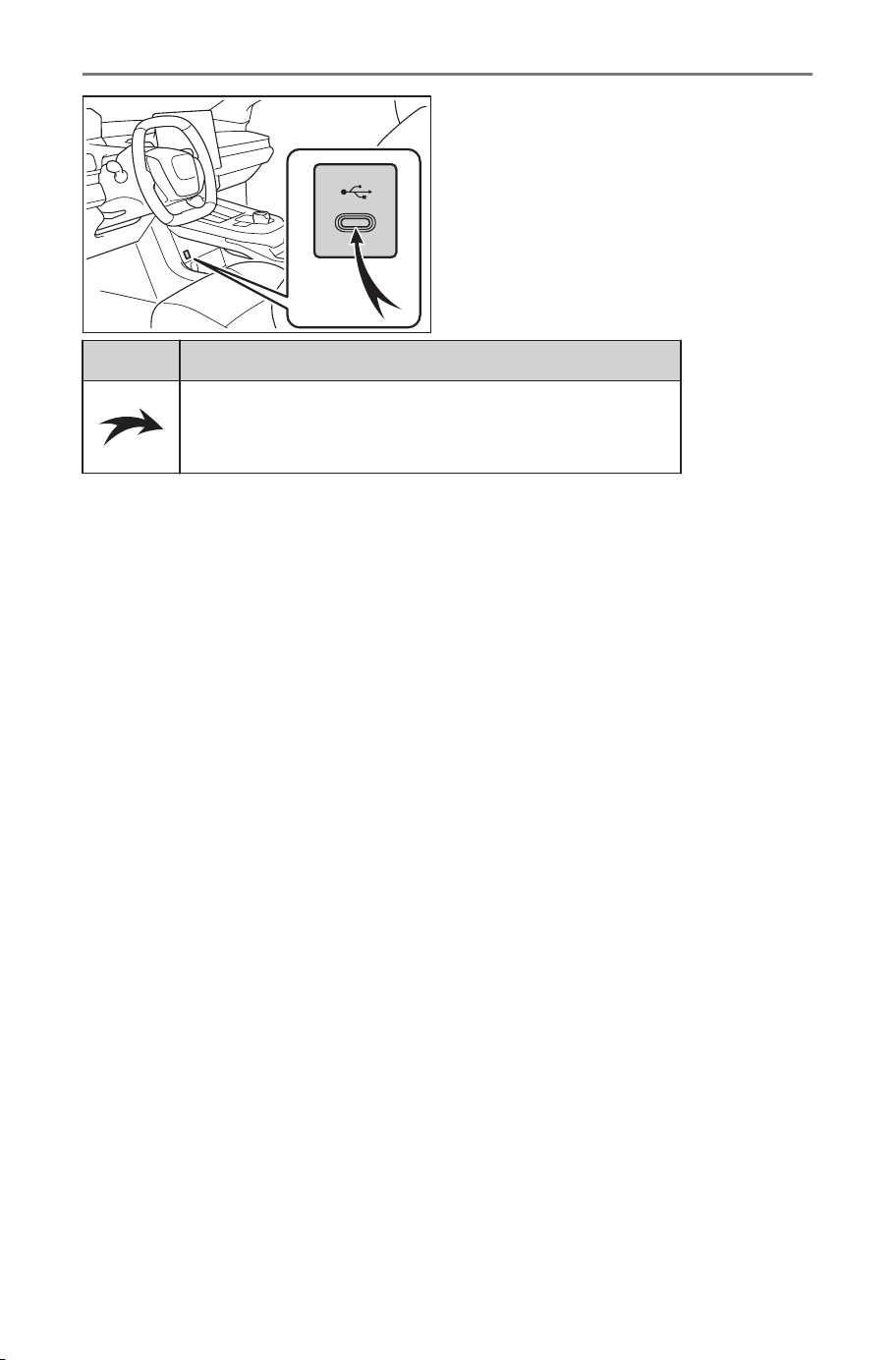
Symbols Meanings
Indicates the component or place being explained.
Introduction
11
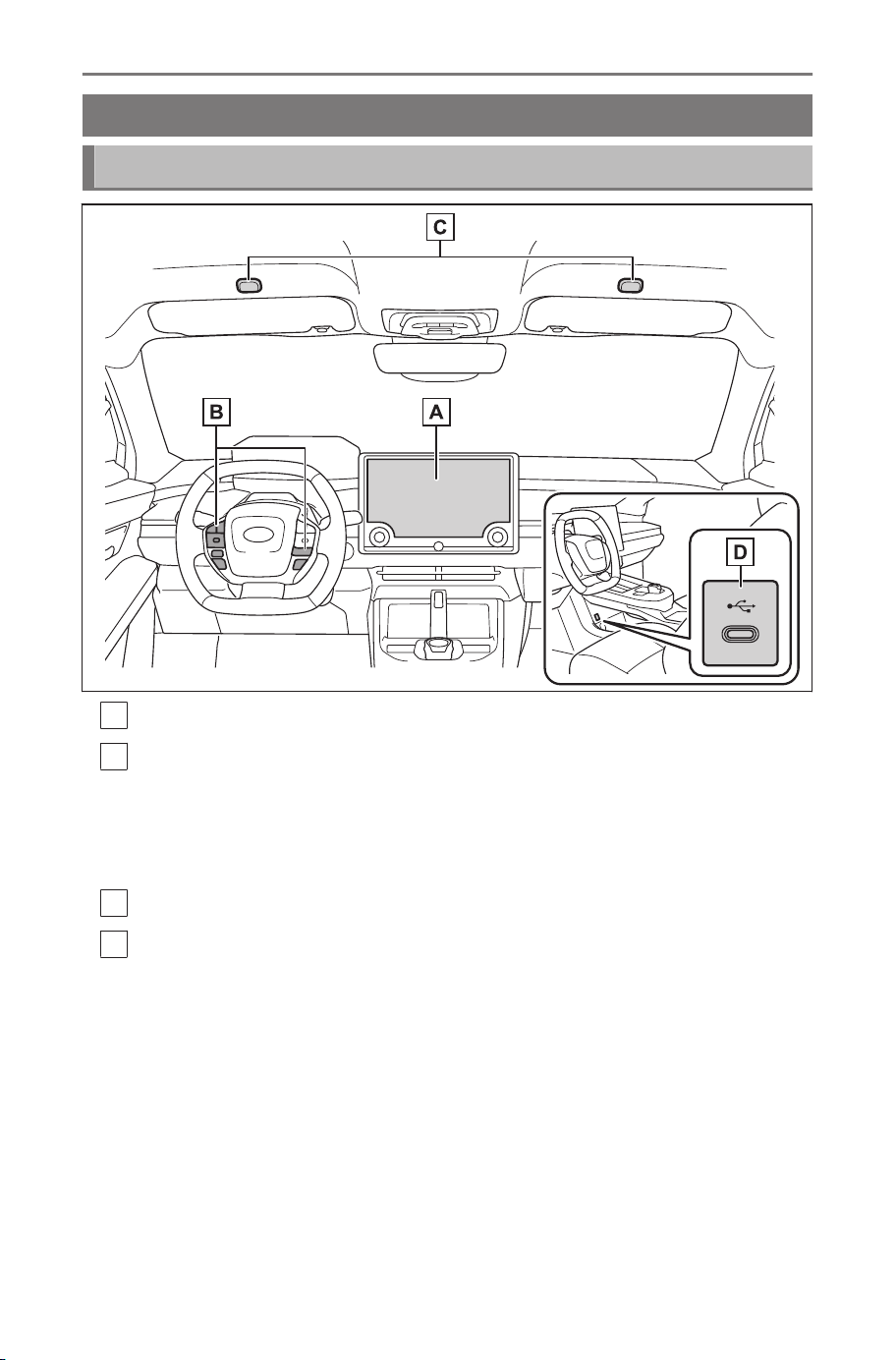
Pictorial index
Instrument panel
A
Display ......................................................................................P.14
B
Steering wheel switches
Controlling audio............................................................P.31,33,159
Using the Intelligent Assistant system .......................................P.38
Making a phone call.................................................................P.195
C
Microphones ............................................................................P.37
D
USB Type-C port ......................................................................P.34
Introduction
12

1
Basic operation
1-1. Basic operation of multi-
media system
Display and control .......14
Multimedia screen
overview......................16
Main menu ....................17
Status icons ..................19
Operating the touch
screen .........................21
Basic screen function....24
Entering letters and
numbers......................26
1-2. Basic operation of navi-
gation system
Map screen overview....27
Operating the map
screen .........................28
1-3. Basic operation of audio
system
Audio system ON/OFF
and volume adjust-
ment............................31
Changing the audio
source .........................33
Connecting a device
via the USB Type-C
port..............................34
1-4. Intelligent Assistant
Using the Intelligent
Assistant system.........35
Starting voice control ....38
Speaking a voice com-
mand...........................40
Using the search func-
tion ..............................44
13
1
Basic operation
Basic operation of multimedia system
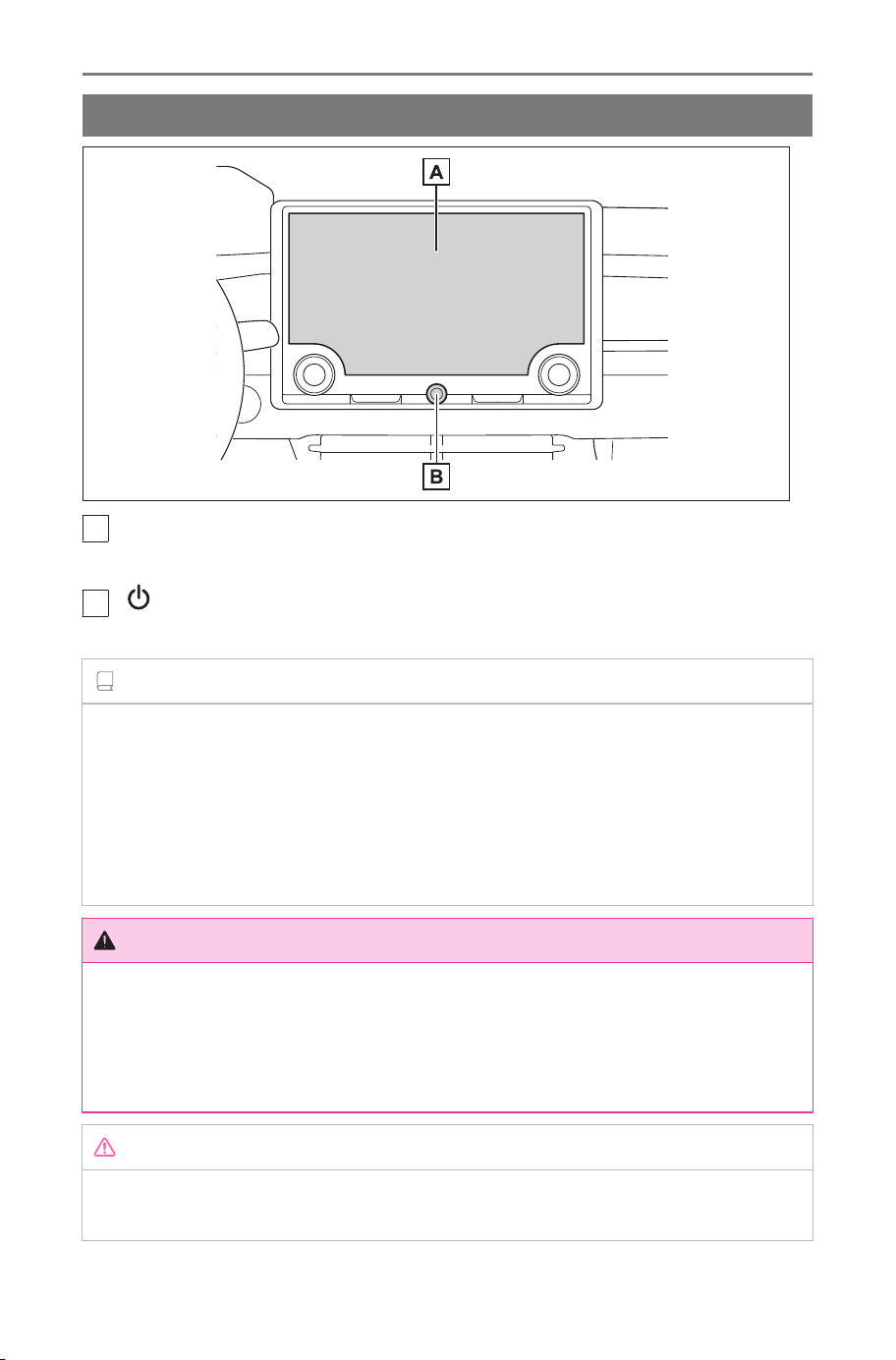
Display and control
A
Display
Operate the touch screen by directly touching it.
B
[ VOL] knob
Turn the audio on/off and adjust the volume.(→ P.31)
INFORMATION
● The LCD screen may look whitish or blackish depending on the sur-
rounding condition used or the angle from which screen is looked.
● The screen may be difficult to see if sunlight or other external light hits
the screen.
● The screen may appear dark or hard to see if you wear polarized
sunglasses.
WARNING
For safety, the driver should operate the display as little as possible while
driving and should stop the vehicle to operate the display. Operating the
display while driving is dangerous such as mistakenly turning the steering
wheel or other unforeseen accidents. Additionally, look at the display only
as necessary and as briefly as possible when driving the vehicle.
NOTICE
Do not use the multimedia system for long periods of time with the EV
system turned off. Doing so may deplete the 12-volt battery.
1-1. Basic operation of multimedia system
14
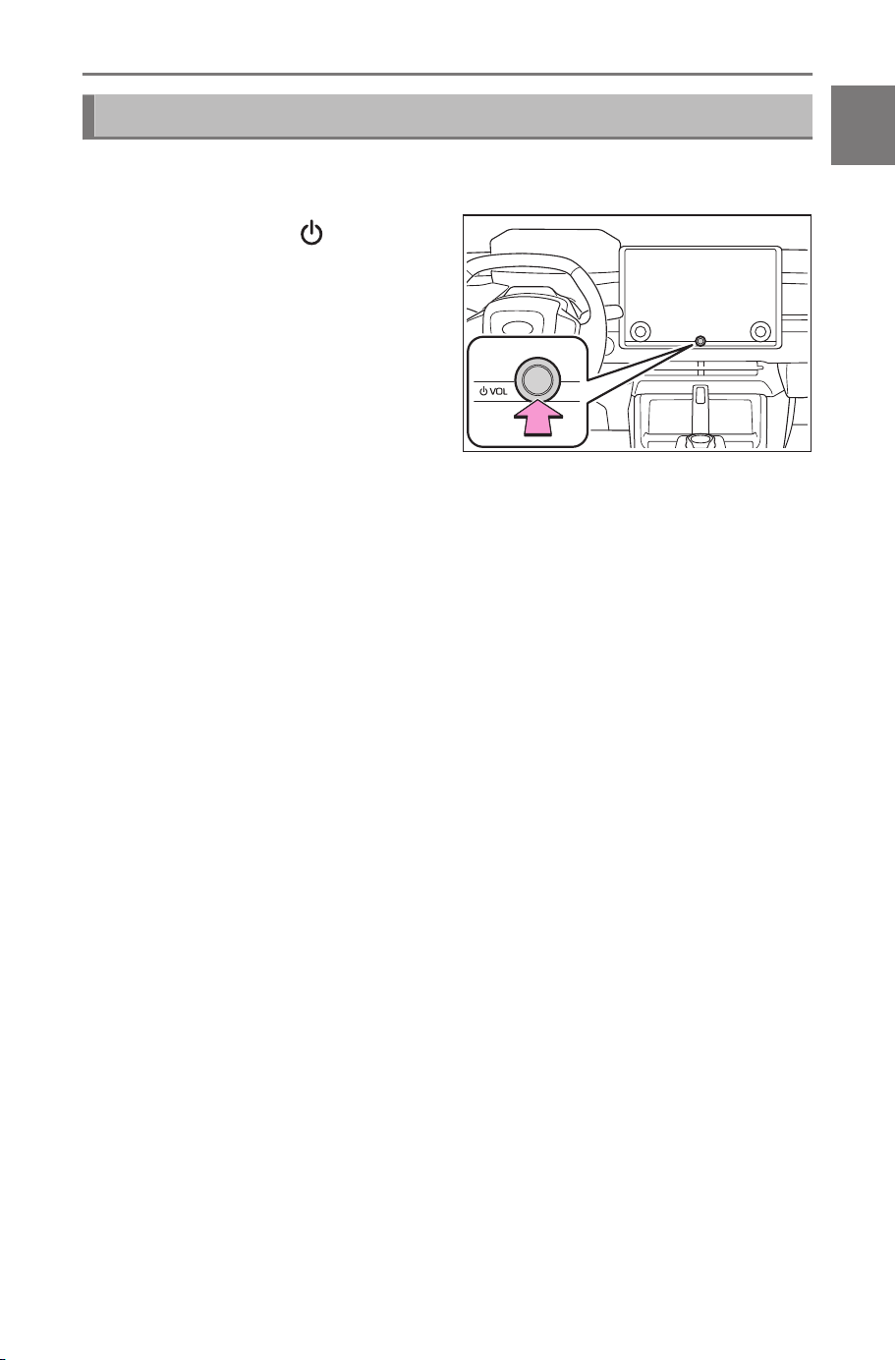
Restarting the system
When the system response is extremely slow, you can restart the
system.
Press and hold the [
VOL]
knob for at least 3 seconds.
1-1. Basic operation of multimedia system
15
1
Basic operation
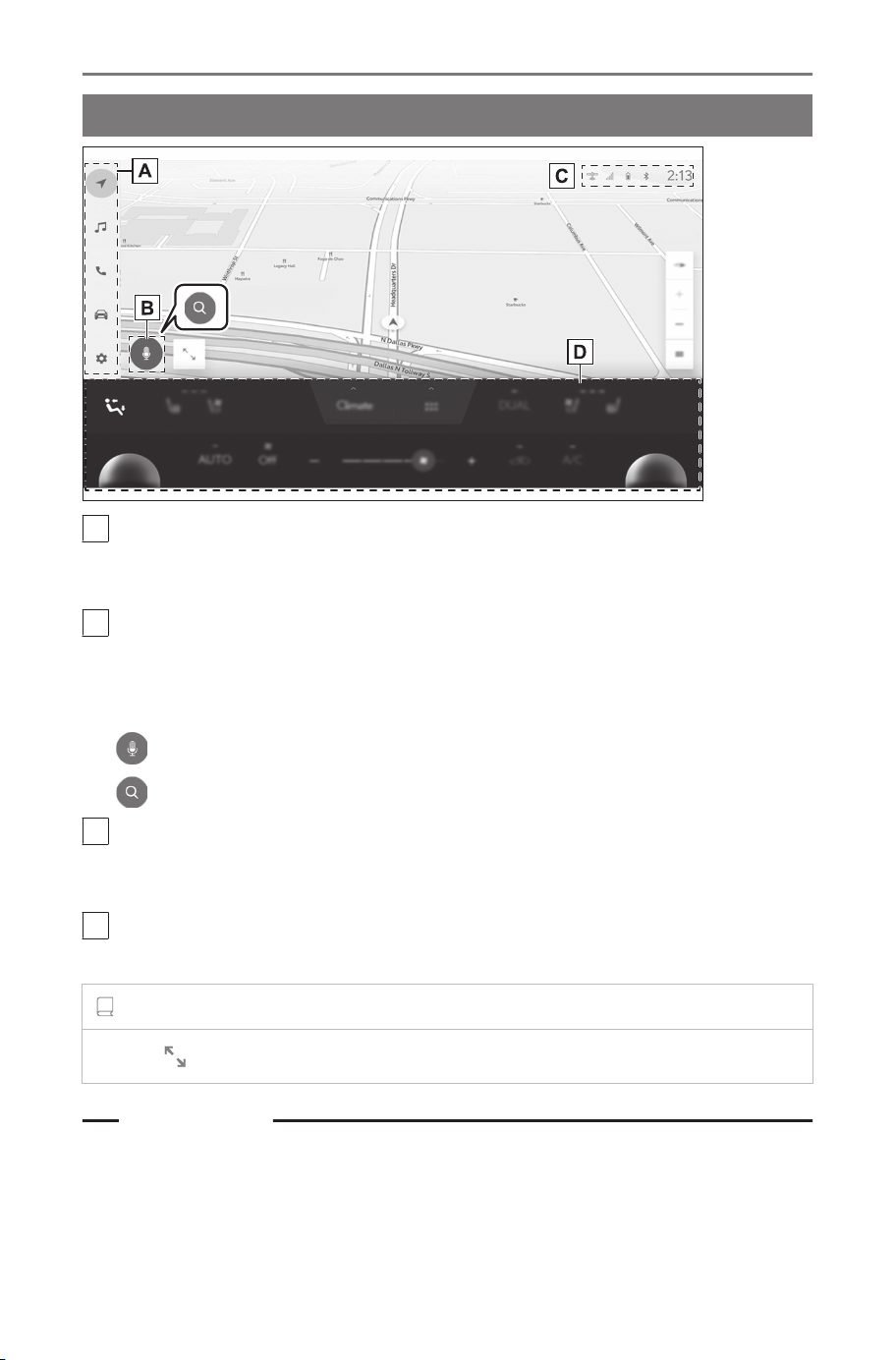
Multimedia screen overview
A
Main menu
Changes the function to be displayed on the screen when an icon is
touched.
B
Voice search button
Displays the voice control screen enabling verbal operation of the nav-
igation, audio and various other functions. The button will change de-
pending on the situation.
: While driving
: When stopped
C
Status icons
The clock and icons with information about communication statuses are
displayed at the top of the screen.
D
Climate control buttons
Operate the air conditioner and vehicle functions.
*1
INFORMATION
Touch [ ] on the map screen to display the map in a larger size.
Related Links
Main menu(P. 17)
Starting voice control(P. 38)
Status icons(P. 19)
*1 : Refer to the vehicle "OWNER’S MANUAL".
1-1. Basic operation of multimedia system
16
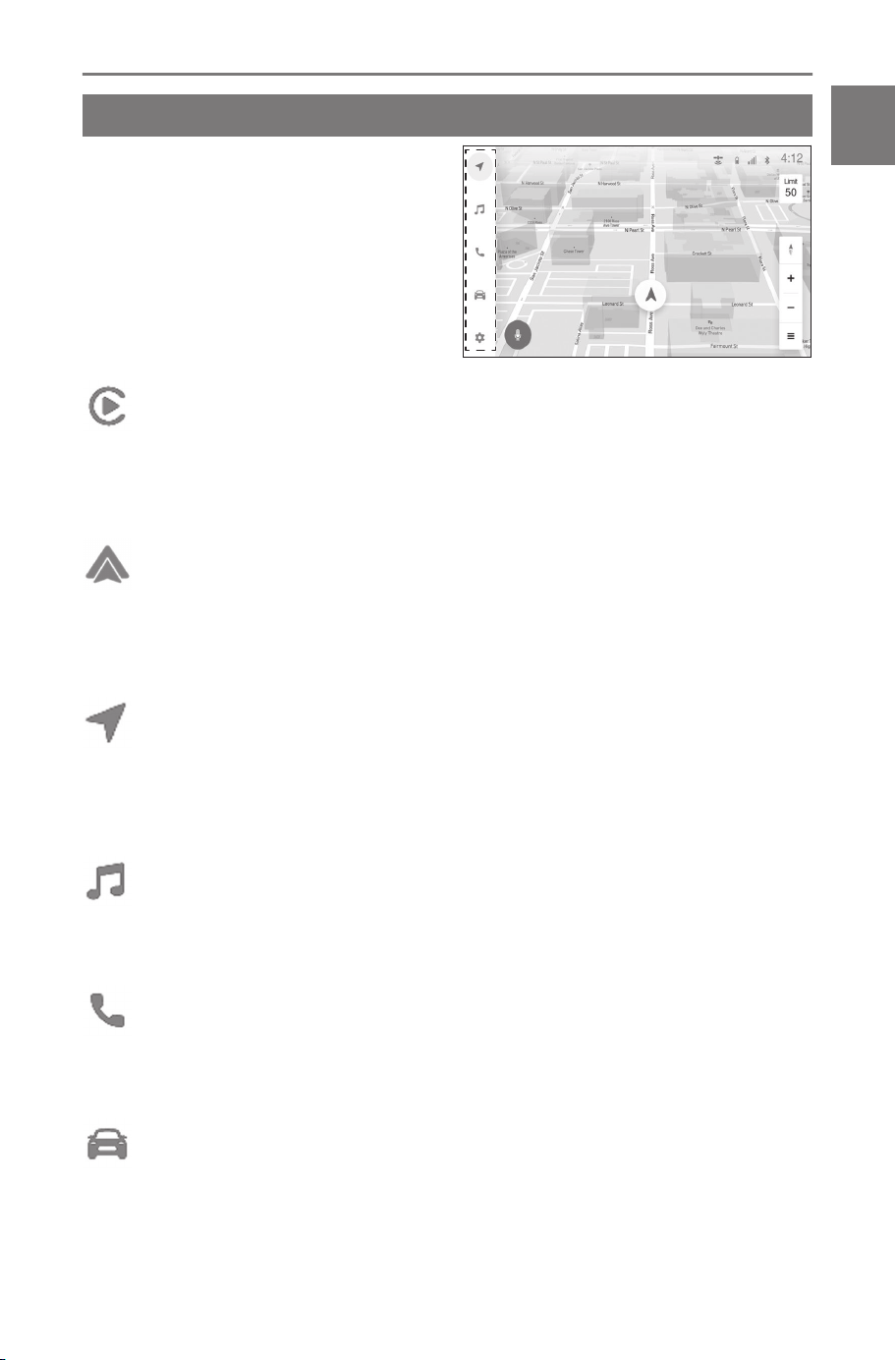
Main menu
The function to be displayed on
the screen can be changed by
touching an icon.
: Apple CarPlay
®
Displays the Apple CarPlay screen. The Apple CarPlay icon is dis-
played when a supported device connects to the system and the
applicable function is enabled.(→ P.122,125)
: Android Auto™
Displays the Android Auto screen. The Android Auto icon is dis-
played when a supported device connects to the system and the
applicable function is enabled.(→ P.128,131)
: Navigation
Displays the map screen. The navigation system can be operated to
search for a destination or perform other navigation system-related
tasks.(→ P.27,140)
: Audio
Displays the audio control screen. The desired source can be select-
ed to play audio.(→ P.33,159)
: Phone
Displays the phone screen. A cellular phone connected via Blue-
tooth
®
can be used to make hands-free phone calls.(→ P.185)
: Vehicle information
*1
Displays the vehicle information screen. Charging schedule can be
set.
*1 : Refer to the vehicle "OWNER’S MANUAL"
1-1. Basic operation of multimedia system
17
1
Basic operation

: Settings
Displays the settings screen. Multimedia system and vehicle equip-
ment related settings can be changed.(→ P.52)
INFORMATION
The Apple CarPlay/Android Auto icons are displayed when a supported
device connects to the system and the applicable function is enabled.
1-1. Basic operation of multimedia system
18
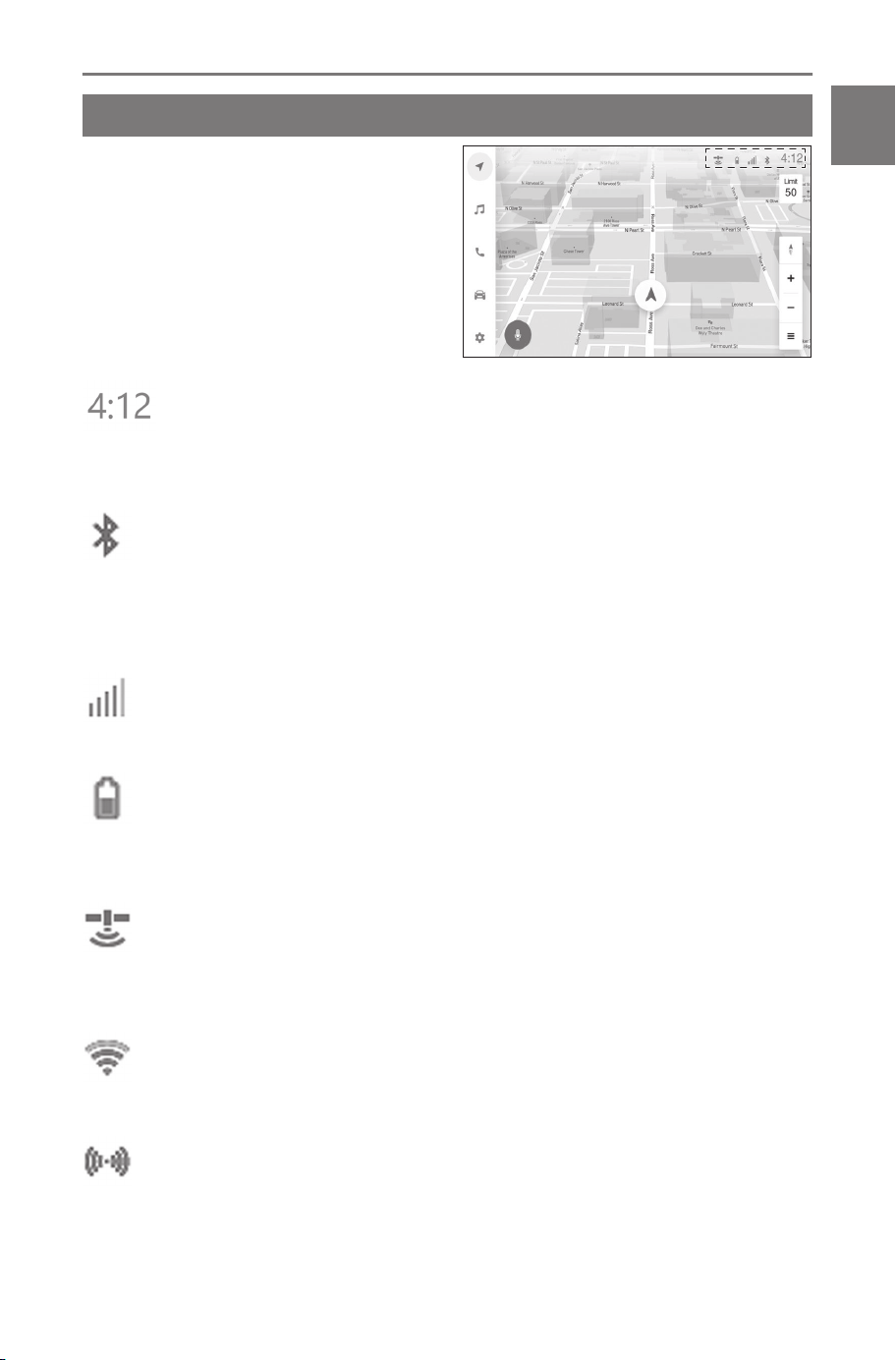
Status icons
The time and icons with infor-
mation about communication sta-
tuses are displayed at the top of
the screen.
Displays the current time. Touching the clock displays the date and
time settings screen.
Displays the connection status of the cellular phone connected
via Bluetooth
®
. Touching the icon displays the Bluetooth
®
settings
screen.
Displays the reception level of the connected cellular phone.
Displays the remaining battery charge of the connected cellular
phone.
Displays the reception status of the Data Communication Module
(DCM).
Displays the Wi-Fi
®
reception level.
Displays the Wi-Fi
®
Hotspot connection status.
*1
*1 : This function is not available in some regions.
1-1. Basic operation of multimedia system
19
1
Basic operation
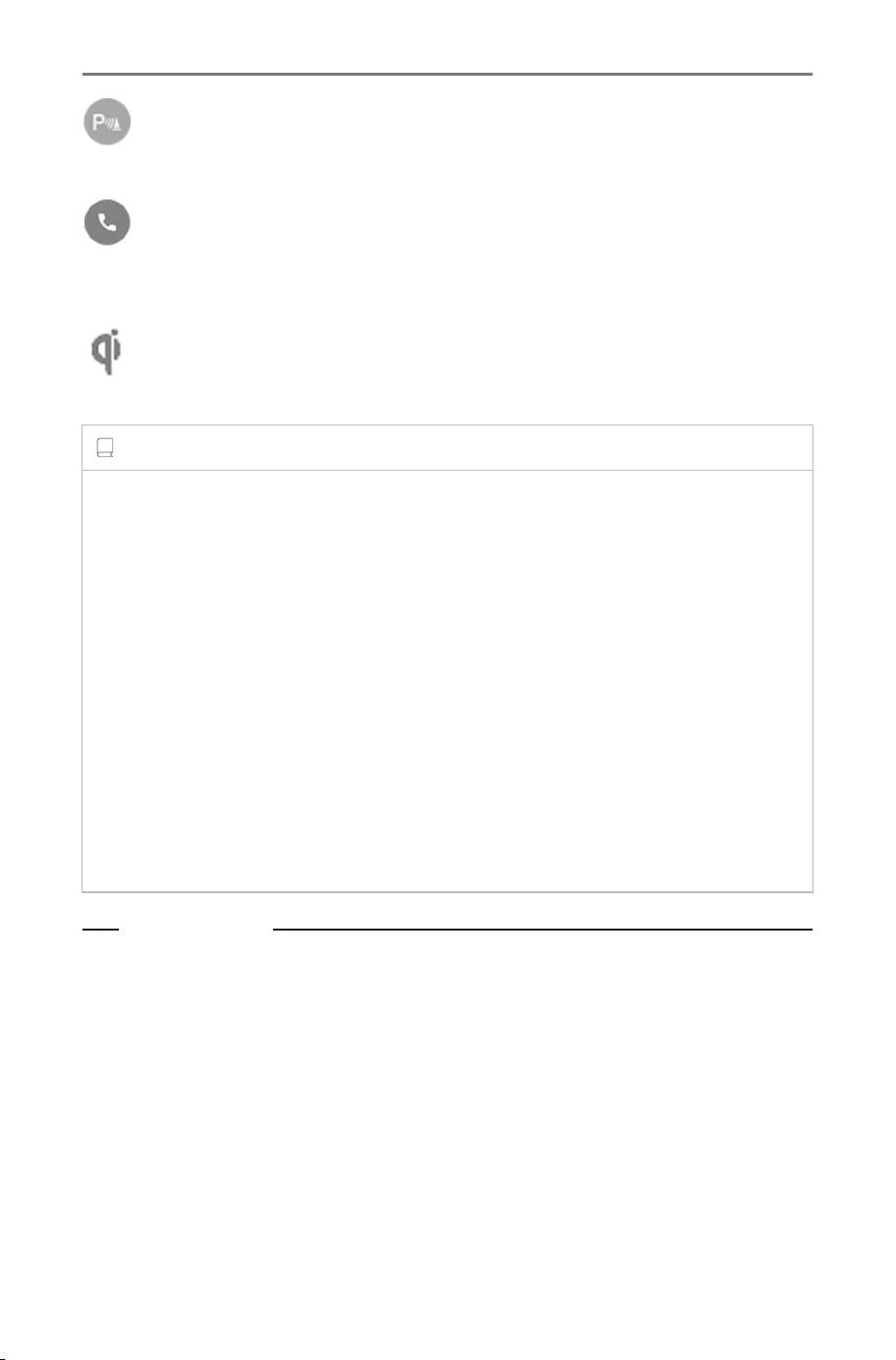
Displayed when the intuitive parking assist is active.
Displayed when a hands-free call was made while a screen other
than the phone screen was being displayed.
Displays the operating status of the wireless charger.
INFORMATION
● The displayed remaining battery charge for the cellular phone may not
match the display on the cellular phone. Additionally, the remaining bat-
tery charge may not be able to be displayed depending on the phone
model.
● You may not be able to use Wi-Fi
®
if the reception level is poor.
● If you use your cellular phone in places or situations like the following,
you may not be able to connect via Bluetooth
®
:
• The cellular phone is behind or under a seat, or inside the console
box
• The cellular phone is touching or covered with metallic materials
● If the cellular phone is set to power saving mode, the Bluetooth
®
con-
nection may automatically be disconnected. If that happens, disable
power saving mode on the cellular phone.
Related Links
Changing general multimedia system settings(P. 59)
Setting Bluetooth
®
devices(P. 90)
1-1. Basic operation of multimedia system
20
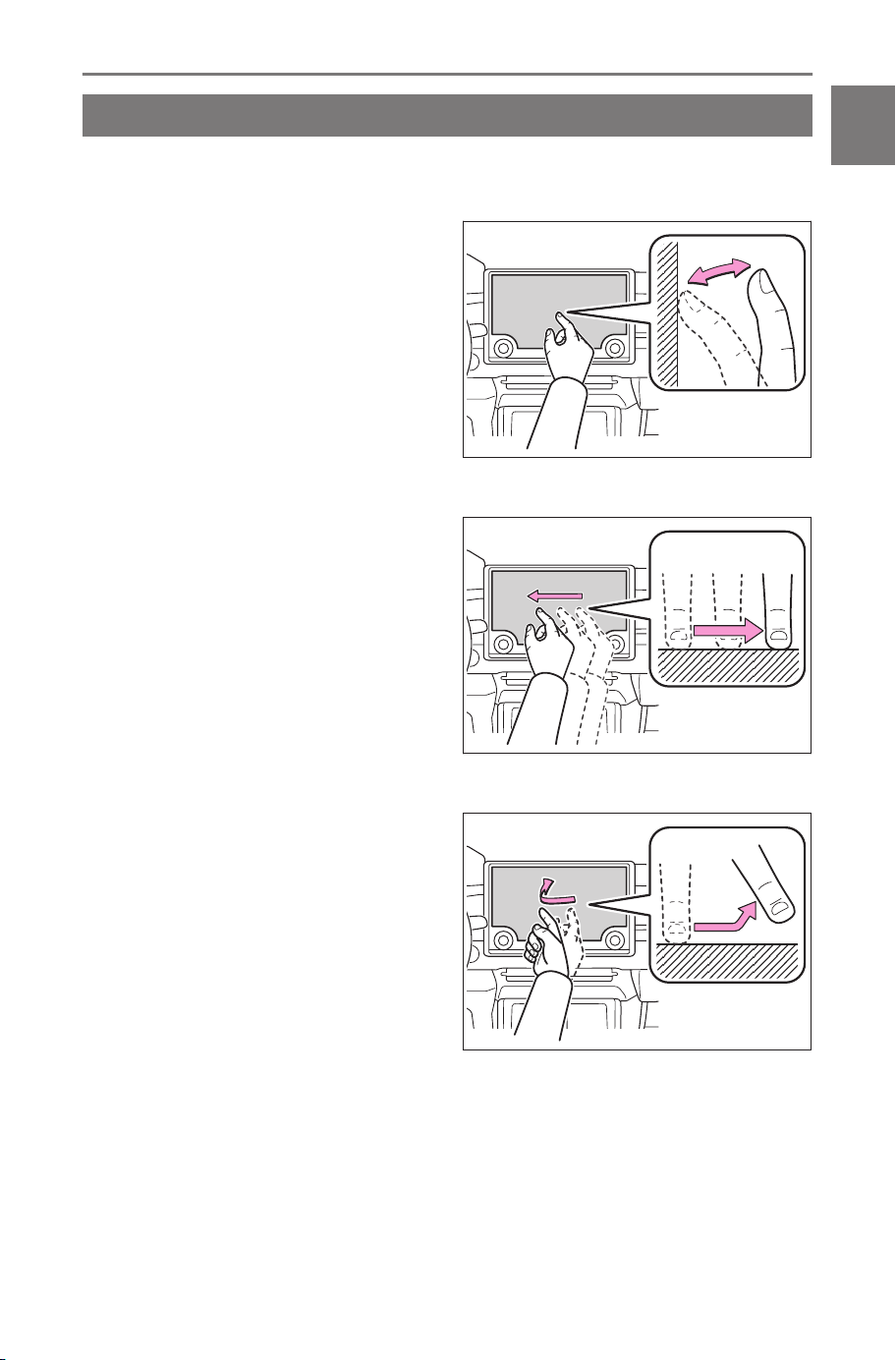
Operating the touch screen
Operate the touch screen by directly touching it with a finger.
■ Touch
Gently touch the screen. You can
select items on the screen.
■ Drag
Move your finger while it is touch-
ing the screen. The list and map
screens can be scrolled to the
amount that the finger is moved.
■ Flick
Quickly swipe your fingertip that
touches the screen. The list and
map screens are scrolled by larg-
er amount than scrolls by drag-
ging.
1-1. Basic operation of multimedia system
21
1
Basic operation
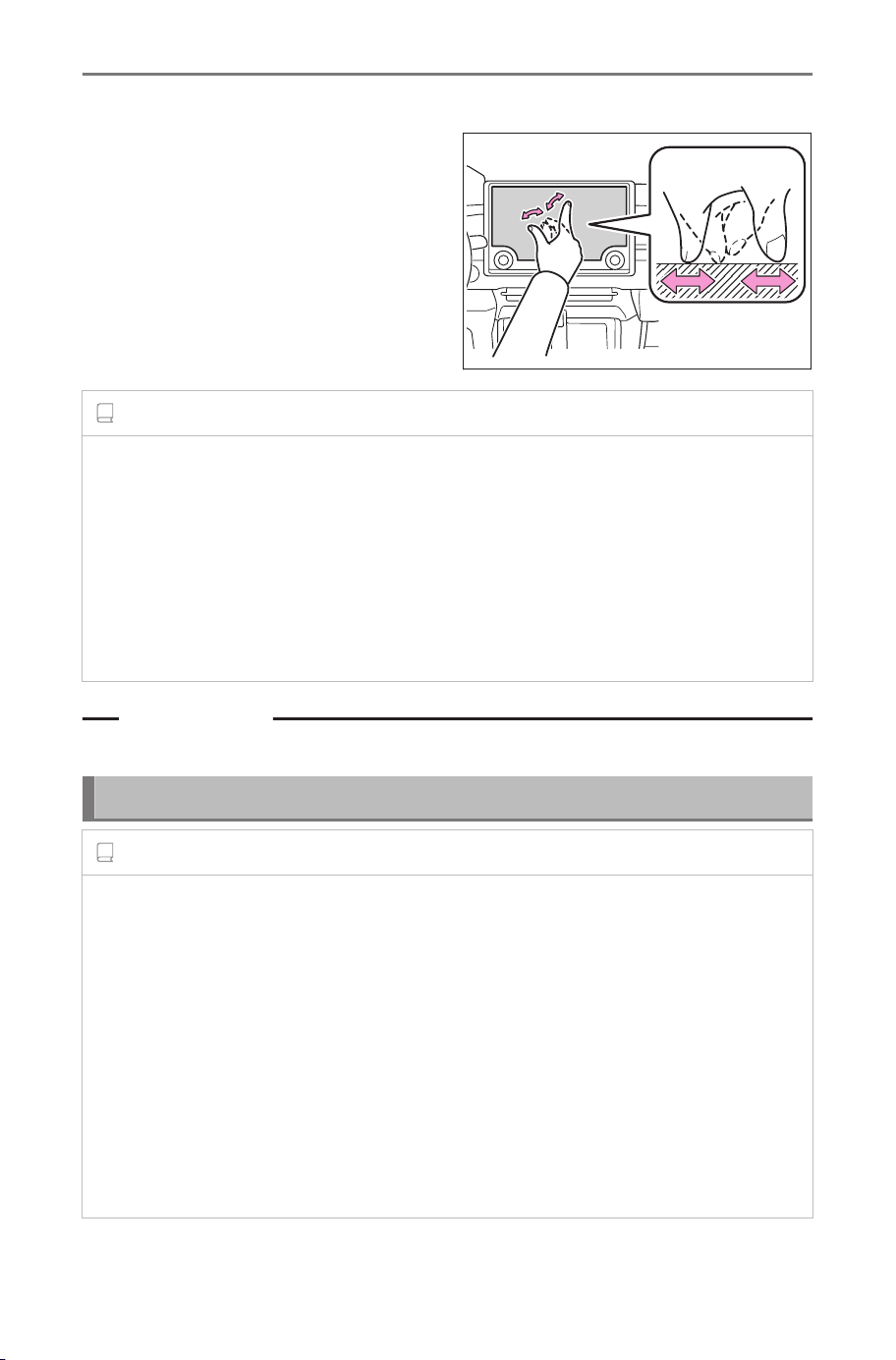
■ Pinch in/pinch out
Move two fingers in and out while
touching the screen. You can
zoom in and out on maps.
INFORMATION
● In order to operate some functions, it may be necessary to touch and
hold or double tap (touch 2 times quickly) the screen.
● The sensitivity level when touching the screen can be changed.
● Response sound when the screen button is touched can be turned on/
off.
● Flick operations may not work smoothly in high altitude areas.
● Operation of the screen is restricted while driving.
Related Links
Changing general multimedia system settings(P. 59)
Notes for operating the touch screen
INFORMATION
● If there is no response from the buttons on the screen, take your finger
off the screen and try again.
● In the following situations, the screen buttons may not respond or mal-
function:
• If a glove is worn
• If the screen is operated with a fingernail
• If the screen is being touched with another finger or palm at the
same time
•
Dirt or water is on the screen
• If a plastic film or coating is on the screen
1-1. Basic operation of multimedia system
22
• If the vehicle is near a TV tower, power plant, filling station, broad-
cast station, large display, airport, or any other place from which
strong radio waves or noise emanates
• When you are carrying or charging a portable wireless communica-
tion device, such as a radio or cellular phone, in the vehicle
● If the screen is touched or covered with a metallic object like one of the
following, the screen buttons may not respond or malfunction:
• A card covered in metal such as aluminum foil
• A cigarette case that uses aluminum foil
• A wallet, purse, or bag with metallic parts
• Coins
• Media, such as CDs and DVDs, a USB cable, etc.
● If the system is started with a finger touching the screen, the screen
buttons may not respond. Remove any fingers off the screen and try
again. If the buttons are still not responding, turn off the power switch
and restart the system.
● The Apple CarPlay map application does not support the pinch in/pinch
out feature.
NOTICE
● To protect the screen, gently touch the screen with your finger when
operating it.
● Do not operate the touch screen with anything other than your finger.
● Gently clean the screen with a glasses cleaning cloth or similar soft
cloth. Touching the screen forcibly with your finger or a hard cloth may
scratch the surface of the screen.
● Do not use benzine or an alkaline solution to clean the screen. Doing
so may damage the screen.
● The screen surface may become hot depending on the conditions. If
you keep touching it for a long time, it may cause low temperature
burn.
1-1. Basic operation of multimedia system
23
1
Basic operation
Basic screen function
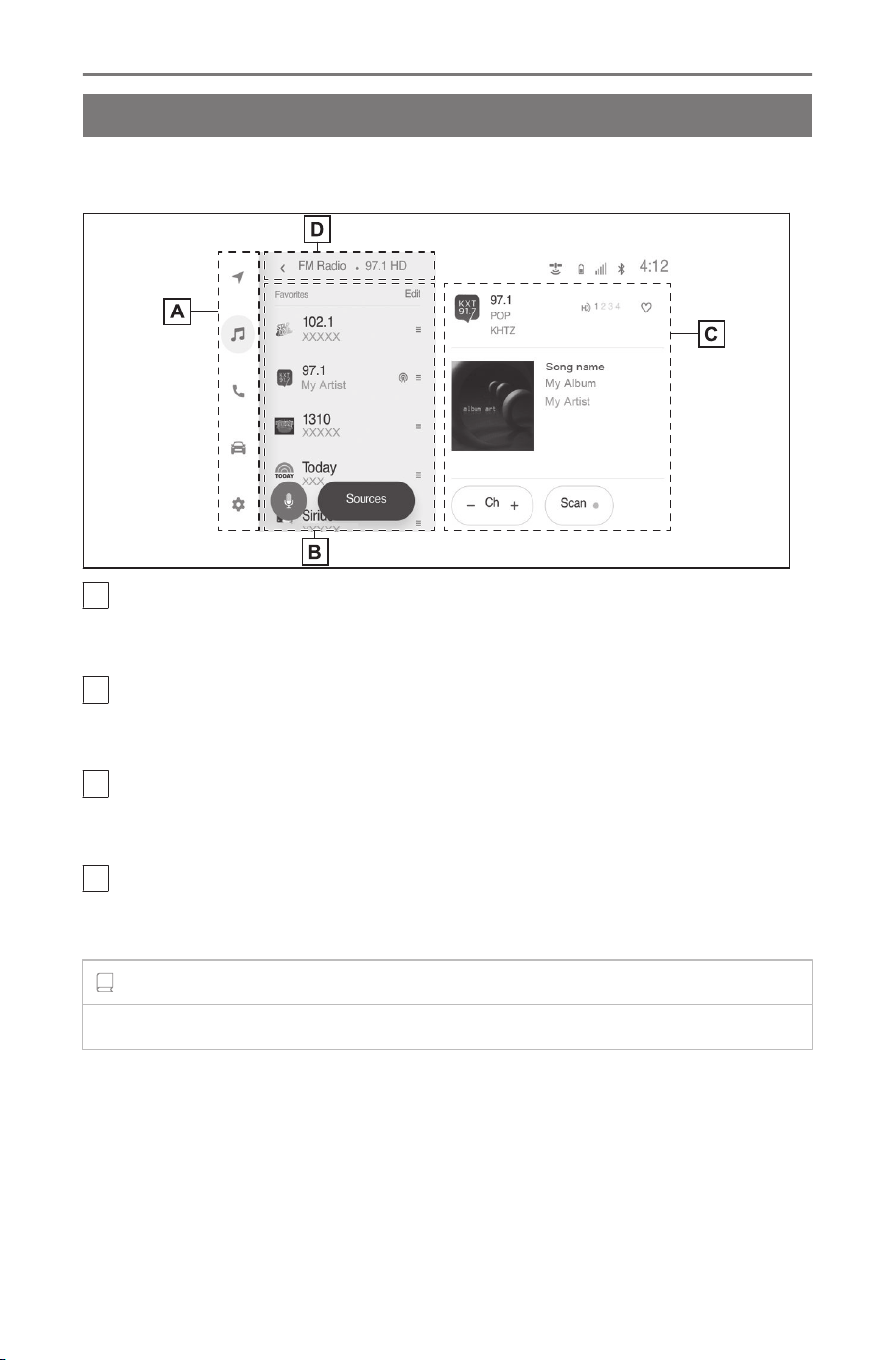
A list screen will be displayed if there are multiple candidates such
as settings and audio. Scroll the list to select the desired item.
A
Main menu
Changes the function to be displayed on the screen by touching an
icon.
B
Sub menu
Displays items on a list. Scrolling the list can be done by dragging or
flicking the screen.
C
Main area
Displays detailed information about the item you selected on the sub
menu.
D
Breadcrumb list
Displays screen titles in a hierarchy. Touching [<] returns to the hierar-
chy one level up.
INFORMATION
Operation of the screen is restricted while driving.
1-1. Basic operation of multimedia system
24
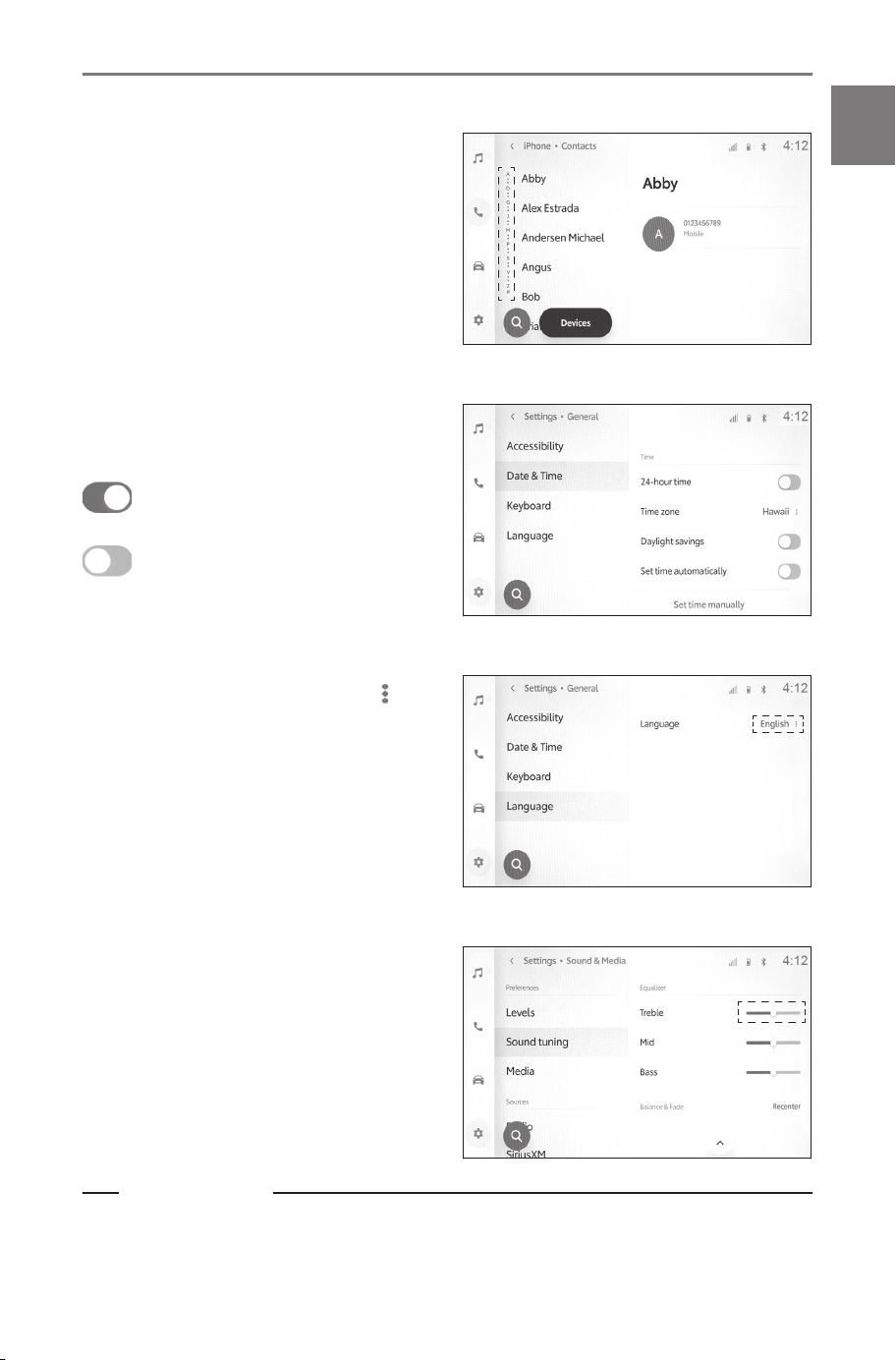
■ Searching a list
Touching text in an index displays
the desired item from the list.
■ Turning the settings on or off
Touching an item turns the setting
on or off.
: On
: Off
■ Multiple setting options
Touching an item that has [ ]
to it enables you to select an item
from multiple options.
■ Adjusting the level
Dragging the slider enables the
level of the setting to be adjusted.
Related Links
Main menu(P. 17)
1-1. Basic operation of multimedia system
25
1
Basic operation
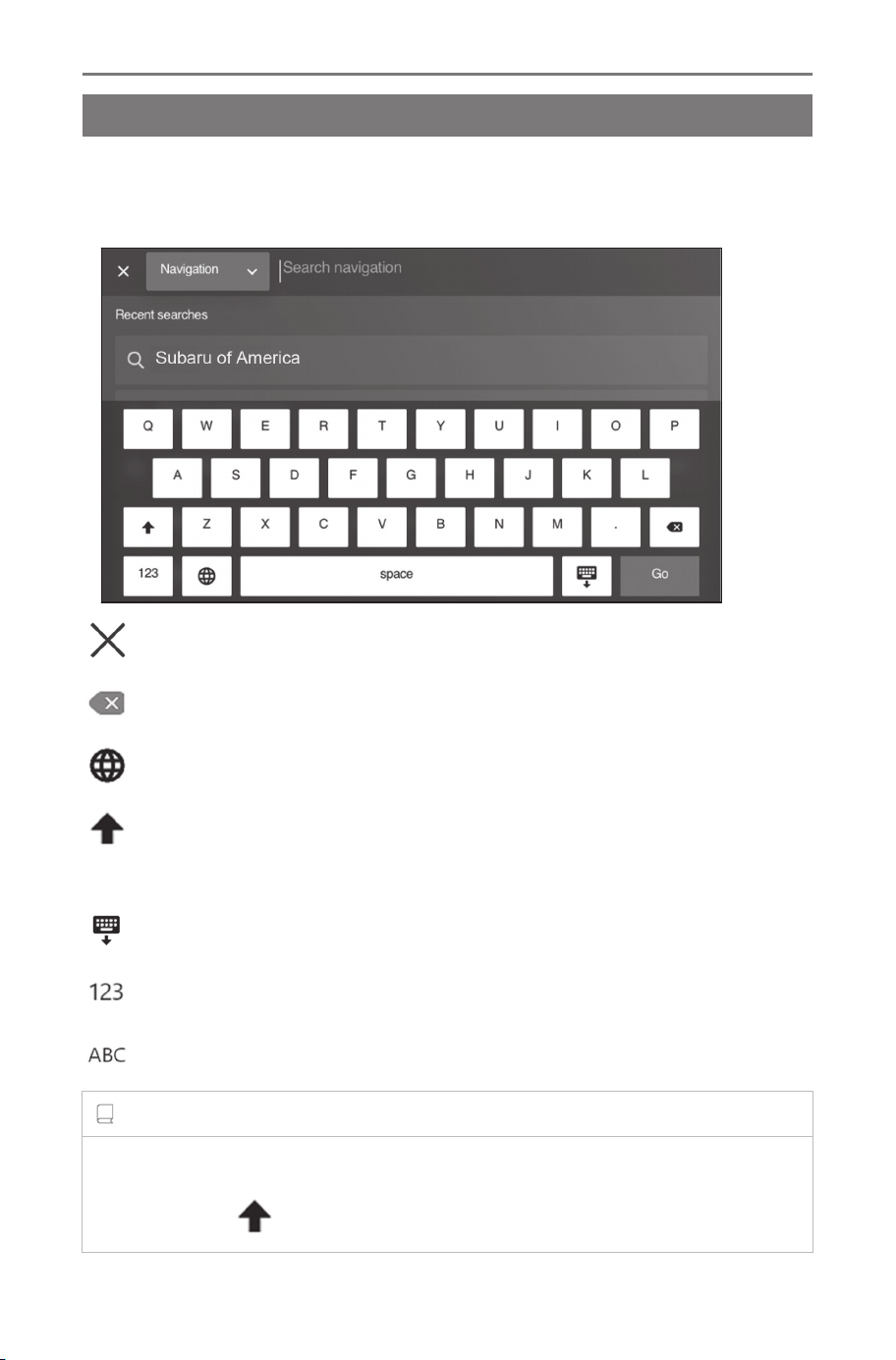
Entering letters and numbers
Letters and numbers can be entered by using the keyboard. Enter-
ing letters displays predictive text.
▶Screen example
: Closes the keyboard and returns to the previous screen.
: Deletes one character.
: Switches the keyboard.
: Toggles between uppercase and lowercase.
[Go] : Perform search based on input text.
: Closes the keyboard.
: Changes to the numbers and symbols input mode.
: Changes to the alphabet text input mode.
INFORMATION
● The displayed keyboard type differs depending on the feature.
● Double tap [ ] to fix the letters to uppercase for input.
1-1. Basic operation of multimedia system
26
Basic operation of navigation system
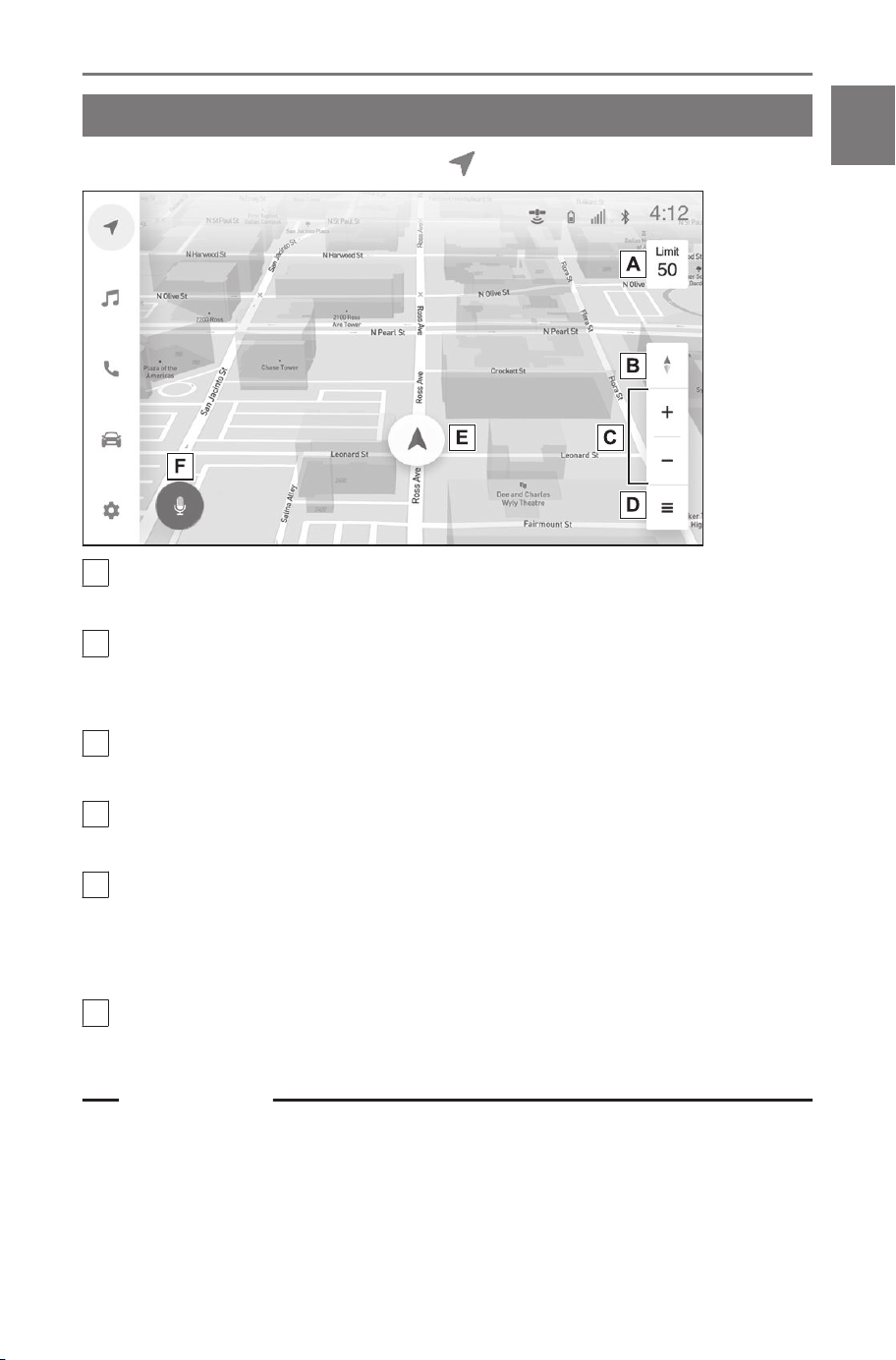
Map screen overview
To display the map screen, touch [
] on the main menu.
A
Speed limit icon
Displays the speed limit of the road being driven on.
B
Orientation mark
Displays the orientation of the map. Touch to change the orienta-
tion of the map.
C
Zoom in/out buttons
Increase/reduce the map scale.
D
Map options button
Displays the map options screen.
E
Current position icon
Displays the current position and orientation of the vehicle. Touch
to display detailed information about the current position. Also,
touch to share the current position of the vehicle.
F
Voice search button
Displays the voice control screen.
Related Links
Map orientation(P. 28)
Map scale(P. 28)
Current position(P. 28)
Searching for a destination using voice control(P. 145)
1-2. Basic operation of navigation system
27
1
Basic operation
Operating the map screen
This section explains the basic operations relating to the map dis-
play, such as the current position display and scrolling the map.
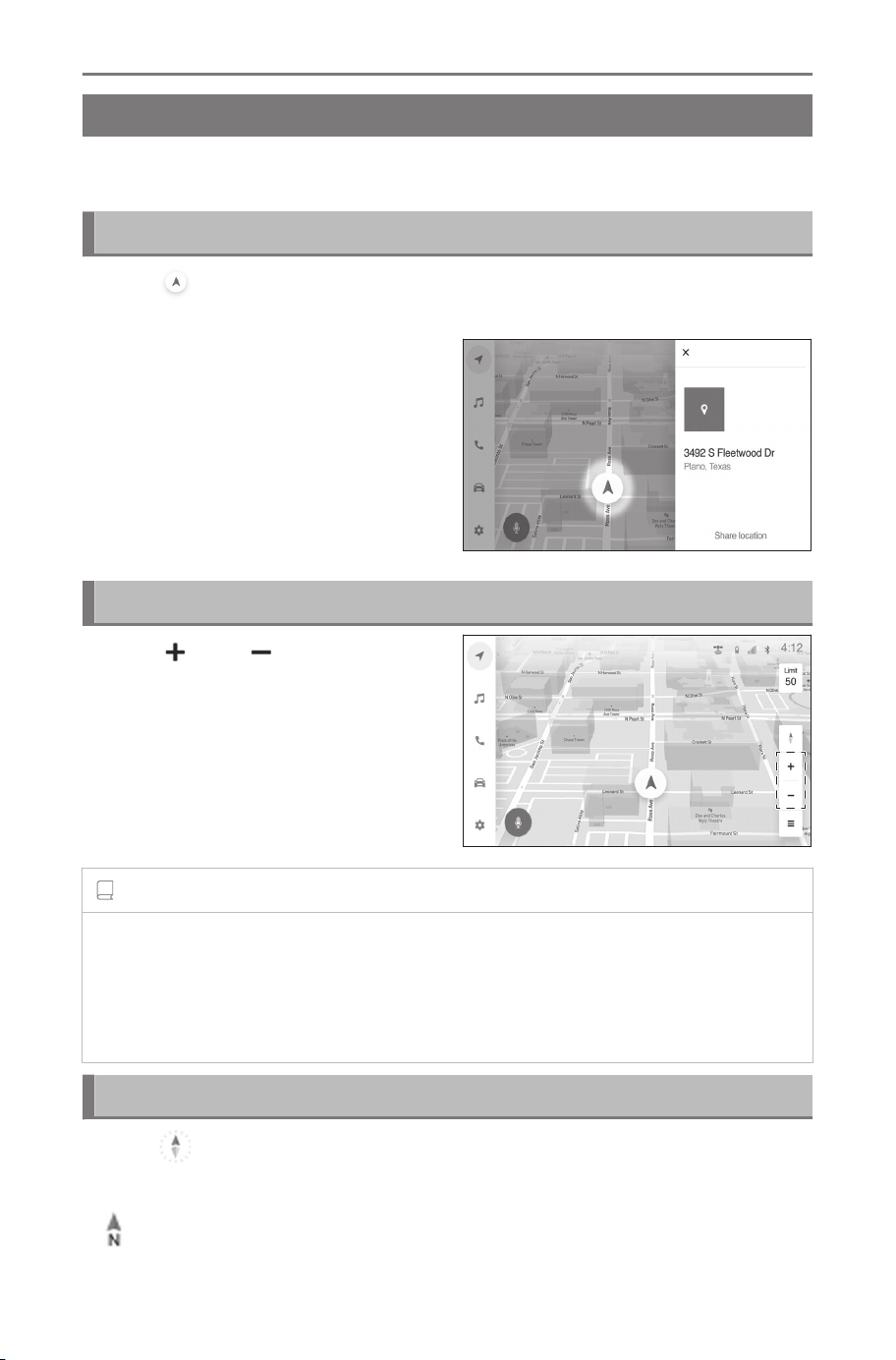
Current position
Touch [ ] to display detailed information about the current posi-
tion.
[Share location] : Shares the ve-
hicle’s current position with a reg-
istered contact.
To use this function, a smartphone
must be connected to the multi-
media system.
Map scale
Touch [ ] or [ ] to change the
scale of the map screen.
INFORMATION
● Pinch out on the screen to zoom in and pinch in to zoom out.
● Double tapping with 1 finger can also be used to zoom in. Double
tapping with 2 fingers can be used to zoom out.
● Can also two finger tilt to change to 3D and back to 2D.
Map orientation
Touch [ ] to change the orientation of the map screen between
north up, heading up, and 3D heading up.
[ ] : North up icon
1-2. Basic operation of navigation system
28
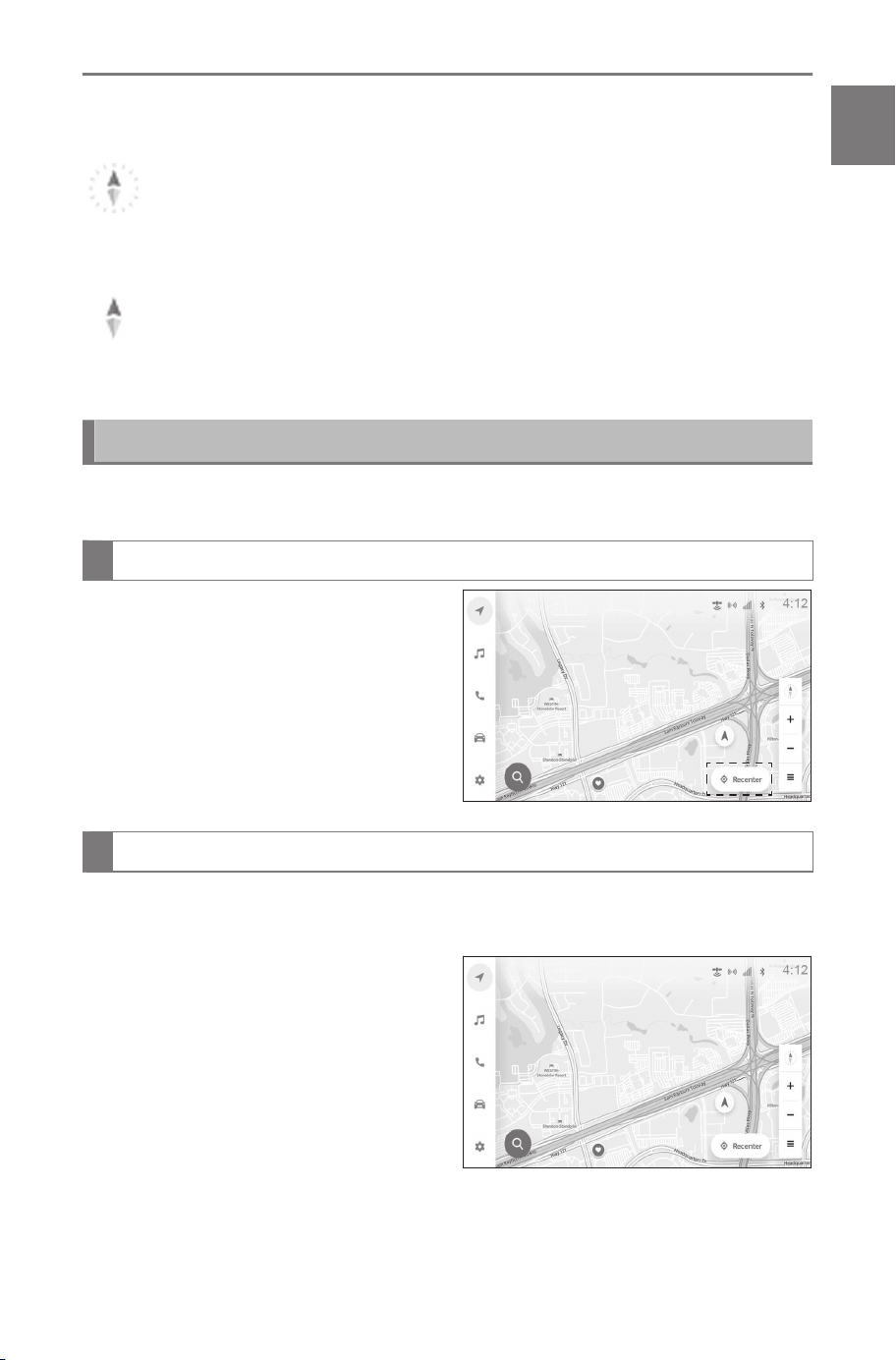
The map is always displayed with north up, regardless of the direc-
tion travel of the vehicle.
[ ]: Heading up icon
The map is always displayed with the direction of travel during an
active route navigation.
[
]: 3D Heading up icon
Displays a 3D map. The map is always displayed with the direction
of travel during an active route navigation.
Map scrolling operation
The map can be moved and a selected point can be set as the
center of the map screen.
Flick/drag operation
The map screen can be moved by
touching, dragging or flicking it.
Touch [Recenter] to return to the
center of the map to the current
position.
Touch and hold operation
If a desired point on the map screen is touched and held, the full
route map screen to the selected point will be displayed.
1 Touch and hold the desired
point.
1-2. Basic operation of navigation system
29
1
Basic operation
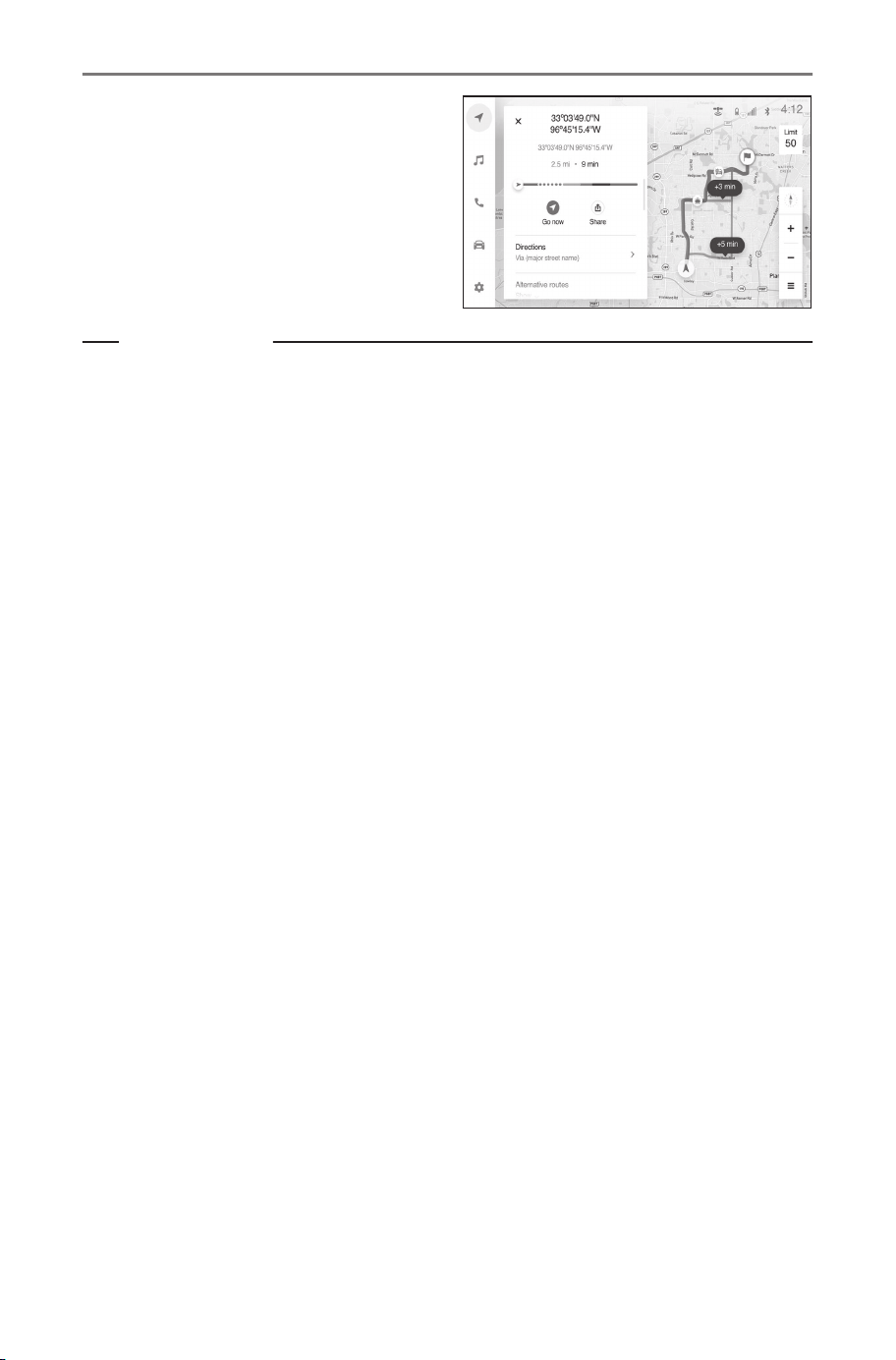
2 Full route map screen will
be displayed for the selected
point.
Related Links
Full route map screen(P. 151)
1-2. Basic operation of navigation system
30
Basic operation of audio system
Audio system ON/OFF and volume adjustment
The audio can be turned off when not in use, or the volume can be
adjusted to an appropriate level.
The system can be used when the power switch is in ACC
*1
or ON.
INFORMATION
■ When ACC customization is in off
With the power switch turned off, the multimedia system can still be used
for a certain time until the battery-saving function starts operating. To turn
off the multimedia system, perform either of the following actions:
● Press [ VOL] knob.
● Open the driver's door.
NOTICE
● Do not use the multimedia system for extended periods when the EV
system is not running. Doing so may deplete the 12-volt battery.
● Listen to the audio at an appropriate volume that will not interfere with
safe driving.
■ Operating with the audio control knob
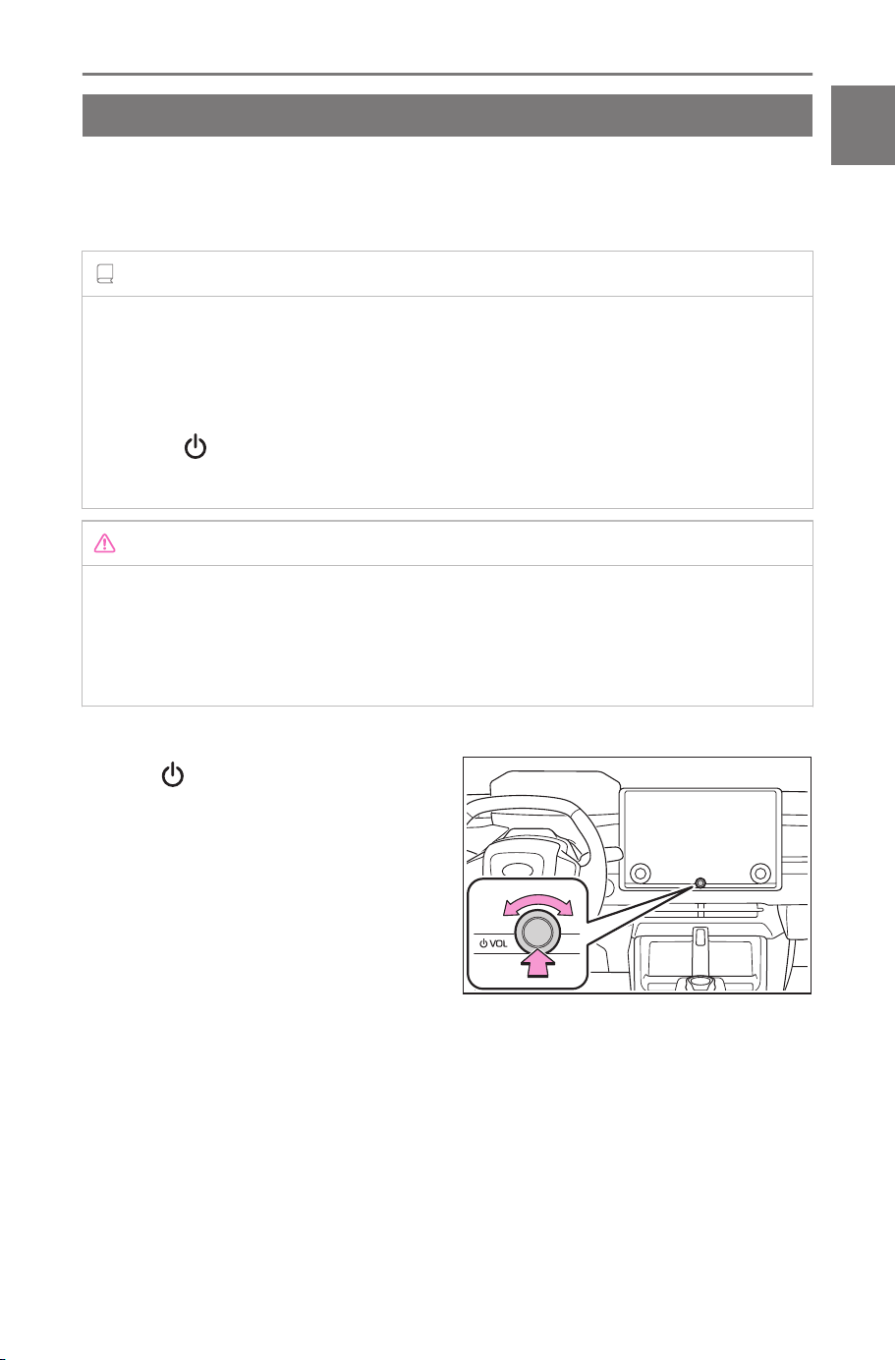
Press [
VOL] knob to turn the
audio on and off. Turn the knob
to adjust the volume.
*1 : ACC mode can be enabled/disabled on the customize menu. For de-
tails, refer to the vehicle "OWNER’S MANUAL".
1-3. Basic operation of audio system
31
1
Basic operation
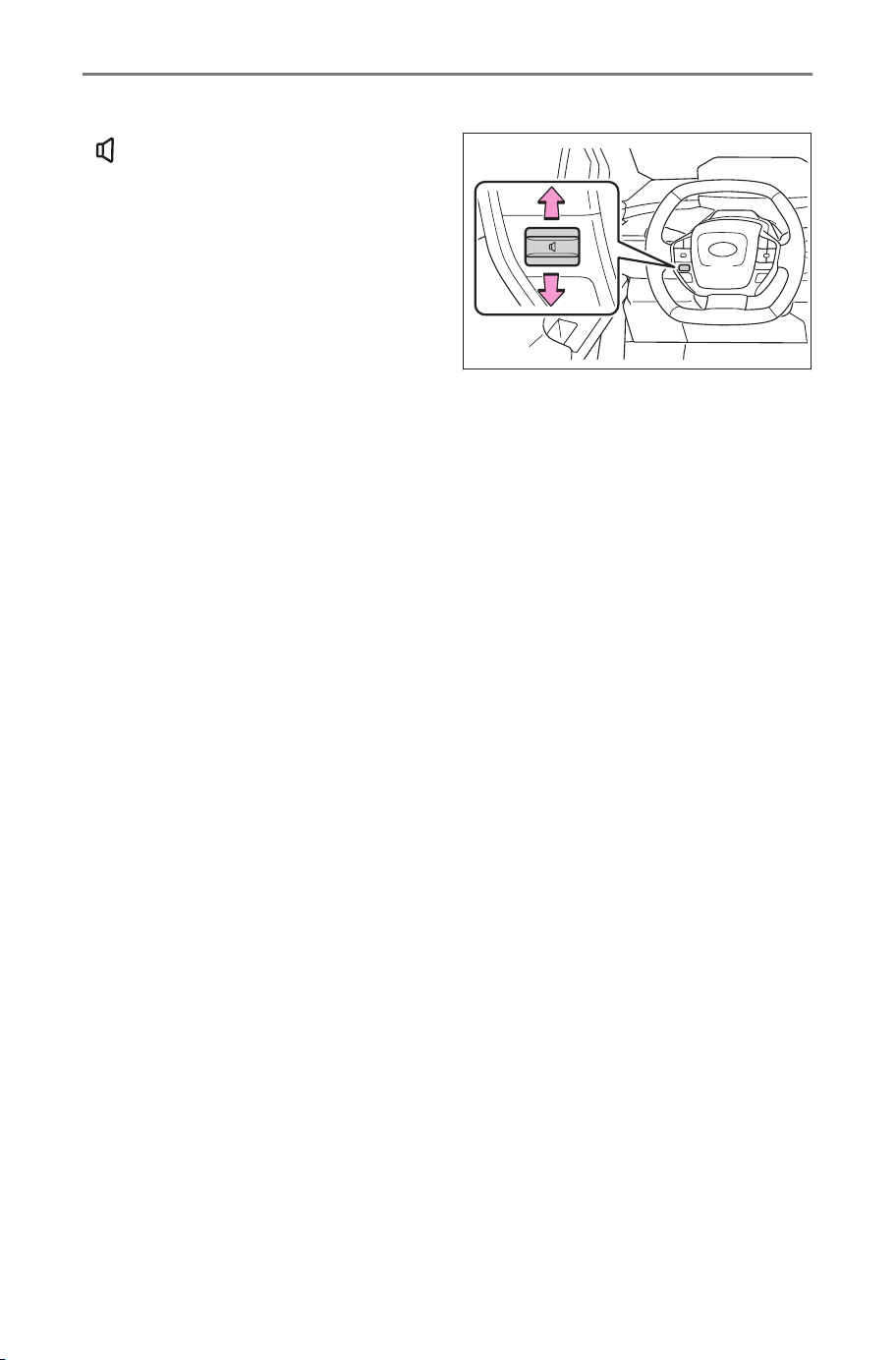
■ Operating with the steering switches
[
] switch
Adjust the audio volume. Keep
raising or lowering to adjust con-
tinuously.
1-3. Basic operation of audio system
32
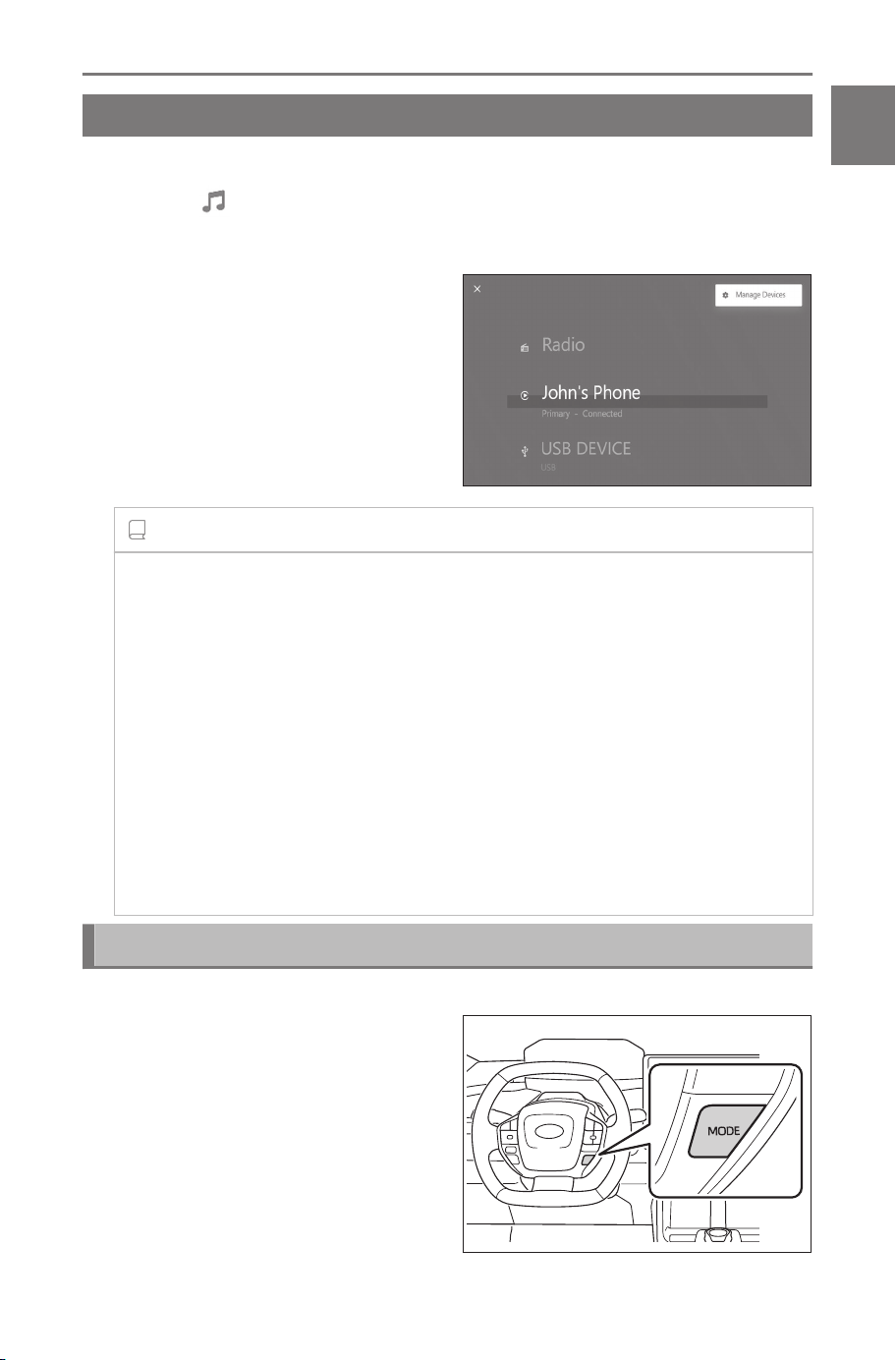
Changing the audio source
Source can be changed to radio, USB, etc.
1 Touch [ ] from the main menu.
2 Touch [Sources].
3 Touch the source you wish
to select.
INFORMATION
● When no device is connected to the multimedia system, the switch
does not appear on the source selection screen. (USB/iPod/Apple
CarPlay/Android Auto/Bluetooth
®
Audio)
● If a cellular phone is used inside the vehicle or nearby while listen-
ing to audio, noise may be output from the audio speakers.
● The following functions cannot be used while Apple CarPlay is con-
nected via USB.
• iPod
• USB audio
● USB audio cannot be used while Android Auto is connected via
USB.
Changing the source with the steering switch
Changing the source with the steering switch is possible.
[MODE] switch
The sources will switch in or-
der.
Press and hold to pause or
mute. Press and hold again to
cancel.
1-3. Basic operation of audio system
33
1
Basic operation
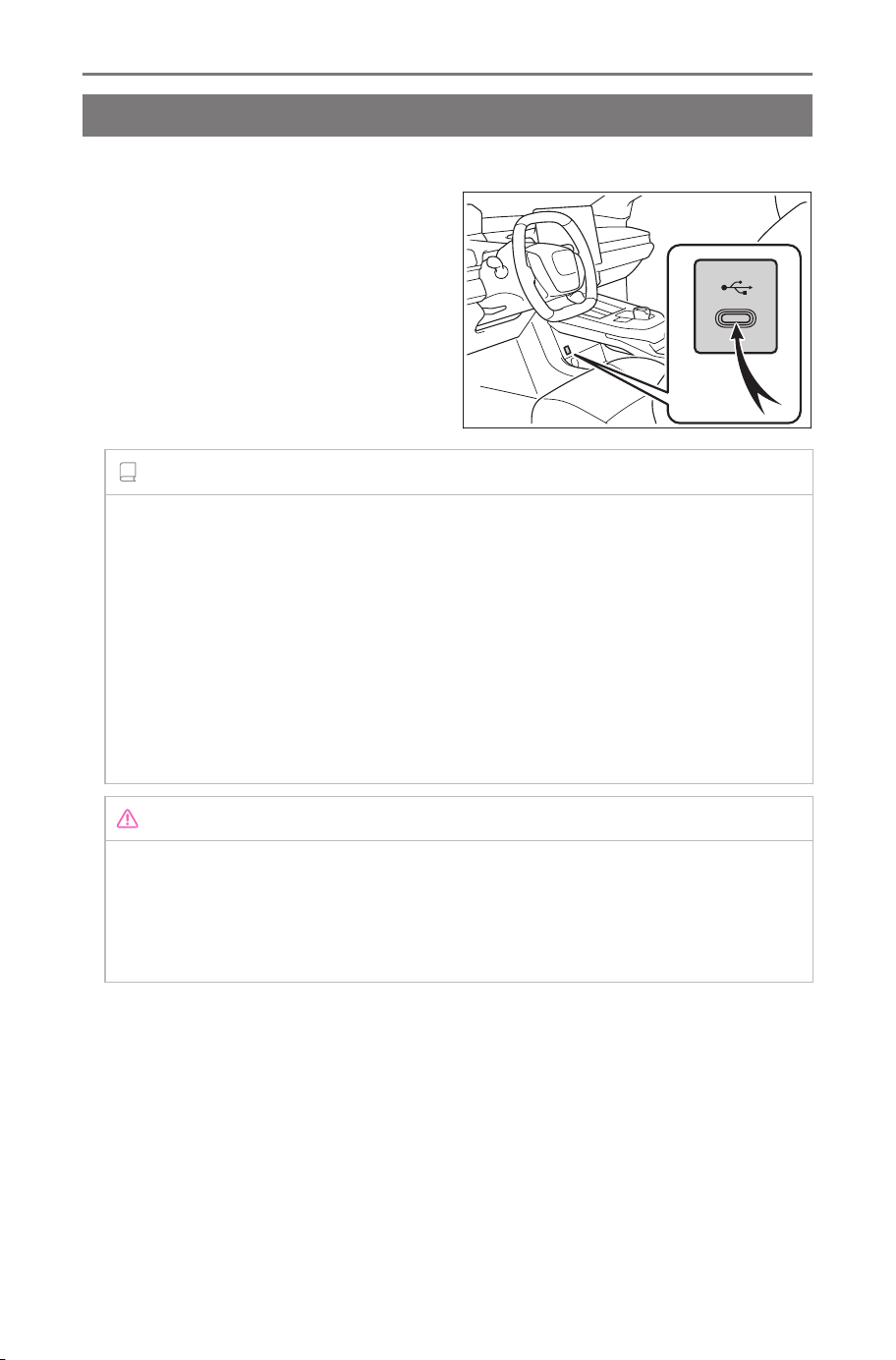
Connecting a device via the USB Type-C port
Connect a device such as smartphone or portable player.
● Connect the USB Type-C ca-
ble to the port.
When connecting a USB flash
drive, connect it directly to the USB
Type-C port.
INFORMATION
● Viewing may not be possible, depending on your device.
● When a USB hub is used to connect multiple devices, devices other
than the first device to be recognized cannot be used.
● Refer to the instruction manual of the USB Type-C cable and the
device to be connected.
● Use a power source such as the battery supplied with the connect-
ed device. Using the accessory socket installed in the vehicle may
cause noise output. (Refer to the vehicle "OWNER’S MANUAL" for
details on the accessory socket.)
NOTICE
● Do not push down on or subject the connected device to unnecessa-
ry pressure. The device or its terminal may be damaged.
● Keep the port free of foreign matter. The device or its port may be
damaged.
1-3. Basic operation of audio system
34
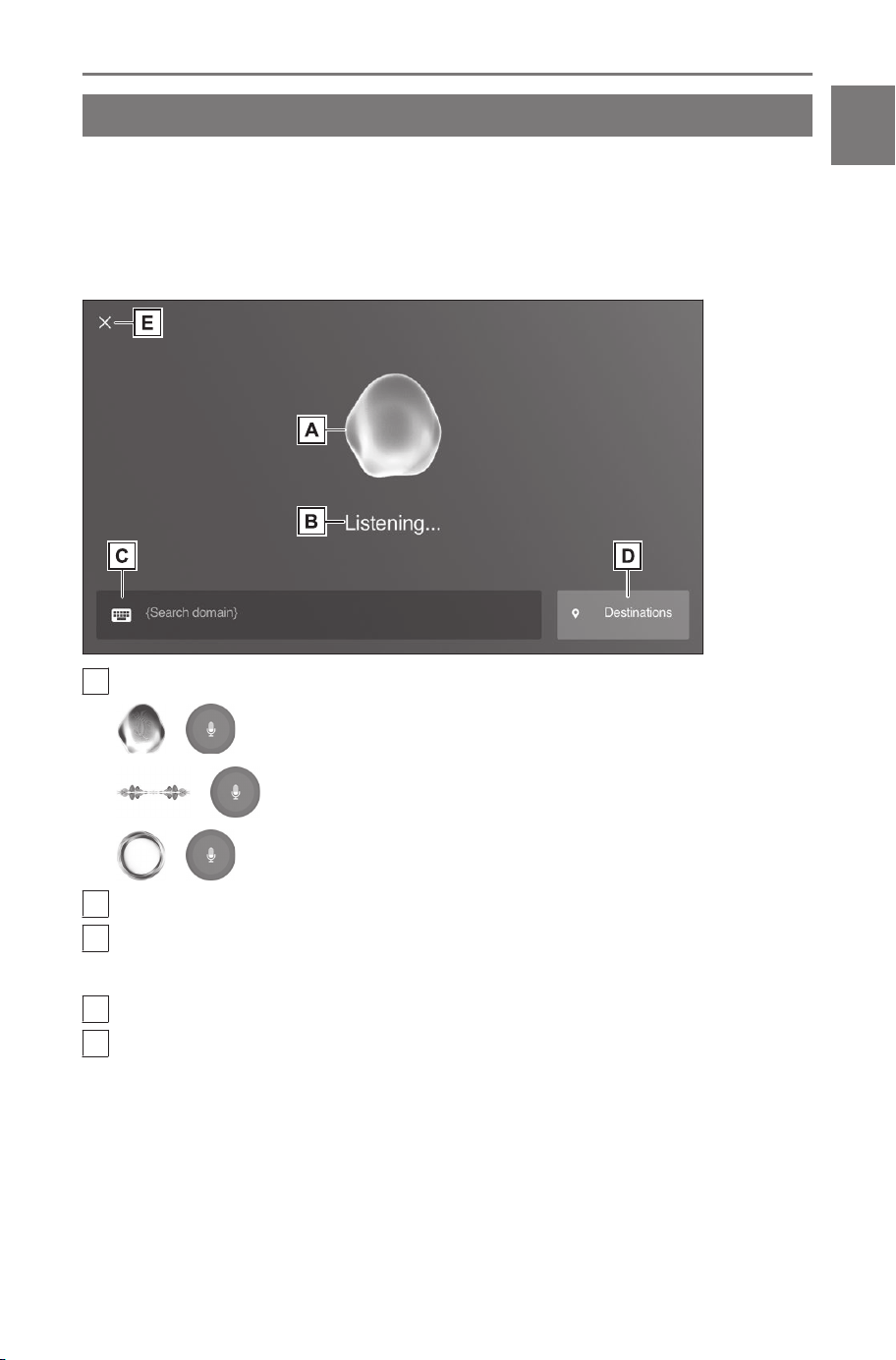
Intelligent Assistant
Using the Intelligent Assistant system
Intelligent Assistant is a subscription-based service that allows you
to control the multimedia system with voice command and allows
you to operate navigation, integrated streaming, radio and phone.
Without subscription, the assistant will be limited to Radio, Phone
and Climate features.
A
Displays the voice recognition status.
/
*1
: Waiting for user’s voice command
/
*1
: Listening
/
*1
: Processing
B
Displays the response of the Intelligent Assistant system.
C
Displays the keyboard screen.
Various items can be searched by using the keyboard.
D
Sets a destination by selecting a previous destination.
E
Closes the voice control screen.
*1 : If not subscribed
1-4. Intelligent Assistant
35
1
Basic operation
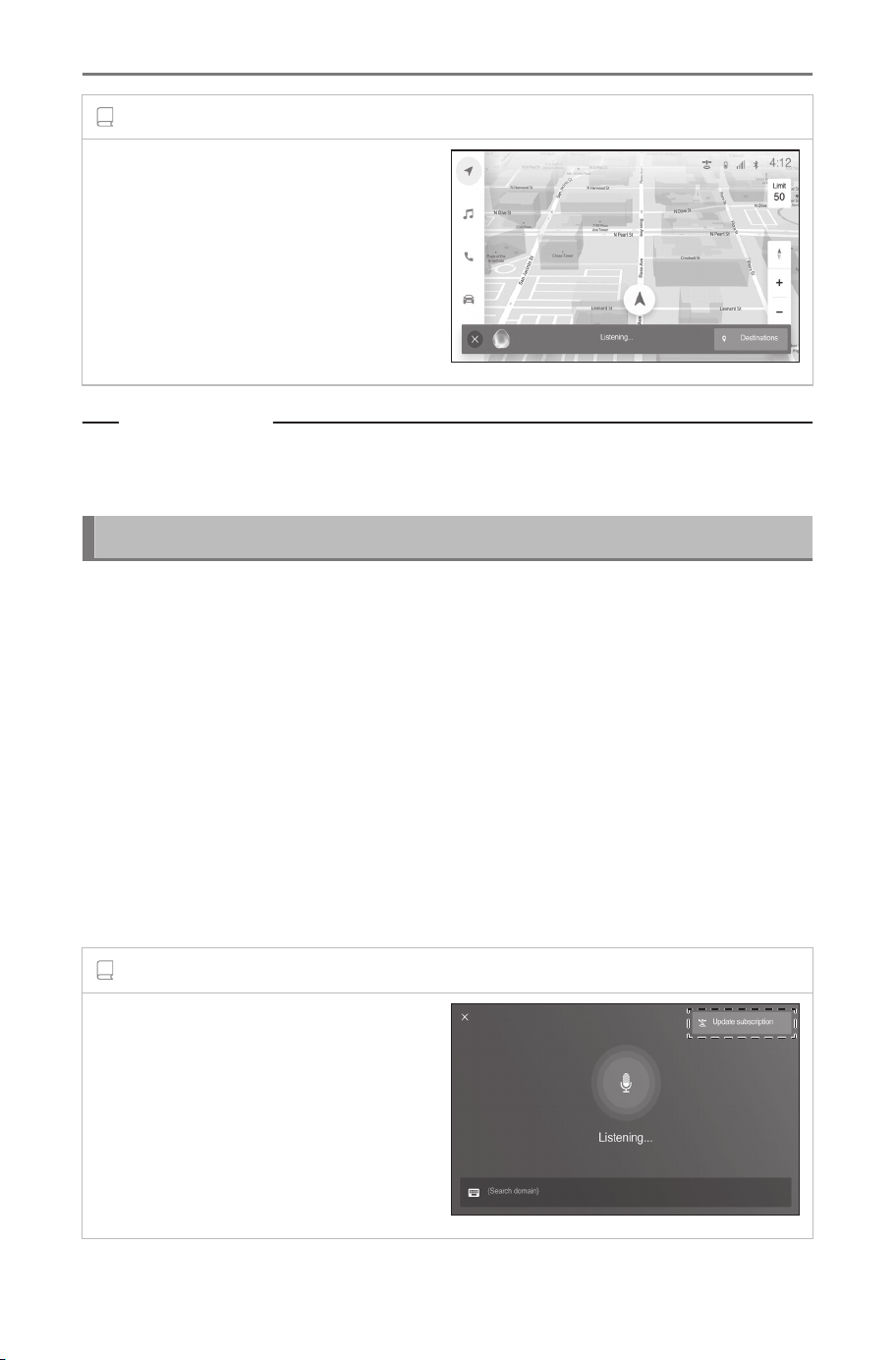
INFORMATION
While driving, the voice control
screen will appear as a bar at the
bottom of the screen.
Related Links
Using the search function(P. 44)
Searching for a destination by category(P. 143)
Intelligent Assistant cloud subscription
*1
The Intelligent Assistant allows the customer with the following en-
hancements:
● Enhanced Voice Recognition / Natural Language Understanding
Improved voice performance by utilizing both in-vehicle and cloud-
based voice recognition.
● Personalized experience
Offers a unique experience catered to the particular user by utiliz-
ing learned user data stored in the cloud.
● Up-to-date information
Cloud content is constantly kept up-to-date, so there is no need to
visit dealer for a data update.
INFORMATION
You can update Intelligent Assistant
cloud subscription by touching the
[Update subscription] button or
using SubaruConnect Mobile App.
*1 : This function is not available in some regions.
1-4. Intelligent Assistant
36
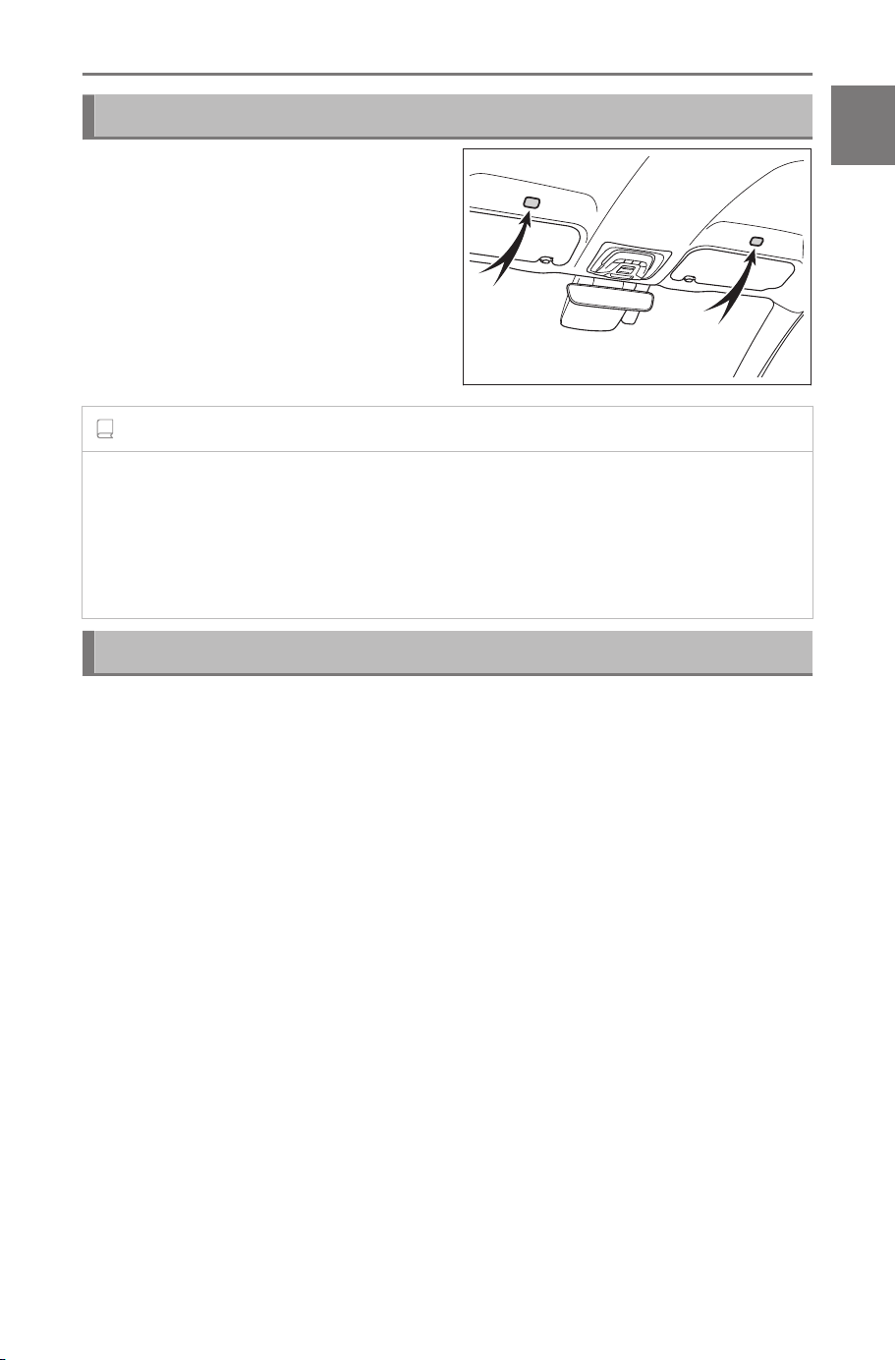
Microphones
Microphones are installed on the
driver's side and the passenger's
side, respectively.
INFORMATION
● Voice controls can be done from the driver seat or passenger seat by
activating the voice control system with wake word. In this case, voice
commands from seats other than the system activating seats are not
recognized.
● Some functions are not available for voice control from passenger seat.
Supported languages
Languages that the Intelligent Assistant recognizes are English,
French, and Spanish.
1-4. Intelligent Assistant
37
1
Basic operation
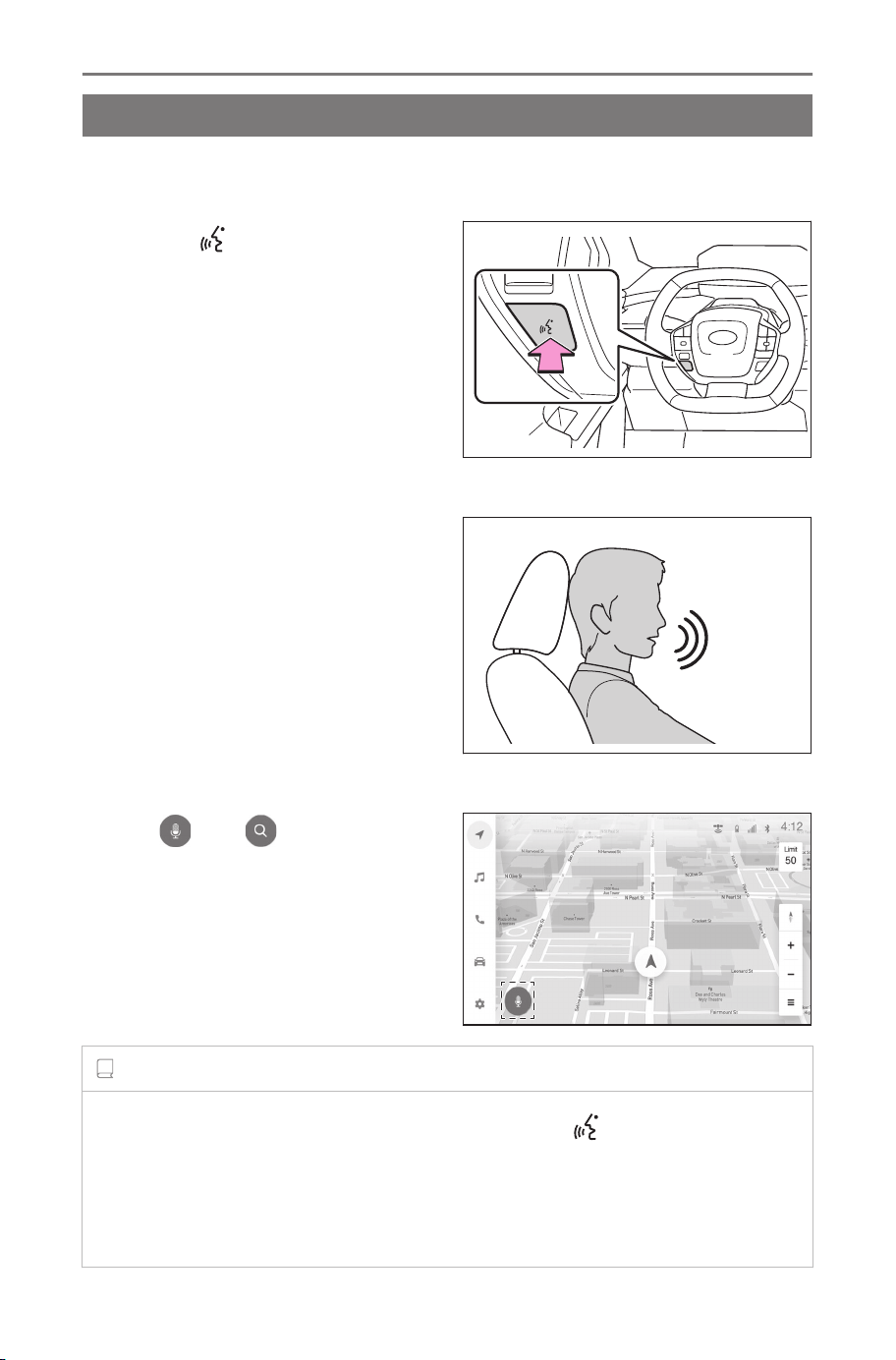
Starting voice control
Voice control can be started by any of the following operations:
■ Press the talk switch
Press the [ ] switch (talk switch)
on the steering.
■ Say the wake word
Say "Hey SUBARU".
● The wake word can be turned on or
off.
● The wake word can be used and
then immediately issue a voice
command.
Example: "Hey SUBARU", "Take
me to an Italian restaurant."
■ Touch the voice search button
Touch [
] or [ ] on the screen.
INFORMATION
● If the Intelligent Assistant was activated by the [ ] switch or voice
search button, voice controls can be performed only from the driver
seat.
● The Intelligent Assistant may not recognize commands if they are not
said clearly. Take note of the following points when using it:
1-4. Intelligent Assistant
38

• Speak in a clear voice.
• Close the window as commands may not be recognized properly due
to noise (wind noise or external noise).
• If the air conditioner blows loudly, commands may not be recognized
properly, so reduce the air volume.
• If music is being played loudly while a command is issued, that
command may not be recognized, so lower the music volume.
• Commands may not be recognized if several people speak at once.
●
You can interrupt the voice prompt by saying a voice command.
● You can turn voice prompt on or off on the voice control settings
screen.
● You can adjust the system voice volume on the sound and media
settings screen.
Related Links
Changing the voice control settings(P. 71)
Changing sound and media settings(P. 66)
Stopping voice control
Voice control can end with one of the following operations:
● Say "Cancel".
●
Touch [
] on the voice control screen.
●
Press and hold the [ ] switch on the steering.
1-4. Intelligent Assistant
39
1
Basic operation
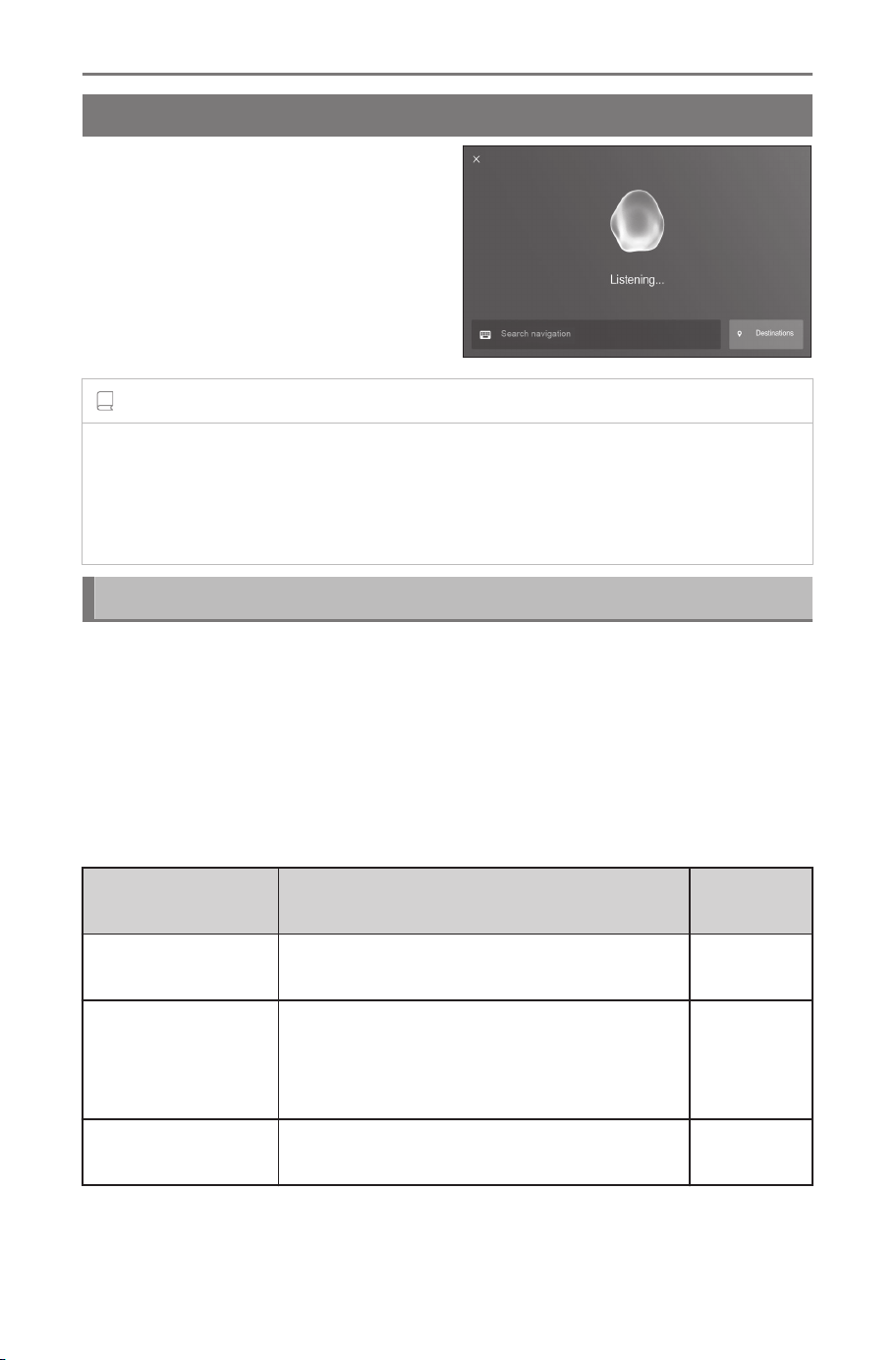
Speaking a voice command
Say a voice command when
the voice control screen appears.
The system can recognize natural
speech.
INFORMATION
● Commands may not be recognized if said with an accent or non-stand-
ard phrasing.
● If the system does not recognize aliases or abbreviations when search-
ing for place names and facilities, say the official name.
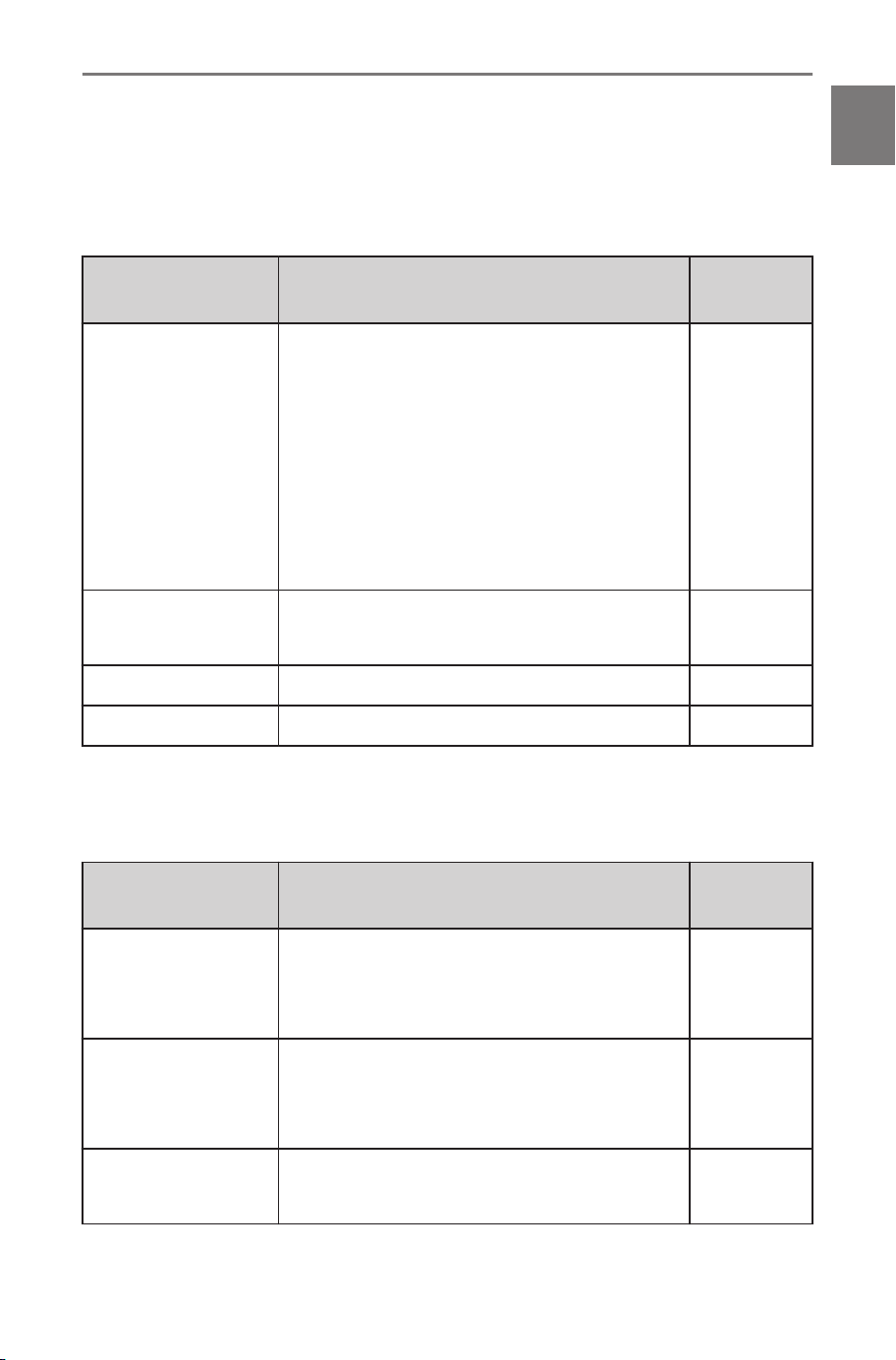
Function list
The following tables list frequently used commands for each function
category.
● The functions available may vary according to the system instal-
led.
● Items with "Subscription" will require Intelligent Assistant function-
ality.
■ Common
Action Example voice command
Subscrip-
tion
Shows list of gen-
eral commands
"Help" No
Stops the current
conversation and
re-starts at the be-
ginning
"Start over" No
Cancels the voice
control system
"Cancel" No
1-4. Intelligent Assistant
40
■ Navigation
Intelligent Assistant system enables navigation voice search. This
allows you with variety of features such as searching a point of
interest (POI), navigate to an address as well as discovering new
POIs.
Function Example voice command
Subscrip-
tion
Destination search
"Take me to <location category/business
name>"
"Take me to an Italian restaurant"
"Take me to <address>"
"Take me to 6565 Headquarters drive
Plano TX"
"Take me home"
"Take me to work"
Yes
Map control
"Zoom in"
"Zoom out"
Yes
Route information "Cancel trip" Yes
Telematics "Call Destination Assist" No
■ Multimedia control
Allows you to engage in a dialog with the Intelligent assistant to
complete various multimedia tasks via voice input.
Function Example voice command
Subscrip-
tion
Radio
"Tune to 99.5 FM"
"Tune to Rock on FM"
"Tune to channel 2 on SiriusXM"
No
Media
"Mute audio"
"Next"
"Previous"
No
Media Streaming
"Play <artist/album/song/genre/playlist>"
"Play Frank Sinatra"
Yes
1-4. Intelligent Assistant
41
1
Basic operation
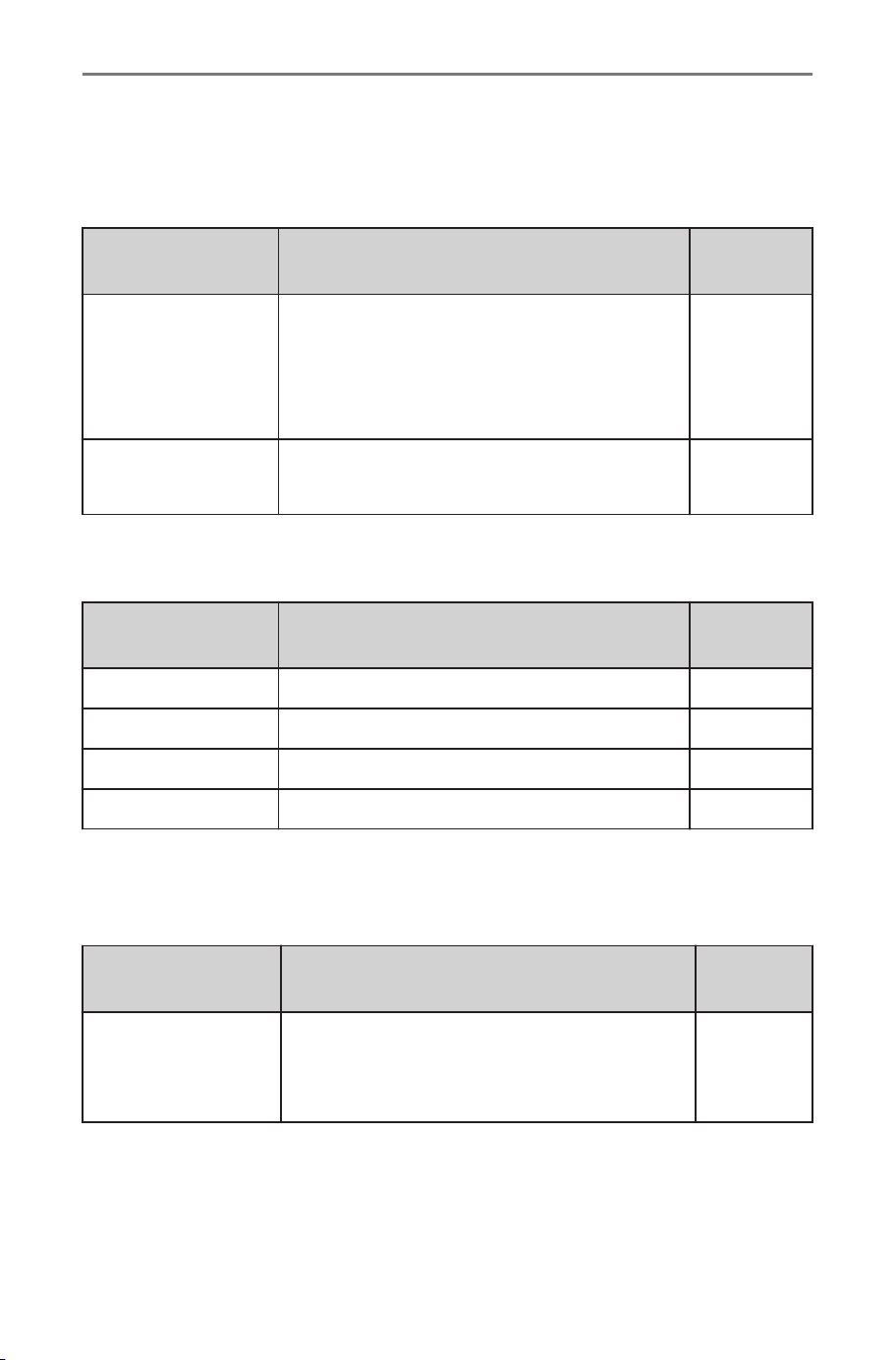
■ Hands-free phone operation
Allows you to engage in a dialog with the Intelligent assistant to
complete various tasks via voice input, such as making a phone call
to a contact, or calling destination assist.
Function Example voice command
Subscrip-
tion
Phone call
"Call John Smith"
"Dial 555 212 1212"
"Call back"
"Redial"
No
Message
"Send message to John Smith"
"Read message"
No
■
Screen display switching
Allows you to easily change to various function screen by voice.
Function Example voice command
Subscrip-
tion
Navigation "Show map" Yes
Phone "Show recent calls" No
Multimedia "Show the FM station list" No
Settings "Show display settings" No
■ Vehicle device control
Allows vehicle settings to be changed or activated a function by
voice.
Function Example voice command
Subscrip-
tion
Climate
"Turn on the air conditioner"
"Set the temperature to 70 degrees"
"Turn the fan speed up"
No
■ Notifications
Offers notifications based on user preferences, vehicle geolocation
and learned behavior. Each service can be set to On/Off from the
SubaruConnect Mobile App.
1-4. Intelligent Assistant
42

Function Detail
Subscrip-
tion
POI suggestion
(Navigation)
● A POI shared through a smartphone
app
● Parking suggestions near destination
Yes
Low battery
charge reminder
(Navigation)
Automatically notifies user of low battery
charge level. If applicable, provides POI
list nearby (ahead) or along route and
allows user to select and navigate by
touch.
Yes
1-4. Intelligent Assistant
43
1
Basic operation
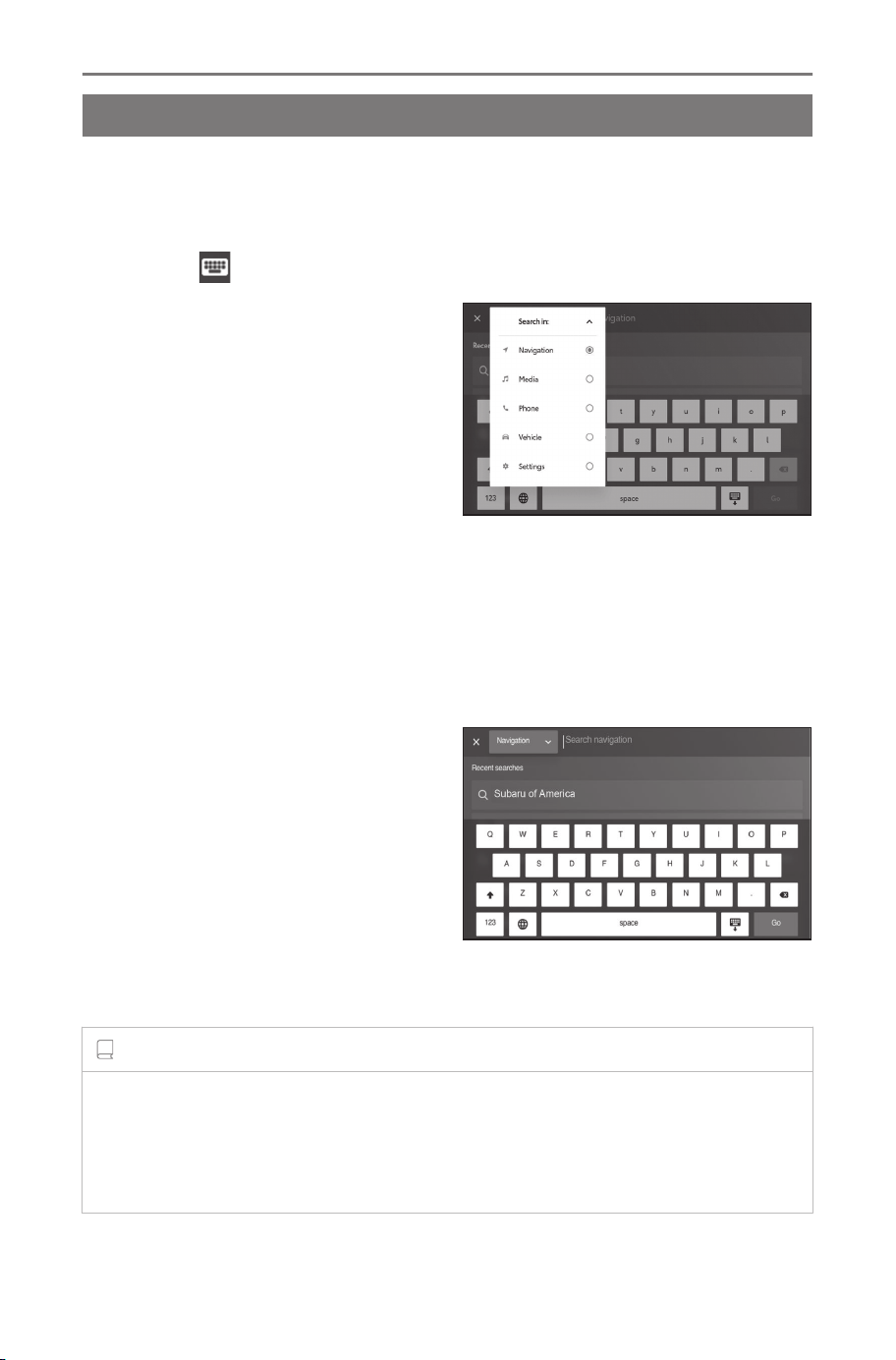
Using the search function
The keyboard can be used to search for contacts, music, locations,
and vehicle settings. If using the Intelligent Assistant, a destination
that takes advantage of content in the cloud can be searched.
1 Touch [ ].
2 Touch the desired domain to
search.
[Navigation] : Searches by the
address, intersection, Points of In-
terest, telephone number, street
name, etc.
[Media] : Searches by artist
name, song title, album name, sta-
tion name, genre, etc.
[Phone] : Searches by contact name or phone number.
[Vehicle] : Searches by entering the items you want to display, such as
charging schedule.
[Settings] : Searches by entering the items you want to set, such as
general, date & time, language & units, notifications.
3 Enter the search text and
touch [Go].
If multiple conditions need to be
specified, search by inserting a
space between words.
4 When the list of search results is displayed, touch the de-
sired item.
INFORMATION
● Operation of the screen is restricted when the vehicle is moving ex-
ceeds about 5 mph (8 km/h).
● Keyboard search is not available when Apple CarPlay and Android
Auto screens are active.
1-4. Intelligent Assistant
44

2
Settings and registration
2-1. Multimedia system initial
setup
Linking a User Profile....46
2-2. Various settings
Changing the various
settings .......................52
2-3. Driver settings
Changing and linking a
User Profile .................54
Setting up how to iden-
tify a driver ..................56
2-4. General settings
Changing general mul-
timedia system set-
tings ............................59
2-5. Notification settings
Notifications settings.....62
2-6. Screen settings
Changing the screen
display settings ...........64
2-7. Sound and media set-
tings
Changing sound and
media settings.............66
2-8. Voice control settings
Changing the voice
control settings............71
2-9. Vehicle settings
Setting dealer informa-
tion ..............................72
Changing the security
settings .......................73
Updating and checking
the software informa-
tion ..............................76
2-10. Navigation system set-
tings
Displaying the naviga-
tion system settings
screen .........................82
Changing the map de-
tails settings ................83
Changing the route op-
tion settings.................85
2-11. Wi-Fi
®
Settings
Changing Wi-Fi
®
set-
ting ..............................86
Setting Wi-Fi
®
Hotspot
....................................88
2-12. Bluetooth
®
Settings
Setting Bluetooth
®
de-
vices............................90
2-13. Apps settings
Apps settings ................94
45
2
Settings and registration
Multimedia system initial setup
Linking a User Profile
*1
Linking a user profile for the main user as the initial setup for the
multimedia system.
By linking a user profile, you can save the various vehicle and
multimedia settings as a profile for each driver. You can drive the
vehicle without having to change the settings of other drivers in the
case that multiple drivers, such as your friends and family, drive the
vehicle.
You can drive the vehicle in guest mode if you do not want to use a
user profile.
User Profiles
Some multimedia and vehicle settings for each driver can be saved
and the applicable driver can load them before driving the vehicle.
● Up to three user profiles can be saved.
● When you save a profile it will load on every drive until you sign
out.
• Example of multimedia settings include Volume, Audio, Navigation,
and Phone.
• For some vehicles, air conditioning and multi-information display infor-
mation can be saved.
● Vehicle settings are automatically saved to the current profile
when they are changed.
● Search history, individual settings, and other private information
can be protected by setting up a profile.
● Touching [Settings] displays the driver list screen enabling you to
change profiles.
*1 : This function is not available in some regions.
2-1. Multimedia system initial setup
46
■ Linking to a SubaruConnect Account
● An active SubaruConnect Account is required to use a profile.
● Linked profiles are saved in the cloud, so even if a profile is delet-
ed in the vehicle, it is not deleted from the cloud.
● By using the SubaruConnect Mobile App and linking to a Subaru-
Connect Account, a profile can be loaded from the cloud in any
vehicle.
● The driver who is linked as the owner can delete all drivers saved
in the vehicle. Drivers who are not the vehicle owner cannot delete
the owner’s profile.
● The same profile cannot be used in another vehicle at the same
time.
● Changing some multimedia settings automatically updates the
profile saved in the cloud and a screen notifying the driver that
the profile has been updated appears.
● User profile portability from vehicle to vehicle may not be available
in the regions other than the U.S. 48 States.
Related Links
Setting up how to identify a driver(P. 56)
Linking a User Profile for the first time
An active SubaruConnect Account is required to use a profile.
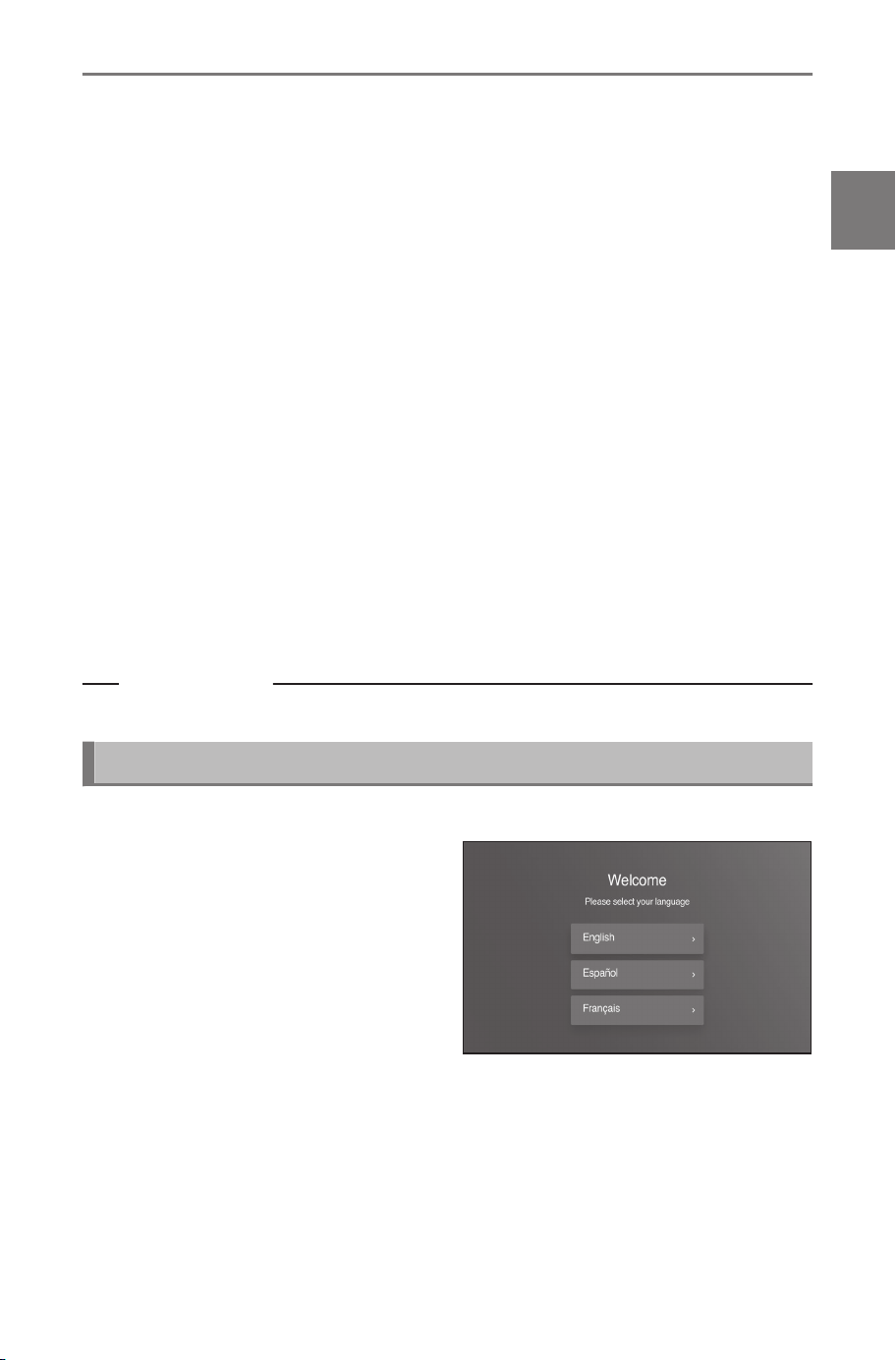
1 After starting the vehicle, the
language selection screen
will be displayed. Touch the
desired language.
2-1. Multimedia system initial setup
47
2
Settings and registration
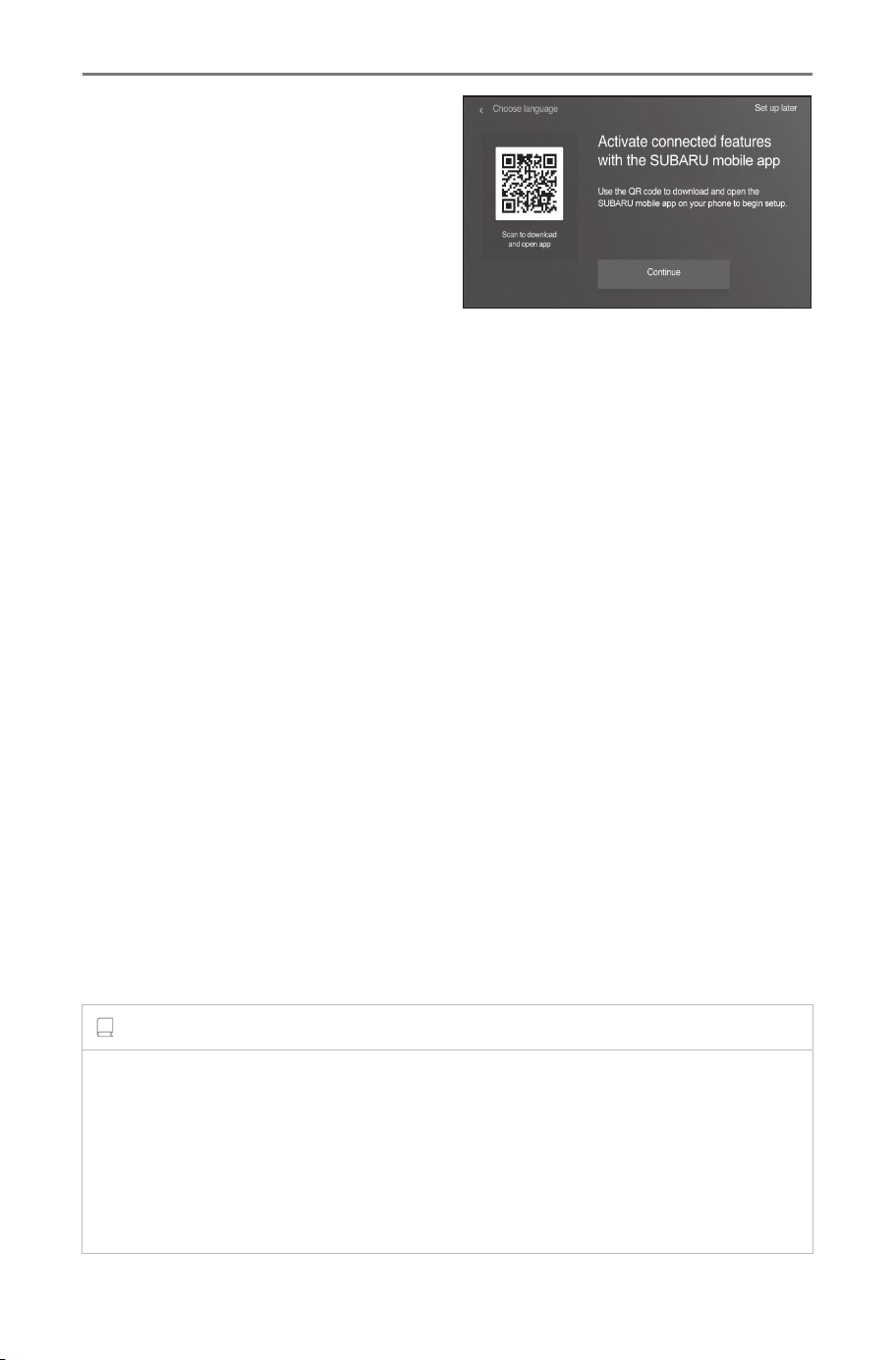
2 To link your vehicle to your
profile, download the Sub-
aruConnect Mobile App by
scanning the QR code with
your phone's camera.
If you do not want to link a profile,
touch [Set up later]. If you touch
[Do not show setup again], the
profile linking screen will no longer
be displayed.
3 With the SubaruConnect Mobile App open and signed-in, se-
lect to add a vehicle, and enter/scan your VIN in the app.
Select [Continue] on the multimedia system screen to show
the 8-digit authentication code. Enter the code in the app to
link your vehicle.
4 Complete setup to enable the subscription or trial in the
SubaruConnect Mobile App and touch [I’ve completed app
setup].
● Once linking is complete, a message is displayed and your profile is
saved.
● If you completed the setup for the subscription or trial in the Subaru-
Connect Mobile App, the map screen will be displayed and you can
use the navigation system.
● If you do not complete the setup for the subscription or trial in the
SubaruConnect Mobile App, the subscription screen will be displayed
and you cannot use the navigation system.
5
After linking your profile, register your Bluetooth
®
device in
order to identify the driver. To continue with setup, touch
[Yes].
You can also register a device at a later time.
INFORMATION
● If the user profile was not linked, this process can be restarted by
selecting [Settings] and [Get Started].
● Of the Bluetooth
®
devices registered to a user profile, only the Blue-
tooth
®
device of the most recent driver will be detected. Driver identifi-
cation may be delayed or may not be able to be performed before start-
ing the vehicle depending on the usage conditions of the Bluetooth
®
2-1. Multimedia system initial setup
48
device. It is therefore recommended to register a smart key in addition
to Bluetooth
®
devices.
Related Links
Changing and linking a User Profile(P. 54)
Changing the User Profile
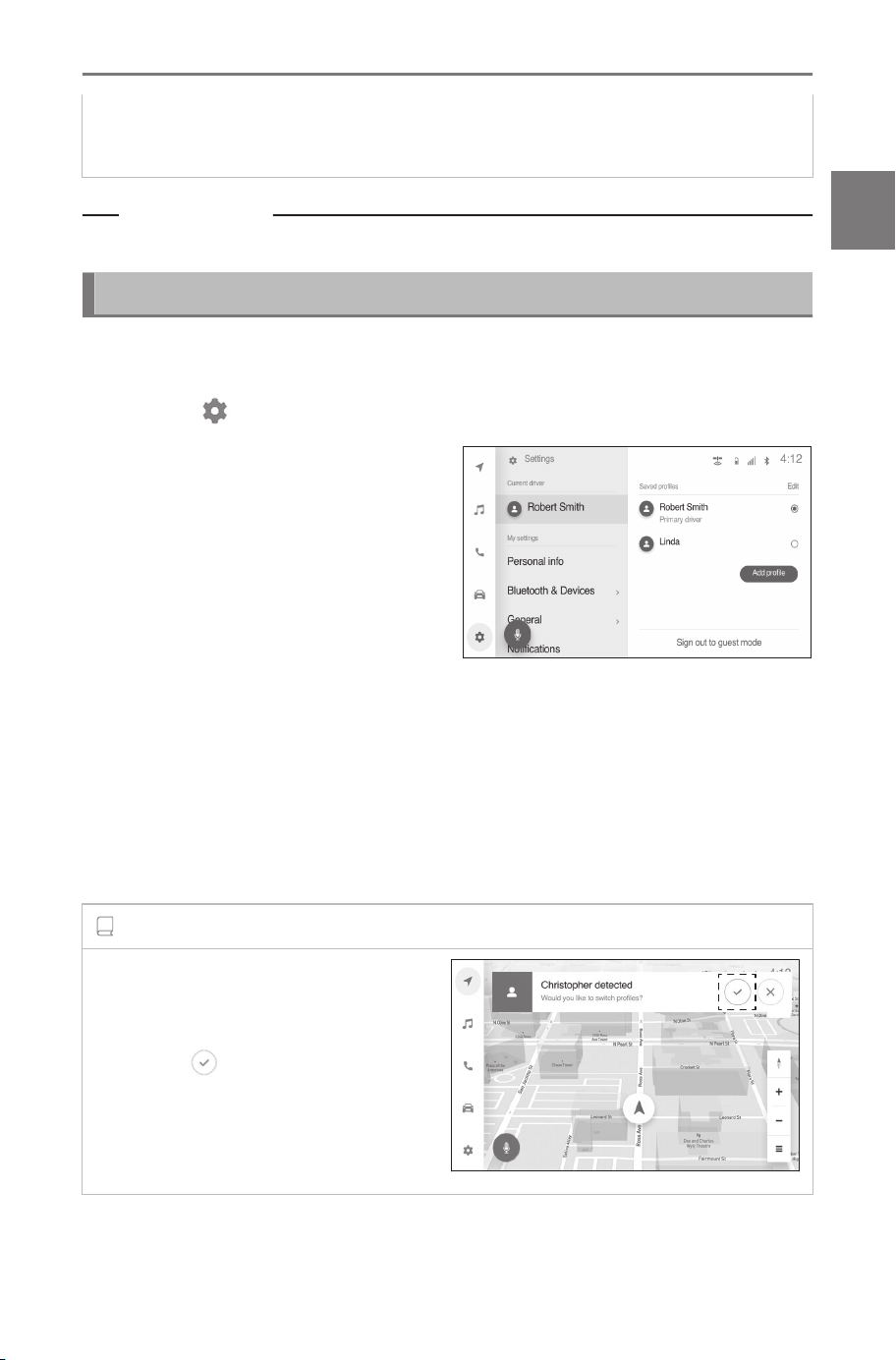
You can select the profile that you want to use from the list of saved
users in the vehicle.
1 Touch [ ] on the main menu.
2 From "Saved profiles", select
the user profile name that
you want to change to.
3 Enter the PIN code.
● Enter the PIN code set on the SubaruConnect Mobile App when the
SubaruConnect Account was created.
● PIN code is not required if a Bluetooth
®
device is linked to the driver
as an identification device.
● Once the user profile has changed, a message is displayed on the
screen.
INFORMATION
If the system detects a device set to
another user profile, a pop-up mes-
sage will appear.
Touching [ ] will enable the user
profile to be changed.
2-1. Multimedia system initial setup
49
2
Settings and registration
Loading detected profile
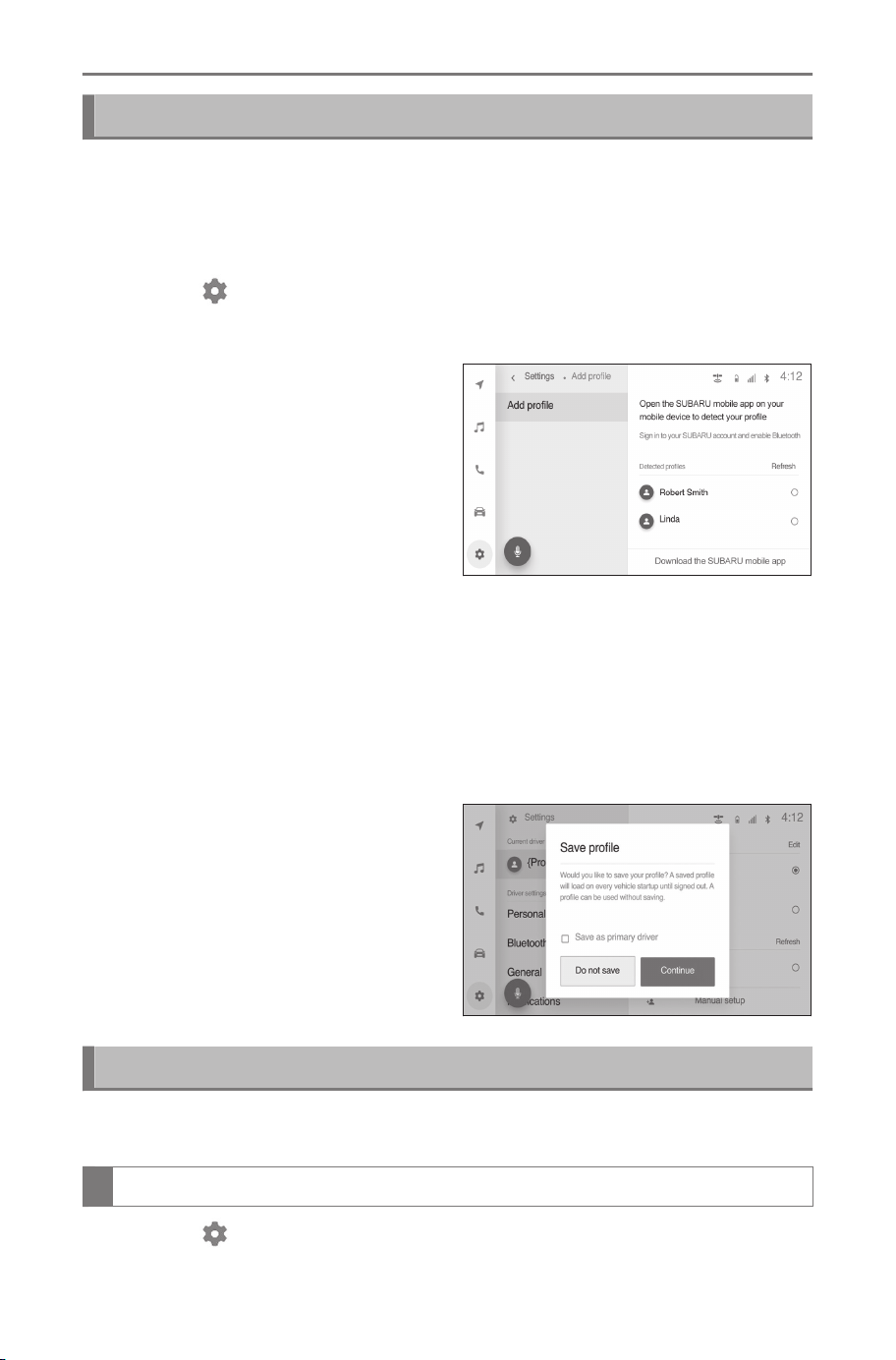
If the system detects a SubaruConnect Mobile App on a smartphone
that another driver is using, the detected profile name will appear on
the screen. Touch the profile name desired to be used and enter the
PIN code to change the profile.
1 Touch [ ] on the main menu.
2 Touch [Add profile].
3 From [Detected profiles], se-
lect the user profile name
that you want to change to.
Touch [Refresh] to update the
profile list.
4 Enter the PIN code.
●
Enter the PIN code set on the SubaruConnect Mobile App when the
SubaruConnect Account was created.
● PIN code is not required if a Bluetooth
®
device is linked to the driver
as an identification device.
● Once the profile has changed, a message is displayed on the screen.
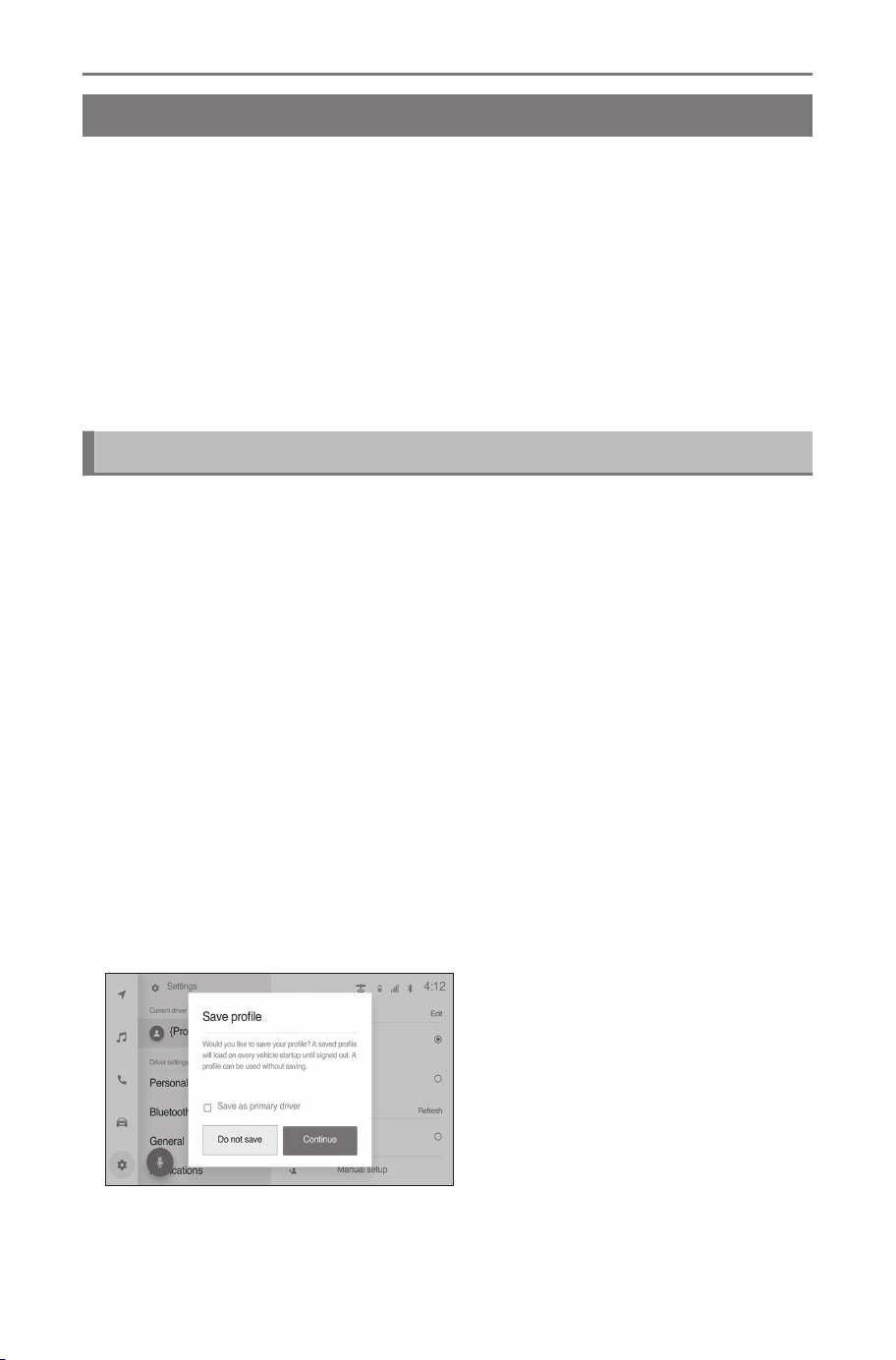
5 To save the profile in the ve-
hicle, touch [Continue].
● The loaded profile can be saved
in the vehicle as a primary driv-
er or a secondary driver.
● If you do not want to save the
profile on this vehicle, you can
use it temporarily.
Removing saved profiles
The driver settings linked to the vehicle can be removed by perform-
ing one of the following operations.
Removing saved profiles from the profile list
1
Touch [ ] from the main menu.
2-1. Multimedia system initial setup
50
2 Touch [Edit] on the [Saved profiles] and select the profile to
remove.
3 Touch [ ].
The saved profile that was selected will be removed from the vehicle.
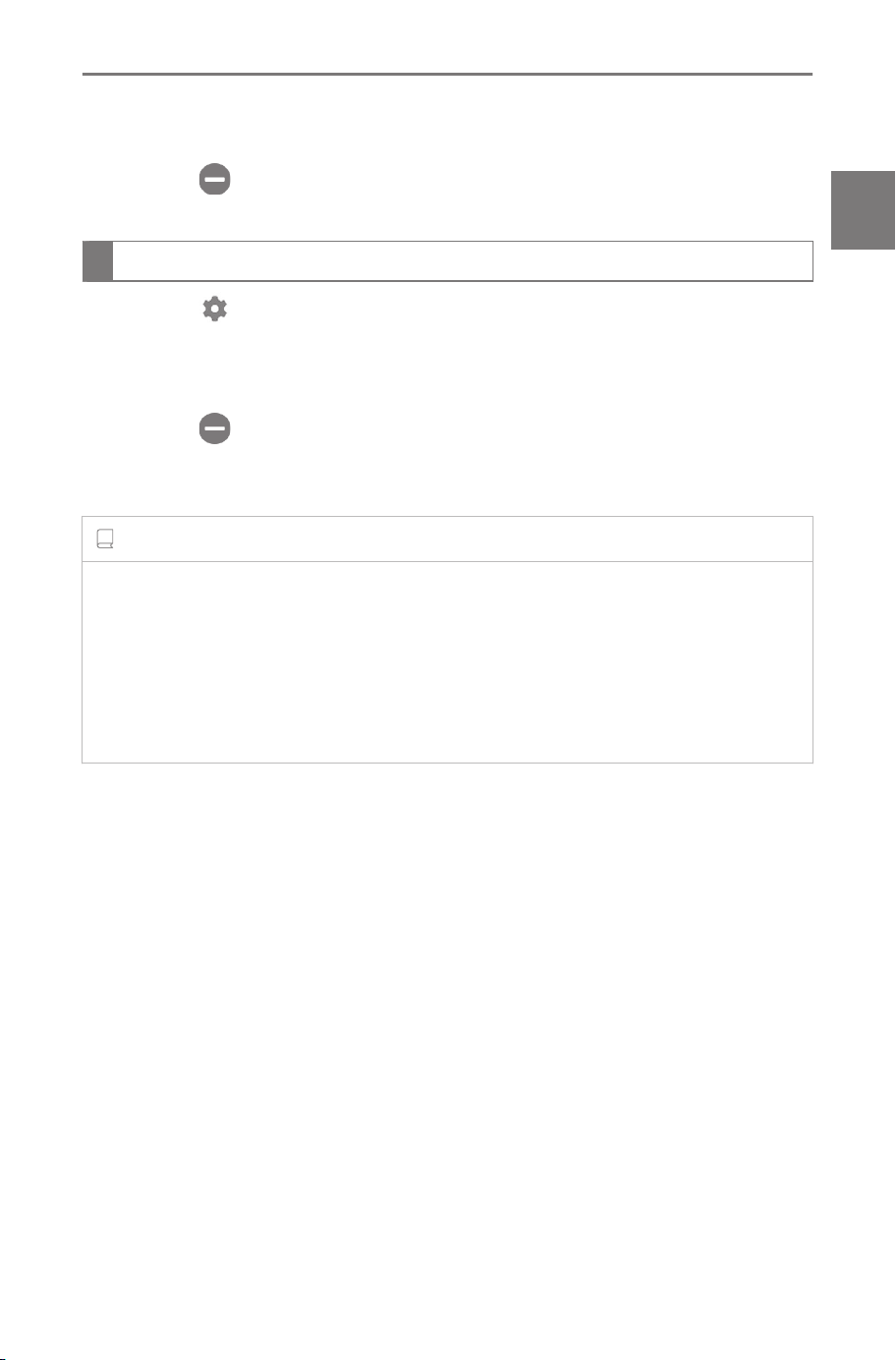
Removing saved profiles from Settings
1 Touch [ ] from the main menu.
2 Touch [Personal info] on the sub menu.
3 Touch [Delete driver].
4 Touch [ ].
The saved profile that is currently being used will be removed from the
vehicle.
INFORMATION
● When the driver linked as the owner of the vehicle is removed, all of the
other saved profiles are removed.
● The driver linked as the owner can remove all of the other saved
profiles from the vehicle.
Drivers other than the owner of the vehicle cannot remove the saved
profile of the owner.
2-1. Multimedia system initial setup
51
2
Settings and registration
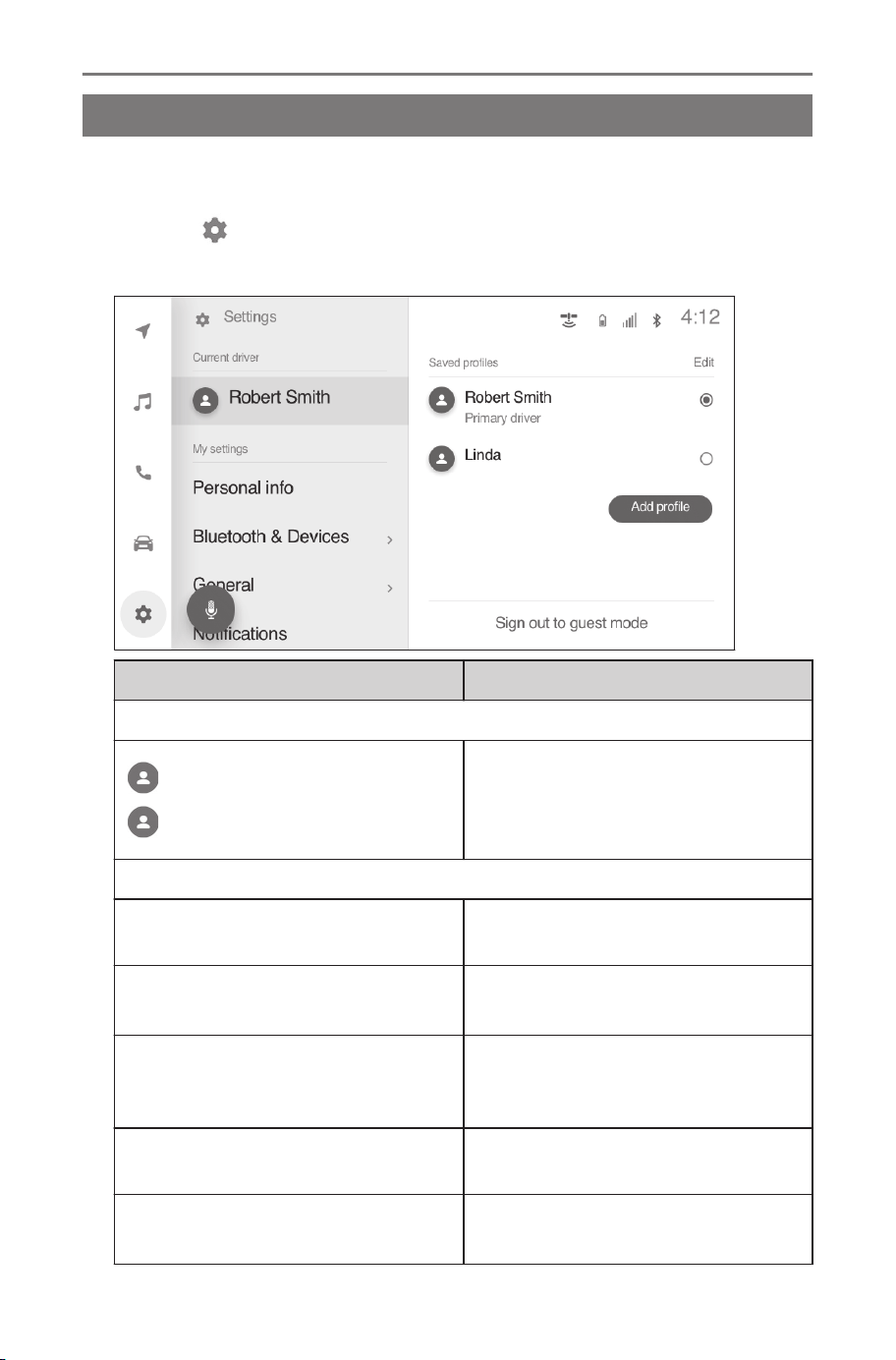
Various settings
Changing the various settings
The various settings related to the multimedia system and the vehi-
cle equipment can be changed.
1 Touch [
] on the main menu.
2 Select the desired item.
Setting Description
"Current driver"
[ (User profile name)]
[ Guest]
Displays the name of the current
user profile. Touching the profile
enables you to change or link a
user profile.(→ P.54)
"My settings"
[Personal info]
Register a device to identify the
driver.(→ P.56)
[Bluetooth & Devices]
Register or edit a Bluetooth
®
de-
vice.(→ P.90)
[General]
Change the time settings, display
language, and other general multi-
media settings.(→ P.59)
[Notifications]
Change software update and oth-
er notification settings.(→ P.62)
[Wi-Fi]
Configure Wi-Fi
®
settings.
(→ P.86)
2-2. Various settings
52
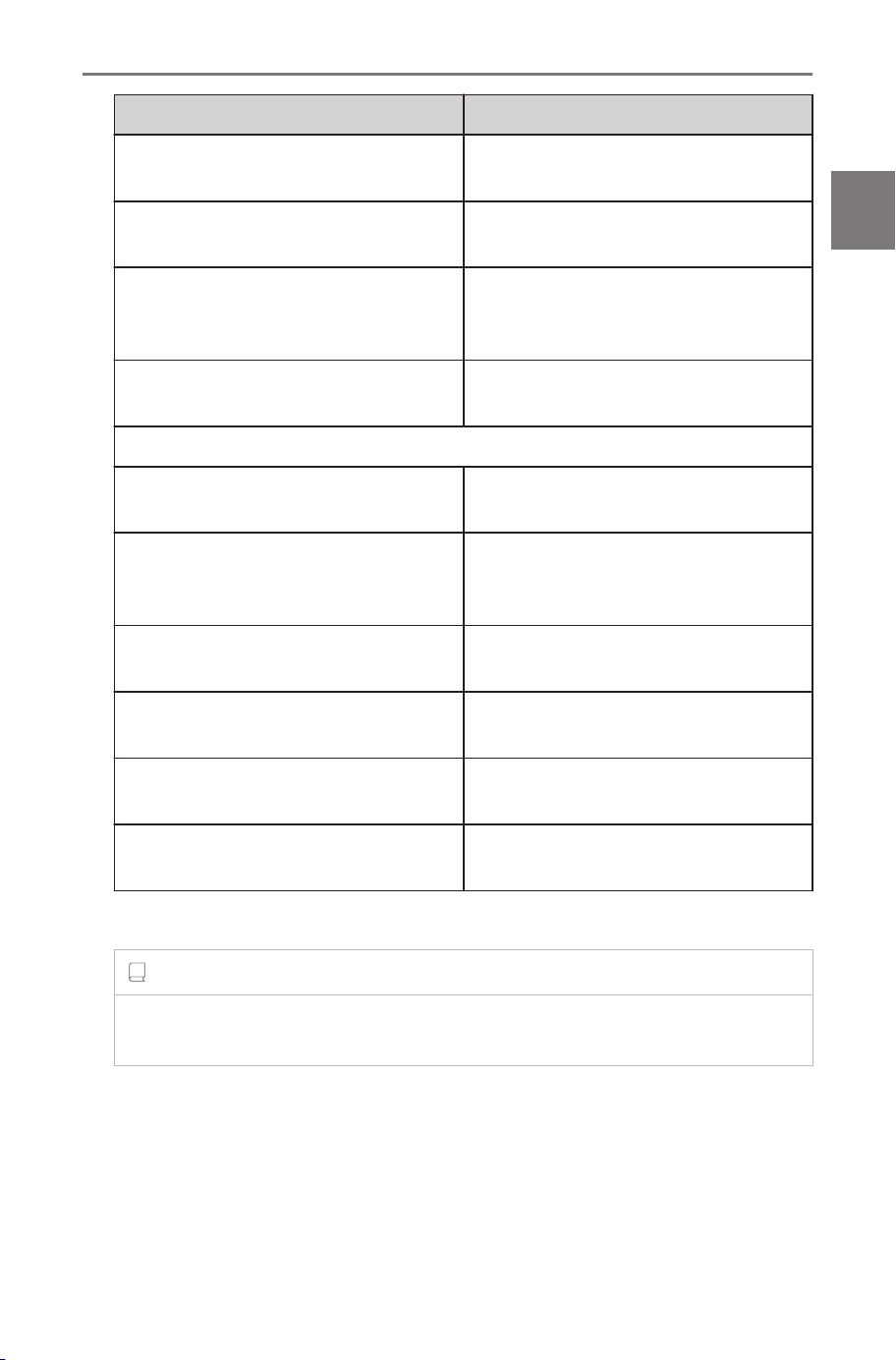
Setting Description
[Display]
Adjust the screen contrast and
brightness, etc.(→ P.64)
[Sound & Media]
Change the system voice settings
and radio settings.(→ P.66)
[Navigation]
Change settings related to
map display and route guidance.
(→ P.83,85)
[Voice & Search]
Change setting for Intelligent As-
sistant.(→ P.71)
"Vehicle"
[Vehicle customize]
(1)
Change settings related to vehicle
devices.
[Driving assist]
(1)
Change setting related to driver
assist features like Intuitive park-
ing assist, etc.
[Dealer info]
Add, edit or delete dealer informa-
tion.(→ P.72)
[Info & Security]
Change settings related to securi-
ty and privacy.(→ P.73)
[Software update]
Check and update software infor-
mation.(→ P.76)
[Apps]
Re-install applications and Re-
mote Connect.(→ P.94)
(1) Refer to the vehicle "OWNER’S MANUAL"
INFORMATION
For safety purposes, there are functions that cannot be operated while
the vehicle is moving.
2-2. Various settings
53
2
Settings and registration
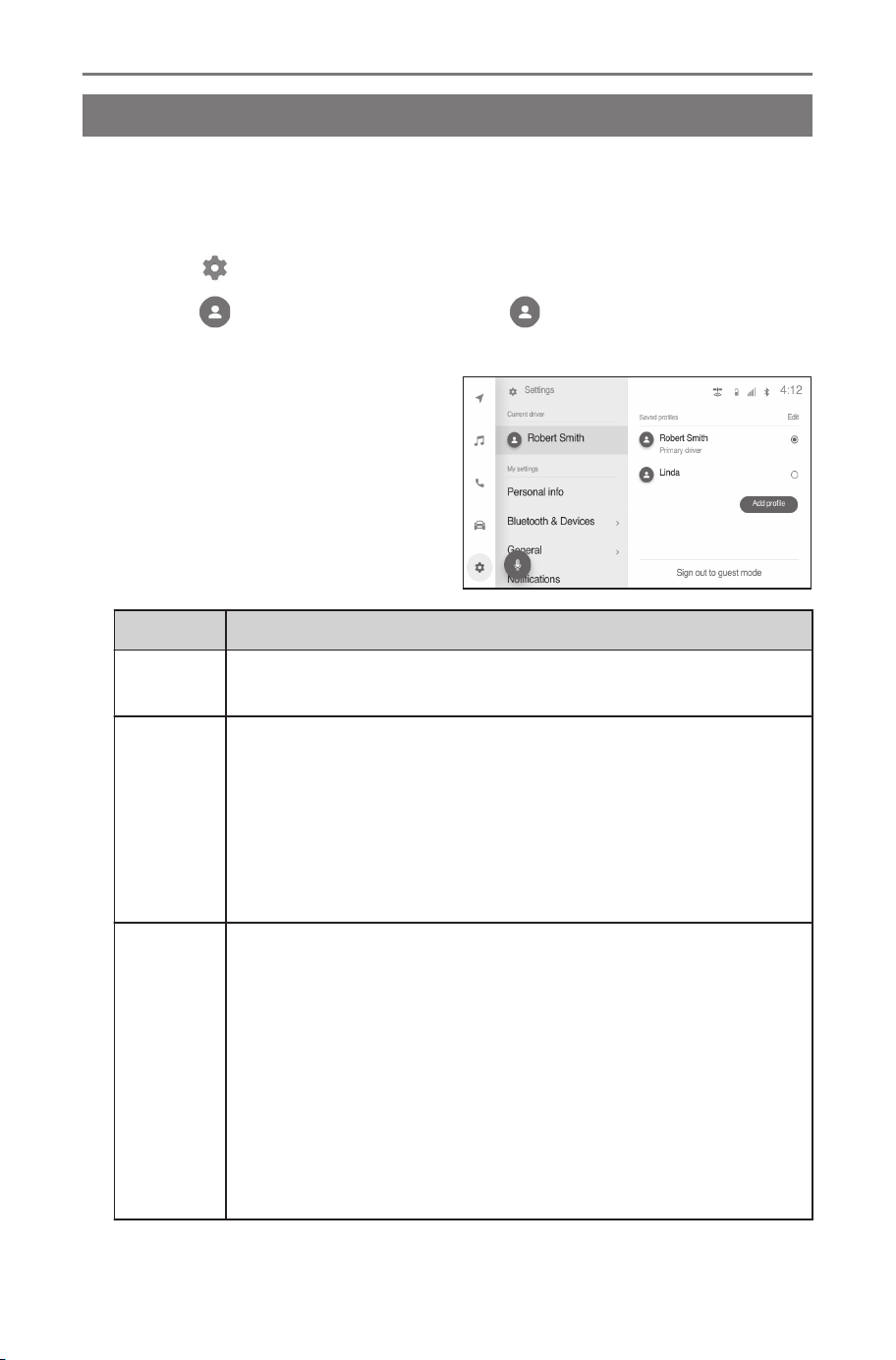
Driver settings
Changing and linking a User Profile
*1
The user profile can be linked or changed. By linking a user profile,
multimedia settings, and various other individual vehicle settings can
be saved as a profile for each driver.
1 Touch [ ] on the main menu.
2 Touch [
(User profile name)] or [ Guest] on the sub
menu.
3 Select the desired item.
Setting Description
[Get
started]
If the primary user profile has not been saved, profile link-
ing will start.(→ P.47)
[Saved
profiles]
The saved user profiles on the vehicle are displayed in a
list. Touch the profile that desired to be used and enter the
PIN code to change the profile.
Touching [Edit] enables you to remove saved profiles. Pro-
files are still stored on the cloud, preserving all settings and
personalized information. Up to three user profiles can be
saved on the vehicle.
[Add pro-
file]
Touching [Add profile] displays the detected profiles
screen.
If the system detects a SubaruConnect Mobile App on a
smartphone that another driver is using, the detected pro-
file name will appear on the screen. Touch the profile name
that desired to be used and enter the PIN code to change
the profile.
[Refresh] to update the profile list. Manually refreshes the
detected profile list, when a Bluetooth
®
device is not found
in the list.
*1 : This function is not available in some regions.
2-3. Driver settings
54

Setting Description
[Sign out
to guest
mode]
Sign out of the current user profile to go to guest mode.
This feature can be used for valet to protect personal infor-
mation.
Values of the driver settings other than search history and
personal settings will be carried over to the driver setting of
the guest.
INFORMATION
For safety purposes, these settings cannot be operated while the vehicle
is moving.
2-3. Driver settings
55
2
Settings and registration
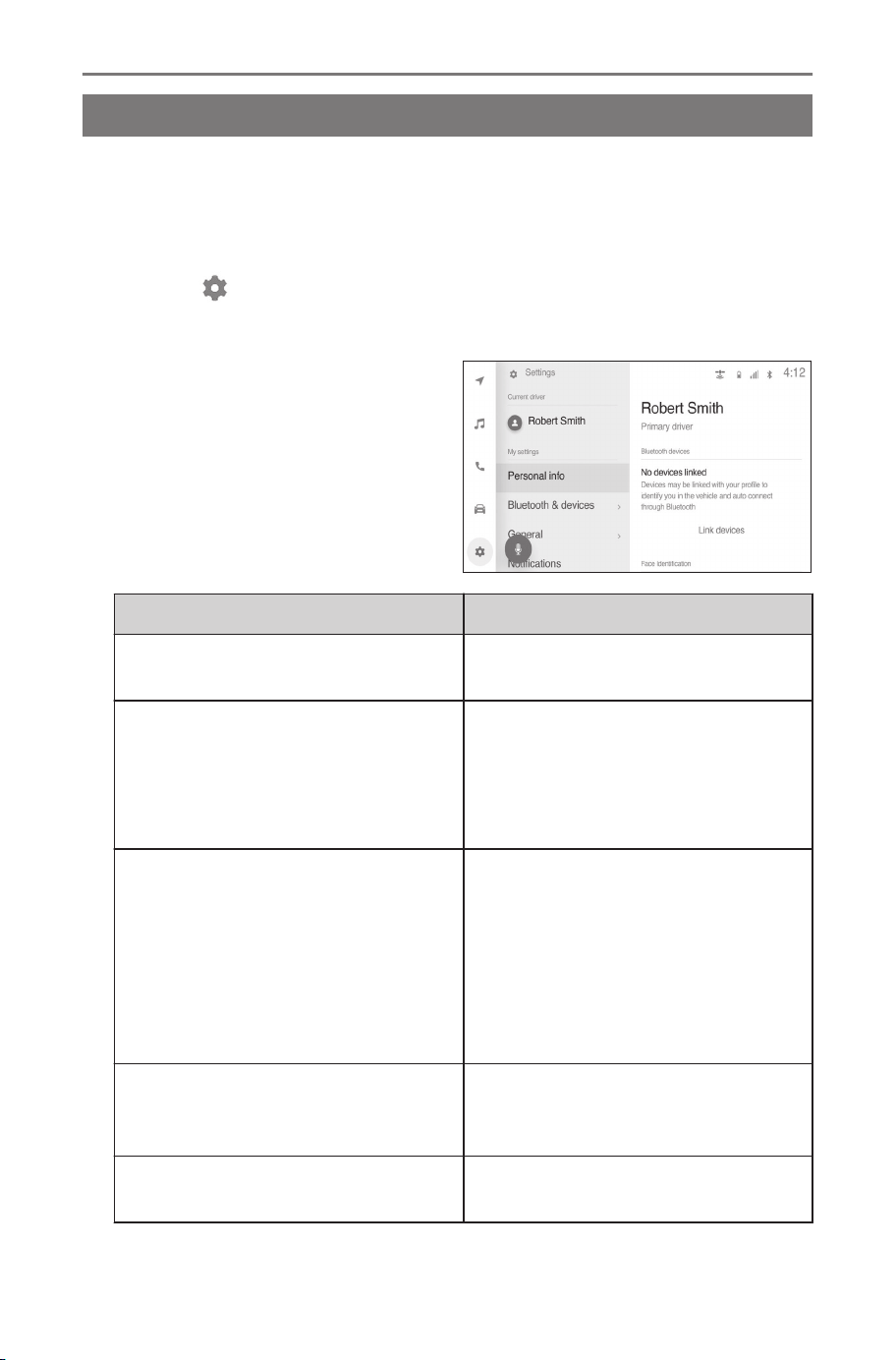
Setting up how to identify a driver
Set a device in order to identify a driver. When the vehicle is started
and a registered device is detected, the profile that the device is
assigned to is automatically loaded. You can select a smartphone
and smart key as the device to be registered.
1 Touch [ ] on the main menu.
2 Touch [Personal info] on the sub menu.
3 Select the desired item.
Setting Description
User profile name
The name of the user profile is
displayed.
"Bluetooth devices"
Driver identification is performed
using a smartphone or other Blue-
tooth
®
device and the applicable
profile is loaded. Touch [Link de-
vices] to register.(→ P.109)
[Face identification]
(1)(2)
Driver identification is performed
using a face and the applicable
profile is loaded.
Touch [Setup face] to regis-
ter.(→ P.57)
To delete the registered face infor-
mation, touch [Remove face].
[Link key]
(2)(3)
Driver identification is performed
using the vehicle’s smart key and
the applicable profile is loaded.
[Reset settings]
Some multimedia settings for the
selected user profile will be reset.
2-3. Driver settings
56
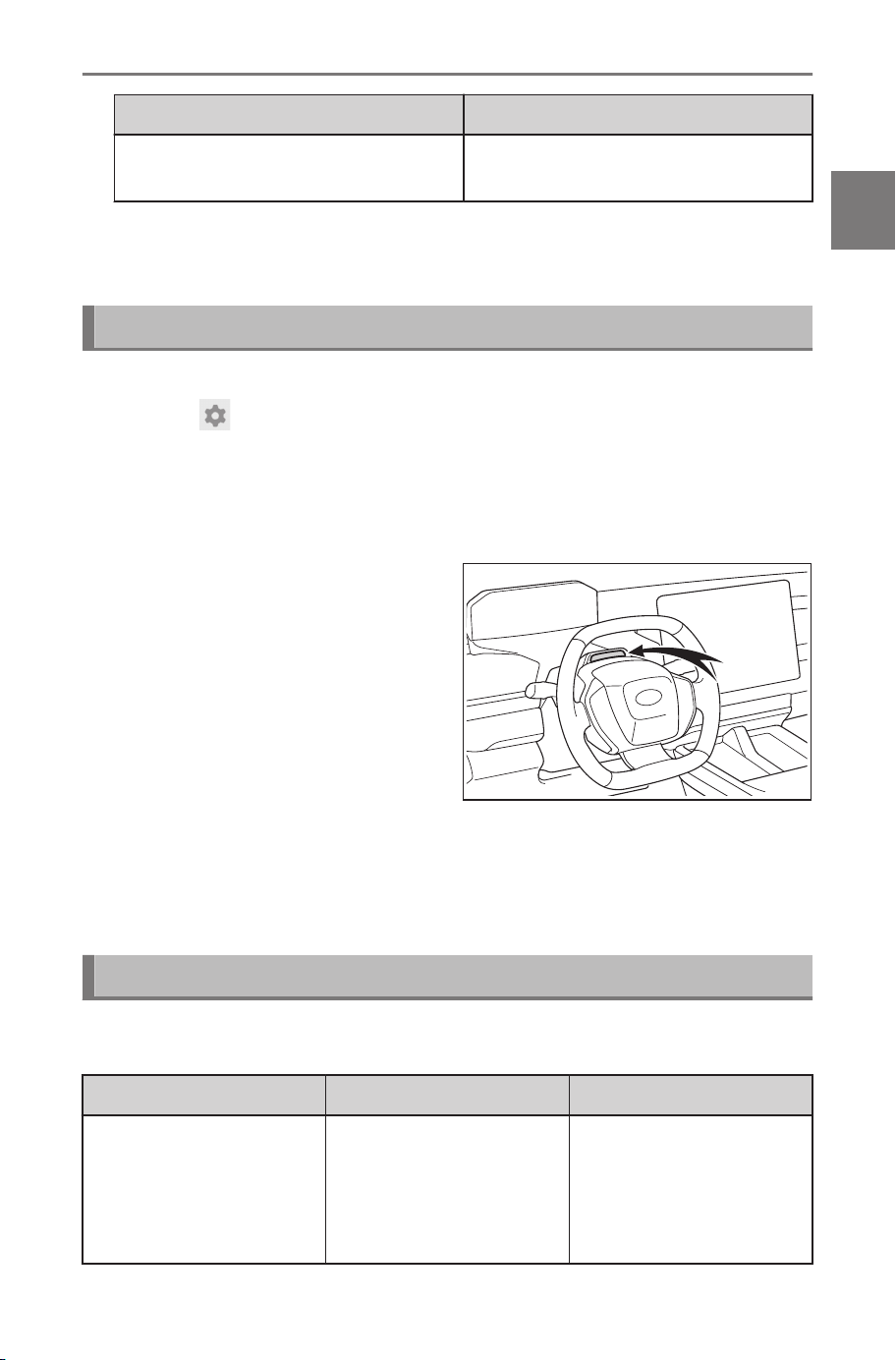
Setting Description
[Delete driver]
The selected user profile will be
removed from the vehicle.
(1) If equipped
(2) Refer to the vehicle "OWNER’S MANUAL"
(3) Cannot be used with fleet vehicles such as rental cars.
Registering face identification
Face identification enables the system to identify the driver.
1
Touch [ ] from the main menu.
2 Touch [Personal info] on the submenu.
3 Touch [Setup face].
4 Carefully read the Terms of Service and touch [Accept].
5 Look directly at the driver
monitor camera, ensure only
your face is being displayed,
and then touch [Begin].
6 The system will start scanning your face.
● Once registration is complete, a message is displayed on the screen.
● If an error message appears, follow the on-screen instructions and try
again.
Troubleshooting
If there is a problem with the user profile function, first check the
table below.
Problem Likely cause Solution
Unable to load saved
profile
System is not loading
the previously saved
profile.
Turn the Bluetooth
®
setting on and ensure
the device is paired
with the system and set
as primary device.
2-3. Driver settings
57
2
Settings and registration

Problem Likely cause Solution
Unable to load saved
profile with Bluetooth
®
setting turned on
System is not loading
the previously saved
profile.
Ensure Bluetooth
®
set-
ting is turned on and
SubaruConnect Mobile
App is running on de-
vice.
Forgot PIN PIN needs to be reset.
PIN can be reset us-
ing the SubaruConnect
Mobile App.
Unable to add a Blue-
tooth
®
device to a pro-
file
System does not ac-
cept the Bluetooth
®
de-
vice thus preventing
you to add the device
to your profile.
Verify your device is
not associated with oth-
er driver's profile.
Unable to detect profile
System does not show
the profile in the detect-
ed list.
Verify your device’s
Bluetooth
®
setting is
on and SubaruConnect
Mobile App is running
on your device.
Unable to generate
QR / authorization code
System is not loading
your QR code or man-
ual authorization code.
Verify that car is in
good network area and
DCM connection is ac-
tive.
Failed to complete reg-
istration
QR and manual author-
ization code are valid
for a limited time of few
minutes.
Restart registration
process by going back
previous screen and
entering phone number
again to get a new QR
code / manual authori-
zation code.
2-3. Driver settings
58
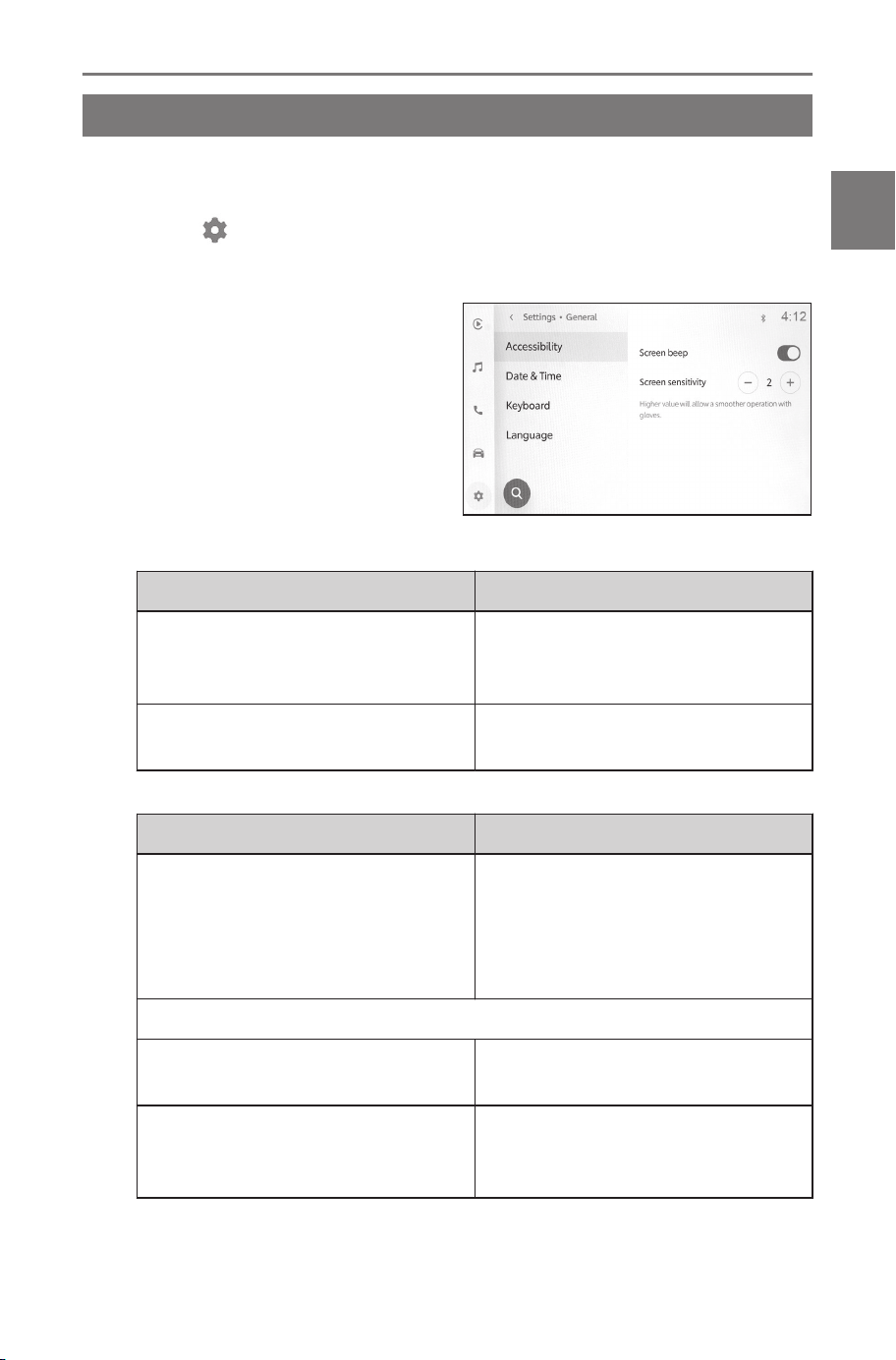
General settings
Changing general multimedia system settings
The time settings, display language, and other general multimedia
system settings can be changed.
1 Touch [
] on the main menu.
2 Touch [General] on the sub menu.
3 Select the desired item.
● [Accessibility]
Setting Description
[Screen beep]
Turn the sound that is made
when you touch the screen on or
off.
[Screen sensitivity]
Adjust the screen touch sensitivi-
ty.
● [Date & Time]
Setting Description
[Set date & time by GPS]
Use GPS information and map
data to automatically set the
time. Turning this setting off will
enable you to set the time and
time zone manually.
"Time"
[24-hour time]
Change between 24-hour and
12- hour time display.
[Time zone]
When [Set date & time by GPS]
is turned off, you can set the time
zone.
2-4. General settings
59
2
Settings and registration
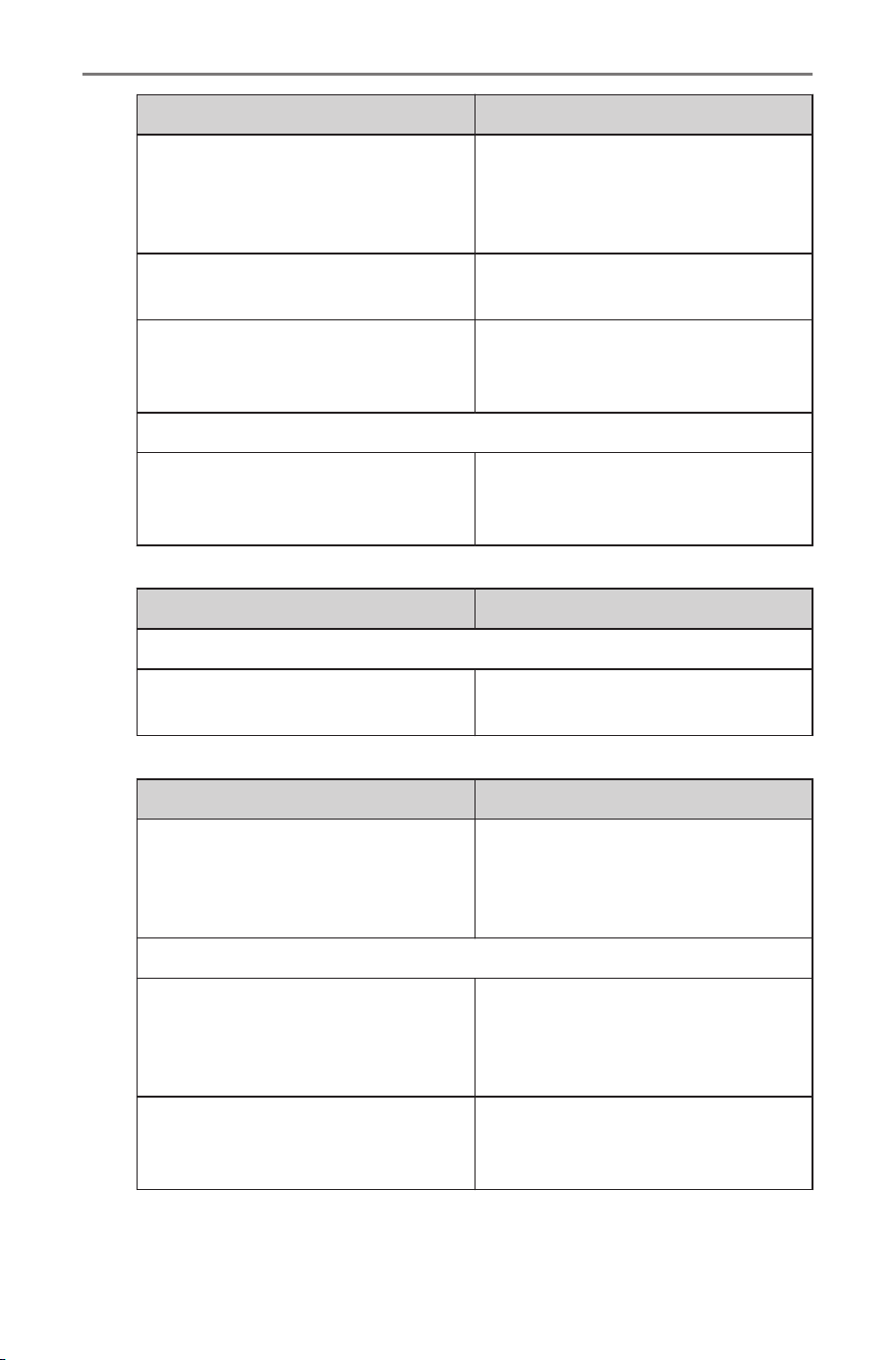
Setting Description
[Daylight savings]
When [Set date & time by GPS]
is turned off, you can set daylight
saving time to [Auto], [On] or
[Off].
[Set time automatically]
Use GPS information to automat-
ically set the time.
[Set time manually]
When [Set time automatically]
is turned off, you can manually
set the time.
"Date"
[Format]
Change the date display format.
(MM/DD/YYYY, DD/MM/YYYY,
YYYY/MM/DD, etc.)
● [Keyboard]
Setting Description
"History"
[Clear search history]
Delete the keyboard search his-
tory.
● [Language & Units]
Setting Description
[Language]
Change languages. Both the lan-
guage displayed on the screen
and system voice language
change.
"Measurements"
[Set automatically]
Automatically sets the display
units for distance, and so on de-
pending on factory setting of your
vehicle.
[Distance]
*(1)
When [Set automatically] is
turned off, you can manually set
the distance display unit.
* : If equipped
2-4. General settings
60
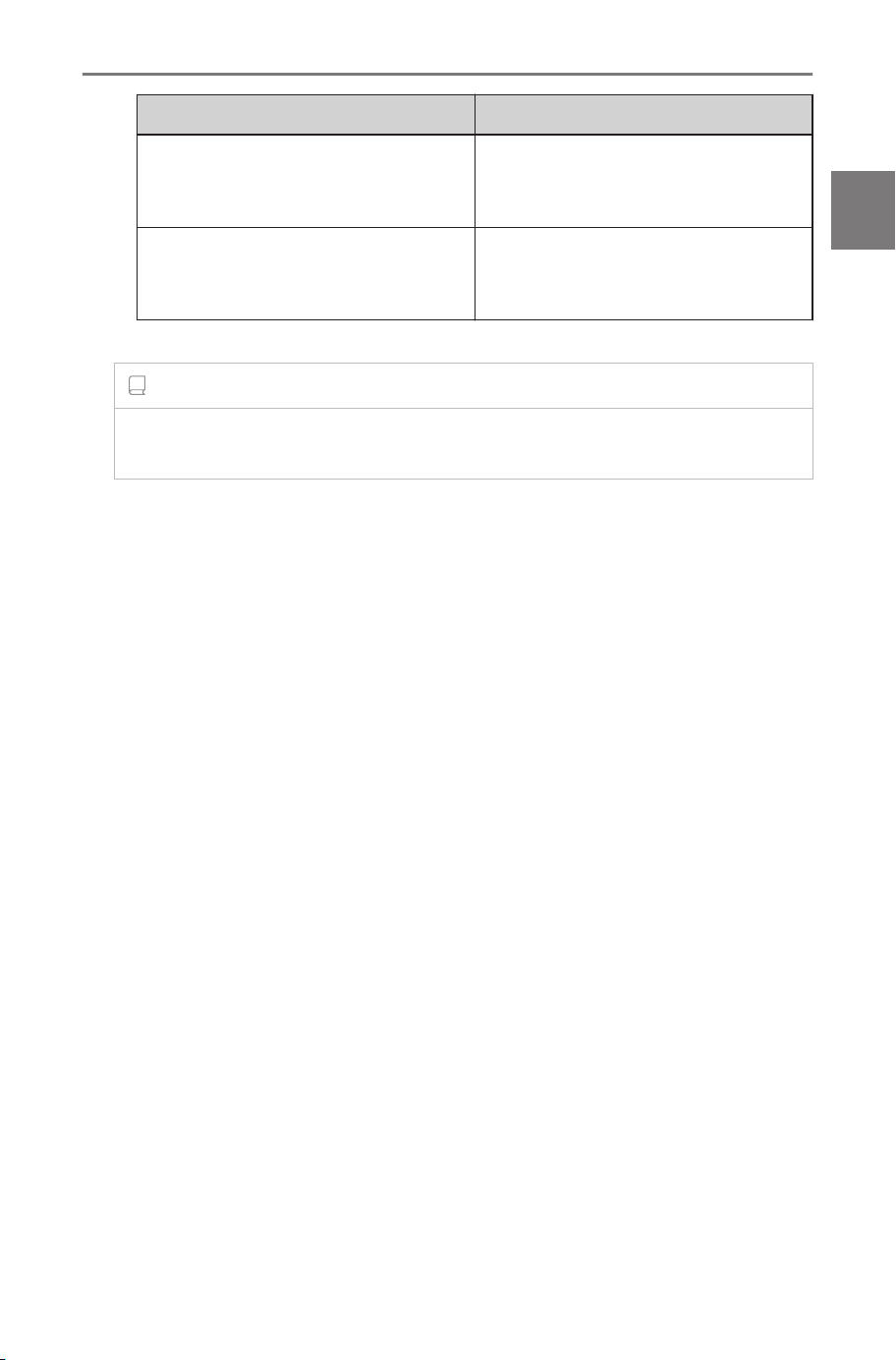
Setting Description
[Fuel/Electricity consumption]
When [Set automatically] is
turned off, you can manually set
the display unit.
[Tire pressure]
When [Set automatically] is
turned off, you can manually set
the tire pressure display unit.
(1) Depending on the country, the display units may not be changed.
INFORMATION
Set the Apple CarPlay/Android Auto language using the connected
device.
2-4. General settings
61
2
Settings and registration
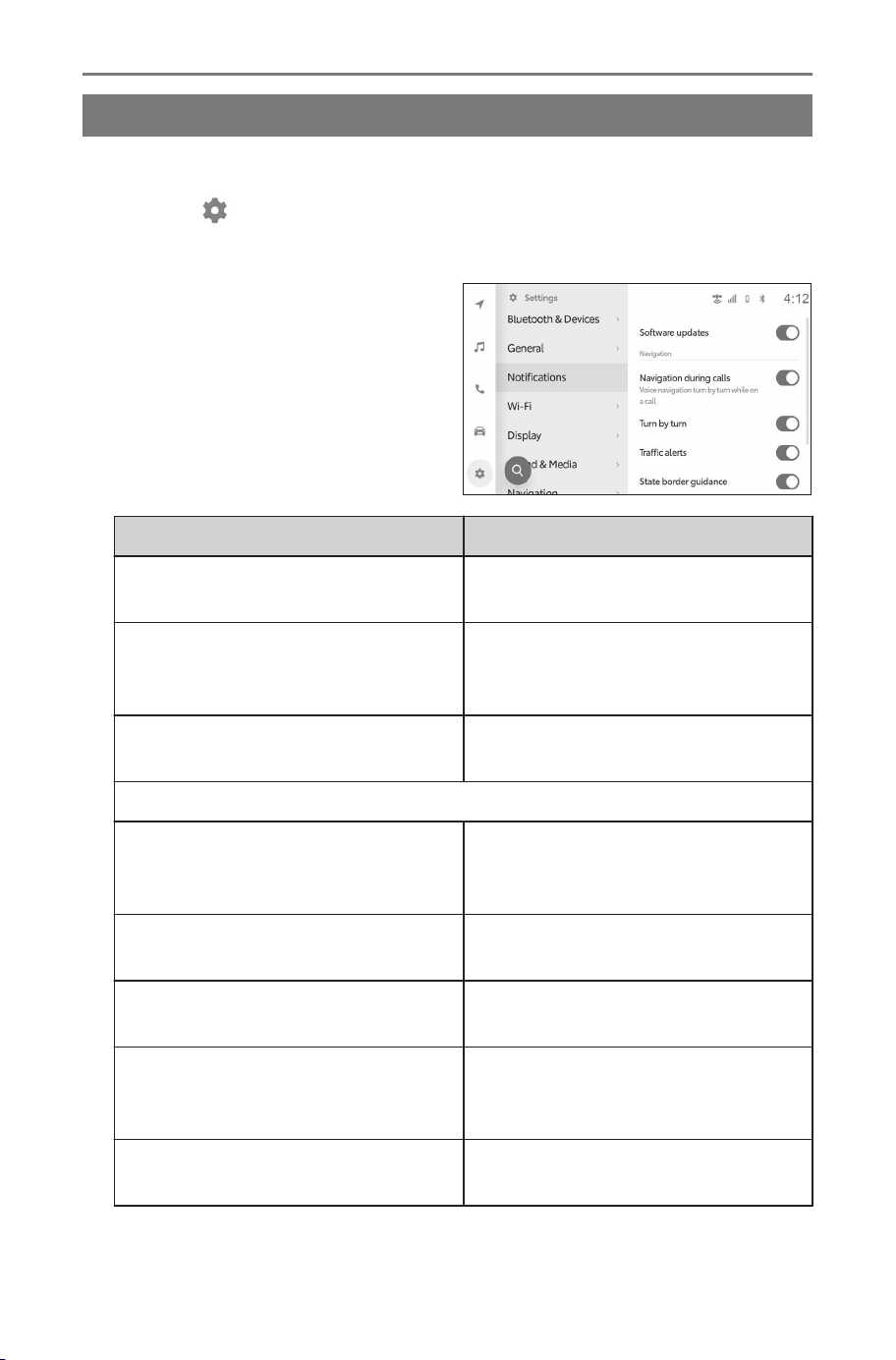
Notification settings
Notifications settings
*1*2
Software update and other notifications can be changed.
1 Touch [ ] on the main menu.
2 Touch [Notifications] on the sub menu.
3 Select the desired item.
Setting Description
[Software updates]
Turn the notification for software
updates on or off.
[Vehicle suggestions]
Change the frequency of the sug-
gestion notification from the sys-
tem.
[Virtual assistant]
Turn the notification from the Intel-
ligent Assistant service on or off.
"Navigation"
[Navigation during calls]
Turn the navigation system voice
guidance on or off during a phone
call.
[Turn by turn]
Turn the turn-by-turn voice guid-
ance on or off.
[Traffic alerts]
Turn the traffic information voice
guidance on or off.
[State border guidance]
Turn the voice guidance informing
you that you have crossed a bor-
der on or off.
[Unverified roads]
Turn the guidance for unverified
roads on or off.
*1 : This function is not available in some regions.
*2 : Some features may require subscription.
2-5. Notification settings
62

Setting Description
[HOV/HOT lanes]
Turn the guidance for high-occu-
pancy vehicles lane/high-occupan-
cy toll lane on or off.
2-5. Notification settings
63
2
Settings and registration
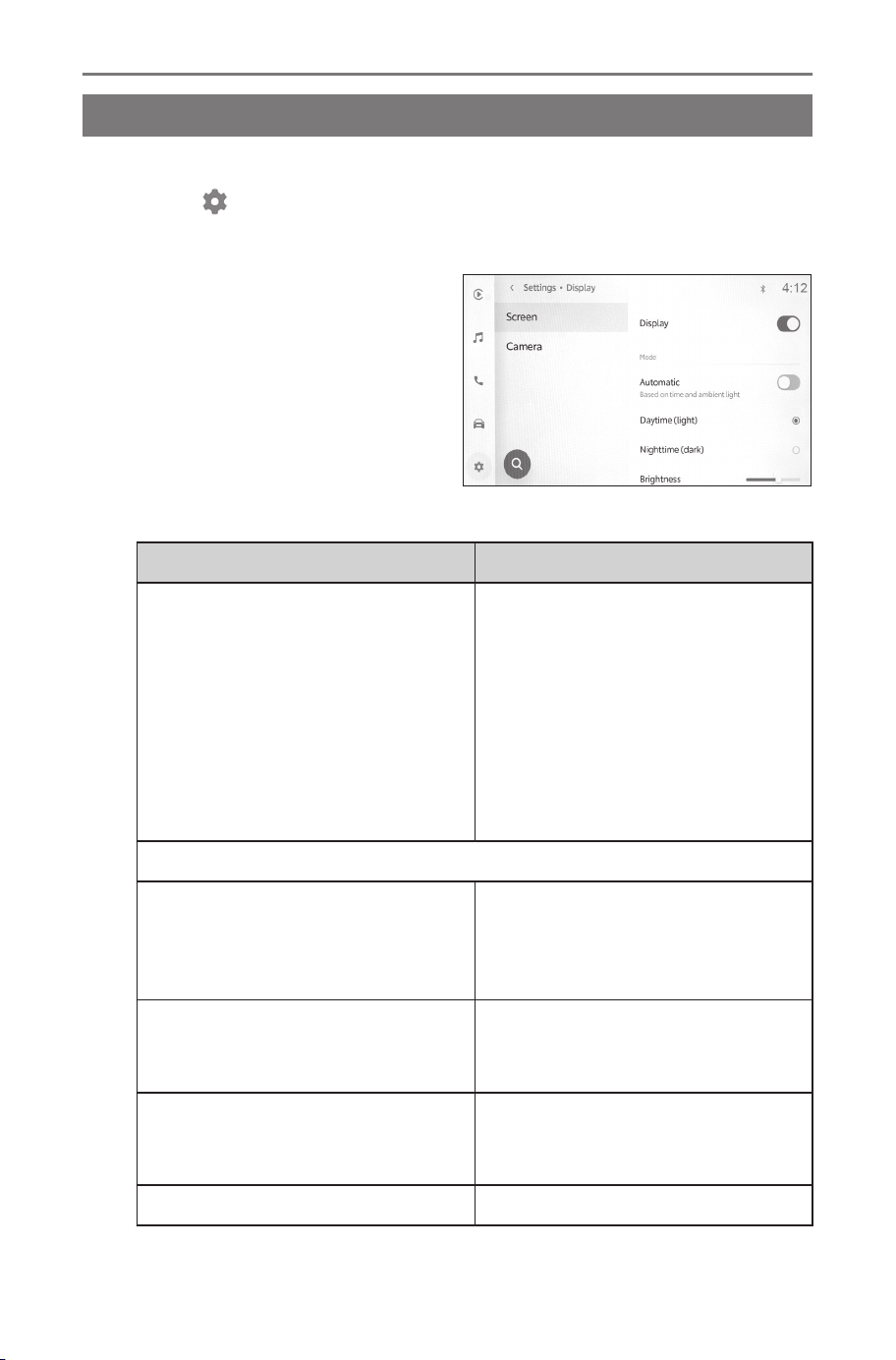
Screen settings
Changing the screen display settings
The screen contrast and brightness can be adjusted.
1 Touch [ ] on the main menu.
2 Touch [Display] on the sub menu.
3 Select the desired item.
● [Screen]
Setting Description
[Display]
Set whether to turn the screen
display on or off. If the screen
is turned off, nothing will be dis-
played on the screen and only
audio will be played.
To display the screen again,
touch the screen and touch
the button in the center of the
screen.
"Mode"
[Automatic]
(1)
Automatically change the screen
to day or night mode in accord-
ance with whether the headlight
is turned on or off.
[Daytime (light)]
When [Automatic] is turned off,
you can manually change to day
mode.
[Nighttime (dark)]
When [Automatic] is turned off,
you can manually change to
night mode.
[Brightness] Adjust the screen brightness.
2-6. Screen settings
64
Setting Description
[Contrast]
Adjust the strength of the screen
contrast.
(1) Depending on the situation such as while parking, day or nights
mode may not be changed automatically.
● [Camera]
Setting Description
"Camera screen"
[Brightness]
Adjust the camera screen bright-
ness.
[Contrast]
Adjust the strength of the camera
screen contrast.
INFORMATION
● Even if the screen is turned off, the GPS will continue to track the
vehicle’s current location.
● When the screen is turned off
• When the screen is off, if the screen is touched, the air condition-
ing system can be operated.
• If the screen is touched while the screen display is off, the release
button will be displayed in the center of the screen. To display
the screen, touch the release button. If there is no operation for 3
seconds, the screen display will turn off again.
• Even if the screen display is off, the screen may be displayed
temporarily, such as when you press the [ ] switch (talk switch)
on the steering wheel or when the shift position is set to "R".
2-6. Screen settings
65
2
Settings and registration
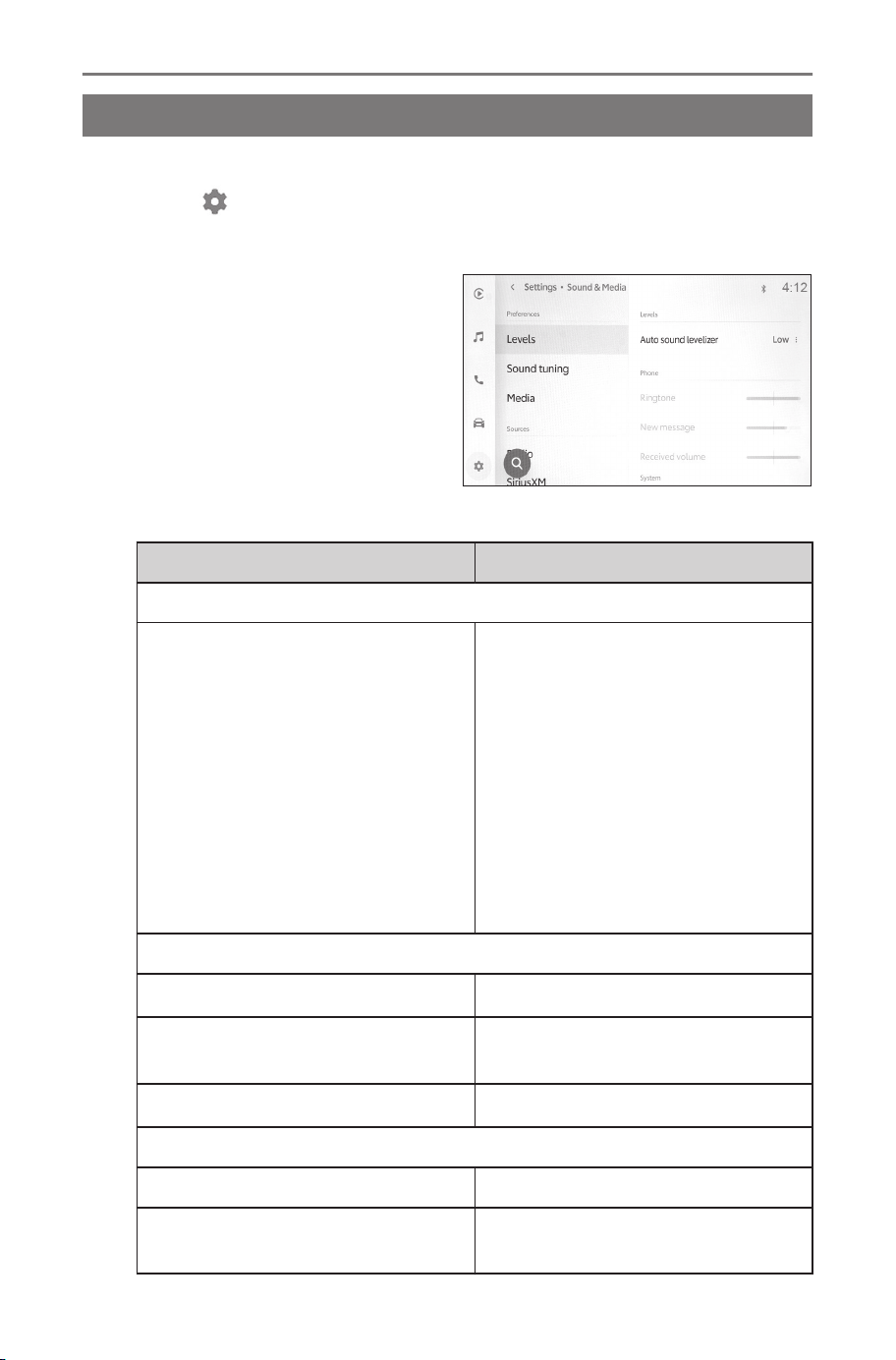
Sound and media settings
Changing sound and media settings
Change the system voice volume and audio source settings.
1 Touch [ ] on the main menu.
2 Touch [Sound & Media] on the sub menu.
3 Select the desired item.
● [Levels]
Setting Description
"Levels"
[Auto sound levelizer]
Type A : Automatically adjust
for volume based on the vehicle
speed.
Type B : The level to automat-
ically adjust the audio volume,
according to the vehicle speed
while driving, can be set. Com-
pared to the [Low] setting, the
[High] setting increases the vol-
ume more and brings it to an op-
timal level for high speed driving.
"Phone"
[Ringtone]
(1)
Adjust the ringtone volume.
[New message]
Adjust the volume when you re-
ceive a message.
[Received volume]
(1)
Adjust the receiver volume.
"System"
[System voice] Adjust the system volume.
[Driving Assist]
Adjust the volume of the driving
support system.
2-7. Sound and media settings
66
(1) The volume level between the paired mobile device and the
multimedia system are synchronized. When the volume of the de-
vice is changed, it change the multimedia volume for Bluetooth
®
hands-free.
● [Sound tuning]
Setting Description
"Equalizer"
[Treble] Adjusts the level of the treble.
[Mid] Adjusts the level of the midrange.
[Bass] Adjusts the level of the bass.
[Balance & Fade]
Adjust the fader and balance by
moving [ ].
Touch [Recenter] to return to the
center.
● [Media]
Setting Description
"General"
[Display cover art]
Displays cover art such as for
music albums.
● [Radio]
Setting Description
"Radio"
[Display FM info]
Displays RDS (Radio Data Sys-
tem) text.
[HD Radio FM]
Receives HD Radio™ in all fre-
quency bands of FM radio.
[HD Radio AM]
Receives HD Radio™ in all fre-
quency bands of AM radio.
[Clear radio station history]
Clears the AM and FM reception
history.
"Gracenote database"
(1)
2-7. Sound and media settings
67
2
Settings and registration
Setting Description
[Enhance metadata/artwork]
Uses the Gracenote
®
radio rec-
ognition technology.
● Displays the logos of the favor-
ites and the station list.
● Changes the category names
of the station list.
● Automatically updates the sta-
tion list.
(1) This function is not available in some regions.
● [SiriusXM]
*1
Setting Description
"Account information"
[Active] or [No Subscription]
Displays the current contract sta-
tus.
If the service cannot be used,
contact the customer center as to
what is shown on the screen.
"Preferences"
[Notifications]
Display notifications from Sir-
iusXM.
[Block explicit]
Blocks harmful designated chan-
nels.
[Tune start]
Plays from the beginning of the
track when a music channel is
selected.
[Clear listening history]
Clears the SiriusXM reception
history.
● [Sports]
*1
Setting Description
[Sports]
Notifications for the start of
games involving sports teams
registered as favorites.
*1 : This function is not available in some regions.
2-7. Sound and media settings
68
Setting Description
[NFL]
Touch [Edit] to register your fa-
vorite NFL team.
[MLB]
Touch [Edit] to register your fa-
vorite MLB team.
[NBA]
Touch [Edit] to register your fa-
vorite NBA team.
[NHL]
Touch [Edit] to register your fa-
vorite NHL team.
[College football]
Touch [Edit] to register your fa-
vorite College football team.
[College basketball]
Touch [Edit] to register your fa-
vorite College basketball team.
● [Music]
*1
Setting Description
[Artists & Songs]
Notification when an artist or
song registered as a favorite is
played on SiriusXM.
[Edit] Deletes the artist or song.
[Delete all]
Deletes all the artists or songs
registered as favorites.
● [Help and support]
*1
Setting Description
[Contact]
Displays the number of SiriusXM
Customer Care.
Touch the number to call directly.
[Radio ID]
The Radio ID information re-
quired when calling SiriusXM
Customer Care is displayed.
[Version] Version information is displayed.
*1 : This function is not available in some regions.
2-7. Sound and media settings
69
2
Settings and registration

INFORMATION
Using the [ VOL] knob during system voice guidance adjusts the vol-
ume of the voice guidance.
2-7. Sound and media settings
70
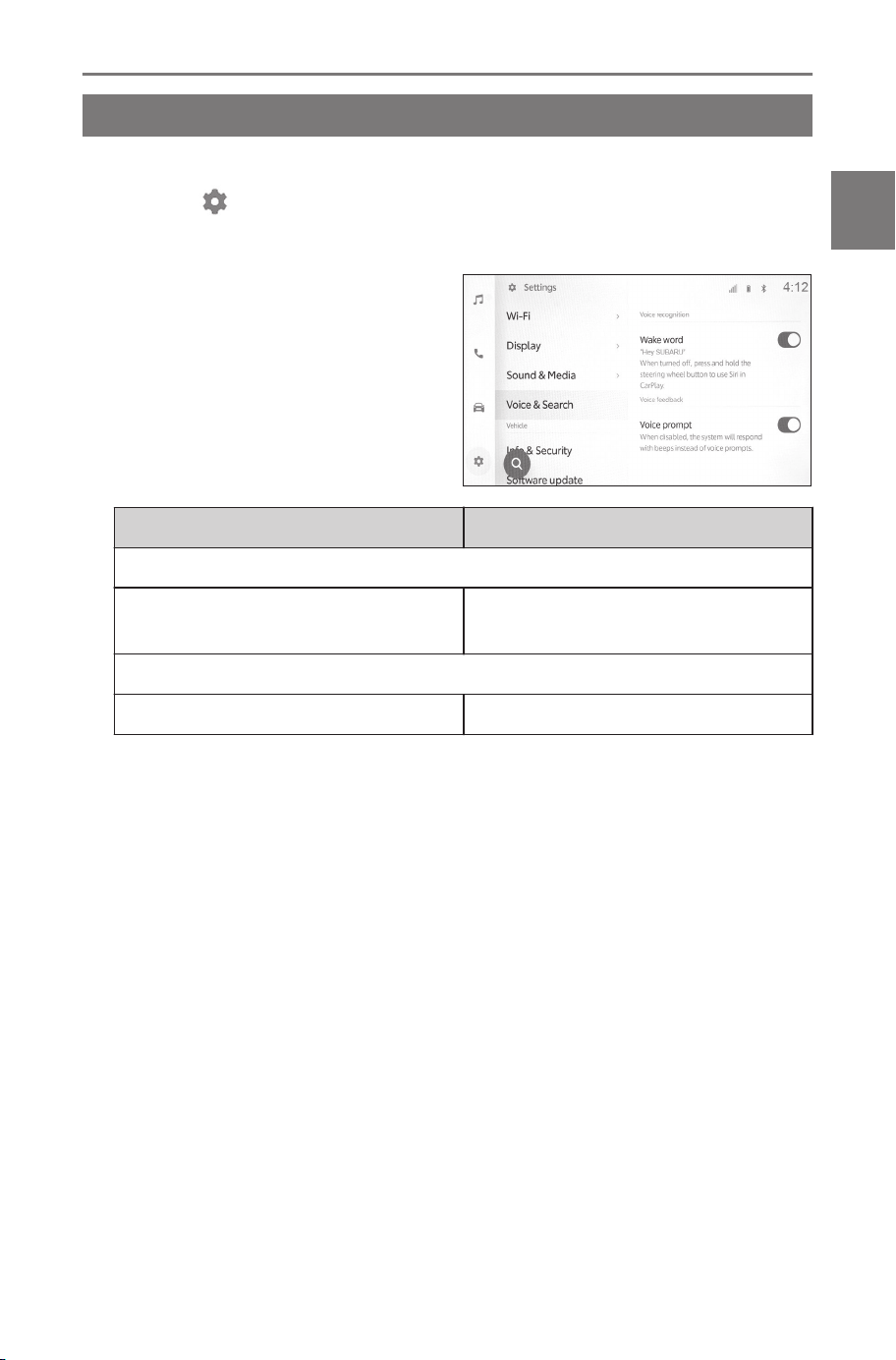
Voice control settings
Changing the voice control settings
The settings related to the voice recognition feature can be changed.
1 Touch [ ] on the main menu.
2 Touch [Voice & Search] on the sub menu.
3 Select the desired item.
Setting Description
"Voice recognition"
[Wake word]
Voice control can be started by
speaking the wake word.
"Voice feedback"
[Voice prompt] Turn the voice prompts on or off.
2-8. Voice control settings
71
2
Settings and registration
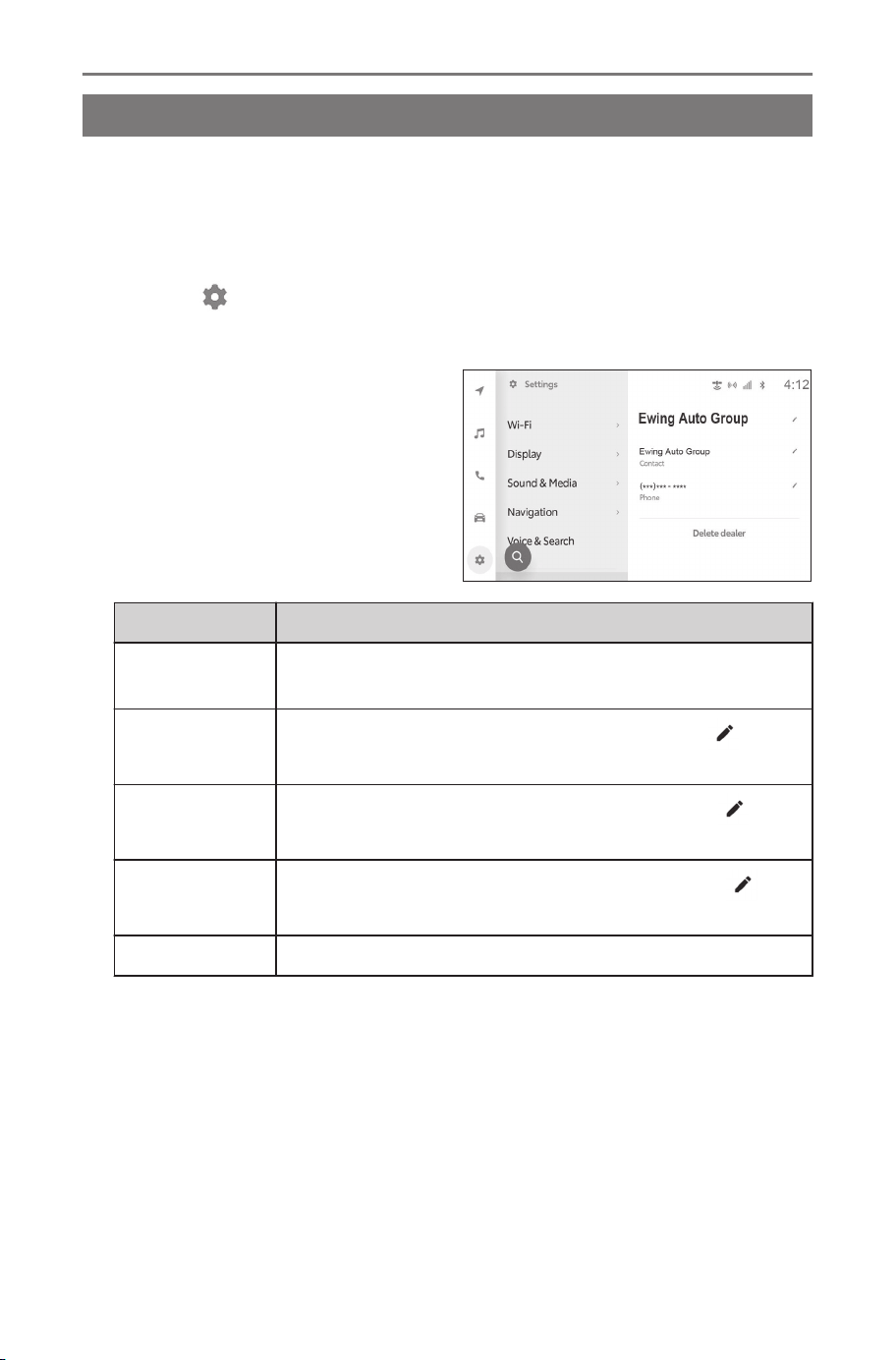
Vehicle settings
Setting dealer information
*1
You can register and delete dealer information. Registering the infor-
mation of the dealer at which you get your vehicle serviced enables
you to contact the dealer from the settings screen when you want to
reserve a service.
1 Touch [ ] on the main menu.
2 Touch [Dealer info] on the sub menu.
3 Select the desired item.
Setting Description
[Add dealer]
Registers the preferred dealer, contact name and
phone number.
Dealer name
Displays the stored dealer name. Touching [ ] ena-
bles to change the information.
"Contact"
Displays the stored contact name. Touching [ ] en-
ables to change the information.
"Phone"
Displays the stored phone number. Touching [ ]
enables to change the information.
[Delete dealer] Deletes the dealer information.
*1 : This function is not available in some regions.
2-9. Vehicle settings
72
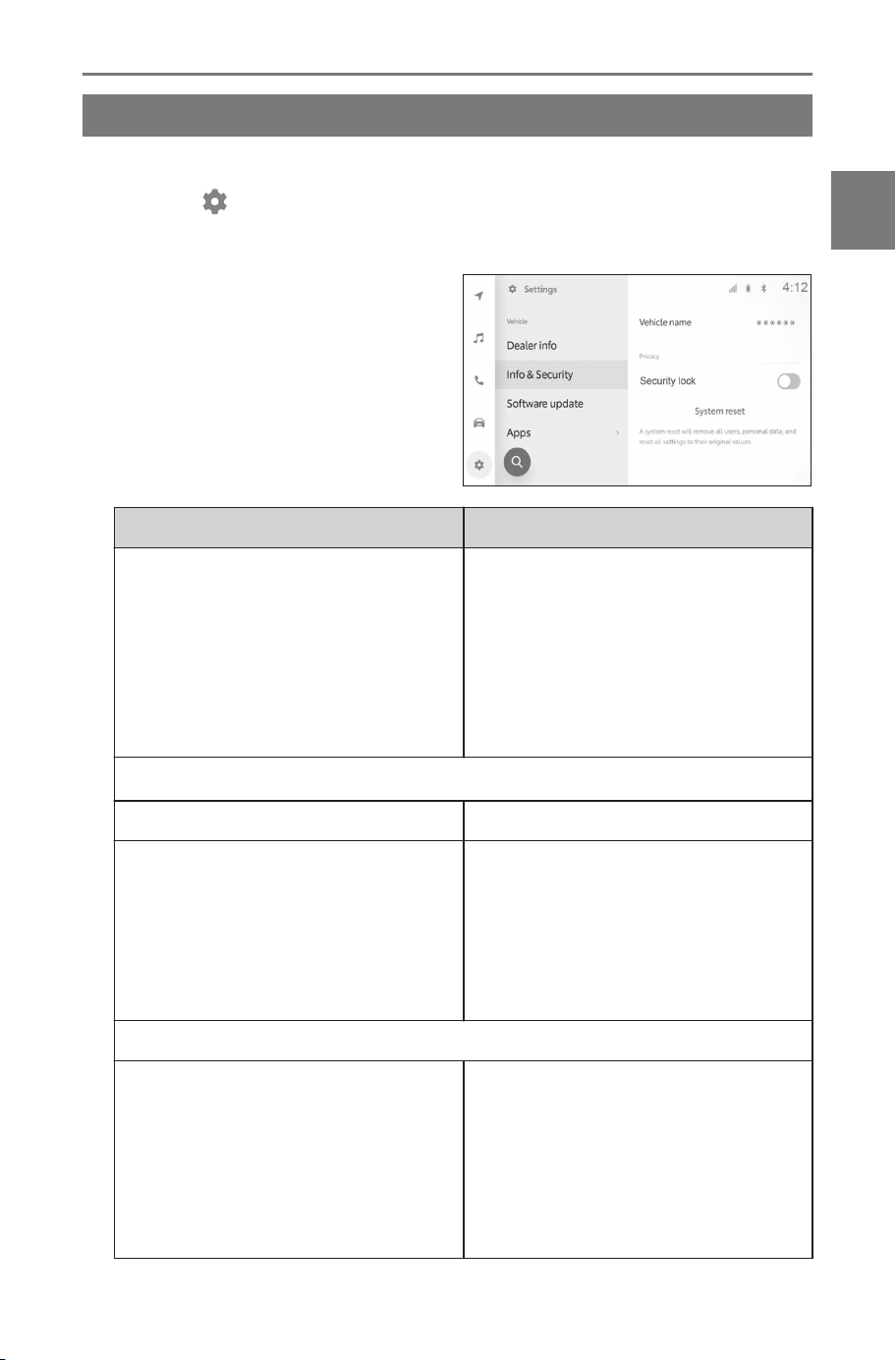
Changing the security settings
Settings related to security and privacy can be changed.
1 Touch [ ] on the main menu.
2 Touch [Info & Security] on the sub menu.
3 Select the desired item.
Setting Description
[Vehicle name]
Displays the system name (vehi-
cle name).
This is the device name displayed
when searching for a Bluetooth
®
device from an external device.
You can change the name by
touching it.
"Digital keys"
(1)
[Enable digital keys] Enable the use of digital keys.
[Remove digital keys]
Delete registered digital keys.
When deleting the digital key, per-
form the operation in an area with
good DCM reception. If deleting
the digital key fails, wait about 1
minute and try again.
"Privacy"
[Privacy lock]
Enable the password-protected
privacy lock to protect personal
information. When set ON, enter-
ing the password will be required
when the 12-volt battery is re-
placed or the multimedia system
is removed from the vehicle.
2-9. Vehicle settings
73
2
Settings and registration
Setting Description
[Reset privacy lock password]
Reset the set privacy lock pass-
word.
[System reset]
Reset all of the system’s data and
restore the settings to the factory
defaults.
(1) Refer to the vehicle "OWNER’S MANUAL"
INFORMATION
● Communication may be cut off after resetting the system. In that case,
restart the system.
● After initializing all the information, all the data in the multimedia sys-
tem will be initialized and returned to the factory default. It cannot be
returned to the state before initialization.
Related Links
Restarting the system(P. 15)
Setting up the privacy lock
1 Touch [ ] on the main menu.
2 Touch [Info & Security] on the sub menu.
3 Touch [Privacy lock].
4 Touch [OK].
5 Set a password that contains between 4 and 15 alphanumer-
ic characters.
6 Reenter your password.
A message will appear and the privacy lock is enabled.
INFORMATION
● After a password is set, if the system is reset after the 12-volt
battery is replaced or the multimedia system is removed from the
vehicle, a password to operate the multimedia system needs to be
entered. Enter the password that you set.
● If the password is entered incorrectly a certain number of times, you
will no longer be able to enter a password. If that happens, ask your
dealer to unlock the system or reset it by touching [System reset].
2-9. Vehicle settings
74

● To ensure security, do not repeatedly use the same password or a
word that can be found in the dictionary when setting a password.
2-9. Vehicle settings
75
2
Settings and registration
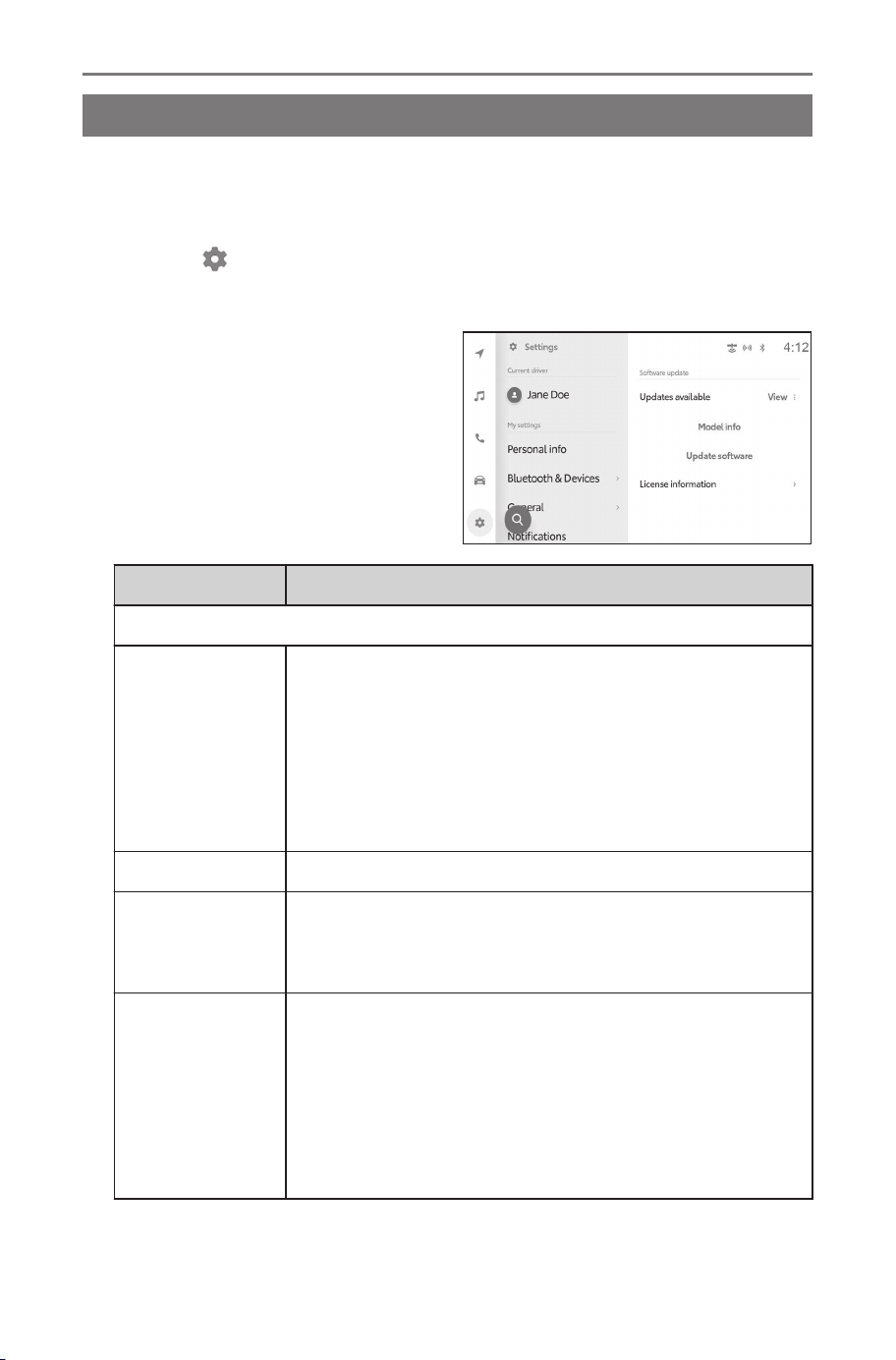
Updating and checking the software information
*1
Check and update software information. The software is updated
for the purpose of improving multimedia system functions and opera-
tions for more smoother usability.
1 Touch [ ] on the main menu.
2 Touch [Software update] on the sub menu.
3 Select the desired item.
Setting Description
"Software update"
[Updates avail-
able]
Touch [View] to check software update information.
After checking whether there is an update available
and the content of the update, the updated data can
be downloaded and software update can be instal-
led.
If there is no updated data available, "No updates
available" will be displayed.
[Model info] Check the current software version etc.
[Update soft-
ware]
Updating the software.
This will not be displayed if there is no update data
available.
[Output info to
USB memory]
Copy the vehicle information to update the software
to the USB flash drive. Download the update data
from the user portal site based on the information
written to the USB flash drive and update the soft-
ware for the multimedia system.(→ P.79)
This setting will not be displayed if the USB flash
drive is not inserted into the USB Type-C port.
*1 : This function is not available in some regions.
2-9. Vehicle settings
76
Setting Description
[History]
Check software update history.
This setting will not be displayed if there is no update
history.
[License infor-
mation]
Check the software license information.
Updating the software
Use one of the following methods to update the software:
● Update the software using Data Communication Module
(DCM)
● Update the software using Wi-Fi
®
● Update the software using a USB flash drive
INFORMATION
● Map data cannot be updated using this service.
● Some operations cannot be performed while the software is updating.
● If there are any questions, contact your SUBARU dealer.
NOTICE
● To update the software using a USB flash drive, a USB flash drive
that has more than 4 GB of available space and a computer that can
connect to the internet are required. Note that communication charges
may be high depending on your computer environment.
● Update the software at your own risk.
● The software cannot be restored to the previous version once the soft-
ware has been updated.
● The update software can only be used on this system. It cannot be
used on any other device.
● Depending on the content of the software update, some settings may
be reset. If that happens, reconfigure the applicable settings after the
software has been updated.
● Although basic functions are possible during the software update, oper-
ation may be slow. If possible, do not operate the system.
● After the software is updated, the SUBARU CORPORATION distribu-
tion server will be automatically notified that the update has completed.
2-9. Vehicle settings
77
2
Settings and registration

NOTICE
Note that SUBARU CORPORATION does not use the information it
receives for any purpose other than software updates. You may also be
charged for communication fees depending on your subscription.
Updating the software using DCM or Wi-Fi
®*1
This system regularly accesses the distribution server to check for
software updates.
1. Touch the button in the software update notification.
2. Follow the on-screen instructions to check and agree to the up-
date content and terms.
● Downloading of the update data will start. Once the data has
been downloaded, installation will begin.
● The time required for download and installation may increase
depending on the communications environment. If you turn off
the power switch while the software is installing, installation will
resume the next time the vehicle is started.
● Once the update is complete, a message is displayed on the
screen.
● If the system needs to be restarted, a message will appear.
Touching [Yes] restarts the system.
● To check the software update history, touch [History] on the
software update history screen.
■ Manually updating the software
1.
Touch [
] on the main menu.
2. Touch [Software update] on the sub menu.
3. Touch [View] of "Updates available".
4. Follow the on-screen instructions to check and agree to the up-
date content and terms.
● Downloading of the update data will start. Once the data has
been downloaded, installation will begin.
● The time required for download and installation may increase
depending on the communications environment. If you turn off
*1 : This function is not available in some regions.
2-9. Vehicle settings
78

the power switch while the software is installing, installation will
resume the next time the vehicle is started.
● Once the update is complete, a message is displayed on the
screen.
● If the system needs to be restarted, a message will appear.
Touching [Yes] restarts the system.
● To check the software update history, touch [History] on the
software update history screen.
INFORMATION
● If critical update data is available on the distribution server, a message
will be displayed. Touch [OK] to download the update data.
● If the software update fails, the system will start with the previous
version.
● The following conditions must be met to use Wi-Fi
®
to update the
software:
• The Wi-Fi
®
function is turned on.
• The vehicle must be in a location where it can access Wi-Fi
®
• The system must be connected to a Wi-Fi
®
access point (e.g. home,
work, etc.)
● A USB update process may be used if a DCM or Wi-Fi
®
update is not
possible.
Updating the software using a USB flash drive
*1
■ Copying the update data to a USB flash drive
1.
Touch [ ] on the main menu.
2. Touch [Software update] on the sub menu.
3. Insert the USB flash drive into the USB Type-C port on the vehi-
cle.
4. Touch [Output info to USB memory].
The vehicle information to update the software is copied to the
USB flash drive.
5. Touch [OK] to remove the USB flash drive.
*1 : This function is not available in some regions.
2-9. Vehicle settings
79
2
Settings and registration
6. Insert the USB flash drive with the copied vehicle information into
the USB Type-C port on a computer.
7. On the computer, go to the following user portal site and down-
load the update data onto the computer.
SUBARU of America : https://www.subaru.com/owners/in-
dex.html
SUBARU Canada English : https://www.subaru.ca/ownerresour-
ces
SUBARU Canada French : https://www.subaru.ca/ressource-
sproprietaires
● The update data will be downloaded based on the vehicle
information written on the USB flash drive.
● If you cannot find any update data, this means that there is
currently no update data available for the applicable system.
Update data is released as necessary.
8. Copy the update data that was downloaded to the computer onto
the USB flash drive.
Save the update data in the root directory on the USB flash
drive. If the update data is saved in folder that was created, the
update software cannot be loaded.
9. Once the updated data has finished copying, remove the USB
flash drive.
INFORMATION
The vehicle information written to the USB flash drive is also required
when updating the software on this system, so do not delete the vehicle
information on the USB flash drive until the update has completed.
■ Updating the software
1. Touch [
] on the main menu.
2. Touch [Software update] on the sub menu.
3. Insert the USB flash drive with the copied update data into the
USB Type-C port on the vehicle.
4. Touch [Update software].
● The update data is copied and installation begins.
2-9. Vehicle settings
80
● Once installation is complete, a message is displayed stating
that the update has finished.
5. Follow the on-screen instructions to check and agree to the up-
date content and terms.
● The update data is copied and installation begins.
● Once installation is complete, a message is displayed stating
that the update has finished.
● Leave the USB connected if the system needs to be restarted.
A message will appear when restart is ready. Touching [Yes]
restarts the system.
6. Remove the USB flash drive.
● To check the software update history, touch [History] on the
software update history screen.
● If the software update was done offline, an update completion
report data will be created on the USB flash drive. It is neces-
sary to upload the update completion report data to the portal
site.
NOTICE
Do not remove the USB flash drive or turn the power switch off while the
software is updating.
Related Links
Connecting a device via the USB Type-C port(P. 34)
2-9. Vehicle settings
81
2
Settings and registration
Navigation system settings
Displaying the navigation system settings screen
Through the navigation system settings, various settings can be
changed.
1 Touch [ ] on the main menu.
2 Touch [Navigation].
3 Touch the desired item.
Setting Description
[Map details]
Touch to display the map details
settings screen
[Route options] Touch to display the route options
Related Links
Changing the map details settings(P. 83)
Changing the route option settings(P. 85)
2-10. Navigation system settings
82
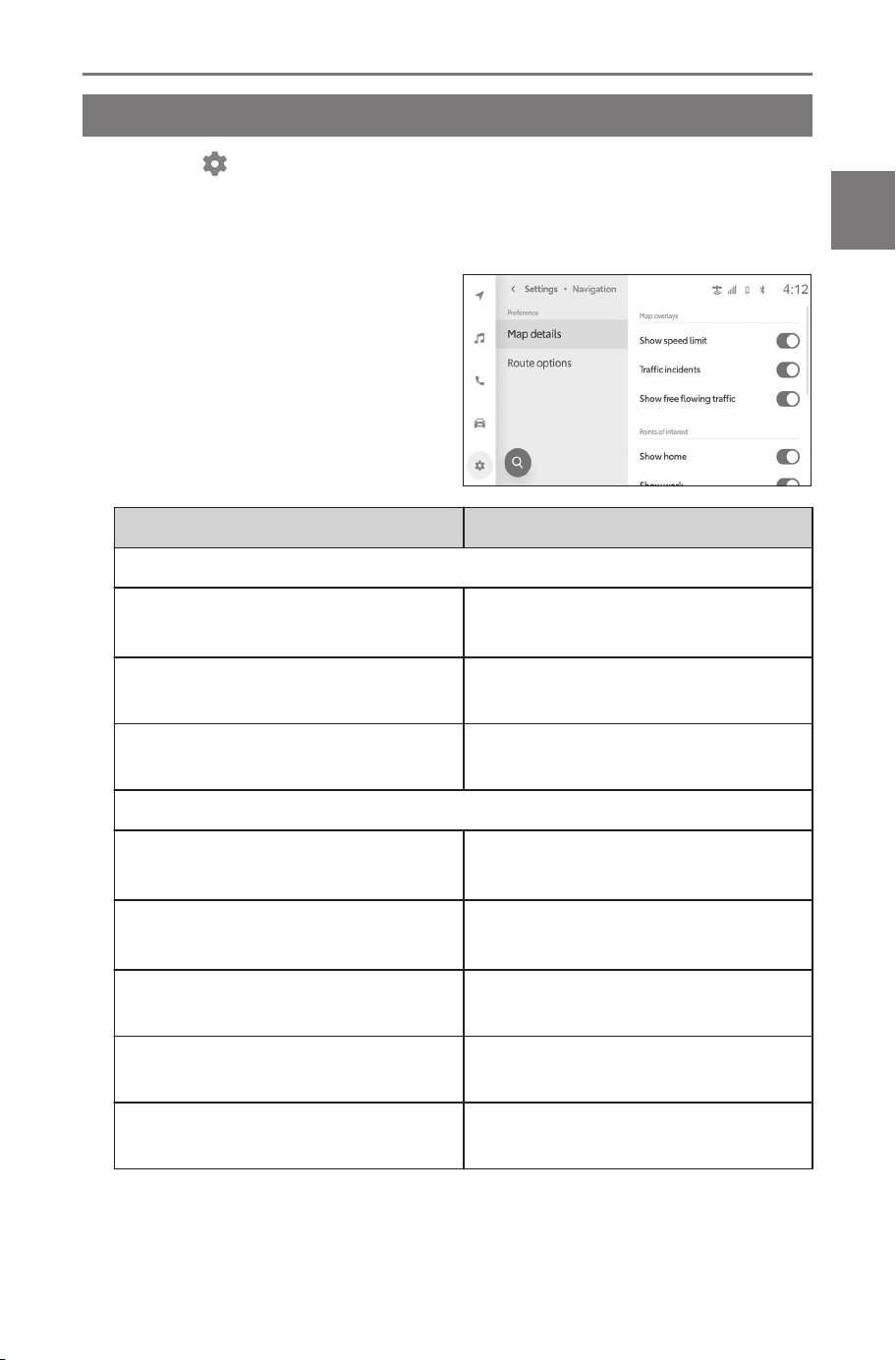
Changing the map details settings
1 Touch [ ] from the main menu.
2 Touch [Navigation] on the sub menu.
3 Touch [Map details].
4 Select the desired item.
Setting Description
"Map overlays"
[Show speed limit]
Turns the speed limit information
on/off.
(1)
[Traffic incidents]
Turns the display of the traffic inci-
dent display on/off.
[Show free flowing traffic]
Turns the display of an arrow for
free flowing traffic on/off.
"Points of interest"
[Show home]
Turns the icon of the home display
on/off.
(2)
[Show work]
Turns the icon of the work display
on/off.
(2)
[Show favorites]
Turns the icons of the favorites
display on/off.
[Show nearby parking]
Turns the icons of the nearby
parking display on/off.
[Calibrate map]
Adjusts the position of the current
position mark manually.
(1) Vehicles equipped with RSA (Road Sign Assist) will display the
speed limit on the Heads-Up Display.
(2) Home and Work must be added via SubaruConnect Mobile App.
2-10. Navigation system settings
83
2
Settings and registration
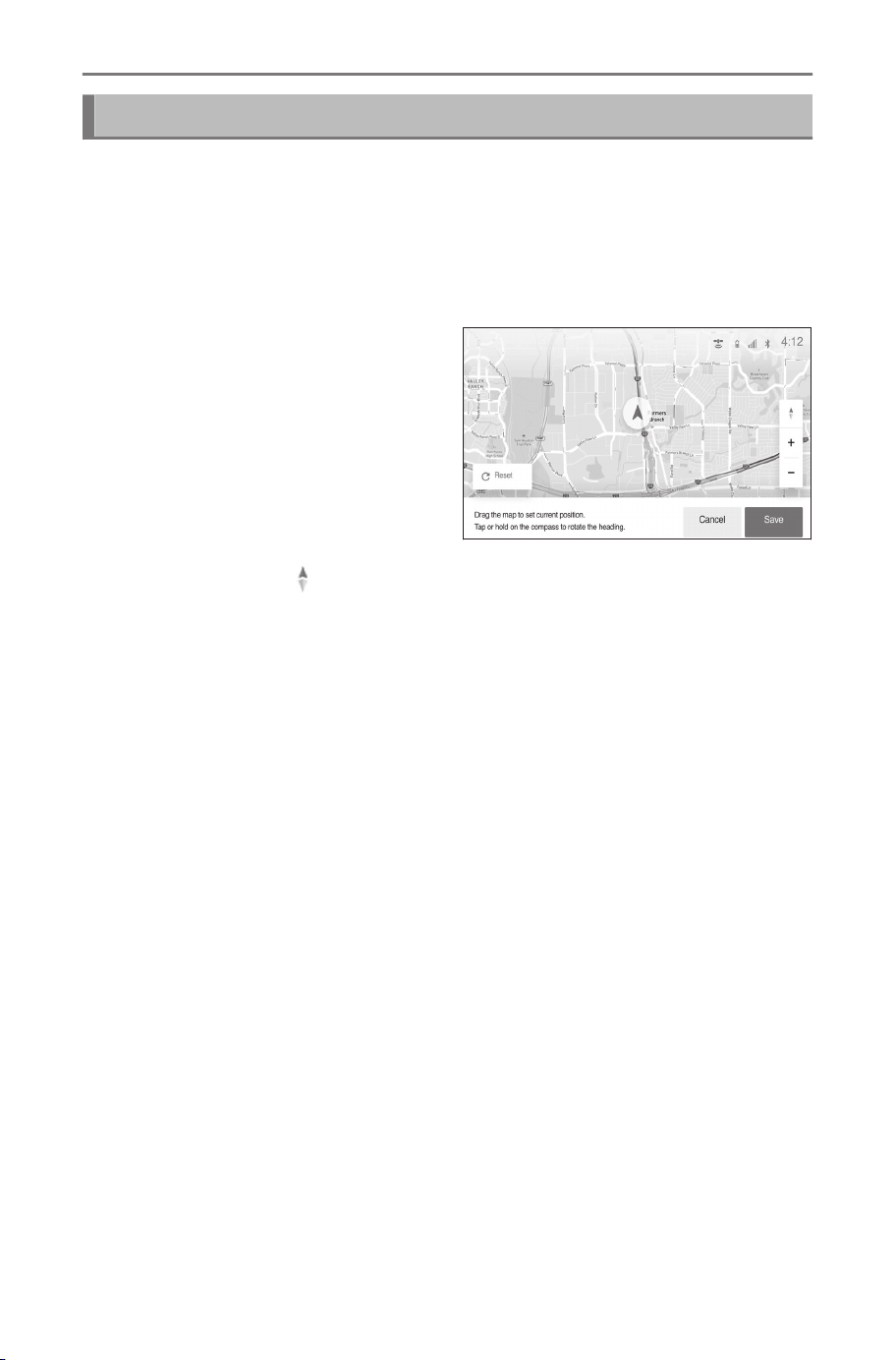
Calibrating position/direction
When driving, the current position mark will be automatically correct-
ed by GPS signals. If GPS reception is poor at the current location,
the current position mark can be adjusted manually.
1 Display the map details settings screen.
2 Touch [Calibrate map].
3 Scroll the map to the desired
point.
4 Touch or hold [
] to change the heading.
5 Touch [Save].
[Reset]: Returns the current position mark to its previous position.
2-10. Navigation system settings
84
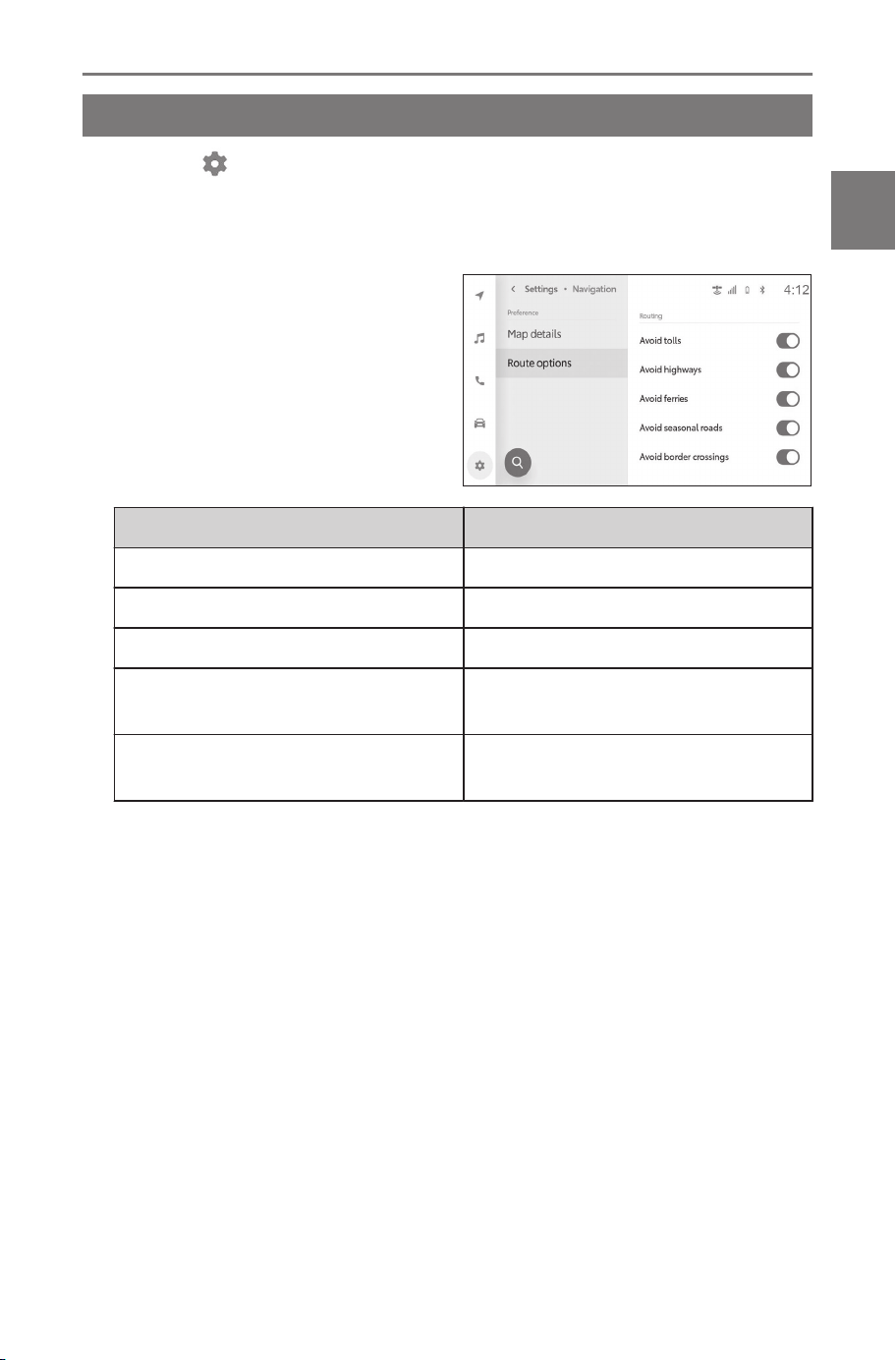
Changing the route option settings
1 Touch [ ] from the main menu.
2 Touch [Navigation] on the sub menu.
3 Touch [Route options].
4 Select the desired item.
Setting Description
[Avoid tolls] Avoids routes that use toll roads.
[Avoid highways] Avoids routes that use highways.
[Avoid ferries] Avoids routes that use ferries.
[Avoid seasonal roads]
Avoids routes that have seasonal-
ly restricted roads.
[Avoid border crossings]
Avoids routes that crosses bor-
ders.
2-10. Navigation system settings
85
2
Settings and registration
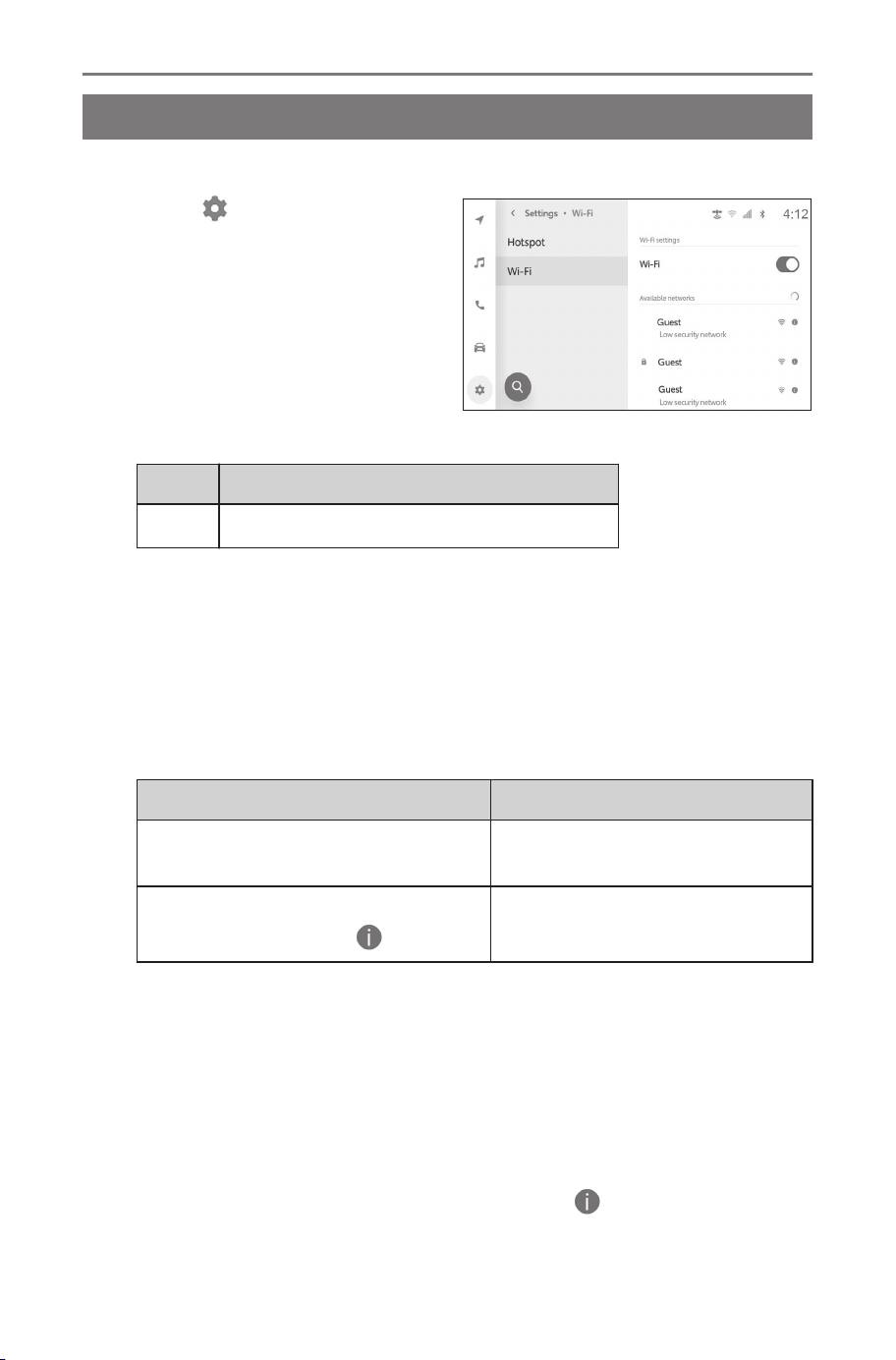
Wi-Fi®Settings
Changing Wi-Fi
®
setting
Change Wi-Fi
®
settings.
1 Touch [ ] from the main
menu.
2 Touch sub menu
[Wi-Fi] > [Wi-Fi] in this order.
3 Select the desired item.
● "Wi-Fi settings"
Setting Description
[Wi-Fi]
Enables or disables the Wi-Fi
®
function.
• A message may be displayed depending on the multimedia system
settings. Perform the operation according to the guidance on the
screen.
• Turning on [Wi-Fi] will display nearby networks that are available.
• Turning off [Wi-Fi] will disconnect the Wi-Fi
®
connection.
● "Available networks" ("Available networks" will display while [Wi-Fi] is
on.)
Setting Description
Name of network to connect to
(Network SSID)
Connects to the network
touched.
Name of network to display (Net-
work SSID) [ ]
Displays the network informa-
tion display.
• Network name may display as duplicate when more than one MAC
address shares the same network.
• A maximum of 30 networks can be displayed. The list is automati-
cally updated every six seconds.
• If there are devices using the same network name (Network SSID),
it cannot identify which device to use. If using multiple devices, use
different network names (Network SSIDs) for each device.
● Network information display (Displays when [ ] for the network
name is touched.)
2-11. Wi-Fi
®
Settings
86
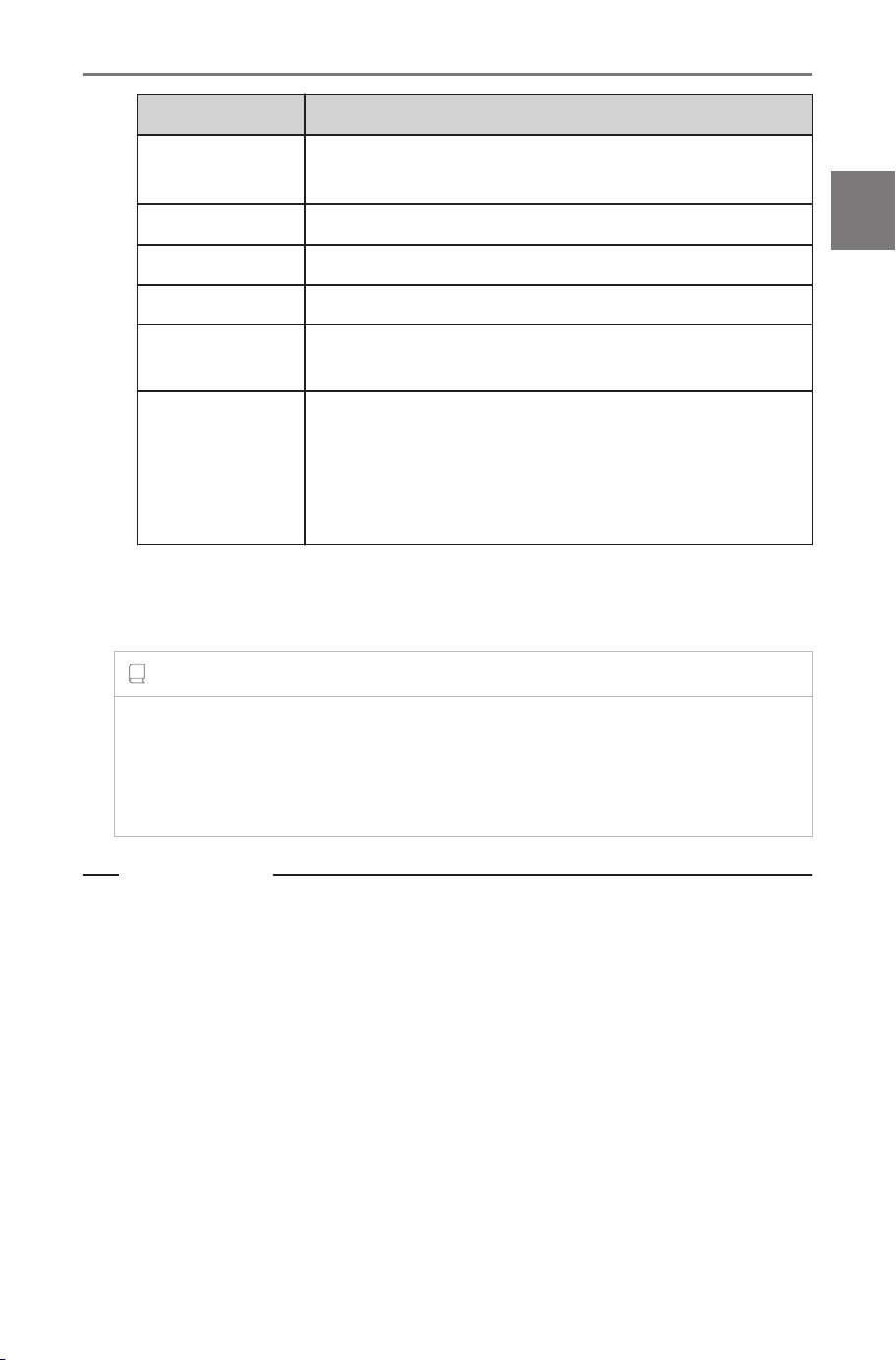
Setting Description
[Auto con-
nect]
*1
Turns on or off the setting to automatically connect
when searching for networks.
"Network SSID" Displays the network name (Network SSID).
"MAC address" Displays the MAC address of the network.
"Security" Displays the security protocol of the network.
"Frequency
band"
Displays the network frequency.
[Forget this
network]
*1
Deletes the connection history of the selected net-
work from the multimedia system.
The deleted network will be recognized as a net-
work which has never been connected to the sys-
tem before.
• [Forget this network] does not disconnect the current Wi-Fi
®
net-
work connection. The network information will not be remembered
and not reconnect to this Wi-Fi
®
network when restarting Wi-Fi
®
.
INFORMATION
● The network connection history retains up to 20 items, deleting the
oldest when a new one is saved.
● Insecure networks are not registered in the network connection his-
tory.
Related Links
Precautions when using Wi-Fi
®
devices(P. 111)
Connecting to a network using Wi-Fi
®
(P. 113)
*1 : Only networks with a connection history to the multimedia system are
displayed.
2-11. Wi-Fi
®
Settings
87
2
Settings and registration
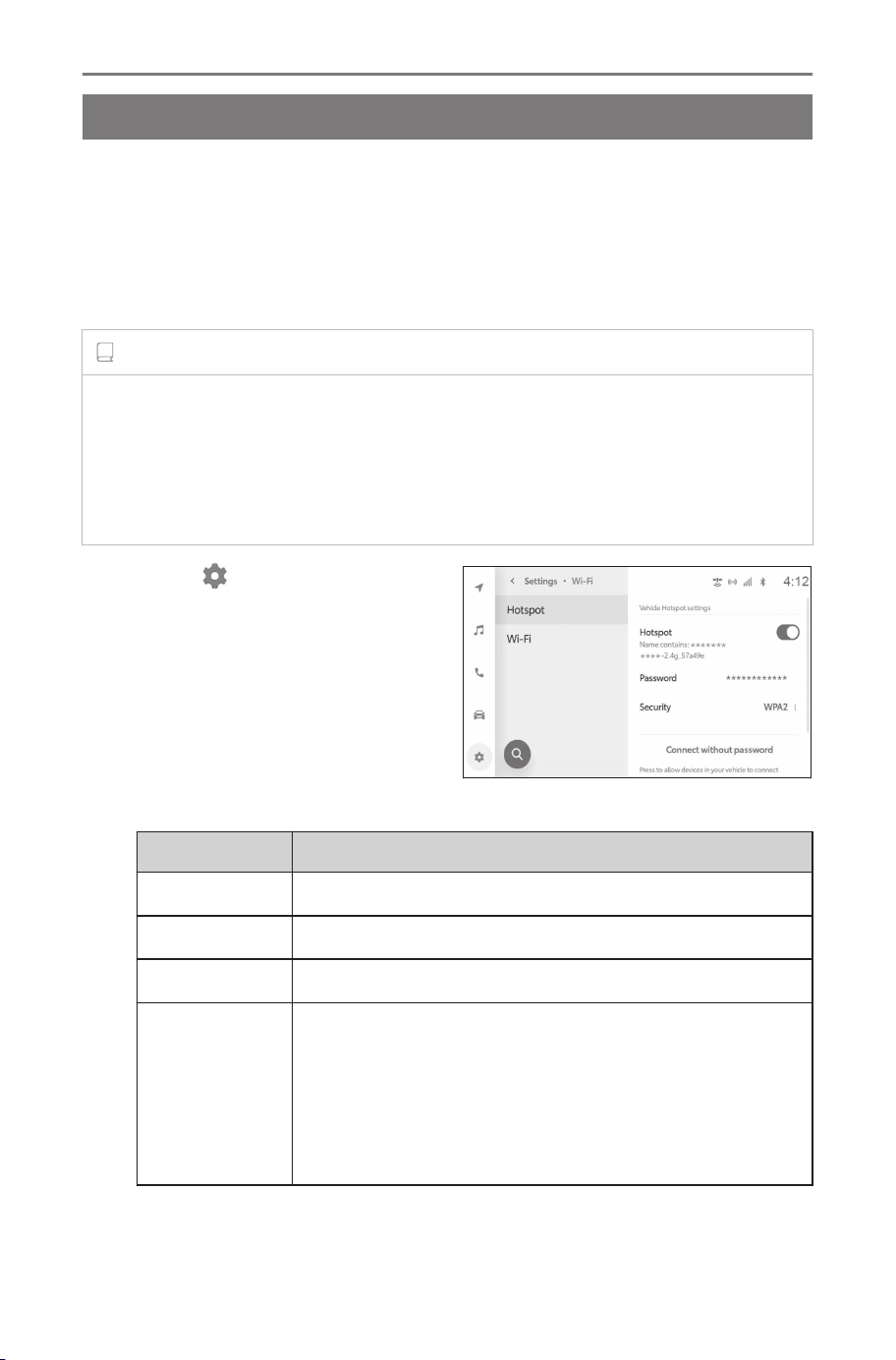
Setting Wi-Fi
®
Hotspot
*1
The access point settings can be changed via the Wi-Fi
®
Hotspot
function.
Use of this function requires a Wi-Fi
®
Hotspot subscription that is
provided by Wi-Fi
®
service provider.
Contact your SUBARU dealer for details.
INFORMATION
● This function cannot be used if the Wi-Fi
®
function is on.
● A total of ten devices (five using 2.4 GHz and five using 5.0 GHz) can
be connected. Recommend connecting up to five devices at a time for
optimum performance. If connected to Apple CarPlay or Android Auto
over wireless, the limit will be five devices using 2.4GHz.
1 Touch [ ] from the main
menu.
2 Touch [Wi-Fi] > [Hotspot]
from the sub menu.
3 Select the desired item.
● "Vehicle hotspot settings"
Setting Description
[Hotspot]
Enables or disables the Wi-Fi
®
Hotspot function.
[Password]
*2
Changes the access point password.
[Security]
*2
Changes the security protocol for the access point.
[Connect
without pass-
word]
*2
Accepts connections to the access point with the
simple setup.
• No selections can be made when the maximum
number of devices are already connected.
• This cannot be selected if the acceptance time is
exceeded.
*1 : This function is not available in some regions.
*2 : This will only display when [Hotspot] is turned on.
2-11. Wi-Fi
®
Settings
88

Setting Description
[Connect
without pass-
word]
*2
• This is only for WPS supported devices.
● A message may be displayed depending on the multimedia system
settings. Perform the operation according to the guidance on the
screen.
INFORMATION
● When changing the setting, the Wi-Fi
®
Hotspot function will need to
be restarted. All devices connected via Wi-Fi
®
will be disconnected.
● The following guidelines are recommended when setting a pass-
word, to prevent a third party from gaining unauthorized access.
• Use at least 13 characters
• Use a mixture of letters and numbers
• Change it regularly
• If the password is written down, do not store it out in the open
•
Do not reuse the same password, or use a similar password
• Do not use the vehicle name or license plate number, or a com-
mon word found in the dictionary or the like
• Do not substitute letters for common dictionary words in a way
that would be easy to guess (for example, using "c@t" instead of
"cat")
Related Links
Precautions when using Wi-Fi
®
devices(P. 111)
Establishing a connection to Wi-Fi
®
Hotspot(P. 116)
Functional overview(P. 220)
2-11. Wi-Fi
®
Settings
89
2
Settings and registration
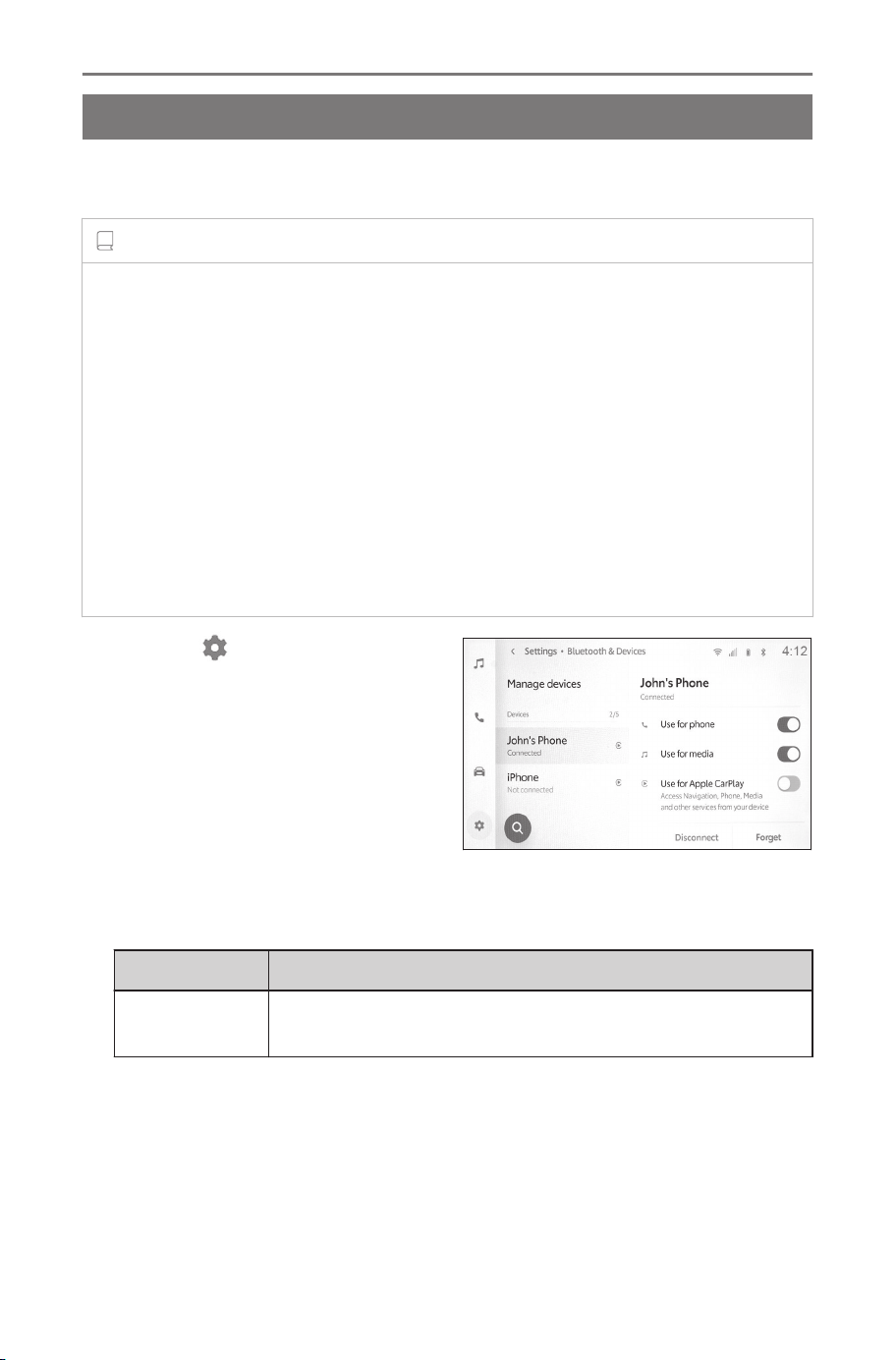
Bluetooth®Settings
Setting Bluetooth
®
devices
How to use the multimedia system and the connected Bluetooth
®
device can be set.
INFORMATION
● Settings details are set separately for each individual Bluetooth
®
de-
vice.
● Audio may skip if hands-free calling is selected while playing Blue-
tooth
®
audio.
● Depending on the Bluetooth
®
device model, it may be necessary to
perform operations on the Bluetooth
®
device.
● A Bluetooth
®
device cannot be selected during an emergency call.
● Settings cannot be selected while driving.
● Settings may not be selectable depending on the status of the Blue-
tooth
®
device.
1 Touch [ ] from the main
menu.
2 Touch [Bluetooth & Devices].
3
Touch the Bluetooth
®
device
to configure from the sub
menu.
Nothing will display unless at least
one Bluetooth
®
device is registered.
4 Select the desired item.
Setting Description
[Use for
phone]
Enables or disables the hands-free call function.
*1*2
*1 :
Displayed only when the Bluetooth
®
device can execute this function.
Toggling the function on or off will display or hide related functions, or
turn them on or off. This cannot be used for calls or audio while Apple
CarPlay or Android Auto is set to on. The same also applies in reverse.
*2 : The connection with this function will be disconnected if the button is
turned off. When connected with a device such as by being automati-
cally connected, the function that turned off will not automatically turn
on. The connection with this function will be activated if the button is
turned on.
2-12. Bluetooth
®
Settings
90

Setting Description
[Use for me-
dia]
Enables or disables the audio function.
*1*2
[Use for Ap-
ple CarPlay]
Enables or disables the Apple CarPlay function.
*1*2
[Use for An-
droid Auto]
Enables or disables the Android Auto function.
*1*2
If the [Use for Android Auto] settings are switched off
while using Android Auto, [Use for phone] settings will
be switched on.
[Setup se-
cure pass-
word]
The password for the Wireless Android Auto function
can be changed.
[Set as sec-
ondary de-
vice]
Sets the device as a secondary device.
This setting can be used when a driver has been reg-
istered and the HFP-supported Bluetooth
®
device has
not been set as the primary device. Touch [Set as
secondary device] to set the device as the secondary
device. The priority order for connecting Bluetooth
®
devices is primary device, secondary device, and lat-
est device in the connection history.
[Remove
secondary]
Removes the device as a secondary device.
[Disconnect]
Disconnects a Bluetooth
®
device from the multimedia
system.
The connected functions will turn off. The device may
not automatically connect to the function even if the
device is reconnected.
[Forget]
Allows registered Bluetooth
®
devices to be deleted.
● "General"
*1 :
Displayed only when the Bluetooth
®
device can execute this function.
Toggling the function on or off will display or hide related functions, or
turn them on or off. This cannot be used for calls or audio while Apple
CarPlay or Android Auto is set to on. The same also applies in reverse.
*2 : The connection with this function will be disconnected if the button is
turned off. When connected with a device such as by being automati-
cally connected, the function that turned off will not automatically turn
on. The connection with this function will be activated if the button is
turned on.
2-12. Bluetooth
®
Settings
91
2
Settings and registration

Setting Description
[Sort con-
tacts by]
The display of names registered in your contacts can
be changed as follows.
• Sort contacts by the first name.
• Sort contacts by the last name.
[Do not
disturb]
The following settings are available for hands-free call-
ing for incoming calls.
• Set to [Off] to enable notification by ringtone and
display.
• Set to [Silent] to disable notification by ringtone.
• Set to [On] to decline incoming calls and disable
notification by audio and display.
It cannot be used for the phone function of Apple Car-
Play and Android Auto. While Android Auto is connect-
ed, it cannot be used for the hands-free function of
multimedia.
[Auto read
messag-
es]
Enables or disables the automated message dictation
function.
[Clear call
history]
Deletes hands-free call history data.
Displayed when a cellular phone with [Sync contacts]
turned off is connected.
● "Syncing"
Setting Description
[Sync
con-
tacts]
Enables or disables automatic transfer of contacts, favor-
ites, and history to the multimedia system.
When the setting is changed from disabled to enabled,
automatic transfer of the phone book starts.
Favorites may not be transferred depending on the con-
nected cellular phone even if it is supported.
Related Links
Precautions when using Bluetooth
®
devices(P. 96)
Bluetooth
®
specifications and compatible profiles(P. 99)
Precautions for hands-free calling(P. 186)
2-12. Bluetooth
®
Settings
92

Precautions for Bluetooth
®
audio playback(P. 181)
Precautions when using Apple CarPlay and Android Auto(P. 119)
Setting a Bluetooth
®
device as a primary device(P. 109)
Setting a Bluetooth
®
device as a secondary device(P. 110)
Linking a User Profile(P. 46)
Changing and linking a User Profile(P. 54)
2-12. Bluetooth
®
Settings
93
2
Settings and registration
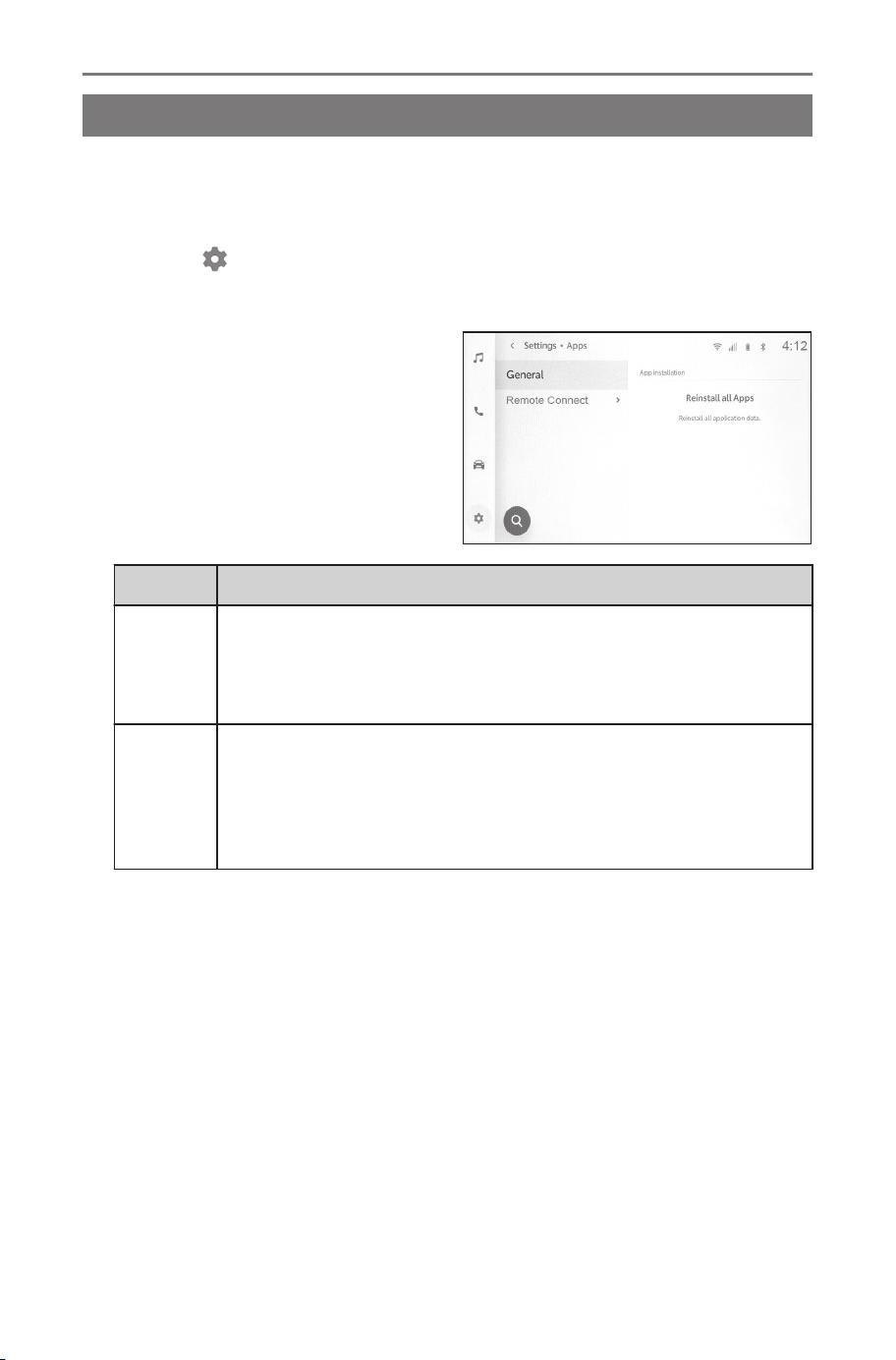
Apps settings
Apps settings
Your multimedia system now have apps that integrated in the sys-
tem. These apps come pre-installed to provide a seamless experi-
ence without the need to connect your mobile device.
1 Touch [ ] on the main menu.
2 Touch [Apps] on the sub menu.
3 Select the desired item.
Setting Description
[Gener-
al]
Under some circumstances it is possible that the App may
not be able to communicate and may require its memory to
be cleaned out. The [Reinstall all Apps] will enable you to
do this.
[Remote
Con-
nect]
For vehicles that are remote capable, you may use the re-
mote feature from your mobile device to lock, unlock and
many more features. When a mobile device requests a re-
mote activation to a vehicle, you may select this feature and
complete the authorization process.
2-13. Apps settings
94

3
Connecting a smartphone or com-
munication device
3-1. Using the Bluetooth
®
function
Precautions when us-
ing Bluetooth
®
devi-
ces ..............................96
Bluetooth
®
specifica-
tions and compatible
profiles ........................99
Registering a Blue-
tooth
®
device from
the multimedia sys-
tem........................... 100
Deleting a registered
Bluetooth
®
device .... 104
Connecting with a
Bluetooth
®
device .... 105
Setting a Bluetooth
®
device as a primary
device ...................... 109
Setting a Bluetooth
®
device as a secon-
dary device .............. 110
3-2. Connecting to a Wi-Fi
®
network
Precautions when us-
ing Wi-Fi
®
devices ... 111
Connecting to a net-
work using Wi-Fi
®
.... 113
Establishing a connec-
tion to Wi-Fi
®
Hotspot
................................. 116
3-3. Using Apple CarPlay and
Android Auto
Precautions when us-
ing Apple CarPlay
and Android Auto ..... 119
Using Apple CarPlay
with an unregistered
smartphone.............. 122
Using Apple CarPlay
with a registered
smartphone.............. 125
Using Android Auto
with an unregistered
smartphone.............. 128
Using Android Auto
with a registered
smartphone.............. 131
When Apple CarPlay
or Android Auto might
be malfunctioning..... 134
95
3
Connecting a smartphone or communication device
Using the Bluetooth®function
Precautions when using Bluetooth
®
devices
Pay special attention to the following information when using a Blue-
tooth
®
device on the multimedia system.
INFORMATION
● The vehicle uses Bluetooth
®
communications on the 2.4GHz frequency
band. Performance may vary depending on various factors.
● Simultaneous use of Wi-Fi
®
using the same 2.4GHz band wireless
communication as Bluetooth
®
could cause mutual interference.
● Mutual interference between Bluetooth
®
and Wi-Fi
®
could cause is-
sues such as garbled video, audio skipping, or reduced communication
speed. The effect of interference will be reduced if a Bluetooth
®
device
is connected. If a Bluetooth
®
device has been registered, connecting
with the registered device could improve this issue. (Check the status
icons to determine whether a Bluetooth
®
device is connected)
● Using a Bluetooth
®
cellular phone simultaneously with a wireless de-
vice could negatively affect communication for each.
● Connecting a Bluetooth
®
device via Bluetooth
®
will cause the battery of
the cellular phone to deplete rapidly.
● Bluetooth
®
connections will be disconnected during emergency calls.
Any disconnected Bluetooth
®
devices will be reconnected once the
emergency call is finished.
WARNING
● For safety, the driver should not operate the cellular phone itself while
driving when using hands-free calling.
● Stop the vehicle in a safe location prior to calling. If a call is received
while driving, be sure to drive safely and keep the call short.
NOTICE
● Do not use a Bluetooth
®
device near the multimedia system. Coming
too close could worsen sound quality or the connection.
● Do not leave a cellular phone inside the vehicle. The inside of the
vehicle can become hot, which could cause the cellular phone to mal-
function.
3-1. Using the Bluetooth
®
function
96

■ Users with pacemakers or other electrical medical devices
Observe the following precautions with regard to radio waves during
Bluetooth
®
communication.
WARNING
● Caution regarding interference with electronic devices
People with implantable cardiac pacemakers, cardiac resynchroni-
zation therapy-pacemakers or implantable cardioverter defibrillators
should maintain a reasonable distance between themselves and the
Bluetooth
®
antennas. The radio waves may affect the operation of such
devices.
● Before using Bluetooth
®
devices, users of any electrical medical device
other than implantable cardiac pacemakers, cardiac resynchronization
therapy-pacemakers or implantable cardioverter defibrillators should
consult the manufacturer of the device for information about its oper-
ation under the influence of radio waves. Radio waves could have
unexpected effects on the operation of such medical devices.
■ When used simultaneously with Bluetooth
®
audio
● The following behaviors will occur if a Bluetooth
®
-compatible de-
vice (cellular phone) is used hands-free and simultaneously with
Bluetooth
®
audio.
• The Bluetooth
®
connection of the cellular phone may be disconnected.
• There is possibility that background noise may exist during a hands-
free phone call.
• Hands-free call operation may lag.
● Audio may skip if the communication device selected for hands-
free calling is changed during Bluetooth
®
audio playback.
● The portable device connection may be disconnected when trans-
ferring contact data. It will be reconnected once transfer is com-
plete. (Reconnection may not be possible for some models)
● It may not be possible to make both a hands-free connection
and audio connection, even for cellular phones that support both
hands-free connections and audio connections.
● For a list of specific devices which operation has been confirmed
on this system, check with your SUBARU dealer or the following
website:
3-1. Using the Bluetooth
®
function
97
3
Connecting a smartphone or communication device

SUBARU of America: https://www.subaru.com/vehicle-info/
connected-services/subaruconnect.html
SUBARU Canada English: https://www.subaru.ca/WebPage.aspx?
WebSiteID=282&WebPageID=24700
SUBARU Canada French: https://www.subaru.ca/WebPage.aspx?
WebSiteID=284&WebPageID=24773
Related Links
Precautions when using Wi-Fi
®
devices(P. 111)
Precautions for Bluetooth
®
audio playback(P. 181)
Precautions for hands-free calling(P. 186)
Status icons(P. 19)
3-1. Using the Bluetooth
®
function
98

Bluetooth
®
specifications and compatible profiles
The multimedia system supports the following specifications and
compatible profiles. Operation is not guaranteed for all Bluetooth
®
devices.
■ Supported Bluetooth
®
specifications
Bluetooth
®
Core Specification Ver. 5.0
■ Compatible profiles
● HFP (Hands Free Profile)
Supported: Ver.1.8
This is a profile to allow hands-free phone calls using a cellular
phone. It has outgoing and incoming call functions.
● PBAP (Phone Book Access Profile)
Supported: Ver.1.2.3
Profile for synchronizing data such as contact data and call history
● MAP (Message Access Profile)
Supported: Ver.1.4.2
This is a profile to use phone message functions.
● SPP (Serial Port Profile)
Supported: Ver.1.2
• Profile for converting Bluetooth
®
-equipped devices as virtual serial
ports
• Profile for linking smartphones
● A2DP (Advanced Audio Distribution Profile)
Supported: Ver.1.3.2
This is a profile to transmit stereo audio or high quality sound to
the audio system.
● AVRCP (Audio/Video Remote Control Profile)
Supported: Ver.1.6.2
Profile for controlling audio remotely
3-1. Using the Bluetooth
®
function
99
3
Connecting a smartphone or communication device
Registering a Bluetooth
®
device from the multimedia
system
A cellular phone or portable device must be registered in order
to use hands-free calling or Bluetooth
®
audio. Once registration is
complete, Bluetooth
®
will automatically be connected each time the
multimedia system is started.
It's registered automatically as Bluetooth
®
device when Apple Car-
Play/Android Auto is connected by USB.
If no Bluetooth
®
device is connected, the registration screen can
also be displayed by pressing and holding the [
] switch on the
steering wheel.
INFORMATION
● A cellular phone can be registered as both a hands-free phone and
Bluetooth
®
audio device.
● Up to 5 Bluetooth
®
devices can be registered. However, a maximum of
2 devices can be used as a hands-free phone. (Setting of a driver is
required to connect 2 hands-free phones.)
● Refer to the Bluetooth
®
device’s instruction manual for information on
how to operate the Bluetooth
®
device.
● Registration will need to be repeated once for each Bluetooth
®
device if
multiple Bluetooth
®
devices will be used.
● A PIN code is a verification code used when registering a Bluetooth
®
device to the multimedia system.
● Dialing may be locked out after connecting, depending on the cellular
phone settings. Cancel the auto lock function on the cellular phone
before use.
● If another device is registered while connected to a cellular phone or
portable device, the connection to the portable device or cellular phone
playing audio will be disconnected.
● For safety reasons, devices cannot be registered while driving.
● If Bluetooth
®
device registration cannot be completed, restart the Blue-
tooth
®
device.
1 Touch [ ] from the main menu.
2
Touch [Bluetooth & Devices] on the sub menu.
3-1. Using the Bluetooth
®
function
100
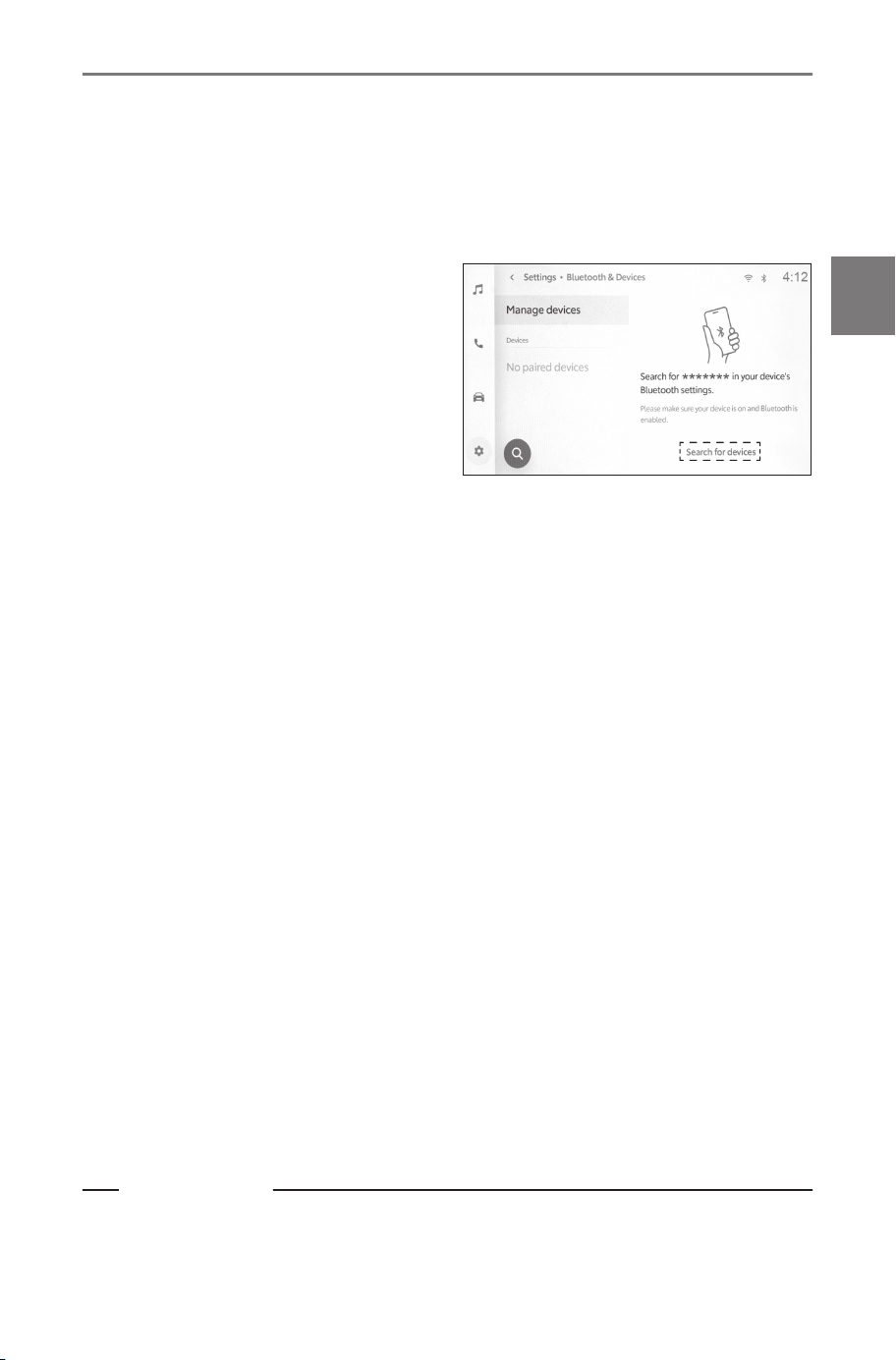
If no device is registered, proceed to Procedure 4.
3 Touch [Add another device].
While a device is connected to the multimedia system, the confirmation
screen for disconnecting the device may be displayed. Disconnect the
device to perform registration.
4 Touch [Search for devices].
5 Touch the device to register from the main area.
● The Bluetooth
®
address may be displayed instead of the device
name.
● Certain models of Bluetooth
®
devices may not be displayed in the
device list, unless a certain screen is displayed on the Bluetooth
®
device. Refer to the Bluetooth
®
device’s instruction manual for details.
6 Check that the displayed PIN code matches the PIN code
displayed on the Bluetooth
®
device, and then touch [OK].
● Some Bluetooth
®
devices may need to be operated to complete reg-
istration.
● When an HFP supported Bluetooth
®
device is registered, that device
is automatically set as the primary device if the driver does not have a
primary device set.
● The Apple CarPlay or Android Auto settings may be displayed. The
Apple CarPlay or Android Auto screen will be displayed if the use of
either is enabled.
● A message indicating that connection is complete is displayed, and
the name of the registered Bluetooth
®
device is displayed in the sub
menu.
● If an operation failed screen is displayed, follow the operation instruc-
tions on the screen.
Related Links
Linking a User Profile(P. 46)
Changing and linking a User Profile(P. 54)
3-1. Using the Bluetooth
®
function
101
3
Connecting a smartphone or communication device
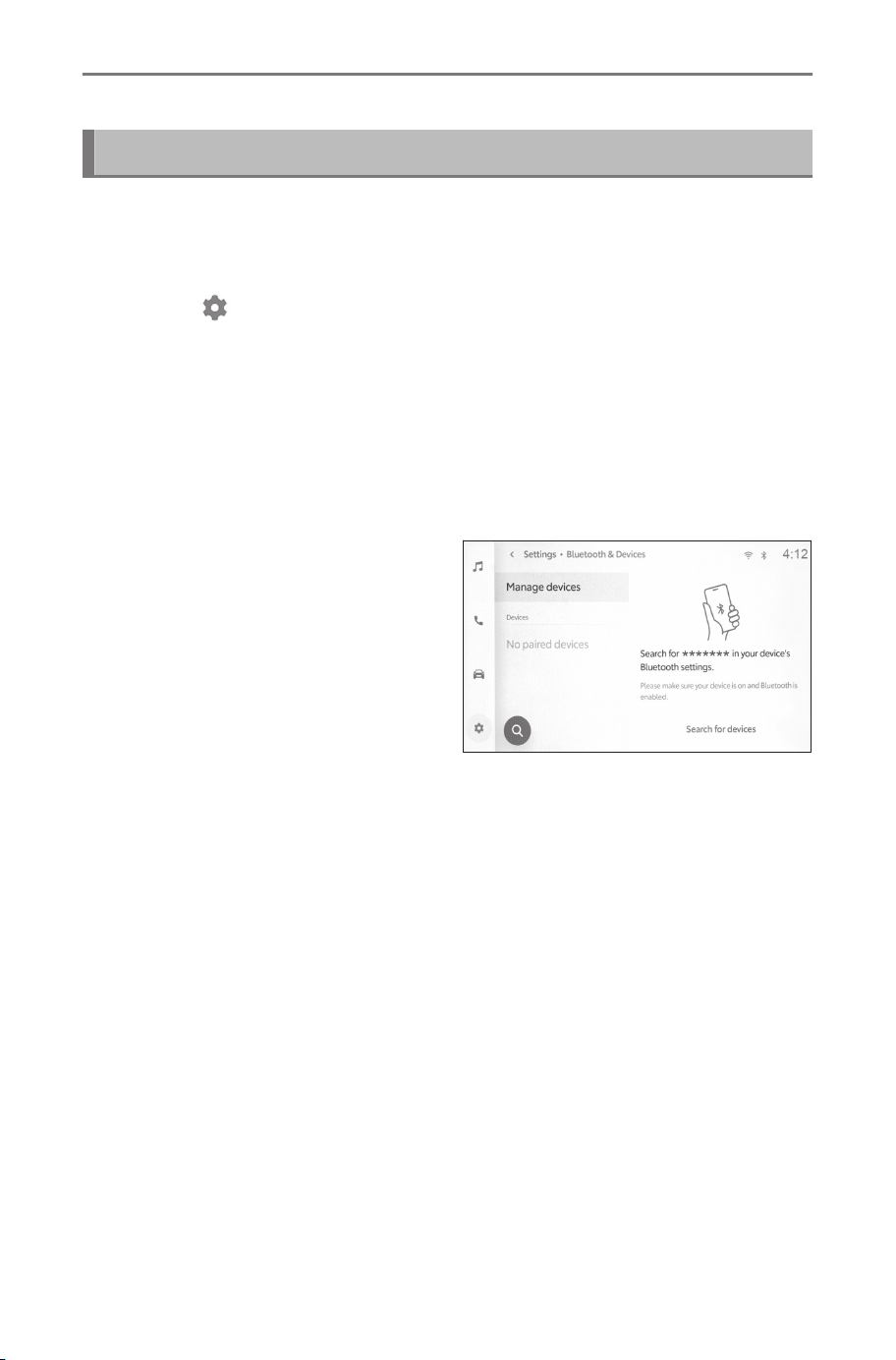
Precautions when using Apple CarPlay and Android Auto(P. 119)
Registering from a Bluetooth
®
device
If the Bluetooth
®
device cannot be found by searching with the multi-
media system, register by searching for the multimedia system from
the Bluetooth
®
device.
1 Touch [ ] from the main menu.
2 Touch [Bluetooth & Devices] on the sub menu.
If no device is registered, proceed to Procedure 4.
3 Touch [Add another device].
While a device is connected to the multimedia system, the confirmation
screen for disconnecting the device may be displayed. Disconnect the
device to perform registration.
4 Register the multimedia sys-
tem from the Bluetooth
®
de-
vice to be used.
● Perform the operation according
to the operating procedure of
the Bluetooth
®
device.
● Be sure to display this Blue-
tooth
®
connection screen before
performing registration on the Bluetooth
®
device.
5 Check that the displayed PIN code matches the PIN code
displayed on the Bluetooth
®
device, and then touch [OK].
● Some Bluetooth
®
devices may need to be operated to complete reg-
istration.
● When an HFP supported Bluetooth
®
device is registered, that device
is automatically set as the primary device if the driver does not have a
primary device set.
● The Apple CarPlay or Android Auto settings may be displayed. The
Apple CarPlay or Android Auto screen will be displayed if the use of
either is enabled.
● A message indicating that connection is complete is displayed, and
the name of the registered Bluetooth
®
device is displayed in the sub
menu.
● If an operation failed screen is displayed, follow the operation instruc-
tions on the screen.
3-1. Using the Bluetooth
®
function
102

Related Links
Linking a User Profile(P. 46)
Changing and linking a User Profile(P. 54)
3-1. Using the Bluetooth
®
function
103
3
Connecting a smartphone or communication device
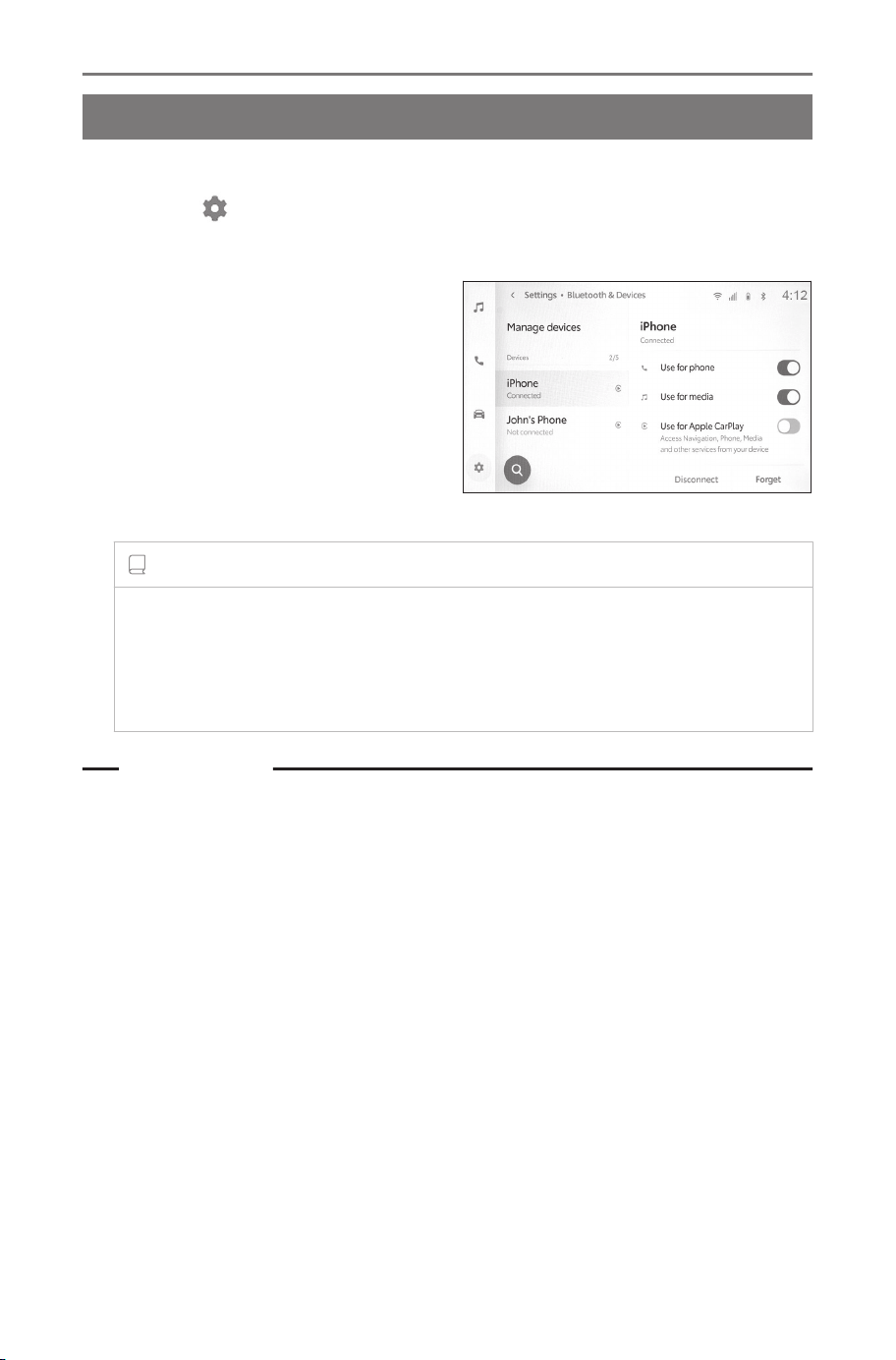
Deleting a registered Bluetooth
®
device
Registered Bluetooth
®
devices can be deleted.
1 Touch [ ] from the main menu.
2 Touch [Bluetooth & Devices].
3 Touch the Bluetooth
®
device
to be deleted from the sub
menu.
4 Touch [Forget].
A device that has been set as
the primary device of another user
cannot be deleted.
5 Touch [Forget].
INFORMATION
● A registered cellular phone cannot be deleted during an emergency
call.
● It may not be possible to delete on the first try, depending on the
status of the Bluetooth
®
device.
Related Links
Setting a Bluetooth
®
device as a primary device(P. 109)
Linking a User Profile(P. 46)
Changing and linking a User Profile(P. 54)
3-1. Using the Bluetooth
®
function
104

Connecting with a Bluetooth
®
device
Connection with a Bluetooth
®
device is required to use various func-
tion of the multimedia system. There are two connection methods,
automatic and manual.
INFORMATION
● Refer to the Bluetooth
®
device's instruction manual for information on
how to operate the Bluetooth
®
device.
● If multimedia system behavior is unstable when connecting a cellular
phone, end the call and try connecting again.
● A connection cannot be made if Bluetooth
®
on the Bluetooth
®
device is
not turned on.
● When connection of the Bluetooth
®
device is completed, it will be dis-
played at the top of the screen.
● While the Bluetooth
®
device is connected, the Bluetooth
®
connection
status icon is displayed.
● The display area may illuminate and stay on while the power switch is
turned on, depending on the model of cellular phone. If this occurs, turn
illumination off on the cellular phone. (For information on setting, refer
to the cellular phone instruction manual)
● The Bluetooth
®
function cannot be used on the device connected as
Apple CarPlay.
● The Bluetooth
®
function except the hands-free function cannot be used
on the device connected as Android Auto.
■ Bluetooth
®
reconnection
If a Bluetooth
®
connection that was once established is disconnect-
ed while the power switch is turned on, a reconnection will be auto-
matically attempted.
■ Number of Bluetooth
®
device connections
● When a driver is set
Up to two hands-free phones and one audio device will be con-
nected automatically. (The hands-free phone and audio device
can also be set as the same device.)
● When a driver is not set
3-1. Using the Bluetooth
®
function
105
3
Connecting a smartphone or communication device
Up to one hands-free phone and one audio device will be connect-
ed automatically. (The hands-free phone and audio device can
also be set as the same device.)
INFORMATION
● Try connecting manually if reconnection fails.
● If Apple CarPlay is connected, you may not be able to reconnect the
Bluetooth
®
connection.
Related Links
Status icons(P. 19)
Linking a User Profile(P. 46)
Changing and linking a User Profile(P. 54)
Manually connecting Bluetooth
®
devices(P. 107)
Automatically connecting Bluetooth
®
devices
The multimedia system will automatically connect to Bluetooth
®
de-
vices in the set priority order each time the power switch is turned
from off to on.
*1
● When a driver is set
Automatically connects in order of the primary device, secondary
device, and then devices in order of most recent connection.
Up to two hands-free phones and one audio device will be con-
nected automatically. (The hands-free phone and audio device
can also be set as the same device.)
● When a driver is not set
Automatically connects in order of most recent connection.
Up to one hands-free phone and one audio device will be connected
automatically. (The hands-free phone and audio device can also be
set as the same device.)
INFORMATION
● Try connecting manually if reconnection fails.
*1 : Devices that were manually disconnected such as by touching the
[Disconnect] will not be automatically connected.
3-1. Using the Bluetooth
®
function
106
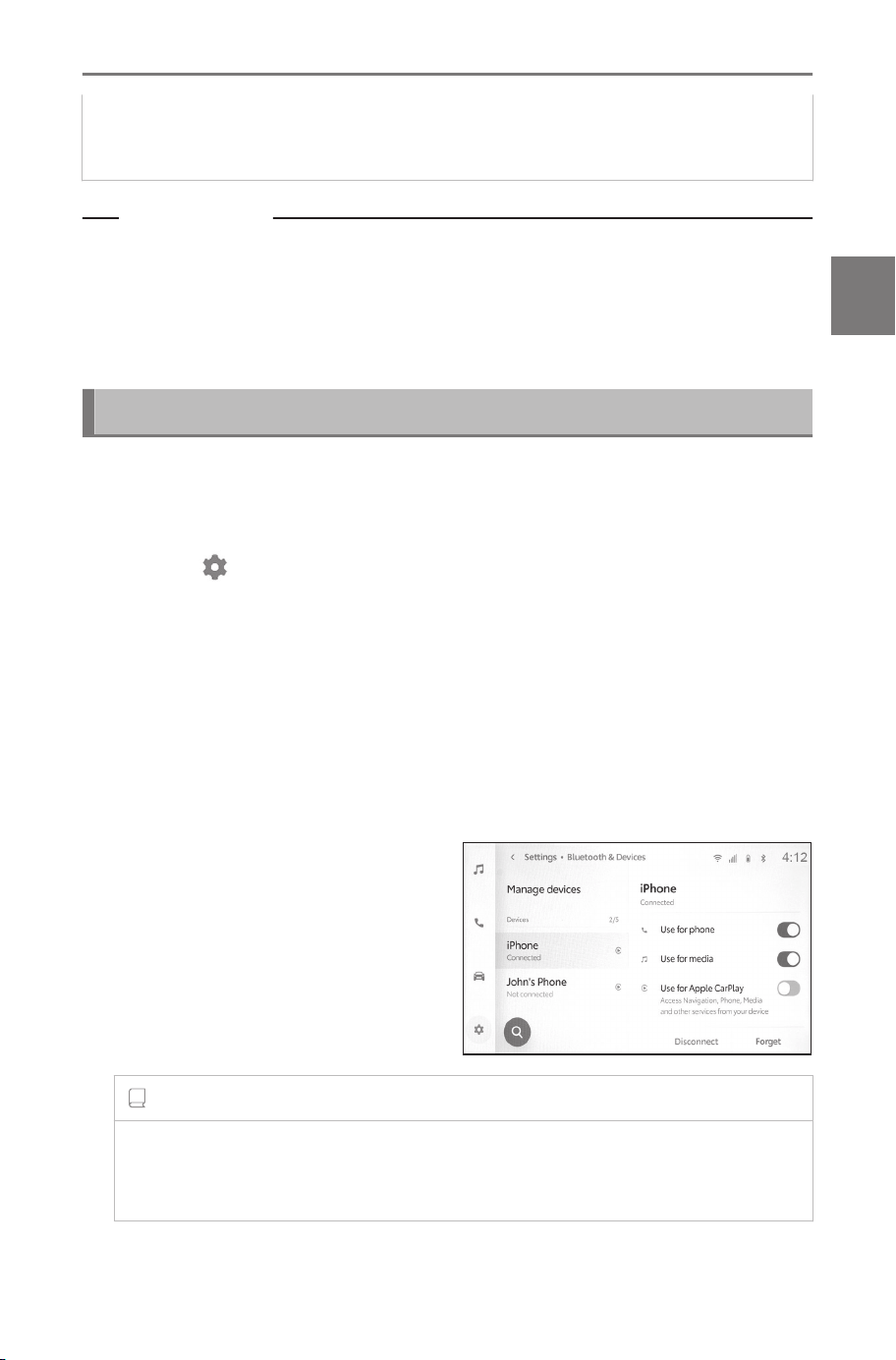
● The Bluetooth
®
device may need to be operated, depending on the
model of Bluetooth
®
device.
Related Links
Setting a Bluetooth
®
device as a primary device(P. 109)
Setting a Bluetooth
®
device as a secondary device(P. 110)
Linking a User Profile(P. 46)
Changing and linking a User Profile(P. 54)
Manually connecting Bluetooth
®
devices
In order to connect another Bluetooth
®
device, or if automatic con-
nection fails, it is possible to connect to registered Bluetooth
®
devi-
ces.
1 Touch [ ] from the main menu.
2 Touch [Bluetooth & Devices] from the sub menu.
The device search screen will display on the multimedia system if no
Bluetooth
®
devices are registered. Register the Bluetooth
®
device.
3
Touch the Bluetooth
®
device to connect to from the sub
menu.
If the Bluetooth
®
device to connect to is not listed in the sub menu,
register the Bluetooth
®
device.
4 Turn on the function (phone,
audio, etc.) that you want to
connect from the main area.
A confirmation screen may be dis-
played if another device is already
connected.
INFORMATION
It may not be possible to connect on the first try, depending on the
status of the Bluetooth
®
device. If this occurs, try connecting again
after a while.
3-1. Using the Bluetooth
®
function
107
3
Connecting a smartphone or communication device
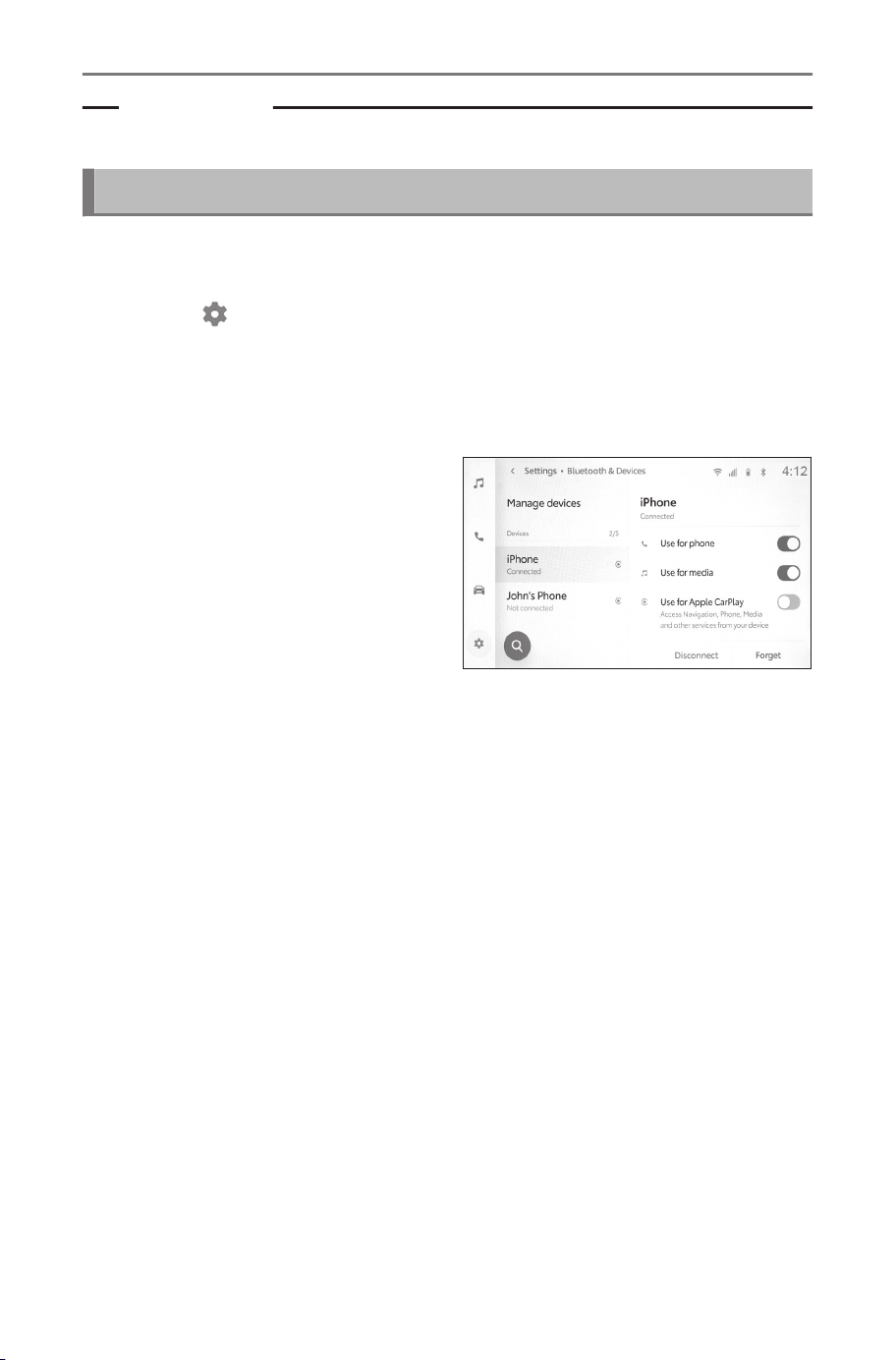
Related Links
Registering a Bluetooth
®
device from the multimedia system(P. 100)
Disconnecting Bluetooth
®
devices
Connected Bluetooth
®
devices can be disconnected from the multi-
media system.
1 Touch [ ] from the main menu.
2 Touch [Bluetooth & Devices] from the sub menu.
3 Touch the Bluetooth
®
device to be disconnected from the
sub menu.
4 Touch [Disconnect] from the
main area.
3-1. Using the Bluetooth
®
function
108
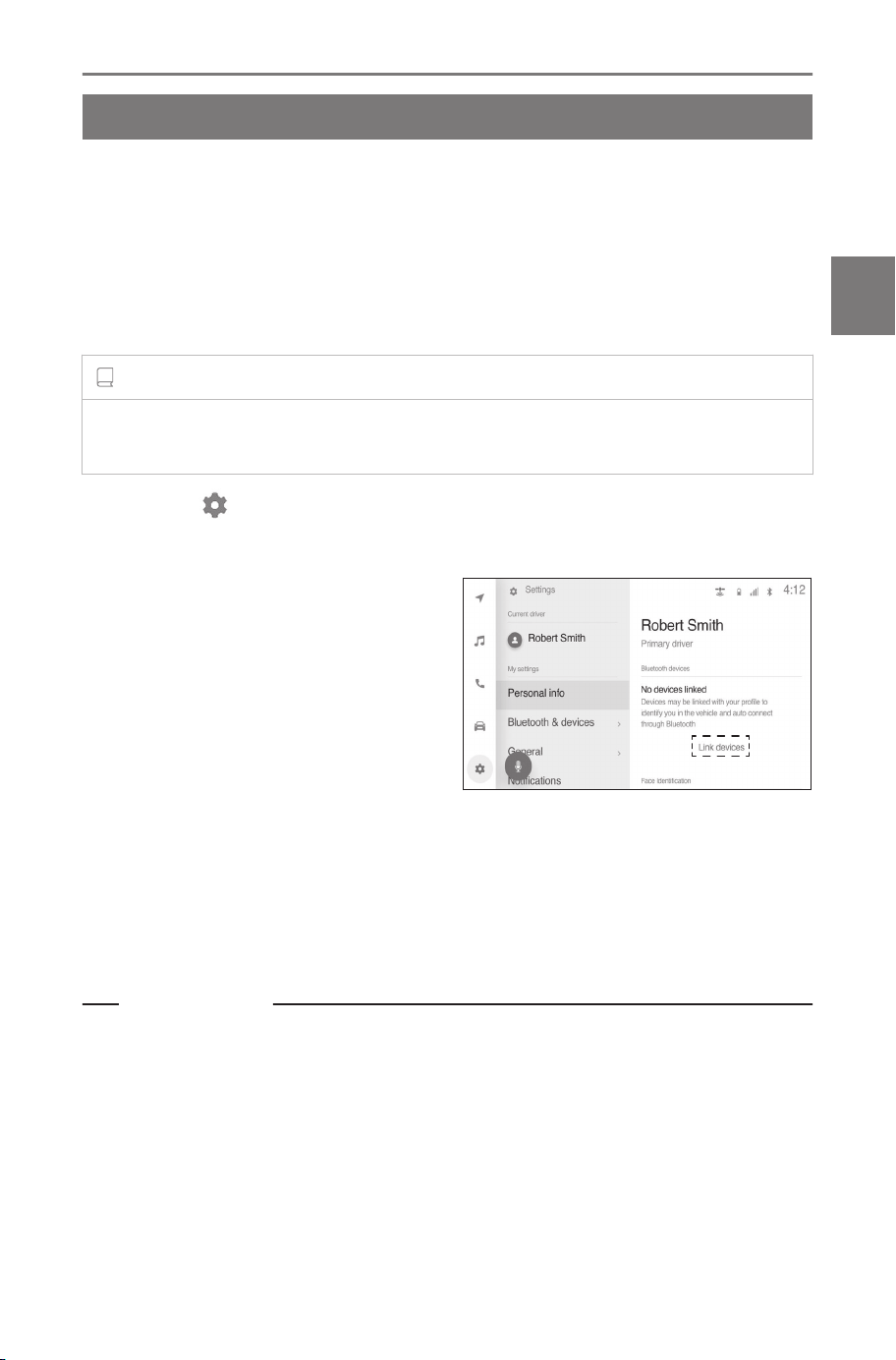
Setting a Bluetooth
®
device as a primary device
Setting a Bluetooth
®
device as the primary device makes it the first
to be connected during automatic connection.
● A Bluetooth
®
device that supports HFP must be connected to the
multimedia system.
● Registration of a driver is required to set a device as the primary
device.
INFORMATION
A Bluetooth
®
device set as the primary device of another user cannot be
set as the primary device.
1 Touch [ ] from the main menu.
2 Touch [Personal info].
3 Touch [Link devices] from
the main area.
The device search screen will be
displayed if there is no Bluetooth
®
device that can be set as the pri-
mary device. Search for the Blue-
tooth
®
device to set and newly
register it to the multimedia sys-
tem. After the device is newly reg-
istered, it can be set as the primary device.
4
Select the Bluetooth
®
device to be set as the primary device.
Disconnect the currently connected Bluetooth
®
device, then connect the
primary device and secondary device.
Related Links
Automatically connecting Bluetooth
®
devices(P. 106)
Setting Bluetooth
®
devices(P. 90)
Linking a User Profile(P. 46)
Changing and linking a User Profile(P. 54)
Registering a Bluetooth
®
device from the multimedia system(P. 100)
3-1. Using the Bluetooth
®
function
109
3
Connecting a smartphone or communication device
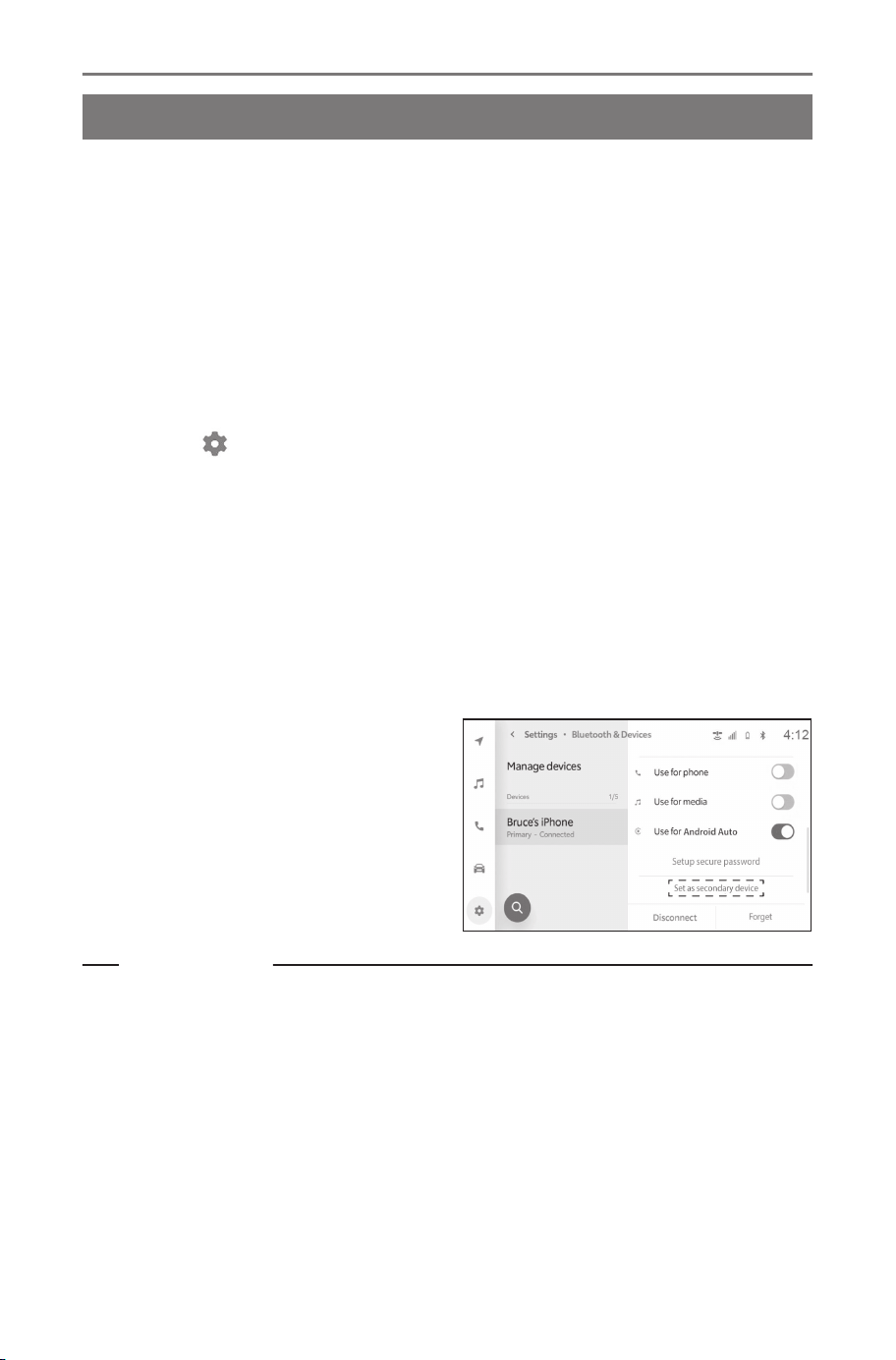
Setting a Bluetooth
®
device as a secondary device
By setting a Bluetooth
®
device as a secondary device, it will be
recognized as a secondary device when connected.
● The same Bluetooth
®
device cannot be set as a primary device
and secondary device for a driver.
● A Bluetooth
®
device that supports HFP must be connected to the
multimedia system.
● Registration of a driver is required to set a device as the secon-
dary device.
1 Touch [
] from the main menu.
2 Touch [Bluetooth & Devices] from the sub menu.
The device search screen will display if no Bluetooth
®
devices are regis-
tered. Register a Bluetooth
®
device.
3 Touch the Bluetooth
®
device to be set as the secondary de-
vice.
If the Bluetooth
®
device to be set is not listed, register the Bluetooth
®
device.
4 Touch [Set as secondary de-
vice] from the main area.
This will change to [Remove sec-
ondary] if the device is already
set as a secondary device.
Related Links
Automatically connecting Bluetooth
®
devices(P. 106)
Setting Bluetooth
®
devices(P. 90)
Linking a User Profile(P. 46)
Changing and linking a User Profile(P. 54)
3-1. Using the Bluetooth
®
function
110
Connecting to a Wi-Fi®network
Precautions when using Wi-Fi
®
devices
Pay special attention to the following information when using the
Wi-Fi
®
of the multimedia system.
■ Users with pacemakers or other electrical medical devices
Observe the following precautions with regard to radio waves during
Wi-Fi
®
communication.
WARNING
● Use Wi-Fi
®
devices only when safe and legal to do so.
● Caution regarding interference with electronic devices
People with implantable cardiac pacemakers, cardiac resynchroni-
zation therapy-pacemakers or implantable cardioverter defibrillators
should maintain a reasonable distance between themselves and the
Wi-Fi
®
antennas. The radio waves may affect the operation of such
devices.
● Before using Wi-Fi
®
devices, users of any electrical medical device
other than implantable cardiac pacemakers, cardiac resynchronization
therapy-pacemakers or implantable cardioverter defibrillators should
consult the manufacturer of the device for information about its oper-
ation under the influence of radio waves.
Radio waves could have unexpected effects on the operation of such
medical devices.
■ Using Wi-Fi
®
and Bluetooth
®
simultaneously
The vehicle uses 2.4GHz Wi-Fi
®
which is the same frequency used
by Bluetooth
®
. Using both Wi-Fi
®
and Bluetooth
®
simultaneously
could cause interference to occur with each other which can result in
poor performance or connection issues.
■ Things to know about Wi-Fi
®
INFORMATION
● Performance may vary depending on various environmental and elec-
trical factors.
● Use this function when connecting to a portable device. Connections to
devices other than portable devices may be disconnected, depending
on the environment.
3-2. Connecting to a Wi-Fi
®
network
111
3
Connecting a smartphone or communication device

● Leaving the Wi-Fi
®
area will disconnect communication.
● Leaving the DCM area will disconnect Wi-Fi
®
Hotspot function commu-
nication.
● If a connected device is taken out of the Wi-Fi
®
connection area, the
connection will be severed.
● If the vehicle is driven out of the cellular communication coverage area,
connecting to the internet via the Wi-Fi
®
Hotspot will not be possible.
● If a Bluetooth
®
device is used while a device is connected using the
Wi-Fi
®
Hotspot function, the communication speed may decrease.
● Depending on the environment in which the access point is used, the
communication speed may be low or communication may not be possi-
ble.
● If the vehicle is near a radio antenna, radio station or other source of
strong radio waves and electrical noise, communication may be slow or
impossible.
● The communication speed may drop or it even may become impossible
to use this service in certain usage environments. (Due to factors such
as the wireless antenna location and any wireless devices being used
nearby.)
Compatible Wi-Fi
®
communication protocols
IEEE 802.11b/g/n (2.4GHz)
IEEE 802.11a/n/ac (5GHz)
Compatible security protocols
● WEP
● WPA™
● WPA2™
● WPA3™
Related Links
Precautions when using Bluetooth
®
devices(P. 96)
Status icons(P. 19)
Changing Wi-Fi
®
setting(P. 86)
Setting Wi-Fi
®
Hotspot(P. 88)
Functional overview(P. 220)
3-2. Connecting to a Wi-Fi
®
network
112
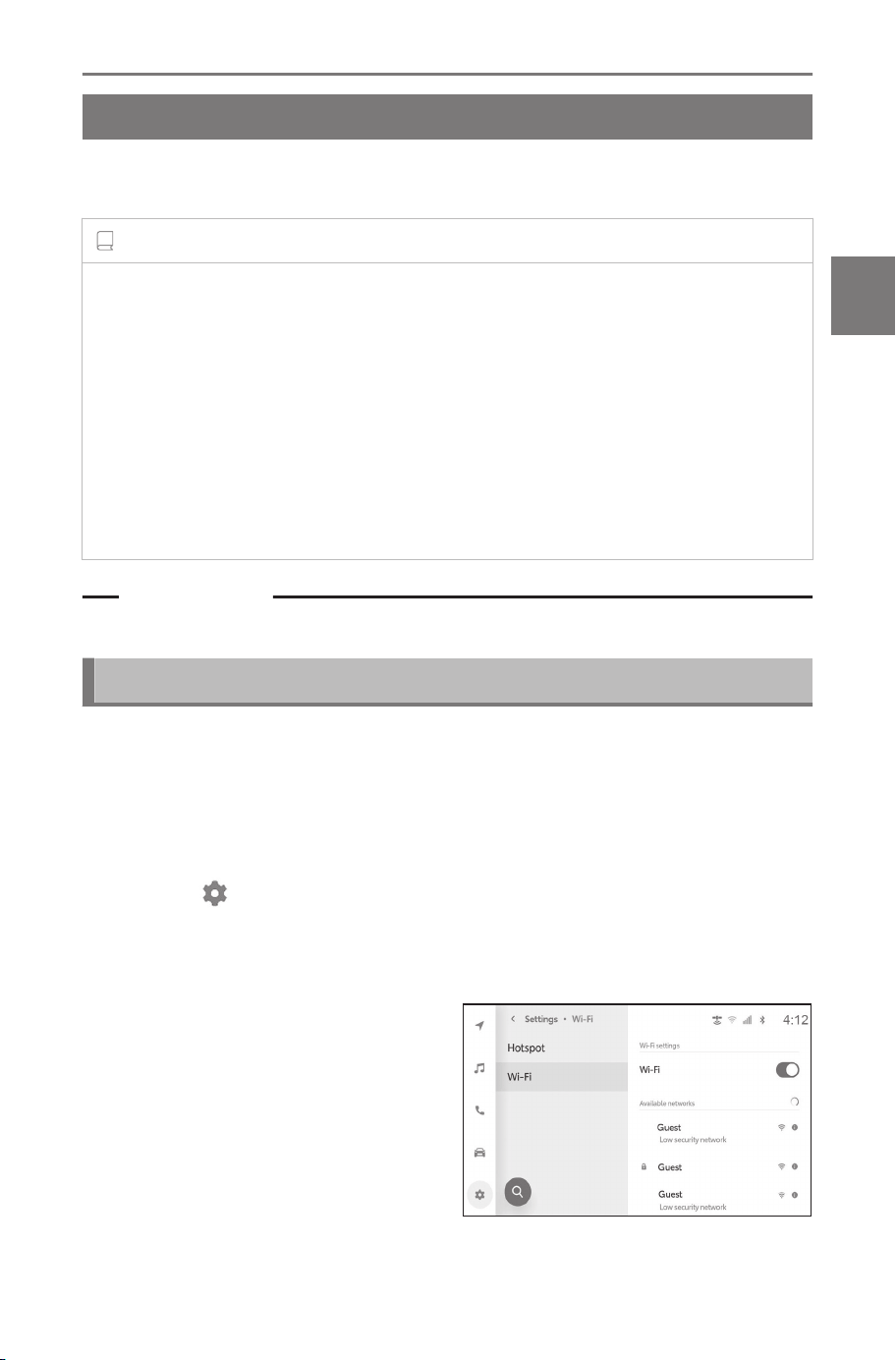
Connecting to a network using Wi-Fi
®*1
The multimedia system can be connected to the Internet by connect-
ing to a Wi-Fi
®
network.
INFORMATION
● The reception level is displayed at the top of the screen.
● This function cannot be used while the Wi-Fi
®
Hotspot is on. Also,
this function cannot be used while Apple CarPlay or Android Auto is
connected wirelessly.
● Some smartphone models may require establishing a connection each
time.
● If networks are detected while the Wi-Fi
®
function is on, automatic
connection will prioritize connecting to the network with the most recent
connection.
Related Links
Changing Wi-Fi
®
setting(P. 86)
Connecting to Wi-Fi
®
using a smartphone
Refer to the following operation example to establish a Wi-Fi
®
con-
nection using a smartphone that supports Wi-Fi
®
tethering. For de-
tails on setting up tethering, refer to documents such as the instruc-
tion manual for the smartphone. Some smartphone models may
require establishing a connection each time.
1 Touch [
] from the main menu.
2 Touch [Wi-Fi] from the sub menu.
3 Touch [Wi-Fi] from the sub menu.
4 Set [Wi-Fi] in the main area
to on.
● A message may be displayed
depending on the multimedia
system settings. Perform the
operation according to the
screen guidance.
*1 : This function is not available in some regions.
3-2. Connecting to a Wi-Fi
®
network
113
3
Connecting a smartphone or communication device
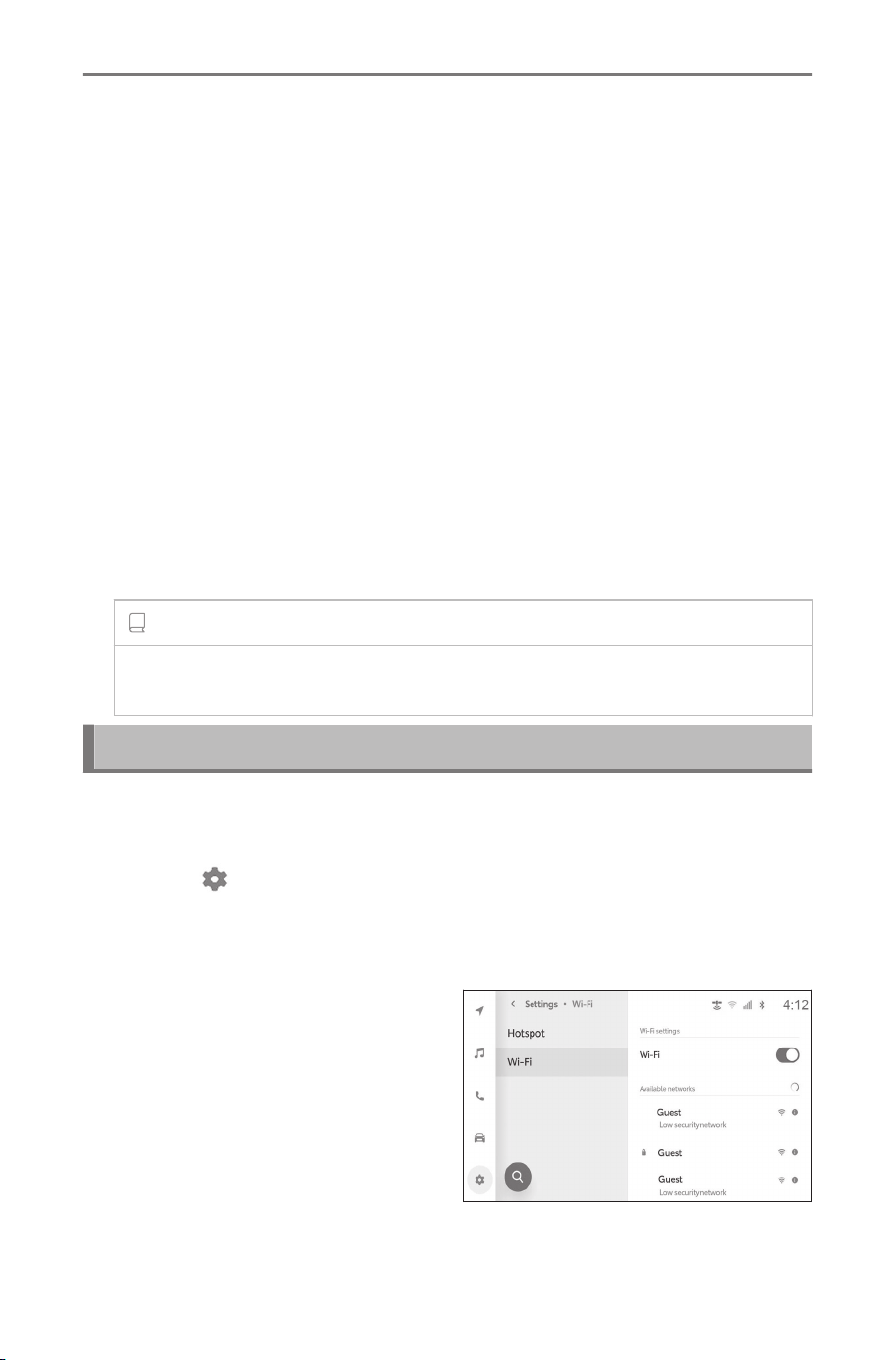
● Turning on [Wi-Fi] will display nearby networks that are available.
5 Select the name of the network that matches the name being
broadcasted by the smartphone.
● Network name may display as duplicate when more than one MAC
address shares the same network.
● A maximum of 30 networks can be displayed. The list is automatically
updated every six seconds.
● If there are devices using the same network name (Network SSID),
it cannot identify which device to use. Use different network names
(Network SSIDs) if using multiple devices.
● No selections can be made while driving.
6 Enter the corresponding password for this network.
● If no password is set, the connection will be made after selecting the
network.
● If networks are detected with the automatic connection setting on,
they will be connected to automatically.
INFORMATION
The network connection history retains up to 20 items, deleting the
oldest when a new one is saved.
Establishing a Wi-Fi
®
connection to an available network
Connect to the Internet from a nearby network using Wi-Fi
®
.
Confirm the password of the network to be used in advance.
1
Touch [
] from the main menu.
2 Touch [Wi-Fi] from the sub menu.
3 Touch [Wi-Fi] from the sub menu.
4 Set [Wi-Fi] in the main area
to on.
● A message may be displayed
depending on the multimedia
system settings. Perform the
operation according to the
screen guidance.
● Turning on [Wi-Fi] will display
nearby networks that are availa-
ble.
3-2. Connecting to a Wi-Fi
®
network
114
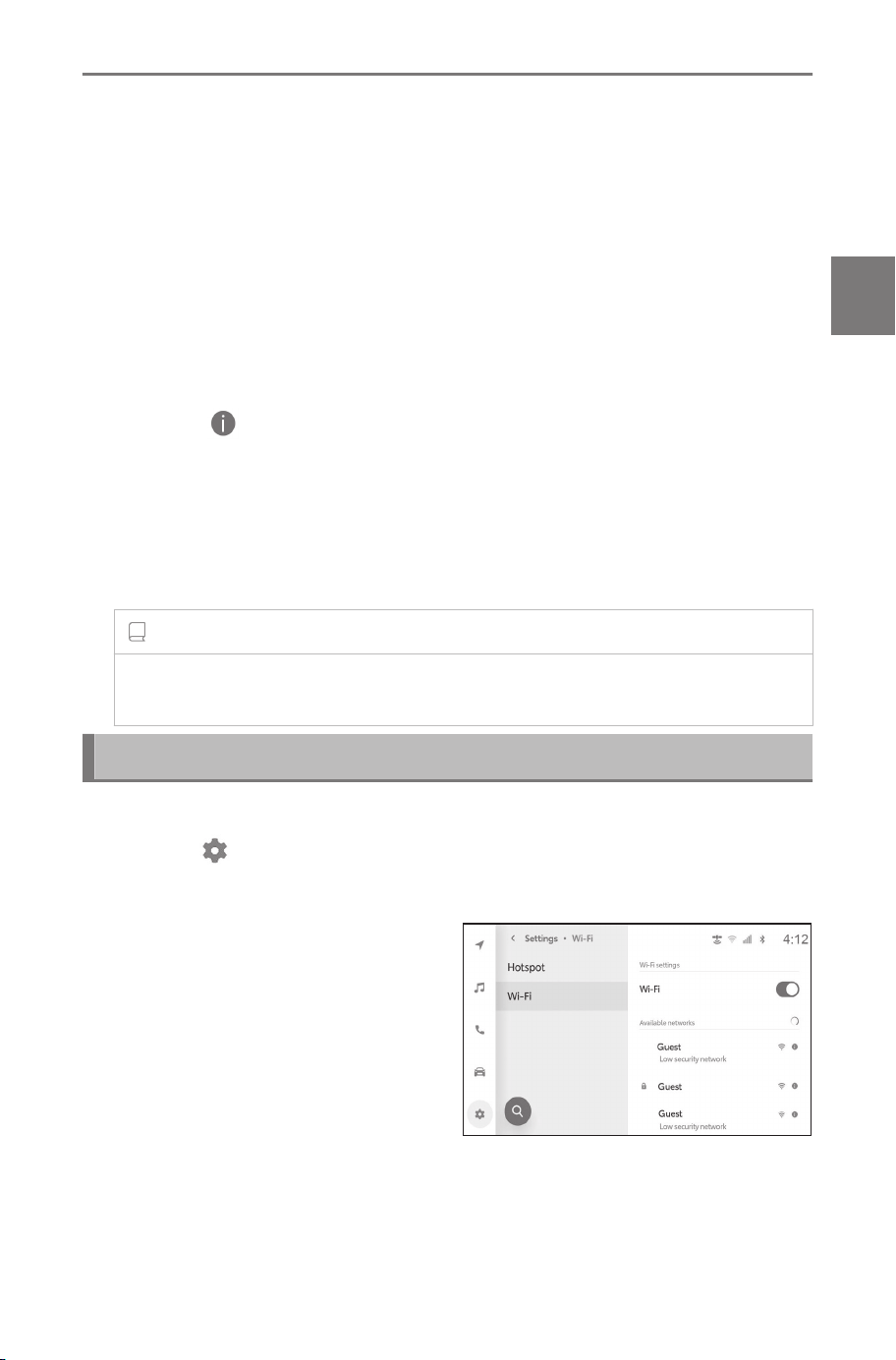
5 Touch the network to be connected to from [Available net-
works] in the main area.
● Network name may display as duplicate when more than one MAC
address shares the same network.
● A maximum of 30 networks can be displayed. The list is automatically
updated every six seconds.
● If there are devices using the same network name (Network SSID),
it cannot identify which device to use. Use different network names
(Network SSIDs) if using multiple devices.
●
No selections can be made while driving.
●
Touch [
] for the applicable network to check network details.
6 Enter the corresponding password for this network.
● If no password is set, the connection will be made after selecting the
network.
● If networks are detected with the automatic connection setting on,
they will be connected to automatically.
INFORMATION
The network connection history retains up to 20 items, deleting the
oldest when a new one is saved.
Disconnecting Wi-Fi
®
Wi-Fi
®
can be disconnected by turning off the Wi-Fi
®
function.
1 Touch [
] from the main menu.
2 Touch [Wi-Fi] from the sub menu.
3 Touch [Wi-Fi] from the sub
menu.
4 Set [Wi-Fi] in the main area
to off.
3-2. Connecting to a Wi-Fi
®
network
115
3
Connecting a smartphone or communication device
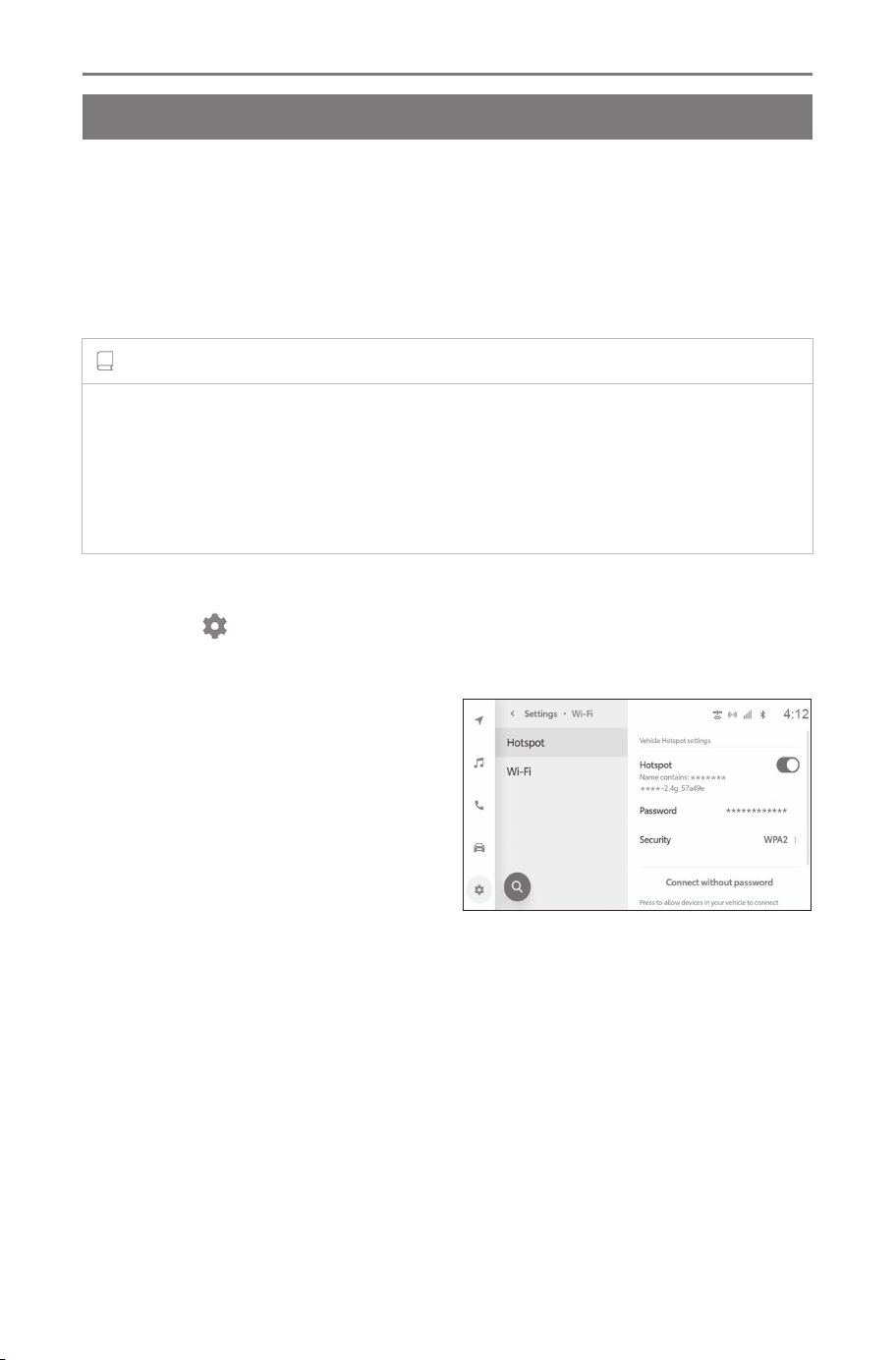
Establishing a connection to Wi-Fi
®
Hotspot
*1
The Wi-Fi
®
Hotspot function can be used to set the Wi-Fi
®
access
point and connect to a Wi-Fi
®
device.
Use of this function requires a Wi-Fi
®
Connect subscription that is
provided by Wi-Fi service provider.
Contact your SUBARU dealer for details.
INFORMATION
● This function cannot be used while the Wi-Fi
®
function is on.
● A total of 10 devices (5 using 2.4 GHz and 5 using 5.0 GHz) can
be connected. Recommend connecting up to 5 devices at a time for
optimum performance. If connected to Apple CarPlay or Android Auto
over wireless, the limit will be 5 devices using 2.4GHz.
1 Turn on the Wi-Fi
®
function of the Wi-Fi
®
device.
2 Touch [
] from the main menu.
3 Touch [Wi-Fi] from the sub menu.
4 Touch [Hotspot] from the sub
menu.
5 Turn on [Hotspot] in the main
area.
A message may be displayed de-
pending on the multimedia system
settings. Perform the operation ac-
cording to the screen guidance.
6
Connect to Wi-Fi
®
Hotspot of the multimedia system from
the Wi-Fi
®
device.
● Refer to the Wi-Fi
®
device’s instruction manual on how to connect
using the Wi-Fi
®
device.
● The network name will be displayed under the Hotspot in the main
area.
● The network password will be displayed in the main area. If the pass-
word is long, some of the characters may be omitted from the display.
Touch the screen to check on the password edit screen.
*1 : This function is not available in some regions.
3-2. Connecting to a Wi-Fi
®
network
116
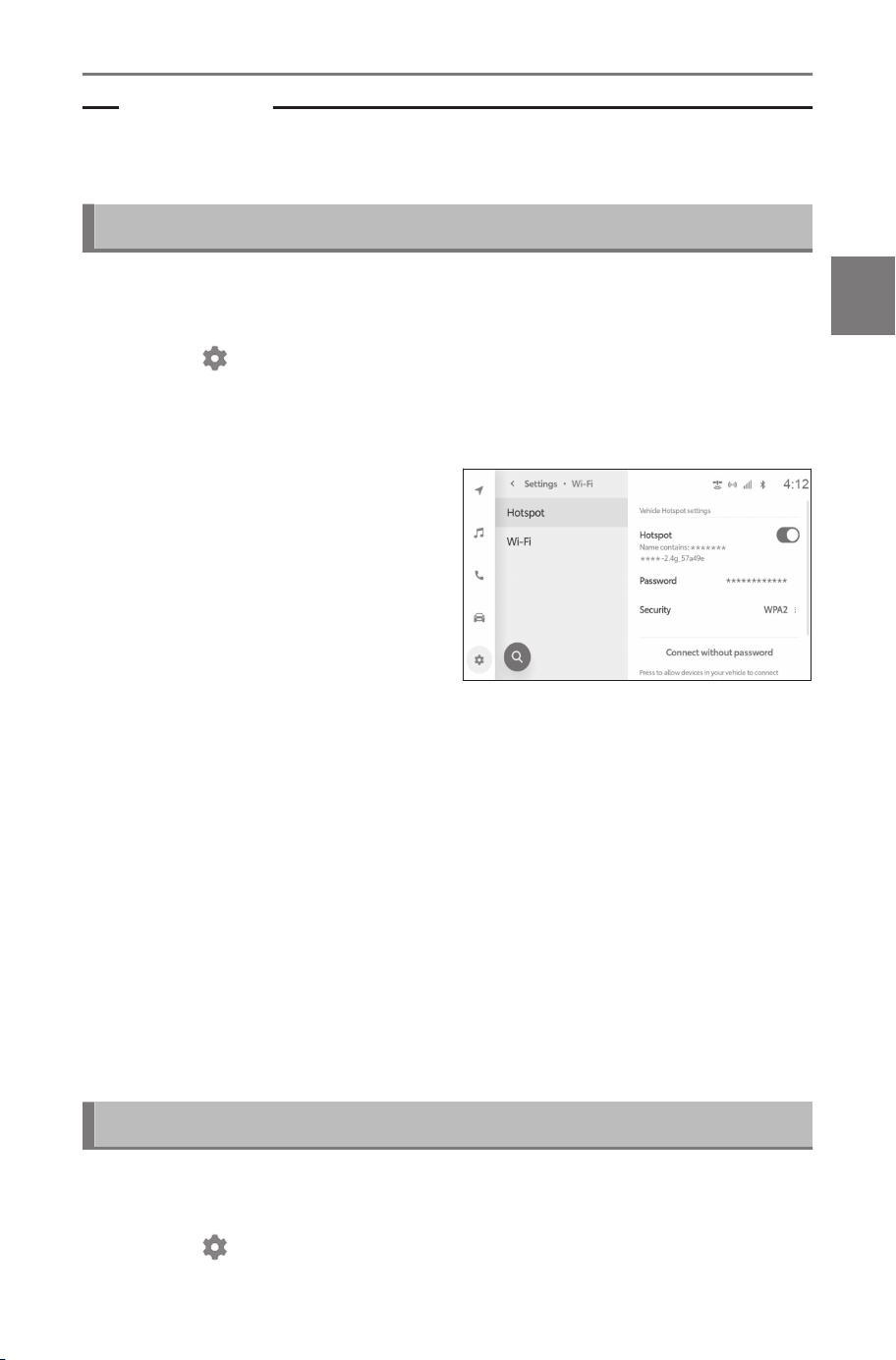
Related Links
Setting Wi-Fi
®
Hotspot(P. 88)
Functional overview(P. 220)
Connecting to Wi-Fi
®
Hotspot using easy setup
If the Wi-Fi
®
device is compatible with Wi-Fi Protected Setup™,
connecting a device is even easier
1 Touch [
] from the main menu.
2 Touch [Wi-Fi] from the sub menu.
3 Touch [Hotspot] from the sub menu.
4 Turn on [Hotspot] in the main
area.
A message may be displayed de-
pending on the multimedia system
settings. Perform the operation ac-
cording to the screen guidance.
5 Touch [Connect without password] from the main area.
The multimedia system will begin accepting connections with easy set-
up.
● No selections can be made while driving.
● This feature is for WPS supported devices only.
● This cannot be selected when the maximum number of devices are
already connected.
6
Operate the Wi-Fi
®
device to establish a connection.
● Refer to the Wi-Fi
®
device’s instruction manual on how to connect
using the Wi-Fi
®
device.
● A connection failed message will be displayed if the acceptance time
is exceeded.
Disconnecting Wi-Fi
®
Hotspot
Wi-Fi
®
Hotspot can be disconnected by turning off the Wi-Fi
®
func-
tion.
1
Touch [
] from the main menu.
3-2. Connecting to a Wi-Fi
®
network
117
3
Connecting a smartphone or communication device
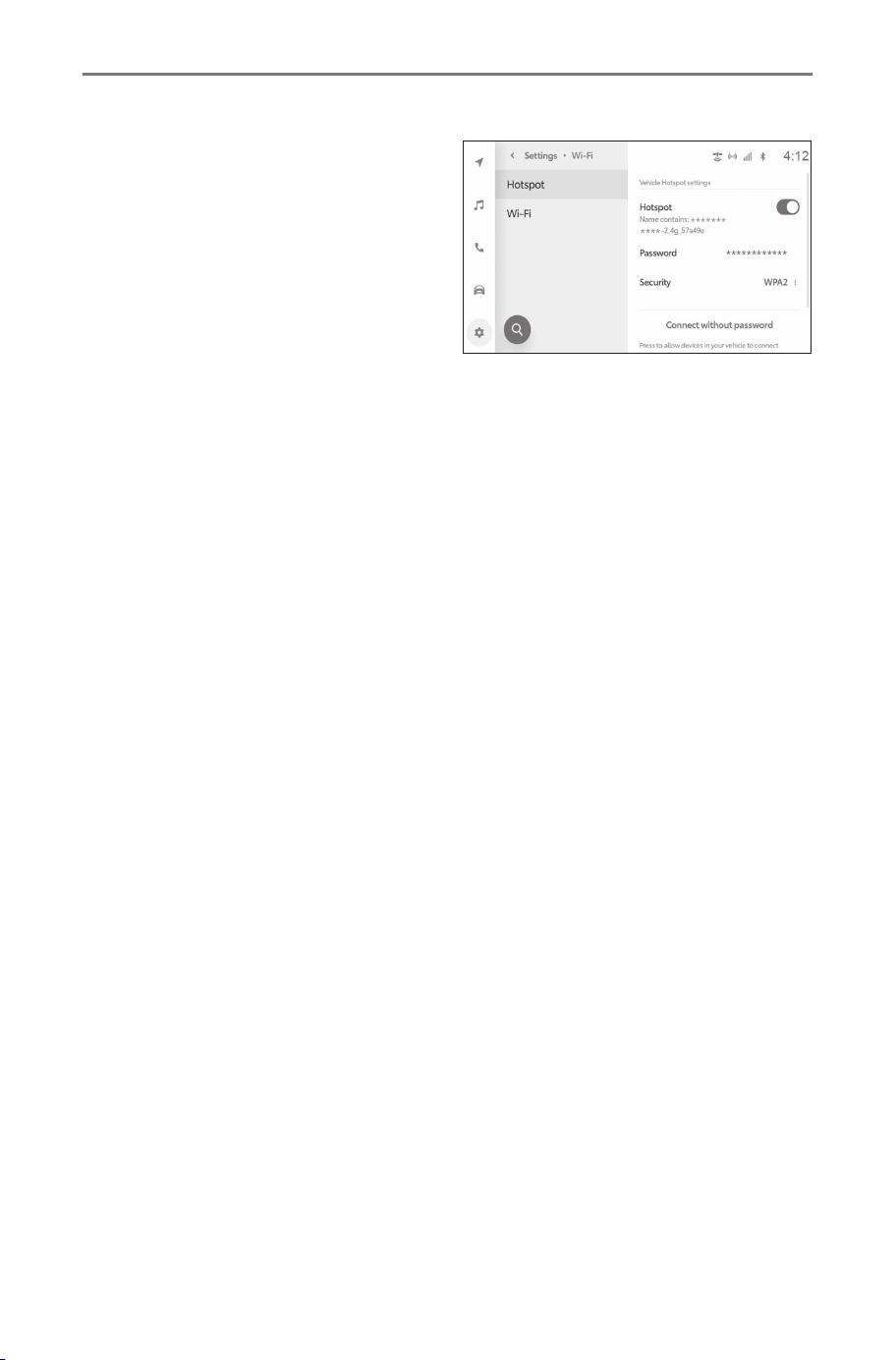
2 Touch [Wi-Fi] from the sub menu.
3 Touch [Hotspot] from the sub
menu.
4 Turn off [Hotspot] in the main
area.
3-2. Connecting to a Wi-Fi
®
network
118
Using Apple CarPlay and Android Auto
Precautions when using Apple CarPlay and Android Auto
Apple CarPlay and Android Auto allow for some applications (such
as map, phone, and music applications) to be used by the multime-
dia system. While connected to Apple CarPlay or Android Auto, sup-
ported applications will display. Pay special attention to the following
information when using Apple CarPlay or Android Auto.
To use Android Auto in your car, install the Android Auto app from
Google's Play Store.
■ Compatible devices
● Apple iPhone devices that supports Apple CarPlay. (iOS Ver. 13.3
or later)
For details, refer to https://www.apple.com/ios/carplay/.
*1
● Android devices that supports Android Auto.
For details, refer to https://www.android.com/auto/.
*1
WARNING
For safety reasons, drivers should not operate the smartphone itself while
driving.
NOTICE
● Do not leave the smartphone inside the vehicle. The inside of the vehi-
cle can become hot, which could cause the smartphone to malfunction.
● Do not push down on or subject the smartphone to unnecessary pres-
sure while it is connected. The smartphone or port may be damaged.
● Keep the USB Type-C port free of foreign matter. The smartphone or
port may be damaged.
INFORMATION
● For USB connections, use a data USB Type-C cable provided by the
phone manufacturer.
● Some system button functions will change while connected to Apple
CarPlay or Android Auto.
● When connected via Apple CarPlay/Android Auto, some related func-
tions like Bluetooth
®
audio and phone will be managed by Apple Car-
Play/Android Auto.
*1 : Operation is not guaranteed.
3-3. Using Apple CarPlay and Android Auto
119
3
Connecting a smartphone or communication device

● The guidance volume can be changed in the [Sound & Media]
settings. The volume adjustment of the audio system can also be
changed.
● While Apple CarPlay or Android Auto of a device is connected, Apple
CarPlay or Android Auto of a different device cannot be used.
● Apple CarPlay/Android Auto is an application developed by Apple Inc/
Google LLC. Its functions and services may be terminated or changed
without notice depending on the connected device’s operation system,
hardware and software, or due to changes in Apple CarPlay/Android
Auto specifications.
● For applications that support Apple CarPlay or Android Auto, refer to
the respective website.
● While using Apple CarPlay or Android Auto, vehicle and user informa-
tion such as the location and vehicle speed will be shared with the
application publisher and cellular phone service provider.
● Downloading and using an application signifies your consent with its
terms of use.
● Data is sent over the Internet and may result in charges being incurred.
For information on data rates, contact the cellular phone service provid-
er.
● Some functions including music playback may be restricted, depending
on the application.
● Each function is an application provided by its respective company, and
may be changed or suspended without prior notice. For details, refer to
the website for the respective function.
● If the vehicle's navigation system is being used during route guidance
and a new route is set using the Apple CarPlay or Android Auto map
app, route guidance using the vehicle's navigation system will stop. If
the Apple CarPlay or Android Auto map app is being used during route
guidance and a new route is set using the vehicle’s navigation system,
route guidance using the Apple CarPlay or Android Auto map app will
stop.
● Devices connected via Apple CarPlay cannot use Bluetooth
®
functions.
● Devices connected via Android Auto cannot use Bluetooth
®
functions
other than hands-free calling.
● If the USB Type-C cable is unplugged while connected via USB, Apple
CarPlay or Android Auto will stop operating. Audio output will stop and
the screen will switch to the multimedia system screen.
3-3. Using Apple CarPlay and Android Auto
120

● Even if Android Auto is disconnected, the hands-free phone system
can be used because the phone will still be connected.
Related Links
Changing sound and media settings(P. 66)
Audio system ON/OFF and volume adjustment(P. 31)
Precautions for playback of iPod/iPhone(P. 171)
Precautions for playback of Apple CarPlay(P. 174)
Precautions for playback of Android Auto(P. 177)
Precautions when using Bluetooth
®
devices(P. 96)
Precautions when using Wi-Fi
®
devices(P. 111)
Precautions for Bluetooth
®
audio playback(P. 181)
3-3. Using Apple CarPlay and Android Auto
121
3
Connecting a smartphone or communication device
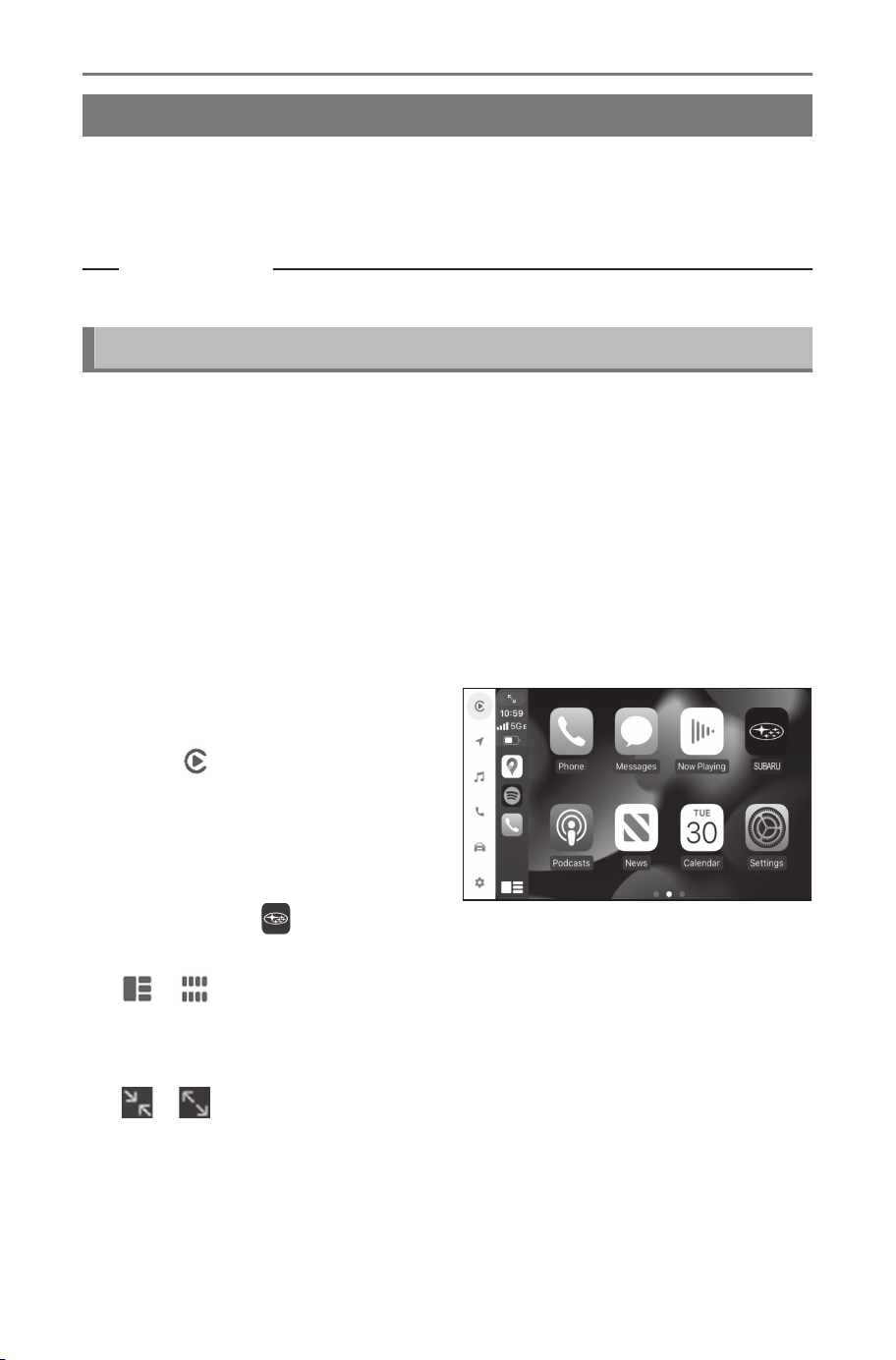
Using Apple CarPlay with an unregistered smartphone
Apple CarPlay can be used by connecting an unregistered smart-
phone to the multimedia system. The procedure is different for regis-
tered smartphones.
Related Links
Using Apple CarPlay with a registered smartphone(P. 125)
Using Apple CarPlay with a USB connection
Apple CarPlay can be used by connecting a smartphone to the
multimedia system using a data USB Type-C cable.
1 Enable Siri from your smartphone's settings menu.
2 Connect the smartphone to the USB Type-C port.
The Apple CarPlay home screen is displayed.
● It may take around three to six seconds to return to the original
screen, depending on the smartphone being connected.
● If guidance is displayed on the smartphone screen, follow those oper-
ation instructions.
3 Operate Apple CarPlay.
To go to the Apple CarPlay menu,
touch [ ].
To switch between Apple CarPlay
and other features, touch the icon
on the main menu.
To use the features built in the
vehicle, touch [ ] on the Apple
CarPlay app screen.
[ ]/[ ]
Switch the screen display.
Touching and holding this will start Siri.
[ ]/[ ]
Show or hide the main menu of the multimedia system screen.
3-3. Using Apple CarPlay and Android Auto
122
INFORMATION
● While Apple CarPlay is connected, press and hold the [ ] switch
on the steering to start Siri. To cancel Siri, perform a short press of
the [ ] switch on the steering.
● While Apple CarPlay is connected, speaking the Siri wake word will
start Siri.
The wake word function of Siri can only be used when the language
is set to English. Also, the connected device must have iOS version
14.3 or later.
● If wireless connection is set to be used on the smartphone when
registered via USB connection, the device can be wirelessly con-
nected on the next attempt.
Related Links
Connecting a device via the USB Type-C port(P. 34)
Changing the voice control settings(P. 71)
Using Apple CarPlay with wireless connection
Apple CarPlay can be connected to the multimedia system wireless-
ly using vehicle's wireless connection capability.
1 Enable Siri from your smartphone's settings menu.
2
Touch [ ] from the main menu.
3 Touch [Bluetooth & Devices].
● The device search screen will be displayed if there is no smartphone
registered to the multimedia system. Proceed to Procedure 5.
4 Touch [Add another device].
5 Touch [Search for devices].
6 Select the smartphone to register.
7 Check that the displayed PIN code matches the PIN code
displayed on the smartphone, and then touch [OK].
● Perform the operation according to the guidance on the screen.
8 Touch [Yes], if add another Apple CarPlay settings are dis-
played.
The Apple CarPlay home screen is displayed.
3-3. Using Apple CarPlay and Android Auto
123
3
Connecting a smartphone or communication device
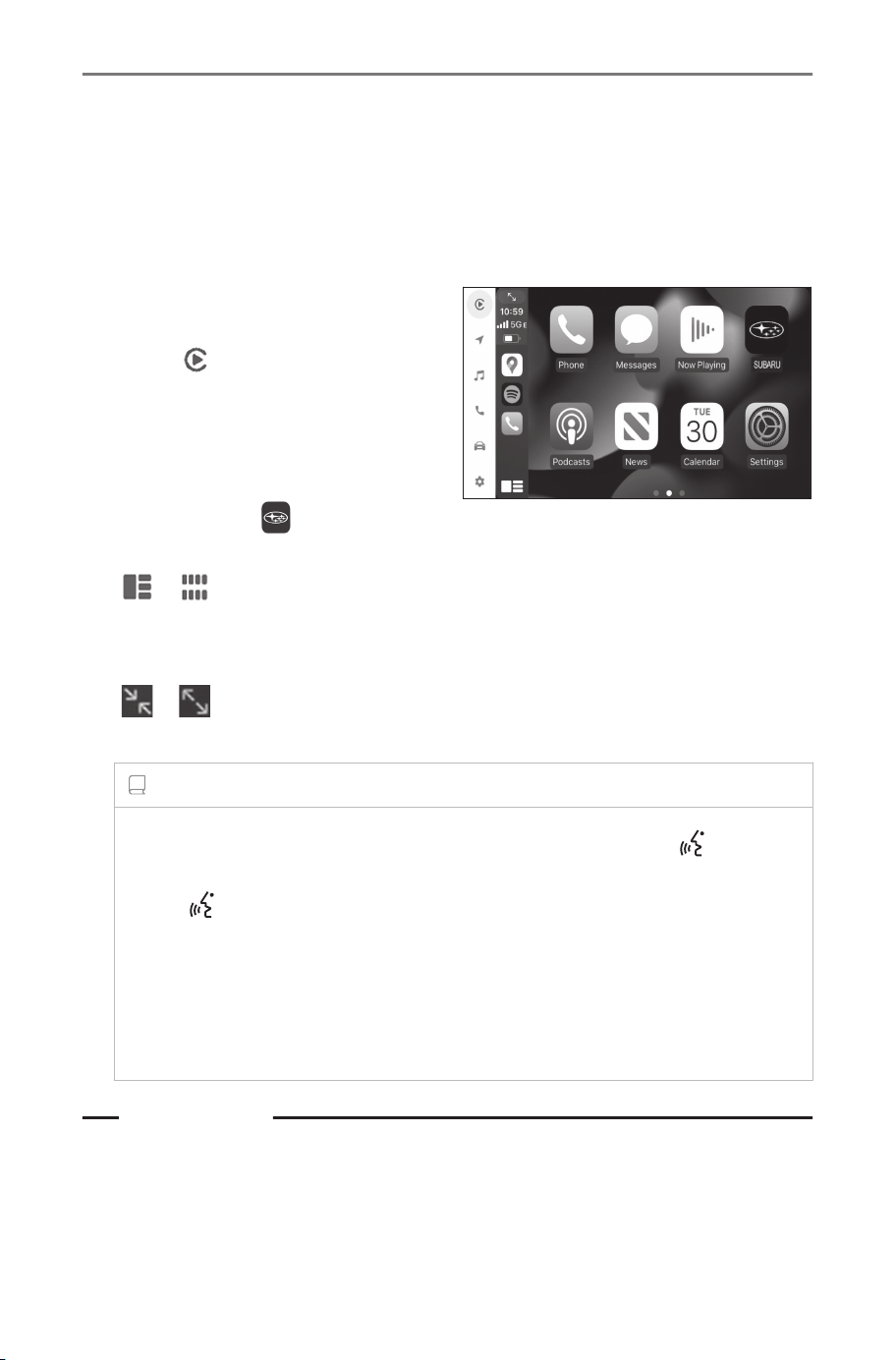
● It may take around three to six seconds to return to the original
screen, depending on the smartphone being connected.
● If an operation failed screen is displayed, follow the operation instruc-
tions on the screen.
● If guidance is displayed on the smartphone screen, follow those oper-
ation instructions.
9 Operate Apple CarPlay.
To go to the Apple CarPlay menu,
touch [
].
To switch between Apple CarPlay
and other features, touch the icon
on the main menu.
To use the features built in the
vehicle, touch [ ] on the Apple
CarPlay app screen.
[
]/[ ]
Switch the screen display.
Touching and holding this will start Siri.
[ ]/[ ]
Show or hide the main menu of the multimedia system screen.
INFORMATION
● While Apple CarPlay is connected, press and hold the [ ] switch
on the steering to start Siri. To cancel Siri, perform a short press of
the [ ] switch on the steering.
● While Apple CarPlay is connected, speaking the Siri wake word will
start Siri.
The wake word function of Siri can only be used when the language
is set to English. Also, the connected device must have iOS version
14.3 or later.
Related Links
Changing the voice control settings(P. 71)
3-3. Using Apple CarPlay and Android Auto
124
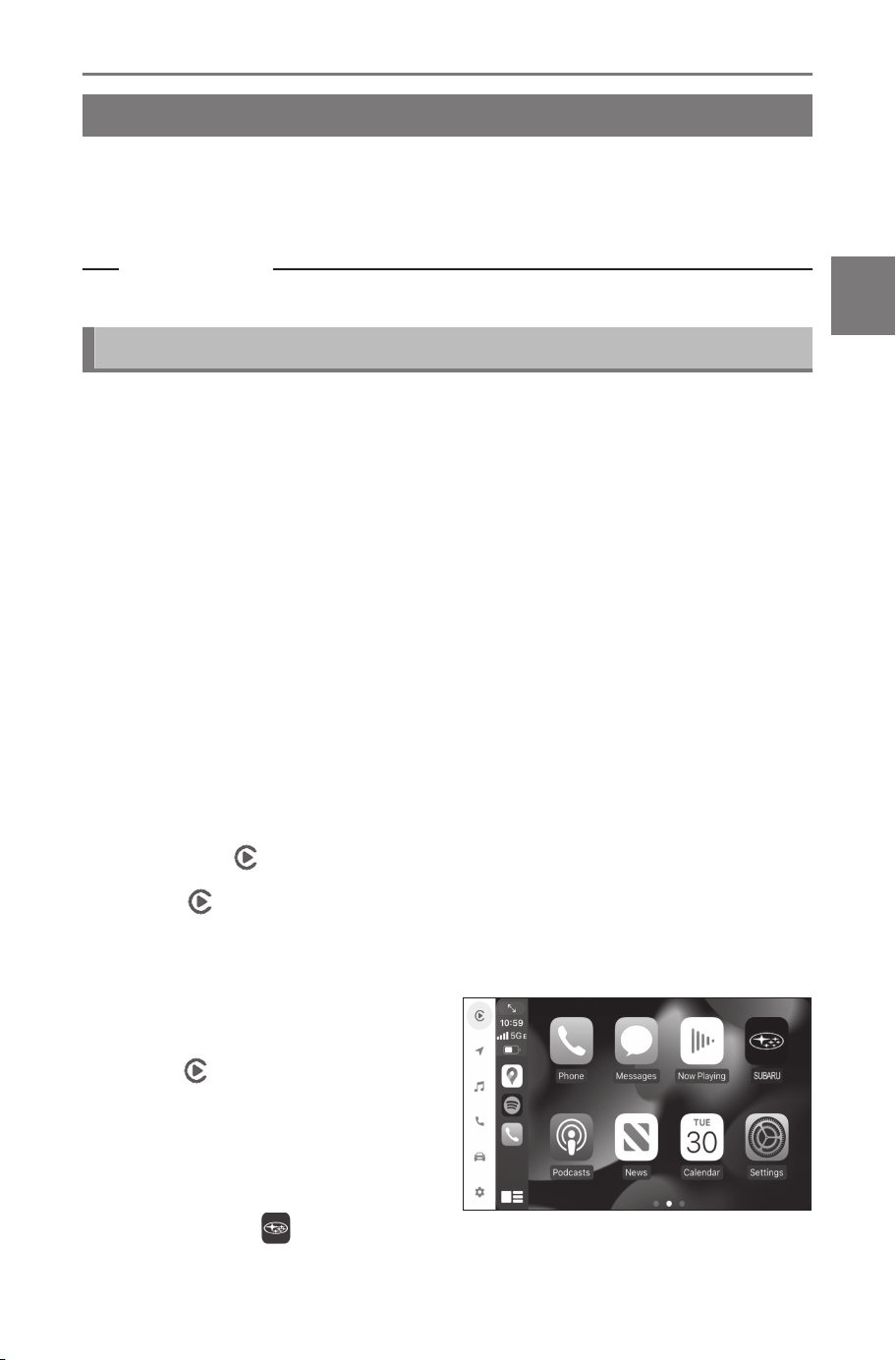
Using Apple CarPlay with a registered smartphone
Apple CarPlay can be used by connecting a registered smartphone
to the multimedia system. The procedure is different for unregistered
smartphones.
Related Links
Using Apple CarPlay with an unregistered smartphone(P. 122)
Using Apple CarPlay with a USB connection
Apple CarPlay can be used by connecting a smartphone to the
multimedia system using a data USB Type-C cable.
● Check that your cellular phone is connected to multimedia system.
1 Enable Siri from your smartphone's settings menu.
2 Connect the smartphone to the USB Type-C port.
The Apple CarPlay home screen is displayed.
● It may take around three to six seconds to return to the original
screen, depending on the smartphone being connected.
● If an operation failed screen is displayed, follow the operation instruc-
tions on the screen.
● If guidance is displayed on the smartphone screen, follow those oper-
ation instructions.
● If the Apple CarPlay home screen is not displayed, check the follow-
ing.
• Touch [
] from the main menu.
• If [ ] of the main menu is not displayed, select the smartphone to
use with Apple CarPlay and set [Use for Apple CarPlay] to ON.
• Perform the operation according to the guidance on the screen.
3 Operate Apple CarPlay.
To go to the Apple CarPlay menu,
touch [
].
To switch between Apple CarPlay
and other features, touch the icon
on the main menu.
To use the features built in the
vehicle, touch [ ] on the Apple
CarPlay app screen.
3-3. Using Apple CarPlay and Android Auto
125
3
Connecting a smartphone or communication device
[ ]/[ ]
Switch the screen display.
Touching and holding this will start Siri.
[
]/[ ]
Show or hide the main menu of the multimedia system screen.
INFORMATION
● While Apple CarPlay is connected, press and hold the [ ] switch
on the steering to start Siri. To cancel Siri, perform a short press of
the [ ] switch on the steering.
● While Apple CarPlay is connected, speaking the Siri wake word will
start Siri.
The wake word function of Siri can only be used when the language
is set to English. Also, the connected device must have iOS version
14.3 or later.
Related Links
Connecting a device via the USB Type-C port(P. 34)
Changing the voice control settings(P. 71)
Setting Bluetooth
®
devices(P. 90)
Using Apple CarPlay with wireless connection
Apple CarPlay can be connected to the multimedia system wireless-
ly using vehicle's wireless connection capability.
● Check that your smartphone is connected to multimedia system.
1 Enable Siri from your smartphone's settings menu.
2 Touch [
] from the main menu.
3 Touch [Bluetooth & Devices].
4 Select the smartphone to use with Apple CarPlay and set
[Use for Apple CarPlay] to ON.
The Apple CarPlay home screen is displayed.
● It may take around three to six seconds to return to the original
screen, depending on the smartphone being connected.
● If an operation failed screen is displayed, follow the operation instruc-
tions on the screen.
3-3. Using Apple CarPlay and Android Auto
126
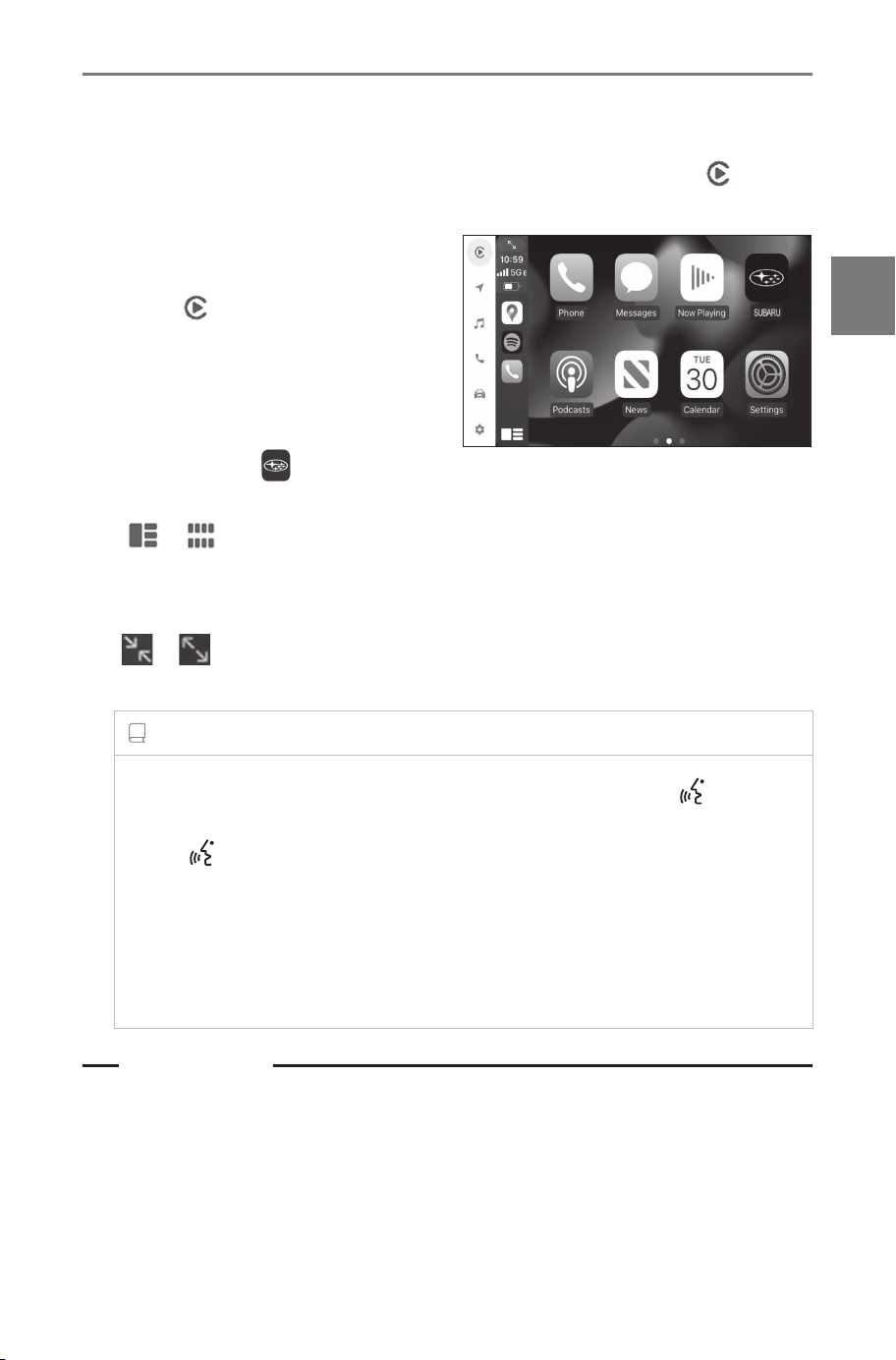
● If guidance is displayed on the smartphone screen, follow those oper-
ation instructions.
● If the Apple CarPlay home screen is not displayed, Touch [ ] from
the main menu.
5 Operate Apple CarPlay.
To go to the Apple CarPlay menu,
touch [
].
To switch between Apple CarPlay
and other features, touch the icon
on the main menu.
To use the features built in the
vehicle, touch [ ] on the Apple
CarPlay app screen.
[
]/[ ]
Switch the screen display.
Touching and holding this will start Siri.
[ ]/[ ]
Show or hide the main menu of the multimedia system screen.
INFORMATION
● While Apple CarPlay is connected, press and hold the [ ] switch
on the steering to start Siri. To cancel Siri, perform a short press of
the [ ] switch on the steering.
● While Apple CarPlay is connected, speaking the Siri wake word will
start Siri.
The wake word function of Siri can only be used when the language
is set to English. Also, the connected device must have iOS version
14.3 or later.
Related Links
Changing the voice control settings(P. 71)
Setting Bluetooth
®
devices(P. 90)
3-3. Using Apple CarPlay and Android Auto
127
3
Connecting a smartphone or communication device
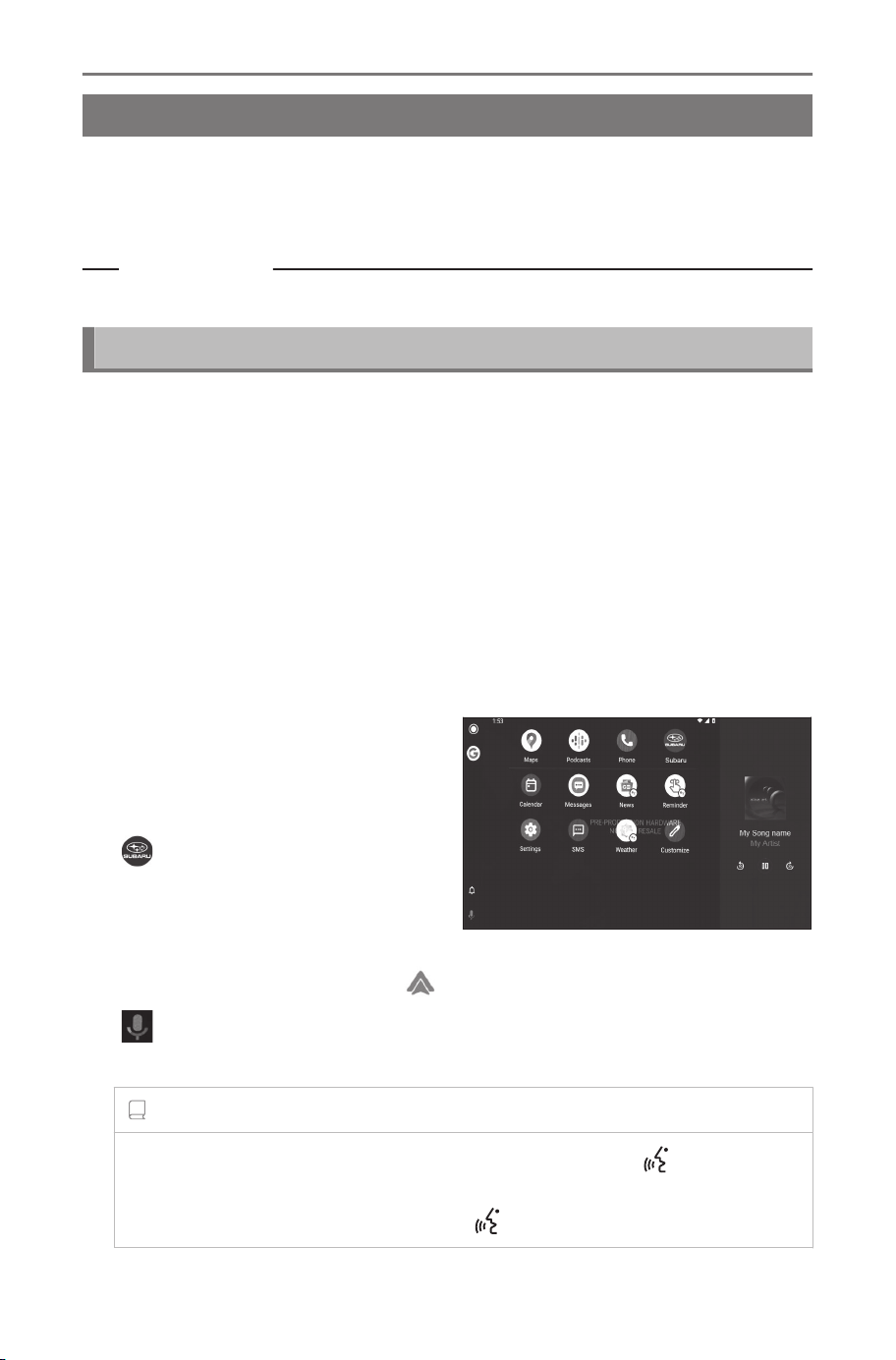
Using Android Auto with an unregistered smartphone
Android Auto can be used by connecting an unregistered smart-
phone to the multimedia system. The procedure is different for regis-
tered smartphones.
Related Links
Using Android Auto with a registered smartphone(P. 131)
Using Android Auto with a USB connection
Android Auto can be used by connecting a smartphone to the multi-
media system using a data USB Type-C cable.
1 Confirm that the Android Auto application is installed on the
smartphone to connect.
2 Connect the smartphone to the USB Type-C port.
The Android Auto home screen is displayed.
● It may take around three to six seconds to return to the original
screen, depending on the smartphone being connected.
●
If guidance is displayed on the smartphone screen, follow those oper-
ation instructions.
3 Operate Android Auto.
Applications that support Android
Auto can be used by touching the
application.
[ ]
Displays the multimedia system
screen.
To display the Android Auto
home screen again, touch [ ] from the main menu.
[ ]
Start Google Assistant™.
INFORMATION
While Android Auto is connected, press and hold the [ ] switch
on the steering to start Google Assistant™. To cancel Google Assis-
tant™, perform a short press of the [ ] switch on the steering.
3-3. Using Apple CarPlay and Android Auto
128
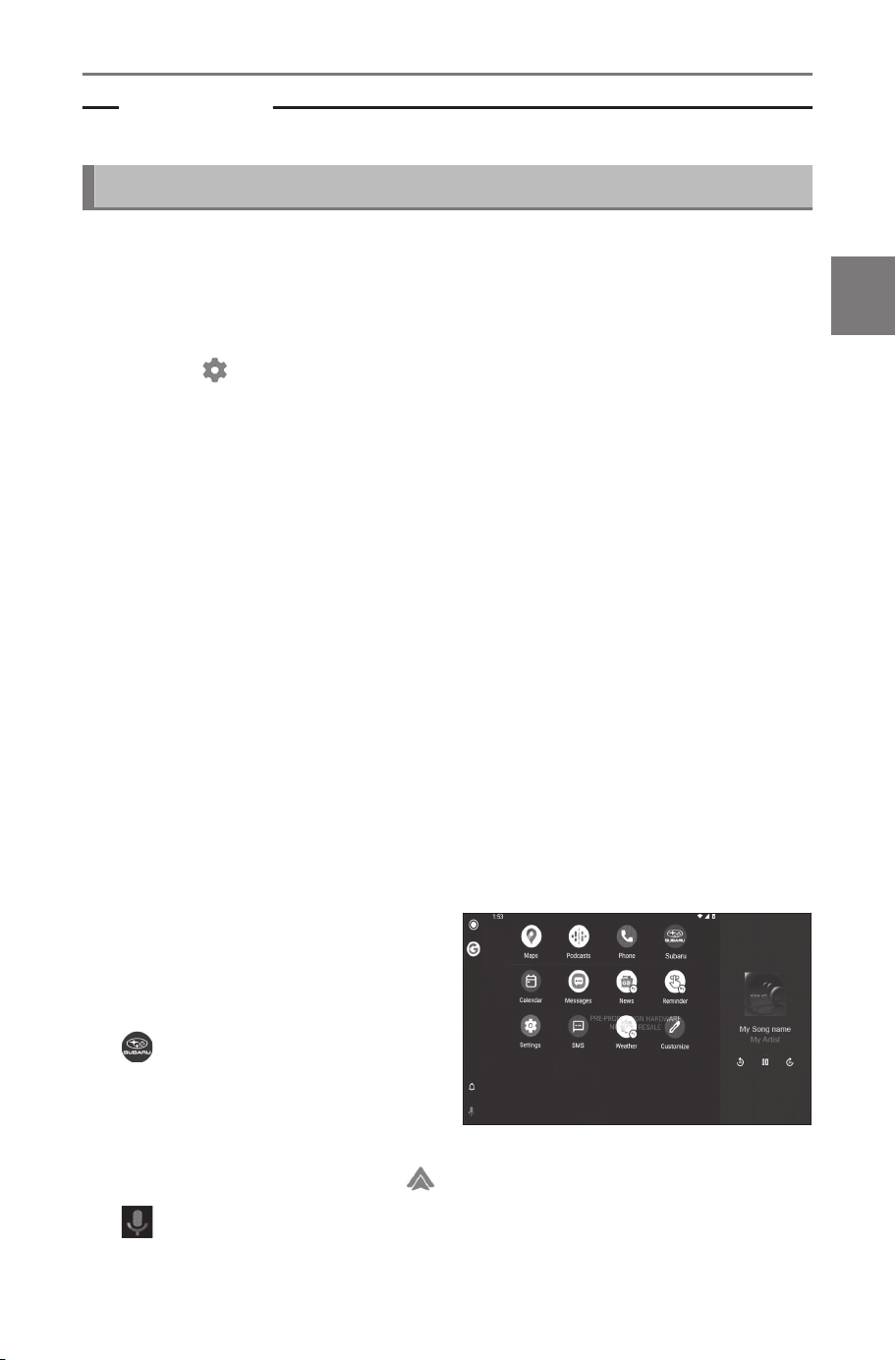
Related Links
Connecting a device via the USB Type-C port(P. 34)
Using Android Auto with wireless connection
Android Auto can be connected to the multimedia system wirelessly
using vehicle's wireless connection capability.
1 Confirm that the Android Auto application is installed on the
smartphone to connect.
2 Touch [
] from the main menu.
3 Touch [Bluetooth & Devices].
The device search screen will be displayed if there is no smartphone
registered to the multimedia system. Proceed to Procedure 5.
4 Touch [Add another device].
5 Touch [Search for devices].
6 Select the smartphone to register.
7 Check that the displayed PIN code matches the PIN code
displayed on the smartphone, and then touch [OK].
● Perform the operation according to the guidance on the screen.
8 If Android Auto settings are displayed, touch [Yes].
The Android Auto home screen is displayed.
● It may take around three to six seconds to return to the original
screen, depending on the smartphone being connected.
● If an operation failed screen is displayed, follow the operation instruc-
tions on the screen.
9 Operate Android Auto.
Applications that support Android
Auto can be used by touching the
application.
[ ]
Displays the multimedia system
screen.
To display the Android Auto
home screen again, touch [ ] from the main menu.
[ ]
Start Google Assistant™.
3-3. Using Apple CarPlay and Android Auto
129
3
Connecting a smartphone or communication device

INFORMATION
While Android Auto is connected, press and hold the [ ] switch
on the steering to start Google Assistant™. To cancel Google Assis-
tant™, perform a short press of the [ ] switch on the steering.
3-3. Using Apple CarPlay and Android Auto
130
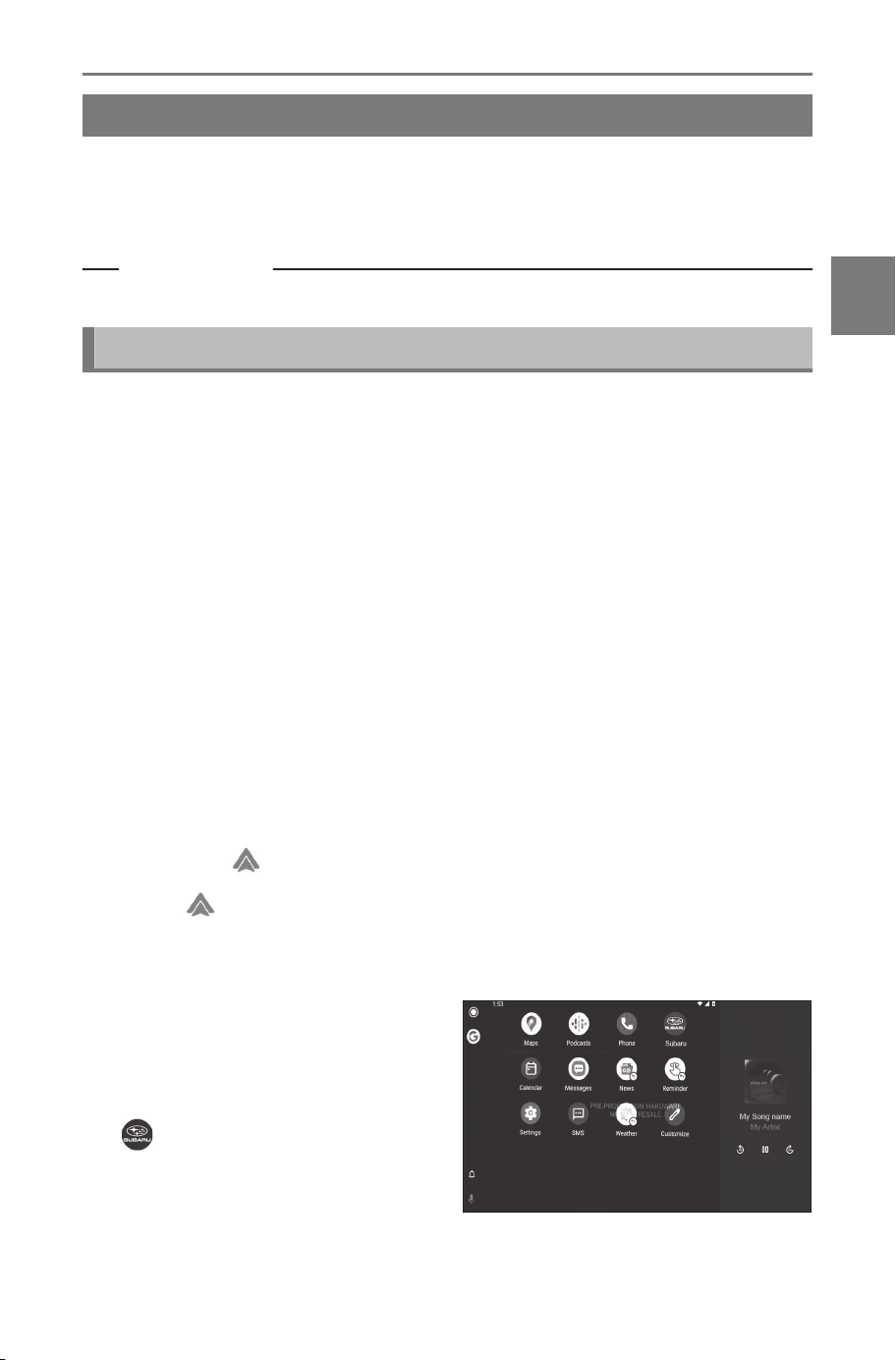
Using Android Auto with a registered smartphone
Android Auto can be used by connecting a registered smartphone
to the multimedia system. The procedure is different for unregistered
smartphones.
Related Links
Using Android Auto with an unregistered smartphone(P. 128)
Using Android Auto with a USB connection
Android Auto can be used by connecting a smartphone to the multi-
media system using a data USB Type-C cable.
● Check that your smartphone is connected to multimedia system.
1 Confirm that the Android Auto application is installed on the
smartphone to connect.
2 Connect the smartphone to the USB Type-C port.
The Android Auto home screen is displayed.
● It may take around three to six seconds to return to the original
screen, depending on the smartphone being connected.
● If an operation failed screen is displayed, follow the operation instruc-
tions on the screen.
● If guidance is displayed on the smartphone screen, follow those oper-
ation instructions.
● If the Android Auto home screen is not displayed, check the following.
• Touch [
] from the main menu.
• If [
] of the main menu is not displayed, select the smartphone to
use with Android Auto and set [Use for Android Auto] to ON.
• Perform the operation according to the guidance on the screen.
3 Operate Android Auto.
Applications that support Android
Auto can be used by touching the
application.
[ ]
Displays the multimedia system
screen.
3-3. Using Apple CarPlay and Android Auto
131
3
Connecting a smartphone or communication device
To display the Android Auto home screen again, touch [ ] from the
main menu.
[ ]
Start Google Assistant™.
INFORMATION
While Android Auto is connected, press and hold the [ ] switch
on the steering to start Google Assistant™. To cancel Google Assis-
tant™, perform a short press of the [ ] switch on the steering.
Related Links
Connecting a device via the USB Type-C port(P. 34)
Setting Bluetooth
®
devices(P. 90)
Using Android Auto with wireless connection
Android Auto can be connected to the multimedia system wirelessly
using vehicle's wireless connection capability.
● Check that your smartphone is connected to multimedia system.
1 Confirm that the Android Auto application is installed on the
smartphone to connect.
2
Touch [ ] from the main menu.
3 Touch [Bluetooth & Devices].
4 Select the smartphone to use with Android Auto and set
[Use for Android Auto] to ON.
The Android Auto home screen is displayed.
● It may take around three to six seconds to return to the original
screen, depending on the smartphone being connected.
● If an operation failed screen is displayed, follow the operation instruc-
tions on the screen.
● If guidance is displayed on the smartphone screen, follow those oper-
ation instructions.
● If the Android Auto home screen is not displayed, touch [ ] from
the main menu.
3-3. Using Apple CarPlay and Android Auto
132
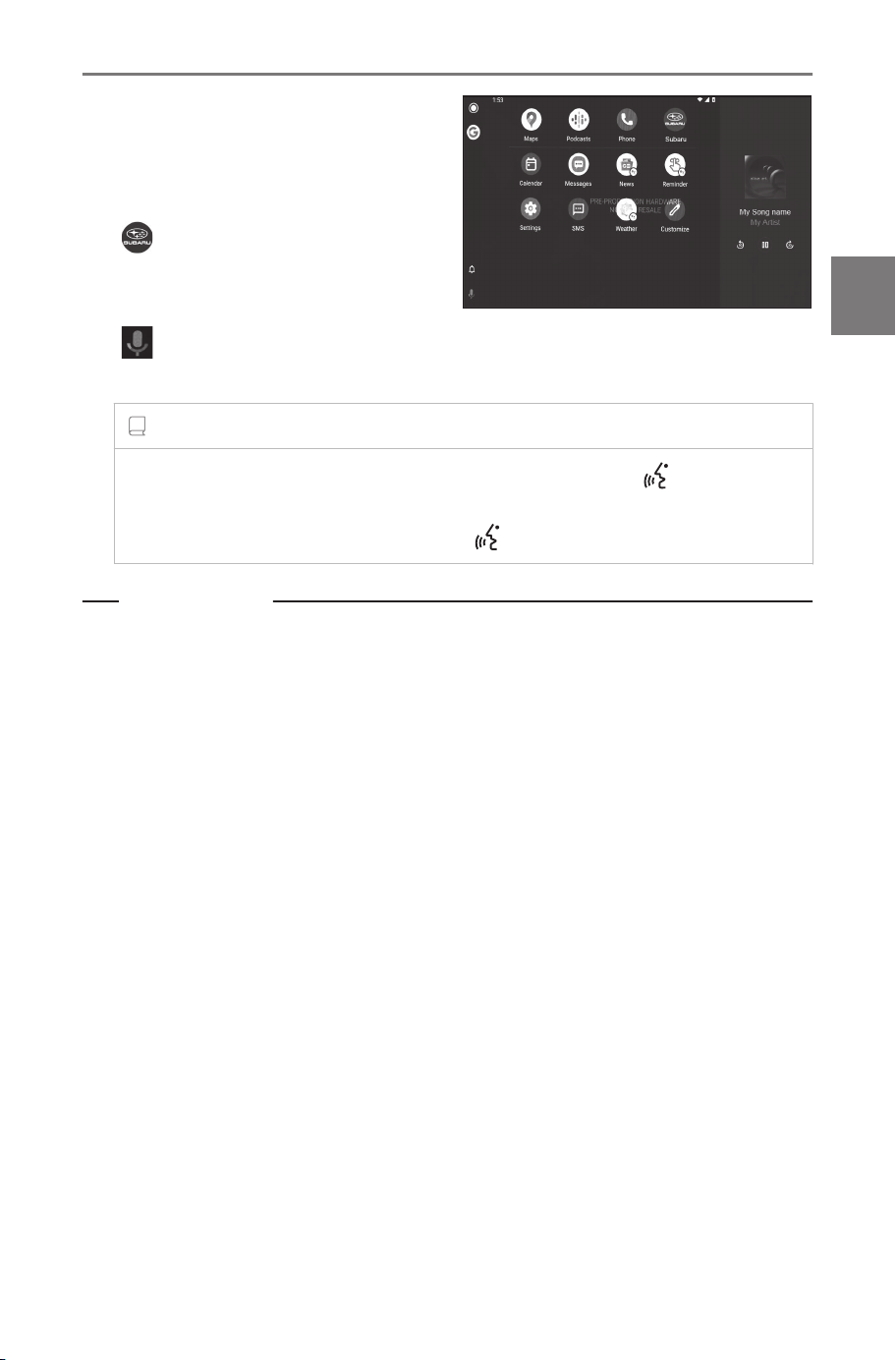
5 Operate Android Auto.
Applications that support Android
Auto can be used by touching the
application.
[ ]
Displays the multimedia system
screen.
[ ]
Start Google Assistant™.
INFORMATION
While Android Auto is connected, press and hold the [ ] switch
on the steering to start Google Assistant™. To cancel Google Assis-
tant™, perform a short press of the [ ] switch on the steering.
Related Links
Setting Bluetooth
®
devices(P. 90)
3-3. Using Apple CarPlay and Android Auto
133
3
Connecting a smartphone or communication device

When Apple CarPlay or Android Auto might be malfunc-
tioning
If having trouble with Apple CarPlay or Android Auto, check the
following table first.
Symptom Solution
Apple CarPlay or An-
droid Auto does not
start.
Confirm that the smartphone being connected
supports Apple CarPlay or Android Auto.
Confirm that Apple CarPlay or Android Auto is
enabled on the smartphone.
Confirm that the Android Auto application is in-
stalled on the smartphone being connected.
For details, refer to the following URL.
● Apple CarPlay: https://www.apple.com/ios/
carplay/
● Android Auto: https://www.android.com/auto/
Confirm that the Apple CarPlay or Android Auto
function on the registered smartphone is turned
on in the multimedia system.
If connecting with a USB Type-C cable, confirm
that the USB Type-C cable is securely connect-
ed to the smartphone and the USB Type-C
port. Connect the smartphone directly to the
USB Type-C port. Do not use a USB hub.
Make sure the correct USB Type-C port is used
to connect Apple CarPlay and Android Auto.
USB Type-C port used exclusively for charging
cannot be used for smartphone apps. Wireless
charger used for wireless charging will not start
wireless Apple CarPlay or wireless Android Au-
to connection.
For a wireless connection, check the following
items.
● Confirm that the smartphone can be connect-
ed via Bluetooth
®
to the multimedia system.
● Confirm that the smartphone is set to be able
to use Wi-Fi
®
.
3-3. Using Apple CarPlay and Android Auto
134

Symptom Solution
Apple CarPlay or An-
droid Auto does not
start.
For Apple CarPlay: Confirm that the Lightning
cable being used is Apple-certified.
Confirm that Siri is enabled.
The smartphone linking function cannot be
used with a charging-only USB Type-C cable.
Use a cable capable of transferring data. Some
cables may not be supported.
Recommended USB Type-C cable require-
ments are listed below.
● iPhone: Use an official Apple USB Type-C
cable or a USB Type-C cable that has been
Apple MFi certified.
● Android: Use a cable that is 1.8 m or shorter,
and do not use an extension cable.
● Use a cable displaying the USB logo .
If the smartphone linking function worked previ-
ously but no longer works, replacing the USB
Type-C cable may resolve the issue.
After checking all of the above, connect Apple
CarPlay or Android Auto.
When an Apple Car-
Play/Android Auto con-
nection is established
and a video is being
played, the video is not
displayed, but audio is
output through the sys-
tem.
As the system is not designed to play video
through Apple CarPlay/Android Auto, this is not
a malfunction.
Audio is not outputted.
The volume of the multimedia system may be
muted or set too low. Increase the volume on
the multimedia system.
Make sure Apple supported apps are used for
Apple CarPlay and Google supported apps are
used for Android Auto. Playing music from web
browser will lead to no or improper audio out-
put.
3-3. Using Apple CarPlay and Android Auto
135
3
Connecting a smartphone or communication device

Symptom Solution
The screen flickers and
audio is noisy.
Check whether the USB Type-C cable connect-
ed to the multimedia system is damaged. To
check whether there is internal damage to the
USB Type-C cable, connect the smartphone to
another system such as a PC, then confirm that
charging starts and that it is recognized by the
system.
Replace the USB Type-C cable with another
cable.
The map display cannot
be enlarged or shrunk
using the Apple CarPlay
map app.
Pinch operations are not supported for the Ap-
ple CarPlay map app.
The Apple CarPlay
screen is shown in the
center and does not fill
up the whole display.
Full-screen display is supported on iOS Ver. 10
or later. Update to the latest iOS version
During Apple CarPlay
music app playback, if
an app that is not com-
patible with Apple Car-
Play
(1)
is started on
the iPhone and audio
is output and then the
volume is changed on
the multimedia system,
the audio of the incom-
patible application stops
and the system resumes
playback on the original
music application.
This operation is in accordance with the specifi-
cations of the multimedia system, and is not a
malfunction.
During audio playback
on the multimedia sys-
tem (such as FM), if in-
terrupt audio is output
from an app that is not
compatible with Apple
CarPlay
(1)
, the system
does not return to the
original audio source.
This operation is in accordance with the spec-
ifications of the multimedia system, and is
not a malfunction. Manually change the audio
source. Alternatively, avoid using apps that are
not compatible with Apple CarPlay
(1)
. Some
navigation apps are compatible beginning with
iOS 12. Update iOS and apps to the latest ver-
sions.
3-3. Using Apple CarPlay and Android Auto
136

Symptom Solution
While using Apple Car-
Play, the route guidance
arrow and turn-by-turn
navigation are not dis-
played on the multi-infor-
mation display.
This function may not be displayed depending
on the multi-information display specifications
or the map application being used.
While using Android Au-
to, the route guidance
arrow is not displayed
on the multi information
display.
While using Android Au-
to, turn-by-turn naviga-
tion is not displayed on
the multi information dis-
play or the multimedia
system screen.
This is not a malfunction as display of these
items is not possible with this function.
While using Android Au-
to, hands-free call audio
cannot be heard from
the vehicle's speakers.
End current call.
Disconnect the USB Type-C cable from the
smartphone and try using hands-free calling.
Check whether audio can be heard now.
Increase the volume on the multimedia sys-
tem and check whether hands-free call audio
can be heard. Try using another smartphone.
Check whether audio can be heard now.
The phone was connect-
ed after Android Auto
was stopped.
This operation is in accordance with the specifi-
cations of the multimedia system, and is not a
malfunction.
(1) Apps that are not compatible with Apple CarPlay are the apps installed
on an iPhone that are not displayed in the app list on the Apple Car-
Play screen.
Related Links
Setting Bluetooth
®
devices(P. 90)
Connecting a device via the USB Type-C port(P. 34)
Connecting with a Bluetooth
®
device(P. 105)
Audio system ON/OFF and volume adjustment(P. 31)
Changing sound and media settings(P. 66)
3-3. Using Apple CarPlay and Android Auto
137
3
Connecting a smartphone or communication device

Notes for operating the touch screen(P. 22)
3-3. Using Apple CarPlay and Android Auto
138

4
Navigation
4-1. Navigation
Cloud navigation ........ 140
4-2. Map information
Map options screen ... 141
Information displayed
on the map screen ... 142
4-3. Searching for a destina-
tion
Destination search
screen ...................... 143
Destination search re-
sult list screen .......... 146
POI suggestion .......... 147
Destination Assist ...... 148
4-4. Starting route guidance
Starting route guidance
................................. 150
Full route map screen 151
4-5. Route guidance screen
Route guidance screen
................................. 153
Typical voice guidance
prompts.................... 157
139
4
Navigation
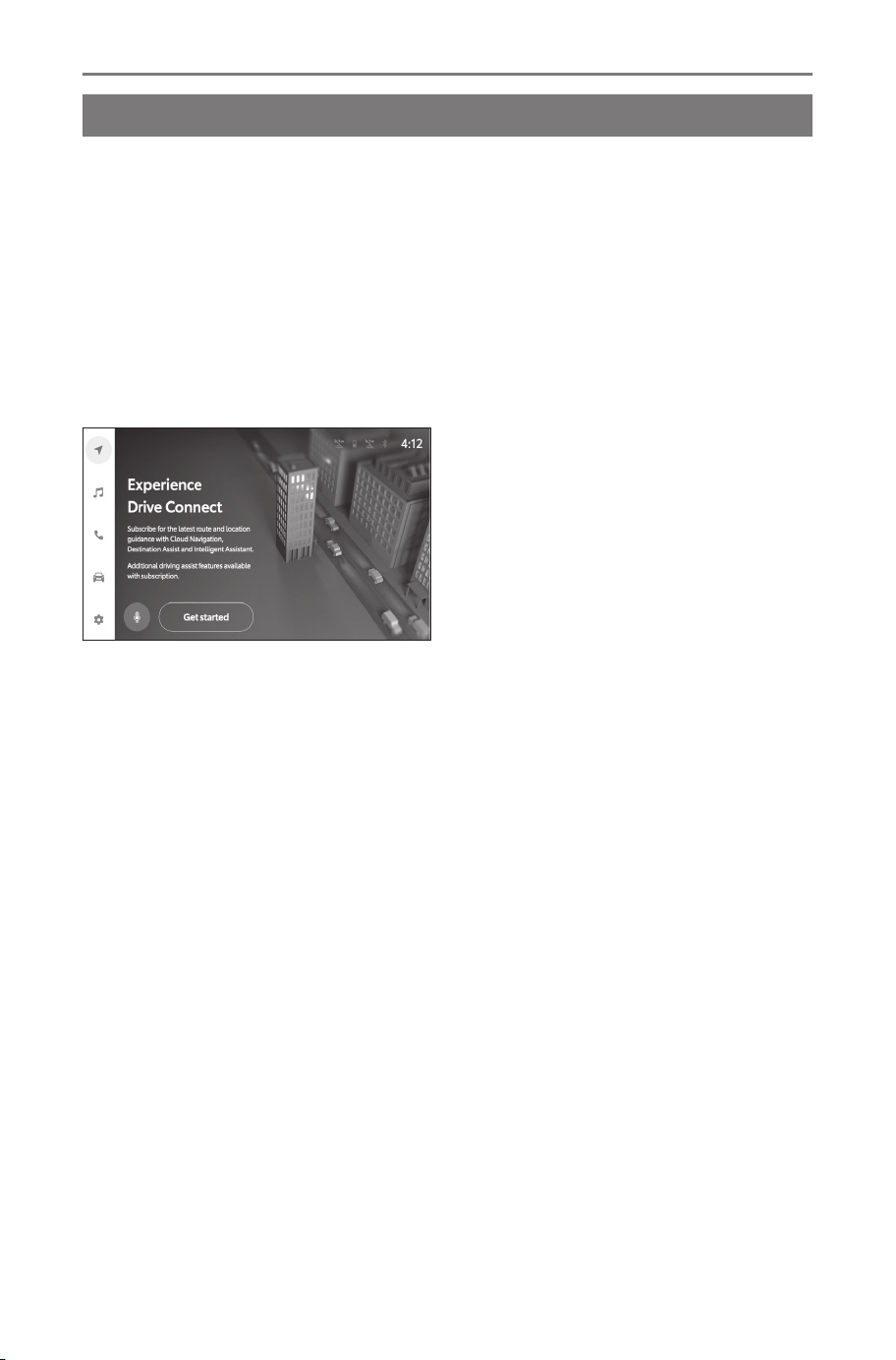
Navigation
Cloud navigation
The navigation system indicates your present position and assists
in locating a desired destination. Navigation is now a cloud enabled
service. If your vehicle has an included trial, completing the Con-
nected Services terms of use will activate the service.
The cloud navigation is a subscription service and an active sub-
scription is required to use navigation in the vehicle. If an active sub-
scription is not available or expired, the Navigation screen will have
a [Get started] button to initiate the activation of cloud navigation.
This function may not be available in some regions.
4-1. Navigation
140
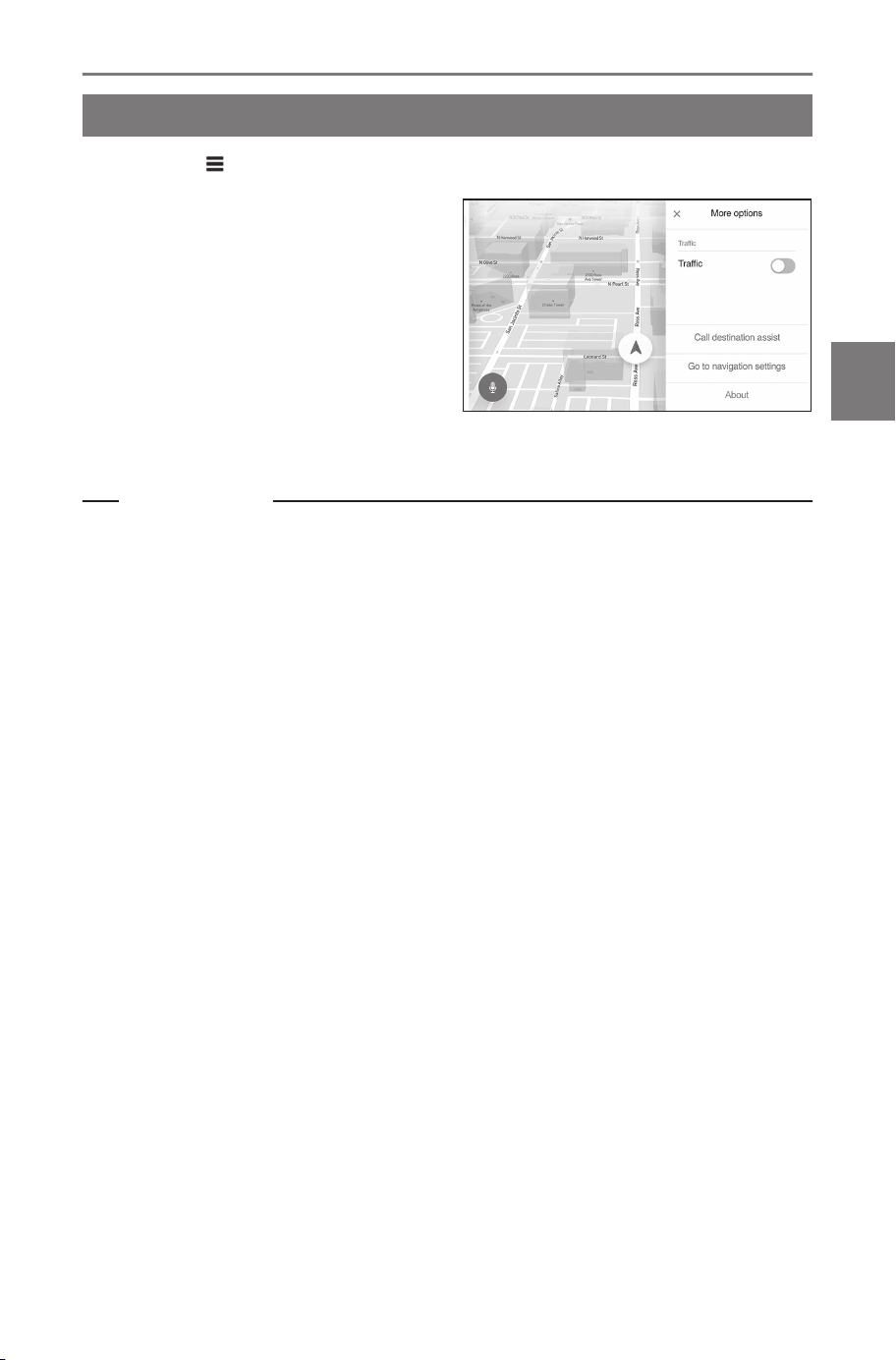
Map information
Map options screen
1 Touch [ ] on the map screen.
2 Touch the desired item.
[Traffic] : Turns the display of
traffic information on/off.
[Call destination assist] : Makes
a call to Destination Assist.
[Go to navigation set-
tings] : Displays the navigation
settings screen.
[About] : Displays the software version and license information.
Related Links
Traffic Information(P. 142)
4-2. Map information
141
4
Navigation
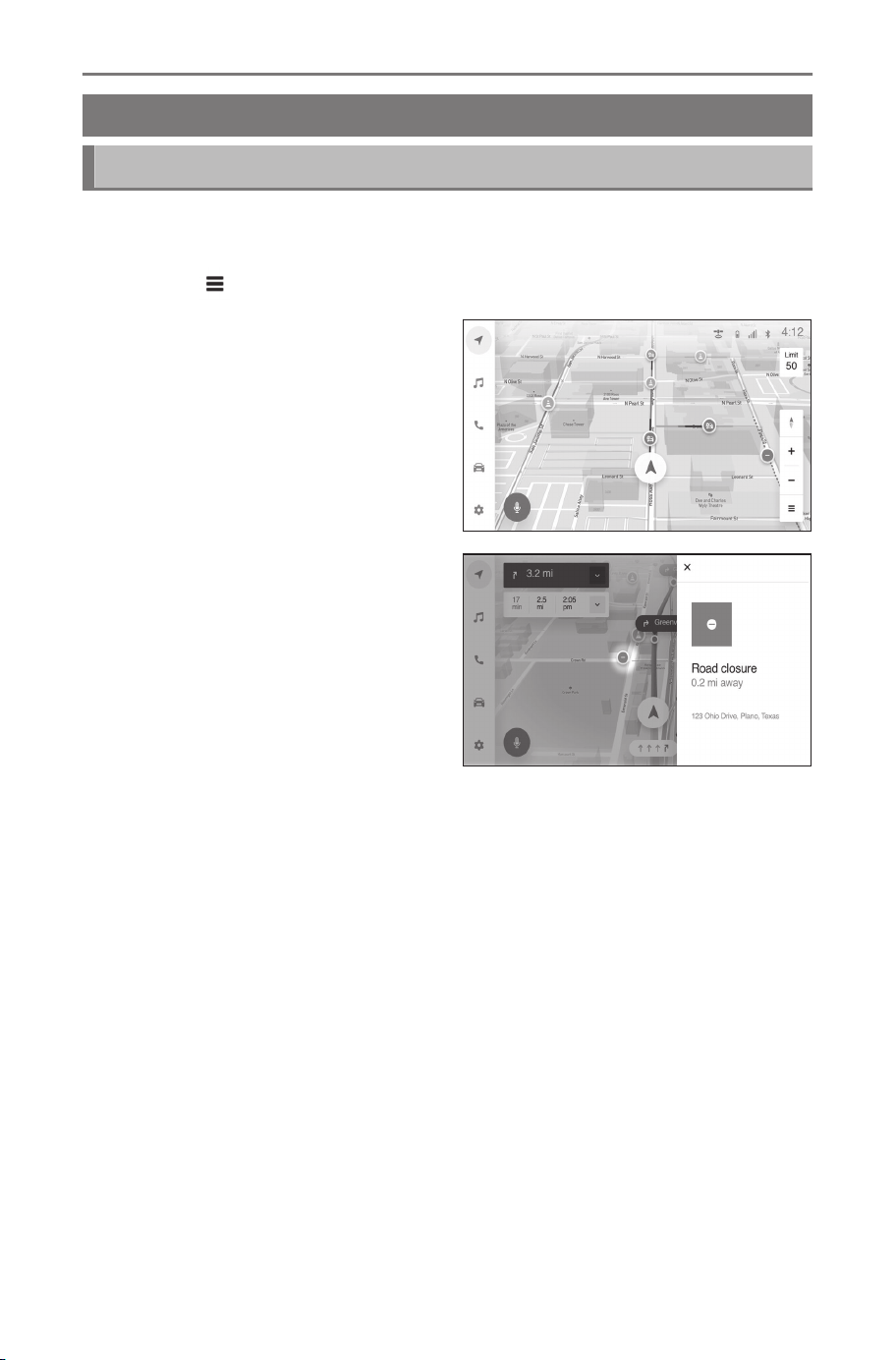
Information displayed on the map screen
Traffic Information
Traffic data can be received via DCM (Data Communication Module)
to display traffic information on the map screen.
1 Touch [ ] on the map screen.
2 Touch [Traffic].
Traffic information will be dis-
played on the map screen.
● Icons are used to indicate road
conditions and incidents.
● Arrows indicate the direction of
traffic.
● Colors indicate the speed at
which traffic is moving.
If the traffic icon is touched, details
about the selected traffic incident
can be displayed.
4-2. Map information
142
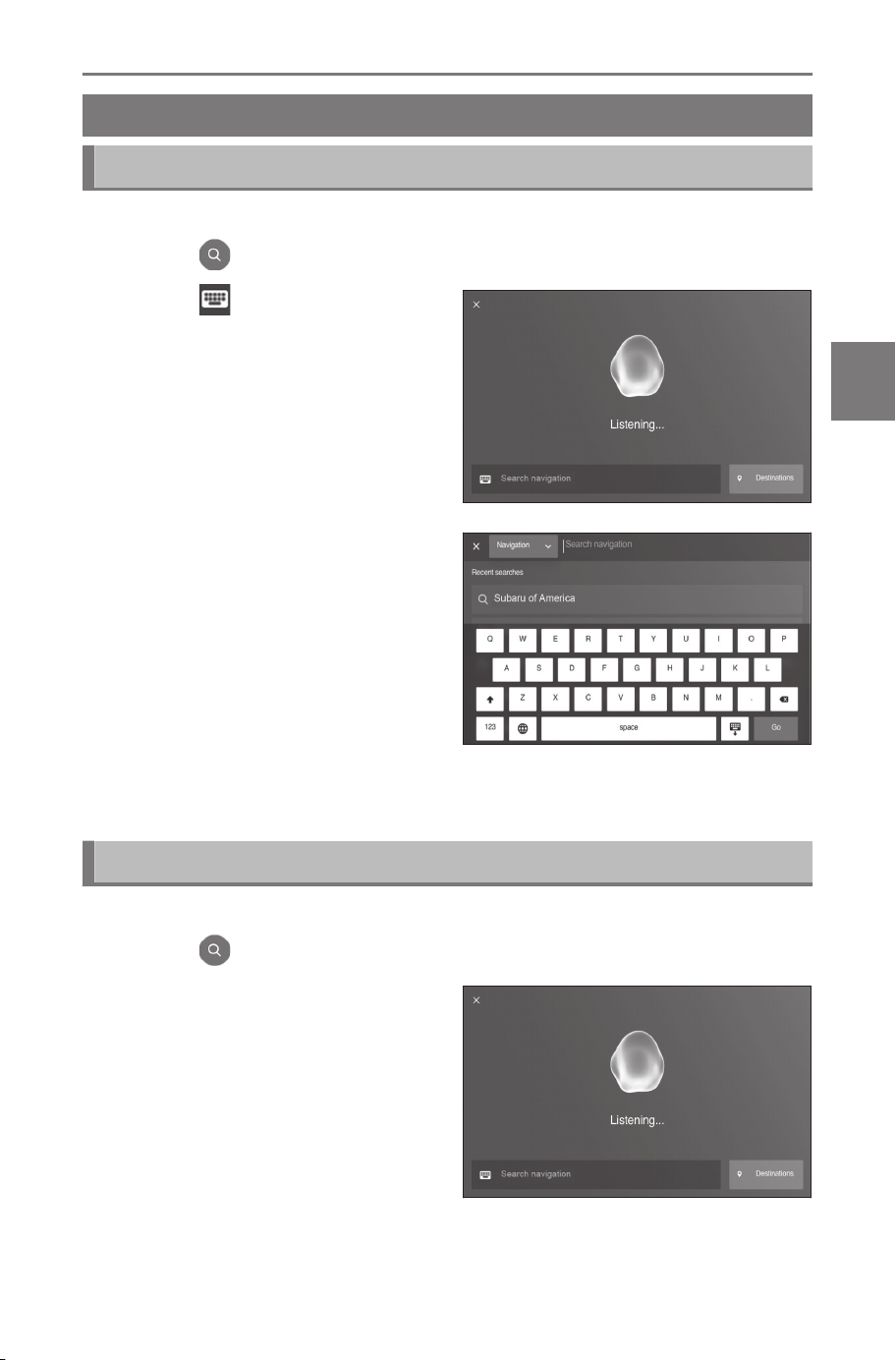
Searching for a destination
Destination search screen
Searching for a destination using the keyboard
A destination can be searched for by entering keywords.
1 Touch [
] on the map screen.
2 Touch [ ].
3 Enter characters using the
keyboard.
4 Touch [Go].
5 Select the desired item from the list.
Searching for a destination by category
A destination can be searched for from a list of categories.
1 Touch [ ] on the map screen.
2 Touch [Destinations].
4-3. Searching for a destination
143
4
Navigation
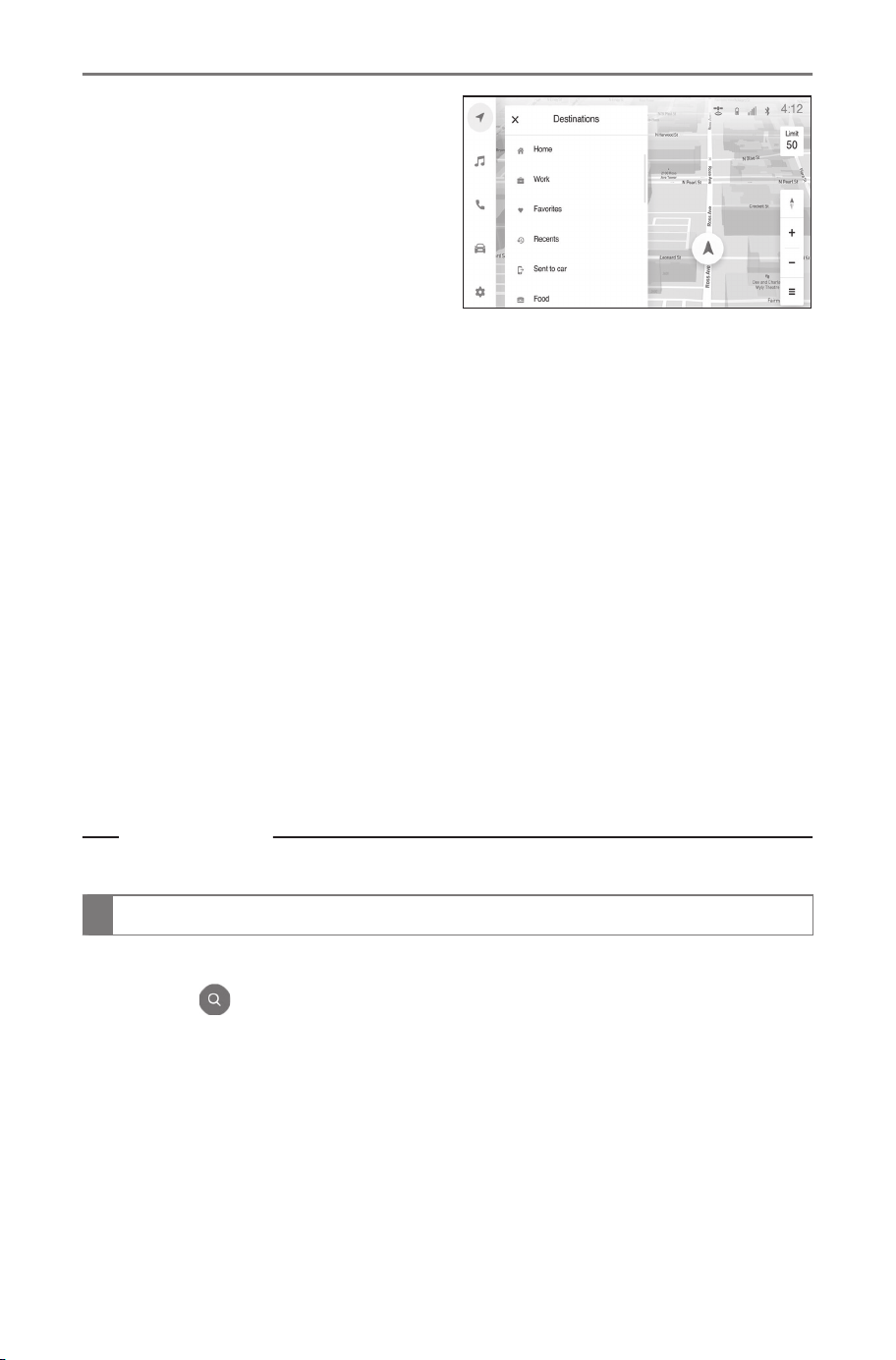
3 Touch the desired search
method.
[Home] : Sets the registered
home as the destination.
A point must be registered as
home before using this function.
*1
[Work] : Sets the registered work-
place as the destination.
A point must be registered as a workplace before using this function.
*1
[Favorites] : Sets a destination by selecting a place in the favorite list.
[Recents] : Sets a destination by selecting a previous destination.
[Sent to car] : Sets a destination by selecting a place sent from Subar-
uConnect Mobile App.
[Food] : Searches for a restaurant to set as a destination.
[Fuel / Charging] : Searches for a fuel station/charging facility to set as
a destination.
[Parking] : Searches for a nearby parking lot to set as a destination.
[Hospitals] : Searches for a hospital to set as a destination.
When setting a business as a destination, if your estimated time of
arrival is outside of business hours or near closing time, a notification
asking to confirm the destination will be displayed.
4 Touch the desired destination from the list.
Related Links
Full route map screen(P. 151)
Editing the favorites list
The favorites list can be edited.
1
Touch [
] on the map screen.
2 Touch [Destinations].
3 Touch [Favorites].
*1 : Home and Work must be added via SubaruConnect Mobile App.
4-3. Searching for a destination
144
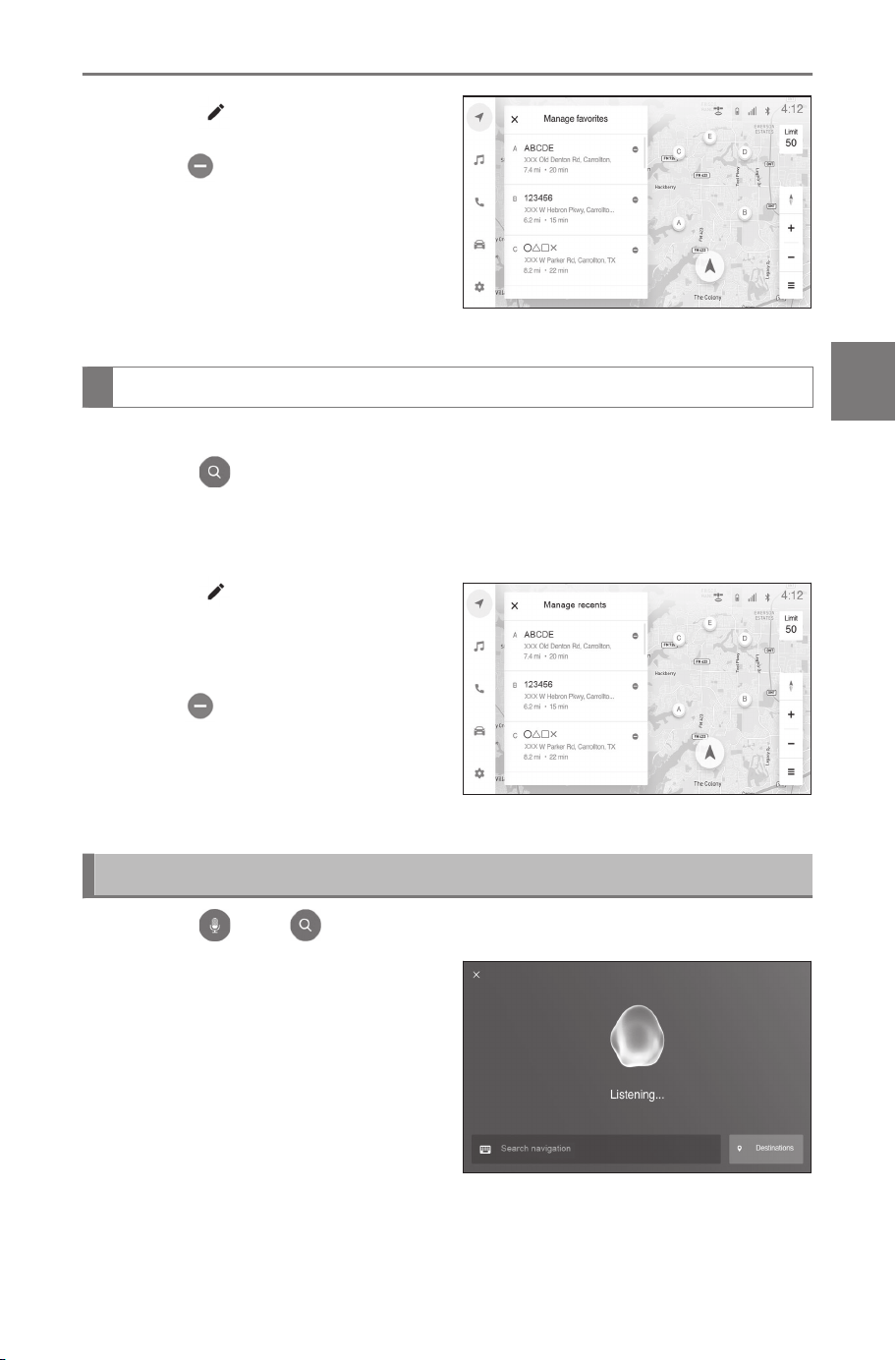
4 Touch [ ].
Touch [ ] to delete a favorite.
The favorites list editing screen
will be displayed.
5 Touch [Save].
Editing the destination history
The destination history can be edited.
1 Touch [ ] on the map screen.
2 Touch [Destinations].
3 Touch [Recents].
4 Touch [
].
The destination history editing
screen will be displayed.
Touch [
] to delete a destination
history item.
5 Touch [Save].
Searching for a destination using voice control
1 Touch [ ] or [ ] on the map screen.
2 Say the keyword you wish to
use for the search.
3 Touch or use voice command for desired result from list.
4-3. Searching for a destination
145
4
Navigation
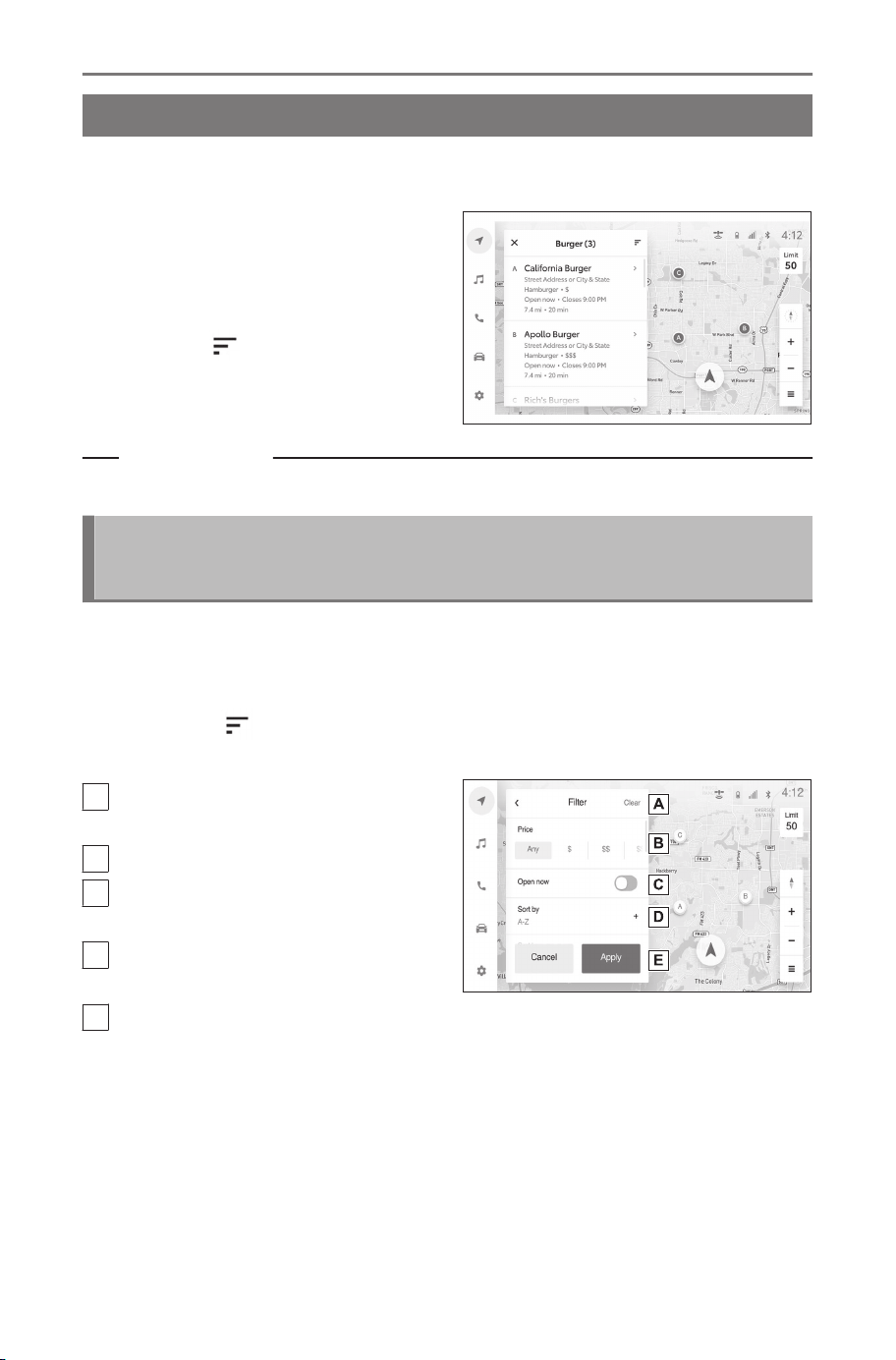
Destination search result list screen
When a destination has been searched for, a list of search results
will be displayed.
● Touch or use voice command
for the desired destination from
the list. The full route map
screen will be displayed. By
touching [
], the order of the
list can be filtered or sorted.
Related Links
Starting route guidance(P. 150)
Changing the order/filtering the suggested destination
list
This function can only be used with an internet connection. As the
results are obtained from the internet, the displayed content may
change.
By touching [ ] on the suggested destination list screen, the order
of the list can be changed or filtered.
A
Clears the order/filter condi-
tions.
B
Filters the list by price.
C
Filters the list by locations
which are open now.
D
Changes the list order condi-
tions.
E
Applies the order/filter condi-
tions and returns to the list.
4-3. Searching for a destination
146
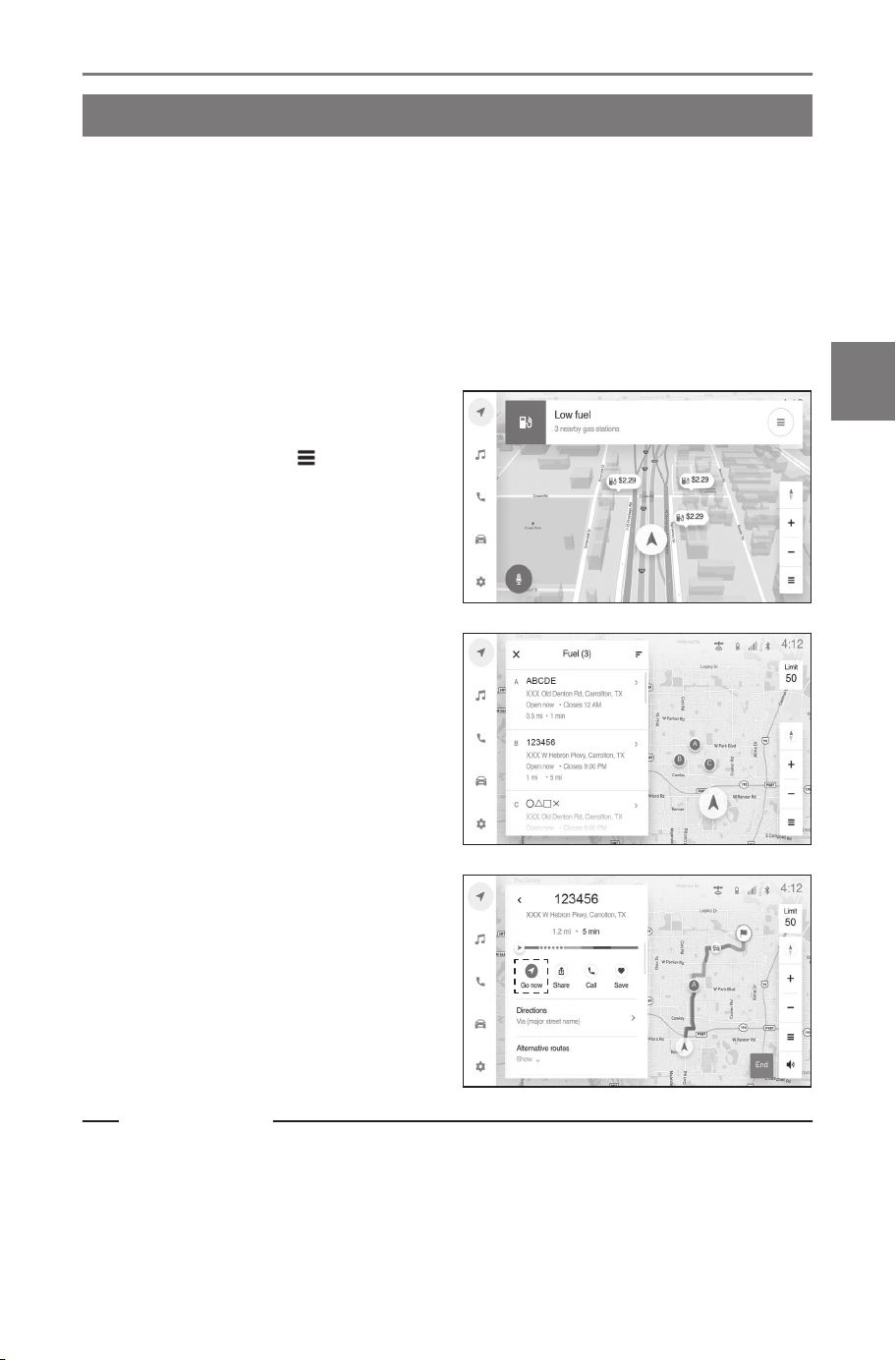
POI suggestion
Based on various information, such as the current position, driving
time, etc., the navigation system may suggest destinations.
For example:
● When the battery charge level is low, charging stations are sug-
gested as a destination.
● When approaching the destination during route guidance, parking
lots near the destination will be displayed.
1 When a destination is sug-
gested by the navigation
system, touch [
].
2 Touch the suggested point.
3 Touch [Go now].
Related Links
Full route map screen(P. 151)
4-3. Searching for a destination
147
4
Navigation
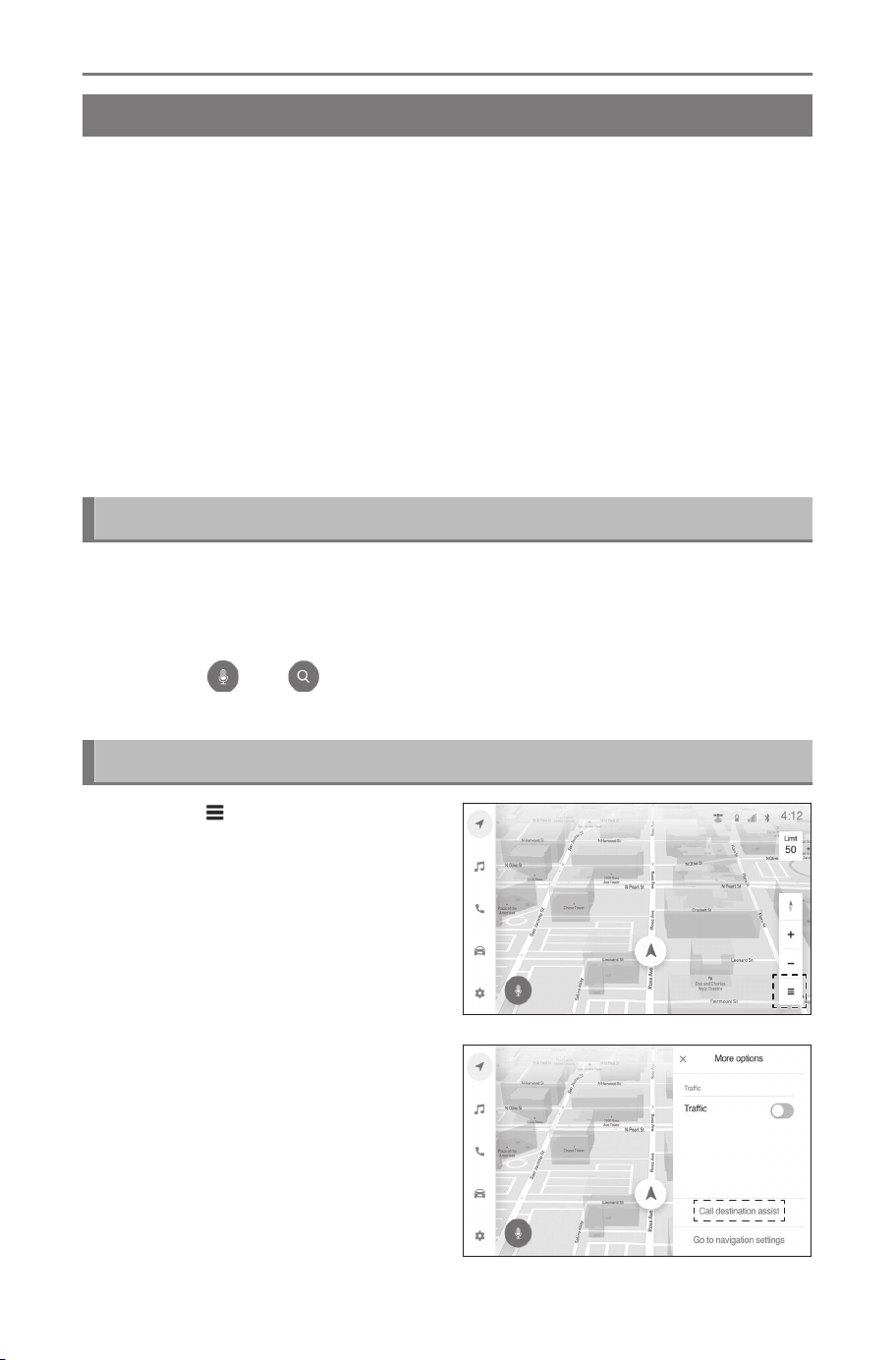
Destination Assist
Destination Assist provides you with live assistance for finding des-
tinations via the SubaruConnect response center. You can request
either a specific business, address, or ask for help locating your de-
sired destination by category, such as restaurants, shopping centers
or other Points of Interest(POI).
After you tell the agent your choice of destination, its coordinates/ad-
dress/destination name are sent wirelessly to your vehicle’s naviga-
tion system.
The hands-free system cannot be used while Destination Assist is
being used.
POI sent by Destination Assist agent cannot be added as favorites.
Calling the Destination Assist by voice command
1 Start voice control by any of the following operations:
● Press the talk switch on the steering wheel
● Say "Hey SUBARU".
● Touch [
] or [ ] on the map screen.
2 Say "Destination Assist".
Calling the Destination Assist from map screen
1 Touch [ ] on the map
screen.
2 Touch [Call destination as-
sist].
4-3. Searching for a destination
148
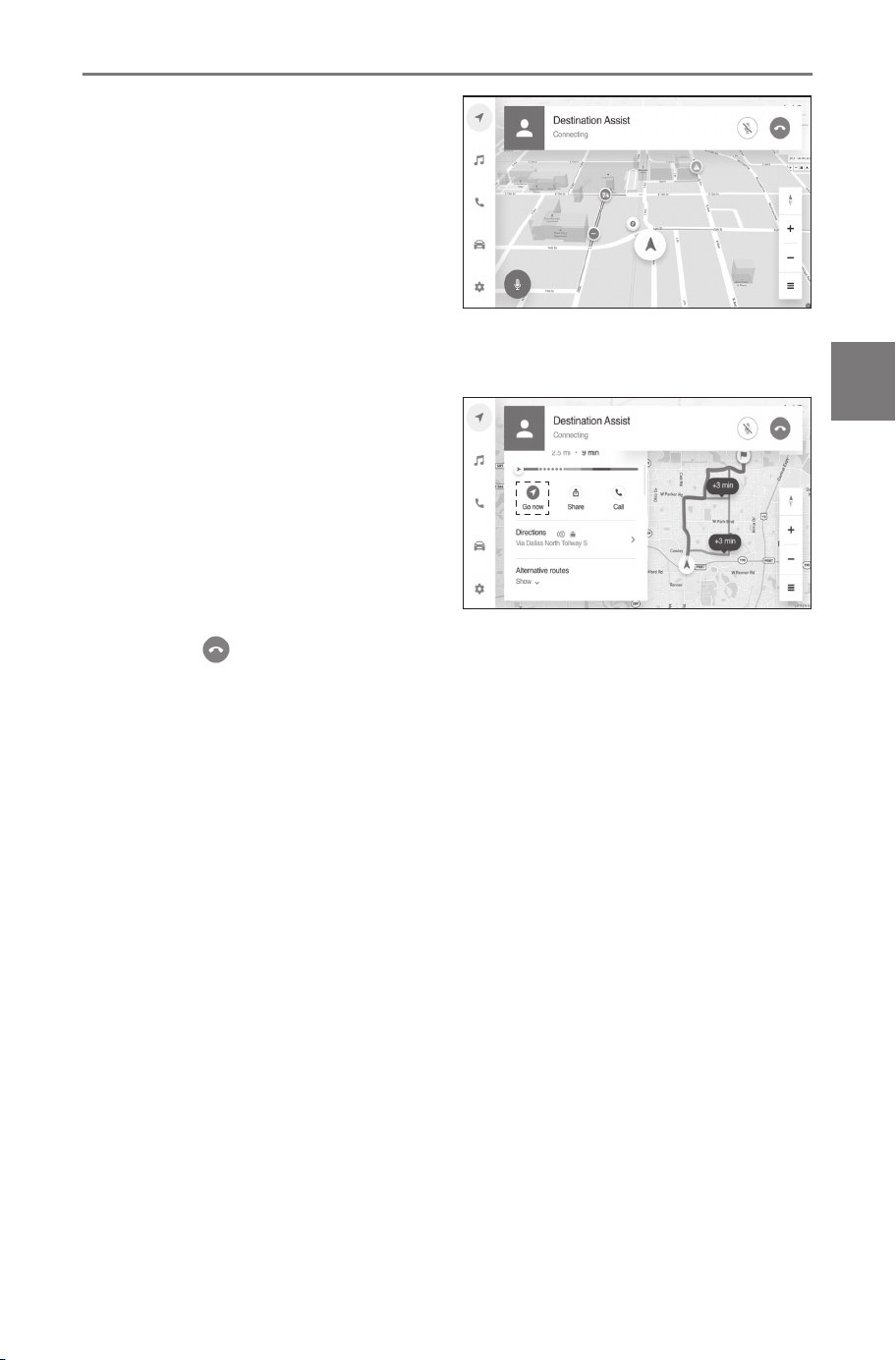
3 Speak to the operator when
the call is connected.
The operator will confirm the de-
sired destination information and
send the destination to vehicle
navigation screen. You can also
ask agent to send additional des-
tination to select destination as a
waypoint or replace the current
destination.
4 Touch [Go now].
5 Touch [ ] to end the call.
● After the destination is set, you can also ask the agent to end the call.
4-3. Searching for a destination
149
4
Navigation
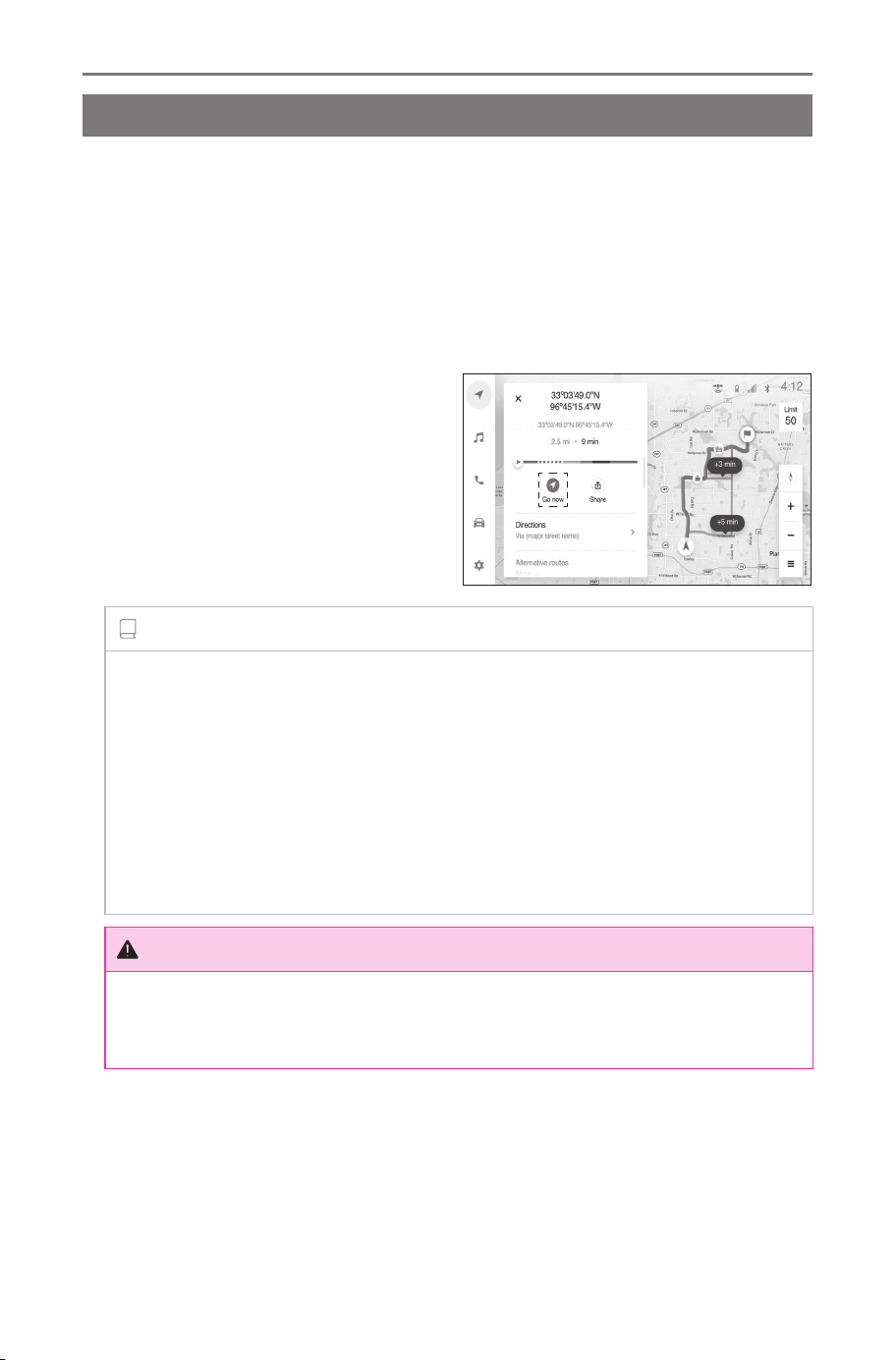
Starting route guidance
Starting route guidance
After setting a destination, the search for a route will begin. When
the search for a route is completed, the full route map screen
(the full route from the current location to the destination) will be
displayed. On the full route map screen, the desired route can be
selected or the route information can be checked.
A route cannot be searched for if the destination is closer than 200
ft.(60m) to your current vehicle location.
● Touch [Go now].
INFORMATION
● The route for returning may not be the same as that for going.
● The route guidance to the destination may not be the shortest route
or a route without traffic congestion.
● Route guidance may not be available if there is no road data for the
specified location.
● If a destination that is not located on a road is set, the vehicle will
be guided to the point on a road nearest to the destination. The road
nearest to the selected point is set as the destination.
WARNING
Be sure to obey traffic regulations and keep road conditions in mind
while driving. If a traffic sign on the road has been changed, the route
guidance may not indicate such changed information.
4-4. Starting route guidance
150
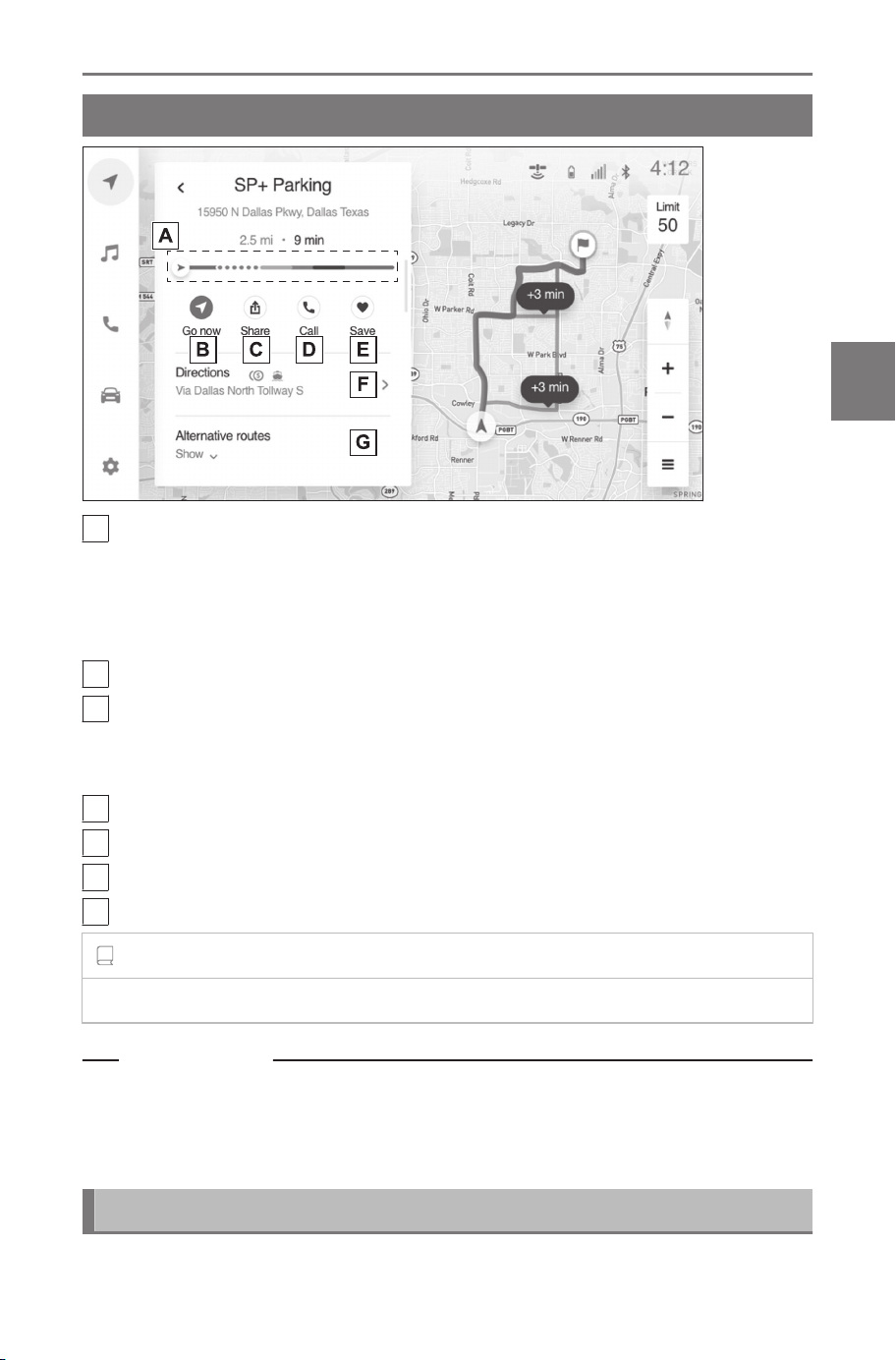
Full route map screen
A
Displays the level of traffic congestion on the route with colors.
● When there is low or zero congestion : blue
● When there is severe congestion : red
● When a road is closed : broken red line
B
Starts route guidance. Touch and hold to start demo mode.
C
Shares ETA information with a registered contact.
To use this function, a smartphone must be connected to the
navigation system.
D
Calls the phone number registered to the POI.
E
Registers the destination as a favorite.
F
Displays the directions list.
G
Selects another route.
INFORMATION
If POI is set as the destination, business hours etc. are also displayed.
Related Links
Directions list screen(P. 151)
Route select screen(P. 152)
Starting demo mode(P. 152)
Directions list screen
A directions list is displayed for the route.
4-4. Starting route guidance
151
4
Navigation
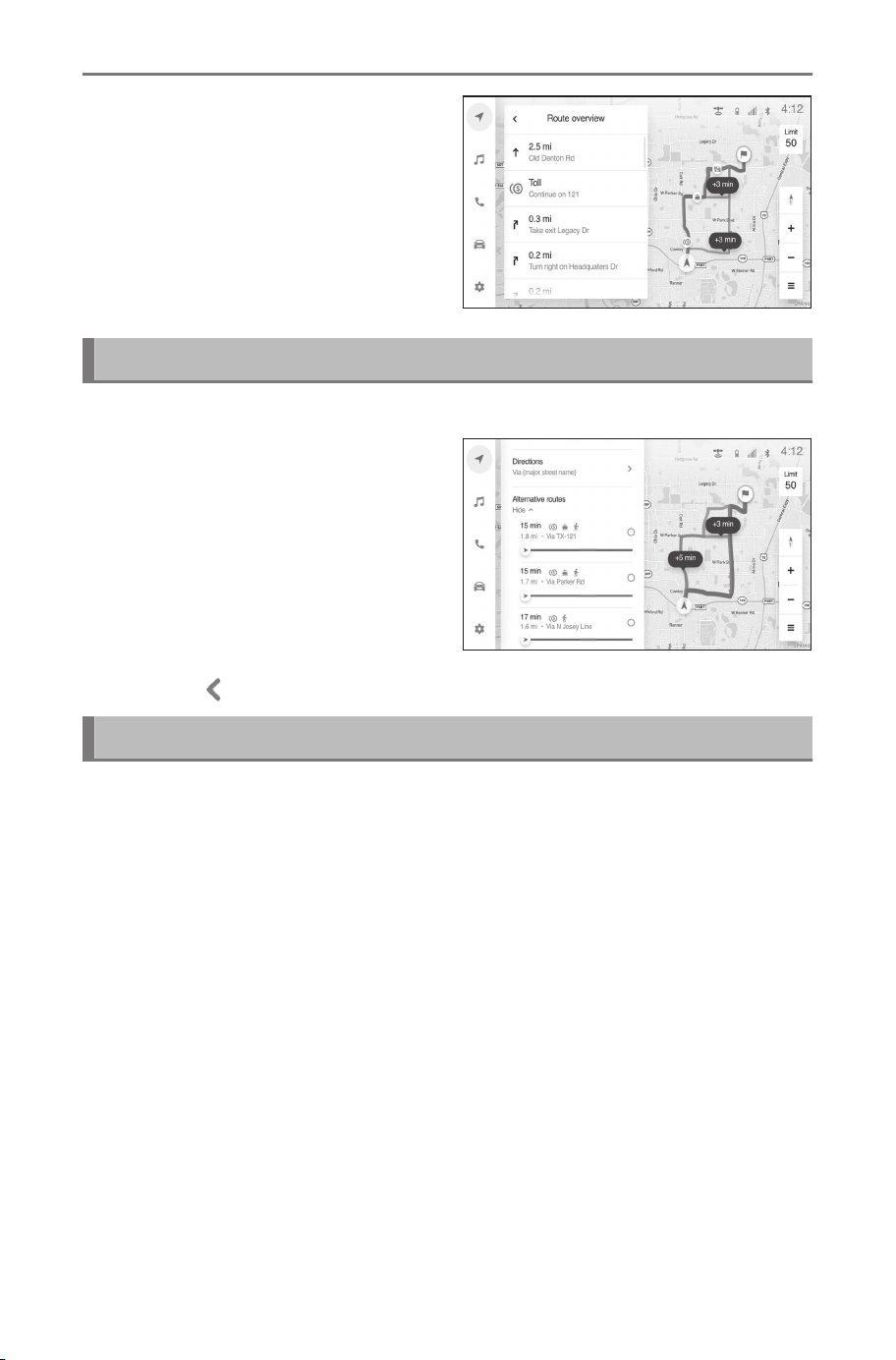
Displays the names of intersec-
tions which are passed through or
turned at, and their distance from
the current position.
Route select screen
1 Touch [Alternative routes].
2 Touch the desired route.
3 Touch [ ].
Starting demo mode
After searching for a route, before route guidance is started, a demo
of the route guidance can be viewed.
● Touch and hold [Go now] on the full route map screen.
To end the demo, touch [End] or begin driving.
4-4. Starting route guidance
152
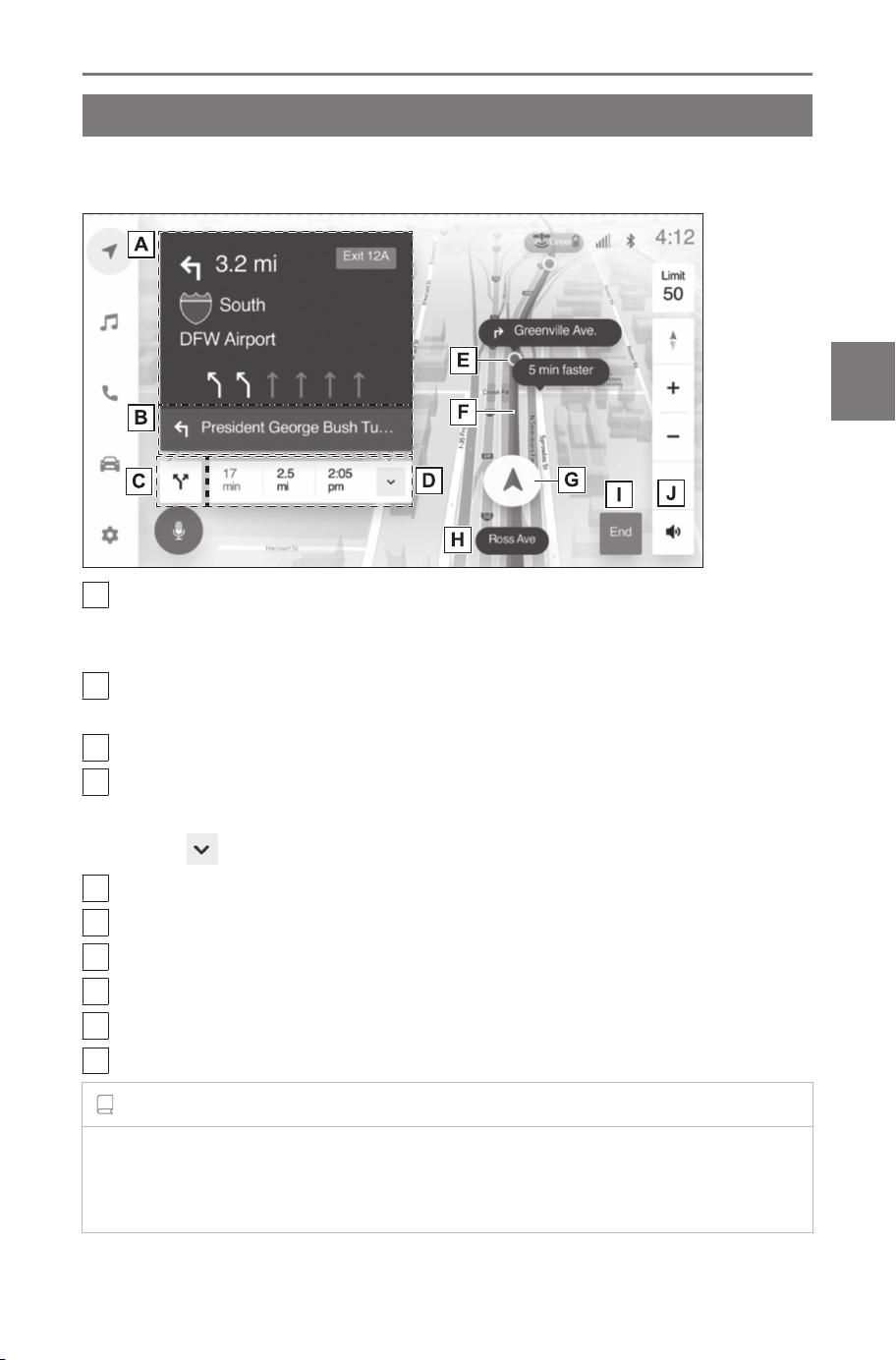
Route guidance screen
Route guidance screen
During route guidance, various guidance screens can be displayed,
depending on the situation.
A
Displays information about the upcoming navigation point, such
as the distance to the next guidance point, turn directions, recom-
mended lanes, etc.
B
Displays when there is an action that needs to happen quickly
after the next action (consecutive maneuver).
C
Displays alternate route. One of multiple routes can be selected.
D
Displays the time to your destination, estimated arrival time, dis-
tance, etc.
Touch [ ] to display the destination information screen.
E
Displays guidance points.
F
Displays the guidance route.
G
Displays the current position of the vehicle.
H
Displays the name of the road the vehicle is currently driving on.
I
Stops the active navigation.
J
Mutes voice guidance.
INFORMATION
● If the destination cannot be reached within the drivable distance, a
notification suggesting a charging facility as a waypoint on the route will
be displayed.
4-5. Route guidance screen
153
4
Navigation
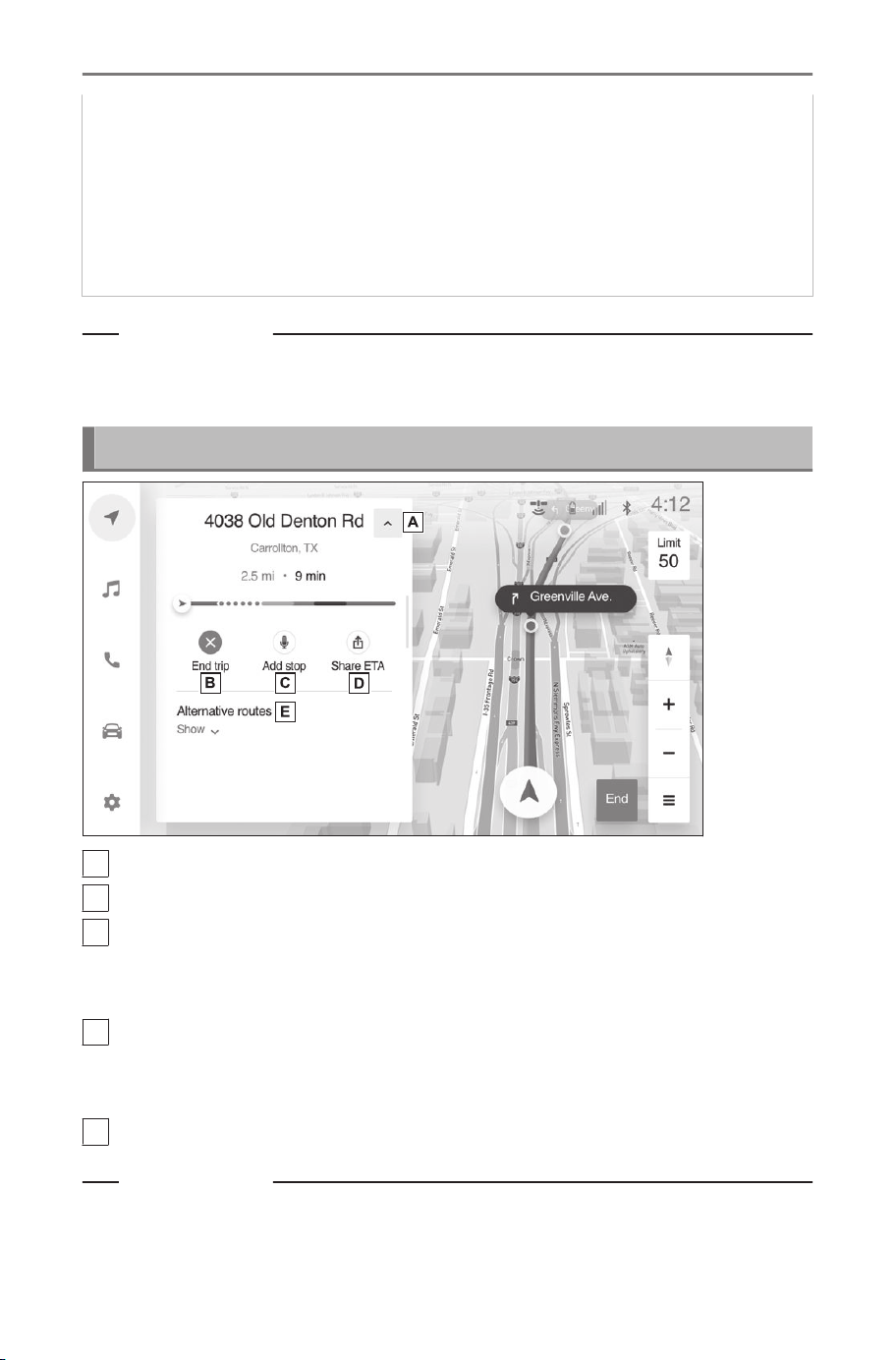
● If a faster route is found during route guidance, a suggestion to change
routes will be displayed.
● If the vehicle goes off the guidance route, the route will be recalculated.
● For some areas, the roads have not been completely digitized in our
database. For this reason, the route guidance may select a road that
should not be traveled on.
Related Links
Directions list screen(P. 151)
Destination information screen(P. 154)
Destination information screen
A
Returns to the route guidance screen.
B
Cancels or ends active navigation.
C
Adds or edits destinations.
If multiple destinations are set, the edit stop screen will be dis-
played.
D
Shares your estimated time of arrival.
To use this function, a smartphone must be connected to the
navigation system.
E
Selects alternate route.
Related Links
Sharing your ETA(P. 155)
Route select screen(P. 152)
4-5. Route guidance screen
154
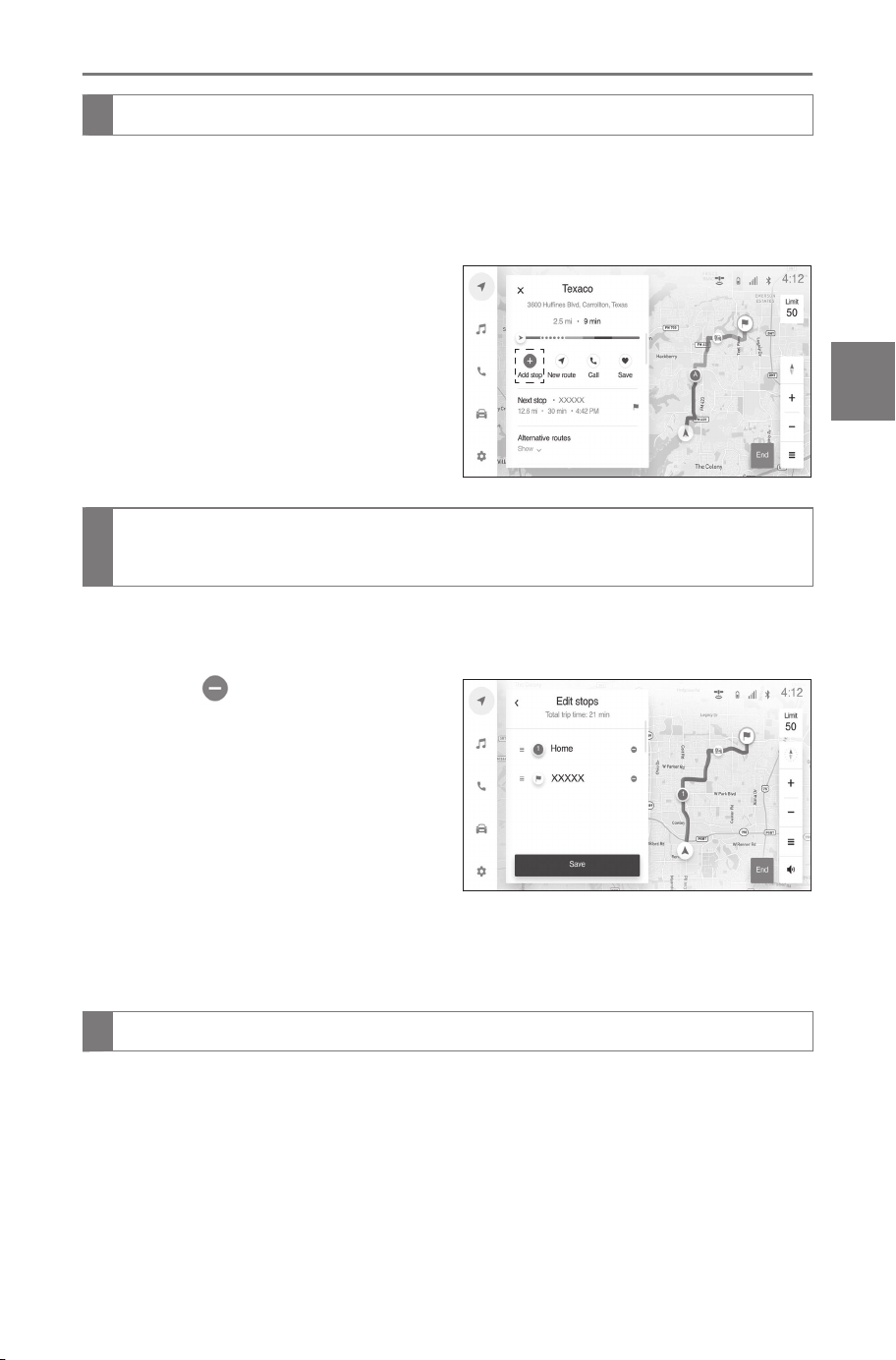
Adding a destination
1 Display the destination information screen.
2 Touch [Add Stop].
3 Search for a destination to add.
4 Touch [Add Stop].
Deleting a destination (when multiple destinations have
been set)
1 Display the destination information screen.
2 Touch [Edit Stop].
3
Touch [ ] for the destina-
tion you wish to delete.
4 Touch [Save].
The destination order can also be changed by touching and dragging
the name of a destination.
Sharing your ETA
1 Display the destination information screen.
2 Touch [Share ETA].
4-5. Route guidance screen
155
4
Navigation
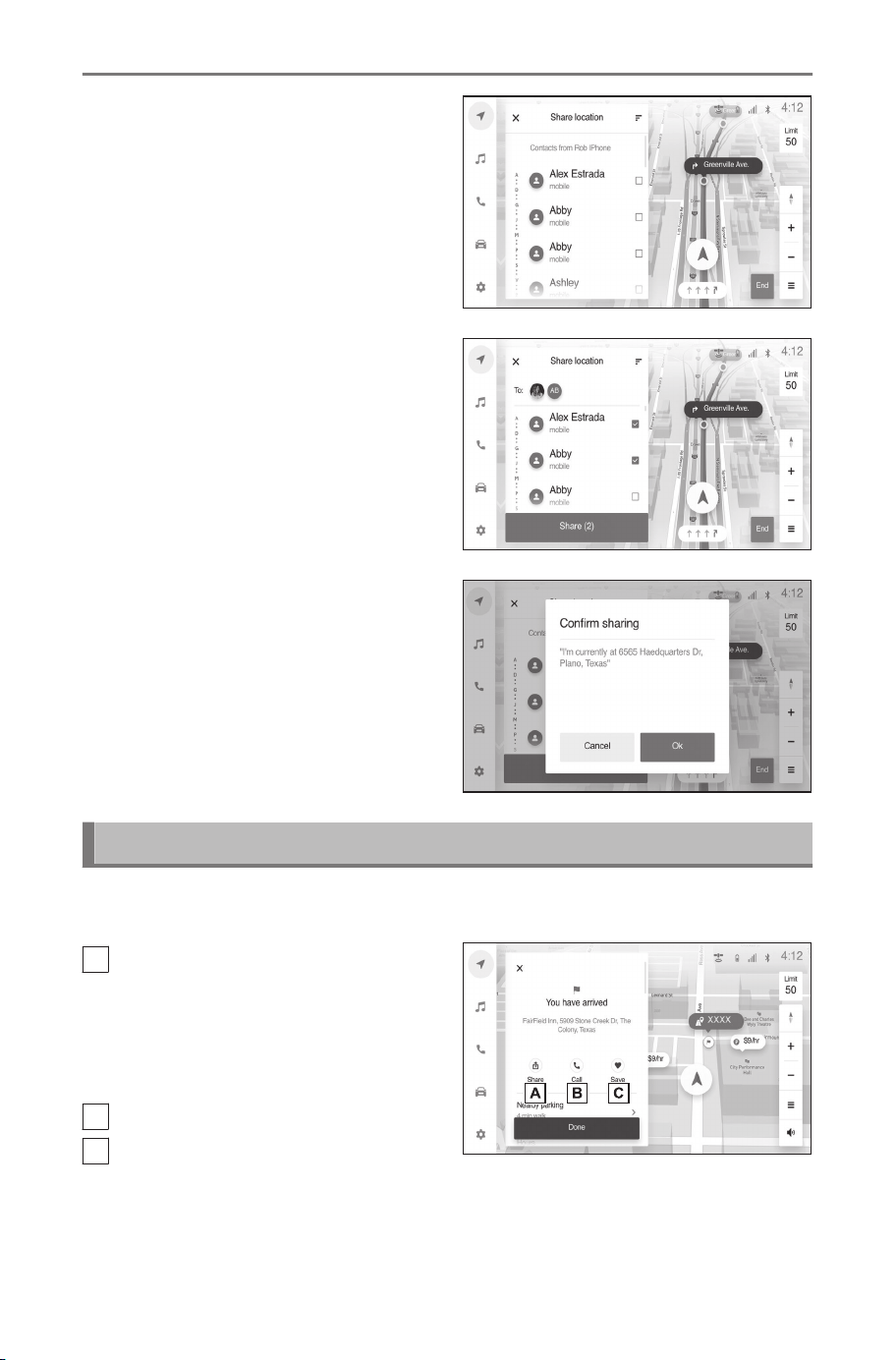
3 Touch the contact with whom
you wish to share your esti-
mated time of arrival.
4 Touch [Share].
5 Touch [OK].
When you arrive at a destination
When you arrive at a destination, the destination arrival screen will
be displayed.
A
Shares position information
with a registered contact.
To use this function, a smart-
phone must be connected to
the navigation system.
B
Calls the destination.
C
Registers the destination as a
favorite.
4-5. Route guidance screen
156

Typical voice guidance prompts
When a user is in active navigation and may or may not be on the
navigation screen on the head unit; voice guidance for the active
route will help user for maneuvers to turns, exits from highway/free-
way, entrance to highway/freeway, U-turns, which lanes to stay in
for these maneuvers, etc. Such maneuver points are referred to
as guidance points. These voice prompts are audible to the user
2-3 times at specific distances when approaching a guidance point.
Voice guidance can be heard in the language of user setting.
WARNING
Be sure to obey the traffic regulations and keep the road condition in
mind especially when you are driving on IPD roads (roads that are not
completely digitized in our database). The route guidance may not have
the updated information such as the direction of a one way street.
4-5. Route guidance screen
157
4
Navigation

4-5. Route guidance screen
158

5
Audio system
5-1. Radio operation
Listening to the radio . 160
Troubleshooting guide 163
Refer to the table be-
low to identify the
problem and take the
suggested corrective
action ....................... 164
5-2. USB flash drive opera-
tion
Playing music files on
a USB flash drive ..... 165
Precautions for play-
back of USB flash
drive ......................... 167
5-3. iPod/iPhone operation
Playing iPod/iPhone... 169
Precautions for play-
back of iPod/iPhone. 171
5-4. Apple CarPlay operation
Playing Apple CarPlay172
Precautions for play-
back of Apple Car-
Play.......................... 174
5-5. Android Auto operation
Playing Android Auto . 175
Precautions for play-
back of Android Auto 177
5-6. Bluetooth
®
audio opera-
tion
Playing Bluetooth
®
au-
dio ............................ 178
Precautions for Blue-
tooth
®
audio playback
................................. 181
5-7. Integrated Streaming
Playing Integrated
Streaming ................ 183
159
5
Audio system
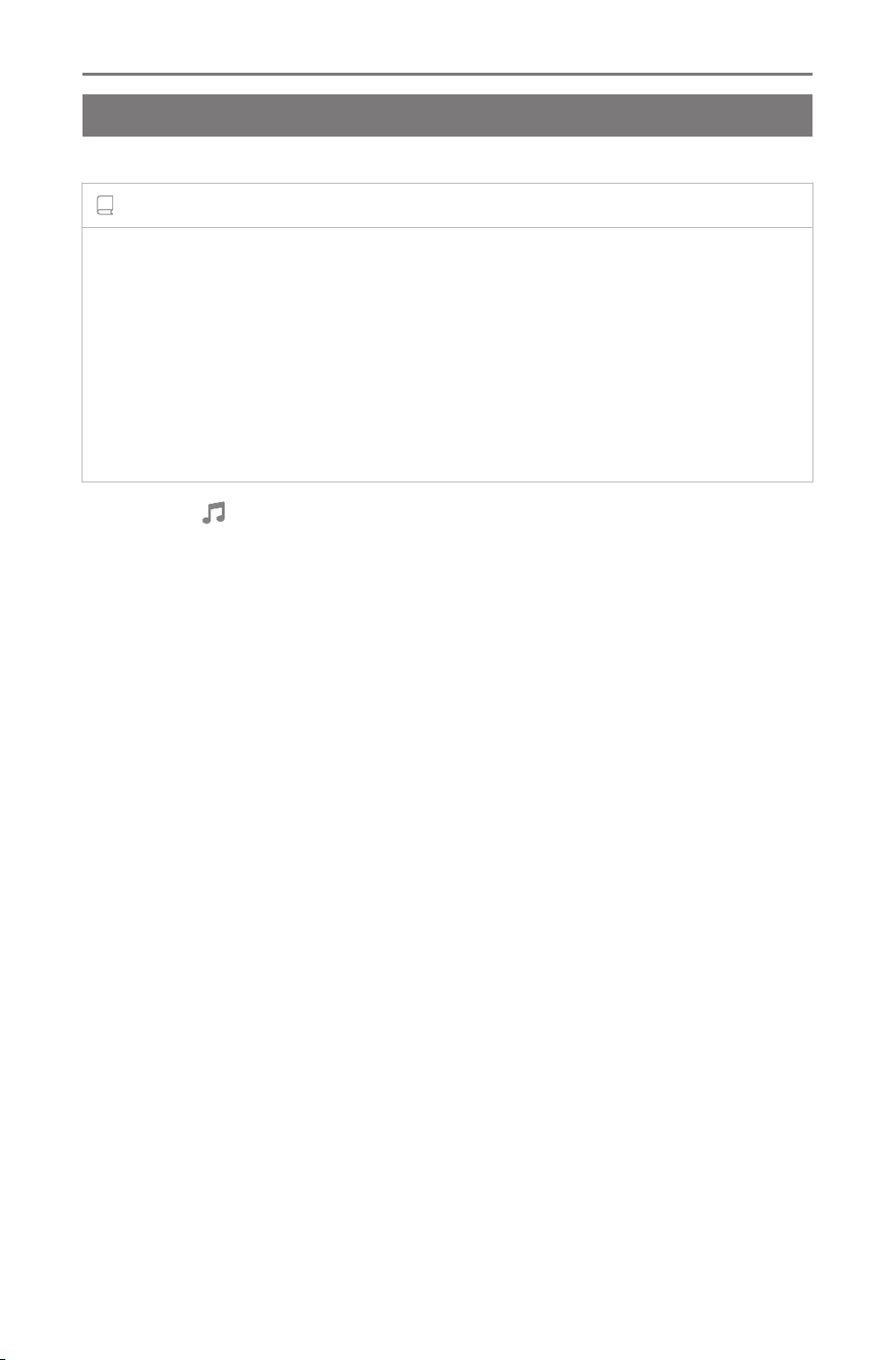
Radio operation
Listening to the radio
Switch to your preferred frequency or service and listen to the radio.
INFORMATION
● The radio automatically blends to an HD Radio™ signal in AM or FM
where available. The radio automatically changes to stereo reception
when a stereo broadcast is received.
● Radio mode has a mix preset function, which can store up to 20 sta-
tions from any of the AM/FM and SiriusXM bands.
● If you navigate to another radio station while playing radio, the play-
back screen is minimized. Touching the minimized playback screen
restores the playback screen to its original size.
1 Touch [ ] from the main menu.
2 Touch [Sources].
3 Touch [Radio].
4 Select the station selection method or service as necessary.
[Favorites] : Select a broadcasting station from those registered as
favorites.
[Tune] : Select the broadcasting station by entering a frequency with
the numeric keypad.
[FM Radio] : Switches to FM mode. The FM station list, the 3 most
recently listened stations, and the receivable FM broadcasting stations
are displayed.
[AM Radio] : Switches to AM mode. The AM station list, the 3 most
recently listened stations, and the receivable AM broadcasting stations
are displayed.
[SiriusXM]
*1
: Switches to SiriusXM mode.
Displays [For You] and contents/Super Categories/[All channels]/
[Listening History].
5 Select the broadcasting station from the station list or genre.
6 Operate the radio that is being received as necessary.
●
Operating AM/FM radio from the screen
*1 : This function is not available in some regions.
5-1. Radio operation
160
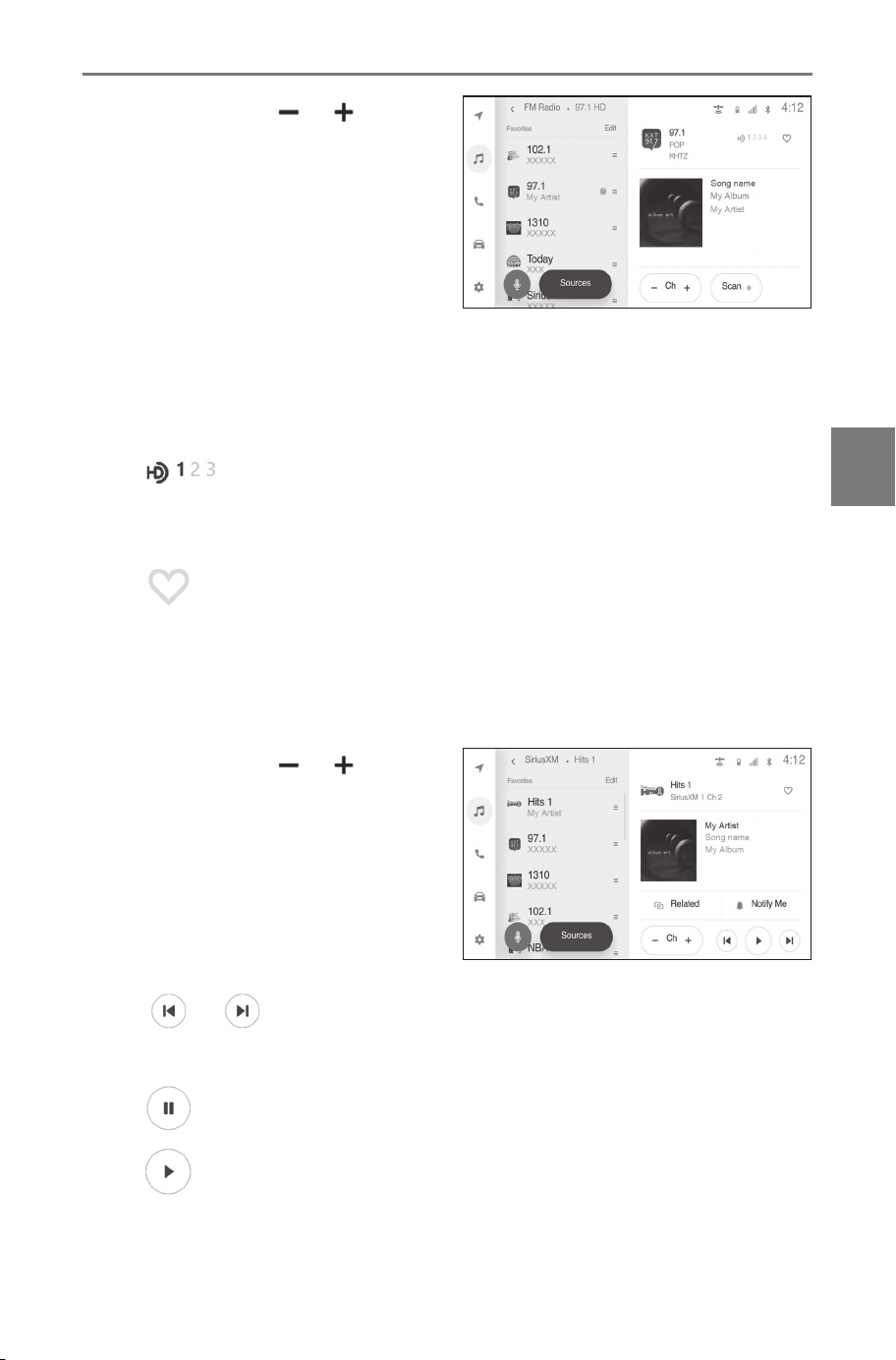
[Ch] : Touch [ ]/[ ] to
search for the receivable broad-
casting stations.
Touch and hold to jump to
the next frequency with avail-
able radio signal. When re-
leased, the broadcasting sta-
tion closest to that position
with the best radio reception
is selected automatically.
[Scan] : SEEK UP and output the audio of the detected station for 10
sec. This is repeated.
[ ] : Displayed when Multicast CH is supported in FM mode.
Touch to display the SPS channel list. The mode can be changed to
the displayed SPS channel list.
[ ] : Registers the currently received broadcasting station in fa-
vorites. When registered, touch to cancel.
Preset buttons of sub menu : Receives the registered broadcasting
station.
● Operating SiriusXM radio from the screen
*1
[Ch] : Touch [ ]/[ ] to
search for the receivable chan-
nels.
Touch and hold to jump to
the next frequency with avail-
able radio signal. When re-
leased, the current channel is
received.
[
]/[ ] : Fast rewind or fast forward the radio cache.
Touch and hold to jump to the start or end of the buffer.
[ ] : Pause the radio cache.
[
] : Play the radio cache.
[Related] : Displays content related to the received channel.
*1 : This function is not available in some regions.
5-1. Radio operation
161
5
Audio system
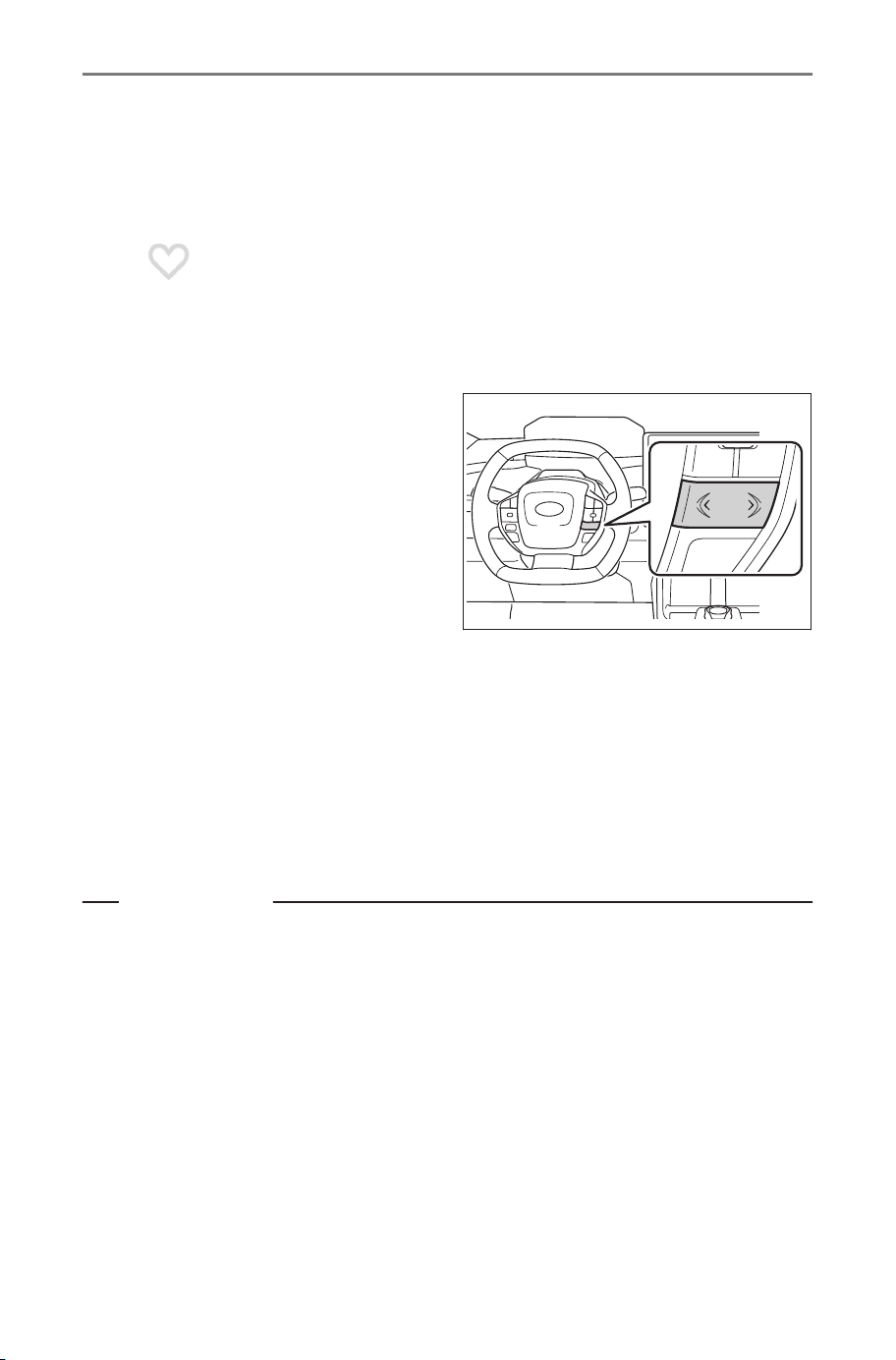
[Notify me] : Select an artist or song, or both an artist and song, to
receive a notification when the corresponding broadcast starts.(When
receiving a regular channel) Select a sports team to receive a notifi-
cation when the corresponding broadcast starts. (When receiving a
sport channel)
[ ] : Registers the currently received channel in favorites. When
registered, touch to cancel.
Preset buttons of sub menu : Receives the registered channel.
●
Operating with the steering switches
[<]/[>] switches
• AM/FM Radio
Switch the frequencies or
broadcasting stations reg-
istered in the preset but-
tons order.
Press and hold to switch
frequencies. When re-
leased, the broadcasting
station closest to that position with the best radio reception is se-
lected automatically.
• SiriusXM radio
Switch the channels registered in the preset buttons order.
Press and hold to switch channels. When released, the channel
closest to that position with the best radio reception is selected
automatically.
Related Links
Changing sound and media settings(P. 66)
5-1. Radio operation
162

Troubleshooting guide
Experience Cause Action
Mismatch of time
alignment- a user
may hear a short
period of program-
ming replayed or
an echo, stutter or
skip.
The radio stations
analog and digital
volume is not proper-
ly aligned or the sta-
tion is in ballgame
mode.
None, radio broadcast issue.
A user can contact the radio
station.
Sound fades,
blending in and
out.
Radio is shifting be-
tween analog and
digital audio.
Reception issue, may clear-
up as the vehicle continues
to be driven. Turning the indi-
cator of the [HD Radio AM]
and [HD Radio FM] button off
can force radio in an analog
audio.
Audio mute con-
dition when an
HD2/HD3 multicast
channel had been
playing.
The radio does not
have access to digi-
tal signals at the mo-
ment.
This is normal behavior, wait
until the digital signal returns.
If out of the coverage area,
seek a new station.
Audio mute delay
when selecting an
HD2/HD3 multicast
channel preset.
The digital multicast
content is not availa-
ble until HD Radio™
broadcast can be de-
coded and make the
audio available. This
takes up to 7 sec-
onds.
This is normal behavior, wait
for the audio to become avail-
able.
Text information
does not match the
present song au-
dio.
Data service issue
by the radio broad-
caster.
Broadcaster should
be notified. Complete
the form:https://hdradio.com/
stations/feedback/.
No text informa-
tion shown for the
present selected
frequency.
Data service issue
by the radio broad-
caster.
Broadcaster should be
notified. Complete the
form: https://hdradio.com/
stations/feedback/.
5-1. Radio operation
163
5
Audio system

Refer to the table below to identify the problem and take
the suggested corrective action
When problems occur with the SiriusXM tuner, a message will ap-
pear on the screen. Referring to the table below to identify the prob-
lem, take the suggested corrective action.
Message Explanation
"SAT Antenna
Error"
The SiriusXM antenna is not connected. Check wheth-
er the SiriusXM antenna cable is attached securely.
Contact your SUBARU certified dealer for assistance.
A short circuit occurs in the antenna or the surrounding
antenna cable. Contact your SUBARU certified dealer
for assistance.
"No Satellite
Signal"
The SiriusXM signal is too weak at the current location.
Wait until your vehicle reaches a location with a stron-
ger signal.
"Channel not
available"
The channel you selected is not broadcasting any pro-
gramming. Select another channel.
"SAT Hardware
Error"
This indicates a problem in the SiriusXM module. Con-
tact your SUBARU certified dealer for assistance.
"Something
went wrong"
Please try another channel.
5-1. Radio operation
164
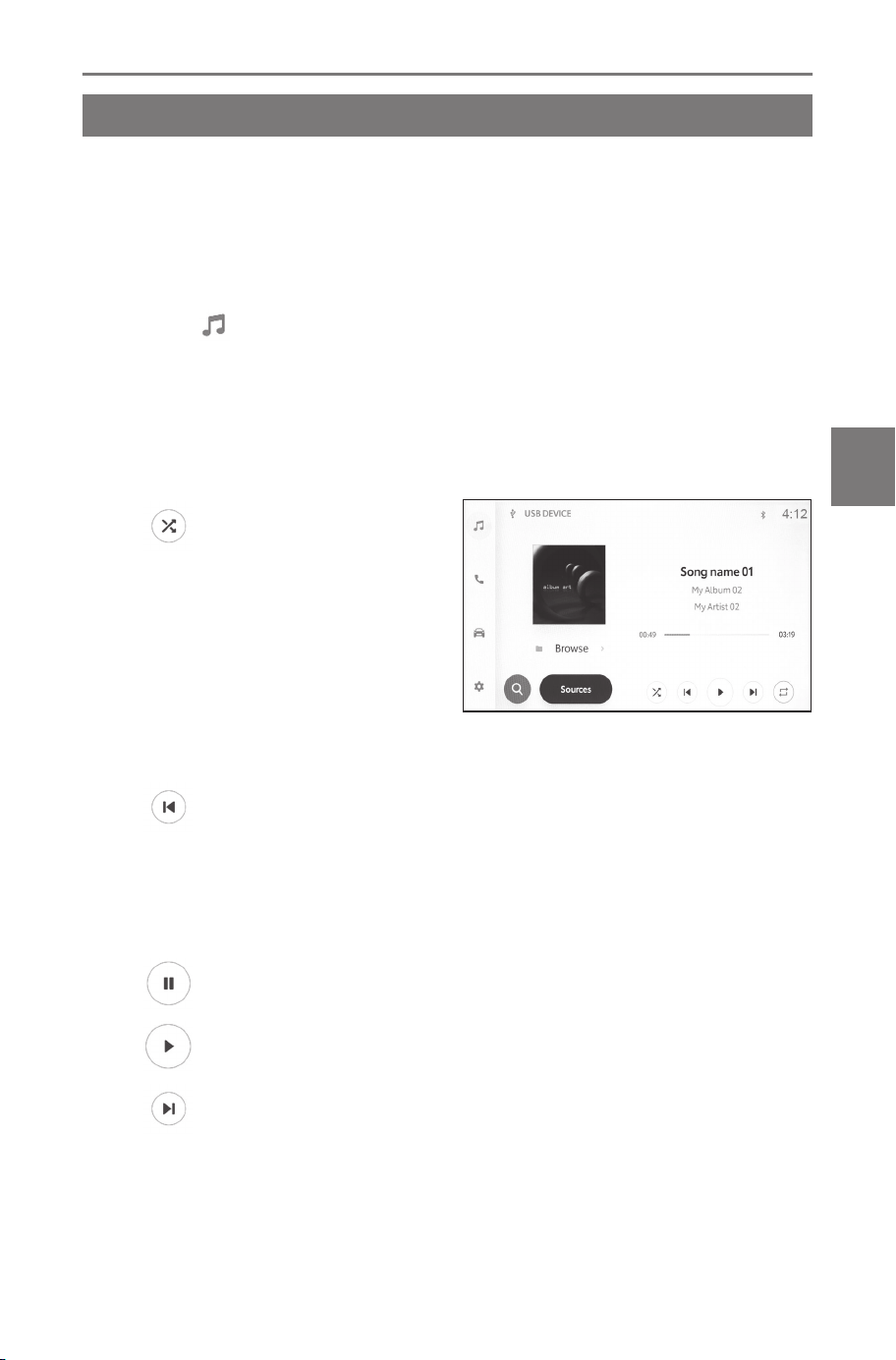
USB flash drive operation
Playing music files on a USB flash drive
Play music files on a USB flash drive connected to the USB Type-C
port to enjoy music. When a USB flash drive is connected, a button
with the device's name is displayed on the source selection screen.
This may not be displayed for some devices.
Connect the USB flash drive.
1 Touch [ ] from the main menu.
2 Touch [Sources].
3 Touch the device name or [USB].
4 Operate the USB flash drive that is playing as necessary.
●
Operating from the screen
[ ] : Performs random
playback.
Each time this is touched, the
mode switches between ran-
dom playback for all files or
tracks, random playback can-
celed, and random playback
of the currently playing folder
or album.
[
] : Plays the currently playing file or track from the beginning.
When at the start of the file or track, the previous file or track will play
from the beginning.
Touch and hold to fast rewind. Release to start playback from that
position.
[ ] : Pauses playback.
[
] : Plays.
[ ] : Switches the files or tracks.
Touch and hold to fast forward. Release to start playback from that
position.
5-2. USB flash drive operation
165
5
Audio system
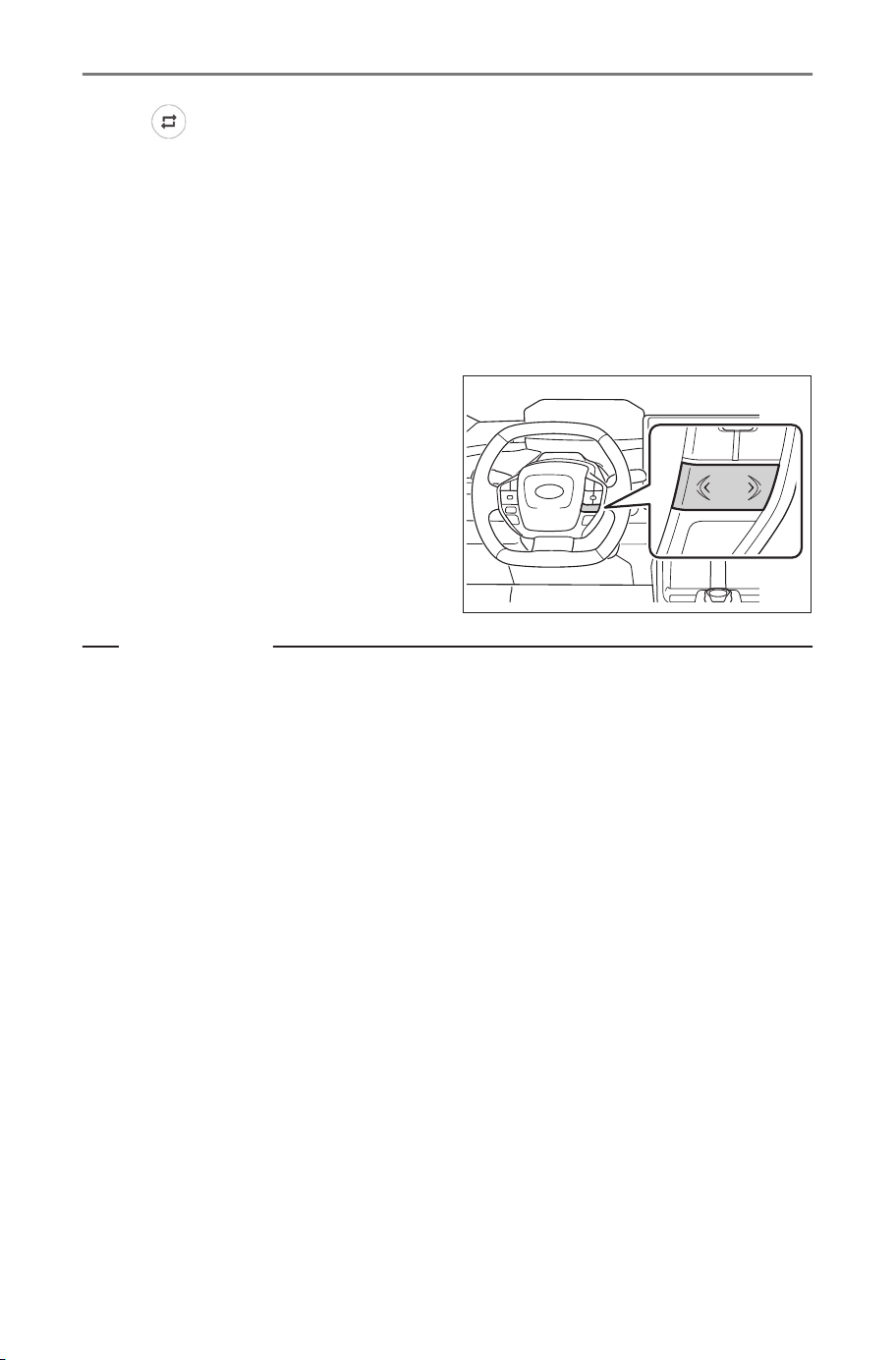
[ ] : Performs repeat playback.
Each time this is touched, the mode switches in order from repeat
the currently playing file or track, repeat playback of the currently
playing folder or album, and repeat playback of all files or tracks.
[Browse] : Displays the playback mode in the sub menu.
Tracks can be selected from a list sorted by artist, album, folder,
song, genre, or composer.
●
Operating with the steering switches
[<]/[>] switches
Switch the files or tracks.
Press and hold to fast for-
ward or fast rewind. Release
to start playback from that
position.
Related Links
Connecting a device via the USB Type-C port(P. 34)
Changing sound and media settings(P. 66)
5-2. USB flash drive operation
166
Precautions for playback of USB flash drive
Pay special attention to the following information about playing a
USB flash drive.
INFORMATION
● When a USB hub is used to connect multiple devices, devices other
than the first device to be recognized cannot be used.
● Removing a USB flash drive or disconnecting a connected device dur-
ing playback may cause noise to be output.
● When a USB flash drive is connected and the source is switched from
another source to the USB flash drive, the first file on the drive is
played. If the same USB flash drive (without its contents changed)
is inserted again, playback will be started from the previously played
song.
● Reading a file in an unsupported format may affect operations.
WARNING
For safety reasons, the driver should not operate the USB flash drive
while driving.
NOTICE
● Do not leave a USB flash drive inside the vehicle. The inside of the
vehicle can become hot, which could cause the USB flash drive to
malfunction.
● Do not push down on or subject the connected USB flash drive to
unnecessary pressure. The USB flash drive or port may be damaged.
● Keep the port free of foreign matter. The USB flash drive or port may
be damaged.
■ Playback of MP3/WMA/AAC/WAV/FLAC/ALAC/Ogg Vorbis
When a USB flash drive storing MP3/WMA/AAC/WAV/FLAC/
ALAC/Ogg Vorbis files is connected, first all the files on the USB
flash drive are checked.
It is recommended that no files other than MP3/WMA/AAC/WAV/
FLAC/ALAC/Ogg Vorbis files and no unnecessary folders are written
onto the USB flash drive. This ensures that the USB flash drive
check finishes quickly.
5-2. USB flash drive operation
167
5
Audio system
INFORMATION
Many types of encoder software, such as freeware, are available in the
market for MP3/WMA/AAC/WAV/FLAC/ALAC/Ogg Vorbis. Depending on
the encoder condition or file format, audio quality deterioration or noise at
playback start may occur, or playback may not be possible.
NOTICE
Do not add an incorrect extension to a file. Adding an extension to a file
that does not match the file contents may result in files being incorrectly
recognized and played. This will output a loud noise that may damage the
speakers.
Incorrect examples:
● Adding the ".mp3" extension to a file that is not MP3
● Adding the ".wma" extension to a file that is not WMA
Related Links
Information about media that can be used(P. 296)
Format information(P. 296)
USB flash drive(P. 302)
5-2. USB flash drive operation
168
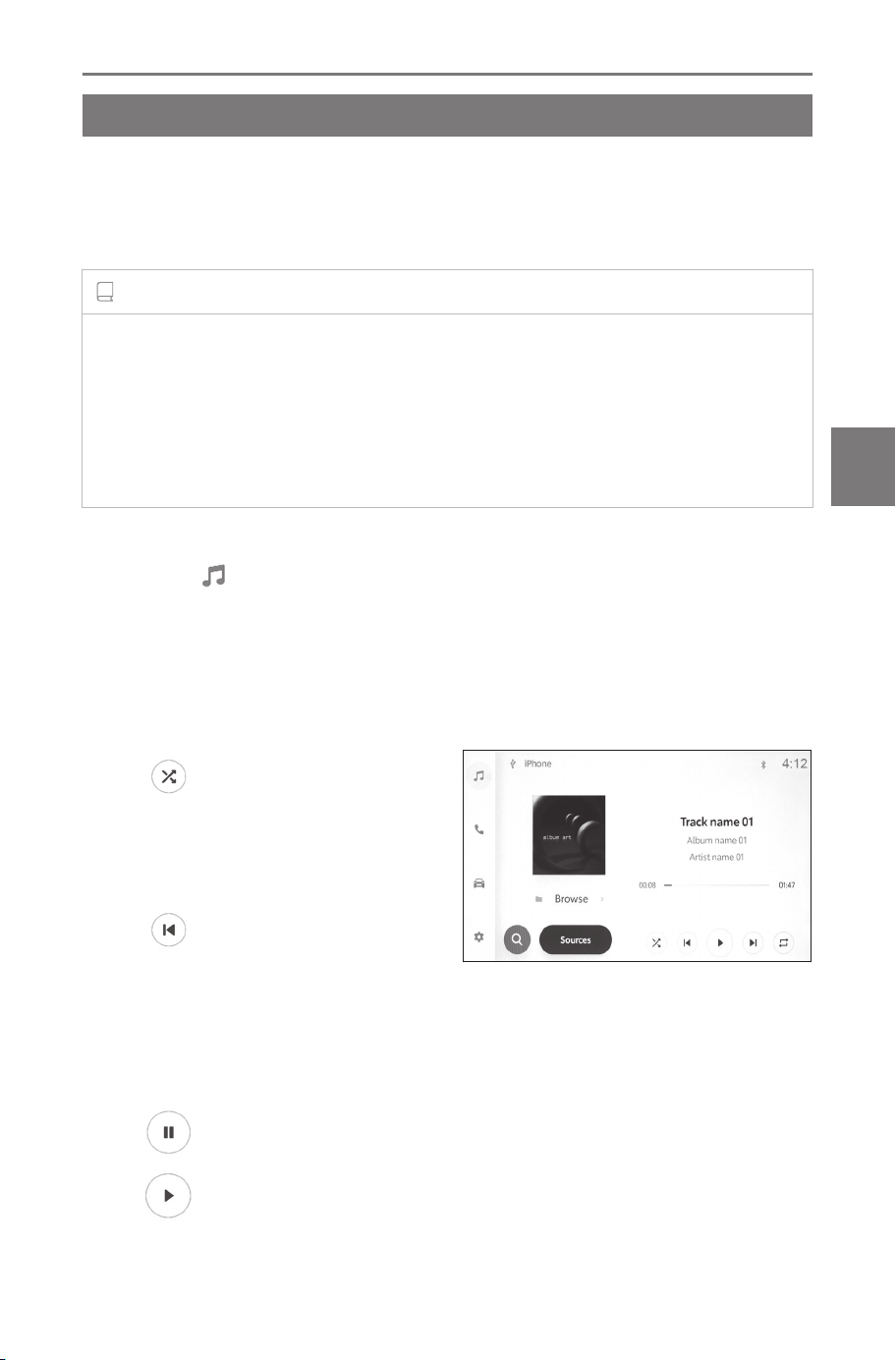
iPod/iPhone operation
Playing iPod/iPhone
Play back music files on an iPod or iPhone connected to the USB
Type-C port. When an iPod or iPhone is connected, a button with the
device's name is displayed on the source selection screen. This may
not be displayed for some devices.
INFORMATION
● Depending on the generation and model of iPod or iPhone that is
connected, the cover art image may look grainy or display of the list
scroll may be slow.
● Some operations may not be available or they may operate differently,
depending on the generation and model of iPod/iPhone that is connect-
ed.
Connect an iPod or iPhone.
1 Touch [
] from the main menu.
2 Touch [Sources].
3 Touch the device name or [USB].
4 Operate the iPod or iPhone that is playing as necessary.
●
Operating from the screen
[ ] : Performs shuffle play-
back.
Each touch switches the
shuffle setting.
*1
[
] : Plays the currently
playing track from the begin-
ning. When at the start of the track, the previous track will play from
the beginning.
Touch and hold to fast rewind. Release to start playback from that
position.
[ ] : Pauses playback.
[
] : Plays.
*1 : The order in which shuffle or repeat settings switch depends on the
connected device.
5-3. iPod/iPhone operation
169
5
Audio system
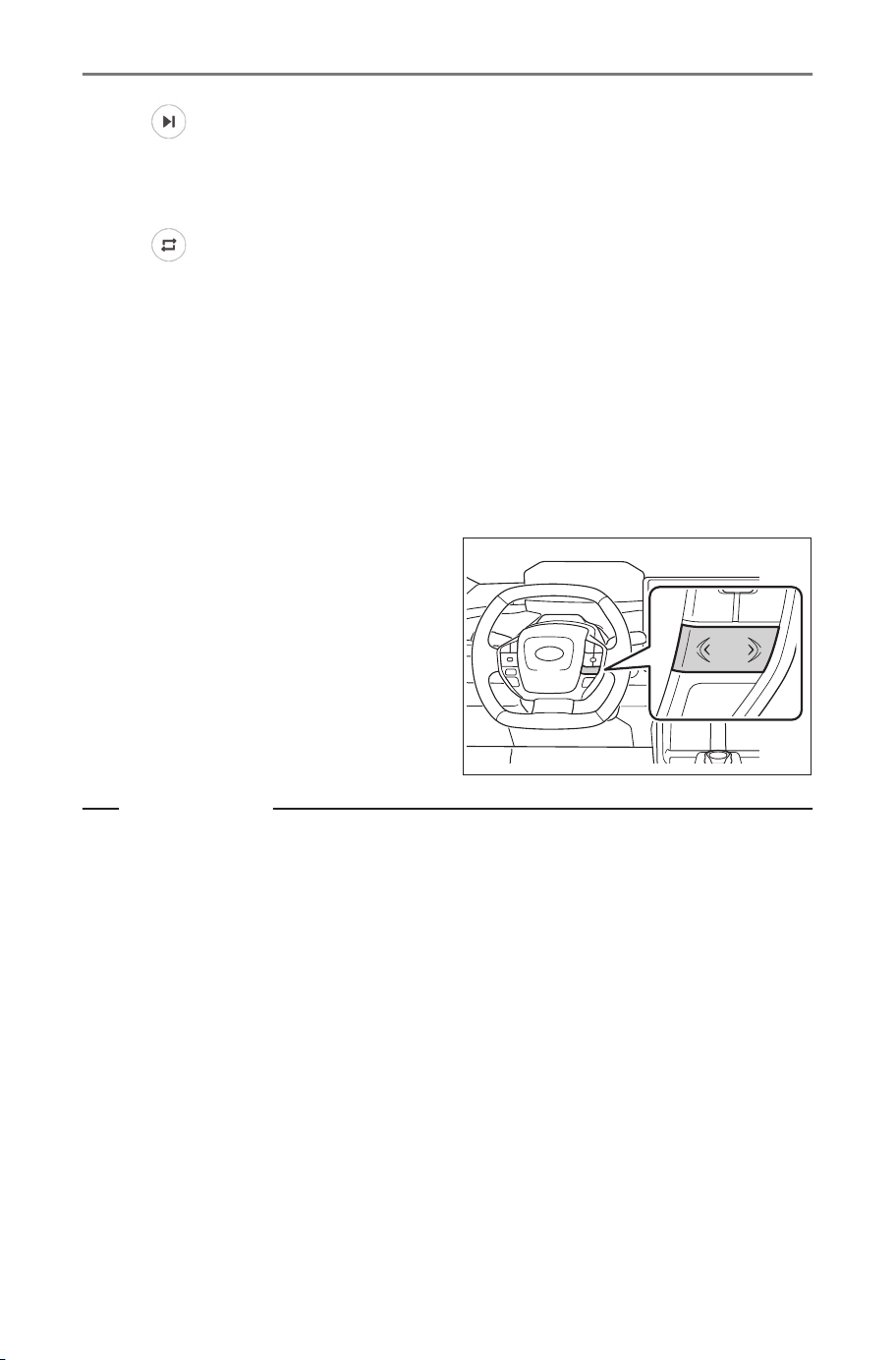
[ ] : Switches the tracks.
Touch and hold to fast forward. Release to start playback from that
position.
[ ] : Performs repeat playback.
Each touch switches the repeat setting.
*1
[Browse] : Displays the playback mode in the sub menu.
Tracks can be selected from a list sorted by artist, album, song,
playlist, genre, Podcast, composer, audiobook, or radio.
[Shuffle play] is displayed when playing a track selected from the
list. Touch this to return to the playback screen and perform shuffle
playback.
●
Operating with the steering switches
[<]/[>] switches
Switch the tracks.
Press and hold to fast for-
ward or fast rewind. Release
to start playback from that
position.
Related Links
Connecting a device via the USB Type-C port(P. 34)
Changing sound and media settings(P. 66)
*1 : The order in which shuffle or repeat settings switch depends on the
connected device.
5-3. iPod/iPhone operation
170
Precautions for playback of iPod/iPhone
Pay special attention to the following information about playing iPod/
iPhone.
INFORMATION
● This function cannot be used while Android Auto is connected.
● When a USB hub is used to connect multiple devices, devices other
than the first device to be recognized cannot be used.
● Disconnecting a port or disconnecting a connected device while in
iPod/iPhone mode may cause noise to be output.
● When switching from a different source to an iPod/iPhone while the
iPod/iPhone is connected, playback will be started from the previously
played track.
*1
WARNING
For safety reasons, the driver should not operate the iPod/iPhone while
driving.
NOTICE
● Do not leave the iPod/iPhone inside the vehicle. The inside of the vehi-
cle can become hot, which could cause the iPod/iPhone to malfunction.
● Do not push down on or subject the connected iPod/iPhone to unnec-
essary pressure. The iPod/iPhone, or the port, may be damaged.
● Keep the port free of foreign matter. The iPod/iPhone or the port may
be damaged.
Related Links
iPhone/iPod(P. 300)
*1 : Depending on the device connected, operation may be different from
described.
5-3. iPod/iPhone operation
171
5
Audio system
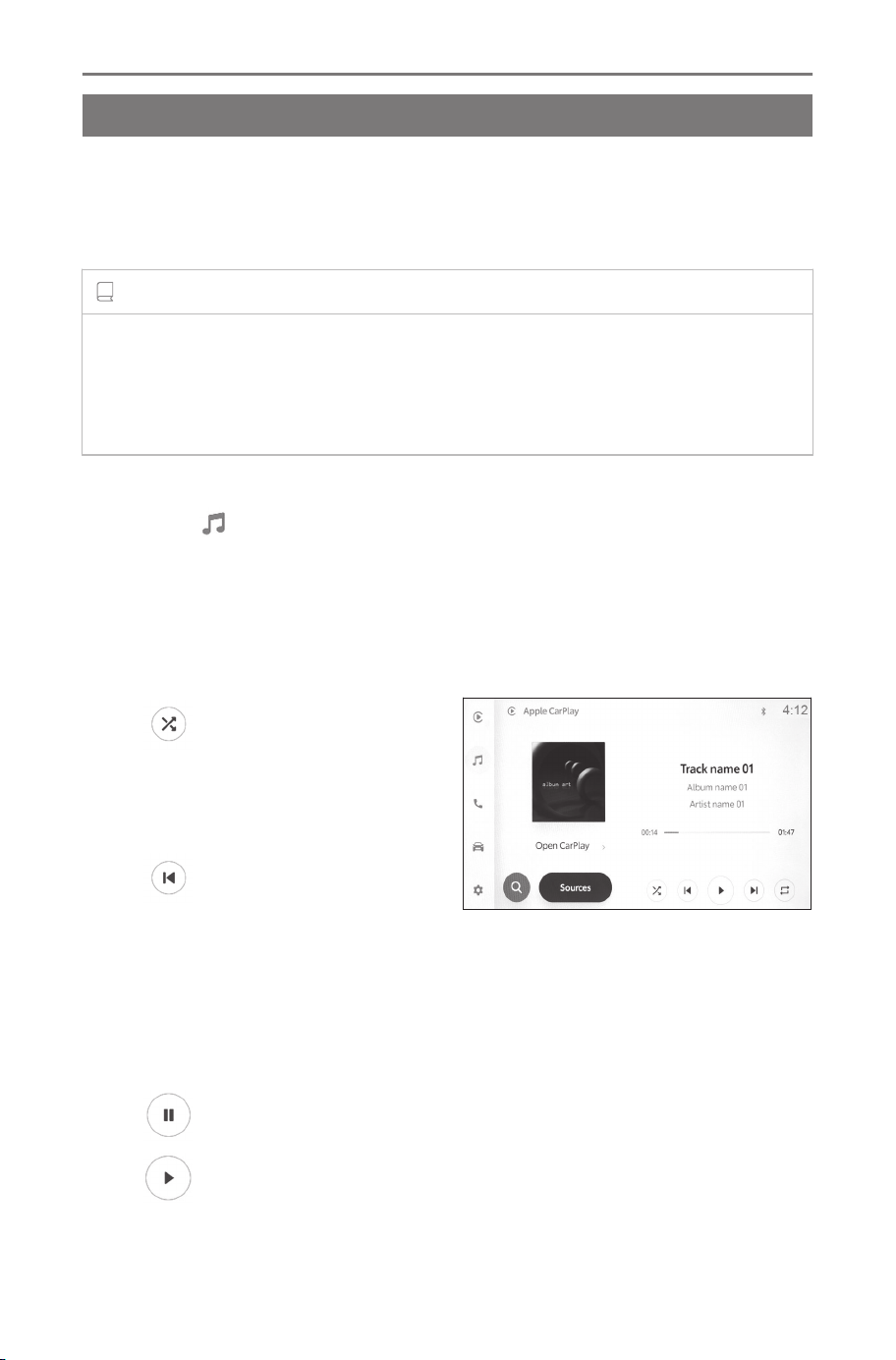
Apple CarPlay operation
Playing Apple CarPlay
Play music files on an iPhone connected to the USB Type-C port or
a wirelessly connected iPhone. When Apple CarPlay is connected,
a button with the device's name is displayed on the source selection
screen. This may not be displayed for some devices.
INFORMATION
● Some operations may not be available or they may operate differently,
depending on the generation and model of iPhone that is connected.
● In cases such as the track not playing normally or audio skipping,
update iOS to the latest version. Updating may resolve the issues.
Connect Apple CarPlay.
1 Touch [
] from the main menu.
2 Touch [Sources].
3 Touch [Apple CarPlay] (device name).
4 Operate the Apple CarPlay that is playing as necessary.
●
Operating from the screen
[
] : Performs shuffle play-
back.
Each touch switches the
shuffle setting.
*1
[
] : Plays the currently
playing track from the begin-
ning.
When at the start of the track, the previous track will play from the
beginning.
Touch and hold to fast rewind. Release to start playback from that
position.
[ ] : Pauses playback.
[
] : Plays.
*1 : The order in which shuffle or repeat settings switch depends on the
connected device.
5-4. Apple CarPlay operation
172
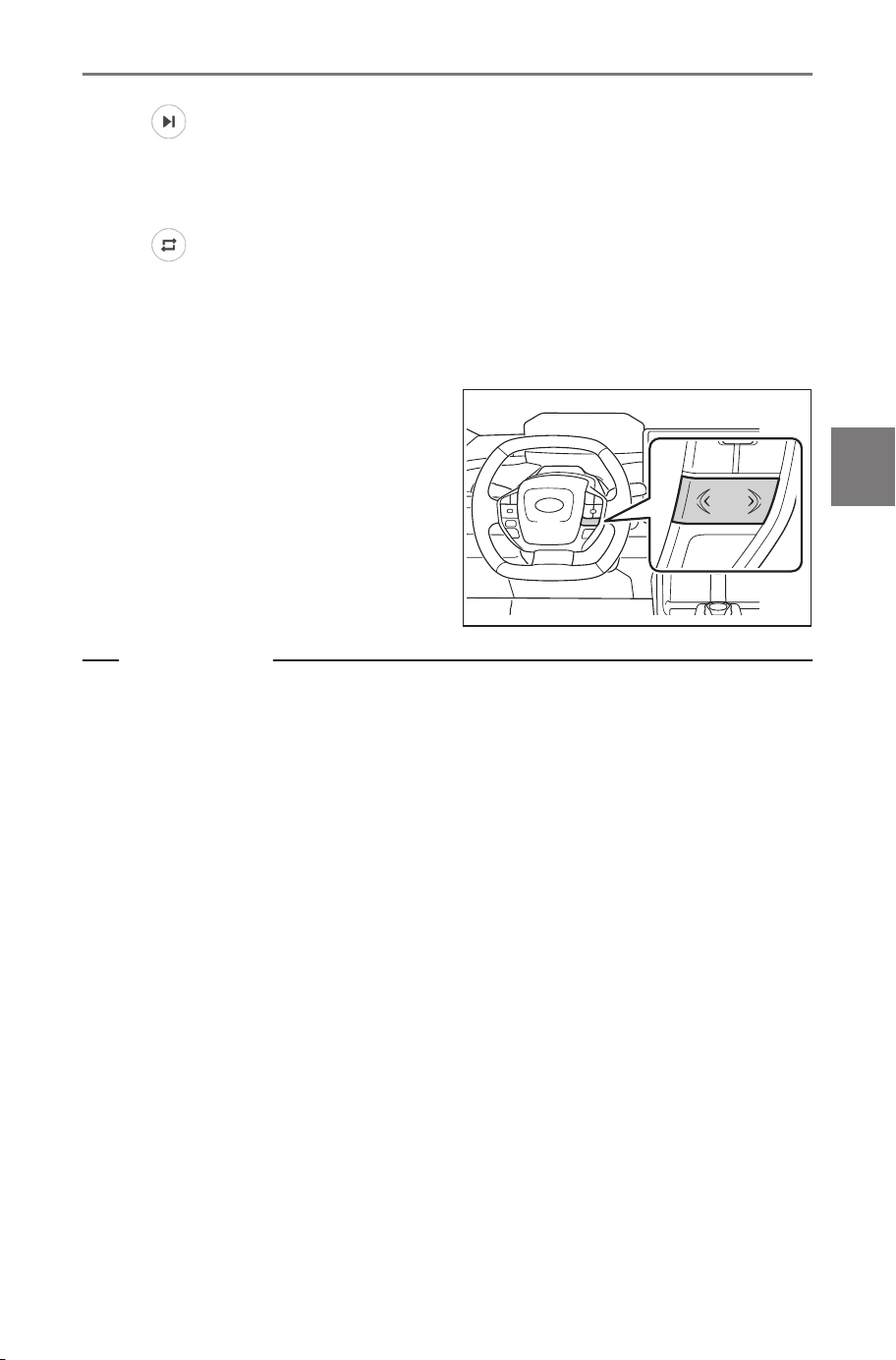
[ ] : Switches the tracks.
Touch and hold to fast forward. Release to start playback from that
position.
[ ] : Performs repeat playback.
Each touch switches the repeat setting.
*1
[Open CarPlay] : Displays the Apple CarPlay screen.
●
Operating with the steering switches
[<]/[>] switches
Switch the tracks.
Press and hold to fast for-
ward or fast rewind. Release
to start playback from that
position.
Related Links
Changing sound and media settings(P. 66)
Using Apple CarPlay with an unregistered smartphone(P. 122)
Using Apple CarPlay with a registered smartphone(P. 125)
Setting Bluetooth
®
devices(P. 90)
*1 : The order in which shuffle or repeat settings switch depends on the
connected device.
5-4. Apple CarPlay operation
173
5
Audio system
Precautions for playback of Apple CarPlay
Pay special attention to the following information about playing Ap-
ple CarPlay.
INFORMATION
● This function cannot be used while Android Auto is connected.
● Disconnecting a connected device while Apple CarPlay is connected
via USB may cause noise to be output.
● When a different source is switched to Apple CarPlay while an iPhone
is connected, playback will be started from the previously played track.
WARNING
For safety reasons, the driver should not operate the iPhone while driving.
NOTICE
● Do not leave the iPhone inside the vehicle. The inside of the vehicle
can become hot, which could cause the iPhone to malfunction.
● Do not push down on or subject the connected iPhone to unnecessary
pressure. The iPhone or port may be damaged.
● Keep the port free of foreign matter. The iPhone or port may be dam-
aged.
Related Links
Precautions when using Apple CarPlay and Android Auto(P. 119)
5-4. Apple CarPlay operation
174
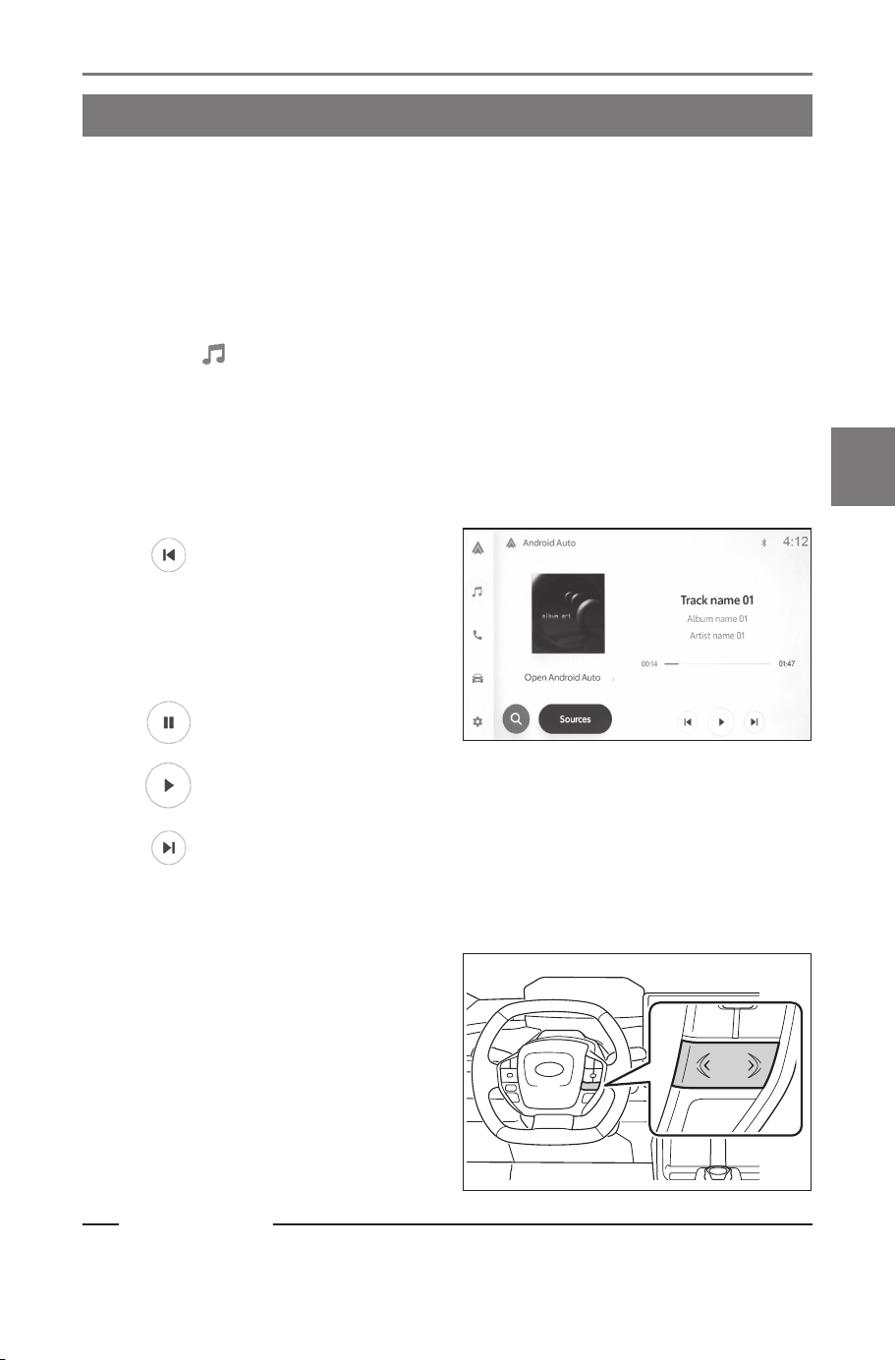
Android Auto operation
Playing Android Auto
Play music files on an Android device connected to the USB Type-C
port or a wirelessly connected Android device. When an Android
device is connected, a button with the device's name is displayed
on the source selection screen. This may not be displayed for some
devices.
Connect Android Auto.
1 Touch [
] from the main menu.
2 Touch [Sources].
3 Touch [Android Auto] (device name).
4 Operate the Android Auto that is playing as necessary.
●
Operating from the screen
[ ] : Plays the currently
playing track from the begin-
ning. When at the start of the
track, the previous track will
play from the beginning.
[
] : Pauses playback.
[ ] : Plays.
[
] : Switches the tracks.
[Open Android Auto] : Displays the Android Auto screen.
●
Operating with the steering switches
[<]/[>] switches
Switch the tracks.
Related Links
Changing sound and media settings(P. 66)
5-5. Android Auto operation
175
5
Audio system

Using Android Auto with an unregistered smartphone(P. 128)
Using Android Auto with a registered smartphone(P. 131)
Setting Bluetooth
®
devices(P. 90)
5-5. Android Auto operation
176
Precautions for playback of Android Auto
Pay special attention to the following information about playing An-
droid Auto.
INFORMATION
● This function cannot be used while Apple CarPlay is connected.
● Disconnecting a connected device while Android Auto is connected via
USB may cause noise to be output.
● When a different source is switched to Android Auto while an Android
device is connected, playback will be started from the previously played
track.
WARNING
For safety reasons, the driver should not operate the Android device while
driving.
NOTICE
● Do not leave the Android device inside the vehicle. The inside of the
vehicle can become hot, which could cause the Android device to mal-
function.
● Do not push down on or subject the connected Android device to un-
necessary pressure. The Android device or port may be damaged.
● Keep the port free of foreign matter. The Android device or port may be
damaged.
Related Links
Precautions when using Apple CarPlay and Android Auto(P. 119)
5-5. Android Auto operation
177
5
Audio system

Bluetooth®audio operation
Playing Bluetooth
®
audio
By connecting a portable device, the portable device can be used
without operating it directly.
INFORMATION
● The following information may not be displayed depending on the con-
nected portable device.
• Folder title
• Song name
• Album name
• Artist name
• Playback time
• Total time
• Random
• Repeat
• Playback/pause
• Track up/down
● The following issues may occur depending on the connected device.
• Operation cannot be performed from the multimedia system.
• Operation or volume is different.
• The display of data such as song information or time may differ
between the multimedia system and the portable device.
• The connection may disconnect when playback stops.
● When playing for a long time, the sound may skip.
● The volume while connected may differ depending on the portable
device.
● The volume level between the paired mobile device and the multimedia
system are synchronized. When the volume of the device is changed it
change the multimedia volume for Bluetooth
®
audio.
A portable device can be connected to the multimedia system.
1 Touch [
] from the main menu.
2 Touch [Sources].
3 Touch the device name or [Bluetooth].
4
Operate the Bluetooth
®
audio that is playing as necessary.
5-6. Bluetooth
®
audio operation
178
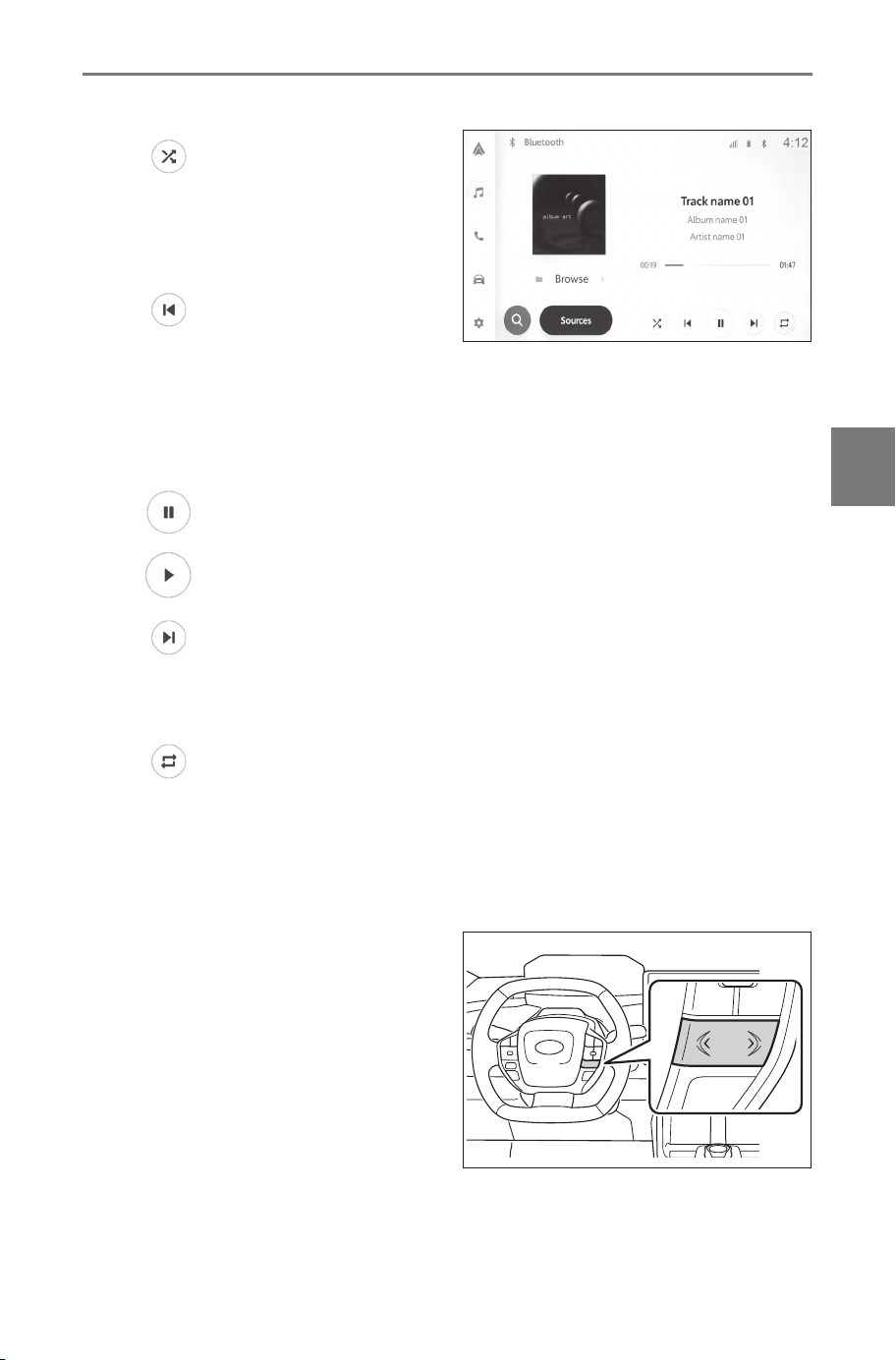
●
Operating from the screen
[ ] : Performs random
playback.
Each touch switches the ran-
dom setting.
*1
[ ] : Plays the currently
playing track from the begin-
ning. When at the start of the track, the previous track will play from
the beginning.
Touch and hold to fast rewind. Release to start playback from that
position.
[ ] : Pauses playback.
[ ] : Plays.
[ ] : Switches the tracks.
Touch and hold to fast forward. Release to start playback from that
position.
[
] : Performs repeat playback.
Each touch switches the repeat setting.
*1
[Browse] : Displays the playback mode in the sub menu. Tracks can
be selected from a list.
●
Operating with the steering switches
[<]/[>] switches
Switch the tracks.
Press and hold to fast for-
ward or fast rewind. Release
to start playback from that
position.
*1 : The order in which random or repeat settings switch depends on the
model.
5-6. Bluetooth
®
audio operation
179
5
Audio system

Related Links
Changing sound and media settings(P. 66)
Setting Bluetooth
®
devices(P. 90)
5-6. Bluetooth
®
audio operation
180
Precautions for Bluetooth
®
audio playback
Pay special attention to the following information when using Blue-
tooth
®
audio playback.
INFORMATION
● Registration of the cellular phone or other Bluetooth
®
portable audio
player (hereafter referred to as portable device) in the multimedia sys-
tem is required before use.
● Please be aware that some functions may be limited depending on the
model of portable device.
● Using simultaneously with a wireless device could negatively affect
communication for each.
● When the Wi-Fi
®
function is enabled in the multimedia system settings,
the Bluetooth
®
audio sound may be interrupted.
WARNING
● For safety reasons, the driver should not operate the portable device
while driving.
● Caution regarding interference with electronic devices
People using electrical medical devices other than implantable cardiac
pacemakers, implantable cardiac resynchronization therapy-pacemak-
ers, or implantable cardioverter defibrillators should consult with their
physician and the device manufacturer to determine whether electrical
waves could adversely affect devices before use.
NOTICE
● Do not leave the portable device inside the vehicle. The inside of the
vehicle can become hot, which could cause the portable device to
malfunction.
● Do not use a portable device near the multimedia system. Bringing it
too close could cause sound or connection quality to deteriorate.
Related Links
Changing Wi-Fi
®
setting(P. 86)
Setting Wi-Fi
®
Hotspot(P. 88)
Bluetooth
®
(P. 303)
5-6. Bluetooth
®
audio operation
181
5
Audio system

Precautions when using Bluetooth
®
devices(P. 96)
Registering a Bluetooth
®
device from the multimedia system(P. 100)
5-6. Bluetooth
®
audio operation
182
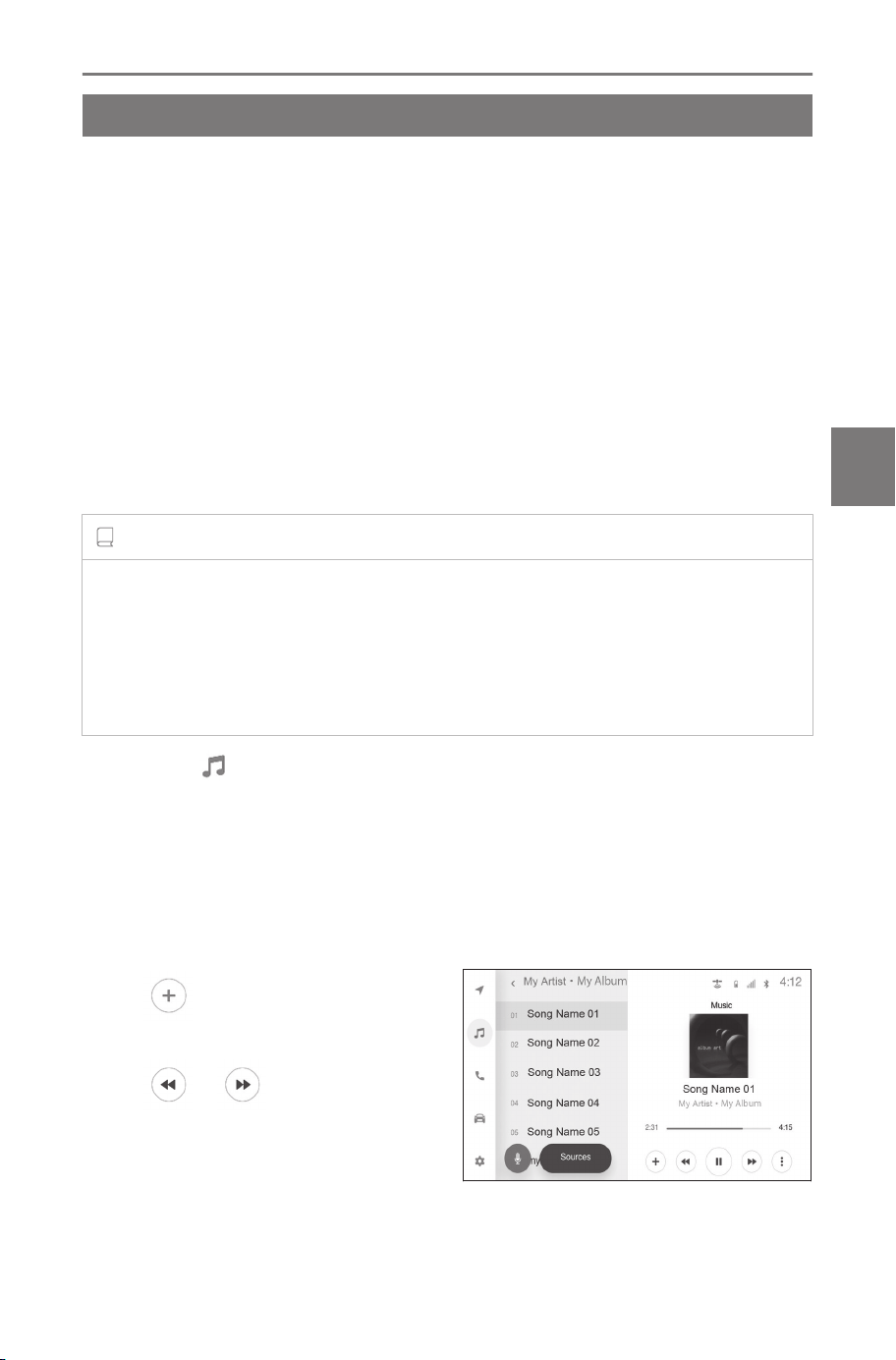
Integrated Streaming
Playing Integrated Streaming
*1
The Integrated Streaming can be listened via audio system. In order
to use this function, the customer needs to download and install
the SubaruConnect Mobile App to mobile device first. Your music
account must be linked in SubaruConnect Mobile App.
Go to the following website for more information.
SUBARU of America : https://www.subaru.com/vehicle-info/connect-
ed-services/subaruconnect.html
SUBARU Canada English : https://www.subaru.ca/Web-
Page.aspx?WebSiteID=282&WebPageID=24700
SUBARU Canada French : https://www.subaru.ca/Web-
Page.aspx?WebSiteID=284&WebPageID=24773
INFORMATION
● The available functions and screen layout may vary by music app.
● If you navigate to another Integrated Streaming screen while playing
music, the playback screen is minimized. Selecting the minimized play-
back screen restores the playback screen to its original size.
● The screen layout may vary depending on the music app.
1
Touch [ ] from the main menu.
2 Touch [Sources].
3 Select the desired streaming music service name to display
the playback screen.
4 As necessary, operate the following while playing music.
●
Screen operation
[ ] : Stores the current
playing song to library.
[ ]/[ ] : Switches the
track.
Touch and hold to fast re-
wind/fast forward. Release to
start playback from that posi-
tion.
*1 : This function is not available in some regions.
5-7. Integrated Streaming
183
5
Audio system

[ ] : Stops the current playing music.
[ ] : Pauses playback.
[ ] : Plays.
[ ] : Displays the menu. The selectable contents as follow:
• [Create station] : Creates a station that play songs similar to cur-
rent playing song.
• [Shuffle] : Performs random playback. Tracks or albums can be
automatically and randomly selected.
• [Repeat] : Performs repeat playback. Each time this is touched,
the mode switches in order of playlist, single track, and off.
• [Love]/[Dislike] : Helps to personalize recommended content in
music app's homepage to better match your preferences.
Song name on sub menu list : The current playing song can be
changed by touching folder name or song name.
Related Links
Changing sound and media settings(P. 66)
5-7. Integrated Streaming
184

6
Hands-free calls
6-1. Precautions when using
hands-free calls
Precautions for hands-
free calling ............... 186
When hands-free call-
ing might be malfunc-
tioning ...................... 190
6-2. Operating hands-free
calls with the steering
switches
Operating with the
steering switches ..... 195
6-3. How to make calls
Making calls from call
history ...................... 197
Making calls from the
favorites list.............. 198
Making calls from con-
tacts ......................... 199
Making calls from key-
pad........................... 200
6-4. How to receive calls
Answering calls.......... 201
Declining calls............ 203
6-5. In-call operations
Performing operations
from the call screen . 204
Answering a second
call ........................... 206
Making a call to anoth-
er party during an on-
going call.................. 207
Making conference
calls.......................... 208
Ending calls ............... 209
6-6. Changing phones for
hands-free calls
Switching phones for
hands-free calls ....... 210
6-7. Editing contact data
Transferring contact
data.......................... 212
6-8. How to use the message
function
Precautions when us-
ing the message func-
tion ........................... 214
Making calls from the
message function..... 218
185
6
Hands-free calls

Precautions when using hands-free calls
Precautions for hands-free calling
By connecting a Bluetooth
®
cellular phone that has been verified
with the system, the phone function can be used to make and
receive calls without operating the cellular phone directly. This is
known as hands-free calling.
A cellular phone must support the multimedia system specifications
in order to connect to the system. However, be aware that some
functions may be limited depending on the model of cellular phone.
Even while connected to Apple CarPlay or Android Auto, the hands-
free phone screen for Apple CarPlay or Android Auto may not be
displayed, depending on conditions.
INFORMATION
● Observe the following precautions when using the cellular phone with
the hands-free function.
• A cellular phone must be registered to the multimedia system and
connected with Bluetooth
®
before hands-free calling can be used. To
use hands-free calling, first register a cellular phone.
• Make sure the cellular phone is able to utilize the Bluetooth
®
func-
tion.
• If attempting to make or receive a call during Bluetooth
®
audio play-
back, the screen display and dial tone or ringtone sound may be
delayed.
● The multimedia system is not guaranteed to operate with all Bluetooth
®
devices.
The following issues may occur depending on the cellular phone mod-
el.
• When the power switch is operated during a hands-free call, the call
may be disconnected.
• The calling screen may not be displayed, or the call screen may be
displayed before the other party answers the phone.
• Even if numbers are entered using the numeric keypad on the call
screen, the tone signal may not be transmitted depending on the
cellular phone service provider.
• After dialing, it may be necessary to perform operations on the cellu-
lar phone.
● Hands-free calling may be unavailable in the following situations.
6-1. Precautions when using hands-free calls
186
• When outside of the calling area
• When outgoing calls are restricted, such as when the lines are con-
gested
• During emergency calls
• While contact data is being transferred from the cellular phone
• When dial lock is turned on for the cellular phone
• When the cellular phone is in use, such as when transmitting data
• When the cellular phone is malfunctioning
• When the cellular phone is not connected
• When the cellular phone has a low battery
• When the cellular phone is turned off
• When the settings prevent the cellular phone from being used for
hands-free calls
• When switching from data communication or contact transfer to
hands-free calling with the multimedia system. (While switching,
Bluetooth
®
connection status for the multimedia system will not be
displayed)
• When the cellular phone itself cannot be used for any other reason
● If hands-free calling and the Wi-Fi
®
function (Wi-Fi
®
or Wi-Fi
®
Hotspot)
are used simultaneously, the Bluetooth
®
connection of the cellular
phone may be disconnected.
WARNING
● The driver should operate mobile devices in hands free mode only.
Failure to follow this warning will lead to driver distraction which can
cause personal injury or death.
● The driver is solely responsible for the safe operation of the vehicle.
● People with implantable cardiac pacemakers, cardiac resynchroni-
zation therapy-pacemakers or implantable cardioverter defibrillators
should maintain a reasonable distance between themselves and the
Bluetooth
®
antennas. The radio waves may affect the operation of such
devices.
● Before using Bluetooth
®
devices,users of any electrical medical device
other than implantable cardiac pacemakers, cardiac resynchronization
therapy-pacemakers or implantable cardioverter defibrillators should
consult the manufacturer of the device for information about its oper-
6-1. Precautions when using hands-free calls
187
6
Hands-free calls
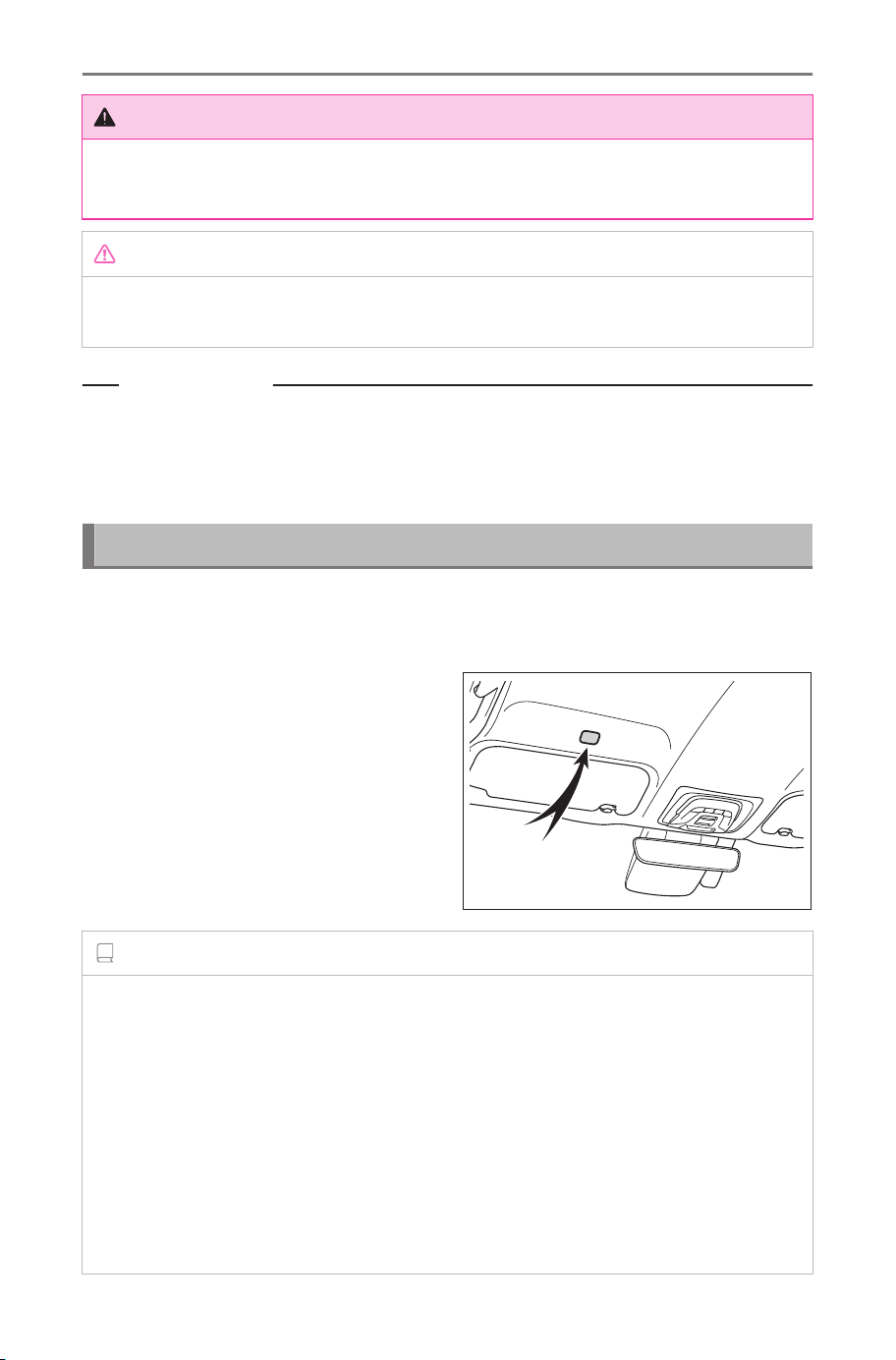
WARNING
ation under the influence of radio waves. Radio waves could have
unexpected effects on the operation of such medical devices.
NOTICE
Do not leave a cellular phone inside the vehicle. The inside of the vehicle
can become hot, which could cause the cellular phone to malfunction.
Related Links
Precautions when using Bluetooth
®
devices(P. 96)
Bluetooth
®
specifications and compatible profiles(P. 99)
Registering a Bluetooth
®
device from the multimedia system(P. 100)
Precautions for call audio
In a hands-free call, the car's built-in microphone can be used to
speak. Pay special attention to the following information when mak-
ing a hands-free call.
● The audio when receiving calls
or when talking during calls is
output from speakers on both
sides of the front seats.
● The audio is muted when a
voice or ringtone is output from
the hands-free system.
INFORMATION
● During calls, take turns speaking with the other party on the phone. If
both parties speak at the same time, it may be difficult to hear what the
other party is saying.
● If the receiver volume is too high, the other party's voice may be audi-
ble outside the vehicle or echoes may be heard.
● Speak clearly in a loud voice.
● The other party may not hear your voice clearly in the following situa-
tions.
• Driving on rough roads
6-1. Precautions when using hands-free calls
188
• Driving at high speeds
• The windows are open
• The air conditioning vents are pointed towards the microphone
• The sound of the air conditioning fan is loud
• The cellular phone is brought closer to the microphone
● There might be an adverse effect on sound quality (such as noise or
echo) depending on the phone or network being used.
● If other Bluetooth
®
devices are connected at the same time, noise may
be generated in the hands-free system audio.
● If the multimedia system has been configured to use the Wi-Fi
®
func-
tion (Wi-Fi
®
or Wi-Fi
®
Hotspot), noise may be generated in the hands-
free system.
NOTICE
Do not touch or poke sharp objects into the microphone. This may cause
a malfunction.
Precautions when selling or disposing of the vehicle
A lot of personal information is registered when using the hands-free
system. Make sure to clear all information before selling or disposing
of the vehicle.
After initializing all the information, all the data in the multimedia
system will be initialized and returned to the factory default. It cannot
be returned to the state before initialization.
Related Links
Changing the security settings(P. 73)
6-1. Precautions when using hands-free calls
189
6
Hands-free calls

When hands-free calling might be malfunctioning
If you notice any of the following symptoms, refer to the following
table for possible reasons and solutions, and check the symptom
again.
■ Using hands-free calls
Symptom Possible reason Solution
Hands-free calls
cannot be used
Your cellular phone
does not support
Bluetooth
®
.
For a list of specific devi-
ces which operation has been
confirmed on multimedia sys-
tem, check with your SUBARU
dealer or the following web-
site:
SUBARU of America : https://
www.subaru.com/vehicle-
info/connected-services/
subaruconnect.html
SUBARU Canada English :
https://www.subaru.ca/
WebPage.aspx?
WebSiteID=282&WebPageID=
24700
SUBARU Canada French :
https://www.subaru.ca/
WebPage.aspx?
WebSiteID=284&WebPageID=
24773
Your cellular phone
version is not com-
patible with Blue-
tooth
®
.
Use a cellular phone com-
patible with Bluetooth
®
Core
Specification Ver. 5.0 or later.
■ Cellular phone registration and connection
Symptom Possible reason Solution
Your cellular phone
cannot be regis-
tered
The cellular phone
registration opera-
tion has not been
completed.
Select the authentication but-
ton when it is shown on your
cellular phone and continue
the registration operation.
6-1. Precautions when using hands-free calls
190
Symptom Possible reason Solution
Your cellular phone
cannot be regis-
tered
There is registration
information remain-
ing on either the
cellular phone or
the multimedia sys-
tem.
Perform the registration oper-
ation again after deleting the
registration information from
both the multimedia system
and the cellular phone.
Cannot connect via
Bluetooth
®
A cellular phone
other than the one
to use is already
connected via Blue-
tooth
®
.
Manually connect the cellular
phone to use via Bluetooth
®
from the multimedia system.
The Bluetooth
®
function of the cel-
lular phone is not
activated.
While the power switch is in
ACC or ON, activate the Blue-
tooth
®
function on the cellular
phone.
The cellular phone
registration informa-
tion has been delet-
ed.
Perform the registration oper-
ation after deleting the regis-
tration information from both
the multimedia system and the
cellular phone.
■ Calling and receiving calls
Symptom Possible reason Solution
Cannot make or re-
ceive calls
Outside the service
area
Move to a place in which the
[ ] icon disappears.
Call restriction (di-
al lock) is turned
on for the cellular
phone.
Turn off call restriction (dial
lock) for the cellular phone.
6-1. Precautions when using hands-free calls
191
6
Hands-free calls

■ Contacts
Symptom Possible reason Solution
Cannot transfer or
automatically trans-
fer contact data
The cellular phone
profile does not
support transferring
contact data.
For a list of specific devi-
ces which operation has been
confirmed on multimedia sys-
tem, check with your SUBARU
dealer or the following web-
site:
SUBARU of America : https://
www.subaru.com/vehicle-
info/connected-services/
subaruconnect.html
SUBARU Canada English :
https://www.subaru.ca/
WebPage.aspx?
WebSiteID=282&WebPageID=
24700
SUBARU Canada French :
https://www.subaru.ca/
WebPage.aspx?
WebSiteID=284&WebPageID=
24773
[Sync contacts] in
the Bluetooth
®
set-
tings on the multi-
media system is set
to off.
Set [Sync contacts] in the
Bluetooth
®
settings on the
multimedia system to on.
The cellular phone
is waiting for appro-
val to transfer con-
tacts.
Select the contacts transfer
approval button on the cellular
phone.
An approval confir-
mation screen is
displayed on the
cellular phone
The cellular phone
is not set to always
allow.
Set the cellular phone to al-
ways allow.
The contact data
is registered else-
where
The contacts are
not registered to the
cellular phone.
Register the contacts to the
cellular phone.
6-1. Precautions when using hands-free calls
192

■ When using the Bluetooth
®
message function
Symptom Possible reason Solution
New message no-
tifications are not
displayed.
Set [Do not dis-
turb] on multimedia
system to ON.
Set [Do not disturb] on multi-
media system to OFF.
Automatic message
transfer function is
not enabled on the
cellular phone.
Enable automatic transfer
function on the cellular phone.
■
Other conditions
Symptom Possible reason Solution
If symptoms do not
improve after apply-
ing possible solu-
tions
The cellular phone
and multimedia sys-
tem are too far
apart.
Move the cellular phone and
multimedia system closer to-
gether.
Electromagnetic in-
terference is being
generated.
Turn the power off for any de-
vices that may be generating
electromagnetic waves, such
as Wi-Fi
®
devices.
Set the Wi-Fi
®
setting on the
multimedia system to off.
The cause lies in
the cellular phone.
Turn the power off for the cel-
lular phone, and remove the
battery pack.
Turn the cellular phone's Blue-
tooth
®
connection from off to
on.
Turn off the cellular phone's
Wi-Fi
®
connection.
Stop any security software or
background applications that
are running on the cellular
phone.
Make sure to carefully confirm
the provider and operating sta-
tus of applications installed on
the cellular phone before use.
6-1. Precautions when using hands-free calls
193
6
Hands-free calls

INFORMATION
For more details, refer to the instruction manual included with the cellular
phone.
Related Links
Registering a Bluetooth
®
device from the multimedia system(P. 100)
Deleting a registered Bluetooth
®
device(P. 104)
Setting Bluetooth
®
devices(P. 90)
Disconnecting Wi-Fi
®
(P. 115)
Disconnecting Wi-Fi
®
Hotspot(P. 117)
6-1. Precautions when using hands-free calls
194
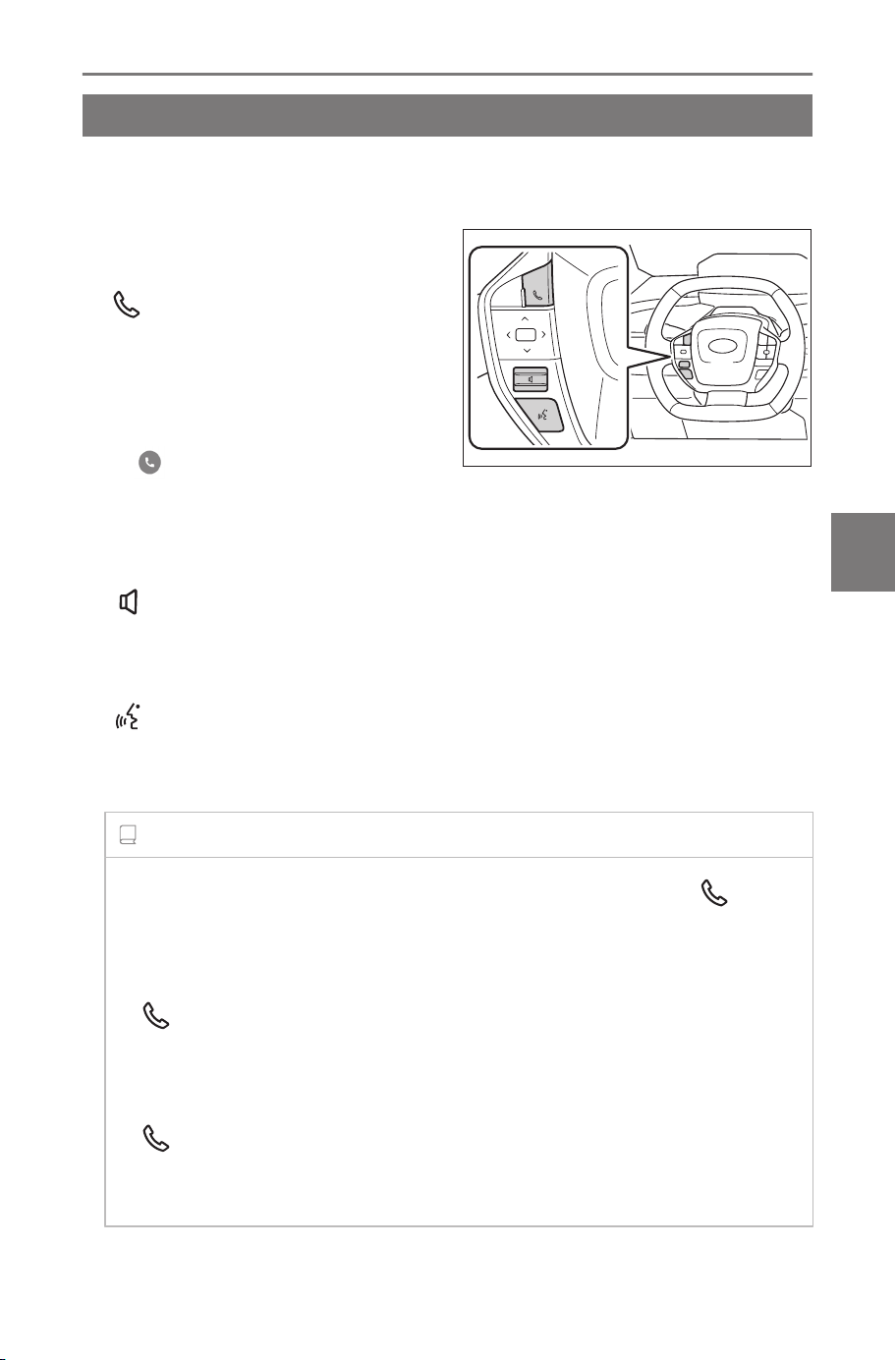
Operating hands-free calls with the steering switches
Operating with the steering switches
Some hands-free call functions can be operated from the steering
switches, such as receiving or making calls.
● Operate the switches as nec-
essary.
[ ] switch
● While a call cannot be made,
displays call history screen or
phone menu.
● Phone calls can be made when
[ ] is displayed on the phone
screen.
● While making a call or during a call, ends the call.
● While receiving a call or during call waiting, answers the call.
[ ] switch
Adjusts the ringtone volume or receiver volume.
Keep raising or lowering to adjust continuously.
[
] switch
Calls can be made using voice command.
To end Intelligent Assistant, press and hold the talk switch.
INFORMATION
● While Apple CarPlay or Android Auto is connected, press [ ] to
display the Apple CarPlay or Android Auto phone screen on the
multimedia system.
● While Apple CarPlay and a hands-free phone are connected, press
[ ] to display the Apple CarPlay or multimedia system phone
screen. The function that was used last is prioritized. If neither has
been used, the primary device is prioritized.
● While Android Auto and a hands-free phone are connected, press
[
] to display the multimedia system phone screen.
● When receiving a call, the incoming call screen for the cellular phone
(hands-free phone, Apple CarPlay, or Android Auto) is displayed.
6-2. Operating hands-free calls with the steering switches
195
6
Hands-free calls

Related Links
Precautions when using Apple CarPlay and Android Auto(P. 119)
Starting voice control(P. 38)
6-2. Operating hands-free calls with the steering switches
196
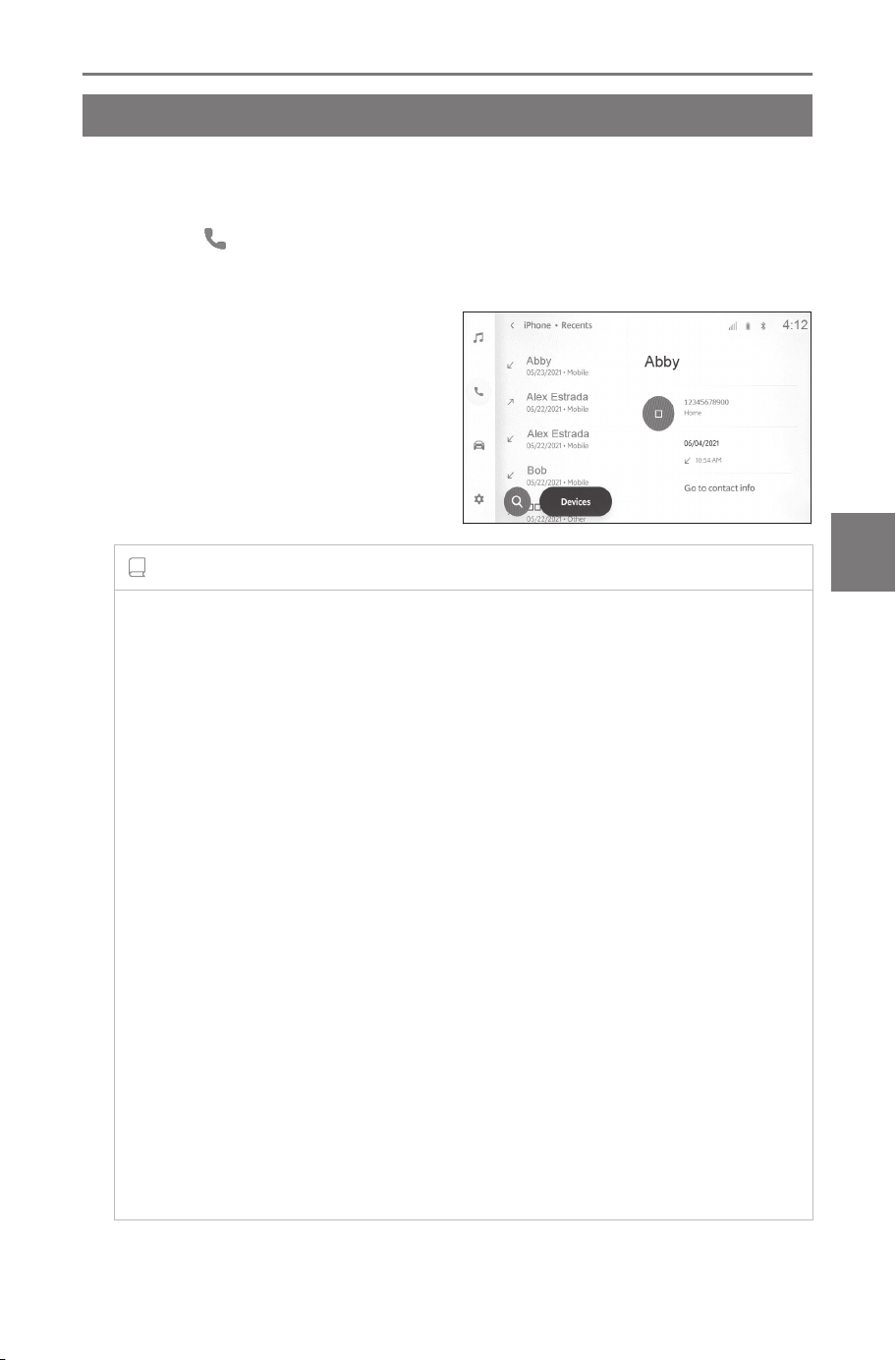
How to make calls
Making calls from call history
Calls can be made to phone numbers that have been recorded in
the call history as outgoing or incoming calls.
1 Touch [
] from the main menu.
2 Touch [Recents].
3 Select the contact.
For phone numbers that are not
registered in the contact, the
phone number will be displayed as
it is.
4 Touch the desired phone
number.
INFORMATION
● The latest 100 entries in the call history are shown. If the call history
exceeds 100 entries, history items are automatically deleted starting
from the oldest.
● The outgoing call history is registered as follows, depending on
conditions.
• If the call was placed to a phone number registered in contacts
or to the multimedia system, the name and image data are also
registered if they exist.
● The incoming call history is registered as follows, depending on
conditions.
• If the call was received from a phone number registered in con-
tacts, the name and image data are also registered if they exist.
• If multiple calls were received from the same phone number, all
are registered.
• Missed calls and declined calls are also registered.
• If the other party does not support caller ID, the call is registered
as "Unknown".
● Calls that were placed on hold are also registered to the call history.
● Depending on the model of cellular phone, it may not be possible to
make international calls.
6-3. How to make calls
197
6
Hands-free calls
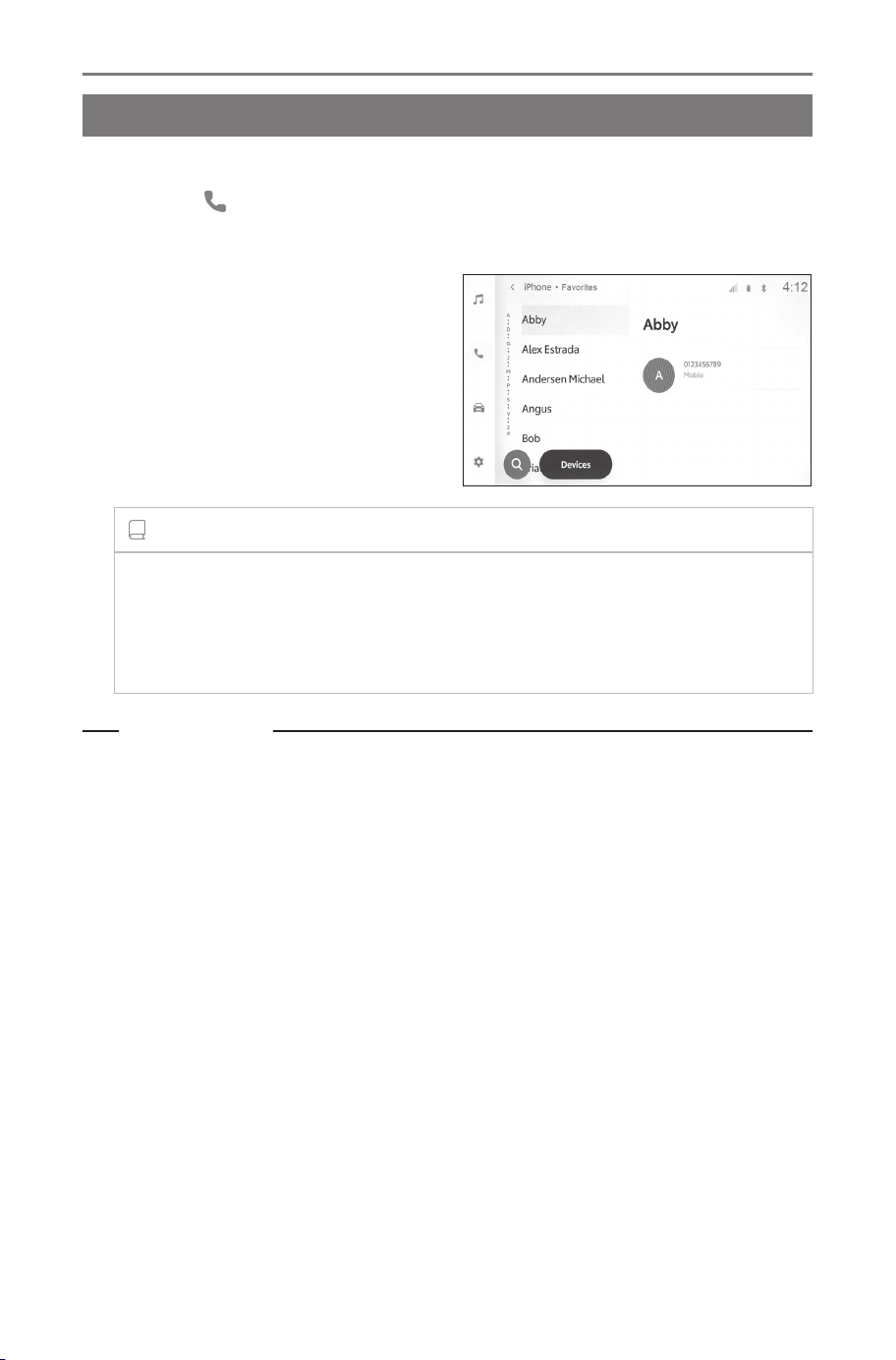
Making calls from the favorites list
Make a call from your favorites list.
1 Touch [ ] from the main menu.
2 Touch [Favorites].
3 Select the person you want
to call from your favorites
list.
4 Touch the desired phone
number.
INFORMATION
● When [Sync contacts] is ON, cellular phone favorites are automati-
cally transferred to the multimedia system.
● Depending on the cellular phone model, favorites cannot be trans-
ferred.
Related Links
Setting Bluetooth
®
devices(P. 90)
Transferring contact data(P. 212)
6-3. How to make calls
198
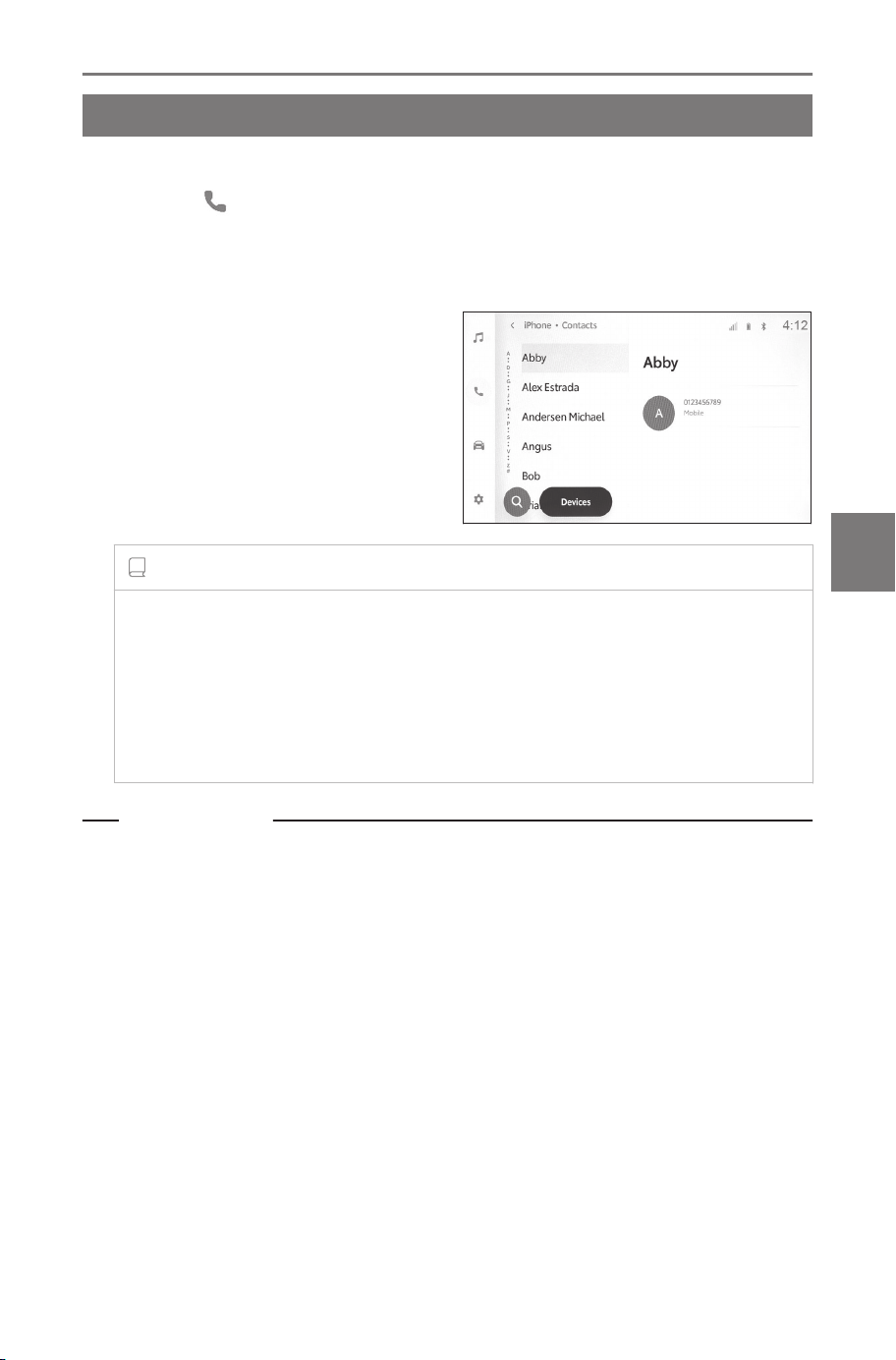
Making calls from contacts
Make a call from the contacts registered on the multimedia system.
1 Touch [ ] from the main menu.
2 Touch [Contacts].
3 Select a contact.
4 Touch the desired phone
number.
INFORMATION
● If no contact data has been registered, contact data must be trans-
ferred to the multimedia system.
● The contact data of the hands-free phone that is connected is
displayed on the multimedia system. When the hands-free phone
is switched during a 2-phone connection, the contact data also
switches.
Related Links
Transferring contact data(P. 212)
6-3. How to make calls
199
6
Hands-free calls
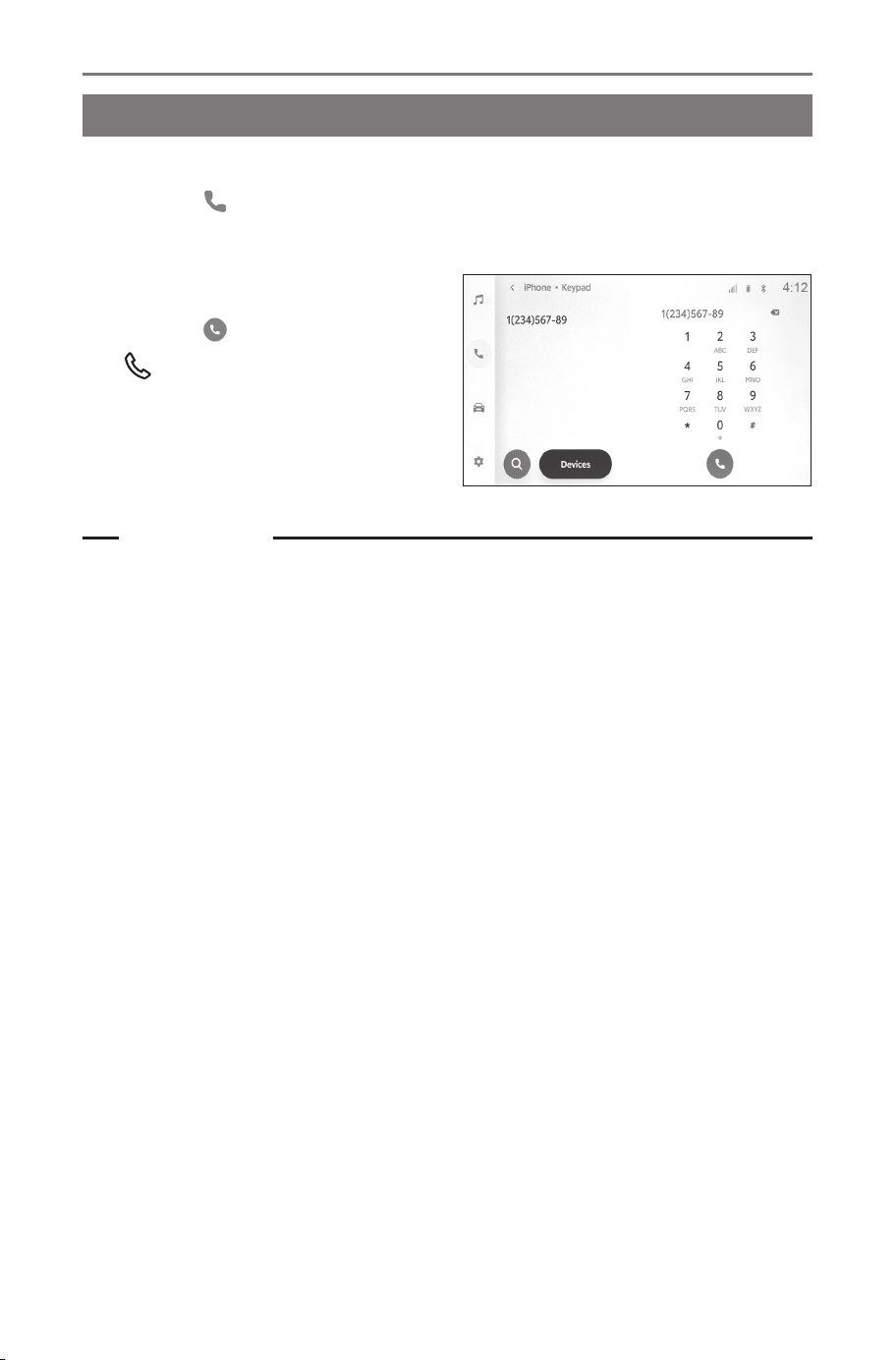
Making calls from keypad
Enter the phone number on the keypad to make a call.
1 Touch [ ] from the main menu.
2 Touch [Keypad].
3 Enter the phone number.
4 Touch [ ], or press the
[ ] switch on the steering
wheel.
Calls can also be made by touch-
ing a contact displayed on the sub
menu.
Related Links
Operating with the steering switches(P. 195)
6-3. How to make calls
200
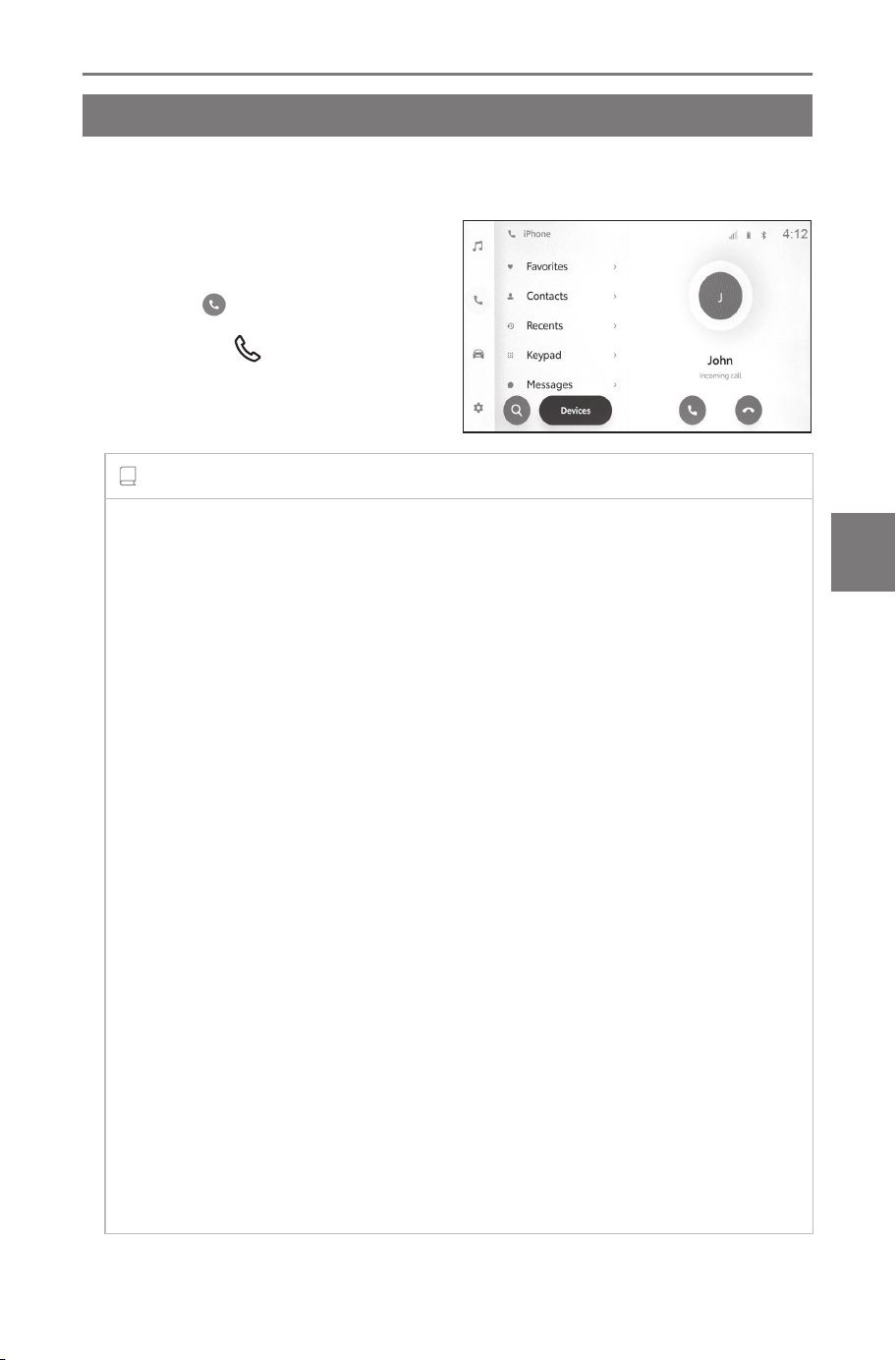
How to receive calls
Answering calls
When there is an incoming call, the incoming call sounds and the
incoming call screen or incoming call notification is displayed.
● Answer the call by doing one
of the following.
● Touch [ ].
● Press the [
] switch on the
steering wheel.
INFORMATION
● The incoming call screen is not displayed while the peripheral moni-
toring screen is being displayed. Incoming call notification is provided
by ringtone only.
● During an incoming call, all sounds other than those coming from the
hands-free call are muted. However, voice guidance with a higher
priority than the hands-free call is not muted.
● Even if the cellular phone ringtone is set on the multimedia system,
the multimedia system may output a different ringtone depending on
the cellular phone settings.
● Depending on the cellular phone settings such as drive mode, you
may not be able to receive calls.
● Depending on the cellular phone model, the following may occur.
• The ringtone may be heard from both the vehicle speakers and the
cellular phone.
• When receiving a call, the caller's phone number may not be dis-
played.
• If a call was received by operating the cellular phone directly, or if
the cellular phone has been set to automatically answer calls, the
call may stay on the cellular phone.
• If there was an incoming call while the cellular phone is transmit-
ting data, the incoming call screen may not be displayed on the
multimedia system and the ringtone may not sound.
● The call is declined when a call is received from a phone number that
is set to be declined in the cellular phone settings.
6-4. How to receive calls
201
6
Hands-free calls

Related Links
Operating with the steering switches(P. 195)
Setting Bluetooth
®
devices(P. 90)
6-4. How to receive calls
202
Declining calls
On the multimedia system, calls can be declined using several meth-
ods.
● When receiving a call, perform any of the following opera-
tions to decline the call.
● Touch [ ].
● Operate the cellular phone directly.
INFORMATION
● The call is declined when a call is received from a phone number that
is set to be declined in the cellular phone settings.
● Setting [Do not disturb] in the Bluetooth
®
settings to on enables
hands-free calls to be declined and notification by audio and display
to be disabled. However, this is not applied to the phone function of
Apple CarPlay or Android Auto. Even while a hands-free phone and
Android Auto are connected, this is not applied to the hands-free call
function.
Related Links
Operating with the steering switches(P. 195)
6-4. How to receive calls
203
6
Hands-free calls
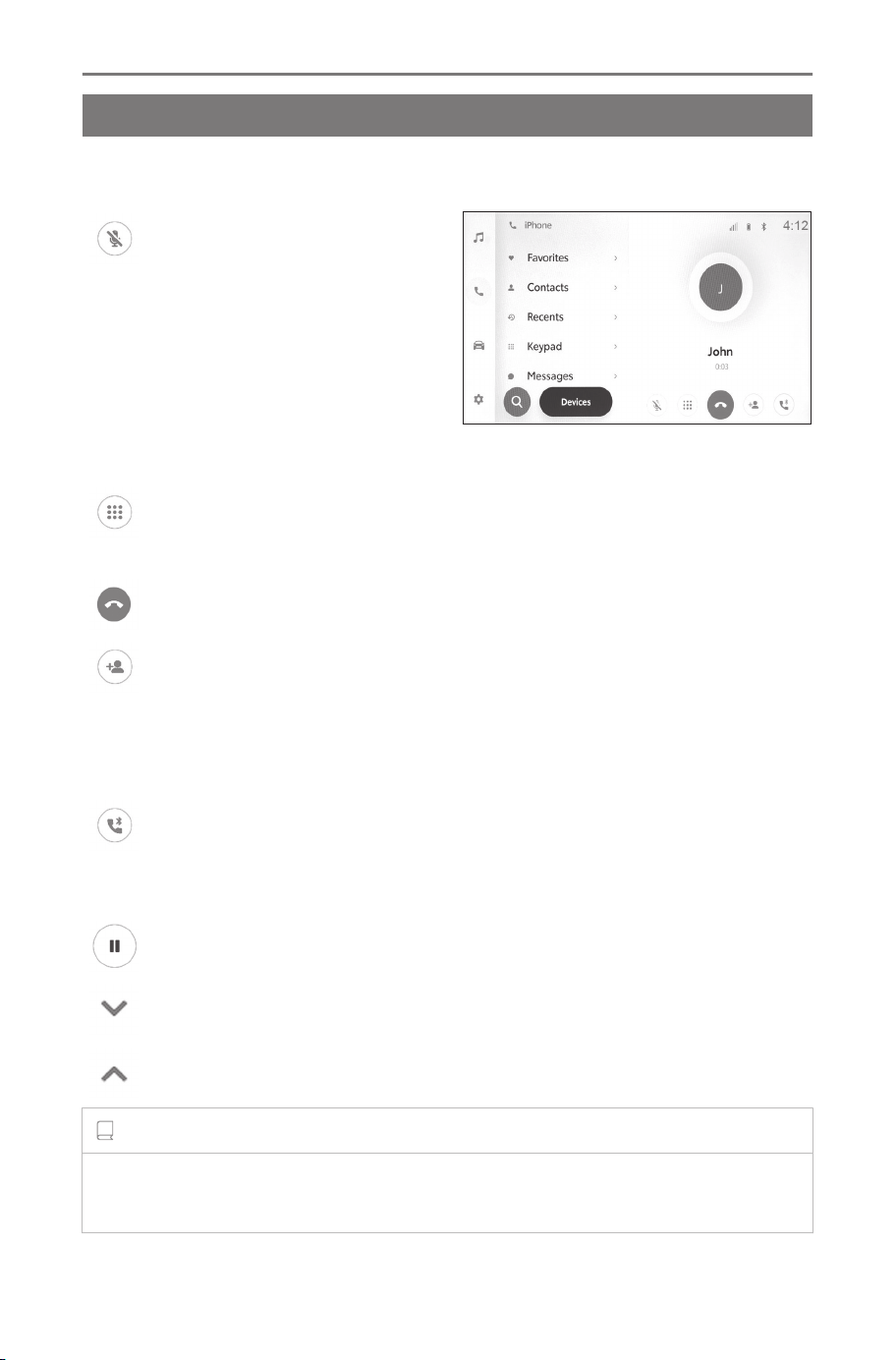
In-call operations
Performing operations from the call screen
During a call, various operations can be performed from the call
screen.
[ ] : Mutes the sound trans-
mission so that the other party on
the call cannot hear you speak.
While muted, the button changes
to blue. To deactivate, touch the
button again.
You can hear what the other
party is saying.
[
] : Displays the keypad screen. The call screen will be dis-
played as small while the keypad screen is displayed.
[ ] : Hang up during a call.
[ ] : Display the contact list in the sub menu to make a call to
another person.
You can make a call to another person by touching the phone
number during a call to make a call.
[
] : Allows a call to be switched between the cellular phone
and the multimedia system. During a cellular phone call, the button
changes to blue.
[ ] : Cancel the pending call. Only displayed on hold.
[ ] : Reduce the call screen.
[
] : Display the call screen in the main area.
INFORMATION
● Depending on the state of the multimedia system, the call screen may
be reduced or not displayed.
6-5. In-call operations
204

● Switching calls may not be possible depending on the cellular phone
model.
● Calls cannot be switched from the hands-free system to the cellular
phone while driving.
● If the cellular phone you are talking on is connected to the multimedia
system as a hands-free phone, the call screen is displayed. Depending
on the model of cellular phone, the call will either continue on the
cellular phone or switch to a call on the multimedia system.
● If you operate the power switch during a call with a hands-free phone,
the call may be disconnected or continued on the cellular phone de-
pending on the cellular phone model. If you want to continue on your
cellular phone, you may need to operate your cellular phone.
Related Links
Operating with the steering switches(P. 195)
6-5. In-call operations
205
6
Hands-free calls
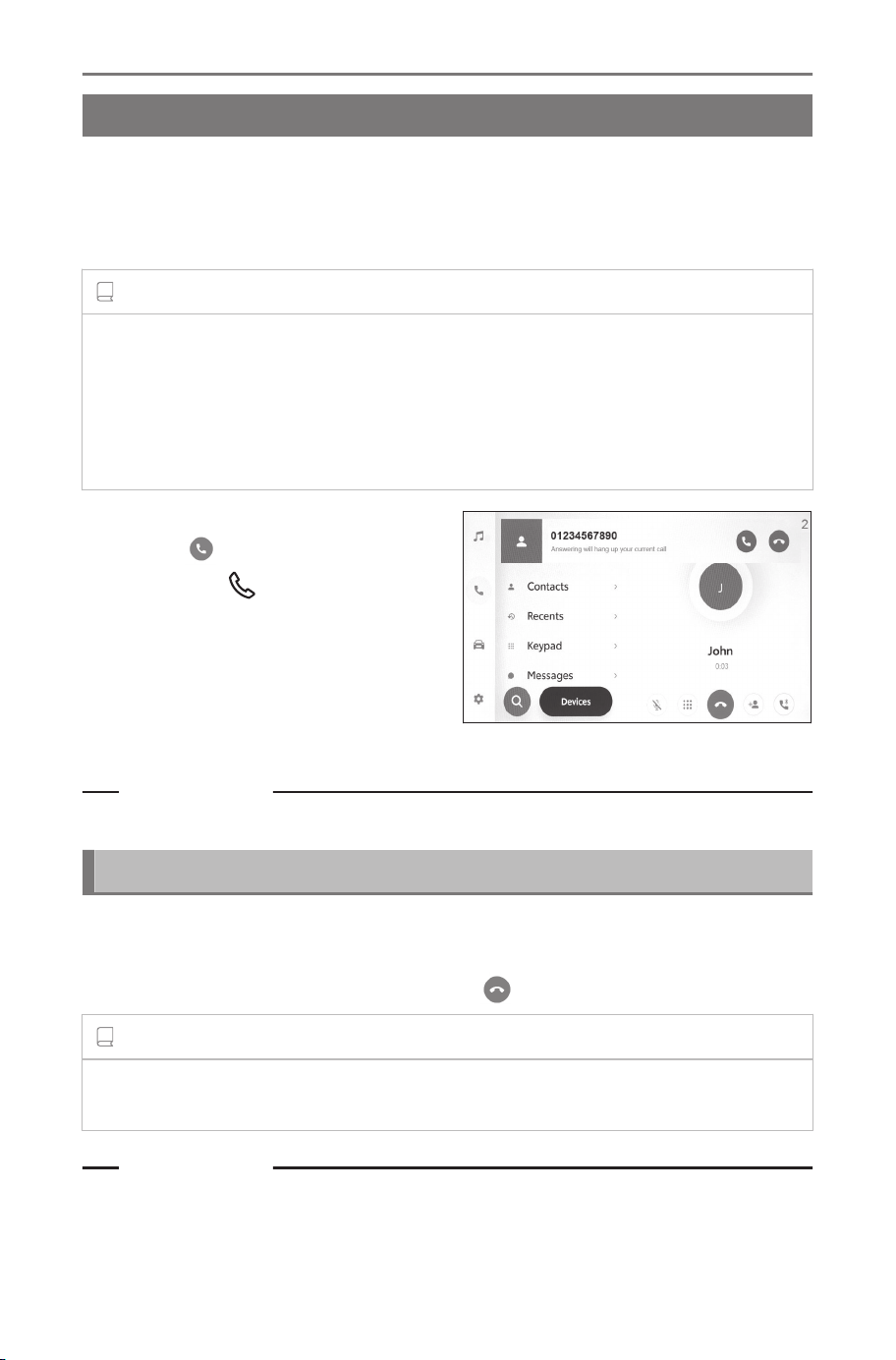
Answering a second call
If you receive a second call from another party during an ongoing
call, call-waiting can be used to handle both calls. When a second
call is received, an incoming call notification is displayed at the top of
the screen.
INFORMATION
● You must have a call waiting contract with your cellular phone provider.
● If the cellular phone does not support HFP Ver. 1.5 or later, call-waiting
will not be available.
● Depending on the cellular phone model and subscription details, it may
not be possible to use this function.
● When receiving a second call,
touch [
] on the screen, or
press the [
] switch on the
steering wheel.
Answering the second call places
the previous call on hold.
The caller will be switched each
time [Swap calls] is touched.
Related Links
Operating with the steering switches(P. 195)
Declining second calls
If you receive a second call from another party during an ongoing
call, call-waiting can be used to decline the call.
When receiving a second call, touch [ ].
INFORMATION
Depending on the model of cellular phone, both calls may be disconnect-
ed. Refer to the instruction manual included with the cellular phone.
Related Links
Operating with the steering switches(P. 195)
6-5. In-call operations
206
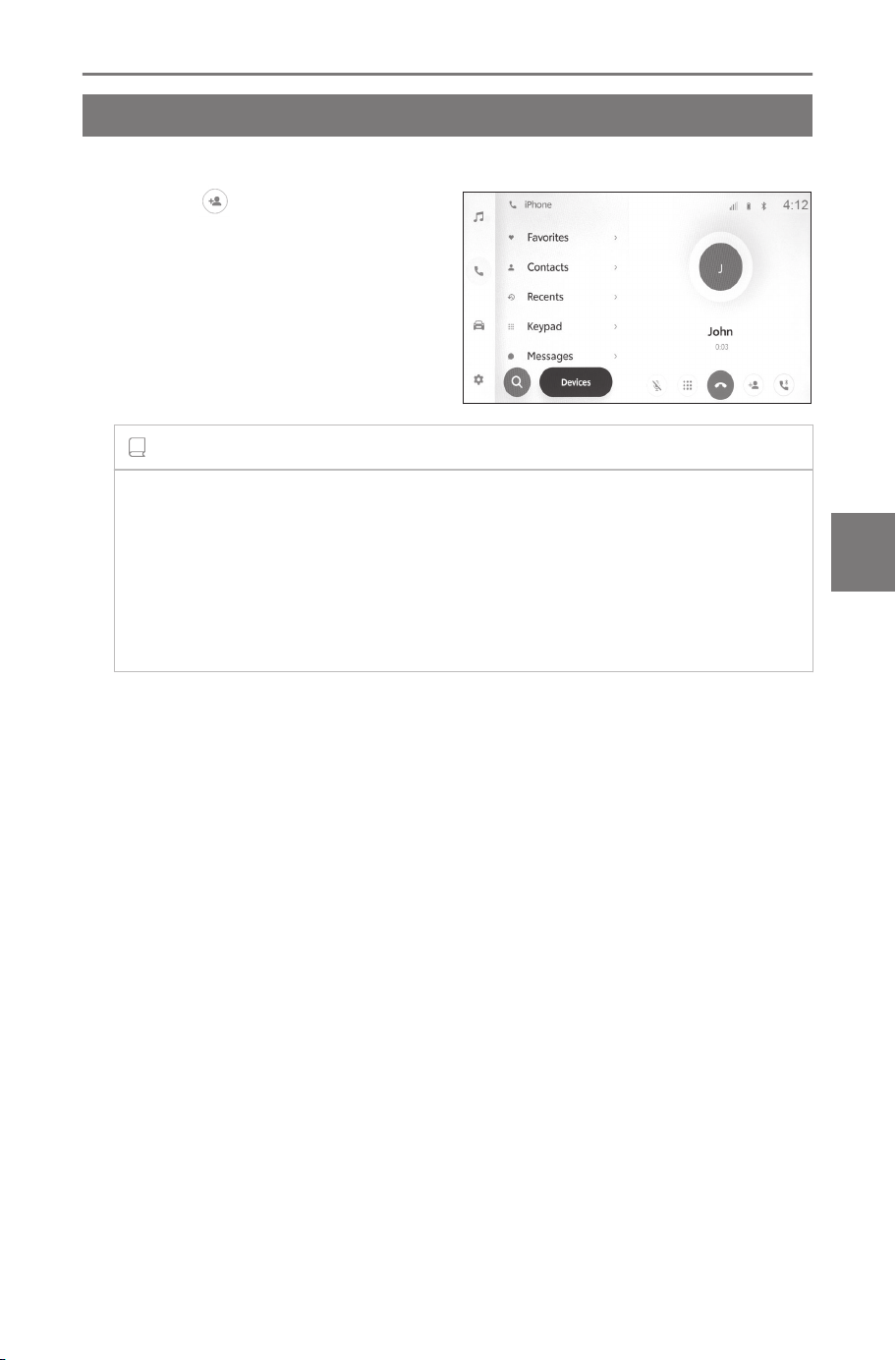
Making a call to another party during an ongoing call
You can call a new third party during an ongoing call.
1 Touch [ ] on the call
screen.
2 Select the contact.
3 Select the phone number.
This function puts the other party
on hold during a call.
INFORMATION
● You must have a call waiting contract with your cellular phone pro-
vider.
● If the cellular phone does not support HFP Ver. 1.5 or later, call-
waiting will not be available.
● Depending on the cellular phone model and subscription details, it
may not be possible to use this function.
6-5. In-call operations
207
6
Hands-free calls
Making conference calls
Add the person on hold when talking to another party while a call is
on hold.
● Touch [Merge calls] during an ongoing call with a third party.
Calls on hold are taken off hold and switched to a conference call.
INFORMATION
● A subscription for conference calls may be needed to be purchased
from your cellular phone provider.
● Depending on the cellular phone model and subscription details, it
may not be possible to use this function.
● When the conference call ends, the call ends with all members of the
conference call.
6-5. In-call operations
208

Ending calls
Several methods are available for ending a hands-free call.
● Perform any of the following operations during a call.
● Press the [
] switch on the steering wheel.
Press and hold to end all calls, including the calls on hold.
● Touch [ ] while making a call or on the call screen.
● Operate the cellular phone to end the call.
Related Links
Operating with the steering switches(P. 195)
6-5. In-call operations
209
6
Hands-free calls
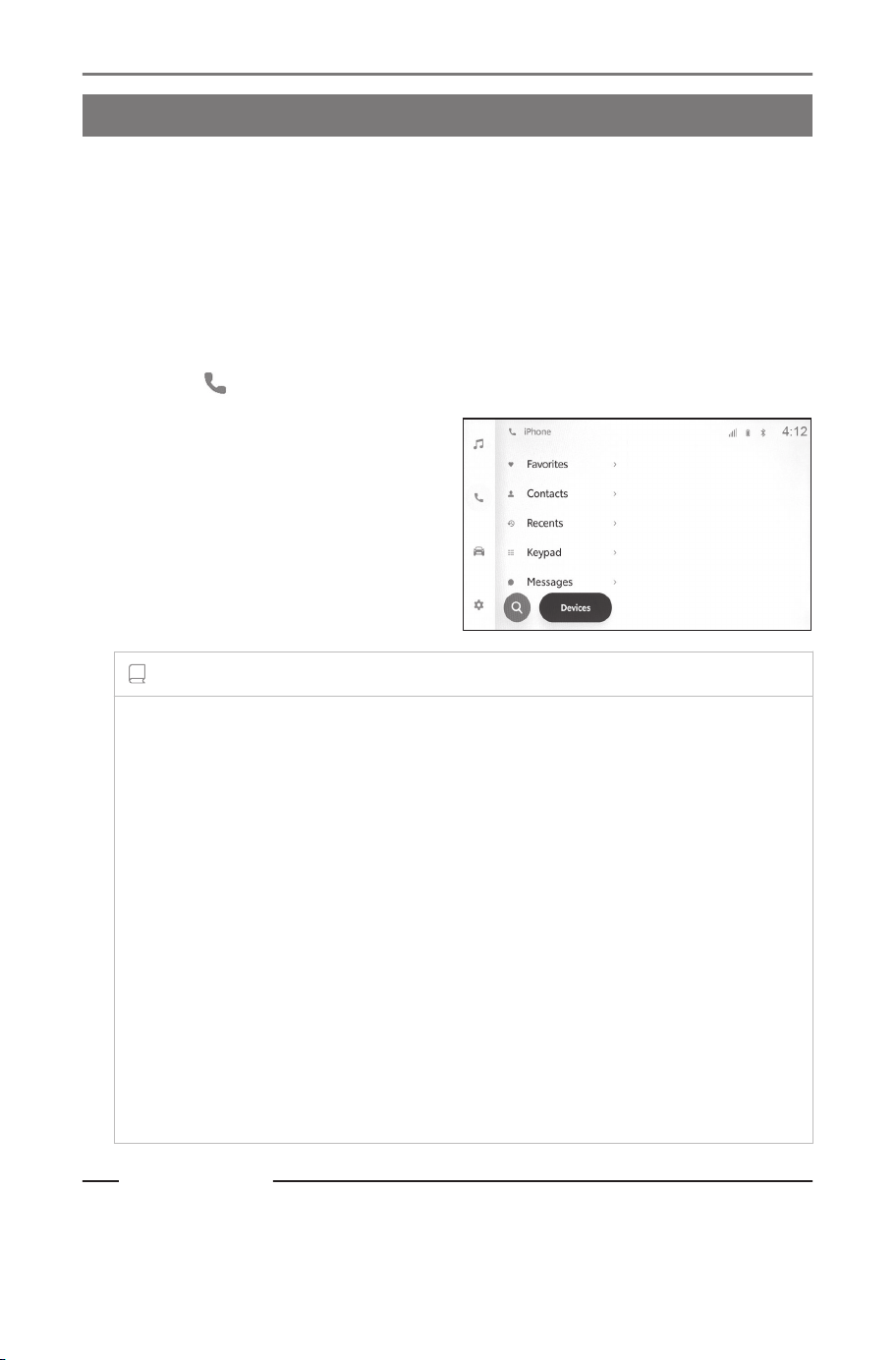
Changing phones for hands-free calls
Switching phones for hands-free calls
If two cellular phones are connected as hands-free phones, each
cellular phone can be used. The hands-free system makes it possi-
ble to switch cellular phones. The hands-free phone screen displays
the selected cellular phone data, such as contacts and history. Func-
tions such as incoming calls can also be used with the unselected
cellular phone.
To connect two hands-free phones, you need to set a driver.
1 Touch [
] from the main menu.
2 Touch [Devices].
3 Select the cellular phone you
want to use.
A cellular phone that is on a call,
receiving a call, or making a call
cannot be selected.
INFORMATION
● If making a call from a screen other than the hands-free phone
screen, the call is placed as the primary device.
● If you are on a hands-free call using either one of the devices, calls
cannot be placed from the other device.
● When a hands-free call is being made by any of the hands-free
phones and an incoming call is answered by another hands-free
phone, the first call is disconnected.
● The following functions are also available on the unselected cellular
phone.
• Phone incoming call function
• Message receiving and sending functions (when receiving a mes-
sage)
● The primary device will not necessarily be changed even if the
cellular phone is switched.
Related Links
Linking a User Profile(P. 46)
Changing and linking a User Profile(P. 54)
6-6. Changing phones for hands-free calls
210

Setting a Bluetooth
®
device as a primary device(P. 109)
6-6. Changing phones for hands-free calls
211
6
Hands-free calls
Editing contact data
Transferring contact data
Up to 5,000 contacts can be registered for each connected cellular
phone. Only the contacts corresponding to the connected cellular
phone can be displayed. In the contacts, up to 4 phone numbers
can be registered for each contact. Contacts are managed for each
connected phone.
This function can be used with cellular phones that support automat-
ic contact data transfer (PBAP). Refer to the included instruction
manual or compatible profiles for the connected cellular phone,
to determine whether it supports automatic contact data transfer
(PBAP).
To transfer contacts with automatic contact data transfer (PBAP),
[Sync contacts] must be set to on in the Bluetooth
®
settings.
INFORMATION
● When transferring contact data, each data is subject to the following
restrictions.
• When five or more phone numbers are registered to a single contact,
all phone numbers will be registered to the multimedia system as
multiple contacts with the same name.
• The name is transferred at the same time as the phone number.
Depending on the model, some letters, such as symbols, or all letters
may not be transferred. Furthermore, even if they are transferred
they may not be displayed correctly.
• Typically, secret memory is not read. (It is possible in some cases,
depending on cellular phone specifications)
• The group names registered to the cellular phone are not transferred.
• The phone number type shown in contacts on the multimedia system
is automatically assigned based on information from the source de-
vice. However, depending on the model of cellular phone and usage
environment, the icons may all be identical.
• Depending on the model of cellular phone, the cellular phone's pin
number and an authentication password may need to be entered
when transferring contact data. For details, refer to the included in-
struction manual for the connected cellular phone.
● Models of cellular phone that support batch transfer have the following
characteristics when transferring contact data.
• Transfer may take as long as 10 minutes.
6-7. Editing contact data
212

• Even if the contact list transfer screen is being displayed, it is possi-
ble to switch to another screen. In this case, contact list transfer will
continue.
● Events will be handled in the following way during contact list transfer.
• If the power switch is turned off during contact list transfer, the trans-
fer will be canceled. In this case, start the EV system and carry out
transfer operations again.
● In the following cases, the contact data being transferred is not saved.
(Some of the transferred data is not saved either.)
• When automatic transfer (PBAP) ends in the middle due to the mem-
ory capacity of the multimedia system.
• When automatic transfer (PBAP) is interrupted for some reason.
● The multimedia system’s contact data cannot be transferred to the
cellular phone.
● During contact list transfer, the Bluetooth
®
audio connection may be
disconnected. It will be reconnected once transfer is complete. (Recon-
nection may not be possible for some models)
● When transferring, make sure the multimedia system has been started.
● The automatic contact data transfer (PBAP) function enables the trans-
fer of contacts, favorites, and history to the multimedia system. Some
cellular phone models do not allow favorites to be transferred.
● If [Sync contacts] is on, cellular phone favorites will be automatically
transferred to the multimedia system.
● Depending on the model, it may be necessary to perform operations
on the cellular phone when transferring contact data with automatic
contact data transfer (PBAP).
● If you want to transfer contacts by automatic transfer (PBAP), you need
to enable the contact sharing setting on your cellular phone.
● If automatic contact data transfer (PBAP) does not start, it may start if
you end all other functions.
● To transfer the contact image data, [Sync contacts] must be set to on
in the Bluetooth
®
settings.
Related Links
Bluetooth
®
specifications and compatible profiles(P. 99)
Setting Bluetooth
®
devices(P. 90)
6-7. Editing contact data
213
6
Hands-free calls
How to use the message function
Precautions when using the message function
Messages are transferred from the cellular phone connected for
hands-free calls. The multimedia system can be used to check, re-
ply, and send messages (excluding MMS). Depending on the cellular
phone model being connected, it may not be possible to transfer
messages to the multimedia system. If the cellular phone does not
support messaging, this function cannot be used.
This function can be used with cellular phones that support HFP
and MAP. Refer to the instruction manual included with the cellular
phone or the compatible profiles for the cellular phone to determine
whether or not it supports HFP or MAP.
INFORMATION
● You need to enable the message sharing setting from your cellular
phone settings.
● This function cannot be used during emergency calls.
● E-mail function is not supported.
● Depending on the cellular phone model, it may not be possible to use
the reply function.
● Messages sent and received after connecting to the multimedia system
are transferred to the multimedia system.
● Depending on the connected cellular phone model, it may be necessa-
ry to perform additional operations on the cellular phone.
● For SMS messages, the subject is not displayed.
● Depending on the cellular phone model, the subject name of a received
MMS may not be displayed.
● Text messages can be replaced with voice data while driving.
● If [Auto read messages] is on, messages are read aloud.
● Outgoing messages created using Intelligent Assistant can be read
aloud before being sent.
● Some information may not be displayed depending on your cellular
phone model and registration status to the multimedia system.
Related Links
Setting Bluetooth
®
devices(P. 90)
Bluetooth
®
specifications and compatible profiles(P. 99)
6-8. How to use the message function
214
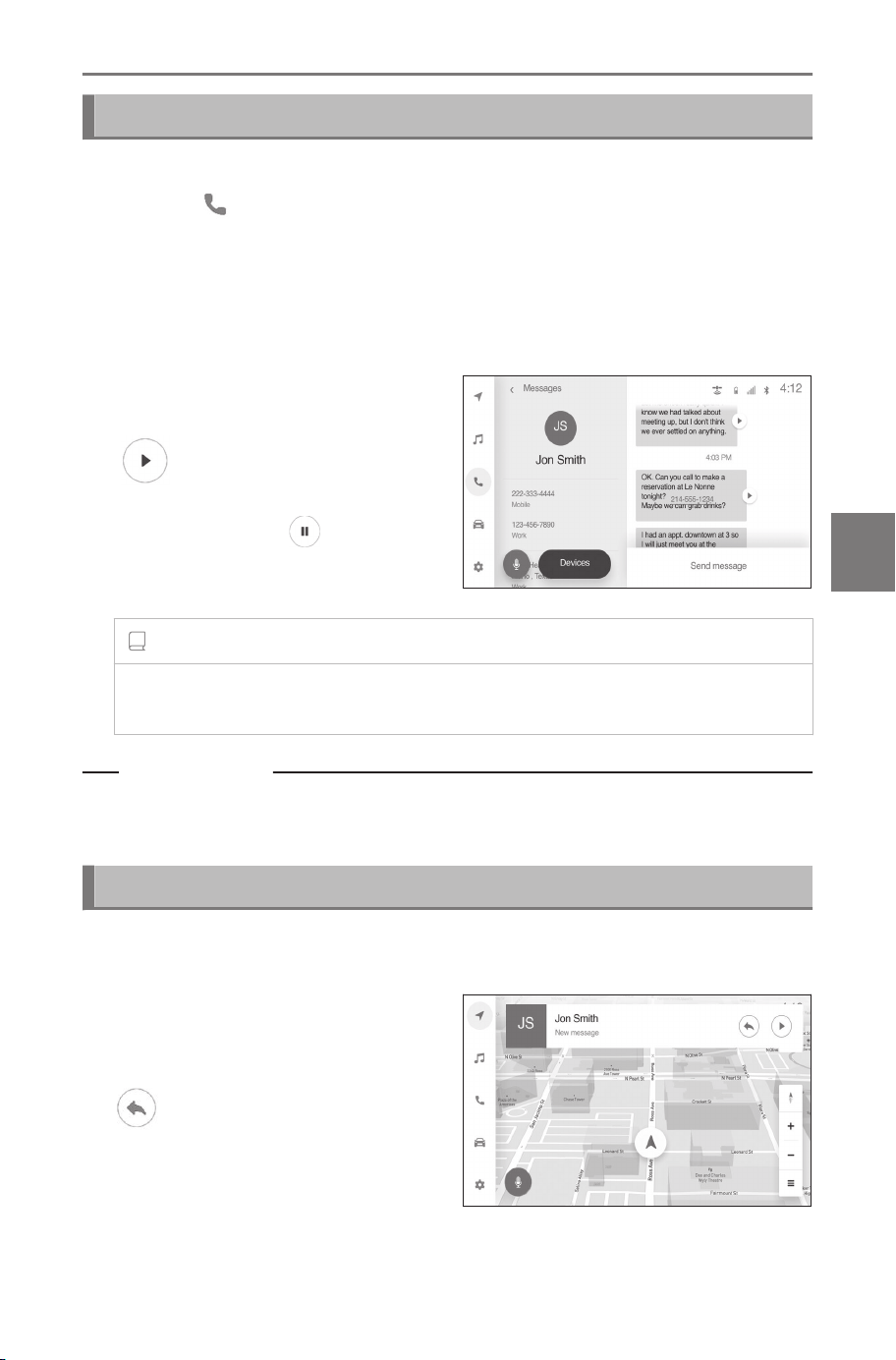
Checking messages
Sent and received messages can be checked.
1 Touch [ ] from the main menu.
2 Touch [Messages].
3 Select the message sender.
If the body of the message fails to be read, start over from the begin-
ning.
4 Select each item as necessa-
ry.
[ ] : Reads the message
aloud. To stop the message being
read aloud, touch[ ].
[Send message] : Intelligent As-
sistant starts.
INFORMATION
When [Auto read messages] is enabled, unread messages will be
read out starting with the oldest.
Related Links
Replying to messages(P. 216)
Making calls from the message function(P. 218)
Checking new messages
When an SMS or MMS message is received, a new message notifi-
cation is displayed at the top of the screen.
●
The following operations can
be performed when a mes-
sage is received.
[ ] : Allows a reply to the mes-
sage.
When a message is replied, all
of the messages from the same
sender will turn to already read.
6-8. How to use the message function
215
6
Hands-free calls
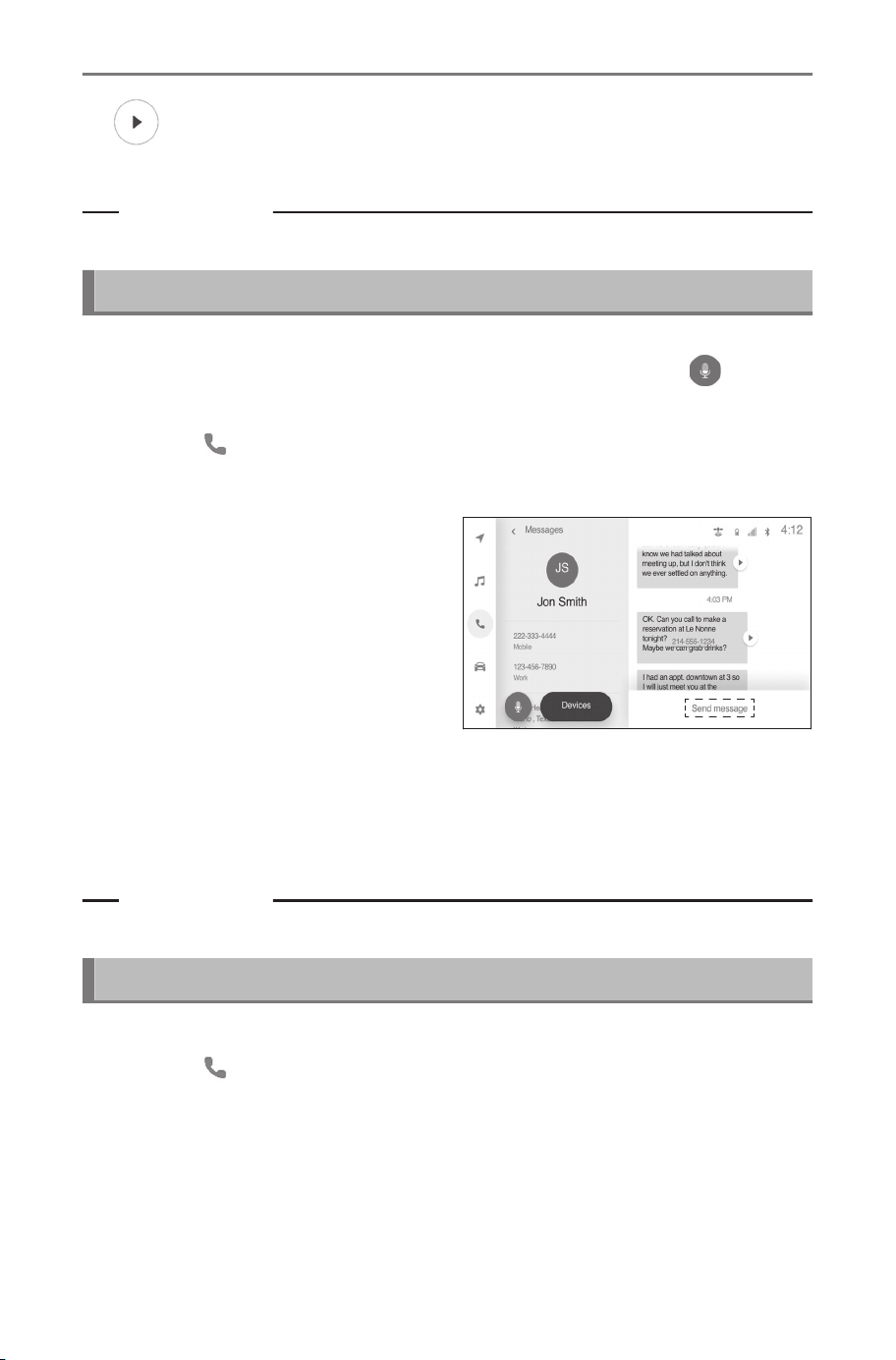
[ ] : Reads the message aloud. The read-out messages will turn to
already read.
Related Links
Replying to messages(P. 216)
Replying to messages
It can reply to received message. It can reply by voice control sys-
tem from beginning. In order to reply by voice, touch the [ ], and
follow the displayed instruction.
1 Touch [ ] from the main menu.
2 Touch [Messages].
3 Select the message sender.
● Chat is displayed.
4 Touch [Send message].
5 Enter a message using Intel-
ligent Assistant.
● If there is a valid subscription
to the service
*1
, Intelligent As-
sistant can be used to enter the
text of the message. (Templates can also be used to reply.)
● Replies can be sent with templates using Intelligent Assistant. (Quick
reply)
Related Links
Using the Intelligent Assistant system(P. 35)
Sending new messages
New SMS messages can be created. MMS is not supported.
1
Touch [
] from the main menu.
2 Touch [Messages].
*1 : This function is not available in some regions.
6-8. How to use the message function
216
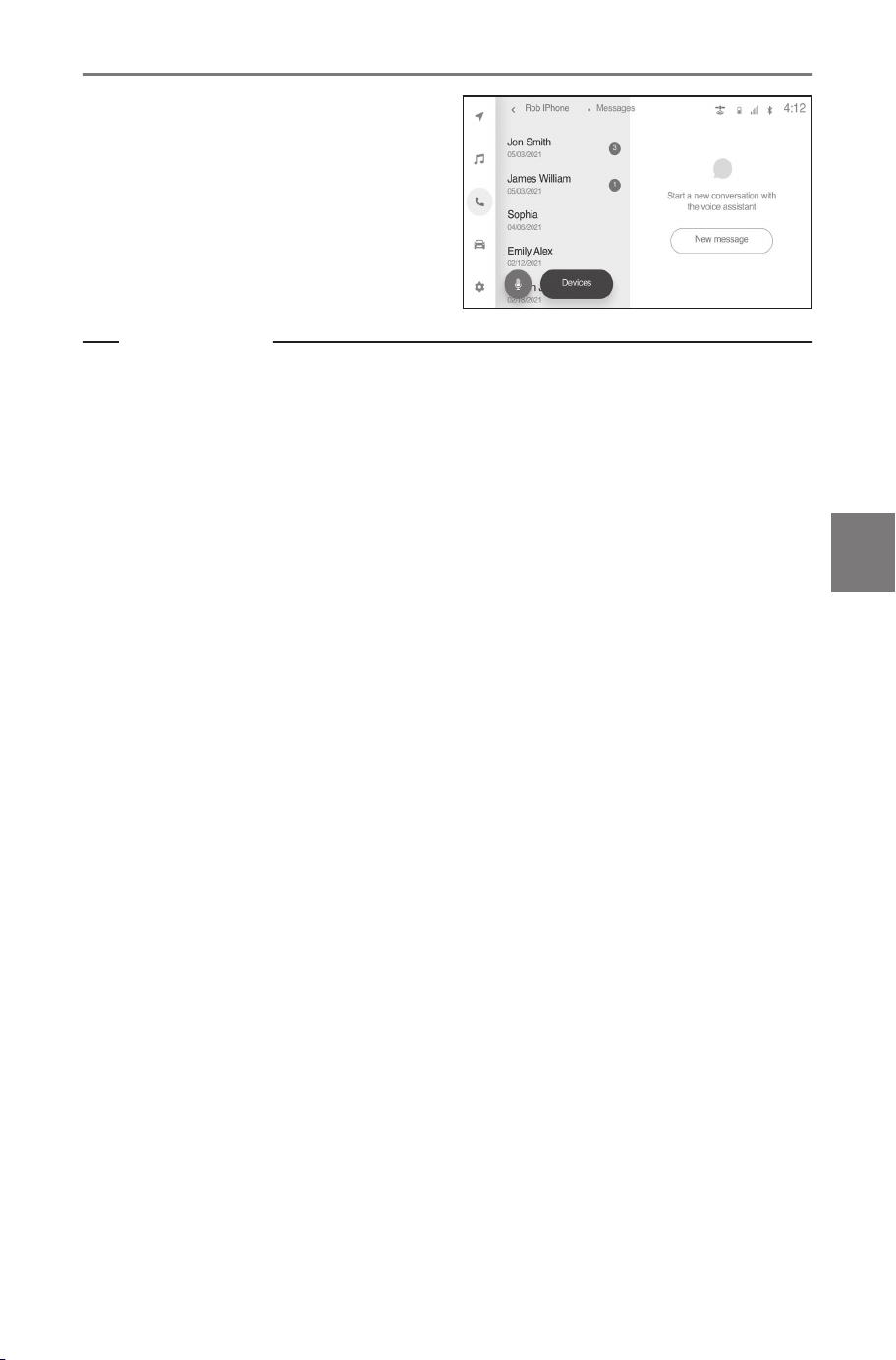
3 Touch [New message].
4 Enter the message content
using Intelligent Assistant.
5 Send the message.
Related Links
Using the Intelligent Assistant system(P. 35)
6-8. How to use the message function
217
6
Hands-free calls

Making calls from the message function
Hands-free calls can be made using the message function.
● Touch the blue number to make a call.
Consecutive numbers may be recognized as phone numbers. In addition,
some phone numbers, such as phone numbers from other countries,
may not be recognized.
6-8. How to use the message function
218

7
Connected Services
7-1. Connected Services
overview
Functional overview ... 220
Type A: Function ach-
ieved by using DCM
and the system ........ 222
Type B: Function ach-
ieved by using DCM. 223
Type C: Function ach-
ieved by using DCM
and a smartphone.... 225
219
7
Connected Services
Connected Services overview
Functional overview
Connected Services include following services:
● User Profile
● Drive Connect (including Cloud Navigation, Intelligent Assistant,
and Destination Assist)
● Wi-Fi
®
Connect (including Wi-Fi
®
Hotspot and Integrated Stream-
ing)
●
OTA (Over The Air updates)
*1
● Safety Connect
● Remote Connect
● Service Connect
Types of functions
The functions included are classified into the following types.
● Type A: Function achieved by using DCM and the system
● Type B: Function achieved by using DCM
● Type C Function achieved by using DCM and a smartphone
Function Type
User Profile, Drive Connect, Wi-Fi
®
Connect, OTA
Type A
Safety Connect Type B
Remote Connect, Service Connect Type C
INFORMATION
Connected services functionality is dependent upon network reception
level and signal strength.
Before using the function
■ Subscription
After you have accepted the Connected Services Agreement ("Con-
nected Services Terms of Use" and "Connected Services Priva-
cy Notice") on the SubaruConnect Mobile App when you register
the vehicle to your account, you can begin receiving services.
A variety of subscription agreements are available. Contact your
*1 :
Some OTA updates may require Wi-Fi
®
connection.
7-1. Connected Services overview
220

SUBARU dealer, or call (866) 384-3574 in the United States, or
(800) 263-8802 in Canada.
■ Availability of function(s)
These functions are not available in some countries, areas, or on
some models.
7-1. Connected Services overview
221
7
Connected Services

Type A: Function achieved by using DCM and the system
The functionality of User Profile, Drive Connect (Cloud Navigation,
Intelligent Assistant, Destination Assist), Wi-Fi
®
Connect (Wi-Fi
®
Hotspot, Integrated Streaming) is made possible through the shared
work of the DCM and the system.
These services are available by subscription on select, telematics
hardware- equipped vehicles and supported by the SUBARU, which
operates 24 hours a day, 7 days a week.
For details about:
● User Profile: (→ P.46)
● Intelligent Assistant: (→ P.35)
● Cloud Navigation: (→ P.140)
● Destination Assist:(→ P.148)
● Integrated Streaming: (→ P.183)
● Wi-Fi
®
Hotspot: (→ P.88)
7-1. Connected Services overview
222
Type B: Function achieved by using DCM
The functionality of Safety Connect is made possible by the use of a
DCM.
For details, refer to the vehicle "OWNER’S MANUAL".
INFORMATION
● Free/Open Source Software Information
This product contains Free/Open Source Software (FOSS). The license
information and/or the source code of such FOSS can be found at the
following URL.
https://opensource.lge.com/product/list?page=&keyword=TL21BNU
● Exposure to radio frequency signals:The system installed in your vehi-
cle includes a low power radio transmitter and receiver. The system
receives and also sends out radio frequency (RF) signals.
● In August 1996, the Federal Communications Commission (FCC)
adopted RF exposure guidelines with safety levels for mobile wireless
phones. Those guidelines are consistent with the safety standards pre-
viously set by both U.S. and international standards bodies.
• ANSI (American National Standards Institute) C95.1 [1992]
• NCRP (National Council on Radiation Protection and Measurement)
Report 86 [1986]
• ICNIRP (International Commission on Non-Ionizing Radiation Protec-
tion) [1996]
● These standards are based on comprehensive and periodic evalua-
tions of the relevant scientific literature. Over 120 scientists, engineers,
and physicians from universities, government health agencies, and in-
dustry reviewed the available body of research to develop the ANSI
Standard (C95.1).
● The system complies with the FCC guidelines in addition to those
standards.
● Contact with the SubaruConnect response center is dependent upon
the telematics device being in operative condition, cellular connection
availability, navigation map data, and GPS satellite signal reception,
which can limit the ability to reach the SubaruConnect response center
or receive support. Enrollment and Connected Services Agreement
("Connected Services Terms of Use" and "Connected Services Privacy
Notice") required. A variety of subscription terms are available; charges
vary by subscription term selected.
7-1. Connected Services overview
223
7
Connected Services

● The SubaruConnect response center offers support in multiple lan-
guages.
● Select Safety Connect-subscribed vehicles are capable of communicat-
ing vehicle information. Please see the terms and conditions for addi-
tional details. Owners who do not wish to have their vehicle transmit
this information can opt out at the time of enrollment or by calling
(866) 384-3574 in the United States, or (800) 263-8802 in Canada, and
following the prompts for Safety Connect.
● For further details about the service, contact your SUBARU dealer.
● The system functions are not subject to section 255 of the Telecommu-
nications Act and the system is not TTY compatible.
7-1. Connected Services overview
224
Type C: Function achieved by using DCM and a smart-
phone
The functionality of Remote Connect and Service Connect are made
possible by the use of a DCM and a smartphone.
For details about these services, refer to the following website:
SUBARU of America : https://www.subaru.com/vehicle-info/
connected-services/subaruconnect.html
SUBARU Canada English: https://www.subaru.ca/WebPage.aspx?
WebSiteID=282&WebPageID=24700
SUBARU Canada French : https://www.subaru.ca/WebPage.aspx?
WebSiteID=284&WebPageID=24773
Remote Connect
Remote Connect is a smartphone application that lets you view and
remotely control certain aspects of your vehicle.
INFORMATION
● Availability of functions of the Remote Connect is dependent on net-
work reception level.
● Remote Connect should only be used by authorized users.
● Laws in some communities may require that the vehicle be within view
of the user when operating Remote Connect. In some states, use of
Remote Connect may violate state or local laws. Before using Remote
Connect, check your state and local laws.
● Any malfunction of the vehicle should be repaired by your SUBARU
dealer.
● Remote Connect is designed to work at temperatures above approxi-
mately -22 °F (-30 °C). This specification is related to the Remote Con-
nect operation, but is dependent on the vehicle’s operating temperature
range which may be different.
● Content is subject to change without notice.
● Additional information can be found at the following website:
SUBARU of America : https://www.subaru.com/vehicle-info/connected-
services/subaruconnect.html
SUBARU Canada English : https://www.subaru.ca/WebPage.aspx?
WebSiteID=282&WebPageID=24700
7-1. Connected Services overview
225
7
Connected Services
SUBARU Canada French : https://www.subaru.ca/WebPage.aspx?
WebSiteID=284&WebPageID=24773
WARNING
Operating Remote Connect incorrectly may lead to unforeseen accidents
or malfunctions. Check the vehicle condition and assume full responsibili-
ty before using.
Service Connect
Service Connect uses DCM to collect and transmit vehicle data that
allows SUBARU to provide:
● Vehicle Health Report (VHR) (Safety Recalls, Service Campaigns,
and Required Maintenance)
● Maintenance Notifications
INFORMATION
Availability of functions of the Service Connect is dependent on network
reception level.
7-1. Connected Services overview
226

8
Parking assist system
8-1. SUBARU Parking Assist
monitor
SUBARU Parking As-
sist monitor functions228
Displaying the guide
screen ...................... 230
Changing the guide
line display mode ..... 232
SUBARU Parking As-
sist monitor .............. 238
8-2. Panoramic view monitor
Panoramic view moni-
tor functions ............. 248
Display mode when
the shift position is in
"P"............................ 251
Display mode when
the shift position is in
"D" or "N" ................. 253
Display mode when
the shift position is in
"R"............................ 262
The screen when the
outside rear view mir-
rors are folded.......... 270
Zooming in on the
screen ...................... 271
Displaying transparent
underfloor vision ...... 272
Changing the panor-
amic view monitor
settings .................... 274
Precautions for the
panoramic view moni-
tor............................. 276
227
8
Parking assist system
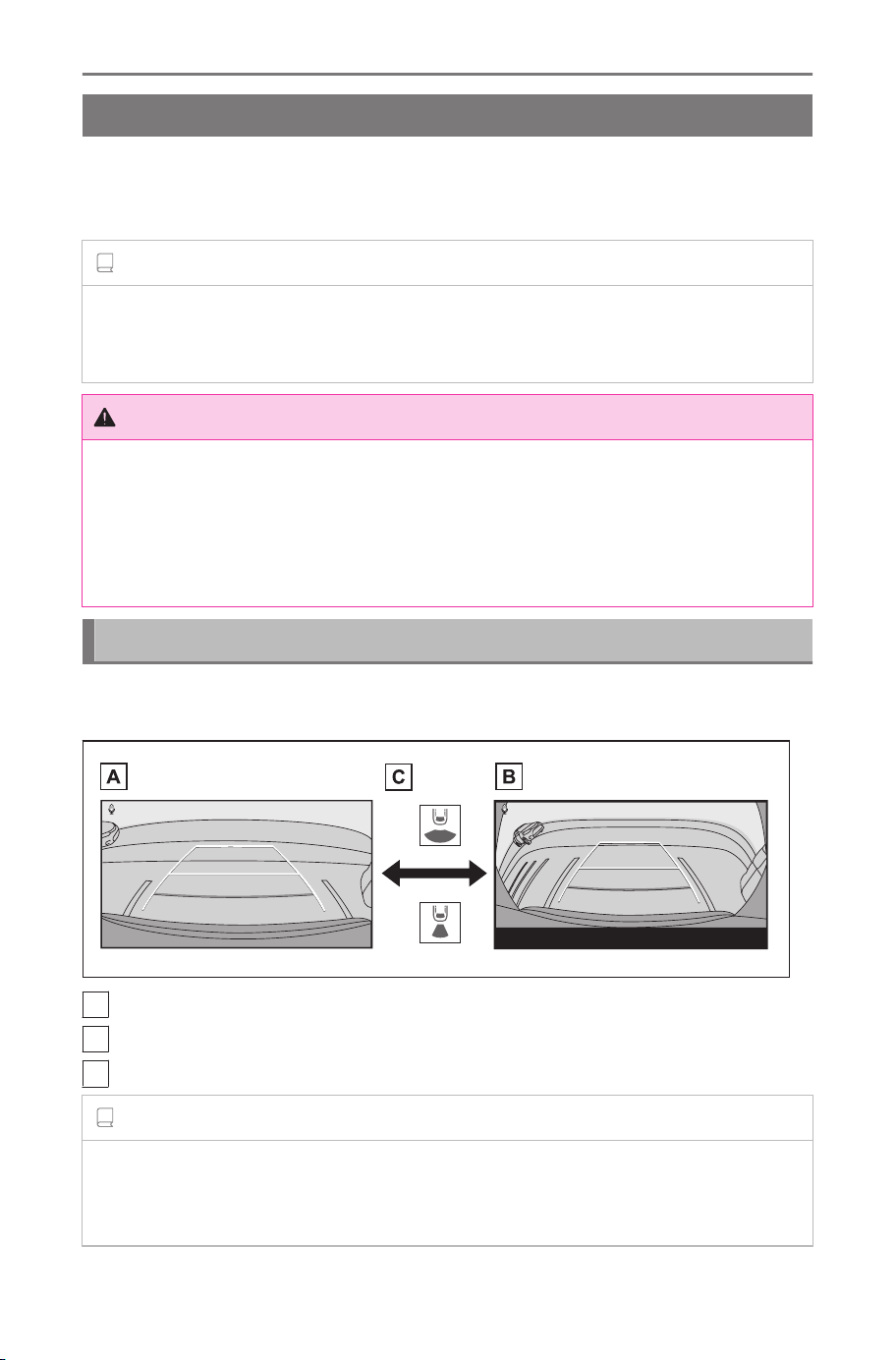
SUBARU Parking Assist monitor
SUBARU Parking Assist monitor functions
*
SUBARU Parking Assist monitor is a device that assists reversing
when parking and in other situations by displaying vision from the
rear camera installed on the vehicle.
INFORMATION
The illustrations of screens used in the descriptions are examples and
may differ to the actual vision from the camera due to vehicle glare and
such like.
WARNING
● Always make sure to visually check your surroundings while you are
driving.
● Due to the characteristics of the camera lens, the actual position and
distance of people and obstacles differ from what appears on the
screen.
Displaying the SUBARU Parking Assist monitor screen
When the shift position is in "R" with the power switch turned ON,
the SUBARU Parking Assist monitor screen will be displayed.
A
Rear view
B
Wide rear view
C
Touch the display mode switching button
INFORMATION
● Display settings, such as the guide line modes, can be saved as My
Setting by registering to user profiles. They can be recalled when the
driver is recognized.
* : If equipped
8-1. SUBARU Parking Assist monitor
228

● The Intelligent Assistant can be used to change the screen mode.
*1
Related Links
Linking a User Profile(P. 46)
Starting voice control(P. 38)
*1 : This function is not available in some regions.
8-1. SUBARU Parking Assist monitor
229
8
Parking assist system
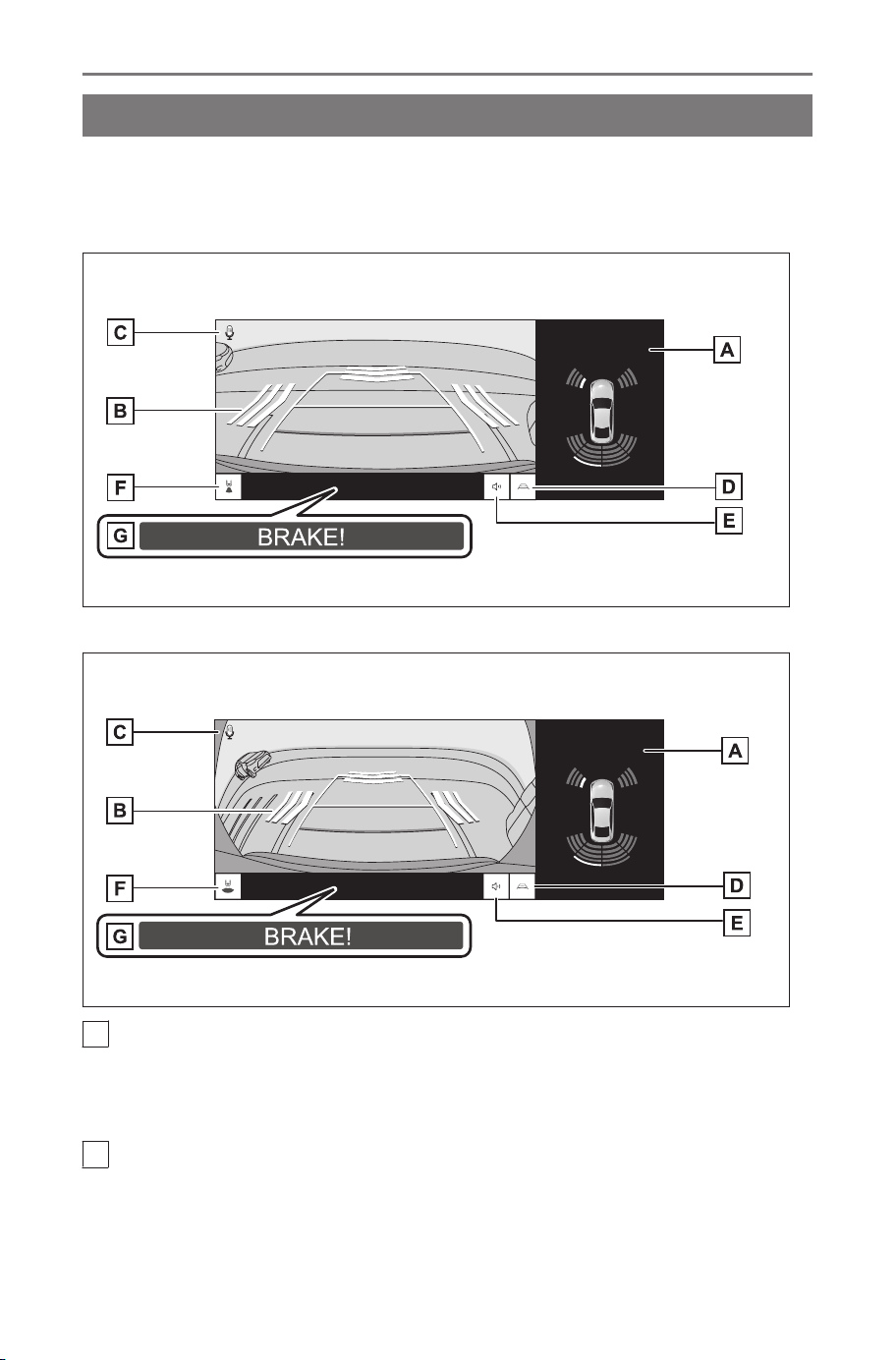
Displaying the guide screen
1. Shift the shift position to "R".
● The mode switches each time touch the display mode button.
■ Rear view
■ Wide rear view
A
Intuitive parking assist
When the sensor detects a stationary object, a pop-up is displayed on
the top-left of the guide screen. (For details about the intuitive parking
assist, see the vehicle "OWNER’S MANUAL".)
B
RCTA (Rear Cross Traffic Alert) / RCD (Rear Camera Detection)
An indicator is displayed on the screen in the following situations.
● When the rear radar detects an obstacle or a vehicle approaching
from the rear
8-1. SUBARU Parking Assist monitor
230
● If the rear camera detects a pedestrian behind the vehicle
For details about RCTA (Rear Cross Traffic Alert) / RCD (Rear Camera
Detection), see the vehicle "OWNER’S MANUAL".
C
Voice recognition icon
*1
This icon is displayed when the Intelligent Assistant is in operation.
D
Guide line switching
Switches the guide line mode.
E
Mute button
Temporarily mutes the intuitive parking assist buzzer sounds. Changing
the shift position automatically cancels mute.
F
Display mode switching
Switches display mode between the rear view and the wide rear view.
G
PKSB (Parking Support Brake)
If an obstacle that you may collide with is detected, a message is dis-
played on the screen. (For details about PKSB (Parking Support Brake),
see the vehicle "OWNER’S MANUAL".)
WARNING
● The position of the guide lines displayed on the screen may change
due to factors such as number of passengers, load weight, and road
gradient. Always make sure to visually check behind you and your
surroundings while you are driving.
● As the intuitive parking assist, Rear Cross Traffic Alert (RCTA) and
RCD (Rear Camera Detection) displays are overlaid on the camera
image, the surrounding brightness and colors may make them difficult
to see.
Related Links
Changing the guide line display mode(P. 232)
Turning off the SUBARU Parking Assist monitor
The SUBARU Parking Assist monitor turns off when the shift posi-
tion is in any position other than "R".
*1 : This function is not available in some regions.
8-1. SUBARU Parking Assist monitor
231
8
Parking assist system
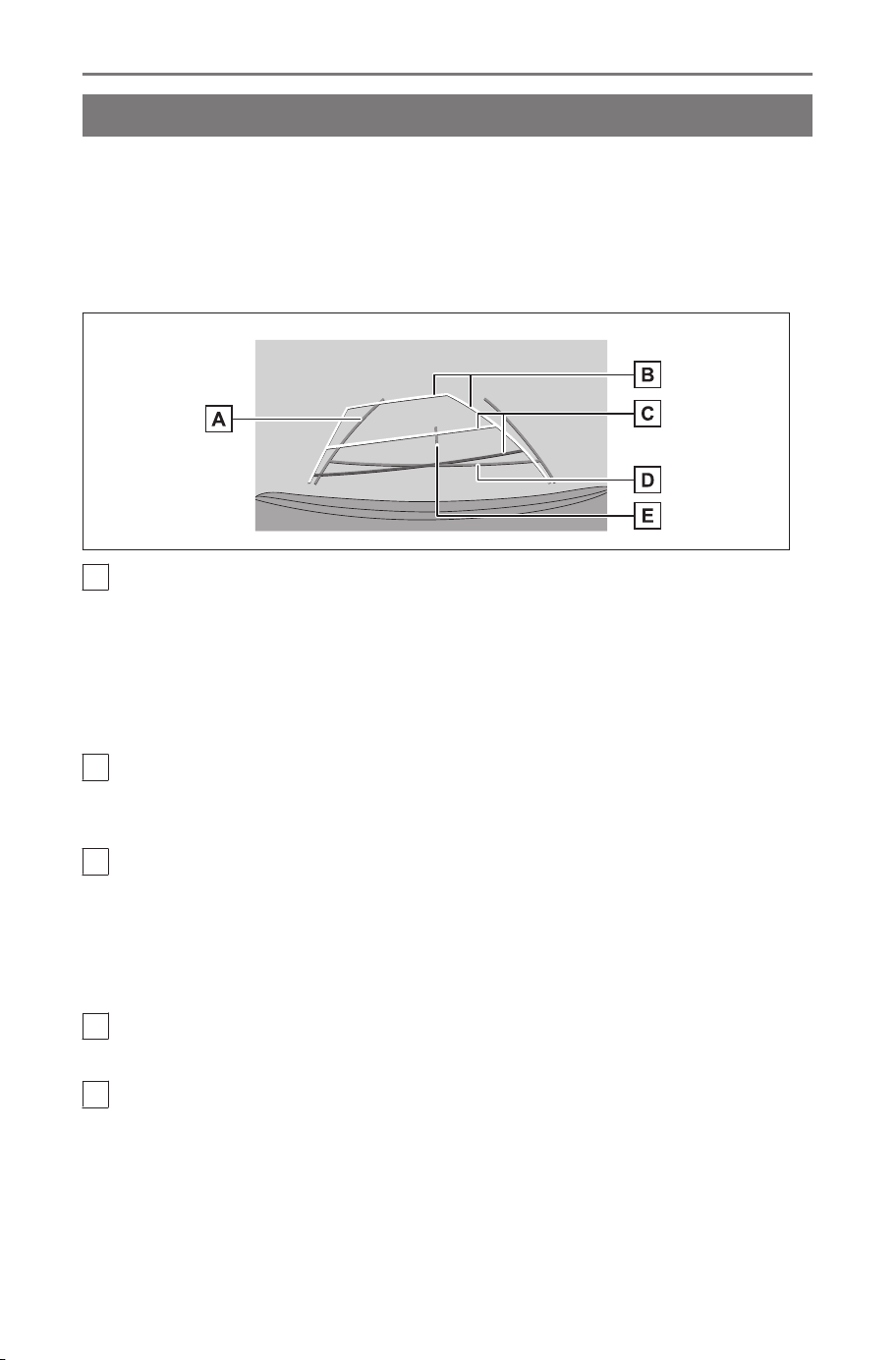
Changing the guide line display mode
The guide line display mode changes every time you touch the guide
line switching button.
■ Estimated course lines mode
This mode displays estimated course lines that move in accordance
with the operation of the steering wheel.
A
Vehicle width guide lines
Displays course lines when the vehicle is being reversed in a straight
line.
● The lines are wider than the actual width of the vehicle.
● When the vehicle is straight, the guide lines will overlap with the
estimated course lines.
B
Estimated course lines
Displays course lines (yellow) that are linked to operation of the steering
wheel.
C
Distance guide lines
Displays the distance behind the vehicle.
● The distance guide line is linked to the estimated course lines.
● Displays about 1.5 ft. (0.5 m) (red) and 3 ft. (1 m) (yellow) from the
center of the end of the rear bumper.
D
Distance guide line
Displays about 1.5 ft. (0.5 m) (blue) from the end of the rear bumper.
E
Vehicle center guide line
Displays the center of the vehicle width guide lines.
■ Parking assist guide lines mode
This mode displays the steering wheel return points (parking assist
guide lines). This mode is recommended for those who have a
8-1. SUBARU Parking Assist monitor
232
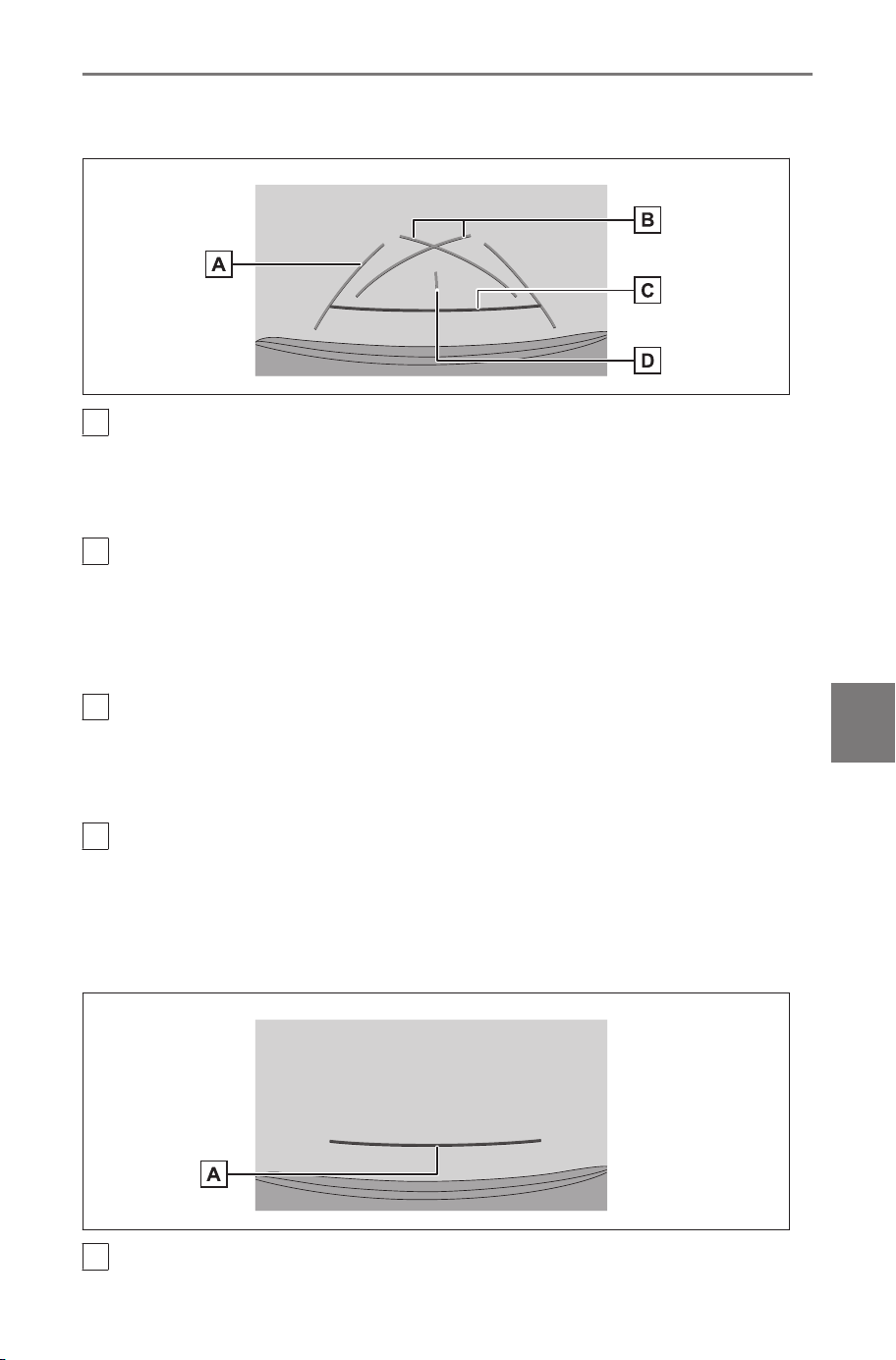
sense of the vehicle and can park the vehicle without the aid of
the estimated course lines.
A
Vehicle width guide lines
Displays course lines when the vehicle is being reversed in a straight
line.
● The lines are wider than the actual width of the vehicle.
B
Parking assist guide lines
Displays the course lines of the smallest turn possible behind the vehi-
cle.
● Use the position of operating the steering wheel when parking as a
guide.
C
Distance guide line
Displays the distance behind the vehicle.
● Displays about 1.5 ft. (0.5 m) (red) from the center of the end of the
rear bumper.
D
Vehicle center guide line
Displays the center of the vehicle width guide lines.
■ Distance guide line mode
This mode only displays the distance guide line. It is recommended
for those who do not need the guide lines.
A
Distance guide line
8-1. SUBARU Parking Assist monitor
233
8
Parking assist system
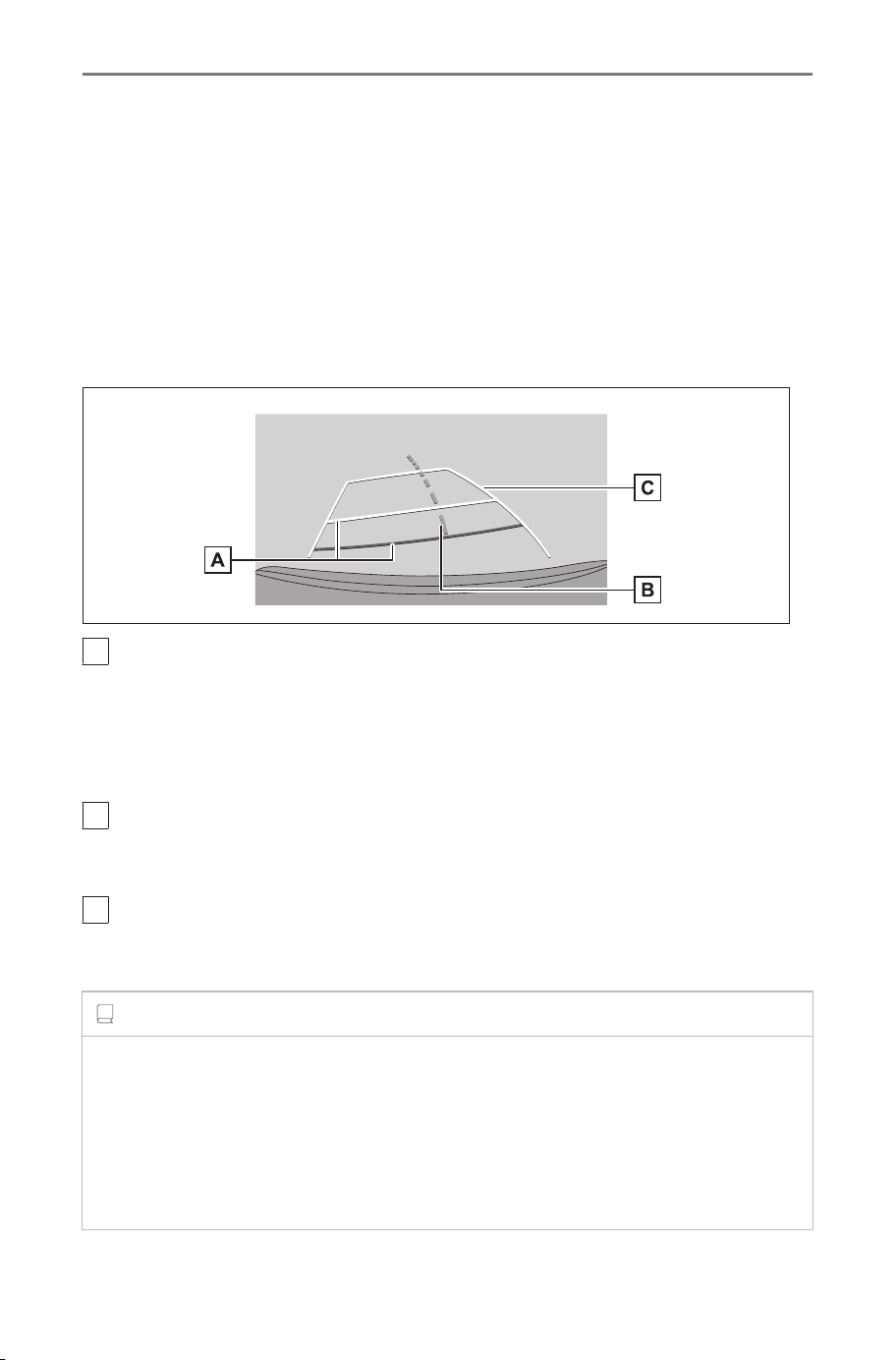
Displays the distance behind the vehicle.
● Displays about 1.5 ft. (0.5 m) (red) from the center of the end of the
rear bumper.
■ Estimated course center line mode
This mode displays estimated course lines and a vehicle center
guide line that move in accordance with the operation of the steering
wheel.
Use this mode when you are approaching a signpost or pole with the
center of the rear bumper.
A
Distance guide lines
Displays the distance behind the vehicle.
● The distance guide line is linked to the estimated course lines.
● Displays about 1.5 ft. (0.5 m) (red) and 3 ft. (1 m) (yellow) from the
center of the end of the rear bumper.
B
Estimated course center line
Displays the vehicle center guide line (green) that is linked to operation
of the steering wheel.
C
Estimated course lines
Displays course lines (yellow) that are linked to operation of the steering
wheel.
INFORMATION
● The guide lines will not be displayed if the back door is not closed. If
the back door is closed but the guide lines are still not displayed, have
the vehicle inspected by your SUBARU dealer.
● The intuitive parking assist is a feature that notifies the driver of nearby
objects and displays an image of the direction of the detected object on
the screen.
8-1. SUBARU Parking Assist monitor
234
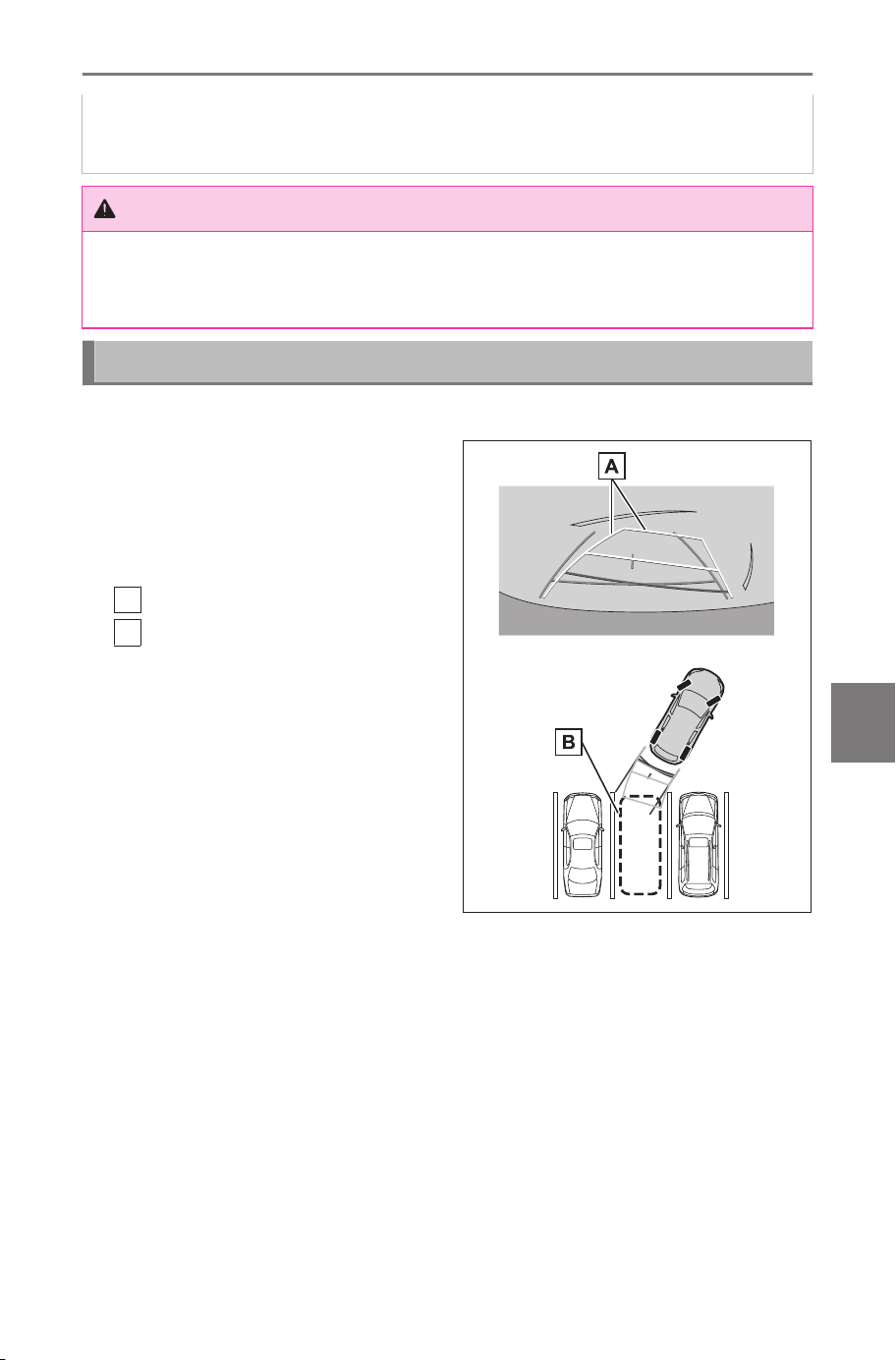
● The intuitive parking assist display position and the position of the
object displayed on the camera image may not correspond.
WARNING
The vehicle width guide lines are wider than the actual width of the vehi-
cle. Always make sure to visually check behind you and your surround-
ings when you are reversing.
Parking using the estimated course lines mode
1 Shift the shift position to "R".
2 Turn the steering wheel so
that the estimated course
lines are within the parking
space and then reverse slow-
ly.
A
Estimated course lines
B
Parking space
8-1. SUBARU Parking Assist monitor
235
8
Parking assist system
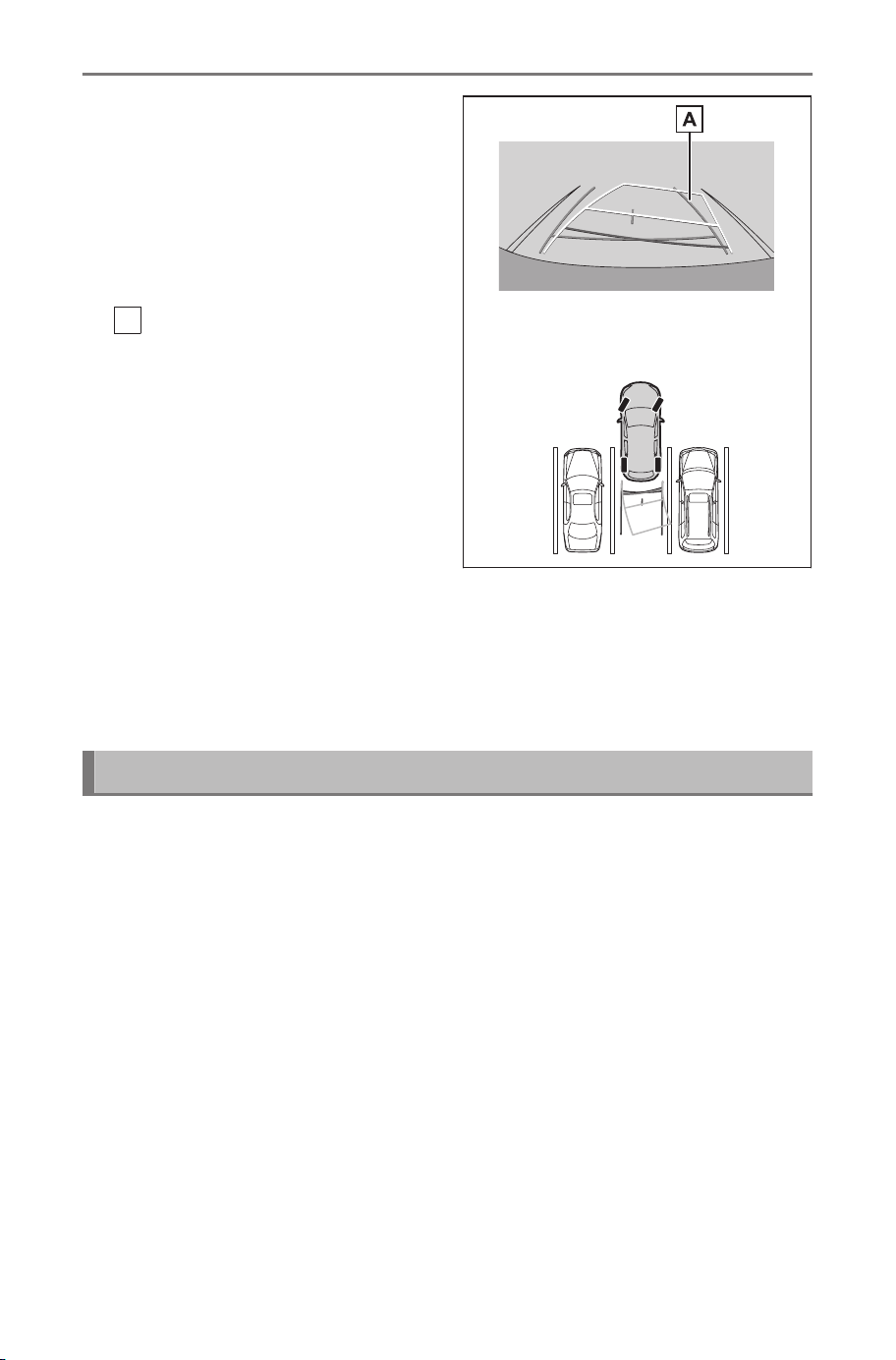
3 When the rear of the ve-
hicle has entered the park-
ing space, turn the steering
wheel so that the vehicle
width guide lines are with-
in the left and right dividing
lines of the parking space.
A
Vehicle width guide lines
4 Once the vehicle width guide lines and the parking space
lines are parallel, straighten the steering wheel and reverse
slowly until the vehicle has completely entered the parking
space.
5 Stop the vehicle in an appropriate place to finish parking.
Parking using the parking assist guide lines mode
1 Shift the shift position to "R".
8-1. SUBARU Parking Assist monitor
236
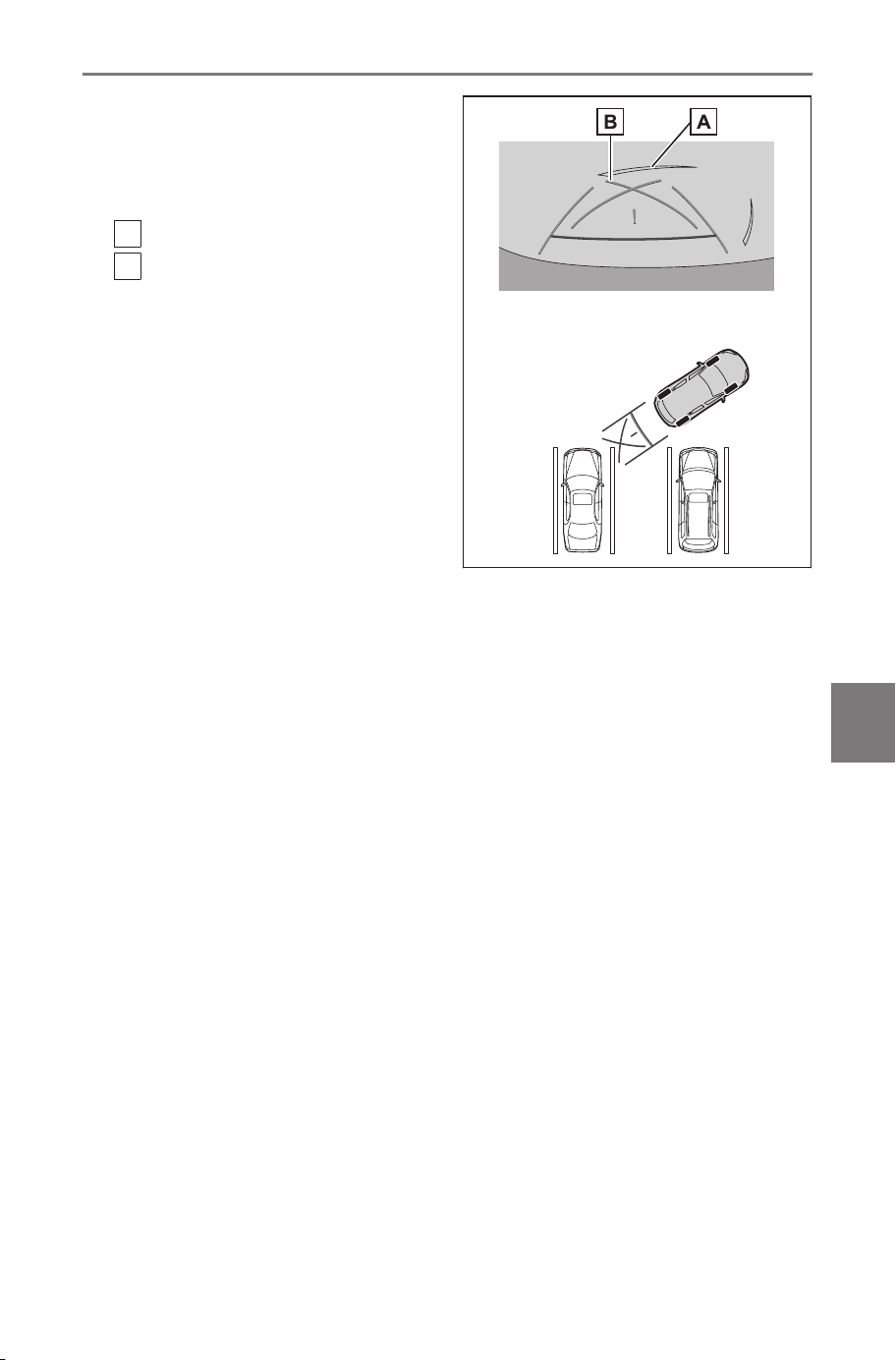
2 Reverse until the parking as-
sist guide lines align with the
dividing line of the parking
space.
A
Parking space dividing line
B
Parking assist guide lines
3 Turn the steering wheel all the way, and reverse slowly.
4 Once the vehicle is parallel with the parking space, straight-
en the steering wheel and reverse slowly until the vehicle
has completely entered the parking space.
5 Stop the vehicle in an appropriate place to finish parking.
8-1. SUBARU Parking Assist monitor
237
8
Parking assist system

SUBARU Parking Assist monitor
Driving precautions
The SUBARU Parking Assist monitor is equipment that assists the
driver reverse the vehicle. Always make sure to visually check be-
hind you and your surroundings when reversing. If not, you may
collide with other vehicles or an unforeseen accident may occur. Fol-
low the below precautions when using the SUBARU Parking Assist
monitor.
WARNING
● Never reverse only looking at the screen. The images displayed on
the screen may differ to the actual situation. Hence, if only looking at
the screen when reversing, you may collide with another vehicle or
have an unforeseen accident. In particular, be careful not to collide with
vehicles parked nearby or other objects. Always make sure to use the
rear-view and side mirrors as well as visually check behind you and
your surroundings when reversing.
● Depress the brake pedal to adjust your speed and slowly reverse the
vehicle.
● If collision is likely with a nearby vehicle, obstacle, or person, or mount
the shoulder of the road, depress the brake pedal to stop the vehicle.
● The instructions given for the SUBARU Parking Assist monitor modes
are only guidelines. When and how much to turn the steering wheel
will vary according to traffic conditions, road surface conditions, vehicle
condition, and so on when parking. It is necessary to be fully aware of
this before using the SUBARU Parking Assist monitor.
● When parking, be sure to check that the parking space will accommo-
date your vehicle before reversing into it.
● Do not use the SUBARU Parking Assist monitor in the following cases:
• On icy or slick road surfaces, or in snow
• When using tire chains or emergency tires
• When the back door is not closed completely
• On roads that are not flat or straight, such as hills or bends
• If the tires of a size other than specified by SUBARU are installed
• If the suspension has been modified
• If a non-SUBARU product is installed on the area displayed on the
screen
8-1. SUBARU Parking Assist monitor
238
WARNING
● In low external temperatures, the screen may darken or the image may
become faint. The image could distort when the vehicle is moving, or
you may not be able to see the image on the screen, so always visually
check your surroundings while you are driving.
● If tire sizes are changed, the position of the guide lines displayed on
the screen may be incorrect.
NOTICE
● The camera may not function correctly and the image may be dis-
played on the screen in the following manner:
• When the shift position is in "R", part or all of the screen may appear
black
• When the shift position is in "R", the screen may not change to the
camera image
• When a shift position other than "R" is selected, the image from the
camera may remain displayed
• The guide lines are not displayed on the camera image, and atten-
tion symbols and caution notices are displayed
8-1. SUBARU Parking Assist monitor
239
8
Parking assist system
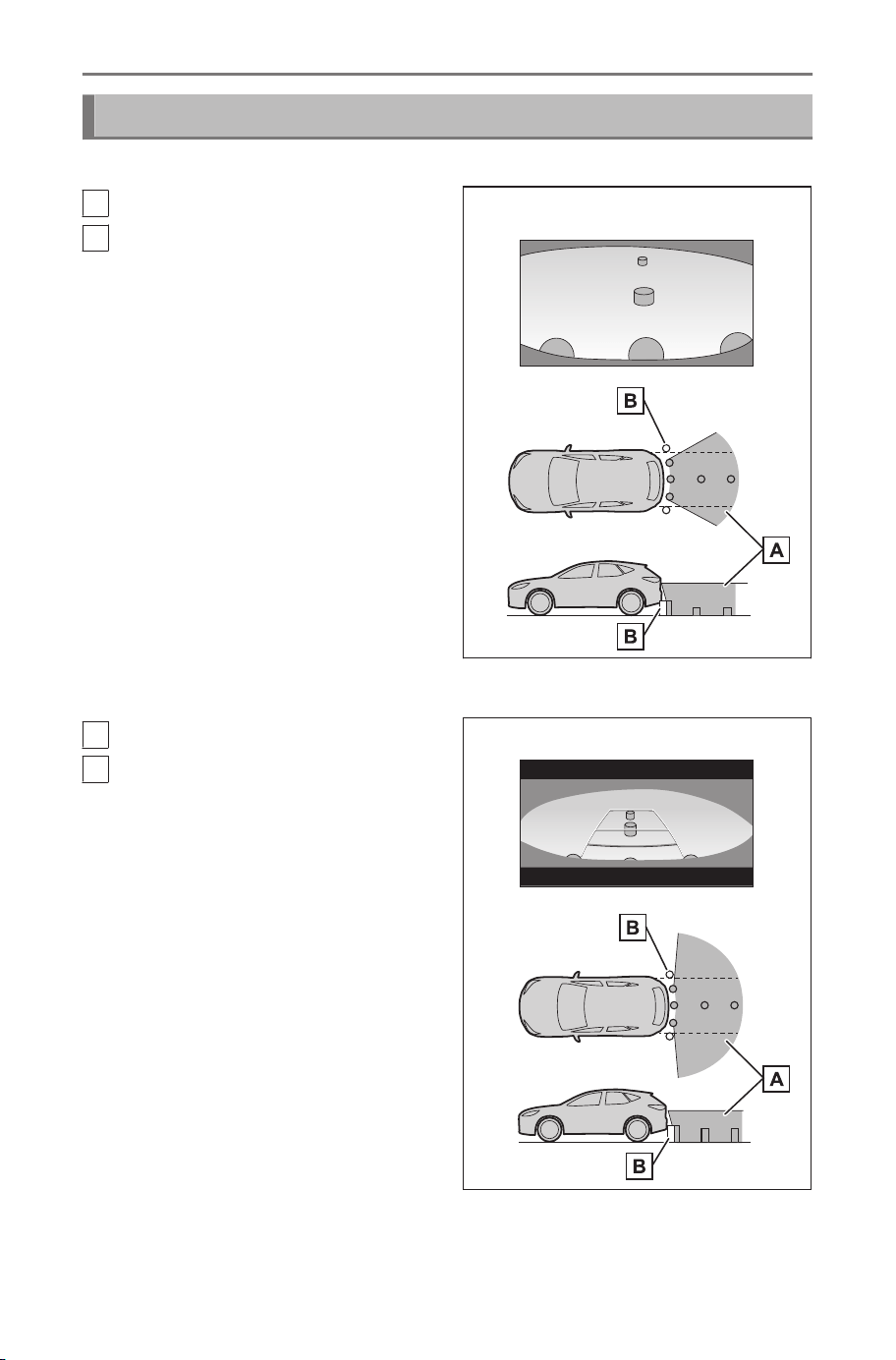
Area displayed on the screen
■ Rear view
A
Area displayed on the screen
B
Objects not displayed on the
screen
Areas close to both corners of
the bumper will not appear on the
screen.
■ Wide rear view
A
Area displayed on the screen
B
Objects not displayed on the
screen
Areas close to both corners of
the bumper will not appear on the
screen.
8-1. SUBARU Parking Assist monitor
240
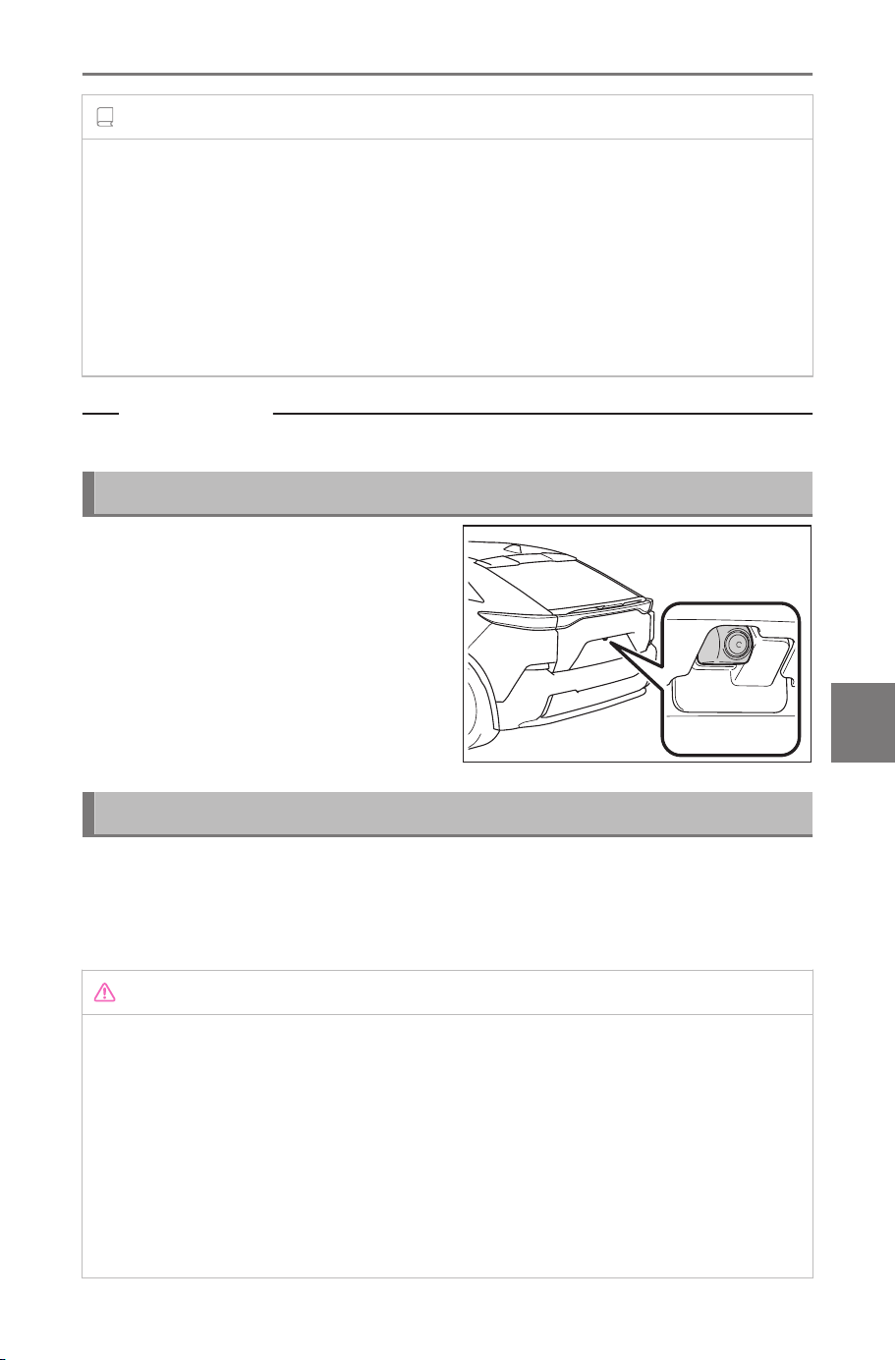
INFORMATION
● The range that is displayed on the screen may differ due to the state of
the vehicle and road surface.
● Areas close to both corners of the bumper and under the bumper will
not appear on the screen.
● The depth perception of the image displayed on the screen differs to
the actual distance due to the camera lens characteristics.
● Objects that are higher than the camera may not appear in the monitor.
Related Links
Changing the screen display settings(P. 64)
Camera position
The SUBARU Parking Assist
monitor camera is in the locations
shown in the figure.
Cleaning the camera
If dirt or foreign matter, such as water droplets, snow, or mud, has
stuck to the camera, you will not be able to see the image clearly. If
that happens, splash the camera with a large amount of water and
then wipe the camera lens clean with a soft, damp cloth.
NOTICE
● The SUBARU Parking Assist monitor may stop functioning correctly.
Take note of the following items:
• Do not hit or apply a forceful impact on the camera. Doing so may
change the position and mounting angle of the camera.
• The camera is designed to be waterproof. Do not detach, disassem-
ble, or modify it.
• When washing the camera lens, splash the camera with a large
amount of water and then wipe the camera lens clean with a soft,
8-1. SUBARU Parking Assist monitor
241
8
Parking assist system
NOTICE
damp cloth. Rubbing the camera lens forcibly may scratch the cam-
era lens and images may no longer be able to be seen clearly.
• The camera cover is made of resin. Do not allow an organic solvent,
car wax, window cleaner, or glass coating to adhere to the camera. If
this happens, wipe it off immediately.
• Do not pour hot water on the vehicle in cold weather or apply other
rapid changes of temperature.
• If you wash the vehicle with a high pressure car washer, do not
point the hose directly at the camera or camera area. Applying strong
water pressure may result in the camera malfunctioning.
● If the camera is hit, it may cause a camera malfunction. If this happens,
have the vehicle inspected by your SUBARU dealer as soon as possi-
ble.
Differences between the screen and the actual road
● The distance guide lines and the vehicle width guide lines may
not actually be parallel with the dividing lines of the parking space,
even when they appear to be so. Be sure to check visually.
● The distances between the vehicle width guide lines and the left
and right dividing lines of the parking space may not be equal,
even when they appear to be so. Be sure to check visually.
● The distance guide lines show a distance guide for flat road surfa-
ces. Therefore, there is a margin of error between the guide lines
on the screen and the actual distance and course on the road.
8-1. SUBARU Parking Assist monitor
242
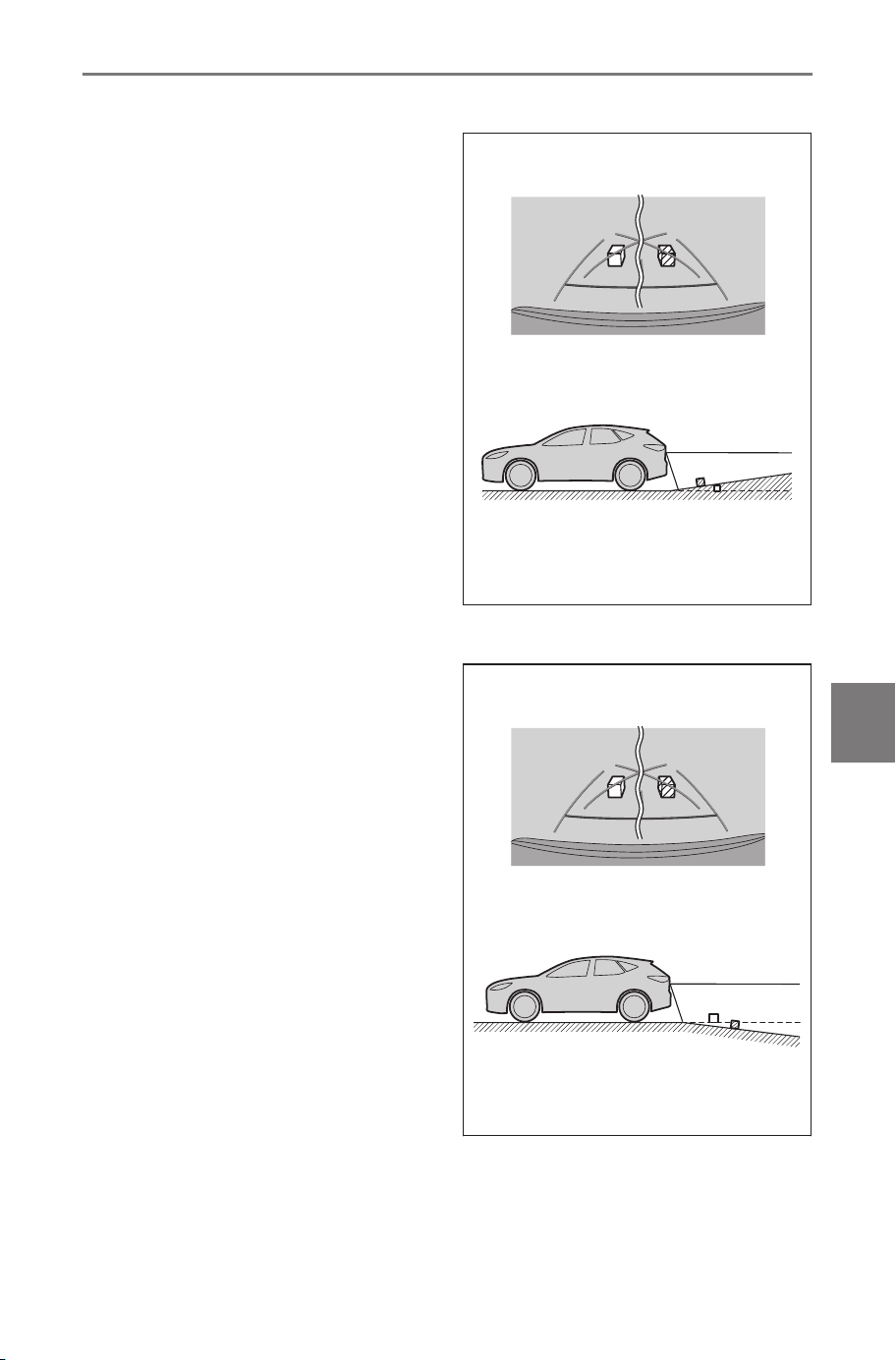
■ When the ground behind the vehicle slopes up sharply
The distance guide lines will ap-
pear to be closer to the vehicle
than the actual distance. Thus,
objects on up-slopes will appear
to be farther away than they ac-
tually are. In the same way, there
will be a margin of error between
the guidelines and the actual dis-
tance and course on the road.
■ When the ground behind the vehicle slopes down sharply
The distance guide lines will ap-
pear to be further from the vehi-
cle than the actual distance. Thus,
objects on down-slopes will ap-
pear to be closer than they actual-
ly are. In the same way, there will
be a margin of error between the
guidelines and the actual distance
and course on the road.
8-1. SUBARU Parking Assist monitor
243
8
Parking assist system
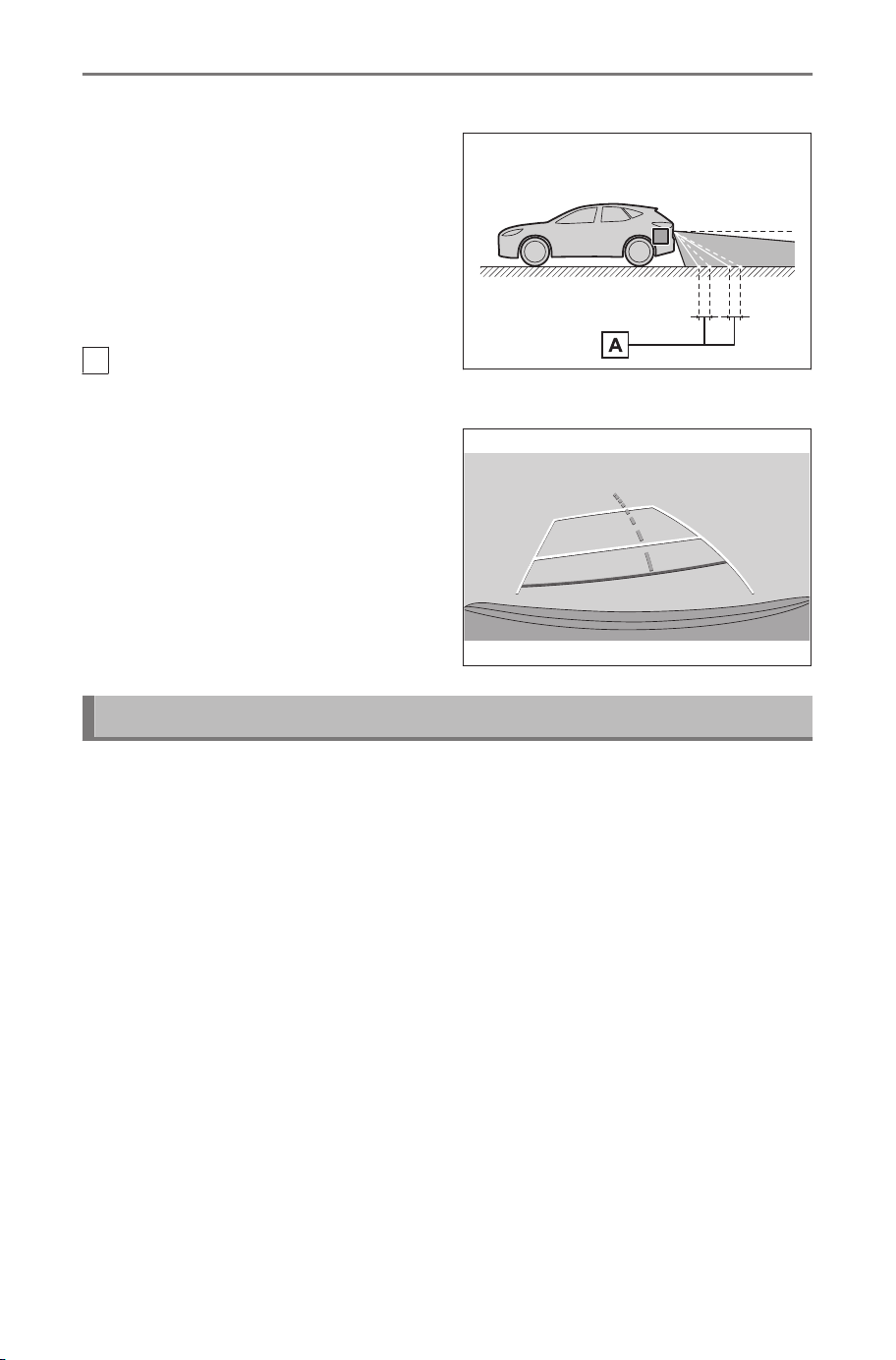
■ When any part of the vehicle sags
When any part of the vehicle sags
due to the number of passengers
or the distribution of the load,
there is a margin of error between
the guide lines on the screen and
the actual distance and course on
the road.
A
Margin of error
■
Estimated course center line
As the guide lines are shown mid-
air near the rear bumper, there are
times that they may look like they
are off-center.
Differences between the screen and actual 3D objects
Since the estimated course lines and distance guide lines are dis-
played for a flat road surface, it is not possible to determine the
position of three-dimensional objects. When approaching a three-di-
mensional object that extends outward (such as the flatbed of a
truck), take note of the following cautions.
8-1. SUBARU Parking Assist monitor
244
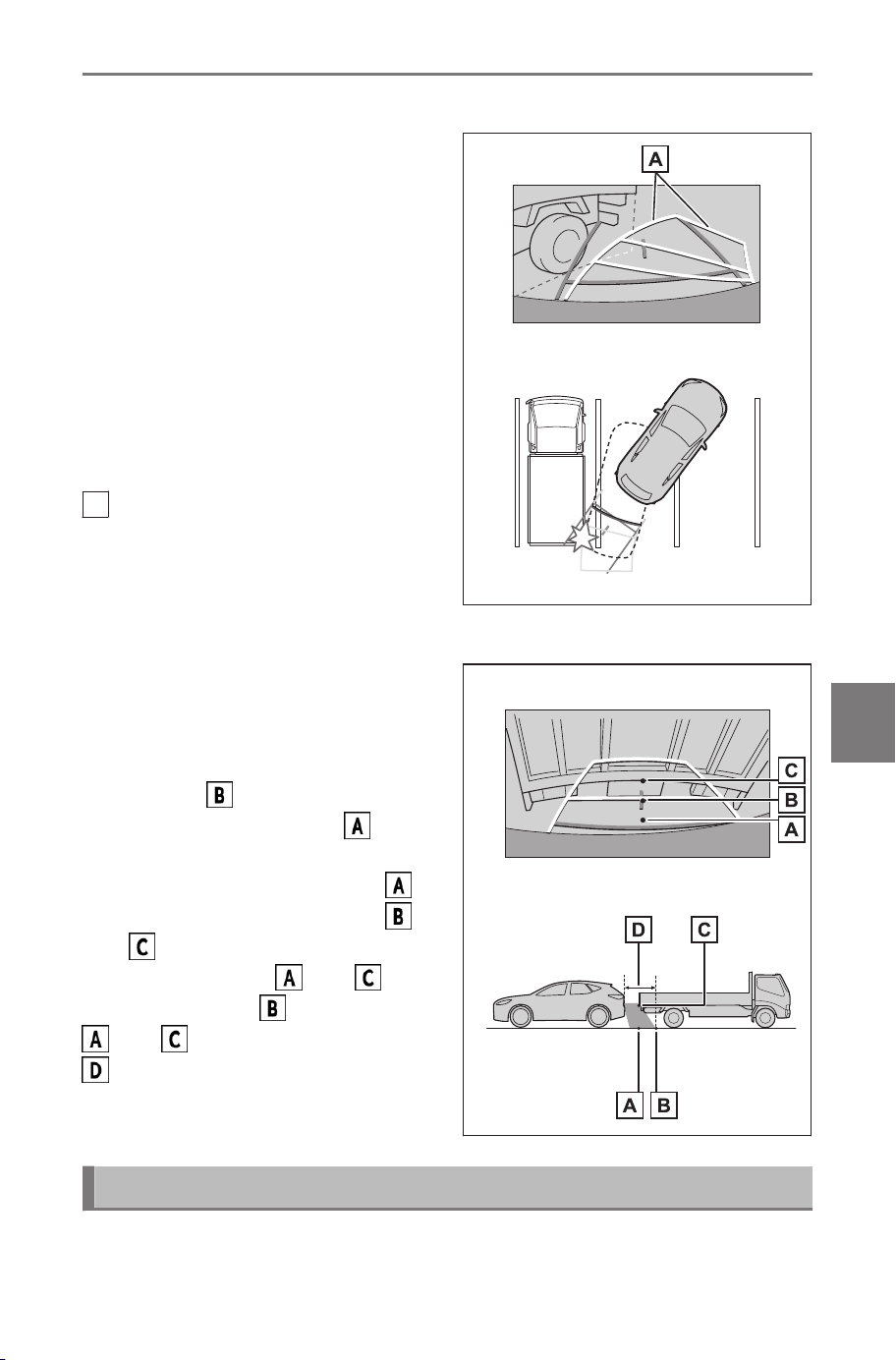
■ Estimated course lines
Make sure to visually check be-
hind you and your surroundings.
On the screen, a truck flatbed may
appear to be outside of the esti-
mated course lines and the vehi-
cle does not look as if it will collide
with the truck. However, the flat-
bed may actually cross over the
estimated course lines and if you
reverse as guided by the estimat-
ed course lines, the vehicle may
hit the truck.
A
Estimated course lines
■ Distance guide lines
Make sure to visually check be-
hind you and your surroundings.
On the screen, the distance guide
lines shows that a truck is park-
ing at point . However, in reali-
ty if you reverse to point , you
will collide with the truck. On the
screen, it appears that point
is closest followed by points
and . However, in reality, the
distance to points
and is the
same, and point is farther than
and . The distance to point
is about 3 ft. (1 m).
If you notice any symptoms
If you notice or are troubled by any of the symptoms below, check
the issue again referring to the likely cause and solution.
8-1. SUBARU Parking Assist monitor
245
8
Parking assist system

If the symptom is not resolved by the solution, have the vehicle
inspected by your SUBARU dealer.
Symptom Likely cause Solution
The screen is
difficult to see
● The vehicle is in a dark
area or it is night.
● The temperature around
the lens is either high or
low.
● The outside temperature is
low.
● There are water droplets
on the camera.
● It is raining or humid.
● Foreign matter (mud etc.)
is stuck to the camera.
● Sunlight or headlights are
shining directly into the
camera.
● The vehicle is under flu-
orescent lights, sodium
lights, mercury lights, etc.
Visually check your vehi-
cle’s surroundings while
you are driving.
(Use the SUBARU Park-
ing Assist monitor again
once the camera and con-
ditions have improved.)
The procedure for adjust-
ing the picture quality of
the SUBARU Parking As-
sist monitor is the same
as the procedure for ad-
justing the multimedia
screen.
The image is
blurry
Dirt or foreign matter, such
as water droplets, snow, or
mud, has stuck to the cam-
era lens.
Splash the camera with a
large amount of water and
then wipe the camera lens
clean with a soft, damp
cloth.
The screen is
misaligned
The camera has received a
strong impact.
Have the vehicle inspect-
ed by your SUBARU deal-
er.
The guide lines
are significant-
ly misaligned
The camera position is mis-
aligned.
Have the vehicle inspect-
ed by your SUBARU deal-
er.
8-1. SUBARU Parking Assist monitor
246

Symptom Likely cause Solution
The guide lines
are significant-
ly misaligned
● The vehicle is tilted (There
is a heavy load on the ve-
hicle, tire pressure is low
due to a tire puncture,
etc.).
● The vehicle is on an in-
cline.
Visually check your vehi-
cle’s surroundings while
you are driving.
The estimated
course lines
move even
though the
steering wheel
is straight (the
vehicle width
guide lines and
estimated
course lines
are out of
alignment)
There is a malfunction in the
signals being output by the
steering sensor.
Have the vehicle inspect-
ed by your SUBARU deal-
er.
The guide lines
are not dis-
played
The back door is open.
Close the back door.
If this does not resolve the
issue, have the vehicle in-
spected by your SUBARU
dealer.
Related Links
Changing the screen display settings(P. 64)
8-1. SUBARU Parking Assist monitor
247
8
Parking assist system
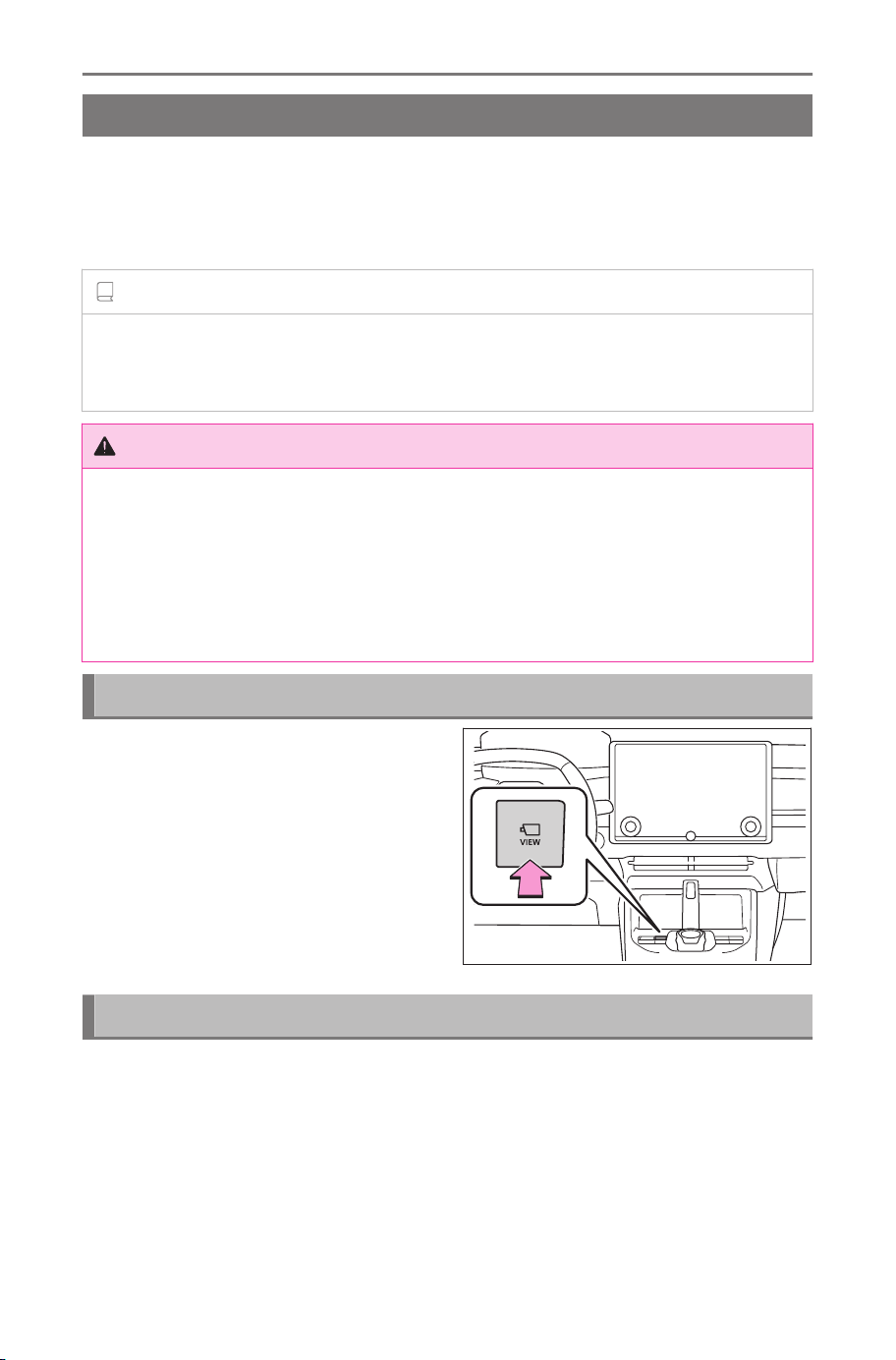
Panoramic view monitor
Panoramic view monitor functions
*
The panoramic view monitor is a device that assists you in driving
at low speeds by displaying seamless vision from above the vehicle
on the screen that is a composite of images from the front, side, and
rear cameras installed on the vehicle.
INFORMATION
The illustrations of screens used in the descriptions are examples and
may differ to the actual vision from the camera due to vehicle glare and
such like.
WARNING
● The panoramic view monitor is a device that assists you in checking
around the vehicle. Always make sure to visually check your surround-
ings while you are driving.
● Due to the characteristics of the camera lens, the actual position and
distance of people and obstacles differ from what appears on the
screen.
Camera switch
Displays the panoramic view mon-
itor and switches the display
mode.
Displaying the panoramic view monitor screen
When you press the camera switch or shift the shift position to
"R" while the power switch is in ON, the panoramic view monitor
operates.
* : If equipped
8-2. Panoramic view monitor
248
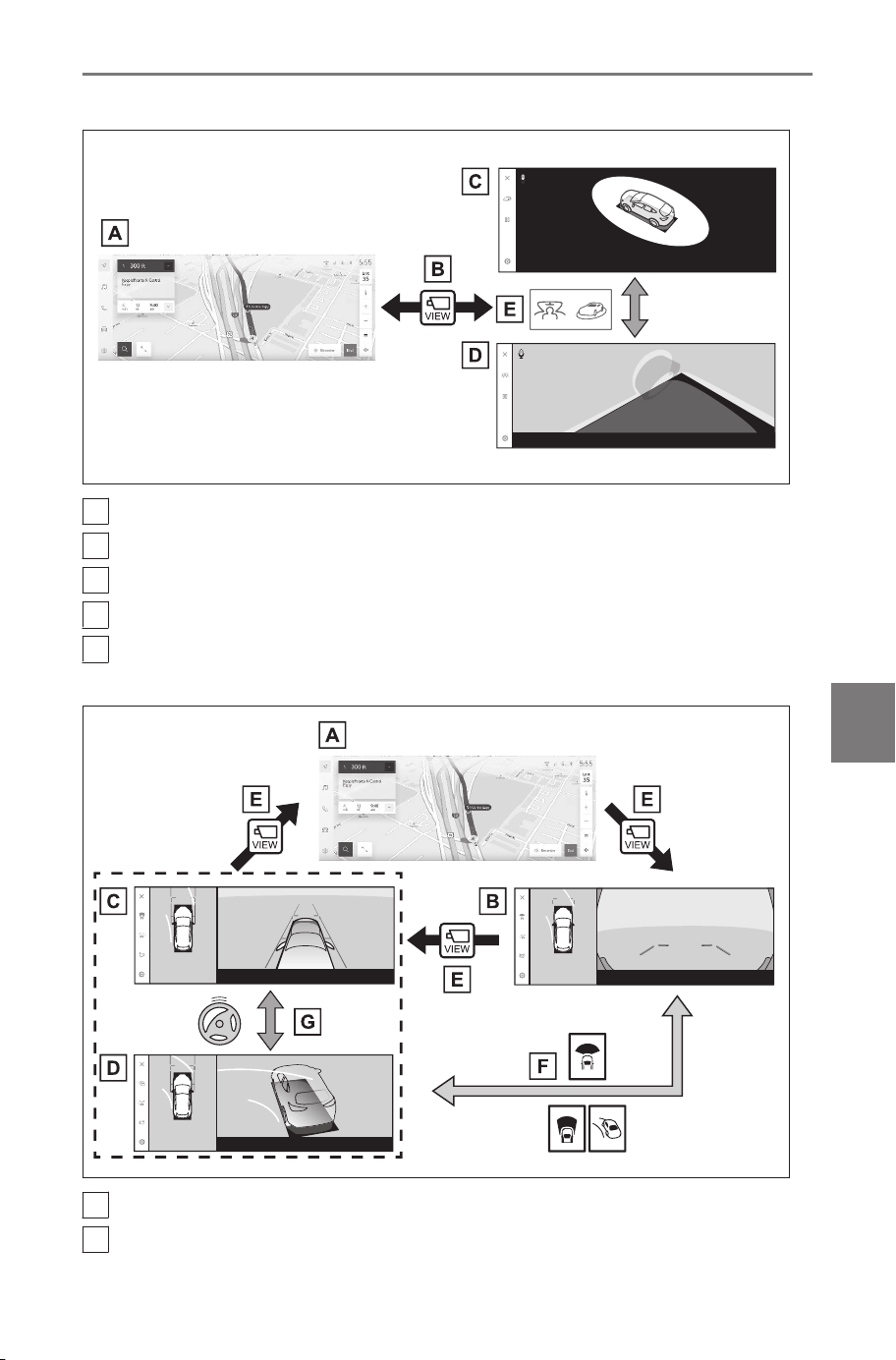
■ Display mode when the shift position is in “P”
A
Navigation screen, audio screen, etc.
B
Pressing the camera switch
C
Moving view
D
See-through view
E
Touch the display mode switching button
■ Display mode when the shift position is in “D” or “N”
A
Navigation screen, audio screen, etc.
B
Wide front view & panoramic view
8-2. Panoramic view monitor
249
8
Parking assist system
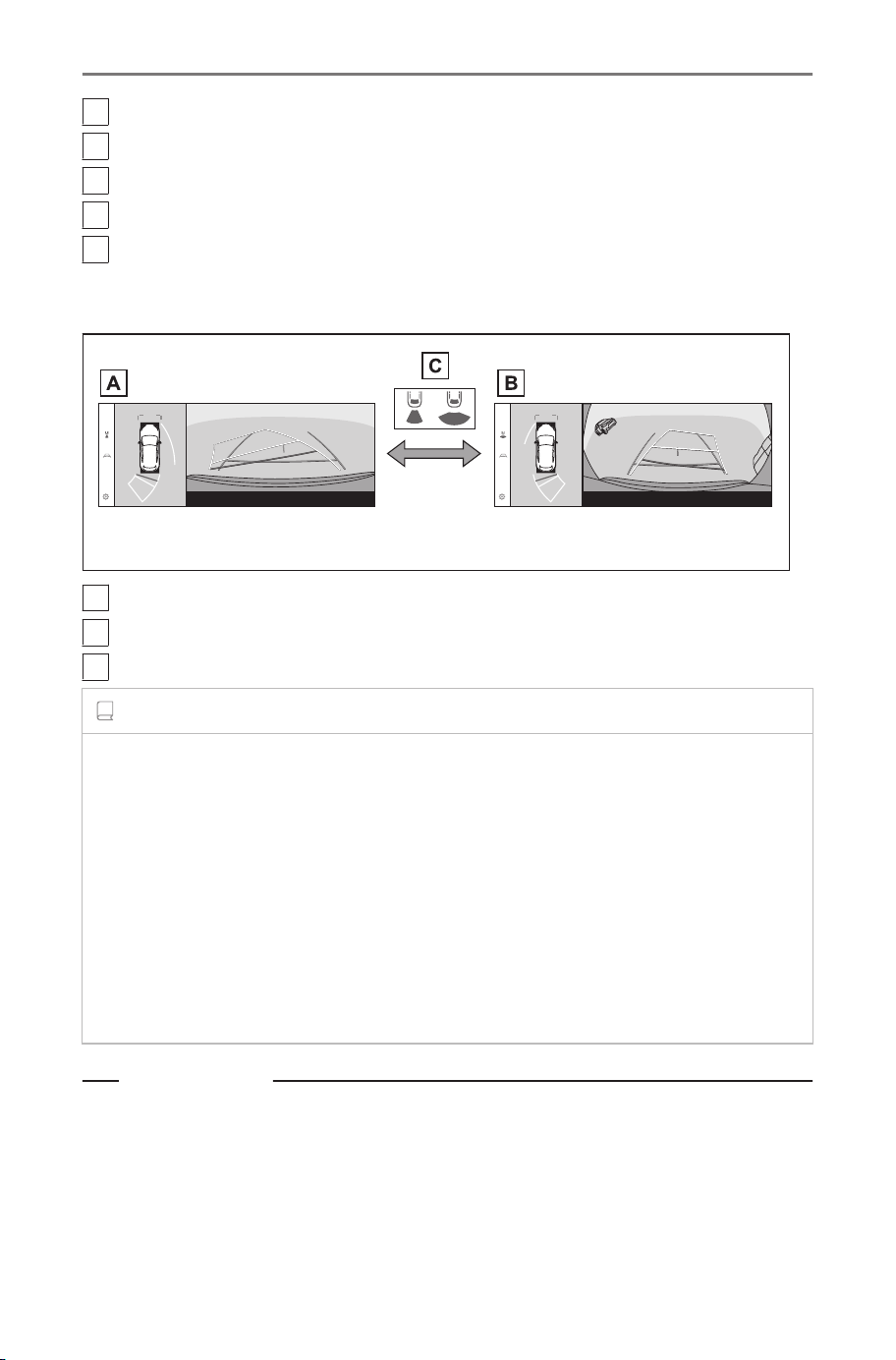
C
Side clearance view & panoramic view
D
Cornering view & panoramic view
E
Pressing the camera switch
F
Touch the display mode switching button
G
When the steering wheel is turned by 180 degrees or more from
the center (straight-line) position
■ Display mode when the shift position is in “R”
A
Rear view & panoramic view
B
Wide rear view & panoramic view
C
Touch the display mode switching button
INFORMATION
● If the camera switch is pressed when the vehicle is moving at about
7 mph (12 km/h) or less, the panoramic view monitor screen will be
displayed. When the vehicle exceeds about 7 mph (12 km/h), the pan-
oramic view monitor screen will disappear and the previous screen will
be displayed.
● Display settings, such as the guide line modes, can be saved as My
Setting by registering to user profiles. They can be recalled when the
driver is recognized.
● The Intelligent Assistant can be used to display the panoramic view
monitor screen, change the screen mode and for other operations.
*1
Related Links
Linking a User Profile(P. 46)
Starting voice control(P. 38)
*1 : This function is not available in some regions.
8-2. Panoramic view monitor
250
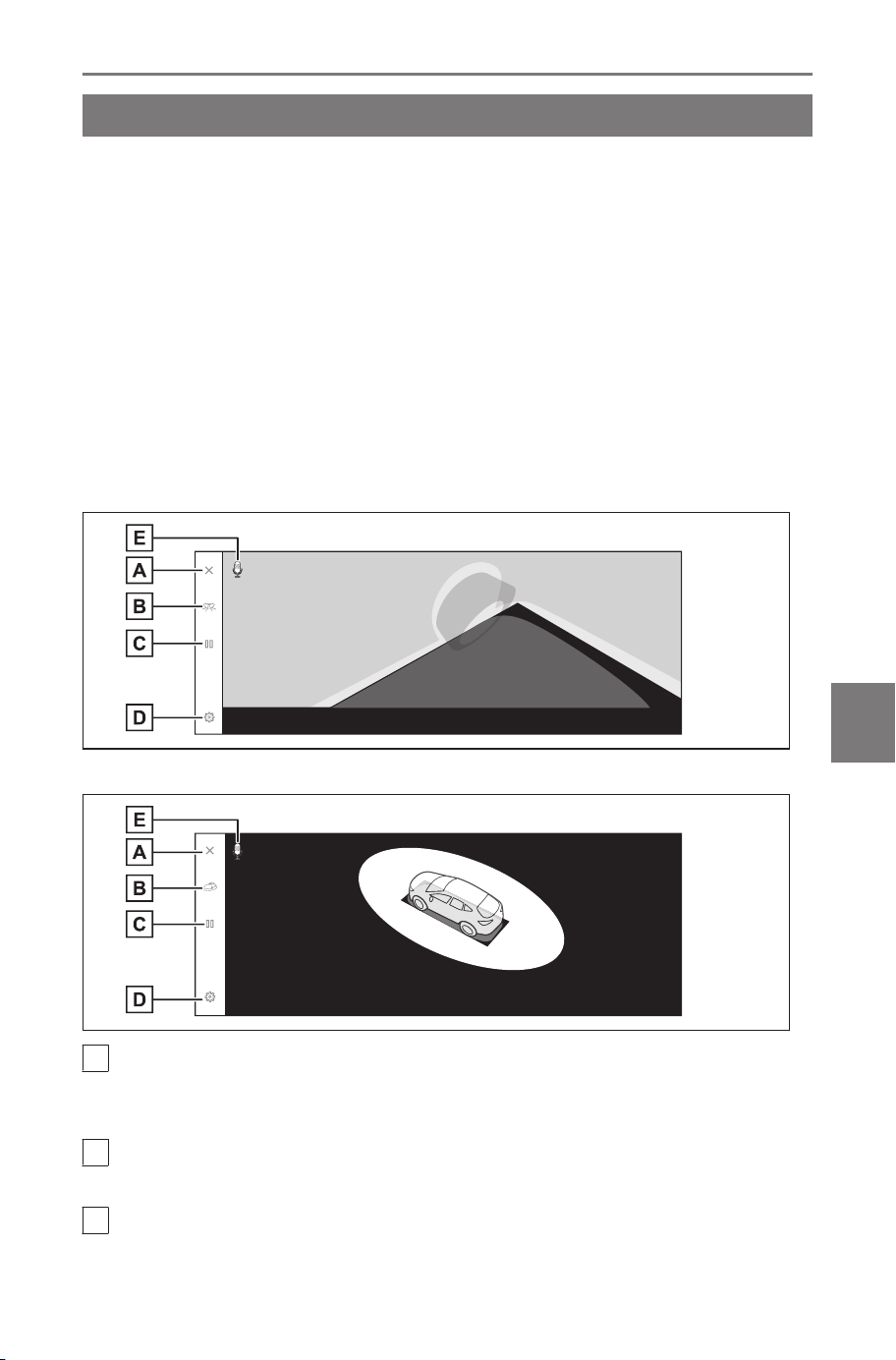
Display mode when the shift position is in "P"
This is a mode that displays images combined from the cameras
to enable you to check obstacles around the vehicle. Images are
displayed as if seen from the driver’s seat and on an angle from
above the vehicle.
1. Shift the shift position to "P".
2. Press the camera switch.
● The mode changes every time the display mode switching
button is touched.
● Pressing the camera switch again returns the display to the
previous screen, such as the navigation screen.
■ See-through view
■ Moving view
A
Screen off button
Turns off the camera screen and returns the previous screen, such as
the navigation.
B
Display mode switching button
Switches between see-through view and moving view.
C
Rotation pause/resume button
Pauses and resumes the rotation of the display.
8-2. Panoramic view monitor
251
8
Parking assist system
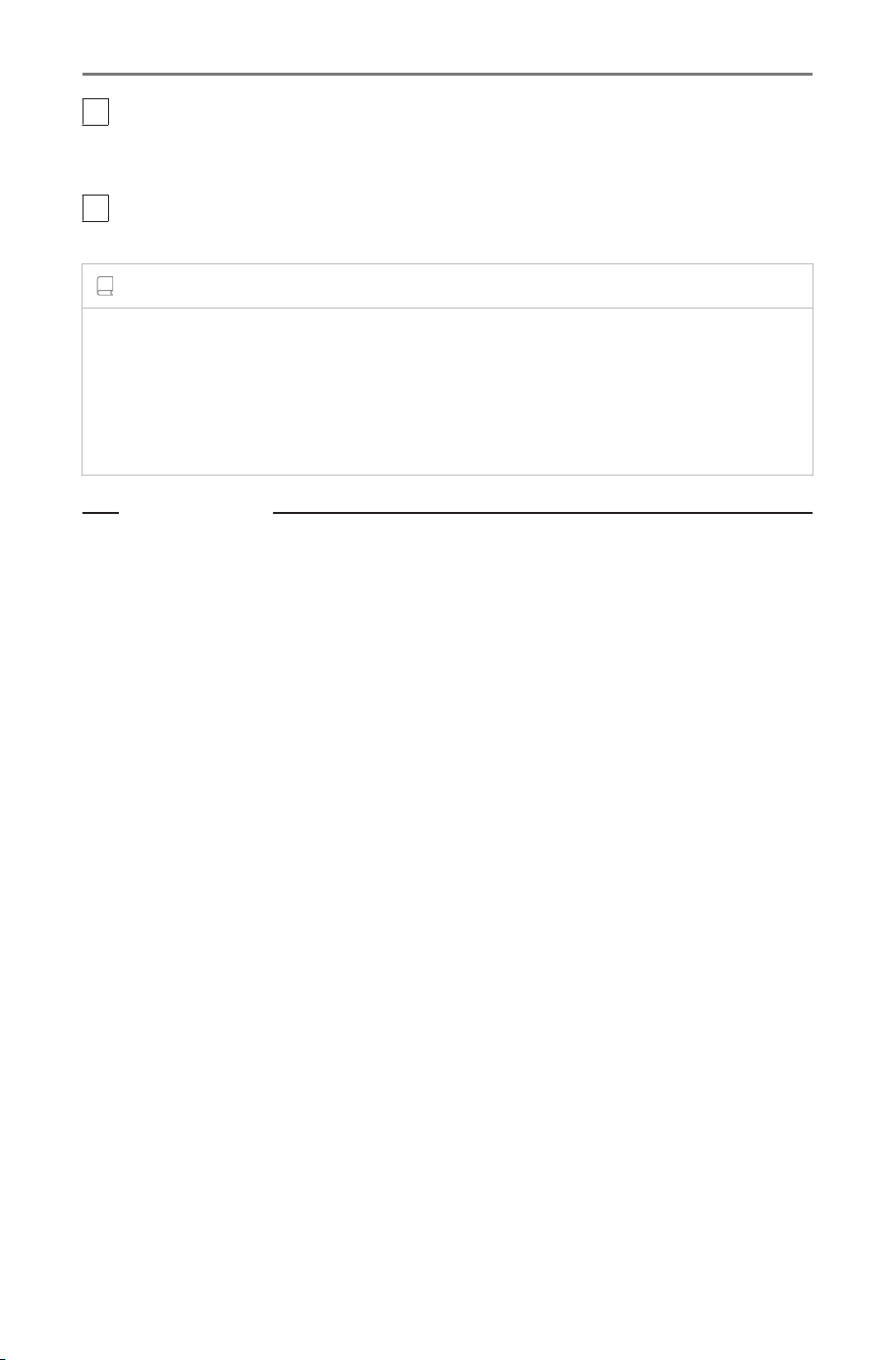
D
Customize settings button
Changes settings, such as the automatically display cornering view, the
intuitive parking assist detection distance.
E
Voice recognition icon
*1
This icon is displayed when the Intelligent Assistant is in operation.
INFORMATION
● When the intuitive parking assist is turned on, you can display see-
through view or moving view. (For details about the intuitive parking
assist, see the vehicle "OWNER’S MANUAL".)
● You can also pause and resume the rotation of the see-through view
and moving view screen by touching any point on the screen.
Related Links
Changing the panoramic view monitor settings(P. 274)
*1 : This function is not available in some regions.
8-2. Panoramic view monitor
252
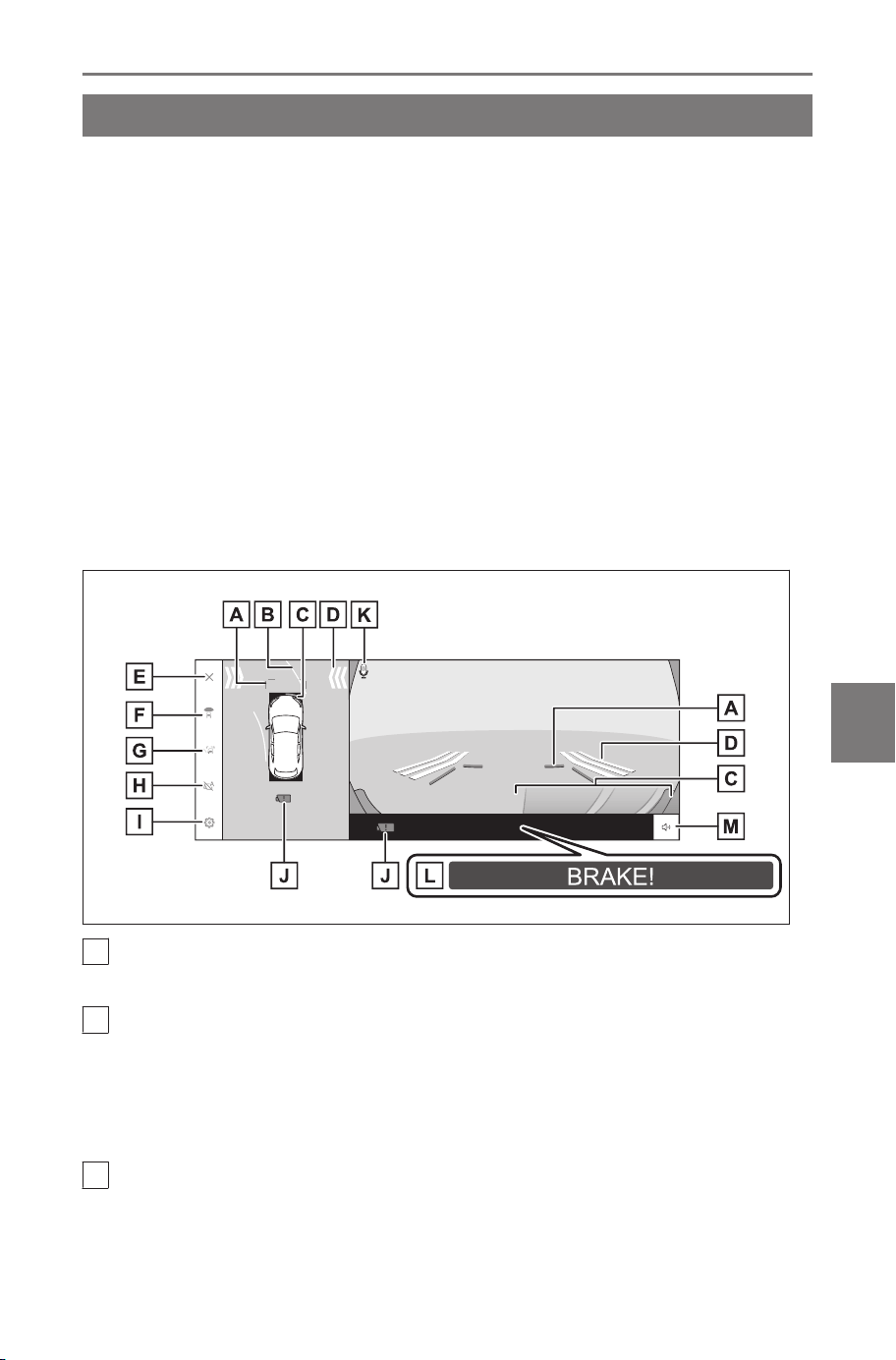
Display mode when the shift position is in "D" or "N"
You can check for nearby pedestrians, bicycles, and vehicles at in-
tersections with poor visibility and T-junctions by displaying vision of
your surroundings on the screen. This mode also provides support
to check both sides of the vehicle for safety, avoid collisions on
narrow roads, and pulling over to the side of the road.
1. Shift the shift position to "D" or "N".
2. Press the camera switch.
● The mode changes every time you press the camera switch.
● If the cornering view mode is on and you turn the steering
wheel more than 180 degrees from the straight position, the
display will change from side clearance view & panoramic view
to cornering view & panoramic view.
■ Wide front view & panoramic view
A
Front distance guide lines
Displays about 3 ft. (1 m) in front of the vehicle.
B
Forward estimated course lines
Displays course lines that are linked to operation of the steering wheel.
(Yellow)
These lines are displayed when the steering wheel is turned more than
90 degrees from the straight position.
C
Intuitive parking assist
Displays an indicator on the screen and sounds a buzzer when an
object is detected by a sensor. (For details about the intuitive parking
assist, see the vehicle "OWNER’S MANUAL".)
8-2. Panoramic view monitor
253
8
Parking assist system

D
FCTA (Front Cross Traffic Alert)
If FCTA (Front Cross Traffic Alert) detects nearby vehicles and/or obsta-
cles from the front or rear of the vehicle, an indicator is displayed on the
screen.
E
Screen off button
Turns off the camera screen and returns the previous screen, such as
the navigation.
F
Display mode switching button
Switches display mode every time touch the button.
G
Guide line switching button
Switches guide line mode every time touch the button.
H
Automatic display button
Turns auto display mode on or off. When the shift position is in "D" or
"N", wide front view & panoramic view or side clearance view/cornering
view & panoramic view will be automatically displayed in accordance
with the vehicle speed.
I
Customize settings button
Changes settings, such as the automatically display cornering view, the
intuitive parking assist detection distance.
J
Camera dirt detection icon
This icon is displayed when dirt is detected on the camera.
K
Voice recognition icon
*1
This icon is displayed when the Intelligent Assistant is in operation.
L
PKSB (Parking Support Brake)
If an obstacle that you may collide with is detected, a message is dis-
played on the screen. (For details about PKSB (Parking Support Brake),
see the vehicle "OWNER’S MANUAL".)
M
Mute button
This button temporarily mutes the intuitive parking assist/moving objects
alert sound.
*1 : This function is not available in some regions.
8-2. Panoramic view monitor
254
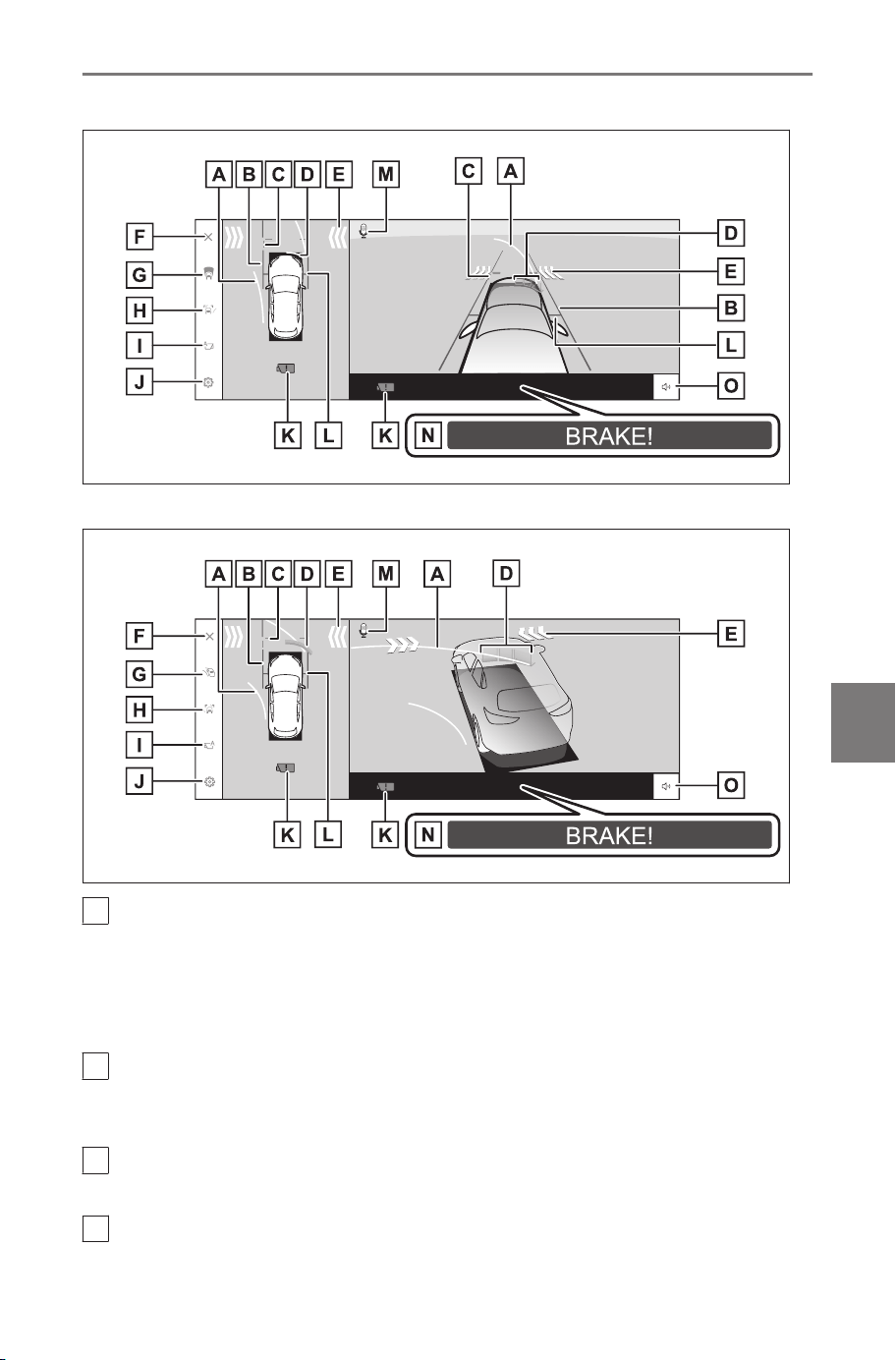
■ Side clearance view & panoramic view
■
Cornering view & panoramic view
A
Forward estimated course lines
Displays course lines that are linked to operation of the steering wheel.
(Yellow)
These lines are displayed when the steering wheel is turned more than
90 degrees from the straight position.
B
Vehicle width guide lines
Shows guide lines of the vehicle’s width including the outside rear view
mirrors.
C
Front distance guide lines
Displays about 3 ft. (1 m) in front of the vehicle.
D
Intuitive parking assist
8-2. Panoramic view monitor
255
8
Parking assist system

Displays an indicator on the screen and sounds a buzzer when an
object is detected by a sensor. (For details about the intuitive parking
assist, see the vehicle "OWNER’S MANUAL".)
E
FCTA (Front Cross Traffic Alert)
If FCTA (Front Cross Traffic Alert) detects nearby vehicles and/or obsta-
cles from the front or rear of the vehicle, an indicator is displayed on the
screen.
F
Screen off button
Turns off the camera screen and returns the previous screen, such as
the navigation.
G
Display mode switching button
Switches display mode every time touch the button.
H
Guide line switching button
Switches guide line mode every time touch the button.
I
Automatic display button
Turns the auto display mode on or off. When the shift position is in
"D" or "N", wide front view & panoramic view or side clearance view/
cornering view & panoramic view will be automatically displayed in ac-
cordance with the vehicle speed.
J
Customize settings button
Changes settings, such as the automatically display cornering view, the
intuitive parking assist detection distance.
K
Camera dirt detection icon
This icon is displayed when dirt is detected on the camera.
L
Front tire guide lines
Displays the position of the front tires.
M
Voice recognition icon
*1
This icon is displayed when the Intelligent Assistant is in operation.
N
PKSB (Parking Support Brake)
If an obstacle that you may collide with is detected, a message is dis-
played on the screen. (For details about PKSB (Parking Support Brake),
see the vehicle "OWNER’S MANUAL".)
O
Mute button
This button temporarily mutes the intuitive parking assist/moving objects
alert sound.
*1 : This function is not available in some regions.
8-2. Panoramic view monitor
256
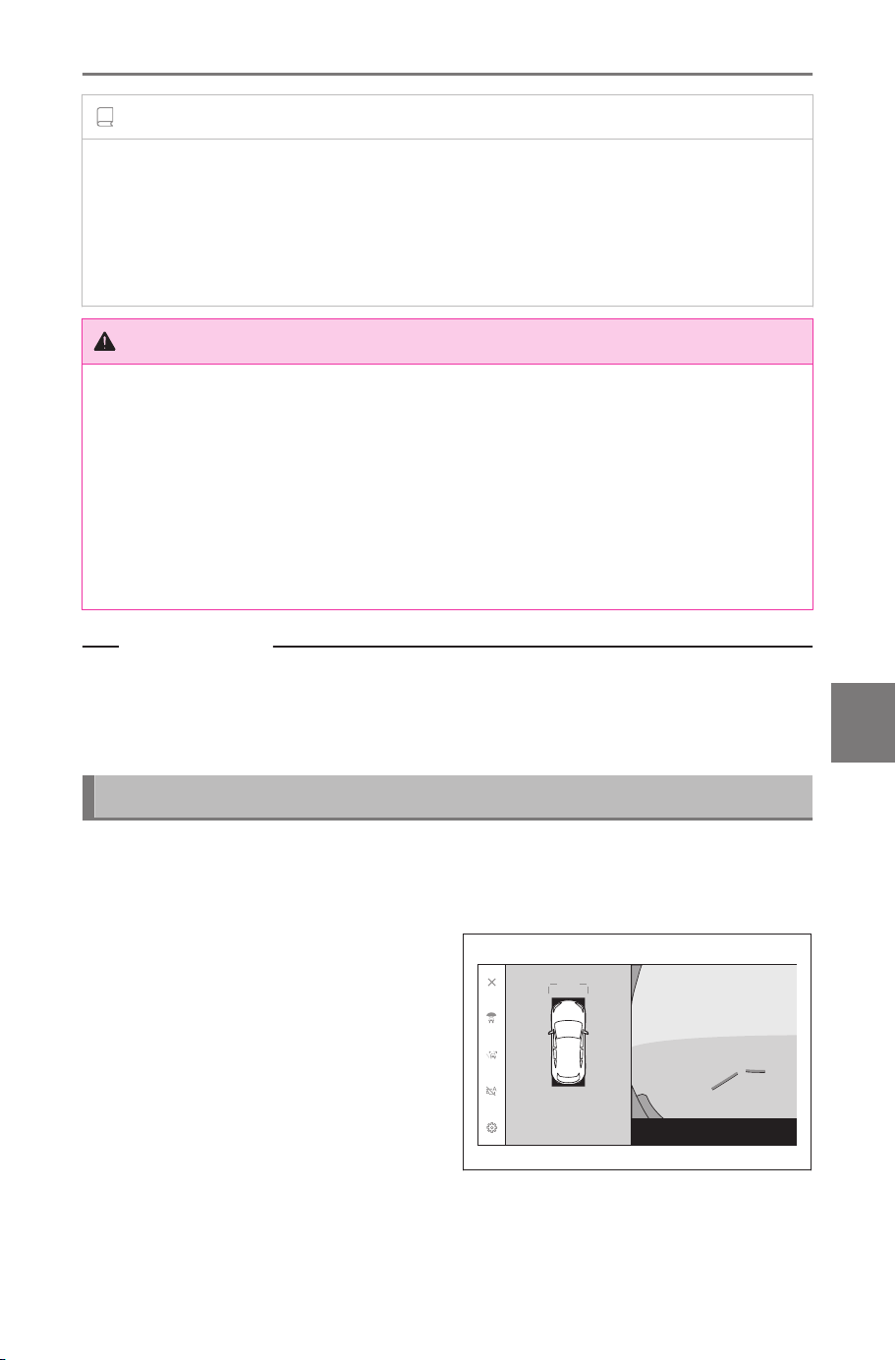
INFORMATION
● When the intuitive parking assist is turned on, you can display side
clearance view & panoramic view/cornering view. (For details about the
intuitive parking assist, see the vehicle "OWNER’S MANUAL".)
● The display position of the intuitive parking assist may not match the
position of the obstacle displayed in the camera image.
WARNING
● The position of the guide lines displayed on the screen may change
due to factors such as number of passengers, load weight, and road
gradient. Always make sure to visually check behind you and your
surroundings while you are driving.
● The intuitive parking assist and FCTA (Front Cross Traffic Alert) dis-
plays are overlapped and displayed on the camera image, so it may
be difficult to see depending on the brightness of the surroundings and
colors.
Related Links
Changing the guide line display mode(P. 257)
Auto display mode(P. 258)
Changing the panoramic view monitor settings(P. 274)
Changing the guide line display mode
The guide line display mode changes every time the guide line dis-
play mode button is touched.
■ Distance guide lines mode
Displays about 3 ft. (1 m) in front
of the vehicle. (blue)
8-2. Panoramic view monitor
257
8
Parking assist system
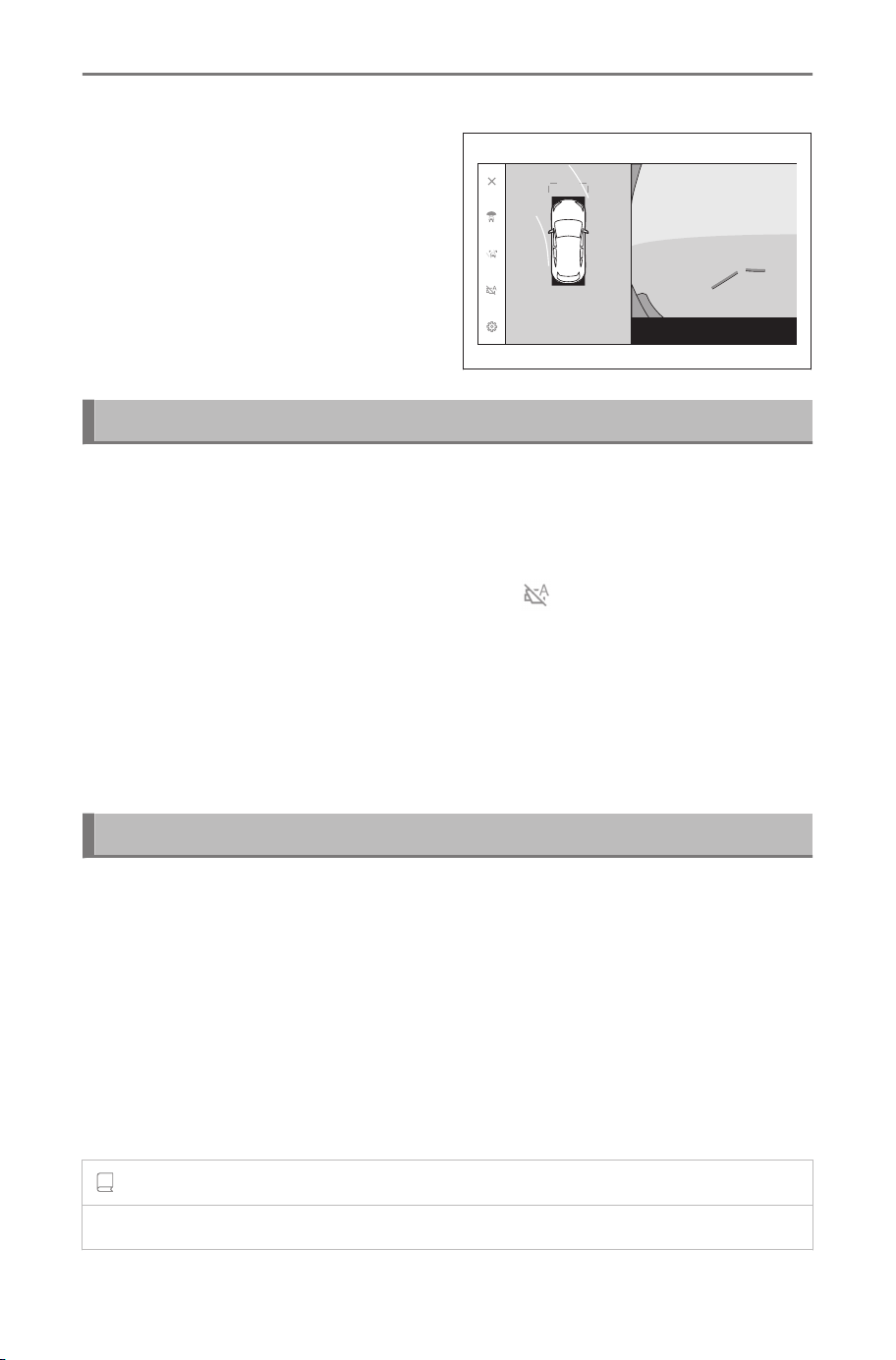
■ Estimated course lines mode
Displays course lines that are
linked to operation of the steering
wheel. (Yellow) These lines are
displayed when the steering wheel
is turned more than 90 degrees
from the straight position.
Auto display mode
Although you can display wide front view & panoramic view and side
clearance view & panoramic view/cornering view by pressing the
camera switch, you can also set auto display mode to display the
views automatically in accordance with the vehicle speed.
● Touching the automatic display button [ ] turns on auto display
mode.
● Turning on auto display mode automatically displays the views in
the following situations:
• When the shift position is in "D" or "N"
• The vehicle decelerates to less than 6 mph (10 km/h) (the shift position
is in any position other than “R”)
Cornering view auto display
You can set the cornering view auto display mode to automatically
display cornering view & panoramic view in accordance with the
operation of the steering wheel.
● Turning on cornering view auto display mode automatically dis-
plays cornering view in the following situations:
• When the shift position is in "D" or "N"
• The vehicle decelerates to less than 7 mph (12 km/h)
• When the steering wheel is turned by 180 degrees or more from the
center (straight-line) position
INFORMATION
You can change cornering view auto mode in the custom settings.
8-2. Panoramic view monitor
258
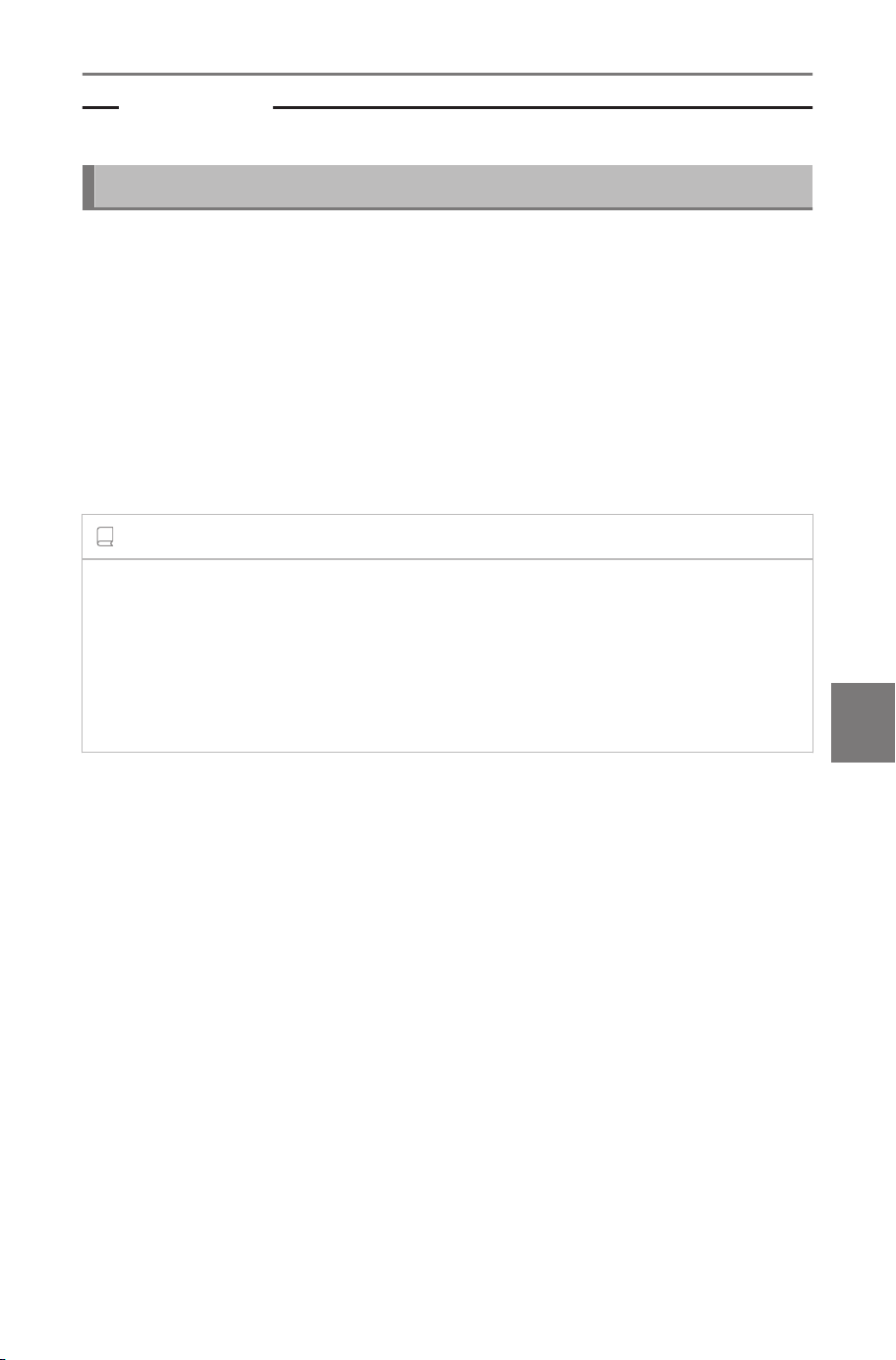
Related Links
Changing the panoramic view monitor settings(P. 274)
Intuitive parking assist linked display
Depending on the intuitive parking assist detection state, wide front
view & panoramic view/Side clearance view/Cornering view & panor-
amic view will be displayed.
● The views are displayed automatically in the following case:
• When the intuitive parking assist detects an obstacle (when the shift
position is in “D” or “N”)
● The display returns to the previous screen automatically in the
following case:
• When the intuitive parking assist stops detecting an obstacle
INFORMATION
● You can also return to the previous screen by pressing the camera
switch displayed on the screen.
● If the panoramic view monitor screen is canceled when an obstacle is
detected, the panoramic view monitor screen can be displayed again
by touching the intuitive parking assist mark shown on the multimedia
system screen.
8-2. Panoramic view monitor
259
8
Parking assist system
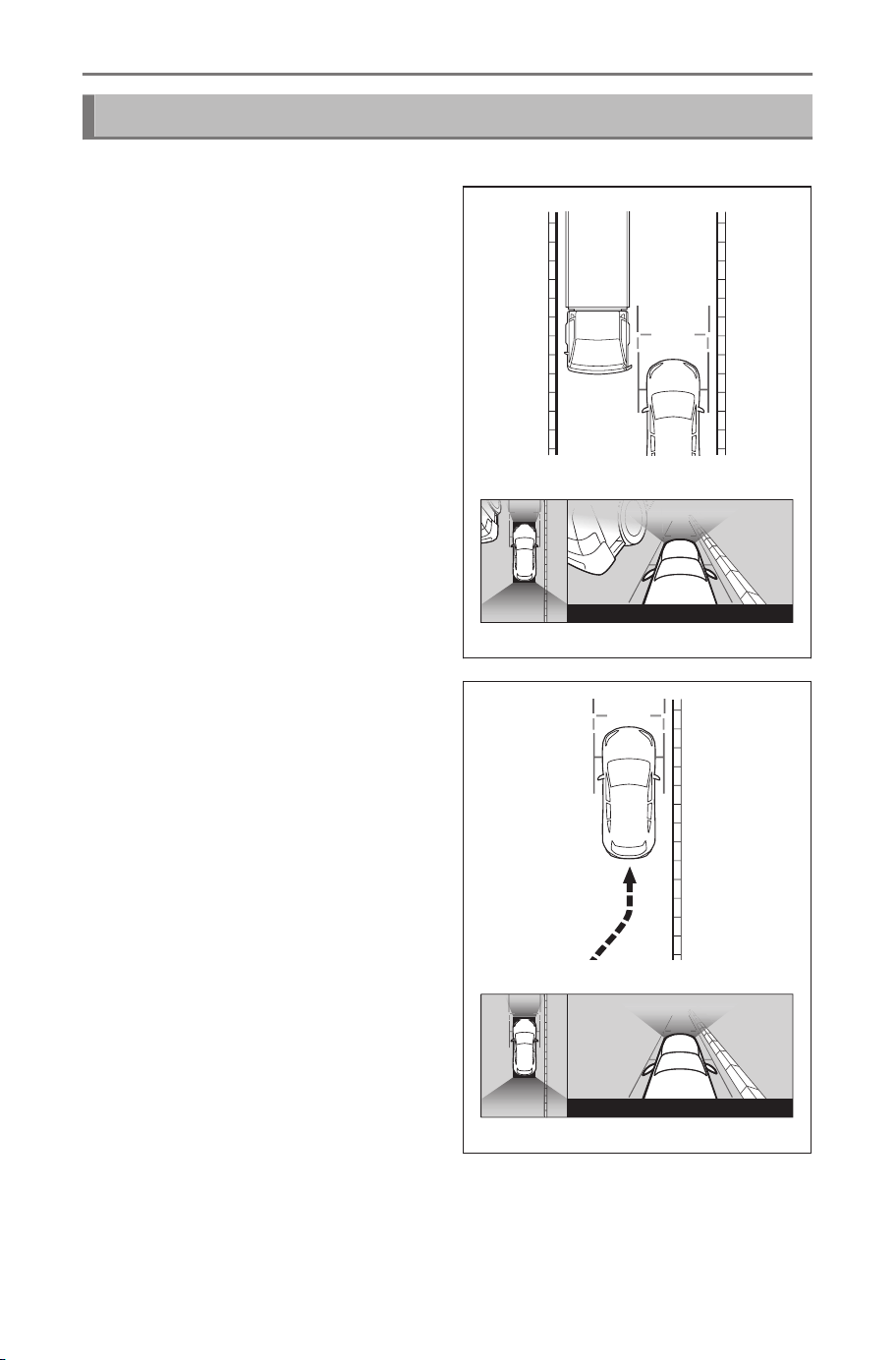
Using the vehicle width guide lines
■ Side clearance view & panoramic view
● Check the positional relation-
ship between the vehicle width
guide lines and an obstacle.
● Turn the steering wheel and
drive forward so that the vehicle
width guide lines do not overlap
the actual obstacle.
● Check the positional relation-
ship between the vehicle width
guide lines and an object such
as curbs on the shoulder of a
road.
● Pull the vehicle over so that the
vehicle width guide lines do not
overlap the obstacle as shown
in the figure.
● By driving with the vehicle width
guide lines parallel to the object,
you can park alongside the ob-
ject.
8-2. Panoramic view monitor
260
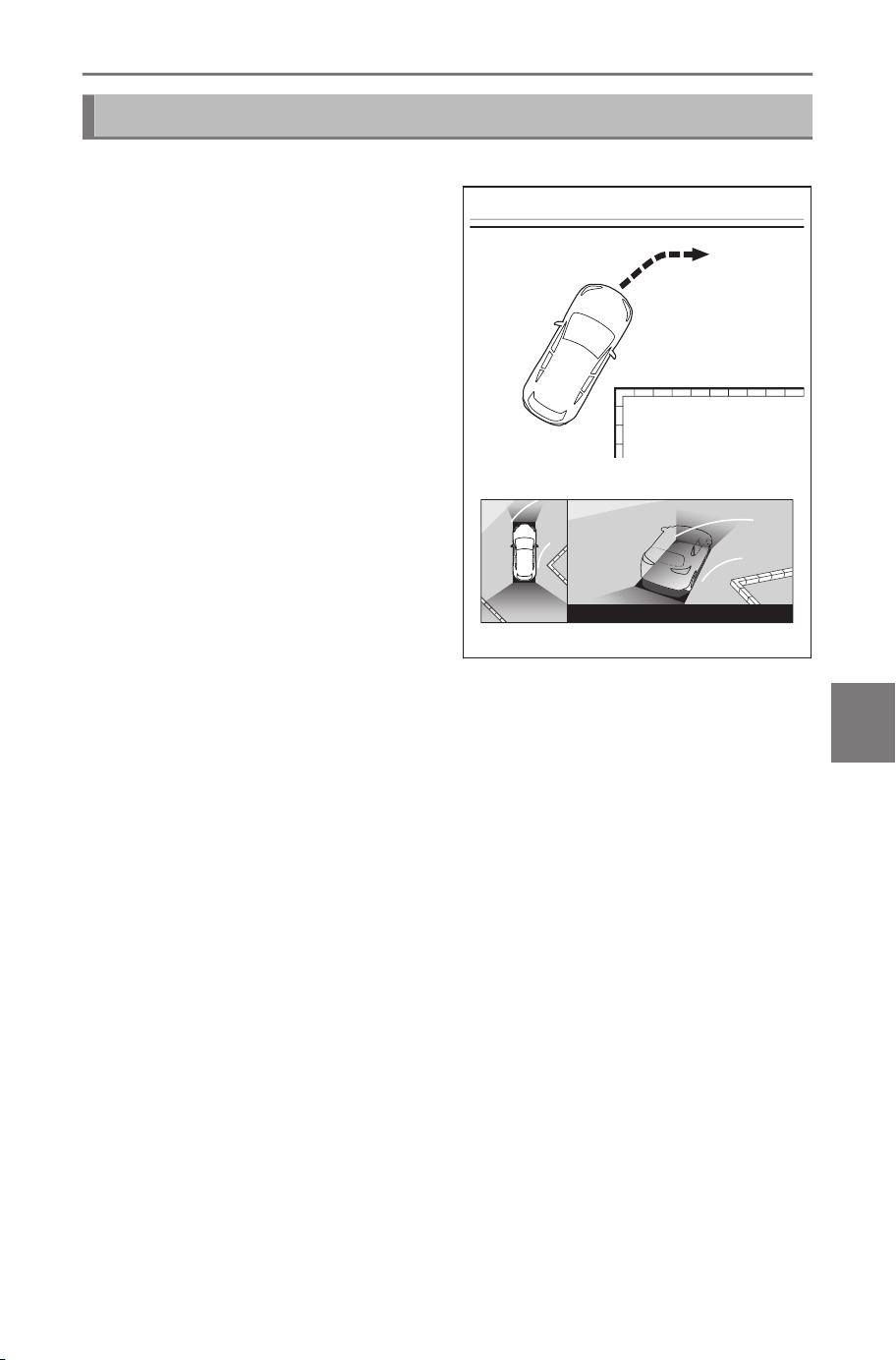
Using the forward estimated course lines
■ Cornering view & panoramic view
● Check the positional relation-
ship between the forward esti-
mated course lines and an ob-
stacle.
● Turn the steering wheel and
drive forward so that the forward
estimated course lines do not
overlap the actual obstacle.
8-2. Panoramic view monitor
261
8
Parking assist system
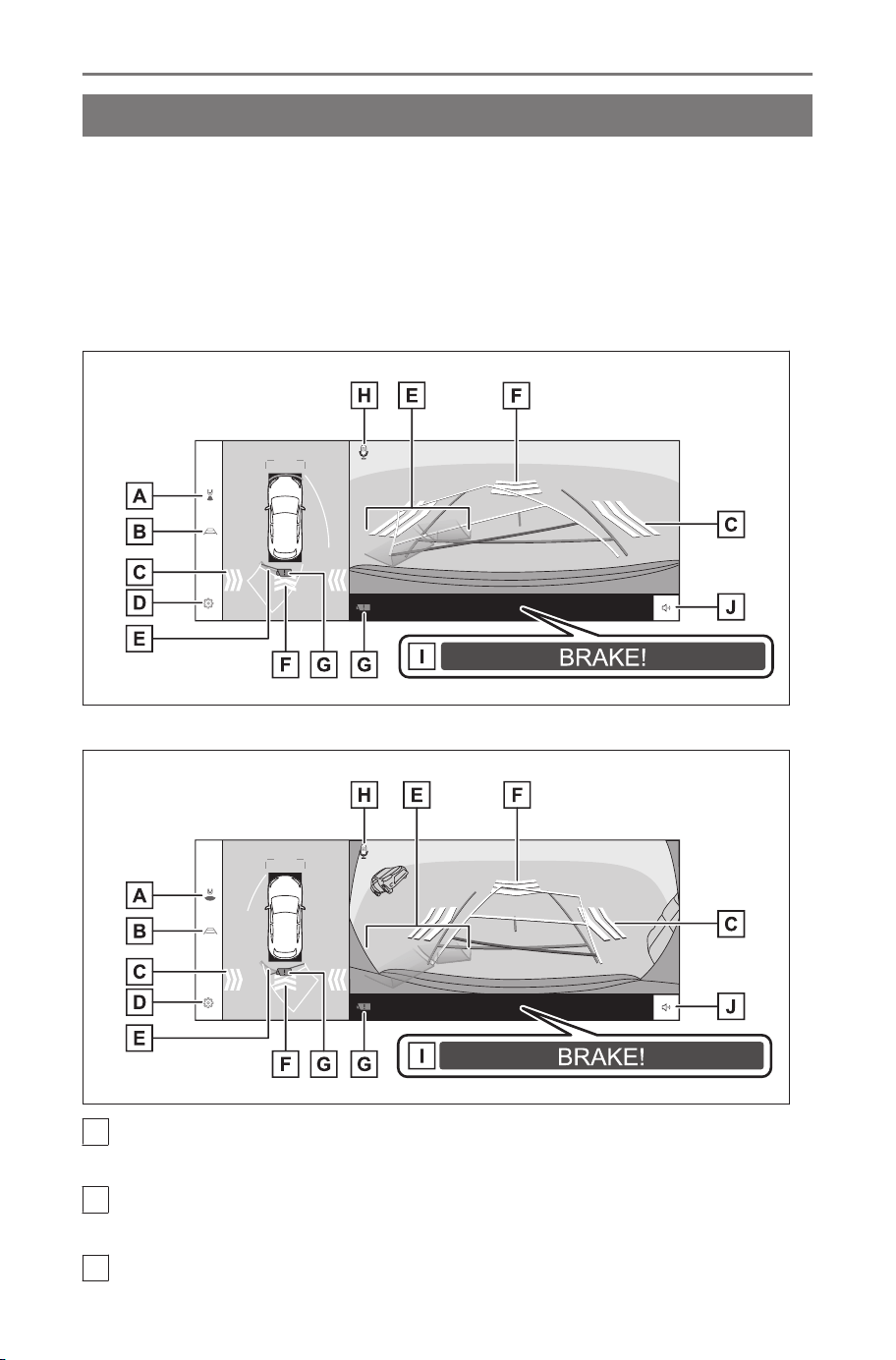
Display mode when the shift position is in "R"
To check for safety when parking the vehicle, an image is displayed
from above the vehicle and from the rear camera.
1. Shift the shift position to "R".
● The mode changes every time you touch the display mode
switching button.
■ Rear view & panoramic view
■ Wide rear view & panoramic view
A
Display mode switching button
Switches display mode every time touch the button.
B
Guide line switching button
Switches guide line mode every time touch the button.
C
RCTA (Rear Cross Traffic Alert) / RCD (Rear Camera Detection)
8-2. Panoramic view monitor
262
An indicator is displayed on the screen in the following situations.
● When the rear radar detects an obstacle or a vehicle approaching
from the rear
● If the rear camera detects a pedestrian behind the vehicle (For details
about RCTA (Rear Cross Traffic Alert) / RCD (Rear Camera Detec-
tion), see the vehicle "OWNER’S MANUAL".)
D
Customize settings button
Changes settings, such as the automatically display cornering view, the
intuitive parking assist detection distance.
E
Intuitive parking assist
Displays an indicator on the screen and sounds a buzzer when an
object is detected by a sensor. (For details about the intuitive parking
assist, see the vehicle "OWNER’S MANUAL".)
F
RCD (Rear Camera Detection)
If the rear camera detects a pedestrian behind the vehicle, an indicator
is displayed on the screen. (For details about RCD (Rear Camera De-
tection), see the "OWNER’S MANUAL".)
G
Camera dirt detection icon
This icon is displayed when dirt is detected on the camera.
H
Voice recognition icon
*1
This icon is displayed when the Intelligent Assistant is in operation.
I
PKSB (Parking Support Brake)
If an obstacle that you may collide with is detected, a message is dis-
played on the screen. (For details about PKSB (Parking Support Brake),
see the vehicle "OWNER’S MANUAL".)
J
Mute button
Mute the Intuitive parking assist / RCTA (Rear Cross Traffic Alert) / RCD
(Rear Camera Detection) sound.
INFORMATION
● When rear view is displayed, touch the display to change to wide rear
view.
● The display position of the intuitive parking assist may not match the
position of the obstacle displayed in the camera image.
*1 : This function is not available in some regions.
8-2. Panoramic view monitor
263
8
Parking assist system
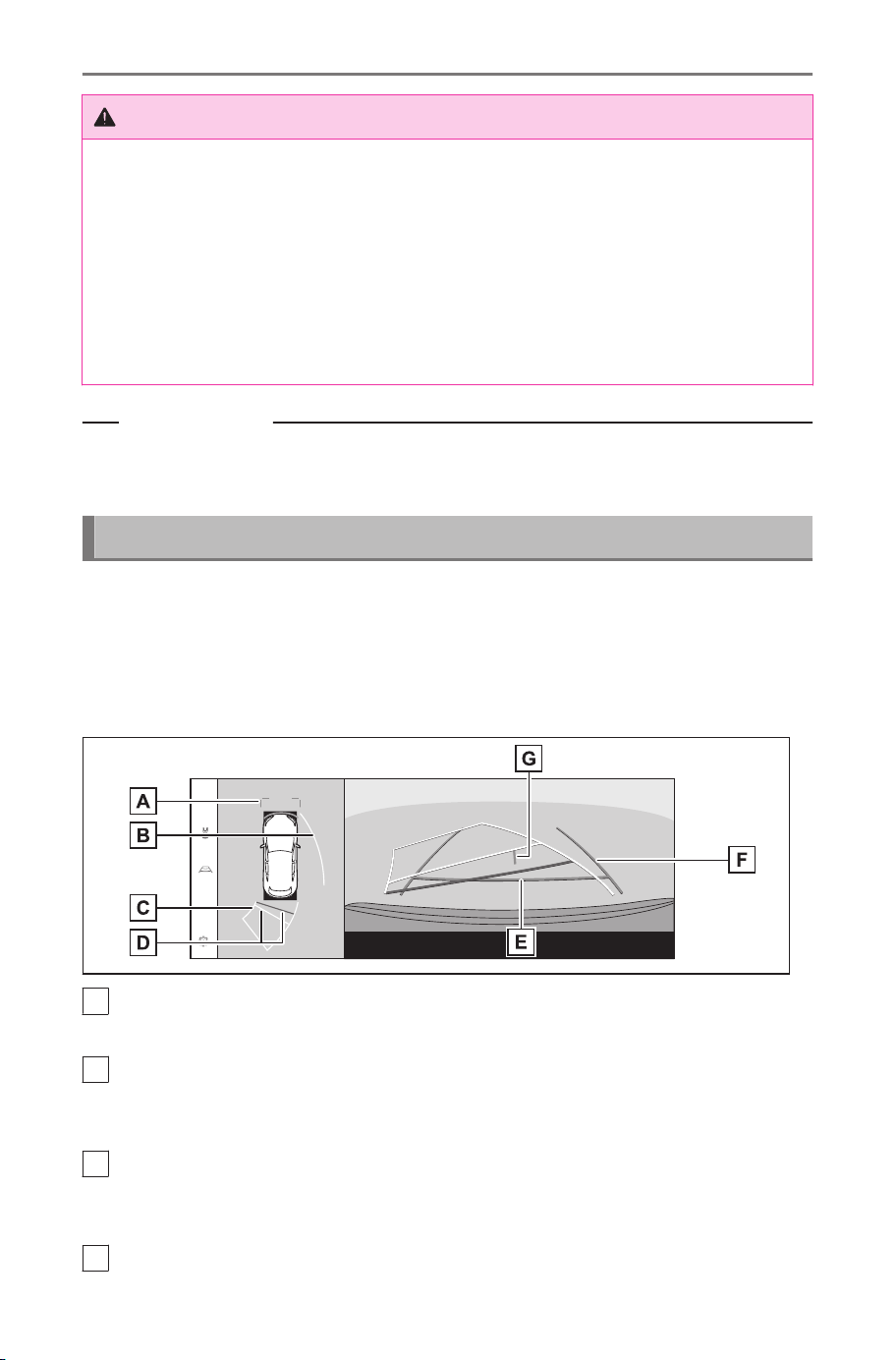
WARNING
● The position of the guide lines displayed on the screen may change
due to factors such as number of passengers, load weight, and road
gradient. Always make sure to visually check behind you and your
surroundings while you are driving.
● The intuitive parking assist, RCTA (Rear Cross Traffic Alert), and RCD
(Rear Camera Detection) displays are overlapped and displayed on the
camera image, so it may be difficult to see depending on the brightness
of the surroundings and colors.
Related Links
Changing the guide line display mode(P. 264)
Changing the panoramic view monitor settings(P. 274)
Changing the guide line display mode
The guide line display mode changes every time you touch the guide
line switching button.
■ Estimated course lines mode
This mode displays estimated course lines that move in accordance
with the operation of the steering wheel.
A
Front distance guide lines
Displays about 3 ft. (1 m) (blue) in front of the vehicle.
B
Side estimated course lines
Displays course lines (yellow) that are linked to operation of the steering
wheel.
C
Reverse estimated course lines
Displays course lines (yellow) that are linked to operation of the steering
wheel.
D
Rear distance guide lines
8-2. Panoramic view monitor
264
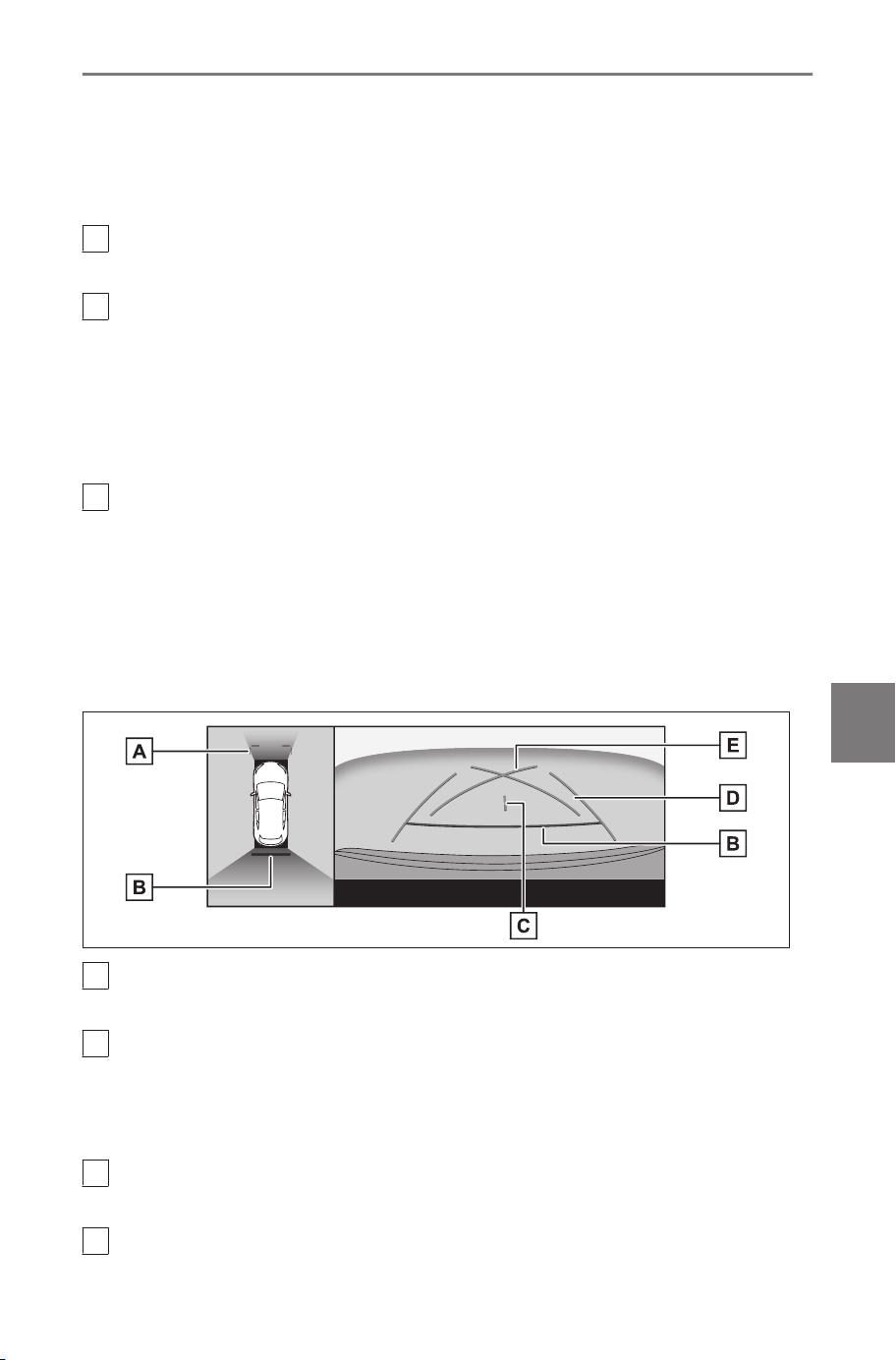
Displays the distance behind the vehicle.
● The distance guide line is linked to the estimated course lines.
● Displays about 1.5 ft. (0.5 m) (red) and 3 ft. (1 m) (yellow) from the
center of the end of the rear bumper.
E
Rear distance guide line
Displays about 1.5 ft. (0.5 m) (blue) from the end of the rear bumper.
F
Vehicle width guide lines
Displays course lines when the vehicle is being reversed in a straight
line.
● The lines are wider than the actual width of the vehicle.
● When the vehicle is straight, the guide lines will overlap with the
estimated course lines.
G
Vehicle center guide line
Displays the center of the vehicle width guide lines.
■
Parking assist guide lines mode
This mode displays the steering wheel return points (parking assist
guide lines). This mode is recommended for those who have a
sense of the vehicle and can park the vehicle without the aid of
the estimated course lines.
A
Front distance guide lines
Displays about 3 ft. (1 m) (blue) in front of the vehicle.
B
Rear distance guide lines
Displays the distance behind the vehicle.
● Displays about 1.5 ft. (0.5 m) (red) from the center of the end of the
rear bumper.
C
Vehicle center guide line
Displays the center of the vehicle width guide lines.
D
Vehicle width guide lines
8-2. Panoramic view monitor
265
8
Parking assist system
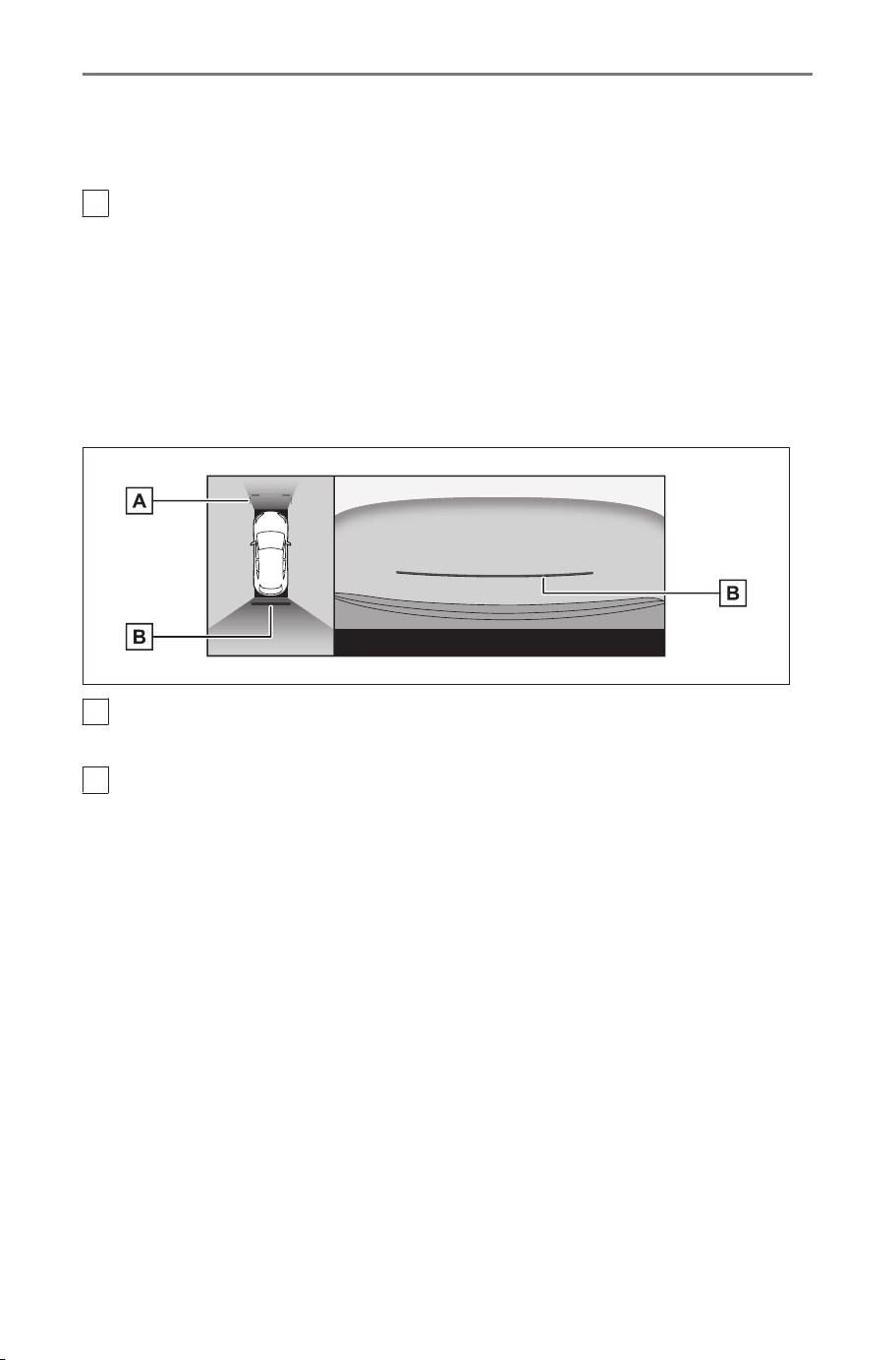
Displays course lines when the vehicle is being reversed in a straight
line.
● The lines are wider than the actual width of the vehicle.
E
Parking assist guide lines
Displays the course lines of the smallest turn possible behind the vehi-
cle.
● Use the position of operating the steering wheel when parking as a
guide.
■ Distance guide lines mode
This mode only displays the distance guide lines. It is recommended
for those who do not need the guide lines.
A
Front distance guide lines
Displays about 3 ft. (1 m) (blue) in front of the vehicle.
B
Rear distance guide lines
Displays the distance behind the vehicle.
● Displays about 1.5 ft. (0.5 m) (red) from the center of the end of the
rear bumper.
■ Estimated course center line mode
This mode displays estimated course lines and a vehicle center
guide line that move in accordance with the operation of the steering
wheel.
Use this mode when approaching a signpost or pole with the center
of the rear bumper.
8-2. Panoramic view monitor
266
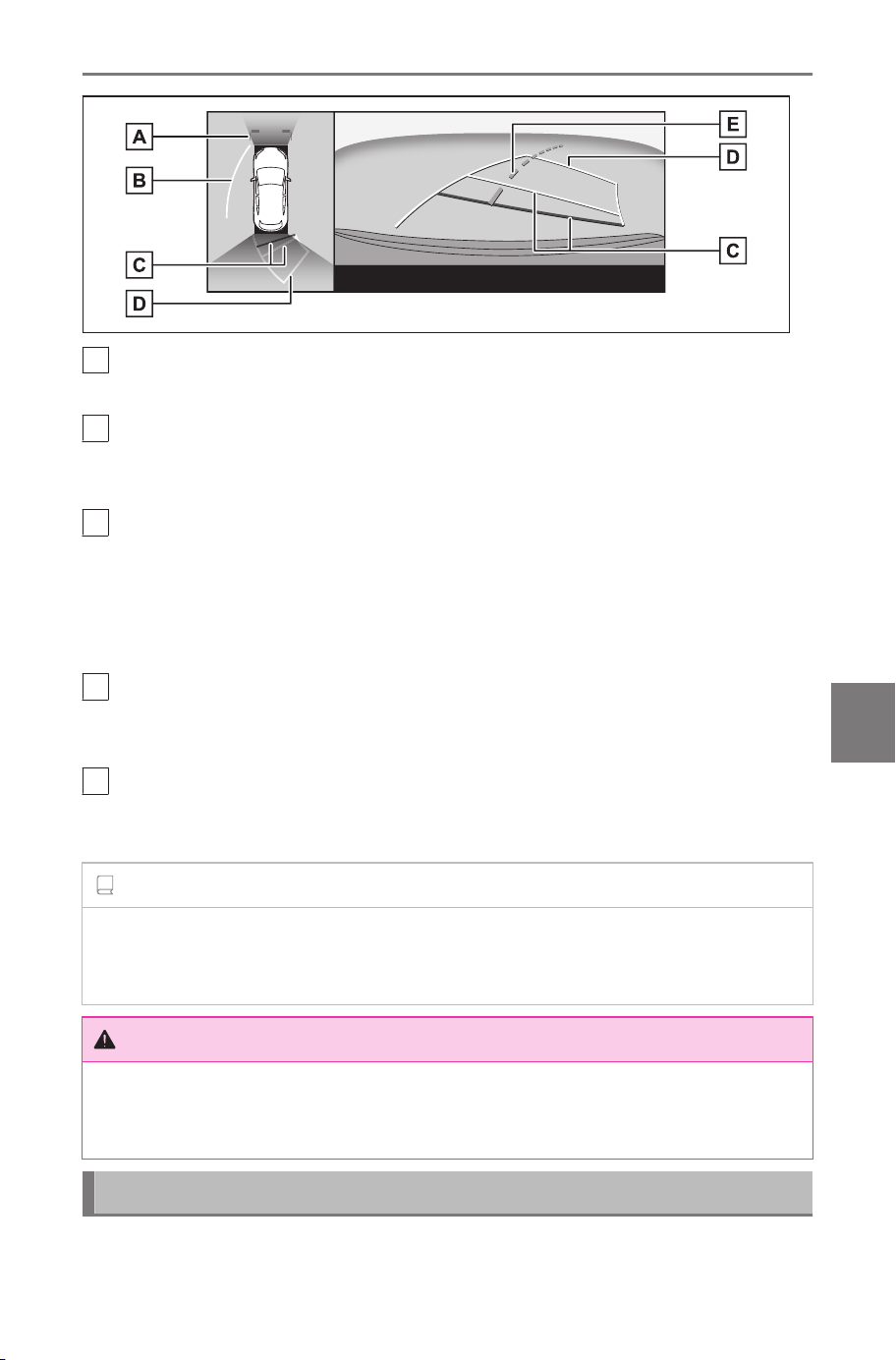
A
Front distance guide lines
Displays about 3 ft. (1 m) (blue) in front of the vehicle.
B
Side estimated course lines
Displays course lines (yellow) that are linked to operation of the steering
wheel.
C
Rear distance guide lines
Displays the distance behind the vehicle.
● The distance guide line is linked to the estimated course lines.
● Displays about 1.5 ft. (0.5 m) (red) and 3 ft. (1 m) (yellow) from the
center of the end of the rear bumper.
D
Reverse estimated course lines
Displays course lines (yellow) that are linked to operation of the steering
wheel.
E
Estimated course center line
Displays the vehicle center guide line (green) that is linked to operation
of the steering wheel.
INFORMATION
The guide lines will not be displayed if the back door is not closed. If the
back door is closed but the guide lines are still not displayed, have the
vehicle inspected by your SUBARU dealer.
WARNING
The rear vehicle width guide lines are wider than the actual width of
the vehicle. Always make sure to visually check behind you and your
surroundings when you are reversing.
Parking using the estimated course lines mode
1 Shift the shift position to "R".
8-2. Panoramic view monitor
267
8
Parking assist system
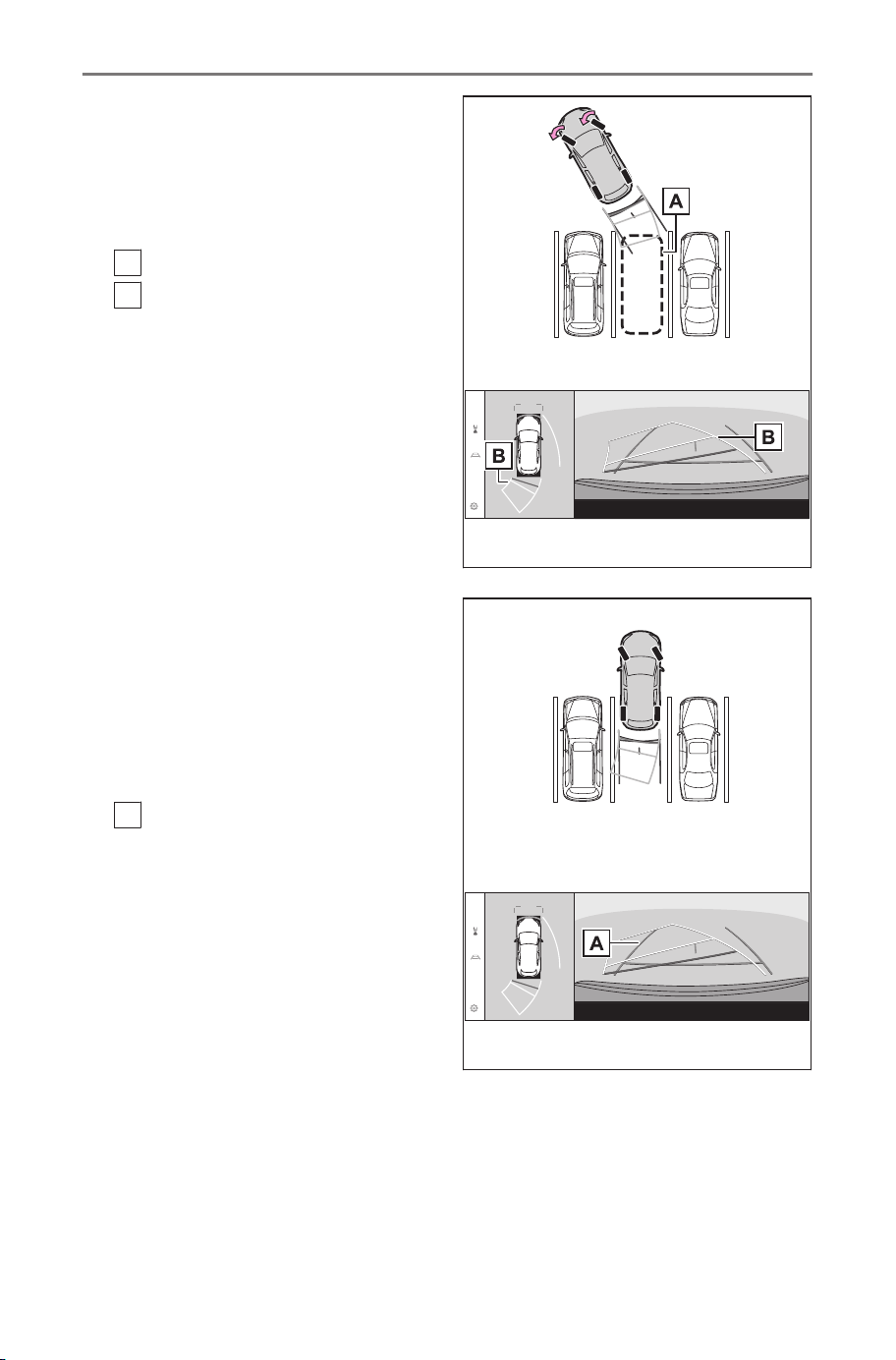
2 Turn the steering wheel so
that the estimated course
lines are within the parking
space and then reverse slow-
ly.
A
Parking space
B
Estimated course lines
3 When the rear of the ve-
hicle has entered the park-
ing space, turn the steering
wheel so that the vehicle
width guide lines are with-
in the left and right dividing
lines of the parking space.
A
Vehicle width guide lines
4 Once the vehicle width guide lines and the parking space
lines are parallel, straighten the steering wheel and reverse
slowly until the vehicle has completely entered the parking
space.
5 Stop the vehicle in an appropriate place to finish parking.
8-2. Panoramic view monitor
268
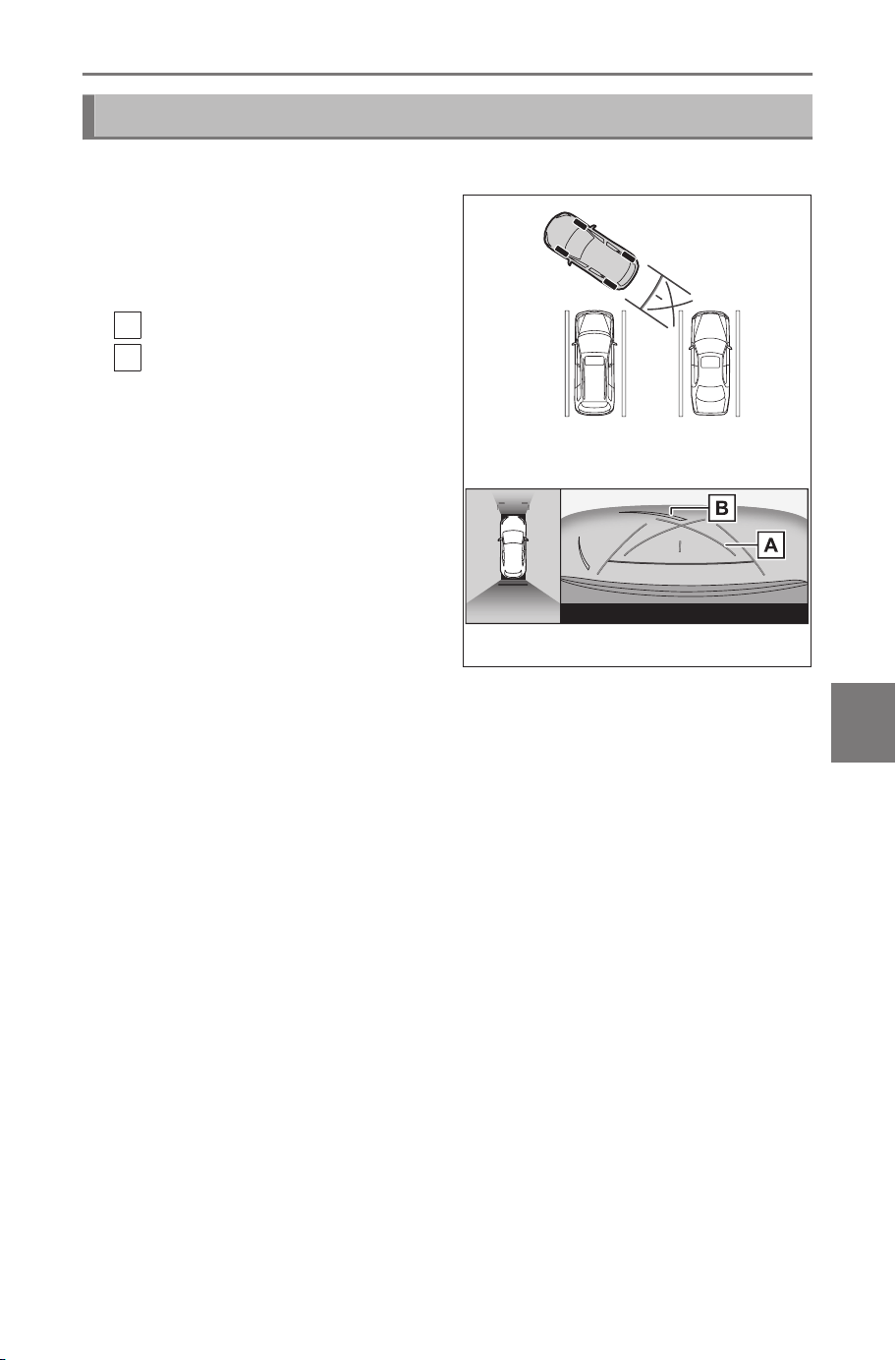
Parking using the parking assist guide lines mode
1 Shift the shift position to "R".
2 Reverse until the parking as-
sist guide lines align with the
dividing line of the parking
space.
A
Parking assist guide lines
B
Parking space dividing line
3 Turn the steering wheel all the way, and reverse slowly.
4 Once the vehicle is parallel with the parking space, straight-
en the steering wheel and reverse slowly until the vehicle
has completely entered the parking space.
5 Stop the vehicle in an appropriate place to finish parking.
8-2. Panoramic view monitor
269
8
Parking assist system
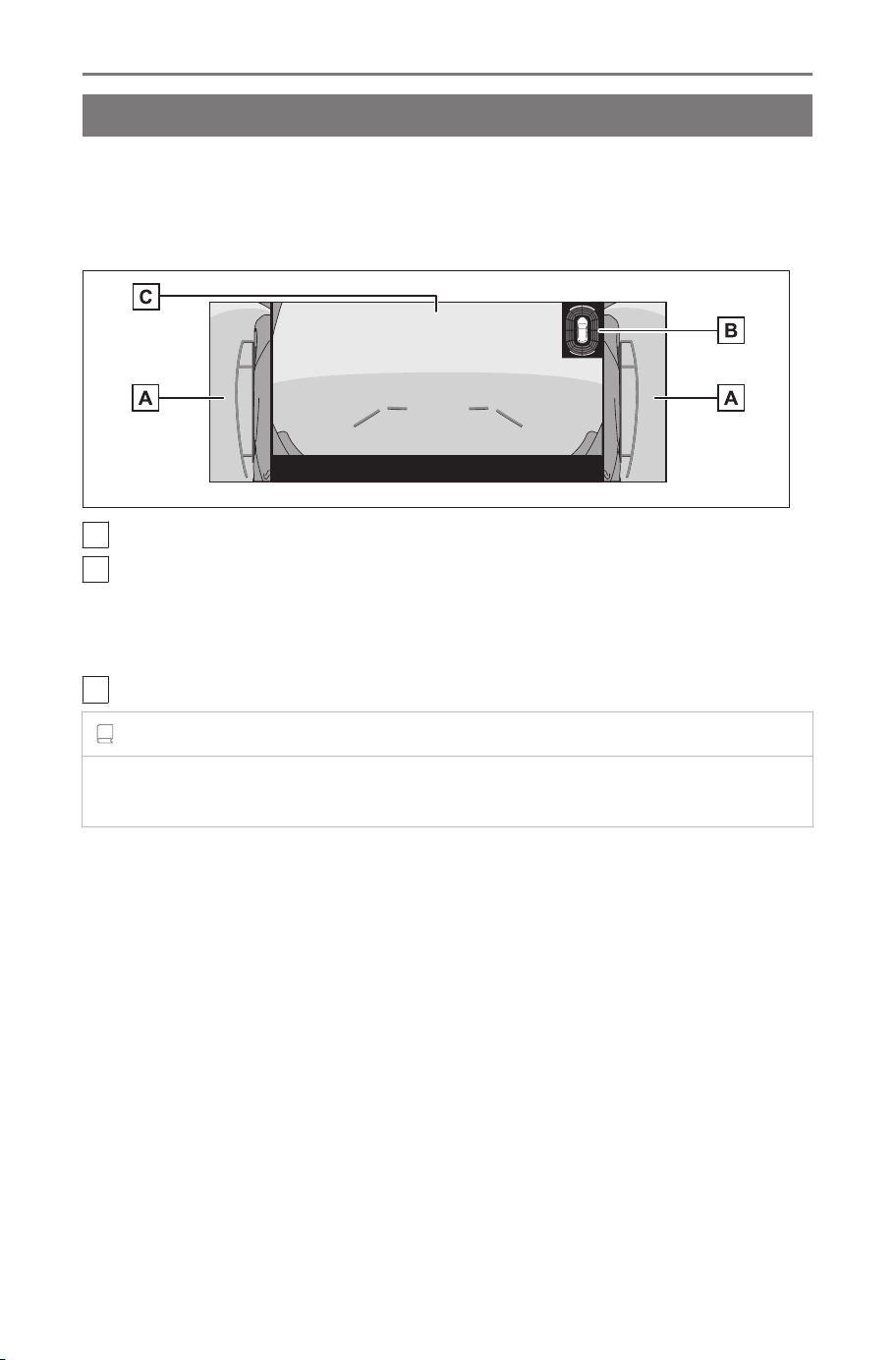
The screen when the outside rear view mirrors are folded
When the outside rear view mirrors are folded, an image from the
side cameras rather than panoramic view will be displayed. This can
assist you in confirming that the vicinity of the vehicle is safe when
you are parking in a narrow place.
A
Side views
B
Intuitive parking assist
Displays an indicator on the screen and sounds a buzzer when an
object is detected by a sensor. (For details about the intuitive parking
assist, see the vehicle "OWNER’S MANUAL".)
C
Wide front view/Rear view/Wide rear view
INFORMATION
The display position of the intuitive parking assist may not match the
position of the obstacle displayed in the camera image.
8-2. Panoramic view monitor
270
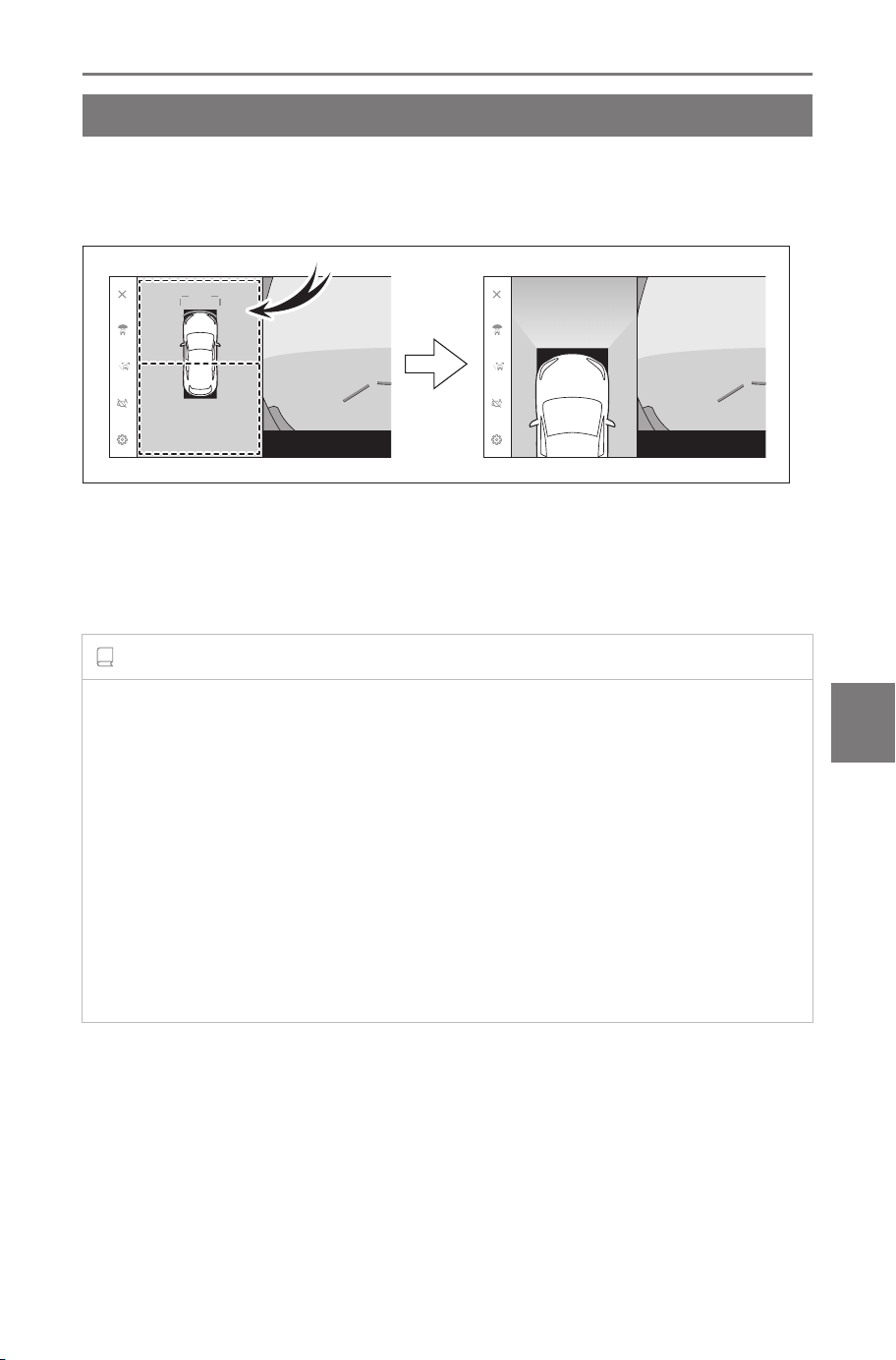
Zooming in on the screen
Zooming in on the screen can be done if the image on the screen is
too small and hard to see.
Touch the area that you want to zoom in on the panoramic view.
● The selected area is zoomed in on.
● In panoramic view, you can zoom in one of the two places in front
or rear of the vehicle.
● To cancel the zoom, touch the screen again.
INFORMATION
● The zoom feature is enabled when all of the following conditions are
met:
• The vehicle speed is below 7 mph (12 km/h)
• The intuitive parking assist is turned on
● In any of the following situations, the zoom feature will be canceled
automatically:
• The vehicle speed is above 7 mph (12 km/h)
• The intuitive parking assist is turned off
●
The guide lines will not be displayed when the panoramic view is
zoomed.
8-2. Panoramic view monitor
271
8
Parking assist system
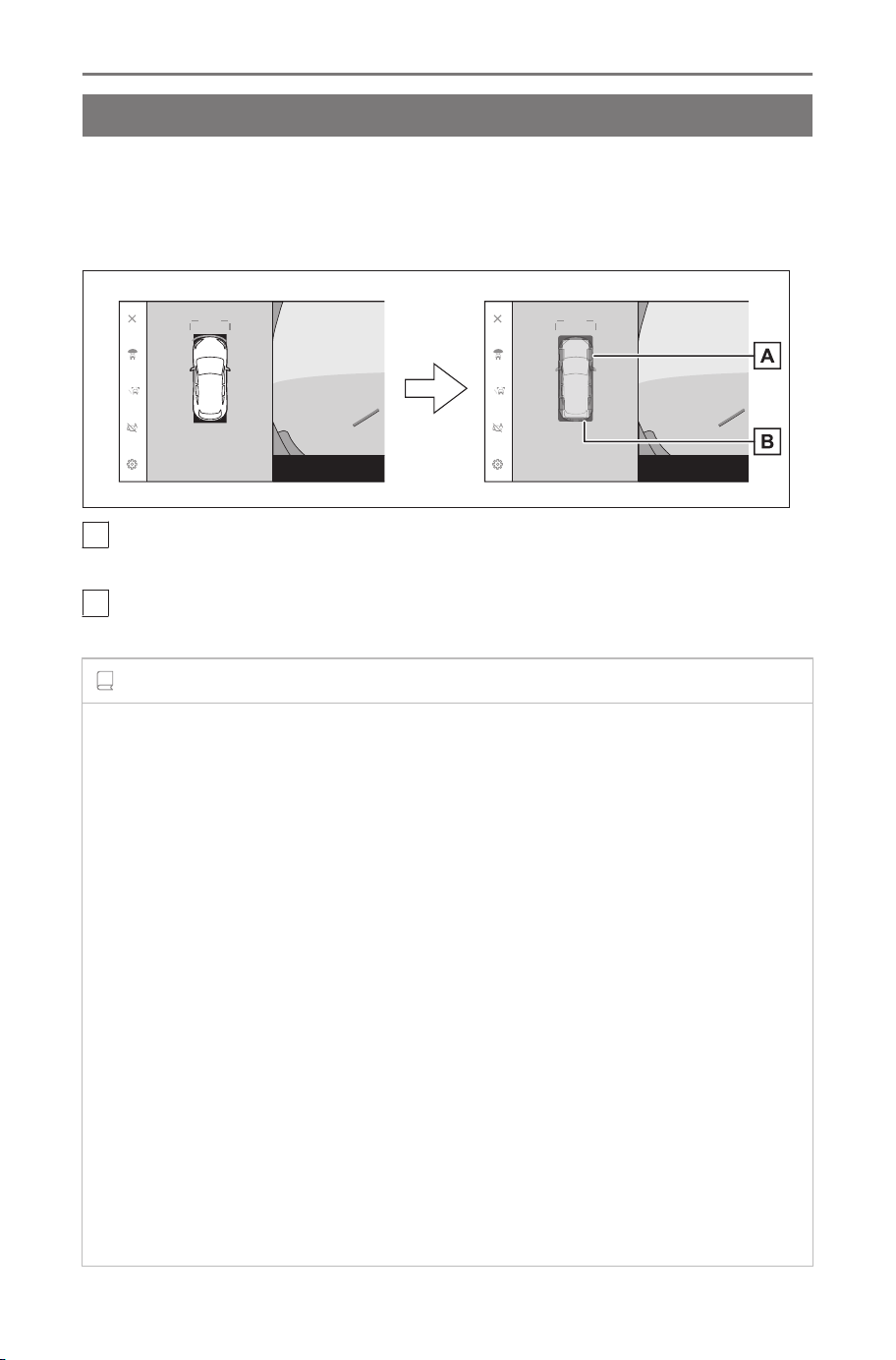
Displaying transparent underfloor vision
A composite of camera vision captured in the past from the current
vehicle position to assist understanding of the situation under the
vehicle, tire positions, and so on can be displayed. The vision is
displayed in panoramic view, side clearance view, or cornering view.
A
Tire tracks
Displays the tire position guides linked to the steering wheel.
B
Vehicle guide lines
Displays the exterior of the vehicle.
INFORMATION
● Transparent underfloor vision is displayed when the setting on the cus-
tomized setting screen is turned on and the vehicle is moving forward
or backward.
● Transparent underfloor vision is not displayed in the following cases:
• The vehicle speed is above 12 mph (20 km/h)
• The vehicle stops and a certain amount of time passes
• If the vehicle does not move a certain distance after it is started
• The side mirrors are folded
•
ABS is operating
• The system is not functioning correctly
● The system may not function correctly in the following situations:
• Snow covered roads
• There are shadows from lights and so forth
• There is dirt or a foreign object on the camera lens
• Water (river, sea, etc.)
• Optional equipment has been installed
8-2. Panoramic view monitor
272
• There is an obstacle in front of the camera
• The tires were replaced
• The back door is open and the camera is not in the correct position
• The road surface is slippery or the wheels slip
• The vehicle is on a hill or other steep roads
● As vision that was captured in the past is being displayed, the screen
and the actual situation may differ in the following cases:
• An obstacle appears or moves after vision is captured
• Sand or snow crumbles and moves after vision is captured
• Mud or puddles are in the display range
• When the vehicle slips
● Part or all of the transparent underfloor vision may appear black in the
following cases:
• The vehicle starts moving with no captured vision
• If the vehicle does not move a certain distance after it is started
• The steering wheel is turned more than a certain angle
• The vehicle stops and a certain amount of time passes
• The outside rear view mirrors are folded
• ABS is operating
• The system is not functioning correctly
WARNING
● The tire and vehicle guide lines may not align correctly with the actual
vehicle position due to the number of passengers, vehicle load, road
gradient, road surface conditions, brightness of the surroundings, op-
tional equipment, tire replacements, and other reasons. Always make
sure to check your surroundings while you are driving.
● Displayed vision is vision that was captured in the past. Therefore, if
obstacles and other objects move after being captured, the transparent
underfloor vision and the actual situation may not always match.
Related Links
Changing the panoramic view monitor settings(P. 274)
8-2. Panoramic view monitor
273
8
Parking assist system
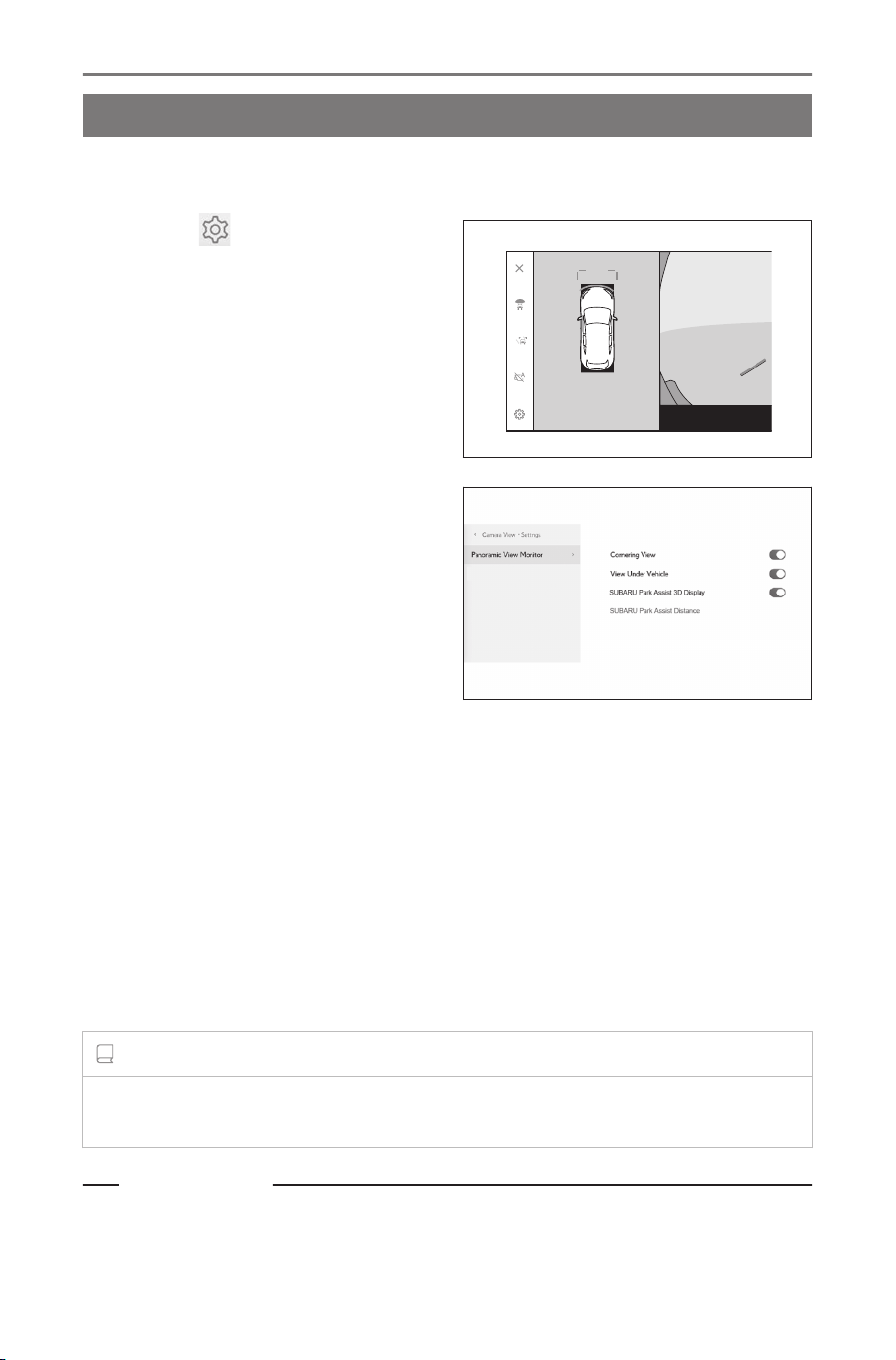
Changing the panoramic view monitor settings
Settings related to panoramic view monitor such as the cornering
view auto display can be changed.
1 Touch [
].
2 Select the desired item.
● [Cornering View]
Enable or disable the automatic
display of the cornering view.
● [View Under Vehicle]
Turn the transparent underfloor
vision display setting on or off.
Setting it to on and moving the
vehicle forward or backwards displays a composite of camera vision
captured in the past from the current vehicle position to assist under-
standing of the situation under the vehicle, front tire positions, and so
on. The vision is displayed in panoramic view, side clearance view, or
cornering view.
● [SUBARU Park Assist 3D Display]
Show or hide the intuitive parking assist 3D display.
● [SUBARU Park Assist Distance]
Change the distance that the intuitive parking assist starts detecting
obstacles.
INFORMATION
For safety purposes, you cannot display the custom settings screen while
the vehicle is moving.
Related Links
Changing the intuitive parking assist detection distance(P. 275)
8-2. Panoramic view monitor
274
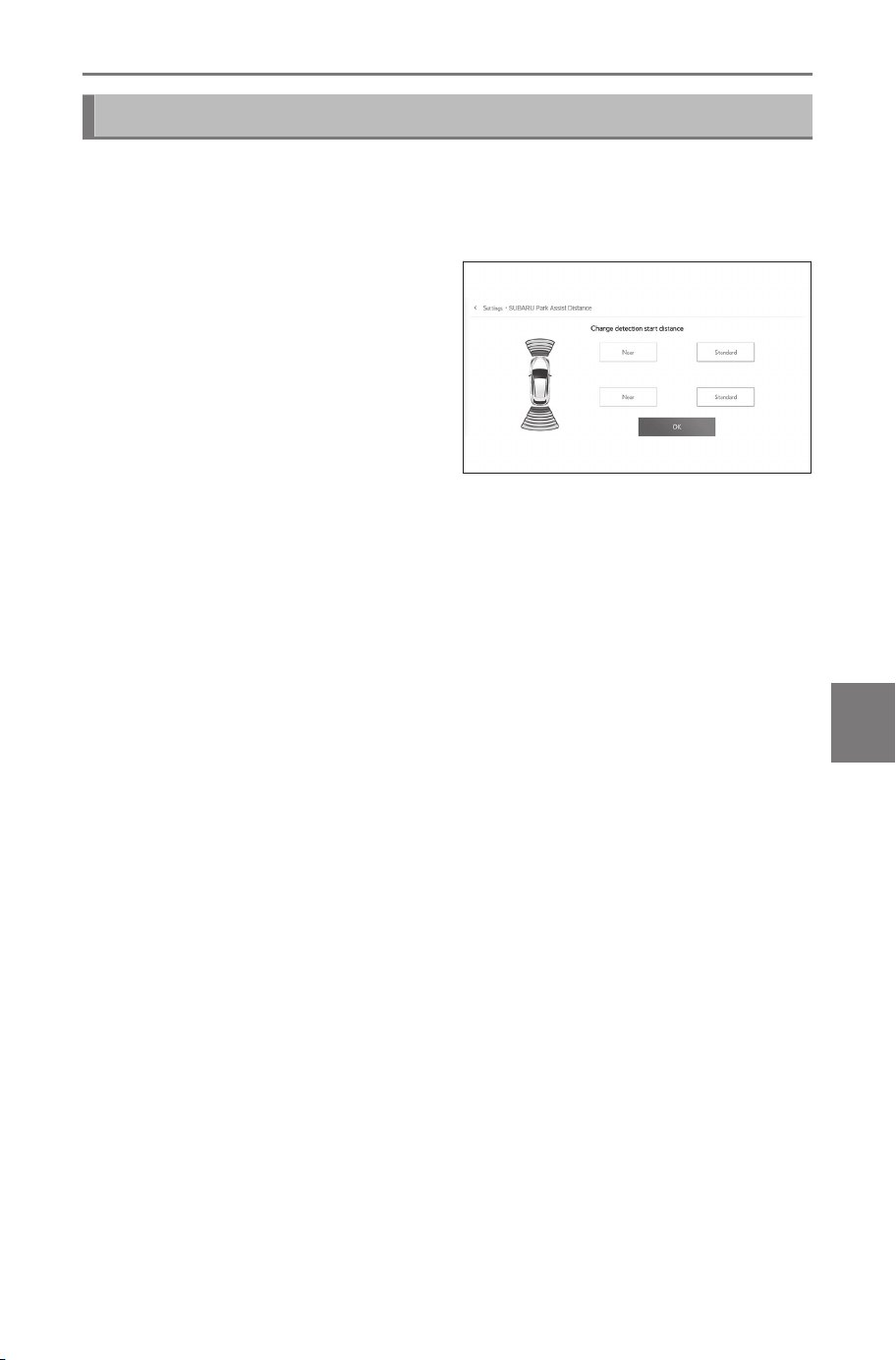
Changing the intuitive parking assist detection distance
Change the distance that the intuitive parking assist starts detecting
obstacles.
1 Touch [SUBARU Park Assist Distance].
2 Select the distance at which
you want to start detecting
objects.
8-2. Panoramic view monitor
275
8
Parking assist system

Precautions for the panoramic view monitor
Always make sure to visually check behind you and your surround-
ings while driving. If not, collision with other vehicles or an unfore-
seen accident may occur. Follow the below precautions when using
the panoramic view monitor.
WARNING
● Never depend on the panoramic view monitor entirely. Always make
sure to visually check behind you and your surroundings as you would
when driving any other vehicle. In particular, be careful not to collide
with vehicles parked nearby or other objects.
● Always make sure to visually check behind you and your surroundings
while you are driving.
● Never drive while looking only at the screen. The image on the screen
may be different to the actual conditions. Moreover, there is a limit to
the range of image that the camera can capture. Never turn or reverse
only looking at the screen. Doing so may result in a collision with
another vehicle or some other unforeseen accident. Be sure to visually
check the vehicle’s surroundings and use the vehicle’s rear-view and
side mirrors.
● The position of the guide lines displayed on the screen may change
due to factors such as number of passengers, load weight, and road
gradient. Always make sure to visually check behind you and your
surroundings while you are driving.
● Do not use the panoramic view monitor in the following cases:
• On icy or slick road surfaces, or in snow
• When using tire chains or emergency tires
• When the front door(s) or back door are not closed completely
• On roads that are not flat, such as hills
• If the tires of a size other than specified by SUBARU are installed
• If the suspension has been modified
• If a non-SUBARU product is installed on the area displayed on the
screen
● In low external temperatures, the screen may darken or the image may
become faint. The image could distort when the vehicle is moving, or
you may not be able to see the image on the screen, so always visually
check your surroundings while you are driving.
8-2. Panoramic view monitor
276
WARNING
● If you replace your tires, the position of the guide lines displayed on the
screen may be incorrect.
NOTICE
● See-through view, moving view, panoramic view, side clearance view,
and cornering view produce an image that is a composite of images
captured by the front camera, rear camera, and side cameras. As there
is a limit to the displayable range and content, make sure you fully
understand the features of the panoramic view monitor before you use
it.
● The four corners of the see-through view, moving view, panoramic
view, side clearance view, and cornering view have a video composi-
tion processing region centered on borders of the cameras, and image
clarity may decline. However this is not a fault.
● Depending on lighting conditions near each camera, bright and dark
patches may appear on the see-through view, moving view, panoramic
view, side clearance view, and cornering view.
● See-through view, moving view, panoramic view, side clearance view,
and cornering view does not extend higher than the installation position
and image capture range of each camera.
● There are blind spots around the vehicle and as such there are regions
not displayed on the panoramic view monitor.
● Three-dimensional objects displayed in wide front view, rear view, wide
rear view or side view may not be displayed in see-through view, mov-
ing view, panoramic view, side clearance view, and cornering view.
● People and other three-dimensional obstacles may appear differently
when displayed on the panoramic view monitor. (These differences
include cases in which displayed objects appear to have fallen over,
disappear near image processing regions, appear from video composi-
tion processing areas, or when the actual distance to an object differs
from the displayed position.)
● When the back door, which is equipped with the rear camera, or front
doors, which are equipped with side mirrors that have the built-in side
cameras, are open, images will not be displayed properly on the panor-
amic view monitor.
● The vehicle icon displayed in see-through view, moving view, panoram-
ic view, side clearance view, and cornering view is a computer gener-
ated image, so the color, shape and size will differ from the actual
8-2. Panoramic view monitor
277
8
Parking assist system
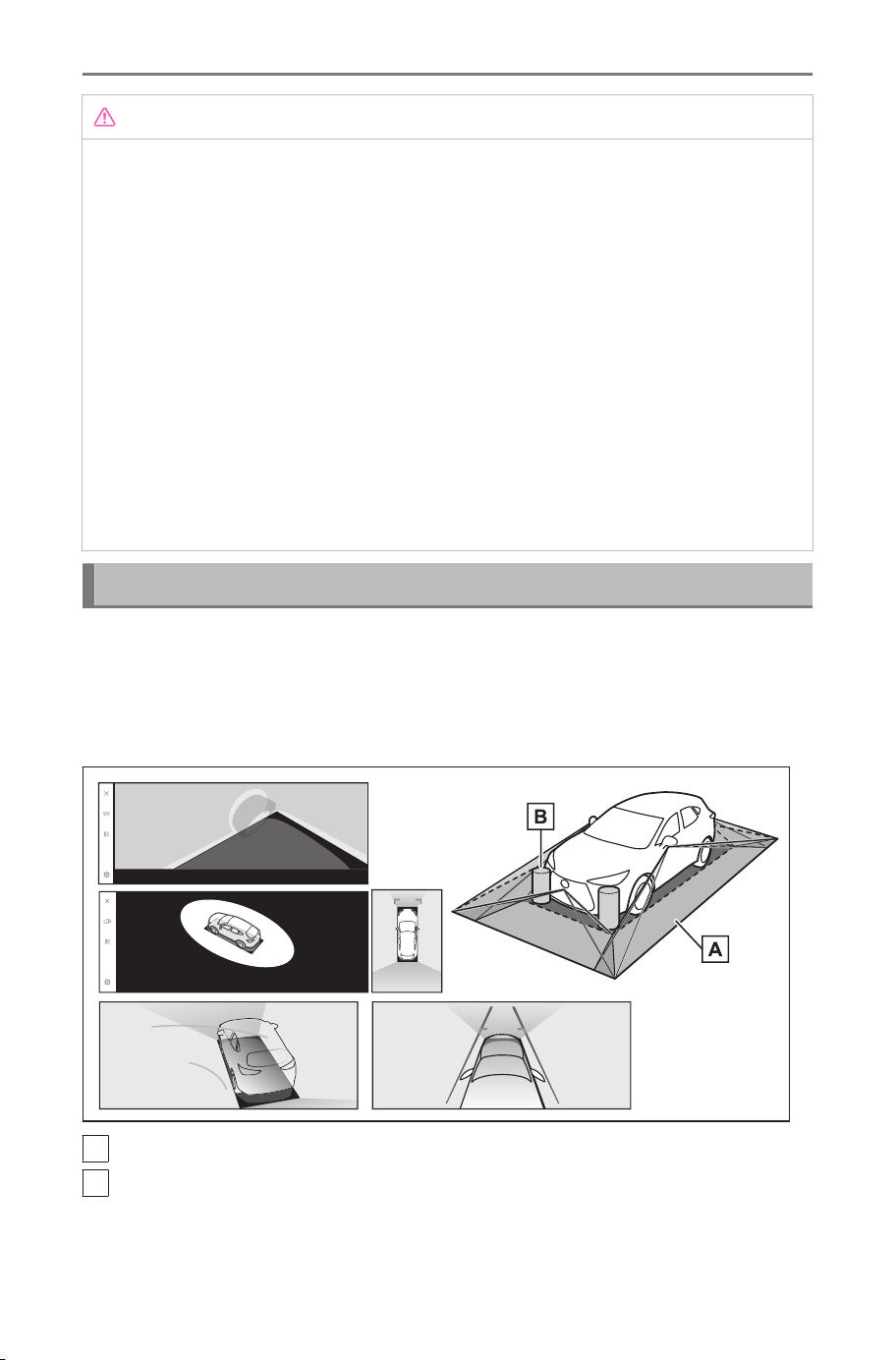
NOTICE
vehicle. Therefore, nearby three-dimensional objects may appear to be
touching the vehicle, and actual distances to three-dimensional objects
may differ from those displayed.
● The camera may not function correctly and the image may be dis-
played on the screen in the following manner:
• When the shift position is in "R", part or all of the screen may appear
black
• When the shift position is in "R", the screen may not change to the
camera image
• When a shift position other than "R" is selected, the image from the
camera may remain displayed
• The guide lines are not displayed on the camera image, and atten-
tion symbols and caution notices are displayed
Area displayed on the screen
There are blind spots around the vehicle and as such there are
regions not displayed on the screen. Even if nothing around the ve-
hicle is displayed on the screen, there may actually be obstacles on
the road, which you may collide with. Always make sure to visually
check your surroundings.
A
Area displayed on the screen
B
Objects not displayed on the screen
Objects in the black areas do not appear on the screen.
8-2. Panoramic view monitor
278
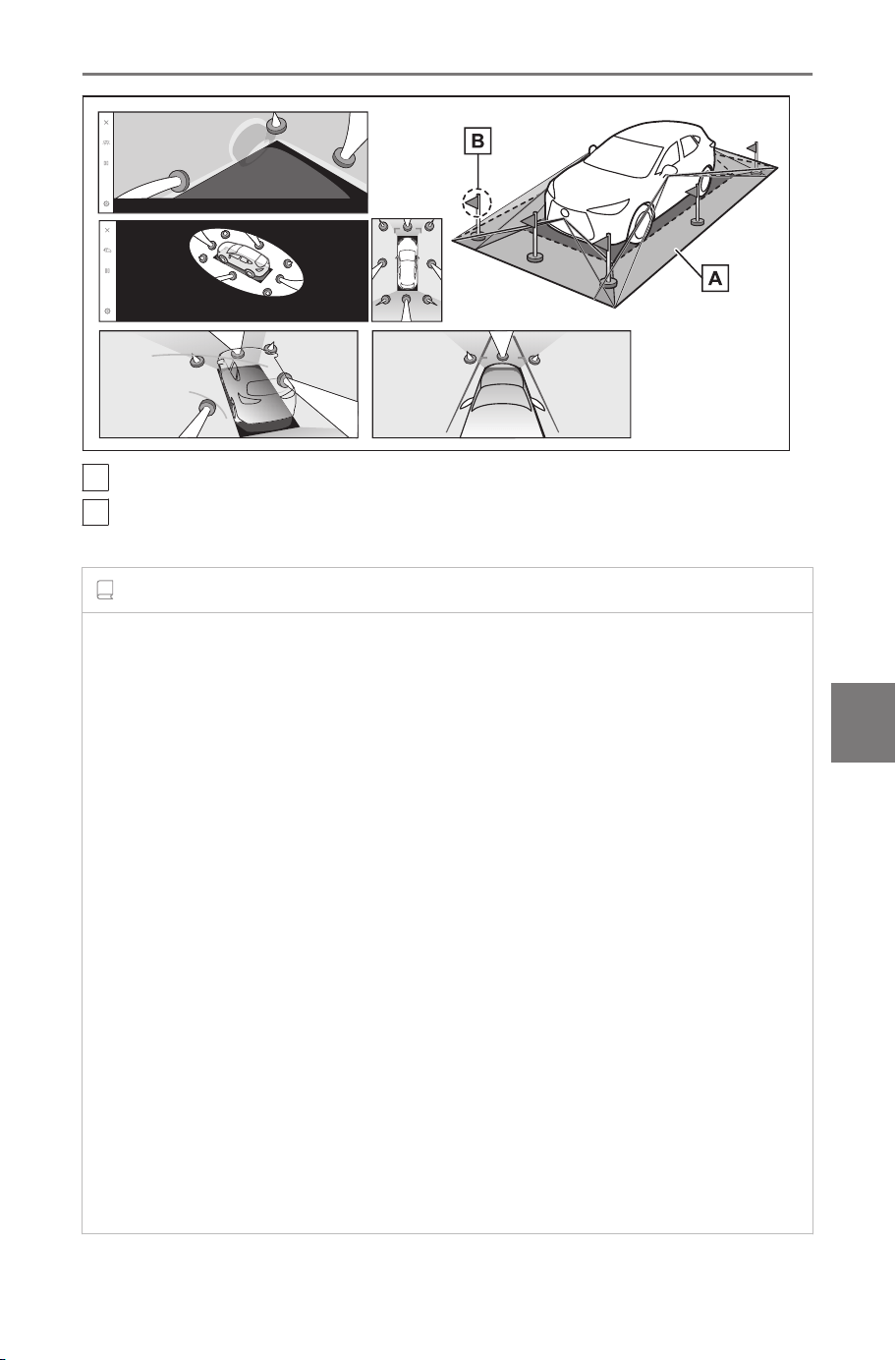
A
Area displayed on the screen
B
Parts of objects not displayed on the screen
Parts higher than the road do not appear on the screen.
INFORMATION
● The black parts around the vehicle icon are not displayed by the cam-
era. Visually check those areas.
● As the images are obtained from four cameras are processed and dis-
played on the standard of a flat road surface, see-through view, moving
view, panoramic view (including zoomed display), side clearance view,
and cornering view may be displayed as follows:
• Objects may look collapsed; thinner or bigger than usual.
• An object with a higher position than the road surface may look
further away than it actually is or may not appear at all.
• Tall objects may appear protruding from the non-displayed areas of
the image.
● Variations in the brightness of the image may appear for every camera
due to lighting conditions.
● The displayed image may be misaligned due to inclination of the vehi-
cle body or change in vehicle height caused by the number of passen-
gers, and vehicle load.
● If the doors are not completely closed, the image and the guide lines
may not be displayed correctly.
● The positional relationship of the road surface and objects with the
vehicle icon displayed on see-through view, moving view, panoramic
8-2. Panoramic view monitor
279
8
Parking assist system
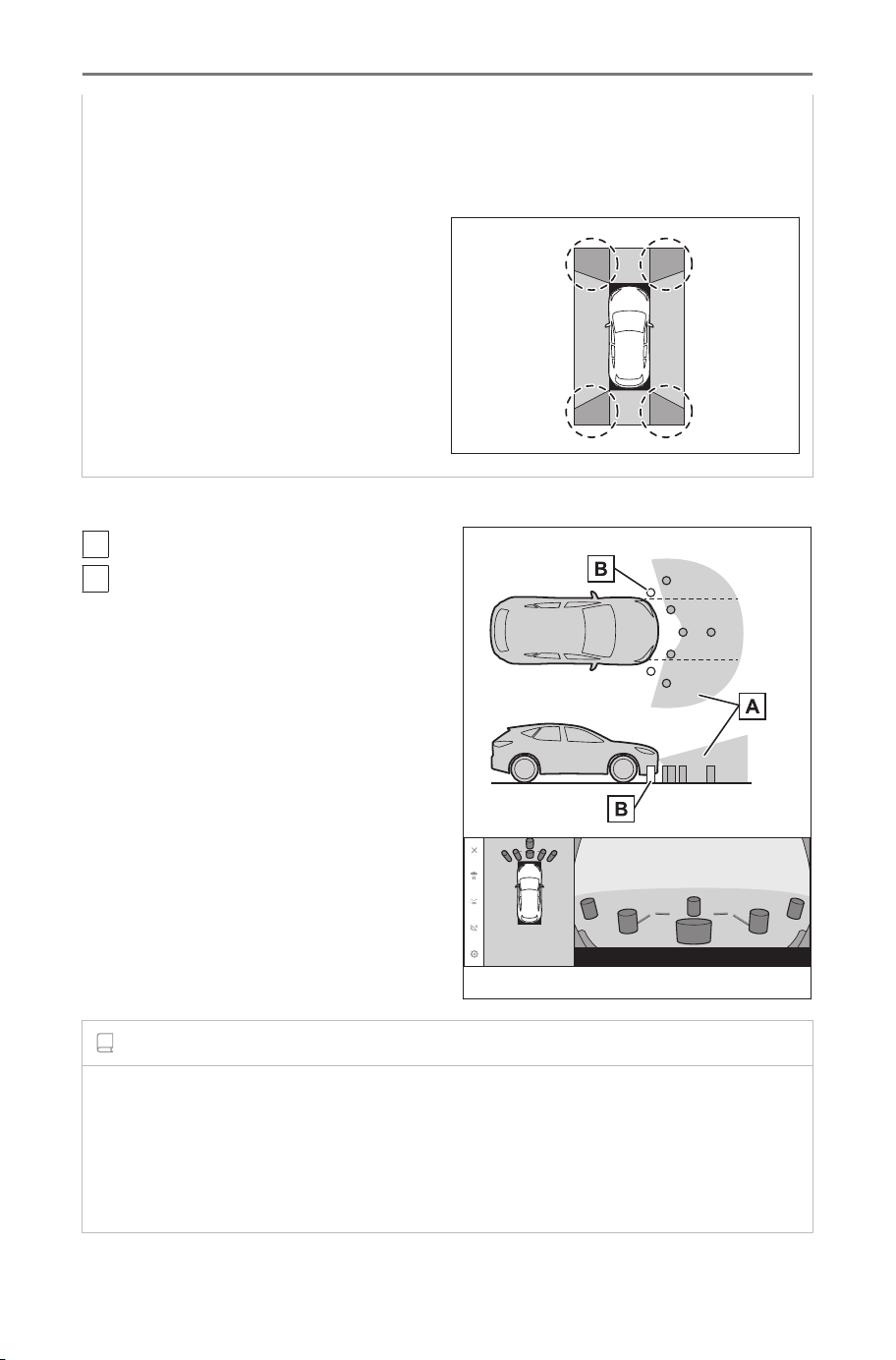
view (including zoomed display), side clearance view, and cornering
view may differ to the actual positions.
● Light from a back-lit license plate may appear on the screen.
●
Images indicated by [○] in the fig-
ure are a composite, and hence
some areas may be difficult to
see.
■
Wide front view
A
Area displayed on the screen
B
Objects not displayed on the
screen
Areas close to both corners of the
bumpers will not appear on the
screen.
INFORMATION
● The area covered by the camera is limited. Objects that are close to
either corner of the bumper or under the bumper cannot be displayed
on the screen.
● The depth perception of the image displayed on the screen differs to
the actual distance.
8-2. Panoramic view monitor
280
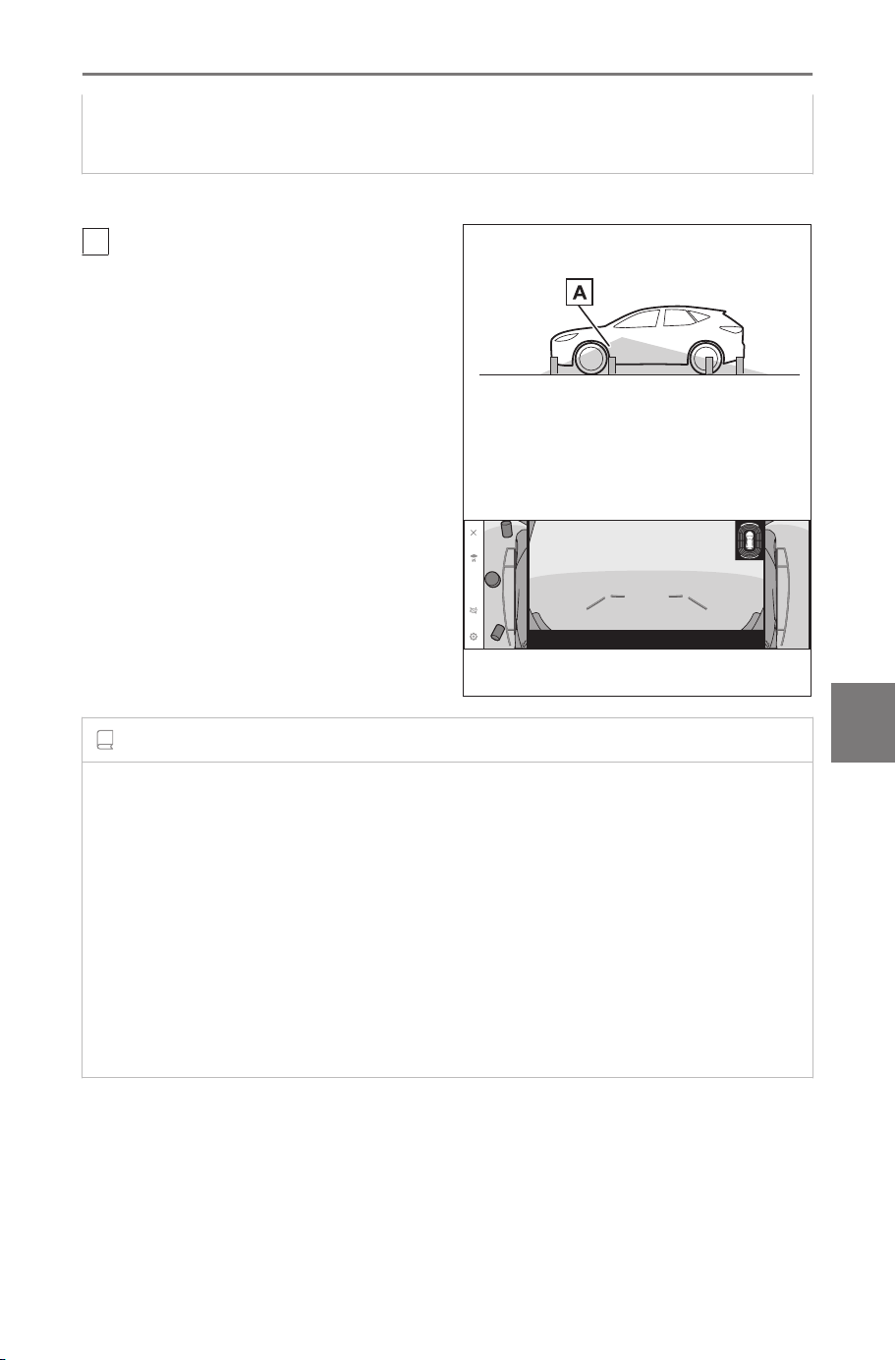
● The wide front view camera uses a special lens, so the depth percep-
tion of the image displayed on the screen differs to the actual distance.
■ Side view & Rear view (when the side mirrors are folded)
A
Area displayed on the screen
INFORMATION
● The range that is displayed on the screen may differ due to the state of
the vehicle and road surface.
● The area covered by the camera is limited. Objects that are close to
the bumper on the passenger’s side or under the bumper cannot be
displayed on the screen.
● The depth perception of the image displayed on the screen differs to
the actual distance.
● The cameras on side view & rear view use a special lens, so the depth
perception of the image displayed on the screen differs to the actual
distance.
8-2. Panoramic view monitor
281
8
Parking assist system
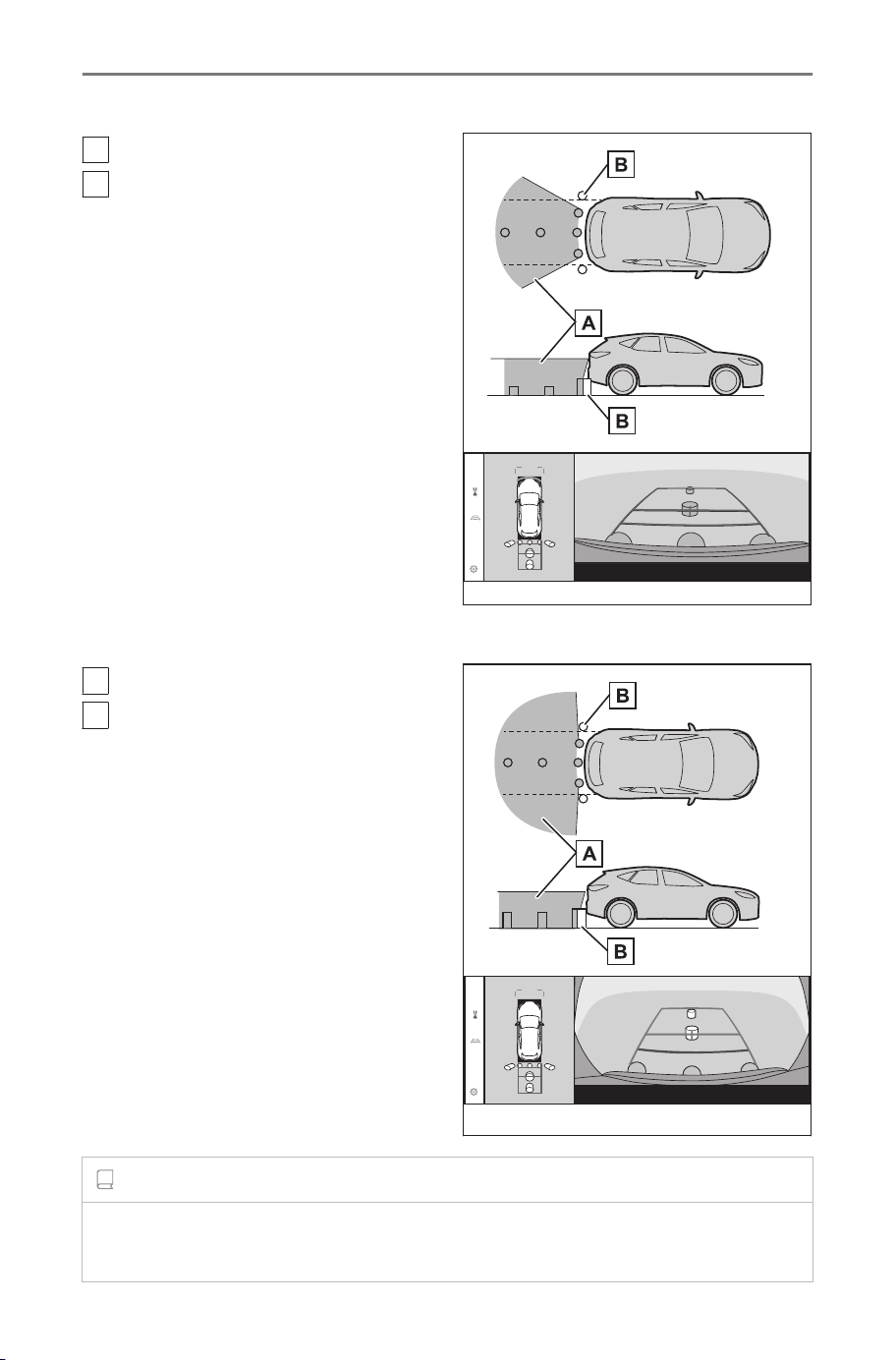
■ Rear view
A
Area displayed on the screen
B
Objects not displayed on the
screen
Areas close to both corners of the
bumpers will not appear on the
screen.
■ Wide rear view
A
Area displayed on the screen
B
Objects not displayed on the
screen
Areas close to both corners of the
bumpers will not appear on the
screen.
INFORMATION
● The range that is displayed on the screen may differ due to the state of
the vehicle and road surface.
8-2. Panoramic view monitor
282
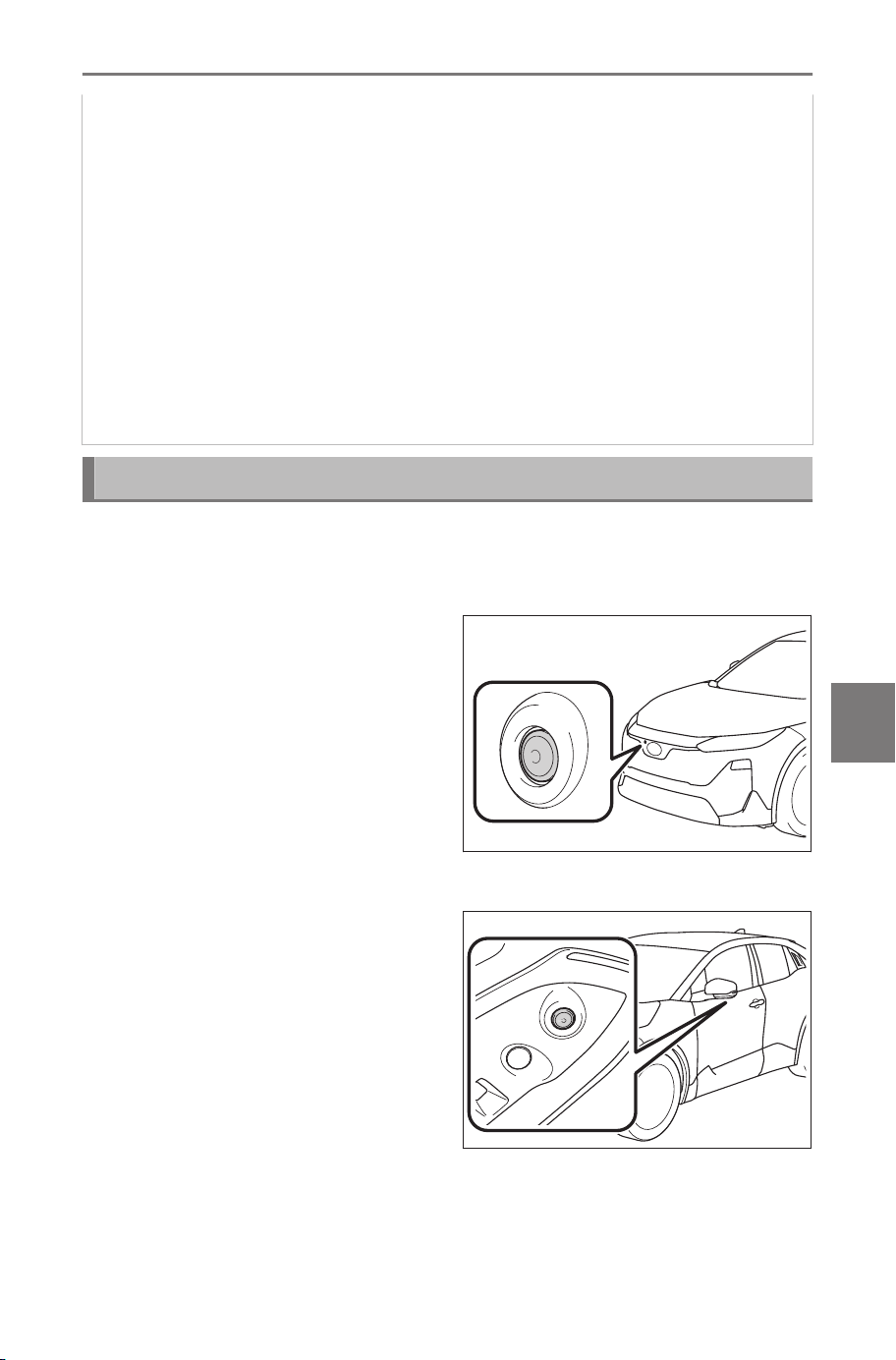
● The area covered by the camera is limited. Objects that are close to
either corner of the bumper or under the bumper cannot be displayed
on the screen.
● The depth perception of the image displayed on the screen differs to
the actual distance.
● The rear view and wide rear view cameras use a special lens, so the
depth perception of the image displayed on the screen differs to the
actual distance.
● Objects that are higher than the rear camera may not appear in the
monitor.
● Light from a back-lit license plate may appear on the screen.
Camera position
The panoramic view monitor cameras are in the locations shown in
the figures.
■ Front camera
■ Side cameras
8-2. Panoramic view monitor
283
8
Parking assist system
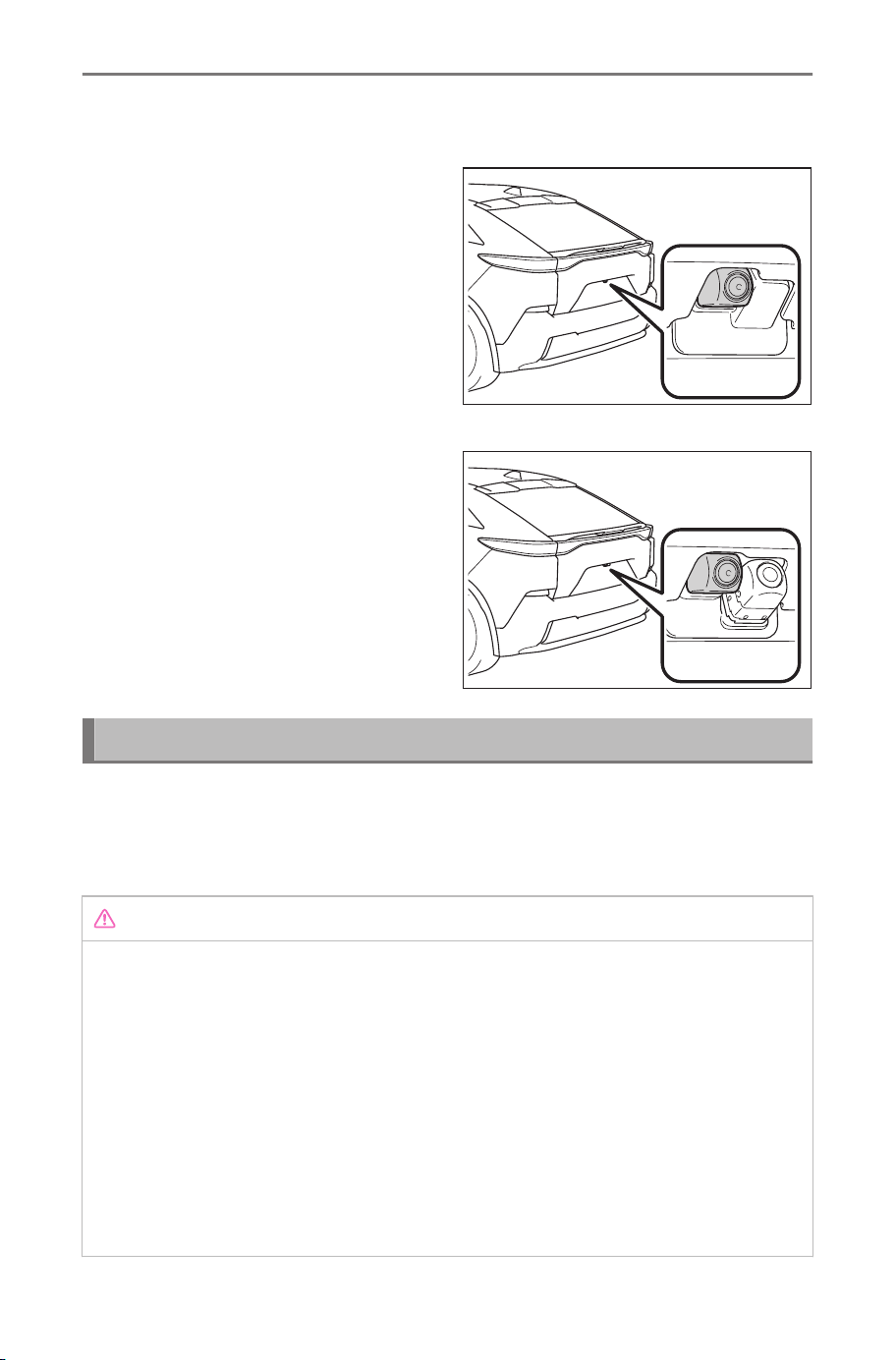
■ Rear camera
Cleaning the camera
If dirt or foreign matter, such as water droplets, snow, or mud, has
stuck to the camera, you will not be able to see the image clearly. If
that happens, splash the camera with a large amount of water and
then wipe the camera lens clean with a soft, damp cloth.
NOTICE
● The panoramic view monitor may stop functioning correctly. Take note
of the following items:
• Do not hit or apply a forceful impact on the camera. Doing so may
change the position and mounting angle of the camera.
• The camera is designed to be waterproof. Do not detach, disassem-
ble, or modify it.
• When washing the camera lens, splash the camera with a large
amount of water and then wipe the camera lens clean with a soft,
damp cloth. Rubbing the camera lens forcibly may scratch the cam-
era lens and you may no longer be able to see images clearly.
▶Type A
▶Type B
8-2. Panoramic view monitor
284
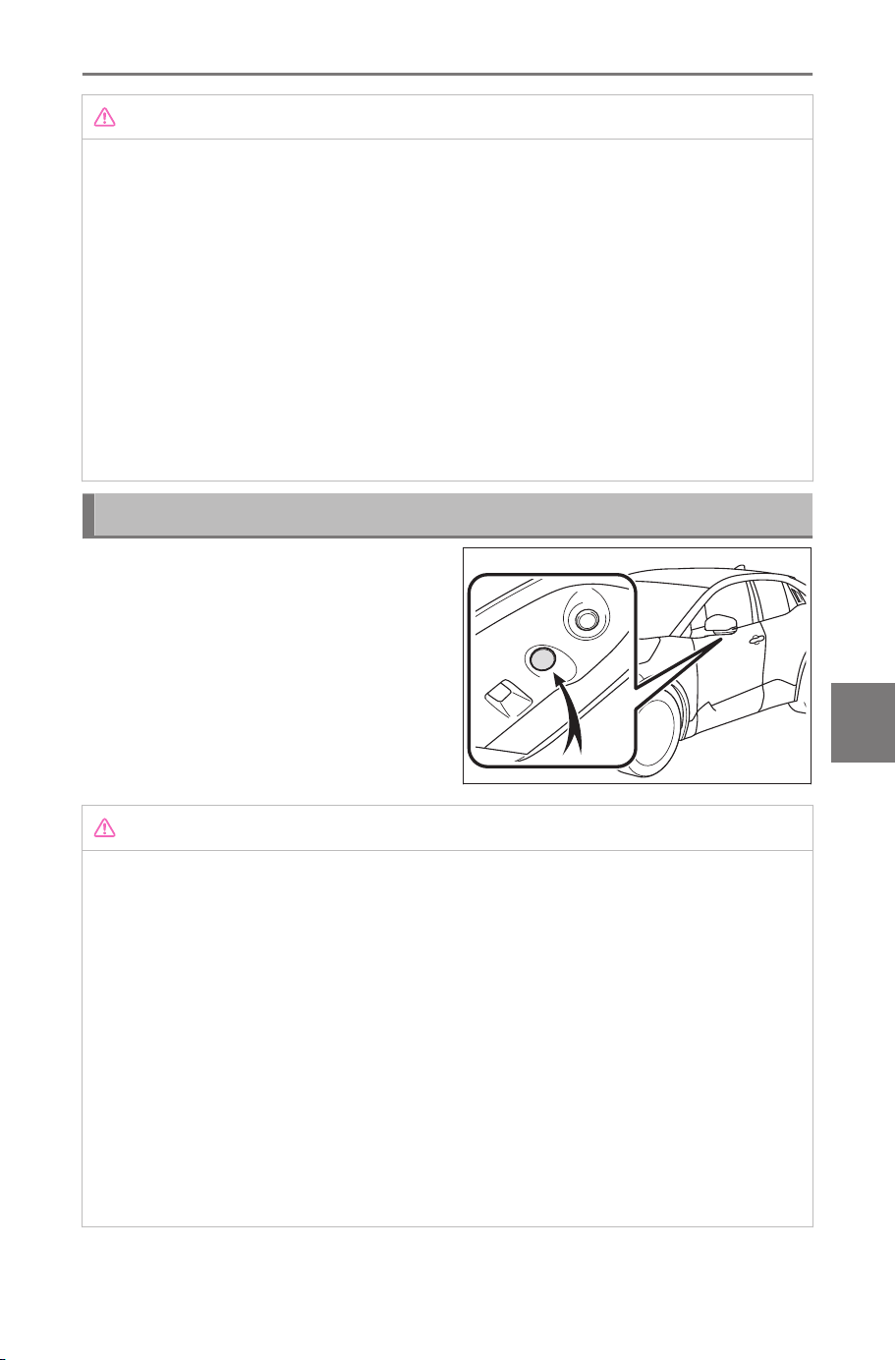
NOTICE
• The camera cover is made of resin. Do not allow an organic solvent,
car wax, window cleaner, or glass coating to adhere to the camera. If
this happens, wipe it off immediately.
• Do not pour hot water on the vehicle in cold weather or apply other
rapid changes of temperature.
• If you wash the vehicle with a high pressure car washer, do not
point the hose directly at the camera or camera area. Applying strong
water pressure may result in the camera malfunctioning.
● If the camera is hit, it may cause a camera malfunction. If this happens,
have the vehicle inspected by your SUBARU dealer as soon as possi-
ble.
Parking assist lights
The parking assist lights of the
panoramic view monitor system
are installed in the locations
shown in the figure.
NOTICE
● Make sure to observe the following precautions, otherwise the panor-
amic view monitor system may not operate correctly:
• Do not apply excessive force to a light or subject it to a strong
impact. Doing so may cause the position or installation angle of the
light to deviate.
• Do not remove, disassemble, or modify the lights as they have a
waterproof construction.
• When cleaning the lights, wash them with a large amount of water,
and then wipe them with a soft wet cloth.
• Do not apply organic solvents, waxes, oil removing solvents, glass
coatings, etc. to the covers of the lights, as they are made of resin. If
such is applied, remove it immediately.
8-2. Panoramic view monitor
285
8
Parking assist system
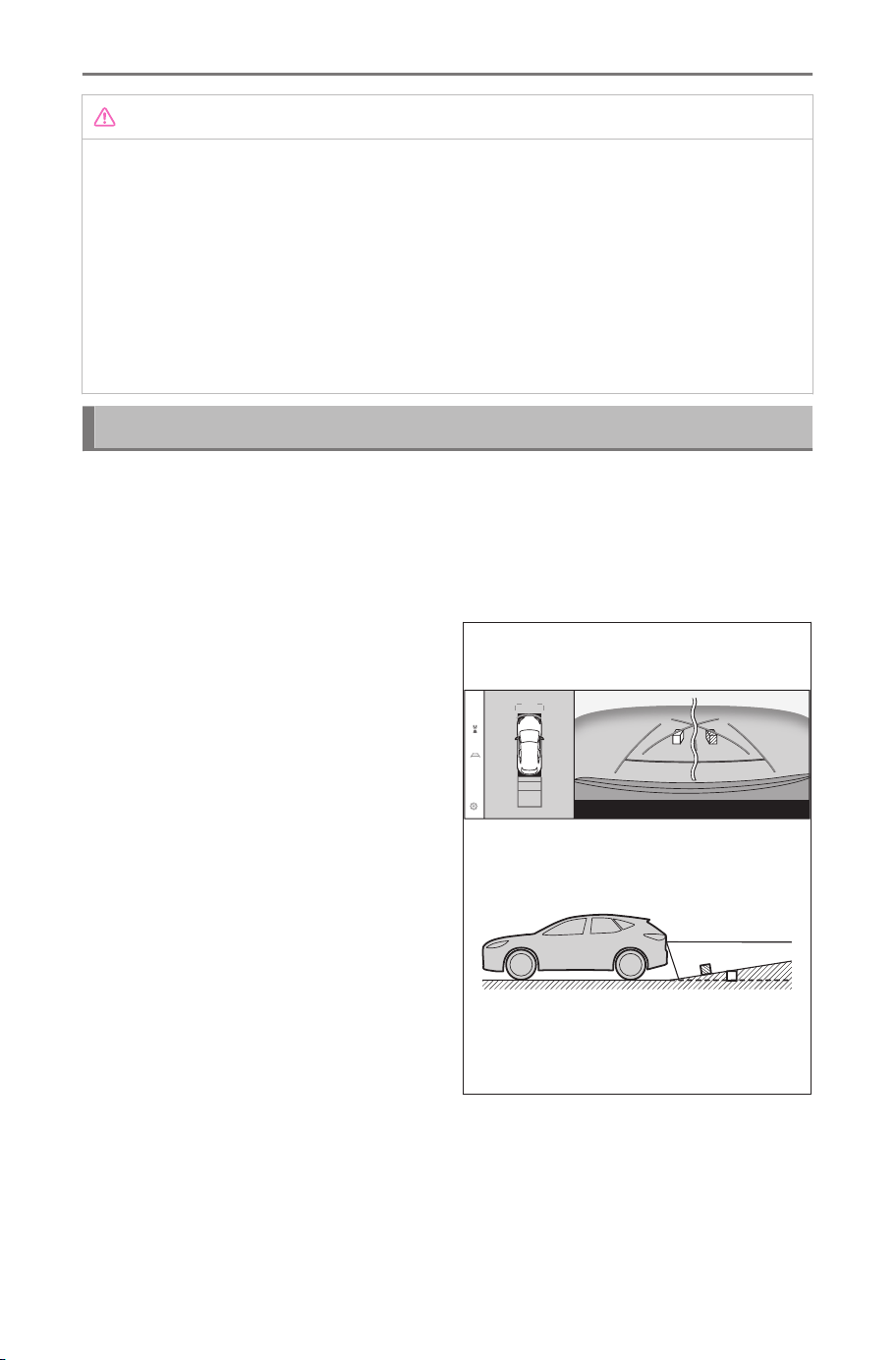
NOTICE
• Do not expose the lights to sudden temperature changes, such as
applying hot water to them when it is cold.
• When washing the vehicle with a high-pressure washer, do not spray
water directly on the lights or their surrounding area. High-pressure
water can damage the lights and cause them to not operate correctly.
● If a light has been subjected to a strong impact, it may be damaged.
Have the vehicle inspected by your SUBARU dealer as soon as possi-
ble.
Differences between the screen and the actual road
The composite images on the panoramic view monitor and guide
lines give a distance guide for flat road surfaces. Therefore, there
is a margin of error between the guide lines on the screen and the
actual distance and course on the road.
■ When the ground behind the vehicle slopes up sharply
The distance guide lines will ap-
pear to be closer to the vehicle
than the actual distance. Thus,
objects on up-slopes will appear
to be farther away than they ac-
tually are. In the same way, there
will be a margin of error between
the guidelines and the actual dis-
tance and course on the road.
8-2. Panoramic view monitor
286
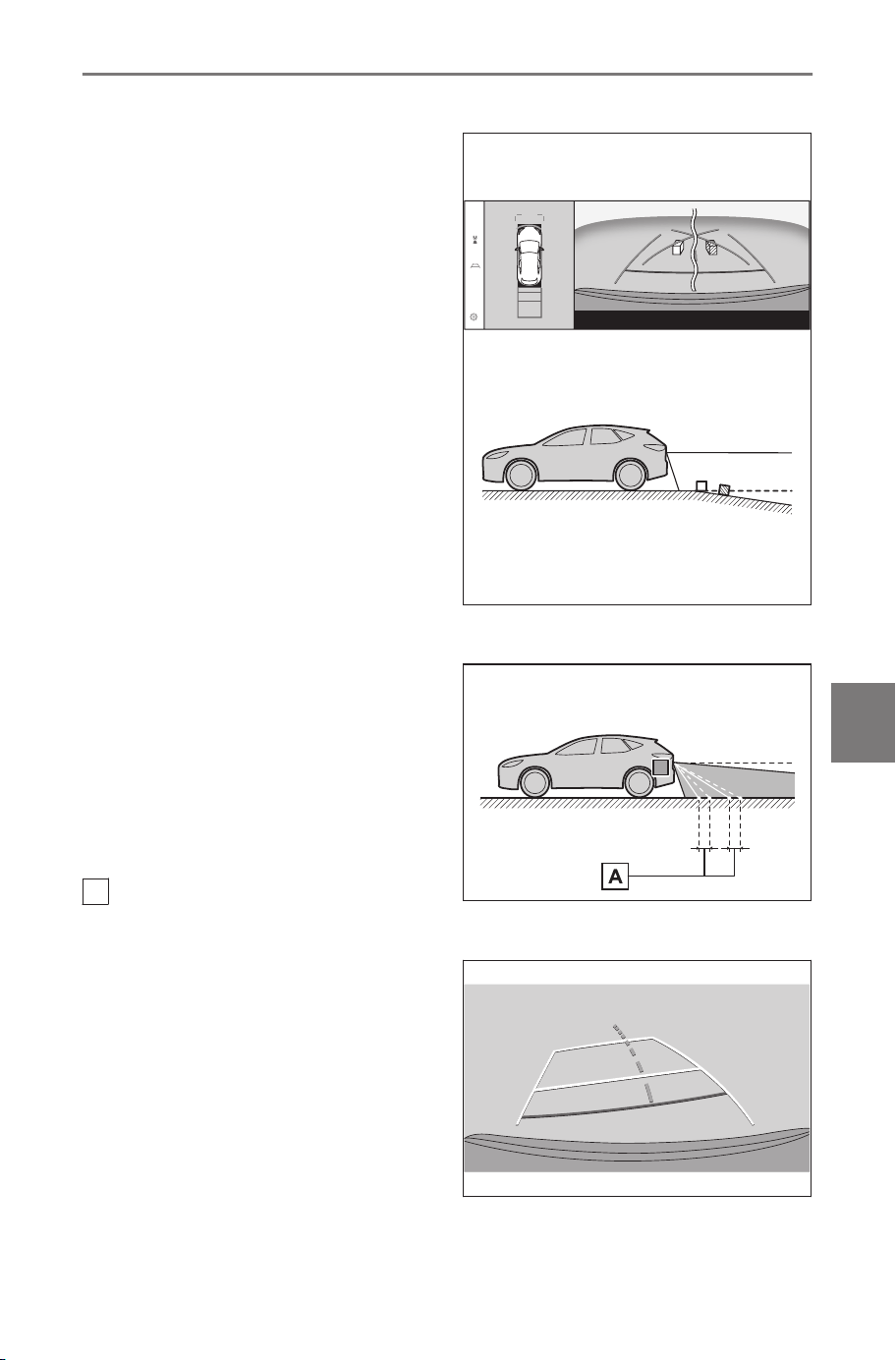
■ When the ground behind the vehicle slopes down sharply
The distance guide lines will ap-
pear to be further from the vehi-
cle than the actual distance. Thus,
objects on down-slopes will ap-
pear to be closer than they actual-
ly are. In the same way, there will
be a margin of error between the
guidelines and the actual distance
and course on the road.
■ When any part of the vehicle sags
When any part of the vehicle sags
due to the number of passengers
or the distribution of the load,
there is a margin of error between
the guide lines on the screen and
the actual distance and course on
the road.
A
Margin of error
■ Estimated course center line
As the guide lines are shown mid-
air near the rear bumper, there are
times that they may look like they
are off-center.
8-2. Panoramic view monitor
287
8
Parking assist system
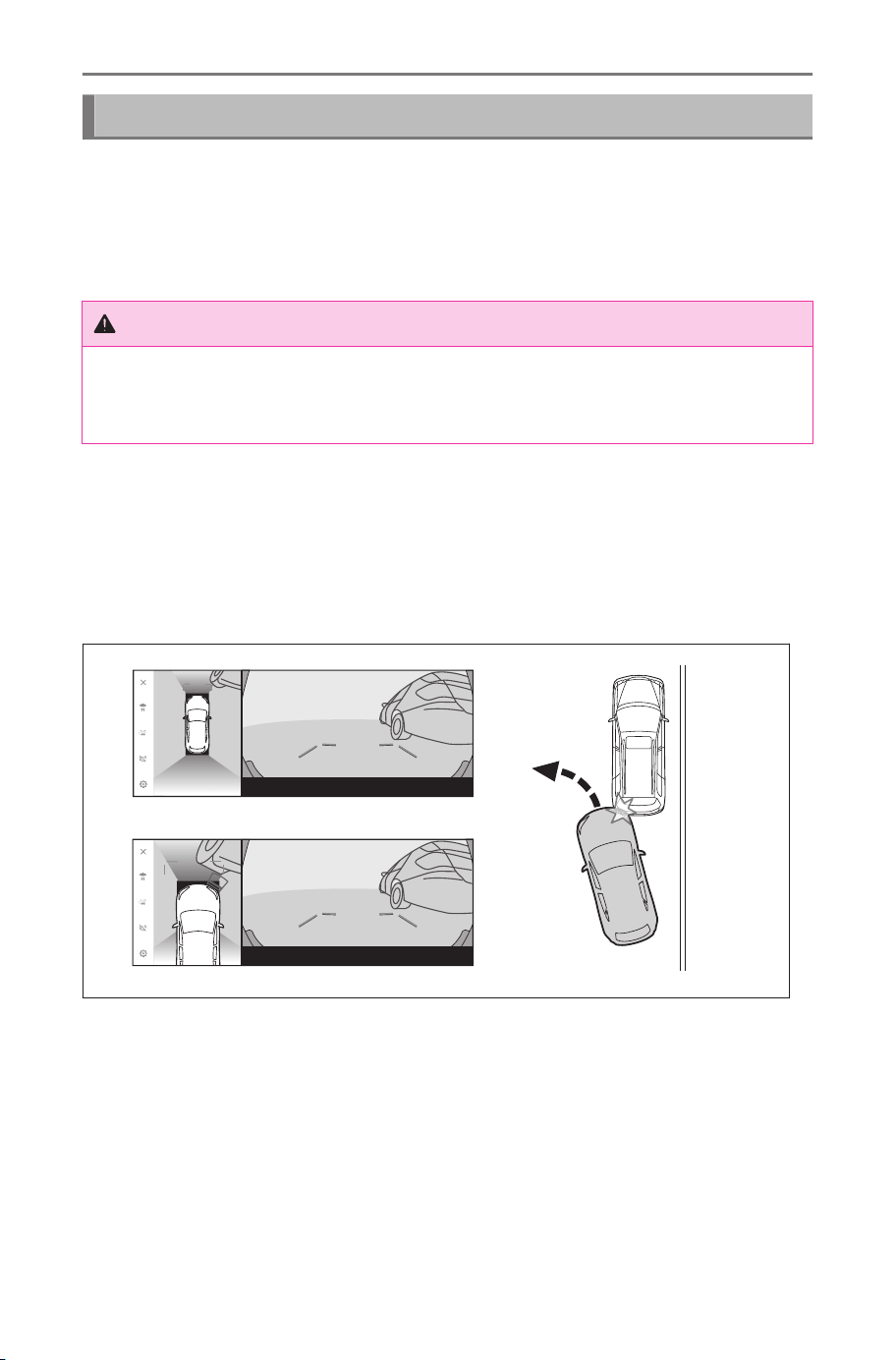
Differences between the screen and actual 3D objects
Since the guide lines and displayed on the screen are displayed for
a flat road surface, it is not possible to determine the position of
three-dimensional objects. When approaching a three-dimensional
object that extends outward (such as the flatbed of a truck), take
note of the following cautions.
WARNING
When the intuitive parking assist display is red, make sure to visually
check before moving the vehicle any further. There is the danger that you
may collide with another vehicle or have some other unforeseen accident.
■ Displaying panoramic view (including zoom display)
On the screen, it appears that there is a gap between the vehicle’s
bumper and another object or vehicle, and it does not look as if the
vehicle will collide with the object or vehicle. However, the vehicle is
over the course lines, so the vehicle may collide with the object or
vehicle. Make sure to visually check your surroundings.
8-2. Panoramic view monitor
288
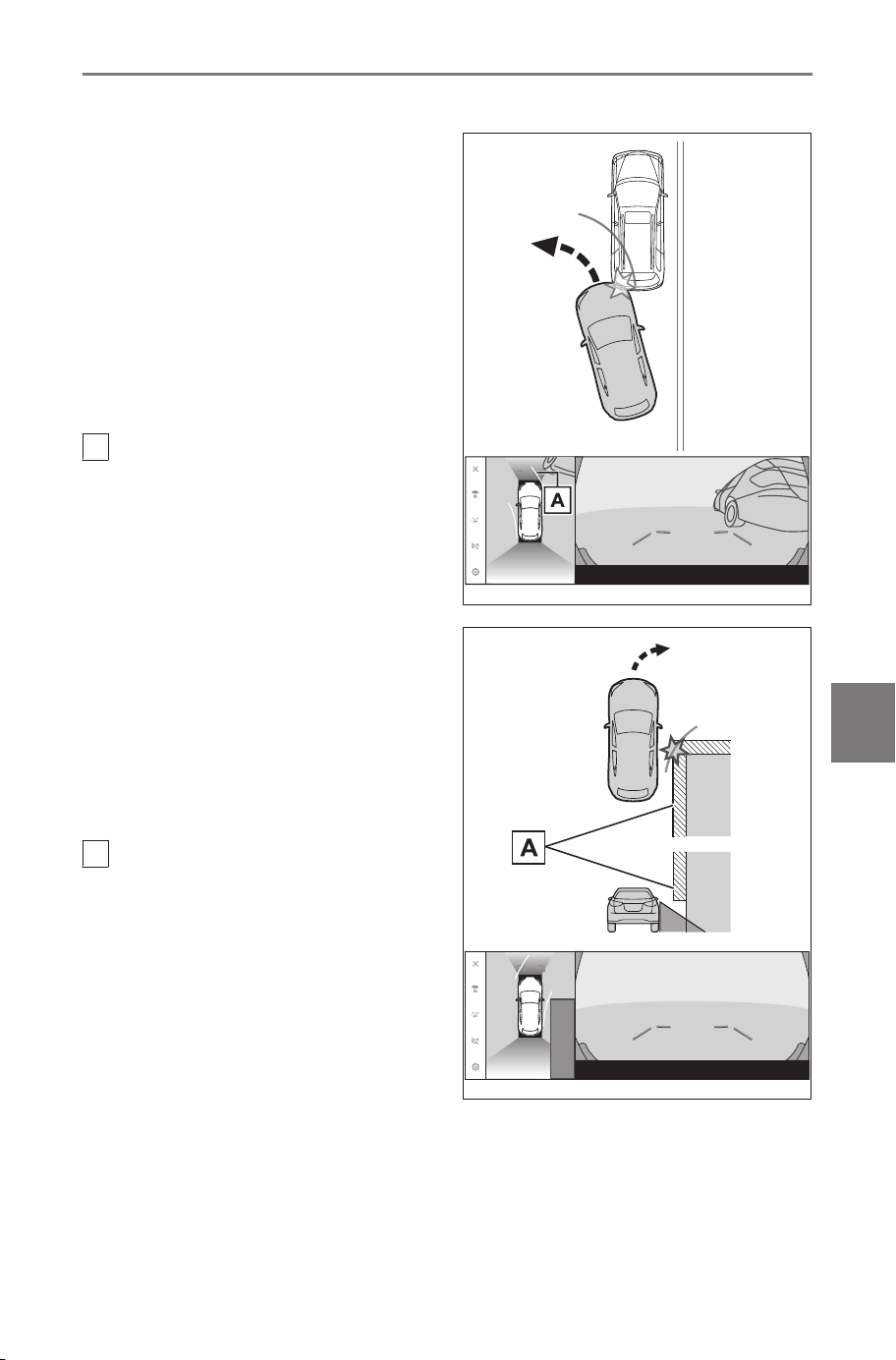
■ Estimated course lines
● On the screen, it appears that
the vehicle’s bumper is outside
of the estimated course lines,
and it does not look as if the ve-
hicle will collide with the object
or vehicle. However, the vehicle
is over the course lines, so the
vehicle may collide with the ob-
ject or vehicle. Make sure to vis-
ually check your surroundings.
A
Estimated course lines
● Three-dimensional objects in
high positions (such as the
overhang of a wall or loading
platform of a truck) may not ap-
pear on the screen. Make sure
to visually check your surround-
ings.
A
Overhang of a wall
8-2. Panoramic view monitor
289
8
Parking assist system
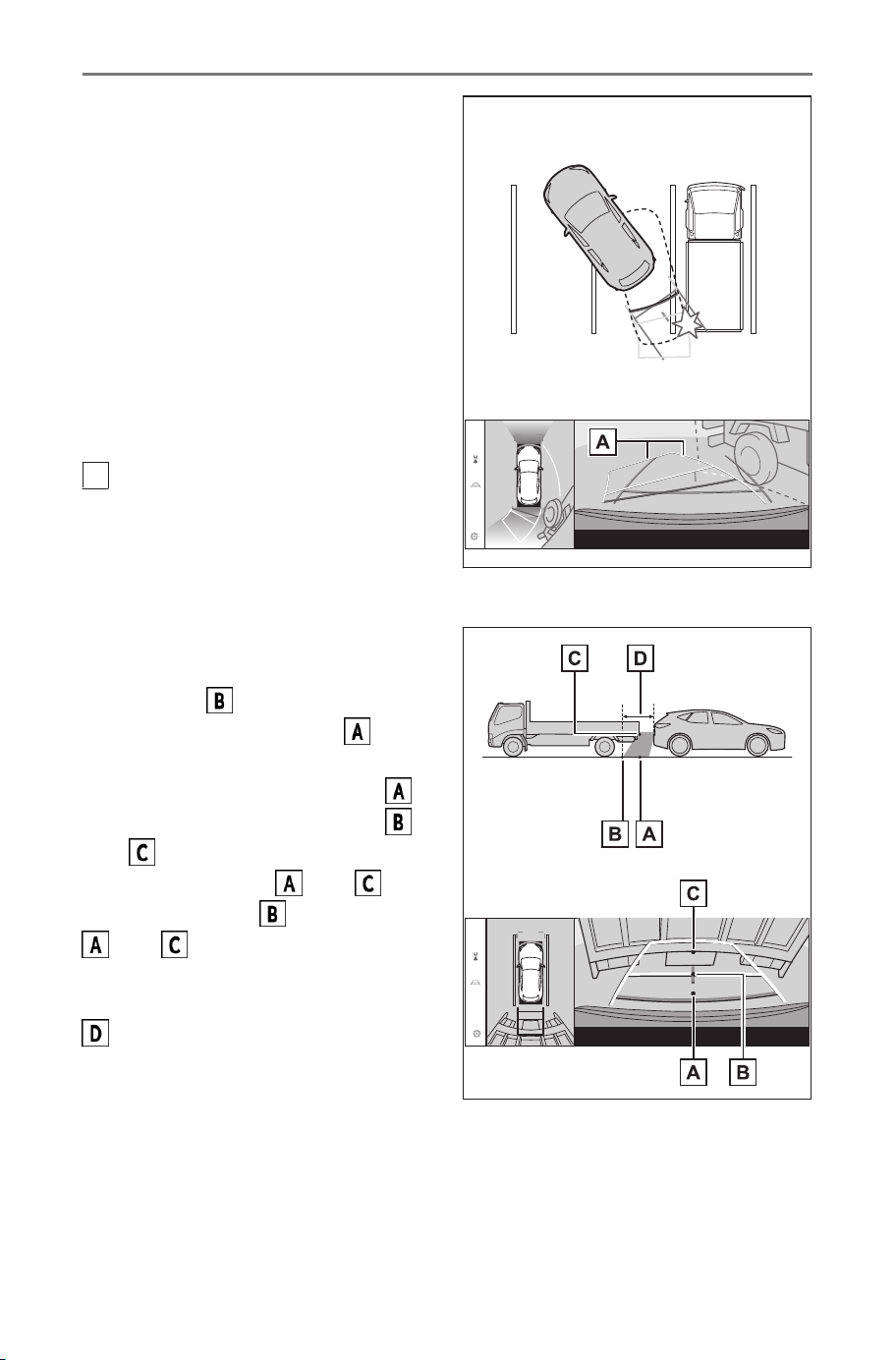
● On the screen, a truck flatbed
may appear to be outside of the
estimated course lines and the
vehicle does not look as if it will
collide with the truck. However,
the flatbed may actually cross
over the estimated course lines
and if you reverse as guided by
the estimated course lines, the
vehicle may hit the truck. Make
sure to visually check your sur-
roundings.
A
Estimated course lines
■ Distance guide lines
On the screen, the distance guide
lines shows that a truck is park-
ing at point . However, in reali-
ty if you reverse to point
, you
will collide with the truck. On the
screen, it appears that point
is closest followed by points
and . However, in reality, the
distance to points and is the
same, and point is farther than
and . Make sure to visual-
ly check behind you and your sur-
roundings. The distance to point
is about 3 ft. (1 m).
8-2. Panoramic view monitor
290
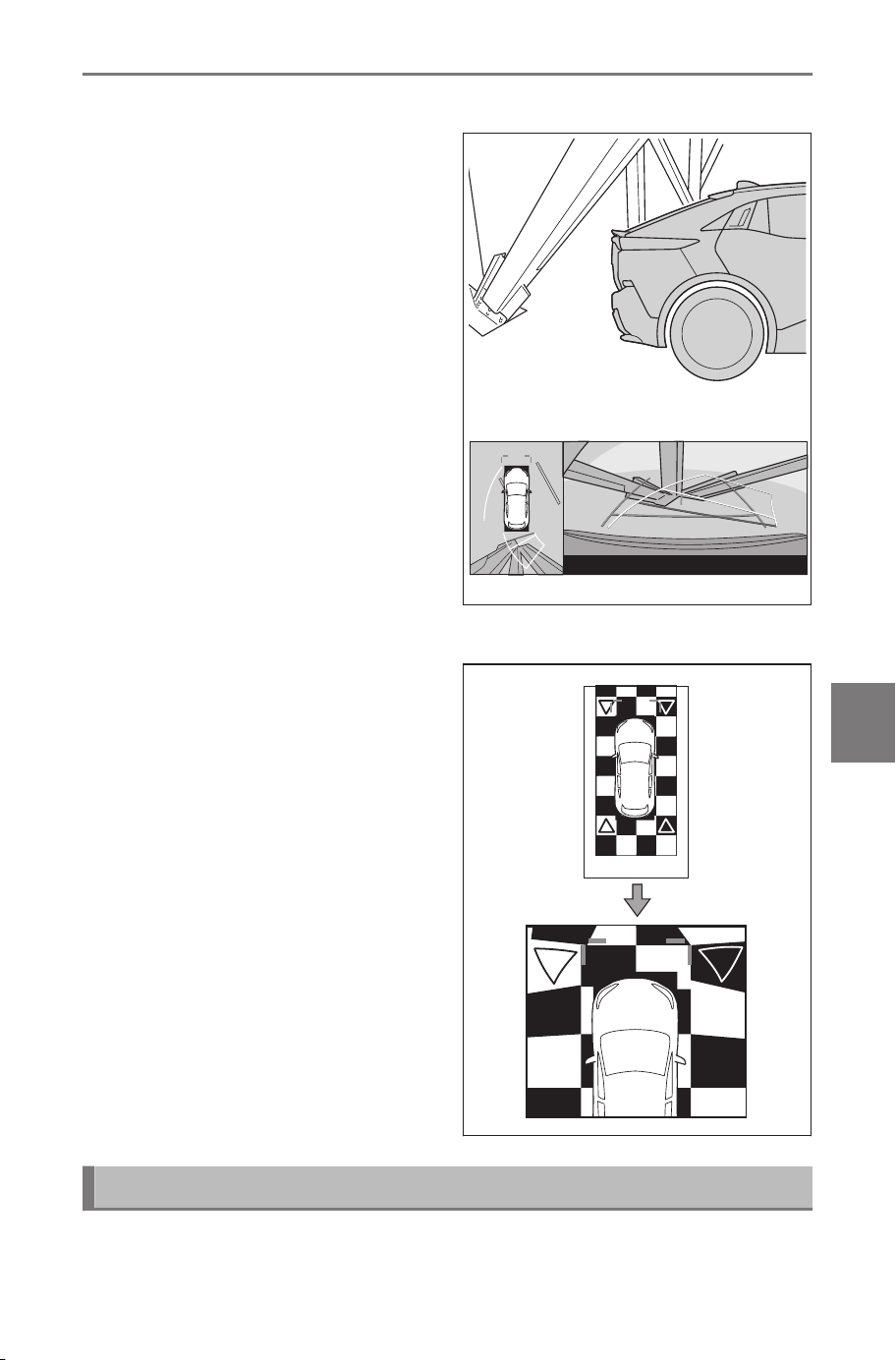
■ Overhang of a diagonal beam
In panoramic view, a diagonal
beam may appear straight and
seems likely not to be struck, how-
ever, since the top part of the is
actually overhanging, the vehicle
may hit it. Make sure to visually
check the rear and surroundings.
■ Magnifying function
Unlike the normal panoramic view,
the panoramic view magnifying
function zooms in on the vehicle
icon. Therefore, white lines on the
road, walls, and other objects may
look bent.
If you notice any symptoms
If you notice or are troubled by any of the symptoms below, check
the issue again referring to the likely cause and solution.
8-2. Panoramic view monitor
291
8
Parking assist system

If the symptom is not resolved by the solution, have the vehicle
inspected by your SUBARU dealer.
Symptom Symptom Solution
The screen is
difficult to see
● The vehicle is in a dark
area or it is night.
● The temperature around
the lens is either high or
low.
● The outside temperature
is low.
● There are water droplets
on the camera.
● It is raining or humid.
● Foreign matter (mud
etc.) is stuck to the cam-
era.
● Sunlight or headlights
are shining directly into
the camera.
● The vehicle is under flu-
orescent lights, sodium
lights, mercury lights,
etc.
Visually check the vehi-
cle’s surroundings while
you are driving.
Use the panoramic view
monitor again once the
camera and conditions
have improved.
The procedure for adjust-
ing the picture quality of
the panoramic view moni-
tor is the same as the pro-
cedure for adjusting the
multimedia screen.
The image is
blurry
Dirt or foreign matter, such
as water droplets, snow, or
mud, has stuck to the cam-
era lens.
Splash the camera with
a large amount of water
and then wipe the cam-
era lens clean with a soft,
damp cloth.
The screen is
misaligned
The camera has received a
strong impact.
Have the vehicle inspect-
ed by your SUBARU deal-
er.
The guide lines
are significantly
misaligned
The camera position is mis-
aligned.
Have the vehicle inspect-
ed by your SUBARU deal-
er.
8-2. Panoramic view monitor
292

Symptom Symptom Solution
The guide lines
are significantly
misaligned
● The vehicle is tilted
(There is a heavy load
on the vehicle, tire pres-
sure is low due to a tire
puncture, etc.).
● The vehicle is on an in-
cline.
Visually check the vehi-
cle’s surroundings while
you are driving.
The estimated
course lines
move even
though the steer-
ing wheel is
straight (the ve-
hicle width guide
lines and esti-
mated course
lines are out of
alignment).
There is a malfunction in
the signals being output by
the steering sensor.
Have the vehicle inspect-
ed by your SUBARU deal-
er.
The guide lines
are not displayed
The back door is open.
Close the back door.
If this does not resolve
the issue, have the ve-
hicle inspected by your
SUBARU dealer.
The panoramic
view display can-
not be enlarged.
The see-through
view/moving
view, side clear-
ance view, and
cornering view
cannot be dis-
played.
The intuitive parking assist
may be malfunctioning or
dirty.
Follow the correction pro-
cedures for malfunctions
of the intuitive parking as-
sist. (For details about the
intuitive parking assist,
see the vehicle "OWN-
ER’S MANUAL".)
Related Links
Changing the screen display settings(P. 64)
Information about free/open source software
This product contains free/open source software.
8-2. Panoramic view monitor
293
8
Parking assist system

You can get information about free/open source software and/or
source codes from the following URL:
https://www.denso.com/global/en/opensource/svss/subaru
8-2. Panoramic view monitor
294

9
Appendix
9-1. Appendix
Information about me-
dia and data ............. 296
HD Radio™/SiriusXM
®
Satellite Radio.......... 307
Certification................ 310
295
9
Appendix
Appendix
Information about media and data
Information about media that can be used
The specifications of the media and other devices that can be used
are as follows.
■ Formats and specifications of USB flash drives
The formats and standards of the USB flash drives that can be used,
and the restrictions for use, are as follows.
USB communication format USB2.0 HS (480MBPS)
File format FAT 16/32
Communication class Mass storage class
Maximum number of folders 3000 (including root)
Maximum number of folder levels 8
Maximum number of files 9999 (maximum of 255 files per
folder)
Memory capacity Up to 32 GB
Maximum size of one file 2GB
● Files other than the formats above may not be played correctly,
or information such as the file or folder name may not display
correctly.
● Please understand in advance that this device may not be able to
play your USB flash drive.
● Depending on the computer used to save files on a USB flash
drive, hidden files may be saved in addition to the playback files.
Deletion of such hidden files is recommended. They may have
a negative effect during playback and prevent files from being
switched correctly.
Format information
The specifications of the music data that can be used are as follows.
■ MP3
Supported standard
MP3 (MPEG1 LAYER 3, MPEG2
LSF LAYER 3)
9-1. Appendix
296
Supported sampling frequency
(kHz)
MPEG1 LAYER 3:32, 44.1, 48
MPEG2 LSF LAYER 3:16, 22.05, 24
Supported bit rate (kbps)
(1)
MPEG1 LAYER 3: 32 to 320
MPEG2 LSF LAYER 3: 8 to 160
Supported channel mode
Stereo, joint stereo, dual channel,
monaural
ID3 tag
ID3 Ver. 1.0, 1.1, 2.2, 2.3 (number
of characters as specified by each
version)
(1) VBR (Variable Bit Rate) is supported.
■ WMA
Supported standard WMA Ver. 7, 8, 9 (9.1, 9.2)
Supported sampling frequency
(kHz)
32, 44.1, 48
Supported bit rate (kbps)
(1)(2)
Ver. 7, 8:CBR (Constant Bit Rate)
48 to 192
Ver. 9 (9.1/9.2): CBR 48 to 320
(1) VBR (Variable Bit Rate) is supported.
(2) Multi-channel audio sources are converted to 2ch.
■ AAC
Supported standard
(1)
MPEG4 AAC-LC
Supported sampling frequency
(kHz)
11.025, 12, 16, 22.05, 24, 32, 44.1,
48
Supported bit rate (kbps)
(2)
8 to 320
Supported channel mode
(3)
1ch (1/0), 2ch (2/0)
(1) ADIF is not supported.
(2) VBR (Variable Bit Rate) is supported.
(3) Dual channel is not supported.
■ WAV (LPCM)
Supported sampling frequency
(kHz)
(1)
8, 11.025, 12, 16, 22.05, 24, 32,
44.1, 48, 88.2, 96, 176.4, 192
9-1. Appendix
297
9
Appendix

Supported number of quantization
bits (bit)
(2)
16/24
Supported channel mode 1ch (1/0), 2ch (2/0)
(1) Audio sources higher than 96 kHz/24 bit are down-converted to 96
kHz/24 bit.
(2) Multi-channel audio sources are converted to 2ch.
■ FLAC
Supported sampling frequency
(kHz)
(1)
8, 11.025, 12, 16, 22.05, 24, 32,
44.1, 48, 88.2, 96, 176.4, 192
Supported number of quantization
bits (bit)
(2)
16/24
(1) Audio sources higher than 96 kHz/24 bit are down-converted to 96
kHz/24 bit.
(2) Multi-channel audio sources are converted to 2ch.
■
ALAC
Supported sampling frequency
(kHz)
(1)
8, 11.025, 12, 16, 22.05, 24, 32,
44.1, 48, 64, 88.2, 96
Supported number of quantization
bits (bit)
(2)
16/24
(1) Audio sources higher than 96 kHz/24 bit are down-converted to 96
kHz/24 bit.
(2) Multi-channel audio sources are converted to 2ch.
■ Ogg Vorbis
Supported sampling frequency
(kHz)
(1)
8, 11.025, 16, 22.05, 32, 44.1, 48
Supported bit rate (kbps)
(2)
32 to 500
(1) Audio sources higher than 96 kHz/24 bit are down-converted to 96
kHz/24 bit.
(2) VBR (Variable Bit Rate) is supported.
■ File names
The only files that can be recognized as MP3/WMA/AAC/
WAV(LPCM)/FLAC/ALAC/Ogg Vorbis and played are those with the
9-1. Appendix
298

extension ".mp3" / ".wma" / ".m4a" / ".3gp" / ".aac" / ".wav" / ".flac" /
".fla" / ".ogg" / ".ogx" / ".oga".
Save MP3/WMA/AAC/WAV(LPCM)/FLAC/ALAC/Ogg Vorbis files
with a ".mp3"/ ".wma" / ".m4a" / ".3gp" / ".aac" / ".wav" / ".flac" /
".fla" / ".ogg" / ".ogx" / ".oga".
■ About ID3 tags, WMA tags, AAC tags, tags, and Vorbis com-
ments
● MP3 files have ancillary character information called ID3 tags that
can store song artist names, title names, album names, and more.
● WMA files have ancillary character information called WMA tags
that can store song artist names, title names, album names, and
more.
● AAC files have ancillary character information called AAC tags
that can store song artist names, title names, album names, and
more.
● WAV (LPCM) files have ancillary character information called tags
that can store song artist names, title names, album names, and
more.
● FLAC files have ancillary character information called tags that
can store song artist names, title names, album names, and more.
● ALAC files have ancillary character information called tags that
can store song artist names, title names, album names, and more.
● Ogg Vorbis files have ancillary text information called Vorbis com-
ment that allows saving of the song artist names, title names,
album names, and more.
■ High resolution sound sources
This device supports high-resolution sound sources. The definition
of high-resolution is based on the standards of groups such as the
CTA (Consumer Technology Association).
Supported formats and playable media are as follows.
Supported formats
WAV, FLAC, ALAC, Ogg Vorbis
Playable media
USB flash drive
9-1. Appendix
299
9
Appendix
iPhone/iPod
Trademark and design certification information
Use of the Made for Apple badge means that an accessory has
been designed to connect specifically to the Apple product(s) identi-
fied in the badge, and has been certified by the developer to meet
Apple performance standards.
Apple is not responsible for the operation of this vehicle or its com-
pliance with safety and regulatory standards.
Please note that the use of this accessory with an Apple product
may affect wireless performance.
iPhone, iPod, iPod touch, iPad, iPad mini, iPad Pro, and Lightning
are trademarks of Apple Inc., registered in the U.S. and other coun-
tries.
Made for
● iPhone SE (2nd generation)
● iPhone 12 Pro Max
● iPhone 12 Pro
● iPhone 12
● iPhone 12 mini
● iPhone 11 Pro Max
● iPhone 11 Pro
● iPhone 11
9-1. Appendix
300

● iPhone XS Max
● iPhone XS
● iPhone XR
● iPhone X
● iPhone 8 Plus
● iPhone 8
● iPhone 7 Plus
● iPhone 7
● iPhone SE
● iPhone 6s Plus
● iPhone 6s
● iPhone 6 Plus
● iPhone 6
● iPhone 5s
● iPad Pro 12.9-inch (5th generation)
● iPad Pro 12.9-inch (4th generation)
● iPad Pro 12.9-inch (3rd generation)
● iPad Pro 12.9-inch (2nd generation)
● iPad Pro 12.9-inch (1st generation)
● iPad Pro 11-inch (3rd generation)
● iPad Pro 11-inch (2nd generation)
● iPad Pro 11-inch (1st generation)
● iPad Pro 10.5-inch
● iPad Pro 9.7-inch
● iPad Air (3rd generation)
● iPad Air 2
● iPad Air
● iPad mini (5th generation)
● iPad mini 4
● iPad mini 3
● iPad mini 2
9-1. Appendix
301
9
Appendix
● iPad (8th generation)
● iPad (7th generation)
● iPad (6th generation)
● iPad (5th generation)
● iPod touch (7th generation)
● iPod touch (6th generation)
Apple CarPlay
Trademark and design certification information
Use of the Apple CarPlay logo means that a vehicle user interface
meets Apple performance standards. Apple is not responsible for the
operation of this vehicle or its compliance with safety and regulatory
standards. Please note that the use of this product with iPhone,
iPod, or iPad may affect wireless performance.
Apple CarPlay is a trademark of Apple Inc.
Android and Android Auto
Android and Android Auto are trademarks of Google LLC.
USB flash drive
■ Music files recorded using a computer
The following music files can be played.
9-1. Appendix
302

● MP3
● WMA
● AAC
● FLAC
● WAV
● ALAC
● Ogg Vorbis
MP3/WMA/AAC
Certain restrictions apply to the standards of the MP3/WMA/AAC
files that can be used, and the media and formats that store such
files. Microsoft, Windows, and Windows Media are the registered
trademarks of Microsoft Corporation in the USA and other countries.
The specifications of the music data that can be used are as follows.
MP3
MP3 (MPEG Audio LAYER 3) is the standard format related to
audio compression technology. When MP3 is used, the file can
be compressed to approximately 1/10 the size of the original file.
WMA
WMA (Windows Media Audio) is the audio compression format
of Microsoft Corporation. This can compress files to an even
smaller size than MP3.
This product is protected by certain intellectual property rights of
Microsoft. Use or distribution of such technology outside of this
product is prohibited without a license from Microsoft.
AAC
AAC (Advanced Audio Coding) is the standard format related
to audio compression technology that is used in MPEG2 and
MPEG4.
Bluetooth
®
The Bluetooth
®
specifications and profiles that can be used are as
follows.
9-1. Appendix
303
9
Appendix
Item
Bluetooth
®
Audio
Supported Blue-
tooth
®
specifica-
tions
Bluetooth
®
Core Specification Ver. 5.0 or later
Supported pro-
files
● A2DP (Advanced Audio Distribution Profile) profile
for transmitting music data: Ver. 1.3.2 or later
● AVRCP (Audio/Video Remote Control Profile) profile
for controlling (playing, stopping, etc.) portable audio
from a multimedia system: Ver. 1.6.2 or later
Supported co-
decs
LDAC™/AAC/SBC
INFORMATION
This is not a guarantee that all Bluetooth
®
devices can connect to the
multimedia system.
● Certification
Bluetooth
®
is a registered trademark of Bluetooth SIG, Inc.
■ LDAC
LDAC and LDAC logo are trademarks of Sony Corporation.
9-1. Appendix
304

Wi-Fi
®
● Wi-Fi
®
and WMM
®
are registered trademarks of Wi-Fi Alliance
®
.
● Wi-Fi Protected Setup™, Wi-Fi CERTIFIED™, WPA™, WPA2™
and WPA3™ are trademarks of Wi-Fi Alliance
®
.
Gracenote
®
When music is played, the database of the multi media system is
searched for the album name, artist name, genre, and track name.
If the corresponding information is stored in the database, then the
information is assigned automatically. The Gracenote
®
media data-
base is used for the database information stored in this multi media
system.
■ Gracenote
®
media database
● The title information assigned automatically may differ from the
actual title information.
● The contents of the data provided by the "Gracenote
®
media data-
base" is not guaranteed to be 100% accurate.
● Gracenote, the Gracenote logo and logotype, "Powered by Grace-
note" and Gracenote MusicID are either registered trademarks or
trademarks of Gracenote, Inc. in the United States and/or other
countries.
QR Code
The word "QR Code" is registered trademark of DENSO WAVE IN-
CORPORATED in Japan and other countries.
Map data
©2025 HERE
Visit the link below for the data license.
9-1. Appendix
305
9
Appendix

https://legal.here.com/terms/general-content-supplier/terms-and-
notices/
END USER LICENSE AGREEMENT
https://legal.here.com/en-gb/terms/end-user-license-agreement
9-1. Appendix
306
HD Radio™/SiriusXM
®
Satellite Radio
*1
Using HD Radio™ technology
HD Radio™ Technology is the digital evolution of analog AM/FM
radio. Your radio product has a special receiver which allows it to
receive digital broadcasts (where available) in addition to the analog
broadcasts it already receives. Digital broadcasts have better sound
quality than analog broadcasts as digital broadcasts provide free,
crystal clear audio with no static or distortion. For more information,
and a guide to available radio stations and programming, refer to
www.hdradio.com.
HD Radio™ features included in this radio:
● Digital Sound: HD Radio™ broadcasts deliver crystal-clear, digital
audio quality to listeners.
● Multicast Channels (HD2/HD3): FM stations can provide additional
digital only audio programming with expanded content and format
choices on HD2/HD3 channels.
● Program Service Data (PSD): PSD gives you on-screen informa-
tion such as artist name and song title.
● Artist Experience Images related to the broadcast are displayed
on the radio screen, such as album cover art and station logos.
*1 : This function is not available in some regions.
9-1. Appendix
307
9
Appendix

■ Certification
HD Radio™ Technology manufactured under license from iBiquity
Digital Corporation, a subsidiary of Xperi Inc., U.S. and Foreign
Patents. For patents see https://xperi.com/hd-radio-patents/. Xperi,
HD Radio, HD, and ‘ARC’ logos and their respective logos are trade-
marks or registered trademarks of Xperi Inc. and its subsidiaries in
the United States and other countries.
HOW TO SUBSCRIBE TO SiriusXM Services
All SiriusXM services, including satellite and streaming radio and
data services require a subscription, sold separately or as a package
by Sirius XM Radio Inc. (or, in Canada, Sirius XM Canada Inc.),
after any trial subscription which may be included with your vehicle
purchase or lease. To subscribe after your trial subscription, call
1-877-447-0011 (U.S.A) or 1-877-438-9677 (Canada). SiriusXM and
all related marks and logos are trademarks of Sirius XM Radio Inc.
■
IMPORTANT INFORMATION ABOUT YOUR TRIAL SUBSCRIP-
TION:
Your SiriusXM services will automatically stop at the end of your
trial unless you decide to continue service. If you decide to continue
service, the paid subscription plan you choose will automatically
renew and you will be charged the rate in effect at that time and
according to your chosen payment method. Fees and taxes apply.
You may cancel at any time through online methods or by calling
1-866-635-2349(U.S.A) or 1-888-539-7474(Canada). See SiriusXM
Customer Agreement and Privacy Policy for complete terms at
www.siriusxm.com(U.S.A) or [email protected] (Canada). All fees,
content and features subject to change. Traffic information not avail-
able in all markets.
Certain features and/or content may not be available in vehicles with
SiriusXM with 360L unless an active data connection is enabled in
the vehicle.
■ ABOUT SiriusXM Services
Most in-car trials today include SiriusXM’s Platinum plan.
■ SiriusXM Platinum Plan Trial Subscription
Listen everywhere with the Platinum Plan trial subscription. You get
every channel available in your ride, plus you can listen on the SXM
APP and online — so you can enjoy the best SiriusXM has to offer,
9-1. Appendix
308
anywhere life takes you. This package gives you all of our premium
programming, including Howard Stern, every NFL, MLB
®
and NBA
game, every NASCAR
®
race, NHL
®
games, 24/7 talk channels dedi-
cated to the biggest leagues, and more. You get all kinds of ad-free
music, including artist-dedicated channels and more, plus sports,
news, talk and entertainment.
■ RADIO OPERATION
Look for the Sirius, XM, SiriusXM, Band, SAT, AUX, Radio or Source
button and you’re in. If you can’t hear us, it’s easy to get started:
Locate your Radio ID, or check [Help and support] on the Sir-
iusXM setting screen. If you don’t see your number there, go to
siriusxm.com/activation help to find it. Visit siriusxm.com/refresh or
call 1-855-MYREFRESH (697-3373) to send a refresh signal to your
radio. Canadian Customers: Locate your Radio ID, or check [Help
and support] on the SiriusXM setting screen. Visit siriusxm.ca/re-
fresh to send a refresh signal to your radio or call 1-888-539-7474
for service.
NOTICE
● It is prohibited to copy, decompile, disassemble, reverse engineer,
hack, manipulate, or otherwise make available any technology or soft-
ware incorporated in receivers compatible with the SiriusXM Satellite
Radio System or that support the SiriusXM website, the streaming
service or any of its content. Furthermore, the AMBE
®
voice compres-
sion software included in this product is protected by intellectual prop-
erty rights including patent rights, copyrights, and trade secrets of Digi-
tal Voice Systems, Inc.
● Note: this applies to SiriusXM Satellite Radio receivers only and not
SiriusXM Ready devices.
Displaying the radio ID
Each SiriusXM tuner is identified with a unique radio ID. The radio
ID is required when activating an SiriusXM Satellite service or when
reporting a problem.
● To see radio ID on the screen, go to [Sound & Media] in the
setting screen and select SiriusXM, and then select [Help and
support].
9-1. Appendix
309
9
Appendix
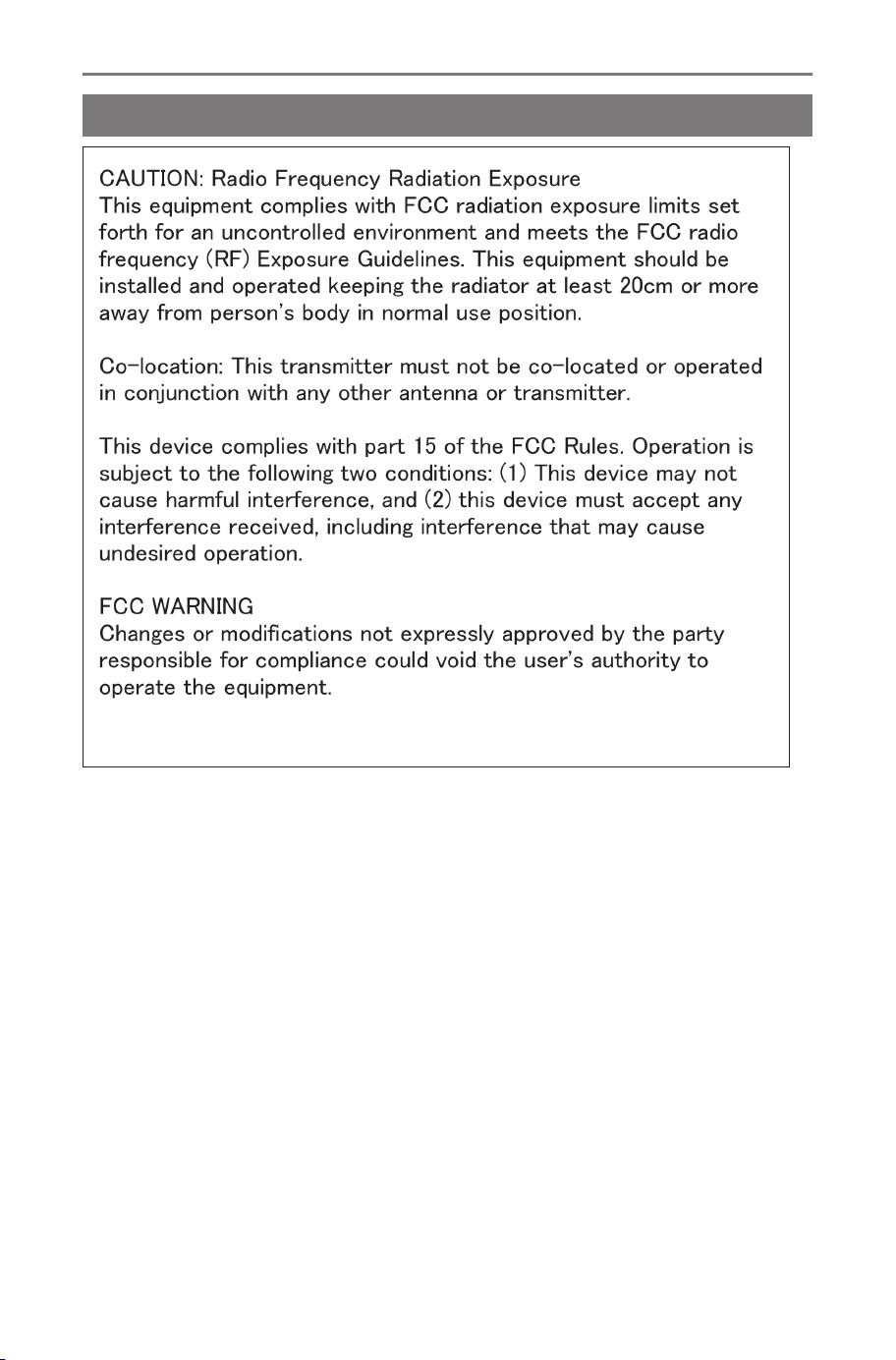
Certification
9-1. Appendix
310
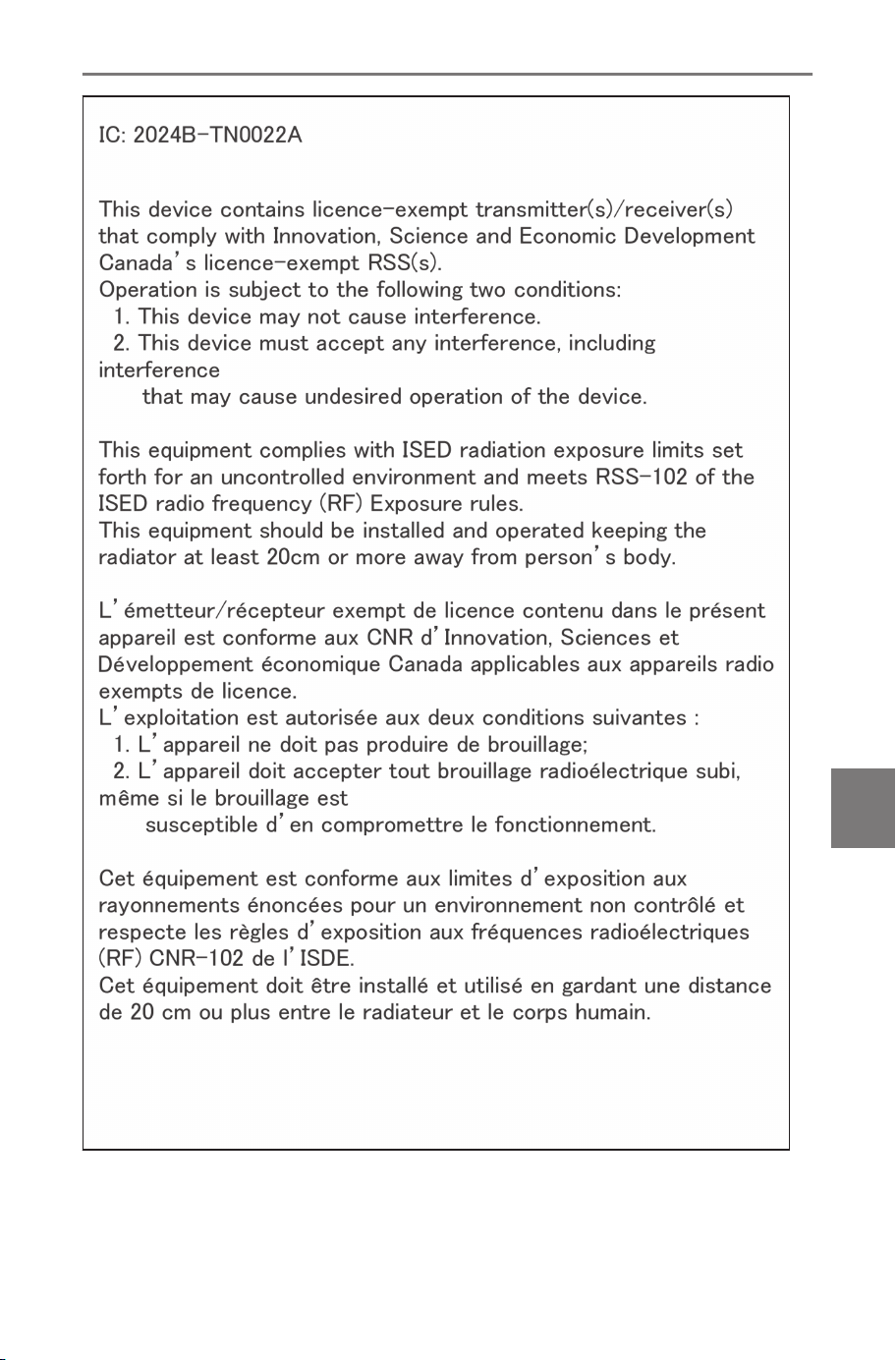
9-1. Appendix
311
9
Appendix
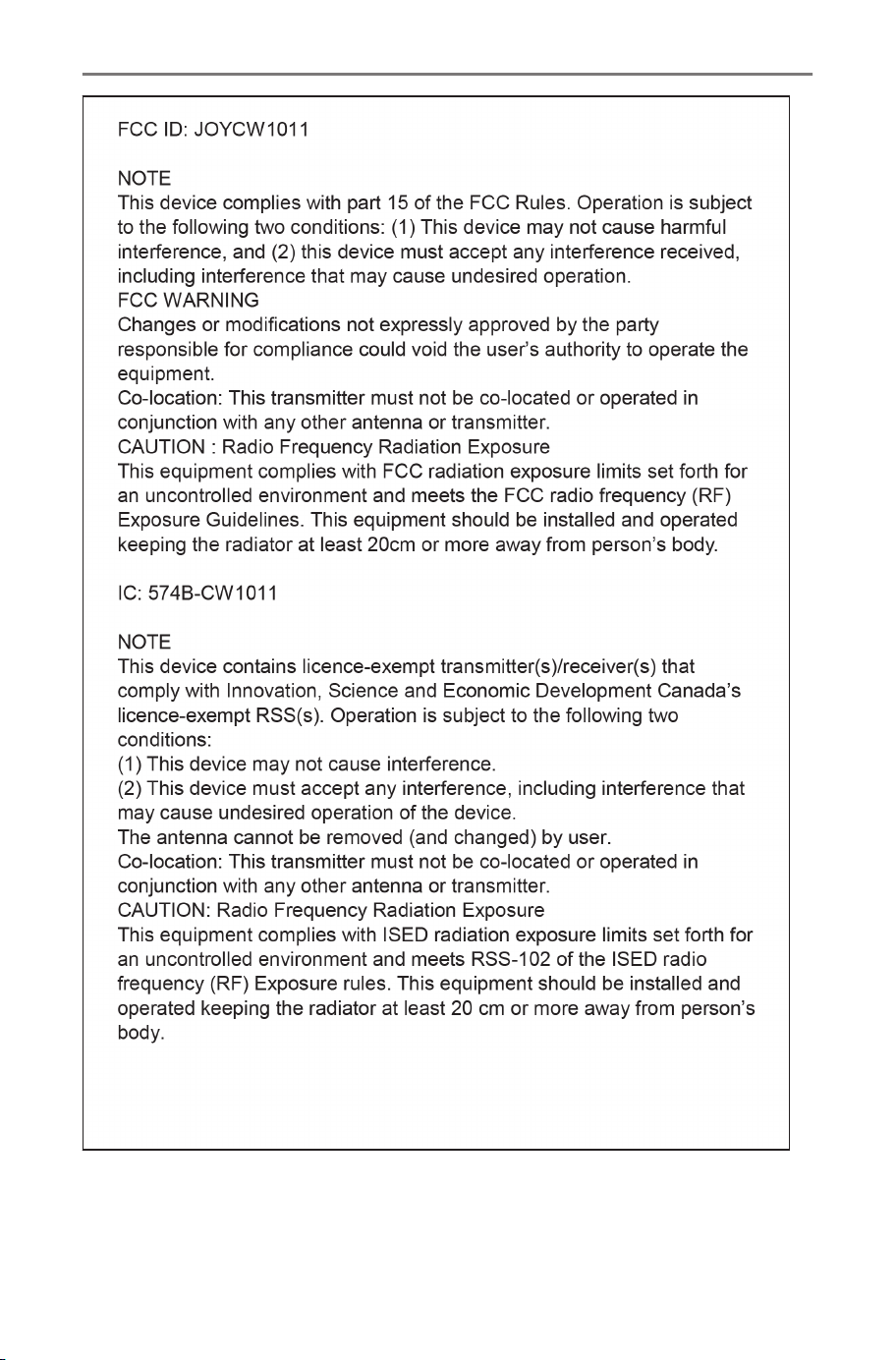
9-1. Appendix
312
9-1. Appendix
313
9
Appendix

Index
A
Adjusting
Brightness............................... 64
Clock....................................... 59
Contrast...................................64
Image quality........................... 64
System audio volume.............. 66
Adjusting the volume...............195
System audio volume.............. 66
AM radio....................................160
Android Auto
Playing Android Auto.............175
Registered smartphone......... 131
Unregistered smartphone......128
Answering calls/Receiving calls...
.............................................. 201
Apple CarPlay
Playing Apple CarPlay...........172
Registered smartphone......... 125
Unregistered smartphone......122
Audio.........................................160
Audio system on/off...................31
Auto sound levelizer.................. 66
B
Bluetooth
®
Setting as a primary device... 109
Bluetooth
®
audio......................178
Bluetooth
®
devices
Connect................................. 105
Delete.................................... 104
Register................................. 100
Setting as a secondary device....
..........................................110
C
Cellular phone
Connect................................. 105
Delete.................................... 104
Register................................. 100
Cleaning the camera......... 241,284
Clock settings.............................59
Compatible profiles....................99
Connect
Bluetooth
®
devices................105
iPod......................................... 34
USB Type-C port..................... 34
Wi-Fi
®
.................................... 113
Wi-Fi
®
Hotspot.......................116
Connected Services.................220
Contact data (Phone number)
Transfer................................. 212
D
Date and time settings...............59
Declined call............................. 206
Declining calls..........................203
Delete
Bluetooth
®
devices................104
Deleting data
User profile.............................. 56
Destination Assist....................148
Destination search .................. 143
E
Ending calls..............................209
Entering letters...........................26
Entering numbers...................... 26
Index
314

F
FM radio.................................... 160
Format information.................. 296
Full route map.......................... 151
G
General settings.........................59
Gracenote
®
............................... 296
H
Hands-free (Phone).................. 186
HD Radio™............................... 160
High resolution sound sources....
.............................................. 296
I
Information displayed on the map
screen ..................................142
Integrated Streaming............... 183
Intelligent Assistant system......35
iPod/iPhone.............................. 169
L
Language settings..................... 59
Listening to the radio...............160
M
Making calls
Favorites list.......................... 198
In-call.....................................207
Message................................218
Numeric keypad input............200
Outgoing or incoming call history
..........................................197
Registered contacts...............199
Making conference calls..........208
Map details screen..................... 83
Map option ............................... 141
Map screen................................. 27
Message....................................214
N
Navigation.................................140
Notifications settings.................62
O
Operating the map screen.........28
Operating the touch screen. 21,24
P
Panoramic view monitor..........248
Phone (receiving calls and re-
ceiver)...................................195
Playback
Android Auto..........................175
Apple CarPlay....................... 172
Bluetooth
®
audio................... 178
Integrated Streaming.............183
iPod/iPhone........................... 169
USB flash drive......................165
POI suggestion.........................147
Privacy lock................................ 73
R
Receiving second call/Call-wait-
ing......................................... 206
Register
Bluetooth
®
devices................100
Dealer information................... 72
Registering
Face identification................... 57
Replying to messages............. 216
Restarting the system................15
Index
315

Route guidance ....................... 153
Route option............................... 85
S
Screen display ON/OFF............. 64
Searching by keywords............. 44
Second call............................... 206
Sending new messages...........216
Settings
Apps settings...........................94
Bluetooth
®
device settings...... 90
Dealer information settings......72
General settings...................... 59
Multimedia system settings..... 52
Navigation system settings......82
Notifications settings............... 62
Panoramic view monitor settings.
..........................................274
Privacy lock............................. 73
Privacy settings....................... 73
Screen settings........................64
Software update...................... 76
Sound and media settings.......66
User profile settings.................56
Voice control settings.............. 71
Wi-Fi
®
Hotspot settings........... 88
Wi-Fi
®
settings........................ 86
SiriusXM radio..........................160
Smartphone
Connect................................. 105
Delete.................................... 104
Register................................. 100
Software update......................... 76
Starting route guidance ..........150
Status icons................................19
Steering switches
Audio....................................... 31
Hands-free (Phone)...............195
Voice control............................38
SUBARU Parking Assist monitor.
.............................................. 228
Displaying the guide screen.. 230
SubaruConnect Account........... 46
Switching phones.................... 210
T
Transfer
Contact data (Phone number).....
..........................................212
Troubleshooting
Hands-free (Phone)...............190
Panoramic view monitor........ 291
Radio..................................... 163
SUBARU Parking Assist monitor.
..........................................245
Typical voice guidance prompts ..
.............................................. 157
U
USB flash drive.........................165
User profile
Changing and linking a profile. 54
Linking a profile....................... 46
V
Voice commands........................40
Volume adjustment
Audio....................................... 31
W
Wi-Fi
®
Hotspot settings.............88
Index
316

Wi-Fi
®
settings........................... 86
Index
317

MEMO
318

MEMO
319

MEMO
320

