
Quick Start
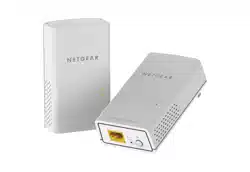
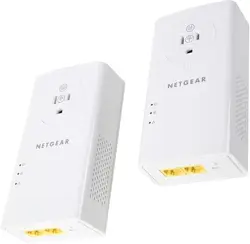
Powerline 2000 + Extra Outlet
Model PLP2000 (2 x PLP2000)

2
Package Contents
In some regions, a resource CD is included with your product.

3
Getting Started
Powerline adapters give you an alternative way to extend your network
using your existing electrical wiring. Plug two or more Powerline adapters
into electrical outlets to create a wired network connection. You can add
up to 16 adapters to extend your network.

4
Meet Your Adapter
Before you install your adapter, familiarize yourself with its LEDs, buttons,
and port.
Ethernet ports
Security/Factory Reset button
Power LED
Ethernet LED
Pick A Plug LED

5
Power LED Solid green. The electrical power is on.
Slow blinking green (blink every three seconds). The
adapter is in power saving mode.
Blinking green (blink every second). The adapter is in the
process of setting up security.
O. The adapter is not receiving electrical power.
Ethernet LED Solid green. The Ethernet port is linked.
O. No Ethernet connection is detected.
Pick A Plug LED The Pick A Plug feature lets you pick the electrical outlet with
the strongest performance, indicated by the color displayed
by the LED:
Red. Link rate < 50 Mbps (good).
Amber. Link rate > 50 and < 80 Mbps (better).
Green. Link rate > 80 Mbps (best).
O. The adapter did not find any other compatible Powerline
devices using the same encryption key.

6
Security/Factory
Reset button
Press and hold the Security/Factory Reset button for 1 to
3 seconds and then release it to create a secure Powerline
network.
Press and hold the Security/Factory Reset button for 8
to 10 seconds, and then release it to return the Powerline
adapter to its factory default settings.
Ethernet ports Two GbE ports. Use Ethernet cables to connect your wired
devices, including computers, WiFi routers, or game consoles,
to your Powerline network.
For information about the standards your adapter meets, see the user
manual.
7
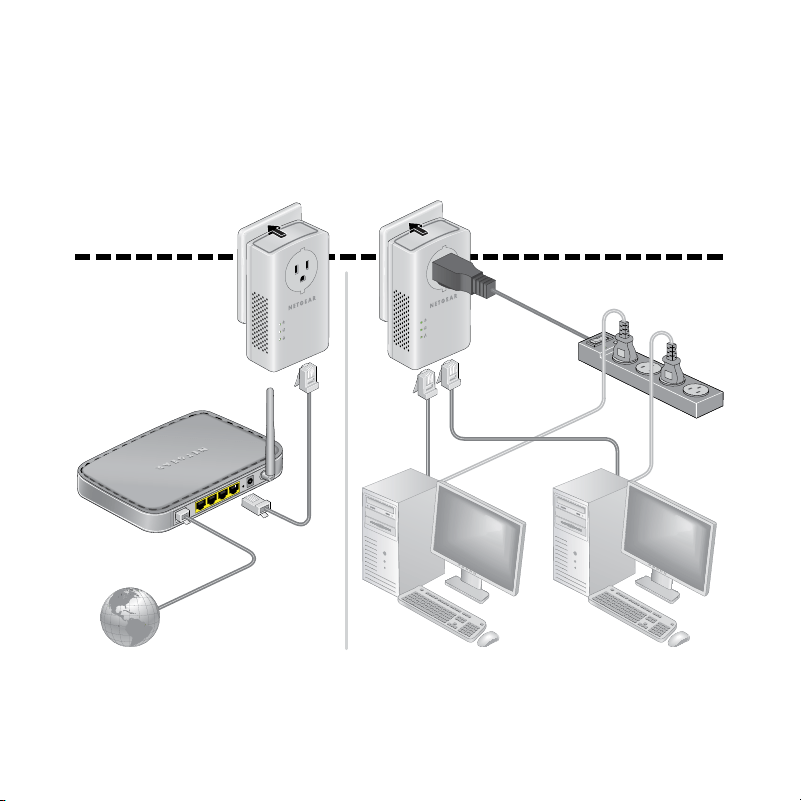
Install Your Adapters
Room 1 Room 2

8
Secure Your Network
Setting security is optional, but highly recommended.
¾ To create a secure network:
1. Plug in your new adapters.
2. Wait until the Pick A Plug LEDs are lit.
3. Press the Security/Factory Reset button on one of the adapters for
two seconds, and then press the Security/Factory Reset button on
one of the other adapters in your existing network for two seconds.
You must press both buttons within two minutes.
Once secure pairing completes successfully, the power LEDs and Pick
A Plug LEDs are lit and the adapter can access the internet.
4. If you are installing additional adapters, repeat Step 3 with one of the
secure adapters and one of the adapters that is not yet secured.
Note: The Security/Factory Reset button does not work in power
saving mode (see Troubleshooting Tips on page 10).
Warning: Do not press the
Security/Factory Reset
button on the
Powerline adapter until installation is complete and the adapters are
communicating with each other (indicated by the blinking Power
LED). Pressing this button too soon can temporarily disable Powerline
communication. If this occurs, press and hold the Security/Factory
Reset button for 8 to 10 seconds to return the Powerline adapter to its
factory default settings.

9
Add Adapters
To add adapters before you configure the Security Reset feature, just plug
them in and connect the adapters to your equipment.
¾ To add adapters to a Powerline network with security set:
1. Plug in and connect the new adapters.
2. On any of the adapters that are already a part of the secure network,
press and hold the Security/Factory Reset button for two seconds.
3. On the new adapter, press and hold the Security/Factory Reset
button for two seconds.
You must press both buttons within two minutes.

10
Troubleshooting Tips
Power LED is o. Make sure that power is supplied to the electrical
outlet, and that the Powerline devices are not plugged
into an extension cord, power strip, or surge protector.
Power LED is slowly
blinking green.
Power saving mode occurs when the Ethernet LED is
o. This can occur in the following circumstances:
• The Ethernet cable is unplugged.
• The device connected through the Ethernet cable
is turned o.
• The adapter is idle for 10 minutes.
It returns to normal mode within two seconds
aer the Ethernet link is up.
Pick A Plug LED is o. • If you already set network security, make sure
that all Powerline devices are using the same
encryption key. See the online user manual for
details.
• Press and hold the Security/Factory Reset
button for 8 to 10 seconds on each device to
return the Powerline adapter to its factory default
settings
.

11
Pick A Plug LED is
amber or red.
Something is interfering with communication between
adapters. To resolve this, do the following:
• Move the adapter to another outlet.
• Unplug devices that might be causing interference
such as surge suppressors and items with motors.
Ethernet LED is o. • Make sure that the Ethernet cables are working
and securely plugged into the devices.
• Press and hold the Security/Factory Reset
button on each Powerline adapter for 8 to 10
seconds to return the device to its factory default
settings.

October 2017
NETGEAR INTL LTD
Building 3, University Technology Centre
Curraheen Road, Cork, Ireland
NETGEAR, Inc.
350 East Plumeria Drive
San Jose, CA 95134, USA
Support
Thank you for purchasing this NETGEAR product. You can visit
www.netgear.com/support to register your product, get help, access the latest
downloads and user manuals, and join our community. We recommend that you use only
ocial NETGEAR support resources.
Trademarks
© NETGEAR, Inc., NETGEAR and the NETGEAR Logo are trademarks of NETGEAR, Inc.
Any non‑NETGEAR trademarks are used for reference purposes only.
Compliance
Si ce produit est vendu au Canada, vous pouvez accéder à ce document en français
canadien à
http://downloadcenter.netgear.com/other/.
(If this product is sold in Canada, you can access this document in Canadian French at
http://downloadcenter.netgear.com/other/.) For the current EU Declaration of
Conformity, visit
http://kb.netgear.com/app/answers/detail/a_id/11621.
For regulatory compliance information, visit
http://www.netgear.com/about/regulatory/.
See the regulatory compliance document before connecting the power supply.