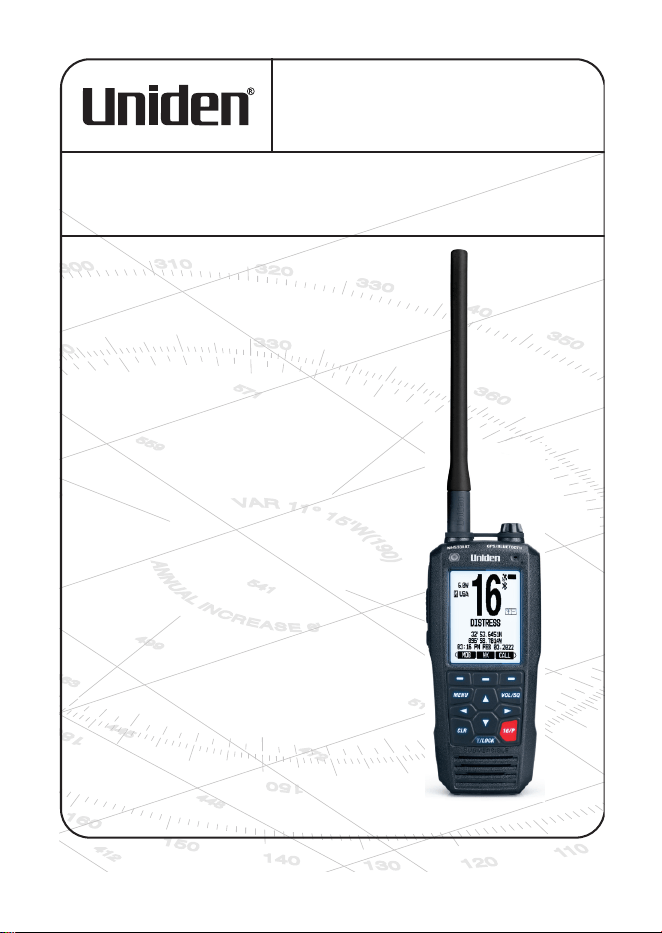
RADIO VHF MARITIME FLOTTANTE
OWNER’S MANUAL
GUIDE D’UTILISATION
FLOATING VHF MARINE RADIO
MHS338BT
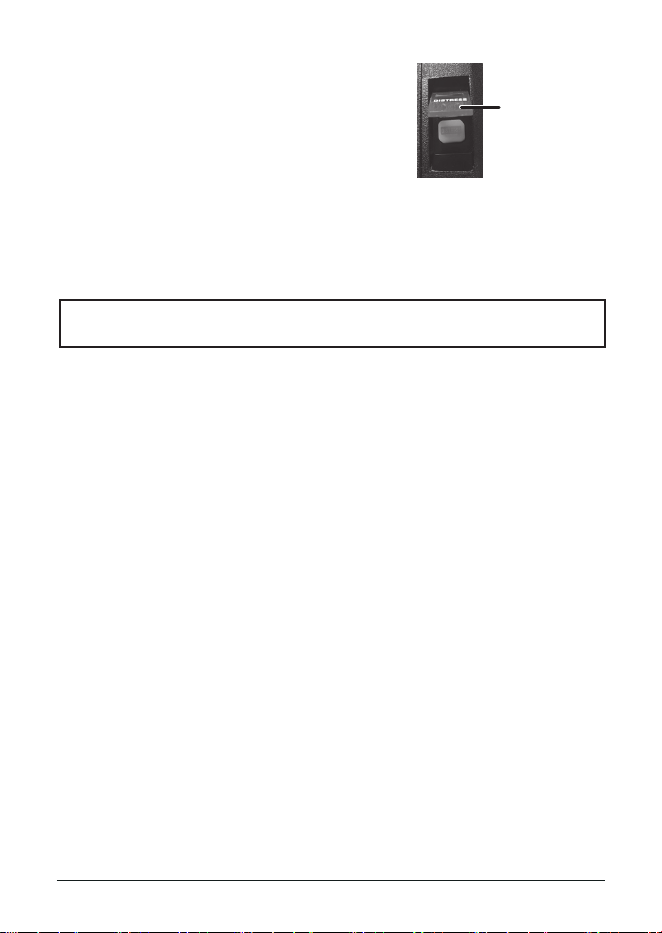
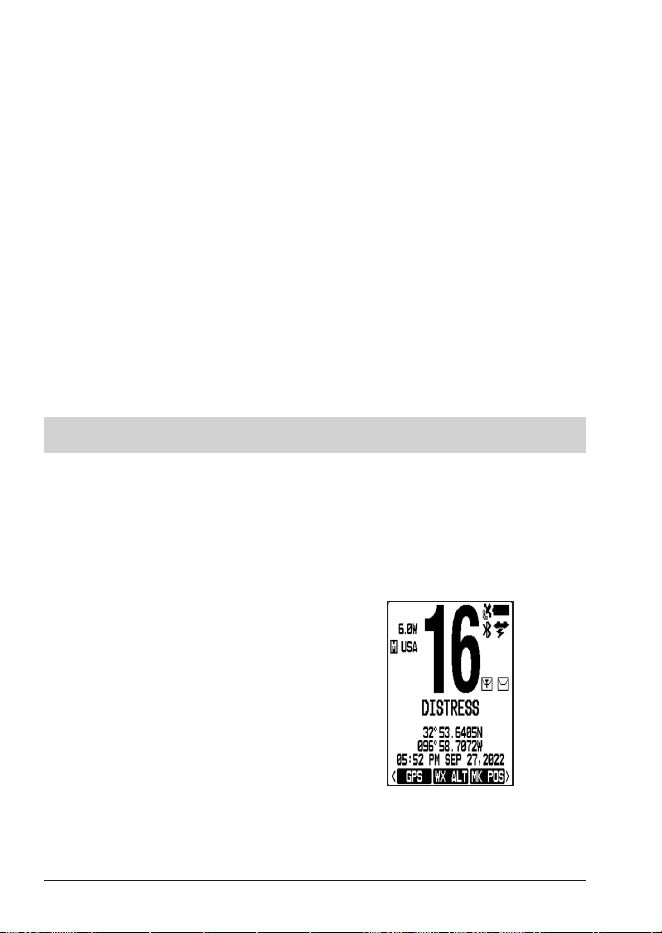
MAKING A DISTRESS CALL
Lift the red cover. Press and hold the DISTRESS
key
for three seconds. Your radio transmits
your ship’s location every few minutes until you
receive a response.
NOTE: If the radio displays
Enter User MMSI
, cancel the
automatic distress call and make a normal voice distress call.
Making a Voice Distress Call
Speak slowly - clearly - calmly.
For future reference, write your ship’s name & call sign here:
1. Make sure your radio is on.
2. Press the 16/P key to switch to Channel 16 (156.8 MHz). (If the corner of the
display does not show 16, press the 16/P key again until it does.)
3. Press the PUSH-TO-TALK key and say: “MAYDAY -- MAYDAY -- MAYDAY.”
4. Say “THIS IS
{name of your ship (three times)} and call sign/ship registration
number (once).
”
5. Repeat “MAYDAY
{name of your ship}
” once.
6. Tell where you are: (what navigational aids or landmarks are near, or read
the latitude and longitude from your GPS).
7. State the nature of your distress (e.g. are you sinking, medical emergency,
man overboard, on re, adrift, etc. ).
8. State the type of assistance you need (medical, towing, pumps, etc.).
9. Give number of persons aboard and conditions of any injured persons.
10. Estimate present seaworthiness of your ship (e.g. how immediate is the
danger due to ooding or re or proximity to shore).
11. Briey describe your ship, giving ship name (e.g. “Blue Duck is 32 foot cabin
cruiser, white hull, blue deck house”).
12. Say: “I WILL BE LISTENING ON CHANNEL 16.”
13. End message by saying “THIS IS
{name or call sign of your ship}
, OVER.”
14. Release the PUSH-TO-TALK key and listen.
If you do not get an answer after 30 seconds, repeat your call, beginning at step 3,
above.
Lift the red cover
and press the white
DISTRESS button
underneath.
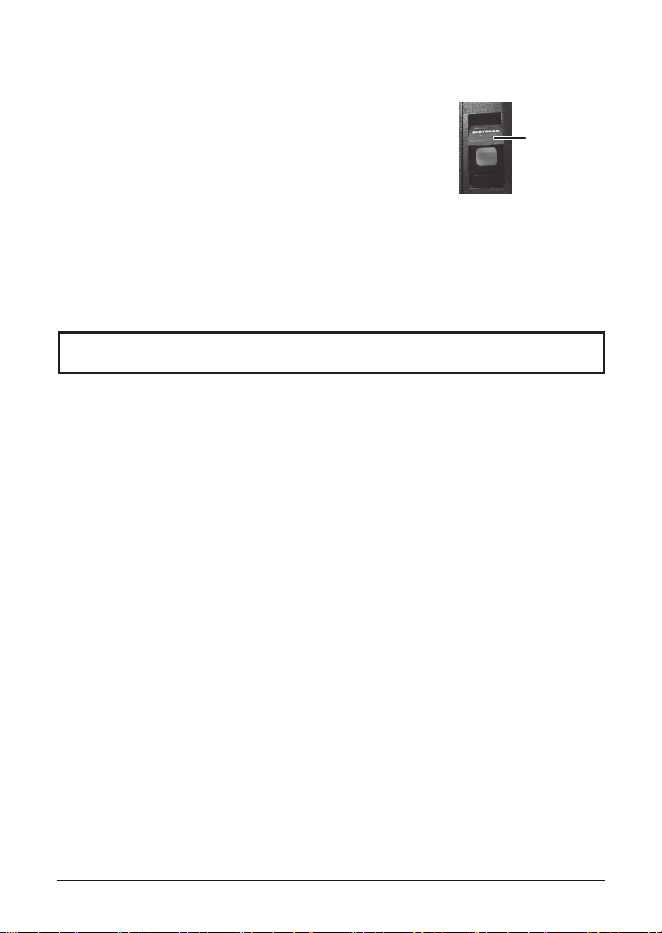
FAIRE UN APPEL DE DÉTRESSE
Soulevez le couvercle noir. Maintenez DISTRESS enfoncé
pendant trois secondes. Votre radio transmettra
l’emplacement de votre bateau toutes les quelques
minutes jusqu’à ce que vous receviez une réponse.
Remarque : Si la radio ache
Enter User MMSI
, annulez l’appel
de détresse automatique et eectuez un appel de
détresse vocal normal.
Faire un appel de détresse
Parlez lentement – clairement – calmement.
Pour toute référence ultérieure, écrivez ci-dessous le nom et l’indicatif d’appel de votre
bateau:
1. Vériez si votre radio est en marche.
2. Appuyez sur la touche 16/P an de commuter au canal 16 (156,8 MHz). (Si le canal
16 n’apparaît pas à l’achage, appuyez de nouveau sur la touche 16/P jusqu’à ce qu’il
soit aché.)
3. Appuyez sur le bouton Push-to-Talk et dites:“MAYDAY -- MAYDAY -- MAYDAY”.
4. Donnez l’identité de votre navire en disant : “ICI {nom de votre bateau (trois fois) ou
indicatif d’appel et le numéro d’identication de votre bateau (une fois)}”.
5. Dites “MAYDAY {nom ou indicatif d’appel de votre bateau} une fois”.
6. Donnez votre position : (quels sont les points de repère ou aides à la navigation près
de vous ou lisez les coordonnées de longitude et de latitude apparaissant sur votre
dispositif GPS).
7. Révélez la nature de votre détresse (par exemple, nous sommes en train de couler,
urgence médicale, un homme à la mer, un incendie, nous sommes à la dérive, etc.
8. Révélez la nature de l’aide désirée (médicale, remorquage, essence, etc.)
9. Donnez le nombre de personnes à bord et les conditions des blessés, s’il y en a.
10. Donnez la condition de navigabilité actuelle de votre navire, tel que le degré de
l’urgence par rapport une inondation, et une incendie.
11. Donnez une brève description de votre navire en donnant le nom du bateau (par
exemple, “Blue Duck est un yacht de croisière de 32 pieds, avec une coque blanche
et un roue bleu.).
12. Dites : “JE VAIS ÉCOUTER SUR LE CANAL 16”.
13. Terminez le message en disant “ICI {nom ou indicatif d’appel de votre bateau}, À
VOUS”.
14. Relâchez le bouton Push-to-Talk du microphone et écoutez.
Si vous n’obtenez pas de réponse après 30 secondes, répétez l’appel en
commençant à l’étape 3 ci-dessus.
Soulevez le
couvercle et
appuyez sur le
bouton DISTRESS
blanc en dessous.

Table of Contents
INTRODUCTION .......................E-3
FEATURES ................................E-3
WHAT'S INCLUDED .................. E-5
SETTING UP THE
HARDWARE .....................E-5
ATTACHING THE ANTENNA ....E-5
INSTALLING THE LITHIUM
ION BATTERY ......................E-5
USING THE ALKALINE
BATTERY TRAY ........................E-5
CONNECTING POWER ............E-6
MOUNTING THE CHARGER ... E-6
CHARGING THE BATTERY .....E-6
PARTS OF THE MHS338BT .....E-7
Front View ................................. E-7
Back View .................................E-8
Charger ..................................... E-9
NMEA Output Cable.................. E-9
HOW IT WORKS .......................E-9
IDLE SCREEN ...........................E-9
Display Icons and
What They Mean ...............E-10
TYPES OF SCREENS ............. E-11
USING THE POP UP
KEYBOARD ........................E-11
MENUS ....................................E-12
MAIN Menu .............................E-13
DISTRESS MESSAGE
Menu ...E-13
GENERAL SETUP
Menu .........E-14
RADIO SETUP
Menu ..............E-15
GPS
Menu ...............................E-16
WAYPOINT SETUP
Menu .......E-16
BLUETOOTH
Menu .................E-16
DSC SETUP
Menu ..................E-17
SET SCAN CH
Menu ...............E-18
ABOUT
Menu ..........................E-18
RESET (To Factory Defaults)
Menu .................................E-18
USING SOFT KEYS ................E-18
Assign Soft Keys .....................E-18
Soft Key Descriptions..............E-19
SETTING UP THE RADIO ......E-21
Set Backlight ..........................E-22
SET CONTRAST/
REVERSE (RVS) ................E-22
SET KEY BEEP .......................E-22
SET SOS STROBE ..................E-22
SET INACTIVITY TIMER .........E-22
SET KEY ASSIGNMENT ......... E-22
SET CHANNEL MODE ............ E-22
SET WEATHER RADIO ...........E-23
SET DUAL/TRIPLE WATCH....E-23
SET PRIORITY CHANNEL ...... E-23
SET SCAN PAUSE TIMER ......E-23
SET CHANNEL NAME ............E-23
SET NOISE CANCEL ..............E-23
SET RECEIVE AUDIO
PITCH ...................................E-24
SET LOCAL TIME ...................E-24
TURN ON BLUETOOTH..........E-24
OPERATING THE RADIO .......E-24
SETTING UP YOUR
MMSI NUMBER ..................E-25
To Enter Your MMSI Number ..E-25
SETTING THE SQUELCH
LEVEL ................................. E-25
Setting the UIC Channel
Mode ...................................E-26
Setting Key Lock ....................E-26
SCANNING RADIO
CHANNELS ........................E-27
To Save Channels for
Memory Scan ....................E-28

Monitoring Weather
Channels ............................E-28
To Set Weather (WX) Alerts .... E-28
To Program FIPS Codes ......... E-29
PRIORITY AND WEATHER
ALERT WATCH ...................E-30
Priority Watch .......................... E-30
Weather Alert Watch ...............E-31
DIGITAL SELECTIVE CALLING
FEATURES (DSC) ...............E-32
WHAT IS DSC? .......................E-32
MAKING DSC CALLS .............E-32
MANAGING DSC SETTINGS ..E-33
SETTING UP DSC INDIVIDUAL
DIRECTORY ............................E-34
Managing Individual
Directories .........................E-34
Managing Group Directories ... E-35
Calling an Individual Station....E-37
Calling a Group ....................... E-38
Calling All Ships ...................... E-38
Responding to Calls
(Individual/Group/
All Ships) ........................... E-39
Automatically Responding
to Calls ..............................E-40
Making a Test Call ...................E-40
DSC Call Logs ........................E-41
POSITION REQUESTS ...........E-43
Requesting a Position ............. E-43
Sending Your Position .............E-43
TEXT MESSAGES ...................E-44
To Send a Text Message .........E-44
AUTO POLLING ......................E-45
DSC SELF TEST .....................E-47
RECEIVING A
DISTRESS CALL ................ E-47
MAKING AN AUTOMATIC
DISTRESS CALL ..................... E-48
MOB Soft Key .........................E-49
BLUETOOTH ........................... E-49
Setting Up Bluetooth ............... E-49
GPS MENU .............................E-50
GPS OPERATION
OVERVIEW .........................E-50
GPS MENU ..............................E-50
NMEA FEATURES ..................E-52
Chartplotter Connection ....... E-52
NMEA Output .........................E-53
NAVIGATION ..........................E-53
WAYPOINTS AND ROUTES ...E-53
To Set Up a Waypoint .............E-53
To Set Up a Route................... E-55
ACCESSING NAVIGATION ..... E-57
To Start Waypoint Navigation ..E-57
To Start Route Navigation ....... E-59
PARAMETER SETTINGS ........E-59
NMEA Operation ..................... E-60
POSITION (POS)
DATA OUTPUT .................. E-60
MAINTENANCE AND
TROUBLESHOOTING .........E-60
SPECIFICATIONS ...................E-62
REFERENCE TABLES ........... E-63
Channel Descriptions and
What They Mean ...............E-63
MARINE RADIO CHANNEL
CHART ................................ E-64
WEATHER CHANNELS AND
FREQUENCIES (US, CAN,
AND INTL) ...........................E-68
EMERGENCY ALERT
(SAME) SYSTEM ................ E-69
Types of Events ...................... E-69
No Response Event Code ......E-71
REGULATIONS AND
SAFETY WARNINGS ...........E-71

Maritime Radio Services
Operation ...........................E-72
Basic Radio Guidelines .........E-72
RBRC INFORMATION ............E-73
COMPLIANCE ........................E-73
Three-Year Limited
Warranty ..............................E-75

E-3MHS338BT Radio Owner’s Manual
UNIDEN®
FLOATING VHF MARINE RADIO
MHS338BT
INTRODUCTION
Uniden's MHS338BT is a oating, hand-held class D DSC radio with an integrated GPS
receiver. It is also Bluetooth-capable so you can use Uniden's smartphone app (iOS and
Android) to set up the radio and to text message other VHF text message capable radios.
You can also enter other information such as DSC directory information.
FEATURES
Your radio provides the following key features:
x 10 weather channels available for monitoring
x All Channel Scan
x All marine VHF channels for the U.S., Canada, and international waters
x Backlight Level (O + 8 steps) and Backlight Color Select (White, Amber)
x Battery level display and low battery alert
x Channel Name. 16 character maximum
x Class D second receiver is dedicated to monitoring the DSC watch channel 70 to
ensure that no incoming messages are missed.
x Compass Display. Lets you determine the way you want the radio to display your
course - by showing your course and direction or by showing location on a north-
south-east-west display. Automatically auto-plots to a received DSC distress call.
x DSC. Lets you call other ships or groups using their unique identication code (MMSI).
This radio complies with International Class D DSC standards for handheld GPS/VHF
marine transceivers.
x Dual and Triple Watch operation. These dierent watch modes let you monitor up to
two Coast Guard Distress/Hailing channels and one weather channel along with one
regular marine channel.
x Emergency Channel (16) Monitoring. Check this emergency channel while
scanning..
x GPS (Favorite Position mode). Lets you save your current position as well as
manually enter other positions. You can save positions into a directory to return to
them as desired.
x High/LO power level select. Lets you boost the transmitter power from 1.0W to 2.5W
to 6.0W for added transmission distance.
x Inactivity Timer. Set timer to exit from the menu screen after 1, 2, 3, 5, 8, or 10
minutes of inactivity.
x Key Beep Control. O + 7 steps
x Key Lock. Locks keys to prevent accidentally changing channels or entering data.
x LCD Contrast Control. 15 Steps
x LCD and Key Backlight/Flashlight/SOS Strobe. Pressing the Light/Lock

E-4 MHS338BT Radio Owner’s Manual
( /LOCK) key initiates various light options (see page E-8).
x Memory Scan mode. Lets you save channels to memory and monitor them in quick
succession.
x MOB (Man Overboard). Lets you lock onto the current position when a Man
Overboard situation occurs. Water-activated automatic MOB is also featured.
x National Oceanic and Atmospheric Administration (NOAA) Weather Channel
watch. Sounds a warning tone when a hazard alert is issued.
x Navigation
– Waypoint Navigation (250 directory inputs maximum)
– Route Navigation (Maximum 10 directories, 10 Waypoints per directory)
– Man Overboard. Lets you lock onto the current position when a Man Overboard
situation occurs.
– Mark Position.
– Selectable Arrival, Display, and Ranges
x NMEA0183 Output. Lets you connect to an NMEA0183-compatible chartplotter.
x Selectable Backlight Timer. Lets you select the length of time the backlight will be
on.
x Scan Pause Timer. 1, 2, 3, 4, 5, or 10 seconds
x Soft Key Assignability
x SOS Strobe Light
x Squelch control. Open and 15 steps
x Submersible design. Complies with oating JIS8/IPX8 water-resistant standards,
which means the radio can be submerged in 4.9 feet of water for up to 30 minutes
without damage.
NOTES:
The radio will only meet this rating if fully assembled and all rubber seals and
bungs are well maintained and correctly tted. This means that the speaker
microphone bung is inserted, and the battery pack (or alkaline battery case) and
antenna are attached and securely fastened.
After your radio is submerged in water, the sound might be distorted. This
is because there is still water remaining in and around the speaker and
microphone. Scroll to and press the
SPKR
soft key; the radio sounds a tone to
clear excess water. The sound should return to normal.
If your radio is exposed to salt water, clean it thoroughly with fresh water and dry
it before turning it on.
The charger is not waterproof.
x Text Messaging. Text messaging through Uniden's Marine II app via Bluetooth
function.
x Water Removal Tone. Special tone to remove water from speaker.
E-5MHS338BT Radio Owner’s Manual
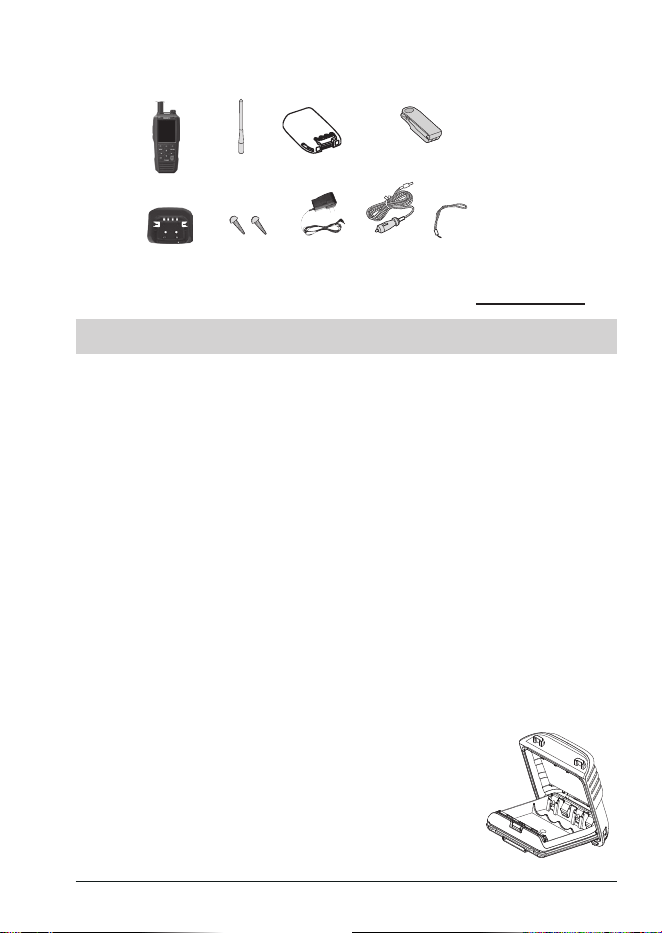
WHAT'S INCLUDED
NOTE: Some of the graphics in this manual may vary slightly from the actual product.
If any pieces are missing or damaged, contact Customer Service at www.uniden.com.
SETTING UP THE HARDWARE
ATTACHING THE ANTENNA
The antenna detaches from the radio for easy shipping or storage. To attach the antenna to
your radio, screw it tightly onto the anchor post at the top of the radio.
INSTALLING THE LITHIUM ION BATTERY
Your radio comes with a rechargeable Lithium-Ion battery; for shipping safety, the battery is
not installed at the factory.
1. Insert the hook on the Li-Ion battery into the notch at the top of the radio's battery
compartment.
2. Lower the battery until it rests at in the compartment.
3. Bring the battery latch up and snap it into place.
USING THE ALKALINE BATTERY TRAY
The radio also comes with an alkaline battery tray that holds four AAA-type alkaline
batteries (not included). You can use alkaline batteries as a backup for the Li-Ion battery so
you can still use your radio while your Li-Ion battery is recharging.
When using alkaline batteries, transmit power is limited to a maximum of 2.5W.
Follow these steps to use the alkaline battery tray:
1. Hold the lower part of the tray in one hand with the three battery contacts facing
down. Use your thumb to hold the notch on the lower part of the tray.
2. With your other hand, grip the upper part of the tray
and lift the cover open.
3. Align the batteries’ positive and negative terminals with the
Antenna
MHS338BT Radio
Charging Cradle
AC Adapter
DC Adapter
Lithium Ion
Rechargeable Battery
Not shown:
Alkaline battery case
NMEA0183 Output
Cable
Owner’s Manual
Belt Clip
Wrist Strap
Mounting Hardware
E-6 MHS338BT Radio Owner’s Manual
drawing on the tray and snap each battery into place.
4. Insert the two hooks on the lower part of the tray into the
notches on the cover; close the cover. (The cover ts
snugly but you should not have to force it closed.)
5. Install the alkaline battery tray in your radio just as you do
the Li-Ion battery (see page E-5).
NOTE: The tray is designed to prevent the accidental charging of alkaline batteries.
CONNECTING POWER
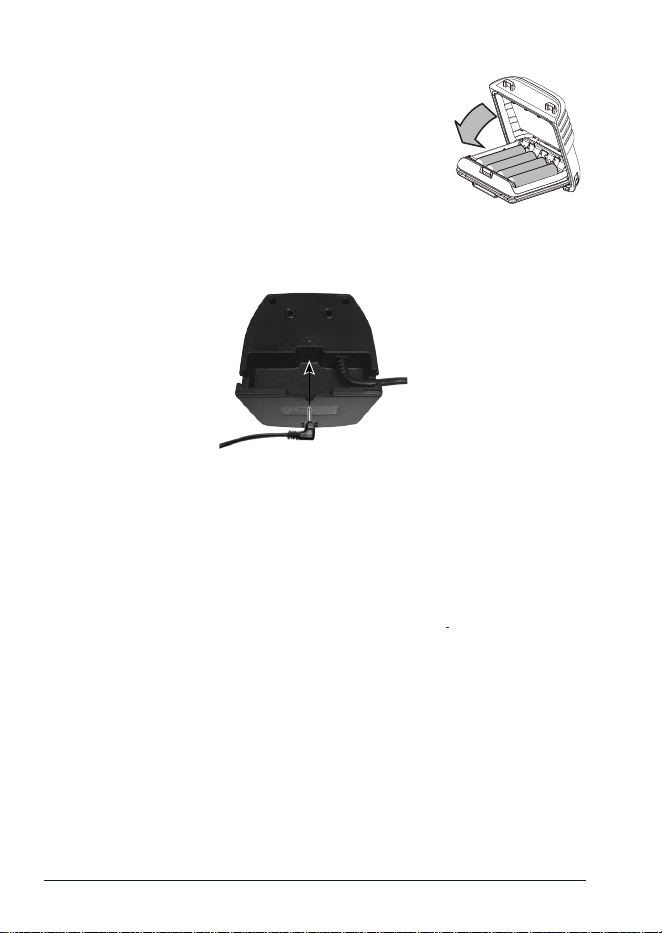
Plug the AC or DC Power Adapter into the charger through a slot on the bottom of the
charger.
Insert power adapter plug
into the adapter jack.
MOUNTING THE CHARGER
Connect power to the charger before mounting the charger into position.
You can mount the charger on any at surface.
1. Use the two holes at the base of the charger as a template to mark the drill holes.
2. Using a 1/8-inch (3 mm) drill bit, drill two holes 1/2 inch (13 mm) deep.
3. Use the provided screws to attach the charger to the surface.
NOTE: The charger must be mounted at least 2 feet (24 inches) from the compass to
prevent magnetic interference with either device.
CHARGING THE BATTERY
Your radio includes a charger and a rechargeable battery pack. You can recharge the
battery pack in the charger by itself or installed in the radio. Being able to charge the battery
pack by itself is especially useful if you purchase a second rechargeable battery; you can
always have a charged battery available.
E-7MHS338BT Radio Owner’s Manual
Charging the Radio with Baery Pack Installed
1. Insert the radio into the charger, making sure that it slots into the
guide bars and the CHARGE LED on the charger turns red
(charging).
2. The battery is fully charged when the LED turns green.
Charging the Baery Pack Only
1. Unlatch the battery pack from the radio case. Remove it.
2. Insert the battery pack into the charger, making sure that it
slots into the guide bars and the CHARGE LED on the charger
turns red (charging).
3. The battery is fully charged when the LED turns green.
Cautions:
x Use only the battery pack and charger supplied with this radio.
Using a dierent charger or battery pack can damage the radio and create a risk
of re or shock.
x The charger is not waterproof. If the charger falls into the water, unplug it before
attempting to remove it from the water. After you remove the charger from the
water, please contact Customer Service (see the back cover page for contact
information).
x Wipe o dirt or shake water from your radio before placing in the charger if your
radio gets dirty or wet.
Important Notes on Charging the baery
x Charge the battery fully before using the radio.
x Don’t use the charger when the ambient temperature is below 32° F (0° C) or above
113° F (45° C).
x If the radio is powered down, the battery can charge in about ve hours. If the radio is
powered on, the battery takes longer to charge.
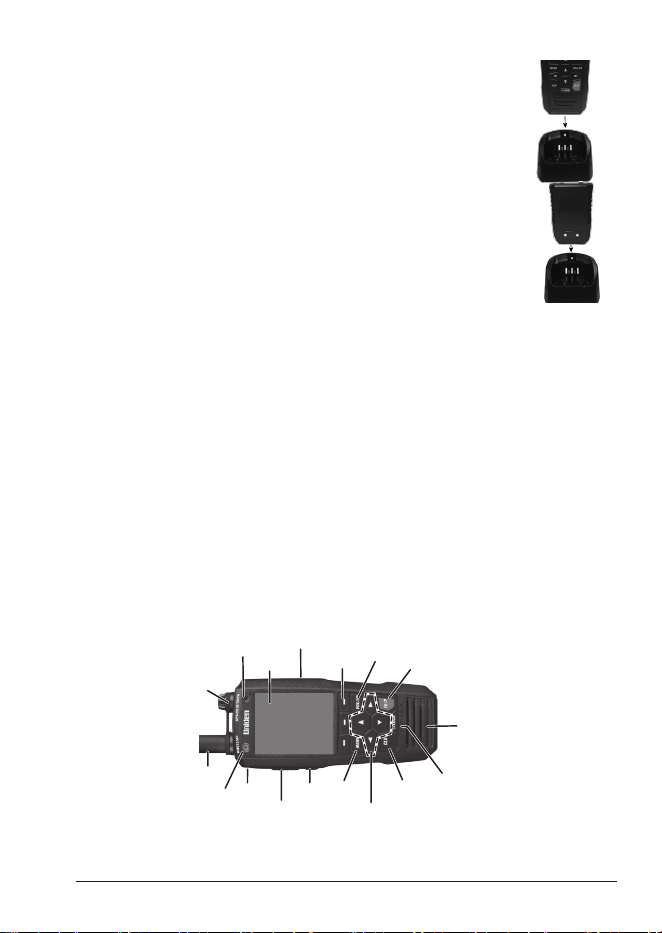
PARTS OF THE MHS338BT
Front View
Screen
Ext. Speaker/
Mic jack
Antenna
Power
PTT
MON
Menu
Direction
Arrows
CLR
Light/Lock
Speaker
16/P
VOL/
SQ
Soft
Keys
LED
DISTRESS
Microphone
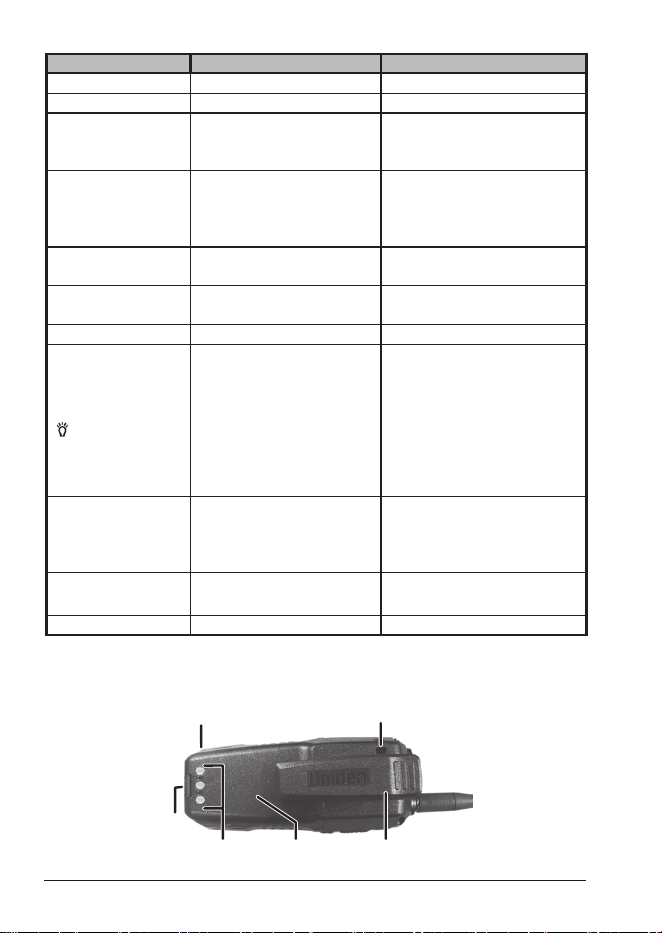
E-8 MHS338BT Radio Owner’s Manual
Key Press to... Press and hold to...
POWER N/A Turn radio on and o.
PTT (Push-to-Talk) N/A Transmit on current TX power.
MON (Monitor)
Briey open squelch to listen
to the current channel.
Enter into Squelch Open mode
and listen to the current channel.
Press again to exit.
Soft Function Keys (3)
Activate function assigned to
that key. Function displays on
screen above key. See page
E-18.
NA
MENU
Open the menus or return to
the previous menu item.
NA
◄ / ▲ / ► / ▼
- Move curser left, up, right, or
down on a screen.
NA
CLR Returns to the IDLE screen. NA
Light/LOCK
( /LOCK)
- Press once to activate the
LCD and key backlight.
- Press twice to activate LED
steady on (Flashlight).
- Press three times to activate
the SOS strobe light.
- Press a fourth time to turn
the LED and backlight o.
Lock/unlock key input to prevent
input errors.
16/P
Cycle through call channel,
channel 16, priority channel,
and back to the starting
channel.
NA
VOL/SQ
Press once to adjust volume.
Press twice to adjust squelch.
DISTRESS Activate DISTRESS screen. Send out distress signal.
Back View
Belt clip
Battery
Battery charging
contacts
Battery
latch
Wrist strap slot
Water Sensors
(both sides)
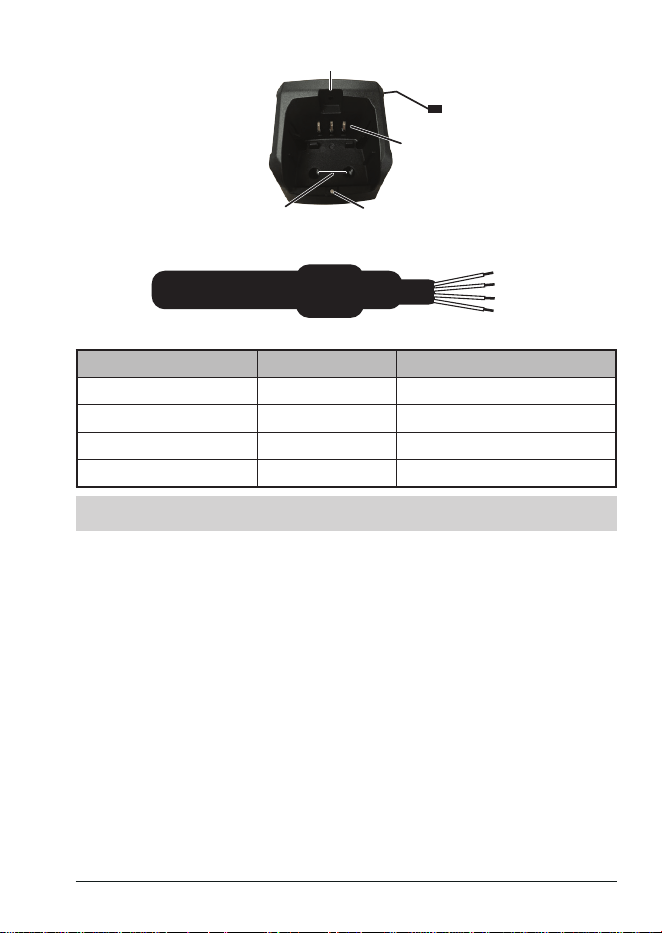
E-9MHS338BT Radio Owner’s Manual
Charger
NMEA Output Cable
Wire Color Description Connects to...
White NMEA Out (+) NMEA Data In (+) on Chartplotter
Brown NMEA Out (-) NMEA Data In (-) on Chartplotter
Yellow NC
Black NC
HOW IT WORKS
The MHS338BT uses a 3-part operating structure: Menus, Soft Keys, and a pop-up
keyboard. These elements work with each other to quickly set up and operate your radio.
x Menus - Press the MENU key to access the menus (see page E-12).
x Soft Keys - The soft keys relate to the three keys on the bottom of the screen. Many of
these keys can access functions that are set up through the menus (see page E-18).
x Pop-Up Keyboard - Some of the menus and soft keys require alphanumeric input; the
radio brings up various keyboards depending on the input required. You can change
the keyboard from alphanumeric characters to special characters.
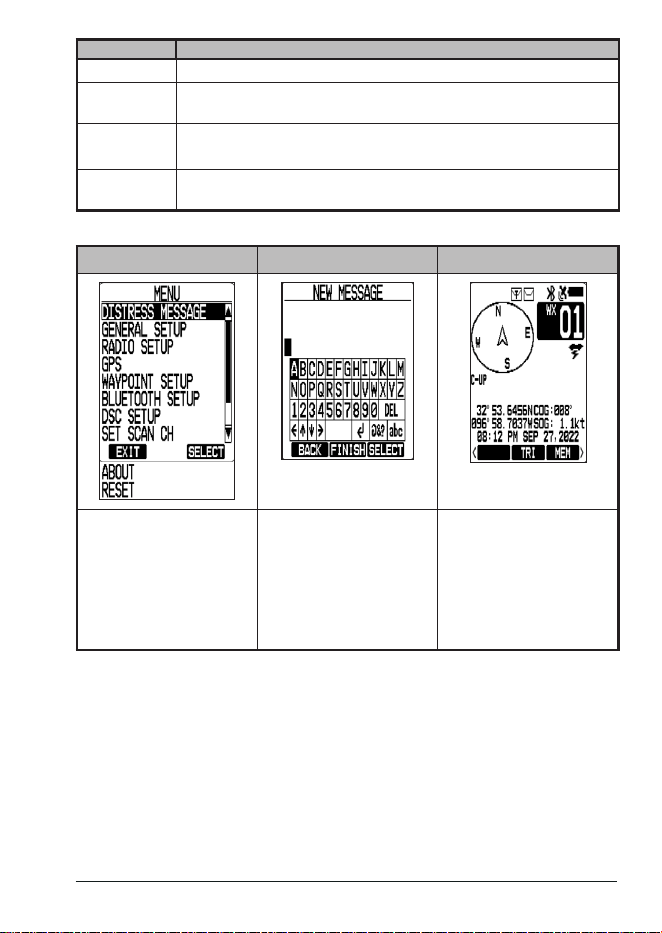
IDLE SCREEN
The Idle screen shows dierent information depending on what you are doing. Not all icons
display on every screen. These dummy Idle screens (Channel and Weather Channel)
display many of the possible icons. The table below shows possible icons and what they
mean.
Charging
contacts
Charge LED
Screw holes
Screw hole
NMEA0183
Out
White
Brown
Yellow
Black
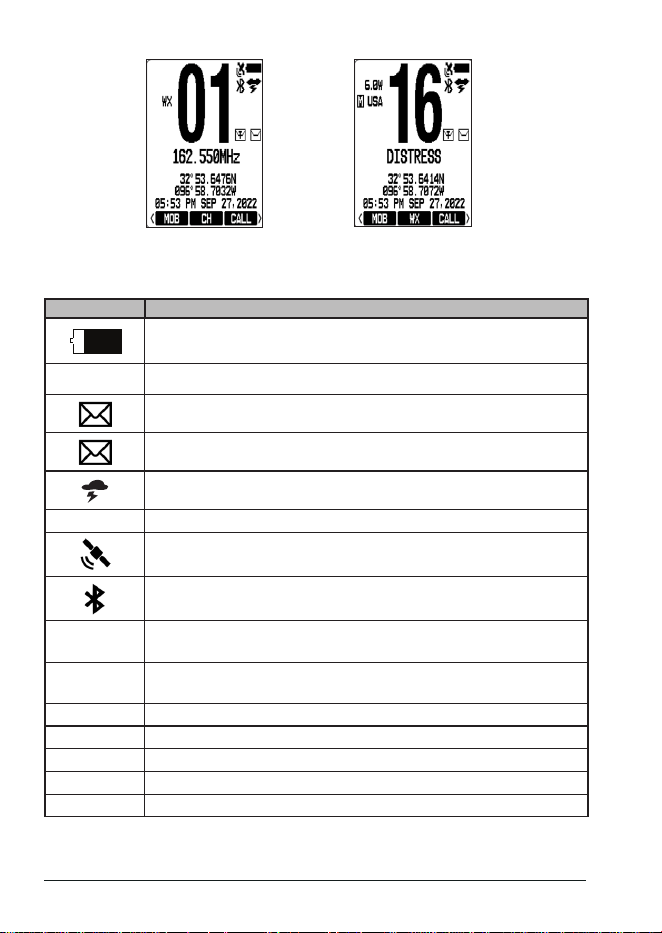
E-10 MHS338BT Radio Owner’s Manual
Weather Channel Screen Channel Idle Screen
Display Icons and What They Mean
Icon What it means
Battery level
USA
Channel mode (USA, INTL, or CAN). Does not display in Weather Mode.
T
Displays when there are unread messages in the Text Message Log.
Displays when there are unread messages in the DSC Log.
Displays when Weather Alert is activated.
ALT
Displays when a weather alert is received.
Flashes when acquiring; solid when acquired.
Displays when Bluetooth is turned on.
1.0W, 2.5W,
or 6.0W
Power output. Does not display in Weather Mode.
TX or BUSY
Indicates Transmitting (TX) or Receiving (BUSY). TX is disabled in
Weather mode and does not display.
Various Text Channel Name
Soft Key #3 Name of soft key (see page E-18).
Soft Key #2 Name of soft key (see page E-18).
Soft Key #1 Name of soft key (see page E-18).
GPS Data Latitude, Longitude, Time, and Date at current position.
E-11MHS338BT Radio Owner’s Manual
Icon What it means
WX
Displays when Weather mode active. Does not display in Channel Mode.
MEM
Displays when a channel is saved into memory. Does not display in
Weather Mode.
TRI
(or DUAL)
Displays TRI (Triple) or DUAL (Dual) watch mode as set in Menus. Does
not display in Weather Mode.
Channel
Number
Current channel number.
TYPES OF SCREENS
MENU SCREEN KEYBOARD SCREEN COMPASS SCREEN
Various menus let you
access radio settings
and functions using a
combination of controls,
such as the ▲, ▼, ►, and
◄ keys or dynamic soft key
options that appear.
Keyboard screens appear
when a setting requires
a text entry. Use the ▲,
▼, ►, and ◄ keys and
dynamic soft key options
that appear with the
keyboards to enter text.
The compass screen
appears when you press
the COMP soft key. Its
appearance will vary
depending on your unique
radio settings.
USING THE POP UP KEYBOARD
When you need to enter text, a digital keyboard pops up. "Type" on this keyboard by using
the ▲, ▼, ►, and ◄ keys on the radio's keypad to move a cursor through the keyboard.
Choose
SELECT
to select that character and move to the next letter.
x The
ABC
/
abc
key switches between capital and lower case letters.
x Select the
@&?
key to switch to the special character keyboard. Select
ABC/abc
to
switch back to the alphanumeric keyboard.
x After using the ▲, ▼, ►, and ◄ keys on the radio's keypad to select a letter, choose
SELECT
to "type" the letter. The letter then displays on the screen.
x Select the ◄ and ► keys to move the cursor backwards or forwards in the entry to
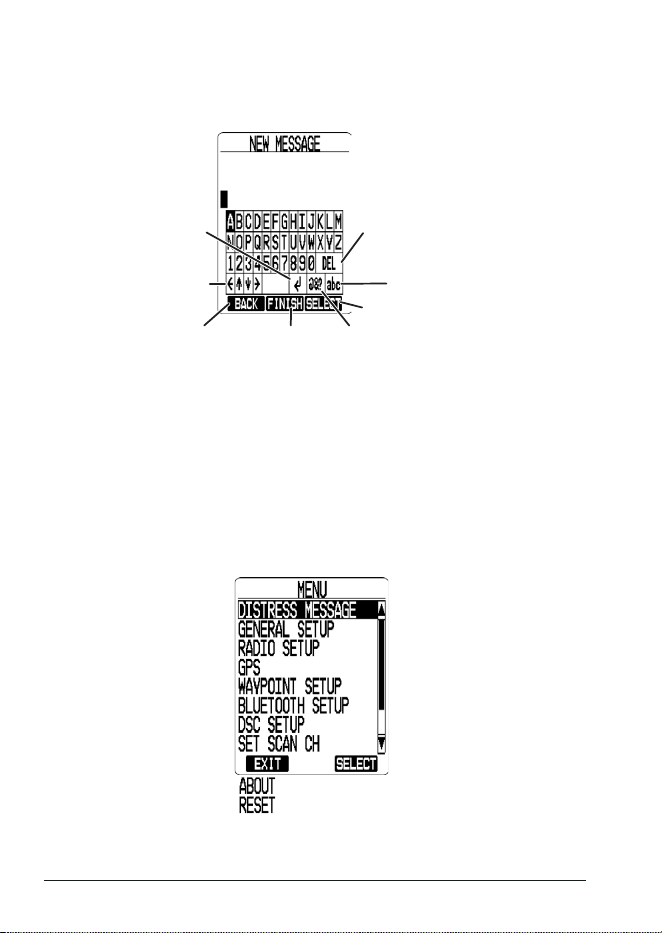
E-12 MHS338BT Radio Owner’s Manual
add a letter, etc.
x Select
ENTER
to move the cursor to the next line.
x Select
DEL
to delete the character to the left of the cursor.
NOTE: Keyboard layout may change slightly depending on previous selections.
Switch between all capital
letters and lower case letters
Use ▲, ▼, ◀, and ▶ on
the radio keypad to
move between letters.
Switch to special
character keyboard
Go to
previous screen
Varies with screen
type. Can be
CONFIRM, NEXT,
etc.
Select character chosen
Move cursor to
previous or next letter
or up/down a row
Delete character to
the left of the cursor
Next line
MENUS
Various menus let you establish guidelines and parameters for sending and receiving calls.
Menus also let you set your radio’s characteristics such as brightness, code selection, and
contrast.
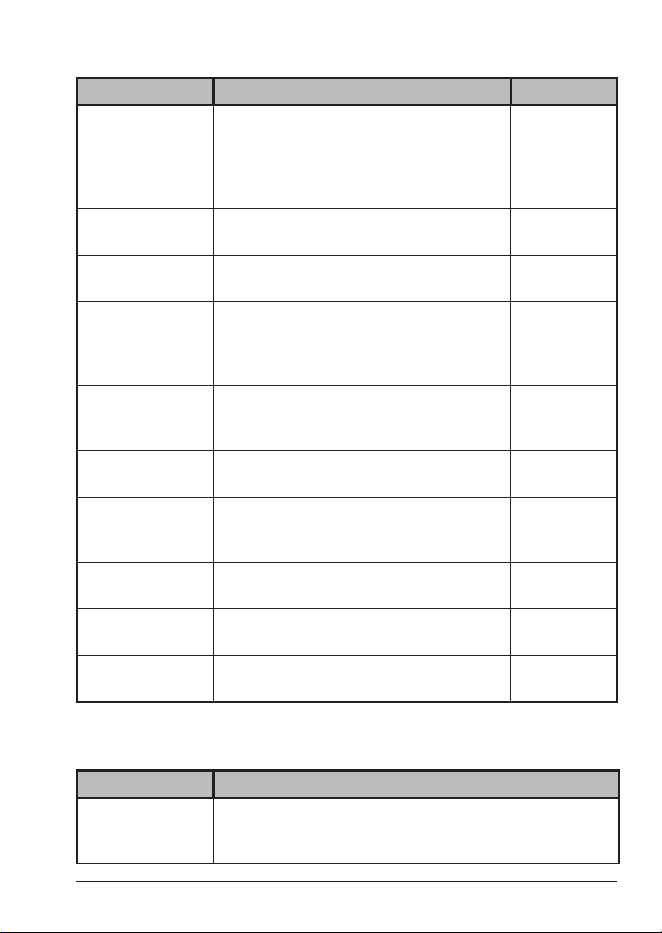
The MENU key accesses menus that let you set the way your radio operates.
Use the UP ( ▲) and DOWN ( ▼ ) keys to scroll through the menu options. Choose the
SELECT
soft key to select and go to that menu.
E-13MHS338BT Radio Owner’s Manual
MAIN Menu
MENU DESCRIPTION REF. PAGE
DISTRESS
MESSAGE
Opens a submenu to select a distress
message type to transmit when you press the
radio's DISTRESS button. See inside front
cover of this manual for detailed instructions on
how to make a distress call.
Page E-13
GENERAL SETUP Allows basic radio conguration setup such as
backlight and key beep functions, etc.
Page E-14
RADIO SETUP Accesses settings for radio functions, such as
priority and weather alert watches.
Page E-15
GPS Your GPS system provides more than just your
specic location. You can determine power-
saving options, measurement increments, and
time settings.
Page E-16
WAYPOINT SETUP Waypoints (landmarks) mark specic points
between two locations. They serve as
directional indicators.
Page E-16
BLUETOOTH
SETUP
Accesses basic conguration of Bluetooth
functions.
Page E-16
DSC SETUP Accesses settings for Digital Selective Calling
functions, such as setting up contacts for ship-
to-ship and group communications.
Page E-17
SET SCAN CH Lets you turn scanning on or o for specic
channels. (Default = O)
Page E-18
ABOUT Displays the model number, software and
hardware versions and MMSI number.
Page E-18
RESET (To Factory
Defaults)
Resets factory defaults, except for the MMSI
number.
Page E-18
DISTRESS MESSAGE
Menu
Select a distress message type to transmit when you use the DISTRESS key on the side of
the radio. See page E-48 for information on how to select and send a distress message.
MENU ITEM DESCRIPTION
UNDESIGNATED Send this message type when you, your crew, and/or your ship
are in clear danger and there is no time to search for a more
inclusive designation to use.
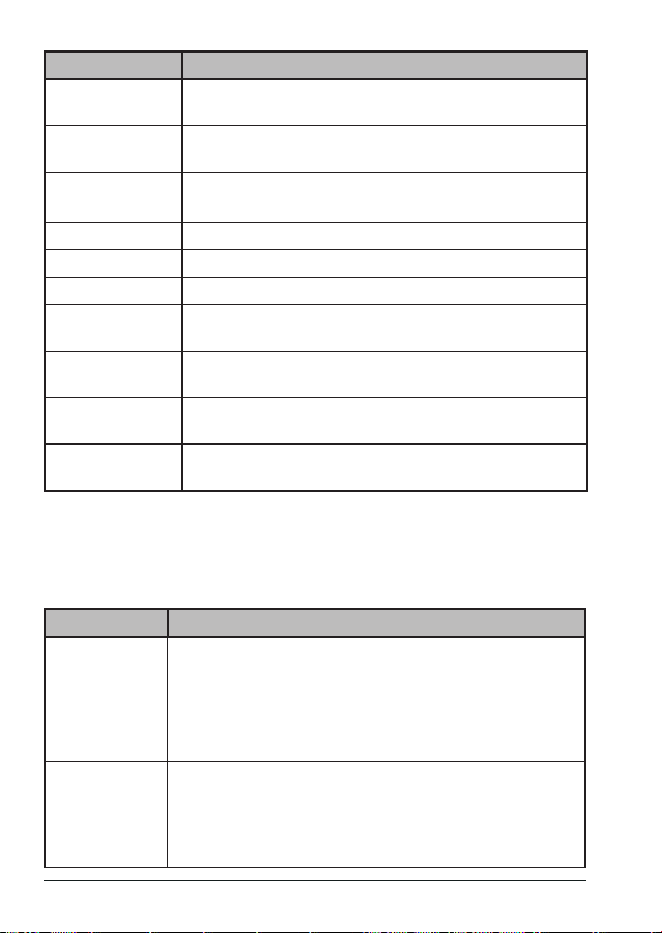
E-14 MHS338BT Radio Owner’s Manual
MENU ITEM DESCRIPTION
FIRE, EXPLOSION Send this message type if there has been an explosion or a re
on the ship and you are in immediate danger.
FLOODING Send this message type if your ship is taking on water and you
are in immediate danger.
COLLISION Send this message type if your ship has collided with another
ship or obstruction.
GROUNDING Send this message type if the ship has run aground.
CAPSIZING Send this message type if the ship is capsizing.
SINKING Send this message type if the ship is sinking.
ADRIFT Send this message type if the ship is adrift and unable to
navigate on its own.
ABANDONING
SHIP
Send this message type if you and the crew must evacuate the
ship.
PIRACY Send this message type if your ship is under attack or
unauthorized boarding.
MAN OVERBOARD Use this message type if someone has gone overboard and you
are unable to assist/locate them.
Distress messages are always transmitted on channel 70 at maximum RF power (6W).
NOTE: Since CH70 is a DSC-only channel, you cannot select it with the CH button.
GENERAL SETUP
Menu
You can set up how your radio operates through the
GENERAL SETUP
menu. (Refer to
page E-21 for detailed radio setup procedures.)
MENU ITEM DESCRIPTION
BACKLIGHT Set how bright and what color the backlight is and how long the
backlight stays on (see page E-22).
- Backlight level: O, 1 - 8 (Default = 6).
- Backlight Color: White or Amber
- Backlight Timeout: 5 sec, 10 sec, 30 sec, 1 min, 5 min, or Always
On
CONTRAST/RVS Set how dark the screen images are against the background.
Contrast levels are 1 - 15 (Default = 6). (See page E-22.) The
contrast level changes as you scroll through the options. Soft keys
change to
BACK
,
RVS
, and
SELECT
.
Press
RVS
to reverse the background and foreground contrast.
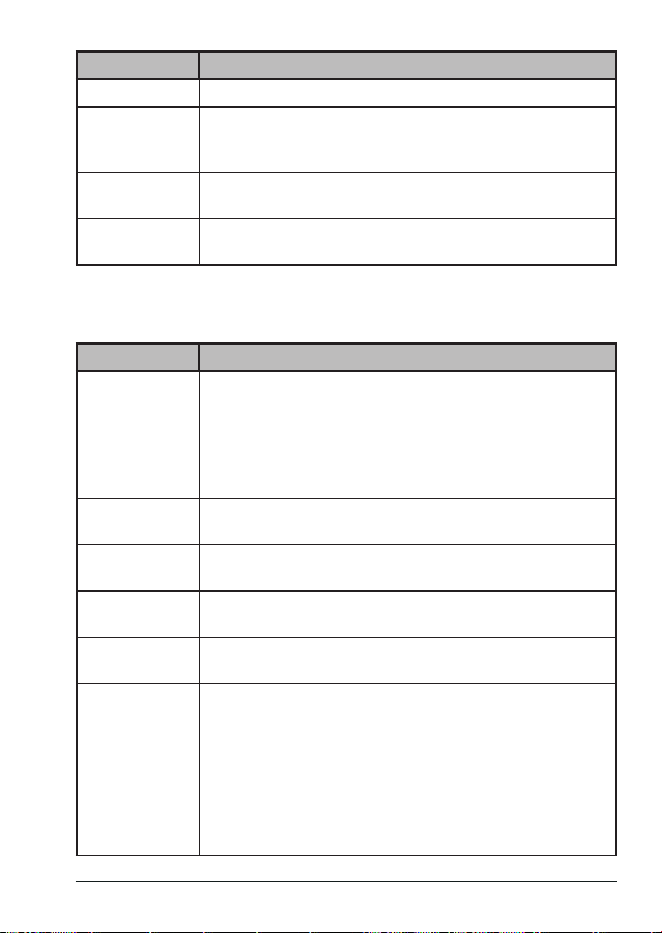
E-15MHS338BT Radio Owner’s Manual
MENU ITEM DESCRIPTION
KEY BEEP Select a key beep volume level (1 - 7) or turn key beep o.
SOS STROBE The LED on the front of the radio acts as a strobe light. Set water
activation and timeout duration here. Timeout durations are: 10 sec,
20 sec, 30 sec, or 1 min.
INACTIVITY
TIMER
Set how long the radio remains inactive before it times out. Timeout
lengths are: 1, 2, 3, 5, 8, or 10 min.
KEY
ASSIGNMENT
Reassign soft key functions to dierent soft keys. (See page E-18
for details.)
RADIO SETUP
Menu
Use the RADIO SETUP menu to ne tune how the radio will operate. For example, you can
rename channels, set channel modes, etc.
MENU ITEM DESCRIPTION
CHANNEL
MODE
Setting the UIC Channel mode (USA/CAN/INTL)
You can select marine channels for the USA, Canada, or
International waters.
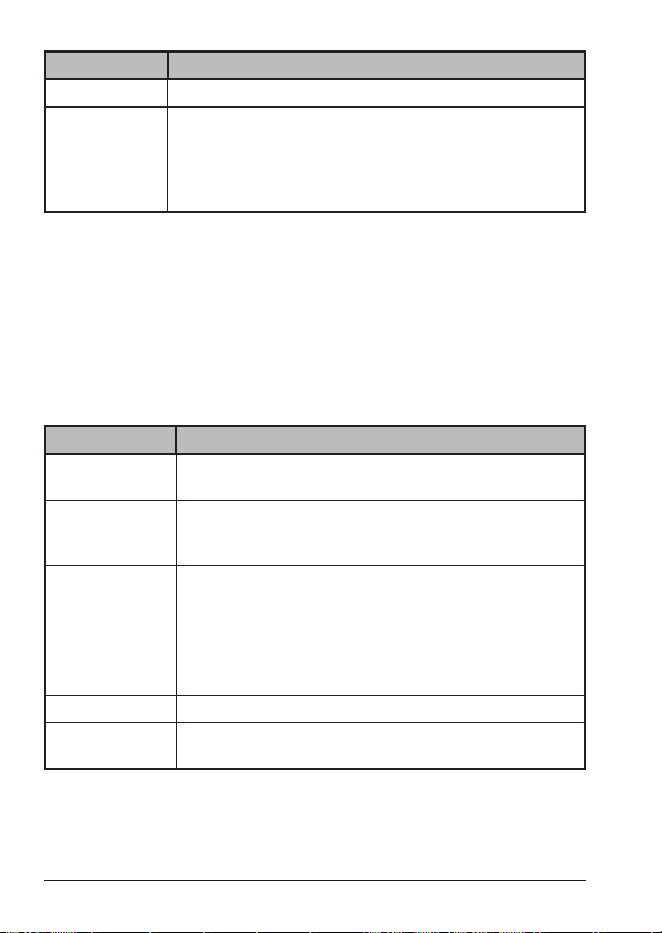
1. Press MENU, then select
RADIO SETUP/CHANNEL MODE
.
The
CHANNEL MODE
screen displays
2. Select
USA
,
CAN
, or
INTL
and press
SELECT
soft key.
WEATHER
RADIO
Turn weather alerts on or o (see page E-28) and add, edit, or
delete S.A.M.E. FIPS codes (see page E-29).
DUAL/TRI
WATCH
Toggle between Dual and Triple Watch activation (see page E-30).
PRIORITY
CHANNEL
Select a channel to be the priority channel for Triple Watch and
EMG mode. (See page E-30.)
SCAN PAUSE
TIMER
Set how long scanning will pause after the channel is cleared. Scan
Pause durations are: 1, 2, 3, 4, 5, or 10 sec.
CHANNEL
NAME
Rename a channel.
1. Press MENU, then select
RADIO SETUP/CHANNEL NAME
.
The
CHANNEL NAME
screen displays
2. Use the ▲ and ▼ keys to select a channel. Then press
RENAME.
3. The
CHANNEL NAME
text edit screen displays. Enter
the new channel name using the ▲, ▼, ►, and ◄ keys.
Press SELECT after each letter entry and then SAVE when
nished.
E-16 MHS338BT Radio Owner’s Manual
MENU ITEM DESCRIPTION
NOISE CANCEL Activate noise cancelling for received or transmitted signals.
RECEIVE AUDIO
PITCH
Set receiving audio pitch.
- Normal
- Mid Range
- High Boost
- Low Boost
GPS
Menu
The GPS section on page E-50 provides an overview of the GPS menu options and how
they work.
WAYPOINT SETUP
Menu
Waypoints (also called landmarks) mark specic points in traveling between locations. They
serve as directional indicators. For example, once you reach a specic waypoint, you need
to adjust your course to reach the next waypoint (and, as you continue, your destination).
See page E-53 for details on setting up waypoints.
You can also create a route using specic waypoints saved in the Waypoint Directory. See
page E-55 for details on creating and using routes.
MENU ITEM DESCRIPTION
WAYPOINT
DIRECTORY
Add, edit, and delete a Waypoint's name, latitude, and longitude.
ROUTE
DIRECTORY
This menu uses the waypoints created in the Waypoint Directory
to create a navigation course (route) between starting and ending
points. (See page E-55.)
ROUTING
METHOD
Select
AUTO
or
MANUAL
to determine how the vessel navigates
to the next destination in the route.
AUTO - When the vessel arrives at the destination, it
automatically displays the next destination in the route.
MANUAL - When the vessel arrives at the destination, it prompts
for the user to manually select the next destination.
DISPLAY RANGE Sets the distance displayed on the Compass screen.
ARRIVAL ALARM Enter the distance at which you want the radio to alert you that
you are close to the destination.
BLUETOOTH
Menu
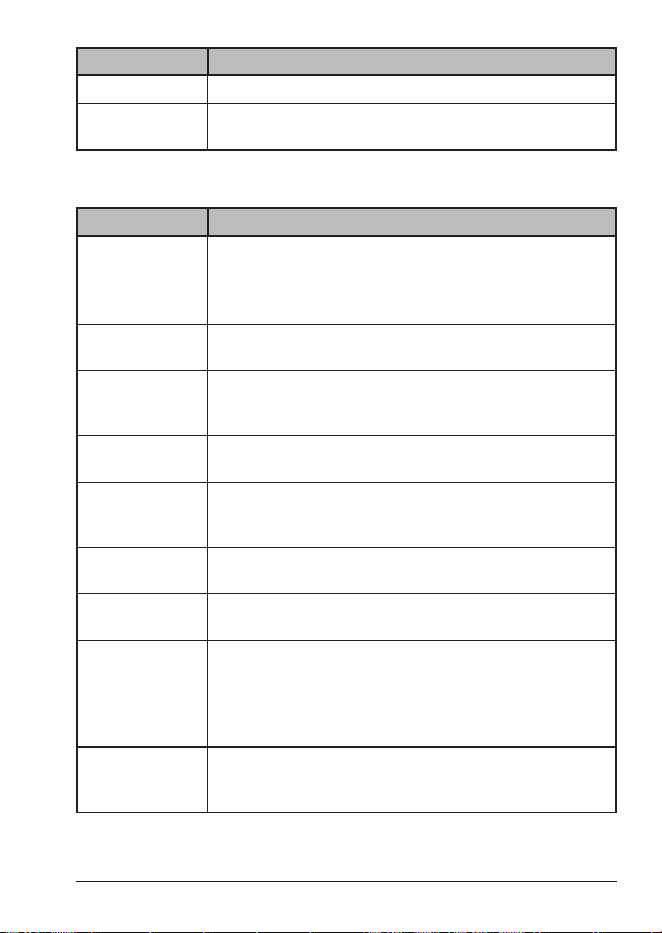
Smart phones can discover your radio when you turn Bluetooth on with this menu. You can
also change your radio's broadcast identier (name).
NOTE: BT Radio Set on the TXT soft key menu can also turn the Bluetooth function
on and o.
E-17MHS338BT Radio Owner’s Manual
MENU ITEM DESCRIPTION
BT RADIO Turn the Bluetooth function on and o.
FRIENDLY NAME Create a name for your radio; this will identify you when you use
the UNIDEN Marine II app (see page E-50).
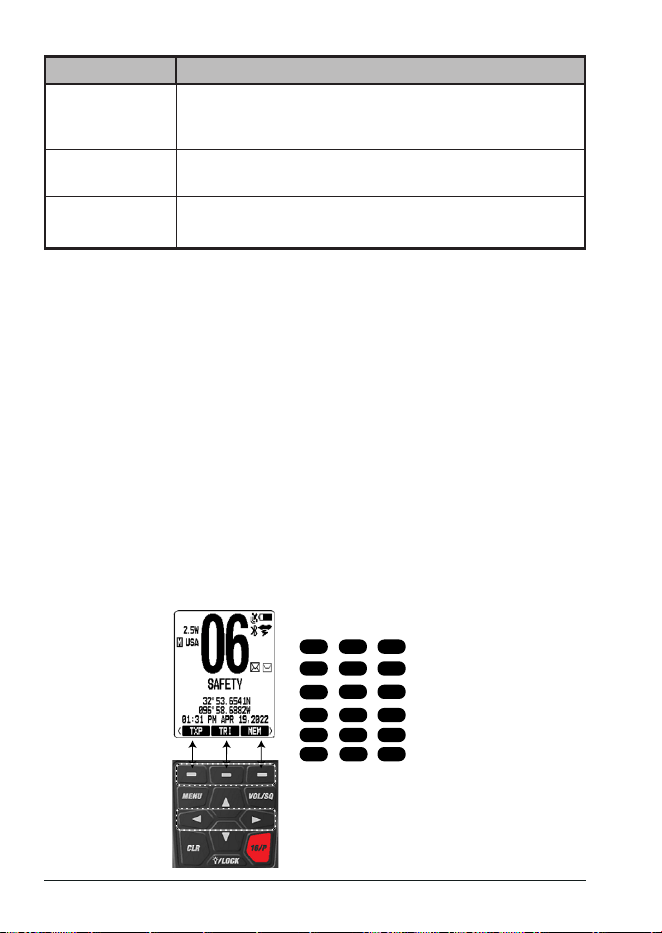
DSC SETUP
Menu
You can congure your DSC operation through this menu.
MENU ITEM DESCRIPTION
RADIO MMSI
NUMBER
Displays the radio's 9-digit MMSI number if it was set at initial
start-up.
Allows MMSI number entry if it was not set at initial start-up (see
page E-21).
CURRENT
POSITION
Select
CURRENT POSITION
to verify your current position or to
enter it manually.
INDIVIDUAL DIR. Create an individual directory entry for a vessel by using the
vessel's MMSI number and a unique name. Edit and delete these
entries (See page E-34.)
GROUP
DIRECTORY
Create a Group MMSI number and share it with other ships to
create a Group (see page E-35.)
INDIVIDUAL
REPLY
Set whether incoming individual calls, position requests, and
test calls receive an automatic acknowledgement or must be
acknowledged manually.
INDIVIDUAL ACK Select
ABLE
to allow individual acknowledgement messages to
be automatically sent or
UNABLE
to prevent them from sending.
INDI. CALL RING Set the amount of time a call will ring before it times out. Options
are 5 sec, 10 sec, 15 sec, 1 min, or 2 min.
AUTO MOB SET Turn Auto MOB on and o.
If the radio falls into the water and Auto MOB is ON, the radio
displays MOB information and the strobe light ashes. If Auto
MOB is OFF, the radio still ashes the strobe light but does not
collect MOB data.
WAIT FOR POS
FIX
Set how long the radio waits to transmit a distress call without
valid position data. Options are 15 sec, 30 sec, 45 sec, 1 min, 2
min, or 5 min.
E-18 MHS338BT Radio Owner’s Manual
MENU ITEM DESCRIPTION
AUTO POLLING
TIME
When Auto Polling is activated, set the interval for sending or
receiving location information. Options are 30 sec, 1 min, 2 min,
3 min, or 5 min.
AUTO POS
POLLING
Set
AUTO
POSITION REQUEST
or
AUTO
POSITION REPORT
.
DSC ALARM
SETUP
Mutes specic DSC alarm types.
NOTE: Distress calls cannot be muted.
SET SCAN CH
Menu
Use this menu to select channels to be included in a memory scan.
NOTE: Select Reset to change all scan channels to OFF.
ABOUT
Menu
This menu displays the radio's MMSI number and the current SW and HW versions.
RESET (To Factory Defaults)
Menu
Using this menu resets the unit to factory defaults, except for the MMSI number and the
SW/HW version. Select
YES
to conrm the reset and restart the radio. Otherwise, select
NO
to cancel.
USING SOFT KEYS
Menu operations can set up the radio's conguration and databases. Soft keys use that
information to perform quickly accessed procedures. For example, you can add ships to call
(name and MMSI numbers) through MENU/
DSC SETUP/INDIVIDUAL DIRECTORY
. Then
select
CALL/INDIVIDUAL CALL
through the soft keys and the ship you added through the
menus displays.
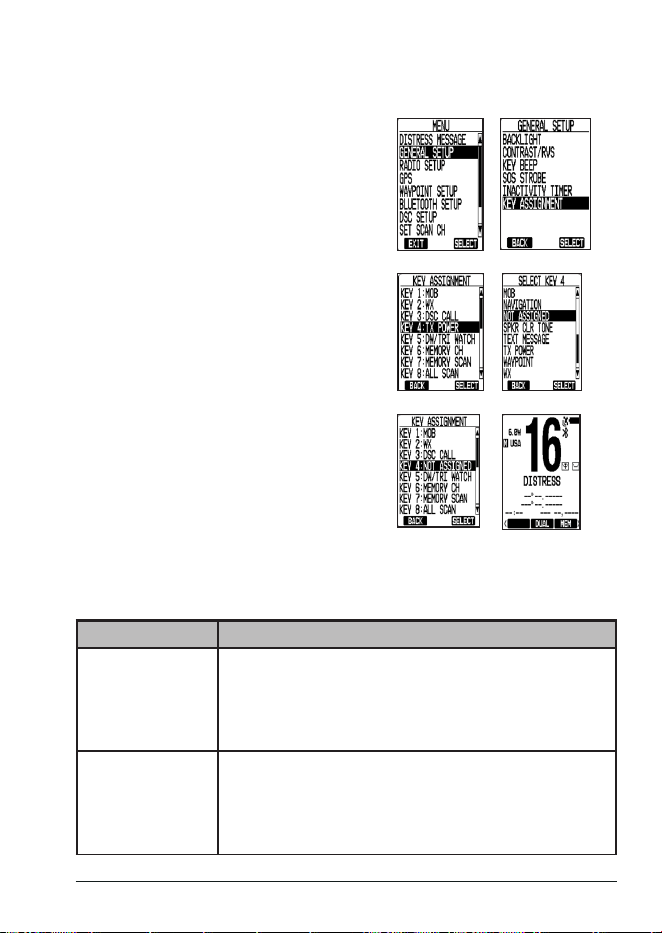
Assign So Keys
Default; Scroll Right
Scroll Left Scroll Right
Default Soft Key Order
WXMOB CALL
TXP
MEM
TRI
MEMSCN
WPT
Scroll Right
Scroll Right
Scroll Right
Soft Keys
Soft Key
Operation
TXT
BACKLT
MMSI
Scroll Right
SPKR
GPS
WX ALT
Scroll Right
MK POS
NAVI
ALLSCN
COMP
T
E-19MHS338BT Radio Owner’s Manual
This graphic shows the default soft key assignment and then changing the default soft
key 4 to "Not Assigned" (blank). You can change soft key assignment to group your more
frequently used functions together.
1. Go to MENU/
GENERAL SETUP
/
KEY
ASSIGNMENT
. The
KEY ASSIGNMENT
screen displays the key number and
default key assignment.
2. Scroll to the key whose function you
want to reassign and press
SELECT
. The
SELECT KEY X
screen displays options
for that key.
3. Scroll to the option you want for that
key then press
SELECT
. The
KEY
ASSIGNMENT
screen displays again with
the key's new assignment displayed.
4. Repeat Steps 2 and 3 to assign other soft keys. Press
BACK
when nished
with key assignments.
So Key Descripons
Soft Key Description
MOB Man Overboard. The GPS automatically marks your current
location as MOB and displays the latitude, longitude, time, BRG
(Bearing to Destination), and DST (Distance to Destination),
saved in the Waypoint directory as MOBXXX. The saved
position can be used as a waypoint.
WX Select the WX soft key to display the last WX channel accessed;
while scrolling through weather channels, the WX soft key
changes to CH. The screen displays the Weather channel/
frequency and time. Press ▲ and ▼ to scroll through weather
channels. Select CH to return to the last marine channel.

E-20 MHS338BT Radio Owner’s Manual
Soft Key Description
CALL The CALL soft key opens a
CALL
menu. You can use this menu
as a “shortcut” to make dierent kinds of calls, access DSC logs,
and set Auto Polling.
NOTE: Some call types use the information previously set
up in the menus to congure the call parameters.
For example, if you select
INDIVIDUAL CALL
through
the CALL soft key, a list of ships that were set up
through MENU/
DSC SETUP/INDIVIDUAL DIRECTORY
displays.
You can also manually enter the other party's location.
TXP Transmit Power. This soft key changes the transmit power from
6.0W to 2.5W to 1.0 Watts. The transmit power level displays on
the LCD screen.
NOTE: If you try to change transmission power output but
the channel is limited to 1.0W or less by regulation,
the radio sounds an error tone and stays at 1.0W.
TRI Triple/Dual Watch. This soft key activates or deactivates Dual or
Triple watch mode that was assigned through the menus. See
page E-30 to assign the watch mode through the menu and to
activate the mode through the soft keys.
Dual Watch monitors the current channel and CH16.
Triple Watch monitors the current channel, CH16, and the
Priority channel.
NOTE: The soft key only turns the currently set mode on
or o; it does not switch between TRI and DUAL
modes.
MEM Memory. Press this soft key to save the current channel into
memory. The M icon displays.
Press it again to remove the current channel from memory; the
M icon does not display.
MEMSCN Memory Scan. Select the MEMSCN soft key to start or stop
scanning channels saved into memory.
MEMSCN
displays on the LCD.
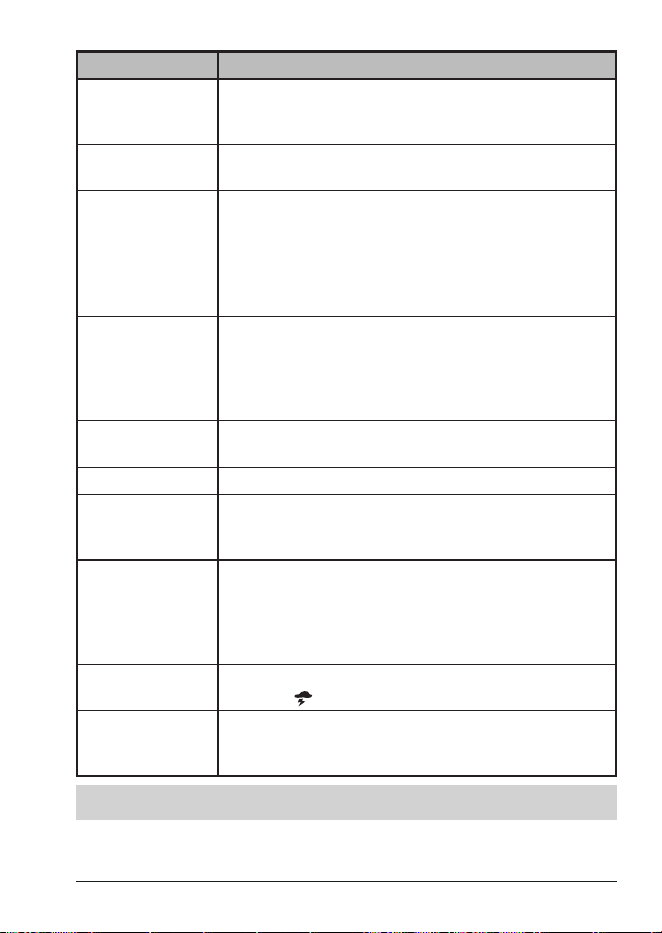
ALLSCN All Scan. Select the ALLSCN soft key to start or stop scanning
all channels.
A-SCAN
displays on the LCD.
E-21MHS338BT Radio Owner’s Manual
Soft Key Description
COMP The COMPASS (COMP) soft key activates the compass screen.
C-UP
(Course Up) or
N-UP
(North Up) displays on the LCD.
Select
C-UP
or
N-UP
in MENU/
GPS/DIRECTION
.
NAVI Select this soft key to select a previously stored route or
waypoint as your destination.
WPT Waypoints are location coordinates you've saved to the
Waypoint Directory from MENU/
WAYPOINT SETUP
. Select the
WPT soft key to select waypoints from the Waypoint Directory
to navigate to.
NOTE: You can save up to 250 directories. If that limit is
exceeded,
MEMORY FULL
displays.
TXT TEXT. You can send and receive text messages, review text
messages, and turn Bluetooth on and o through this soft key.
NOTE: You can send texts from your radio or from your
mobile device using the Uniden Marine II app,
available for Android and iOS.
BACKLT Backlight. Press the BACKLT soft key to change the backlight
color (white or amber)
MMSI Press this soft key to display the radio's MMSI number.
SPKR If you drop the radio in water, select the SPKR soft key to sound
a loud tone. The vibrations from this tone help remove water
from the speaker.
GPS The
GPS SAT SIGNAL
screen displays satellites' locations,
numbers, and signal strengths.
NOTE: Satellites with valid signal data display as black bars
and black dots. Satellites with invalid signal data
display as white bars and white dots.
WX ALT Weather Alert. Press to turn Weather Alert on and o. The WX
Alert icon ( ) displays when Weather Alert is turned on.
MK POS Mark Position. The MK POS soft key saves your current location
in the Waypoint Directory as
Mark xxx
unless you change the
position name.
SETTING UP THE RADIO
Procedures in this section help you establish your radio's performance basics. Once these
are set up, you will probably not need to change them again.

E-22 MHS338BT Radio Owner’s Manual
SET BACKLIGHT
1. From the
GENERAL SETUP
menu, select
BACKLIGHT
and then
BACKLIGHT
LEVEL.
Press ▲ or ▼ to adjust the brightness (O, 1 - 8) and press SELECT. The
BACKLIGHT
menu displays.
2. Select
BACKLIGHT COLOR
and press ▲ or ▼ to select between White or Amber;
press SELECT. The
BACKLIGHT
menu displays.
3. Select
BACKLIGHT TIMEOUT
and press ▲ or ▼ to select the length of time that the
backlight stays on. Timeout durations are 5 sec, 10 sec, 30 sec, 1 min, 5 min, and
Always On. Press SELECT. The
BACKLIGHT
menu displays.
SET CONTRAST/REVERSE (RVS)
1. From the
GENERAL SETUP
menu, select
CONTRAST/RVS
. Press ▲ or ▼ to select
a contrast level (1 - 15, Default = 6)
.
2. Select the
RVS
soft key to reverse the background and foreground contrast if desired.
3. After selecting the contrast level and reverse status, press SELECT. The
GENERAL
SETUP
menu displays again.
SET KEY BEEP
1. From the
GENERAL SETUP
menu, select
KEY BEEP.
2. Press ▲ or ▼ to select a key beep level (1 - 7, O)
and press
SELECT
.
3. The
GENERAL SETUP
menu displays again.
SET SOS STROBE
1. From the
GENERAL SETUP
menu, select
SOS STROBE.
2. Select
WATER ACTIVATED
to turn that feature on or o.
3. Select
STROBE TIMEOUT
to select the length of time the strobe light is activated
before turning o (10, 20, 30 seconds or 1 minute)
.
4. The
GENERAL SETUP
menu displays again.
SET INACTIVITY TIMER
Set how long the radio remains inactive before it times out and returns to the main screen.
Timeout durations are: 1, 2, 3, 5, 8, or 10 min.
1. From the
GENERAL SETUP
menu, select
INACTIVITY TIMER.
2. Press ▲ or ▼ to select how long the radio remains inactive before it times out and
returns to the main screen. Options are 1, 2, 3, 5, 8, and 10 minutes. Press SELECT.
3. The
GENERAL SETUP
menu displays again.
SET KEY ASSIGNMENT
Reassign soft key functions to dierent soft keys. (See page E-18 for details.)
SET CHANNEL MODE
1. From the
RADIO SETUP
menu, select
CHANNEL MODE.
2. Press ▲ or ▼ to select between USA, CANADA, or INTERNATIONAL. Press
SELECT
.
3. The
RADIO SETUP
menu displays again.

E-23MHS338BT Radio Owner’s Manual
SET WEATHER RADIO
1. From the
RADIO SETUP
menu, select
WEATHER RADIO.
2. Press ▲ or ▼ to select a
WX ALERT
(turn alerts on and o; see page E-28) or
S.A.M.E. FIPS CODE (ADD, EDIT, or DELETE FIPS codes; see page E-29). Press
SELECT
.
3. The
RADIO SETUP
menu displays again.
SET DUAL/TRIPLE WATCH
1. From the
RADIO SETUP
menu, select
DUAL/TRI WATCH.
2. Press ▲ or ▼ to select either
DUAL
or
TRIPLE
. Press
SELECT
.
3. The
RADIO SETUP
menu displays again.
NOTE: Setting Dual or Triple watch through the menus turns Triple and Dual Watch
on. The function still needs to be activated. Activate through the DUAL/TRI
soft key (see page E-30).
SET PRIORITY CHANNEL
1. From the
RADIO SETUP
menu, select
PRIORITY CHANNEL
. A channel list displays.
2. Press ▲ or ▼ to select a channel; press
SELECT. That channel is now the priority
channel and the
RADIO SETUP
menu displays again.
1. Press MENU, then select
RADIO SETUP/CHANNEL NAME
. The
CHANNEL NAME
screen displays
2. Use the ▲ and ▼ keys to select a channel. Then press SELECT.
3. The
CHANNEL NAME
text edit screen displays. Enter the new channel name using
the ▲, ▼, ►, and ◄ keys. Press SELECT after each letter entry and then SAVE
when nished.
SET SCAN PAUSE TIMER
1. From the
RADIO SETUP
menu, select
SCAN PAUSE TIMER.
2. Use the ▲ and ▼ keys to set how long scanning will pause after a channel is
cleared. Press SELECT.
3. The radio returns to the
MENU
screen.
SET CHANNEL NAME
1. From the
RADIO SETUP
menu, select
CHANNEL NAME
2. Use the ▲ and ▼ keys to select a channel; press RENAME.
3. The
CHANNEL NAME
text edit screen displays. Enter the new channel name using
the ▲, ▼, ►, and ◄ keys. Press SELECT after each letter entry and then SAVE
when nished.
SET NOISE CANCEL
1. From the
RADIO SETUP
menu, select
NOISE CANCEL
. The
NOISE CANCEL
screen
displays.
2. Use the ▲ and ▼ keys to select
RX
or
TX
and then press
SELECT
to turn it on or o.
3. Press BACK to return to the
RADIO SETUP
menu.
E-24 MHS338BT Radio Owner’s Manual
SET RECEIVE AUDIO PITCH
1. From the
RADIO SETUP
menu, select
RECEIVE AUDIO PITCH
. The
RECEIVE AUDIO
PITCH
screen displays.
2. Use the ▲ and ▼ keys to select between normal, mid-range, high boost, and low
boost
3. Press BACK to return to the
RADIO SETUP
menu.
SET LOCAL TIME
1. From the
GPS
menu, select
TIME DISPLAY
. The
TIME DISPLAY
screen displays
LOCAL TIME
and
UTC (24H)
(Coordinated Universal Time).
2. Select
LOCAL TIME
to set the local time display format, adjust ± 1 hour, and set
Daylight Saving Time.
3. Select
UTC (24H)
to display time in a 24-hour format.
4. Press BACK to return to the
RADIO SETUP
menu.
TURN ON BLUETOOTH
1. From the
BLUETOOTH SETUP
menu, select
BT RADIO
. The
BT Radio
screen
displays.
2. Select
ON
to turn on Bluetooth capabilities. The
BLUETOOTH SETUP
screen
displays again.
OPERATING THE RADIO
In order to customize your radio to your specic needs, it is important to understand its
basic operation. Your radio has three main operation modes:
x Normal. Monitors a single channel and lets you talk on that channel to another radio.
x Scan. Sequentially checks for transmissions on all channels or channels saved in
memory.
x Weather. Monitors the selected NOAA weather channel. Hear the current or
forecasted weather.
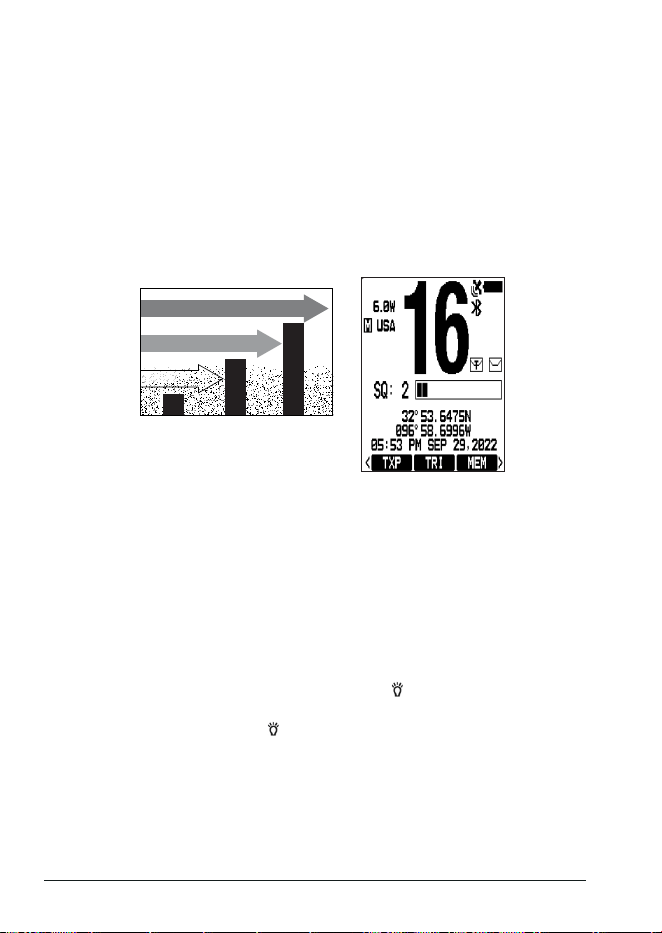
To monitor a channel, press either of the
CH keys to select the desired channel
(press and hold to scroll quickly). The
radio will remain on that channel, and you
will be able to hear any transmission on
that channel.
To save the current channel into memory,
press the MEM soft key; MEM appears on
screen for saved channels. (To remove
a saved channel from memory, press the
MEM soft key again.)
NOTE: Saving specic channels to memory enables your radio to scan those
channels, expanding your ability to listen for transmissions in your area. If
you discover that a saved channel has a dierent common name in your local
area, you can change the channel name using the RADIO SETUP menu.
E-25MHS338BT Radio Owner’s Manual
SETTING UP YOUR MMSI NUMBER
In order to use DSC features, you must be assigned an individual User MMSI number
and program that number into your radio. User MMSI numbers are unique and cannot be
entered more than once
You can get more information on MMSI numbers at these resources:
x The dealer where you purchased the radio.
x Recreational boaters can obtain an individual MMSI number from the Boat Owner's
Association of the U.S. (http://www.boatus.com/mmsi/, or call 800-563-1536) or Sea
Tow Services International (http://seatow.com/boating_safety/mmsi.asp)
x Commercial boaters need a ship station license to get an MMSI number. For more
information, visit the Federal Communications Commission (FCC) website at http://
wireless.fcc.gov/marine/fctsht14.html.
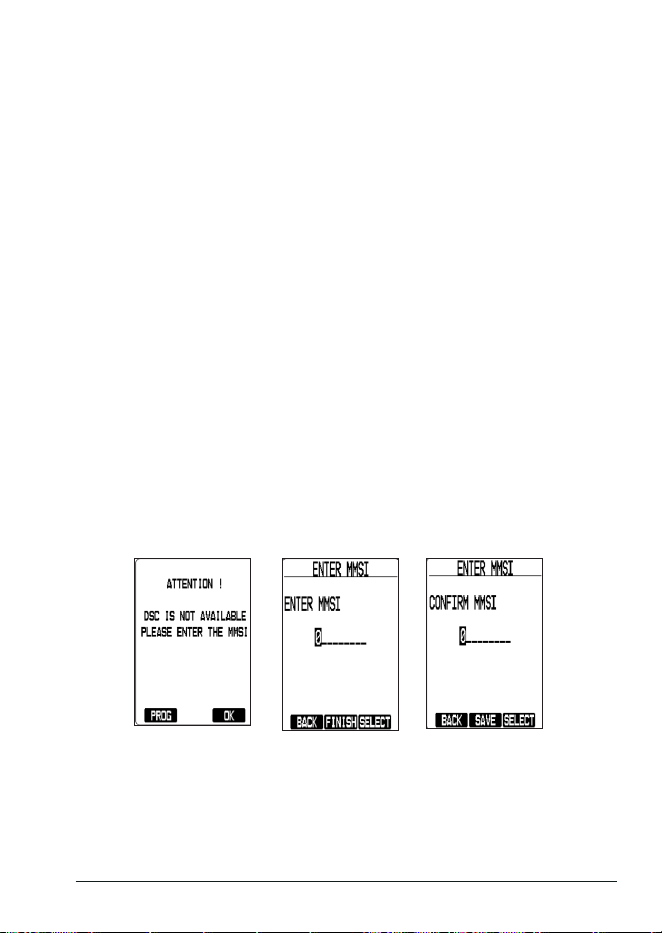
When you power up your radio for the rst time, it displays
MMSI NOT ENTERED
followed
by an ATTENTION! screen with the option to enter the MMSI at that point.
To Enter Your MMSI Number
1. Press and hold the POWER key until the unit turns on. An
ATTENTION
message
displays.
2. Press the
PROG
soft key. The
ENTER MMSI
screen displays.
3. Use the ▲, ▼, ◄, and ► keys to enter each digit of your MMSI number and press
SELECT
after each number.
4. Press the
FINISH
soft key to save the MMSI number you just entered. A conrmation
screen displays.
5. Re-enter the MMSI number. Press
SELECT
after each number and then press
SAVE
.
A message screen displays, indicating that the MMSI number cannot be changed
after accepting the entry.
6. Select
SAVE
. The Idle screen displays.
If you choose to not enter your specic MMSI number at initial start up, you can still use
many of your radio's features; however, you cannot use DSC features. Go to MENU/DSC
SETUP/RADIO MMSI NUMBER to enter the MMSI number after initial turn-up.
SETTING THE SQUELCH LEVEL
The MHS338BT recognizes signals as transmissions if they exceed a signal strength
threshold. Adjusting the squelch sets this threshold level. Increasing squelch requires a
E-26 MHS338BT Radio Owner’s Manual
signal to be stronger to be seen as a transmission. If you set the squelch too high, you
will risk not receiving transmissions that are lower than that threshold. Reducing the
squelch allows weaker signals to be accepted. However, if you lower the squelch too
much, you will hear white noise all the time.
The squelch feature reduces static on the speaker by ltering out any background
channel noise. At the lowest squelch level, the speaker plays all signals, including any
channel noise. Setting the squelch level higher lters out noise and lets only actual radio
transmissions through.
1. While listening to a channel, press VOL/SQ twice to enter Squelch Setting mode.
2. Press ▲ to increase the squelch or ▼ to decrease it (squelch levels = 0 - 15).
3. Press the CLR key or press VOL/SQ again to set that level and return to the Idle
screen.
Weak signals
No
Squelch
Medium
Squelch
High
Squelch
Strong signals
Noise
NOTE: Setting the squelch level too high may prevent you from hearing weaker
transmissions. If you are having diculty hearing a transmission, try setting
the squelch level lower.
SETTING THE UIC CHANNEL MODE
You can select marine channels for the USA, Canada, or International waters.
1. Press MENU, then select
RADIO SETUP/CHANNEL MODE
. The
CHANNEL MODE
screen displays.
2. Select
USA
,
CANADA
, or
INTERNATIONAL
and press the
SELECT
soft key. The
RADIO SETUP
screen displays again.
SETTING KEY LOCK
You can lock the keypad through pressing and holding the /LOCK
key.
KEY LOCK
displays if you press a key while keylock is on.
Unlock it by pressing and holding the /LOCK
key again.
UNLOCK
displays.
NOTE: Key Lock does not aect the PTT, MON, or DISTRESS keys. If DISTRESS is
pressed,
KEY LOCK
turns o and
UNLOCK
displays.
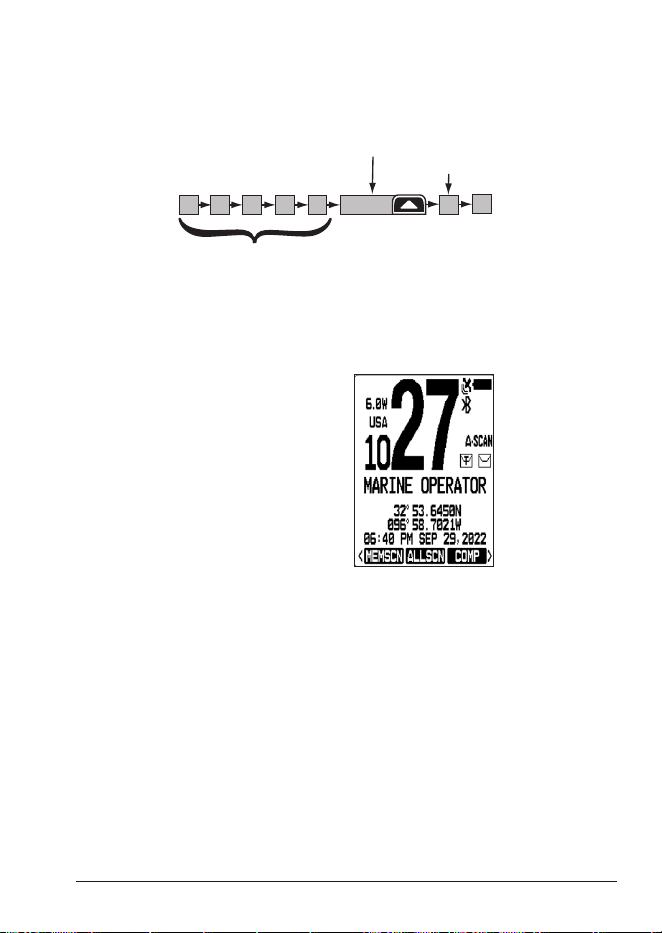
E-27MHS338BT Radio Owner’s Manual
SCANNING RADIO CHANNELS
Scan mode sequentially checks channels that you have saved in memory. You must have at
least two channels saved in memory to start a scan.
11
1008 1312
14
17
15
The radio stops for a
detected signal
Scan resumes
when the
signal stops
The radio scans about
10 channels/second
To scan channels saved to memory,
press the MEMSCAN soft key.
To scan all channels, press the
ALLSCAN soft key.
The radio scans channels according to your radio settings, including Priority and Weather
Alert watch, if set. If the radio detects a transmission, it stays on that channel; when the
signal stops, the radio resumes scanning. When the radio receives a transmission, it
pauses the scan and stays on the transmitting channel. Press ▲ or ▼to leave that channel
and resume scanning.
To end the scan, press the SCAN soft key. The radio remains on the last scanned channel
E-28 MHS338BT Radio Owner’s Manual
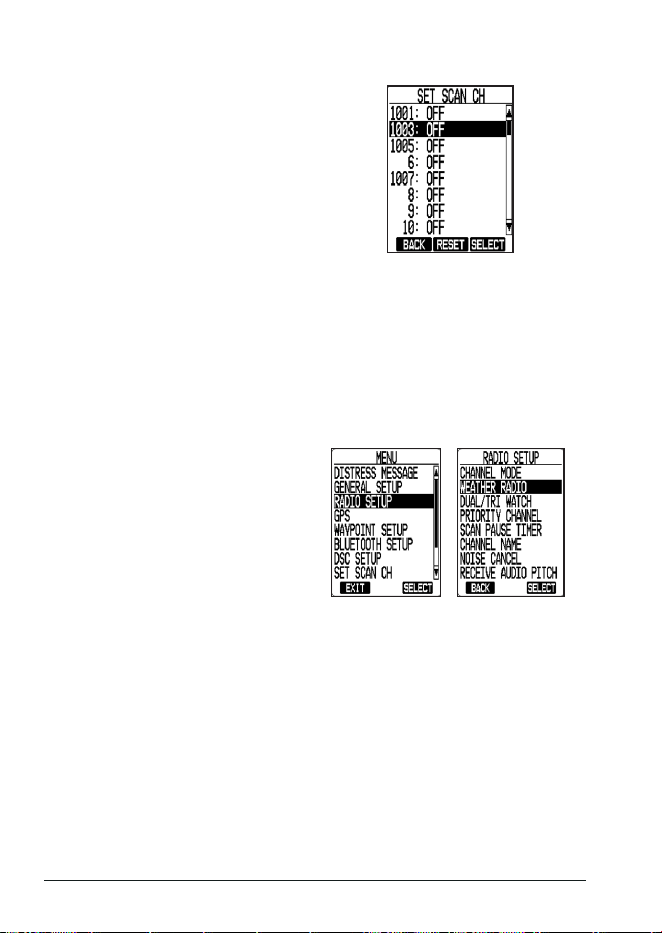
To Save Channels for Memory Scan
1. Press the MENU key on your radio
and then use the ▲ and ▼ keys to
access the
SET SCAN CH
menu.
The
SET SCAN CH
screen displays.
2. From here, use the ▲ and ▼
keys to select a channel. Press
the SELECT soft key to toggle the
channel on or o for scanning.
3. (Optional) Press RESET to turn all
channels o.
MONITORING WEATHER CHANNELS
To monitor saved weather channels, press the WX soft key. The radio tunes to one of the
10 NOAA weather channels. If a weather alert signal is received in Weather Alert mode, the
radio sounds an alert tone. The NOAA weather channels cooperate with the FCC to alert
you to other hazards besides weather.
x You cannot transmit while in Weather mode.
x To turn o the radio's alert tone, press any key.
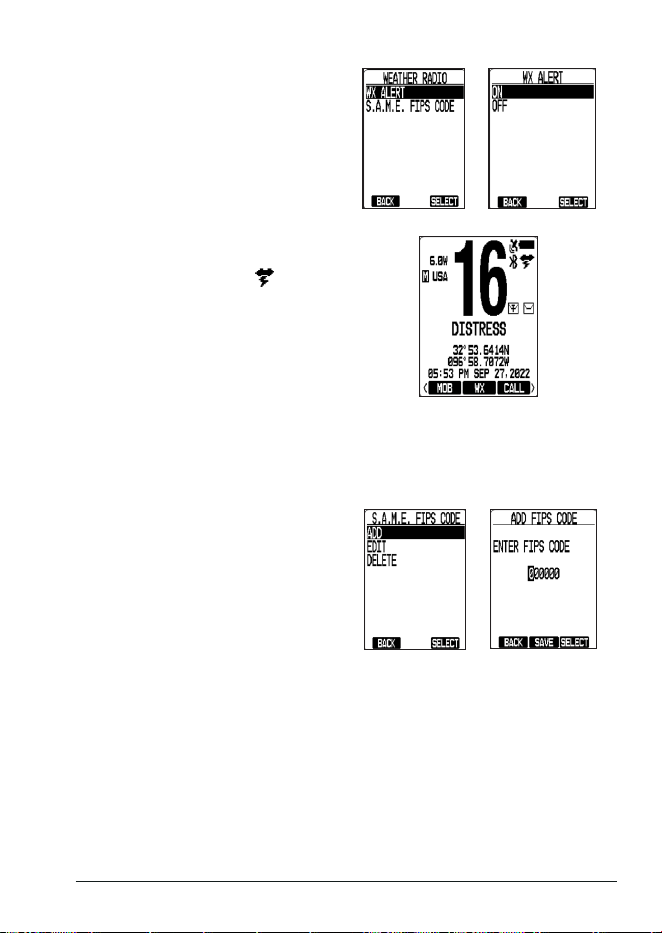
To Set Weather (WX) Alerts
1. Press
MENU
,
then
select
RADIO
SETUP/WEATHER RADIO.
E-29MHS338BT Radio Owner’s Manual
2. Select
WX ALERT
. The
WX ALERT
screen displays with the options to
turn this alert on or o.
3. Select
ON
soft key; the WX Alert
screen displays again.
NOTE: The WX Alert icon ( )
displays when WX Alert is on.
4. Turn WX Alert o through these same menus.
NOTE: You can also set ON /OFF through the WX ALT soft key.
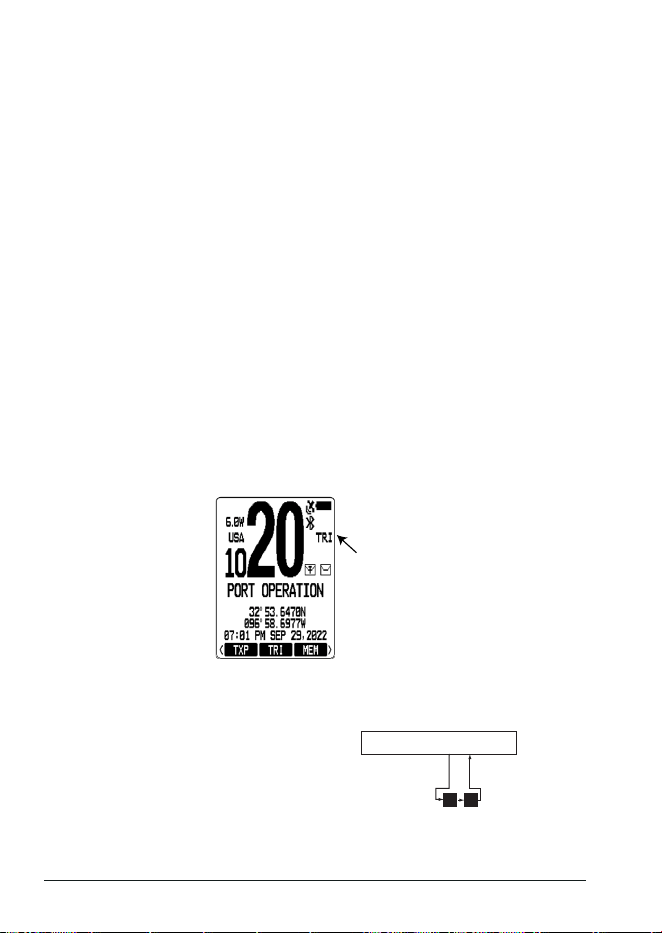
To Program FIPS Codes
1. Press MENU, select
RADIO SETUP,
and press SELECT. The
RADIO
SETUP
screen displays.
2. Select
WEATHER RADIO
and press
SELECT. The
WEATHER RADIO
screen displays.
3. Select
S.A.M.E. FIPS CODE
and
press SELECT. The
S.A.M.E.
FIPS
CODE
screen displays.
4. Select
ADD
and press SELECT.
The
ADD FIPS CODE
screen
displays.
5. Use the radio controls to enter the FIPS code. Press SAVE when complete.
NOTE: To modify an existing FIPS code, select EDIT in Step 4 and select the name
from the list. To delete a FIPS code, select DELETE, select the name from
the list, and then conrm deletion.
E-30 MHS338BT Radio Owner’s Manual
NOTE: FIPS codes identify counties in the United States. They allow you to
receive only the Specic Area Message Encoding (S.A.M.E.) alerts
occurring in a specic area. You can enter a maximum of 30 FIPS codes.
For USA FIPS codes by state, see https://www.nws.noaa.gov. For Canadian
FIPS codes, see https://www.ec.ga.ca.
PRIORITY AND WEATHER ALERT WATCH
In addition to the three operation modes, your radio provides two watch functions that set
the radio to quickly and regularly check for activity on specic channels.
x Priority Watch - Checks 1 - 2 designated Priority channels for activity every 1.5
seconds.
x Weather Alert Watch - Checks the weather channel for alerts every 6 seconds.
Priority Watch
Your radio comes with a preprogrammed Priority channel. Your radio will function
normally and will also check the Priority channel(s) every 1.5 seconds. If the radio detects
a transmission, it will stay on that channel; when the signal stops, the radio resumes
scanning.
SETUP
1. Go to MENU/
RADIO SETUP/DUAL/TRI WATCH
. Select
TRIPLE
or
DUAL
. That
selection is now assigned and displays on the soft key, but not on the screen.
2. Next, select TRI (or DUAL) soft key. That designation should now display on the
screen and is now activated (on).
Priority Watch
(Triple) Activated
NOTE: Private ships MUST monitor channel 16 whenever they are underway. Water-
going ships should have a Priority Watch on at all times.
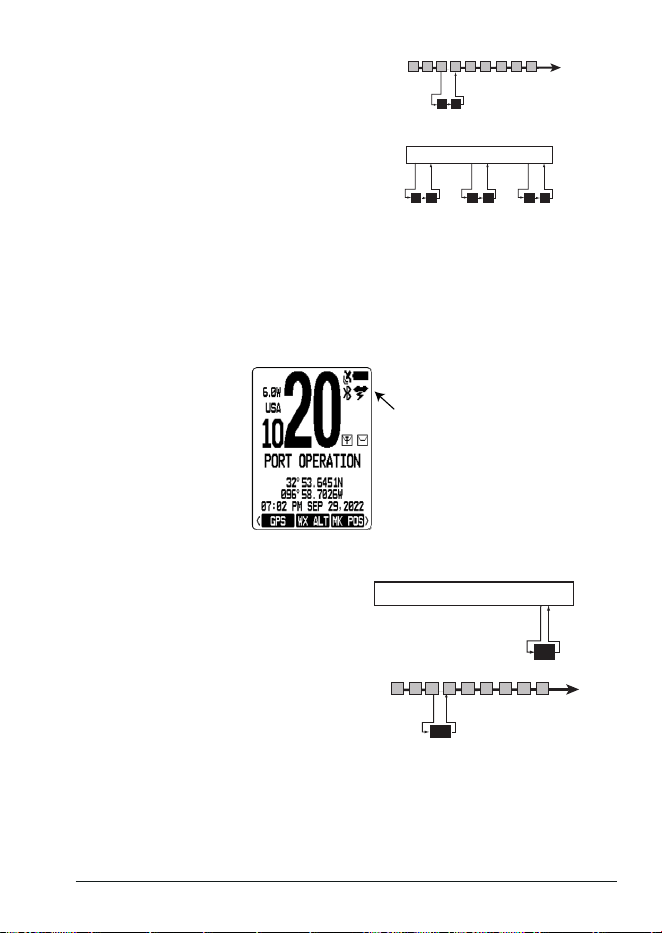
During Normal mode, monitors one
channel, checking channel 16 and the
Priority channel every 1.5 seconds.
P
16
CHANNEL XX
E-31MHS338BT Radio Owner’s Manual
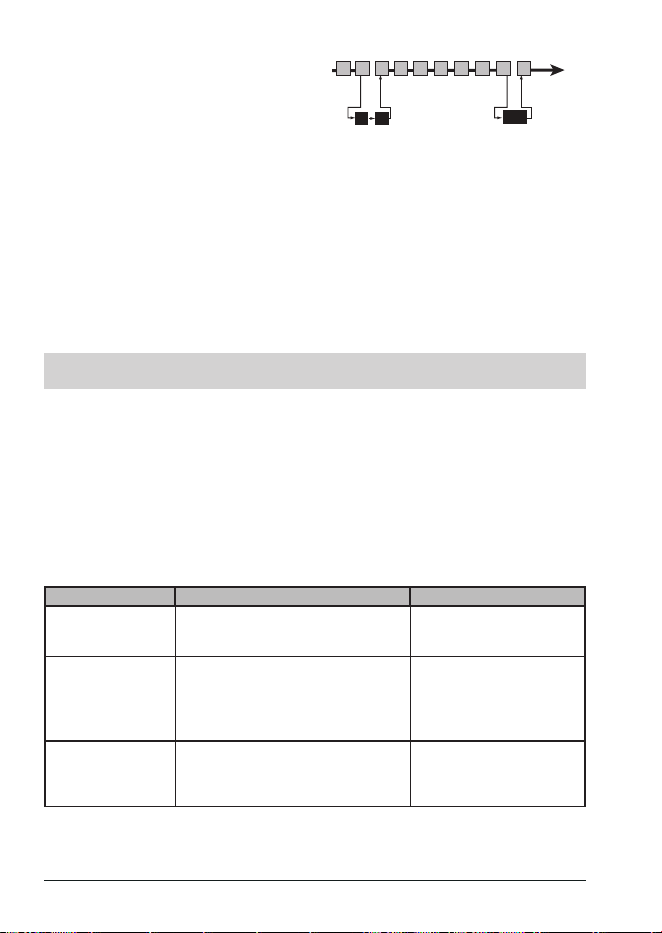
During Scan mode, scans multiple
channels, checking channel 16 and the
Priority channel every 1.5 seconds.
09
16
2524171514131211 20
During Weather mode, monitors a weather
channel, checking channel 16 and the
Priority channel every 1.5 seconds.
P
16
WEATHER CHANNEL
P
16
P
16
Weather Alert Watch
When Weather Alert watch is active, your radio will function normally and check the most
recent weather channel every 6 seconds. If the radio detects a transmission, it will stay on
that channel; when the signal stops, the radio resumes scanning.
To activate Weather Alert Watch, press MENU, and then use ▲ or ▼ to access the
RADIO
SETUP/WEATHER RADIO
menu.
Weather Alert
Watch
NOTE: You can also activate WX Alert through the WX ALT soft key.
During Normal mode, checks a weather
channel every 6 seconds.
Channel XX
WX
During Scan mode, checks a weather
channel every 6 seconds.
WX
2524171514131211 20
E-32 MHS338BT Radio Owner’s Manual
During Weather mode, The WX Alert
function operates as a type of "sleep
mode." The radio stays on the weather
channel and mutes the speaker; if the
radio detects an alert, it sounds an alert
tone, switches to that weather channel,
and turns the speaker back on. This
function is useful if you want to anchor
for the night but want to keep informed of
hazards.
To activate both WX Alert Watch and
Priority Watch at the same time, activate
WX Alert Watch using
RADIO SETUP/
WEATHER RADIO
menu and then press
TRI (or DUAL) soft key while scanning.
WX
P
16
2524171514131211 20
10
Every 1.5
seconds
Every 6
seconds
DIGITAL SELECTIVE CALLING FEATURES (DSC)
WHAT IS DSC?
Digital Selective Calling (DSC) is a standard that allows you to call other ships using their
MMSI number, just like you would call a phone number. To call another station, enter that
station’s MMSI number and choose the voice channel you want to talk on. The radio uses a
dedicated a VHF channel—channel 70— to transmit your MMSI number to the other station
along with the voice channel you requested. If the other station accepts your call, both
radios automatically switch to the requested voice channel so you can talk to each other.
MAKING DSC CALLS
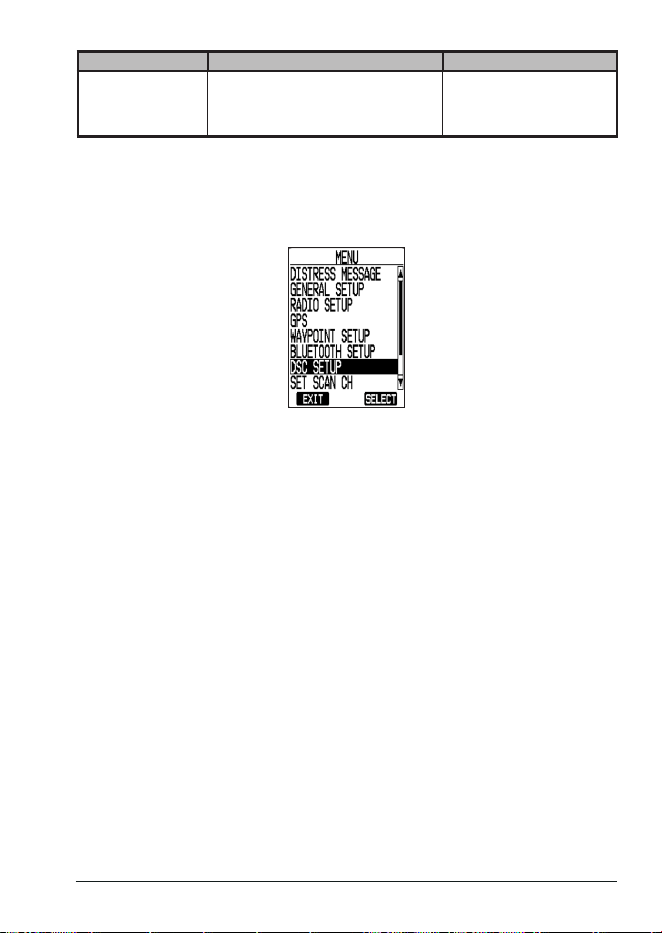
There are essentially four dierent types of DSC voice calls:
Call type What it does When to use it
Individual
(See page E-37.)
Calls a single station using the User
MMSI.
When you want to talk to
another station.
Group
(See page E-38.)
Calls all the ships that have the
same Group MMSI as yours.
Any time you want to talk
with the whole group you
are traveling with at the
same time.
All Ships
(See page E-38.)
Calls all ships within range of your
radio.
Safety warnings (e.g.,
debris in the water) or any
urgent situation.
E-33MHS338BT Radio Owner’s Manual
Call type What it does When to use it
Distress
(See page E-48.)
Alerts all ships that you need
assistance and sends them your
current position.
In an emergency only.
MANAGING DSC SETTINGS
Even though you can change your DSC settings as needed, you will want to establish initial
settings.
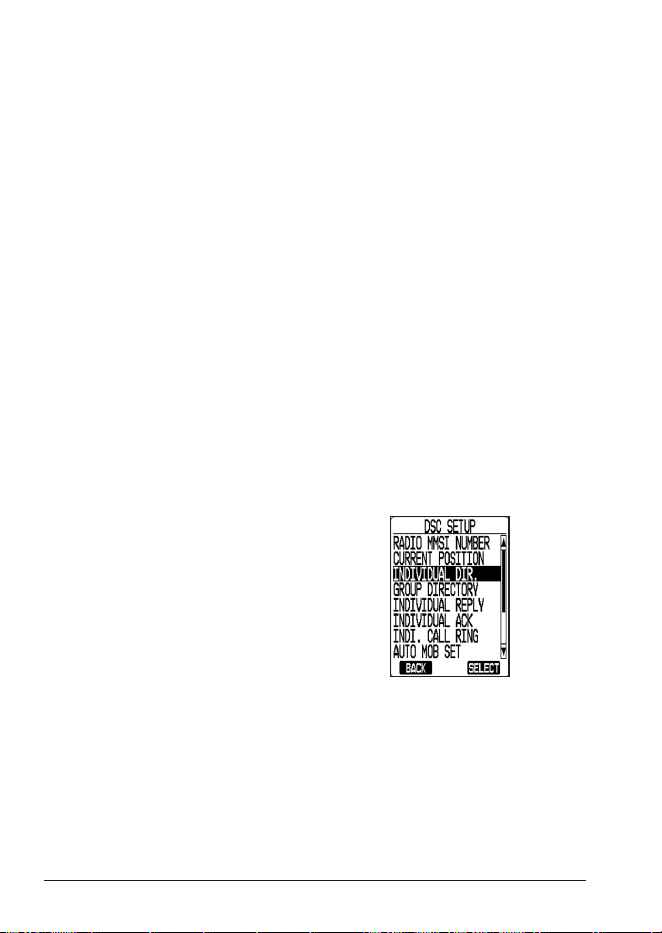
Press the MENU key, select
DSC SETUP
, and press
SELECT
. The
DSC SETUP
menu
displays.
From here you can customize settings for your radio:
x RADIO MMSI NUMBER - Displays your MMSI number.
x CURRENT POSITION - Displays your current position. You can set your current
position manually but manual information will be overwritten by GPS data if available.
x INDIVIDUAL DIRECTORY - Manages individual MMSI numbers for making calls.
x GROUP DIRECTORY - Manages MMSI groups for making calls.
x INDIVIDUAL REPLY - Select
AUTO
or
MANUAL
for replies to calls. This screen
displays:
– Individual Call ACK. If you want the radio to automatically reply to individual calls,
you can enable Individual Call to AUTO.
If set to AUTO, the response that is selected in INDIVIDUAL ACK (ABLE or
UNABLE) will also be sent.
If set to MANUAL, you can manually choose whether or not to reply.
– Position Request ACK. If you want the radio to automatically transmit your current
position whenever it receives position request, you can enable POSITION
REQUEST ACK to AUTO.
Most boaters activate automatic position reply for safety reasons because they
subscribe to a marine towing service.
Sometimes, for example (in competitive situations) you may not want other ships
to get your position without your manual conrmation.
– Test Call ACK.
x INDIVIDUAL ACK - Select a response to an individual call.
ABLE: The radio sends an acknowledgement and automatically switches to the
designated response channel.
UNABLE: The radio advises other stations that you are unable to respond to the call.
E-34 MHS338BT Radio Owner’s Manual
This information is sent automatically if INDIVIDUAL CALL is set to AUTO.
x INDI. CALL RING - Sets how long the alarm will sound for individual calls (5, 10, or
15 sec, or 1 or 2 min).
x AUTO MOB SET - When AUTO MOB is set to ON, the radio will automatically send
out a distress call (MAN OVERBOARD) after the countdown when the radio is
submerged in water.
CAUTION: If you turn this setting ON, a Distress Call will be sent even if you drop
the radio in a bucket of water; handle the radio with care.
x WAIT FOR POS FIX - Sets how long the radio waits for location information to
become available when the DISTRESS button is pressed to sent a Distress call
without location information. (15, 30, or 45 sec, or 1, 2, or 5 min).
x AUTO POLLING TIME - Set the auto polling time interval. (30 sec or 1, 2, 3, or 5 min)
x AUTO POS POLLING - Sets
POSITION REQUEST
or
POSITION REPORT
as the
message to be sent by Auto Polling.
This setting is used when activating AUTO POLLING from the CALL soft key.
– AUTO POS REQUEST - Requests position from other individuals.
– AUTO POS REPORT - Reports your position to other individuals.
x DSC ALARM SETUP - Turns alarms on and o for specic call types.
NOTE: You cannot turn o alarms for Distress call types.
SETTING UP DSC INDIVIDUAL DIRECTORY
Much like traditional contacts in a phone, DSC directories let you store up to 100 individual
MMSI numbers of other ships and up to 50 group MMSI numbers. From the directories, you
can add, edit, or delete MMSI numbers.
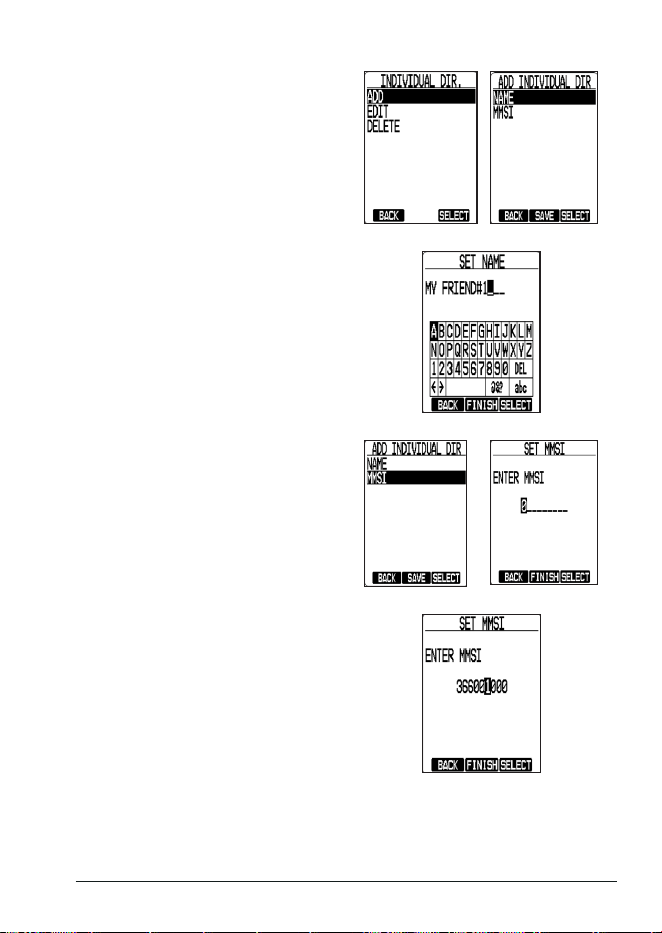
Managing Individual Directories
1. Press MENU, then select the
DSC
SETUP
menu. Press SELECT. The
DSC SETUP
menu displays.
2. Select
INDIVIDUAL DIR.
and press
SELECT. The
INDIVIDUAL DIR.
screen displays.
E-35MHS338BT Radio Owner’s Manual
3. Select
ADD
and press SELECT.
NAME
and
MMSI
options display.
NOTE: To edit an existing individual,
select EDIT in this step and
select the name from the list
that appears. To delete an
individual, select DELETE,
select the individual, and then
conrm.
4. Select
NAME
and press SELECT.
A pop-up keyboard to enter a name
displays.
5. Use the keyboard to enter a name
for the individual. Press SELECT for
each letter and press FINISH when
complete. The
ADD
INDIVIDUAL
DIR.
screen displays again.
6. Select
MMSI
and press SELECT.
The
SET MMSI
screen displays.
7. Use the keyboard to enter the MMSI
for the individual. Press SELECT
for each number and press FINISH
when complete. The
INDIVIDUAL
DIR.
screen displays again.
8. Press SAVE to save the new Individual name and MMSI number.
Managing Group Directories
Unlike the user MMSI number, you can create a group MMSI number yourself, and you can
also change the group MMSI number as often as you want. You don't have to get a group
E-36 MHS338BT Radio Owner’s Manual
MMSI number from a specic organization. For example, if you are part of a boating club,
your club's leadership may have a list of approved group MMSI numbers to use.
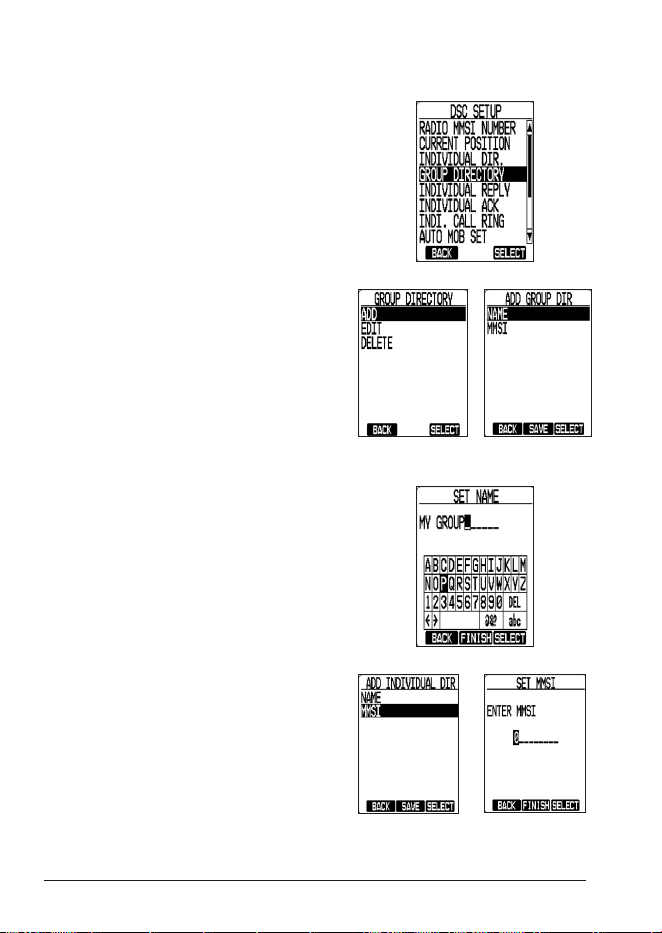
1. Press MENU, then select the
DSC
SETUP
menu. Press SELECT. The
DSC SETUP
menu displays.
2. Select
GROUP DIRECTORY
and
press SELECT. The
GROUP
DIRECTORY
screen displays.
3. Select
ADD
and press SELECT.
NAME
and
MMSI
options display.
NOTE: To edit an existing group, select
EDIT in this step and select the
group from the list that appears.
To delete a group, select
DELETE, select the individual,
and then conrm.
4. Select
NAME
and press SELECT.
A pop-up keyboard to enter a name
displays.
5. Use the radio controls to enter a
name for the group. Press SELECT
for each letter and press FINISH
when complete. The
GROUP
DIRECTORY
screen displays again.
6. Select
MMSI
and press SELECT.
The
SET MMSI
screen displays.
E-37MHS338BT Radio Owner’s Manual
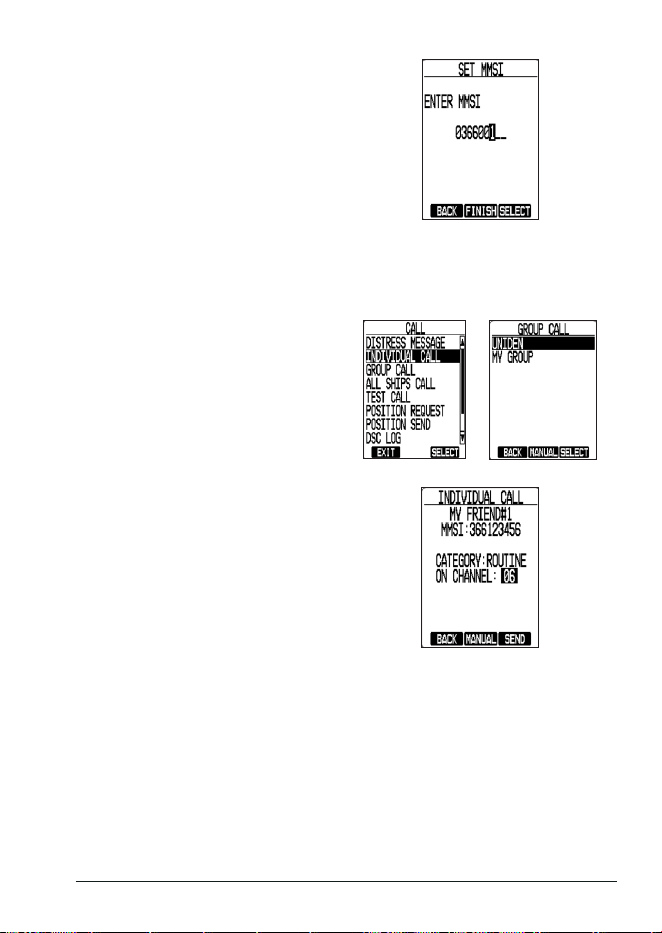
7. Use the radio controls to enter the
group MMSI. Press SELECT for
each number and press FINISH
when complete.
NOTE: The Group MMSI number must
have 9 digits and the rst digit
is xed at 0.
8. The
INDIVIDUAL DIR.
screen
displays again with the newly added
group name and MMSI displayed.
9. Press SAVE to save the new Group name and MMSI number.
Calling an Individual Staon
1. Press the CALL soft key; the
CALL
menu appears.
2. Use the ▲ or ▼ keys to scroll to the
INDIVIDUAL CALL
option. Press
SELECT. The
INDIVIDUAL CALL
menu displays a list of your saved
stations.
3. Select the station you want to
call. The radio displays the ship's
MMSI number and the transmission
channel.
4. Use the ▲ and ▼ keys to select a dierent transmission channel if desired.
NOTE: You can switch between inter ship channels and all voice channels by
pressing the MANUAL soft key.
5. Press
SEND
. The radio transmits the call request on the selected channel. When
the other station accepts the call, both radios switch to the selected response
channel for voice transmissions.
6. If the other station does not respond, press RESEND or EXIT
E-38 MHS338BT Radio Owner’s Manual
Calling a Group
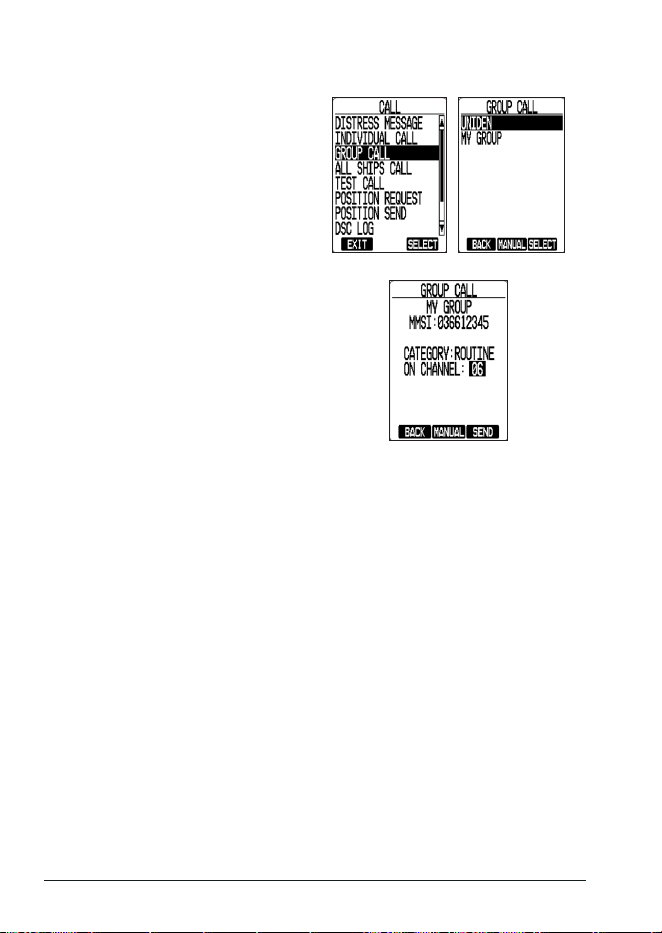
1. Press the CALL soft key; the
CALL
menu appears.
2. Use the ▲ or ▼ keys to scroll to
the
GROUP CALL
option. Press
SELECT. The
GROUP CALL
menu
displays a list of your saved groups.
3. Select the station you want to
call. The radio displays the ship's
MMSI number and the transmission
channel.
4. Use the ▲ and ▼ keys to select a dierent transmission channel if desired.
NOTE: You can switch between inter ship channels and all voice channels by
pressing the MANUAL soft key.
5. Press
SEND
. The radio transmits the call request on the selected channel. When
the other station accepts the call, both radios switch to the selected response
channel for voice transmissions.
6. If the other station does not respond, press RESEND or EXIT
Calling All Ships
An All Ships call contacts all DSC radios within range of your ship.
CAUTION! Only use All-Ships Calling in the event of a Safety warning (such as
debris in the water) or to request assistance in an Urgency (any situation where
your ship has a serious problem but is not yet in distress.
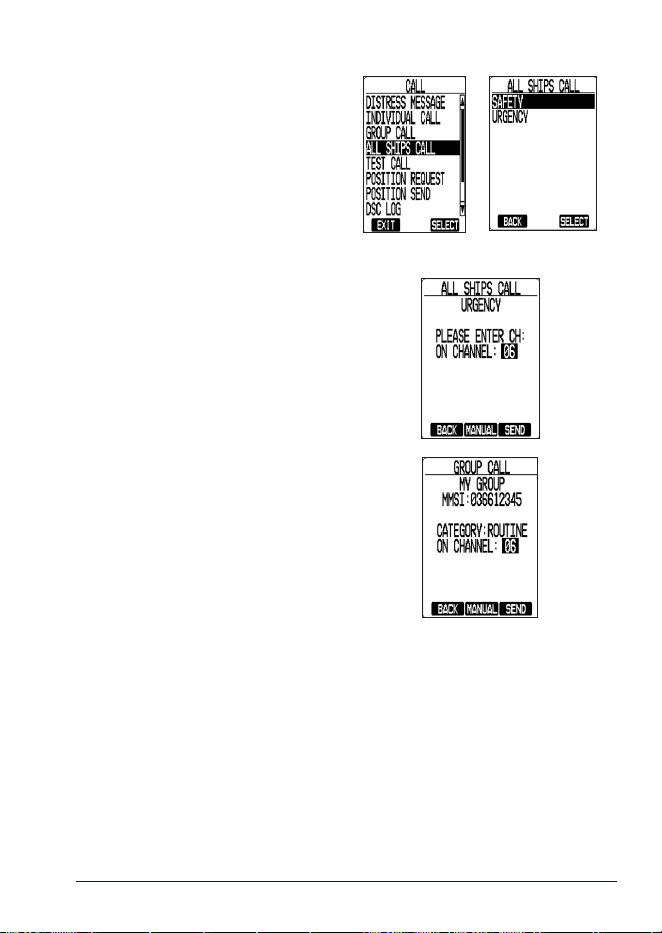
E-39MHS338BT Radio Owner’s Manual
1. Press the CALL soft key; the
CALL
menu appears.
2. Use the ▲ or ▼ keys to scroll to
the
ALL SHIPS CALL
option. Press
SELECT. The
ALL SHIPS CALL
screen displays, showing two
options:
SAFETY
and
URGENCY
.
3. Use the ▲ or ▼ keys to select
either option. On the next screen,
enter the channel to transmit on.
Press SEND.
4. The next screen displays the type
(category) of All Ships Call sent, the
channel the call was sent on, and
elapsed time.
Responding to Calls (Individual/Group/All Ships)
If your radio receives a DSC call from another station, it sounds an incoming call alarm and
displays the MMSI number of the calling station or group and the transmitting channel for
the call.
NOTE: This radio does not have the ability to acknowledge a distress call. Only the
Coast Guard or an authorized Search and Rescue agency can acknowledge a
DSC distress call.
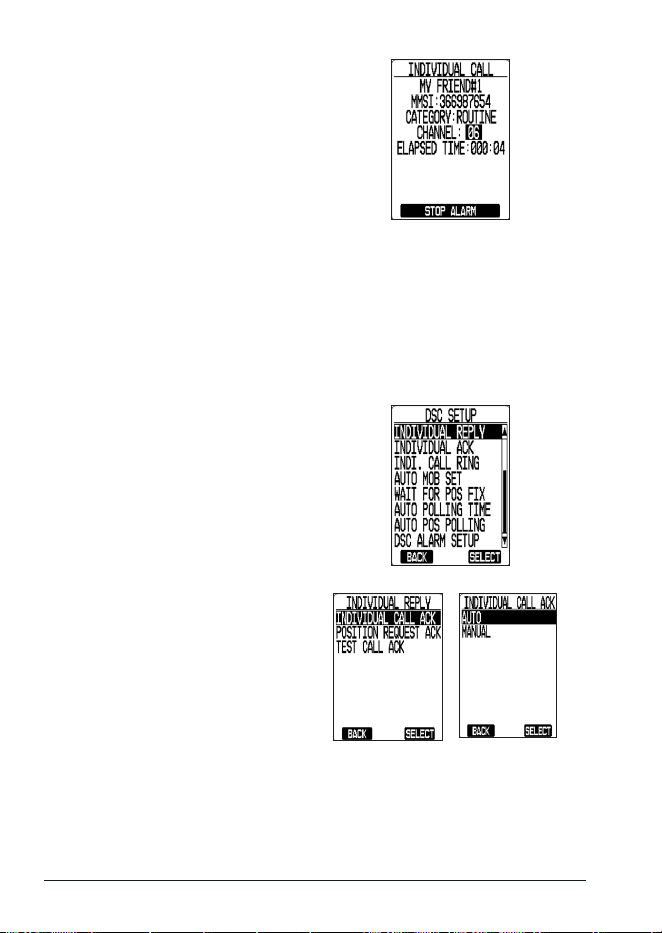
E-40 MHS338BT Radio Owner’s Manual
1. Press the STOP ALARM soft key
to stop the alarm. The radio returns
to the main screen with the channel
selected.
2. To speak to the other ship, press and hold the PUSH TO TALK key on the
microphone while speaking.
When you are nished speaking, release the PUSH TO TALK key and listen for
a response.
Automacally Responding to Calls
When another station sends you a range of calls, including test calls and position
requests, you can select options to answer those calls manually or have the radio answer
automatically.
1. Press MENU. Select the
DSC
SETUP
menu and press SELECT.
The DSC SETUP menu displays.
2. For each type of call selected
(Individual Call, Position Request,
or Test Call), select the call type
and press SELECT. The call type
options screen displays.
3. Use the ▲ or ▼ keys to scroll to the
AUTO
option and press SELECT.
The scanner returns to the
INDIVIDUAL REPLY
screen.
Making a Test Call
You can use the test call feature to make sure your radio is working and congured
correctly. Limit test calls to once a week to avoid overloading coastal receiving stations.
NOTE: Many coastal stations have specic frequencies and MMSI numbers for
making test calls. Before making a test call to a coastal station, be sure to
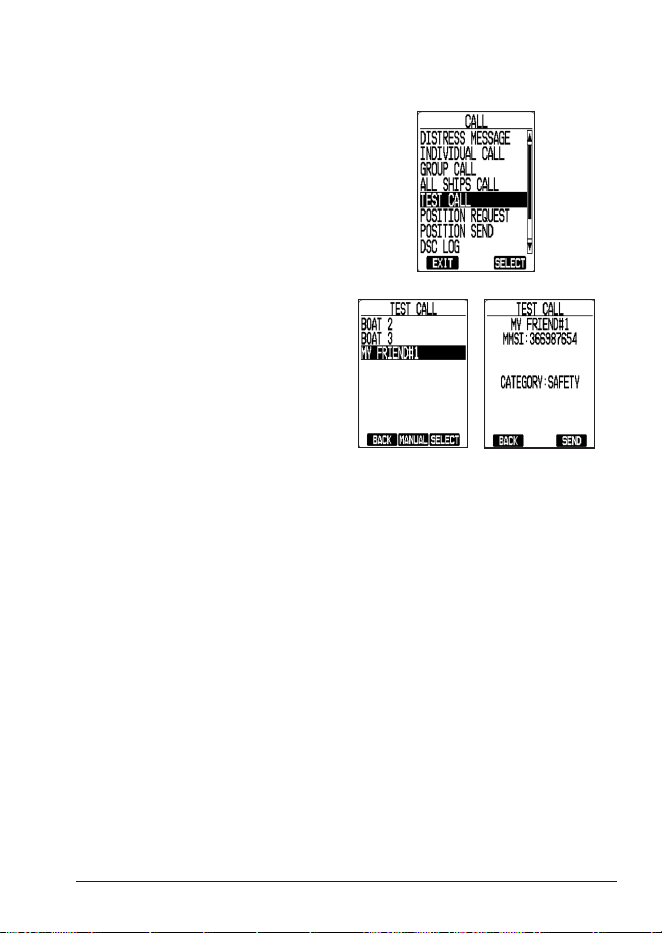
E-41MHS338BT Radio Owner’s Manual
check the Local Notice to Mariners (LNM), issued every week by the US Coast
Guard. The LNMs for each region are available online at http://navcen.uscg.
gov.
1. Press the CALL soft key. The
CALL
menu displays.
2. Use the ▲ or ▼ keys to scroll to
TEST CALL
and press SELECT.
3. The TEST CALL screen displays
the stations in your directory. Use
the ▲ or ▼ keys to select a ship.
Information for that selected station
displays. Press SEND.
4. A
WAITING FOR ACK
message
displays on the
TEST CALL
screen. If you do not receive an
acknowledgement, resend the
transmission or select BACK to
return to the IDLE screen.
DSC Call Logs
Your radio keeps track of the last 20 transmitted Distress calls and the last 40 received
Distress calls in the DSC log. If you have unread received DSC calls, the radio displays a
message icon. This is useful if you have been away from the radio and want to see who has
tried to contact you.
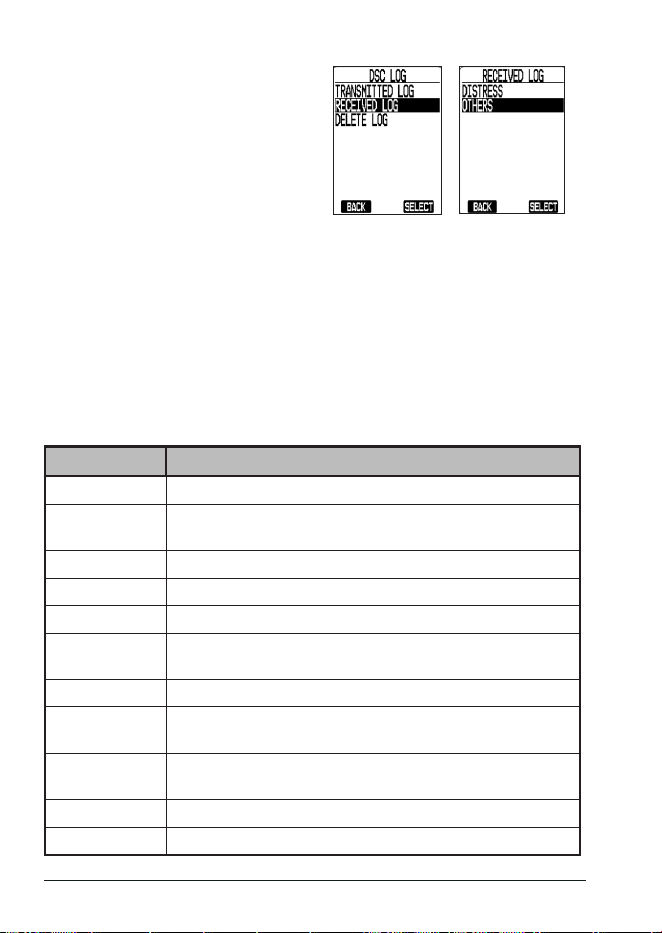
E-42 MHS338BT Radio Owner’s Manual
1. Press the CALL soft key. The
CALL
menu displays.
2. Use the ▲ or ▼ keys to select
the
DSC LOG
. The
DSC LOG
screen displays showing 2 call
logs:
TRANSMITTED LOG
and
RECEIVED LOG
.
3. Select either of the logs. That
log displays with
DISTRESS
and
OTHERS
options.
4. Select an option to see transmitted
or received calls for that option.
NOTE: The maximum number of logs that can be saved in the radio are as follows:
x Transmitted Distress Calls: 20 logs
x Transmitted Other DSC Calls: 100 logs
x Received Distress Calls: 40 logs
x Received Other DSC Calls: 100 logs
5. Use the ▲ or ▼ keys to select a call and review the call details. Information
varies, depending on the call type.
DSC Call Type Receive Log Information
Distress MMSI (or name), position, time, nature code
Distress Call
Acknowledge
MMSI (or name), distress MMSI, position, time, nature code
All Ships Call MMSI (or name), category code, communication channel number
Group MMSI (or name), category code, communication channel number
Individual MMSI (or name), category code, communication channel number
Individual Call
Acknowledge
MMSI (or name), Completed/Unattended, category code,
communication channel number
Test Call MMSI (or name), category code
Test Call
Acknowledge
MMSI (or name), category code
Pos Request
Reply
MMSI (or name), position, time, category code
Pos Request MMSI (or name), category code
Pos Send MMSI (or name), position, time, category code
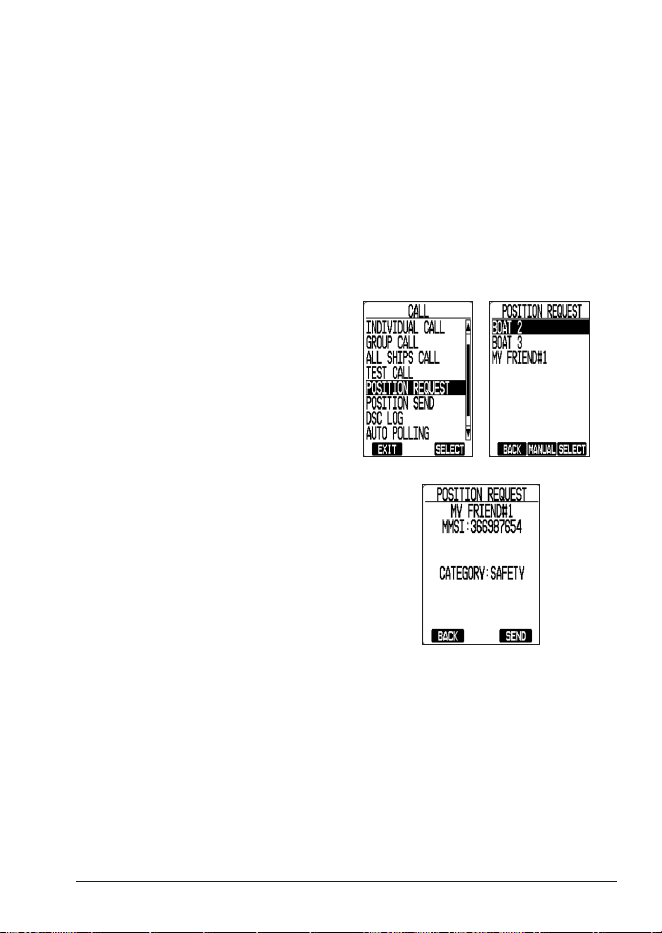
E-43MHS338BT Radio Owner’s Manual
6. To make a call from the call log, press the CALL soft key on the log screen.
7. To delete entries in a specic log, press
DELETE LOG
.
8. To close the log, press
EXIT
.
POSITION REQUESTS
Requesng a Posion
Any time you need to know another ship's position – to nd your boating partners, to
respond to a request for assistance, etc. – you can send a position to their radio.
1. Press the CALL soft key. The
CALL
menu displays.
2. Use the ▲ or ▼ keys to select
POSITION REQUEST
. The
POSITION REQUEST
screen
displays, showing the list of ships
entered in to the Individual directory.
3. Use the ▲ or ▼ keys to select a
ship (if you want to contact a station
that is not in your directory, press
MANUAL and enter the MMSI
number you want to call). Press
SELECT. The
POSITION REQUEST
screen displays for conrmation.
4. Press SEND. The radio sends a position request to that ship and waits for
acknowledgement.
5. If you do not receive an acknowledgement, press EXIT and return to the Idle
screen.
Sending Your Posion
If you are requesting assistance using an All Ships Call or have received a Position
Request, you can send your current position so other ships know where you are.
1. Press the CALL soft key. The
CALL
menu displays.
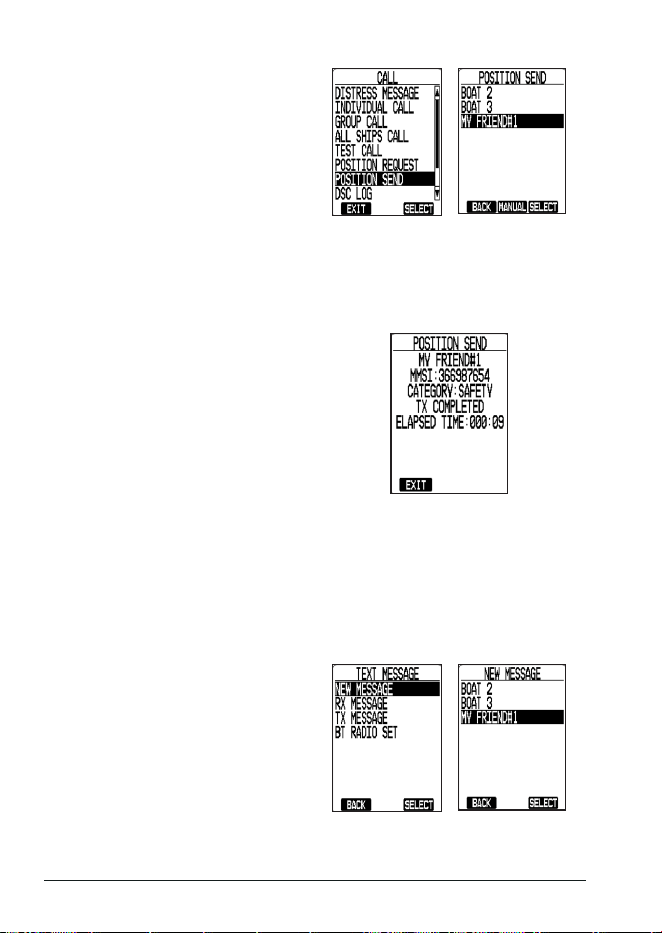
E-44 MHS338BT Radio Owner’s Manual
2. Use the ▲ or ▼ keys to select
POSITION SEND
. The
POSITION
SEND
screen displays, showing
the list of ships entered in to the
Individual directory.
3. Use the ▲ or ▼ keys to select a ship (if you want to contact a station that is not in
your directory, press MANUAL and enter the MMSI number you want to call).
4. Press SELECT. The radio displays the name and MMSI number of the station you
are about to contact along with your current position information.
5. Press SEND. The radio transmits
your current position information to
the other station.
6. If you do not receive an acknowledgement, press EXIT and return to the Idle
screen.
TEXT MESSAGES
To Send a Text Message
To send a text message, you must save the other party's information (MMSI) in the
Individual directory. (See page E-34.)
1. Press the TXT soft key and select
NEW MESSAGE
. A list of your DSC
contacts displays.
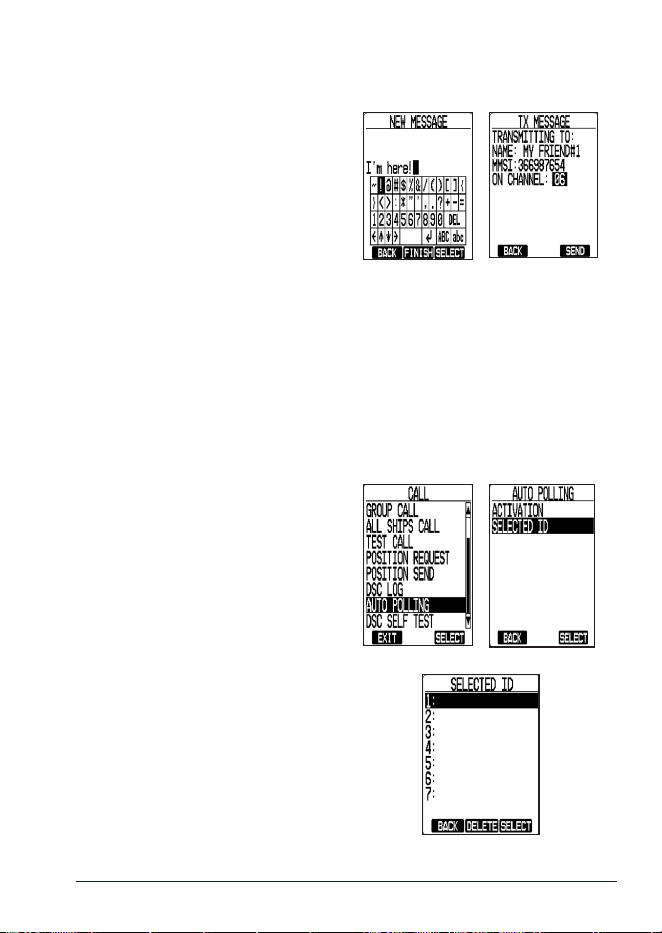
E-45MHS338BT Radio Owner’s Manual
2. Use the ▲ or ▼ keys to select an individual contact to send a message. A pop-up
keyboard screen displays.
3. Enter your text message, pressing
SELECT after each character.
4. When complete, press the FINISH
soft key. The
TXT MESSAGE
(transmitting to) screen displays
the name and MMSI number of
the vessel you are sending the
message to and the channel the
message is being sent on.
5. Press the SEND soft key.
6. To review sent and received messages, press the TEXT soft key and select
TX
(sent) or
RX
(received)
MESSAGE
.
AUTO POLLING
Auto Polling lets you request an automatic position update from (or send your position
automatically to) up to 7 individuals.
1. Press the CALL soft key. The
CALL
menu displays.
2. Use the ▲ or ▼ keys to select
AUTO POLLING
. The
AUTO
POLLING
screen displays.
3. Select
SELECTED ID
. and press
SELECT. The
SELECT ID
screen
displays.
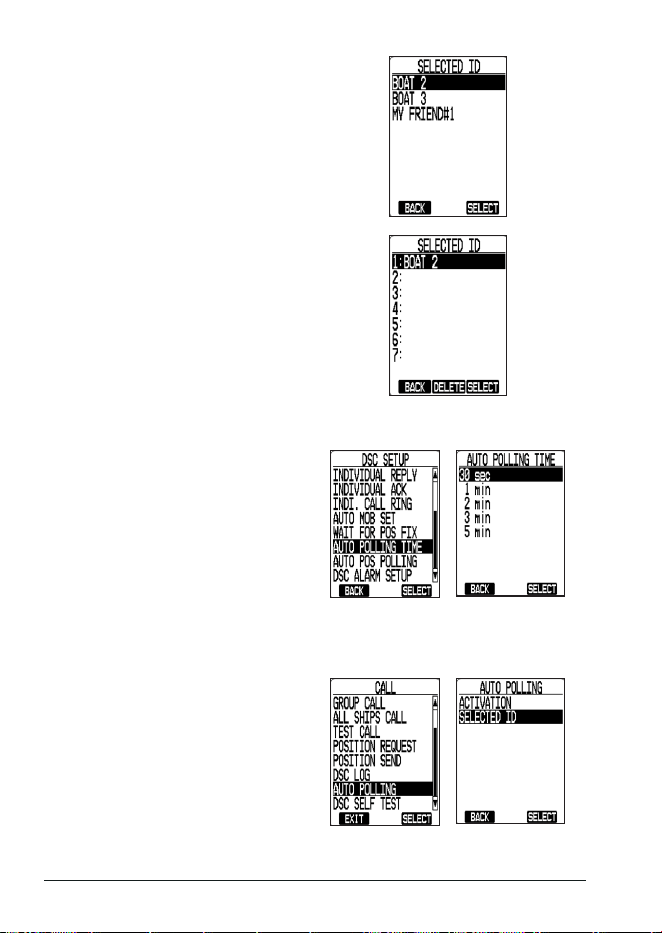
E-46 MHS338BT Radio Owner’s Manual
4. Use the ▲ or ▼ keys to select
a row and press SELECT. The
SELECT ID
screen displays your
saved Individual Directory List.
5. Use the ▲ or ▼ keys to select
a ship and press SELECT. The
SELECT ID
screen displays again
with that contact displayed.
6. Repeat steps 4 and 5 above for up to 7 contacts.
7. Press MENU to return to the
MENU
screen
. Select
DSC SETUP
, then
AUTO POLLING TIME
. The Auto
Polling Time selections display.
8. Use the ▲ or ▼ keys to select a polling duration and press SELECT. The
DSC
SETUP
menu displays again. Press BACK to return to the
MENU
.
9. Press the CALL soft key. The
CALL
menu displays. Select the
AUTO POLLING
option. The
AUTO
POLLING
screen displays.
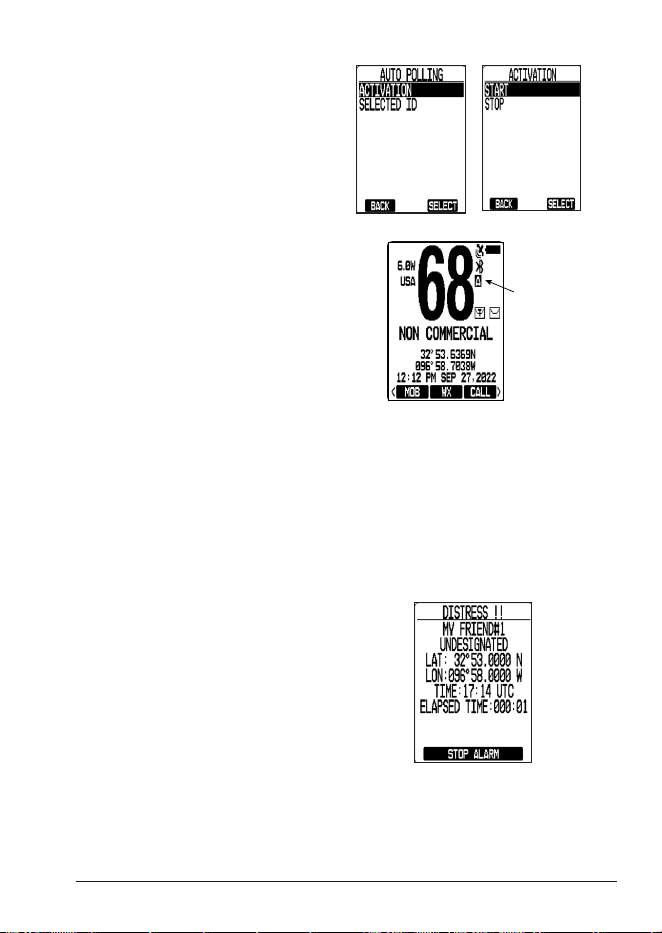
E-47MHS338BT Radio Owner’s Manual
10. Use the ▲ or ▼ keys to select
ACTIVATION
and press SELECT.
The
ACTIVATION
screen displays.
11. Use the ▲ or ▼ keys to select
START to begin or STOP to end
auto polling. The
ACTIVATION
screen displays again.
NOTE: An "A" icon displays on the
Idle screen when Auto Polling
starts.
Auto Polling
Icon
DSC SELF TEST
Perform a DSC self test. If it fails, contact Uniden Customer Support.
RECEIVING A DISTRESS CALL
If you receive a distress call, your radio will sound a Distress Call tone and display the
name (or MMSI), distress message, latitude, longitude, time, and elapsed time for the
vessel that sent the Distress call. Press any key to stop the Distress Call tone.
If there is data that matches an MMSI in your Individual directory, that name displays;
otherwise, the MMSI displays.
1. Press the STOP ALARM soft key.
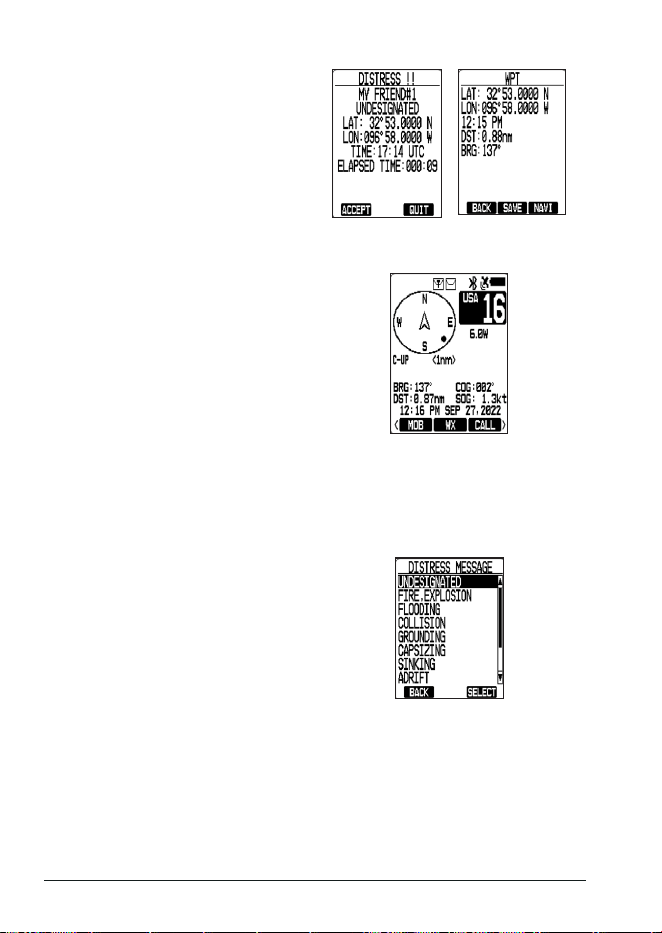
E-48 MHS338BT Radio Owner’s Manual
2. The soft keys change. Press the
ACCEPT soft key to plot a waypoint
to the location data in the distress
call. The
WPT
screen displays.
3. Press the SAVE key to save the coordinates as a waypoint.
4. Press the NAVI soft key to start
navigating to the vessel that sent
the distress call. The
COMPASS
screen displays.
MAKING AN AUTOMATIC DISTRESS CALL
After you have programmed your MMSI number, your radio can transmit an automated
distress call on channel 16 at 6W with your current location and the nature of the distress.
The Distress Alert alarm sounds and the radio then monitors channel 16 for a response and
repeats the distress call every few minutes until it receives an acknowledgement.
1. If you have time to select a distress
message type, press the MENU
key and use the ▲ and ▼ keys
to select
DISTRESS MESSAGE
.
The
DISTRESS MESSAGE
screen
displays.
2. Use the ▲ and ▼ keys to select the emergency type that most closely matches
the nature of your emergency. The screen returns to the Main menu.
Undesignated Sinking Fire Explosion Man Overboard
Adrift Flooding Abandoning Ship Capsizing
Collision Piracy Grounding
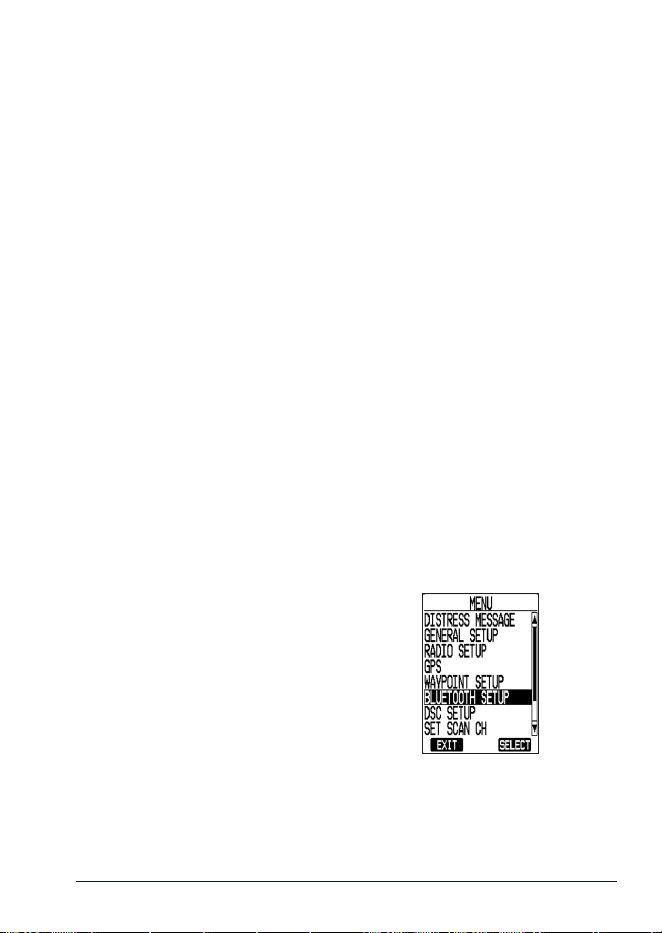
E-49MHS338BT Radio Owner’s Manual
3. Press and hold the DISTRESS key on the side of the radio for about 3 seconds.
The Distress Alert alarm sounds and the radio acquires GPS location if needed.
4. After 10 seconds, the radio transmits the distress call, starts a countdown
timer, and waits for an acknowledgement. After the timer counts down, another
countdown timer begins unless you take action using the PAUSE, CANCEL, or
RESEND soft keys.
5. After you receive an acknowledgement that the distress call was received, use the
MUTE soft key to stop the acknowledgement alarm.
NOTE: If no MMSI number has been programmed, the radio prompts you to enter
your MMSI number.
MOB SOFT KEY
The Man Overboard (MOB) soft key does not require setup through the menus. Your radio
immediately displays and saves the latitude, longitude, time, Bearing to Destination (BRG),
and Distance to Destination (DST).
1. Select the
MOB
soft key and the screen automatically marks your current location as
MOB. The soft keys change to
BACK, SAVE
, and
NAV
.
2. Select
BACK
to return to the previous mode and keep the current MOB information.
3. Select
SAVE
to save the MOB information into the Waypoint Directory.
4. Select
NAVI
to activate the
COMPASS
screen and navigate to the MOB location.
BLUETOOTH
Seng Up Bluetooth
Uniden's Marine Radio app (Uniden Marine II) lets you congure your MHS338BT and send
text messages from your mobile phone (Android and iOS). Refer to the Uniden Marine II
manual for app operation instructions.
NOTE: iPad iOS is not supported.
1. Press the MENU key, and then
use the ▲ or ▼ keys to select
BLUETOOTH SETUP
. The
BLUETOOTH SETUP
menu
displays.
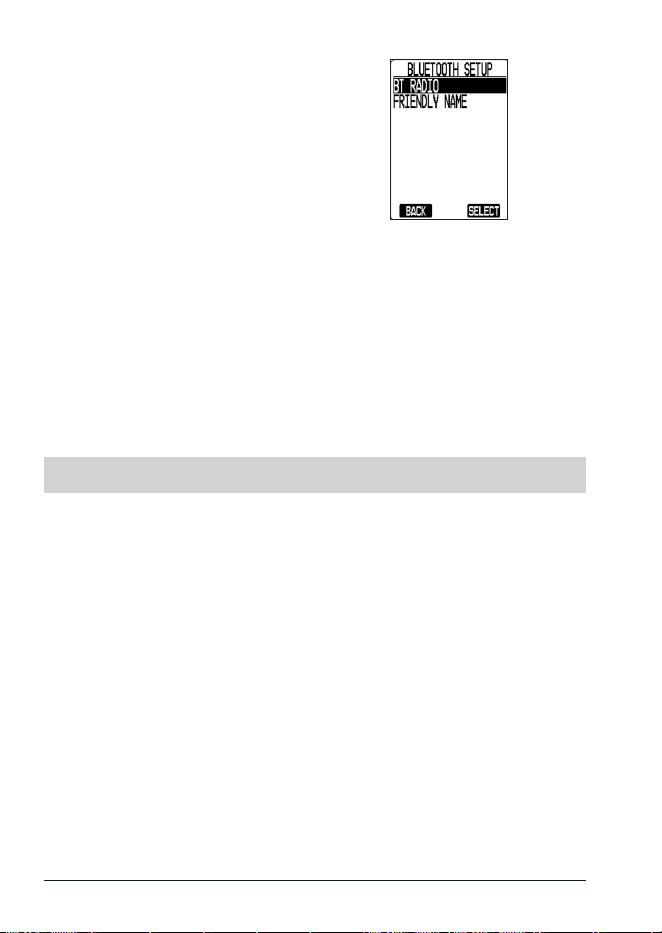
E-50 MHS338BT Radio Owner’s Manual
2. Use the ▲ or ▼ keys to select
BT
RADIO
and then activate Bluetooth.
3. (Optional) To change your radio's name, use the ▲ or ▼ keys to select
FRIENDLY
NAME
and then use the keyboard screen to set or edit the name.
4. Open the Uniden Marine II app on your device and follow the on-screen
instructions.
5. In the app, press SEARCH. The
SEARCHING
screen displays, followed by a list
of available radios.
6. Select your radio's name. If it does not display, move your device closer to the
radio and try again.
7. Once paired, you will be able to review contacts and text messages (received and
sent) and to send messages to your radio contacts.
GPS MENU
GPS OPERATION OVERVIEW
Your GPS system provides more than just your specic location. The MOB (Man
Overboard) soft key (page E-49) lets you immediately save your current position so
rescuers can converge on that exact man overboard location. The WAYPOINT menus let
you create a directory of places and their coordinates so you can easily return there. Using
the GPS Setup menus, you can determine power-saving options, measurement increments,
and time settings.
NOTE: Since it is preset at the factory, it will take a while to acquire satellites the rst
time you turn on the radio.
GPS MENU
The GPS menu options are:
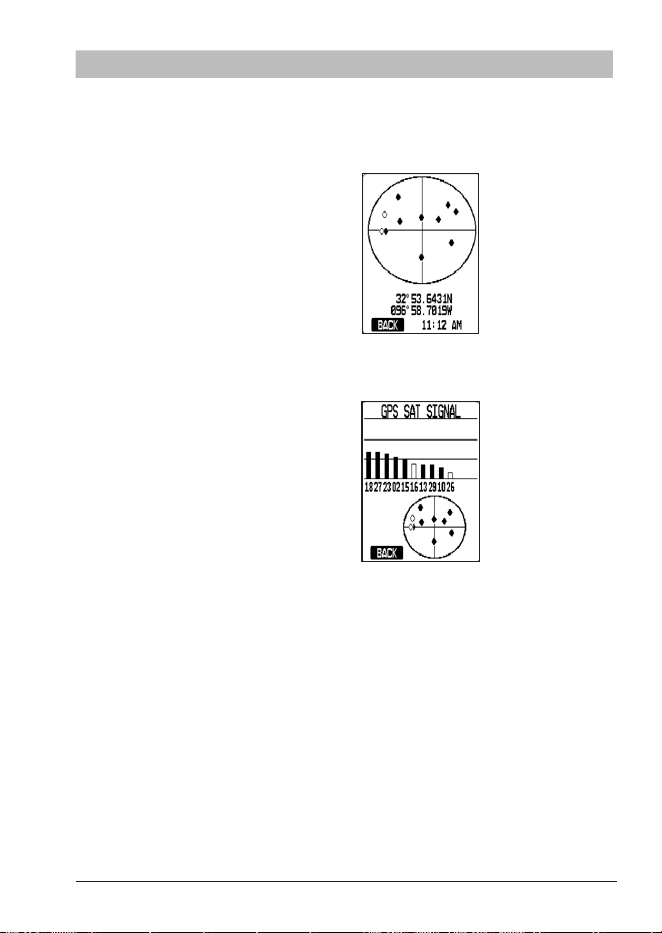
E-51MHS338BT Radio Owner’s Manual
MENU OPTION DESCRIPTION
GPS SIGNAL
COVERAGE
Displays latitude, longitude, and time of coverage check
as well as a map of active satellites within range. (Active
satellites display as black dots; inactive satellites display as
white dots.)
SATELLITE SIGNAL Displays a list of satellite numbers, signal strength, and a
graphic display of signal strength.
GPS POWER SAVE Select
AUTO
to let the radio determine how best to reserve
power (minimize background tasks, etc.) or
OFF
.
TIME DISPLAY Select
LOCAL TIME
to set and adjust the local time format
(12 or 24 hour format), adjust the time ± an hour (If GPS not
available to automatically adjust for daylight savings time),
and turn daylight savings time on and o.
Select
UTC
to set the current time display format to 24-hour
format.
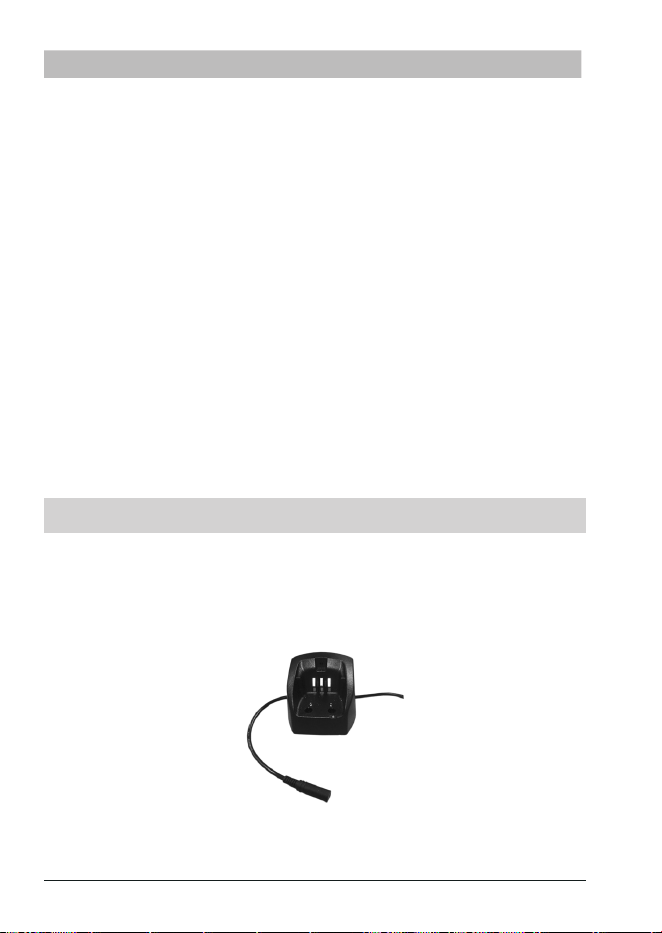
E-52 MHS338BT Radio Owner’s Manual
MENU OPTION DESCRIPTION
DIRECTION Choose
Course Up
(oriented by your course direction) or
North Up
(oriented to compass north).
LOCATION
ACCURACY
Select the location display format.
Location in ddd° mm.mmmm (degree/decimal minutes) or
ddd° mm ss (degree/minute/seconds).
UNITS OF MEASURE Set
SPEED
(Knots, MPH, or KM/H) or
DISTANCE
(Nautical
Mile, Statute Mile, or Kilometer) measurement type.
STATIONARY
POSITION
Turn stationary positioning on to update the vessel's location if
SOG is 0.4 knot or less..
POS DATA OUTPUT This menu selects the connection device to receive output
position data.
NMEA0183 OUTPUT Select the sentences to be output to the NMEA0183 (see
page E-53).
NMEA0183 DATA
SPEED
Set the NMEA0183 baud rate for GPS and DSC output: 4800
bps or 38400 bps.
INTERNAL GPS Turn internal GPS module power on or o and activate
D-GPS. D-GPS is a means of correcting GPS variances and
should be turned o in the southern hemisphere.
NMEA FEATURES
Your radio supports NMEA0183 (version 4.10), a standard for data communication between
marine instruments.
NMEA sentences contain dierent sets of data related to your ship. The MHS338BT
supports the following sentences: RMC, GLL, GGA, GSV, GSA, and DSC/DSE.
CHARTPLOTTER CONNECTION
Connect to chartplotter via
NMEA0183 output cable.
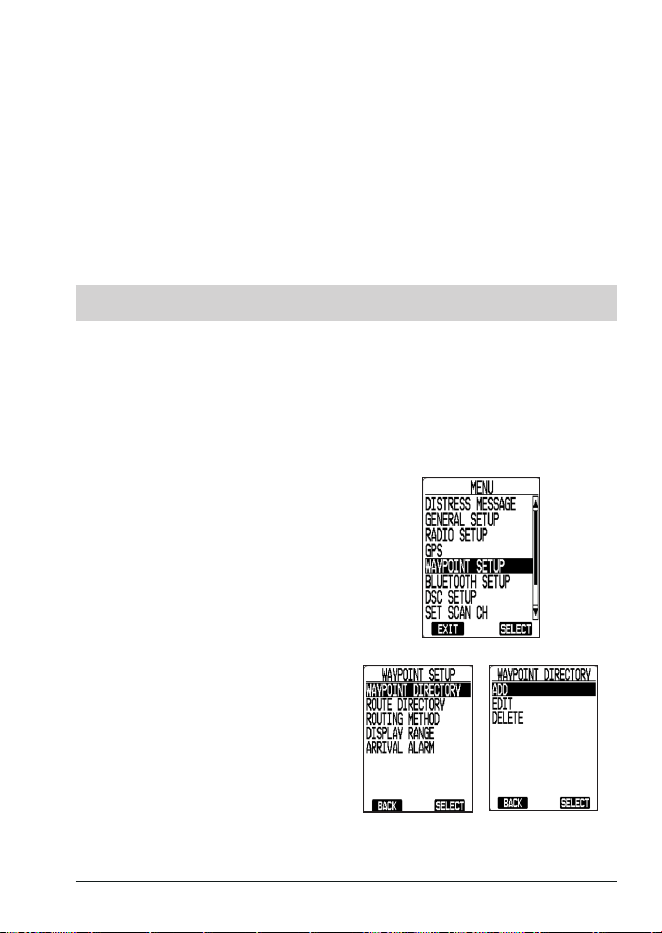
E-53MHS338BT Radio Owner’s Manual
If you have diculty getting your chartplotter to receive data from your radio, check the
chartplotter's conguration. It should be set to the following parameters:
Baud rate 4800 bps
Data bits 8
Parity None
Stop bits 1
NMEA OUTPUT
When the radio receives a DSC call (Distress, Position Reply, or Position Send), it outputs
DSC/DSE sentences from the NMEA output port in the following formats:
x $CDDSC,12,3081234000,,07,00,0354013946,0657,,,S,E*6D
x $CDDSE,1,1,A,3081234000,00,60875646*13
NAVIGATION
WAYPOINTS AND ROUTES
You can search the internet for the latitude and longitude of the location you want and save
it as a destination. For example, search for "Key West Naval Hospital Coordinates."
You can save up to 250 waypoints in your Waypoint Directory. You can also use the
positions stored in
MK POS
and
MOB
.
To Set Up a Waypoint
1. Press the MENU key and use the
▲ and ▼ keys to select the main
WAYPOINT SETUP
menu. From
this menu, you can use the ▲ and
▼ keys to dene waypoints for
your radio.
2. Select
WAYPOINT DIRECTORY
and
press SELECT. The
WAYPOINT
DIRECTORY
screen displays
available options..
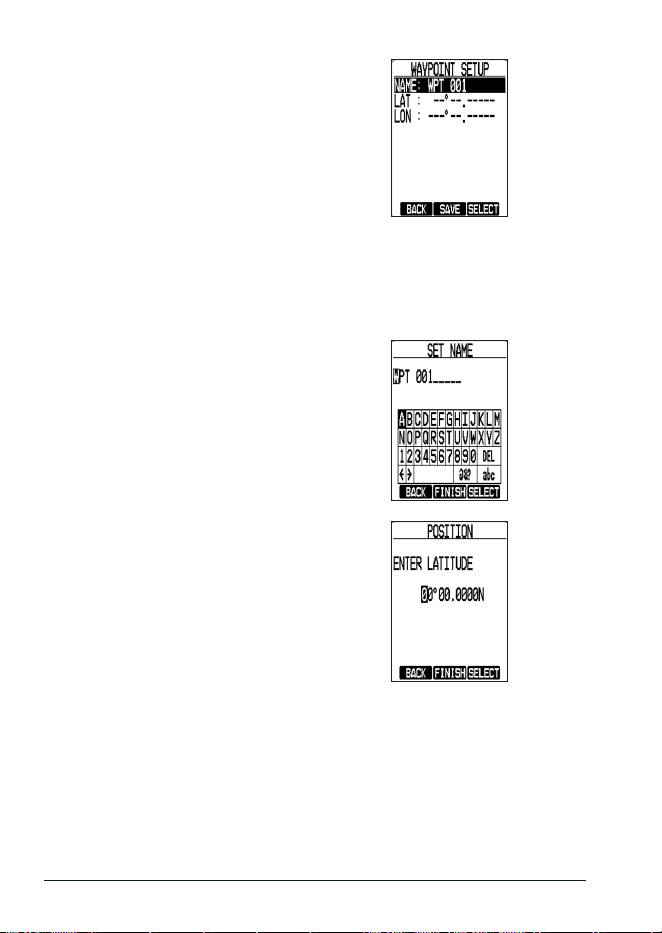
E-54 MHS338BT Radio Owner’s Manual
3. Select
ADD
and press SELECT soft
key. The
WAYPOINT SETUP
screen
displays
NAME
,
LAT
, and
LONG
.
NOTE: WPT 00X is the default waypoint
name.
NOTE: To modify an existing waypoint, select EDIT in Step 3 above and then
select the waypoint name from the list. To delete a waypoint from your
directory, select DELETE, the waypoint to be deleted, and then conrm.
4. Use the ▲ and ▼ keys to select NAME and then press the SELECT soft key. The
pop-up keyboard displays.
5. Use the keyboard to enter a name
for the waypoint. Press SELECT
after each letter and then FINISH
when done. The
WAYPOINT SETUP
screen displays again with the new
name. Press SAVE to keep that
entry.
NOTE: The name was not changed in
this example.
6. Select
LAT
and press SELECT. Use
the ▲ and ▼ keys to enter each
number (followed by SELECT after
each number entry). Press SAVE to
keep that entry.
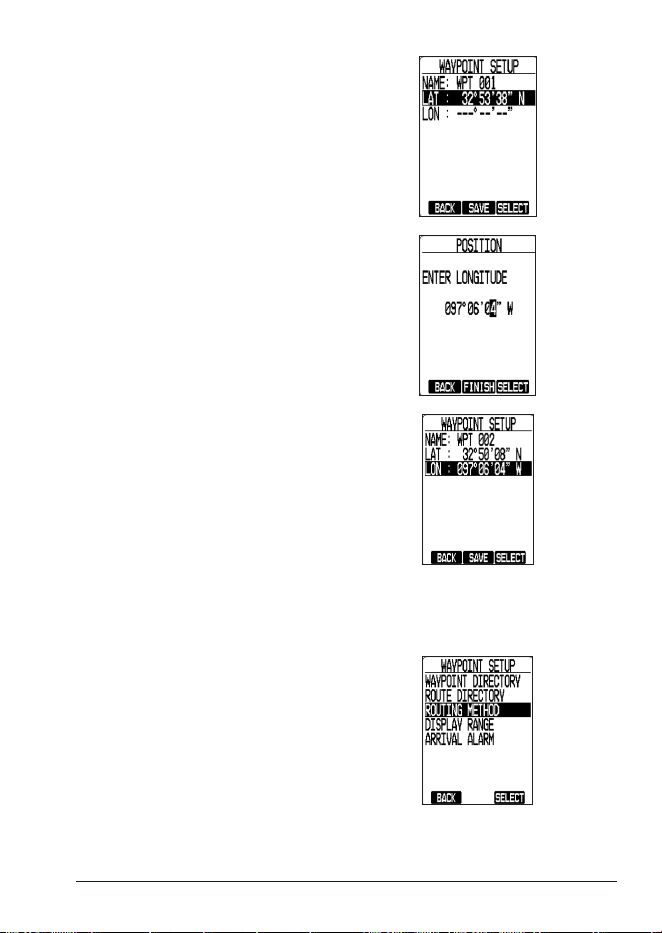
E-55MHS338BT Radio Owner’s Manual
7. When done, press FINISH. The
WAYPOINT SETUP
screen displays
again with the latitude displayed.
8. Select
LON
and press SELECT.
Use the ▲ and ▼ keys to enter
each number (followed by SELECT
after each number entry). Press
SAVE to keep that entry.
9. When done, press FINISH. The
WAYPOINT SETUP
screen displays
again with that entry displayed.
Press SAVE to keep that entry and
save it to the Waypoint Directory.
To Set Up a Route
A route is a collection of waypoints that create a navigational path between points. Set up a
route through the
NAVI
soft key.
1. From
MENU
, select the
WAYPOINT
SETUP
menu.
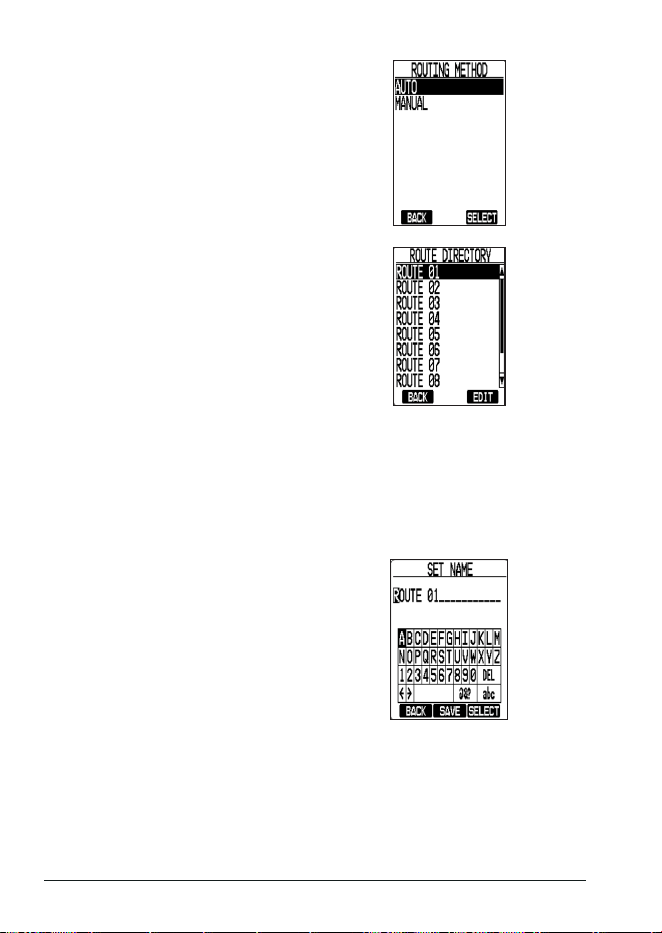
E-56 MHS338BT Radio Owner’s Manual
2. Use the ▲ and ▼ keys to select
ROUTING METHOD
and press
SELECT.
AUTO
and
MANUAL
display.
x If AUTO selected, the screen
automatically changes to the
next destination.
x If MANUAL is selected,
navigation will not start until
you press NEXT.
3. Select
ROUTE DIRECTORY
from
the
WAYPOINT SETUP
screen
and press SELECT. The
ROUTE
DIRECTORY
screen displays a list
of available routes.
NOTE: These settings cannot be set or changed during navigation. To make any
changes, rst exit Navigation mode.
4. Use the ▲ and ▼ keys to select a route and press EDIT. The
EDIT
screen
displays again.
5. Use the ▲ and ▼ keys to select
NAME
and press SELECT. The
SET NAME
popup keyboard displays.
6. Enter a name for the Waypoint.
When complete, press SAVE. The
EDIT
screen displays again.
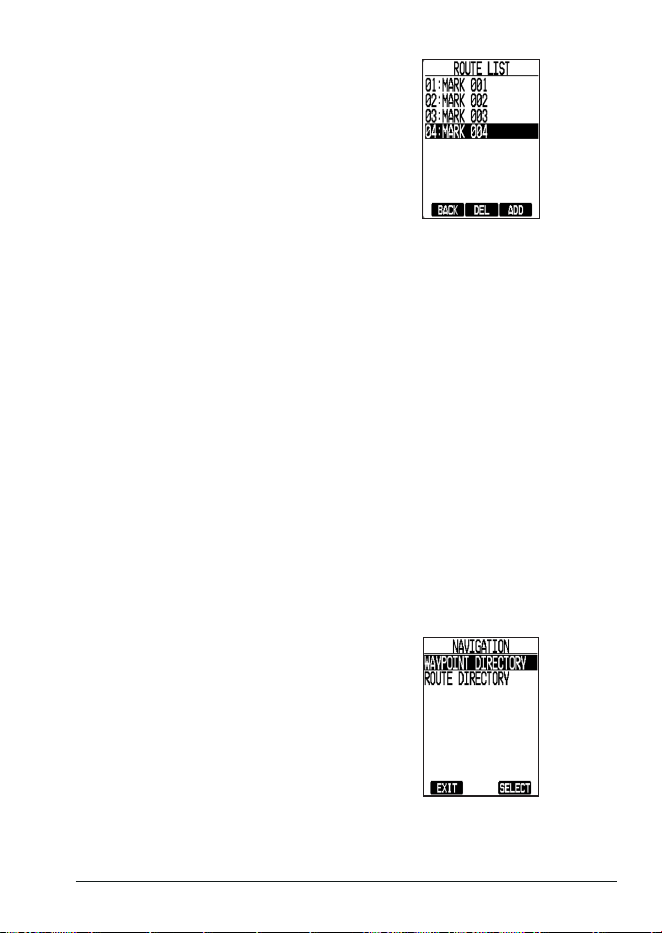
E-57MHS338BT Radio Owner’s Manual
7. Select
LIST
and press SELECT.
The
ROUTE LIST
screen displays.
8. Use the ▲ and ▼ keys to move the cursor to the waypoint route insertion point
and press the ADD soft key. The
ROUTE LIST
displays a list of saved waypoints.
9. To add a waypoint, use the ▲ and ▼ keys to select a Waypoint and press ADD.
10. Repeat Steps 8 and 9 for each waypoint you want to add to the route.
11. Press
BACK
to exit.
NOTE: The Waypoint selected for the 01 position will be the rst point to which
your radio will navigate. When you reach that waypoint, the radio will
navigate to the next waypoint (02) and continue through the list of
waypoints until you return to your beginning waypoint (04).
ACCESSING NAVIGATION
When you press the NAVI soft key, the following two menus display:
x
WAYPOINT DIRECTORY
- Displays your waypoint directory for access or editing. This
includes information saved by MOB and MK POS keys. (MOB displays as MOB 001,
002, etc. if they were saved without being edited.
x
ROUTE DIRECTORY
- Displays your route directory for access or editing.
NOTE: You can save up to 10 route directories and up to 10 waypoints for each
directories.
To Start Waypoint Navigaon
1. Press the NAVI soft key, then select
WAYPOINT DIRECTORY
from the
NAVIGATION
menu.
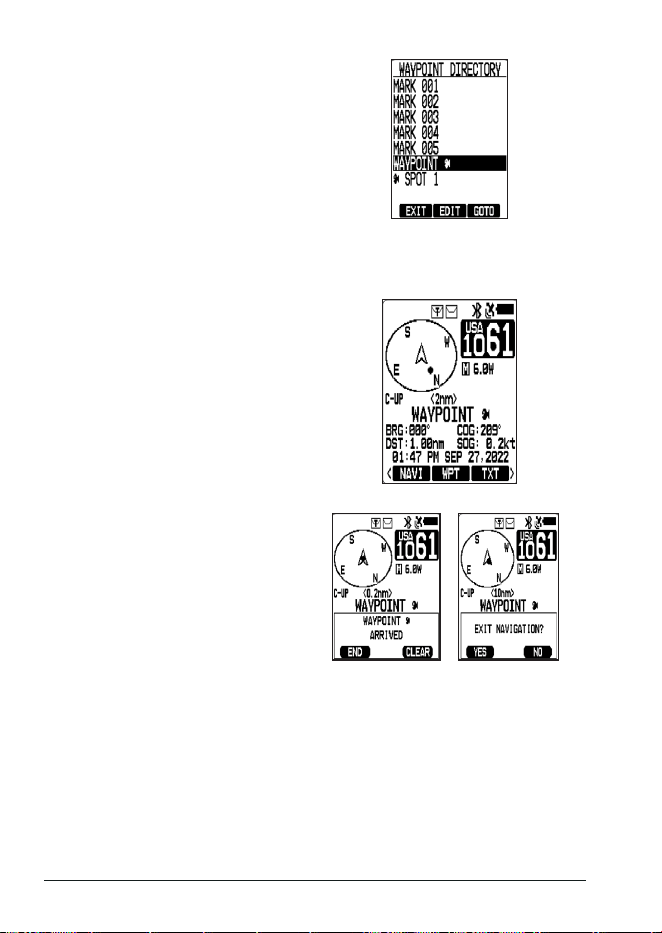
E-58 MHS338BT Radio Owner’s Manual
2. Select the desired waypoint and
press the GOTO soft key to start
navigating to your destination.
NOTE: Navigation cannot begin without the GPS location information. You
can operate the radio during navigation, but you cannot edit or change
location information (destination or route) during navigation.
3. As you navigate, the screen
displays your position information.
4. When you arrive at the destination,
an arrival message displays and
the arrival alert sounds. You can
select whether to continue or to end
navigation by pressing either the
END or CLEAR soft keys.
If you select CLEAR, navigation
continues; once you go out of range
and return to the range, the arrival
message displays and the arrival
alert sounds again
NOTE: You can stop navigating anytime
by pressing the CLEAR key.
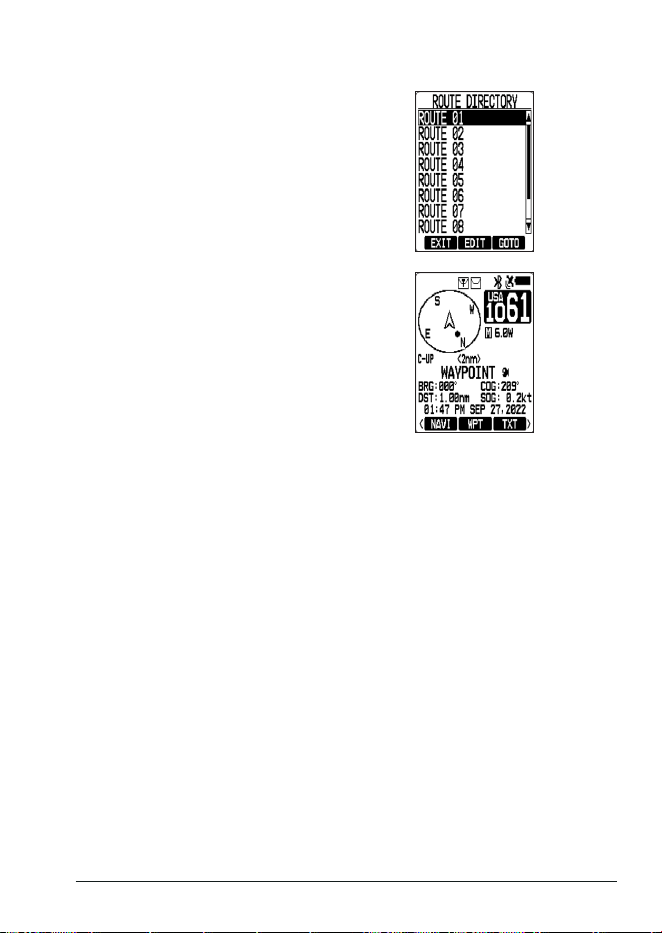
E-59MHS338BT Radio Owner’s Manual
To Start Route Navigaon
1. Select ROUTE. The
ROUTE
DIRECTORY
displays.
2. Select the desired route and press
the GOTO soft key. The Compass
screen displays and you can begin
navigating to your rst destination.
(You can skip that destination by
pressing the NEXT soft key.)
3. When you arrive at your rst destination, the arrival alert will sound.
x If the Routing method is set to MANUAL, navigation to the next destination
will not start unless you press the NEXT soft key each time you reach a
destination.
x If the Routing method is set to AUTO, navigation to the next destination will
automatically start after arriving at your rst destination. (See page E-55.)
4. When you arrive at a destination, an arrival destination displays and the arrival
alert sounds. You can select whether to continue or to end navigation by pressing
the END or CLEAR keys.
If you press the CLEAR soft key, navigation continues. When you go out of range
and return to the range, the arrival message will display and the arrival alert will
sound.
PARAMETER SETTINGS
You can select the compass display range and whether the compass display is based on
the Course or North using the GPS settings. The distance at which the navigation system
determines that the ship has arrived at its destination can be customized in the GPS
settings. For more information, see page E-50. A dot representing the destination displays
on the screen. If the distance to the destination exceeds the display range (indicated by the
dot reaching the circle's edge), you will need to adjust the display range manually or set the
GPS to
AUTO
.
When set to
AUTO
, the range will automatically adjust as needed to keep the destination
on screen.
When navigating, the screen displays the following information:
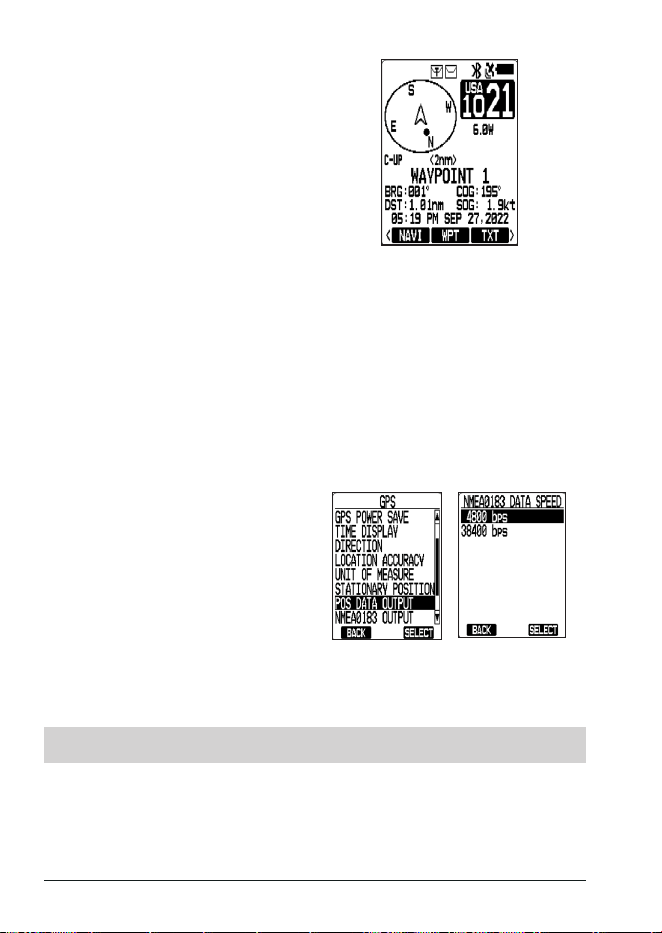
E-60 MHS338BT Radio Owner’s Manual
x BRG - Bearing
x COG - Course over ground
x C-UP (or N-UP) - Course Up (or
North Up)
x Destination - Indicated by a dot in
the compass
x Destination - (Waypoint 1)
x Display Range (Distance from
Center) - (2nm)
x DST - Distance
x HH:MM AM/PM - Current time
x SOG - Speed over ground
NMEA Operaon
Your radio supports NMEA0183 (version 4.10), a standard for data communication between
marine instruments. NMEA sentences contain dierent sets of data related to your ship.
When your radio received another boat's position data in a DSC call, the radio sends the
position data to the chart plotter so you can see the location.
When the radio receives a DSC call (Distress, Position Reply, or Position Send), it outputs
DSC/DSE sentences from the NMEA output port in the following formats:
x $CDDSC,12,3081234000,,07,00,0354013946,0657,,,S,E*6D
x $CDDSE,1,1,A,3081234000,00,60875646*13
POSITION (POS) DATA OUTPUT
x NMEA DATA OUTPUT - NMEA data
output ON or OFF.
x NMEA0183 OUTPUT - NMEA
sentence to send.
x NMEA0183 Data Speed - Set which
NMEA data out speed to use (4800
or 38400)
If your NMEA device does not initially receive data from your radio, check the accessory
cable connection and NMEA0183 parameters.
Make sure the NMEA0183 is ON in the
POS DATA OUTPUT
menu.
MAINTENANCE AND TROUBLESHOOTING
Due to its rugged design, your radio requires very little maintenance. However, it is a
precision electronic instrument, so you should follow a few precautions:
x If the antenna has been damaged, do not transmit except in an emergency situation.
Doing so may cause further radio damage.
x You are responsible for continued FCC technical compliance of your radio.
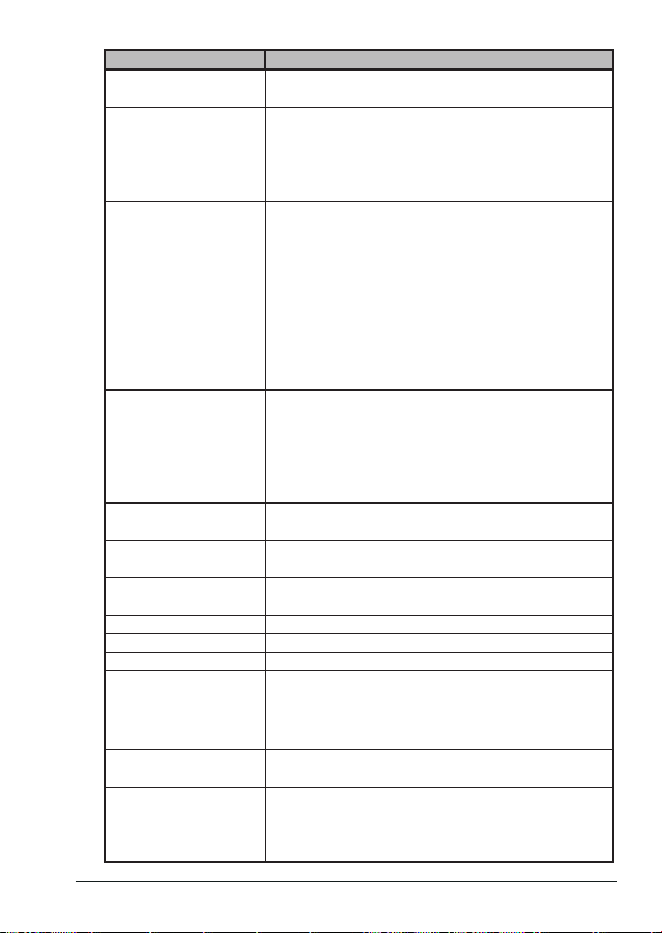
E-61MHS338BT Radio Owner’s Manual
Problem Things to Try
The radio won’t turn on.
- Verify that the battery is installed correctly.
- Charge the radio.
The power LED on the
charger doesn’t turn on.
- Don’t use the charger when the ambient temperature is
below 0° C (32° F) or above 45° C (113° F).
- Make sure the charging contacts on the radio and
charger are clean.
- Replace the battery.
The radio won’t transmit.
- Make sure you are not in Weather or Scan mode.
- Make sure you are not trying to transmit on a receive-
only channel or transmit at the wrong power level for
this channel (see the channel lists starting on page
E-64.
- Check the battery power level; if it’s low, charge the
battery before trying to transmit.
- Make sure the duration of each transmission is less
than 5 minutes.
- Try transmitting on a dierent channel.
I can’t hear anything from
the speaker.
- Adjust the squelch level; it is probably too high.
- Adjust the volume level; it is probably too low.
- If the radio has been exposed to water, there may be
water on the speaker. Press
SPKR
soft key to sound
a tone that will help remove the water. Allow the radio
to dry out.
Noise comes out of the
speaker all the time
Adjust the squelch level; it is probably too low.
I can transmit, but no one
can hear me.
Check your UIC channel settings: does the area you are
in use dierent channel assignments?
I’m not getting hazard
alerts.
Make sure Weather Alert Watch is turned on.
Scan won’t start. Be sure you have channels saved into Memory.
No beeps sound. Key beep is set to OFF. Turn Key Beep on.
I cannot send DSC calls. - Make sure the MMSI (DSC self ID) is entered.
I cannot receive GPS
position data.
Reposition the radio so that nothing blocks the internal
GPS antenna from the satellite signal.
Verify that
MENU/GPS/INTERNAL GPS/UNIT POWER
= ON.
Where can I nd my
radio’s serial number?
The serial number is on a plate inside the battery
compartment.
When I turn on the radio,
I get a message that
"positioning data is not
acquired."
Be sure there are no obstructions between the radio's
antenna and the sky. If you are inside the cabin, move
outside.
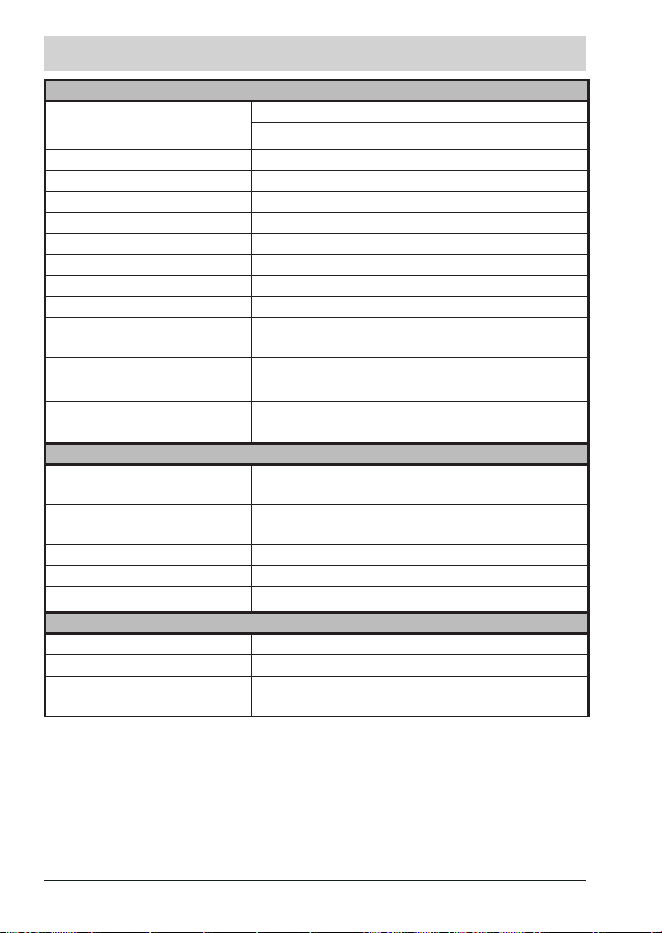
E-62 MHS338BT Radio Owner’s Manual
SPECIFICATIONS
General
Channels
All US/International/Canada marine channels
10 Weather channels
Freq. Control PLL
Freq. Tolerance at 77°F/25°C ± 0.1PPM
Oper. Temp. -4°F (-20°C) to +131°F(+55°C)
Storage Temp. -22°F (-30°C) to +140°F(+60°C)
Antenna Impedance 50 ohm
Microphone Built-in Electret type
Regulation FCC, IC
Speaker Bult-in 36mm 1W 16 ohm
Power Source
Li-Ion Polymer Recharge Battery 7.4V 1,800mAh
or 4 AAA Alkaline batteries
Size (without antenna, and belt
clip)
6.122(H) x 2.562(W) x 1.633(D) inch
145.498(H) x 65.074(W) x 41.478(D) mm
Weight (with battery, antenna,
and belt clip)
11oz (included Li-Ion battery pack and antenna)
(approx. 313g)
Transmitter
Power Output
With Li-Ion Battery Pack: H/M/L = 6W/2.5W/1W
With AAA Alkaline Batteries : M/L = 2.5W/1W
Frequency Tolerance @77°F
(25°C)
+/-0.1PPM
Spurious Emission -30dBm
Max. Deviation @50mV input +/-4.6KHz
Current Drain @ high power 6W 1.7A max
Receiver
Sensitivity for 12dB SINAD 0.24uV
Squelch Sensitivity (Level 1) 0.22uV
Audio Frequency Response
1KHz ref.
+5.5dB @500Hz -6.2dB@2KHz
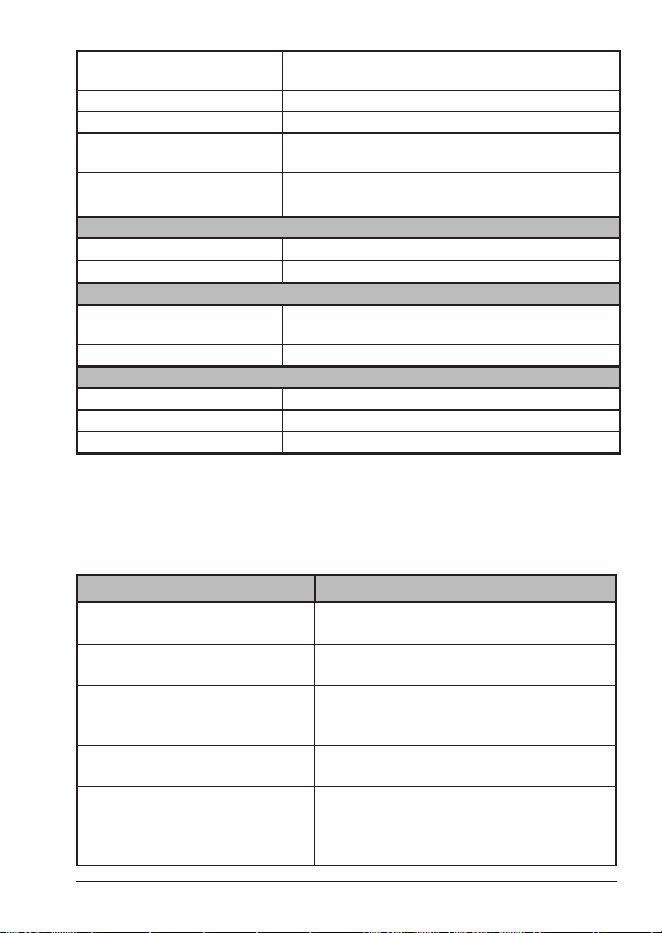
E-63MHS338BT Radio Owner’s Manual
Adjacent Channel Selectivity +/-
25KHz
73dB
Intermodulation 69dB
Ham and Noise Ratio 50dB
Audio Output Power Max.
(Internal SP)
0.7W
Current Drain @ no signal
160mA (RF 1uV W/O Mod. VOL=1(GPS, LED OFF)
430mA (RF 1mV W/Mod. VOL=15 (GPS, LED OFF)
GPS
Acquisition Sensitivity ON 51 dB (input -103dBm @GPS anechoic box)
Acquisition Time 30 sec (input -103dBm @GPS anechoic box
Bluetooth
Sensitivity
-85dBm (input -60dBm, 1Mbps BLE IDLE TX BT
anechoic box)
TX Power 1dBm (@BT anechoic box)
Charger
Power Supply Voltage DC12V (DC10V ~ 15V)
Pre Charge Current 75mA
Rapid Charge Current 650mA
Features and specications are all subject to change without notice.
REFERENCE TABLES
Channel Descripons and What They Mean
The table below lists the display name or channel description used in the following tables
and what each description means.
Channel name/description Used for
DISTRESS SAFETY AND CALLING
primarily emergency messages and distress
calls
INTERSHIP SAFETY
safety messages from one ship to another, or
from a ship to Coast Guard aircraft
NON-COMMERCIAL (recreational or
voluntary ships only)
messages about the needs of the ship, including
shing reports, rendezvous, scheduling repairs
and berthing information
COMMERCIAL (working ships only)
messages about the needs of the ship or the
business the ship is engaged in
PUBLIC CORRESPONDENCE/
MARINE OPERATOR
calls to the marine operator at a public coast
station. Marine operators can connect you to the
telephone network so you can make and receive
calls. (There is usually a charge for this service.)
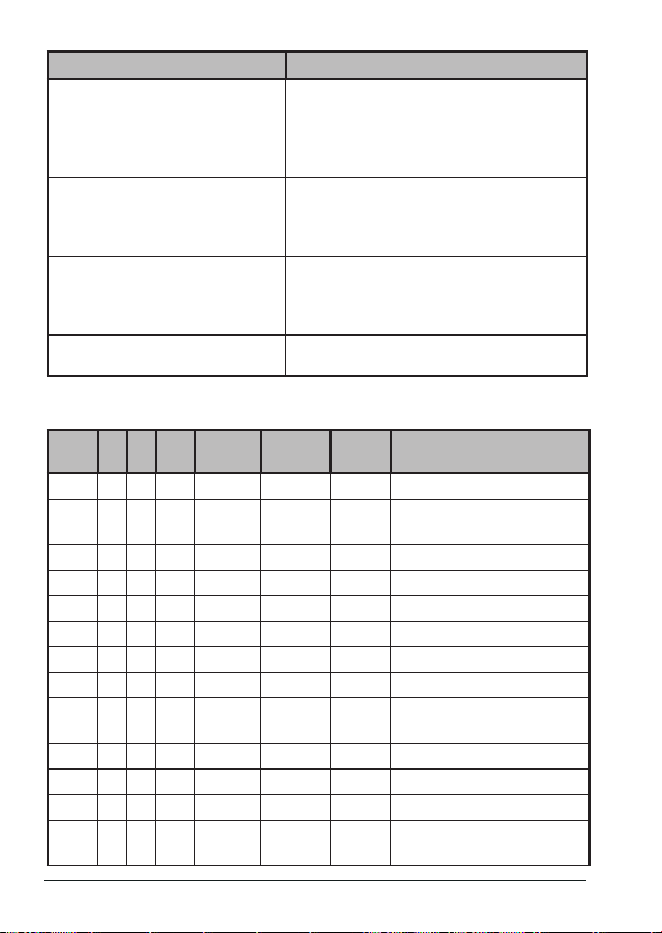
E-64 MHS338BT Radio Owner’s Manual
Channel name/description Used for
PORT OPERATIONS/VTS (ship trac
system)
messages about the movement and safety of
ships in or near ports, locks or waterways. In
certain major ports, some channels may be
restricted to specic types of port operations
messages.
NAVIGATIONAL/BRIDGE TO
BRIDGE
messages about ship navigation, for example,
passing or meeting other ships, maneuvering
through locks, or navigating around drawbridges.
Messages must be short!
STATE CONTROL
messages about government regulation and
control, boating activities, or assistance to ships;
also used to talk to ships and coastal stations
operated by state or local governments
DIGITAL SELECTIVE CALLING
DSC signals only (no voice communications
allowed at any time)
MARINE RADIO CHANNEL CHART
Ch
No.
U I C TX RX S/D Channel Type/Name
01 x x 156.050 160.650 D Marine Operator
1001 x 156.050 156.050 S
Vessel Trafc System/
Commercial
02 x x 156.100 160.700 D Marine Operator
03 x x 156.150 160.750 D Marine Operator
1003 x 156.150 156.150 S US Gov’t only; Coast Guard
04 x 156.200 160.800 D Marine Operator
1004 x 156.200 156.200 S Canadian Coast Guard
05 x 156.250 160.850 D Marine Operator
1005 x x 156.250 156.250 S
Vessel Trafc System/
Commercial
06 x x x 156.300 156.300 S Inter-ship safety
07 x 156.350 160.950 D Marine Operator
1007 x x 156.350 156.350 S Commercial
08 x x x 156.400 156.400 S
Commercial (International:
Inter-Ship)
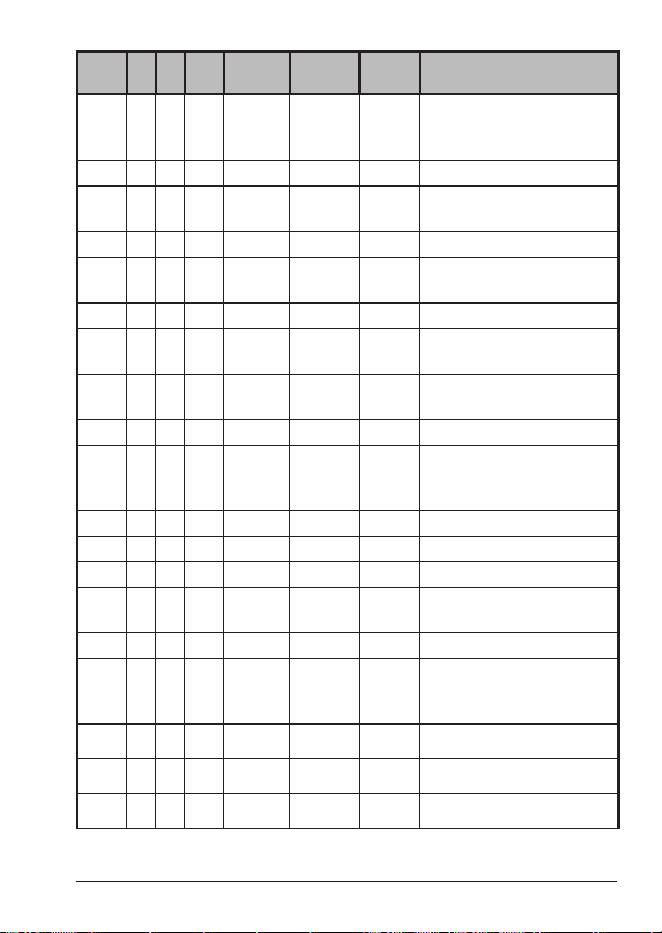
E-65MHS338BT Radio Owner’s Manual
Ch
No.
U I C TX RX S/D Channel Type/Name
09 x x x 156.450 156.450 S
INT and CAN: Boater Calling
Channel
US: Non-Commercial
10 x x x 156.500 156.500 S Commercial
11 x x x 156.550 156.550 S Vessel Trafc System
12 x x x 156.600 156.600 S Vessel Trafc System
13 x x x 156.650 156.650 S
Bridge to Bridge
US and CAN: 1W
14 x x x 156.700 156.700 S Vessel Trafc System
15 x INHIBIT 156.750
Receive
Only
Environmental
15 x x 156.750 156.750 S
Environmental
INT and CAN: 1W
16 x x x 156.800 156.800 S Distress, Safety, Calling
17 x x x 156.850 156.850 S
Government Maritime Control
(1W)
CAN: State Control (1W)
18 x 156.900 161.500 D Port Operation
1018 x x 156.900 156.900 S Commercial
19 x 156.950 161.550 D Port Operation, Ship Movement
1019 x x x 156.950 156.950 S
US: Commercial
CAN: Canadian Coast Guard
2019 x 161.550 161.550 S
20 x x x 157.000 161.600 D
Port Operations
CAN: Canadian Coast Guard
(1 W)
1020 x x 157.000 157.000 S Port Operations
2020 x 161.600 161.600 S
21 x 157.050 161.650 D Port Operations
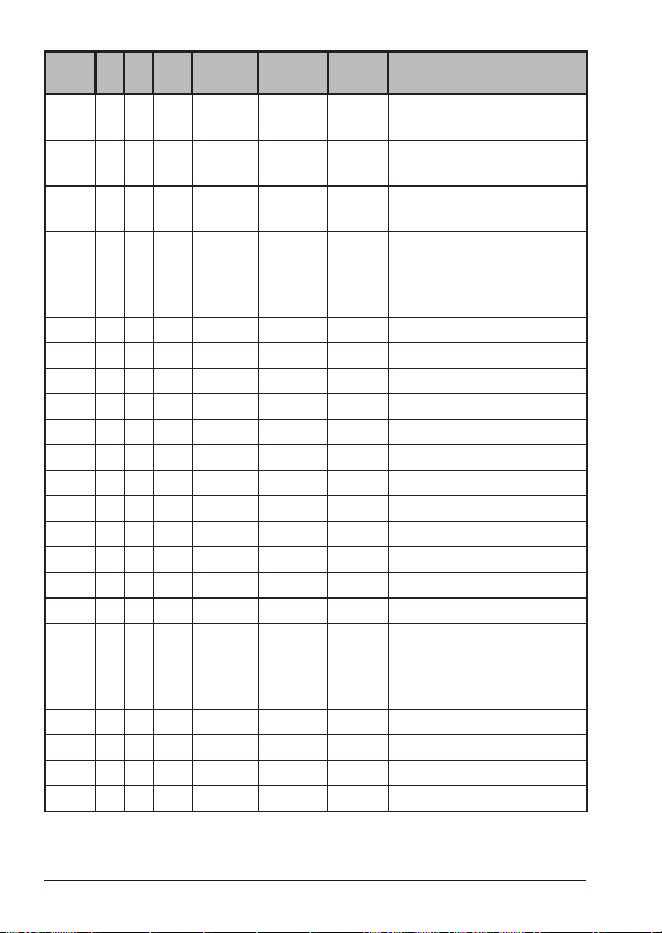
E-66 MHS338BT Radio Owner’s Manual
Ch
No.
U I C TX RX S/D Channel Type/Name
1021 x x 157.050 157.050 S
US: Coast Guard Only
CAN: Canadian Coast Guard
2021 x INHIBIT 161.650 S
Continuous Marine Broadcast
(CMB) Service
22 x 157.100 161.700 D
Port Operations, Ship
Movement
1022 x x 157.100 157.100 S
US Coast Guard Liaison and
Canadian Airtime Safety
Information Broadcasts
Announced on Channel 16
23 x x 157.150 161.750 D Marine Operator
1023 x 157.150 157.150 S US Coast Guard Only
2023 x INHIBIT 161.750 S MB Service
24 x x x 157.200 161.800 D Marine Operator
25 x x x 157.250 161.850 D Marine Operator
2025 x INHIBIT 161.850 S CMB Service
26 x x x 157.300 161.900 D Marine Operator
27 x x x 157.350 161.950 D Marine Operator
28 x x x 157.400 162.000 D Marine Operator
2028 x INHIBIT 162.000 S CMB Service
60 x x 156.025 160.625 D Marine Operator
61 x 156.075 160.675 D Marine Operator
1061 x x 156.075 156.075 S
Public Coast: Coast Guard
East Coast: Commercial
Fishing Only
CAN: Canadian Coast Guard
62 x 156.125 160.725 D Marine Operator
1062 x 156.125 156.125 S Canadian Coast Guard
63 x 156.175 160.775 D Marine Operator
1063 x x 156.175 156.175 S VTS
E-67MHS338BT Radio Owner’s Manual
Ch
No.
U I C TX RX S/D Channel Type/Name
64 x x 156.225 160.825 D Marine Operator
1064 x x 156.225 156.225 S
Marine Operator
Port Operation, Ship Movement
65 x 156.275 160.875 D Marine Operator
1065 x x 156.275 156.275 S Port Operation
66 x 156.325 160.925 D Marine Operator
1066 x x 156.325 156.325 S
Port Operations
CAN: 1W
67 x x x 156.375 156.375 S
Bridge-to-Bridge
International: Port Operations
US: 1W
68 x x x 156.425 156.425 S Non -Commercial
69 x x x 156.475 156.475 S Non-Commercial
70 x x x 156.525 156.525
DSC
Only
DSC
71 x x x 156.575 156.575 S Non-Commercial
72 x x x 156.625 156.625 S
Non-Commercial
US: Non-Commercial, Ship-to-
Ship
73 x x x 156.675 156.675 S Port Operations
74 x x x 156.725 156.725 S Port Operations
75 x x x 156.775 156.775 S Port Operations (1 Watt Only)
76 x x x 156.825 156.825 S Port Operations (1 Watt Only)
77 x x x 156.875 156.875 S
Port Operations
US and INT: Ship to Ship
US and CAN: 1 Watt Only
78 x 156.925 161.525 D Port Operations
1078 x x x 156.925 156.925 S Non-Commercial
2078 x 161.525 161.525 S
79 x 156.975 161.575 D Port Operations
1079 x x x 156.975 156.975 S Commercial
2079 x 161.575 161.575 S
E-68 MHS338BT Radio Owner’s Manual
Ch
No.
U I C TX RX S/D Channel Type/Name
80 x 157.025 161.625 D Port Operations
1080 x x 157.025 1570.25 S Commercial
81 x 157.075 161.675 D Port Operations
1081 x x 157.075 157.075 D
Government
CAN: Canadian Coast Guard
82 x 157.125 161.725 D Port Operations
1082 x x 157.125 157.125 S
Government
CAN: Canadian Coast Guard
83 x 157.175 161.775 D Port Operations
1083 x x 157.175 157.175 S
Coast Guard
CAN: Canadian Coast Guard
2083 x INHIBIT 161.775 S
Canadian CG Continuous
Marine Broadcast (CMB)
Service
84 x x x 157.225 161.825 D Marine Operator
85 x x x 157.275 161.875 D Marine Operator
86 x x x 157.325 161.925 S Marine Operator
87 x x x 157.375 157.375 S Marine Operator
88 x x x 157.425 157.425 S
U: Commercial (Ship-to-ship)
I: Marine Operator
C: Port Operation
WEATHER CHANNELS AND FREQUENCIES (US, CAN, AND INTL)
Ch No. RX Freq Name on display
WX01 162.5500 162.550 MHz
WX02 162.4000 162.400 MHz
WX03 162.4750 162.475 MHz
WX04 162.4250 162.425 MHz
WX05 162.4500 162.450 MHz
WX06 162.5000 162.500 MHz
WX07 162.5250 162.525 MHz
WX08 161.6500 161.650 MHz
WX09 161.7750 161.775 MHz
E-69MHS338BT Radio Owner’s Manual
Ch No. RX Freq Name on display
WX10 163.2750 163.275 MHz
EMERGENCY ALERT (SAME) SYSTEM
Types of Events
x A WARNING is an event that alone poses a signicant threat to public safety and/or
property, probability of occurrence and location is high, and the onset time is relatively
short.
x A WATCH meets the classication of a warning, but either the onset time, probability
of occurrence, or location is uncertain.
x An EMERGENCY is an event that, by itself, would not kill or injure or do property
damage, but indirectly may cause other things to happen that result in a hazard. For
example, a major power or telephone loss in a large city alone is not a direct hazard,
but disruption to other critical services could create a variety of conditions that could
directly threaten public safety.
x A STATEMENT is a message containing follow up information to a warning, watch, or
emergency.
Event SAME Code Type
Test Message ADR Test
Avalanche Watch AVA Watch
Avalanche Warning AVW Warning
Biological Hazard Warning BHW Warning
Boil Water Warning BWW Warning
Blizzard Warning BZW Warning
Child Abduction Emergency CAE Advisory
Civil Danger Warning CDW Warning
Civil Emergency Message CEM Emergency
Coastal Flood Watch CFA Watch
Coastal Flood Warning CFW Warning
Chemical Hazard Warning CHW Warning
Contaminated Water Warning CWW Warning
Dam Break Watch DBA Watch
Dam Break Warning DBW Warning
Contagious Disease Warning DEW Warning
Practice/Demo Warning (*1) DMO Advisory
Dust Storm Warning DSW Warning
Emergency Action
Notication
EAN Warning
E-70 MHS338BT Radio Owner’s Manual
Event SAME Code Type
Emergency Action
Termination
EAT Advisory
Earthquake Warning EQW Warning
Evacuation Immediate EVA Watch
Evacuation Immediate EVI Warning
Extreme Wind Warning EWW Warning
Flood Contamination Warning FCW Warning
Flash Flood Watch FFA Watch
Flash Flood Statement FFS Advisory
Flash Flood Warning FFW Warning
Flood Watch FLA Watch
Flood Statement FLS Statement
Flood Warning FLW Warning
Fire Warning FRW Warning
Flash Freeze Warning FSW Warning
Freeze Warning FZW Warning
Hurricane Statement HLS Statement
Hazardous Materials Warning HMW Warning
Hurricane Watch HUA Watch
Hurricane Warning HUW Warning
High Wind Watch HWA Watch
High Wind Warning HWW Warning
Iceberg Warning IBW Warning
Industrial Fire Warning IFW Warning
Local Area Emergency LAE Emergency
Law Enforcement Warning LEW Warning
Landslide Warning LSW Warning
National Audible Test NAT Advisory
National Information Center NIC Advisory
National Message Notication NMN Advisory
National Periodic Test NPT Advisory
National Silent Test NST Advisory
Nuclear Power Plant Warning NUW Warning
Power Outage Advisory POS Advisory
Radiological Hazard Warning RHW Warning
E-71MHS338BT Radio Owner’s Manual
Event SAME Code Type
Required Monthly Test RMT Test
Required Weekly Test RWT Test
Special Marine Warning SMW Warning
Special Weather Statement SPS Statement
Shelter in Place Warning SPW Warning
Storm Surge Watch SSA Advisory
Storm Surge Warning SSW Warning
Severe Thunderstorm Watch SVA Watch
Severe Thunderstorm
Warning
SVR Warning
Severe Weather Statement SVS Statement
Tornado Watch TOA Watch
911 Telephone Outage
Emergency
TOE Advisory
Tornado Warning TOR Warning
Tropical Storm Watch TRA Watch
Tropical Storm Warning TRW Warning
Tsunami Watch TSA Watch
Tsunami Warning TSW Warning
Volcano Warning VOW Warning
Wild Fire Watch WFA Watch
Wild Fire Warning WFW Warning
Winter Storm Watch WSA Watch
Winter Storm Warning WSW Warning
Unrecognized Warning **W Warning
Unrecognized Watch **A Watch
Unrecognized Emergency **E Advisory
Unrecognized Statement **S Advisory
(*1) The SAME Alert Tone will not sound when the radio detects DMO.
No Response Event Code
TXB Transmitter Backup On
TXF Transmitter Carrier On
TXO Transmitter Carrier On
TXP Transmitter Primary On

E-72 MHS338BT Radio Owner’s Manual
REGULATIONS AND SAFETY WARNINGS
MARITIME RADIO SERVICES OPERATION
Warning! This transmitter will operate on channels/frequencies that have restricted use in the
United States. The channel assignments include frequencies assigned for exclusive use of the
U.S. Coast Guard, use in Canada, and use in international waters. Operation on these frequencies
without proper authorization is strictly forbidden. See page E-64 for tables of the available channels
and their uses. If you are still not certain which channels to use, see the FCC maritime radio page at
the FCC website (http://wireless.fcc.gov/marine/) or contact the FCC Call Center at 1-888-CALL-
FCC. For individuals requiring a license, such as commercial users, you should obtain a license
application from your nearest FCC eld oce (for US users) or Industry Canada (for Canadian
users).
BASIC RADIO GUIDELINES
You should familiarize yourself with the rules on marine radios and be aware of which rules apply
to your ship. Complete guidelines for all ship and marine radio types can be found at the US Coast
Guard website under the topic Radio Info for Boaters (the direct link is http://www.navcen.uscg.
gov/?pageName=mtBoater). Here are a few guidelines that aect nearly all boaters.
• If you have a VHF radio on your ship, you must maintain a watch on channel 16 (156.800 MHz)
whenever the radio is not being used to communicate. Starting in 2004, if a radio is carried, it
must be on and set to channel 16 whenever your ship is underway.
• If you hear a distress call, wait a few minutes to let a shore station or Coast Guard ship
respond. If no other station has responded after 5 minutes, you must respond to the distress
call.
• Do not make false mayday or distress calls as a prank or to test your radio. (This is essentially
like making a false 9-1-1 call; you may be subject to nes.)
FCC/Industry Canada Informaon
Certication: FCC Part 80 or RSS-182
Output Power: 6W
Emission: 16K0G3E
Transmitter Frequency Range: 156.025-161.600 MHz
This device complies with Part 15 of the FCC Rules. Operation is subject to the condition that this
device does not cause harmful interference.
Unauthorized changes or modications to this equipment may void compliance with the FCC Rules.
Any change or modication must be approved in writing by Uniden. Changes or modications not
approved by Uniden could void the user’s authority to operate the equipment.
FCC RF Exposure Informaon
In August 1996 the Federal Communications Commission (FCC) of the United States with its action
in Report and Order FCC 96-326 adopted an updated safety standard for human exposure to radio
frequency electromagnetic energy emitted by FCC regulated transmitters. Those guidelines are
consistent with the safety standard previously set by both U.S. and international standards bodies.
The design of the radio complies with the FCC guidelines and these international standards.
WARNING! Read this information before using the radio.

E-73MHS338BT Radio Owner’s Manual
Never allow children to operate the radio without adult supervision and the knowledge of the
following guidelines.
WARNING! It is up to the user to properly operate this radio transmitter to insure safe operation.
Please adhere to the following:
Use only the supplied or an approved antenna. Unauthorized antennas, modications, or
attachments could impair call quality, damage the radio, or violate FCC regulations.
Do not use the radio with a damaged antenna. If a damaged antenna comes into contact with the
skin, a minor burn may result. Please contact your local dealer for a replacement antenna.
To maintain compliance with FCC RF exposure requirements, the radio must be used with a
maximum duty cycle not exceeding 50% in a typical push-to-talk radio use time. DO NOT transmit
for more than 50% of total radio use time.
Front of Mouth Operaon
This device was tested for typical front of mouth operations. To comply with RF exposure
requirements, a minimum separation distance of 1 inch (25 mm) must be maintained between the
user's face and the handset, including the antenna. The use of accessories that do not satisfy these
requirements may not comply with FCC RF exposure requirements and should be avoided. For
more information about RF exposure, please visit the FCC website at www.fcc.gov.
Lithium Ion Baery Warning
This equipment contains a rechargeable Lithium Ion battery. The rechargeable Lithium Ion battery
contained in this equipment may explode if disposed of in a re.
Do not short-circuit the battery.
Do not charge the rechargeable battery used in this equipment in any charger other than the one
specied in the owner’s manual. Using another charger may damage the battery or cause the
battery to explode.
NOTE: Li-Ion batteries must be recycled or disposed of properly.
Avoid exposing the battery (whether attached to the radio or not) to direct sunlight, heated cars, or
temperatures below -4°F (-20°C) or above +140°F (+60°C). Exposing the chemical contained within
the battery pack to temperatures above +140°F (+60°C) may cause the battery to rupture, fail, or
reduce performance.
In case of exposure to the cell contents, wash the aected area thoroughly, and seek medical
attention.
RBRC INFORMATION
As part of our commitment to protect the environment and conserve natural resources, Uniden
voluntarily participates in an RBRC® industry program to collect and recycle used Li-Ion batteries
within the US and Canada.
Please call 1-800-8-BATTERY® for information on Li-Ion battery recycling in
your area.
(RBRC® is a registered trademark of Call2Recycle, Inc.)

E-74 MHS338BT Radio Owner’s Manual
COMPLIANCE
FCC PART 15
The equipment has been tested and found to comply with the limits for a Class B device, pursuant
to Part 15 of the FCC rules. These limits are designed to provide reasonable protection against
harmful interference in a residential installation. This equipment generates, uses, and can radiate
radio frequency energy and, if not installed and used in accordance with the instructions, may cause
harmful interference to radio communications. However, there is no guarantee that interference
will not occur in a particular installation. If this equipment does cause harmful interference to radio
or television reception, which can be determined by turning the equipment o and on, the user is
encouraged to try to correct the interference by one of the following measures:
• Reorient or relocate the receiving antenna.
• Increase the separation between the equipment and the receiver
• Connect the equipment into an outlet on a circuit dierent from that to which the receiver is
connected.
• Consult the dealer or an experienced radio/TV technician for help.
Changes or modications not expressly approved by the party responsible for compliance could
void your authority to operate the equipment. Any change or modication must be approved in
writing by Uniden.
This device complies with Part 15 of the FCC rules. Operation is subject to the following two
conditions: (1) This device may not cause harmful interference, and (2) this device must accept any
interference received, including interference that may cause undesired operation.
Tout changement ou modication non approuvé expressément par la partie responsable pourrait
annuler le droit à l’utilisateur de faire fonctionner cet équipement. Tout changement ou modication
doit être approuvé par écrit par Uniden.
Avis de conformité à la FCC : Ce dispositif a été testé et s’avère conforme à l’article 15 des
règlements de la Commission fédérale des communications (FCC). Ce dispositif est soumis
aux conditions suivantes: 1) Ce dispositif ne doit pas causer d’interférences nuisibles et; 2)
Il doit pouvoir supporter les parasites qu’il reçoit, incluant les parasites pouvant nuire à son
fonctionnement.
IC
This device complies with Industry Canada's license-exempt RSSs. Operation is subject to the
following two conditions:
(1) this device may not cause interference, and
(2) this device must accept any interference, including interference that may cause undesired
operation of the device.
Cet appareil est conforme aux normes CNR d’Industrie Canada destinés aux appareils radio
exempts de licence. Son fonctionnement est soumis aux deux conditions suivantes :
1) Cet appareil ne doit pas causer d’interférences nuisibles et;
2) Il doit pouvoir accepter les interférences, incluant celles pouvant nuire à son fonctionnement
normal.
RF EXPOSURE COMPLIANCE
This equipment complies with FCC/ISED radiation exposure limits set forth for an uncontrolled
environment. End user must follow the specic operating instructions for satisfying RF exposure
compliance. This transmitter must not be co-located or operating in conjunction with any other

E-75MHS338BT Radio Owner’s Manual
antenna or transmitter.
The portable device is designed to meet the requirements for exposure to radio waves established
by the ISED. These requirements set a SAR limit of 1.6 W/kg averaged over one gram of tissue.
The highest SAR value reported under this standard during product certication for use when
properly worn on the body, with 0mm separation.
CONFORMITÉ � l'EXPOSITION AUX RF
Cet équipement est conforme aux limites d'exposition aux radiations FCC/ISED dénies pour un
environnement non contrôlé. L'utilisateur nal doit suivre les instructions d'utilisation spéciques
pour satisfaire à la conformité d'exposition RF. Cet émetteur ne doit pas être situé au même endroit
ou fonctionner en conjonction avec une autre antenne ou un autre émetteur.
L'appareil portable est conçu pour répondre aux exigences d'exposition aux ondes radio établies
par l'ISED. Ces exigences xent une limite de DAS de 1,6 W/kg en moyenne sur un gramme de
tissu. La valeur SAR la plus élevée signalée dans le cadre de cette norme lors de la certication du
produit pour une utilisation lorsqu'il est correctement porté sur le corps, avec une séparation de 0
mm.
ISED ANTENNA STATEMENT
This radio transmitter (MHS338BT – IC: 513C-UT665) has been approved by Innovation, Science
and Economic Development Canada to operate with the antenna type listed below, with the
maximum permissible gain indicated. Antenna types not included in this list that have a gain greater
than the maximum gain indicated for any type listed are strictly prohibited for use with this device.
The following antenna type can be used at the maximum 3.0 dBi gain with a 50 Ohm impedance
required for each antenna type:
x Supplied Rubber Flex Antenna
ÉNONCÉ D’ANTENNE ISED
Cet émetteur radio (MHS338BT – IC: 513C-UT665) a été approuvé par Innovation, Science et
Développement économique Canada pour fonctionner avec les types d’antennes listés ci-dessous,
avec le gain maximum autorisé indiqué Les types d’antennes non inclus dans cette liste qui ont un
gain supérieur au gain maximum indiqué pour tout type listé sont strictement interdits d’utilisation
avec cet appareil.
Les types d’antennes suivants peuvent être utilisés avec un gain maximal de 3 dBi et une
impédance de 50 Ohms est requise pour chaque type d’antenne :
x Antenne exible en caoutchouc fournie
THREE-YEAR LIMITED WARRANTY
WARRANTOR: UNIDEN AMERICA CORP. (“Uniden”)
ELEMENTS OF WARRANTY: Uniden warrants, for three years, to the original retail owner, this
Uniden Product to be free from defects in materials and craftsmanship with only the limitations or
exclusions set out below.
WARRANTY DURATION: This warranty to the original user shall terminate and be of no further
eect 36 months after the date of original retail sale. The warranty is invalid if the Product is (A)
damaged or not maintained as reasonable or necessary, (B) modied, altered, or used as part
of any conversion kits, subassemblies, or any congurations not sold by Uniden, (C) improperly
installed, (D) serviced or repaired by someone other than an authorized Uniden service center for a
defect or malfunction covered by this warranty, (E) used in any conjunction with equipment or parts

E-76 MHS338BT Radio Owner’s Manual
or as part of any system not manufactured by Uniden, or (F) installed or programmed by anyone
other than as detailed by the Operating Guide for this product.
STATEMENT OF REMEDY: In the event that the product does not conform to this warranty
at any time while this warranty is in eect, warrantor will repair the defect and return it to you
without charge for parts, service, or any other cost (except shipping and handling) incurred by
warrantor or its representatives in connection with the performance of this warranty. THE LIMITED
WARRANTY SET FORTH ABOVE IS THE SOLE AND ENTIRE WARRANTY PERTAINING TO THE
PRODUCT AND IS IN LIEU OF AND EXCLUDES ALL OTHER WARRANTIES OF ANY NATURE
WHATSOEVER, WHETHER EXPRESS, IMPLIED OR ARISING BY OPERATION OF LAW,
INCLUDING, BUT NOT LIMITED TO ANY IMPLIED WARRANTIES OF MERCHANTABILITY OR
FITNESS FOR A PARTICULAR PURPOSE. THIS WARRANTY DOES NOT COVER OR PROVIDE
FOR THE REIMBURSEMENT OR PAYMENT OF INCIDENTAL OR CONSEQUENTIAL DAMAGES.
Some states do not allow this exclusion or limitation of incidental or consequential damages so the
above limitation or exclusion may not apply to you.
LEGAL REMEDIES: This warranty gives you specic legal rights, and you may also have other
rights which vary from state to state. This warranty is void outside the United States of America.
PROCEDURE FOR OBTAINING PERFORMANCE OF WARRANTY: If, after following the
instructions in this Operating Guide you are certain that the Product is defective, pack the Product
carefully (preferably in its original packaging). Include evidence of original purchase and a note
describing the defect that has caused you to return it. The Product should be shipped freight
prepaid, by traceable means, or delivered, to warrantor at:
Uniden America Corporation
C/O Saddle Creek
743 Henrietta Creek Rd., Suite 100
Roanoke, TX, 76262

E-77MHS338BT Radio Owner’s Manual



Issue 1, March 2023
U01UT665ZZZ(0)
QUESTIONS?
Contactez-nous au
www.uniden.com.
Imprimé au Vietnam
QUESTIONS?
Visit our website at
www.uniden.com.
Printed in Vietnam