
Poly Edge E Series Phones
User Guide
PVOS 8.0.0 | August 2022 |
3725-47487-001A

Contents
Before You Begin ..............................................................................................................................................................................................8
Audience, Purpose, and Required Skills ............................................................................................................................................... 8
Related Poly and Partner Resources .....................................................................................................................................................8
Privacy Policy ...............................................................................................................................................................................................8
Overview of Poly Edge E Series Phones .................................................................................................................................................... 9
Access and Watch Overview and Explainer Videos ......................................................................................................................... 9
Product Overview of Poly Edge E Series Phones .............................................................................................................................. 9
Poly Edge E100 and Edge E220 Features and Capabilities ...................................................................................................... 9
Poly Edge E300 Series Features and Capabilities .....................................................................................................................10
Poly Edge E400 Series Features and Capabilities .....................................................................................................................10
Poly Edge E500 Series Features and Capabilities .....................................................................................................................10
Poly Edge E Series Phones Hardware Overview ............................................................................................................................ 11
Poly Edge E100 and Edge E220 Phones Hardware Overview .............................................................................................. 11
Poly Edge E300 Series Phones Hardware Overview ............................................................................................................... 15
Poly Edge E400 Series Phones Hardware Overview ............................................................................................................... 19
Poly Edge E500 Series Phones Hardware Overview ............................................................................................................... 23
Poly Edge E Expansion Module .......................................................................................................................................................27
Surround LED Lighting Bar .............................................................................................................................................................. 31
Poly Edge E Series Phones UI Overview ........................................................................................................................................... 31
Poly Edge E Series Phone Screens ................................................................................................................................................. 31
Icons Used on Poly Edge E Series Phones ................................................................................................................................... 36
Busy Lamp Field Icons ....................................................................................................................................................................... 38
Getting Started ...............................................................................................................................................................................................39
Finding Phone Information ....................................................................................................................................................................39
Password Required to Access Basic Settings ............................................................................................................................. 39
Access Help and Support Information ..........................................................................................................................................39
Find Phone Information ....................................................................................................................................................................39
Entering Information on Your Phone ................................................................................................................................................. 39
Options to Enter Information in Data Fields .............................................................................................................................. 39
Changing Audio Settings ........................................................................................................................................................................41
Change Audible Ringer Settings .....................................................................................................................................................41
Set a Ringtone for Incoming Calls .................................................................................................................................................. 41
Set a Ringtone for Individual Contacts .........................................................................................................................................42
Change the Phone Volume .............................................................................................................................................................. 42
Enable Acoustic Fence ...................................................................................................................................................................... 42
Mute and Unmute the Microphones .................................................................................................................................................. 42
Logging In to Your Poly Edge E Series Phone ........................................................................................................................................ 43
Log In to a Phone ...................................................................................................................................................................................... 43
Log Out of the Phone .............................................................................................................................................................................. 43
Log In to a Host Phone as a Guest ....................................................................................................................................................... 43
Log Out of a Host Phone ...................................................................................................................................................................43
Log In to a Guest Automatic Call Distribution Phone ....................................................................................................................44
Log Out of a Guest ACD Phone ...................................................................................................................................................... 44
Change Your Login Password ...............................................................................................................................................................44
Locking Your Phone ...................................................................................................................................................................................... 45
Lock Your Phone .......................................................................................................................................................................................45
Unlock the Phone ..................................................................................................................................................................................... 45
Accessibility Features ...................................................................................................................................................................................46
Users Who Are Deaf or Hard of Hearing .......................................................................................................................................... 46
Users with Limited Mobility ..................................................................................................................................................................46
Users Who Are Blind, Have Low Vision, or Have Limited Vision ............................................................................................... 46
Text-to-Speech ......................................................................................................................................................................................... 47
Enable Text-to-Speech ......................................................................................................................................................................48
Use the Text-to-Speech Feature ....................................................................................................................................................48
Customizing the Text Style ....................................................................................................................................................................48
ii

Customize the Text Size ................................................................................................................................................................... 48
Enable High Contrast ..............................................................................................................................................................................48
Audio Calls ....................................................................................................................................................................................................... 49
Placing Audio Calls ...................................................................................................................................................................................49
Call Charges for Outgoing Calls ..................................................................................................................................................... 49
Call Precedence and Preemption ...................................................................................................................................................49
Use the Handset, Headset, or Speakerphone .............................................................................................................................49
Place a Call ............................................................................................................................................................................................49
Place an International Call ...............................................................................................................................................................50
Place a Call from Recent Calls .........................................................................................................................................................50
Place a Call from an Expansion Module ....................................................................................................................................... 50
Place a Call from a Locked Phone .................................................................................................................................................. 50
Place a Call with a Hidden Number ............................................................................................................................................... 50
Answering Audio Calls ............................................................................................................................................................................51
Answer a Call ....................................................................................................................................................................................... 51
Answer a Call When in a Call ...........................................................................................................................................................51
Answer a Call from an Expansion Module ...................................................................................................................................51
Answer a Call on a Locked Phone .................................................................................................................................................. 51
End a Call .................................................................................................................................................................................................... 51
Ignoring or Rejecting Incoming Calls ..................................................................................................................................................51
Ignore or Silence an Incoming Call .................................................................................................................................................52
Reject Incoming Calls ........................................................................................................................................................................ 52
Rejecting Calls with Do Not Disturb .............................................................................................................................................52
Holding and Resuming Calls ..................................................................................................................................................................53
Hold and Resume a Call .................................................................................................................................................................... 53
Resume a Call on an Expansion Module .......................................................................................................................................53
Redirecting Incoming Calls ....................................................................................................................................................................53
Forwarding Incoming Calls to a Contact ......................................................................................................................................53
Divert Calls to a Contact .................................................................................................................................................................. 54
Transferring Calls .....................................................................................................................................................................................54
Choose a Default Transfer Type .................................................................................................................................................... 54
Transfer a Call ......................................................................................................................................................................................54
Cancel a Transfer ................................................................................................................................................................................55
Redialing Calls ...........................................................................................................................................................................................55
Redial a Number ..................................................................................................................................................................................55
Redial a Contact when the Contact is Available ........................................................................................................................55
Managing Calls ..........................................................................................................................................................................................55
Display Calls .........................................................................................................................................................................................55
Manage Calls ........................................................................................................................................................................................55
Placing Intercom Calls ............................................................................................................................................................................ 56
Place an Intercom Call .......................................................................................................................................................................56
Place an Intercom Call During a Call .............................................................................................................................................56
Answer an Intercom Call .................................................................................................................................................................. 56
Call Settings ............................................................................................................................................................................................... 56
Disable Call Waiting .......................................................................................................................................................................... 56
Answer Calls Automatically ............................................................................................................................................................ 57
Conference Calls ............................................................................................................................................................................................58
Audio Conference Calls ..........................................................................................................................................................................58
Initiate a Conference Call .................................................................................................................................................................58
Join Calls to Create a Conference Call .........................................................................................................................................58
Hold a Conference Call ..................................................................................................................................................................... 58
Resume a Conference Call ............................................................................................................................................................... 58
End a Conference Call ....................................................................................................................................................................... 58
Split a Conference Call ......................................................................................................................................................................59
Shared Lines .................................................................................................................................................................................................... 60
Shared Line Limitations .......................................................................................................................................................................... 60
Answering Calls on Shared Lines .........................................................................................................................................................60
Missed and Received Calls on Shared Lines ..................................................................................................................................... 60
iii

Hold a Call Privately on a Shared Line ............................................................................................................................................... 60
Call Lists ............................................................................................................................................................................................................61
Recent Calls ............................................................................................................................................................................................... 61
View Recent Calls ...............................................................................................................................................................................61
Sort Recent Call Entries ....................................................................................................................................................................61
Filter Entries by Call Type ................................................................................................................................................................61
View Call Details .................................................................................................................................................................................62
Edit a Recent Call Entry .................................................................................................................................................................... 62
Delete a Recent Call Entry ...............................................................................................................................................................62
Save a Recent Call Entry ...................................................................................................................................................................62
Call Lists and Contact Settings .............................................................................................................................................................63
Clear Call Logs and Contacts ...........................................................................................................................................................63
Restrict Call Log and Contact Uploads .........................................................................................................................................63
Favorites and Buddy Lists ........................................................................................................................................................................... 64
Managing Favorites .................................................................................................................................................................................64
Add a Favorite ..................................................................................................................................................................................... 64
Reorder Favorites ...............................................................................................................................................................................64
Move a Favorite to a Different Screen ......................................................................................................................................... 64
Delete a Favorite ................................................................................................................................................................................ 65
Viewing Favorites .................................................................................................................................................................................... 65
View Favorites on the Favorites List .............................................................................................................................................65
View Favorites on the Home Screen .............................................................................................................................................65
Calling Favorites .......................................................................................................................................................................................65
Call Favorites from the Favorites List .......................................................................................................................................... 65
Call Favorites from the Lines Screen ............................................................................................................................................ 65
Using Buddy Lists ..................................................................................................................................................................................... 66
Add Contacts to Your Buddy List ...................................................................................................................................................66
Updating Your Buddy Status ................................................................................................................................................................ 66
Update Your Buddy Status .............................................................................................................................................................. 66
Automatically Update Your Buddy Status .................................................................................................................................. 66
Using the Watcher List ........................................................................................................................................................................... 67
View Your Watcher List ....................................................................................................................................................................67
Block Contacts from Viewing Your Status .................................................................................................................................. 67
View the Blocked Contacts List ......................................................................................................................................................67
Unblock a Contact ..............................................................................................................................................................................67
Directories ....................................................................................................................................................................................................... 68
Using the Directories .............................................................................................................................................................................. 68
Add a Contact to the Contact Directory ......................................................................................................................................68
Add Corporate Directory Contacts to the Local Directory ................................................................................................... 69
View Contact Information ............................................................................................................................................................... 69
Update Contact Information ...........................................................................................................................................................69
Delete a Contact from the Contact Directory ........................................................................................................................... 69
Searching the Directories ...................................................................................................................................................................... 70
Search for Contacts ............................................................................................................................................................................70
Searching the Corporate Directory ...............................................................................................................................................70
Calling Contacts from Directories ...................................................................................................................................................... 70
Call a Contact from a Directory ......................................................................................................................................................71
Call a Contact from the Directory Search Screen .....................................................................................................................71
Automatically Reject Calls from a Contact ................................................................................................................................. 71
Accessing, Sending, and Broadcasting Messages ................................................................................................................................. 72
Accessing Voicemail ................................................................................................................................................................................ 72
Access Voicemail Messages ............................................................................................................................................................ 72
Remove the Message Alert ..............................................................................................................................................................72
Instant Messaging .................................................................................................................................................................................... 72
Send Instant Messages ......................................................................................................................................................................72
Read Instant Messages ..................................................................................................................................................................... 73
Reply to Instant Messages ............................................................................................................................................................... 73
Delete Instant Messages .................................................................................................................................................................. 73
iv

Broadcasting Messages with Group Paging ..................................................................................................................................... 73
Send a Group Page ............................................................................................................................................................................. 74
Receiving Pages ...................................................................................................................................................................................74
Group Paging Settings .......................................................................................................................................................................75
Broadcasting Messages with Push-To-Talk .....................................................................................................................................75
Send a PTT Broadcast ........................................................................................................................................................................76
Receiving PTT Broadcasts ................................................................................................................................................................76
Reply to PTT Broadcasts .................................................................................................................................................................. 77
End PTT Broadcasts ...........................................................................................................................................................................77
Push-To-Talk Settings ....................................................................................................................................................................... 77
Pagination ........................................................................................................................................................................................................ 79
Move Between Pages ..............................................................................................................................................................................79
Set the Default Page ................................................................................................................................................................................79
Delete a Page .............................................................................................................................................................................................79
Re-add a Deleted Blank Page ................................................................................................................................................................79
Wi-Fi and Bluetooth Connections ............................................................................................................................................................ 80
Connecting to a Wireless Network .....................................................................................................................................................80
Enable Wi-Fi .........................................................................................................................................................................................80
Connect to a Wireless Network ..................................................................................................................................................... 80
Update Wireless Network Settings ...............................................................................................................................................80
Disconnect from a Wireless Network .......................................................................................................................................... 81
Remove a Saved Wireless Network .............................................................................................................................................. 81
Using Bluetooth Devices on Your Phone .......................................................................................................................................... 81
Enable Bluetooth ................................................................................................................................................................................ 81
Pair a Bluetooth Device .................................................................................................................................................................... 81
Pair an Android Device Using NFC ................................................................................................................................................82
Connect a Paired Bluetooth Device ..............................................................................................................................................82
Using a Smartphone with Your Phone ..........................................................................................................................................82
Disconnect or Unpair a Connected Bluetooth Device ............................................................................................................ 82
Headsets ...........................................................................................................................................................................................................84
Connecting a USB Headset ................................................................................................................................................................... 84
Using Bluetooth Headsets .....................................................................................................................................................................84
Pair a Bluetooth Headset to Your Phone .....................................................................................................................................84
Managing Calls with Your Bluetooth Headset ...........................................................................................................................84
Enable Headset Echo Cancellation ..................................................................................................................................................... 85
Using Electronic Hookswitch ................................................................................................................................................................85
Setting the Headset Base Unit Options ....................................................................................................................................... 85
Enable Electronic Hookswitch ........................................................................................................................................................85
Change the Headset Mode .............................................................................................................................................................. 86
Controlling Calls with Electronic Hookswitch ........................................................................................................................... 86
Disconnect Electronic Hookswitch ............................................................................................................................................... 86
Poly Headset Settings .............................................................................................................................................................................86
Set the Answering Call Alert ........................................................................................................................................................... 86
Set the Mute On or Off Alert ...........................................................................................................................................................87
Set the Mute Reminder .....................................................................................................................................................................87
Set the Mute Reminder Interval .....................................................................................................................................................87
Set the Volume Level Indicator Tones ..........................................................................................................................................87
Adjust the Headset Speaker Bass and Treble ............................................................................................................................ 88
View Voice Visual Feedback ............................................................................................................................................................88
Record and Play the Call ...................................................................................................................................................................88
Adjust the Microphone Gain ........................................................................................................................................................... 88
Set the Dial Tone .................................................................................................................................................................................89
Set the Decibel Spike Limit .............................................................................................................................................................. 89
Set the Decibel Threshold Limit ..................................................................................................................................................... 89
Set the Hours on Phone Per Day ....................................................................................................................................................89
Restore Default Settings .................................................................................................................................................................. 90
Connecting Other Devices ..........................................................................................................................................................................91
Poly Computer Audio Connector ........................................................................................................................................................ 91
v

Download and Install the Poly Computer Audio Connector ................................................................................................. 91
Pair Your Phone and Computer .....................................................................................................................................................91
Regenerate a Pairing Code .............................................................................................................................................................. 91
CSTA Lines ................................................................................................................................................................................................. 92
Phone Applications ........................................................................................................................................................................................93
Using the Calendar .................................................................................................................................................................................. 93
Enter Your Microsoft Exchange Login Credentials .................................................................................................................. 93
Log In to Exchange Using Web Sign-in ......................................................................................................................................... 93
Open the Calendar ............................................................................................................................................................................. 93
Display Meeting View on the Calendar ........................................................................................................................................93
View Meeting Details ........................................................................................................................................................................ 94
Join a Meeting from the Calendar ................................................................................................................................................. 94
Navigating the Web ................................................................................................................................................................................94
Open the Web Browser .................................................................................................................................................................... 94
Cisco BroadWorks Features ...................................................................................................................................................................... 96
Parking and Retrieving Calls on the Cisco BroadWorks Server .................................................................................................96
Park a Call ............................................................................................................................................................................................. 96
Retrieve a Parked Call .......................................................................................................................................................................96
Retrieve a Parked Call on Another Phone ...................................................................................................................................96
Ignore a Parked Call ...........................................................................................................................................................................97
Managing Calls Remotely with Cisco BroadWorks Server ..........................................................................................................97
Managing Calls with UC-One BroadWorks Anywhere ...........................................................................................................97
Managing Calls with UC-One Remote Office .............................................................................................................................98
Reject Anonymous Calls .........................................................................................................................................................................99
UC-One Simultaneous Ring .................................................................................................................................................................. 99
Create a Personal Ring Group ......................................................................................................................................................100
Add Numbers to Your Simultaneous Ring List ........................................................................................................................ 100
Delete Numbers from the Simultaneous Ring List .................................................................................................................100
Managing UC-One Favorites and Contacts ...................................................................................................................................100
UC-One Contacts' Presence Information .................................................................................................................................101
Viewing UC-One Contacts and Favorites .................................................................................................................................101
View Aggregated Self-Presence for Cisco BroadWorks Lines ........................................................................................... 102
Filter UC-One Favorites ................................................................................................................................................................ 102
Search for UC-One Contacts ........................................................................................................................................................102
Cisco BroadWorks Executive-Assistant .........................................................................................................................................102
Executive Options ............................................................................................................................................................................103
Assistant Options .............................................................................................................................................................................103
Pick Up a Held Executive Call on a Shared Line ...................................................................................................................... 104
Pick Up a Held Executive Call on a Private Line ......................................................................................................................105
Barge In on an Executive Call ....................................................................................................................................................... 105
Access the Call Actions for Cisco BroadWorks Dynamic Busy Lamp Field (BLF) ...............................................................105
Ribbon Communications Features .........................................................................................................................................................106
Ribbon Communications Multiple Appearance Directory Number - Single Call Appearance ....................................... 106
Placing a MADN Call .......................................................................................................................................................................106
Answering a MADN Call ................................................................................................................................................................ 106
Barge In on an Active Call ..............................................................................................................................................................106
Leave a Bridge Call .......................................................................................................................................................................... 106
Resume a Held MADN Call ........................................................................................................................................................... 107
Enabling Privacy for MADN Calls ............................................................................................................................................... 107
Managing the Ribbon Communications Address Books ............................................................................................................ 108
Using the Global Address Book ................................................................................................................................................... 108
Using the Personal Address Book ............................................................................................................................................... 109
Phone Settings ............................................................................................................................................................................................. 111
System Settings ......................................................................................................................................................................................111
Change the Phone Display Language .........................................................................................................................................111
Time and Date Display ....................................................................................................................................................................111
Backlight Intensity and Timeout ....................................................................................................................................................... 111
Set the Backlight Intensity ............................................................................................................................................................ 112
vi

Set the Backlight Timeout ............................................................................................................................................................. 112
Power Saving Mode .............................................................................................................................................................................. 112
Change Your Office Hours for Power Saving Mode .............................................................................................................. 112
Change Idle Timeouts for Power Saving Mode ....................................................................................................................... 113
Security Settings .................................................................................................................................................................................... 113
Security Classification .................................................................................................................................................................... 113
Customizing Your Phone .......................................................................................................................................................................... 115
Changing Your Background ................................................................................................................................................................115
Change the Background Picture ..................................................................................................................................................115
Reset Your Background ................................................................................................................................................................. 115
Adding Personal Photos as Your Background ...............................................................................................................................115
Add a Background Using the System Web Interface .............................................................................................................115
Screen Savers ..........................................................................................................................................................................................116
Enable the Screen Saver .................................................................................................................................................................116
Use Personal Photos as Screen Saver ........................................................................................................................................ 117
Disable the Screen Saver ............................................................................................................................................................... 117
Maintenance .................................................................................................................................................................................................118
Updating the Phone Software ............................................................................................................................................................118
Update the Phone Configuration ............................................................................................................................................... 118
View Software Details .................................................................................................................................................................... 118
Update the Phone Software ..........................................................................................................................................................118
Postpone Software Updates .........................................................................................................................................................118
Exit the Software Update Notification ...................................................................................................................................... 119
Resume a Postponed Software Update .....................................................................................................................................119
Update the Phone Configuration .....................................................................................................................................................119
Rebooting or Resetting Your Phone ................................................................................................................................................ 119
Reboot Your Phone ......................................................................................................................................................................... 119
Reset the Phone to Factory Defaults ......................................................................................................................................... 119
Troubleshooting .......................................................................................................................................................................................... 120
Preparing to Troubleshoot Issues .....................................................................................................................................................120
View Warnings ..................................................................................................................................................................................120
Remove Warnings ............................................................................................................................................................................120
Run a Diagnostics Check ................................................................................................................................................................120
Test Phone Hardware .....................................................................................................................................................................121
Viewing the Phone’s Status ................................................................................................................................................................ 121
View System Information .............................................................................................................................................................. 121
Check the Status of the Calendar ................................................................................................................................................121
View the PAB Status ....................................................................................................................................................................... 121
View the GAB Status .......................................................................................................................................................................122
Troubleshooting Issues ........................................................................................................................................................................122
Speakerphone ................................................................................................................................................................................... 122
USB Port ............................................................................................................................................................................................. 122
Bluetooth Headset Issues ..............................................................................................................................................................122
Recording Issues and Solutions ....................................................................................................................................................123
Support ...........................................................................................................................................................................................................124
vii

Before You Begin
This guide contains overview information for navigating and performing tasks on Poly Edge E Series Phones.
This guide contains information for the following Poly products and accessories:
• Poly Edge E100 and E220
• Poly Edge E300 Series, including E300, E320, and E350
• Poly Edge E400 Series, including E400 and E450
• Poly Edge E500 Series, including E500 and E550
• Poly Edge E Expansion Module
Audience, Purpose, and Required Skills
This guide is intended for beginning users, as well as intermediate and advanced users who want to learn how to use the
features available with Edge E Series.
Related Poly and Partner Resources
See the following sites for information related to this product.
• Poly Support is the entry point to online product, service, and solution support information. Find product-specific
information such as Knowledge Base articles, Support Videos, Guide & Manuals, and Software Releases on the
Products page, download software for desktop and mobile platforms from Downloads & Apps, and access additional
services.
• The Poly Documentation Library provides support documentation for active products, services, and solutions. The
documentation displays in responsive HTML5 format so that you can easily access and view installation, configuration,
or administration content from any online device.
• The Poly Community provides access to the latest developer and support information. Create an account to access
Poly support personnel and participate in developer and support forums. You can find the latest information on
hardware, software, and partner solutions topics, share ideas, and solve problems with your colleagues.
• The Poly Partner Network is a program where resellers, distributors, solutions providers, and unified communications
providers deliver high-value business solutions that meet critical customer needs, making it easy for you to
communicate face-to-face using the applications and devices you use every day.
• Poly Services help your business succeed and get the most out of your investment through the benefits of
collaboration. Enhance collaboration for your employees by accessing Poly service solutions, including Support
Services, Managed Services, Professional Services, and Training Services.
• With Poly+ you get exclusive premium features, insights and management tools necessary to keep employee devices
up, running, and ready for action.
• Poly Lens enables better collaboration for every user in every workspace. It is designed to spotlight the health and
efficiency of your spaces and devices by providing actionable insights and simplifying device management.
Privacy Policy
Poly products and services process customer data in a manner consistent with the Poly Privacy Policy. Please direct
comments or questions to privacy@poly.com.
8

Overview of Poly Edge E Series Phones
Before you use your phone, familiarize yourself with its features and user interface.
Note: As you read this guide, remember that your system administrator configures certain features or your network
environment may determine them. As a result, some features may not be enabled or may operate differently on your
device. Additionally, the examples and graphics in this guide may not directly reflect available options or what your device
screen displays.
Access and Watch Overview and Explainer Videos
You can watch videos that explain the features and functions of the Poly Edge E Series phones.
Task
1 Go to the Poly Edge E Series support page.
2 Click on the Support Videos tab.
Product Overview of Poly Edge E Series Phones
Poly Edge E Series phones with Poly Voice Software (PVOS) are desktop phones with bright color displays that provide
superior HD (High Definition) audio with Poly signature NoiseBlockAI and Acoustic Fence features.
Poly Edge E Series phones provide the following features:
• The surround LED lighting bar on Poly Edge E Series phones indicates various phone states such as call alerts, active
call, held call, and voicemail.
• The integrated Microban protection reduces the growth of bacteria and maintains the durability and cleanliness of
your phone.
• On models with embedded Wi-Fi and Bluetooth support, you can pair your mobile phone or headset and connect to the
network over a Wi-Fi network.
• Because of Poly’s commitment to accessibility, Edge E Series phones include new text-to-speech support and enlarged
fonts in addition to the accessibility features already available on Poly phones.
• A dedicated pagination key enables you to add up to three pages to the Home screen. With additional pages, the Edge E
Series phones can support from 8 line keys on an Edge E100 phone to 48 line keys on an Edge E500 phone.
You can add more line keys to Edge E400 Series and Edge E500 Series phones by attaching a Poly Edge E Expansion
Module: one for the Edge E400 Series, and up to two for the Edge E500 Series. A single expansion module supports up
to 66 additional lines.
Poly Edge E100 and Edge E220 Features and Capabilities
This section describes the features and capabilities of Poly Edge E100 and Edge E220 phones.
Edge E100 and Edge E220 phones support the following features:
• Navigating pages on the main display using a dedicated pagination key
• New accessibility features such as text-to-speech and enlarged fonts
• Answering and managing calls on shared lines
• Managing contacts with a Favorites list
• Monitoring the status or presence of contacts with a Buddy list
• Viewing and joining scheduled calendar meetings
• Adjusting call and phone settings
• Messaging features such as voicemail, paging, and Push to Talk
• Poly Computer Audio Connector, which plays computer audio through your phone and lets you use your phone as an
HD speakerphone
• Assigning functions to user-selected keys
• Updating phone software in the background
• Mounting the phone to the wall
• On models that support Bluetooth, pairing with Bluetooth-enabled devices
9

Poly Edge E300 Series Features and Capabilities
This section describes the features and capabilities of the Poly Edge E300 Series.
Edge E300 Series phones support the following features:
• Navigating pages on the main display using a dedicated pagination key
• New accessibility features such as text-to-speech and enlarged fonts
• Answering and managing calls on shared lines
• Managing contacts with a Favorites list
• Monitoring the status or presence of contacts with a Buddy list
• Viewing and joining scheduled calendar meetings
• Adjusting call and phone settings
• Messaging features such as voicemail, paging, and Push to Talk
• Poly Computer Audio Connector, which plays computer audio through your phone and lets you use your phone as an
HD speakerphone
• Assigning functions to user-selected keys
• Updating phone software in the background
• Mounting the phone to the wall
• On models that support Bluetooth, pairing with Bluetooth-enabled devices
• On models that support Wi-Fi, connecting to wireless networks
Poly Edge E400 Series Features and Capabilities
This section describes the features and capabilities of the Poly Edge E400 Series.
Edge E400 Series phones support the following features:
• Navigating pages on the main display using a dedicated pagination key
• Monitoring BLFs on the secondary screen
• Accessing favorites on the secondary screen
• Adding line keys by attaching an optional Poly Edge E Series expansion module
• New accessibility features such as text-to-speech and enlarged fonts
• Answering and managing calls on shared lines
• Managing contacts with a Favorites list
• Monitoring the status or presence of contacts with a Buddy list
• Viewing and joining scheduled calendar meetings
• Adjusting call and phone settings
• Messaging features such as voicemail, paging, and Push to Talk
• Poly Computer Audio Connector, which plays computer audio through your phone and lets you use your phone as an
HD speakerphone
• Assigning functions to user-selected keys
• Updating phone software in the background
• Mounting the phone to the wall
• On models that support Bluetooth, pairing with Bluetooth-enabled devices
• On models that support Wi-Fi, connecting to wireless networks
Poly Edge E500 Series Features and Capabilities
This section describes the features and capabilities of the Poly Edge E500 Series.
Edge E500 Series phones support the following features:
• Navigating pages on the main display using a dedicated pagination key.
• Adding line keys by attaching up to two optional Poly Edge E Series expansion modules
• New accessibility features such as text-to-speech and enlarged fonts
• Answering and managing calls on shared lines
10

• Managing contacts with a Favorites list
• Monitoring the status or presence of contacts with a Buddy list
• Viewing and joining scheduled calendar meetings
• Adjusting call and phone settings
• Messaging features such as voicemail, paging, and Push to Talk
• Poly Computer Audio Connector, which plays computer audio through your phone and lets you use your phone as an
HD speakerphone.
• Assigning functions to user-selected keys
• Updating phone software in the background
• Mounting the phone to the wall
• On models that support Bluetooth, pairing with Bluetooth-enabled devices
• On models that support Wi-Fi, connecting to wireless networks
Poly Edge E Series Phones Hardware Overview
The following topics describe the hardware features for Poly Edge E Series phones.
Poly Edge E100 and Edge E220 Phones Hardware Overview
The following figure displays the hardware features on Poly Edge E100 and Edge E220 phones. The table lists each
numbered feature shown in the figure.
11
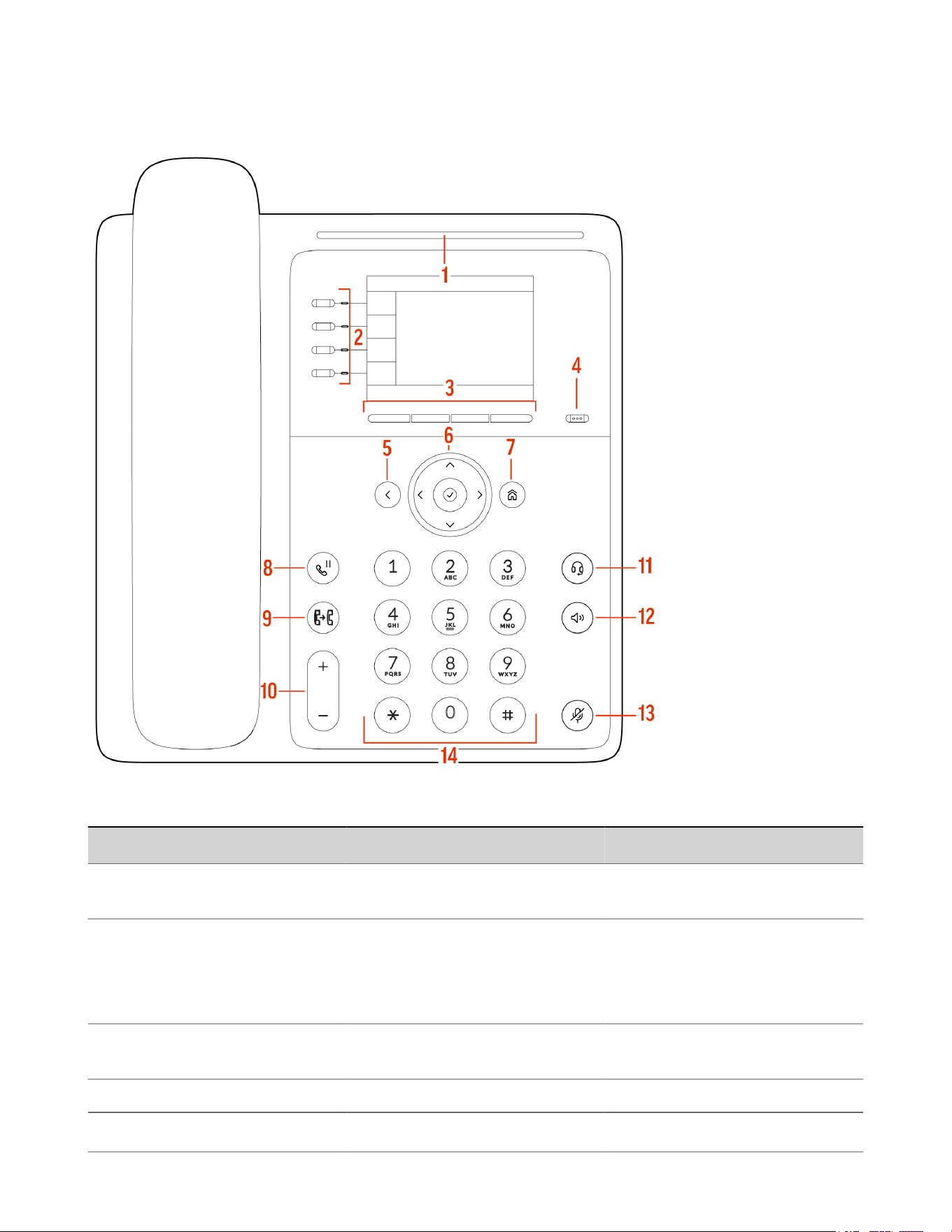
Poly Edge E100 and Edge E220 phone hardware features - front
Poly Edge E100 and Edge E220 Phone Hardware Feature Descriptions - Front
Reference Number Feature Description
1
LED bar Provides call and phone status
information.
2
Line keys Select a phone line, view calls on a line, or
quickly call a favorite contact.
The Poly Edge E100 supports two keys,
and the Poly Edge E220 supports four
keys.
3
Softkeys Select context-sensitive keys that display
along the bottom of the screen.
4 Pagination key View additional line screens.
5
Back key Return to the previous screen.
12

Reference Number Feature Description
6
Navigation keys / Select key Scroll through information or options
displayed on the phone’s screen or select a
field of displayed data.
7
Home key Display the Home screen from other
screens or display the Lines and Calls
screen from the Home screen.
8
Hold key Hold an active call or resume a held call.
9 Forward/Transfer key Forward or transfer an active call to a
selected contact.
10
Volume keys Adjust the volume of the handset, headset,
speaker, and ringer.
11
Headset key Place and receive calls through a headset.
12
Speakerphone key Provides ringer and speakerphone audio
output.
13
Mute key Mute or unmute the microphone during an
active call.
14
Dialpad Enter numbers, letters, and special
characters. Use the dialpad keys to select
menu items that have index numbers.
13
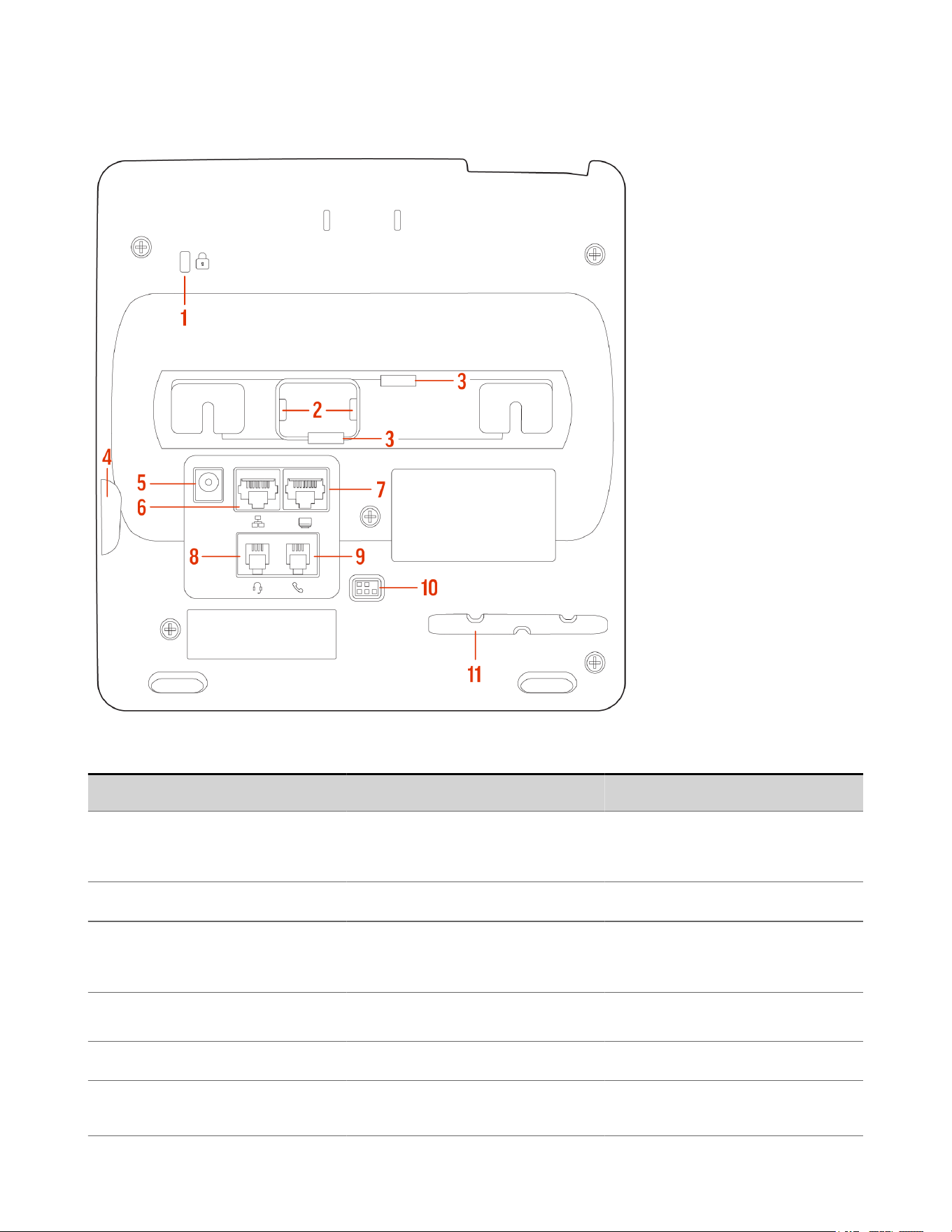
Poly Edge E100 and Edge E220 phone hardware features - back
Poly Edge E100 and Edge E220 Phone Hardware Feature Descriptions - Back
Reference Number Feature Description
1 Security slot
Attach a universal security cable lock to
your phone so you can secure it to a
desktop.
2
Wall mount block retaining slots Attach the wall mount block to the phone.
3
Stand connection slots Attach the stand to the phone. This enables
the phone to sit at a 30- or 60-degree
angle.
4
USB port
Attach a USB flash drive, a USB headset, or
a compatible camera.
5
Power port Connect the phone to a power outlet.
6
Network port Connect the phone to a PoE-supported
Ethernet port.
14

Reference Number Feature Description
7
Computer connection network port Connect a computer through your phone
for network access.
8
Headset port Connect a headset to the phone.
9
Handset port Connect a handset to the phone.
10 Electronic Hookswitch (EHS) Enables you to use the controls on your
headset to answer and end calls.
11
Handset cable slot Holds the handset cable away from the
phone base.
Poly Edge E300 Series Phones Hardware Overview
The following figure displays the hardware features on Poly Edge E300 Series phones. The table lists each numbered
feature shown in the figure.
15
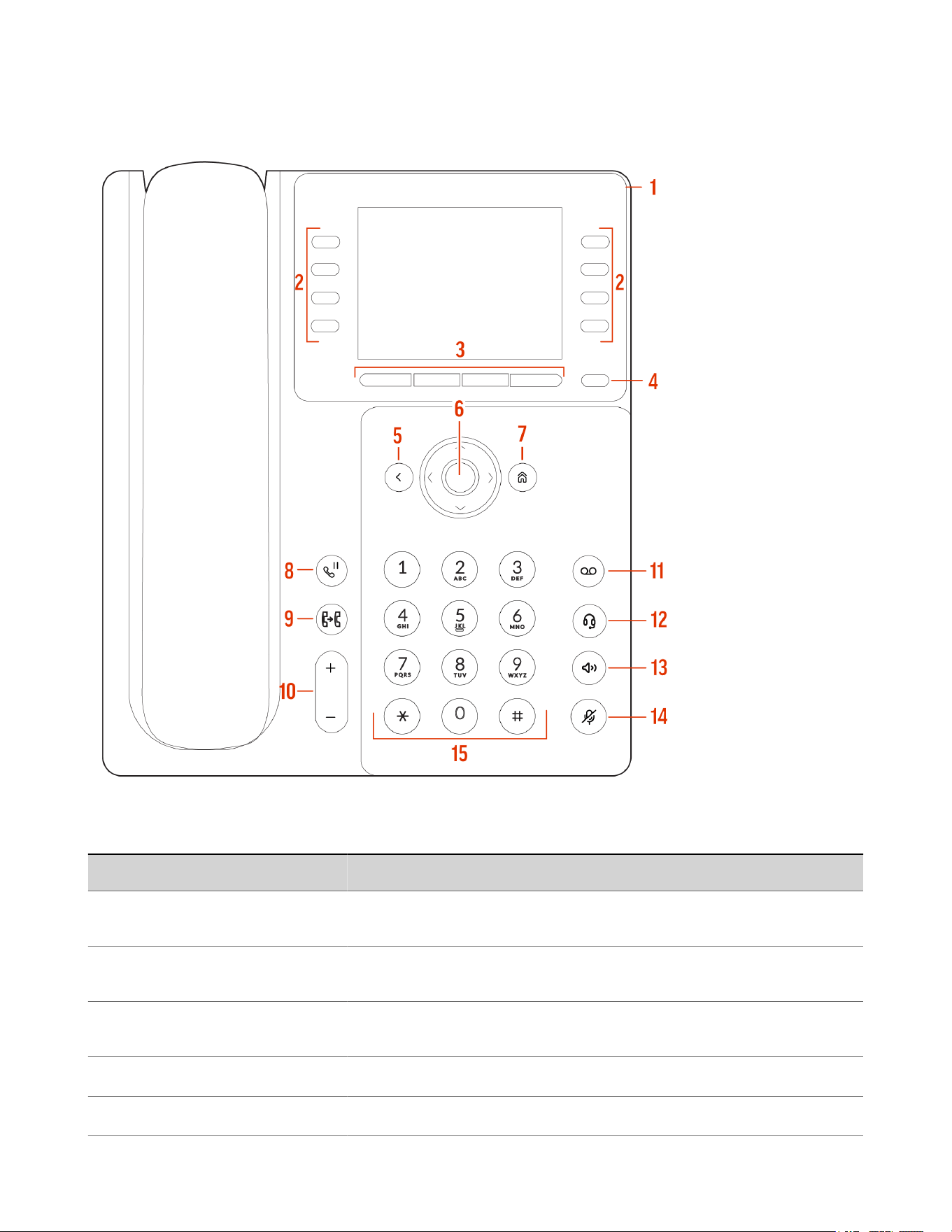
Poly Edge E300 Series phone hardware features - front
Poly Edge E300 Series Phone Hardware Descriptions - Front
Reference Number Feature Feature Description
1
LED bar Provides call and phone status
information.
2
Line keys Select a phone line, view calls on a line, or
quickly call a favorite contact.
3
Softkeys Select context-sensitive keys that display
along the bottom of the screen.
4
Pagination key View additional line screens.
5
Back key Return to the previous screen.
16

Reference Number Feature Feature Description
6
Navigation keys / Select key Scroll through information or options
displayed on the phone’s screen or select a
field of displayed data.
7
Home key Display the Home screen from other
screens or display the Lines and Calls
screen from the Home screen.
8
Hold key Hold an active call or resume a held call.
9
Forward/Transfer key Forward or transfer an active call to a
selected contact.
10
Volume keys Adjust the volume of the handset, headset,
speaker, and ringer.
11
Messages key Access and manage instant and voice
messages.
12
Headset key Place and receive calls through a headset.
13
Speakerphone key Provides ringer and speakerphone audio
output.
14
Mute key Mute or unmute the microphone during an
active call.
15
Dialpad Enter numbers, letters, and special
characters. Use the dialpad keys to select
menu items that have index numbers.
17
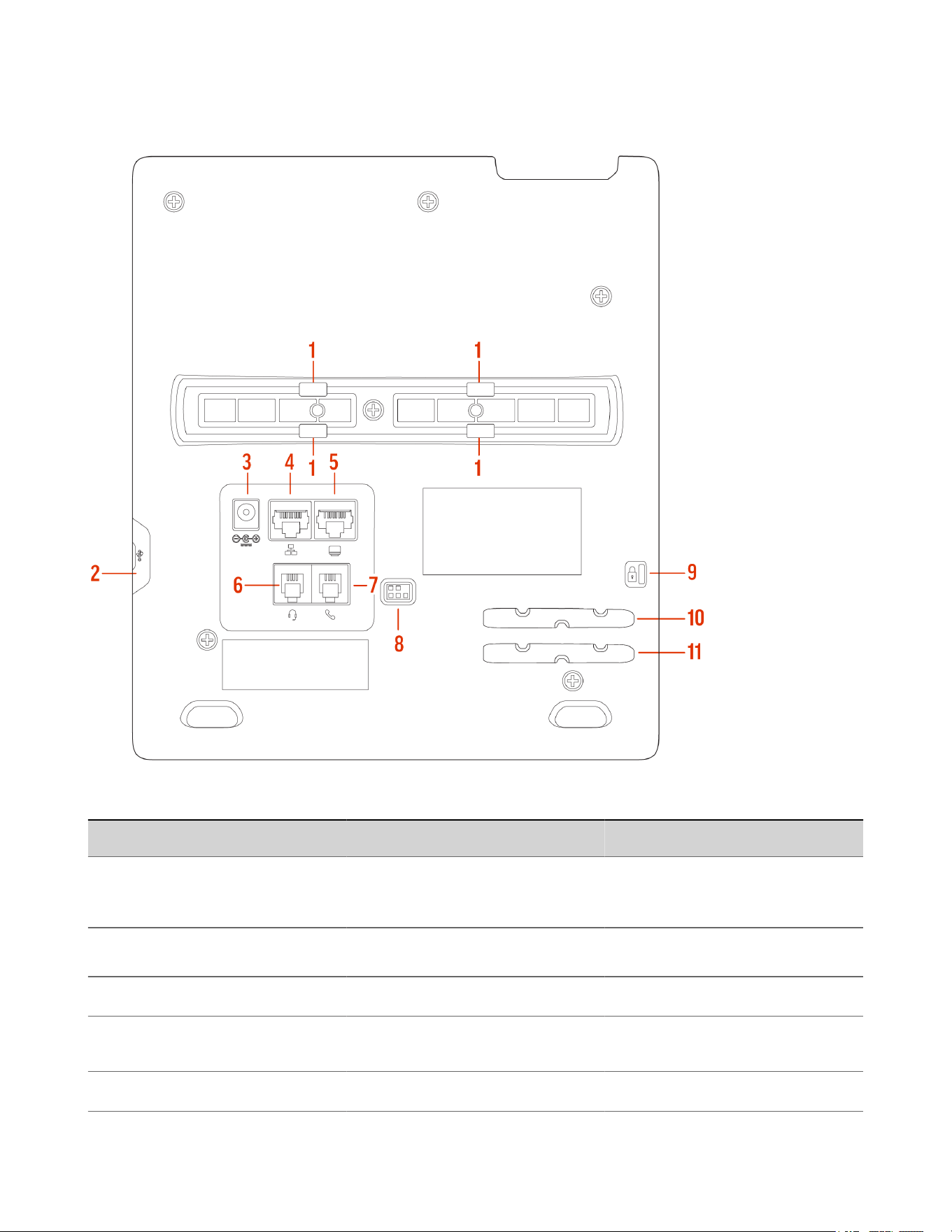
Poly Edge E300 Series phone hardware features - back
Poly Edge E300 Series Phone Hardware Feature Descriptions - Back
Reference Number Feature Feature Description
1
Stand connection slots Attach the stand to the phone. This enables
the phone to sit at a 30- or 60-degree
angle.
2 USB port Attach a USB flash drive, a USB headset, or
a compatible camera.
3
Power port Connect the phone to a power outlet.
4
Network port Connect the phone to a PoE-supported
Ethernet port.
5
Headset port Connect a headset to the phone.
18

Reference Number Feature Feature Description
6
Computer connection network port Connect a computer through your phone
for network access.
7
Handset port Connect a handset to the phone.
8 Electronic Hookswitch (EHS)
Enables you to use the controls on your
headset to answer and end calls.
9 Security slot
Attach a universal security cable lock to
your phone so you can secure it to a
desktop.
10
Handset cable slot Holds the handset cable away from the
phone base.
11 Headset cable slot Holds the headset cable away from the
phone base.
Poly Edge E400 Series Phones Hardware Overview
The following figure displays the hardware features on Poly Edge E400 Series phones. The table lists each numbered
feature shown in the figure.
19
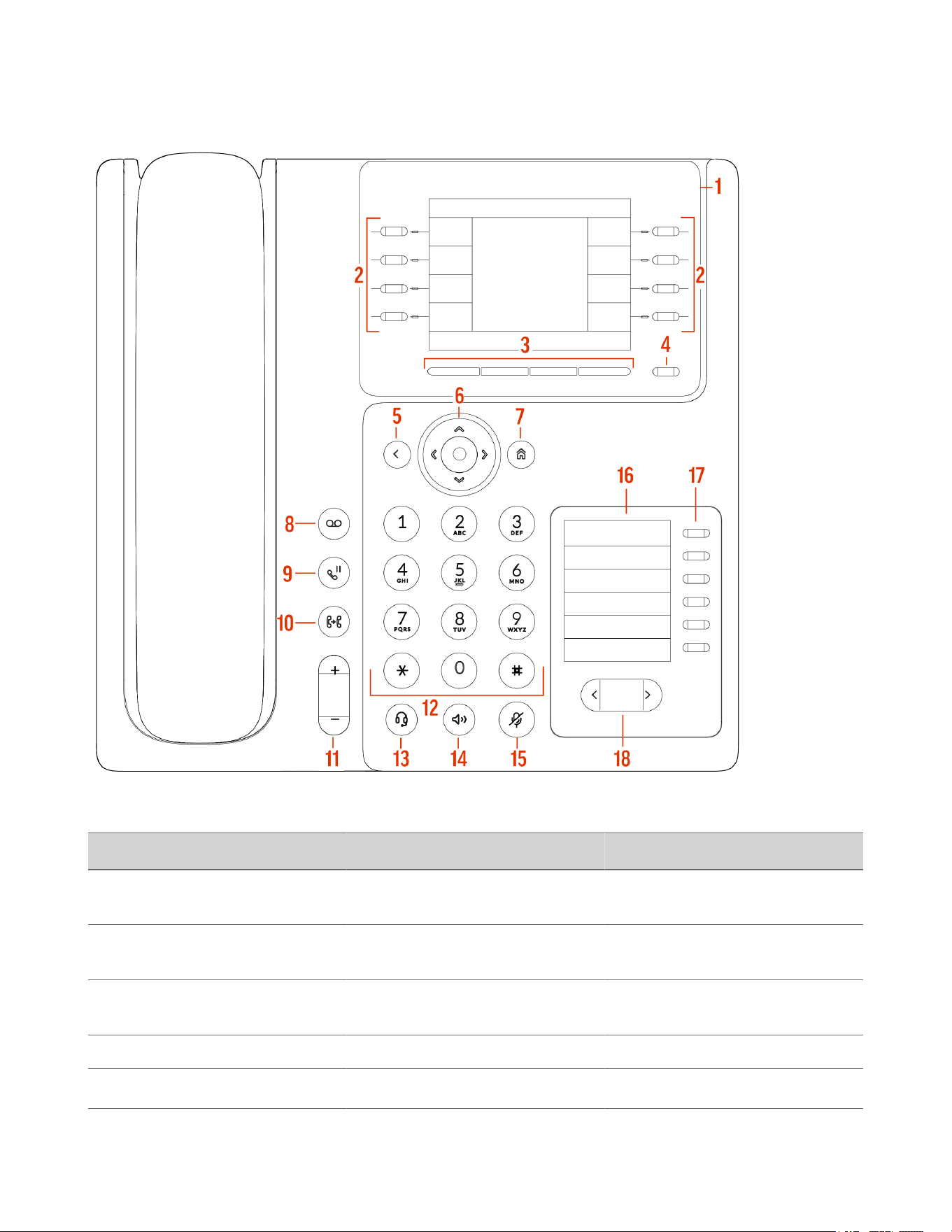
Poly Edge E400 Series phone hardware features - front
Poly Edge E400 Series Phone Hardware Descriptions - Front
Reference Number Feature Feature Description
1 Surround lighting bar
Provides call and phone status
information.
2
Line keys Select a phone line, view calls on a line, or
quickly call a favorite contact.
3
Softkeys Select context-sensitive keys that display
along the bottom of the screen.
4 Pagination key View additional line screens.
5
Back key Return to the previous screen.
20

Reference Number Feature Feature Description
6
Navigation keys / Select key Scroll through information or options
displayed on the phone’s screen or select a
field of displayed data.
7
Home key Display the Home screen from other
screens or display the Lines and Calls
screen from the Home screen.
8
Messages key Access and manage instant and voice
messages.
9
Hold key Hold an active call or resume a held call.
10 Forward/Transfer key Forward or transfer an active call to a
selected contact.
11
Volume keys Adjust the volume of the handset, headset,
speaker, and ringer.
12
Dialpad Enter numbers, letters, and special
characters. Use the dialpad keys to select
menu items that have index numbers.
13
Headset key Place and receive calls through a headset.
14
Speakerphone key Provides ringer and speakerphone audio
output.
15
Mute key Mute or unmute the microphone during an
active call.
16 Secondary screen Provides a lines screen in addition to the
main screen.
17 Secondary screen line keys
Select a phone line, view calls on a line, or
quickly call a favorite contact.
18 Secondary screen pagination keys Navigate between pages on the secondary
screen.
21
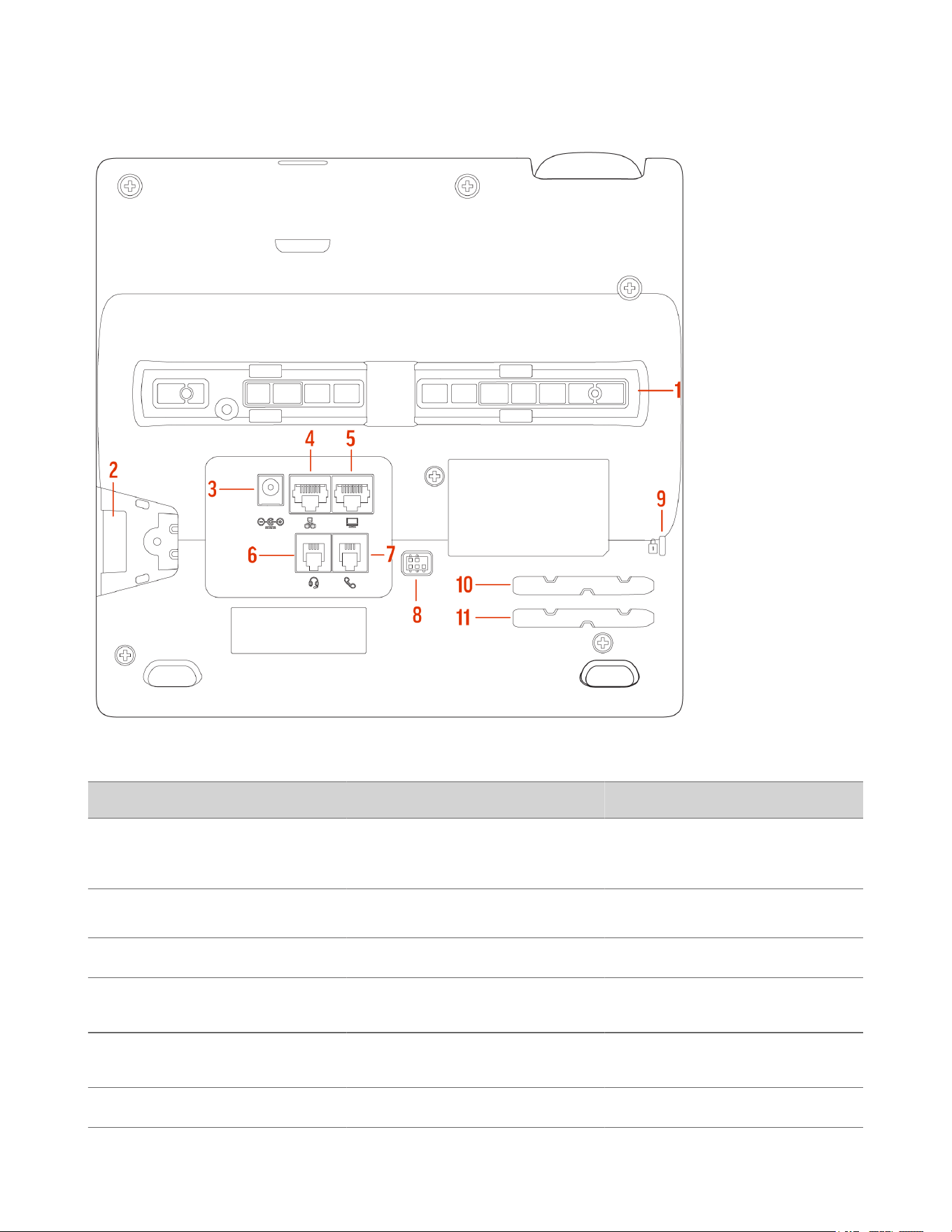
Poly Edge E400 Series phone hardware features - back
Poly Edge E400 Series Phone Hardware Descriptions - Back
Reference Number Feature Feature Description
1
Stand connection slots Attach the stand to the phone. This enables
the phone to sit at a 30- or 60-degree
angle.
2
USB port
Attach a USB flash drive, a USB headset, or
a compatible camera.
3
Power port Connect the phone to a power outlet.
4
Network port Connect the phone to a PoE-supported
Ethernet port.
5
Computer connection network port Connect a computer through your phone
for network access.
6
Headset port Connect a headset to the phone.
22

Reference Number Feature Feature Description
7
Handset port Connect a handset to the phone.
8 Electronic Hookswitch (EHS) Enables you to use the controls on your
headset to answer and end calls.
9 Security slot
Attach a universal security cable lock to
your phone so you can secure it to a
desktop.
10
Handset cable slot Holds the handset cable away from the
phone base.
11 Headset cable slot Holds the headset cable away from the
phone base.
Poly Edge E500 Series Phones Hardware Overview
The following figure displays the hardware features on Poly Edge E500 Series phones. The table lists each numbered
feature shown in the figure.
23
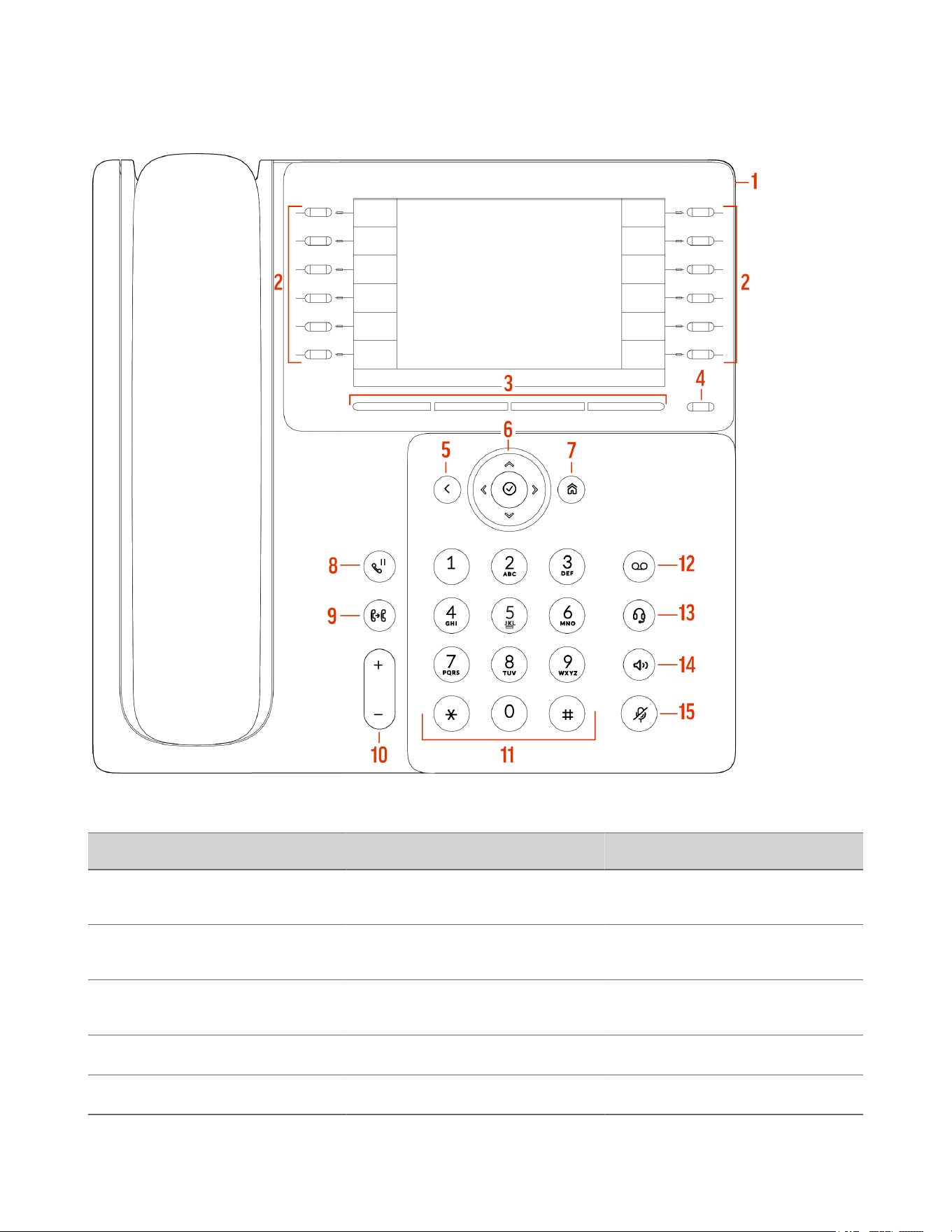
Poly Edge E500 Series phone hardware features - front
Poly Edge E500 Series Phone Hardware Descriptions - Front
Reference Number Feature Feature Description
1
Surround lighting bar Provides call and phone status
information.
2
Line keys Select a phone line, view calls on a line, or
quickly call a favorite contact.
3
Softkeys Select context-sensitive keys that display
along the bottom of the screen.
4
Pagination key View additional line screens.
5
Back key Return to the previous screen.
24

Reference Number Feature Feature Description
6
Navigation keys / Select key Scroll through information or options
displayed on the phone’s screen or select a
field of displayed data.
7
Home key Display the Home screen from other
screens or display the Lines and Calls
screen from the Home screen.
8
Hold key Hold an active call or resume a held call.
9
Forward/Transfer key Forward or transfer an active call to a
selected contact.
10
Volume keys Adjust the volume of the handset, headset,
speaker, and ringer.
11
Dialpad Enter numbers, letters, and special
characters. Use the dialpad keys to select
menu items that have index numbers.
12
Messages key Access and manage instant and voice
messages.
13
Headset key Place and receive calls through a headset.
14
Speakerphone key Provides ringer and speakerphone audio
output.
15
Mute key Mute or unmute the microphone during an
active call.
25
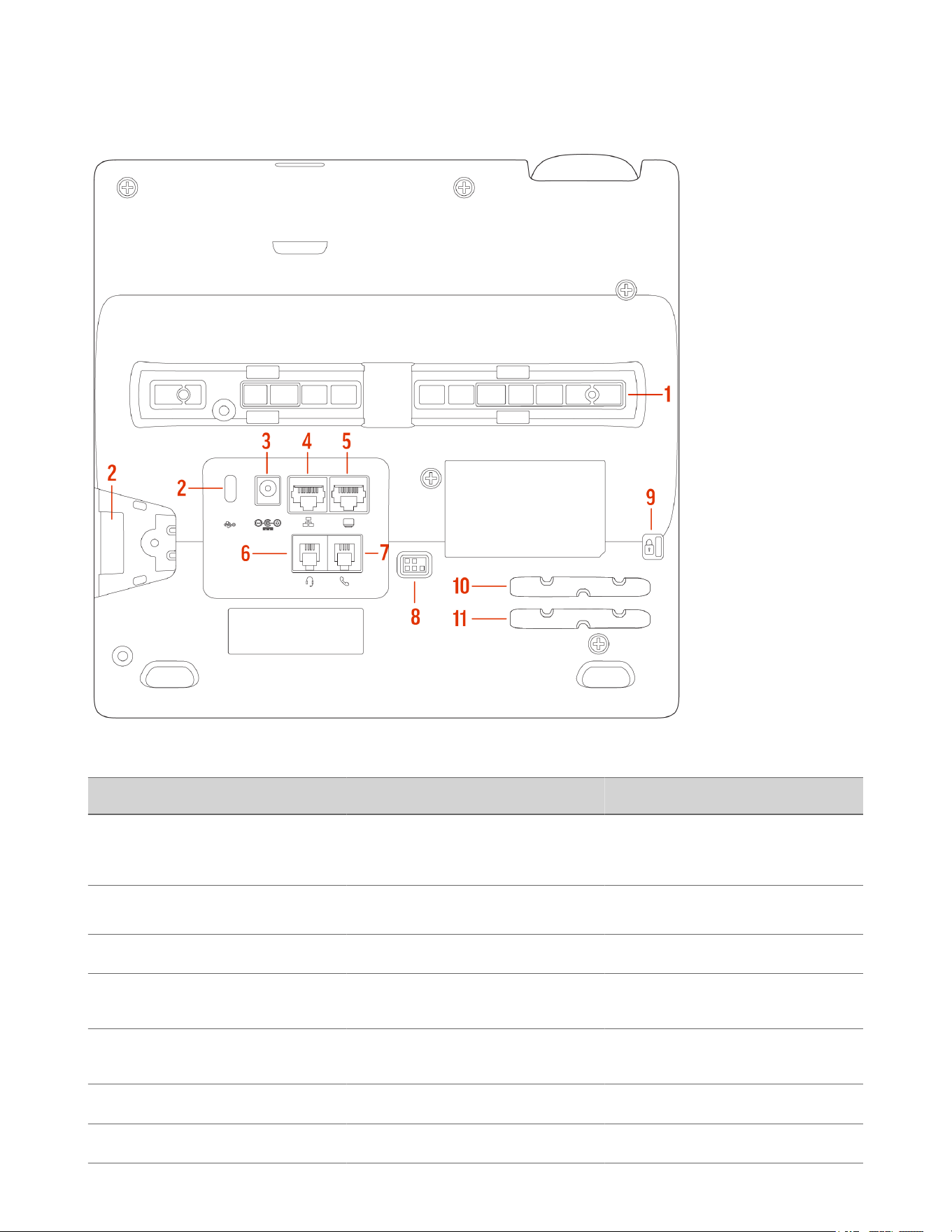
Poly Edge E500 Series phone hardware features - back
Poly Edge E500 Series Phone Hardware Descriptions - Back
Reference Number Feature Feature Description
1
Stand connection slots Attach the stand to the phone. This enables
the phone to sit at a 30- or 60-degree
angle.
2 USB ports Attach a USB flash drive, a USB headset, or
a compatible camera.
3
Power port Connect the phone to a power outlet.
4
Network port Connect the phone to a PoE-supported
Ethernet port.
5
Computer connection network port Connect a computer through your phone
for network access.
6
Headset port Connect a headset to the phone.
7
Handset port Connect a handset to the phone.
26

Reference Number Feature Feature Description
8 Electronic Hookswitch (EHS) Enables you to use the controls on your
headset to answer and end calls.
9 Security slot
Attach a universal security cable lock to
your phone so you can secure it to a
desktop.
10
Handset cable slot Holds the handset cable away from the
phone base.
11 Headset cable slot Holds the headset cable away from the
phone base.
Poly Edge E Expansion Module
You can connect a Poly Edge E Expansion Module (EM) to an Edge E400 Series or Edge E500 Series phone to add
additional lines.
You can connect one Edge E EM to an Edge E400 Series phone, and up to two Edge E EMs to an Edge E500 Series phone.
See the Quick Start Guide for the Poly Edge E400/E500 Series Expansion Module at the Poly Online Support Center.
Note: Edge E500 Series phones support a second EM when 802.3at PoE+ is available or when a PSU is connected.
Each Edge E EM has 22 line keys and three pages of lines to provide 66 additional lines keys that you can use to assign lines,
BLF contacts, or speed dials to the connected phone.
Poly Edge E Expansion Module Hardware Overview
The following figures display the hardware features on the Poly Edge E Series expansion module. The tables list each
numbered feature shown in the figures.
27
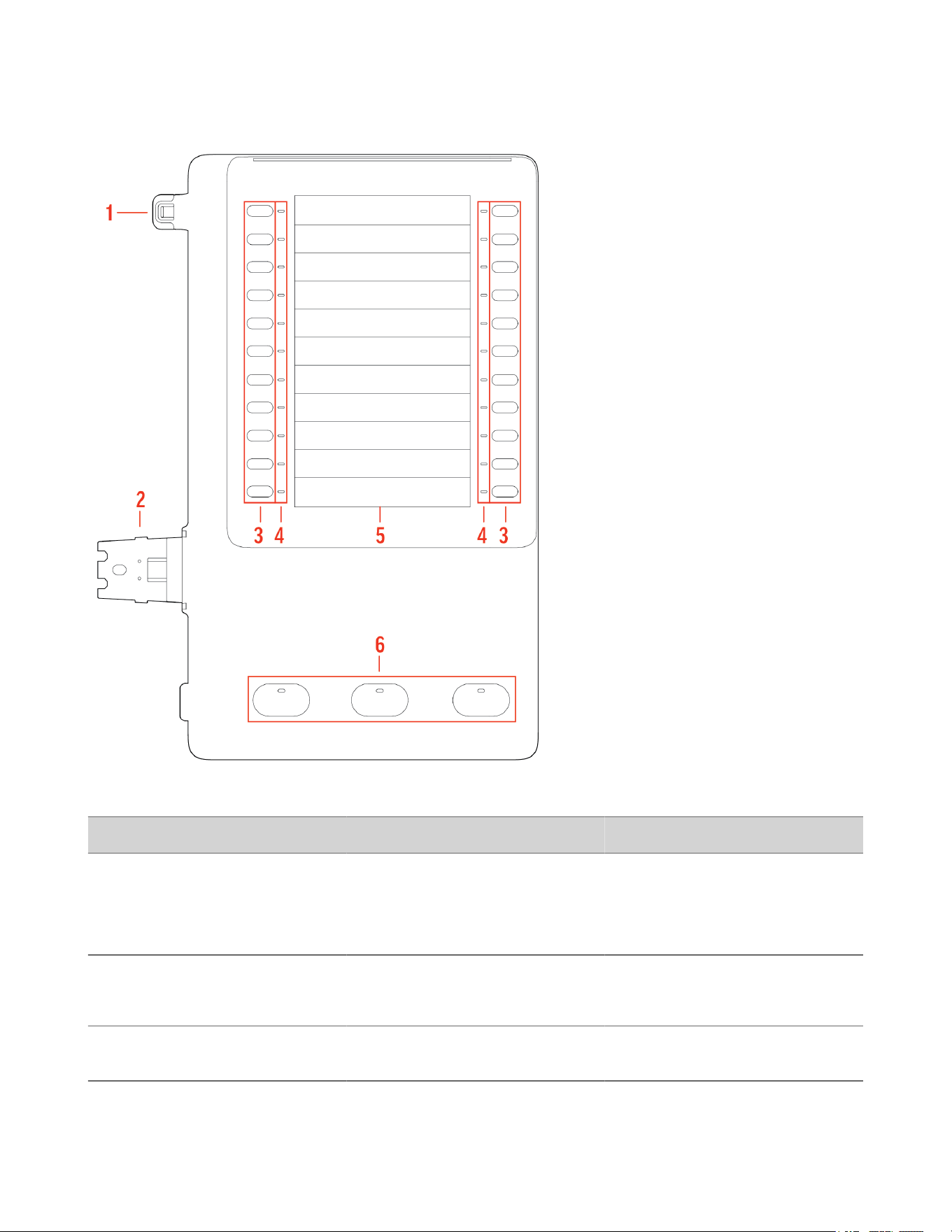
Poly Edge E Series expansion module hardware features - front
Poly Edge E Series Expansion Module Hardware Descriptions - Front
Reference Number Feature Feature Description
1
Alignment tab When connecting one EM, inserts into the
alignment tab slot on the phone. When
connecting a second EM on an E500 Series
phone, inserts into the alignment tab slot
on the first EM.
2
EM connector Connects the EM to the phone. On an
E500 Series phone, also connects a second
EM to the first EM.
3
Line keys Selects available line key contacts,
functions, and assignments.
28

Reference Number Feature Feature Description
4
Line key LED indicators Indicates a line or busy lamp field contact's
status. The following lists the LED
Indicator behaviors shown on the
expansion modules:
• Solid Green—Indicates an active call in
progress.
• Fast-Flashing Green—Indicates an
incoming call.
• Flashing Green—Indicates the remote
party placed the call on hold.
• Solid Red—Indicates the phone of a
monitored busy lamp field contact is
placing a call or is in a call.
• Flashing Red—Indicates a held call.
• Flashing Green and Red—Indicates the
phone of a monitored busy lamp field
contact is on an active call or is
receiving an incoming call.
5
Color Display Displays line numbers, monitored contacts,
contacts' presence, and favorites.
6
Page keys Navigates between pages on the expansion
module.
• Solid Blue—Indicates the current page
displayed. If not on the current page,
the line appearance on the page is in an
active state.
• Flashing Blue—Indicates that there is
incoming call activity for a line or BLF
on the page.
29
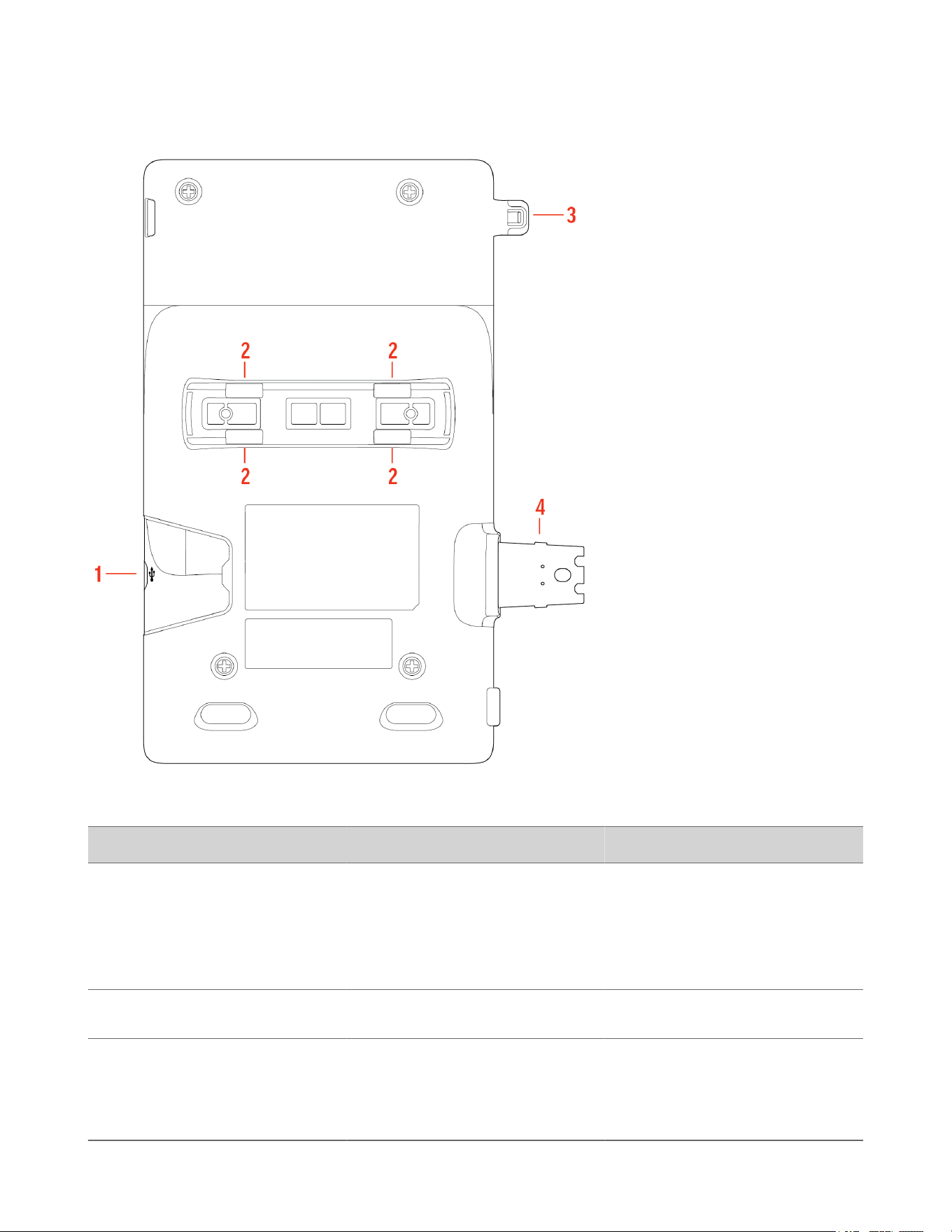
Poly Edge E Series expansion module hardware features - back
Poly Edge E Series Expansion Module Hardware Descriptions - Back
Reference Number Feature Feature Description
1 USB-C port for E EM or headset
connection
On an E500 Series phone, allows you to
connect a second EM. If a second EM is not
connected, you can use this port to
connect a USB headset. You can also
connect a USB headset to this port when
an EM is connected to an E400 Series
phone.
2 Stand or wall mount connection slots Attach a desk stand or wall mount
accessory to the EM
3
Alignment tab When connecting one EM, inserts into the
alignment tab slot on the phone. When
connecting a second EM on an E500 Series
phone, inserts into the alignment tab slot
on the first EM.
30

Reference Number Feature Feature Description
4
EM connector Connects the EM to the phone. On an
E500 Series phone, also connects a second
EM to the first EM.
Surround LED Lighting Bar
The surround LED lighting bar on Poly Edge E Series phones indicates various phone states.
Surround LED Lighting Bar States
State Surround LED Lighting Bar Status
Incoming call Breathing green
Active Call Solid green
Held call Breathing red
Bluetooth discovery in progress Chasing blue
Available voicemail
Edge E100 and E220: Breathing red
Edge E300, E400, and E500 Series: Bottom LEDs breathing red
Off-hours mode Breathing yellow
Poly Edge E Series Phones UI Overview
Your phone has icons, status indicators, and screens that help you use, navigate, and understand important information
about the state of your phone.
Poly Edge E Series Phone Screens
Your Poly Edge E Series phone has screens that provide access to functions, features, and information about the phone.
Home Screen Overview
The Home screen displays information about calls, line keys, and phone status. You can also make calls and access phone
features, settings, and information from the Home screen.
On the Home screen, you can do the following:
• Place, answer, manage, and view information about calls.
• View information about assigned feature and line keys.
• View status indicators such as missed calls, voicemail, and error messages in the status bar.
• Access phone features, settings, and information using the softkeys.
• Add, navigate to, and manage pages using the pagination key.
Note: The following home screens are examples. Depending on how your system administrator has configured your
phone, your home screen may look different.
31
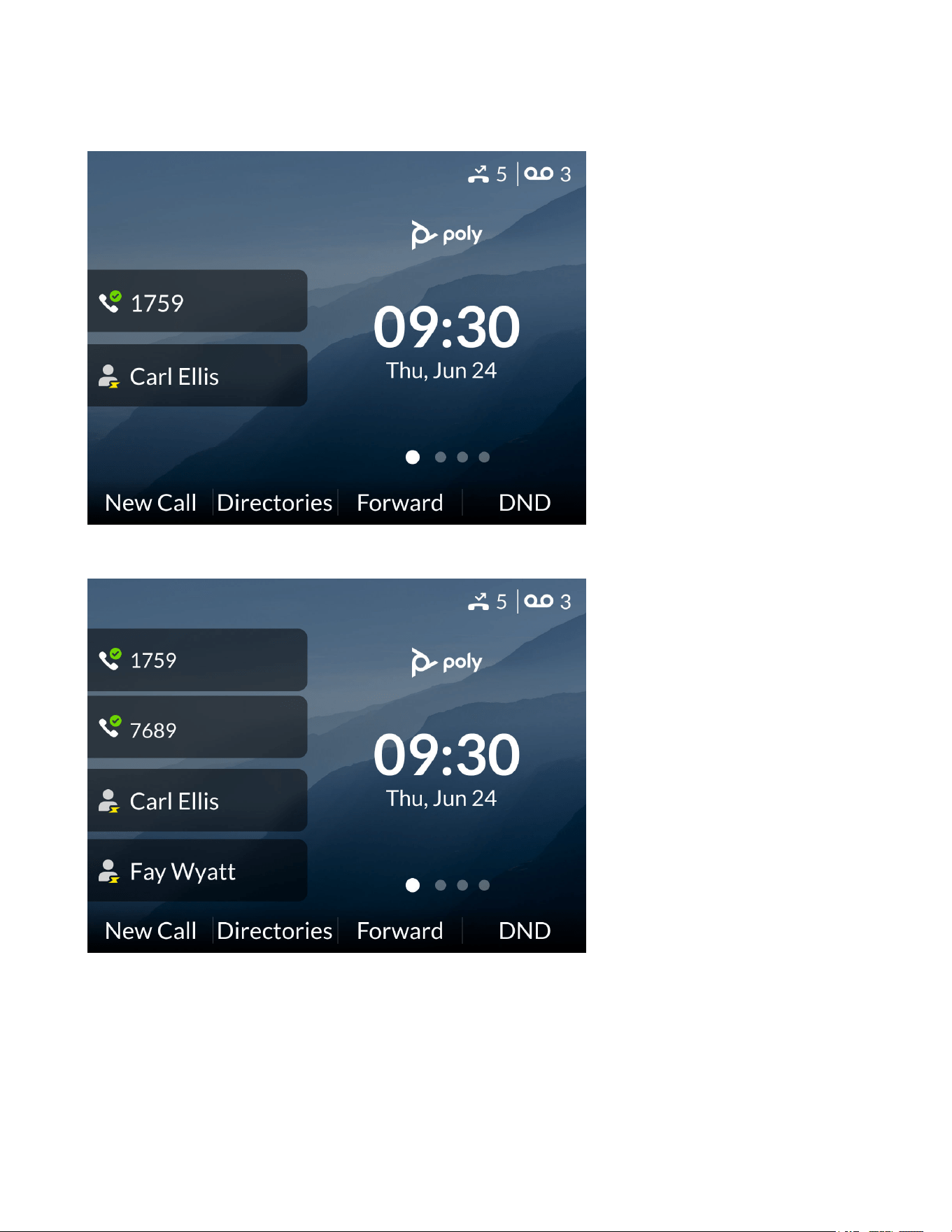
Edge E100 Home Screen
Edge E220 Home Screen
32
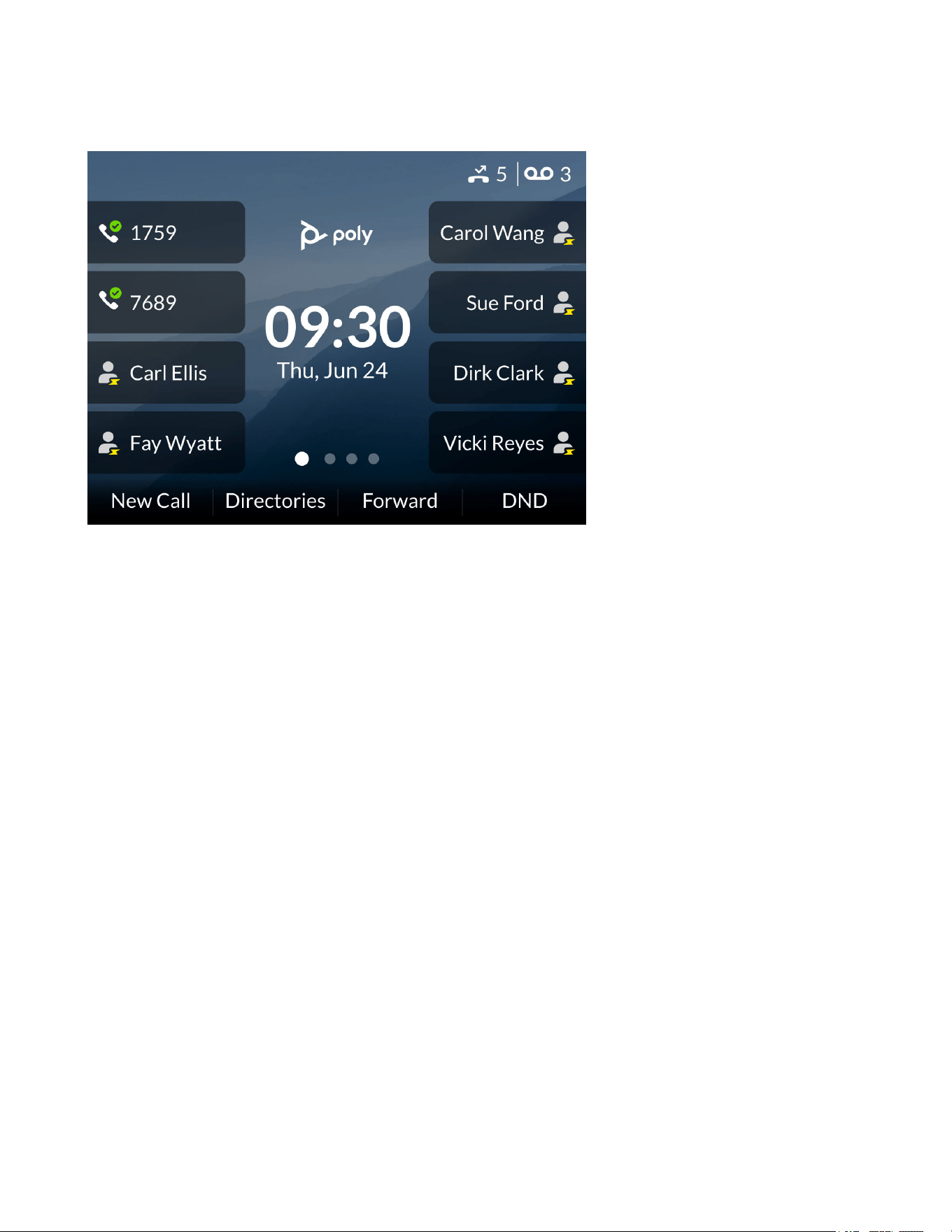
Edge E300 Series and E400 Series Home Screen
33
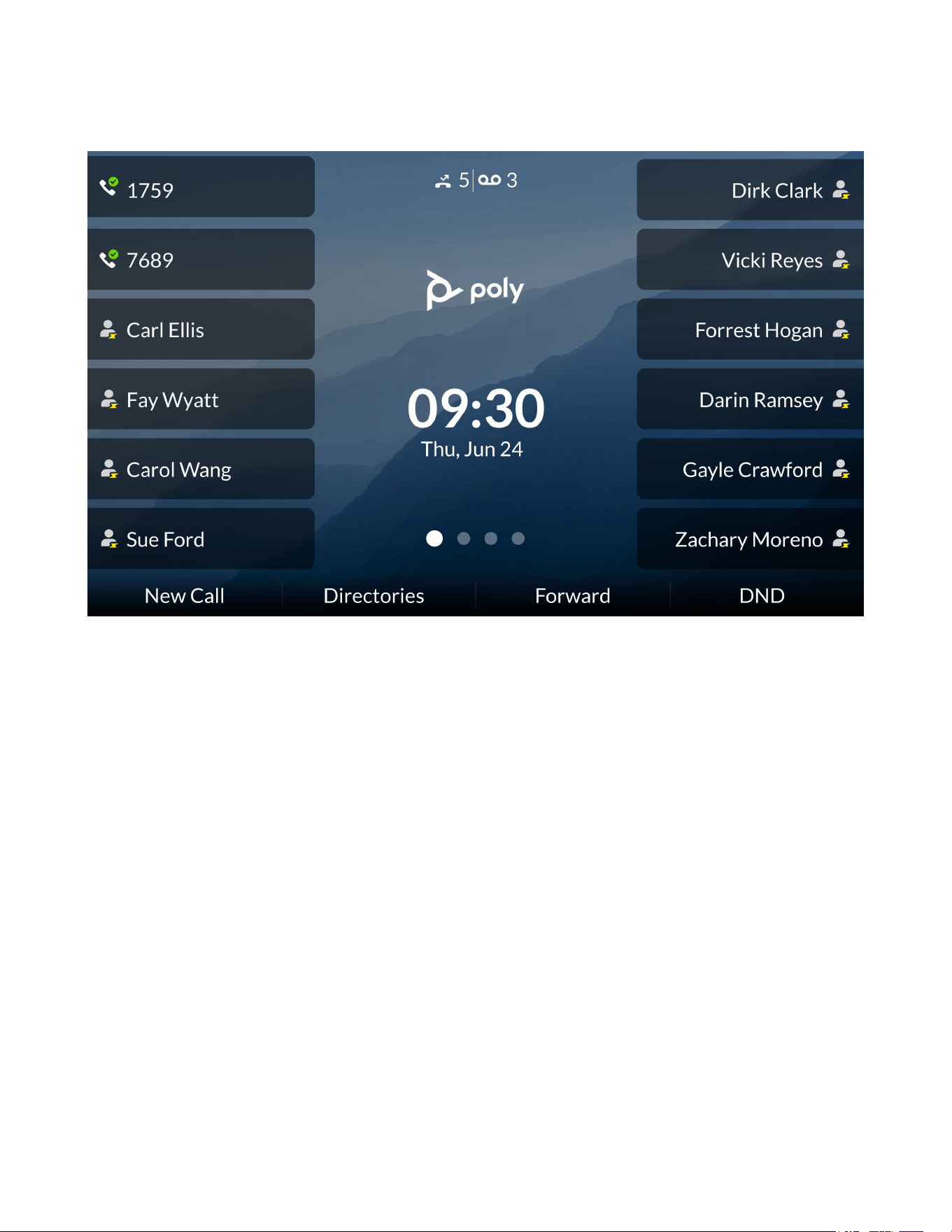
Edge E500 Series Home Screen
34
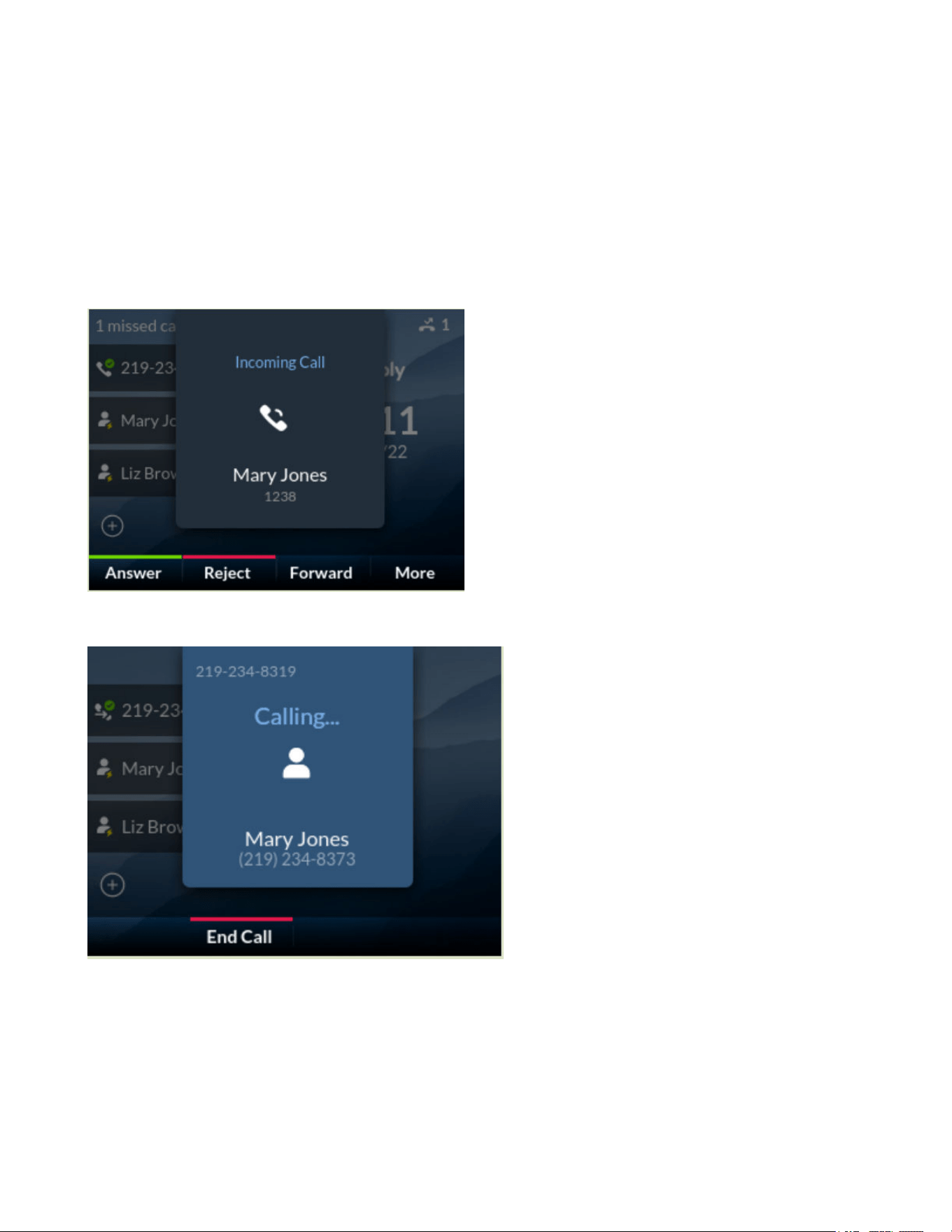
Home Screen Softkeys
You can use the softkeys on the Home screen to make calls and access phone features and information. The Home Screen
softkeys may vary depending on administrator or service provider configurations.
Call Screens Overview
Call screens display the status of incoming, outgoing, and active calls. You can access these screens on the Home screen.
Incoming call
Outgoing call
35
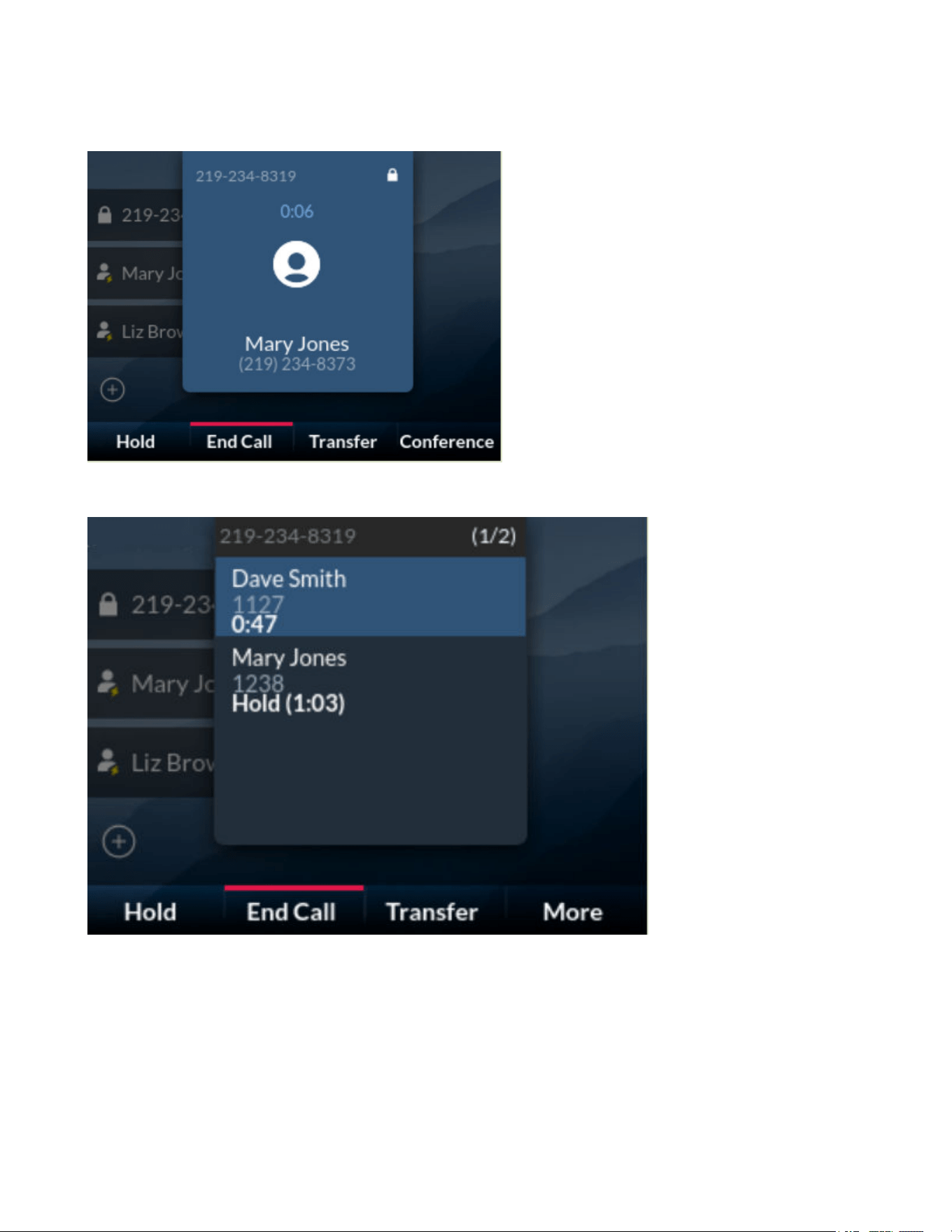
One active call
One active call with a call on hold
Icons Used on Poly Edge E Series Phones
Poly Edge E Series phones have various icons and status indicators that display the status of the phone whether you are in
a call or if the phone is idle.
The following table displays the phone icons and status indicators that display on Poly Edge E Series phones.
36
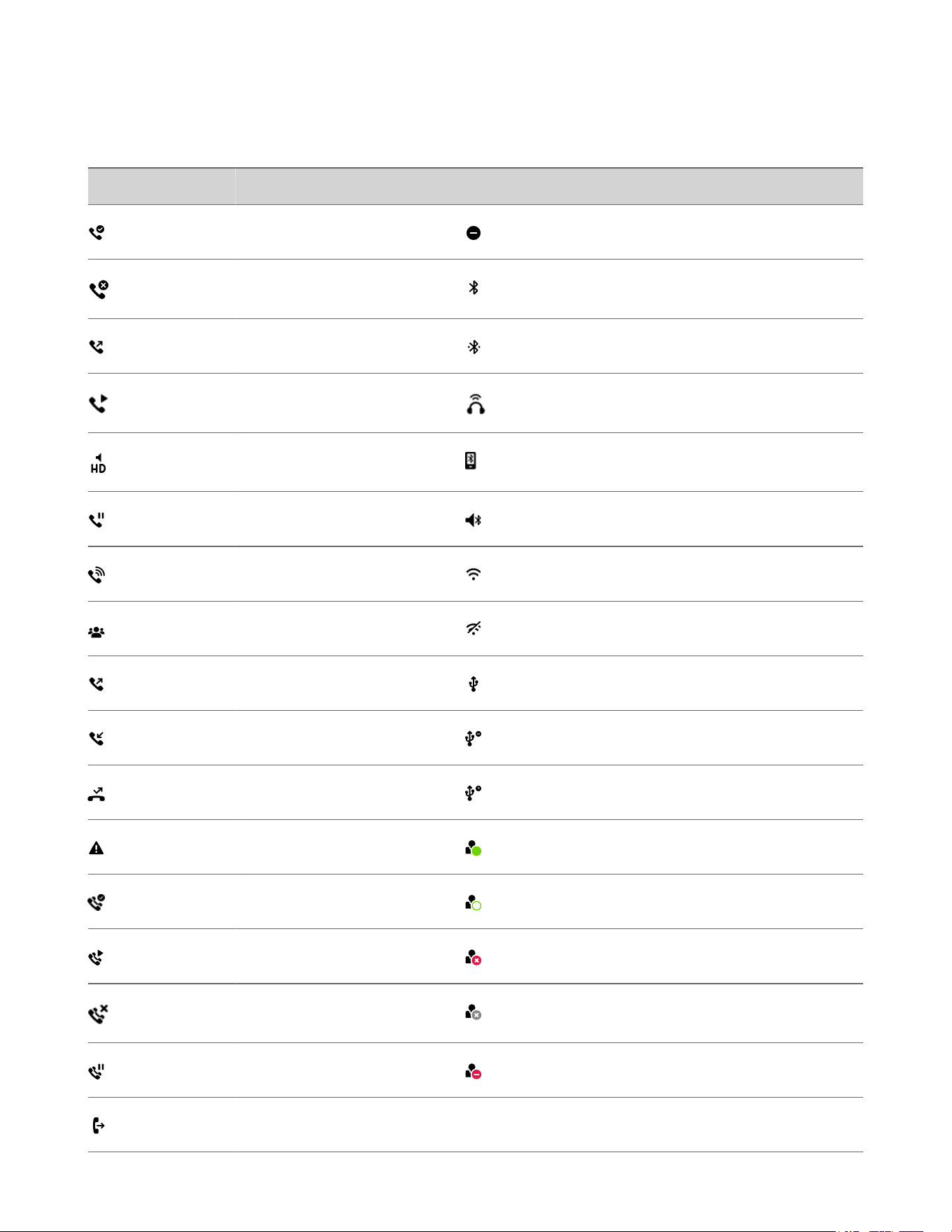
Icons and Status Indicators on Poly Edge E Series IP Phones
Icon Description Icon Description
Registered line Do not disturb enabled
Unregistered line Bluetooth available
Placing a call Bluetooth connected
Active call Bluetooth headset connected
Active call using Polycom HD Voice Mobile phone connected
Held call Bluetooth speaker
Incoming call Wi-Fi connected
Active conference Wi-Fi disconnected
Placed call USB connected
Received call Storage media idle
Missed call Storage media busy
Phone warning Presence status (Available)
Shared line in idle state Presence status (Online)
Shared line in remote active state Presence status (Offline)
Unregistered shared line Presence status (Not logged in)
Shared line with a held call Presence status (Wrap up)
Call forwarding enabled
37
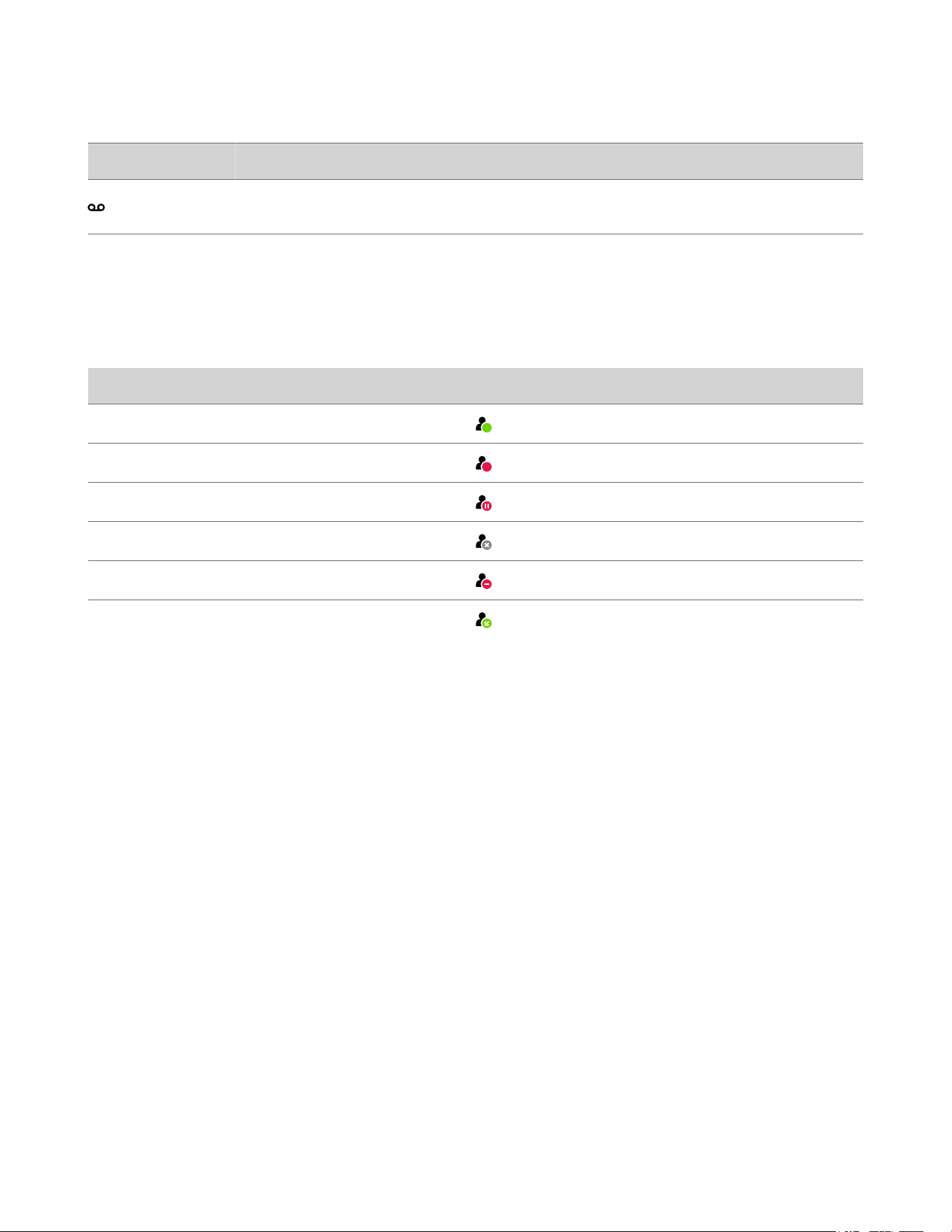
Icon Description Icon Description
New message
Busy Lamp Field Icons
The phone displays icons to indicate line status to users.
BLF icons
States Line Icons
Monitored line is idle
Monitored line is busy
Monitored line is on hold
Monitored line is unregistered
Monitored line is set to Do Not Disturb
Monitored line has an incoming call
38

Getting Started
Before you use the phone, familiarize yourself with its features and user interface.
Note: The features on your device may vary according to the network environment and the configuration by your system
administrator. As a result, the examples and graphics in this guide may not reflect available options or what your device
screen displays.
Finding Phone Information
Go to the menu to find basic information about your phone and to access help and support information.
Password Required to Access Basic Settings
You may need a password to configure basic settings on your phone.
You can enable or customize your phone from the Basic settings menu. If your phone requires a password to access the
settings menu, contact your system administrator for assistance.
Access Help and Support Information
Scan a QR code to access help videos, animations, and other documentation from the Help menu of your Poly Edge E Series
phone.
Task
1 Go to Main Menu > Help & Support.
2 From the Help & Support menu, select Help.
3 Scan the QR code with a mobile device.
A URL directing you to help and support resources appears.
4 Select the URL to access resources including how-to videos, animations, and other documentation.
Find Phone Information
Find your phone’s information, including the serial number and model from the Help & Support menu.
Task
» Go to Menu > Help & Support > About.
Entering Information on Your Phone
Use the dialpad to enter information on your phone.
Options to Enter Information in Data Fields
You can enter numbers or English text as well as characters from foreign languages.
Before you enter information into fields, choose how to enter the information using the following softkeys:
• Mode: Enables you to enter numbers or text in title case, lowercase, or uppercase characters.
• Encoding: Enables you to enter characters from foreign languages.
The following table lists the Mode and Encoding options for the dialpad and the onscreen keyboard.
Mode and Encoding Options
Mode Options Encoding Options
Abc (to capitalize the first letter only and use lowercase for
the remaining letters)
Abc
39

Mode Options Encoding Options
ABC (to enter uppercase only) ABC
abc (to enter lowercase only) abc
123 (to enter numbers only) 123
ASCII (for regular text)
Latin (to enter accented characters)
Katakana (for Japanese characters)
Unicode (to store characters as double bytes)
Cyrillic (for Russian characters)
Entering Information Using the Dialpad
You can use the dialpad keys on Edge E Series phones to edit or update field information.
The following table describes how to enter different types of data on your phone using the dialpad.
Using the Dial Pad Keys to Enter Information
Task Action
Enter numbers or characters in uppercase,
lowercase, or title case mode
Select Encoding or Mode, and select ABC, abc, or Abc.
Enter only numbers Select Encoding or Mode, and select 123.
Enter text in another language Select Encoding and select one of the language options.
Enter a character Press a dial pad key repeatedly to view the character options and stop
when the character you want to enter displays in the field. Wait one
second, and enter the next character.
Enter a number Select Encoding or Mode, and select 123 or press a dialpad key repeatedly
to enter the number that displays on that key.
Enter a special character
Select Encoding, and select Abc, ABC, or abc. Press either the 1, 0,
asterisk, *, or pound # key one or more times to enter one of the following
special characters:
• 1 key: ! | ‘ ^ \ @ : 1
• * key: * - & % + ; ( )
• 0 key: / , _ $ ~ = ? 0
• # key: # > < { } [ ] “ ‘
You can’t access special characters when you are in numerical (123) mode.
Enter a space
Select Encoding, and select one of the alphabetic options: Abc, ABC, or
abc. Press the 0 key.
You can’t enter a space when you are in numerical (123) mode.
40

Task Action
Delete one or more characters Use the arrow keys to position the cursor to the right of the character, or
drag your finger across the characters until the cursor is positioned to the
right of the character(s) you want to delete. Press the Delete key or press
the << softkey.
Entering Chinese Characters with PinYin
The PinYin text input feature uses Nuance XT9 Smart Input to enable you to enter Chinese characters into text fields using
the phone’s dialpad keys.
You can use the PinYin input widget to enter Chinese characters in the contact directory, corporate directory, and web
browser. When you select a data field to edit, the PinYin input widget automatically displays when you set
Simplified
Chinese or Traditional Chinese as the language on your phone.
Note: For more information on the PinYin text input method, see the Nuance’s XT9 Smart Input website.
Enter Chinese Characters with the DialPad Keys
You can use the dialpad keys and the PinYin input widget to enter Chinese characters on Edge E Series phones.
The PinYin input widget disappears if you press the pound/hash key or don’t press a key for 5 seconds.
Task
1 Press the digits on the phone’s dialpad that correspond with your PinYin text.
For example, press 7464.
The possible PinYin matches display in the text field with the first match highlighted.
2
Press the star key to toggle between selections.
The recommendation area shows the possible character matches. A navigation indicator displays if more matches are
available.
3 Use the left and right arrow keys or swipe the recommendation area on the touch screen to change the selected
character.
4 Press Select to select the character from the recommendation area.
The selected character displays in the input field at the cursor location.
Changing Audio Settings
You control certain audio settings on your phone, including the ringtone for incoming calls from all contacts or a specific
contact, where call notifications play, and the volume of the ringtone or call audio.
Change Audible Ringer Settings
You can change the location of sound notifications for incoming calls in the Audible Ringer settings.
By default, you hear all sound effects from the speaker. You can configure your phone to ring on your headset, handset,
headset, speaker, or the active audio device you set.
Task
1 Go to Menu > Settings > Basic > Preferences.
2 Select Audible Ringer and select a location to hear sound effects.
Set a Ringtone for Incoming Calls
Select unique ringtones for incoming calls on different lines on the phone. The default ringtone is Low Trill.
Task
1 Go to Menu > Settings > Basic.
41

2 Select Ring Type.
3 On the Ring Type screen, select a ringtone.
4 Optional: Press the Play softkey to hear the ringtone.
5 Press the Select softkey.
Set a Ringtone for Individual Contacts
Select unique ringtones for contacts in your directory to help you quickly identify callers.
Task
1 Go to Directories > Contact Directory.
2 In the Contact Directory, select a contact.
3 On the Contact Information screen, select Edit.
4 On the Edit Contact screen, select Ring Type and choose a ringtone.
5 Select Play to hear the ringtone.
6 Press the Check softkey to confirm the selection.
Change the Phone Volume
Increase or decrease the volume of your ringtone and the audio during a call.
Task
» Press the volume keys to increase or decrease the audio volume.
Enable Acoustic Fence
Poly Acoustic Fence suppresses background noise while you are on a call, which enhances call audio quality for call
participants.
Poly Acoustic Fence works with handsets or headsets. However, only headsets connected to the RJ-9 port on the phone
support Poly Acoustic Fence. Poly Acoustic Fence is enabled by default on the handset, disabled by default for a connected
headset, and not supported with USB or Bluetooth headsets.
The optional Acoustic Fence setting is only available when enabled by the system administrator.
Task
1 Go to Menu > Settings > Basic > Preferences.
2 Select Acoustic Fence and select Enable.
Note: This option is only available when enabled by the system administrator.
Mute and Unmute the Microphones
Mute the phone so other parties can’t hear you. Unmute your audio when you’re ready to speak and let others on the call
hear you.
Task
» Do one of the following:
• Select Mute on the phone screen.
•
Select the Mute key on the phone.
42

Logging In to Your Poly Edge E Series Phone
If your system administrator has set up user credentials for your phone, you can log in to a phone and access your contacts
or favorites, settings, and calendar (if enabled).
You can view your personal settings from any Poly phone or system within your organization. Contact your system
administrator for your user credentials.
Note: Some of the features described in this section require access to the Basic settings menu. If your phone requires a
password to access the Basic settings menu, contact your system administrator for assistance.
Log In to a Phone
Depending on how your system administrator set up your user login options, you may need to log in to a Poly phone before
you can use one.
By default, Poly devices don’t require you to log in before you can use them. If you don’t log in, you see the default profile.
When you log in, you have full access to your personal settings and your directory.
Any settings you change while logged in on a public phone commit to your profile and display the next time you log in to
any phone.
Task
1 If you see the User Login screen, proceed to the next step.
2 Enter your user ID and password, and select Log In.
Your personal profile displays when you enter the correct login credentials. If you enter incorrect credentials, a
message indicating that your login attempt has failed displays and the User Login screen displays again. Check with
your system administrator to confirm your login credentials.
Log Out of the Phone
After you finish using a public phone, make sure you log out to prevent access to your personal settings.
Task
1 Select Log Out or go to Settings > Features > User Login > Log Out.
2 Select Yes on the confirmation window.
Your personal settings are no longer accessible.
Log In to a Host Phone as a Guest
Log in to a host phone as a guest to place emergency calls as defined by your system administrator.
Your system administrator enables the guest feature and provides you with the guest credentials. When you log in to a
host phone as a guest, you have limited access to your personal phone settings and your directory. You can access the
BroadWorks Enterprise Directory and UC-One Favorites, but not your Contact Directory or general favorites.
Task
1 Do one of the following:
• Select Guest In on the screen.
• Press the Guest In softkey.
2 From the Guest In screen, enter your username and password and select OK.
Note: Check with the system administrator if your credentials are invalid.
The phone updates to display your personal settings, or the Lines screen if your credentials are incorrect.
Log Out of a Host Phone
After you use a host phone, make sure you log out to prevent unauthorized users from accessing your personal settings.
43

After you log out of the host phone, your guest info and changes made on a host phone don't sync to your personal phone.
Your system administrator may set the following features:
• A guest PIN for your account that you must enter to log out of a host phone.
• The maximum time a guest can stay logged in on a host phone, after which the host phone logs you out automatically.
Task
1 Select the Guest Out softkey.
2 Optional: If prompted, enter your guest PIN.
The phone displays the default menu and your personal settings are no longer accessible.
Log In to a Guest Automatic Call Distribution Phone
Log in to your Automatic Call Distribution (ACD) account after you log in as a guest on a host phone.
On a guest ACD phone, answer incoming calls from call center customers, update your presence status, view incoming call
center information, and transfer calls.
Note: When you log in to a host phone as a guest user, the Use Host softkey isn’t available.
If your system administrator enables Hoteling, you don’t need to log in as a guest before you log in to your ACD account.
Task
» Do one of the following:
• If you see the Agent Sign In screen, sign in.
• If you don’t see the Agent Sign In screen, press the ASignIn softkey or go to Settings > Features > Agent Sign In >
Sign In.
Log Out of a Guest ACD Phone
After you use a guest ACD phone, make sure you log out to prevent access to your personal settings.
If you’re logged into your ACD account when you log out of the host phone, you’re automatically logged out of your ACD
account.
Task
» Select the ASignOut softkey or go to Settings > Features > Agent Sign In > Sign Out.
The phone displays the default guest settings.
Change Your Login Password
You can change your login password from any phone on your network.
Task
1 Log in to a phone on your network.
2 Go to Settings > Features > User Login > Change User Login Password.
3 On the Change User Login Password screen, enter your old and new password information and select Enter.
Your password changes. The next time you log in to a phone, you must enter your new password.
44

Locking Your Phone
Locking your phone prevents unauthorized people from placing or answering calls. It also prevents anyone from viewing or
modifying phone information, such as your directory, call lists, or favorites.
You can do the following on a locked phone:
• Place outgoing calls to emergency and authorized numbers only
• Place outgoing calls to a contact, if enabled
• Enter a password to answer incoming calls
• Answer incoming calls without a password, if enabled
Lock Your Phone
You can choose how you want your phone to handle incoming calls when it’s locked.
When you set up your phone to receive incoming calls when locked (the default setting), incoming calls ring on your phone,
and you can answer calls by entering your user password. When you set up your phone to ignore incoming calls, Don’t
Disturb applies to all lines on your phone, and your phone doesn’t ring.
Note:
• When the Flexible Seating feature is enabled and you’re logged in as a guest on a host phone, the Phone Lock feature is
only available if your system administrator has set a 4 - 10-digit guest PIN for your user account. If you don’t see the
Lock softkey or menu option, check with your system administrator to see if this feature is available on your phone.
• There is no response when you press the Back key if the phone is locked.
Task
1 Select Lock or go to Settings > Basic > Lock Phone.
2 Optional: From the Lock Phone screen, select Allow ringing when locked (the default setting) if you want your phone
to ring when you have an incoming call.
When you choose this option, you can answer a call by entering your user password or guest PIN.
3 Select Lock.
Your phone is locked.
Tip: You can quickly lock your phone by selecting the Lock softkey. When you do this, you can’t choose how to handle
incoming calls. Your phone uses the default setting or the last setting selected.
Unlock the Phone
You can unlock the phone with your user password. Your system administrator provides you with a user password that you
can use to unlock the phone.
Task
» Enter your user password (or guest PIN if signed in as a guest on a host phone) and select Unlock.
45

Accessibility Features
Poly products include a number of features to accommodate users with disabilities.
Users Who Are Deaf or Hard of Hearing
Poly phones include features that enable users who are deaf or hard of hearing to use the phone.
The following table lists the accessibility features for users who are deaf or hard of hearing.
Accessibility Features for Users Who Are Deaf or Hard of Hearing
Accessibility Feature Description
Visual message indicators Status and icon indicators let you know when you have incoming,
outgoing, active, or held calls. Indicators also alert you of the
device’s status and when features are enabled.
Adjustable ringtone and volume You can change the ringtone based on call type or assign a specific
ringtone to a contact. You can also change the volume of the ringer.
Adjustable call volume While in a call, you can raise or lower the volume of the device.
Visual notifications Status and icon indicators let you know when you have incoming,
outgoing, active, or held calls. Indicators also alert you of the
device’s status and when features are enabled.
TTY support Poly endpoints support commercial TTY devices such as Ultratec
Superprint and provide acoustic coupled TTY support.
Users with Limited Mobility
Poly phones include features that enable users with limited mobility to use the phone.
The following table lists the accessibility features for users with limited mobility.
Accessibility Features for Users with Limited Mobility
Accessibility Feature Description
Auto-answering You can enable the phone to auto-answer calls.
Large keys The large keys on the phone console enable you to access phone
features and functions.
Built-in speakerphone A built-in speakerphone enables you to hear audio on the device
without having to use a handset or headset.
Adjustable phone stand
You can adjust the phone stand to various angles so your phone
sits at a comfortable angle on your desktop (see your phone’s
Quick Start Guide at the Poly Online Support Center).
Users Who Are Blind, Have Low Vision, or Have Limited Vision
Poly phones include features that enable users who are blind, have low vision, or have limited vision to use the phone.
The following table lists the accessibility features for users who are blind, have low vision, or have limited vision.
46

Accessibility Features for Users Who Are Blind, Have Low Vision, or Have Limited Vision
Accessibility Feature Description
Customizable text size
You can change the onscreen text size. The options are Normal,
Large, and Bold.
High contrast
You can enable the High Contrast feature to provide more
contrast between the screen elements and the background.
Text-to-Speech
You can enable your phone to provide audio feedback about
phone features and information.
Adjustable backlight settings You can change the brightness of the screen by adjusting
backlight intensity settings.
Auto-answering You can enable the phone to auto-answer calls.
Tactile “5” key with raised bumps The “5” key has two bumps that enable you discern the position of
other keys on the keypad.
Large keys The large keys on the phone console enable you to access phone
features and functions.
Physical line keys
Poly Edge E Series phones have physical line keys that you can
press to answer and end calls.
Tactile-discernible number, feature, and navigation keys Keys on the phone console are discernible by their size and shape.
Illuminated feature keys Many feature keys illuminate when activated to alert you when a
feature is enabled.
Microphone mute An audible alert plays when you mute or unmute the microphones
using any of the Mute keys on the device or far-end system. The
phone plays an alert periodically if the device is muted for a set
period of time.
Text-to-Speech
With the Text-to-Speech accessibility feature, you can hear functions and information about the phone spoken out loud.
The phone also provides feedback about incoming calls.
When Text-to-Speech is enabled, the phone offers the following functionality:
• You can receive notifications and audio feedback about incoming calls.
• When you single press the following keys, the phone reads information about the keys out loud. Long press the key to
use the key.
Note: This feature is not supported for the dialpad, navigation, select, or EM line keys.
– A line key on the phone
– A softkey
– Home
– Back
– Hold
– Transfer
– Headset
47

– Speakerphone
– Mute
– Pagination
– Page left and right keys on the Edge E400 Series
Enable Text-to-Speech
Enable the Text-to-Speech feature to hear audio descriptions of phone functions and information.
Task
1 Go to Menu > Settings > Accessibility.
2 Enable Text-to-Speech.
3 To enable audio feedback from the hardware keys, press and hold the center navigation button.
Use the Text-to-Speech Feature
You can use the Text-to-Speech feature to hear audio feedback from the physical keys on your phone and to hear audio
feedback from incoming calls.
• To receive audio feedback about a key, single press the key.
• To select a key, double press the key.
• To toggle audio feedback on and off, long press the Select key until you hear "text to speech activated" or "text to
speech deactivated."
Customizing the Text Style
If enabled by your system administrator, you can make the onscreen text larger or bold. Check with your system
administrator to find out if this feature is enabled for your phone.
Customize the Text Size
Make the onscreen text larger or bold.
Task
1 Go to Menu > Settings > Accessibility.
2 Select Text Style.
3 Do one of the following:
• To increase the text size, select Large.
• To make the default text bold, select Bold.
• To restore the default text size and weight, select Normal.
4 Press the Select softkey.
Enable High Contrast
Improve the readability of the screen by enabling high contrast.
Task
1 Go to Menu > Settings > Accessibility.
2 Enable High Contrast.
48

Audio Calls
Your phone enables you to place and answer SIP calls, ignore incoming calls from all or individual contacts, and perform
server-dependent tasks.
Note: Some of the audio features require access to the Basic settings menu. If your phone requires a password to access
the Basic settings menu, contact your system administrator for assistance customizing your phone.
Placing Audio Calls
Poly phones enable you to place calls to local numbers, international numbers, and contacts.
You can initiate calls from your favorites list, recent calls list, and your phone directory. From a locked phone, you can place
calls to numbers authorized by your system administrator.
Call Charges for Outgoing Calls
If your service provider charges for outgoing calls, a notification displays on your phone informing you of the potential
charges of an outgoing call.
If enabled by your service provider, a tone plays on your phone when call information displays. Check with your system
administrator to find out if this feature is enabled for your phone.
The following call charge information displays on your phone for outgoing calls:
• Call initiation costs—the initial cost for placing a call.
• Cumulative call costs—the accruing cost of the ongoing call.
• Completed call costs—the total cost of the call after the call ends.
Call Precedence and Preemption
If your administrator has enabled call precedence and preemption, your outgoing calls are assigned a precedence level.
If you are in an active call and receive a new call with a higher precedence, your active call is preempted—ended. If your call
is preempted, your phone plays a preemption tone and displays a preemption screen. The preemption screen is shown both
for caller and callee. After you acknowledge the preemption screen, you can answer, reject, or ignore it. The notification
screen disappears if you do not acknowledge the preemption notification after the display time out as defined by your
admin.
Use the Handset, Headset, or Speakerphone
You can place and answer calls on your phone using the handset, headset, or speakerphone, and you can alternate among
the three modes during calls, if available.
When using the speakerphone, the Speakerphone key glows green. When using the headset, the Headset key glows
green when a headset is connected.
Task
»
During a call, pick up the handset, press the Headset key or press the Speakerphone key .
For example, if you're using the handset, press the Headset key to switch to the headset, or press the Speakerphone
key
to switch to the speakerphone.
Place a Call
You can have one active call in progress on your phone.
Task
» Do one of the following:
49

• Pick up the handset and press the key, key, or the New Call softkey. Then, enter the phone number and press
the Send softkey.
• Enter the phone number and press the Dial softkey. Then, pick up the handset, and press for speakerphone or
for headset.
Place an International Call
You can place calls to international phone numbers on your phone.
Task
1 On the dialpad, quickly press the star key (*) twice.
A plus sign (+) displays.
2 Enter the phone number with the country code and press Dial.
Place a Call from Recent Calls
Place calls from the Recent Calls list, which contains calls that you recently placed, answered, or missed.
Task
1 Do one of the following:
• Press the Recent Calls softkey.
• Navigate to Directories and select Call Lists.
2 From the Calls List screen, select a contact and select Dial.
Place a Call from an Expansion Module
You can place a call using the line keys on expansion modules connected to supported Edge E Series.
Task
» Do one of the following:
• Press a line key corresponding to an available line and dial the number.
• Press the line key of the assigned favorite you want to call.
The call is placed and is displayed on your phone's screen.
Place a Call from a Locked Phone
When the phone is locked, you can place outgoing calls only to emergency numbers, such as 911 and authorized numbers
that your system administrator sets up. You can’t call any other numbers from a locked phone.
Task
» From the Place an Authorized Call screen, choose a number and select Dial.
Place a Call with a Hidden Number
When your phone is registered with the Cisco BroadWorks server, you can choose to hide your phone number when you
place a call.
Check with your system administrator to find out if this feature is available on your phone.
Task
1 If you have more than one line registered, select a line.
2 Select Line ID Delivery Blocking and select Enabled.
Your number does not display when you place calls to contacts.
50

Answering Audio Calls
When you receive an incoming call on your phone, answer the call in a variety of ways.
Answer a Call
Answer a call using the handset, speakerphone, or a headset.
Task
» Do one of the following:
• Pick up the handset, then press the Answer softkey.
• Press the Speakerphone key .
• Press the Headset key .
Answer a Call When in a Call
When you’re in an active call and an incoming call arrives on the same or a different line, a call waiting tone beeps and the
Incoming Call screen displays.
Task
» Select Answer.
The active call goes on hold, and the incoming call becomes active.
Answer a Call from an Expansion Module
Answer calls using the line keys on your phone or from a connected expansion module.
Task
» Press the expansion module line key that has the flashing green LED indicator.
Answer a Call on a Locked Phone
Answer calls on a locked phone by entering your password.
Task
1 On the Incoming Call screen, select Answer.
2 Enter your password.
3 Select Enter.
The call connects.
End a Call
You can only end active calls. To end a held call, you must first resume the held call.
Task
» Do one of the following:
• Press the End Call softkey.
• Replace the handset in the cradle.
•
Press the Speakerphone key .
•
Press the Headset key .
Ignoring or Rejecting Incoming Calls
When you receive an incoming call, choose to ignore or reject the call instead of answering. Reject or ignore an incoming
call, reject incoming calls from a specific contact, or enable Do Not Disturb to reject all calls for a brief period of time.
Note: You can’t reject calls on shared lines. You can only silence the ringer.
51

Ignore or Silence an Incoming Call
Ignore or silence a call to mute the ringer without rejecting the call.
When you ignore or silence a call, the incoming call notification continues to display.
Task
» From the Incoming Call screen, do one of the following:
• Select Ignore for private lines.
• Select Silence for shared lines.
The Incoming Call screen disappears, your phone stops ringing, and either the Home or Calls screen displays.
Reject Incoming Calls
Reject a call and send the call directly to voicemail. Rejected calls display in the Recent Calls list. Rejecting calls is not
available for shared lines.
Task
» On the Incoming Call screen, select Reject.
Rejecting Calls with Do Not Disturb
Do Not Disturb (DND) enables you to set your phone to automatically reject calls when you don’t want to be interrupted.
When you enable DND, you see the following:
• The DND icon displays in the status bar.
• When the phone is idle, the DND icon displays next to your phone line.
• When the administrator enables hybrid line registration on the phone, you can choose All to enable DND on all the
registered lines.
• If you have new messages or you have enabled call forwarding, the messages or forwarding icon display instead of the
DND icon.
Note: When you set your presence status to Do Not Disturb and enable DND on your phone, a message reflecting your
Do Not Disturb status scrolls under the time display. The DND icon doesn’t display in the status bar.
Reject All Calls with Do Not Disturb
Use DND to prevent your phone from ringing and to send all incoming calls to voicemail. The phone logs all calls you
receive while on DND in the Recent Calls list.
DND on shared lines disables ringing only. A visual notification of the call still displays, and you can answer or ignore the
call.
Task
» Press the DND softkey.
Reject Calls with Do Not Disturb on One Line
If enabled by your administrator, you can use DND to reject calls on one line.
Task
1 Select DND.
2 From the Line Select screen, select a line.
3 From the Do Not Disturb screen, select Enable.
Resume Receiving Calls
When you’re ready to receive calls, turn off DND.
Task
52

» Select DND.
Holding and Resuming Calls
When you’re in a call, place an active audio call on hold and resume the call.
Hold and Resume a Call
Place multiple calls on hold and resume a call at any time.
Task
1 To hold a call, highlight the call and press the Hold softkey.
2 To resume a call, highlight the call and press the Resume softkey.
Resume a Call on an Expansion Module
You can resume calls placed on hold by other contacts from your expansion module connected to supported Edge E Series.
A flashing red LED light on a line key on the expansion module indicates a call is on hold on the contact's line.
Task
» Press the line key corresponding to the line with the held call.
Redirecting Incoming Calls
Forward one or all incoming calls to a specific contact or divert calls from a specific contact to another contact.
Forwarding Incoming Calls to a Contact
You can forward incoming calls to one of your contacts.
Forward a Call
Forward an incoming call to a contact.
This applies the call forwarding rule for the incoming call only.
Task
1 On the Incoming Call screen, press the Forward softkey.
2 Enter the number to forward the call to.
3 Press the Forward softkey
Forward All Incoming Calls to a Contact
You can set up your phone to automatically forward incoming calls to a specific contact.
Use one of the following forwarding types:
• Always - Forwards all incoming calls.
• No Answer - Forwards all unanswered incoming calls.
• Busy - Forwards incoming calls when you're in a call.
For shared lines, you can only choose Always as your forwarding type; the other forwarding options aren’t available for
shared lines.
Task
1 Select Forward or go to Settings > Features > Forward.
2 On the Forwarding Type Select screen, select a forwarding type.
3 Enter a contact's number or IP address, if enabled, and select Enable.
4 Optional: If you selected the No Answer option, enter the number of rings before the call is forwarded.
The forwarding number or name of the contact you chose scrolls in the status bar. When you select Always as your
forwarding option, the Forwarding icon displays on the line.
53

Disable Call Forwarding
Disable call forwarding when you no longer want to forward your calls.
Task
1 Select Forward or go to Settings > Features > Forward.
2 If your phone has multiple lines, select a line.
3 From the Forwarding Type Select screen, select your forwarding type, and select Disable.
Divert Calls to a Contact
You can divert all incoming calls from a particular contact to another contact.
Task
1 Select Directories > Contact Directory.
2 From the Contact Directory, select a contact.
3 On the Contact Information screen, select Edit.
4 From the Edit Contact screen, select Divert Contact, and enter a contact's number.
5 Select Auto Divert > Enabled.
6 Select Save.
Transferring Calls
Transfer active or held calls to another contact.
Use one using the following transfer types:
• Blind transfer: Transfers the call directly to another line without speaking with the other party first.
• Consultative transfer: Enables you to speak with the other party before completing the transfer.
Choose a Default Transfer Type
Your phone is preconfigured to use consultative as the transfer type, but you can choose the default transfer type to use
for all calls on your phone.
Task
1 Go to Menu > Settings > Basic > Preferences.
2 Select Default Transfer Type and choose one of the following:
• Consultative
• Blind
Transfer a Call
Transfer a call to another contact and choose the transfer type you want to use for the call.
Task
1 Press the Transfer softkey or the key.
2 If preferred, change the transfer type. For example, if the default transfer type is Blind, then you can select
Consultative.
3 Dial a number or choose a contact from the Recent Calls list or a directory.
If the transfer type is set to Blind, the call is transferred immediately.
4 If the transfer type is set to Consultative, select Transfer after speaking with your contact.
54

Cancel a Transfer
If a contact doesn’t answer the transfer or if you want to remain speaking with the contact on your line, cancel the transfer
before it completes.
Task
» Select Cancel on the call transfer screen.
The call doesn’t transfer and becomes active.
Redialing Calls
Recall the last contact you called using Redial, if enabled by your system administrator.
Redial a Number
Your phone automatically keeps a record of all calls placed. You can recall the last contact you called using Redial, if
enabled by your system administrator.
Task
» Select Menu > Redial.
Redial a Contact when the Contact is Available
When you place a call to a contact and the contact’s line is unavailable due to an unregistered line or a service outage, a
notification displays on your phone when the contact’s line is available again, and you can choose to call the contact from
the notification.
Check with your system administrator to find out if this feature is available on your phone.
Task
» When the contact availability notification displays, select Dial.
Managing Calls
You can see the number of calls on the line from the Home screen. A green light on the line key indicates a line with an
active call, and a red light indicates a line with one or more held calls.
Display Calls
You can display the calls on the Home screen.
When you select a phone line that has a held call, the first held call on that line is automatically resumed, even if you
already have an active call on a different line.
Task
» Press the Home key.
Manage Calls
You can manage calls from the Home screen.
Task
1 Select a call.
2 On the Home screen, do one of the following:
• Select Hold to place an active call on hold.
• Select Resume to make a held call active.
• Select End Call to end a call with a contact. You can end active calls only, so resume the held call first before ending
it.
55

• Select Transfer to send the call to another contact.
• Select Conference to initiate a conference call.
• Select Join to join an active call and one or more held calls into a conference call.
Placing Intercom Calls
Like a normal call, the intercom feature enables you to place a call to a contact.
An intercom call differs from a normal call in that the call recipient’s phone answers automatically when not in an active
call.
Check with your system administrator to find out if this feature is available on your phone.
If the call recipient has an active call, the recipient can choose to answer the intercom call. Otherwise, the phone answers
the intercom call automatically after their active call ends.
Place an Intercom Call
You can place an intercom call from your phone to quickly relay a message to a contact.
Tip: Your system administrator can set up your phone to automatically call a specific contact when you select Intercom. If
your phone is set up this way, select Intercom and wait for your contact to answer before speaking your message.
Task
1 Select Intercom.
2 Enter a number or select a contact.
3 Select Dial.
The phone plays a tone and the contact’s phone answers the call automatically.
4 After your contact answers the call, speak your message and select End Call.
Place an Intercom Call During a Call
Place an intercom call to another contact during an active call.
Task
1 Select Hold > Intercom.
The active call goes on hold and the dialpad displays.
2 Enter a number or select a contact.
3 Select Dial.
The phone plays a tone and the contact’s phone answers the call automatically.
4 After your contact answers the call, speak your message and select End Call.
5 Select Resume.
Answer an Intercom Call
When you receive an intercom call, your phone answers the call automatically as long as you don't have an active call
already.
If the phone answers an intercom call with your microphone muted, you must unmute your microphone before responding
to the call.
Call Settings
Configure basic call settings for your phone, including disabling call waiting and enabling automatic answering.
Disable Call Waiting
The Call Waiting feature is enabled by default. If enabled by your system administrator, you can disable Call Waiting.
If you disable Call Waiting, any incoming calls received on your phone while you are in a call are automatically sent to
voicemail.
Task
56

1 Go to Settings > Basic > Preferences.
2 Select Call Waiting and select Disable.
Answer Calls Automatically
Set up your phone to automatically answer calls using Auto Answer.
When enabled, the phone automatically answers all incoming calls using the speakerphone. Your system administrator
sets how many times the phone rings before it automatically answers the call.
The phone doesn’t automatically answer a call until you place your current call on hold or end it.
Task
1 Go to Menu > Settings > Basic > Preferences.
2 Select Auto Answer.
3 Select Auto Answer SIP Calls and select Yes.
4 Optional: Select Microphone Muted and choose No to unmute the microphone for auto-answered calls.
5 Select Save.
57

Conference Calls
When you initiate a conference call, you can manage conference participants, join calls into a conference, or split your
conference into individual calls.
Audio Conference Calls
Start a conference call with two contacts on hold. You can also split, hold, or resume conference calls.
If your system administrator enables the conference management feature on your phone, you can manage each participant
in the call. With the conference management feature, mute, hold, and remove individual participants in a conference call.
Initiate a Conference Call
Initiate a conference call with up to two contacts.
Task
1 Call a contact.
2 When the contact answers, select the Conference softkey.
The phone places the call on hold.
3 Enter another contact’s number, select a contact from the directory, or select a contact from the call lists.
4 When the contact answers, select the Conference softkey.
All call participants are added to a conference call.
Join Calls to Create a Conference Call
Join one active call and one held call into a conference call.
If you have an active call and one or more held calls, you can join the active call and one of the held calls into a conference
call.
Task
1 If you have multiple held calls, select the call you want to include in the conference call.
2 Select the Join softkey.
The active call and selected held call join into a conference. If you have multiple held calls, the other held calls on the
line remain held.
Hold a Conference Call
When you place a conference call on hold, the phone places all conference participants on hold.
Task
» Select Hold .
Resume a Conference Call
Resuming a held conference call enables all participants to rejoin the call.
Task
» Select Resume .
End a Conference Call
End an active conference call.
When you end a conference call, by default your connection to the call ends and the other participants in the conference
remain in the call. Your system administrator can set up your phone so that all connections terminate when you end a
conference call.
Task
58

» During a conference call, select End Call.
Split a Conference Call
Splitting a conference call ends the conference and places the participants on hold in individual calls. You can then resume
one of the held calls.
Task
» During a conference call, select the Split softkey.
59

Shared Lines
All Edge E Series support multiple and shared lines. Your administrator can customize your phone to enable multiple
shared lines.
Shared Line Limitations
Phones configured with shared lines have certain limitations.
The following features aren’t available or have limitations on phones with shared lines:
• Your phone can be configured to enable forwarding incoming calls. See your system administrator.
• Ignoring or rejecting an incoming call on shared lines disables ringing only.
• Enabling Do Not Disturb on shared lines disables ringing only. A visual notification of the call prompts with the option
to answer the call.
Answering Calls on Shared Lines
Incoming calls to a shared line cause all registered phones to ring. You can answer the call on any of the registered phones.
When you answer an incoming call, a green indicator light displays on the line key on all phones for the shared line.
Missed and Received Calls on Shared Lines
If no phones answer a shared line call, it displays as missed on all registered phones.
When one phone answers the call, no other registered phone displays call as missed. Your administrator can configure the
phone to display answered shared line calls on the received calls list of all phones.
Hold a Call Privately on a Shared Line
You can hold a call privately on a shared line. The line displays busy status on the other phones on the shared line.
By default, when you hold a call on a shared line, all of the phones registered with that line display the call's held status.
When your administrator enables Private Hold, the Pvt Hold softkey displays. You can hold a call privately, transfer a call,
or initiate a conference call without notifying others of the call's held state.
Check with your system administrator to find out if this feature is available on your phone.
Task
1 During a call, press More > Pvt Hold.
The call is held on your phone, and the line shows as busy on the other shared line users' phones.
2 When Private Hold is enabled, do one of the following to transfer a call or initiate a conference call:
• To transfer a call or initiate a conference a call so that the other shared line users aren't notified of the call's held
status, press the Transfer or Conference softkey on the shared line.
• To transfer a call or initiate a conference so that the other shared line users are notified of the call's held status,
press Hold before you transfer the call.
3 Optional: If you want to allow other users to resume the call, press the Hold key on screen or the Hold softkey to
publicly hold the call.
60

Call Lists
Your phone enables you to view, sort, delete, and edit recent incoming and outgoing calls in the Call Lists. You can also
clear all uploaded call and directory entries or restrict the phone from uploading them to the server.
Recent Calls
The Recent Calls list includes missed, received, and placed calls. Each list holds up to 100 entries.
The Recent Calls list displays all call types, with the most recent displaying first. From the list, you can
• sort, order, and filter calls
• delete calls from the list
• select a call record to view call details, and
• select a call record to automatically call a contact.
View Recent Calls
In the Recent Calls list, view a list of up to 100 missed, received, and placed calls.
Task
» Do one of the following:
• Go to Directories > Call Lists.
• Go to Recent Calls.
Sort Recent Call Entries
You can sort recent calls in ascending or descending order by time or contact name.
Task
1 Do one of the following:
• Go to Directories > Call Lists.
• Go to Recent Calls.
2 Select More > Sort.
3 Choose one of the following:
• Time
• Name
4 Under Order, choose one of the following:
• Ascending
• Descending
When you sort calls by time, Ascending sorts by oldest call first and Descending sorts by most recent call first.
Filter Entries by Call Type
When you filter calls, choose to display all calls or only missed, received, or placed calls.
Note: You can’t save filtered call list results. If you filter your Recent Calls list so that only a certain call type displays, all
call types display in the default filter the next time you display the list.
Task
1 Do one of the following:
• Go to Directories > Call Lists.
• Go to Recent Calls.
2 Select Type.
61

3 Choose one of the following:
• Missed Calls
• Received Calls
• Placed Calls
View Call Details
You can view call details in the Recent Calls list.
Task
1 Do one of the following:
• Go to Directories > Call Lists.
• Go to Recent Calls.
2 Do one of the following:
• Select the call record.
• Navigate to the call record, and then select Information.
Edit a Recent Call Entry
You can edit a contact’s phone number stored in your Recent Calls list before returning the contact's call.
Task
1 Do one of the following:
• Go to Directories > Call Lists.
• Go to Recent Calls.
2 Do one of the following:
• Select the call record.
• Navigate to the call record, and then select Information.
3 Select Edit/Dial.
4 Edit the number in the Edit/Dial field.
5 Press the Save softkey.
Delete a Recent Call Entry
Delete any recent call entry from the Recent Calls list.
Task
1 Do one of the following:
• Go to Directories > Call Lists.
• Go to Recent Calls.
2 Do one of the following:
• Select the call record.
• Navigate to the call record, and then select Information.
3 Select Delete.
Save a Recent Call Entry
Save a Recent Call entry to the Contact Directory.
Task
1 Do one of the following:
2 Do one of the following:
62

• On the Home screen, press the Directories softkey, and then select Call Lists.
• Go to Menu > Recent Calls.
3 Do one of the following:
• Select the call record.
• Navigate to the call record, and then select Information.
4 Select Add to Contacts.
Call Lists and Contact Settings
Delete contacts and call list entries and restrict your phone from uploading your call logs and contacts to the server.
Clear Call Logs and Contacts
By default, the phone stores your call logs and saved contacts. As desired, clear your personal history of stored call logs and
contacts from the phone.
Task
1 On the phone, go to Settings > Basic > Clear Uploaded Calls/Directory.
2 Select Yes.
Restrict Call Log and Contact Uploads
By default, the phone stores your call logs and saved contacts. If desired, restrict the phone from uploading your call logs
and contacts to the server.
Task
1 On the phone, go to Settings > Preferences > Basic > Restrict Calls/Directory Upload.
2 Select Enable.
63

Favorites and Buddy Lists
You can add the contacts you call most often to your Favorites list. You can use the Buddy list to monitor other users'
status and presence.
Managing Favorites
Add contacts as favorites from the contact directory, designate an index number for favorites, view favorites on the Home
or Lines screen depending on your phone, and delete favorites.
Favorites are the contacts in your contact directory that you call most often.
Add a Favorite
Add a contact to your Favorites list. Favorites display as speed dials on the lines screen.
Note: When you add a contact to your contact directory, the phone adds them as a favorite by default.
Task
1 Do one of the following:
• Go to Directories, and then select Contact Directory.
• On the Lines screen, press a key for an available line (+).
2 Select a contact.
3 Select Edit.
4 Select Favorite Index, and then add a new number.
Note: If you enter an existing index number, a message displays that the favorite index already exists.
Reorder Favorites
Change the order your favorites display on the Home screen.
Task
1 Go to Directories > Contact Directory.
2 In the Contact Directory, select a contact.
3 On the Contact Information screen, select Edit.
4 On the Edit Contact screen, select Favorite Index and enter a new favorite index number.
Note: If you enter an existing index number, a message displays that the favorite index already exists.
5 Select Save.
Move a Favorite to a Different Screen
On an Edge E400 Series phone, you can display a favorite contact on the primary screen or the secondary screen.
Task
1 Do one of the following:
• On the Lines screen, long press the line key next to the contact.
• Go to Directories and select the contact from Favorites or the Contact Directory.
2 Select Edit.
3 Select Location, and then select Primary or Secondary.
The contact displays on the screen you have selected.
64

Delete a Favorite
You can delete favorites to make room for new favorites.
Task
1 Do one of the following:
• On the Home screen, long press the line key next to the contact.
• Go to Directories, select Contact Directory or Favorites, and then select a contact.
2 Select Edit.
3 From the Edit Contact screen, select Favorite Index and delete the favorite’s index number.
4 Select Save.
Viewing Favorites
View favorites in the Favorites list on the Directories screen or on the Home or Lines screen. Favorites display
consecutively according to their index number. The contact with the lowest number is displays first.
View Favorites on the Favorites List
View favorites in the Favorites list on the Directories screen.
Task
1 Do one of the following:
• On the Home screen, press the Directories softkey.
• Go to Menu > Directories.
2 Select Favorites.
3 Select a contact on the list to view details about that contact.
View Favorites on the Home Screen
You can view the details for a favorite from the Home or Lines screen.
Task
1 Press the Home key to go the Home screen.
2 Long press the line key next to a contact to view information about that contact.
Calling Favorites
Call favorite contacts from the Favorites list or from your Home or Lines screen.
Call Favorites from the Favorites List
You can call contacts directly from the Favorites list.
Task
1 Navigate to Directories and select Favorites.
2 Select a contact from the list.
3 Press the Dial softkey.
Call Favorites from the Lines Screen
Call favorites from the Lines screen on your phone.
Task
» Select a line key associated with a favorite on the Lines screen.
The phone places a call to the favorite automatically.
65

Using Buddy Lists
A Buddy list is a list of users whose status or presence you can monitor.
Users can update their presence setting to a status such as Be right back, Out to lunch, or Busy, and you can view their
status in real time from your Buddy list.
Add Contacts to Your Buddy List
Add contacts to your Buddy list if you want to monitor their status.
You can only add people to your Buddy list from your Contact Directory, so you must first add them to your Contact
Directory before adding them to your Buddy list.
Task
1 Go to Directories > Contact Directory.
2 In the Contact Directory, select a contact.
3 On the Contact Information screen, select Edit.
4 In the Edit Contact screen, select Watch Buddy > Enabled.
5 Select Save.
Updating Your Buddy Status
Poly phones enable you to sign into and update your presence status on your phone to let contacts know when you are
busy or available.
You can update your status to one of the following:
• Online
• Busy
• Be right back
• Away
• On the phone
• Out to lunch
• Do not disturb
Your phone also sends certain status information automatically to the people watching you—such as if you are in a call, if
you enabled Do Not Disturb on your phone, or if your phone is offline because you restarted it.
Update Your Buddy Status
You can update your status on your phone so that contacts can monitor your status from their phones.
Your updated status is displayed in the status bar on your phone, and your contacts are automatically notified of your new
status.
Note: If your status is set to Do Not Disturb, when you enable then disable the Do Not Disturb feature on your phone,
your status changes to Online.
Task
1 Select My Status or navigate to Settings > Features > Presence > My Status.
2 From the My Status screen, select your desired status.
Automatically Update Your Buddy Status
You can enable your phone to automatically set your status to Away when your phone is idle for a certain length of time.
After you press a key on your phone, your status changes to Available again.
Task
66

1 Go to Menu > Settings > Basic > Preferences.
2 Select Presence > Idle Timeout.
3 Enable Office Hours and Off Hours, and enter the number of minutes your phone should be idle before your status
changes to Away.
Using the Watcher List
The Watcher list provides a list of contacts who can monitor your phone status.
View Your Watcher List
View the contacts who can monitor your phone status on the Watcher list.
Task
1 Go to Settings > Features > Presence.
A list of contacts that can monitor your status displays.
2 Select Watcher List.
Block Contacts from Viewing Your Status
Prevent someone from monitoring your phone by blocking the contact in your Contact Directory.
If a contact is unblocked, the contact can add you to their Buddy list and monitor you. When you enable this function, the
contact can’t watch your status, and the contact displays in your Blocked List.
Task
1 In the Contact Directory, select a contact.
2 On the Contact Information screen, select Edit.
3 From the Edit Contact screen, select Block Buddy > Enabled.
4 Select Save.
View the Blocked Contacts List
Contacts who can’t monitor your phone status are added to the Blocked List.
Task
1 Go to Settings > Features > Presence.
A list of contacts that can’t monitor your status displays.
2 Select Blocked List.
Unblock a Contact
From the Blocked list, unblock contacts to enable them to monitor your phone status.
Task
1 Go to Settings > Features > Presence.
2 Select Blocked List.
3 From the Blocked List screen, select a contact.
4 Select Unblock.
The contact can now monitor your status and displays in the Watcher list.
67

Directories
All Poly Edge E Series phones support a Contact Directory and a Corporate Directory.
Using the Directories
Use the directories on your phone to view, call, and manage your contacts.
Add a Contact to the Contact Directory
When you add a contact to your contact directory, choose how much information you want to enter for your contact. The
only required field in the contact directory is the Contact field (the contact’s phone number). Your system administrator
determines the available fields and options.
Task
1 Do one of the following:
• Go to Directories > Contact Directory.
• On the Lines screen, long press a key for an available line (+).
2 In the Contact Directory, select Add.
3 On the Add Contact screen, enter your contact’s phone number is the Contact field. All other fields are optional.
You can provide the following information for each contact.
Contact Information Options
Option Description
First Name Your contact’s first name
Last Name Your contact’s last name
Contact Your contact’s phone number
Job Title Your contact’s position
Email Your contact’s personal or work email address
Favorite Index An index number that allows your contact to display in your
Favorites list.
Label A label or title for your contact.
Ring Type The ring type assigned to the contact.
Outgoing Line The line that speed dial calls use for your contact.
Divert Contact The contact you want to divert calls from this contact to.
Auto Reject Select whether to automatically reject calls from this contact.
Auto Divert Select whether to automatically divert calls from this contact
Location E400 Series only. Specify whether a favorite contact displays on
the primary or secondary screen. The contact must have an
assigned favorite index number.
4
Select Save.
68

Add Corporate Directory Contacts to the Local Directory
Add contacts in the corporate directory to the Contact Directory.
When you save a corporate directory contact to the Contact Directory, the first name, last name, and phone number of the
contact automatically save to the directory. You can add additional contact information to the contact in the directory
afterward.
Task
1 In the Corporate Directory, search for a contact.
2 From the search results, choose the contact and select View.
3 Select Save.
4 Optional: Enter any additional contact information and select Save.
View Contact Information
View contact information for any contacts saved to the directory.
Task
1 Go to Directories > Contact Directory.
2 In the Contact Directory, select a contact.
Update Contact Information
After you add a contact to the contact directory, update the contact’s information.
Task
1 Do one of the following:
• On the Home screen, press the Directories softkey, and then select Contact Directory.
• Go to Menu > Directories > Contact Directory.
2 In the Contact Directory, select a contact.
3 Do one of the following:
• Select the contact.
• Navigate to the contact, and then select Information.
4 On the contact information screen, select Edit.
5 On the Edit Contact screen, update the contact’s information.
6 Select Save.
Delete a Contact from the Contact Directory
Delete any contact from the contact directory.
Task
1 Do one of the following:
• On the Home screen, press the Directories softkey, and then select Contact Directory.
• Go to Menu > Directories > Contact Directory.
2 In the Contact Directory, select a contact.
3 Do one of the following:
• Select the contact.
• Navigate to the contact, and then select Information.
4 On the contact information screen, select Delete.
A confirmation message displays.
5 Select Delete to delete the contact.
69

Searching the Directories
You can search the directories on your phone for contacts.
Search for Contacts
Search the contact directory for your desired contact.
Task
1 Do one of the following:
• On the Home screen, press the Directories softkey, and then select Contact Directory.
• Go to Menu > Directories > Contact Directory.
2 Select Search.
3 On the Search screen, enter information about the contact in the desired fields.
4 Select Search.
Your contact list filters based on the text you’ve entered.
Searching the Corporate Directory
In the Corporate Directory, you can perform a quick or advanced contact search.
Search the Corporate Directory
Search for contacts in the corporate directory using either their first name or last name.
Task
1 In the search field, enter your search criteria and select Submit.
2 Choose a contact and select View to view the contact’s information.
Perform an Advanced Search of the Corporate Directory
An advanced search enables you to choose to search for contacts by first name, last name, or phone number.
Task
1 Go to Directories > Corporate Directory.
2 In the Corporate Directory, select AdvFind.
3 In the search field, enter your search criteria and select Submit.
4 Choose a contact and select View to view the contact’s information.
Save Corporate Directory Search Results
Save your last search results if you want to view them the next time you access the Corporate Directory.
Task
1 Go to Menu > Settings > Basic > Preferences.
2 Select Corporate Directory > View Persistency and select Enabled.
Clear Corporate Directory Search Results
After you search for a contact, you can clear your search results and start a new search.
Task
1 Select Directories. Then, select Corporate Directories > Search.
2 On the Search screen, select Clear.
Calling Contacts from Directories
On Poly Edge E Series phones, search for and call contacts in your contact directory, the corporate directory, and the
BroadWorks Enterprise Directory, if enabled.
70

Call a Contact from a Directory
Place a call to a contact directly from your directory.
Task
1 Select Directories.
2 Select the directory that has the contact you want to call.
3 Select the contact.
4 Press the Dial softkey.
Call a Contact from the Directory Search Screen
You can search for and call contacts from the Search screen in your directory on your phone.
Task
1 Go to Directories and select a directory.
2 Select Search, enter your contact's first or last name, and select Search.
3 Do one of the following:
• Navigate to the contact, and then select Dial.
• Select the contact. On the Contact Card, select Dial.
Automatically Reject Calls from a Contact
Send incoming calls from a particular contact directly to voicemail.
Task
1 Go to Directories > Contact Directory.
2 Select a contact.
3 Select Edit.
4 On the Edit Contact screen, select Auto Reject > Enabled.
5 Select Save.
Calls from the contact go directly to voicemail when the contact calls.
71

Accessing, Sending, and Broadcasting
Messages
Access, send, and broadcast a variety of message types.
Note: Your phone may not support all of the features described in this section. Check with your system administrator to
find out which features are available on your phone.
Accessing Voicemail
Access the voicemail service if your phone has a new voicemail.
Your phone indicates when you have new voicemail in the following ways:
• The message icon displays with the number of new messages in the following locations:
– On the Home screen
– In the status bar
– Next to the phone line on the Lines screen
• The message waiting indicator LED flashes
• The phone plays an audible alert
Note: Contact your system administrator or service provider for information on setting or changing your voicemail
greeting.
Access Voicemail Messages
Check your voicemail in the Message Center on your phone.
Note: For information on remotely accessing your voicemail, contact your system administrator or service provider.
Task
1 Go to Messages.
2 Select Message Center.
3 Optional: If you have multiple lines on your phone, select a line.
4 From the Messages screen, select Connect and follow the prompts to access your messages.
Remove the Message Alert
If you don’t want to listen to your message when you receive a new one, temporarily remove the message alert.
Task
1 Go to Messages.
2 Select Message Center.
3 Select Clear.
The phone removes all message indicators for approximately one to two hours.
Instant Messaging
Send and receive instant messages from your phone to other phones on your network.
Instant messaging is an optional feature. Contact your system administrator to find out if instant messaging is enabled on
your phone.
Send Instant Messages
When you send a message, select a message from a preset list of short messages or use the dialpad or onscreen keyboard
to enter a custom message.
72

Task
1 Go to Messages.
2 Select Instant Messages.
3 If you have multiple lines on your phone, select a line.
4 From the Instant Messages screen, select the New softkey.
5 Enter a contact's phone number, URL, or IP address, then select OK.
The phone number, URL, or IP address you enter displays on the screen.
6 Do one of the following:
• Press Select to choose a prescripted message from the Message Select screen.
• Select Edit to compose a custom message, then enter your message.
7 Select Send.
Read Instant Messages
Instant messages display in the order that your phone receives them.
Task
1 Go to Messages.
2 Select Instant Messages.
3 Optional: If you have multiple lines on your phone, select a line.
The first message that you receive displays.
4 Select the Next or Previous softkey to read additional messages, if available.
Reply to Instant Messages
After you read an instant message on your phone, send a reply to the message.
Task
1 Go to Messages.
2 Select Instant Messages.
3 From the Instant Messages screen, select a message and select Reply.
4 Enter a message and select Send.
Delete Instant Messages
Delete old instant messages from your phone to reduce memory consumption.
Task
1 Go to Messages.
2 Select Instant Messages.
3 Select a message and select Delete.
Broadcasting Messages with Group Paging
Group paging lets you send pages—one-way audio announcements—to contacts subscribed to a page group.
Your administrator can enable a broadcast mode called group paging mode. In this mode, you can broadcast one-way
announcements to a specified group of phones, called a paging group.
Your system administrator can define up to 25 paging groups and assign a label to each group to identify the phones in the
group, such as All, HR Dept, Shipping Staff, or Executives.
Each group has one of the following priorities:
• Normal: By default, broadcasts sent to groups 1 to 23 are considered normal broadcasts. By default, all phones are
configured to receive broadcasts sent to group 1.
73

• Priority: By default, broadcasts sent to group 24 are considered priority broadcasts. A priority broadcast interrupts
Normal broadcasts or active calls. All phones receive priority broadcasts unless you enable Do Not Disturb.
• Emergency: By default, broadcasts sent to group 25 are considered emergency broadcasts. An emergency broadcast
interrupts normal broadcasts, priority broadcasts, and active calls. These broadcasts play out at near-maximum volume
even if you enable Do Not Disturb.
To send and receive pages, subscribe to the paging groups. By default, you are subscribed to paging groups 1, 24, and 25,
and you can send and receive pages to those paging groups. Contact your system administrator to find out which paging
group you are subscribed to.
Send a Group Page
Send a page to a selected paging group.
You can’t send a page while you are in an active call.
Task
1 In the Lines screen, select the Paging softkey.
2 In the Paging Groups screen, select a paging group.
Note: When you send a group page without selecting a page group, the phone automatically sends it to the default
paging group (group 1).
3 Select Page.
Just before the page starts, you hear an alert tone, then the page begins.
4 To end the page, select End Page.
Receiving Pages
How you receive a page depends on the priority of the page, whether you are in an active call, and whether your phone is
set to receive a page during an active call.
You receive pages on the paging groups you are subscribed to as well as group 24 (priority pages), and group 25
(emergency pages). When you enable Do Not Disturb, you only receive emergency pages. Nonemergency pages don’t
display or play on your phone.
When you receive a page, the page always plays through the phone's speakerphone. You can’t play a page through your
handset or headset.
Listen to a Page During an Active Call
Pages received during an active call defer or automatically play, depending on the page priority.
Pages you receive during an active call don't interrupt the call. The phone plays audio from both the call and the page at the
same time. When you receive a page during a call, the phone plays the pages based on the following settings:
• If configured by your administrator, standard priority pages play during active calls. Otherwise, the page displays on
your phone as pending.
• Priority and emergency pages play immediately.
Note: If you adjust the volume of a normal, nonemergency page while it plays, the phone uses the adjusted volume for all
subsequent nonemergency pages. However, only your system administrator can change the volume of an emergency page.
Task
» Do one of the following:
• For normal pages that play automatically during a call, hold the call to listen to the page.
• For pending pages, select Accept or hold the call to listen to the page.
Receiving Pages When Not in an Active Call
When you receive a page and you aren’t in an active call, the page immediately plays, regardless of the paging priority.
While a page plays, you can do the following:
74

• Hold the page.
• End the page. This ends the page at your phone only.
• Place a new call.
Group Paging Settings
Change your default paging group, update page group subscriptions, and enable pages to play during active calls on your
phone.
Note: The features described in this section require access to the Basic settings menu on the phone. If your phone
requires a password to access the Basic settings menu, contact your system administrator for assistance customizing your
phone.
Change the Default Paging Group
Change the default paging group to a different group.
The default paging group is group 1. When you change the default paging group, the phone automatically subscribes to the
group you select.
Task
1 Go to Settings > Basic > Preferences > Paging/PTT Configuration.
2 Select Group Paging > Default Group
3 Select the new default paging group number.
Update Paging Group Subscriptions
Change the paging groups that your phone subscribes to.
By default, you are subscribed to paging groups 1, 24, and 25. You can’t disable the subscriptions to paging groups 24 and
25 (priority and emergency broadcasts).
Task
1 Go to Settings > Basic > Preferences > Paging/PTT Configuration.
2 Select Group Paging > Group Subscriptions.
3 From the Group Subscriptions screen, select the group you want to subscribe to.
4 Select Yes.
Play Pages During Active Calls
Configure the phone to play incoming pages during active calls. The page interrupts calls, and you can listen to both the
audio of the call and the page simultaneously.
This setting is disabled by default. When disabled, your phone doesn’t play pages while you are in a call, but holds them in a
pending state instead.
Task
1 Go to Settings > Basic > Preferences > Paging/PTT Configuration.
2 Select Group Paging > Accept While Busy.
3 Select Enable.
Broadcasting Messages with Push-To-Talk
The Push-To-Talk (PTT) feature enables you to transmit messages and listen to replies much like a walkie-talkie.
Your system administrator sets up the feature, defines up to 25 channels for PTT mode, and assigns a label to each channel
that easily identifies the channel, such as All, HR Dept, Shipping Staff, or Executives. By default, you’re subscribed to
Channels 1, 24, and 25. This means that you can send and receive PTT broadcasts on Channels 1, 24, and 25.
Each group or channel has one of the following priorities:
75

• Normal—By default, broadcasts sent to channels 1 to 23 are considered Normal broadcasts. If two users begin a
broadcast on the same group/channel at the same time, the phone with the lower serial number continues to transmit
while the other phone enters the receiving state. By default, all phones are configured to receive broadcasts sent to
channel 1.
• Priority—By default, broadcasts sent to channel 24 are considered Priority broadcasts. A Priority broadcast interrupts
Normal broadcasts or active calls. All phones receive Priority broadcasts unless Do Not Disturb is enabled. Phones play
Priority broadcasts at the phone's current audio level.
• Emergency—By default, broadcasts sent to channel 25 are considered Emergency broadcasts. An Emergency
broadcast interrupts Normal broadcasts, Priority broadcasts, and active calls and plays out at near maximum volume
even if Do Not Disturb is enabled.
Send a PTT Broadcast
Choose a channel to broadcast on before you send a PTT broadcast or hold the Talk softkey to immediately begin
broadcasting on channel 1 (the default channel).
While you send a broadcast, you can pick up the handset, press the Speakerphone key, or press the Headset key
and continue speaking. You can also press the Mute key to mute your audio so the people receiving your broadcast do
not hear anything. This behavior is similar to a phone call.
Tip: To automatically send a PTT broadcast on the default channel, press and hold Talk. After the transmitting beep, begin
speaking.
Task
1 Select Talk.
2 In the PTT Channels screen, choose one of the following channels:
• Default channel
• Most recent channel you sent a broadcast on
• Other channels available for broadcast
3 Press and hold Talk to start the broadcast.
Important: Be sure to hold Talk throughout the entire broadcast.
A transmitting beep plays, and the phone displays the channel information.
4 When you finish your broadcast, do one of the following:
• Release Talk.
The broadcast temporarily stops and enters a 10-second waiting period. During this period, the channel remains
open to give others a chance to reply. At any time during the waiting period, you can resume your broadcast by
pressing and holding Talk. If no one broadcasts during the waiting period, the channel closes and the broadcast
ends.
• Select End PTT.
You can immediately initiate another broadcast on another channel, even if the previous broadcast is in the waiting
period.
Receiving PTT Broadcasts
How you receive a PTT broadcast depends on the broadcast priority, whether you are in an active call, and if your phone is
set up to receive broadcasts during active calls.
Note: To receive a broadcast sent on a particular channel, you must subscribe to that channel.
When you enable Do Not Disturb on your phone, you receive only emergency broadcasts. Nonemergency broadcasts don’t
display or play on your phone.
76

Listen to a PTT Broadcast During an Active Call
How you handle a broadcast when you are in an active call depends on the broadcast priority and if your phone is set up to
receive a broadcast when you are in an active call.
The following scenarios happens when you receive a broadcast during an active call:
• When your phone is set up to receive normal broadcasts during an active call, the broadcast immediately plays. You can
listen to both the active call and the broadcast.
• When your phone isn’t set up to receive broadcasts during active calls, the broadcast displays as a pending broadcast.
• When the broadcast is a priority or emergency broadcast, the broadcast plays immediately. You can listen to both the
active call and the broadcast.
Task
» Do one of the following:
• For broadcasts that play automatically during a call, hold the call to listen to only the broadcast.
• For pending broadcasts, select Accept or hold the active call.
Receiving PTT Broadcasts When Not in an Active Call
When you receive a broadcast and you aren’t in an active call, the broadcast immediately plays, regardless of the broadcast
priority.
When you adjust the volume of a nonemergency broadcast, your phone retains the adjusted volume for all subsequent
nonemergency broadcasts. However, only system administrators can adjust the volume level of emergency broadcasts.
Reply to PTT Broadcasts
When a broadcast ends, the broadcast enters a 10-second waiting period. During this period, the channel remains open to
receive or send additional broadcasts.
Task
1 During the 10-second waiting period, press and hold Talk.
2 Begin talking.
The phone sends the broadcast all people listening on the channel.
3 When you finish talking, release Talk.
The broadcast enters another waiting period until someone broadcasts again. If no activity occurs within the waiting
period, the channel closes and no more broadcasts can take place during this session.
End PTT Broadcasts
If you end an active PTT broadcast, it only ends the PTT for your phone. Phones that are still on the same PTT broadcast
can still communicate with other phones using PTT.
Task
» Do one of the following:
• Release Talk.
The broadcast enters a waiting period. You can initiate another broadcast on another channel when the waiting
period ends.
• Select End PTT.
The broadcast ends. You cannot resume the broadcast by pressing and holding Talk on the same channel. You can
immediately initiate another broadcast on another channel.
Push-To-Talk Settings
Update your PTT settings to change your default channel, update channel subscriptions, and enable broadcasts to play
during active calls.
77

Note: The features described in this section require access to the Basic settings menu on the phone. If your phone
requires a password to access the Basic settings menu, contact your system administrator for assistance customizing your
phone.
Change the Default Channel
Update the default channel the phone uses to transmit PTT messages.
The default channel is channel 1. When you change the default channel, the phone automatically subscribes to the channel
you select.
Task
1 Go to Settings > Basic > Preferences > Paging/PTT Configuration.
2 Select PTT Push to Talk > Default Channel.
3 Select the new default channel number.
Update Channel Subscriptions
Subscribe to any channel that appears in your channels list. Your system administrator must enable the channel for it to
appear in your list.
When you subscribe to a channel, you can send and receive PTT broadcasts on that channel.
Task
1 Go to Settings > Basic > Preferences > Paging/PTT Configuration.
2 Select PTT Push to Talk > Channel Subscriptions.
3 In the Channel Subscriptions screen, select the channel you want to subscribe to.
4 Select Yes.
Play PTT Broadcasts During Active Calls
Enable PTT broadcasts to interrupt active calls so that you can listen to the audio of the call and the broadcast
simultaneously.
This setting is disabled by default. When disabled, your phone doesn’t play broadcasts while you are in a call, but holds
them in a pending state instead.
Task
1 Go to Settings > Basic > Preferences > Paging/PTT Configuration.
2 Select PTT Push to Talk > Accept While Busy.
3 Select Enable.
78

Pagination
Poly Edge E Series phones support pagination. Pagination enables you to add pages to the Home screen of your phone
when you exceed the physical line key limit. Use the Pagination key to move between the pages and set the default page.
Move Between Pages
Use the Pagination key to move between the pages on your phone.
Task
» On the Home screen, press the Pagination key.
The pages move sequentially from page 1 to page 4.
Set the Default Page
The default page is the page that the phone returns to after 30 seconds of inactivity. The system default page is page 1, but
you can set it to any page.
Task
1 Press the Pagination key until you reach the page you want to set as the default landing page.
2 Press and hold the Pagination key to open the Paginations Options menu.
3 Select Make “Page N” as Default.
The page you select becomes the default page. If you select page 2 or later, a white dot displays above the page
indicator at the bottom of the screen. This dot doesn’t display when page 1 is the default page.
Delete a Page
Delete a blank page that has been auto-appended.
You can delete a blank page that has been auto-appended on your Poly Edge E Series phone.
Note: You can only delete a page that is blank. If you have added speed dials to the page, you cannot delete the page.
Task
1 Press the Remove line key .
A message displays asking if you want to delete the page.
2 Do one of the following:
• Select Yes to delete the page.
• Select No to return to the Home page.
Re-add a Deleted Blank Page
You can re-add an auto-appended blank page that you've deleted.
Task
1 Long press the pagination key.
2 Select Add New Page.
79

Wi-Fi and Bluetooth Connections
Connect to a wireless network and use Bluetooth devices with your phone.
The following models support Bluetooth:
• Poly Edge E220
• Poly Edge E320
The following models support Bluetooth and Wi-Fi:
• Poly Edge E350
• Poly Edge E450
• Poly Edge E550
Connecting to a Wireless Network
You can connect your Wi-Fi capable phone to a wireless network.
Enable Wi-Fi
You must enable Wi-Fi before connecting to a Wi-Fi network.
Task
1 Do one of the following:
• Go to Menu > Wi-Fi.
• Go to Menu > Settings > > Basic > Wi-Fi Menu.
Note: Your system administrator determines the availability of these options.
2 Press the Select key to enable Wi-Fi, and then press Save.
3 Press Reboot.
After the phone reboots, it can connect to a wireless network.
Connect to a Wireless Network
After you enable Wi-Fi on your phone, connect to a wireless network.
Task
1 Do one of the following:
• Press the Scan softkey to scan for available networks and select one to enter information as required by the
network’s security settings.
Note: For a WPA2-Enterprise network, select the correct authentication mode.
• Press the Other softkey to manually enter network settings, including SSID, security type, and password.
2 Select Connect.
Update Wireless Network Settings
You can update settings for a saved wireless network.
Task
» Do one of the following:
• To change settings related to the current network, to re-attempt connection, or to forget/disconnect the network,
select Saved Network.
• To edit advanced network settings including IP settings, SSID, security options, and radio regulatory country
domain, select Advanced.
80

Disconnect from a Wireless Network
To change wireless connections or switch to an Ethernet connection, disconnect from the current wireless network.
Task
1 Select Wi-Fi Menu.
2 Select the connected wireless network SSID from the list.
3 Select Disconnect.
Remove a Saved Wireless Network
Remove any saved wireless network that is no longer necessary.
Task
1 Select the connected wireless network SSID from the list.
2 Select Forget.
Using Bluetooth Devices on Your Phone
Pair and connect compatible Bluetooth devices such as mobile phones, tablets, laptops, or headsets with your phone.
If your system administrator enables Bluetooth on your phone, you can pair Bluetooth devices to your phone:
When you pair and connect a Bluetooth headset to your phone, you can use the headset to place, answer, and manage
calls.
When you pair and connect a smartphone to your phone, you can use your phone as a Bluetooth speaker to answer, end, or
reject calls.
Note: You can pair multiple devices to your phone, but only one device will connect at a time.
Enable Bluetooth
Enable Bluetooth on your phone through the local interface. However, if your administrator disables Bluetooth, this option
isn’t available.
Task
1 Do one of the following:
• Go to Menu > Bluetooth.
• Go to Settings > Basic > Bluetooth Settings.
2 Select Bluetooth, and then select On.
Pair a Bluetooth Device
When your system administrator has enabled Bluetooth on a supported Edge E Series phone, you can pair your phone to a
Bluetooth-enabled device.
You can pair multiple Bluetooth devices to your phone, but only one device will connect at a time.
Task
1 Do one of the following:
• Go to Menu > Bluetooth.
• Go to Settings > Basic > Bluetooth Settings.
2 Select Manage Devices.
3 Select Scan.
4 Select your device from the list.
5 Select Pair.
6 If required for your device, do the following:
81

1 Verify that the Bluetooth pairing code matches on your phone and your device.
2 Select Pair on your device.
3 Select Accept on your phone.
Pair an Android Device Using NFC
You can use NFC to pair an NFC-capable Android mobile device to a Bluetooth-enabled Edge E Series phone.
Note: Apple devices don't support Bluetooth pairing with NFC.
Task
1 Enable NFC on your device.
2 On your phone, enable Bluetooth and make it discoverable. For more information, see Enable Bluetooth on page 81.
3 Tap and hold your device for two seconds to the center of the display on your phone.
4 Accept the pairing requests on your device and on your phone.
Your phone displays a message your phone and device are paired.
Connect a Paired Bluetooth Device
When your system administrator has enabled Bluetooth on a supported Edge E Series phone, you can connect your phone
to an already paired Bluetooth-enabled device.
You can pair multiple Bluetooth devices to your phone, but only one device will connect at a time.
Task
1 Do one of the following:
• Go to Menu > Bluetooth.
• Go to Settings > Basic > Bluetooth Settings.
2 Select Manage Devices.
3 Select a paired device from the list.
4 Select Connect.
Using a Smartphone with Your Phone
Use your Edge E phone to handle call controls or stream audio for a paired smartphone.
You can pair up to two smartphones to your Bluetooth-enabled Edge E Series phone. However, you can only connect and
use one smartphone at a time for call control .
Check with your system administrator if you don't see the Bluetooth options on the phone.
Managing Calls with Your Smartphone
You can answer, reject, and end smartphone calls using your Edge E Series phone.
Note: You can’t place smartphone calls from your Edge E Series phone.
When you pair and connect your smartphone with your Edge E Series phone, you can perform the following tasks:
• Use the Edge E Series phone to handle calls, including muting the microphone and adjusting the call volume.
Control the volume of not only active calls but also any audio played on the Edge E Series phone.
• Answer an incoming call.
• Reject an incoming call.
• End an active call from your phone or a connected smartphone.
Disconnect or Unpair a Connected Bluetooth Device
Disconnect a Bluetooth device when you no longer need to use it. Unpair the device so it's no longer in the Bluetooth
menu.
Task
82

1 Do one of the following:
• Go to Menu > Bluetooth.
• Go to Settings > Basic > Bluetooth Settings.
2 Select Manage Devices.
3 Select your connected device from the Connected Devices screen.
4 Select Disconnect or Remove.
83

Headsets
Connect a Bluetooth or USB headset to your phone to place and answer calls. You can also use electronic hookswitch
(EHS).
For a list of compatible headsets, see the Headset Compatibility Guide.
Connecting a USB Headset
After you connect a headset to your phone, you can set up your phone to use the headset automatically when answering
and placing calls.
Your phone does the following behavior when you connect to analog and USB headsets:
• When you connect and use a USB headset, the headset key glows green.
• When you connect and use both an analog and a USB headset, the phone automatically uses the USB headset for all
calls.
• When you connect two USB headsets, the phone automatically uses the headset you connected first for all calls.
Note: If your phone doesn’t detect a USB headset when you attach it to your phone, the USB port on your phone may be
disabled. Contact your system administrator.
Using Bluetooth Headsets
If your system administrator has enabled Bluetooth capability for your phone, you can use a Bluetooth headset to handle
calls.
When a Bluetooth headset is connected and in use, the Headset key glows green. If you have multiple types of headsets
connected to your phone, the phone automatically uses the Bluetooth headset for all calls.
When you turn the headset off, the headset is no longer connected but remains paired to your phone. When you turn the
headset back on, the headset is reconnected.
This section provides you with information on how to enable Bluetooth, how to pair and connect your Bluetooth headset,
how to use your Bluetooth headset with your phones, and how to disconnect and remove your headset.
Pair a Bluetooth Headset to Your Phone
Pair a Bluetooth headset to your phone and use it as the default audio device for all calls and conferences.
You can pair up to five Bluetooth headsets with your phone. However, you can only connect and use one Bluetooth
headset at a time.
Task
1 Put your Bluetooth headset in pairing mode.
2 Do one of the following:
• Go to Settings > Basic > Bluetooth.
• Go to Menu > Bluetooth.
3 Select Manage Devices.
4 Select Scan.
5 Select your headset from the list.
Managing Calls with Your Bluetooth Headset
Manage calls with controls in a connected Bluetooth headset.
The phone supports the following tasks through a connected Bluetooth headset:
• Use the headset to handle calls, including muting and adjusting the call volume.
84

• Switch to handset or speakerphone mode during a headset call by picking up the handset or pressing the
Speakerphone key .
• If supported, press the call button on the headset to answer an incoming call or to end an active call.
Enable Headset Echo Cancellation
In some cases when you are using your headset during a call, your contacts may experience audio or echo issues, such as
feedback of your voice or of their own voice. Enable the echo cancellation feature on a supported headset to fix the issue.
Task
1 Go to Menu > Settings > Basic > Preferences.
2 Select Headset > Echo Cancellation and select Enabled.
Using Electronic Hookswitch
When you use a headset that supports electronic hookswitch (EHS), you can place, answer, and end calls by using the
controls on your headset.
Note: Some TTY devices can use EHS to interface with the phone. See your TTY device documentation for more
information.
For EHS, use a headset that includes a serial control interface in addition to the standard analog headset jack (RJ-9)
interface. The serial control interface requires an EHS adapter that you can purchase from your headset manufacturer.
Headsets that support EHS include a base unit that connects to your phone. The headset connects to the base unit
wirelessly, which enables you to use your headset even if you're some distance away from your phone. Typically, you can
work wirelessly up to 91 m (300 ft) from your phone and still use the EHS controls. Check your headset's user guide for the
precise range restrictions.
For a list of compatible headsets, see the Headset Compatibility Guide .
Setting the Headset Base Unit Options
Before you connect your headset to your phone and use EHS, you may need to set certain settings.
Configure the following options for your specific headset model:
• For Poly headsets, change the coarse receive level to 3 and the transmit level to B on the headset base unit. For details,
refer to the guide that comes with your headset.
• For Jabra headsets, change the headset mode to DHSG on the headset base unit. For details, refer to your headset
documentation or contact Jabra support.
• For Sennheiser headsets, set the first DIP switch labeled 1 (DHSG) to the down position on the back of the headset
base unit. For additional details, see your headset's documentation or contact Sennheiser support.
Enable Electronic Hookswitch
After you set the base unit options for your headset and connect your headset to your phone, you can enable EHS.
Task
1 Connect your headset and EHS adapter to your phone.
See the Quick Start Guide for your phone at Poly Support for information on connecting a headset to your phone.
2 Go to Menu > Settings > Basic > Preferences.
3 Select Headset > Hookswitch Mode.
4 Select one of the following modes for your specific headset:
• Choose Regular Mode (default) if another headset is attached.
• Choose Jabra if an EHS-compatible Jabra headset is attached with an EHS cable or adapter.
• Choose Poly if an EHS-compatible Poly headset is attached with an EHS cable or adapter.
• Choose Sennheiser if an EHS-compatible Sennheiser headset is attached with an EHS cable or adapter. If your
phone doesn’t have a menu selection for Sennheiser, select Jabra instead.
85

Change the Headset Mode
To control your phone using your headset, the headset must be in softphone mode.
Headsets that come with a docking station have two modes: softphone and desk phone mode. If you can’t operate the
phone from your headset, it’s possible that your headset is in desk phone mode.
Task
» Press and hold the headset hookswitch until you hear a sound or message on the headset.
Controlling Calls with Electronic Hookswitch
Certain connected headsets offer functions to control calls with Electronic Hookswitch.
After you have followed the procedures for connecting your headset and enabled EHS, you can use the controls on your
headset to answer, mute, and end calls. If it's supported on your headset, you can also place calls on hold. See your
headset's user documentation for information on controlling calls from your headset.
When you are in an active call and you receive an incoming call, you can’t use the hookswitch control on your headset to
place the active call on hold and answer the incoming call. Pressing the hookswitch control on the headset ends the active
call and answers the incoming call. To place the existing call on hold and answer the incoming call, answer the call on your
phone.
Disconnect Electronic Hookswitch
To disconnect or change your headset, properly detach your headset from your phone.
Task
1 Go to Menu > Settings > Basic.
2 Select Headset > Hookswitch Mode.
3 Select Regular Mode.
4 Remove the EHS adapter from the serial port on the back of the phone.
Poly Headset Settings
When you connect a supported Poly headset to your Poly Edge E Series phone, access settings in the PLT Hub menu.
You can access the following headset settings from the PLT Hub menu when you connect a Poly headset to the phone:
• General Settings
• Ringtone & Volume Settings
• Wireless Settings
• Softphone Settings
• Audio Tuning Settings
• Advanced Settings
• Restore Defaults settings
Set the Answering Call Alert
You can configure the headset to alert you on incoming calls to the phone.
Task
1 Do one of the following:
• Go to Settings > Basic > PLT Hub > General.
• Go to PLT Hub > General.
2 Select Answering Call Alert.
3 Select On to enable the call alert and Off to disable the call alert.
86

Set the Mute On or Off Alert
You can set the headset to notify you when the headset’s microphone is muted. You can choose to hear a voice alert, a
single tone, or a double tone.
Task
1 Do one of the following:
• Go to Settings > Basic > PLT Hub > General.
• Go to PLT Hub > General.
2 Select Mute On/Off Alert.
3 Select one of the following alerts:
• Voice
• Single Tone
• Double Tone
Set the Mute Reminder
You can set the headset to notify if the headset's microphone is muted in an active call.
Task
1 Do one of the following:
• Go to Settings > Basic > PLT Hub > General.
• Go to PLT Hub > General.
2 Select Mute Reminder.
3 Select one of the following reminders:
• Off
• Audible Reminder
• On-Screen Reminder
• On-Screen & Audible Reminders
Set the Mute Reminder Interval
You can set the headset to notify at set intervals when you are on mute.
You must set Mute Reminder to Audible Reminder to use the mute reminder interval option.
Task
1 Do one of the following:
• Go to Settings > Basic > PLT Hub > General.
• Go to PLT Hub > General.
2 Select Mute Reminder Interval.
3 Choose the mute interval time frame.
Set the Volume Level Indicator Tones
You can set the headset to play a tone when you increase or decrease the volume to any level or to play a tone when the
volume has reached the minimum and maximum level.
Task
1 Do one of the following:
• Go to Settings > Basic > PLT Hub > Ringtone & Volume.
• Go to PLT Hub > Ringtone & Volume.
2 Select Volume Level Tones.
87

3 Select one of the following options:
• At Every Level: Hear a tone every time you increase or decrease the volume.
• Minimum & Maximum Only: Hear a tone only when you hit the minimum or maximum volume level.
Adjust the Headset Speaker Bass and Treble
You can adjust the bass and treble settings for the headset speaker from your Edge E Series phone.
Task
1 Do one of the following:
• Go to Settings > Basic > PLT Hub > Audio Tuning.
• Go to PLT Hub > Audio Tuning.
2 Select Speaker.
3 Adjust the bass settings:
A Select Bass Equalizer.
B Press Up or Down to adjust the settings.
4 Adjust the treble settings:
A Select Treble Equalizer.
B Press Up or Down to adjust the settings.
View Voice Visual Feedback
You can view the graphical representation of the audio from your Edge E Series phone.
Task
1 Do one of the following:
• Go to Settings > Basic > PLT Hub > Audio Tuning.
• Go to PLT Hub > Audio Tuning.
2 Select Microphone.
3 Select Voice Visual Feedback.
Record and Play the Call
You can record the call, stop, and play the recording to test your microphone.
Task
1 Do one of the following:
• Go to Settings > Basic > PLT Hub > Audio Tuning.
• Go to PLT Hub > Audio Tuning.
2 Select Microphone.
3 Select Record and Play.
A Select Record to start recording the voice.
B Select Stop to stop recording.
C Select Play to listen to the recorded voice.
D Select Back to return to the previous page.
Note: Once you press Back, the recorded audio deletes automatically.
Adjust the Microphone Gain
You can adjust the headset microphone gain from your Edge E Series phone.
Task
88

1 Do one of the following:
• Go to Settings > Basic > PLT Hub > Audio Tuning.
• Go to PLT Hub > Audio Tuning.
2 Select Microphone.
3 Select Gain.
4 Press Up or Down to adjust the settings.
Set the Dial Tone
You can set the dial tone of the soft phone mode to alert for an outgoing call.
Task
1 Do one of the following:
• Go to Settings > Basic > PLT Hub > Softphone.
• Go to PLT Hub > Softphone.
2 Select Dial Tone.
3 Select On to enable the dial tone and select Off to disable dial tone.
Set the Decibel Spike Limit
You can limit the decibel spike threshold on the headset to eliminate sudden loud and acoustic sounds.
Task
1 Do one of the following:
• Go to Settings > Basic > PLT Hub > Advanced.
• Go to PLT Hub > Advanced.
2 Select Anti-Startle.
3 Select one of the following:
• Off: Headset limits the sound level to 118 dBA.
• G616: Protects from acoustic shock and limits the sound levels to 102 dBA.
Set the Decibel Threshold Limit
You can limit how loud the sound levels can become. If you disable this setting, the headset limits the sound level to 118
dBA.
Task
1 Do one of the following:
• Go to Settings > Basic > PLT Hub > Advanced.
• Go to PLT Hub > Advanced.
2 Select Noise Exposure.
3 Select one of the following:
• No Limiting
• Limited at 80 dBA
• Limited at 85 dBA
Set the Hours on Phone Per Day
You can set the headset with the number of hours on the phone per day to optimize the decibel limits.
Task
1 Do one of the following:
89

• Go to Settings > Basic > PLT Hub > Advanced.
• Go to PLT Hub > Advanced.
2 Select Hours on Phone Per Day.
3 Select the number of desired hours.
Restore Default Settings
You can restore the headset default settings from your Edge E Series phone.
Task
1 Do one of the following:
• Go to Settings > Basic > PLT Hub > Restore Defaults.
• Go to PLT Hub > Restore Defaults.
2 Select Yes.
90

Connecting Other Devices
You can connect other devices to your phone, including smartphones and PCs.
Poly Computer Audio Connector
The Poly Computer Audio Connector is an application that enables you to play computer audio through your Edge E Series
phone and use your phone as a microphone.
When you use the pause button in the Poly Computer Audio Connector application, the computer stops using the phone as
both a speaker and microphone. It doesn’t pause the audio on your computer.
Download and Install the Poly Computer Audio Connector
Download and install the Poly Computer Audio Connector application on a Microsoft Windows 10 computer to pair your
phone with the computer.
Task
1 Go to the Poly Support page.
2 Open the support page of the phone model you are deploying.
3 Locate and download the Poly Computer Audio Connector application.
4 Unzip the downloaded file and double click the Poly Computer Audio Connector.msi file.
5 Select Agree and Install.
6 Follow the steps in the installation wizard to complete the installation.
If you don’t choose to open the Poly Computer Audio Connector application during the installation process, you must start
the application before connecting your phone to your computer.
Pair Your Phone and Computer
By default, your phone automatically pairs with your computer when you connect it to a computer running the Poly Audio
Connector application via Ethernet cable.
To pair with a phone on the network that is not directly connected to your computer, you must pair manually.
Task
1 Do one of the following:
• If enabled on your phone’s Home screen, select Audio Connector.
• On your phone, go to Settings > Features > Audio Connector PC Pairing.
2 Select Pairing Mode.
3 Select Manual.
A pairing code displays on your phone.
4 On your computer, start the Poly Computer Audio Connector application.
5 Right-click the icon in the notification area and select Pair.
6 Enter the pairing code shown on the phone into the dialog box on your computer.
7 Select Pair.
If you entered the pairing code correctly, a dialog box indicating that the computer successfully paired with the phone
displays on your computer and the Edge E Series-paired icon displays in the system tray.
Regenerate a Pairing Code
Regenerate the code for manually pairing your phone with your computer if you have issues with the code.
Task
1 On the Audio Connector PC Pairing screen on the phone, select Pairing Mode.
2 Select Auto, then select Manual.
91

CSTA Lines
When your administrator configures your phone to use user agent Computer Supported Telecommunications Applications
(uaCSTA) with a CSTA server, you can remotely control the phone and access phone services using a computer telephony
integration (CTI) application on your computer.
If your administrator registers a CSTA line, you will see an icon and a default label CSTA. If the CSTA line isn’t
registered, an icon
shows that the line is unregistered.
No call actions are available to you on a CSTA line. When you select a CSTA line, a message displays stating that no action
is available.
92

Phone Applications
Poly phones can support optional applications configured by your system administrator.
Ask your system administrator if your phone supports any of the applications discussed in this section.
Note: Some of the features described in this section require access to the Basic settings menu. If your phone requires a
password to access the Basic settings menu, contact your system administrator for assistance.
Using the Calendar
When connected to Microsoft Exchange Server, you can view and join meetings scheduled in Microsoft Outlook from your
phone.
Enter Your Microsoft Exchange Login Credentials
Your phone uses your login credentials to access the Microsoft Exchange server and other configured applications.
Task
1 Go to Settings > Basic > Exchange Sign in.
2 Select Login Credentials.
3 Enter your domain, user name, and password.
4 Select Submit.
Log In to Exchange Using Web Sign-in
If your administrator enables Exchange calendaring, log in to display and join meetings on your phone.
Task
1 Go to Settings > Basic > Exchange Sign in.
2 Select Web Sign-in and enter the provided URL into a browser.
3 Enter the code into the Code field and select Next.
4 Choose your account or enter your login credentials.
The Web Sign-in screen disappears and your phone returns to the home page.
Open the Calendar
Access the calendar from the Meetings screen, the Home screen, or the Call screen.
Task
» Do one of the following:
• On the Meetings screen, select a meeting.
• Go to Menu > Calendar.
Display Meeting View on the Calendar
Meeting view displays the details for a chosen meeting.
From Meeting view, you can view the meeting's start and end time, location, organizer, required attendees, and meeting
description; view meeting numbers that you can call to join meetings; and join meetings.
Task
» Do one of the following:
• From Day view, select a meeting.
• From Month view, select a date and select a meeting.
93

View Meeting Details
You can view meeting details on the calendar, including start time, end time, participants, and notes.
Task
1 On the Calendar screen, select a meeting.
2 View the meeting details including location, organizer, time, date, and notes.
Join a Meeting from the Calendar
The Calendar screen lists all upcoming meetings.
Task
1 Select Menu > Calendar.
2 Select the meeting and select Join.
If the Join button isn’t available, select the More Actions drop-down menu, choose the meeting number, and complete
the sign-in steps.
Navigating the Web
Use the phone to browse the web.
The phone supports the following browsers:
• Web Browser—Enables you to search and view web pages
The Web Browser is an interactive browser. Use the Web Browser to search the Internet and view web pages. From
the Web Browser, you can select hyperlinks, enter information into text boxes, and scroll through web pages. There are
scrolling indicators on the screen indicating your position on the web page.
Open the Web Browser
When you open the Web Browser, a toolbar with navigation and editing soft keys display for three seconds along the
bottom of the screen.
Use the navigation and editing soft keys to navigate between web pages and enter information into text boxes in the Web
Browser.
Task
» From the Home screen, select Applications.
Browser Navigation Soft Keys
The navigation soft keys in the Web Browser enable you to view previous web pages, refresh the current page, return to
the browser's Home page, or return to your phone's Home screen.
The following table lists the navigation soft keys that display in the Web Browser.
Navigating the Web Browser
Icon Action
Returns to the previous web page.
Refreshes the current web page.
Returns to the browser's home page.
94

Icon Action
Navigates to and highlights the next web object.
Navigates to and highlights the previous web object.
Exits the Web Browser and returns to the phone's Home screen.
95

Cisco BroadWorks Features
Certain features are available when your administrator configures your phone with Cisco BroadWorks.
Parking and Retrieving Calls on the Cisco BroadWorks Server
When your phone is registered with a Cisco BroadWorks server, use Call Park to park a call directly to a contact's line.
Call Park is different from call hold in that the call is parked on another contact's line, which enables you to continue using
your phone to place other calls. Call Park is also available for shared lines. Check with your system administrator to find
out if this feature is available on your phone.
Park a Call
Park a call directly on a contact's line. When you park a call, the call moves from your phone to the other contact’s phone.
When you park a call, the phone notifies the call park recipient that the call is parked using the following indicators:
• The Call Park icon displays on the line appearance or monitored lines.
• A Call is parked message displays in the status bar.
• An audio notification plays, if enabled by your system administrator.
Note: Audio notifications are not available for BLF monitored contacts.
The Call Park icon also displays for shared lines, monitored contacts, and for lines and monitored contacts on
connected expansion modules.
Task
» During a call, press Hold and dial *68 plus the contact’s line extension.
For example, dial *684144.
Retrieve a Parked Call
When someone parks a call on your line, the status message and the Call Park icon display on your phone until you retrieve
or ignore the parked call or the parked caller ends the call.
If a parked call is not answered after a period of time, which is set by your system administrator, the call is returned to the
parker—the person who parked the call. If the parker answers the returned call, the parked call is removed from the parked
extension. If the parker rejects the returned call, the parked call remains on the parked extension until the call is returned
to the parker and answered or the parked caller ends the call.
Task
1 Press and hold the line key with the parked call.
The Park Info soft key is displayed.
2 Press the Park Info soft key.
The Parked Call screen is displayed.
3 Press Retrieve.
Retrieve a Parked Call on Another Phone
You can retrieve a parked call from any phone within your network.
When a parked call is retrieved by a contact monitoring your line, the Call Park icon and status message is removed
from the line.
Task
» Press New Call and dial *88 and the extension the call was parked on.
For example, dial *884144.
96

Ignore a Parked Call
You can choose to ignore a parked call instead of retrieving the call.
Ignoring the parked call removes the parked call icon, but the call remains parked on your line until the call is retrieved, the
retrieval time expires, or the call is ended.
Task
1 Press and hold the line key with the parked call.
The Park Info soft key is displayed.
2 Press the Park Info soft key.
The Parked Call screen is displayed.
3 Press Ignore.
The phone exits the Parked Call screen, and the Call Park icon and status message is removed from the line.
Managing Calls Remotely with Cisco BroadWorks Server
Manage calls to your line remotely using the BroadWorks Anywhere or Remote Office features.
When you register your phone with a BroadWorks server and sign in to UC-One, you can manage calls to your line
remotely.
You can handle any incoming calls to your office phone on other phones or mobile devices. Move calls from your mobile
device to your desk phone without ending the call.
Check with your system administrator to find out if these features are available on your phone.
Managing Calls with UC-One BroadWorks Anywhere
BroadWorks Anywhere is a UC-One feature that enables you to use one phone number to receive calls on your desk
phone, mobile phone, or home office phone and place calls from any of these phones using one number.
BroadWorks Anywhere also enables you to move calls between your desk phone and mobile phone as well as perform any
additional functions, such as intercom calls that you would make from your desk phone.
Contact your system administrator or service provider for more information on using BroadWorks Anywhere.
Enable BroadWorks Anywhere
Enable BroadWorks Anywhere (BWA) to add locations that act as duplicates of your desk phone. Once you enable and
configure BWA, you can manage calls from any of your added locations.
Note: The phone supports up to 10 phone numbers added as BWA locations for each registered line.
You can save a location name, primary number, and alternate number for each location you add. When you add a location,
you can also choose to enable the following settings:
• Diversion Inhibitor—Determines if you need to enable diversion inhibitor when extending a call to the remote BWA
location.
• Answer Confirmation Required —Requires confirmation when a remote location answers a call.
• Call Control—Determines if the BWA location or the BroadWorks server handles the call control.
Task
1 Do one of the following:
• Select UC-One on the Home screen.
• Go to Settings > Features > UC-One Call Settings.
2 Select a line.
3 Select BroadWorks Anywhere and press Add.
4 Enter information for the Status, Name, Primary Number, and Alt. Number/SIP URI fields, if applicable.
97

5 Choose the settings you want to enable.
6 Select Save.
Edit BroadWorks Anywhere Locations
After you enable BroadWorks Anywhere and add locations on phone, you can edit the added locations.
Task
1 Do one of the following:
• Select UC-One on the Home screen.
• Go to Settings > Features > UC-One Call Settings.
2 Select a line.
3 Select BroadWorks Anywhere and select a location.
4 Edit the selection.
5 Select Save.
Disable BroadWorks Anywhere Locations
When you return to the office or want to stop remotely managing your calls, you can disable BWA locations.
Task
1 Do one of the following:
• Select UC-One on the Home screen.
• Go to Settings > Features > UC-One Call Settings.
2 Select a line.
3 Select BroadWorks Anywhere and select a location.
4 Select Status > Disabled.
5 Select Save.
Remove BroadWorks Anywhere Locations
You can choose to remove BroadWorks Anywhere locations that you do not want to manage remote calls from anymore.
Task
1 Do one of the following:
• Select UC-One on the Home screen.
• Go to Settings > Features > UC-One Call Settings.
2 Select a line.
3 Select BroadWorks Anywhere and select a location.
4 Select Delete.
Managing Calls with UC-One Remote Office
With the Remote Office feature, you can forward all incoming calls to a remote office number, such as your mobile or home
office number.
Remote Office allows you to use your mobile or home phone as your office phone. Answer your office phone calls from
your mobile device or home phone. Calls from your remote office number display your office number on the recipient's
caller ID.
For more information on using Remote Office, contact your system administrator or service provider.
Add a Remote Office Number
You can add one number only as your remote office number.
Task
98

1 Do one of the following:
• Select UC-One on the Home screen.
• Go to Settings > Features > UC-One Call Settings.
2 Select a line.
3 Select Remote Office.
4 Enter your remote office number and press Enabled.
5 Select Save.
All calls made to your desk phone forward to the remote office number.
Disable Remote Office
When you return to the office or want to stop forwarding your calls, make sure you disable Remote Office.
Task
1 Do one of the following:
• Select UC-One on the Home screen.
• Go to Settings > Features > UC-One Call Settings.
2 Select a line.
3 Select Remote Office > Disabled.
4 Select Save.
Edit Your Remote Office Number
You can edit your remote office number to add a different number for forwarding your calls.
Task
1 Do one of the following:
• Select UC-One on the Home screen.
• Go to Settings > Features > UC-One Call Settings.
2 Select a line.
3 Select Remote Office.
4 Enter the new number and select Save.
Reject Anonymous Calls
Use the Anonymous Call Reject (ACR) feature on phones registered and signed on to BroadWorks servers.
Check with your system administrator to find out if this feature is available on your phone.
Task
1 Do one of the following:
• Select UC-One on the Home screen.
• Go to Settings > Features > UC-One Call Settings.
2 Optional: If your phone has multiple lines, select a phone line.
3 Select Anonymous Call Reject.
4 On the Anonymous Call Reject screen, select Enabled.
The phone automatically rejects anonymous calls, and the callers hear a message stating you don’t accept calls from
unidentified numbers. Your phone doesn’t ring, and you aren’t notified of an attempted call.
UC-One Simultaneous Ring
When your phone is registered with a Cisco BroadWorks server and you are signed into the phone with your UC-One
credentials, you can use the Simultaneous Ring feature to add a list of up to 10 extensions and phone numbers that will ring
simultaneously when you receive an incoming call on your line.
99

When the incoming call is answered on one of the phones added to your Simultaneous Ring list, the call is logged in the
Missed Calls list on the other phones. Unanswered incoming calls are logged in the Missed Calls lists on all connected
phones.
Check with your system administrator to find out if this feature is available on your phone.
Create a Personal Ring Group
Before you can add numbers to your personal ring group, you need to enable the Simultaneous Ring feature on your phone.
Task
1 Do one of the following:
• Select UC-One on the Home screen.
• Go to Settings > Features > UC-One Call Settings.
2 Select a line.
3 Select Simultaneous Ring Personal.
4 Select Status > Enabled.
Add Numbers to Your Simultaneous Ring List
You can add up to 10 extensions and phone numbers to the Simultaneous Ring list.
When you add an extension or a phone number, you can choose to enable Answer Confirmation Required, which notifies
you when a call is answered on one of the added numbers.
Task
1 Do one of the following:
• Select UC-One on the Home screen.
• Go to Settings > Features > UC-One Call Settings.
2 Select a line.
3 Select Simultaneous Ring Personal > Add.
4 Enter an extension or phone number.
5 Select Answer Confirmation Required to receive confirmation that the call was answered.
6 Select Save.
You cannot pick up or barge in on calls answered on another phone. The contact who answers the call must transfer the
call to your phone or park the call on your line for you to speak with the caller.
Delete Numbers from the Simultaneous Ring List
You can delete a number added to your Simultaneous Ring list at any time.
Task
1 Do one of the following:
• Select UC-One on the Home screen.
• Go to Settings > Features > UC-One Call Settings.
2 Select a line.
3 Select Simultaneous Ring Personal.
4 Select the numbers you want to remove and press Delete.
Managing UC-One Favorites and Contacts
You can see your UC-One contacts marked as favorites in the UC-One Contacts list and on the Lines screen.
The phones do not support UC-One favorites. Contact your system administrator to find out if this feature is available on
your phone.
100
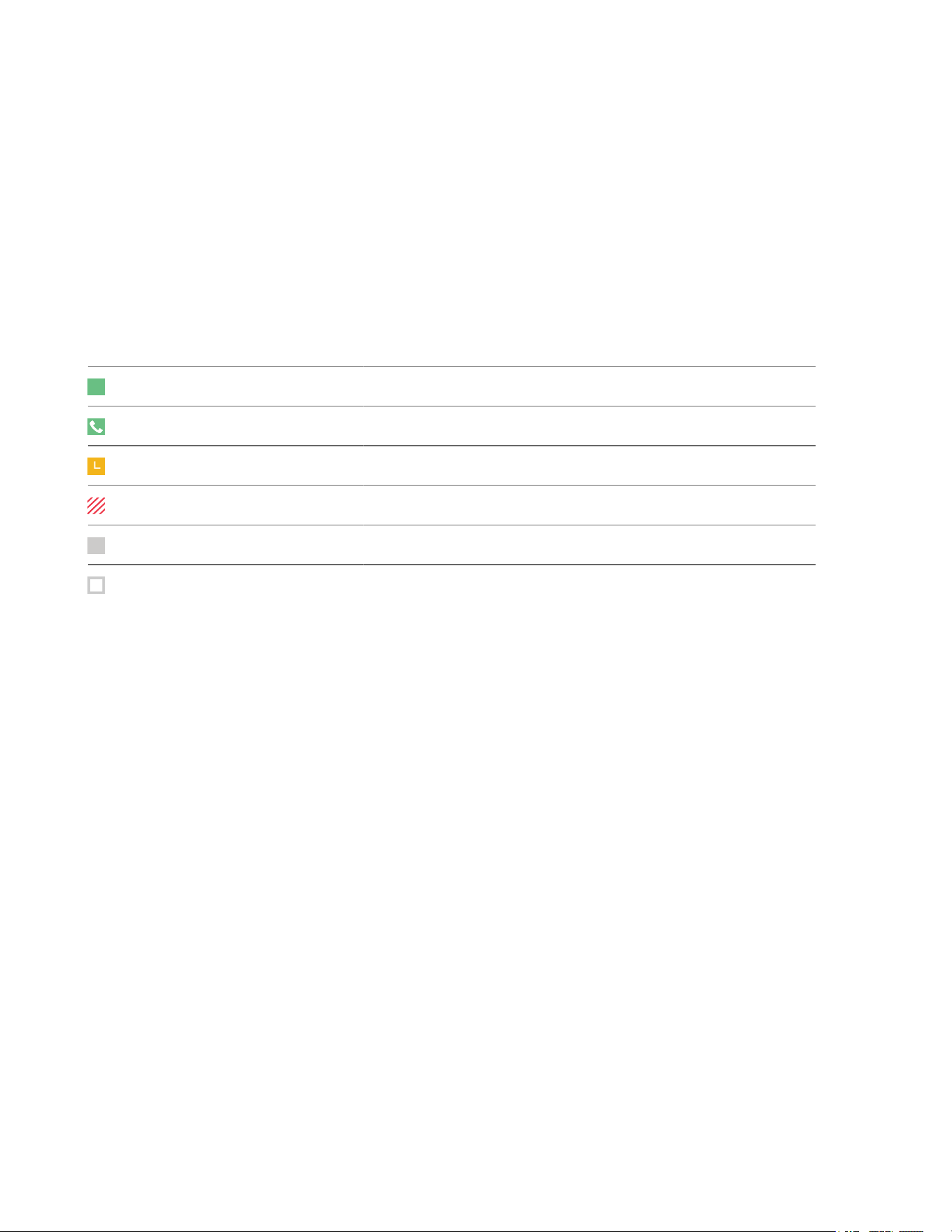
UC-One Contacts' Presence Information
UC-One contacts are Enterprise Directory contacts that have Instant Messaging and Presence (IM&P) enabled, and you
can view their presence information on your phone.
While you can view UC-One contacts presence information on the Lines screen, you cannot change your presence status
on the phone. You can change your presence status only in the UC-One client on your computer.
The following table shows the presence icons that display for UC-One contacts on your phone.
UC-One Contact Presence Icons
Icon Description
Available
Available - In a call
Away
Busy
Unavailable
Offline, Unknown
Viewing UC-One Contacts and Favorites
You can view UC-One contacts and favorites from your phone on the Home and Lines screen and in the Contacts list. You
can also view UC-One groups and contacts in each group.
You cannot mark UC-One contacts as favorites on your phone. You must mark contacts as favorites in the UC-One client
on your computer. Contacts marked as favorites in the UC-One client display on your phone after one minute.
Note: If the message “Authentication failure” is displayed when you try to view UC-One contacts, make sure you
provisioned the correct UC-One XMPP credentials on your phone.
View UC-One Contacts and Favorites
You can view UC-One contacts with presence information and other UC-One contacts marked as favorites on the Lines
screen.
Task
» From the Home screen, press the Home key .
UC-One contacts and favorites display on the Lines screen.
View UC-One Favorites in the Contact List
In addition to viewing UC-One favorites on the Lines screen, you can also view your favorites in the UC-One Contacts list.
Task
1 Select Directories > UC-One Contacts.
2 Select the group name to view the list of contacts for that group.
View UC-One Groups
View your UC-One groups from your phone’s local interface.
Note: You can’t create new groups, delete existing groups, or move contacts from one group to another on your phone.
You can only alter groups in the UC-One client on your computer.
101

Task
» Select Directories > UC-One Contacts.
Your UC-One groups display. If there are no user-defined groups, contacts display under the All Contacts group.
View Aggregated Self-Presence for Cisco BroadWorks Lines
The home screen displays the aggregated self-presence received from the Cisco BroadWorks Messaging Server (UMS).
Task
Filter UC-One Favorites
You can filter your list of contacts either by Favorites or by your contact's status.
Task
1 Select Directories > UC-One Contacts.
2 Select Filter.
A filter selection screen is displayed.
3 Choose your desired filter selection:
• Select Favorites to display only your UC-One Favorites on the Home screen and in the UC-One Contacts list.
• Select Online to display only the UC-One contacts that are currently online on the Home screen and in the UC-One
Contacts list.
Search for UC-One Contacts
You can search for UC-One contacts from the UC-One Contacts screen.
Note: For more information on using Cisco BroadWorks applications, refer to the BroadWorks documentation.
Task
1 Select Directories > UC-One Contacts.
2 Select Search.
3 Enter your contact's first or last name.
A list of search results display.
Cisco BroadWorks Executive-Assistant
The Cisco BroadWorks Executive-Assistant feature enables assistants to monitor and manage calls on an assigned
executive's line and enables executives to filter calls to assigned assistants and set criteria for filtered calls.
When your system administrator assigns you as an executive or assistant, the Executive or Assistant menu icons and
soft keys display on your phone.
Private and Shared Lines for Executives and Assistants
Executives and assistants can both have a private and shared line on their phone. Executives can have private and shared
lines that are not managed by an assistant.
The following conditions apply to private or shared lines set as Executive or Assistant:
• For shared lines, the status of any executive calls display on the shared line of the executive and assistant’s phone.
• Assistants can use their private line to place a call or answer calls on behalf of an executive, but neither an assistant nor
executive can view the status of calls on a private line.
• For private lines, executives and assistants can pick up held calls on the executive's phone, but neither can choose
which held call is picked up.
102

Executive Options
As an executive, you can view a list of assigned assistants, filter calls to assistants assigned to your line, and set criteria for
filtered calls on your line.
Filter Executive Calls
Executives can enable Call Filtering on their phones to send all executive calls directly to an assistant to answer, and the
executive is not alerted of the incoming call.
Task
1 On the Home screen of the executive’s phone, select Executive.
2 Select Call Filtering then select On.
Set a Filter Criteria for Filtered Calls
Executives can determine which types of calls are filtered to an assistant by choosing whether to filter all calls, internal
calls, external calls, or calls as specified in an extended filter, which executives can create and edit in the Cisco BroadWorks
BroadCloud portal.
Task
1 On the Home screen of the executive’s phone, select Executive.
2 Select Filter Criteria.
3 Choose one of the following:
• All Calls
• Internal Calls
• External Calls
• Extended Filter
Screen Executive Calls
Executives can enable Call Screening, which displays the incoming call notification for all filtered executive calls on the
executive's phone.
Call Screening is only available when Call Filtering is enabled.
Task
1 On the Home screen of the executive’s phone, select Executive.
2 Select Call Screen then select On.
View a List of Assigned Assistants
Executives can view a list of assigned assistants and see which assistants have opted-in or out of accepting filtered calls for
the executive.
Task
1 On the Home screen of the executive’s phone, select Executive.
2 Select Assigned Assistants.
Assistant Options
Assistants can monitor an executive's calls, place calls on behalf of an executive, filter and divert executive calls, and opt-in
or out of monitoring calls for an executive.
Answering Executive Calls
Assistants can answer, reject, or ignore any executive calls.
When a call is placed to an executive's line and Call Filtering is enabled, the call is displayed on the assistant's phone only.
Incoming call notifications for an executive call display with the executive's name in the notification on the assistant's
phone.
103

When Call Screening is enabled, incoming call notifications also display on the executive's phone, and the executive can
choose to answer the call.
Place a Call on Behalf of an Executive
As an assistant, you can make calls on behalf of any of your assigned executives.
When a call is made on behalf of an executive, a solid red bar displays on the executive’s line key, if the executive’s line is a
shared line.
Task
1 On the Home screen of the assistant’s phone, select Assistant.
2 On the Overview Executive screen, select Executives then choose an executive.
3 Select On behalf and enter the contact’s number or choose a contact from Recent Calls or the directory.
4 Select Dial.
The executive's caller information displays on the third-party's phone.
Push a Call to the Executives Phone
As an assistant, after you answer an executive call, you can push the call to the executive's phone.
You can only push a call to an executive you are assigned to. You cannot push executive calls to other assistants or
contacts.
Task
» During an executive call, select Push.
The call is sent to the executive's phone, which rings to alert the executive of the pushed call. If the executive is
unavailable to answer the call, the call is returned to the assistant's phone.
Opt In or Opt Out of being an Assistant for an Executive
As an assistant, you can choose to opt in or opt out of being an assistant and monitoring calls for an executive.
When you opt in to being an assistant, you can monitor and manage all filter calls to the executive. When you opt out, you
no longer receive filtered executive calls and cannot manage or monitor executive calls.
Task
1 On the Home screen of the assistant’s phone, select Assistant.
2 Select Executives then choose an executive.
3 Select Status then do one of the following:
• Select On to opt in to being an assistant for an executive.
• Select Off to opt out of being an assistant for an executive.
Divert Filtered Executive Calls
As an assistant, you can choose to divert filtered calls for all assigned executives to another assistant, contact, or phone.
Task
1 On the Home screen of the assistant’s phone, select Assistant.
2 Select Call Diversion then select On.
3 Enter the number where you want to divert executive calls.
Pick Up a Held Executive Call on a Shared Line
Executives and assistants can both pick up held calls on shared or private executive lines.
On shared lines, the executive and assistant can view the status of calls on both phones and choose which call to pick up.
Task
1 Press and hold the line key with the held call.
104

2 Select the held call, and select the Pick Call soft key.
Pick Up a Held Executive Call on a Private Line
On private lines, the executives and assistants can pick up held calls on each other's phones, but they cannot view the
status of a call or choose which held call to pick up.
Task
1 On the Home screen of the assistant’s phone, select Assistant.
2 Select an executive, then select Pick Call.
Barge In on an Executive Call
When there is a call on the executive's line, the executive or the assistant can barge in on the call.
When you barge in on the call, all parties are notified that you have barged in on the call, and you can talk with the other
parties on the call.
Task
1 During an active call on the executive's line, press and hold the executive line key.
2 Select the Barge In soft key.
Silently Barge In on an Executive Call
In addition to barging in on a call, executives can silently barge in on the call and listen to the call without anyone knowing
the executive is on the call.
When an executive silently barges in on a call, the other parties are not notified, no one can hear the executive's audio, and
the executive cannot talk to the other parties on the call.
Assistants cannot silently barge in on executive calls.
Task
1 During an active call on the executive's line, press and hold the executive line key.
2 Select the S-Barge In soft key.
Access the Call Actions for Cisco BroadWorks Dynamic Busy Lamp Field (BLF)
You can access the call actions settings on the phone and modify the settings from the Attendant Call Action menu when
dynamic BLF is configured on the phone.
You can one touch the following BLF actions on the phone:
• Dial-Pickup - Indicates the single-press action to use the BLF as a speed dial except the alerting state.
• Blind - Enables the active call to blind transfer to another user with one press of the associated BLF key.
• Park - Enables one-touch call park and retrieve using the BLF keys.
Task
1 On the Home Screen, go to Settings > Basic > Preferences.
2 Select the Attendant Call Action menu.
3 On the Attendant Call Action screen, select one of the following options:
• Dial-Pickup
• Blind
• Park
105

Ribbon Communications Features
The following features are available when your administrator configures your phone with Ribbon Communications.
Ribbon Communications Multiple Appearance Directory Number - Single Call
Appearance
Register your phone with the Ribbon Communications server to use Multiple Appearance Directory Number - Single Call
Appearance (MADN-SCA). With MADN-SCA, you can share a single line with other contacts in a Multiple Appearance
Directory Number (MADN) group.
System administrators assign members to MADN groups. MADN groups support a maximum of 32 members. Any MADN
member can place, answer, hold, resume, or barge in on calls on the shared line. Additionally, all group members can view
the status of a call on the shared line.
Check with your system administrator to find out if this feature is available on your phone.
Placing a MADN Call
Any MADN member can place a call on the shared line.
When a member places a call on the shared line, the other members are notified with a steady red LED light on the line key
of the members' phones.
Only one call at a time can be active on the shared line. If a call is received on the shared line with an active call in place, the
incoming call is sent to voicemail.
Answering a MADN Call
Any MADN member can respond to an incoming call to the shared line.
Any incoming call to the shared line rings on all group members' phones simultaneously. The call is displayed on all
members' screens, and a green LED light flashes on the line's line key.
When a MADN member answers an incoming call, the LED indicator on the line key for all phones changes to a steady red
light to indicate the call was answered. Members can also view the status of a call on the shared line by pressing and
holding the corresponding line key for one second. The call's status and the Barge In softkey display for five seconds.
If bridging is disabled and privacy is enabled for the shared line, you can’t barge in on active calls answered by other MADN
members.
Barge In on an Active Call
After a call is answered, any group member can barge in on the active call on a public shared line, which becomes a bridge
call—a call between two or more MADN members and another party.
Ask your system administrator about the maximum number of participants allowed on a bridge call.
Task
1 Press and hold the corresponding line key for the shared line for one second.
2 Select the Barge In softkey.
A bridge tone plays notifying the other call participants that you’re barging in on the call.
Leave a Bridge Call
Any member in a bridge call can leave the call, and the call remains active.
After you leave a bridge call, you can rejoin by pressing the Barge In softkey again.
Task
» Select the End Call softkey, or place the handset in the cradle.
Your connection to the bridge call is ended, and the other call participants remain on the call.
106

Resume a Held MADN Call
Any MADN member can resume a held call on the shared line.
When an active call is placed on hold on the shared line, a red LED light flashes on the line key on all members' phones, if
enabled by your system administrator.
When a held call is resumed by another MADN member, a steady red LED light shows on the line key on the other
members' phone.
Task
» Do one of the following:
• Select the corresponding line key and lift the handset.
• Press and hold the corresponding line key and select Resume.
Enabling Privacy for MADN Calls
Any MADN member can temporarily enable privacy for an active or bridge call on a public shared line using privacy codes
or privacy soft keys configured by your system administrator.
Additionally, MADN members can use privacy codes and soft keys to temporarily disable privacy on an active call on a
private shared line.
When a shared line is configured as private or when privacy is enabled on an active call, bridging is disabled and other
MADN members cannot barge in on an active call on the shared line.
The following are three types of privacy codes that you can use to enable and disable privacy on a shared line:
• Privacy Access (PRV) code—Enables privacy for an active call on a public line.
• Privacy Release Activation (PRLA) code—Disables privacy for an active call on a private shared line.
• Privacy Release Cancel (PRLC) code—Re-enables privacy for an active call on a private shared line.
Enable Privacy
Enable privacy for an active call.
After you enable privacy for an active call on a public shared line, you can’t disable privacy for the call. You can allow other
MADN members to join the active call by transferring the call or initiating a conference call.
Task
» During an active call, do one of the following:
• Select Transfer and dial the PRV code given to you by your administrator.
For example, dial *91.
• Select the Priv softkey, if enabled.
A confirmation tone plays and the call is resumed automatically.
Disable Privacy Temporarily
You can temporarily disable privacy for an active call on a private shared line to allow other MADN members to join the
call.
Task
1 During an active call, press the PRLA softkey or select Hold and dial the PRLA code given to you by your administrator.
For example, dial *921.
A confirmation tone plays, and the call is resumed automatically. Privacy is disabled for the call and any member can
barge in on the call.
2 After other MADN members have joined the call, press the PRLA softkey or select Hold and dial the PRLA code given
to you by your administrator.
For example, dial *922.
107

A confirmation tone plays, and the call is resumed automatically.
Enable Privacy on a Bridge Call
You can enable privacy on a bridge call to prevent additional MADN members from barging in to the call.
Task
» During a bridge call, select Transfer and dial the PRV code or select the Privacy softkey, if enabled.
A confirmation tone plays when privacy is enabled and the call is resumed automatically. The bridge call is private and
additional MADN members aren’t allowed to join the call.
Managing the Ribbon Communications Address Books
When your phone registers to the Ribbon Communications server, you can access your Global Address Book and Personal
Address Book on your phone.
Check with your system administrator to find out if this feature is available on your phone.
Using the Global Address Book
Ribbon Communications Global Address Book (GAB) is a read-only directory similar to the Corporate Directory, which is a
company directory enabled and populated with contacts by your system administrator.
Use the GAB to search for and save contacts to the Contact Directory or Personal Address Book (PAB).
Perform a Simple Search of the Global Address Book
A simple search enables you to search for contacts using either their first or last name or by typing a few letters or their
name.
Task
1 Go to Directories > Global Address Book.
2 In the search field, enter your search criteria and select Submit.
Perform an Advanced Search of the Global Address Book
An advanced search lets you search for contacts by first or last name or phone number.
Task
1 Go to Directories > Global Address Book.
2 In the Global Address Book screen, select AdvFind.
3 Select a search option and select Next. You can choose to search by a contact’s last name, first name, or phone number.
4 Enter your search criteria and press Next.
Your search results display with the contact’s name and phone number.
Save a Global Address Book Contact to the Contact Directory
If you want to modify a GAB contact's information, you need to save the contact to the Contact Directory or the Personal
Address Book, if the feature is enabled.
When you save a contact to the Contact Directory or PAB, you can modify and save the changes to the PAB or Contact
Directory.
Task
1 After you find your contact, select View.
2 In the Edit Contact screen, select Save.
The contact is saved to the Contact Directory or your Personal Address Book.
Save Recent Global Address Book Search Results
View your most recent search results in the GAB after you have left the Directory screen.
Task
108

1 Go to Menu > Settings > Basic > Preferences.
2 Select Global Address Book > View Persistency and select Enable.
View Persistency is enabled and you can view your most recent search each time you return to the GAB.
Using the Personal Address Book
Search for contacts, edit contact information, and save contacts to the PAB.
Note: Before importing contacts to your phone, make sure you save all of your contacts to your PAB. Save contacts to
your PAB using the Ribbon Communications Personal Agent on your computer. Saving all of your contacts to the PAB
ensures that your contacts download to the Contact Directory on your phone.
View Contacts in the Personal Address Book
Contacts saved to your PAB display in the Contact Directory.
Task
1 Go to Directories > Contact Directory.
2 Select a contact and select Edit.
The contact's information, including first and last name, directory number, nickname, and other details display.
Search Your Personal Address Book
You can search for contacts in the PAB by first name or last name.
Task
1 In the Contact Directory screen, select Search.
Select More if you don’t see the Search soft key.
2 In the search field, enter your search criteria and select Submit.
Add Contacts to the Personal Address Book
Create a new contact entry in your PAB.
When you add a new contact to the PAB, you must enter a unique nickname that is at least one character long for each new
contact. If you try to save a contact without a nickname, a message prompts to ask you to enter a nickname.
Task
1 In the Contact Directory, select Add.
2 Enter your contact's information, create a nickname for the contact, and select Save.
The contact is added to the Contact Directory on your phone and to the PAB on the server.
Delete Contacts from the Personal Address Book
Remove contacts from the PAB.
When you delete a contact, the contact is deleted from your PAB on your phone and the Ribbon Communications Personal
Agent.
Task
1 In the Contact Directory screen, select a contact and select Delete.
A message displays to ask for confirmation to delete the contact.
2 Select Yes to delete the contact.
Editing Contacts in the Personal Address Book
Edit contacts in the PAB on your phone or in your Ribbon Communications Personal Agent on your computer.
If you modify a contact's information on your phone or computer, the changes are automatically updated in the Ribbon
Communications Personal Agent and in the PAB on your phone.
109

Edit Contacts Locally
Edit PAB contacts on your phone’s local interface.
When you edit contacts on your phone, your contact's information is updated in the Ribbon Communications Personal
Agent as well.
Task
1 In the Contact Directory screen, select a contact and select Edit.
2 Edit the information in the contact fields and select Save.
Note: If adding, editing, or deleting a contact fails, a message is displayed with the reason the modification failed.
Depending on the reason for the failure, the database state can change to “out of sync”. Contact your system
administrator if an “out of sync” message is displayed.
Editing Contacts Remotely
When you edit a contact's information in the Ribbon Communications Personal Agent on your computer, the contact's
information is updated on the Ribbon Communications Server.
After the contact information is updated on the server, your PAB contact's information is updated immediately on your
phone, and a notification with the nickname of the modified contact is displayed on the phone. When a contact is deleted,
the phone deletes the contact from the PAB without any notification.
110

Phone Settings
Basic customizations on the phone include changing the time and date format, setting the backlight intensity, changing
office hours and timeouts for Power Saving mode, and viewing and modifying security settings.
System Settings
You can make basic customizations to your phone’s system settings, including the time and date format, backlight
intensity, and Power Saving mode.
Change the Phone Display Language
You can change the language used for your phone's user interface.
Task
1 Go to Menu > Settings > Basic > Preferences.
2 Select Language and select a language from the list.
Time and Date Display
The time and date display on the home screen.
When the phone can’t obtain a time and date, the time and date display flashes. If this happens, or if the time and date are
incorrect, contact your system administrator.
Change the Time and Date Format
Customize the time and date by choosing between several time and date formats, including options to display the day,
month, or year.
Task
1 Go to Menu > Settings > Basic > Preferences.
2 Select Time and Date and choose one of the following options:
• Select Clock Date to change the date format.
• Select Clock Time to change the time format.
Disable the Time and Date Display
If desired, turn off the time and date display.
Task
1 Go to Menu > Settings > Basic > Preferences.
2 Select Time and Date and select Disable.
Backlight Intensity and Timeout
Adjust the settings for the phone’s backlight illumination.
If desired, change settings for the following backlight components:
• Backlight Intensity: The brightness of the screen during phone activity and inactivity.
• Backlight Timeout: The number of seconds the phone is inactive before the backlight dims to its Backlight Idle
intensity. The backlight timeout period begins after your last activity, such as an incoming call.
Backlight Intensity includes the following settings you can choose from:
• Backlight On: The brightness of the screen when there’s activity.
• Backlight Idle: The brightness of the screen when there’s no activity.
• Maximum Intensity: The brightness scale that applies to both Backlight On and Backlight Idle intensities.
111

Set the Backlight Intensity
The screen’s backlight intensity settings adjust how bright the screen illuminates while on and while idle.
Set the Backlight On intensity and the Backlight Idle intensity separately, or turn off the backlight entirely. When you
change the Maximum Intensity, you modify the entire backlight intensity scale. For example, if you decrease the
Maximum Intensity, the Low, Medium, and High levels for both Backlight On and Backlight Idle decrease.
Task
1 Go to Menu > Settings > Basic.
2 On the Backlight Intensity screen, select Backlight On Intensity.
3 Select the intensity that you want.
• High
• Medium
• Low
4 On the Backlight Intensity screen, select Backlight Idle Intensity.
5 Select the intensity that you want.
6 On the Backlight Intensity screen, select Maximum Intensity.
7 Select Up or Down to increase or decrease the maximum intensity.
Set the Backlight Timeout
Set the Backlight Timeout to determine how long the phone is idle before the backlight dims. By default, the backlight dims
after the phone is idle for 40 seconds. The backlight automatically turns on with any phone activity.
Make sure to configure the Backlight Idle Intensity settings. See Set the Backlight Intensity on page 112.
Task
1 Go to Menu > Settings > Basic.
2 Select Backlight Timeout.
3 Choose the number of seconds the phone is idle before the backlight dims.
4 Press the Select softkey.
Power Saving Mode
Poly phones enter power saving mode to conserve energy after being idle for a certain period of time.
Determine the period of time that the phone is idle before the screen turns off, and set different idle timeouts for office
hours and off hours, such as evenings and weekends. The phone exits power saving mode if an event occurs, for example, if
there is an incoming call or message. If you enable a screen saver, power saving mode still activates.
Update the following power-saving settings:
• Office Hours: When you start work and how long you’re in the office each day.
• Timeouts: How long the phone is idle before the screen turns off.
Change Your Office Hours for Power Saving Mode
When you update your office hours, specify when you start and how long you work each day. After your work hours, the
phone is idle and goes into power saving mode.
Task
1 Go to Menu > Settings > Basic.
2 Select to Power Saving > Office Hours > Start Hour.
3 Select a day of the week and enter a start time from 0 to 23 (using the 24-hour clock).
4 Select Save.
112

5 On the Office Hours screen, select Duration.
6 Select a day of the week and enter a duration of 0 to 12 hours per day.
7 Select Save.
Change Idle Timeouts for Power Saving Mode
Set the period of time the phone is idle before the screen turns off.
Specify the amount of time the phone waits to go idle after you press a key. You can choose to set one timeout period
longer than the other idle timeouts. This prevents power saving mode initiating when you use the phone.
Specify different timeouts for office hours and nonoffice hours. By default, the setting for office hours is much longer than
the setting for nonoffice hours.
Tip: Once you press a key, the phone uses the idle timeout period with the highest value.
Task
1 Go to Menu > Settings > Basic.
2 Select Power Saving > Timeouts.
3 Configure the following settings:
• Office Hours Idle Timeout: The number of minutes (1 to 600) the phone waits during office hours before starting
power saving mode.
• Off Hours Idle Timeout: The number of minutes (1 to 10) the phone waits during nonoffice hours before starting
power saving mode.
• User Input Idle Timeout: The number of minutes (1 to 10) the phone waits after you press a key or tap the screen
before starting power saving mode.
4 Select Save.
Security Settings
You can view and update the security settings for your phone if your administrator enabled them.
Security Classification
For Edge E Series phones registered with the Cisco BroadWorks Server, you can view and modify the security
classification level for your phone, if the feature is enabled by your system administrator.
View the Security Classification for Your Phone
If you are unsure of your security classification, you can view your assigned classification for all lines on your phone.
Task
1 Go to Settings > Status > Lines.
If you have only one line, the security classification displays for that line.
2 If you have more than one registered line, select a line.
The security classification displays for the selected line.
Modify Security Classification Level
You can modify your security classification level to choose a lower level during a call to allow users with a lower
classification to join a call or to a higher level to restrict who can join the call.
For example, if you are classified as a Top Secret user, you can lower your classification level to Secret or Restricted during
a call. You cannot change the security classification when the phone is idle and not in a call.
Task
1 During a call, select Security.
2 On the Security Classification screen, choose one of the following options:
113

• Top Secret
• Secret
• Restricted
• Classified
A notification displays on all call participants' phones informing them that the classification level of the call has
changed.
114

Customizing Your Phone
Make basic customizations to your phone that include changing the background, adding personal photos, and enabling the
screen saver.
Changing Your Background
You can change the background picture on your phone to any image set up by your system administrator or your own
photo.
By default, your screen displays a blue background named Default. If no background images are set up, only the Default is
available.
You can also add personal photos on your phone using the Web Configuration Utility or a USB flash drive.
Change the Background Picture
If your system administrator has preloaded your phone with background pictures or you have added personal photos onto
the phone, you can choose to display a background other than the default.
Task
1 Go to Menu > Settings > Basic > Preferences.
2 Select Background and select a background image.
Reset Your Background
Reset your background to display the default image.
Task
1 Go to Menu > Settings > Basic > Preferences.
2 Select Background > Default.
Adding Personal Photos as Your Background
Upload a personal photo to replace the default background using the system web interface or using a USB flash drive.
When you set one of your photos as the background picture, the picture is displayed as one of the following in the in the
Backgrounds list:
• Local File, if adding an image file from a USB flash drive
• The file name, if uploading the image file using the system web interface
Keep in mind the following when you use a personal photo as the background image:
• Progressive or multiscan JPEG images aren’t supported.
• Smaller images are centered and surrounded with black space.
• Larger images are scaled proportionally to fit the screen.
• Horizontal or vertical black bars are added to preserve the original aspect ratio.
Add a Background Using the System Web Interface
You can add images for your phone background using the system web interface.
Note: If the phone can't upload the background image to the provisioning server, the background image will be removed
on phone reboot
Task
1 Find you phone’s IP address from Settings > Status > Platform > Phone.
2 Enter your phone's IP address into the web browser on your computer.
115

3 Select User and enter your assigned password or the default (123) password.
4 From the menu bar, select Preferences > Background.
5 Select + Add a new background image.
6 Select Select a file from PC/Desktop, and select Choose File for Phone Image.
7 Choose your picture file and select Open.
8 Select Save.
The phone adds the file to the list of available backgrounds.
9 Go to Settings > Basic > Preferences.
10 Select Background and select a background image.
The image displays as your background.
Supported Sizes and Formats for Background Pictures
When adding background images, be sure to use a supported size and image format.
Optimal Background Image Sizes for Edge E Series Phones
Edge E Series Optimal Background Image Size
Edge E100 320×240 pixels
Edge E220 320×240 pixels
Edge E300 320×240 pixels
Edge E400 320×240 pixels
Edge E500 800×480 pixels
Edge E Series phones support the following formats for background images:
• .bmp
• .jpg
• .jpeg
• .jpe
• .jfif
• .png
Screen Savers
Enable a screen saver that can either show default pictures stored on your phone or pictures stored on a USB flash drive.
You can stop a screen saver at any time by touching the screen. After your phone is idle for the specified period of time, the
screen saver starts again.
Ask your system administrator if this feature is available on your phone.
Enable the Screen Saver
When you enable the screen saver, you can choose to have your phone display default photos stored on the phone or
photos stored on a connected USB flash drive.
The screen saver automatically starts when your phone is idle for a specified amount of time. You can stop the screen saver
at any time by pressing any key.
Task
1 Go to Settings > Basic > Preferences.
2 Select Screen Saver > Screen Saver screen and select Enabled.
116

3 Select Wait Time and enter the number of minutes the phone should wait before displaying the screen saver after no
activity.
Enter a time between 1 and 9999 minutes. The default is 15 minutes.
4 Select Type and select either Default or Idle Browser.
5 Select Save.
Use Personal Photos as Screen Saver
Display your personal photos on a USB flash drive as a screen saver.
The photos you use must have the following file type and size properties:
• File type: BMP, JPEG, or PNG
• Maximum size: 9999 × 9999 pixels
The phone can only display the photos as your screen saver when the USB flash drive is attached to the phone. You can set
up your phone to use a single photo to display or have all photos display in slide-show style. This is an alternative to setting
up a screen saver, and it automatically starts each time your phone is idle for a certain amount of time.
Task
1 Place one or more photos onto a USB flash drive, either in the root directory or in a folder.
Note: Take a note of the folder name, which is the required information for settings later.
2 Attach the USB flash drive to your phone.
The USB icon is displayed on the status bar.
Note: If your phone doesn’t detect the USB device when you insert it into the USB port, the USB port on your phone
may be disabled. Contact your system administrator for assistance using the USB port.
3 Go to Menu > Settings > Basic > Preferences.
4 Select Picture Frame > Folder, and enter the name of the folder you placed your photos in on the USB flash drive.
If you placed the photos in the root directory of your USB flash drive, don’t enter a folder name.
5 Select Time Per Image, and enter the number of seconds you want each photo to display.
Enter a time between 3 seconds and 300 seconds. The default is 5 seconds.
6 Select Save.
If there are no photos in the folder you specified or in the root directory, the message “No pictures found” displays after
you select Save. Go back and make sure the information that you entered is correct.
7 Go to Menu > Settings > Basic.
8 Select Wait Time and enter the number of minutes the phone should wait before displaying the screen saver after no
activity.
Enter a time between 1 and 9999 minutes. The default is 15 minutes.
9 Select Save.
Your phone displays the screen saver after the number of minutes you specified in the Wait Time field.
Disable the Screen Saver
Prevent the screen saver from starting, even if your phone has been idle for a period of time.
You can also remove the USB flash drive to disable the screen saver of your photos. The screen saver resumes if you attach
the USB flash drive again and your phone sits idle for the period of time you specified.
Task
1 Go to Menu > Settings > Basic > Preferences.
2 Toggle Screen Saver off.
3 Select Save.
117

Maintenance
Maintain your phone by updating the phone software and configuration and by rebooting or resetting your phone as
needed.
Updating the Phone Software
You can update the software on your phone when a new software version is available.
When new software is available, a notification is displayed on your phone and you have the option to update your
software, postpone the software update (if enabled by your administrator), or exit the notification.
Update the Phone Configuration
Your system administrator may make changes to the configuration parameters for your phone and then ask you to update
the configuration to apply the changes. You can do this without rebooting your phone.
Task
1 Go to Menu > Settings > Basic.
2 Select Update Configuration.
A confirmation message displays.
3 To continue, select Yes.
The configuration updates. The phone may reboot, depending on which settings you changed.
View Software Details
View the details for the software version on your phone, the latest software update available for your phone, and the
status of the latest update.
Task
» Go to Settings > Status > Platform > Software Update Status.
Update the Phone Software
When the software update notification displays on your phone, you can choose to update your phone's software at that
time.
Task
» When prompted to update your software, select Update.
The phone downloads the software and reboots. Then, the software updates.
Postpone Software Updates
Instead of updating your software immediately, you can choose to postpone the update for a later time if your
administrator has enabled it.
You can choose to postpone the software update from 15 minutes up to 6 hours. You can postpone the software update up
to three times. After the third time, the notification is displayed without the Postpone option.
If you don’t update the phone's software after the postpone time, a notification with a countdown is displayed and the
phone automatically reboots and updates the software when the countdown ends.
Note: If you postpone a software update and the time period you choose ends while you're on an active call, a software
update notification with a countdown is displayed after the call ends. After the countdown ends, the phone reboots and
updates the software.
Task
1 When prompted to update your software, select Postpone.
2 Select one of the time options.
118

The notification disappears from the phone screen and displays again during the remaining five minutes before the
selected postpone time.
Exit the Software Update Notification
When the software update notification displays, you also have the option to exit the notification without choosing to
update or postpone the software.
Task
» When prompted to update your software, select Exit.
When you exit the notification, the SWUpdate soft key displays on the Lines screen.
Resume a Postponed Software Update
Manually start a software update you postponed earlier.
Task
» Press the SWUpdate soft key to start the postponed software update.
Update the Phone Configuration
Your system administrator may make changes to the configuration parameters for your phone and then ask you to update
the configuration to apply the changes. You can do this without rebooting your phone.
Task
1 Go to Menu > Settings > Basic.
2 Select Update Configuration.
A confirmation message displays.
3 To continue, select Yes.
The configuration updates. The phone may reboot, depending on which settings you changed.
Rebooting or Resetting Your Phone
You can reboot or reset your phone to troubleshoot certain issues.
Reboot Your Phone
To assist with troubleshooting, your system administrator may ask you to restart your phone.
Caution: Before you restart the phone, contact your system administrator. If the phone is malfunctioning, you may be
able to restore normal operation without restarting it. Additionally, your system administrator may want to troubleshoot
the phone before you restart it. You do not need to restart the phone to update its configuration.
Task
1 Go to Settings > Basic > Reboot Phone.
2 Select Yes.
Reset the Phone to Factory Defaults
Access the phone reset option without having to enter an administrator password.
After the administrator configures this feature on the phone, you can reset the phone to factory default settings.
Task
» Go to Settings > Basic > Reset to Factory.
119

Troubleshooting
If you’re having issues with your Poly phone, try the troubleshooting options and solutions in the following topics to
resolve certain issues.
Preparing to Troubleshoot Issues
To prepare to troubleshoot issues with your phone, you can investigate existing warnings, run a diagnostics check, or test
the phone hardware.
View Warnings
When a phone can’t perform certain tasks, a Warning icon displays in the status bar.
View details about the issues from the Warnings screen.
Task
1 Go to Settings > Status > Diagnostics.
2 Select Warnings.
The Warnings screen displays, listing any issues.
Remove Warnings
Clear warnings displayed on the phone’s screen.
After you view phone warnings, you can temporarily remove the warning icon from the status bar. However, the warning
displays in the Warnings list until you resolve the issue. The warning icon displays each time your phone has a warning that
you haven't viewed.
Task
» In the Warnings screen, select Clear Icon.
Run a Diagnostics Check
If you are having problems with your phone, run a diagnostics check to determine if there are any issues.
Task
1 Do one of the following:
• Go to Menu > Help & Support.
• Go to Menu > Settings > Diagnostics.
2 Select Run Diagnostics.
3 On the Diagnostics Check screen, do one of the following:
• Select Yes to run the check.
• Select Back to return to the Help & Support screen.
4 On the Diagnostics Report screen, do one of the following:
• Select a report to see detailed information.
• Select Back to return to the Help & Support screen.
The icon next to the item indicates the status:
• Green with a checkmark: Passed
• Red with an X: Failed or disabled
120
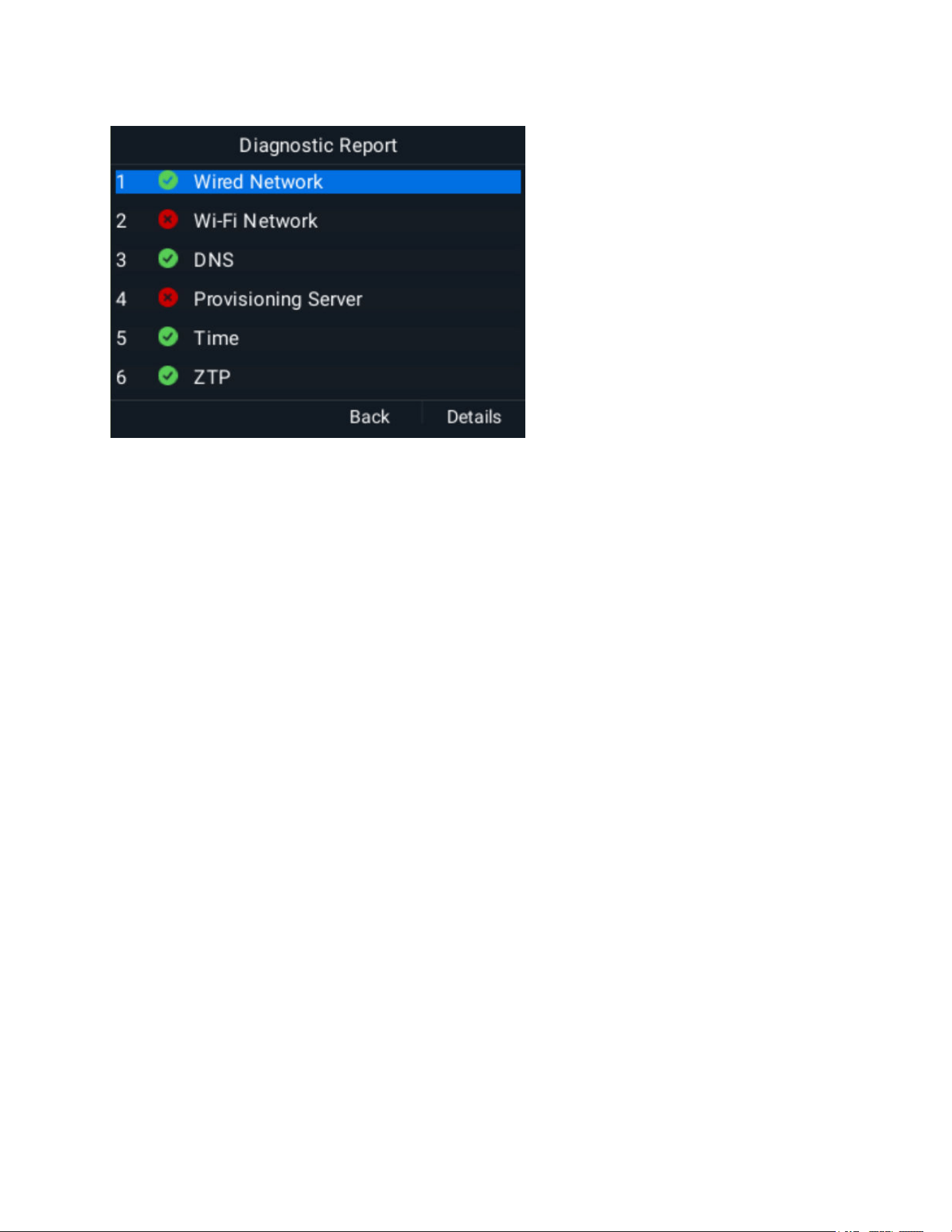
Test Phone Hardware
Test the phone's hardware directly from the phone's local interface.
Task
1 Go to Settings > Diagnostics > Test Hardware.
2 Choose from these tests:
• Audio Diagnostics: Test the speaker, microphone, handset, and a third-party headset.
• Keypad Diagnostics: Test the keypad response.
• Display Diagnostics: Test the LCD for faulty pixels.
• Brightness Diagnostics: Test the screen brightness.
• LED Diagnostics: Test the LEDs.
Viewing the Phone’s Status
View the status of your phone and various features.
View System Information
View information that may be helpful for troubleshooting issues, including the phone’s model number, software version,
MAC address, and IP address.
Task
1 Go to Settings > Status.
2 Select System Information.
Check the Status of the Calendar
Issues with the phone’s connection to the Microsoft server may cause calendar problems. Without a functioning
connection, you might not see the
Calendar icon on the Home screen or you might not receive meeting reminders.
Task
1 Go to Settings > Calendar.
2 From the Calendar screen, select Connect.
View the PAB Status
View the status of the Personal Address Book (PAB) on your phone to determine any issues with the PAB. Contact your
system administrator for further troubleshooting help.
121

Task
» Go to Settings > Status > Contact Directory.
The following information displays:
• Status
• Server Control Method
• Server URL
• Registration Index and User ID
View the GAB Status
If you are having issues accessing the Global Address Book (GAB), view the status of the GAB in the Status menu on your
phone. Contact your system administrator for further troubleshooting help.
Task
» Go to Settings > Status > Global Address Book.
The status information and the server URL for the GAB display.
Troubleshooting Issues
Use the information in this section to troubleshoot common issues with your phone.
Speakerphone
If your speakerphone doesn't work, your system administrator may have disabled it. If this is the case, a message displays
after you press the speakerphone key informing you that Handsfree mode is disabled. In this case, use the handset or a
headset to handle calls.
USB Port
If you attach a USB device to your phone, and the phone does not detect the attached USB device, your system
administrator may have disabled the USB port on your phone.
In this case, you cannot attach a USB device to your phone to use the following features:
• Call recording
• Picture frame
• USB headset
Contact your system administrator for help on enabling the USB port on your phone.
Bluetooth Headset Issues
If you encounter any issues using a Bluetooth headset, see the following table for possible solutions to common problems.
Common Bluetooth Headset Issues and Solutions
Issue Corrective Action
The Bluetooth settings do not display on my phone Do one of the following:
• Check with your system administrator to see if the
Bluetooth feature is enabled on your phone.
• Make sure the Bluetooth Radio setting is on.
My headset doesn't pair automatically. If your headset is an older model, you may need to enter a
password before the headset can pair with your phone. Refer
to your headset documentation for more information.
122

Recording Issues and Solutions
If you encounter any issues recording calls, see the following table for possible solutions to common problems.
Common Recording Issues and Solutions
Issue Corrective Action
The message “USB device is full. Recording canceled” displays
when I pressed Start.
Check that there’s sufficient space on the USB flash drive.
The recording stops during a call. If the USB flash drive becomes full during recording,
recording stops and the message “USB device is full.
Recording stopped” displays.
Delete previous recordings to make space on the USB flash
drive.
The message “USB device removed unsafely. Recording
canceled” displays when I remove my USB flash drive during a
call.
Don’t remove the USB flash drive while recording. If you want
to remove the drive during a call, press Stop, and then remove
the drive.
The message “Unsupported USB device attached” displays. Use the compatibility matrix on https://
compatibility.plantronics.com/deskphone for a list of
compatible headsets.
123