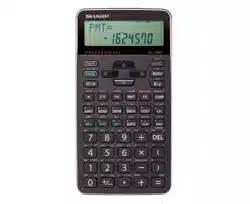

FINANCIAL CALCULATOR
OPERATION MANUAL
MODEL
EL-738XT
Contents
Introduction ..................... 3
Getting Started ................ 5
General Information ........ 11
Financial Functions ......... 17
Scientific Functions ........ 60
Statistical Functions ....... 64
Appendix .......................... 72
Index ................................. 83
Page


1
NOTICE
• SHARP makes no guarantee that this product or this
manual is suitable or accurate for any purpose, com-
mercial or otherwise.
• Rules and practices in fi nancial calculation vary ac-
cording to country, locality, or fi nancial institution. It
is the consumer’s responsibility to determine whether
or not the results produced by this product conform
to applicable rules and regulations.
• SHARP will not be liable nor responsible for any incidental
or consequential economic or property damage caused
by misuse and/or malfunctions of this product and its
peripherals, unless such liability is acknowledged by law.
• The material in this manual is supplied without repre-
sentation or warranty of any kind. SHARP assumes no
responsibility and shall have no liability of any kind, con-
sequential or otherwise, from the use of this material.
• SHARP assumes no responsibility, directly or indirectly,
for fi nancial losses or claims from third persons resulting
from the use of this product and any of its functions, the
loss of or alteration of stored data, etc.
• SHARP strongly recommends that separate permanent
written records be kept of all important data. Data may be
lost or altered in virtually any electronic memory product
under certain circumstances. Therefore, SHARP assumes
no responsibility for data lost or otherwise rendered unus-
able whether as a result of improper use, repairs, defects,
battery replacement, use after the specifi ed battery life
has expired, or any other cause.
• If service should be required on this calculator, have the
calculator serviced in the region (country) where you pur-
chased it.

2
Contents
Introduction ..................................................................3
Operational Notes ...............................................................3
Key Notations in This Manual ..............................................4
Chapter 1: Getting Started ..........................................5
Preparing to Use the Calculator ..........................................5
Resetting the Calculator In Case of Diffi culty ......................5
Calculator and Display Layout .............................................6
The SET UP Menu ..............................................................8
Operating Modes...............................................................10
Chapter 2: General Information ................................11
Basic Calculations .............................................................11
Clearing the Entry and Memories .....................................11
Editing and Correcting an Entry ........................................13
Memory Calculations ........................................................14
Chapter 3: Financial Functions ................................17
General Information ..........................................................17
TVM (Time Value of Money) Solver ..................................22
Amortization Calculations .................................................33
Discounted Cash Flow Analysis ........................................37
Bond Calculations .............................................................44
Depreciation Calculations .................................................48
Conversion between APR and EFF ..................................51
Day and Date Calculations ................................................52
Percent Change/Compound Interest Calculations ............54
Cost/Sell/Margin/Markup Calculations ..............................56
Breakeven Calculations .....................................................58
Chapter 4: Scientifi c Functions ................................60
Constant Calculations .......................................................60
Chain Calculations ............................................................60
Scientifi c Calculations .......................................................61
Random Functions ............................................................62
Modify Function .................................................................63
Chapter 5: Statistical Functions ...............................64
Statistical Calculations and Variables ................................67
Appendix ....................................................................72
Financial Calculation Formulas .........................................72
Statistical Calculation Formulas ........................................75
Errors and Calculation Ranges .........................................76
Battery Replacement ........................................................80
Priority Levels in Calculations ...........................................81
Specifi cations ....................................................................82
Index ...........................................................................83
3
Introduction
Thank you for purchasing a SHARP Financial Calculator.
After reading this manual, store it in a convenient location for
future reference.
• Display of examples shown in this manual may not look ex-
actly the same as what is seen on the product. For instance,
screen examples will show only the symbols necessary for
explanation of each particular calculation.
• All company and/or product names are trademarks and/or
registered trademarks of their respective holders.
• Some of the models described in this manual may not be
available in some countries.
Operational Notes
• Do not carry the calculator around in your back pocket, as it
may break when you sit down. The display is made of glass
and is particularly fragile.
• Keep the calculator away from extreme heat such as on a car
dashboard or near a heater, and avoid exposing it to exces-
sively humid or dusty environments.
•
Since this product is not waterproof, do not use it or store it where
fl uids, for example water, can splash onto it. Raindrops, water spray,
juice, coffee, steam, perspiration, etc. will also cause malfunction.
•
Clean with a soft, dry cloth. Do not use solvents or a wet cloth. Avoid
using a rough cloth or anything else that may cause scratches.
• Do not drop the calculator or apply excessive force.
• Never dispose of batteries in a fi re.
• Keep batteries out of the reach of children.
• This product, including accessories, may change due to up-
grading without prior notice.
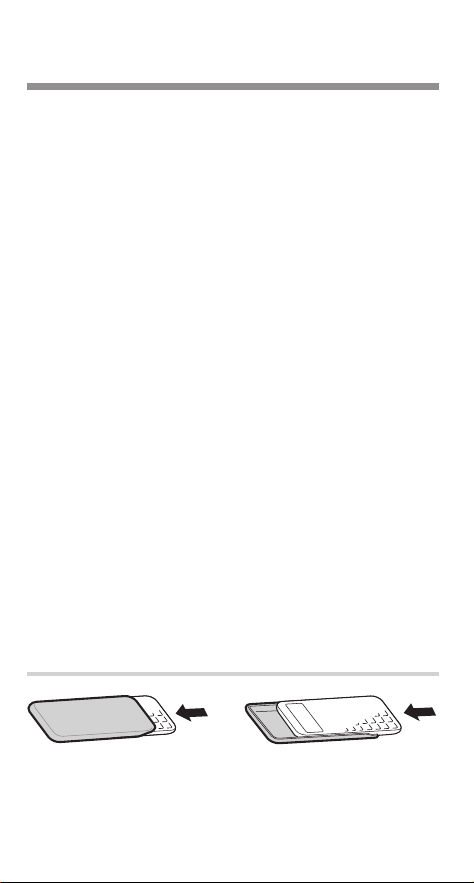
Hard Case
4
Key Notations in This Manual
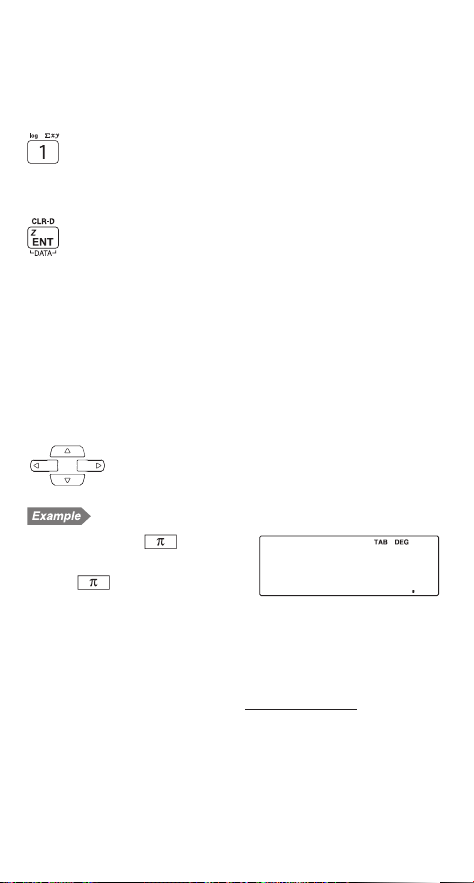
Key operations are described in this manual as follows:
To specify log :
.
h
.....................
1
To specify 1 :
1
or 1 .......................
2
To specify
6
xy :
i
V
.....................
3
To specify CLR-D :
.
?
.....................
1
To specify ENT :
Q
To specify Z :
i
Z
.....................
3
To specify DATA :
J
..............................
4
1
Functions that are printed in orange above the key
require
.
to be pressed fi rst before the key.
2
Number entry examples are shown with ordinary numbers
(i.e., “100” will be indicated instead of
“
1
0
0
”).
3
To specify a memory function (printed in green), press
i
fi rst.
4
Functions that are printed in black adjacent to the keys
are effective in specifi c modes.
To specify cursor keys :
g
/
y
/
z
/
i
Using the
.
and
i
keys
Press
s
.
i
A
x
,
10.
•
.
and
i
A
mean you have to press
.
followed by
)
key and
i
followed by
*
key.
Notes:
• The multiplication instruction “
u
” and alphabetic letter “X” are
distinguished as follows:
Key Display
Multiplication instruction
o
x
u
Alphabetic letter
o
X
X
•
Examples in this manual are performed using default settings (e.g.,
SET UP menu items) unless values are otherwise assigned.
πA˚_
-
10
5
Chapter 1
Getting Started
Preparing to Use the Calculator
Before using your calculator for the fi rst time, you must reset
(initialize) it.
Resetting the calculator
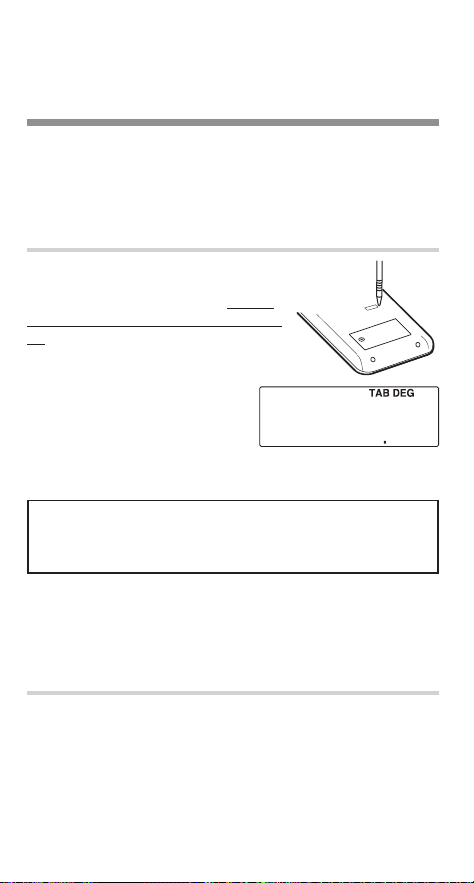
Press the RESET switch located on the
back of the calculator with the tip of a
ball-point pen or similar object. Do not
use an object with a breakable or sharp
tip.
• After resetting the calculator,
the initial display of the NOR-
MAL mode appears.
Resetting the Calculator In Case of Diffi culty
Caution:
The RESET operation will erase all data stored in
memory and restore the calculator’s default setting.
In rare cases, all the keys may cease to function if the calculator
is subjected to strong electrical noise or heavy shock during use.
If pressing any of the keys (including
s
) has no effect, reset
the calculator.
Resetting the calculator
See the above procedure.
Note: Pressing
.
k
and
1
=
will also erase all
data stored in memory and restore the calculator’s default
setting.
000
6
Calculator and Display Layout
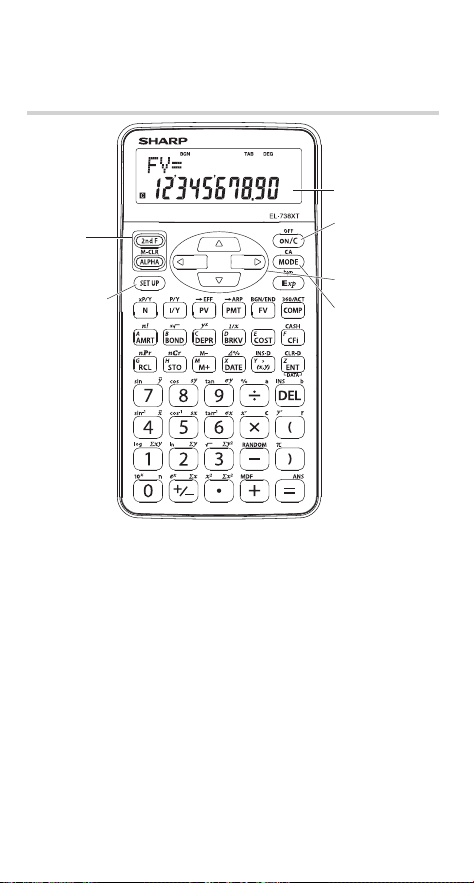
Calculator layout
5
Cursor keys
6
MODE key
3 Key
operation
keys
4
SET UP
key
1
Display
screen
2
Power
ON/OFF and
Clear key
1
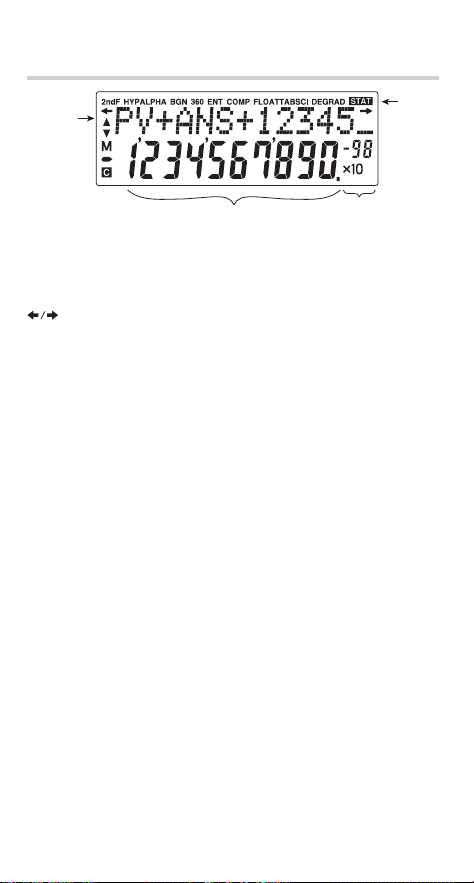
Display screen: The calculator display consists of a 12-char-
acter dot matrix character line and a 12-digit 7-segment
character line (10-digit mantissa and 2-digit exponent).
2
Power ON/OFF and Clear key: Turns the calculator ON.
This key also clears the display. To turn off the calculator,
press
.
, then
c
.
3
Key operation keys:
.
: Activates the second function (printed in orange) as-
signed to the following key.
i
: Activates the memory (printed in green) assigned to
the following key.
4
SET UP key: Displays the SET UP menu to select the
display notation, angular unit, depreciation method and date
format.
5
Cursor keys: Move the cursor.
6
MODE key: Switches between NORMAL and STAT modes.
7
Display layout
Exponent
Equation/
variable
name
display
Symbol
Mantissa
• During actual use, not all symbols are displayed at the same
time.
• Only the symbols required for the operation being explained
are shown in the screen examples of this manual.
:
Appears when the entire equation cannot be displayed.
Press
g
/
y
to see the remaining (hidden) part.
c
/
d
:
Indicates that variables or data are present above/be-
low the screen. Press
z
/
i
to scroll up/down.
2ndF
:
Appears when
.
is pressed, indicating that the
functions shown in orange are enabled.
HYP
:
Indicates that
.
]
has been pressed and the
hyperbolic functions are enabled.
ALPHA
:
Indicates that
i
,
g
or
f
has been pressed,
and storing or recalling memory values or TVM solv-
ers/statistics variables can be performed.
BGN
:
Indicates that calculations are annuity due (payment
at the beginning of each interval) calculations. When
BGN
is not displayed, calculations are ordinary annu-
ity (payment at the end of each interval) calculations.
360
:
Indicates that date calculations are based on a
360-day year (12 months with 30 days). When 360 is
not displayed, date calculations use the actual calen-
dar.
ENT
:
Indicates that a value can be assigned to the displayed
variable using
Q
.
COMP
:
Indicates that the displayed variable can be solved for
by using
@
.
FLOAT A / FLOAT B / TAB / SCI: Indicates the notation used to
display values. It can be changed in the SET UP menu.

8
DEG / RAD / GRAD : Indicates which angular units are in use.
It can be changed in the SET UP menu.
: Appears when statistics mode is selected.
M : Indicates that a numerical value is stored in the inde-
pendent memory (M).
: Indicates that the value of the displayed variable has
not been calculated yet (for variables that can be cal-
culated).
The SET UP Menu
Press
~
to display the SET UP menu.
DSP DRG DEPR
02
1
DAtE
3
o
i
• A menu item can be selected by:
• Using
g
/
y
to select a number (the selected number
will blink), then pressing
=
, or
• pressing the number key corresponding to the menu item
number.
• If
c
or
d
is displayed on the screen, press
z
or
i
to
view the previous/next part of the menu.
• Press
s
to exit the SET UP menu.
Selecting the display notation and number of decimal
places
The calculator has three display notation systems (fi xed decimal
point, scientifi c notation and fl oating point) for displaying calcu-
lation results.
• If
~
0
0
(TAB) is pressed, “DIG(0-9)?” will be
displayed and the number of decimal places can be set to any
value between 0 and 9.
• If
~
0
1
(SCI) is pressed, “SIG(0-9)?” will be dis-
played and the number of signifi cant digit can be set to any
value between 0 and 9. Entering 0 will set a 10-digit display.
• If a fl oating point number does not fi t in the specifi ed range,
the calculator will display the result in scientifi c notation (expo-
nential notation). See the next section for details.
• The default setting is a fi xed decimal point with two decimal
places.
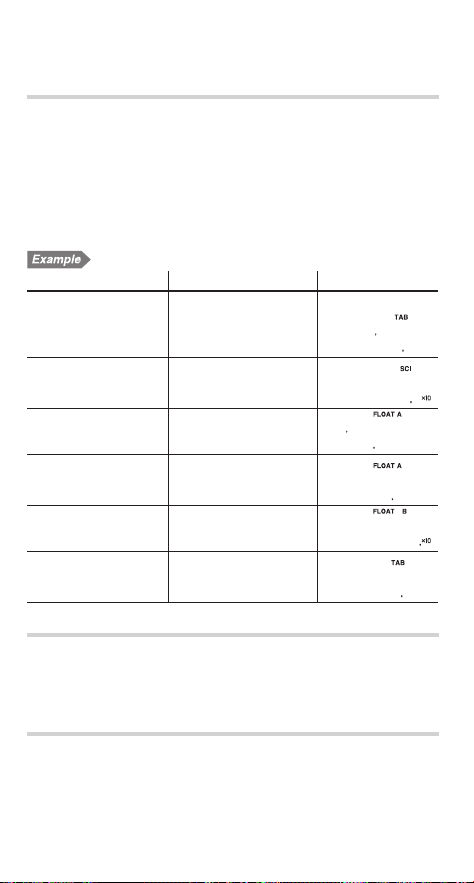
9
Selecting the fl oating point number system in scien-
tifi c notation
The calculator has two settings for displaying a fl oating point
number:
FLO_A (FLOAT A) and FLO_B (FLOAT B). In each display set-
ting, a number is automatically displayed in scientifi c notation
outside the following preset ranges:
• FLO_A
~
0
2
: 0.000000001
d
| X |
d
9,999,999,999
• FLO_B
~
0
3
: 0.01
d
| X |
d
9,999,999,999
Switching the notation setting
Procedure Key operation Display
100000 ÷ 3 =
Fixed decimal point
with two decimal
places
s
100000
8
3
=
1
—————©
3
=
3333333
o
Scientifi c notation
(SCI) with two
signifi cant digits
~
0
1
2
1
—————©
3
=
04
33
o
Floating point
(FLO_A)
~
0
2
1
—————©
3
=
3333333333
3 ÷ 1000 =
Floating point
(FLO_A)
s
3
8
1000
=
3
©
1
———=
0003
o
Floating point
(FLO_B)
~
0
3
3
©
1
———=
-03
3
o
Fixed decimal point
with two decimal
places
~
0
0
2
3
©
1
———=
000
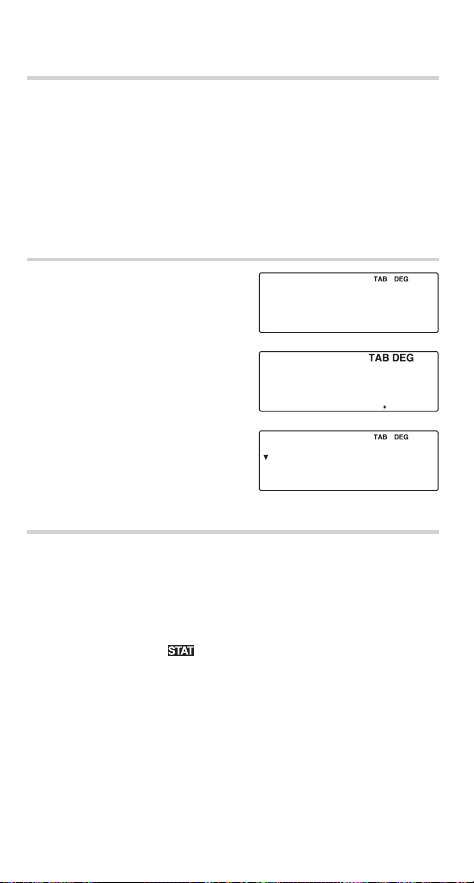
Selecting the angular unit
(see page 61)
• DEG (°) :
~
1
0
(default setting)
• RAD (rad) :
~
1
1
• GRAD (g) :
~
1
2
Selecting the depreciation method
(see page 48)
• SL (Straight-line method):
~
2
0
(default setting)
• SYD (Sum-of-the-years’ digits method):
~
2
1
• DB (Declining balance method):
~
2
2
10
Selecting the date format
(see page 44)
• US (Month-Day-Year):
~
3
0
(default setting)
• EU (Day-Month-Year):
~
3
1
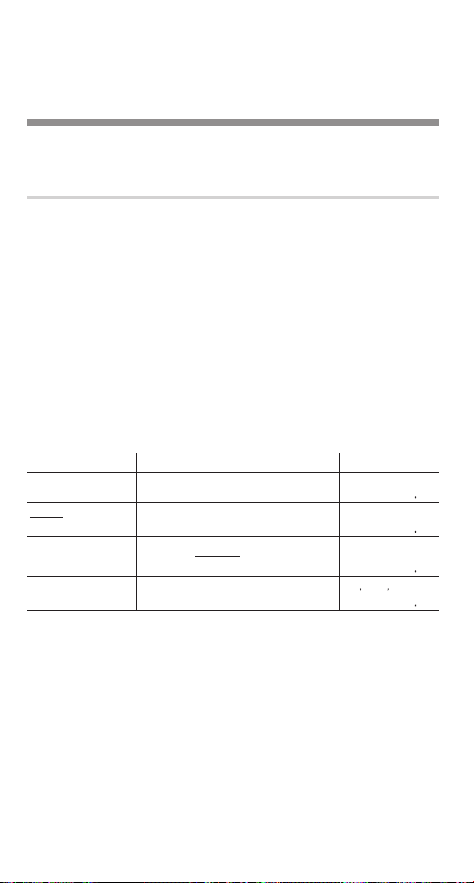
Operating Modes
This calculator has two operating modes, which can be selected
using the MODE key.
Selecting a mode
1. Press
m
.
The menu display appears.
2. Press
0
or
=
to se-
lect NORMAL mode.
• Press
1
or
y
=
to select STAT mode.
Operations available in each mode
NORMAL mode:
Allows you to perform fi nancial, arithmetic, or scientifi c
calculations.
STAT (statistics) mode:
Allows you to perform statistical, arithmetic, or scientifi c
calculations. The
symbol appears in the display.
NORMAL StAt
01
000
SD LINE QUAD
02
1
11
Chapter 2
General Information
Basic Calculations
Entering numbers and arithmetic operations
• Use the number keys
0
to
9
, decimal point key
.
,
and sign change key
,
to enter numbers into the calcula-
tor. To clear the display or entry, press
s
.
• Use the
S
key to enter a value in scientifi c notation.
• Use the arithmetic keys
+
-
x
8
to perform the
standard arithmetic calculations of addition, subtraction, multi-
plication, and division. Press
=
to perform each calculation.
• Use the
(
and
)
keys to place parentheses around
inner parts of expressions. The closing parenthesis
)
just
before
=
or
h
may be omitted.
• When you enter a series of operations in one sequence, the
calculator performs the calculation according to the priority
levels in calculation on page 81.
Example Key operation Result
45 + 285 ÷ 3 =
s
45
+
285
8
3
=
14000
18 + 6
=
15 – 8
(
18
+
6
)
8
(
15
-
8
=
343
42
u
(–5) + 120 =
42
x
,
5
+
120
=
*
1
(
5
,
)
-9000
(5
u
10
3
) ÷ (4
u
10
–3
) =
5
S
3
8
4
S
,
3
=
125000000
Clearing the Entry and Memories
The following methods of clearing the calculator (restoring de-
fault settings) are available:
*
1
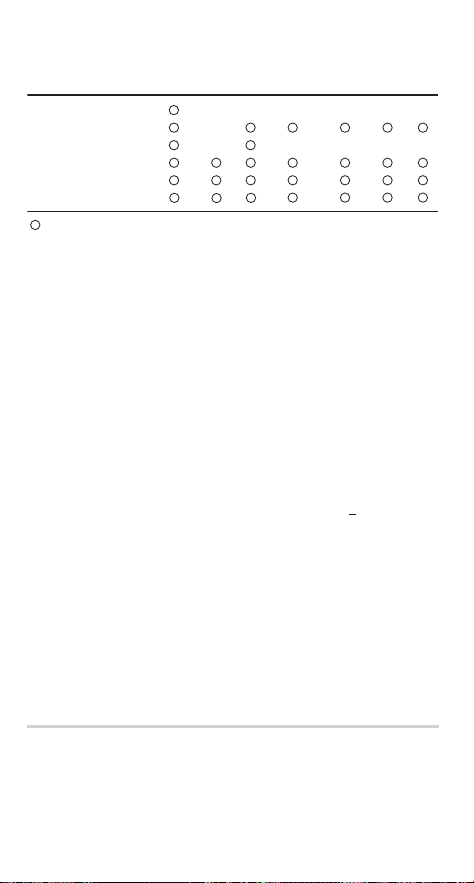
12
*
1
N, I/Y, PV, PMT, and FV (P/Y and C/Y are not included.)
*
2
Note that listed fi nancial variables sharing common memory
with TVM variables, such as “COUPON (PMT)” used in bond
calculations, are also cleared or restored to default settings.
*
3
Listed variables used in fi nancial calculations (such as “RATE
(I/Y),” etc.) including P/Y and C/Y
*
4
When you press
*
to enter a fi nancial calculation, AMRT
P1 and AMRT P2 both revert to their default values. The
same holds true for YEAR when you press
O
.
*
5
With one of the variables of a listed group (such as those
used in bond calculations) displayed, when
.
b
is
pressed, all the variables in the listed group are cleared or
restored to their default settings. Note that TVM variables
sharing common memory with listed fi nancial variables are
also cleared or restored to default settings.
*
6
Press
.
b
when a cash fl ow value is displayed.
*
7
Statistical data (entered data) and variables (n,
x
, etc.)
*
8
Are cleared when changing between sub-modes in STAT mode.
Notes:
• To clear any of the “A-H, M, X-Z” or “ANS” memories, press
s
g
and then specify the memory.
• To clear or restore to the default setting one variable or value
of TVM variables, listed fi nancial variables, cash fl ow data, or
STAT, refer t o th e re l eva n t section.
• If you turn off the calculator (by pressing
.
c
or by let-
ting it turn itself off automatically), it will resume wherever you
left off when you turn it on again.
Delete key
To delete a number/function, move the cursor to the number/
function you wish to delete, then press
L
. If the cursor is
located at the right end of an equation or if you are entering a
value, the
L
key will function as a back space key.
s
. b
m
(Mode selection)
. k 0
(MEM)
RESET switch
×
×
×
. k 1
(RESET)
Operation
: Cleared or restored to the default setting : Retained
×
A-H,
M, X-Z
Entry
(display)
ANS
TVM
variables
Listed
financial
variables
Cash
flow
data
× ×
×
×
×
×
×
STAT
×
×
*
1
*
3
*
7
*
6
*
2
*
5
*
8
*
4

13
Memory clear key
Press
.
k
to display the
menu.
• To clear all (A-H, M, X-Z, ANS,
TVM variables, listed fi nancial
variables, cash fl ow data, and STAT), press
0
0
or
0
=
.
• To RESET the calculator, press
1
0
or
1
=
.
The RESET operation erases all data stored in memory, and
restore the calculator’s default settings.
Editing and Correcting an Entry
Cursor keys
• In a menu, such as the SET UP menu, use
g
or
y
to
select a number (the selected number will blink), then press
=
.
If you need to scroll up or down the screen, use
z
or
i
.
• In fi nancial calculations, such as bond calculations, press
i
or
z
to move through the variables (items).
Playback function
After obtaining an answer, pressing
g
brings you to the end
of the equation and pressing
y
brings you to the beginning.
Press
g
or
y
to move the cursor. Press
.
g
or
.
y
to jump the cursor to the beginning or end of the
equation.
Insert and overwrite modes in the equation display
• This calculator has two editing modes: insert mode (default),
and overwrite mode. Pressing
.
d
switches between
the two modes. A triangular cursor indicates an entry will be
inserted at the cursor, while the rectangular cursor indicates
existing data will be overwritten as you make entries.
• To insert a number in the insert mode, move the cursor to the
place immediately after where you wish to insert, then make
the desired entry. In the overwrite mode, data under the cursor
will be overwritten by the number you enter.
• This mode setting will be retained until you press
.
d
or RESET the calculator.
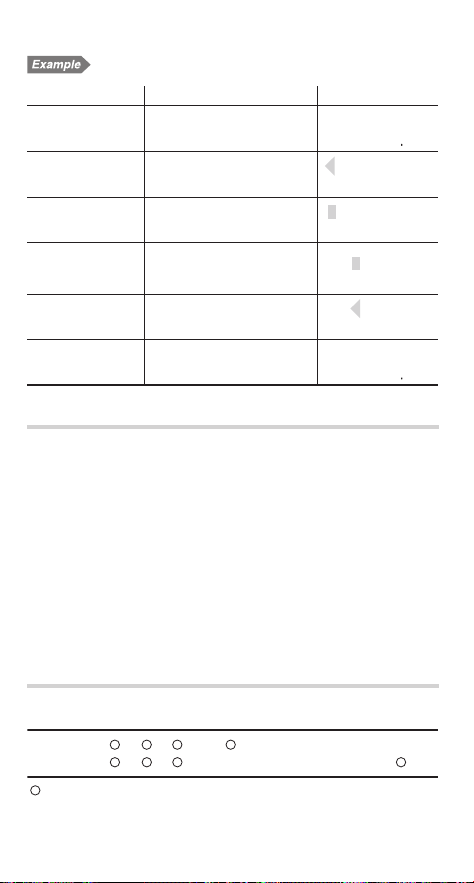
MEM RESEt
0
1
14
Changing “15 ÷ 3 =” into “25 ÷ 13 =”
Procedure Key operation Display
15 ÷ 3 =
s
15
8
3
=
15©3=
500
Enter the playback
function.
y
15©3
Switch to overwrite
mode.
.
d
15©3
Change “15” to “25”
and move the cur-
sor to “3”.
2
y
y
25©3
Change to insert
mode.
.
d
25©3
Change “3” to “13”
and calculate.
1
=
25©13=
192
Errors
An error will occur if an operation exceeds the calculation
ranges, or if a mathematically illegal operation is attempted.
When an error occurs, pressing
g
or
y
automatically
moves the cursor to the place in the equation/number where the
error occurred. Edit the equation/number or press
s
to clear
the equation. For details, see page 76.
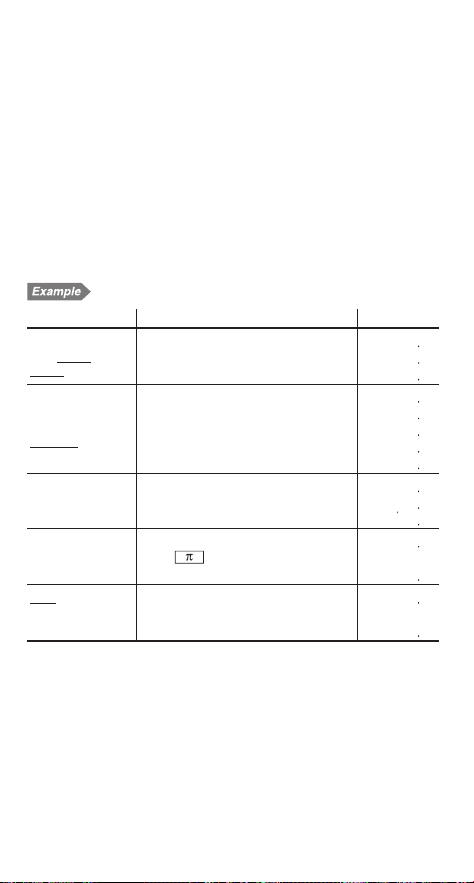
Memory Calculations
This calculator has 11 temporary memories (A-H and X-Z), one
independent memory (M) and one last answer memory (ANS).
It also has various variables for use in fi nancial calculations and
statistical calculations.
Memory use in each mode for memory calculations
NORMAL
S TAT
Mode
: Available : Unavailable
×
M
A-H,
X-Z
ANS
TVM
variables
Listed financial
variables
Statistical
variables
×
×
×
×
*
1
*
2
*
3

15
*
1
N, I/Y, PV, PMT, FV
*
2
All fi nancial variables, except for TVM variables
*
3
x
,
sx
,
V
x
,
n
,
6
x
,
6
x
2
,
y
,
sy
,
V
y
,
6
y
,
6
y
2
,
6
xy
,
r
,
a
,
b
,
c
Temporary memories (A-H, X-Z)
Press
g
and the variable key to store a value in memory.
Press
f
and the variable key to recall a value from the
memory.
To place a variable in an equation, press
i
and the variable key.
Independent memory (M)
In addition to all the other features of temporary memories, a
value can be added to or subtracted from an existing memory
value.
Press
s
g
M
to clear the independent memory (M).
Last answer memory (ANS)
• The calculation result obtained by pressing
=
or any other
calculation ending instruction (including storing and recalling
operations) is automatically stored in the last answer memory.
• Listed fi nancial variables are automatically stored in the last
answer memory by displaying the variable and the value.
TVM variables
TVM variables can be recalled using
f
in the same way as
temporary memories. It is not necessary to press
g
to store
a value.
Listed fi nancial variables
Financial variables are specifi c to the type of calculation they
are used in. For example, the variable N is available to the TVM
solver but not to discounted cash fl ow analysis calculations. If
you want to carry a value from a variable over into a different
type of calculation, use one of the following methods:
•
Last answer memory (ANS): Within the original calculation, dis-
play the variable and value that you wish to carry over. The value
is automatically entered into last answer memory. Press
s
to
exit the calculation (the listed fi nancial variables will disappear
from the screen), and press
i
/
to bring up the value
from the previous calculation. M-D-Y (D-M-Y) 1 and M-D-Y (D-
M-Y) 2 are not stored in last answer memory.
•
Variables common to both calculations: If the value that you
wish to carry over is held in a variable that exists in both types
16
of calculation (for example, both bond calculations and the TVM
solver use the variable I/Y), you can retrieve the value simply by
switching calculation types and bringing up the variable.
Statistical variables
Statistical data is not entered into variables. Statistical variables
are the results of the calculation of statistical data. Therefore,
you cannot enter values directly into statistical variables. After
calculation, however, you can use the values held in statistical
variables in subsequent calculations.
Note: Use of
f
or
i
will recall the value stored in
memory using up to 14 digits.
Memory calculations
Example Key operation Result
24 ÷ (8
u
2) =
(8
u
2)
u
5 =
s
8
x
2
g
M
24
8
i
M
=
i
M
x
5
=
1600
150
8000
$150
u
3:M
1
+)$250:M
2
=M
1
+250
–)M
2
u
5%
M
s
g
M
150
x
3
h
250
h
f
M
x
5
.
%
.
j
f
M
000
45000
25000
3500
66500
$1 = ¥110
¥26,510 = $?
$2,750 = ¥?
110
g
Y
26510
8
f
Y
=
2750
x
f
Y
=
11000
24100
30250000
r = 3 cm (r
o
Y)
S
r
2
= ?
3
g
Y
.
i
Y
*
.
;
=
300
2827
24
4 + 6
= 2.4...(A)
3
u
(A) + 60 ÷ (A) =
24
8
(
4
+
6
)
=
3
x
i
/
+
60
8
i
/
=
240
3220
* Entry of the multiplication procedure is omitted between “
S
”
and a variable.

17
Chapter 3
Financial Functions
General Information
Financial calculations
The following fi nancial functions are available. Use NORMAL
mode to perform fi nancial calculations.
TVM (Time Value of Money) solver: Analyze equal and regular
cash fl ows. These include calculations for mortgages, loans,
leases, savings, annuities and contracts or investments with
regular payments.
Amortization calculations: Calculate and create amortization
schedules using values stored in the TVM solver.
Discounted cash fl ow analysis: Analyze unequal cash fl ows
and calculate NPV (net present value) and IRR (internal rate of
return).
Bond calculations: Solve bond prices or yields to maturity with
accrued interest.
Depreciation calculations: Obtain depreciation base values
using three types of calculation methods.
Conversion between APR and EFF: Interest rates can be con-
verted between APR (annual, or nominal percentage rate) and
EFF (effective interest rate).
Day and date calculations: Calculate dates and the number of
days between dates.
Percent change/Compound interest calculations: Calculate
percent change (increase or decrease) and compound interest
rates.
Cost/Sell/Margin/Markup calculations: Calculate cost, selling
price and margin/markup.
Breakeven calculations: Calculate breakeven points (quantity)
using fi xed costs, variable costs per unit, unit prices, and profi t.

18
Variables used in fi nancial calculations
Financial calculations use multiple variables. By entering known
values into variables, you can obtain unknown values. Variables
used in fi nancial calculations are categorized into the following
two types, depending on the entry method.
TVM variables:
Variables that are used in the TVM solver. These include N,
I/Y, PV, PMT and FV. You can store, recall or calculate values
directly using the corresponding keys.
Listed fi nancial variables:
Variables that are organized into lists in different categories. These
variables can be accessed using the
z
/
i
cursor keys in
each calculation. P/Y and C/Y in the TVM solver are of this type of
variable.
Variables shared among calculations
Financial variables are specifi c to the type of calculation they
are used in. Values are stored in these variables and recalled
as required. Some variables are shared (in the memory area)
among calculations. If you change the value of a variable in one
calculation, the value will change in all the other calculations
as well. The following list shows the variables shared between
calculations. While calculating, be aware of the values stored in
these variables.
TVM
solver
Discounted
cash fl ow
analysis
Bond
calculations
Depreciation
calculations
Percent change/
Compound inter-
est calculations
Day and date
calculations
N — CPN/Y (N) LIFE (N) PERIODS (N) —
I/Y RATE (I/Y) YIELD (I/Y) DB (I/Y) % (I/Y) —
PV — PRICE (PV) COST (PV) OLD PRC (PV) —
PMT —
COUPON
(PMT)
———
FV —
REDEMPT
(FV)
SALVAGE (FV) NEW PRC (FV) —
——
M-D-Y 1
D-M-Y 1
——
M-D-Y 1
D-M-Y 1
——
M-D-Y 2
D-M-Y 2
——
M-D-Y 2
D-M-Y 2
*The variable names vary according to the data format settings.
*
*
*
*

19
Basic variable operations
TVM variables (N, I/Y, PV, PMT, FV)
A. Entering a value
Enter a value and then press the corresponding TVM vari-
able key.
Note: You can also enter values into variables using arithmetic
operations.
Ex. 100
x
12
u
B. Displaying a value
Press
f
and the corresponding TVM variable key.
C. Executing calculation
Press
@
and the corresponding TVM variable key.
Listed fi nancial variables
A. Entering a value
1. Select the desired fi nancial calculation method by press-
ing the corresponding fi nancial calculation key.
2. Use
z
/
i
to select the variable you wish to enter.
3. Enter the value and press
Q
when the “ENT” symbol
appears.
Note: In step 3, you can also enter values into variables using
arithmetic operations.
Ex. 100
x
12
Q
B. Displaying a value
Use
z
/
i
to show the variable and value.
C. Executing calculation
1. Use
z
/
i
to select the variable you wish to calculate.
2. Press
@
when the “COMP” symbol appears.
Note: Pressing
.
b
resets all the variables in the dis-
played listed fi nancial group to the default values. For
details, see the relevant sections for each fi nancial calcu-
lation.
20
The ENT and COMP symbols
Listed fi nancial variables are categorized by whether they are
known or unknown. When the variable is selected (displayed),
the “ENT” and/or “COMP” symbols will appear to indicate that
the current variable may be entered (known variable) and/or
calculated (unknown variable), respectively. For details, refer to
the explanations or examples for each fi nancial function.
Note: TVM variables (N, I/Y, PV, PMT and FV) can be entered
(known variables) and calculated (unknown variables),
however, neither “ENT” nor “COMP” will appear on the
display.
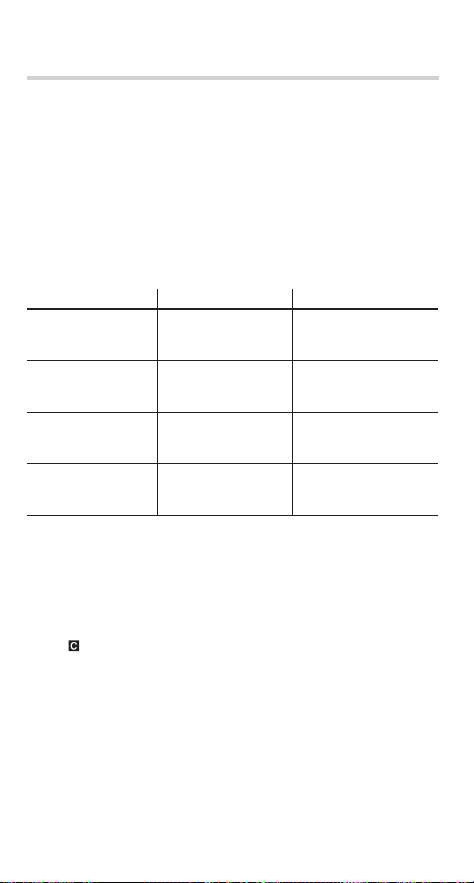
Category Display symbols Descriptions
For entry only ENT
Variable can be used as
a known, but not as an
unknown.
For calculation only COMP
Variable can be used as
an unknown, but not as
a known.
For entry or calcula-
tion
ENT COMP
Variable can be used
as either a known or an
unknown.
Calculated automati-
cally
—
Unknown variable, but
the calculator calculates
the value automatically.
Notes:
• During fi nancial calculation, the word “calculating!” will be
displayed on the screen. You can press
s
at this time to
cancel the calculation.
• Calculation-only and automatically calculated variables have
no default values.
• The
symbol will be displayed if the value of the displayed
variable has not been calculated yet (for variables that can be
calculated).
21
Compound interest
This calculator assumes interest is compounded periodically in
fi nancial calculations (compound interest). Compound inter-
est accumulates at a predefi ned rate on a periodic basis. For
example, money deposited in a passbook saving account at
a bank accumulates a certain amount of interest each month,
increasing the account balance. The amount of interest received
each month depends on the balance of the account during that
month, including interest added in previous months. Interest
earns interest, which is why it is called compound interest.
It is important to know the compounding period of a loan or
investment before starting, because the whole calculation is
based on it. The compounding period is specifi ed or assumed
(usually monthly).
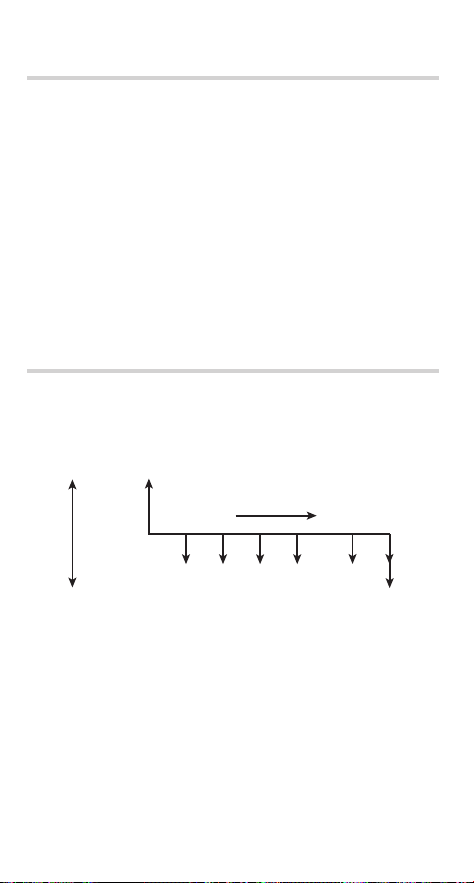
Cash fl ow diagrams
The direction of arrows indicates the direction of cash movement
(infl ow and outfl ow) with time. This manual uses the following
cash fl ow diagrams to describe cash infl ows and outfl ows.
Payment (PMT)
......
Inflow (+)
Cash
flow
Present
value (PV)
Future
value (FV)
Time
Outflow (–)
22
TVM (Time Value of Money) Solver
Analyze equal and regular cash fl ows. These include calcula-
tions for mortgages, loans, leases, savings, annuities, and
contracts or investments with regular payments.
Note: Discounted cash fl ow analysis can be done using un-
equal cash fl ows (see page 37).
An amortization schedule can be calculated using the
information stored in the TVM solver (see page 33).
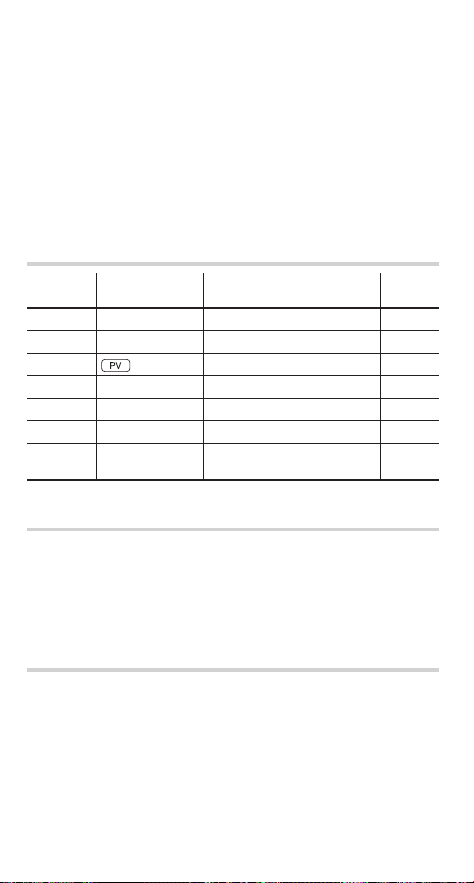
Variables used in the TVM solver
Variable
Corresponding
variable key
Description
Default
value
N
N
Total number of payments 1
I/Y
f
Interest rate per year 0
PV
Present value 0
PMT
u
Payment 0
FV
t
Future value 0
P/Y
.
w
Number of payments per year 1
C/Y
.
w
i
Number of compounding
periods per year
1
Setting the payment period (payment due)
You can toggle between ordinary annuity (payment at the end
of the period) and annuity due (payment at the beginning of the
period) using
.
"
. The default setting is ordinary annuity
(BGN is not displayed).
Refer to page 28 for details.
Basic operations
Refer to page 19 for basic variable operations.
1. Press
s
to clear the display.
• Make sure the calculator is in NORMAL mode.
• All the TVM solver variables retain their previously entered
values. If you wish to clear all the data, press
.
b
.
2. Select ordinary annuity or annuity due using
.
"
.
23
3. Enter values into TVM solver variables.
• Enter a value and press the appropriate TVM variable key
(
N
,
f
,
,
u
,
t
).
• Press
.
w
and then enter a value for P/Y. The
same value is automatically assigned to C/Y as well. Val-
ues entered into P/Y or C/Y must be positive. After enter-
ing values, press
s
to quit the P/Y and C/Y settings.
• After setting P/Y (number of payments per year), you can
use
.
<
to enter N (total number of payments).
Enter the number of years and press
.
<
. The
calculator automatically calculates the total number of
payments.
• By pressing
f
/
you can use the result of the pre-
vious normal calculation stored in ANS memory as a TVM
variable.
• Note that some variables are shared by other calculations
and may have values assigned by those calculations.
4. Press
@
and the TVM variable key that you wish to solve.
• The calculation is performed and the obtained values are
displayed.
Basic examples for the TVM solver
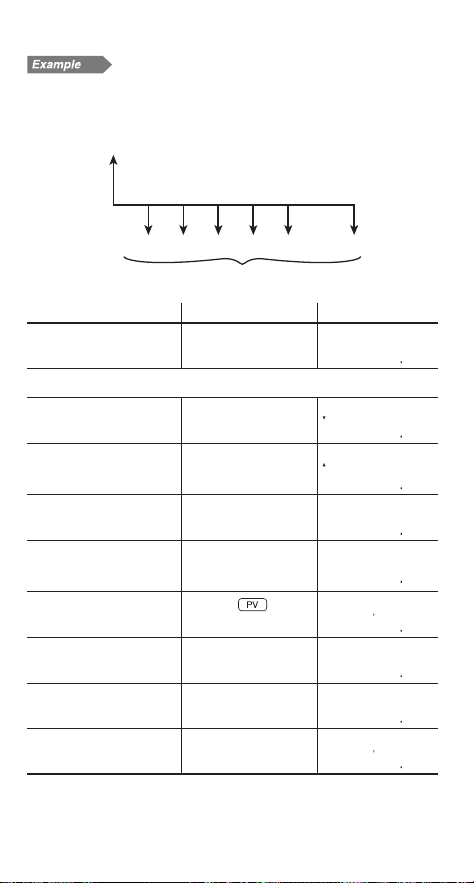
Calculating basic loan interest
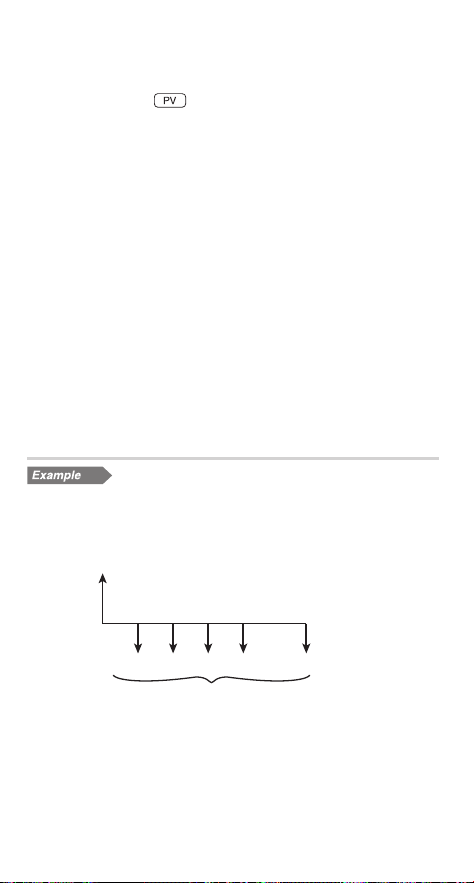
A $56,000 mortgage loan (compounded monthly) requires
monthly payments of $440 during its 20-year amortization pe-
riod. Calculate the annual interest rate on the mortgage.
N = 12 × 20 years = 240
......
PV = $56,000
I/Y = ?%
FV = 0
PMT = –$440
Default values for the number of payments per year (P/Y) and
the number of compounding periods per year (C/Y) are both set
to 1. Set these values before entering TVM variable values.
1
24
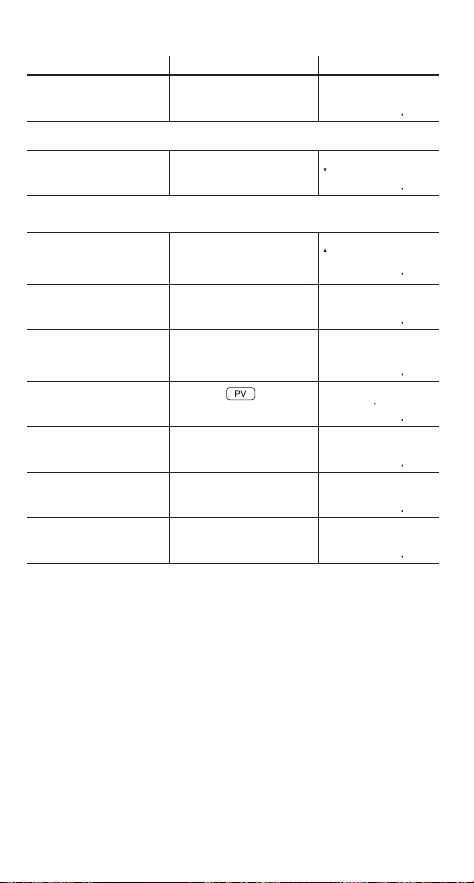
Procedure Key operation Display
Set all the variables to
default values.
.
b
000
Make sure ordinary annuity is set (BGN is not displayed).
Set the number of pay-
ments per year to 12.
.
w
12
Q
P/Y=
1200
The number of compounding periods per year is automatically set to the
same value as P/Y.
Confi rm the number of
compounding periods
per year.
i
C/Y=
1200
Quit the P/Y and C/Y
settings.
s
000
Calculate the total num-
ber of payments and
store in N.
20
.
<
N
ANS~N
24000
Enter the present value.
56000
56———~PV
5600000
Enter payment.
,
440
u
(-44—)~PMT
-44000
Enter the future value.
0
t
—~FV
000
Calculate the annual
interest rate.
@
f
I/Y=
717
Answer: The annual interest rate is 7.17%.
Note: If you make a mistake, press
L
to erase the number
and enter the correct number to continue.
After pressing the TVM variable key, you must re-enter
values from the beginning.
25
Calculating basic loan payments
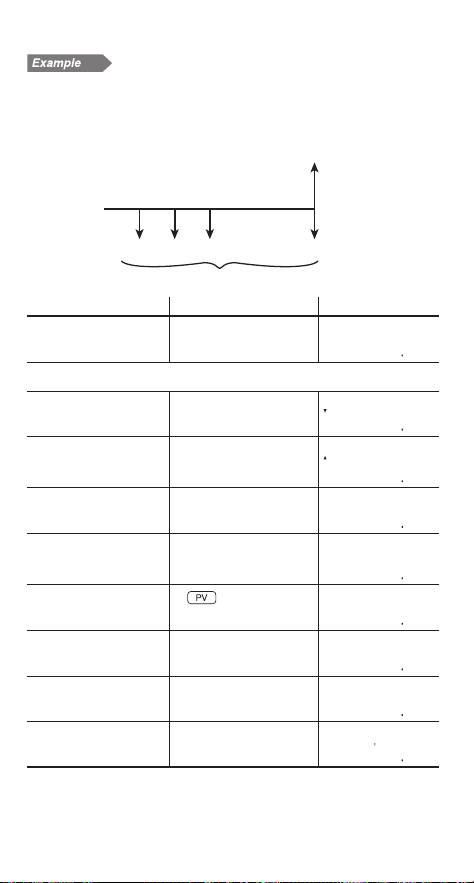
Calculate the quarterly payment for a $56,000 mortgage loan
at 6.5% compounded quarterly during its 20-year amortization
period.
I/Y = 6.5%
N = 4 × 20 years = 80
......
PV = $56,000
FV = 0
PMT = ?
Procedure Key operation Display
Set all the variables to
default values.
.
b
000
Make sure ordinary annuity is set (BGN is not displayed).
Set the number of pay-
ments per year to 4.
.
w
4
Q
P/Y=
400
Confi rm the number of
compounding periods per
year.
i
C/Y=
400
Quit the P/Y and C/Y set-
tings.
s
000
Calculate the total
number of payments and
store in N.
20
.
<
N
ANS~N
8000
Enter the present value.
56000
56———~PV
5600000
Enter the future value.
0
t
—~FV
000
Enter the annual interest
rate.
6.5
f
6.5~I/Y
650
Calculate the quarterly
payment.
@
u
PMT=
-125586
Answer: The quarterly payments are $1,255.86.
2
26
Calculating future value
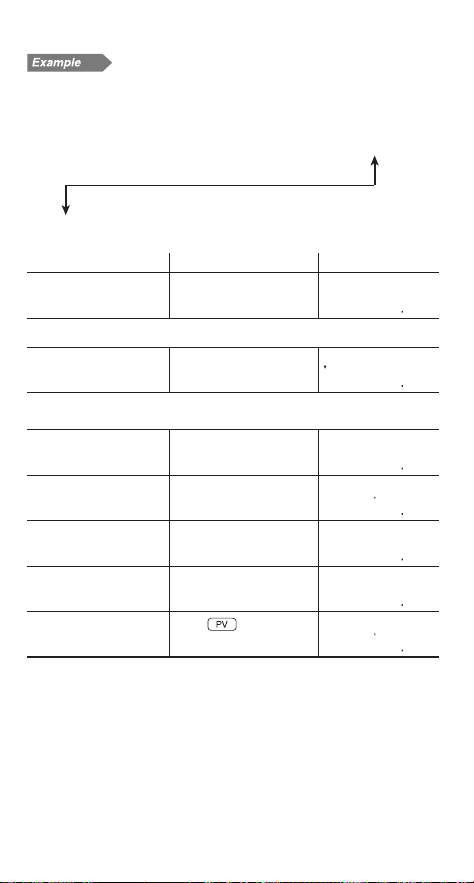
You will pay $200 at the end of each month for the next three
years into a savings plan that earns 6.5% compounded quar-
terly. What amount will you have at the end of period if you
continue with the plan?
N = 12 × 3 years = 36
......
PV = 0
PMT = –$200
I/Y = 6.5% (quarterly)
FV = ?
PMT = –$200
Procedure Key operation Display
Set all the variables to
default values.
.
b
000
Make sure ordinary annuity is set (BGN is not displayed).
Set the number of pay-
ments per year to 12.
.
w
12
Q
P/Y=
1200
Set the number of com-
pounding periods per
year to 4.
i
4
Q
C/Y=
400
Quit the P/Y and C/Y
settings.
s
000
Calculate the total num-
ber of payments and
store in N.
3
.
<
N
ANS~N
3600
Enter the present value.
0
—~PV
000
Enter payment.
,
200
u
(-2——)~PMT
-20000
Enter the annual inter-
est rate.
6.5
f
6.5~I/Y
650
Calculate the future
value.
@
t
FV=
792219
Answer: You will have $7,922.19 at the end of the three-year
period.
3
27
Calculating present value
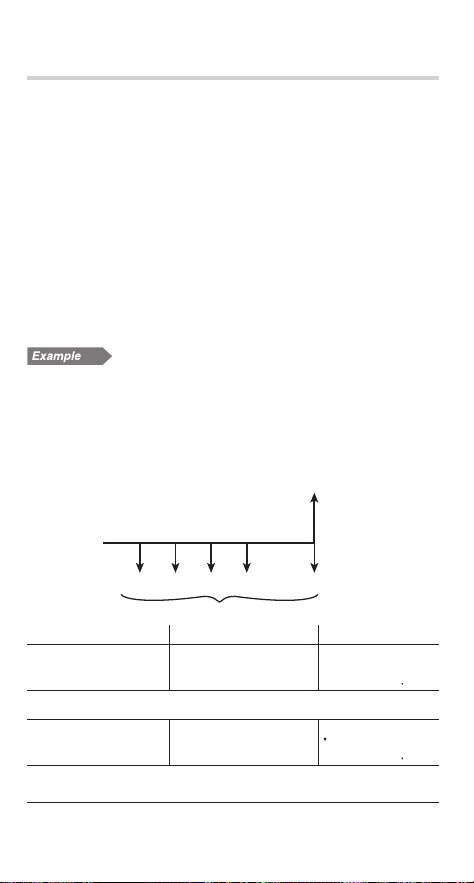
You open an account that earns 5% compounded annually. If
you wish to have $10,000 twenty years from now, what amount
of money should you deposit now?
FV = $10,000
N = 20 years
PV = ? I/Y = 5%
Procedure Key operation Display
Set all the variables to
default values.
.
b
000
Make sure ordinary annuity is set (BGN is not displayed).
Set the number of pay-
ments per year to 1.
.
w
1
Q
P/Y=
100
The number of compounding periods per year is automatically set to 1.
Press
s
to exit the P/Y and C/Y settings.
Enter the total number
of payments.
s
20
N
2—~N
2000
Enter the future value.
10000
t
1————~FV
1000000
Set payment to zero.
0
u
—~PMT
000
Enter the annual inter-
est rate.
5
f
5~I/Y
500
Calculate the present
value.
@
PV=
-376889
Answer: You should deposit $3,768.89 now.
4
28
Specifying payments due (
.
"
)
This calculator can select ordinary annuity or annuity due de-
pending on the regular cash fl ow (payment) conditions.
Ordinary annuity (END):
This is the default setting for fi nancial calculations. BGN is not
displayed. A regular cash fl ow (payment) is received at end of
each payment period. Often applied to loan calculations, etc.
Annuity due (BGN):
BGN appears on the display. A regular cash fl ow (payment) is
received at the beginning of each payment period. Often applied
to the fi nance lease of an asset.
To toggle between ordinary annuity and annuity due, press
.
"
.
Note: The above selection only affects the TVM solver.
Ordinary annuity
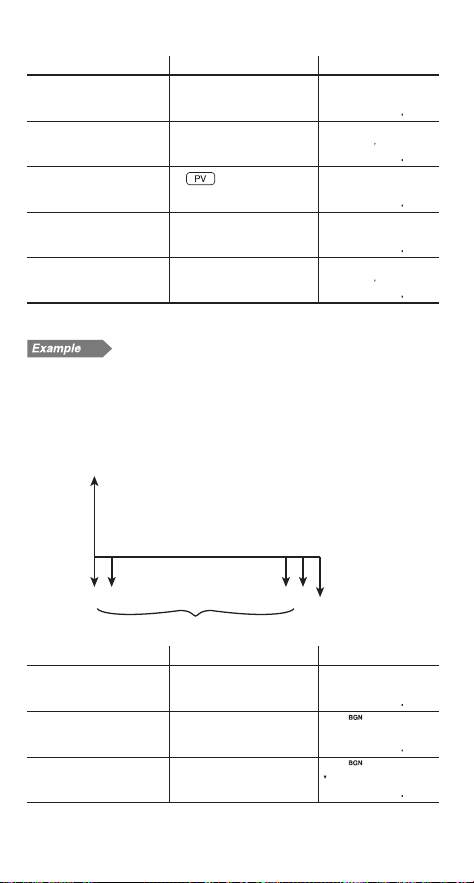
Your company wishes to accumulate a fund of $300,000 over the
next 18 months in order to open a second location. At the end of
each month, a fi xed amount will be invested in a money market
savings account with an investment dealer. What should the
monthly investment be in order to reach the savings objective, as-
suming the account will earn 3.6% interest compounded monthly?
N = 18
PV = 0
FV = $300,000
PMT = ?
......
I/Y = 3.6%
Procedure Key operation Display
Set all the variables to
default values.
.
b
000
Make sure ordinary annuity is set (BGN is not displayed).
Set the number of pay-
ments per year to 12.
.
w
12
Q
P/Y=
1200
The number of compounding periods per year is automatically set to
12. Press
s
to exit the P/Y and C/Y settings.
1
29
Procedure Key operation Display
Enter the total number
of payments.
s
18
N
18~N
1800
Enter the future value.
300000
t
3—————~FV
30000000
Set the present value to
zero.
0
—~PV
000
Enter the annual inter-
est rate.
3.6
f
3.6~I/Y
360
Calculate payment.
@
u
PMT=
-1624570
Answer: The monthly investment should be $16,245.70.
Calculating lease payments (Annuity due)
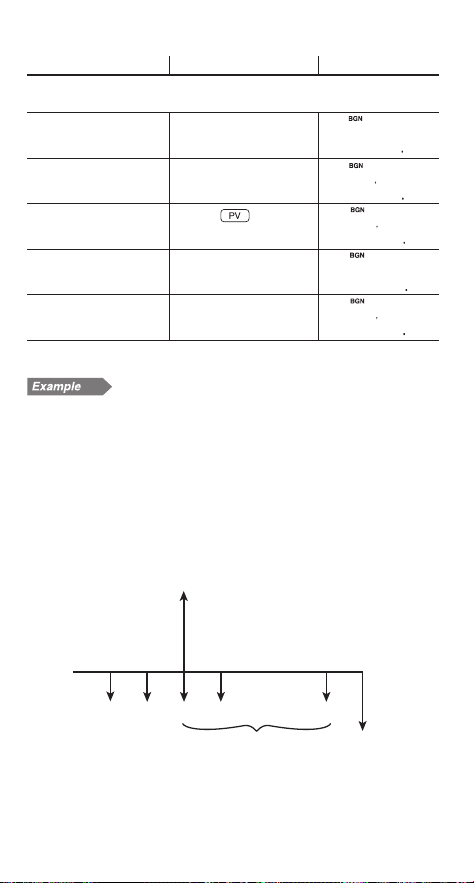
You plan to purchase a new car with a value of $87,918 on a
60-month lease. If the annual interest rate is 6.75%, the contractual
purchase option price at lease end is $17,500, and payment is due
at the beginning of each month, how much should you pay each
month?
N = 60
....................
PV = $87,918
FV = –$17,500
I/Y = 6.75%
PMT = ?
Procedure Key operation Display
Set all the variables to
default values.
.
b
000
Set to annuity due
(BGN is displayed).
.
"
000
Set the number of pay-
ments per year to 12.
.
w
12
Q
P/Y=
1200
2
30
Procedure Key operation Display
The number of compounding periods per year is automatically set to
12. Press
s
to exit the P/Y and C/Y settings.
Enter the total number
of payments.
s
60
N
6
—~N
6000
Enter the future value.
,
17500
t
(-
175
——)~FV
-1750000
Enter the present value.
87918
87918
~PV
8791800
Enter the annual inter-
est rate.
6.75
f
6.75
~I/Y
675
Calculate payment.
@
u
PMt=
-147620
Answer: You should pay $1,476.20 each month.
Calculating the present value of a lease with
trade-in value
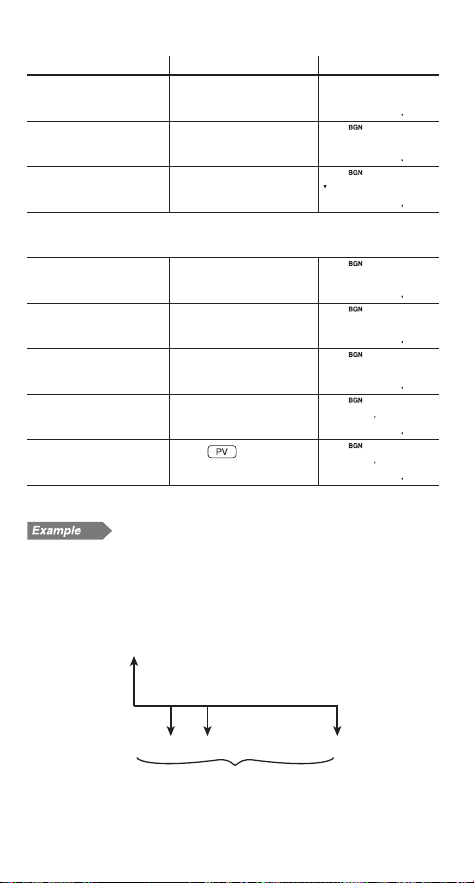
Your client wishes to buy a machine currently leased from your
company. On a fi ve-year lease with payments of $200 at the
beginning of each month, the machine has a trade-in value of
$1,500 with 34 monthly payments remaining. If your company
sells the machine at the present value of the lease, discounted
at an annual interest rate of 18%, compounded monthly, how
much should your company charge for the machine?
N = 34
......
PV = ?
FV = –$1,500
I/Y = 18%
PMT = –$200
3
31
4
Procedure Key operation Display
Set all the variables to
default values.
.
b
000
Set to annuity due
(BGN is displayed).
.
"
000
Set the number of pay-
ments per year to 12.
.
w
12
Q
P/Y=
1200
The number of compounding periods per year is automatically set to
12. Press
s
to exit the P/Y and C/Y settings.
Enter the total number
of payments.
s
34
N
34
~N
3400
Enter payment.
,
200
u
(-
2
——)~PMt
-
20000
Enter the annual inter-
est rate.
18
f
18
~I/Y
1800
Enter the future value.
,
1500
t
(-
15
——)~FV
-150000
Calculate the present
value.
@
PV=
627995
Answer: $6,279.95 should be charged for the machine.
Calculating down payment and amount to
borrow
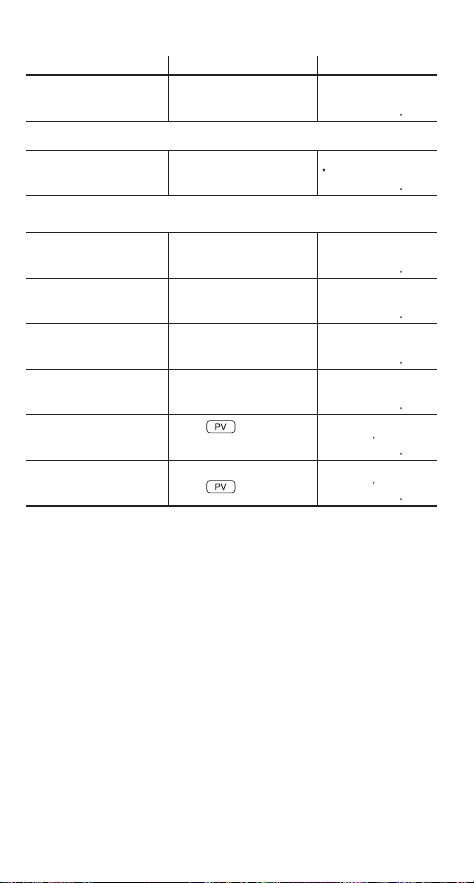
You wish to buy a house for $180,000. The fi nance company
charges a 5.5% APR, compounded monthly, on a 25-year loan.
If you can afford a monthly payment of $900, how much can you
borrow? How much do you need for a down payment?
N = 12 × 25 years = 300
......
I/Y = 5.5%
PV = ?
FV = 0
PMT = –$900
32
Procedure Key operation Display
Set all the variables to
default values.
.
b
000
Make sure ordinary annuity is set (BGN is not displayed).
Set the number of pay-
ments per year to 12.
.
w
12
Q
P/Y=
1200
The number of compounding periods per year is automatically set to 12.
Press
s
to exit the P/Y and C/Y settings.
Enter the total number
of payments.
s
25
.
<
N
ANS~N
30000
Enter payment.
,
900
u
(-9——)~PMT
-90000
Enter the annual inter-
est rate.
5.5
f
5.5~I/Y
550
Set the future value to
zero.
0
t
—~FV
000
Calculate the present
value.
@
PV=
14655892
Calculate the down
payment.
s
180000
-
f
=
18————-PV=
3344108
Answer: You can borrow $146,558.92 in total. The price of the
house is $180,000, so:
Down payment = $180,000 – present value
= $180,000 – $146,558.92
You need $33,441.08 for a down payment.
33
Amortization Calculations
Calculate and create amortization schedules using values
stored in the TVM solver.
Note: Prior to using amortization, you need to enter values into
TVM variables.
Variables used in amortization
Variable Description Default value
AMRT P1 Start of payment (nth time) 1
AMRT P2 End of payment (nth time) 1
BALANCE Remaining balance after payment —
6
PRINCIPAL Principal paid —
6
INTEREST Interest paid over the specifi ed periods —
• BALANCE,
6
PRINCIPAL and
6
INTEREST are calculated
automatically, so no default values are set.
• AMRT P1 and AMRT P2 must be between 1 and 9,999.
Basic operations
Refer to page 19 for basic variable operations.
1. Press
s
to clear the display.
• Make sure the calculator is in NORMAL mode.
• All the TVM solver variables retain their previously entered
values. If you wish to clear all the data, press
.
b
.
2. Select ordinary annuity or annuity due using
.
"
.
3. Enter the appropriate numeric values for the variables used
in the TVM solver.
• Confi rm the values of N, I/Y, PV, PMT, FV, P/Y and C/Y.
4. Press
*
to use amortiza-
tion calculation.
5. Enter a value for “AMRT P1”
and press
Q
.
6. Press
i
, enter a value for “AMRT P2” and press
Q
.
7. Display values for BALANCE,
6
PRINCIPAL and
6
INTEREST
by pressing
i
once for each. Each value is calculated
automatically.
AMRt P1=
100
34
8. Press
i
to calculate the next period of the amortization
schedule.
9. Repeat steps 5 to 7 above.
• If you press
@
during “AMRT P1” and “AMRT P2” entry,
the values for the next period of payment will be automatically
calculated and displayed.
• To end amortization calculations, press
s
. Pressing
s
during entry will clear the value entered.
Calculating mortgage payments and generat-
ing an amortization schedule
1. Calculate the monthly payment of a 20-year loan with a loan
amount of $90,000 and a 5.45% APR.
Procedure Key operation Display
Set all the variables to
default values.
.
b
000
Make sure ordinary annuity is set (BGN is not displayed).
Set TVM solver vari-
ables and calculate
payment.
.
w
12
Q
s
20
.
<
N
90000
0
t
5.45
f
@
u
PMT=
-61656
Answer: The monthly payment is $616.56.
Now generate an amortization schedule for the fi rst 5 years of the
loan. If the fi rst payment is in August, the fi rst year has 5 payment
periods and the following years have 12 payment periods each.
2. Calculate the amortization schedule for the fi rst year.
Procedure Key operation Display
Change to amortization
calculation and enter 1
(August) for the starting
payment.
*
1
Q
AMRT P1=
100
Enter 5 (December) for
the ending payment.
i
5
Q
AMRT P2=
500
Display the remaining
balance.
i
BALANCE=
8895148
1
35
Procedure Key operation Display
Display the principal
paid.
i
ÍPRINCIPAL=
-104852
Display the interest
paid.
i
ÍINTEREST=
-203428
3. Calculate the amortization schedule for the second year.
Procedure Key operation Display
Change amortization
schedule to the second
year and enter 6 (Janu-
ary) for the starting
payment.
i
6
Q
AMRT P1=
600
Enter 17 (December)
for the ending payment.
i
17
Q
AMRT P2=
1700
Display the remaining
balance.
i
BALANCE=
8633592
Display the principal
paid.
i
ÍPRINCIPAL=
-261556
Display the interest
paid.
i
ÍINTEREST=
-478316
4. Calculate the amortization schedule for the third year.
Procedure Key operation Display
Change amortization
schedule to the third
year and enter the next
12 months automati-
cally.
i
@
i
AMRT P2=
2900
Display the remaining
balance.
i
BALANCE=
8357421
Display the principal
paid.
i
ÍPRINCIPAL=
-276171
Display the interest
paid.
i
ÍINTEREST=
-463701
5. Repeat the above operation for the fourth and fi fth years.
36
Calculating payments, interest, and loan bal-
ance after a specifi ed payment
You have taken out a 30-year loan for $500,000, with an annual
interest rate of 8.5%. If, after the 48th period, you want a balloon
payment due, what amount of monthly payment must you make
with monthly compounding and how much will the balloon pay-
ment be?
Procedure Key operation Display
Set all the variables to
default values.
s
.
b
000
Make sure ordinary annuity is set (BGN is not displayed).
Set TVM solver vari-
ables and calculate
payment.
.
w
12
Q
s
30
.
<
N
500000
0
t
8.5
f
@
u
PMT=
-384457
Answer: The monthly payment is $3,844.57.
Now generate an amortization schedule from the fi rst to the
48th payments.
Procedure Key operation Display
Change to amortization
calculation and enter 1
for the starting payment.
*
1
Q
AMRT P1=
100
Enter 48 (December)
for the ending payment.
i
48
Q
AMRT P2=
4800
Display the balance af-
ter 48 months. (balloon
payment)
i
BALANCE=
48275524
Display the principal
paid over 48 months.
i
ÍPRINCIPAL=
-1724476
Display the interest
paid over 48 months.
i
ÍINTEREST=
-16729460
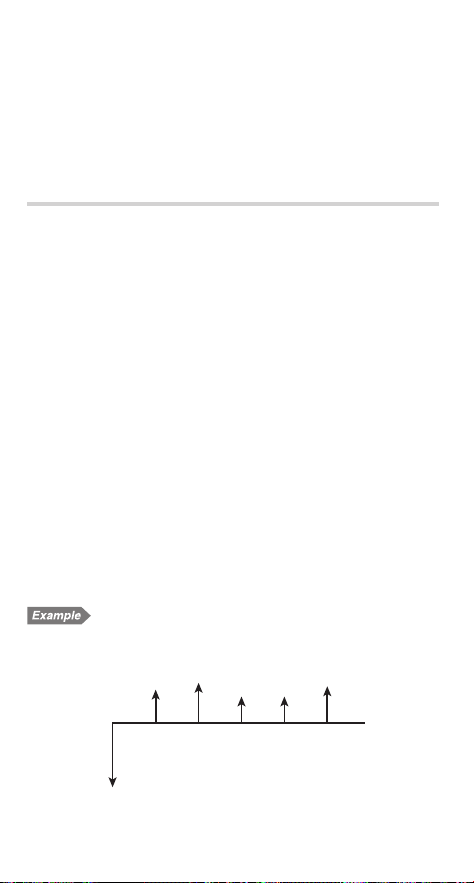
Answer: The balloon payment after the 48th period would be
$482,755.24.
2
37
Discounted Cash Flow Analysis
Analyze unequal cash fl ows and calculate the net present value
(NPV) and the internal rate of return (IRR).
Note: Use the TVM solver for equal and regular cash fl ow
analysis (see page 22).
Entering cash fl ow data
To fi nd NPV and IRR using discounted cash fl ow analysis, enter
cash fl ow data, one data item at a time, in the following format:
Single cash fl ows
Cash fl ow value
J
Repeated cash fl ows
Cash fl ow value
>
frequency value
J
Notes:
• Before entering data, press
>
.
b
to clear any
previously entered cash fl ow data.
• Press
,
to enter a negative cash fl ow (outfl ow).
• Make sure the calculator is in NORMAL mode. It is not pos-
sible to enter cash fl ow data when listed fi nancial variables are
shown on the display. Press
s
to exit.
• You can enter a total of up to 100 cash fl ow and/or statistical
data items. A single cash fl ow value is counted as one data
item, while a cash fl ow value with an associated frequency
value is counted as two.
• Frequency values must be integers between 1 and 999.
• If you wish to correct a value before pressing
J
, press
s
to delete the entry and enter the correct value.
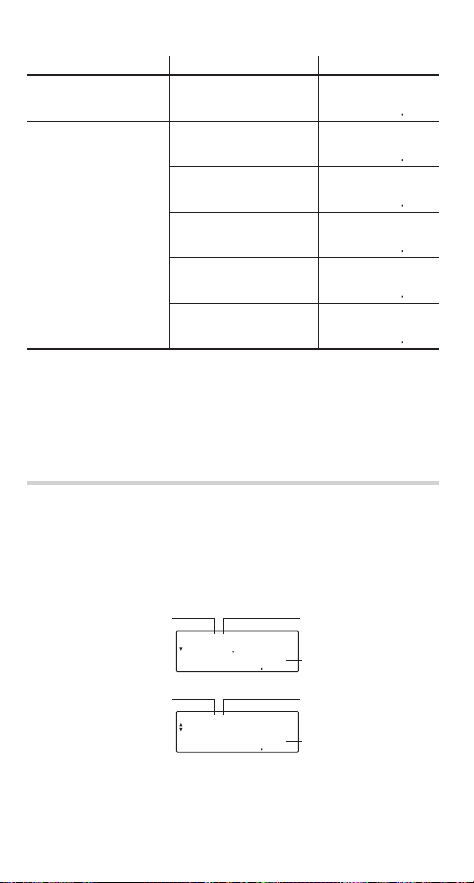
Entering cash fl ow data
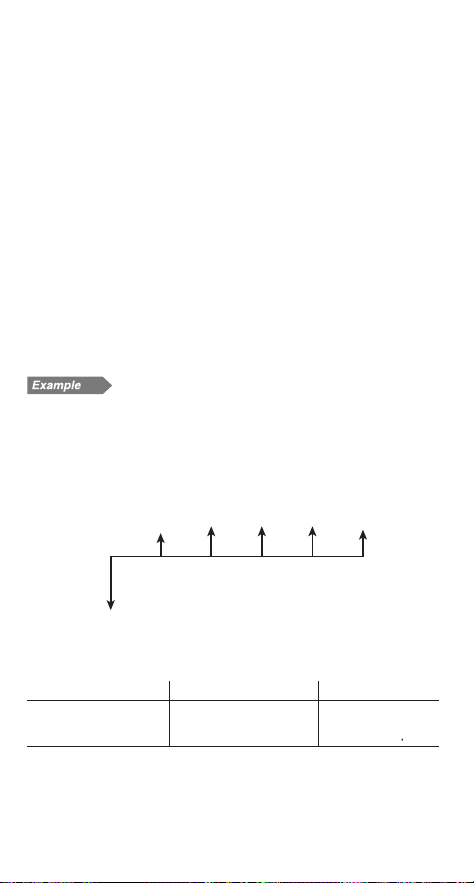
Enter cash fl ow data according to the following cash fl ow dia-
gram.
–
$25
,
000
$7,000 $9,000 $5,000 $5,000
$8,000
38
Procedure Key operation Display
Bring up the initial dis-
play in NORMAL mode.
s
000
Enter cash fl ow data.
,
25000
J
DATA SET:CF
000
7000
J
DATA SET:CF
100
9000
J
DATA SET:CF
200
5000
>
2
J
DATA SET:CF
300
8000
J
DATA SET:CF
400
If there is cash fl ow data stored, press
>
.
b
to
clear it.
The format of the data set (cash fl ow and frequency values)
number, which is initially set to “0.00,” is dependent on calcu-
lator display notation settings.
Confi rming and editing data
Confi rming data
Press
>
to display any previously entered cash fl ow data.
The data is displayed in order by data item (identifi er, number,
and value).
Use
z
/
i
to display a data item from a previously entered
data set.
CF D—=
-2500000
Cash flow
identifier
Data set
number
Cash flow
value
CF N—=
100
Frequency
identifier
Data set
number
Frequency
value
*
1
*
1
*
2
*
2
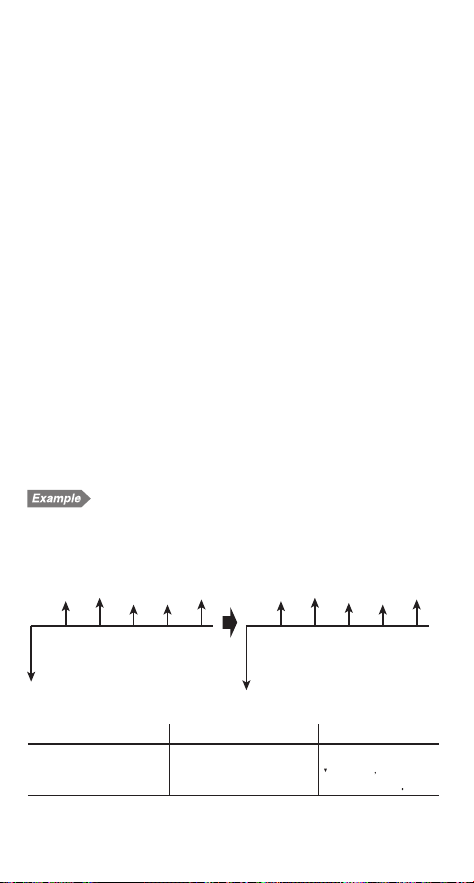
39
• Press
.
z
or
.
i
to jump to the fi rst or the last
data item, respectively.
• Each data item is displayed in the form CF Dn= (cash fl ow
value) or CF Nn= (frequency), where n indicates the data set
number.
Editing data
• Display the data item you wish to modify by using
z
/
i
,
enter a new value and press
J
.
• If a frequency value is set to zero, then the associated data
set is deleted.
Deleting data
• Display the data item to be deleted by using
z
/
i
, and
press
.
?
.
• If a cash fl ow value/frequency is deleted, the corresponding
frequency/cash fl ow value is also deleted.
• If you wish to delete all data, press
.
b
.
Inserting data
Using the
z
and
i
keys, specify the correct place to
insert your new data by displaying the value that is to come
directly after, and then press
.
e
. A new data set with
a cash fl ow value of zero and a frequency value of one will be
inserted. Modify the new data set to include your data.
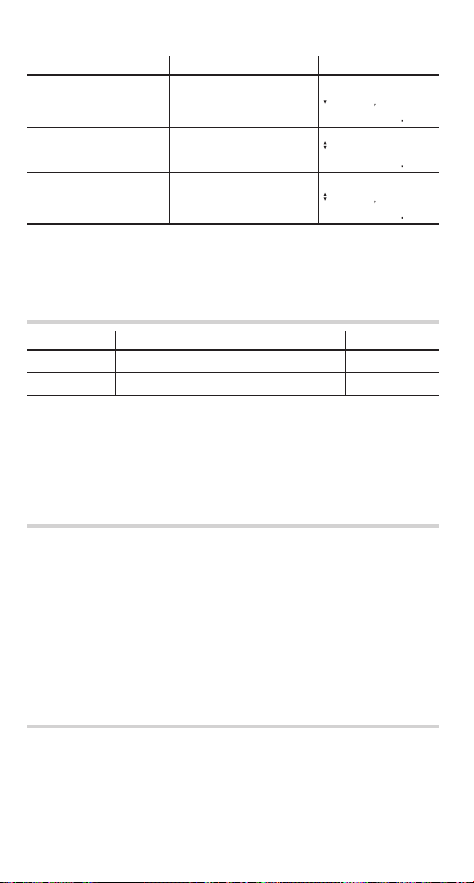
Correcting cash fl ow data
Currently the cash fl ow data is that shown in chart A. Change it
according to chart B.
–
$25,000
$7,000 $9,000 $5,000 $5,000 $8,000
Chart A
–$30,000
$7,000 $9,000 $6,000 $5,000 $8,000
Chart B
Procedure Key operation Display
Display previously
entered cash fl ow data.
(Example on page 37)
s
>
CF D—=
-2500000
40
Procedure Key operation Display
Change the fi rst cash
fl ow value from –25,000
to –30,000.
,
30000
J
CF D—=
-3000000
Change the frequency
of 5000 from 2 to 1.
i
i
i
i
i
i
i
1
J
CF N3=
100
Add a new data set
(6000) immediately
before 5000.
.
e
6000
J
CF D3=
600000
To confi rm the corrections, press
.
z
to jump to the fi rst
data item and press
i
to browse through each data item.
Variables used in discounted cash fl ow analysis
Variable Description Default value
RATE (I/Y) Internal rate of return (IRR) 0
NET_PV Net present value (NPV) —
• The variable RATE (I/Y) is shared by the variable I/Y. NET_PV
is for calculation only and has no default value.
• The BGN/END setting is not available for discounted cash fl ow
analysis.
NPV and IRR
The calculator solves the following cash fl ow values:
Net present value (NPV):
The total present value of all cash fl ows, including cash paid out
(outfl ows) and cash received (infl ows). A profi table investment is
indicated by a positive NPV value.
Internal rate of return (IRR):
The interest rate that gives a net present value of zero.
Basic operations
Refer to page 19 for basic variable operations.
1. Press
s
to clear the display.
• Make sure the calculator is in NORMAL mode.
41
2. Enter cash fl ow data.
• Refer to page 37 for instructions on entering cash fl ow data.
3. Press
.
<
to begin discounted cash fl ow analysis.
• If a previously entered cash fl ow value is displayed, press
s
to exit and then press
.
<
.
4. To fi nd NPV or IRR, do the following:
To obtain NPV:
Enter the interest rate (discounted rate) into RATE(I/Y) and
press
Q
. Move to NET_PV and calculate by pressing
i
and
@
.
To obtain IRR:
Press
@
to calculate IRR (RATE(I/Y)).
Note: If “Error 5” is displayed in step 4, or if you want to fi nd
another IRR, enter an estimated value into RATE(I/Y) and
calculate again in step 4.
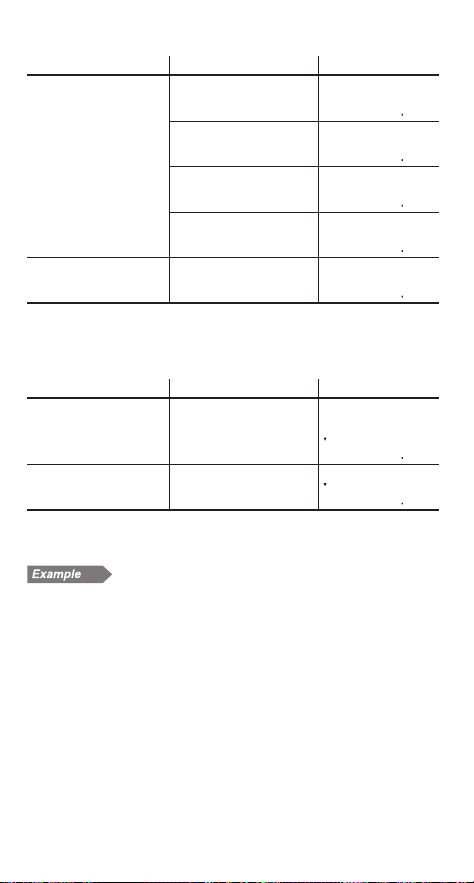
Solving for unequal cash fl ows
Your company pays $12,000 for a new network system, and
expects the following annual cash fl ows: $3,000 for the fi rst year,
$5,000 for the second to fourth years, and $4,000 for the fi fth
year. At what IRR does the net present value of the cash fl ows
equal zero?
–
$12,000
$3,000 $5,000 $5,000 $5,000
$4,000
1. Enter cash fl ow data.
Procedure Key operation Display
Bring up the initial dis-
play in NORMAL mode.
s
000
1
*
1
42
Procedure Key operation Display
Enter cash fl ow data.
,
12000
J
DATA SET:CF
000
3000
J
DATA SET:CF
100
5000
>
3
J
DATA SET:CF
200
4000
J
DATA SET:CF
300
Return to the initial dis-
play in NORMAL mode.
s
000
If there is cash fl ow data stored, press
>
.
b
to
clear it.
2. Calculate IRR.
Procedure Key operation Display
Select discounted cash
fl ow analysis, and set all
the variables to default
values.
.
<
.
b
RATE(I/Y)=
000
Calculate IRR (RATE
(I/Y)).
@
RATE(I/Y)=
2314
Answer: The net present value of the cash fl ows equals zero at
an IRR of 23.14%.
Calculating the present value of variable cash
fl ows
Your company has prepared forecasts for the development costs
and operating profi ts of the next generation of your product.
Development costs for each of the next three years (Years 1 to
3) will be $50,000. Manufacturing equipment costing $100,000
will be purchased at the end of Year 3. Annual profi ts for the
fi ve-year product life (from Year 4 to Year 8) are projected to be
$80,000. The salvage value of the manufacturing equipment at
the end of Year 8 is $20,000. Given a 12% discount rate, should
your company proceed with the product development?
*
1
2
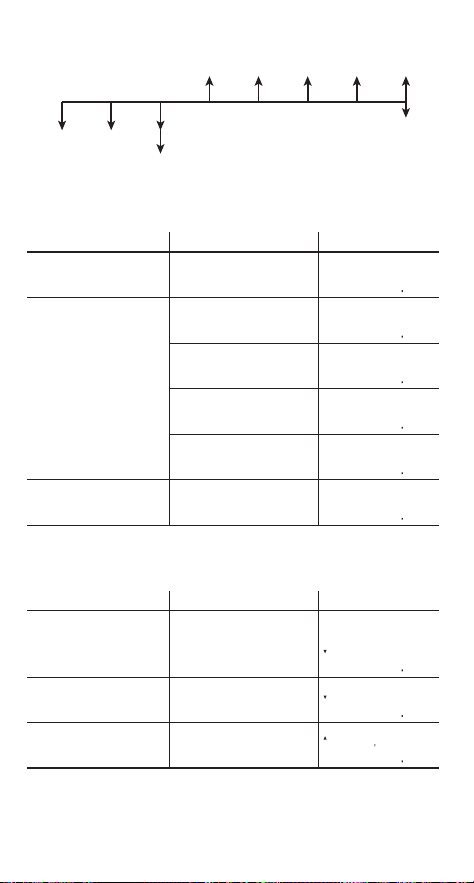
43
$80,000 $80,000 $80,000 $80,000 $80,000
–$20,000
–
$50,000
–$50,000
–$100,000
–$50,000
1. Enter the cash fl ow data.
Procedure Key operation Display
Bring up the initial dis-
play in NORMAL mode.
s
000
Enter cash fl ow data.
,
50000
>
2
J
DATA SET:CF
000
,
150000
J
DATA SET:CF
100
80000
>
4
J
DATA SET:CF
200
60000
J
DATA SET:CF
300
Return to the initial dis-
play in NORMAL mode.
s
000
If there is cash fl ow data stored, press
>
.
b
to
clear it.
2. Calculate NPV.
Procedure Key operation Display
Select discounted cash
fl ow analysis, and set all
the variables to default
values.
.
<
.
b
RATE(I/Y)=
000
Enter the discount rate.
12
Q
RATE(I/Y)=
1200
Calculate NPV
(NET_PV).
i
@
NET_PV=
662752
Answer: As NPV = 6,627.52 > 0, the product can be developed.
*
1
*
1

44
Bond Calculations
Using bond calculations, you can obtain bond prices, yields to
maturity, and accrued interest.
Variables used in bond calculations
Variable Description Default value
COUPON (PMT) Annual coupon rate (%) 0
REDEMPT (FV) Redemption value 0
M-D-Y 1 Settlement date (date of bond pur-
chase)
1-1-2001
M-D-Y 2 Redemption date 1-1-2001
CPN/Y (N) Number of coupons per year 1
YIELD (I/Y) Yield to maturity (%) 0
PRICE (PV) Bond price 0
ACCU INT Accrued interest —
Redemption value of the security per $100 par value.
You can change the date format to D-M-Y (see page 10).
You can only enter “1” or “2” — “1” for annual coupons and “2”
for semi-annual coupons.
Per $100 par value.
Note: Bonds are associated with payment methods known as
coupons. A coupon is like an “interest-only payment,” and
it is based on the future value of the bond. COUPON is
a percentage of the bond par value, usually annually, by
the owner of the bond.
For bonds that have annual coupons, the owner receives
one payment of the coupon amount each year. Some
bonds have semi-annual coupons. For these, each year’s
coupon amount is paid in two equal payments six months
apart. The date on which a coupon payment is made is
called the “coupon date.” The bond maturity date is usu-
ally the last coupon date.
Setting the day-count method
You can toggle between the actual calendar (365 days plus leap
years) and a 360-day calendar (12 months of 30 days each)
using
.
&
. The actual calendar is set by default (360 is
not displayed). The calendar range is from January 1, 1901 to
December 31, 2099.
*
2
*
2
*
1
*
2
*
1
*
3
*
4
*
3
*
4

45
Basic operations
Refer to page 19 for basic variable operations.
1. Press
s
to clear the display.
• Make sure the calculator is in NORMAL mode.
2. Select bond calculations by
pressing
#
.
• To end bond calculations,
press
s
.
• If you press
s
during entry, any entered values will be
cleared.
3. Change the day-count setting, if necessary, by pressing
.
&
.
4. Enter the coupon rate (%) into COUPON (PMT) by entering
the value and pressing
Q
.
5. Enter the redemption value into REDEMPT (FV) by pressing
i
, entering the value, and pressing
Q
.
6. Enter the date of bond purchase into M-D-Y 1 (or D-M-Y 1)
by pressing
i
, entering the date, and pressing
Q
.
• For date entry, refer to page 47, ”Entering dates”.
7. Enter the redemption date into M-D-Y 2 (or D-M-Y 2) by
pressing
i
, entering the date, and pressing
Q
.
• For date entry, refer to page 47, ”Entering dates”.
8. Enter the number of coupon payments per year into CPN/Y
(N) by pressing
i
, entering the value, and pressing
Q
.
9. To fi nd bond price or yield to maturity, do the following:
To obtain bond price (PRICE (PV)):
Enter annual yield (%) into YIELD(I/Y) by pressing
i
, enter-
ing the value, and pressing
Q
. Move to PRICE (PV) and
calculate by pressing
i
and
@
. Display the accrued
interest (ACCU INT) by pressing
i
. The accrued interest is
calculated automatically.
To obtain yield to maturity (YIELD (I/Y)):
Move to PRICE (PV) and enter the bond price by pressing
i
i
, entering the value, and pressing
Q
. Move to annual
yield, YIELD (I/Y) and calculate by pressing
z
@
. Display
the accrued interest (ACCU INT) by pressing
i
i
. The
accrued interest is calculated automatically.
COUPON(PMt)=
000
46
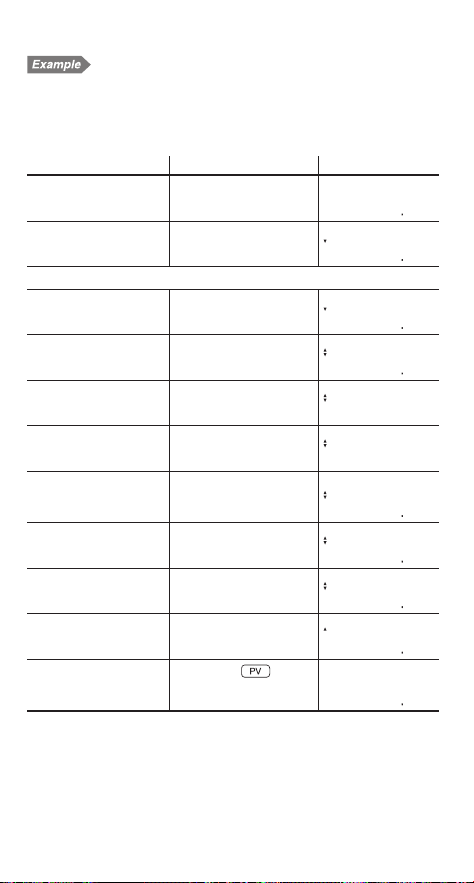
Calculating bond price and accrued interest
A $100, 20-year, 6.5% coupon bond is issued to mature on August
15, 2023. It was sold on November 3, 2006 to yield the purchaser
7.2% compounded semiannually until maturity. At what price did
the bond sell? Also calculate the accrued coupon interest.
Procedure Key operation Display
Bring up the initial dis-
play in NORMAL mode.
s
000
Select bond calcula-
tions.
#
COUPON(PMT)=
000
Make sure the actual calendar is set (360 is not displayed).
Enter the coupon rate
(%).
6.5
Q
COUPON(PMT)=
650
Enter the redemption
value.
i
100
Q
REDEMPT(FV)=
10000
Enter the settlement
date.
i
11032006
Q
M-D-Y 1=[FR]
11- 3-2006
Enter the redemption
date.
i
08152023
Q
M-D-Y 2=[TU]
8-15-2023
Enter the number of
coupon payments per
year.
i
2
Q
CPN/Y(N)=
200
Enter the annual yield
(%).
i
7.2
Q
YIELD(I/Y)=
720
Calculate bond price.
i
@
PRICE(PV)=
9323
Calculate the accrued
interest.
i
ACCU INT=
141
Calculate bond price
including accrued
interest.
s
i
+
i
/
=
PV+ANS=
9464
Answer: The bond sold at $93.23 and the accrued coupon
interest was $1.41 (the bond price including accrued
interest would be $94.64).
The asking price on the above bond is $92.50. What will your
yield be?

47
Procedure Key operation Display
Change the bond price
to $92.50.
#
i
i
i
i
i
i
92.5
Q
PRICE(PV)=
9250
Calculate the yield.
z
@
YIELD(I/Y)=
728
Answer: The yield will be 7.28%.
Entering dates
Refer to the following notes for date entry.
• Enter using US date format (MM-DD-YYYY) or EU date for-
mat (DD-MM-YYYY). Refer to the previous example and the
following explanation.
Month entry
Enter two digits. From 2 to 9, the preceding zero may be omitted.
Day entry
Enter two digits. From 4 to 9, the preceding zero may be omitted.
Year entry
Enter four digits. From 2010 to 2099, the zero following the
fi rst “2” may be omitted. From 1901 to 1989, the “9” following
the fi rst “1” may be omitted.
• After entry, the date will be stored and the abbreviated day of
the week will be displayed.
• [SU]: Sunday, [MO]: Monday, [TU]: Tuesday, [WE]: Wednes-
day, [TH]: Thursday, [FR]: Friday, [SA]: Saturday.
• The default value for dates is: January 1, 2001 (1-1-2001).
• The effective range of dates is: January 1, 1901 to December
31, 2099.
• If an inappropriate date is entered (e.g., February 31), an error
message (Error 7) will appear immediately after pressing
Q
.
In this case, follow either of the following procedures:
• Press
s
to return to the display before the entry, enter
the appropriate date, and press
Q
.
• Press
g
/
y
to go back to the display that was shown
before you pressed
Q
. Press
s
or
L
, enter the
appropriate date, and press
Q
again.
• If you wish to correct numbers during entry, use
L
as a
backspace key.
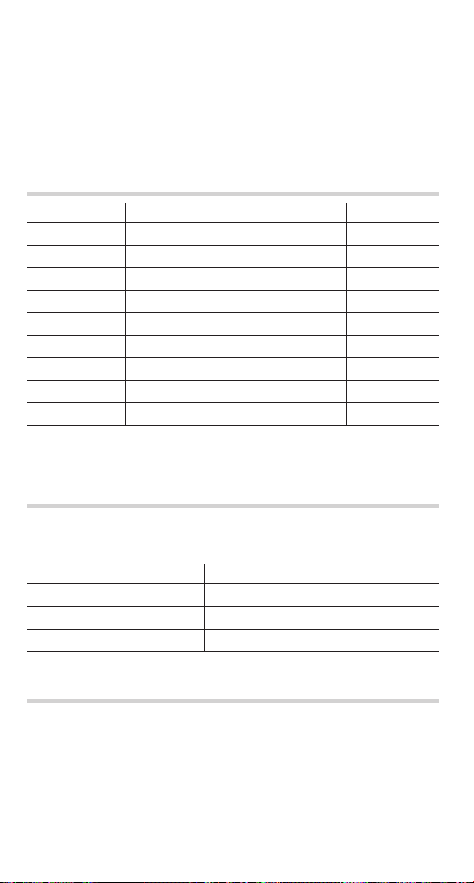
48
Depreciation Calculations
Using depreciation calculations, you can obtain depreciation
base values using three types of calculation methods: the
straight-line method, the sum-of-the-years’ digits method, and
the declining balance method.
Variables used in depreciation calculations
Variable Description Default value
DB (I/Y) Interest per year 0
LIFE (N) Years of depreciation 1
START MONTH Starting month 1
COST (PV) Cost of asset 0
SALVAGE (FV) Salvage value 0
YEAR
Year for calculating depreciation value
1
DEPRECIATE Depreciation value of above year —
RBV Remaining book value —
RDV Remaining depreciation value —
DB (I/Y) appears only when you select DB (declining balance
method) for the depreciation method.
Setting the depreciation method
• Select the depreciation method in the SET UP menu. It is
initially set to SL.
Key operation Description
~
2
0
SL (Straight-line method)
~
2
1
SYD (Sum-of-the-years’ digits method)
~
2
2
DB (Declining balance method)
Basic operations
Refer to page 19 for basic variable operations.
1. Press
s
to clear the display.
• Make sure the calculator is in NORMAL mode.
*
1
*
1

49
2. Select the depreciation method (see page 48).
3. Select depreciation calculations
by pressing
O
.
• When using the declining
balance method, DB (I/Y) ap-
pears. Enter the number and press
Q
.
• To end depreciation calculations, press
s
. If you press
s
during entry, any entered values will be cleared.
4. Enter the number of years of depreciation into LIFE (N) by
pressing
i
, entering the value, and pressing
Q
.
• When using the straight-line method, the value should be a
positive real number, while for the SYD or DB methods, it
should be a positive integer.
5. Enter the starting month into START MONTH by pressing
i
, entering the value, and pressing
Q
.
• You can enter values between 1 and 13.
• Generally, it is not necessary to enter a decimal value.
However, if you wish to enter, for example, the middle of
July, enter 7.5; where the decimal is equal to the number
value of the given date divided by the total number of days
in the month.
6. Enter the cost of asset into COST (PV) by pressing
i
,
entering the value, and pressing
Q
.
7. Enter the salvage value into SALVAGE (FV) by pressing
i
,
entering the value, and pressing
Q
.
8. Enter
the year for calculating depreciation value
into YEAR by
pressing
i
, entering the value, and pressing
Q
.
•
The year for calculating depreciation value
is initially 1.
Pressing
@
increments this number by 1.
•
This value must be a positive integer
.
9. Calculate depreciation for the year by pressing
i
.
10. Calculate the remaining book value by pressing
i
.
11. Calculate the remaining depreciation by pressing
i
.
12. To calculate depreciation value for another year, press
z
three times to go back to YEAR, enter a value for the new
year, and recalculate.
SL
----------
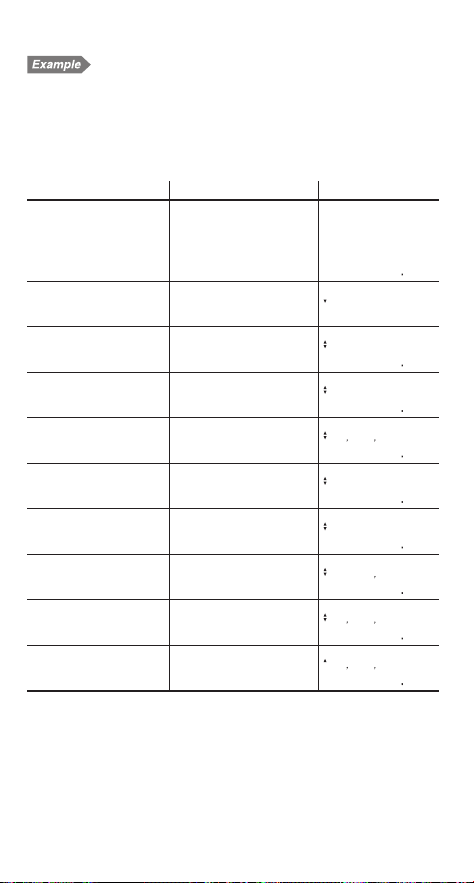
50
Calculating straight-line depreciation
In April, your company begins depreciation of a commercial
building with a 30-year life and no salvage value. The building
costs $1,500,000. Calculate the depreciation amount, remaining
book value and remaining depreciable value for the third year
using the straight-line depreciation method.
Procedure Key operation Display
Bring up the initial
display in NORMAL
mode, and select the
straight-line deprecia-
tion method.
s
~
2
0
000
Select depreciation
calculations.
O
SL
----------
Enter the number of
years of depreciation.
i
30
Q
LIFE(N)=
3000
Enter the starting
month.
i
4
Q
START MONTH=
400
Enter the cost of asset.
i
1500000
Q
COST(PV)=
150000000
Enter the salvage value.
i
0
Q
SALVAGE(FV)=
000
Enter t
he year for calcu-
lating depreciation value
.
i
3
Q
YEAR=
300
Calculate depreciation
for the year.
i
DEPRECIATE=
5000000
Calculate the remaining
book value.
i
RBV=
136250000
Calculate the remaining
depreciation value.
i
RDV=
136250000
Answer: At the third year, the depreciation amount is $50,000,
the remaining book value is $1,362,500, and the re-
maining depreciable value is $1,362,500.

51
Conversion between APR and EFF
Interest rates can be converted between APR (annual, or nomi-
nal percentage rate) and EFF (effective interest rate).
• The APR is an investment’s annual rate of interest when com-
pounding happens only once a year. The interest rate printed
on a bond is an example of an APR.
• The EFF is an investment’s annual rate of interest when com-
pounding happens more often than once a year. It refl ects the
actual amount of return for a given nominal rate. For example,
if your investment compounds monthly, then the stated nomi-
nal percentage rate becomes a monthly rate, and the EFF
refl ects your actual annual rate of return.
Basic operations
1. Press
s
to clear the display. Make sure the calculator is
in NORMAL mode.
2. Enter the calculation data in the following format:
• To change APR to EFF:
Number of compounding periods per year
>
Nominal
percentage rate
.
P
• To change EFF to APR:
Number of compounding periods per year
>
Effective
interest rate
.
!
Converting between APR and EFF
Procedure Key operation Display
Calculate the
effective interest
rate for twelve
compounding
periods with an
18% APR.
s
12
>
18
.
P
12,18¬EFF
1956
Convert this rate
back to the origi-
nal APR.
12
>
19.56
.
!
12,19.56¬APR
1800
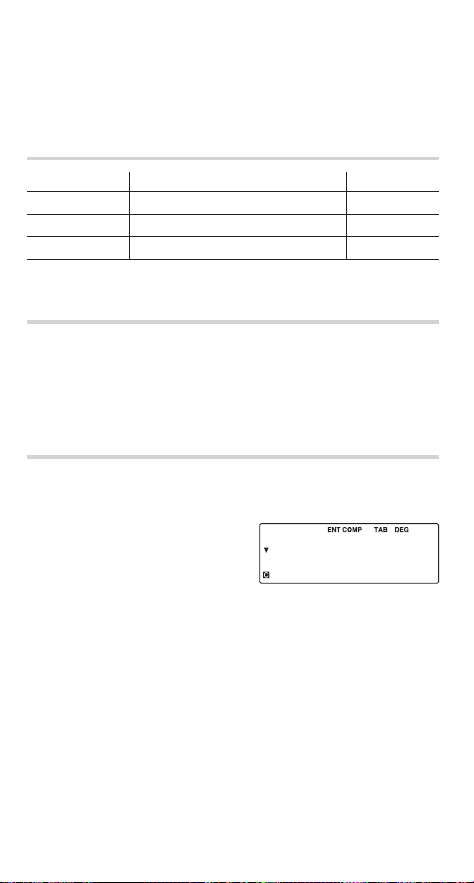
52
Day and Date Calculations
Using day and date calculations, you can fi nd dates and the
numbers of days between dates.
Variables used in day and date calculations
Variable Description Default value
M-D-Y 1 The fi rst date 1-1-2001
M-D-Y 2 The last date 1-1-2001
DAYS Number of days 0
You can change the date format to D-M-Y (see page 10).
Setting the day-count method
You can toggle between the actual calendar (365 days plus leap
years) and a 360-day calendar (12 months of 30 days each)
using
.
&
. The actual calendar is set by default (360 is
not displayed). The calendar range is from January 1, 1901 to
December 31, 2099.
Basic operations
Refer to page 19 for basic variable operations.
1. Press
s
to clear the display.
• Make sure the calculator is in NORMAL mode.
2. Select day and date calcula-
tions by pressing
K
.
• To end day and date calcula-
tions, press
s
. If you press
s
during entry, any entered values will be cleared.
3. Change the day-count method, using
.
&
, if neces-
sary.
4. Enter the values of any two known variables: the fi rst date,
the last date, or the number of days.
• For date entry, refer to page 47, ”Entering dates”.
5. Move to the variable you wish to calculate, using the
z
and
i
keys, and press
@
to calculate.
• If the calculator is set to 360-day calendar mode (360 is
displayed), it is not possible to obtain either the fi rst or last
dates, only the number of days.
*
1
*
1
*
1
M-D-Y
1
=[MO]
1- 1-2001
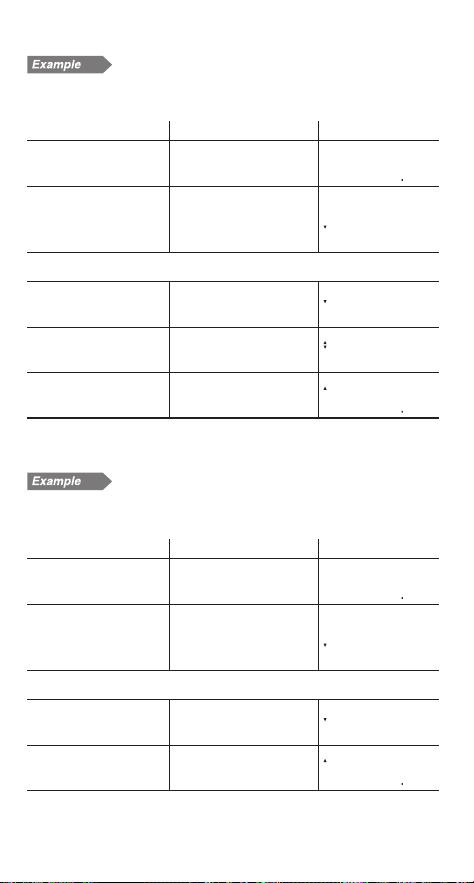
53
Calculating number of days
Calculate the number of days between December 25, 2008 and
August 10, 2009 (using US date format and the actual calendar).
Procedure Key operation Display
Bring up the initial dis-
play in NORMAL mode.
s
000
Select day and date
calculations, and set all
the variables to default
values.
K
.
b
M-D-Y 1=[MO]
1- 1-2001
Make sure the actual calendar is set (360 is not displayed).
Enter the fi rst date.
12252008
Q
M-D-Y 1=[TH]
12-25-2008
Enter the last date.
i
8102009
Q
M-D-Y 2=[MO]
8-10-2009
Move to DAYS and
calculate.
i
@
DAYS=
22800
Answer: 228 days
• If the 360-day calendar is selected, the answer will be 225 days.
Finding a date
Find the date 100 days after November 13, 2010 (using US date
format and the actual calendar).
Procedure Key operation Display
Bring up the initial dis-
play in NORMAL mode.
s
000
Select day and date
calculations, and set all
the variables to default
values.
K
.
b
M-D-Y 1=[MO]
1- 1-2001
Make sure the actual calendar is set (360 is not displayed).
Enter the fi rst date.
1113210
Q
M-D-Y 1=[SA]
11-13-2010
Move to DAYS and en-
ter the number of days.
i
i
100
Q
DAYS=
10000
1
2
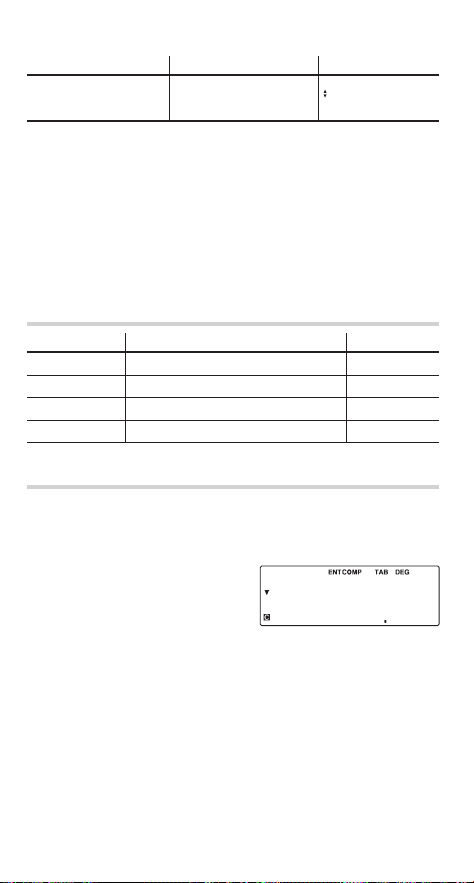
54
Procedure Key operation Display
Move to the last date
and calculate.
z
@
M-D-Y 2=[MO]
2-21-2011
Answer: The last date is February 21, 2011.
Percent Change/Compound Interest Cal-
culations
Using percent change/compound interest calculations, you can
determine the values of percentage rates of change (increase or
decrease) or interest rates compounding periodically.
Variables used in percent change/compound interest
calculations
Variable Description Default value
OLD PRC (PV) Old price (old value) 0
NEW PRC (FV) New price (new value) 0
% (I/Y) Percent change 0
PERIODS (N) Number of compounding periods 1
Basic operations
Refer to page 19 for basic variable operations.
1. Press
s
to clear the display.
• Make sure the calculator is in NORMAL mode.
2. Select percent
change/ compound interest cal-
culations by pressing
.
B
.
• To end percent change/com-
pound interest calculations, press
s
.
• If you press
s
during entry, any entered values will be
cleared.
3. Enter the values of any three known variables: old price, new
price, percent change, or number of compounding periods.
4. Move to the variable you wish to calculate, using the
z
and
i
keys, and press
@
to calculate.
OLD PRC(PV)=
000
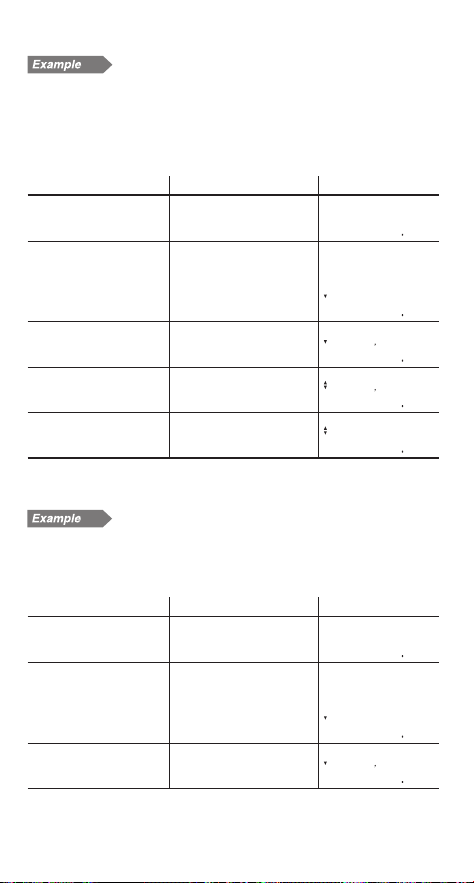
55
Calculating percent change
Sales in a company were $75,000 during the fi rst year of opera-
tion. The second year’s sales were $116,000. What percentage
greater were the second year’s sales than fi rst year’s sales?
In this calculation, the number of compound periods is set to 1
(default).
Procedure Key operation Display
Bring up the initial dis-
play in NORMAL mode.
s
000
Select percent change/
compound interest
calculations, and set all
the variables to default
values.
.
B
.
b
OLD PRC(PV)=
000
Enter the old value.
75000
Q
OLD PRC(PV)=
7500000
Enter the new value.
i
116000
Q
NEW PRC(FV)=
11600000
Calculate the percent
change.
i
@
%(I/Y)=
5467
Answer: The second year’s sales increased by 54.67% over
the fi rst year’s sales.
Calculating compound interest rate
You opened an account compounding annually and deposited
$8,000 eighteen years ago. You currently have $9,800. What is
the compound interest rate?
Procedure Key operation Display
Bring up the initial dis-
play in NORMAL mode.
s
000
Select percent change/
compound interest
calculations, and set all
the variables to default
values.
.
B
.
b
OLD PRC(PV)=
000
Enter the old value.
8000
Q
OLD PRC(PV)=
800000
1
2
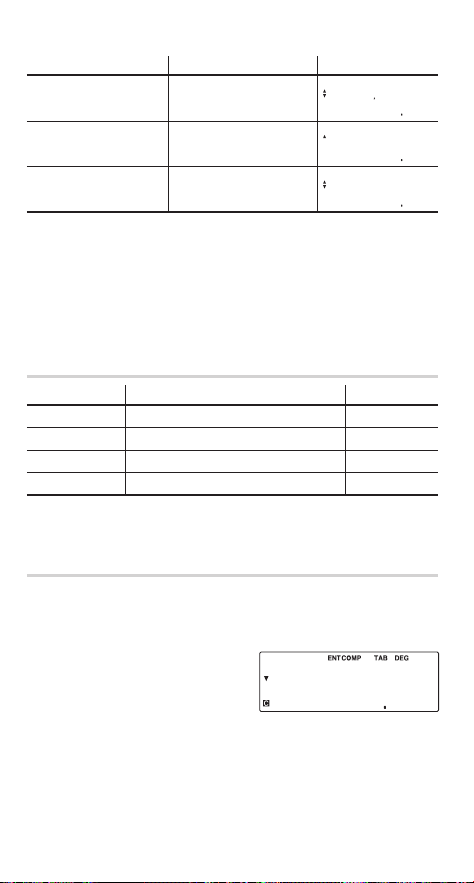
56
Procedure Key operation Display
Enter the new value.
i
9800
Q
NEW PRC(FV)=
980000
Set the number of com-
pound periods to 18.
i
i
18
Q
PERIODS(N)=
1800
Calculate the com-
pound interest rate.
z
@
%(I/Y)=
113
Answer: The compound interest rate is 1.13%.
Cost/Sell/Margin/Markup Calculations
Using cost/sell/margin/markup calculations, you can determine
costs, selling prices, margins and markup.
Variables used in cost/sell/margin/markup calcula-
tions
Variable Description Default value
COST Cost 0
SELL Selling price 0
MARGIN Profi t margin (%) 0
MARK UP Markup (%) —
Profi t margin (%) is calculated based on selling price.
Markup (%) is calculated based on cost.
Basic operations
Refer to page 19 for basic variable operations.
1. Press
s
to clear the display.
• Make sure the calculator is in NORMAL mode.
2. Select cost/sell/margin/ markup
calculations by pressing
I
.
• To end cost/sell/margin/mark-
up calculations, press
s
.
• If you press
s
during entry, any entered values will be
cleared.
*
1
*
1
*
2
*
2
COSt=
000
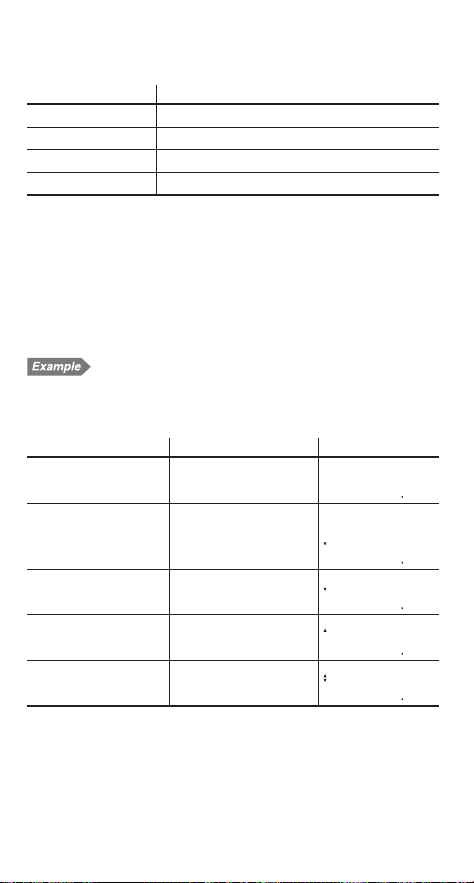
57
3. Enter the values of any two known variables as follows:
Unknown variable Known variables
COST SELL, and MARGIN or MARK UP
SELL COST, and MARGIN or MARK UP
MARGIN COST and SELL
MARK UP COST and SELL
Because only either MARGIN or MARK UP is used in any
cost/sell/margin/markup calculation, the unused variable is
given a value of “----------”. Initially, MARK UP is set to “--------
--”. If you enter a value for MARK UP, MARGIN is set to “-----
-----”, and vice versa.
4. Move to the variable you wish to calculate, using the
z
and
i
keys, and press
@
to calculate.
Determining selling price
In a furniture business, it is desirable to realize a 95% markup
from cost to retail price for each item. A certain sofa costs
$455.60. What should its selling price be?
Procedure Key operations Display
Bring up the initial dis-
play in NORMAL mode.
s
000
Select cost/sell/margin
markup calculations,
and set all the variables
to default values.
I
.
b
COST=
000
Enter cost.
455.6
Q
COST=
45560
Enter markup rate.
i
i
i
95
Q
MARK UP=
9500
Calculate selling price.
z
z
@
SELL=
88842
Answer: The selling price should be $888.42.
*
1
*
1
*
1
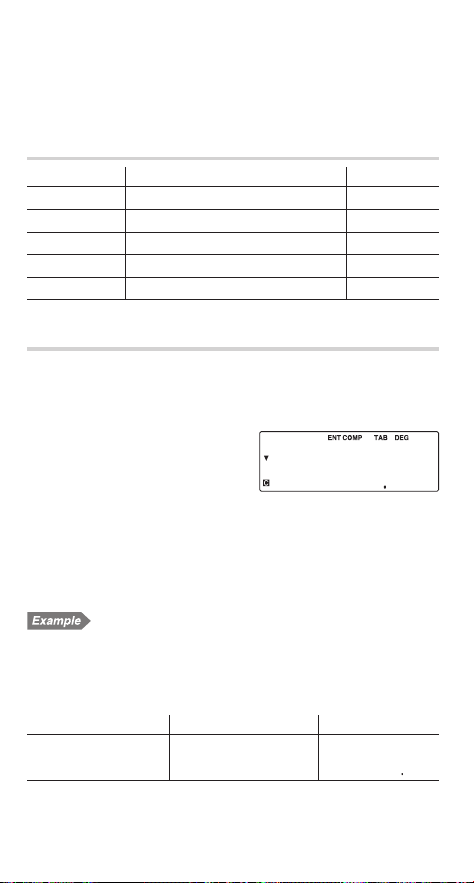
58
Breakeven Calculations
Using breakeven calculations, you can calculate fi xed cost, vari-
able cost per unit, unit price, profi t and quantity.
Variables used in breakeven calculations
Variable Description Default value
FIXED Fixed cost 0
VARIABLE Variable cost per unit 0
PRICE Unit price 0
PROFIT Profi t 0
QUANTITY Quantity 0
Basic operations
Refer to page 19 for basic variable operations.
1. Press
s
to clear the display.
• Make sure the calculator is in NORMAL mode.
2. Select breakeven calculations
by pressing
$
.
• To end breakeven calcula-
tions, press
s
.
• If you press
s
during entry, any entered values will be
cleared.
3. Enter the values of any four known variables.
4. Move to the variable you wish to calculate, using the
z
and
i
keys, and press
@
to calculate.
Calculating the breakeven point
Your company has developed a new product and plans to sell it
at a price of $120 per unit. The variable cost per unit is $75.80
and the fi xed costs total $15,000. What is the breakeven point
for this product?
Procedure Key operation Display
Bring up the initial dis-
play in NORMAL mode.
s
000
FIXED=
000

59
Procedure Key operation Display
Select breakeven
calculations, and set all
the variables to default
values.
$
.
b
FIXED=
000
Enter fi xed cost.
15000
Q
FIXED=
1500000
Enter variable cost per
unit.
i
75.80
Q
VARIABLE=
7580
Enter unit price.
i
120
Q
PRICE=
12000
Leave profi t as is.
i
PROFIT=
000
Calculate quantity.
i
@
QUANTITY=
33937
Answer: The breakeven point of this product is 339.37 units.
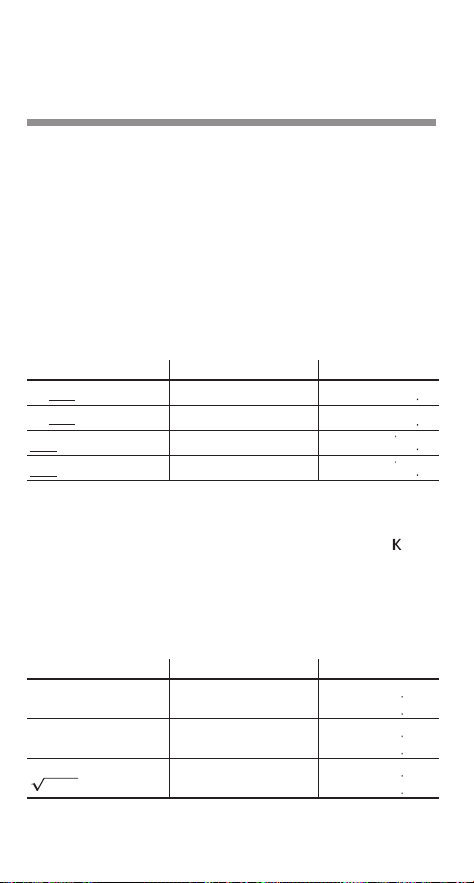
60
Chapter 4
Scientifi c Functions
This calculator has a variety of functions. Press
m
0
to
select NORMAL mode and perform scientifi c calculations.
• For basic calculations, see page 11.
• When a listed fi nancial variable is displayed, you can enter
the result of a scientifi c calculation into it by pressing
Q
immediately after completing the calculation.
• Scientifi c calculations can also be performed in STAT mode.
• The examples in this chapter are all performed under the SET
UP menu’s default settings. Before starting calculation, press
s
to clear the display.
Constant Calculations
Example Key operation Result
34
+
57 =
s
34
+
57
=
9100
45
+
57 =
45
=
10200
68
u
25 =
68
x
25
=
170000
68
u
40 =
40
=
272000
• In constant calculations, the addend becomes a constant.
Subtraction and division behave the same way. For multiplica-
tion, the multiplicand becomes a constant.
• In constant calculations, constants will be displayed as .
Chain Calculations
A calculation result (ANS memory) can be used in a subse-
quent calculation. However, it cannot be recalled after entering
multiple instructions.
Example Key operation Result
6
+
4 = ANS
ANS
+
5 =
s
6
+
4
=
+
5
=
1000
1500
8
u
2 = ANS
ANS
2
=
8
x
2
=
.
;
=
1600
25600
44
+
37 = ANS
ANS =
44
+
37
=
.
}
=
8100
900
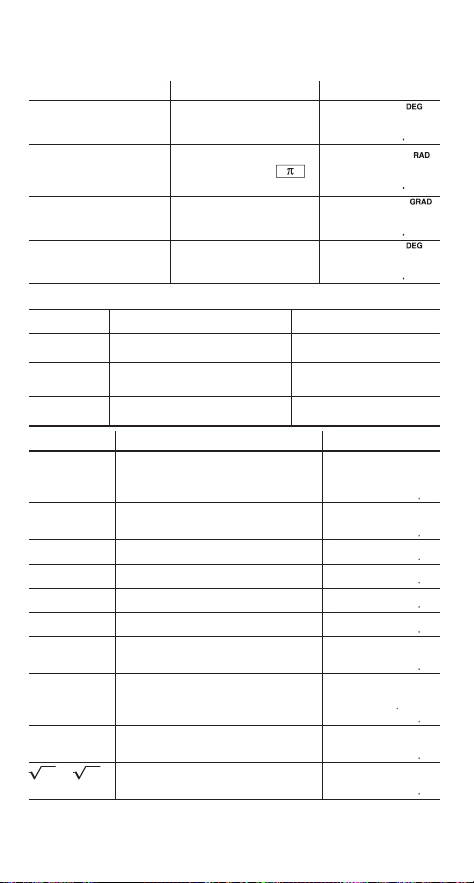
61
Scientifi c Calculations
Example Key operation Display
sin 60 [°] =
s
.
{
60
=
sin
60
=
087
cos — [rad] =
~
1
1
.
c
(
.
8
4
)
=
cos(π©
4
)=
071
tan
–1
1 [g] =
~
1
2
.
7
1
=
tan
-
|
1
=
5000
tan
–1
1 [°] =
~
1
0
.
7
1
=
tan
-
|
1
=
4500
• The range of the results of inverse trigonometric functions
T
= sin
–1
x
,
T
= tan
–1
x
T
= cos
–1
x
DEG –90
d
T
d
90 0
d
T
d
180
RAD
– —
d
T
d
—
0
d
T
d
S
GRAD –100
d
T
d
100 0
d
T
d
200
Example Key operation Result
(cosh 1.5
+
sinh 1.5)
2
=
s
(
.
]
c
1.5
+
.
]
{
1.5
)
.
;
=
2009
tanh
–1
— =
.
]
7
(
5
8
7
)
=
090
log 50 =
.
h
50
=
170
In 20 =
.
d
20
=
300
10
1.7
=
.
:
1.7
=
5012
e
3
=
.
R
3
=
2009
— + — =
6
.
;
+
7
.
;
=
031
8
–2
– 3
4
u
5
2
=
8
.
@
,
2
-
3
.
@
4
x
5
.
;
=
-202498
(12
3
)
–
=
12
.
@
3
.
@
4
.
;
=
645
49 –
4
81 =
.
}
49
-
4
.
:
81
=
400
S
4
S
2
S
2
1
4
1
6
1
7
5
7

62
Example Key operation Result
4! =
4
.
o
=
2400
10
P
3
=
10
.
q
3
=
72000
5
C
2
=
5
.
p
2
=
1000
What is 25%
of 500?
500
x
25
.
%
12500
What
percentage of
400 is 120?
120
8
400
.
%
3000
500
+
(500
u
25%) =
500
+
25
.
%
62500
400 – (400
u
30%) =
400
-
30
.
%
28000
Random Functions
This calculator has four kinds of random functions (the 2nd func-
tion of the
-
key).
Random numbers
A pseudo-random number, consisting of three signifi cant digits
from zero up to 0.999, can be generated by pressing
.
|
0
=
. To generate further random numbers in succession,
press
=
for each number. Press
s
to exit.
• To display numbers with three signifi cant digits, set the display
notation settings to “fl oating point”.
Random dice
To simulate a die roll, a random integer between 1 and 6 can
be generated by pressing
.
|
1
=
. To generate
further random numbers in succession, press
=
for each
number. Press
s
to exit.
Random coin
To simulate a coin fl ip, 0 (heads) or 1 (tails) can be randomly
generated by pressing
.
|
2
=
. To generate
further random numbers in succession, press
=
for each
number. Press
s
to exit.

63
Random integer
An integer between 0 and 99 can be generated randomly by
pressing
.
|
3
=
. To generate further random
numbers in succession, press
=
for each number. Press
s
to exit.
Example Key operation Display
Pick a random number
between zero and 9.99.
s
.
|
0
x
10
=
RANDOMx1—=
532
• The result will not be the same each time this operation is
performed.
Modify Function
Calculation results are internally obtained in scientifi c notation
with a mantissa of up to 14 digits. However, because calculation
results are displayed in the form designated by the display nota-
tion and the number of decimal places indicated, a displayed
calculation result may differ from that held internally. By using
the modify function (the 2nd function of the
+
key), the
internal value is converted to match that of the display, so that
the displayed value can be used without change in subsequent
operations.
Example Key operation Result
5
y
9 = ANS
ANS
u
9 =
[FIX, TAB = 2]
s
5
8
9
=
x
9
=
056
500
5
8
9
=
.
l
x
9
=
056
504
5.5555555555555
u
10
–1
u
9
0.56
u
9
*
1
*
2
*
1
*
2

64
Chapter 5
Statistical Functions
Statistical calculations can be performed in STAT mode. The
symbol will be visible if you are in STAT mode.
There are seven sub-modes within STAT mode, corresponding
to each of the functions below:
Key operation Sub-mode Display
m
1
0
m
1
1
m
1
2
m
1
3
m
1
4
m
1
5
m
1
6
SD: Single-variable statistics
LINE: Linear regression
QUAD: Quadratic regression
EXP: Exponential regression
LOG: Logarithmic regression
PWR: Power regression
INV: Inverse regression
Stat —
Stat 1
Stat 2
Stat 3
Stat 4
Stat 5
Stat 6
Entering statistical data
Before you can perform statistical calculations, you will need to
enter your data. In STAT mode, use
>
and
J
(the
Q
key) to enter the following:
For a single-variable data set:
Value
J
Value
>
frequency
J
(To enter multiples of the same
value)
For a two-variable data set:
x
value
>
y
value
J
x
value
>
y
value
>
frequency
J
(To enter multiples
of the same
x
and
y
values)
Note: Before entering data, clear any previously entered data
from memory by doing either of the following:
• Press
.
b
in STAT mode.
• Switch sub-modes within STAT mode.
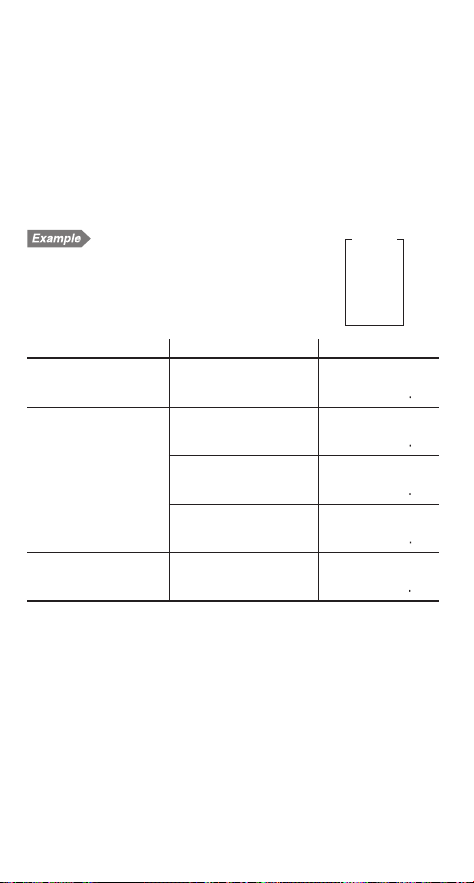
65
• You can enter a total of up to 100 statistical and/or cash fl ow
data items. For single-variable data, a data set without a
frequency is counted as one data item, and a data set with
an assigned frequency is counted as two data items. For two-
variable data, a data set without a frequency is counted as
two data items, while a data set with an assigned frequency is
counted as three data items.
• If you wish to correct a value before pressing
J
, press
L
or
s
to delete the entry, then enter the correct value.
Entering statistical data
Enter the data in the table to the right using
the “Stat 0” sub-mode.
Procedure Key operation Display
Enter the “Stat 0” sub-
mode.
s
m
1
0
Stat —
000
Enter statistical data.
30
J
DATA SET=
100
40
>
2
J
DATA SET=
200
50
J
DATA SET=
300
Return to the “Stat 0”
display.
s
Stat —
000
If there is data stored in memory, press
.
b
(within
STAT mode) to clear it.
The format of the data set (the sample and frequency values)
number, which is initially set to “1.00”, is dependent on calcu-
lator notation settings.
DATA
30
40
40
50
*
1
*
2
*
1
*
2

66
Confi rming and editing data
• Use
z
/
i
to display a data item from a previously
entered data set.
• Press
.
z
or
.
i
to jump to the fi rst or last
data item, respectively.
• Each data item is displayed in the form: “Xn = (
x
value)”, “Yn =
(
y
value)”, or “FRQn = (frequency)”, where “n” is the data set
number.
Editing data
• Display the data item you wish to modify by using
z
/
i
,
enter a new value and press
J
.
Deleting data
• Display the data item to be deleted by using
z
/
i
, and
press
.
?
.
• If a value/frequency is deleted, the corresponding frequency/
value is also deleted.
• If you wish to delete all data, press
.
b
.
Inserting data
Using the
z
and
i
keys, specify the correct place to
insert your new data by displaying the value that is to come
directly after, and then press
.
e
. A new data set with a
value of zero and a frequency of one will be inserted. Modify the
new data set to include your data.
X1=
1000
Data set number
x value
Y1=
2000
Data set number
y value
FRQ1=
1100
Data set number
Frequency
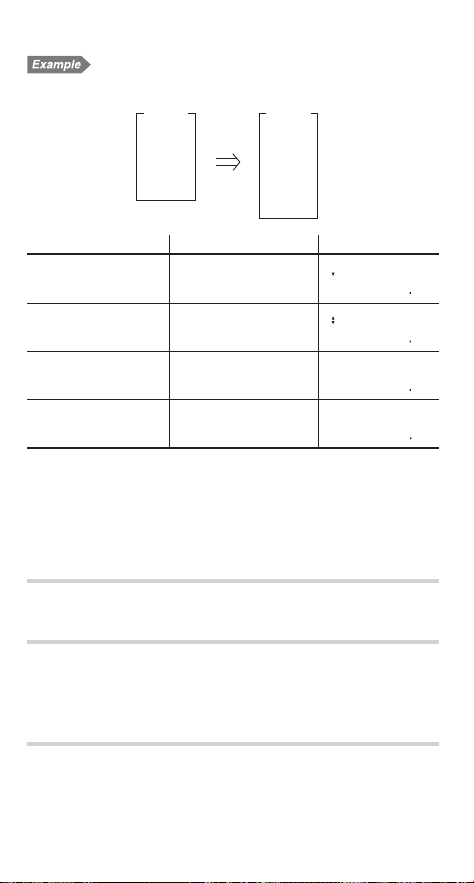
67
Editing statistical data
Change the previously entered data from page 65 as follows:
Procedure Key operation Display
Display the statistical
data.
i
X1=
3000
Change the “40, 2” data
set to “45, 3”.
i
i
45
J
i
3
J
FRQ2=
300
Delete “50”.
i
.
?
Stat —
000
Add “60”.
60
J
DATA SET=
300
Statistical Calculations and Variables
The following results can be obtained for each statistical calcula-
tion (refer to the table below):
Single-variable statistical calculations
Section
1
results only.
Linear regression calculations
Section
1
and
2
results, except for coeffi cients
c
.
The estimate of
y
for a given
x
(estimate
y
´) and the estimate of
x
for a given
y
(estimate
x
´) can also be found.
Quadratic regression calculation
Section
1
and
2
results, and coeffi cients
a
,
b
, and
c
in the qua-
dratic regression formula (
y
=
a
+
bx
+
cx
2
). In quadratic regres-
sion calculations, no correlation coeffi cient
r
can be obtained.
DATA
30
40
40
50
DATA
30
45
45
45
60
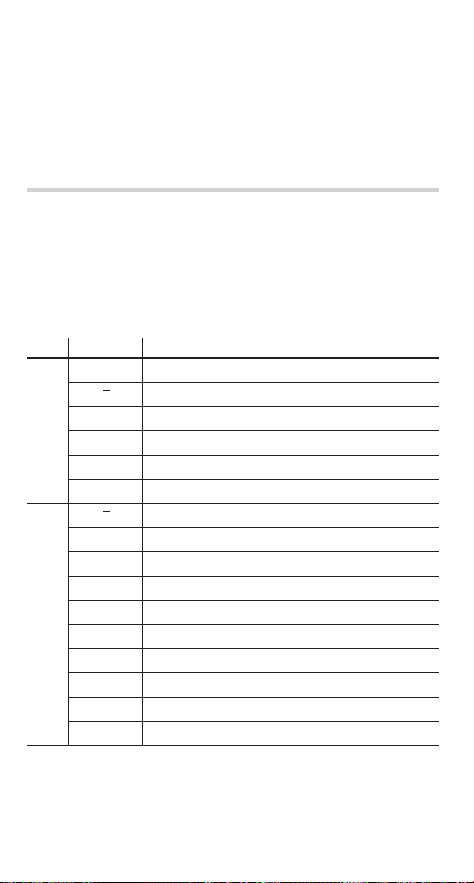
68
The estimate of
y
for a given
x
(estimate
y
´) and the estimate
of
x
for a given
y
(estimate
x
´) can also be found. When there
are two
x
values, the COMP symbol will appear. Press
@
to
switch between
x
values.
Exponential regression, logarithmic regression, pow-
er regression, and inverse regression calculations
Section
1
and
2
results, except for coeffi cients
c
.
The estimate of
y
for a given
x
(estimate
y
´) and the estimate
of
x
for a given
y
(estimate
x
´) can also be found. Because the
calculator converts each formula into a linear regression before
actual calculation takes place, it obtains all statistics — except
coeffi cients
a
and
b
— from converted data rather than from
entered data.
Variables Content
1
n
Number of samples
x
Mean of samples (
x
values)
sx
Sample standard deviation (
x
values)
V
x
Population standard deviation (
x
values)
6
x
Sum of samples (
x
values)
6
x
2
Sum of squares of samples (
x
values)
2
y
Mean of samples (
y
values)
sy
Sample standard deviation (
y
values)
V
y
Population standard deviation (
y
values)
6
y
Sum of samples (
y
values)
6
y
2
Sum of squares of samples (
y
values)
6
xy
Sum of products of samples (
x
,
y
)
a
Coeffi cient of regression equation
b
Coeffi cient of regression equation
c
Coeffi cient of quadratic regression equation
r
Correlation coeffi cient
• Use
i
or
f
to perform a variable calculation in STAT
mode.
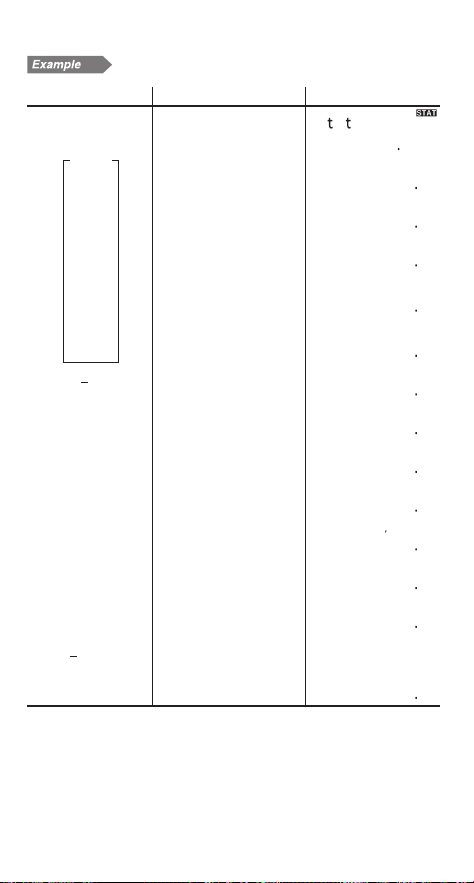
69
Single-variable statistical calculation
Example Key operation Result
m
1
0
.
b
S
a
—
000
95
95
J
DATA SET=
100
80
80
J
DATA SET=
200
80
J
DATA SET=
300
75
75
75
75
>
3
J
DATA SET=
400
50
50
J
DATA SET=
500
x
=
f
=
–
x
7571
=
V
x
=
f
2
1237
σ
≈
=
n
=
f
n
700
n=
6
x
=
f
U
53000
Í≈=
6
x
2
=
f
[
4120000
Í≈Œ=
sx
=
f
4
1336
Sx
=
sx
2
=
.
;
=
17857
Sx
Œ=
—
u
10 + 50 =
(
95
-
i
=
)
8
i
4
x
10
+
50
=
6443
DATA
1
(95 –
x
)
sx
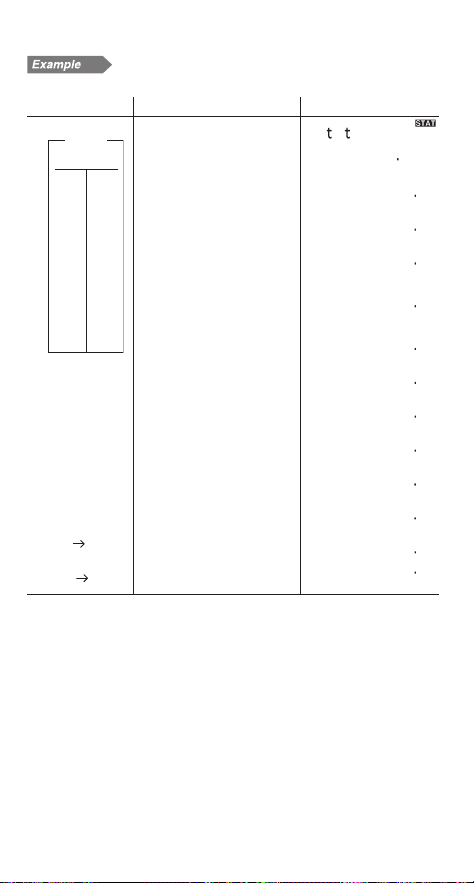
70
Linear regression calculation
Example Key operation Result
xy
m
1
1
S
a
1
000
25
2
>
5
J
DATA SET=
100
25
J
DATA SET=
200
12 24
12
>
24
J
DATA SET=
300
21
21
21
40
40
40
21
>
40
>
3
J
DATA SET=
400
15 25
15
>
25
J
DATA SET=
500
a
=
f
a
105
a
=
b
=
f
b
183
b
=
r
=
f
r
100
r
=
sx
=
f
4
854
Sx
=
sy
=
f
5
1567
Sy
=
x
= 3
y´
= ?
3
.
?
653
3y´
y
= 46
x´
= ?
46
.
9
2462
46x´
DATA
2
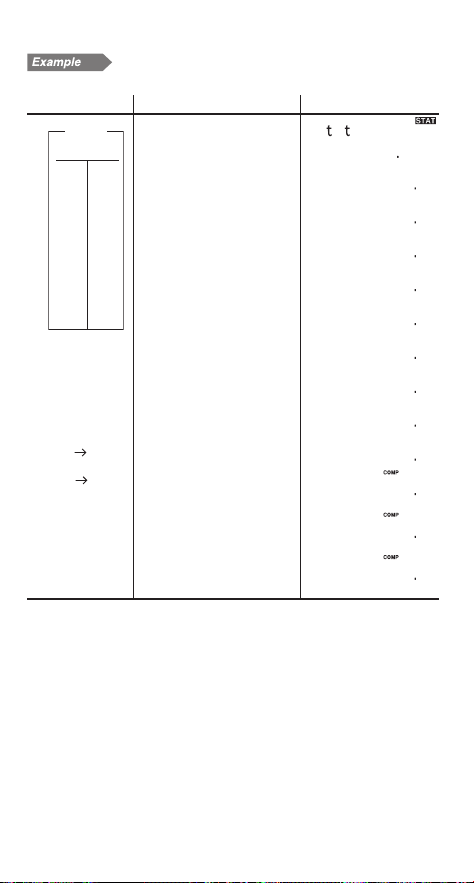
71
Quadratic regression calculation
Example Key operation Result
xy
m
1
2
S
a
2
000
12 41
12
>
41
J
DATA SET=
100
813
8
>
13
J
DATA SET=
200
52
5
>
2
J
DATA SET=
300
23 200
23
>
200
J
DATA SET=
400
15 71
15
>
71
J
DATA SET=
500
a
=
f
a
536
a
=
b
=
f
b
-312
b
=
c
=
f
a
050
c
=
x
= 10
y´
= ?
10
.
?
2449
10y´
y
= 22
x´
= ?
22
.
9
@
@
963
≈¡=
-343
≈™=
963
≈¡=
3
DATA
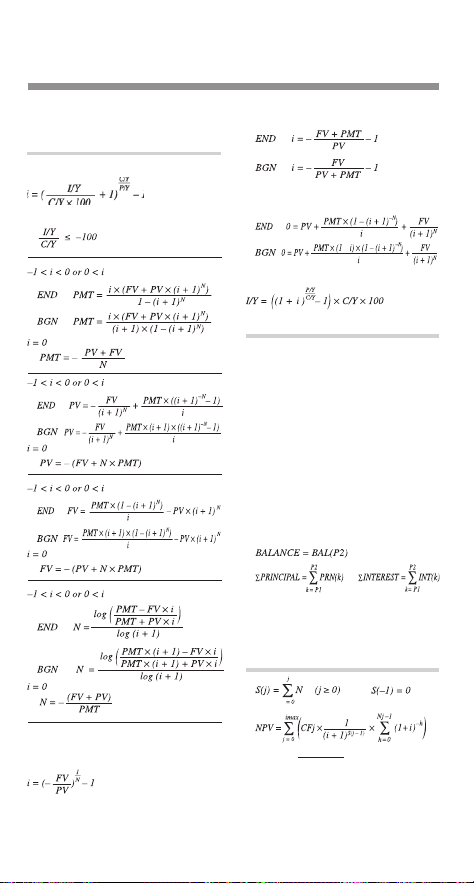
72
Appendix
Financial Calculation Formulas
TVM solver
PMT, PV, FV, N
Error
I/Y
If PMT = 0 then
If N = 1 then
If PMT
z
0 or N
z
1 then fi nd i using the fol-
lowing equations:
+
Error
i
d
–1
Amortization calculations
Calculations
(for PV, PMT, and i, see the TVM solver)
END INT(1) = ROUND(–PV
u
i)
BGN INT(1) = 0
PRN(1) = –INT(1) + ROUND(PMT)
BAL(1) = PRN(1) + PV
INT(m) = ROUND(–BAL(m – 1)
u
i)
PRN(m) = –INT(m) + ROUND(PMT)
BAL(m) = PRN(m) + BAL(m – 1)
ROUND(NUM): If a display notation tab
setting has been chosen, NUM is rounded and
truncated to the specifi ed number of places
after the decimal point.
Results
Error
AMRT P1 > AMRT P2
Discounted cash fl ow
analysis
m
m
CF
where i =
RATE(I/Y)
100
, CFimax = the maxi-
mum data set number
IRR is obtained as i, which satisfi es NPV = 0
in the above equations.
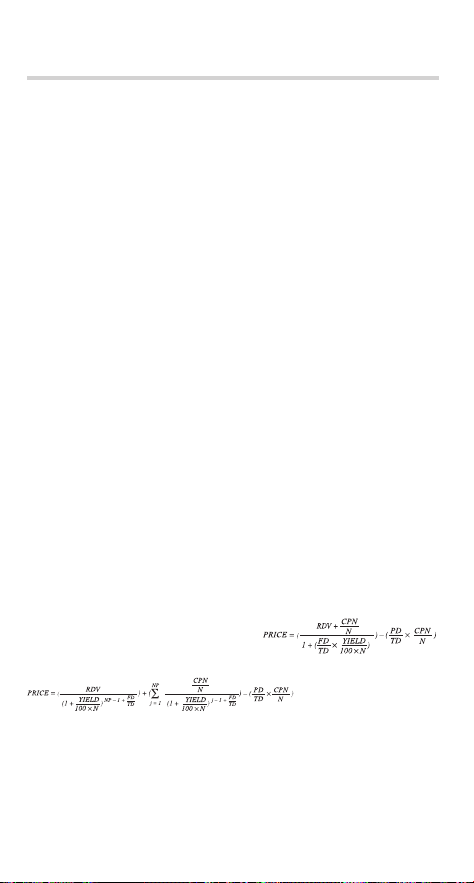
73
Bond calculations
In its bond calculations, this calculator conforms to rules set up by
the book titled Standard Securities Calculation Methods, by Jan
Mayle, Securities Industry Association, 1993.
Bond calculation is based on the following rules:
1. Whenever the redemption date happens to be the last day of a
month, coupons are also paid on the last days of months. For
example, if coupon payments are semi-annual and the redemp-
tion date is September 30, coupon payments occur on March 31
and September 30.
2. If coupons are to be paid twice a year and the redemption date
is set to August 29, 30, or 31, coupon payments for February
occur on the 28th (29th for leap years).
3. The “Odd Coupon” is not supported.
4. All data stored or calculated for bonds are assumed to be posi-
tive values. Negative values in any of the variables used by bond
calculations will cause errors.
The formulas used for bond calculations are shown using the follow-
ing variable defi nitions:
TD: Total number of days in the coupon period that begins with the
coupon date previous to the settlement date and ends with the
fi rst coupon date after the settlement date. (On the 360-day
calendar, TD is 180 for semi-annual coupon and 360 for annual
coupon.)
PD: The number of days preceding the settlement date in the cou-
pon period described above. (see “Day and date calculations”)
FD: The number of days following the settlement date in the coupon
period described above (in TD).
FD = TD – PD
NP: The number of whole coupon periods between the settlement
date and the redemption date (rounded up to the next highest
whole number, if necessary).
For one coupon period or less until redemption of bond:
For more than one coupon period until redemption:
where CPN = COUPON(PMT), RDV = REDEMPT(FV), N = CPN/Y(N), YIELD = YIELD(I/Y),
PRICE = PRICE(PV).
Yield is obtained as YIELD, which satisfi es the above equations.
Error
CPN < 0 or RDV < 0 or PRICE < 0 or M-D-Y 1
t
M-D-Y 2 or YIELD
d
–100
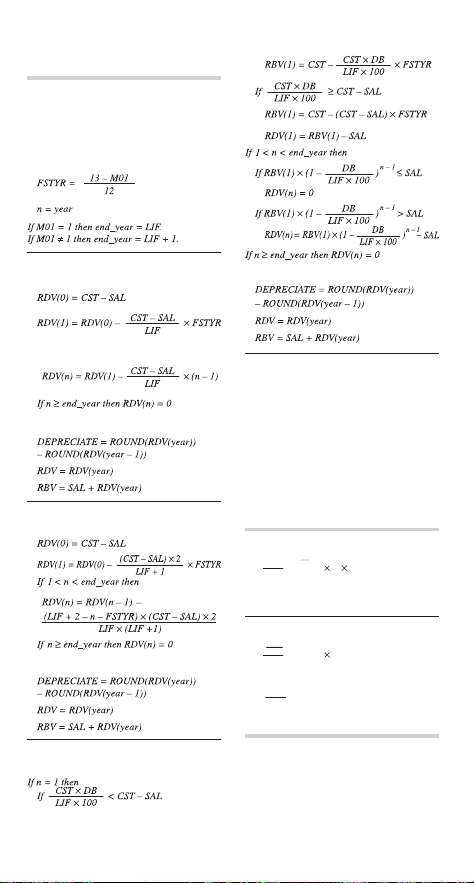
74
Depreciation calculations
ROUND(NUM): If a display notation tab
setting has been chosen, NUM is rounded and
truncated to the specifi ed number of places
after the decimal point.
In the following equations, M01 = START
MONTH, LIF = LIFE(N), CST = COST(PV),
SAL = SALVAGE(FV), and DB = DB(I/Y).
Straight-line method (SL)
Calculations
If 1 < n < end_year then
Results
Sum-of-the-years’ digits method (SYD)
Calculations
Results
Declining balance method (DB)
Calculations
Results
Error
CST < 0
SAL < 0
CST < SAL
LIF: when SL, LIF
d
0
when SYD or DB, LIF is not a positive
integer
I/Y < 0 (DB only)
Conversion between
APR and EFF
N
,
EFF
¬
APR
(( + 1) –1) N 100
EFF
100
1
N
Error
EFF
d
–100
N
,
APR
¬
EFF
(( + 1) –1) 100
APR
N
100
N
Error
≤ –100
APR
N
Day and date calculations
In day and date calculations, this calculator
conforms to rules set up in the book titled Stan-
dard Securities Calculation Methods, by Jan
Mayle, Securities Industry Association, 1993.
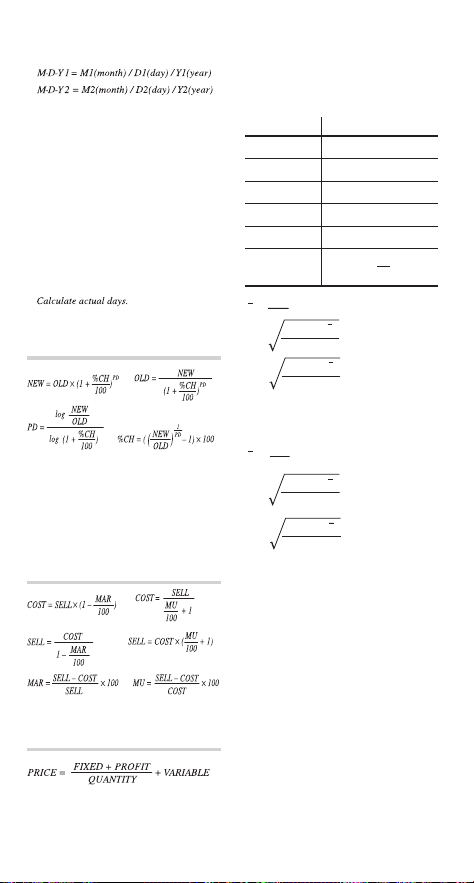
75
30/360
1. Adjust D1 and D2 according to the fol-
lowing rules:
(1) If D2 and D1 are both the last day of
February, change D2 to 30.
(2) If D1 is the last day of February,
change D1 to 30.
(3) If D2 is 31 and D1 is 30 or 31, change
D2 to 30.
(4) If D1 is 31, change D1 to 30.
2. Calculate using the following formula:
DAYS = (Y2 – Y1)
u
360 + (M2 – M1)
u
30 + (D2 – D1)
Actual
Percent change/Compound
interest calculations
where NEW = NEW PRC(FV), OLD = OLD
PRC(PV), %CH = %(I/Y), PD = PERIODS(N)
Error
%CH
d
–100
NEW
u
OLD
d
0
Cost/Sell/Margin/Markup
calculations
where MAR = MARGIN, MU = MARK UP
Breakeven calculations
Statistical Calcula-
tion Formulas
Type Regression formula
Linear
y = a + bx
Quadratic
y = a + bx + cx
2
Exponential
y = a • e
bx
Logarithmic
y = a + b •
In
x
Power
y = a • x
b
Inverse
1
y = a + b
x
x
=
x
n
Σ
s
x
=
x
2
– nx
2
n – 1
Σ
x
=
x
2
– nx
2
n
σ
Σ
x = x
1
+ x
2
+
···
+ x
n
Σ
x
2
= x
1
2
+ x
2
2
+
···
+ x
n
2
Σ
y
=
y
n
Σ
sy
=
y
2
– ny
2
n – 1
Σ
y
=
y
2
– ny
2
n
Σ
σ
y = y
1
+ y
2
+
···
+ y
n
Σ
y
2
= y
1
2
+ y
2
2
+
···
+ y
n
2
Σ
xy = x
1
y
1
+ x
2
y
2
+
···
+ x
n
y
n
Σ
An error will occur in a statisti-
cal calculation if:
• The absolute value of an
intermediate or calculation
result is equal to or greater
than 1
u
10
100
.
• The denominator is zero.
• An attempt is made to fi nd
the square root of a negative
number.
• No solution exists for a qua-
dratic regression calculation.

76
Errors and Calculation Ranges
Errors
An error will occur if an operation exceeds the calculation rang-
es, or if a mathematically illegal operation is attempted. When
an error occurs, pressing
g
or
y
automatically moves
the cursor back to the place in the equation where the error oc-
curred. Edit the equation or press
s
to clear the equation.
Note: If an error occurs during the automatic calculation of a
listed fi nancial variable, pressing
s
,
g
, or
y
displays the fi rst variable in the function.
Error codes and error types
Syntax error (Error 1):
• An attempt was made to perform an invalid operation.
Ex. 2
+
-
5
=
• During the editing or insertion of cash fl ow or statistical data,
a value was entered but
.
?
was pressed before
J
.
Calculation error (Error 2):
• The absolute value of an intermediate or fi nal calculation
result equals or exceeds 10
100
.
• An attempt was made to divide by zero.
• The calculation ranges were exceeded while performing cal-
culations.
• There was a fi nancial calculation error, such as:
• an error listed in “Financial Calculation Formulas” (see
pages 72 – 75) occurred
• an attempt was made to fi nd I/Y when PV, PMT
u
N, and
FV contain all negative or all positive values
• an attempt was made to fi nd IRR when the cash fl ow data
contains all negative or all positive values
• an attempt was made to fi nd YIELD in a bond calculation
when any of COUPON, REDEMPT, or PRICE contain
negative values
Depth error (Error 3):
• The available number of buffers was exceeded. (There are
10 buffers for numeric values and 24 buffers for calculation
instructions).
• The number of entered cash fl ow and statistics data items
combined exceeded 100.

77
Equation too long (Error 4):
• The equation exceeded its maximum input buffer (160 charac-
ters).
An equation must be shorter than 160 characters.
No solution (Error 5):
• The iteration limit was exceeded while calculating one of the
following values in an overly complex problem:
• I/Y (TVM solver)
• IRR (Discounted cash fl ow analysis)
• YIELD (Bond calculations)
If you get an error while calculating IRR, enter an estimated
value into RATE(I/Y) and calculate again.
Display error (Error 6):
• An attempt was made to display “9.999
u
10
99
” when the dis-
play notation tab number was set to “2”.
If this happens, press
s
and
~
0
2
to set the
display notation settings to “fl oating point”. Then try again.
Input value error (Error 7):
• An attempt was made to enter a nonexistent date.
Ex. February 30th
• An attempt was made to enter an invalid numeric value into a
fi nancial calculation.
• a negative value or 0 into P/Y or C/Y
• anything except an integer between 1 and 9,999 into AMRT
P1 or AMRT P2
• a non-integer into DAYS
• anything except 1 or 2 into CPN/Y
• anything except an integer between 1 and 999 as a cash
fl ow frequency
• anything except a positive integer into YEAR
• anything except a value between 1 and 13 into START
MONTH
*
1
*
1

78
Calculation ranges of functions
• Within the ranges specifi ed, this calculator is accurate to within ±1
of the least signifi cant digit of the mantissa. However, a calculation
error increases in continuous calculations due to accumulation of
each calculation error. (This is the same for fi nancial calculations,
scientifi c calculations [
y
x
,
x
,
e
x
, ln, n!, etc.], where continuous
calculations are performed internally.)
Additionally, a calculation error will accumulate and become larger
in the vicinity of infl ection points and singular points of functions.
In fi nancial calculations, a calculation error increases if the
interest is low or the number of payments is high. Press
s
if you’d like to cancel the calculation while the “calculating!”
screen is displayed.
• Calculation ranges
±10
–99
to ±9.999999999
u
10
99
and 0.
If the absolute value of an entry or a fi nal or intermediate result
of a calculation is less than 10
–99
, the value is considered to be
0 in calculations and in the display.
Function Calculation range
sin
x
, cos
x
,
tan
x
DEG: |
x
| < 10
10
(tan
x
: |
x
|
z
90 (2n – 1))*
S
RAD: |
x
| <
—
u
10
10
180
S
(tan
x
: |
x
|
z
—
(2n – 1))*
2
10
GRAD: |
x
| <
—
u
10
10
9
(tan
x
: |
x
|
z
100 (2n – 1))*
sin
–1
x
, cos
–1
x
|
x
|
d
1
tan
–1
x
|
x
| < 10
100
In
x
, log
x
10
–99
d
x
<
10
100
y
x
•
y
> 0: –10
100
<
x
log
y
< 100
•
y
= 0: 0 <
x
< 10
100
•
y
< 0:
x
= n
(0 <
|
x
| < 1:
1
—
x
= 2n – 1,
x
z
0),*
–10
100
<
x
log |
y
| < 100
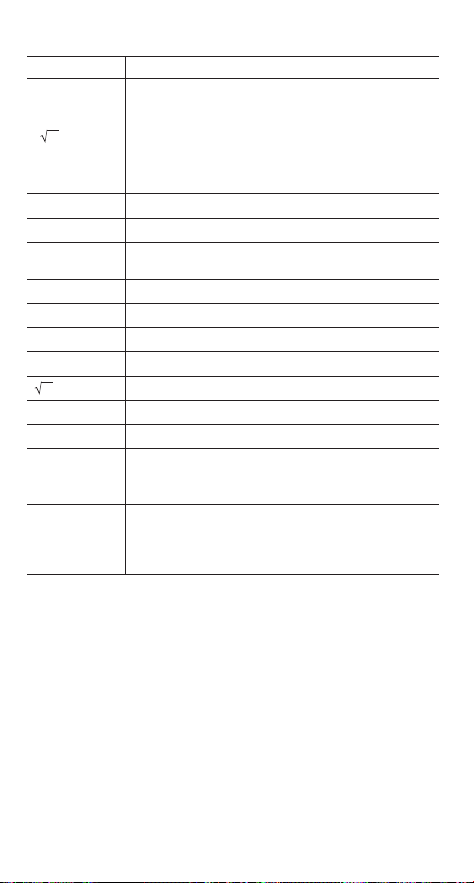
79
Function Calculation range
x
y
•
y
> 0: –10
100
<
1
—
x
log
y
< 100 (
x
z
0)
•
y
= 0: 0 <
x
< 10
100
•
y
< 0:
x
= 2n – 1
(0 <
|
x
| < 1:
1
—
x
= n,
x
z
0),*
–10
100
<
1
—
x
log |
y
| < 100
e
x
–10
100
<
x
d
230.2585092
10
x
–10
100
<
x
<
100
sinh
x
, cosh
x
,
tanh
x
|
x
|
d
230.2585092
sinh
–1
x
|
x
| < 10
50
cosh
–1
x
1
d
x
< 10
50
tanh
–1
x
|
x
| < 1
x
2
|
x
| < 10
50
x
0
d
x
<
10
100
1/
x
|
x
| < 10
100
(
x
z
0)
n! 0
d
n
d
69*
nPr
0
d
r
d
n
d
9,999,999,999*
n!
—
< 10
100
(n – r)!
nCr
0
d
r
d
n
d
9,999,999,999*
0
d
r
d
69
n!
—
< 10
100
(n – r)!
* n, r: integer

80
Battery Replacement
Notes on battery replacement
Improper handling of battery can cause electrolyte leakage or
explosion. Be sure to observe the following handling rules:
• Make sure the new battery is the correct type.
• When installing, orient the battery correctly, as indicated in the
calculator.
• The factory-installed battery may be exhausted before it
reaches the service life stated in the specifi cations.
Note on the erasure of memory contents
When the battery is replaced, the memory contents are
erased. Erasure can also occur if the calculator is defective
or when it is repaired. Make a note of all important memory
contents in case accidental erasure occurs.
When to replace the battery
If the display has poor contrast, or if nothing appears on the
screen, even when
s
is pressed, it is time to replace the bat-
tery.
Caution
• Fluid from a leaking battery accidentally entering an eye could
result in serious injury. Should this occur, wash with clean
water and immediately consult a doctor.
• Should fl uid from a leaking battery come into contact with your
skin or clothes, wash them immediately with clean water.
• If the product is not to be used for some time, to avoid dam-
age to the unit from leaking battery, remove it and store in a
safe place.
• Keep battery out of the reach of children.
• Exhausted battery that is left in the calculator may leak and
damage the unit.
• Explosion risk may be caused by incorrect handling.
• Do not throw battery into a fi re, as it may explode.
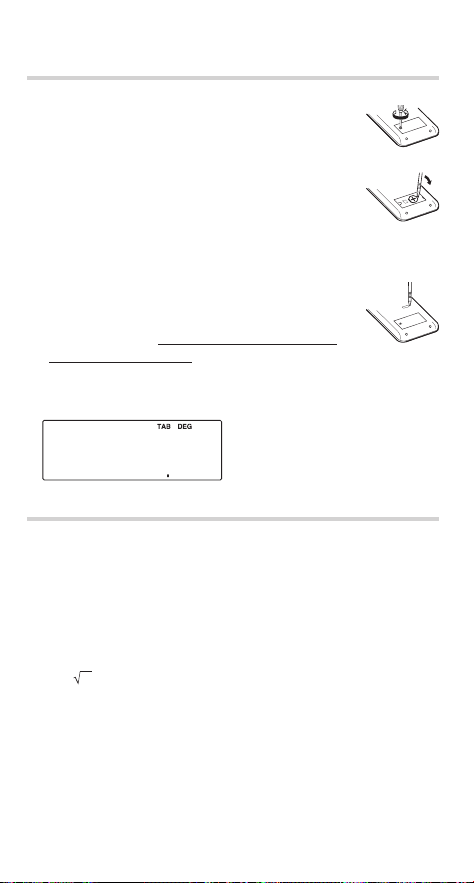
81
Replacement procedure
1. Turn the power off by pressing
.
c
.
2. Loosen the screw and remove the battery
cover. (see fi g. 1)
3. Remove the used battery using a ball-point
pen or similar object. Do not use a mechanical
pencil or any sharp or pointed object to remove
the battery. (see fi g. 2)
4. Install one new battery. Make sure the “+” side
is facing up.
5. Replace the battery cover and the screw.
6. Press the RESET switch located on the back
of the calculator with the tip of a ball-point pen
or similar object. Do not use an object with a
breakable or sharp tip. (see fi g. 3)
• Make sure that the display appears as shown.
If not, remove the battery, reinstall, and check the display
again.
Automatic power-off function
This calculator will turn its power off automatically if no key is
pressed for about 10 minutes.
Priority Levels in Calculations
This calculator performs operations according to the following
priority:
1. Functions preceded by their argument (
x
2
, n!, etc.)
2.
y
x
,
x
3. Implied multiplication of a memory value (2Y, etc.)
4. Functions followed by their argument (sin, cos, etc.)
5. Implied multiplication of a function (2sin 30, etc.)
6. nCr, nPr
7.
u
,
÷
8.
+
, –
9. =, M+, M–,
M, and any other calculation ending instructions
000
fi g. 3
fi g. 2
fi g. 1
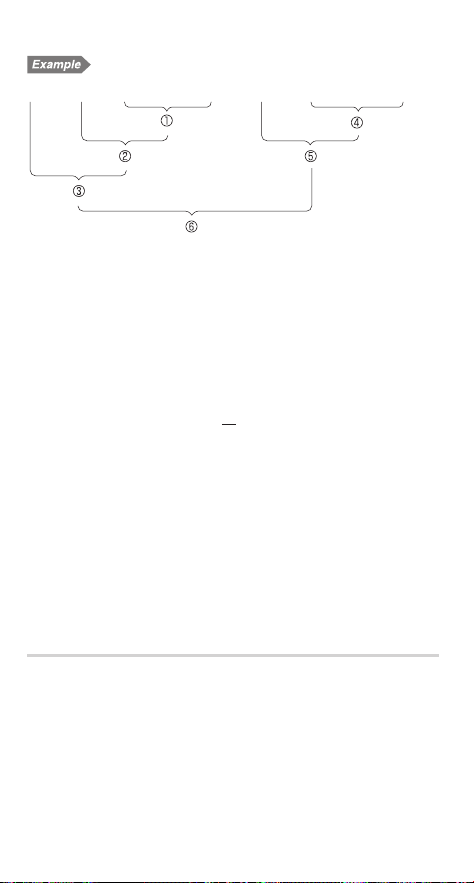
82
Key operation and calculation priority
5 + 2 x . { 30 + 25 x 5 . @ 3 =
• Parenthesized operations take precedence over other operations.
Specifi cations
Calculations: Financial calculations
General arithmetic calculations
Scientifi c calculations
Statistical calculations
Calculation method: D.A.L. (Direct Algebraic Logic)
Internal calculations: Mantissas of up to 14 digits
Pending operations: 24 calculations, 10 numeric values
Power source: 3.0 V …
(DC)
Lithium battery (CR2032)
u
1
Operating life:
Approx. 5 years (with 1 hour of daily use)
• May vary depending on the operating
environment and operation method.
Operating temperature: 0°C – 40°C (32°F – 104°F)
External dimensions: 77 mm (W)
u
150 mm (D)
u
12 mm (H)
3-1/32” (W)
u
5-29/32” (D)
u
15/32” (H)
Weight:
Approx. 94 g ( 0.21 lb.) (including battery)
Accessories: Battery
u
1 (installed), operation
manual, and hard case
For more information about fi nancial calculators
Visit us on the Internet at:
http://sharp-world.com/calculator/

83
Index
>
, 37, 51, 64
+
-
x
8
, 4, 11
=
, 11, 15
,
, 11, 37, 61
(
)
, 11, 16, 61
<
, 23
}
:
, 60, 61
%
, 16, 62
B
, 54
z
i
g
y
, 6, 13
!
P
, 51
.
, 11
, 16, 61
;
, 61
:
, 61
.
, 4, 6, 7
&
, 44, 45, 52
i
, 4, 6, 7, 15
*
, 33
/
, 15, 16, 23
"
, 22, 28, 33
#
, 45
$
, 58
b
, 12, 19
<
, 41
>
, 37, 38
?
, 39, 66
@
, 7, 19
I
, 56
J
, 37, 64
K
, 52
L
, 12
O
, 49
Q
, 7, 19
R
, 61
S
, 11
t
, 22, 23
]
, 7, 61
f
, 22, 23
d
, 13
e
, 39, 66
d
, 61
h
, 61
M
, 15
h
, 11, 16
j
, 16
k
, 5, 12, 13
l
, 63
m
, 6, 10, 12
N
, 22, 23
o
, 62
p
q
, 62
c
, 6
s
, 6, 12
w
, 22, 23
u
, 22, 23
, 22, 23
|
, 62, 63
f
, 7, 15
~
, 6, 8–10
g
, 7, 15
;
, 16, 60, 61, 69
@
, 61
% (I/Y), 18, 54, 75
¦
INTEREST, 33, 72
¦
PRINCIPAL, 33, 72
ACCU INT, 44
Amortization calculations,
17, 33–36, 72
AMRT P1, AMRT P2, 12, 33, 77
Angular unit, 8, 9, 61
Annuity due, 7, 22, 28
ANS (last answer memory), 14, 15
APR, 17, 51, 74
Arithmetic calculations, 11
Arithmetic operations (+, –,
u
, ÷), 11
Automatic power-off function, 81
BALANCE, 33, 72
Battery replacement, 80, 81
Bond calculations, 17, 18, 44–47, 73
Breakeven calculations, 17, 58, 59, 75
(symbol), 8, 20
Calculation ranges, 78, 79
Calculator layout, 6
Calendar range, 44, 47, 52
Cash flow data, 12, 37–40, 76
Cash flow diagrams, 21
Chain calculations, 60
COMP (symbol), 7, 20
Compound interest, 21, 54–56, 75
Constant calculations, 60
Conversion between APR and EFF, 17, 51
COST, 56, 75
COST (PV), 18, 48, 74
Cost/sell/margin/markup calculations,
17, 56, 57, 75
COUPON (PMT), 18, 44, 73, 76
CPN/Y (N), 18, 44, 77
Cursor key, 6, 13
C/Y, 18, 22, 72, 77
Date format, 10, 44, 47, 52
Day and date calculations,
17, 18, 52–54, 74
Day-count method (ACT/360), 44, 52
DAYS, 52, 53, 75
DB, 9, 48, 74
DB (I/Y), 18, 48, 74
Decimal place, 8, 9, 63
DEG, 8, 9, 61, 78
Delete key, 12
DEPRECIATE, 48
Depreciation calculations,
17, 18, 48–50, 74
Depreciation method, 9, 48

84
Discounted cash flow analysis,
17, 18, 37–43, 72
Display layout, 7
Display notation, 8
EFF, 17, 51, 74
ENT (symbol), 7, 20
Entering dates, 47
Entering numbers, 11
Error, 14, 76–78
EXP, 64
Financial calculations, 17, 18, 72
FIXED, 58, 75
FLO_A (FLOAT A), FLO_B (FLOAT B), 7, 9
Floating point, 8, 9
Formulas, 72–75
FV, 18, 22, 72
GRAD, 8, 9, 61, 78
Independent memory (M), 8, 12, 14, 15
Insert mode, 13
INV, 64
IRR, 40, 41, 72, 77
I/Y, 18, 22, 72, 77
LIFE (N), 18, 48, 74
LINE, 64
Listed financial variables, 12, 14, 15, 18, 19
LOG, 64
M (symbol), 8
MARGIN, 56, 75
MARK UP, 56, 75
M-D-Y 1, M-D-Y 2, 18, 44, 52, 73, 75
Memory clear key, 5, 12, 13
Modify function, 63
N, 18, 22, 72
NET_PV, 40
NEW PRC (FV), 18, 54, 75
NORMAL mode, 10, 17, 60
NPV, 40, 41, 72
OLD PRC (PV), 18, 54, 75
Ordinary annuity, 7, 22, 28
Overwrite mode, 13
Payment period (payment due), 22, 28
Percent change/compound interest
calculations, 17, 18, 54–56, 75
PERIODS (N), 18, 54, 75
Playback function, 13
PMT, 18, 22, 72
PRICE, 58, 75
PRICE (PV), 18, 44, 45, 73, 76
Priority levels in calculations, 81, 82
PROFIT, 58
PV, 18, 22, 72
PWR, 64
P/Y, 18, 22, 72, 77
QUAD, 64
QUANTITY, 58
RAD, 8, 9, 61, 78
Random coin, 62
Random dice, 62
Random functions, 62–63
Random integer, 63
Random numbers, 62
RATE (I/Y), 18, 40, 72
RBV, 48, 74
RDV, 48, 74
REDEMPT (FV), 18, 44, 73, 76
RESET switch, 5, 12, 81
Resetting the calculator, 5
SALVAGE (FV), 18, 48, 74
SCI, 7, 8
Scientific calculations, 60–63
Scientific notation, 8, 9, 11, 63
SD, 64
SELL, 56, 75
SET UP menu, 8–10
SL, 9, 48, 74
Specifications, 82
START MONTH, 48, 74, 77
(symbol), 8, 10, 64
STAT (statistics) mode, 10, 64
Statistical calculations, 10, 64–71
Statistical data, 12, 64–67, 76
Statistical variables, 12, 14, 16, 68
Symbol, 7
SYD, 9, 48, 74
TAB, 7, 8
Temporary memory (A-H, X-Z), 12, 14, 15
TVM (time value of money) solver,
17, 22–32, 72
TVM variable, 12, 14, 15, 18, 19, 22
VARIABLE, 58, 75
YEAR, 12, 48, 77
YIELD (I/Y), 18, 44, 45, 73, 76, 77

For Australia only:
DANGER
THIS PRODUCT CONTAINS A BUTTON / COIN BATTERY
Do not ingest battery, Chemical Burn Hazard.
Please keep new and used batteries away from children.
If the button/coin cell battery is swallowed or placed inside
any part of the body, it can cause severe internal burns or
injuries in just 2 hours or less and can lead to death.
If you think batteries might have been swallowed or placed
inside any part of the body, seek immediate medical
attention.
If the battery compartment does not close securely, stop
using the product and keep it away from children.
Australian Poisons Information Centre
Call this number if you think someone has swallowed a
button/coin battery.
You can call 24 hours a day, 7 days a week from anywhere
in Australia.
Phone: 131 126
Warnings for safe disposal of Batteries
・
Place non-conductive adhesive tape around both sides
of the battery and dispose/recycle immediately and
safely out of reach of children.
・
Safely dispose/recycle used button/coin batteries
following local council/government guidelines.
・
Information about these guidelines can be found at the
following link.
https://www.sharp.net.au/battery

22ESC(TINSEA335EHZZ)