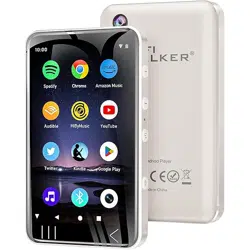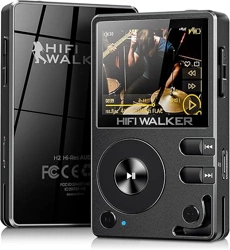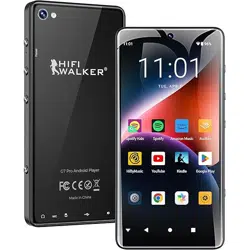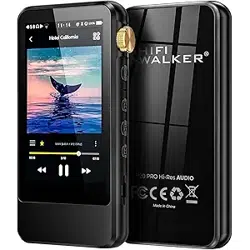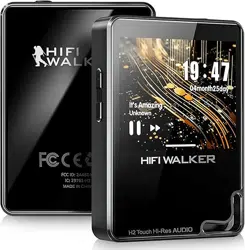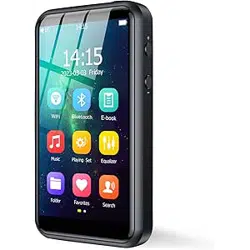

H2 Touch Pro Hi-Res Player
User Manual

1
Contents
Read Before Use ................................................... 4
Chapter I Product Introduction ........................ 5
1. Product features .................................................5
2. What’s in the box ? ........................................... 6
3. Product safety information ................................7
4. Product illustration and function .......................9
Chapter II Operation Instructions .................... 11
1. Power ON/OFF ............................................... 11
2. Lock mode .......................................................11
3. Reboot the player ............................................ 11
4. Return ..............................................................12
5. Volume adjustment ......................................... 12
6. Introduction of touch gestures .........................12
7. Drop-down menu ............................................ 13
Chapter III Introduction of Functions ................. 14
1. Music ...............................................................14

2
2. Playing Set ...................................................... 15
3. Equalizer ......................................................... 17
4. Folder .............................................................. 18
5. Favorites ..........................................................19
6. Search ..............................................................20
7. WIFI ................................................................ 22
8. Bluetooth .........................................................23
9. E-book .............................................................24
Chapter IV System Set .....................................25
1. Screen brightness ............................................ 25
2. Backlight time ................................................. 26
3. Power off time .................................................26
4. Sleep time ........................................................26
5. Lock the screen clock ......................................26
6. Automatically update ...................................... 27
7. Language setting ............................................. 27
8. Wallpaper settings ...........................................27

3
9. System upgrade ............................................... 28
10. Product information ...................................... 28
11. Restore default set. ........................................28
12. Format disk ................................................... 28
Chapter V Connecting Computers ...................... 29
1. Connect to the computer. ................................ 29
2. Upload and download files ............................. 30
3. Disconnect from the computer ........................30
4. Batteries and charging .....................................31
5. Trouble Shooting .............................................32
6. Technical specifications ..................................35

4
Read Before Use
Thank you for purchasing HIFI WAKER H2 Touch
Pro!
Please read the manual carefully before using the player,
which will help you to use this product better.
If you have any problems during using the product.
Please contact our customer service, Thank you!
Website: www.hifiwalker.com
Customer Service: support@hifiwalker.com
Facebook: @HIFIWALKER.Official
YouTube: HIFI WALKER

5
Chapter I Product Introduction
1.
Product features
᛫ 3.5-inch high-resolution IPS true color full touch
and multi-touch capacitive screen.
᛫ Pure aluminum alloy material, CNC processing
technology with 2.5D tempered glass mirror.
᛫ High-fidelity digital lossless music player.
᛫ Professional ARM 64-bit quad-core Cortex-A35
audio processor and imported stereo headphones
decode to restore real audio.
᛫ Bluetooth 4.2 provides fast pairing and stable
connections.
᛫ Album cover and lyrics synchronization.
᛫ The breakpoint function memorizes the track
position of the stopped song, the startup volume, or the
custom volume.
᛫ High-precision Time function.
᛫ An external TF card with a maximum capacity of
1TB.
᛫ CUE breakpoint function.
᛫ MP3, WMA, WAV, FLAC, APE, OGG, M4A, AIFF,
DTS, DSF, DFF, DSD256, and other formats, with

6
excellent sound quality.
᛫ Equalizer functions include Custom, Vocal, Pop,
Jazz, Rock, Metal, Classical, Dance, Sad, and Off.
᛫ Multiple play modes: playlist, single play, random
play, and list loop.
᛫ Add my favorite songs to playlist.
᛫ Multi-theme wallpapers and DIY wallpapers.
᛫ Song search function, genre and voice search.
2. What’s in the box ?
1* HIFIWALKER H2 Touch Pro Player
1* TYPE C USB Cable
1* Card Ejection Pin
1* Velvet bag
1* Quick Guide

7
3. Product safety information
Warming: This manual describes how to properly use
your new MP3 player. Read it carefully to avoid
damaging the player and injuring yourself. Pay
particular attention to the following serious warnings:
Do not disassemble, repair, or modify this product
on your own.
Do not get the product wet or drop it in water. If
the product gets wet, do not switch it on because
you could get an electric shock.
Do not use the product during a thunderstorm, as
it may cause malfunction or a risk of electric
shock.
Do not use the earphones while you are driving a
bicycle, automobile or motorcycle. It can cause a
serious accident, and furthermore, is prohibited

8
by law in some areas. Using the earphones while
walking or jogging on a road, in particular, on a
crosswalk can lead to a serious accident.
For your safety, make sure the earphone cable
does not get in the way of your arm or other
surrounding objects while you are taking
exercise or a walk.
Do not place the product in damp, dusty, or sooty
areas because these environments could lead to
fire or electric shock.
Using earphones or headphones for an extended
time may cause serious damage to your hearing.
Do not spray water on the product. Never clean
the product with chemical substances such as
benzene or thinner, as it may cause fire, electric
shock or deteriorate the surface.
9
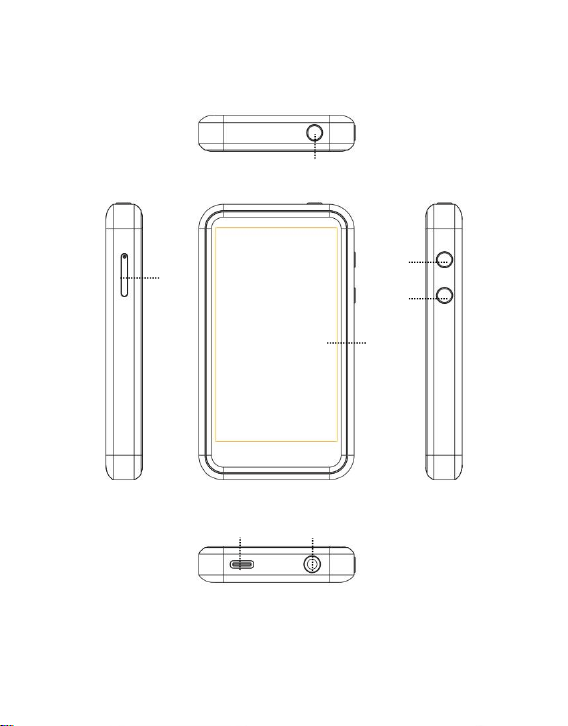
4. Product illustration and function
2
1
3
4
5
6
7
10
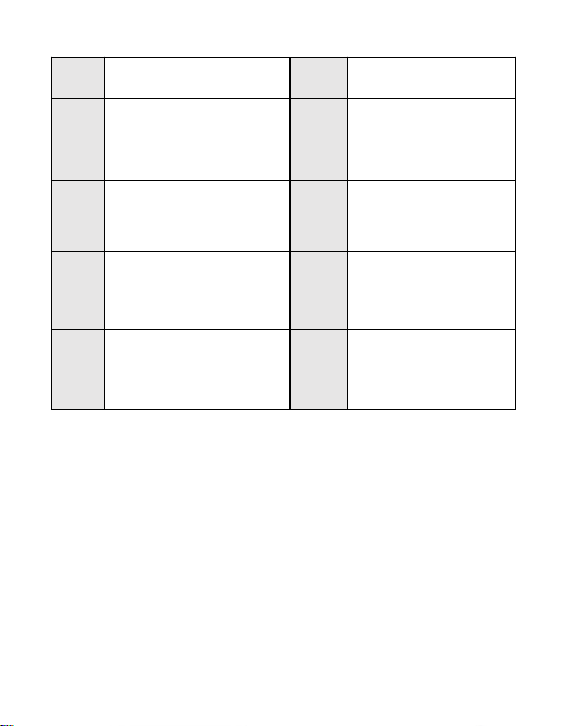
No.
Description
No.
Description
1
Power button &
Screen lock button
2
TF card tray
3
Full touch screen
4
Up volume
button
5
Down volume
button
6
USB connection
port
7
3.5mm earphone
connection jack
11
Chapter II Operation Instructions
1. Power ON/OFF
Press the power button and hold for 3
seconds to turn on/off the player. When
turning on, the boot interface will be
shown in the display.
2. Lock mode
Short press the power button to enter
into screen-lock mode(the screen will
be locked automatically). Then touch
the screen and slide up to unlock.
3. Reboot the player
If the player crashes, press the power button and hold
for 8 seconds, then release it to reset the system. If the

12
player still cannot be turned on, check that the
remaining amount of the player battery is sufficient to
turn on.
4. Return
"<" : return back to last menu.
" " : return back to main menu.
5. Volume adjustment
"Volume+" :to turn up the volume.
"Volume-" :to turn down the volume.
Note: In the screen-locked state, the volume can also be
adjusted directly.
6. Introduction of touch gestures
In the Main interface, swipe left and right to switch the
main interface;
In the File list or Menu list, swipe up/down to scroll
up/down the list.
13
7. Drop-down menu
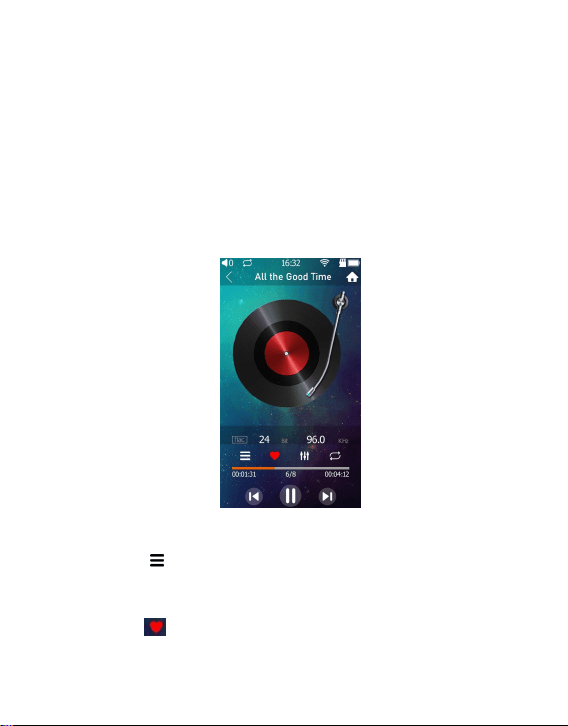
1. Swipe down from the top of the display screen to get
short-cut menu.
2. 5 functions: Brightness level adjustment, Volume
adjustment, Music control(the last song/the next song,
play/pause),Bluetooth on/off and WiFi on/off.
14
Chapter III Introduction of Functions
1. Music
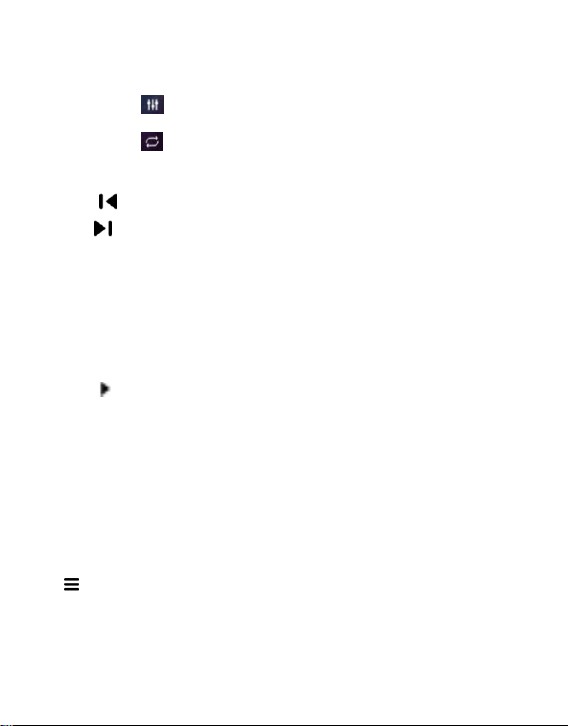
Tap "Music"icon and enter into the playing interface.
Tap " " to enter into playback settings, which is
same function as "Playing Set".
Tap" " to mark and add the song into favorite
15
song list.
Tap" " to set equalizer.
Tap" "to change its play mode.
Fast forward/rewind the previous song/next song
Tap " " to switch the playing music into the last song.
Tap" " to switch the playing music into the next song.
Fast forward/rewind: drag the progress bar into the
position directly.
Play/Pause
Tap "‖" to pause the playing music.
Tap " " to resume to play the music.
Music file selection
Tap "
<
" to return to the playlist menu.
2. Playing Set
On the main interface, tap the "Playing Set" icon, or
" " when the music is playing, it will be directed to
play function for below 9 functions:
1) Play Mode

16
Tap the "play mode" to choose playing way from:
Playlist, Single play, Shuffle, and List loop.
2) Memory play
Tap "Memory Play" menu to to choose memory mode
from: Close, Track and Position.
3) Maximum volume
Tap the icon to set up the maximum volume from 0-32
by dragging the progress bar.
Save the volume
When it is ON, it will memorize and store the shutdown
volume. And its start-up volume will always be same as
last shutdown volume.
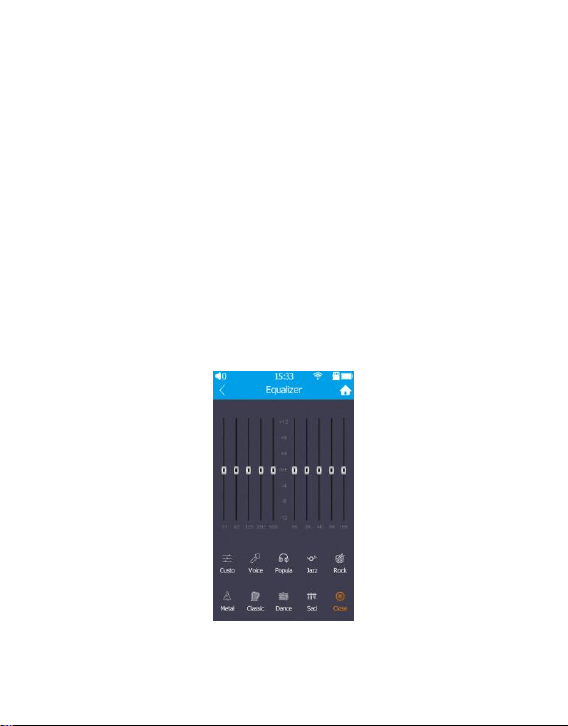
4) Equalizer
Tap "Equalizer" icon to fast choose equalizer from:
Custo, Voice, Popula, Jazz, Rock, Metal, Classic, Dance,
Sad, Close.
5) Digital filter
Choose from Fast Roll-off, Slow Roll-off and Minimum
Phase for audio quality fine-tuning.
17
6) List update
When it is on, the player will automatically search and
update the play-list the next time it is turned on.
7) Delete the current file
Tap "Delete Current File" icon to delete the selected file
from current play-list.
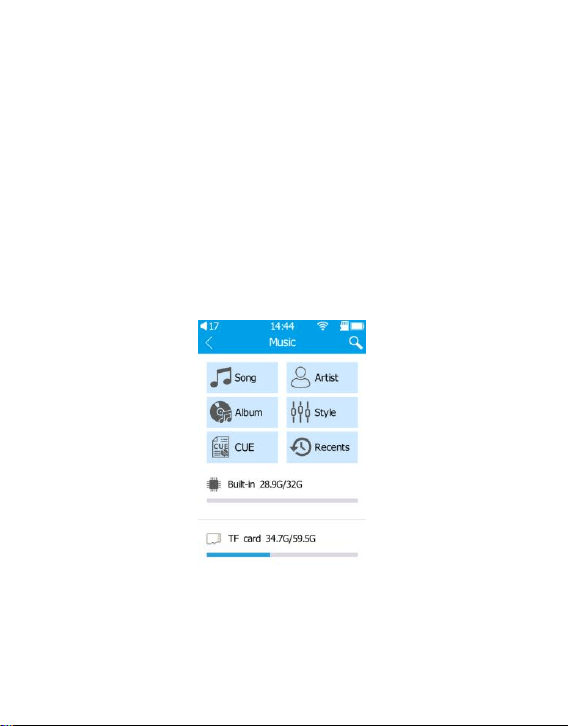
3. Equalizer
On the main interface, tap "Equalizer" icon to fast
18
choose equalizer effect from: Custo, Voice, Popula, Jazz,
Rock, Metal, Classic, Dance, Sad, Close.
Tips: Custo means customization, which supports user
to set all factors by themselves.
Tap the "<" back button to exit.
4. Folder
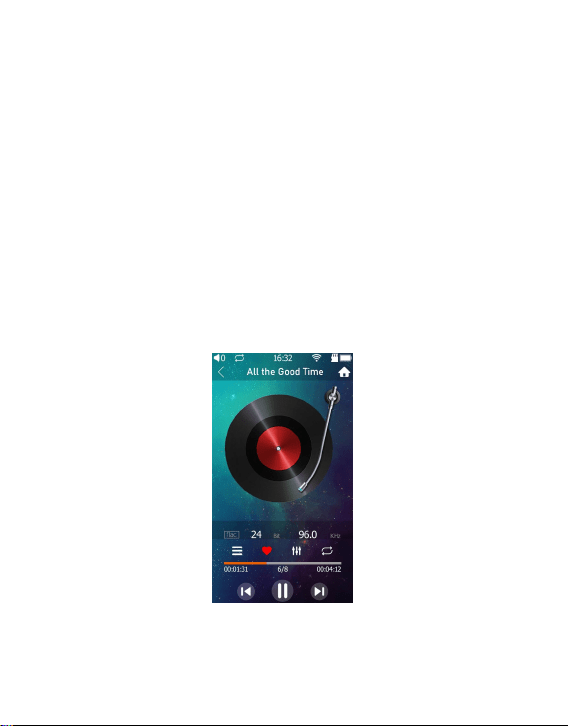
In the main menu, tap"Folder" icon.
19
All musics are classified according to song name,
Artist, Album, Style, CUE and Recent playing
music, convenient for the players to fast identify
preference music.
Built-in storage contains all music stored in built-in
player.
TF Card contains all music stored in external TF
card.
5. Favorites
1) Add to my favorites
Tap the "Music" menu and mark the song as

20
"Favorite". When the heart icon turns into red ,
it is successful.
In Favorite list, tap"+" in the right up corner to add
the favorite songs.
2) Play my favorite songs
Tap the song title to play directly
3) Delete my favorite markers
Cancel "Favorites" in music play interface
Long press the song’s title in my favorite song’s
list, and choose "Yes" when asked if to "Delete
this file"
6. Search
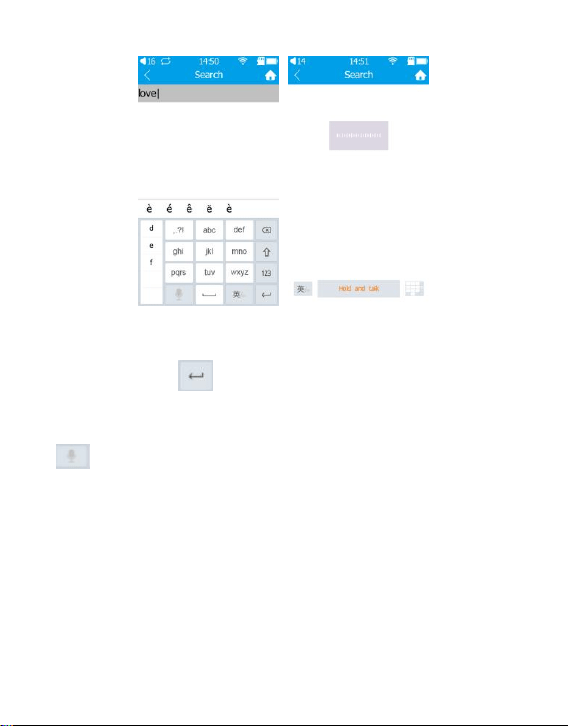
Tap " Search" icon to star song search function.
Before searching, available WIFI should be connected.
It supports both manual song name search or voice
search.
21
1) Manual search
Manual type research supports Chinese and English
language. Tap to finish the type and start search.
2) Voice search
Tap microphone icon, then press and talk to speak
out the song’s title.(Local music search is only available
when connected to WIFI)
22
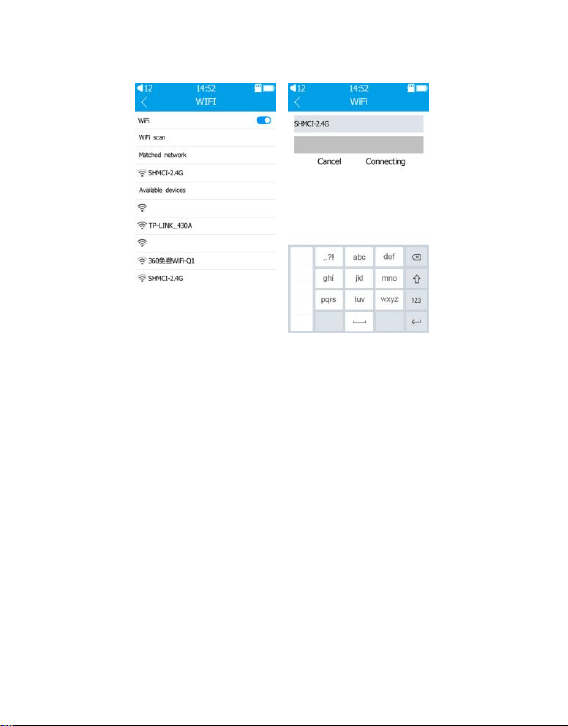
7. WIFI
1) Turn on Wifi switch, it will automatically scan
available Wifi.
2) Choose available Wifi and connect it with Wifi
password.
3) After connected successfully, Wifi name will be
displayed in the Matched network.
4) Wifi could be turned off.
23
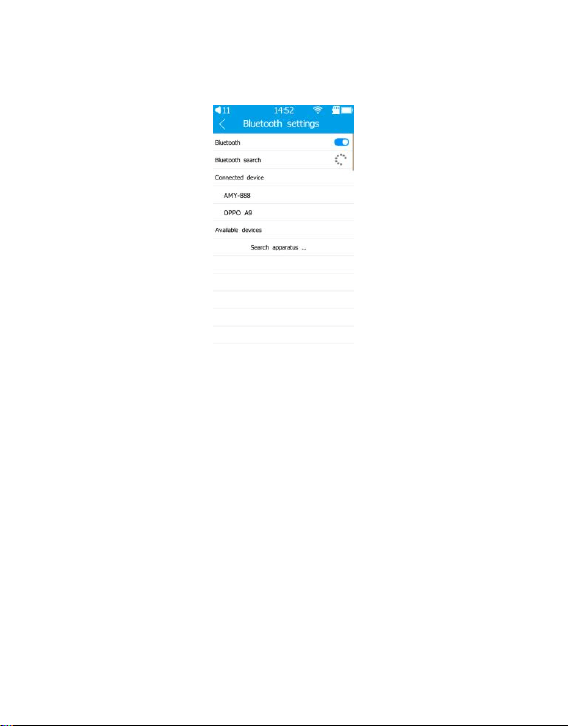
8. Bluetooth
1) Turn on Bluetooth switch, it will automatically
scan available bluetooth.
2) All available devices will be listed. Choose wanted
device, tap the bluetooth name and it will start to
connect automatically.
3) After connected successfully, connected bluetooth
device name will be displayed in the Connected
device.
4) Bluetooth could be turned off.

24
9. E-book
Tap"E-book" menu to enter into the list of e-book
files.
Tap E-book title and then scroll up/down to check
the details.
Touch the top of the screen to select Exit or Return
to Main Menu.
25
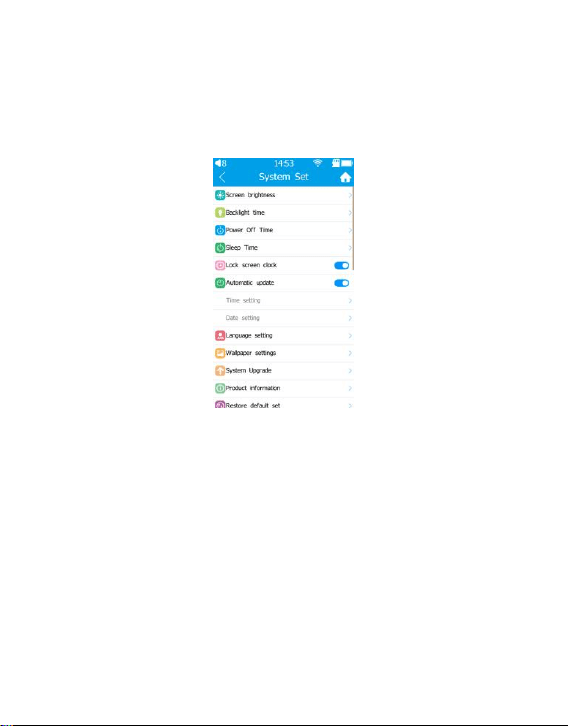
Chapter IV System Set
Tap System Set icon for the system set
1. Screen brightness
Set screen brightness from 0-10. When set is finished,
tap any point of the screen to exist set action.

26
2. Backlight time
Set the machine backlight time from 10s-120s, or on for
always-on-display.
3. Power off time
It is the time to automatically turn off system for saving
power. It could be chosen from 1-8 minutes, or turned
off directly.
4. Sleep time
The MP3 will be turned off compulsively in playing
status. It could be set from 10min to 120min, or turned
off.
Tips: The set is for once only.
5. Lock the screen clock
When it is turned on, when MP3 is unlocked, it is
required to slide up to close the screen lock firstly, then

27
enter into main interface.
When it is turned off, whenever to unlock the MP3, it
will enters into main interface directly.
The screen lock clock can be set on or off.
6. Automatically update
When turned on, it will automatically update in Wifi
connected status.
When it is turned off, the update time and date are able
to be manually set
7. Language setting
It supports multi-languages, including Simplified
Chinese, Traditional Chinese, English, Japanese, Korean,
Deutsch, Le francais, Lingua Italiana, Espanol, Russian,
and Portuguese.
8. Wallpaper settings
It supports system built-in or DIY wallpaper for main
interface. DIY watch faces maximum supports

28
720*1280 resolution. which could be selected
9. System upgrade
It supports OTA upgrade. When new firmware is
officially released, the system will be automatically
upgraded under WIFI connected status.
Tips: The battery should be higher than 50%.
10. Product information
The product details including model, RAM, ROM,
external flash,software version and serial number will be
displayed.
11. Restore default set.
Factory setting: the factory setting can be restored.
12. Format disk
Format TF Card or Built-in Storage.
Note: All data cannot be recovered after formatting.
please pay attention to backup.
29
Chapter V Connecting Computers
1. Connect to the computer.
Please connect MP3 and USB socket of
computer with the provided USB cable
to download & upload files.Once
connected, speaker will enters into U
disk mode.
For the first connection, the computer
will prompt you some instructions such
as "Create a driver information base"and
"Find new hardware ". Once finished,
the speaker could be automatically
detected.
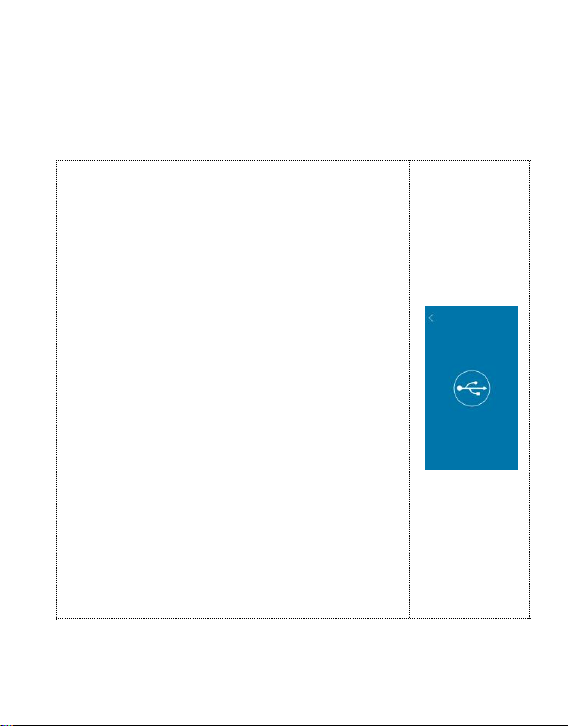
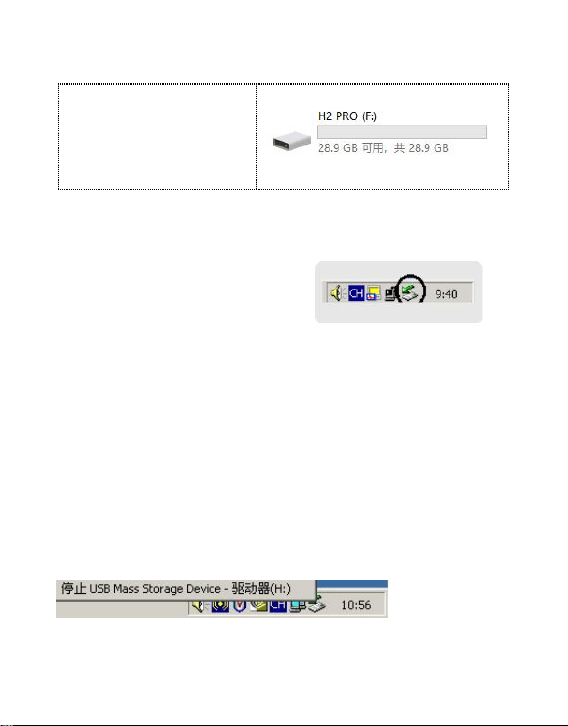
When there is reminder as right image, it
connected successfully..
30
2. Upload and download files
It will show as right
image in Windows
system.
3. Disconnect from the computer
After file transfer finished,
please turn off "My
computer" or "File explorer"
firstly, then unplug the connecting cable as follows.
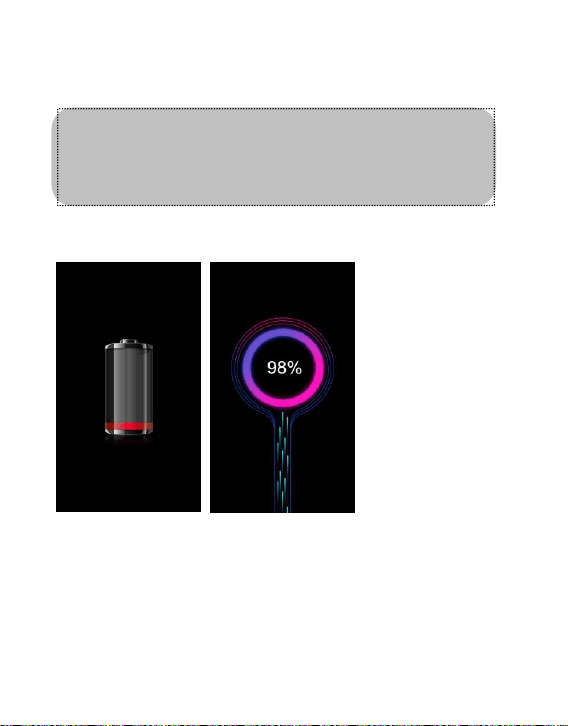
For Windows 2000 and above, please operate system as
below instructions:
Click the green arrow in the lower right corner of your
computer.
Click"stop USB Mass Storage Device Disk-drive".
Click "OK" in the dialog box of "Safely remove
31
hardware", then unplug the USB cable.
4. Batteries and charging
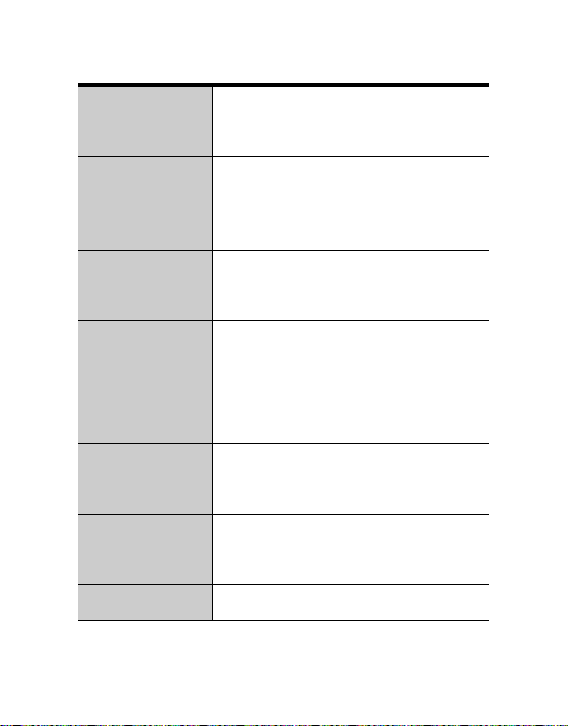
Check the remaining battery power after start-up. If
in low power, please charge it in time to ensure
normal use! When the system enters the low-power
state, there will be low-power reminder and will be
Note: Different operating system may have
slight change. The above picture is for
reference only.

32
shut down automatically.
1. Charging via adapter: Please use standard 5V
2000mA power adapter and provided charging cable.
The charging time is around 3 hours.
2. Charging via computer USB: When the USB
cable is connected between player and computer,
please remove it as hardware according to above
instruction. Then it will be in charging situation.
The charging time might be longer than 3 hours.
3. In the charging state, press power on/off button,
it will enters into main interface, and remain
battery charging still.
5. Trouble Shooting
-Black screen after turning on
Please charge the battery ensure there is enough power
for turning on.
If the machine crashes, please press and hold the

33
"power" key for 8 seconds to reset the system and
restart it. If it still fails to start,please check the power
status.
-No sound when playing the song
Please turn up the volume
Please download the music file
-Music files are unable to download after connected
Please upgrade the motherboard driver.
-Computer abnormal when plugging and unplugging
the player
Please do NOT disconnect during file transfer progress
-Overall memory display is inconsistent with the
actual memory.
Some memory space is used to store programs and
display fonts.

34
-Some MP3 songs can't play properly in the player.
1) Ensure the file is in MPEG I Layer 3 format
2) Delete the incompatible songs from the player
-The files in the player are unable to be deleted
through the management software? Or when
deleting files in the player, "Delete failed or delete
error" is reminded?
Check whether the files in the player are "read-only"
through "My Computer". If yes, modify the "read-only"
into "archive attribute" and delete it.
-When it is used as external hard drive, any driver
installation is required in WINDOWS
XP/VISTA/WINDOWS 10 systems?
No need to install drivers. Currently, WINDOWS98
operating system is not supported.
35
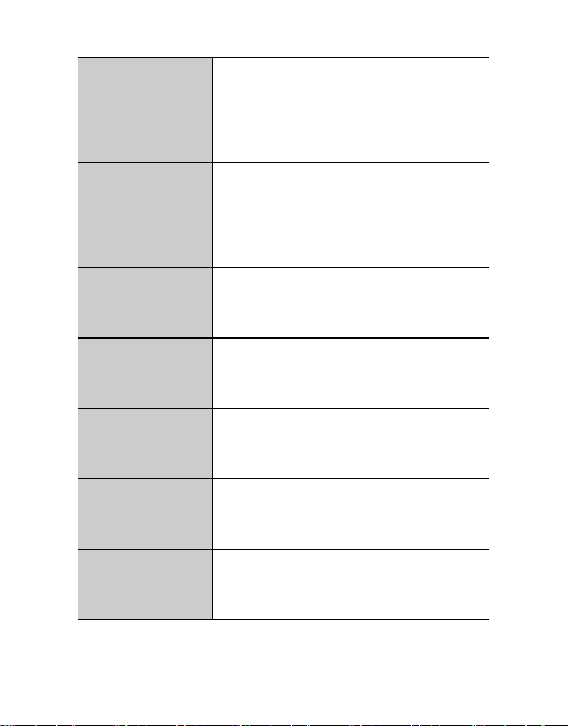
6. Technical specifications
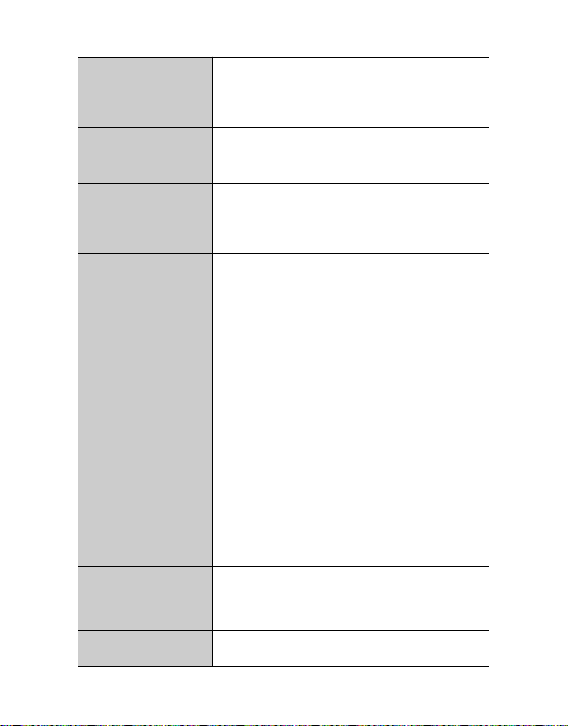
Product
name
Digital music player/MP3
Memory
Built-in 32GB EMMC FLASH
External TF card (up to 1TB)
Operating
system
Linux MOS
LCD
3.5 inch IPS TFT Dot-matrix
display
Resolution: 480×854
Touch screen
Multi-point full touch
capacitive screen
Battery
Built-in lithium battery: 3.7V
1900mAh
SNR
≥80dB
36
frequency
response
20Hz-20KHz
Breakpoint
Yes
Audio format
MP3 WMA WAV APE FLAC
ACC OGG AIFF DSD256
Audio code
stream rate
MP3/WMA:16Kbps-320Kbps
WAV maximum:64BIT
384KHZ.
AIFF maximum: 32BIT
192KHZ.
APE/FLAC maximum: 24BIT
192KHZ.
DSD maximum: 1BIT
DSD256 1.2MHZ
Wallpaper
Maximum pixel:720×1280.
Bluetooth
4.2
37
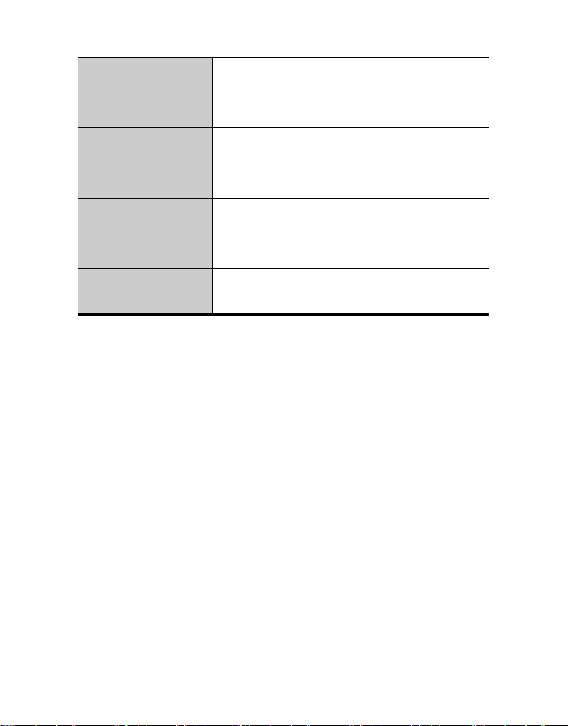
Working time
About 8 hours (Play with
wired headphones when
Bluetooth and WiFi are off)
Battery
charging
time
About 3 hours ( 5V,2000mA
adapter)
Volume
control
32-level digital volume control
mode
Headphone
output power
1.0V 50mw
Working
temperature
-5℃~40℃
Headphone
output
Two channel output
Transmission
interface
TYPE C USB2.0
38
Compatible
system
WINDOWS
XP/VISTA/WINDOWS 10
Size
(L×W×H)
100×57×14mm
System
language
Chinese, English and other
languages
net weight
About 145g (including battery)
The contents of this instruction manual are subject to
change without prior notice.