Help Guide
Solid-State Memory Camcorder
PXW-Z200/HXR-NX800
Help Guide Recommended Pages
Support Information
Basic Operation Procedure
Describes the basic shooting procedure for the camera.
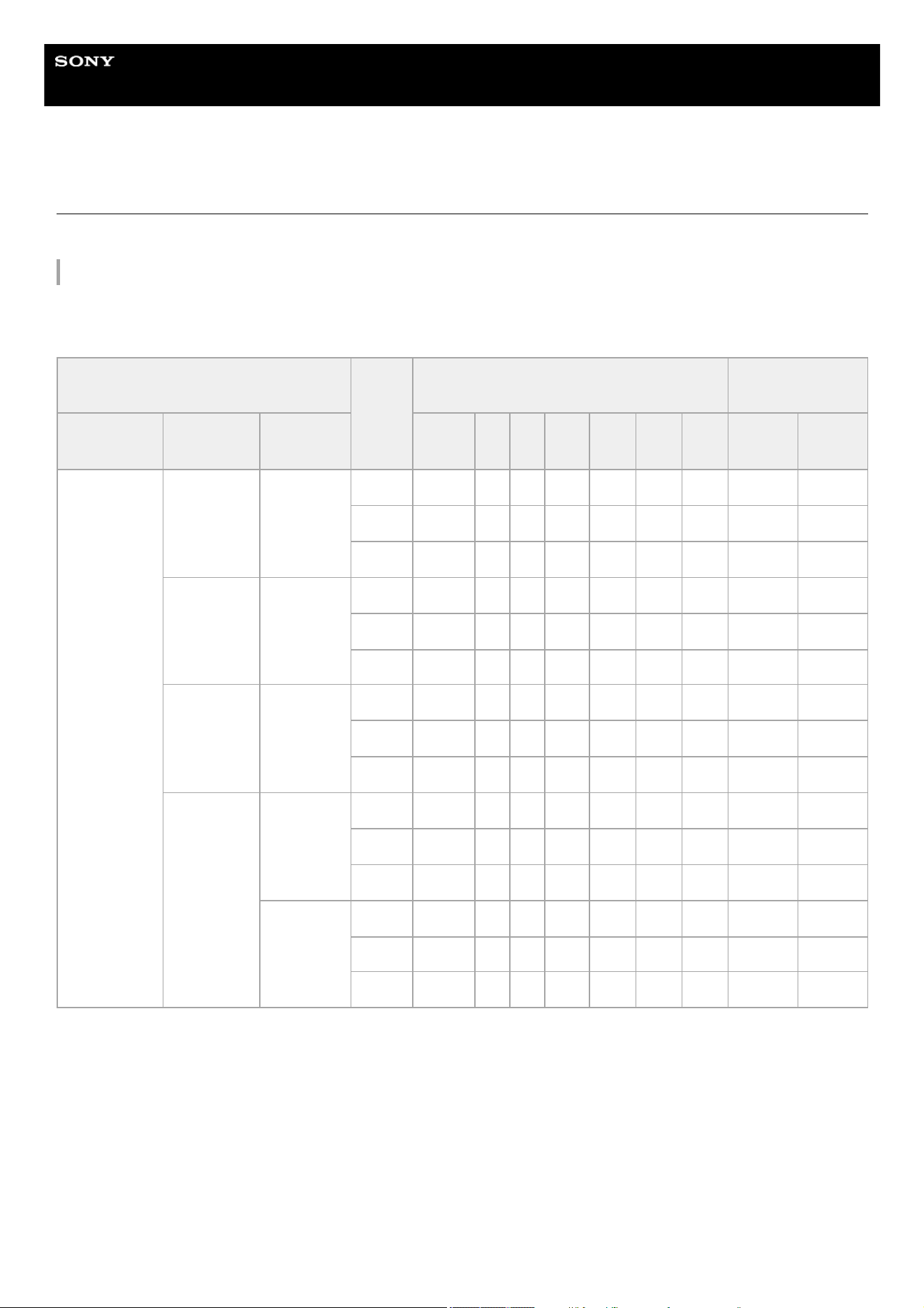
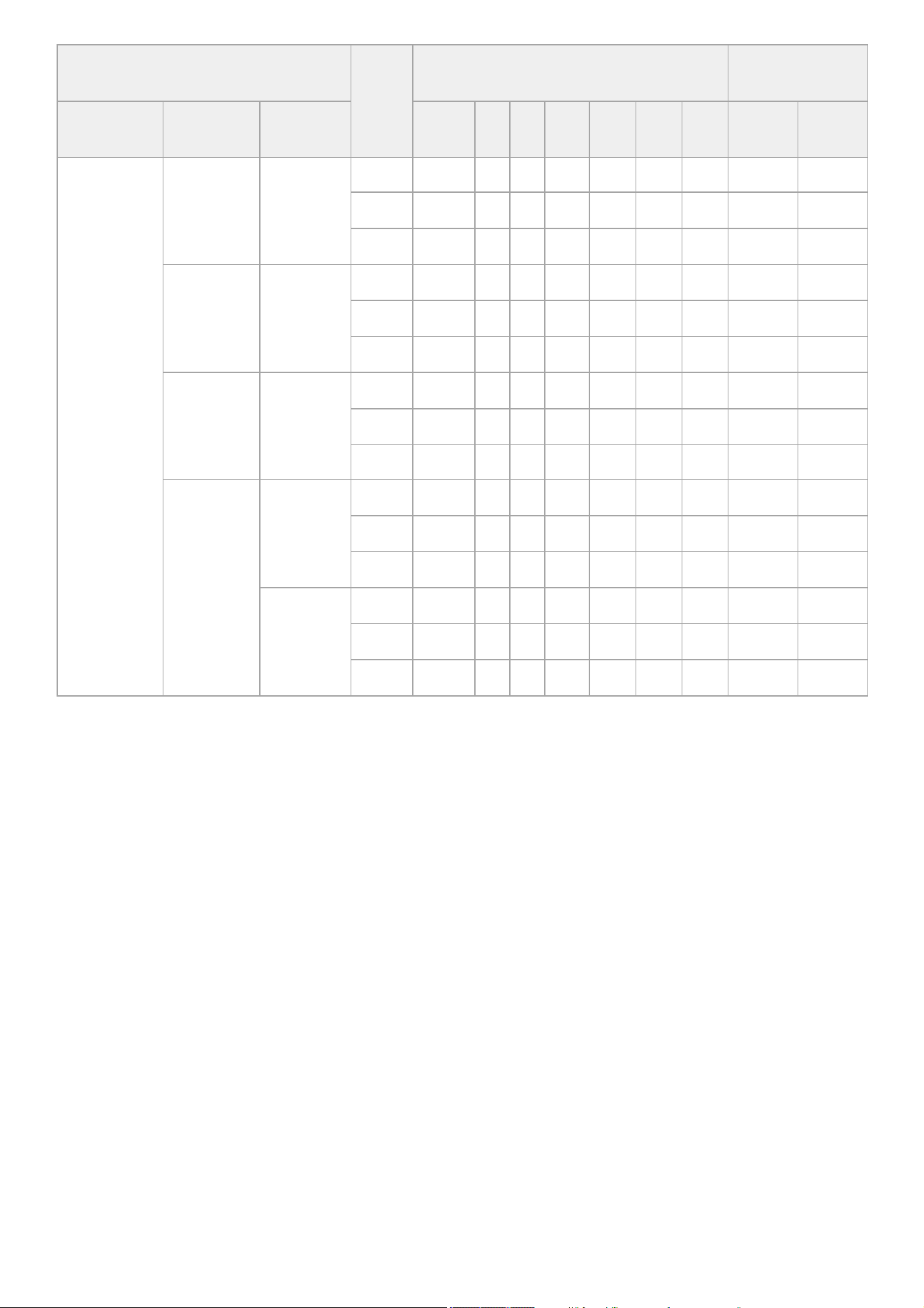
Recommended Memory Cards
Provides information about the memory cards supported by the unit.
PXW-Z200/HXR-NX800: Support Information
Describes basic information about the camera, information about accessories, and FAQ for troubleshooting.
Monitor & Control Help Guide
“Monitor & Control” is an application that connects to a single camera, supports remote control of the camera, and
displays/operates the camera clips.
Read This First
How to Use This Help Guide
Usage Precautions
Name of Parts
System Configuration
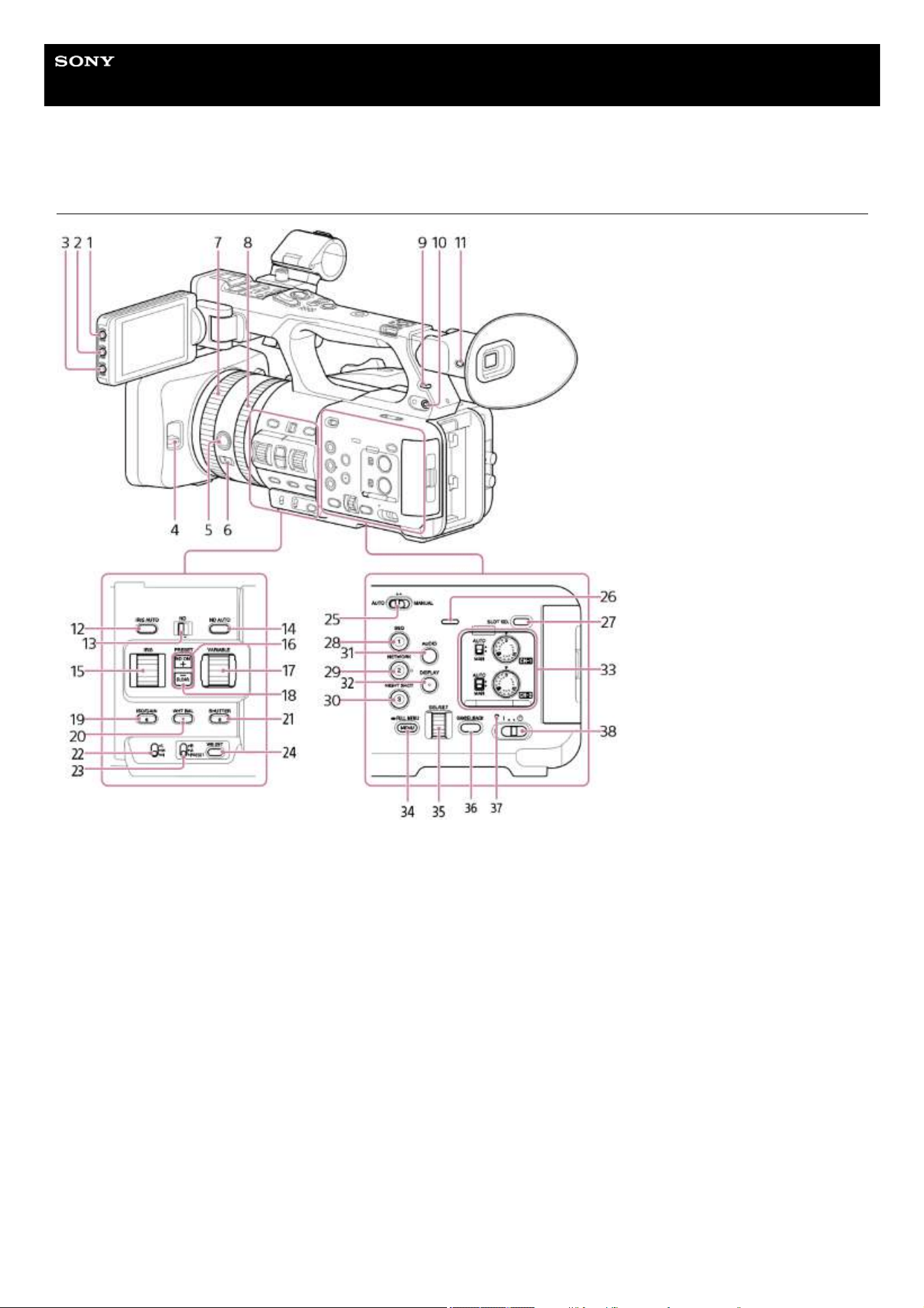
Left Side/Front Side
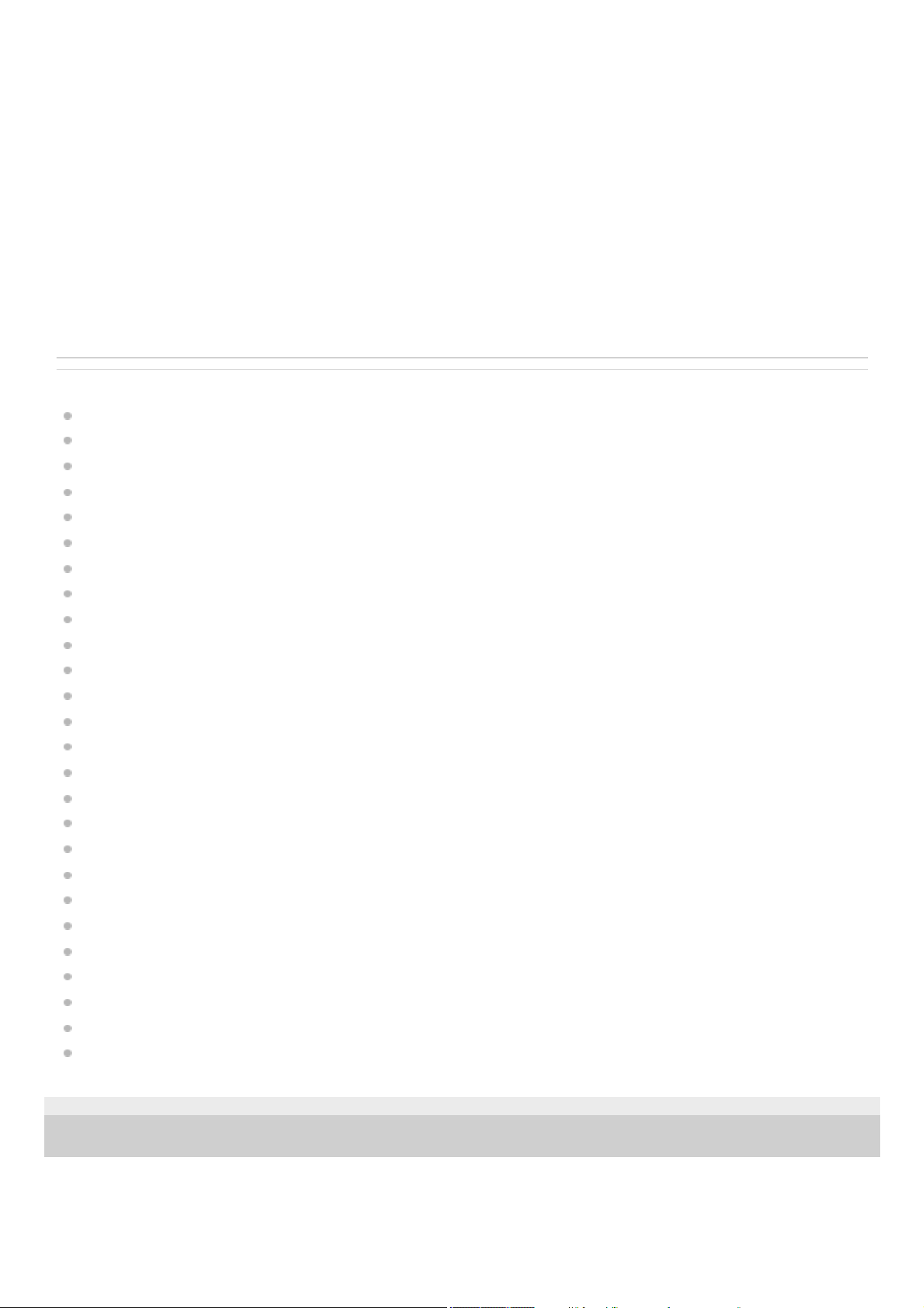
Right Side
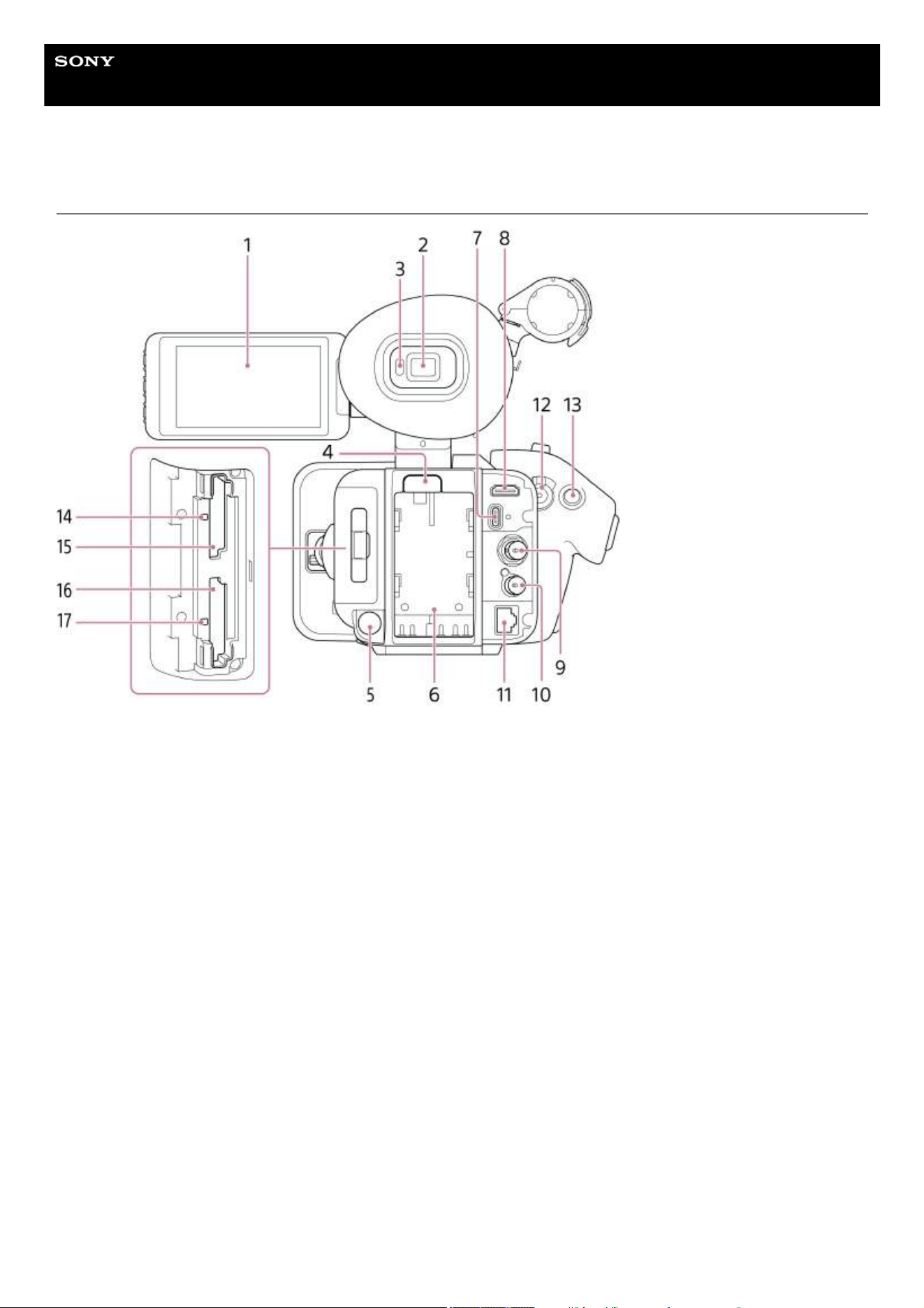
Rear Side/Connector Block/Card Slots
Top Side/Handle
Bottom Side
Removing the Microphone Holder
Attaching the Accessory Shoe
1
Using the Touch Panel
Screen Display
Status Screen
Preparation
Power Supply
Using a Battery Pack
Using an AC Adaptor
Switching the Power On/Off
Basic Configuration
Date and Time
Accessibility Functions
Configuring Basic Operation
Shooting Mode
Recording Format
Attaching Devices
Attaching a Microphone (sold separately)
Attaching the LCD Hood (supplied)
Attaching the Lens Hood (supplied)
Attaching the Large Eyecup
Adjusting the LCD Monitor
Adjusting the Angle of the LCD Monitor
Adjusting the Brightness of the LCD Monitor
Magnifying the LCD Monitor Screen Display
Adjusting the Viewfinder
Adjusting the Angle of the Viewfinder
Adjusting the Brightness of the Viewfinder
Switching Between the LCD Monitor/Viewfinder Display
Using Memory Cards
Memory Cards
Recommended Memory Cards
2
Inserting a Memory Card
Ejecting a Memory Card
Initializing Memory Cards
Checking the Remaining Recording Time
Shooting
Basic Operation Procedure
Adjusting the Zoom
Zooming using the Zoom Lever
Selecting the Type of Zoom
Zooming using the Handle Zoom Lever
Zooming using the Zoom Ring
Adjusting the Focus
Adjusting the Focus Manually
Focusing using Touch Operation
Using Auto Focus Temporarily
Focusing using Magnified View
Adjusting the Focus Automatically
Setting the Auto Focus Area/Position
Changing the Focus Area Quickly
Moving the Focus Area Frame using Touch Operation
Adjusting the Auto Focus Operation
Changing the Focus Target Manually
Using Manual Focus Temporarily
Tracking using Human Detection
Tracking a Specified Subject
Starting Realtime Tracking AF
Stopping Realtime Tracking AF
Notes on Shooting
Adjusting the Brightness
Adjusting the Iris
3
Adjusting the Gain
Adjusting the Shutter
Adjusting the Light Level
Adjusting the White Balance
Adjusting the White Balance Automatically
Adjusting the White Balance Manually
Configuring Image Stabilization
Using Image Stabilization
Configuring Audio
Setting the Audio to Record
Selecting the Audio Input Device
Adjusting the Audio Recording Level Automatically
Adjusting the Audio Recording Level Manually
Adding Audio Input Connectors
Using Shooting Functions
Direct Menu
Assignable Buttons
Slow & Quick Motion
Auto Framing
Recording to Both Memory Cards A and B
Video Signal Monitor
Gamma Display Assist Function
Clip Flags
Proxy Recording
Proxy Recording
Recording and Uploading a Proxy Clip in Chunks
Shooting with the Desired Look
Selecting a Look
Importing a Desired Base Look
Customizing a Look
Saving a Look
4
Deleting a Base Look
Shooting in Dark Locations
Connecting to a Network
Network Functions
Using “Monitor & Control”
Connecting with “Monitor & Control”
Connecting to the Internet
Connecting to the Internet via Wireless LAN
Connecting to the Internet via USB Tethering
Connecting to the Internet via Wired LAN
Using Creators' App for enterprise
Transferring Files to “C3 Portal”
Transferring Files
Preparing to Transfer Files
Selecting and Transferring a Clip
Transferring Clips Automatically
Transferring using Secure FTP
Streaming
Playback
Structure of the Thumbnail Screen
Playing a Clip
Clip Operations
Changing Settings
Menu List
Full Menu Operations
Entering a Character String
Locking the Menu
Unlocking the Menu
Using the Screen Reader
5
Magnifying the Screen Display
Configuring Full Menu Functions
[User] Menu
[Edit User Menu] Menu
[Shooting] Menu
[Project] Menu
[Paint/Look] Menu
[TC/Media] Menu
[Monitoring] Menu
[Audio] Menu
[Thumbnail] Menu
[Technical] Menu
[Network] Menu
[Maintenance] Menu
[ISO/Gain] Settings and Default Values
[AGC Limit] Settings and Default Values
[Video Format] / [Quality] / [Bit Rate] Settings
Image Quality Settings Saved for Each Shooting Mode
Saving a Configuration File
Using External Devices
Using a Monitor and Recording Devices
Preparing to Connect an External Monitor/Recorder
Connecting an External Device to the SDI Output (PXW-Z200 only)
Connecting an External Device to the HDMI Output
Synchronizing Timecode with an External Device (PXW-Z200 only)
Using a Remote Controller
Using a Mobile Device or LANC Remote Control
Using a Bluetooth Remote Control
Using a Computer
Managing/Editing Clips using a Computer
6

Help Guide
Solid-State Memory Camcorder
PXW-Z200/HXR-NX800
How to Use This Help Guide
This Help Guide describes the functions and use of the PXW-Z200 and HXR-NX800.
The PXW-Z200 is equipped with an SDI OUT connector and a TC IN/OUT connector. Other than the above, the functions and
operation of the PXW-Z200 and HXR-NX800 are common. Where the functionality differs, the corresponding model name is
stated in the description and title.
Use the Help Guide to find the information you want about using this unit.
TP1001670285
5-060-574-11(2) Copyright 2024 Sony Corporation
8
Help Guide
Solid-State Memory Camcorder
PXW-Z200/HXR-NX800
Usage Precautions
On condensation
If the unit is suddenly taken from a cold to a warm location, or if ambient temperature suddenly rises, moisture may form on
the outer surface of the unit and/or inside of the unit. This is known as condensation. If condensation occurs, turn off the unit
and wait until the condensation clears before operating the unit. Operating the unit while condensation is present may
damage the unit.
On LCD panels
The LCD panel fitted to this unit is manufactured with high precision technology, giving a functioning pixel ratio of at least
99.99%. Thus a very small proportion of pixels may be “stuck”, either always off (black), always on (red, green, or blue), or
flashing. In addition, over a long period of use, because of the physical characteristics of the liquid crystal display, such
“stuck” pixels may appear spontaneously. These problems are not a malfunction. Note that any such problems have no effect
on recorded data.
On OLED panels
The OLED panel used for the viewfinder fitted to this unit is manufactured with high precision technology, giving a
functioning pixel ratio of at least 99.99%. Thus a very small proportion of pixels may be “stuck”, either always off (black),
always on (red, green, or blue), or flashing. In addition, over a long period of use, because of the physical characteristics
of the organic light-emitting diode, such “stuck” pixels may appear spontaneously. These problems are not a malfunction.
Note that any such problems have no effect on recorded data.
Because of the physical characteristics of the OLED panel, image persistence or low brightness may occur. These
problems are not a malfunction, and the OLED panel can be used without problems. Some primary colors may become
visible in the viewfinder if you change your line of sight, but this is not a malfunction. These colors are not recorded onto
the memory cards.
Touch panel usage precautions
The LCD monitor of the unit is a touch panel, which you operate directly by touch using your finger.
The touch panel is designed to be touched lightly with your finger. Do not press the panel with force or touch it using sharp-
edged or pointed objects (nail, ballpoint pen, pin, etc.).
The touch panel may not respond when touched in the following circumstances. Also note that these may cause a
malfunction.
Operation using the tips of finger nails
Operation while other objects are touching the screen surface
Operation with a protective sheet or sticker attached
Operation with water droplets or condensation on the display
Operation using wet or sweaty fingers
Camera CMOS image sensor phenomena
Note
The following phenomena that may occur in images are specific to image sensors. They do not indicate a malfunction.
White flecks
Although the image sensors are produced with high-precision technologies, fine white flecks may be generated on the screen
in rare cases, caused by cosmic rays, etc.
This is related to the principle of image sensors and is not a malfunction.
The white flecks especially tend to be seen in the following cases:
When operating at a high environmental temperature
9

When you have raised the gain (sensitivity)
Flicker
If shooting under lighting produced by fluorescent lights, sodium lamps, mercury-vapor lamps, or LEDs, the screen may
flicker or colors may vary.
On consumable parts
The fan and battery are consumable parts that will need periodic replacement.
When operating at room temperature, a normal replacement cycle will be about 5 years. However, this replacement cycle
represents only a general guideline and does not imply that the life expectancy of these parts is guaranteed. For details
on parts replacement, contact your dealer.
The life expectancy of the AC adaptor and the electrolytic capacitor is about 5 years under normal operating temperatures
and normal usage (8 hours per day; 25 days per month). If usage exceeds the above normal usage frequency, the life
expectancy may be reduced correspondingly.
The battery terminal of this unit (the connector for battery packs and AC adaptors) is a consumable part.
Power may not be supplied to the unit properly if the pins of the battery terminal are bent or deformed by shock or
vibrations, or if they become corroded due to prolonged outdoor use.
Periodic inspections are recommended to keep the unit working properly and to prolong its usable lifetime. Contact a
Sony service or sales representative for more information about inspections.
About the built-in rechargeable battery
The unit has a built-in rechargeable battery for storing the date, time, and other settings even when the unit is turned off. The
built-in rechargeable battery will become charged after 24 hours have elapsed if the unit is connected to a power outlet using
the AC adaptor or if a fully charged battery pack is attached, regardless of whether the unit is turned on/off. The rechargeable
battery will be fully discharged in about 2 months if the AC adaptor is not connected or the unit is used without the battery
pack attached. Use your unit after charging the battery. However, even if the rechargeable battery is not charged, the unit
operation will not be affected as long as you do not need to record the date.
Usage and storage locations
Store in a level, ventilated place.
Avoid using or storing the unit in the following places.
In excessive heat or cold (operating temperature range: 0 °C to 40 °C (32 °F to 104 °F)). Remember that in summer in
warm climates the temperature inside a car with the windows closed can easily exceed 50 °C (122 °F).
In damp or dusty locations.
Locations where the unit may be exposed to rain
Locations subject to violent vibration
Near strong magnetic fields
Close to radio or TV transmitters producing strong electromagnetic fields
In direct sunlight or close to heaters for extended periods
Note on laser beams
Laser beams may damage the CMOS image sensor. If you shoot a scene that includes a laser beam, be careful not to let the
laser beam be directed into the lens of the unit. Specifically, high-power laser beams from medical devices or other devices
may cause damage due to reflected light and scattered light.
Do not place this product close to medical devices
This product (including accessories) has magnet(s) which may interfere with pacemakers, programmable shunt valves for
hydrocephalus treatment, or other medical devices. Do not place this product close to persons who use such medical
devices. Consult your doctor before using this product if you use any such medical device.
To prevent electromagnetic interference from portable communications devices
The use of portable telephones and other communications devices near this camera can result in malfunctions and
interference with audio and video signals. It is recommended that the portable communications devices near this unit be
powered off.
10

Security precautions
SONY WILL NOT BE LIABLE FOR DAMAGES OF ANY KIND RESULTING FROM A FAILURE TO IMPLEMENT
PROPER SECURITY MEASURES ON TRANSMISSION DEVICES, UNAVOIDABLE DATA LEAKS RESULTING FROM
TRANSMISSION SPECIFICATIONS, OR SECURITY PROBLEMS OF ANY KIND.
Depending on the operating environment, unauthorized third parties on the network may be able to access the unit. When
connecting the unit to the network, be sure to confirm that the network is protected securely.
Communication content may be unknowingly intercepted by unauthorized third parties in the vicinity of the signals. When
using wireless LAN communication or Bluetooth communication, implement security measures properly to protect the
communication content.
When connecting this product to a network, connect via a system that provides a protection function, such as a router or
firewall. If connected without such protection, security issues may occur.
Note on recording functions
Always make a test recording, and verify that it was recorded successfully. SONY WILL NOT BE LIABLE FOR DAMAGES
OF ANY KIND INCLUDING, BUT NOT LIMITED TO, COMPENSATION OR REIMBURSEMENT ON ACCOUNT OF
FAILURE OF THIS UNIT OR ITS RECORDING MEDIA, EXTERNAL STORAGE SYSTEMS OR ANY OTHER MEDIA OR
STORAGE SYSTEMS TO RECORD CONTENT OF ANY TYPE.
Always verify that the unit is operating properly before use. SONY WILL NOT BE LIABLE FOR DAMAGES OF ANY KIND
INCLUDING, BUT NOT LIMITED TO, COMPENSATION OR REIMBURSEMENT ON ACCOUNT OF THE LOSS OF
PRESENT OR PROSPECTIVE PROFITS DUE TO FAILURE OF THIS UNIT, EITHER DURING THE WARRANTY
PERIOD OR AFTER EXPIRATION OF THE WARRANTY, OR FOR ANY OTHER REASON WHATSOEVER.
SONY WILL NOT BE LIABLE FOR CLAIMS OF ANY KIND MADE BY USERS OF THIS UNIT OR MADE BY THIRD
PARTIES.
SONY WILL NOT BE LIABLE FOR THE LOSS, REPAIR, OR REPRODUCTION OF ANY DATA RECORDED ON THE
INTERNAL STORAGE SYSTEM, RECORDING MEDIA, EXTERNAL STORAGE SYSTEMS OR ANY OTHER MEDIA OR
STORAGE SYSTEMS.
SONY WILL NOT BE LIABLE FOR THE TERMINATION OR DISCONTINUATION OF ANY SERVICES RELATED TO
THIS UNIT THAT MAY RESULT DUE TO CIRCUMSTANCES OF ANY KIND.
TP1001670286
5-060-574-11(2) Copyright 2024 Sony Corporation
11
Help Guide
Solid-State Memory Camcorder
PXW-Z200/HXR-NX800
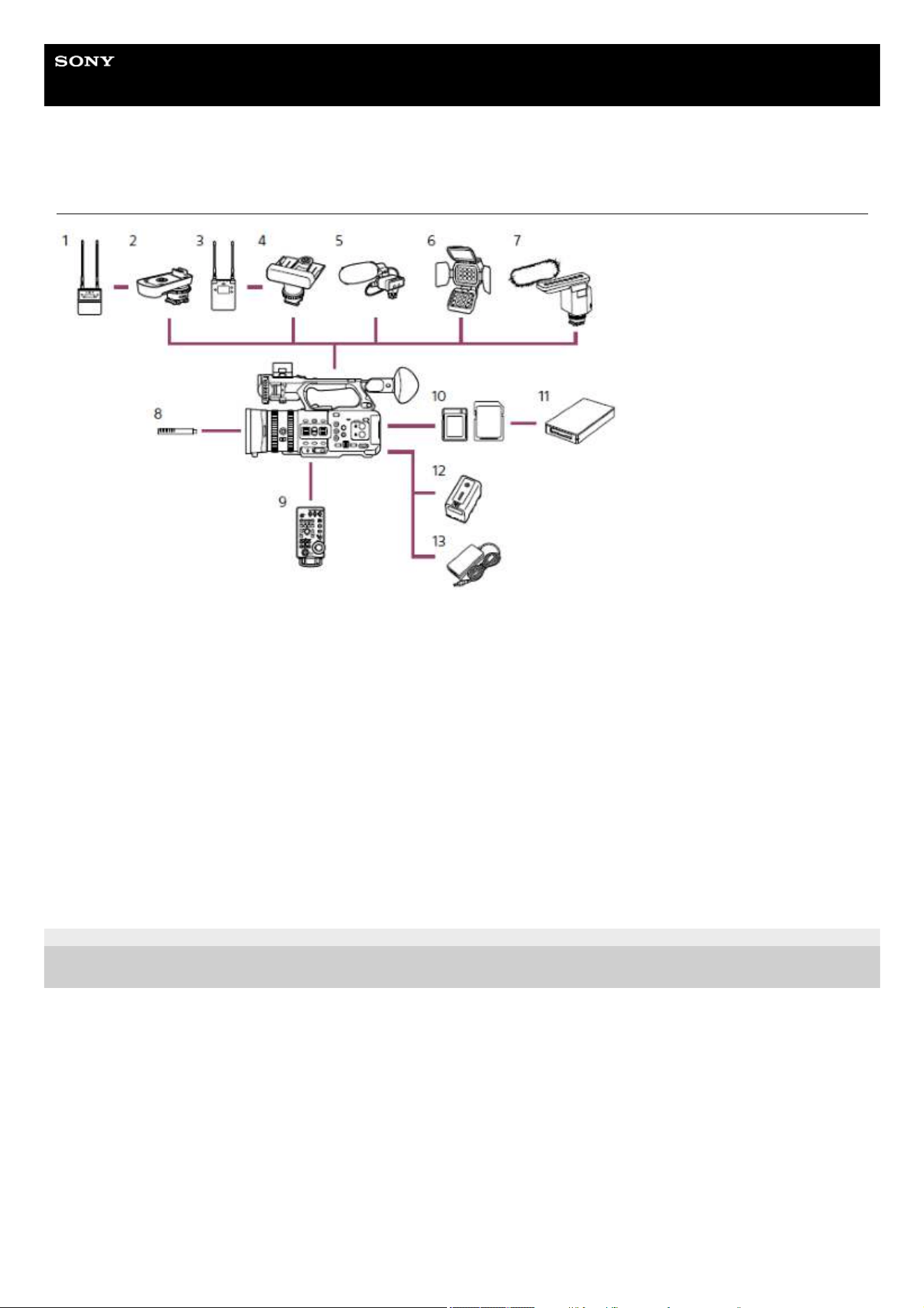
System Configuration
TP1001670287
5-060-574-11(2) Copyright 2024 Sony Corporation
UWP-D21/UWP-D22 Wireless Microphone Package
1.
SMAD-P5 Multi Interface Shoe Adaptor2.
URX-P03D Wireless Microphone Receiver3.
SMAD-P3D Multi Interface Shoe Adaptor4.
XLR-K2M/XLR-K3M XLR Adaptor Kit5.
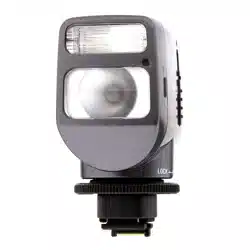
HVL-LBPC Video Light6.
ECM-B1M Shotgun Microphone7.
ECM-VG1/ECM-MS2 Microphone8.
RM-30BP Remote Control Unit9.
CFexpress Type A memory cards/SDXC memory cards10.
CFexpress Type A card reader/SD card reader11.
BP-U35/BP-U70/BP-U100 Battery Pack12.
AC adaptor (supplied)13.
12
Help Guide
Solid-State Memory Camcorder
PXW-Z200/HXR-NX800
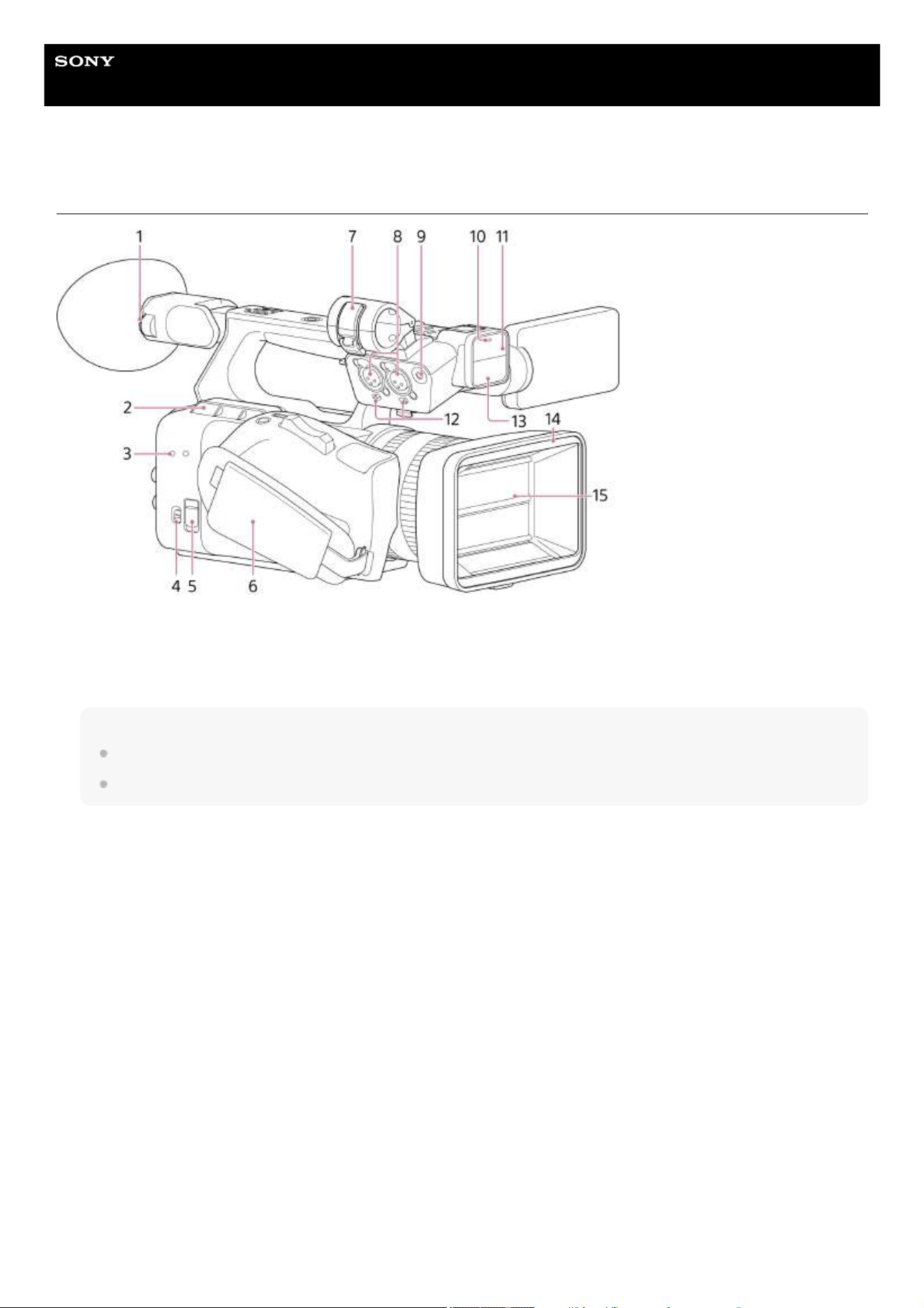
Left Side/Front Side
Diopter adjustment dial
Turn the knob to adjust the viewfinder image so that is clearest.
1.
Air outlet
Note
Do not cover the air outlet.
Exercise caution as the area near the air outlet will be hot.
2.
Accessory attachment screw holes
M3 size screw hole. Use a screw of length 8 mm or shorter.
3.
TC IN/OUT switch
Switches the TC IN/OUT connector between input and output. Available on the PXW-Z200 only.
4.
REMOTE connector
Connect to general-purpose LANC jack accessory.
5.
Grip belt6.
Microphone holder7.
INPUT 1/INPUT 2 (audio input) connectors
Audio input connectors. Set the INPUT 1/INPUT 2 switches for the devices connected to the INPUT 1/ INPUT 2
connectors, respectively.
8.
INPUT 3 connector
Connect to a 3.5 mm stereo mini jack (3-pole) microphone.
9.
Recording/tally lamp (front)
Lights up when recording starts. Flashes when the remaining capacity on the recording media or battery is low.
10.
Night shot infrared light11.
13
Related Topic
Adjusting the Angle of the Viewfinder
Synchronizing Timecode with an External Device (PXW-Z200 only)
Using a Mobile Device or LANC Remote Control
Removing the Microphone Holder
Setting the Audio to Record
Basic Operation Procedure
Shooting in Dark Locations
Attaching the Lens Hood (supplied)
TP1001670288
5-060-574-11(2) Copyright 2024 Sony Corporation
INPUT 1/INPUT 2 (LINE/MIC/MIC+48V) switches
Switches the audio devices connected to the INPUT 1/INPUT 2 connectors.
LINE: External audio device (e.g. mixer)
MIC: Dynamic microphone, battery-operated microphone
MIC+48V: +48 V phantom power microphone
12.
Handle internal microphone13.
Lens hood14.
Lens hood shutter15.
14
Help Guide
Solid-State Memory Camcorder
PXW-Z200/HXR-NX800
Right Side
PEAKING button
Sets peaking settings.
1.
ZEBRA button
Sets zebra pattern settings.
2.
ASSIGN (assignable) 11 button3.
Lens hood shutter open/close switch4.
FOCUS PUSH AUTO button
In manual focus mode: Activates auto focus mode while the button is pressed.
In auto focus mode: Activates manual focus mode while the button is pressed.
5.
FOCUS switch
Switches between auto focus mode and manual focus mode.
6.
Focus ring7.
Zoom ring8.
Recording/tally lamp (rear)
Lights up when recording starts.
9.
Headphone jack10.
15

VF/LCD select button
Switches the display screen between the viewfinder and LCD monitor.
11.
IRIS AUTO button
Switches the iris adjustment mode.
12.
ND switch
Switches the ND filter adjustment mode. Preset mode in the left position, and variable mode in the right position.
13.
ND AUTO button
Sets ND auto mode. Enabled in ND variable mode only.
14.
IRIS dial
Adjusts the iris value in IRIS manual mode.
15.
ND FILTER POSITION up/down buttons16.
ND VARIABLE dial
Adjusts the ND filter density in ND manual mode.
17.
ND CLEAR indicator
Lit when the ND filter is in the CLEAR position.
18.
ISO/GAIN / ASSIGN (assignable) 6 button19.
WHT BAL / ASSIGN (assignable) 7 button20.
SHUTTER / ASSIGN (assignable) 8 button21.
ISO/GAIN switch
Switches the gain value of the video amplifier. The gain values corresponding to each switch position can be configured
on the [Camera] status screen or using the full menu.
22.
WHT BAL (white balance memory select) switch
Switches the white balance adjustment mode.
23.
WB SET button
When the WHT BAL switch is set to A or B and the WB SET button is pressed, auto white balance is activated and white
balance data is saved in internal memory.
24.
AUTO/MANUAL switch
Switches between FULL AUTO shooting mode and MANUAL shooting mode.
25.
Built-in speaker26.
SLOT SELECT button
When two memory cards are inserted, press the SLOT SELECT button to switch between memory card slots.
27.
S&Q / ASSIGN (assignable) 1 button
Sets Slow & Quick Motion settings.
28.
NETWORK / ASSIGN (assignable) 2 button29.
NIGHTSHOT / ASSIGN (assignable) 3 button30.
AUDIO button
Displays the [Audio] status screen.
31.
DISPLAY button
Shows/hides the status and settings of the unit.
32.
Audio adjustment switch
AUTO/MAN switch
Switches the CH-1/CH-2 audio recording level between auto mode and manual mode.
AUDIO LEVEL (CH1/CH2) dials
Adjusts the CH-1/CH-2 audio recording level manually in manual mode.
33.
16
Related Topic
Assignable Buttons
Attaching the Lens Hood (supplied)
Using Auto Focus Temporarily
Adjusting the Focus Manually
Adjusting the Focus Automatically
Zooming using the Zoom Ring
Basic Operation Procedure
Switching Between the LCD Monitor/Viewfinder Display
Adjusting the Iris
Adjusting the Light Level
Adjusting the Gain
Adjusting the White Balance Manually
Adjusting the Shutter
Inserting a Memory Card
Slow & Quick Motion
Network Functions
Connecting to the Internet via Wireless LAN
Connecting to the Internet via Wired LAN
Shooting in Dark Locations
Setting the Audio to Record
Screen Display
Adjusting the Audio Recording Level Manually
Status Screen
Menu List
Direct Menu
Switching the Power On/Off
TP1001670289
5-060-574-11(2) Copyright 2024 Sony Corporation
MENU button
Press and release to display the status screen. Press and hold to display the full menu screen.
34.
Multi-function dial
Press when viewing the image on the LCD monitor/viewfinder to display the direct menu.
Turn the dial when a menu is displayed on the LCD monitor/viewfinder to move the cursor up/down to select menu items
or settings. Press to apply the selected item.
When the menu is not being displayed, the dial functions as an assignable dial.
35.
CANCEL/BACK button
Press to return to the previous menu. Any unconfirmed changes are canceled.
36.
Power lamp37.
Power switch38.
17
Help Guide
Solid-State Memory Camcorder
PXW-Z200/HXR-NX800
Rear Side/Connector Block/Card Slots
LCD monitor/Touch panel1.
Viewfinder2.
Eye sensor
Detects whether your eyes are close to the viewfinder or not, and controls the screen display on the LCD
monitor/viewfinder.
3.
BATT RELEASE (battery release) button
Press the button to remove the battery.
4.
DC IN (DC power input) connector
Standard DC jack.
5.
Battery compartment6.
USB-C
®
connector
USB Type-C cable connector. The screw hole on the right side of the USB-C connector is for a screw lock Type-C cable.
7.
HDMI output connector
Outputs an HDMI signal.
8.
SDI OUT connector (BNC type)
Outputs an SDI signal. Available on the PXW-Z200 only.
9.
TC IN/OUT connector (BNC type)
Timecode input/output connector. Available on the PXW-Z200 only.
Used for the following applications, depending on the TC IN/OUT switch setting.
IN: Reference timecode signal input when locking the timecode of the unit to an external device.
OUT: Timecode signal output from the unit when locking the timecode of an external device to the timecode of the unit.
10.
18
Related Topic
Adjusting the Angle of the LCD Monitor
Using the Touch Panel
Attaching the Large Eyecup
Adjusting the Angle of the Viewfinder
Adjusting the Brightness of the Viewfinder
Switching Between the LCD Monitor/Viewfinder Display
Screen Display
Using a Battery Pack
Using an AC Adaptor
Transferring Files to “C3 Portal”
Managing/Editing Clips using a Computer
Connecting an External Device to the HDMI Output
SDI/HDMI Output Connector Output Formats (PXW-Z200 only)
HDMI Output Connector Output Formats
Connecting an External Device to the SDI Output (PXW-Z200 only)
Synchronizing Timecode with an External Device (PXW-Z200 only)
Connecting to the Internet via Wired LAN
Basic Operation Procedure
Recording to Both Memory Cards A and B
Inserting a Memory Card
TP1001670290
5-060-574-11(2) Copyright 2024 Sony Corporation
LAN connector
Wired LAN connector.
11.
Record START/STOP button / HOLD switch (grip)
Press the record START/STOP button, turning the light on, to start recording. Press again, turning the light off, to stop
recording.
When the HOLD switch is in the HOLD position, the record START/STOP button cannot be pressed.
12.
Multi selector
Used for auto focus operation and menu operation. Moves the cursor in 8 directions and selects values when pressed.
13.
Access indicator A14.
CFexpress Type A/SD card slot (A)15.
CFexpress Type A/SD card slot (B)16.
Access indicator B17.
19
Help Guide
Solid-State Memory Camcorder
PXW-Z200/HXR-NX800
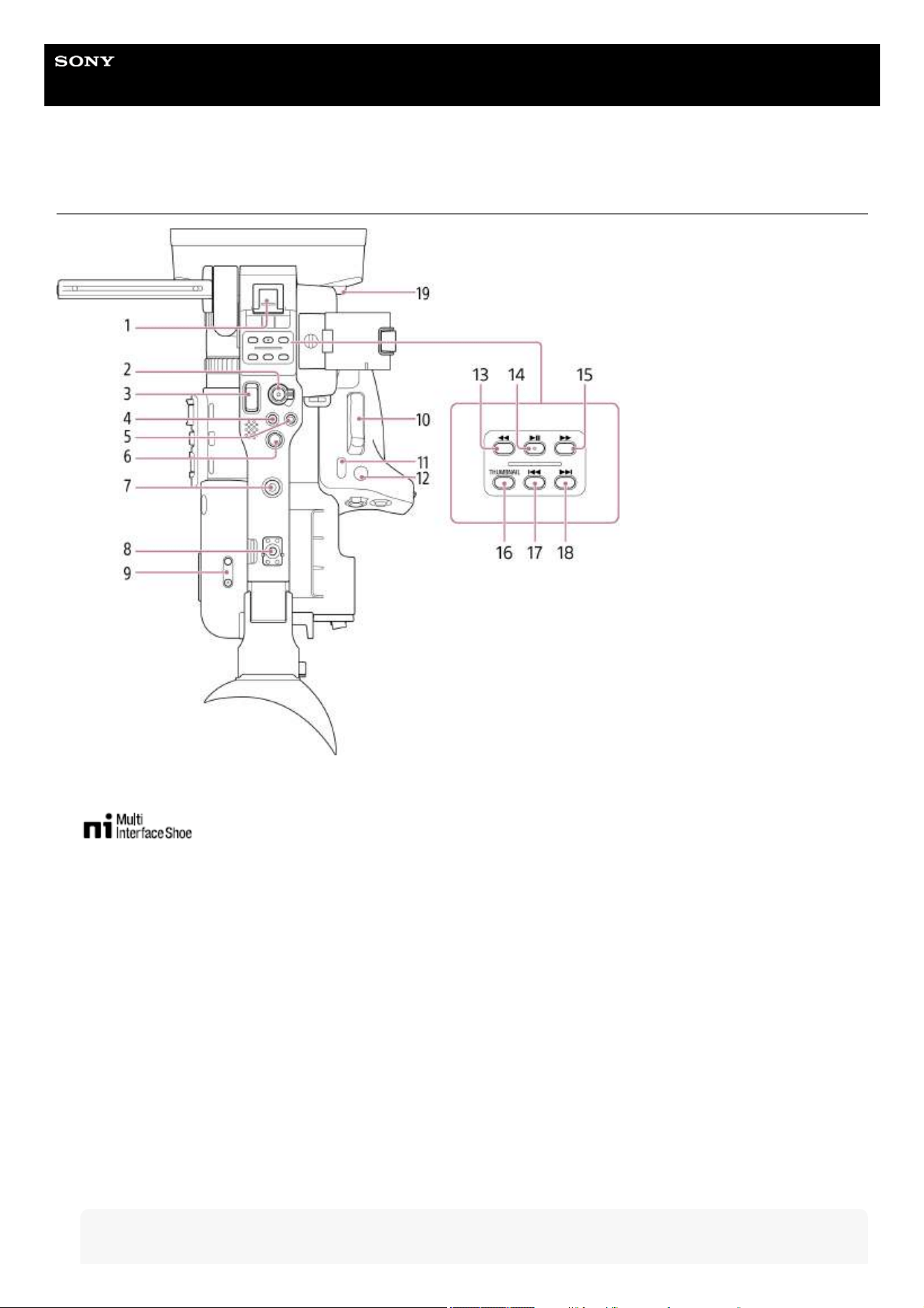
Top Side/Handle
Multi interface shoe
For details about accessories supported by the multi interface shoe, contact your sales representative.
1.
Record START/STOP button / HOLD switch (handle)
Press the record START/STOP button, turning the light on, to start recording. Press again, turning the light off, to stop
recording.
When the HOLD switch is in the HOLD position, the record START/STOP button cannot be pressed.
2.
Handle zoom lever
Adjusts the zoom between wide angle and telephoto. Move it slightly to zoom slowly, and move it further to zoom faster.
3.
ASSIGN (assignable) 9 button4.
ASSIGN (assignable) 10 button5.
Multi selector
Used for auto focus operation and menu operation. Moves the cursor in 8 directions and selects values when pressed.
6.
Accessory attachment screw hole
1/4 inch screw hole compatible with 1/4-20 UNC screws (length of 6 mm or shorter).
Note
7.
20
Related Topic
Setting the Audio to Record
Selecting the Audio Input Device
Adding Audio Input Connectors
Basic Operation Procedure
Recording to Both Memory Cards A and B
Zooming using the Zoom Lever
Assignable Buttons
Direct Menu
Focusing using Magnified View
Playing a Clip
Attaching the Lens Hood (supplied)
TP1001670291
5-060-574-11(2) Copyright 2024 Sony Corporation
Use of screws longer than 6 mm may damage exterior parts.
Accessory shoe mount/Accessory attachment screw hole
Compatible with 1/4 inch screws.
8.
Volume button
Adjusts the volume of headphones/built-in speaker.
9.
Zoom lever (grip)
Adjusts the zoom between wide angle and telephoto. Move it slightly to zoom slowly, and move it further to zoom faster.
10.
DIRECT MENU / ASSIGN (assignable) 5 button11.
FOCUS MAG / ASSIGN (assignable) 4 button12.
F REV button
Plays video in the reverse direction at high speed. Press the button again to increase the speed (3 steps).
13.
PLAY/PAUSE button
Pauses playback. Press again to resume normal playback.
14.
F FWD button
Plays video in the forward direction at high speed. Press the button again to increase the speed (3 steps).
15.
THUMBNAIL button
Press the button during shooting mode or playback mode to display the thumbnail screen. Press again to return to
shooting mode.
16.
PREV button
Jumps to the first image of the clip. If already positioned at the first image, it jumps to the start of the previous clip. When
the F REV button is pressed while the PREV button is pressed, it jumps to the start of the first clip on the recording
media.
17.
NEXT button
Jumps to start of next clip.
If viewing the last clip, it jumps to the end of the clip. When the F FWD button is pressed while the NEXT button is
pressed, it jumps to the end of the last clip on the recording media.
18.
Lens hood release button19.
21
Help Guide
Solid-State Memory Camcorder
PXW-Z200/HXR-NX800
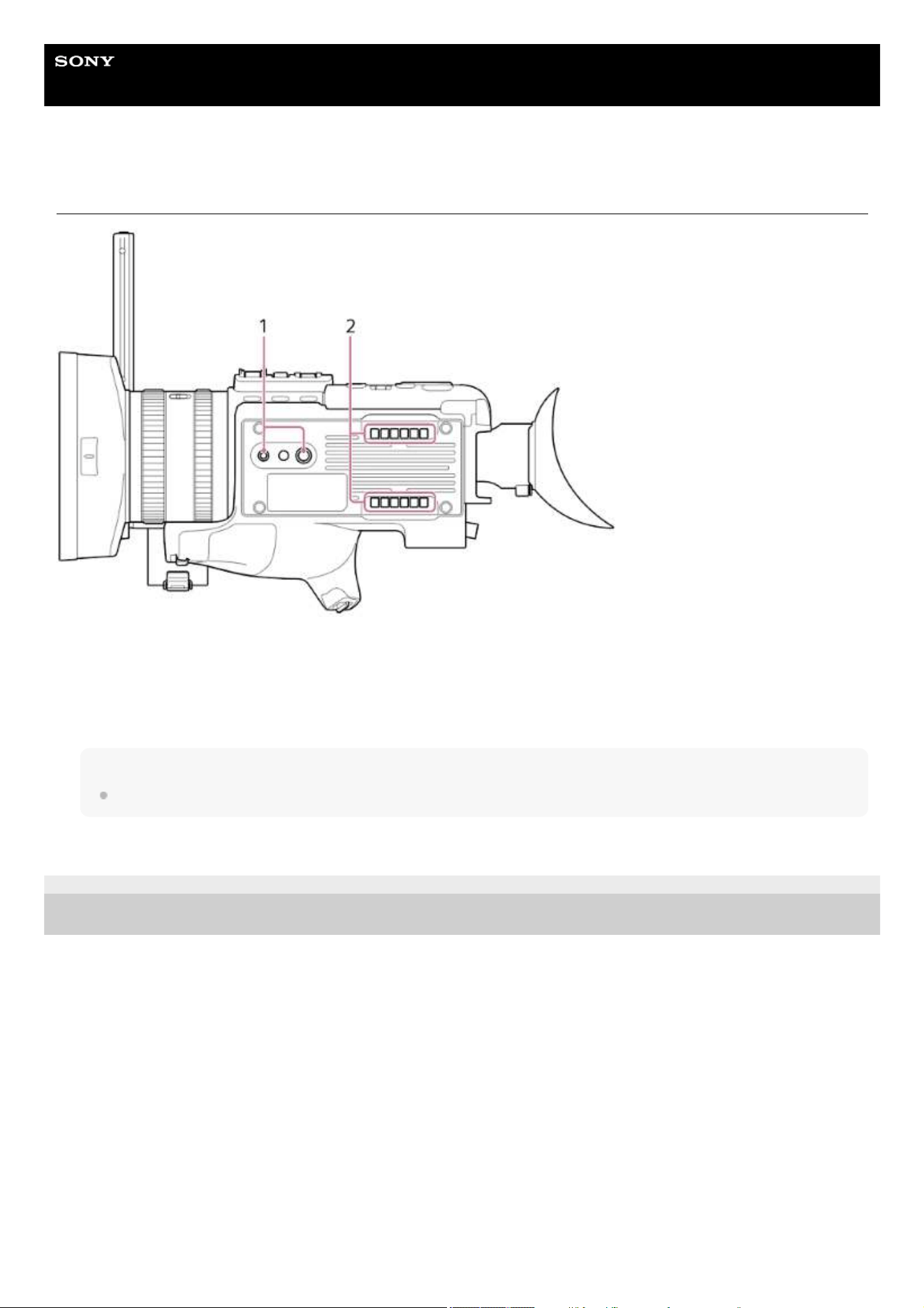
Bottom Side
TP1001670292
5-060-574-11(2) Copyright 2024 Sony Corporation
Tripod screw holes
Compatible with 1/4 inch (1/4-20 UNC) and 3/8 inch (3/8-16 UNC) screws. Attach to a tripod (option, screw length of 5.5
mm or shorter).
1.
Air inlet
Note
Do not cover the air inlet.
2.
22
Help Guide
Solid-State Memory Camcorder
PXW-Z200/HXR-NX800
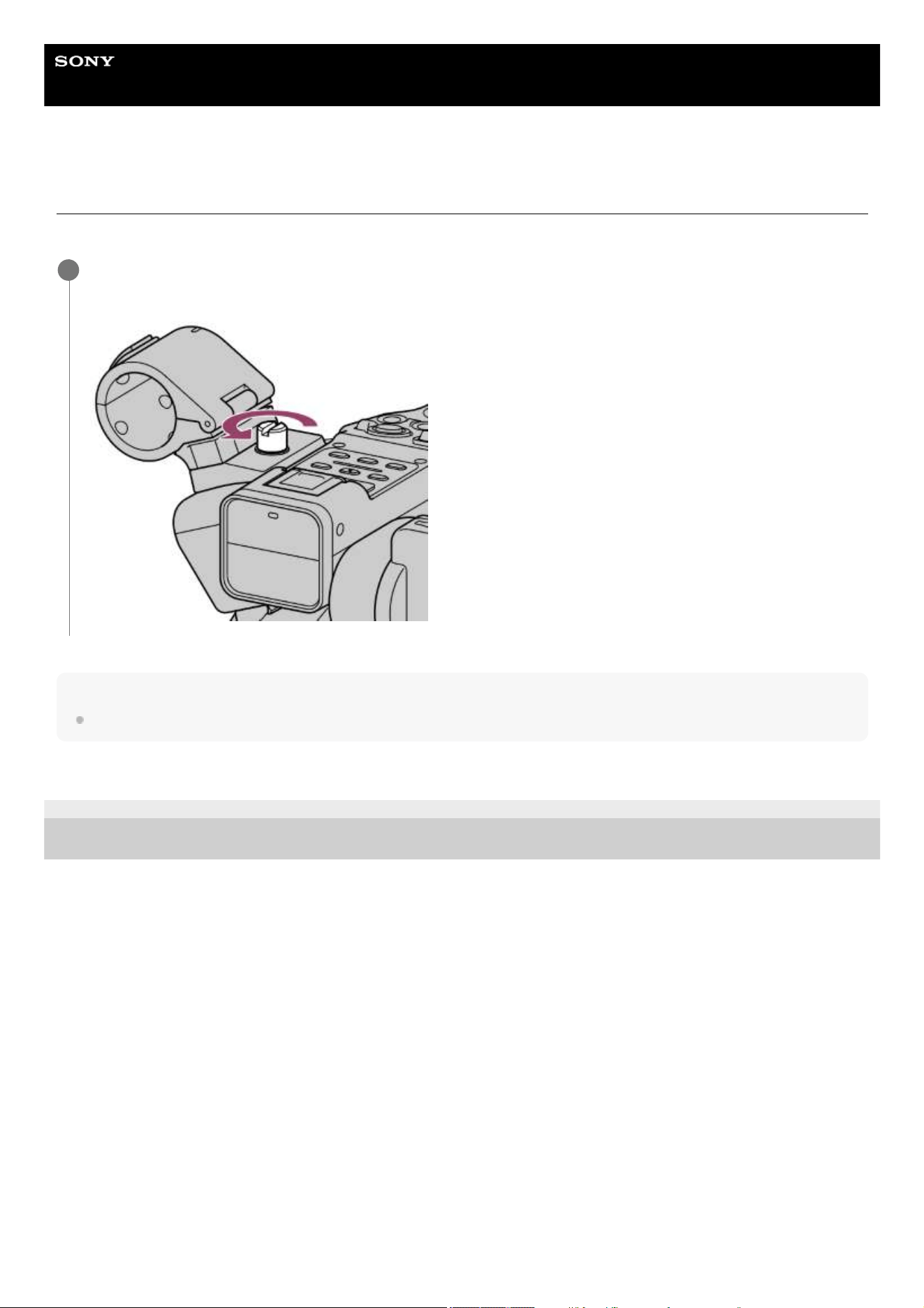
Removing the Microphone Holder
You can remove the microphone holder of the unit to reduce the space required for storage.
Note
When attaching the microphone holder, tighten the screw securely to prevent the microphone from falling.
TP1001670293
5-060-574-11(2) Copyright 2024 Sony Corporation
Unscrew the screw to remove the microphone holder.
1
23
Help Guide
Solid-State Memory Camcorder
PXW-Z200/HXR-NX800
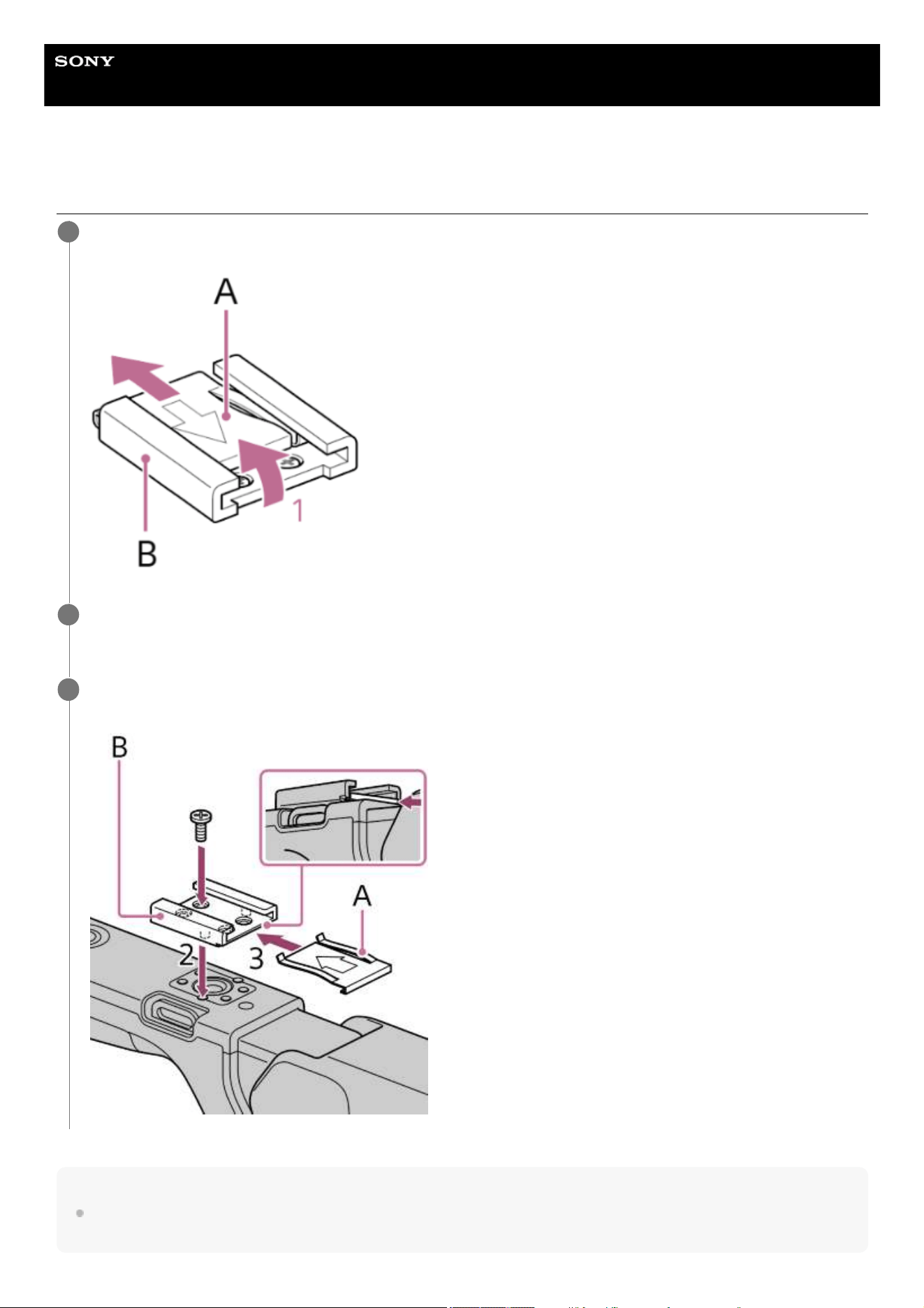
Attaching the Accessory Shoe
Hint
To remove the accessory shoe, remove the shoe spring as described in step 1, unscrew the four screws, and remove the accessory
shoe.
Lift the front edge of the shoe spring (A), and pull the spring in the opposite direction to the arrow engraved on
the spring.
1
Position the accessory shoe (B) on the accessory shoe mount, aligning the protrusions on the shoe with the
corresponding points on the mount, and tighten the four screws.
2
Insert the shoe spring (A) in the direction of the arrow so that the U-shaped portion fits onto the end of the
accessory shoe.
3
24

TP1001670294
5-060-574-11(2) Copyright 2024 Sony Corporation
25
Help Guide
Solid-State Memory Camcorder
PXW-Z200/HXR-NX800
Using the Touch Panel
Touch panel usage precautions
The viewfinder of the unit is a touch panel, which you operate directly by touch using your finger.
The touch panel is designed to be touched lightly with your finger. Do not press the panel with force or touch it using sharp-
edged or pointed objects (nail, ballpoint pen, pin, etc.).
The touch panel may not respond when touched in the following circumstances. Also note that these may cause a
malfunction.
Operation using the tips of finger nails
Operation while other objects are touching the screen surface
Operation with a protective sheet or sticker attached
Operation with water droplets or condensation on the display
Operation using wet or sweaty fingers
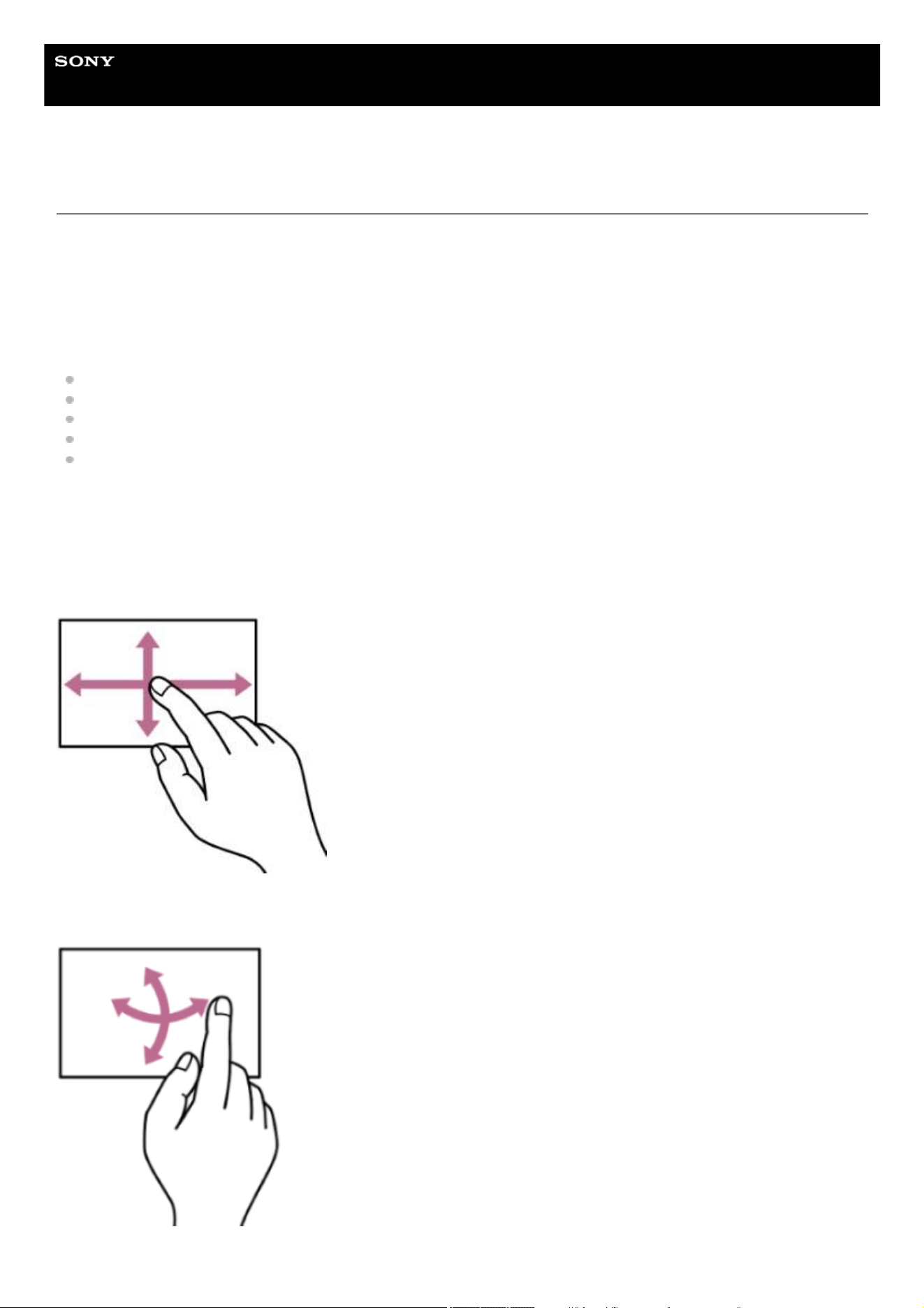
Touch panel gestures
Tap
Lightly touch an item, such as an icon or menu item, using your finger and then immediately remove your finger.
Drag
Touch the screen and slide your finger to the desired position of the screen, and then remove your finger.
Flick/swipe
Touch the screen and quickly flick/swipe your finger up, down, left, or right.
26
Hint
If the display content continues beyond the edges of the screen, you can drag or flick the display content to scroll.
Configuring the touch panel
Touch panel operation can be enabled/disabled using [Technical] – [Touch Operation] in the full menu.
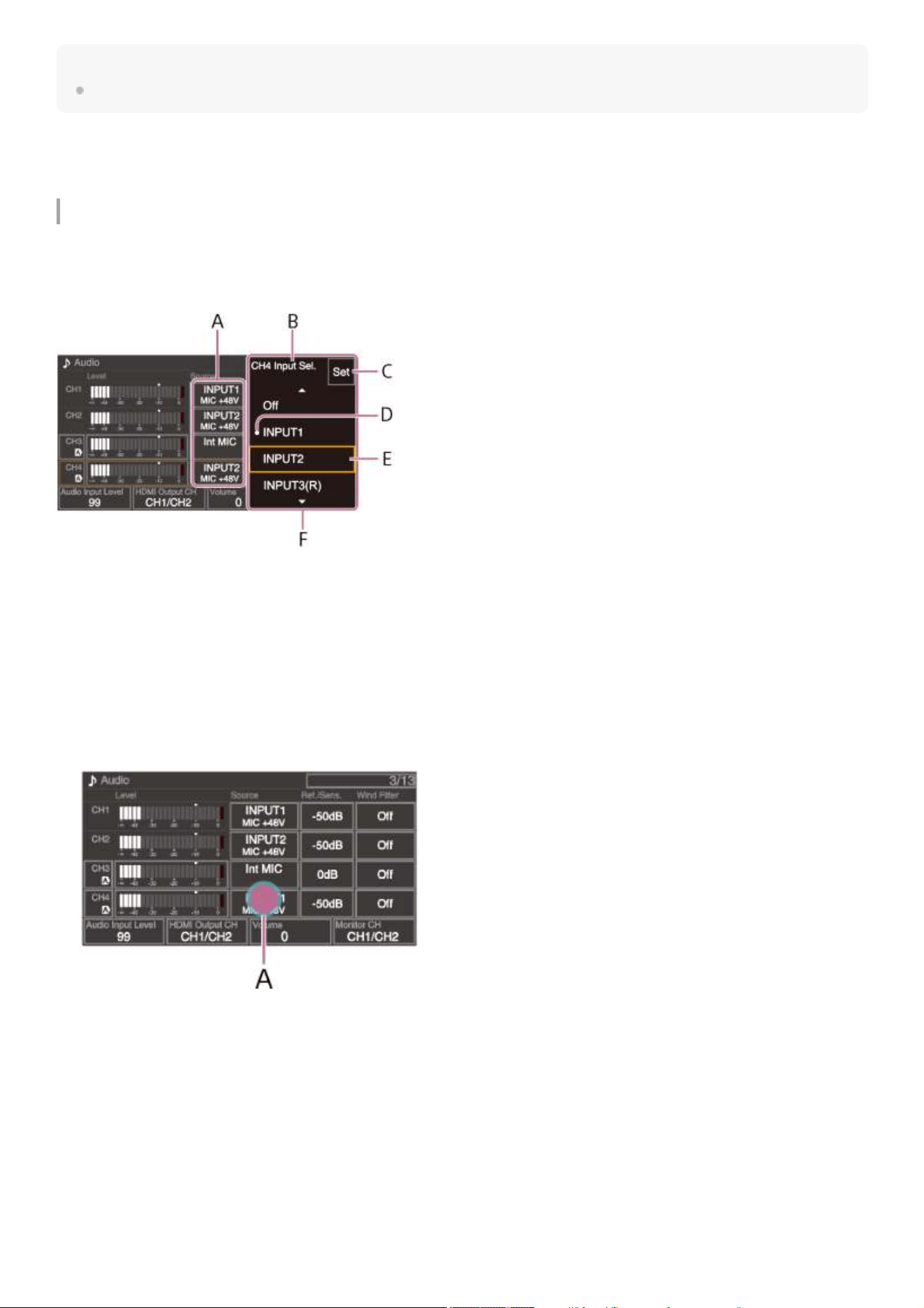
Using touch-enabled setup screens
This section describes operation of the status screen as an example using touch operation.
Screen layout
A: Setup item
B: Setup item name
C: [Set] (apply) button
D: Mark indicating the previous value
E: Value selection cursor (orange frame)
F: Value selection options
Operation
Tap a setup item (A).
The selection options for the value appear.
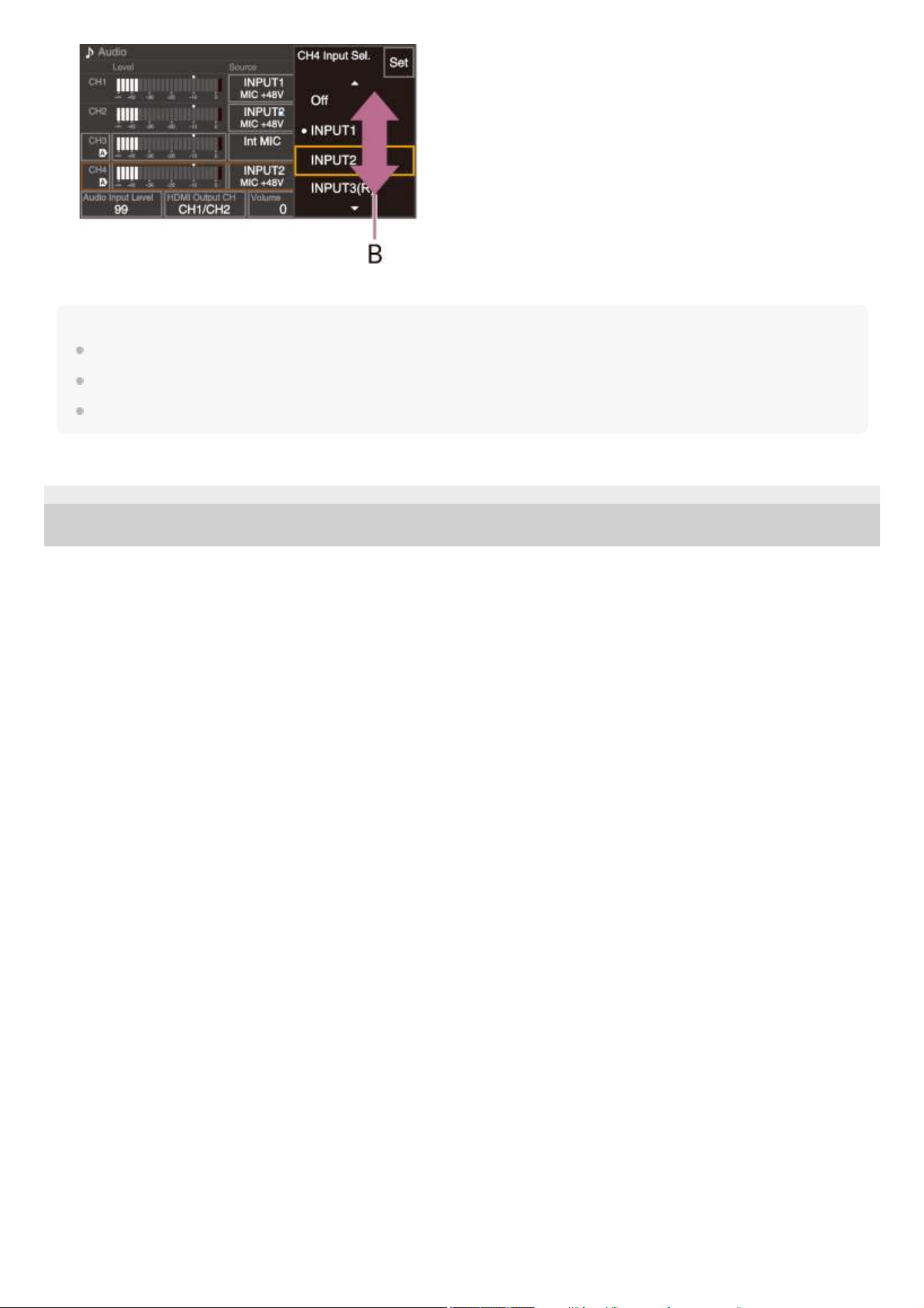
1.
Drag or flick a setting to select a value (B).2.
27
Hint
Press the CANCEL/BACK button to return to the previous value.
You can also use the multi-function dial or multi selector.
Touch operation can also be disabled.
TP1001670295
5-060-574-11(2) Copyright 2024 Sony Corporation
Tap [Set] or the value selection cursor.
The value is applied and the display returns to the previous screen.
3.
28
Help Guide
Solid-State Memory Camcorder
PXW-Z200/HXR-NX800
Screen Display
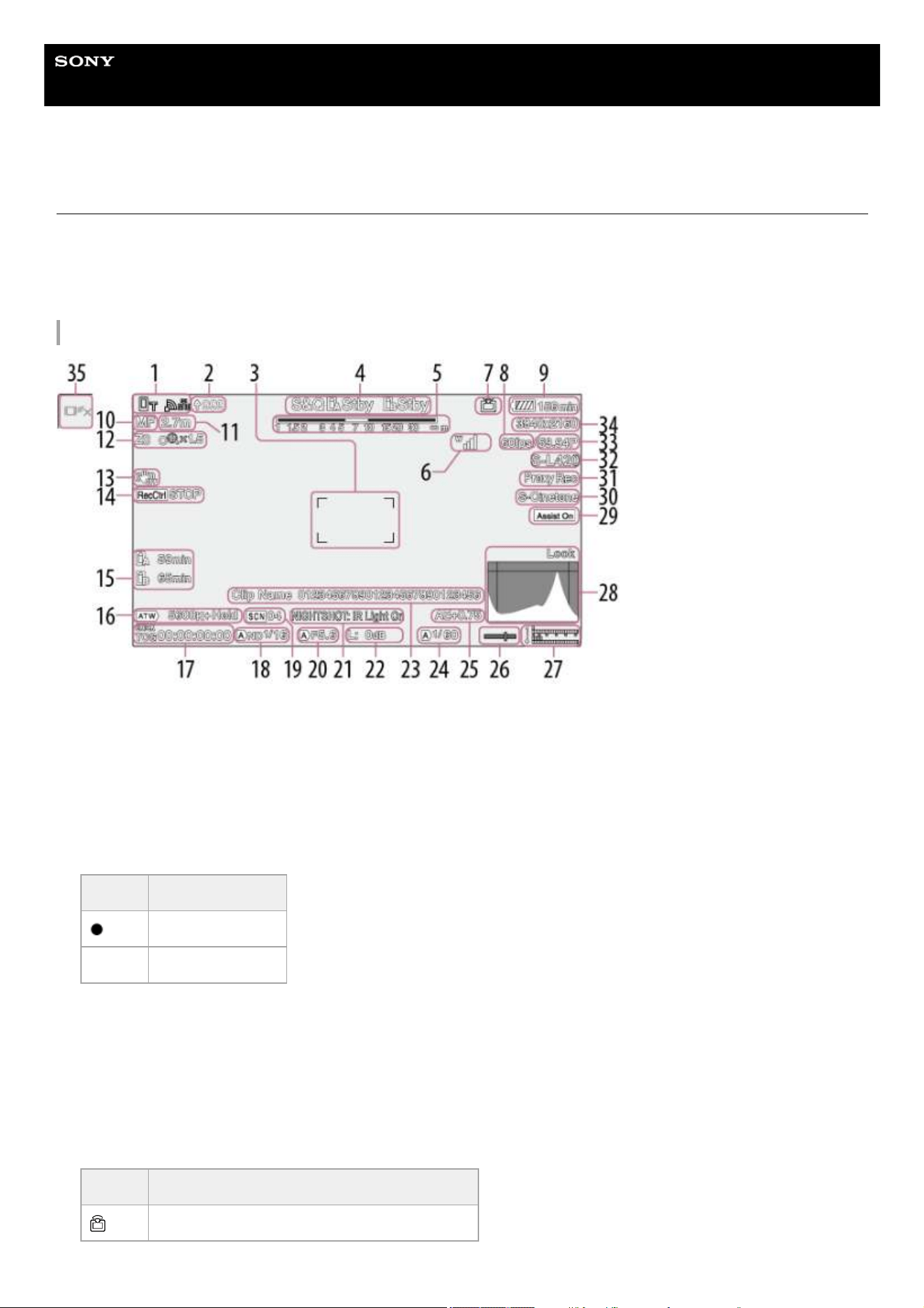
During shooting (recording/standby) and playback, the status and settings of the unit are superimposed on the image.
You can show/hide the information using the DISPLAY button. Even when hidden, the display will appear while performing
direct menu operations.
You can also select to show/hide each item independently.
Information displayed on the screen while shooting
Network status
Displays the network connection status as an icon.
1.
Upload progress/Remaining files2.
Focus area
Displays the focus area for auto focus.
3.
Slot A/B recording mode/Operating status4.
Display Meaning
Rec Recording
Stby Recording standby
Depth of field
5.
UWP-D series status
Displays the RF level signal strength as an icon when a UWP-D series device is connected to the MI shoe configured for
digital audio transfer.
6.
Streaming status
For SRT streaming, the ARC bit rate is also displayed.
7.
Display Meaning
Streaming transmitting status
29
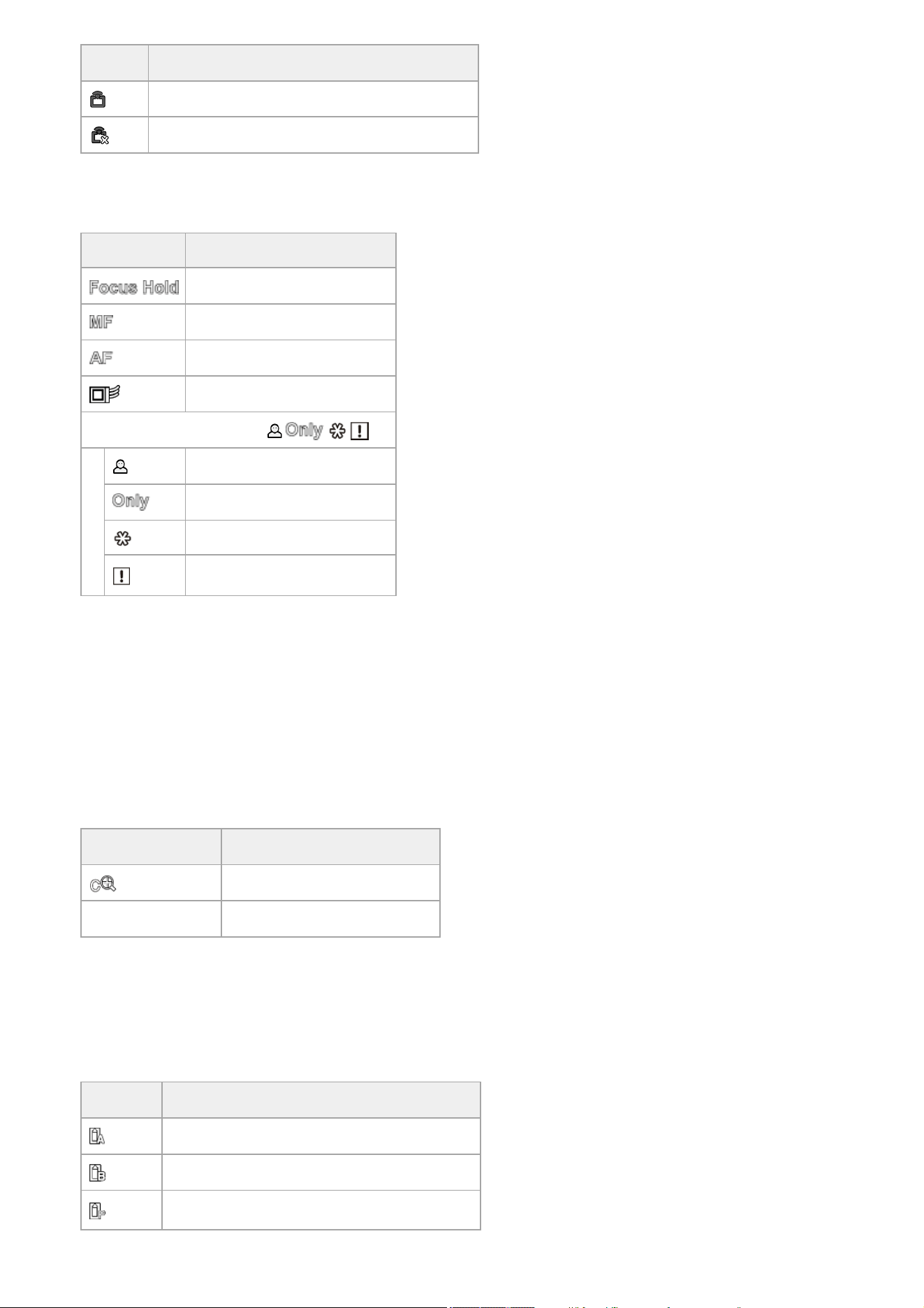
Display Meaning
Switching to streaming transmitting status
Streaming not transmitting status due to an error
Slow & Quick Motion shooting frame rate
8.
Remaining battery capacity/DC IN voltage9.
Focus mode10.
Display Meaning
[Focus Hold] mode
MF mode
AF mode
Realtime tracking AF mode
Subject recognition AF (AF/
/ / / )
Human detection icon
Human only detection AF icon
Saved tracking face icon
AF paused icon
1)
Displayed during auto focus operation when auto focus operation cannot continue and temporarily stops. The icon disappears when the cause for
stopping auto focus operation is resolved and then auto focus operation resumes.
1)
Focus position
Displays the focus position.
11.
Zoom position
Displays the zoom position in the range 0 (wide angle) to 99 (telephoto).
The display can be changed to a bar indicator.
The following items are added to the display when Clear Image Zoom is enabled.
12.
Display Meaning
Clear Image Zoom is enabled
Magnification value When using Clear Image Zoom
Image stabilization mode
13.
SDI output/HDMI output [Rec Control] status
Displays the output status of the SDI/HDMI output signal.
14.
Remaining recording media capacity15.
Display Meaning
Mounting/mount status ([Media(A)])
Mounting/mount status ([Media(B)])
Mounting/mount status ([Media(B)])
1)
30
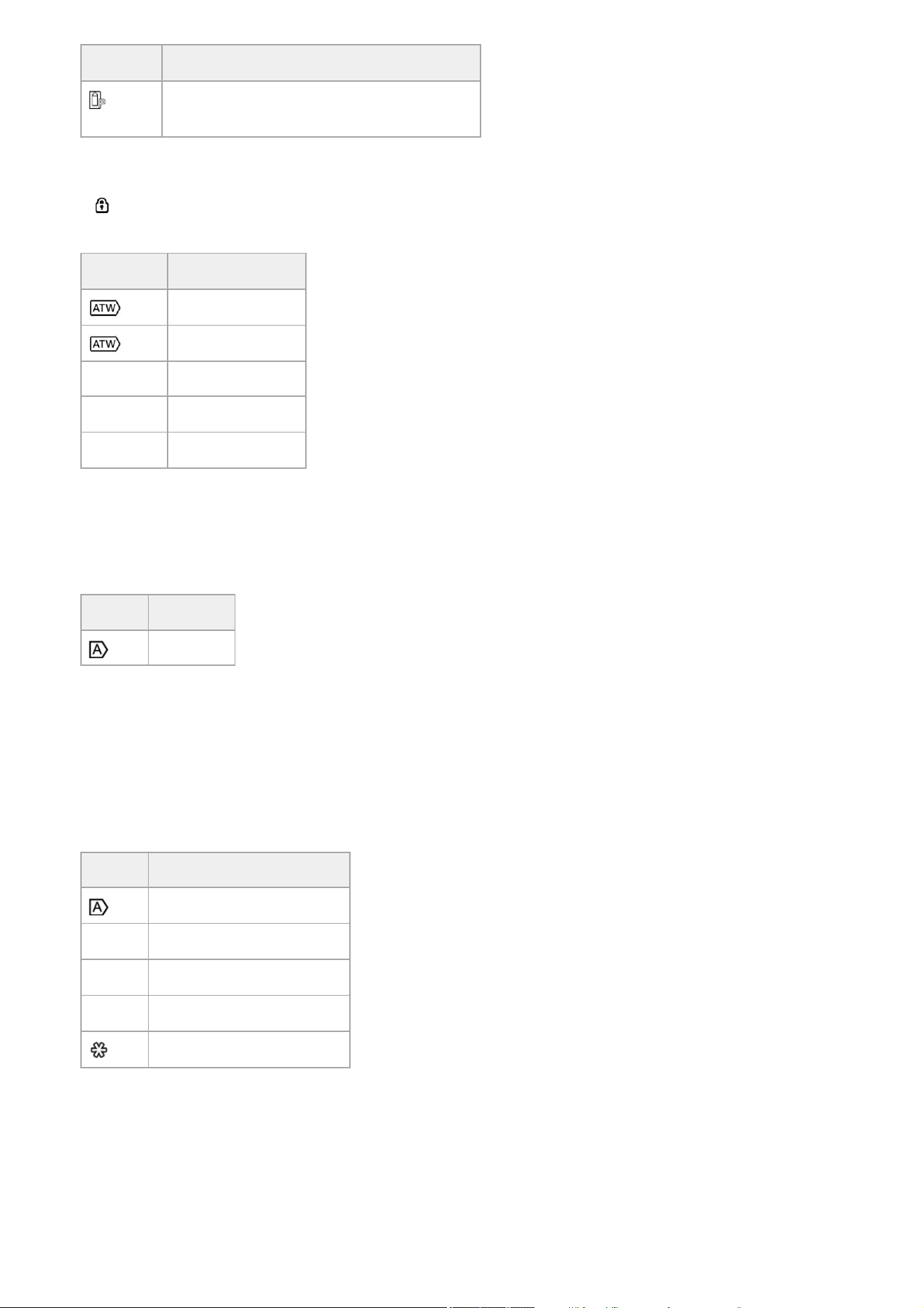
A (Protected) icon appears if the memory card is write-protected.
Display Meaning
(Flashing)
Mount status (non-recordable) ([Media(B)])
1) 2)
Recording proxy clip only
1)
An error or insufficient remaining capacity warning occurred at the start of recording or during recording.
2)
White balance mode16.
Display Meaning
Auto mode
[Hold] Auto mode paused
W:P Preset mode
W:A Memory A mode
W:B Memory B mode
Timecode external lock/Time data
Displays “EXT-LK” when locked to the timecode of an external device.
17.
ND filter18.
Display Meaning
Auto mode
Scene file
19.
Iris
Displays the iris position (F value).
20.
[NIGHTSHOT] status/Video level warning21.
Gain
In [Custom] shooting mode, it displays the gain value or ISO value. In log shooting mode, it displays the ISO value.
22.
Display Meaning
Auto mode
H Preset H mode
M Preset M mode
L Preset L mode
Temporary adjustment mode
Clip name
Displays the name of the clip being recorded or to record next.
23.
Shutter24.
AE mode/AE level25.
Spirit level
Displays the horizontal level in ±1° increments up to ±15°.
26.
31
Information displayed on the screen during playback
The following information is superimposed on the playback picture.
Audio level meter
Displays the audio level of CH1 to CH4.
27.
Video signal monitor
Displays a waveform, vectorscope, and histogram.
The orange line indicates the set value of the zebra level.
In log shooting mode, the monitor target LUT application status is displayed above the display. When [LUT Off] is
selected, the color gamut setting is displayed. When [LUT On] is selected, “Look” is displayed regardless of the applied
LUT type.
28.
Gamma display assist/Base look
In [Custom] shooting mode, it displays the gamma display assist status. The gamma display assist function can be turned
on/off using an assignable button assigned with [Gamma Display Assist].
In log shooting mode, it displays the base look setting.
29.
Recording video indicator
Displays the video signal for recording on the memory cards. In [Custom] shooting mode, it displays the base look setting.
In log shooting mode, it displays the color gamut setting.
30.
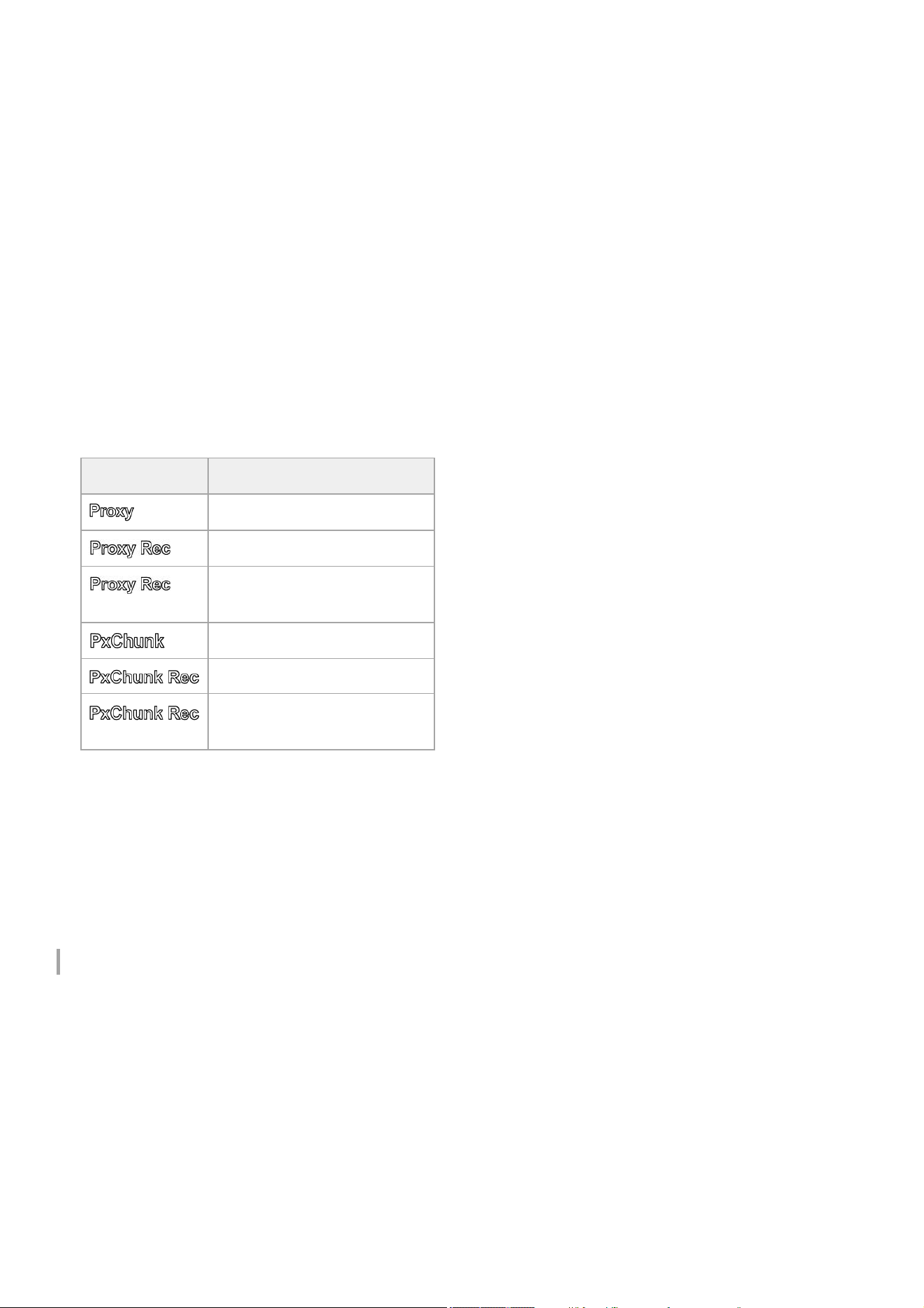
Proxy status31.
Display Meaning
Proxy recording on
Proxy recording
(flashing)
Proxy recording not ready
Proxy chunk recording on
Proxy chunk recording
(flashing)
Proxy chunk recording not ready
Recording format (codec) indicator
Displays the name of the format for recording on the memory cards.
32.
Recording format (frame rate and scan method) indicator33.
Recording format (picture size) indicator
Displays the picture size for recording on the memory cards.
34.
Realtime tracking AF stop button35.
32
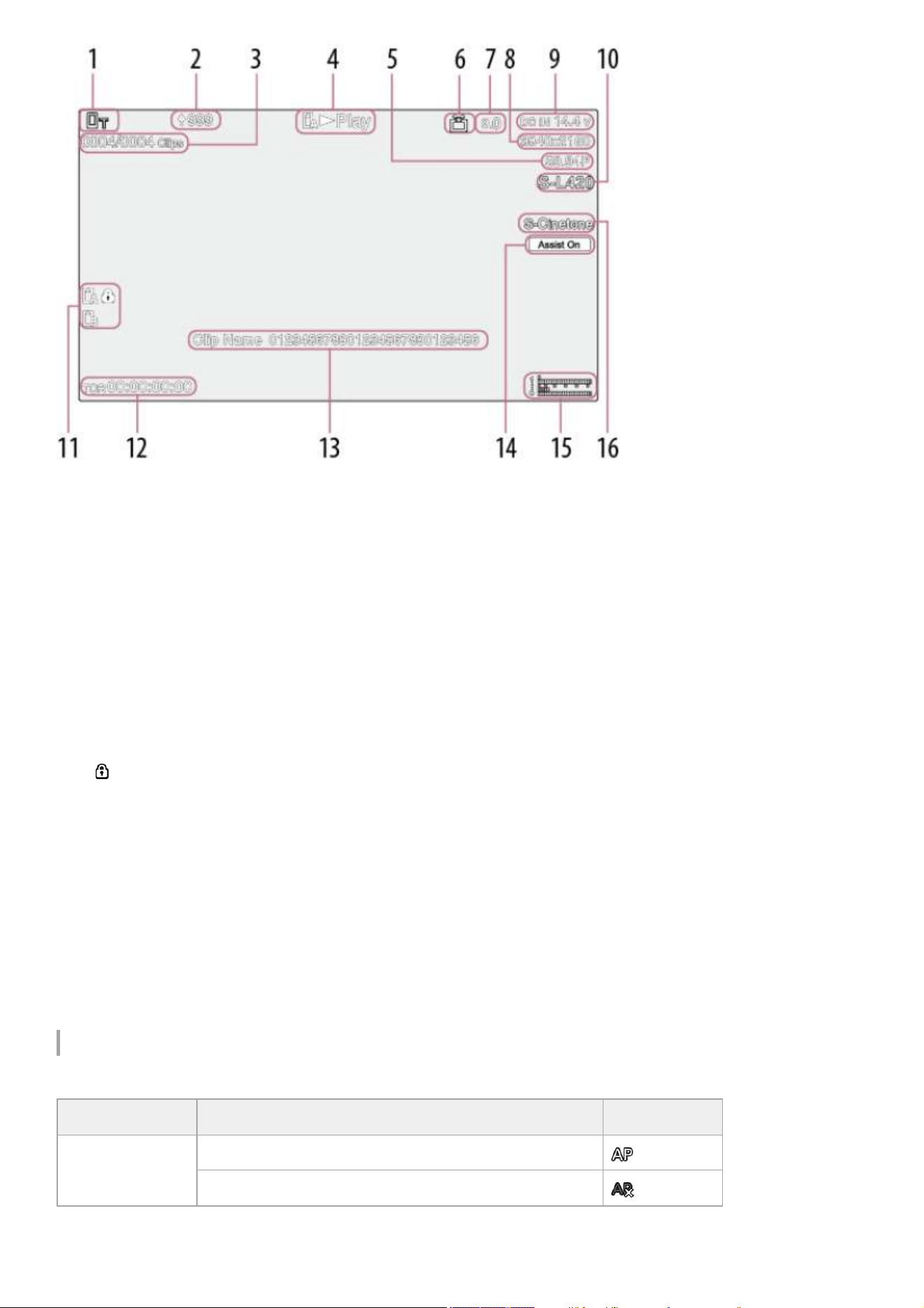
Icons
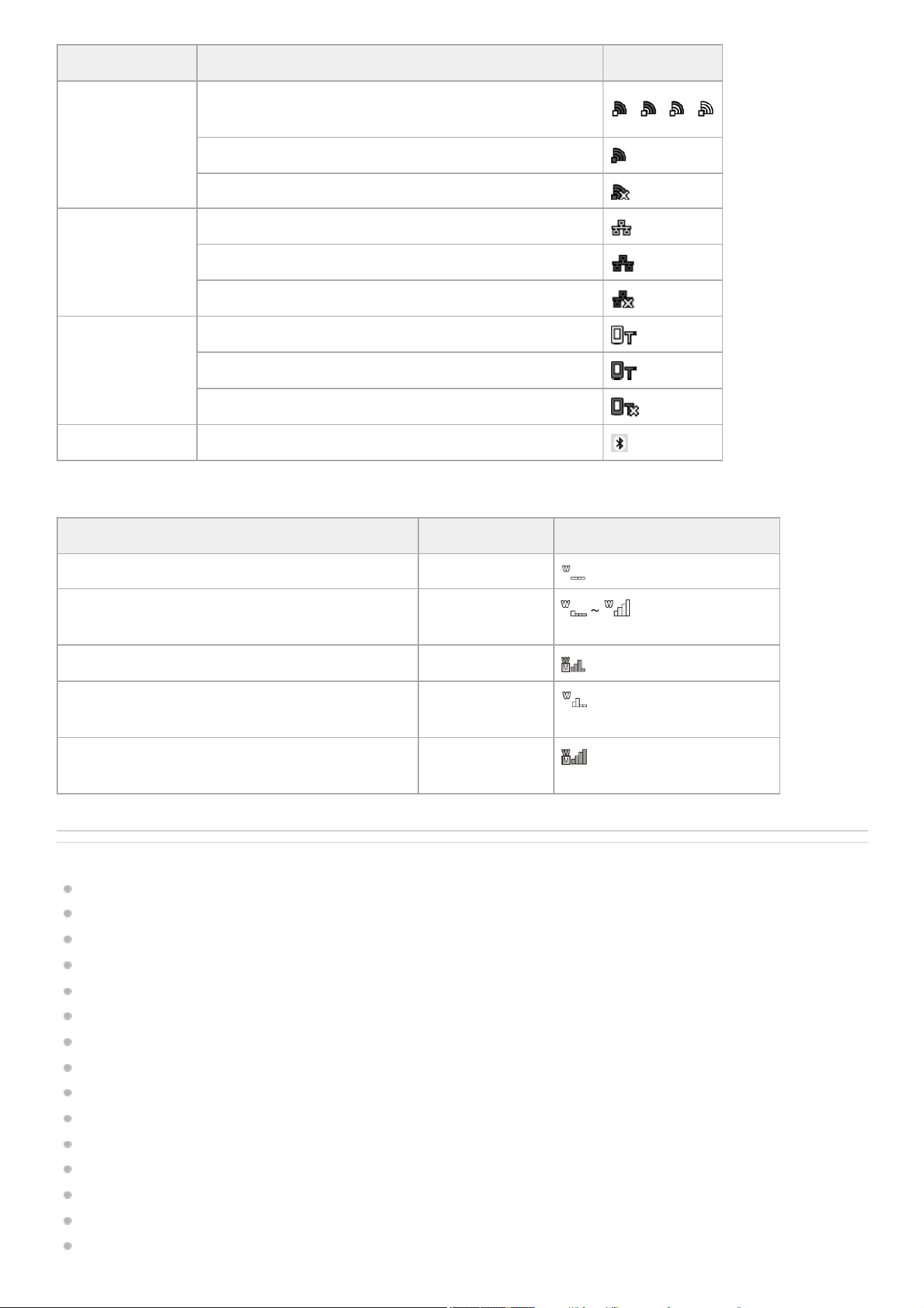
Network connection icons
Network status
1.
Upload progress/Remaining files2.
Clip number/total number of clips3.
Playback status4.
Playback format (frame rate and scan method)5.
Streaming status6.
Bit rate
Displays the bit rate for SRT streaming when [ARC] is set to [On]. The display flashes if the bit rate falls below the value
set by the ARC function.
7.
Playback format (picture size)8.
Remaining battery capacity/DC IN voltage9.
Playback format (codec)10.
Recording media
A
(Protected) icon appears if the memory card is write-protected.
11.
Time data12.
Clip name13.
Gamma display assist
In [Custom] shooting mode, it displays the gamma display assist status.
In log shooting mode, it displays the applied monitor LUT.
14.
Audio level meter
Displays the playback audio level.
15.
Playback clip recording gamma
Displays the recording gamma if the playback clip was recorded with [HLG] or [S-Log3].
16.
Network mode Connection status Icon
Access point mode
Operating as an access point
Access point operation error
33
UWP-D series icons
Related Topic
Recording and Uploading a Proxy Clip in Chunks
Connecting to the Internet via Wireless LAN
Connecting to the Internet via USB Tethering
Connecting to the Internet via Wired LAN
Basic Operation Procedure
Adjusting the Gain
Streaming
Slow & Quick Motion
Using Image Stabilization
Checking the Remaining Recording Time
Adjusting the White Balance Manually
Synchronizing Timecode with an External Device (PXW-Z200 only)
Selecting a Look
Saving a Look
Items Saved in Files
Network mode Connection status Icon
Station mode
Wi-Fi connected
Wi-Fi signal strength (4 levels)
Wi-Fi disconnected (including when establishing connection)
Wi-Fi connection error
Wired LAN
Wired LAN connected
Wired LAN disconnected
Wired LAN error
USB tethering
USB tethering connected
USB tethering disconnected
USB tethering error
Bluetooth Bluetooth function on
Transmitter status Receive status Icon
Power off Not receiving
Normal transmit status Receiving
(4-level signal strength indicator)
Muting status Receiving (muted)
Remaining battery capacity warning status Receiving
(Icon flashing)
Muting and remaining battery capacity warning status Receiving
(Icon flashing)
34

Help Guide
Solid-State Memory Camcorder
PXW-Z200/HXR-NX800
Status Screen
You can check the settings and status of the unit on the status screen. The settings of items marked with an asterisk (*) can
be changed.
To display the status screen
Press the MENU button.
Hint
You can show/hide each status screen using [Technical] – [Menu Settings] – [Menu Page On/Off] in the full menu.
To switch the status screen
Turn the multi-function dial.
Push the multi selector up/down.
Swipe the status screen up/down.
To hide the status screen
Press the MENU button.
To change a setting
With the status screen displayed, press the multi-function dial or multi selector to enable selection of a setup item within a
page. Select a page number and then press to switch pages.
You can also select items directly using touch operation.
Note
You can disable changes from the status screen by setting [Technical] – [Menu Settings] – [User Menu Only] to [On] in the full menu.
[Camera] status screen
Displays the status of various presets.
Display item Description
[White Switch<B>] White balance memory B setting
[White Switch<A>] White balance memory A setting
[White Switch<P>] [Preset White] setting
[ND]<preset>* ND filter [Preset] setting
[ISO/Gain<L>]* [ISO/Gain<L>] setting
[ISO/Gain<M>]* [ISO/Gain<M>] setting
[ISO/Gain<H>]* [ISO/Gain<H>] setting
[Zebra1]* Zebra 1 on/off setting and level
[Zebra2]* Zebra 2 on/off setting and level
36
[Audio] status screen
Displays the input setting, audio level meter, and volume monitor setting for each channel.
[Project] status screen
Displays the basic settings related to the shooting project.
Display item Description
[VF Gamma
] / [Gamma] Gamma category and curve
[Scene File]* Scene file in use and its file ID
Display item Description
[CH1]
[Level]
Auto adjustment on/off status
Audio level meter
[Source]* Input source
[Reference]* Input reference level
[Wind Filter]* Microphone wind noise reduction filter setting
[CH2]
[Level]
Auto adjustment on/off status
Audio level meter
[Source]* Input source
[Reference]* Input reference level
[Wind Filter]* Microphone wind noise reduction filter setting
[CH3]
[Level]*
Auto adjustment on/off status
Audio level meter
[Source]* Input source
[Reference]* Input reference level
[Wind Filter]* Microphone wind noise reduction filter setting
[CH4]
[Level]*
Auto adjustment on/off status
Audio level meter
[Source]* Input source
[Reference]* Input reference level
[Wind Filter]* Microphone wind noise reduction filter setting
[Audio Input Level]* Audio input level (master volume) setting
[HDMI Output CH]* HDMI and headphone output audio channel setting
[Headphone Out]* Headphone output type setting
[Monitor CH]* Monitor channel setting
Display item Description
[Frequency/Scan]* System frequency and scanning method settings
37
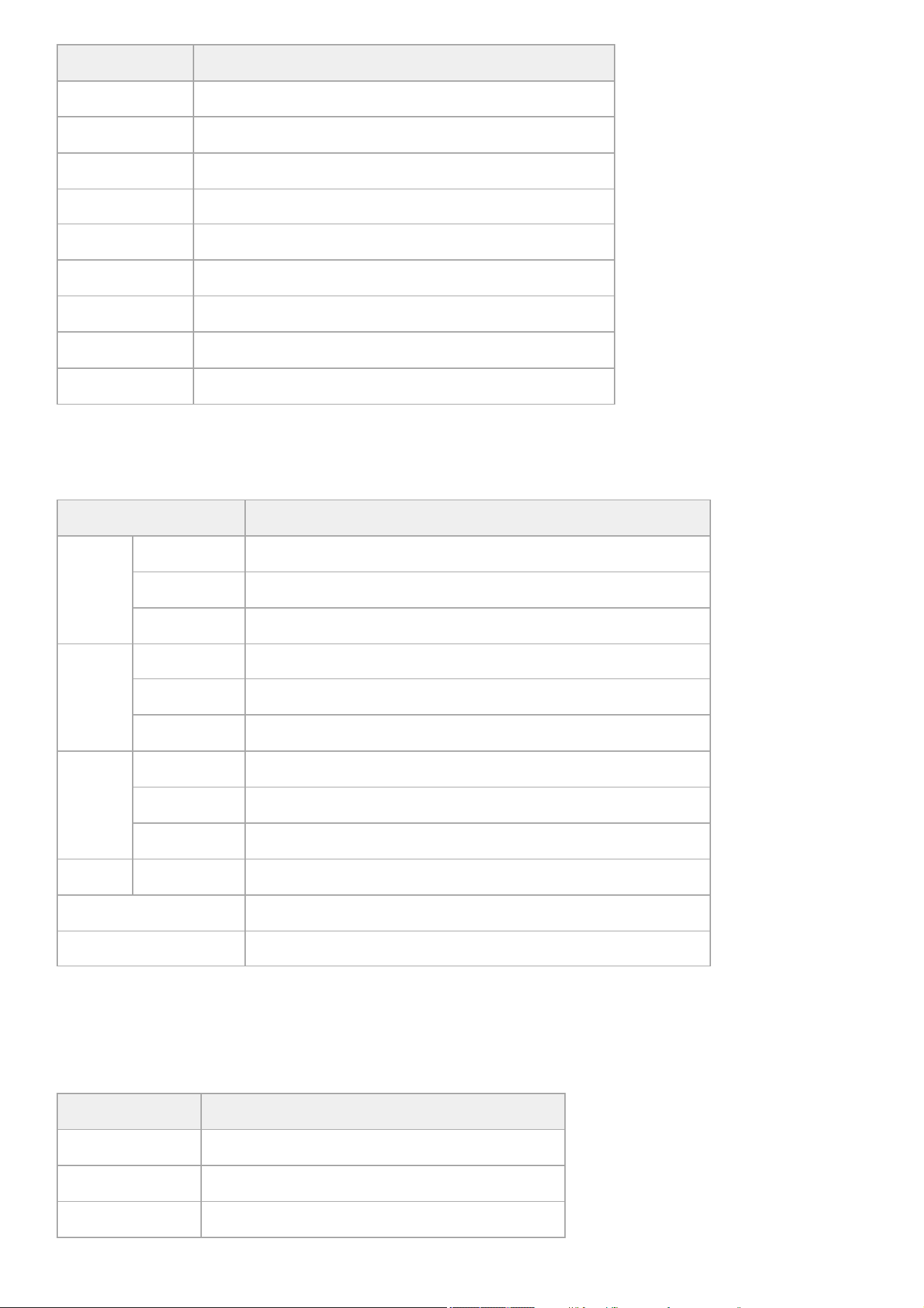
[Monitoring] status screen
Displays the SDI/HDMI output settings.
[Assignable Button] status screen
Displays the functions assigned to each of the assignable buttons.
Display item Description
[Codec]* Codec setting for recording
[Rec Function]* Special recording function on/off setting and main settings
[Simul Rec]* 2-slot simultaneous recording function on/off status and setting
[Title Name]* Title portion of the clip name
[Video Format]* Picture size for recording to memory cards
[Number] Numeric suffix of the clip name
[Shooting Mode]* Shooting mode setting
[Auto Framing]* Auto framing function setting
[Proxy Rec]* Proxy recording on/off setting
Display item Description
[SDI]
1)
[Signal]* Output picture size
[Info. Disp.]* Screen display output on/off setting
[Color Gamut]* Color gamut setting/Monitor LUT status
[HDMI]
[Signal]* Output picture size
[Info. Disp.]* Screen display output on/off setting
[Color Gamut]* Color gamut setting/Monitor LUT status
[Stream]
[Signal] Output picture size
[Info. Disp.] Screen display output ([Off] (fixed))
[Color Gamut]* Color gamut setting/Monitor LUT status
[LCD/VF] [Color Gamut]* Gamma display assist setting/Color gamut setting/Monitor LUT status
[Base Look/LUT]* [Base Look/LUT] setting
[Gamma Display Assist]* [Gamma Display Assist] on/off status
PXW-Z200 only
1)
Display item Description
1 Function assigned to the assignable 1 button
2 Function assigned to the assignable 2 button
3 Function assigned to the assignable 3 button
38
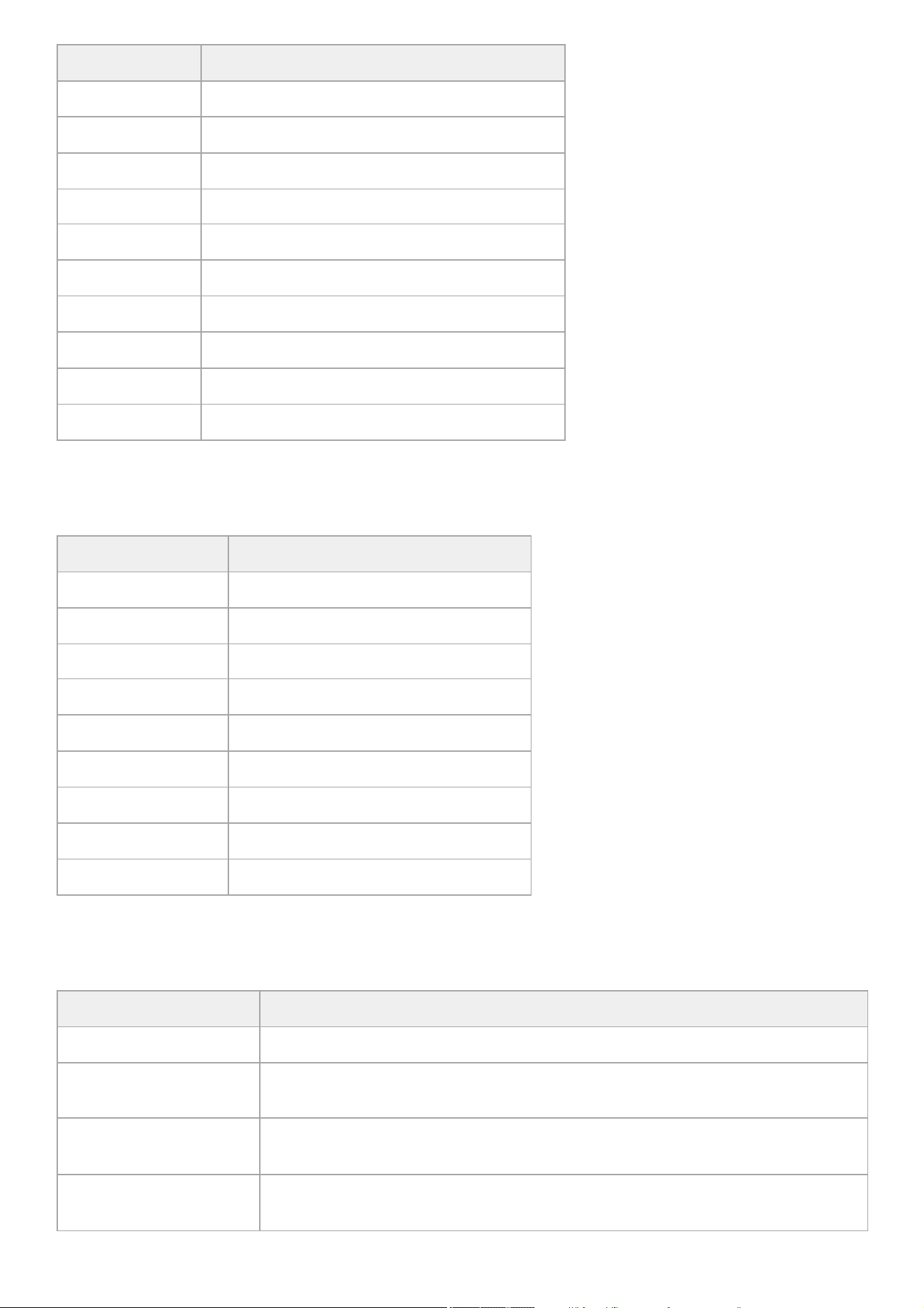
[Battery] status screen
Displays information about the battery and DC IN source.
[Media] status screen
Displays the remaining capacity and remaining recording time of the memory cards.
Display item Description
4 Function assigned to the assignable 4 button
5 Function assigned to the assignable 5 button
6 Function assigned to the assignable 6 button
7 Function assigned to the assignable 7 button
8 Function assigned to the assignable 8 button
9 Function assigned to the assignable 9 button
10 Function assigned to the assignable 10 button
11 Function assigned to the assignable 11 button
[<PUSH AUTO>] Function assigned to the FOCUS PUSH AUTO button
[Multi Function Dial] Function assigned to the multi-function dial
Display item Description
[Detected Battery] Type of battery
[Remaining] Remaining capacity (%)
[Charge Count] Number of recharges
[Capacity] Remaining capacity (Ah)
[Voltage] Battery voltage (V)
[Manufacture Date] Date of battery manufacture
[Video Light Remaining] Remaining capacity of the video light battery
[Power Source] Power supply source
[Supplied Voltage] Supplied power source voltage
Display item Description
Memory card A information Displays an icon when a memory card is inserted in slot A.
Memory card A remaining
capacity meter
Displays the remaining capacity of the memory card inserted in slot A expressed as a
percentage on a bar graph.
Memory card A remaining
time
Displays an estimate of the remaining recording time of the memory card inserted in slot A
in units of minutes under the current recording conditions.
Memory card A initialization
button
Press to display the menu for initializing memory card A.
39
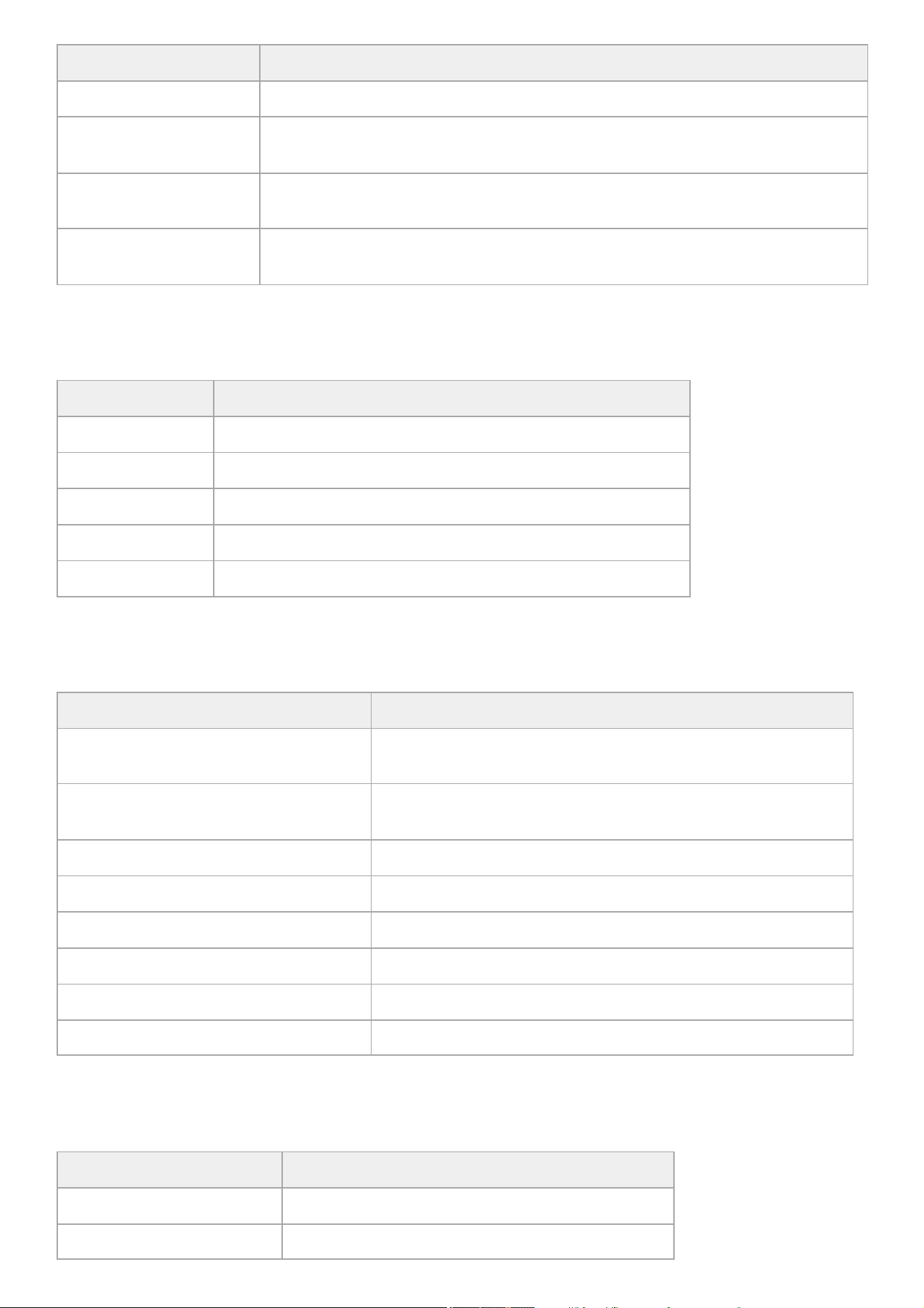
[Network] status screen
Displays the network connection status.
[Stream] status screen
Displays the streaming status.
[File Transfer] status screen
Displays file transfer information.
Display item Description
Memory card B information Displays an icon when a memory card is inserted in slot B.
Memory card B remaining
capacity meter
Displays the remaining capacity of the memory card inserted in slot B expressed as a
percentage on a bar graph.
Memory card B remaining
time
Displays an estimate of the remaining recording time of the memory card inserted in slot B
in units of minutes under the current recording conditions.
Memory card B initialization
button
Press to display the menu for initializing memory card B.
Display item Description
[Wireless LAN]* Wireless LAN settings and connection status
[Wired LAN]* Wired LAN settings and connection status
[USB Tethering]* USB tethering settings and connection status
[Bluetooth] Bluetooth setting and connection status
[Show Authentication] Press to display the user name and password for connecting to the unit
Display item Description
[RTMP/RTMPS Status
]* / [SRT-Caller Status]*
Streaming function on/off setting.
When set to [On], it also displays the streaming function status.
[ARC]
[SRT-Caller 1] to [SRT-Caller 3] auto rate control function on/off status.
When set to [On], it also displays the auto rate control status.
[Destination]* Streaming destination setting
[Latency
] / [TTL] [SRT-Caller 1] to [SRT-Caller 3] streaming latency and time-to-live (TTL)
[Destination URL] Streaming destination URL
[Codec] Codec
[Audio Channel] Audio channel
[Resolution
] / [Bit Rate] Streaming resolution and bit rate
Display item Description
[Auto Upload]* [Auto Upload] on/off status
[Auto Upload (Proxy)]* [Auto Upload (Proxy)] on/off/chunk status
40

TP1001670297
5-060-574-11(2) Copyright 2024 Sony Corporation
Display item Description
[Total Transfer Progress] Transfer progress of all jobs
[Default Upload Server]* [Auto Upload (Proxy)] transfer destination server selection
[Job Status(Remain/Total)] Remaining number of jobs and total number of jobs
[Current File Transfer Progress] Transfer progress of current file transfer
[Current Transferring File Name] Name of file currently being transferred
[Server Address] Address of file transfer destination server
[Destination Directory] Destination directory of file transfer destination server
41
Help Guide
Solid-State Memory Camcorder
PXW-Z200/HXR-NX800
Power Supply
You can use a battery pack or AC power supply from an AC adaptor.
For safety, use only the Sony battery packs and AC adaptors listed below.
Lithium-ion battery packs
BP-U35 (supplied)
BP-U70
BP-U100
Battery chargers
BC-CU1 (supplied)
BC-U1A
BC-U2A
AC adaptor (supplied)
Do not store battery packs in locations exposed to direct sunlight, flame, or high temperature.
Note
When operating from an AC power source, use the supplied AC adaptor.
Always set the power switch to the
(standby) position before connecting or disconnecting a battery or AC adaptor. If it is connected
with the power switch in the
(on) position, the unit may be unable to start in some cases. If the unit cannot be started, set the power
switch to the
(standby) position and disconnect the battery pack or AC adaptor temporarily, then wait about 30 seconds before
attempting to connect again. If the AC adaptor is connected while the unit is operating from the battery pack, it can be connected with
the power switch in the
(on) position without problem.
TP1001670298
5-060-574-11(2) Copyright 2024 Sony Corporation
42
Help Guide
Solid-State Memory Camcorder
PXW-Z200/HXR-NX800
Using a Battery Pack
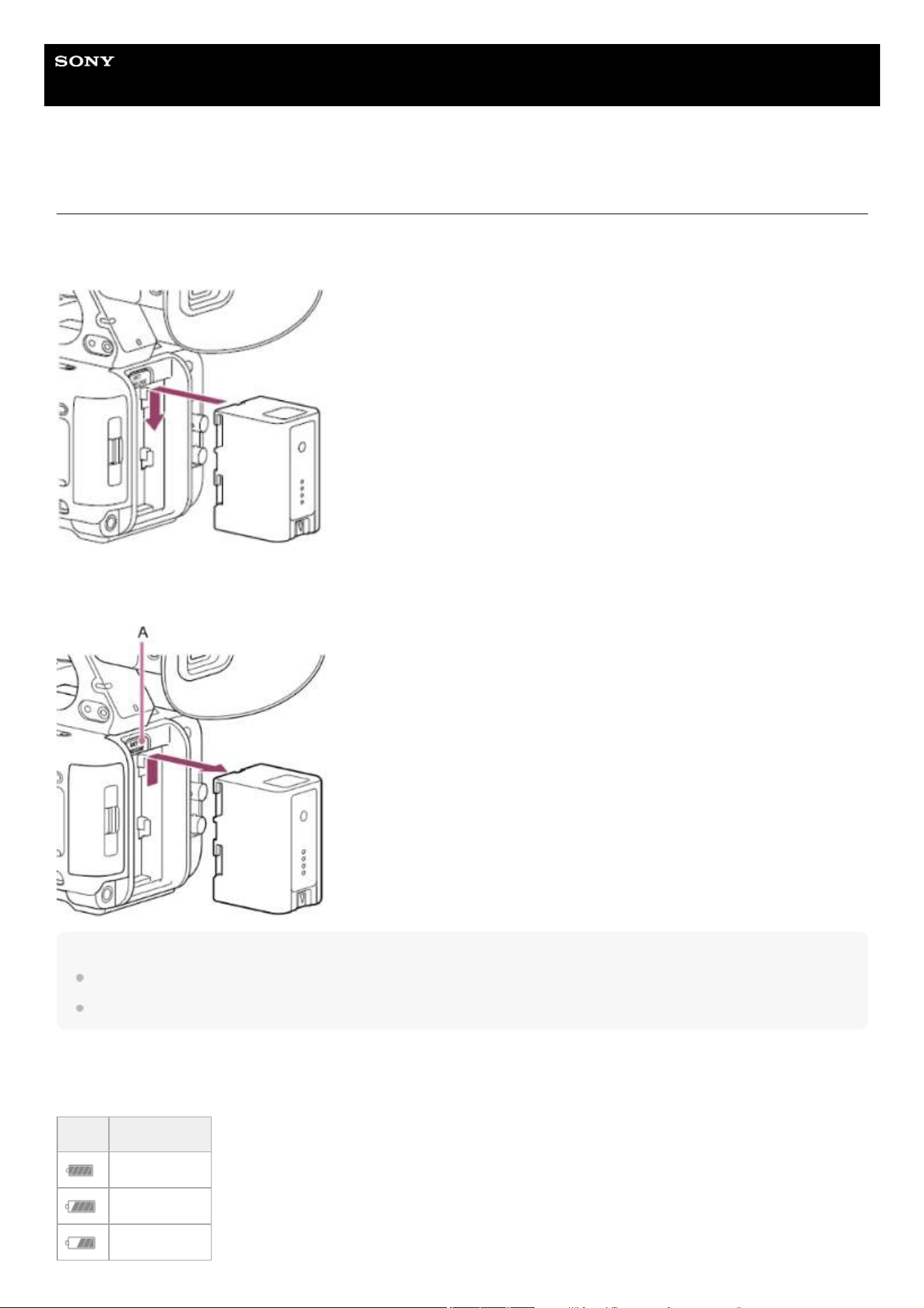
Attaching the battery pack
Plug the battery pack into the attachment as far as it will go, and then slide it down to lock it into position.
Removing the battery pack
Press and hold the BATT RELEASE button (A), slide the battery pack up, and then pull it out of the attachment.
Note
Before attaching a battery pack, charge the battery using the dedicated BC-CU1/BC-U1A/BC-U2A battery charger.
Charging a battery pack while it is warm (for example, immediately after use) may not fully recharge the battery.
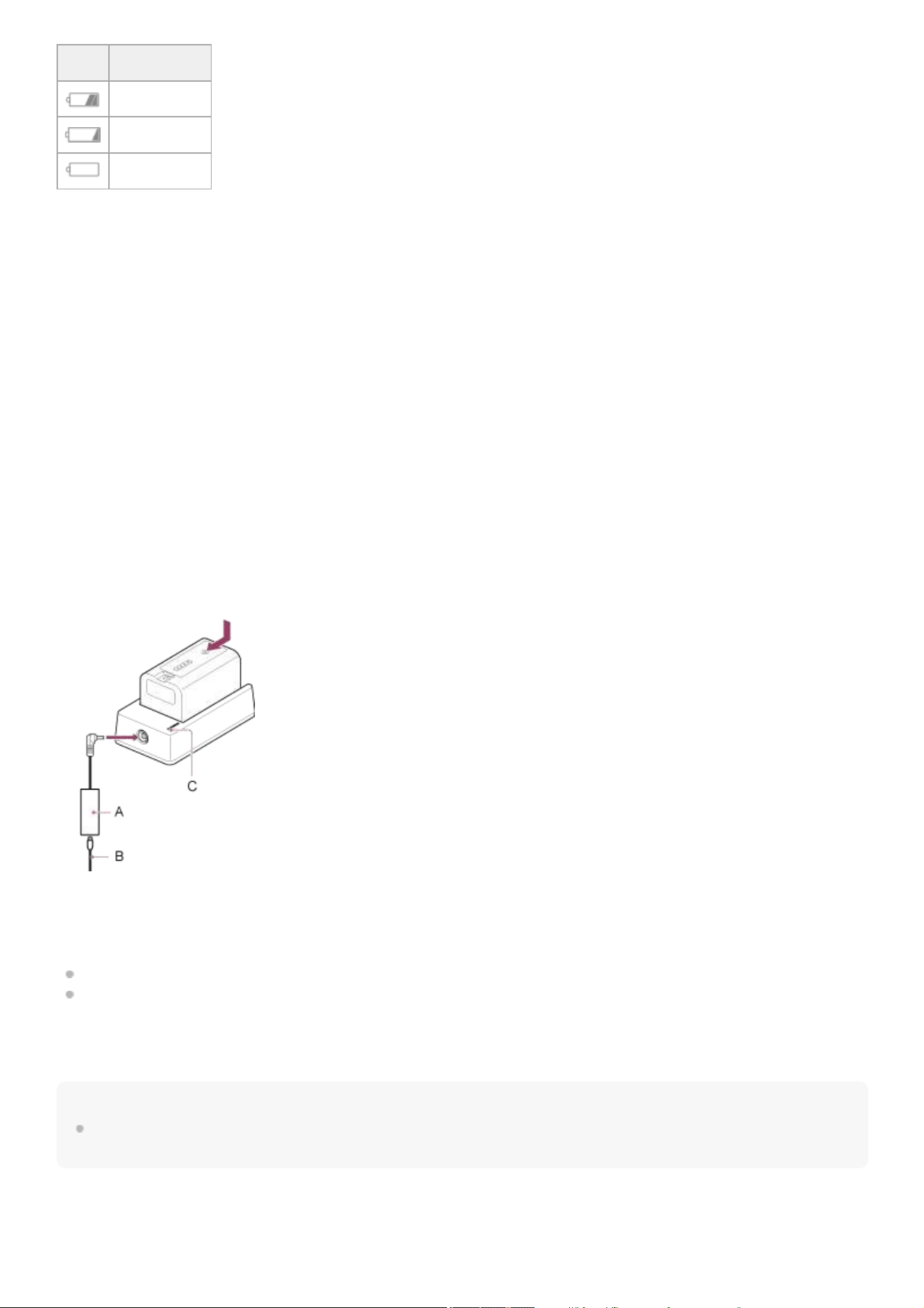
Checking the remaining capacity
When shooting/playing using a battery pack, the remaining battery capacity is displayed on the LCD monitor/viewfinder.
Icon Meaning
91% to 100%
71% to 90%
51% to 70%
43
The unit indicates the remaining capacity by calculating the available time with the battery pack if operation is continued at
the current rate of power consumption.
If the battery pack charge becomes low
If the remaining battery charge falls below a certain level during operation ([Low Battery] state), a low-battery message
appears and the recording/tally lamp starts flashing to warn you.
If the remaining battery charge falls below the level at which operation cannot continue ([Battery Empty] state), a battery-
empty message appears.
Replace with a charged battery pack.
Changing the warning levels
The [Low Battery] level is set to 10% of full battery charge and the [Battery Empty] level is set to 3% by factory default. You
can change the warning level settings using [Technical] – [Camera Battery Alarm] in the full menu.
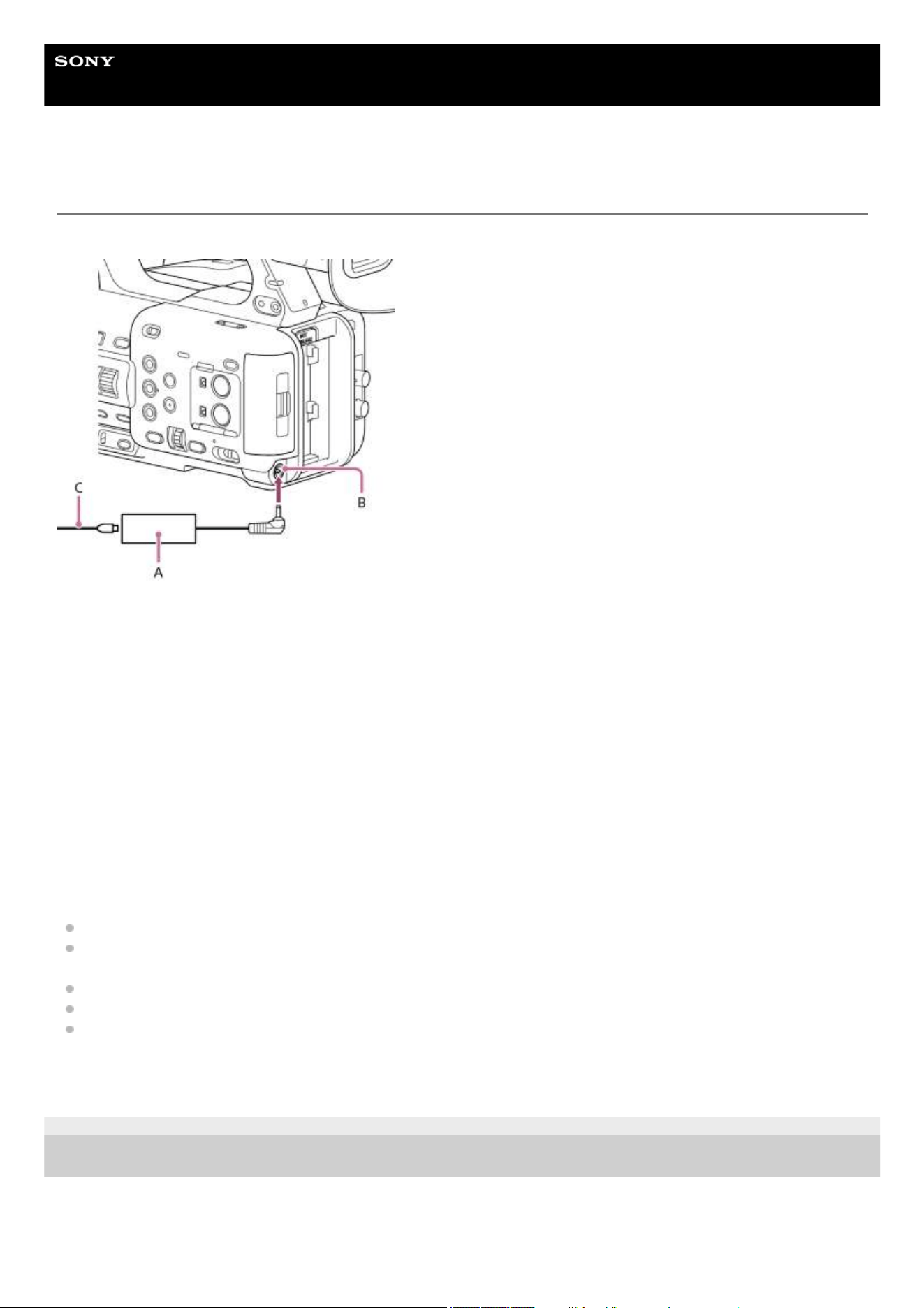
Charging using the supplied battery charger
CHARGE lamp (orange)
Lit: Charging
Flashing: Charging error, or temperature is outside the operating range and charging is paused
When fully charged, the CHARGE lamp of the battery charger turns off.
Always use genuine Sony batteries.
Charging time
The approximate time required to charge a fully discharged BP-U35 battery pack is 120 minutes.
Note
If the AC adaptor is disconnected from the battery charger and the battery is left connected to the battery charger, the battery will start
to discharge.
TP1001670299
Icon Meaning
31% to 50%
11% to 30%
0% to 10%
Connect the AC adaptor (A) to the battery charger, and connect the power cord (B) to an AC power source.1.
Push the battery in and slide it in the direction of the arrow.
The CHARGE lamp (C) lights up orange and charging starts.
2.
44

5-060-574-11(2) Copyright 2024 Sony Corporation
45
Help Guide
Solid-State Memory Camcorder
PXW-Z200/HXR-NX800
Using an AC Adaptor
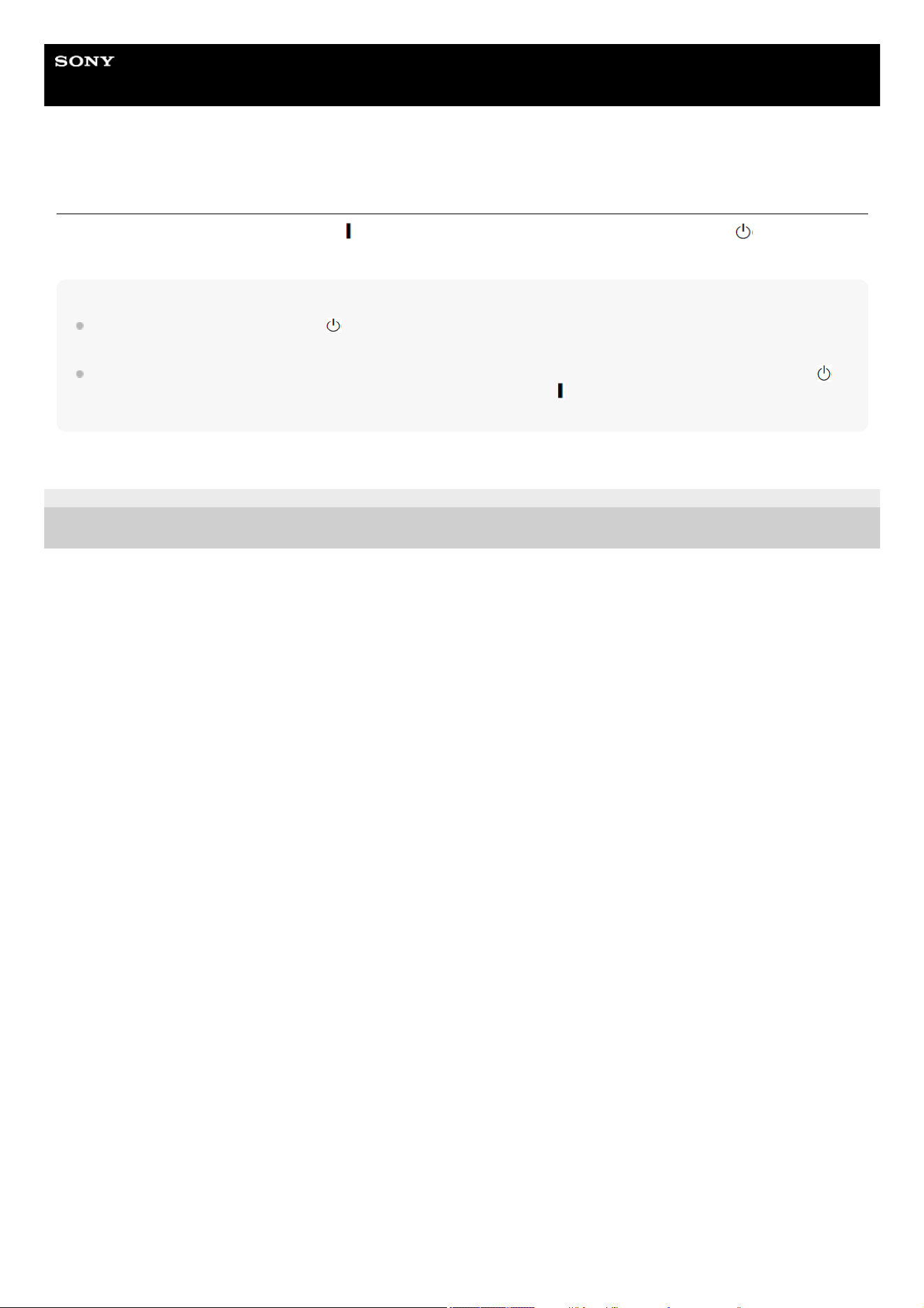
You can connect the unit to an AC power source for use without worrying about the need to recharge the battery pack.
Connect the AC adaptor (A) to the DC IN connector (B) on the unit, and connect the power cord (C) (supplied) to an AC
power source.
If the output voltage from the AC adaptor becomes low
If the output voltage from the AC adaptor falls below a certain level during operation ([DC Low Voltage1] state), a message
appears informing you that the AC adaptor output voltage has dropped, and the recording/tally lamp starts flashing.
If the output voltage from the AC adaptor falls below the level at which operation cannot continue ([DC Low Voltage2] state),
a message appears informing you that the AC adaptor output voltage is too low.
If this occurs, the AC adaptor may be faulty. Check the AC adaptor, as required.
Changing the warning voltages
The [DC Low Voltage1
] level is set to 16.5 V and the [DC Low Voltage2] level is set to 15.5 V by factory default. You can
change the warning level settings using [Technical] – [Camera DC IN Alarm] in the full menu.
About the AC adaptor
Do not connect and use an AC adaptor in a confined space, such as between a wall and furniture.
Connect the AC adaptor to the nearest AC power source. If a problem occurs during operation, immediately disconnect
the power cord from the AC power source.
Do not short-circuit the metal parts of the plug of the AC adaptor. Doing so will cause a malfunction.
The battery cannot be charged while attached to the unit, even if the AC adaptor is connected.
When disconnecting the AC adaptor from the unit, grasp the plug and pull it straight out. Pulling on the cable may cause a
malfunction.
TP1001670300
5-060-574-11(2) Copyright 2024 Sony Corporation
46
Help Guide
Solid-State Memory Camcorder
PXW-Z200/HXR-NX800
Switching the Power On/Off
To switch the power on, set the switch to the
(on) position. To switch the power off, set the switch to the (standby)
position.
Note
Even when the power switch is set to the
(standby) position, the unit continues to draw standby electric power. If not using the unit
for an extended period, remove the battery pack.
Remove the battery pack or disconnect the AC adaptor after the power lamp is extinguished when the power switch is set to the
(standby) position. If the power source is removed while the power switch is in the (on) position, the unit or memory cards may
become damaged.
TP1001670301
5-060-574-11(2) Copyright 2024 Sony Corporation
47
Help Guide
Solid-State Memory Camcorder
PXW-Z200/HXR-NX800
Date and Time
The initial settings screen appears on the LCD monitor/viewfinder the first time the unit is turned on or after the backup
battery has become completely discharged.
Set the date and time of the internal clock using this screen.
About [Time Zone]
Set the time difference from UTC (Coordinated Universal Time). Change the setting as required.
Use the multi selector or the multi-function dial to select items and settings, then press the multi selector or multi-function dial
to apply the settings and start the clock running.
Once the settings screen is closed, you can change the date, time, and [Time Zone] settings using [Maintenance] – [Clock
Set] in the full menu.
Note
If the clock setting is lost because the backup battery becomes fully discharged due to power being disconnected for an extended
period (no battery pack and no AC adaptor), the initial settings screen will be displayed when you next turn the unit on.
While the initial settings screen is displayed, no other operation, except turning the power off, is permitted until you finish the settings
on this screen.
The unit has a built-in rechargeable battery for storing the date, time, and other settings even when the unit is turned off.
TP1001670302
5-060-574-11(2) Copyright 2024 Sony Corporation
48
Help Guide
Solid-State Memory Camcorder
PXW-Z200/HXR-NX800
Accessibility Functions
The unit is equipped with accessibility functions to assist your vision. It has a screen reader function, which reads aloud the
text and other information on the screen, and a screen magnifier function.
You can configure the accessibility functions on the initial setup screen or using [Maintenance] – [
Accessibility] in the full
menu.
Screen reader function
You can turn the screen reader function on/off and configure settings, such as the read speed, using [Maintenance] – [
Accessibility] – [Screen Reader] in the full menu.
Screen magnifier function
You can turn the screen magnifier function on/off and configure settings, such as the magnification ratio, using [Maintenance]
– [
Accessibility] – [Enlarge Screen] in the full menu.
Hint
Some display elements, in addition to the recorded image and playback image, are not displayed enlarged.
Related Topic
Using the Screen Reader
Magnifying the Screen Display
TP1001670303
5-060-574-11(2) Copyright 2024 Sony Corporation
49
Help Guide
Solid-State Memory Camcorder
PXW-Z200/HXR-NX800
Shooting Mode
You can switch the shooting mode between custom mode for creating images flexibly on-site, and log shooting mode where
the unit is operated similarly to a film camera with images being developed in post-production.
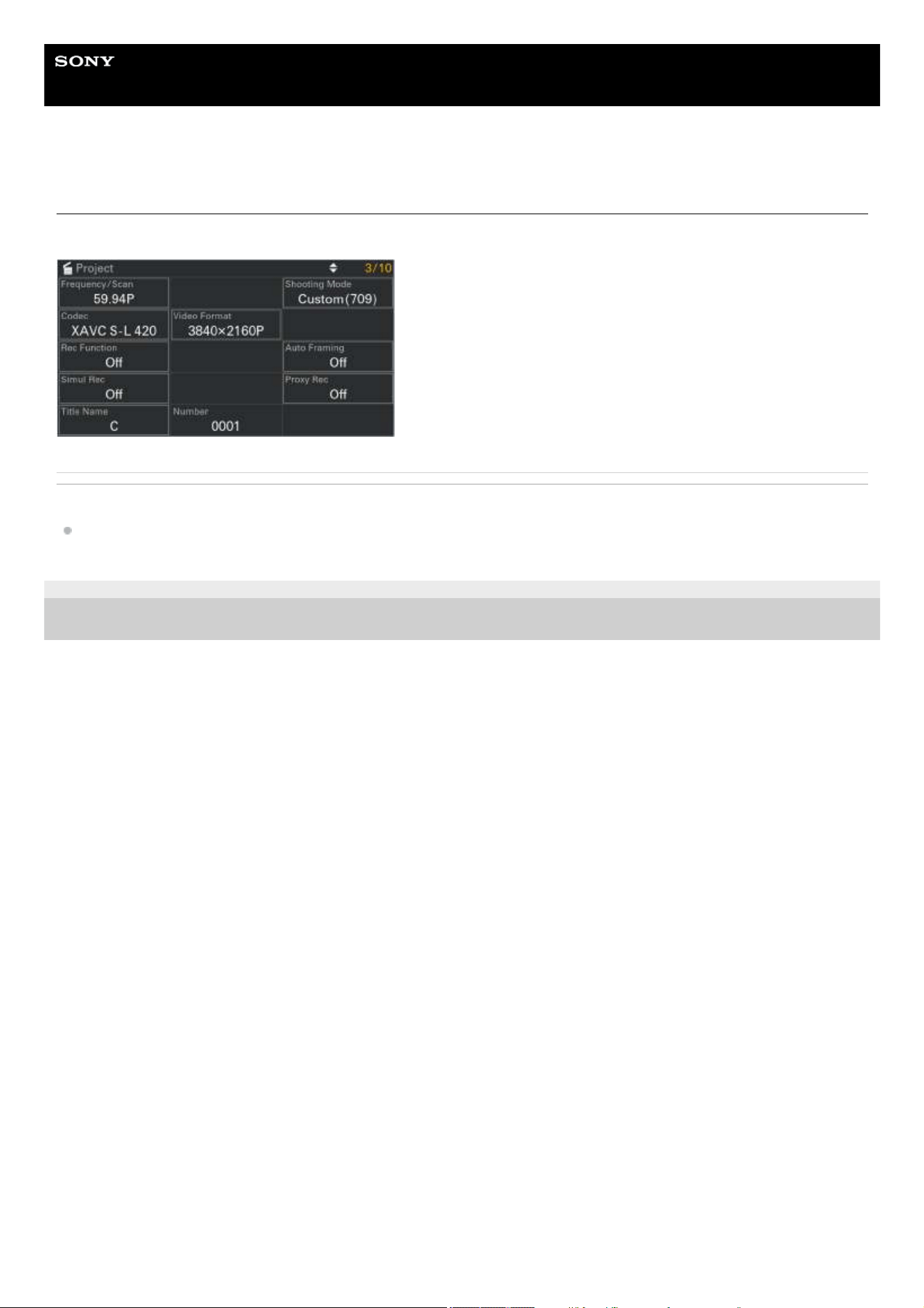
Set using [Shooting Mode] on the [Project] status screen.
Hint
Can also be configured using [Project] – [Base Setting] – [Shooting Mode] in the full menu.
Custom shooting mode: [Custom]
In [Custom] shooting mode, you can select the video standard.
Can also be configured using [Project] – [Base Setting] – [Target Display] in the full menu.
[SDR(BT.709)]: Shooting according to HD broadcast standard
[HDR(HLG)]: Shooting according to next generation 4K broadcast standard
Log shooting mode: [Flexible ISO]
Record S-Log3 content with exposure settings reflecting the ISO sensitivity matching the scene being shot.
In log shooting mode, you can also select the base color gamut for recorded signals and output signals. The color gamut
selected here is the color gamut of the recorded video and the video output when [LUT] is set to [Off].
Can also be configured using [Project] – [Flexible ISO Setting] – [Color Gamut] in the full menu.
[S-Gamut3.Cine/SLog3]: Easy to adjust color gamut for digital cinema (DCI-P3).
[S-Gamut3/SLog3]: Sony wide color gamut that covers the ITU-R BT.2020 color gamut.
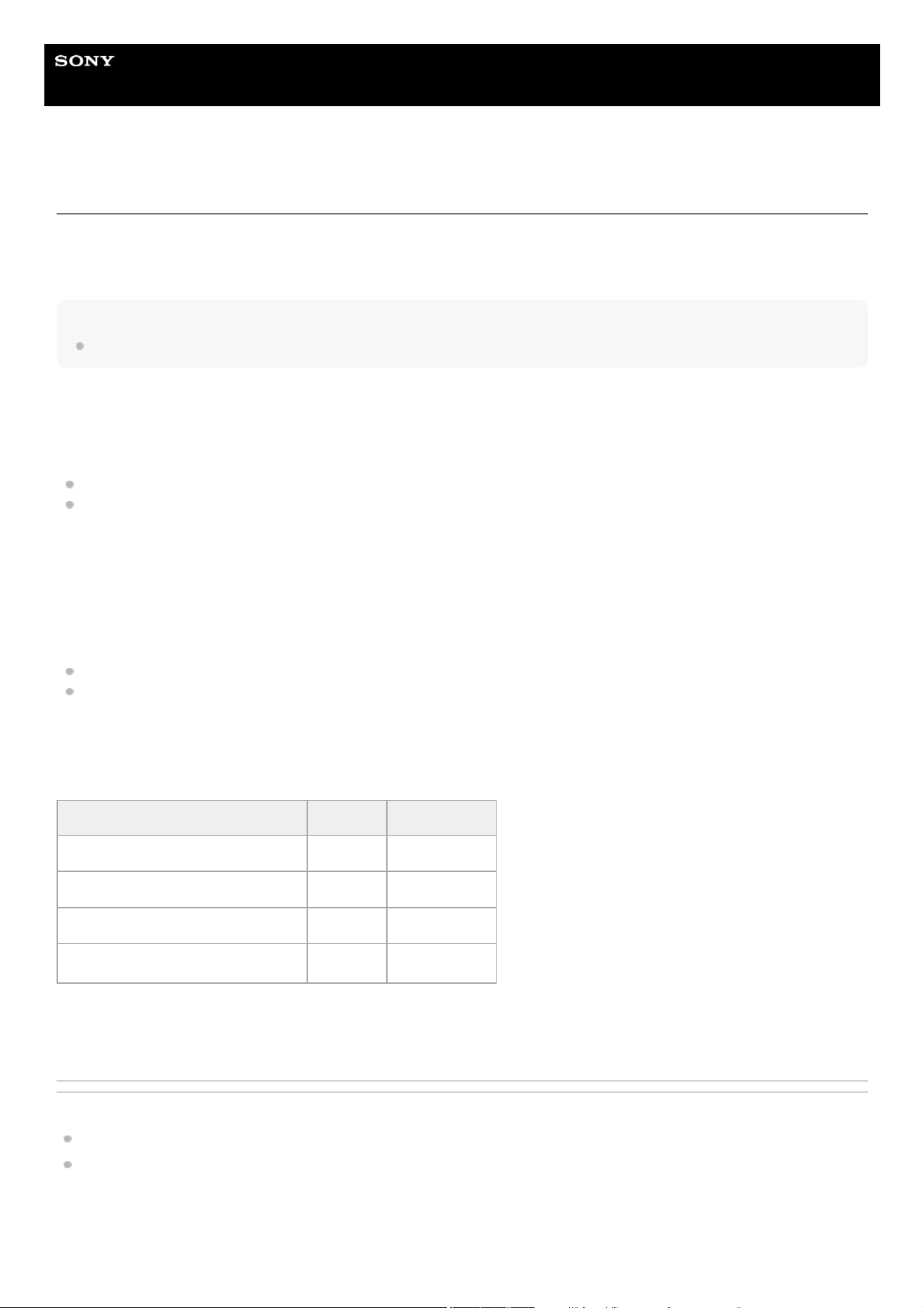
The functional restrictions for each shooting mode are given below.
✓: Supported
×: Not supported
Related Topic
Gamma Display Assist Function
Video Signal Monitor
TP1001670304
Item [Custom] [Flexible ISO]
[ISO/Gain] ✓ ✓ (ISO only)
[LUT On/Off] × ✓
[Paint/Look] (excluding [Base Look]) ✓ ×
[Paint/Look] ([Base Look] only)
✓
1)
✓
2)
Use as base look
1)
Use as LUT
2)
51

5-060-574-11(2) Copyright 2024 Sony Corporation
52
Help Guide
Solid-State Memory Camcorder
PXW-Z200/HXR-NX800
Recording Format
System frequency
Switch the system frequency for recording video.
Set using [Frequency/Scan] on the [Project] status screen. The unit may reboot automatically after switching, depending on
the selected value.
Hint
Can also be configured using [Project] – [Rec Format] – [Frequency] in the full menu.
Note
You cannot switch the system frequency during recording/playback.
Codec
Switch the codec for recording video.
Set using [Codec] on the [Project] status screen.
Hint
Can also be configured using [Project] – [Rec Format] – [Codec] in the full menu.
Note
You cannot switch the codec during recording/playback.
Video format
Set the video format for recording video.
Set using [Video Format] on the [Project] status screen.
Hint
Can also be configured using [Project] – [Rec Format] – [Video Format] in the full menu.
Note
You cannot switch the video format during recording/playback.
Restrictions may apply to the signal from the SDI OUT connector (PXW-Z200 only) and HDMI output connector, depending on the
video format setting.
When the recording format is 3840×2160 and the Slow & Quick Motion frame rate is 100fps or 120fps, the framing becomes narrower
(cropped).
TP1001670305
5-060-574-11(2) Copyright 2024 Sony Corporation
53
Help Guide
Solid-State Memory Camcorder
PXW-Z200/HXR-NX800
Attaching a Microphone (sold separately)
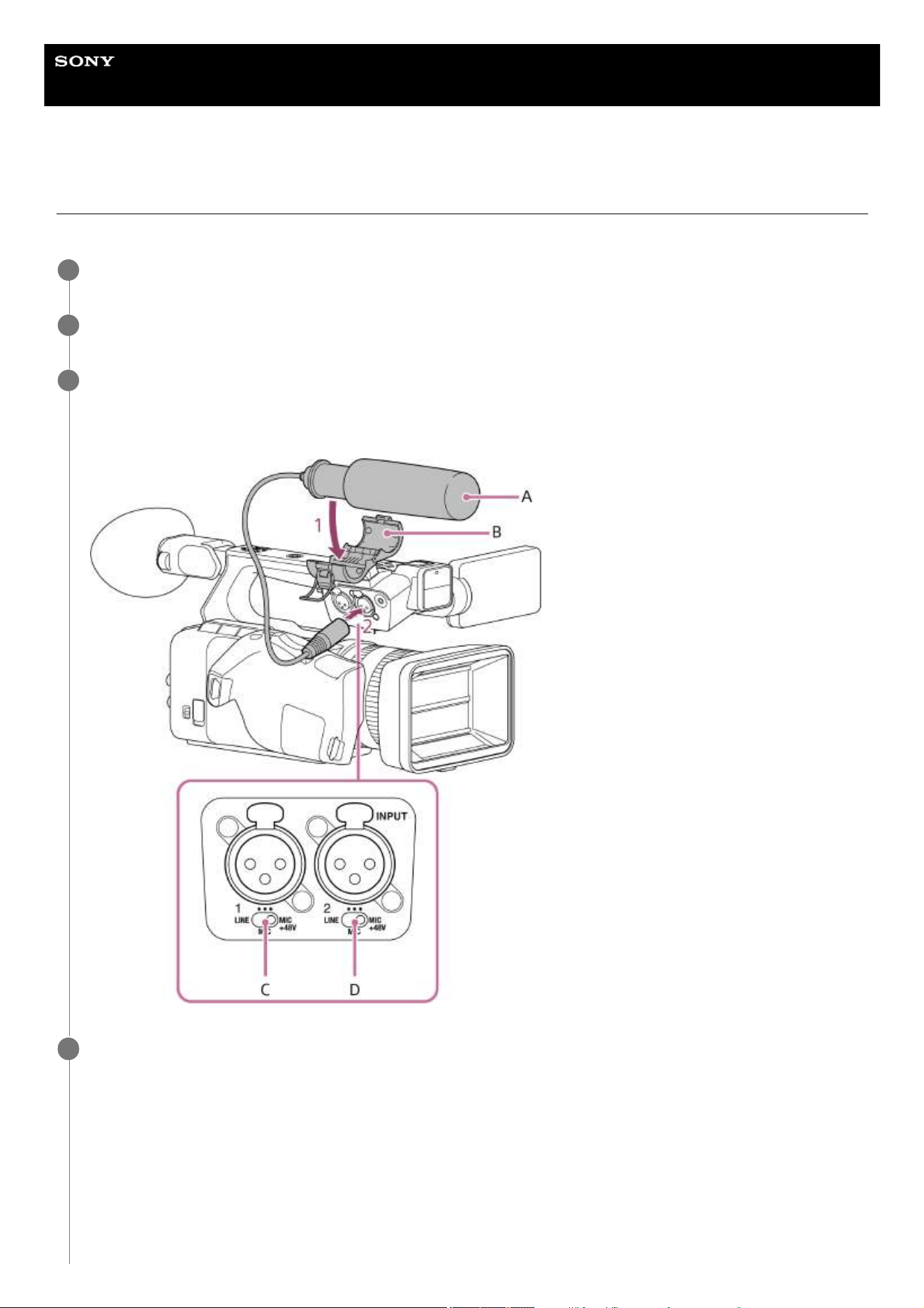
You can attach a microphone (sold separately).
Place the microphone (A) in the microphone holder (B).
1
Connect the microphone cable to the INPUT 1 or INPUT 2 connector.
2
Set the INPUT 1/INPUT 2 switch (C/D) according to the type of microphone.
MIC: Dynamic microphone, battery-operated microphone
MIC+48V: +48 V phantom power microphone
3
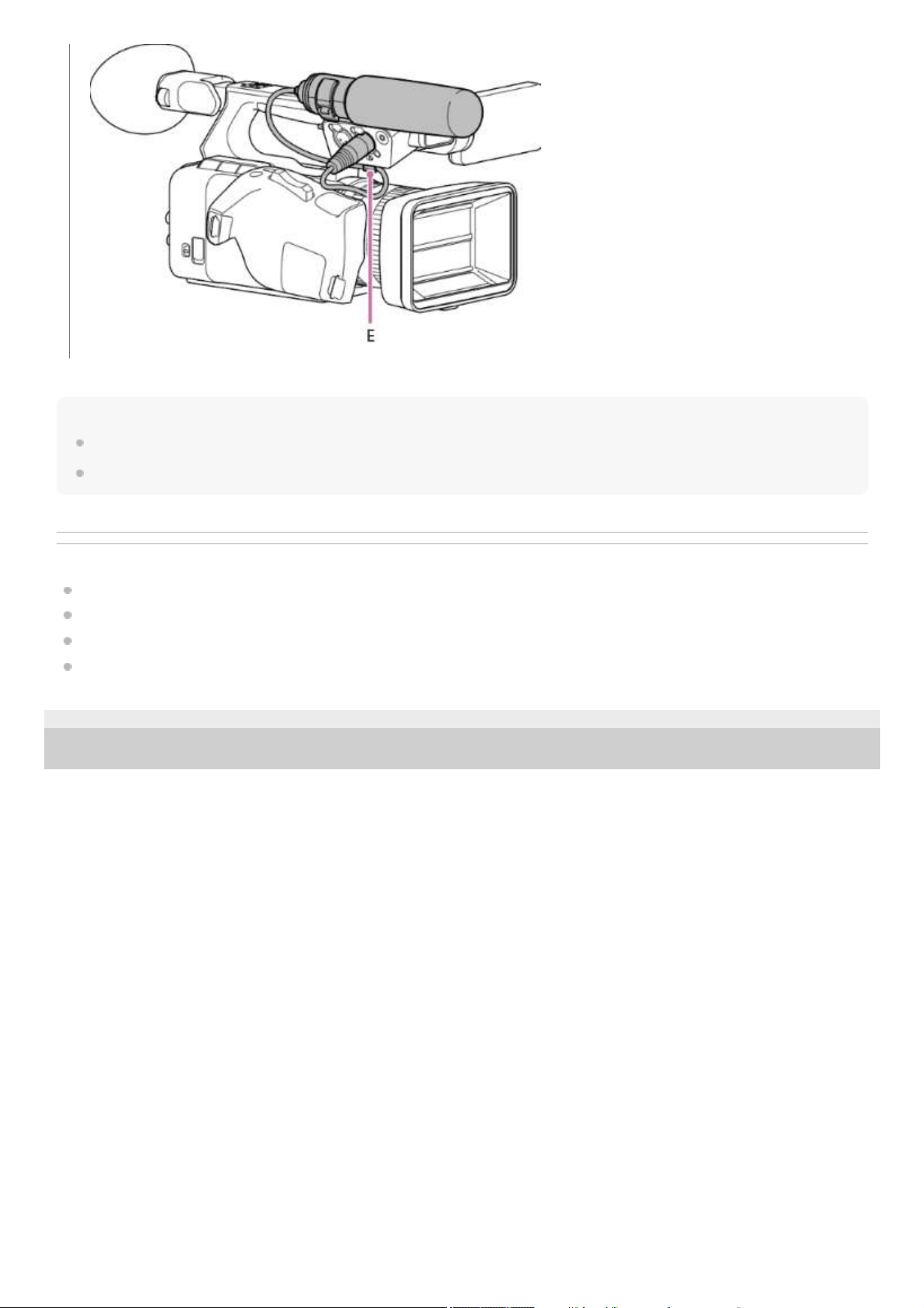
Place the microphone cable into the cable holder (E).
4
54
Hint
If you cannot attach the microphone securely, use the spacer supplied with the microphone.
Depending on the type of lens attached, the tip of the microphone may be visible in the image. Adjust the position of the microphone.
Related Topic
Setting the Audio to Record
Selecting the Audio Input Device
Adjusting the Audio Recording Level Automatically
Adjusting the Audio Recording Level Manually
TP1001670306
5-060-574-11(2) Copyright 2024 Sony Corporation
55
Help Guide
Solid-State Memory Camcorder
PXW-Z200/HXR-NX800
Attaching the LCD Hood (supplied)
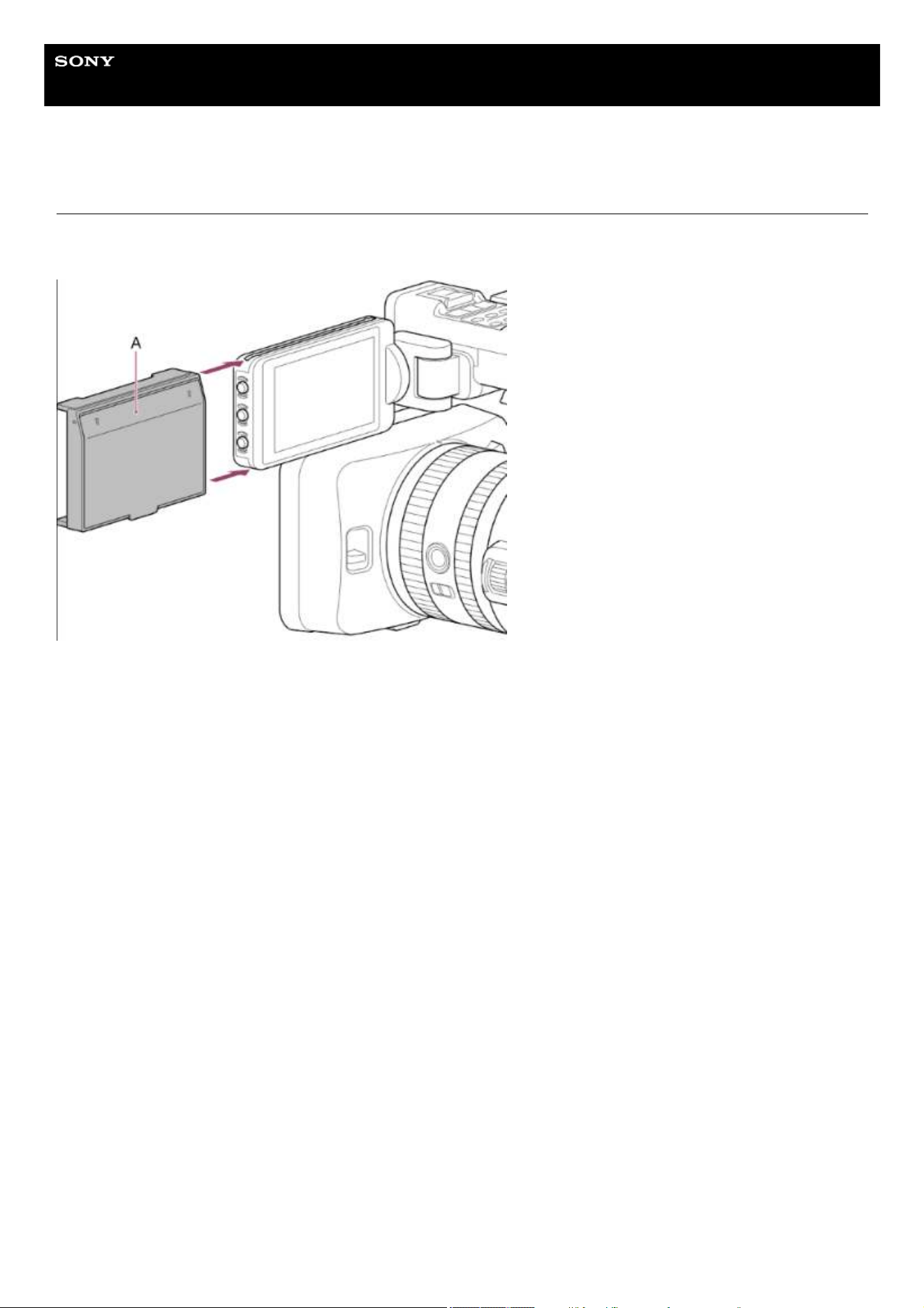
You can attach an LCD hood (supplied) to the LCD monitor.
Attach the LCD hood (A) by sliding it into the grooves along the top and bottom of the LCD monitor from left to right.
Opening the LCD hood cover
Pull the bottom center of the LCD hood cover out towards you, and then pull up to open the hood.
56
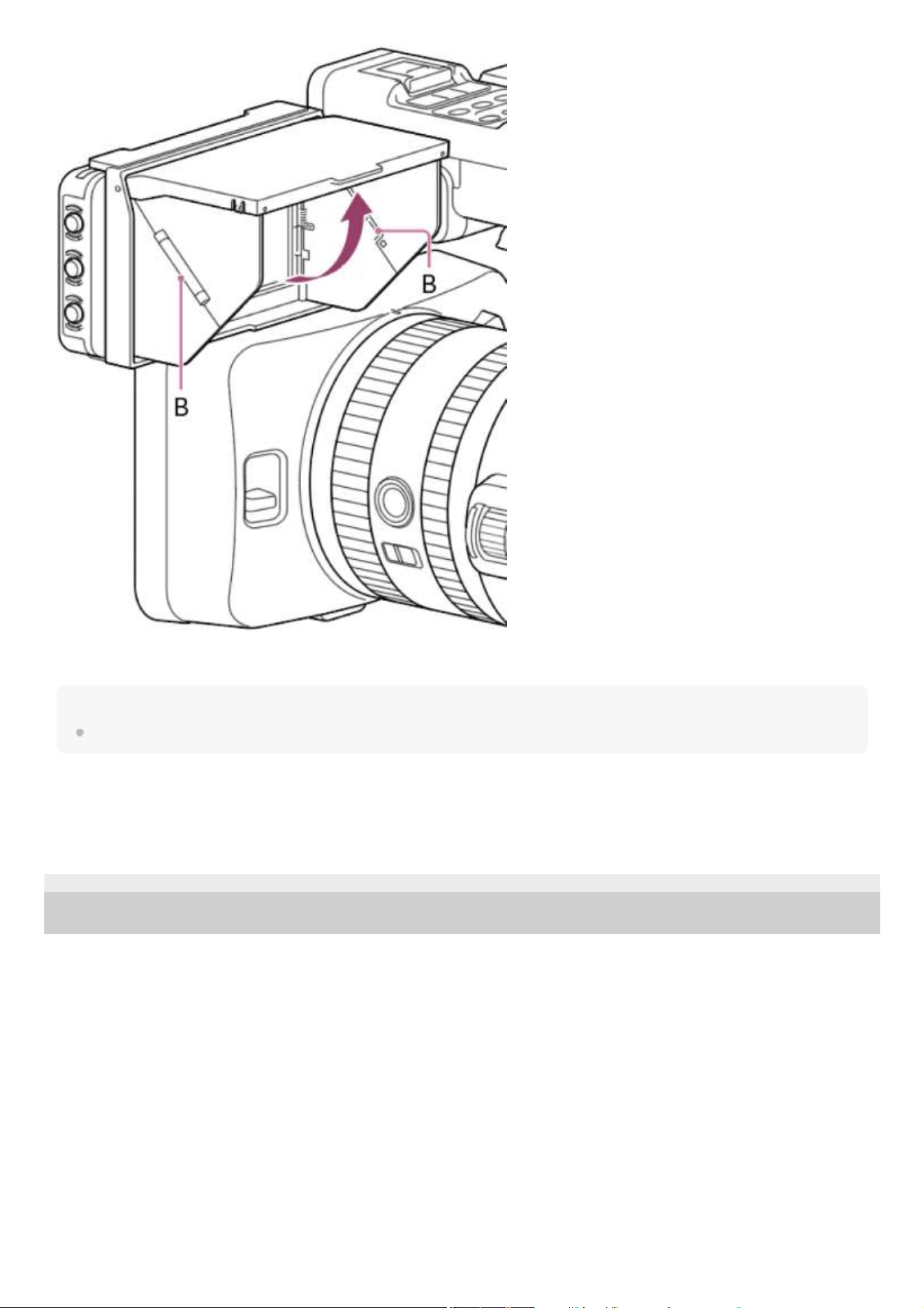
To close the LCD hood cover, press the left and right sides (B) inward.
Note
When moving the LCD monitor, hold the body of the LCD monitor and then move it. Do not grasp the LCD hood.
Removing the LCD hood
Use the reverse procedure of attaching the LCD hood.
TP1001670307
5-060-574-11(2) Copyright 2024 Sony Corporation
57
Help Guide
Solid-State Memory Camcorder
PXW-Z200/HXR-NX800
Attaching the Lens Hood (supplied)
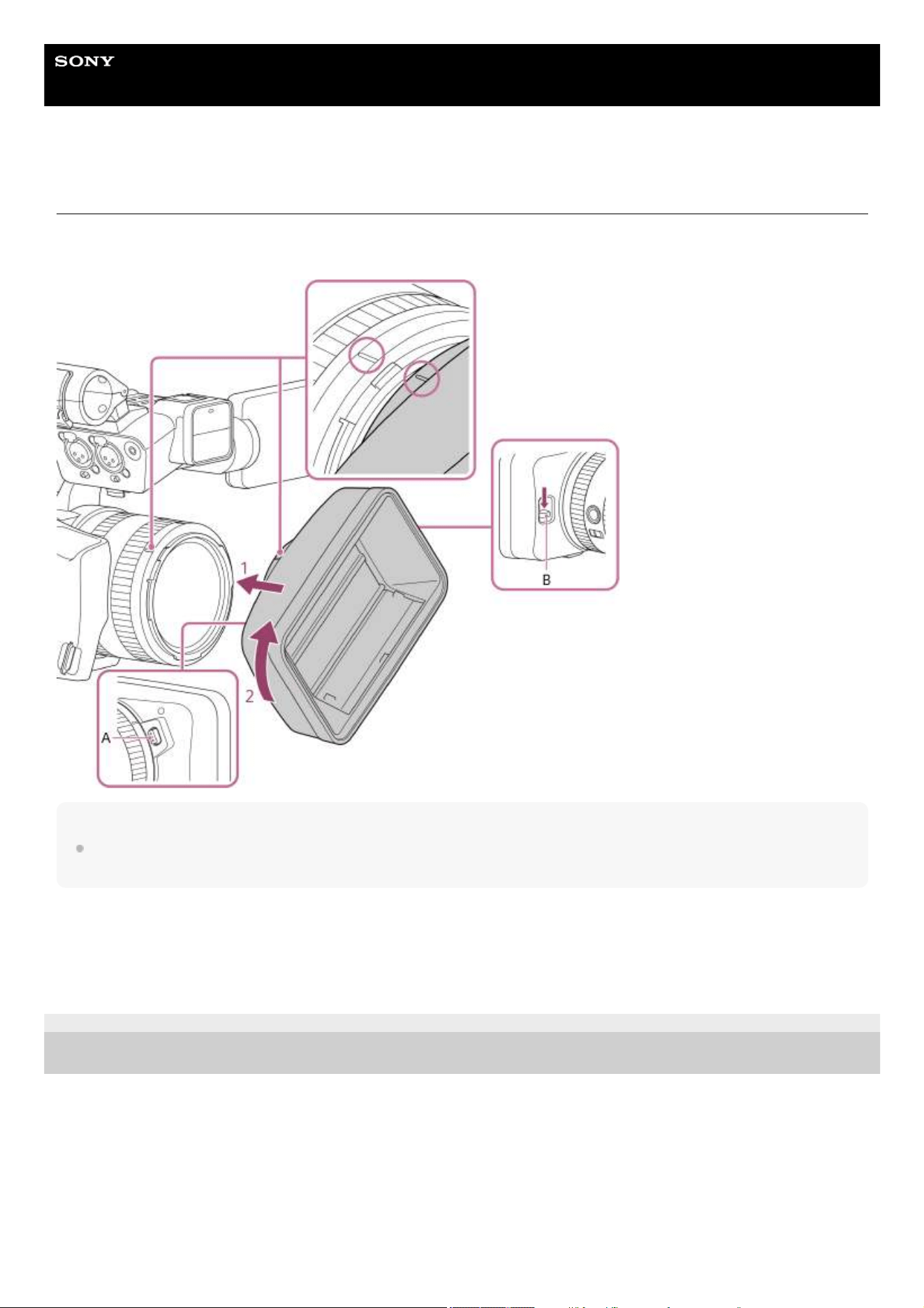
You can attach a lens hood (supplied).
Align the marks on the lens and lens hood (1) and turn the lens hood in the direction of the arrow (2).
Note
When not in use, such as when transporting the unit, press the lens hood shutter open/close switch (B) downward to close the lens
hood shutter and protect the lens.
Removing the lens hood
Press and hold the lens hood release button (A) and slide the lens hood off in the reverse direction of attaching (2).
TP1001670308
5-060-574-11(2) Copyright 2024 Sony Corporation
58
Help Guide
Solid-State Memory Camcorder
PXW-Z200/HXR-NX800
Attaching the Large Eyecup
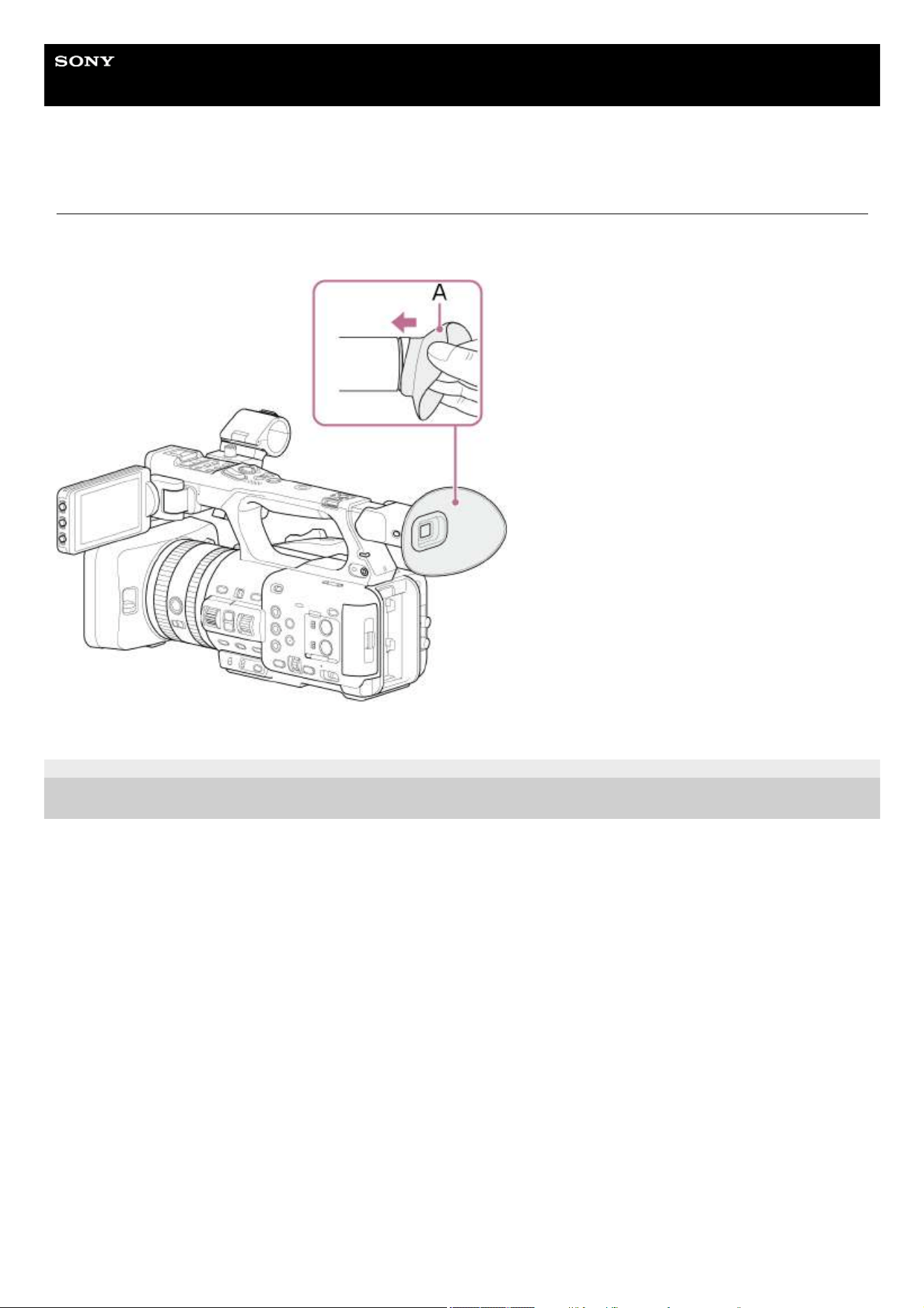
You can attach the large eyecup to the viewfinder.
Lightly squeeze the large eyecup (A) (supplied) and place it on the viewfinder until the edge fits in the horizontal groove.
TP1001670309
5-060-574-11(2) Copyright 2024 Sony Corporation
59
Help Guide
Solid-State Memory Camcorder
PXW-Z200/HXR-NX800
Adjusting the Angle of the LCD Monitor
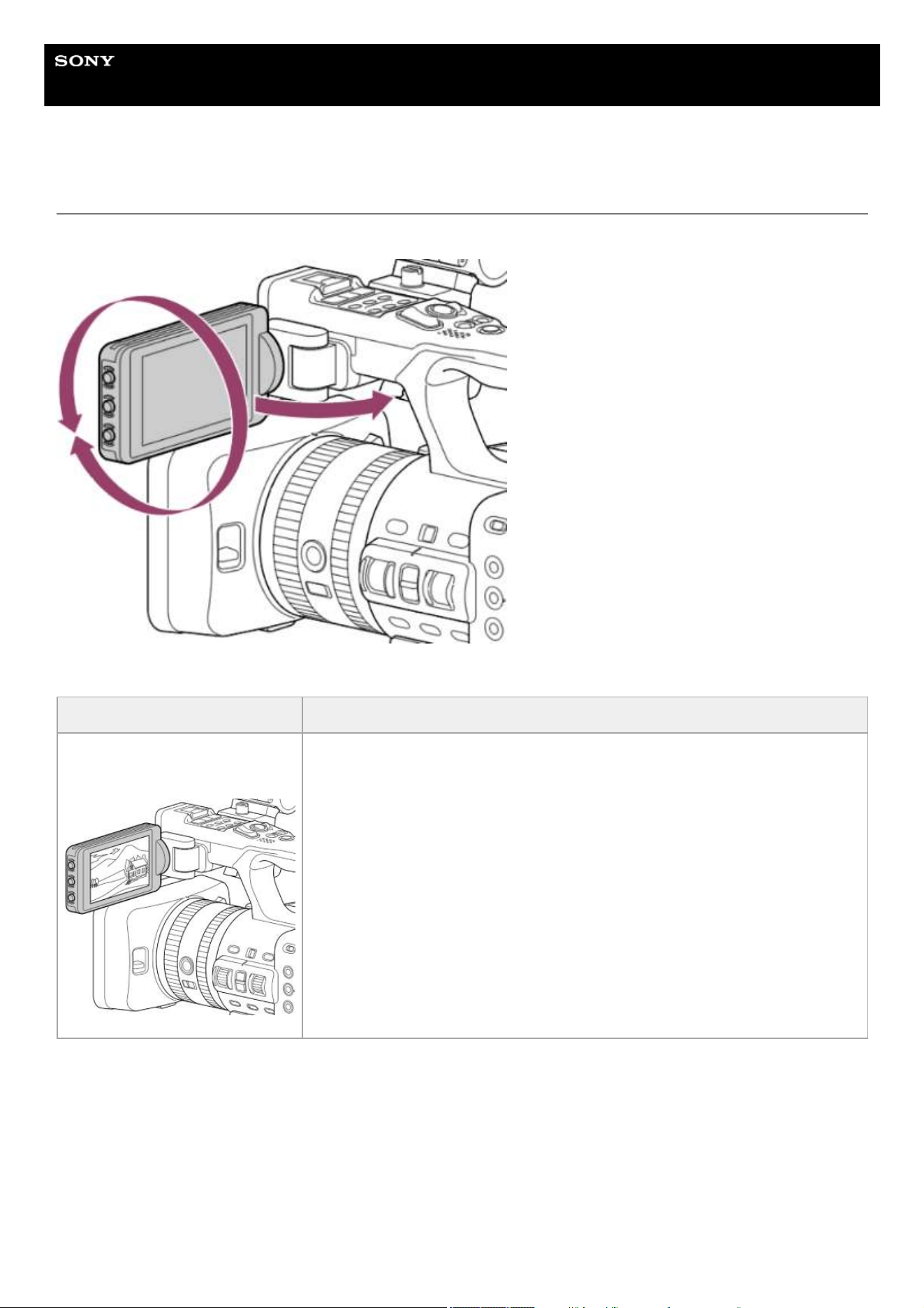
Tilt the LCD monitor up/down or toward the back to adjust the angle.
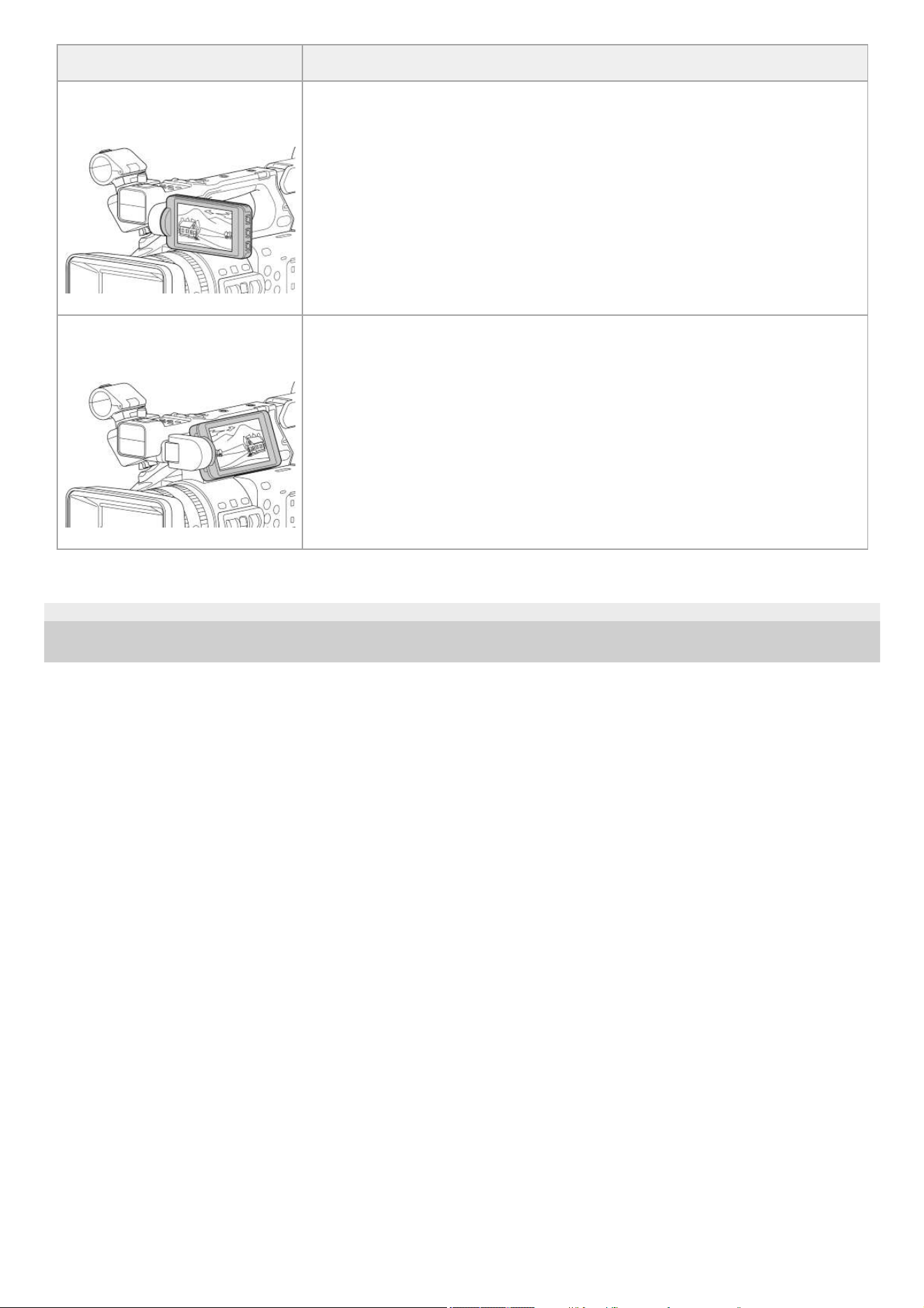
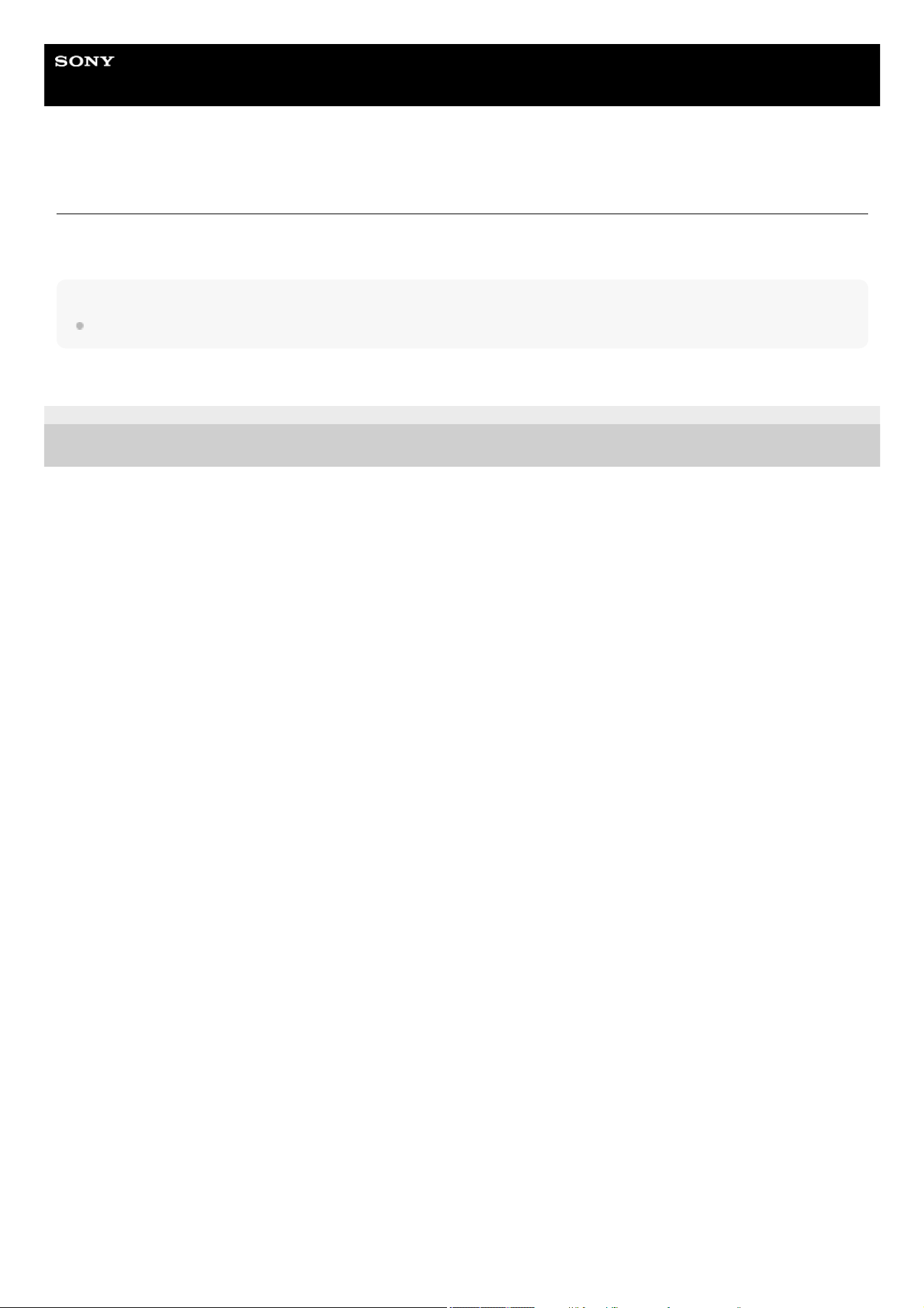
The LCD monitor can be tilted up by 180°, down by 90°, or toward the back by 105°, as shown in the following diagram.
LCD monitor orientation Description
LCD monitor facing in the opposite
direction of the lens
This display orientation is suitable for normal shooting.
60
TP1001670310
5-060-574-11(2) Copyright 2024 Sony Corporation
LCD monitor orientation Description
LCD monitor facing in the same
direction as the lens
This display orientation is suitable when shooting yourself. The captured image is
displayed flipped horizontally, but the playback image is not flipped.
LCD monitor in the stowed
position, but facing outwards.
The image can be monitored even in this orientation.
61
Help Guide
Solid-State Memory Camcorder
PXW-Z200/HXR-NX800
Adjusting the Brightness of the LCD Monitor
Adjust using [Monitoring] – [LCD Monitor/VF] – [LCD Monitor Brightness] in the full menu. Adjusting the brightness does not
affect the recorded image.
Hint
You can also make adjustments using an assignable button assigned with [LCD/VF Adjust].
TP1001670311
5-060-574-11(2) Copyright 2024 Sony Corporation
62
Help Guide
Solid-State Memory Camcorder
PXW-Z200/HXR-NX800
Magnifying the LCD Monitor Screen Display
Set [Maintenance] – [
Accessibility] – [Enlarge Screen] – [Setting] to [Enable] in the full menu and press an assignable
button assigned with [Enlarge Screen Button] to magnify the screen display. The magnification increases each time the
button is pressed until finally the magnification is cancelled.
To move the position to be magnified, touch a position on the LCD monitor or use the multi selector. Operate the menu using
the multi-function dial.
Hint
When [
Accessibility] – [Enlarge Screen] – [Setting] is set to [Disable], the function of the assignable button assigned with [Enlarge
Screen] returns to its factory default assignment.
Note
You cannot change the screen magnification ratio by touch operation.
Related Topic
Magnifying the Screen Display
TP1001670312
5-060-574-11(2) Copyright 2024 Sony Corporation
63
Help Guide
Solid-State Memory Camcorder
PXW-Z200/HXR-NX800
Adjusting the Angle of the Viewfinder
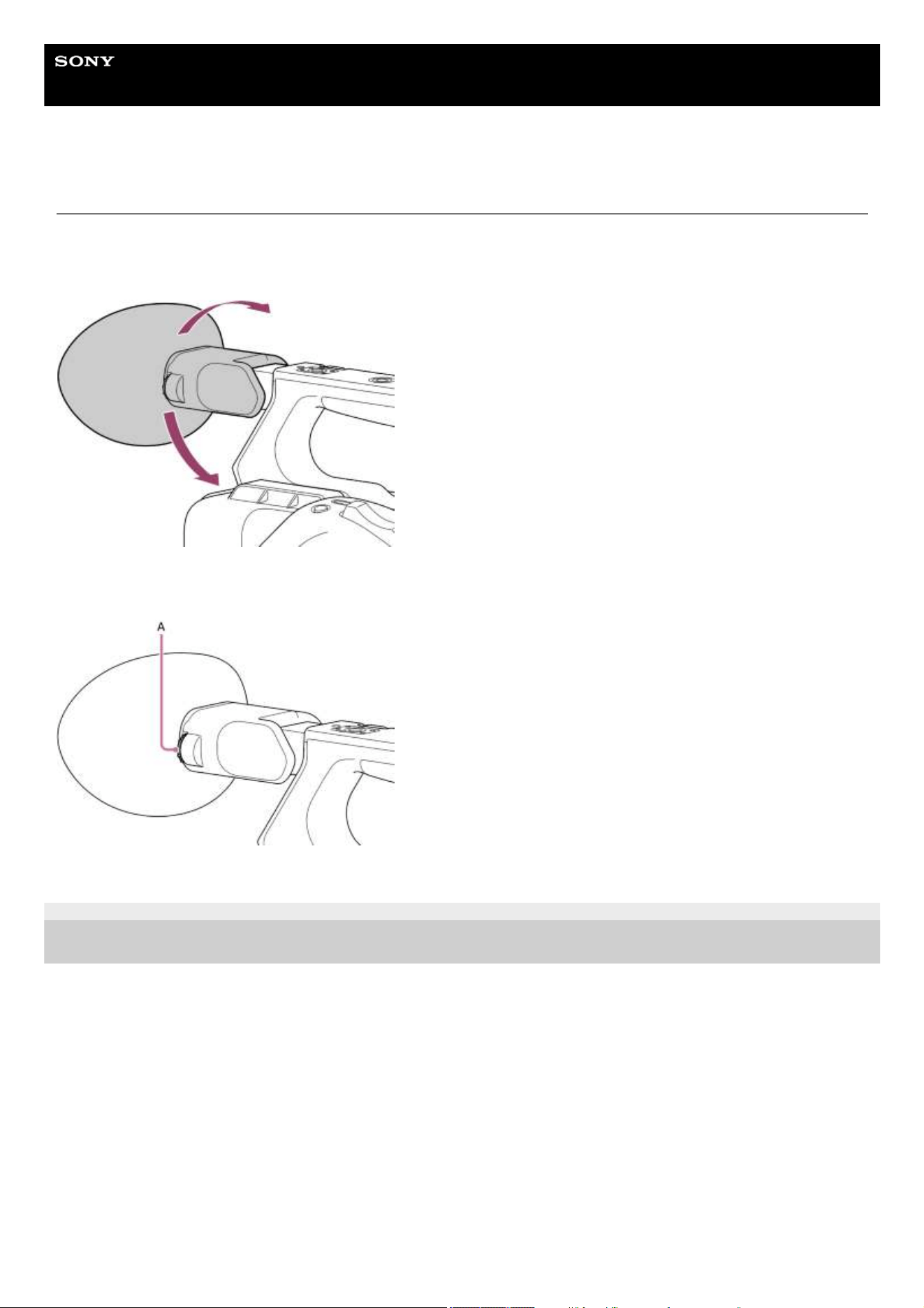
When looking through the viewfinder, move your eye so that it is close to the viewfinder.
You can adjust the angle of the viewfinder to suit your shooting style. When not being used, it can be folded down. It turns off
when folded.
If the viewfinder screen display is blurry, adjust the diopter adjustment dial (A) on the side of the viewfinder. Turn the dial until
the image is clear.
TP1001670313
5-060-574-11(2) Copyright 2024 Sony Corporation
64
Help Guide
Solid-State Memory Camcorder
PXW-Z200/HXR-NX800
Adjusting the Brightness of the Viewfinder
Adjust using [Monitoring] – [LCD Monitor/VF] – [VF Brightness] in the full menu. Adjusting the brightness does not affect the
recorded image.
Hint
You can also make adjustments using an assignable button assigned with [LCD/VF Adjust].
TP1001670314
5-060-574-11(2) Copyright 2024 Sony Corporation
65

Help Guide
Solid-State Memory Camcorder
PXW-Z200/HXR-NX800
Switching Between the LCD Monitor/Viewfinder Display
The viewfinder turns off when folded down. In the unfolded state, the viewfinder automatically turns on when the eye sensor
detects you looking into the viewfinder.
When the image is displayed in the viewfinder, the LCD monitor image is turned off (images are not displayed in the LCD
monitor and viewfinder simultaneously).
If the eye sensor is activated incorrectly due to factors, such as your posture when holding the camera, the viewfinder may
turn on and the LCD monitor may turn off.
In such cases, you can disable the eye sensor using the VF/LCD select button. When the eye sensor is disabled, the image
does not appear in the viewfinder even if you look into the viewfinder.
TP1001670315
5-060-574-11(2) Copyright 2024 Sony Corporation
66
Help Guide
Solid-State Memory Camcorder
PXW-Z200/HXR-NX800
Memory Cards
The unit records audio and video on CFexpress Type A memory cards (available separately) or SDXC memory cards
(available separately) inserted in the card slots. The memory cards are also used for proxy recording and storing/loading
settings, and when upgrading (software update).
CFexpress Type A memory cards
For details about CFexpress Type A memory cards
*
supported by the unit, see the following topic.
Recommended Memory Cards
For details about operations with media from other manufacturers, refer to the operating instructions for the media or consult
the manufacturer’s information.
SDXC memory cards
For details about SDXC memory cards
*
supported by the unit, see the following topic.
Recommended Memory Cards
TP1001670316
5-060-574-11(2) Copyright 2024 Sony Corporation
Referred to as “CFexpress cards” in this Help Guide.
*
Referred to as “SD cards” in this Help Guide.
*
67
Help Guide
Solid-State Memory Camcorder
PXW-Z200/HXR-NX800
Recommended Memory Cards
The guaranteed operating conditions will vary depending on the [Rec Format] and recording settings.
Normal recording
✓: Operation guaranteed
×: Operation not guaranteed
Recording format
[Bit
Rate]
SDXC
CFexpress Type
A
System
frequency
[Codec] Resolution
Class
10
U1 U3
VSC
V10
VSC
V30
VSC
V60
VSC
V90
CFE200 CFE400
119.88 Hz
XAVC HS
Long 422
3840×2160
H × × × × × ✓ ✓ ✓ ✓
M × × × × × ✓ ✓ ✓ ✓
L × × × × × ✓ ✓ ✓ ✓
XAVC HS
Long 420
3840×2160
H × × × × × ✓ ✓ ✓ ✓
M × × × × × ✓ ✓ ✓ ✓
L × × × × × ✓ ✓ ✓ ✓
XAVC S
Long 422
3840×2160
H × × × × × ✓ ✓ ✓ ✓
M × × × × × ✓ ✓ ✓ ✓
L × × × × × ✓ ✓ ✓ ✓
XAVC S
Long 420
3840×2160
H × ×
× × × ✓ ✓ ✓ ✓
M × × × × × ✓ ✓ ✓ ✓
L × × × × × ✓ ✓ ✓ ✓
1920×1080
H × × ✓ × ✓ ✓ ✓ ✓ ✓
M ✓ ✓ ✓ ✓ ✓ ✓ ✓ ✓ ✓
L ✓ ✓ ✓ ✓ ✓ ✓ ✓ ✓ ✓
68
Recording format
[Bit
Rate]
SDXC
CFexpress Type
A
System
frequency
[Codec] Resolution
Class
10
U1 U3
VSC
V10
VSC
V30
VSC
V60
VSC
V90
CFE200 CFE400
100 Hz
XAVC HS
Long 422
3840×2160
H × × × × × ✓ ✓ ✓ ✓
M × × × × × ✓ ✓ ✓ ✓
L × × × × × ✓ ✓ ✓ ✓
XAVC HS
Long 420
3840×2160
H × × × × × ✓ ✓ ✓ ✓
M × × × × × ✓ ✓ ✓ ✓
L × × × × × ✓ ✓ ✓ ✓
XAVC S
Long 422
3840×2160
H × × × × × ✓ ✓ ✓ ✓
M × × × × × ✓ ✓ ✓ ✓
L × × × × × ✓ ✓ ✓ ✓
XAVC S
Long 420
3840×2160
H × ×
× × × ✓ ✓ ✓ ✓
M × × × × × ✓ ✓ ✓ ✓
L × × × × × ✓ ✓ ✓ ✓
1920×1080
H × × ✓ × ✓ ✓ ✓ ✓ ✓
M ✓ ✓ ✓ ✓ ✓ ✓ ✓ ✓ ✓
L ✓ ✓ ✓ ✓ ✓ ✓ ✓ ✓ ✓
69

Recording format
[Bit
Rate]
SDXC
CFexpress Type
A
System
frequency
[Codec] Resolution
Class
10
U1 U3
VSC
V10
VSC
V30
VSC
V60
VSC
V90
CFE200 CFE400
59.94 Hz
XAVC HS
Long 422
3840×2160
H × × ✓ × ✓ ✓ ✓ ✓ ✓
M × × ✓ × ✓ ✓ ✓ ✓ ✓
L × × ✓ × ✓ ✓ ✓ ✓ ✓
XAVC HS
Long 420
3840×2160
H × × ✓ × ✓ ✓ ✓ ✓ ✓
M × × ✓ × ✓ ✓ ✓ ✓ ✓
L ✓ ✓ ✓ ✓ ✓ ✓ ✓ ✓ ✓
XAVC S
Long 422
3840×2160
H × × ✓ × ✓ ✓ ✓ ✓ ✓
M × × ✓ × ✓ ✓ ✓ ✓ ✓
L × × ✓ × ✓ ✓ ✓ ✓ ✓
1920×1080
H ✓ ✓ ✓ ✓
✓ ✓ ✓ ✓ ✓
M ✓ ✓ ✓ ✓ ✓ ✓ ✓ ✓ ✓
L ✓ ✓ ✓ ✓ ✓ ✓ ✓ ✓ ✓
XAVC S
Long 420
3840×2160
H × × ✓ × ✓ ✓ ✓ ✓ ✓
M × × ✓ × ✓ ✓ ✓ ✓ ✓
L × × ✓ × ✓ ✓ ✓ ✓ ✓
1920×1080
H ✓ ✓ ✓ ✓ ✓ ✓ ✓ ✓ ✓
M ✓ ✓ ✓ ✓ ✓ ✓ ✓ ✓ ✓
L ✓ ✓ ✓ ✓ ✓ ✓ ✓ ✓ ✓
XAVC S
Intra 422
3840×2160
H × × × × × × ✓ ✓ ✓
M × × × × × × ✓ ✓ ✓
L × × × × × × ✓ ✓ ✓
1920×1080
H × × × × × × ✓ ✓ ✓
M
× × × × × × ✓ ✓ ✓
L × × × × × × ✓ ✓ ✓
70

Recording format
[Bit
Rate]
SDXC
CFexpress Type
A
System
frequency
[Codec] Resolution
Class
10
U1 U3
VSC
V10
VSC
V30
VSC
V60
VSC
V90
CFE200 CFE400
50 Hz
XAVC HS
Long 422
3840×2160
H × × ✓ × ✓ ✓ ✓ ✓ ✓
M × × ✓ × ✓ ✓ ✓ ✓ ✓
L × × ✓ × ✓ ✓ ✓ ✓ ✓
XAVC HS
Long 420
3840×2160
H × × ✓ × ✓ ✓ ✓ ✓ ✓
M × × ✓ × ✓ ✓ ✓ ✓ ✓
L ✓ ✓ ✓ ✓ ✓ ✓ ✓ ✓ ✓
XAVC S
Long 422
3840×2160
H × × ✓ × ✓ ✓ ✓ ✓ ✓
M × × ✓ × ✓ ✓ ✓ ✓ ✓
L × × ✓ × ✓ ✓ ✓ ✓ ✓
1920×1080
H ✓ ✓ ✓ ✓
✓ ✓ ✓ ✓ ✓
M ✓ ✓ ✓ ✓ ✓ ✓ ✓ ✓ ✓
L ✓ ✓ ✓ ✓ ✓ ✓ ✓ ✓ ✓
XAVC S
Long 420
3840×2160
H × × ✓ × ✓ ✓ ✓ ✓ ✓
M × × ✓ × ✓ ✓ ✓ ✓ ✓
L × × ✓ × ✓ ✓ ✓ ✓ ✓
1920×1080
H ✓ ✓ ✓ ✓ ✓ ✓ ✓ ✓ ✓
M ✓ ✓ ✓ ✓ ✓ ✓ ✓ ✓ ✓
L ✓ ✓ ✓ ✓ ✓ ✓ ✓ ✓ ✓
XAVC S
Intra 422
3840×2160
H × × × × × × ✓ ✓ ✓
M × × × × × × ✓ ✓ ✓
L × × × × × × ✓ ✓ ✓
1920×1080
H × × × × × × ✓ ✓ ✓
M
× × × × × × ✓ ✓ ✓
L × × × × × × ✓ ✓ ✓
71

Recording format
[Bit
Rate]
SDXC
CFexpress Type
A
System
frequency
[Codec] Resolution
Class
10
U1 U3
VSC
V10
VSC
V30
VSC
V60
VSC
V90
CFE200 CFE400
29.97 Hz
XAVC S
Long 422
3840×2160
H × × ✓ × ✓ ✓ ✓ ✓ ✓
M × × ✓ × ✓ ✓ ✓ ✓ ✓
L × × ✓ × ✓ ✓ ✓ ✓ ✓
1920×1080
H ✓ ✓ ✓ ✓ ✓ ✓ ✓ ✓ ✓
M ✓ ✓ ✓ ✓ ✓ ✓ ✓ ✓ ✓
L ✓ ✓ ✓ ✓ ✓ ✓ ✓ ✓ ✓
XAVC S
Long 420
3840×2160
H × × ✓ × ✓ ✓ ✓ ✓ ✓
M ✓ ✓ ✓ ✓ ✓ ✓ ✓ ✓ ✓
L ✓ ✓ ✓ ✓ ✓ ✓ ✓ ✓ ✓
1920×1080
H ✓ ✓ ✓ ✓ ✓ ✓
✓ ✓ ✓
M ✓ ✓ ✓ ✓ ✓ ✓ ✓ ✓ ✓
L ✓ ✓ ✓ ✓ ✓ ✓ ✓ ✓ ✓
XAVC S
Intra 422
3840×2160
H × × × × × × ✓ ✓ ✓
M × × × × × × ✓ ✓ ✓
L × × × × × × ✓ ✓ ✓
1920×1080
H × × × × × × ✓ ✓ ✓
M × × × × × × ✓ ✓ ✓
L × × × × × × ✓ ✓ ✓
72

Recording format
[Bit
Rate]
SDXC
CFexpress Type
A
System
frequency
[Codec] Resolution
Class
10
U1 U3
VSC
V10
VSC
V30
VSC
V60
VSC
V90
CFE200 CFE400
25 Hz
XAVC S
Long 422
3840×2160
H × × ✓ × ✓ ✓ ✓ ✓ ✓
M × × ✓ × ✓ ✓ ✓ ✓ ✓
L × × ✓ × ✓ ✓ ✓ ✓ ✓
1920×1080
H ✓ ✓ ✓ ✓ ✓ ✓ ✓ ✓ ✓
M ✓ ✓ ✓ ✓ ✓ ✓ ✓ ✓ ✓
L ✓ ✓ ✓ ✓ ✓ ✓ ✓ ✓ ✓
XAVC S
Long 420
3840×2160
H × × ✓ × ✓ ✓ ✓ ✓ ✓
M ✓ ✓ ✓ ✓ ✓ ✓ ✓ ✓ ✓
L ✓ ✓ ✓ ✓ ✓ ✓ ✓ ✓ ✓
1920×1080
H ✓ ✓ ✓ ✓ ✓ ✓
✓ ✓ ✓
M ✓ ✓ ✓ ✓ ✓ ✓ ✓ ✓ ✓
L ✓ ✓ ✓ ✓ ✓ ✓ ✓ ✓ ✓
XAVC S
Intra 422
3840×2160
H × × × × × × ✓ ✓ ✓
M × × × × × × ✓ ✓ ✓
L × × × × × × ✓ ✓ ✓
1920×1080
H × × × × × × ✓ ✓ ✓
M × × × × × × ✓ ✓ ✓
L × × × × × × ✓ ✓ ✓
73
S&Q
✓: Operation guaranteed
×: Operation not guaranteed
Recording format
[Bit
Rate]
SDXC
CFexpress Type
A
System
frequency
[Codec] Resolution
Class
10
U1 U3
VSC
V10
VSC
V30
VSC
V60
VSC
V90
CFE200 CFE400
23.98 Hz
XAVC HS
Long 422
3840×2160
H × × ✓ × ✓ ✓ ✓ ✓ ✓
M ✓ ✓ ✓ ✓ ✓ ✓ ✓ ✓ ✓
L ✓ ✓ ✓ ✓ ✓ ✓ ✓ ✓ ✓
XAVC HS
Long 420
3840×2160
H × × ✓ × ✓ ✓ ✓ ✓ ✓
M ✓ ✓ ✓ ✓ ✓ ✓ ✓ ✓ ✓
L ✓ ✓ ✓ ✓ ✓ ✓ ✓ ✓ ✓
XAVC S
Long 422
3840×2160
H × × ✓ × ✓ ✓ ✓ ✓ ✓
M × × ✓ × ✓ ✓ ✓ ✓ ✓
L × × ✓ × ✓ ✓ ✓ ✓ ✓
1920×1080
H ✓ ✓ ✓ ✓
✓ ✓ ✓ ✓ ✓
M ✓ ✓ ✓ ✓ ✓ ✓ ✓ ✓ ✓
L ✓ ✓ ✓ ✓ ✓ ✓ ✓ ✓ ✓
XAVC S
Long 420
3840×2160
H × × ✓ × ✓ ✓ ✓ ✓ ✓
M ✓ ✓ ✓ ✓ ✓ ✓ ✓ ✓ ✓
L ✓ ✓ ✓ ✓ ✓ ✓ ✓ ✓ ✓
1920×1080
H ✓ ✓ ✓ ✓ ✓ ✓ ✓ ✓ ✓
M ✓ ✓ ✓ ✓ ✓ ✓ ✓ ✓ ✓
L ✓ ✓ ✓ ✓ ✓ ✓ ✓ ✓ ✓
XAVC S
Intra 422
3840×2160
H × × × × × × ✓ ✓ ✓
M × × × × × × ✓ ✓ ✓
L × × × × × × ✓ ✓ ✓
1920×1080
H × × × × × × ✓ ✓ ✓
M
× × × × × × ✓ ✓ ✓
L × × × × × × ✓ ✓ ✓
74
Recording format
S&Q
shooting
frame
rate
[Bit
Rate]
SDXC
CFexpress Type
A
System
frequency
[Codec] Resolution
Class
10
U1 U3
VSC
V10
VSC
V30
VSC
V60
VSC
V90
CFE200 CFE400
59.94 Hz
XAVC
HS
Long
422
3840×2160
1–60
H × × × × × ✓ ✓ ✓ ✓
M, L × × × × × ✓ ✓ ✓ ✓
100, 120
H × × × × × × ✓ ✓ ✓
M, L × × × × × ✓ ✓ ✓ ✓
XAVC
HS
Long
420
3840×2160
1–60
H × × × × × ✓ ✓ ✓ ✓
M × × × × × ✓ ✓ ✓ ✓
L × × × × × ✓ ✓ ✓ ✓
100, 120
H × × × × × ✓ ✓ ✓ ✓
M × × × × × ✓
✓ ✓ ✓
L × × × × × ✓ ✓ ✓ ✓
XAVC S
Long
422
3840×2160
1–60
H, M,
L
× × × × × ✓ ✓ ✓ ✓
100, 120
H, M,
L
× × × × × × ✓ ✓ ✓
1920×1080
1–60
H, M,
L
× × ✓ × ✓ ✓ ✓ ✓ ✓
100, 120
H, M,
L
× × ✓ × ✓ ✓ ✓ ✓ ✓
150, 180,
200, 240
H, M,
L
× × × × × ✓ ✓ ✓ ✓
XAVC S
Long
420
3840×2160
1–60
H, M,
L
× × × × × ✓ ✓ ✓ ✓
100, 120
H, M,
L
× × × × × ✓ ✓ ✓ ✓
1920×1080
1–60
H × × ✓ × ✓ ✓ ✓ ✓ ✓
M, L × × ✓ × ✓ ✓ ✓ ✓ ✓
100, 120
H × × ✓
× ✓ ✓ ✓ ✓ ✓
M, L × × ✓ × ✓ ✓ ✓ ✓ ✓
150, 180,
200, 240
H × × × × × ✓ ✓ ✓ ✓
M, L × × ✓ × ✓ ✓ ✓ ✓ ✓
75

Recording format
S&Q
shooting
frame
rate
[Bit
Rate]
SDXC
CFexpress Type
A
System
frequency
[Codec] Resolution
Class
10
U1 U3
VSC
V10
VSC
V30
VSC
V60
VSC
V90
CFE200 CFE400
XAVC S
Intra
422
3840×2160
1–60
H, M,
L
× × × × × × ✓ ✓ ✓
100, 120
H, M,
L
× × × × × × × ✓ ✓
1920×1080
1–60
H, M,
L
× × × × × × ✓ ✓ ✓
100, 120,
150, 180,
200, 240
H, M,
L
× × × × × × ✓ ✓ ✓
76

Recording format
S&Q
shooting
frame
rate
[Bit
Rate]
SDXC
CFexpress Type
A
System
frequency
[Codec] Resolution
Class
10
U1 U3
VSC
V10
VSC
V30
VSC
V60
VSC
V90
CFE200 CFE400
50 Hz
XAVC
HS
Long
422
3840×2160
1–60
H × × × × × ✓ ✓ ✓ ✓
M, L × × × × × ✓ ✓ ✓ ✓
100, 120
H × × × × × × ✓ ✓ ✓
M, L × × × × × ✓ ✓ ✓ ✓
XAVC
HS
Long
420
3840×2160
1–60
H × × × × × ✓ ✓ ✓ ✓
M × × × × × ✓ ✓ ✓ ✓
L × × × × × ✓ ✓ ✓ ✓
100, 120
H × × × × × ✓ ✓ ✓ ✓
M × × × × × ✓
✓ ✓ ✓
L × × × × × ✓ ✓ ✓ ✓
XAVC S
Long
422
3840×2160
1–60
H, M,
L
× × × × × ✓ ✓ ✓ ✓
100, 120
H, M,
L
× × × × × × ✓ ✓ ✓
1920×1080
1–60
H, M,
L
× × ✓ × ✓ ✓ ✓ ✓ ✓
100, 120
H, M,
L
× × ✓ × ✓ ✓ ✓ ✓ ✓
150, 180,
200, 240
H, M,
L
× × × × × ✓ ✓ ✓ ✓
XAVC S
Long
420
3840×2160
1–60
H, M,
L
× × × × × ✓ ✓ ✓ ✓
100, 120
H, M,
L
× × × × × ✓ ✓ ✓ ✓
1920×1080
1–60
H × × ✓ × ✓ ✓ ✓ ✓ ✓
M, L × × ✓ × ✓ ✓ ✓ ✓ ✓
100, 120
H × × ✓
× ✓ ✓ ✓ ✓ ✓
M, L × × ✓ × ✓ ✓ ✓ ✓ ✓
150, 180,
200, 240
H × × × × × ✓ ✓ ✓ ✓
M, L × × × × × ✓ ✓ ✓ ✓
77

Recording format
S&Q
shooting
frame
rate
[Bit
Rate]
SDXC
CFexpress Type
A
System
frequency
[Codec] Resolution
Class
10
U1 U3
VSC
V10
VSC
V30
VSC
V60
VSC
V90
CFE200 CFE400
XAVC S
Intra
422
3840×2160
1–60
H, M,
L
× × × × × × ✓ ✓ ✓
100, 120
H, M,
L
× × × × × × × ✓ ✓
1920×1080
1–60
H, M,
L
× × × × × × ✓ ✓ ✓
100, 120,
150, 180,
200, 240
H, M,
L
× × × × × × ✓ ✓ ✓
78
Recording format
S&Q
shooting
frame
rate
[Bit
Rate]
SDXC
CFexpress Type
A
System
frequency
[Codec] Resolution
Class
10
U1 U3
VSC
V10
VSC
V30
VSC
V60
VSC
V90
CFE200 CFE400
29.97 Hz
XAVC S
Long
422
3840×2160
1–60
H, M,
L
× × × × × ✓ ✓ ✓ ✓
100, 120
H, M,
L
× × × × × × ✓ ✓ ✓
1920×1080
1–60
H, M,
L
× × ✓ × ✓ ✓ ✓ ✓ ✓
100, 120
H, M,
L
× × × × × ✓ ✓ ✓ ✓
150, 180,
200, 240
H, M,
L
× × × × × × ✓ ✓ ✓
XAVC S
Long
420
3840×2160
1–60
H × × × × × ✓ ✓ ✓ ✓
M, L × × × × × ✓ ✓ ✓ ✓
100, 120
H × × × × × × ✓ ✓
✓
M, L × × × × × ✓ ✓ ✓ ✓
1920×1080
1–60
H × × ✓ × ✓ ✓ ✓ ✓ ✓
M, L × × ✓ × ✓ ✓ ✓ ✓ ✓
100, 120
H × × × × × ✓ ✓ ✓ ✓
M, L × × ✓ × ✓ ✓ ✓ ✓ ✓
150, 180,
200, 240
H × × × × × × ✓ ✓ ✓
M, L × × × × × ✓ ✓ ✓ ✓
XAVC S
Intra
422
3840×2160
1–60
H, M,
L
× × × × × × ✓ ✓ ✓
120
H, M,
L
× × × × × × × ✓ ✓
1920×1080
1–60
H, M,
L
× × × × × × ✓ ✓ ✓
120
H, M,
L
× × × × × × ✓ ✓ ✓
79
Recording format
S&Q
shooting
frame
rate
[Bit
Rate]
SDXC
CFexpress Type
A
System
frequency
[Codec] Resolution
Class
10
U1 U3
VSC
V10
VSC
V30
VSC
V60
VSC
V90
CFE200 CFE400
25 Hz
XAVC S
Long
422
3840×2160
1–60
H, M,
L
× × × × × ✓ ✓ ✓ ✓
100, 120
H, M,
L
× × × × × × ✓ ✓ ✓
1920×1080
1–60
H, M,
L
× × ✓ × ✓ ✓ ✓ ✓ ✓
100, 120
H, M,
L
× × × × × ✓ ✓ ✓ ✓
150, 180,
200, 240
H, M,
L
× × × × × × ✓ ✓ ✓
XAVC S
Long
420
3840×2160
1–60
H × × × × × ✓ ✓ ✓ ✓
M, L × × × × × ✓ ✓ ✓ ✓
100, 120
H × × × × × × ✓ ✓
✓
M, L × × × × × ✓ ✓ ✓ ✓
1920×1080
1–60
H × × ✓ × ✓ ✓ ✓ ✓ ✓
M, L × × ✓ × ✓ ✓ ✓ ✓ ✓
100, 120
H × × × × × ✓ ✓ ✓ ✓
M, L × × ✓ × ✓ ✓ ✓ ✓ ✓
150, 180,
200, 240
H × × × × × × ✓ ✓ ✓
M, L × × × × × ✓ ✓ ✓ ✓
XAVC S
Intra
422
3840×2160
1–60
H, M,
L
× × × × × × ✓ ✓ ✓
100
H, M,
L
× × × × × × × ✓ ✓
1920×1080
1–60
H, M,
L
× × × × × × ✓ ✓ ✓
100, 150,
180, 200,
240
H, M,
L
× × × × × × ✓ ✓ ✓
80

Recording format
S&Q
shooting
frame
rate
[Bit
Rate]
SDXC
CFexpress Type
A
System
frequency
[Codec] Resolution
Class
10
U1 U3
VSC
V10
VSC
V30
VSC
V60
VSC
V90
CFE200 CFE400
23.98 Hz
XAVC
HS
Long
422
3840×2160
1–60
H × × × × × ✓ ✓ ✓ ✓
M, L × × × × × ✓ ✓ ✓ ✓
100, 120
H × × × × × × ✓ ✓ ✓
M, L × × × × × ✓ ✓ ✓ ✓
XAVC
HS
Long
420
3840×2160
1–60
H × × × × × ✓ ✓ ✓ ✓
M × × × × × ✓ ✓ ✓ ✓
L × × × × × ✓ ✓ ✓ ✓
100, 120
H × × × × × × ✓ ✓ ✓
M × × × × × ✓
✓ ✓ ✓
L × × × × × ✓ ✓ ✓ ✓
XAVC S
Long
422
3840×2160
1–60
H, M,
L
× × × × × ✓ ✓ ✓ ✓
100, 120
H, M,
L
× × × × × × ✓ ✓ ✓
1920×1080
1–60
H, M,
L
× × ✓ × ✓ ✓ ✓ ✓ ✓
100, 120
H, M,
L
× × × × × ✓ ✓ ✓ ✓
150, 180,
200, 240
H, M,
L
× × × × × × ✓ ✓ ✓
XAVC S
Long
420
3840×2160
1–60
H × × × × × ✓ ✓ ✓ ✓
M, L × × × × × ✓ ✓ ✓ ✓
100, 120
H × × × × × × ✓ ✓ ✓
M, L × × × × × ✓ ✓ ✓ ✓
1920×1080
1–60
H, M,
L
× × ✓ × ✓
✓ ✓ ✓ ✓
100, 120
H, M,
L
× × × × × ✓ ✓ ✓ ✓
150, 180,
200, 240
H, M,
L
× × × × × × ✓ ✓ ✓
81
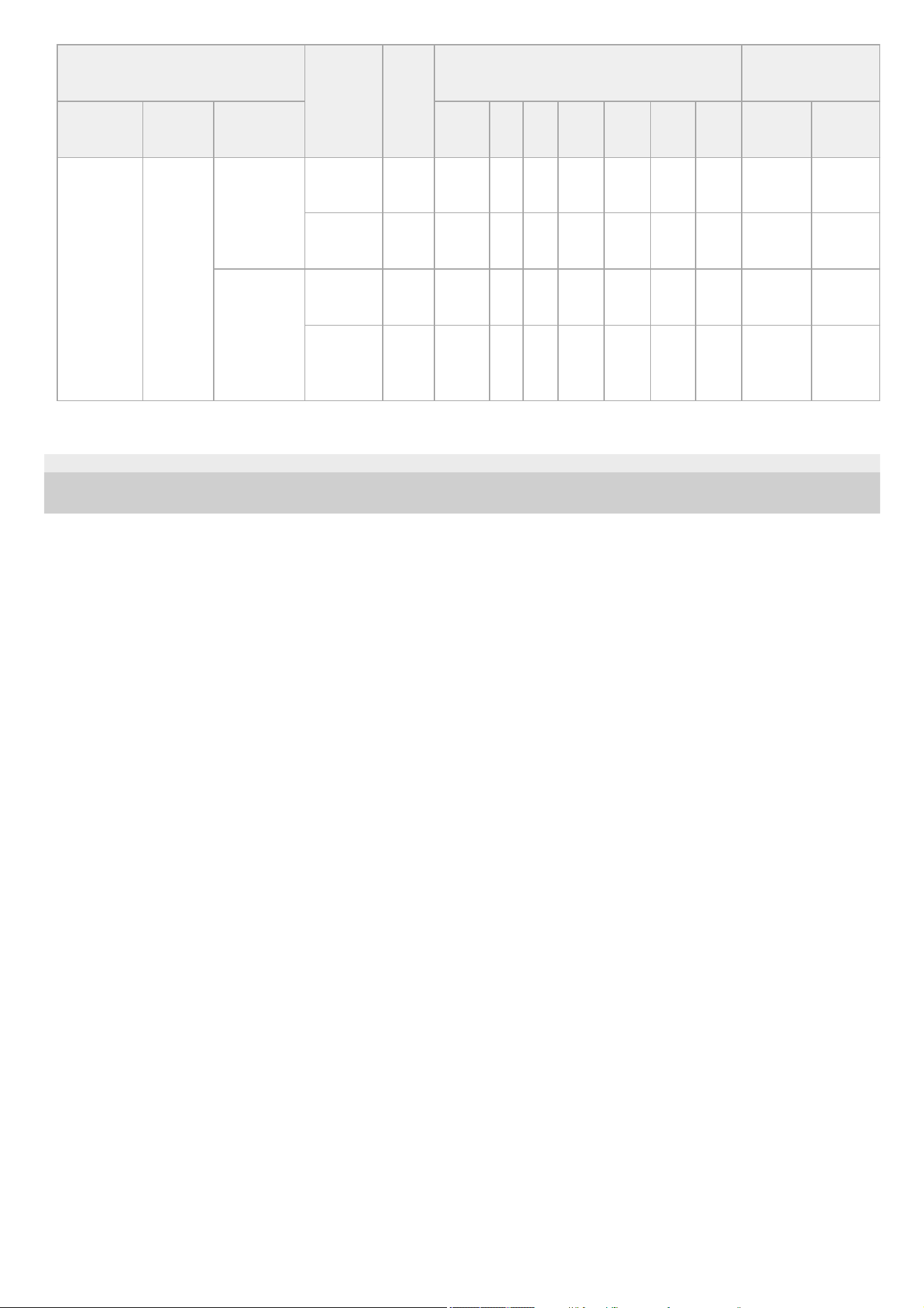
TP1001670317
5-060-574-11(2) Copyright 2024 Sony Corporation
Recording format
S&Q
shooting
frame
rate
[Bit
Rate]
SDXC
CFexpress Type
A
System
frequency
[Codec] Resolution
Class
10
U1 U3
VSC
V10
VSC
V30
VSC
V60
VSC
V90
CFE200 CFE400
XAVC S
Intra
422
3840×2160
1–60
H, M,
L
× × × × × × ✓ ✓ ✓
120
H, M,
L
× × × × × × × ✓ ✓
1920×1080
1–60
H, M,
L
× × × × × × ✓ ✓ ✓
120, 150,
180, 200,
240
H, M,
L
× × × × × × ✓ ✓ ✓
82
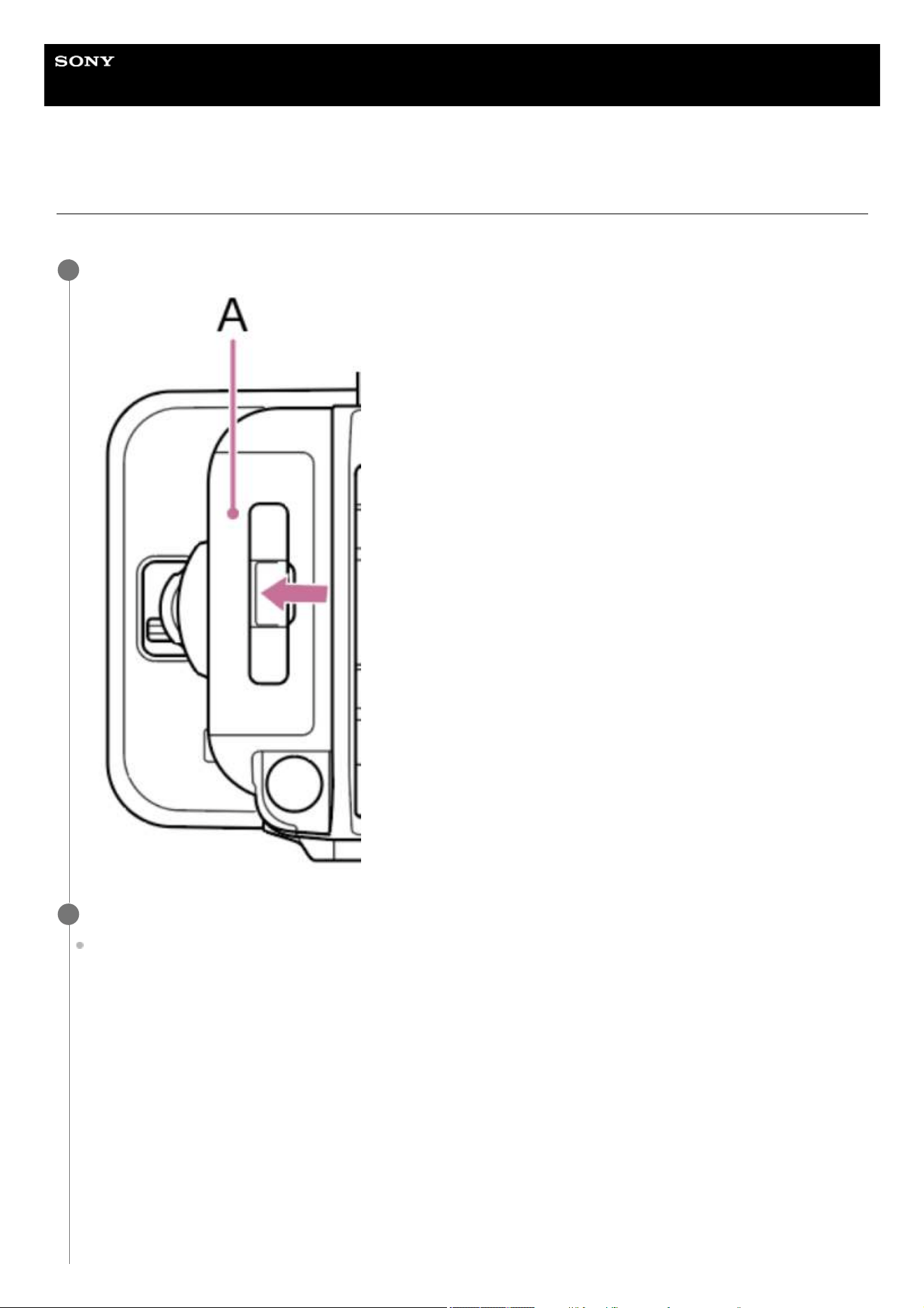
Help Guide
Solid-State Memory Camcorder
PXW-Z200/HXR-NX800
Inserting a Memory Card
This topic describes how to insert a memory card.
Push the lever in the center of the card slot cover (A) in the direction of the arrow to open the cover.
1
Insert a memory card.
For CFexpress cards, the label (A) faces to the left.
2
83
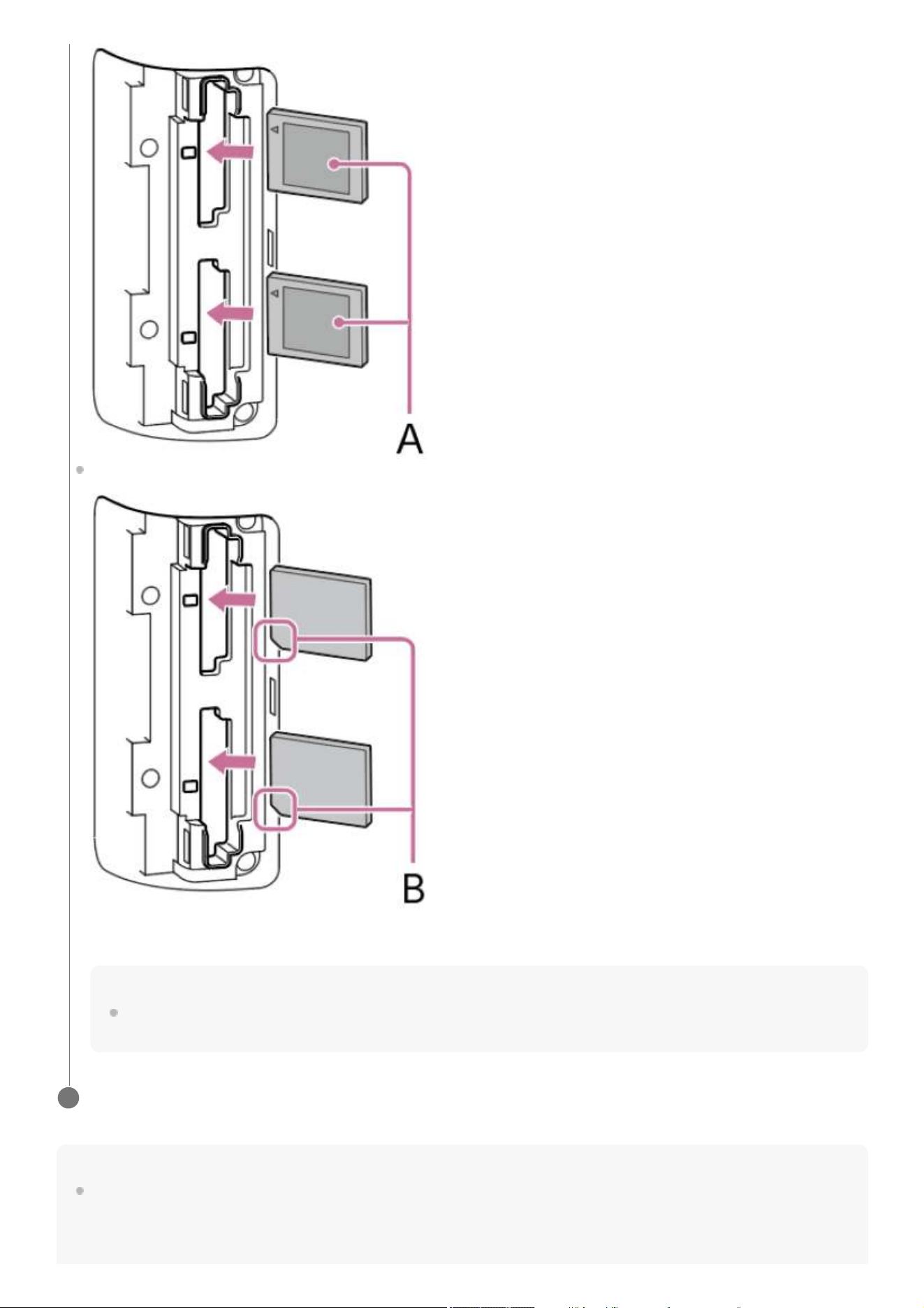
Note
The memory card, memory card slot, and image data on the memory card may be damaged if the card is forced into the slot in the
incorrect orientation.
For SD cards, the label faces to the right with the beveled corner (B) at the bottom.
The access indicator is lit red, then changes to green if the card is usable.
Note
If the access indicator flashes red continuously and does not change to green, temporarily turn off the unit, and remove and
reinsert the memory card.
Close the card slot cover.
3
84

Help Guide
Solid-State Memory Camcorder
PXW-Z200/HXR-NX800
Ejecting a Memory Card
Open the card slot cover, and lightly press the memory card in to eject the card.
Note
If the unit is turned off or the memory card is removed while the memory card is being accessed, the integrity of data on the card
cannot be guaranteed. All data recorded on the card may be discarded. Always make sure the access indicator is green or off before
turning off the unit or removing the memory card.
When removing a memory card immediately after recording is finished, the memory card may be hot, but this does not indicate a
problem.
TP1001670319
5-060-574-11(2) Copyright 2024 Sony Corporation
86
Help Guide
Solid-State Memory Camcorder
PXW-Z200/HXR-NX800
Initializing Memory Cards
If an unformatted memory card or a memory card that was formatted in a different specification is inserted, a message is
displayed on the LCD monitor/viewfinder.
Format the card using the following procedure.
Hint
Can also be executed using [TC/Media] – [Format Media] in the full menu.
Note
Formatting a memory card erases all data, including recorded video data and setup files.
Messages may not appear during execution depending on the formatting process duration.
If formatting fails
Memory cards not supported by the unit cannot be formatted.
A warning message is displayed. Follow the instructions to replace the card with a supported memory card.
To use a memory card formatted on the unit in another device
First, make a backup of the card, then reformat the card in the device to be used.
TP1001670320
5-060-574-11(2) Copyright 2024 Sony Corporation
Press the [Format] button for the memory card you want to initialize on the [Media] status screen and select [Full
Format] or [Quick Format].
A confirmation message appears.
[Full Format]: Initializes the memory card completely, including the data region and data management information.
[Quick Format]: Initializes the data management information of the memory card only.
Note
If there are files to be transferred on the memory card to be formatted, a supplementary message (display example: “A transfer
target file exists.”) appears below the confirmation message. In this case, confirm whether or not to initialize the memory card and
execute or cancel the initialization.
1.
Select [OK].
A message is displayed during execution, and the access indicator is lit red.
When formatting is completed, a completion message is displayed. Press the multi-function dial to dismiss the message.
2.
87
Help Guide
Solid-State Memory Camcorder
PXW-Z200/HXR-NX800
Checking the Remaining Recording Time
When shooting (recording/standby), you can monitor the remaining capacity of the memory card in each slot using the slot
remaining media indicators on the shooting screen.
The remaining recording time is calculated from the remaining capacity of the memory card in each slot and the currently
configured recording format, and is displayed in units of minutes.
Memory card replacement timing
When the total remaining recording time on the two memory cards becomes less than 5 minutes during recording, “Media
Near Full” appears, the recording/tally lamp starts flashing, and a beep sound (headphone output) will warn you. Replace
with memory cards that have free space.
If you continue recording until the total remaining recording time reaches zero, the message changes to “Media Full” and
recording stops.
Hint
Up to approximately 9999 clips can be recorded on one memory card.
TP1001670321
5-060-574-11(2) Copyright 2024 Sony Corporation
88
Help Guide
Solid-State Memory Camcorder
PXW-Z200/HXR-NX800
Basic Operation Procedure
Basic shooting is conducted using the following procedure.
Note
If the record START/STOP button is pressed within a few seconds after turning the unit on, the recording/tally lamp lights up to indicate
the unit is in the recording state, but recording to the memory card may not occur for the first few seconds, depending on the selected
recording format.
Shooting in FULL AUTO mode
When the AUTO/MANUAL switch is set to AUTO, the auto ND filter, auto iris, auto gain control, auto shutter, and ATW mode
are enabled, and the brightness and white balance are adjusted automatically.
To adjust these items separately, set the AUTO/MANUAL switch to MANUAL.
Note
[Auto ND Filter] is activated when [ND Filter Position] is set to [On] in ND variable mode. When the ND PRESET/VARIABLE switch is
set to VARIABLE, switch between [On]/[Clear] manually according to the brightness of the subject.
Shooting continuously while changing memory cards
When memory cards are inserted in both card slots A and B, recording automatically switches to the second memory card
just before the remaining capacity on the first card reduces to zero (relay recording).
You can continue recording continuously when switching memory cards by replacing the memory card that is full with a new
memory card.
Note
Do not eject a memory card while recording to it is in progress. When recording, only change memory cards in card slots for which the
access indicator is off.
When the remaining capacity on the memory card being recorded becomes less than one minute and a recordable memory card is
inserted in the other card slot, a message appears. The message disappears after switching memory cards.
Recording may not continue if recording is started when the remaining memory card capacity is less than one minute. For correct
operation, check that the remaining memory card capacity is more than one minute before starting recording.
Video created using the relay recording function of the unit cannot be played back seamlessly on the unit.
To combine video created using the relay recording function of the unit, use “Catalyst Browse” software. Before use, check the
“Catalyst Browse” operating environment.
Attach the necessary devices, and check that power is being supplied.
1.
Insert memory cards, as required.
If memory cards are inserted in both card slots A and B, the unit will automatically switch to the second card when the
remaining capacity on the first card reduces to zero.
2.
Set the power switch to the On position.
The power lamp turns on, and the shooting screen appears on the LCD monitor or viewfinder.
3.
Press the record START/STOP button on the grip or handle.
The recording/tally lamp lights and recording begins.
4.
To stop recording, press the record START/STOP button again.
Recording stops and the unit switches to [Stby] (recording standby) mode.
5.
89

When using the relay recording function with SD cards, use SD cards of the same type.
About clips
Clips
When you stop recording, the video, audio, and accompanying data from the start to the end of the recording are saved as a
single “clip” on a memory card.
Clip names
Each clip recorded by the unit is automatically assigned a name using the naming format set using [TC/Media] – [Clip Name
Format] in the full menu.
Maximum clip recording duration
The maximum recording duration of a clip varies depending on the recording format and can be as high as 13 hours, at which
point recording stops automatically.
Monitoring audio
You can monitor the audio that is being recorded using headphones.
Connecting a set of headphones to the headphone jack enables you to monitor the audio being recorded. You can monitor
the playback audio using the built-in speaker or headphones.
Select the channel to monitor using [Monitor CH] on the [Audio] status screen or [Audio] – [Audio Output] – [Monitor CH] in
the full menu.
Hint
The unit supports a screen display/menu screen reader function.
Time data
Setting the timecode
Set the timecode to record using [TC/Media] – [Timecode] in the full menu.
Setting user bits
You can add an 8-digit hexadecimal number to a clip as user bits. You can also set the user bits to the current time. Set using
[TC/Media] – [Users Bit].
Displaying time data
Set the timecode to display using [TC/Media] – [TC Display] – [Display Select] in the full menu.
Pressing an assignable button assigned with [DURATION/TC/U-BIT] will switch the display between the timecode, user bits,
and elapsed time in sequence.
Switching the timecode input/output (PXW-Z200 only)
You can switch the timecode input/output using the TC IN/OUT switch.
Reviewing the recording
You can check the video of the last recorded clip on the screen using recording review mode.
Note
Recording review is not supported if the video format is changed after recording a clip.
Recording review method
Assign [Rec Review] to one of the assignable buttons beforehand.
When recording is stopped, press the assignable button assigned with [Rec Review]. Playback of the last recorded clip
begins.
90
The clip is played to the end, recording review ends, and the unit returns to [Stby] (recording standby) mode.
To stop recording review
Press the assignable button assigned with [Rec Review] or press the CANCEL/BACK button.
Recording review settings
You can set the playback start position to one of the following using the [Technical] – [Rec Review] setting in the full menu.
Last 3 seconds of the clip
Last 10 seconds of the clip
Start of the clip
Hint
If you want to review a specific clip after recording multiple clips, press the THUMBNAIL button to display the thumbnail screen, and
select the clip to start playback.
Related Topic
Using the Screen Reader
Playing a Clip
Synchronizing Timecode with an External Device (PXW-Z200 only)
TP1001670323
5-060-574-11(2) Copyright 2024 Sony Corporation
91
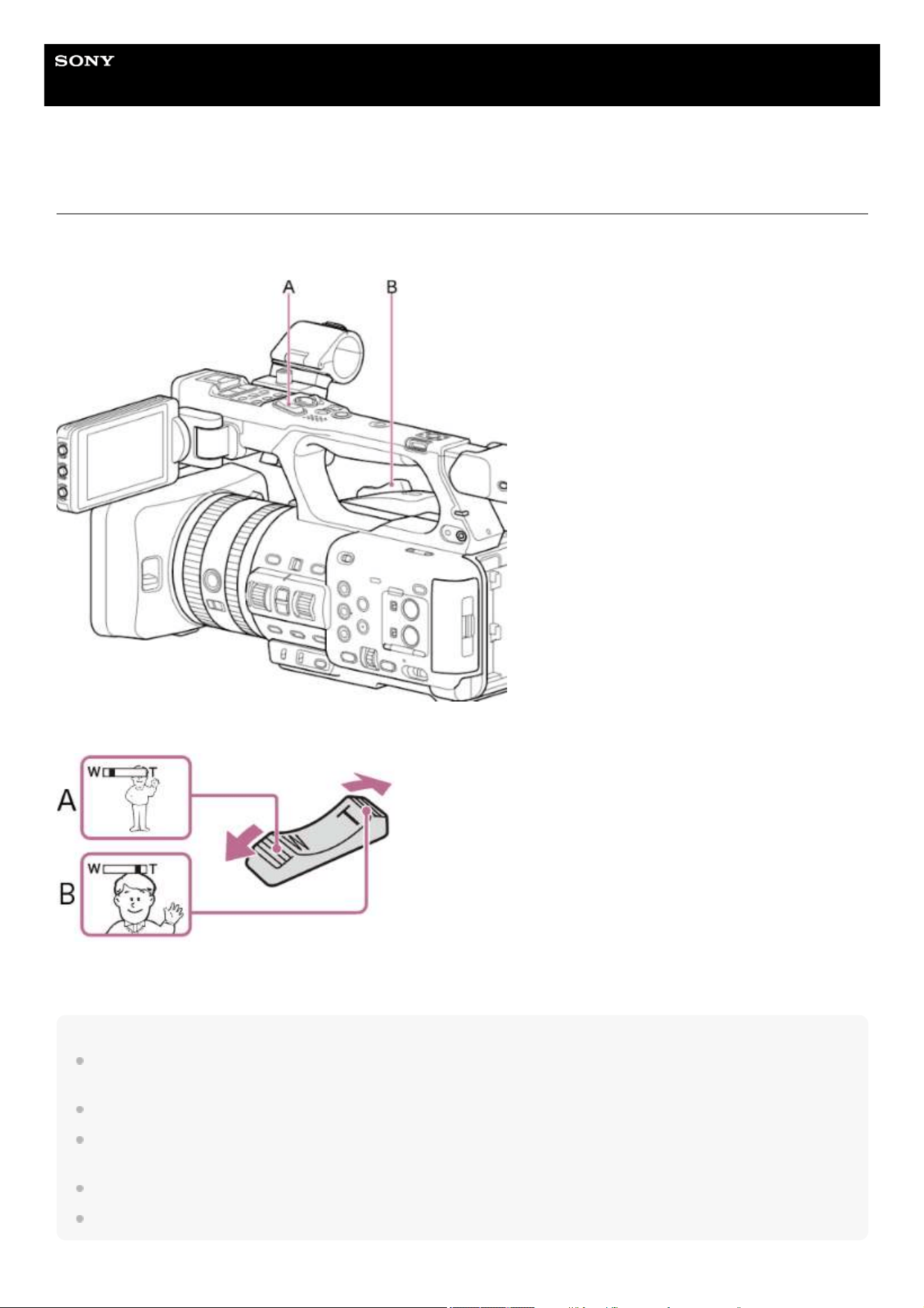
Help Guide
Solid-State Memory Camcorder
PXW-Z200/HXR-NX800
Zooming using the Zoom Lever
You can control the zoom using the handle zoom lever (A) or grip zoom lever (B). The zoom speed varies with the pressure
applied to the lever.
Press the zoom lever slightly to zoom slowly, and move it further to zoom faster.
A: Press toward W (wide angle) to zoom out
B: Press toward T (telephoto) to zoom in
Hint
The distance to the subject required for focusing is approximately 1 cm or more for wide-angle and approximately 100 cm or more for
telephoto.
Subjects within 100 cm may not be in focus depending on the zoom position.
Do not suddenly release your finger from the zoom lever. The operating sound of the zoom lever may be recorded when you release
your finger.
You can select the type of zoom when operating the zoom lever using [Technical] – [Zoom] – [Zoom Type] in the full menu.
You can also select the zoom drive speed when operating the zoom lever using [Technical] – [Speed Zoom] in the full menu.
92

TP1001670324
5-060-574-11(2) Copyright 2024 Sony Corporation
93
Help Guide
Solid-State Memory Camcorder
PXW-Z200/HXR-NX800
Selecting the Type of Zoom
Set the type of zoom using [Technical] – [Zoom] – [Zoom Type] in the full menu.
Clear Image Zoom
The unit is equipped with a zoom function that uses image signal processing called Clear Image Zoom. When Clear Image
Zoom is enabled, you can effectively zoom even closer than the optical telephoto end.
The maximum zoom ratio using Clear Image Zoom varies depending on the recording resolution.
When the recording resolution is QFHD: 1.5×
When the recording resolution is HD: 2×
TP1001670325
5-060-574-11(2) Copyright 2024 Sony Corporation
[Zoom Type] setting
[Optical Zoom Only] [On(Clear Image Zoom)]
Only optical zoom is supported. Optical zoom and Clear Image Zoom are supported.
94

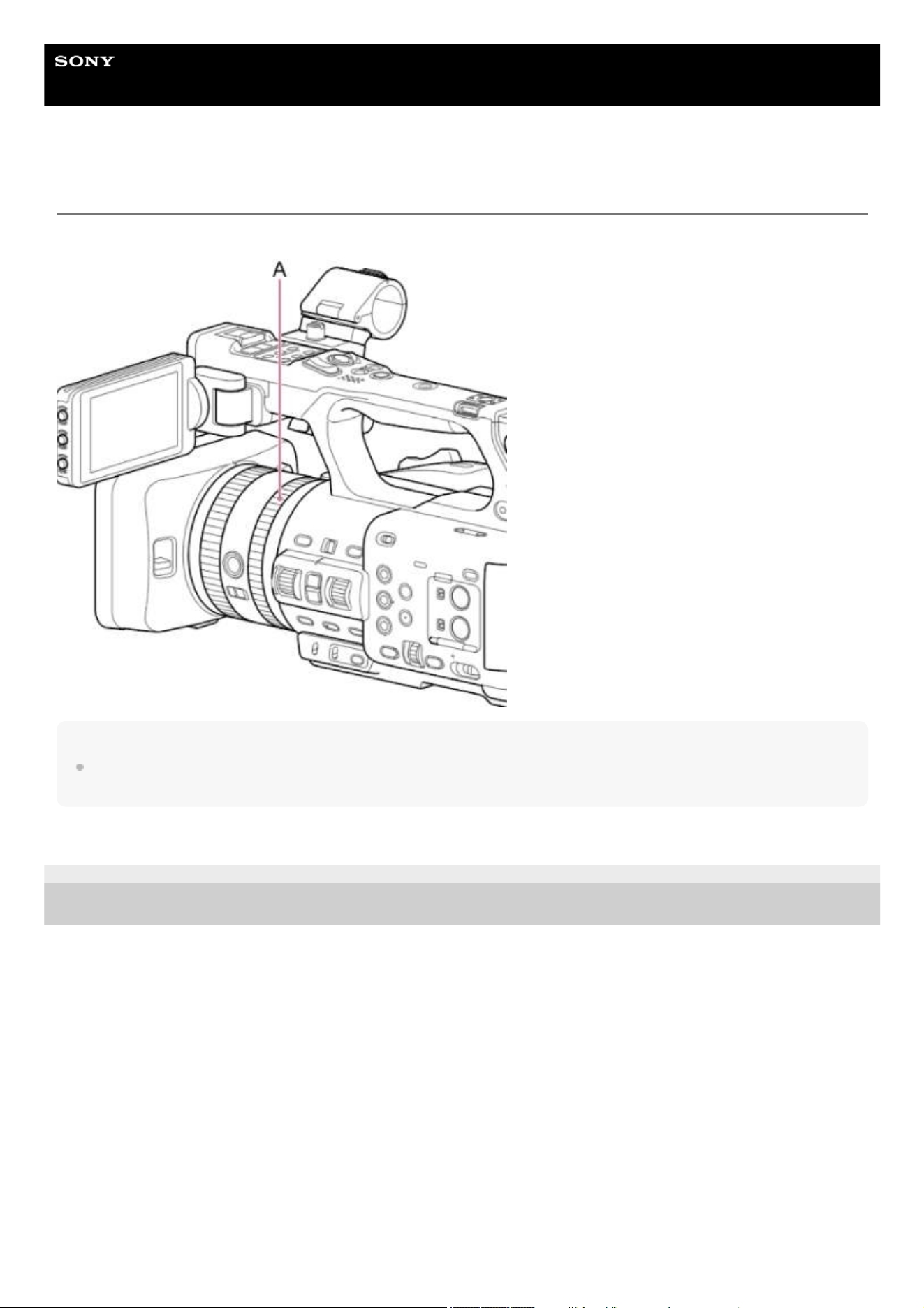
Help Guide
Solid-State Memory Camcorder
PXW-Z200/HXR-NX800
Zooming using the Zoom Ring
You can zoom by turning the zoom ring (A) at the desired speed. Fine tuning is also supported.
Note
Turn the zoom ring at a moderate speed. If you turn it too quickly, you may not be able to continue turning the zoom ring at the same
speed. The zoom drive sound may also be recorded.
TP1001670327
5-060-574-11(2) Copyright 2024 Sony Corporation
96
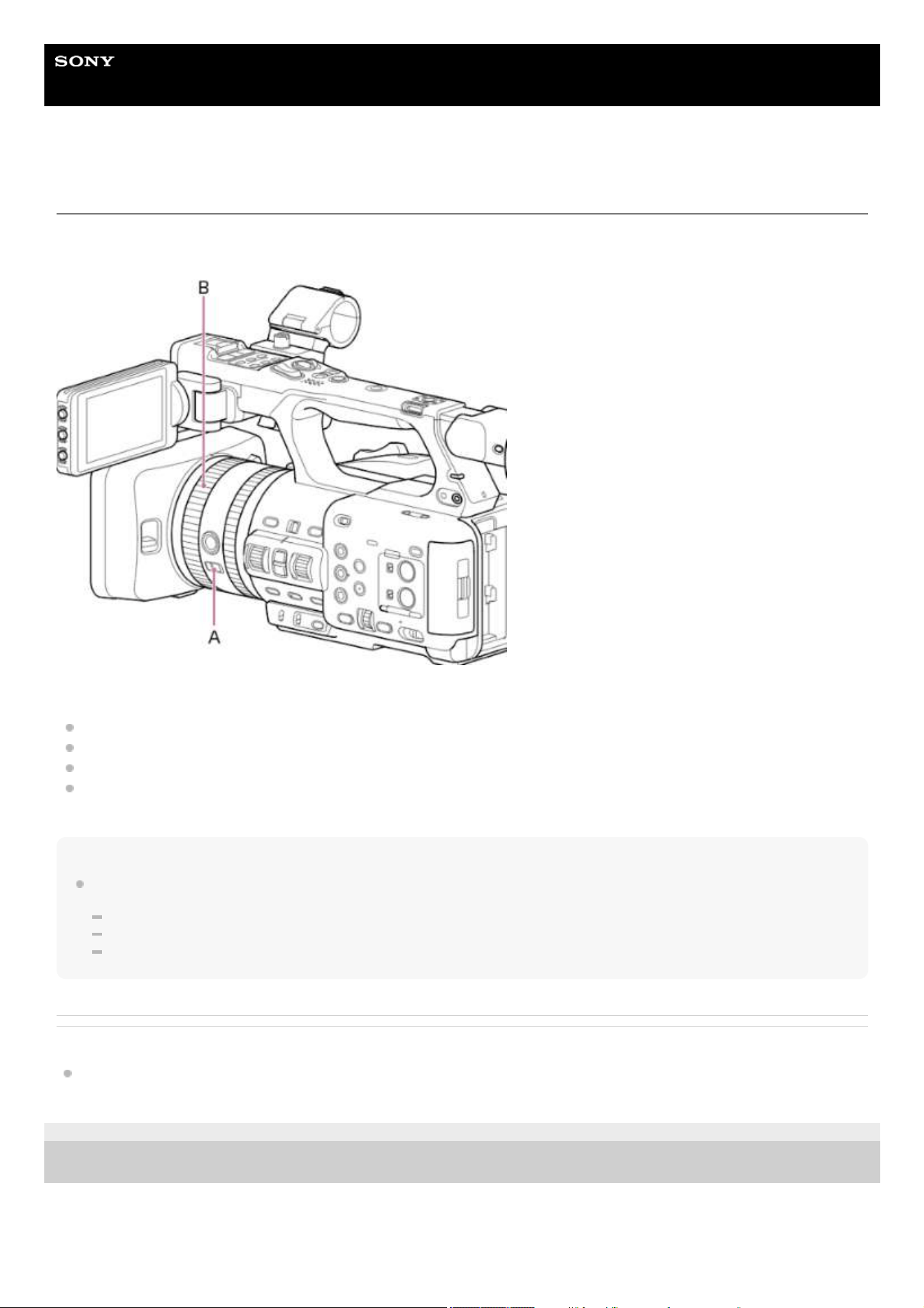
Help Guide
Solid-State Memory Camcorder
PXW-Z200/HXR-NX800
Adjusting the Focus Manually
To adjust the focus manually, set the FOCUS switch (A) to the MF position.
Turn the focus ring (B) to adjust the focus manually according to the shooting conditions.
Manual focusing is useful for the following types of subjects.
Subjects on the far side of a window covered in water droplets
Subjects with low contrast against the background
Subjects further away than nearby subjects
When focus is lost due to a large change in the ambient temperature (changes due to the temperature characteristics of
the lens)
Hint
You can also use auto focus in the following cases when manual adjustment is the main method of operation.
When the AF subject shift sensitivity is set to [1(Locked On)]
When the FOCUS switch is set to the AF position
When operating the focus ring ([AF Assist])
Related Topic
Changing the Focus Target Manually
TP1001670328
5-060-574-11(2) Copyright 2024 Sony Corporation
97
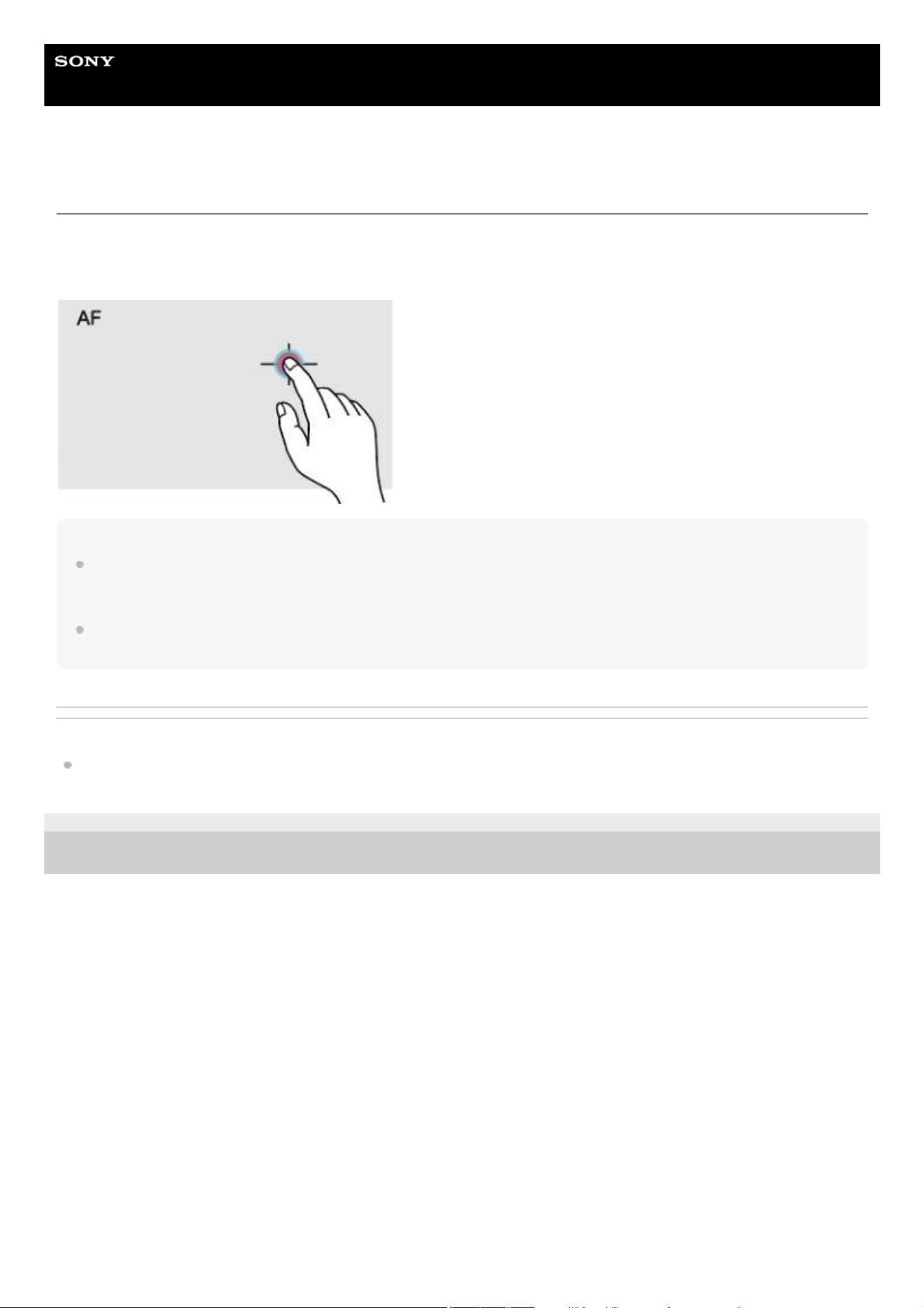
Help Guide
Solid-State Memory Camcorder
PXW-Z200/HXR-NX800
Focusing using Touch Operation
In manual focus mode, you can specify the position where you want to adjust the focus by touch operation.
To use spot focus, set [Shooting] – [Focus] – [Touch Function in MF] to [Spot Focus] in the full menu.
A spot focus mark is displayed when you tap the position where you want to adjust the focus.
Note
In spot focus mode, you can press the FOCUS PUSH AUTO button to temporarily stop spot focus and enable auto focus while the
button is pressed. The focus returns to manual focus when you release the button. The same operation is supported using an
assignable button assigned with [Push AF/Push MF].
The spot focus position cannot be specified while the focus is magnified or when [Technical] – [Touch Operation] is set to [Off] in the
full menu.
Related Topic
Using the Touch Panel
TP1001670329
5-060-574-11(2) Copyright 2024 Sony Corporation
98
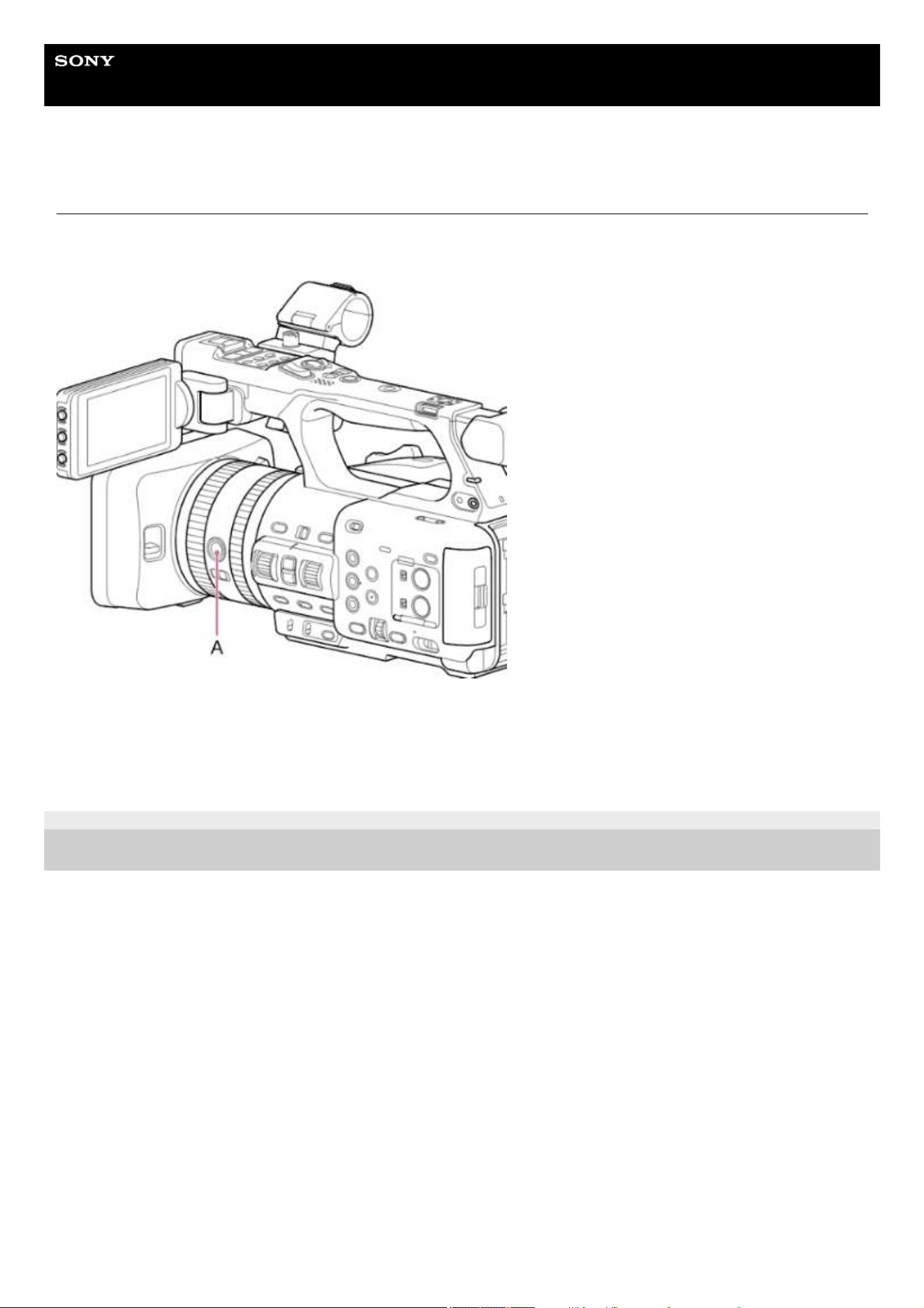
Help Guide
Solid-State Memory Camcorder
PXW-Z200/HXR-NX800
Using Auto Focus Temporarily
In manual focus mode, you can press the FOCUS PUSH AUTO button (A) or an assignable button assigned with [Push
AF/Push MF] to temporarily enable auto focus while the button is pressed.
Focusing occurs within the focus area set using [Shooting] – [Focus] – [Focus Area] in the full menu.
The focus returns to manual focus when you release the button.
This is useful when you want to move the focus slowly from one subject to another subject during manual focus.
TP1001670330
5-060-574-11(2) Copyright 2024 Sony Corporation
99
Help Guide
Solid-State Memory Camcorder
PXW-Z200/HXR-NX800
Focusing using Magnified View
By factory default, the [Focus Magnifier ×3/×6] function is assigned to the ASSIGN 4 button on the grip and the ASSIGN 9
button on the handle.
Press the ASSIGN 4 button or ASSIGN 9 button to switch the LCD monitor/viewfinder to the focus magnifier screen, with the
center magnified by approximately three times. Press the button again to increase the magnification to approximately six
times. This function is useful for checking the focus.
Press the button again to return to the normal screen.
You can move the position to be magnified during focus magnification using the multi selector. Pressing the multi selector
returns to the center of the image.
Note
The recorded image or SDI/HDMI output image is not magnified when the focus is magnified.
The magnified position returns to the center of the screen when the unit is turned off.
TP1001670331
5-060-574-11(2) Copyright 2024 Sony Corporation
100
Help Guide
Solid-State Memory Camcorder
PXW-Z200/HXR-NX800
Adjusting the Focus Automatically
The unit uses phase detection AF for high-speed focusing and contrast AF for high-accuracy focusing.
The combination of these two AF methods provides auto focus with both high speed and high accuracy.
To adjust the focus automatically, set the FOCUS switch to the AF position.
Hint
When [Shooting] – [Focus] – [AF Assist] is set to [On] in the full menu, you can still use the focus ring during auto focus to adjust the
focus.
Note
Accuracy may not be obtained depending on the shooting conditions.
TP1001670332
5-060-574-11(2) Copyright 2024 Sony Corporation
101
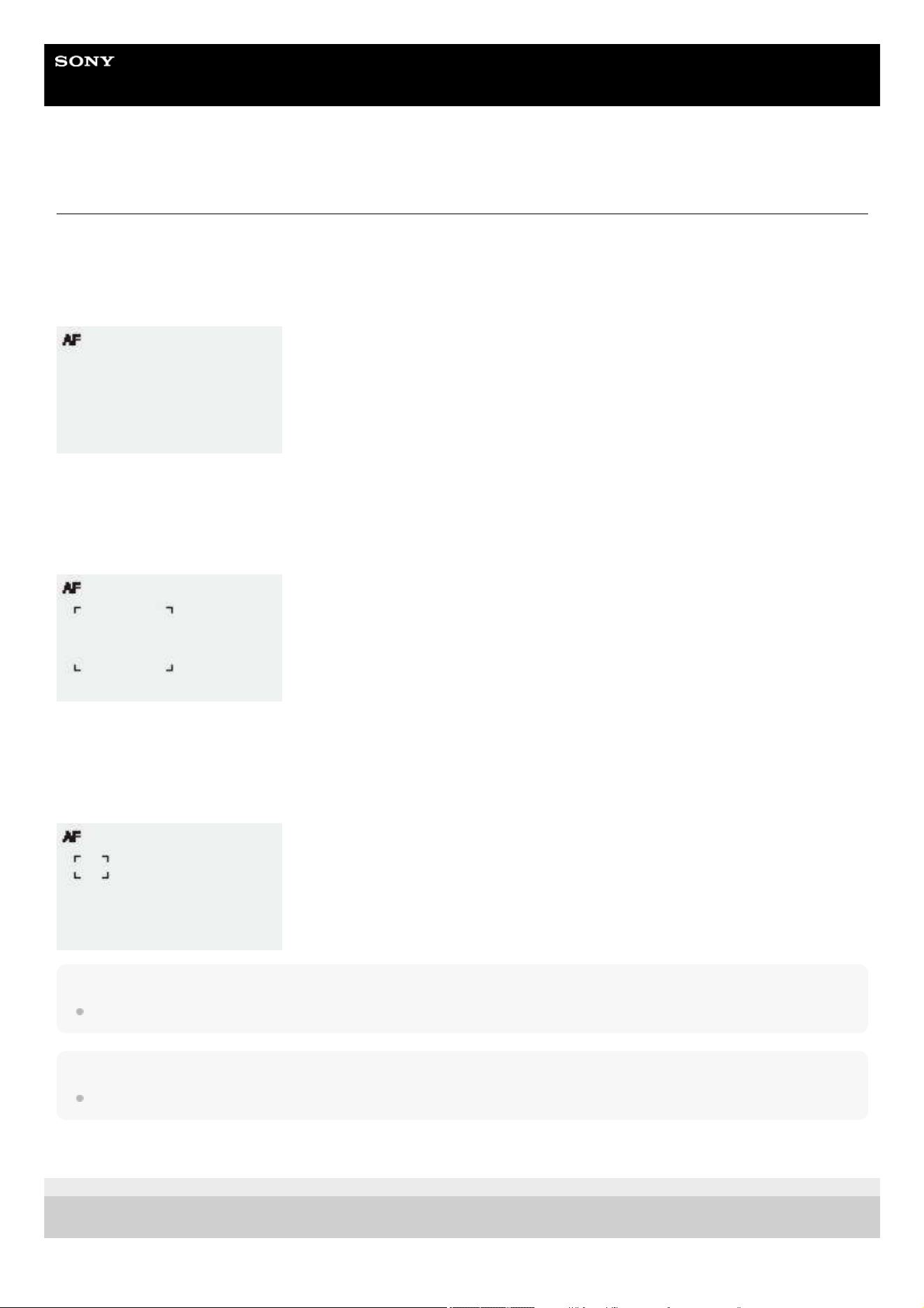
Help Guide
Solid-State Memory Camcorder
PXW-Z200/HXR-NX800
Setting the Auto Focus Area/Position
You can set the target area for auto focus using [Shooting] – [Focus] – [Focus Area] in the full menu.
[Wide]
Searches for a subject over a wide angle of the image when focusing. A frame is not displayed.
[Zone]
Automatically searches for a focus position within the specified zone.
When selected, specify the position using the multi selector.
You can return to the center position by pressing and holding the multi selector.
[Flexible Spot]
Focuses on a specified position in the image.
When selected, specify the position using the multi selector.
You can return to the center position by pressing and holding the multi selector.
Hint
You can show/hide the focus area frame using [Monitoring] – [Display On/Off] – [Focus Area Indicator] in the full menu.
Note
The focus area frame is not hidden when using the DISPLAY button.
TP1001670333
5-060-574-11(2) Copyright 2024 Sony Corporation
102
Help Guide
Solid-State Memory Camcorder
PXW-Z200/HXR-NX800
Changing the Focus Area Quickly
You can change the position and size of the auto focus area quickly during shooting by assigning [Focus Setting] to an
assignable button.
The operation varies depending on the [Focus Area] setting.
When [Focus Area] is set to [Wide]:
You can only change the size of the focus area by pressing and holding an assignable button assigned with [Focus Setting].
The position can then be changed by setting [Focus Area] to [Flexible Spot] or [Zone].
When [Focus Area] is set to [Zone] or [Flexible Spot]:
You can change the position of the focus area by pressing an assignable button assigned with [Focus Setting] and adjusting
using the multi selector.
You can return the position of the focus area to the center while adjusting the position by pressing the multi selector.
You can change the size of the focus area by pressing and holding an assignable button assigned with [Focus Setting].
After changing the size, set the position of the focus area by pressing the multi selector.
When finished, press the assignable button assigned with [Focus Setting] to return to the original screen.
Hint
The focus area frame is displayed orange when the position of the focus area can be changed.
TP1001670334
5-060-574-11(2) Copyright 2024 Sony Corporation
103
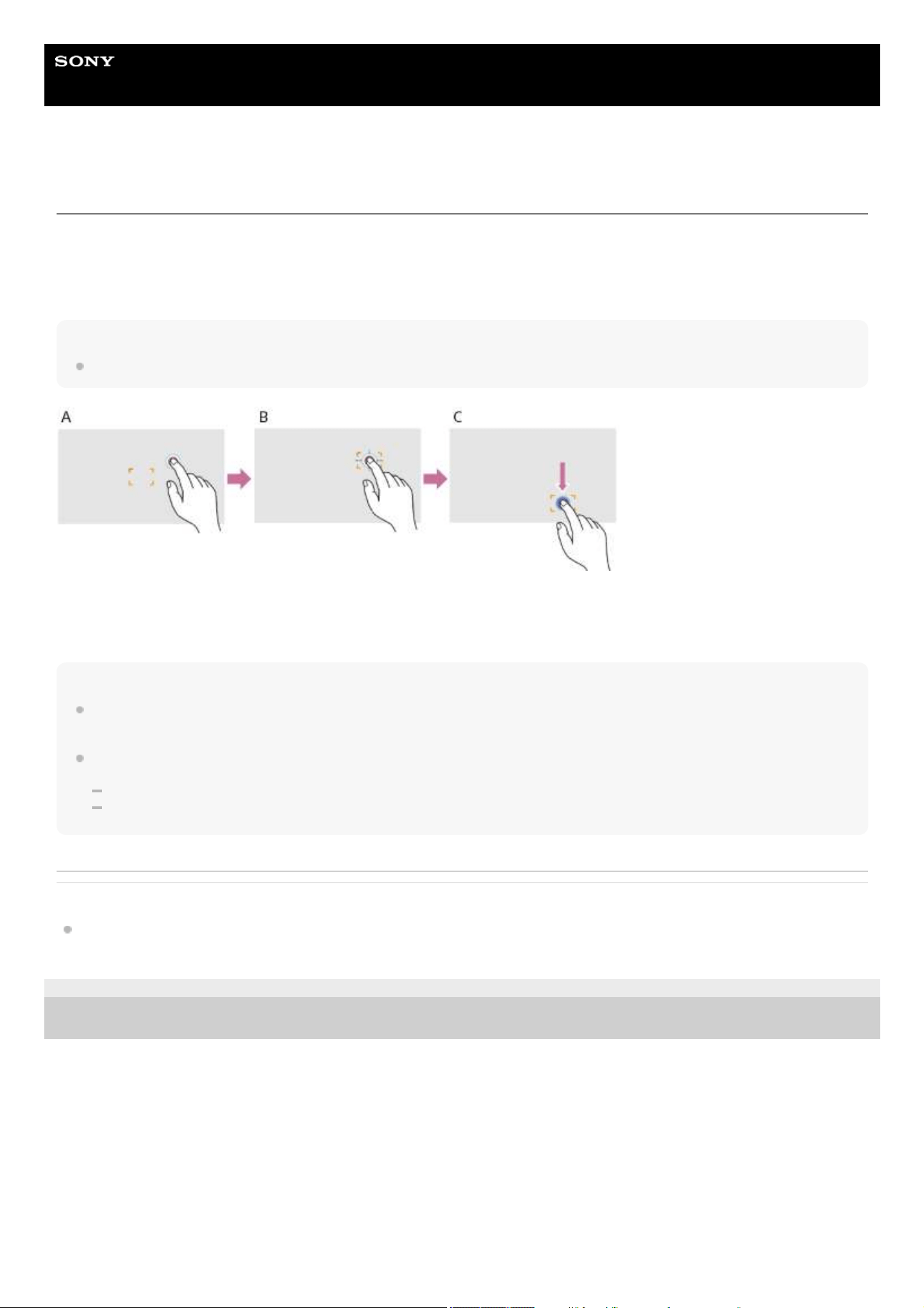
Help Guide
Solid-State Memory Camcorder
PXW-Z200/HXR-NX800
Moving the Focus Area Frame using Touch Operation
You can move the focus area by pressing an assignable button assigned with [Focus Setting] to change the focus area
display to orange, and then move it using touch operation.
Tap the screen to move the focus area, with the focus area centered on the tapped position. Drag on the screen to move the
focus area to the position traced by your finger.
Hint
You can enable/disable touch focus operation on the shooting screen using an assignable button assigned with [Focus Setting].
A: Tap the desired position
B: The focus area moves and is centered on the tapped position
C: Drag the focus area to the position traced by your finger
Note
If you tap a position or drag the focus area to a position that exceeds the setting range, the focus area position is set to the
top/bottom/left/right edge of the setting range.
This function is not available in the following circumstances.
When [Technical] – [Touch Operation] is set to [Off] in the full menu
When the focus area frame is displayed in gray or is not displayed at all
Related Topic
Using the Touch Panel
TP1001670335
5-060-574-11(2) Copyright 2024 Sony Corporation
104
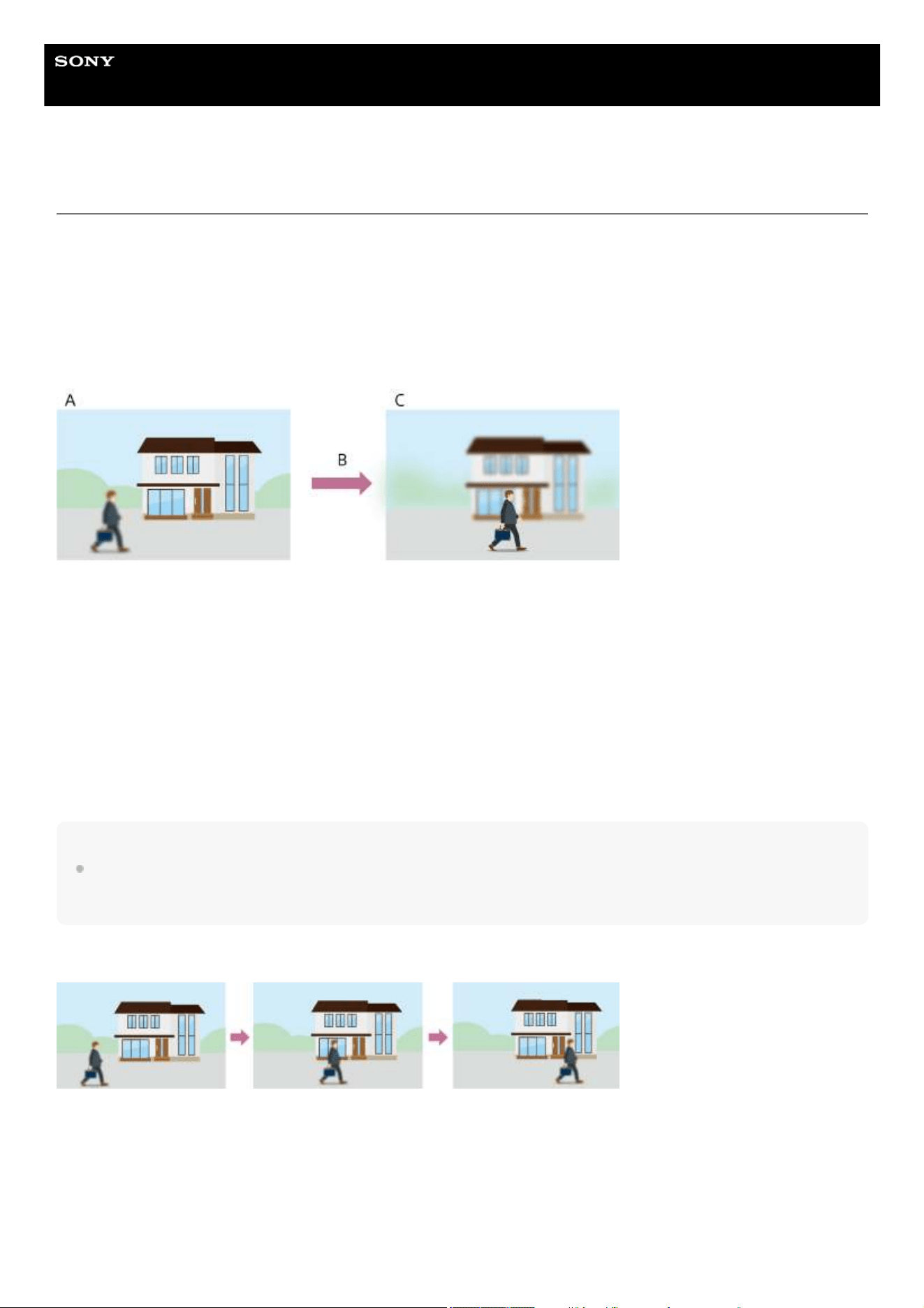
Help Guide
Solid-State Memory Camcorder
PXW-Z200/HXR-NX800
Adjusting the Auto Focus Operation
AF transition speed
You can set the speed of the focus drive for when the subject changes using [Shooting] – [Focus] – [AF Transition Speed] in
the full menu.
When [1(Slow)] is selected, the focus moves slowly when the subject to be focused changes, enabling the shooting of
impressive images.
When [7(Fast)] is selected, the focus switches between subjects quickly. The subject that enters the frame is immediately
focused, making this setting ideal for documentary shooting which requires quick focusing.
A: Subject in the background is in focus
B: Shifting between subjects
[1(Slow)]: Focus changes slowly
⁞
[7(Fast)]: Focus changes rapidly
C: Subject in the foreground is in focus
AF subject shift sensitivity
You can set the sensitivity for shifting between subjects using [Shooting] – [Focus] – [AF Subj. Shift Sens.] in the full menu.
When [1(Locked On)] is selected, the focus does not readily shift even if another subject moves in front of the in-focus
subject. When [5(Responsive)] is selected, the focus shifts to give priority to the subject that moves in front.
Hint
If [AF Speed/Sens.] is assigned to an assignable button, the level bars for adjusting values are displayed in the following order each
time the button is pressed, allowing you to change the [AF Transition Speed] and [AF Subj. Shift Sens.] settings.
AF transition speed → AF subject shift sensitivity → No display …
[AF Subj. Shift Sens.]: [1(Locked On)]
Focus does not readily change to another subject
[AF Subj. Shift Sens.]: [5(Responsive)]
105
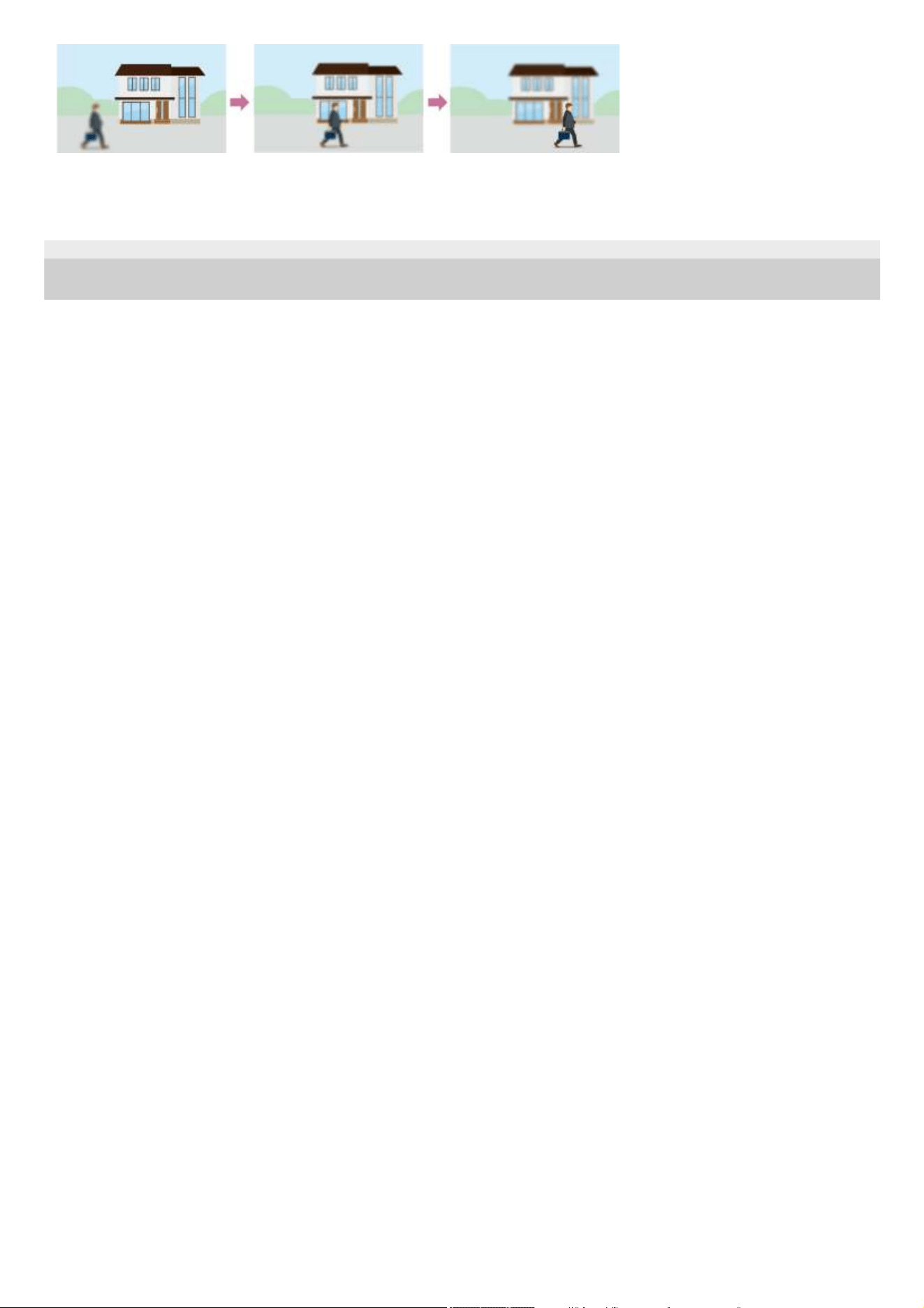
Focus changes to another subject rapidly
TP1001670336
5-060-574-11(2) Copyright 2024 Sony Corporation
106
Help Guide
Solid-State Memory Camcorder
PXW-Z200/HXR-NX800
Changing the Focus Target Manually
When [Shooting] – [Focus] – [AF Assist] is set to [On] in the full menu, you can still use the focus ring during auto focus to
adjust the focus on a subject.
When you stop using focus ring operation, auto focus continues to focus on the subject focused using the focus ring (AF
assist state).
After operating the focus ring, moving the focus to another subject is slightly more difficult, regardless of the [Shooting] –
[Focus] – [AF Subj. Shift Sens.] setting in the full menu.
The AF assist state is canceled by the following.
When the subject focused using the focus ring is no longer visible
When switching to manual focus
When realtime tracking AF is started
Hint
The AF assist state can be canceled quickly by using the FOCUS PUSH AUTO button or an assignable button assigned with [Push
AF/Push MF].
Realtime tracking AF stops when the focus ring is operated.
In human only detection AF mode, auto focus focuses on the face closest to the focus position of the focus ring.
TP1001670337
5-060-574-11(2) Copyright 2024 Sony Corporation
107
Help Guide
Solid-State Memory Camcorder
PXW-Z200/HXR-NX800
Using Manual Focus Temporarily
Press the FOCUS PUSH AUTO button when in auto focus mode to focus manually while the button is pressed.
The focus returns to auto focus when you release the button.
This allows you to temporarily stop auto focus and focus manually when something that is not the subject of shooting crosses
in front of the subject.
Hint
The same operation is supported using an assignable button assigned with [Push AF/Push MF].
Realtime tracking AF stops if realtime tracking AF is currently enabled.
TP1001670338
5-060-574-11(2) Copyright 2024 Sony Corporation
108
Help Guide
Solid-State Memory Camcorder
PXW-Z200/HXR-NX800
Tracking using Human Detection
The unit can detect people as a target to track, and then adjust the focus on faces, eyes, head, or body within the focus area.
This function is available only when the focus mode is auto focus mode or during push auto focus.
When a person is detected, a gray subject recognition frame is displayed. When auto focusing is possible, the frames change
to white and tracking starts.
If a more pinpoint recognition area (such as the eyes) is recognized, that area will automatically be given priority and a
recognition frame is displayed.
When multiple individuals are detected, the main subject is automatically determined.
Hint
When the focus area is set to [Zone] or [Flexible Spot] and individuals overlap within the specified focus area, subject recognition
frames are displayed on the recognized areas (face/eye/head/body).
Set the subject recognition AF operation using [Shooting] – [Focus] – [Subject Recognition AF] in the full menu.
[Human Only AF]:
The camera detects subjects (people) and focuses on and tracks their faces, eyes, heads, or bodies.
While a face/eye/body/head is not detected, auto focus mode is temporarily stopped and the human only AF
(auto focus
paused) icon is displayed. This mode is effective when you want to focus on and track faces, eyes, heads, or bodies only.
[Human Priority AF]:
The camera detects the face/eye/head/body of subjects (people) and prioritizes the focusing/tracking on the
face/eye/head/body. When a face/eye/head/body is not detected, focusing on other objects will occur within the image
(default setting).
[Off]:
The subject recognition AF function is disabled.
Note
During push auto focus operation, [Human Priority AF] is activated even if [Human Only AF] is currently selected.
When the FOCUS switch is set to MF, subject recognition frames are not displayed (excluding during push auto focus operation and
realtime tracking AF operation).
If you turn the unit off while [Human Only AF] is selected, the mode automatically switches to [Human Priority AF] when the unit is next
turned on.
Removing subject recognition frames
You can show/hide subject recognition frames using [Monitoring] – [Display On/Off] – [Subject Recognition Frame] in the full
menu.
Switching subject recognition AF operation using an assignable button
Assign [Subject Recognition AF] to an assignable button. You can then switch subject recognition AF operation in the order
[Human Priority AF] → [Human Only AF] → [Off] each time you press the button.
Setting using the direct menu
You can also set the subject recognition AF operation using the direct menu.
Related Topic
Assignable Buttons
Direct Menu
109

TP1001670339
5-060-574-11(2) Copyright 2024 Sony Corporation
110
Help Guide
Solid-State Memory Camcorder
PXW-Z200/HXR-NX800
Tracking a Specified Subject
You can maintain focus on a subject by specifying the subject by touch operation or by selecting a subject recognition frame.
When a subject is selected, a white tracking frame is displayed and tracking starts.
Hint
Tracking occurs over the entire image area, regardless of the focus area setting.
When [Shooting] – [Focus] – [Touch Function in MF] is set to [Tracking AF] in the full menu, realtime tracking AF is supported
even when the focus mode is manual focus mode.
The following actions occur for the tracking target, depending on the subject recognition AF operating mode.
[Human Only AF
] / [Human Priority AF]:
Use for focusing and tracking of a specified subject.
If the tracking target is a person and a face/eye/head/body is detected, the camera focuses on that face/eye/head/body.
When a tracking target face/eye/head/body is detected, the tracking target face is saved. When saved, the
(saved
tracking face) icon is displayed.
[Off]:
Use for focusing and tracking of a specified subject.
Face/eye/head/body detection does not occur, even if the tracking target is a person.
TP1001670340
5-060-574-11(2) Copyright 2024 Sony Corporation
111
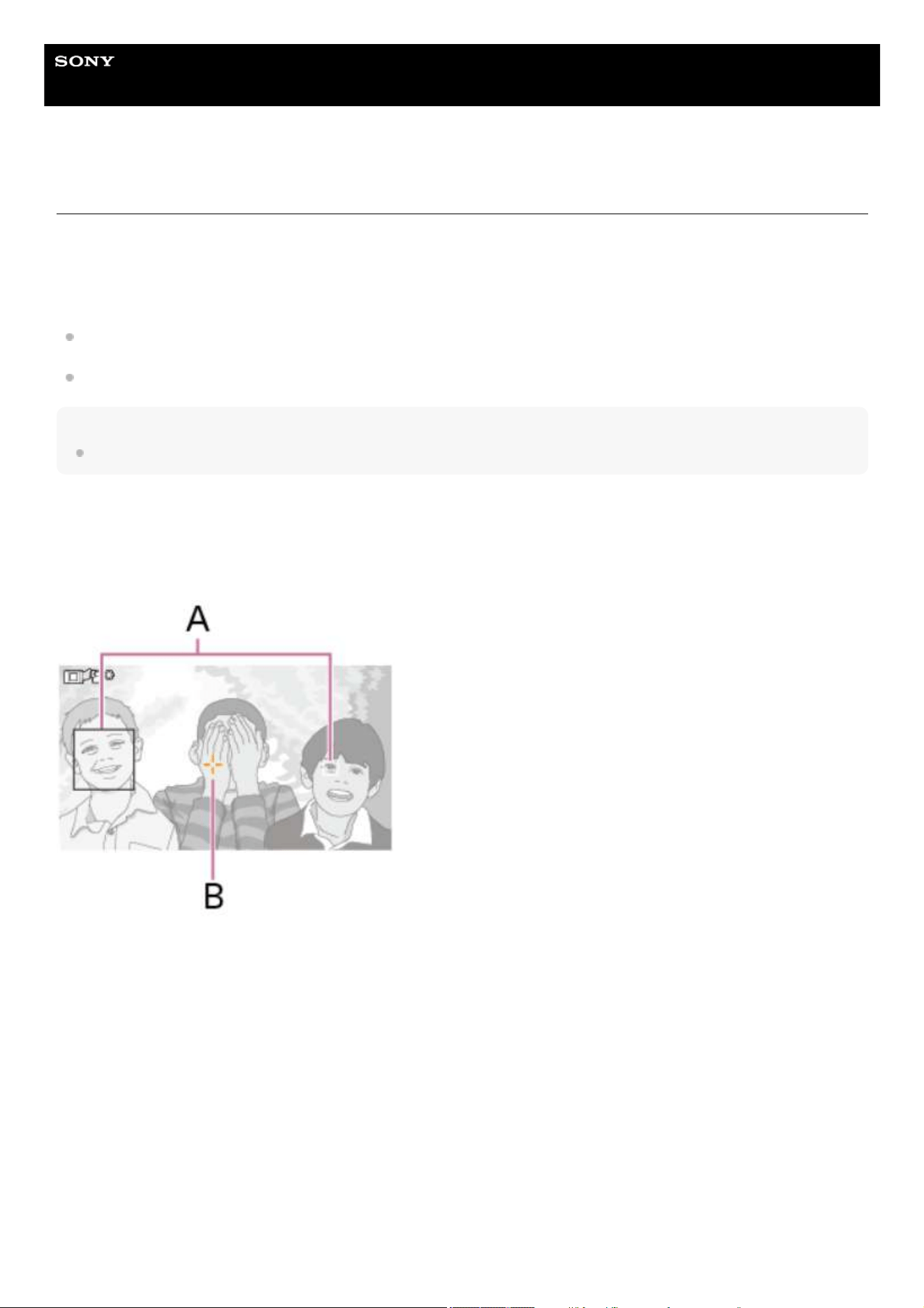
Help Guide
Solid-State Memory Camcorder
PXW-Z200/HXR-NX800
Starting Realtime Tracking AF
When a specific subject is specified as the tracking target, tracking of that target starts.
Specifying by touch operation
Tap the target subject to track in one of the following states:
When the focus mode is manual focus mode or during push manual focus, and [Shooting] – [Focus] – [Touch Function in
MF] – [Tracking AF] is selected in the full menu
When the focus mode is auto focus mode or during push auto focus (AF)
Note
Touch operation is not available when [Technical] – [Touch Operation] is set to [Off] in the full menu.
Specifying using the tracking AF pointer
When [Shooting] – [Focus] – [Multi Selector Function] is set to [Pointer] in the full menu, you can quickly select a subject on
the screen using the multi selector instead of touch operation.
Move the tracking AF pointer to the target subject to track using the multi selector, and press the multi selector.
A: Eye/face detection frame
B: Tracking AF pointer
This is convenient when using the viewfinder or when touch panel operation is disabled.
You can change the color and edge of the tracking AF pointer to make it easier to see or to prevent the pointer from
interfering with shooting.
Specifying by subject recognition frame selection
When [Shooting] – [Focus] – [Multi Selector Function] is set to [Subject Sel. Cursor] in the full menu, you can select a subject
recognition frame using the multi selector.
Move the subject selection cursor (orange underline) to the target subject to track using the multi selector, and press the multi
selector.
112
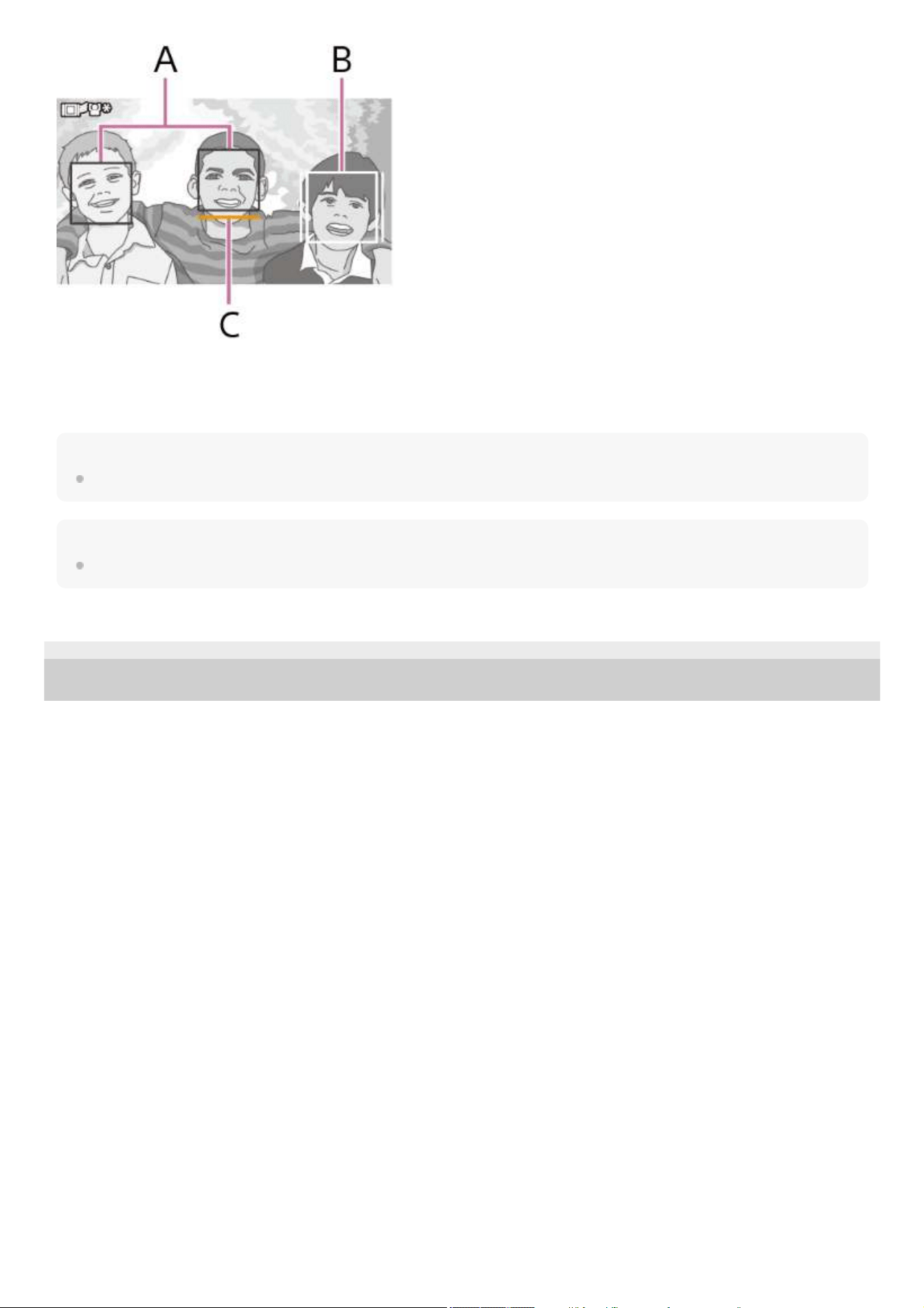
A: Other face detection frames (gray)
B: Tracking frame
C: Face selection cursor (orange)
Hint
You can also change the target to track during realtime tracking AF.
Note
During manual focus, tracking cannot be started using subject recognition frame selection.
TP1001670341
5-060-574-11(2) Copyright 2024 Sony Corporation
113
Help Guide
Solid-State Memory Camcorder
PXW-Z200/HXR-NX800
Stopping Realtime Tracking AF
Stopping by touch operation
Tap the
(Realtime tracking AF stop) button displayed at the top left of the touch panel.
Hint
Realtime tracking AF will stop in the following cases:
When the FOCUS PUSH AUTO button or an assignable button assigned with [Push AF/Push MF] is pressed
When the FOCUS switch switches between AUTO/MAN
When the focus mode is changed
When auto focus assist is executed
When the focus area setting or subject recognition AF operation is changed
When the tracking target is not within the shooting screen and focus on the subject is lost for a few seconds
TP1001670342
5-060-574-11(2) Copyright 2024 Sony Corporation
114
Help Guide
Solid-State Memory Camcorder
PXW-Z200/HXR-NX800
Notes on Shooting
Focusing on subjects may not be possible in the following cases, depending on the shooting conditions.
Low illumination, backlighting
In shadow
Considerably out of focus
Also, even if the camera recognizes the eyes of a subject, the camera may not be able to focus on the eyes properly in the
following cases if there is significant subject movement.
Eyes are closed
Hair covering the eyes
Wearing of spectacles (sunglasses)
Focusing on subjects may not be possible in other cases, depending on the shooting conditions.
If it is not possible to focus on a specific area of the subject that you want to prioritize, such as the eyes, the camera may
automatically focus on other recognized areas, such as the head or body of the subject.
Even if a white subject recognition frame is displayed around the face of a subject, the camera may automatically focus
on the eyes or other areas of the subject.
If only a part of the subject is within the angle of view, the subject may not be recognized.
When only the hands and feet of a person or animal are visible
When a part of the subject is hidden and is not visible.
Depending on the situation, objects or body parts other than the subject may be mistakenly recognized as the subject.
TP1001670343
5-060-574-11(2) Copyright 2024 Sony Corporation
115
Help Guide
Solid-State Memory Camcorder
PXW-Z200/HXR-NX800
Adjusting the Iris
You can adjust the iris to adjust the brightness.
Adjusting the iris automatically
This function adjusts the brightness according to the subject.
Press and hold the IRIS AUTO button to set AUTO adjustment mode.
Hint
The same operation is supported by selecting [Auto] in the [Auto Iris] direct menu.
You can also assign [Auto Iris] to an assignable button.
Adjusting the iris manually
Hint
The same operation is supported by selecting an F value in the direct menu and moving the multi selector up/down.
Temporarily adjusting automatically
Press an assignable button assigned with [Push Auto Iris] to automatically adjust the iris temporarily while the button is
pressed.
The iris returns to the previous setting when you release the button.
TP1001670344
5-060-574-11(2) Copyright 2024 Sony Corporation
Press and hold the IRIS AUTO button to set MANUAL adjustment mode.
1.
Turn the IRIS dial to make adjustments.2.
116
Help Guide
Solid-State Memory Camcorder
PXW-Z200/HXR-NX800
Adjusting the Gain
You can adjust the gain to adjust the brightness.
Adjusting the gain automatically
Press and hold an assignable button assigned with [ISO/Gain] to display the [AGC] direct menu and select [Auto].
Hint
The same operation is supported by setting [Shooting] – [Auto Exposure] – [AGC] to [On] in the full menu.
You can also assign [AGC] to an assignable button.
Adjusting the gain manually
You can control the gain when you want to adjust the exposure while using a fixed iris setting or when you want to prevent
the gain increasing due to AGC.
Hint
You can change the preset value of each switch position using [ISO/Gain<L>]/[ISO/Gain<M>]/[ISO/Gain<H>] on the [Camera] status
screen or [Shooting] – [ISO/Gain] – [ISO/Gain<L>]/[ISO/Gain<M>]/[ISO/Gain<H>] in the full menu.
You can also assign [Push AGC] to an assignable button, and set [AGC] to [On] temporarily while the button is pressed.
Controlling the gain (fine adjustment)
Hint
Change the gain preset value according to the ISO/GAIN switch setting.
Controlling the gain temporarily (fine adjustment)
Assign [ISO/Gain] to the multi-function dial and adjust the value set by the ISO/GAIN switch using the dial.
This is useful when you want to adjust the exposure by one step without changing the depth of field.
The temporarily adjusted value is canceled by switching the ISO/GAIN switch, setting [AGC] to [On], or turning the power off.
Hint
You can also assign [Push AGC] to an assignable button, and set [AGC] to [On] temporarily while the button is pressed.
TP1001670345
5-060-574-11(2) Copyright 2024 Sony Corporation
Press and hold an assignable button assigned with [ISO/Gain] to display the [AGC] direct menu and select
[Manual].
1.
Set the ISO/GAIN switch to L, M, or H.2.
Press an assignable button assigned with [ISO/Gain] so that the gain value is displayed on a white background.1.
Turn the multi-function dial to adjust the value.2.
117
Help Guide
Solid-State Memory Camcorder
PXW-Z200/HXR-NX800
Adjusting the Shutter
You can adjust the shutter to adjust the brightness.
Adjusting the shutter automatically
Press and hold an assignable button assigned with [Shutter] to display the direct menu and select [Auto] to adjust the shutter
speed or shutter angle automatically in response to the image brightness.
Hint
The same operation is supported by setting [Shooting] – [Auto Exposure] – [Auto Shutter] to [On] in the full menu.
Adjusting the shutter manually
Hint
To adjust the exposure time to match the frame interval, select [Off] in step 1.
You can set the shutter speed as an angle, or set the shutter speed value directly according to the frequency of the light source.
TP1001670346
5-060-574-11(2) Copyright 2024 Sony Corporation
Press and hold an assignable button assigned with [Shutter] to display the direct menu and select [Speed] or
[Angle].
1.
Press the assignable button assigned with [Shutter] so that the shutter value is displayed on a white
background.
2.
Turn the multi-function dial to adjust the shutter speed.3.
118
Help Guide
Solid-State Memory Camcorder
PXW-Z200/HXR-NX800
Adjusting the Light Level
In conditions where the lighting is too bright, you can set the appropriate brightness by changing the ND filter.
The unit features two ND filter modes. You can switch between the two modes using the ND PRESET/VARIABLE switch.
Adjusting in preset mode
Set the ND PRESET/VARIABLE switch to the PRESET position, and set the ND FILTER POSITION up/down buttons to one
of the following settings.
[Clear]: No ND filter
[1]: Transmittance set using [Shooting] – [ND Filter] – [Preset1] in the full menu.
[2]: Transmittance set using [Shooting] – [ND Filter] – [Preset2] in the full menu.
[3]: Transmittance set using [Shooting] – [ND Filter] – [Preset3] in the full menu.
Adjusting in variable mode
Set the ND PRESET/VARIABLE switch to the VARIABLE position. Switch between [Clear] and [On] using the ND FILTER
POSITION up/down buttons.
Adjusting the light level automatically
Set [Auto ND Filter] to [On] to enable auto exposure adjustment using the ND filter.
Adjusting the light level manually
Temporarily adjusting automatically
Assign [Push Auto ND] to an assignable button to temporarily set [Auto ND Filter] to [On] while the button is pressed.
Releasing the button sets the function to [Off].
Press the [+] button of the ND FILTER POSITION up/down buttons to set the ND filter to [On].
Note
When the ND filter is switched to or from [Clear] during shooting, the ND filter frame is displayed on the image and the operating
sound is included in the audio.
Hint
You can set to [Clear] by turning the ND VARIABLE dial down from ND1/4. You can also turn the dial up from [Clear] to set ND1/4. You
can disable this operation using [Technical] – [ND Dial] – [CLEAR with Dial] in the full menu.
You can also assign [ND Filter Position] to an assignable button and press the button instead of using the ND FILTER POSITION
up/down buttons to change the setting.
Preset mode: [Clear] → [Preset1] → [Preset2] → [Preset3] → [Clear]…
Variable mode: [Clear] → [On] → [Clear]…
You can also assign [Auto ND Filter] to an assignable button and press the button to switch the [Auto ND Filter] mode between [On]
and [Off].
When shooting a brightly lit subject, closing the iris too much may cause diffraction blur, producing an image starting to go out of focus
(typical phenomena in video cameras). You can suppress this effect to obtain better shooting results using the ND filter.
Press the [+] button of the ND FILTER POSITION up/down buttons to set the ND filter to [On].
1.
Press and hold the ND AUTO button until [Auto] is selected.2.
Press the [+] button of the ND FILTER POSITION up/down buttons to set the ND filter to [On].1.
Press and hold the ND AUTO button until [Manual] is selected.2.
Turn the ND VARIABLE dial to adjust the transmittance of the filter.3.
119

TP1001670347
5-060-574-11(2) Copyright 2024 Sony Corporation
120
Help Guide
Solid-State Memory Camcorder
PXW-Z200/HXR-NX800
Adjusting the White Balance Automatically
This function adjusts the white balance automatically to an appropriate level.
The white balance is automatically adjusted when the color temperature of the light source changes.
Press and hold an assignable button assigned with [White Balance] to display the direct menu and select [ATW].
Select the speed of adjustment using [Shooting] – [White Setting] – [ATW Speed] in the full menu.
Hint
You can freeze the current white balance setting by assigning the [ATW Hold] function to an assignable button and pressing the
assignable button to temporarily pause ATW mode.
Note
It may not be possible to adjust to the appropriate color using ATW, depending on the lighting and subject conditions.
Examples:
When a single color dominates the subject, such as sky/sea/ground/flowers or similar.
When the subject is lit by a light source with extremely high or extremely low color temperature.
If the the ATW auto tracking speed is slow or the appropriate effect cannot be obtained, run auto white balance.
TP1001670348
5-060-574-11(2) Copyright 2024 Sony Corporation
121
Help Guide
Solid-State Memory Camcorder
PXW-Z200/HXR-NX800
Adjusting the White Balance Manually
Hint
[ATW] can be enabled for memory B by setting [Shooting] – [White Setting] – [White Switch<B>] to [ATW] in the full menu.
Memory A/Memory B mode
This mode adjusts the white balance to the setting saved in memory A or B, respectively.
Preset mode
This mode adjusts the color temperature to a preset value (factory default is [3200K]).
Changing the default preset value
In preset mode, you can change an existing preset value directly.
Press and hold an assignable button assigned with [White Balance] to display the direct menu and select the following.
Custom shooting mode: → [3200K] → [4300K] → [5600K] → [6300K]
Log shooting mode: → [3200K] → [4300K] → [5500K]
Hint
You can also assign [Preset White Select] to an assignable button and press the button to change the setting.
Custom shooting mode:
[→3200K]
[→4300K]
[→5600K]
[→6300K]
Log shooting mode:
[→3200K]
[→4300K]
[→5500K]
Changing the color temperature
Hint
In preset mode, you can set the value in 100K increments.
In memory mode, you can set the value in 20K increments in the range [2000K] to [5600K]. Values above [5600K] can be set at
intervals equal to the amount of color change from [5580K] to [5600K]. You can also adjust the color temperature using [Shooting] –
[White] – [Tint] in the full menu.
Running auto white balance
The white balance to save in memory A/memory B mode is configured automatically.
When white balance is set to ATW mode, press and hold an assignable button assigned with [White Balance] to
display the direct menu and select [W:P]/[W:A]/[W:B].
1.
Select B, A, or PRESET using the WHT BAL switch.
B: Memory B mode
A: Memory A mode
PRESET: Preset mode
2.
Press an assignable button assigned with [White Balance] so that the color temperature value is displayed on a
white background.
1.
Turn the multi-function dial to adjust the value.2.
Select memory A mode or memory B mode.1.
122

Note
If the adjustment is not successful, an error message is displayed on the screen for about three seconds. If the error message persists
after repeated attempts to set the white balance, contact your Sony service representative.
TP1001670349
5-060-574-11(2) Copyright 2024 Sony Corporation
Place white paper (or other object) in a location with the same lighting source and conditions as the subject,
then zoom in on the paper to show white on the screen.
2.
Adjust the brightness.
Adjust the iris manually. For details, see the following topic.
Adjusting the Iris
3.
Press the WB SET button.
If auto white balance is run in memory mode, the result of auto adjustment is saved in the memory (A or B) selected in
step 1.
If auto white balance is run in ATW mode, the result is inherited and ATW resumes when the auto adjustment ends.
This is useful when you want to adjust the white balance very quickly, regardless of the [ATW Speed] setting.
4.
123
Help Guide
Solid-State Memory Camcorder
PXW-Z200/HXR-NX800
Using Image Stabilization
You can suppress blurring of the image due to shaking when shooting by enabling the image stabilization function.
Hint
[Active] cannot be configured when shooting in Slow & Quick Motion mode.
When shooting using a tripod for stability, set image stabilization to [Off].
TP1001670350
5-060-574-11(2) Copyright 2024 Sony Corporation
Set [Shooting] – [SteadyShot] – [Setting] to [Active]/[Standard] in the full menu.
[Standard]: Reduces blurring of captured images caused by camera shake.
[Active]: Applies more powerful correction than [Standard] for correcting stronger camera shake, such as shooting while
walking.
[Off]: Turns image stabilization mode off.
You can assign [SteadyShot], [SteadyShot Active], or [SteadyShot Standard] to an assignable button and then switch
between [Standard], [Active], and [Off] with each press of the button. For details about the switching sequence, see the
description for [Project] – [Assignable Button] in the full menu in the following topic.
[Project] Menu
The setting is displayed on the shooting screen.
You can also switch image stabilization between [Standard], [Active], and [Off] using the direct menu.
1.
124
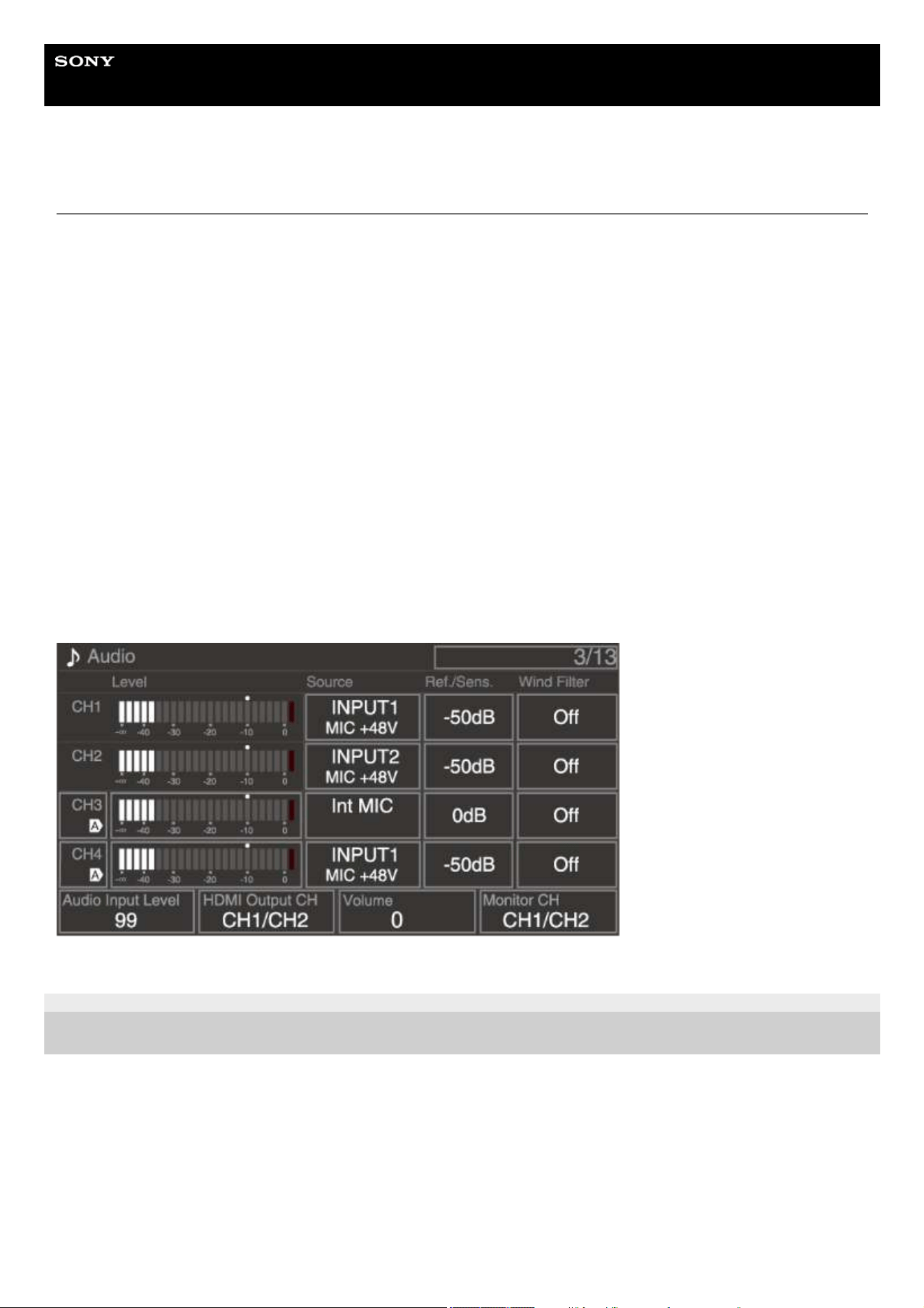
Help Guide
Solid-State Memory Camcorder
PXW-Z200/HXR-NX800
Setting the Audio to Record
You can specify the audio to be recorded using the input connectors, switches, and dials of the unit.
External audio input connectors and selector switches
INPUT 1 connector
INPUT 2 connector
INPUT 3 connector (for external microphone connection)
Multi interface shoe
INPUT 1 (LINE/MIC/MIC+48V) switch
INPUT 2 (LINE/MIC/MIC+48V) switch
Switches/dials for setting the audio level
CH1 (AUTO/MAN) switch
CH2 (AUTO/MAN) switch
AUDIO LEVEL dial (CH1)
AUDIO LEVEL dial (CH2)
[Audio] status screen
Press the AUDIO button to display the [Audio] status screen. You can also press the MENU button and scroll the screen to
display the status.
TP1001670351
5-060-574-11(2) Copyright 2024 Sony Corporation
125
Help Guide
Solid-State Memory Camcorder
PXW-Z200/HXR-NX800
Selecting the Audio Input Device
TP1001670352
5-060-574-11(2) Copyright 2024 Sony Corporation
Set the audio input using [CH1]/[CH2]/[CH3]/[CH4] – [Source] on the [Audio] status screen or [Audio] – [Audio
Input] – [CH1 Input Select]/[CH2 Input Select]/[CH3 Input Select]/[CH4 Input Select] in the full menu.
If using a microphone or XLR adaptor connected to the multi interface shoe, specify [Shoe CH1] or [Shoe CH2] (or
[Shoe CH3] or [Shoe CH4]). For details about the XLR adaptor, see the following topic.
Adding Audio Input Connectors
Note
Audio is not recorded in Slow & Quick Motion mode.
When [CH1 Input Select] and [CH2 Input Select] are set to [Internal MIC], the audio recording level of both CH1 and CH2 is
adjusted using the AUDIO LEVEL dial (CH1). When [CH3 Input Select] and [CH4 Input Select] are set to [Internal MIC], the
audio recording level of both CH3 and CH4 is adjusted using [CH3 Input Level].
1
Select the input audio source.
Set the INPUT 1/INPUT 2 (LINE/MIC/MIC+48V) switches for the devices connected to the INPUT 1/INPUT 2
connectors, respectively.
Selecting MIC+48V and connecting a microphone that is not compatible with a +48V source may damage the
connected device. Check the setting before connecting the device.
If noise is a concern on connectors with no device connected, set the corresponding INPUT 1/INPUT 2
(LINE/MIC/MIC+48V) switches to LINE.
2
Connected device Switch position
External audio source (e.g. mixer) LINE
Dynamic microphone, battery-operated microphone MIC
+48 V phantom power microphone MIC+48V
126
Help Guide
Solid-State Memory Camcorder
PXW-Z200/HXR-NX800
Adjusting the Audio Recording Level Automatically
Set the CH1/CH2 (AUTO/MAN) switches for the channels to adjust automatically to the AUTO position.
For CH3/CH4, set the recording audio level control on the [Audio] status screen or set [Audio] – [Audio Input] – [CH3 Level
Control]/[CH4 Level Control] to [Auto] in the full menu.
Related Topic
Block Diagrams
TP1001670353
5-060-574-11(2) Copyright 2024 Sony Corporation
127
Help Guide
Solid-State Memory Camcorder
PXW-Z200/HXR-NX800
Adjusting the Audio Recording Level Manually
Use the following procedure to adjust the audio recording level for CH1/CH2 manually.
Hint
The [Audio] status screen is convenient for checking the audio input level.
Note
The [Audio Input Level] setting may be disabled, depending on the combination of settings in the [Audio] menu.
The unit supports combinations of various settings.
For details about setting combinations, see the following topic.
Block Diagrams
TP1001670354
5-060-574-11(2) Copyright 2024 Sony Corporation
Set the CH1/CH2 (AUTO/MAN) switches for the channels to adjust to the MAN position.
1
During shooting or standby, turn the AUDIO LEVEL dials (CH1)/(CH2) of the corresponding channels to adjust
the audio level.
For CH3/CH4, adjust the recording audio level using [CH3]/[CH4] on the [Audio] status screen or set [Audio] – [Audio
Input] – [CH3 Level Control]/[CH4 Level Control] to [Manual] in the full menu and then adjust the audio recording level
using [CH3 Input Level]/[CH4 Input Level].
You can adjust the levels for CH1 to CH4 as a group. You can adjust the audio recording level using an assignable dial
assigned with [Audio Input Level], the [Audio] status screen, or [Audio] – [Audio Input] – [Audio Input Level] in the full
menu.
2
128
Help Guide
Solid-State Memory Camcorder
PXW-Z200/HXR-NX800
Adding Audio Input Connectors
You can connect up to four channels of XLR audio devices to the unit at the same time by using an XLR-K2M XLR adaptor
(not supplied) or XLR-K3M XLR adaptor (not supplied).
XLR-K2M
Attach the XLR adaptor to the multi interface shoe, and set [CH3] – [Source] to [Shoe CH1] and [CH4] – [Source] to [Shoe
CH2] on the [Audio] status screen.
Or, set [Audio] – [Audio Input] – [CH3 Input Select] to [Shoe CH1] and [CH4 Input Select] to [Shoe CH2] in the full menu.
XLR-K2M is a 2-channel compatible microphone, not 4-channel compatible. Since CH3/CH4 are not supported, channels set
to [Shoe CH3] or [Shoe CH4] on the camera will be silent.
XLR-K3M
Attach the XLR adaptor to the multi interface shoe, and set [CH3] – [Source] to [Shoe CH1] or [Shoe CH3] and [CH4] –
[Source] to [Shoe CH2] or [Shoe CH4] on the [Audio] status screen.
Or, set [Audio] – [Audio Input] – [CH3 Input Select] to [Shoe CH1] or [Shoe CH3] and [CH4 Input Select] to [Shoe CH2] or
[Shoe CH4] in the full menu.
Note
The unit supports the 4ch digital audio interface of the XLR-K3M.
If [Audio] – [Audio Input] – [CH3 Level]/[CH4 Level] are set to [Audio Input Level], then [Audio Input Level] on the unit is multiplied by
the level adjusted on the XLR adaptor. [Audio Input Level] is also enabled when the XLR adaptor switch is set to AUTO. When
[Through] is selected, audio will be recorded at the level adjusted with the XLR adaptor.
Functions of the unit that overlap will be disabled for channels on which the XLR adaptor is selected as the input. Use the switches
and dials on the XLR adaptor to perform adjustments.
TP1001670355
5-060-574-11(2) Copyright 2024 Sony Corporation
129
Help Guide
Solid-State Memory Camcorder
PXW-Z200/HXR-NX800
Direct Menu
You can check the status and settings of the unit displayed on the shooting screen, and directly select and change settings.
The following items can be configured.
[Subject Recognition AF]
[SteadyShot]
[White Mode]
[Color Temp]
[Scene File]
[ND Filter Position
] / [Auto ND Filter]
[ND Filter Value]
[Auto Iris]
Iris value
[AGC]
ISO value
Gain value
[Auto Shutter
] / [ECS]
[Shutter Value]
[Auto Exposure Mode]
[Auto Exposure Level]
S&Q motion frame rate
Hint
Direct settings can also be configured by pressing and holding each of the function buttons.
When items are displayed on a white background, the multi-function dial can be used like an assignable dial.
The multi selector can also be used for selection operations.
The direct menu does not support touch operation.
TP1001670356
5-060-574-11(2) Copyright 2024 Sony Corporation
Press the multi-function dial or an assignable button assigned with [Direct Menu].
Only the items on the screen that can be configured using the direct menu are selectable using the orange cursor.
1.
Turn the multi-function dial to move the cursor to the menu item to operate, then press the multi-function dial.
A menu is displayed or the item is displayed on a white background.
2.
Turn the multi-function dial to select a setting, then press the multi-function dial.
The menu or white background disappears and the new setting is displayed with an orange cursor.
Press the assignable button assigned with [Direct Menu] again or wait 3 seconds without performing any action to exit the
direct menu.
3.
130
Help Guide
Solid-State Memory Camcorder
PXW-Z200/HXR-NX800
Assignable Buttons
There are 12 assignable buttons on the unit to which you can assign functions.
You can also assign a function to the multi-function dial.
Changing the button function
Set using [Project] – [Assignable Button] in the full menu.
You can view the assigned functions on the [Assignable Button] status screen.
Functions assigned to each assignable button by factory default
Assignable functions
[Off]
[ISO/Gain]
[AGC]
[Push AGC]
[ND Filter Position]
[Auto ND Filter]
[Push Auto ND]
[Auto Iris]
[Push Auto Iris]
[Shutter]
[Auto Shutter]
[AE Level/Mode]
[Backlight]
[Spotlight]
[Preset White Select]
[White Balance]
[ATW]
Assignable button Function
ASSIGN (assignable) 1 button [S&Q Motion]
ASSIGN (assignable) 2 button [Network Status]
ASSIGN (assignable) 3 button [NIGHTSHOT]
ASSIGN (assignable) 4 button [Focus Magnifier ×3/×6]
ASSIGN (assignable) 5 button [Direct Menu]
ASSIGN (assignable) 6 button [ISO/Gain]
ASSIGN (assignable) 7 button [White Balance]
ASSIGN (assignable) 8 button [Shutter]
ASSIGN (assignable) 9 button [Focus Magnifier ×3/×6]
ASSIGN (assignable) 10 button [Direct Menu]
ASSIGN (assignable) 11 button [Video Signal Monitor]
FOCUS PUSH AUTO button [Push AF/Push MF]
131
[ATW Hold]
[AF Speed/Sens.]
[Focus Setting]
[Subject Recognition AF]
[Push AF/Push MF]
[Focus Hold]
[Focus Magnifier ×3/×6]
[Focus Magnifier ×3]
[Focus Magnifier ×6]
[S&Q Motion]
[LUT On/Off
]
[LUT On/Off
]
[NIGHTSHOT]
[SteadyShot]
[SteadyShot Active]
[SteadyShot Standard]
[Rec]
[Auto Framing Pause]
[Auto Framing Settings]
[Rec Review]
[Shot Mark1]
[Shot Mark2]
[Clip Flag OK]
[Clip Flag NG]
[Clip Flag Keep]
[Color Bars]
[Tally [Front]]
[DURATION/TC/U-BIT]
[Display]
[Lens Info]
[Video Signal Monitor]
[Marker]
[LCD/VF Adjust]
[Gamma Display Assist]
[Peaking]
[Zebra]
[Thumbnail]
[Touch Operation]
[Handle Zoom]
[Stream]
[Auto Upload (Proxy)]
[Enlarge Screen]
[Direct Menu]
[Network Status]
[User Menu]
[Menu]
Changing the dial function
You can also change the function of the multi-function dial of the unit.
Set the multi-function dial using [Project] – [Multi Function Dial] – [Default Function] in the full menu.
[Off] is assigned by factory default.
Functions assignable to the multi-function dial
[Off]
[ISO/Gain]
[Auto Exposure Level]
[Audio Input Level]
Note
132

The setting is disabled while the menu is displayed.
TP1001670357
5-060-574-11(2) Copyright 2024 Sony Corporation
133
Help Guide
Solid-State Memory Camcorder
PXW-Z200/HXR-NX800
Slow & Quick Motion
When the recording format is set to the following values, you can specify different values for the shooting frame rate and
playback frame rate.
You can turn Slow & Quick Motion mode on/off by pressing an assignable button assigned with [S&Q Motion].
You can set the frame rate for shooting by pressing and holding the button.
Hint
You can also set the mode using [Rec Function] on the [Project] status screen or [Shooting] – [S&Q Motion] in the full menu.
Note
Slow & Quick Motion cannot be set during recording, playback, or while the thumbnail screen is displayed.
Audio recording is not supported in Slow & Quick Motion mode.
Auto shutter is disabled in Slow & Quick Motion mode.
TP1001670358
5-060-574-11(2) Copyright 2024 Sony Corporation
Recording format
Frame rate
System frequency Codec
Video
format
59.94/50/23.98
[XAVC HS-L 422] 3840×2160P 1–60, 100, 120
[XAVC HS-L 420] 3840×2160P 1–60, 100, 120
59.94/50/29.97/25/23.98
[XAVC S-L 422
] / [XAVC S-L 420] / [XAVC
S-I]
3840×2160P 1–60, 100, 120
1920×1080P
1–60, 100, 120, 150, 180, 200,
240
134
Help Guide
Solid-State Memory Camcorder
PXW-Z200/HXR-NX800
Auto Framing
In auto framing mode, the camera automatically tracks the subject (person) you are shooting and automatically captures
footage with the optimum composition while the camera continues to capture the subject.
During live shooting, you can use the footage cropped using the auto-framing function for live streaming, while leaving the
uncropped footage as a clip to use as package media content.
Set framing using [Auto Framing] on the [Project] status screen or set [Project] – [Auto Framing] – [Setting] to [On] in the full
menu and configure the following.
Starting auto framing
Set using [Project] – [Auto Framing] – [Framing Operation Mode] in the full menu.
Size of the subject you are shooting
Set using the [Project] status screen or [Project] – [Auto Framing] – [Crop Level] in the full menu.
Subject tracking speed
Set using the [Project] status screen or [Project] – [Auto Framing] – [Framing Tracking Speed] in the full menu.
Image cropping
Recorded video and streaming output video:
Set using [Project] – [Auto Framing] – [Rec/Stream] in the full menu.
HDMI output video:
Set using [Project] – [Auto Framing] – [HDMI] in the full menu.
Hint
You can press an assignable button assigned with [Auto Framing Pause] to pause auto framing and output the entire image. Press the
button again to resume cropping. This can be convenient in situations where the composition deviates from the intended composition.
You can press an assignable button assigned with [Auto Framing Settings] to configure the [Crop Level] and [Framing Tracking Speed]
settings.
Note
The image may not be cropped with the optimal composition, depending on the shooting conditions.
SDI output is not available while this function is enabled.
TP1001670359
5-060-574-11(2) Copyright 2024 Sony Corporation
135
Help Guide
Solid-State Memory Camcorder
PXW-Z200/HXR-NX800
Recording to Both Memory Cards A and B
You can record to both memory card A and memory card B simultaneously by setting [Simul Rec] on the [Project] status
screen or setting [Project] – [Simul Rec] – [Setting] to [On] in the full menu.
Recording separately to memory card A and memory card B
You can start/stop recording to each memory card independently using the record START/STOP buttons on the unit and the
handle.
By factory default, both buttons are set to start/stop simultaneous recording to both memory cards A and B.
[Rec Button:
Handle Rec Button: ]
When the buttons are set to control recording for different memory cards, the following record start/stop control follows the
recording state of slot A.
PXW-Z200: [SDI/HDMI Rec Control]
HXR-NX800: [HDMI Rec Control]
To change the setting
Set [Project] – [Simul Rec] to [Rec Button Set] in the full menu.
Hint
The record button on the LANC remote control or smartphone app remote control operate the same as the record START/STOP
button on the grip of the unit.
To prevent accidental operation of the handle record START/STOP button
Set the handle HOLD switch to the HOLD position.
About file names
In 2-slot simultaneous recording, the generated clip will have the same clip name on both media.
TP1001670360
5-060-574-11(2) Copyright 2024 Sony Corporation
[Rec Button Set] setting Buttons and memory cards
[Rec Button:
Handle
Rec Button:
]
Starts/stops simultaneously recording to memory cards A and B using either button.
[Rec Button:
Handle
Rec Button:
]
The record START/STOP button starts/stops recording to memory card A, and the record
START/STOP button on the handle starts/stops recording to memory card B.
[Rec Button:
Handle
Rec Button:
]
The record START/STOP button starts/stops recording to memory card B, and the record
START/STOP button on the handle starts/stops recording to memory card A.
136
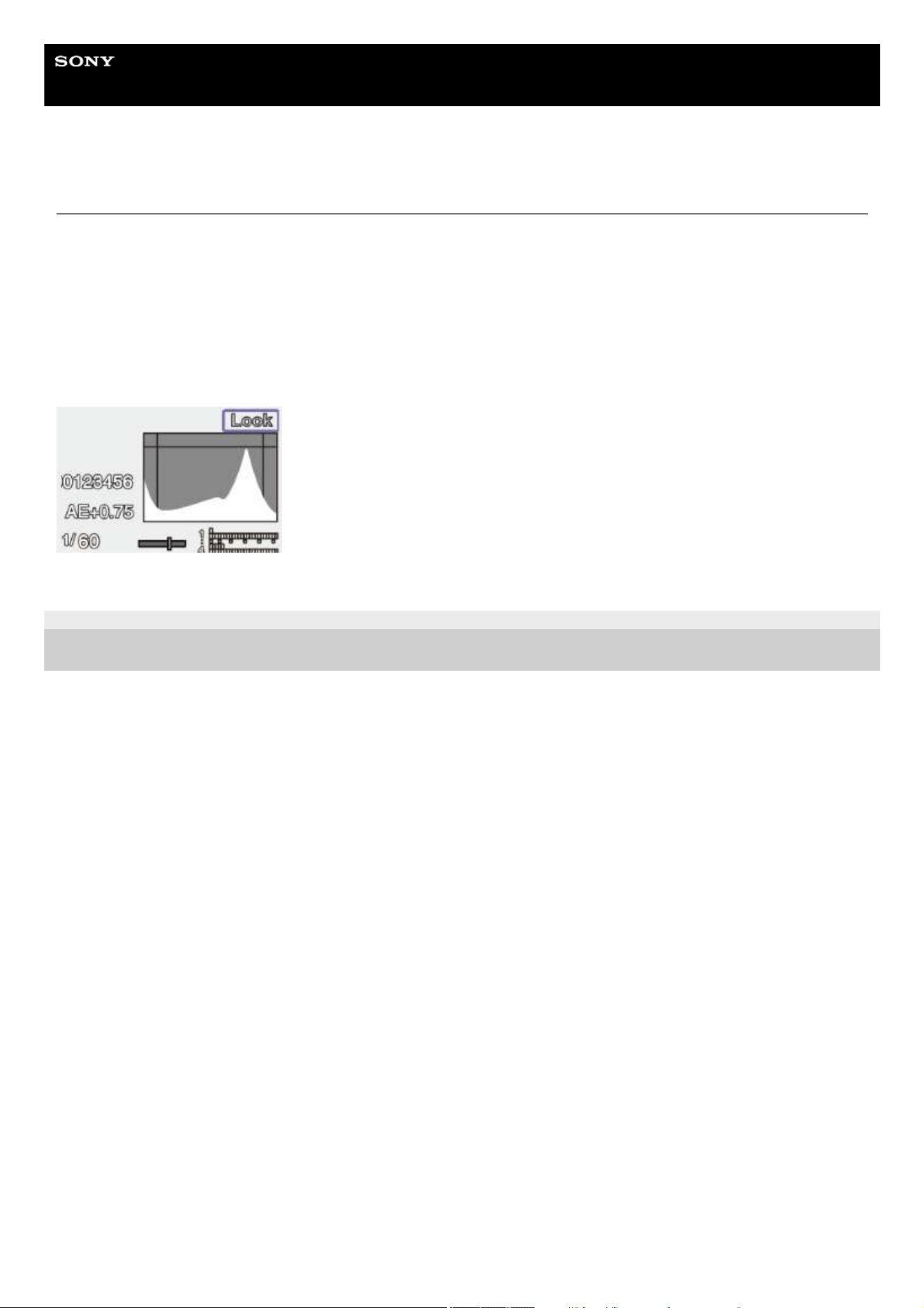
Help Guide
Solid-State Memory Camcorder
PXW-Z200/HXR-NX800
Video Signal Monitor
You can set the type of video signal to display on the viewfinder screen to waveform, vectorscope, or histogram using
[Monitoring] – [Display On/Off] – [Video Signal Monitor] in the full menu.
The orange line indicates the set value of the zebra level.
The same operation is supported using an assignable button assigned with [Video Signal Monitor].
Monitor target display
In log shooting mode, “Look” is displayed at the top right of the video signal monitor when a LUT is applied to indicate the
monitor target. “SG3/SLog3” or “SG3C/SLog3” is displayed when a LUT is not applied.
TP1001670361
5-060-574-11(2) Copyright 2024 Sony Corporation
137
Help Guide
Solid-State Memory Camcorder
PXW-Z200/HXR-NX800
Gamma Display Assist Function
In custom shooting mode when [Project] – [Base Setting] – [Target Display] is set to [HDR(HLG)] in the full menu, you can set
[Gamma Display Assist] to [On] on the [Monitoring] status screen to view an assisted display in the viewfinder that makes
shooting in HDR easier. Can also be configured using [Monitoring] – [Gamma Display Assist] – [Setting] in the full menu.
Selecting the viewfinder display when the gamma display assist function is enabled
There are two display methods supported for displaying HDR images in the viewfinder when the gamma display assist
function is enabled.
Displaying HDR with maintained contrast between low luminance areas and high luminance areas
This method takes advantage of the expressive power of HDR to display the image in the viewfinder without causing crushed
blacks or blown out highlights, even when shooting with bright or dark exposure. However, the contrast is slightly reduced.
To use this display method, set [Project] – [HDR Setting] – [LCD/VF SDR Preview] to [Off] in the full menu.
Displaying SDR by simple conversion from HDR to SDR
This method allows you to operate the camera with the same feeling as conventional SDR.
You can adjust the brightness of the HDR image by setting the difference in gain between HDR and SDR using [SDR Gain].
To use this display method, configure using the following procedure.
Hint
When converting from an HDR image to SDR using SR Live Metadata after shooting, [SDR Gain] is applied to the conversion so that
the SDR image display has the same exposure that was viewed in the viewfinder at the time of shooting.
TP1001670362
5-060-574-11(2) Copyright 2024 Sony Corporation
Set [Project] – [HDR Setting] – [LCD/VF SDR Preview] to [On] in the full menu.
1.
Adjust the SDR gain value for HDR mode using [Project] – [HDR Setting] – [SDR Gain] in the full menu.2.
138
Help Guide
Solid-State Memory Camcorder
PXW-Z200/HXR-NX800
Clip Flags
You can add an [OK] clip flag to a clip being recorded or just recorded by pressing an assignable button assigned with [Clip
Flag OK] and selecting [Add OK]. You can also add a clip flag to a clip during playback.
You can delete an [OK] clip flag by pressing the button twice to execute [Delete Clip Flag].
Hint
You can also add a clip flag using [Thumbnail] – [Set Clip Flag] in the full menu.
The thumbnail screen can be displayed sorted by clip flag type (filtered clip thumbnail screen). For details, see the following topic.
Clip Operations
TP1001670363
5-060-574-11(2) Copyright 2024 Sony Corporation
139
Help Guide
Solid-State Memory Camcorder
PXW-Z200/HXR-NX800
Proxy Recording
This function allows you to simultaneously record a low-resolution proxy clip at the same time as recording a high-resolution
original clip when recording to a memory card.
A proxy clip can be subdivided into chunks automatically at short intervals and the files can be transferred before the end of
recording.
For details about supported memory cards, formatting memory cards, and checking the remaining capacity, see the following
topics.
Recommended Memory Cards
Initializing Memory Cards
Checking the Remaining Recording Time
About the recorded file
The file name extension is “.mp4”.
The timecode is also recorded simultaneously.
Storage destination of the recorded file
The recorded file is stored in the following directory.
About file names
The file name consists of the clip name recorded on the memory card + “S03” suffix. The file name of a proxy clip recorded in
chunks for upload consists of the original clip name + chunk number + “S03” suffix.
Recording a proxy
Configure proxy recording using the following procedure.
Memory card
Folder path
Normal recording Chunk recording
SDXC /PRIVATE/M4ROOT/SUB /PRIVATE/M4ROOT/GENERAL/SONY/PXTMP
CFexpress Type A /M4ROOT/SUB /PRIVATE/M4ROOT/GENERAL/SONY/PXTMP
Set using [Proxy Rec] on the [Project] status screen or setting [Project] – [Proxy Rec] – [Setting] to [On] in the
full menu.
1.
Insert a memory card into a CFexpress Type A/SD card slot.
For CFexpress cards, the label faces to the left.
For SD cards, the label faces to the right with the beveled corner at the bottom.
Note
Proxy recording cannot be set to [On] at the same time as Slow & Quick Motion. When proxy recording is set to [On], setting Slow
& Quick Motion to [On] will temporarily set proxy recording to [Off].
2.
Press the record START/STOP button.
Proxy recording starts.
Note
3.
140

To stop shooting
Stop the recording.
Setting the audio channel for proxy recording
Set the audio channel for proxy data recording using [Project] – [Proxy Rec] – [Audio Channel] in the full menu.
TP1001670364
5-060-574-11(2) Copyright 2024 Sony Corporation
If the unit is turned off or the memory card is removed while the memory card is being accessed, the integrity of data on the card
cannot be guaranteed. All data recorded on the memory card may be discarded. Always make sure the memory card access
indicator is off before turning off the unit or removing the memory card.
Make sure that the memory card does not pop out when inserting or removing it.
141
Help Guide
Solid-State Memory Camcorder
PXW-Z200/HXR-NX800
Recording and Uploading a Proxy Clip in Chunks
When the auto upload setting is set to [Chunk] and a proxy clip is recorded in chunks, the proxy clip can be uploaded while
the main recording is in progress.
For details about uploading a proxy clip recorded in chunks, see the following topic.
Transferring Clips Automatically
Note
When [Auto Upload (Proxy)] is not set to [Chunk], proxy recording in chunks does not occur.
The media in slot B is dedicated to recording proxy clips in chunks, hence relay recording and 2-slot simultaneous recording are not
supported.
TP1001670365
5-060-574-11(2) Copyright 2024 Sony Corporation
Select the chunk recording interval using [Project] – [Proxy Rec] – [Chunk] in the full menu.
[30s]: Record proxy clip in 30-second chunks (default setting).
[1min]: Record proxy clip in 1-minute chunks.
[2min]: Record proxy clip in 2-minute chunks.
1.
Set [Network] – [File Transfer] – [Auto Upload (Proxy)] to [Chunk] in the full menu.
The original clip is recorded to the media in slot A, and the proxy clip is recorded in chunks to the media in slot B.
2.
Start proxy recording.
A separate proxy clip transfer job is registered in the job list at the specified chuck recording interval.
3.
142
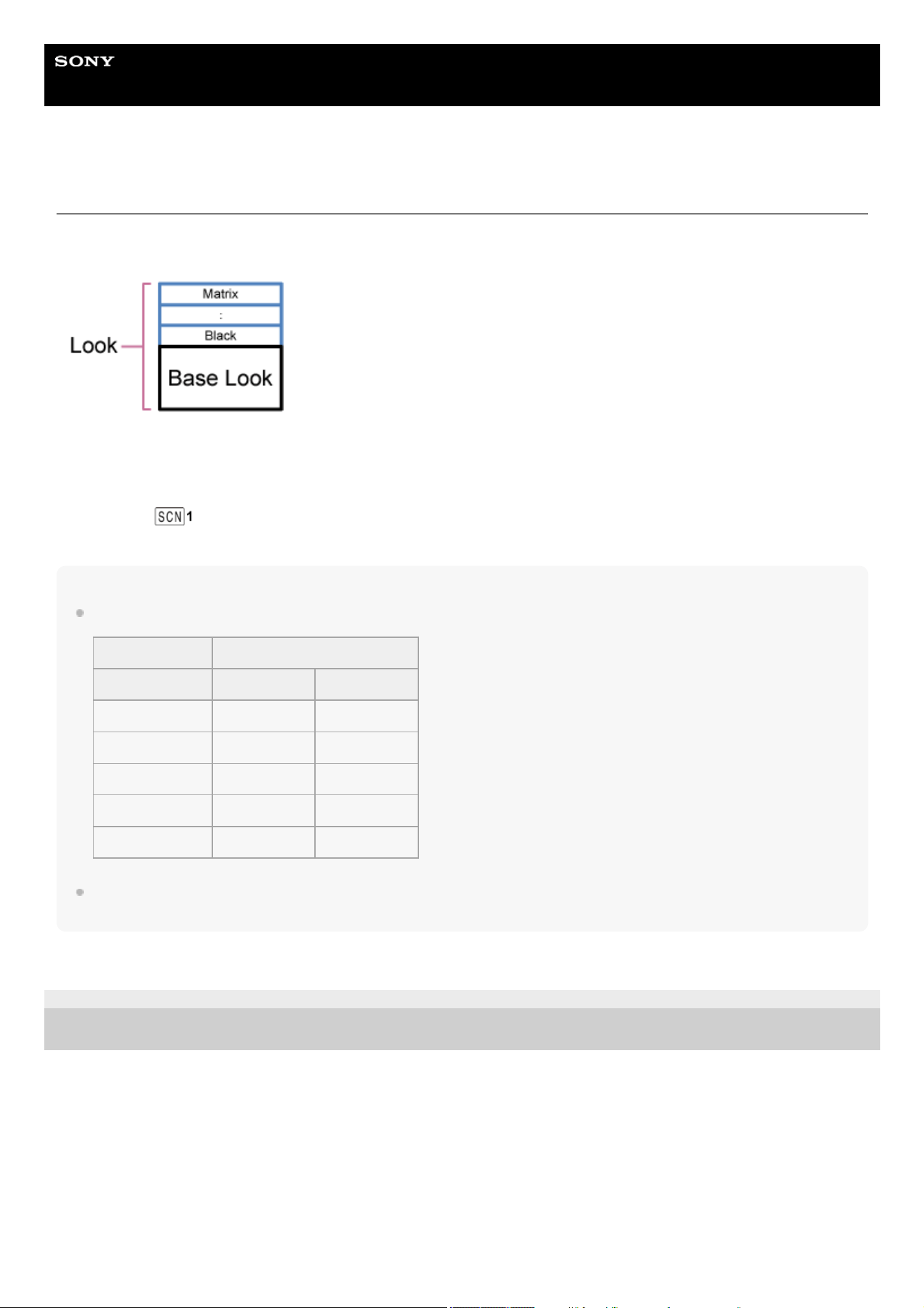
Help Guide
Solid-State Memory Camcorder
PXW-Z200/HXR-NX800
Selecting a Look
In [Custom] shooting mode, you can add adjustments to the black, matrix, and other parameters to create a “look” based on
the base look.
You can also quickly select a different look by saving different combinations of settings in scene files.
The unit is provided with a total of six preset looks.
Hint
The following presets are configured by factory default.
You can also select a look using [Paint/Look] – [Scene File] – [Recall] in the full menu. You can also recall a preset look using [Scene
File] – [Preset Recall].
TP1001670366
5-060-574-11(2) Copyright 2024 Sony Corporation
With the shooting screen displayed, press the multi-function dial.
1.
Select the
(scene file) icon.2.
Press the multi-function dial.3.
Select the desired look from the menu, and press the multi-function dial.4.
[Shooting Mode] [Custom]
[Target Display] [SDR(BT.709)] [HDR(HLG)]
Scene file 1 [S-Cinetone] [HLG Live]
Scene file 2 [ITU709] [HLG Mild]
Scene file 3 [709tone] [HLG Natural]
Scene file 4 (Not registered) (Not registered)
Scene files 5 to 16 (Not registered) (Not registered)
143
Help Guide
Solid-State Memory Camcorder
PXW-Z200/HXR-NX800
Importing a Desired Base Look
You can import up to 16 3D LUT files, created on a computer or other device, as a base look from a memory card or cloud
service.
File format: CUBE file (*.cube) for a 17-grid or 33-grid 3D LUT created using Catalyst Browse or RAW Viewer.
Input color gamut/Gamma: S-Gamut3.Cine/S-Log3 or S-Gamut3/S-Log3
Importing from a memory card
You can import a 3D LUT file from a memory card.
Importing from a cloud service
You can import a 3D LUT file from a cloud service.
Adjusting for underexposure
If there is a tendency for underexposure when auto exposure is selected when using an imported base look, adjust
[Paint/Look] – [Base Look] – [AE Level Offset] in the full menu.
Note
Just importing a 3D LUT file does not affect the image. Load the imported 3D LUT file using [Paint/Look] – [Base Look] – [Select] in the
full menu.
If [Input] is not set correctly, the proper look will not be obtained.
On the computer or other device, save the 3D LUT file in the specified folder on the memory card.1.
Memory card Folder path
SDXC /PRIVATE/SONY/PRO/LUT/
CFexpress Type A /SONY/PRO/LUT/
Insert the memory card on which 3D LUT files are saved into CFexpress Type A/SD card slot (B).
2.
Execute [Paint/Look] – [Base Look] – [Import from Media(B)] in the full menu.3.
Select an import destination.4.
Select a 3D LUT file to import.
Follow the on-screen instructions. The unit handles a 3D LUT file as a base look.
5.
Select the imported 3D LUT file using [Paint/Look] – [Base Look] – [Select] in the full menu.6.
Set [Paint/Look] – [Base Look] – [Input] and [Output] in the full menu to match the attributes of the imported 3D
LUT file.
7.
Connect to the unit from the “Creators' App for enterprise” smartphone application.1.
Execute [Paint/Look] – [Base Look] – [Import from Cloud(Private)]/[Import from Cloud(Share)] in the full menu.2.
Select an import destination.3.
Select a 3D LUT file to import.
Follow the on-screen instructions. The unit handles a 3D LUT file as a base look.
4.
Select the imported 3D LUT file using [Paint/Look] – [Base Look] – [Select] in the full menu.5.
Set [Paint/Look] – [Base Look] – [Input] and [Output] in the full menu to match the attributes of the imported 3D
LUT file.
6.
144

The [Input]/[Output]/[AE Level Offset] menu item settings are applied to the base look selected using [Select]. If multiple 3D LUT files
are imported, select [Select] for each 3D LUT file, and configure [Input]/[Output]/[AE Level Offset] individually for each file.
The configured [Input]/[Output]/[AE Level Offset] settings are saved for each 3D LUT file.
The base look/LUT selection options for imported 3D LUT files are common to [SDR(BT.709)]/[HDR(HLG)]/log shooting mode, but
color gamut and gamma conversion are not performed according to these modes.
3D LUT files are not deleted when [Maintenance] – [All Reset] – [Reset] is executed in the full menu.
TP1001670367
5-060-574-11(2) Copyright 2024 Sony Corporation
145
Help Guide
Solid-State Memory Camcorder
PXW-Z200/HXR-NX800
Customizing a Look
You can customize a look based on the base look using [Paint/Look] – [Matrix] and other setup items in the full menu.
Connect your unit to a TV or monitor, and adjust the picture quality while observing the picture on the TV or monitor screen.
Note
When you import a 3D LUT file and apply it to the image, the desired look defined in the 3D LUT file will not be obtained if [Paint/Look]
– [Matrix] and other settings in the full menu, other than the base look, are changed. You can reset all customized settings using
[Paint/Look] – [Reset Paint Settings] – [Reset without Base Look] in the full menu.
TP1001670368
5-060-574-11(2) Copyright 2024 Sony Corporation
146
Help Guide
Solid-State Memory Camcorder
PXW-Z200/HXR-NX800
Saving a Look
You can save the current look as a scene file in internal memory using [Paint/Look] – [Scene File] – [Store] in the full menu.
You can then quickly recall the look using operations in the direct menu from the shooting screen.
Hint
You can overwrite the preset scene files.
To restore a preset scene file, load the look to be restored using [Paint/Look] – [Scene File] – [Preset Recall] in the full menu, and then
save the scene file using [Scene File] – [Store].
Note
If you select another look without saving the current look, the current look is discarded.
Scene files are not deleted when [Maintenance] – [All Reset] – [Reset] is executed in the full menu.
Deleting a saved look
You can delete a scene file saved in internal memory using [Paint/Look] – [Scene File] – [Delete] in the full menu.
Hint
When deleted, it is no longer displayed in the direct menu.
TP1001670369
5-060-574-11(2) Copyright 2024 Sony Corporation
147
Help Guide
Solid-State Memory Camcorder
PXW-Z200/HXR-NX800
Deleting a Base Look
You can delete an imported 3D LUT file using [Paint/Look] – [Base Look] – [Delete] in the full menu.
You can delete all 3D LUT files using [Paint/Look] – [Base Look] – [Delete All] in the full menu.
Note
Before deleting, check that the base look is not being used in any scene files. If a base look that is being used is deleted, the look of
the corresponding scene files will be incorrect.
Imported 3D LUT files are not deleted when [Maintenance] – [All Reset] – [Reset] is executed in the full menu.
A deleted base look can no longer be used as a LUT in log shooting mode.
TP1001670370
5-060-574-11(2) Copyright 2024 Sony Corporation
148
Help Guide
Solid-State Memory Camcorder
PXW-Z200/HXR-NX800
Shooting in Dark Locations
You can shoot in completely dark locations by turning on the night shot infrared light.
Set [Shooting] – [NIGHTSHOT] – [Setting] to [On] in the full menu.
Setting the Infrared light
Set using [Shooting] – [NIGHTSHOT] – [IR Light] in the full menu.
Setting the image color
Set using [Shooting] – [NIGHTSHOT] – [Image Color] in the full menu.
Hint
The infrared light can also be turned on using an assignable button assigned with [NIGHTSHOT].
Note
The night shot function uses an infrared light. Do not cover the night shot infrared light with your fingers.
Remove the lens hood.
Use in good lighting conditions may cause a malfunction.
TP1001670371
5-060-574-11(2) Copyright 2024 Sony Corporation
149
Help Guide
Solid-State Memory Camcorder
PXW-Z200/HXR-NX800
Network Functions
The unit can connect to a mobile device, such as a smartphone or tablet, allowing you to control the unit remotely from a
mobile device. The unit can also be connected to the Internet to transfer files and to use various services.
Remote control
You can control the unit remotely from a mobile device while viewing the camera image or playback image.
File transfer
You can transfer a proxy clip or original clip that is recorded on a memory card in the unit to a cloud server via the
Internet.
Streaming
You can stream the camera image of the unit using the RTMP/RTMPS or SRT streaming protocols.
“Monitor & Control” application
This application allows you to set the white balance and exposure settings, focus, and other parameters while monitoring the
image of the unit on the screen of a mobile device.
“Creators' App for enterprise” application
You can easily transfer files to the “C3 Portal” cloud service using the “Creators' App for enterprise” application.
First, obtain a “C3 Portal” account and install “Creators' App for enterprise” on a mobile device.
For details about obtaining a “C3 Portal” account, contact the administrator of your organization.
Note
The cloud service may not be available, depending on the region in which you live.
“Camera Remote SDK”
This is a development environment provided by Sony for software developers to develop solutions and applications using
Sony cameras. Using this SDK allows developers to remotely control Sony cameras from a host PC and to develop unique
applications for shooting and monitoring.
For details about each application and the SDK, contact your Sony sales or service representative. For details about
operation, refer to the corresponding Help or Help Guide.
TP1001670372
5-060-574-11(2) Copyright 2024 Sony Corporation
150
Help Guide
Solid-State Memory Camcorder
PXW-Z200/HXR-NX800
Connecting with “Monitor & Control”
Connect to the unit with a mobile device and then use the mobile device to monitor the image of the unit using “Monitor &
Control.”
For details about how to connect to the unit with a mobile device and how to operate the “Monitor & Control” application, refer
to the “Monitor & Control” Help Guide.
TP1001670373
5-060-574-11(2) Copyright 2024 Sony Corporation
Connection method
Wi-Fi connection using Bluetooth pairing/Bluetooth pairing (Wi-Fi)
Wi-Fi connection with camera as an AP
1)
(Wi-Fi Direct connection)/Wi-Fi
Wi-Fi connection with wireless LAN router as an AP
1)
/Wi-Fi
Wired LAN connection via a router/Wired LAN
Wi-Fi tethering
2)
with mobile device as an AP
1)
/Tethering (Wi-Fi)
USB tethering
2)
with mobile device as an AP
1)
/Tethering (USB)
Access point (AP): Device that supplies an SSID for W-Fi connections
1)
Tethering (Internet sharing): A function that allows you to connect to the Internet via mobile network data communication using the SIM card of a
mobile device
2)
151
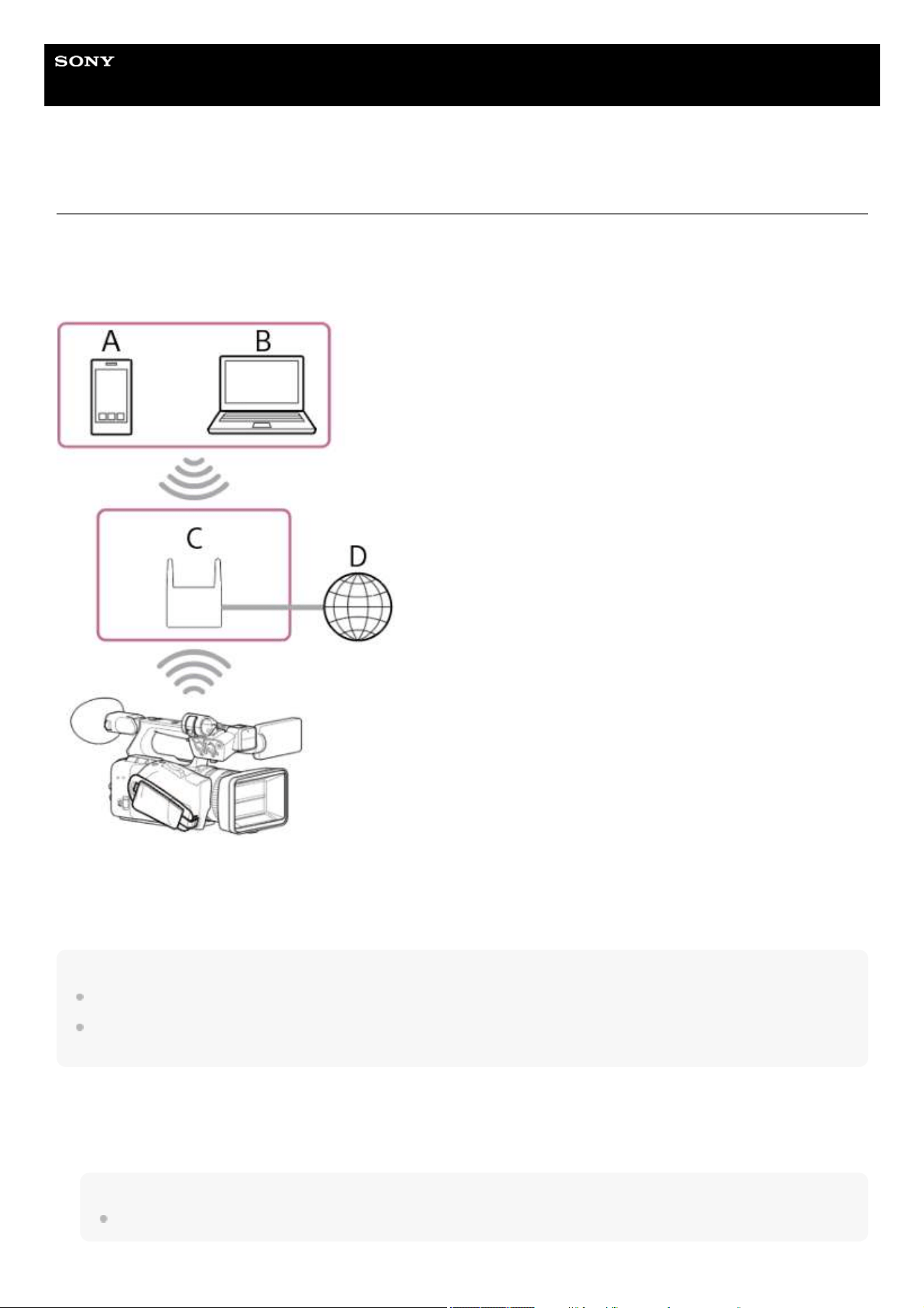
Help Guide
Solid-State Memory Camcorder
PXW-Z200/HXR-NX800
Connecting to the Internet via Wireless LAN
Connect the unit to an existing wireless LAN access point. Connect the mobile device to control operation via the access
point.
The 10 most recently connected access points are displayed in the history. The connection history is saved in an All file, but
the access point passwords are not saved. Password entry is required the next time you connect after loading an All file.
A: Smartphone/tablet
B: Computer
C: Access point
D: Internet
Hint
When connected to an access point, the unit operates in station (ST) mode.
You may be able to configure your mobile device as an access point (Wi-Fi tethering). For details, refer to the operation manual for the
mobile device.
Connecting using the access point auto detection function
Press the NETWORK button.
The [Network] status screen appears.
Hint
You can also press the MENU button and scroll the screen to display the status.
1.
152
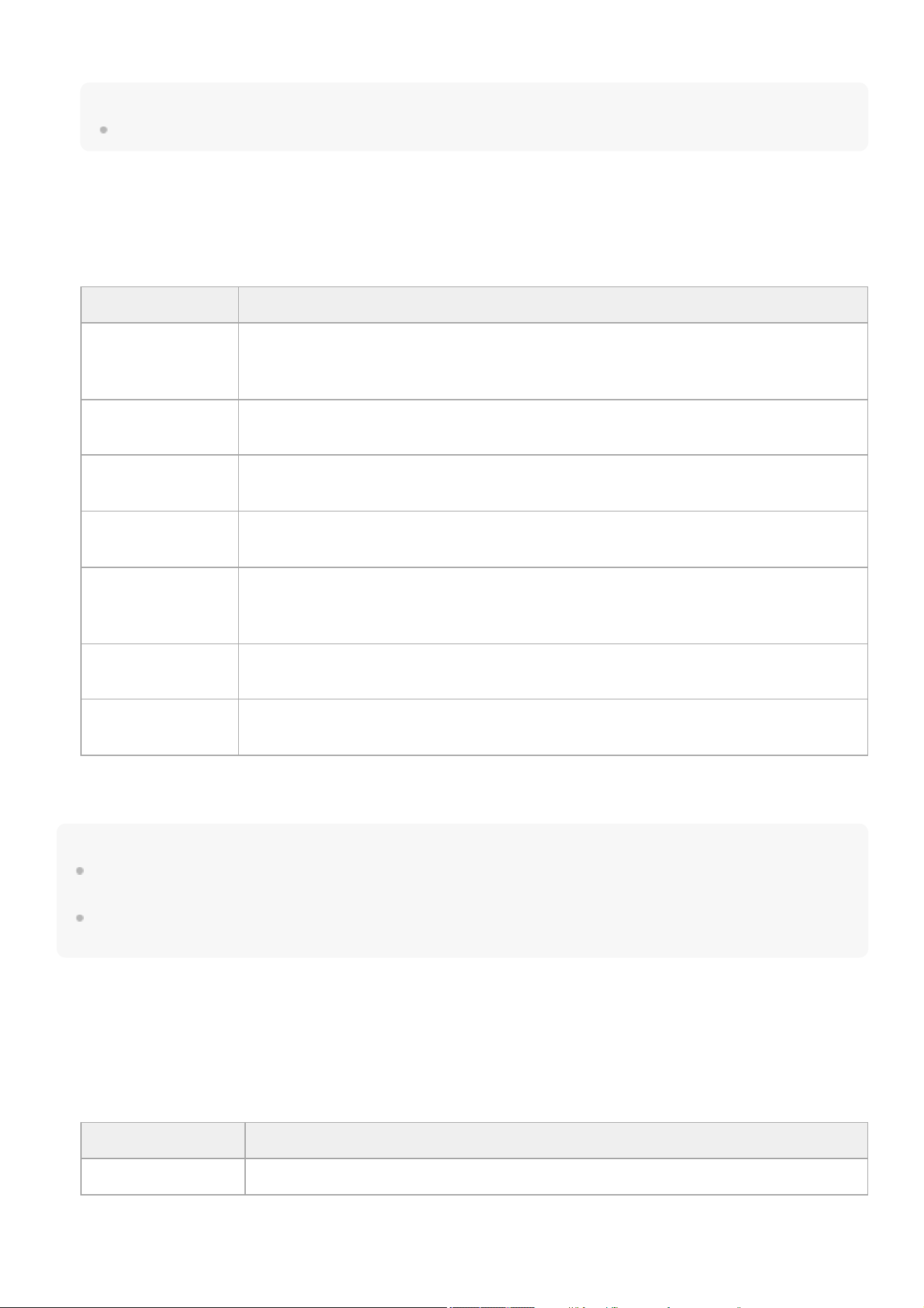
Hint
To use “Monitor & Control,” “Creators' App for enterprise,” or the “Camera Remote SDK” to control the unit from an external device, set
[Wireless LAN] – [Remote] to [Enable] on the [Network] status screen.
Press the [Show Authentication] button on the [Network] status screen to display the authentication information for connecting to the
unit. Take care that the screen cannot be viewed and the QR code image cannot be copied by others.
Connecting manually by entering access point information
Set [Wireless LAN] – [Setting] to [Wireless LAN ST].
Note
The unit does not support simultaneous use of wireless LAN and wired LAN.
2.
Press [Wireless LAN] – [Status].
The [Scan Networks] screen appears.
3.
Select the access point for the network to which you want to connect and enter the password.4.
Configure the following connection settings, as required.5.
Configuration item Description
[DHCP]
Set the DHCP setting.
When set to [On], the IP address is assigned to the unit automatically. To assign an IP address
to the unit manually, set to [Off].
[IP Address]
Enter the IP address of the unit.
This setting is available only when [DHCP] is set to [Off].
[Subnet Mask]
Enter the subnet mask of the unit.
This setting is available only when [DHCP] is set to [Off].
[Gateway]
Enter the gateway for the access point.
This setting is available only when [DHCP] is set to [Off].
[DNS Auto]
Set whether to acquire DNS automatically. When set to [On], the DNS server address is
automatically acquired.
This setting is available only when [DHCP] is set to [On].
[Primary DNS Server]
Enter the primary DNS server for the access point.
This setting is available only when [DNS Auto] is set to [Off].
[Secondary DNS
Server]
Enter the secondary DNS server for the access point.
This setting is available only when [DNS Auto] is set to [Off].
When finished, press the [Connect] button.
The unit connects to the Internet.
6.
Set [Wireless LAN] – [Setting] to [Wireless LAN ST] on the [Network] status screen.1.
Configure [Network] – [Wireless LAN] – [Manual Register] in the full menu.
The [Wireless LAN] – [Manual Register] screen appears.
2.
Configure the following settings.3.
Configuration item Description
[SSID] Enter the SSID for the wireless LAN access point.
153
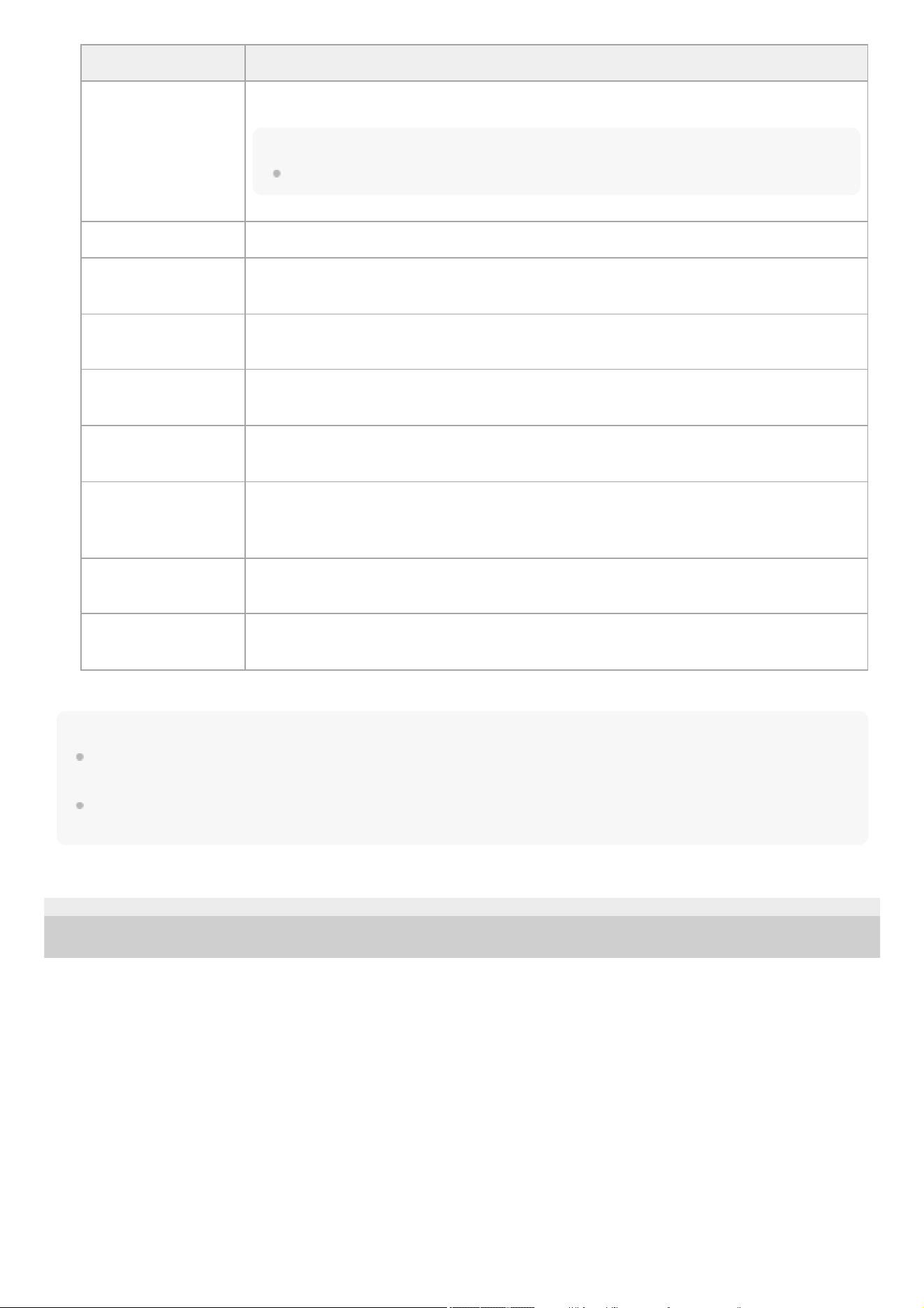
Hint
To use “Monitor & Control,” “Creators' App for enterprise,” or the “Camera Remote SDK” to control the unit from an external device, set
[Wireless LAN] – [Remote] to [Enable] on the [Network] status screen.
Press the [Show Authentication] button on the [Network] status screen to display the authentication information for connecting to the
unit. Take care that the screen cannot be viewed and the QR code image cannot be copied by others.
TP1001670374
5-060-574-11(2) Copyright 2024 Sony Corporation
Configuration item Description
[Security]
Select the encryption method.
Note
When set to [None], the password is cleared for safety.
[Password] Enter the password for the wireless LAN access point.
[DHCP]
Set the DHCP setting. When set to [On], the IP address is assigned to the unit automatically.
To assign an IP address to the unit manually, set to [Off].
[IP Address]
Enter the IP address of the unit.
This setting is available only when [DHCP] is set to [Off].
[Subnet Mask]
Enter the subnet mask of the unit.
This setting is available only when [DHCP] is set to [Off].
[Gateway]
Enter the address of the gateway.
This setting is available only when [DHCP] is set to [Off].
[DNS Auto]
Set whether to acquire DNS automatically. When set to [On], the DNS server address is
automatically acquired.
This setting is available only when [DHCP] is set to [On].
[Primary DNS Server]
Enter the address of the primary DNS server.
This setting is available only when [DNS Auto] is set to [Off].
[Secondary DNS
Server]
Enter the address of the secondary DNS server.
This setting is available only when [DNS Auto] is set to [Off].
When finished, press the [Connect] button.
The unit connects to the Internet.
4.
154
Help Guide
Solid-State Memory Camcorder
PXW-Z200/HXR-NX800
Connecting to the Internet via USB Tethering
You can connect the unit to a smartphone via a USB cable, and then connect to the Internet using the smartphone.
Hint
To use “Monitor & Control,” “Creators' App for enterprise,” or the “Camera Remote SDK” to control the unit from an external device, set
[USB Tethering] – [Remote] to [Enable] on the [Network] status screen.
Press the [Show Authentication] button on the [Network] status screen to display the authentication information for connecting to the
unit. Take care that the screen cannot be viewed and the QR code image cannot be copied by others.
Note
If a message prompting you to connect via USB appears when a USB cable is connected, press the [Cancel] button, not the [OK]
button.
If a message indicating that connection via USB has initiated appears on a black screen, remove the USB cable to return to the
shooting screen, set USB tethering to [On] and then connect the USB cable.
USB tethering cannot be used if the smartphone is connected via a USB hub.
TP1001670375
5-060-574-11(2) Copyright 2024 Sony Corporation
Turn the unit on.
1.
Press the NETWORK button.
The [Network] status screen appears.
Hint
You can also press the MENU button and scroll the screen to display the status.
2.
Set [USB Tethering] – [Setting] to [On].3.
Connect the unit and smartphone via a USB cable.4.
Enable tethering communication on the smartphone.
For details, refer to the operation manual for the smartphone.
The unit connects to the Internet.
5.
155

Help Guide
Solid-State Memory Camcorder
PXW-Z200/HXR-NX800
Connecting to the Internet via Wired LAN
You can connect to the Internet by connecting the unit and a wireless LAN router by wired LAN connection.
A: Smartphone/tablet
B: Computer
C: Wireless LAN router
D: Internet
Connect the network connector of the unit to a wireless LAN router using a LAN cable.
1.
Turn the unit on.2.
Press the NETWORK button.
The [Network] status screen appears.
Hint
You can also press the MENU button and scroll the screen to display the status.
3.
Set [Wired LAN] – [Setting] to [Wired LAN].
Note
The unit does not support simultaneous use of wireless LAN and wired LAN.
4.
Configure the following settings using [Network] – [Wired LAN] – [Detail Settings] in the full menu, as required,
and select [Set].
5.
156
Hint
To use “Monitor & Control,” “Creators' App for enterprise,” or the “Camera Remote SDK” to control the unit from an external device, set
[Wired LAN] – [Remote] to [Enable] on the [Network] status screen.
Press the [Show Authentication] button on the [Network] status screen to display the authentication information for connecting to the
unit. Take care that the screen cannot be viewed and the QR code image cannot be copied by others.
Note
Always select [Set] after changing the connection settings. The settings are not applied if [Set] is not selected.
TP1001670376
5-060-574-11(2) Copyright 2024 Sony Corporation
Configuration item Description
[DHCP]
Set the DHCP setting. When set to [On], the IP address is assigned to the unit automatically.
To assign an IP address to the unit manually, set to [Off].
[IP Address]
Enter the IP address of the unit.
This setting is available only when [DHCP] is set to [Off].
[Subnet Mask]
Enter the subnet mask of the unit.
This setting is available only when [DHCP] is set to [Off].
[Gateway]
Enter the address of the gateway.
This setting is available only when [DHCP] is set to [Off].
[DNS Auto]
Set whether to acquire DNS automatically. When set to [On], the DNS server address is
automatically acquired.
This setting is available only when [DHCP] is set to [On].
[Primary DNS Server]
Enter the address of the primary DNS server.
This setting is available only when [DNS Auto] is set to [Off].
[Secondary DNS
Server]
Enter the address of the secondary DNS server.
This setting is available only when [DNS Auto] is set to [Off].
157
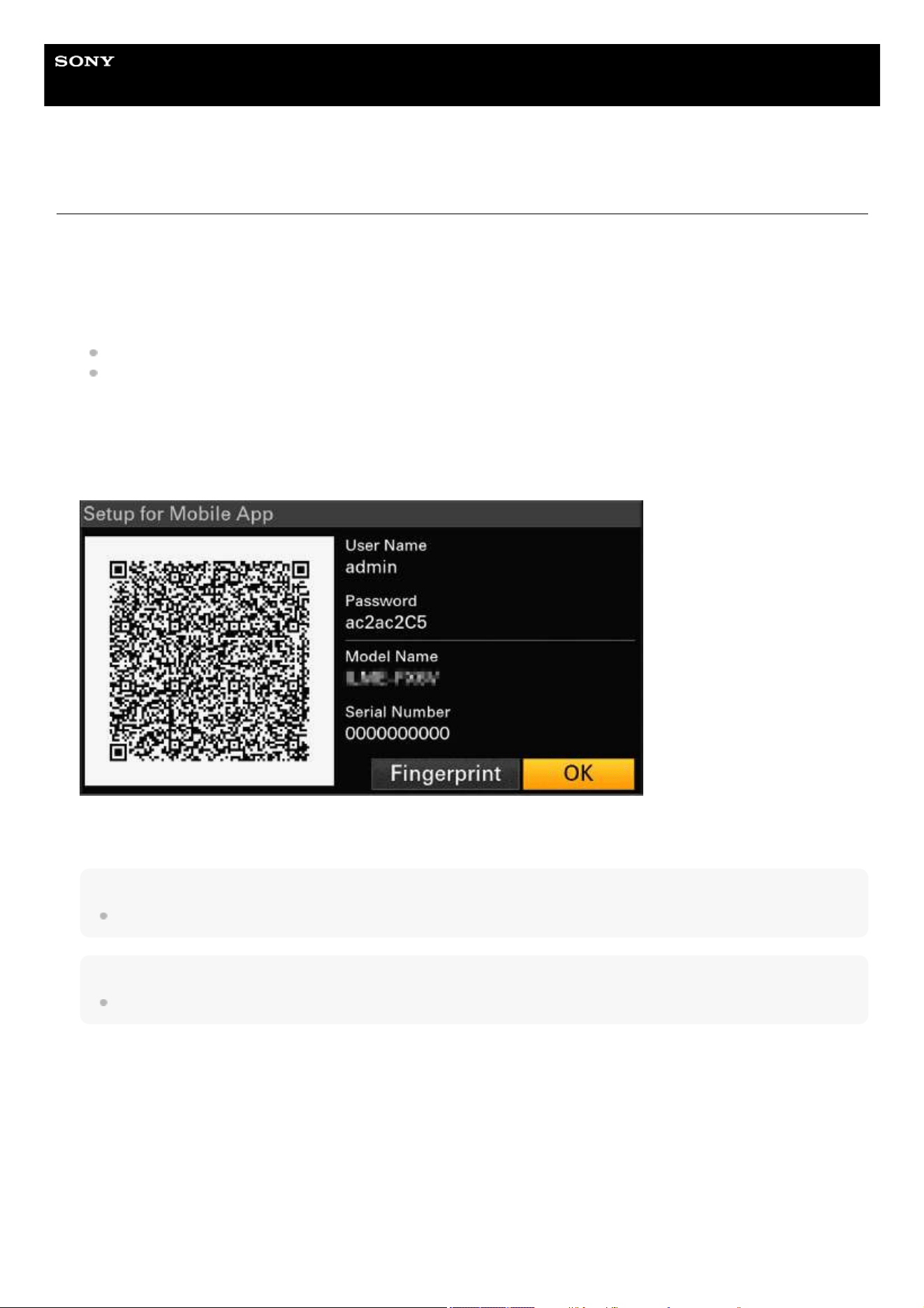
Help Guide
Solid-State Memory Camcorder
PXW-Z200/HXR-NX800
Transferring Files to “C3 Portal”
You can transfer files to the “C3 Portal” cloud service using the “Creators' App for enterprise” application.
Execute [Network] – [Network Setup] – [Setup for Mobile App] in the full menu.
A confirmation screen appears for items that will be updated automatically.
The following settings in the [Network] menu are selected automatically.
[USB Tethering] – [Setting] – [On]
[USB Tethering] – [Camera Remote Control] – [Enable]
1.
Check the settings and select [OK].
The configuration starts.
A configuration message appears.
When the configuration is completed, the access authentication screen appears on the LCD monitor/viewfinder.
The following information is displayed on the screen.
User name/password/fingerprint/camera model name/serial number
Hint
This screen is not output to the video output.
Note
Take care that the password cannot be viewed and the QR code image cannot be copied by others.
2.
Start “Creators' App for enterprise” on the smartphone and sign in to the “C3 Portal” cloud service.3.
Connect a USB cable to the USB-C connector of the unit, and then connect the smartphone.4.
Enable the USB tethering function on the smartphone.
For details, refer to the operation manual for the smartphone.
5.
Follow the instructions on the “Creators' App for enterprise” screen and scan the QR code displayed on the LCD
monitor of the unit.
File transfer setup information is sent from the smartphone to the unit, and the following screen appears on the unit.
6.
158
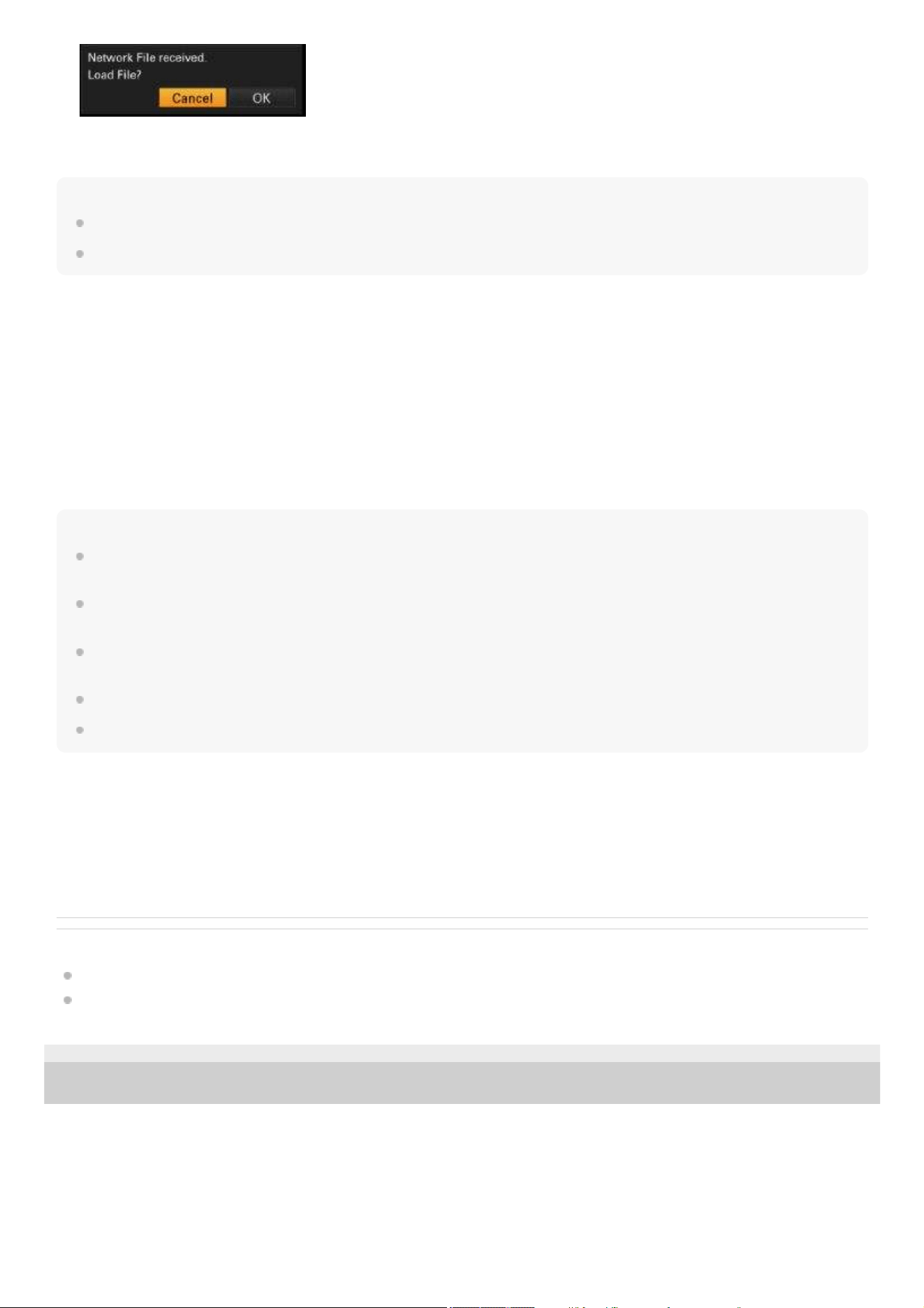
Note
“Creators' App for enterprise” overwrites the [Network] – [File Transfer] setting of the unit.
[Root Certificate] cannot be set automatically. Configure manually.
Transferring original clips
Set using the [File Transfer] status screen or set [Network] – [File Transfer] – [Auto Upload] to [On] in the full menu to enable
transfer of original clips to “C3 Portal.”
Each time a recording finishes, the clip is transferred to the location associated with your “C3 Portal” account.
Transferring proxy clips
Set using the [File Transfer] status screen or set [Network] – [File Transfer] – [Auto Upload (Proxy)] to [On] in the full menu to
enable transfer of proxy clips to “C3 Portal.”
Each time a recording finishes, the clip is transferred to the location associated with your “C3 Portal” account.
Hint
Files transferred from the unit are cached in “Creators' App for enterprise” and then transferred to “C3 Portal.” The file transfer status
display on the unit indicates the transfer status to “Creators' App for enterprise.”
When the file transfer from the unit to “Creators' App for enterprise” is completed, you can turn off the unit but note that file transfer
from the smartphone may be continuing. Be aware of the remaining battery charge on the smartphone.
You can transfer any clips to “C3 Portal.” For details, see the following topic.
Selecting and Transferring a Clip
You can import 3D LUT files stored in “C3 Portal” into the unit.
You can save an All file created by the unit in “C3 Portal” and then load it from “C3 Portal.”
Other functions that use “C3 Portal”
Managing 3D LUT files
You can import 3D LUT files stored in “C3 Portal” into the unit.
Managing All files
You can save an All file created on the unit in “C3 Portal” and load an All file from “C3 Portal.”
Related Topic
Importing a Desired Base Look
Saving a Configuration File
TP1001670377
5-060-574-11(2) Copyright 2024 Sony Corporation
Select [OK].
The setup information starts loading.
When the setup is loaded successfully, a message appears.
7.
159
Help Guide
Solid-State Memory Camcorder
PXW-Z200/HXR-NX800
Preparing to Transfer Files
You can transfer a recorded proxy clip or original clip to a server on the Internet or to a server on the local network.
Connect the unit to the Internet or local network using the following procedures.
Connecting to the Internet via Wireless LAN
Connecting to the Internet via USB Tethering
Connecting to the Internet via Wired LAN
Registering a file transfer destination
Register a server to which to transfer files comprising the clips beforehand.
Select [Network] – [File Transfer] – [Server Settings1]/[Server Settings2]/[Server Settings3] in the full menu.
1.
The transfer destination setup screen appears.2.
Set each item on the transfer destination setup screen.3.
Configuration
item
Description
[Display Name] Enter the name of the server to display in the transfer destination list.
[Service]
Displays the server type.
[FTP]: FTP server
[Host Name] Enter the address of the server.
[Port] Enter the port number of the server to connect.
[User Name] Enter the user name.
[Password] Enter the password.
[Passive Mode] Turn passive mode on/off.
[Destination
Directory]
Enter the name of the directory on the destination server.
Note
Original clips are transferred to the “Main” folder within the directory specified as the transfer
destination.
When editing, “
” indicates characters that cannot be changed. Correct operation is not guaranteed
when editing a directory name that contains these characters. If you need to edit, delete all the
characters and re-enter a value.
If characters that are invalid on the destination server are entered in [Destination Directory], files will be
transferred to the user’s home directory. Invalid characters will vary depending on the server.
[Using Secure
Protocol]
Set whether to perform secure FTP transfers.
160
Note
Always select [Set] after changing the settings. The settings are not applied if [Set] is not selected.
TP1001670378
5-060-574-11(2) Copyright 2024 Sony Corporation
Configuration
item
Description
[Root Certificate]
Load/clear a certificate.
[Load]: Select [Set] in step 3 to import a CA certificate.
Note
The certificate to be loaded must be in PEM format with “certification.pem” file name, and should be
written to the root directory of the memory card inserted in card slot B.
[Clear]: Select [Set] in step 3 to clear a CA certificate.
[None]: Do not load or clear a certificate.
Note
Set the clock of the unit to the correct time before importing a CA certificate.
Depending on the recording format, [Load]/[Clear] cannot be executed for a certificate because the
recording operation takes priority.
In low voltage state, [Load]/[Clear] cannot be executed for a CA certificate.
[Root Certificate
Status]
Displays the load status of the certificate.
[Reset] Reset the [Server Settings1]/[Server Settings2]/[Server Settings3] settings to the default values.
When finished, select [Set] to apply the settings.
4.
161
Help Guide
Solid-State Memory Camcorder
PXW-Z200/HXR-NX800
Selecting and Transferring a Clip
You can transfer a proxy clip or original clip that is recorded on a memory card to a server.
Note
Proxy clips recorded in chunks are files dedicated for auto transfer. These files cannot be selected and transferred manually.
Transferring proxy clips
Hint
Select [All Clips] instead of [Select Clip] in step 1 to transfer the proxy clips corresponding to all the original clips.
Note
Up to 200 transfer jobs can be registered.
Transferring original clips
Hint
Select [All Clips] instead of [Select Clip] in step 1 to transfer all clips.
Note
Original clips are transferred to the “Main” folder within the directory specified as the transfer destination.
Up to 200 transfer jobs can be registered.
Select [Thumbnail] – [Transfer Clip (Proxy)] – [Select Clip] in the full menu.
The display changes from the full menu to the thumbnail screen.
Clips can be transferred from the thumbnail screen or the filtered clip thumbnail screen.
1.
Select the clip you want to transfer, then press the MENU button.
A transfer confirmation screen appears.
2.
Select [Execute].
The proxy clip corresponding to the selected original clip is registered as a transfer job, and the transfer begins.
When the transfer job is successfully registered, the registration result screen appears.
3.
Select [OK].4.
Select [Thumbnail] – [Transfer Clip] – [Select Clip] in the full menu.
The display changes from the full menu to the thumbnail screen.
File can be transferred from the thumbnail screen or the filtered clip thumbnail screen.
1.
Select the clip you want to transfer, then press the MENU button.
A transfer confirmation screen appears.
2.
Select [Execute].
The selected clip is registered as a transfer job, and the transfer begins.
When the transfer job is successfully registered, the registration result screen appears.
3.
Select [OK].4.
162
Checking the transfer status
You can check the file transfer status by selecting [Network] – [File Transfer] – [View Job List] in the full menu.
You can also check the file transfer status when connected with a mobile device using the “Catalyst Browse” application.
Hint
If [Network] – [File Transfer] – [Auto Upload]/[Auto Upload (Proxy)] is set to [On] in the full menu or on the [File Transfer] status screen
when connected to a network, original clips and proxy clips are automatically transferred to the server specified using [Default Upload
Server] when recording ends. If both original clips and proxy clips are configured for auto transfer, the auto transfer of proxy clips takes
precedence.
Note
The job list is retained when the unit is turned off, but up to 10 minutes of recent progress information may be lost if the battery pack is
removed without first setting the power switch to
(standby).
Jobs added after the battery low voltage state are not saved in the job list.
If an error occurs during file transfer, the transfer of a clip with the same name as a transferred clip may not be resumed, depending on
the settings and status of the transfer destination server. In this case, check the transfer destination server settings and status.
Related Topic
Structure of the Thumbnail Screen
Clip Operations
TP1001670379
5-060-574-11(2) Copyright 2024 Sony Corporation
163
Help Guide
Solid-State Memory Camcorder
PXW-Z200/HXR-NX800
Transferring Clips Automatically
You can transfer clips automatically.
Transferring original clips automatically
Original clips can be transferred to a specified server automatically when recording ends.
To enable auto transfer, set [Network] – [File Transfer] – [Auto Upload] to [On] in the full menu or on the [File Transfer] status
screen.
Transferring proxy clips automatically
Proxy clips can be transferred to a specified server automatically when recording ends.
To enable auto transfer, set [Network] – [File Transfer] – [Auto Upload (Proxy)] to [On] in the full menu or on the [File Transfer]
status screen.
Alternatively, set [Auto Upload (Proxy)] to [Chunk] to record a proxy clip in chunks and then transfer the chunks to a specified
server while the recording continues. The auto transfer of a proxy clip recorded in chunks takes precedence over other file
transfer jobs.
Related Topic
Proxy Recording
Recording and Uploading a Proxy Clip in Chunks
TP1001670380
5-060-574-11(2) Copyright 2024 Sony Corporation
164
Help Guide
Solid-State Memory Camcorder
PXW-Z200/HXR-NX800
Transferring using Secure FTP
You can transfer files with encryption using FTPS in Explicit mode (FTPES) for the connection with the file transfer
destination server.
Setting secure FTP transfer
For secure FTP transfer, set [Using Secure Protocol] to [On] in the file transfer destination server settings and import a
certificate.
Related Topic
Preparing to Transfer Files
TP1001670381
5-060-574-11(2) Copyright 2024 Sony Corporation
165
Help Guide
Solid-State Memory Camcorder
PXW-Z200/HXR-NX800
Streaming
You can stream the camera/playback video and audio of the unit with low latency.
Two streaming methods are supported.
RTMP/RTMPS streaming
You can stream the camera video and audio of the unit with low latency using RTMP (Real Time Messaging Protocol)
developed by Adobe Inc. RTMPS which uses SSL encryption is also supported.
SRT streaming
You can stream the camera video and audio of the unit with low latency using SRT (Secure Reliable Transport) developed
by Haivision. SRT streaming employs a listener and a caller. The listener has connection destination information, such as
an IP address and domain. The caller connects to the listener. The unit corresponds to a caller.
The streaming bit rate range and initial value varies depending on the system frequency and resolution as follows.
Configuring RTMP/RTMPS streaming
Setting the connection destination and format
System frequency
Streaming
Resolution Bit rate range (Mbps) Initial value (Mbps)
59.94/50
3840×2160 38 only –
1920×1080 4.5 to 27 9
1280×720 2.3 to 13.5 6
29.97/25/23.98
3840×2160 13 to 38 34
1920×1080 3 to 18 6
1280×720 1.5 to 9 4
Set [Network] – [Stream] to [RTMP/RTMPS 1]/[RTMP/RTMPS 2]/[RTMP/RTMPS 3] in the full menu.
The connection destination setup screen appears.
1.
Set each item on the connection destination setup screen.2.
Configuration
item
Description
[Display Name] Set the display name in the [Destination Select] menu.
[Codec] Displays the codec of the streaming video.
[Resolution]
Set the resolution of the streaming video.
[3840×2160P]
[1920×1080P]
[1280×720P]
166
Note
Always select [Set] after changing the settings. The settings are not applied if [Set] is not selected.
Set the clock of the unit to the correct time before importing a certificate for RTMPS connections.
Depending on the recording format, [Load]/[Clear] cannot be executed for a certificate because the recording operation takes priority.
In low voltage state, [Load]/[Clear] cannot be executed for a certificate for RTMPS connections.
[RTMPS Certificate Status]: Displays the load status of the certificate for RTMPS connections.
[Reset]: Reset the settings to the default values.
Replacing the built-in default certificate of the unit with another default certificate
Reverting to the built-in default certificate of the unit
Select [Network] – [Stream] – [RTMPS Default Certificates] – [Reset] – [Execute] in the full menu.
When the operation is completed successfully, a message appears.
The replacement default certificate is deleted and the built-in default certificate of the unit becomes enabled.
Checking the default certificate status
Select [Network] – [Stream] – [RTMPS Default Certificates] – [Status] in the full menu to display the status of the default
certificate.
When the built-in default certificate of the unit is being used, [Preinstall] is displayed.
When a replacement default certificate is being used, the date and time that the certificate was replaced is displayed.
Configuration
item
Description
[Bit Rate] Set the bit rate of the streaming video.
[Destination
URL]
Set the URL of the server to connect.
If the URL begins with “rtmps://” characters, streaming is recognized as RTMPS streaming and the
streaming data is encrypted. In this case, a certificate for RTMPS connections is required.
[Stream Key] Set the stream key used for the streaming connection.
[RTMPS
Certificate]
Load/clear a certificate for RTMPS streaming.
[Load]: Load a certificate.
Note
The certificate to be loaded must be in PEM format, and should be written to the root directory of the
memory card with “RTMPS_certification.pem” file name.
[Clear]: Clear the certificate.
[None]: Do not load or clear a certificate.
If a certificate is not loaded here, the built-in default certificate of the unit will be used.
When finished, select [Set] to apply the settings.3.
Insert a memory card on which a different default certificate is saved in card slot B.
Import file: “RTMPS_DefaultCertificates.pem” located in the root directory of the memory card
1.
Select [Network] – [Stream] – [RTMPS Default Certificates] – [Replace] – [Execute] in the full menu.
A message appears, confirming that the default certificate has been written to the memory card. You can also replace the
default certificate with a user default certificate.
2.
Select [OK].
The default certificate is imported into the unit.
When loaded successfully, a message appears.
3.
167
Display format: 4-digit year (Western calendar) + 2-digit month + 2-digit day + 2-digit hour (24-hour format) + 2-digit minute +
2-digit second
Example: 2024, December 1, 12:34:56 → 20241201123456
Configuring SRT streaming
Setting the connection destination and format
Starting streaming
Set [Network] – [Stream] to [SRT-Caller 1]/[SRT-Caller 2]/[SRT-Caller 3] in the full menu.
The connection destination setup screen appears.
1.
Set each item on the connection destination setup screen.
Note
When [Codec] is set to [H.265/HEVC], some receivers may not support playback correctly. If a problem occurs during playback, try
[H.264/AVC].
2.
Configuration item Description
[Display Name] Set the display name in the [Destination Select] menu.
[Codec] Set the codec of the streaming video.
[Resolution]
Set the resolution of the streaming video.
[1920×1080P]
[1280×720P]
[Bit Rate] Set the bit rate of the streaming video.
[Destination URL] Set the URL of the server to connect.
[Port] Set the port of the streaming destination.
[Latency] Set the streaming distribution latency.
[TTL] Set the time-to-live (TTL) value for streaming.
[Encryption] Set the encryption method for streaming.
[Passphrase] Set the passphrase used for encryption for streaming.
[ARC] Enable/disable the Adaptive Rate Control function when streaming.
When finished, select [Set] to apply the settings.
Always select [Set] after changing the settings. The settings are not applied if [Set] is not selected.
[Reset]: Reset the settings to the default values.
3.
Connect the unit to the Internet or local network.
Note
Use of wired LAN is recommended since streaming requires a large volume of continuous communication. If using the 2.4 GHz
band wireless LAN, remote control from mobile devices or Bluetooth remote control operations may be disrupted. If the use of a
wireless connection cannot be avoided, conduct sufficient testing beforehand in a radio wave environment similar to the actual
usage environment.
1.
168
Note
Streaming cannot be started in the following cases.
When [Shooting] – [S&Q Motion] – [Setting] is set to [On] in the full menu
When [Project] – [Rec Format] – [Frequency] is set to [119.88]/[100] in the full menu.
Once you start streaming, it may take several 10s of seconds before video/audio actually start streaming.
If the streaming connection destination settings are invalid or if a network connection has not been established, “×” is displayed by the
streaming status indicator.
Video/audio data are sent as-is via the Internet. Accordingly, the data may be accessible by other parties. Make sure that the
connection destination is able to receive the streaming data. Data may be sent to an unintended party due to an error in the address
settings or other reason.
Streaming may be interrupted, depending on your internet connection or network conditions. If this occurs, start streaming again.
The image quality may be adversely affected for fast-moving scenes.
You may not be able to play all frames if streaming at high resolution and low bit rate. To reduce this phenomena, select a lower
resolution in [Resolution].
The video cannot be viewed using the “Monitor & Control” application during streaming.
File transfer is not supported during streaming. File transfer is supported after stopping streaming.
If streaming is started during file transfer, the file transfer stops. File transfer restarts after stopping streaming.
The screen information update frequency is reduced during streaming, but this does not affect operation.
The recording settings cannot be changed during streaming.
The distribution formats available for streaming vary depending on the [Rec Format] of the main signal.
Stopping streaming
Set [RTMP/RTMPS Status]/[SRT-Caller Status] on the [Stream] status screen or set [Network] – [Stream] – [Setting] to [Off] in
the full menu to stop streaming.
TP1001670382
5-060-574-11(2) Copyright 2024 Sony Corporation
Select the transfer settings configured beforehand on the [Stream] status screen or using [Network] – [Stream] –
[Destination Select] in the full menu.
2.
Set [RTMP/RTMPS Status]/[SRT-Caller Status] on the [Stream] status screen or set [Network] – [Stream] –
[Setting] to [On] in the full menu.
Streaming starts with the configured settings.
3.
169
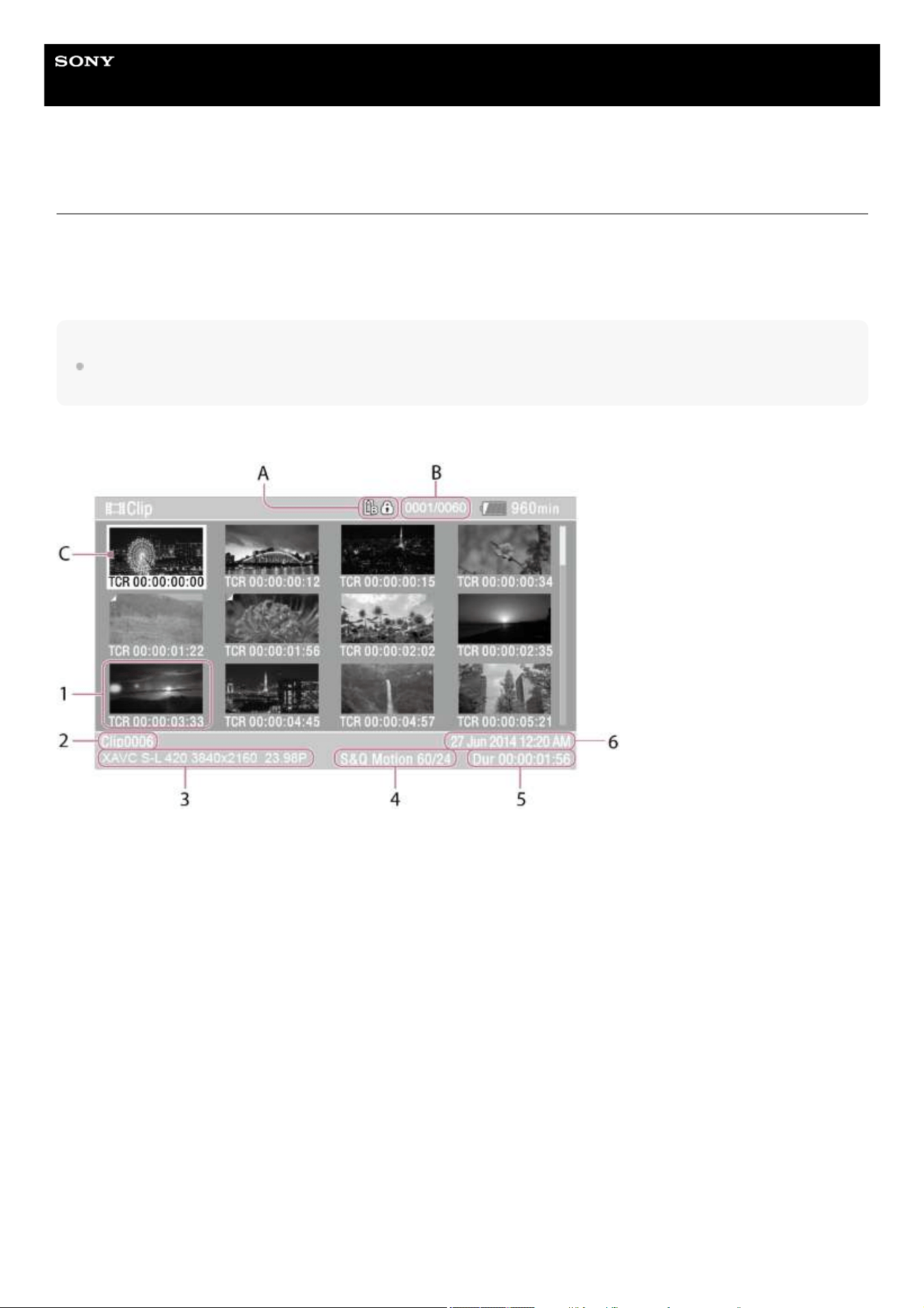
Help Guide
Solid-State Memory Camcorder
PXW-Z200/HXR-NX800
Structure of the Thumbnail Screen
When you press the THUMBNAIL button, clips recorded on the memory card are displayed on the thumbnail screen.
You can select a clip on the thumbnail screen and start playback from that clip. The playback video is displayed on the LCD
monitor/viewfinder/external monitor.
Pressing the THUMBNAIL button again closes the thumbnail screen and returns to the camera image.
Note
Only the clips recorded in the currently selected recording format are displayed on the thumbnail screen. If an expected recorded clip
is not displayed, check the recording format. Note that if you initialize a memory card, all data on the memory card will be erased.
Information for the clip at the cursor position is displayed at the bottom of the screen.
A: Currently selected memory card (a lock icon is displayed on the right if the card is protected)
B: Clip number/Total number of clips
C: Cursor (yellow)
Thumbnail
Displays the index picture of a clip. When recording, the first frame of the clip is automatically set as the index picture.
Clip/frame information is displayed below the thumbnail. You can change the information displayed using [Thumbnail] –
[Customize View] – [Thumbnail Caption] in the full menu.
1.
Clip name
Displays the name of the selected clip.
2.
Recording format during recording
Displays the file format of the selected clip.
3.
Special recording information
Displays the recording mode only if the clip was recorded using a special recording mode.
For clips recorded in Slow & Quick Motion mode, the frame rate is displayed on the right.
4.
Clip recording duration5.
Creation date6.
170

TP1001670383
5-060-574-11(2) Copyright 2024 Sony Corporation
171
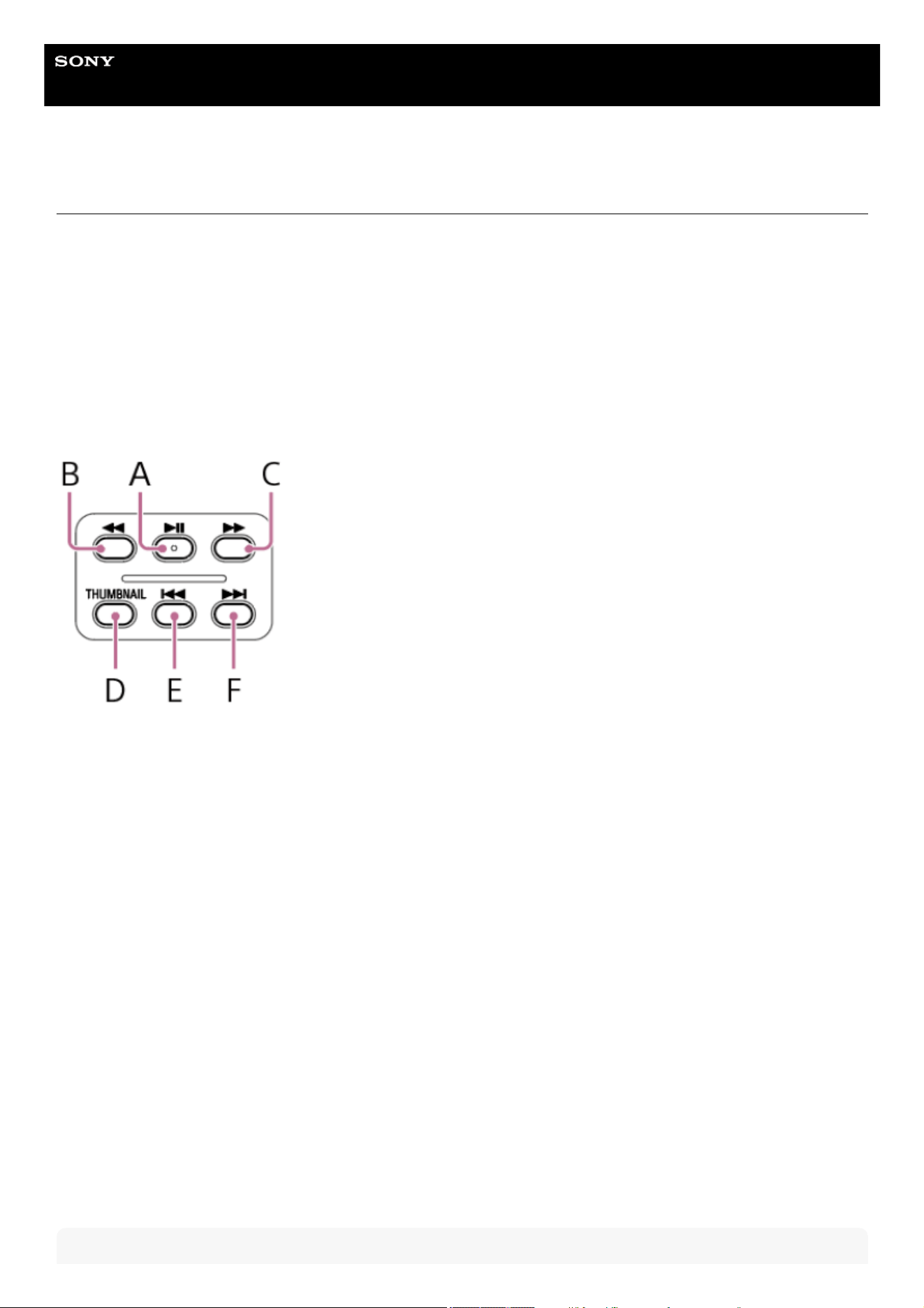
Help Guide
Solid-State Memory Camcorder
PXW-Z200/HXR-NX800
Playing a Clip
You can play recorded clips when the unit is in recording standby mode.
You can control playback using the following buttons and dials.
Handle playback control buttons
A: PLAY/PAUSE button
Pauses playback. Press again to resume normal playback.
B: F REV button
C: F FWD button
Fast reverse/forward. Press the PLAY/PAUSE button to return to normal playback.
D: THUMBNAIL button
Press during playback mode to display the thumbnail screen. Press again to return to shooting mode.
E: PREV button
Jumps to start of current clip. Press at the start of a clip to jump to the previous clip. Press and hold the PREV button and
press the F REV button to move to the first clip.
F: NEXT button
Jumps to start of next clip. Press and hold the NEXT button and press the F FWD button to move to the last clip.
Multi selector/Multi-function dial
Press the multi selector or multi-function dial, then tap the playback image:
Pauses playback.
Press again to resume normal playback.
Press the multi selector left/right buttons, then flick the playback image left/right:
Jumps to start of clip/start of next clip.
Press and hold the multi selector left/right buttons:
Fast reverse/forward.
Returns to normal playback when you release the button.
CANCEL/BACK button:
Pauses playback and returns to the shooting screen.
Hint
Insert the memory card to play.1.
Press the PAUSE/PLAY playback control button.2.
Press the PREV button or NEXT button to queue the desired clip to play.3.
Press the PLAY/PAUSE button.
The playback screen appears.
4.
172
When a clip that was recorded in log shooting mode is played back, the LUT used during the recording is applied. The LUT to apply is
determined from the saved 3D LUT file metadata information.
If the clip was recorded when [Project] – [Flexible ISO Setting] – [Embed LUT File] is set to [On] in the full menu when shooting, that
LUT is applied during playback if the 3D LUT file used when shooting is installed on the unit.
If the clip was recorded when [Project] – [Flexible ISO Setting] – [Embed LUT File] is set to [Off] in the full menu when shooting, the
LUT selected using [Paint/Look] – [Base Look] – [Select] in the full menu is applied during playback.
The same LUT is applied if the 3D LUT file used when shooting is not installed on the unit.
Continuous clip playback from a selected clip
Note
There may be momentary picture breakup or still image display at the boundary between clips. You cannot operate the unit during this
period.
When you select a clip on the thumbnail screen and begin playback, there may be momentary picture breakup at the start of the clip.
To view the start of the clip without breakup, put the unit into playback mode, pause, use the multi selector left button to return to the
start of the clip, and start playback again.
TP1001670384
5-060-574-11(2) Copyright 2024 Sony Corporation
Insert the memory card to play.
1.
Press the THUMBNAIL button.2.
Use the multi selector or multi-function dial to move the cursor to the thumbnail for the clip you want to start
playback.
You can also drag the thumbnail screen up/down to scroll the screen.
3.
Press the multi selector or multi-function dial.
Playback begins from the start of the selected clip.
You can also start playback by tapping the thumbnail.
4.
173
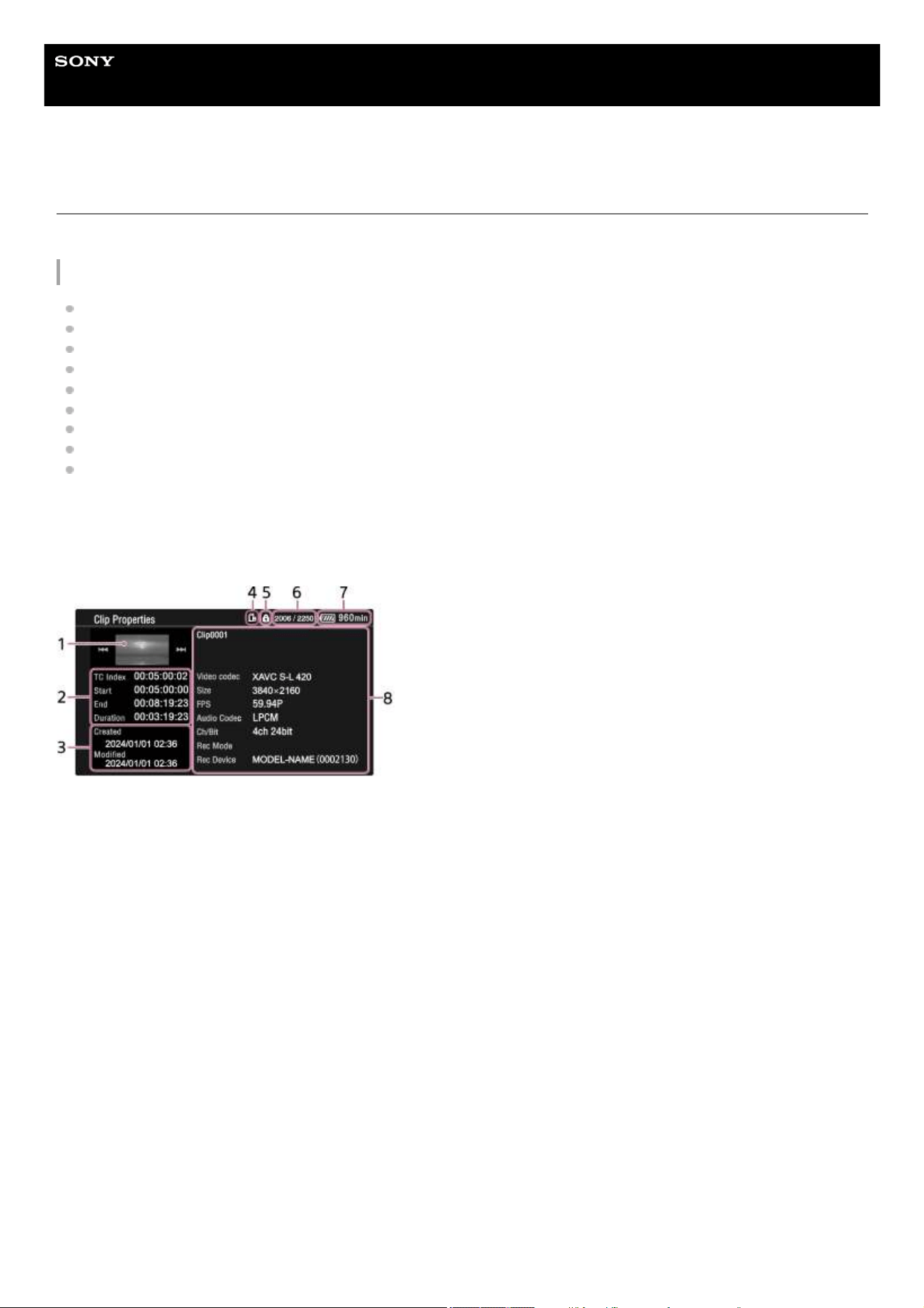
Help Guide
Solid-State Memory Camcorder
PXW-Z200/HXR-NX800
Clip Operations
On the thumbnail screen, you can operate the clips or check clip properties using the [Thumbnail] menu in the full menu.
Menu items for clip operations
[Display Clip Properties]
[Set Clip Flag]
[Lock/Unlock Clip]
[Delete Clip]
[Copy Clip]
[Transfer Clip]
[Transfer Clip (Proxy)]
[Filter Clips]
[Customize View]
Displaying clip properties
Select [Thumbnail] – [Display Clip Properties] in the full menu.
Press the multi selector left/right button to jump to the previous/next clip.
Adding clip flags
You can add clip flags ([OK]/[NG]/[KP] marks) to clips to filter the display of clips based on the clip flags.
Select the thumbnail for the clip to which you want to add a clip flag, then select the clip flag using [Thumbnail] – [Set Clip
Flag] in the full menu.
Current clip image
1.
Timecode display
[TC Index]: Timecode of clip
[Start]: Timecode at the start of recording
[End]: Timecode at the end of recording
[Duration]: Duration
2.
Creation date/time and modified date/time3.
Currently selected memory card4.
Memory card write-protected icon5.
Clip number/Total number of clips6.
Battery icon7.
Clip information
Clip name/Recording format/Special recording mode/Storage device name
8.
174
Hint
You can also use an assignable button assigned with the clip flag function to add clip flags.
Filtering the clip display
Select [Thumbnail] – [Filter Clips] in the full menu, and select a clip flag type to display only those clips that have the specified
flag.
To display all clips, select [All].
Hint
You can also switch filters in sequence using the DISPLAY button.
Deleting clips
You can delete clips from a memory card.
Select [Thumbnail] – [Delete Clip] – [Select Clip]/[All Clips] in the full menu.
[Select Clip]: Deletes the selected clip. Multiple clip selection is supported.
[All Clips]: Deletes all of the displayed clips.
Copying clips
You can copy clips to another memory card.
Clips are copied to the destination memory card with the same clip names.
Select [Thumbnail] – [Copy Clip] – [Select Clip]/[All Clips] in the full menu.
[Select Clip]: Copies the selected clip. Multiple clip selection is supported.
[All Clips]: Copies all clips on the same memory card to another memory card.
Note
If a clip with the same name already exists on the copy destination memory card, the clip will be copied with a name formed by
incrementing the number portion of the original clip name.
Example: ABCD0002 → ABCD0003
A message appears if the remaining capacity of the copy destination memory card is insufficient. Replace the copy destination
memory card.
When copying a memory card on which multiple clips are recorded, it may not be possible to copy all clips even if the capacities of the
memory cards are the same, depending on the usage conditions and memory characteristics.
Transferring a clip to a server on the Internet or to a server on the local network
For details, see the following topics.
Preparing to Transfer Files
Selecting and Transferring a Clip
Changing the information displayed on the thumbnail screen
You can change the clip/frame information displayed below the thumbnail.
Select [Thumbnail] – [Customize View] – [Thumbnail Caption] in the full menu, and select the information to display.
[Date Time]: Date and time the clip was created and last modified
[Time Code]: Timecode
[Duration]: Duration
[Sequential Number]: Thumbnail number
Setting Added clip flag
[Add OK]
[Add NG]
[Add KEEP]
175

TP1001670385
5-060-574-11(2) Copyright 2024 Sony Corporation
176

Help Guide
Solid-State Memory Camcorder
PXW-Z200/HXR-NX800
Menu List
Press and hold the MENU button to display the full menu on the LCD monitor/viewfinder to specify various items for shooting
and playback. You can display the menu on an external video monitor.
[User]
Contains menu items configured by the user.
You can edit the items using [Edit User Menu].
[Edit User Menu]
Contains menu items for editing the [User] menu.
[Shooting]
Contains settings related to shooting.
[Project]
Contains basic project settings.
[Paint/Look]
Contains settings related to image quality.
[TC/Media]
Contains settings related to timecodes and memory cards.
[Monitoring]
Contains settings related to video output and the viewfinder display.
[Audio]
Contains settings related to audio.
[Thumbnail]
Contains settings related to thumbnail display.
[Technical]
Contains settings for technical items.
[Network]
Contains settings related to networks.
[Maintenance]
Contains devices settings, such as the clock and language.
Full menu hierarchy
177

[User]
(Factory default settings)
[Base Setting]
[HDR Setting]
[Focus]
[NIGHTSHOT]
[Auto Framing]
[Assignable Button]
[Multi Function Dial]
[All File]
[LCD Monitor/VF]
[Peaking]
[Delete Clip]
[Copy Clip]
[Transfer Clip]
[Bluetooth]
[Touch Operation]
[Menu Settings]
[Edit User Menu]
[Edit User Menu]
[Add Item]
[Customize Reset]
[Shooting]
[ISO/Gain]
[ND Filter]
[Shutter]
[Auto Exposure]
[White]
[White Setting]
[Offset White]
[Focus]
[S&Q Motion]
[LUT On/Off]
[NIGHTSHOT]
[Noise Suppression]
[Flicker Reduce]
[SteadyShot]
178

[Project]
[Base Setting]
[Rec Format]
[Flexible ISO Setting]
[HDR Setting]
[Simul Rec]
[Proxy Rec]
[SDI/HDMI Rec Control]
PXW-Z200: [SDI/HDMI Rec Control]
HXR-NX800: [HDMI Rec Control]
[Auto Framing]
[Assignable Button]
[Multi Function Dial]
[User File]
[All File]
[Paint/Look]
[Scene File]
[Base Look]
[Reset Paint Settings]
[Black]
[Knee]
[Detail]
[Matrix]
[Multi Matrix]
[TC/Media]
[Timecode]
[TC Display]
[Users Bit]
[HDMI TC Out]
[Clip Name Format]
[Update Media]
[Format Media]
179

[Monitoring]
[Output On/Off]
[Output Format]
[Output Display]
[Display On/Off]
[Marker]
[LCD Monitor/VF]
[Gamma Display Assist]
[Peaking]
[Zebra]
[Audio]
[Audio Input]
[Audio Output]
[Thumbnail]
[Display Clip Properties]
[Set Clip Flag]
[Lock/Unlock Clip]
[Delete Clip]
[Copy Clip]
[Transfer Clip]
[Transfer Clip (Proxy)]
[Filter Clips]
[Customize View]
180
TP1001670386
5-060-574-11(2) Copyright 2024 Sony Corporation
[Technical]
[Color Bars]
[ND Dial]
[Tally]
[Touch Operation]
[Rec Review]
[Zoom]
[Handle Zoom]
[Speed Zoom]
[Menu Settings]
[Fan Control]
[Lens]
[Video Light Set]
[Camera Battery Alarm]
[Camera DC IN Alarm]
[Network]
[Network Setup]
[Wireless LAN]
[Wired LAN]
[USB Tethering]
[Bluetooth]
[File Transfer]
[Stream]
[Network Reset]
[Maintenance]
[Language]
[
Accessibility]
[Clock Set]
[All Reset]
[Hours Meter]
[Device Information]
[Version]
181
Help Guide
Solid-State Memory Camcorder
PXW-Z200/HXR-NX800
Full Menu Operations
You can display and operate the full menu using the following methods.
MENU button
Press and hold to display the full menu. Press again while the full menu is displayed to return to the previous screen.
Multi selector
Press the 8-way D-pad buttons to move the cursor up/down/left/right to select menu items or settings.
Press the multi selector to apply the selected item.
Multi-function dial
Turn the multi-function dial to move the cursor up/down to select menu items or settings.
Press the multi-function dial to apply the selected item.
CANCEL/BACK button
Press to return to the previous menu. An uncompleted change is canceled.
Touch operation
You can select menu items and settings using touch operation.
Note
Some items may not be selectable, depending on the state when the menu was displayed.
Touch operation is not available when [Technical] – [Touch Operation] – [Setting] is set to [Off] in the full menu.
Setting menu items
Press the 8-way multi selector or turn the multi-function dial to move the cursor to the menu item to set, then press the multi
selector or multi-function dial to select the item. When using touch operation, tap the item you want to configure.
The menu item selection options area displays up to eight lines. If the available options for an item cannot be displayed at
the same time, scroll the display by moving the cursor up/down. When using touch operation, flick the screen up/down to
display the selection options.
For sub-items with a large settings range (for example, −99 to +99), the selection options area is not displayed. The
current setting is highlighted to indicate that the value can be changed.
Selecting [Execute] for a function will execute the corresponding function.
Selecting an item that requires confirmation before execution will temporarily hide the menu and display a confirmation
message. Check the message, and then select whether to execute or cancel the function.
TP1001670387
5-060-574-11(2) Copyright 2024 Sony Corporation
182
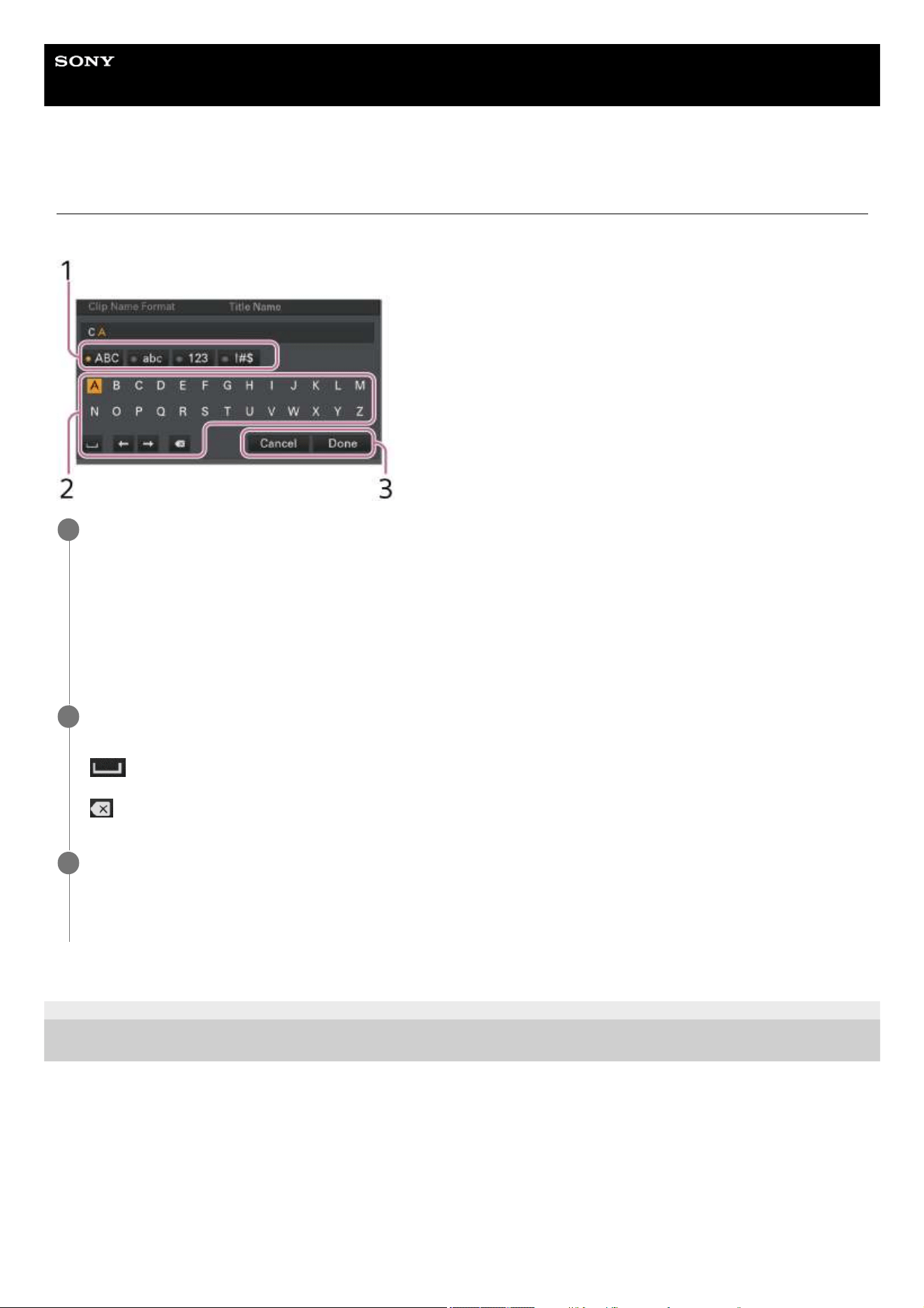
Help Guide
Solid-State Memory Camcorder
PXW-Z200/HXR-NX800
Entering a Character String
When you select an item that requires character entry, such as a file name, the character entry screen appears.
TP1001670388
5-060-574-11(2) Copyright 2024 Sony Corporation
Select the character type you want to enter using touch operation or the multi-function dial/multi selector, then
apply the setting.
You can move the cursor by tapping or dragging left/right.
[ABC]: Uppercase alphabetic characters
[abc]: Lowercase alphabetic characters
[123]: Numeric characters
[!#$]: Special characters
1
Select a character from the selected character type, then apply the setting.
The cursor moves to the next field.
: Enters a space character at the cursor position.
←/→: Moves the position of the cursor.
: Deletes the character on the left of the cursor.
2
When finished, select [Done] to apply the setting.
The character string is confirmed and the character entry screen disappears.
To cancel, select [Cancel].
3
183
Help Guide
Solid-State Memory Camcorder
PXW-Z200/HXR-NX800
Locking the Menu
You can lock the full menu display so that only the [User] menu is displayed.
In this state, settings cannot be changed using the status screens.
TP1001670389
5-060-574-11(2) Copyright 2024 Sony Corporation
Press and hold the multi-function dial and press and hold the MENU button.
1
Select [Technical] – [Menu Settings] – [User Menu with Lock] in the full menu.
Note
If you press and hold the MENU button without pressing the multi-function dial to display the full menu, [Menu Settings] – [User
Menu Only] is displayed and the menu cannot be locked. Always press and hold the multi-function dial and press and hold the
MENU button.
2
Select [On] and press the apply button or multi-function dial.
The viewfinder screen switches to the passcode number input screen.
3
Enter an arbitrary passcode number.
Enter a 4-digit number in the range 0000 to 9999. The default value is 0000.
Enter a number and press the apply button or multi-function dial to move the cursor to the next digit.
When all digits have been entered, move the cursor to [Set].
4
Press the apply button or multi-function dial.
The entry is applied.
A confirmation message appears, and the screen switches to the [User] menu.
5
184
Help Guide
Solid-State Memory Camcorder
PXW-Z200/HXR-NX800
Unlocking the Menu
Unlock the full menu display lock.
Note
If the entered passcode number does not match the passcode number used to lock the menu, the menu is not unlocked.
It is recommended that you leave a record of the passcode number nearby, just in case it is forgotten. If you do forget the passcode
number, contact your Sony service representative.
If the menu is locked without registering full menu items from the following table in the [User] menu, those functions cannot be
assigned to assignable buttons.
If those functions were already assigned to assignable buttons, the assignable functions are disabled at the point when the menu is
locked.
Press and hold the multi-function dial and press and hold the MENU button.
1
Select [User] – [Menu Settings] – [User Menu with Lock] in the full menu.
Note
If you press and hold the MENU button without pressing the multi-function dial to display the full menu, [Menu Settings] – [User
Menu Only] is displayed and the menu cannot be unlocked. Always press and hold the multi-function dial and press and hold the
MENU button.
2
Select [Off] and press the apply button or multi-function dial.
The viewfinder screen switches to the passcode number input screen.
3
Enter the passcode number used to lock the menu.
Enter a number and press the apply button or multi-function dial to move the cursor to the next digit.
When all digits have been entered, move the cursor to [Set].
4
Press the apply button or multi-function dial.
The entry is applied.
If the entered passcode number matches the passcode number used to lock the menu, the menu is unlocked and the
menu is displayed.
5
Full menu item Assignable button selection
[Shooting] – [Auto Exposure] – [AGC] [AGC]
[Shooting] – [Auto Exposure] – [Auto Shutter] [Auto Shutter]
[Shooting] – [Auto Exposure] – [Mode] [Backlight]
[Shooting] – [Auto Exposure] – [Mode] [Spotlight]
[Shooting] – [White] – [Preset White] [Preset White Select]
[Shooting] – [Focus] – [AF Transition Speed
] / [AF Subj. Shift Sens.] [AF Speed/Sens.]
185
TP1001670390
5-060-574-11(2) Copyright 2024 Sony Corporation
Full menu item Assignable button selection
[Shooting] – [Focus] – [Subject Recognition AF] [Subject Recognition AF]
[Shooting] – [S&Q Motion] – [Setting] [S&Q Motion]
[Shooting] – [LUT On/Off] – [
SDI/HDMI] / [ HDMI] [LUT On/Off ]
[Shooting] – [LUT On/Off] – [
LCD/VF/Proxy/Stream] [LUT On/Off ]
[Shooting] – [NIGHTSHOT] – [Setting] [NIGHTSHOT]
[Shooting] – [SteadyShot] – [Setting]
[SteadyShot]
[SteadyShot Active]
[SteadyShot Standard]
[Project] – [Auto Framing] – [Crop Level
] / [Framing Tracking Speed] [Auto Framing Settings]
[Thumbnail] – [Set Clip Flag] – [Add OK] [Clip Flag OK]
[Thumbnail] – [Set Clip Flag] – [Add NG] [Clip Flag NG]
[Thumbnail] – [Set Clip Flag] – [Add KEEP] [Clip Flag Keep]
[Technical] – [Color Bars] – [Setting] [Color Bars]
[Monitoring] – [Display On/Off] – [Tally] [Tally [Front]]
[TC/Media] – [TC Display] – [Display Select] [DURATION/TC/U-BIT]
[Monitoring] – [Display On/Off] – [Lens Info] [Lens Info]
[Monitoring] – [Display On/Off] – [Video Signal Monitor] [Video Signal Monitor]
[Monitoring] – [Marker] – [Setting] [Marker]
[Monitoring] – [Gamma Display Assist] – [Setting] [Gamma Display Assist]
[Monitoring] – [Peaking] – [Setting] [Peaking]
[Monitoring] – [Zebra] – [Setting] [Zebra]
[Technical] – [Touch Operation] – [Setting] [Touch Operation
]
[Technical] – [Handle Zoom] – [Setting] [Handle Zoom]
[Network] – [Stream] – [Setting] [Stream]
[Network] – [File Transfer] – [Auto Upload (Proxy)] [Auto Upload (Proxy)]
186
Help Guide
Solid-State Memory Camcorder
PXW-Z200/HXR-NX800
Using the Screen Reader
You can use the screen reader function to read aloud the text and other information on the screen.
Enabling the screen reader
Set [Maintenance] – [
Accessibility] – [Screen Reader] – [Setting] to [On] in the full menu.
Hint
The screen reader audio is output to the speaker of the unit or headphones.
Setting the screen reader speed
Set the speed using [Maintenance] – [
Accessibility] – [Screen Reader] – [Speed] in the full menu.
Setting the screen reader volume
Set the volume using [Maintenance] – [
Accessibility] – [Screen Reader] – [Volume] in the full menu.
Enabling the screen reader at startup
Set [Maintenance] – [
Accessibility] – [Screen Reader] – [Read Out when Power On] to [Enable]/[Disable] in the full menu.
[Enable]: Screen reader is turned on if you press and hold the MENU button and turn the unit on.
[Disable]: Screen reader is turned off when you turn the unit on.
Note
Press and hold the MENU button until the screen reader audibly starts.
[Read Out when Power On] is set to [Enable] by factory default. If you do not use the screen reader function on the initial setup
screen, the function is automatically set to [Disable] when the initial setup screen is closed.
TP1001670391
5-060-574-11(2) Copyright 2024 Sony Corporation
187
Help Guide
Solid-State Memory Camcorder
PXW-Z200/HXR-NX800
Magnifying the Screen Display
You can magnify the shooting screen, playback screen, and menu screen display.
If you press an assignable button assigned with the screen magnifier function, the screen is magnified according to the
magnification factor setting.
Note
Some screens and objects on the display are not magnified.
The shooting image and playback image are not displayed enlarged. Use the focus magnifier function to enlarge the shooting image.
Enabling the screen magnifier
Setting the magnification factor
Set the magnification factor using [Maintenance] – [
Accessibility] – [Enlarge Screen] – [Magnification] in the full menu.
You can select multiple magnification factors to suit the shooting conditions and display content.
Setting the screen magnifier button
You can change the button to which the screen magnifier function is assigned.
Set using [Maintenance] – [
Accessibility] – [Enlarge Screen] – [Enlarge Screen Button] in the full menu.
You can assign the screen magnifier function to one of the ASSIGN 1 to ASSIGN 11 buttons/FOCUS PUSH AUTO button.
Hint
You can also assign the screen magnifier function to an assignable button using [Project] – [Assignable Button] in the full menu.
Note
When all [Assignable Button] – [Enlarge Screen] assignments are cleared, [Maintenance] – [
Accessibility] – [Enlarge Screen] –
[Setting] is set to [Disable] in the full menu.
When [
Accessibility] – [Enlarge Screen] – [Setting] is set to [Enable], the settings of all assignable buttons assigned with
[Assignable Button] – [Enlarge Screen] return to their factory default assignment.
If the screen magnifier function is assigned to a button using [Assignable Button] when [
Accessibility] – [Enlarge Screen] – [Setting]
is set to [Disable], then [Enlarge Screen] – [Setting] is set to [Enable].
Screen magnifier operation
The screen is magnified by pressing a button assigned with the screen magnifier function.
During screen magnifier operation, you can move the display position using the multi selector or using touch operation
(dragging). Use the multi-function dial to perform menu and message operations.
Each time you press a button assigned with the screen magnifier function, the [Magnification] settings are switched
between No magnification → Magnification 1 → Magnification 2 → … → No magnification in that order.
To exit the screen magnifier function, press the button repeatedly to return to the normal screen display.
TP1001670392
Set [Maintenance] – [
Accessibility] – [Enlarge Screen] – [Setting] to [Enable] in the full menu.
A confirmation message appears.
1.
Select [Execute].
The screen magnifier function is enabled and assigned to the ASSIGN 11 button.
2.
188

5-060-574-11(2) Copyright 2024 Sony Corporation
189
Help Guide
Solid-State Memory Camcorder
PXW-Z200/HXR-NX800
[User] Menu
The following table shows the menu items configured by factory default and the corresponding functions.
[User]
Note
You can add and remove menu items in the [User] menu using [Edit User Menu]. Up to 20 items can be configured.
TP1001670393
5-060-574-11(2) Copyright 2024 Sony Corporation
Menu item Description
[Base Setting] [Project] – [Base Setting]
[HDR Setting] [Project] – [HDR Setting]
[Focus] [Shooting] – [Focus]
[NIGHTSHOT] [Shooting] – [NIGHTSHOT]
[Auto Framing] [Project] – [Auto Framing]
[Assignable Button] [Project] – [Assignable Button]
[Multi Function Dial] [Project] – [Multi Function Dial]
[All File] [Project] – [All File]
[LCD Monitor/VF] [Monitoring] – [LCD Monitor/VF]
[Peaking] [Monitoring] – [Peaking]
[Delete Clip] [Thumbnail] – [Delete Clip]
[Copy Clip] [Thumbnail] – [Copy Clip]
[Transfer Clip] [Thumbnail] – [Transfer Clip]
[Bluetooth] [Network] – [Bluetooth]
[Touch Operation] [Technical] – [Touch Operation]
[Menu Settings] [Technical] – [Menu Settings]
[Edit User Menu] [
Edit User Menu]
190
Help Guide
Solid-State Memory Camcorder
PXW-Z200/HXR-NX800
[Edit User Menu] Menu
The [Edit User Menu] menu is displayed at the top level when [User] – [Edit User Menu] is selected.
[Edit User Menu]
TP1001670394
5-060-574-11(2) Copyright 2024 Sony Corporation
Menu item
Sub-item
setting
Description
[Add Item]
Add item to the [User] menu
– Adds a level 2 menu item to the [User] menu.
[Customize Reset]
Reset items in the [User] menu
–
Restores the menu items registered in the [User] menu to the
factory default.
Level 2 menu item selected during
editing
[Delete] Deletes the registered level 2 menu item from the [User] menu.
[Move] Rearranges the registered items within the [User] menu.
[Edit Sub Item]
Edits (register/delete) the registered level 3 items in the [User]
menu.
191
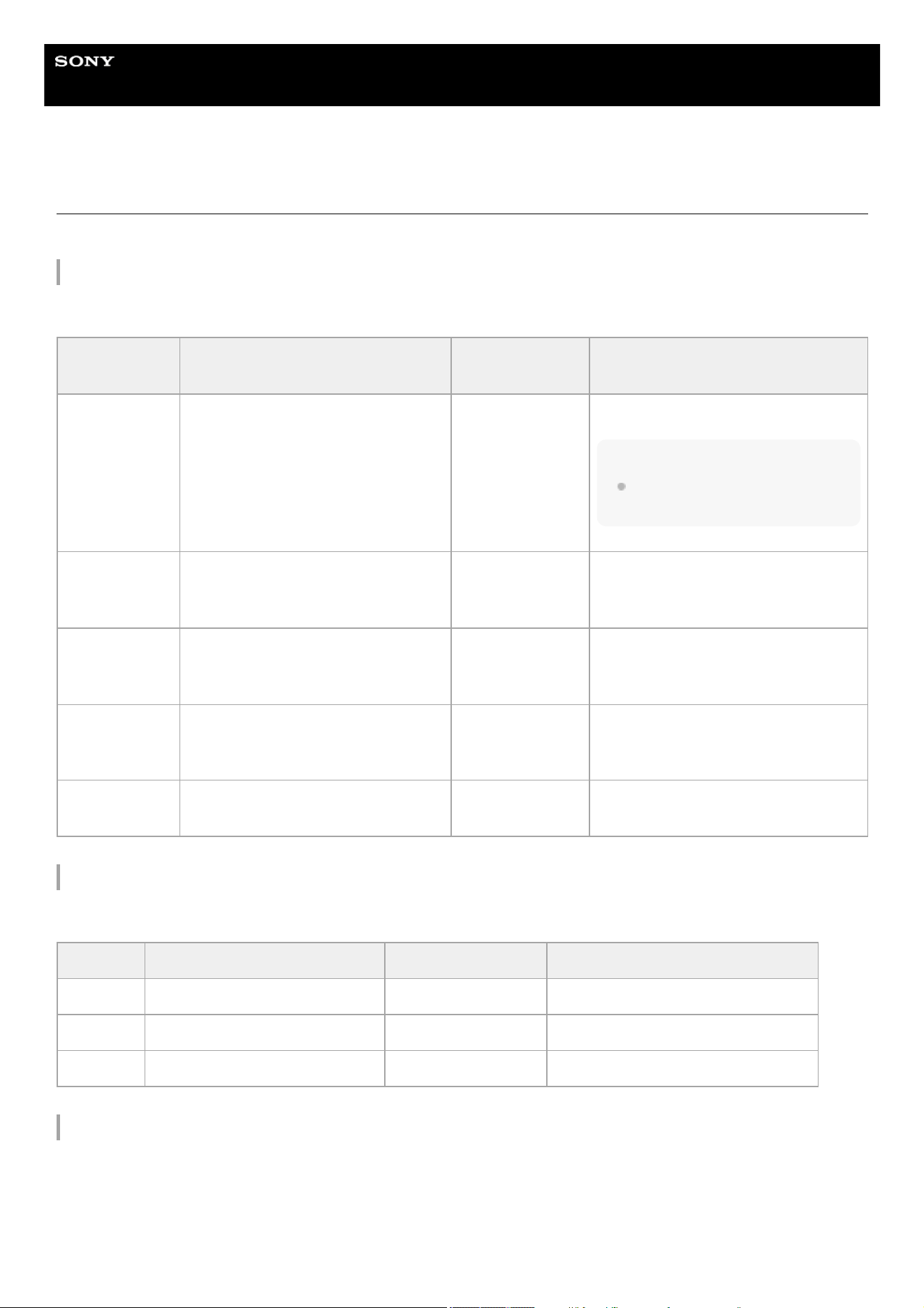
Help Guide
Solid-State Memory Camcorder
PXW-Z200/HXR-NX800
[Shooting] Menu
The following tables describe the function and settings of each menu item.
[Shooting] – [ISO/Gain]
Sets gain settings.
[Shooting] – [ND Filter]
Sets the preset values for the ND filter.
[Shooting] – [Shutter]
Sets electronic shutter operation.
Menu item Sub-item setting
Factory default
value
Description
[Mode] [ISO
] / [dB] [dB]
Selects the gain setting mode.
Note
In log shooting mode, this is set to
[ISO] (fixed).
[ISO/Gain<H>]
For details about settings, see the
following topic.
[ISO/Gain] Settings and Default Values
– Sets the <H> gain preset value.
[ISO/Gain<M>]
For details about settings, see the
following topic.
[ISO/Gain] Settings and Default Values
– Sets the <M> gain preset value.
[ISO/Gain<L>]
For details about settings, see the
following topic.
[ISO/Gain] Settings and Default Values
– Sets the <L> gain preset value.
[Shockless
Gain]
[On
] / [Off] [Off] Turns the shockless gain on/off.
Menu item Sub-item setting Factory default value Description
[Preset1]
1/4 / 1/8 / 1/16 / 1/32 / 1/64 / 1/128 1/4 Sets the preset 1 value for the ND filter.
[Preset2]
1/4 / 1/8 / 1/16 / 1/32 / 1/64 / 1/128 1/16 Sets the preset 2 value for the ND filter.
[Preset3]
1/4 / 1/8 / 1/16 / 1/32 / 1/64 / 1/128 1/64 Sets the preset 3 value for the ND filter.
192
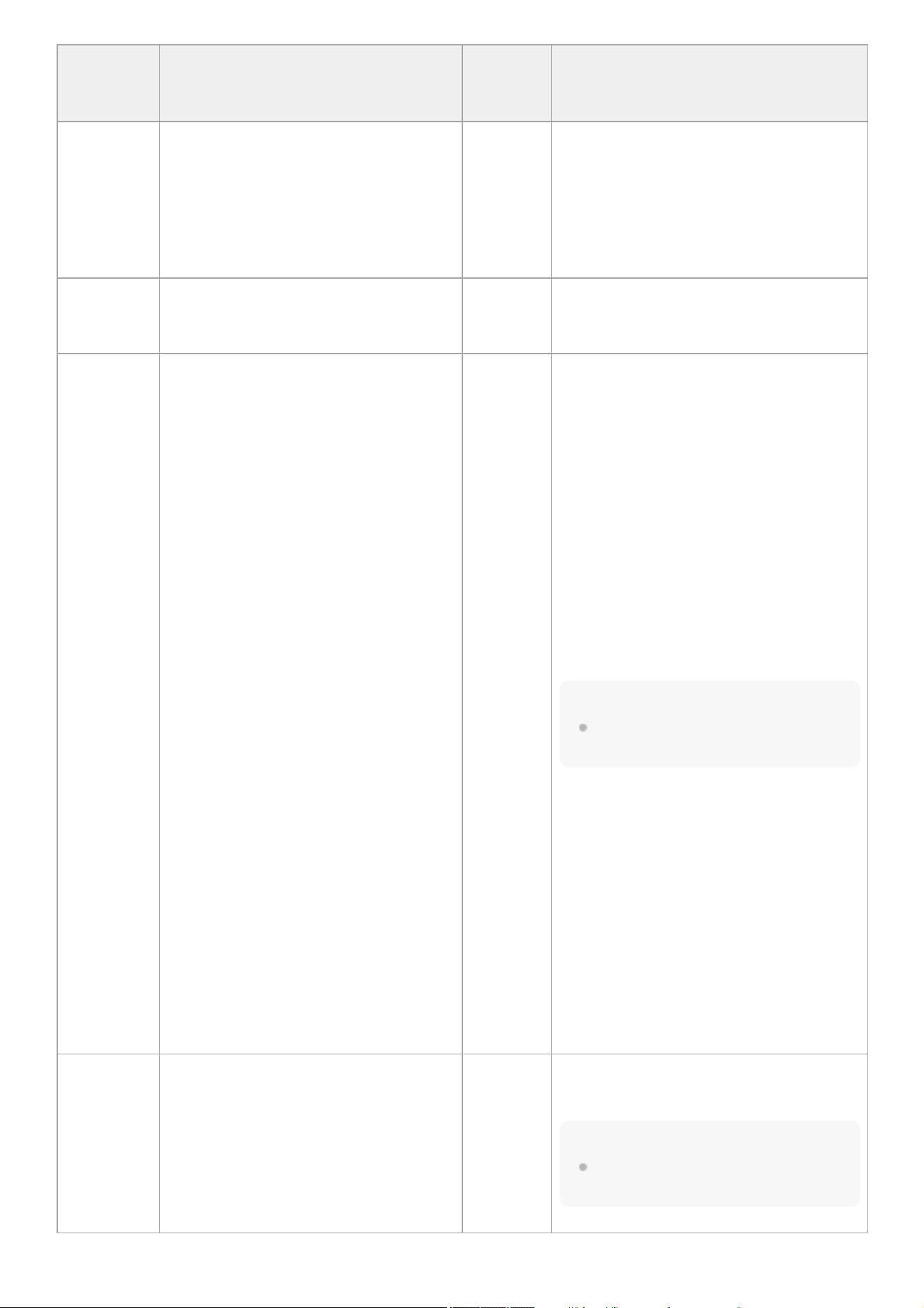
Menu item Sub-item setting
Factory
default
value
Description
[Mode] [Speed
] / [Angle] [Speed]
Selects the operating mode of the electronic
shutter.
Used for shooting fast-moving subjects
clearly. Select [Speed] mode for setting the
shutter speed as a time in seconds or [Angle]
mode for setting the shutter speed as a
shutter angle.
[Shutter
Speed
On/Off]
[On
] / [Off] [Off]
Sets whether the exposure time when [Speed]
mode is selected follows the [Shutter Speed]
setting or is set for full exposure.
[Shutter
Speed]
64F to 1/8000
The available settings vary depending on
the system frequency of the selected
recording format.
119.88P:
1/120 / 1/125 / 1/250 / 1/500 / 1/1000 /
1/2000 / 1/4000 / 1/8000
100P:
1/100 / 1/120 / 1/125 / 1/250 / 1/500 /
1/1000 / 1/2000 / 1/4000 / 1/8000
59.94P:
64F / 32F / 16F / 8F / 7F / 6F / 5F / 4F / 3F /
2F / 1/60 / 1/100 / 1/120 / 1/125 / 1/250 /
1/500 / 1/1000 / 1/2000 / 1/4000 / 1/8000
50P:
64F / 32F / 16F / 8F / 7F / 6F / 5F / 4F / 3F /
2F / 1/50 / 1/60 / 1/100 / 1/120 / 1/125 /
1/250 / 1/500 / 1/1000 / 1/2000 / 1/4000 /
1/8000
29.97P:
64F / 32F / 16F / 8F / 7F / 6F / 5F / 4F / 3F /
2F / 1/30 / 1/40 / 1/50 / 1/60 / 1/100 / 1/120 /
1/125 / 1/250 / 1/500 / 1/1000 / 1/2000 /
1/4000 / 1/8000
25P:
64F / 32F / 16F / 8F / 7F / 6F / 5F / 4F / 3F /
2F / 1/25 / 1/33 / 1/50 / 1/60 / 1/100 / 1/120 /
1/125 / 1/250 / 1/500 / 1/1000 / 1/2000 /
1/4000 / 1/8000
23.98P:
64F / 32F / 16F / 8F / 7F / 6F / 5F / 4F / 3F /
2F / 1/24 / 1/32 / 1/48 / 1/50 / 1/60 / 1/96 /
1/100 / 1/120 / 1/125 / 1/250 / 1/500 /
1/1000 / 1/2000 / 1/4000 / 1/8000
119.88P:
1/120
100P:
1/100
59.94P:
1/60
50P: 1/50
29.97P:
1/30
25P: 1/25
23.98P:
1/24
Sets the shutter speed when [Speed] mode is
selected.
Note
When the system frequency is 100P or
119.88P, 2F to 64F cannot be selected.
[Shutter
Angle]
64F / 32F / 16F / 8F / 7F / 6F / 5F / 4F / 3F /
2F / 360.0° / 300.0° / 270.0° / 240.0° /
216.0° / 210.0° / 180.0° / 172.8° / 150.0° /
144.0° / 120.0° / 90.0° / 86.4° / 72.0° /
45.0° / 30.0° / 22.5° / 11.25° / 5.6°
180.0°
Sets the shutter angle when [Angle] mode is
selected.
Note
When the system frequency is 100P or
119.88P, 2F to 64F cannot be selected.
193

[Shooting] – [Auto Exposure]
Sets automatic exposure adjustment settings.
Menu item Sub-item setting
Factory
default
value
Description
[ECS On/Off] [On
] / [Off] [Off] Turns ECS mode on/off.
[ECS
Frequency]
23.99 to 8000
The available settings vary depending on
the system frequency of the selected
recording format.
119.88P:
120.0
100P:
100.0
59.94P:
60.00
50P: 50.00
29.97P:
30.00
23.98P:
23.99
25P: 25.02
Sets the ECS frequency when ECS mode is
selected.
Menu item Sub-item setting
Factory
default
value
Description
[Level]
+3.0 / +2.75 / +2.5 / +2.25 / +2.0 / +1.75 /
+1.5 / +1.25 / +1.0 / +0.75 / +0.5 / +0.25 /
±0 / −0.25 / −0.5 / −0.75 / −1.0 / −1.25 /
−1.5 / −1.75 / −2.0 / −2.25 / −2.5 / −2.75 /
−3.0
±0
Sets the brightness level for the
automatically detected exposure.
[Mode] [Backlight
] / [Standard] / [Spotlight] [Standard]
Sets the operating mode of auto exposure
adjustment.
[Backlight]: Mode for reduced darkening of
shadows when the subject is backlit
[Standard]: Standard mode
[Spotlight]: Mode for reduced clipped whites
when subject is lit by spotlighting
[Speed] −99 to +99 ±0
Sets the adjustment speed of auto
exposure adjustment.
[AGC] [On
] / [Off] [Off] Turns auto gain control on/off.
[AGC Limit]
For details about settings, see the following
topic.
[AGC Limit] Settings and Default Values
–
Sets the maximum gain of the auto gain
control.
[AGC Point]
F2.8 / F4 / F5.6 F2.8
Sets the F-stop value of the iris where auto
gain control operation starts when [AGC] is
set to [On].
[Auto
Shutter]
[On
] / [Off] [Off] Turns auto shutter on/off.
[A.SHT Limit]
1/100 / 1/150 / 1/200 / 1/250 / 1/2000 1/2000
Sets the fastest shutter speed of the auto
shutter.
194
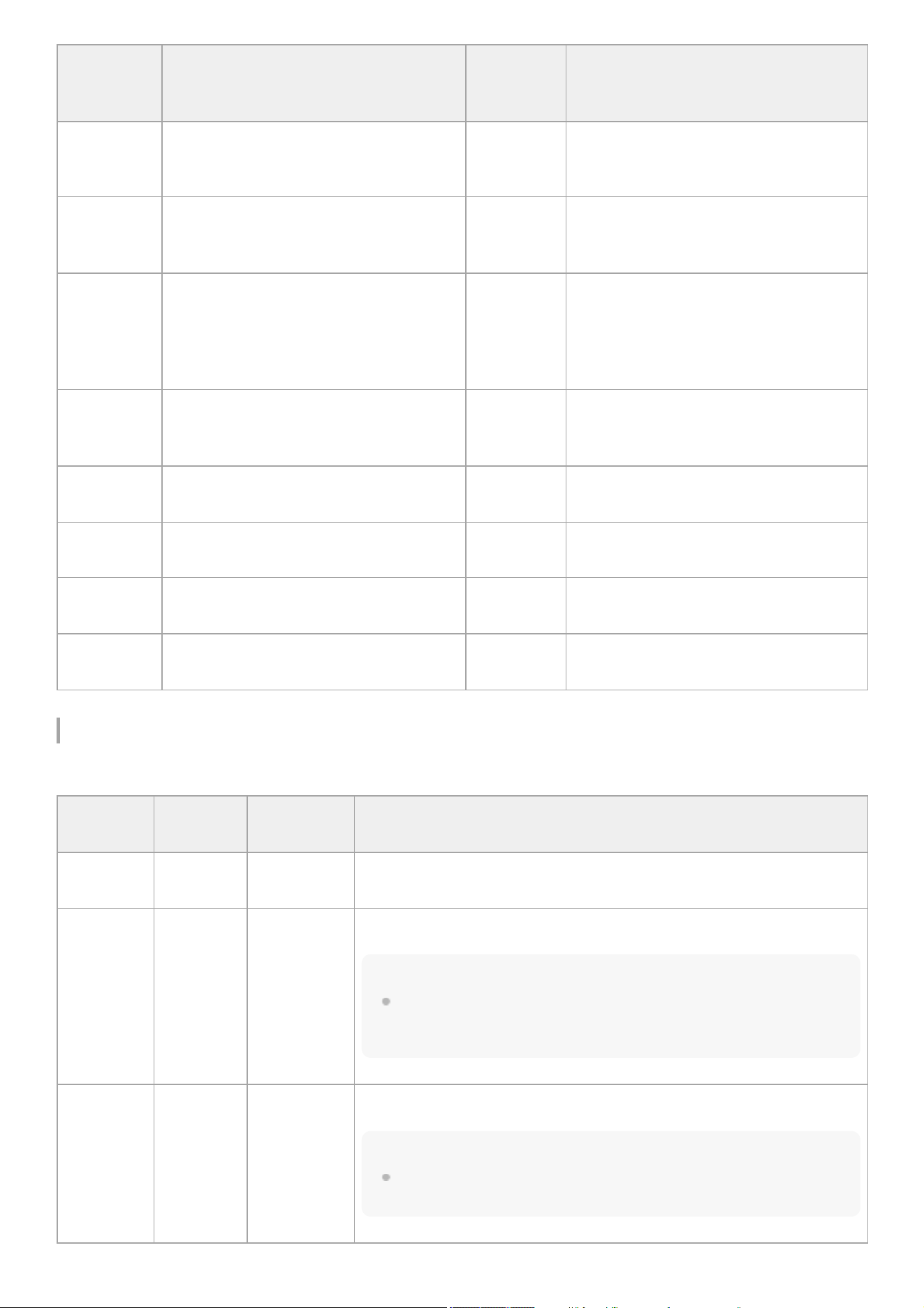
[Shooting] – [White]
Sets white balance settings.
Menu item Sub-item setting
Factory
default
value
Description
[A.SHT Point]
F5.6 / F8 / F11 F8
Sets the F-stop value of the iris where auto
shutter operation starts when [Auto Shutter]
is set to [On].
[Clip High
light]
[On
] / [Off] [Off]
Turns the function that ignores brightest
areas to provide a flatter response at high
luminance on/off.
[Detect
Window]
1 / 2 / 3 / 4 / 5 / 6 / [Custom] 1
Sets the light metering range for
automatically adjusting the exposure
according to the brightness of the subject.
(Not available when adjusting exposure
manually)
[Detect
Window
Indication]
[On
] / [Off] [Off]
Turns the light metering range indication
on/off.
[Custom
Width]
40 to 999 500 Sets the width of the light metering range.
[Custom
Height]
70 to 999 500 Sets the height of the light metering range.
[Custom H
Position]
−479 to +479 ±0
Sets the horizontal position of the light
metering range.
[Custom V
Position]
−464 to +464 ±0
Sets the vertical position of the light
metering range.
Menu item
Sub-item
setting
Factory
default value
Description
[Preset
White]
2000K to
15000K
3200K Sets the white balance preset value.
[Color Temp
<A>]
2000K to
15000K
3200K
Sets the white balance color temperature saved in memory A.
Note
Since [Color Temp] is clipped at 2000K and 15000K during [R Gain]/[B Gain]
adjustment, it may not be possible to display the correct [Color Temp] value for
the R/B gain value.
[Tint<A>] −99 to +99 ±0
Sets the white balance [Tint] value saved in memory A.
Note
Since [Tint] is clipped at ±99 during [R Gain]/[B Gain] adjustment, it may not be
possible to display the correct [Tint] value for the R/B gain value.
195
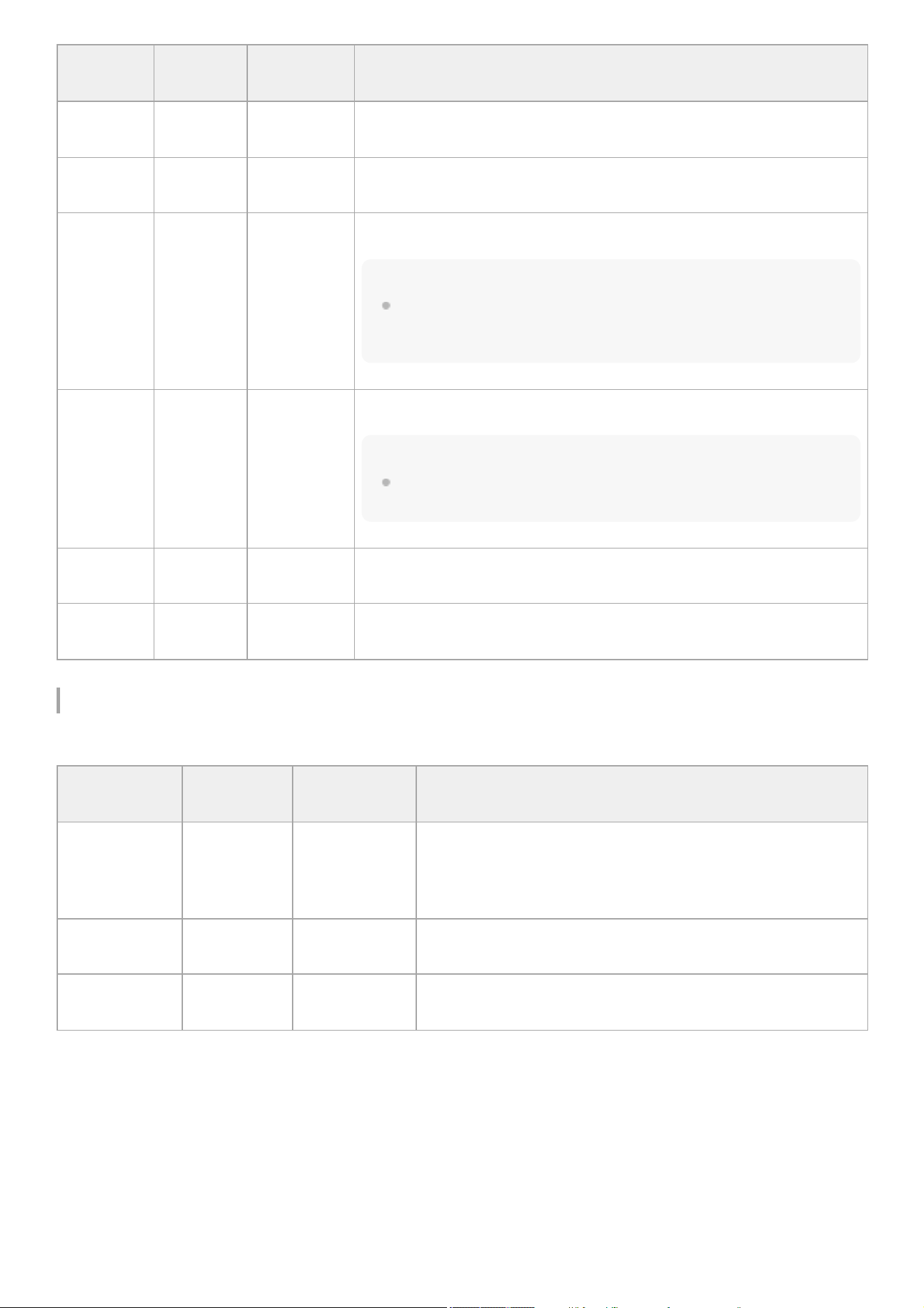
[Shooting] – [White Setting]
Adjusts white balance settings.
Menu item
Sub-item
setting
Factory
default value
Description
[R Gain
<A>]
−99.0 to
+99.0
±0.0 Sets the white balance R gain value saved in memory A.
[B Gain
<A>]
−99.0 to
+99.0
±0.0 Sets the white balance B gain value saved in memory A.
[Color Temp
<B>]
2000K to
15000K
3200K
Sets the white balance color temperature saved in memory B.
Note
Since [Color Temp] is clipped at 2000K and 15000K during [R Gain]/[B Gain]
adjustment, it may not be possible to display the correct [Color Temp] value for
the R/B gain value.
[Tint<B>] −99 to +99 ±0
Sets the white balance [Tint] value saved in memory B.
Note
Since [Tint] is clipped at ±99 during [R Gain]/[B Gain] adjustment, it may not be
possible to display the correct [Tint] value for the R/B gain value.
[R Gain
<B>]
−99.0 to
+99.0
±0.0 Sets the white balance R gain value saved in memory B.
[B Gain
<B>]
−99.0 to
+99.0
±0.0 Sets the white balance B gain value saved in memory B.
Menu item
Sub-item
setting
Factory default
value
Description
[Shockless
White]
[Off
] / 1 / 2 / 3 2
Sets the white balance response speed when switching white
balance mode.
[Off]: Switches instantaneously.
1 to 3: Switches more slowly the higher the number.
[ATW Speed]
1 / 2 / 3 / 4 / 5 3
Sets the response speed in auto white mode.
1: Fastest response speed
[White
Switch<B>]
[Memory
] /
[ATW]
[Memory]
Selects the white balance adjustment mode that is selected when
the WHT BAL switch is set to B.
196
[Shooting] – [Offset White]
Sets white balance offset settings.
Menu item
Sub-item
setting
Factory default
value
Description
[Filter White
Memory]
[On
] / [Off] [Off]
Turns the function that sets the white balance memory area for
each ND filter on/off.
[On]: Sets the white balance memory for each ND filter.
Hint
In preset mode, there are four settings ([Clear]/1/2/3). In variable
mode, there are two settings ([Clear] and [On]).
[Off]: Sets white balance memory common to all ND filters.
Menu item
Sub-item
setting
Factory
default value
Description
[Offset White <A>] [On
] / [Off] [Off]
Selects whether to add ([On]) or not ([Off]) an offset value to the
white balance in memory A.
Note
This is set to [Off] (fixed) in log shooting mode.
[Offset Color
Temp<A>]
−99 to +99 ±0
Sets the color temperature offset to be added to the white balance
in memory A when [Offset White <A>] is set to [On].
[Offset Tint<A>] −99 to +99 ±0
Sets the [Tint] offset to be added to the white balance in memory A
when [Offset White <A>] is set to [On].
[Offset White <B>] [On
] / [Off] [Off]
Selects whether to add ([On]) or not ([Off]) an offset value to the
white balance in memory B.
Note
This is set to [Off] (fixed) in log shooting mode.
[Offset Color
Temp<B>]
−99 to +99 ±0
Sets the color temperature offset to be added to the white balance
in memory B when [Offset White <B>] is set to [On].
[Offset Tint<B>] −99 to +99 ±0
Sets the [Tint] offset to be added to the white balance in memory B
when [Offset White <B>] is set to [On].
[Offset
White<ATW>]
[On
] / [Off] [Off]
Selects whether to add ([On]) or not ([Off]) an offset value to the
white balance in auto white mode.
Note
This is set to [Off] (fixed) in log shooting mode.
[Offset Color
Temp<ATW>]
−99 to +99 ±0
Sets the color temperature offset to be added to the white balance
in auto white mode when [Offset White<ATW>] is set to [On].
197

[Shooting] – [Focus]
Sets focus settings.
Menu item
Sub-item
setting
Factory
default value
Description
[Offset Tint<ATW>] −99 to +99 ±0
Sets the [Tint] offset to be added to the white balance in auto white
mode when [Offset White<ATW>] is set to [On].
Menu item Sub-item setting
Factory default
value
Description
[AF Transition
Speed]
[1(Slow)
] / 2 / 3 / 4 / 5 / 6 /
[7(Fast)]
5
Sets the speed of the focus drive for when the subject
changes during auto focus.
[AF Subj. Shift
Sens.]
[1(Locked On)
] / 2 / 3 / 4 /
[5(Responsive)]
[5(Responsive)]
Sets the sensitivity for changing subject focus during
auto focus.
[Focus Area]
[Wide
] / [Zone] / [Flexible
Spot]
[Wide]
Sets the target area for auto focus and push auto
focus.
[Wide]: Searches for a subject over a wide angle of
the image when focusing.
[Zone]: Automatically searches for a focus point within
the specified zone.
[Flexible Spot]: Focuses on a specified position in the
image.
[Subject
Recognition
AF]
[Human Only AF
] / [Human
Priority AF
] / [Off]
[Human Priority
AF]
Sets the mode of the subject recognition AF function.
[Human Only AF]: The camera detects subjects
(people) and focuses on and tracks their faces, eyes,
heads, or bodies. Auto focus operation is paused
while a person is not detected.
[Human Priority AF]: The camera detects subjects
(people) and focuses on and tracks their faces, eyes,
heads, or bodies. Auto focus operation is active even
when a person is not detected.
[Off]: The subject recognition AF function is disabled.
[Touch
Function in
MF]
[Tracking AF
] / [Spot Focus] [Tracking AF] Sets the touch operation mode during manual focus.
[Multi Selector
Function]
[Subject Sel. Cursor
] /
[Pointer]
[Subject Sel.
Cursor]
Sets the method for specifying the auto focus target in
response to multi selector operation.
[Subject Sel. Cursor]: Selects a subject recognition
frame using the multi selector.
[Pointer]: Selects a subject on the screen by moving
the tracking AF pointer using the multi selector.
[Pointer Color]
[Orange
] / [White] / [Yellow] /
[Cyan] / [Green] /
[Magenta] / [Red] / [Blue]
[Orange]
Sets the color of the pointer used for specifying the
focus target.
[Pointer
Border]
[On
] / [Off] [On]
Turns the border of the pointer used for specifying the
focus target on/off.
[AF Assist] [On
] / [Off] [On]
When set to [On], this allows you to temporarily
override auto focus and set focus manually.
198
[Shooting] – [S&Q Motion]
Sets Slow & Quick Motion mode settings.
[Shooting] – [LUT On/Off]
Sets LUT settings.
[Shooting] – [NIGHTSHOT]
Sets night shot settings.
Menu
item
Sub-item setting
Factory
default value
Description
[Setting] [On
] / [Off] [Off] Turns Slow & Quick Motion mode on/off.
[Frame
Rate]
1fps to 60fps / 100fps / 120fps /
150fps / 180fps / 200fps / 240fps
–
Sets the frame rate for Slow & Quick Motion mode.
Note
The available settings vary depending on the
selected system frequency, codec, and video format.
Menu item
Sub-item
setting
Factory
default value
Description
[
SDI/HDMI]
(PXW-Z200 only)
[LUT On] /
[LUT Off]
[LUT Off]
Selects whether to apply a monitor LUT to the SDI and
HDMI output video.
Note
Configurable in log shooting mode.
[
HDMI]
(HXR-NX800 only)
[LUT On] /
[LUT Off]
[LUT Off]
Selects whether to apply a monitor LUT to the HDMI output
video.
Note
Configurable in log shooting mode.
[
LCD/VF/Proxy/Stream]
[LUT On] /
[LUT Off]
[LUT Off]
Selects whether to apply a monitor LUT to the LCD,
viewfinder, proxy, and stream output video.
Note
Configurable in log shooting mode.
Menu item
Sub-item
setting
Factory default
value
Description
[Setting] [On
] / [Off] [Off] Turns night shot mode on/off.
199
[Shooting] – [Noise Suppression]
Sets noise suppression settings.
Hint
The [Setting(Custom)] and [Level(Custom)] settings are reflected in the [Target Display] setting.
[Shooting] – [Flicker Reduce]
Sets flicker correction settings.
Menu item
Sub-item
setting
Factory default
value
Description
[IR Light] [On
] / [Off] [On]
Turns the infrared light on/off when night shot mode is turned
on.
[Image
Color]
[White
] / [Green] [White]
Sets the color of the image when night shot mode is turned
on.
Menu item
Sub-item
setting
Factory default
value
Description
[Setting(Custom)] [On
] / [Off] [On]
Turns the noise suppression function on/off in custom
shooting mode.
Note
This function cannot be configured in log shooting mode.
[Level(Custom)]
[Low
] / [Mid] /
[High]
[Mid]
Sets the noise suppression level in custom shooting
mode.
Note
This function cannot be configured in log shooting mode.
[Setting(Flexible
ISO)]
[On
] / [Off] [Off]
Turns the noise suppression function on/off in log
shooting mode.
Note
This function cannot be configured in custom shooting
mode.
[Level(Flexible ISO)]
[Low
] / [Mid] /
[High]
[Mid]
Sets the noise suppression level in log shooting mode.
Note
This function cannot be configured in custom shooting
mode.
200
[Shooting] – [SteadyShot]
Sets image stabilization settings.
TP1001670395
5-060-574-11(2) Copyright 2024 Sony Corporation
Menu item
Sub-item
setting
Factory default
value
Description
[Mode]
[Auto
] / [On] /
[Off]
[Off] Sets the flicker correction mode.
[Frequency] [50Hz
] / [60Hz] [60Hz]
Sets the frequency of the power source supplying the lighting that is
causing the flicker.
Menu item Sub-item setting Factory default value Description
[Setting] [Active
] / [Standard] / [Off] [Standard] Sets the image stabilization function.
201
Help Guide
Solid-State Memory Camcorder
PXW-Z200/HXR-NX800
[Project] Menu
The following tables describe the function and settings of each menu item.
[Project] – [Base Setting]
Sets base settings.
[Project] – [Rec Format]
Sets recording format settings.
[Project] – [Flexible ISO Setting]
Sets log shooting ([Flexible ISO]) mode settings. Enabled in log shooting mode only.
[Project] – [HDR Setting]
Menu item Sub-item setting
Factory default
value
Description
[Shooting
Mode]
[Custom
] / [Flexible ISO] [Custom] Sets the shooting mode.
[Target
Display]
[SDR(BT.709)
] /
[HDR(HLG)]
[SDR(BT.709)]
Sets the video standard for recording/output in custom
shooting mode.
Menu item Sub-item setting
Factory default
value
Description
[Frequency]
119.88 / 100 / 59.94 / 50 / 29.97 / 25 / 23.98 59.94 Selects the system frequency.
[Codec]
[XAVC HS-L 422
] / [XAVC HS-L 420] / [XAVC S-L
422] / [XAVC S-L 420] / [XAVC S-I]
[XAVC S-L 420]
Sets the clip
recording/playback codec.
[Video
Format]
For details about settings, see the following topic.
[Video Format
] / [Quality] / [Bit Rate] Settings
– Sets the recording format.
[Quality]
For details about settings, see the following topic.
[Video Format
] / [Quality] / [Bit Rate] Settings
– Sets the recording bit rate.
[Bit Rate]
For details about settings, see the following topic.
[Video Format
] / [Quality] / [Bit Rate] Settings
– Displays the recording bit rate.
Menu item Sub-item setting Factory default value Description
[Color Gamut]
[S-Gamut3/SLog3
] / [S-
Gamut3.Cine/SLog3]
[S-
Gamut3.Cine/SLog3]
Sets the color gamut for log shooting
mode.
[Embed LUT
File]
[On
] / [Off] [On]
Turns 3D LUT file (CUBE file) metadata
recording on/off.
202
Sets HDR mode settings.
Note
Configurable only when [Shooting Mode] is set to [Custom] and [Target Display] is set to [HDR(HLG)].
[Project] – [Simul Rec]
Sets simultaneous recording mode settings.
[Project] – [Proxy Rec]
Sets proxy recording mode settings.
[Project] – [SDI/HDMI Rec Control] (PXW-Z200 only)
Sets SDI/HDMI recording control settings.
Menu item
Sub-item
setting
Factory
default value
Description
[LCD/VF SDR
Preview]
[On
] / [Off] [Off]
In HDR mode, this turns the function that converts the LCD
monitor/viewfinder image from HDR to SDR on/off when gamma display
assist is enabled.
Hint
When set to [On], [SDR Gain
] is applied to the LCD monitor / viewfinder
image.
[SDR Gain]
0dB to
−15dB
−6dB
In HDR mode, this sets the [SDR Gain] setting that is applied to the LCD
monitor / viewfinder when [LCD/VF SDR Preview] is set to [On].
Menu
item
Sub-item setting
Factory default
value
Description
[Setting] [On
] / [Off] [Off]
Turns the simultaneous recording
function on/off and sets the recording
destination media.
[Rec
Button
Set]
[Rec Button:
Handle Rec Button:
] / [Rec Button: Handle Rec Button: ] /
[Rec Button:
Handle Rec Button: ]
[Rec Button:
Handle Rec Button:
]
Assigns the record START/STOP
buttons used to control each memory
card.
Menu item Sub-item setting
Factory default
value
Description
[Setting] [On
] / [Off] [Off] Turns proxy recording mode on/off.
[Proxy
Format]
[HEVC 1920 (16M)
] / [HEVC 1920 (9M)] /
[AVC 1280 (6M)]
[AVC 1280 (6M)] Sets the picture size for the proxy file.
[Audio
Channel]
[CH1/CH2
] / [CH3/CH4] [CH1/CH2]
Selects the audio channel to record to
proxy data.
[Chunk] [30s
] / [1min] / [2min] [30s]
Selects the chunk recording interval
for proxy files.
203
[Project] – [HDMI Rec Control] (HXR-NX800 only)
Sets HDMI recording control settings.
[Project] – [Auto Framing]
Sets auto framing settings.
Menu
item
Sub-item setting
Factory
default
value
Description
[Setting]
[Off
] / [SDI/HDMI
Remote I/F] /
[Parallel Rec]
[Off]
Sets recording start/stop control of an external connected device via the
SDI/HDMI output signal.
[Off]: Do not use remote control.
[SDI/HDMI Remote I/F]: Record stop/start control of an external
connected device, when there is no media inserted in the unit. Not
synchronized with frame accuracy to the media in the unit.
[Parallel Rec]: Record stop/start control of an external connected
device, when media is inserted in the unit. Synchronized with frame
accuracy to the media in the unit.
Note
For control using the HDMI output signal, set [TC/Media] – [HDMI TC
Out] – [Setting] to [On] in the full menu.
Menu
item
Sub-item
setting
Factory default
value
Description
[Setting] [On
] / [Off] [Off]
Sets recording start/stop control of an external connected device via the
HDMI output signal.
Note
For control using the HDMI output signal, set [TC/Media] – [HDMI TC Out]
– [Setting] to [On] in the full menu.
Menu item Sub-item setting
Factory
default value
Description
[Setting] [On
] / [Off] [Off] Turns the auto framing function on/off.
[Framing
Operation Mode]
[Start When Tracking
] / [Auto Start] / [Auto
Start(15s switch)] / [Auto Start(30s
switch)]
[Auto Start]
Sets the start method and operation of
framing/cropping.
[Crop Level]
[Large Crop Level
] / [Medium Crop
Level
] / [Small Crop Level]
[Medium Crop
Level]
Sets the size of the range for cropping
a recognized subject.
[Framing Tracking
Speed]
[1(Slow)
] / 2 / 3 / 4 / [5(Fast)] 3
Sets the speed at which
framing/cropping track the subject.
[Rec/Stream] [Crop
] / [Full] [Crop]
Sets whether to crop the recorded
video and streaming output video.
204

[Project] – [Assignable Button]
Sets function assignments to assignable buttons.
Menu item Sub-item setting
Factory
default value
Description
[HDMI] [Crop
] / [Full] [Crop]
Sets whether to crop the HDMI output
video.
205
Menu
item
Sub-item setting Description
<1> to
<11> /
[<PUSH
AUTO>]
[Off
] / [ISO/Gain] / [AGC] / [Push AGC] / [ND Filter Position] / [Auto ND Filter] /
[Push Auto ND] / [Auto Iris] / [Push Auto Iris] / [Shutter] / [Auto Shutter] / [AE
Level/Mode] / [Backlight] / [Spotlight] / [Preset White Select] / [White Balance] /
[ATW] / [ATW Hold] / [AF Speed/Sens.] / [Focus Setting] / [Subject Recognition
AF
] / [Push AF/Push MF] / [Focus Hold] / [Focus Magnifier ×3/×6] / [Focus
Magnifier ×3
] / [Focus Magnifier ×6] / [S&Q Motion] / [LUT On/Off
] / [LUT
On/Off
] / [NIGHTSHOT] / [SteadyShot] / [SteadyShot Active] / [SteadyShot
Standard
] / [Rec] / [Auto Framing Pause] / [Auto Framing Settings] / [Rec
Review
] / [Shot Mark1] / [Shot Mark2] / [Clip Flag OK] / [Clip Flag NG] / [Clip
Flag Keep] / [Color Bars] / [Tally [Front]] / [DURATION/TC/U-BIT] / [Display] /
[Lens Info] / [Video Signal Monitor] / [Marker] / [LCD/VF Adjust] / [Gamma
Display Assist
] / [Peaking] / [Zebra] / [Thumbnail] / [Touch Operation] / [Handle
Zoom] / [Stream] / [Auto Upload (Proxy)] / [Enlarge Screen] / [Direct Menu] /
[Network Status] / [User Menu] / [Menu]
Assigns functions to
assignable buttons.
[ISO/Gain]: Displays/exits
the [ISO]/[Gain
Mode]/[Value] direct menu.
[AGC]: Turns auto gain
control on/off.
[Push AGC]: Enables auto
gain control while the button
is pressed..
[ND Filter Position]:
Switches the ND filter
position.
[Auto ND Filter]: Turns the
auto ND filter function on/off
instantly.
[Push Auto ND]: Enables the
auto ND filter while the
button is pressed.
[Auto Iris]: Turns auto iris
on/off.
[Push Auto Iris]: Enables
auto iris while the button is
pressed.
[Shutter]: Displays/exits the
[Auto
Shutter]/[ECS]/[Shutter
Value] direct menu.
[Auto Shutter]: Turns auto
shutter on/off.
[AE Level/Mode]:
Displays/exits the [AE
Mode]/[Level] direct menu.
[Backlight]: Switches
between
[Backlight]/[Standard].
[Spotlight]: Switches
between
[Spotlight]/[Standard].
[Preset White Select]:
Switches the white balance
preset mode value.
[White Balance]:
Displays/exits the [White
Balance Mode]/[Value]
direct menu.
[ATW]: Turns auto white
mode on/off.
[ATW Hold]: Pauses auto
white operation.
[AF Speed/Sens.]: Switches
the focus operation speed
setting and focus change
sensitivity setting.
[Focus Setting]: Sets the
focus area.
[Subject Recognition AF]:
206
Menu
item
Sub-item setting Description
Switches the subject
recognition auto focus
operation.
[Push AF/Push MF]:
Activates auto focus while
the button is pressed in
manual focus mode.
Activates manual focus
while the button is pressed
in auto focus mode.
[Focus Hold]: Holds fixed
focus while the button is
pressed in auto focus mode.
[Focus Magnifier ×3/
×6]/[Focus Magnifier
×3]/[Focus Magnifier ×6]:
Turns the focus magnifier
on/off.
[S&Q Motion]: Turns Slow &
Quick Motion on/off when
pressed. Sets the recording
frame rate when pressed
and held.
[LUT On/Off
]: Switches
the [Shooting] – [LUT
On/Off] – [
HDMI]/[
SDI/HDMI] setting.
[LUT On/Off
]: Switches
the [Shooting] – [LUT
On/Off] – [
LCD/VF/Proxy/Stream]
setting.
[NIGHTSHOT]: Turns night
shot mode on/off.
[SteadyShot]: Switches the
image stabilization function
in the order [Standard] →
[Active] → [Off] →
[Standard].
[SteadyShot Active]:
Switches the image
stabilization function
between [Active] and [Off].
[SteadyShot Standard]:
Switches the image
stabilization function
between [Standard] and
[Off].
[Rec]: Starts/stops
recording.
[Auto Framing Pause]:
Pauses/resumes auto
framing.
[Auto Framing Settings]:
Sets the crop level and
framing tracking speed for
auto framing.
207

Menu
item
Sub-item setting Description
[Rec Review]: Turns the
recording review function
on/off.
[Shot Mark1]: Adds shot
mark1 to the currently
recording or playing clip.
[Shot Mark2]: Adds shot
mark2 to the currently
recording or playing clip.
[Clip Flag OK]: Executes
[Add OK]. Press twice to
execute [Delete Clip Flag].
[Clip Flag NG]: Executes
[Add NG]. Press twice to
execute [Delete Clip Flag].
[Clip Flag Keep]: Executes
[Add KEEP]. Press twice to
execute [Delete Clip Flag].
[Color Bars]: Turns color
bars on/off.
[Tally [Front]]: Turns the
recording/tally lamp (front)
light/flashing on/off.
[DURATION/TC/U-BIT]:
Switches between [Time
Code]/[Users Bit]/[Duration].
[Display]: Turns the screen
display on/off.
[Lens Info]: Switches the
depth-of-field display.
[Video Signal Monitor]:
Switches the video signal
monitor display (for
example, waveform
monitor).
[Marker]: Turns markers
on/off.
[LCD/VF Adjust]: Displays
the level bars for adjusting
the brightness of the LCD
monitor/viewfinder screen.
[Gamma Display Assist]:
Switches the gamma display
assist function.
[Peaking]: Turns peaking
on/off.
[Zebra]: Turns zebra on/off.
[Thumbnail]: Displays/exits
the thumbnail screen.
[Touch Operation]: Turns
touch operation on/off.
[Handle Zoom]: Switches
the handle zoom operation.
[Stream]: Turns streaming
on/off.
[Auto Upload (Proxy)]:
Switches proxy file auto
208
[Project] – [Multi Function Dial]
Assigns functions to the multi-function dial.
[Project] – [User File]
Sets settings related to user file operations.
[Project] – [All File]
Sets settings related to All files.
Menu
item
Sub-item setting Description
transfer between
[On]/[Off]/[Chunk].
[Enlarge Screen]: Switches
the screen magnifier
magnification.
[Direct Menu]: Displays/exits
the direct menu.
[Network Status]: Displays
the [Network] status screen.
[User Menu]: Displays/exits
the [User] menu.
[Menu]: Displays/exits the
full menu.
Menu item Sub-item setting
Factory default
value
Description
[Default
Function]
[Off
] / [ISO/Gain] / [Auto Exposure Level] /
[Audio Input Level]
[Off]
Assigns the default function of the
multi-function dial.
[ISO/Gain]: Adjusts the gain.
[Auto Exposure Level]: Adjusts the auto
exposure level.
[Audio Input Level]: Adjusts the audio
recording level.
Menu item
Sub-item
setting
Factory default
value
Description
[Load from
Media(B)]
[Execute
] /
[Cancel]
–
Loads user file settings from a memory card inserted into card
slot B.
[Execute]: Execute function.
[Save to
Media(B)]
[Execute
] /
[Cancel]
–
Saves user file settings to a memory card inserted into card slot
B.
[Execute]: Execute function.
[File ID] – – Displays a screen for displaying/editing the file ID of user files.
[Load Customize
Data]
[On
] / [Off] [Off]
Sets whether to load [User] menu customization information
when [Load from Media(B)] is executed.
[Load White
Data]
[On
] / [Off] [Off]
Sets whether to load white balance information when [Load from
Media(B)] is executed.
209
TP1001670396
5-060-574-11(2) Copyright 2024 Sony Corporation
Menu item
Sub-item
setting
Factory default
value
Description
[Load from Media(B)]
[Execute
] /
[Cancel]
–
Loads All file settings from a memory card inserted into card
slot B.
[Execute]: Execute function.
[Load from
Cloud(Private)]
[Execute
] /
[Cancel]
–
Loads an uploaded All file from the “C3 Portal” cloud service
(private).
[Execute]: Execute function.
[Load from
Cloud(Share)]
[Execute
] /
[Cancel]
–
Loads an uploaded All file from the “C3 Portal” cloud service
(share).
[Execute]: Execute function.
[Save to Media(B)]
[Execute
] /
[Cancel]
–
Saves All file settings to a memory card inserted into card
slot B.
[Execute]: Execute function.
[Save to
Cloud(Private)]
[Execute
] /
[Cancel]
–
Saves All file settings to the “C3 Portal” cloud service
(private).
[Execute]: Execute function.
[Save to
Cloud(Share)]
[Execute
] /
[Cancel]
–
Saves All file settings to the “C3 Portal” cloud service (share).
[Execute]: Execute function.
[File ID] – – Assigns a name to the file.
[Load Network Data] [On
] / [Off] [Off]
Sets whether to load [Network] menu settings information
when [Load from Media(B)] is executed.
210
Help Guide
Solid-State Memory Camcorder
PXW-Z200/HXR-NX800
[Paint/Look] Menu
The following tables describe the function and settings of each menu item.
[Paint/Look] – [Scene File]
Sets settings related to scene files.
Note
Enabled in custom shooting mode only.
[Paint/Look] – [Base Look]
Sets settings related to the base look.
Menu
item
Sub-item setting Description
[Recall] –
Loads a scene file stored in internal memory and
applies the settings as the current image quality
settings.
[Store] –
Saves the current image quality state as a scene
file in internal memory.
[Delete] – Deletes a scene file stored in internal memory.
[Preset
Recall]
When [Target Display] – [SDR(BT.709)] is selected in
custom shooting mode: [S-Cinetone
] / [ITU709] /
[709tone]
When [Target Display] – [HDR(HLG)] is selected in
custom shooting mode: [HLG Live
] / [HLG Mild] / [HLG
Natural]
Applies preset image quality settings (non-
rewritable) as the current image quality settings.
Menu item Sub-item setting Factory default value Description
[Select]
When [Target Display] – [SDR(BT.709)]
is selected in custom shooting mode: [S-
Cinetone
] / [ITU709] / [709tone]/User 1
to User 16
When [Target Display] – [HDR(HLG)] is
selected in custom shooting mode: [HLG
Live
] / [HLG Mild] / [HLG Natural]/ User 1
to User 16
In log shooting mode: [s709
] /
[709(800%)] / [S-Log3] / User 1 to User
16
When [Target Display] –
[SDR(BT.709)] is selected in
custom shooting mode: [ITU709]
When [Target Display] –
[HDR(HLG)] is selected in
custom shooting mode: [HLG
Mild]
In log shooting mode: [s709]
Selects a base look.
[Delete] – –
Deletes the selected
base look.
[Delete All] – – Deletes all base looks.
211
[Paint/Look] – [Reset Paint Settings]
Resets the [Paint/Look] menu settings, excluding the base look.
Note
Enabled in custom shooting mode only.
[Paint/Look] – [Black]
Sets black settings.
Note
Enabled in custom shooting mode only.
Menu item Sub-item setting Factory default value Description
[Import from
Media(B)]
[Execute
] / [Cancel] –
Imports a base look file
from a memory card
inserted into card slot
B.
[Execute]: Execute
function.
[Import from
Cloud(Private)]
[Execute
] / [Cancel] –
Imports an uploaded
base look file from the
“C3 Portal” cloud
service (private).
[Execute]: Execute
function.
[Import from
Cloud(Share)]
[Execute
] / [Cancel] –
Imports an uploaded
base look file from the
“C3 Portal” cloud
service (share).
[Execute]: Execute
function.
[Input]
[S-Gamut3/SLog3
] / [S-
Gamut3.Cine/SLog3]
[S-Gamut3.Cine/SLog3]
Sets the input color
gamut for the base look
selected using [Select].
[Output] [BT.709
] / [HLG] [BT.709]
Sets the output color
gamut for the base look
selected using [Select].
[AE Level Offset]
0EV / 1/3EV / 2/3EV / 1EV / 4/3EV /
5/3EV / 2EV
0EV
Sets the exposure
reference value for the
base look selected
using [Select].
Menu item Sub-item setting Description
[Reset without Base Look] [Execute
] / [Cancel]
Resets the [Paint/Look] menu settings, excluding the base look.
[Execute]: Execute function.
212
[Paint/Look] – [Knee]
Sets knee correction settings.
Note
Enabled in custom shooting mode only.
[Paint/Look] – [Detail]
Sets detail adjustment settings.
Note
Enabled in custom shooting mode only.
Menu item Sub-item setting Factory default value Description
[Master Black] −99.0 to +99.0 ±0.0 Sets the master black level.
[R Black] −99.0 to +99.0 ±0.0 Sets the R black level.
[B Black] −99.0 to +99.0 ±0.0 Sets the B black level.
Menu
item
Sub-item
setting
Factory default value Description
[Setting]
[On
] / [Off] /
---
When [Target Display] –
[SDR(BT.709)] is selected: [On]
When [HDR(HLG)] is selected:
[Off]
Turns knee correction on/off.
Hint
Enabled only when [Base Look] – [Select] – [ITU709],
[709tone], [HLG Live], [HLG Mild], or [HLG Natural] is
selected.
[Auto
Knee]
[On
] / [Off] /
---
When [Target Display] –
[SDR(BT.709)] is selected: [On]
When [HDR(HLG)] is selected:
[Off]
Turns auto knee on/off.
Hint
Enabled only when [Setting] is set to [On] and [Base Look]
– [Select] – [ITU709] or [709tone] is selected.
[Point]
75% to
109%
90% Sets the knee point.
[Slope] −99 to +99 ±0 Sets the knee slope.
Menu item Sub-item setting
Factory
default value
Description
[Setting] [On
] / [Off] [On] Turns detail on/off.
[Level] −7 to +7 ±0 Sets the detail level.
[Manual
Setting]
[On
] / [Off] / --- [Off] Turns detail manual adjustment on/off.
213
[Paint/Look] – [Matrix]
Sets matrix correction settings.
Note
Enabled in custom shooting mode only.
[Paint/Look] – [Multi Matrix]
Sets multi matrix correction settings.
Note
Enabled in custom shooting mode only.
[Area Indication] is applied to all video outputs. Be aware of this fact when using a video output signal as the main signal.
Multi matrix correction adjusts the hue and saturation for each color axis, with the total hue subdivided into 16. When selecting the
color axis you want to adjust, you can check where the color axis you want to adjust is located in the captured image by turning on
[Area Indication]. After confirming the location, turn off [Area Indication] and then adjust the hue and saturation.
During recording operation, [Area Indication] is turned off (fixed).
When you switch from the multi matrix correction settings screen to another screen, [Area Indication] is automatically turned off.
Menu item Sub-item setting
Factory
default value
Description
[H/V Ratio] −2 to +2 ±0
Sets the balance between vertical (V) and horizontal (H) detail
for detail manual adjustment.
[B/W Balance]
[Type1
] / [Type2] /
[Type3] / [Type4] /
[Type5]
[Type3]
Sets the balance between detail for low-luminance areas
(Black) and detail for high-luminance areas (White) for detail
manual adjustment.
[Limit] 0 to 7 0 Sets the limit level of the detail for detail manual adjustment.
[Crispening] 0 to 7 0 Sets the crispening level for detail manual adjustment.
[High Light
Detail]
0 to 4 0
Sets the detail level of high-luminance areas for detail manual
adjustment.
Menu item Sub-item setting Factory default value Description
[User Matrix] [On
] / [Off] [Off] Turns user matrix correction on/off.
[User Matrix Level] −99 to +99 ±0 Adjusts the color intensity of the entire image.
[User Matrix Phase] −99 to +99 ±0 Adjusts the color tone of the entire image.
[User Matrix R-G] −99 to +99 ±0 Sets a user-defined R-G user matrix.
[User Matrix R-B] −99 to +99 ±0 Sets a user-defined R-B user matrix.
[User Matrix G-R] −99 to +99 ±0 Sets a user-defined G-R user matrix.
[User Matrix G-B] −99 to +99 ±0 Sets a user-defined G-B user matrix.
[User Matrix B-R] −99 to +99 ±0 Sets a user-defined B-R user matrix.
[User Matrix B-G] −99 to +99 ±0 Sets a user-defined B-G user matrix.
214
While setting multi matrix correction, the DISPLAY button acts as an [Area Indication] select button. [Area Indication] toggles on/off
each time you press the DISPLAY button.
TP1001670397
5-060-574-11(2) Copyright 2024 Sony Corporation
Menu item Sub-item setting
Factory
default
value
Description
[Setting] [On
] / [Off] [Off] Turns multi matrix correction on/off.
[Area
Indication]
[On
] / [Off] [Off]
Turns on/off the display function that identifies the
target area corresponding to the target color axis for
adjustment selected in [Axis].
The parts of the captured image outside the target area
are displayed in monotone.
Hint
While setting multi matrix correction, you can turn
[Area Indication] on/off using the DISPLAY button.
Note
[Area Indication] is applied to all video outputs. Be
aware of this fact when using a video output signal as
the main signal.
[Reset] [Execute
] / [Cancel] –
Resets the hue and saturation settings of each color
axis to the default values.
[Axis]
B / B+ / MG− / MG / MG+ / R /
R+ / YL− / YL / YL+ / G− / G /
G+ / CY / CY+ / B−
B Selects the target color axis for adjustment.
[Hue] −99 to +99 ±0
Sets the hue of the target color axis for adjustment
selected in [Axis].
[Saturation] −99 to +99 ±0
Sets the saturation of the target color axis for
adjustment selected in [Axis].
215
Help Guide
Solid-State Memory Camcorder
PXW-Z200/HXR-NX800
[TC/Media] Menu
The following tables describe the function and settings of each menu item.
[TC/Media] – [Timecode]
Sets timecode settings.
[TC/Media] – [TC Display]
Sets time data display settings.
[TC/Media] – [Users Bit]
Sets settings related to user bits.
[TC/Media] – [HDMI TC Out]
Menu item Sub-item setting
Factory default
value
Description
[Mode]
[Preset
] / [Regen] /
[Clock]
[Preset]
Sets the timecode running mode.
[Preset]: Starts running from a preset value.
[Regen]: Starts running from the timecode of the end of the
previous clip.
[Clock]: Uses the internal clock as the timecode.
[Run] [Rec Run
] / [Free Run] [Rec Run]
[Rec Run]: Runs only when recording.
[Free Run]: Always running, regardless of recording
operation.
[Setting] – –
Sets the timecode to an arbitrary value.
[Set]: Apply setting.
[Reset] [Execute
] / [Cancel] –
Resets the timecode to 00:00:00:00.
[Execute]: Execute function.
[TC
Format]
[DF
] / [NDF] [DF]
Sets the timecode format.
[DF]: Drop Frame
[NDF]: Non-Drop Frame
Menu item Sub-item setting Factory default value Description
[Display Select] [Timecode
] / [Users Bit] / [Duration] [Timecode] Switches the time data display.
Menu item Sub-item setting Factory default value Description
[Mode] [Fix
] / [Time] [Fix]
Sets the user bit mode.
[Fix]: Uses an arbitrary fixed value in user bits.
[Time]: Uses the current hour, minute, and second in user bits.
[Setting] – – Sets the user bits to an arbitrary value.
216
Sets settings related to timecode output when using HDMI.
[TC/Media] – [Clip Name Format]
Sets settings related to clip naming.
[TC/Media] – [Update Media]
Updates the management file on memory cards.
[TC/Media] – [Format Media]
Initializes memory cards.
Menu
item
Sub-item
setting
Factory default
value
Description
[Setting] [On
] / [Off] [Off]
Sets whether to output the timecode to devices for other purposes
using HDMI.
Menu item
Sub-item
setting
Factory
default
value
Description
[Clip
Number]
[Series
] /
[Reset]
[Series]
Sets the numbering method of clip numbers.
[Series]: A method of generating numbers starting from a series number
counter stored in the unit. However, if the largest number among the clips
on a memory card is greater than the series number counter, the numbering
will start from that number.
[Reset]: A method of numbering starting from the highest number among
the clips on a memory card.
[Series
Counter
Reset]
[Execute
] /
[Cancel]
–
Resets the series number counter stored in the unit.
[Execute]: Execute function.
Hint
Each time a clip is recorded, the series number counter is updated with the
number of that clip.
[Title Name
Settings]
Enter an
arbitrary
character
C Sets the title part of the clip name.
Menu item Sub-item setting Description
[Media(A)] [Execute
] / [Cancel]
Updates the management file on the memory card in card slot A.
[Execute]: Execute function.
[Media(B)] [Execute
] / [Cancel]
Updates the management file on the memory card in card slot B.
[Execute]: Execute function.
Menu item Sub-item setting Description
[Media(A)] [Full Format
] / [Quick Format] / [Cancel] Formats the memory card in card slot A.
[Media(B)] [Full Format
] / [Quick Format] / [Cancel] Formats the memory card in card slot B.
217

TP1001670398
5-060-574-11(2) Copyright 2024 Sony Corporation
218
Help Guide
Solid-State Memory Camcorder
PXW-Z200/HXR-NX800
[Monitoring] Menu
The following tables describe the function and settings of each menu item.
[Monitoring] – [Output On/Off]
Sets video output settings.
[Monitoring] – [Output Format]
Sets output format settings.
[Monitoring] – [Output Display]
Sets screen display output settings.
[Monitoring] – [Display On/Off]
Selects the items to display on the shooting screen/playback screen.
Menu item Sub-item setting Factory default value Description
[SDI]
(PXW-Z200 only)
[On
] / [Off] [On] Turns SDI output on/off.
[HDMI] [On
] / [Off] [On] Turns HDMI output on/off.
Menu item Sub-item setting Description
PXW-Z200
[SDI]
For details about settings, see the following topic.
SDI/HDMI Output Connector Output Formats (PXW-Z200
only)
Sets the SDI and HDMI output
resolution.
[HDMI]
HXR-
NX800
[HDMI]
For details about settings, see the following topic.
HDMI Output Connector Output Formats
Menu item
Sub-item
setting
Factory default
value
Description
[SDI]
(PXW-Z200
only)
[On
] / [Off] [Off]
Sets whether the menu, status, and screen display are embedded in
the SDI output signal.
[HDMI] [On
] / [Off] [Off]
Sets whether the menu, status, and screen display are embedded in
the HDMI output signal.
219

Menu item Sub-item setting
Factory default
value
Description
[Network Status] [On
] / [Off] [On] Selects the items to display on the shooting
screen/playback screen.
[File Transfer Status] [On
] / [Off] [On]
[Stream Status] [On
] / [Off] [On]
[Rec/Play Status] [On
] / [Off] [On]
[Tally] [On
] / [Off] [On]
[Battery Remain] [On
] / [Off] [On]
[Focus Mode] [On
] / [Off] [On]
[Focus Position] [On
] / [Off] [On]
[Focus Area Indicator] [On
] / [Off] [On]
[Subject Recognition
Frame]
[On
] / [Off] [On]
[Tracking AF Pointer] [On
] / [Off] [On]
[Lens Info] [On
] / [Off] [Off]
[Rec Format] [On
] / [Off] [On]
[Frame Rate] [On
] / [Off] [On]
[Zoom Position] [On
] / [Off] [On]
[UWP RF Level] [On
] / [Off] [On]
[SteadyShot] [On
] / [Off] [On]
[Base Look/Rec Look] [On
] / [Off] [On]
[SDI/HDMI Rec
Control]
(PXW-Z200 only)
[On
] / [Off] [On]
[HDMI Rec Control]
(HXR-NX800 only)
[On
] / [Off] [On]
[Monitoring Look] [On
] / [Off] [On]
[Proxy Status] [On
] / [Off] [On]
[Media Status] [On
] / [Off] [On]
[Video Signal Monitor]
[Off
] / [Waveform] / [Vector] /
[Histogram]
[Off]
[Clip Name] [On
] / [Off] [On]
[White Balance] [On
] / [Off] [On]
[Scene File] [On
] / [Off] [On]
[Auto Exposure Mode] [On
] / [Off] [On]
[Auto Exposure Level] [On
] / [Off] [On]
220
[Monitoring] – [Marker]
Sets marker display settings.
Menu item Sub-item setting
Factory default
value
Description
[Timecode] [On
] / [Off] [On]
[ND Filter] [On
] / [Off] [On]
[Iris] [On
] / [Off] [On]
[ISO/Gain] [On
] / [Off] [On]
[Shutter] [On
] / [Off] [On]
[Level Gauge] [On
] / [Off] [On]
[Audio Level Meter] [On
] / [Off] [On]
[Video Level Warning] [On
] / [Off] [On]
[NIGHTSHOT] [On
] / [Off] [On]
[Clip Number] [On
] / [Off] [On]
[Notice Message] [On
] / [Off] [On]
Menu item Sub-item setting
Factory default
value
Description
[Setting] [On
] / [Off] [On] Turns the display of all markers on/off.
[Color]
[White
] / [Yellow] / [Cyan] / [Green] /
[Magenta] / [Red] / [Blue]
[White] Selects the marker signal color.
[Center
Marker]
1 / 2 / 3 / 4 / [Off] [Off] Selects the center marker.
[Safety Zone] [On
] / [Off] [Off] Turns the safety zone marker on/off.
[Safety Area]
80% / 90% / 92.5% / 95% 90%
Selects the size of the safety zone marker (as
a percentage of total screen size).
[Aspect
Marker]
[Line
] / [Mask] / [Off] [Off] Selects the type of aspect marker.
[Aspect Mask] 0 to 15 12
Sets the level of the video signal outside the
marker.
[Aspect
Safety Zone]
[On
] / [Off] [Off] Turns the aspect safety zone marker on/off.
[Aspect
Safety Area]
80% / 90% / 92.5% / 95% 90%
Selects the size of the aspect safety zone
marker (as a percentage of total screen size).
[Aspect
Select]
1:1 / 4:3 / 13:9 / 14:9 / 15:9 / 17:9 /
1.66:1 / 1.85:1 / 2.35:1 / 2.39:1 /
[Custom]
2.39:1
Sets the aspect ratio when displaying the
aspect marker.
221
[Monitoring] – [LCD Monitor/VF]
Sets LCD monitor/viewfinder settings.
[Monitoring] – [Gamma Display Assist]
Sets gamma display assist settings.
Menu item Sub-item setting
Factory default
value
Description
[Custom
Aspect Ratio]
Enter an arbitrary value 01.00:01.00
Sets the aspect ratio to an arbitrary value.
Note
This setting is enabled when [Aspect
Select] is set to [Custom].
[Guide
Frame]
[On
] / [Off] [Off] Turns the guide frame display on/off.
[100%
Marker]
[On
] / [Off] [Off] Turns the 100% marker display on/off.
[User Box] [On
] / [Off] [Off] Turns the user box marker display on/off.
[User Box
Width]
3 to 479 240
Sets the user box marker width (distance
from the center to the left and right edges).
[User Box
Height]
3 to 269 135
Sets the user box marker height (distance
from the center to the top and bottom edges).
[User Box H
Position]
−476 to +476 0
Sets the horizontal position of the center of
the user box marker.
[User Box V
Position]
−266 to +266 0
Sets the vertical position of the center of the
user box marker.
Menu item
Sub-item
setting
Factory default
value
Description
[LCD Monitor
Brightness]
1 to 15 8 Adjusts the brightness of the LCD monitor image.
[LCD Monitor Color
Mode]
[Color
] / [B&W] [Color]
Selects the display mode of the LCD monitor in E-E
display/recording mode.
[VF Brightness] 1 to 3 2 Adjusts the brightness of the viewfinder image.
[VF Color Mode] [Color
] / [B&W] [Color]
Selects the display mode of the viewfinder in E-E
display/recording mode.
222
[Monitoring] – [Peaking]
Sets peaking settings.
[Monitoring] – [Zebra]
Sets zebra pattern settings.
TP1001670399
5-060-574-11(2) Copyright 2024 Sony Corporation
Menu
item
Sub-item
setting
Factory default
value
Description
[Setting] [On
] / [Off] [On]
Turns the gamma display assist function on/off when [Custom] – [Target
Display] – [HDR(HLG)] is selected.
Note
This is set to [Off] (fixed) when [Custom] – [Target Display] is set to
[SDR(BT.709)] and in log shooting mode.
Menu item Sub-item setting Factory default value Description
[Setting] [On
] / [Off] [Off] Turns peaking on/off.
[Peaking Level] [High
] / [Mid] / [Low] [Mid] Sets the color peaking signal level.
[Color] [B&W
] / [Red] / [Yellow] / [Blue] [B&W] Selects the color of the color peaking signal.
Menu item Sub-item setting Factory default value Description
[Setting] [Off
] / [Zebra1] / [Zebra2] [Off] Selects the zebra display type.
[Zebra1 Level] 0% to 109% 70% Sets the [Zebra1] display level.
[Zebra1 Aperture Level] 2% to 20% 10% Sets the [Zebra1] aperture level.
[Zebra2 Level] 0% to 109% 100% Sets the [Zebra2] display level.
223
Help Guide
Solid-State Memory Camcorder
PXW-Z200/HXR-NX800
[Audio] Menu
The following tables describe the function and settings of each menu item.
For details about settings, see the following topic.
Block Diagrams
[Audio] – [Audio Input]
Sets audio input settings.
Menu item Sub-item setting
Factory default
value
Description
[CH1 Input
Select]
[INPUT1
] / [INPUT3 (L)] /
[Internal MIC] / [Shoe CH1]
[Internal MIC] Switches the input source for CH1.
[CH2 Input
Select]
[INPUT1
] / [INPUT2] /
[INPUT3 (R)] / [Internal
MIC
] / [Shoe CH2]
[Internal MIC] Switches the input source for CH2.
[CH3 Input
Select]
[Off
] / [INPUT1] / [INPUT3
(L)] / [Internal MIC] / [Shoe
CH1
] / [Shoe CH3]
[Internal MIC] Switches the input source for CH3.
[CH4 Input
Select]
[Off
] / [INPUT1] /
[INPUT2] / [INPUT3 (R)] /
[Internal MIC] / [Shoe
CH2
] / [Shoe CH4]
[Internal MIC] Switches the input source for CH4.
[INPUT1 MIC
Reference]
−80dB / −70dB / −60dB /
−50dB / −40dB / −30dB
−50dB
Sets the reference recording level for XLR
microphone input from INPUT 1.
[INPUT2 MIC
Reference]
−80dB / −70dB / −60dB /
−50dB / −40dB / −30dB
−50dB
Sets the reference recording level for XLR
microphone input from INPUT 2.
[Line Input
Reference]
+4dB / 0dB / −3dB / [EBUL] +4dB
Selects the reference input level when the INPUT
1/INPUT 2 switch is set to LINE.
[Reference
Level]
−20dB / −18dB / −16dB /
−12dB / [EBUL]
−20dB
Selects the recording level of the 1 kHz reference
tone signal.
[CH1 Wind
Filter]
[On
] / [Off] [Off] Enables/disables the wind reduction filter for CH1.
[CH2 Wind
Filter]
[On
] / [Off] [Off] Enables/disables the wind reduction filter for CH2.
[CH3 Wind
Filter]
[On
] / [Off] [Off] Enables/disables the wind reduction filter for CH3.
[CH4 Wind
Filter]
[On
] / [Off] [Off] Enables/disables the wind reduction filter for CH4.
224
Menu item Sub-item setting
Factory default
value
Description
[CH3 Level
Control]
[Auto
] / [Manual] [Auto]
Selects automatic audio input level adjustment or
manual adjustment for CH3.
Note
If both [CH3 Input Select]/[CH4 Input Select] are set
to [Internal MIC], CH4 is switched to
automatic/manual in conjunction with this setting.
[CH4 Level
Control]
[Auto
] / [Manual] [Auto]
Selects automatic audio input level adjustment or
manual adjustment for CH4.
Note
If both [CH3 Input Select]/[CH4 Input Select] are set
to [Internal MIC], CH4 is switched to
automatic/manual in conjunction with the [CH3 Level
Control] setting.
[CH3 Input
Level]
0 to 99 49 Sets the input level for CH3.
[CH4 Input
Level]
0 to 99 49 Sets the input level for CH4.
[Audio Input
Level]
0 to 99 99
Sets the audio input level.
Can be used as the master volume, according to the
settings of [CH1 Level] to [CH4 Level].
[Limiter
Mode]
[Off
] / −6dB / −9dB /
−12dB / −15dB / −17dB
[Off]
Selects the limiter characteristic for large input signals
when adjusting the audio input level manually.
[CH1&2 AGC
Mode]
[Mono
] / [Stereo] [Stereo]
Sets the auto level adjustment mode for CH1 and
CH2. When [Stereo] is selected, auto gain control is
linked between channels.
[CH3&4 AGC
Mode]
[Mono
] / [Stereo] [Stereo]
Sets the auto level adjustment mode for CH3 and
CH4. When [Stereo] is selected, auto gain control is
linked between channels.
[AGC Spec]
−6dB / −9dB / −12dB /
−15dB / −17dB
−6dB Selects the auto gain control characteristic.
[1kHz Tone
on Color
Bars]
[On
] / [Off] [Off]
Turns the 1 kHz reference tone signal on/off when
displaying color bars.
Note
When set to [On], the 1 kHz reference tone signal is
output on CH3/CH4, even if [CH3 Input Select]/[CH4
Input Select] are set to [Off].
225
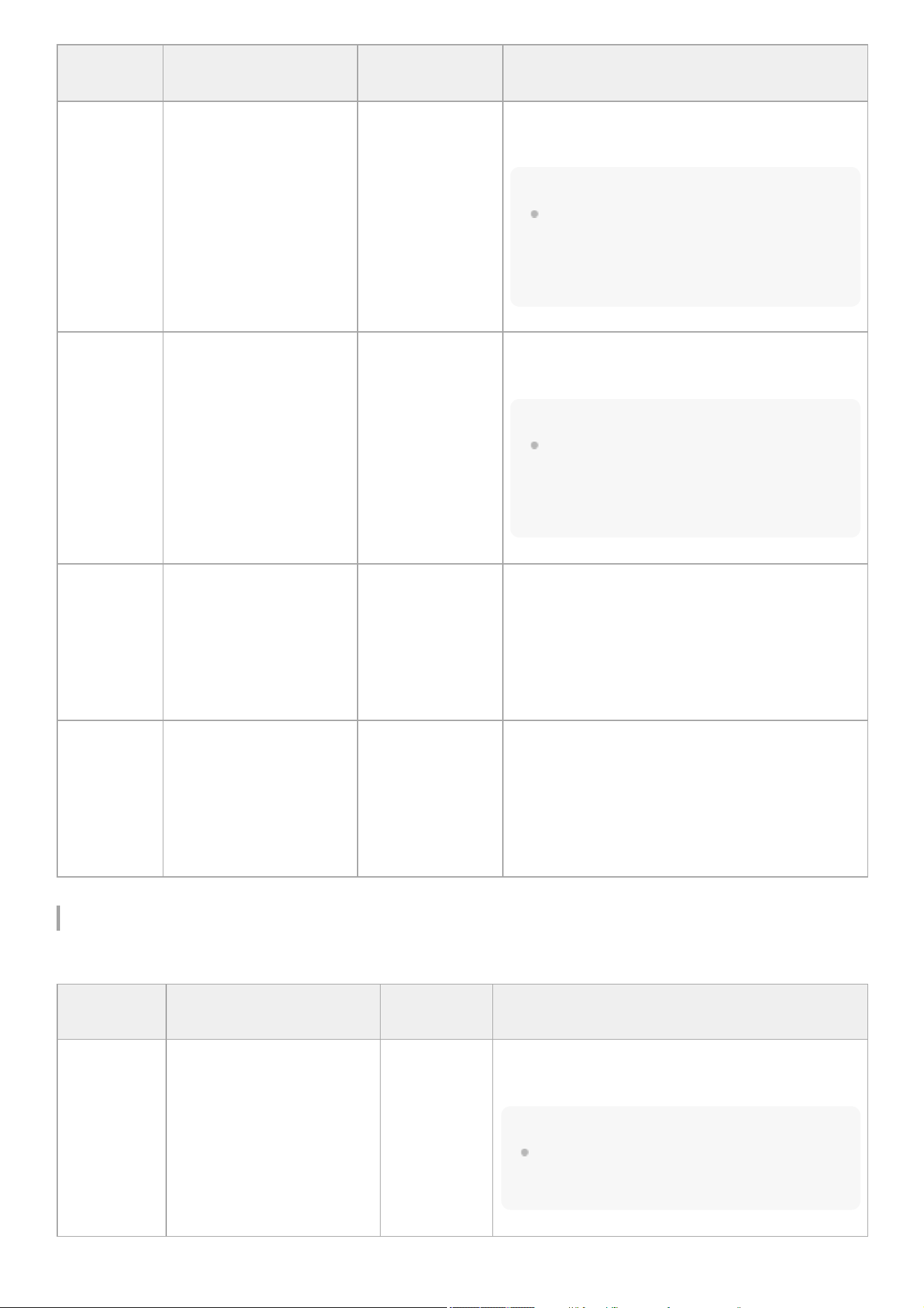
[Audio] – [Audio Output]
Sets audio output settings.
Menu item Sub-item setting
Factory default
value
Description
[CH1 Level]
Input without XLR adaptor:
[Audio Input Level
] /
[Side] / [Level+Side]
Input with XLR adaptor:
[Audio Input Level
] /
[Through]
Input without XLR
adaptor:
[Level+Side]
Input with XLR
adaptor: [Audio
Input Level]
Sets the combination of audio input level adjustments
enabled for CH1.
Note
[Side] refers to the AUDIO LEVEL (CH1) dial on the
side of the unit. When [Level+Side] is selected, the
audio recording level is determined by the
combination of the [Audio Input Level] and dial
settings.
[CH2 Level]
Input without XLR adaptor:
[Audio Input Level
] /
[Side] / [Level+Side]
Input with XLR adaptor:
[Audio Input Level
] /
[Through]
Input without XLR
adaptor:
[Level+Side]
Input with XLR
adaptor: [Audio
Input Level]
Sets the combination of audio input level adjustments
enabled for CH2.
Note
[Side] refers to the AUDIO LEVEL (CH2) dial on the
side of the unit. When [Level+Side] is selected, the
audio recording level is determined by the
combination of the [Audio Input Level] and dial
settings.
[CH3 Level]
Input without XLR adaptor:
[Audio Input Level
] / [CH3
Input Level
] / [Level+CH3
Input Level]
Input with XLR adaptor:
[Audio Input Level
] /
[Through]
Input without XLR
adaptor:
[Level+CH3 Input
Level]
Input with XLR
adaptor: [Audio
Input Level]
Sets the combination of audio input level adjustments
enabled for CH3.
[CH4 Level]
Input without XLR adaptor:
[Audio Input Level
] / [CH4
Input Level
] / [Level+CH4
Input Level]
Input with XLR adaptor:
[Audio Input Level
] /
[Through]
Input without XLR
adaptor:
[Level+CH4 Input
Level]
Input with XLR
adaptor: [Audio
Input Level]
Sets the combination of audio input level adjustments
enabled for CH4.
Menu item Sub-item setting
Factory
default value
Description
[Monitor CH]
[CH1/CH2
] / [CH3/CH4] / [MIX
ALL] / [CH1] / [CH2] / [CH3] /
[CH4]
[CH1/CH2]
Selects the audio channel output to the headphone
jack and built-in speaker.
Note
If audio for multiple channels is set for simultaneous
output, the output level for each channel is reduced for
output to prevent clipping.
226

TP1001670400
5-060-574-11(2) Copyright 2024 Sony Corporation
Menu item Sub-item setting
Factory
default value
Description
[Headphone
Out]
[Mono
] / [Stereo] [Stereo]
Selects whether the headphone jack output is
monaural or stereo.
[Alarm Level] 0 to 7 4 Adjusts the volume of the alarm.
[HDMI Output
CH]
[CH1/CH2
] / [CH3/CH4] [CH1/CH2]
Sets the combination of audio channels on the HDMI
output.
227
Help Guide
Solid-State Memory Camcorder
PXW-Z200/HXR-NX800
[Thumbnail] Menu
The following tables describe the function and settings of each menu item.
[Thumbnail]
[Thumbnail] – [Set Clip Flag]
Sets clip flag settings.
[Thumbnail] – [Lock/Unlock Clip]
Sets clip protection settings.
[Thumbnail] – [Delete Clip]
Deletes clips.
[Thumbnail] – [Copy Clip]
Copies clips.
Menu item Description
[Display Clip Properties] Displays the clip properties screen.
Menu item Description
[Add OK] Adds an [OK] flag.
[Add NG] Adds an [NG] flag.
[Add KEEP] Adds a [KEEP] flag.
[Delete Clip Flag] Deletes all flags.
Menu item Description
[Select Clip] Selects and locks/unlocks a clip.
[Lock All Clips] Locks all clips.
[Unlock All Clips] Unlocks all clips.
Menu item Description
[Select Clip] Deletes a clip.
[All Clips] Deletes all clips.
228
[Thumbnail] – [Transfer Clip]
Transfers clips.
Note
[Transfer Clip] cannot be configured when a password is not configured using [Network] – [Network Setup] – [Edit Authentication] –
[Input Password].
[Thumbnail] – [Transfer Clip (Proxy)]
Transfers proxy clips.
Note
[Transfer Clip (Proxy)] cannot be configured when a password is not configured using [Network] – [Network Setup] – [Edit
Authentication] – [Input Password].
[Thumbnail] – [Filter Clips]
Sets settings of clips to display.
Menu item Description
[Select Clip] Copies a clip.
[All Clips] Copies all clips.
Menu item Description
[Select Clip] Transfers selected clips.
[All Clips]
Transfers all clips.
Note
Up to 200 clips can be transferred.
Menu item Description
[Select Clip] Transfers proxy clips corresponding to the selected clips.
[All Clips]
Transfers proxy clips corresponding to all the clips.
Note
Up to 200 clips can be transferred.
Menu item Description
[OK] Displays only clips that have an [OK] flag.
[NG] Displays only clips that have an [NG] flag.
[KEEP] Displays only clips that have a [KEEP] flag.
229
[Thumbnail] – [Customize View]
Switches the thumbnail screen view.
TP1001670401
5-060-574-11(2) Copyright 2024 Sony Corporation
Menu item Description
[None] Displays only clips that have no flag.
[All] Displays all clips, regardless of whether there are any flags.
Menu item Sub-item setting
Factory default
value
Description
[Thumbnail
Caption]
[Date Time
] / [Time Code] / [Duration] /
[Sequential Number]
[Time Code]
Switches the information displayed
below thumbnails.
230
Help Guide
Solid-State Memory Camcorder
PXW-Z200/HXR-NX800
[Technical] Menu
The following tables describe the function and settings of each menu item.
[Technical] – [Color Bars]
Sets color bar settings.
[Technical] – [ND Dial]
Sets settings related to ND VARIABLE dial operations.
[Technical] – [Tally]
Sets recording/tally lamp settings.
[Technical] – [Touch Operation]
Sets settings related to touch operation.
[Technical] – [Rec Review]
Sets recording review settings.
Menu item Sub-item setting Factory default value Description
[Setting] [On
] / [Off] [Off] Turns color bars on/off.
[Type]
ARIB / 100% / 75% / SMPTE ARIB Selects the color bar type.
Menu item
Sub-item
setting
Factory default
value
Description
[CLEAR with
Dial]
[On
] / [Off] [On]
Sets whether to enable ND filter status switching ([Clear] ⇔ [On]) by
ND VARIABLE dial operation.
Menu item Sub-item setting Factory default value Description
[Front Tally Lamp] [On
] / [Off] [On] Turns the recording/tally lamp (front) on/off.
[Rear Tally Lamp] [On
] / [Off] [On] Turns the recording/tally lamp (rear) on/off.
Menu item Sub-item setting Factory default value Description
[Setting] [On
] / [Off] [On] Turns touch operation on/off.
231
[Technical] – [Zoom]
Sets the zoom settings.
[Technical] – [Handle Zoom]
Sets handle zoom settings.
[Technical] – [Speed Zoom]
Sets the high-speed zoom function settings.
[Technical] – [Menu Settings]
Sets settings related to the menu.
Menu
item
Sub-item
setting
Factory default
value
Description
[Setting]
[3s
] / [10s] /
[Clip]
[3s]
Selects the time for playback of clips just recorded for recording
review.
Menu
item
Sub-item setting
Factory default
value
Description
[Zoom
Type]
[Optical Zoom Only
] /
[On(Clear Image Zoom)]
[Optical Zoom
Only]
Sets the type of zoom.
[Optical Zoom Only]: Optical zoom is adjusted by
operation of the lens.
[On(Clear Image Zoom)]: Electronic zoom with little or no
deterioration in image quality..
Menu
item
Sub-item setting
Factory default
value
Description
[Setting]
[Off
] / [Low] / [High] /
[Variable]
[Variable] Sets the speed of the handle zoom.
[High] 1 to 8 8
Sets the zoom speed when the handle zoom lever is pressed
when [Setting] is set to [High].
[Low] 1 to 8 3
Sets the zoom speed when the handle zoom lever is pressed
when [Setting] is set to [Low].
Note
Uneven zooming may occur when the zoom speed is set to a
low value.
Menu item Sub-item setting Factory default value Description
[Setting] [On
] / [Off] [Off] Turns the high-speed zoom function on/off.
232
[Technical] – [Fan Control]
Sets fan control mode settings.
[Technical] – [Lens]
Sets settings related to lenses.
[Technical] – [Video Light Set]
Sets the video light lighting method. Available only when using the HVL-LBPC (option).
Menu item Sub-item setting
Factory
default
value
Description
[User
Menu
Only]
[On
] / [Off] [Off]
Sets whether to display the [User] menu
only or display the menu list when the
unit displays the menu.
[On]: Displays the [User] menu only.
[Off]: Displays the menu list.
[Menu
Page
On/Off]
[
Camera] / [ Project] / [ Monitoring] / [
Assignable Button] / [ Battery] / [
Media] / [ Network] / [ Stream] / [ File
Transfer]
– Turns the status screen display on/off.
[User
Menu with
Lock]
[On
] / [Off] [Off]
Sets whether to lock the menu display,
showing the [User] menu only.
Note
In normal menu display operation,
this item is not displayed.
Menu
item
Sub-item setting
Factory
default value
Description
[Setting]
[Auto
] / [Minimum] /
[Off in Rec]
[Auto]
Sets the control mode of the fan.
Note
Even when set to [Off in Rec], the fan will operate if the internal
temperature of the unit rises above a certain value.
Menu item
Sub-item
setting
Factory default
value
Description
[Distance Display] [Meter
] / [Feet] [Meter]
Sets the display units for lens information and focus
position.
[Zoom Position
Display]
[Number
] / [Bar] [Number] Sets the display format for the zoom position.
233
[Technical] – [Camera Battery Alarm]
Sets battery low-voltage alarm settings.
[Technical] – [Camera DC IN Alarm]
Sets input voltage alarm settings.
TP1001670402
5-060-574-11(2) Copyright 2024 Sony Corporation
Menu item Sub-item setting
Factory default
value
Description
[Video Light
Set]
[Power Link
] / [Rec Link] /
[Rec Link + Stby]
[Power Link]
Sets the lighting control method for the video light
attached to the multi-interface shoe.
[Power Link]: Turns the video light on/off when the unit is
turned on/off.
[Rec Link]: Turns the video light on/off when the unit
starts/stops recording.
[Rec Link + Stby]: Turns the video light on/standby when
the unit starts/stops recording.
Menu item Sub-item setting
Factory default
value
Description
[Low
Battery]
5% / 10% / 15% / --- /
45% / 50%
10%
Sets the remaining battery level to display a battery low-
voltage alarm (5% increments).
[Battery
Empty]
3% to 7% 3%
Sets the remaining battery level to display a battery empty
alarm.
Menu item
Sub-item
setting
Factory default
value
Description
[DC Low
Voltage1]
16.0V to 19.0V 16.5V Sets the voltage to display a DC IN low input voltage alarm.
[DC Low
Voltage2]
15.5V to 18.5V 15.5V
Sets the voltage to display a DC IN insufficient input voltage
alarm.
234
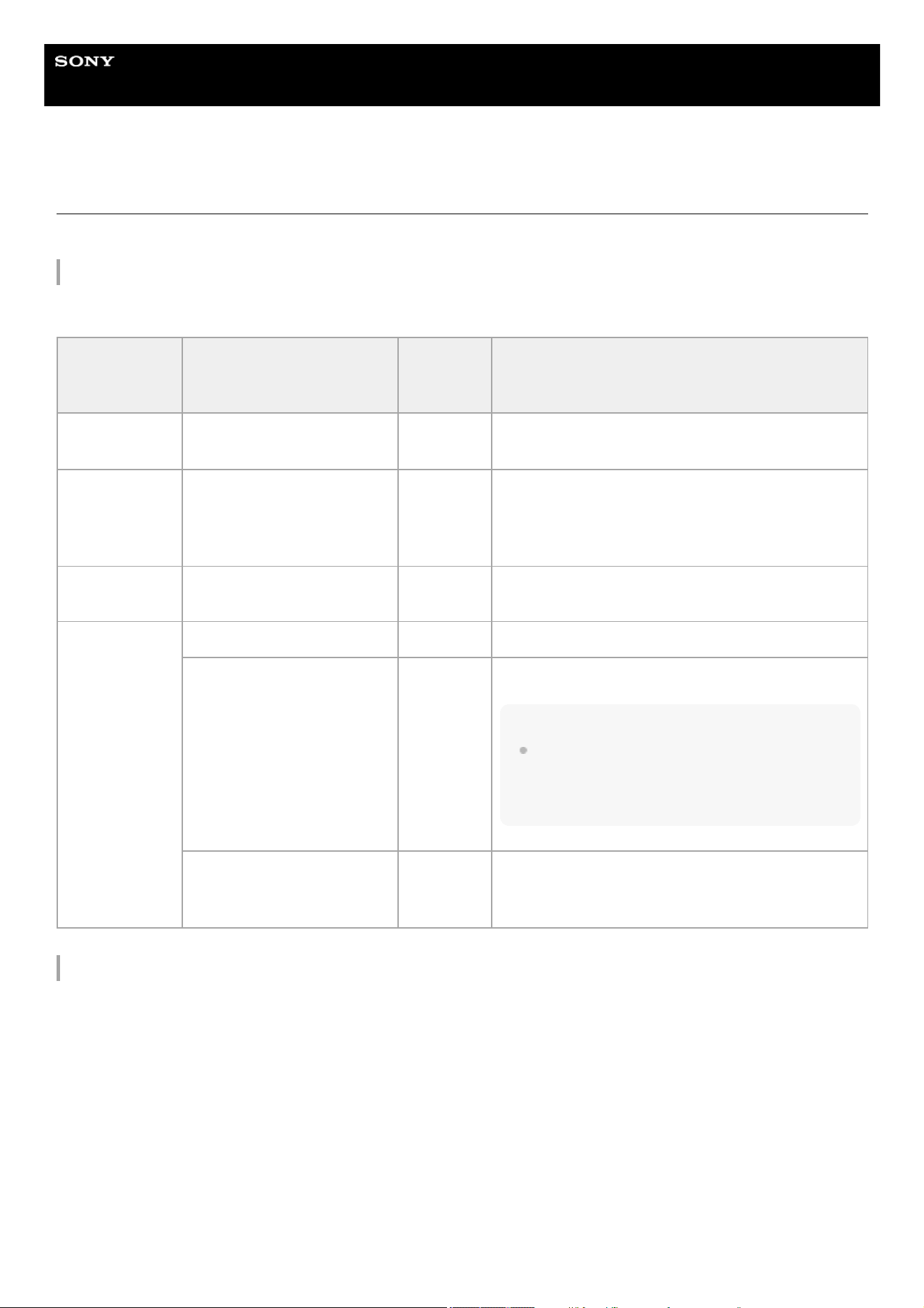
Help Guide
Solid-State Memory Camcorder
PXW-Z200/HXR-NX800
[Network] Menu
The following tables describe the function and settings of each menu item.
[Network] – [Network Setup]
Executes the network setup assist tool.
[Network] – [Wireless LAN]
Sets settings related to wireless LAN.
Menu item Sub-item setting
Factory
default
value
Description
[Setup for
Mobile App]
– – Starts the network setup assist tool.
[LAN Type
Select]
[Wireless LAN AP 2.4G
] /
[Wireless LAN AP 5G] /
[Wireless LAN ST] / [Wired
LAN
] / [Off]
[Off]
Sets the LAN connection method.
For models that do not support the 5 GHz band,
[Wireless LAN AP 2.4G] and [Wireless LAN AP 5G] are
replaced by [Wireless LAN AP].
[Show
Authentication]
– –
Displays the user name and password for access
authentication as text and QR code.
[Edit
Authentication]
[User Name] – Sets the user name for access authentication.
[Input Password] –
Sets the password for access authentication.
Note
From a security standpoint, it is recommended that
you set a password with a sufficiently long character
string that is hard to guess by others, and that you
store it safely.
[Generate Password] –
[Execute
] / [Cancel]
–
Automatically generates a password for access
authentication.
[Execute]: Execute function.
235

Menu item Sub-item setting
Factory
default
value
Description
[Setting]
[Access Point (2.4GHz)
] /
[Access Point (5GHz)] /
[Station Mode] / [Off]
[Off]
Selects the operation mode of the wireless LAN
connection.
For models that do not support the 5 GHz band,
[Access Point (2.4GHz)] and [Access Point (5GHz)] are
replaced by [Access Point Mode].
Note
The unit does not support simultaneous use of wireless
LAN and wired LAN.
[Channel] – –
Displays the wireless LAN channel.
(Access point mode only)
[Camera SSID &
Password]
– –
Displays the SSID and password of the unit.
(Access point mode only)
[Regenerate
Password]
– –
Regenerates the password for access point mode.
(Access point mode only)
[Camera
Remote Control]
– –
Displays whether remote control from a mobile device
connected to the unit by wireless LAN in station mode
is enabled.
(Station mode only)
[Connected
Network]
– –
Displays the connected wireless LAN network access
point.
(Station mode only)
[Scan Networks] – –
Detects the wireless LAN networks access points and
displays a list.
(Station mode only)
[WPS] [Execute
] / [Cancel] –
Establishes a connection using WPS (Wi-Fi Protected
Setup).
[Execute]: Execute function.
(Station mode only)
236
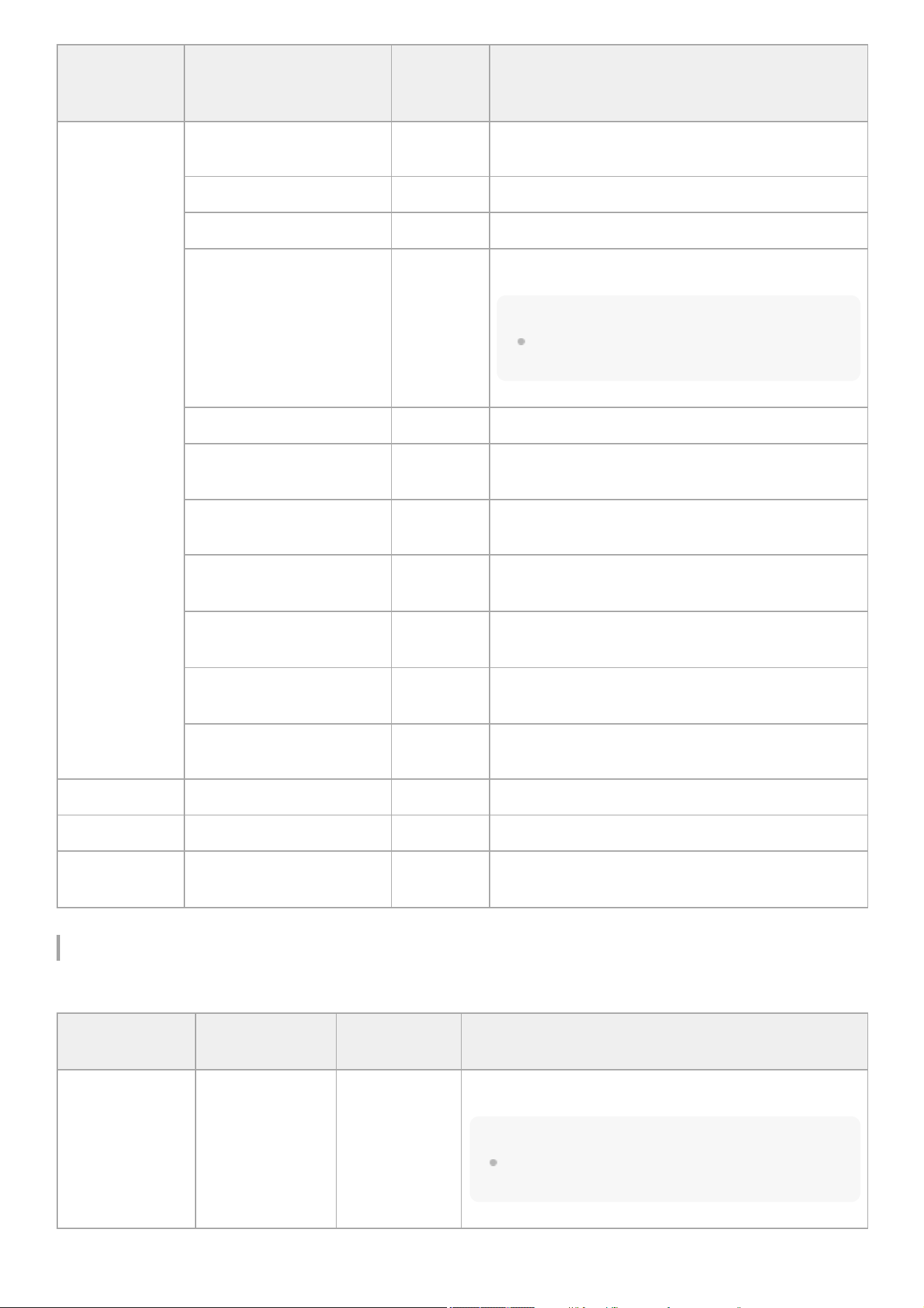
[Network] – [Wired LAN]
Sets settings related to wired LAN.
Menu item Sub-item setting
Factory
default
value
Description
[Manual
Register]
– –
Sets the wireless LAN network access point to connect.
(Station mode only)
[SSID] – Sets the SSID for the access point to connect.
[Security] – Set the type of security for the access point to connect.
[Password] –
Sets the password for the access point to connect.
Hint
When security is set to [WPA/WPA2]: *******. When
security is set to [None]: (blank)
[DHCP] – Turns DHCP on/off.
[IP Address] –
Sets the IP address of the unit when [DHCP] is set to
[Off].
[Subnet Mask] –
Sets the subnet mask of the unit when [DHCP] is set to
[Off].
[Gateway] –
Sets the default gateway of the unit when [DHCP] is set
to [Off].
[DNS Auto] –
Enables/disables DNS auto acquisition when [DHCP] is
set to [On].
[Primary DNS Server] –
Sets the primary DNS server of the unit when [DNS
Auto] is set to [Off].
[Secondary DNS Server] –
Sets the secondary DNS server of the unit when [DNS
Auto] is set to [Off].
[IP Address] – – Displays the IP address of the unit.
[Subnet Mask] – – Displays the subnet mask of the unit.
[MAC Address] – –
Displays the MAC address of the wireless LAN
interface of the unit.
Menu item Sub-item setting
Factory default
value
Description
[Setting] [On
] / [Off] [Off]
Turns wired LAN on/off.
Note
The unit does not support simultaneous use of wireless
LAN and wired LAN.
237
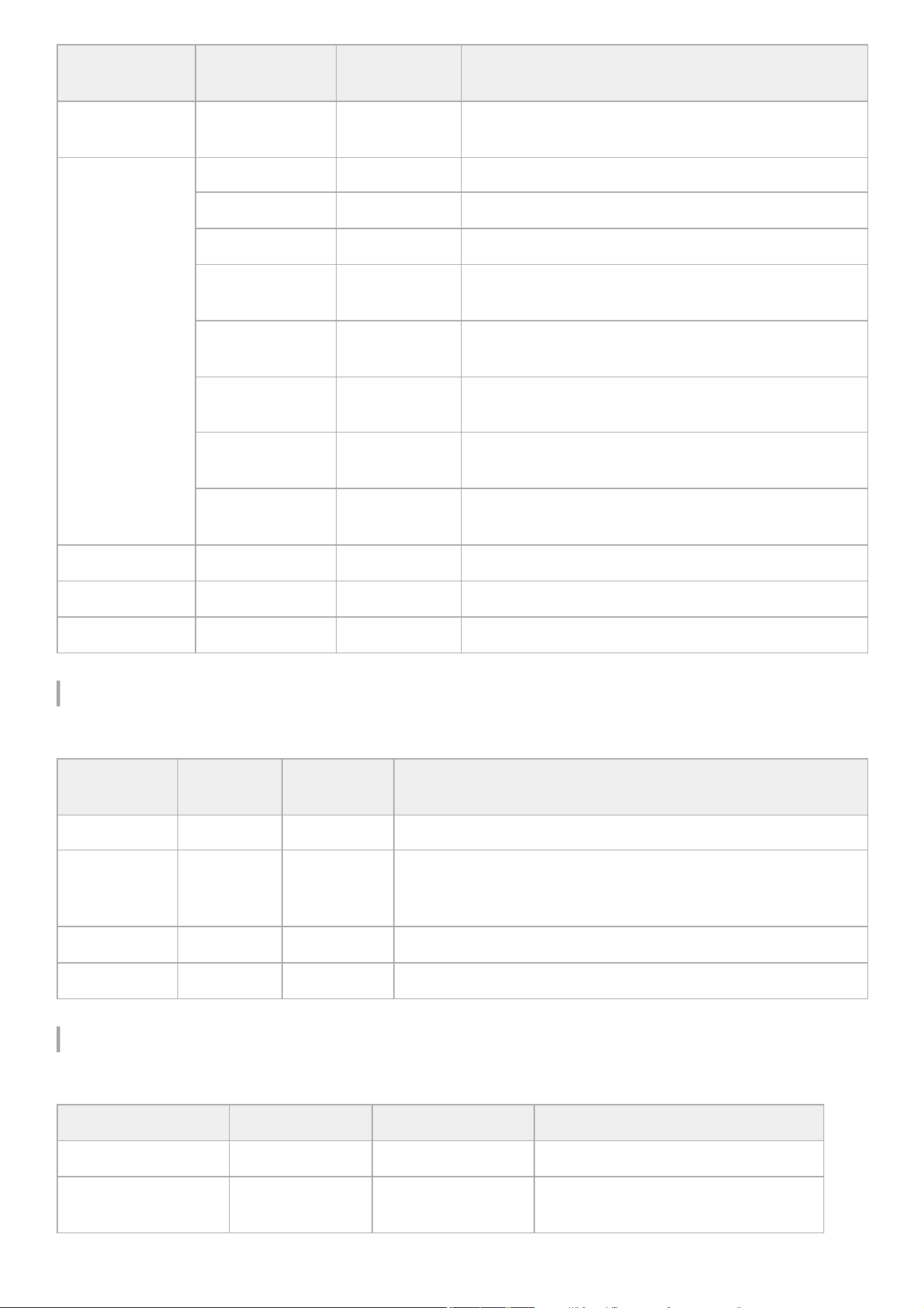
[Network] – [USB Tethering]
Sets settings related to USB tethering.
[Network] – [Bluetooth]
Sets settings related to Bluetooth.
Menu item Sub-item setting
Factory default
value
Description
[Camera Remote
Control]
[Enable
] / [Disable] [Disable]
Sets whether to enable remote control from a device
connected to the unit by wired LAN.
[Detail Settings]
– – Configures properties of the wired LAN.
[DHCP] – Turns DHCP on/off.
[IP Address] – Sets the IP address of the unit when [DHCP] is set to [Off].
[Subnet Mask] –
Sets the subnet mask of the unit when [DHCP] is set to
[Off].
[Gateway] –
Sets the default gateway of the unit when [DHCP] is set to
[Off].
[DNS Auto] –
Enables/disables DNS auto acquisition when [DHCP] is set
to [On].
[Primary DNS
Server]
–
Sets the primary DNS server of the unit when [DNS Auto] is
set to [Off].
[Secondary DNS
Server]
–
Sets the secondary DNS server of the unit when [DNS Auto]
is set to [Off].
[IP Address] – – Displays the IP address of the unit.
[Subnet Mask] – – Displays the subnet mask of the unit.
[MAC Address] – – Displays the MAC address of the unit.
Menu item
Sub-item
setting
Factory
default value
Description
[Setting] [On
] / [Off] [Off] Enables/disables the USB tethering function of the unit.
[Camera
Remote
Control]
[Enable
] /
[Disable]
[Disable]
Enables/disables remote control via USB tethering from “Monitor&
Control,” “Creators' App for enterprise,” or other mobile device
application.
[IP Address] – – Displays the IP address of the unit.
[Subnet Mask] – – Displays the subnet mask of the unit.
Menu item Sub-item setting Factory default value Description
[Setting] [On
] / [Off] [Off] Turns the Bluetooth function on/off.
[Pairing] [Execute
] / [Cancel] –
Pairs the unit with a Bluetooth device.
[Execute]: Execute function.
238
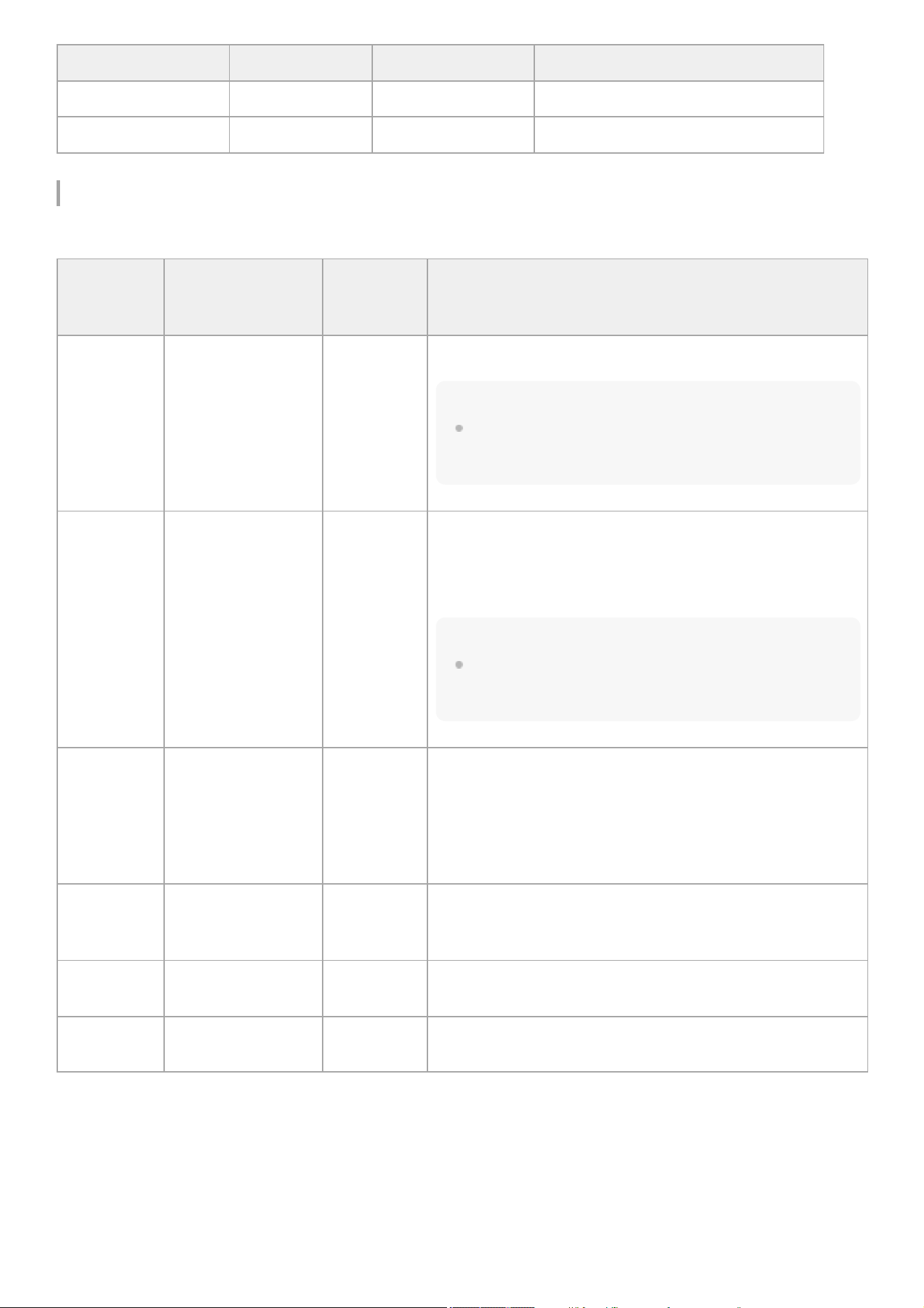
[Network] – [File Transfer]
Sets settings related to file transfers.
Menu item Sub-item setting Factory default value Description
[Manage Paired Device] – – Displays/deletes paired Bluetooth device.
[Device Address] – – Displays the Bluetooth address of the unit.
Menu item Sub-item setting
Factory
default
value
Description
[Auto Upload] [On
] / [Off] [Off]
Turns auto transfer of original clips on/off.
Note
When [Project] – [Simul Rec] – [Setting] is set to [On], clips
recorded on the memory card in card slot B are not automatically
uploaded.
[Auto Upload
(Proxy)]
[On
] / [Off] / [Chunk] [Off]
[On]: Enables auto transfer of proxy clips.
[Off]: Disables auto transfer of proxy clips.
[Chunk]: Automatically transfers proxy clips recorded in chunks
without waiting for recording to end.
Note
When [Project] – [Simul Rec] – [Setting] is set to [On], clips
recorded on the memory card in card slot B are not automatically
uploaded. Also, [Chunk] is grayed out and cannot be selected.
[Default
Upload
Server]
– –
Selects the file transfer destination server. The server selected
here becomes the auto transfer destination for original clips and
proxy clips, and the transfer destination for clips from the
thumbnail screen.
Displays the [Display Name] setting configured in [Server
Settings1] to [Server Settings3].
[Clear
Completed
Jobs]
[Execute
] / [Cancel] –
Clears completed transfer jobs from the job list.
[Execute]: Execute function.
[Clear All
Jobs]
[Execute
] / [Cancel] –
Clears all transfer jobs from the job list.
[Execute]: Execute function.
[View Job
List]
– – Displays the transfer job list.
239
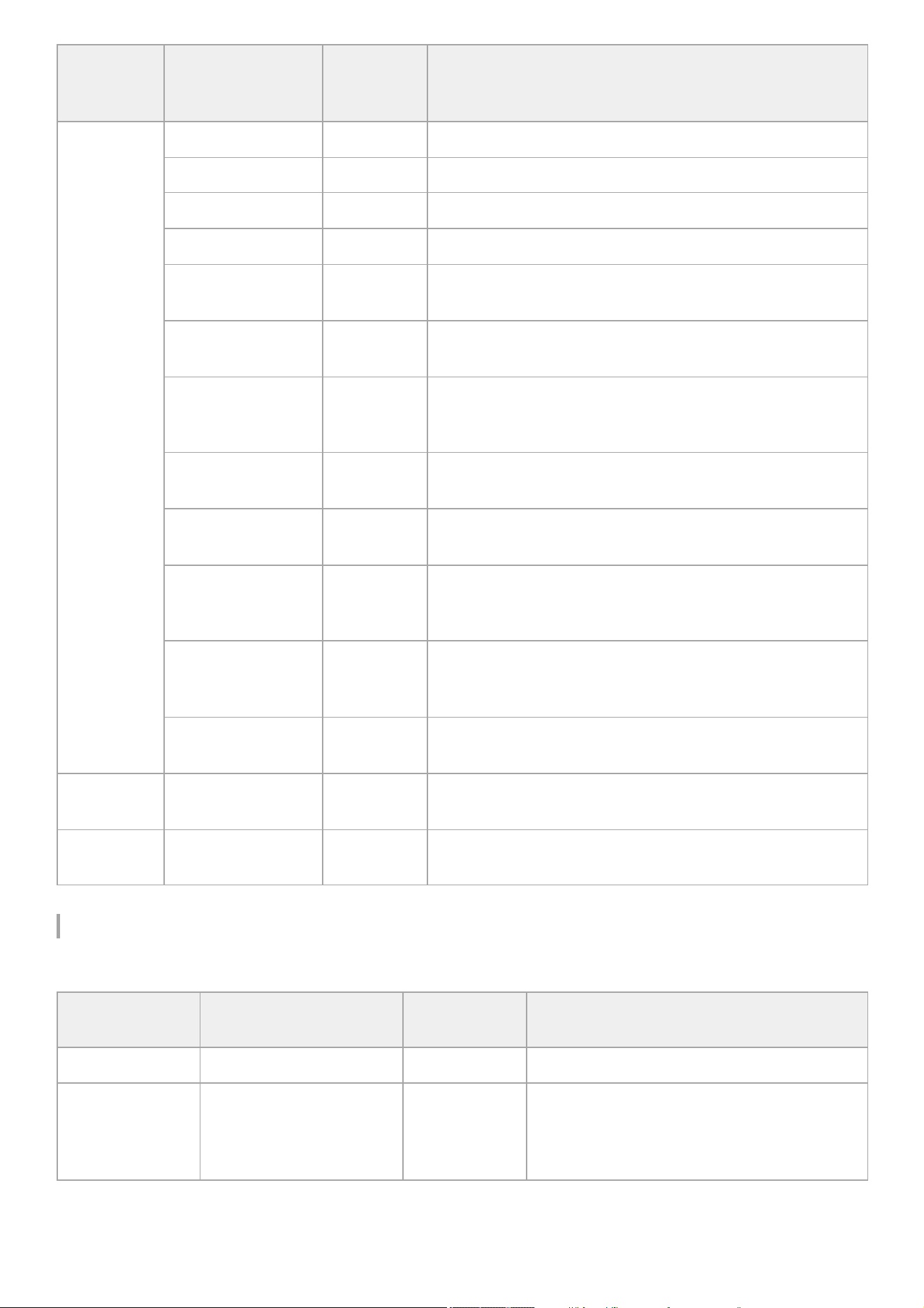
[Network] – [Stream]
Sets settings related to streaming.
Menu item Sub-item setting
Factory
default
value
Description
[Server
Settings1]
[Display Name] – Sets the display name shown in the transfer destination settings.
[Service] – [FTP] [FTP] Displays the type of server.
[Host Name] – Sets the host name of the transfer destination server.
[Port] (1 to 65535) 21 Sets the port number of the transfer destination server.
[User Name] –
Sets the user name for authentication of the transfer destination
server connection.
[Password] –
Sets the authentication password of the transfer destination
server connection.
[Passive Mode] –
[On
] / [Off (Active
Mode)]
[Off (Active
Mode)]
Turns passive mode on/off.
[Destination
Directory]
– Sets the name of the transfer destination directory.
[Using Secure
Protocol] – [On
] / [Off]
[Off]
Sets whether to use secure FTP transfer (FTPES) ([On]) or not
([Off]).
[Root Certificate] –
[Load
] / [Clear] /
[None]
[None]
Loads a root certificate for secure FTP transfer and clears
settings.
[Root Certificate
Status] – [Loaded
] /
[No Certificate]
[No
Certificate]
Displays the root certificate load status for secure FTP transfer.
[Reset] – [Execute
] /
[Cancel]
–
Resets the [Server Settings1] settings to the default values.
[Execute]: Execute function.
[Server
Settings2]
Same as [Server
Settings1]
– –
[Server
Settings3]
Same as [Server
Settings1]
– –
Menu item Sub-item setting
Factory default
value
Description
[Setting] [On
] / [Off] [Off] Turns streaming on/off.
[Destination Select] – –
Selects the streaming connection destination.
Displays the [Display Name] setting configured in
[RTMP/RTMPS 1] to [RTMP/RTMPS 3] and [SRT-
Caller 1] to [SRT-Caller 3].
240
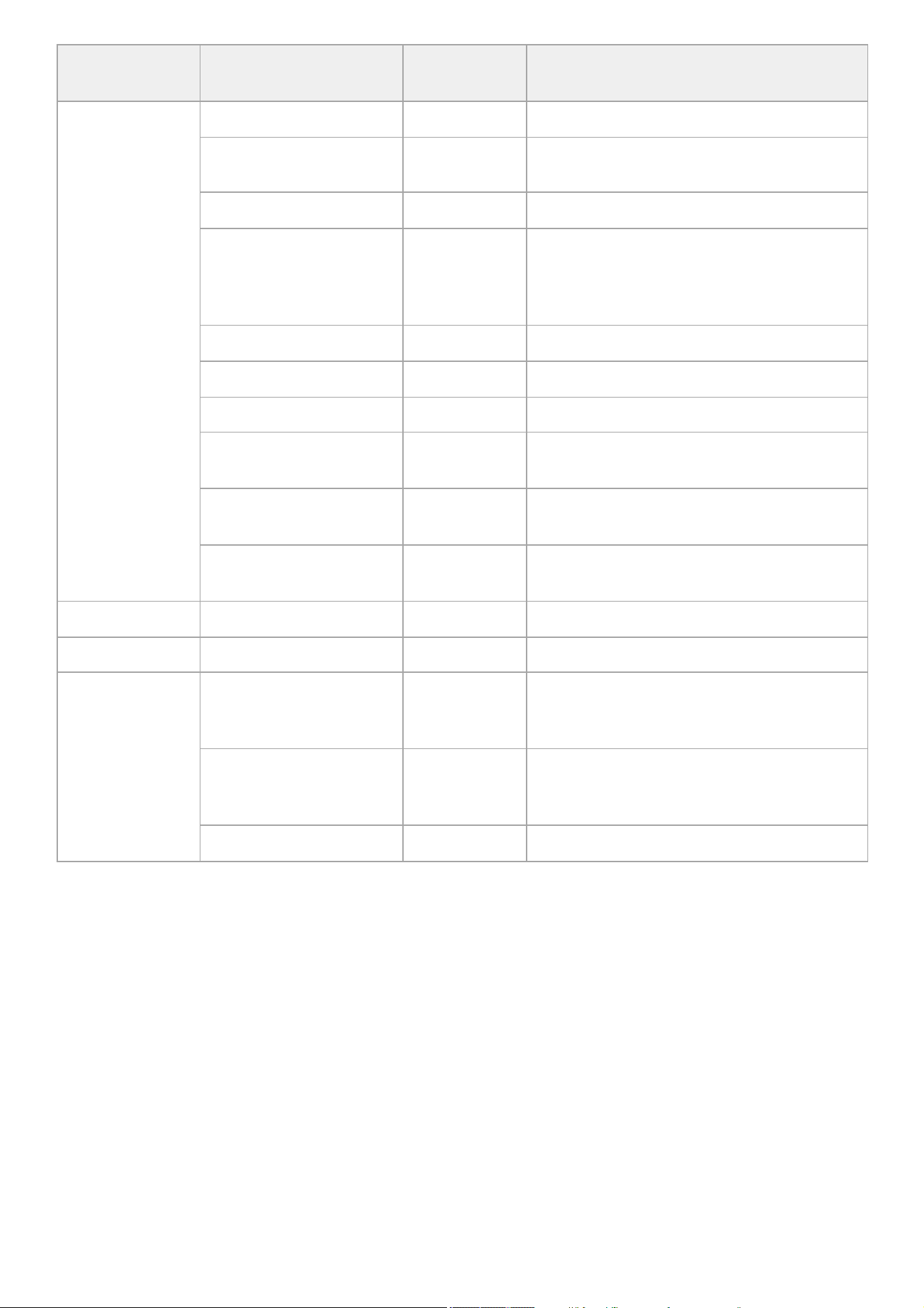
Menu item Sub-item setting
Factory default
value
Description
[RTMP/RTMPS 1]
– – Sets a RTMP/RTMPS streaming connection.
[Display Name] –
Sets the display name shown in [Destination
Select].
[Codec] [H.264/AVC] Displays the codec of the streaming video.
[Resolution] –
[3840×2160P
] /
[1920×1080P] /
[1280×720P]
[1920×1080P] Sets the resolution of the streaming video.
[Bit Rate] [9Mbps] Sets the bit rate of the streaming video.
[Destination URL] – Sets the URL of the server to connect.
[Stream Key] – Sets the stream key used for streaming.
[RTMPS Certificate] –
[Load
] / [Clear] / [None]
[None] Loads/clears a default certificate.
[RTMPS Certificate Status] –
[Loaded
] / [Default]
[Default]
Displays the certificate load status for RTMPS
connection.
[Reset] – [Execute
] /
[Cancel]
–
Returns the settings to the default values.
[Execute]: Execute function.
[RTMP/RTMPS 2] Same as [RTMP/RTMPS 1] – –
[RTMP/RTMPS 3] Same as [RTMP/RTMPS 1] – –
[RTMPS Default
Certificates]
[Replace] – [Execute
] /
[Cancel]
–
Loads default certificates from a memory card
inserted in card slot B.
[Execute]: Execute function.
[Reset] – [Execute
] /
[Cancel]
–
Initializes the settings of the default certificate
group.
[Execute]: Execute function.
[Status] [Preinstall] Displays the status of the default certificate group.
241
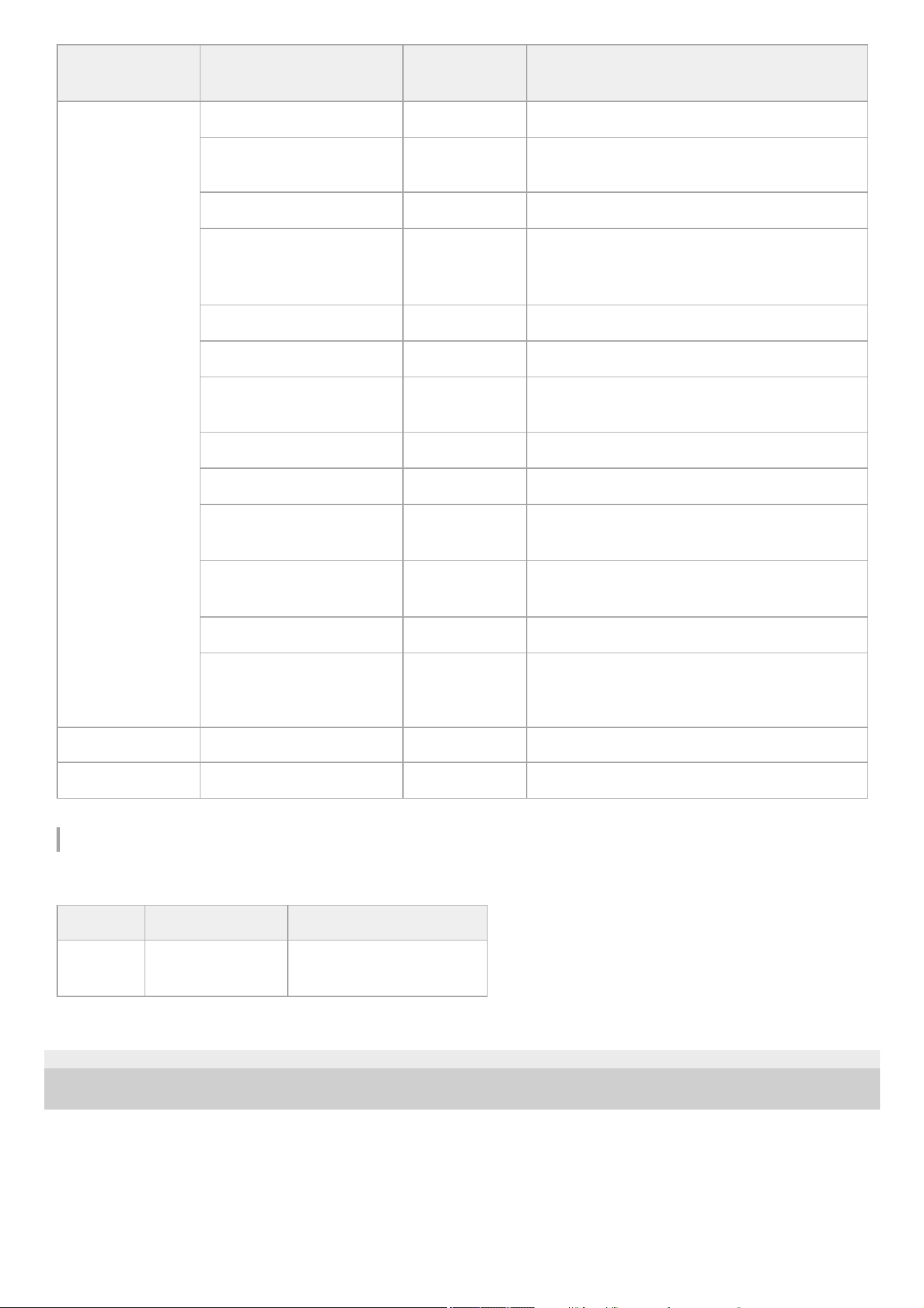
[Network] – [Network Reset]
Resets the network settings.
TP1001670403
5-060-574-11(2) Copyright 2024 Sony Corporation
Menu item Sub-item setting
Factory default
value
Description
[SRT-Caller 1]
– – Sets an SRT streaming connection.
[Display Name] –
Sets the display name shown in [Destination
Select].
[Codec] [H.264/AVC] Displays the codec of the streaming video.
[Resolution] –
[1920×1080P
] /
[1280×720P]
[1920×1080P] Sets the resolution of the streaming video.
[Bit Rate] [9Mbps] Sets the bit rate for streaming.
[Destination URL] – Sets the URL of the server to connect.
[Port] (1 to 65535) 7001
Sets the port of the streaming transmit
destination.
[Latency] (20ms to 8000ms) [120 ms] Sets the streaming distribution latency.
[TTL] (1 to 255) [64 times] Sets the time-to-live (TTL) value for streaming.
[Encryption] – [None
] /
[AES-128] / [AES-256]
[None] Sets the encryption method for streaming.
[Passphrase] –
Sets the passphrase used for encryption for
streaming.
[ARC] – [On
] / [Off] [On] Enables/disables ARC when streaming.
[Reset] – [Execute
] /
[Cancel]
–
Returns the settings to the default values.
[Execute]: Execute function.
[SRT-Caller 2] Same as [SRT-Caller 1] – –
[SRT-Caller 3] Same as [SRT-Caller 1] – –
Menu item Sub-item setting Description
[Reset] [Execute
] / [Cancel]
Resets the network settings.
[Execute]: Execute function.
242
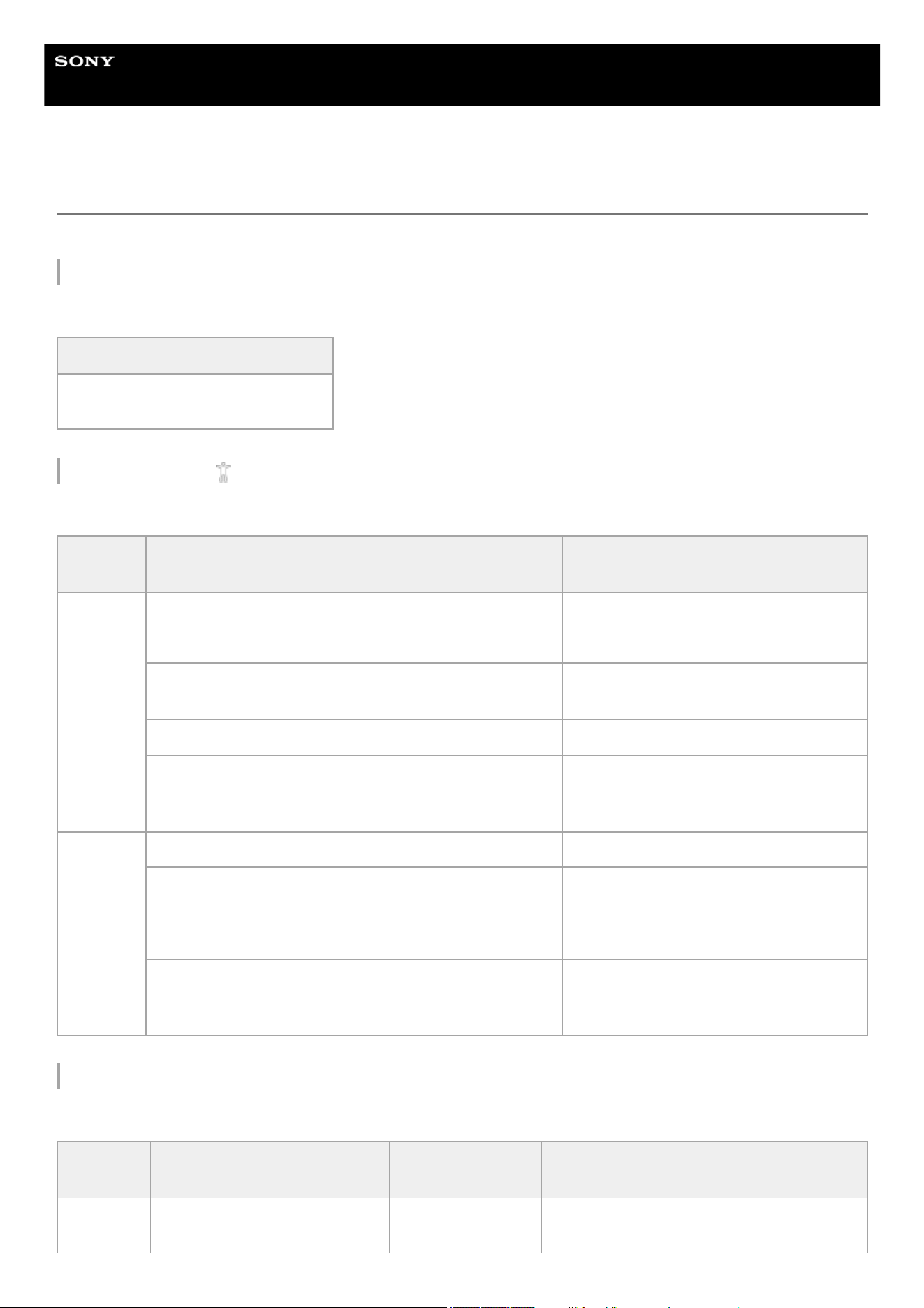
Help Guide
Solid-State Memory Camcorder
PXW-Z200/HXR-NX800
[Maintenance] Menu
The following tables describe the function and settings of each menu item.
[Maintenance] – [Language]
Sets the display language.
[Maintenance] – [
Accessibility]
Sets settings related to the screen reader function and screen magnifier function.
[Maintenance] – [Clock Set]
Sets internal clock settings.
Menu item Description
[Select]
Sets the display language.
[Set]: Apply setting.
Menu item Sub-item setting
Factory default
value
Description
[Screen
Reader]
– – Sets screen reader settings.
[Setting] – [On
] / [Off] [Off] Turns the screen reader on/off.
[Speed] – [Fast 4
] / [Fast 3] / [Fast 2] /
[Fast 1] / [Standard] / [Slow 1] / [Slow 2]
[Standard] Sets the screen reader speed.
[Volume] (1 to 15) 7 Sets the screen reader volume.
[Read Out when Power On] – [Enable
] /
[Disable]
[Enable]
Sets whether the screen reader is turned on
if you press and hold the MENU button and
turn the unit on.
[Enlarge
Screen]
– – Sets screen magnifier settings.
[Setting] – [Enable
] / [Disable] [Disable] Turns the screen magnifier on/off.
[Magnification
] – x1.5 / x2.0 / x2.5 / x3.0 –
Sets the screen magnifier magnification
factor.
[Enlarge Screen Button] – [Assignable
Button <1>] to [Assignable Button <11>
] /
[<PUSH AUTO>]
[Assignable
Button <11>]
Sets the button for the screen magnifier.
Menu item Sub-item setting
Factory default
value
Description
[Time
Zone]
[UTC −12:00] to [UTC +14:00] –
Sets the time difference from UTC in 30-minute
units.
243
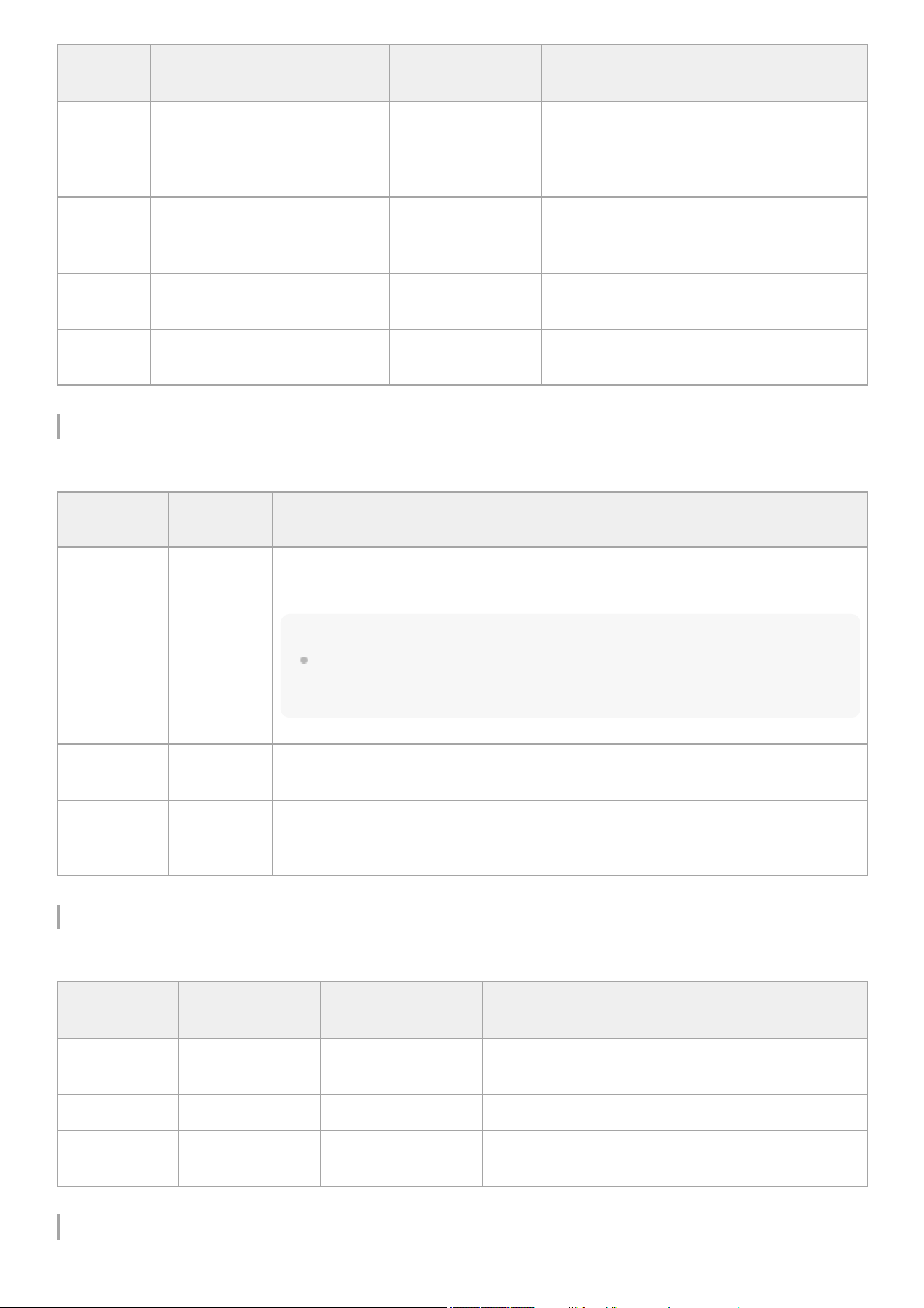
[Maintenance] – [All Reset]
Resets settings to factory default values.
[Maintenance] – [Hours Meter]
Displays the accumulated running time.
[Maintenance] – [Device Information]
Menu item Sub-item setting
Factory default
value
Description
[Date
Mode]
[YYMMDD
] / [MMDDYY] /
[DDMMYY]
[YYMMDD]
Selects the display format for dates.
[YYMMDD]: Year, month, day
[MMDDYY]: Month, day, year
[DDMMYY]: Day, month, year
[12h/24h] [12h
] / [24h] [24h]
Selects the clock display format.
[12h]: 12-hour mode
[24h]: 24-hour mode
[Date] – –
Sets the current date.
[Set]: Apply setting.
[Time] – –
Sets the current time.
[Set]: Apply setting.
Menu item
Sub-item
setting
Description
[Reset]
[Execute
] /
[Cancel]
Resets settings to factory default values.
[Execute]: Execute function.
Note
3D LUT files imported using [Paint/Look] – [Base Look] – [Import from Media(B)]/[Import from
Cloud(Private)]/[Import from Cloud(Share)] are not deleted. To delete all imported 3D LUT
files, execute [Paint/Look] – [Base Look] – [Delete All].
[Reset without
Network]
[Execute
] /
[Cancel]
Resets the menu settings, excluding [Network] menu settings, to the factory default state.
[Reset to
Factory
Defaults]
[Execute
] /
[Cancel]
Deletes all settings, scene files, and user base look values, and resets them to the
factory default state.
Menu item Sub-item setting
Factory default
value
Description
[Hours(System)] – –
Displays the accumulated hours of use (cannot be
reset).
[Hours(Reset)] – – Displays the accumulated hours of use (can be reset).
[Reset]
[Execute
] /
[Cancel]
–
Resets [Hours(Reset)] to 0.
[Execute]: Execute function.
244
Displays a certification mark.
[Maintenance] – [Version]
Displays version information.
TP1001670404
5-060-574-11(2) Copyright 2024 Sony Corporation
Menu item Description
[Certification Logo] Displays a certification mark.
Menu item Sub-item setting Factory default value Description
[Version Number] Vx.xx – Displays the software version of the unit.
[Version Up] [Execute
] / [Cancel] –
Updates the software of the unit.
245
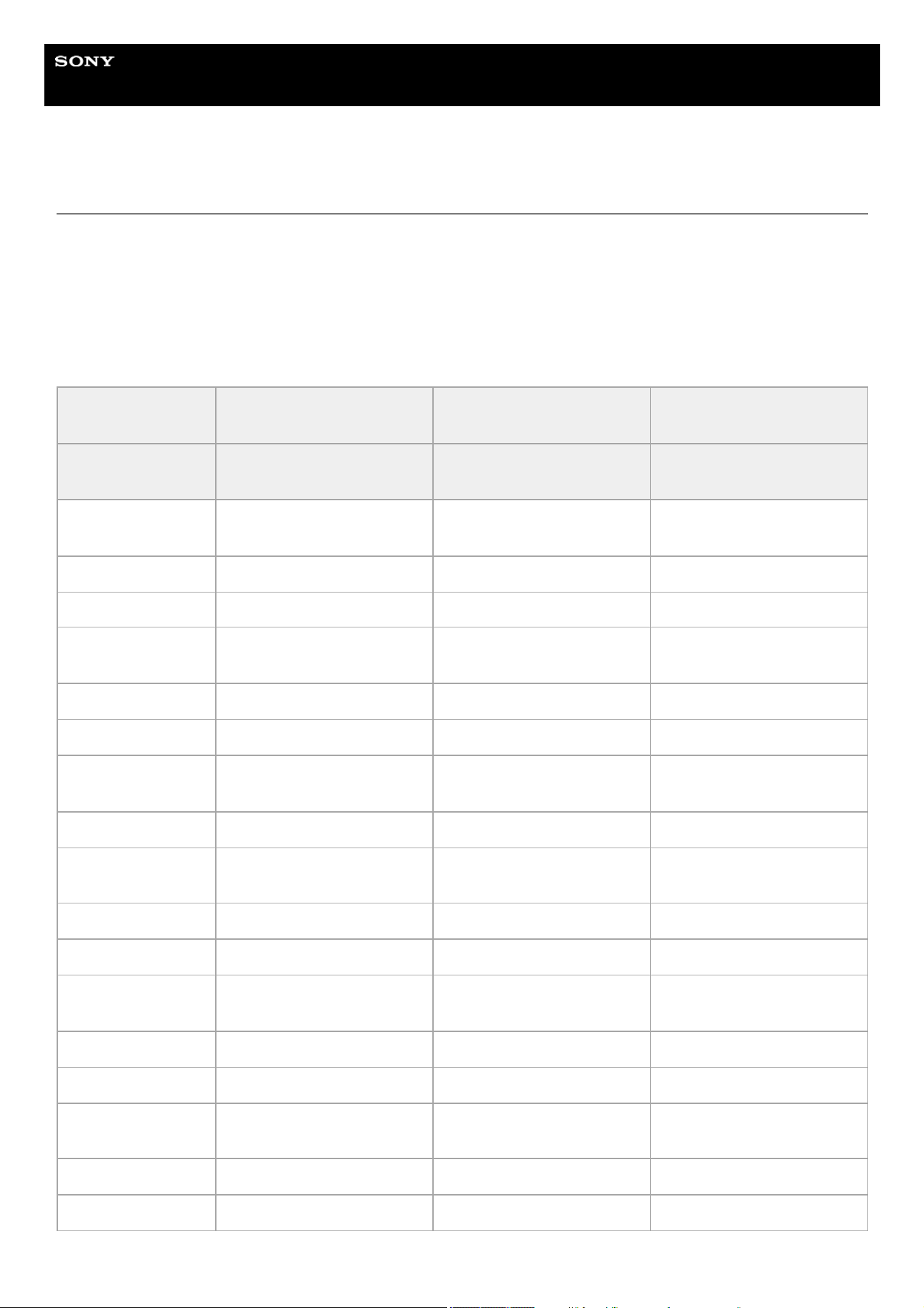
Help Guide
Solid-State Memory Camcorder
PXW-Z200/HXR-NX800
[ISO/Gain] Settings and Default Values
The range of [ISO/Gain] settings and default values vary depending on the [Mode]/[Target Display]/[Base Look] – [Select]
settings.
When [Mode] is set to [ISO]
Custom shooting mode
✓: Supported
×: Not supported
[Target Display] [SDR(BT.709)] [HDR(HLG)]
[SDR(BT.709)] and
[HDR(HLG)]
[Base Look] –
[Select]
Preset base look Preset base look User base look
ISO 250
✓ ([ISO/Gain<L>] default
value)
× ×
ISO 320 ✓ × ×
ISO 400 ✓ × ×
ISO 500
✓ ([ISO/Gain<M>] default
value)
× ×
ISO 640 ✓ × ×
ISO 800 ✓ × ×
ISO 1000
✓ ([ISO/Gain<H>] default
value)
× ×
ISO 1250 ✓ × ×
ISO 1600 ✓
✓ ([ISO/Gain<L>] default
value)
✓ ([ISO/Gain<L>] default
value)
ISO 2000 ✓ ✓ ✓
ISO 2500 ✓ ✓ ✓
ISO 3200 ✓
✓ ([ISO/Gain<M>] default
value)
✓ ([ISO/Gain<M>] default
value)
ISO 4000 ✓ ✓ ✓
ISO 5000 ✓ ✓ ✓
ISO 6400 ✓
✓ ([ISO/Gain<H>] default
value)
✓ ([ISO/Gain<H>] default
value)
ISO 8000 ✓ ✓ ✓
ISO 10000 ✓ ✓ ✓
246
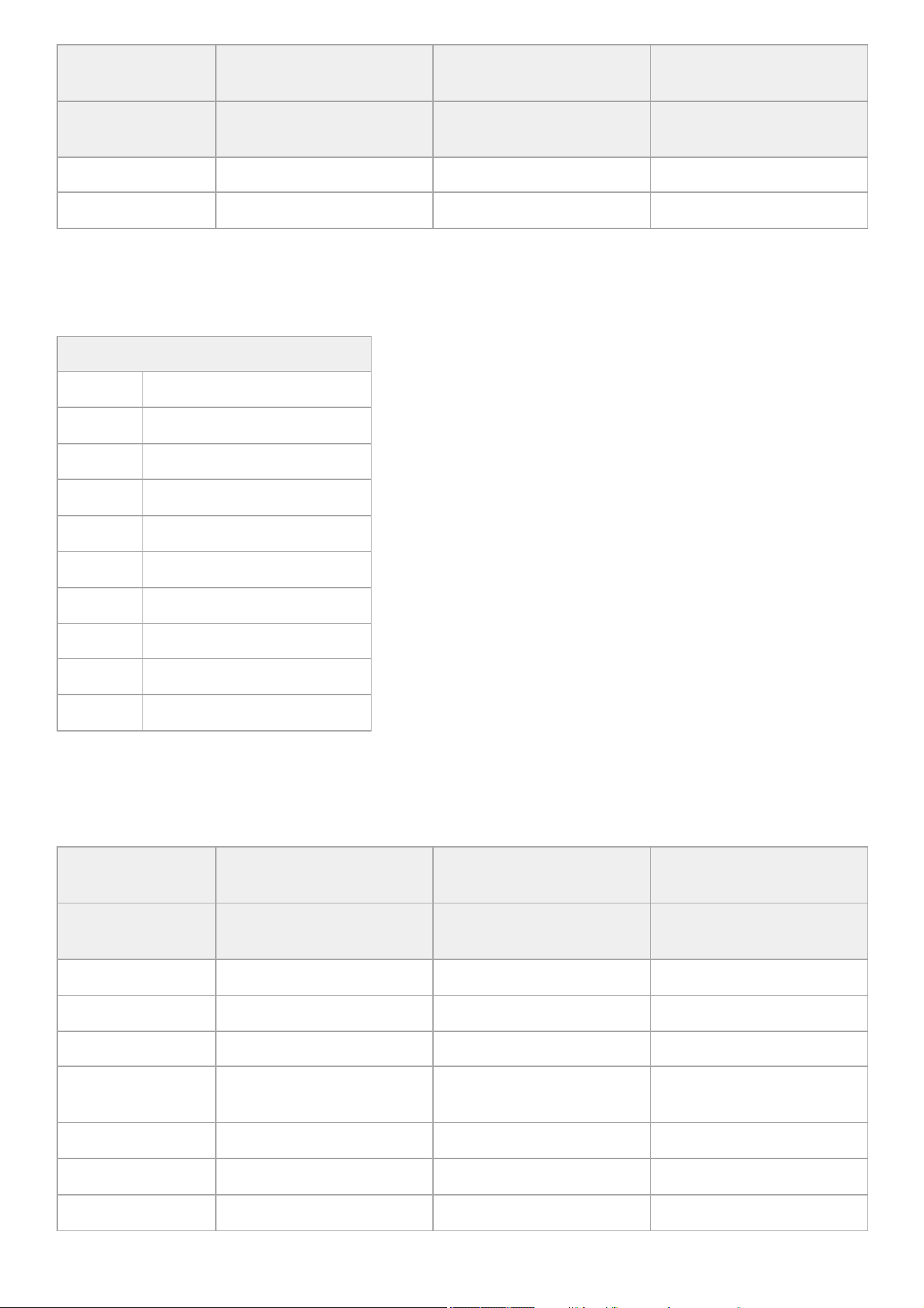
Log shooting mode
✓: Supported
×: Not supported
When [Mode] is set to [dB]
✓: Supported
×: Not supported
[Target Display] [SDR(BT.709)] [HDR(HLG)]
[SDR(BT.709)] and
[HDR(HLG)]
[Base Look] –
[Select]
Preset base look Preset base look User base look
ISO 12800 ✓ ✓ ✓
ISO 16000 ✓ × ×
Settings range
ISO 1600 ✓ ([ISO/Gain<L>] default value)
ISO 2000 ✓
ISO 2500 ✓
ISO 3200 ✓ ([ISO/Gain<M>] default value)
ISO 4000 ✓
ISO 5000 ✓
ISO 6400 ✓ ([ISO/Gain<H>] default value)
ISO 8000 ✓
ISO 10000 ✓
ISO 12800 ✓
[Target Display] [SDR(BT.709)] [HDR(HLG)]
[SDR(BT.709)] and
[HDR(HLG)]
[Base Look] –
[Select]
Preset base look Preset base look User base look
−3dB ✓ ✓ ✓
−2dB ✓ ✓ ✓
−1dB ✓ ✓ ✓
0dB
✓ ([ISO/Gain<L>] default
value)
✓ ([ISO/Gain<L>] default
value)
✓ ([ISO/Gain<L>] default
value)
1dB ✓ ✓ ✓
2dB ✓ ✓ ✓
3dB ✓ ✓ ✓
247

[Target Display] [SDR(BT.709)] [HDR(HLG)]
[SDR(BT.709)] and
[HDR(HLG)]
[Base Look] –
[Select]
Preset base look Preset base look User base look
4dB ✓ ✓ ✓
5dB ✓ ✓ ✓
6dB
✓ ([ISO/Gain<M>] default
value)
✓ ([ISO/Gain<M>] default
value)
✓ ([ISO/Gain<M>] default
value)
7dB ✓ ✓ ✓
8dB ✓ ✓ ✓
9dB ✓ ✓ ✓
10dB ✓ ✓ ✓
11dB ✓ ✓ ✓
12dB
✓ ([ISO/Gain<H>] default
value)
✓ ([ISO/Gain<H>] default
value)
✓ ([ISO/Gain<H>] default
value)
13dB ✓ ✓ ✓
14dB ✓ ✓ ✓
15dB ✓ ✓ ✓
16dB ✓ ✓ ✓
17dB ✓ ✓ ✓
18dB ✓ ✓ ✓
19dB ✓ × ×
20dB ✓ × ×
21dB ✓ × ×
22dB ✓ × ×
23dB ✓ × ×
24dB ✓ × ×
25dB ✓
× ×
26dB ✓ × ×
27dB ✓ × ×
28dB ✓ × ×
29dB ✓ × ×
30dB ✓ × ×
31dB ✓ × ×
32dB ✓ × ×
248
Note
The minimum value is 0dB when shooting HFR (high frame rate) in Slow & Quick Motion mode or when the system frequency is
119.88P/100P.
TP1001670405
5-060-574-11(2) Copyright 2024 Sony Corporation
[Target Display] [SDR(BT.709)] [HDR(HLG)]
[SDR(BT.709)] and
[HDR(HLG)]
[Base Look] –
[Select]
Preset base look Preset base look User base look
33dB ✓ × ×
34dB ✓ × ×
35dB ✓ × ×
36dB ✓ × ×
249
Help Guide
Solid-State Memory Camcorder
PXW-Z200/HXR-NX800
[AGC Limit] Settings and Default Values
The range of [AGC Limit] settings and default values vary depending on the [Mode]/[Target Display]/[Base Look] – [Select]
settings.
When [Mode] is set to [ISO]
Custom shooting mode
✓: Supported
×: Not supported
Log shooting mode
✓: Supported
×: Not supported
[Target Display] [SDR(BT.709)] [HDR(HLG)] [SDR(BT.709)] and [HDR(HLG)]
[Base Look] – [Select] Preset base look Preset base look User base look
ISO 320 ✓ × ×
ISO 400 ✓ × ×
ISO 500 ✓ × ×
ISO 640 ✓ × ×
ISO 800 ✓ × ×
ISO 1000 ✓ × ×
ISO 1250 ✓ × ×
ISO 1600 ✓ × ×
ISO 2000 ✓ ✓ ✓
ISO 2500 ✓ ✓ ✓
ISO 3200 ✓ ✓ ✓
ISO 4000 ✓ ✓ ✓
ISO 5000 ✓ ✓ ✓
ISO 6400 ✓ ✓ (default value) ✓ (default value)
ISO 8000 ✓ (default value) ✓ ✓
ISO 12800 ✓ ✓ ✓
ISO 16000 ✓ × ×
Settings range
ISO 2000 ✓
250
When [Mode] is set to [dB]
✓: Supported
×: Not supported
TP1001670406
5-060-574-11(2) Copyright 2024 Sony Corporation
Settings range
ISO 2500 ✓
ISO 3200 ✓
ISO 4000 ✓
ISO 5000 ✓
ISO 6400 ✓ (default value)
ISO 8000 ✓
ISO 10000 ✓
ISO 12800 ✓
[Target Display] [SDR(BT.709)] [HDR(HLG)] [SDR(BT.709)] and [HDR(HLG)]
[Base Look] – [Select] Preset base look Preset base look User base look
3dB ✓ ✓ ✓
6dB ✓ ✓ ✓
9dB ✓ ✓ ✓
12dB ✓ ✓ ✓
15dB ✓ ✓ ✓
18dB ✓ ✓ (default value) ✓ (default value)
21dB ✓ × ×
24dB ✓ × ×
27dB ✓ × ×
30dB ✓ (default value) × ×
33dB ✓ × ×
36dB ✓ × ×
251
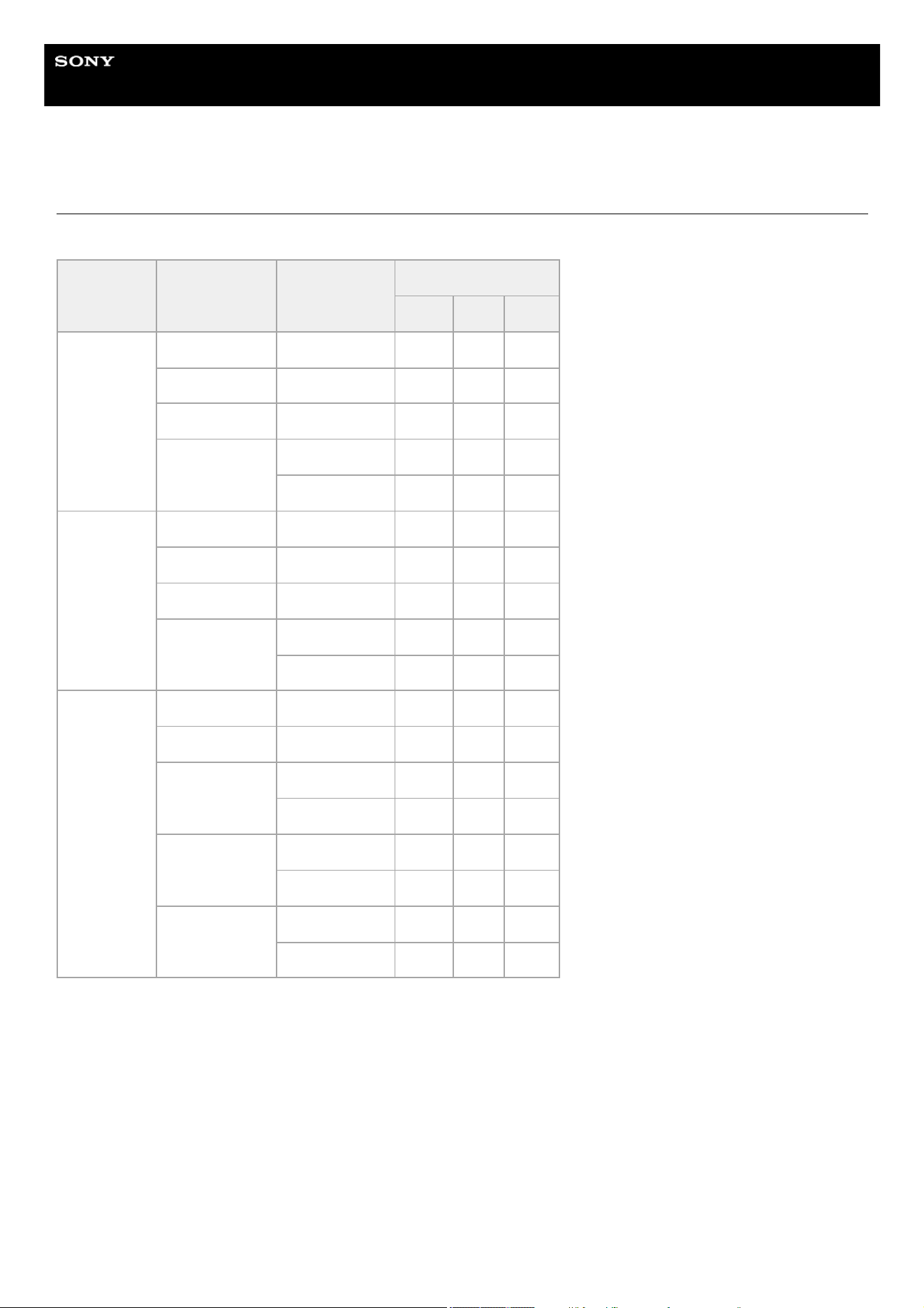
Help Guide
Solid-State Memory Camcorder
PXW-Z200/HXR-NX800
[Video Format
] / [Quality] / [Bit Rate] Settings
The range of [Video Format]/[Quality]/[Bit Rate] settings vary depending on the [Frequency]/[Codec] settings.
[Frequency] [Codec] [Video Format]
[Quality]
[High] [Mid] [Low]
119.88
XAVC HS-L 422 3840×2160P 280 280 280
XAVC HS-L 420 3840×2160P 200 200 200
XAVC S-L 422 3840×2160P 280 280 280
XAVC S-L 420
3840×2160P 200 200 200
1920×1080P 100 60 60
100
XAVC HS-L 422 3840×2160P 280 280 280
XAVC HS-L 420 3840×2160P 200 200 200
XAVC S-L 422 3840×2160P 280 280 280
XAVC S-L 420
3840×2160P 200 200 200
1920×1080P 100 60 60
59.94
XAVC HS-L 422 3840×2160P 200 100 100
XAVC HS-L 420 3840×2160P 150 75 45
XAVC S-L 422
3840×2160P 200 200 200
1920×1080P 50 50 50
XAVC S-L 420
3840×2160P 150 150 150
1920×1080P 50 25 25
XAVC S-I
3840×2160P 600 600 600
1920×1080P 222 222 222
252
TP1001670407
5-060-574-11(2) Copyright 2024 Sony Corporation
[Frequency] [Codec] [Video Format]
[Quality]
[High] [Mid] [Low]
50
XAVC HS-L 422 3840×2160P 200 100 100
XAVC HS-L 420 3840×2160P 150 75 45
XAVC S-L 422
3840×2160P 200 200 200
1920×1080P 50 50 50
XAVC S-L 420
3840×2160P 150 150 150
1920×1080P 50 25 25
XAVC S-I
3840×2160P 500 500 500
1920×1080P 185 185 185
29.97
XAVC S-L 422
3840×2160P 140 140 140
1920×1080P 50 50 50
XAVC S-L 420
3840×2160P 100 60 60
1920×1080P 50 16 16
XAVC S-I
3840×2160P 300 300 300
1920×1080P 111 111 111
25
XAVC S-L 422
3840×2160P 140 140 140
1920×1080P 50 50 50
XAVC S-L 420
3840×2160P 100 60 60
1920×1080P 50 16 16
XAVC S-I
3840×2160P 250 250 250
1920×1080P 93 93 93
23.98
XAVC HS-L 422 3840×2160P 100 50 50
XAVC HS-L 420 3840×2160P 100 50 30
XAVC S-L 422
3840×2160P 100 100 100
1920×1080P 50 50
50
XAVC S-L 420
3840×2160P 100 60 60
1920×1080P 50 50 50
XAVC S-I
3840×2160P 240 240 240
1920×1080P 89 89 89
253
Help Guide
Solid-State Memory Camcorder
PXW-Z200/HXR-NX800
Image Quality Settings Saved for Each Shooting Mode
The current status of configuration items related to image quality are saved for each of the following shooting modes. When
you change the shooting mode, the settings that are saved for the target shooting mode are applied.
[Custom] – [SDR(BT.709)]
[Custom] – [HDR(HLG)]
[Flexible ISO]
The configuration items related to image quality which are saved for each shooting mode are shown below.
✓: Item is saved.
×: Item is not saved.
Configuration item
Shooting mode
[Custom]
[Flexible
ISO]
[SDR(BT.709)] [HDR(HLG)]
[Shooting]
Menu
[ISO/Gain]
✓
1)
✓
[White]
[Preset White] ✓ ✓
Other than above ✓
[White Setting] ✓
[Offset White] ✓ ×
[LUT On/Off] × ✓
[Noise
Suppression]
[Setting(Custom)
] / [Level(Custom)] ✓ ✓ ×
[Setting(Flexible ISO)
] /
[Level(Flexible ISO)]
× ✓
[Paint] Menu
[Base Look]
[Select] ✓ ✓ ✓
[Input]
2)
✓
[Output]
2)
✓
[AE Level Offset]
2)
✓
[Black] ✓ ✓ ×
[Knee]
[Auto Knee] ✓ × ×
Other than above ✓ ✓ ×
[Detail] ✓ ✓ ×
[Matrix] ✓ ✓ ×
[Multi Matrix] ✓ ✓ ×
254

TP1001670408
5-060-574-11(2) Copyright 2024 Sony Corporation
Separate ISO sensitivity settings may be saved for [Custom] – [SDR(BT.709)]/[HDR(HLG)].
1)
Settings are saved for each [Base Look], and do not depend on the shooting mode.
2)
255
Help Guide
Solid-State Memory Camcorder
PXW-Z200/HXR-NX800
Saving a Configuration File
You can save the settings of the full menu to a memory card inserted into card slot B. You can also save an All file to a cloud
service. This allows you to quickly recall an appropriate set of menu settings for the current situation.
Configuration data is saved in the following categories.
User file
User files save the setting items and configuration data of the customizable [User] menu.
You can save up to 64 files on a memory card.
By loading this file into the memory of the unit, you can customize the setup of the [User] menu.
All file
All files save the configuration data of all menus. You can save up to 64 files on a memory card. Up to 120 files can be saved
to “C3 Portal” (cloud service), comprising up to 60 private files and 60 share files.
Note
For details about the content saved in an All file, see the following topic.
Items Saved in Files
Saving to a memory card
You can save a user file/All file to a memory card.
Saving an All file to a cloud service
You can save an All file to a cloud service.
Loading from a memory card
You can load a user file/All file from a memory card.
Insert a memory card into a card slot B.
1.
For a user file, select [Project] – [User File] – [Save to Media(B)] – [Execute] in the full menu. For an All file, select
[Project] – [All File] – [Save to Media(B)] – [Execute] in the full menu.
A file save destination screen appears.
2.
Select a [No File] row on the save destination screen.
Selecting a row with a [File ID] entry will overwrite the selected file.
The [File ID] value assigned when saving can be changed using the menu.
3.
Select [Execute] on the confirmation screen.4.
Connect to the unit from the “Creators' App for enterprise” smartphone application.
For details, see the following topic.
Transferring Files to “C3 Portal”
1.
Select [Project] – [All File] – [Save to Cloud(Private)]/[Save to Cloud(Share)] – [Execute] in the full menu.
A file save destination screen appears.
2.
Select a [No File] row on the save destination screen.
Selecting a row with a [File ID] entry will overwrite the selected file.
The [File ID] value assigned when saving can be changed using the menu.
3.
Select [Execute] on the confirmation screen.4.
256
Note
The unit will reboot automatically after loading configuration data.
When [Project] – [All File] – [Load Network Data] is set to [Off] in the full menu, all settings in the All file are loaded except [Network]
menu settings.
Loading an All file from a cloud service
You can load an All file from a cloud service.
Note
The unit will reboot automatically after loading configuration data.
When [Project] – [All File] – [Load Network Data] is set to [Off] in the full menu, all settings in the All file are loaded except [Network]
menu settings.
Changing the file ID
You can change the file ID of a user file/All file.
TP1001670409
5-060-574-11(2) Copyright 2024 Sony Corporation
Insert a memory card on which a file is saved into card slot B.
1.
For a user file, select [Project] – [User File] – [Load from Media(B)] – [Execute] in the full menu. For an All file,
select [Project] – [All File] – [Load from Media(B)] – [Execute] in the full menu.
A file list screen appears.
2.
Select a file to load.
A confirmation screen appears.
3.
Select [Execute].4.
Connect to the unit from the “Creators' App for enterprise” smartphone application.
For details, see the following topic.
Transferring Files to “C3 Portal”
1.
Select [Project] – [All File] – [Load from Cloud(Private)]/[Load from Cloud(Share)] – [Execute] in the full menu.
A file list screen appears.
2.
Select a file to load.
A confirmation screen appears.
3.
Select [Execute] on the confirmation screen.4.
For a user file, select [Project] – [User File] – [File ID] in the full menu. For an All file, select [Project] – [All File] –
[File ID] in the full menu.
A screen for editing the file ID appears.
1.
Select a character using the multi selector or the multi-function dial, then press the multi selector or multi-
function dial.
2.
Repeat step 2 as required.3.
When finished entering characters, select [Done].4.
257
Help Guide
Solid-State Memory Camcorder
PXW-Z200/HXR-NX800
Preparing to Connect an External Monitor/Recorder
You can display the shooting/playback image on an external monitor. You can also connect an external recorder and record
the output signal from the unit.
To display the shooting/playback image on an external monitor, select the output signal of the unit and use an appropriate
cable for the monitor to be connected.
You can display the same information that is visible on the LCD monitor/viewfinder, such as status information and menus, on
an external monitor. Set [Info. Disp.] to [On] on the [Monitoring] status screen or set [Monitoring] – [Output Display] to [On] in
the full menu according to the connector type to connect to the monitor.
Note
Observe the following when connecting an external monitor or recording device to the unit. Failing to do so may cause large currents
to flow in the internal circuitry of the unit which may damage electronic components.
For details, contact a Sony service representative.
TP1001670410
5-060-574-11(2) Copyright 2024 Sony Corporation
About DC cables
Use DC cables with a low GND line impedance for connecting an external monitor and recording devices.
1.
Checking for potential difference
Before use, make sure that there is no potential difference between all connected devices and the unit.
(1) Disconnect all connected devices, such as an external monitor and recording devices, from the unit.
Check that the 75 Ω coaxial cable, HDMI and other cables are not connected.
(2) Connect the DC cables of all connected devices and the unit, and then turn on the power of each connected device
and the unit.
(3) Use a tester or other device to confirm that there is no potential difference between the unit and each connected
device.
If there is a potential difference, it is possible that the impedance of the GND line of one of the DC cables is high. Replace
such cables with cables having a low GND line impedance, as required, to eliminate any potential difference.
2.
Connection and power-on sequence
Connect each cable and turn on the power in the following order.
(1) Turn off the power of the unit, external monitor, recording devices, and all other devices.
(2) Connect the DC cables of all devices.
(3) Connect the 75 Ω coaxial cable, HDMI and other cables.
(4) Turn on the power of all connected devices and then the unit.
3.
258
Help Guide
Solid-State Memory Camcorder
PXW-Z200/HXR-NX800
Connecting an External Device to the SDI Output (PXW-Z200 only)
Enable/disable the output and set the output format on the [Monitoring] status screen.
Use a commercially available 75 Ω coaxial cable for connection.
To start recording on the unit and external device simultaneously
When using SDI signal output, set [Project] – [SDI/HDMI Rec Control] – [Setting] to [SDI/HDMI Remote I/F]/[Parallel Rec] in
the full menu to output a REC trigger signal to the external device connected to the SDI OUT connector to start recording in
sync with the unit.
Note
If a connected external device does not support a REC trigger signal, the device cannot be operated.
When set to [SDI/HDMI Remote I/F], only the REC trigger signal is output if there is no memory card inserted.
TP1001670411
5-060-574-11(2) Copyright 2024 Sony Corporation
259
Help Guide
Solid-State Memory Camcorder
PXW-Z200/HXR-NX800
Connecting an External Device to the HDMI Output
Enable/disable the output and set the output format on the [Monitoring] status screen.
To start recording on the unit and external device simultaneously
When using HDMI signal output, set [TC/Media] – [HDMI TC Out] – [Setting] to [On] in the full menu to output a REC trigger
signal to the external device connected to the HDMI output connector to start recording in sync with the unit.
On the PXW-Z200: [Project] – [SDI/HDMI Rec Control] – [Setting] – [SDI/HDMI Remote I/F
] / [Parallel Rec]
On the HXR-NX800: [Project] – [HDMI Rec Control] – [Setting] – [On]
Note
If a connected external device does not support a REC trigger signal, the device cannot be operated.
When set to [SDI/HDMI Remote I/F], only the REC trigger signal is output if there is no memory card inserted.
TP1001670412
5-060-574-11(2) Copyright 2024 Sony Corporation
260
Help Guide
Solid-State Memory Camcorder
PXW-Z200/HXR-NX800
Synchronizing Timecode with an External Device (PXW-Z200 only)
You can synchronize the timecode of the unit with an external device.
Locking to the timecode of another device
Note
When the timecode locks, the timecode of the unit instantly acquires lock with the timecode of the external device and the timecode
value of the external value appears in the timecode display area. However, do not start recording immediately. Wait for a few seconds
until the timecode generator stabilizes before recording.
If the frequency of the reference timecode and the frame frequency on the unit are not the same, lock cannot be acquired and the unit
will not operate properly. If this occurs, the timecode will not acquire successful lock with the external timecode.
The timecode may shift by one frame per hour with respect to the reference timecode.
To release the timecode lock
Change the [TC/Media] – [Timecode] setting in the full menu.
The timecode lock is also released if the system frequency is changed or if you start shooting in Slow & Quick Motion mode.
Synchronizing the timecode of another device with the timecode of the unit
Set the unit that will be the timecode source to a mode in which the timecode output is continuously updated ([Free Run] or
[Clock]).
TP1001670413
5-060-574-11(2) Copyright 2024 Sony Corporation
Set the external device that will be the timecode source to a mode where the timecode output is continuously
updated.
1.
Set [TC/Media] – [Timecode] in the full menu as follows.
[Mode] – [Preset]
[Run] – [Free Run]
2.
Press an assignable button assigned with [DURATION/TC/U-BIT] to display the timecode on the screen.3.
Check that the TC IN/OUT switch is set to the IN position, then supply a reference timecode for synchronizing the
system frequency of the unit to the TC IN/OUT connector.
The timecode generator of the unit acquires lock with the reference timecode, and “EXT-LK” is displayed on the screen.
Once about ten seconds have elapsed after the timecode locks, the external lock state is maintained even if the external
reference timecode source is disconnected.
4.
Set the timecode of the unit using [TC/Media] – [Timecode] in the full menu.1.
Check that the TC IN/OUT select switch is set to the OUT position, and connect the TC IN/OUT connector to the
timecode input connector of the device you want to synchronize.
2.
261

Help Guide
Solid-State Memory Camcorder
PXW-Z200/HXR-NX800
Using a Mobile Device or LANC Remote Control
You can control the unit remotely using a mobile device application/LANC remote control.
“Monitor & Control” application
For details about how to connect to the unit with a mobile device and how to operate the “Monitor & Control” application, refer
to the Help Guide for the “Monitor & Control” application.
LANC remote control
A LANC remote control (such as the RM-30BP) is a remote controller that is compliant with the LANC standard.
It can control the functions of the unit remotely, such as focus/iris/ND filter/zoom/white balance/shutter speed/gain, using
LANC communication.
Connect the LANC remote control to the REMOTE connector on the unit.
A single LANC remote control can connect to and control multiple cameras. You can also use two LANC remote controls to
control a single camera using a daisy-chain connection.
TP1001670414
5-060-574-11(2) Copyright 2024 Sony Corporation
262
Help Guide
Solid-State Memory Camcorder
PXW-Z200/HXR-NX800
Using a Bluetooth Remote Control
You can control the unit remotely using a Bluetooth remote control (option). Visit the support portal for details about Bluetooth
remote controls supported by the unit.
https://www.sony.com/electronics/support/articles/00266597?utm_source=glean
Check steps 1 and 2.
Pairing the unit and Bluetooth remote control
Hint
The Bluetooth remote control is connected via Bluetooth only while controlling the unit from the Bluetooth remote control.
If the unit does not respond correctly, check the following and pair the devices again.
Check that the unit is not connected via Bluetooth to another device.
Execute [Network] – [Network Reset] – [Reset] in the full menu.
Note
When the unit is initialized, the pairing information is cleared. To use the Bluetooth remote control, pair the devices again.
If Bluetooth communication is unstable, make sure there are no obstacles, such as other persons or metallic objects, between the unit
and the Bluetooth remote control.
If large volume communication is in progress, such as when streaming using the wireless LAN 2.4 GHz band, the response to the
Bluetooth remote control may become unstable. In this case, consider using a wired LAN connection.
Checking the paired Bluetooth remote control
Select [Network] – [Bluetooth] – [Manage Paired Device] in the full menu to display the paired Bluetooth remote control.
Deleting a paired Bluetooth remote control
TP1001670415
5-060-574-11(2) Copyright 2024 Sony Corporation
Set [Network] – [Bluetooth] – [Setting] to [On] in the full menu.
1.
Select [Network] – [Pairing] – [Execute] in the full menu.
The pairing standby screen appears.
2.
Initiate pairing on the Bluetooth remote control.
For details about operation, refer to the operating instructions for the Bluetooth remote control.
When paired successfully, a pairing confirmation screen appears on the unit.
3.
Select [OK].
Control of the unit using the Bluetooth remote control is enabled. After connecting for the first time, subsequently you can
connect the unit and Bluetooth remote control just by setting [Bluetooth] – [Setting] to [On].
4.
Select [Network] – [Bluetooth] – [Manage Paired Device] in the full menu.1.
Select the Bluetooth remote control to delete.2.
Select [Execute].3.
263
Help Guide
Solid-State Memory Camcorder
PXW-Z200/HXR-NX800
Managing/Editing Clips using a Computer
You can import clips to your computer, manage them on your computer, and edit them in a nonlinear editing system using a
card reader (option) or the mass storage mode of the unit.
Using a card reader (option)
Connect a CFexpress Type A card reader or SD card reader to a computer using a USB cable, and insert a memory card into
the card reader slot. The memory card is recognized as a computer extension drive. On supported computers, you can import
clips faster using the mass storage mode of the unit.
Using mass storage mode
Connect the unit and computer using mass storage mode. A memory card inserted in card slot A or B of the unit is recognized
as a computer extension drive.
Note
Do not perform the following operations if the access indicator is lit red.
Turning the unit off
Disconnecting the power cord
Removing the memory card
Disconnecting the USB cable
Operation is not guaranteed to work on all computers.
Using a nonlinear editing system
In a nonlinear editing system, editing software (option) that supports the formats recorded by the unit is required.
Use dedicated application software to save the clips you want to edit on the HDD of the computer beforehand.
TP1001670416
5-060-574-11(2) Copyright 2024 Sony Corporation
Connect the USB-C connector to the computer using a USB cable.
1.
Turn the unit on.
A message appears on the LCD monitor/viewfinder asking whether to enable USB connection.
Note
When [USB Tethering] – [Setting] is set to [On] on the [Network] status screen, mass storage mode cannot be used. Set [Setting]
to [Off].
The USB connection confirmation message is not displayed while another message is displayed, for example, when formatting or
restoring a memory card. The confirmation message is displayed when the formatting or restoring execution ends. The USB
connection confirmation message is also not displayed when the clip properties screen is displayed. The message is displayed
when processing ends or when you return to the thumbnail screen.
2.
Turn the multi-function dial to select [Execute].3.
On Windows, check that the card is added as a removable disk in the “My Computer” window.
On Mac, check that a folder called “NO NAME” or “Untitled” (editable) is created on the desktop.
4.
264
Help Guide
Solid-State Memory Camcorder
PXW-Z200/HXR-NX800
SDI/HDMI Output Connector Output Formats (PXW-Z200 only)
The resolution of the output format is limited by [Frequency/Scan]/[Video Format] on the [Project] status screen or the
[Project] – [Rec Format] – [Frequency]/[Video Format] settings in the full menu. The video will not be output if a higher
resolution than the playback video resolution is configured.
The following table shows the output formats supported by the SDI/HDMI output connectors of the PXW-Z200.
[Project] – [Rec Format] [Monitoring] – [Output Format]
[Frequency] [Video Format] [SDI] [HDMI]
100/119.88Hz
3840×2160
3840×2160P 1920×1080P
3840×2160P 1920×1080i
(Output stopped) 3840×2160P
1920×1080P Level A (default value) 1920×1080P (default value)
1920×1080P Level A 1920×1080i
1920×1080P Level B 1920×1080P
1920×1080P Level B 1920×1080i
1920×1080i 1920×1080i
1920×1080
1920×1080P Level A (default value) 1920×1080P (default value)
1920×1080P Level A 1920×1080i
1920×1080P Level B 1920×1080P
1920×1080P Level B 1920×1080i
1920×1080i 1920×1080i
265

TP1001670417
[Project] – [Rec Format] [Monitoring] – [Output Format]
[Frequency] [Video Format] [SDI] [HDMI]
50/59.94Hz
3840×2160
3840×2160P 3840×2160P
3840×2160P 1920×1080P
3840×2160P 1920×1080i
1920×1080P Level A (default value) 1920×1080P (default value)
1920×1080P Level A 1920×1080i
1920×1080P Level B 1920×1080P
1920×1080P Level B 1920×1080i
1920×1080i 1920×1080i
1920×1080
1920×1080P Level A (default value) 1920×1080P (default value)
1920×1080P Level A 1920×1080i
1920×1080P Level B 1920×1080P
1920×1080P Level B 1920×1080i
1920×1080i 1920×1080i
(Output stopped)
720×480P
1) 3)
720×576P
2) 3)
25/29.97Hz
3840×2160
3840×2160P 3840×2160P
3840×2160P 1920×1080P
1920×1080P 1920×1080P
1920×1080PsF (default value) 1920×1080i (default value)
1920×1080
1920×1080P 1920×1080P
1920×1080PsF (default value) 1920×1080i (default value)
23.98Hz
3840×2160
3840×2160P 3840×2160P
3840×2160P 1920×1080P
1920×1080P (default value) 1920×1080P (default value)
1920×1080PsF 1920×1080P
1920×1080
1920×1080P (default value) 1920×1080P (default value)
1920×1080PsF 1920×1080P
When the system frequency is 59.94.
1)
When the system frequency is 50.
2)
The screen display cannot be embedded.
3)
266

5-060-574-11(2) Copyright 2024 Sony Corporation
267
Help Guide
Solid-State Memory Camcorder
PXW-Z200/HXR-NX800
HDMI Output Connector Output Formats
The resolution of the output format is limited by [Frequency/Scan]/[Video Format] on the [Project] status screen or the
[Project] – [Rec Format] – [Frequency]/[Video Format] settings in the full menu. The video will not be output if a higher
resolution than the playback video resolution is configured.
The following table shows the output formats supported by the HDMI output connector of the HXR-NX800.
TP1001670418
[Project] – [Rec Format] [Monitoring] – [Output Format]
[Frequency] [Video Format] [HDMI]
100/119.88Hz
3840×2160
3840×2160P
1920×1080P (default value)
1920×1080i
1920×1080
1920×1080P (default value)
1920×1080i
50/59.94Hz
3840×2160
3840×2160P
1920×1080P (default value)
1920×1080i
1920×1080
1920×1080P (default value)
1920×1080i
720×480P
1) 3)
720×576P
2) 3)
25/29.97Hz
3840×2160
3840×2160P
1920×1080P
1920×1080i (default value)
1920×1080
1920×1080P
1920×1080i (default value)
23.98Hz
3840×2160
3840×2160P
1920×1080P (default value)
1920×1080 1920×1080P (default value)
When the system frequency is 59.94.
1)
When the system frequency is 50.
2)
The screen display cannot be embedded.
3)
268

5-060-574-11(2) Copyright 2024 Sony Corporation
269
Help Guide
Solid-State Memory Camcorder
PXW-Z200/HXR-NX800
Troubleshooting
If a problem occurs, check the following to help resolve the issue.
Power supply
Recording/playback
Symptom Cause Solution
The unit does not power
on.
No battery pack is mounted and no
power is supplied to the DC IN
connector.
Mount a battery pack or connect to AC power using an
AC adaptor.
The battery pack is fully
discharged.
Replace the battery pack with a fully charged one.
The power supply cuts
out while operating.
The battery pack is discharged. Replace the battery pack with a fully charged one.
The battery pack
becomes discharged
very quickly.
The ambient temperature is very
low.
This is due to the battery characteristics and is not a
defect.
The battery pack is inadequately
charged.
Recharge the battery pack.
If the battery pack is quickly discharged even after you
charged it fully, it may be close to the end of its life.
Replace it with a new one.
Symptom Cause Solution
Recording does not start when
you press the record
START/STOP button.
The memory card is full.
Replace the memory card with one having sufficient
space.
Audio recording is not possible.
The AUDIO LEVEL dials
(CH1/CH2) are set to the
minimum level.
Adjust the AUDIO LEVEL dials (CH1/CH2).
The recorded sound is
distorted.
The audio level is too high. Adjust the AUDIO LEVEL dials (CH1/CH2).
The recorded sound has a high
noise level.
The audio level is too low.
Adjust the AUDIO LEVEL dials (CH1/CH2).
When an external microphone is selected, also adjust
[Audio] – [Audio Input] – [INPUT1 MIC
Reference]/[INPUT2 MIC Reference] in the full menu.
Clips cannot be played back.
The clip is being edited.
Clips cannot be played back if you have modified file
names or folders, or edited the clip on a computer. This is
not a malfunction.
The clip is being recorded
on another device.
Clips recorded on other devices may not be played back,
or displayed in incorrect size. This is not a malfunction.
270
External devices
Wireless LAN
Note
Obstructions and electromagnetic interference between the unit and wireless LAN router or mobile device, or the ambient environment
(such as wall materials) could shorten the communication range or prevent connections altogether. If you experience these problems,
check the connection/communication status after moving the unit to a new location so that the unit and wireless router/mobile device
are closer together.
Internet connection
TP1001670419
5-060-574-11(2) Copyright 2024 Sony Corporation
Symptom Solution
The computer does not
recognize the unit.
Turn USB tethering off and then reconnect the unit and computer.
Disconnect the USB cable from the computer, then connect it again securely.
Disconnect the USB cable from your computer, reboot your computer, and connect the
computer and unit again using the correct procedure.
Disconnect the USB cable from the unit, then connect it again securely.
Clips cannot be loaded on the
computer.
Disconnect the USB cable from the computer, restart the unit, and then connect it again.
Application software must be installed to load clips on your computer.
Symptom Solution
A mobile device cannot
access the unit.
Check the wireless LAN router connection (IP address, etc.).
The communication setting between the access point clients may be invalid. For details,
refer to the operation manual for the wireless LAN router.
You cannot log in to the
unit.
Check the user name and password that you set.
Symptom Solution
File transfer fails.
The user name and password of the server may not be correct.
Input the correct user name and password.
File transfer is not available.
Signal condition may be poor.
Move to another location and try again.
271
Help Guide
Solid-State Memory Camcorder
PXW-Z200/HXR-NX800
Error/Warning Messages
If a warning/caution/operation that requires confirmation occurs on the unit, a message is displayed on the LCD
monitor/viewfinder screen, tally lamp starts flashing, and a warning sound is emitted.
The warning sound is emitted from the headphones connected to the headphone connector.
Error messages
The unit will stop operation when the following kind of display occurs.
Warning messages
Follow the instructions provided if the following display occurs.
Error
message
Warning
sound
Recording/tally
lamp
Cause and Solution
E + error
code
Continuous Flashing rapidly
Indicates an abnormality in the unit. Recording stops, even if [
Rec] is
displayed on the screen.
Turn off the unit, and check for any problem with connected devices,
cables, or memory cards. If the error persists when the unit is turned on
again, contact your Sony service representative.
If the unit does not turn off when the power switch is set to
(standby),
remove the battery pack or disconnect the AC adaptor.
An error display or warning sound may not occur depending on the
status of the unit.
Warning
message
Warning
sound
Recording/tally
lamp
Cause and Solution
[Battery Near End] Intermittent Flashing
The remaining capacity of the battery pack is getting low.
Recharge at the earliest convenience.
[Battery End] Continuous Flashing rapidly
The battery pack is discharged. Recording is disabled.
Stop operation and replace the battery pack.
[Temperature
High]
Intermittent Flashing
The internal temperature is high.
Turn off the unit and allow it to cool down before operating it
again.
[Media
Temperature High]
Intermittent Flashing
The temperature of the CFexpress card is high.
Replace the card or allow it to cool down before using it again.
[Voltage Low] Intermittent Flashing The DC IN voltage is low (level 1). Check the power source.
[Insufficient
Voltage]
Continuous Flashing rapidly
The DC IN voltage is too low (level 2). Recording is disabled.
Connect a different power source.
[Media Near Full] Intermittent Flashing
The remaining capacity on the memory card is getting low.
Replace at the earliest convenience.
[Media Full] Continuous Flashing rapidly
Clips could not be recorded or copied because there is no
remaining capacity on the memory card.
Replace immediately.
272
Caution/Operation messages
The following caution and operation messages may appear in the center of the screen. Follow the instructions provided to
resolve the issue.
Warning
message
Warning
sound
Recording/tally
lamp
Cause and Solution
[Clips Near Full] Intermittent Flashing
The number of additional clips that can be recorded on a
memory card is getting low.
Replace at the earliest convenience.
[Clips Full] Continuous Flashing rapidly
The maximum number of clips that can be recorded on the
memory card has been reached.
Recording or copying more clips is not possible. Replace
immediately.
[Last Clip
Recording]
Intermittent Flashing
The clip currently recording is the last clip that can be recorded,
as the maximum number of clips has been reached.
Prepare a new memory card.
[Media(A) Life
Near End]
1)
Intermittent Flashing
The memory card is approaching the end of its life. Replace at
the earliest convenience.
[Media(A) Life
End]
1)
Continuous Flashing rapidly
The memory card has reached the end of its life. Replace
immediately.
[Media(A) Near
Full]
1)
Intermittent Flashing When using the simultaneous recording function
[Media(A) Full]
1)
Continuous Flashing rapidly When using the simultaneous recording function
[Media(A) Clips
Near Full]
1)
Intermittent Flashing When using the simultaneous recording function
[Media(A) Clips
Full]
1)
Continuous Flashing rapidly When using the simultaneous recording function
[Media(A) Last
Clip Rec]
1)
Intermittent Flashing When using the simultaneous recording function
[Transfer Jobs
Near Full]
– –
The number of FTP file transfer jobs that can be registered is
getting low.
[Transfer Jobs
Full]
– –
The number of FTP file transfer jobs that can be registered has
reached the upper limit. To add another job, first delete any
unwanted jobs.
2)
“(B)” is displayed for the memory card in card slot B.
1)
You can select and delete jobs using [Network] – [File Transfer] – [View Job List] in the full menu. You can also delete jobs from the “Monitor &
Control” job list.
2
Display message Cause and Solution
[Battery Error]
[Please Change Battery]
An error was detected in the battery pack.
Replace with a normal battery pack.
[Backup Battery End]
[Please Change]
The remaining capacity of the backup battery is insufficient.
Charge the backup battery.
273

Display message Cause and Solution
[Unknown Media(A)]
[Please Change]
1)
A memory card that has been partitioned or a memory card containing
more clips that can be handled by the unit was inserted.
The card cannot be used in the unit, and must be replaced.
[Cannot Use Media(A)]
[Unsupported File System]
1)
A card using a different file system or an unformatted card was inserted.
The card cannot be used in the unit, and must be replaced or formatted
using the unit.
[Media Error]
[Media(A) Needs to be Restored]
1)
An error occurred on the memory card, and the card must be restored.
Restore the memory card.
[Media Error]
[Media(A) Error]
[Media(B) Error]
The memory card may be damaged, and can no longer be used for
recording.
Playback is possible, so making a copy and replacing the memory card is
recommended.
[Media Error]
[Cannot Use Media(A)]
1)
The memory card may be damaged, and can no longer be used for
recording or playback.
The card cannot be used in the unit, and must be replaced.
[Media(A) Error]
[Recording Halted]
[Playback Halted]
1)
Recording and playback was stopped because an error occurred while
using the memory card.
If the problem persists, replace the memory card.
[Media(A) Life End]
1)
[Change Media(A)]
1)
The memory card has reached the end of its life.
Make a backup, and replace the card immediately. If you continue using
the card, the card may not be able to record or play.
For details, refer to the operating instructions for the memory card.
[The specified address is invalid.]
The specified address is invalid.
Check that the setting is correct.
[Cannot Use Specified Port Number]
The specified port number is invalid.
Check that the setting is correct.
[Fan Stopped]
The built-in fan stopped.
Avoid use at high temperatures, disconnect the power, and contact your
Sony service representative.
[Failed]
This error may appear if an address cannot be obtained when [DHCP] is
set to [On].
Check the DHCP server settings.
[Addition of auto upload job failed.]
The maximum number of transfer jobs has been reached.
Clear any unwanted jobs. The auto transfer destination setting for
original files or proxy files may also be incorrect. Check that the setting is
correct.
[Not found.]
Network (access point) with the specified SSID could not be found.
Check that the setting is correct.
[Authentication Failed]
Connection authentication on the network (access point) with the
specified SSID failed.
Check that the password and other settings are correct.
[An IP address conflict has occurred. Please
check the network settings.]
There is a conflict in the network addresses of the wireless LAN or wired
LAN and USB tethering.
Change the address manually or change the settings for the network
router.
274

TP1001670420
5-060-574-11(2) Copyright 2024 Sony Corporation
Display message Cause and Solution
[The IP address of the Wireless LAN Access
Point Mode has been changed due to an IP
address conflict.]
The IP address in wireless LAN access point mode was changed due to
a conflict in the network addresses of the wireless LAN access point
mode or wired LAN and USB tethering.
Check the new IP address setting.
“(B)” is displayed for the memory card in card slot B.
1)
275


Level 1 Level 2 Level 3 [All File] [Scene File]
[Shooting]
[ISO/Gain]
[Mode] ✓ ×
[ISO/Gain<H>] ✓ ×
[ISO/Gain<M>] ✓ ×
[ISO/Gain<L>] ✓ ×
[Shockless Gain] ✓ ×
[ND Filter]
[Preset1] ✓ ×
[Preset2] ✓ ×
[Preset3] ✓ ×
[Shutter]
[Mode] ✓ ×
[Shutter Speed On/Off] ✓ ×
[Shutter Speed] ✓ ×
[Shutter Angle] ✓ ×
[ECS On/Off] ✓ ×
[ECS Frequency] ✓ ×
[Auto Exposure]
[Level] ✓ ×
[Mode] ✓ ×
[Speed] ✓ ×
[AGC] ✓ ×
[AGC Limit] ✓ ×
[AGC Point] ✓ ×
[Auto Shutter] ✓ ×
[A.SHT Limit] ✓ ×
[A.SHT Point] ✓ ×
[Clip High light] ✓ ×
[Detect Window] ✓ ×
[Detect Window Indication] ✓ ×
[Custom Width] ✓ ×
[Custom Height] ✓ ×
[Custom H Position] ✓ ×
[Custom V Position] ✓ ×
277

Level 1 Level 2 Level 3 [All File] [Scene File]
[White]
[Preset White] ✓ ×
[Color Temp <A>] ✓ ×
[Tint<A>] ✓ ×
[R Gain <A>] ✓ ×
[B Gain <A>] ✓ ×
[Color Temp <B>] ✓ ×
[Tint<B>] ✓ ×
[R Gain <B>] ✓ ×
[B Gain <B>] ✓ ×
[White Setting]
[Shockless White] ✓ ×
[ATW Speed] ✓ ×
[White Switch<B>] ✓ ×
[Filter White Memory] ✓ ×
[Offset White]
[Offset White <A>] ✓ ×
[Offset Color Temp<A>] ✓ ×
[Offset Tint<A>] ✓ ×
[Offset White <B>] ✓ ×
[Offset Color Temp<B>] ✓ ×
[Offset Tint<B>] ✓ ×
[Offset White<ATW>] ✓ ×
[Offset Color Temp<ATW>] ✓ ×
[Offset Tint<ATW>] ✓ ×
[Focus]
[AF Transition Speed]
✓ ×
[AF Subj. Shift Sens.] ✓ ×
[Focus Area] ✓ ×
[Subject Recognition AF] ✓ ×
[Touch Function in MF] ✓ ×
[Multi Selector Function] ✓ ×
[Pointer Color] ✓ ×
[Pointer Border] ✓ ×
[AF Assist] ✓ ×
278
Level 1 Level 2 Level 3 [All File] [Scene File]
[S&Q Motion]
[Setting] ✓ ×
[Frame Rate] ✓ ×
[LUT On/Off]
[
SDI/HDMI] ✓ ×
[
HDMI] ✓ ×
[
LCD/VF/Proxy/Stream] ✓ ×
[NIGHTSHOT]
[Setting] ✓ ×
[IR Light] ✓ ×
[Image Color] ✓ ×
[Noise Suppression]
[Setting(Custom)] ✓ ×
[Level(Custom)] ✓ ×
[Setting(Flexible ISO)] ✓ ×
[Level(Flexible ISO)] ✓ ×
[Flicker Reduce]
[Mode] ✓ ×
[Frequency] ✓ ×
[SteadyShot] [Setting] ✓ ×
279

Level 1 Level 2 Level 3 [All File] [Scene File]
[Project]
[Base Setting]
[Shooting Mode] ✓ –
[Target Display] ✓ –
[Rec Format]
[Frequency] ✓ ×
[Codec] ✓ ×
[Video Format] ✓ ×
[Quality] ✓ ×
[Bit Rate] – –
[Flexible ISO Setting]
[Color Gamut] ✓ –
[Embed LUT File] ✓ ×
[HDR Setting]
[LCD/VF SDR Preview] ✓ ×
[SDR Gain] ✓ ×
[Simul Rec]
[Setting] ✓ ×
[Rec Button Set] ✓ ×
[Proxy Rec]
[Setting] ✓ ×
[Proxy Format] ✓ ×
[Audio Channel] ✓ ×
[Chunk] ✓ ×
[SDI/HDMI Rec Control] [Setting] ✓ ×
[HDMI Rec Control] [Setting] ✓ ×
[Auto Framing]
[Setting] × ×
[Framing Operation Mode] ✓ ×
[Crop Level] ✓ ×
[Framing Tracking Speed] ✓ ×
[Rec/Stream] ✓ ×
[HDMI] ✓ ×
280

Level 1 Level 2 Level 3 [All File] [Scene File]
[Assignable Button]
<1> ✓ ×
<2> ✓ ×
<3> ✓ ×
<4> ✓ ×
<5> ✓ ×
<6> ✓ ×
<7> ✓ ×
<8> ✓ ×
<9> ✓ ×
<10> ✓ ×
<11> ✓ ×
[<PUSH AUTO>] ✓ ×
[Multi Function Dial] [Default Function] ✓ ×
[User File]
[Load from Media(B)] – –
[Save to Media(B)] – –
[File ID] × ×
[Load Customize Data] ✓ ×
[Load White Data] ✓ ×
[All File]
[Load from Media(B)] – –
[Load from Cloud(Private)] – –
[Load from Cloud(Share)] – –
[Save to Media(B)] – –
[Save to Cloud(Private)] – –
[Save to Cloud(Share)] – –
[File ID] ✓ ×
[Load Network Data] × ×
281

Level 1 Level 2 Level 3 [All File] [Scene File]
[Paint/Look]
[Scene File]
[Recall] – –
[Store] – –
[Delete] – –
[Preset Recall] – –
[Base Look]
[Select] ✓ ✓
[Delete] – –
[Delete All] – –
[Import from Media(B)] – –
[Import from Cloud(Private)] – –
[Import from Cloud(Share)] – –
[Input] ✓ ×
[Output] ✓ ×
[AE Level Offset] ✓ ×
[Reset Paint Settings] [Reset without Base Look] – –
[Black]
[Master Black] ✓ ✓
[R Black] ✓ ✓
[B Black] ✓ ✓
[Knee]
[Setting] ✓ ✓
[Auto Knee] ✓ ✓
[Point] ✓ ✓
[Slope] ✓ ✓
[Detail
]
[Setting] ✓ ✓
[Level] ✓ ✓
[Manual Setting] ✓ ✓
[H/V Ratio] ✓ ✓
[B/W Balance] ✓ ✓
[Limit] ✓ ✓
[Crispening] ✓ ✓
[High Light Detail] ✓ ✓
282

Level 1 Level 2 Level 3 [All File] [Scene File]
[Matrix]
[User Matrix] ✓ ✓
[User Matrix Level] ✓ ✓
[User Matrix Phase] ✓ ✓
[User Matrix R-G] ✓ ✓
[User Matrix R-B] ✓ ✓
[User Matrix G-R] ✓ ✓
[User Matrix G-B] ✓ ✓
[User Matrix B-R] ✓ ✓
[User Matrix B-G] ✓ ✓
[Multi Matrix]
[Setting] ✓ ✓
[Area Indication] × ×
[Reset] – –
[Axis] × ×
[Hue] ✓ ✓
[Saturation] ✓ ✓
[TC/Media]
[Timecode]
[Mode] ✓ ×
[Run] ✓ ×
[Setting] × ×
[Reset] – –
[TC Format] ✓ ×
[TC Display] [Display Select] ✓ ×
[Users Bit]
[Mode
] ✓ ×
[Setting] × ×
[HDMI TC Out] [Setting] ✓ ×
[Clip Name Format]
[Clip Number] ✓ ×
[Series Counter Reset] – –
[Title Name Settings] ✓ ×
[Update Media]
[Media(A)] – –
[Media(B)] – –
[Format Media]
[Media(A)] – –
[Media(B)] – –
283

Level 1 Level 2 Level 3 [All File] [Scene File]
[Monitoring]
[Output On/Off]
[SDI] ✓ ×
[HDMI] ✓ ×
[Output Format]
[SDI] ✓ ×
[HDMI] ✓ ×
[Output Display]
[SDI] ✓ ×
[HDMI] ✓ ×
284

Level 1 Level 2 Level 3 [All File] [Scene File]
[Display On/Off] [Network Status] ✓ ×
[File Transfer Status] ✓ ×
[Stream Status] ✓ ×
[Rec/Play Status] ✓ ×
[Tally] ✓ ×
[Battery Remain] ✓ ×
[Focus Mode] ✓ ×
[Focus Position] ✓ ×
[Focus Area Indicator] ✓ ×
[Subject Recognition Frame] ✓ ×
[Tracking AF Pointer] ✓ ×
[Lens Info] ✓ ×
[Rec Format] ✓ ×
[Frame Rate] ✓ ×
[Zoom Position] ✓ ×
[UWP RF Level] ✓ ×
[SteadyShot] ✓ ×
[Base Look/Rec Look] ✓ ×
[SDI/HDMI Rec Control] ✓ ×
[HDMI Rec Control] ✓ ×
[Monitoring Look] ✓ ×
[Proxy Status] ✓ ×
[Media Status] ✓ ×
[Video Signal Monitor] ✓ ×
[Clip Name
] ✓ ×
[White Balance] ✓ ×
[Scene File] ✓ ×
[Auto Exposure Mode] ✓ ×
[Auto Exposure Level] ✓ ×
[Timecode] ✓ ×
[ND Filter] ✓ ×
[Iris] ✓ ×
285

Level 1 Level 2 Level 3 [All File] [Scene File]
[ISO/Gain] ✓ ×
[Shutter] ✓ ×
[Level Gauge] ✓ ×
[Audio Level Meter] ✓ ×
[Video Level Warning] ✓ ×
[NIGHTSHOT] ✓ ×
[Clip Number] ✓ ×
[Notice Message] ✓ ×
[Marker]
[Setting] ✓ ×
[Color] ✓ ×
[Center Marker] ✓ ×
[Safety Zone] ✓ ×
[Safety Area] ✓ ×
[Aspect Marker] ✓ ×
[Aspect Mask] ✓ ×
[Aspect Safety Zone] ✓ ×
[Aspect Safety Area] ✓ ×
[Aspect Select] ✓ ×
[Custom Aspect Ratio] ✓ ×
[Guide Frame] ✓ ×
[100% Marker] ✓ ×
[User Box] ✓ ×
[User Box Width] ✓ ×
[User Box Height] ✓ ×
[User Box H Position
] ✓ ×
[User Box V Position] ✓ ×
[LCD Monitor/VF]
[LCD Monitor Brightness] ✓ ×
[LCD Monitor Color Mode] ✓ ×
[VF Brightness] ✓ ×
[VF Color Mode] ✓ ×
[Gamma Display Assist] [Setting] ✓ ×
286

Level 1 Level 2 Level 3 [All File] [Scene File]
[Peaking]
[Setting] ✓ ×
[Peaking Level] ✓ ×
[Color] ✓ ×
[Zebra]
[Setting] ✓ ×
[Zebra1 Level] ✓ ×
[Zebra1 Aperture Level] ✓ ×
[Zebra2 Level] ✓ ×
287

Level 1 Level 2 Level 3 [All File] [Scene File]
[Audio]
[Audio Input]
[CH1 Input Select] ✓ ×
[CH2 Input Select] ✓ ×
[CH3 Input Select] ✓ ×
[CH4 Input Select] ✓ ×
[INPUT1 MIC Reference] ✓ ×
[INPUT2 MIC Reference] ✓ ×
[Line Input Reference] ✓ ×
[Reference Level] ✓ ×
[CH1 Wind Filter] ✓ ×
[CH2 Wind Filter] ✓ ×
[CH3 Wind Filter] ✓ ×
[CH4 Wind Filter] ✓ ×
[CH3 Level Control] ✓ ×
[CH4 Level Control] ✓ ×
[CH3 Input Level] ✓ ×
[CH4 Input Level] ✓ ×
[Audio Input Level] ✓ ×
[Limiter Mode] ✓ ×
[CH1&2 AGC Mode] ✓ ×
[CH3&4 AGC Mode] ✓ ×
[AGC Spec] ✓ ×
[1kHz Tone on Color Bars] ✓ ×
[CH1 Level] ✓ ×
[CH2 Level] ✓
×
[CH3 Level] ✓ ×
[CH4 Level] ✓ ×
[Audio Output]
[Monitor CH] ✓ ×
[Headphone Out] ✓ ×
[Alarm Level] ✓ ×
[HDMI Output CH] ✓ ×
288

Level 1 Level 2 Level 3 [All File] [Scene File]
[Thumbnail]
[Display Clip Properties] – –
[Set Clip Flag]
[Add OK] – –
[Add NG] – –
[Add KEEP] – –
[Delete Clip Flag] – –
[Lock/Unlock Clip]
[Select Clip] – –
[Lock All Clips] – –
[Unlock All Clips] – –
[Delete Clip]
[Select Clip] – –
[All Clips] – –
[Copy Clip]
[Select Clip] – –
[All Clips] – –
[Transfer Clip]
[Select Clip] – –
[All Clips] – –
[Transfer Clip (Proxy)]
[Select Clip] – –
[All Clips] – –
[Filter Clips]
[OK] – –
[NG] – –
[KEEP] – –
[None] – –
[
All] – –
[Customize View] [Thumbnail Caption] ✓ –
289

Level 1 Level 2 Level 3 [All File] [Scene File]
[Technical]
[Color Bars]
[Setting] × ×
[Type] ✓ ×
[ND Dial] [CLEAR with Dial] ✓ ×
[Tally]
[Front Tally Lamp] ✓ ×
[Rear Tally Lamp] ✓ ×
[Touch Operation] [Setting] ✓ ×
[Rec Review] [Setting] ✓ ×
[Zoom] [Zoom Type] ✓ ×
[Handle Zoom]
[Setting] ✓ ×
[High] ✓ ×
[Low] ✓ ×
[Speed Zoom] [Setting] ✓ ×
[Menu Settings]
[User Menu Only] ✓ ×
[Menu Page On/Off] ✓ ×
[User Menu with Lock] × ×
[Fan Control] [Setting] ✓ ×
[Lens]
[Distance Display] ✓ ×
[Zoom Position Display] ✓
×
[Video Light Set] [Video Light Set] ✓ ×
[Camera Battery Alarm]
[Low Battery] ✓ ×
[Battery Empty] ✓ ×
[Camera DC IN Alarm]
[DC Low Voltage1] ✓ ×
[DC Low Voltage2] ✓ ×
290

Level 1 Level 2 Level 3 [All File] [Scene File]
[Network]
[Network Setup]
[Setup for Mobile App] – –
[LAN Type Select] ✓ ×
[Show Authentication] – –
[Edit Authentication]
[User Name] × ×
[Input Password] × ×
[Generate Password] × ×
[Wireless LAN]
[Setting] ✓ ×
[Channel] – –
[Camera SSID & Password] – –
[Regenerate Password] – –
[Camera Remote Control] – –
[Connected Network] – –
[Scan Networks] – –
[WPS] – –
[Manual Register]
[SSID] – –
[Security] – –
[Password] – –
[DHCP] – –
[IP Address] – –
[Subnet Mask] – –
[Gateway] – –
[DNS Auto] – –
[Primary DNS Server] – –
[Secondary DNS Server] – –
[IP Address] – –
[Subnet Mask] – –
[MAC Address] – –
291
Level 1 Level 2 Level 3 [All File] [Scene File]
[Wired LAN]
[Setting] ✓ ×
[Camera Remote Control] ✓ ×
[Detail Settings]
[DHCP] ✓ ×
[IP Address] ✓ ×
[Subnet Mask] ✓ ×
[Gateway] ✓ ×
[DNS Auto] ✓ ×
[Primary DNS Server] ✓ ×
[Secondary DNS Server] ✓ ×
[IP Address] – –
[Subnet Mask] – –
[MAC Address] – –
[USB Tethering]
[Setting] ✓ ×
[Camera Remote Control] ✓ ×
[IP Address] – –
[Subnet Mask] – –
[Bluetooth]
[Setting] ✓ ×
[Pairing] – –
[Manage Paired Device] × ×
[Device Address] – –
292
Level 1 Level 2 Level 3 [All File] [Scene File]
[File Transfer]
[Auto Upload] ✓ ×
[Auto Upload (Proxy)] ✓ ×
[Default Upload Server] ✓ ×
[Clear Completed Jobs] – –
[Clear All Jobs] – –
[View Job List] – –
[Server Settings1
] / [Server Settings2] / [Server Settings3]
[Display Name] ✓ ×
[Service] ✓ ×
[Host Name] ✓ ×
[Port] ✓ ×
[User Name] × ×
[Password] × ×
[Passive Mode] ✓ ×
[Destination Directory] ✓ ×
[Using Secure Protocol] ✓ ×
[Root Certificate] – –
[Root Certificate Status] – –
[Reset] – –
293

Level 1 Level 2 Level 3 [All File] [Scene File]
[Stream]
[Setting] × ×
[Destination Select] ✓ ×
[RTMP/RTMPS 1
] / [RTMP/RTMPS 2] / [RTMP/RTMPS 3]
[Display Name] ✓ ×
[Codec] – –
[Resolution] ✓ ×
[Bit Rate] ✓ ×
[Destination URL] × ×
[Stream Key] × ×
[RTMPS Certificate] – –
[RTMPS Certificate Status] – –
[Reset] – –
[RTMPS Default Certificates]
[Replace] – –
[Reset] – –
[Status] – –
[SRT-Caller 1
] / [SRT-Caller 2] / [SRT-Caller 3]
[Display Name] ✓ ×
[Codec] ✓ ×
[Resolution] ✓ ×
[Bit Rate] ✓ ×
[Destination URL] × ×
[Port] ✓ ×
[Latency] ✓ ×
[TTL] ✓ ×
[Encryption] × ×
[Passphrase] × ×
[ARC] ✓ ×
[Reset] – –
[Network Reset] [Reset] – –
294
TP1001670421
5-060-574-11(2) Copyright 2024 Sony Corporation
Level 1 Level 2 Level 3 [All File] [Scene File]
[Maintenance]
[Language] [Select] ✓ ×
[
Accessibility]
[Screen Reader]
[Setting] ✓ ×
[Speed] ✓ ×
[Volume] ✓ ×
[Read Out when Power On] ✓ ×
[Enlarge Screen]
[Setting] ✓ ×
[Magnification] ✓ ×
[Enlarge Screen Button] ✓ ×
[Clock Set]
[Time Zone] ✓ ×
[Date Mode] ✓ ×
[12h/24h] ✓ ×
[Date] × ×
[Time] × ×
[All Reset]
[Reset] – –
[Reset without Network] – –
[Reset to Factory Defaults] – –
[Hours Meter]
[Hours(System)] – –
[Hours(Reset)] – –
[Reset] – –
[Device Information] [Certification Logo] – –
[Version]
[Version Number] – –
[Version Up] – –
295
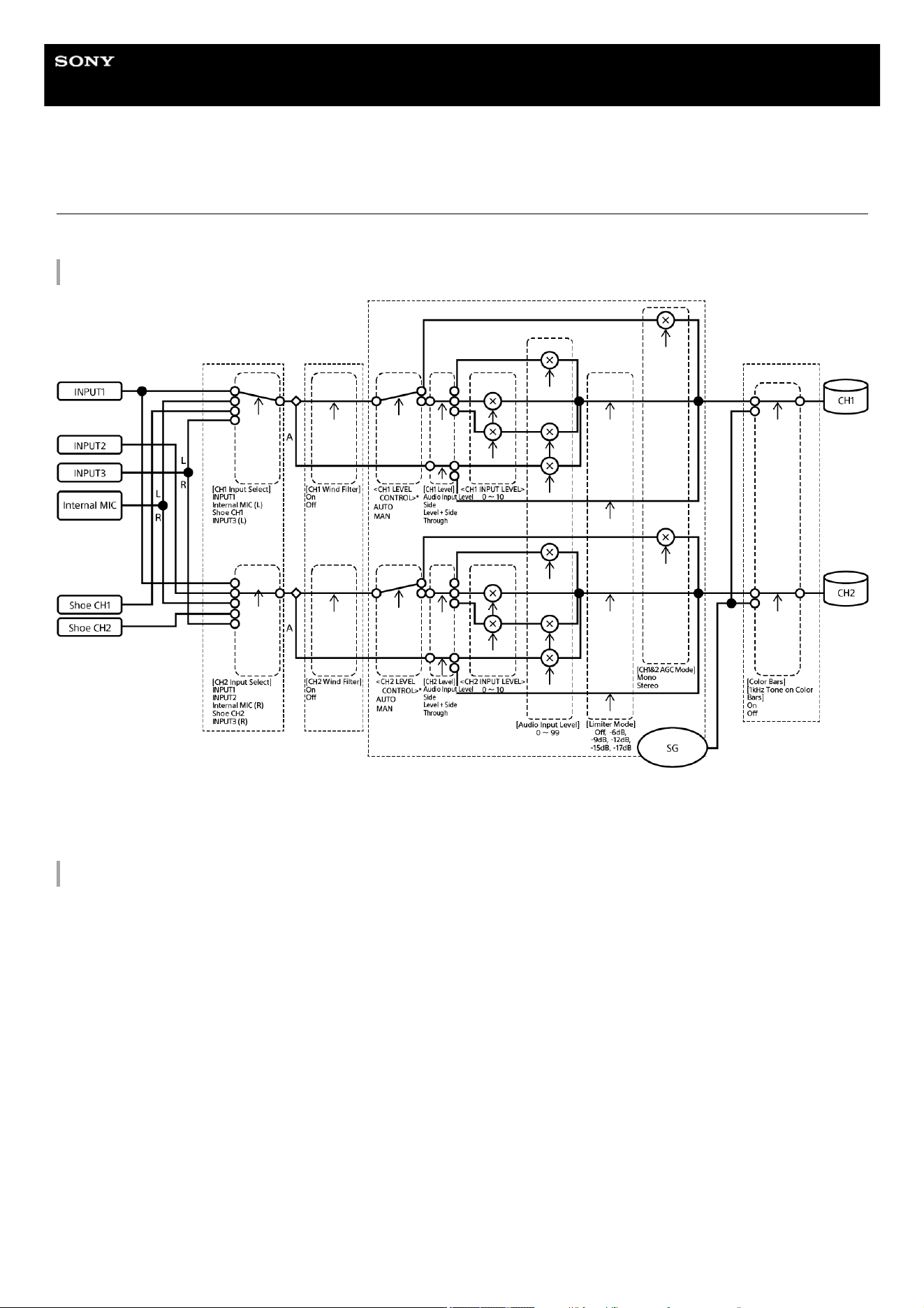
Help Guide
Solid-State Memory Camcorder
PXW-Z200/HXR-NX800
Block Diagrams
The block diagrams are related to audio and the [Audio] menu.
[Audio Input] (CH1&CH2)
A: With XLR adaptor
* Set by [Audio Input] – [CH1 Level Control] to [CH4 Level Control] on the [Audio] status screen for audio input from an XLR
adaptor.
[Audio Input] (CH3&CH4)
296
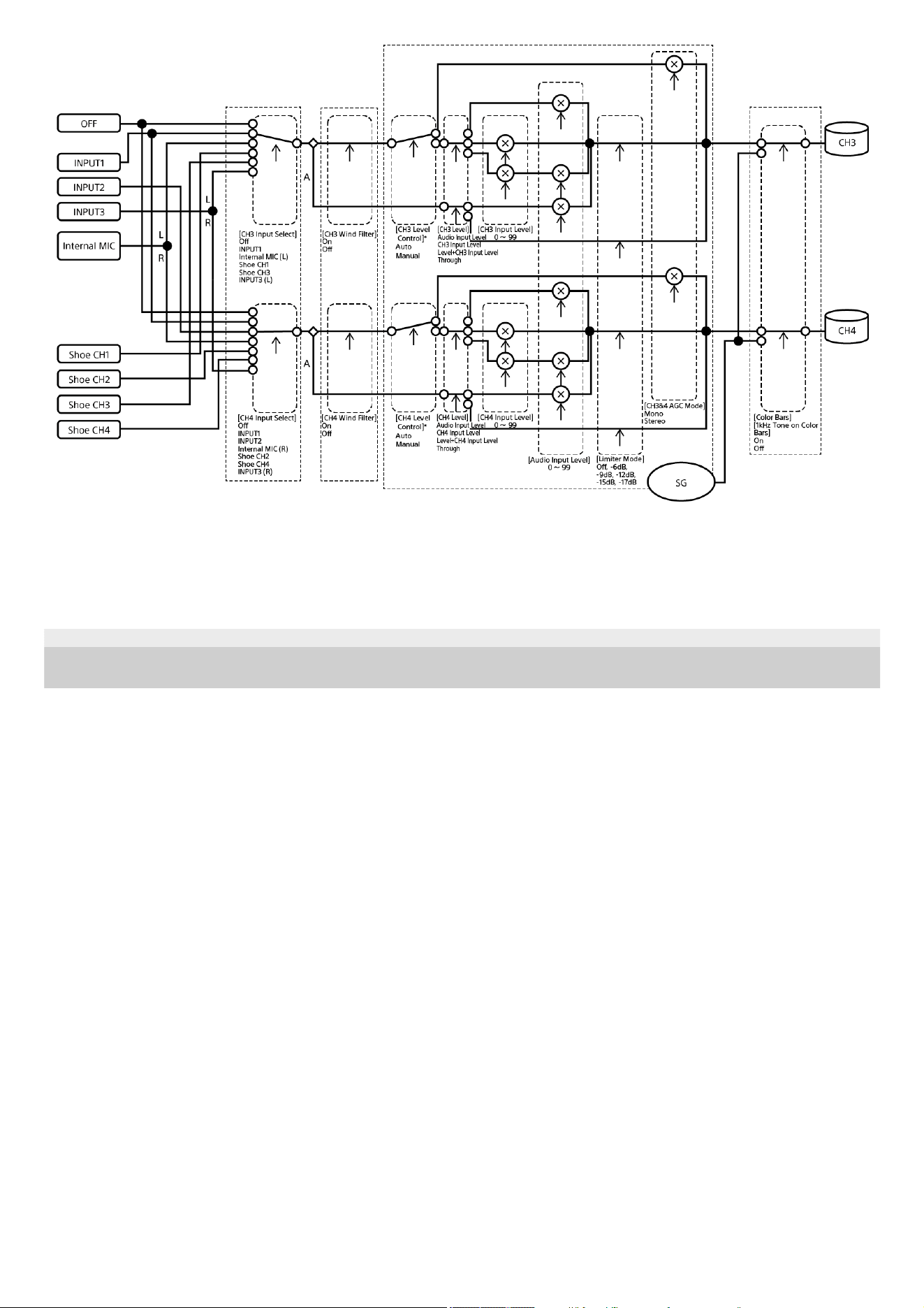
A: With XLR adaptor
* Set by [Audio Input] – [CH1 Level Control] to [CH4 Level Control] on the [Audio] status screen for audio input from an XLR
adaptor.
TP1001670422
5-060-574-11(2) Copyright 2024 Sony Corporation
297

Help Guide
Solid-State Memory Camcorder
PXW-Z200/HXR-NX800
Licenses
MPEG-4 AVC Patent Portfolio License
THIS PRODUCT IS LICENSED UNDER THE AVC PATENT PORTFOLIO LICENSE FOR THE PERSONAL USE OF A
CONSUMER OR OTHER USES IN WHICH IT DOES NOT RECEIVE REMUNERATION TO
(i) ENCODE VIDEO IN COMPLIANCE WITH THE AVC STANDARD (“AVC VIDEO”) AND/OR
(ii) DECODE AVC VIDEO THAT WAS ENCODED BY A CONSUMER ENGAGED IN A PERSONAL ACTIVITY AND/OR WAS
OBTAINED FROM A VIDEO PROVIDER LICENSED TO PROVIDE AVC VIDEO.
NO LICENSE IS GRANTED OR SHALL BE IMPLIED FOR ANY OTHER USE. ADDITIONAL INFORMATION MAY BE
OBTAINED FROM MPEG LA, L.L.C. SEE HTTP://WWW.MPEGLA.COM
Obtaining Software Under the GPL/LGPL License
This product uses software to which the GPL/LGPL applies. This informs you that you have a right to have access to, modify,
and redistribute source code for these software programs under the conditions of the GPL/LGPL.
The source code is provided on the internet. Use the following URL and follow the download instructions.
https://oss.sony.net/Products/Linux/
We would prefer that you do not contact us about the contents of the source code.
Licenses (in English) are recorded in the internal memory of your product.
Establish a mass storage connection between the product and a computer to read licenses in the “PMHOME” - “LICENSE”
folder.
END USER LICENSE AGREEMENT
For end users in countries/regions other than the United States
Last Updated: 2024-08
IMPORTANT:
BEFORE USING THE SOFTWARE, PLEASE READ THIS END USER LICENSE AGREEMENT (“EULA”) CAREFULLY. BY
USING THE SOFTWARE YOU ARE AGREEING TO BE BOUND BY THE TERMS OF THIS EULA. IF YOU DO NOT AGREE
TO THE TERMS OF THIS EULA, YOU MAY NOT USE THE SOFTWARE.
This EULA is a legal agreement between (i) you and any entity you represent (collectively “you”) and (ii) Sony Corporation
(“SONY”). This EULA governs your rights and obligations regarding the software of the product of SONY and/or its third party
licensors (including SONY’s affiliates) and their respective affiliates (collectively, the “THIRD-PARTY SUPPLIERS”), together
with any updates/upgrades, any printed, on-line or other electronic documentation for such software and any data files, each
provided by SONY or the THIRD-PARTY SUPPLIERS, or created by operation of such software (collectively, the
“SOFTWARE”).
Notwithstanding the foregoing, any software in the SOFTWARE having a separate end user license agreement (including, but
not limited to, GNU General Public license and Lesser/Library General Public License) shall be covered by such applicable
separate end user license agreement in lieu of the terms of this EULA to the extent required by such separate end user
license agreement (“EXCLUDED SOFTWARE”).
SOFTWARE LICENSE
The SOFTWARE is licensed, not sold. The SOFTWARE is protected by copyright and other intellectual property laws and
international treaties.
COPYRIGHT
All right and title in and to the SOFTWARE (including, but not limited to, any images, photographs, animation, video, audio,
music, text and “applets” and other content incorporated into the SOFTWARE) is owned by SONY or one or more of the
THIRD-PARTY SUPPLIERS.
298

GRANT OF LICENSE
SONY grants you a limited, non-exclusive, personal, non-transferable license to use the SOFTWARE solely in connection
with your compatible device (including, but not limited to, SONY’s products which the SOFTWARE is embedded in or bundled
with) (“DEVICE”) solely in accordance with this EULA and the usage instructions as may be made available to you by SONY
or the THIRD-PARTY SUPPLIERS. SONY and the THIRD-PARTY SUPPLIERS expressly reserve all rights, title and interest
(including, but not limited to, all intellectual property rights) in and to the SOFTWARE that this EULA does not specifically
grant to you.
REQUIREMENTS AND LIMITATIONS
You may not copy, publish, adapt, redistribute, attempt to derive source code, modify, reverse engineer, decompile, or
disassemble any of the SOFTWARE, whether in whole or in part, or create any derivative works from or of the SOFTWARE
unless such derivative works are intentionally facilitated by the SOFTWARE. You may not modify or tamper with any digital
rights management functionality of the SOFTWARE. You may not bypass, modify, defeat or circumvent any of the functions
or protections of the SOFTWARE or any mechanisms operatively linked to the SOFTWARE. You may not separate any
individual component of the SOFTWARE for use on more than one DEVICE unless expressly authorized to do so by SONY.
You may not remove, alter, cover or deface any trademarks or notices on the SOFTWARE. You may not share, distribute,
rent, lease, sublicense, assign, transfer or sell the SOFTWARE. You may not use the SOFTWARE in connection with
violation of laws, regulations, court decisions or other legally binding dispositions by a public authority or public policy, or
infringement of the rights or legally protected interests (including, but not limited to, intellectual and other property rights,
rights to trade secrets, honors, privacy and publicity) of SONY, each of the THIRD-PARTY SUPPLIERS or any third parties.
The software, network services or other products other than the SOFTWARE upon which the SOFTWARE’S performance
depends might be modified, interrupted or discontinued at the discretion of the suppliers (software suppliers, service
suppliers, or SONY). SONY and such suppliers do not warrant that the SOFTWARE, network services, contents or other
products will continue to be available, or will operate without interruption or modification. You shall not, nor shall you instruct
or permit, procure, enable or request any third party (including your users, third party personnel or other personnel, staff or
contractors) to, take any action designed or intended to: (i) use the SOFTWARE (or any part thereof) in any manner or for
any purpose that is inconsistent with this EULA; (ii) introduce to the SOFTWARE any “back door,” “drop dead device,” “time
bomb,” “Trojan horse,” “virus,” or “worm” (as such terms are commonly understood in the software industry) or any other
equivalent code, files, scripts, agents, programs, software routine or instructions designed or intended to disrupt, disable,
harm or otherwise impede in any manner the operation of the SOFTWARE or any device or system owned or controlled by
you or any third party, or which otherwise may damage or destroy any data or file (“Malicious Code”); (iii) interfere with the
proper working of the SOFTWARE; (iv) circumvent, disable, or interfere with security-related features of the SOFTWARE or
features that prevent or restrict use, access to, or copying the SOFTWARE, or that enforce limitations on use of the
SOFTWARE; or (v) impose (or which may impose, in your sole discretion) an unreasonable or disproportionately large load
on the SOFTWARE.
EXCLUDED SOFTWARE AND OPEN SOURCE COMPONENTS
Notwithstanding the foregoing limited license grant, you acknowledge that the SOFTWARE may include EXCLUDED
SOFTWARE. Certain EXCLUDED SOFTWARE may be covered by open source software licenses (“Open Source
Components”), which means any software licenses approved as open source licenses by the Open Source Initiative or any
substantially similar licenses, including but not limited to any license that, as a condition of distribution of the software
licensed under such license, requires that the distributor make the software available in source code format. If and to the
extent disclosure is required, please visit oss.sony.net/Products/Linux or other SONY-designated web site for a list of
applicable OPEN SOURCE COMPONENTS included in the SOFTWARE from time to time, and the applicable terms and
conditions governing its use. Such terms and conditions may be changed by the applicable third party at any time without
liability to you. To the extent required by the licenses covering EXCLUDED SOFTWARE, the terms of such licenses will apply
in lieu of the terms of this EULA. To the extent the terms of the licenses applicable to EXCLUDED SOFTWARE prohibit any
of the restrictions in this EULA with respect to such EXCLUDED SOFTWARE, such restrictions will not apply to such
EXCLUDED SOFTWARE. To the extent the terms of the licenses applicable to Open Source Components require SONY to
make an offer to provide source code in connection with the SOFTWARE, such offer is hereby made.
USE OF SOFTWARE WITH COPYRIGHTED MATERIALS
The SOFTWARE may be capable of being used by you to view, store, process and/or use content created by you and/or third
parties. Such content may be protected by copyright, other intellectual property laws, and/or agreements. You agree to use
the SOFTWARE only in compliance with all such laws and agreements that apply to such content. You acknowledge and
agree that SONY may take appropriate measures to protect content stored, processed or used by the SOFTWARE. Such
measures include, but are not limited to, refusal to accept your request to enable backup and restoration of content through
certain SOFTWARE features, and termination of this EULA in the event of your illegitimate use of the SOFTWARE.
299

CONTENT SERVICE
PLEASE ALSO NOTE THAT THE SOFTWARE MAY BE DESIGNED TO BE USED WITH CONTENT AVAILABLE THROUGH
ONE OR MORE CONTENT SERVICES (“CONTENT SERVICE”). USE OF THE SERVICE AND THAT CONTENT IS
SUBJECT TO THE TERMS OF SERVICE OF THAT CONTENT SERVICE. IF YOU DECLINE TO ACCEPT THOSE TERMS,
YOUR USE OF THE SOFTWARE WILL BE LIMITED. You acknowledge and agree that certain content and services
available through the SOFTWARE may be provided by third parties over which SONY has no control. WHERE CONTENT
SERVICE IS NOT UNDER SONY’S CONTROL, SONY SHALL NOT BE LIABLE IN RESPECT OF ANY DAMAGES (OR
OTHER LIABILITY) RELATED TO SUCH CONTENT SERVICE. USE OF THE CONTENT SERVICE REQUIRES AN
INTERNET CONNECTION. THE CONTENT SERVICE MAY BE MODIFIED OR DISCONTINUED AT ANY TIME.
INTERNET CONNECTIVITY AND THIRD PARTY SERVICES
You acknowledge and agree that access to certain SOFTWARE features may require an Internet connection for which you
are solely responsible. Further, you are solely responsible for payment of any fees associated with your Internet connection,
including but not limited to Internet service provider or airtime charges. Operation of the SOFTWARE may be limited or
restricted depending on the capabilities, bandwidth or technical limitations of your Internet connection and service. The
provision, quality and security of such Internet connectivity are your responsibility or that of the third party providing such
service. You are solely responsible in the event any Malicious Code introduced in the SOFTWARE because of or through,
your internet connections.
EXPORT AND OTHER REGULATIONS
You agree to comply with all applicable export and re-export restrictions and regulations of the area or country in which you
reside or use the SOFTWARE, and not to transfer, or authorize the transfer, of the SOFTWARE to a prohibited country or
otherwise in violation of any such restrictions or regulations.
HIGH RISK ACTIVITIES
The SOFTWARE is not fault-tolerant and is not designed, manufactured or intended for use or resale as on-line control
equipment in hazardous environments requiring fail-safe performance, such as in the operation of nuclear facilities, aircraft
navigation or communication systems, air traffic control, direct life support machines, or weapons systems, in which the
failure of the SOFTWARE could lead to death, personal injury, or severe physical or environmental damage (“HIGH RISK
ACTIVITIES”). SONY, each of the THIRD-PARTY SUPPLIERS, and each of their respective affiliates specifically disclaim any
express or implied warranty, duty or condition of fitness for HIGH RISK ACTIVITIES.
EXCLUSION OF WARRANTY ON SOFTWARE
You acknowledge and agree that use of the SOFTWARE is at your sole risk and that you are responsible for use of the
SOFTWARE. The SOFTWARE is provided “AS IS,” without warranty, duty or condition of any kind.
SONY AND EACH OF THE THIRD-PARTY SUPPLIERS (for purposes of this Section, SONY and each of the THIRD-PARTY
SUPPLIERS shall be collectively referred to as “SONY”) EXPRESSLY DISCLAIM ALL WARRANTIES, DUTIES OR
CONDITIONS, EXPRESS OR IMPLIED, INCLUDING, BUT NOT LIMITED TO, THE IMPLIED WARRANTIES OF
MERCHANTABILITY, QUALITY, FITNESS FOR A PARTICULAR PURPOSE, ACCURACY, TITLE AND NONINFRINGEMENT.
WITHOUT LIMITING THE GENERALITY OF THE FOREGOING, SONY DOES NOT WARRANT OR MAKE ANY
CONDITIONS OR REPRESENTATIONS (A) THAT THE FUNCTIONS CONTAINED IN ANY OF THE SOFTWARE WILL
MEET YOUR REQUIREMENTS OR THAT THEY WILL BE UPDATED, (B) THAT THE OPERATION OF ANY OF THE
SOFTWARE WILL BE CORRECT OR ERROR-FREE OR THAT ANY DEFECTS WILL BE CORRECTED, (C) THAT THE
SOFTWARE WILL NOT DAMAGE ANY OTHER SOFTWARE, HARDWARE OR DATA, (D) THAT ANY SOFTWARE,
NETWORK SERVICES (INCLUDING THE INTERNET) OR PRODUCTS (OTHER THAN THE SOFTWARE) UPON WHICH
THE SOFTWARE’S PERFORMANCE DEPENDS WILL CONTINUE TO BE AVAILABLE, UNINTERRUPTED, TIMELY,
SECURE OR UNMODIFIED, (E) THAT THE SOFTWARE OR ANY EQUIPMENT, SYSTEM OR NETWORK ON WHICH THE
SOFTWARE IS USED (INCLUDING THE DEVICE) WILL BE FREE OF VULNERABILITY TO INTRUSION OR ATTACK AND
(F) REGARDING THE USE OR THE RESULTS OF THE USE OF THE SOFTWARE IN TERMS OF ITS CORRECTNESS,
ACCURACY, RELIABILITY, OR OTHERWISE.
NO ORAL OR WRITTEN INFORMATION OR ADVICE GIVEN BY SONY OR AN AUTHORIZED REPRESENTATIVE OF
SONY SHALL CREATE A WARRANTY, DUTY OR CONDITION OR IN ANY WAY INCREASE THE SCOPE OF THIS
WARRANTY. SHOULD THE SOFTWARE PROVE DEFECTIVE YOU ASSUME THE ENTIRE COST OF ALL NECESSARY
SERVICING, REPAIR OR CORRECTION. SOME JURISDICTIONS DO NOT ALLOW THE EXCLUSION OF IMPLIED
WARRANTIES, SO THESE EXCLUSIONS MAY NOT APPLY TO YOU TO THE EXTENT THEY ARE CONTRARY TO
APPLICABLE LAW OF YOUR JURISDICTION.
LIMITATION OF LIABILITY
300

SONY AND EACH OF THE THIRD-PARTY SUPPLIERS (for purposes of this Section, SONY and each of the THIRD-PARTY
SUPPLIERS shall be collectively referred to as “SONY”) SHALL NOT BE LIABLE FOR ANY INCIDENTAL, INDIRECT,
SPECIAL, EXEMPLARY OR CONSEQUENTIAL LOSS OR DAMAGES FOR BREACH OF ANY EXPRESS OR IMPLIED
WARRANTY, BREACH OF CONTRACT, NEGLIGENCE, STRICT LIABILITY OR UNDER ANY OTHER LEGAL THEORY
RELATED TO THE SOFTWARE, INCLUDING, BUT NOT LIMITED TO, ANY DAMAGES ARISING OUT OF LOSS OF
PROFITS, LOSS OF REVENUE, LOSS OF DATA, LOSS OF USE OF THE SOFTWARE OR ANY ASSOCIATED
HARDWARE, DOWN TIME AND USER’S TIME, EVEN IF ANY OF THEM HAVE BEEN ADVISED OF THE POSSIBILITY OF
SUCH LOSSES OR DAMAGES. IN ANY CASE, EACH AND ALL OF THEIR AGGREGATE LIABILITY UNDER ANY
PROVISION OF THIS EULA SHALL BE LIMITED TO THE GREATER OF (i) THE AMOUNT ACTUALLY PAID FOR THE
SOFTWARE, SONY’S PRODUCT WHICH THE SOFTWARE IS EMBEDDED IN OR BUNDLED WITH AND/OR SONY’S
SERVICE TO WHICH THE SOFTWARE IS DEDICATED OR (ii) THE FIXED AMOUNT AGREED IN WRITING BETWEEN
SONY AND YOU. SOME JURISDICTIONS DO NOT ALLOW SUCH EXCLUSIONS OR LIMITATIONS OF LIABILITY, SO
THE ABOVE EXCLUSIONS OR LIMITATIONS MAY NOT APPLY TO YOU TO THE EXTENT THEY ARE CONTRARY TO
APPLICABLE LAW OF YOUR JURISDICTION.
INDEMNITY
Except as prohibited by applicable law, you agree to indemnify and hold harmless SONY and the THIRD-PARTY
SUPPLIERS and their respective affiliates, officers and employees, from any loss, claim or demand, including reasonable
attorneys' fees, made by any third party due to or arising out of your use of the SOFTWARE and/or the DEVICE (including,
without limitation, any software vulnerability caused by such use), your violation of this EULA or your failure to fulfill your
responsibility under this EULA.
AUTOMATIC UPDATE FEATURE
From time to time, SONY or the THIRD-PARTY SUPPLIERS may automatically update or otherwise modify the SOFTWARE,
including, but not limited to, for purposes of enhancement of security functions, error correction and improvement of
functions, at such time as you interact with SONY’s or third parties’ servers, or otherwise. Such updates or modifications may
delete or change the nature of features or other aspects of the SOFTWARE, including, but not limited to, functions you may
rely upon. You acknowledge and agree that such activities may occur at SONY’s sole discretion and that SONY may
condition continued use of the SOFTWARE upon your complete installation or acceptance of such update or modifications.
Any updates/modifications shall be deemed to be, and shall constitute part of, the SOFTWARE for purposes of this EULA. By
acceptance of this EULA, you consent to such update/modification.
FORCE MAJEURE
SONY shall not be liable for any delay or failure to perform resulting from causes outside its reasonable control, including, but
not limited to, fire, floods, storms, earthquakes, epidemics, acts of God, war, terrorism, riots, insurrection, embargos, acts of
civil, military or governmental authorities, nuclear or other accidents, explosions, strikes or shortages of transportation
facilities, fuel, energy, labor or materials.
ENTIRE AGREEMENT, WAIVER, SEVERABILITY
This EULA (and SONY’s applicable privacy policy separately presented to you, if any), as amended and modified from time to
time, constitute the entire agreement(s) between you and SONY with respect to the SOFTWARE. The failure of SONY to
exercise or enforce any right or provision of this EULA shall not constitute a waiver of such right or provision. If any part of
this EULA is held invalid, illegal, or unenforceable, that provision shall be enforced to the maximum extent permissible so as
to maintain the intent of this EULA, and the other parts will remain in full force and effect.
GOVERNING LAW AND JURISDICTION
The United Nations Convention on Contracts for the International Sale of Goods shall not apply to this EULA. This EULA shall
be governed by the laws of Japan, without regards to conflict of laws provisions. Any dispute arising out of this EULA shall be
subject to the exclusive venue of the Tokyo District Court in Japan, and the parties hereby consent to the venue and
jurisdiction of such courts. The foregoing does not apply to you to the extent applicable law of your jurisdiction restricts or
prohibits such agreements.
EQUITABLE REMEDIES
Notwithstanding anything contained in this EULA to the contrary, you acknowledge and agree that any violation of or non-
compliance with this EULA by you will cause irreparable harm to SONY, for which monetary damages would be inadequate,
and you consent to SONY obtaining any injunctive or equitable relief that SONY deems necessary or appropriate in such
circumstances. SONY may also take any legal and technical remedies to prevent violation of and/or to enforce this EULA,
including, but not limited to, immediate termination of your use of the SOFTWARE, if SONY believes in its sole discretion that
you are violating or intend to violate this EULA. These remedies are in addition to any other remedies SONY may have at
law, in equity or under contract.
301

TERMINATION
Without prejudice to any of its other rights, SONY may suspend your access or use of the SOFTWARE and/or terminate this
EULA if you fail to comply with any of its terms. In case of such termination, you must: (i) cease all use, and destroy any
copies, of the SOFTWARE; (ii) comply with the requirements in the section below entitled “Your Account Responsibilities”.
AMENDMENT
SONY RESERVES THE RIGHT TO AMEND ANY OF THE TERMS OF THIS EULA AT ITS SOLE DISCRETION BY
POSTING NOTICE ON A SONY DESIGNATED WEB SITE, BY EMAIL NOTIFICATION TO AN EMAIL ADDRESS PROVIDED
BY YOU, BY PROVIDING NOTICE AS PART OF THE PROCESS IN WHICH YOU OBTAIN UPGRADES/UPDATES OR BY
ANY OTHER LEGALLY RECOGNIZABLE FORM OF NOTICE. If you do not agree to the amendment, you should promptly
contact SONY for instructions. Your continued use of the SOFTWARE after the effective date of any such notice shall be
deemed your agreement to be bound by such amendment.
THIRD-PARTY BENEFICIARIES
Each THIRD-PARTY SUPPLIER is an express intended third-party beneficiary of, and shall have the right to enforce, each
provision of this EULA with respect to the software of such party.
YOUR ACCOUNT RESPONSIBILITIES
Should you return your DEVICE to its place of purchase, sell or otherwise transfer your DEVICE, or if this EULA is
terminated, you are responsible for and must, if reasonably possible, uninstall the SOFTWARE from the DEVICE and delete
any and all accounts you may have established on DEVICE or are accessible through the SOFTWARE. You are solely
responsible for maintaining the confidentiality of any accounts you have with SONY or third parties and any usernames and
passwords associated with your use of the DEVICE.
Should you have any questions concerning this EULA, you may contact SONY by writing to SONY at the applicable contact
address for each area or country.
For end users in the United States
Last Updated: 2024-08
IMPORTANT:
BEFORE USING THE SOFTWARE, PLEASE READ THIS END USER LICENSE AGREEMENT (“EULA”) CAREFULLY. BY
USING THE SOFTWARE YOU ARE AGREEING TO BE BOUND BY THE TERMS OF THIS EULA. IF YOU DO NOT AGREE
TO THE TERMS OF THIS EULA, YOU MAY NOT USE THE SOFTWARE.
This EULA is a legal agreement between (i) you and any entity you represent (collectively “you”) and (ii) Sony Electronics Inc.
(“SONY”). This EULA governs your rights and obligations regarding the software of the product of SONY and/or its third party
licensors (including SONY’s affiliates) and their respective affiliates (collectively, the “THIRD-PARTY SUPPLIERS”), together
with any updates/upgrades, any printed, on-line or other electronic documentation for such software and any data files, each
provided by SONY or the THIRD-PARTY SUPPLIERS, or created by operation of such software (collectively, the
“SOFTWARE”).
Notwithstanding the foregoing, any software in the SOFTWARE having a separate end user license agreement (including, but
not limited to, GNU General Public license and Lesser/Library General Public License) shall be covered by such applicable
separate end user license agreement in lieu of the terms of this EULA to the extent required by such separate end user
license agreement (“EXCLUDED SOFTWARE”).
SOFTWARE LICENSE
The SOFTWARE is licensed, not sold. The SOFTWARE is protected by copyright and other intellectual property laws and
international treaties.
COPYRIGHT
All right and title in and to the SOFTWARE (including, but not limited to, any images, photographs, animation, video, audio,
music, text and “applets” and other content incorporated into the SOFTWARE) is owned by SONY or one or more of the
THIRD-PARTY SUPPLIERS.
302

GRANT OF LICENSE
SONY grants you a limited, non-exclusive, personal, non-transferable license to use the SOFTWARE solely in connection
with your compatible device (including, but not limited to, SONY’s products which the SOFTWARE is embedded in or bundled
with) (“DEVICE”) solely in accordance with this EULA and the usage instructions as may be made available to you by SONY
or the THIRD-PARTY SUPPLIERS. SONY and the THIRD-PARTY SUPPLIERS expressly reserve all rights, title and interest
(including, but not limited to, all intellectual property rights) in and to the SOFTWARE that this EULA does not specifically
grant to you.
REQUIREMENTS AND LIMITATIONS
You may not copy, publish, adapt, redistribute, attempt to derive source code, modify, reverse engineer, decompile, or
disassemble any of the SOFTWARE, whether in whole or in part, or create any derivative works from or of the SOFTWARE
unless such derivative works are intentionally facilitated by the SOFTWARE. You may not modify or tamper with any digital
rights management functionality of the SOFTWARE. You may not bypass, modify, defeat or circumvent any of the functions
or protections of the SOFTWARE or any mechanisms operatively linked to the SOFTWARE. You may not separate any
individual component of the SOFTWARE for use on more than one DEVICE unless expressly authorized to do so by SONY.
You may not remove, alter, cover or deface any trademarks or notices on the SOFTWARE. You may not share, distribute,
rent, lease, sublicense, assign, transfer or sell the SOFTWARE. You may not use the SOFTWARE in connection with
violation of laws, regulations, court decisions or other legally binding dispositions by a public authority or public policy, or
infringement of the rights or legally protected interests (including, but not limited to, intellectual and other property rights,
rights to trade secrets, honors, privacy and publicity) of SONY, each of the THIRD-PARTY SUPPLIERS or any third parties.
The software, network services or other products other than the SOFTWARE upon which the SOFTWARE’S performance
depends might be modified, interrupted or discontinued at the discretion of the suppliers (software suppliers, service
suppliers, or SONY). SONY and such suppliers do not warrant that the SOFTWARE, network services, contents or other
products will continue to be available, or will operate without interruption or modification. You shall not, nor shall you instruct
or permit, procure, enable or request any third party (including your users, third party personnel or other personnel, staff or
contractors) to, take any action designed or intended to: (i) use the SOFTWARE (or any part thereof) in any manner or for
any purpose that is inconsistent with this EULA; (ii) introduce to the SOFTWARE any “back door,” “drop dead device,” “time
bomb,” “Trojan horse,” “virus,” or “worm” (as such terms are commonly understood in the software industry) or any other
equivalent code, files, scripts, agents, programs, software routine or instructions designed or intended to disrupt, disable,
harm or otherwise impede in any manner the operation of the SOFTWARE or any device or system owned or controlled by
you or any third party, or which otherwise may damage or destroy any data or file (“Malicious Code”); (iii) interfere with the
proper working of the SOFTWARE; (iv) circumvent, disable, or interfere with security-related features of the SOFTWARE or
features that prevent or restrict use, access to, or copying the SOFTWARE, or that enforce limitations on use of the
SOFTWARE; or (v) impose (or which may impose, in your sole discretion) an unreasonable or disproportionately large load
on the SOFTWARE.
EXCLUDED SOFTWARE AND OPEN SOURCE COMPONENTS
Notwithstanding the foregoing limited license grant, you acknowledge that the SOFTWARE may include EXCLUDED
SOFTWARE. Certain EXCLUDED SOFTWARE may be covered by open source software licenses (“Open Source
Components”), which means any software licenses approved as open source licenses by the Open Source Initiative or any
substantially similar licenses, including but not limited to any license that, as a condition of distribution of the software
licensed under such license, requires that the distributor make the software available in source code format. If and to the
extent disclosure is required, please visit oss.sony.net/Products/Linux or other SONY-designated web site for a list of
applicable OPEN SOURCE COMPONENTS included in the SOFTWARE from time to time, and the applicable terms and
conditions governing its use. Such terms and conditions may be changed by the applicable third party at any time without
liability to you. To the extent required by the licenses covering EXCLUDED SOFTWARE, the terms of such licenses will apply
in lieu of the terms of this EULA. To the extent the terms of the licenses applicable to EXCLUDED SOFTWARE prohibit any
of the restrictions in this EULA with respect to such EXCLUDED SOFTWARE, such restrictions will not apply to such
EXCLUDED SOFTWARE. To the extent the terms of the licenses applicable to Open Source Components require SONY to
make an offer to provide source code in connection with the SOFTWARE, such offer is hereby made.
USE OF SOFTWARE WITH COPYRIGHTED MATERIALS
The SOFTWARE may be capable of being used by you to view, store, process and/or use content created by you and/or third
parties. Such content may be protected by copyright, other intellectual property laws, and/or agreements. You agree to use
the SOFTWARE only in compliance with all such laws and agreements that apply to such content. You acknowledge and
agree that SONY may take appropriate measures to protect content stored, processed or used by the SOFTWARE. Such
303

measures include, but are not limited to, refusal to accept your request to enable backup and restoration of content through
certain SOFTWARE features, and termination of this EULA in the event of your illegitimate use of the SOFTWARE.
CONTENT SERVICE
PLEASE ALSO NOTE THAT THE SOFTWARE MAY BE DESIGNED TO BE USED WITH CONTENT AVAILABLE THROUGH
ONE OR MORE CONTENT SERVICES (“CONTENT SERVICE”). USE OF THE SERVICE AND THAT CONTENT IS
SUBJECT TO THE TERMS OF SERVICE OF THAT CONTENT SERVICE. IF YOU DECLINE TO ACCEPT THOSE TERMS,
YOUR USE OF THE SOFTWARE WILL BE LIMITED. You acknowledge and agree that certain content and services
available through the SOFTWARE may be provided by third parties over which SONY has no control. WHERE CONTENT
SERVICE IS NOT UNDER SONY’S CONTROL, SONY SHALL NOT BE LIABLE IN RESPECT OF ANY DAMAGES (OR
OTHER LIABILITY) RELATED TO SUCH CONTENT SERVICE. USE OF THE CONTENT SERVICE REQUIRES AN
INTERNET CONNECTION. THE CONTENT SERVICE MAY BE MODIFIED OR DISCONTINUED AT ANY TIME.
INTERNET CONNECTIVITY AND THIRD PARTY SERVICES
You acknowledge and agree that access to certain SOFTWARE features may require an Internet connection for which you
are solely responsible. Further, you are solely responsible for payment of any fees associated with your Internet connection,
including but not limited to Internet service provider or airtime charges. Operation of the SOFTWARE may be limited or
restricted depending on the capabilities, bandwidth or technical limitations of your Internet connection and service. The
provision, quality and security of such Internet connectivity are your responsibility or that of the third party providing such
service. You are solely responsible in the event any Malicious Code introduced in the SOFTWARE because of or through,
your internet connections.
EXPORT AND OTHER REGULATIONS
You agree to comply with all applicable export and re-export restrictions and regulations of the Department of Commerce and
other United States agencies and authorities, and not to transfer, or authorize the transfer, of the SOFTWARE to a prohibited
country or otherwise in violation of any such restrictions or regulations.
U.S. GOVERNMENT RESTRICTED RIGHTS
Use, duplication, or disclosure by the United States Government is subject to restriction as set forth in subparagraph (c) (1)
and (2) of the Commercial Computer Software-Restricted Rights at 48 C.F.R. § 52.227-19, as applicable. The manufacturer
solely for purposes of this section is Sony Electronics Inc., 16535 Via Esprillo, San Diego, CA 92127.
HIGH RISK ACTIVITIES
The SOFTWARE is not fault-tolerant and is not designed, manufactured or intended for use or resale as on-line control
equipment in hazardous environments requiring fail-safe performance, such as in the operation of nuclear facilities, aircraft
navigation or communication systems, air traffic control, direct life support machines, or weapons systems, in which the
failure of the SOFTWARE could lead to death, personal injury, or severe physical or environmental damage (“HIGH RISK
ACTIVITIES”). SONY, each of the THIRD-PARTY SUPPLIERS, and each of their respective affiliates specifically disclaim any
express or implied warranty, duty or condition of fitness for HIGH RISK ACTIVITIES.
EXCLUSION OF WARRANTY ON SOFTWARE
You acknowledge and agree that use of the SOFTWARE is at your sole risk and that you are responsible for use of the
SOFTWARE. The SOFTWARE is provided “AS IS,” without warranty, duty or condition of any kind.
SONY AND EACH OF THE THIRD-PARTY SUPPLIERS (for purposes of this Section, SONY and each of the THIRD-PARTY
SUPPLIERS shall be collectively referred to as “SONY”) EXPRESSLY DISCLAIM ALL WARRANTIES, DUTIES OR
CONDITIONS, EXPRESS OR IMPLIED, INCLUDING, BUT NOT LIMITED TO, THE IMPLIED WARRANTIES OF
MERCHANTABILITY, QUALITY, FITNESS FOR A PARTICULAR PURPOSE, ACCURACY, TITLE AND NONINFRINGEMENT.
WITHOUT LIMITING THE GENERALITY OF THE FOREGOING, SONY DOES NOT WARRANT OR MAKE ANY
CONDITIONS OR REPRESENTATIONS (A) THAT THE FUNCTIONS CONTAINED IN ANY OF THE SOFTWARE WILL
MEET YOUR REQUIREMENTS OR THAT THEY WILL BE UPDATED, (B) THAT THE OPERATION OF ANY OF THE
SOFTWARE WILL BE CORRECT OR ERROR-FREE OR THAT ANY DEFECTS WILL BE CORRECTED, (C) THAT THE
SOFTWARE WILL NOT DAMAGE ANY OTHER SOFTWARE, HARDWARE OR DATA, (D) THAT ANY SOFTWARE,
NETWORK SERVICES (INCLUDING THE INTERNET) OR PRODUCTS (OTHER THAN THE SOFTWARE) UPON WHICH
THE SOFTWARE’S PERFORMANCE DEPENDS WILL CONTINUE TO BE AVAILABLE, UNINTERRUPTED, TIMELY,
304

SECURE OR UNMODIFIED, (E) THAT THE SOFTWARE OR ANY EQUIPMENT, SYSTEM OR NETWORK ON WHICH THE
SOFTWARE IS USED (INCLUDING THE DEVICE) WILL BE FREE OF VULNERABILITY TO INTRUSION OR ATTACK AND
(F) REGARDING THE USE OR THE RESULTS OF THE USE OF THE SOFTWARE IN TERMS OF ITS CORRECTNESS,
ACCURACY, RELIABILITY, OR OTHERWISE.
NO ORAL OR WRITTEN INFORMATION OR ADVICE GIVEN BY SONY OR AN AUTHORIZED REPRESENTATIVE OF
SONY SHALL CREATE A WARRANTY, DUTY OR CONDITION OR IN ANY WAY INCREASE THE SCOPE OF ANY
PROVISION OF THIS EULA. SHOULD THE SOFTWARE PROVE DEFECTIVE YOU ASSUME THE ENTIRE COST OF ALL
NECESSARY SERVICING, REPAIR OR CORRECTION. SOME JURISDICTIONS DO NOT ALLOW THE EXCLUSION OF
IMPLIED WARRANTIES, SO THESE EXCLUSIONS MAY NOT APPLY TO YOU TO THE EXTENT THEY ARE CONTRARY
TO APPLICABLE LAW OF YOUR JURISDICTION.
LIMITATION OF LIABILITY
SONY AND EACH OF THE THIRD-PARTY SUPPLIERS (for purposes of this Section, SONY and each of the THIRD-PARTY
SUPPLIERS shall be collectively referred to as “SONY”) SHALL NOT BE LIABLE FOR ANY INCIDENTAL, INDIRECT,
SPECIAL, EXEMPLARY OR CONSEQUENTIAL LOSS OR DAMAGES FOR BREACH OF ANY EXPRESS OR IMPLIED
WARRANTY, BREACH OF CONTRACT, NEGLIGENCE, STRICT LIABILITY OR UNDER ANY OTHER LEGAL THEORY
RELATED TO THE SOFTWARE, INCLUDING, BUT NOT LIMITED TO, ANY DAMAGES ARISING OUT OF LOSS OF
PROFITS, LOSS OF REVENUE, LOSS OF DATA, LOSS OF USE OF THE SOFTWARE OR ANY ASSOCIATED
HARDWARE, DOWN TIME AND USER’S TIME, EVEN IF ANY OF THEM HAVE BEEN ADVISED OF THE POSSIBILITY OF
SUCH LOSSES OR DAMAGES. IN ANY CASE, EACH AND ALL OF THEIR AGGREGATE LIABILITY UNDER ANY
PROVISION OF THIS EULA SHALL BE LIMITED TO THE GREATER OF (i) THE AMOUNT ACTUALLY PAID FOR THE
SOFTWARE, SONY’S PRODUCT WHICH THE SOFTWARE IS EMBEDDED IN OR BUNDLED WITH AND/OR SONY’S
SERVICE TO WHICH THE SOFTWARE IS DEDICATED OR (ii) THE FIXED AMOUNT AGREED IN WRITING BETWEEN
SONY AND YOU. SOME JURISDICTIONS DO NOT ALLOW SUCH EXCLUSIONS OR LIMITATIONS OF LIABILITY, SO
THE ABOVE EXCLUSIONS OR LIMITATIONS MAY NOT APPLY TO YOU TO THE EXTENT THEY ARE CONTRARY TO
APPLICABLE LAW OF YOUR JURISDICTION.
INDEMNITY
Except as prohibited by applicable law, you agree to indemnify and hold harmless SONY and the THIRD-PARTY
SUPPLIERS and their respective affiliates, officers and employees, from any loss, claim or demand, including reasonable
attorneys' fees, made by any third party due to or arising out of your use of the SOFTWARE and/or the DEVICE (including,
without limitation, any software vulnerability caused by such use), your violation of this EULA or your failure to fulfill your
responsibility under this EULA.
AUTOMATIC UPDATE FEATURE
From time to time, SONY or the THIRD-PARTY SUPPLIERS may automatically update or otherwise modify the SOFTWARE,
including, but not limited to, for purposes of enhancement of security functions, error correction and improvement of
functions, at such time as you interact with SONY’s or third parties’ servers, or otherwise. Such updates or modifications may
delete or change the nature of features or other aspects of the SOFTWARE, including, but not limited to, functions you may
rely upon. You acknowledge and agree that such activities may occur at SONY’s sole discretion and that SONY may
condition continued use of the SOFTWARE upon your complete installation or acceptance of such update or modifications.
Any updates/modifications shall be deemed to be, and shall constitute part of, the SOFTWARE for purposes of this EULA. By
acceptance of this EULA, you consent to such update/modification.
FORCE MAJEURE
SONY shall not be liable for any delay or failure to perform resulting from causes outside its reasonable control, including, but
not limited to, fire, floods, storms, earthquakes, epidemics, acts of God, war, terrorism, riots, insurrection, embargos, acts of
civil, military or governmental authorities, nuclear or other accidents, explosions, strikes or shortages of transportation
facilities, fuel, energy, labor or materials.
ENTIRE AGREEMENT, WAIVER, SEVERABILITY
This EULA (and SONY’s applicable privacy policy separately presented to you, if any), as amended and modified from time to
time, constitute the entire agreement(s) between you and SONY with respect to the SOFTWARE. The failure of SONY to
exercise or enforce any right or provision of this EULA shall not constitute a waiver of such right or provision. If any part of
305

this EULA is held invalid, illegal, or unenforceable, that provision shall be enforced to the maximum extent permissible so as
to maintain the intent of this EULA, and the other parts will remain in full force and effect.
GOVERNING LAW AND JURISDICTION
The United Nations Convention on Contracts for the International Sale of Goods shall not apply to the SOFTWARE or this
EULA. This EULA will not be governed or interpreted in any way by referring to any law based on the Uniform Computer
Information Transactions Act (UCITA) or any other act derived from or related to UCITA. This EULA shall be governed by the
laws of the State of Delaware (USA), without regard to conflict of laws provisions.
BINDING ARBITRATION
ANY “DISPUTE” THAT IS NOT RESOLVED THROUGH THE INFORMAL NEGOTIATION PROCESS DESCRIBED ABOVE
SHALL BE RESOLVED EXCLUSIVELY THROUGH BINDING ARBITRATION. “DISPUTE” is defined as any disagreement,
cause of action, claim, controversy, or proceeding between you and any Sony entity related to or arising out of the
SOFTWARE or this EULA. DISPUTE is to be given the broadest possible meaning that will be enforced. If a DISPUTE arises,
you agree to first give notice to SONY by contacting Sony Electronics Inc. at 16535 Via Esprillo, MZ 1105, San Diego, CA
92127, Attn: Legal Department, and engaging in good faith negotiations to attempt to resolve any DISPUTE for at least 14
days, except that you or Sony (or any of its affiliates) may skip this informal negotiation procedure for DISPUTE enforcing,
protecting, or concerning the validity of intellectual property rights.
ARBITRATION INSTRUCTIONS
To begin arbitration, either you or SONY must make a written demand to the other for arbitration. The arbitration will take
place before a single arbitrator. It will be administered in keeping with the Expedited Procedures of the Commercial
Arbitration Rules, and the Supplementary Proceedings for Consumer-Related disputes when applicable (“Rules”) of the
American Arbitration Association (“AAA”) in effect when the claim is filed. You may get a copy of AAA’s Rules by contacting
AAA at (800) 778-7879 or visiting www.adr.org. The filing fees to begin and carry out arbitration will be shared between you
and SONY, but in no event shall your fees ever exceed the amount allowable by the special rules for Consumers Disputes
provided for by AAA, at which point SONY will cover all additional administrative fees and expenses. This does not prohibit
the arbitrator from giving the winning party their fees and expenses of the arbitration when appropriate pursuant to the Rules.
Unless you and SONY agree differently, the arbitration will take place in the county and state where you live, and applicable
federal or state law shall govern the substance of any DISPUTE. The Federal Arbitration Act, 9 U.S.C. § 1, et seq., will govern
the arbitration itself and not any state law on arbitration. The arbitrator’s decision will be binding and final, except for a limited
right of appeal under the Federal Arbitration Act. The arbitrator may award declaratory or injunctive relief only in favor of the
party seeking relief, and only to the extent necessary to provide relief warranted by that party’s individual claim. Any court
with jurisdiction over the parties may enforce the arbitrator’s decision.
SMALL CLAIMS EXCEPTION
Despite the provisions set forth above, you have the right to litigate any DISPUTE in small claims court or other similar court
of limited jurisdiction, to the extent the amount at issue does not exceed $15,000, and as long as such court has proper
jurisdiction and all other requirements (including amount in controversy) are satisfied.
CLASS ACTION WAIVER
YOU UNDERSTAND AND ACKNOWLEDGE THAT BY AGREEING TO BINDING ARBITRATION, YOU ARE GIVING UP THE
RIGHT TO LITIGATE (OR PARTICIPATE IN AS A PARTY OR CLASS MEMBER) ANY DISPUTES IN COURT BEFORE A
JUDGE OR JURY. ANY DISPUTE RESOLUTION PROCEEDING WILL BE CONDUCTED ONLY ON AN INDIVIDUAL BASIS,
AND BOTH PARTIES AGREE NOT TO HAVE ANY DISPUTE HEARD AS A CLASS ACTION, REPRESENTATIVE ACTION,
CONSOLIDATED ACTION, OR PRIVATE ATTORNEY GENERAL ACTION, UNLESS ALL PARTIES INVOLVED IN THE
DISPUTE SPECIFICALLY AGREE TO DO SO IN WRITING FOLLOWING INITIATION OF THE ARBITRATION.
OPT-OUT INSTRUCTIONS
IF YOU DO NOT WISH TO BE BOUND BY THE BINDING ARBITRATION PROVISION AND/OR THE CLASS ACTION
WAIVER ABOVE, THEN: (1) YOU MUST NOTIFY SONY IN WRITING WITHIN 30 DAYS OF THE DATE THAT YOU FIRST
USE THE SOFTWARE OR AGREE TO THIS EULA, WHICHEVER OCCURS FIRST; (2) YOUR WRITTEN NOTIFICATION
MUST BE MAILED TO SONY ELECTRONICS INC., 16535 VIA ESPRILLO, MZ 1105, SAN DIEGO CA 92127, ATTN: LEGAL
DEPARTMENT; AND (3) YOUR WRITTEN NOTIFICATION MUST INCLUDE: (A) YOUR NAME; (B) YOUR ADDRESS; (C)
THE DATE YOU FIRST USED THE SOFTWARE OR AGREED TO THIS EULA; AND (D) A CLEAR STATEMENT THAT YOU
306

DO NOT WISH TO RESOLVE DISPUTES WITH ANY SONY ENTITY THROUGH ARBITRATION AND/OR TO BE BOUND
BY THE CLASS ACTION WAIVER.
REJECTING CHANGES MADE TO THE DISPUTE PROCEDURES
Despite anything to the contrary in this EULA, you may reject changes made to the binding arbitration provision and class
action waiver if: (1) you’ve already begun authorized use of the SOFTWARE at the time the change was/is made; and (2) you
mail written notice to the address in the immediately preceding paragraph within 30 days after the particular change was/is
made. Should such a situation arise, you will still be bound by the DISPUTE procedures you previously agreed to and
existing before the change you rejected was made.
MISCELLANEOUS
Any DISPUTE determined not subject to arbitration and not initiated in small claims court will be litigated by either party in a
court of competent jurisdiction in either the superior court for the County of San Diego or in the United States District Court
for the Southern District of California.
EQUITABLE REMEDIES
Notwithstanding anything contained in this EULA to the contrary, you acknowledge and agree that any violation of or non-
compliance with this EULA by you will cause irreparable harm to SONY, for which monetary damages would be inadequate,
and you consent to SONY obtaining any injunctive or equitable relief that SONY deems necessary or appropriate in such
circumstances. SONY may also take any legal and technical remedies to prevent violation of and/or to enforce this EULA,
including, but not limited to, immediate termination of your use of the SOFTWARE, if SONY believes in its sole discretion that
you are violating or intend to violate this EULA. These remedies are in addition to any other remedies SONY may have at
law, in equity or under contract.
TERMINATION
Without prejudice to any of its other rights, SONY may suspend your access or use of the SOFTWARE and/or terminate this
EULA if you fail to comply with any of its terms. In case of such termination, you must: (i) cease all use, and destroy any
copies, of the SOFTWARE; (ii) comply with the requirements in the section below entitled “Your Account Responsibilities”.
AMENDMENT
SONY RESERVES THE RIGHT TO AMEND ANY OF THE TERMS OF THIS EULA AT ITS SOLE DISCRETION BY
POSTING NOTICE ON A SONY DESIGNATED WEB SITE, BY EMAIL NOTIFICATION TO AN EMAIL ADDRESS PROVIDED
BY YOU, BY PROVIDING NOTICE AS PART OF THE PROCESS IN WHICH YOU OBTAIN UPGRADES/UPDATES OR BY
ANY OTHER REASONABLE OR LEGALLY RECOGNIZABLE FORM OF NOTICE. If you do not agree to the amendment,
you should promptly contact SONY for instructions. Your continued use of the SOFTWARE after the effective date of any
such notice shall be deemed your agreement to be bound by such amendment.
THIRD-PARTY BENEFICIARIES
Each THIRD-PARTY SUPPLIER is an express intended third-party beneficiary of, and shall have the right to enforce, each
provision of this EULA with respect to the software of such party.
YOUR ACCOUNT RESPONSIBILITIES
Should you return your DEVICE to its place of purchase, sell or otherwise transfer your DEVICE, or if this EULA is
terminated, you are responsible for and must, if reasonably possible, uninstall the SOFTWARE from the DEVICE and delete
any and all accounts you may have established on DEVICE or are accessible through the SOFTWARE. You are solely
responsible for maintaining the confidentiality of any accounts you have with SONY or third parties and any usernames and
passwords associated with your use of the DEVICE.
Should you have any questions concerning this EULA, you may contact SONY by writing to SONY at: Sony Electronics Inc.,
16535 Via Esprillo, San Diego, CA 92127.
Open Source Software Licenses
On the basis of license contracts between Sony and the software copyright holders, this product uses open source software.
307

To meet the requirements of the software copyright holders, Sony is obligated to inform you of the content of these licenses.
Licenses (in English) are recorded in the internal memory of your product.
Establish a mass storage connection between the product and a computer to read licenses in the “PMHOME” - “LICENSE”
folder.
TP1001670423
5-060-574-11(2) Copyright 2024 Sony Corporation
308
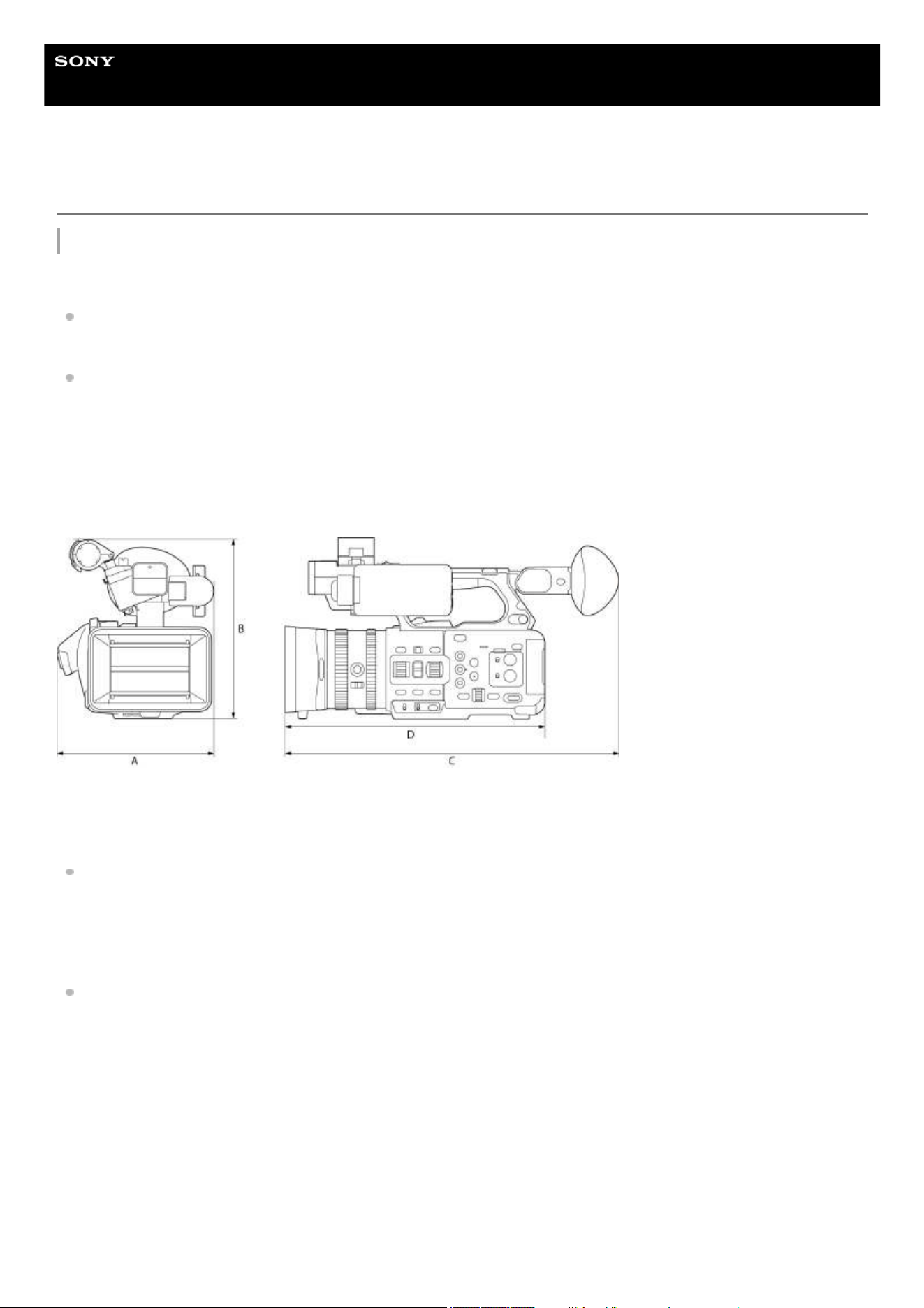
Help Guide
Solid-State Memory Camcorder
PXW-Z200/HXR-NX800
Specifications
General
Mass
PXW-Z200
Approx. 1.96 kg (4 lb 5.1 oz) (main body only)
Approx. 2.4 kg (5 lb 4.7 oz) (including lens hood, battery (BP-U35), LCD hood, microphone holder, eyecup)
HXR-NX800
Approx. 1.93 kg (4 lb 4.1 oz) (main body only)
Approx. 2.38 kg (5 lb 4.0 oz) (including lens hood, battery (BP-U35), LCD hood, microphone holder, eyecup)
Dimensions (width × height × depth)
Approx. 175.6 mm (A) × 201.3 mm (B) × 371.1 mm (C) (7 inch × 8 inch × 14
5
/
8
inch)
D: Approx. 289.2 mm (11
1
/
2
inch)
Power requirements
19.5 V DC (18.0 V to 20.5 V)
Power consumption
PXW-Z200
Normal power consumption: Approx. 20 W (main body, XAVC S-L 420, QFHD 59.94P, CFexpress Type A memory card
recording, LCD monitor/viewfinder lit (default), no peripheral devices connected)
Maximum power consumption: Approx. 37 W (main body, XAVC S-I, QFHD 59.94P (S&Q 120 fps), CFexpress Type A
memory card recording (2-card simultaneous recording), LCD monitor/viewfinder lit (maximum), peripheral devices
connected (SDI, HDMI, USB, wireless devices))
HXR-NX800
Normal power consumption: Approx. 16 W (main body, XAVC S-L 420, QFHD 59.94P, CFexpress Type A memory card
recording, LCD monitor/viewfinder lit (default), no peripheral devices connected)
Maximum power consumption: Approx. 32 W (main body, XAVC S-I, QFHD 59.94P (S&Q 120 fps), CFexpress Type A
memory card recording (2-card simultaneous recording), LCD monitor/viewfinder lit (maximum), peripheral devices
connected (HDMI, USB, wireless devices))
Operating temperature
0 °C to 40 °C (32 °F to 104 °F)
Storage temperature
−20 °C to +60 °C (−4 °F to +140 °F)
Continuous operating time
309

PXW-Z200
Approx. 90 minutes (using BP-U35, normal power consumption)
HXR-NX800
Approx. 120 minutes (using BP-U35, normal power consumption)
Recording format (video)
XAVC HS Long 422/420
XAVC S Long 422/420
XAVC S-I Intra
Recording format (audio)
LPCM 24-bit, 48 kHz, 4-channel
Recording frame rate
XAVC HS Long 422/420
3840×2160/119.88P*, 100P*, 59.94P, 50P, 23.98P
XAVC S Long 422
3840×2160/119.88P*, 100P*, 59.94P, 50P, 29.97P, 25P, 23.98P
1920×1080/59.94P, 50P, 29.97P, 25P, 23.98P
XAVC S Long 420
3840×2160/119.88P*, 100P*, 59.94P, 50P, 29.97P, 25P, 23.98P
1920×1080/119.88P*, 100P*, 59.94P, 50P, 29.97P, 25P, 23.98P
XAVC S Intra
3840×2160/59.94P, 50P, 29.97P, 25P, 23.98P
1920×1080/59.94P, 50P, 29.97P, 25P, 23.98P
* When Slow & Quick Motion is turned on, 119.88P and 100P cannot be used.
Recording/playback time
XAVC HS Long 420
3840×2160/59.94P
Approx. 80 minutes (using CEA-G160T)
XAVC S Long 420
3840×2160/59.94P
Approx. 80 minutes (using CEA-G160T)
1920×1080/59.94P
Approx. 270 minutes (using CEA-G160T)
XAVC S Intra
3840×2160/59.94P
Approx. 25 minutes (using CEA-G160T)
1920×1080/59.94P
Approx. 75 minutes (using CEA-G160T)
Note
The recording/playback time may vary due to usage conditions and memory characteristics. The recording and playback times are for
a continuous recording as a single clip. The actual times may be shorter, depending on the number of clips recorded.
Camera section
Imaging device (type)
1.0 inch stacked CMOS image sensor
Number of pixels
20.9M (total)
14.0M (effective)
The number of effective pixels will vary depending on the shooting mode and settings.
Auto focus
Detection method: Phase detection/contrast detection
Internal ND filters
[Clear]: No ND filter
310

1: 1/4ND
2: 1/16ND
3: 1/64ND
Linearly variable ND: 1/4ND to 1/128ND
Shutter speed
64F to 1/8000 sec. (23.98P)
Shutter angle
5.6° to 360°, 2 to 64 frames
Slow & Quick Motion
XAVC S QFHD: 1 fps to 120 fps
XAVC S HD: 1 fps to 240 fps
White balance
2000 K to 15000 K
Gain
−3 dB to +36 dB (1 dB increments, using SDR ITU709)
Base look
[S-Cinetone
] / [ITU709] / [709tone] / [s709] / [709(800%)] / [S-Log3] / [HLG Live] / [HLG Mild] / [HLG Natural]
Lens section
Optical zoom ratio: 20, power drive
Focal length: f = 7.71 to 154.21 mm, 24 to 480 mm (35 mm equivalent)
Iris: Open aperture (F value) F2.8 to F4.5, minimum aperture (F value) F11, closed (auto/manual switchable)
Focus: AF/MF switchable
Focus range: 10 mm to ∞ (wide), 1000 mm to ∞ (telephoto)
Image stabilization type: Optical
Filter diameter: 72 mm
Audio section
Sampling frequency
48 kHz
Quantization
24-bit
Frequency response
XLR input MIC mode: 20 Hz to 20 kHz (±3 dB or less)
XLR input LINE mode: 20 Hz to 20 kHz (±3 dB or less)
Dynamic range
XLR input MIC mode: 80 dB (typical)
XLR input LINE mode: 90 dB (typical)
Distortion
XLR input MIC mode: 0.08% or lower (−40 dBu input level)
XLR input LINE mode: 0.08% or lower (+14 dBu input level)
Built-in speaker
Monaural
Internal microphone
Omnidirectional stereo electret condenser microphone
Input/output section
Inputs
INPUT 1/2: XLR type, 3-pin, female
LINE / MIC / MIC+48V switchable
MIC: Reference −30 dBu to −80 dBu
INPUT3 connector: Stereo mini jack, plug-in power compatible
Reference −66 dBu
TC IN (PXW-Z200 only): BNC type
Outputs
SDI OUT (PXW-Z200 only): BNC type, 12G-SDI, 6G-SDI, 3G-SDI (Level A/B), HD-SDI
Headphones (stereo mini jack): −16 dBu (reference level output, maximum monitor volume, 16 Ω load)
HDMI: Type A, 19-pin
311

TC OUT (PXW-Z200 only): BNC type
Other
DC IN: EIAJ compliant, 18 V to 20.5 V DC
Multi interface shoe: Dedicated 21-pin
REMOTE: 2.5 mm 3-pole sub-mini type
USB-C: USB 3.2 Gen 1
Display section
LCD monitor
Screen size: 8.8 cm (3.5 inch) diagonal
Aspect ratio: 16:9
Number of pixels: 1280 (H) × 720 (V)
Viewfinder
Total display area
Screen size: 1.0 cm (0.39 inch) diagonal
Aspect ratio: 4:3
Number of pixels: 1024 (H) × 768 (V)
Effective display area
Screen size: 0.92 cm (0.36 inch) diagonal
Aspect ratio: 16:9
Number of pixels: 1024 (H) × 576 (V)
Media slot section
CFexpress Type A/SD card slot (2)
Wired LAN
RJ45 type
1000BASE-T, 100BASE-TX, 10BASE-T
Wireless LAN
WW634937*/WW447862* model
Supported standards
IEEE 802.11a/b/g/n/ac
Frequency band
2.4 GHz/5 GHz
Security
WEP/WPA-PSK/WPA2-PSK
Connection method
Wi-Fi Protected Setup™ (WPS)/Manual
Access method
Infrastructure mode
WW593605*/WW208017* model
Supported standards
IEEE 802.11b/g/n
Frequency band
2.4 GHz
Security
WEP/WPA-PSK/WPA2-PSK
Connection method
Wi-Fi Protected Setup™ (WPS)/Manual
Access method
Infrastructure mode
* WWxxxx is the model name. Check the model nameplate on the bottom of the unit for the model name.
312
Supported iPhone models
iPhone 15 Pro Max / iPhone 15 Pro / iPhone 15 Plus / iPhone 15 / iPhone 14 Pro Max / iPhone 14 Pro / iPhone 14 Plus /
iPhone 14 / iPhone 13 Pro Max / iPhone 13 Pro / iPhone 13 / iPhone 13 mini
(as of June, 2024)
Supplied accessories
AC adaptor (1)
Power cord (1)
Battery charger (1)
Battery pack (1)
LCD hood (1)
Lens hood (1)
Eyecup (1)
Microphone holder (1)
Cold shoe kit (1)
(Cold shoe (1), shoe spring (1), screws (4))
Before Using This Unit (1)
Warranty booklet (1)
Design and specifications are subject to change without notice.
Trademarks
“XAVC” and
are registered trademarks of Sony Corporation.
Apple, iPhone, and iPad are trademarks of Apple Inc., registered in the U.S. and other countries and regions. The iPhone
trademark is used in Japan under license from Aiphone Co., Ltd.
The terms HDMI and HDMI High-Definition Multimedia Interface, and the HDMI Logo are trademarks or registered
trademarks of HDMI Licensing Administrator, Inc. in the United States and other countries.
Microsoft and Windows are trademarks or registered trademarks of Microsoft Corporation in the United States and/or
other countries.
Mac and macOS are registered trademarks of Apple Inc. in the U.S. and other countries.
“Catalyst Browse” is a trademark or registered trademarks of Sony Corporation.
IOS is a registered trademark or trademark of Cisco Systems, Inc. and/or its affiliates in the United States and certain
other countries.
Android, Google Play are trademarks of Google Inc.
Wi-Fi, the Wi-Fi logo, and Wi-Fi PROTECTED SETUP are trademarks or registered trademarks of Wi-Fi Alliance.
SDXC logo is a trademark of SD-3C, LLC.
CFexpress and the CFexpress Type A logo are trademarks of the CompactFlash Association.
QR Code is a trademark of Denso Wave Inc.
The Bluetooth® word mark and logos are registered trademarks owned by Bluetooth SIG, Inc. and any use of such marks
by Sony Group Corporation and its subsidiaries is under license.
USB Type-C
®
and USB-C
®
are registered trademarks of USB Implementers Forum.
Use of the Made for Apple badge means that an accessory has been designed to connect specifically to the Apple
product(s) identified in the badge, and has been certified by the developer to meet Apple performance standards. Apple is
not responsible for the operation of this device or its compliance with safety and regulatory standards.
All other company names and product names are registered trademarks or trademarks of their respective owners.
Trademarked items are not indicated by
®
or ™ symbols in this Help Guide.
TP1001670425
5-060-574-11(2) Copyright 2024 Sony Corporation
313