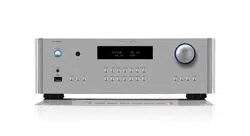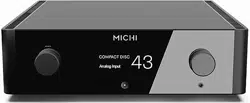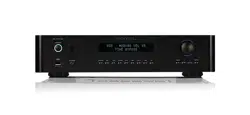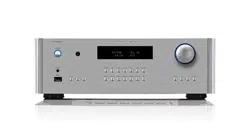
Owner’s Manual
Manuel de l’utilisateur
Bedienungsanleitung
Manual de Instrucciones
Gebruikershandleiding
Manuale di istruzioni
Instruktionsbok
Инструкция пользователя
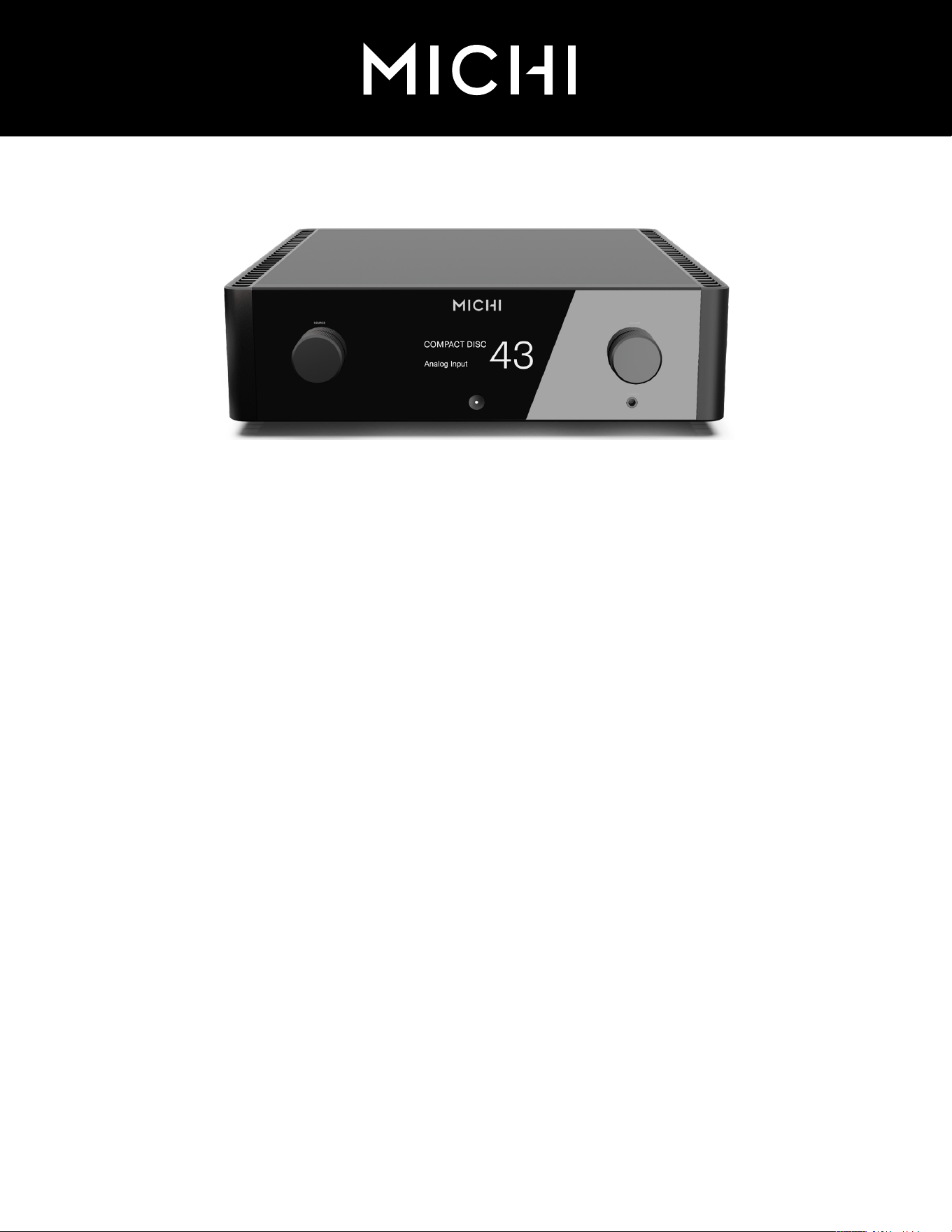
Michi P5 Series 2
Stereo Control Amplifier
Préamplificateur Stéréo
Stereo-Vorverstärker
Preamplificador Estereofónico
Stereo-regelversterker
Preamplificatore Stereo
Stereokontrollförstärkare
Предварительный стерео усилитель
2
Michi P5 Series 2 Stereo Control Amplifier
Notice
The RS232 connection should be handled by
authorized persons only.
WARNING: There are no user serviceable parts
inside. Refer all servicing to qualified service
personnel.
WARNING: To reduce the risk of fire or electric
shock, do not expose the unit to moisture or water.
Do not expose the unit to dripping or splashing.
Do not place objects filled with liquids, such as
vases, on the unit. Do not allow foreign objects
to get into the enclosure. If the unit is exposed
to moisture, or a foreign object gets into the
enclosure, immediately disconnect the power
cord from the wall. Take the unit to a qualified
service person for inspection and necessary
repairs.
Read these instructions.
Keep these instructions.
Heed all warnings.
Follow all instructions.
Do not use this apparatus near water.
Clean only with dry cloth.
Do not block any ventilation openings. Install in
accordance with the manufacturer’s instructions.
Do not install near any heat sources such as
radiators, heat registers, stoves, or other
apparatus (including amplifiers) that produce
heat.
Do not defeat the safety purpose of the polarized
or grounding-type plug. A polarized plug has two
blades with one wider than the other. A grounding
type plug has two blades and a third grounding
prong. The wide blade or the third prong are
provided for your safety. If the provided plug does
not fit into your outlet, consult an electrician for
replacement of the obsolete outlet.
Protect the power cord from being walked on
or pinched particularly at plugs, convenience
receptacles, and the point where they exit from
the apparatus.
Only use attachments/accessories specified by
the manufacturer.
Use only with the cart, stand,
tripod, bracket, or table specified
by the manufacturer, or sold with
the apparatus. When a cart is used,
use caution when moving the cart/apparatus
combination to avoid injury from tip-over.
Unplug this apparatus during lightning storms or
when unused for long periods of time.
Refer all servicing to qualified service personnel.
Servicing is required when the apparatus has
been damaged in any way, such as power supply
cord or plug is damaged, liquid has been spilled
or objects have fallen into the apparatus, the
apparatus has been exposed to rain or moisture,
does not operate normally, or has been dropped.
Michi products are designed to
comply with international directives
on the Restriction of Hazardous
Substances (RoHS) in electrical
and electronic equipment and the
disposal of Waste Electrical and
Electronic Equipment (WEEE).
The crossed wheelie bin symbol
indicates compliance and that the
products must be appropriately
recycled or processed in
accordance with these directives.
Important Safety Instructions
The apparatus should be used in non tropical
climate.
The ventilation should not be impeded by covering
the ventilation openings with items, such as
newspapers, table-cloths, curtains, etc.
No naked flame sources, such as lighted candles,
should be placed on the apparatus.
Touching uninsulated terminals or wiring may
result in an unpleasant sensation.
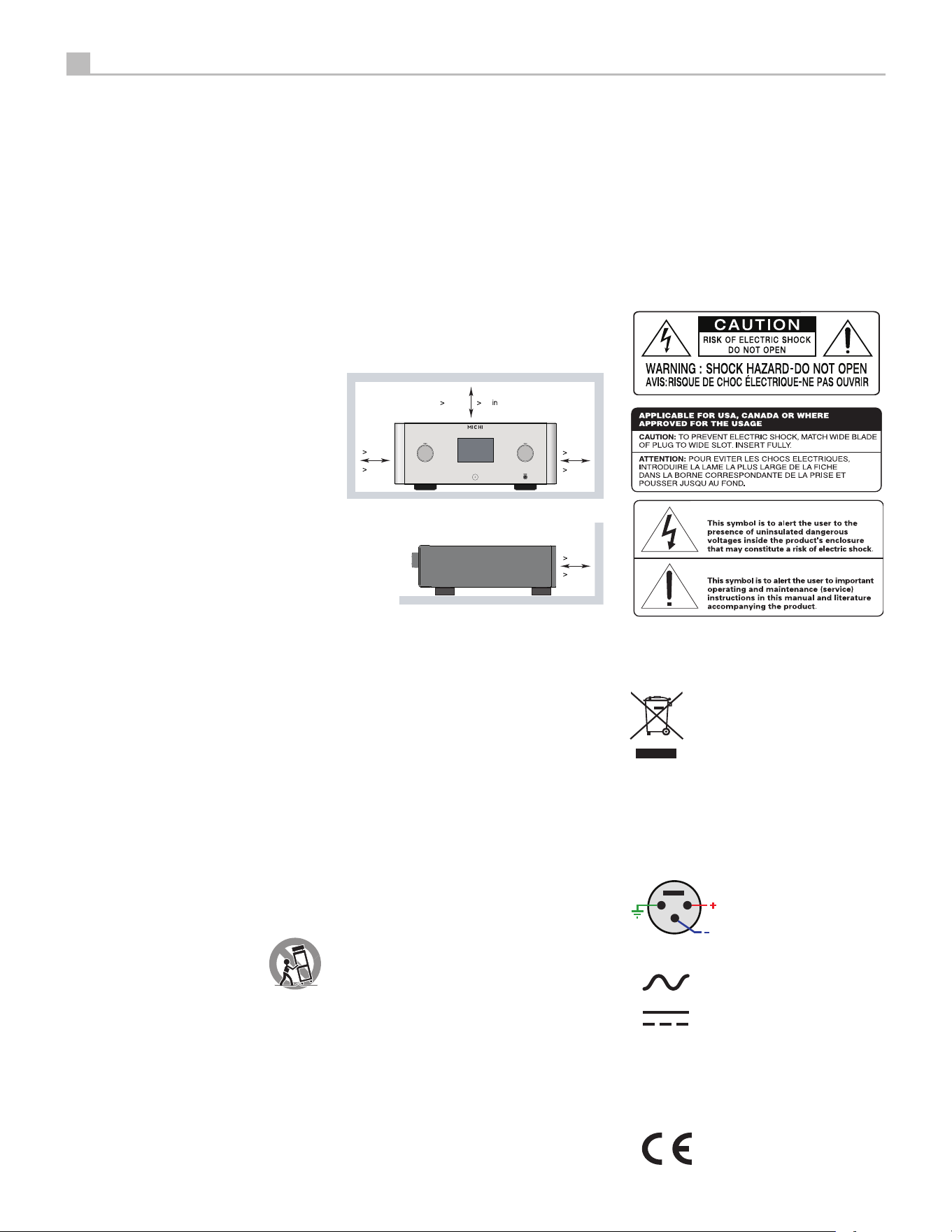
You must allow a minimum 50 cm or 20 inches of
unobstructed clearance around the unit.
WARNING:
The rear panel power cord connector
is the mains power disconnect device. The
device must be located in an open area that
allows access to the cord connector.
The unit must be connected to a power supply
only of the type and voltage specified on the
rear panel. (USA: 120 V/60Hz, EC: 230V/50Hz)
Connect the component to the power outlet only
with the supplied power supply cable or an exact
equivalent. Do not modify the supplied cable. Do
not use extension cords.
The mains plug is the disconnect of the unit. In
order to completely disconnect the unit from the
supply mains, remove the main plug from the unit
and the AC power outlet. This is the only way to
completely remove mains power from the unit.
Use Class 2 wiring for speaker connections to
ensure proper installation and minimize the
risk of electrical shock.
The batteries in the remote control should not
be exposed to excessive temperature such as
sunshine, fire or other heat sources. Batteries
should be recycled or disposed as per state and
local guidelines.
This device complies with Part 15 of the FCC
Rules. Operation is subject to the following
to conditions: (1) This device may not cause
harmful interference, and (2) this device must
accept any interference received, including
interference that may cause undesired
operation.
WARNING: The master power switch is
located on the rear panel. The unit must allow
unobstructed access to the main power switch.
50
cm
20
50
cm
50
cm
50
cm
20 in
20 in
20 in
1
2
3
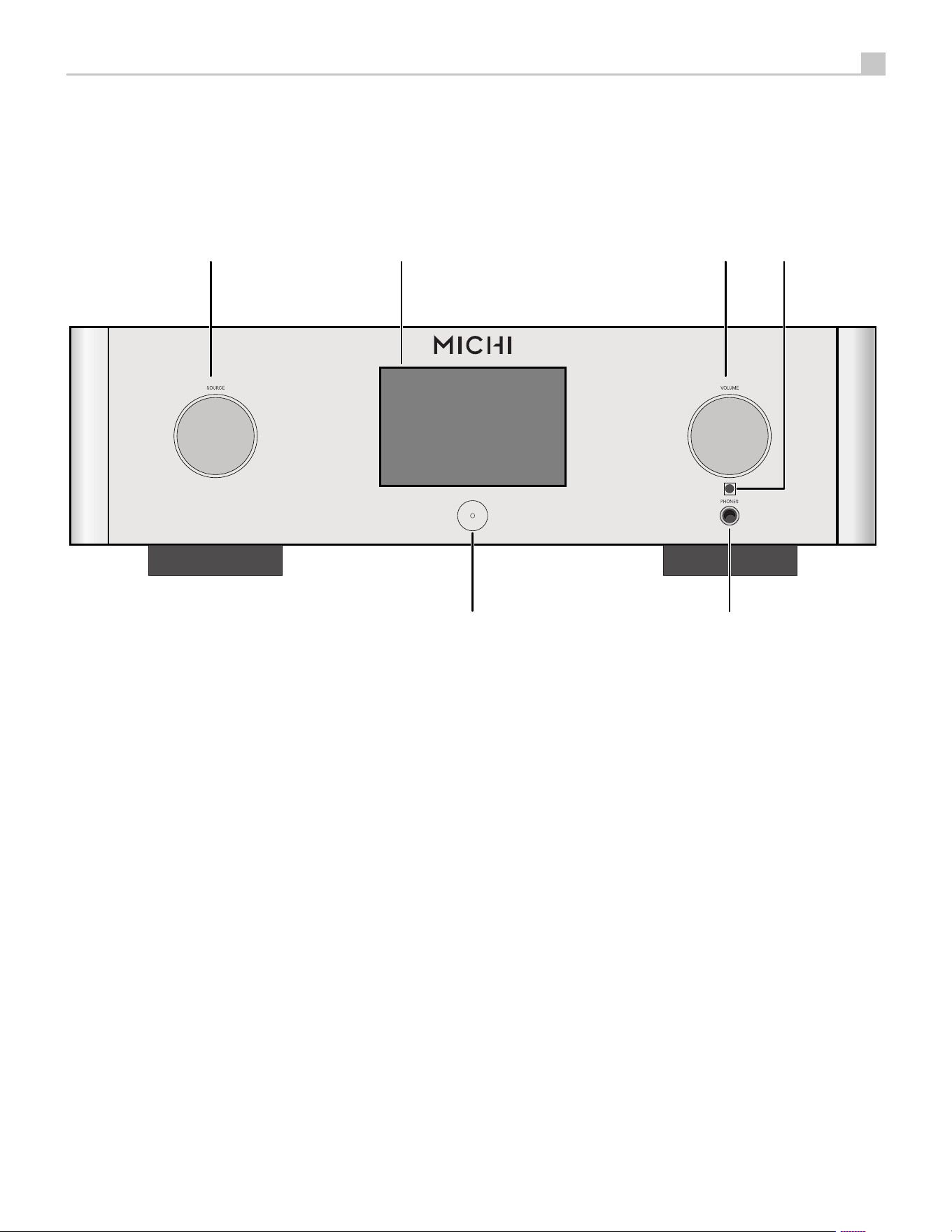
Pin Assignments
Balanced Audio (3 pole XLR):
Pin 1: Ground / Screen
Pin 2: In phase / +ve / Hot
Pin 3: Out of phase / -ve / Cold
This product shall be connected to a MAINS
socket outlet with a protective earthing
connection.
The MAINS plug or an appliance coupler is used
as the disconnect device, the socket-outlet
shall be installed near the equipment and shall
be easily accessible.
AC symbol, Alternating current
Direct current
3
English
1
3
5
6
7
8 90 - = q w e
t y u io p [ ] \ a s
2
r
4
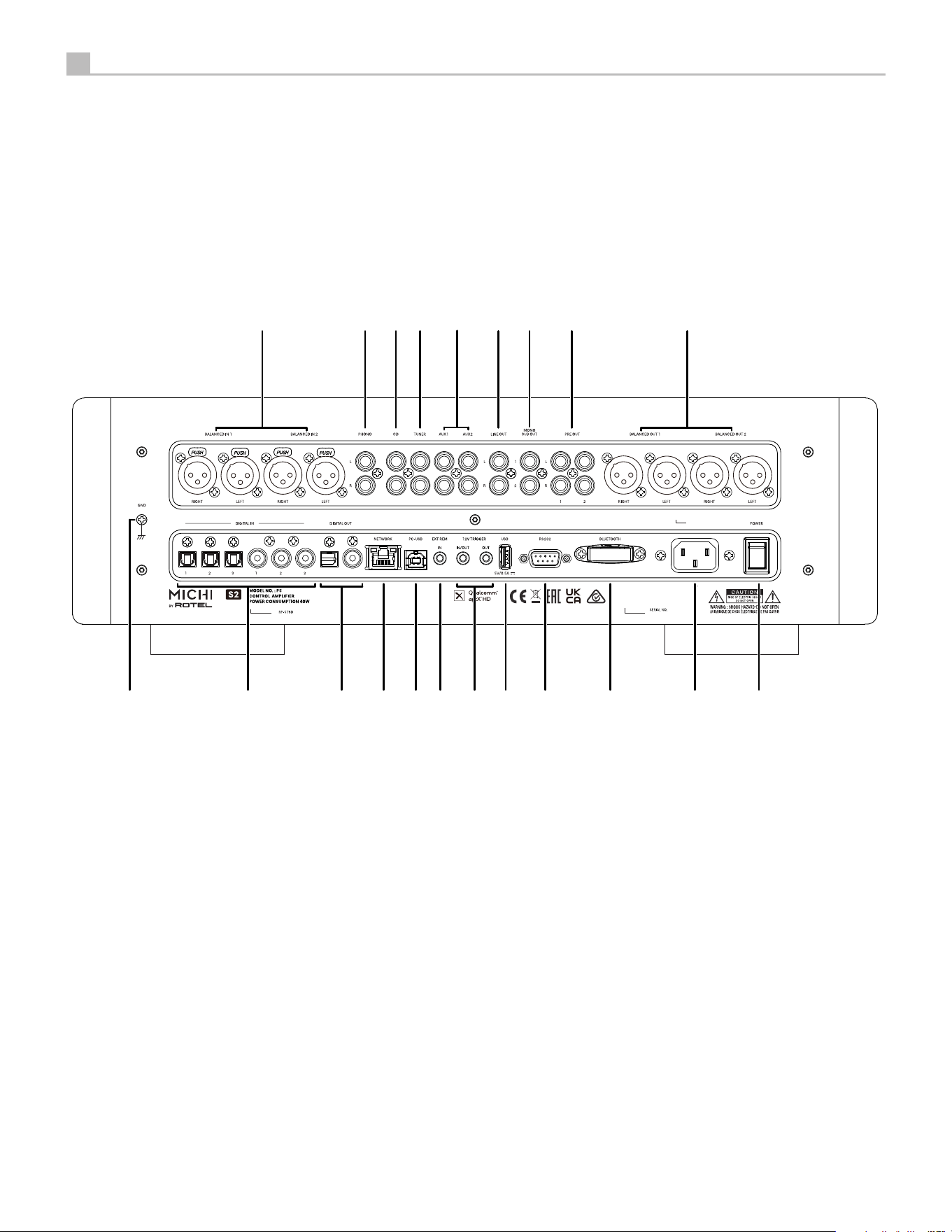
Figure 1: Controls and Connections
Commandes et Branchements
Bedienelemente und Anschlüsse
Controles y Conexiones
Bedieningselementen en aansluitingen
Controlli e connessioni
Kontroller och anslutningar
Органы управления и разъемы
1
: Source Knob
Selects the input signal source.
2
: Display
3
: Volume Knob
Adjust the volume output level.
4
: Remote Sensor
Receives IR commands from the remote control.
5
: Power Button
Activate the unit or put it into standby mode.
6
: Headphone Output
Connect headphones for private listening.
4
Michi P5 Series 2 Stereo Control Amplifier
1
3
5
6
7
8 90 - = q w e
t y u io p [ ] \ a s
2
r
4
Figure 2: Controls and Connections
Commandes et Branchements
Bedienelemente und Anschlüsse
Controles y Conexiones
Bedieningselementen en aansluitingen
Controlli e connessioni
Kontroller och anslutningar
Органы управления и разъемы
7
: Balanced (XLR) Inputs
8
:Phono Input
Connect to a turntable.
9
: CD Input
0
: Tuner Input
-
: Aux Inputs
Analog “line level” inputs.
=
: Line Out
q
: Mono Sub Output
Connect to a subwoofer.
w
: Preamplifier Output
Connect to the integrated amplifier or power
amplifier.
e
: Balanced (XLR) outputs
r
: Ground Connection (GND)
Connect with a “ground” wire from the turntable.
t
: Digital Inputs
Connect to coaxial or optical PCM outputs of your
source component.
y
: Digital outputs
u
: Network Port
i
: PC-USB Input
o
: EXT REM Input Jack
Receive command codes from industry-standard
infrared receivers via hard-wired connections.
p
: 12V Trigger Connections
Send or receive a 12V trigger signal.
[
: USB Power Port
Use for software update and powering USB devices.
]
: RS232
Use for integration with automation systems.
\
: aptX™ HD Bluetooth
Use for wireless streaming via Bluetooth.
a
: AC Power Inlet
s
: Master Power Switch
5
English
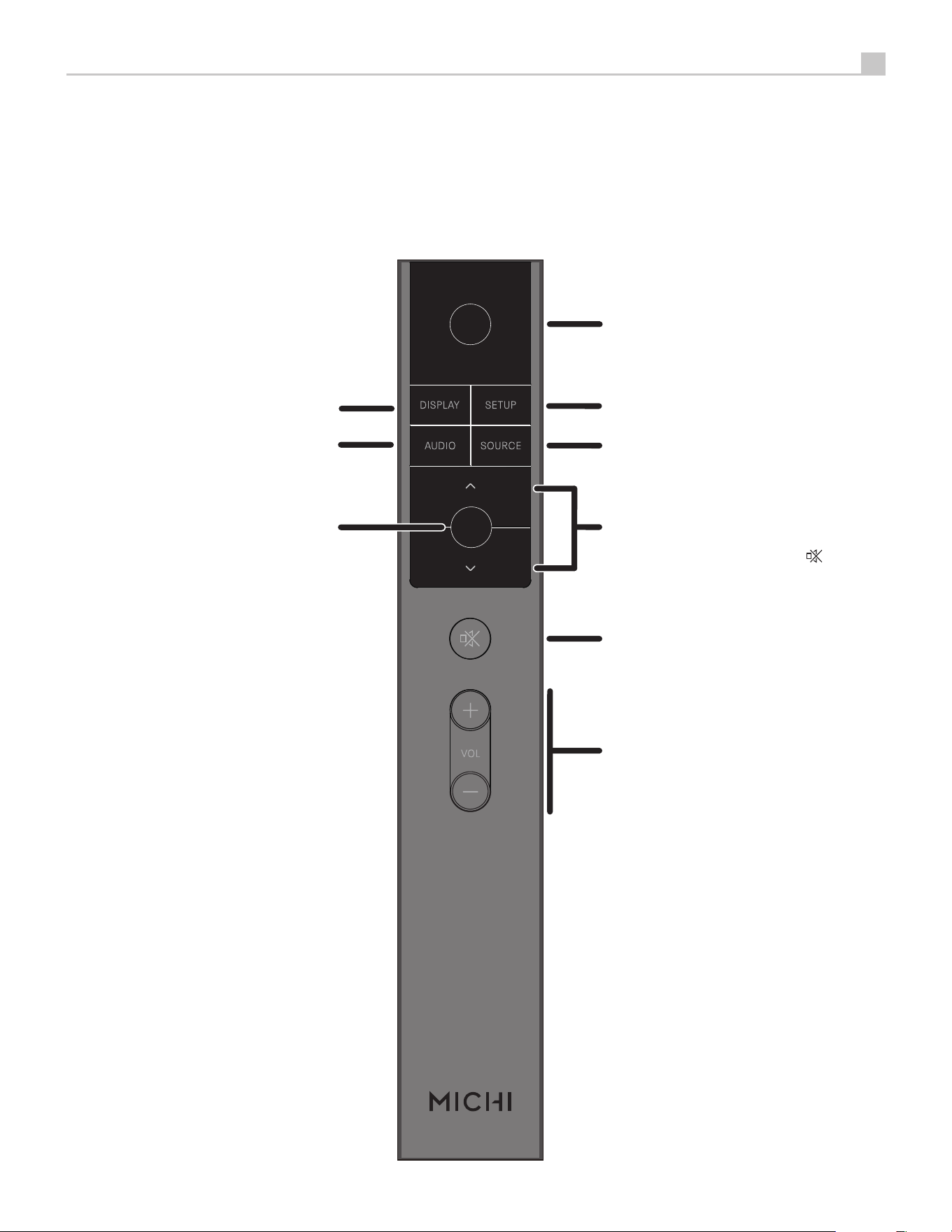
Figure 3: RR-RH6 Remote Control
Télécommande infrarouge RR-RH6
Fernbedienung RR-RH6
Mando a Distancia RR-RH6
Afstandsbediening RR-RH6
Telecomando RR-RH6
RR-RH6 fjärrkontroll
Пульт ДУ RR-RH6
A
B
C
D
E
F
G
H
K
G
: DISPLAY Button
Dims the front display.
H
: AUDIO Button
Temporary adjustments to the
Balance, Bass and Treble settings.
K
: Enter Button
Confirm the selected and desired
settings.
A
: Power Button
Activate or deactivate the unit.
B
: SETUP
Activates the OSD setup screen
on the front display.
C
: SOURCE
Selects the input signal source.
D
: Navigation Buttons
Access the various menus and
operate the Amplifier settings.
E
: Mute Button
Mute the audio.
F
: Volume Buttons
Adjust the volume output level.
6
Michi P5 Series 2 Stereo Control Amplifier
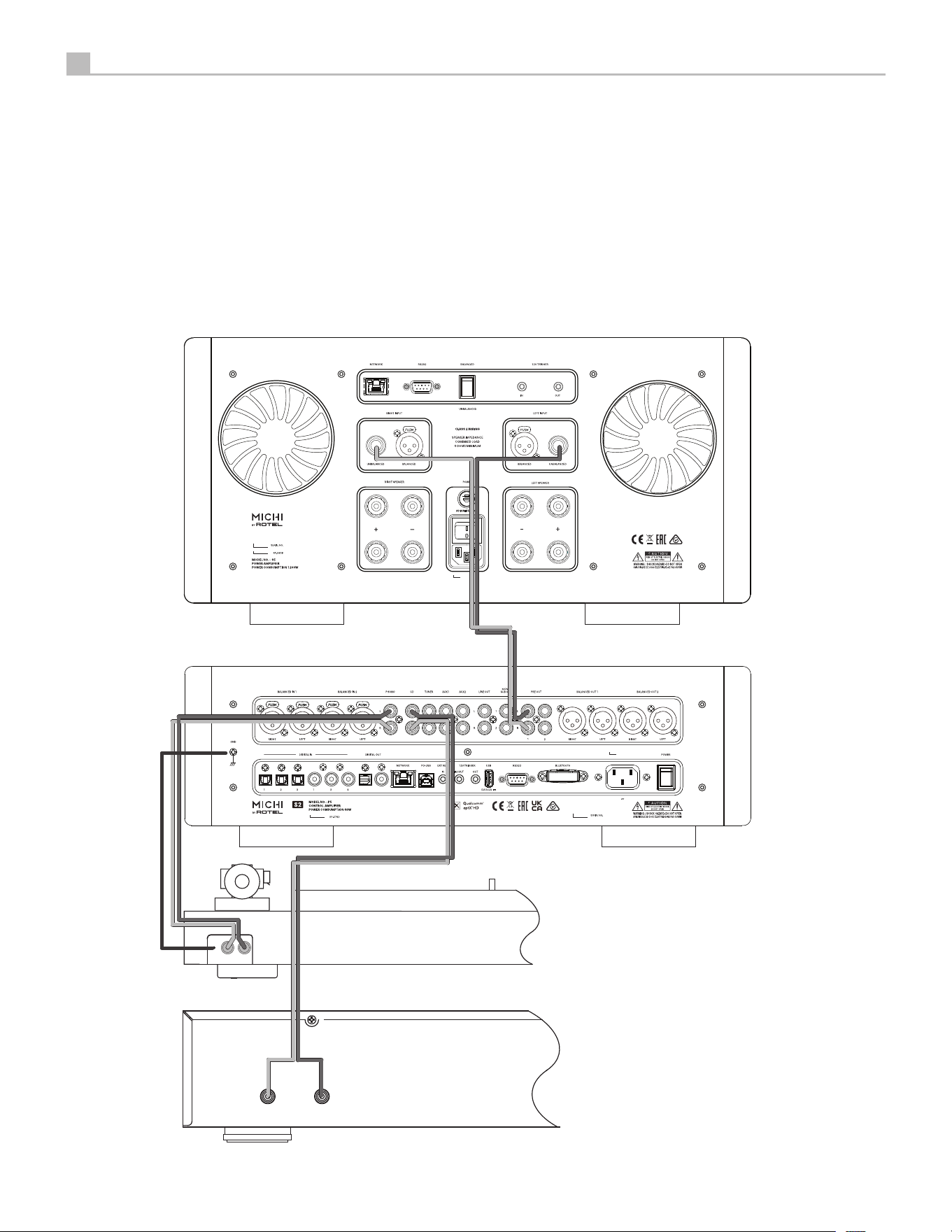
Figure 4: Analog Input and Output Connections
Branchements des entrées et sorties analogiques
Analoge Ein- und Ausgangsanschlüsse
Entradas y Salidas Analógicas
Analoge ingangen en uitgangen
Collegamenti ingressi ed uscite analogici
Anslutningar för analoga in- och utgångar
Аналоговые входы и выходы
R L
GND
Michi P5 Series 2
Rotel CD Player
Michi S5
Phono
7
English
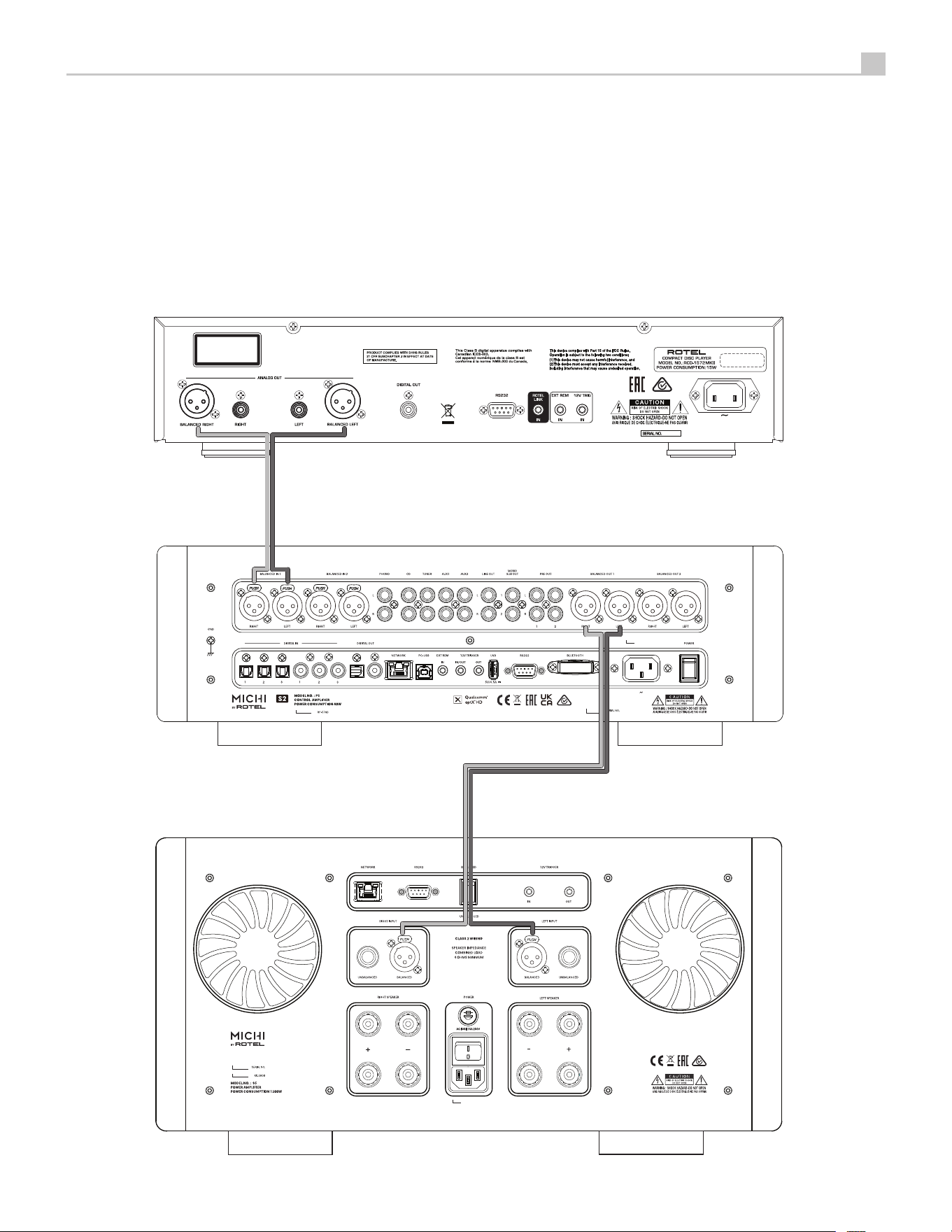
Figure 5: Balanced (XLR) Input and Output Connections
Branchements des entrées et sorties symétriques (XLR)
Symmetrische Ein- und Ausgangsanschlüsse (XLR)
Entradas y Salidas Balanceadas (XLR)
Gebalanceerde ingangen (XLR) en uitgangen
Collegamenti ingressi ed uscite bilanciati (XLR)
Balanserade in- och utgångar (XLR)
Балансные (XLR) входы и выходы
RP-565F
CLASS 1
LASER PRODUCT
APPAREIL LASER
DE CLASSE 1
Rotel CD Player
Michi P5 Series 2
Michi S5
8
Michi P5 Series 2 Stereo Control Amplifier
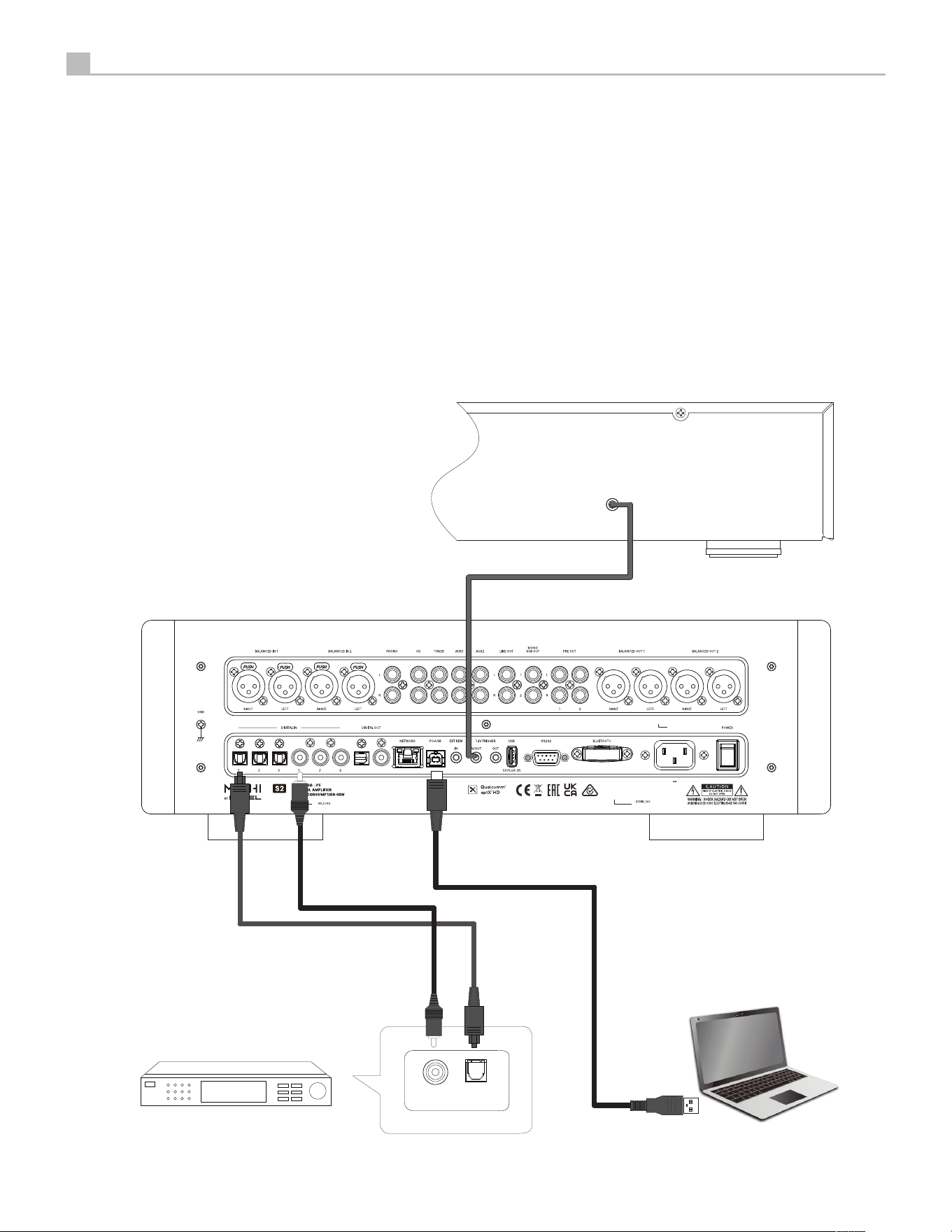
Figure 6: Digital Inputs and 12V Trigger Connections
Entrées numériques et Branchements des trigger 12 V
Digitaleingänge und 12V TRIG
Entradas Digitales y Señal de Disparo de 12V
Digitale ingangen en 12V trigger
Collegamenti ingressi digitali e segnali Trigger 12 V
Anslutningar för digitala ingångar och 12-volts styrsignaler
Цифровые входы и 12-В триггерный
Digital Audio Output
OPTICAL
COAXIAL
Audio Player
(Supplied)
Computer
Michi P5 Series 2
Rotel CD Player

9
English
Important Notes
When making connections be sure to:
4 Turn off all the components in the system before hooking up any components, including loudspeakers.
4 Turn off all components in the system before changing any of the connections to the system.
It is also recommended that you:
4 Turn the volume control all the way down before the amplifier is turned on or off.
Remarques importantes
Pendant les branchements, assurez-vous que :
4 Tous les maillons sont éteints avant leur branchement, quels qu’ils soient, y compris les enceintes acoustiques.
4 Éteignez tous les maillons avant de modifier quoi que ce soit au niveau de leurs branchements, quels qu’ils soient.
Il est également recommandé de :
4 Toujours baissez le niveau sonore via le contrôle de volume, avant d’allumer ou d’éteindre l’amplificateur.
Wichtige Hinweise
Achten Sie beim Herstellen der Verbindungen auf Folgendes:
4 Schalten Sie alle Komponenten im System ab, bevor Sie Geräte (einschließlich Lautsprecher) anschließen.
4 Schalten Sie alle Komponenten im System ab, bevor Sie Anschlüsse im System verändern.
Ferner empfehlen wir, dass
4 Sie die Lautstärke herunterdrehen, bevor Sie die Endstufe ein- oder abschalten.
Notas Importantes
Cuando realice las conexiones, asegúrese de que:
4 Desactiva todos los componentes del equipo, cajas acústicas incluidas, antes de conectar cualquier nuevo componente en el mismo.
4 Desactiva todos los componentes del equipo antes de cambiar cualquier conexión del mismo.
También le recomendamos que:
4 Reduzca el nivel de volumen a cero antes de activarlo o desactivarlo.
Héél belangrijk
Bij het maken van de verbindingen:
4 Zorg dat niet alleen de P5 Series2, maar de gehele installatie uitstaat, als nog niet alle verbindingen gemaakt zijn.
4 Zorg dat niet alleen de P5 Series2, maar de gehele installatie ook uitstaat, als u verbindingen gaat wijzigen.
Wij raden u ook aan om
4 de volumeregelaar geheel dicht te draaien (volkomen naar links) wanneer u uw eindversterker aan- of uitzet.
Note importanti
Quando effettuate i collegamenti assicuratevi di:
4 Spegnere tutti i componenti del sistema prima di collegare qualsiasi componente, inclusi i diffusori.
4 Spegnere tutti i componenti del sistema prima di modificare qualsiasi connessione nel sistema.
Vi raccomandiamo inoltre di:
4 Portare il volume a zero prima di accendere o spegnere l’amplificatore.
Viktigt
Tänk på följande när du gör anslutningar:
4 Stäng av alla komponenter i anläggningen innan du ansluter nya komponenter, inklusive högtalare.
4 Stäng av alla komponenter i anläggningen innan du ändrar någon anslutning i anläggningen.
Vi rekommenderar också föjlande::
4 Vrid ner volymen helt och hållet innan förstärkaren slås på eller av.
Важные замечания
Перед подсоединением:
4 Выключите все компоненты, включая колонки.
4 Выключите все компоненты в вашей системе, прежде чем что-то в ней менять.
Рекомендуется также:
4 Вывести громкость на минимум, перед тем как включать или выключать его.

10
Michi P5 Series 2 Stereo Control Amplifier
Getting Started
Thank you for purchasing the Michi P5 Series 2 Stereo Control amplifier. When
used in a high-quality music audio system, your Michi product will provide
years of musical enjoyment.
The P5 Series 2 is a full featured, high performance component. All aspects
of the design have been optimized to retain the full dynamic range and subtle
nuances of your music. The P5 Series 2 has a highly regulated power supply
incorporating a Michi custom-designed toroidal power transformer and
patented high effeciency slit foil capacitors. This low impedance power supply
has ample power reserves, which enables the P5 Series 2 to easily reproduce
the most demanding audio signals.
The printed circuit boards (PCB) are designed with Symmetrical Circuit Traces.
This ensures that the precise timing of the music is maintained and faithfully
recreated. The P5 Series 2 circuitry uses metal film resistors and polystyrene
or polypropylene capacitors in important signal paths. All aspects of this
design have been examined to ensure the most accurate music reproduction.
The main functions of the P5 Series 2 are easy to install and use. If you have
experience with other stereo systems, you shouldn’t find anything perplexing.
Simply plug in the associated components and enjoy.
A Few Precautions
WARNING: To avoid potential damage to your system, turn off ALL
the components in the system when connecting or disconnecting the
loudspeakers or any associated components. Do not turn the system
components back on until you are sure all the connections are correct
and secure. Pay particular attention to the speaker wires. There must
be no loose strands that could contact the other speaker wires, or the
chassis of the control amplifier.
Please read this manual carefully. In addition to basic installation and operating
instructions, it provides valuable information on various P5 Series 2 system
configurations as well as general information that will help you get optimum
performance from your system. Please contact your authorized Michi dealer
for answers to any questions you might have. In addition, all of us at Michi
welcome your questions and comments.
Save the P5 Series 2 shipping carton and all enclosed packing material for future
use. Shipping or moving the P5 Series 2 in anything other than the original
packing material may result in severe damage to your audio components.
If included in the box please complete the owner’s registration card or register
online. Also be sure to keep the original sales receipt. It is your best record
of the date of purchase, which you will need in the event warranty service
is ever required.
Placement
Like all audio components that handle low-level signals, the P5 Series 2 can
be affected by its environment. Avoid placing the P5 Series 2 on top of other
components. Also avoid routing audio signal cables near power cords. This
will minimize the chance it will pick up hum or interference.
Contents
Important Safety Instructions ...................................2
Figure 1: Controls and Connections 3
Figure 2: Controls and Connections 4
Figure 3: RR-RH6 Remote Control 5
Figure 4: Analog Input and Output Connections 6
Figure 5: Balanced (XLR) Input and Output Connections 7
Figure 6: Digital Inputs and 12V Trigger Connections 8
Important Notes 9
Getting Started ...............................................10
A Few Precautions 10
Placement 10
Cables 11
The RR-RH6 Remote Control ...................................11
Remote Control Batteries 11
AC Power and Control .........................................11
AC Power Input
a
11
Master Power Switch
s
11
12V TRIGGER Connection
p
11
Input Signal Connections ......................................11
Phono Input
8
and Ground Connection (GND)
r
11
Line Level Inputs
90-
11
Balanced (XLR) Inputs
7
12
Digital Inputs
t
12
Output Connections ..........................................12
Line Output
=
12
MONO SUB Output
q
12
Preamp Output
w
12
Balanced (XLR) Output
e
12
Digital output
y
12
Headphone Output
6
12
aptX™ HD Bluetooth Connection
\
.............................12
Rear USB Power Port
[
........................................12
EXT REM IN Jack
o
............................................12
RS232
]
.....................................................12
PC-USB Input
i
..............................................13
Network Connection
u
........................................13
Setup Menu ..................................................13
Front Panel Overview ..........................................13
Remote Sensor
4
13
Display
2
13
Overview of Buttons and Conrtrols .............................13
Main Menu ...................................................14
Source Configuration 14
Network Configuration 15
Audio Configuration 16
Display Configuration 17
System Configuration 17
Troubleshooting ..............................................18
Power Indicator Is Not Illuminated 18
Fuse Replacement 18
No Sound 18
Playable Audio Format 18
Specifications ................................................19
11
English
The P5 Series 2 is supplied with an RR-RH6 remote control and must be
placed where the infrared signal from the remote can reach the front panel
Remote Sensor.
Cables
Be sure to keep the power cords, digital signal cables and regular audio signal
cables in your installation away from each other. This will minimize the chance
of the regular audio signal cables picking up noise or interference from the
power cords or digital cables. Using only high quality, shielded cables will also
help to prevent noise or interference from degrading the sound quality of your
system. If you have any questions see your authorized Michi dealer for advice
about the best cable to use with your system.
The RR-RH6 Remote Control
Operations with the remote control are described in this manual showing the
function keys with encircled letters.
Remote Control Batteries
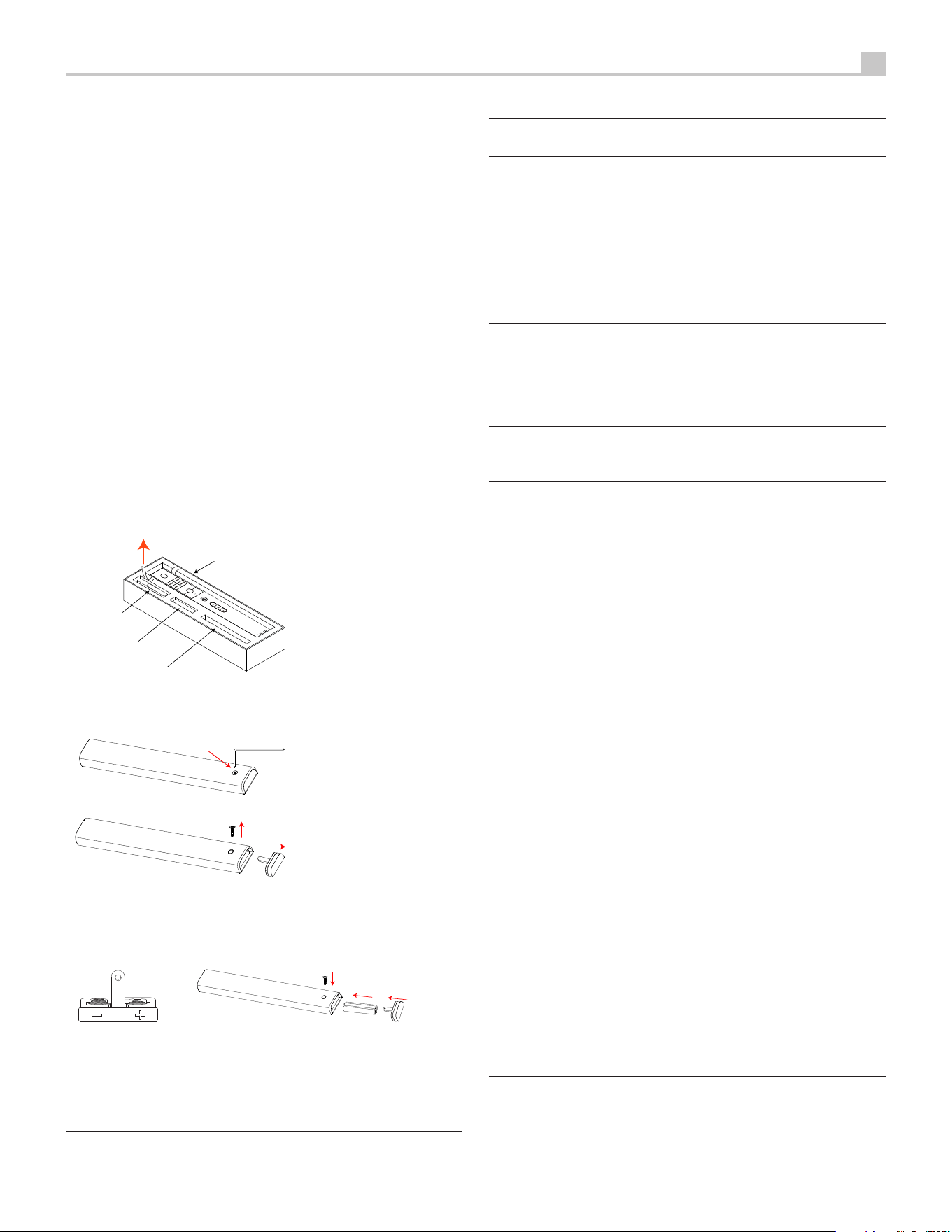
Two AAA size batteries must be installed before the remote control can be
used. To install the batteries, follow the steps as below:
1. Lift the ribbon under the remote control and remove it out of the box.
Remote Control
Battery
(if included)
Hex Tool
USB Flash Drive
2. Remove the screw on the back of the remote using the hex tool (18x86x3
mm Torx) provided with the remote. Use only the hex tool supplied to avoid
damaging the attaching screw.
3. Install the batteries as shown in the illustration in the battery well (Figure
2). Please note there are negative and positive marks shown on the battery
cover (Figure 1). Reassemble the battery cover and tighten the screw then
test the control for proper operation.
Figure 1 Figure 2
When the batteries become weak the remote control won’t operate the device
consistently. Installing fresh batteries should eliminate the problem.
NOTE: Use only the tool
(18x86x3 mm)
supplied with the unit to remove
the screw to avoid damage to the hex screw.
NOTE: Do NOT over-tighten the screw to avoid damage to the screw or
remote control.
AC Power and Control
AC Power Input
a
Your P5 Series 2 is configured at the factory for the proper AC line voltage in
the country where you purchased it (either 120 volts AC or 230 volts AC with
a line frequency of either 50 Hz or 60 Hz). The AC line configuration is noted
on a decal on the back panel.
NOTE: Should you move your unit to another country, it may be possible to
reconfigure it for use on a different line voltage. Do not attempt to perform
this conversion yourself. Opening the enclosure of the unit exposes you
to dangerous voltages. Consult a qualified service person or the Michi
factory service department for information.
NOTE: Some products are intended for sale in more than one country
and as such are supplied with more than one AC cord. Please only use
the one appropriate for your country/region.
The P5 Series 2 should be plugged directly into a 3-pin polarized wall outlet.
Do not use an extension cord. A heavy duty multi-tap power outlet strip may
be used if it (and the wall outlet) is rated to handle the current demanded by
the P5 Series 2 and all the other components connected to it.
If you are going to be away from home for an extended period of time such as
a month long vacation, it is a sensible precaution to unplug the P5 Series 2 (as
well as other audio and video components) while you are away.
Master Power Switch
s
The large rocker switch on the rear panel is a master power switch. When it is
in the OFF position, power to the unit is completely off. When it is in the ON
position, the front panel POWER
5
and remote control Standby button
A
can be used to activate the unit or put it into standby mode.
12V TRIGGER Connection
p
See Figure 6
Some audio components can be turned on automatically when they receive a
12V turn on “signal”. The two 12V Trigger Outputs on the P5 Series 2 provide
the required signal. Connect compatible components to the P5 Series 2 with
a conventional 3.5 mm mini mono plug cable. When the P5 Series 2 is in
standby mode, the trigger signal is disabled, so the components controlled
by it will be turned off.
The 12V Trigger connection labeled as IN/OUT can be configured as either a
trigger INPUT or OUTPUT. When the HT BYPASS mode is enabled in the Setup
Menu the IN/OUT trigger is automatically configured as a 12V Trigger Input.
When this trigger input receives a HIGH signal the P5 Series 2 will automatically
Power On and the HT Bypass Source Input (AUX1 or XLR1) will be selected.
The volume level will set to a FIXED level as configured in HT BYPASS LEVEL.
This option is ideal when the P5 Series 2 is connected to a Home Theater
Receiver or Surround Processor allowing the home theater Left and Right
speakers to route directly through the P5 Series 2.
NOTE: If HT BYPASS is set to DISABLED the IN/OUT 12V Trigger will be
configured as an OUTPUT.

12
Michi P5 Series 2 Stereo Control Amplifier
Input Signal Connections
NOTE: To prevent loud noises that neither you nor your speakers will
appreciate, make sure the system is turned off when you make any signal
connections.
Phono Input
8
and Ground Connection (GND)
r
See Figure 4
Plug the cable from the turntable into the appropriate left and right phono
inputs. If the turntable has a “ground” wire, connect it to the screw terminal
to the left of the Phono inputs. This will help prevent hum and noise.
Line Level Inputs
90-
See Figure 4
The CD, Tuner, and Aux inputs of the control amplifier are analog “line level”
inputs. These inputs are for connecting components such as CD players or
other audio playback devices with an analog audio output.
The left and right channels are clearly labeled and should be connected to
the corresponding channels of the source component. The Left connectors
are white, the Right connectors are red. Use high quality RCA cables for
connecting input source components to the P5 Series2. Ask your authorized
Michi dealer for advice about cables.
Balanced (XLR) Inputs
7
See Figure 5
Two pairs of balanced XLR inputs accept audio signals from CD player, Blu-ray
player or other source components with XLR outputs.
NOTE: You should choose only one method of analog connection from
a source component to P5 Series2. Do not connect both the RCA and
XLR outputs of a source component to the P5 Series2 at the same time.
Digital Inputs
t
See Figure 6
There are three sets of digital inputs labeled 1, 2 and 3, for COAXIAL and
OPTICAL respectively. Connect the COAXIAL or OPTICAL PCM outputs of
your source component into these sockets. The digital signals will be decoded
and played by the P5 Series2. The unit is capable of decoding PCM signals
up to 24 bit, 192kHz.
Output Connections
Line Output
=
The line output connectors can be used to send the analog audio to a separate
processor device. These outputs bypass the volume encoder and are full line
level output. They should be connected to the analog inputs of the processor.
As with other sources be sure to connect the Left and Right channels of each
device to the proper channels on the associated components. Use high quality
connecting cables to prevent loss of sound quality.
MONO SUB Output
q
There are 2 connectors for mono subwoofer output to connect to a subwoofer.
These mono outputs are summed with both the left and right audio signal. They
are parallel outputs allowing 2 subwoofers to be connected to the P5 Series 2.
Preamp Output w
See Figure 4
The P5 Series 2 RCA-type output connectors are compatible with most
power control amplifiers. As always, select high quality audio interconnect
cables. Connect the left and right channel outputs of the P5 Series 2 to the
corresponding inputs on the amplifier or other component.
NOTE: There are two sets of RCA outputs on the P5 Series2. The second
set of outputs may be used in custom system configurations to drive a
second power amplifier or to supply a signal to a special signal processor.
Balanced (XLR) Output
e
See Figure 5
Two pairs of XLR balanced connectors supply an analog output signal from
the P5 Series 2 to a power amplifier with XLR balanced input connectors.
NOTE: Do not connect both the RCA and XLR to the same control
amplifier at the same time.
Digital output
y
If you are using an outboard D/A converter or other digital processor, you will
need an unprocessed digital data stream from the P5 Series2. Using a standard
75 ohm coax/optical digital cable, connect the P5 Series2’s digital output to
the digital input connector on the outboard D/A converter.
Headphone Output
6
The headphone output allows you to connect headphones for private listening.
This output accepts a standard 6.3 mm (1/4”) stereo headphone connector.
Plugging in a set of headphones does not cut off the signal to the preamp
outputs. In most instances you should turn off the power control amplifier
when listening to headphones.
NOTE: Because the sensitivity of speakers and headphones can
vary widely, always reduce the volume level before connecting or
disconnecting headphones.
Bluetooth Connection
\
The Bluetooth Antenna
\
on the P5 Series 2’s back panel is for wireless
streaming via Bluetooth from your device (i.e. mobile phones). From your
mobile device, look for “Michi Bluetooth” and connect to it. Connection is
normally automatic, but if prompted for a password, please press “0000” on
your device. The P5 Series 2’s supports traditional Bluetooth, AAC and aptX™
HD Bluetooth audio streaming.
Rear USB Power Port
[
The rear USB port provides 5V/0.5 amps for charging or powering USB devices
including streaming music players. This port does not allow playback of audio.
The port can be configured to remain powered even when the P5 Series 2 is
in standby mode through the front panel Setup menu (See USB Power part
on page 16).
This configuration option allows the attached streaming source to remain
powered for use with the Signal Sense function for automatic power on/ off
control of the control amplifier.
13
English
NOTE: When configured to provide continuous power to the rear panel
USB port the P5 Series 2 will consume additional power even when in
standby mode.
EXT REM IN Jack
o
This 3.5 mm mini-jack receives command codes from industry-standard infrared
receivers via hard-wired connections. This feature could prove useful when
the unit is installed in a cabinet and the front-panel sensor is blocked. Consult
your authorized Michi dealer for information on these external repeaters and
the proper wiring of a jack to fit the mini-jack receptacle.
RS232
]
The P5 Series 2 can be controlled via RS232 for integration with automation
systems. The RS232 input accepts a standard straight DB-9 Male-to-Female
cable.
For additional information on the connections, software, and operating codes
for computer control of the P5 Series 2, contact your authorized Michi dealer.
PC-USB Input
i
See Figure 6
Connect this input using the supplied USB cable to the PC-USB socket of
your computer.
The P5 Series 2 supports both USB Audio Class 1.0 and USB Audio Class 2.0
modes. Windows computers do not require installation of a driver for USB
Audio Class 1.0 and support playback of audio up to 96k Hz sampling rates.
The Factory Default setting is USB Audio Class 1.0.
To take advantage of USB Audio Class 2.0 audio playback supporting up to
384k Hz sampling rates you will need to install the Windows driver supplied in
the USB Flash Drive included with the P5 Series 2. You will also need to switch
the P5 Series2 to USB Audio Class 2.0 playback mode with the following:
• Press SETUP on the remote control to enter the SETUP Menu and use the
T
/
D
buttons to select the Source menu then press the Enter
K
button. Use
the
T
/
D
arrow buttons and the Enter
K
button on the remote control
to select “PC-USB” as INPUT SOURCE.
• Press SETUP on the remote control to enter the SETUP Menu and use the
T
/
D
buttons to select the AUDIO menu then press the Enter
K
button.
Use
T
/
D
arrow buttons and the Enter
K
button on the remote control
to select “USB Audio 2.0” as PC-USB Option.
• Power cycle the P5 Series 2 and reboot your PC after changing the USB
Audio mode to ensure both units are properly configured.
Many audio playback applications do not support 384k Hz sampling rate.
Please confirm your audio player supports 384k Hz audio and you have 384k
Hz audio files to properly playback this sample rate. Also, you may need to
configure the audio driver in your PC to output 384k Hz or your computer may
“down sample” to a lower audio sample rate. For more information please refer
to your audio player or operating system information.
The P5 Series 2 has been certified as Roon Tested and compatible with Roon
software via PC-USB.
Being Roon Tested means that Rotel and Roon have collaborated to ensure you
have the best experience using Roon software and the P5 Series 2 together,
so you can just enjoy the music.
For the best user experience it is suggested to use USB Audio Class 2.0 when
using Roon.
NOTE: USB Audio Class 2.0 requires installation of the Windows PC driver
on the USB Flash Drive included with the P5 Series2.
NOTE: MAC computers do not require a driver to support PC-USB 1.0
or 2.0 audio.
NOTE: Upon successful installation of the driver, you may need to select
the Michi audio driver from the audio/speaker setup of your computer.
NOTE: The P5 Series 2 supports both DSD and DOP audio playback in 1X
and 2X formats. Consult your audio player to confirm proper operation
for playback of these audio formats.
NOTE: Support for MQA and MQA Studio requires USB Audio Class 2.0.
Please select USB Audio 2.0 to support MQA.
Network Connection
u
The P5 Series 2 can be attached to a network using the rear panel NETWORK
socket. The NETWORK configurations allow both static and DHCP IP addressing.
See the Network Setup section of this manual under Setup Menu for IP address
configuration information.
The NETWORK connections allows software updates to be downloaded from
the Internet. The Network connection also allows IP control for integration
with automation systems.
For additional information on the IP connection please contact your authorized
Michi dealer.
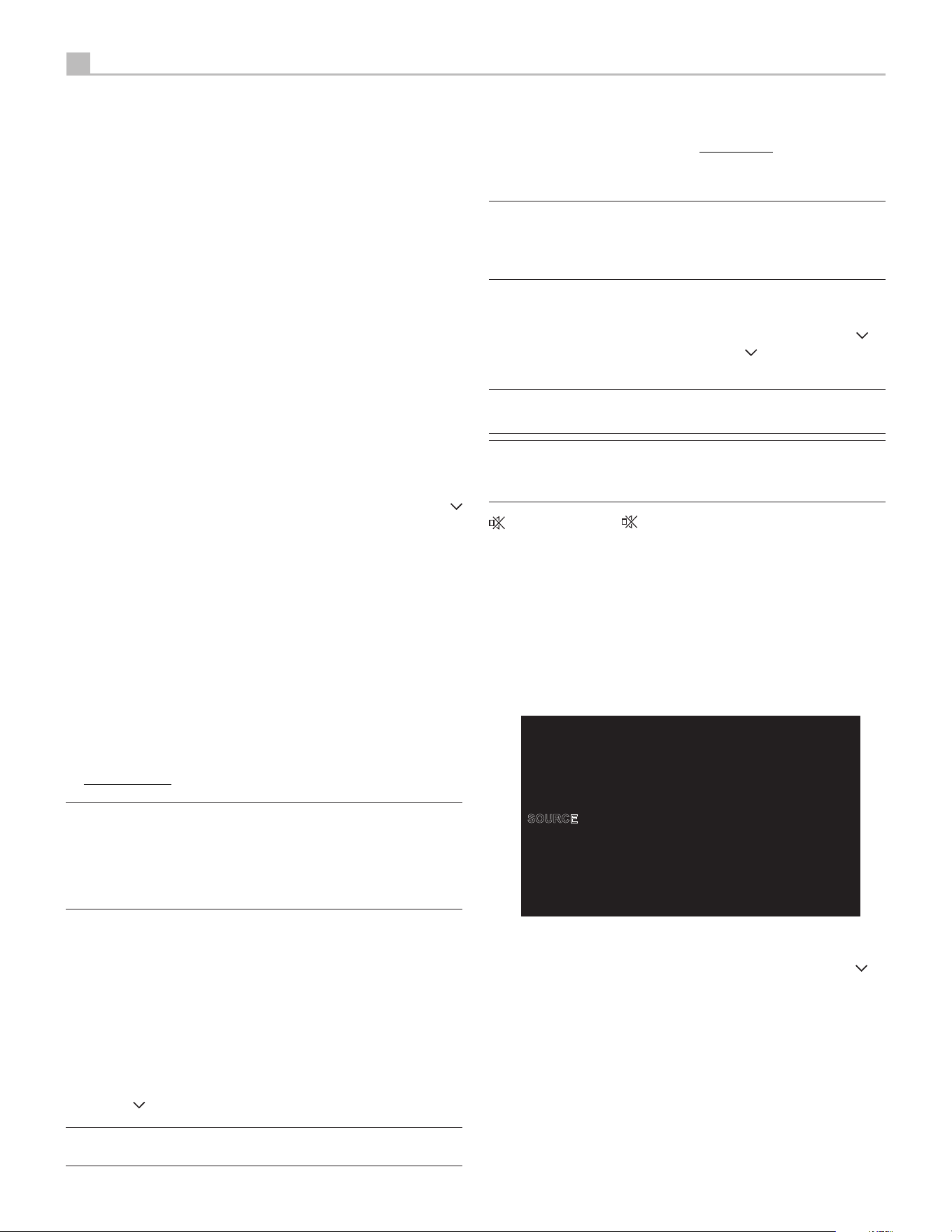
Setup Menu
The Michi P5 Series 2 features the information display to help operate the
system. A more comprehensive ON-SCREEN DISPLAY (OSD) menu system
is available at any time by pressing the SETUP button on the remote. These
OSD menus guide you through the configuration and setup of the P5 Series
2. The settings made in the configuration process are memorized as default
settings and need not be made again for normal operation of the unit.
14
Michi P5 Series 2 Stereo Control Amplifier
Front Panel Overview
The following is a brief overview of the controls and features on the front
panel of the unit.
Remote Sensor
4
This remote sensor window receives IR commands from the remote control.
Please do not block this sensor.
Display
2
The front panel display shows the source selected, volume level and tone
settings. The display can be dimmed using the P5 Series 2 setup menu or
the IR remote controller. See the Display Configuration section of this manual
for details.
Overview of Buttons and Controls
This section provides a basic overview of the buttons and controls on the remote
control. Detailed instructions on the use of these buttons are provided in the
more complete operating instructions in the following sections.
Navigating
D
and Enter
K
Buttons
I
: Use the navigation buttons
T
/
D
and the Enter
I
on the remote control to access the various menus and
operate the P5 Series 2 settings.
Power 5A: The Power button on the front panel and on the remote control
activate or deactivate the unit. There is an LED light in the middle of the
Power button on the remote control, which will be illuminated when you pick
up the remote control. To power on the unit, the rear panel master POWER
switch must be in the ON position for the front panel and the remote standby
function to operate.
Power On - To power on the unit push and release the Power button 5 on
the front panel or the IR remote control.
Power Off/Standby - To power off the unit to standby push and release the
front panel Power button 5 or PUSH-HOLD the remote control Power button
A for 1.5 seconds.
NOTE: All Michi products will respond to the same Power On and Off
commands to simplify the power control when multiple products are
installed. To control the power using the IR remote follow the instructions
above and point the remote control at the Michi products. If a unit does
not respond to a power on or off from the IR remote simply PUSH or PUSH-
HOLD the power button again to resend the desired command.
SETUP B: The SETUP button activates the OSD setup screen on the front
display. Push the SETUP button again to move to the previous setup menu as
a “back” key or exit setup menu if on the first level of setup menu.
SOURCE 1C: The SOURCE knob on the front panel and the SOURCE button
on the remote control selects the input signal source. From the front panel
turn the SOURCE knob to select the source. After 1 second of no action the
listed source will be selected as the active source.
On the IR remote push the SOURCE button and navigate to the desired source
using the
T
/
D
buttons and push the Enter
K
button to activate the source.
NOTE: Only sources that are configured as ACTIVE in the setup menu
will be displayed as options.
DISPLAY G: Dims the front display. To dim the display PUSH-HOLD the
DISPLAY G button on the remote control for 3 seconds. To turn on the display
to the level of brightness configured in the setup menu push and release the
DISPLAY G button.
NOTE: The DISPLAY button is common for all Michi models. To Dim or
enable the display PUSH or PUSH-HOLD the button and point to the Michi
products. If a unit does not respond to a DISPLAY command simply send
the command again using a PUSH or PUSH-HOLD.
AUDIO H: The AUDIO button allows temporary adjustments to the Balance,
Bass and Treble settings. To change these settings push the AUDIO button
on the remote control and navigate to the desired setting using the
T
/
D
button and push the Enter
K
button. Use the
T
/
D
button to change the
value. Push the AUDIO button again to exit the menu or to exit the Audio menu.
NOTE: A properly setup Hi-Fi system should not require changes to the
Bass or Treble setting. Use these adjustments sparingly.
NOTE: These settings are temporary and not saved when the P5 Series2
is powered off to Standby. For permanent changes, configure the audio
settings in the setup menu.
Button
E
: Push the button once to mute the audio. An indication
appears in the front panel on-screen display. Press the button again to restore
the previous volume level.
VOLUME Knob 3 and VOL +/- Buttons
F
: The VOLUME +/- buttons on the
remote and the rotary control on the front panel provide the master VOLUME
control, adjusting the output level.
Main Menu
SOURCE
SETUP
NETWORK
AUDIO
DISPLAY
SYSTEM
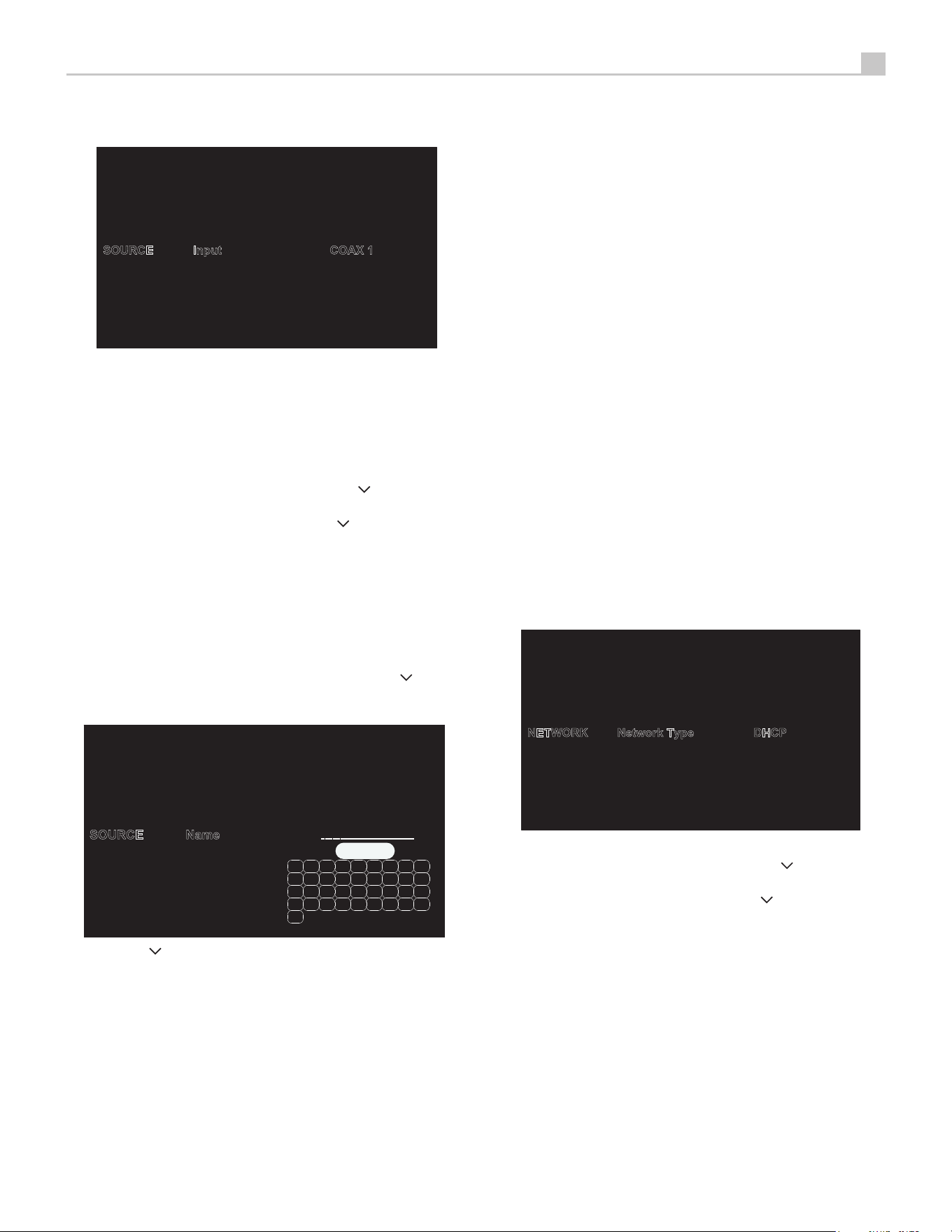
The Setup menu provides access to OSD screens for various configuration
options. Setup menu is reached by pressing the SETUP
B
button on the
remote. To select the desired menu, move the highlight using the
T
/
D
arrow buttons and press the Enter
K
button on the remote control. Press the
SETUP
B
button again to return to the previous menu or select “EXIT“ on the
OSD to end setup and return to normal operation.
15
English
Enabled: Allows a source input to be enabled and appear in the list of source
input options when using the source selection on the front panel or IR remote
control. Unused sources should be set to disabled by selecting the “No” option.
Options include: Yes(Default), No.
Volume: Configures a Fixed Volume level for a specified input. This volume
level is immediately set when this source input is selected and cannot be
changed using the front panel or IR remote. This is useful for input sources
that include their own volume setting like common Apps on phones or tablets.
Options include: Variable (Default), 30 - 90.
Audio Mode: Configures audio mode to Direct Bypass or Tone Enabled.
Options include: Direct Bypass (Default), Tone Enabled.
Bass: Bass setting is enabled when Audio Mode is set to Tone Enabled.
Options include: +10 to -10 (Default 0).
Treble: Treble setting is enabled when Audio Mode is set to Tone Enabled.
Options include: +10 to -10 (Default 0).
Press the SETUP button
B
on the remote control to exit the setup menu or
select “Back” on the OSD to return to the main menu.
Network Configuration
Static IP
Disabled
DHCP
NETWORK
SETUP
Status
Renew IP Address
Network Standby
IP Address
Subnet Mask
Network Type
This Network menu in the Setup menu, provides the following options, selected
by placing the highlight on the desired line using the
T
/
D
arrow buttons
and pressing the Enter
K
button. This action displays the right side options
allowing changes. Change the options using the
T
/
D
buttons and press
the Enter
K
button to confirm.
Status: If the network is properly configured and attached to the network then
“Connected” will be displayed. If the network is not properly configured or not
connected to a network, “Disconnected“ will be displayed.
Network Type: In most systems, set the IP ADDRESS MODE to DHCP.
This setting will allow your router to assign an IP address to the P5 Series2
automatically. If your network uses fixed IP addresses, set the IP ADDRESS
MODE to Static. To disable the IP connection set this option to DISABLED.
Options include: DHCP (Default), Static IP, Disabled.
Source Configuration
COAX 2
COAX 3
OPT 1
OPT 2
SOURCE
SETUP
Name
Enabled
Volume
Input
COAX 1
Audio Mode
A key step in setting up the unit, is to configure each source input using the
Source Setup screens. Configuring the inputs allows you to set defaults for a
number of settings including the type of input connector, the desired audio
mode, custom labels that appear in the displays when a source is selected,
and many more options.
This Source menu in the Setup menu, provides the following options, selected
by placing the highlight on the desired line using the
T
/
D
arrow buttons
and pressing the Enter
K
button. This action displays the right side options
allowing changes. Change the options using the
T
/
D
arrow buttons and
press the Enter
K
button to confirm.
INPUT: Changing this input allows you to select a specific input for configuring.
(COAX 1-3, OPT 1-3, PC-USB, BLUETOOTH, COMPACT DISC, PHONO, TUNER,
AUX 1-2, XLR 1-2)
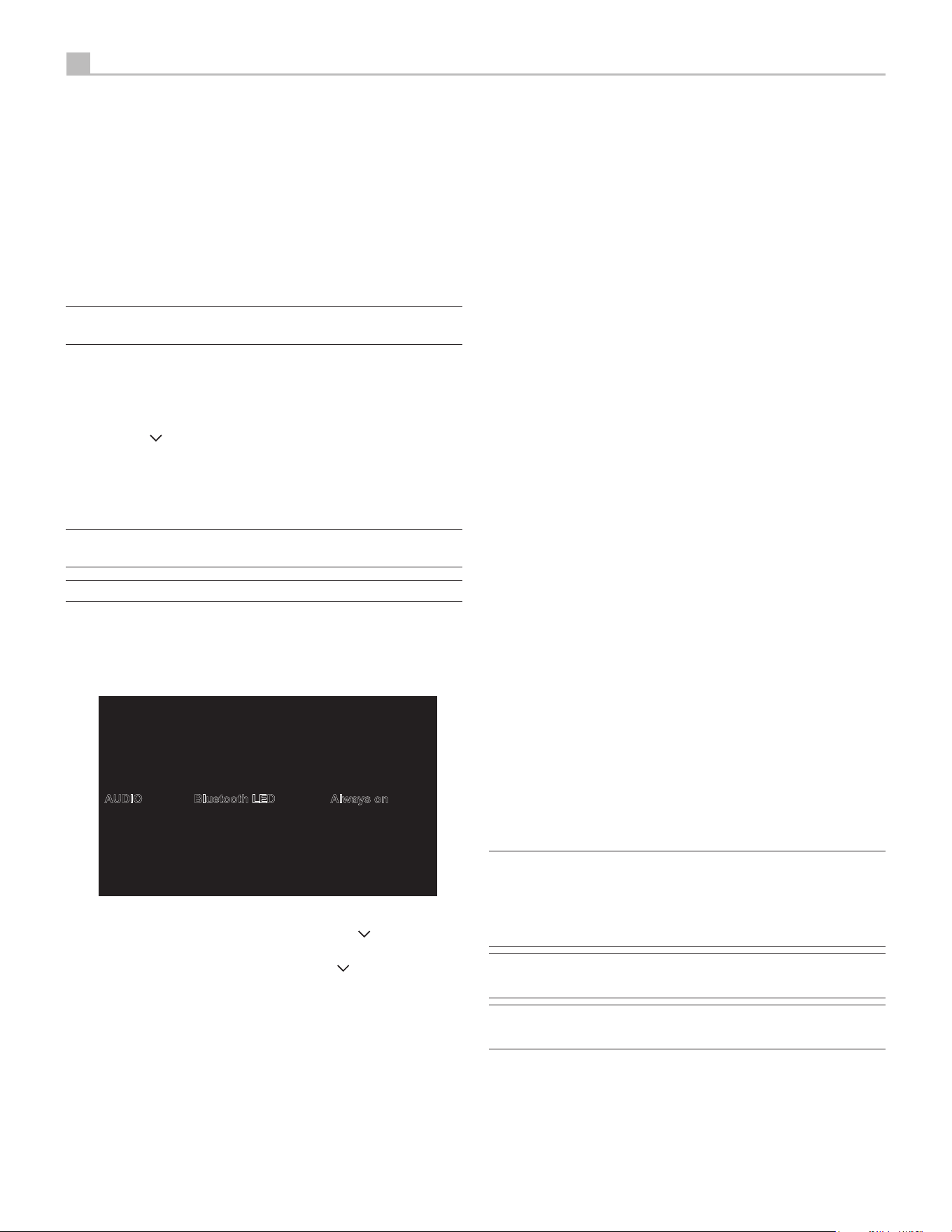
NAME: The name of the source can be customized. For example Aux 1
can be named “TV” for easier reference. The default NAME is the same as
the SOURCE. Place the highlight on this option and use the
T
/
D
arrow
buttons on the remote control to select “Custom” then press the Enter
K
button to enter the source name edit sub menu as below.
Esc
0 1 2
8 9 A
H I J
B
Q R S T
Z
K L M N
U V W X
C D E F
3 4 5 6
O
7
G
P
Y
-
SOURCE
SETUP
Enabled
Volume
Audio Mode
Name
Bass
Input
1. Press the
T
/
D
arrow buttons on the remote control to change the first
letter, scrolling through the list of available characters.
2. Press the Enter
K
button on the remote control to confirm that letter and
move to the next position.
3. Repeat steps 1 and 2 until all ten characters have been completed. The
final press of the Enter
K
button saves the new name. Or select the “Esc
“ button on the OSD to confirm if you have less than ten characters to enter.
16
Michi P5 Series 2 Stereo Control Amplifier
Renew IP Address: Disabled if Network Type is Static or Disabled. If Network
Type is DHCP then select Yes and press the Enter
K
button to renew the IP
address.
Network Standby: When set to Enabled the unit will maintain the Ethernet
IP connection even in Standby Mode allowing the unit to be powered on via
IP. If Disabled the unit will not power on from the IP connection and must use
either the front panel, IR remote or RS232 to power on the unit.
Options Include: Disabled (Default), Enabled
NOTE: When Network Standby is enabled the unit will consume additional
power.
IP Address/Subnet Mask/Gateway/DNS: Disabled if Network Type is DHCP
or Disabled. If STATIC mode is selected you must configure all settings for the
network including IP Address, Subnet Mask, Gateway and DNS Server. Press
the Enter
K
button to activates the first digit in the line you want to change,
then use the
T
/ arrow
D
buttons to adjust the values and press the Enter
K
button to cycle to the next digit. When the proper IP information is configured
press the Enter
K
button to move the cursor back to the previous menu and
accept the settings. After entering the STATIC IP address information the
network will be tested and connection status reported.
NOTE: For more information regarding network connection please
contact your authorized Michi dealer.
NOTE: A network connection is not required for the P5 Series2 to operate.
Press the SETUP
B
button on the remote control to exit the setup menu or
select Back to return to the main menu.
Audio Configuration
When Selected
AUDIO
SETUP
Power On Max Volume
PC-USB Option
Bluetooth LED
Always on
PC-USB Decoding
Phono Stage
This Audio menu in the Setup menu, provides the following options, selected
by placing the highlight on the desired line using the
T
/
D
arrow buttons
and pressing the Enter
K
button. This action displays the right side options
allowing changes. Change the options using the
T
/
D
arrow buttons and
press the Enter
K
button to confirm.
Bluetooth LED: The Bluetooth LED will be powered on only when Bluetooth is
the selected input or will always be powered on when the unit is ON.
Options include: Always on (Default), On When Selected
Power on Max Volume: This sets the max volume level for when the unit
powers on to reduce the chance of the previous listening session set too loud.
Options include: Max 30 - Max 90, Max 50 (Default).
PC-USB Option: Configures PC-USB mode to Audio Class 1.0 or Audio Class
2.0. Default is Audio Class 1.0.
Options include: Audio Class 1.0 (Default), Audio Class 2.0.
PC-USB Decoding: Change PC-USB Audio mode to support MQA, DSD and
PCM Audio up to 24 bit or PCM Audio Only up to 32 bit. When “PCM 32B ONLY”
is selected DSD / MQA audio is not supported. To playback DSD / MQA the
“DSD/MQA/PCM/24B” option must be selected.
Options include: DSD/MQA/PCM/24B (Default), PCM 32B ONLY.
Phono Stage: Relay selectable turntable source input type of Moving Magnet
or Moving Coil cartridge.
Options include: Moving Magnet (Default), Moving Coil.
Balance: The Balance Setting adjusts the left-to-right balance of the sound
output. The factory default is the center position or “0”. The value can change
from -10 to +10.
Auto Mute: When enabled and the unit stops receiving an audio signal for 30
seconds, the speaker outputs will be muted. When an audio signal is detected
the unit will un-mute the speaker outputs and restore the audio. This setting
can reduce noise when there is no active audio source. If at low audio levels
the Auto Mute is engaging this setting can be Disabled.
Options include: On (Default), Off.
Signal Sense: Monitors if an audio signal is present on the configured Signal
Sense input. The P5 Series2 monitors the data stream to determine if there is
audio. If there is no audio detected for 10 minutes, the P5 Series2 will enter
Signal Sense Power Mode. When in Signal Sense Power Mode and the P5
Series2 detects audio on the Signal Sense input, the unit will automatically
power on. When the Signal Sense mode is set to AUTO the P5 Series2 will
monitor all Coaxial, Optical, Bluetooth and PC-USB source input, and will power
on and automatically select the active signal sense source when a signal is
detected. To disable this function, select the “Disabled” option which is the
factory default setting.
Options include: Disabled (Default), Auto, COAX 1-3, OPT 1-3, PC-USB,
BLUETOOTH.
NOTE: When the P5 Series2 enters standby mode via the remote control,
the Signal Sense function will not operate until the unit detects the audio
has stopped for the minimum 10 minute time-out period. This prevents
the unit from immediately powering back on if there is still active audio
playing.
NOTE: When the Signal Sense function is activated, the P5 Series2 will
consume additional power in signal sense standby mode.
NOTE: Due to local power consumption regulations the Signal Sense
function is not available in all markets.
HT Bypass: This option enables the Home Theater Bypass mode allowing
audio signals to be routed directly through the unit from a Surround Sound
Processor or Receiver output. Typical use is to connect the analog output RCA
Preoutput Front Left and Front Right signals from the processor or receiver to
the AUX1 INPUT or XLR1 INPUT on the unit. The audio is routed on the most
direct path disabling Tone control at a unity gain setting or fixed level. To active
17
English
the Home Theater Bypass select the desired source input connection in the
setup menu then select the specified source using the front panel or remote
control. When the HT BYPASS source is selected the volume controller is
disabled allowing the volume to be controlled by the Home Theater Processor
or Receiver. When HT Bypass is enabled the 12V Trigger labeled IN/OUT is
configured as an INPUT. This allows the Home Theater Receiver or Surround
Processor to automatically power on the unit and select the HT Bypass source
input. Connect the 12V Trigger IN/OUT to the 12V Trigger Output of the
Receiver or Processor to enable automatic power control.
Options include: Disabled (Default), AUX1, XLR1.
HT Bypass Level: This option allows customization of the amplification level
used in the Home Theater Bypass mode. Select the
T
/ amplifier gain levels
if needed to match the home theater processor or receiver output levels.
NOTE: Most level adjustments are done in the Home Theater Processor
or Receiver so these adjustments should only be used if the amplifier gain
output cannot be matched with the Home Theater source.
Press the SETUP
B
button on the remote control to exit the setup menu or
select “Back” on the OSD to return to the main menu.
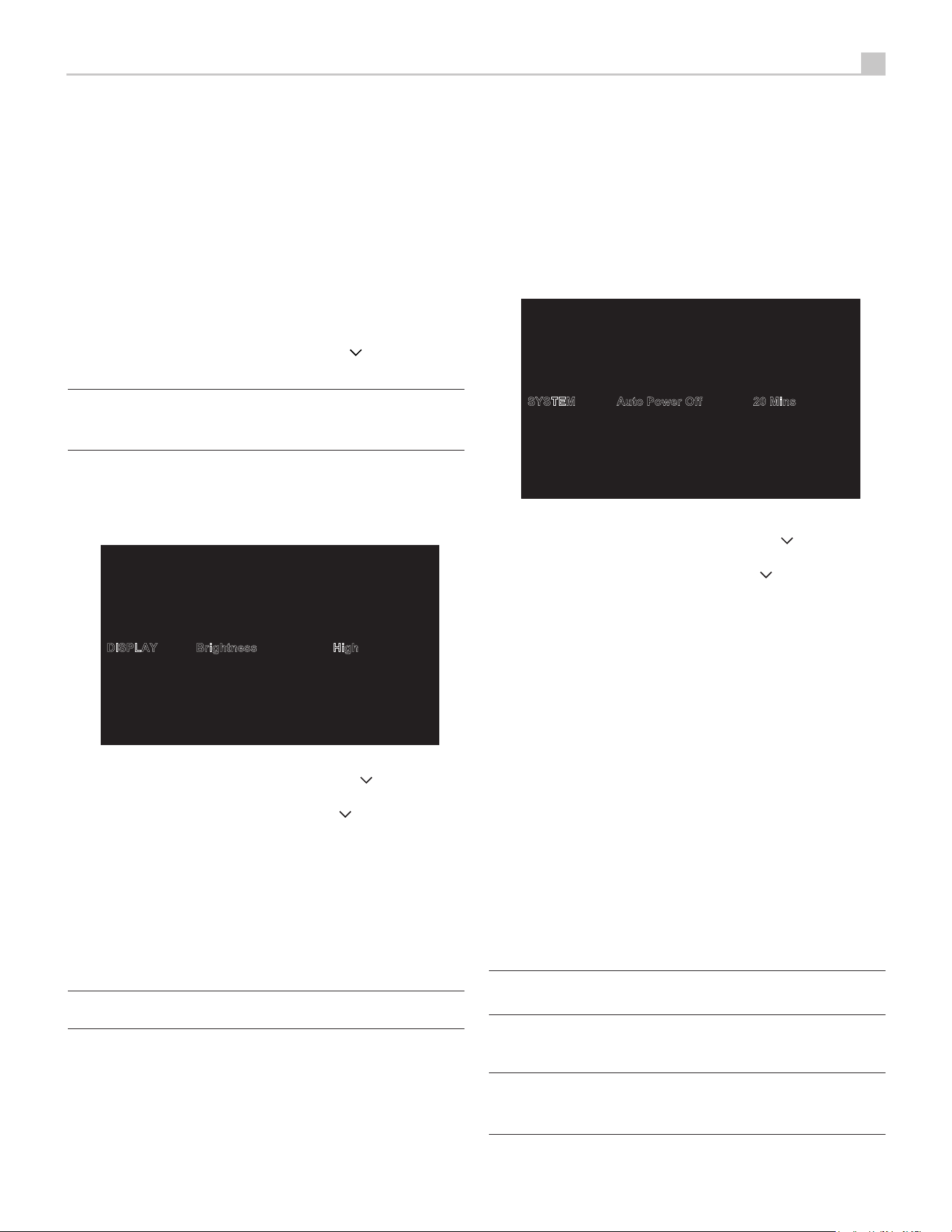
Display Configuration
Medium High
Medium
Low
Medium Low
DISPLAY
SETUP
Temporary Display
Brightness
High
LED Brightness
Back
This Display menu in the Setup menu, provides the following options, selected
by placing the highlight on the desired line using the
T
/
D
arrow buttons
and pressing the Enter
K
button. This action displays the right side options
allowing changes. Change the options using the
T
/
D
arrow buttons and
press the Enter
K
button to confirm.
Brightness: This function sets the brightness of the front display. The setting
is activated during normal operation by a PUSH RELEASE of the DISPLAY button
G
on the remote control. The OSD will always activate at the most bright level
regardless of the Brightness setting to ensure the unit configuration options
can easily be accessed and modified.
Options include: High (Default), Medium High, Medium, Medium Low, Low.
NOTE: To dim the front display PUSH-HOLD the DISPLAY
G
button on
the remote control or 3 seconds.
Temporary Display: This function allows the front display to temporarily show
changes to the P5 Series2 for the time-out period before the display turns off
again. An example would be to turn on the display to show changes to the
source or volume levels then turn off the display after the time-out period
expires. To disable the temporary display and have the P5 Series2 display
always on set this function to Disable.
Options include: Disabled (Default), 5 seconds, 10 seconds, 15 seconds.
LED Brightness: Sets the brightness of the ON level of the front panel Power LED.
Options include: High (Default), Medium High, Medium, Medium Low, Low.
Press the SETUP
B
button on the remote control to exit the setup menu or
select “Back” on the OSD to return to the main menu.
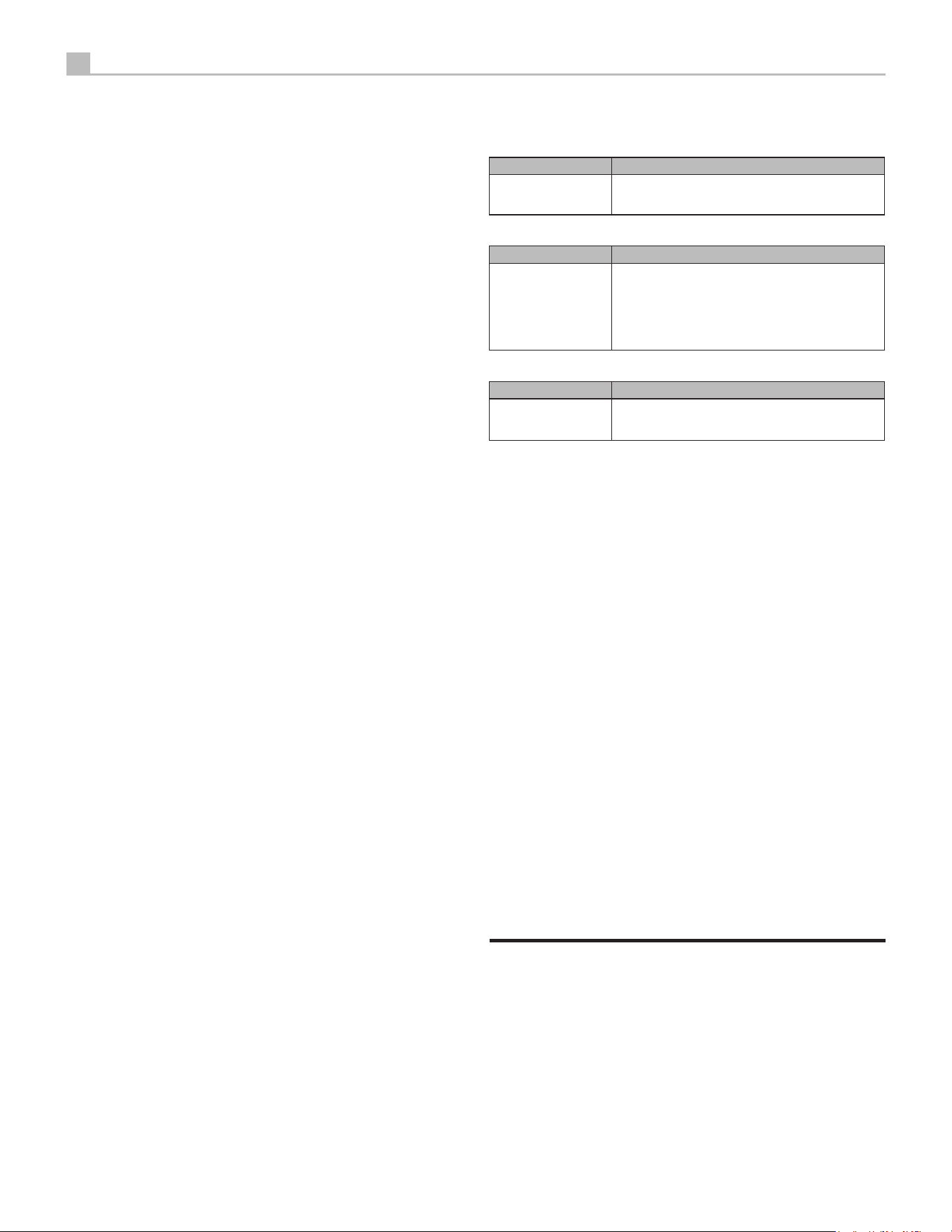
System Configuration
Disabled
1 Hour
2 Hours
SYSTEM
SETUP
Software Version
Software Update
USB Power
Auto Power Off
20 Mins
Factory Defaut
Back
5 Hours
PC-USB Version
12 Hours
This System menu in the Setup menu, provides the following options, selected
by placing the highlight on the desired line using the
T
/
D
arrow buttons
and pressing the Enter
K
button. This action displays the right side options
allowing changes. Change the options using the
T
/
D
arrow buttons and
press the Enter
K
button to confirm.
PC-USB Version: This shows current loaded software version for PC-USB
processor.
Software Version: This shows the current software version loaded into the unit.
Auto Power Off: Set the amount of time the units stays powered on when
there is no audio signal. The P5 Series2 will automatically go to standby mode
if audio is not detected for the specified timer period. Default: 20 Mins.
Options include: Disabled, 20 Mins, 1 Hour, 2 Hours, 5 Hours, 12 Hours.
Software Update: Select the desired update method to update the unit.
Options include: No (Default), USB, Internet.
USB Power: Enables the rear panel USB power port to remain powered at
all times. The power consumption is higher in Always On mode. To enable
continuous power to the rear USB power port select the Always On option.
Options include: Normal (Default), Always On.
NOTE: When the USB Power is configured to Always On, the P5 Series2
will consume additional power in standby mode.
Factory Default: This option sets the unit back to the original setting as when
it left the factory. All user settings will be erased.
NOTE: Use caution when resetting the P5 Series2 to factory defaults
as all user configured options will be erased and reset to original factory
settings.
18
Michi P5 Series 2 Stereo Control Amplifier
Press the SETUP
B
button on the remote control to exit the setup menu or
select “Back” on the OSD to return to the main menu.
Troubleshooting
Most difficulties in audio systems are the result of incorrect connections, or
improper control settings. If you encounter problems, isolate the area of the
difficulty, check the control settings, determine the cause of the fault and
make the necessary changes. If you are unable to get sound from the P5
Series2, refer to the suggestions for the following conditions:
Power Indicator Is Not Illuminated
The front power indication will be illuminated anytime the unit is connected to
AC power and the rear power switch is set to the ON position. The indication
will be RED for standby mode and WHITE in normal operation. If the indication
is not illuminated, test the power outlet with another electrical device, such
as a lamp. Be sure the power outlet being used is not controlled by a switch
that has been turned off. And check all AC power including the rear power
switch to ensure the unit is receiving power.
Fuse Replacement
If another electrical device works when plugged into the power outlet, but
the Power Indicator still will not light when the P5 Series2 is plugged into the
wall outlet, it indicates that the internal power fuse may have blown. If you
believe this has happened, contact your authorized Michi dealer to get the
fuse replaced.
No Sound
Check the signal source to see if it is functioning properly. Make sure the
cables from the signal source to the P5 Series2 inputs are connected properly.
Check all the wiring between the P5 Series2 and the power control amplifier,
and the speakers.
Cannot Connect via Bluetooth
If you cannot pair your Bluetooth enabled device to the amplifier, delete the
memory of the previous connection on your device. On your device this is
often listed as “Forget this Device”. Then try to make the connection again.
Playable Audio Format
aptX™ HD Bluetooth
Format Notes
Any format supported
by the sending device.
May exclude Apps designed to play formats not originally
supported by the sending device.
PC-USB
Format Notes
Format determined
by the Media Player/
Server software that
you use.
Any supported format by the PC software
PCM Audio: 44.1k, 48k, 88.2k, 96k, 176.4k, 192k,
384k (16 bit, 24 bit and 32 bit)
DSD64, DSD128 and DSD256
MQA, MQA Studio
Roon Tested
Coax/Optical
Format Notes
SPDIF LPCM
44.1k, 48k, 88.2k, 96k, 176.4k, 192k
16 bit, 24 bit
‘MQA’ or ‘MQA.’ indicates that the product is decoding and playing an MQA
stream or file, and denotes provenance to ensure that the sound is identical
to that of the source material. ‘MQA.’ indicates it is playing an MQA Studio
file, which has either been approved in the studio by the artist/ producer or
has been verified by the copyright owner.
‘OFS’ confirms that the product is receiving an MQA stream or file. This
delivers the final unfold of the MQA file and displays the original sample
rate.

19
English
Specifications
Total Harmonic Distortion Total Harmonic Distortion
(20 Hz - 20k Hz)
< 0.002%
Intermodulation Distortion Intermodulation Distortion
(60 Hz : 7 kHz, 4:1)
< 0.002%
Input Sensitivity / ImpedanceInput Sensitivity / Impedance
Phono Input
(MM)
2.5 mV / 47k ohms
Phono Input
(MC)
250 uV / 100 ohms
Line Level Inputs
(RCA)
160 mV / 47k ohms
Line Level Inputs
(XLR)
250 mV / 100k ohms
Input Overload Input Overload
Phono Input
(MM)
199 mV
Phono Input
(MC)
22 mV
Line Level
(RCA)
12 V
Balanced
(XLR)
12 V
Output Level Output Level
Line Level
(RCA)
1 V / 470 ohms
Balanced
(XLR)
2 V / 100 ohms
Frequency Response:Frequency Response:
Phono Input 20 Hz - 20k Hz, 0 ± 0.3 dB
Line Level Inputs 10 Hz - 100k Hz, 0 ± 0.3 dB
Tone Controls Tone Controls
Bass ± 10 dB at 100 Hz
Treble ± 10 dB at 10k Hz
Signal to Noise Ratio Signal to Noise Ratio
(IHF”A” weighting)
Phono Input 80 dB
Line Level Inputs 116 dB
Channel SeparationChannel Separation
Phono Input > 55 dB
Line Level Inputs > 85 dB
All specifications are accurate at the time of printing.
Digital SectionDigital Section
Frequency Response Frequency Response 20Hz - 20kHz (±0.3 dB, Max)
Signal to Noise Ratio Signal to Noise Ratio
(IHF “A” weighting)
100 dB
Input Sensitivity / Impedance Input Sensitivity / Impedance 0dBFS / 75 ohms
Digital OutputDigital Output 0.75 V, Peak to Peak
Load ImpedanceLoad Impedance 75 ohms
Digital Inputs Digital Inputs SPDIF LPCM
(up to 192kHz 24 bit)
PC-USB PC-USB USB Audio Class 1.0
(up to 96kHz 24 bit)
USB Audio Class 2.0
(up to 384kHz 32bit)*
*Driver installation required
DSD (up to 11.2MHz 1 bit)
and DoP support
MQA and MQA Studio support
Roon Tested support
GeneralGeneral
Power Requirements:Power Requirements:
USA: 120 Volts, 60 Hz
EC: 230 Volts, 50 Hz
Power Consumption Power Consumption 40 watts
Standby Standby
Normal < 0.5 watts
Network Wakeup < 2 watts
BTUBTU 87 BTU/h
Dimensions Dimensions
(W x H x D)
485 x 150 x 452 mm
(19 x 6 x 17
3
/
4
ins.)
Front Panel HeightFront Panel Height 132 mm, 5
1
/
4
ins.
Weight Weight
(net)
22.9 kg, 50.5 lb.
Michi reserves the right to make improvements without notice.

Michi P5 Series2 Owner’s Manual Ver N 032823 English
Rotel Global Office
Room 1903, 19/F., Dominion Center
43-59 Queen’s Road East Wanchai
Hong Kong
Tel: 852 2793 9378
Fax: 852 3583 5035
Rotel USA
11763 95th Avenue North
Maple Grove, MN 55369
USA
Phone: (510) 843-4500 (option 2)
E-mail: Rotelsupport@sumikoaudio.net
Rotel Canada
Kevro International
902 McKay Rd. Suite 4
Pickering, ON L1W 3X8
Canada
Tel: +1 905-428-2800
Rotel Europe
Dale Road
Worthing, West Sussex BN11 2BH
England
Phone: + 44 (0)1903 221 763
Fax: +44 (0)1903 221 525
www.michi-hifi.com