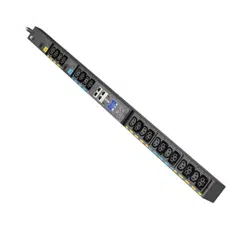

p/n: P-164001156
Revision 3
Installation and Setup Manual
RRaacckk PPDDUU GG44 SSeerriieess

Eaton reserves the right to change specifications without prior notice. Eaton is a registered trademark of Eaton. All other trademarks are
properties of their respective companies. All other trademarks are property of their respective companies.
©Copyright 2024 Eaton, Raleigh, NC, USA. All rights reserved. No part of this document may be reproduced in any way without the
express written approval of Eaton.

Rack PDU G4 Installation and Setup User Guide P-164001156—Rev 3 iii
TTaabbllee ooff CCoonntteennttss
11 IInnttrroodduuccttiioonn....................................................................................................................................................................................................................................................................................................11
1.1 Description................................................................................................................................................ 1
1.2 Product Specifications ................................................................................................................................. 2
1.3 Eaton Rack PDU Models .............................................................................................................................. 2
1.4 Circuit Protection........................................................................................................................................ 3
1.5 Power Outlets ........................................................................................................................................... 4
1.6 Input Power Cord ....................................................................................................................................... 5
1.7 Accessories............................................................................................................................................... 5
22 IInnssttaallllaattiioonn ......................................................................................................................................................................................................................................................................................................66
2.1 Safety Warnings......................................................................................................................................... 6
2.2 Installation ................................................................................................................................................ 7
2.3 Installation Precautions ................................................................................................................................ 7
2.4 Inspecting the Equipment............................................................................................................................. 7
2.5 Package Contents....................................................................................................................................... 8
2.6 Optional Environmental Monitoring Probe........................................................................................................ 9
2.7 Installation Overview................................................................................................................................... 9
2.8 Tools........................................................................................................................................................ 9
2.9 Configurations ......................................................................................................................................... 10
2.10 Power Feed Labels.................................................................................................................................. 10
2.11 Installation and Mounting Buttons .............................................................................................................. 11
2.11.1 Installing Vertical Rack PDUs in a Rack Cabinet........................................................................................ 11
2.11.2 Using Factory-installed Mounting Buttons .............................................................................................. 12
2.11.3 Using Flush-style Mounting Buttons...................................................................................................... 12
2.11.4 Grounding the Rack to the Rack PDU .................................................................................................... 13
2.12 Quick Start for Universal Input Rack PDU ..................................................................................................... 14
2.13 Connecting the Output Devices ................................................................................................................. 19
33 SSeerrvviiccee.............................................................................................................................................................................................................................................................................................................. 2200
3.1 Service and Support .................................................................................................................................. 20
3.2 Warranty................................................................................................................................................. 20
1 Rack PDU G4 Installation and Setup User Guide P-164001156—Rev 3
CChhaapptteerr 11 IInnttrroodduuccttiioonn
11..11 DDeessccrriippttiioonn
The Eaton® Enclosure Power Distribution Unit (Rack PDU
®
) G4 is an intelligent Rack PDU that is designed to
distribute power within a standard 19-inch rack. A wide range of models let you connect and manage a variety
of outlets from a single power connection. Most models have monitoring or switching capabilities, or both.
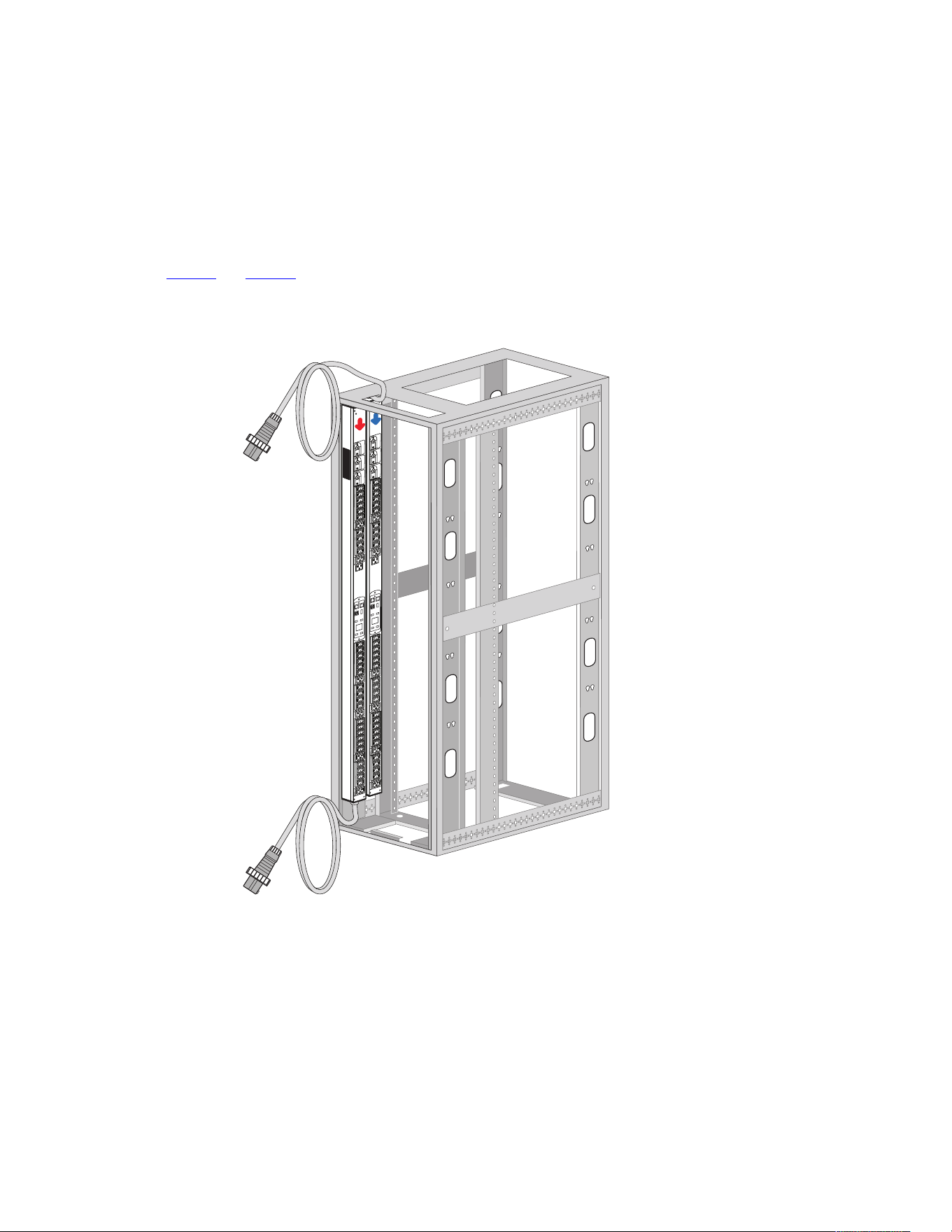
Figure 1 and Figure 2 show examples of installed G4 Eaton Rack PDUs.
FFiigguurree 11.. EExxaammppllee RRaacckk PPDDUU GG44 IInnssttaallllaattiioonnss
The Rack PDU G4 family provides six different Rack PDU topologies. The monitoring or switching capabilities
are characterized as follows:
Description

Rack PDU G4 Installation and Setup User Guide P-164001156—Rev 3 2
• Basic (BA) with no monitoring or intelligent controls
• In-Line Metered (IL) with monitoring at the input
• Metered Input (MI) with monitoring at the input and branch
• Metered Outlet (MO) with monitoring at the input, branch, and individual outlet monitoring, but no outlet
control
• Switched (SW) with control of outlets but no individual outlet monitoring
• Managed (MA) with monitoring at the input, branch, and individual outlet control and monitoring
NNOOTTEE These capabilities are expressed in the model numbers of the Rack PDUs.
Table 1 shows which main features are implemented or not implemented, depending on the topology:
TTaabbllee 11.. MMoonniittoorriinngg aanndd MMaannaaggeemmeenntt FFeeaattuurreess AAvvaaiillaabbllee ffoorr RRaacckk PPDDUU TTooppoollooggiieess
MMooddeellss
IInnppuutt MMeetteerriinngg
BBrraanncchh
MMeetteerriinngg OOuuttlleett MMeetteerriinngg
OOuuttlleett
SSwwiittcchhiinngg
EEnnvviirroonnmmeennttaall
SSeennssoorr
MMoonniittoorriinngg
Basic (BA)
— — — — —
In-Line Metered (IL)
• — — — •
Metered Input (MI)
• • — — •
Metered Outlet (MO)
• • • — •
Switched (SW)
• • — • •
Managed (MA)
• • • • •
NNOOTTEE Environmental sensor monitoring is only available if an Environmental Monitoring Probe (EMP) is attached.
11..22 PPrroodduucctt SSppeecciiffiiccaattiioonnss
Find product specifications, diagrams, part number and ordering matrix documents, and marketing collateral at
EEaattoonn..ccoomm//PPDDUUGG44..
11..33 EEaattoonn RRaacckk PPDDUU MMooddeellss
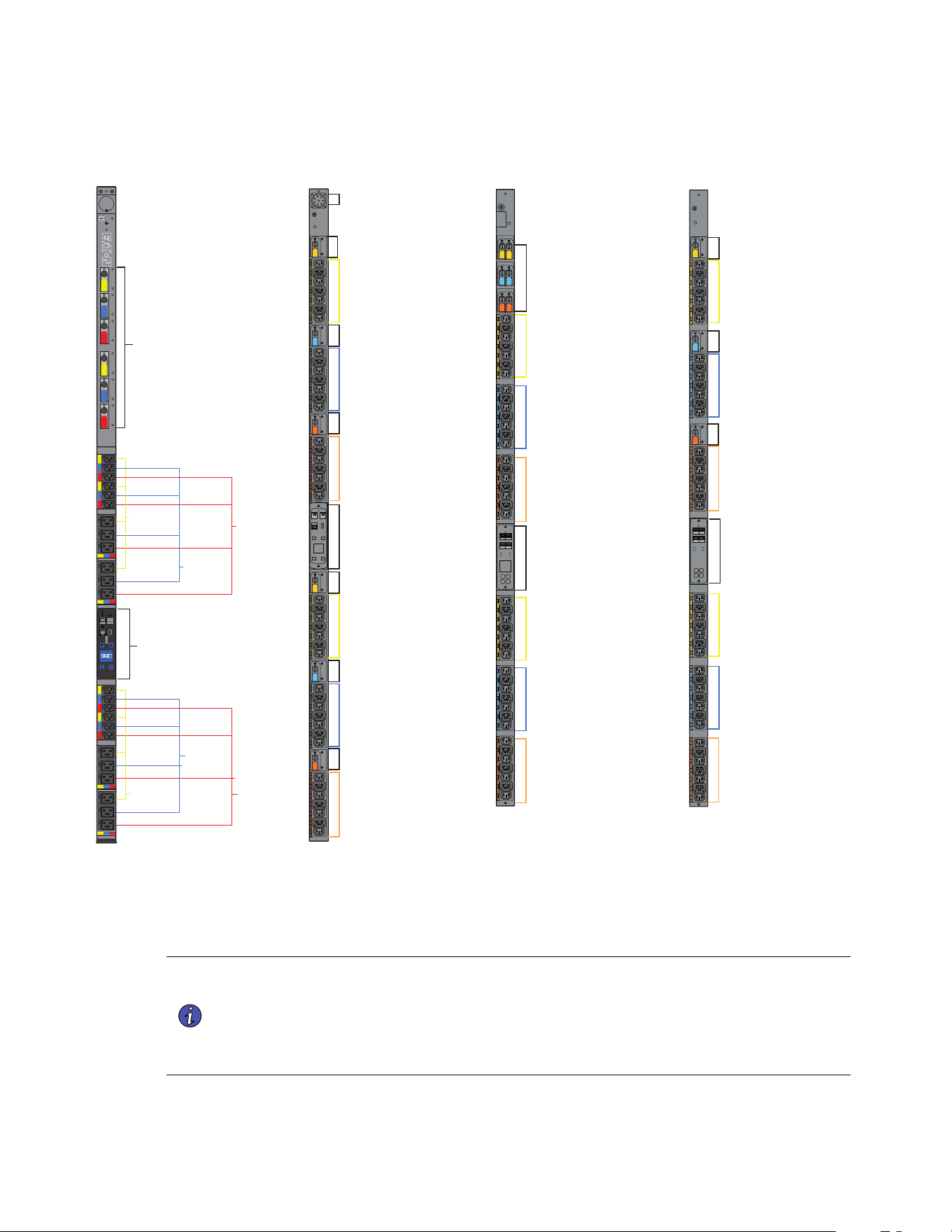
The Rack PDU models support single-phase and three-phase applications and have 8 to 54 outlets. Network-
connected models feature an LCD display and LEDs to indicate status on communication connectors. Metered
Outlet, Switched, and Managed models contain LEDs to indicate outlet status. Most Rack PDUs have attached
power cords and circuit breakers (see Figure 2).
NNOOTTEE Select models have detachable input power cords.
Product Specifications
3 Rack PDU G4 Installation and Setup User Guide P-164001156—Rev 3
FFiigguurree 22.. EExxaammppllee RRaacckk PPDDUU GG44 PPrroodduuccttss
Detatchable Input Cord
eNMC Module (LCD interface)
Breaker A
Outlets (Protected by Breaker A)
Breaker B
Outlets (Protected by Breaker B)
Breaker C
Outlets (Protected by Breaker C)
Breaker D
Outlets (Protected by Breaker D)
Breaker E
Outlets (Protected by Breaker E)
Breaker F
Outlets (Protected by Breaker F)
eNMC Module (LCD interface)
Breaker A
Breaker B
Breaker C
Outlets (Protected by Breaker B)
Outlets (Protected by Breaker C)
Outlets (Protected by Breaker A)
Outlets (Protected by Breaker A)
Outlets (Protected by Breaker C)
Outlets (Protected by Breaker C)
Outlets (Protected by Breaker B)
+
+
+
+
A
B
+
C
D
E
F
C6B5A4C3B2A1 F18E17D16F15E14D13
A9A8A7
Circuit Protectors A, B, C, D, E, and F
Outlets
(Protected
by Circuit
Protector A)
eNMC Module
(LCD interface)
Outlets
(Protected
by Circuit
Protector B)
Outlets
(Protected
by Circuit
Protector D)
Outlets
(Protected
by Circuit
Protector F)
Outlets
(Protected
by Circuit
Protector C)
Outlets
(Protected
by Circuit
Protector E)
F21E20D19
C12B11A10
F24E23D22
+
+
+
+
+
+
+
+
+
+
+
+
+
+
+
+
+
+
+
+
+
+
++
+
+
+
+
+
+
+
+
+
+
+
+
+
G4HD
Breakers A, B, C, D, E , F
Outlets (Protected by Breaker C)
eNMC Module (LCD interface)
Outlets (Protected by Breaker A)
Outlets (Protected by Breaker B)
Outlets (Protected by Breaker D)
Outlets (Protected by Breaker E)
Outlets (Protected by Breaker F)
11..44 CCiirrccuuiitt PPrrootteeccttiioonn
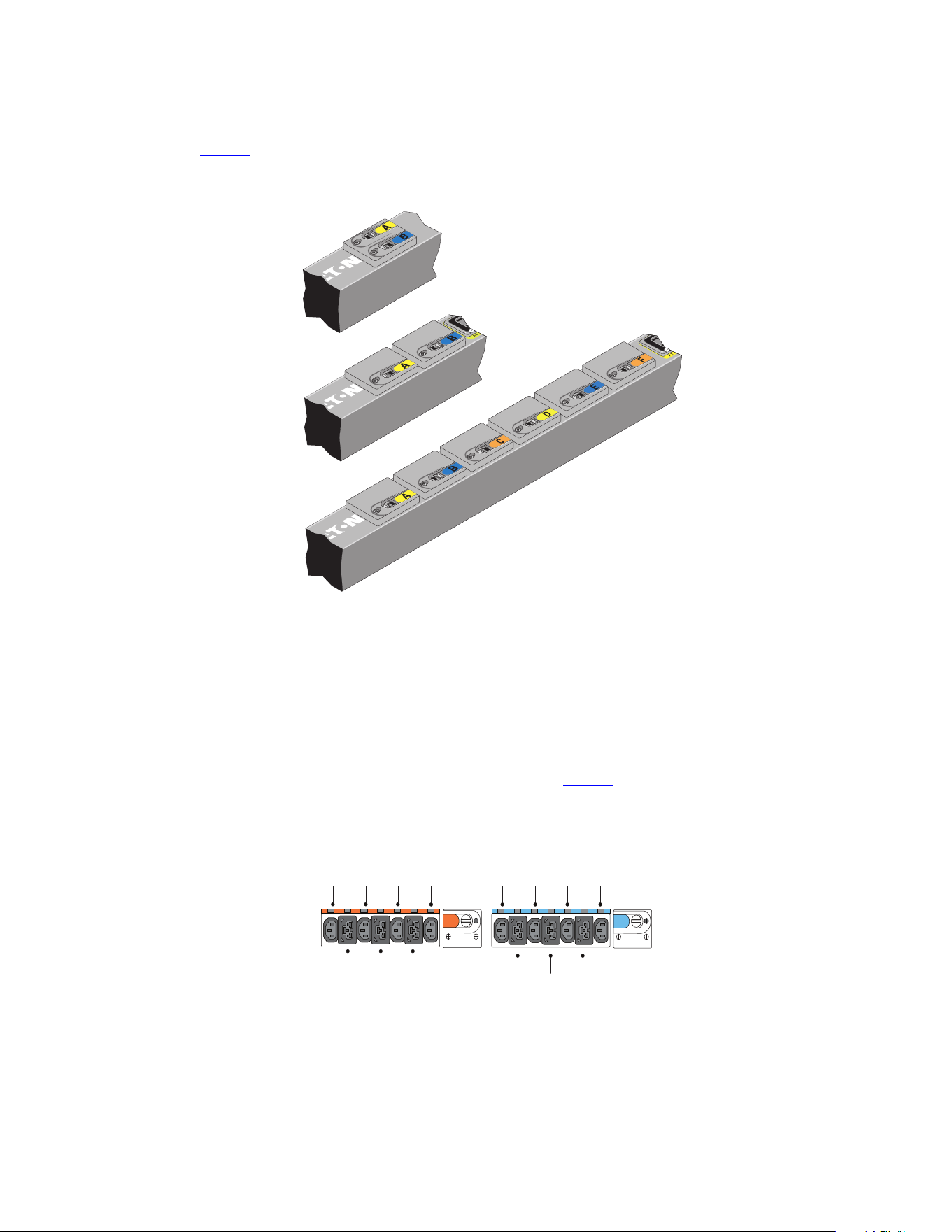
Circuit breakers activate if the load current rating of an outlet section exceeds 16A (Europe) / 20A (US). Power
to the outlet turns off automatically. To reset the circuit breaker, turn the breaker from Off to On.
NNOOTTEE 11 The On/Off positions are indicated on the circuit breakers.
NNOOTTEE 22 To manually disconnect power to a device that is connected to the Rack PDU,
disconnect the device power cord from the Rack PDU outlet.
NNOOTTEE 33 To disconnect power on models without a circuit breaker, disconnect the Rack PDU
input power cord.
Circuit Protection
Rack PDU G4 Installation and Setup User Guide P-164001156—Rev 3 4
Figure 3 shows circuit protection device examples.
FFiigguurree 33.. CCiirrccuuiitt PPrrootteeccttiioonn DDeevviicceess
11..55 PPoowweerr OOuuttlleettss
Each model has a specific configuration of standard NEMA outlets, IEC 60320 and IEC 60309 outlets, EMEA
national types (French, Schuko, and UK), or other outlet types. Many configurations are available or the
configurations can be customized to match your needs.
The outlets are grouped in sets called sections. Outlet sections are preset groups of individual outlets that you
can identify and monitor through the different interfaces that are available with the Rack PDU.
The outlets are color-coded and labeled. If the model has circuit breakers, the circuit breakers that are
associated with the outlets have corresponding labels (see Figure 4).
You can connect one device to each outlet.
FFiigguurree 44.. EExxaammppllee OOuuttlleett TTyyppeess
(4) IEC60320 C13
(3) IEC60309 C39
(4) IEC60320 C13
(3) IEC60309 C39
Power Outlets

5 Rack PDU G4 Installation and Setup User Guide P-164001156—Rev 3
EEaattoonn CC3399 wwiitthh HHiigghh RReetteennttiioonn
Many Rack PDU G4 models have both IEC 60320 C13 outlets, as well as a proprietary Eaton C39 combination
outlet. This C39 outlet is a combination of C13 and C19 outlet styles, and it is designed to accept both C14 and
C20 plugs.
PDUs with these outlets are also designed to have native high-retention, which makes it more difficult for the
plug to be removed. When removal of a plug is necessary, wiggle it from side to side while pulling on it.
FFiigguurree 55.. CC3399 HHiigghh RReetteennttiioonn OOuuttlleett OOppttiioonn
11..66 IInnppuutt PPoowweerr CCoorrdd
Use the input power cords to connect to the power source. Input power cords are permanent for most models.
Select models have detachable input power cords.
11..77 AAcccceessssoorriieess
EEnnvviirroonnmmeennttaall MMoonniittoorriinngg PPrroobbee
The Environmental Monitoring Probe (EMP) accessory is optional and must be purchased separately. The
optional EMP provides monitoring of external temperature, humidity, and the status of two contact devices,
providing greater power management control and flexible monitoring. The EMP has the following features:
• Simplified installation lets you install the EMP safely without turning off power to the Rack PDU or to the
devices that are connected to it.
• The EMP monitors temperature and humidity information of any environment, protecting your critical
equipment. The EMP measures temperatures between 0°C and 70°C (32°F and 158°F) with an accuracy
of ±2°C. The EMP measures relative humidity between 10% and 90% with an accuracy of ±5%.
• The EMP can be located away from the Rack PDU with a Category 5 network cable up to 50m (165 ft)
long.
• The EMP monitors the status of two user-supplied contact devices.
• Temperature, humidity, and contact closure status can be displayed through a variety of interfaces.
• User-selectable alarm thresholds let you define acceptable temperature or humidity limits.
• You can use e-mail client software to set up e-mail notification through Simple Network Management
Protocol (SNMP) when acceptable alarm limits are exceeded or contact status changes.
• Changes in external contact status are logged in the Rack PDU event history log.
• When temperature and humidity values exceed user-selectable limits, the event is logged in the Rack PDU
event history log.
NNOOTTEE For information updates, refer to the Eaton Rack PDU catalog or go to
Eaton.com/PDUG4.
Input Power Cord

Rack PDU G4 Installation and Setup User Guide P-164001156—Rev 3 6
CChhaapptteerr 22 IInnssttaallllaattiioonn
22..11 SSaaffeettyy WWaarrnniinnggss
IImmppoorrttaanntt SSaaffeettyy IInnssttrruuccttiioonnss —— SSaavvee TThheessee IInnssttrruuccttiioonnss
This manual contains important instructions that you should follow during installation and operation of the
Eaton Rack Power Distribution Unit (PDU) G4 Series. Please read all instructions before operating the
equipment and save this manual for future reference. Failure to follow these instructions may result in severe
injury or death.
Detailed specifications are available on our Web site at Eaton.com/PDUG4.
DDAANNGGEERR —— RRiisskk ooff EElleeccttrriicc SShhoocckk
This PDU contains hazardous voltages. All repairs and service must be performed by authorized service
personnel only. There are no user serviceable parts. Systems should only be installed, tested, and configured
by a qualified electrical worker.
This equipment must be connected to an earthed mains socket-outlet, or to an electrical supply that has a
protective earthing conductor.
CCAAUUTTIIOONN —— RRiisskk ooff FFiirree
• If this PDU has a input power plug:
– The installation power outlet should be tested for proper polarity and earthing.
– The installation power outlet used to power this equipment must be installed near the equipment and
the plug must be easily accessible.
– The equipment plug is the disconnect device. Remove the plug from the outlet to isolate the PDU.
– This product must be protected by a branch circuit protection device with a rating according to the
product's plug rating.
• If this PDU is permanently connected:
– An all-pole disconnect device must be provided in the building installation.
– To isolate this PDU, turn off the disconnect switch.
– This product must be protected by a branch circuit protection device with a rating in accordance with
the product’s input rating.
• This product must be removed from service when there is evidence (e.g., a tripped circuit breaker) that it
has been overloaded or that a load electrical fault has occurred. Do not return the product to service until it
has been thoroughly evaluated by a qualified electrical worker.
NNoottiiccee
• To reduce the risk of equipment damage, install this PDU in a temperature and humidity controlled, non-
corrosive, indoor environment, that is free of conductive contaminants. Do not operate near water or
excessive humidity (95% maximum non-condensing).
• Both the room and rack air temperature must be within the operating range of the selected model.
• Only use supplied PDU mounting hardware and accessories. If necessary, contact your customer service
representative for replacement parts.
• This product has been designed to conform to the latest safety requirements. In addition to compliance
with standards of general use, it has been factory configured for use in rack mounting environments,
aiding the installer in providing system compliance with relevant standards.

7 Rack PDU G4 Installation and Setup User Guide P-164001156—Rev 3
22..22 IInnssttaallllaattiioonn
All 0U Eaton Enclosure Power Distribution Unit (Rack PDU) G4 models are mounted vertically inside rack
structures. Use the information in this chapter to prepare, install, and connect the Rack PDU and optional
accessories.
22..33 IInnssttaallllaattiioonn PPrreeccaauuttiioonnss
Before you install or connect the Rack PDU in a rack cabinet, observe the following precautions:
• Only a competent service person should install, test, or configure the Rack PDU and its optional
accessories. It is the installer’s responsibility to ensure that the selected product is installed to meet
national and local safety regulations.
• Read and understand all warnings and cautions listed in 2.1 Safety Warnings.
• Review the documentation that comes with your rack cabinet for safety and cabling information. Follow all
installation and operation safety information provided.
NNOOTTEE Removing the rack cabinet doors and side panels might make installation easier. See the
rack cabinet documentation for more information.
• Verify that the room and rack air temperature is within the operating range of the selected model.
• Take all necessary precautions to handle the weight of the devices.
• Connect all power cords to properly wired and grounded electrical outlets.
The installation power outlet used for the power supply to this equipment must be installed near the equipment
and must be easily accessible.
• Do not overload the power outlet when you install multiple devices in the rack cabinet.
• To reduce the risk of fire, connect only to a circuit provided with branch circuit overcurrent protection with
an A (ampere) rating in accordance with the NEC (National Electrical Code), ANSI/NFPA 70 or your local
electrical code.
• Verify that all equipment is unplugged from Rack PDU outlets before performing any testing.
• For units without circuit breakers, the Rack PDU output power cannot be turned on and off with a button or
switch. These Rack PDUs are always on when they are plugged in. These Rack PDUs are always off when
they are unplugged.
• For units with circuit breakers, the circuit breaker controls whether there is output power:
– If the circuit breakers are on, there is output power, the LCD display is on, and the network
communications module is operational.
– If the circuit breakers are off, there is no output power, but the LCD display is on, and the network
communications module is operational.
– To turn off the Rack PDU, unplug it.
22..44 IInnssppeeccttiinngg tthhee EEqquuiippmmeenntt
If any equipment has been damaged during shipment, keep the shipping cartons and packing materials for the
carrier or place of purchase, and file a claim for shipping damage. If you discover damage after acceptance, file
a claim for concealed damage.
Installation

Rack PDU G4 Installation and Setup User Guide P-164001156—Rev 3 8
To file a claim for shipping damage or concealed damage: 1) File with the carrier within 15 days of receipt of
the equipment; 2) Send a copy of the damage claim within 15 days to your service representative.
Contents vary with each model and region of purchase. To verify contents, refer to the Quick Start Guide
supplied with your Rack PDU.
22..55 PPaacckkaaggee CCoonntteennttss
FFiigguurree 66.. PPDDUU PPaacckkaaggee CCoonntteennttss
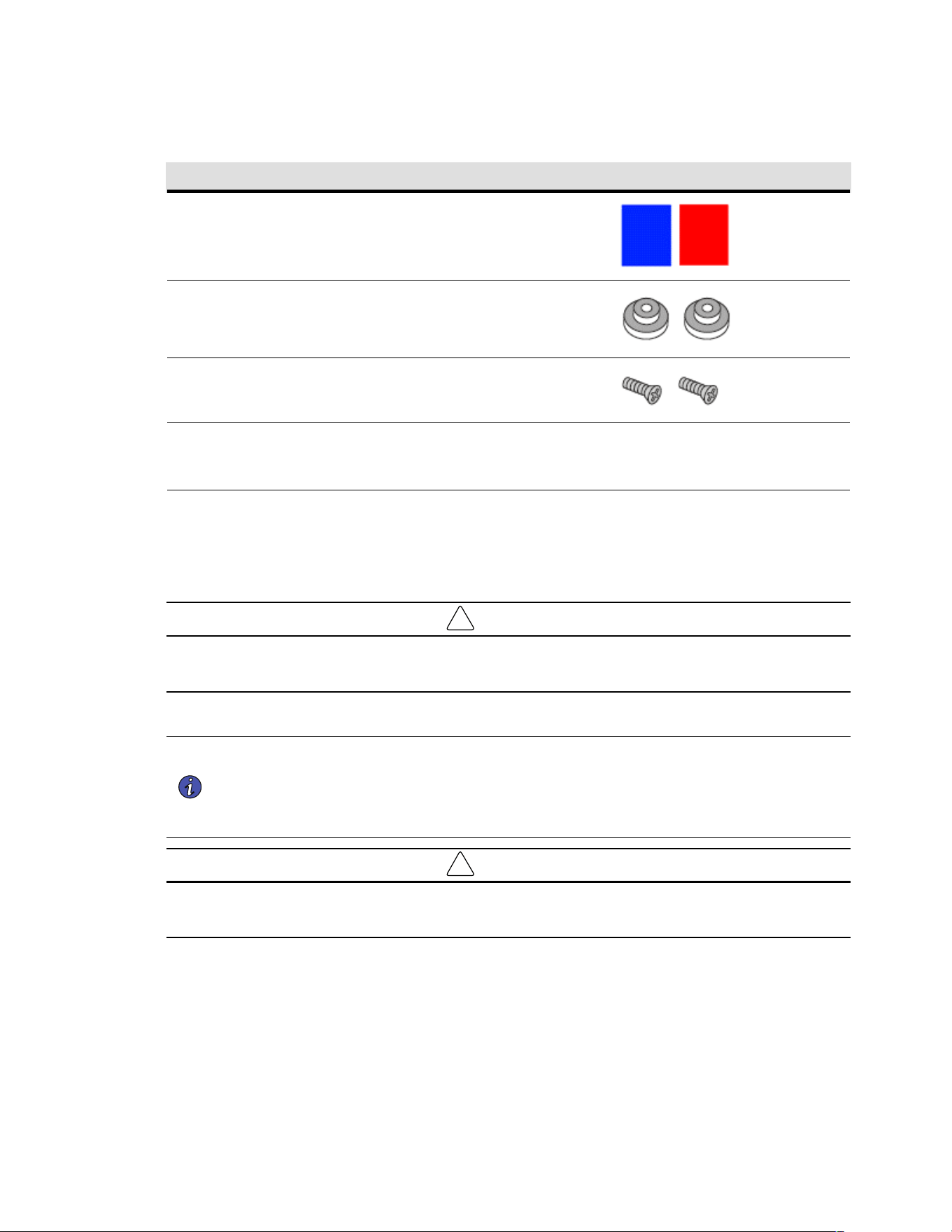
Table 2 lists the accessory parts that are included in the shipping carton with most Rack PDU G4 models.
Table 2 lists optional parts supplied with certain G4 models that use the G3 communication card.
TTaabbllee 22.. SShhiippppeedd wwiitthh tthhee RRaacckk PPDDUU iinn tthhee SShhiippppiinngg CCaarrttoonn —— RReeppllaacceemmeenntt SSPPKK004455
QQuuaannttiittyy DDeessccrriippttiioonn
1
Eaton Rack PDU G4 Installation and Connectivity Quick Start
Contains details for how to install the Rack PDU
1
Eaton Rack PDU G4 Safety Guide
Contains important safety information
2
(1) Red and (1) Blue Source Labels
These can be applied to the PDU to indicate the power feed
Package Contents
9 Rack PDU G4 Installation and Setup User Guide P-164001156—Rev 3
TTaabbllee 22.. SShhiippppeedd wwiitthh tthhee RRaacckk PPDDUU iinn tthhee SShhiippppiinngg CCaarrttoonn —— RReeppllaacceemmeenntt SSPPKK004455 ((CCoonnttiinnuueedd))
QQuuaannttiittyy DDeessccrriippttiioonn
2
(1) Red and (1) Blue Wrapping Labels
These 75x100mm labels can be applied to the PDU powercord to
indicate the power feed
2
Flush Mounting Buttons
These double-sided 2mm/3mm buttons allow the PDU to be
installed with the least rack interference
2
M4 x 10mm flathead screws
Extra screws for the flush mounting buttons
1
Ethernet cable, Cat 5e, 150mm length
Used either for network cascading between adjacent PDUs or
initial PDU configuration
22..66 OOppttiioonnaall EEnnvviirroonnmmeennttaall MMoonniittoorriinngg PPrroobbee
Optional Environmental Monitoring Probe (EMP) equipment with sensors can be connected to the Rack PDU
as an accessory. The equipment is customer-supplied and should be installed using the manufacturer’s
instruction manual.
!
IMPORTANT
Follow all installation and operation safety information provided in the manufacturer’s instruction manual for the
EMP equipment. Use only supplied accessories.
22..77 IInnssttaallllaattiioonn OOvveerrvviieeww
NNOOTTEE 11 Power cords for the devices that you connect to the Rack PDU are not included.
NNOOTTEE 22 Depending on your choice of installation method, some parts may not be used.
NNOOTTEE 33 Use only the supplied screws for installation. Hand tighten the screws. Do not
overtighten to avoid stripping the screws.
!
IMPORTANT
Use great care in handling the Rack PDU during installation. Avoid unnecessary contact between the Rack PDU
and the rack.
22..88 TToooollss
The Rack PDU G4 is designed to be mounted without the use of tools. Mounting buttons are pre-installed on
the rear of the PDU at the factory. If you wish to use a different mounting option, such as an adapter bracket or
side mounting, tools are not provided, but may be required as follows:
• For vertical installations:
– Phillips cross-head screwdriver
Optional Environmental Monitoring Probe
Rack PDU G4 Installation and Setup User Guide P-164001156—Rev 3 10
22..99 CCoonnffiigguurraattiioonnss
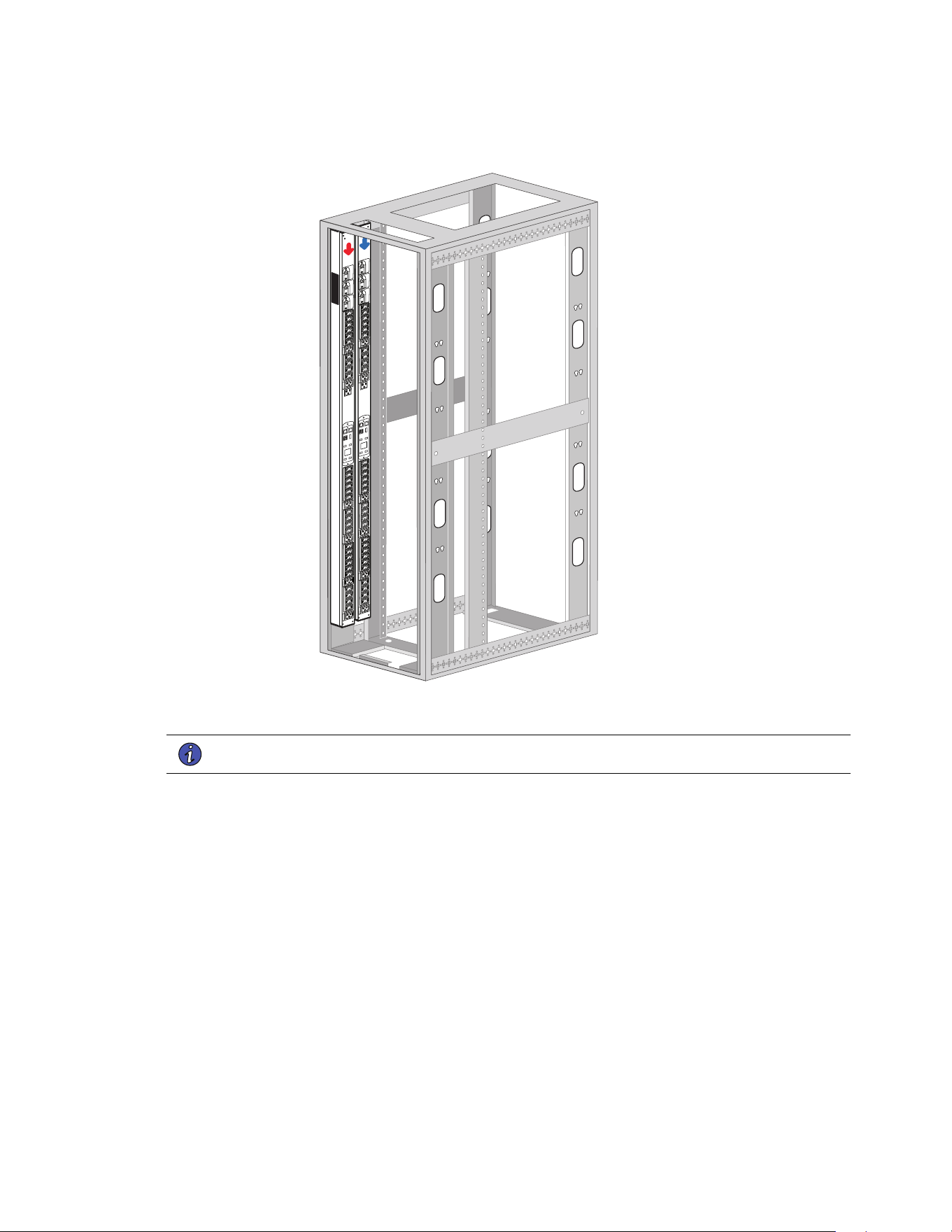
You can install one or two Rack PDUs vertically on each side of the rack (see Figure 7).
FFiigguurree 77.. VVeerrttiiccaall RRaacckk PPDDUU CCoonnffiigguurraattiioonnss
=
=
22..1100 PPoowweerr FFeeeedd LLaabbeellss
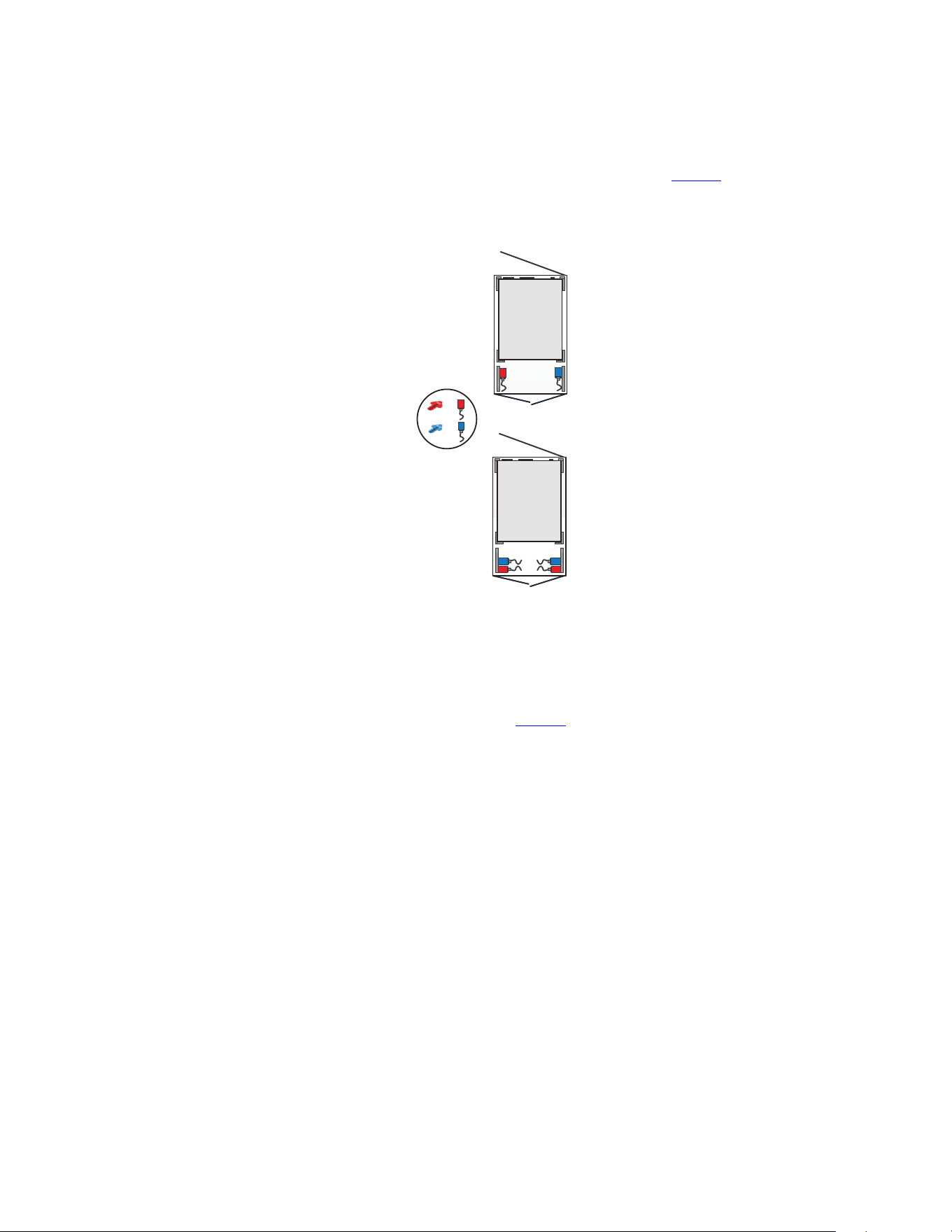
Adhesive power feed labels (red power feed arrow and blue power feed arrow) are supplied to allow
identification of the power flow for up to two individual Rack PDUs. The customer can choose the location of
the sticker in an available space on the unit or the rack. Adhere one to the side of an Rack PDU at your
discretion to indicate the power feed direction (see Figure 8).
Colored wrapping labels are also included for use on the Rack PDU’s input cord. If two G4 PDUs are in a rack
and connected to different feeds, then two red and two blue wrapping labels will be available for each PDU.
These wrapping labels could be placed near the plug as well as near the PDU.
Configurations
11 Rack PDU G4 Installation and Setup User Guide P-164001156—Rev 3
FFiigguurree 88.. PPoowweerr FFeeeedd LLaabbeellss
22..1111 IInnssttaallllaattiioonn aanndd MMoouunnttiinngg BBuuttttoonnss
NNOOTTEE Only use the provided screws to mount the buttons.
The mounting buttons for 0U vertical Rack PDUs are factory installed. These pre-installed buttons are shoulder-
style and are well-suited for all standard rack-mount applications. In particular it is designed to work well with
Eaton rack enclosures with 11.5-12.5mm diameter slots and 1.5-2mm thick material, as well as TrippLite by
Eaton 2-post and 4-post racks with 14mm diameter slots and 3mm thick material.
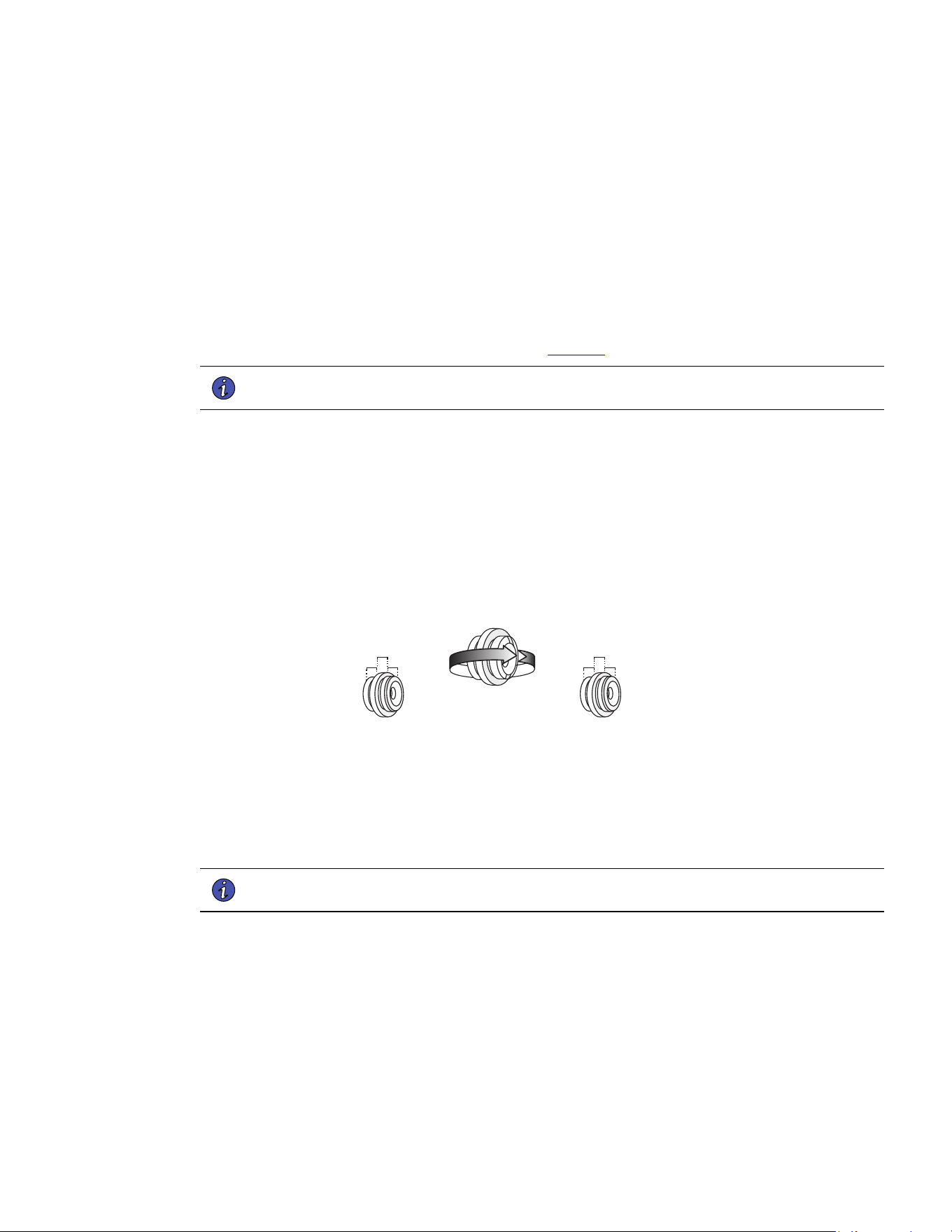
Additionally, the accessory kit includes two flush-style buttons. These buttons allow a PDU to be mounted so
that it touches the mounting surface, thus saving some PDU depth. They are reversible, with one side
designed for 1.5-2mm rack material thickness, and the other side designed for 3mm rack material thickness.
The screws for these buttons are flat-head, M4 x 10mm. Only the provided screws should be used to mount
the buttons.
22..1111..11 IInnssttaalllliinngg VVeerrttiiccaall RRaacckk PPDDUUss iinn aa RRaacckk CCaabbiinneett
Regardless of the configuration you choose, there are two mounting methods available for installing the Rack
PDU vertically in a rack cabinet:
• Using factory-installed shoulder-style buttons on the Rack PDU to mount it in keyhole openings in the rack
frame.
Installation and Mounting Buttons
Rack PDU G4 Installation and Setup User Guide P-164001156—Rev 3 12
• Using flush-style buttons on the Rack PDU to mount it in the keyhole openings in the rack frame.
Review the installation methods described in this section and choose the method appropriate for your
environment.
22..1111..22 UUssiinngg FFaaccttoorryy--iinnssttaalllleedd MMoouunnttiinngg BBuuttttoonnss
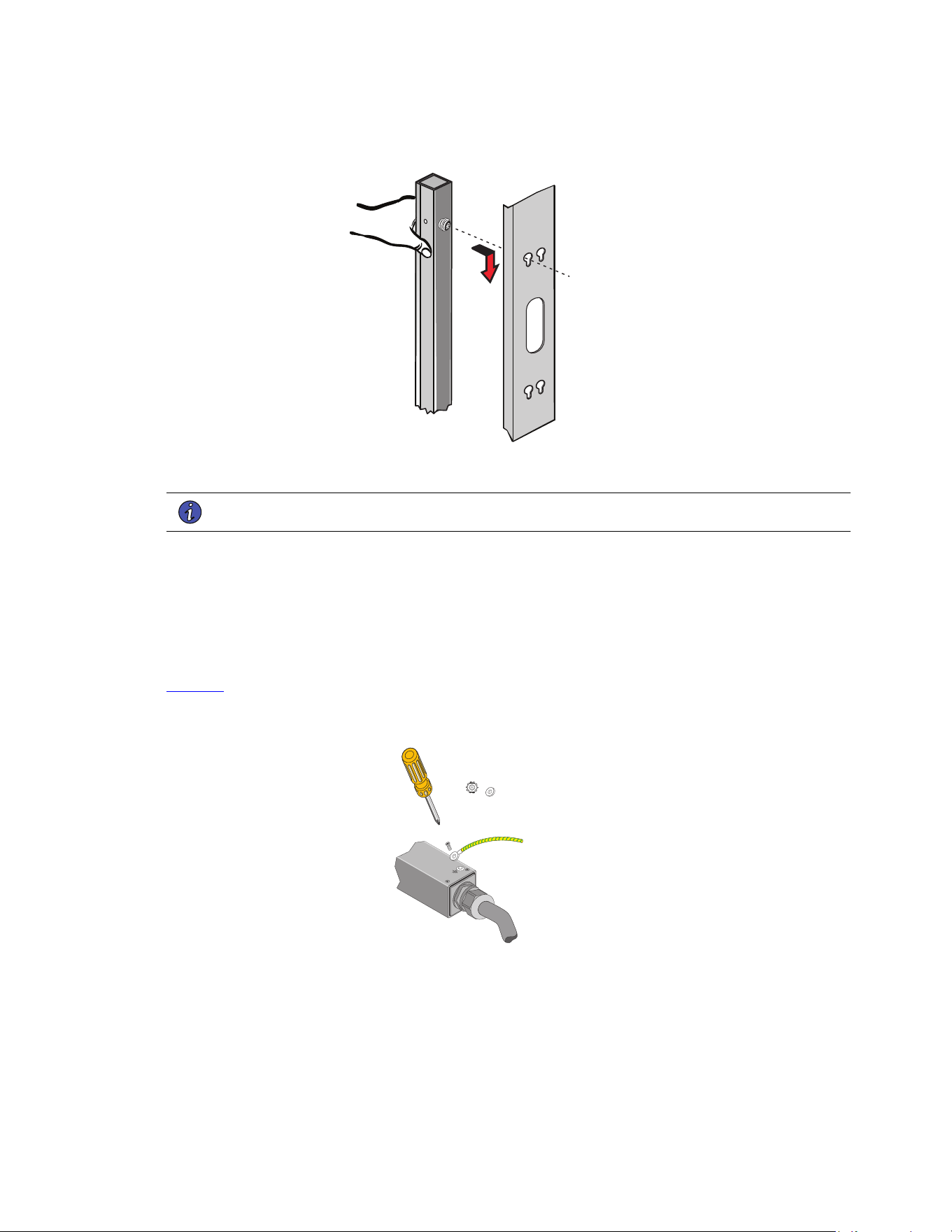
To install the Rack PDU with the factory-installed shoulder-style mounting buttons:
1. Carefully move the Rack PDU into position against the rail.
2. Insert the top and bottom mounting buttons into the keyhole slots on the rack post that correspond with
the position of the top and bottom mounting buttons.
3. Push down to secure the Rack PDU in position (see Figure 10 ).
NNOOTTEE The Rack PDU will fit tight and it may require minor force to engage in the slot. This is a
friction fit to hold the Rack PDU in the slot.
22..1111..33 UUssiinngg FFlluusshh--ssttyyllee MMoouunnttiinngg BBuuttttoonnss
To install the Rack PDU with the flush-style mounting buttons from the accessory kit:
1. Unscrew and remove the factory-installed shoulder-style buttons.
2. Locate the flush buttons from the accessory kit.
3. Orient the flush buttons to either the 2mm or 3mm side depending on the rack material thickness.
FFiigguurree 99.. RReevveerrssiinngg tthhee MMoouunnttiinngg BBuuttttoonnss
2.2 mm
3.3 mm
3.3 mm
2.2 mm
4. Secure the flush-style buttons to the Rack PDU using the provided screws.
5. Carefully move the Rack PDU into position against the rail.
6. Insert the top and bottom mounting buttons into the keyhole slots on the rack post that correspond with
the position of the top and bottom mounting buttons.
7. Push down to secure the Rack PDU in position
NNOOTTEE The Rack PDU will fit tight and it may require minor force to engage in the slot. This is a
friction fit to hold the Rack PDU in the slot.
Installation and Mounting Buttons
13 Rack PDU G4 Installation and Setup User Guide P-164001156—Rev 3
FFiigguurree 1100.. SSeeccuurriinngg tthhee RRaacckk PPDDUU
22..1111..44 GGrroouunnddiinngg tthhee RRaacckk ttoo tthhee RRaacckk PPDDUU
NNOOTTEE Grounding the Rack PDU is optional but recommended.
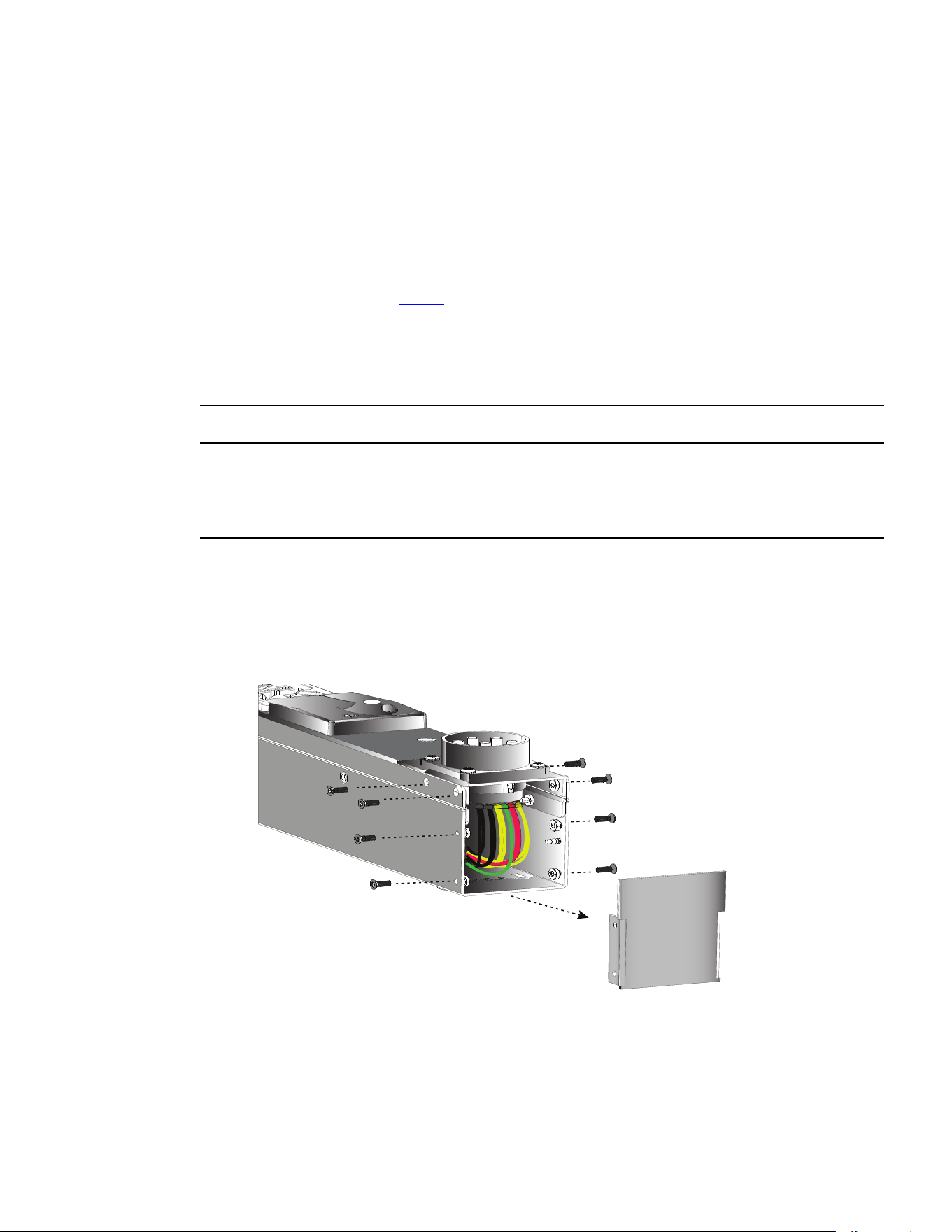
The Rack PDU is grounded through the input plug and an M6 ground screw is provided for auxiliary rack
grounding. Conductors can be connected to the ground screw for functional grounding or bonding of
ungrounded metal parts within the rack. The grounding screw is sized to safely conduct the fault current of the
single largest output breaker. There is no paint on the screw or the chassis surface to ensure contact with bare
metal instead of a painted surface. The ground symbol is marked in the chassis adjacent to the earth bonding
screw.
To ground the Rack PDU, connect a grounding cable (not supplied) from earth to the grounding screw shown in
Figure 11. The internal diameter of the ground strap ring is M6 (6 mm).
FFiigguurree 1111.. GGrroouunnddiinngg SSccrreeww LLooccaattiioonn ffoorr 00UU VVeerrttiiccaall MMooddeellss
Installation and Mounting Buttons
Rack PDU G4 Installation and Setup User Guide P-164001156—Rev 3 14
22..1122 QQuuiicckk SSttaarrtt ffoorr UUnniivveerrssaall IInnppuutt RRaacckk PPDDUU
Eaton Universal Input Rack PDUs are a highly versatile solution for meeting the challenges of powering today’s
IT equipment. These Rack PDUs feature a special input connector that can be used with a variety of cordsets,
including 1-phase, 3-phase delta 208V, 3-phase wye 120/208V, and 3-phase wye 240/415V. The power rating of
the PDU is based on the input cordset used, as detailed in Table 3 . These cordsets are sold and shipped
separately from the PDU.
SStteepp 11:: CChhoooossee aa CCoorrddSSeett
Cordsets should be selected via Table 3 based on the required power for the rack system, and the available
receptacle to plug into.
Only Eaton cordsets having a Regulatory Model beginning with “EZ1” should be used with Eaton’s Universal
Input Rack PDUs.
SStteepp 22 :: CChhaannggee tthhee PPDDUU CCoorrddsseett CCoonnnneeccttoorr OOrriieennttaattiioonn ((OOppttiioonnaall))
This PDU contains hazardous voltages. Eaton Rack PDU G4 systems should only be installed, tested, and
configured by a qualified electrical worker.
Disconnect the PDU input power plug from the installation power outlet to isolate the PDU prior to modifying
the cordset connector orientation.
Some Eaton Universal Input Rack PDU models offer front/end access that can be easily modified to provide
flexibility and support different PDU line cord installation orientations.
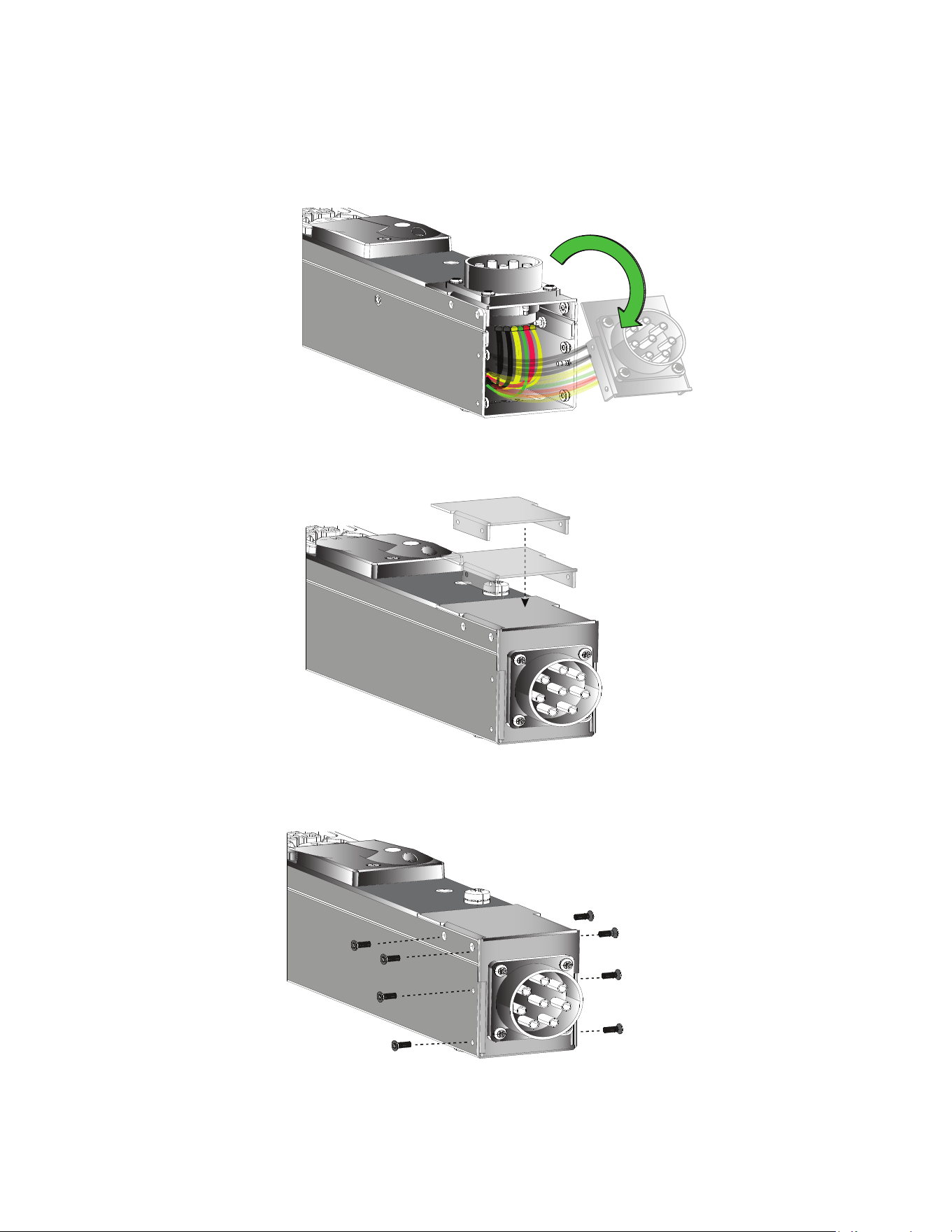
To change the Eaton Universal Input Rack PDU cordset connector orientation:
1. Remove the eight screws that hold the cordset connector and bottom assembly panel in place. Set the
panel and the screws aside in a safe place.
Quick Start for Universal Input Rack PDU
15 Rack PDU G4 Installation and Setup User Guide P-164001156—Rev 3
2. Gently pull, then rotate the cordset connector 90° ensuring that the screw holes in the PDU chassis line up
with the corset panel assembly.
3. Install the bottom assembly panel onto the PDU where the cordset assembly was initially located.
4. Reinstall the screws.
Quick Start for Universal Input Rack PDU
Rack PDU G4 Installation and Setup User Guide P-164001156—Rev 3 16
SStteepp 33:: CCoonnnneecctt tthhee CCoorrddSSeett ttoo tthhee PPDDUU
To connect the cordset to the PDU:
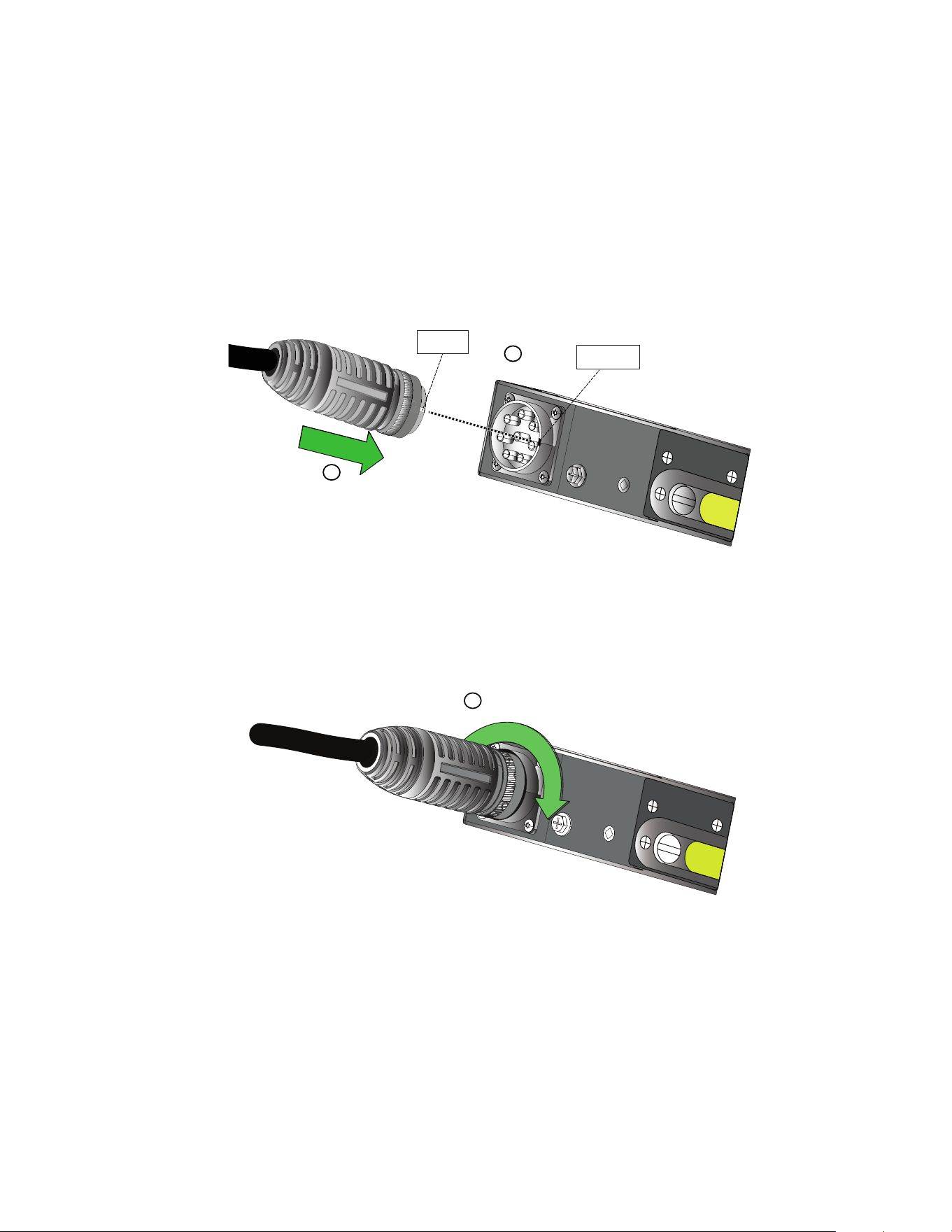
1. Rotate the cordset connector until the white line aligns with the large slot slot on the PDU connector.
2. While keeping the cordset connector straight, insert the cordset connector as far as it will go into the PDU
connector.
FFiigguurree 1122.. AAlliiggnn CCoorrddsseett
White line
1
2
Large Slot
3. Rotate the metal ring on the cordset connector clockwise to secure it to the PDU. Hand-tighten only.
FFiigguurree 1133.. TTiigghhtteenn CCoorrddSSeett
3
SStteepp 44:: CCoonnnneecctt tthhee CCoorrddsseett ttoo aa PPoowweerr SSoouurrccee
Most cordsets have a plug, and they should be connected to a matching receptacle.
A few cordsets have pigtails. These can be wired directly into an electrical junction box or busway tap-off box.
This connection must be performed by a qualified electrical worker in conformance with local electrical codes.
Note that the PDU+cordset connector pair is rated by UL and IEC as a disconnect device.
SStteepp 44:: PPoowweerr--OOnn aanndd CCoonnffiigguurree tthhee PPDDUU
Apply power to the PDU.
Quick Start for Universal Input Rack PDU

17 Rack PDU G4 Installation and Setup User Guide P-164001156—Rev 3
For Universal Input PDUs with G4 network card, the PDU input measurement mode defaults to "Auto-detect".
In some cases this detection may be incorrect, and the mode may need to be manually configured in order to
have proper display of input measurements and alarms. Additionally, input current warning and critical
thresholds will always need to be configured to match the rating of the input plug. This configuration is done
using the following steps. See the communication quick-start for details on how to make a connection and log
in.
TToo uussee tthhee wweebb iinntteerrffaaccee::
1. On the PDU Settings webpage, click the General tab.
2. In the Input Measurement Mode box, choose the option based on the table below
3. Set the input current high warning and critical thresholds on the Input Thresholds tab to match the input
plug and desired alarm levels.
4. Save the changes and reboot.
TToo uussee tthhee SSSSHH oorr sseerriiaall iinntteerrffaaccee::
1. Set the Power Input Mode using the following commands:
rest set /powerDistributions/1/inputs/1/settings/measurementMode "single phase"
rest set /powerDistributions/1/inputs/1/settings/measurementMode "three phase delta"
rest set /powerDistributions/1/inputs/1/settings/measurementMode "three phase wye"
NNOOTTEE The Power Input Mode setting should be selected based on the cordset see Table 3 .
2. Reboot the PDU using the following command:
reboot
Quick Start for Universal Input Rack PDU

Rack PDU G4 Installation and Setup User Guide P-164001156—Rev 3 18
TTaabbllee 33.. CCoorrddSSeett OOppttiioonnss
PPaarrtt NNuummbbeerr PPlluugg TTyyppee IInnppuutt VVoollttaaggee PPoowweerr IInnppuutt
MMooddee
CCuurrrreenntt CCeerrttiiffiiccaattiioonnss RReegguullaattoorryy
MMooddeell
CBL350–10 NEMA L6-30P
1P, 200-240V
1-Phase 24A cRUus EZ1-MT3N
CBL351–10 NEMA L21-30P
3P Wye, 120/208V
3-Phase Delta
208V*
24A cRUus EZ1-PD4S
CBL352–10
IEC 60309 332P6, IP44 1P, 230V
1-Phase 32A
CE/IEC
EZ1-CH3B
CBL353–10
IEC 60309 516P6, IP44
3P Wye, 230/400V
3-Phase Wye 230/
400V
16A
CE/IEC
EZ1-DA5D
CBL354–10
IEC 60309 332P6W, IP67
3P Wye, 240/415V
1-Phase
24A UL (32A CE) cRUus, CE/IEC
EZ1-EJ3J
CBL355–10
IEC 60309 516P6W, IP67
3P Wye, 240/415V
3-Phase Wye 230/
400V
16A
cRUus, CE/IEC
EZ1-FB5K
CBL356–06
CBL356–10
IEC 60309 460P9W, IP67 3P Delta, 208V
3-Phase Delta
208V
48A cRUus EZ1-FL4U
CBL357–10
Pigtails
3P Delta, 208V
3-Phase Delta
208V
55A (70A panel
breaker)
cRUus EZ1-4U
CBL358–10
IEC 60309 532P6W, IP67
3P Wye, 240/415V
3-Phase Wye 230/
400V
24A UL (32A CE) cRUus, CE/IEC
EZ1-FJ5L
CBL359–10
IEC 60309 532P6, IP44
3P Wye, 230/400V
3-Phase Wye 230/
400V
32A
CE/IEC
EZ1-DH5E
CBL360–10
IEC 60309 560P6W, IP67
3P Wye, 240/415V
3-Phase Wye 230/
400V
32A cRUus EZ1-FU5Y
CBL362–10
IEC 60309 360P6W, IP67 1P, 240V
1-Phase 48A cRUus EZ1-EL3Q
CBL363–10
IEC 60309 363P6, IP67 1P, 230V
1-Phase 63A
CE/IEC
EZ1-CQ3C
CBL364–06
CBL364–10
CS8365
3P Delta, 208V
3-Phase Delta
208V
40A cRUus EZ1-PH4U
CBL365–10 NEMA L15-30P
3P Delta, 208V
3-Phase Delta
208V
24A cRUus EZ1-PC4S
CBL366–10
IEC 60309 560P9W, IP67
3P Wye, 120/208V
3-Phase Delta
208V*
48A cRUus EZ1-FF4U
CBL367–10 NEMA L21–20P
3P Wye, 120/208V
3-Phase Delta
208V*
16A cRUus EZ1-PB4S
CBL368–10 NEMA L22–30P
3P Wye, 240/415V
3-Phase Wye 230/
400V
24A cRUus EZ1-PK5L
CBL369–10
Pigtails 3P Wye, 240/415V
3-Phase Wye 230/
400V
32A cRUus EZ1-5Y
* Note: While these plugs are 120/208V 3-Phase Wye, the neutral connection is not used in the cordset or PDU. The Input Power Mode should
therefore be selected as 3-Phase Delta 208V.
Quick Start for Universal Input Rack PDU

19 Rack PDU G4 Installation and Setup User Guide P-164001156—Rev 3
22..1133 CCoonnnneeccttiinngg tthhee OOuuttppuutt DDeevviicceess
The Rack PDU outlets are available for connecting and monitoring devices such as workstations, servers, and
switches. Connect a device you want to monitor to a power outlet on the Rack PDU with the power cord that
comes with the device.
NNOOTTEE You may find it useful to document the connections you make.
To connect your devices:
1. Verify that each circuit breaker is in the On position.
2. FFoorr RRaacckk PPDDUUss wwiitthh ddeettaacchhaabbllee ppoowweerr ccoorrddss.. If the power cord is not connected, connect the power
cord to the Rack PDU. Otherwise, go to Step 3.
3. Route the Rack PDU power cord toward a dedicated power source. If desired, use cable ties to secure the
power cord as needed. If the power cord must exit the rack cabinet to connect to a power source, use the
openings in the rack cabinet.
NNOOTTEE 11 Plug the Rack PDU into an appropriately rated outlet for its type.
NNOOTTEE 22 Do not replace or rewire the power cord.
4. Connect the power cord to a properly wired and grounded dedicated power source. The Rack PDU turns
on and displays an Eaton startup screen while starting. After a period of inactivity, the LCD screensaver will
begin cycling through different screens.
5. Connect your output devices to the outlets on the Rack PDU. Verify that each device is receiving power
before connecting the next device.
NNOOTTEE To avoid large surge currents, connect the protected equipment to the outlets
individually rather than as a group. You may want to include a delay for Switched and
Managed models when setting up groups of outlets to start at the same time to avoid a
large in-rush current.
6. Route all power cords neatly. If desired, use cable ties to secure the cords.
Connecting the Output Devices

Rack PDU G4 Installation and Setup User Guide P-164001156—Rev 3 20
CChhaapptteerr 33 SSeerrvviiccee
33..11 SSeerrvviiccee aanndd SSuuppppoorrtt
If you have any questions or problems with the Eaton Enclosure Power Distribution Unit (Rack PDU) G4, call
your LLooccaall DDiissttrriibbuuttoorr or the HHeellpp DDeesskk at one of the following telephone numbers and ask for an Rack PDU
technical representative:
United States:
11--880000--335566--55773377
Canada:
11--880000--446611--99116666 eexxtt 226600
All other countries: CCaallll yyoouurr llooccaall sseerrvviiccee rreepprreesseennttaattiivvee
Please have the following information ready when you call for service:
• Model number
• Serial number
• Date of failure or problem
• Symptoms of failure or problem
• Customer return address and contact information Table 4
provides the Eaton catalog part number for ordering optional and spare parts for the Rack PDU. Contact
your local service representative for more information.
TTaabbllee 44.. OOppttiioonnaall aanndd SSppaarree PPaarrttss
EEaattoonn CCaattaalloogg
NNuummbbeerr
OOppttiioonnaall oorr SSppaarree
PPaarrtt
AAmmeerriiccaass//
AAPPAACC MMaarrkkeett
EEMMEEAA//AAPPAACC
MMaarrkkeett
DDeessccrriippttiioonn
EMPDT1H1C2 Optional
• •
Eaton Environmental Monitoring Probe
SPK045 Spare Part
• —
Rack PDU G4 Installation Spare Pack
(Americas)
SPK040 Spare Part
• —
Rack PDU G4 Replacement Communication
Module
SPK049 Spare Part
• •
Rack PDU G4 Flexible Mounting Brackets
33..22 WWaarrrraannttyy
Please visit Eaton.com/PDUG4 to view the limited warranty for rackmount Rack PDUs.

P-1640011563
P-164001156 3