
2
ENGLISH_Index
TABLE OF CONTENTS
ONE:QUICK SHARE ....................4
- LG Device ......................................................................... 4
SYSTEM REQUIREMENTS .......... 5
PRODUCT FEATURES ................. 7
PREPARING ................................8
- Product Care .................................................................. 8
- Installation Guide ........................................................ 9
- Parts and Buttons ................................................... 10
HOW TO USE THE ONE:QUICK
SHARE DONGLE ...................... 12
- How to Pair LG Devices and the Dongle ...... 12
- How to Install the Driver and PC App ........... 14
- Manual Installation .................................................. 16
- How to Share the Screen .................................... 23
- How to Use the PC App ....................................... 26


4
ENGLISH_Index
ONE:QUICK SHARE
One:Quick Share is a solution that connects to a PC to allow wireless sharing of image
and audio.
One:Quick Share is used for presentations at meetings. The quality of video playback may
vary depending on the performance of the PC.
It works with LG devices and can share up to 4 PC screens to LG devices.
The maximum number of screen shares may be limited depending on the type of LG
device.
LG Device
For example, when connecting the One:Quick Share dongle to the presenter’s laptop for a
meeting, you can output the presentation to an LG device.
If each person uses their own One:Quick Share product, multiple people can share their
presentation to one LG device.
5
ENGLISH_Index
SYSTEM REQUIREMENTS
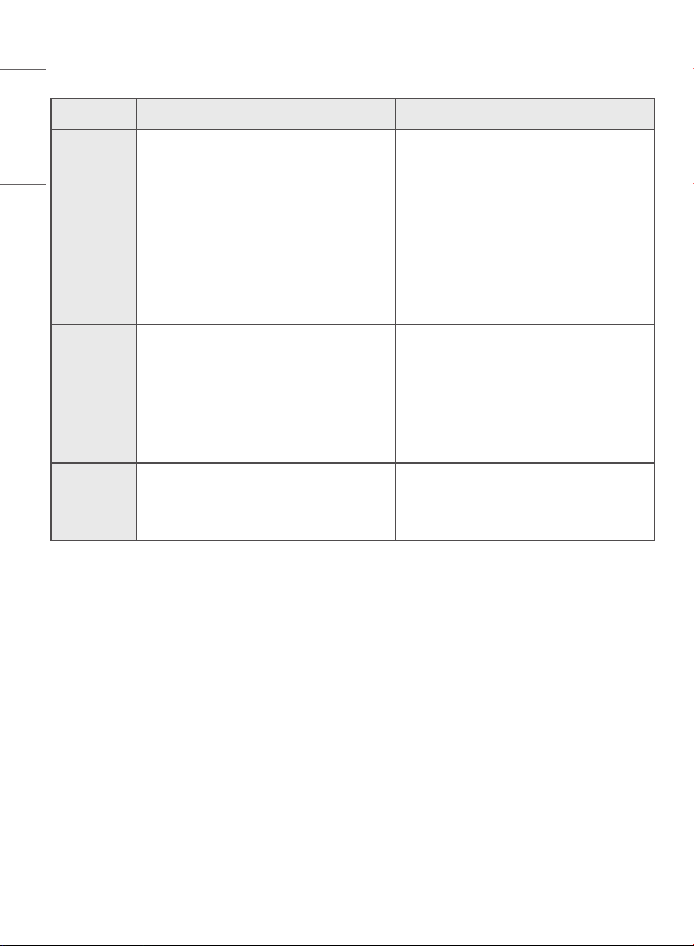
Operating System
Minimum Requirements Recommended Specifications
Microsoft Windows Windows 8.1 64 bit or later
Windows 10 V1709 64 bit
or later
Apple macOS 10.12.6 (Sierra) or newer 10.15.6 (Catalina) or newer
* On macOS, select [System Preferences] > [Sound] > [Output] > [SoundPusher Audio]
to output audio.
Memory
4 Gbyte or higher
6
ENGLISH_Index
CPU
Minimum Requirements Recommended Specifications
Intel
Core i 1st (Nehalem)
Core i 2nd (Sandy Bridge)
Core i 3rd (Sandy Bridge)
Core i 4th (Haswell)
Core i 5th (Broadwell)
Core i 6th (Sky Lake)
Core i 7th (Kaby Lake)
Core i 8th (Coffee Lake)
Core i 9th (Coffee Lake)
Core i 10th (Comet Lake / Ice Lake)
Core i 11th (Tiger Lake)
AMD A Series
Ryzen 1st
Ryzen 2nd (Pinnacle, Colfax)
Ryzen 2nd (Picasso)
Ryzen 3rd (Matisse, Castle Peak)
Ryzen 3rd (Renoir)
Screen
Sharing
Resolution
Up to 1366 x 768 16 fps / Audio Up to 1920 x 1080 30 fps / Audio
* The One:Quick Share features may not work properly depending on your Windows/
macOS version and PC specifications.

7
ENGLISH_Index
PRODUCT FEATURES
• Share your PC screen easily using buttons by connecting the One:Quick Share Dongle
to your PC.
• The One:Quick Share PC app allows you to control the video mode and volume of your
LG device.
• Supported control functions may vary depending on the type of LG device. Please refer
to the model’s manual for detailed instructions.
• If you connect 4 One:Quick Share dongles to each of the 4 PCs and share the screens
to an LG device, you can share up to 4 screens simultaneously. The maximum number of
screen shares may be limited depending on the type of LG device.

8
ENGLISH_Index
PREPARING
Product Care
• Be careful not to get the product wet. If the product gets wet, there is a risk of a short
circuit.
• Wipe gently with a dry cloth to remove dust.
• When cleaning, do not use volatile substances such as thinner, alcohol, or benzene. It
may cause damage to the product surface or deteriorate product functionality.
• Do not disassemble, repair, or modify the product on your own. It may cause an
accident, such as a fire or an electric shock.
• Do not pull the USB cable of the product.
9
ENGLISH_Index
Installation Guide
• Make sure you have enough space for connection before installing the product.
• Do not install the product in a dusty or humid place.
• Do not install the product under direct sunlight or in a hot place.
• Objects containing magnets, such as speakers, may affect the product’s operation.
• Be sure to install the product in an environment with normal temperature and humidity.
Therecommendedtemperatureforinstallationis0°Cto40°C(32°Fto104°F).
• If there is any product nearby that uses strong electromagnetic waves, it may affect the
operation of the product.
NOTE
• The One:Quick Share model is a USB adapter that is compatible with some LG devices
(or products). For more information, refer to the separately sold products in the user
manual of the LG device (or product) you purchased.
• Some models are not supported in certain countries.
• Supported models are subject to change without notice.
10
ENGLISH_Index
Parts and Buttons
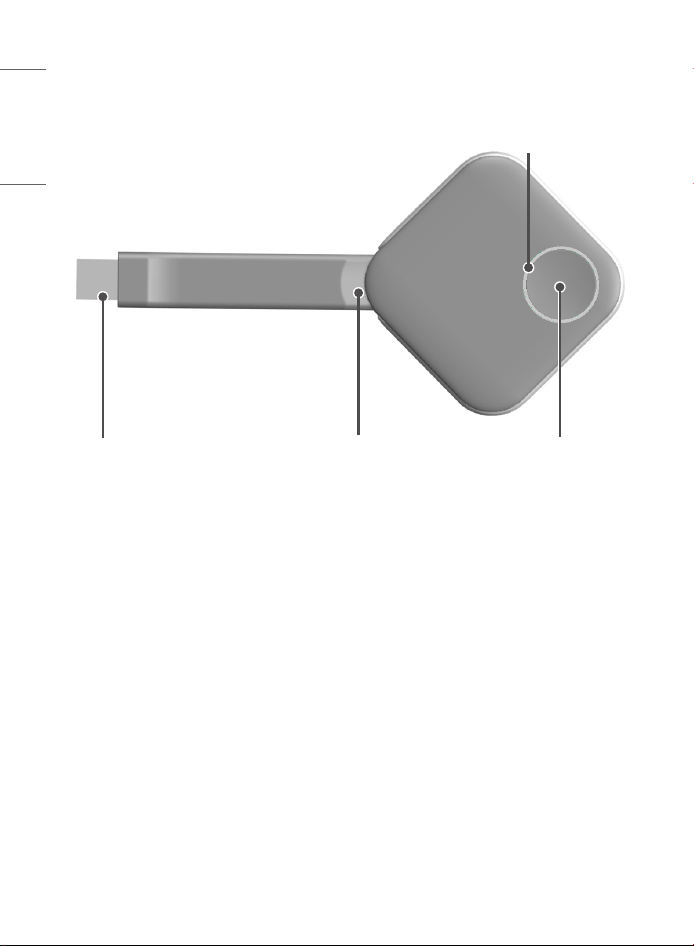
USB jack USB jack holder Dongle operating
button
LED indicator
11
ENGLISH_Index
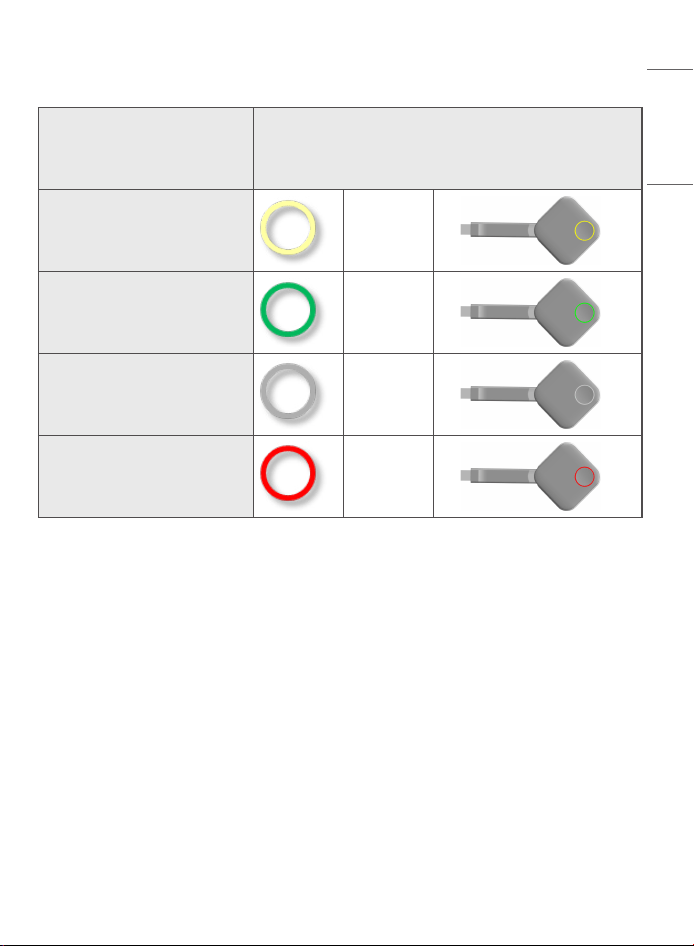
LED Indicator Status Information
Status LED indicator
Standby Yellow light
Sharing in Progress Green light
Connecting Gray light
App Closed / Error Red light
• A future update will enable the LED to blink in yellow, indicating that the dongle is
connecting to the LG device.
12
ENGLISH_Index
HOW TO USE THE ONE:QUICK
SHARE DONGLE
How to Pair LG Devices and the Dongle
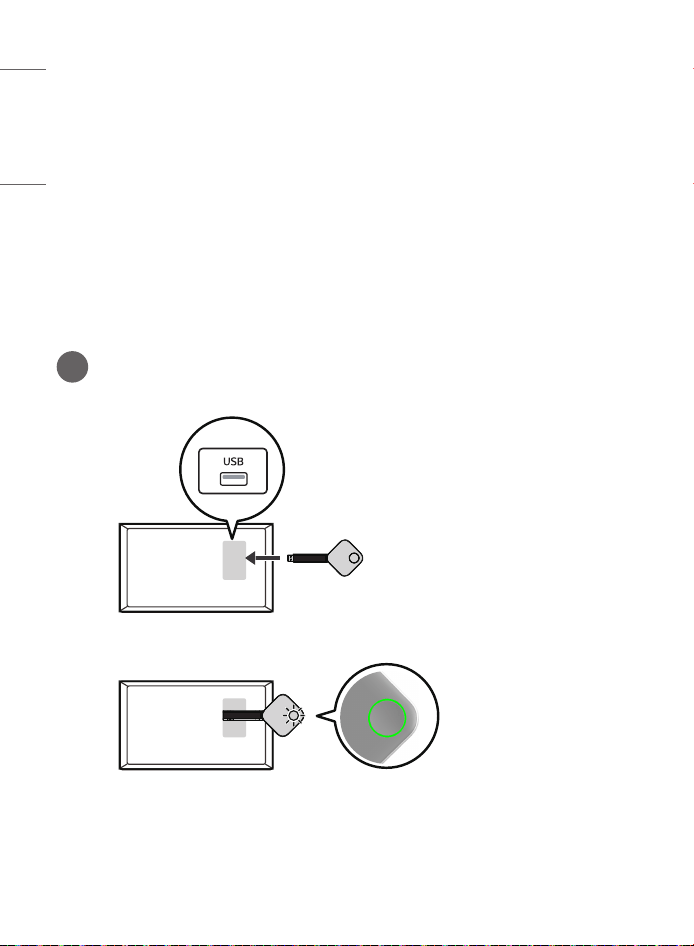
• Connect the One:Quick Share dongle to the LG device’s USB port.
• If the LG device displays [Pairing Successful] within about 20 seconds of connection and
the dongle’s LED turns green, the dongle is normally set to the LG device information.
1 Pairing Successful
(Green Light)
13
ENGLISH_Index
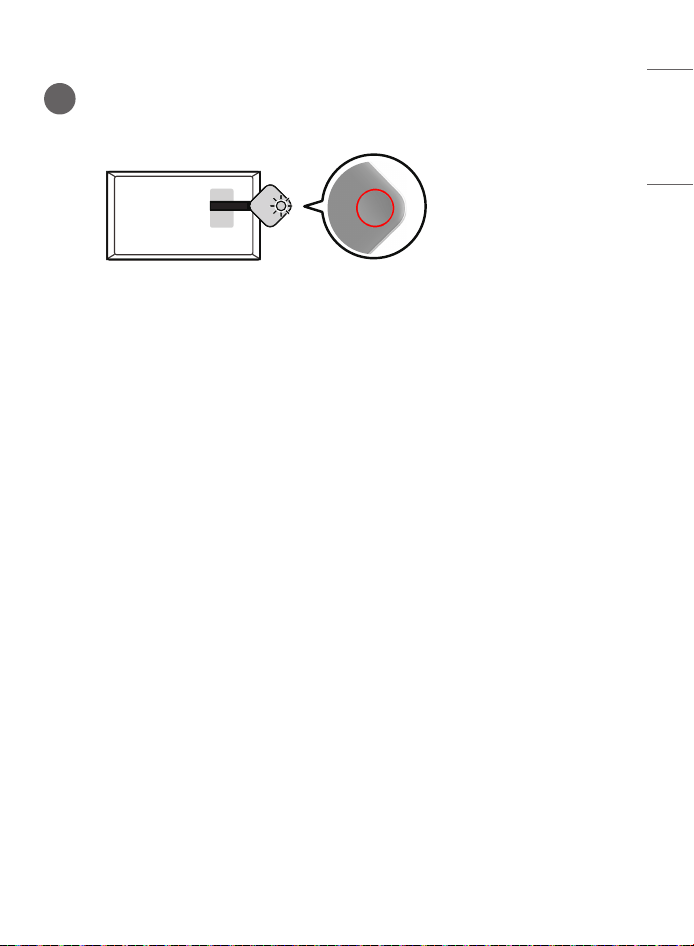
2 Pairing Failed
(Red Light)
* If the dongle’s LED turns red after about 20 seconds of connection, try connecting the
dongle to the LG device’s USB port a few times and if the LED is still red, contact the
store where you purchased it.
14
ENGLISH_Index
How to Install the Driver and PC App
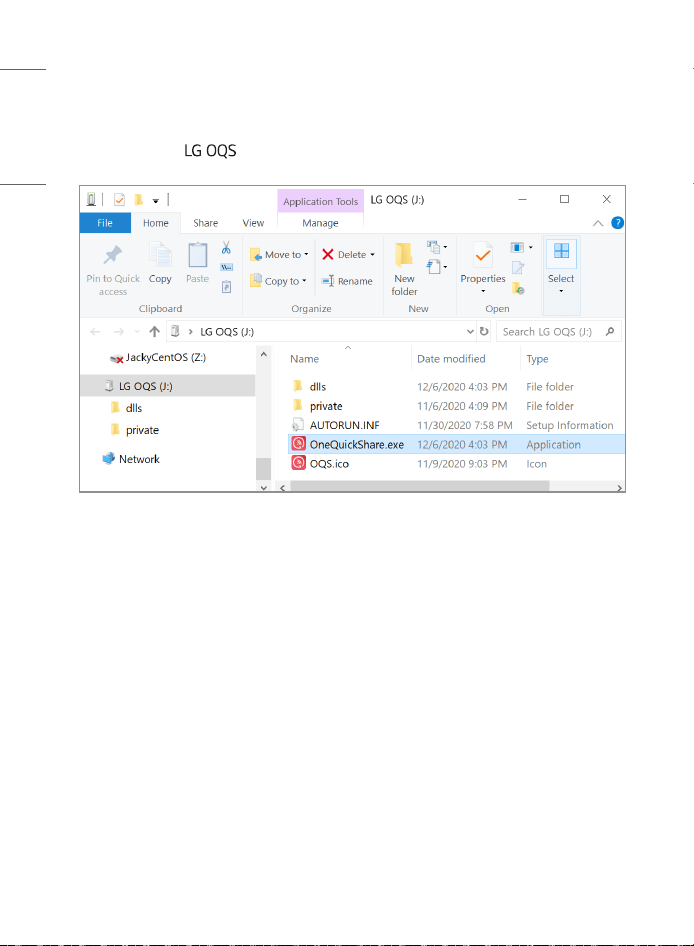
• When you connect the Dongle to your PC, it will be recognized as a storage device and
will appear as the drive in the Explorer.
15
ENGLISH_Index
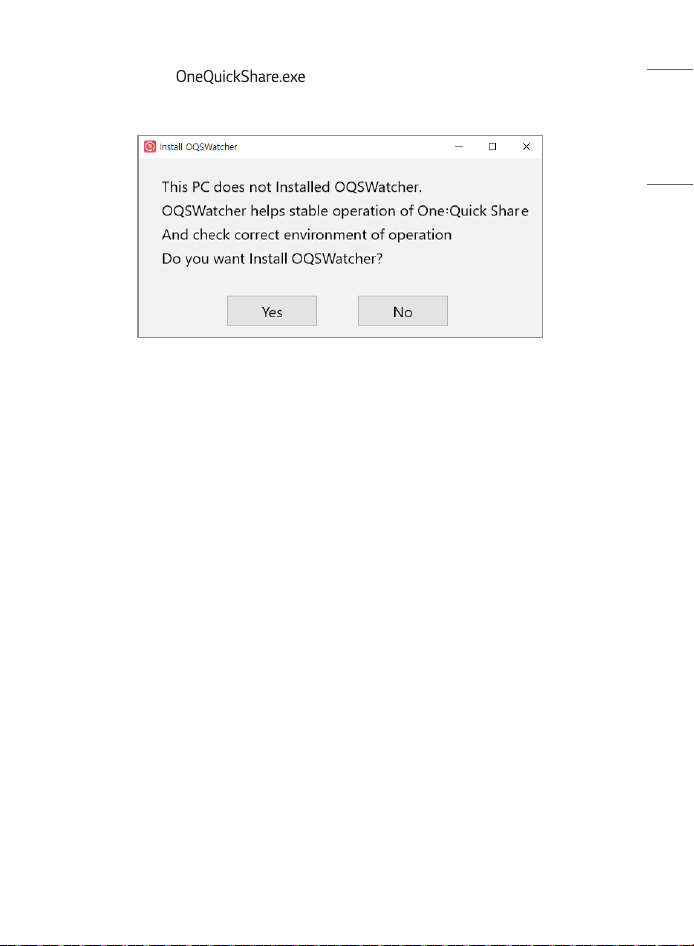
• When you run the file in the Explorer window, an installation
message appears.
• Click the [Yes] button to automatically install the drivers and PC app.
• Depending on the OS version and PC specifications, the installation time may vary.
• Installation may not be possible if the virus and threat protection settings are turned
on in the security settings supported by the OS. Please turn the related settings off
temporarily before installing the app.
• Certain anti-virus programs installed on the PC may prevent the app from being
installed. Please turn the related settings off temporarily before installing the app.
• macOS may prompt the user for permission to screen capture. Permission is necessary
for the PC app to function normally.
16
ENGLISH_Index
Manual Installation
• In a PC environment with enhanced security, the dongle may not install automatically,
even if connected to the PC. In this case, install the PC app and driver as follows:
- Connect the dongle to your PC and wait approximately 20 seconds.
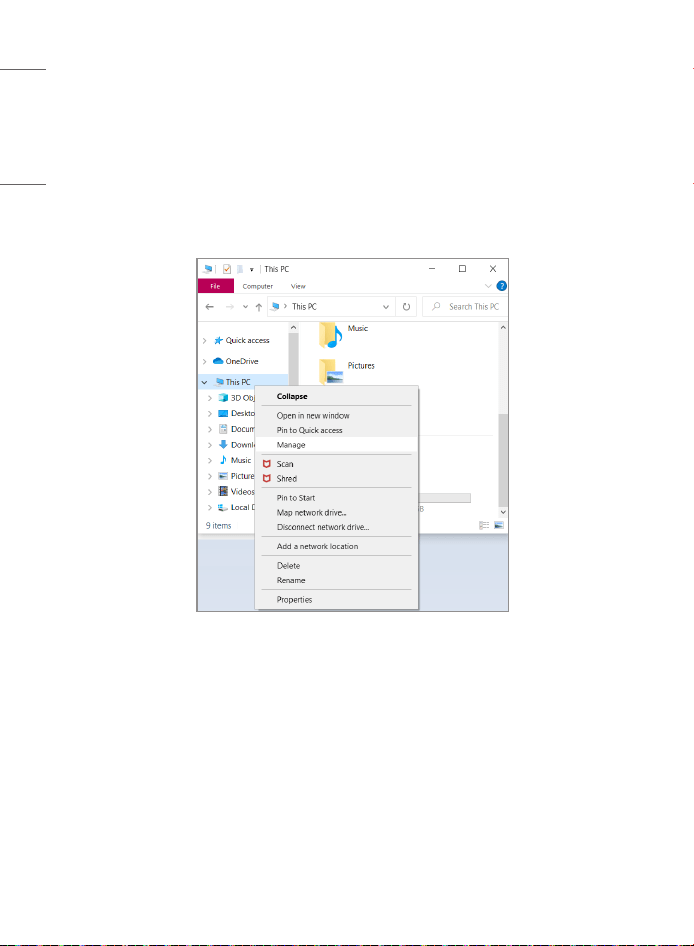
- Right-click “This PC” in the Windows Explorer window, select the “Manage” option,
and run “Device Manager”.
17
ENGLISH_Index
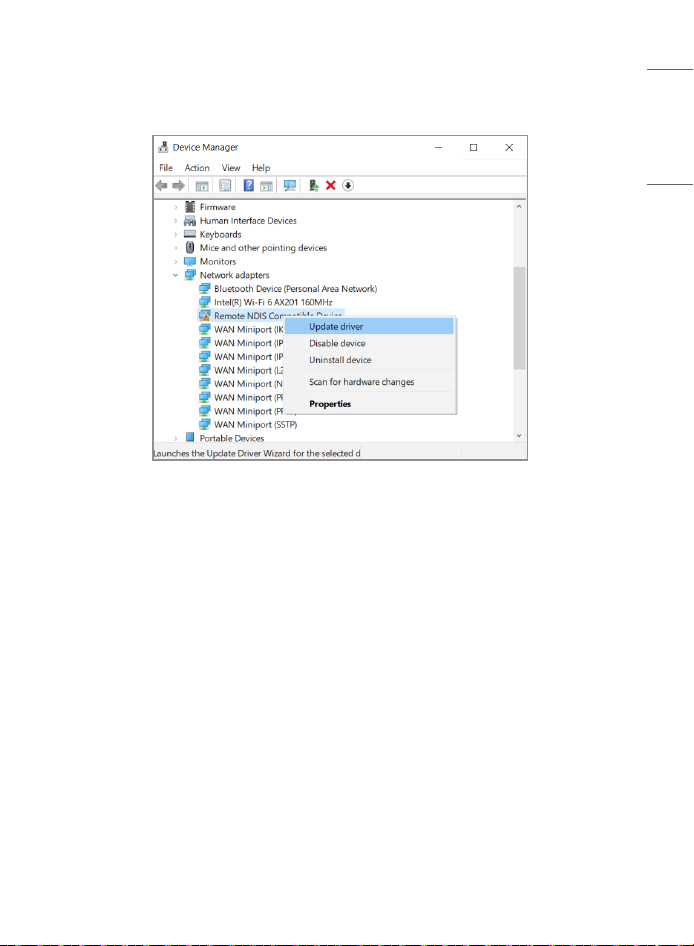
- Right-click “Remote NDIS Compatible Device (OQS RNDIS Driver)”, which is marked as
an uninstalled device, and select “Update driver”.
18
ENGLISH_Index
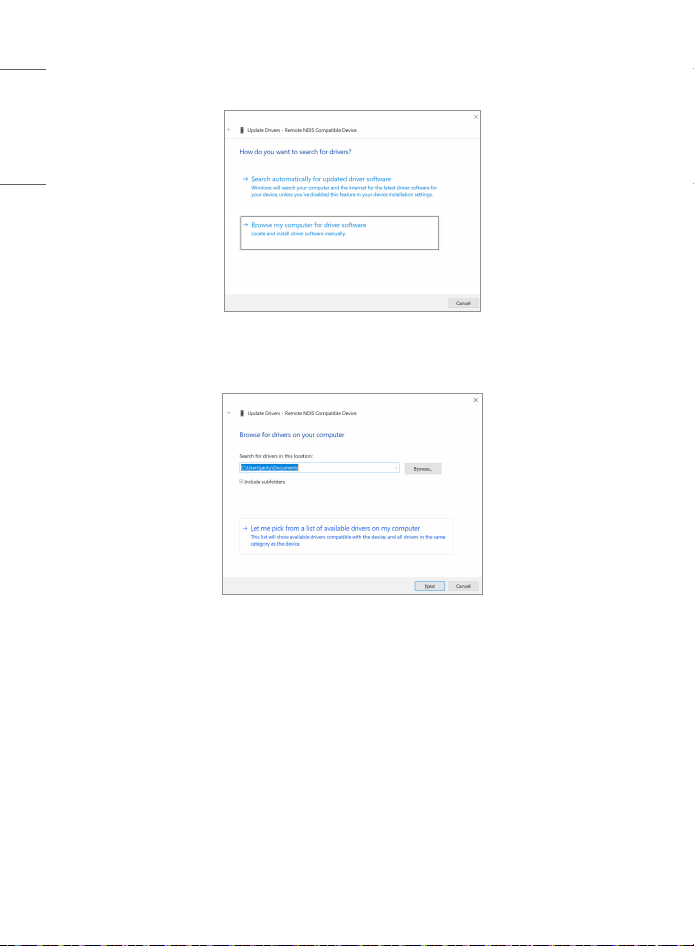
- Click “Browse my computer for driver software”.
- Click “Let me pick from a list of available drivers on my computer”.
19
ENGLISH_Index
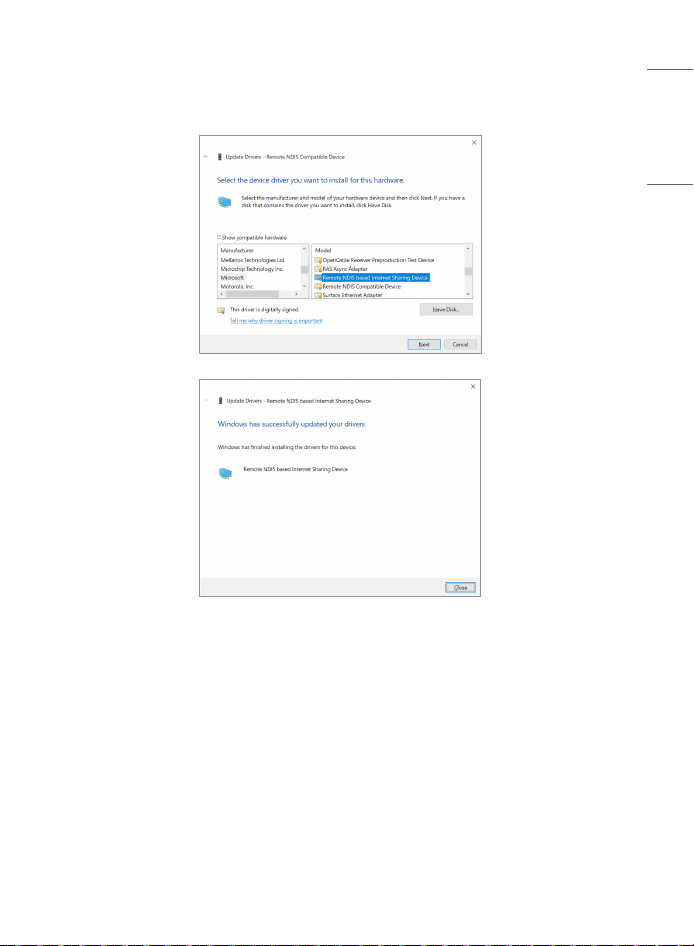
- Uncheck “Show compatible hardware” and select “Microsoft” - “Remote NDIS based
Internet Sharing Device” to update.
20
ENGLISH_Index
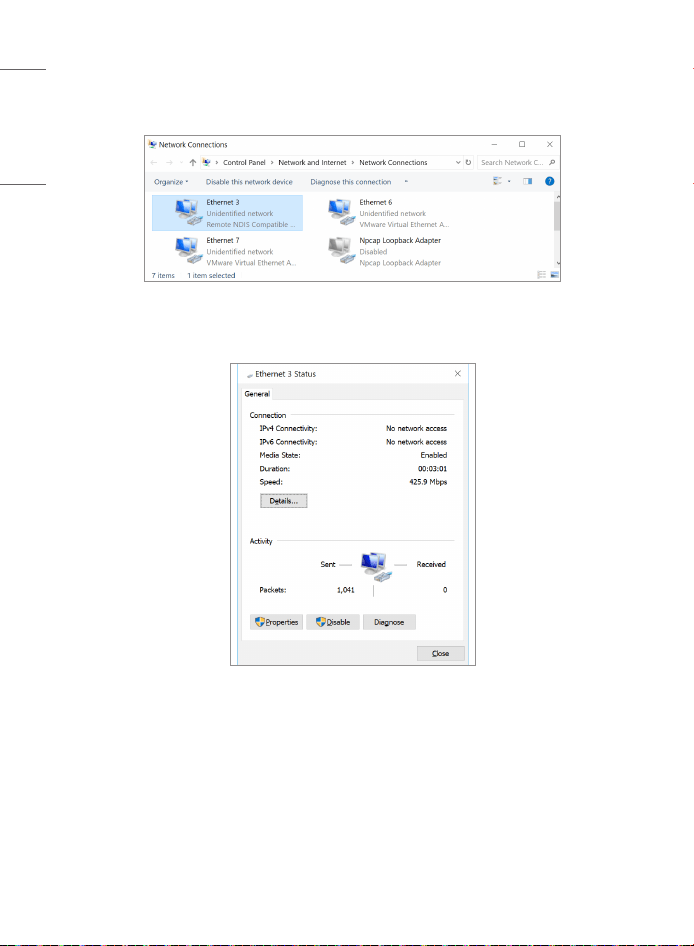
- The NDIS driver installed above is displayed as an adapter in the “Network and
Internet” menu.
- Double-click the NDIS Adapter to show the Properties menu.
21
ENGLISH_Index
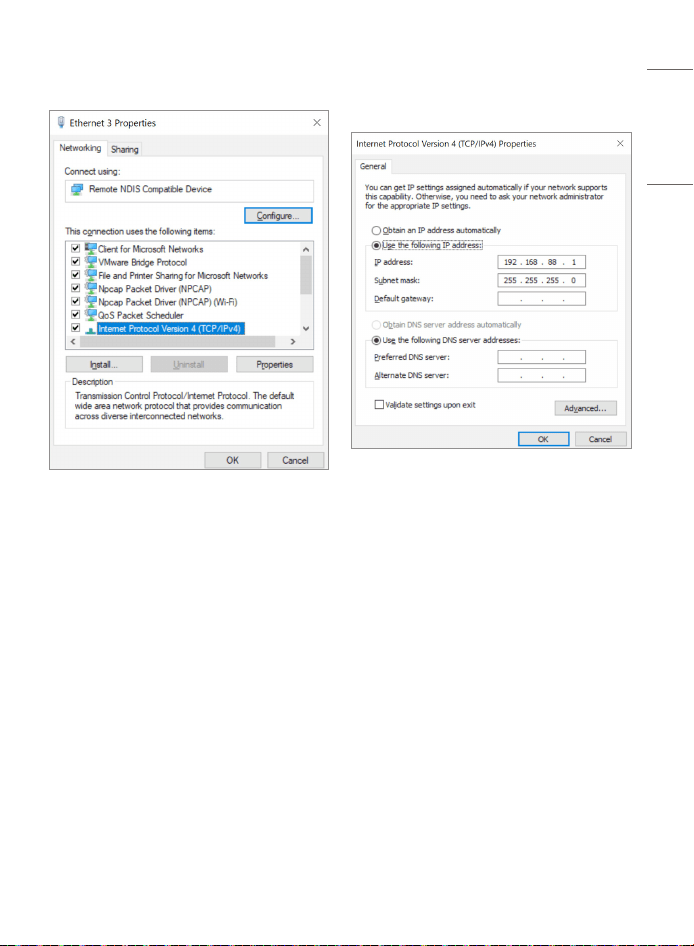
- Select the Internet Protocol Version 4 option and set the IP address to 192.168.88.1.
- For more details on network settings, please refer to the Help section of the relevant
operating system.
- Remove the dongle from your PC and reconnect it. After a while, the dongle will be
recognized as a storage device in the Explorer window.
22
ENGLISH_Index
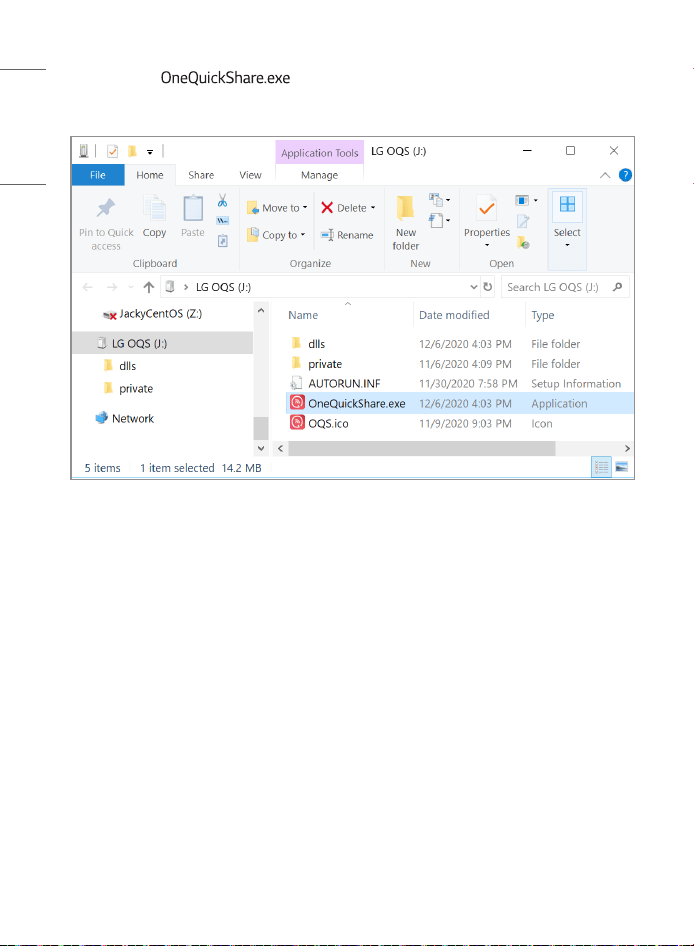
- Running the file in the Explorer window will manually install the
PC app.
• If the app is already installed on the PC, it will be ready to start screen sharing.
23
ENGLISH_Index
How to Share the Screen
• Connecting the dongle to the PC while the LG device’s [SoftAP] settings have been
turned on will cause the LED to turn yellow within about 30 seconds to indicate
standby mode for screen sharing. Force quitting the PC app will cause the LED to
turn red, indicating that the app has been closed. SoftAP setting methods may vary
depending on the type of LG device. Please refer to the model’s manual for detailed
instructions.
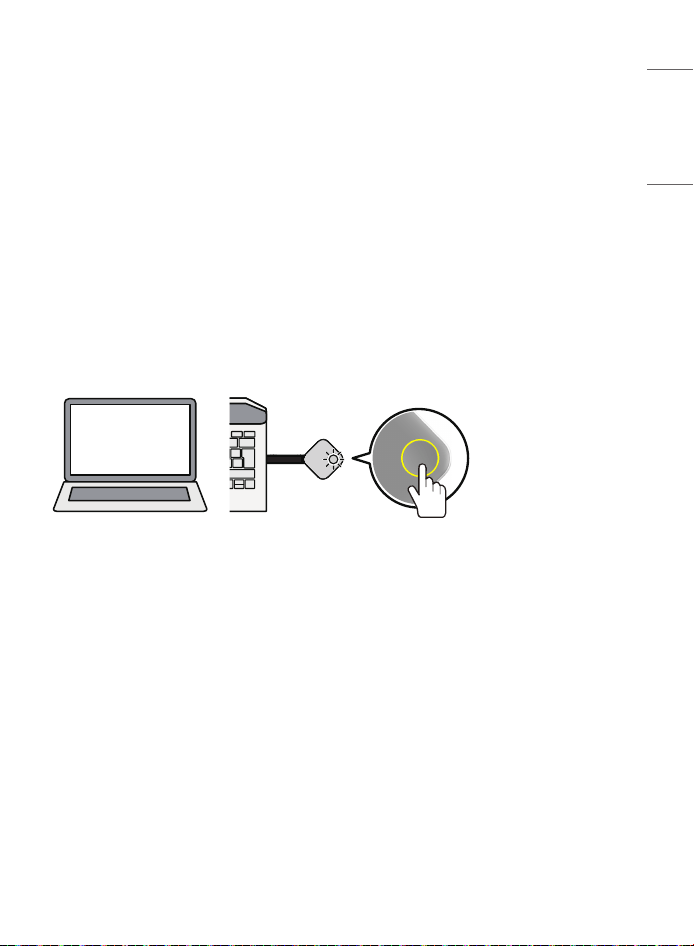
• Pressing the button on the dongle (or the [Share] button on the automatically run PC
app menu), will show the PC screen on the LG device screen, and the dongle’s LED will
turn green to indicate the sharing status. If you force quit the PC app in this state, the
LED will turn red to indicate that the app is closed.
(Yellow Light)
- When the dongle is attempting to connect to the LG device, the dongle’s LED will be
off (blinking yellow afterward) to indicate this.
- If the PC app has been closed or if the app is not running, the LED will turn red,
indicating a problem.
- If the dongle’s LED remains off (blinking yellow afterward), make sure that the
[SoftAP] setting on the LG device is turned on. Please refer to the model’s manual for
detailed instructions on LG device settings.
24
ENGLISH_Index
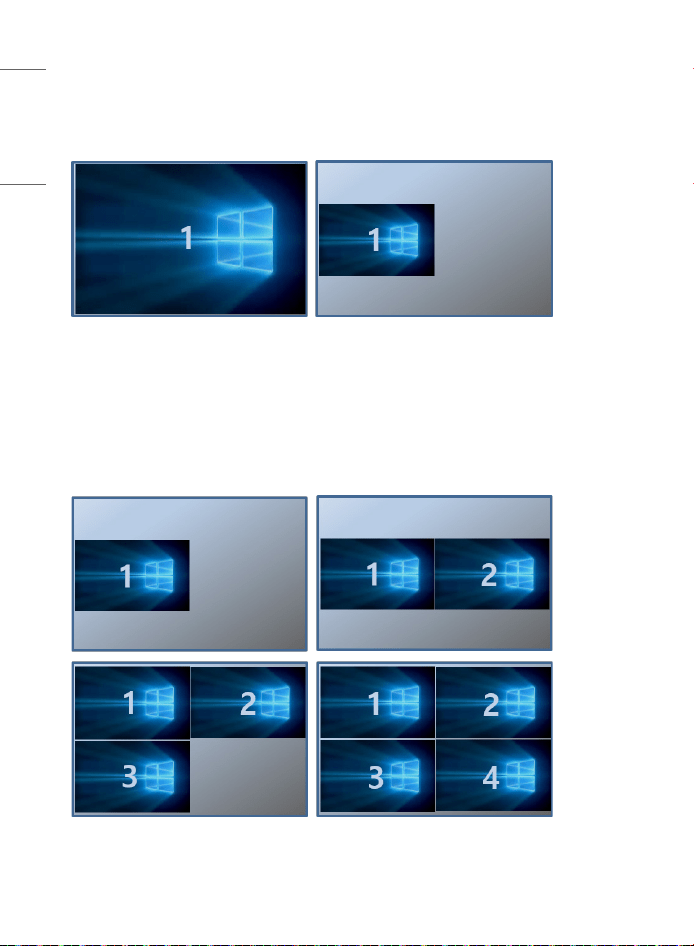
• Pressing the button on the dongle for 2 seconds or longer while the screen is shared
will switch the LG device to the multi-screen share mode. The multi-screen share mode
may not be supported depending on the type of LG device.
- In the multi-screen share mode, pressing the dongle button on a non-shared PC will
share 2 screens to the LG device. Pressing the dongle button on another PC will allow
you to share the screens of up to 4 PCs to the LG device depending on the type of LG
device. The maximum number of screen shares may be limited depending on the type
of LG device.

25
ENGLISH_Index
- During the multi-screen share mode, pressing the button on the shared dongle for 2
seconds or longer will switch the LG device to full-screen mode and the corresponding
dongle’s screen is shared.
• If you press the button on the Dongle (or the [Stop Sharing] button on the PC app
menu) while the screen is being shared, screen sharing is turned off.
26
ENGLISH_Index
How to Use the PC App
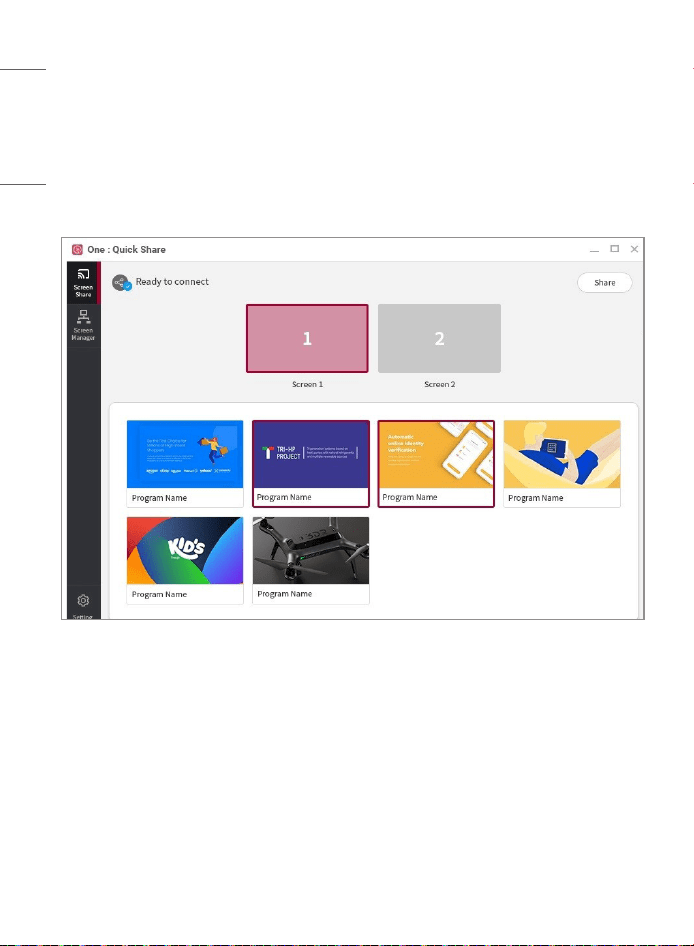
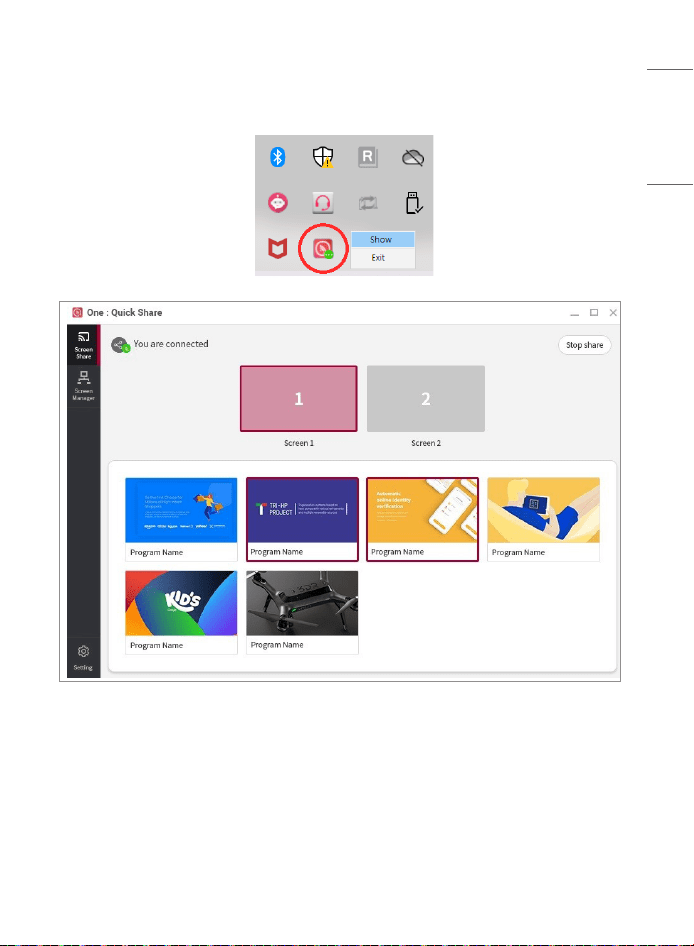
• When the dongle is connected to the PC, the PC app menu screen automatically
appears on the PC screen.
• This is the PC app menu screen with the dongle normally connected to the LG device
and PC app.
27
ENGLISH_Index
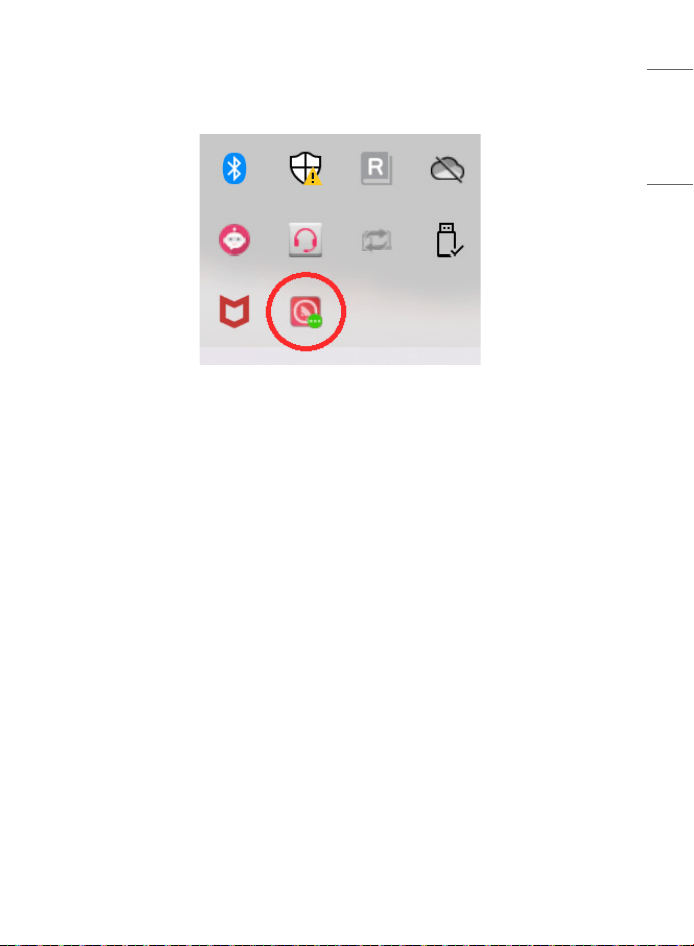
• Pressing the [Share] button in the upper right corner of the menu will display the PC
screen on the LG device screen and the app disappears into the system tray.
28
ENGLISH_Index
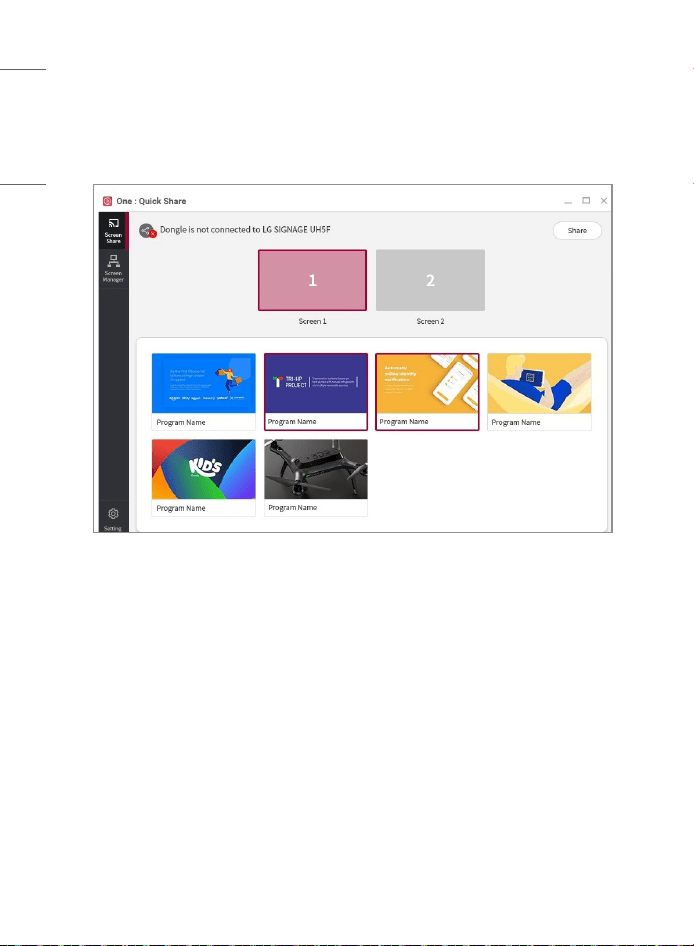
• If connected unsuccessfully, the [Ready to Connect] message is displayed as [Dongle
is not connected to *]. In this case, check that the [SoftAP] setting of the LG device is
turned on. If you still see the same message, try connecting the dongle again. Please
refer to the model’s manual for detailed instructions on LG device settings.
29
ENGLISH_Index
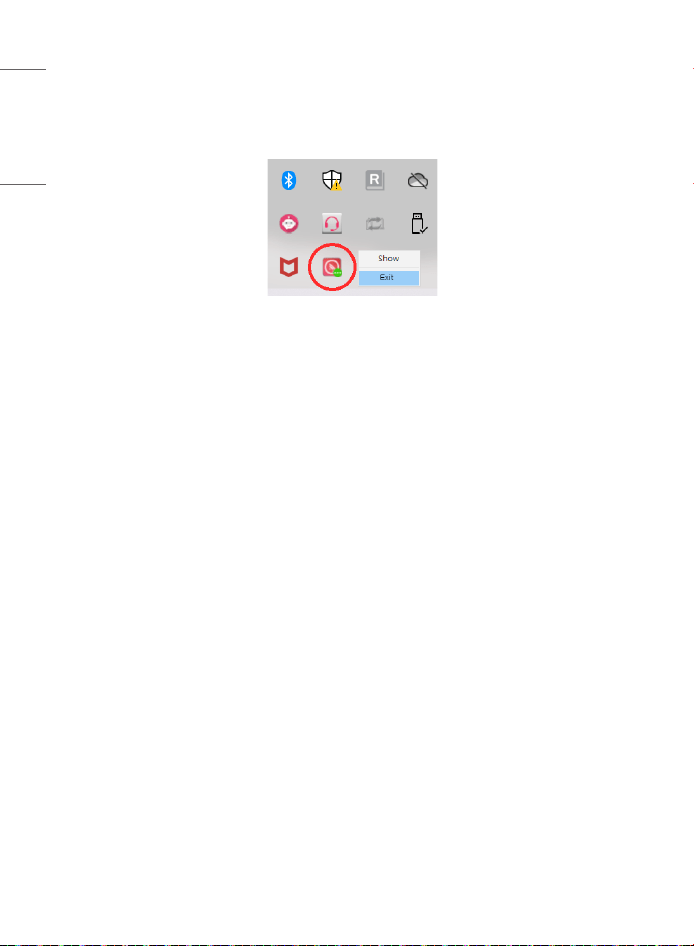
• Right-click the app icon located on the system tray and select the [Show] option to
show the PC app menu on the screen.
30
ENGLISH_Index
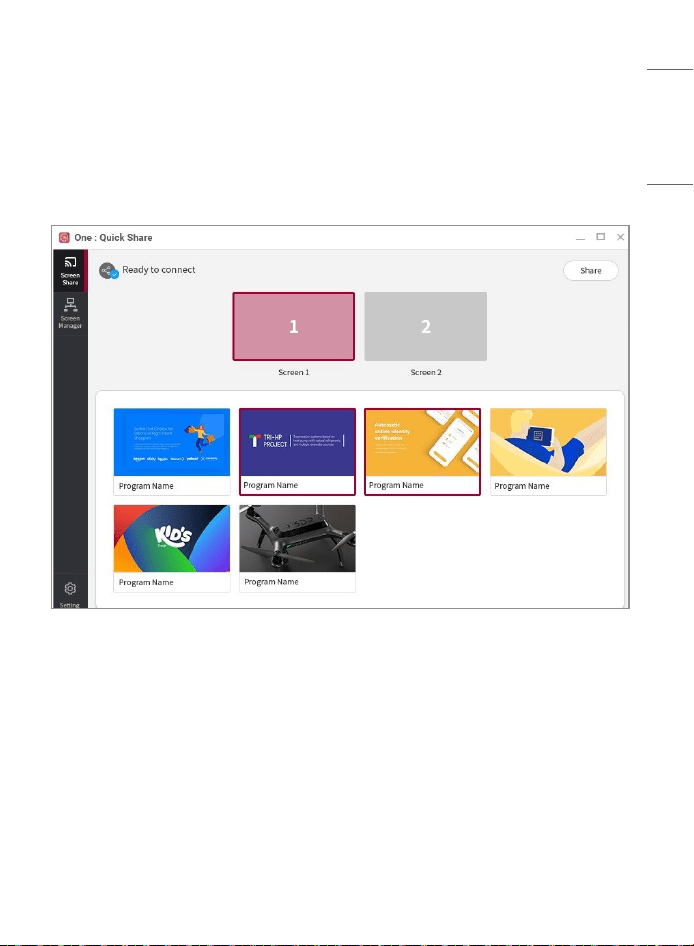
• When finished using the dongle, select and right-click the app icon located in the tray
icon, and select [Exit] to exit the PC app. The dongle can then be safely removed from
the PC.
31
ENGLISH_Index
Screen Sharing Menu in the PC App
• The icons and messages in the screen-sharing menu indicate the current connection
and operation status.
• Pressing the [Share] button in the upper right corner will share the PC screen to the LG
device, and pressing the [Stop Sharing] button will stop the sharing.

32
ENGLISH_Index
• In the upper pane of the menu, you can select the screen on the PC to which the
Dongle is connected.
• Currently running programs are displayed at the bottom of the menu, and the desired
programs can be selected.
• If a running program is minimized on the task bar, it does not appear on the program
list.
- macOS does not support program sharing.
- Depending on the OS version, the preview screen for running programs may not be
supported.
• When sharing a program, selecting the program and pressing the [Share] button will
automatically change the program to the full-screen size, and the screen is shared on
the LG device screen.
• When sharing a program, there may be no indication on the LG device screen depending
on the type of program.
- Updating to a newer version with the extended screen enables the user to share
the desired program using the extended screen. This feature may not be supported,
depending on the OS version.
- Changing the PC resolution while in [You are connected] mode may cause screen
sharing to not work normally.
33
ENGLISH_Index
[Screen Manager] Menu in the PC App
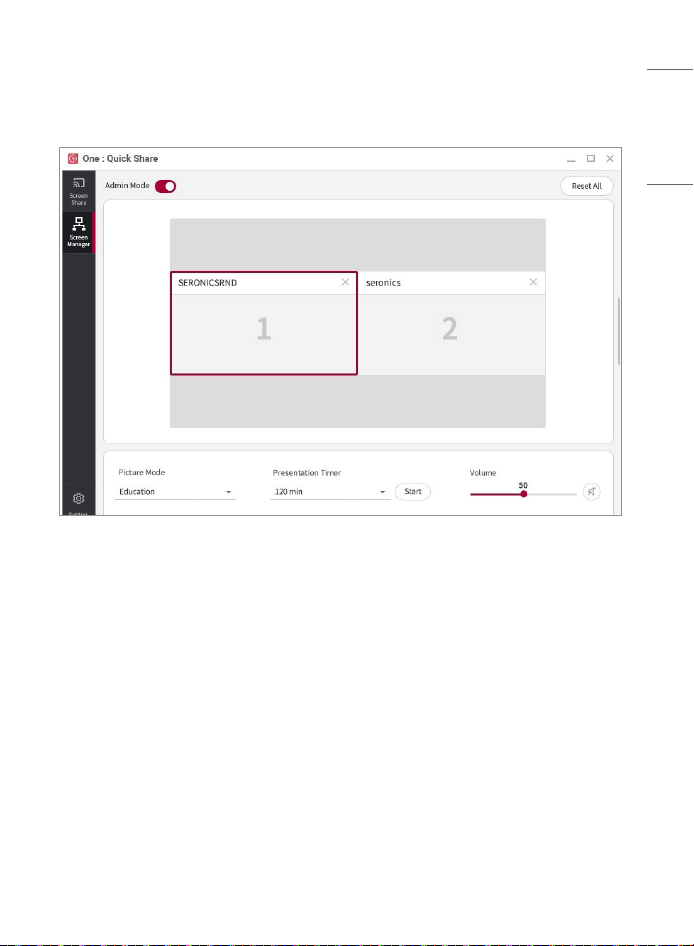
• This is the [Screen Manager] menu screen.

34
ENGLISH_Index
• [Admin Mode]
- If you are the host of the meeting, you can set the screen to share in [Admin Mode].
You can also make settings for [Picture Mode], [Presentation Timer], and [Volume]
as well as [Agenda] and [Note] for LG device in the [Meeting Guide Screen] menu.
Supported control functions may vary depending on the type of LG device. Please
refer to the model’s manual for detailed instructions.
• [Reset All]
- In [Admin Mode], terminate connections to all PCs screen sharing with LG device, and
reset settings data on the Admin Mode menu.
• Shared Screens Area
- Information on the PC screens being shared is displayed in two rows and two
columns, and can be rearranged by dragging and dropping.
- Clicking the Exit (X) button in the top right corner of a PC screen that is being shared
will turn off the screen sharing function for that screen.
- While a screen is being shared in full screen mode on LG device, clicking the [Split
screen] button (the first icon at the top) switches to a multi-screen mode in which
other PC screens can be shared. Clicking the [Share] button from a PC screen that
is not being shared will display two screens, and clicking the [Share] button from
another PC will allow up to four PC screens to be shared. The maximum number of
screen shares may be limited depending on the type of LG device.
- If multiple screens are being shared on LG device, click the [Maximize] button (the
first icon at the top of the PC screen) to display the screen in full screen mode on LG
device.
35
ENGLISH_Index

36
ENGLISH_Index
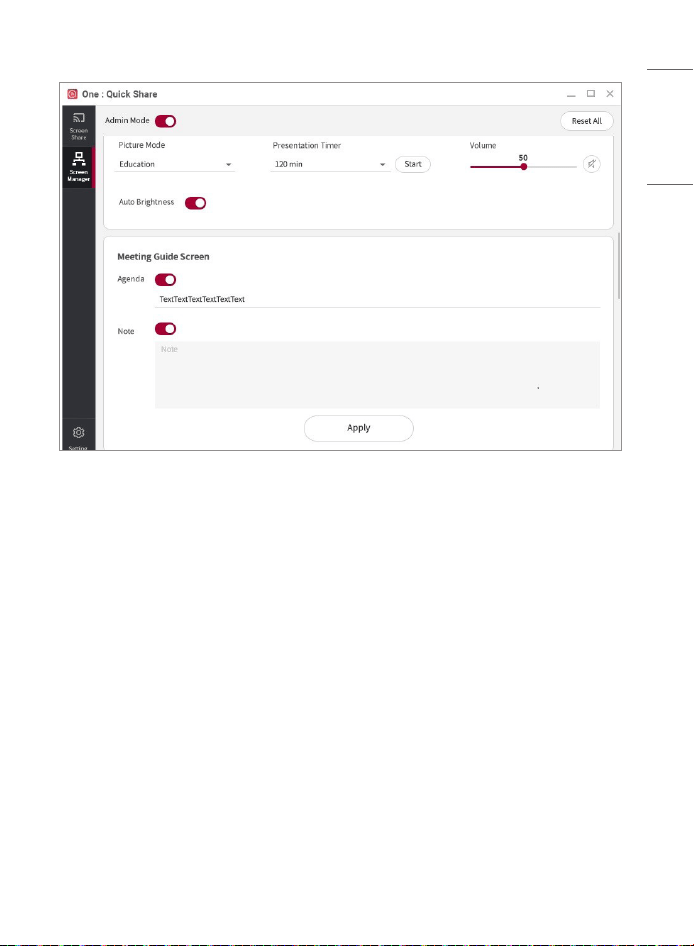
• [Picture Mode]
- The picture mode for the LG device screen can be set.
• [Auto Brightness]
- You can set the level of the automatic brightness of the LG device screen.
• [Presentation Timer]
- The presentation time for the presenter can be set.
• [Volume]
- You can adjust the speaker volume of your LG device.
- Click the speaker icon to mute the speaker.
• [Meeting Guide Screen]
- [Agenda] and [Note] can be set to display the conference information on the LG
device screen before the meeting begins.
37
ENGLISH_Index
PC App Setting Menu
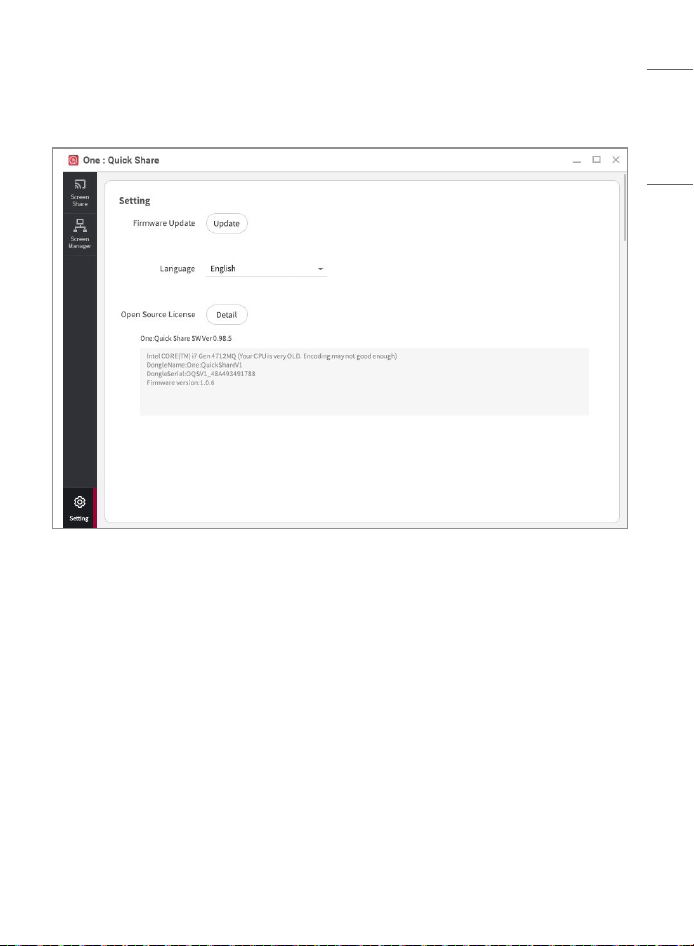
• This is the PC App setting menu.
• [Firmware Update]
- The dongle and PC app can be updated.
- Download the latest SC-00DA firmware from
https://www.lg.com/global/business/
commercial-display/business-resources/software-download
.
- The downloaded firmware can be installed by clicking the [Update] button on the PC
app.
- Never disconnect the dongle from the PC during an update.

38
ENGLISH_Index
• [Language]
- The preferred language can be selected.
• [Open Source License]
- Information regarding compliance to various open sources which have been applied
for product development is displayed.
• PC App version
- PC app version information can be checked.
39
ENGLISH_Index
TROUBLESHOOTING
When the PC screen connected to the dongle cannot be shared
• Check if the dongle has been correctly inserted into the USB port of the PC.
• Check if the [SoftAP] settings have been switched to ON in the LG device’s [Network]
menu. For more details on LG device settings, please refer to the user manual of the
relevant model.
• If there are other wireless devices around LG device, they may interfere with
communication.
• The screen sharing function of the dongle will not work when a PC’s screen saving or
logout functions are enabled. Disable these features if expecting to be screen sharing
for a longer amount of time.
The video is delayed or the audio stops momentarily
• Image and audio output may not work properly on a PC whose specifications are too
low or whose OS version is too old. Please refer to the system requirements section.
• If there is another wireless device in the vicinity of the product, it may interfere with
communication and cause problems in the image and audio output.
• Place LG device and the PC you are sharing the screen from close to each other and try
again.
• If there are other wireless devices around LG device, they may interfere with
communication.
40
ENGLISH_Index
No video output
• Check if a graphic card has been installed on the PC to which the Dongle is connected.
(Image output may not work properly for desktops if an additional graphic card has also
been installed.)
No sound output
• Check if the sound card is set correctly on the PC to which the Dongle is connected. (If
your PC is a desktop, the speaker must be connected to the PC for the sound card to
work properly.)
Error description
• Cannot detect USB Dongle
- Check if the dongle has been properly connected to the PC.
- If the same message is displayed even after reconnecting the Dongle to the PC,
contact the store in which you purchased it.
• Connection error has occurred with <LG device Name>
- Check if the [SoftAP] settings have been switched to ON in the LG device’s [Network]
menu. For more details on LG device settings, please refer to the user manual of the
relevant model.
- If there are other wireless devices near LG device, they may interfere with
communication.
41
ENGLISH_Index
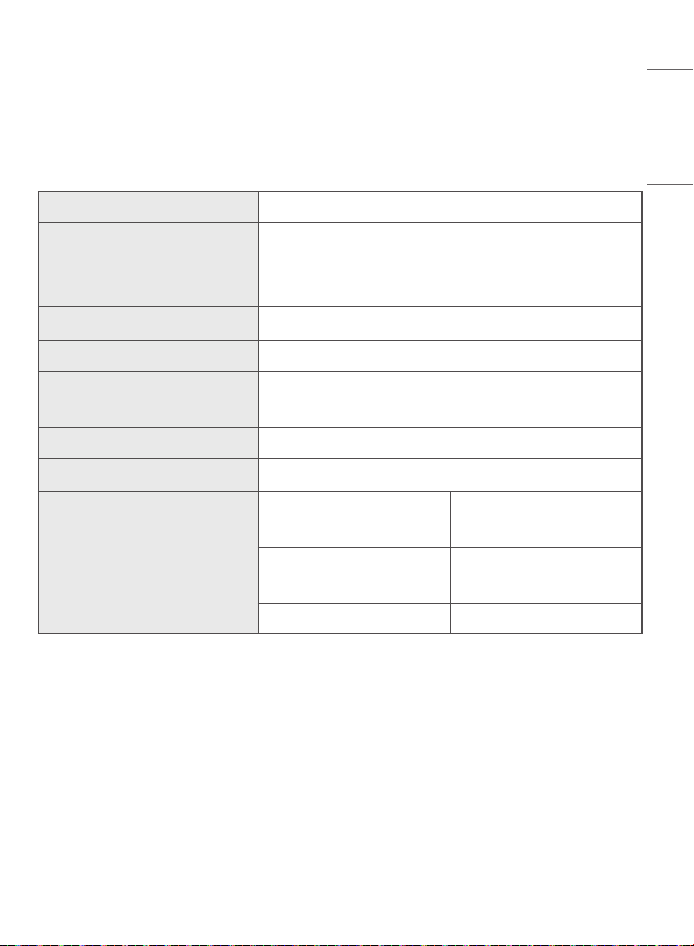
PRODUCT SPECIFICATIONS
Product specifications are subject to change without prior notice for quality improvement
purposes.
Model SC-00DA
Dimensions
(Width x Height x Depth)
63.8 mm x 63.8 mm x 13.5 mm
(2.5inchesx2.5inchesx0.5inches)
(USBcable85.5mm(3.3inches))
Weight 46 g (0.1 lbs)
Power Supply 5 V DC (500 mA)
Power Consumption
Maximum: 2.5 W
Typical: 2 W
Interface USB 2.0
Security WPA2
Environmental Conditions
Operating Temperature
0°Cto40°C
(32°Fto104°F)
Storage Temperature
-20°Cto60°C
(-4°Fto140°F)
Storage Humidity 0 % to 90 %
• This product is intended for connection to USB port source complying with requirement
of limited power source ANNEX Q in IEC/EN 62368-1.
The model and serial number of the
product are located on the back and on
one side of the product. Record them
below in case you ever need service.
Temporary noise is normal when
powering ON or OFF this device.
MODEL
SERIAL NO.
Supplier’s Declaration of Conformity
Trade Name LG
Responsible Party LG Electronics USA, Inc.
Address 111 Sylvan Avenue, North
Building, Englewood Cliffs, NJ
07632
E-mail [email protected]om