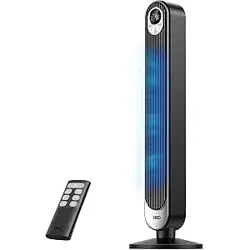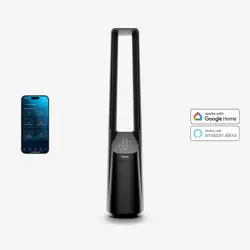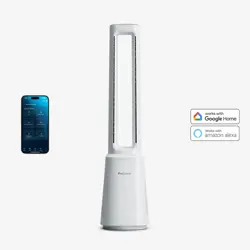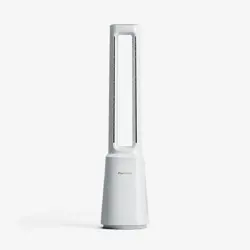
TF200 Series
OWNER’S GUIDE
FAN
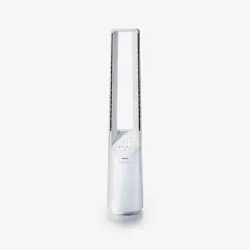
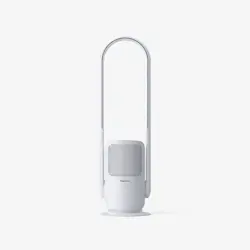
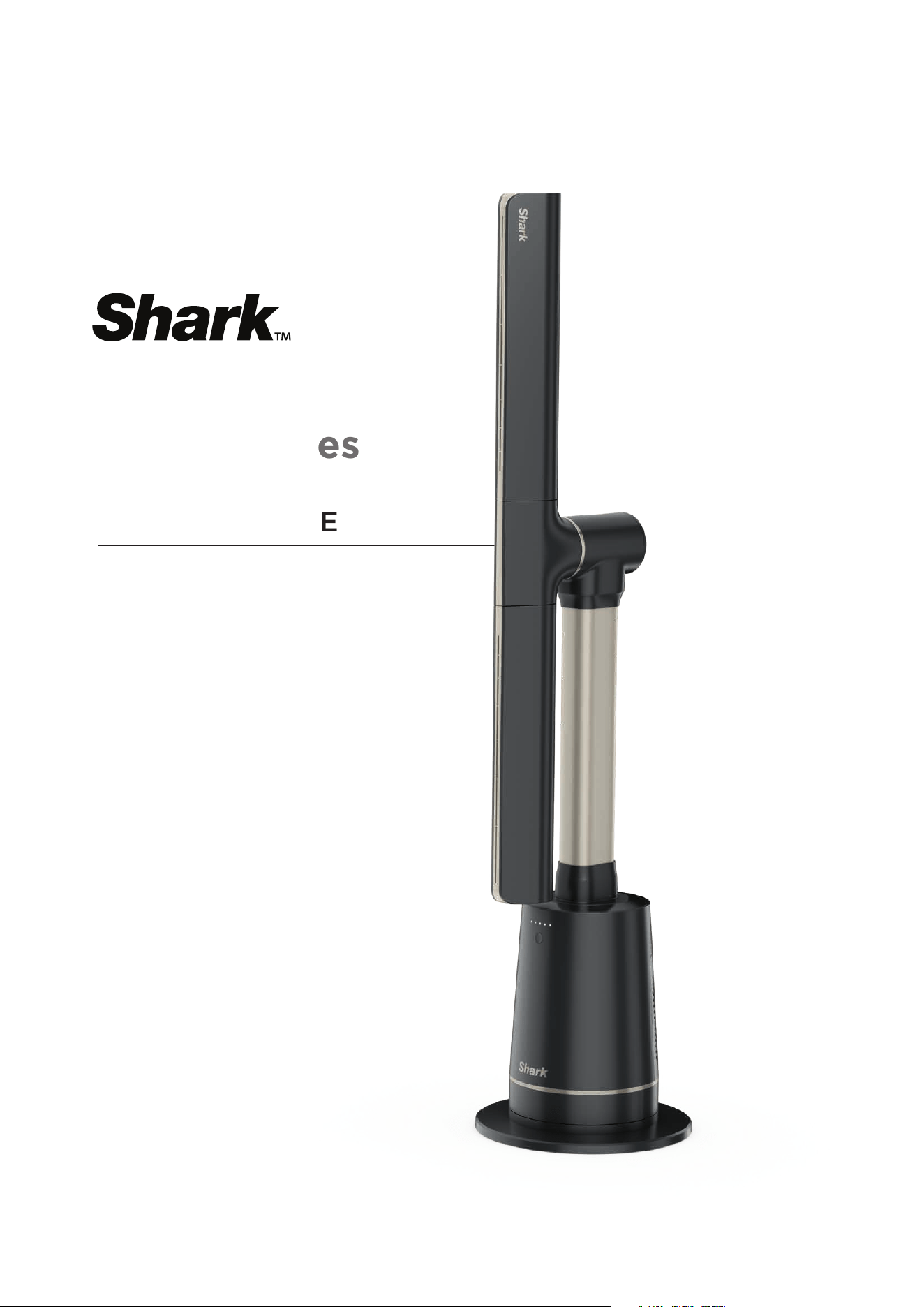
Actual unit may vary slightly in appearance and color.
IMPORTANT SAFETY INSTRUCTIONS
SUITABLE FOR HOUSEHOLD USE ONLY.
WARNING
TO REDUCE THE RISK OF FIRE, ELECTRIC SHOCK, OR INJURY: READ ALL THESE INSTRUCTIONS BEFORE USE.
1.
Do not incinerate battery cells. Consult your local waste authority
for information regarding available recycling and/or
disposal options.
2. This appliance comes with a remote control that contains (2)
AAA batteries. Dispose of batteries properly. Always keep
batteries away from children (choke hazard). Even used
batteries can cause injury.
3. To reduce the risk of an electric shock, connect only to an
outlet provided with a Residual Current Device (RCD).
4. The fan should be used on a stable and level surface.
5. Never use this fan near pools, bathtubs, showers, basins, or
other vessels containing water.
6. Do not operate any unit with a damaged wire. Discard the unit
or return to an authorized service facility for examination
and/or repair.
7. Do not run cord under carpeting. Do not cover charge cord
with throw rugs, runners, or similar coverings. Do not route
charger cord under furniture or appliances. Keep charger cord
away from high-trac areas. Place charger in an area where the
cord will not be tripped over.
8. If the charger cord is damaged, it should be replaced.
9. This appliance is not intended for use by anyone (including
children) with reduced physical, sensory, or mental capabilities,
or lack of experience and knowledge, unless they have been
given supervision or instruction concerning use of the appliance
by a person responsible for their safety.
10. Children should be supervised to ensure that they DO NOT play
with the appliance.
11. Cleaning and user maintenance shall not be made by children
without supervision.
12. Prior to cleaning or other maintenance, the appliance must be
unplugged from the electrical outlet.
13. Only use Shark™ branded accessories.
14. Do not use if appliance is not working as it should, or has been
dropped, damaged, left outdoors, or dropped into water.
15. Turn o all controls before plugging in or unplugging
the appliance.
16. Unplug from electrical outlet when not in use and before any
maintenance or cleaning.
17. Hand wash exterior/hard plastic/non-electronic parts with
water only. Do not immerse. Cleaning with chemicals could
damage the unit.
18. Do not attempt to repair or adjust any electrical or mechanical
functions of this appliance, as this may cause danger and void
the warranty.
19. Remove and immediately recycle or dispose of used batteries
according to local regulations and keep away from children. Do
NOT dispose of batteries in household trash or incinerate.
20. Even used batteries may cause severe injury or death.
21. Call a local poison control center for treatment information.
22. Compatible battery type is AAA.
23. The nominal battery voltage is 3V.
24. Non-rechargeable batteries are not to be recharged.
25. Do not force discharge, recharge, disassemble, heat above
60°C, or incinerate. Doing so may result in injury due to venting,
leakage, or explosion resulting in chemical burns.
26. Ensure the batteries are installed correctly according to polarity
(+ and -).
27. Do not mix old and new batteries, dierent brands or
types of batteries, such as alkaline, carbon-zinc, or
rechargeable batteries.
28. Remove and immediately recycle or dispose of batteries from
equipment not used for an extended period of time according
to local regulations.
29. Always completely secure the battery compartment. If the
battery compartment does not close securely, stop using the
product, remove the batteries, and keep them away
from children.
WARNING: Not suitable for use with solid-state
speed controls.
BATTERY REMOVAL AND DISPOSAL
This remote control uses 2 AAA batteries. When the remote
batteries no longer have a charge, they should be removed from the
remote and recycled. DO NOT incinerate or compost the product
with its integral battery or the remote batteries. When your remote
batteries need to be replaced, dispose of them or recycle them in
accordance with local ordinances or regulations. In some areas, it
is illegal to place spent batteries in the trash or in a municipal solid
waste stream. Return spent batteries to an authorized recycling
center or to retailer for recycling. Contact your local recycling center
for information on where to drop o the spent batteries.
POWER SUPPLY SAFETY
1. Read and follow all instructions that are on the product
or provided with the product.
2. Do not use an extension cord.
3. Do not use within 10 feet of pool and do not use in
a bathroom.
FCC WARNINGS
Note: This equipment has been tested and complies with the limits
for a Class B digital device, pursuant to part 15 of the FCC Rules.
These limits are designed to provide reasonable protection against
harmful interference in a residential installation. This equipment
generates, uses, and can radiate radio frequency energy, and if not
installed and used in accordance with the instructions, may cause
harmful interference to radio communications.
To see if this equipment interferes with radio or television reception,
try turning the equipment o and on.
To correct any interference:
• Reorient or relocate the receiving antenna.
• Increase the distance between the equipment and the receiver.
• Connect the equipment to a dierent outlet than the receiver.
• Consult the dealer or an experienced technician for help.
This device complies with Part 15 of the FCC Rules. Operation is
subject to two conditions:
1. This device may not cause harmful interference, and
2. this device must accept any interference received, including
interference that may cause undesired operation.
Caution: Any changes or modifications to this unit not expressly
approved by the party responsible for compliance could void the
user’s authority to operate the equipment.
IC statement:
This device contains licence-exempt transmitter(s)/receiver(s)
that comply with Innovation, Science and Economic Development
Canada’s licence-exempt RSS(s). Operation is subject to the
following two conditions:
1. This device may not cause interference.
2. This device must accept any interference, including interference
that may cause undesired operation of the device.
READ AND SAVE THESE INSTRUCTIONS
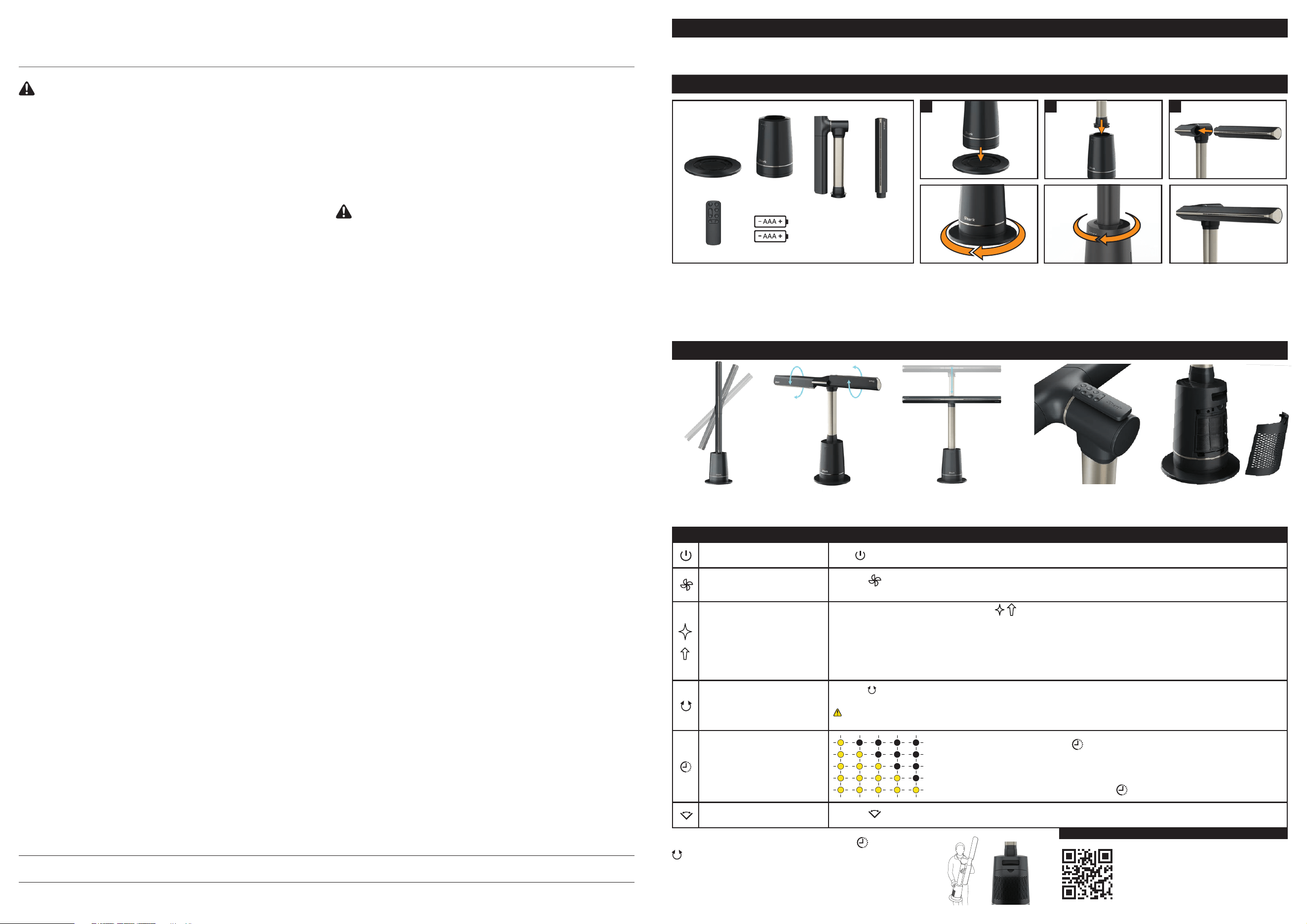
Batteries (2x)
Remote
Includes:
SETTING UP YOUR FAN
Please be sure to read and save the warnings on other side prior to using your unit.
1. Use assembly stickers to align
the Base onto the Base Plate.
Rotate the base clockwise
until it clicks into place.
2. Use assembly stickers to
align the red arrow printed
on the Pole with the red
arrow printed on the Base.
Twist the Pole clockwise
to lock it into the Base.
Remove tape after assembly
has been completed.
3. Remove tape and cardboard
from Pole. Line up the printed
red circle on the Blade with
the red circle on the inner
Pole. Press the Blade firmly
into the Pole until it clicks
into place.
QUICK START GUIDE
2 31
Note: Some models come with
the base plate pre-assembled.
If your base plate comes
pre-assembled, skip to step 2.
FEATURES
CUSTOMIZABILITY
Power On
Press button on base or remote
Press to turn the unit on or o.
Fan Speeds
Press and hold button on base
or press on remote
Press the fan icon on the remote or hold down the power button on the unit to switch between fan speeds 1-10.
LED lights will indicate selected fan speed.
Specialty Modes
Remote only
Specialty modes vary by model. Press the
Specialty mode icon on the remote to toggle through specialty modes:
Sleep Mode: Select Sleep mode to mute chimes, dim lights, and switch to a fan speed optimized for sleep.
When Sleep mode is activated, the LED lights will cycle from right to left.
BreezeBoost™: Select for a burst of powerful airflow. When BreezeBoost mode is activated, the LED lights will cycle
from left to right.
NaturalBreeze Mode: In this mode, the fan will create varying airflow patterns to simulate natural wind.
When NaturalBreeze mode is activated, one light will flash from left to right.
Oscillation
Remote only
Press the oscillation icon on the remote to toggle oscillation. LED lights will change when oscillation has been selected.
Oscillation settings vary by model. Some models have 3 angles of oscillation, and others have 1.
If you'd like to oscillate the unit when it is horizontal, make sure to place it in a location where it will not hit any
walls or objects.
Timer
Remote only
Setting 1: 1 Hour
Setting 2: 2 Hours
Setting 3: 4 Hours
Setting 4: 8 Hours
Setting 5: 12 Hours
Press the
timer icon on the remote to switch between timer
settings of 1-12 hours. LED lights will indicate how many hours the
timer is set for.
LEDs will switch o after 20 seconds. To check how long is left
on the timer, press the
timer icon and LED lights will appear.
Horizontal Angle Adjust
Remote only
Press the angle adjust arrows on the remote to change the horizontal angle of the fan from a distance.
TO DISABLE CHIME: Hold down the timer
and oscillation
buttons on the remote at the same time for 3 seconds to
disable chiming. Repeat to re-enable.
CARRYING POSITION: Carry the unit by the
handle on the base while supporting the air duct.
FOR MORE INFORMATION
visit qr.sharkclean.com/TF200series or
SCAN HERE
USING YOUR SMARTPHONE CAMERA
FOR FULL INSTRUCTIONS OR
TO PURCHASE ACCESSORIES.
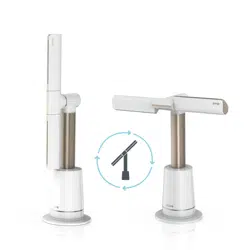
PIVOT: Manually adjust
the fan blade left
or right to increase
horizontal coverage.
TILT: Manually rotate
the blades to increase
horizontal coverage.
TELESCOPE: Manually adjust
the height of the fan up or
down. (Not all units have
telescoping capability.)
Magnetically store REMOTE
on back of the fan.
DUST DEFENSE panel collects
dust to make cleaning easier.
Base Plate Base
Pole
and
Blade
(1x)
Blade
(1x)
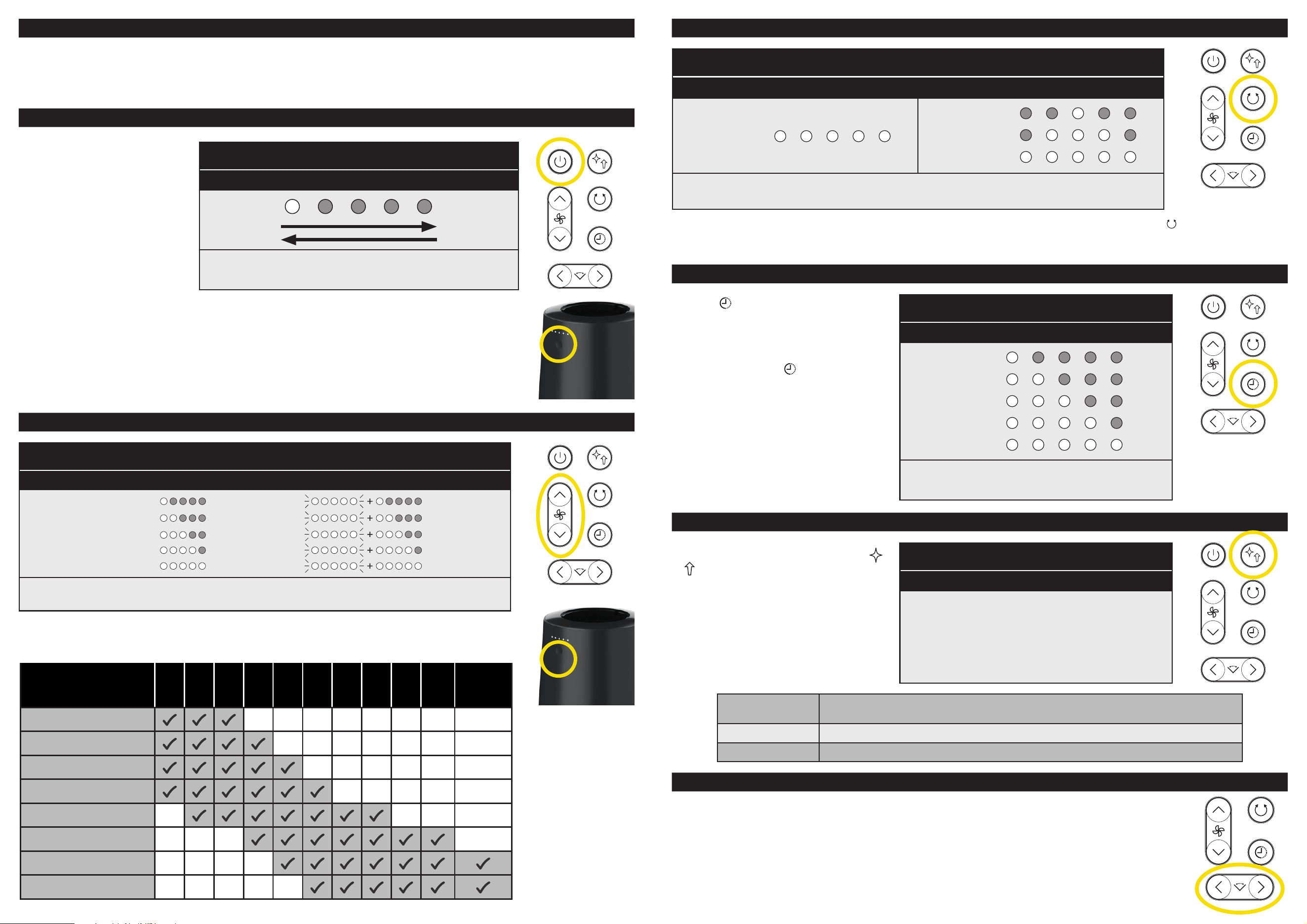
SETTINGS
POWER ON/OFF
OSCILLATION
TIMER
SPECIALTY MODES
HORIZONTAL ANGLE ADJUST
FAN SPEEDS
• The remote uses 2 AAA batteries. For battery installation and replacement instructions, see the Replacing the Batteries in
the Remote section.
• If you purchase a replacement remote control, you must pair it with the fan before use. To pair the remote with the fan, hold
down the Power button on the fan base for 20 seconds, or until the first and last lights on the display illuminate, then press
the Fan Speed Up arrow on the remote.
To turn the fan on or o, press the
POWER button on the remote or the
POWER button on the fan base. The
fan will activate in the same speed
as in the previous use.
Choose between OSCILLATION settings to best suit your needs.
Some models have 3 options for angle of oscillation, while other
models have one option.
To change oscillation settings, press the
button to cycle
through options on the REMOTE. To turn o oscillation,
press the oscillation button until no LEDs are illuminated.
Press the Timer icon on the remote to
switch between timer settings of 1-12 hours.
The LED lights will indicate how many hours
the timer is set for. The lights will switch o
after 20 seconds. To check how long is left
on the timer, press the
Timer icon again
and the indicator lights will illuminate again.
Select one of the 10 speed settings to set the fan airflow level. Press the Fan Speed arrows on the remote
or hold down the power button on the base to switch between fan speeds 1-10.
Specialty modes vary by model. Press the
or
Specialty mode icon on the remote to
toggle through the available Specialty modes.
(The Specialty modes button is always the top
right button on the remote.)
For more information on Specialty modes
and indicator lights, see the How-To videos
on sharkclean.com.
You can use the remote control to change the horizontal angle of the fan from a distance.
Press the left or right arrows on the remote to adjust the horizontal angle
UI Display
All Models
When the fan is powered on, the lights will cycle from
left to right, then turn o from right to left.
UI Display
Non-Telescoping Pole Models Telescoping Pole Models
180 degrees
45 degrees
90 degrees
180 degrees
When oscillation is activated, lights will display to indicate the current angle.
UI Display
All Models
Speed 1
Speed 2
Speed 3
Speed 4
Speed 5
Speed 6
Speed 7
Speed 8
Speed 9
Speed 10
When fan speed is selected, the lights will display the correct speed. For speeds 6-10,
all 5 lights will flash before displaying additional lights to show the current speed.
UI Display
All Models
1 hour
2 hour
4 hour
8 hour
12 hour
The LED lights will indicate the timer
interval for 20 seconds, then turn o.
UI Display
All Models
Sleep Mode: All lights will flash from right
to left.
BreezeBoost™ Mode: All lights will flash
from left to right.
NaturalBreeze Mode: One light will flash
from left to right.
Recommended
Speeds
1 2 3 4 5 6 7 8 9 10
Boost
Nursery
Quiet Sleep
Working From Home
Watching TV
Ambient Noise Sleep
Cooking
Exercise
Hot Day Cool Down
Press
and
hold
Sleep
Fan will mute chimes, dim lights, and switch to a fan speed optimized for
sleep. Sleep mode will turn o automatically after 8 hours.
BreezeBoost Fan will produce a powerful burst of air.
NaturalBreeze Fan will create varying airflow patterns to simulate natural wind.
TROUBLESHOOTING AND FREQUENTLY ASKED QUESTIONSMAINTENANCE
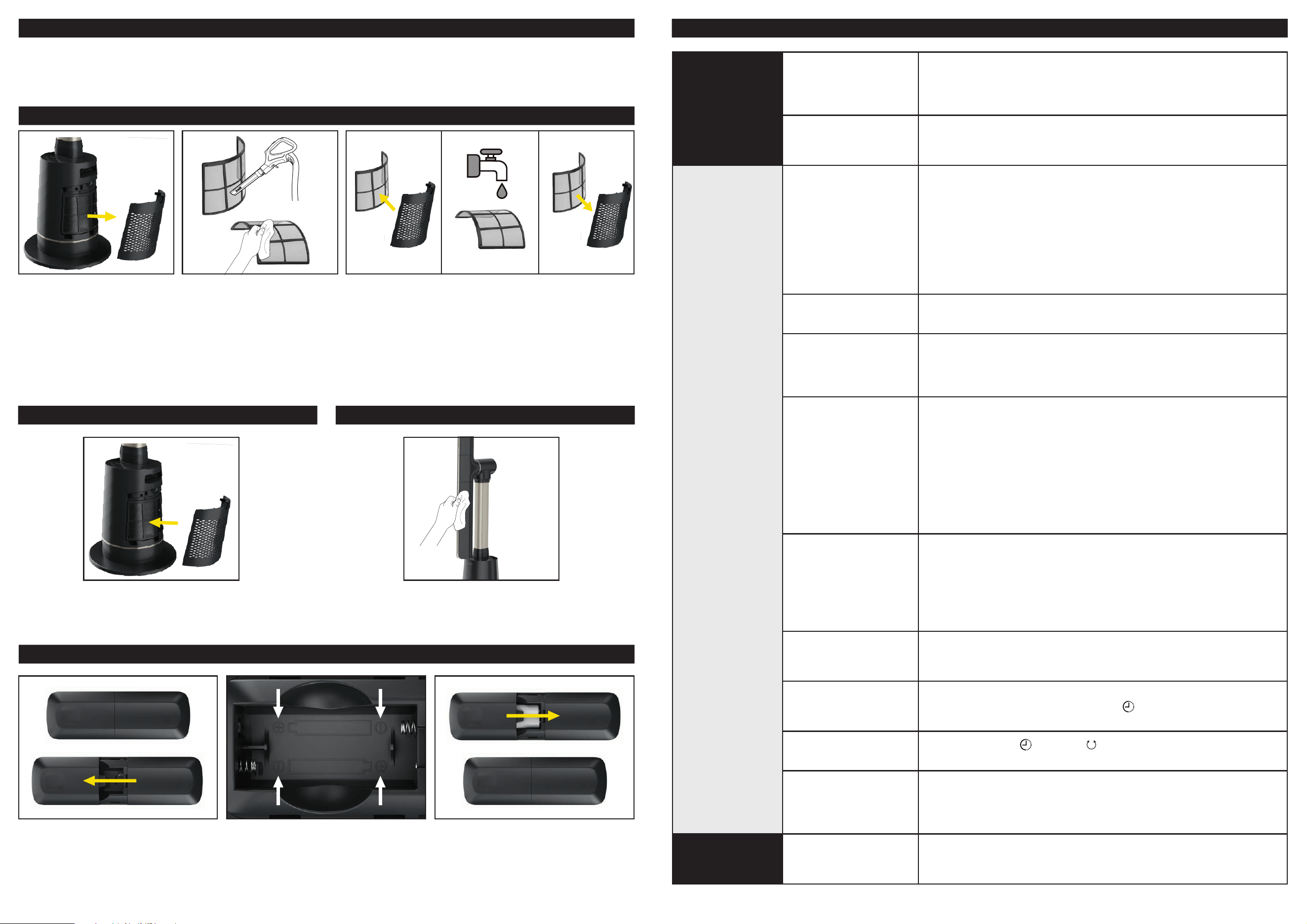
DUST DEFENSE
REPLACING THE BATTERIES IN THE REMOTE
DUST DEFENSE (CONTINUED) EXTERNAL CLEANING
• Unplug the fan before doing any cleaning or maintenance.
• We recommend cleaning the fan every 6 months, or as needed.
• We recommend changing the batteries in the remote control every 12 months, or as needed.
1. Remove the Dust Defense
panel from the unit by gently
pulling on the finger tab.
Note: the mesh filter does
not need to be removed from
the Dust Defense panel.
1. To access the batteries, push down
gently on the battery door on the back
of the remote, then slide the door
o. Remove the batteries from the
chamber and follow local ordinances
for battery disposal.
2. Insert 2 new AAA batteries into the
remote. Make sure the batteries are
installed in correct orientation as
shown in the battery chamber.
3. Slide the battery door back into place
on the back of the remote.
2. Use a vacuum cleaner on
low speed with a soft brush
attachment OR a cloth/towel
to remove debris from the
Dust Defense panel and
the internal mesh screen.
Do NOT use abrasive
chemical cleaners.
3. OPTIONAL: If debris is stuck between the mesh filter
and the Dust Defense panel, the filter can be removed
by gently pulling it out of the tabs on the panel. Rinse
the filter and the panel with room-temperature tap
water. Allow both the filter and the panel to air-dry for
12 hours before reinstalling. DO NOT use the fan when
the mesh filter is wet.
4. Replace the Dust Defense panel by inserting the tabs on
the bottom of the panel into the indents on the unit and
pushing the panel in until it clicks into place.
To clean the exterior of the fan, wipe it down with a microfiber
cloth dampened with warm, soapy water. To prevent damage,
do not use abrasive chemical cleaners or too much water.
GENERAL USE
Why is telescoping
not working?
Some models do not have the telescoping capability. See the Quick
Start Guide for more information. Models with telescoping have tape
on the pole and base to help in the assembly process. Remove the tape
after assembly is complete.
How can I switch from
vertical orientation to
horizontal orientation?
To pivot the fan vertically or horizontally, grip one end of the fan blade
and move it to the desired location. The fan has 360 degrees of rotation.
UI / SETTINGS
Why is oscillation
not working?
The fan comes with tape on the pole and the base to help in the
assembly process. Remove the tape after assembly is complete. If
oscillation is still not working after the tape has been removed, make
sure that all assembly touchpoints are correctly assembled. Twist the
pole clockwise firmly onto the base until it clicks securely into place
to verify that it is installed completely and correctly. If you have an
XL model, firmly twist the base counterclockwise onto the base plate
until it clicks securely into place to verify that it is installed completely
and correctly.
Where do I put
the remote?
Store the remote on the magnetic mount on the top of the pole,
on the sticker that shows an outline of the remote.
Why is my fan
changing speeds
on its own?
The fan may be in NaturalBreeze mode, which changes automatically to
simulate natural wind. To deactivate a Specialty mode, press the
Fan Speed icon, or the Specialty mode button in the top right corner
of the remote.
Why is the remote
not working?
When using the remote control, make sure it is pointed directly at the
LED lights on the front of the fan.
If you purchase a replacement remote control, you must pair it with
the fan before use. To pair the remote with the fan, hold down the
Power button on the fan base for 20 seconds, or until the first and last
lights on the display illuminate, then press the Fan Speed Up arrow on
the remote.
If the remote is not working, you may need to change the batteries. See
the Replacing the Batteries in the Remote section for instructions.
Why is the
fan unsteady?
Make sure the fan has been assembled correctly and that all parts have
been completely clicked into place.
Check the connection points where the base meets the base plate, and
where the pole connects to the base.
If the fan is still unsteady, disconnect the parts, then reassemble them,
making sure they all click securely into place.
Why are the lights dim?
The fan may be in Sleep Mode, which dims the lights. To deactivate,
press the Specialty mode button in the top right corner of the remote
until Sleep Mode is turned o.
Why did my unit turn
o on its own?
Timer mode may be activated. The timer will turn the fan o after 1 to
12 hours. To turn o the timer, press the
Timer button until all of the
indicator lights are turned o.
How do I disable
beeping and chiming?
Press and hold the
Timer and Oscillation buttons at the same time
for 3 seconds to disable chiming. Repeat to reactivate chiming sounds.
How do the indicator
lights on the base work?
The 5 lights on the base illuminate in dierent patterns to indicate the
status of available fan functions, including power, speed, oscillation an-
gle, timer, and Specialty modes. In all cases, the lights will turn o after
20 seconds.
MAINTENANCE
How often should I
clean the fan and the
Dust Defense filter?
We recommend cleaning the fan and the Dust Defense filter every
6 months or as needed.
@sharkhome
TWO (2) YEAR LIMITED WARRANTY
The Two (2) Year Limited Warranty applies to purchases made from
authorized retailers of SharkNinja Operating LLC. Warranty coverage
applies to the original owner and to the original product only and is
not transferable.
SharkNinja warrants that the unit shall be free from defects in material and
workmanship for a period of two (2) years from the date of purchase when
it is used under normal household conditions and maintained according to
the requirements outlined in the Owner’s Guide, subject to the following
conditions and exclusions:
What is covered by this warranty?
1. The original unit and/or non-wearable parts deemed defective, in
SharkNinja’s sole discretion, will be repaired or replaced up to two (2)
years from the original purchase date.
2. In the event a replacement unit is issued, the warranty coverage ends
six (6) months following the receipt date of the replacement unit or
the remainder of the existing warranty, whichever is later. SharkNinja
reserves the right to replace the unit with one of equal or greater value.
What is not covered by this warranty?
1. Normal wear and tear of wearable parts (such as batteries, etc.), which
require regular maintenance and/or replacement to ensure the proper
functioning of your unit, are not covered by this warranty. Replacement
parts are available for purchase at sharkaccessories.com.
2. Any unit that has been tampered with or used for commercial purposes.
3. Damage caused by misuse, abuse, negligent handling, failure to perform
required maintenance (e.g., not replacing the filters), or damage due to
mishandling in transit.
4. Consequential and incidental damages.
5. Defects caused by repair persons not authorized by SharkNinja. These
defects include damages caused in the process of shipping, altering, or
repairing the SharkNinja product (or any of its parts) when the repair is
performed by a repair person not authorized by SharkNinja.
6. Products purchased, used, or operated outside North America.
How to get service
If your appliance fails to operate properly while in use under normal
household conditions within the warranty period, visit sharkclean.com/
support for product care and maintenance self-help. Our Customer
Service Specialists are also available at 1-855-523-4061 to assist with product
support and warranty service options, including the possibility of upgrading
to our VIP warranty service options for select product categories. So we may
better assist you, please register your product online at registeryourshark.
com and have the product on hand when you call.
SharkNinja will cover the cost for the customer to send in the unit to us for
repair or replacement. A fee of $25.95 (subject to change) will be charged
when SharkNinja ships the repaired or replacement unit.
How to initiate a warranty claim
You must call 1-855-523-4061 to initiate a warranty claim. You will need the
receipt as proof of purchase. We also ask that you register your product
online at registeryourshark.com and have the product on hand when you
call, so we may better assist you. A Customer Service Specialist will provide
you with return and packing instruction information.
How state law applies
This warranty gives you specific legal rights, and you also may have other
rights that vary from state to state. Some states do not permit the exclusion
or limitation of incidental or consequential damages, so the above may not
apply to you.
IMPORTANT INFORMATION
REGISTER YOUR PURCHASE
registeryourshark.com
Scan QR code using
mobile device
RECORD THIS INFORMATION
Model Number:
�������������������������������������������������������������������������������������������������������������������������������������������������������������������������������
Serial Number:
���������������������������������������������������������������������������������������������������������������������������������������������������������������������������������
Date of Purchase:
�����������������������������������������������������������������������������������������������������������������������������������������������������������������������
(Keep receipt)
Store of Purchase:
���������������������������������������������������������������������������������������������������������������������������������������������������������������������
TECHNICAL SPECIFICATIONS
Voltage: 120V 60Hz / 1.6A
Watts: 90W
Benefits of registering your product and creating an account:
• Get easier, faster product support and access to
warranty information
• Access troubleshooting and product care instructions
• Be among the first to know about exclusive product promotions
TIP: You can find the model and serial numbers on the QR code label
on the underside of the fan head.
BATTERY REMOVAL AND DISPOSAL
This remote control uses 2 AAA batteries. When the remote batteries no
longer have a charge, they should be removed from the remote and recycled.
DO NOT incinerate or compost the product with its integral battery or the
remote batteries. When your remote batteries need to be replaced, dispose
of them or recycle them in accordance with local ordinances or regulations.
In some areas, it is illegal to place spent batteries in the trash or in a municipal
solid waste stream. Return spent batteries to an authorized recycling center or
to retailer for recycling. Contact your local recycling center for information on
where to drop o the spent batteries.
FCC WARNINGS
Note: This unit has been tested and found to comply with FCC limits for Class
B digital devices. These limits are designed to provide reasonable protection
against harmful interference in a residential installation. This unit generates,
uses, and can radiate radio frequency energy, and if not installed and used in
accordance with the instructions, may cause harmful interference to
radio communications.
This device complies with part 15 of the FCC Rules. Operation is subject to the
following two conditions: (1) this device may not cause harmful interference,
and (2) this device must accept any interference received, including
interference that may cause undesired operation.
To see if this unit interferes with radio or television reception, try turning it
o and on.
To correct any interference:
■ Reorient or relocate the receiving antenna.
■ Increase the distance between the unit and the receiver.
■ Connect the unit to a dierent outlet than the receiver.
■ Consult the dealer or an experienced technician for help.
Caution: Any changes or modifications to this unit not expressly approved
by the party responsible for compliance could void the user’s authority to
operate it.
PLEASE READ CAREFULLY AND KEEP FOR FUTURE REFERENCE.
This Owner’s Guide is designed to help you get a complete understanding of your new Shark® fan.
SharkNinja Operating LLC
US: Needham, MA 02494
CAN: Ville St-Laurent, QC H4S 1A7
1-800-798-7398
sharkclean.com
Illustrations may dier from actual product. We are constantly striving to improve our products; therefore the specifications contained herein
are subject to change without notice.
This product may be covered by one or more U.S. patents. See sharkninja.com/patents for more information.
© 2025 SharkNinja Operating LLC. BREEZEBOOST and SHARK are trademarks of SharkNinja Operating LLC.
TF200�IB�A4-Online�MP�Mv6