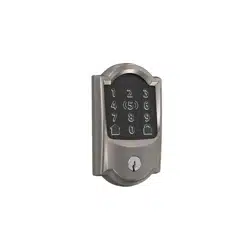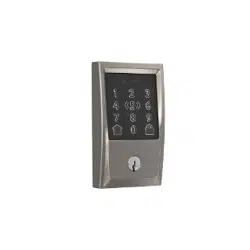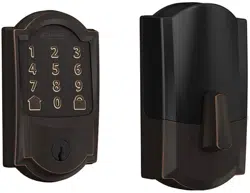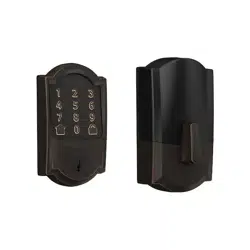
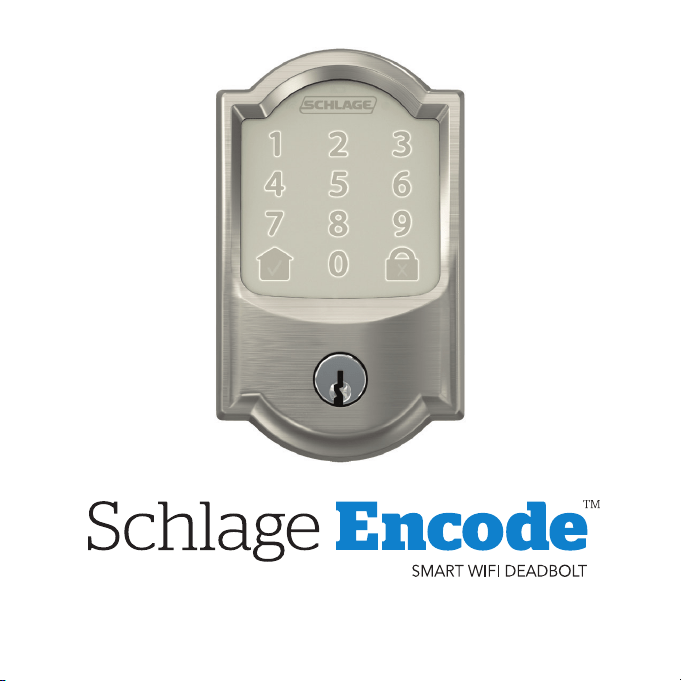
Quick Start Guide
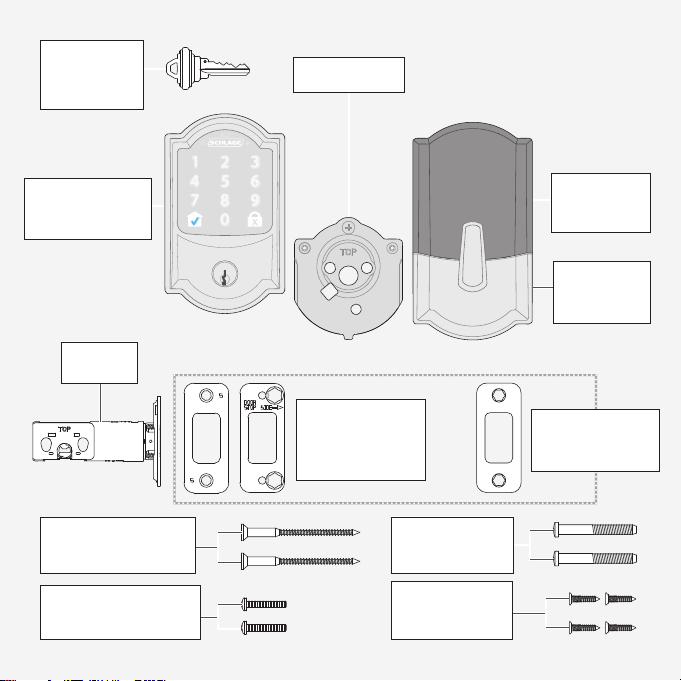
Backup
Key
Touchscreen
Assembly
Battery
Cover
Inside
Assembly
Backplate
Bolt
Reinforcement
Screws
Inside Assembly
Screws
Backplate
Screws
Bolt/Strike
Screws
Parts
Strike and
Reinforcement
Plate
Reinforcement
Strike
OR
Visit alle.co/encode for an improved
installation experience. Access online
interactive instructions, warranty, and
reference information.
alle.co/encode
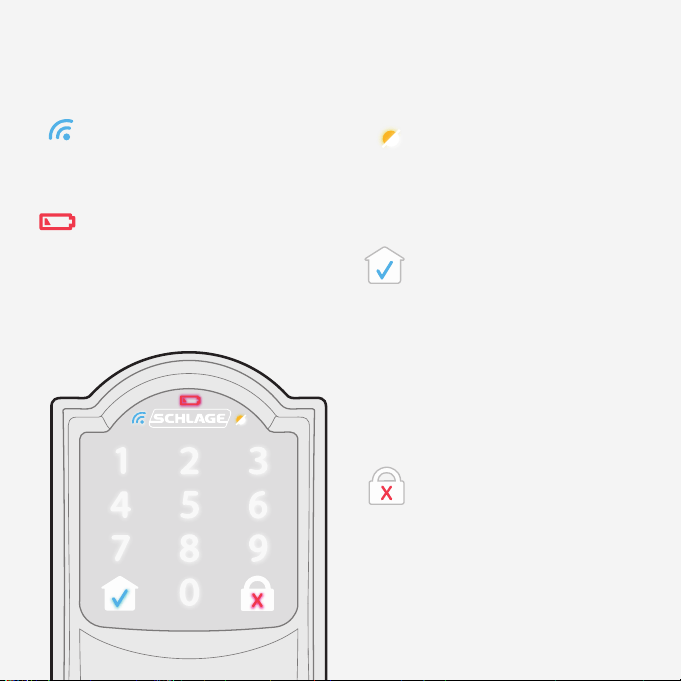
Communication Icon
• Flashes when lock is connecting
to WiFi to check for updates.
Low Battery Icon
• Flashes after code is entered
when battery is low.
• Solid when battery is critical.
The lock will not work without
new batteries.
Programming and Input
LED
• Amber when using manual
programming mode.
Home Button and
Checkmark Icon
• Turns on keypad backlight.
• Starts WiFi connection
process.
• Checkmark ashes when
code entry is correct.
• Checkmark ashes when
manual programming are
successful.
Lock Button and “X” Icon
• Locks the lock.
• Turns on keypad backlight if
the lock is locked.
• “X” ashes for a wrong user
code.
Touchscreen
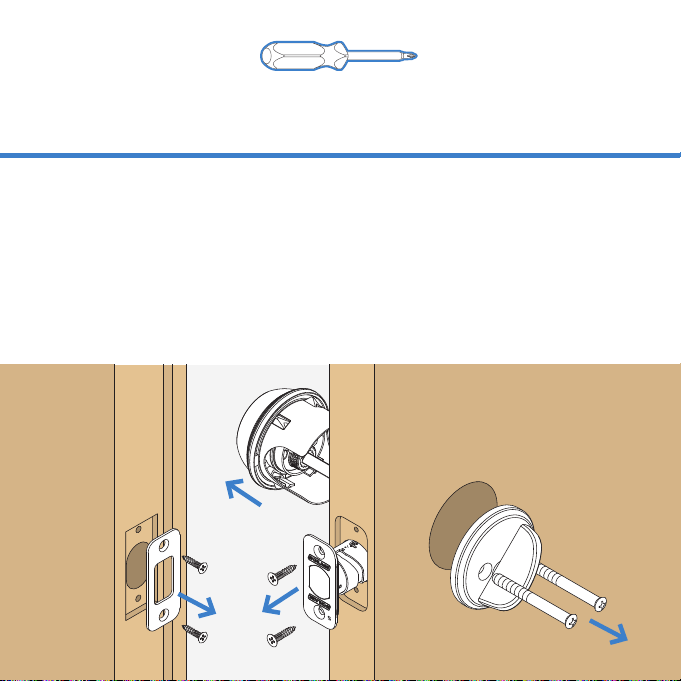
1
step
Remove existing lock.
Remove the entire deadbolt, including the bolt.
You may also want to remove the strike. A standard
Schlage deadbolt is shown. Check with your specic
deadbolt manufacturer if you need help.
Tools
Don’t use a power drill!
Phillips screwdriver
1
2
3
4 5
Need Help?
Visit alle.co/encode.
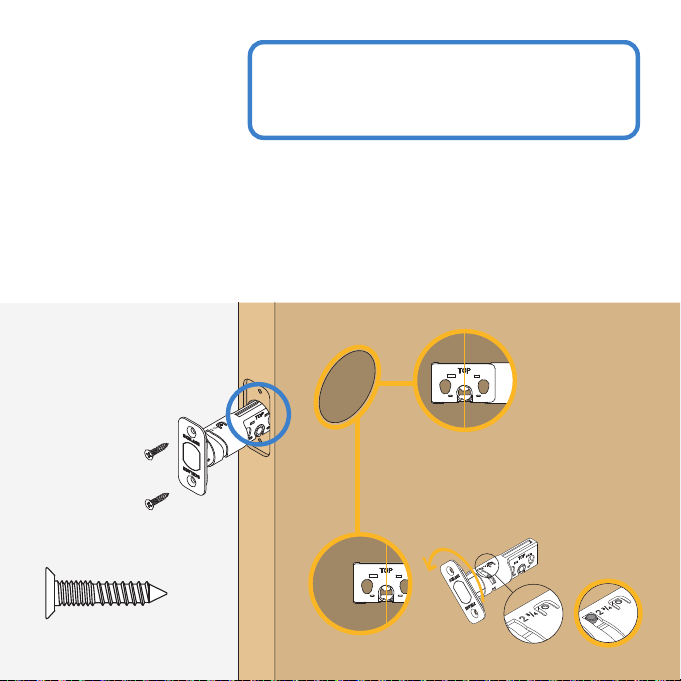
2
step
Actual Size
Make sure the
word “TOP” is
facing up.
Install the bolt.
You may have to adjust your bolt length. Make sure the slot in
the bolt is centered in the hole.
Slot is
centered
in the hole.
No change
needed.
Twist the
faceplate to
extend.
Keep
twisting
until 2 ¾”.
3
step
Need Help?
Trouble installing the strike reinforcer?
Visit alle.co/encode
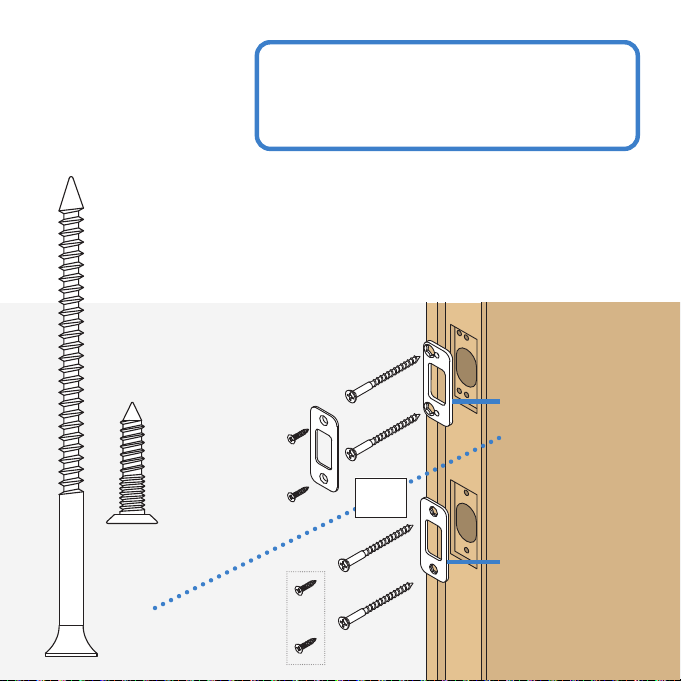
Install the strike into the door frame.
Actual Size
Actual Size
Install this
strike reinforcer
for enhanced
security.
Reinforcement
strike.
Optional
If you have a window next to your door, you may not be
able to use the longer wood screws to install the strike.
OR
4
step
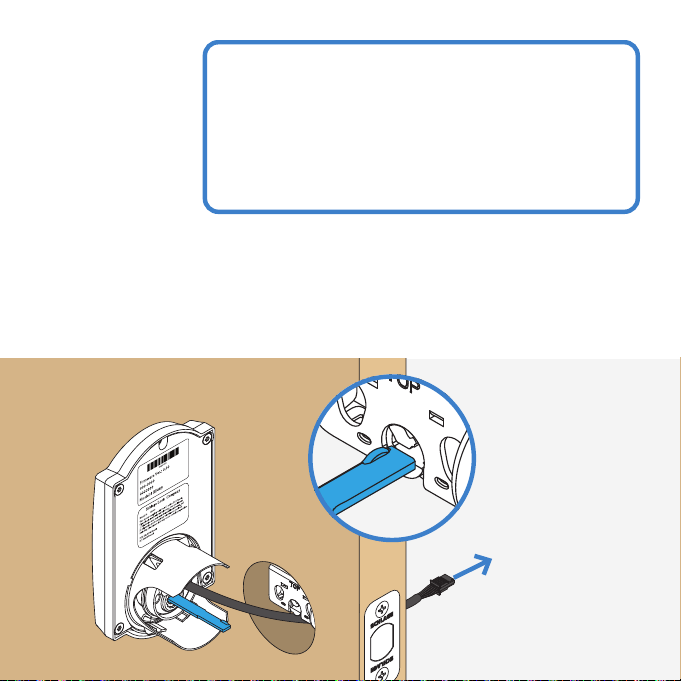
Install the touchscreen.
Route the cable through the door BELOW the bolt. Align the
tailpiece as shown and push the touchscreen onto the door.
Is it hard to install the touchscreen?
Is the tailpiece not installing correctly?
If your through hole seems too small, you
may need to remove the spacer. Visit
alle.co/encode.
The bump on
the tailpiece
aligns with the
slot in the bolt.
5
step
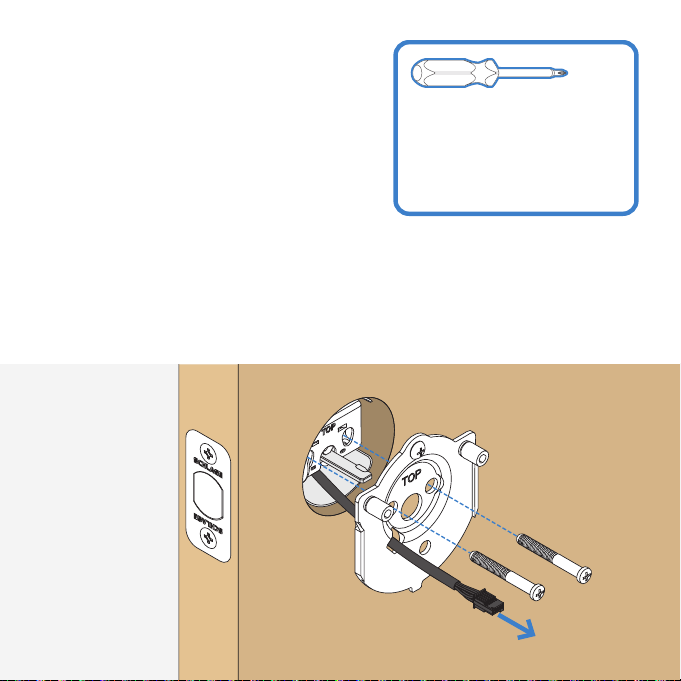
Install the backplate.
Route the cable under the bolt and through the hole on
the bottom of the backplate. Secure the backplate with
screws. Make sure the outside touchscreen is straight before
tightening screws all the way.
Don’t use a power drill!
You may damage your
lock!
Phillips screwdriver
1
2
3
4 5
6
step
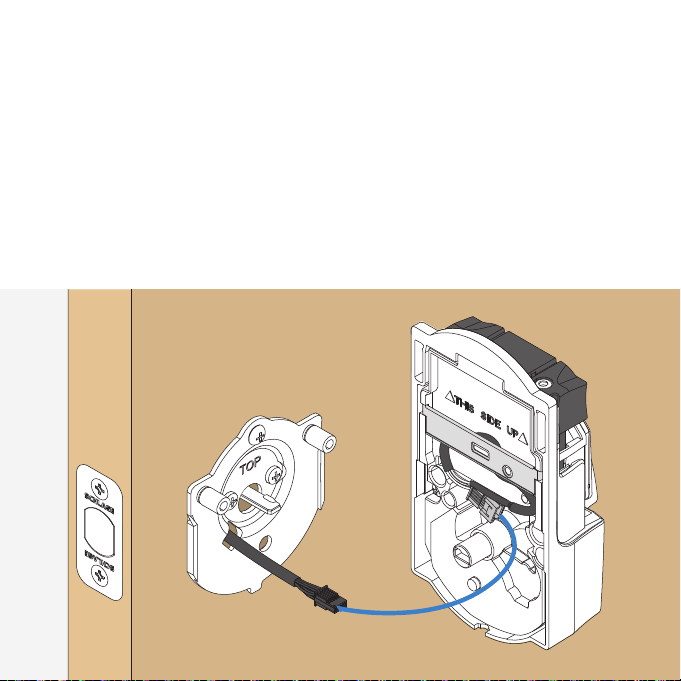
Connect the cable.
Tuck the cable and connector in the space above the spindle.
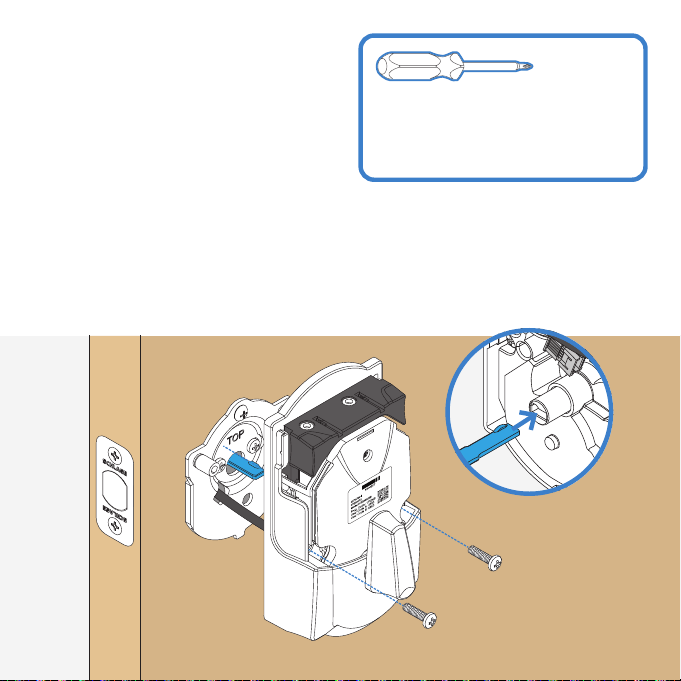
Secure the lock to the door.
7
step
The bump on
the tailpiece
aligns with the
slot in the back
of the inside
assembly.
If the bump on the tailpiece doesn’t align with the slot in the
back of the inside assembly, make sure your thumbturn is
vertical (up and down).
Don’t use a power drill!
You may damage your lock!
Phillips screwdriver
1
2
3
4 5
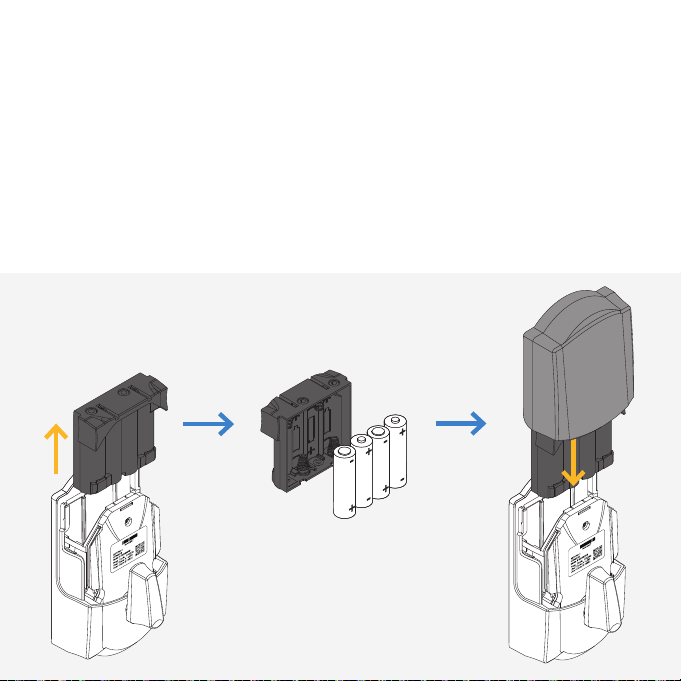
Install batteries and slide the cover on.
8
step
Pull out battery
holder.
Install
batteries.
Reinstall battery holder.
Turn the battery holder
around so the batteries
face the door.
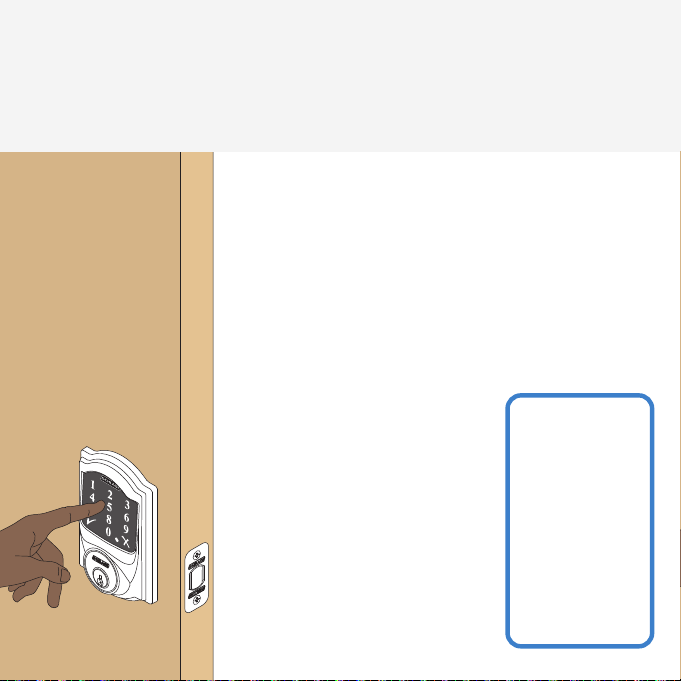
Set up your lock.
Final test!
1. Open your door!
2. Enter one of the two default user codes.
3. Your lock will enter a setup routine. When
the bolt stops moving, setup is complete.
1. Close your door.
2. Extend and retract the bolt
using the inside thumbturn.
3. Make sure the bolt retracts
smoothly.
4. Open your door.
5. Extend the bolt using the
inside thumbturn.
6. Now enter a user code at
the touchscreen.
9
step
If the bolt
doesn’t
extend or
retract during
testing,visit
alle.co/
encode.
Need Help?
That wasn’t so bad, was it?
Your lock is now installed! Remember, you still have to
set up your lock to use it.
Visit alle.co/encode for a list of compatible
smart home apps that allow you to control your
with your smartphone.
Now that your lock is
installed
you can use a smart home system to lock and
unlock your door from anywhere and add user
codes for guests and household members.
alle.co/encode
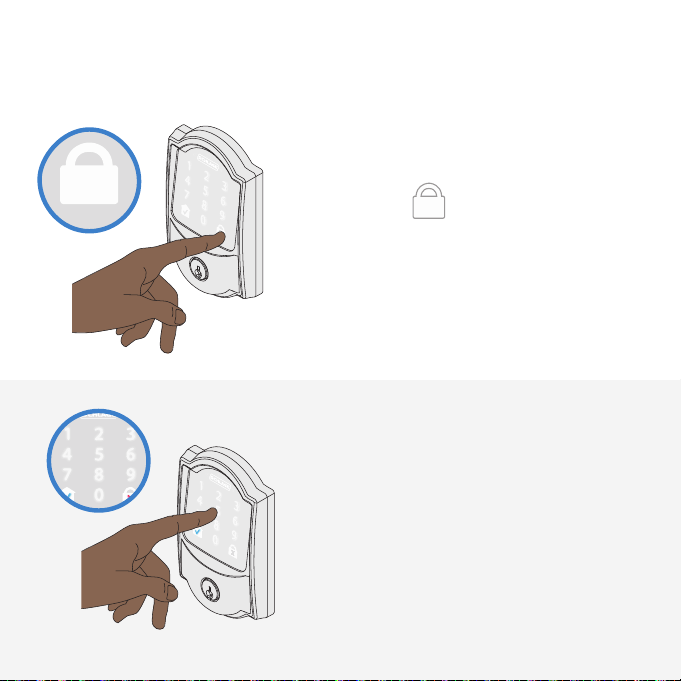
Lock and unlock
To lock your door just
tap the lock icon.
You can also lock your door from
inside by turning the thumbturn
toward the door edge.
To unlock your door
enter a user code.
You can also unlock your door from
inside by turning the thumbturn
away from the door edge.
© Allegion 2020
Printed in U.S.A.
47327841 Rev. 10/20-a
*47327841*
47327841
PLACE LABEL
HERE
These are your backup codes.
You will need these codes if you
ever factory default reset your lock.
Keep these safe!
Questions about your new
Smart WiFi Deadbolt?
Please don’t return it to the store!
Let us help you rst!
alle.co/encode