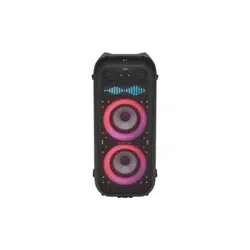
Portable Bluetooth Speaker
Owner’s Manual
STAGE301
2504_Rev02
www.lg.com
Copyright © 2025 LG Electronics Inc.
All Rights Reserved.
Please read this manual carefully
before operating your set and retain
it for future reference.
2
Portable Bluetooth Speaker Quick
Guide
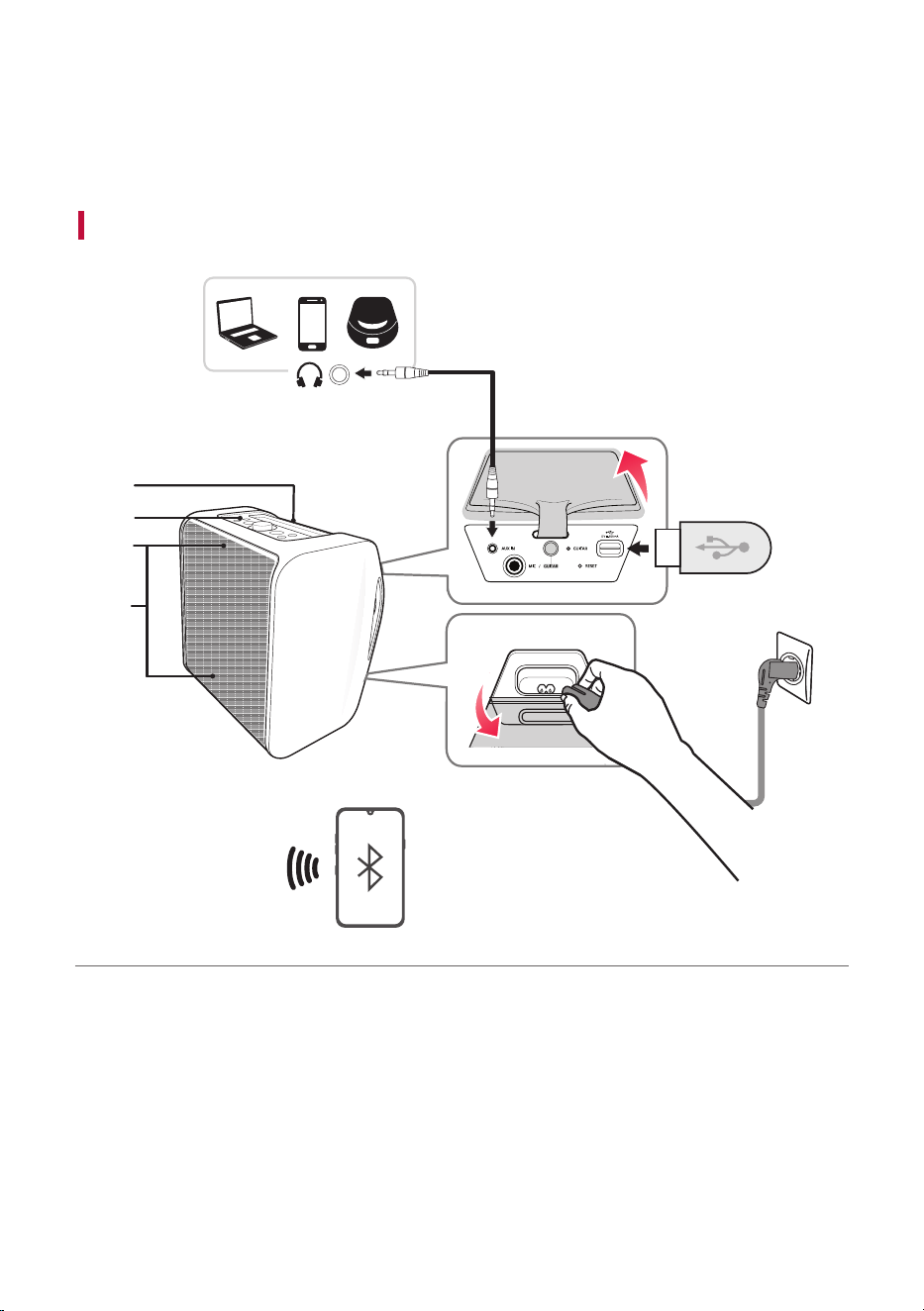
Connecting and Using the Speaker
b
A
B
D
c
C
d
a
A Handle
B Controls
C Lighting Indicator
D Mood Lighting
portable bluetooth speaker Quick Guide
3
a Connect the power cord by opening the power supply cover
on the back of the product. Charge it before use.
b Connecting the speaker to a smartphone via Bluetooth ([
See “Connecting Smartphone to the Speaker via Bluetooth”
on page 14.)
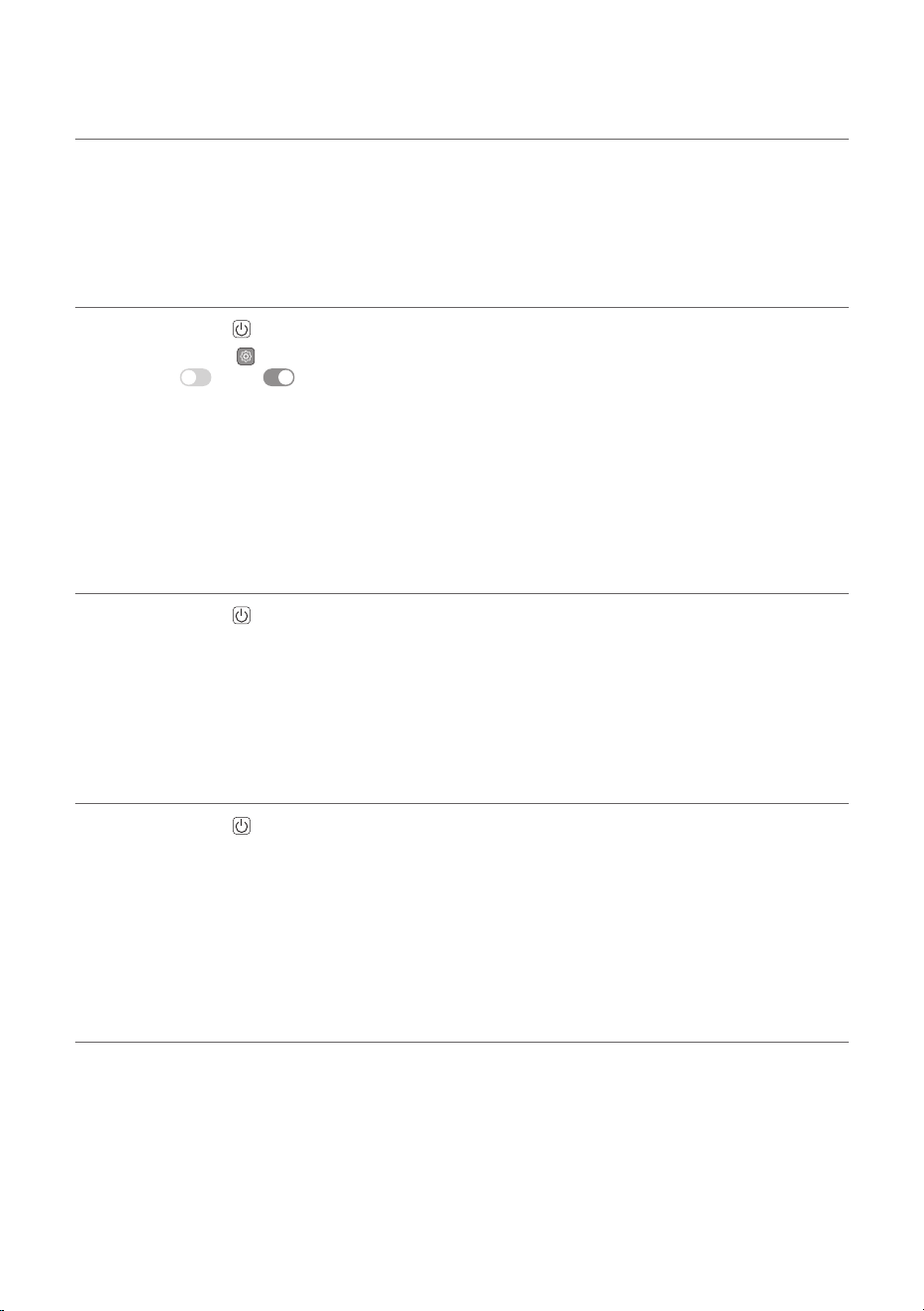
A Press the Power button on the speaker to turn it on. The lighting indicator blinks.
B Tap the Settings
button on your smartphone and select Bluetooth. Turn on the Bluetooth
function. (
Off > On)
C Find “xboom Stage301” on the device list on the smartphone and connect to it. Once the smartphone
is connected via Bluetooth, the lighting Indicator will turns on.
D On the smartphone, play a music of your choice.
c Playing Music from the USB ([ See “Connecting the
product to a USB storage device” on page 25.)
A Press the Power button to turn on the product.
B Open the jack cover on the back of the product and plug the USB storage device into the USB
terminal.
d Connecting to an External Device ([ See “Connecting to an
External Device” on page 27.)
A Press the Power button to turn on the product.
B Open the jack cover on the back of the product and connect the external device to the AUX IN
terminal via a 3.5 mm stereo cable.
C Turn the external device on and start playing.
e Connecting the LG ThinQ App ([ See “Installing app” on
page 22.)
A Find and install the LG ThinQ app on Google Play or App Store from your smartphone.
B Run the LG ThinQ app and use more functions. (EQ, Party Link, Lighting, Setting etc.)

4
Table of Contents
Portable Bluetooth Speaker
Quick Guide
2 Connecting and Using the Speaker
Exploring the Product
5 Front & Top
7 Back & Bottom
Charge
9 Charging the Battery
10 Replacing the Battery
11 Checking Battery Status
Connecting to Bluetooth
14 Connecting Smartphone to the Speaker
via Bluetooth
17 Connecting Two Bluetooth Devices to the
Speaker
19 Using the Party Link
Connecting to the LG ThinQ
App
22 Installing app
23 Using MY function
24 Listening Auracast™ broadcast
Connecting to USB
25 Connecting the product to a USB storage
device
Connecting to an External
Device
27 Connecting via 3.5 mm Stereo Cable
Additional Functions
28 Setting Sound Effects
29 Resetting the product
29 Initializing the Software
30 Power Saving Mode
30 Using Power On via Bluetooth
31 Voice feedback function
31 Use of Tripod
Safety Precautions
34 Safety and Regulatory
37 Prevention of product misuse
Things to Check before
Reporting Malfunction
41 Troubleshooting
Appendix
43 Product Specifications
44 Registered Trademarks and Licenses
45 Handling the Product
5
Exploring the Product
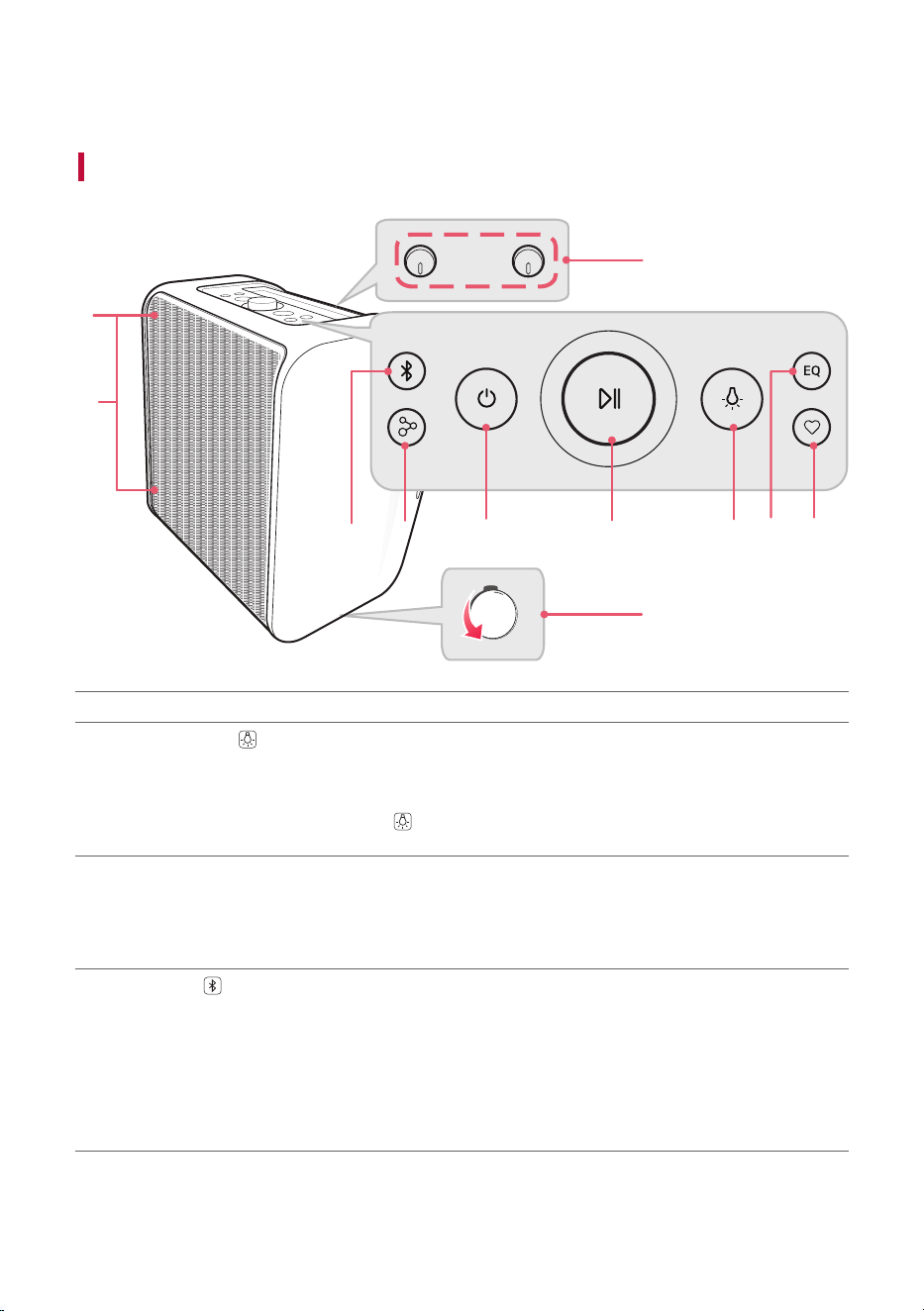
Front & Top
a
d
e
f
g
h
i
j
c
k
b
a
Lighting Indicator
b
Mood Lighting
Press the button repeatedly to select the desired Mood Lighting.
• You can customize the Mood Lighting mode as you want by connecting to the LG ThinQ app.
• If you press the Mood Lighting
button on the product repeatedly, turn the Mood Lighting
off.
c
- MIC / GUITAR + volume knob
Turns the knob to the right (+) or left (-) to adjust the Microphone and Guitar sound volume.
- REVERB + knob
Turns the knob to the right (+) or left (-) to adjust the REVERB.
d
Bluetooth
You can change the Bluetooth settings.
• Connecting an additional smartphone: Press the button. ([ See “Connecting Two Bluetooth
Devices to the Speaker” on page 17.)
• Changing from AUX/USB to Bluetooth: Press the button.
• Resetting Bluetooth: Press and hold the button for 7 seconds. ([ See “Resetting the
product” on page 29.)
Exploring the Product
6
e
Party Link by Auracast™
Dual Mode: Press the button twice quickly. ([ See “Dual mode” on page 19.)
• Only the same models can be connected.
Multi mode: Press the button. ([ See “Multi mode” on page 20.)
• Connectable models: BOUNCE/GRAB/STAGE301
f
Power
Turns the speaker on or off.
g
Play/Pause
/ Volume knob
• Play/Pause: Press the button.
• Moving to the next music: Press the button twice quickly.
• Moving to the previous music: Press the button three times quickly.
Turns clockwise or counterclockwise to adjust the volume level.
h
Mood Lighting
Press the button to select the desired Mood Lighting.
• You can customize the Mood Lighting mode as you want by connecting to the LG ThinQ app.
• If you press the Mood Lighting
button on the product repeatedly, turn the Mood Lighting
off.
i
EQ
Changes sound effect. ([ See “Setting Sound Effects” on page 28.)
j
MY
• Press the button to use the MY functions. ([ See “Using MY function” on page 23).
Before using MY functions, set up in the LG ThinQ app.
• Press the button twice to use AI Calibration. Artificial intelligence selects the optimal sound
settings to suit your content.
k
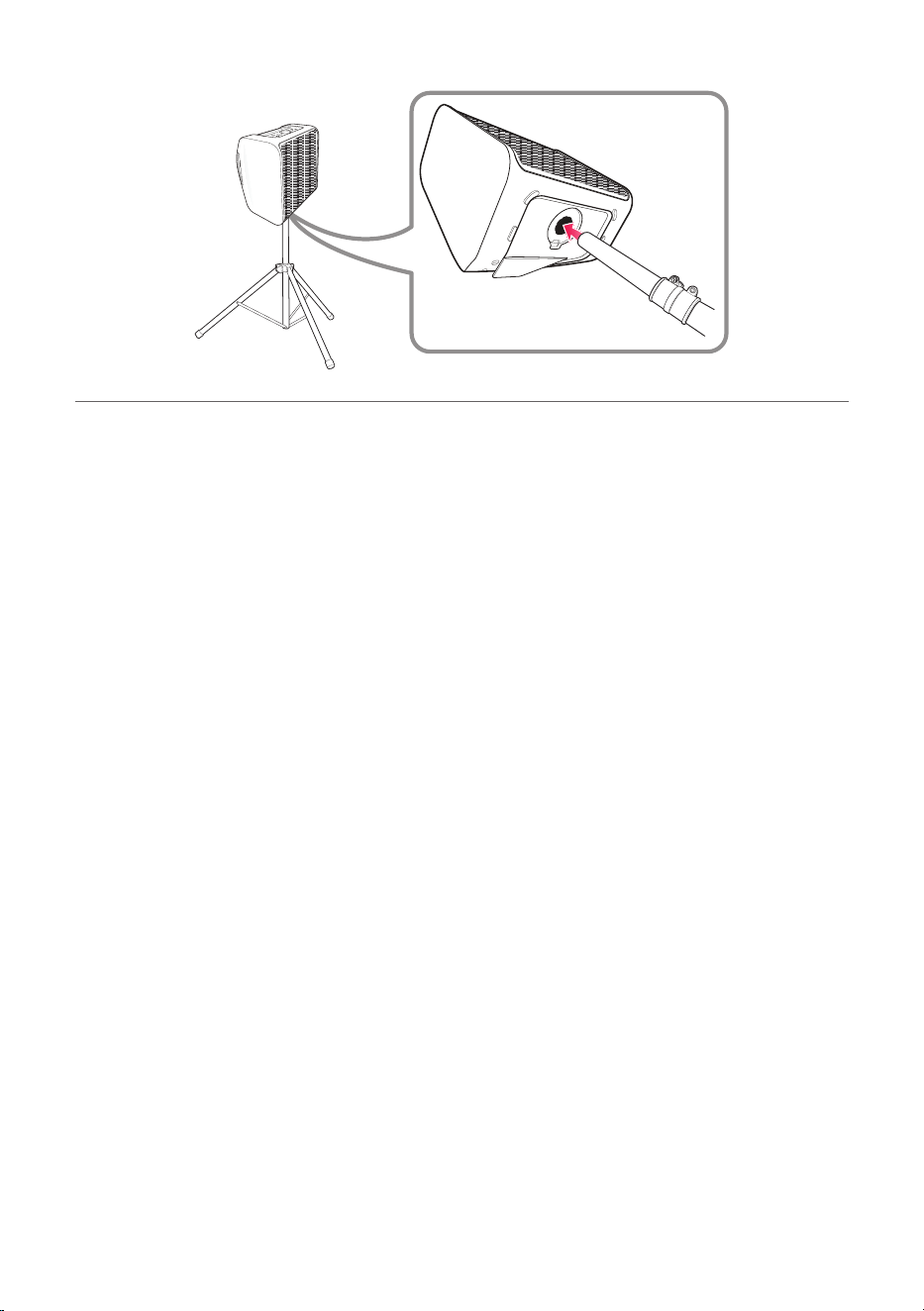
Tripod hole cup
> CAUTION
• Please note that when using the AI Calibration feature, the sound may suddenly become louder during
the stage of optimizing sound quality.
• Place the product at a safe distance from the child’s reach. Otherwise it may result in the product
falling down and causing personal injury and/or property damage.
• Be careful that the speaker does not fall down. Otherwise it may result in the speaker malfunctioning
and causing personal injury and/ or property damage.
• It is not good for the eyes to see the lens while the LED is running, do not look at it directly.
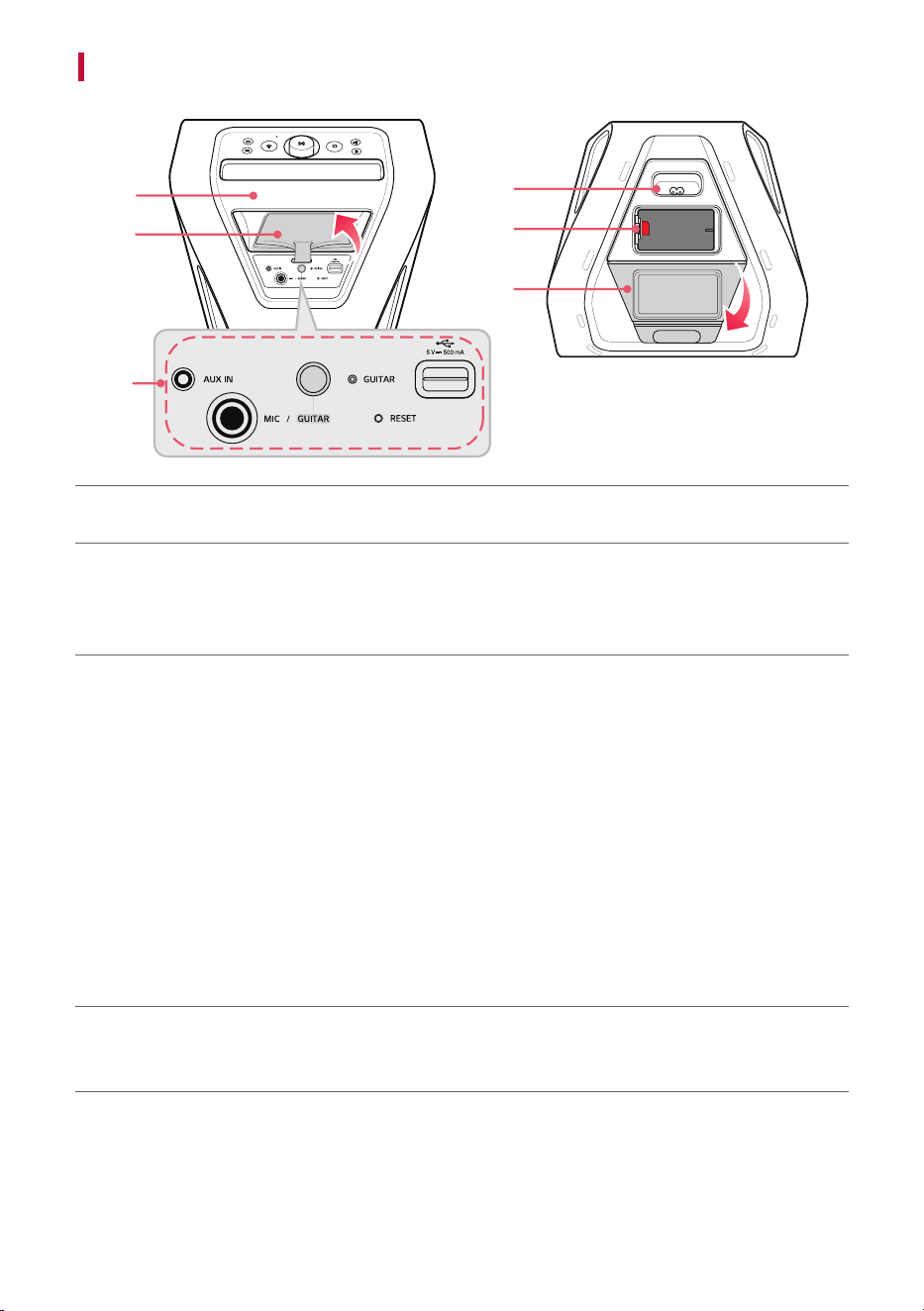
7
Back & Bottom
a
b
c
d
e
f
a
Handle
Use it when carrying the product.
b
Jack cover
Make sure to fully close the back cover after use.
• Ingress Protection: IPX4
- Liquid: Protected against splashing water.
c
AUX IN
You can connect the product to a portable external device with a 3.5 mm stereo cable and start
enjoying music.
MIC / GUITAR jack
Connect a microphone or guitar to the MIC / GUITAR jack.
GUITAR tact key
You can change to the guitar function.
GUITAR LED
The LED lights up when the function is switched to guitar.
RESET
When the product does not function properly, use a sharp object such as a pin to press the hole.
USB port
Plug in a USB storage device to enjoy music with the product.
d
Power input
Plug in the power cord to use the product.
You can connect the power cord to charge the battery of the product.
8
e
Battery
If you want to use it without a power cord, charge it sufficiently before use.
Discharged batteries can be replaced by purchasing new one.
f
Power supply cover
Close the cover when using only the battery without connecting the power cord.
Make sure to fully close the back cover after use.
• Ingress Protection: IPX4
- Liquid: Protected against splashing water.
> CAUTION
• Be careful not to drop the product when you carry it.
• Disconnect the connected cable before carrying the product.
• Do not step or sit on the product. Otherwise this product may fall down and cause personal injury.
• Be careful that the product should not fall down. Otherwise it may result in malfunction and cause
personal injury and/ or property damage.
• Be careful not to expose the product to sunlight for a long time to prevent discoloration.
• Be careful not to drop the speaker. Mechanical shock may cause deterioration of water-resistant
performance.
9
Charge
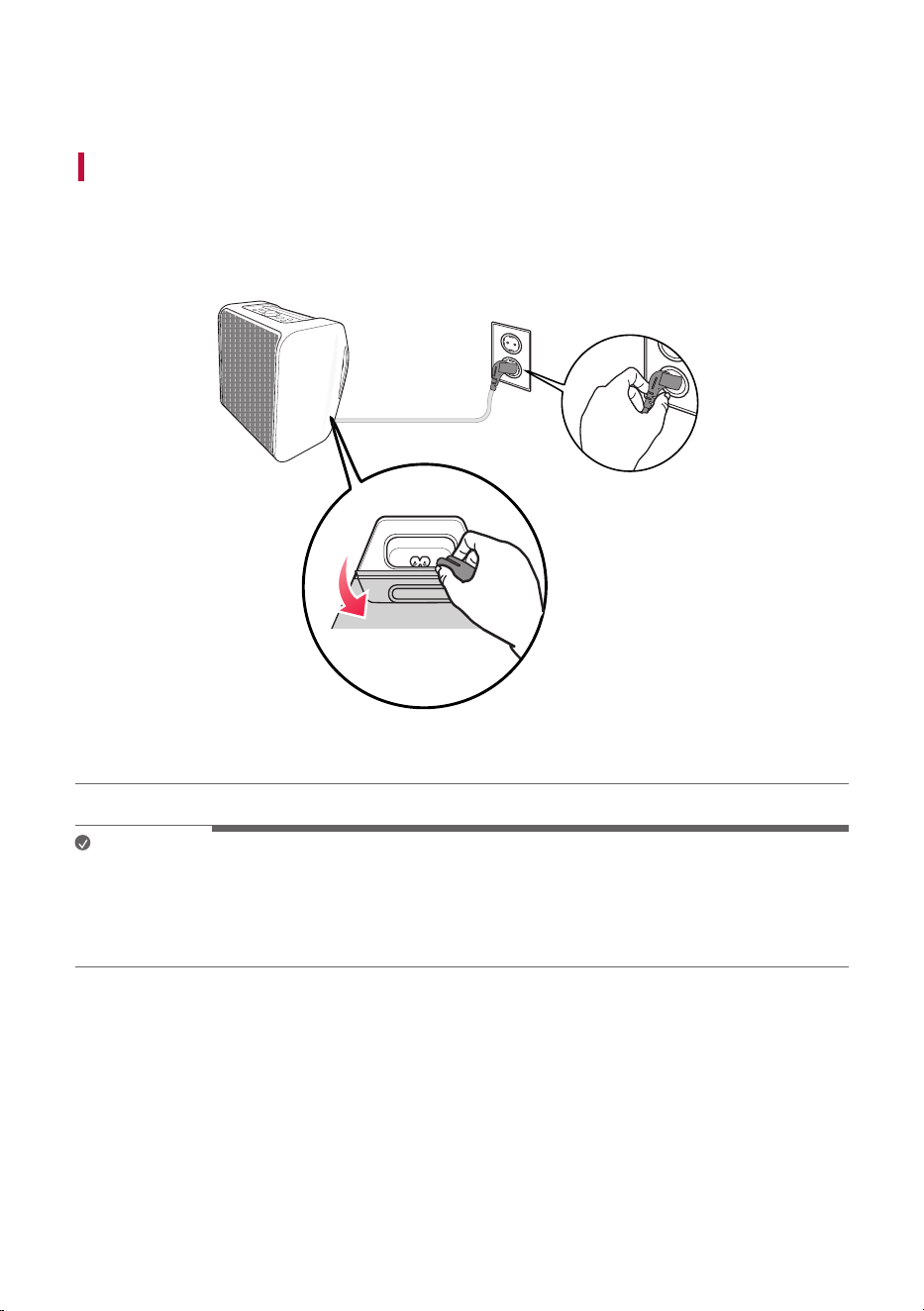
Charging the Battery
This product has a detachable battery. Make sure to charge the battery sufficiently before use.
a Open the power supply cover and plug the power cable into the product.
b Plug the power cable connected to the product into an outlet.
a
b
Note
• It takes about 3 hours to fully charge the speaker. The charging time may differ depending on the
battery status or the product operation status.
• Once the battery is fully charged, you can use the speaker for about 12 hours.
- Operation time may vary depending on the battery or operation status.
Charge
10
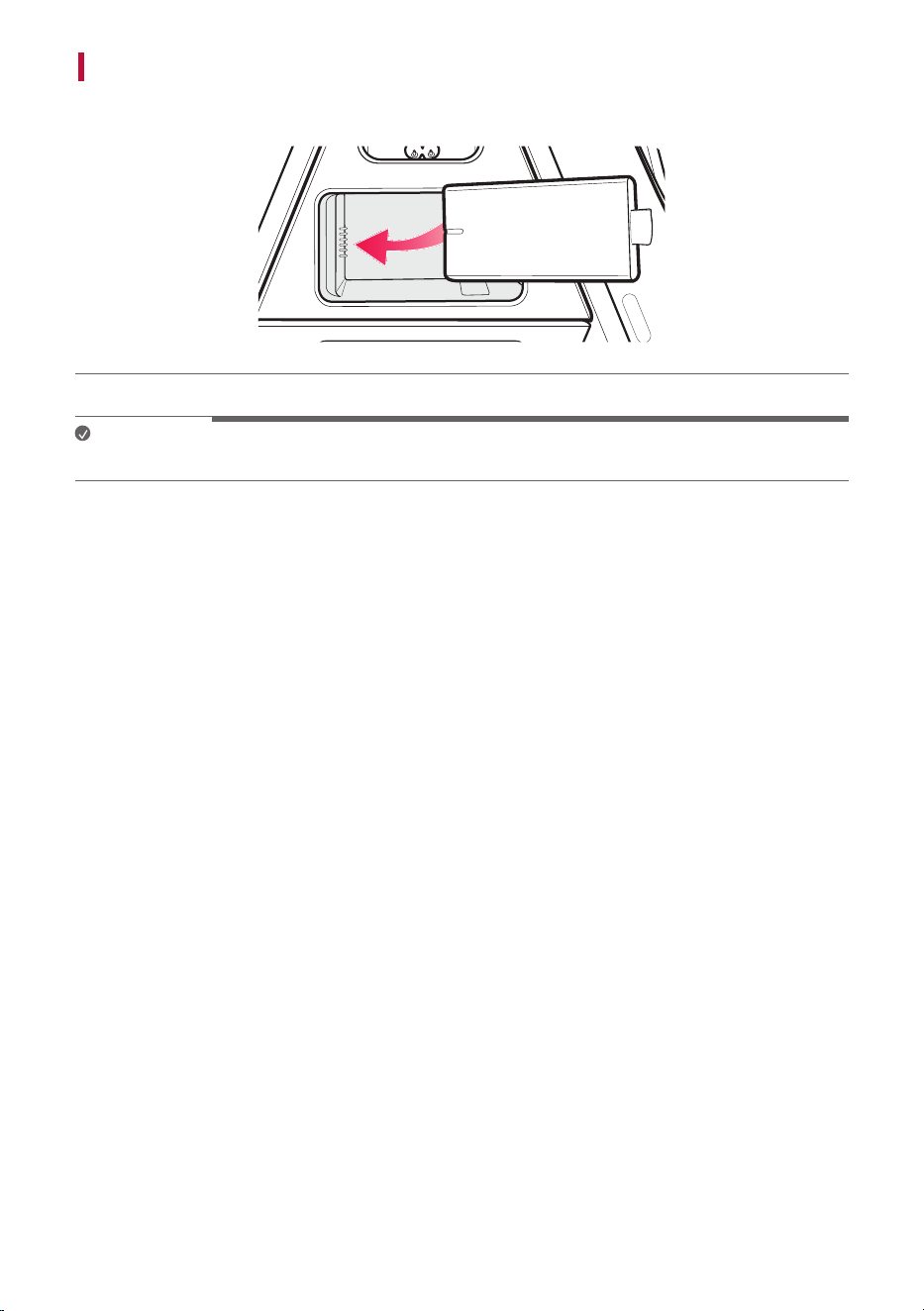
Replacing the Battery
You can replace the battery as follows:
Note
New spare batteries can be purchased at LG Electronics’ Customer Service Center.
11
Checking Battery Status
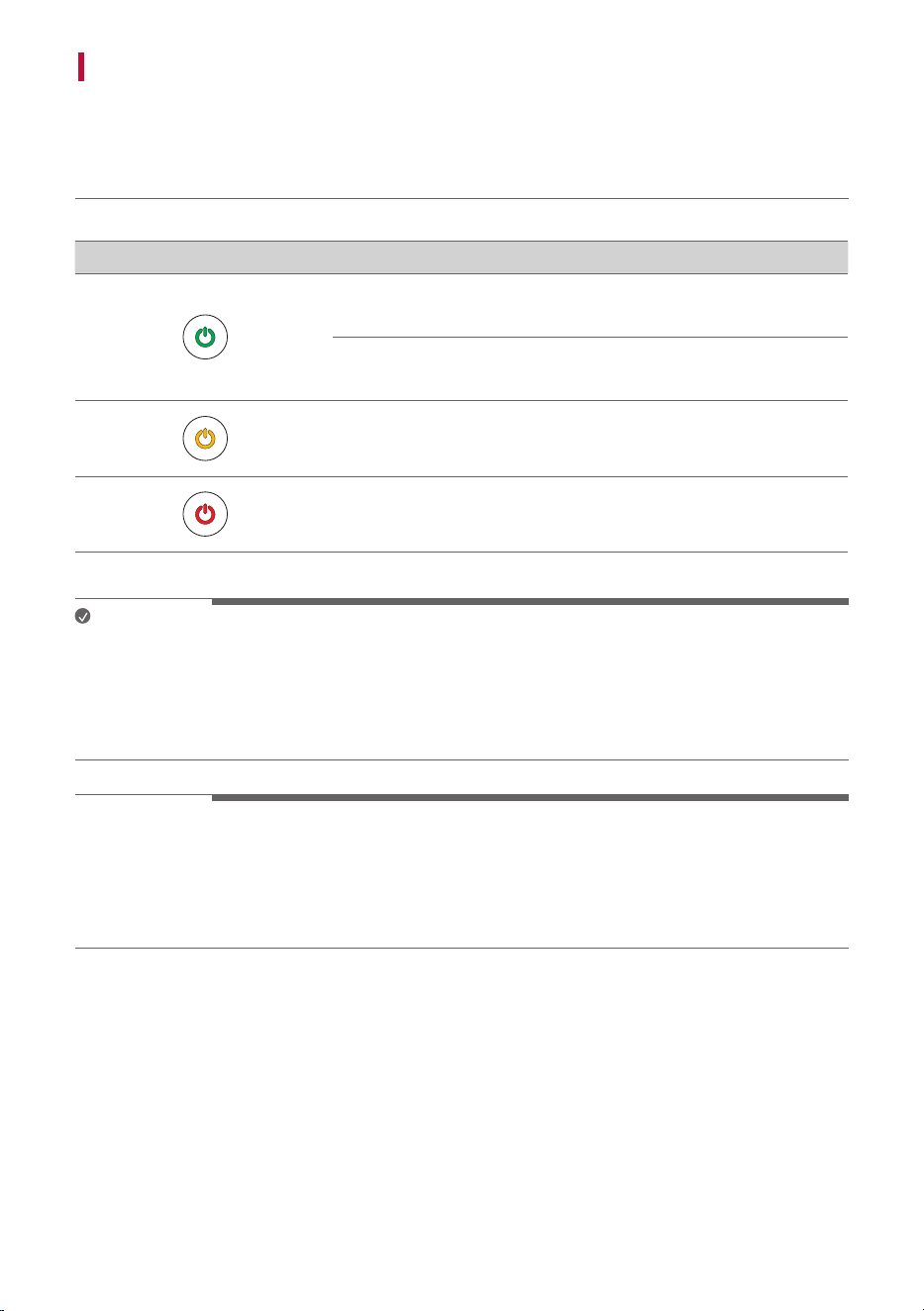
Charging Status
With the power off and the charging cable is connected, You can see the charging status.
Button backlight LED Status / Battery Status
Turns on green for 15 seconds. / Charging is complete.
Turns on in green. / The battery level is above 70 %. / Charging is
in progress.
Turns on in amber. / The battery level is between 20~70 %. /
Charging is in progress.
Turns on in red. / The battery level is below 20 %. / Charging is in
progress.
Note
• Playing tracks while charging may lengthen the charging time.
• When the speaker’s battery is fully charged with the power off, the button backlight turns on green for
15 seconds and then off.
• When connecting to Party Link, the Party Link connection status indicator takes precedence over the
battery indicator.
> CAUTION
• Charge the battery at an ambient temperature of 5 °C to 35 °C (41 °F - 95 °F). When the battery is out
of the chargeable temperature range, the button backlight and lighting indicatior alternates between
amber and red, and charging stops.
• If you charge while using the speaker, the battery temperature may become high and charging may
stop. In this case, turn off the power and charge the speaker.
12
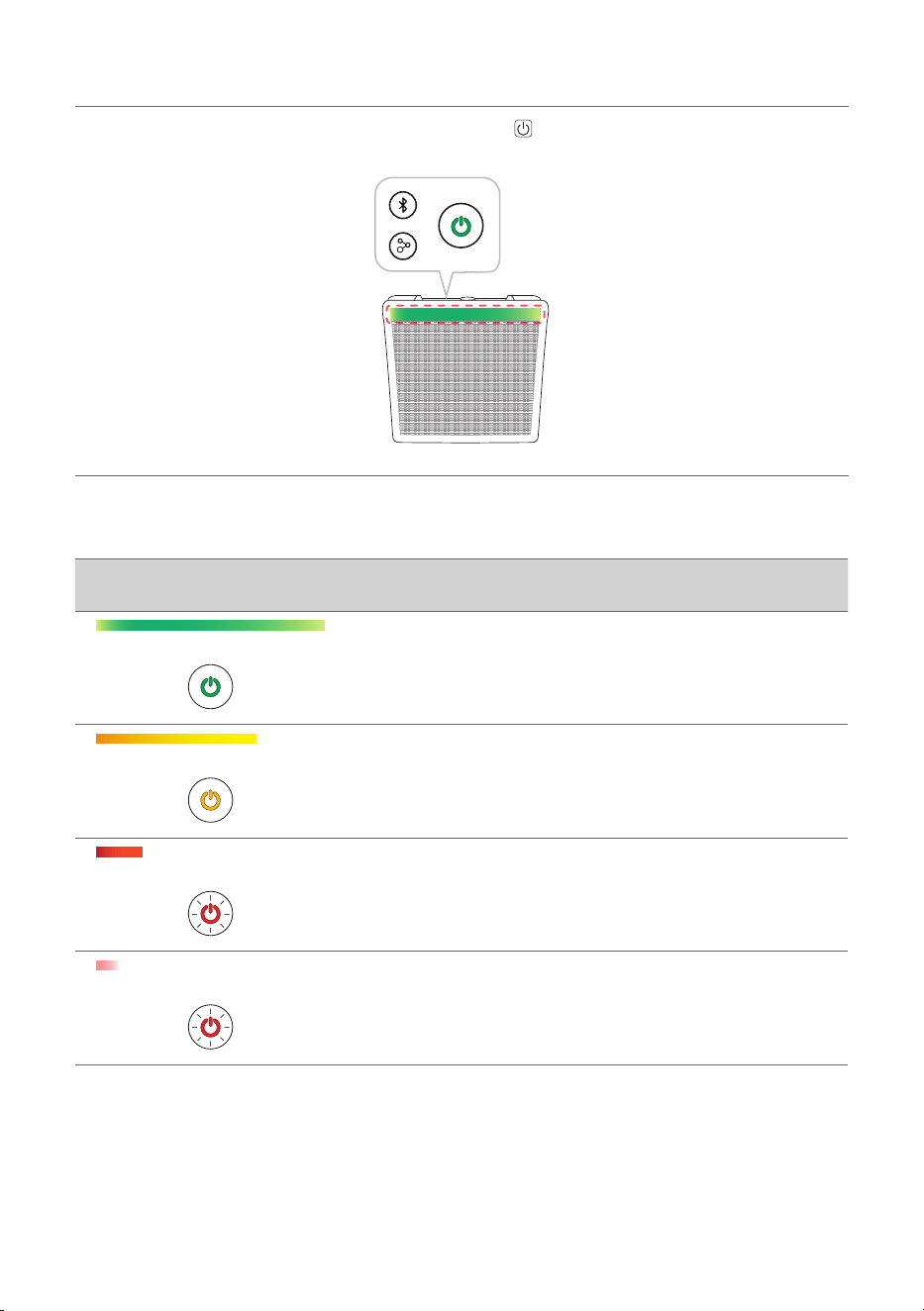
Use Status
When you turn on the speaker or press and hold the Power button for 2 seconds, the Button backlight
and the Lighting Indicator are turned on for 3 seconds according to the battery status.
When the power cable is not connected (Battery mode)
Lighting indicator /
Button backlight
LED Status / Battery Status
Turns on green for 3 seconds. / The battery level is above 70 %.
Turns on amber for 3 seconds. / The battery level is between
20~70 %.
Lighting Indicator: Turns on red for 3 seconds.
Button backlight: It blinks in red continuously. You can hear a
notification sound once. / The battery level is below 20 %.
Lighting Indicator: Turns on light red for 3 seconds.
Button backlight: It blinks in red continuously. You can hear a
notification sound once. / The battery level is below 10 %, and the
battery needs to be charged.
13
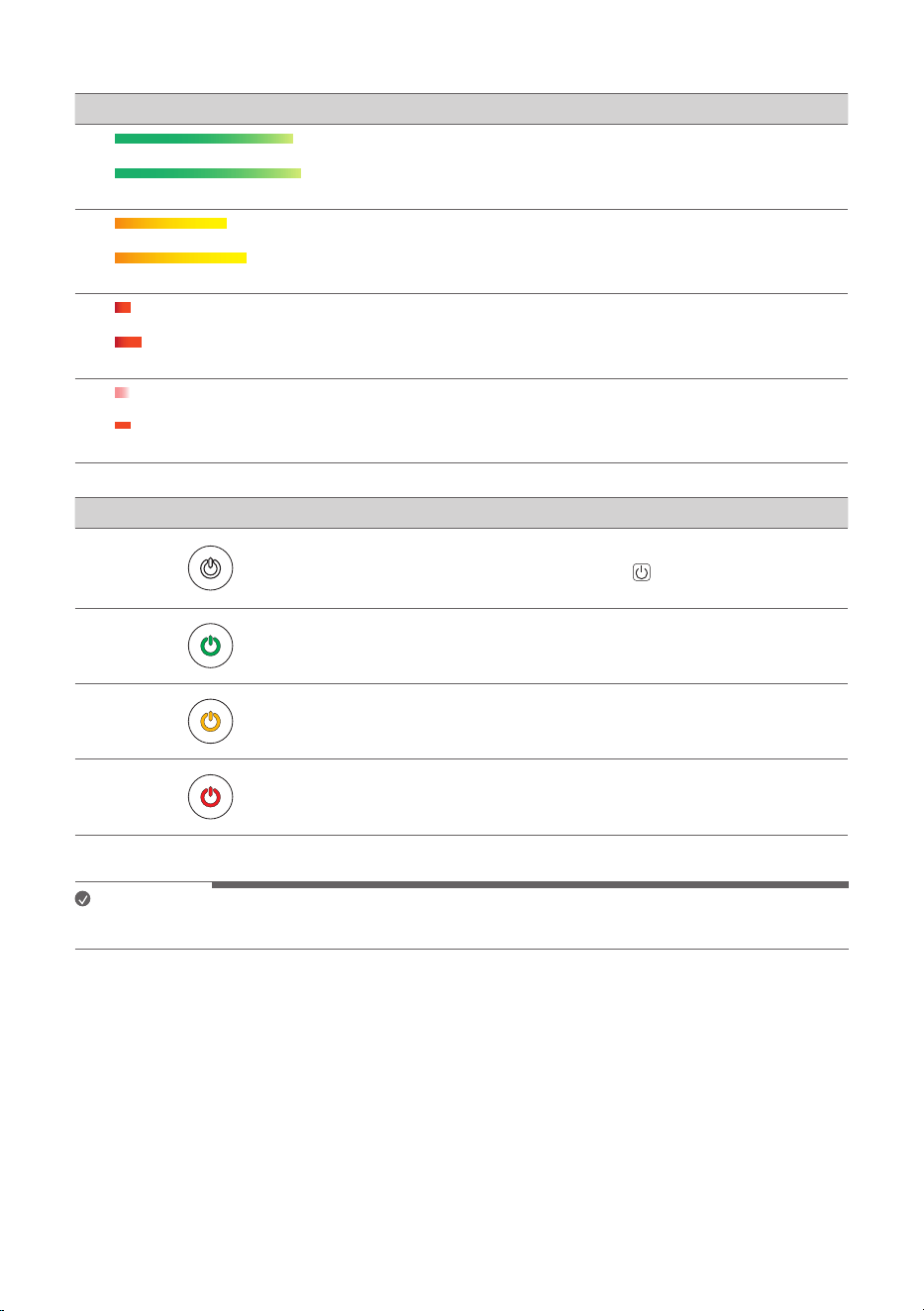
When the power cable is connected
Lighting indicator LED Status / Battery Status
It blinks green for 3 seconds / The battery level is above 70 %.
It blinks amber for 3 seconds / The battery level is between
20~70 %.
It blinks red for 3 seconds / The battery level is below 20 %.
It blinks alternately light red and red for 3 seconds / The battery
level is below 10 %, and the battery needs to be charged.
Button backlight LED Status / Battery Status
Turns on in white / Charging is complete.
(When you press and hold the Power
button for 2 seconds,
turns on green for 3 seconds.)
Turns on in green. / The battery level is above 70 %.
Turns on in amber. / The battery level is between 20~70 %.
Turns on in red. / The battery level is below 20 %.
Note
When the amount of battery decreases, the length of the lighting Indicator is also shortended.
14
Connecting to Bluetooth
Connecting Smartphone to the Speaker via Bluetooth
You can play music files stored on a Bluetooth device, or run music apps to enjoy the music with this
product.
Please check the following first.
• The following are the Bluetooth specifications of the product.
- Bluetooth version: 5.3
- Codec: SBC, AAC, LC3
• How to connect the device to the product may differ depending on the type and model of the
Bluetooth device. For information on how to connect the product, refer to the user manual of
the Bluetooth device to be connected.
Select the [Bluetooth] menu on the smartphone's Settings screen. The menu access method may differ
depending on the smartphone manufacturer and model.
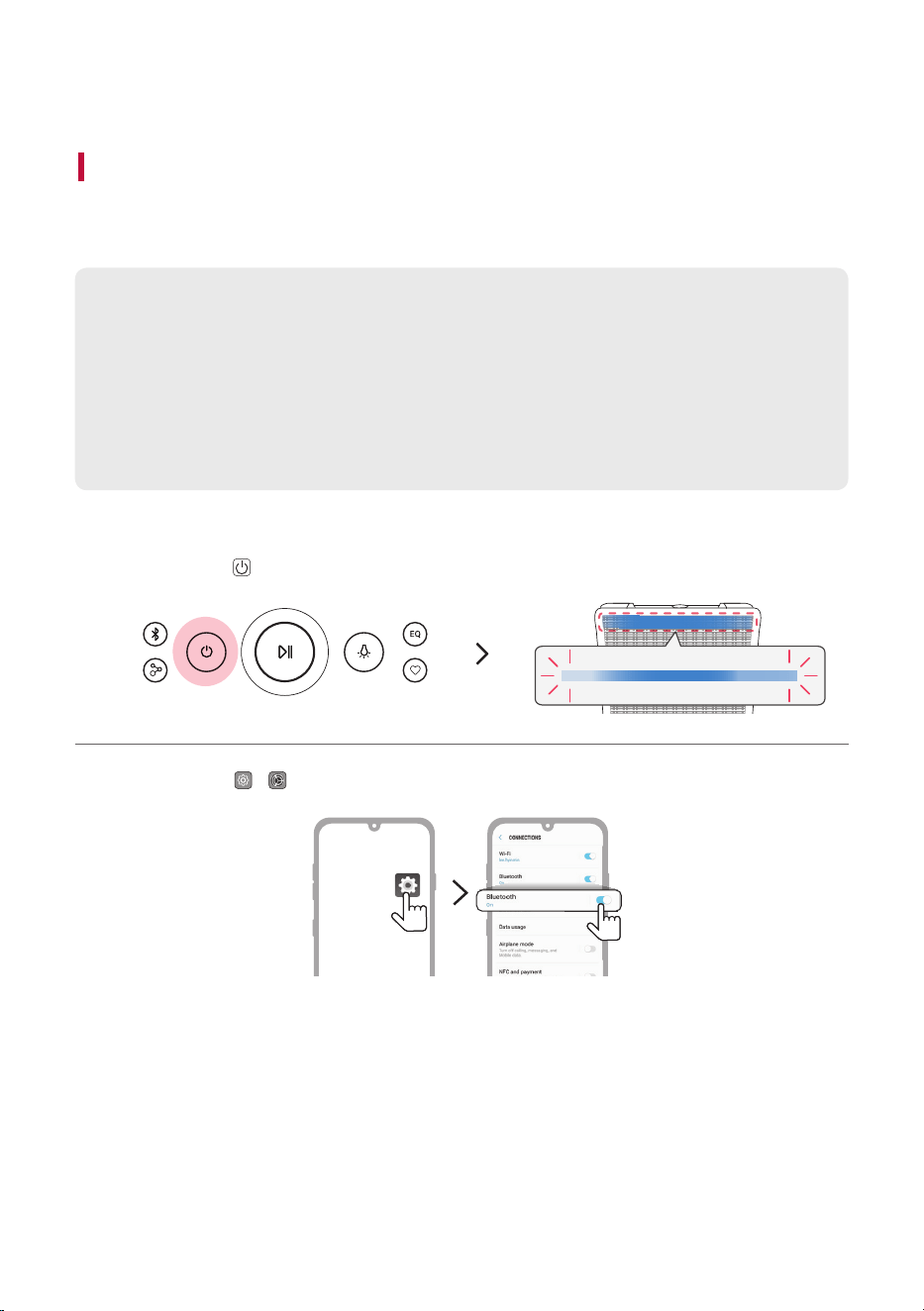
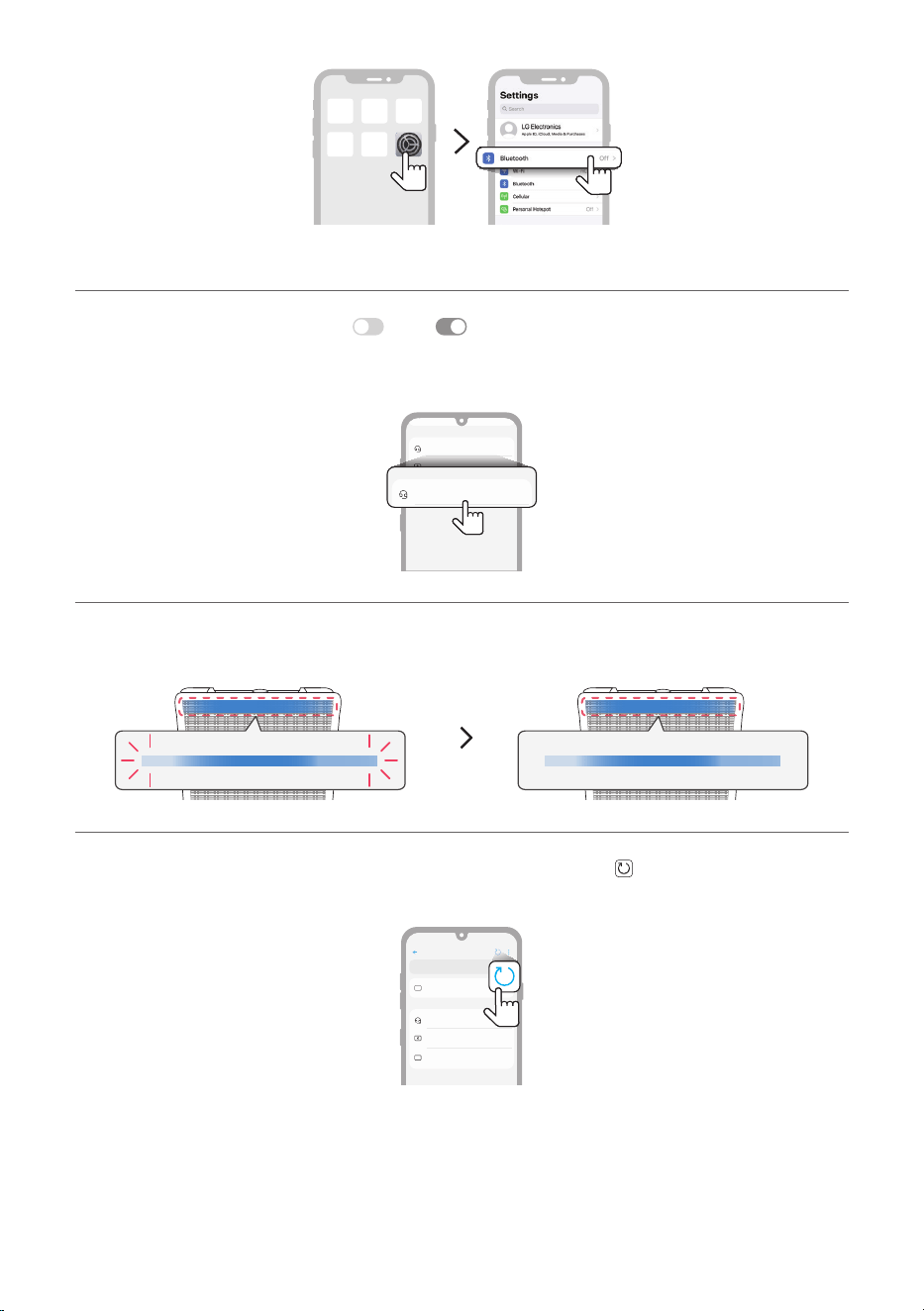
a Press the Power
button on the speaker to turn it on. The lighting Indicator blinks.
b Tap the Setting ( / ) button on your smartphone and select Bluetooth.
(Android Phone)
Connecting to Bluetooth
15
(iPhone)
c Turn on the Bluetooth function. ( Off > On)
d You will see a list of connectable devices on the smartphone screen. Find and tap the name “xboom
Stage301”.
Bluetooth devices
LG Smart Phone
Bluetooth devices
On
AVAILABLE DEVICES
Bluetooth
xboom Stage301
Bluetooth devices
LG
xboom
Bluetooth devices
On
AVAILABLE DEVICES
xboom Stage301
e Once the speaker and the smartphone are connected via Bluetooth, the lighting Indicator will turn on
with the sound.
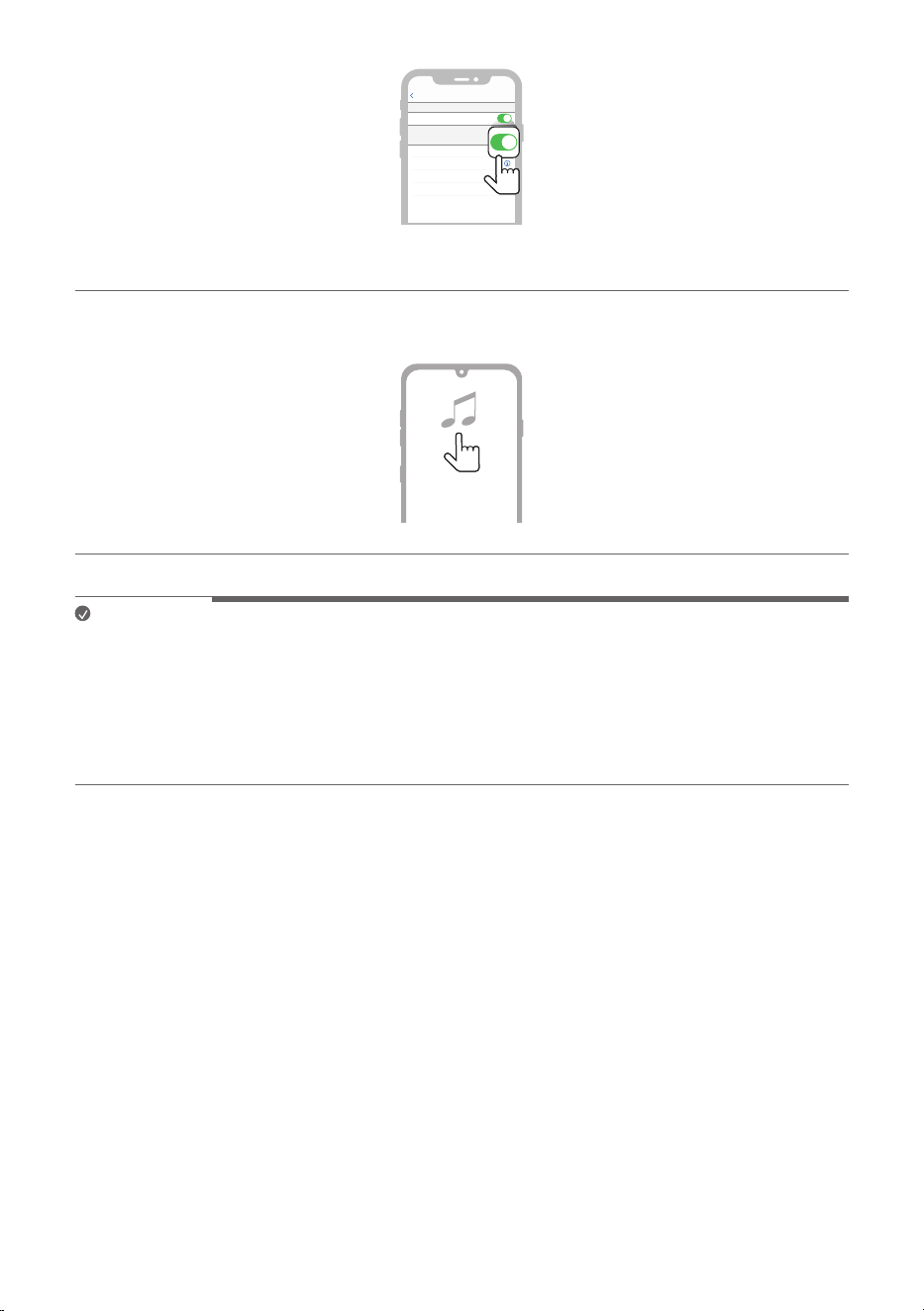
f If “xboom Stage301” does not appear on the list, tap on the Refresh icon on an Android phone or
restart Bluetooth on an iPhone.
Bluetooth
Speaker
Bluetooth devices
LG Smart Phone
Bluetooth devices
On
AVAILABLE DEVICES
(Android Phone)
16
Not Connected
LG Speaeker1
Not Connected
Not Connected
Not Connected
Settings
LG Speaeker2
LG Speaeker3
LG Speaeker4
MY DEVICES
Now discoverable as “iPhone”
Bluetooth
Bluetooth
(iPhone)
g Select and play a track on the smartphone.
Note
• The closer the Bluetooth device is to the speaker, the better connection you will get.
• If the Bluetooth device is not connected, the lighting Indicator will blink. Connect the product again.
• When using Bluetooth, adjust the volume of the Bluetooth device to an appropriate level.
• If you try to connect to the product via the Bluetooth device with a connection history, the product
will automatically turn on and connect to the Bluetooth device. You can control this function in the LG
ThinQ app. ([ See “Using Power On via Bluetooth” on page 30.)
17
Connecting Two Bluetooth Devices to the Speaker
Multi phone pairing
a Connect the product and a smartphone first. ([ See “Connecting Smartphone to the Speaker via
Bluetooth” on page 14.)
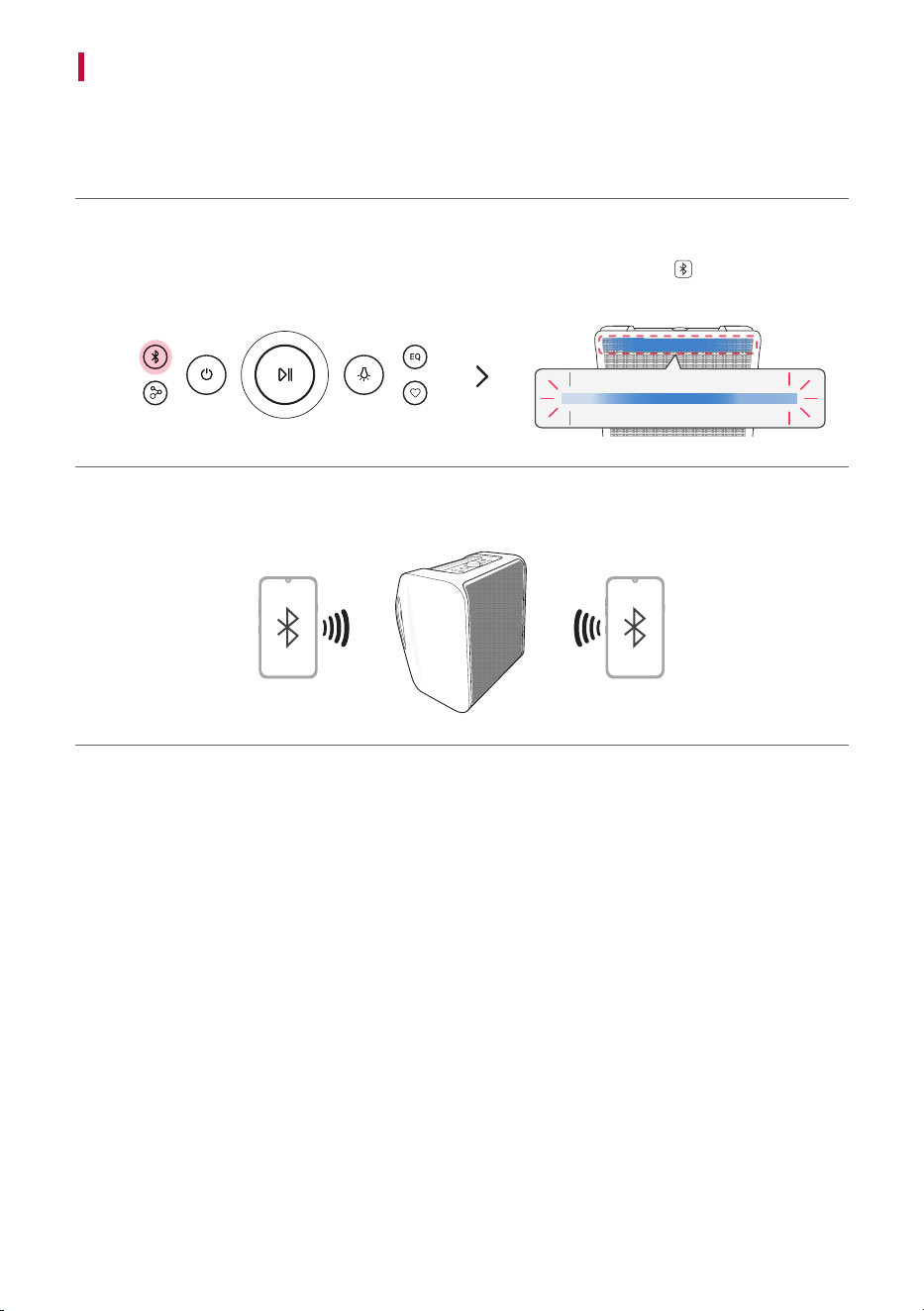
b When the Bluetooth device and speaker are connected, press the Bluetooth
button. Then lighting
Indicator blinks with the sound. The speaker is changed to multi phone pairing mode.
c Connect a different Bluetooth device to the speaker within 1 minute. ([ See “Connecting
Smartphone to the Speaker via Bluetooth” on page 14.)
18
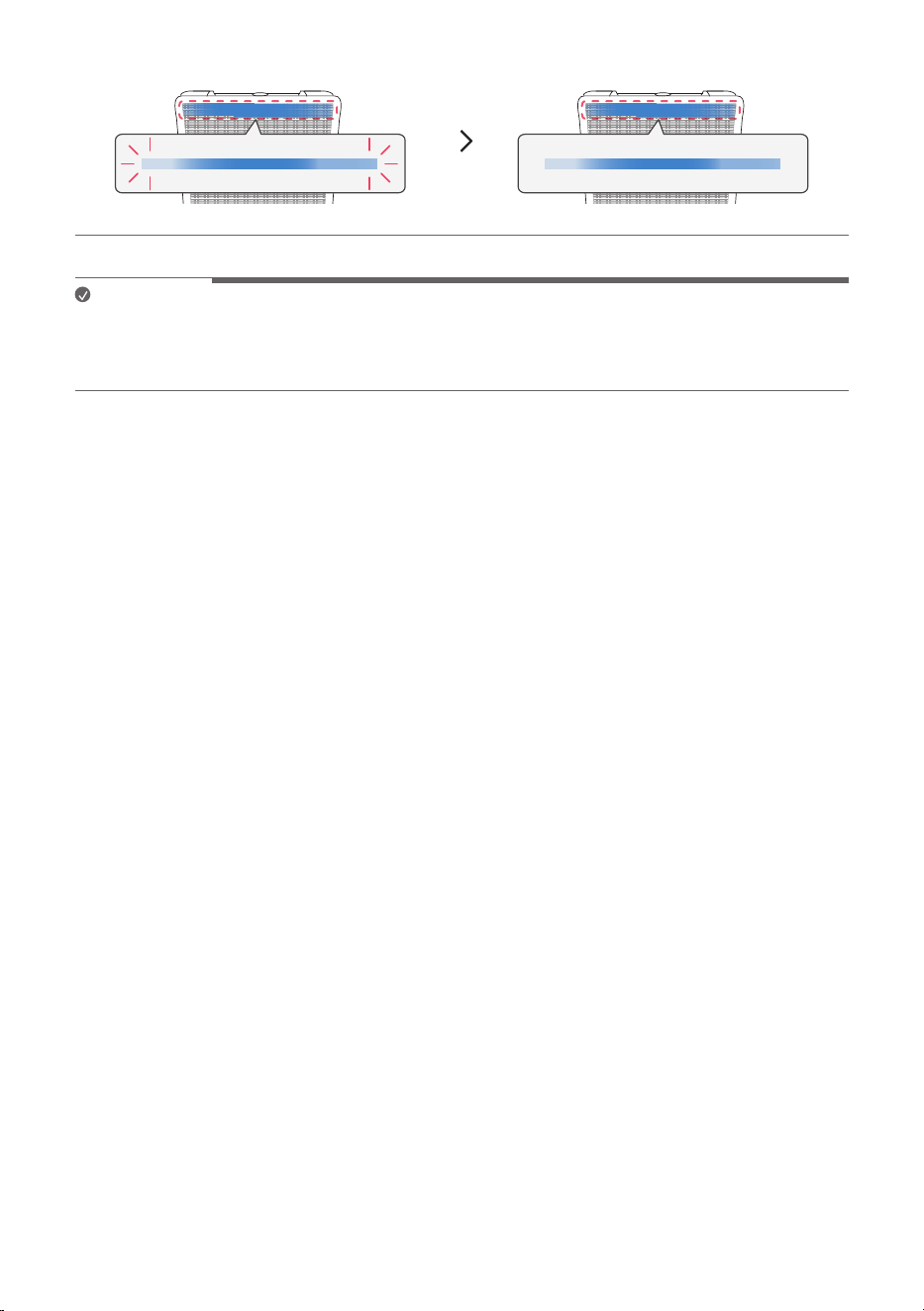
d Once both the Bluetooth devices are connected to the speaker, the lighting Indicator turns on.
Note
• Up to two Bluetooth devices can be connected to the speaker at the same time.
• When two Bluetooth devices are connected at the same time, the speaker channels the sounds of only
one of them. You need to stop the playback on the first device to play the sounds of the other one.
19
Using the Party Link
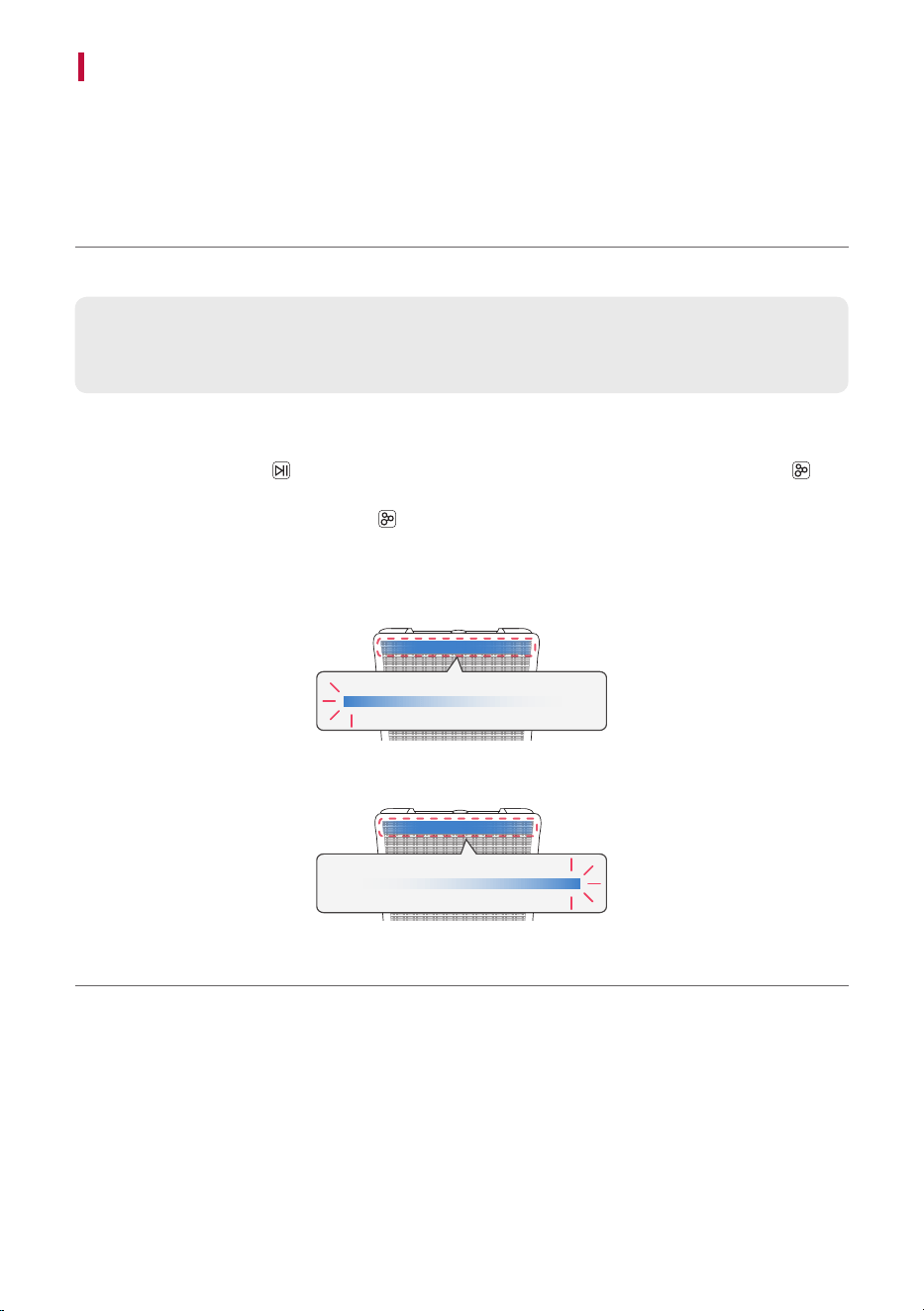
You can connect multiple speakers. There are two ways for using the Party Link : Dual mode and Multi
mode.
Dual mode
Party Link Dual mode lets you enjoy stereo sound with two same model speakers.
Please check the following first.
• The two speakers of the same model are needed. (e.g. STAGE301 and STAGE301)
a Connect the speaker and a smartphone first. ([ See “Connecting Smartphone to the Speaker via
Bluetooth” on page 14.)
b Press the Play/Pause
button to play the music, then press the Party Link by Auracast™
button twice quickly.
c Press the Party Link by Auracast™
button on the another speaker twice quickly.
d You can see the Dual mode LED on the speakers.
• Main speaker : The lighting Indicator turns on and output Left channel sound.
• Other speaker : The lighting Indicator turns on and output Right channel sound.
(Main speaker)
(Other speaker)
20
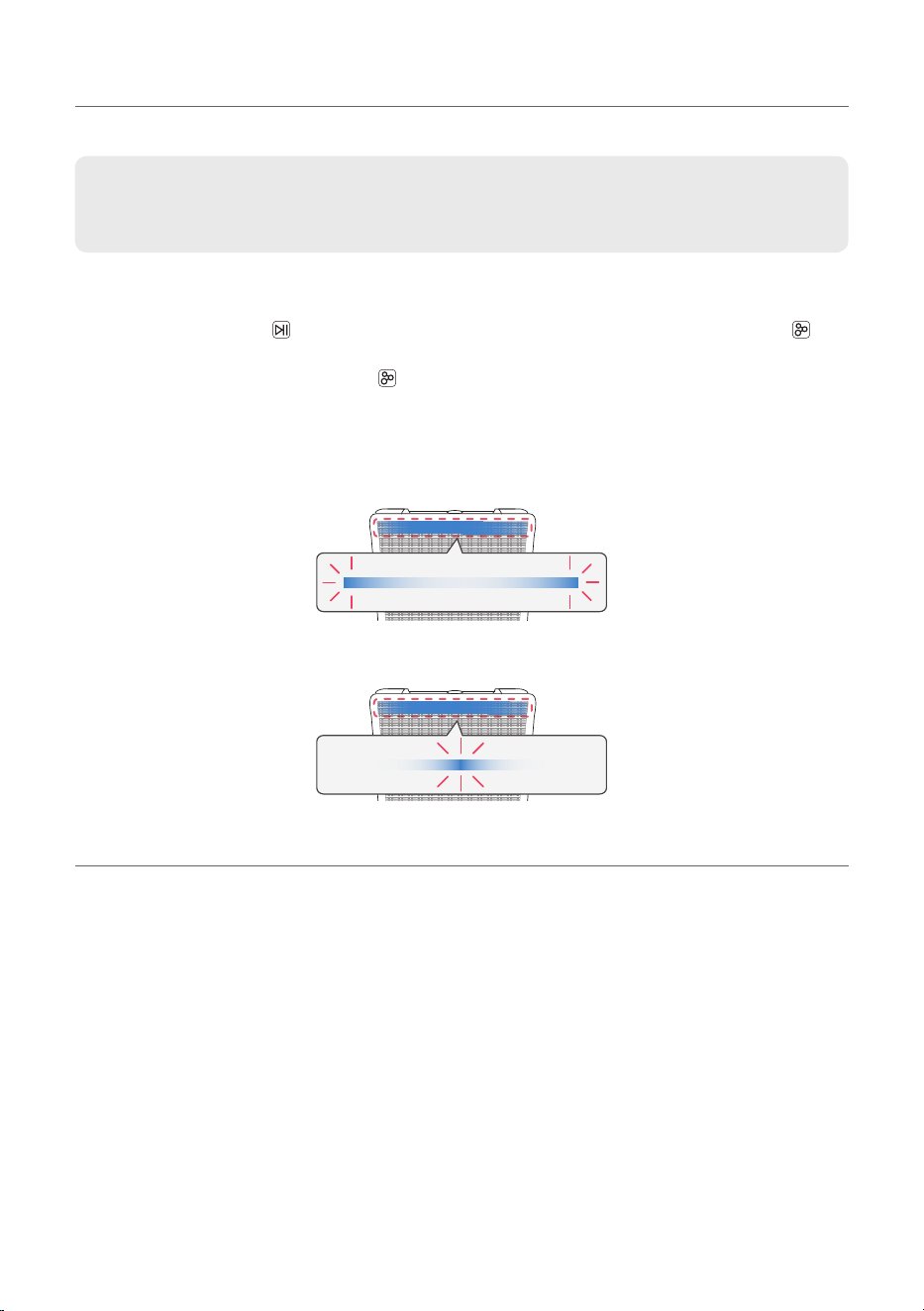
Multi mode
Party Link Multi mode lets you enjoy more powerful sound with multiple speakers.
Please check the following first.
• You can connect multiple LG Bluetooth speakers. (e.g. STAGE301 and BOUNCE/GRAB)
a Connect the speaker and a smartphone first. ([ See “Connecting Smartphone to the Speaker via
Bluetooth” on page 14.)
b Press the Play/Pause
button to play the music, then press the Party Link by Auracast™
button.
c Press the Party Link by Auracast™
button on the another speaker.
d You can see the Multi mode LED on the speakers.
• Main speaker : The lighting Indicator turns on and the speaker outputs sound.
• Other speakers : The lighting Indicator turns on and speakers output sound in sync with the main
speaker.
(Main speaker)
(Other speaker)
21
Note
• The Main speaker connects only one Bluetooth device.
• When using Dual/Multi mode to connect multiple speakers, the multi phone pairing connection is not
supported.
• When you turn the speakers off and on again, the speakers do not automatically reconnect.
• To change the connected Bluetooth device in Dual/Multi mode, press the Bluetooth
button. When
you hear a beep sound and the lighting Indicator blinks, connect to the desired Bluetooth device.
• Keep the distance between the speakers as close as possible each other.
• Depending on the network environment, this function may not work well.
• The screen of a device such as a TV and the sound from the speaker may not match.
• When multiple speakers are connected in Multi mode, volume and EQ linkage between the Main
speaker and Other speakers is not available.
• When connecting Dual/Multi mode, to express various colors, the lighting color does not change to the
same as the connected device.
• Press and hold the Party Link by Auracast™
button on one of the connected speakers for 2
seconds to cancel Dual Mode or Multi mode.
Interworking multiple speakers
This speaker interworks with other LG Bluetooth speakers such as STAGE301 and BOUNCE/GRAB.
Dual mode
Same model
(e.g. STAGE301/STAGE301)
Main/Other
Volume O
EQ O
Lighting O
Auto Power Management O
Sleep Timer O
Multi mode
Same series
(e.g. STAGE301/BOUNCE/GRAB)
Main/Other
Auto Power Management O
Sleep Timer O
22
Connecting to the LG ThinQ App
Connecting to the LG ThinQ App
Installing app
Use the various functions of the speaker on the LG ThinQ app.
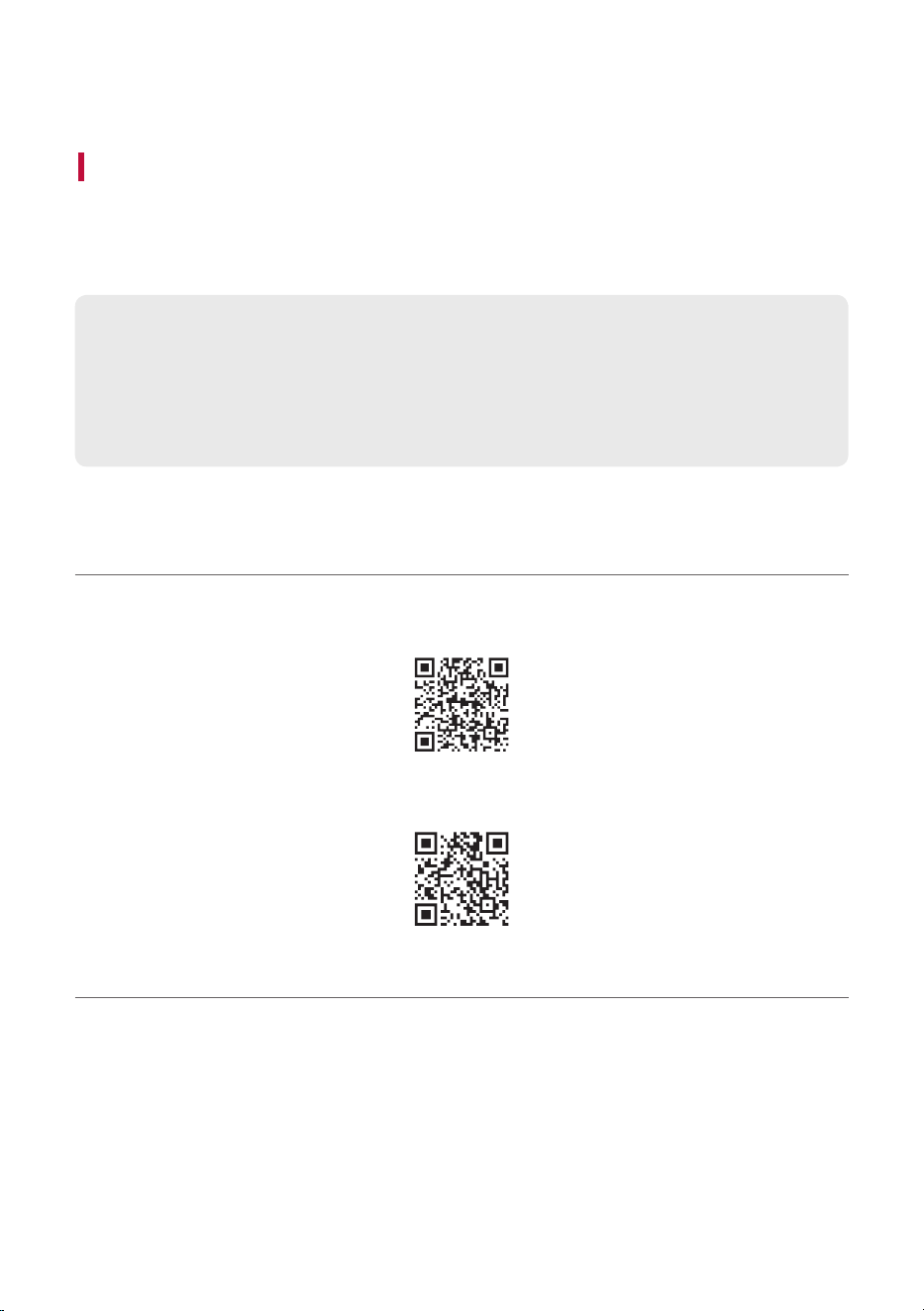
To install the LG ThinQ app, scan the QR code with an app or install LG ThinQ on the Google Play or App
Store.
Please check the following first.
• The LG ThinQ app is available in the versions listed below.
- Android™ OS: Version 9.0 or higher
- iOS OS: Version 15.0 or higher
- Minimum supported versions for each OS may change later.
Downloading with a QR code
a Scan the QR code with a QR code scan app.
b You will be directed to the page where you can download the LG ThinQ app. Tap the app to install it.
(Android Phone OS)
(iPhone OS)
23
Downloading in Google Play or App Store
a Go to the Google Play or the App Store on your smartphone and search for the LG ThinQ app to
install it.
b Run the LG ThinQ app and log in to the app with your account. If you don't have an account, you can
also create a new one.
c Press the add (o) button and follow the instructions on the LG ThinQ app to register your product.
Note
• The menu access method may differ depending on the smartphone manufacturer and OS.
• Google, Android and Google Play are trademarks of Google LLC.
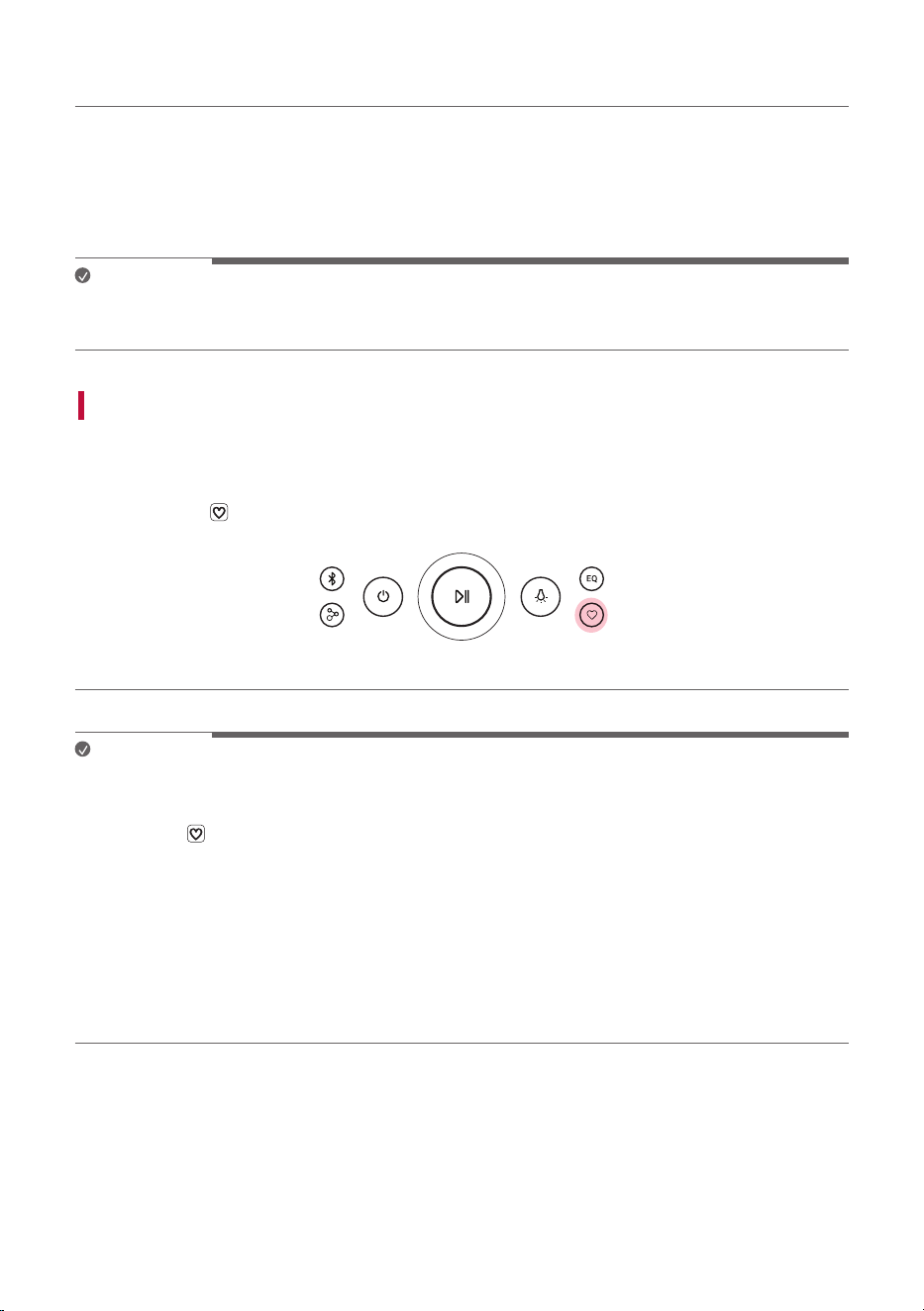
Using MY function
The MY function allows you to play your music quickly and easily.
a Set your MY function in the LG ThinQ app. Follow the instructions to set a playlist, volume level.
b Press the MY
button.
Note
• To use the MY function, allow the media access permission.
• The lighting indicator blinks white in the following cases:
• If the MY
button in the LG ThinQ app is not set.
• If your phone is an iPhone:
- For some music source, an Apple Music subscription account and network connection are required.
- If you don’t subscribe to Apple Music, you will need music source files in the Apple Music library.
• If your phone has Android OS installed:
- Set the battery optimisation of the LG ThinQ app to “Unrestricted” in your smartphone settings.
- LG ThinQ app notification permission is required for smooth play in the MY function.
- You will need music source files on your phone.
24
Listening Auracast™ broadcast
You can listen to broadcasts that are in progress around you in the Auracast™ broadcast listening in the
LG ThinQ app.
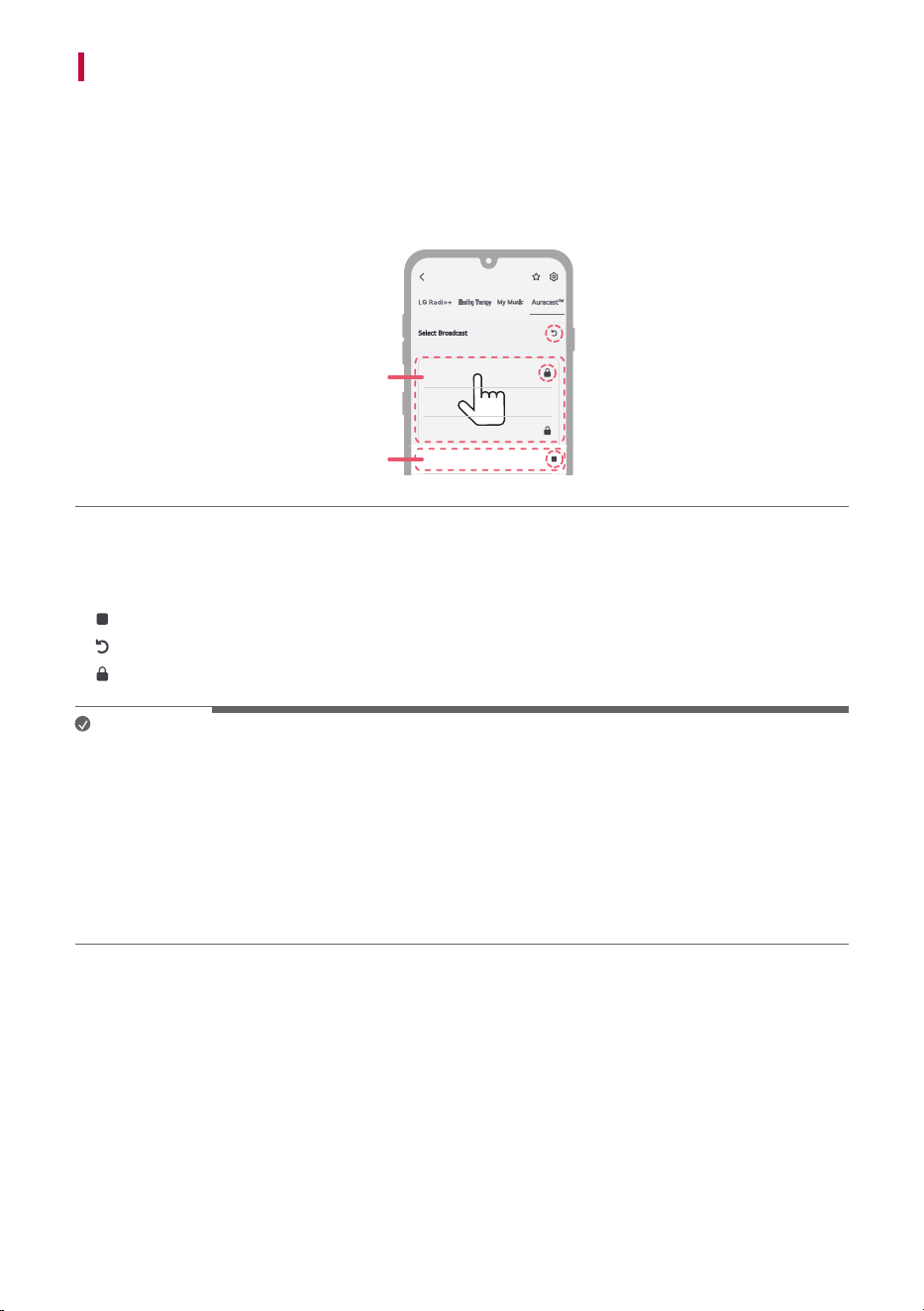
a Run the LG ThinQ app and select the Auracast™.
b Select the Auracast™ broadcast you want to listen to from the searched list.
c Once the Auracast™ broadcast is connected, you can listen to the broadcast through the speaker.
a
b
a This is the broadcast you are currently listening to.
b In addition to the broadcast you are currently listening to, broadcasts that can be heard around you
will appear in the list.
•
Stop Listening : Select to stop listening to the broadcast.
•
Search : Press the button to search for broadcasts that can be heard around you.
•
Lock symbol : Appears when a password is required.
Note
• If a password is required, the Input password window will appear.
• If you play music or perform additional operations on a connected device while listening to Auracast™
broadcast, the Auracast™ connection may be disconnected.
• Depending on the device (smartphone, TV, etc.) that supports Auracast™ broadcasting, the sound may
be out of sync.
• The degree of out of sync may vary depending on the device that supports Auracast™ broadcasting.
• For detailed instructions, please refer to the user manual of the device (smartphone, TV, etc.) that
supports Auracast™ broadcasting.
25
Connecting to USB
Connecting the product to a USB storage device
You can enjoy sound by connecting a USB storage device with music files to the product.
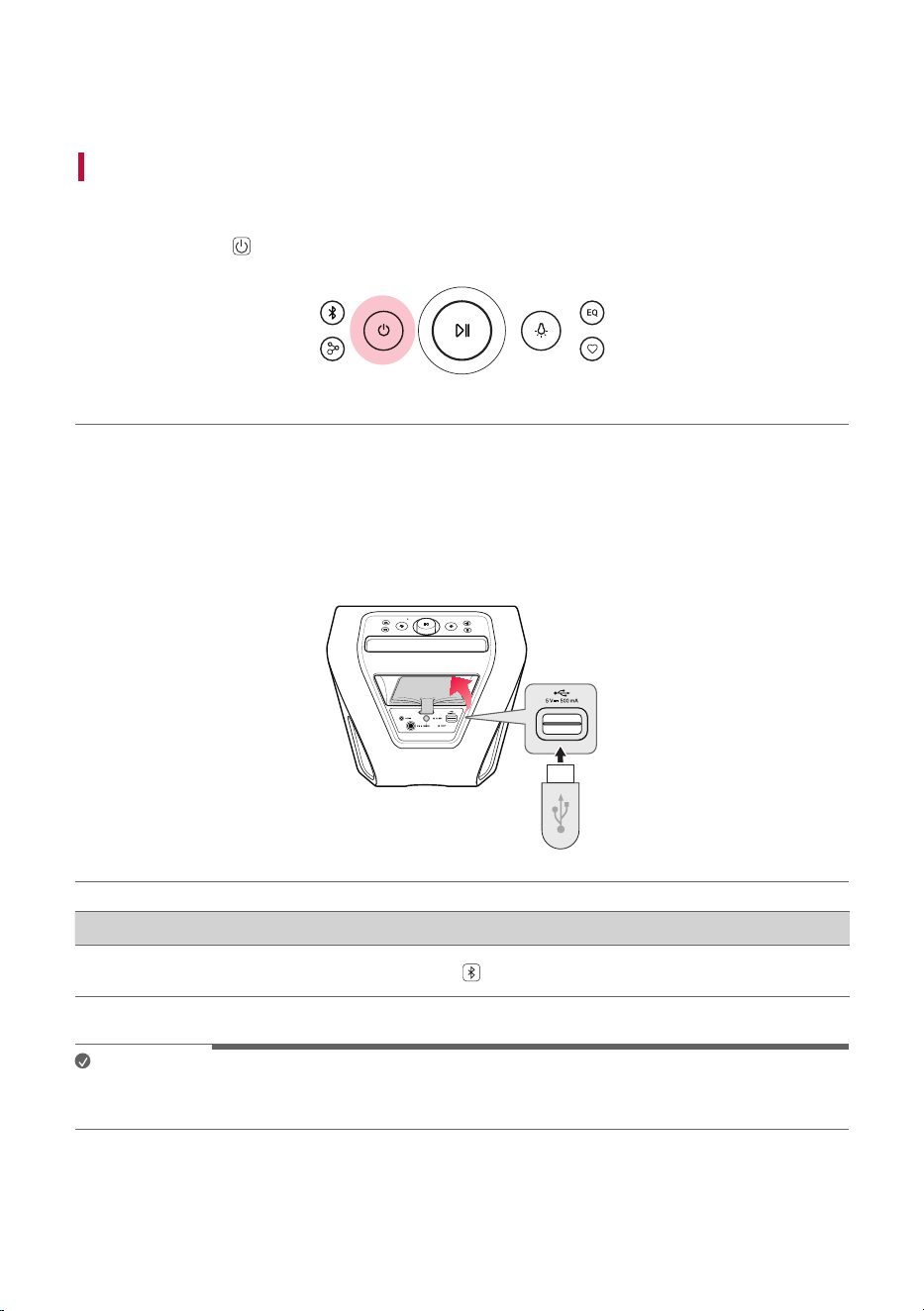
a Press the Power
button to turn on the product.
b Open the jack cover on the back of the product and plug the USB storage device into the USB
terminal.
• The product cannot play any devices connected with a USB storage device hub or a USB storage
device cable.
• The product cannot be connected to a USB storage device, USB type MP3 player or card reader that
requires a separate device drive to be installed.
Function How to Use
Changing USB to
Bluetooth
Press the Bluetooth
button.
Note
While USB is plugged in, If you want to change the function from BT to USB, remove and reconnect the
USB.
Connecting to USB
26
Note
• USB devices with large storage volume can take several minutes or more to browse files.
• LG Electronics is not responsible for any data loss. Please always back up the data to minimize damage
caused by data loss.
• Only FAT16/FAT32 formats are supported. exFAT/NTFS format is not supported.
• When the USB storage device is not properly recognized, the lighting indicator will blink. Check if the
USB storage device is supported and plug in again.
• Use the USB port of this product only for playing a media file. You cannot charge external devices with
the USB port.
USB storage devices supported
• USB flash device
• USB 2.0
This product may not recognize some USB storage devices.
Playable file specifications
File extension Sampling frequency / Bitrate
MP3 32 kHz - 48 kHz / 8 kbps - 320 kbps
• Number of playable files: Up to 2,000
• Maximum number of directories: Up to 200
• This product cannot play files protected by DRM (Digital Rights Management).
• This product cannot play video files from a USB storage device. Connecting to an External Device
27
Connecting to an External Device
Connecting via 3.5 mm Stereo Cable
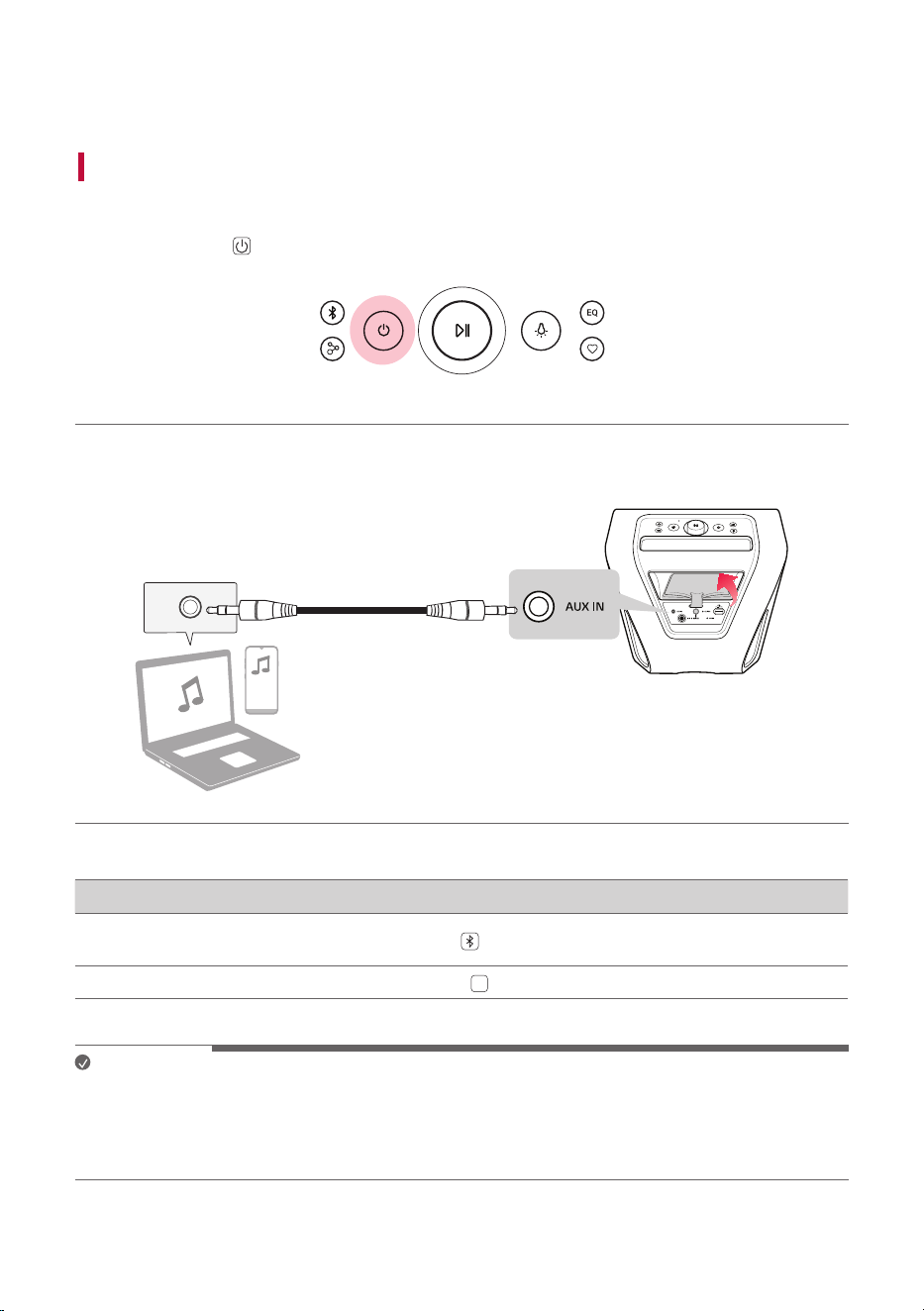
You can connect the speaker and various external devices via a 3.5 mm stereo cable to enjoy the music.
a Press the Power
button to turn on the product.
b Open the jack cover of the speaker and connect the external device to the AUX IN terminal via a 3.5
mm stereo cable.
c Turn the external device on and start playing.
Function How to Use
Changing AUX to
Bluetooth
Press the Bluetooth
button.
Mute/Unmute
Press the Play/Pause
N
button.
Note
• Prepare a 3.5 mm stereo cable. If you do not have a 3.5 mm stereo cable, you can purchase one
separately.
• While AUX cable is plugged in, If you want to change the function from BT to AUX, remove and
reconnect the AUX Cable.
Connecting to an External Device
28
Additional Functions
Setting Sound Effects
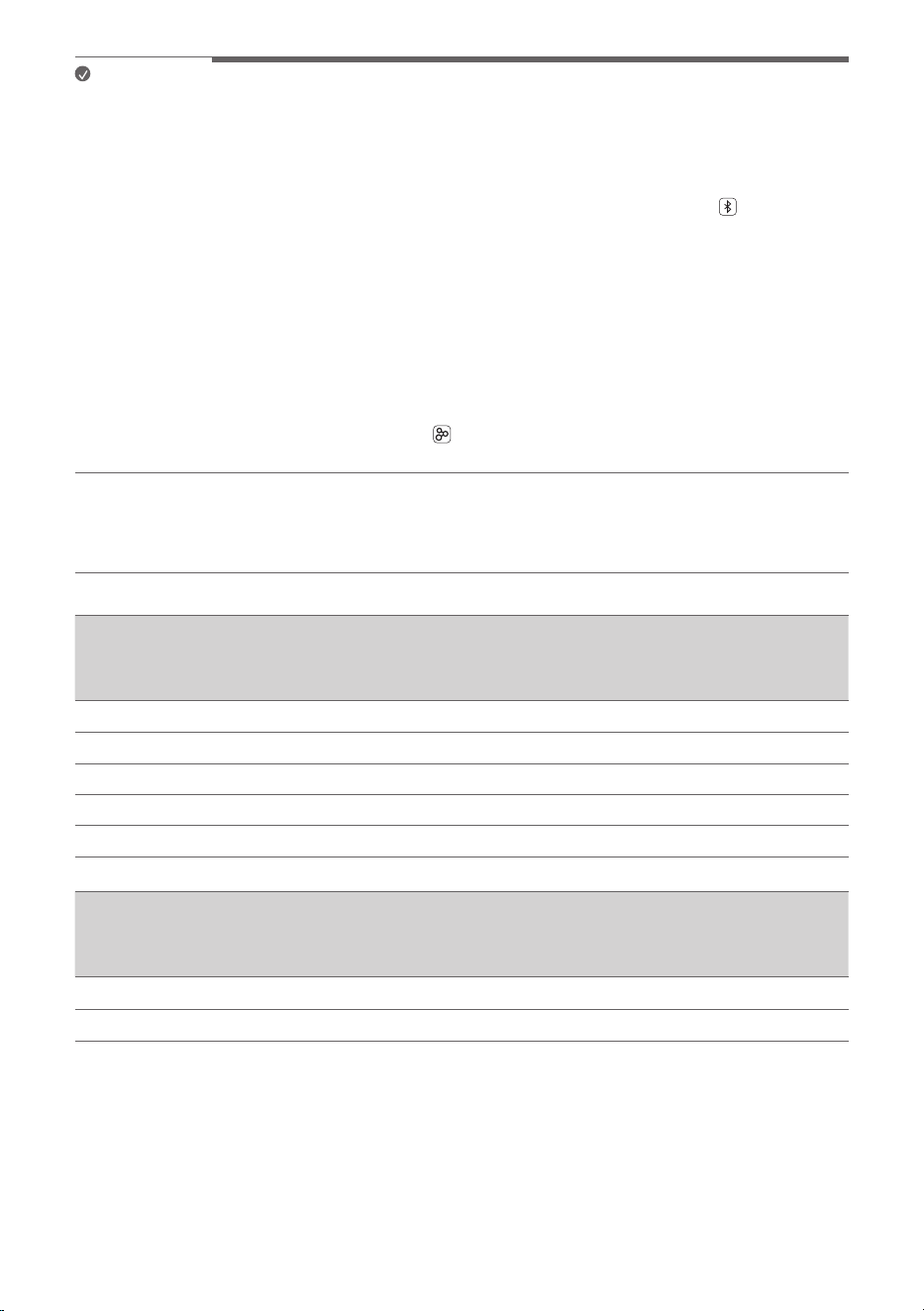
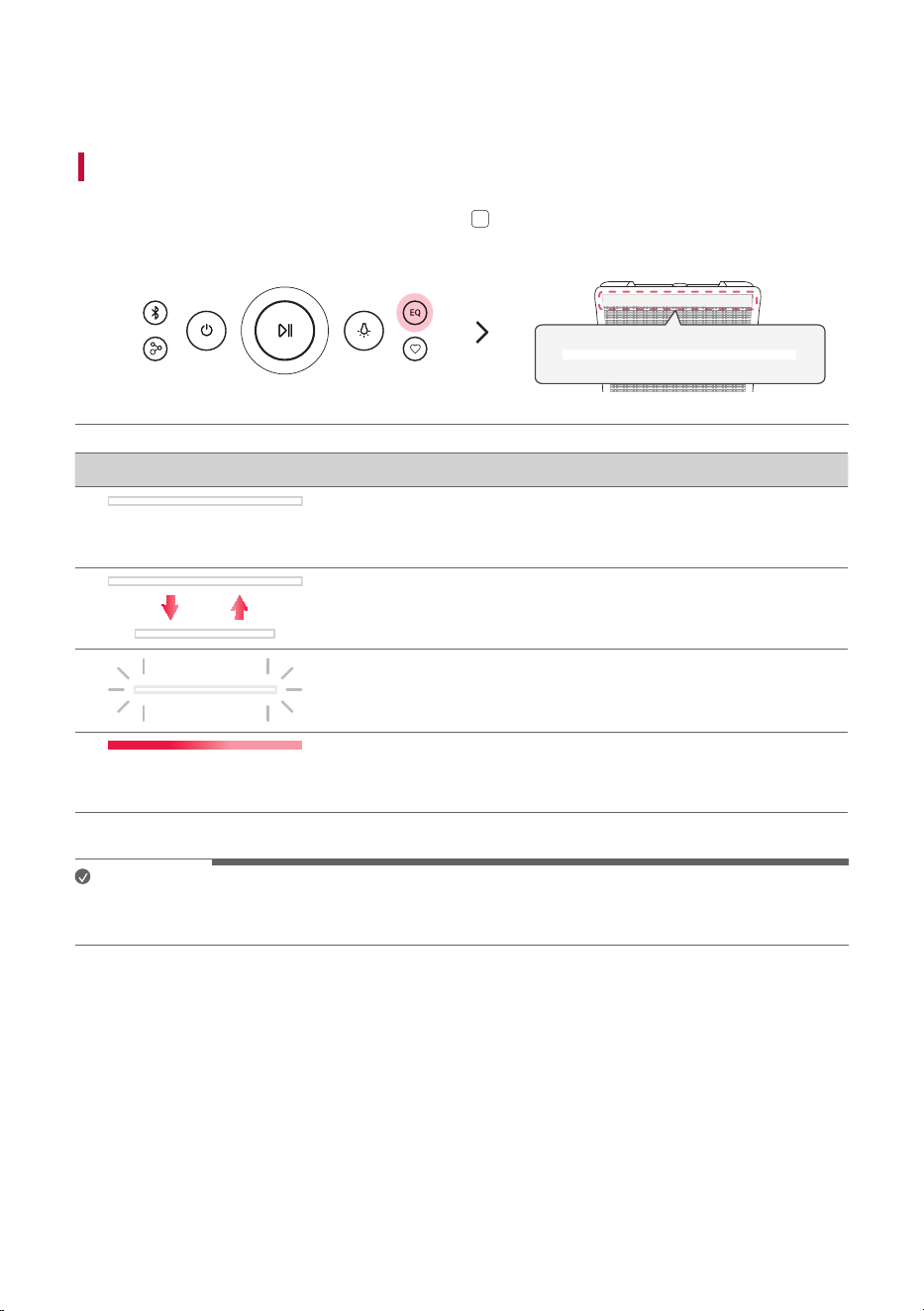
You can select a desired sound effect by press the EQ
EQ
button repeatedly.
It changes in the following order: Standard [ Bass Boost [ Voice Enhance [ AI Sound
Lighting Indicator Function / LED Status / Description
Standard / It will light up briefly in white. / You can enjoy High-
fidelity sound with balanced and natural.
Bass Boost / It grows and shrinks once. / You can enjoy the wide
sound field and powerful sound.
Voice Enhance / It blinks with white. / Improves the clarity of voices.
AI Sound / It will light up as AI analyzed the content / Artificial
intelligence selects the optimal sound settings to suit your content.
Note
Because fine-tune sound to provide optimal high-quality sound, It might be a little difference between
sound effect modes.
Additional Functions
29
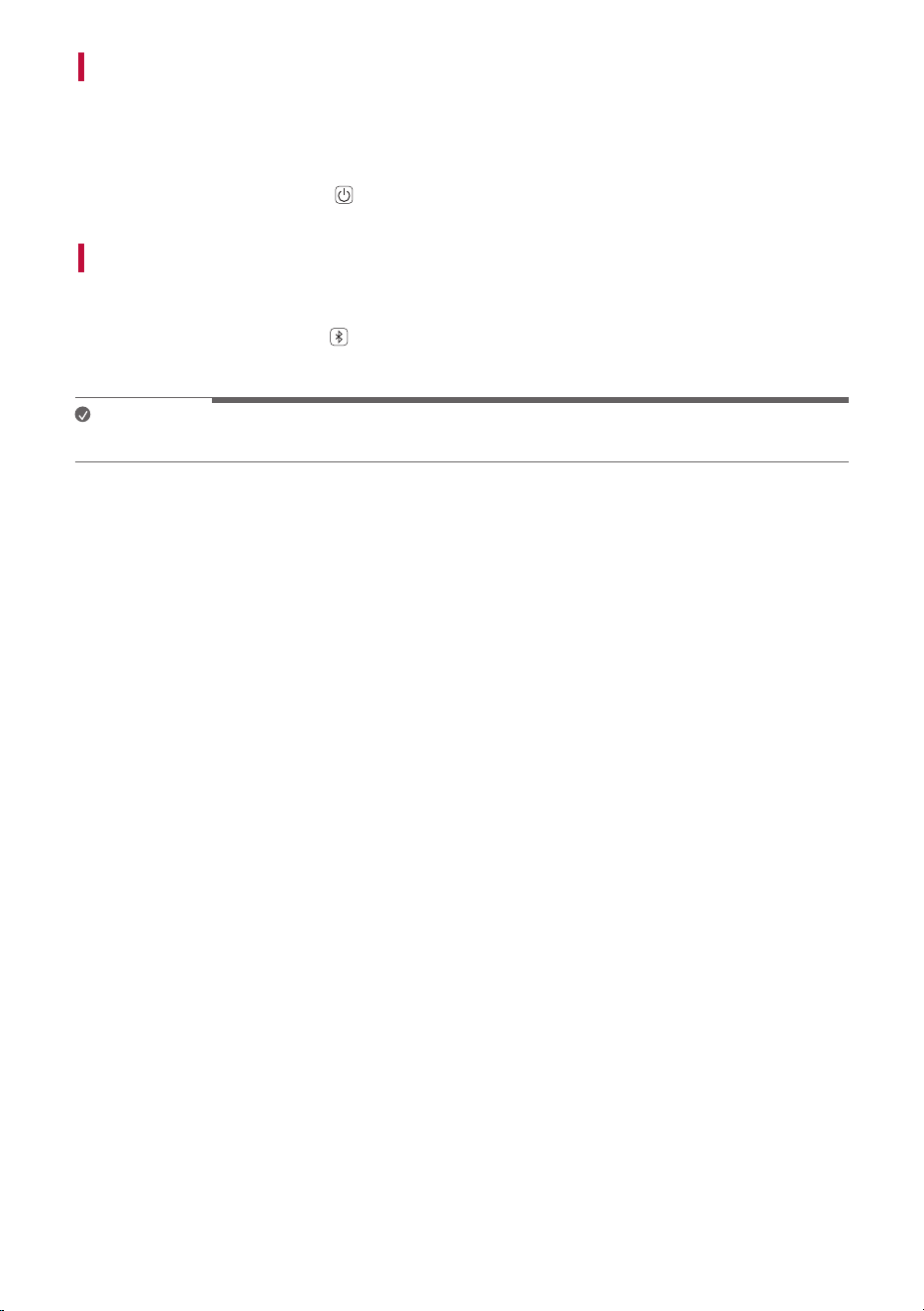
Resetting the product
You can reset the product when it operates improperly.
a Open the power supply cover on the back of the product and use a sharp object to press the RESET
button to power off the product.
b Turn on by pressing the Power
button.
Initializing the Software
It Initializes the Bluetooth connection and settings of the product.
a Press and hold the Bluetooth
button on the product for 7 seconds or longer.
b All the buttons will blink four times to Initialize the Bluetooth connection and all settings.
Note
To use the Bluetooth function after Initializing the product, connect the Bluetooth device again.
30
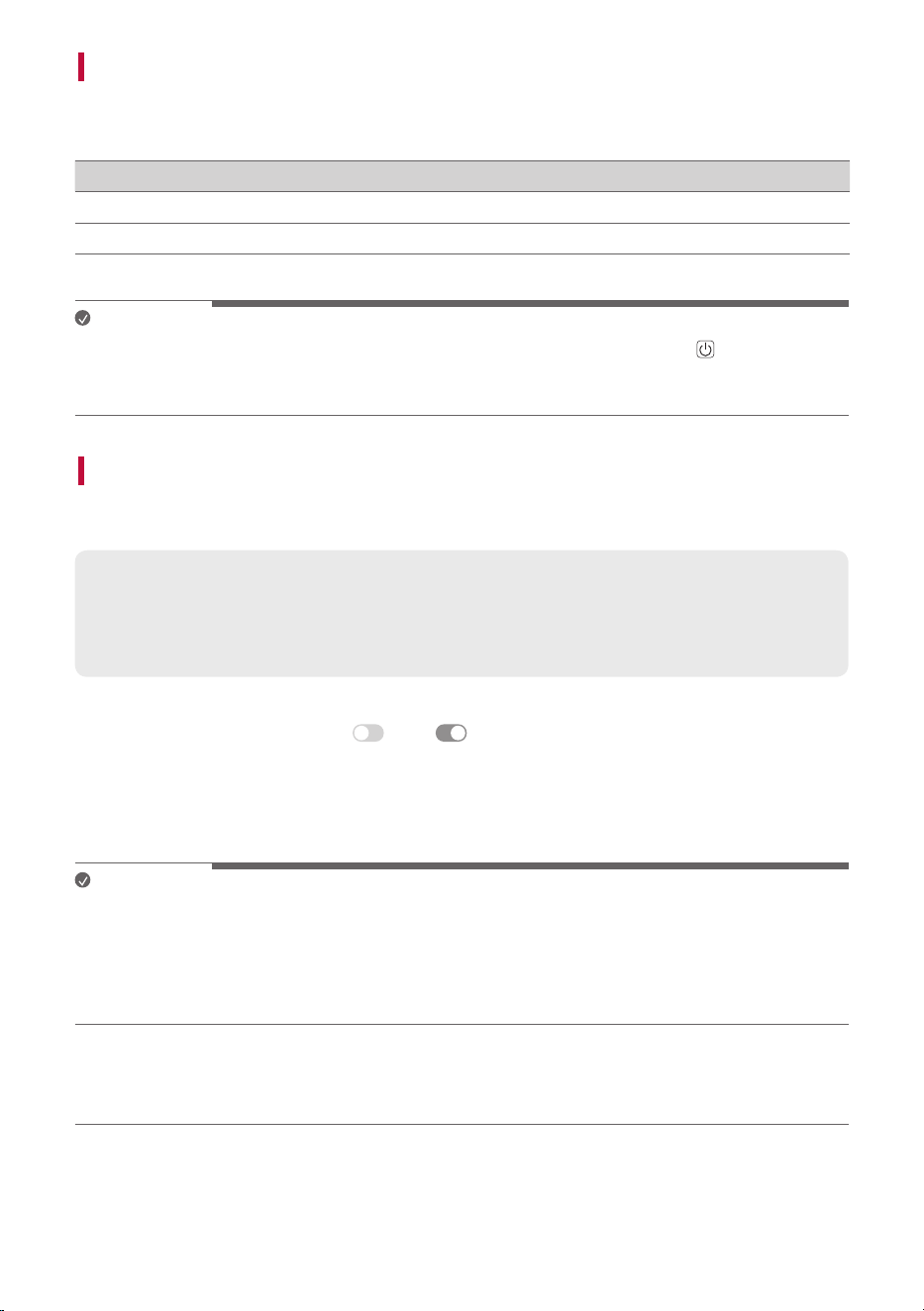
Power Saving Mode
If there is no playback or button input for 15 minutes, the product turns off automatically. You can enable
or disable the power saving mode as follows.
Function How to Use
Enable Set [Auto Power Management] to [Enable] in the LG ThinQ app.
Disable Set [Auto Power Management] to [Disable] in the LG ThinQ app.
Note
• When the power saving function is off, the product turns off only when the Power
button is pressed
or the battery is discharged.
• Not using this feature may increase the energy consumption.
Using Power On via Bluetooth
You can easily use the speaker with your Bluetooth device.
Please check the following first.
• The speaker has a history of Bluetooth connection with the Bluetooth device.
• The speaker is charging and the power is off.
a Tap the Setting button on your Bluetooth device and select Bluetooth.
b Turn on the Bluetooth function. (
Off > On)
c You will see a list of connectable devices on the Bluetooth device screen. Find and tap the name
“xboom Stage301”.
d The speaker power is turned on automatically. Then the Bluetooth device and the speaker are
connected automatically.
Note
• You can turn this function on and off with the LG ThinQ app only.
• If you set to [Always On] of this function on the LG ThinQ app, the product can be powered on via
Bluetooth connection.
- However if the battery level is below 20 %, this function does not work to prevent discharge. Charge
the product if the battery LED blinks red.
How to deactivate the wireless network connection(s).
Set up the Auto power function to off by the app and turn off the product.
31
Voice feedback function
When you select a function or sound, the current status of the product is guided by voice. (English voice
only)
You can turn this function on and off with the LG ThinQ app.
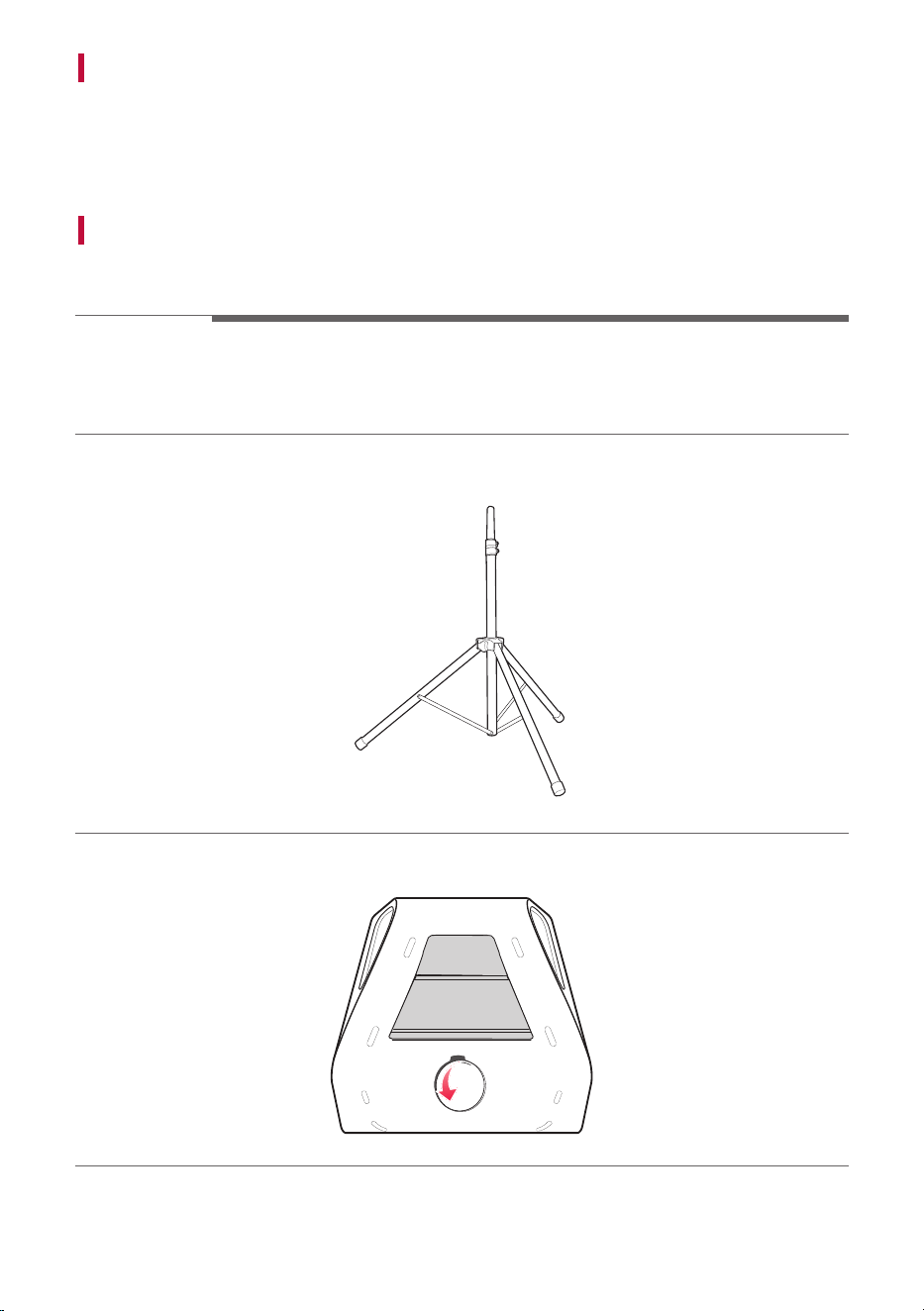
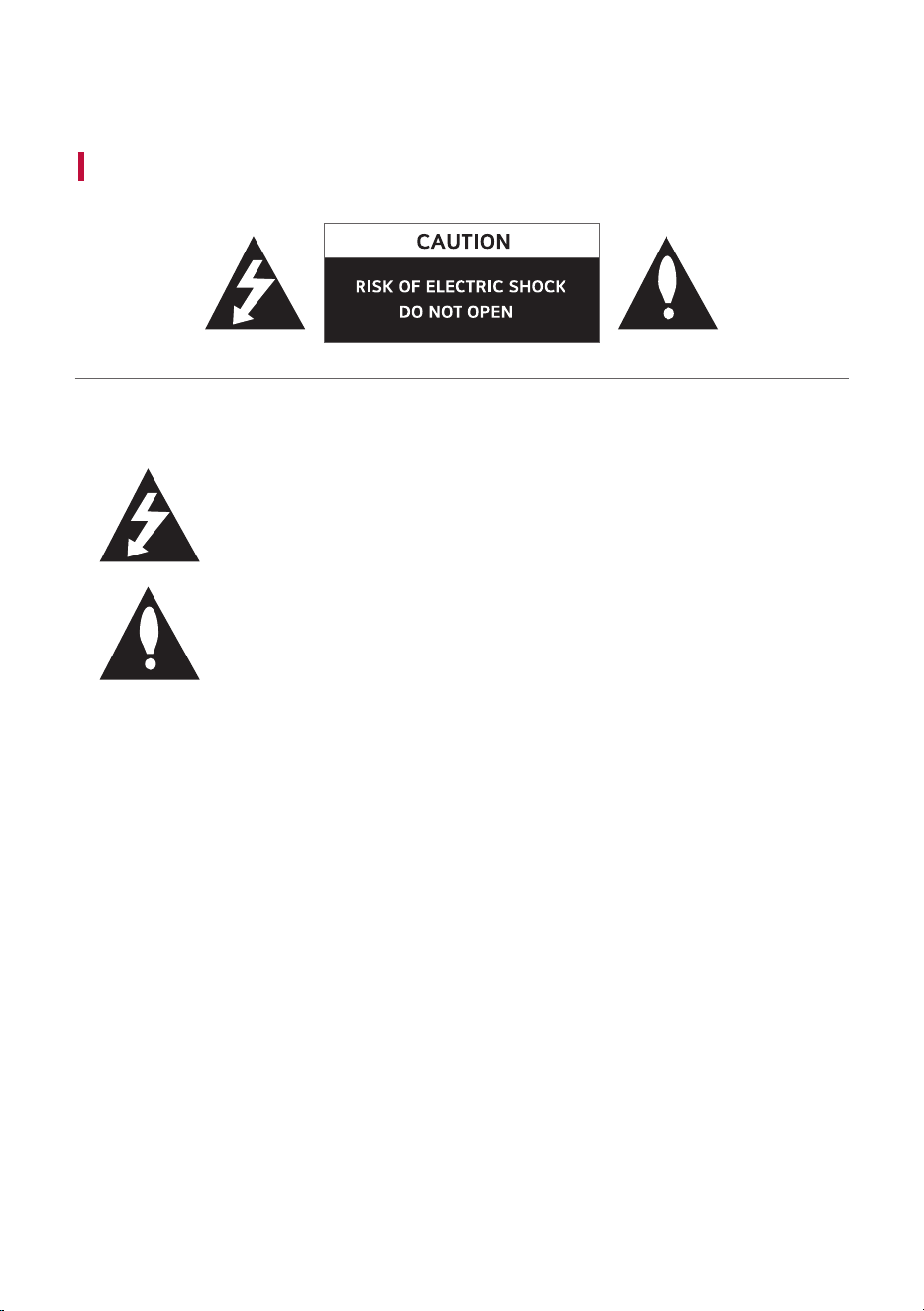
Use of Tripod
You can mount the product on a tripod. The tripod is an optional purchase.
> CAUTION
• Extend the tripod legs as much as possible and tighten up the screw securely.
• Before connecting with the product, you must set up the tripod completely to prevent shaking.
• You should work together with two or more people when connecting the product and the tripod.
a Unfold the tripod on a flat surface and then fix the tripod. Tighten up the tightening part of the
tripod.
b Open the tripod hole cup on the bottom of the product.
32
c Lift the product and connect the tripod to fixing part on the bottom of the product.

33
Note
• If you use a tripod, use the tripod only for product.
• Use tripod as below :
- From tripod’s center to tripod’s leg : above 700 mm (27.56 inches)
- From top of tripod to bottom of tripod : below 1100 mm (43.31 inches)
- Standpolesize:Φ35mm(1.38inches)
• For safe use, set the tripod as low as possible.
• You should pull the center column to the maximum only in case of need.
• Mount only one product on each tripod.
• Do not try to extent the tripod legs beyond it’s allowed range.
• Make sure the tripod is correctly assembled and all its components are tightly connected.
• Do not try to assemble the tripod if parts are missing or defective.
• After installation, make sure the product is set up firmly on the tripod.
• Do not place the product on anything unstable where it might accidentally fall over.
• Add weight such as sand bags around the tripod legs to prevent the tripod from falling over.
• You should limit people around the product while its on a tripod. Otherwise it may result in an accident
and may cause personal injury or property damage.
• Standing on the stool to reach product's control panel is risky and might lead to injuries.
• Do not put or affix other objects on the tripod.
• Do not shake or push the product when the tripod is installed.
• Refrain from moving around the tripod after product is installed.
• Remove all connected cables to the product on the tripod before moving the tripod or adjusting its
height.
• When transporting or moving the product, always use two or more people.
• When you use the tripod, use an extension cord. Always be careful with the movement of the cable.
• Do not expose the product to excessive dust, vibrations, extreme cold or heat (such as in direct
sunlight or near a heater) to prevent the possible disfigurement of the panel or damage to the internal
components.
• When using the external input cable (Mic, etc.) after installing the product on the tripod, external input
cable can cause the product to fall down.
• Watch out because people can trip over the input cable (Mic, etc.) connected the product.
• Always be careful not to trip over the product.
34
Safety Precautions
Safety and Regulatory
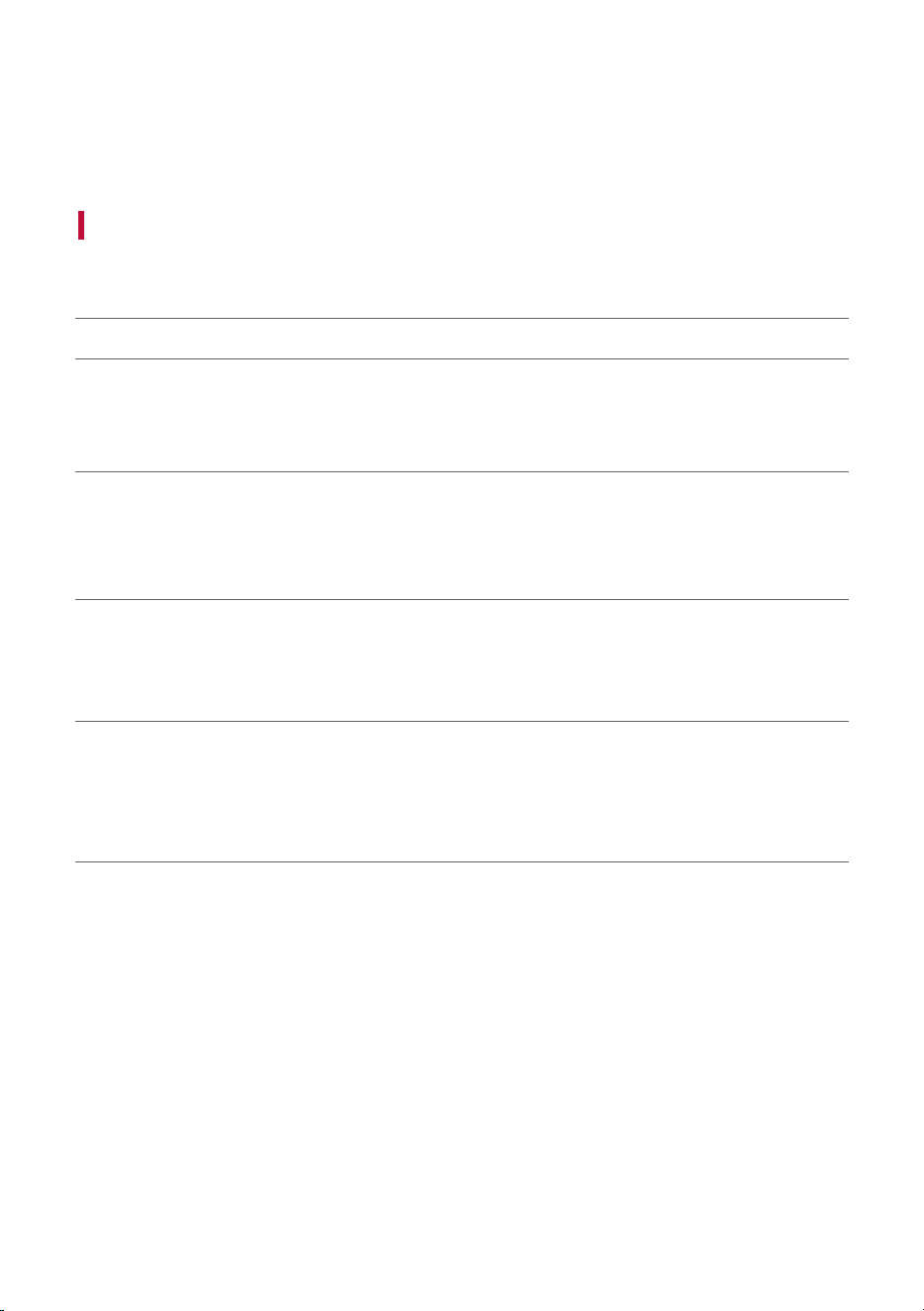
CAUTION: TO REDUCE THE RISK OF ELECTRIC SHOCK DO NOT REMOVE COVER (OR BACK) NO USER-
SERVICEABLE PARTS INSIDE REFER SERVICING TO QUALIFIED SERVICE PERSONNEL.
This lightning flash with arrowhead symbol within an equilateral triangle is intended
to alert the user to the presence of uninsulated dangerous voltage within the
product’s enclosure that may be of sufficient magnitude to constitute a risk of
electric shock to persons.
The exclamation point within an equilateral triangle is intended to alert the user to
the presence of important operating and maintenance (servicing) instructions in the
literature accompanying the product.
WARNING:
• TO PREVENT FIRE OR ELECTRIC SHOCK HAZARD, DO NOT EXPOSE THIS PRODUCT TO RAIN OR
MOISTURE.
• Do not install this equipment in a confined space such as a book case or similar unit.
CAUTION:
• Do not use high voltage products around this product. (ex. Electrical swatter) This product may
malfunction due to electrical shock.
• No naked flame sources, such as lighted candles, should be placed on the apparatus.
• Do not block any ventilation openings. Install in accordance with the manufacturer’s instructions. Slots
and openings in the cabinet are provided for ventilation and to ensure reliable operation of the product
and to protect it from over heating. The openings should never be blocked by placing the product on
a bed, sofa, rug or other similar surface. This product shall not be placed in a built-in installation such
as a bookcase or rack unless proper ventilation is provided or the manufacturer’s instruction has been
adhered to.
• The apparatus should not be exposed to water (dripping or splashing) and no objects filled with liquids,
such as vases, should be placed on the apparatus.
• For safety marking information including product identification and supply ratings, please refer to the
main label on the bottom or the other surface of the product.
• Be careful to make sure children do not put their hands or any objects into the *speaker duct.
- * speaker duct: A hole for plentiful bass sound on speaker cabinet. (enclosure)
Safety Precautions

35
CAUTION concerning the Power Cord
The Power Plug is the disconnecting device. In case of an emergency, the Power Plug must remain readily
accessible.
Check the specification page of this owner’s manual to be certain of the current requirements.
Do not overload wall outlets. Overloaded wall outlets, loose or damaged wall outlets, extension cords,
frayed power cords, or damaged or cracked wire insulation are dangerous. Any of these conditions could
result in electric shock or fire. Periodically examine the cord of your device, and if its appearance indicates
damage or deterioration, unplug it, discontinue use of the device, and have the cord replaced with an exact
replacement part by an authorized service center.
Protect the power cord from physical or mechanical abuse, such as being twisted, kinked, pinched, closed
in a door, or walked upon. Pay particular attention to plugs, wall outlets, and the point where the cord
exits the device.
CAUTION when using this product in environments of low humidity
• It may cause static electricity in environments of low humidity.
• To prevent static electricity, it is recommended to touch metal objects before using this product.

36
For models using a battery
This device is equipped with a portable battery or accumulator.
CAUTION: Risk of fire or explosion if the battery is replaced by an incorrect type.
NOTICE: For the safe use of the product, the product may adjust or block charging if excessive
battery capacity reduction is detected. As the battery is a consumable, replace it if the usage time has
significantly decreased.
For models using a built-in battery
Do not store or transport at pressures lower than 11.6 kPa (0.116 bar) and at above 15,000 m (9.32
miles) altitude.
• replacement of a battery with an incorrect type that can defeat a safeguard (for example, in the case of
some lithium battery types), must be replaced with the same type battery by expert;
• disposal of a battery into fire or a hot oven, or mechanically crushing or cutting of a battery, that can
result in an explosion;
• leaving a battery in an extremely high temperature surrounding environment that can result in an
explosion or the leakage of flammable liquid or gas;
• a battery subjected to extremely low air pressure that may result in an explosion or the leakage of
flammable liquid or gas.
Symbols
: Alternating current (AC).
0 : Direct current (DC).
: This is a class II equipment.
1 : Standby power state.
! : The power is turned on.
: Danger voltage.

37
Prevention of product misuse
To prevent misuse of the product, please be sure to check the contents below.
Precautions for installing the product
• Do not install the product in an unstable or vibrating place, such as on a shaking shelf or inclined
surface. Install the product on a firm and level surface.
- Otherwise, the product may fall or tip over and cause injury.
- If you install the product on an unstable surface, the product may not work properly.
• If you install the product on a piece of furniture or shelf, make sure that the bottom front of the
product does not protrude. Always use a piece of furniture or shelf that fits the product size.
- Otherwise, the product may lose its balance and fall, causing injury or product damage.
• Install the product in a safe place. Otherwise, a child may bump into an edge of the product and get
injured.
• Install the product in a place free from electromagnetic interference for proper operation.
• If you install the product in a place that does not meet the general use conditions, an unexpected
quality problem may arise. So, make sure that you contact the service center first before installing the
product in such a place.
• Do not keep the product in a place where the temperature is too high (above 35 °C (95 °F)) or too low
(below 5 °C (41 °F)) or a place with too much humidity.
• Avoid places exposed to direct sunlight or heat, e.g., near a heater. Do not use or keep flammable sprays
or substances near the product.
- Otherwise, there is a risk of explosion or fire.
• Do not install the product in a place with too much moisture, dust or soot.
- Otherwise, it may cause a fire or electric shock.
• Do not install the product in a narrow space, such as inside a bookshelf, that does not ventilate well. Do
not cover the product with a table cover or curtain.
- Otherwise, it may increase the product temperature, causing a breakdown or fire.
• Connect the power plug of the product to a power outlet that is easily accessible.
- When a fire or other problem occurs in the product, you must be able to remove the power plug
quickly.
• Do not connect multiple products to one power outlet at the same time.
- Otherwise, it may cause overheating, resulting in a fire.

38
Precautions for using the product
• Do not lift or move the product while it is operating.
- Otherwise, it may cause a breakdown.
• When moving the product, pull out the power cord and all cables connected to the product.
- Otherwise, it may cause a fire or electric shock.
• Stop using the product immediately if you notice smoke or a strange odor. In this case, turn off the
power immediately, disconnect the power plug, and contact the service center.
- Using the product in this state may result in a fire or electric shock.
• Do not insert metal objects such as coins and hairpins or flammable objects such as paper and
matchsticks into the product. Make sure that you tell any children not to do so.
- Otherwise, it may cause a breakdown.
• If a foreign substance is inserted into the product, disconnect the power plug and contact the service
center.
• Do not put a heavy object on top of the product.
- Otherwise, it may tip over or fall, causing injury.
• Make sure that a child does not hang on the product or get on it.
- Otherwise, the product may tip over or fall, causing injury. Make sure that you tell any children not to
do so.
• Remove the power plug during thunderstorms.
- Otherwise, it may cause a fire.
• Do not place vessels with liquid, such as a vase, pot, cosmetics, or medicine, on top of the product.
- Otherwise, it may result in a fire, electric shock, or injury due to its fall, etc.
• Make sure that you connect the power plug firmly. Do not use voltage other than the rated voltage
indicated on the product.
- An insecure connection may result in a fire.
• Do not insert a conductor, such as chopsticks, into the groove on the other side of the product while
the power plug is connected to an outlet. Do not touch the power plug immediately after unplugging it
from the outlet.
- Otherwise, it may cause electric shock.
• Hold the power plug with dry hands.
- Otherwise, it may cause electric shock.
• Do not move or push the product while holding a product cable such as a power cord.
- The cable may get damaged and cause a breakdown or result in a fire or electric shock.
• When removing a cable plugged into the product, make sure that you hold the connector at the end of
the cable. Do not hold the cable line.
- Otherwise, it may result in an injury or the product may fall and cause a breakdown.
• Do not keep the product in a place exposed to heat, e.g., near a heater.
- Otherwise, it may cause a fire or malfunction.
• Do not disassemble, repair, or modify the product.
- Otherwise, it may cause a breakdown, resulting in a fire, electric shock, or injury.
• Keep plastic wraps out of reach of toddlers.
- Otherwise, toddlers may choke on the plastic wraps.
• Do not drop an object on the product or make an impact on it. Keep the product away from places with
severe vibrations or magnets.

39
• Do not damage, modify, bend, twist, or heat a power cord.
- Otherwise, it can damage the power cord, resulting in a fire or electric shock.
• When you are not using the product for a prolonged period, such as when you are away from home,
unplug the power cord from the power outlet.
- If dust accumulates, it can cause heat, resulting in electric shock or fire due to a short circuit.
• Do not dispose of waste batteries together with regular waste. Dispose of them separately.
- Otherwise, there is a risk of explosion or fire.
• Do not use high voltage products around this product. (ex. Electrical swatter)
- This product may malfunction due to electrical shock.
• Do not touch the power plug immediately after unplugging it from the outlet.
- Otherwise, it may cause electric shock.
• Connect the power plug to a grounded outlet or extension cord. (This does not apply to products
without a ground.)
- Otherwise, it may cause a breakdown or electric shock due to a short circuit.
• In the case of a product with a vent, keeping the product turned on for a prolonged period can result
in the vent getting hot. Do not touch the vent when it is hot. The heat is not a fault of the product and
does not cause any malfunction. So, you may use the product without worry.
• Do not damage the power cable, AC adapter, or power plug. Do not place a heavy object on top of the
power cable or AC adapter.
- Otherwise, it may cause a fire or electric shock.
• If dust, dirt, etc. is found on the power plug pins, an AC adapter, or a power outlet, wipe it completely.
- Otherwise, it may cause a fire.
• In the case of a product with a power cord or AC adapter, use only genuine power cords and AC
adapters provided by LG Electronics.
- Otherwise, it may cause a fire or electric shock.
• If you are using headphones or earphones, do not turn on the volume too loudly or use them for a
prolonged period. [This only applies to models that support headphones or earphones]
- Otherwise, it may negatively affect your hearing ability.
• The software of this product can be updated with the LG ThinQ app. Do not turn off the power of
the product while updating the software. Once the update is complete, the product power turns off
automatically.
- If you turn off the power of the product while the software is being updated, it may cause a product
malfunction.

40
The following only applies to models with a remote control
• Do not let children use the remote control. Keep the remote control out of reach of toddlers.
• Do not let children put the remote control in their mouth. Make sure that children don’t swallow the
remote control cover or a battery. If a child swallowed one, consult a physician immediately.
• Beware that children may step on the remote control cover and get injured.
• Remove obstacles between the product and the remote control for the smooth operation of the remote
control.
The following only applies to models that use optical discs
• Do not insert your hand into a disc drive or pull it out forcefully.
• Make sure that children do not insert their hands into the disc drive.
The following only applies to models that able to watch video
• Refrain from watching a 3D video if you didn't have enough sleep or after drinking alcohol.
- Some 3D videos may surprise or excite people.
• If any of the following symptoms occur while watching a video, stop watching it immediately and take a
rest.
- If any of the symptoms continue, consult a physician. Vertigo, burning sensation of eyes or face,
unconscious motion, spasm, clouded consciousness, confusion, disorientation, nausea.
• You may suffer a symptom such as a seizure when you watch a certain image in a video or game or a
video with a certain pattern or flashing lights. If you or any of your relatives have a history of epilepsy
or seizures, consult a physician before watching.
• When you watch a 3D video, remove objects that are fragile or can cause injury from your surroundings.
- If you mistake a 3D video as real or move your body with surprise, you or your nearby relatives may
get injured or objects near you may get damaged.
Precautions for cleaning the product
• Do not spray water directly onto the product when cleaning it.
- Otherwise, it may cause a fire or electric shock.
• When cleaning the product, make sure that you pull out the power cord first and wipe the surface of
the product lightly with a dry cloth. Do not use chemicals or detergents when cleaning the product.
They may deteriorate the product surface or peel off the paint from the product (benzene, alcohol, etc.).
41
Things to Check before Reporting
Malfunction
Troubleshooting
If you experience the following symptoms while using the product, please check them again. They may not
be malfunctions.
Symptom Cause and Solution
Power is not
supplied.
• The battery is discharged. Recharge the battery.
- Charge the product by connecting the power cord to the power input
terminal.
• The power cord is not plugged in. Plug in the power cord.
There is no
sound or
the sound is
distorted.
• The volume of product or the connected Bluetooth device may be set to the
minimum. Adjust the volume of product or the connected Bluetooth device to
the appropriate level.
• Using an external device with the maximized sound may distort the sound.
Lower the volume of the external device to use.
The USB
storage
device is not
recognized.
• The product may not support the file system of the USB storage device. Format
the USB storage device and reconnect it. When formatting, check the supported
USB storage device format available on the product and select an appropriate
file system. ([ See “Connecting the product to a USB storage device” on page
25.)
Bluetooth
connection
failed.
• Check if the Bluetooth setting is enabled.
• Turn off the Bluetooth setting and on again on the Bluetooth device.
• Make sure there are no obstacles between product and the Bluetooth device.
• Bluetooth pairing (connecting) may fail depending on the Bluetooth device
type and the surrounding environment.
Things to Check before Reporting Malfunction
42
The product
does not
operate
normally.
• Battery discharge may cause the Bluetooth information to be deleted. If the
product’s power supply is blocked, previous settings may not be saved.
• Use this product in a place where the temperature and humidity are not too
high or low. If the problem continues, contact LG Electronics’ Customer Service
Center.
• If a problem occurs while charging the battery of the product, the button
backlight and lighting indicatior alternates between red and amber and charging
stops. Unplug the adapter from the outlet.
The above
solutions do
not work.
• Initializes the settings of the product. Press and hold the Bluetooth
button
on the product for 7 seconds or longer. ([ See “Initializing the Software” on
page 29.)
• Use a sharp object such as a pin to press the RESET button. ([ See “Resetting
the product” on page 29.)
43
Appendix
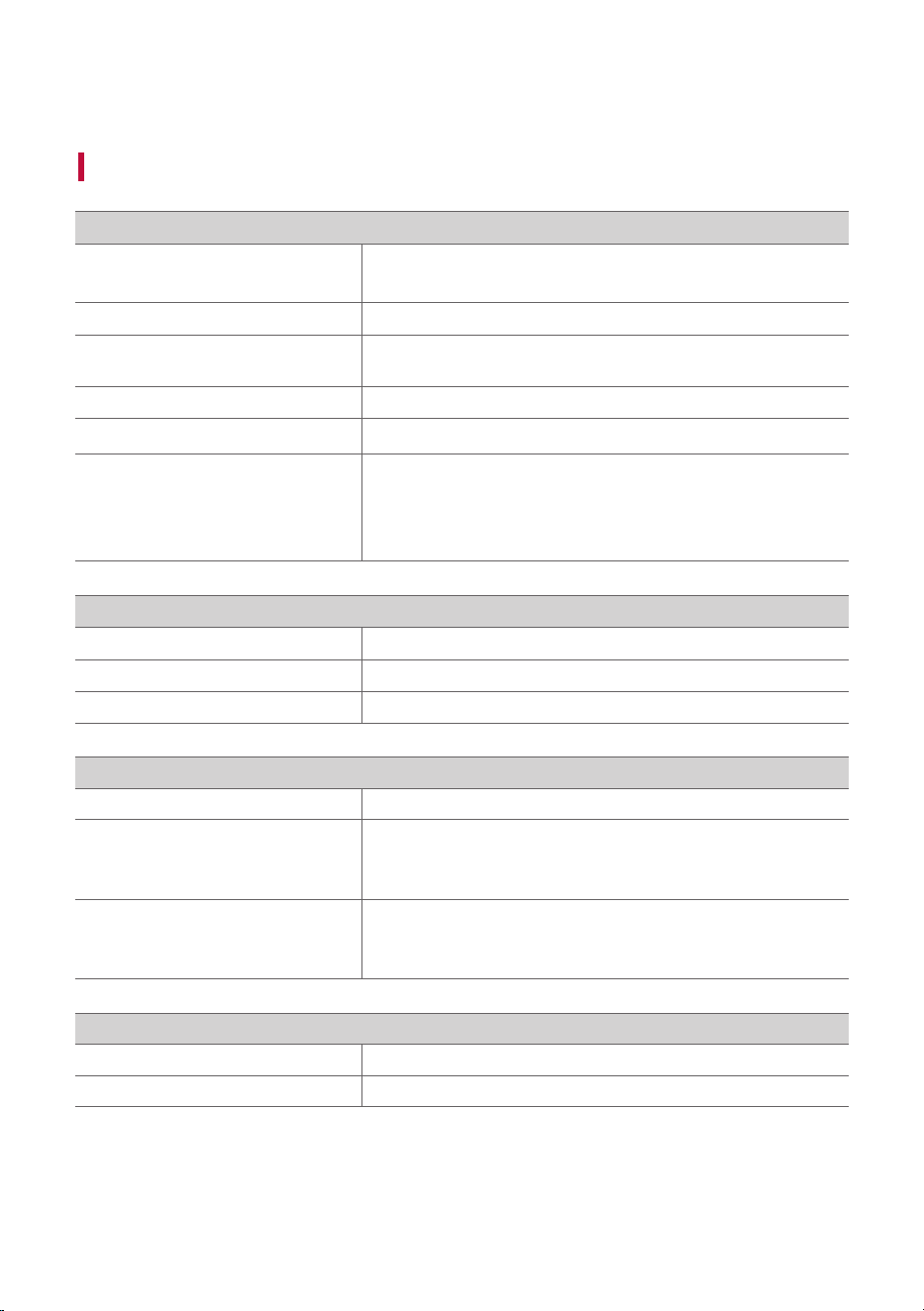
Product Specifications
General
Power requirements
Refer to the main label.
Rechargeable battery
Power consumption Refer to the main label.
Dimensions (W x H x D)
Approx. 312 mm x 311 mm x 282 mm (12.3 inch x 12.2 inch x
11.1 inch)
Operating Temperature 5 °C - 35 °C (41 °F - 95 °F)
Operating Humidity 5 % - 80 % RH
Ingress protection
IPX4
- Liquid: Protected against splashing water.
- When charged, the water-resistant function is limited, so use
it in a place that is not exposed to water.
Input
USB
5 V 0 500 mA
Microphone (MIC IN) Sensitivity 20 mV (1 kHz), 6.3 mm jack
Guitar (GUITAR IN) Sensitivity 190 mV (1 kHz), 6.3 mm jack
Battery
Battery capacity 7.26 Vdc, 4700 mAh, 34.13 Wh
Operating time
12 hours
Operation time may vary depending on the battery or
operation status.
Charging time
3 hours
Charging time may vary depending on the battery or operation
status.
Amplifier (RMS output)
Woofer 70 W RMS
Tweeter 25 W RMS x 2
• Design and specifications are subject to change without notice.
Appendix
44
Registered Trademarks and Licenses
All trademarks and trade names are owned by their respective owners.
The Bluetooth
®
word mark and logos are registered trademarks owned by the Bluetooth SIG, Inc. The
Auracast™ word mark and logos are trademarks owned by the Bluetooth SIG. Any use of such marks by
LG Electronics is under license.
Other trademarks and trade names are those of their respective owners.
Android, Google Play, the Google Play logo, and other related marks and logos are trademarks of Google
LLC.
Use of the Made for Apple badge means that an accessory has been designed to connect specifically
to the Apple product(s) identified in the badge and has been certified by the developer to meet Apple
performance standards. Apple is not responsible for the operation of this device or its compliance with
safety and regulatory standards. Apple, Apple TV, Apple Watch, iPad, iPad Air, iPad Pro, iPhone, Lightning,
and tvOS are trademarks of Apple Inc., registered in the U.S. and other countries and regions.

45
Handling the Product
When shipping the Product
Please save the original shipping carton and packing materials. If you need to ship the product, for
maximum protection, re-pack the product as it was originally packed at the factory.
Keeping the exterior surfaces clean
• Do not use volatile liquids such as insecticide spray near the product.
• Wiping with strong pressure may damage the surface.
• Do not leave rubber or plastic products in contact with the product for a long period of time.
Cleaning the product
To clean the product, use a soft, dry cloth. If the surfaces are extremely dirty, use a soft cloth lightly
moistened with a mild detergent solution. Do not use strong solvents such as alcohol, benzine, or thinner,
as these might damage the surface of the product.