Quick Start Guide
DIGITAL MULTIFUNCTIONAL SYSTEMDIGITAL MULTIFUNCTIONAL SYSTEMDIGITAL MULTIFUNCTIONAL SYSTEM
Quick Start Guide
MODEL:MODEL: BP-B540WR
BP-B550WD
BP-B540WR
BP-B550WD
BEFORE USING THE MACHINE
Functions of the machine and procedures
for placing originals and loading paper
COPIER
Using the copy function
PRINTER
Using the printer function
FACSIMILE
Using the fax function
SCANNER
Using the scan function
DOCUMENT FILING
Storing jobs as files on the local
drive
SETTING MODE
Configuring settings to make the
machine easier to use

2
HOW TO USE MANUALS
Start Guide
This manual explains basic procedures for using the machine, cautions for safe use of the machine, and information for
the administrator. Read this manual before using the machine.
For detailed operating procedures and troubleshooting information, see the user's manual.
User's Manual
Detailed explanations of the functions that can be used on the machine are provided in the "User's Manual".
The manuals for this machine are uploaded to a website. Tap [User's Manual] on the touch panel of the machine and a
QR code will be displayed. Scan the QR code with a smartphone or other device to go to the website where manuals are
available.
You can download various manuals from the website. The user's manual is also uploaded in HTML format and can be
viewed on your smartphone or computer.
Software Setup Guide
This guide explains how to install the software and configure settings to use the machine as a printer or scanner.
Cloud Connect Guide
This guide explains how to connect the machine to a cloud service on the Internet, enabling you to upload scanned data
and print data stored in the cloud.
AirPrint Guide
This guide explains how to use AirPrint.
Downloading the User's Manual in PDF format
Access the website from the following URL or QR code.
The website is displayed in English.
Switch to your preferred language before viewing and downloading the manual.
In addition, the same "User's Manual", you can see download to your computer from the Web site.
* Manual types may be updated. For more information, see our website.
URL:
https://global.sharp/restricted/products/copier/downloads/manuals/select.html
3
TABLE OF CONTENTS
HOW TO USE MANUALS . . . . . . . . . . . . . . . . . . . . . . . . . . . . . . . . . . . . . . . . . . . . . . . 2
PART NAMES AND FUNCTIONS . . . . . . . . . . . . . . . . . . . . . . . . . . . . . . . . . . . . . . . . . 5
TURNING ON/OFF THE POWER . . . . . . . . . . . . . . . . . . . . . . . . . . . . . . . . . . . . . . . . . 7
OPERATION PANEL . . . . . . . . . . . . . . . . . . . . . . . . . . . . . . . . . . . . . . . . . . . . . . . . . . . 8
PLACING ORIGINALS . . . . . . . . . . . . . . . . . . . . . . . . . . . . . . . . . . . . . . . . . . . . . . . . 10
ADJUSTING THE VOLUME . . . . . . . . . . . . . . . . . . . . . . . . . . . . . . . . . . . . . . . . . . . . 11
LOADING PAPER . . . . . . . . . . . . . . . . . . . . . . . . . . . . . . . . . . . . . . . . . . . . . . . . . . . . 12
SAVING CONTACTS IN THE ADDRESS BOOK . . . . . . . . . . . . . . . . . . . . . . . . . . . . 18
ACCESSING THE WEB SERVER IN THE MACHINE . . . . . . . . . . . . . . . . . . . . . . . . 19
USER AUTHENTICATION. . . . . . . . . . . . . . . . . . . . . . . . . . . . . . . . . . . . . . . . . . . . . . 20
FUNCTIONS THAT CAN BE USED ON THE MACHINE . . . . . . . . . . . . . . . . . . . . . . 21
MAKING COPIES . . . . . . . . . . . . . . . . . . . . . . . . . . . . . . . . . . . . . . . . . . . . . . . . . . . . 22
COPYING ON SPECIAL PAPER (Bypass Copy) . . . . . . . . . . . . . . . . . . . . . . . . . . . 24
PRINTING IN A WINDOWS ENVIRONMENT . . . . . . . . . . . . . . . . . . . . . . . . . . . . . . . 26
PRINTING IN A macOS ENVIRONMENT . . . . . . . . . . . . . . . . . . . . . . . . . . . . . . . . . . 28
DIRECTLY PRINTING A FILE IN USB MEMORY. . . . . . . . . . . . . . . . . . . . . . . . . . . . 30
SENDING A FAX . . . . . . . . . . . . . . . . . . . . . . . . . . . . . . . . . . . . . . . . . . . . . . . . . . . . . 31
BEFORE USING THE MACHINE
COPIER
PRINTER
FACSIMILE
4
NETWORK SCANNER FUNCTION. . . . . . . . . . . . . . . . . . . . . . . . . . . . . . . . . . . . . . . 33
SCANNING AN ORIGINAL . . . . . . . . . . . . . . . . . . . . . . . . . . . . . . . . . . . . . . . . . . . . . 34
SAVING A DOCUMENT ONLY (Scan to Local Drive). . . . . . . . . . . . . . . . . . . . . . . . 36
PRINTING A SAVED FILE. . . . . . . . . . . . . . . . . . . . . . . . . . . . . . . . . . . . . . . . . . . . . . 39
SETTING MODE . . . . . . . . . . . . . . . . . . . . . . . . . . . . . . . . . . . . . . . . . . . . . . . . . . . . . 40
SCANNER
DOCUMENT FILING
SETTING MODE
5
This section provides general information about the machine, including the names and functions of the parts of the
machine and its peripheral devices, and the procedures for placing originals and loading paper.
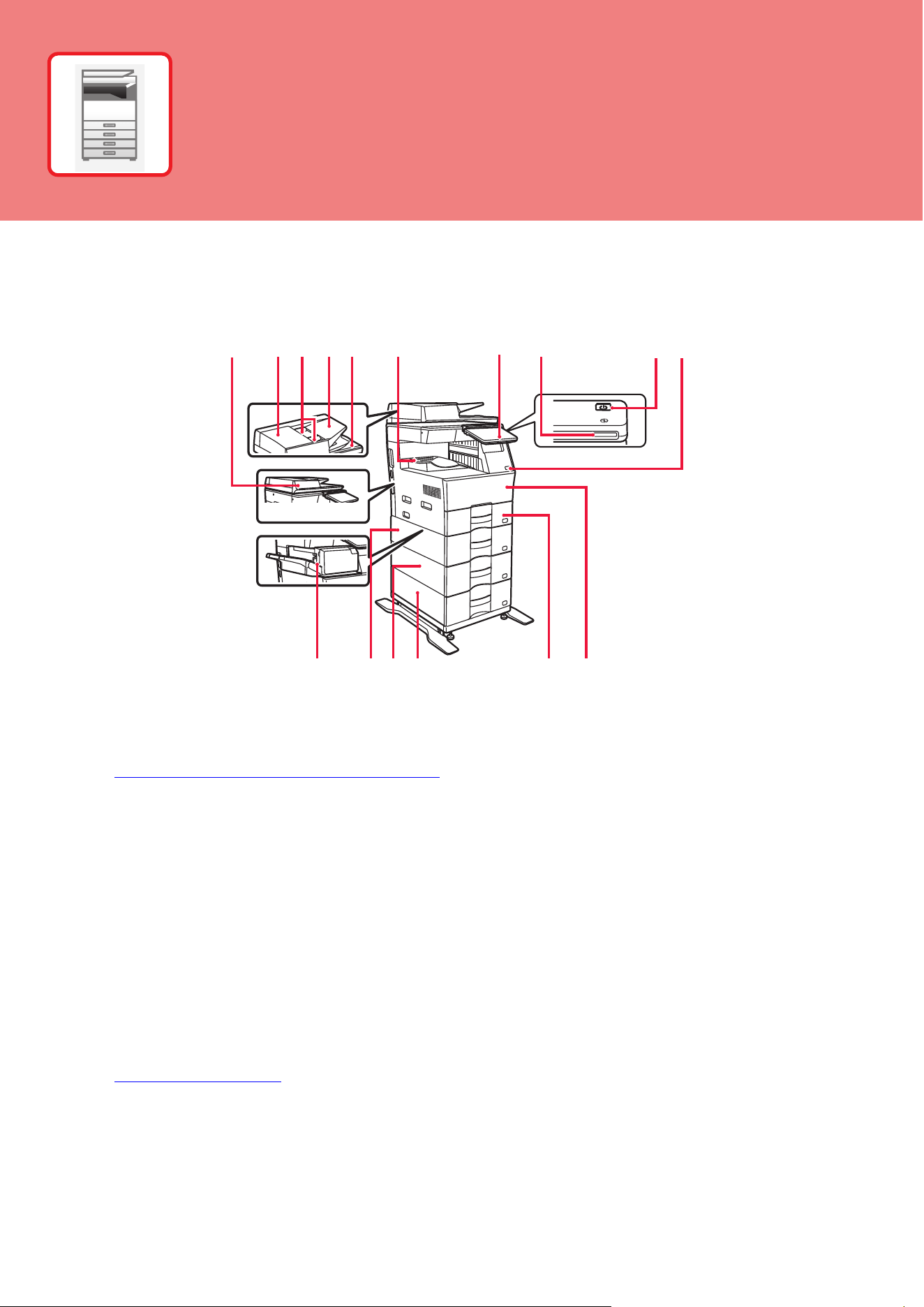
PART NAMES AND FUNCTIONS
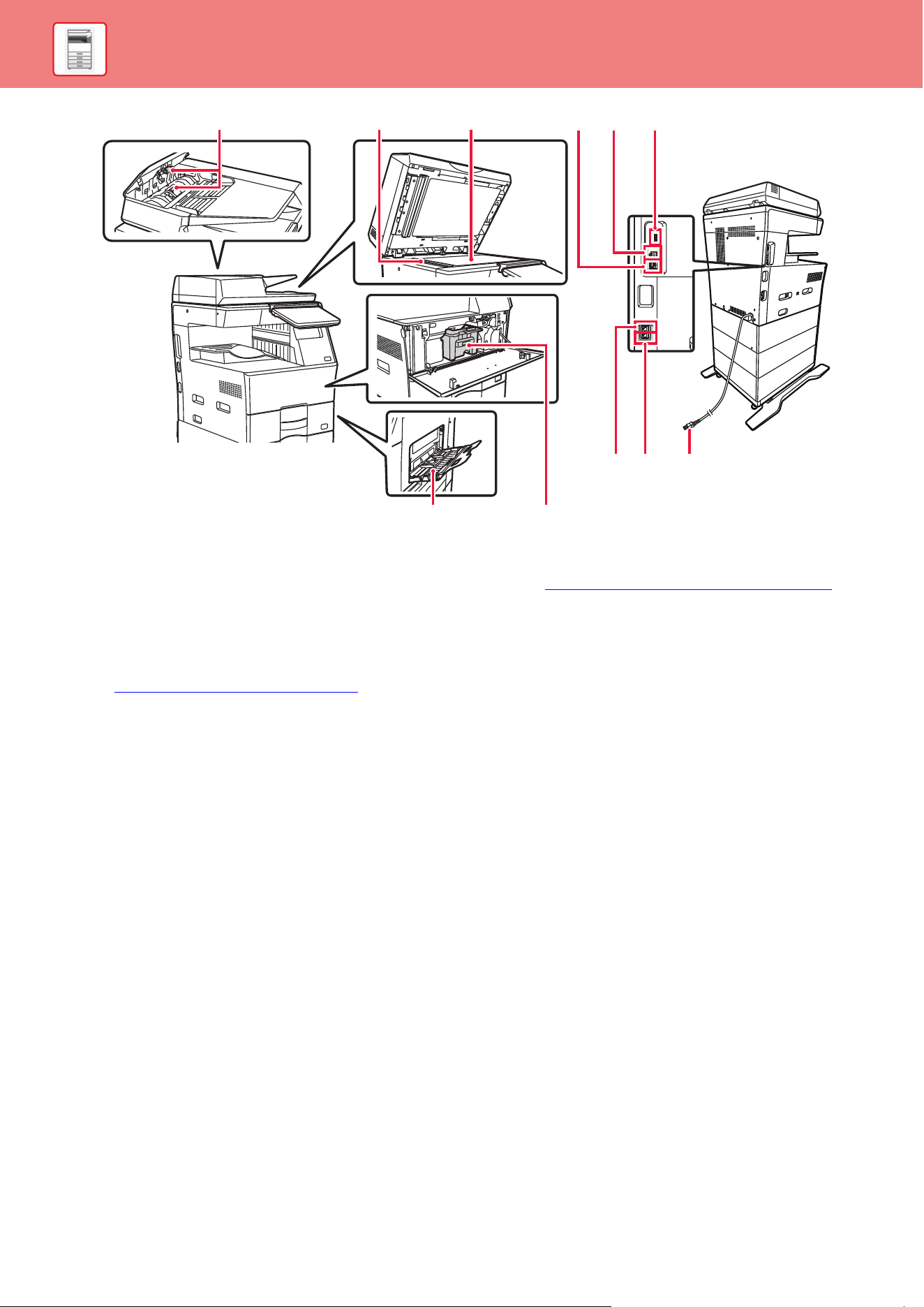
(1) Automatic document feeder
It automatically feeds and scans multiple originals. 2-sided
originals can be automatically scanned. For the BP-B550WD,
both sides of 2-sided originals can be automatically scanned at
one time.
►
USING THE AUTOMATIC DOCUMENT FEEDER (page 10)
(2) Document feeding area cover
Open this cover to remove an original misfeed or clean the
paper feed roller.
(3) Original guides
These guides help ensure that the original is scanned correctly.
Adjust the guides to the width of the original.
(4) Document feeder tray
Place the original.
Place the original with the print side facing up.
(5) Original exit tray
The original is discharged to this tray after scanning.
(6) Output tray
Output is delivered to this tray.
(7) Operation panel
This panel hosts the [Power] button, [Power Save]
button/indicator, error indicator, [Home Screen] key, main power
indicator, data notification indicator, and touch panel.
Use the touch panel to operate each of these functions.
► OPERATION PANEL (page 8)
(8) Power indicator
This indicator lights up when the machine's power switch is on
the position.
(9) [Power] button
Use this button to turn the machine's power on and off.
(10) USB port (A type)
This is used to connect a USB device such as a USB memory
device to the machine.
Supports USB 2.0 (Hi-Speed).
(11) Inner finisher*
This staples paper.
(12) Tray 1
Store paper in this tray. A maximum of 500 sheets (80 g/m
2
(20 lbs.)) of paper can be loaded.
(13) Tray 2 (when a 600-sheet paper feed unit is installed)*
Store paper in this tray. A maximum of 600 sheets (80 g/m
2
(20 lbs.)) of paper can be loaded.
(14) Tray 3 (when two 600-sheet paper feed units are installed)*
Store paper in this tray. A maximum of 600 sheets (80 g/m
2
(20 lbs.)) of paper can be loaded.
(15) Tray 4 (when three 600-sheet paper feed units are installed)*
Store paper in this tray. A maximum of 600 sheets (80 g/m
2
(20 lbs.)) of paper can be loaded.
(16) Front cover
Open this cover to replace a toner cartridge.
* Peripheral device. For more information, see the User's Manual.
BP-B540WR
(8)(6)
(10)
(9)
(1)
(12) (13)(14)(11) (15) (16)
(3)(2) (4) (5)
(7)
BEFORE USING
THE MACHINE
6
BEFORE USING THE MACHINE
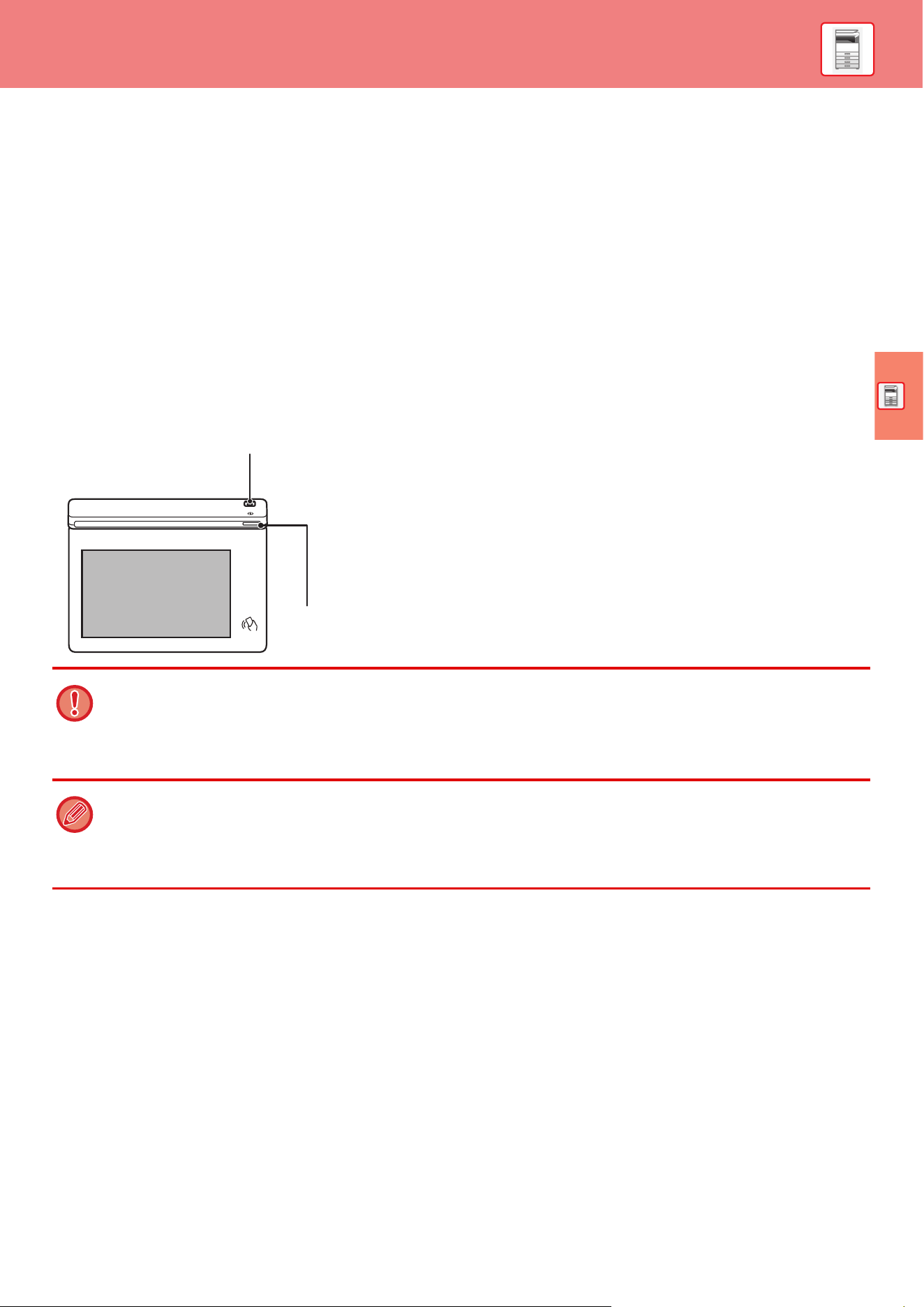
(1) Paper feed roller
This roller rotates to automatically feed the original.
(2) Scanning area
Originals placed in the automatic document feeder are scanned
here.
(3) Document glass
If you want to scan books or other thick originals that cannot be
fed through the automatic document feeder, place them on this
glass.
► USING THE DOCUMENT GLASS (page 10)
(4) LAN connector
Connect the LAN cable to this connector when the machine is
used on a network.
Use a shielded LAN cable.
(5) USB port (B type)
The machine does not use this connector.
(6) USB port (A type)
This is used to connect a USB device such as a USB memory
device to the machine.
Supports USB 2.0 (Hi-Speed) and USB3.0 (SuperSpeed).
(7) Bypass tray
Use this tray to feed paper manually.
When loading large paper, open the extension guide.
► LOAD PAPER INTO THE BYPASS TRAY (page 15)
(8) Toner cartridge
This cartridge contains toner.
When the toner in a cartridge runs out, replace with new one.
(9) Telephone line jack (LINE)
When the fax function of the machine is used, the telephone line
is connected to this jack.
(10) Extension phone jack (TEL)
When the fax function of the machine is used, an extension
phone can be connected to this jack.
(11) Power plug
(7)
(2)(1)
(8)
(3)
(9) (10) (11)
(4) (6)
(5)
BEFORE USING THE MACHINE
7
TURNING ON/OFF THE POWER
This section describes how to turn on/off the machine's power and how to restart the machine.
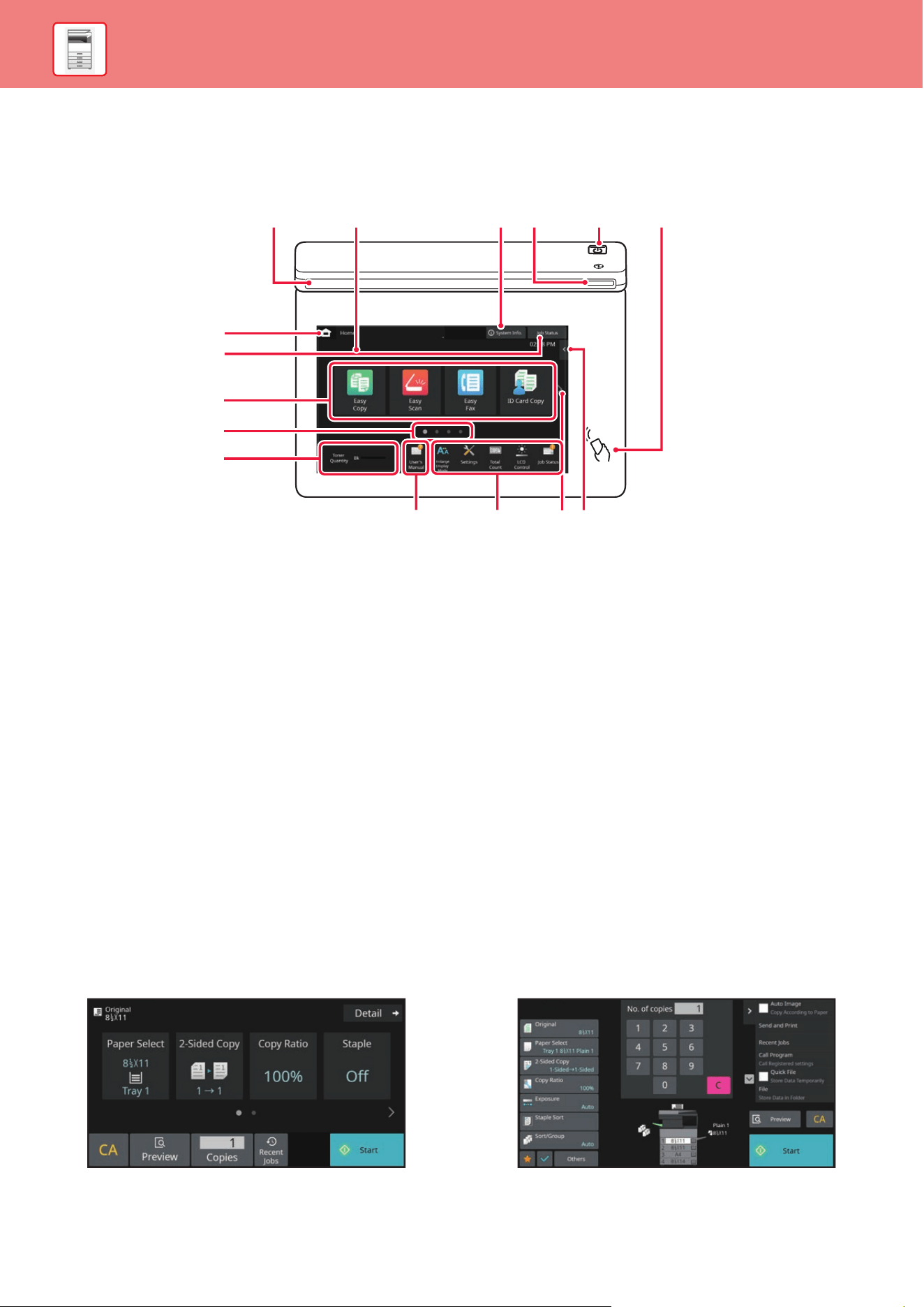
Operate the [Power] button on the operation panel.
Turning on the power
• Insert the power plug in the power outlet.
• When the power indicator lights in blue, press the [Power] button to turn on the power.
Turning off the power
After pressing the [Power] button, tap the [Power Off] key on the touch.
Restart the machine
After pressing the [Power] button, tap the [Power Off] key on the touch.
• When turning off the power, be sure to press the [Power] button on the operation panel, tap the [Power Off] key on the
touch panel.
• In a sudden case of power outage, turn the power for the machine back on and then turn it off in the correct order.
• Turn off both the [Power] button and unplug the power cord if you suspect a machine failure, if there is a bad thunderstorm
nearby, or when you are moving the machine.
• When using the fax or Internet fax function, even if you press the [Power] button to turn off the power, reception at night
and timer transmission will be performed automatically.
• In order for some settings to take effect, the machine must be restarted. In this case, press the [Restart Now] button
displayed on the screen after registering the settings, or restart the machine from the power reset screen of the System
Settings > Status tab.
Power indicator
[Power] button
8
BEFORE USING THE MACHINE
OPERATION PANEL
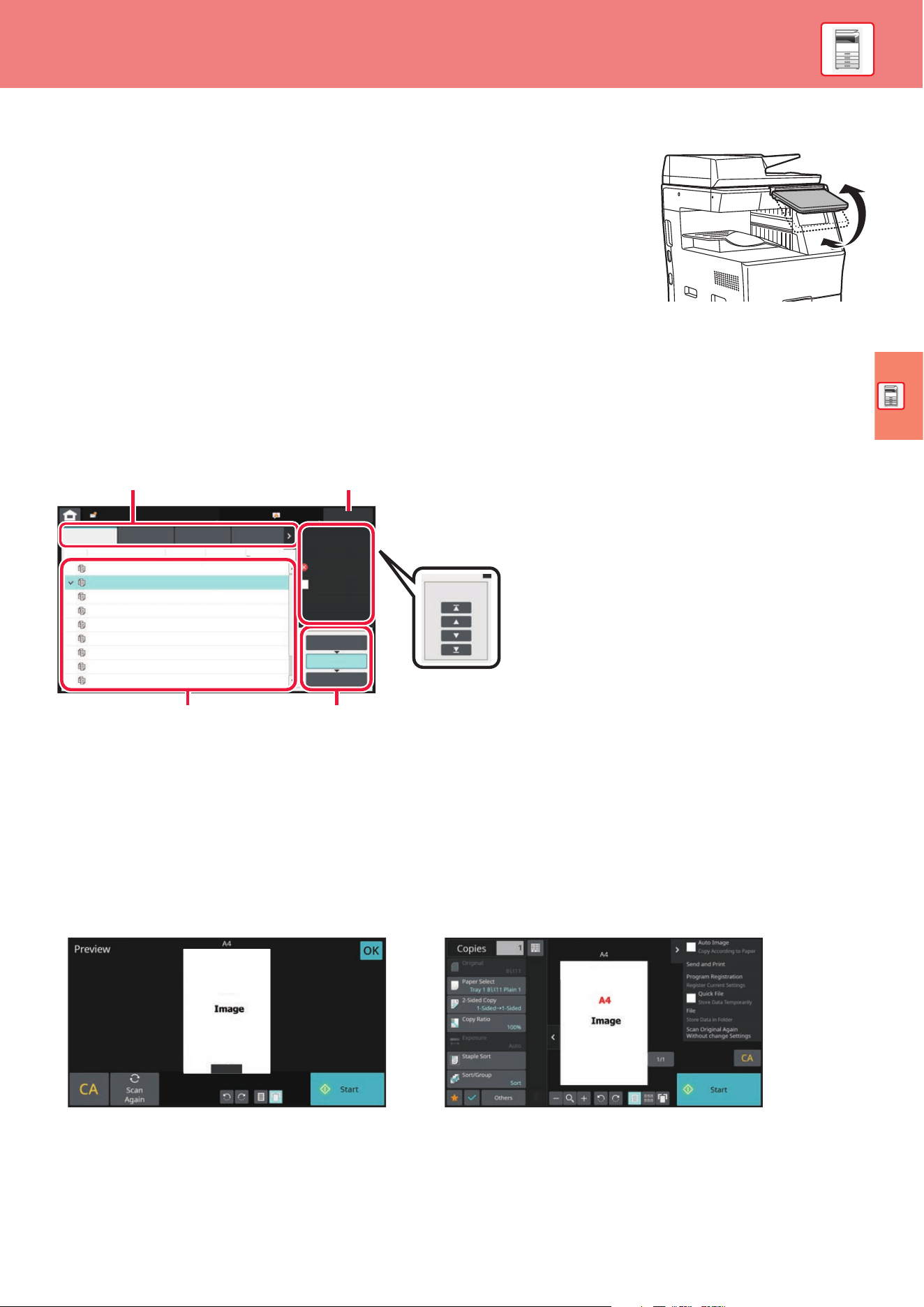
Pressing the [Home Screen] key on the operation panel displays the home screen on the touch panel. The home screen
displays the keys for selecting modes or functions.
(1) Information indicator
The indicator illuminates light or blink to notify you when
the power to the machine is turned on or off, when a user
logs in to the machine, when a fax is being received, or
when an error occurs in the machine.
(2) Touch Panel
Messages and keys appear on the touch panel display.
Operate the machine by directly tapping the displayed keys.
(a) Display the home screen
(b)
Display the job in progress or waiting with text or icon.
(c) Select shortcut keys for modes or functions.
(d) Switch the pages for displaying shortcut keys.
(e) Display Toner Quantity.
(f) Display a QR code indicating the web site of the
User's Manual.
(g) Use these keys to select functions that make the
machine easier to use.
(h) Switch the pages for displaying shortcut keys.
(i)
Select functions that can be utilized in respective modes.
Tap the tab, and the list of function keys is displayed.
(3) [System Info.] key
Displays information such as the status of the machine,
details of errors, and the remaining paper level in the
paper feed tray.
(4) Power indicator
This indicator lights up when the machine's power switch
is on the position.
(5) [Power] button
Use this button to turn the machine's power on and off.
(6) NFC touch point area
You can easily connect a mobile device to the machine
by touching the mobile device.
Easy Mode and Normal Mode
In the copy, fax and image send modes, there are two types of operation screens: easy mode and normal mode.
The easy mode consists of the minimum necessary functions, such as frequently used functions, and most operations
can be performed smoothly.
When you want to use detailed settings or special functions, use the normal mode.
In normal mode, all functions are available.
(Example: easy mode and normal mode in copy mode)
(c)
(b)
(a)
(d)
(e)
(g)(f) (h) (i)
(1) (2) (4) (6)(5)(3)
Easy mode
Normal mode
BEFORE USING THE MACHINE
9
TO CHANGE THE ANGLE OF THE OPERATION PANEL
You can change the angle of the operation panel.
Adjust the angle for ease of viewing.
CHECKING THE STATUS OF A JOB / PRIORITY /
CANCELING
To display the Job Status screen, tap the [Job Status] key in the home screen, or tap the [Job Status] key that appears
in the upper right corner of each mode screen.
PREVIEW SCREEN
You can tap the [Preview] key to open the Preview screen. In the Preview screen on the touch panel, you can view
previews of jobs and images stored in the machine.
Check the job status
(1) Tap the tab of the mode you want to check.
Check copy jobs and print jobs on the [Print] tab.
(2) Tap the [Job Queue] or [Complete] key.
(3) Check the jobs in the list.
If you want to give a job priority or cancel a job,
tap that job.
(4) Tap the [Back] key to return to the original
screen.
To give the job priority
Tap [Change Job Priority], and tap a Change Priority
key.
To cancel the job
If you want to cancel a job, tap that job and tap
[Stop/Delete].
Job Status
Back
0000/0001
0000/0001
0000/0001
0000/0001
0000/0001
0000/0001
0000/0001
0000/0001
Internet FaxFaxScanPrint
Job Job Queue
Progress / Sets
Status
Start
Time
0100/0100Copy
Copy
Copy
Copy
Copy
Copy
Copy
Copy
Copy
Paper Empty
Waiting
Waiting
Waiting
Waiting
Waiting
Waiting
Waiting
Waiting
---
Calculating
Calculating
Calculating
Calculating
Calculating
Calculating
Calculating
Calculating
Check Details of
Selected Job
Stop/Delete
Change Job Priority
Enter Multi
Selection Mode
Back
Job Queue
Complete
Spool
Priority Change
(3) (2)
(4)
(1)
OK
15/
Easy mode Normal mode
10
BEFORE USING THE MACHINE
PLACING ORIGINALS
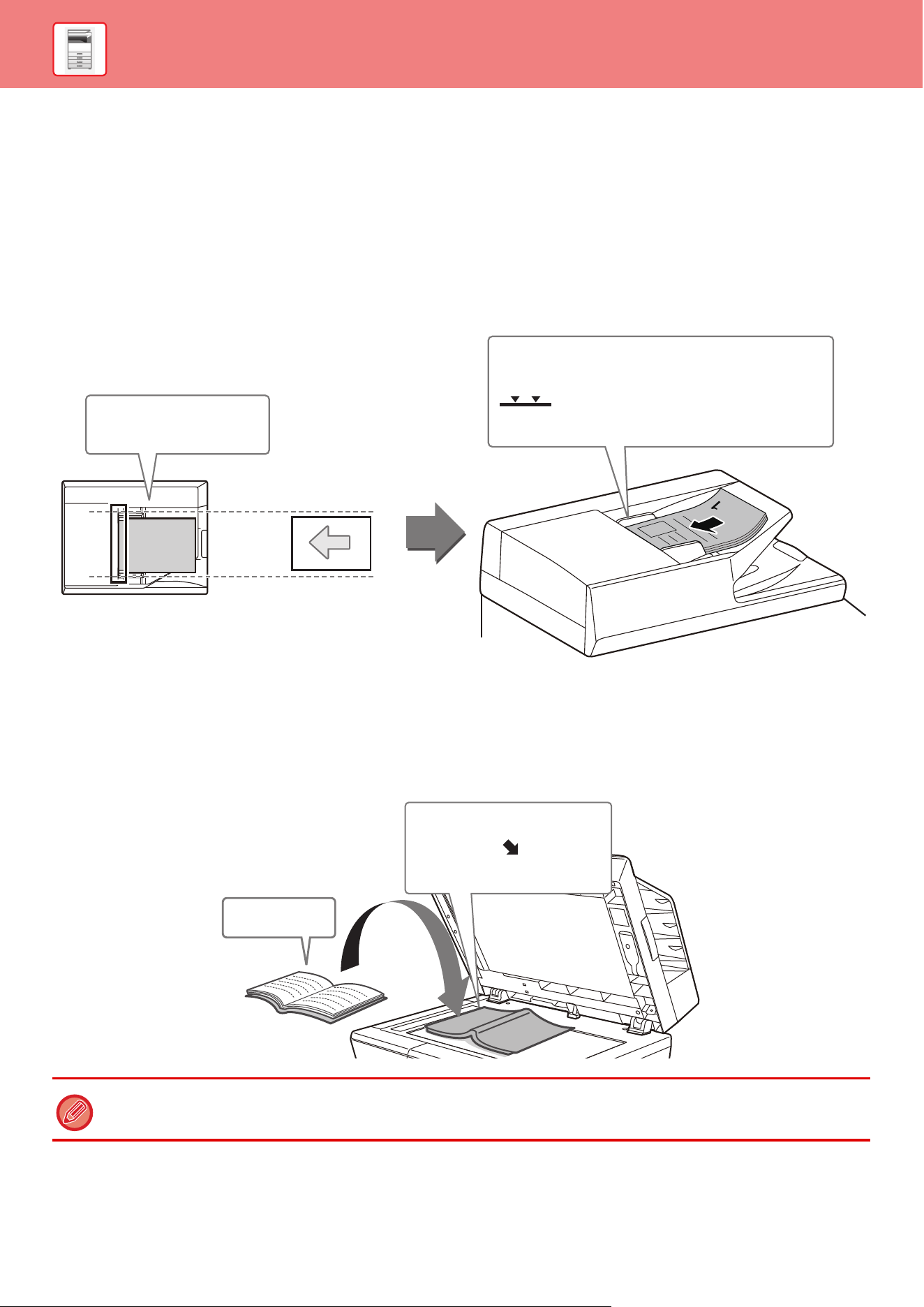
The automatic document feeder can be used to automatically scan many originals at once, and this saves you the
trouble of manually feeding each original.
For originals that cannot be scanned using the automatic document feeder, such as a book or a document with notes
attached, use the document glass.
USING THE AUTOMATIC DOCUMENT FEEDER
When using the automatic document feeder, place the originals in the document feeder tray.
Make sure an original has not been placed on the document glass.
USING THE DOCUMENT GLASS
Take care that your fingers are not pinched when closing the automatic document feeder.
After placing the original, be sure to close the automatic document feeder. If left open, parts outside of the original will be
copied black, causing excessive use of toner.
Set the orientation of the image to ensure that the orientation of the placed original is correctly recognized.
For details, see the User's Manual.
Adjust the original guides
to the width of the originals.
Place the originals face up with the edges aligned
evenly.
The indicator line indicates approximately
how many originals can be placed. The placed originals
must not be higher than this line.
Place the original face down.
Align the top left corner of the
original with the
tip of the mark in the far left corner
of the glass.
Place the original
face down.
BEFORE USING THE MACHINE
11
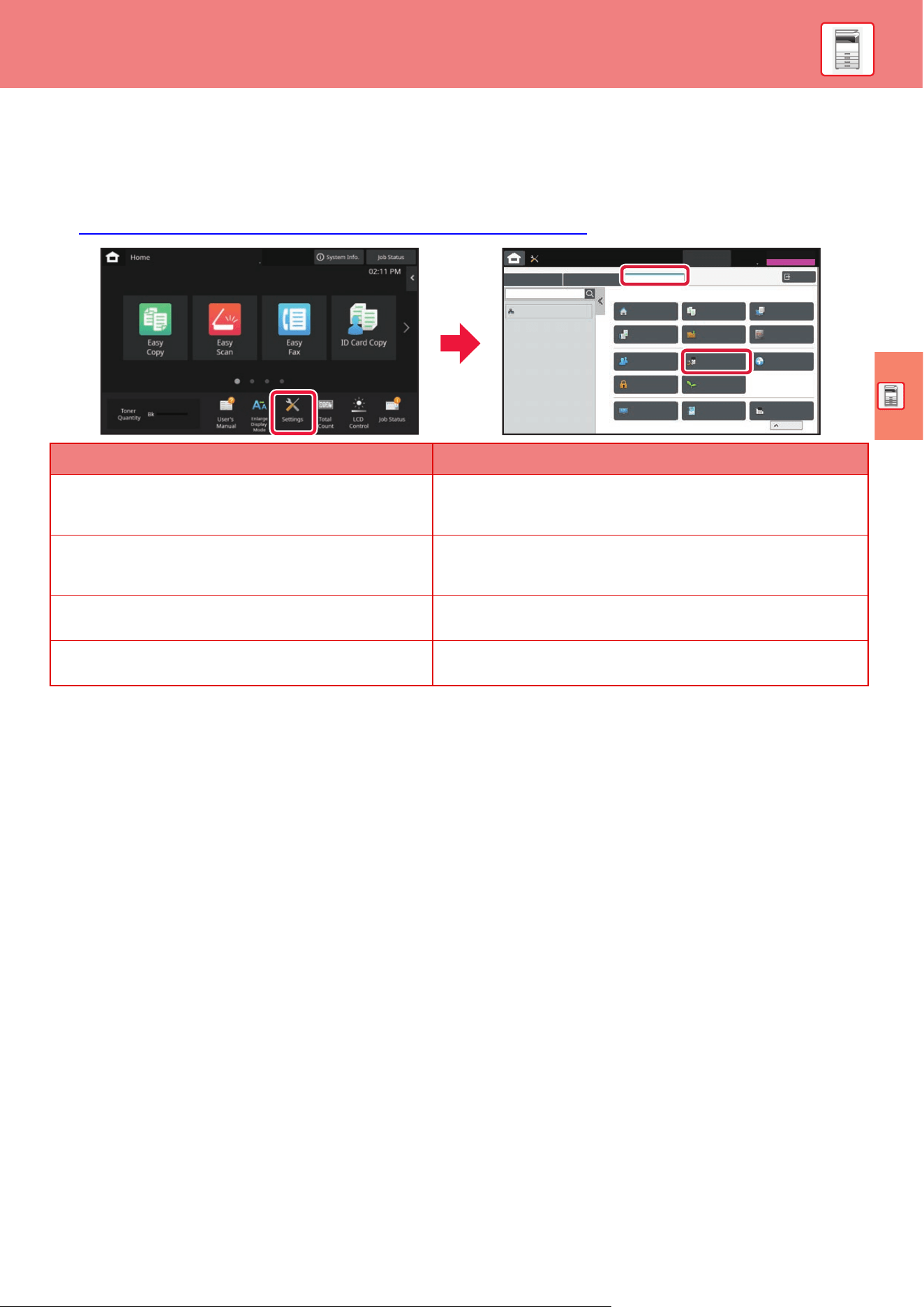
ADJUSTING THE VOLUME
You can adjust the volume of sounds generated by the machine. Tap the [Settings] key and configure the following
settings from the [System Settings] tab.
(Administrator rights are required.)
► SETTING MODE WHEN AN ADMINISTRATOR IS LOGGED IN (page 41)
Setting Settings
Sound Settings → Beep Sound Settings (Common) →
Scan Complete Sound (Image Send)
Configure settings for the sound that is generated at the
completion of scanning when using the fax, scan, document filing,
or other image send function.
Sound Settings → Beep Sound Settings (Image Send) →
Fax
For fax, configure settings for the on-hook (speaker) volume, ringing
sound, line monitor, reception completed sound, sending completed
sound, and send/receive error sound.
Sound Settings → Beep Sound Settings (Image Send) →
Internet Fax
Configure settings for sounds generated when an Internet fax is
received and when a communication error occurs.
Sound Settings → Beep Sound Settings (Common) →
Keys Touch Sound
Configure settings for the sound generated when a key is tapped, and
whether a sound is generated when the key for a default setting is tapped.
Job Status
Paper Empty
Cancel
Settings
Status
Home Screen
Settings
Copy Settings Printer
Settings
System Settings
Sitemap
Logout
System Settings
User Control
Image Send
Settings
Document Filing
Settings
Sharp OSA
Settings
Common
Settings
Authentication
Settings
Network
Settings
Energy Save
Security
Settings
Init. Install.
Settings
System Control Image Quality
Adjustment
Top of Page
12
BEFORE USING THE MACHINE
LOADING PAPER
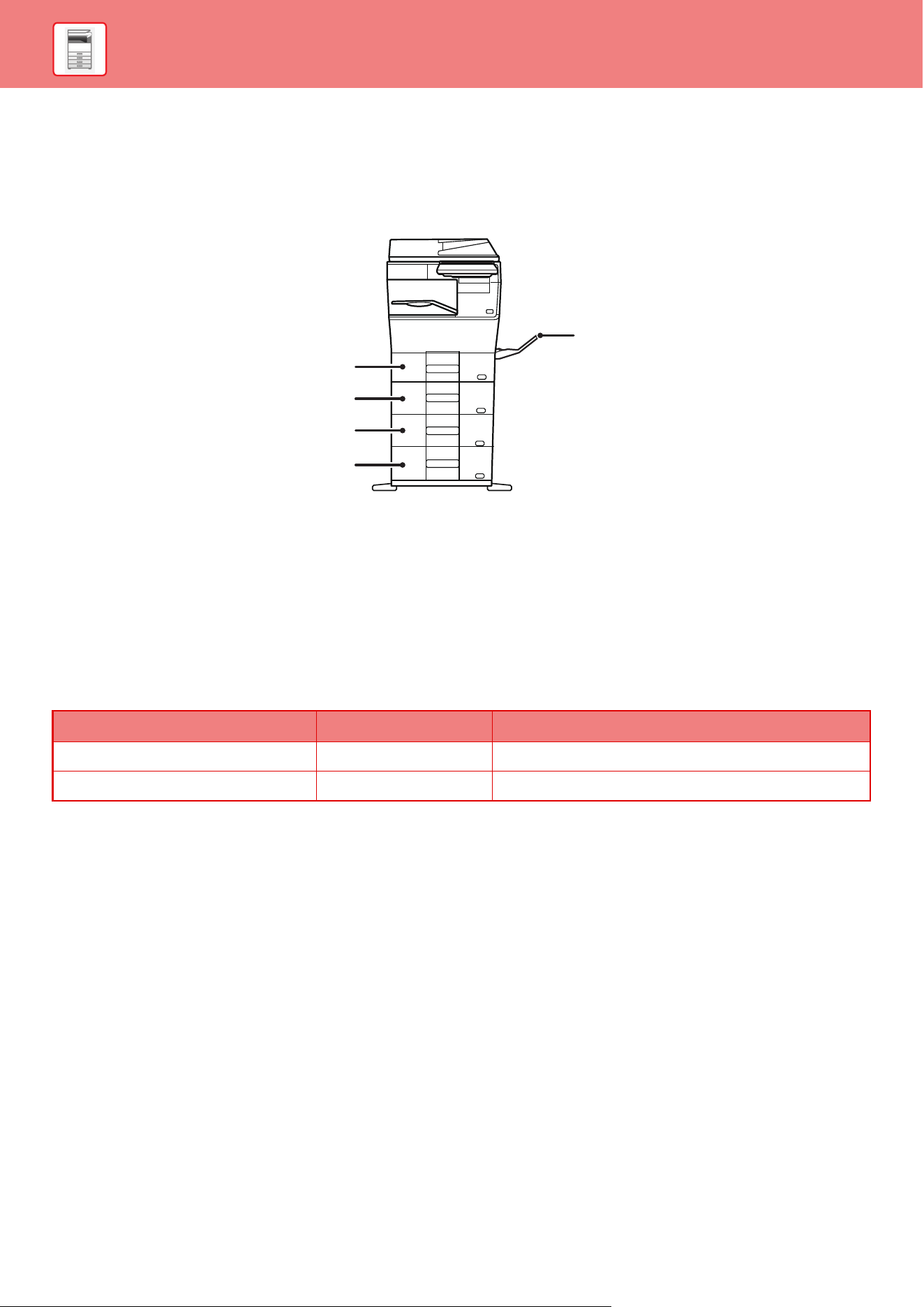
NAMES AND LOCATIONS OF TRAYS
The names of the trays are as follows.
(1) Tray 1
(2) Tray 2 (when a 600-sheet paper feed unit is
installed)
(3) Tray 3 (when two 600-sheet paper feed units
are installed)
(4) Tray 4 (when three 600-sheet paper feed units
are installed)
(5) Bypass tray
Setting orientation of the print side
The setting orientation varies for the print side of paper, depending on the tray used. For "Letter Head" and
"Pre-Printed", set the paper in the reverse orientation.
Place with the print side facing the direction indicated below.
(1)
(2)
(3)
(4)
(5)
Tray In normal status With letter head or pre-printed paper set
Trays 1 - 4 Facing up Facing down
Bypass tray Facing down Facing up
BEFORE USING THE MACHINE
13
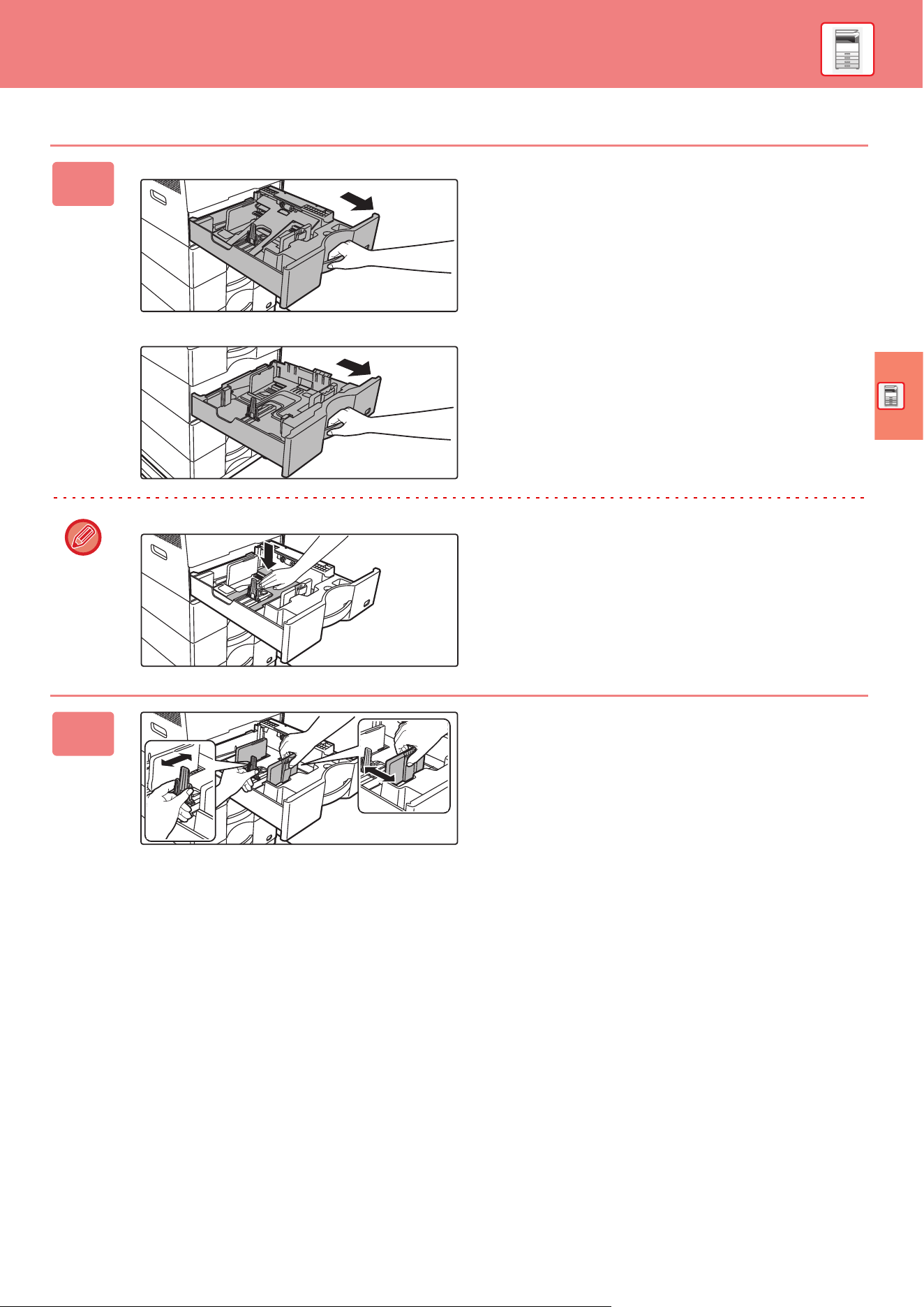
LOAD PAPER INTO THE TRAY 1 - 4
1
Tray 1
Tray 2 - 4
Pull out the paper tray.
Gently pull the tray out until it stops.
To load paper, go to step 3. To load a different size of
paper, go to the next step.
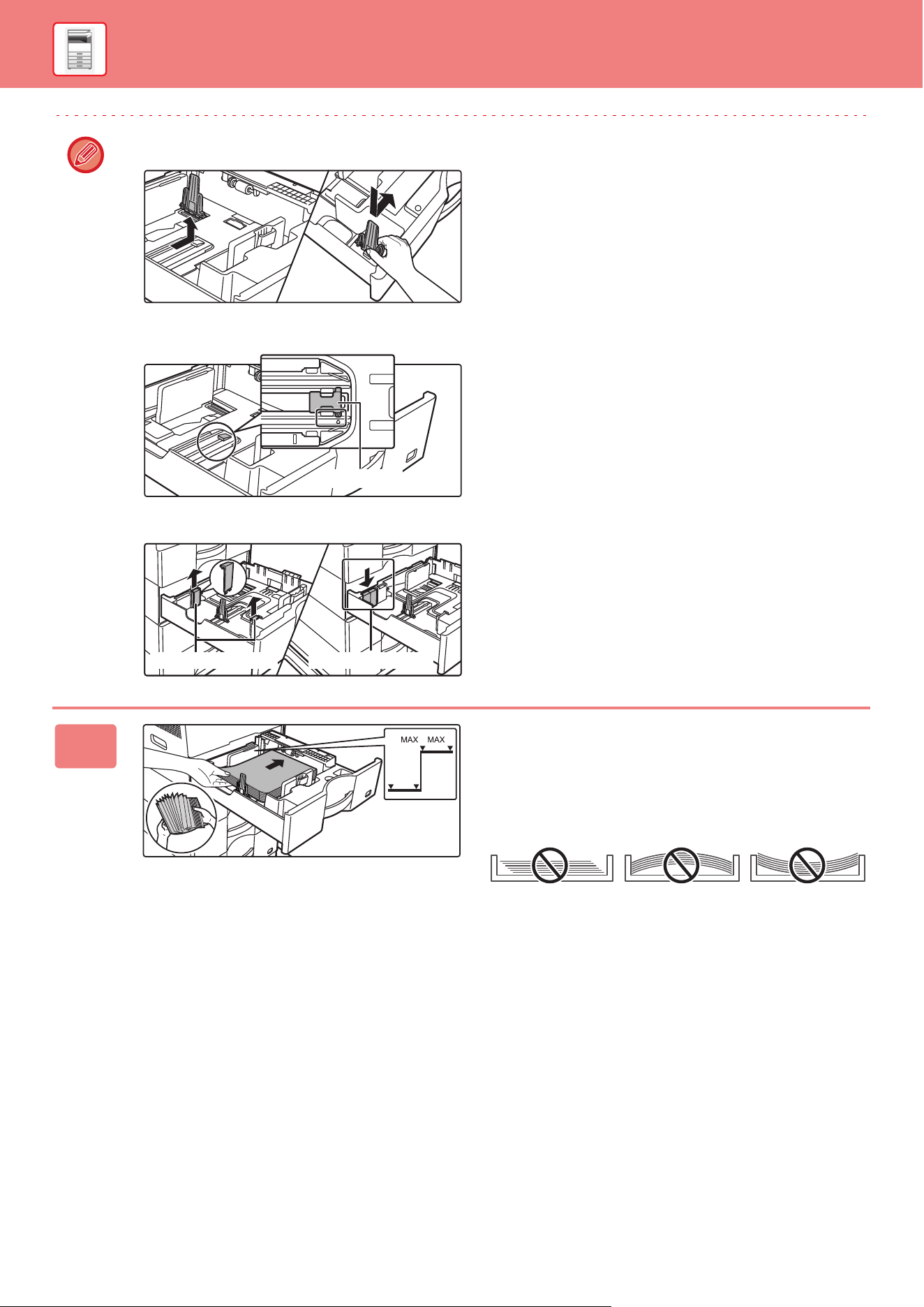
When using the tray 1, push the center of the pressure plate down until it locks into place.
2
Adjust guide plates A and B to match
the longitudinal and transversal
dimensions of the paper to be loaded.
The guide plates A and B are slidable. Squeeze the
separator plate lever and slide to the desired paper size.
Adjust to the paper size so that the paper will not be too
loose or too tight.
A
B
14
BEFORE USING THE MACHINE
• When loading A4 size paper in tray 1, or 8-1/2" x 14" paper in trays 2 to 4, remove divider plate A.
Move divider plate A all the way to the paper feed opening (right side), and pull up.
• If the machine does not recognize the paper size even though A4 size is correctly loaded in tray 1, or 8-1/2" x 14" size
is correctly loaded in trays 2 to 4, check if the holder in the cassette is positioned at A4 (8-1/2" x 14” in trays 2 to 4).
• When setting 8-1/2" x 11" size paper in tray 2 to 4, remove the 2 regulation plates with green color on the front and back
side of the tray before setting the paper. The plates are contained in the inside storage space of the back side of the tray.
3
Insert the paper into the tray.
• Load the paper with the print side facing up. The stack
must not be higher than the indicator line.
• Fan the paper well before loading it. Otherwise, multiple
sheets may feed at once and cause a misfeed.
• Do not load the paper as shown below.
A
A6
A4
Holder
Storage spaceRegulation plate
A6
A6
BEFORE USING THE MACHINE
15
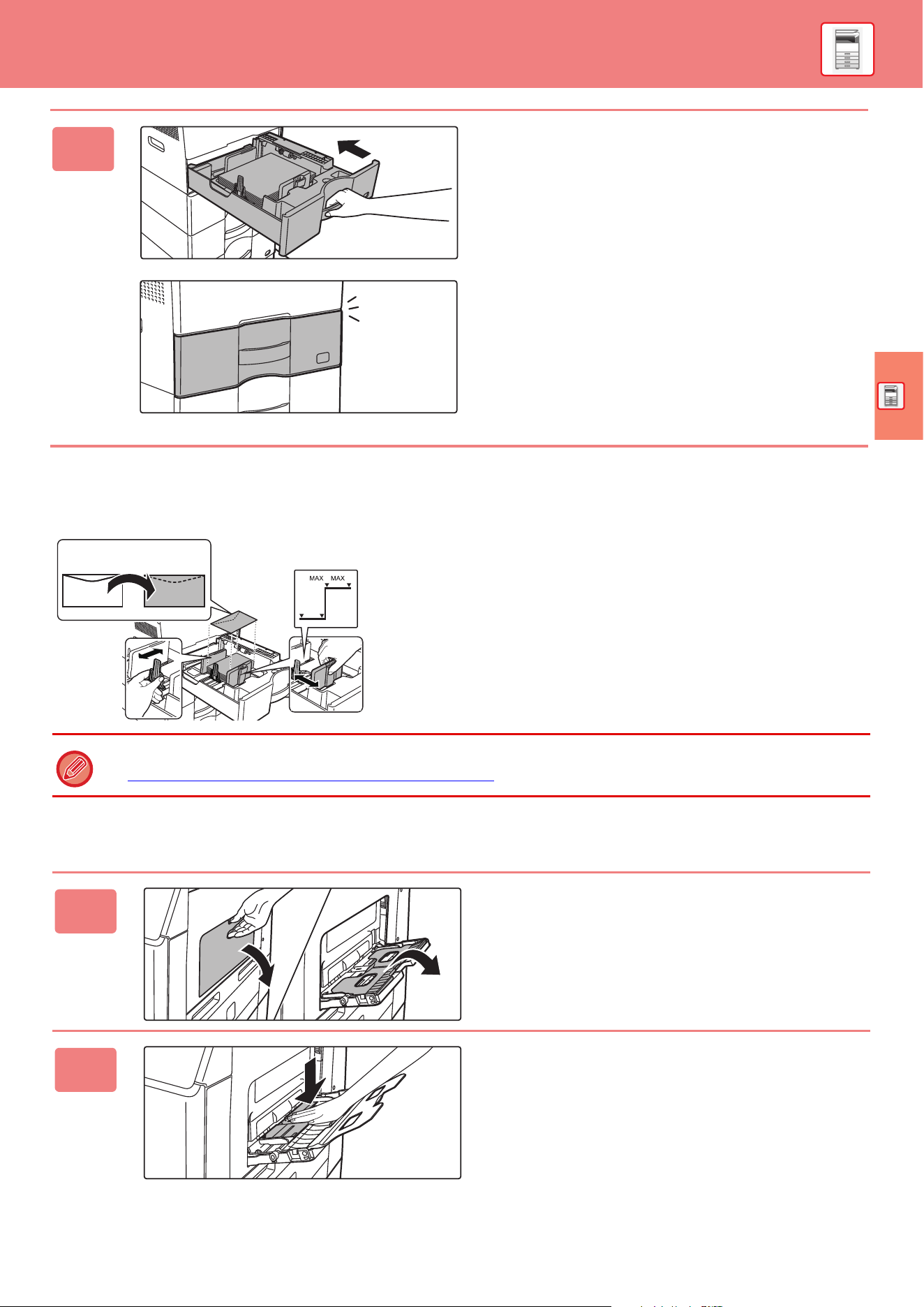
Loading envelope in tray 1
Load the paper with the copy and print side facing up. The diagram shows an example of printing on the front side.
Maximum number of envelopes does not exceed 50 and indicator line.
LOAD PAPER INTO THE BYPASS TRAY
4
Gently push the paper tray into the
machine.
Push the tray firmly all the way into the machine slowly.
Forcefully inserting the tray may cause the paper to be
skewed and misfeed.
Close the tray completely.
When loading envelopes in the tray 1, set the paper type.
► CHANGE THE SETTING OF THE PAPER TRAY
(page 17)
1
Open the bypass tray and the
extension tray.
2
Push the center of the pressure plate
down until it locks into place.
Turn the envelope inside out.
Envelopes can be
loaded up to the upper
indicator line.
A6
A6
16
BEFORE USING THE MACHINE
Loading envelopes
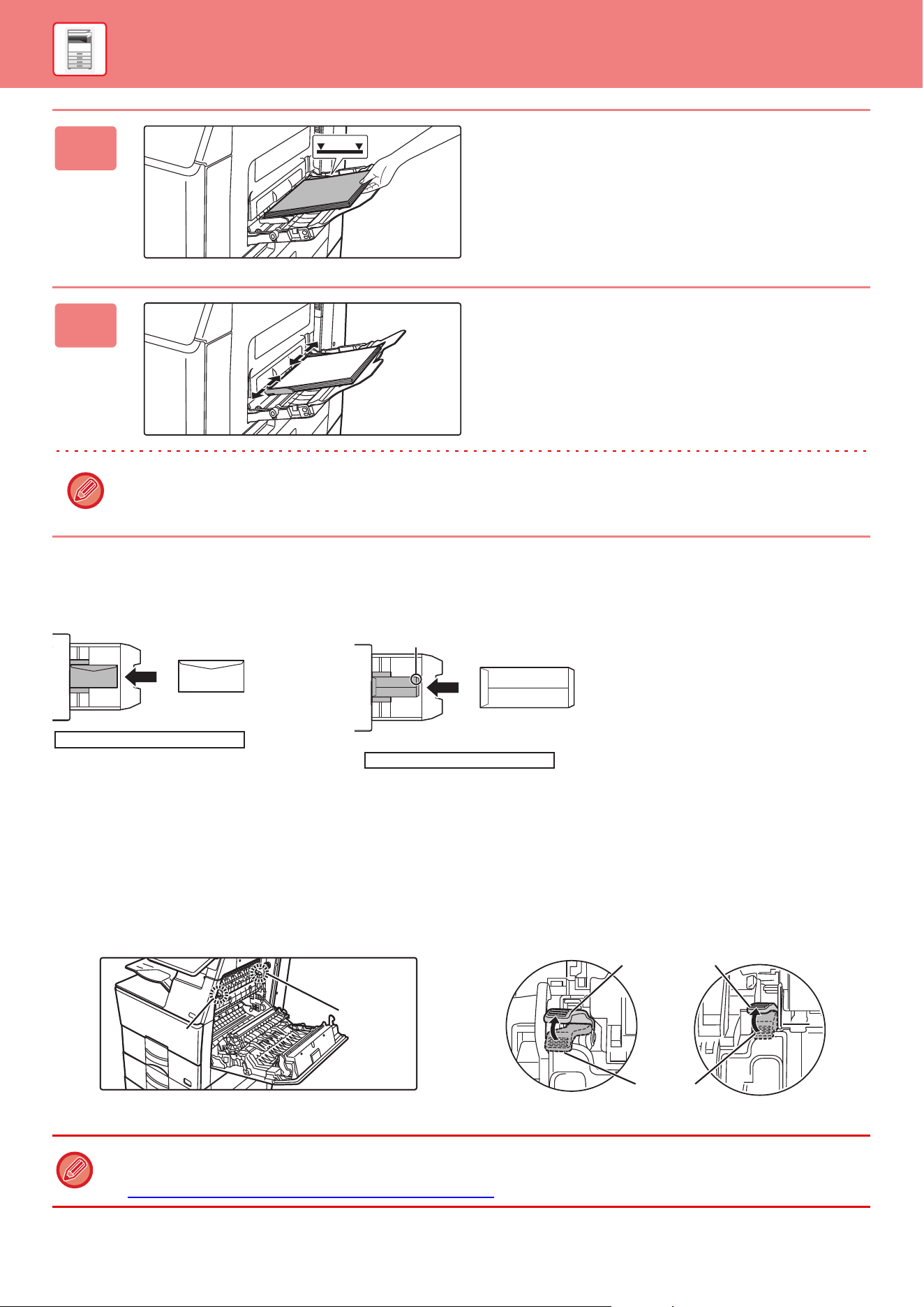
Only the front side of envelopes can be printed or copied on. Place the front side facing down.
Fusing unit release levers (Loading envelopes)
In some cases damage to the envelopes or smudging may occur even if envelopes within the specifications are used.
This problem may be alleviated by shifting the fusing unit release levers from their "normal pressure position" to the
"lower pressure position". Follow the procedure on this page.
3
Load the paper with the print side
facing down.
Insert the paper along the bypass tray guides all the way into the
bypass tray until it stops slowly. Inserting the paper with excessive
force may cause the leading edge to fold back. Inserting the paper
too loosely may cause skewed feeding or misfeeds.
The paper must not exceed the maximum number of sheets
and must not be higher than the indicator line.
4
Set the bypass tray guides correctly to
the width of the paper.
Adjust the bypass tray guides so that they slightly contact
the loaded paper.
To add paper, press down the pressure plate until it locks, remove any paper remaining in the bypass tray, combine it with the
paper to be added, and place in the bypass tray again. If paper is added without removing the remaining paper, a paper jam may
result. A paper jam may also result if more than the specified number of sheets are added, or if the paper stack exceeds the limit.
• Move the fusing unit release levers (two) to the lower pressure position as shown.
• Return the lever to the normal position when finished feeding envelopes.
• Before printing envelopes, it is recommended that you conduct a test print.
• When loading envelopes in the bypass tray, set the paper type.
► CHANGE
THE SETTING OF THE PAPER TRAY (page 17)
Place the front side facing down.
Address printing
When printing the front side
Flap
When printing the front side
Place the front side facing down.
When placing C5, or C6
A
B
AB
Normal
position
Lower pressure position
BEFORE USING THE MACHINE
17
CHANGE THE SETTING OF THE PAPER TRAY
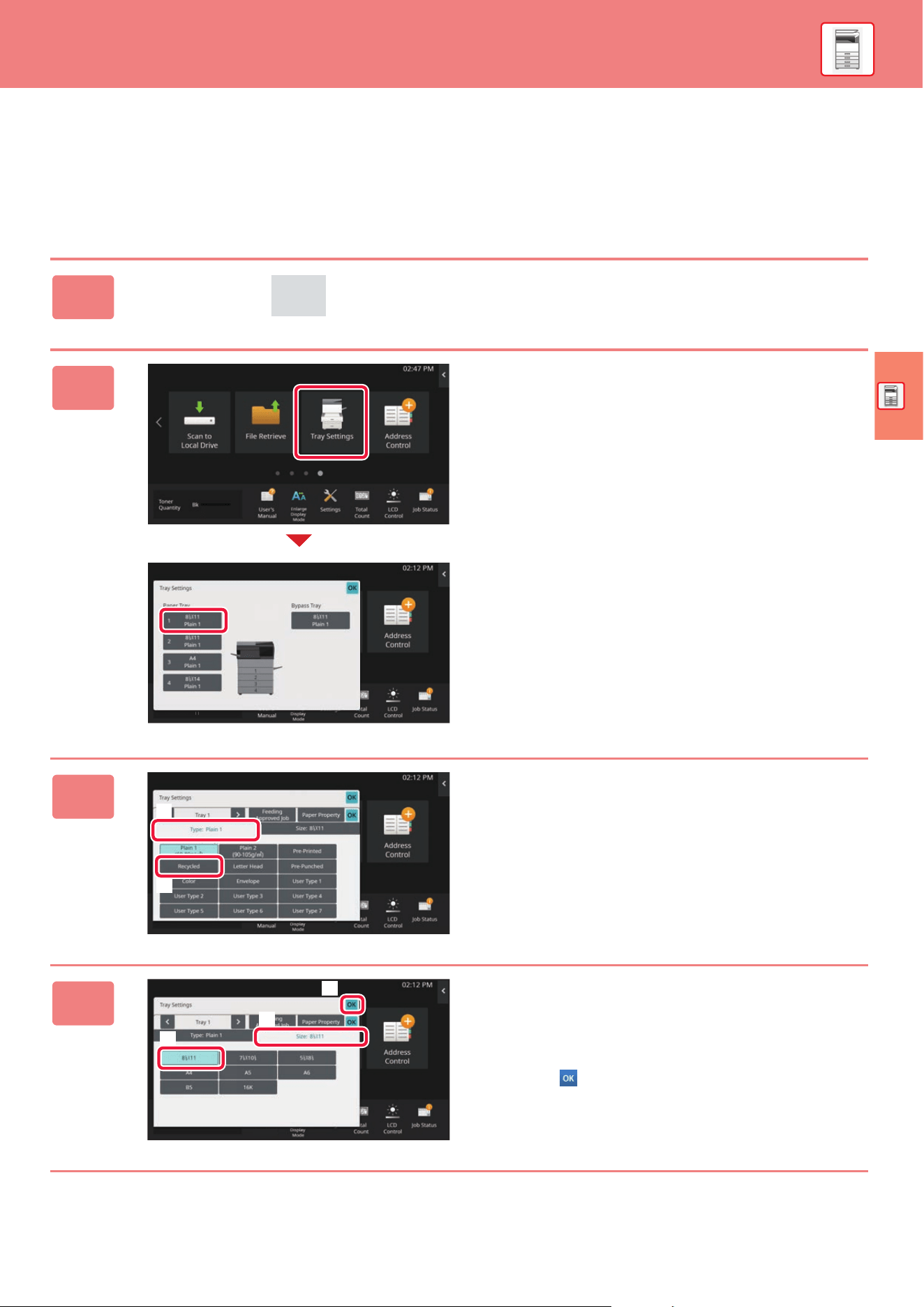
To change the paper loaded in the tray, change the machine's tray settings from the [Tray Settings] key in the home
screen.
As an example, the steps for changing the paper in tray 1 from 8-1/2" x 11" plain paper to 5-1/2” x 8-1/2" recycled paper
are explained below.
1
Tap the [Home Screen] key.
Home screen appears.
2
Tap the [Tray Settings] key and tap the
key of the paper tray 1.
3
Set the paper type.
(1) Tap the tab for the Paper Type.
(2) Tap the [Recycled] key.
4
Set the paper size.
(1) Tap the tab for the Paper Size.
(2) Tap the [5-1/2" x 8-1/2"] key.
(3) Tap in "Tray Settings".
Y
Y
Y
Y
(1)
(2)
Guide
Display
Mode
tal
LCD
Control
Job Status
Count
Manual
(1)
(3)
(2)
18
BEFORE USING THE MACHINE
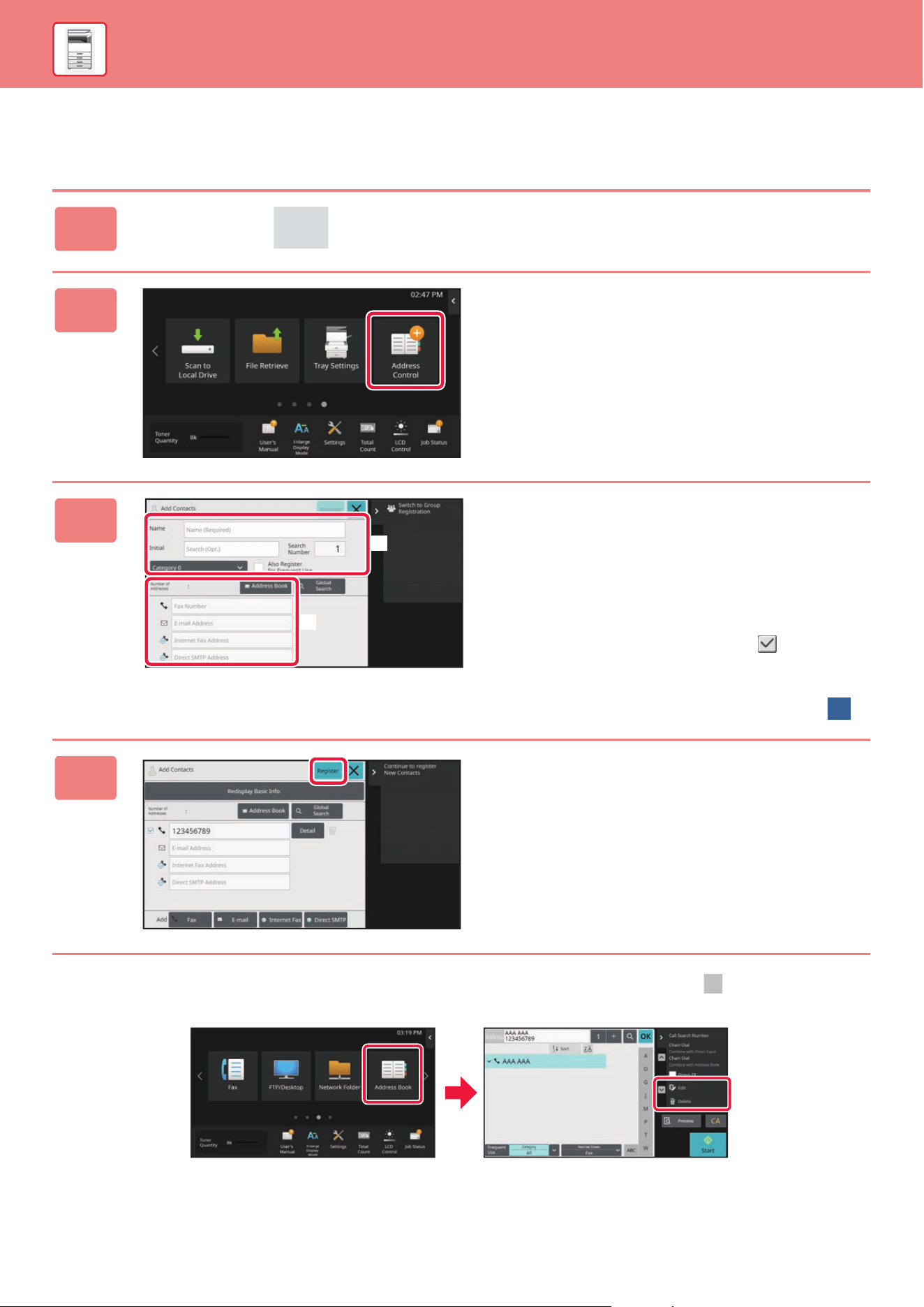
SAVING CONTACTS IN THE ADDRESS BOOK
"Contacts" and "Group" can be stored in the address book.
The procedure for adding a new contact to the address book by directly entering the name and address is explained here as an example.
Editing or deleting a contact
Tap the [Address Book] key in the home screen, select the contact to be edited or deleted, tap in the action panel,
and tap [Edit] or [Delete].
1
Tap the [Home Screen] key.
Home screen appears.
2
Tap the [Address Control] key.
3
Enter the information you want to
register in the address book.
(1) Enter basic information.
Be sure to enter [Name] and [Initial].
To specify a category, select one from a category list
that appears when the entry box is tapped.
To register a contact for frequent use, select the [Also
Register for Frequent Use] checkbox .
(2) Tap [Fax Number], [E-mail Address],
[Internet Fax Address], or [Direct SMTP
Address], enter the address, and tap .
4
Tap the [Register] key.
The first address of each address type is set as the default
address. If no address has the checkbox next to it selected,
a confirmation screen will appear asking you if you want to
select a default address.
(1)
(2)
BEFORE USING THE MACHINE
19
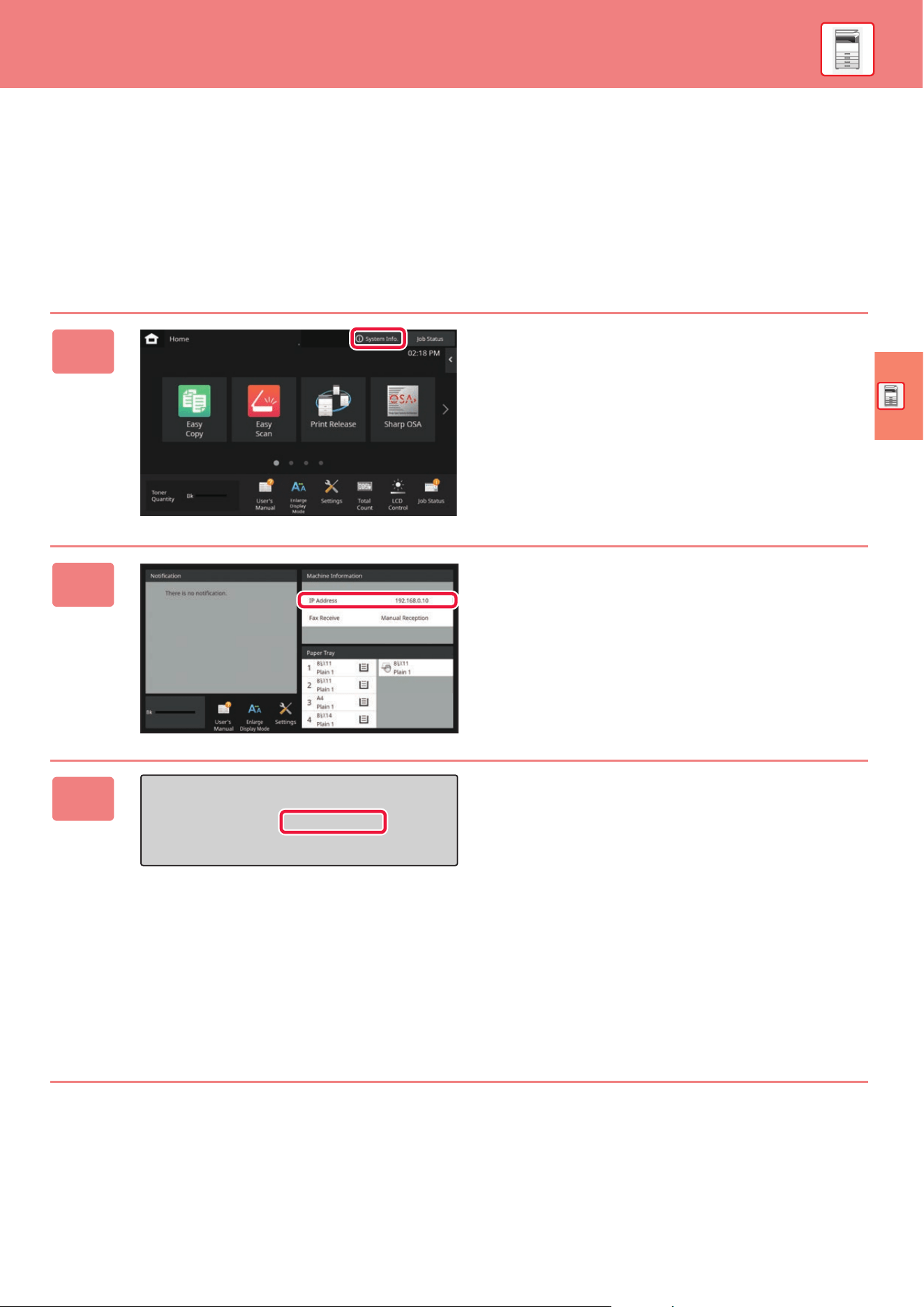
ACCESSING THE WEB SERVER IN THE
MACHINE
When the machine is connected to a network, the machine's built-in Web server can be accessed from a Web browser
on your computer.
OPENING THE WEB PAGES
1
Tap the [System Info.] key.
2
Check the IP address in the machine
information.
3
Access the Web server in the machine
to open the Web pages.
Start a Web browser on a computer that is
connected to the same network as the machine
and enter the IP address of the machine.
The Web page will appear.
The machine settings may require that user
authentication is performed in order to open the Web
page. Please ask the administrator of the machine for
the password that is required for user authentication.
Recommended Web browsers
Microsoft Edge (Windows
®
), Firefox (Windows
®
),
Safari (macOS
®
), Chrome (Windows
®
):
Latest version or immediately previous major release
20
BEFORE USING THE MACHINE
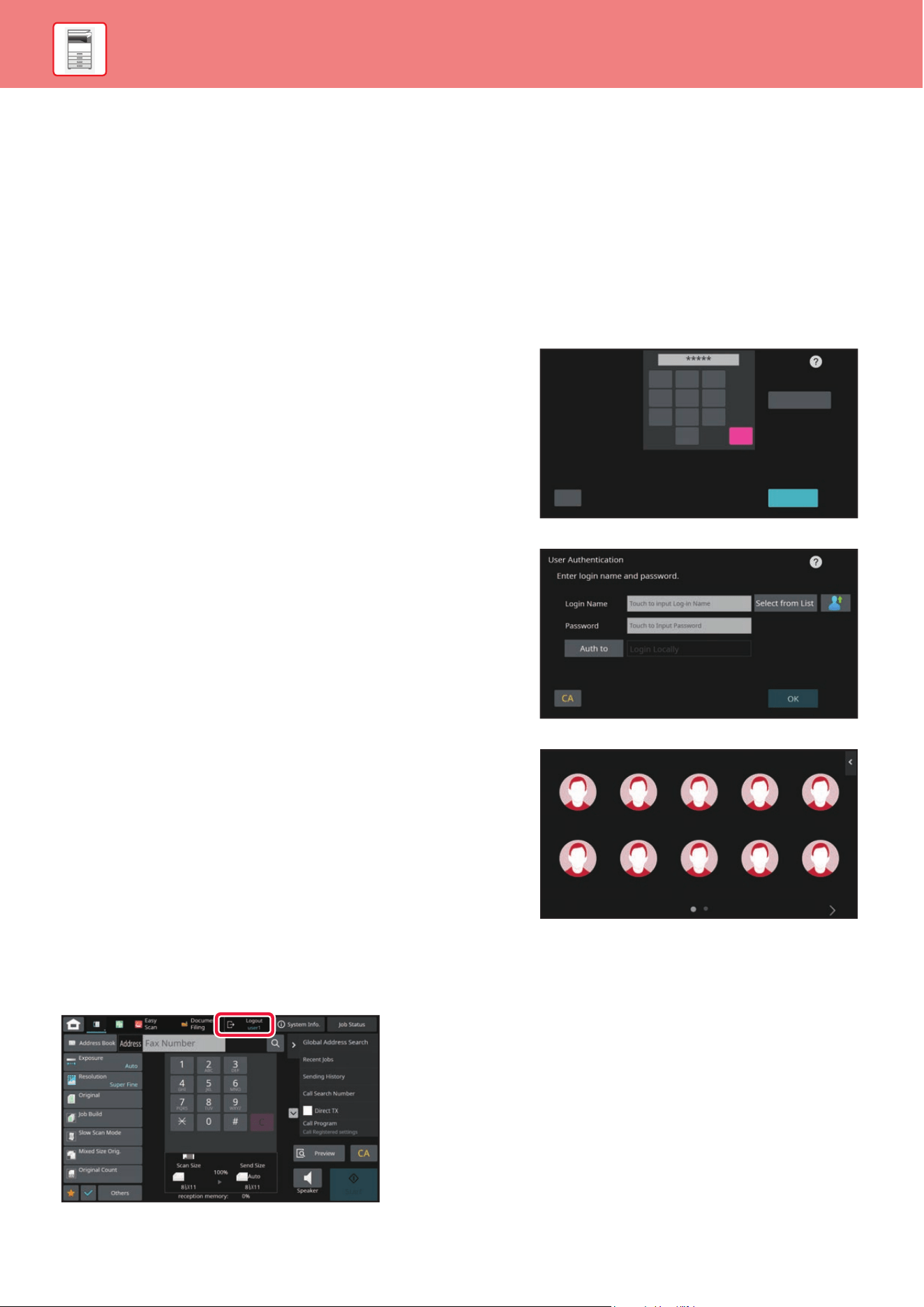
USER AUTHENTICATION
When user authentication is enabled in settings mode, you must log in in order to use the machine. User authentication
is disabled in the factory default settings.
When you have finished using the machine, log out.
ABOUT AUTHENTICATION METHODS
There are three user authentication methods: authentication by user number, authentication by login name / password, and
authentication by quick authentication. Ask the system administrator of the machine for the information you need to log in.
LOGOUT
When you have finished using the machine, log out. This helps prevent unauthorized people from using the machine.
AUTHENTICATION BY USER NUMBER
The following procedure is used to log in using a user number
received from the administrator of the machine.
When starting the machine, the login screen appears.
AUTHENTICATION BY LOGIN NAME/PASSWORD
This method enables users to log in using a login name and
password received from the administrator of the machine or the
administrator of the LDAP server.
When starting the machine, the login screen appears.
AUTHENTICATION BY QUICK AUTHENTICATION
This can only be used on the machine when carrying out user
authentication. This method provides simple authentication for an
administer who has been previously registered on the machine.
1
4
7
5
8
6
9
2
0
3
C
User Authentication
Enter your
user number.
CA
Admin Login
OK
User Authentication
Enter login name and password.
Login Name
Password
Touch to input Log-in Name
Touch to Input Password
Login Locally
CA
Select from List
OK
Auth to
AAA AAA
Quick Login
BEFORE USING THE MACHINE
21
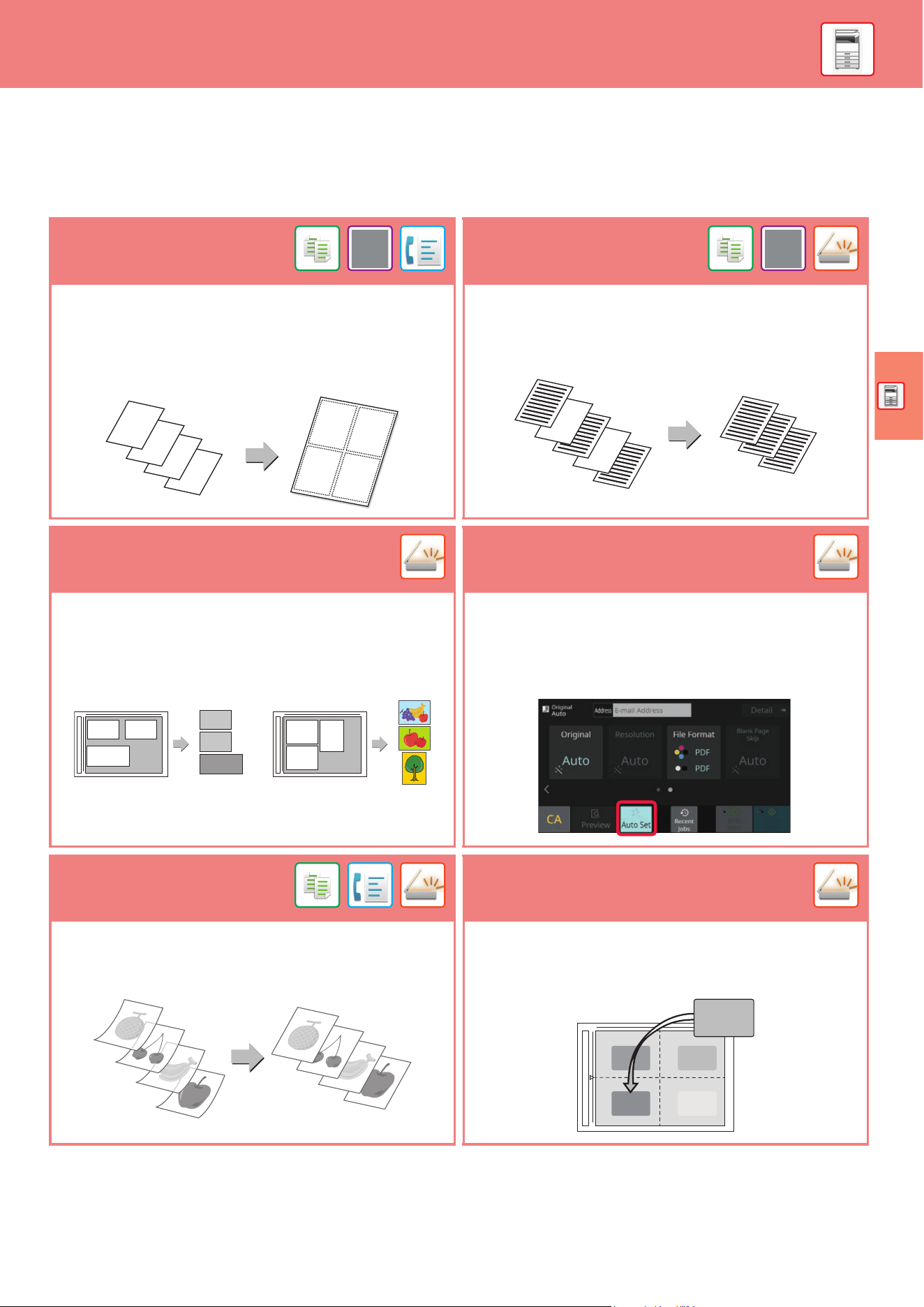
FUNCTIONS THAT CAN BE USED ON THE MACHINE
The machine has many functions for a variety of purposes.
Some convenient functions are described in below. For details, see the User's Manual.
N-Up
Blank Page Skip
This function uniformly lays out multiple original pages onto a
single sheet of paper.
This function is convenient when you wish to present multiple
pages in a compact format, or show a view of all pages in a
document.
If the scanned original contains blank pages, this function skips
them to copy or send only non-blank pages.
The machine detects blank pages, enabling you to skip useless
blank sheets without checking an original.
Multi-crop scan /
Image Crop
Auto Set
You can place multiple documents such as receipts or
photographs on the document glass, and automatically crop
and save each document to a separate file during scanning.
To automatically set scan settings appropriate for the original,
tap the [Auto Set] key in the base screen of Easy Mode.
Image Orientation, Resolution, and Blank Page Skip, Duplex
Setup, Skew Adjustment, JPEG Compression Ratio,
Automatically Detect Mono2/Grayscale are set automatically.
Slow Scan Mode
Card Shot (Multi)
Use this function when you wish to scan thin originals using the
automatic document feeder. This function helps prevent thin
originals from misfeeding.
Up to four cards placed on the document glass are
automatically scanned into separate files, with each file
consisting of the front and back of the card.
4
3
2
1
1
2
34
Multi crop Image Crop
12
34
22
This section explains the basic procedures for using the copier function.
MAKING COPIES
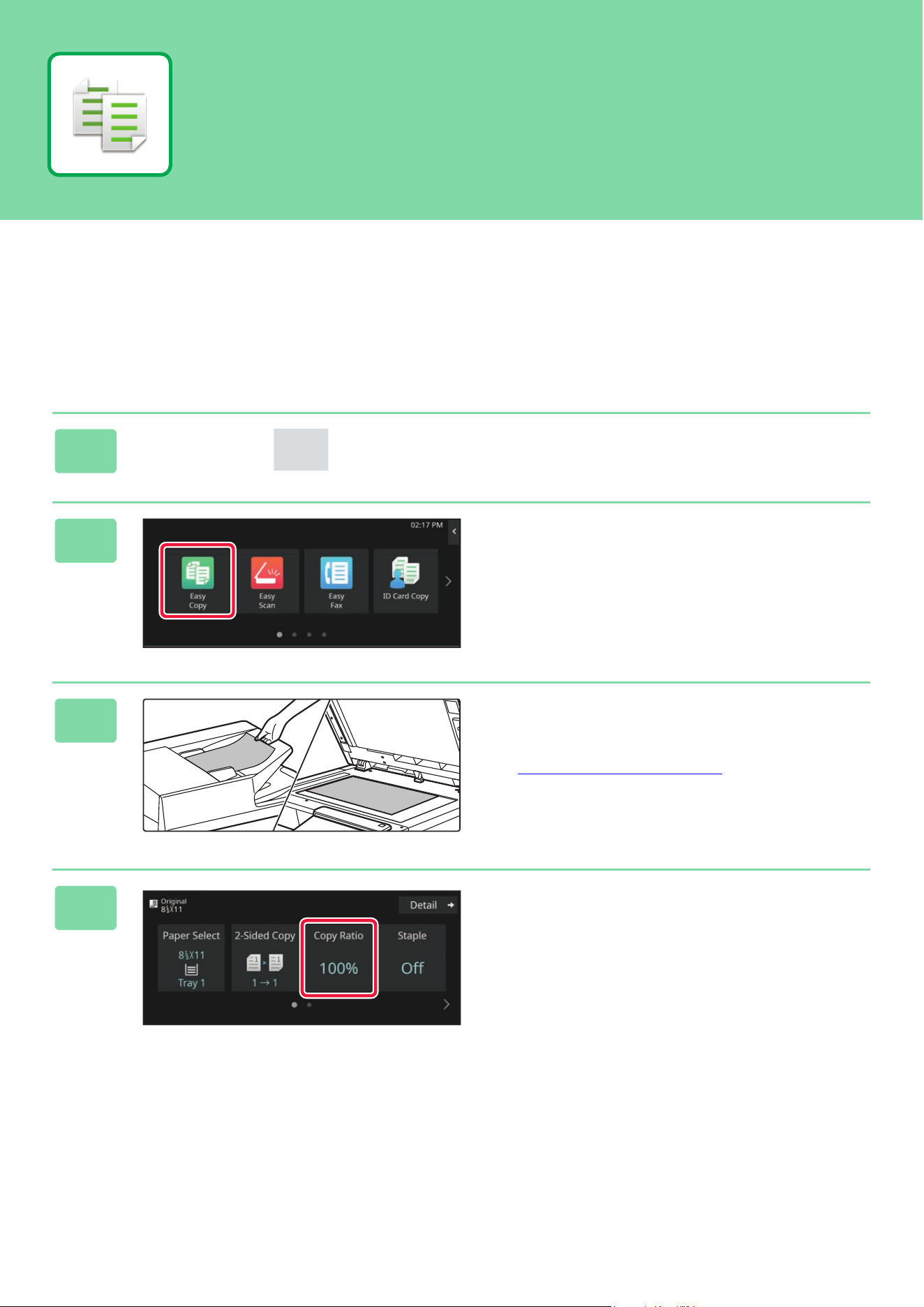
This section explains how to set a Copy Ratio.
1
Tap the [Home Screen] key.
Home screen appears.
2
Tap the [Easy Copy] mode icon.
Easy Copy mode screen appears.
Copy mode has two modes: easy mode and normal mode.
Easy mode is limited to frequently used functions that allow
you to smoothly perform most copy jobs.
If you need to select detailed settings or special functions,
use normal mode. All functions can be used in normal mode.
3
Place the original.
Place the original in the document feeder tray of the
automatic document feeder, or on the document glass.
► PLACI
NG ORIGINALS (page 10)
4
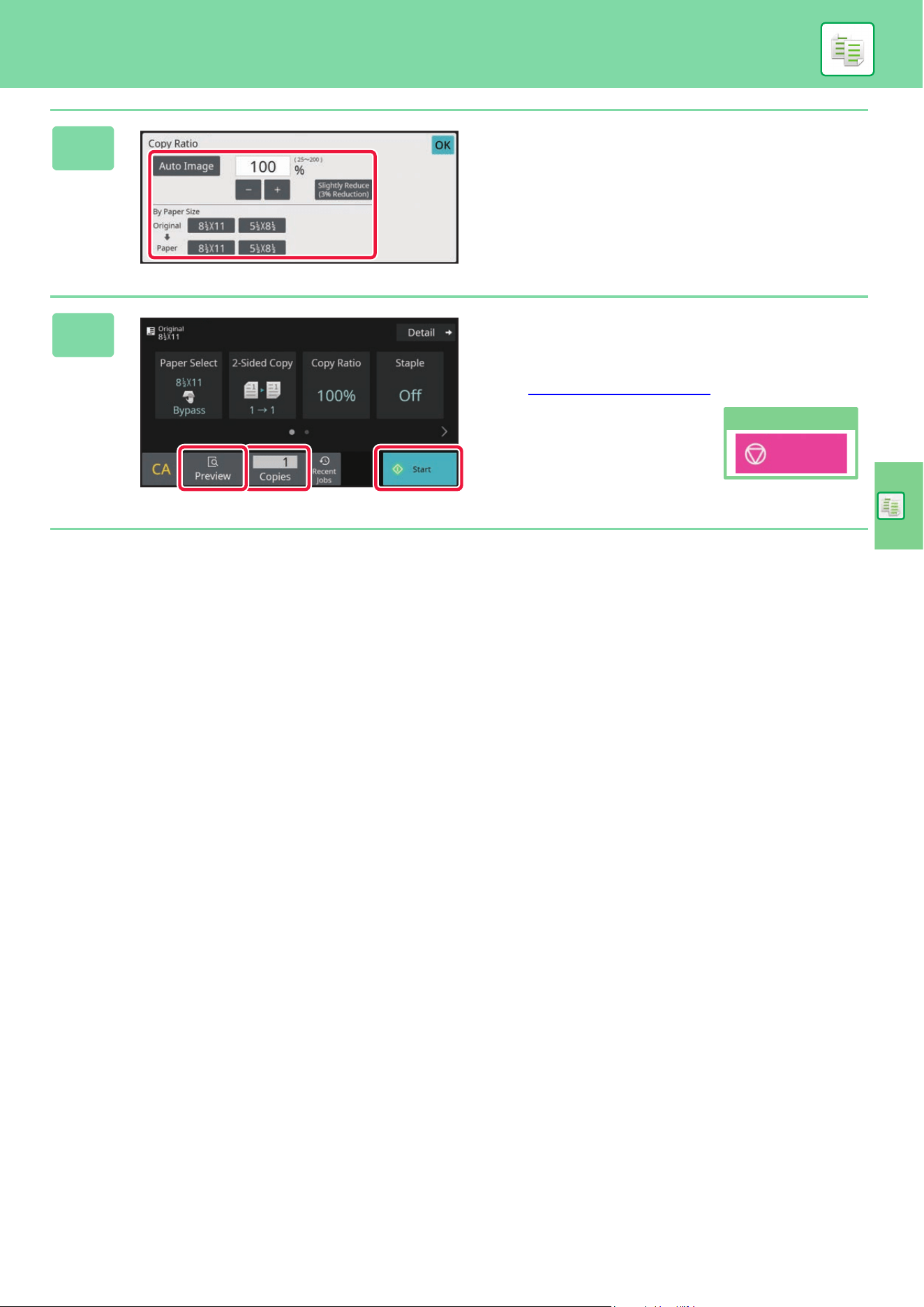
Tap the [Copy Ratio] key.
The functions below can be enabled in easy mode.
• Paper Select
• 2-Sided Copy
• Copy Ratio
• Staple*
•Original
• Exposure
•N-Up
• Card Shot
•Job Build
• Blank Page Skip
* When an inner finisher is installed.
To select more detailed settings, tap the [Detail] key and
select settings in normal mode.
COPIER
24
COPIER
COPYING ON SPECIAL PAPER
(Bypass Copy)
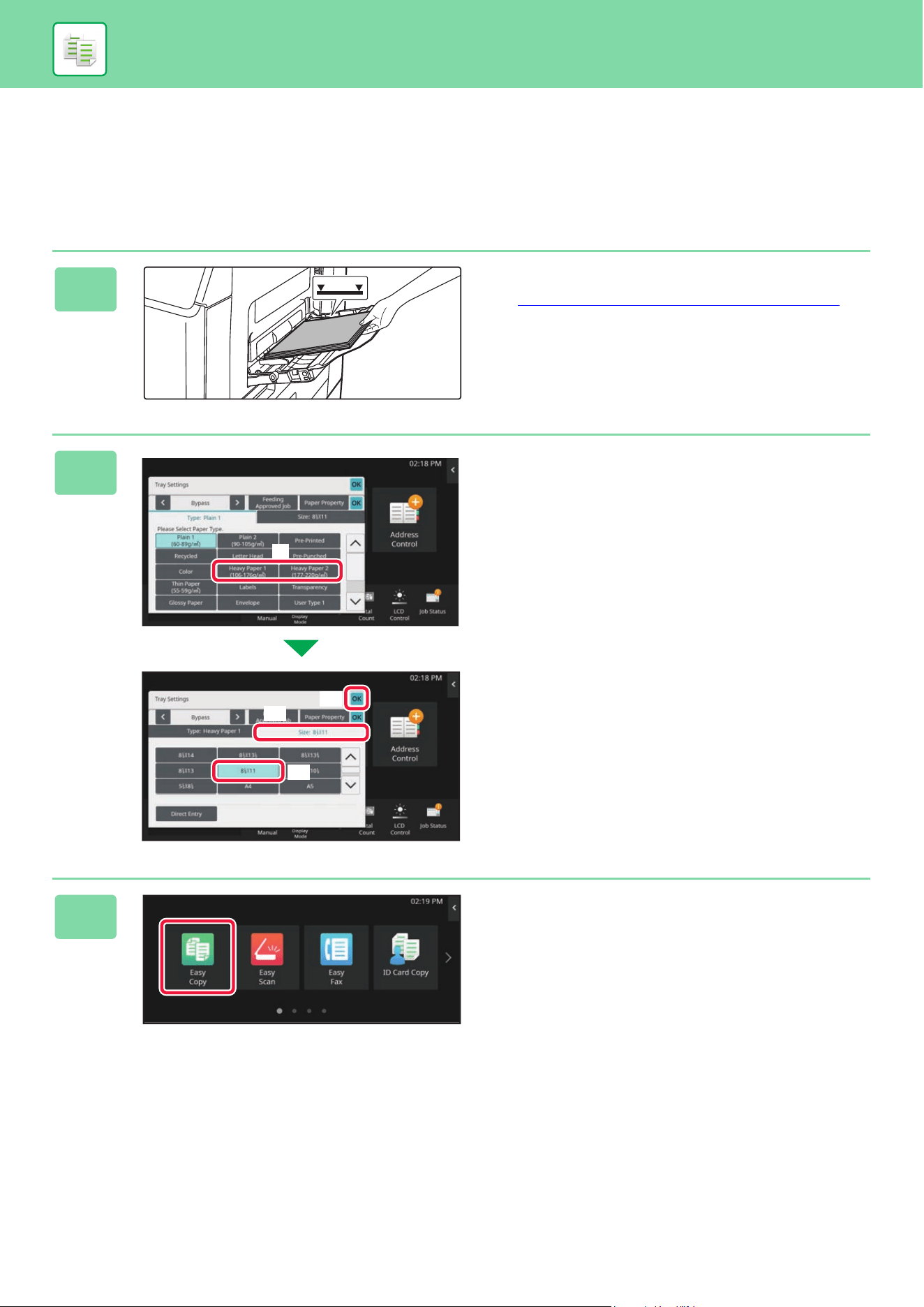
This section explains how to load 8-1/2" x 11" heavy paper in the bypass tray.
1
Load paper into the bypass tray.
► LOAD PAPER INTO THE BYPASS TRAY (page 15)
2
Select settings in the touch panel.
(1) Tap the [Heavy Paper 1], [Heavy Paper 2]
key.
Tap the [Heavy Paper 1] key if the paper is 28 lbs.
bond to 65 lbs. cover (106 g/m
2
to 176 g/m
2
), the
[Heavy Paper 2] key if the paper is 65 lbs. cover to
80 lbs. cover (177 g/m
2
to 220 g/m
2
).
(2) Tap the [Size] tab.
(3) Tap the [8-1/2" x 11"] key.
(4) Tap [OK] of "Tray Settings".
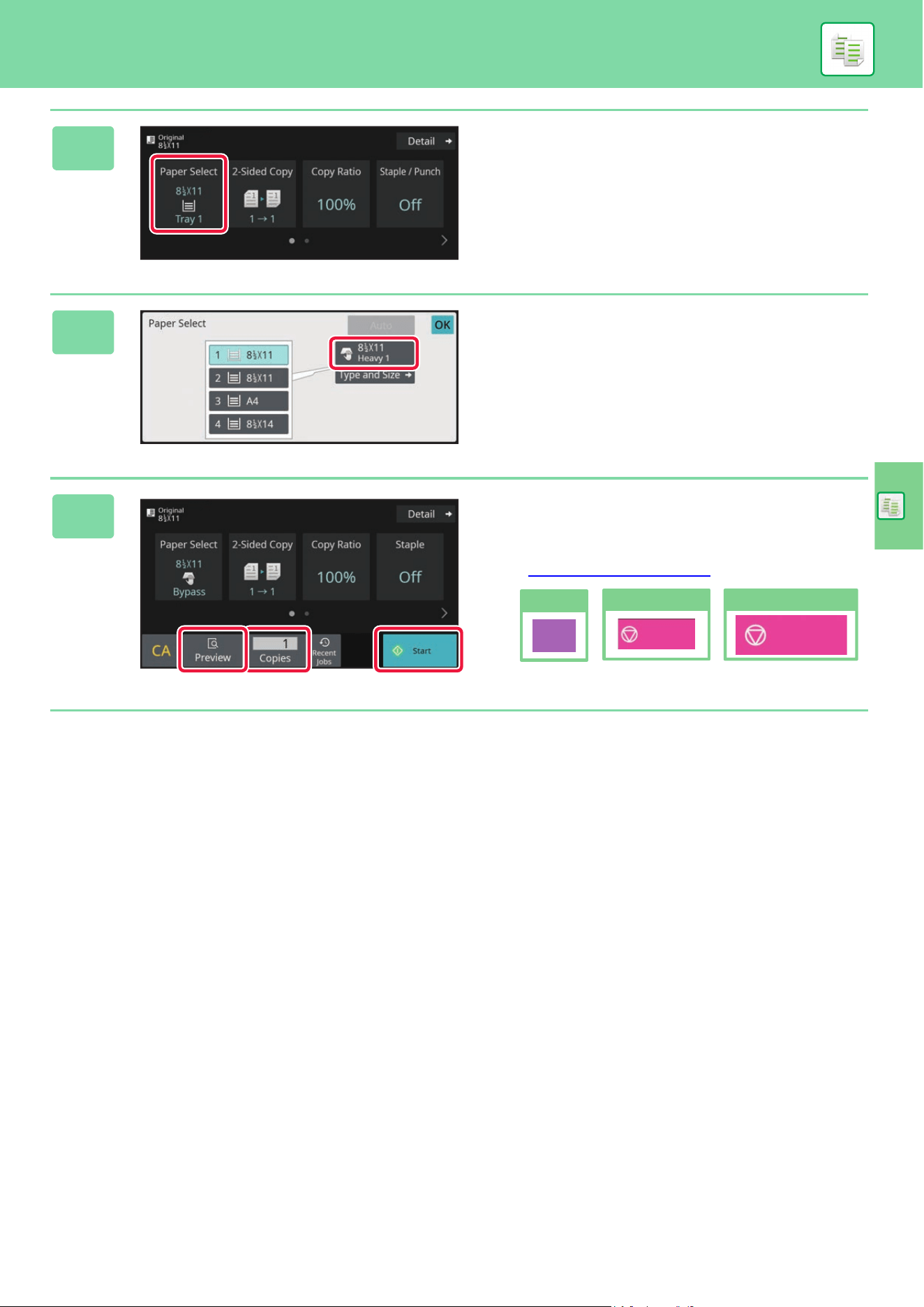
3
Tap the [Easy Copy] mode icon.
Easy Copy mode screen appears.
(2)
(4)
(3)
(1)
26
This section explains the basic procedure for printing using the printer driver of the machine. The explanations of
screens and procedures are primarily for Windows
®
10 in Windows
®
environments, and macOS 11 in macOS
environments. The window varies depending on the operating system version, the printer driver version, and the
application.
PRINTING IN A WINDOWS ENVIRONMENT
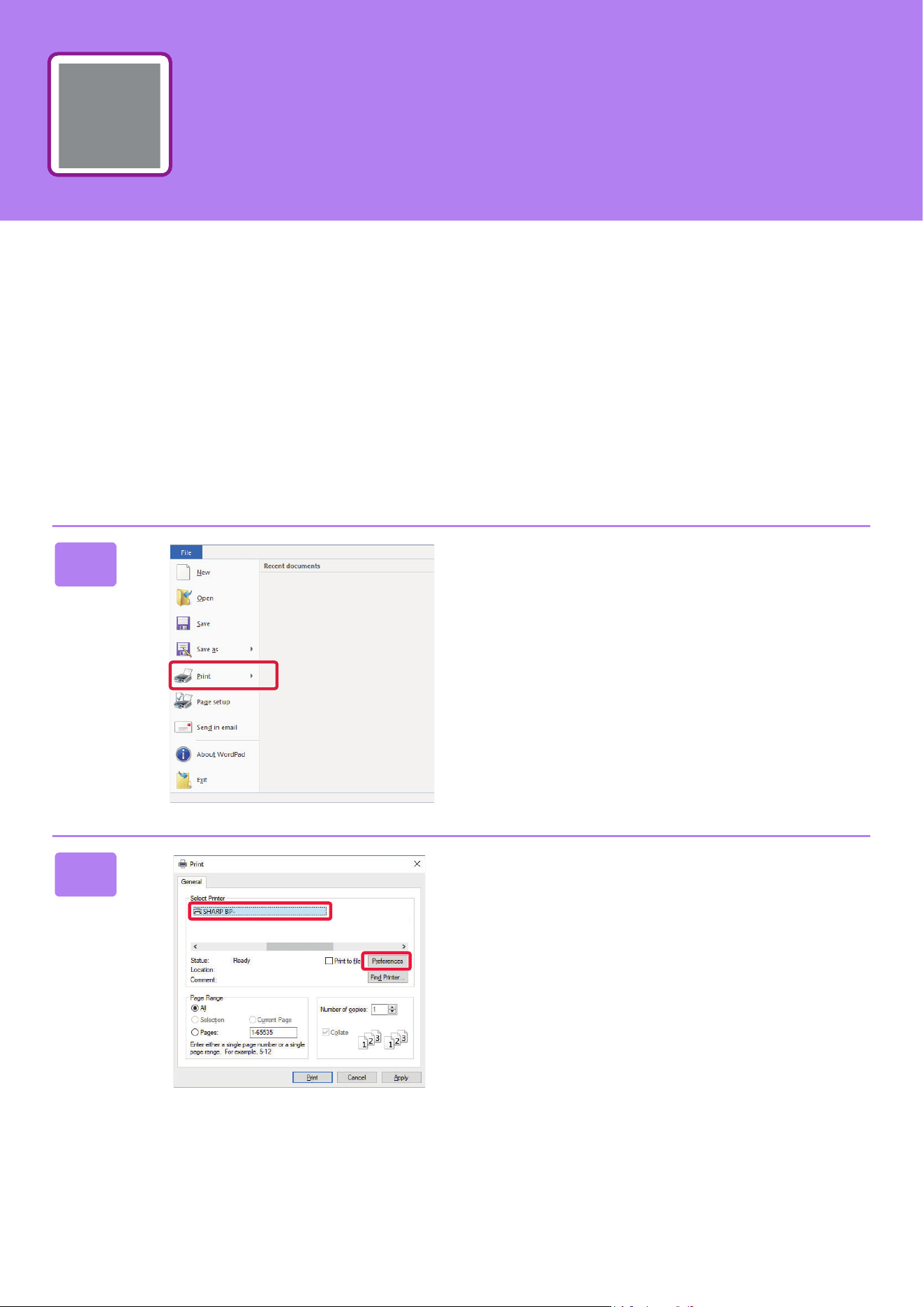
The following example explains how to print an A4 size document from "WordPad", which is a standard accessory
program in Windows.
To install the printer driver and configure settings in a Windows environment, see the Software Setup Guide.
For information on the available printer drivers and the requirements for their use, see the User's Manual.
1
Select [Print] from the [File] menu of
WordPad.
2
Select the machine's printer driver,
and click the [Preferences] button.
If the printer drivers appear as a list, select the name of the
printer driver to be used from the list.
xxxxx
PRINTER
PRINTER
27
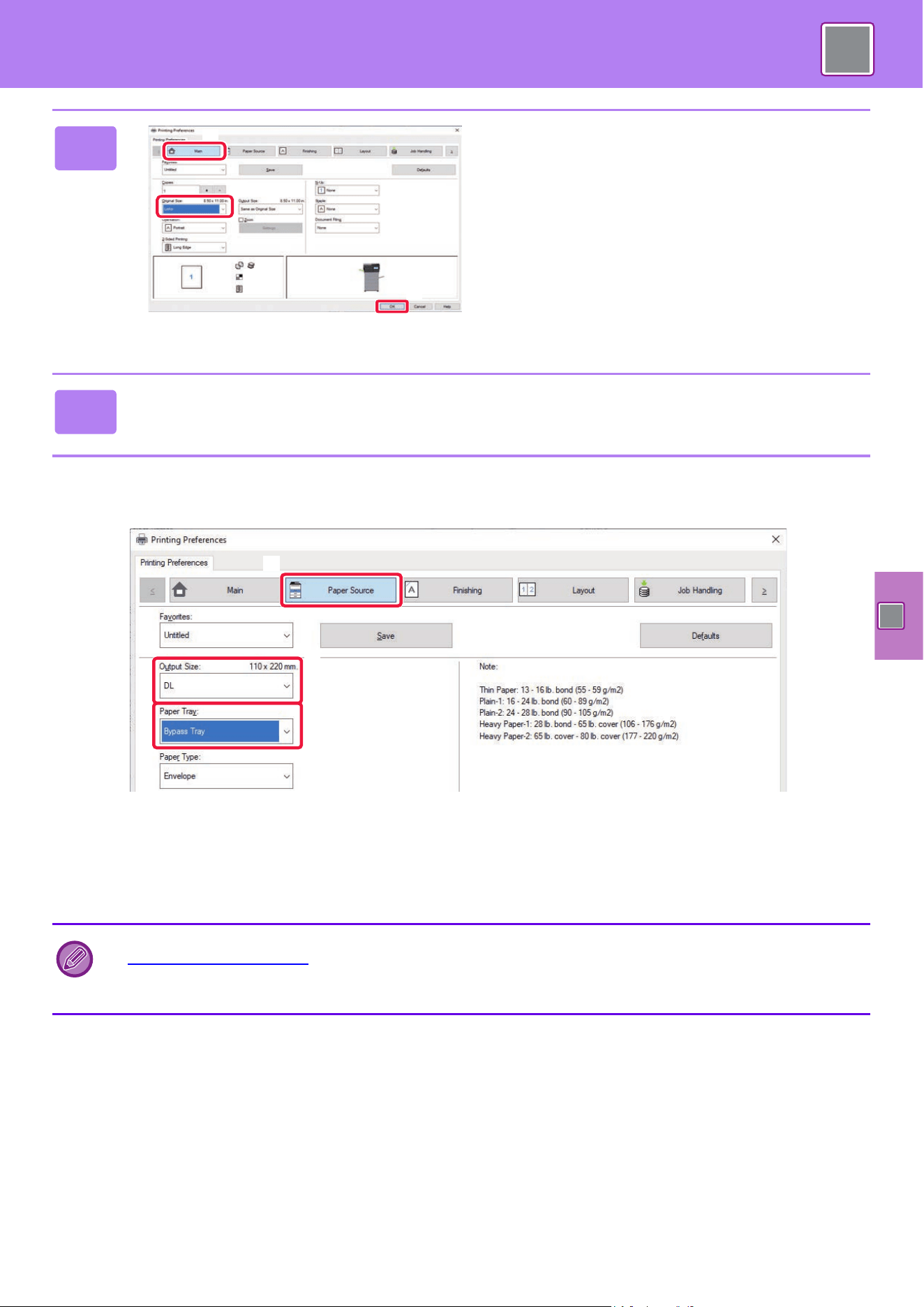
PRINTING ON ENVELOPES
The bypass tray or the tray 1 can be used for envelope printing.
(1) Click the [Paper Source] tab.
(2) Select the envelope size from "Output Size".
When "Output Size" is set to [DL], "Paper Type" is also automatically set to [Envelope].
(3) Select [Bypass Tray] or the [Tray 1] from the "Paper Tray".
3
Select print settings.
(1) Click the [Main] tab.
(2) Select the original size.
To select settings on other tabs, click the desired tab
and then select the settings.
(3) Click the [OK] button.
• Help can be displayed for a setting by clicking the
setting and pressing the [F1] key.
• Click the [Help] button, the Help window will open to
let you view explanations of the settings on the tab.
4
Click the [Print] button.
Printing begins.
• Set the paper type of the bypass tray or the tray 1 to [Envelope] and load an envelope into the bypass tray or the tray 1.
► Load
ing envelopes (page 16)
• When using media such as envelopes that can be loaded only in a specific orientation, you can rotate the image 180
degrees. For more information, see "User's Manual".
(3)
(2)
(1)
(1)
(2)
(3)
28
PRINTER
PRINTING IN A macOS ENVIRONMENT
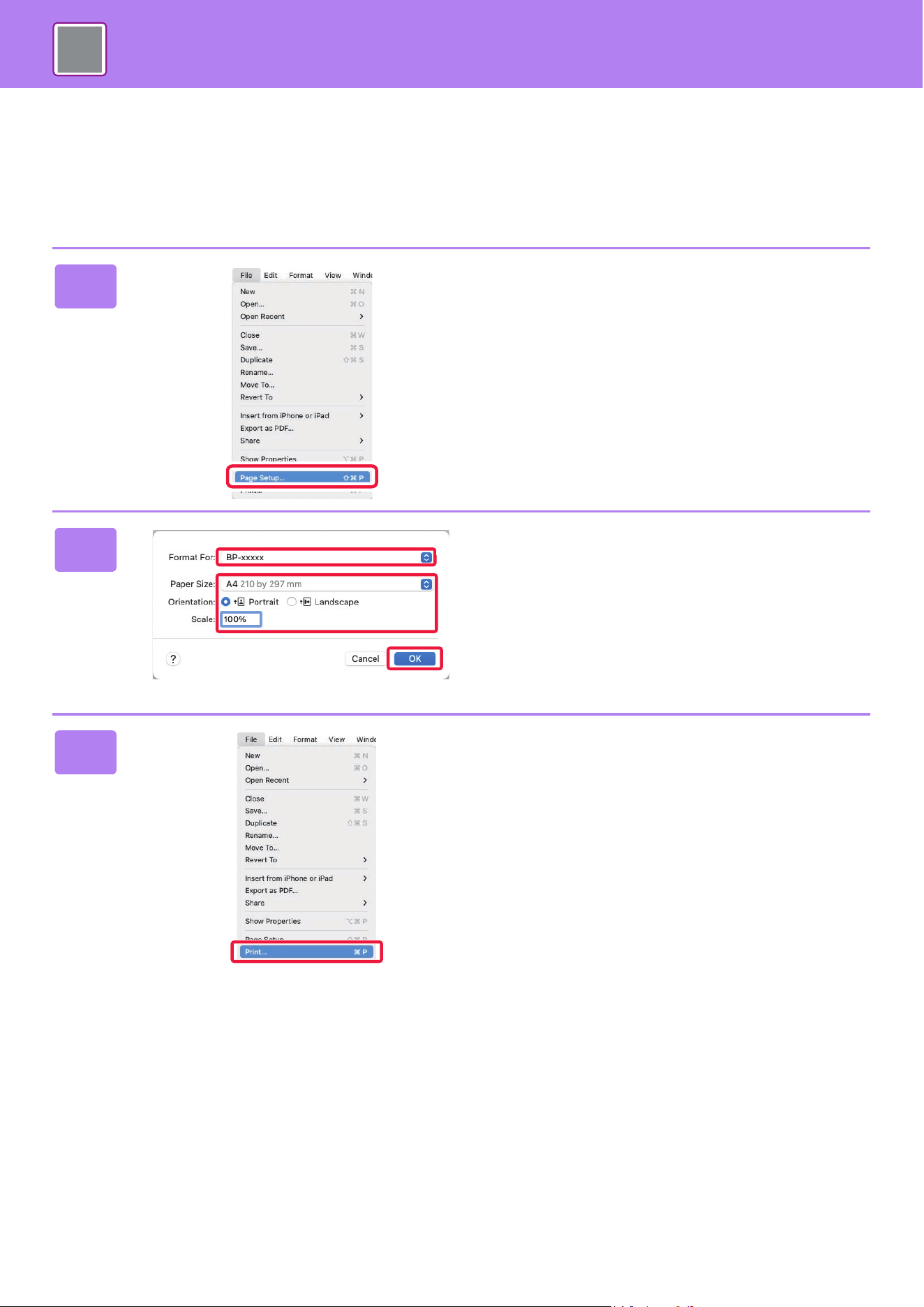
The following example explains how to print an A4 size document from "TextEdit", which is a standard accessory
program in macOS.
To install the printer driver and configure settings in a macOS environment, see the Software Setup Guide.
1
Select [Page Setup] from the [File]
menu.
2
Select paper settings.
(1) Make sure that the correct printer is
selected.
(2) Select the paper settings.
Set the paper size, paper orientation, and copy ratio.
(3) Click the [OK] button.
3
Select [Print] from the [File] menu.
(1)
(2)
(3)
PRINTER
29
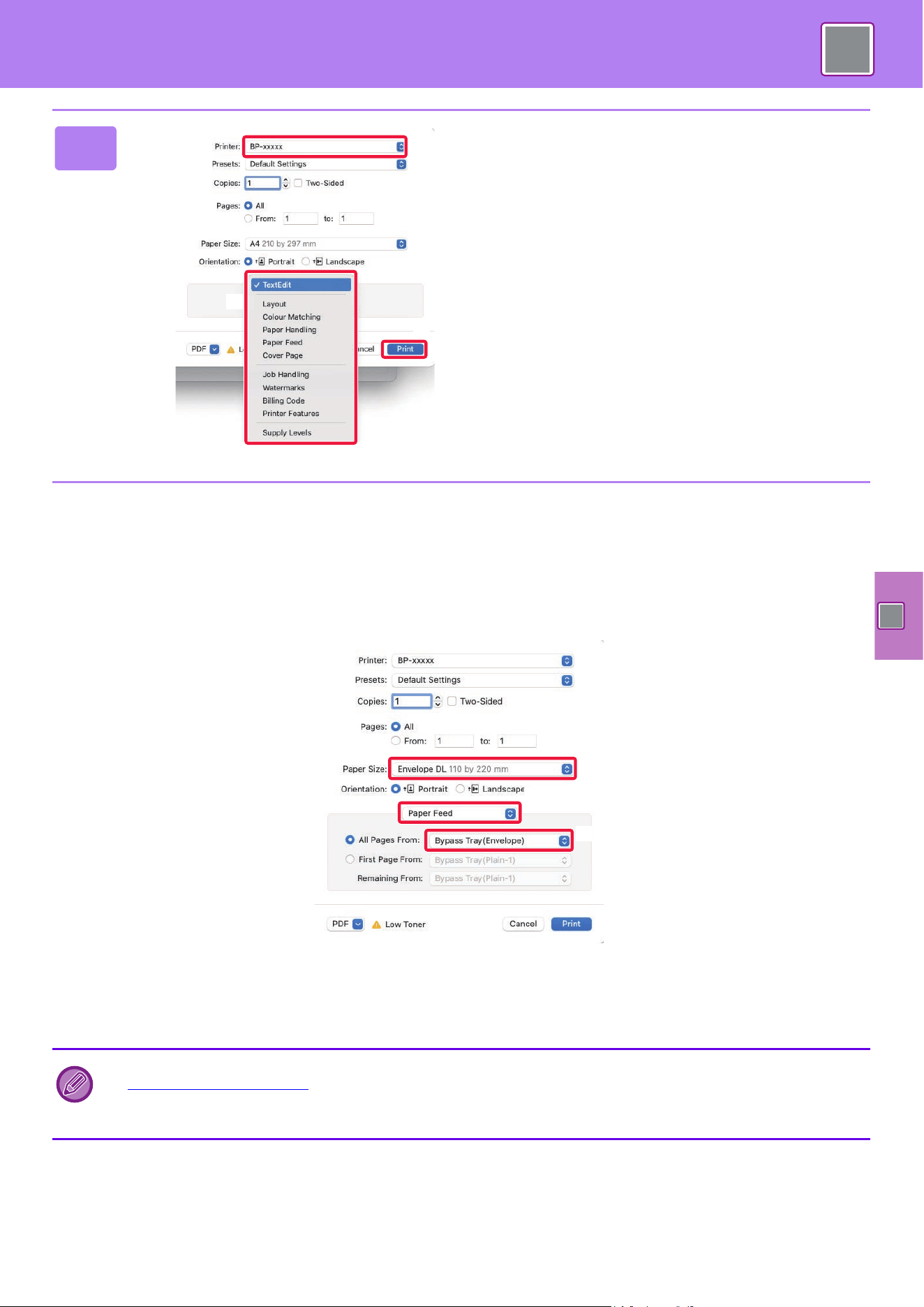
PRINTING ON ENVELOPES
The bypass tray or the tray 1 can be used for envelope printing.
Select the envelope size in the settings of the application ("Page Setup" in many applications) and then perform the
following steps.
(1) Select the envelope size from "Paper Size".
(2) Select [Paper Feed].
(3) Select [Bypass Tray(Envelope)] or the [Tray 1] from the "All Page From".
4
Select print settings.
(1) Make sure that the correct printer is
selected.
(2) Select items from the menu and configure
the settings as needed.
(3) Click the [Print] button.
• Set the paper type of the bypass tray or the tray 1 to [Envelope] and load an envelope into the bypass tray or the tray 1.
► Load
ing envelopes (page 16)
• When using media such as envelopes that can be loaded only in a specific orientation, you can rotate the image 180
degrees. For more information, see "User's Manual".
(1)
(2)
(3)
(2)
(1)
(3)
30
PRINTER
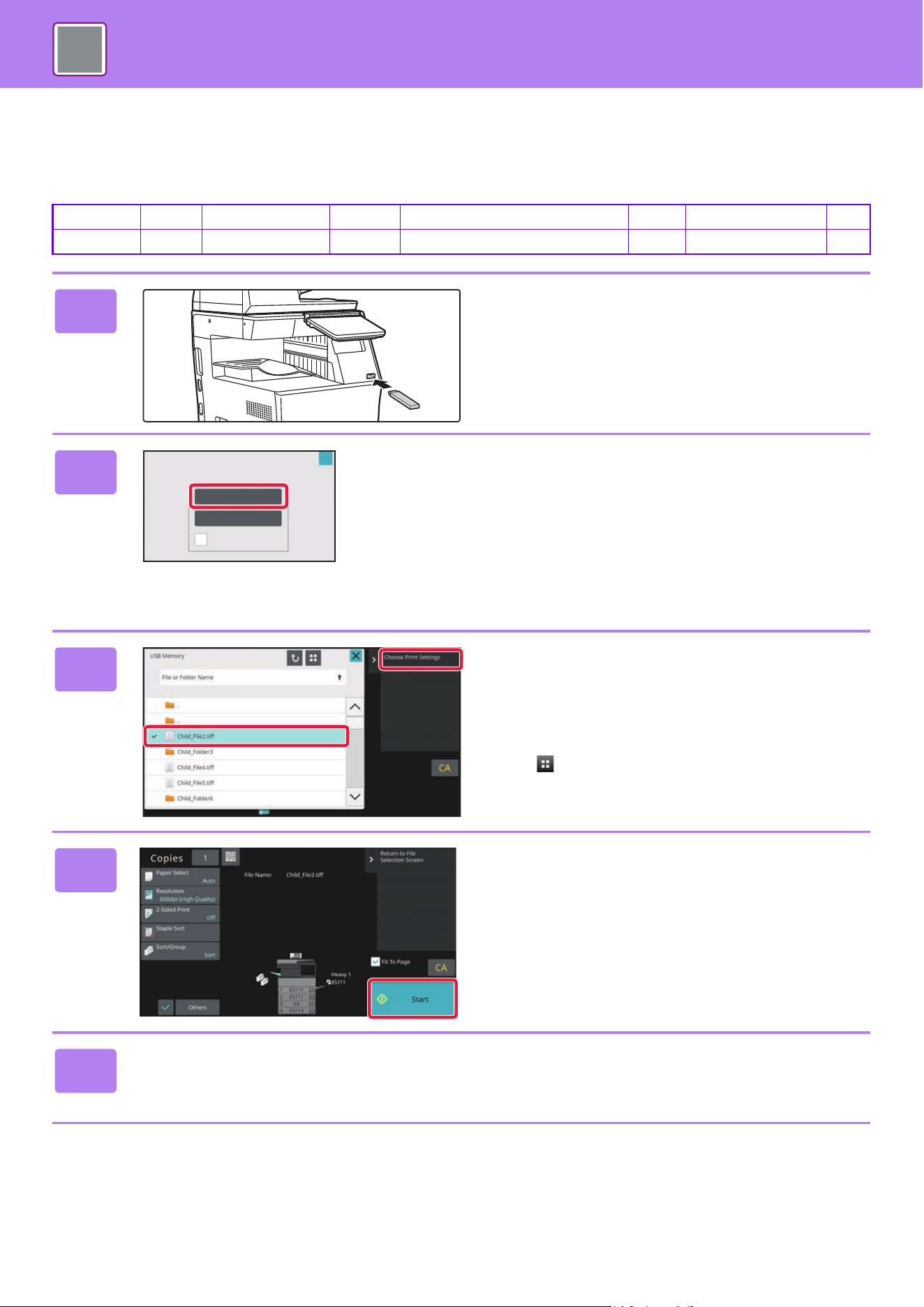
DIRECTLY PRINTING A FILE IN USB MEMORY
Files in a USB memory device connected to the machine are printed from the operation panel of the machine without
using the printer driver.
The file types (and corresponding extensions) that can be printed directly are shown below.
Qualcomm
®
DirectOffice™ is a product of Qualcomm Technologies,Inc. and/or its subsidiaries. Qualcomm
®
is a trademark of Qualcomm
Incorporated, registered in the United States and other countries.
DirectOffice™ is a trademark of CSR Imaging US, LP, registered in the United States and other countries.
File Type TIFF JPEG PCL PDF/EncryptedPDF/Compact PDF PS DOCX, XLSX, PPTX PNG
Extension tiff, tif jpeg, jpg, jpe, jfif pcl, prn pdf ps, prn docx, xlsx, pptx png
1
Connect the USB memory device to
the machine.
• Use FAT32, NTFS or exFAT format for USB memory
device.
• When the format of the USB memory device is FAT32,
use a 32 GB or less USB memory device.
2
When a screen for selecting the action
appears, tap [Print from external
memory device (USB)].
If the screen does not appear, follow these steps:
(1)
Tap the [File retrieve] key.
(2) Tap [Select File from USB Memory to
Print] on the action panel.
3
Tap the key of the file that you wish to
print, and tap [Choose Print Settings]
on the action panel.
• When printing multiple files, tap the keys of the files you
wish to print, and tap [Print] on the action panel.
• Tap to switch to thumbnails.
4
Select print settings and tap the [Start]
key.
5
Remove the USB memory device from the machine.
OK
Perform Detail Setting
Scan to External
Memory Device
External memory device (USB) is connected.
Print from external
memory device (USB)
31
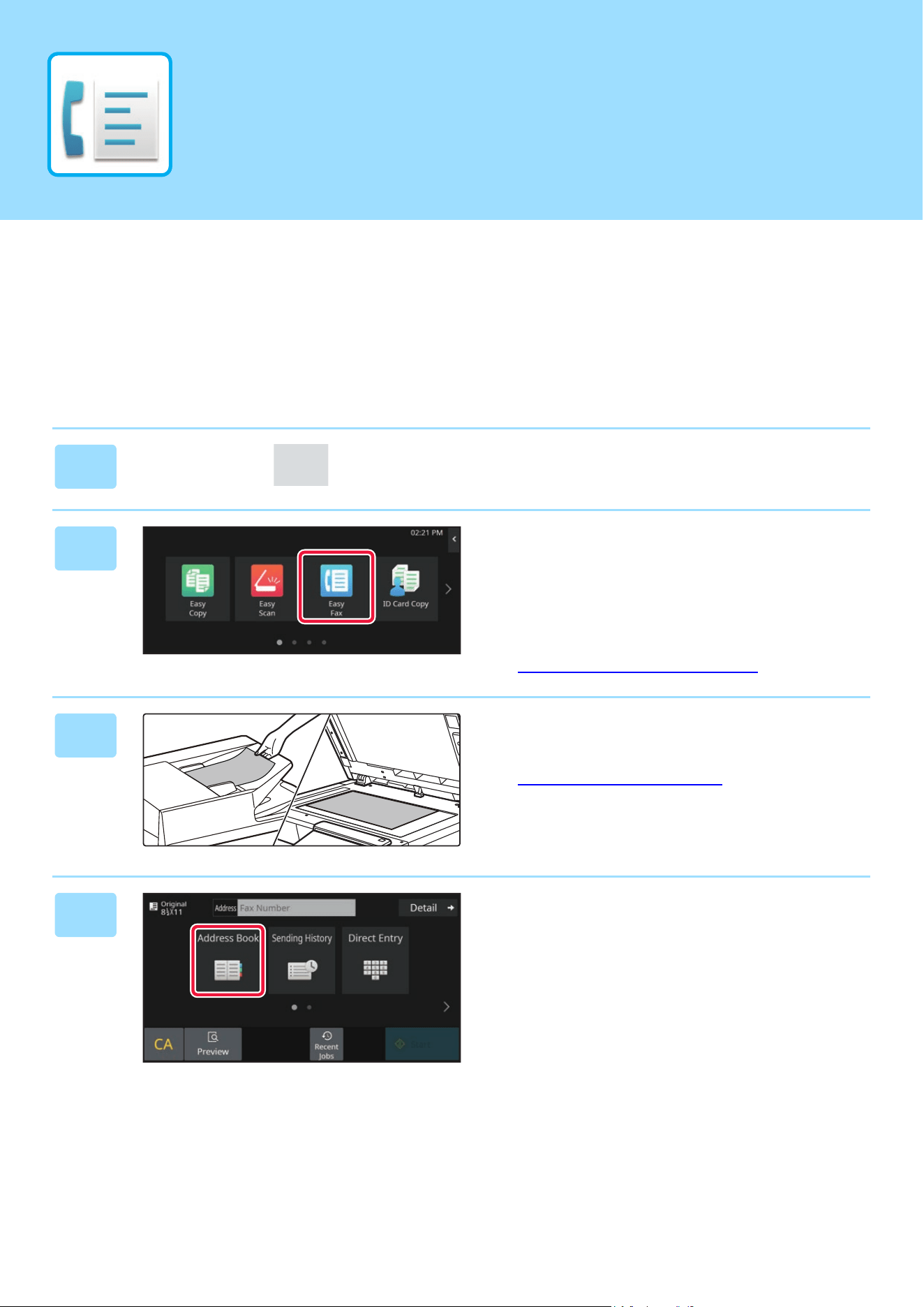
This section explains the basic procedures for using the fax function of the machine.
SENDING A FAX
This section explains the basic procedure for sending a fax.
In fax mode, color originals are sent as black and white images.
1
Tap the [Home Screen] key.
Home screen appears.
2
Tap the [Easy Fax] mode icon.
Easy Fax mode screen appears.
Fax mode has two modes: easy mode and normal mode.
Easy mode is limited to frequently used functions that allow
you to smoothly perform most fax jobs.
If you need to select detailed settings or special functions,
use normal mode.
► Easy
Mode and Normal Mode (page 8)
3
Place the original.
Place the original in the document feeder tray of the
automatic document feeder, or on the document glass.
► PLACI
NG ORIGINALS (page 10)
4
Tap the [Address Book] key.
You can also select a fax number from the Sending History,
or tap the [Direct Entry] key to directly enter a fax number.
FACSIMILE
32
FACSIMILE
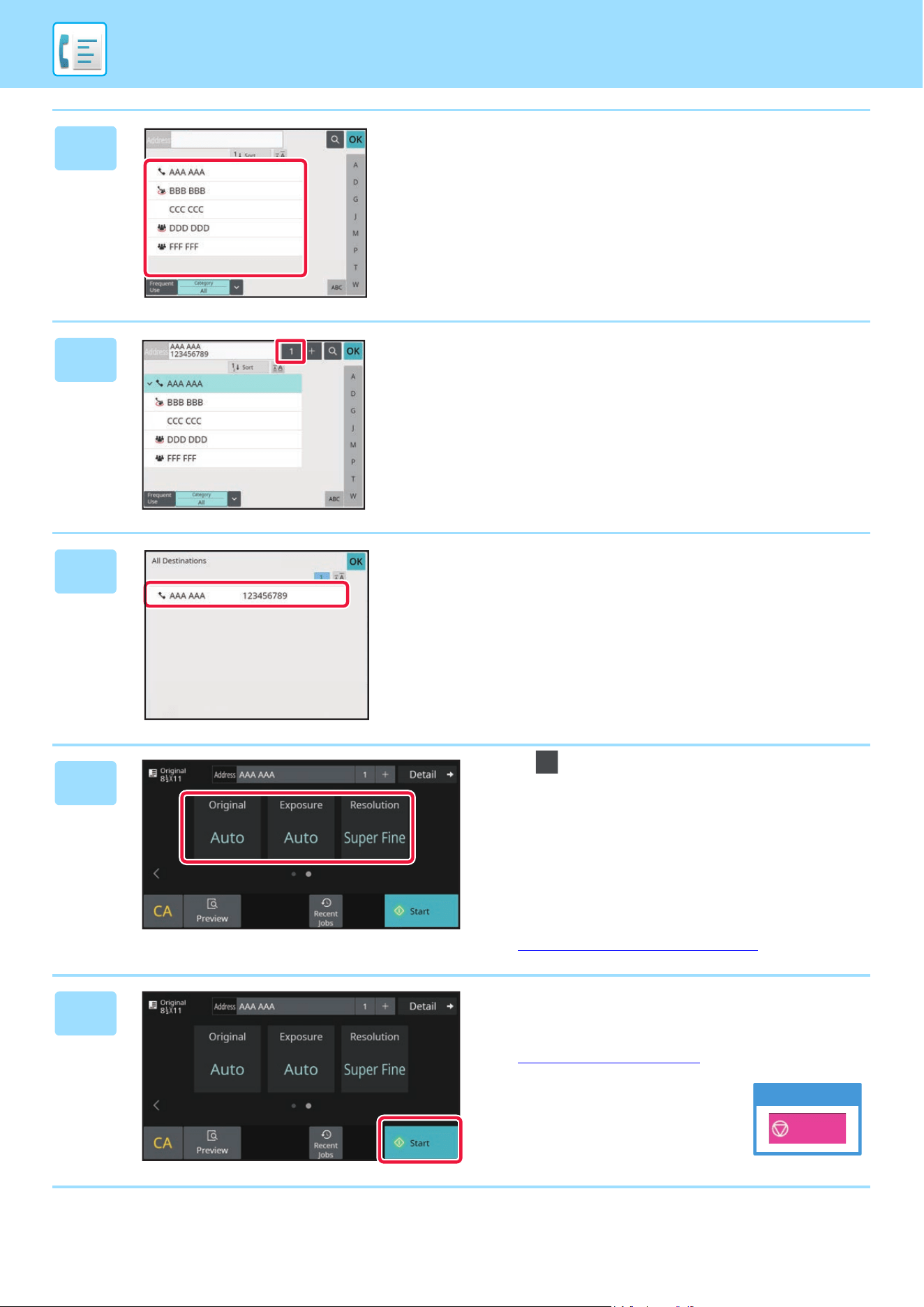
5
Tap the key of the desired destination.
Addresses of the current mode are selected from addresses
whose checkboxes were selected when the tapped
destination was registered. If no addresses were registered
with the checkbox selected, tap the [Yes] key in the
confirmation screen and select the desired addresses.
To add another destination, tap the key of the destination.
6
Tap the [All Destinations] key.
A list of the selected destinations appears.
7
Confirm the destination.
If an incorrect destination appears in the list, tap the
destination and then tap the [Delete] key.
8
Tap to change screens and select
settings.
Change settings as needed.
The functions below can be enabled in easy mode.
• Original set
• Exposure
• Resolution
To select more detailed settings, tap the [Detail] key and
select settings in normal mode.
► Easy
Mode and Normal Mode (page 8)
9
Tap the [Start] key.
To check a preview of a document, tap [OK] to return to the
base screen of Easy Fax and tap the [Preview] key.
► PREVIEW SCREEN
(page 9)
Start
Recent
Jobs
Cancel scanning
Cancel
Scan
33
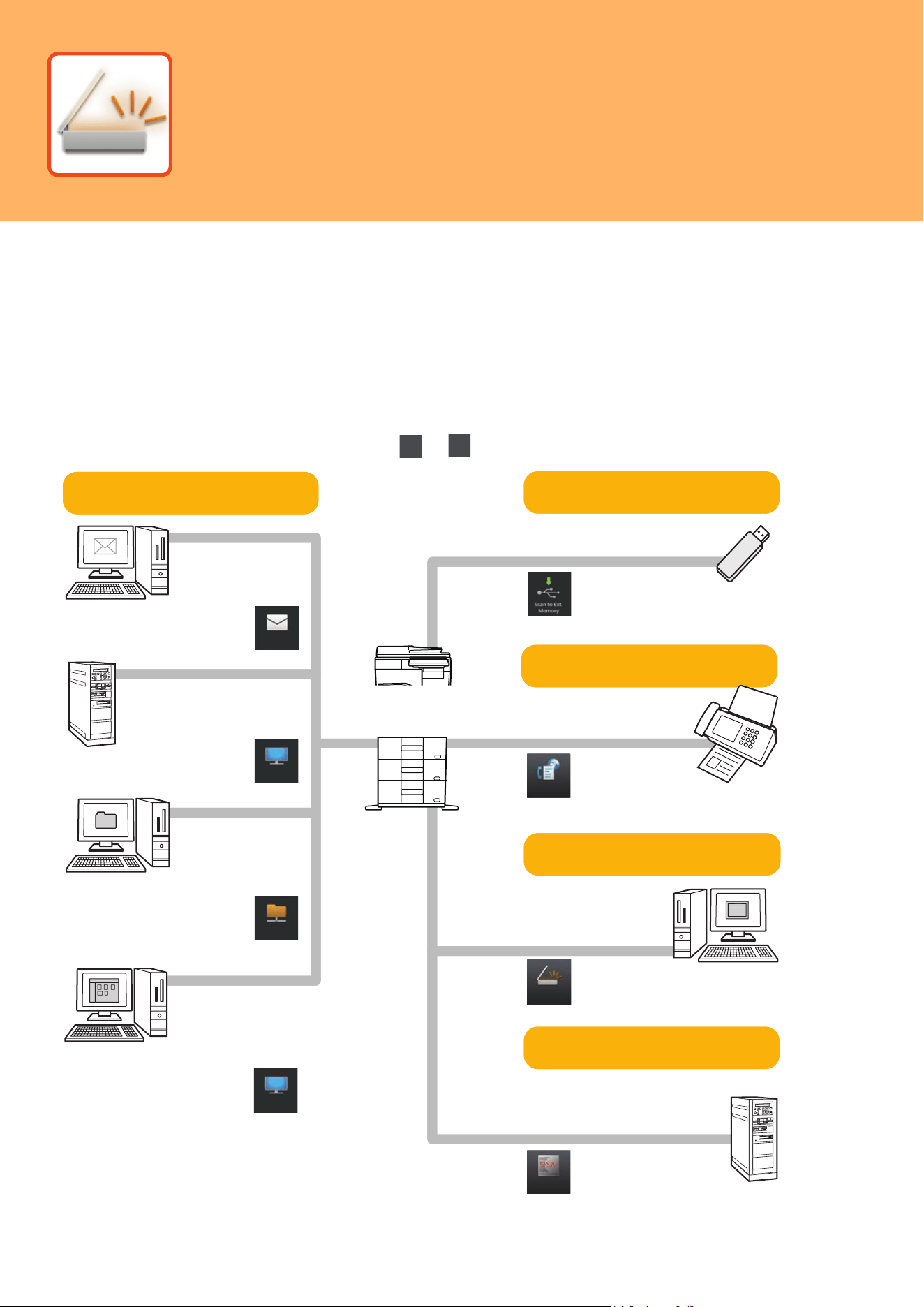
This section explains the uses of the network scanner function and the basic procedure for using scan mode.
The Internet fax expansion kit is required to use the Internet fax function.
NETWORK SCANNER FUNCTION
The network scanner function of the machine can be used to transmit scanned images by a variety of methods.
The network scanner function has the following modes.
To use a mode, tap the button of the mode in the home screen.
If the button you want to use does not appear, tap or to change the screen.
Scan modes
Scan to FTP
Scan to E-mail
Scan to Network Folder
Scan to Desktop
To send an image to
an e-mail address, use
To upload an image to
an FTP server, use
To send an image to
a shared folder on
your computer, use
To process an image
in a specific
application, use
Internet fax mode
Use this mode to send a
fax via the Internet
USB memory mode
Use this mode to save an
image to USB memory
PC scan mode
Use this mode to scan a photo
while making corrections on
your computer
A TWAIN-compliant
software application can
be used.
The machine supports
Direct SMTP.
If you want to use a
document solution linked
to an application
Data entry mode
Sharp OSA
PC Scan
Internet Fax
E-mail
Scan the original,
and then...
FTP/Desktop
Network Folder
FTP/Desktop
SCANNER
34
SCANNER
SCANNING AN ORIGINAL
The basic operation for scanning is explained below.
The procedure for sending a scanned file by E-mail to a destination stored in the address book is explained here.
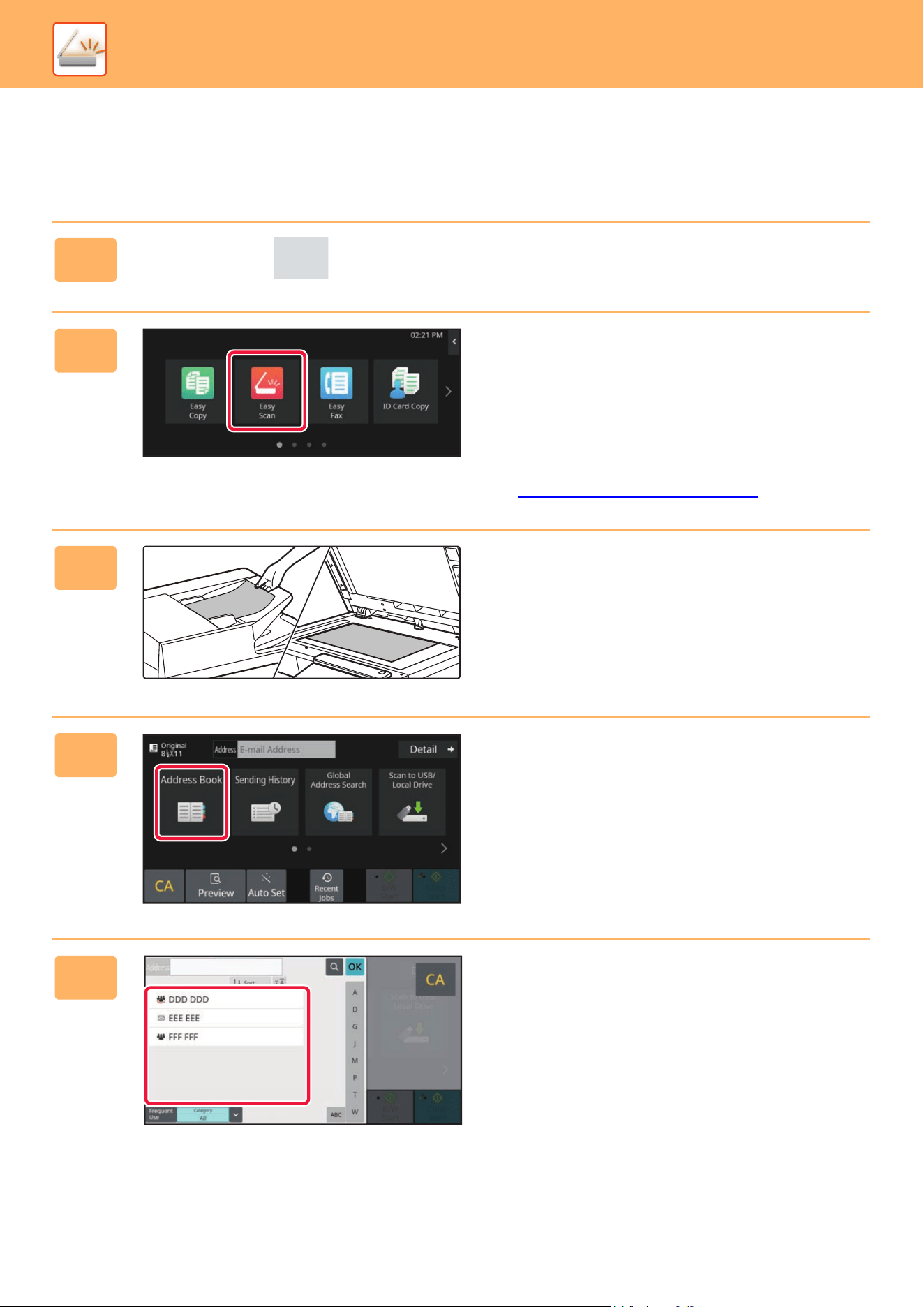
1
Tap the [Home Screen] key.
Home screen appears.
2
Tap the [Easy Scan] mode icon.
Easy Scan mode screen appears.
Scanner mode has two modes: easy mode and normal
mode.
Easy mode is limited to frequently used functions that allow
you to smoothly perform most scan jobs.
If you need to select detailed settings or special functions,
use normal mode.
► Easy
Mode and Normal Mode (page 8)
3
Place the original.
Place the original in the document feeder tray of the
automatic document feeder, or on the document glass.
► PLACI
NG ORIGINALS (page 10)
4
Tap the [Address Book] key.
5
Tap the key of the desired destination.
Addresses of the current mode are selected from addresses
whose checkboxes were selected when the tapped
destination was registered. If no addresses were registered
with the checkbox selected, tap the [Yes] key in the
confirmation screen and select the desired addresses.
To add another destination, tap the key of the destination.
SCANNER
35
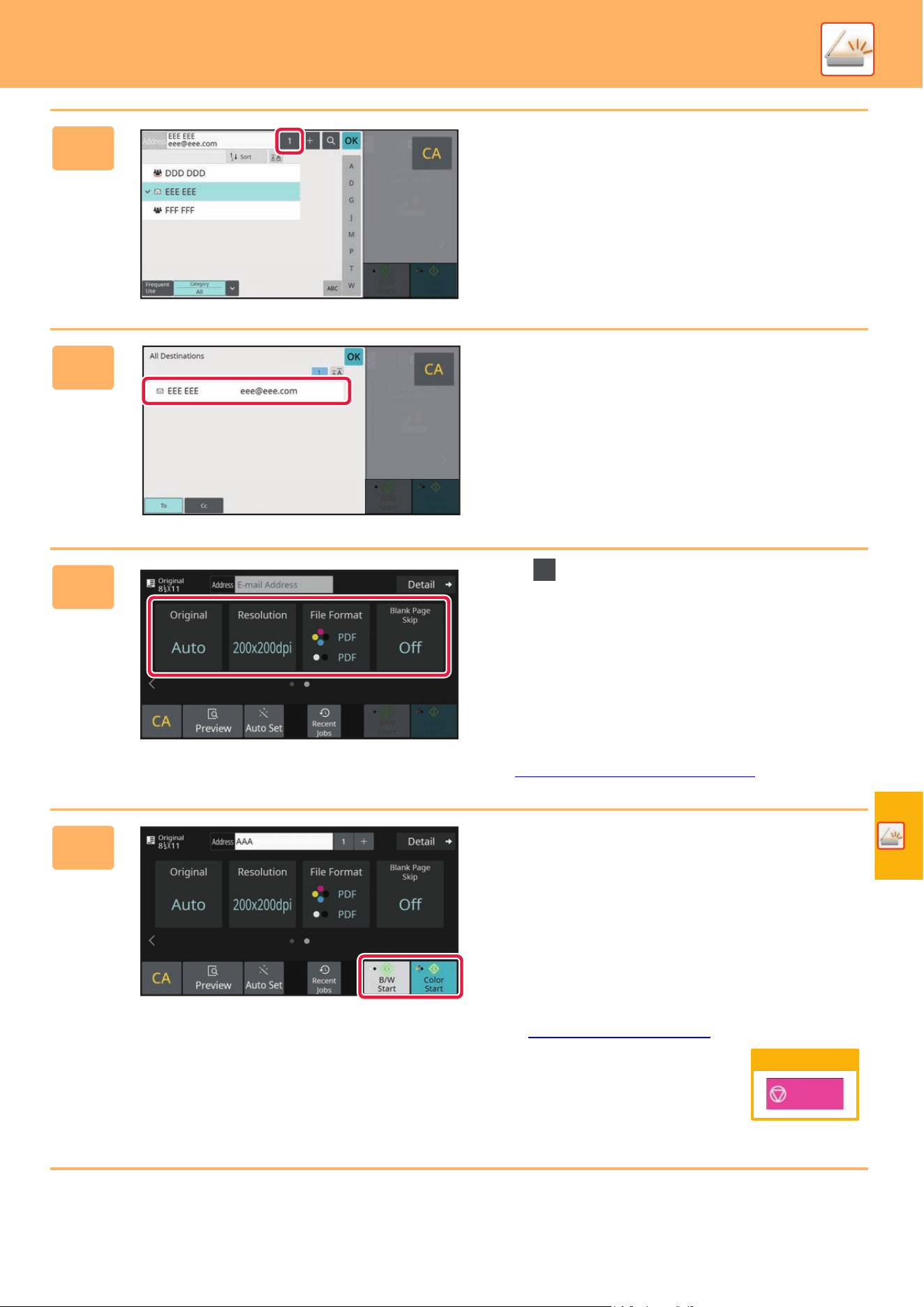
6
Tap the [All Destinations] key.
A list of the selected destinations appears.
7
Confirm the destination.
If an incorrect destination appears in the list, tap the
destination and then tap the [Delete] key.
8
Tap to change screens and select
settings.
Change settings as needed.
The functions below can be enabled in easy mode.
• Original
• Resolution
• File Format
• Blank Page Skip
To select more detailed settings, tap the [Detail] key and
select settings in normal mode.
► Easy Mode
and Normal Mode (page 8)
9
Tap the [Color Start] key or [B/W Start]
key.
• In the factory default state, the machine detects whether
the original is black & white or full color when you tap the
[Color Start] key, and automatically switches between full
color and black & white binary scanning. When you tap
the [B/W Start] key, the machine scans in black & white
binary. For details, see the User's Manual.
• To check a preview of a document, tap [OK] to return to
the base screen of Easy Scan and tap the [Preview] key.
► PREVIE
W SCREEN (page 9)
Cancel scanning
Cancel
Scan
36
The document filing function is used to store the document or print image on the hard drive when performing a copy,
print, or other job. You can print or perform other operations using the saved file at a later time.
This section introduces several of the document filing functions.
SAVING A DOCUMENT ONLY (Scan to Local
Drive)
Scan to Local Drive lets you save a scanned document to the main folder or a custom folder. This function is not used to
print or send.
The procedure for storing a document in the main folder is explained below.
To save to a custom folder, tap the [File retrieve] key in the Home screen, tap [Scan to Local Drive] on the action panel,
and select save settings. For more information, see the User's Manual.
Saving by Easy Scan
You can save a file in the main folder or My Folder (when user authentication is enabled).
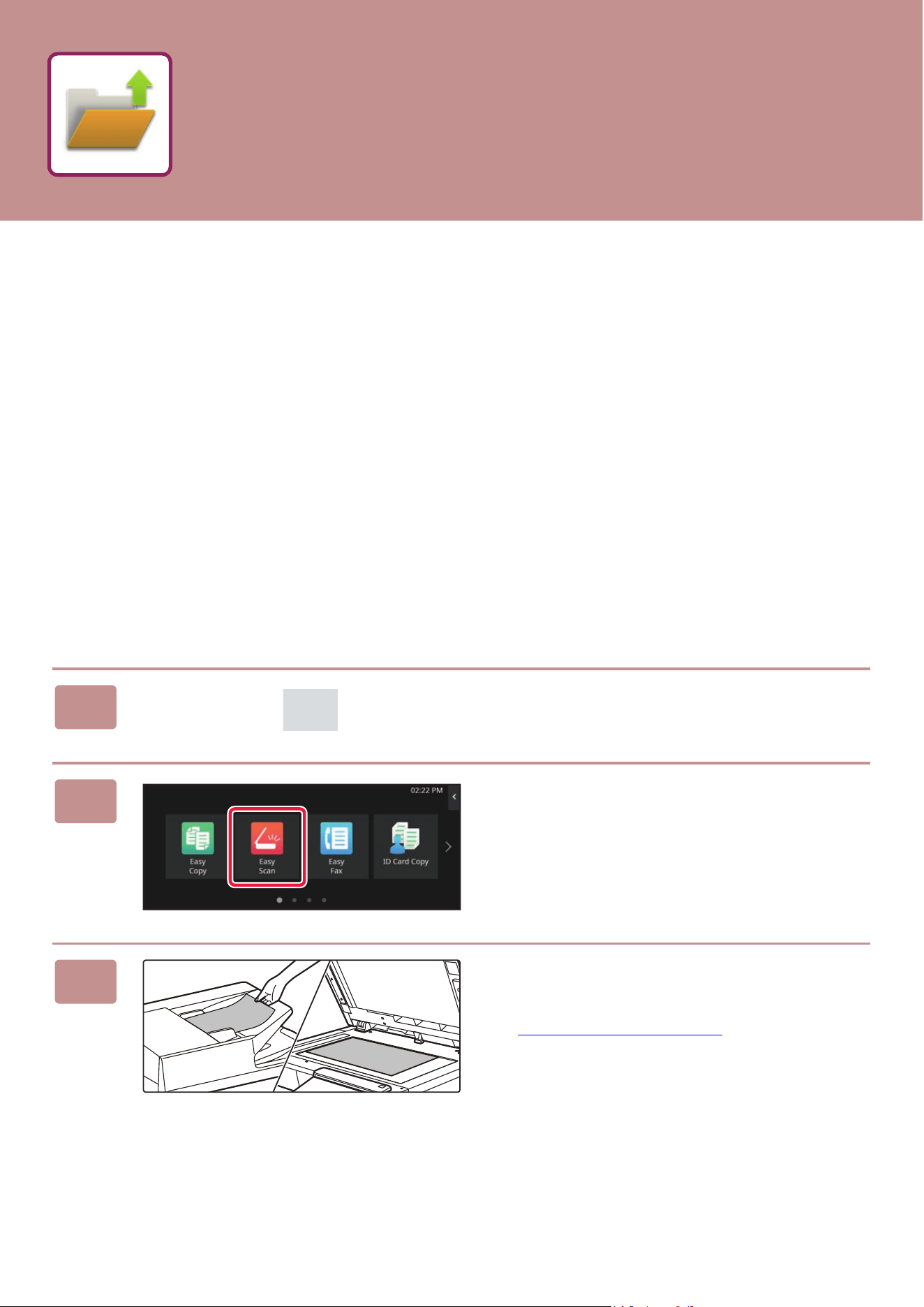
1
Tap the [Home Screen] key.
The Home screen appears.
2
Tap the [Easy Scan] mode icon.
3
Place the original.
Place the original in the document feeder tray of the
automatic document feeder, or on the document glass.
► PLACI
NG ORIGINALS (page 10)
DOCUMENT FILING
38
DOCUMENT FILING
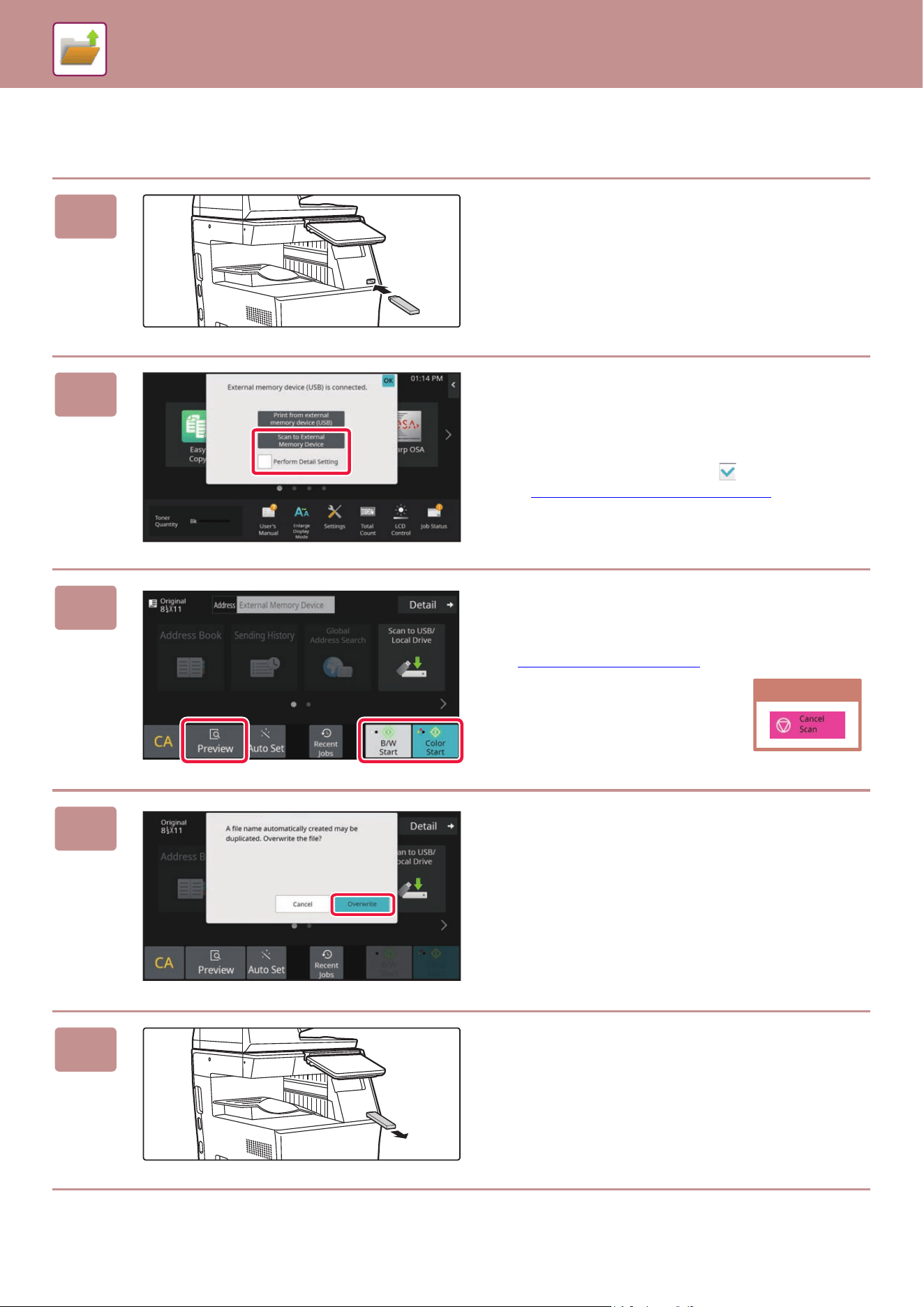
Scan to USB memory device
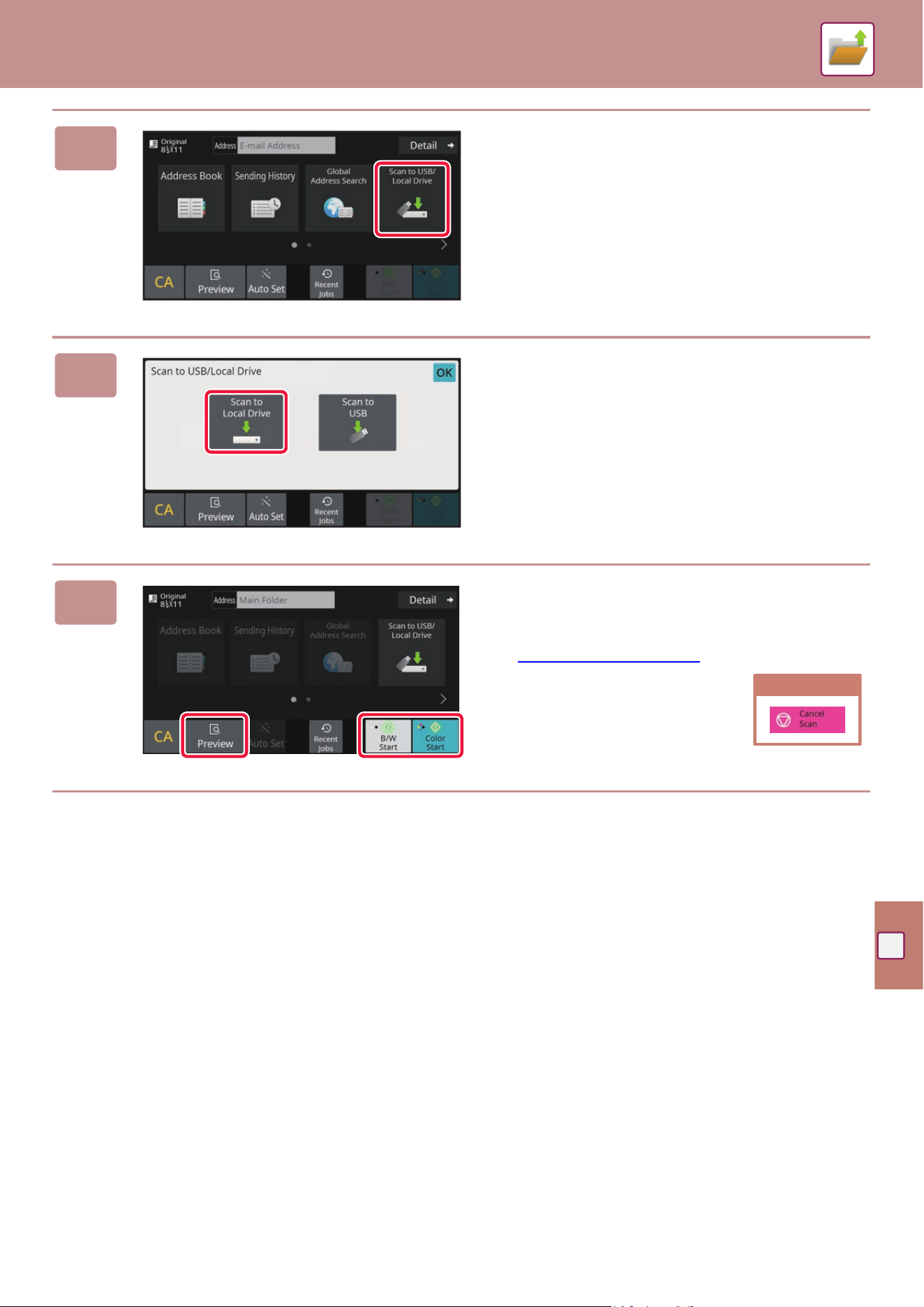
1
Connect the USB memory device to
the machine.
• Use FAT32, NTFS or exFAT format for USB memory
device.
• When the format of the USB memory device is FAT32,
use a 32 GB or less USB memory device.
2
When a screen for selecting the action
appears, tap [Scan to External Memory
Device].
• To select detailed settings in normal mode, select the
[Perform Detail Setting] checkbox .
► Ea
sy Mode and Normal Mode (page 8)
• If the machine/device save screen is open, this screen will
not appear.
3
Tap the [Color Start] key or [B/W Start]
key.
To check a preview of a document, tap the [Preview] key.
► PREVIEW SCREEN
(page 9)
4
After scanning all originals, tap the
[Overwrite] key.
5
Check the [Sending data has been
completed.] message, and remove the
USB memory device from the machine.
Cancel scanning
DOCUMENT FILING
39
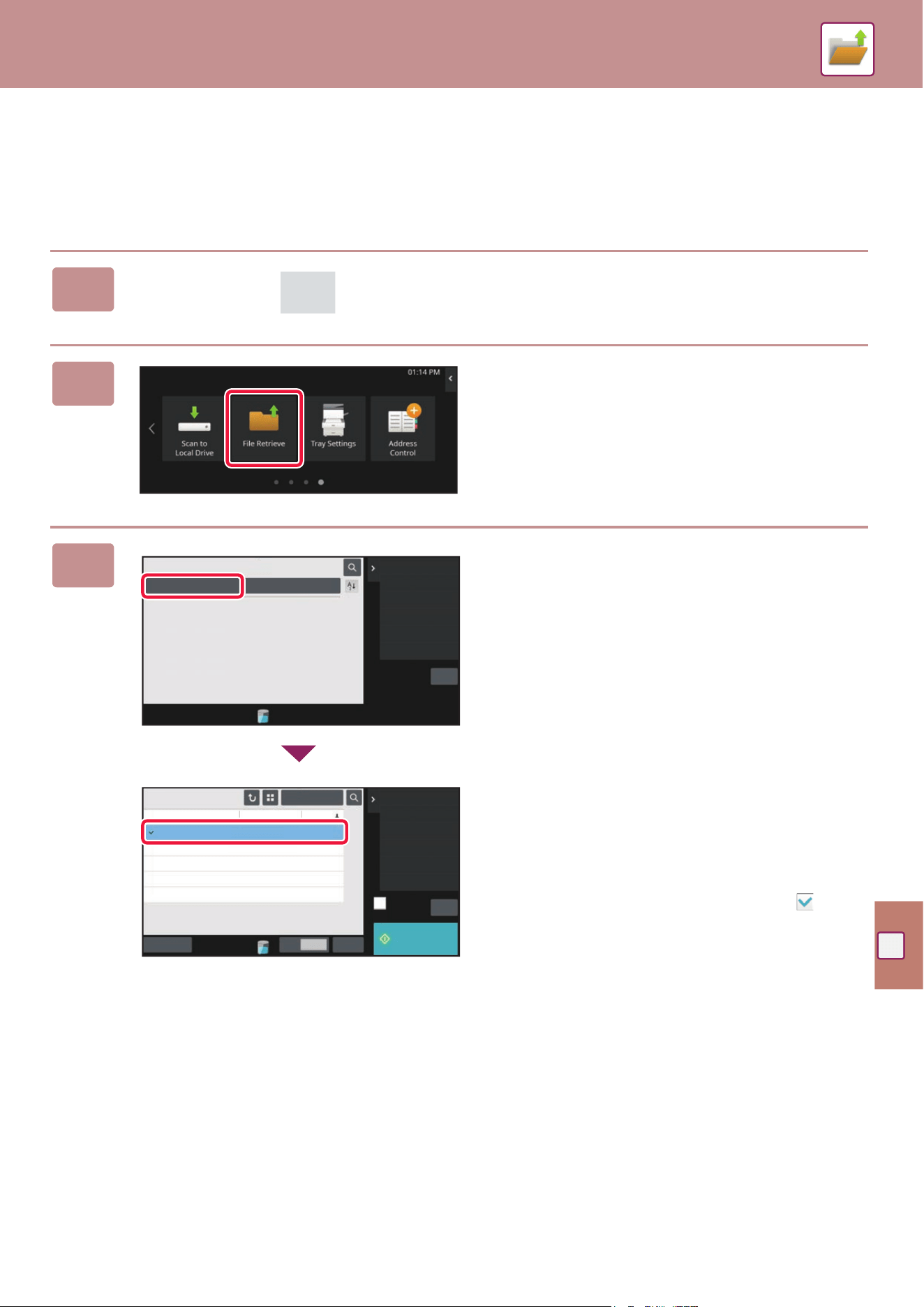
PRINTING A SAVED FILE
You can retrieve a file stored by document filing and print or transmit the file.
You can also print files saved in a USB memory device or a shared folder.
The steps for printing the "Copy_20201010_112030" file saved in the main folder are explained below.
1
Tap the [Home Screen] key.
Home screen appears.
2
Tap the [File retrieve] mode icon.
3
Select the file and print.
(1) Tap the [Main Folder] key.
(2) Tap the key of the file that you wish to
print.
In this case, tap the "Copy_20201010_112030" key.
To check a preview of the printed image, tap [Check
Image] on the action panel.
If you want to delete the file after printing, tap [Print and
Delete the Data] on the action panel so that
appears.
(3) Tap the [Print Now] key.
Scan to Local Drive
Scan to External
Memory Device
Select File from
FTP to Print
Select File from
USB Memory to Print
Main Folder Quick File Folder
Folder Select
Select File from
Network Folder to Print
CA
All Files
Main Folder
Execute Batch Print
Choose Print Settings
Send
Move
Check Image
See Detail Information
Delete
File Name User Name Date
Select All DeleteCopies
Print Now
CA
User Unknown
User Unknown
User Unknown
2020/10/10
2020/10/10
2020/10/10
Copy_20201010_112030
Copy_20201010_112031
Copy_20201010_112032
User Unknown
2020/10/10
Copy_20201010_112033
User Unknown
2020/10/10
Copy_20201010_112034
40
The setting mode let you adjust the operation of the machine to suit the needs of your workplace. This section briefly
introduces several of the setting mode.
For detailed explanations of the system settings, see "SETTING MODE" in the User's Manual.
SETTING MODE
The date and time can be set, fax and scan destinations can be stored, document filing folders can be created, and
various other settings related to the operation of the machine can be configured in the setting mode screen.
The procedure for opening the setting mode screen and the items in the screen are explained below.
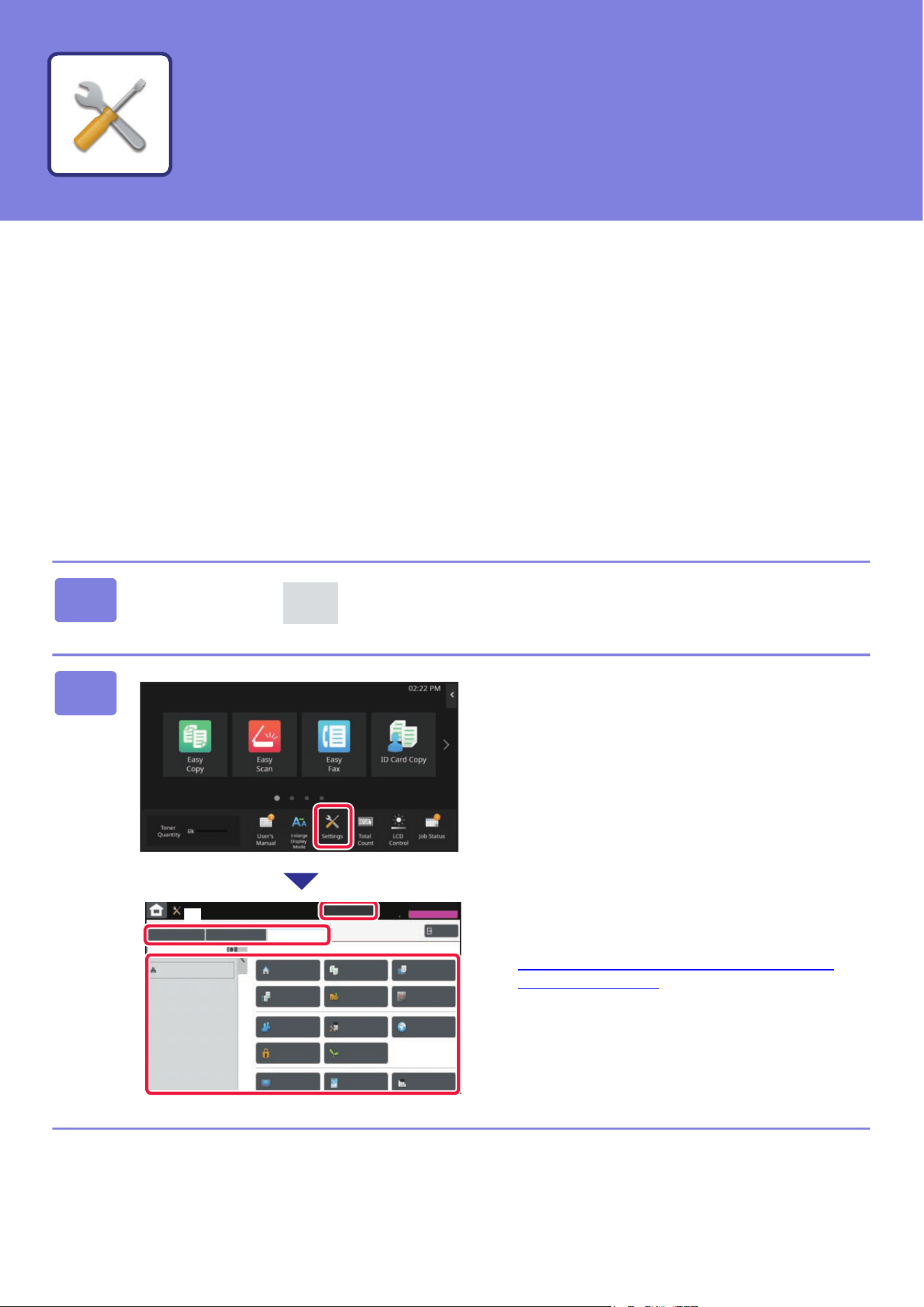
DISPLAYING THE SETTING MODE ON THE MACHINE
1
Tap the [Home Screen] key.
Home screen appears.
2
Tap the [Settings] key.
The setting mode screen appears.
Tap the item that you want to set on menu tab (a) or setting
menu (b).
To exit setting mode, tap the [Cancel] key.
► SE
TTING MODE WHEN AN ADMINISTRATOR IS
LOGGED IN (page 41)
Status
Home Screen
Settings
Copy Settings Printer
Settings
System Settings
Sitemap
System Settings
User Control
Image Send
Settings
Document Filing
Settings
Sharp OSA
Settings
Common
Settings
Authentication
Settings
Network
Settings
Energy Save
Security
Settings
Init. Install.
Settings
System Control Image Quality
Adjustment
Job Status
Paper Empty
Cancel
Logout
Settings
(a)
(b)
SETTING MODE
SETTING MODE
41
SETTING MODE WHEN AN ADMINISTRATOR IS
LOGGED IN
An administrator can configure settings that are more advanced than the settings available to a guest or user.
When user authentication is enabled, settings may be allowed without entering the administrator password based on the
rights of the logged in user. For the state of the settings, ask the administrator of the machine.
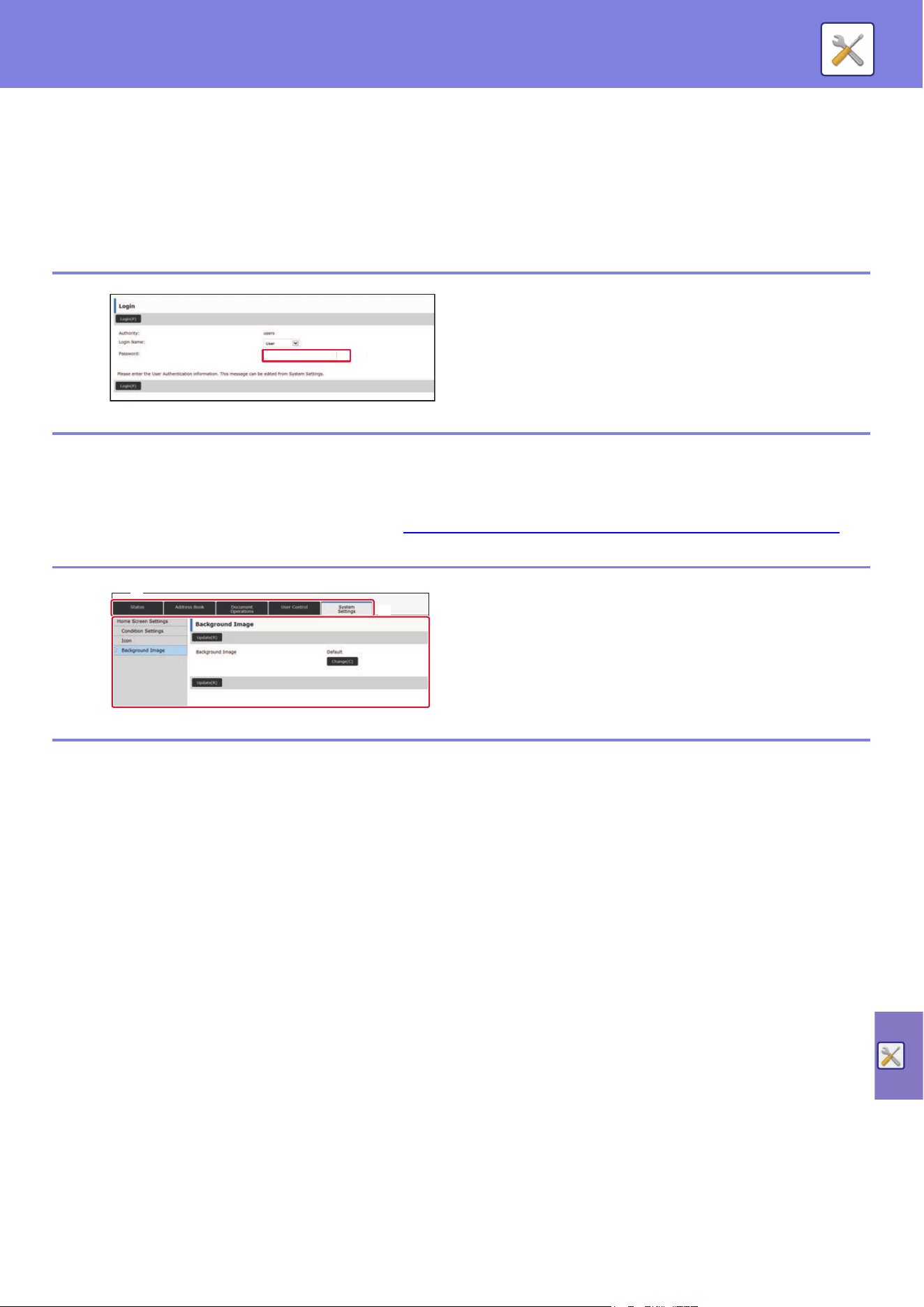
DISPLAYING THE SETTING MODE ON THE WEB PAGE
For information on how to display web pages, see "ACCESSING THE WEB SERVER IN THE MACHINE (page 19)"
When you select an item in setting mode that requires
administrator login, the administrator login screen will
appear.
For the items available in setting mode when an
administrator is logged in, see "SETTING MODE" in the
User's Manual.
From the Menu tab (a) and the Settings menu (b), click the
item you want to set.
To exit the setting mode, close your web browser.
(b)
(a)
42
SETTING MODE
WHAT YOU CAN DO IN THE SETTING MODE
The following settings can be configured in setting mode.
Some settings may not appear on the touch panel of the machine, or in the Web browser on your computer. Some
settings may not appear due to the specifications of your machine and the peripheral devices that are installed.
Menu Overview
Status Displays paper tray information and device information.
Address Book Use to edit the address book.
Document Operations Use to perform actions on a file using the Document Filing function.
User Control This is used to store, edit, and delete users when user authentication is enabled.
System Settings Configure the main settings for the machine such as date settings and paper tray settings. You
can configure the following settings.
Home Screen Settings You can select settings for the machine's home screen, such
as changing the home screen background.
Copy Settings You can select copy settings.
Printer Settings You can select print settings.
Image Send Settings Configure settings for image send, such as fax and Scan to
E-mail.
Document Filing Settings You can select Document Filing settings.
Sharp OSA Settings You can select Sharp OSA settings.
Authentication Settings Configure the user authentication method. Alternatively,
configure the IC card.
Common Settings You can configure machine settings such as date settings and
tray settings.
Network Settings You can configure network settings such as Interface Settings
and NAS settings.
Security Settings You can configure machine security settings such as
authentication and changing the administrator password.
Energy Save The machine's power consumption can be reduced by Eco
Mode setting.
System Control You can configure machine backup and job log settings.
Image Quality Adjustment You can perform image adjustment on the machine.
Initial Installation Settings This is a group of settings that are required when you initially
install the machine.
Please note
• For information on your operating system, please refer to your operating system manual or the online Help function.
• The explanations of screens and procedures in a Windows environment are primarily for Windows 10
®
. The screens may vary
depending on the version of the operating system or the software application.
• The explanations of screens and procedures in a macOS environment are based on macOS 11 in the case of macOS. The
screens may vary depending on the version of the operating system or the software application.
• Wherever "BP-xxxxx" appears in this manual, please substitute your model name for "xxxxx".
• Considerable care has been taken in preparing this manual. If you have any comments or concerns about the manual, please
contact your dealer or nearest SHARP Service Department.
• This product has undergone strict quality control and inspection procedures. In the unlikely event that a defect or other problem
is discovered, please contact your dealer or nearest SHARP Service Department.
• Aside from instances provided for by law, SHARP is not responsible for failures occurring during the use of the product or its
options, or failures due to incorrect operation of the product and its options, or other failures, or for any damage that occurs due
to use of the product.
Warning
• Reproduction, adaptation or translation of the contents of the manual without prior written permission is prohibited, except as
allowed under copyright laws.
• All information in this manual is subject to change without notice.
Illustrations and the operation panel and touch panel shown in this manual
The peripheral devices are generally optional, however, some models include certain peripheral devices as standard equipment.
The explanations in this manual assume that a paper drawer is installed on the BP-B550WD.
For some functions and procedures, the explanations assume that devices other than the above are installed.
The display screens, messages, and key names shown in the manual may differ from those on the actual machine
due to product improvements and modifications.

Version 01a / bpb550wd_qsg_01a_us

