
SIZE:90mm X 120mm
材质: 封面铜版纸 内页: 书纸
注意:不要随便删减空白页(特别是封面内页不能出现印刷内容)
此页不印刷(本文件共24页)
工艺: 封面过亚膜
PANTONE Black C
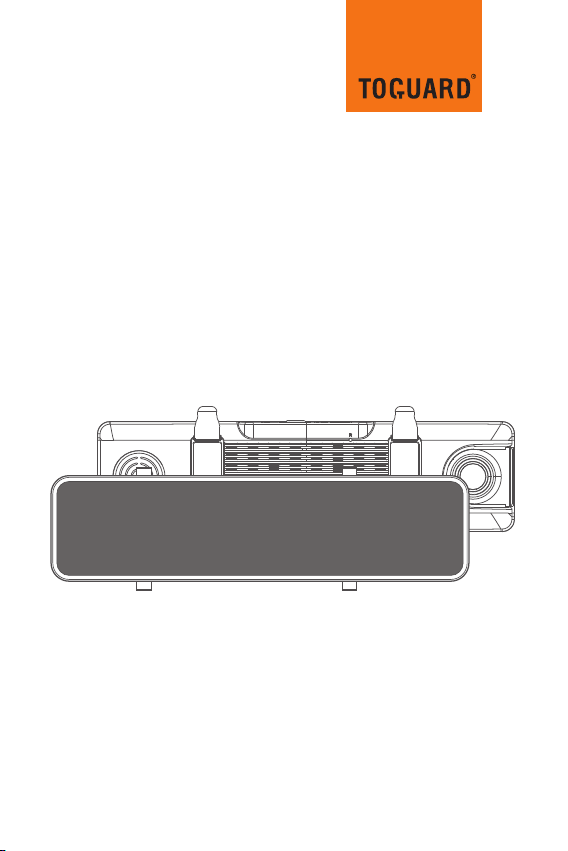
TOUCH SCREEN STREAMING
VIDEO REAR VIEW MIRROR
CE80A


Ifyouhaveanyotherquestionsorproblems,Pleasefeelfreeto
contactusat
Wehaveprofessionalteamatyourservice,andyoursatisfactionis
guaranteed.
support@toguard.cc
V202012 24


Thisproductisintendedforuseinmotorvehicleonly.DONOT
installthedevicewhereitmightblockthedriver’sviewofroad
(includingthemirrors)orthedeploymentoftheairbag.
Beforeusingthisdevice,pleaseinsertthememorycardfirst,and
needtoformatmicroSDcardtoFAT32formatonPCfirstly,then
formatthememorycardincameramenu.
Thisdevicerecordsvideoathighresolution,Besuretousehigh
speedmemorycard,U3oraboveisrecommended,16GBor32GB
cardsarerecommended.
Wedorecommenddoingabenchmarktestandmakesurethe
unitisworkingperfectlybeforeinstallingtheunitonyourvehicle.
Besurethelensiscleanandthereisnothingblockingthelens.
Makesureyouareusingtheoriginalincludedpoweradapterto
powertheunit.
DONOTleavethedeviceindirectsunlightforalongperiodoftime
orwherethetemperaturecouldgoabove170°F(75°C).
TheGPSfunctionhavetoworkwithcustomizedGPSmodule,please
download"GXplayer".Pleasecontactthesellerfordetails.
NOTICE:Duetothehighpowerconsumptionofthis
unit,itshouldalwaysbeconnectedtoanexternal
powersupplyweprovidedinsidepackage.Thiscamerashould
notpoweronwithoutexternalpowersupplyconnected.
ImportantNotice:
support @toguard.cc
1
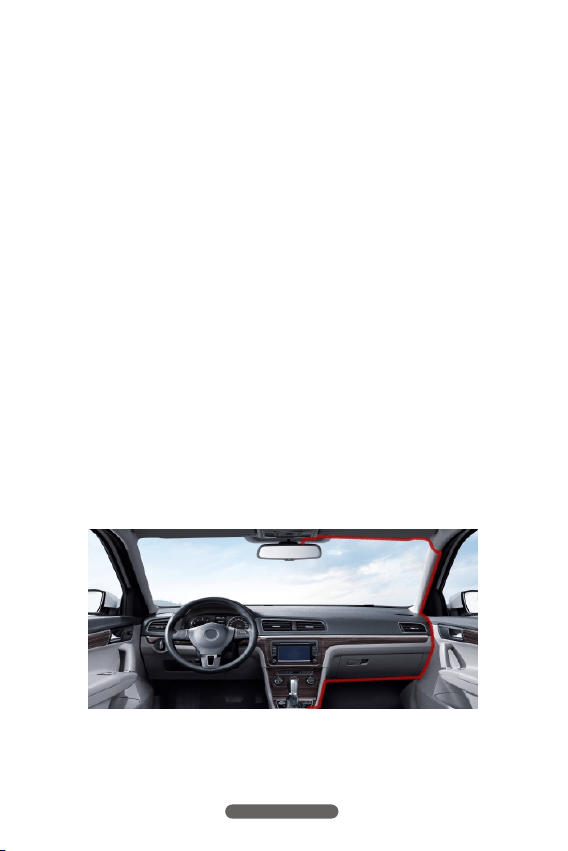
InstallationGuide
1.B eforeinstallation,pleaseinsertahighspeedmemorycardinthe
unitandformatthememorycardintheunitsetting,alsodoa
simpletesttomakesuretheunitisworkingperfectly.
2.Mountthemirrorovertheoriginalrearviewmirrorandusethe
includedrubberringtofixit.Makesurethemirrorisintheright
placeandsecured.
3.Adjustthemirrorangleaccordingtoyourdrivingposition,make
surethemirrorisrightinplaceandtheviewisclear.
4.Adjusttheangleofthelens.Makesureyougetbestcoverage
overthehoodandtheroadahead,soyoucanrecordwhat
happens.
5.Connectthepoweradaptertothemirrorandthecigarette
lighter,thenroutethepowercablealongtheinteriortrimboard,
youcanrouteitasindicatedbelow,andhidetheexcesscablein
thegapsforgoodlooking.
support @toguard.cc
2
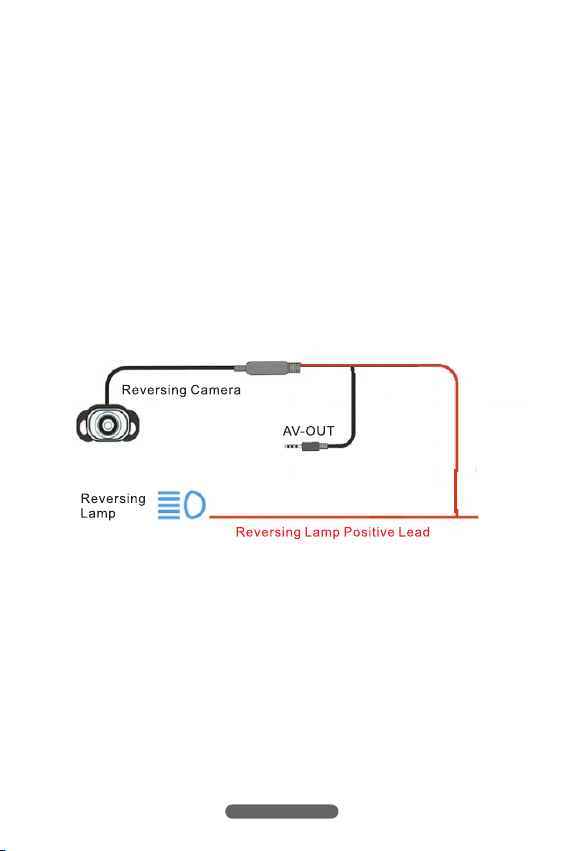
6.Therearviewcamerashouldbeinstalledattherearendofthe
car,normallythebestplaceisabovethenumberplate.The
cameracanbefixedwiththestickerorthescrew.Youcansee
thediagramforreference.
7.T heexcessREDleadneartherearviewcameraisusedfor
reversestatussensing.ConnecttheREDcabletothepositive
leadofthereverselamppower.
( PleasecheckwhetherthebackupcameraisinstalledNOTE:
upsidedownbeforeyouinstallscrews.)
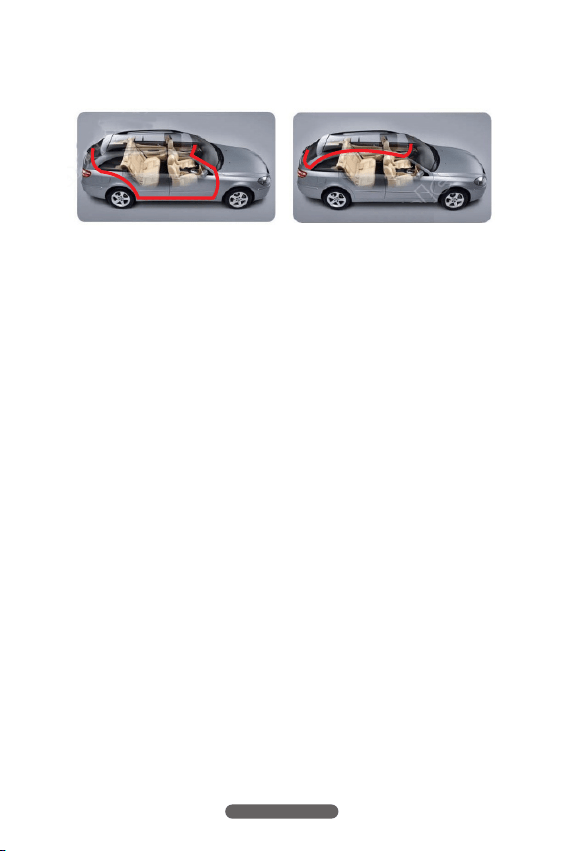
8.R outethebackupcameracabletothefrontofthecarand
connectittothemainunit.Thereare2picturesforreference.
( HolesmightneedtobedrilledtopassthecableNOTICE:
andpleasecheckwhetherthecableforbackupcamerais
longforyourcarbeforeyouinstallit.)
support @toguard.cc
3
9.A ftertheinstallationiscompleted,pleasestarttheengineand
haveatestrun,makesureallfunctionsareworking.
ThewiringandtheinstallationrequirescertainNOTICE:
handworkandsomeprofessionalelectricianskills,ifyou
arenotsureaboutit,pleasegetsomeprofessionalhelp.
WiringMethodA WiringMethodB
support @toguard.cc
4
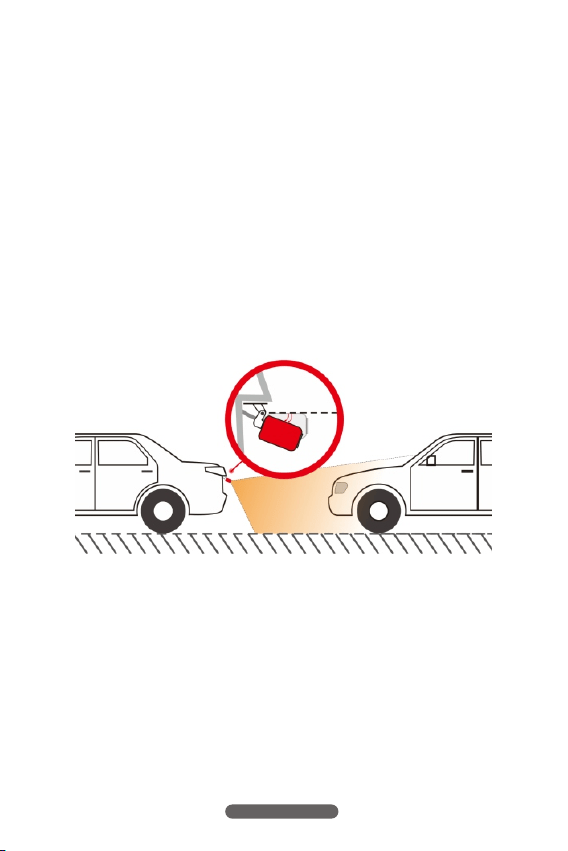
Adjustthereversingcameraangle,thebestangleisthethecamera
cancovertherearofthecarandthegroundsurfaceundertherear
end.
NOTICE:
Whenthecarisinreverse,therearcamerawillautomaticallydisplay
infullscreen,andturntothelowestangle,soyoucanseetheground
surfaceundertherearendwhilereversing.
AdjusttheReversingCamera
support @toguard.cc
5
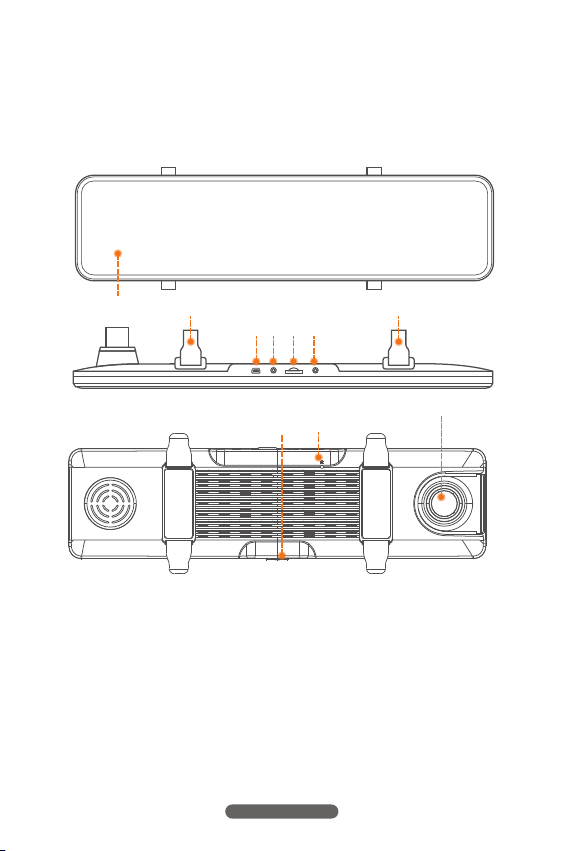
InterfaceandButtonFunctions
1
2 2
3 4 5 6
7
8
9
1.Touchscreen
2.Securingclip
3.MiniUSB
4.Realcamerainterface
5.Memorycardslot
6.GPSinterface(Optional)
7.Power
8.Reset
9.Lens
support @toguard.cc
6

PowerOn/PowerOff
Powerbutton
Longpressthepowerbuttonfor3secondstopowerofftheunit.
Turnoff/TurnonScreenDisplay
Whentheunitison,shortpressthepowerbuttontoturnoffthe
screendisplay,enterthepowersavingmode(therecordingis
stillworkingwithscreenoff);Shortpressthepowerbuttonortouch
thescreentoreactivatescreendisplayagain.
Resetbutton
Iftherecordersomehowcrashesormalfunctions,pressthe
[RESET]keytoresettheunitandpressthe[POWER]buttonagain
torestartthedevice.
NOTICE:
DuetosafetyreasonsandhighperformanceoftheCE80Amirror,the
powerconsumptionoftheCE80Aisrelativelyhigh,itshouldalways
beconnectedtoexternalpowersupplytoensureworkingnormally.
support @toguard.cc
7
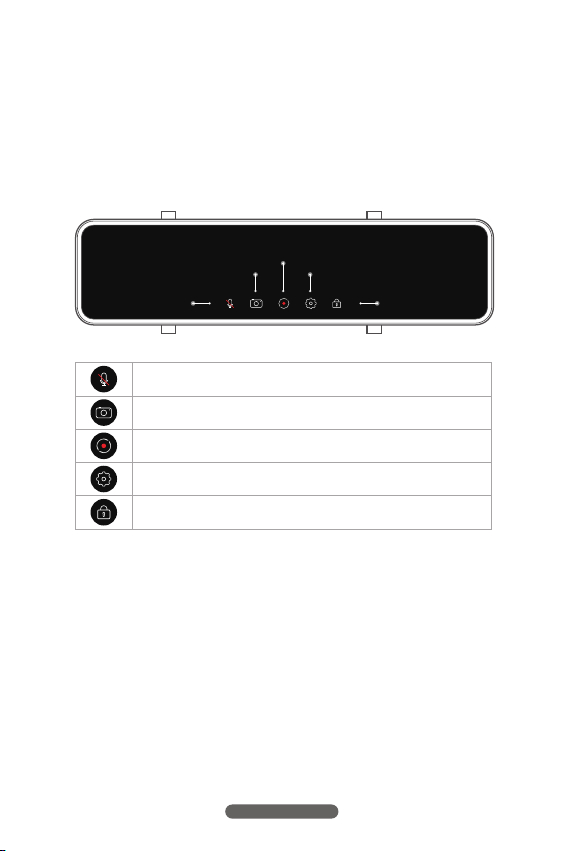
ThemaininterfaceandOperations
Whenthemirrorispoweredproperly,whenyoustartthecarengine,
theunitwillautomaticallypoweronandstartrecording.
Inthevideorecordinginterface,touchthescreentocalluptoolbar.
ClicktoturnON/OFFaudiorecordinginvideo.
Clicktotakeaphoto.
Clicktostart/stopvideorecording.
ClicktoenterSetupmenu.
Clicktomanuallylockcurrentvideo.
Photo
Mute
Setup
Record Vi de o
Lock
support @toguard.cc
8
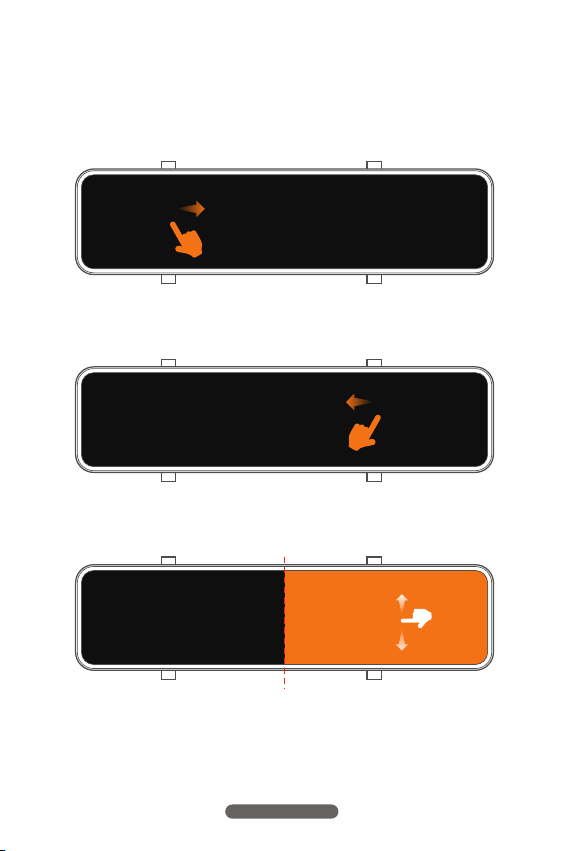
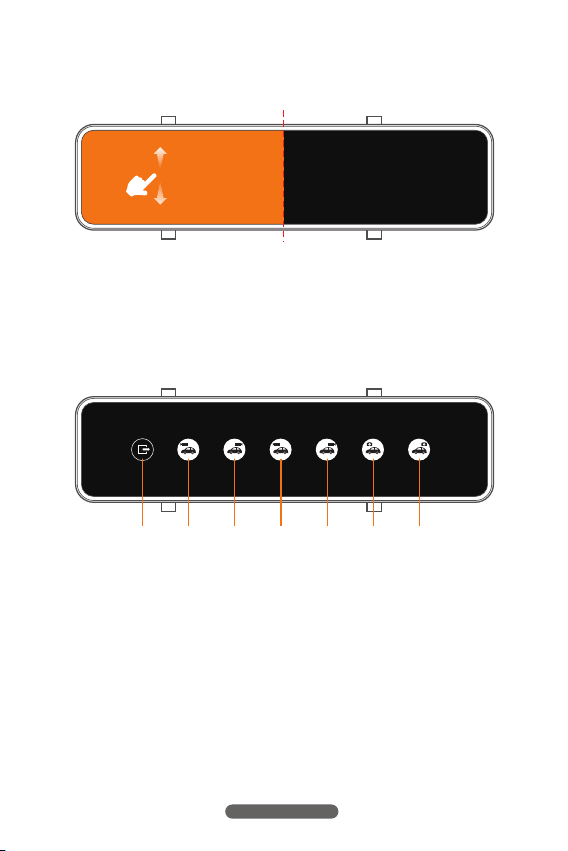
2.Intherecordinginterface,slidehorizontallytothelefttoswitch
FrontandRearcameradisplaymode.
ShortcutOperation
Intherecordinginterface,thereareseveralshortcutoperation:
1.Intherecordinginterface,slidehorizontallytotherighttoenter
PlaybackMode.
3.InthemainrecordinginterfaceandontheRightsideofthescreen,
slideverticallyupanddowntoadjustscreenbrightness.
Slide to right to enter
playback mode.
Slid e to left to switch F ront
and Re ar camera displ ay mode.
Slide vertically to a dj us t
screen brightness
support @toguard.cc
9
PlaybackMode
4.InthemainrecordinginterfaceandontheLeftsideofthescreen,
slideverticallyupanddowntomovelensviewangle.
Slide UP and Do wn t o adjust
lens view ang le .
support @toguard.cc
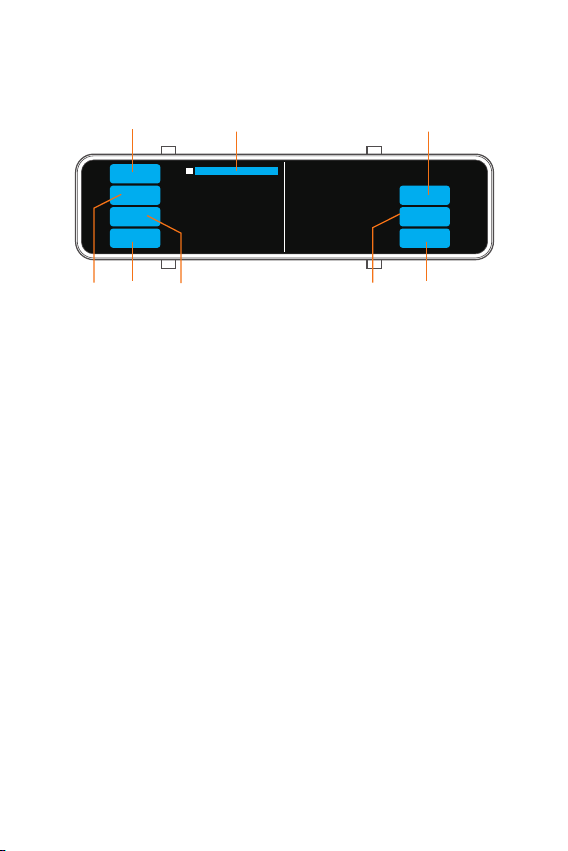
EMR EMR
1 2 3 4 5 6 7
1.Returntothevideointerface.
2.Frontvideofolder.
3.Rearvideofolder.
4.Frontlockrecordingfolder.
5.Rearlockrecordingfolder.
6.Frontphotofolder.
7.Rearphotofolder.
10
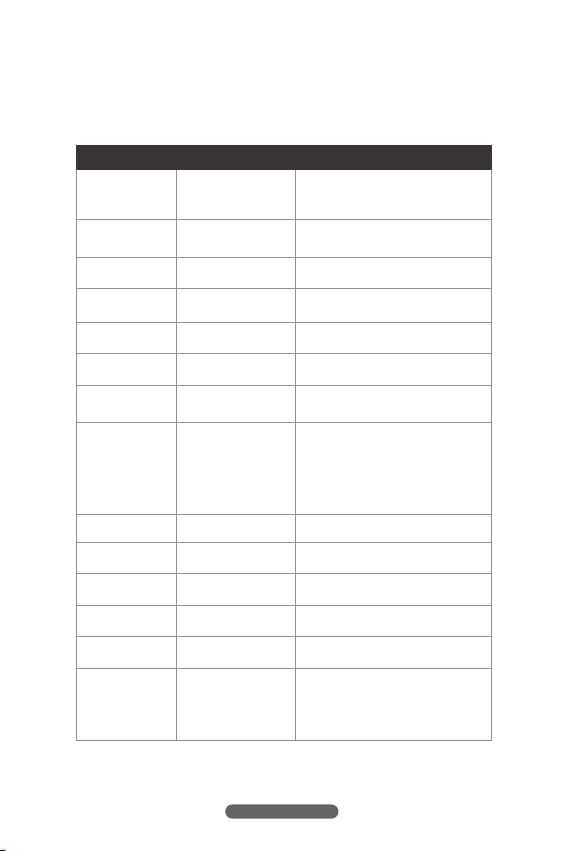
201 901 010 000 147 -00 0035 2. MP4
Delete
Selected
Lock
Selected
Unlock
Selected
SelectedAll
PageUp
PageDown
Return
1.Deleteselectedfiles
2.Lockselectedfile
3.Selectall
4.Unlockselectedfiles
5.Videofile,clicktoplay
6.Turnpage
7.Turnpage
8.Returntothepreviousmenu
1
2
3
4
5
6
7
8
11
SetupMenu
Resolution
LoopRecord
ParkingGuard
License
ScreenSaver
Language
VideoEncode
Frequency
KeyVoice
Speaker
BootSound
StreamMedia
4K(F)+1080P(R)
1080P(F)+1080P(R)
Adjustvideoresolution,FforFront
Camera,Rforrearcamera.
1min/3mins/
5mins
AdjustLoopRecordingvideoclip
length.
G-Sensor
OFF/Low/Middle/
High
OFF/1min/3mins/
5mins
English / Chinese /
Japanese / Russian /
German / French /
Spanish / Italian
H.264/H.265
AdjustG-sensorlocksensitivity.
AdjustParkingGuardsensitivity.
Setupyourcarlicenseplatenumber,
andwatermarkedinvideo.
Setupthescreensaveractivated
time.
Setupthesystemmenulanguage.
Ajustvideoencode.
Underthefront4Krecording,the
videoencodingformatcannotbe
switched
50Hz/60Hz
Setuplocalpowerfrequency.
TurnON/OFFoperationprompt.
Setup
Option Howitworks
RecordAudio
OFF/ON
TurnON/OFFaudiorecording.
OFF/Low/Middle/
High
Adjustable
ON/OFF
OFF/Low/Middle
/High
ON/OFF
ON/OFF
Adjustthespeakervolume.
TurnON/OFFsystembootup
notification.
TurnON/OFFstreamingmediamode.
support @toguard.cc
12

Date/Time
DefaultSetiing
Default
TimeZone
VoiceCommand
Version
Setup
Option Howitworks
Setuplocaldateandtime.
Formatthememorycardanddelete
alldata.
Restorethemirrortofactorydefault
status.
Setupthetimezoneaccordingto
yourlocation.
TurnON/OFFSpeechRecognition.
Checksoftwareversion.
Adjustable
Cancel/Confirm
Cancel/Confirm
Adjustable
ON/OFF
GPStest
SpeedCalibration
SpeedUnit
Adjustable
KM/HorMP/H
Precisionspeed
Speedunitadjustment
TestGPSsignal
support @toguard.cc
13

FeaturedFunction
DualRecording
TheCE80Amirrorcomeswithdualchannellens,theycanrecordvideo
inFront4K(2880*2160)+Rear1080P(1920*1080)simultaneously.
LoopRecord
Thisfunctionallowsyoutosetvideofilelengthto1/3/5minutes,
Selectavaluetoactivatelooprecording,sowhenstoragefillsup,
theCE80Awillautomaticallyloopbacktotheearliestfileandrecord
overit.
EG
Ifsetthetime3minutes,thentheunitwillkeeprecordingvideo
in3minutesclips,Whenthecardisfull,theunitwillkeeprecording
andoverwritetheearliestunprotected3minutesvideofileandso
forth.
G-Sensor
TheCE80Ahasabuilt-inGravitysensor,Intheeventofaserious
vehiclecollisionorrapidacceleration/deceleration,theG-sensor
willbetriggeredandimmediatelylockcurrentvideofilesothefile
willnotbeoverwrittenbylooprecording.
support @toguard.cc
14

Setthetimeafterwhichtheunitwillautomaticallyturnoffscreen.
Usedtosavepowerandreducedistractionwhiledriving.For
example,itissetto3minutes,iftheunitisnotoperatedin3minutes,
theunitwillautomaticallyturnoffscreenwhiletherecordingisstill
working,anybuttonoperationortouchthescreenwillreactivate
thescreendisplay.
ScreenSaver
ParkingGuard
TheParkingMonitorisusedtoprotectyourcarafterparking,
withthisfunctionon,afteryoustopthecarandtheunitturns
off,itstaysinstandby,whenunitdetectssignificantshock,it
willautomaticallyturnonandtakea20secondsshortvideo,
thenshutdownautomatically.
Videorecordedunderparkingmonitorwillbeprotectedandwill
notbeoverwrittenbylooprecording.
TheCE80AfeaturesSpeechRecognitionfunction.Youcanusethe
specifiedSpeechRecognitiontocompletecertainoperations.With
SpeechRecognitionFunctionon,theCE80Amirrorwillactby
commandyousaidaccordingtousermanual.
VoiceCommand
support @toguard.cc
15
TheoperationandVoicecommandareasfollow:
VoiceCommand
screenon
screenoff
lockvideo
openrecorder
closerecorder
frontvideoon
realvideoon
takephoto
recordvideo
Operation
Thescreenwilllightup.
Thescreendisplaywillturnoff.
Currentvideofilewillbelocked.
Theaudiorecordingwillbemuted.
Theaudiorecordingwillberestored.
Themirrorwilldisplayfrontcameraviewin
fullscreen.
Themirrorwilldisplayrearcameraviewin
fullscreen.
TheMirrorwilltakeaphoto.
Startrecording.
NOTICE:
TheVoiceCommandfunctionisgreatlyaffectedbytheaccent.
Tryreadingthecommandsloudandclear.
support @toguard.cc
16

StreamingMedia
TheCE80AmirrorfeaturesStreamingMediafunction,withthis
functionon,thecamerawilldisplaytherearcameraviewinfull
screenasdefault,Itwillworkasarealrearviewmirror.
GPSFunction
WiththeoptionalGPSmoduleconnected,theCE80Acandisplay
currentspeedonscreen.Youcanenterthesetupmenuandcheck
theGPSsignalstatus.ThespeedunitKM/HandMPHisoptional.
NOTICE
Thespeeddisplayedisanaveragespeedcalculatedbasedonthe
locationsandtime,theremightbecertainerrorsespeciallyunder
lowspeed.It'sforreferenceonly.
GPSLogger
WiththeoptionalGPSmoduleconnected,theCE80Acanrecord
real-timeGPScoordinateinthevideofile,itcanbereviewedwith
thecustomizedGPSplayer.
NOTICE
TheGPSplaybackneedscustomizedplayer"GXPlayer"(Please
contactsellersupporttogetit),forwindowsoperatingsystemonly.
support @toguard.cc
17
Specification:
Model
ScreenDisplay
ScreenResolution
Lens
VideoResolution
VideoFormat
VideoEncode
ImageFormat
LoopRecording
ParkingMonitor
G-SensorLock
Microphone
Speaker
Storage
OperatingTemperature
StorageTemperature
OperationHumidity
PowerSupply
12inch(11.26inch)
1920*440
FrontandRearWideAngleLens
Front:2880*2160/1920*1080P
Rear:1920*1080P
MP4
H.264/H.265
JPG
Built-in
Built-in
Built-in
Built-in
Built-in
MicroSDCardUpto128GB(NOTincluded)
-20~60℃
-30~70℃
15~85%RH
DC5V/3A
CE80A
support @toguard.cc
18

CommonProblemandSolution
Recordershowsmemoryfull,unabletoloopvideo,etc.
Thedevicewillautomaticallyturnonorturnoff.
1.First,whenanewmemorycardisusedforthefirsttimeonthe
machine.PleaseformatthememorycardtoFAT32formatonPC
thenformatitinthecamera.Orthememorycardispreviously
usedonanothertypeofdevice,itneedstobeformattedwhen
usedonthiscamera.OrchangeanothernewSANDISK32G
MicroSDCARD.
2.CheckthesensitivityofG-sensor,Ifthesensitivityistoohigh,the
bumpingandshakingofthecamerawilltriggertheG-sensor,and
thefilewillbelocked.Lockedfilescannotbeoverwritten.Ifthe
lockfileisaccumulated,therewillbenomemorycardtoloop
record.Whenparkingmonitoringisturnedon,shakingwillalso
causetoomanystrayfiles,whichwillalsoaffectthereadingand
writingofcards.
1.PleaseformatthememorycardtoFAT32formatonPCthen
formatitinthecamera.
2.Pleasecheckwhethertheparkingguardfunctionison.With
parkingmonitoron,thedevicewillautomaticallyturnonand
recordwhenitdetectsacollisionorshaking.
3.Checkthecarchargerconnectionstatus,iftheconnectionis
loose,thepowersupplyisnotstable,thecamerawillautomatically
turnonandoff.
support @toguard.cc
19

Screenoperationorbuttonreactionisslowduringrecording
1.Pleasecheckwhetherthememorycardusedisahigh-speed
card(U3),Ifyouuseanon-high-speedcard,problemssuch
asmissedseconds,videoplaybackjams,screendisplayColorful
stripes,andcrashesmayoccur.
2.Resetthecameraifnecessary.
Therearcameradoesnotdisplayimage
1.Pleaseswitchthecameradisplaymodetodoublechecktherear
camerastatus.
2.PleasecheckiftheAVplugisproperlyconnectedandthecable
ispluggedincorrectly.
3.Trytodisconnectthecameraandcleantheconnectorwithsome
Medicalalcoholconnectitagain.
Eventhoughsetthescreensaver,butthescreenwillrandomlycome
backon.
Thepowersupplymightnotbestable,pleasechangeanothercar
chargertotry.
support @toguard.cc
20