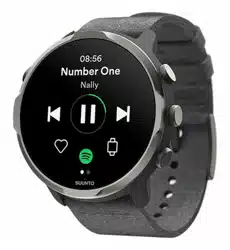

SUUNTO 7
USER GUIDE
2021-08-24

1. Welcome.......................................................................................................................................... 5
2. Get started..................................................................................................................................... 6
Your Suunto 7............................................................................................................................. 6
Set up and pair your Suunto 7................................................................................................7
Change language.....................................................................................................................14
Charge your watch.................................................................................................................. 15
Learn to navigate your Suunto 7.......................................................................................... 17
Wake up your display.............................................................................................................23
Connect to the Internet......................................................................................................... 26
Keep your Suunto 7 up to date............................................................................................ 31
Set an alarm..............................................................................................................................33
Turn your watch on and
o...................................................................................................34
Restart your watch.................................................................................................................. 35
Reset your watch to factory settings..................................................................................35
3. Wear OS by Google...................................................................................................................38
Google Assistant..................................................................................................................... 38
Google Pay............................................................................................................................... 40
Google Fit..................................................................................................................................42
Google Play Store................................................................................................................... 44
Use and manage apps...........................................................................................................44
Get
notifications on your watch...........................................................................................47
View and manage your Tiles................................................................................................ 51
4. Customize your watch.............................................................................................................. 56
Customize watch faces......................................................................................................... 56
Customize button shortcuts................................................................................................. 62
Change watch straps............................................................................................................. 63
5. Sports by Suunto....................................................................................................................... 65
Suunto Wear app on your watch........................................................................................ 65
Suunto mobile app on your phone.....................................................................................67
Suunto maps.............................................................................................................................72
Dierent sports and measurements.................................................................................. 82
Start an exercise......................................................................................................................98
Suunto 7
2

Control watch during exercise........................................................................................... 103
Pause and resume exercise................................................................................................107
End and review exercise...................................................................................................... 110
Swimming with Suunto 7...................................................................................................... 115
Exercise with maps................................................................................................................ 119
Route navigation....................................................................................................................125
Exercise with music................................................................................................................131
Exercise options.....................................................................................................................134
Map options............................................................................................................................ 139
General options......................................................................................................................143
Diary..........................................................................................................................................145
6. Heart rate....................................................................................................................................147
Follow your heart rate with Suunto 7................................................................................147
7. Daily activity.................................................................................................................................151
Daily heart rate........................................................................................................................151
Body resources.......................................................................................................................151
Turn on Daily heart rate & resources .............................................................................. 152
8. Sleep............................................................................................................................................153
Turn sleep tracking on..........................................................................................................153
Sleep report............................................................................................................................ 154
Cinema mode......................................................................................................................... 155
Sleep insights in Suunto mobile app................................................................................156
9. Music............................................................................................................................................ 157
Control music from your wrist............................................................................................ 157
Listen to music without your phone................................................................................. 160
10. Battery life..................................................................................................................................161
Maximize battery life in daily use....................................................................................... 161
Maximize battery life during exercise.............................................................................. 166
Check battery life & usage..................................................................................................168
11. FAQ..............................................................................................................................................169
12. How to videos..........................................................................................................................170
Suunto 7
3

13. Care and support......................................................................................................................171
Handling guidelines............................................................................................................... 171
Disposal.....................................................................................................................................171
Getting support....................................................................................................................... 171
14. Glossary..................................................................................................................................... 173
15. Reference..................................................................................................................................175
Manufacturer's info................................................................................................................175
Compliance............................................................................................................................. 175
Trademark................................................................................................................................176
Patent notice...........................................................................................................................176
Copyright................................................................................................................................. 176
International Limited Warranty............................................................................................177
16. Safety..........................................................................................................................................179
Types of safety precautions................................................................................................179
Safety precautions.................................................................................................................179
Suunto 7
4
1. WELCOME
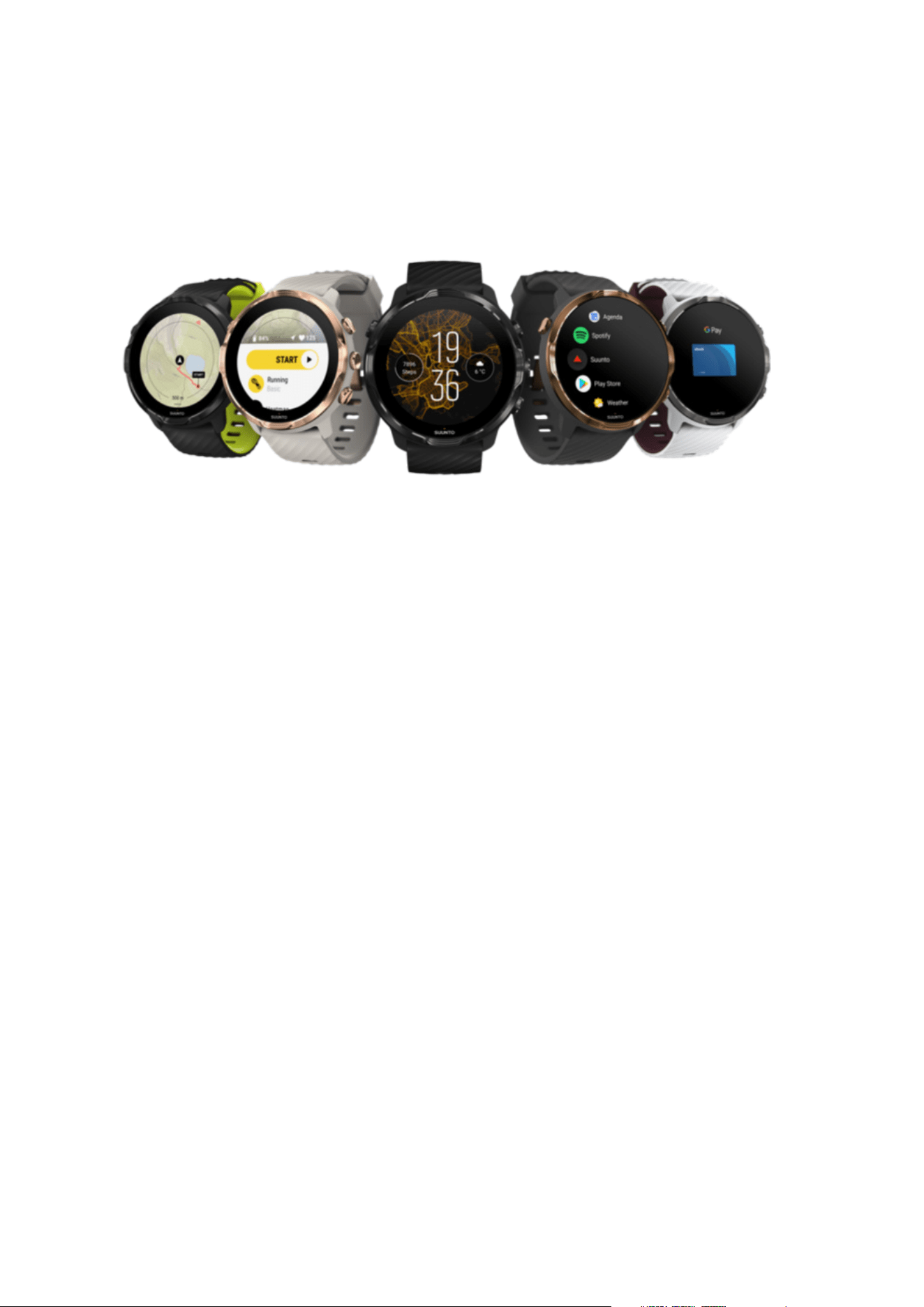
Suunto 7 combines Suunto’s sports expertise with the latest smartwatch features from
Wear OS by Google™.
Learn how to get the most of your new watch. Let’s get started!
Wear OS by Google works with phones running Android 6.0+ (excluding Go edition) or
iOS 10.0+. Supported features may vary between platforms and countries.
Change language
Suunto 7
5
2. GET STARTED
Your Suunto 7
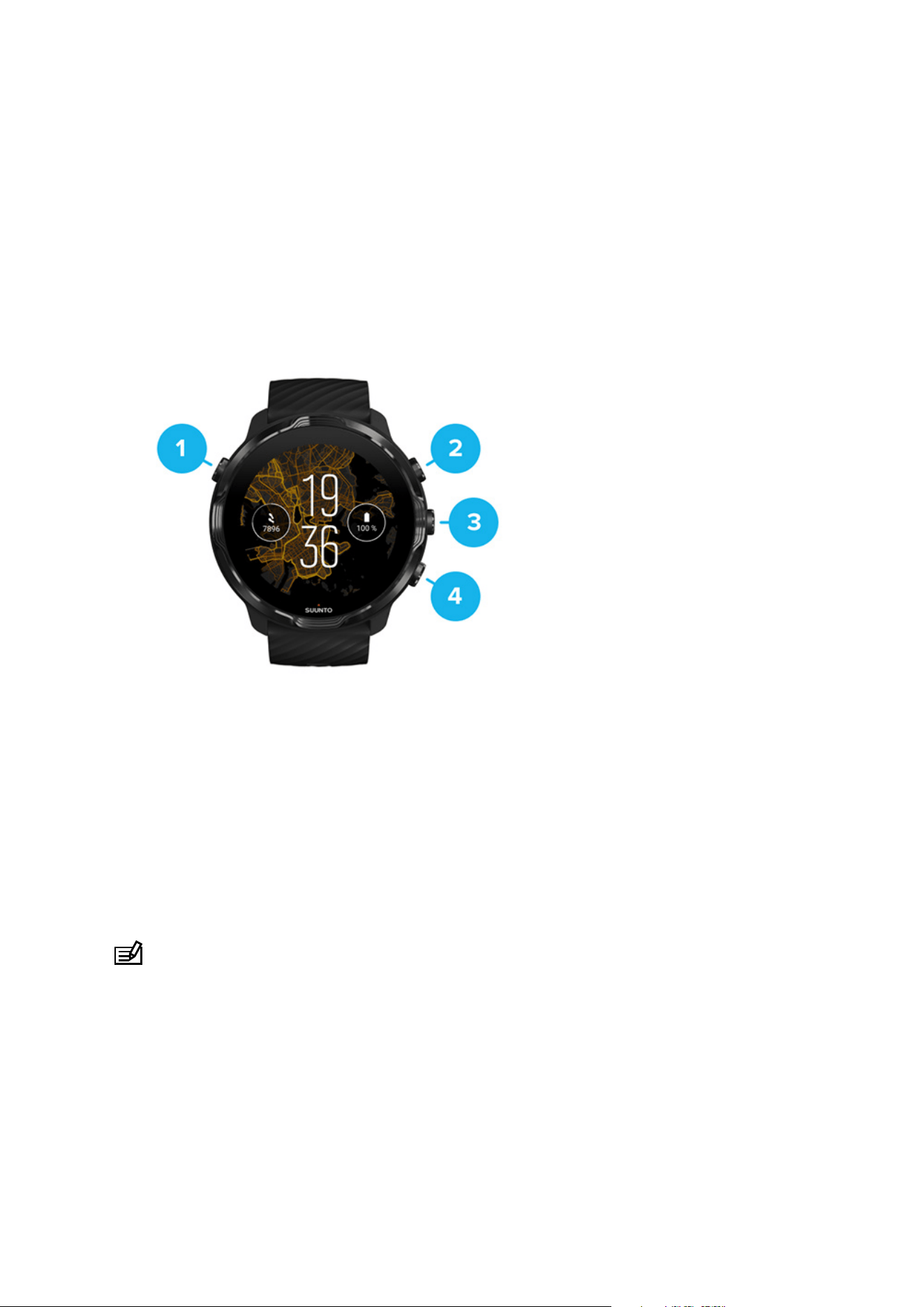
Suunto 7 has a touch screen and four hardware buttons designed to provide you a
great sport experience – even when you're wearing gloves or underwater.
1. Power button
2. Suunto Wear app / Navigate Suunto Wear app and control your exercise
3. Navigate Suunto Wear app and control your exercise
4. Navigate Suunto Wear app and control your exercise
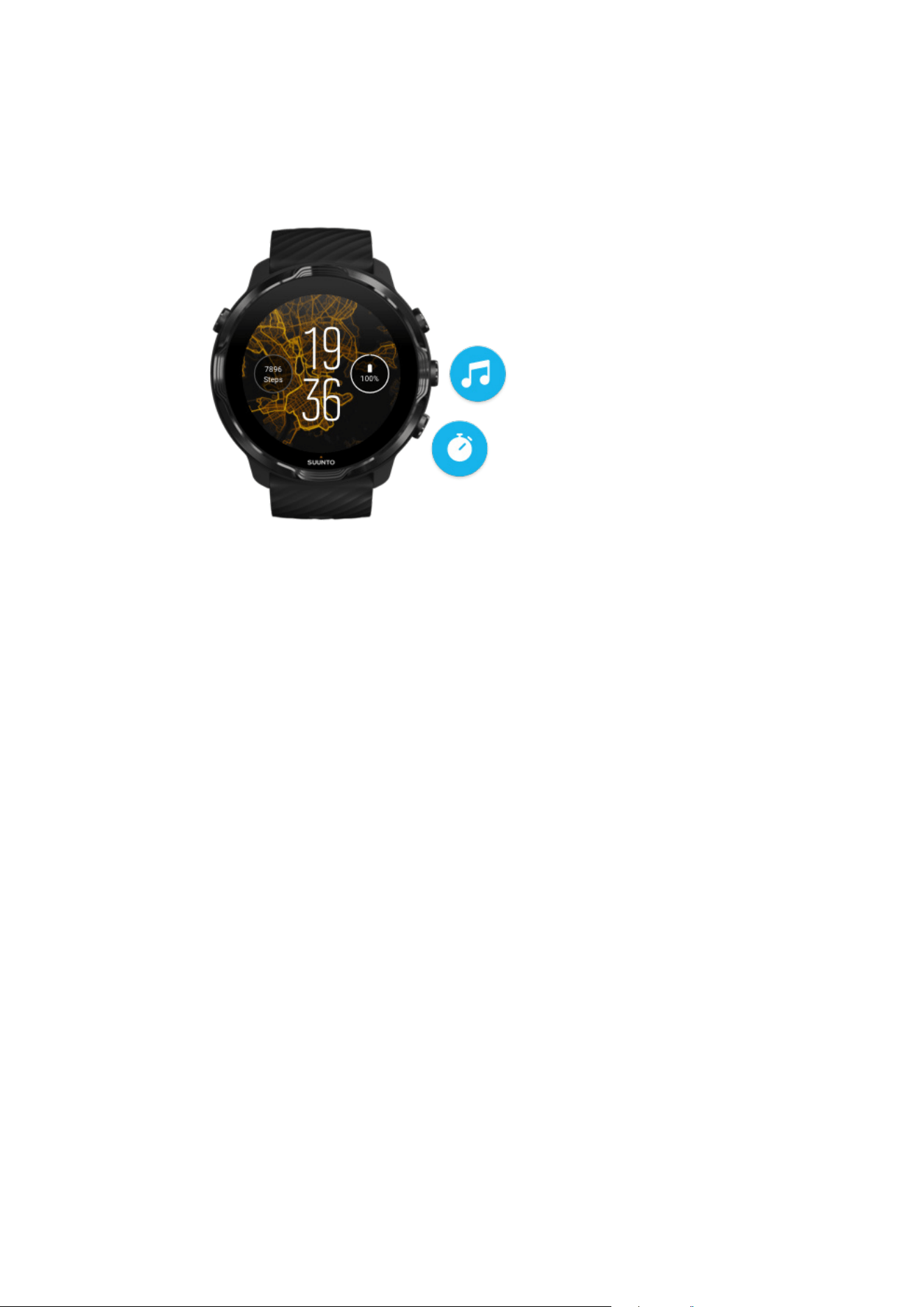
While on the watch face, you can also use the buttons (3–4) on the right as shortcuts
to open apps.
NOTE: Some other apps may also support actions with hardware buttons.
Suunto 7
6
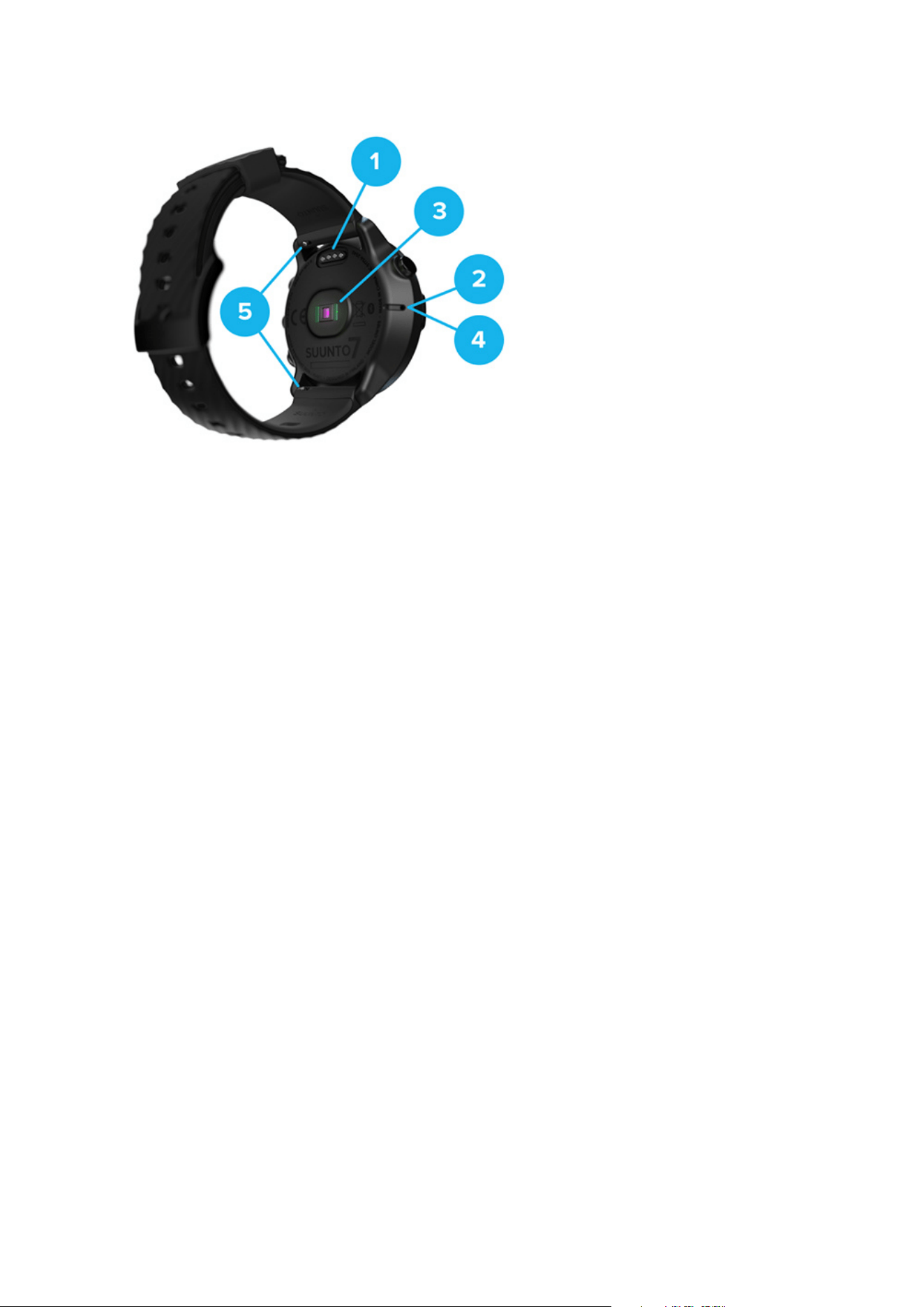
1. Charging socket
2. Microphone
3. Optical heart rate sensor
4. Barometric sensor
5. Quick release straps
Set up and pair your Suunto 7
Before you get started, make sure you have:
•
About 30 minutes (and maybe a coee or some tea)
•
A compatible phone
•
A Wifi connection
•
Bluetooth enabled on your phone
•
A Google™ account (recommended)
1. Charge and power on
2. Download and pair with Wear OS by Google
3. Follow the Wear OS tutorial on watch
4. Start your sports with Suunto
5. Get Suunto mobile app on your phone
Suunto 7
7
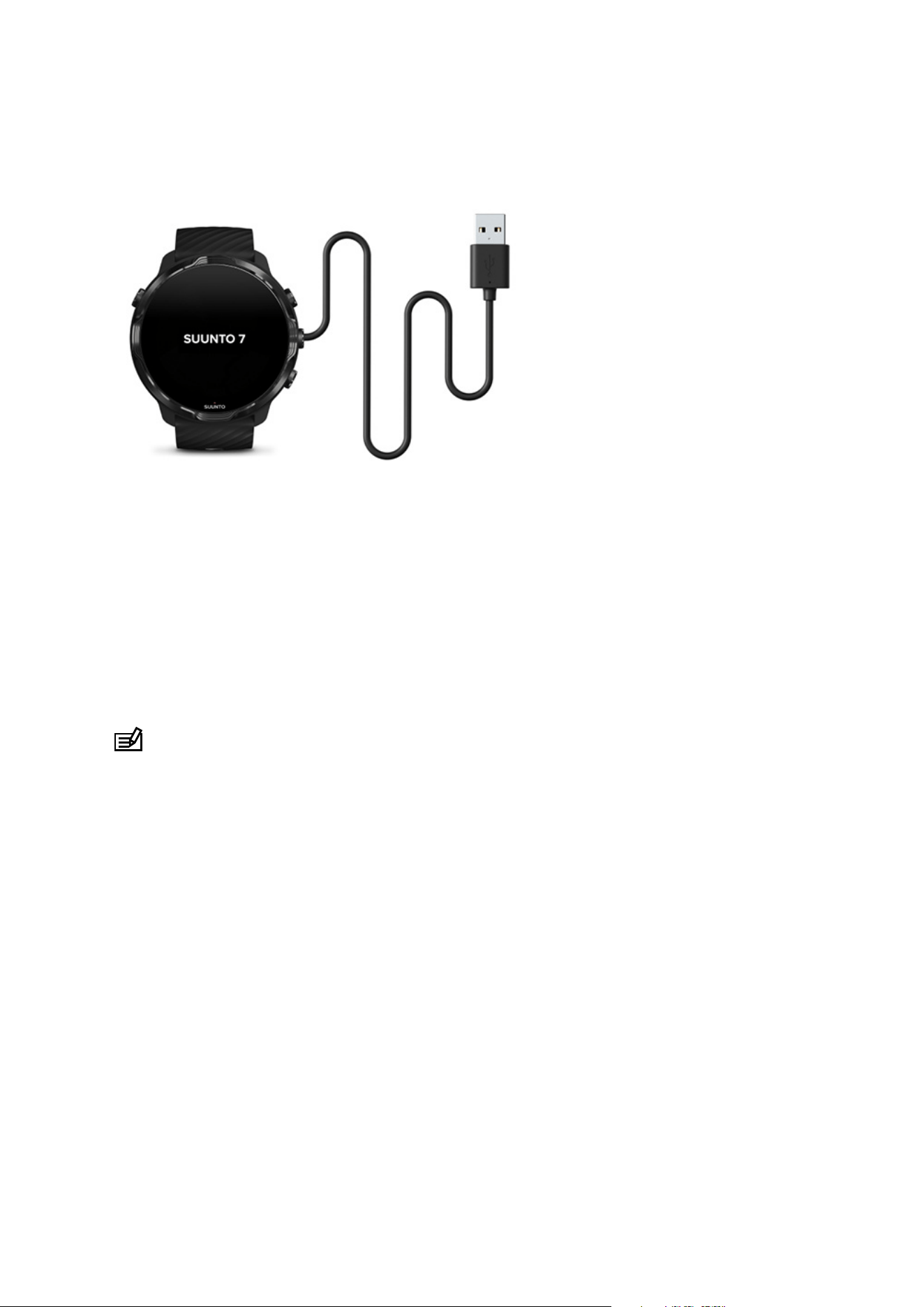
1. Charge and power on
1. Connect your watch to the USB cable in the box to power on your watch. Stay
calm, your watch may take a couple minutes to wake up.
2. Tap the screen to begin.
3. Choose your language. Swipe up to browse the list and tap to choose.
4. Accept Suunto’s End User License Agreement.
5. Follow the on-screen instructions to continue the set-up on your phone.
NOTE: If you need to go back to the previous step, swipe right.
How to charge your watch
Suunto 7
8
2. Download and pair with Wear OS by Google
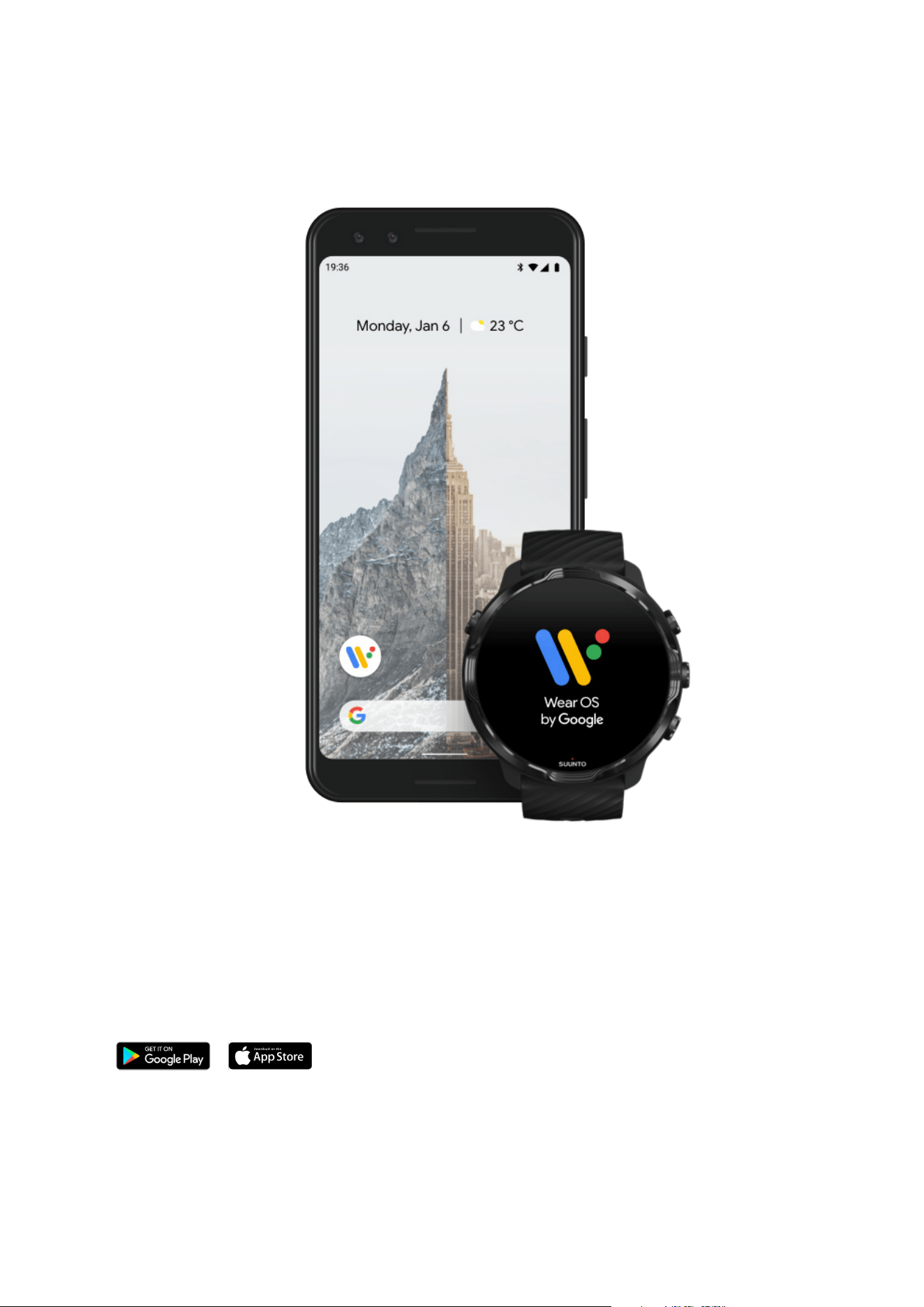
The Wear OS by Google companion app connects your Suunto 7 with your phone so
that you can use smart features like
notifications, the Google Assistant, Google Pay™
and more.
Suunto 7 can be paired with both Android and iOS.
1. On your phone, download the Wear OS by Google companion app on Google
Play™ or App Store.
2. Enable Bluetooth on your phone and make sure your phone is charged.
Suunto 7
9
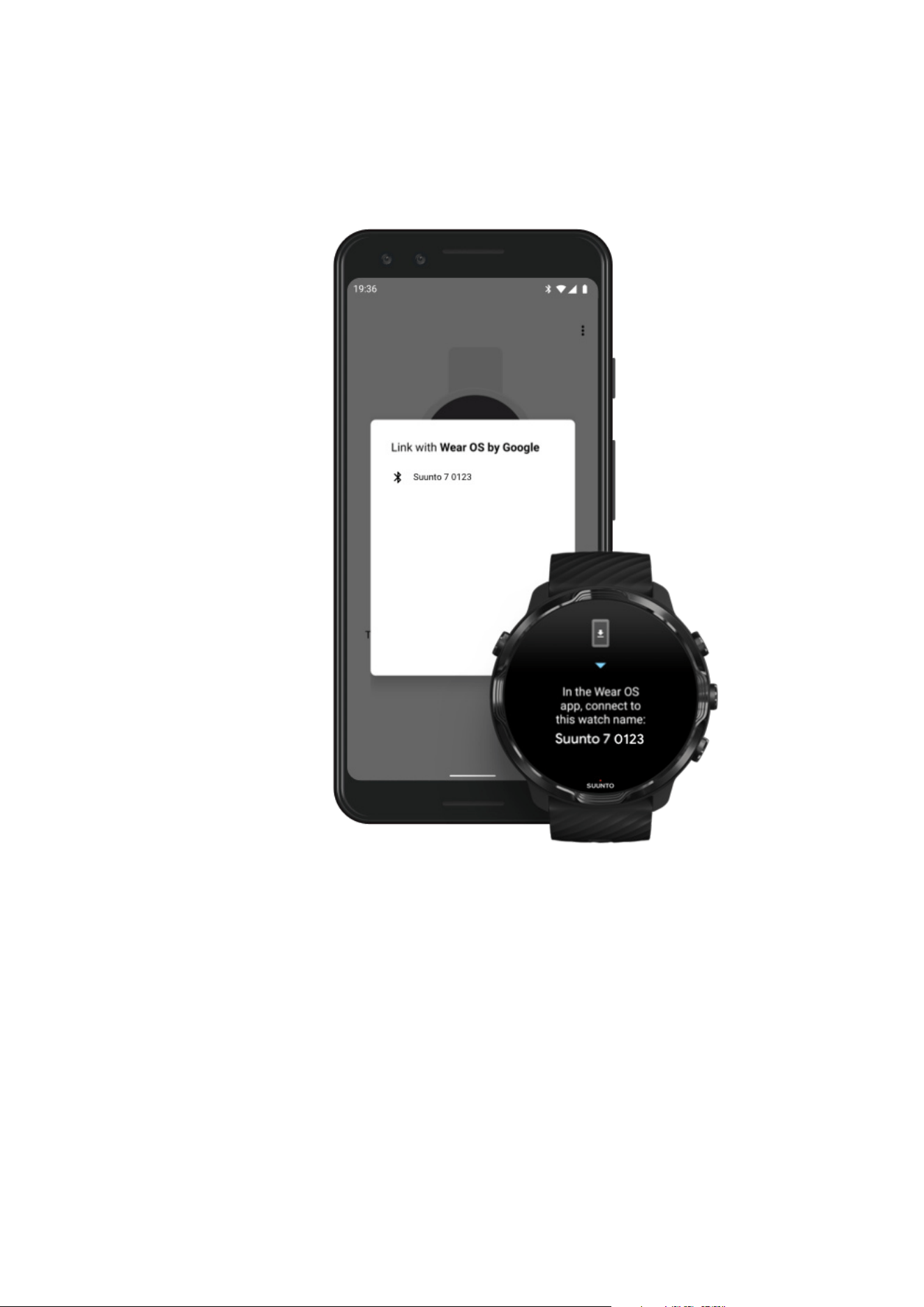
3. Open the Wear OS by Google app and tap Start setup.
4. On your phone, follow the on-screen instructions until you find your Suunto 7.
(You’ll see the name of your watch on your watch screen. If you don’t, swipe up.)
5. On your phone, tap when you see your watch.
6. A code will be shown on your phone and watch.
a. If the codes are the same: On your phone, tap Pair. This can take a few
minutes.
b. If the codes don’t match: Restart your watch and try again.
7. Follow the on-screen instructions to continue.
8. Copy (Connect) your Google account
You will be guided to copy your Google account to your watch. We recommend
copying your Google account, as it will enable you to use smart features like the
Google Assistant on your watch, and to access Google Play Store from your watch
to download apps and to get updates. In addition, you can see your activity data,
Suunto 7
10
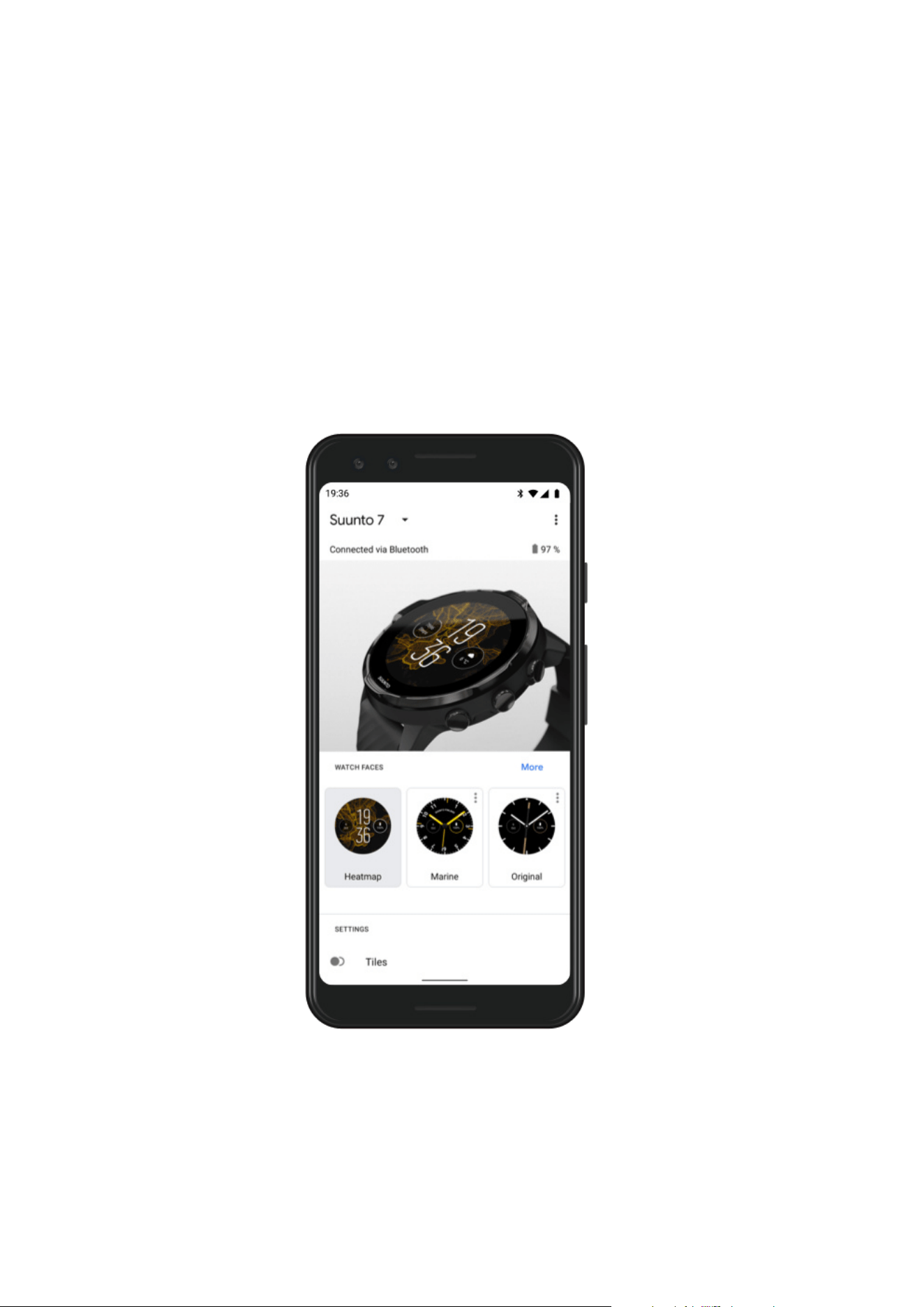
including daily steps and heart rate tracking from Google Fit. Daily activity data
could also be viewed in Suunto app on your mobile phone.
Create a Google account
Learn more about using Google accounts on your watch
9. Allow location services,
notifications, and calendar access to complete the
process. You can adjust these later in the device settings or in the Wear OS by
Google app on your phone.
10. When you’re done, you are ready to get started with your new watch.
For more help with Wear OS by Google, please visit:
Wear OS by Google Help
Suunto 7
11
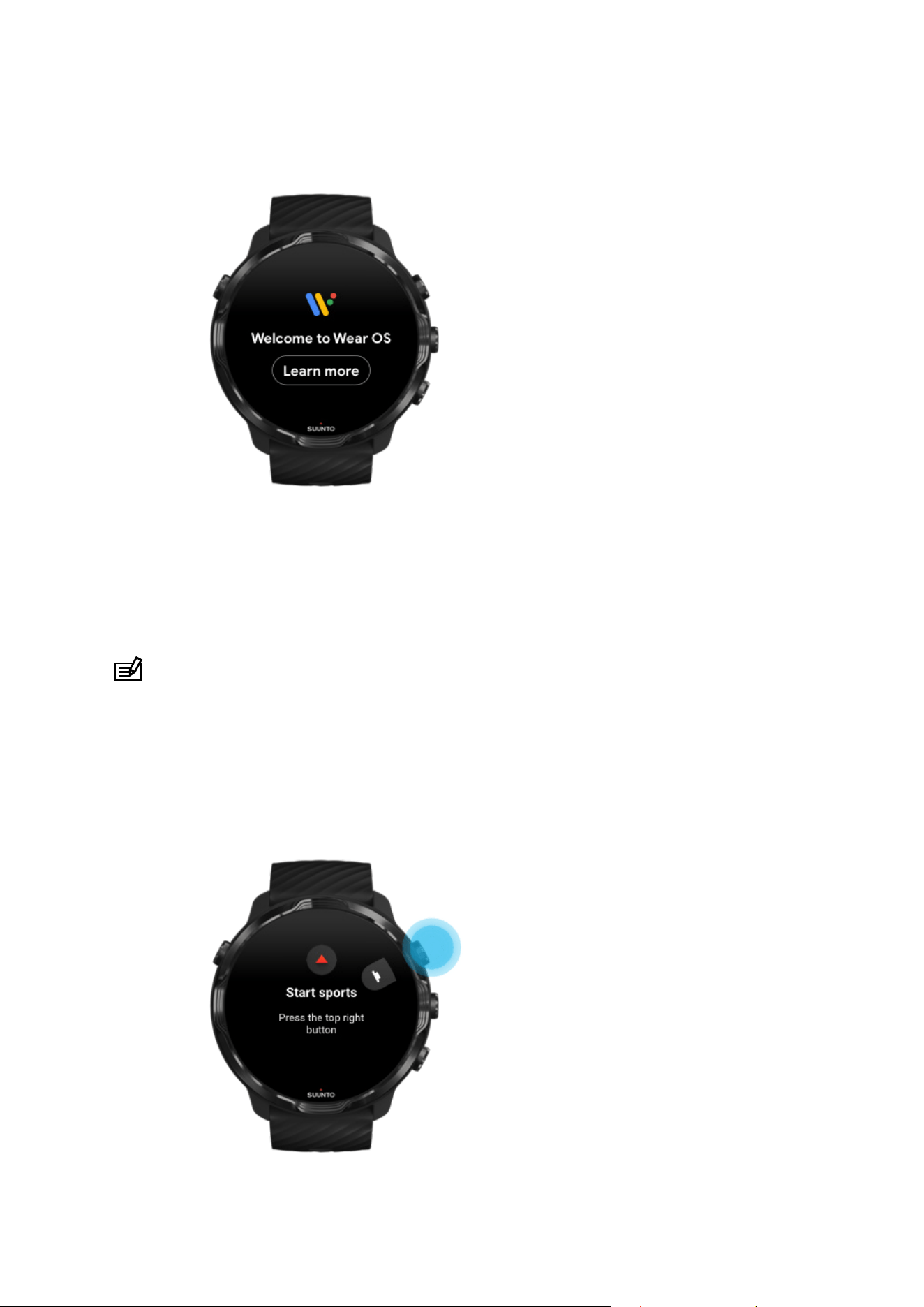
3. Follow the Wear OS tutorial on watch
After the initial set-up is done, follow the tutorial on your watch to learn more about
Wear OS by Google and how to navigate your Suunto 7.
Learn how to navigate your watch
NOTE: If you experience any slowness right after taking your watch into use,
don't worry. Your watch is downloading available updates in the background to oer
you the latest and greatest software right from the start. Once updates are complete,
the slowness is gone.
4. Start your sports with Suunto
Suunto 7
12
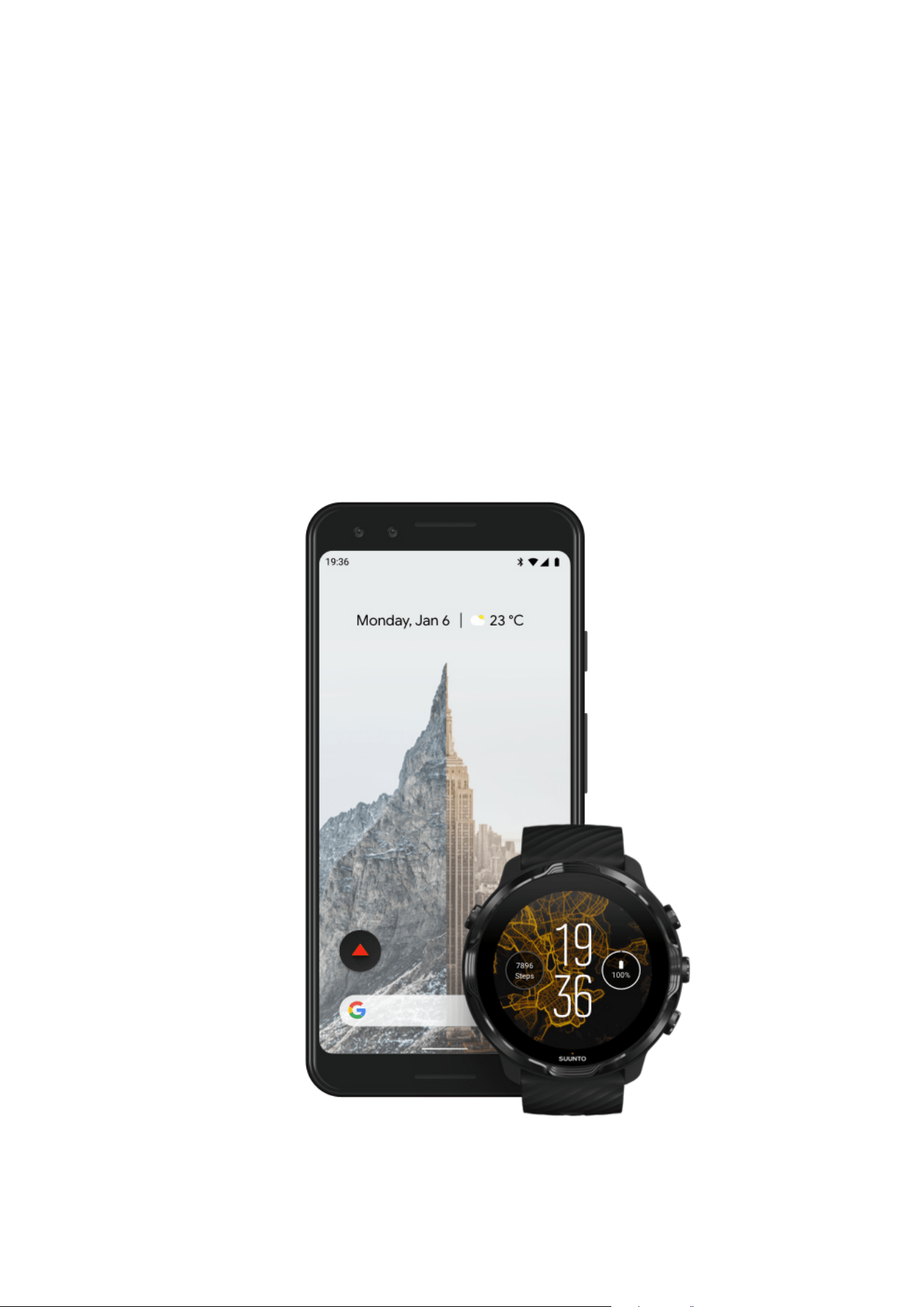
Suunto Wear app is the home for sports on your Suunto 7. It tracks all your daily
activities (steps and calories), sports and adventures with accurate real-time data and
free oine maps and heatmaps.
To get started, press the top right button to open Suunto Wear app on your watch.
Follow the on-screen instructions to set up your profile for accurate and personalized
activity and exercise tracking. When you’re all set, tap to download Suunto app on
your phone.
Get started with Suunto Wear app
5. Get Suunto mobile app on your phone
Suunto 7
13
Suunto mobile app on your phone is an essential part of the sports experience with
your new watch. With Suunto app, you sync and save your exercises from your watch
to your sports diary, get detailed insights on your training, sleep and daily activities,
share your best moments with friends, connect to your favorite sport services like
Strava or Relive, and many more.
Download Suunto mobile app on your phone. Once you’ve installed it, open the app
and connect your watch with the app. Follow the on-screen instructions to get started.
Get started with Suunto mobile app
Change language
Your watch’s language is the same language as on your phone. To change the
language on your watch, change the language on your phone.
Suunto Wear app supports the following languages:
•
Chinese
(Simplified)
•
Chinese (Traditional)
•
Czech
•
Danish
•
Dutch
•
English
•
Finnish
•
French
•
German
•
Hindi
•
Indonesian
•
Italian
•
Japanese
•
Korean
•
Norwegian
•
Polish
•
Portuguese
•
Russian
•
Spanish
•
Swedish
Suunto 7
14

•
Thai
•
Turkish
•
Vietnamese
NOTE: If your phone’s language is not supported in Suunto Wear app, the app
will default to English.
Charge your watch
Charging Suunto 7 is easy and fast. Connect the supplied USB cable with a USB port
on your computer or a USB power adapter and power outlet. Place the magnetic end
of the USB cable into the charging socket on the back of your watch.
When your watch is charging, you will see this symbol
on your watch face.
NOTE: If the battery is completely discharged, charging must be done by a USB
power adapter and power outlet.
Good to know
Your watch – and the charging socket – can get dirty as you use it, especially when
you exercise. To make sure your watch can charge properly, wash the watch body
once in a while to remove sweat or any body lotion you might have on your skin. Use
lukewarm water and mild hand soap to wash the watch body, rinse well with water
and pat the device dry with a towel.
Charging time
Check your battery
Get automatic updates and download
oine maps during charging
Charging time
It takes about 100 minutes to charge Suunto 7 from 0 to 100% using the included
charging cable.
Suunto 7
15

If you’re connected to Wifi while charging, you can keep your watch and apps up to
date and get local Suunto maps downloaded automatically to your watch. With oine
maps, you can leave your phone behind, go out and use Suunto Wear app with maps
without needing an Internet connection.
Manage automatic app updates
Learn more about
oine maps
Learn to navigate your Suunto 7
You can navigate and interact with your Suunto 7 using the touch screen and the
hardware buttons.
Basic touch gestures
Swipe
Move your
finger up, down, left or right on the screen.
Tap
Touch the screen with one
finger.
Tap and hold
Hold your finger against the screen.
Drag
Move your
finger across the screen without lifting.
Explore your watch
Get to know your Suunto 7 and find out where dierent features and functionalities
are.
Suunto 7
17
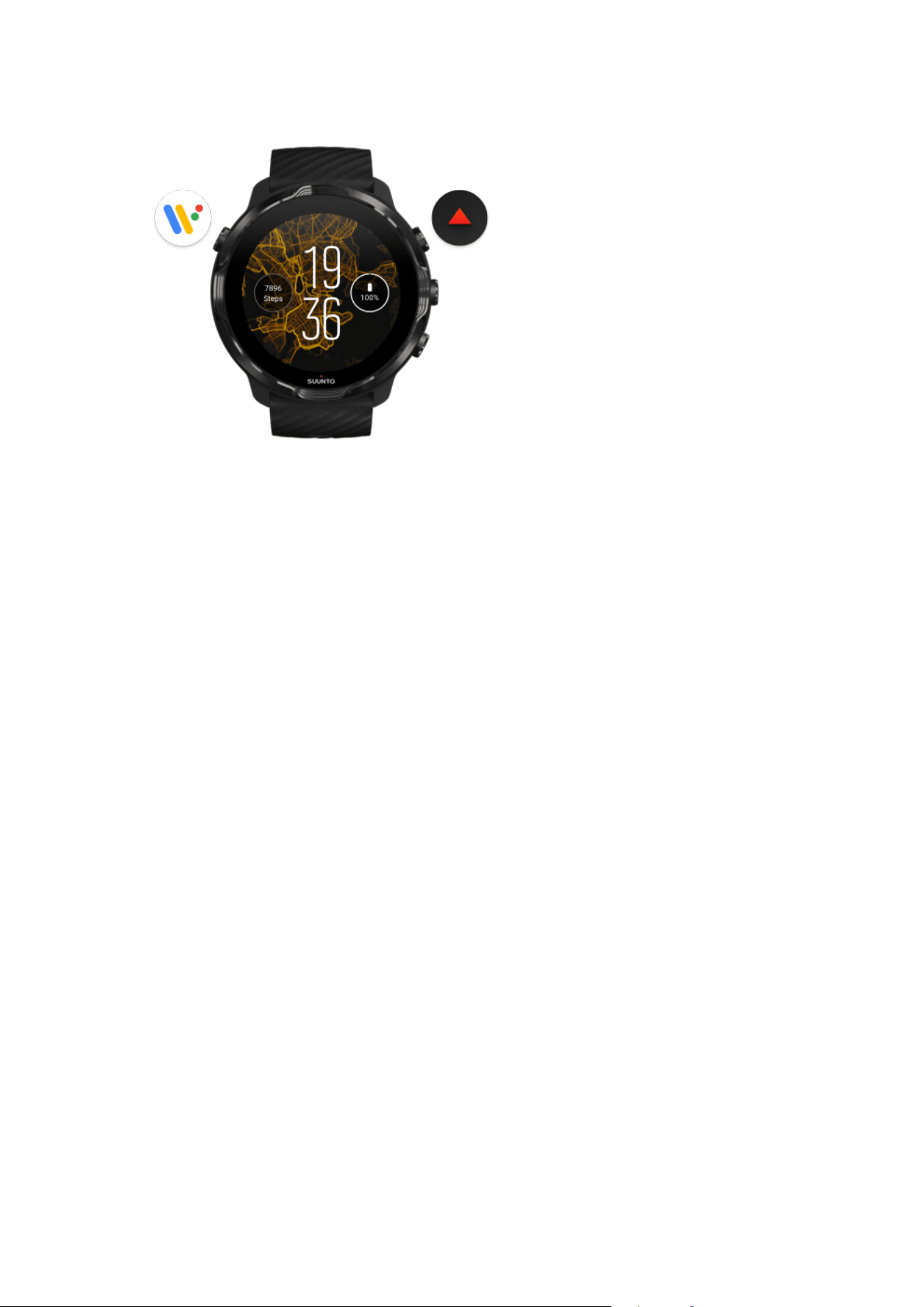
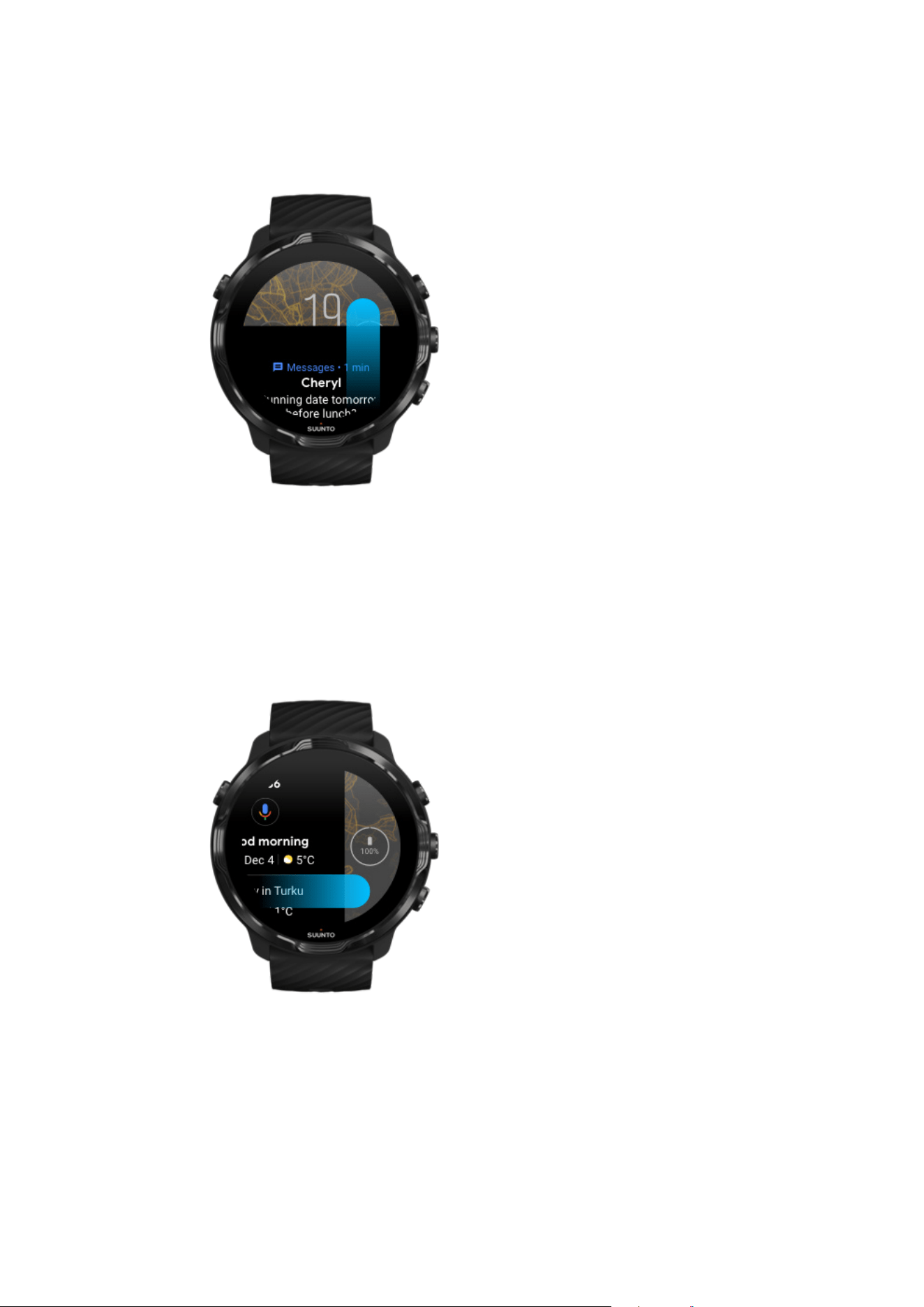
Press the top left button (the Power button) to power on
the watch and access all your apps with Wear OS by
Google.
•
Press the Power button to open your list of apps.
•
Press the Power button again to go back to watch face.
•
Press and hold the Power button to activate your Google Assistant.
•
Press and hold the Power button for 4 seconds to Power
o / Restart your watch.
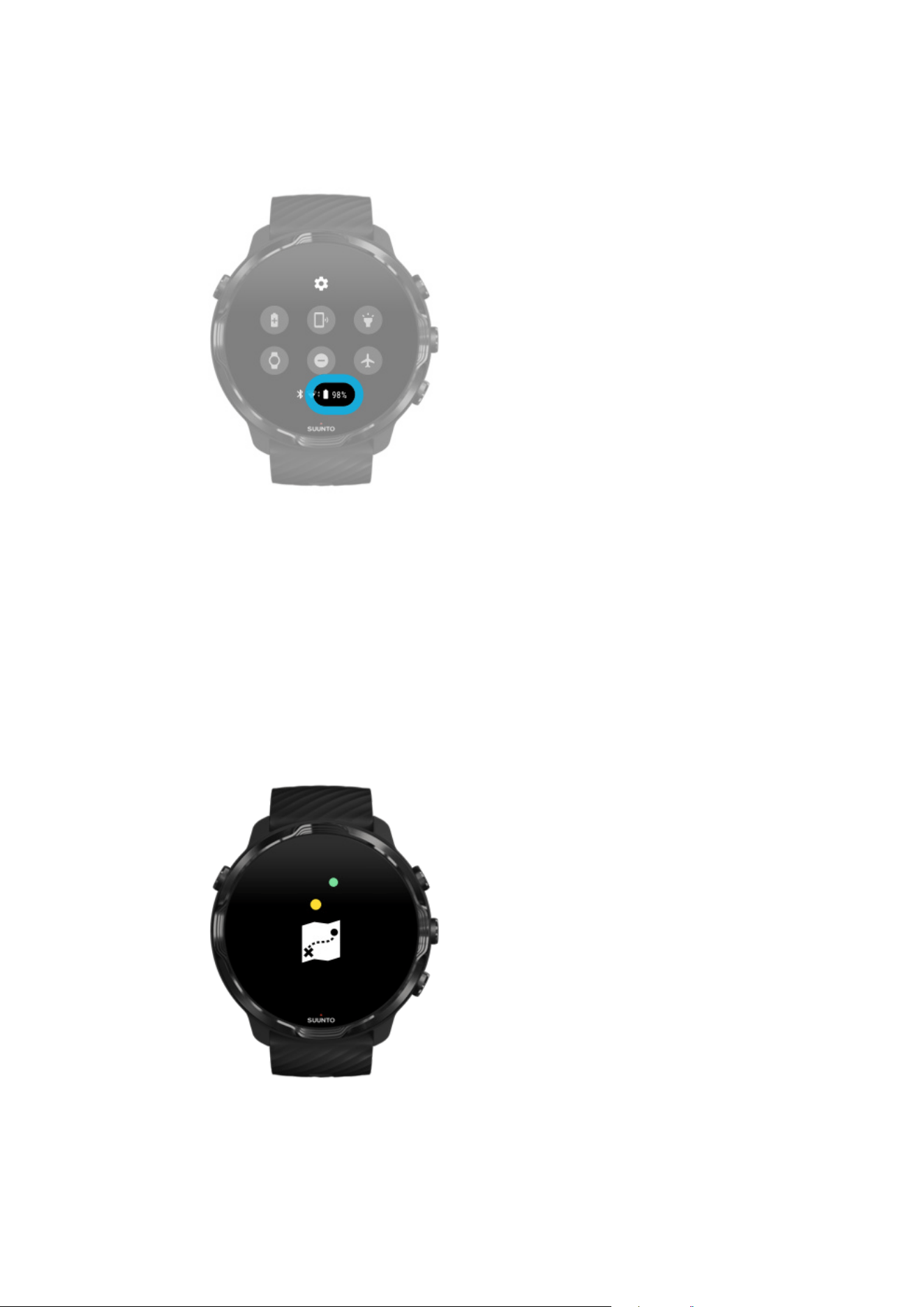
Press the top right button to open Suunto Wear app
To go back to watch face, swipe right or press the Power button.
Suunto 7
18
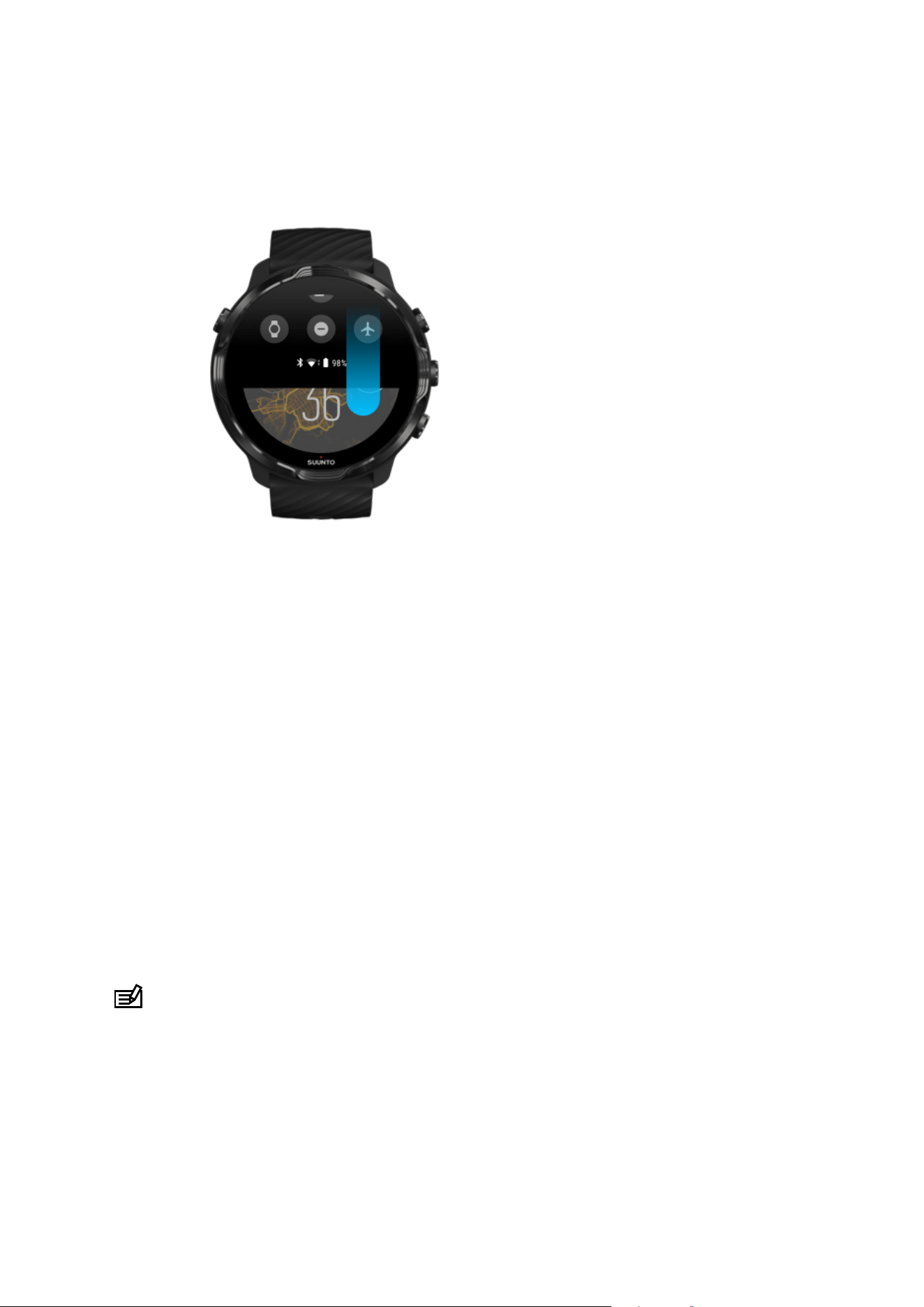
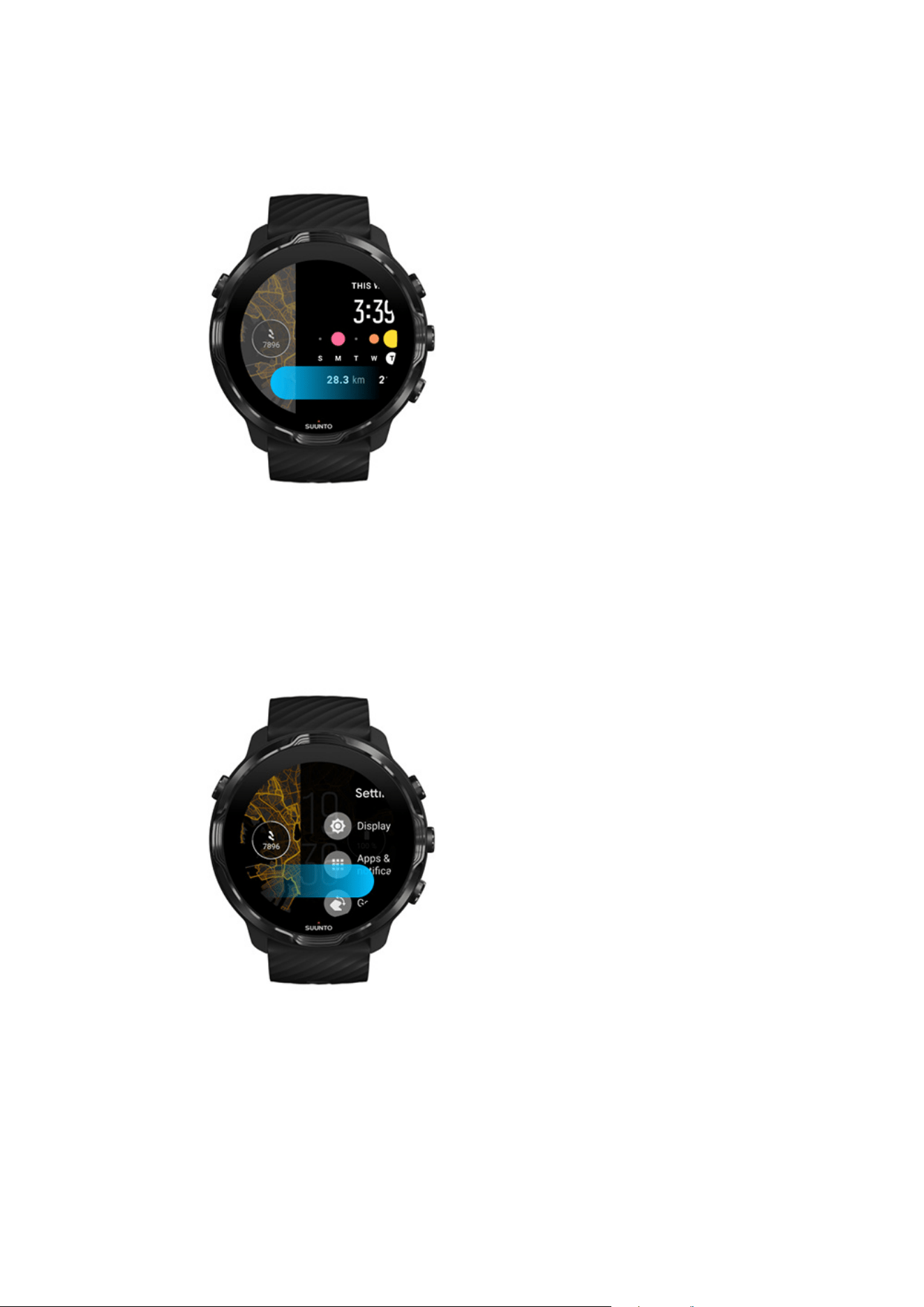
Swipe down to get quick access to handy features and
shortcuts
•
Check battery status
•
Check your connectivity
•
Make in-store payments with Google Pay*
•
Turn screen o
•
Turn Do not disturb
on/o
•
Turn Airplane mode on/o
•
Turn Battery Saver on
•
Find my phone
•
Turn flashlight on/o
•
Go to main settings menu
To go back to watch face, swipe up or press the Power button.
* Google Pay is visible and available on watch in selected countries.
Check supported countries and learn more about Google Pay.
NOTE: Some icons might look dierent depending on your phone.
Suunto 7
20

Wake up your display
The display on your watch will go to sleep if you haven’t interacted with your watch
for a few seconds. By default, the display and gestures to interact with your Suunto 7
are set up to use a minimum amount of power in daily use. For the best experience,
use default settings for Display and Gestures with Suunto’s power optimized watch
faces.
Default settings for Gestures on Suunto 7:
•
Tilt-to-wake
o
•
Power saver tilt on
•
Touch-to-wake on
Default setting for Display on Suunto 7:
•
Always-on screen
o
Check the time
Wake up display
Put your display back to sleep
Wake up display during sports
Adjust display settings
Adjust gestures
Check the time
With Power saver tilt, you can turn your wrist to check the time without activating your
watch. When you turn your wrist, the display will brighten up so that it is easier to read
the time.
NOTE: Suunto 7 has Power saver tilt on by default. You need to use a power
optimized watch face to use Power saver tilt.
Wake up display
To wake up your display and interact with your watch, you can:
•
Tap the screen
Suunto 7
23
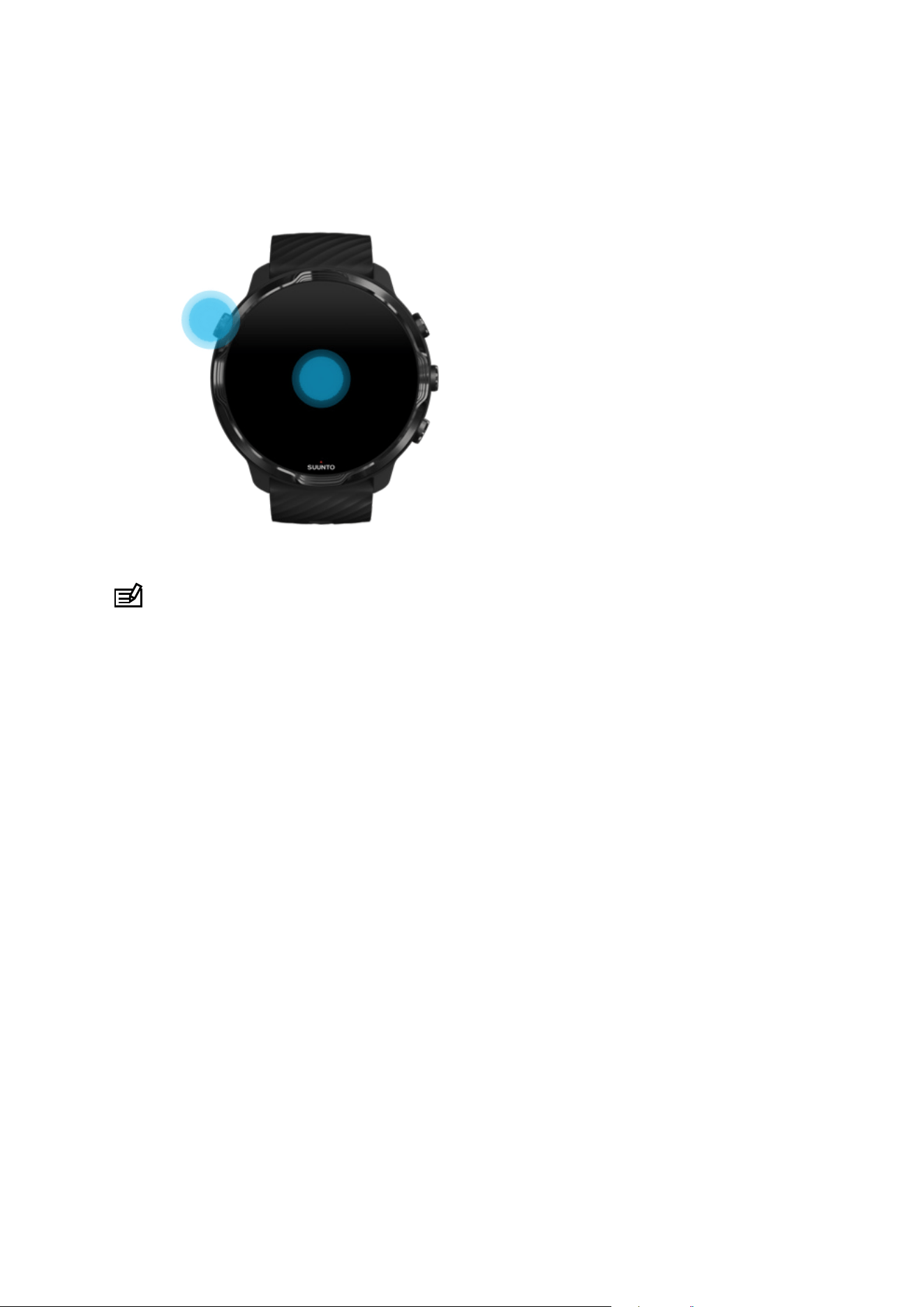
•
Press the Power button
•
Turn your wrist (o by default)
NOTE: For longer battery life Suunto 7 has Tilt-to-wake o by default.
Put your display back to sleep
To put your display back to sleep, you can:
•
Tilt your wrist away from you
•
Cover the screen with your hand for a few seconds
•
Wait a few seconds. The display dims automatically when you don’t interact with it.
Wake up display during sports
While recording an exercise with Suunto Wear app the display and gestures to
interact with your watch are optimized for sports and longer battery life.
Your stats during exercise are always visible but to wake up the display, you can:
•
Press the Power button
•
Touch the screen
Suunto 7
24
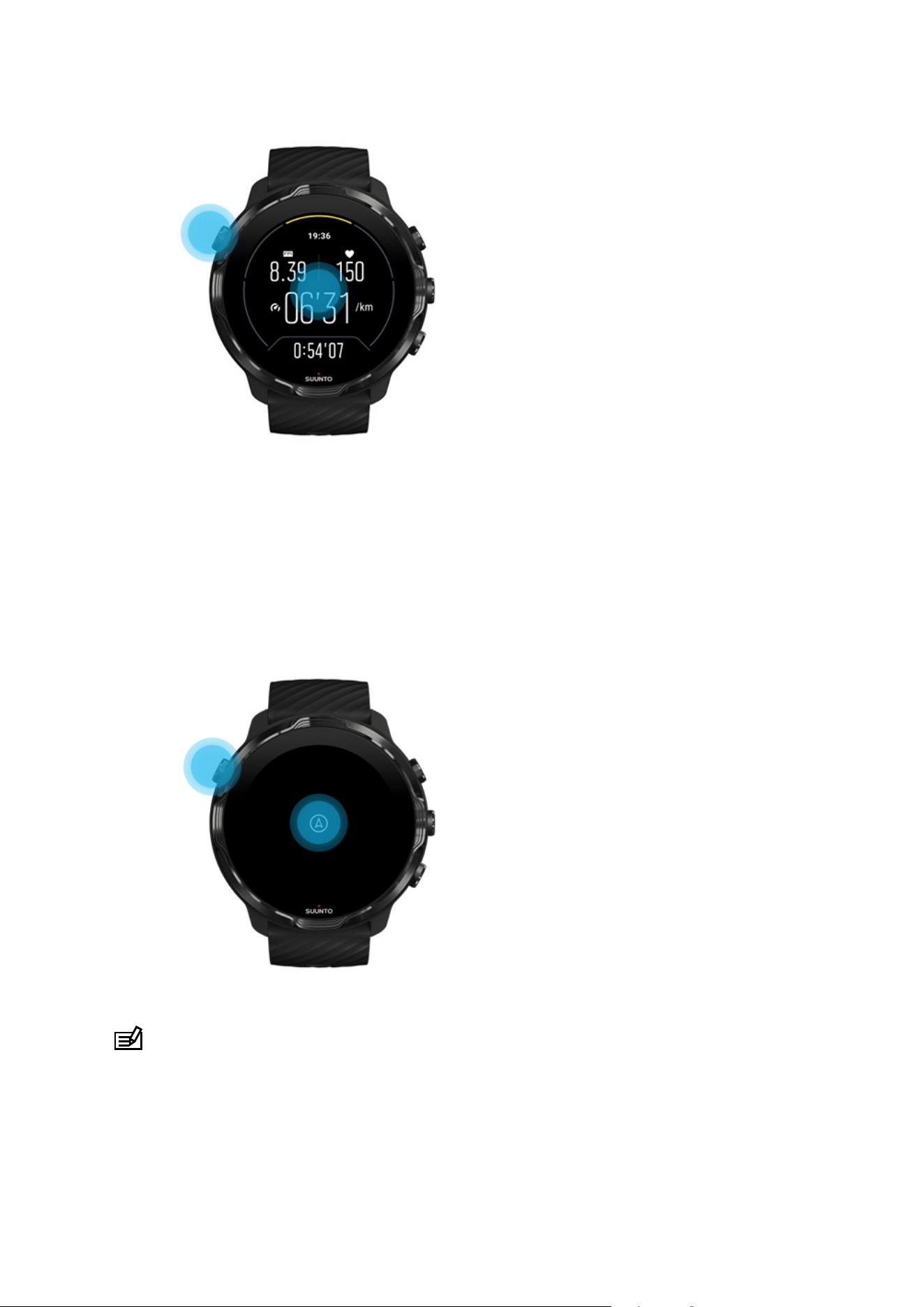
To wake up the display during exercise when in the map view, you can:
•
Turn your wrist
•
Press the Power button
•
Touch the screen
NOTE: During water sports, like swimming and kayaking, the touch screen for
Suunto Wear app is disabled to avoid wet conditions causing unwanted touch
actions.
If you exit Suunto Wear app during any exercise (including swimming), the touch
screen will be enabled.
Suunto 7
25

Adjust display settings
All watch faces designed by Suunto are power optimized to show the time in a low-
power mode without activating your watch. Keep in mind that other watch faces might
not be optimized the same way.
1. While on the watch face, swipe down from the top of the screen.
2. Tap Settings » Display.
3. Adjust the settings according to your preferences.
NOTE: To save more battery, Suunto 7 has Always-on screen turned o by
default.
Adjust gestures
The way you interact with your watch aects how long your battery will last. By
default, gestures to interact with your Suunto 7 are set up to use a minimum amount
of power to provide you the best possible day-to-day experience with your watch.
1. While on the watch face, swipe down from the top of the screen.
2.
Tap Settings
» Gestures.
3. Adjust the settings according to your preferences.
NOTE: By default, Suunto 7 has Tilt-to-wake o, Power saver tilt on and Touch-to-
wake on.
Connect to the Internet
When your watch is connected to the Internet you can do more with it – ask for help
from your Google Assistant, get the latest weather forecast or get updates and
download new apps.
Your watch can connect to the Internet through Wifi or your phone. The connection
via Wifi is faster than via your phone but uses more power. If both connections are
available, your watch will automatically determine which one to use.
Check your connectivity
Connect to the Internet through your phone
Connect to the Internet through
Wifi
Suunto 7
26

What still works when you are not connected to the Internet
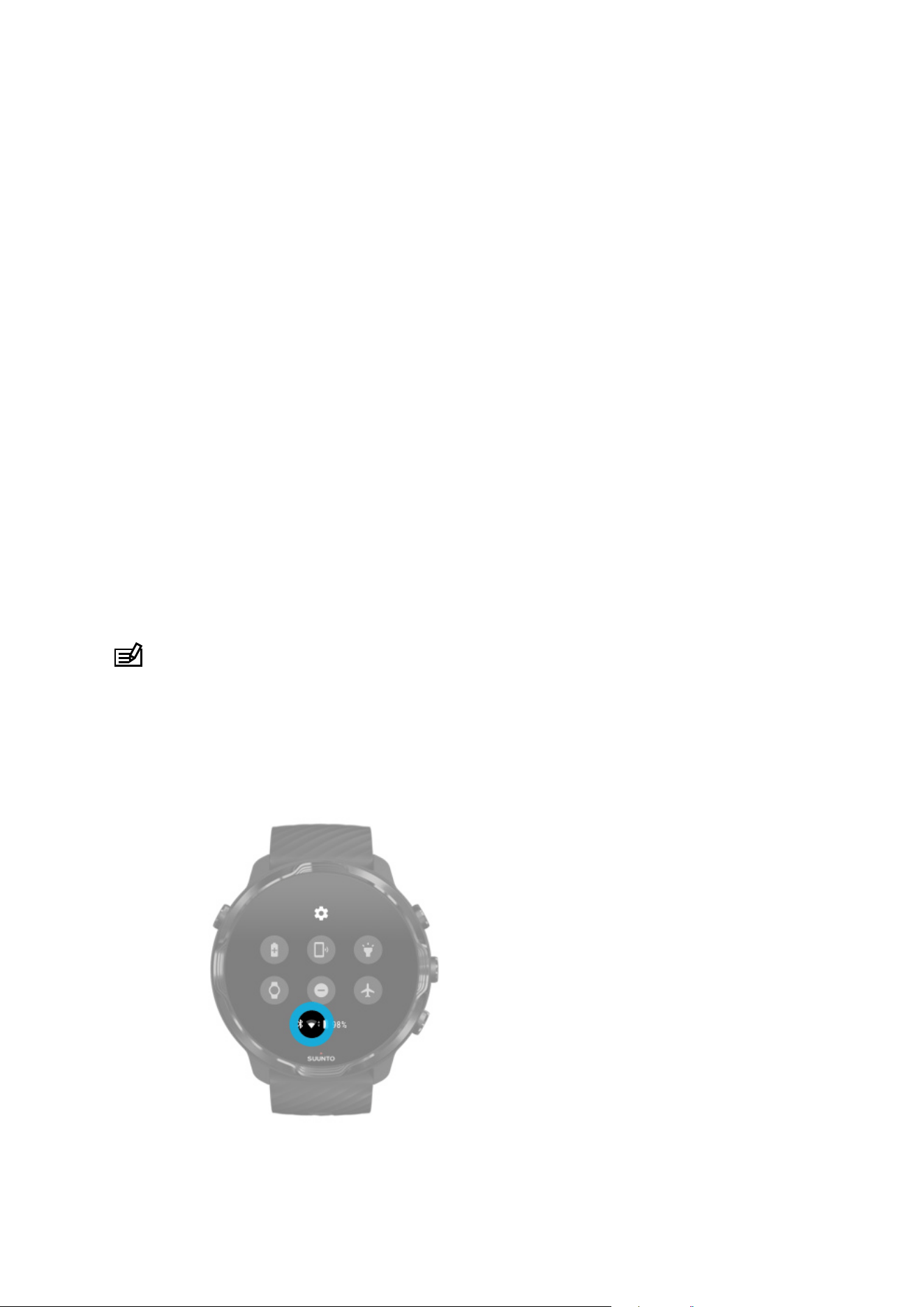
Check your connectivity
While on the watch face, swipe down on your screen to see if your watch is
connected to the Internet.
your watch is connected to the Internet through Wifi.
your watch is connected to the Internet through your phone.
your watch is not connected to the Internet.
Suunto 7
27
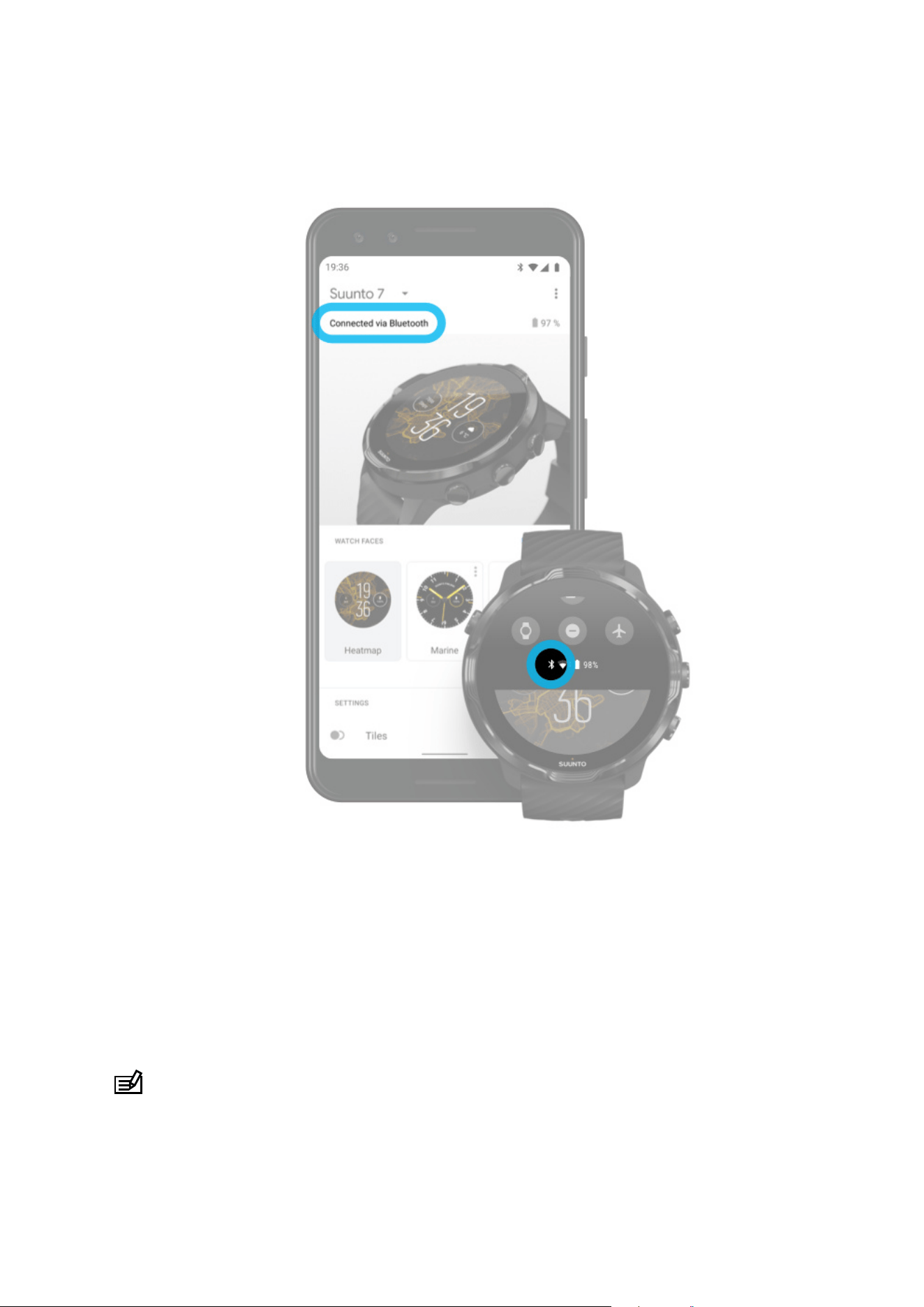
Connect to the Internet through your phone
To use the Internet through your phone, your watch needs to be connected to the
Wear OS by Google app. Suunto 7 automatically connects to the Internet through the
phone that it is connected with, if the phone has Internet connection via:
•
a
Wifi network
•
a mobile network
NOTE: Keep in mind that there can be extra costs for data transfer.
Suunto 7
28
Reconnect your watch with your phone
Your watch should automatically reconnect with your phone when:
•
You have your watch and phone close together.
•
Bluetooth on your watch and phone is turned on.
•
The Wear OS by Google app is open on your phone.
If your watch doesn’t automatically reconnect after a short while, try these:
•
Tap the screen on your watch or press the Power button to make sure your watch
is active.
•
Tap the
notification on your watch to reconnect. If you can’t see it, swipe up and
check your notification stream.
•
Make sure the Airplane mode is not turned on on your watch or phone.
•
Try switching your watch’s Bluetooth
o and then back on.
•
Try switching your phone’s Bluetooth
o and then back on.
•
Make sure your devices & app are up to date.
•
If nothing else helps, restart your watch and your phone.
NOTE: Do not try to fix connectivity by removing your watch from the list of
paired Bluetooth devices on your phone’s Bluetooth settings. If you remove the
Bluetooth connection, you will need to reset your watch.
Connect to the Internet through
Wifi
Suunto 7
29

As long as your watch's Wifi is on, your watch can automatically connect to any saved
and available Wifi networks.
Your watch can't connect to:
•
Wifi networks that take you to a login page before you can connect (for example,
Wifi networks at places like hotels or coee shops)
•
5GHz networks
Turn on Wifi on your watch
1. While on the watch face, swipe down from the top of the screen.
2. Tap Settings » Connectivity » Wifi.
3. If Wifi is set to o, tap Wifi to switch it to Automatic.
Choose a Wifi network
1. While on the watch face, swipe down from the top of the screen.
2.
Tap Settings .
3. Go to Connectivity » Wifi » Add network.
4. You will see a list of available networks.
5. Tap the network you would like to connect to.
6. If a password is required you can:
a. Tap Enter on phone. When prompted, enter the password on your phone, then
tap Connect. (Make sure you have the Wear OS by Google app open on your
phone.)
b. Tap Enter on watch and type the network password using the keyboard on
your watch.
Forget a network
1. While on the watch face, swipe down from the top of the screen.
2. Tap Settings
.
3. Go to Connectivity » Wifi » Saved networks.
4. Tap the network you would like to forget.
5.
Confirm your selection by tapping .
Suunto 7
30
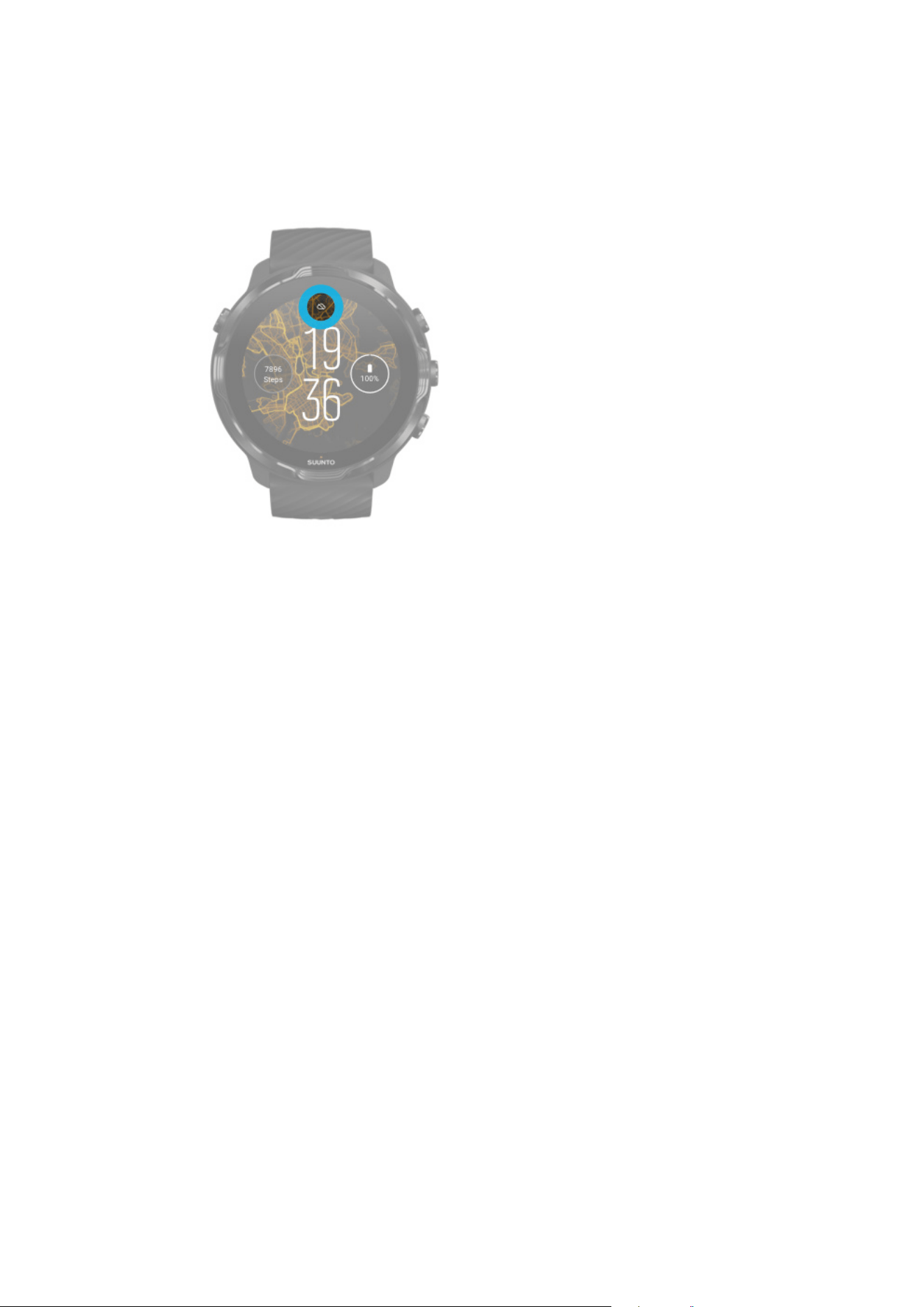
What still works when you are not connected to the
Internet
When your watch is not connected to the Internet you can still use many of the basic
features on your watch. You can:
•
Record your exercises
•
Track your daily activity
•
Use
oine maps
•
Check your exercise and activity progress with Tiles
•
Sync your exercises to Suunto mobile app
•
See your step count
•
Check your heart rate
•
Track your sleep
•
Tell time and see the date
•
Use a timer
•
Use a stopwatch
•
Set an alarm (Note: Alarm works with vibration only)
•
Change your watch face
•
Change watch settings
•
Listen to music through your watch
Keep your Suunto 7 up to date
To get the most out of your watch, make sure everything is up to date.
Suunto 7
31

System updates
App updates
Wear OS updates
Suunto Wear app updates
System updates
System updates are automatically downloaded and installed when your watch is
charging and connected to Wifi. However, if a system update does not install on its
own, you can manually download and install it.
Check system version
1. While on the watch face, swipe down from the top of the screen.
2.
Tap Settings .
3. Go to System » About » Versions.
4. See “System version”.
Download system updates manually
1. While on the watch face, swipe down from the top of the screen.
2.
Tap Settings .
3. Go to System » About » System updates.
If an update is available, your watch will download it. If not, you will get a confirmation
that your watch is up to date.
App updates
The apps on your watch are updated automatically while charging, if you:
•
stay signed in to your Google account on your watch
•
stay connected to Wifi
•
keep Auto-update apps setting enabled
If you do not want to use the auto-update function, you can manually update apps.
Manage automatic app updates
1. To open your list of apps, press the Power button.
Suunto 7
32

2. Tap the Play Store app .
(If necessary, follow the instructions to connect to Wifi and add a Google account.)
3. Scroll down and tap Settings .
4. Toggle Auto-update apps on or
o.
Download app updates manually
1. To open your list of apps, press the Power button.
2.
Tap the Play Store app .
(If necessary, follow the instructions to connect to Wifi and add a Google account.)
3.
Scroll down and tap My apps .
4. If you see “Updates available”, select an app update to download or tap Update
all.
If you do not see “Updates available”, all apps are up to date.
Wear OS updates
The Wear OS app on your watch is an app that is on top of the operating system and
updated more frequently. Wear OS is updated automatically when your watch is
charging, connected to Wifi and Auto-update apps is enabled.
Suunto Wear app updates
Suunto Wear app and services powering it, are updated automatically when your
watch is charging, connected to
Wifi and Auto-update apps is enabled.
Check your Suunto Wear app version
1.
Press the top right button to open Suunto Wear app .
2. Scroll down and tap General options
» About.
Set an alarm
You can use Suunto 7 as a silent alarm that will only vibrate to wake you up without
disturbing your partner or roommates.
1. To open your list of apps, press the Power button.
2. Tap the Alarm app .
3. Pick the time you want.
Suunto 7
33
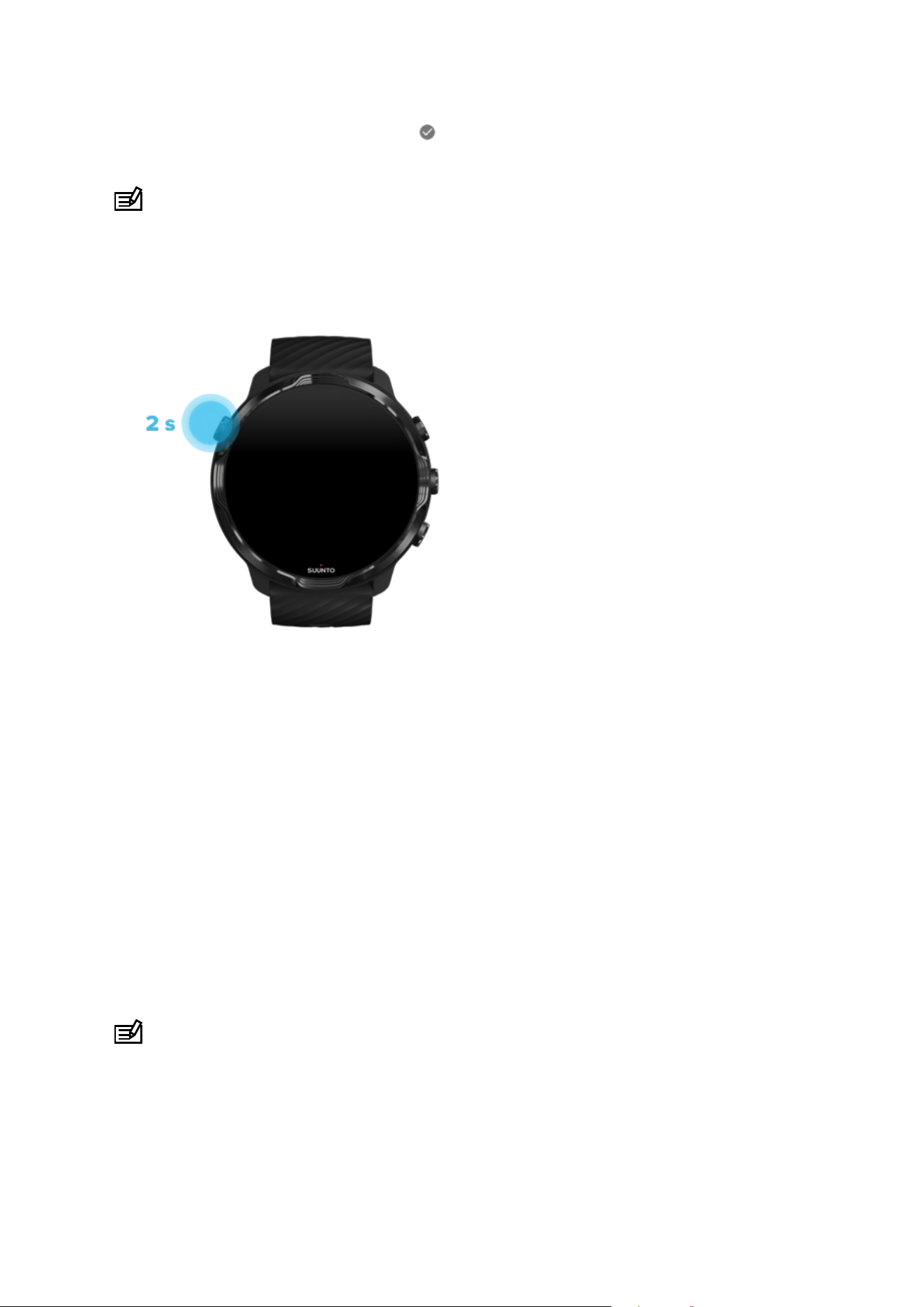
4. Confirm your selection by tapping .
NOTE: The Alarm app has no sound available.
Turn your watch on and
o
Turn your watch on
Press and hold the Power button until your watch vibrates.
Turn your watch
o
To turn o your watch, you can use the Power button:
1. Press and hold the Power button until the Power o/Restart screen is visible.
2. Tap Power o to turn o your watch.
NOTE: Google Assistant will show first when you press the Power button.
Or go to the settings:
1. While on the watch face, swipe down from the top of the screen.
Suunto 7
34

2. Tap Settings » System » Power o.
3. Confirm your selection by tapping .
Restart your watch
To restart your watch, you can press the Power button.
1. Press and hold the Power button until Power
o/Restart screen is visible.
2. Tap Restart.
NOTE: Google Assistant will show first when you press the Power button.
Or go to the settings:
1. While on the watch face, swipe down from the top of the screen.
2.
Tap Settings » System » Restart.
3.
Confirm your selection by tapping
Reset your watch to factory settings
If you're having problems with your watch, you may need to reset to its original
settings.
When you reset your watch to factory settings the following actions happen
automatically:
•
Data stored on your watch is erased. (including your exercises)
•
Installed apps and their data are erased.
•
System settings and preferences are erased.
•
Your watch is unpaired from your phone. You'll need to pair your watch with your
phone again.
NOTE: Always remember to sync (and save) your exercises to Suunto mobile app
on your phone. If you need to reset your watch, all unsynced exercises in the Diary
will be lost.
Suunto 7
35

Reset your watch to factory settings
1. While on the watch face, swipe down from the top of the screen.
2. Tap Settings » System » Disconnect and reset.
3. Confirm your selection by tapping .
Set up and pair after a factory reset
If you are pairing your watch with an iPhone, you need to manually remove your
Suunto 7 from the list of paired Bluetooth devices on your phone’s Bluetooth settings
after a factory reset. Then you can set and pair your watch with the Wear OS by
Google app on your phone.
NOTE: To reconnect your watch with Suunto mobile app on your phone, you first
need to forget the watch in Suunto mobile app, then reconnect.
Suunto 7
36
Suunto 7
37
3. WEAR OS BY GOOGLE
Your watch is powered with Wear OS by Google to enjoy the latest smart features and
to stay connected. Wear OS by Google provides you with the functions below as
standard:
•
Dictation and voice commands
•
Messaging and incoming phone call
notification
•
Google Fit™, Timer, Agenda, Translate and other standard Wear OS by Google
apps
•
Downloading and installing new apps and watch faces using Google Play Store on
your watch
•
Wear OS by Google settings
For more details on Wear OS by Google, please visit:
Wear OS by Google Help
Google Assistant
Suunto 7 brings the Google Assistant to your wrist. Ask your Assistant to manage daily
tasks, plan your day, or get answers, all while on the go.
To use your Google Assistant on your watch, you’ll need:
•
A Google account on your watch
Suunto 7
38

•
An Internet connection on your watch via Wifi or your phone
•
To use one of the languages listed below when you speak to your Assistant
For more help with Google Assistant, please visit:
Wear OS by Google Help
Google Assistant Help
Languages you can use
On your watch, the Google Assistant is available in:
•
English
•
French
•
German
•
Hindi
•
Italian
•
Japanese
•
Korean
•
Portuguese (Brazil)
•
Spanish
Get started with your Google Assistant
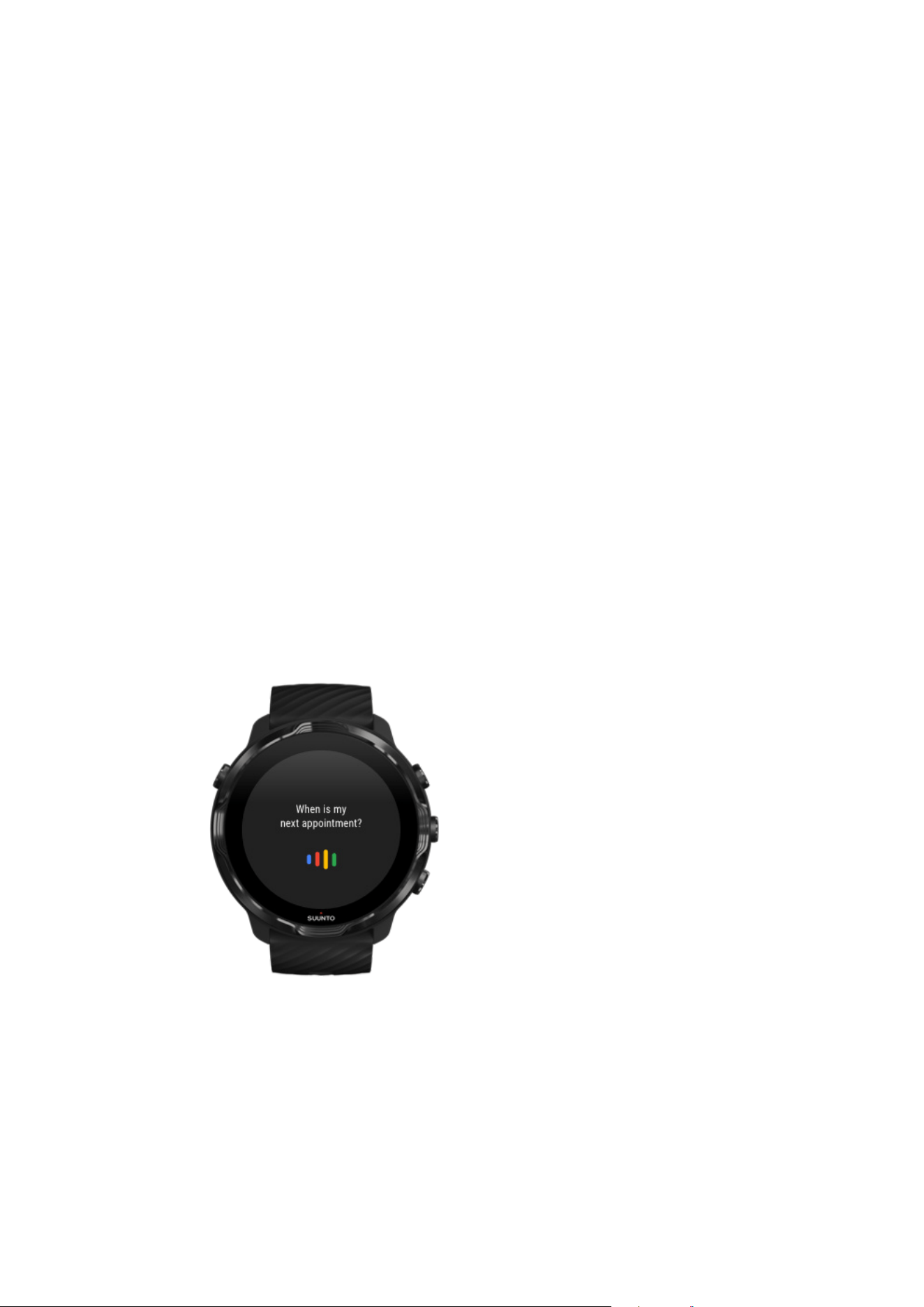
To activate the Google Assistant on your watch, you can either:
•
Press and hold the Power button
•
Swipe right and tap the mic icon
•
Just say OK Google (o by default)
Suunto 7
39
Enable "Ok Google" detection
•
While on the watch face, swipe down from the top of the screen.
•
Tap Settings » Personalization.
•
Turn on "Ok Google" detection.
NOTE: The "Ok Google" detection uses a small amount of battery power. To save
a little more battery, turn this feature
o.
Google Pay
Suunto 7
40

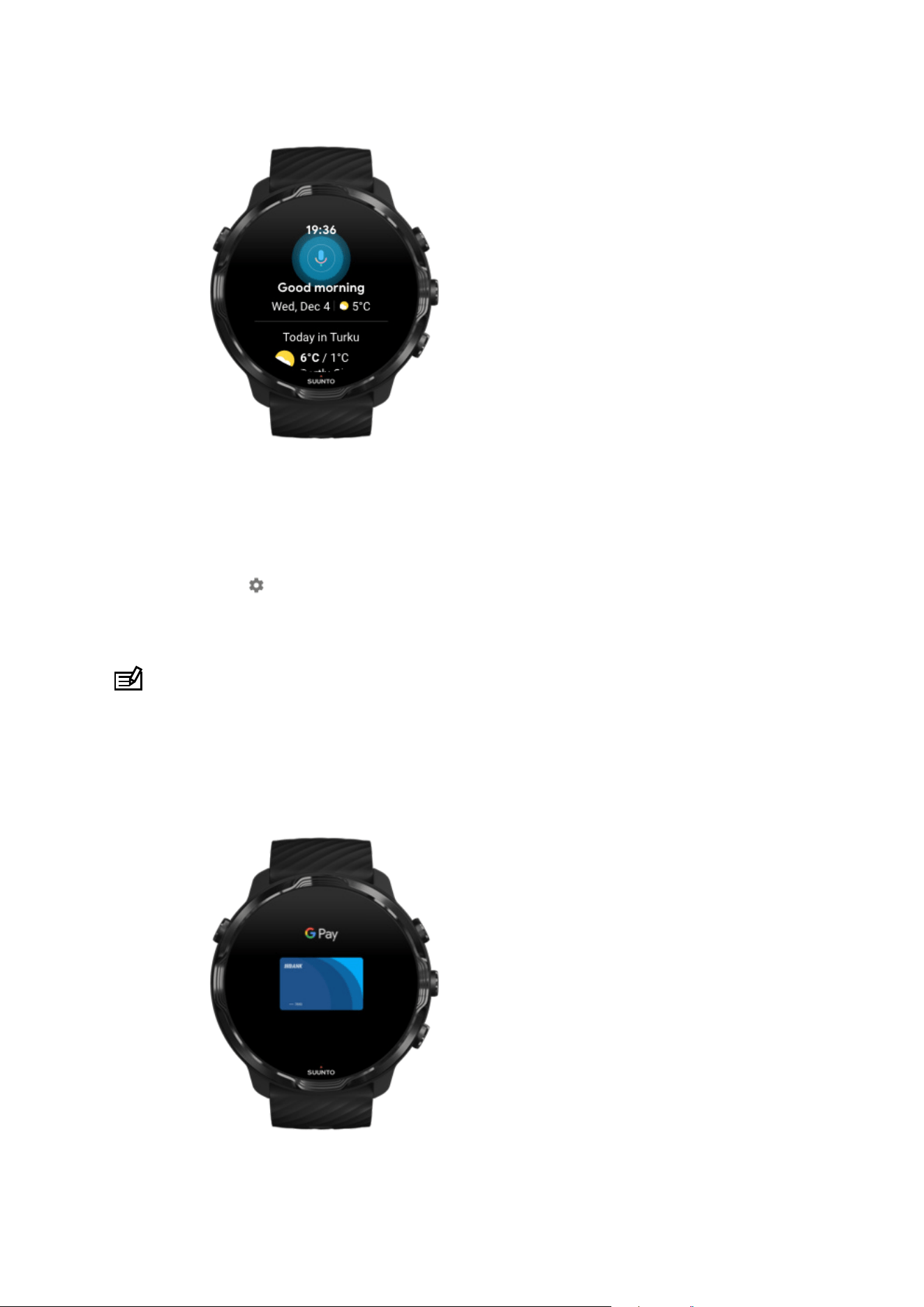
Google Pay™ is the fast, simple way to pay in stores with your Wear OS by Google
watch. Now you can purchase your daily coee without having to dig for your wallet
or phone.
To use Google Pay on your watch, you need to:
•
Be in Australia, Belgium, Brazil, Canada, Chile, Croatia, Czech Republic, Denmark,
Finland, France, Germany, Hong Kong, Ireland, Italy, New Zealand, Norway, Poland,
Russia, Slovakia, Spain, Sweden, Switzerland, Taiwan, Ukraine, United Arab
Emirates, United Kingdom, or the US.
•
Use a supported card.
NOTE: Using PayPal on Google Pay isn't supported on watches.
How to pay with your watch in stores
Google Pay works in stores where contactless payments are accepted. Just open the
Google Pay app, twist your wrist, and hold your watch face near the terminal until you
hear a sound or feel vibration. If asked for your card type, choose “credit” – even if
you are using a debit card.
Shop securely in stores
When you use your watch to pay in stores, Google Pay doesn’t send your actual credit
or debit card number with your payment. Instead, an encrypted virtual account
number is used to represent your information – so your real card details stay safe.
If your watch is lost or stolen, lock and erase it with Find My Device.
For more help with Google Pay, please visit:
Wear OS by Google Help
Google Pay Help
Suunto 7
41
Google Fit
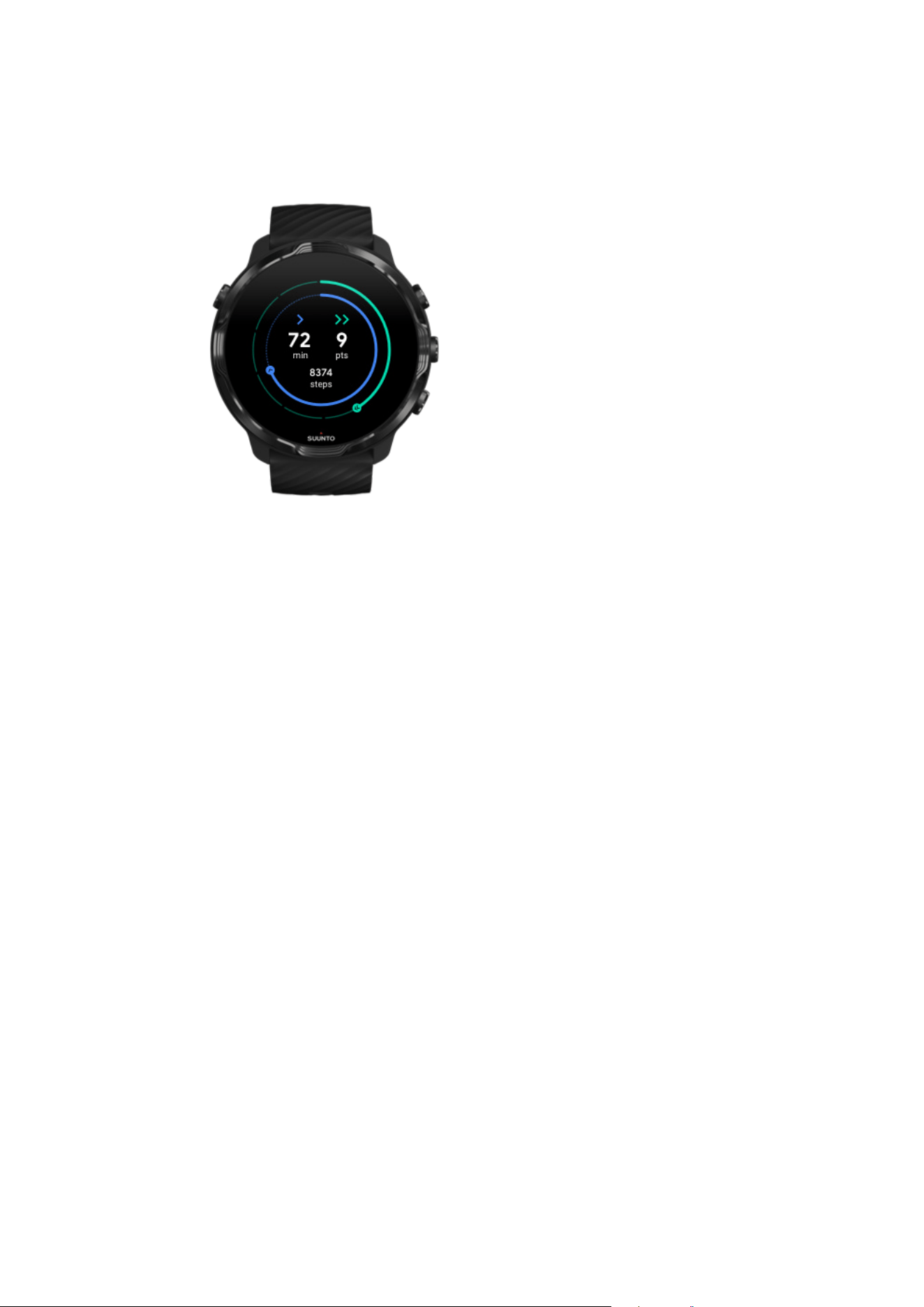
Google Fit™ is an activity tracker that coaches you to a healthier and more active life
with activity goals like Heart Points — designed based on recommendations from the
World Health Organization and the American Heart Association.
With Google Fit, you can:
•
Set goals around personal
fitness
•
Track your daily activity and progress with Heart Points
•
Get detailed insights on your training (when connected to Suunto Wear app)
•
See your step count and burned calories at a glance
•
Track your daily heart rate and its history
•
Relax and achieve mindfulness with breathing exercises
•
Get reminders, customized tips and coaching to keep you motivated
•
Share your
fitness information with the other apps and devices you use to stay
healthy
For more help with Google Fit, please visit:
Google Fit Help
Suunto 7
42
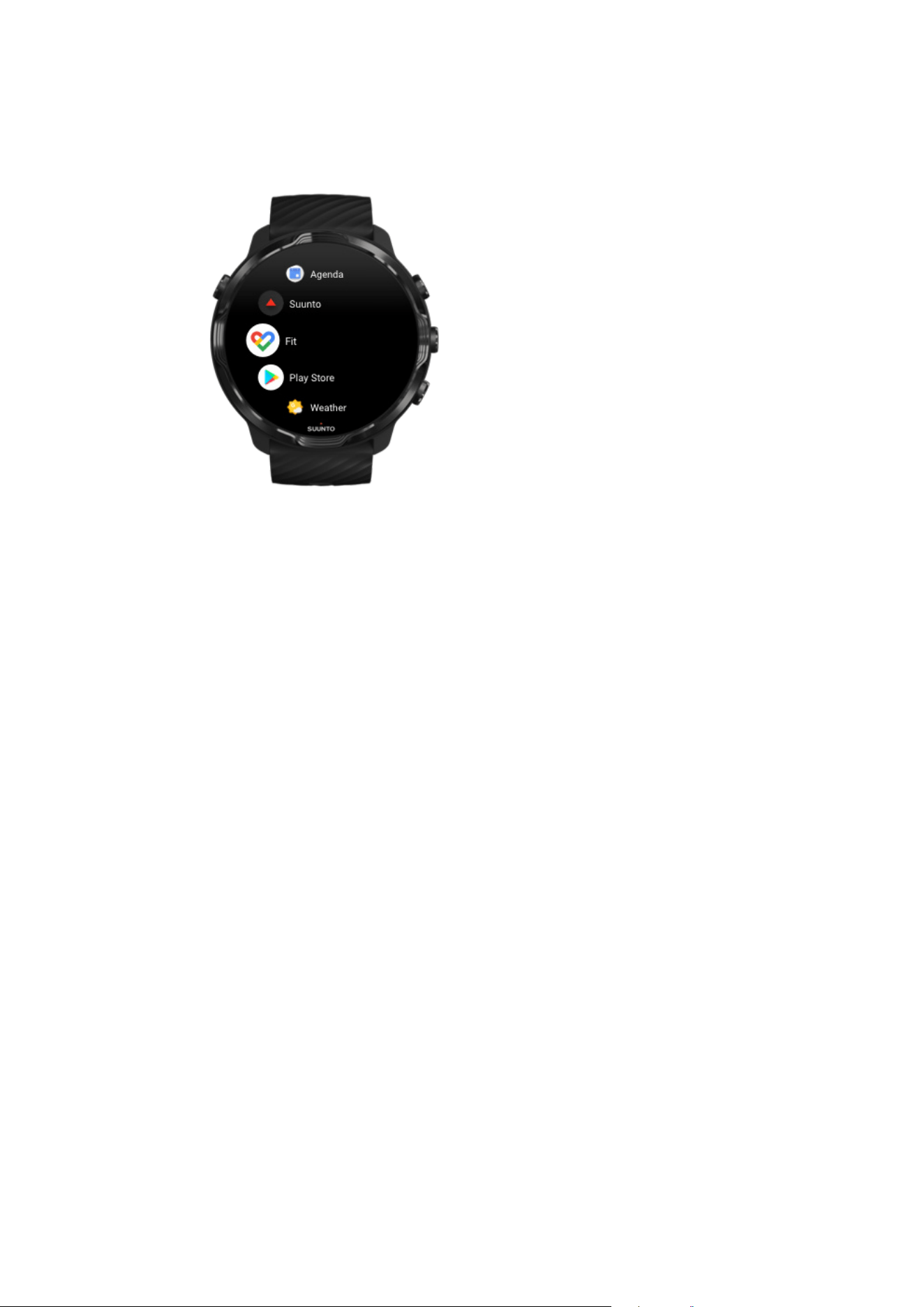
Get started with Google Fit
Your Suunto 7 comes with Google Fit already installed on it. Open the Google Fit app
on your watch and sign in with your Google account to get started.
To follow your daily activity progress on your watch:
•
Swipe left to check your daily metrics with the Fit Tile.
•
Tap the Fit Tile to open the Google Fit app for more details such as daily heart
rate.
•
Add your activity goals or daily metrics like steps or calories on your watch face to
track your progress.
Connect Suunto 7 with Google Fit
You can also connect Suunto 7 with Google Fit on your watch to see how your
exercises, sleep and heart rate recorded with Suunto Wear app impact your daily
activity goals.
Connect Suunto with Google Fit
Get Google Fit on your phone
Go to Google Play Store or App Store to download Google Fit on your phone to track
your health and see your monthly, weekly, and daily progress on your activity goals.
Suunto 7
43
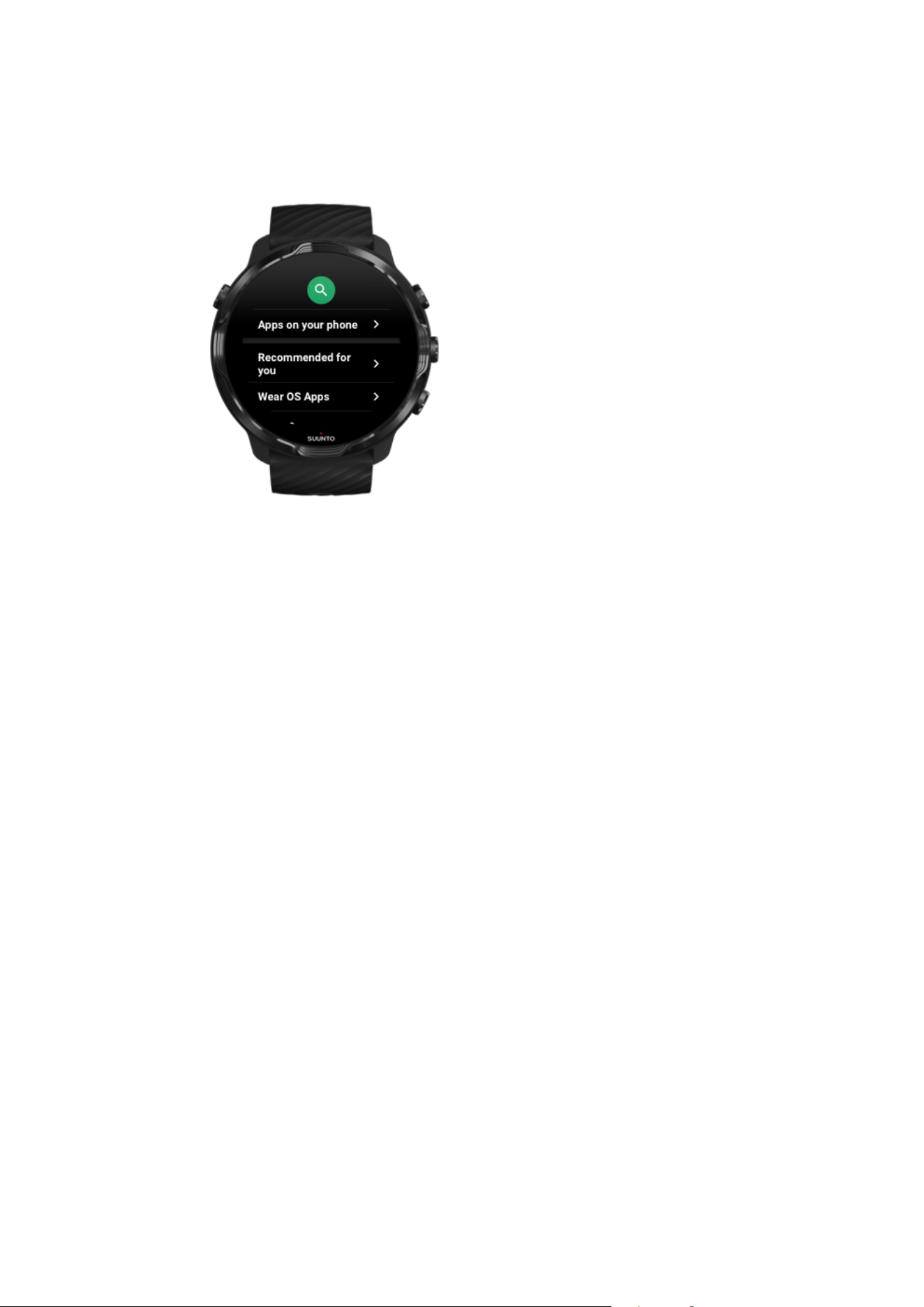
Google Play Store
Find and download all your favorite apps and keep them up to date with Google Play™
Store on your watch.
To use Play Store on your watch, you’ll need:
•
A Google account on your watch
•
An Internet connection on your watch via
Wifi or your phone
Get more apps from Google Play Store
Keep your Suunto 7 up to date
Use and manage apps
Your Suunto 7 comes with a selection of apps to help you balance your daily life and
sports.
Open apps on your watch
Get more apps from Google Play Store
Remove apps
Update apps
Suunto 7
44
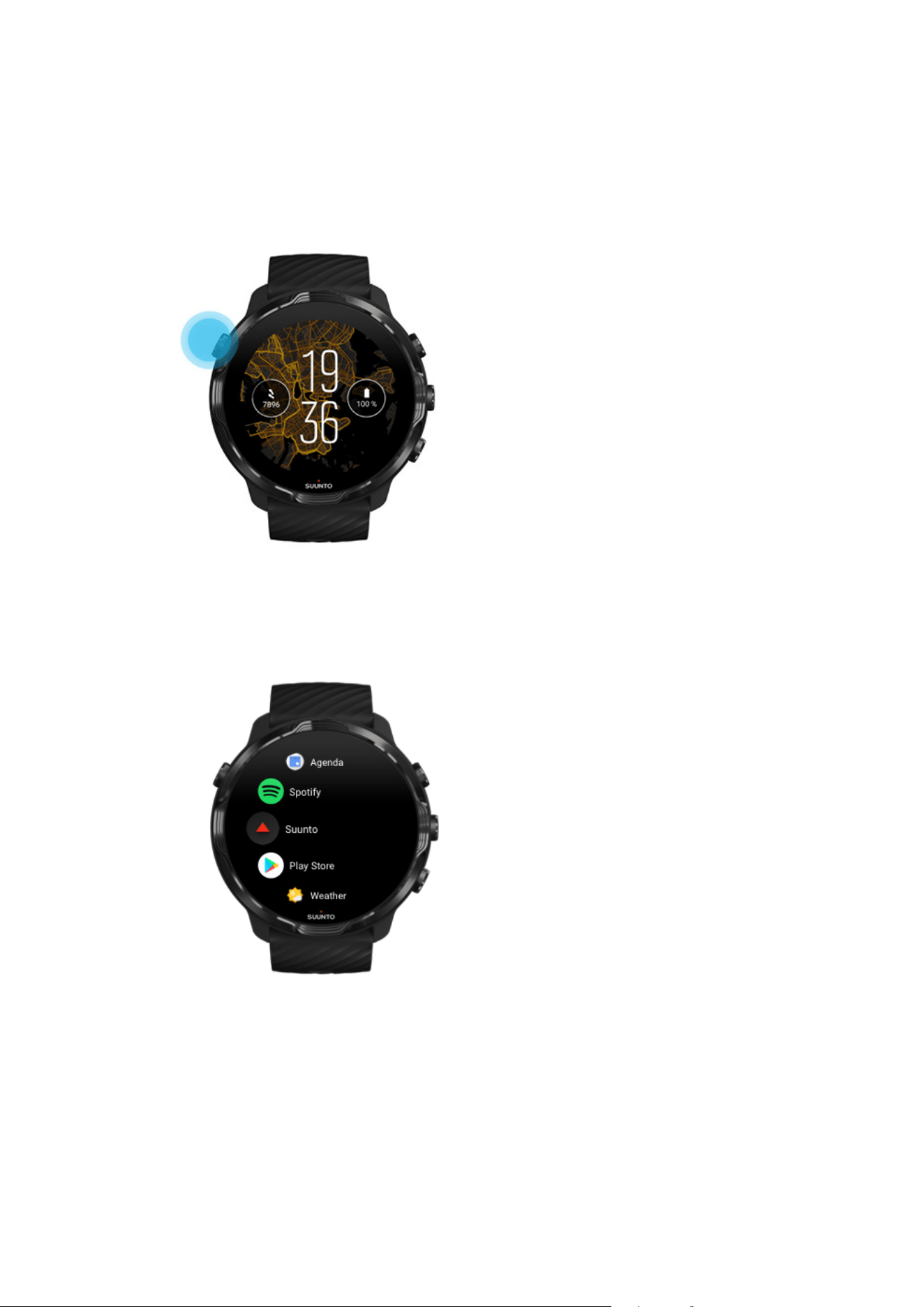
Open apps on your watch
1. To open your list of apps, press the Power button.
2. Scroll the list to find the app you want to use. Recently used apps are at the top.
3. Tap on an app to open it.
Get more apps from Google Play Store
To download more apps from Google Play Store on your watch, you’ll need:
Suunto 7
45

•
A Google account on your watch
•
An Internet connection on your watch via Wifi or your phone
1. To open your list of apps, press the Power button.
2. Tap the Play Store app .
(If necessary, follow the instructions to connect to Wifi and add a Google account.)
3. Tap the search icon .
4. You can either speak your search by tapping the microphone
or type it using
the keyboard
.
5.
To download the app to your watch, tap the install icon .
Remove apps
Remove apps through Google Play Store:
1. To open your list of apps, press the Power button.
2.
Tap the Play Store app
(If necessary, follow the instructions to connect to Wifi and add a Google account.)
3.
Scroll down and tap My apps
.
4.
Tap the app you want to remove and tap Uninstall .
Remove apps through settings:
1. While on the watch face, swipe down from the top of the watch face.
2.
Tap Settings
» Apps & notifications » App info.
3. Tap the app you want to remove.
4.
Tap Uninstall .
Update apps
If you have Auto-update apps active, your apps will automatically update when your
watch is charging and connected to Wifi. If you do not want to use the auto-update
function, you can manually update apps.
Manage automatic app updates
Download system updates manually
Suunto 7
46
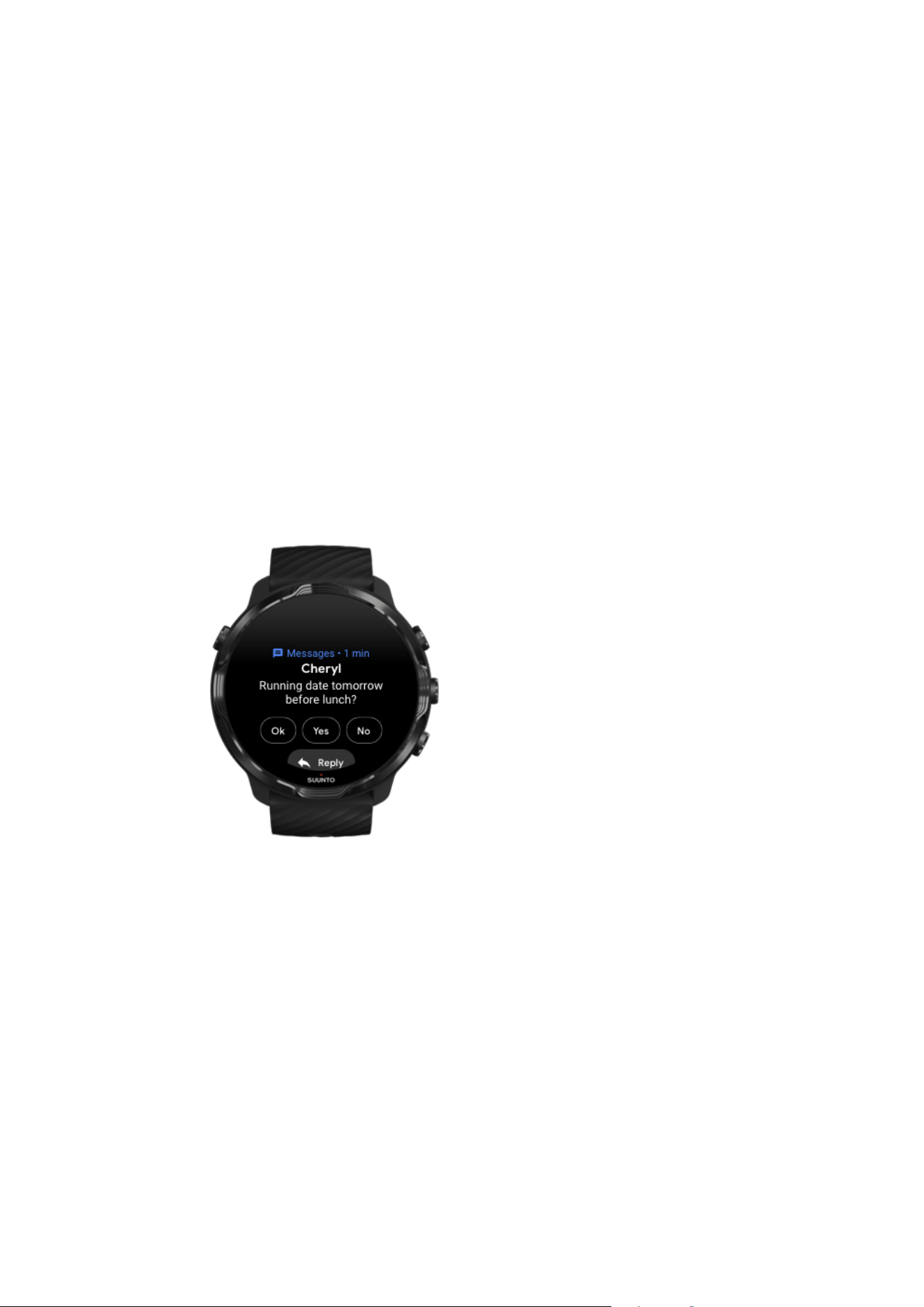
Get notifications on your watch
Your watch can also show any messages, calls or
notifications you receive on your
phone.
View new notifications
Manage your notifications
Answer or reject a call
Reply to a message with Android
Select which notifications show on your watch
Silence
notifications temporarily
Trouble receiving notifications?
View new notifications
When you get a new
notification, your watch vibrates and displays the notification for
a few seconds.
•
Tap the notification and scroll down to read the full message.
•
Swipe right to dismiss the
notification.
Suunto 7
47
Manage your notifications
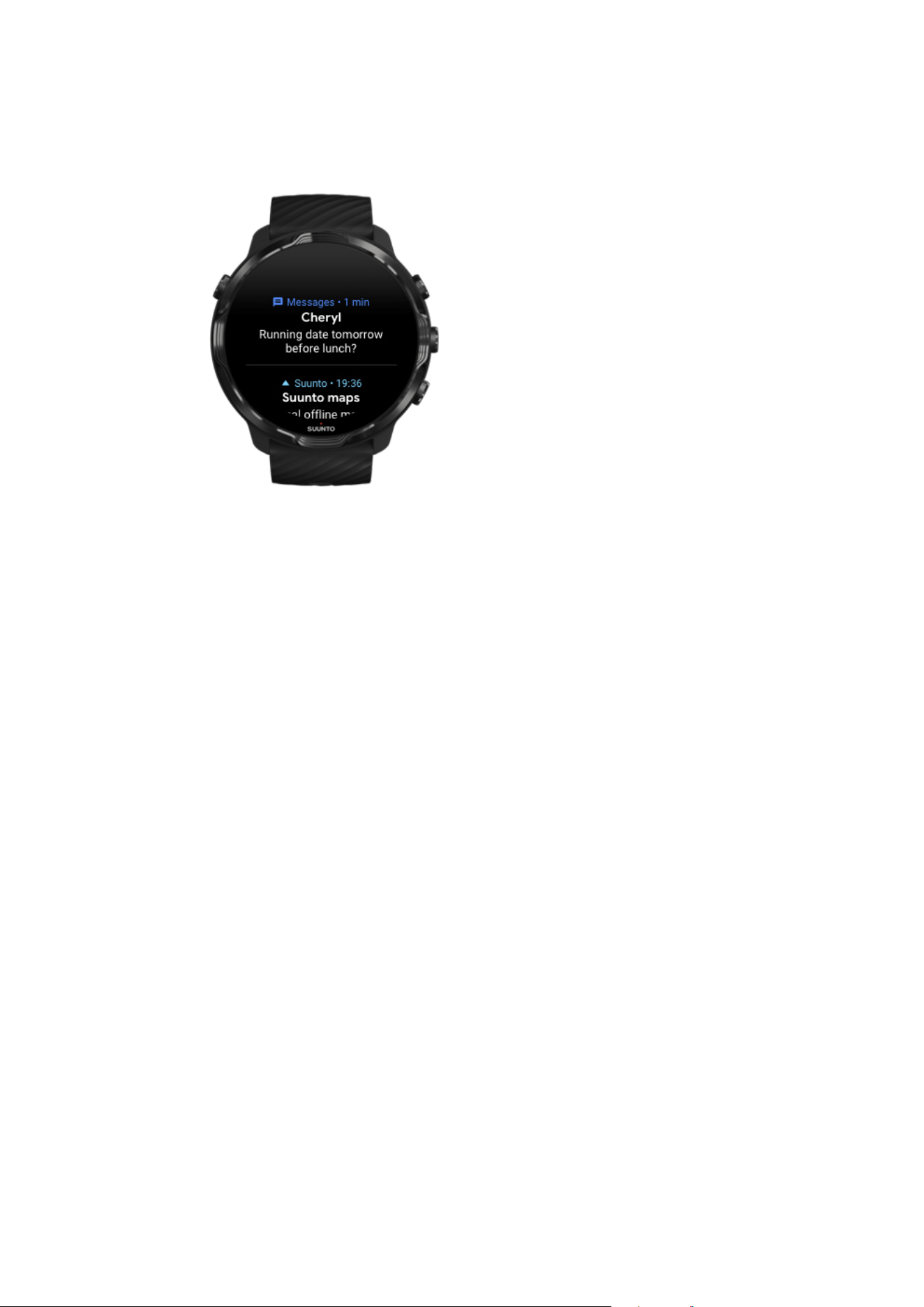
If you don’t react to a notification when it arrives, the message is saved in your
notification stream. A small ring at the bottom of the watch face indicates you have a
new notification.
•
While on the watch face, swipe up to scroll through your notifications.
•
Tap to expand a message to read and react to it.
•
Swipe left or right to dismiss a
notification.
•
To clear all notifications, swipe to the bottom of the notification stream and select
Clear all.
Suunto 7
48
Answer or reject a call
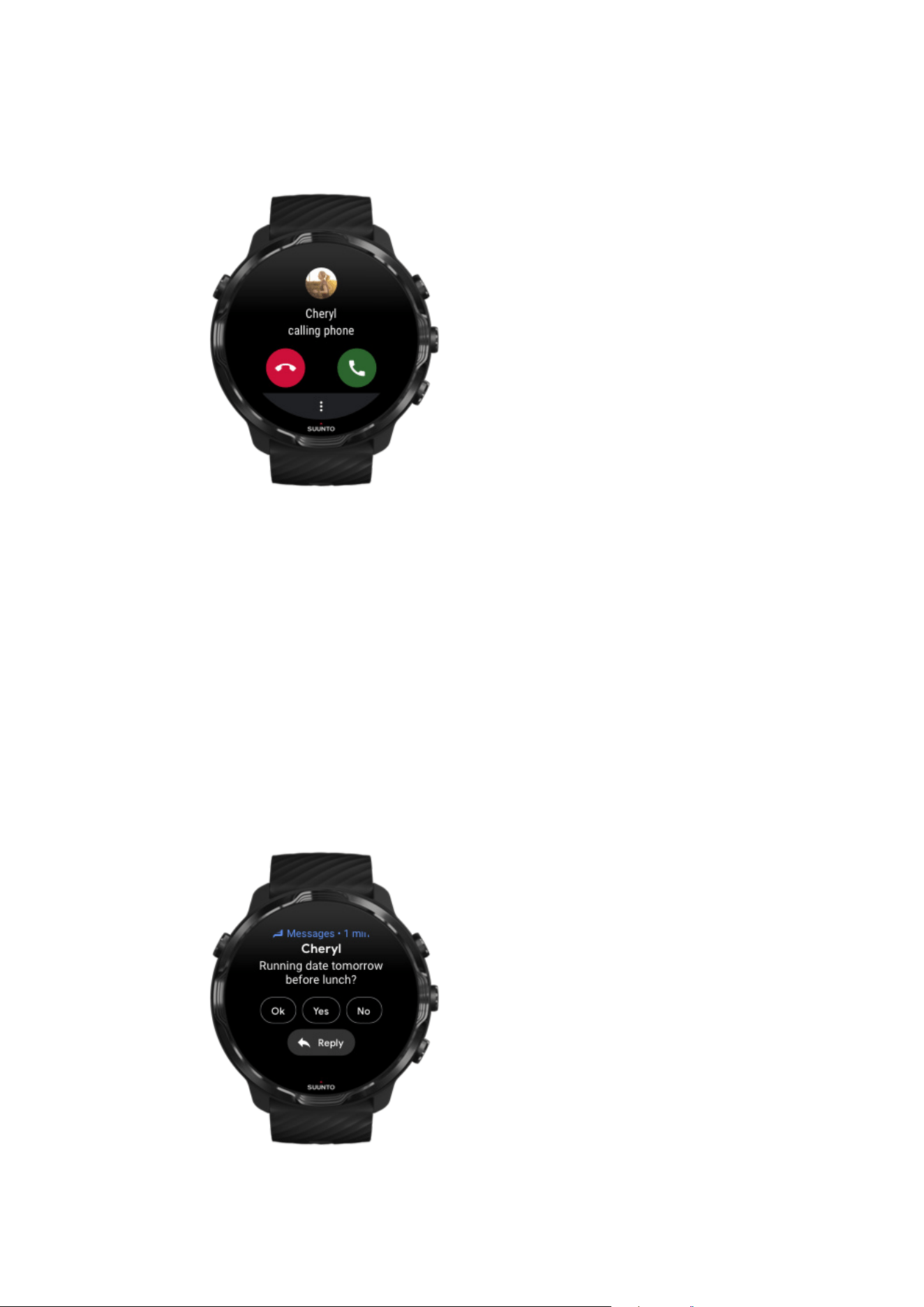
If you get a call on your phone, you will see a notification of an incoming call on your
watch. You can react to the call from your watch, but you must use the phone to carry
out the call.
•
Swipe left or tap the green phone to answer a call.
•
Swipe right or tap the red phone to reject a call.
•
To dismiss a call with a text, tap More » Send message, then choose a pre-written
text.
Reply to a message with Android
Suunto 7
49

If your watch is paired with an Android phone, you can also reply to messages on your
watch.
1. Scroll down to the bottom of a message.
2. Tap Reply .
3. Options: Tap the microphone to speak your message, select the keyboard or
emoji, or scroll down for pre-written message options.
4. You will see a check mark on your watch when your message has been sent.
Select which notifications show on your watch
If you want, you can stop receiving notifications from specific apps.
1. While on the watch face, swipe down from the top of your screen.
2. Go to Settings » Apps & notifications.
3. Tap App notifications.
4. Select which apps you want to see notifications from.
NOTE: You can also customize your notification settings in the Wear OS by
Google app on your phone.
Silence notifications temporarily
1. While on the watch face, swipe down from the top of your screen.
2.
Tap Do not disturb .
When you have Do not disturb turned on, your watch won’t vibrate or display
notifications when they arrive, but you can still view them in your notification stream.
Trouble receiving notifications?
•
Make sure your watch is connected to the Wear OS by Google app on your phone.
•
Check that your phone is connected to the Internet.
•
Check if Do not disturb is active on your watch.
•
Make sure you haven’t turned
o notifications for specific apps.
•
Make sure that you are getting notifications on your phone.
•
Make sure your watch is paired with your phone.
Suunto 7
50

View and manage your Tiles
Tiles are a quick way to access information that is most relevant for you, whether it is
checking your training status, the weather or progress on your daily activity goals.
Suunto 7 comes with six pre-selected Tiles – Heart rate, Today, Resources, Sleep,
Overview and This week by Suunto.
View and arrange Tiles
Add a new Tile
Check your exercise trends and daily activity with Suunto
View and arrange Tiles
1. While on the watch face, swipe left on your screen to view your Tiles.
2. Touch and hold any Tile and then tap the arrows to reorder.
You can also arrange the Tiles in the Wear OS by Google app on your phone.
Add a new Tile
1. While on the watch face, swipe left on your screen to view your Tiles.
2. Touch and hold any Tile.
3. Swipe left through your Tiles and tap + to add more Tiles.
4. Browse the list and tap a Tile to choose it.
You can also add new Tiles in the Wear OS by Google app on your phone.
Check your exercise trends and daily activity with Suunto
Suunto 7 comes with six Tiles by Suunto – Heart rate, Today, Resources, Sleep, This
week and Overview – to help you track your training and keep you motivated.
Swipe left to view your daily activity metrics. Swipe left again for a quick look at how
much you have been exercising this week or during the past 4 weeks, which sports
you have done and when. Swipe another left for a quick look at how much you have
been exercising, have you had enough restorative sleep and are you recovering well
enough. Tap to open Suunto Wear app to view your diary.
Suunto 7
51
NOTE: Touch and hold any Tile and then tap the arrows to reorder.
Heart rate
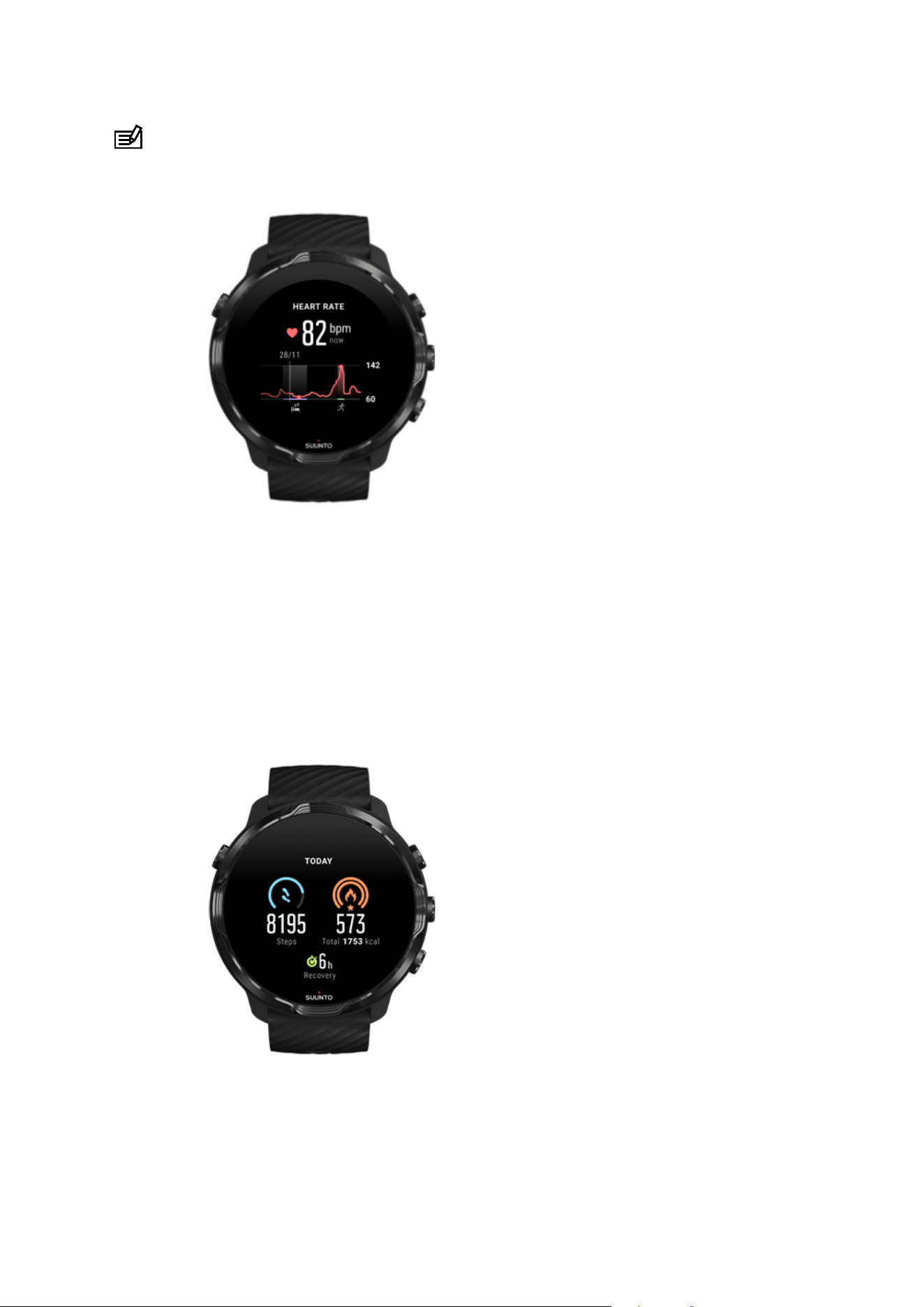
The Heart rate Tile provides a quick way to check your current heart rate and the 24
hour graph visualizes how your heart rate changes throughout the day - when you
rest and when you are active. While the graph updates every 10 minutes, your current
heart rate is measured every second to give you up to date feedback.
Today
Check your progress on daily activity such as steps and calories.
Suunto 7
52
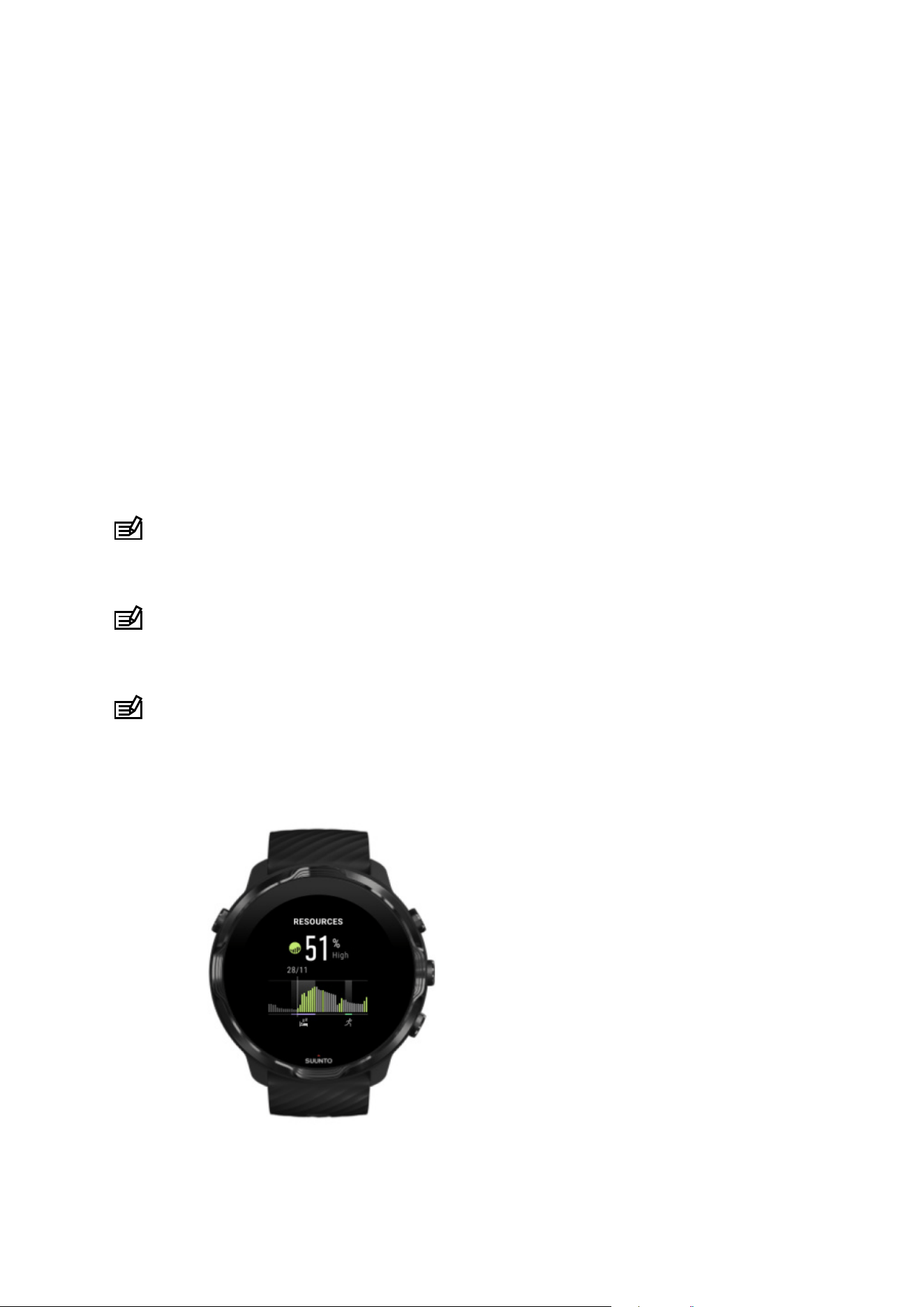
The total calories you burn per day is based on two factors: your Basal Metabolic Rate
(BMR) and your physical activity.
Your BMR is the amount of calories your body burns while at rest. These are the
calories your body needs to stay warm and perform basic function like blink your eyes
or beat your heart. This number is based on your personal profile, including factors
such as age and gender.
The ring around the calorie icon advances according to how many active calories you
burn during the day compared to your goal. The ring around the steps icon shows
how many steps you have made during the day compared to your goal.
You can edit your daily steps and calories goals in the Suunto app on your mobile
phone.
NOTE: During exercise, Suunto 7 tracks the total energy consumption of the
exercise (BMR + active calories).
NOTE: The step count in Google Fit and Suunto Wear app might dier due to the
use of dierent algorithms.
NOTE: Some of the sport modes have step count disabled which will also have
an impact on the daily step count. The Google Fit Tile will show steps for an activity
recorded using one of these sport modes, whereas the Suunto Today Tile will not.
Suunto 7
53
Resources
The Resources Tile provides a quick way to check your current resource level or see
how sleep, daily activity and stress
aect your body resources from the 24 hour
graph. While the graph updates every 30 minutes, your current resource level is
updated more frequently.
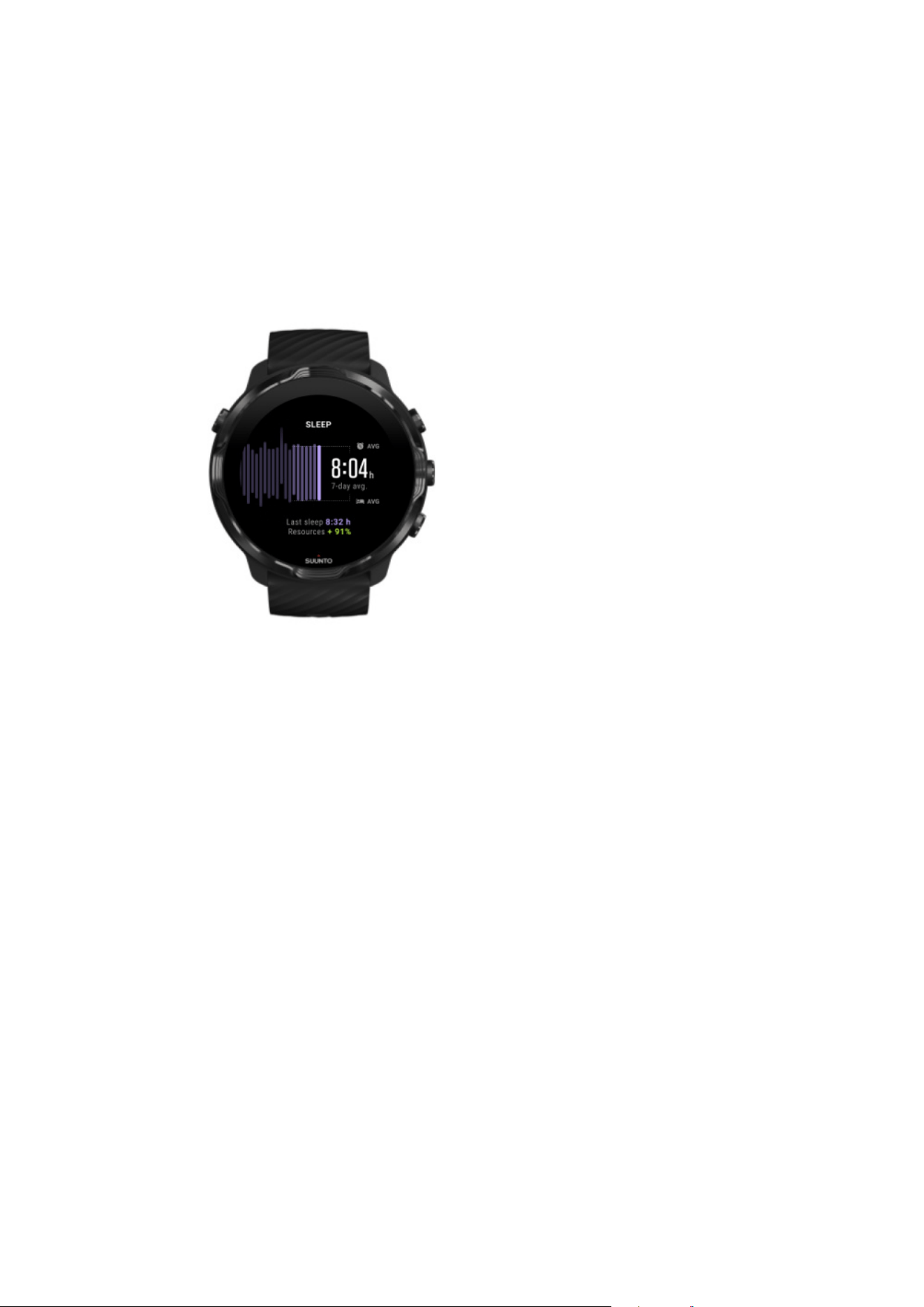
Sleep
Steady sleep schedule is often connected to improved sleep quality and recovery.
The Sleep Tile helps you monitor how consistent your sleep times are. The graph
displays your sleep durations, sleep start and wake-up times from past weeks.
The highlighted area on the sleep graph represents the past running 7-days of your
tracked sleep. This helps you to track that you are getting enough sleep in the long
term.
The duration of your previous sleep and how much body resources you gained during
previous sleep are also shown in this Tile.
Suunto 7
54
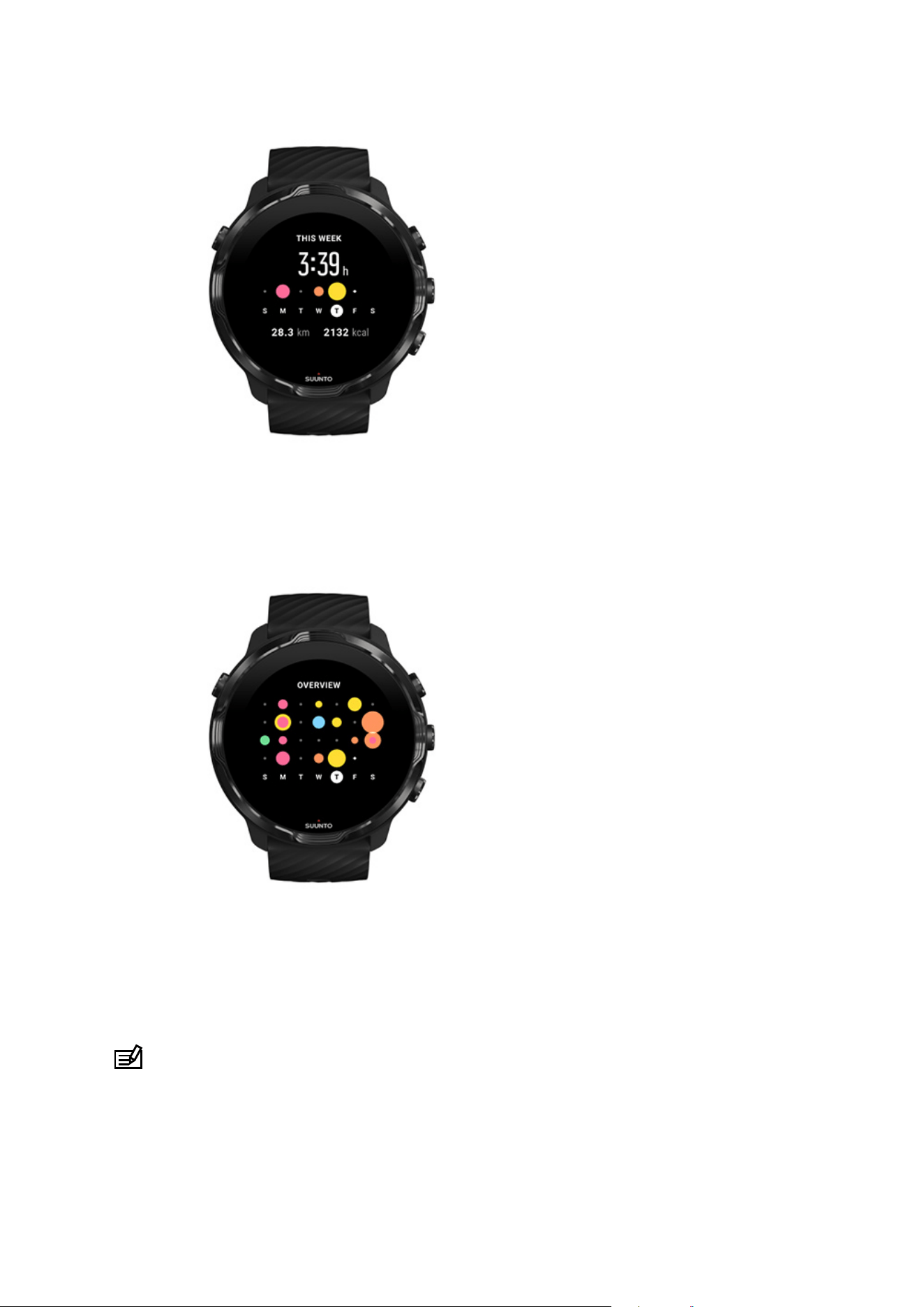
This week
Maintain a good training rhythm on a weekly level and stay motivated.
Overview (past 4 weeks)
Keep your training and recovery in balance and plan ahead or make adjustments as
needed.
NOTE: Tiles by Suunto will only show exercises recorded with Suunto Wear app
on your watch.
Suunto 7
55

4. CUSTOMIZE YOUR WATCH
There are many ways to customize your Suunto 7 to make it your own. Change the
look of your watch with interchangeable straps and watch faces. Or download apps,
add relevant data to your watch face and get button shortcuts to your favorite apps.
Customize watch faces
Suunto 7 comes with a set of pre-installed watch faces to choose from. You can also
download many others from Google Play Store.
All watch faces designed by Suunto are optimized to use a minimum amount of power
to provide you with the best possible day-to-day experience with your watch.
Suunto watch faces
Change your watch face
Add functions (or 'complications') to your watch face
Add a new watch face
Hide a watch face
Delete a watch face you found in the Play Store
Suunto watch faces
Suunto 7 comes with four watch faces by Suunto – Heatmap, Original, Marine and
Rose – to celebrate the history of Suunto and the community of passionate athletes
and adventurers around the world.
Suunto 7
56
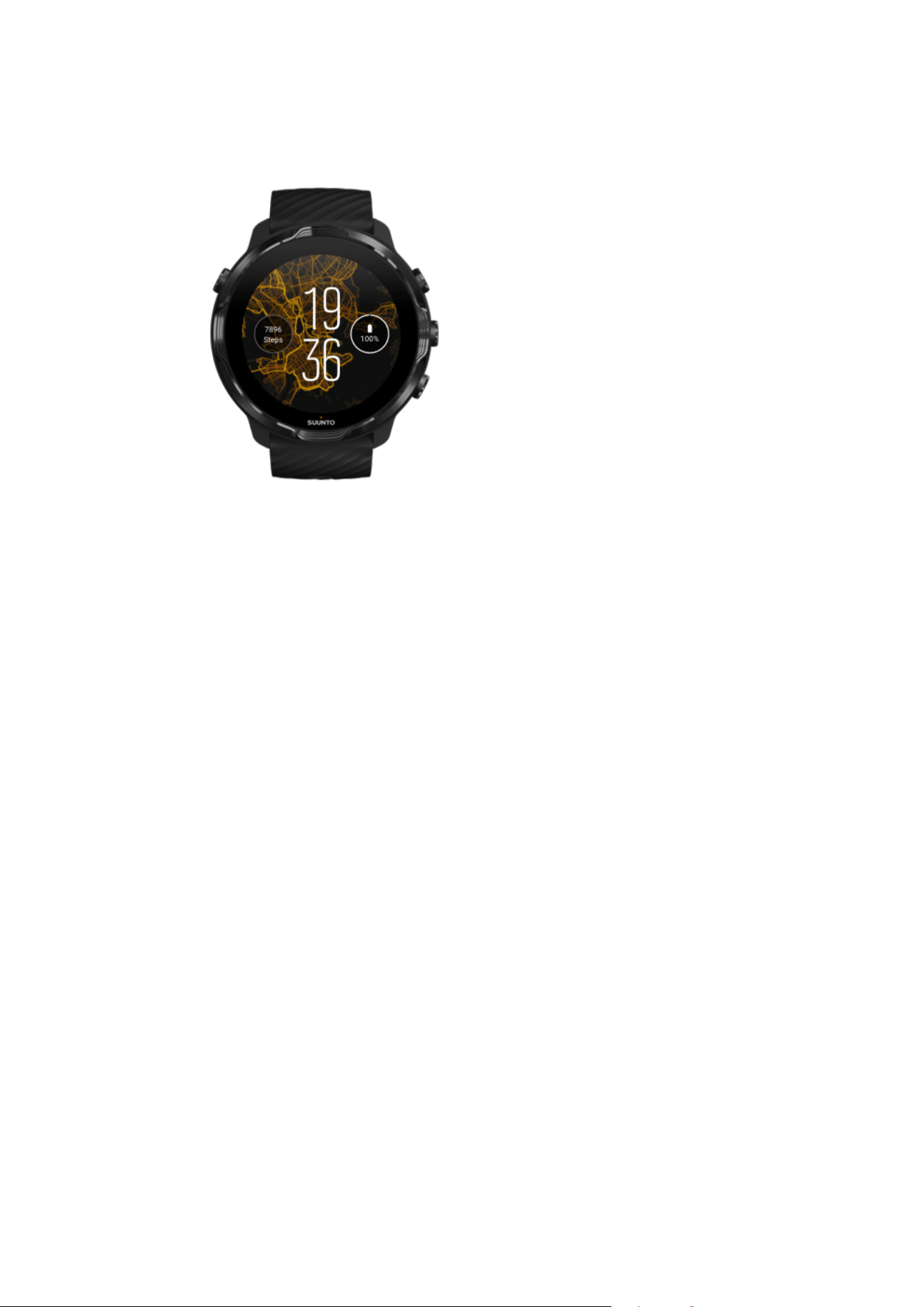
Heatmap
To inspire and encourage you to explore the outdoors around you, the Heatmap
watch face shows where other passionate Suunto athletes have been exercising in
your area.
By default, the heatmap will show popular running routes in your area. If running is not
your thing, you can go to the watch face settings and choose another sport for your
heatmap. Suunto 7 has 15
dierent heatmaps to choose from.
The heatmap on your watch face is automatically updated based on your location. If
you do not see a heatmap or the map does not update based on your location, check
these:
•
On your phone, allow location sharing for Wear OS by Google.
•
On your watch, allow location sharing in Connectivity settings settings and in
Suunto watch faces application permission settings.
•
Make sure your watch is connected to the Internet.
•
You have moved more than 2 kilometers (1.25 miles) from your previous location.
•
Try a
dierent heatmap – maybe there is no heat for the sport you chose yet.
Suunto 7
57
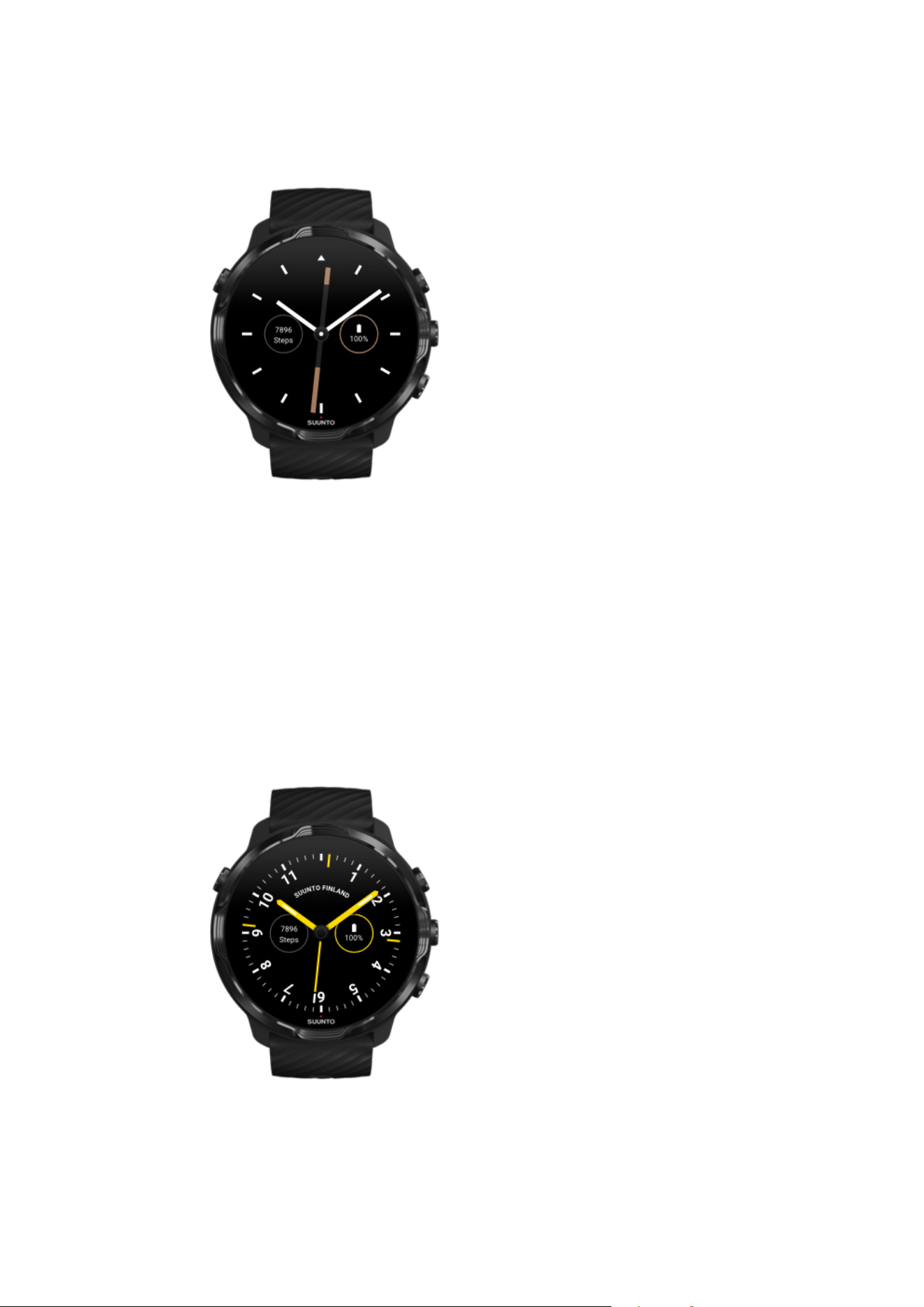
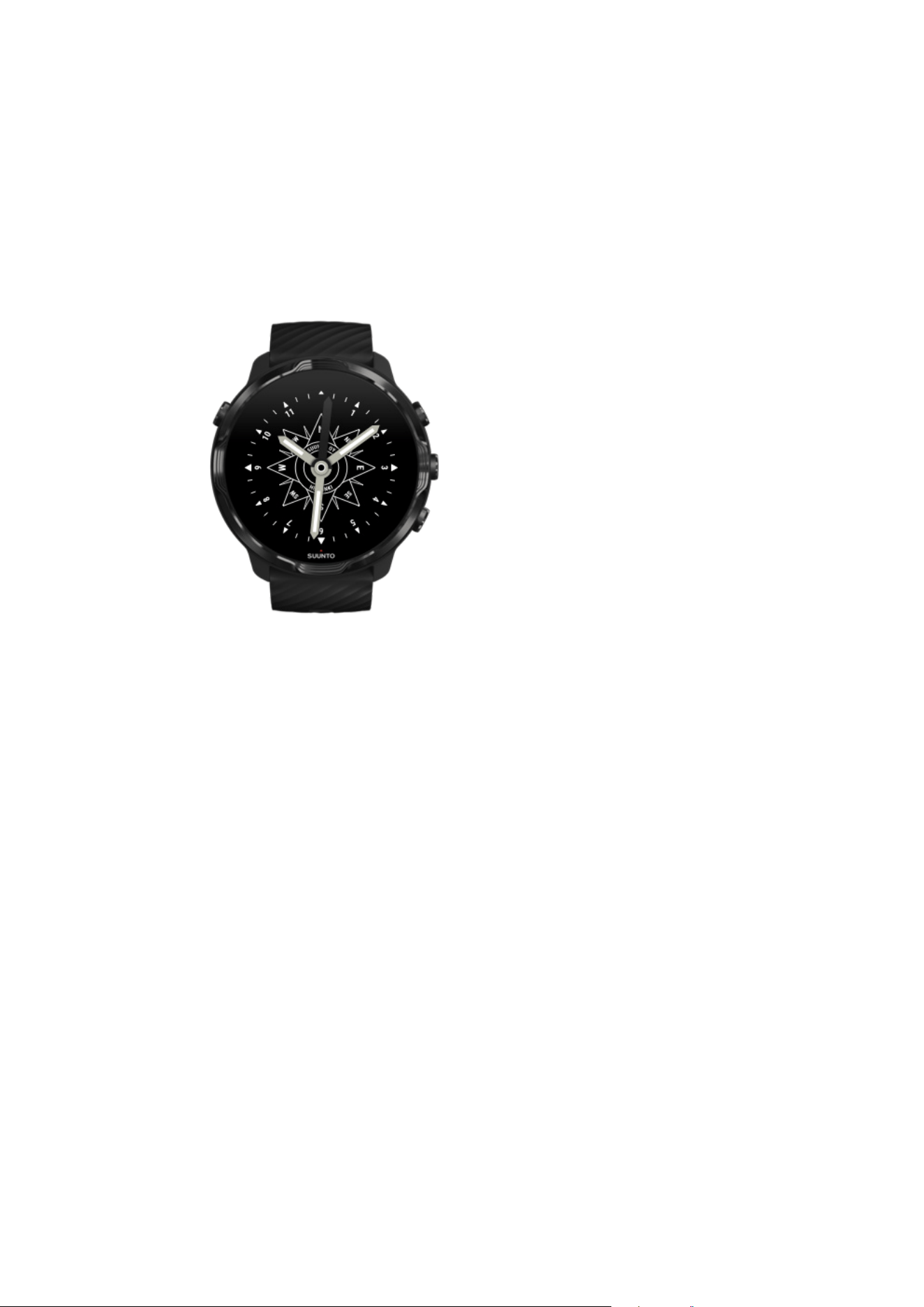
Original
In 1936, Tuomas Vohlonen founded Suunto to mass produce stable and accurate
compasses after he had long been bothered by the inaccuracy and lack of steady
needle operation of traditional dry compasses. Ever since, the Suunto compasses and
connected Suunto method have provided essential tools for navigation for outdoor
enthusiasts, athletes and professionals. The Original watch face design is inspired by
the very
first Suunto marching compass, M-311.
Marine
Suunto 7
58
Between 1953 and 2011 Suunto was in the marine compass market. The Marine watch
face is inspired by the popular Suunto K-14 marine compass, which became a
standard in a large number of sail and power boats around the world due to the stable
and easy to read compass card and the smart mounting into the vessel.
Rose
The Rose watch face is inspired by the Suunto pocket TK-3 compass which was
inspired by old marine compasses with compass roses. TK-3 compass was a tribute to
the endeavors of explorers filling out the whites of the world atlas using a compass,
the stars and ropes as their main means of position finding.
Change your watch face
You can change your watch face at any time to match your goals, needs and style.
Suunto 7
59
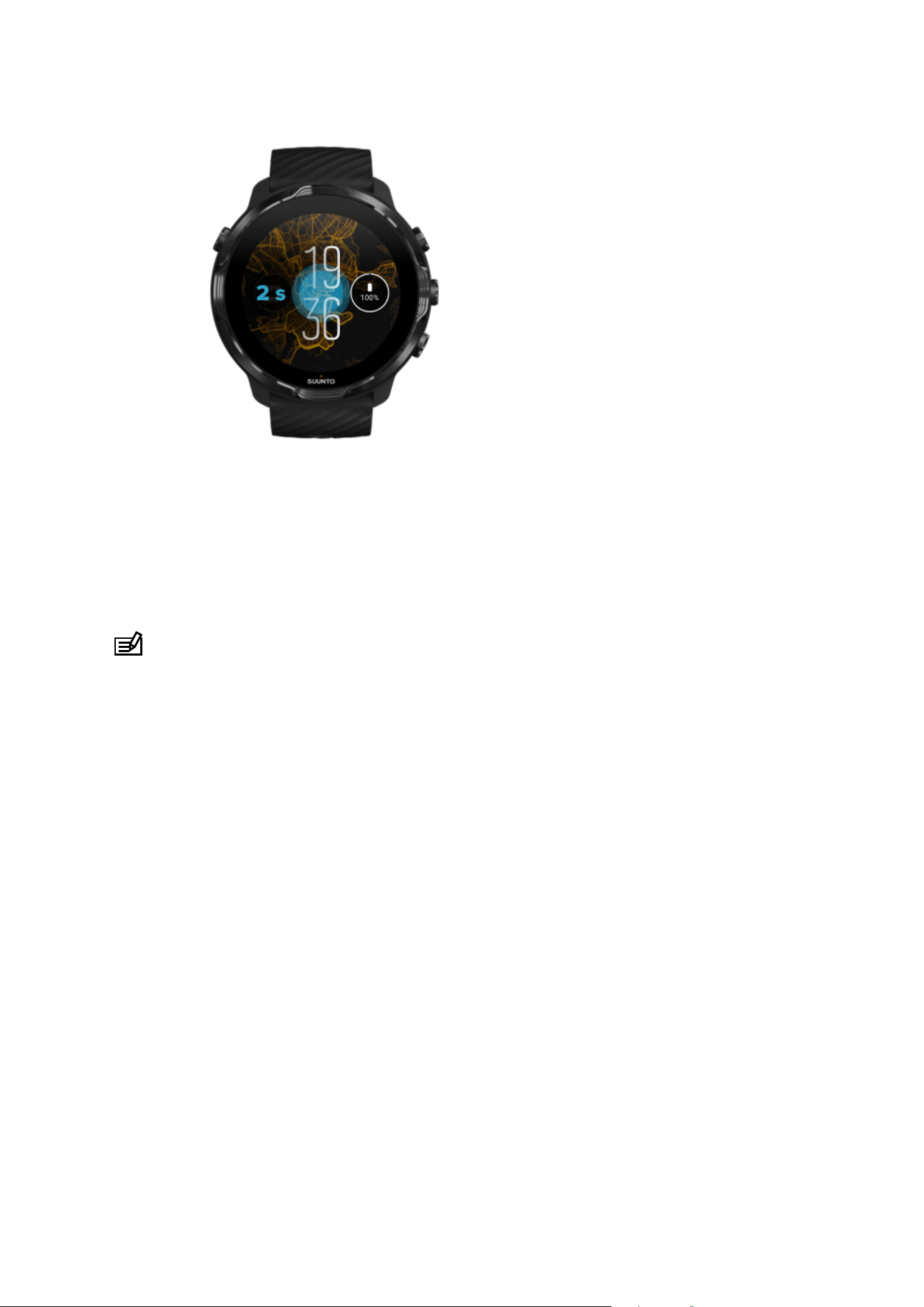
1. While on the watch face, touch and hold the middle of the screen to see a list of
watch faces.
2. Swipe left or right to browse watch faces.
3. Tap to select a watch face you want to use.
NOTE: You can also go to Settings » Display » Change watch face or change
your watch face in the Wear OS by Google app on your phone.
Add functions (or 'complications') to your watch face
With most watch faces, you can add additional functions to your watch face, such as
shortcuts to apps, weather information or daily steps. Dierent watch faces may have
a dierent set of complications available.
1. While on the watch face, touch and hold the middle of the screen to see a list of
watch faces.
2. Tap Settings at the bottom of a watch face.
Suunto 7
60
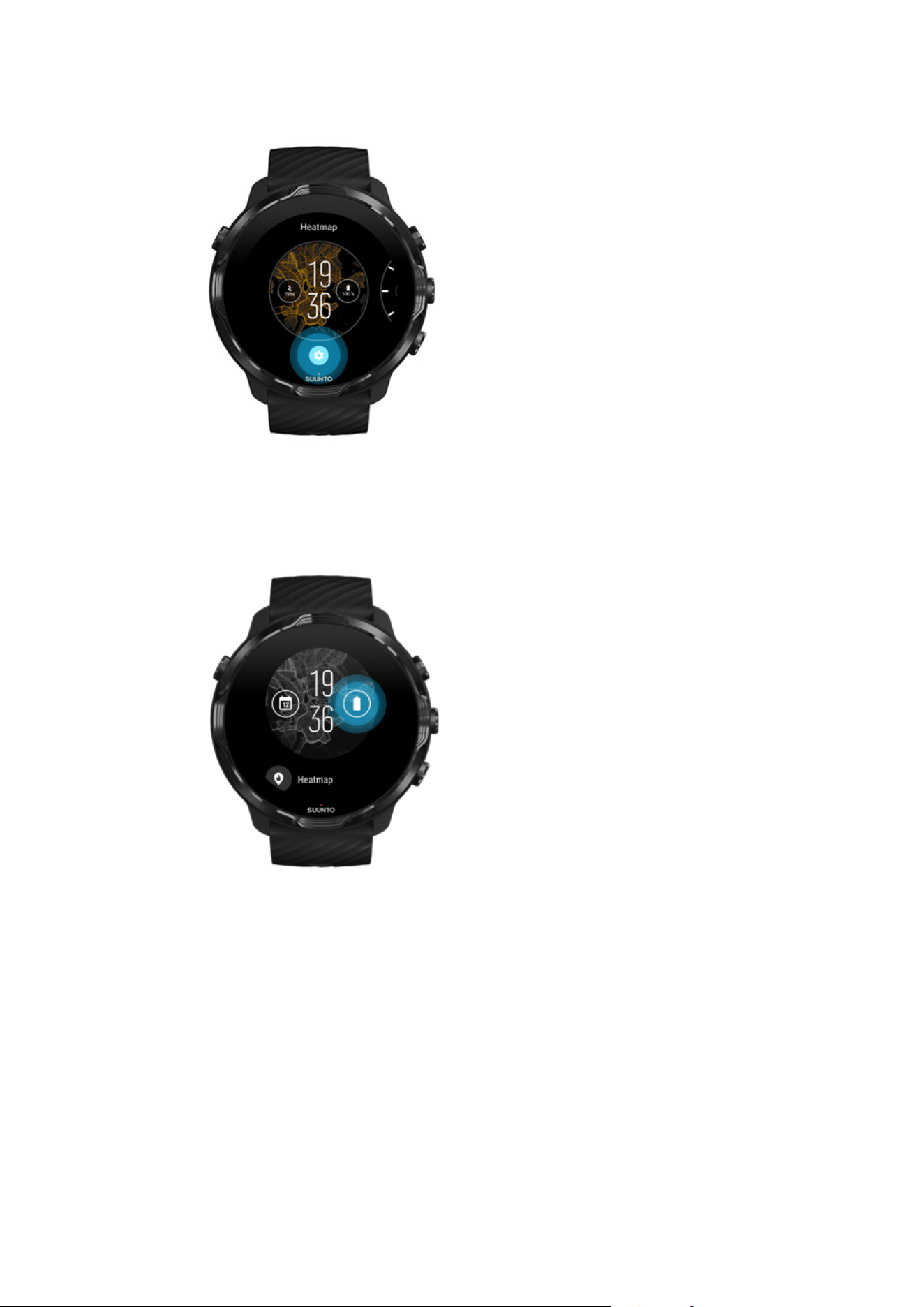
3. Tap the ‘complication’ on the watch face design that you would like to change.
4. Browse the list and tap to choose which complication you want to see on your
watch face. (To add a shortcut, tap General » App shortcut.)
Add a new watch face
All watch faces designed by Suunto are optimized to use a minimum amount of power
to provide you with the best possible day-to-day experience. When you add a new
watch face from Google Play Store, keep in mind that other watch faces might not be
optimized the same way.
Suunto 7
61

1. While on the watch face, touch and hold the middle of the screen to see a list of
watch faces.
2. Swipe left and tap the option to add more watch faces.
3. Scroll down and tap Get more watch faces. (If necessary, follow guidance to
connect to Wifi and add a Google account.)
Hide a watch face
1. While on the watch face, touch and hold the middle of the screen to see a list of
watch faces.
2. Swipe up on the watch face that you want to hide.
NOTE: When a watch face is hidden, you will see it in the Wear OS by Google
app on your phone, but not on your watch.
Delete a watch face you found in the Play Store
1. To open your list of apps, press the Power button.
2.
Tap the Play Store app .
(If necessary, follow the instructions to connect to Wifi and add a Google account.)
3.
Scroll down and tap My apps .
4. Scroll down to the watch face you want to remove and choose Uninstall .
NOTE: You can also manage your watch faces in the Wear OS by Google app on
your phone. Under the image of your watch, next to watch faces, tap More.
Customize button shortcuts
You can use some of the hardware buttons on Suunto 7 as shortcuts to open your
favorite apps faster.
Use hardware buttons as shortcuts to apps
1. While on the watch face, swipe down from the top of the screen.
2. Tap Settings » Personalization » Customize hardware buttons.
3. Tap the button you want to customize and select an app that you want the button
to open.
Suunto 7
62
Change watch straps
Suunto 7 has a quick-release strap made of durable silicone. This quick release strap
is comfortable to wear and easy to change without any additional tools.
NOTE: All 24 mm quick release straps sold at suunto.com are compatible with
Suunto 7.
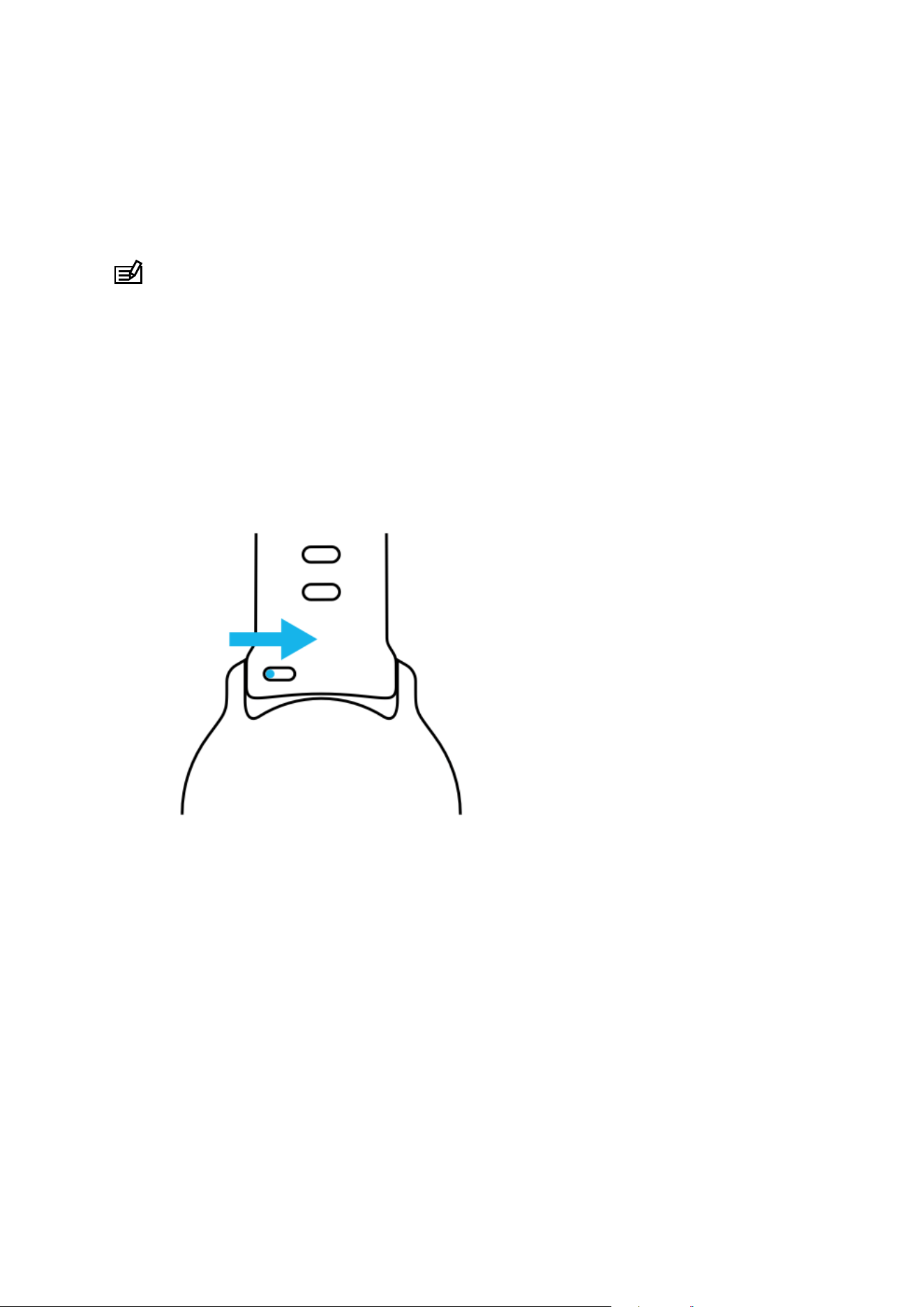
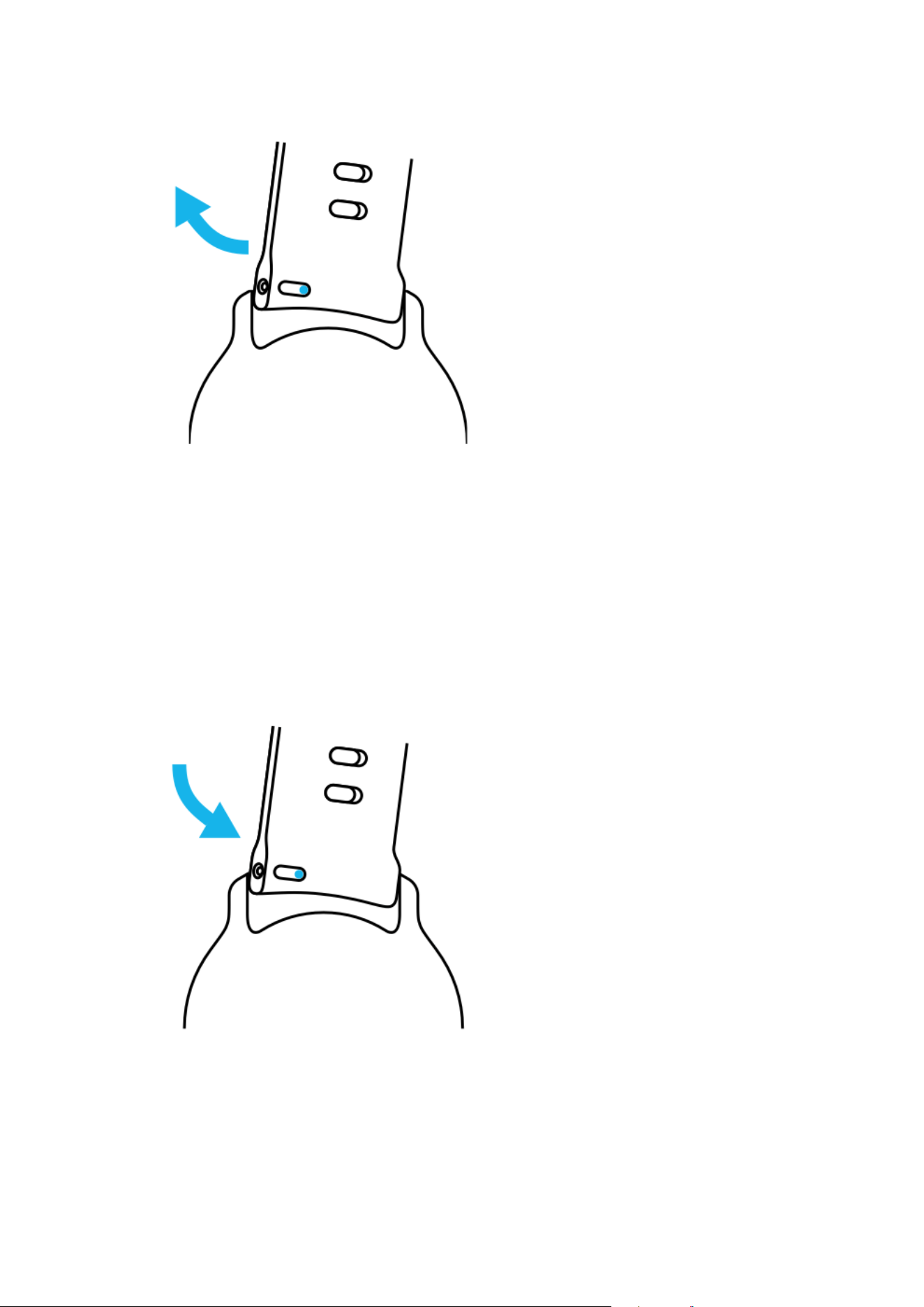
Detach the strap from the watch body
1. Turn the watch upside down.
2. Pull the small pin in the spring bar towards the middle of the strap to release the
spring from its socket.
3. Remove the strap.
Suunto 7
63
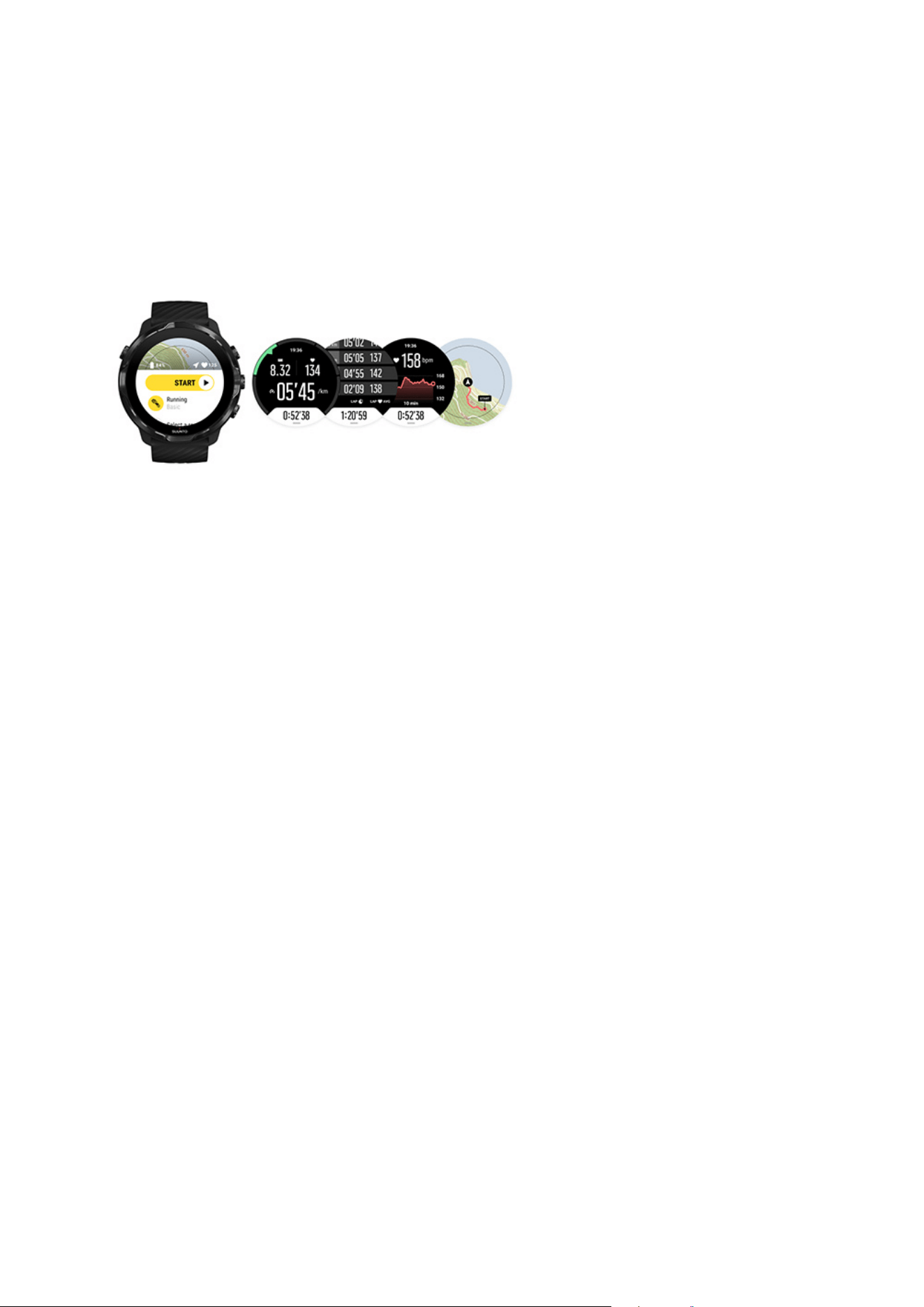
Attach a new strap
1. Insert the pin to the opposite end of the spring mechanism into its socket in the
watch body.
2. Pull the pin towards the middle of the strap to retract the free end of the spring
bar.
3. Slip the strap into place and release the pin.
Ensure the strap is in place by checking that the pin goes all the way into the pin hole
and by pulling the strap gently.
Suunto 7
64
5. SPORTS BY SUUNTO
Suunto Wear app on your watch
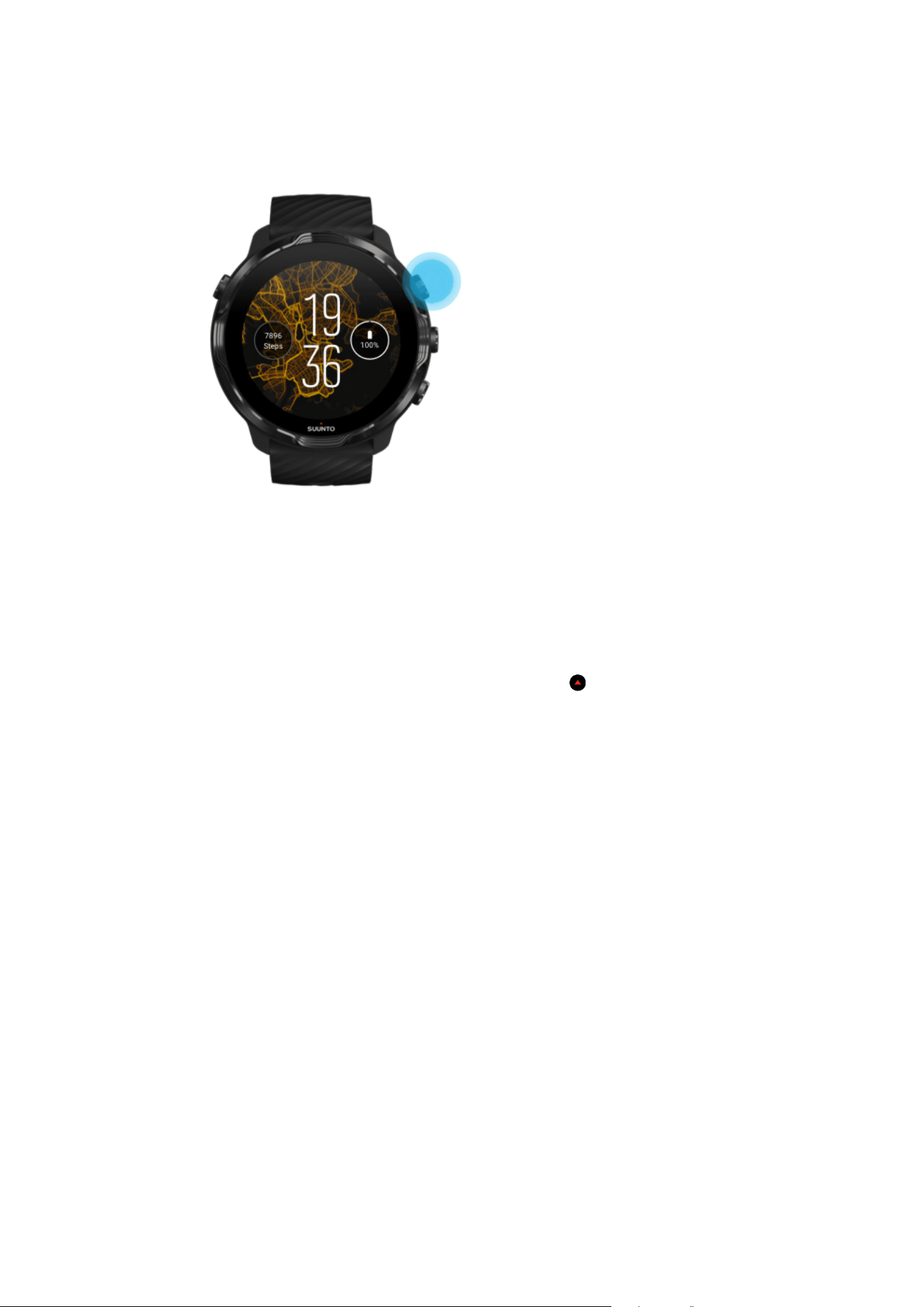
Suunto 7 comes with Suunto Wear app – your sports and adventure companion on
your watch. Suunto Wear app has over 70 sport modes to track all your sports and
free Suunto maps and heatmaps for exploring the outdoors – even when you’re
oine.
With Suunto Wear app on your watch, you can:
•
Record all your exercises – running, swimming, cycling, hiking, yoga – you choose
•
Follow your exercises with stats tailored to your sport
•
Get accurate and convenient sports measurements with GPS, barometer and wrist
heart rate
•
Track your training, daily activity, sleep and body resources to help you maintain a
good balance between being active and recovering enough
•
Enjoy easy access to maps during your exercise and see your track on the map
•
Navigate with routes and explore new places with heatmaps
•
Download Suunto
oine maps to your watch and use maps without an Internet
connection
•
Have easy access to your exercise diary with your watch
•
Control your exercise with buttons when you're wearing gloves or underwater
Suunto 7
65
Get started
Suunto Wear app is designed for sports and outdoor use. You can use the buttons
instead of the touch screen when needed. If you’re wearing gloves or underwater, you
can use the three buttons on the right to navigate Suunto Wear app, track your
exercise and zoom in on the map.
1.
Press the top right button to open Suunto Wear app
.
2.
The first time you open the app, follow the on-screen instructions to set up your
personal profile to get accurate and personalized measurements during exercise.
Use touch or buttons.
Scroll up and down: use the top right and bottom right buttons or swipe up and
down
Select: press the middle button or tap
Go back: swipe right
3. Use Suunto Wear app to:
Record your exercise
View a map
Adjust options
View your diary
Suunto 7
66
NOTE: To edit your profile information later, open Suunto Wear app, swipe up
and go to General options.
Suunto mobile app on your phone
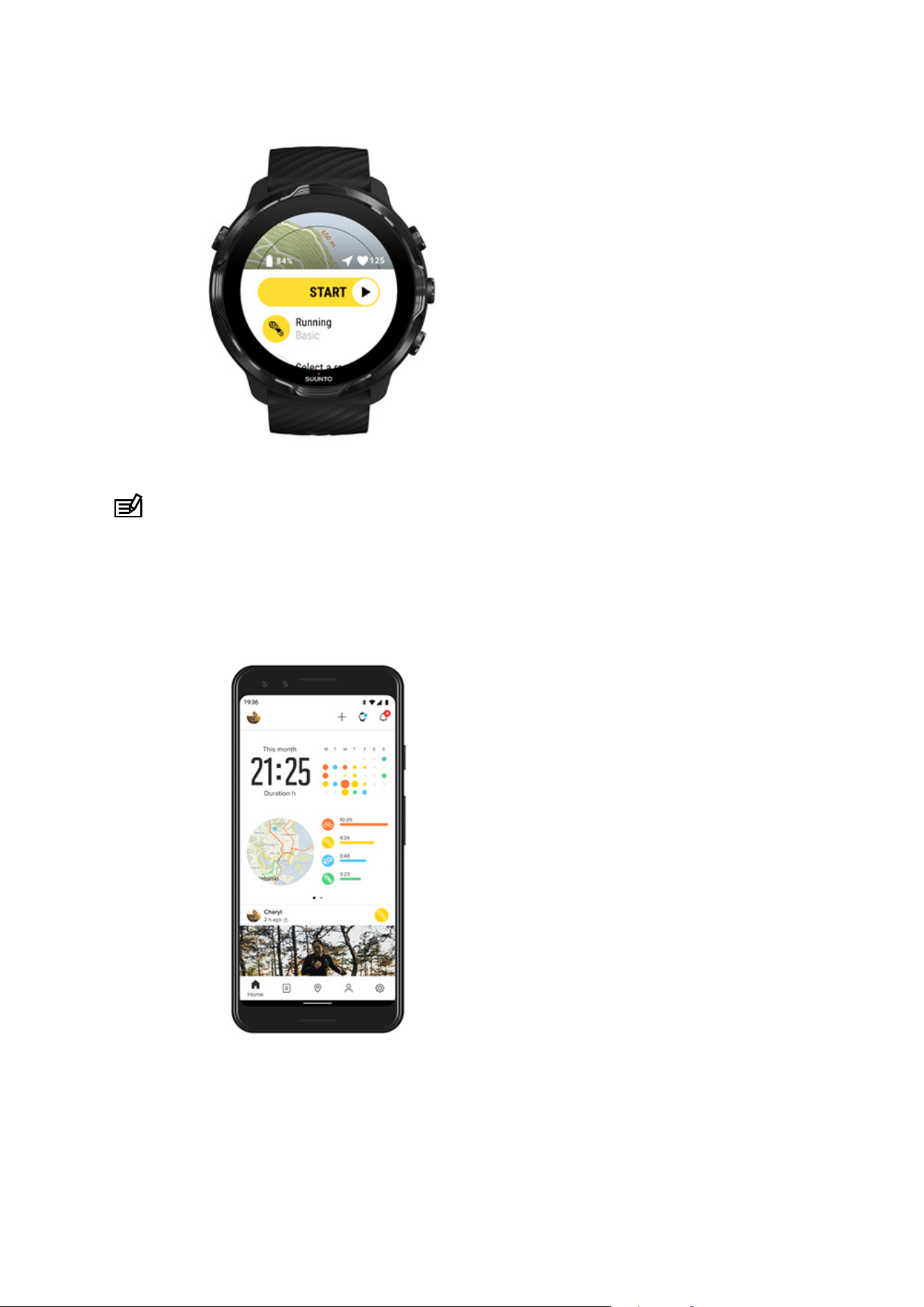
For the full Suunto 7 sports experience, you need Suunto mobile app – on your
phone.
Suunto 7
67

With Suunto app on your phone you can:
•
Sync and save your exercises from your watch
•
Get detailed insights on your training
•
Follow your daily activity trends and history
•
Follow your exercise trends and history
•
View your outdoor exercise tracks on the map
•
Explore heatmaps to see where others have been exercising
•
Create your own routes or use other popular routes and sync them to your watch
•
Share your best moments with friends
•
Connect to other sport services like Strava and Relive
Get started
Connect to your favorite sport services
Using multiple watches with Suunto mobile app
Get started
Suunto mobile app works with mobile devices running Android 6.0 & Bluetooth 4.0 or
later and iOS 11.0 or later. Supported features may vary across watches, phones and
countries.
New to Suunto
1. If you haven’t yet, pair your watch with the Wear OS by Google app on your
phone.
Learn more
2. Download and install Suunto app from Google Play Store or App store.
3. Make sure you have Bluetooth enabled on your watch and on your phone.
4. Open Suunto app on your phone.
5. Sign up with your preferred method.
6. Follow the on-screen instructions.
7. After signing up, you will be directed to the watch view.
8. Once you see your watch, tap “Connect”.
9. After your watch is connected, follow the quick introduction to learn the basics
about your new watch.
Already a Suunto app user
1. If you haven’t yet, pair your watch with the Wear OS by Google app on your
phone.
Suunto 7
68
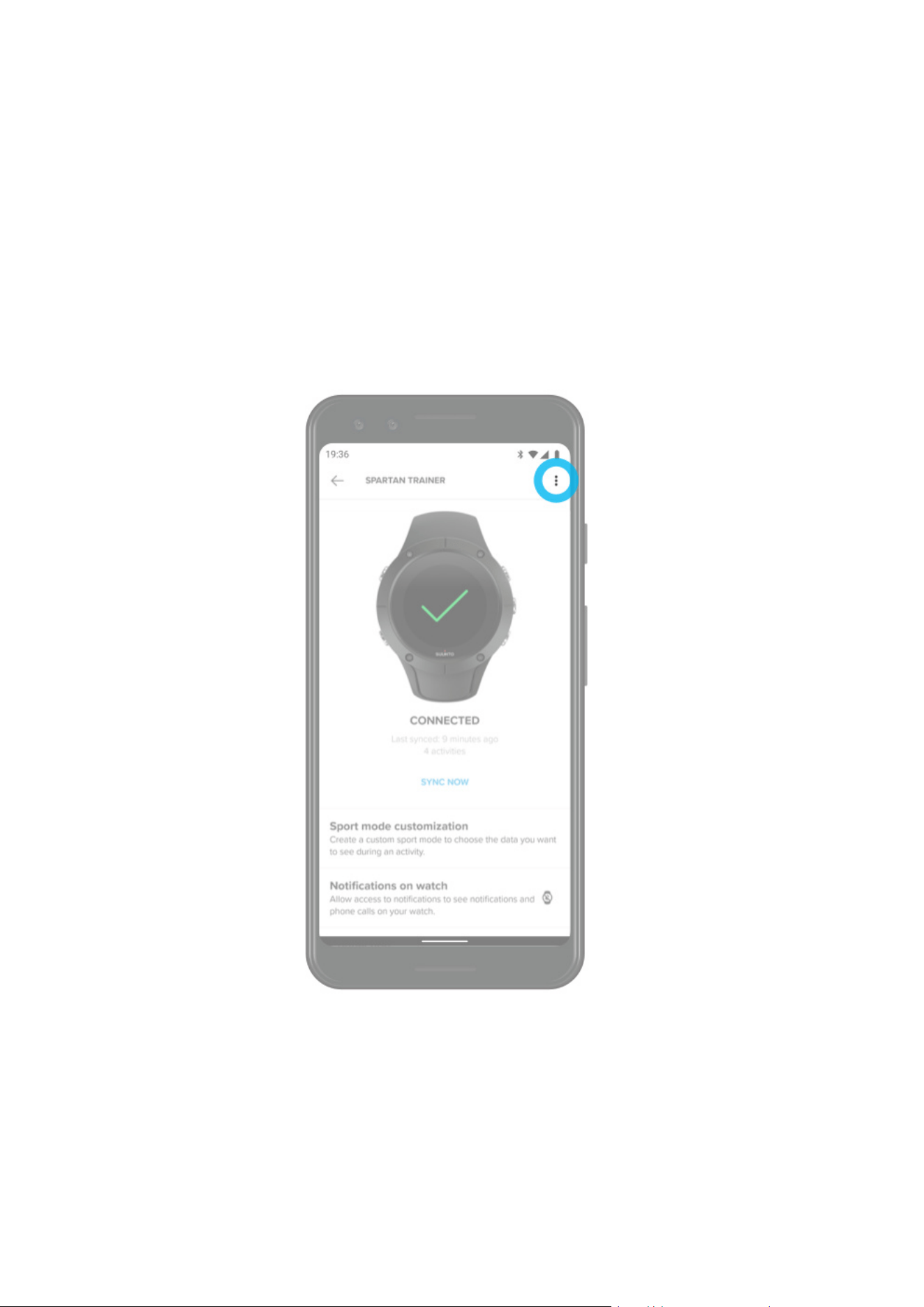
Learn more
2. Make sure you have Bluetooth enabled on your watch and on your phone.
3. Open Suunto app on your phone.
4. If you are not automatically directed to the watch view, tap the watch icon on the
top left corner.
5. a. Once you see your new watch on the screen, tap “Connect”.
b. If you have another Suunto device already connected to Suunto app, unpair
your old device
first, then continue to connect Suunto 7 with the app.
6. After your watch is connected, follow the quick introduction to learn the basics
about your new watch.
Suunto 7
69
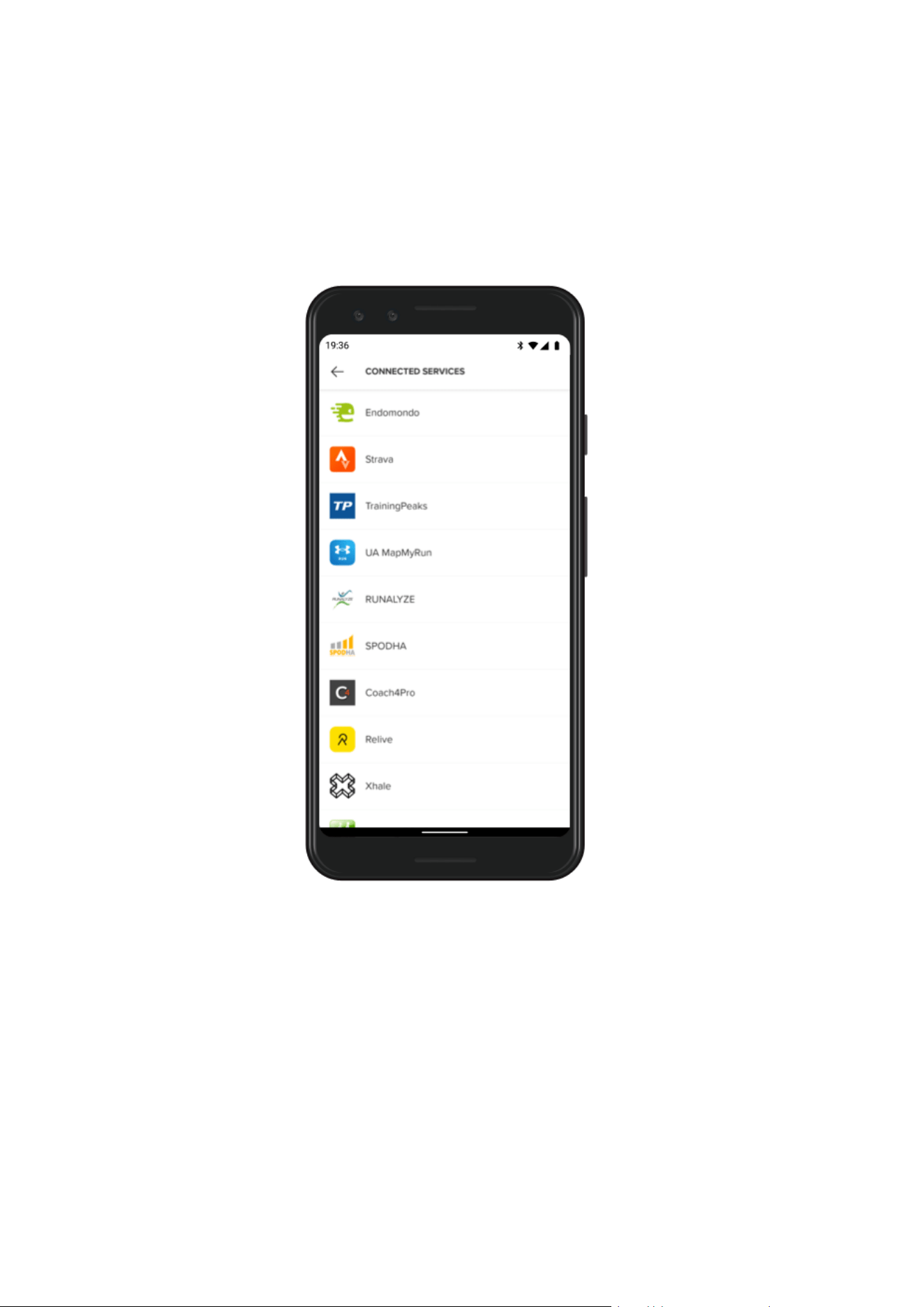
Connect to your favorite sport services
With Suunto app, you can connect to and sync your activities with your favorite sport
services like Strava and Relive.
1. Open Suunto app on your phone.
2. Tap “Profile” tab.
3. Tap “Connect to other services” and choose which services you want to connect
to and follow on-screen instructions.
4. For the full list of Suunto’s partners go to suunto.com/partners
Suunto 7
70
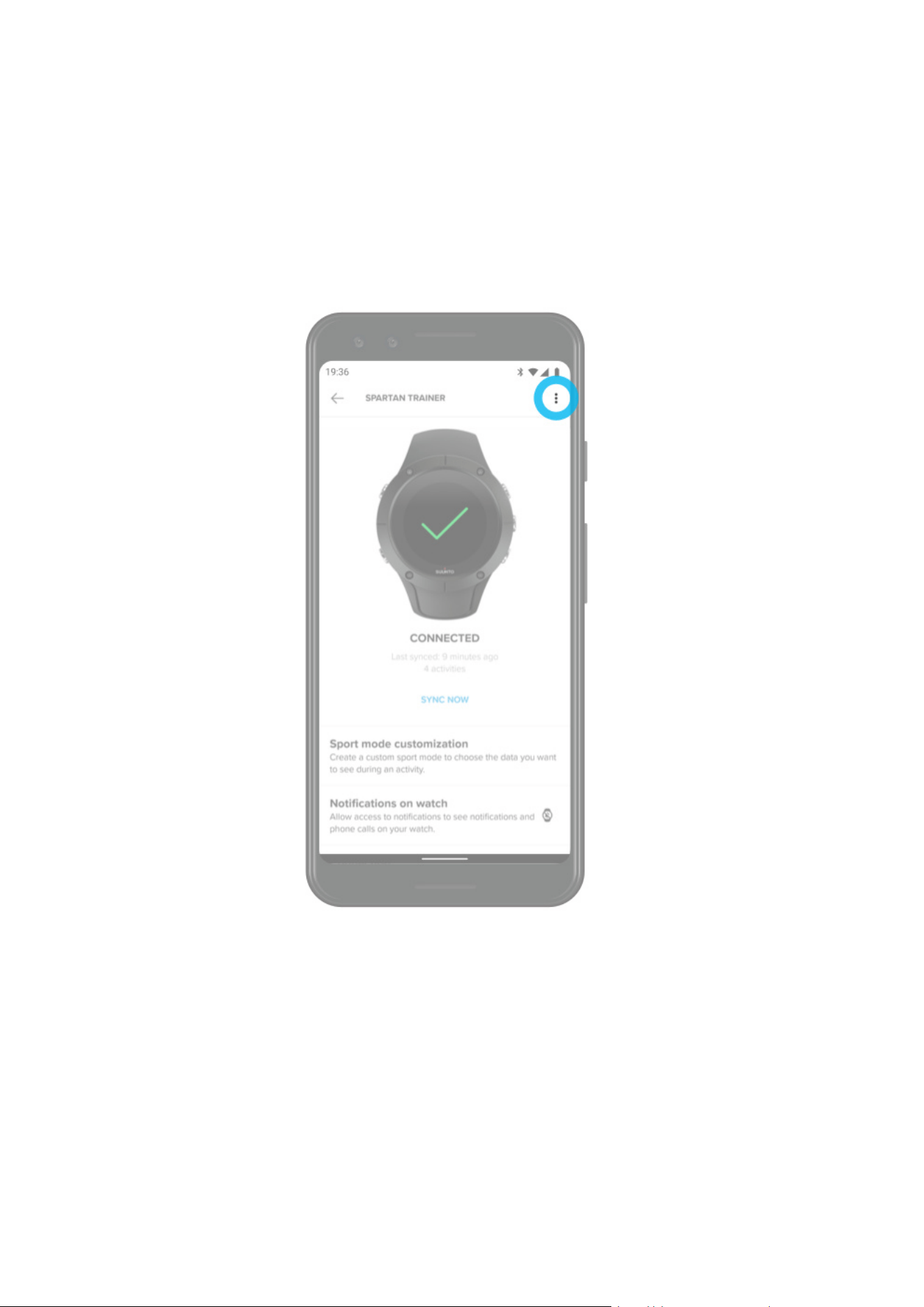
Using multiple watches with Suunto mobile app
You can have only one device connected to Suunto app at a time. When you have
paired your watch with the Wear OS by Google app on your phone, unpair your other
device from Suunto mobile app, then connect Suunto 7 with the app.
Suunto 7
71
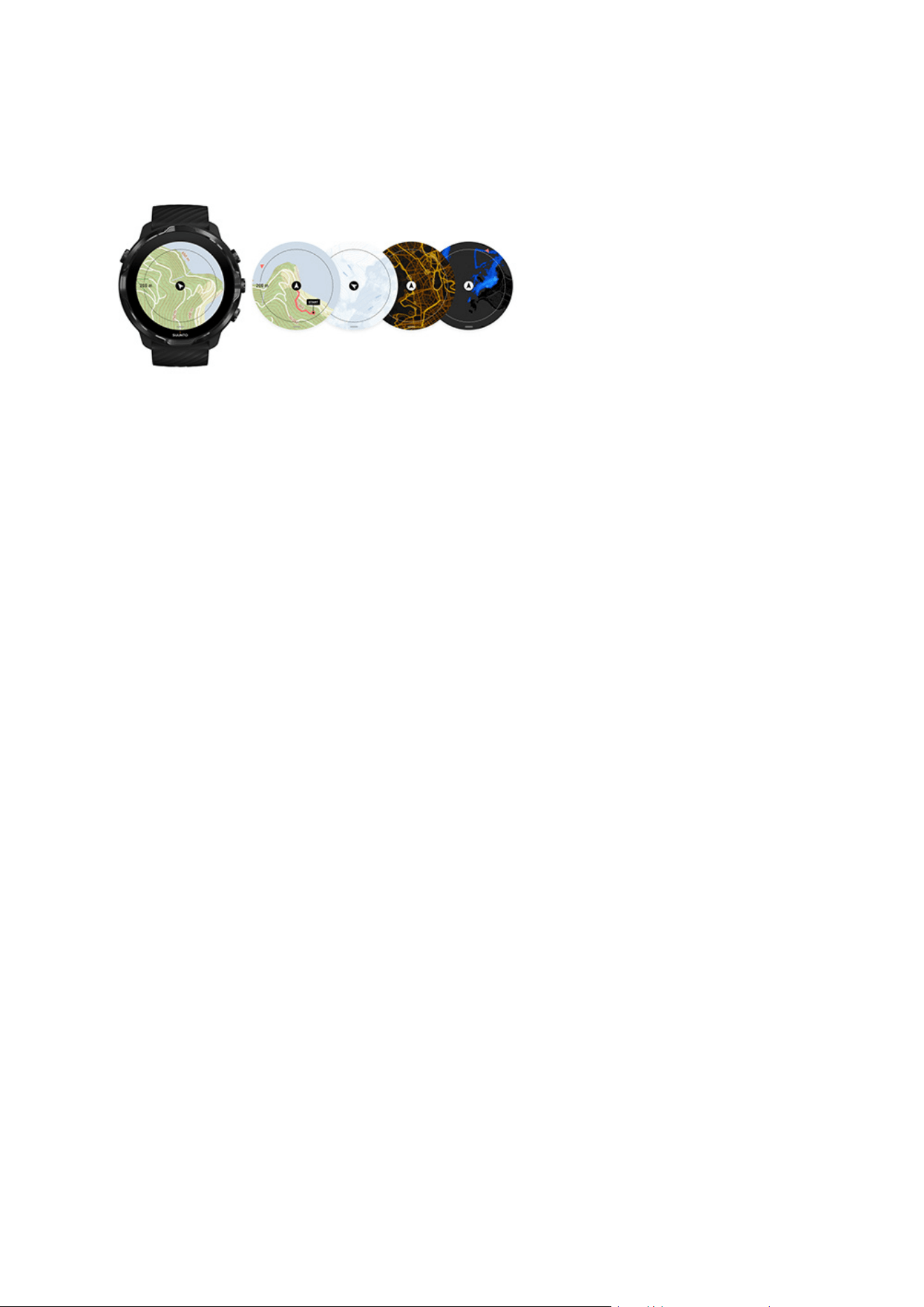
Suunto maps
Suunto Wear app has free outdoor maps and 15 sport-specific heatmaps to explore –
even when you are oine. Optimized for the outdoors, Suunto maps highlight altitude
dierences with accurate contour lines and show popular cycling and skiing tracks in
addition to basic trails. Heatmaps visualize where others have trained so that you can
follow the most popular routes.
With Suunto maps, you can:
•
See your location and direction
•
Explore your surroundings with outdoor maps
•
Navigate with routes and explore new places with heatmaps
•
Have easy access to maps during your exercise
•
See your track on the map during your exercise
•
Download custom
oine maps on your watch and use maps without an internet
connection
•
Get local oine maps downloaded to your watch automatically when connected to
Wifi while charging
Get started
Map gestures
Map view
Map styles
Heatmaps
Oine maps
Can’t see the map?
Exercise with maps
Route navigation
Suunto 7
72
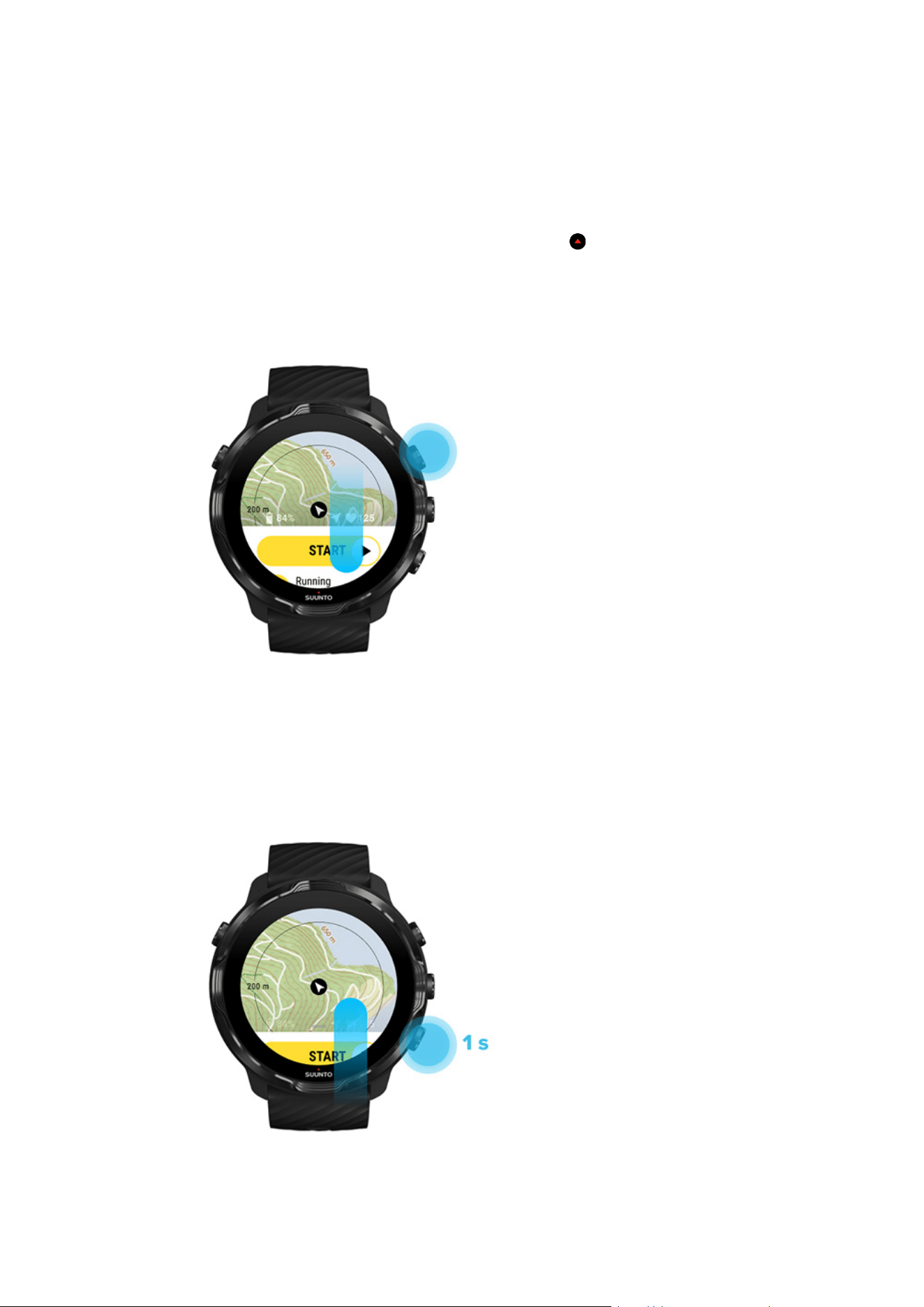
Get started
To use Suunto maps, you need to be connected to the Internet or have oine maps
downloaded to your watch.
1. Press the top right button to open Suunto Wear app
.
2. Press the top right button or swipe down to view the map.
Be patient, activating the map can take a few seconds.
3. Browse the map to explore your surroundings.
4. To go back to start, keep the bottom right button pressed or swipe up from the
bottom of the screen to close the map.
Suunto 7
73
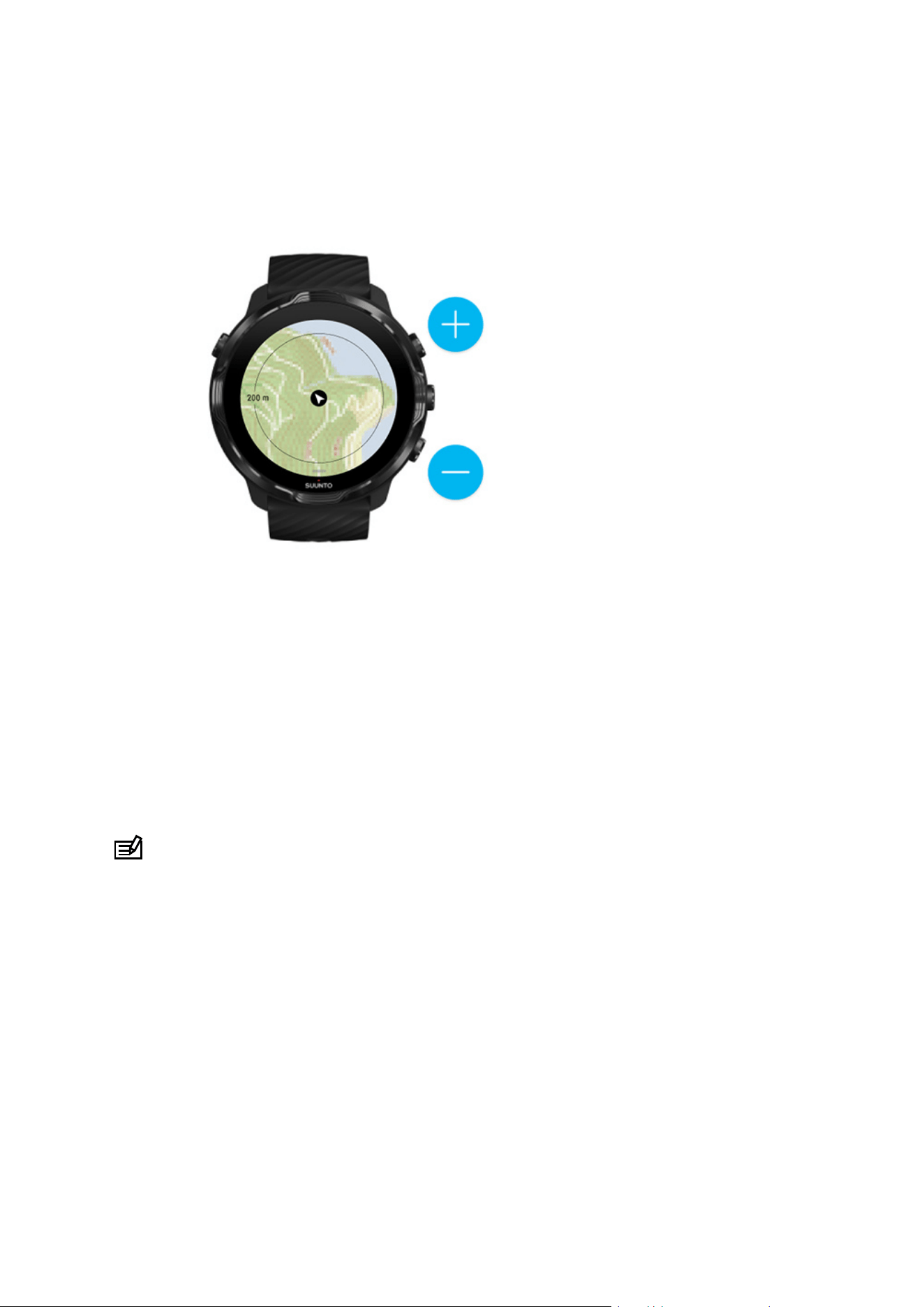
5. To exit Suunto Wear app, press the Power button or swipe right.
Map gestures
Zoom in and out
Use top and bottom right buttons.
Pan the map
Touch and drag the map.
Center the map
When the map is panned, tap the map.
NOTE: During exercise, the map will automatically center in a couple of seconds
after you start moving.
Suunto 7
74
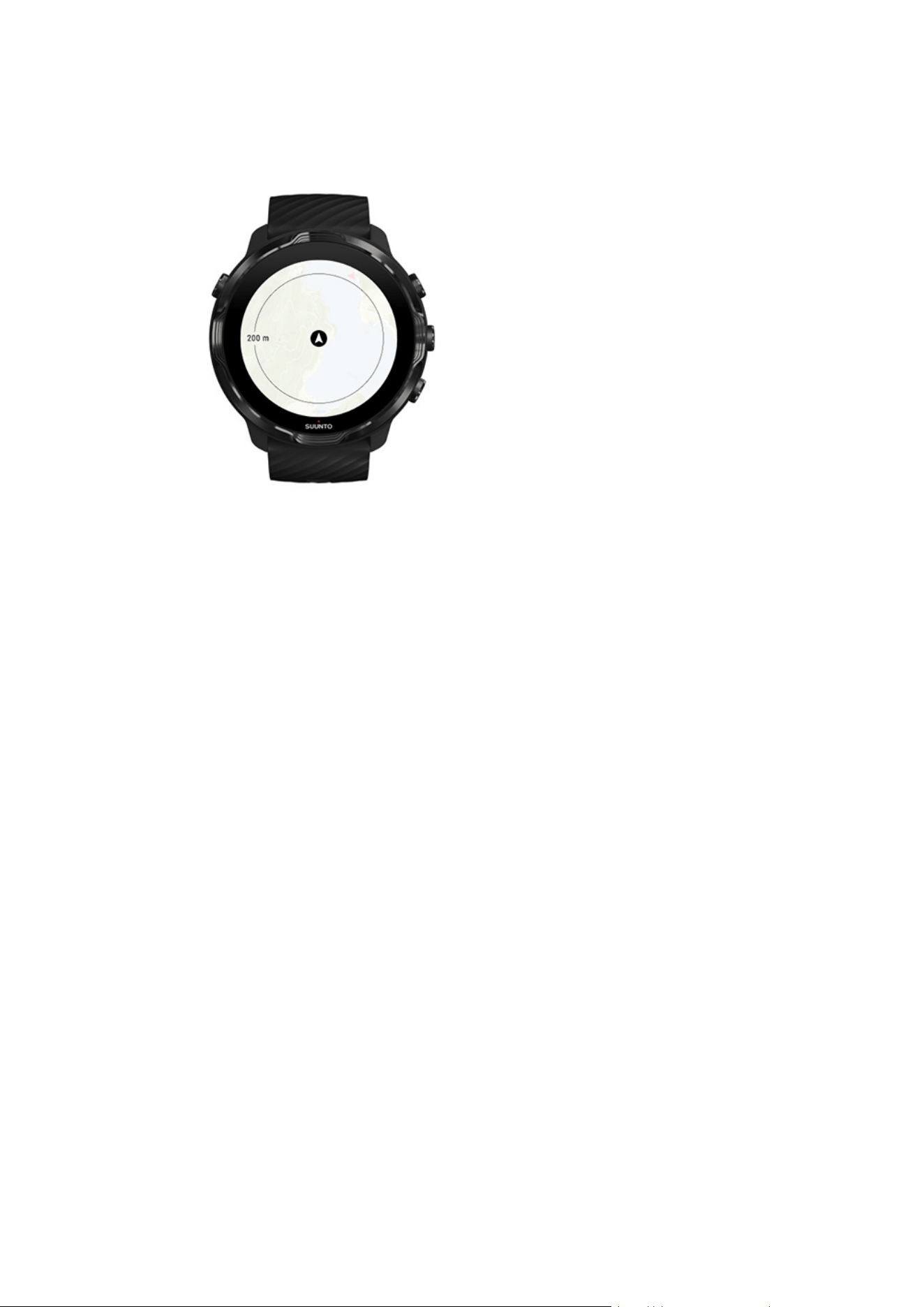
Map view
Location
The black circle indicates your current position on the map. The circle is gray if the
watch does not have accurate current location.
Heading arrow
The heading arrow inside the location indicator displays the direction you are headed.
Map scale
The numeric value at the bottom of the map screen displays distance from your
current location to places around you. The distance is measured from the center of
the screen to the thin circle on the outer rim (radius).
Suunto 7
75
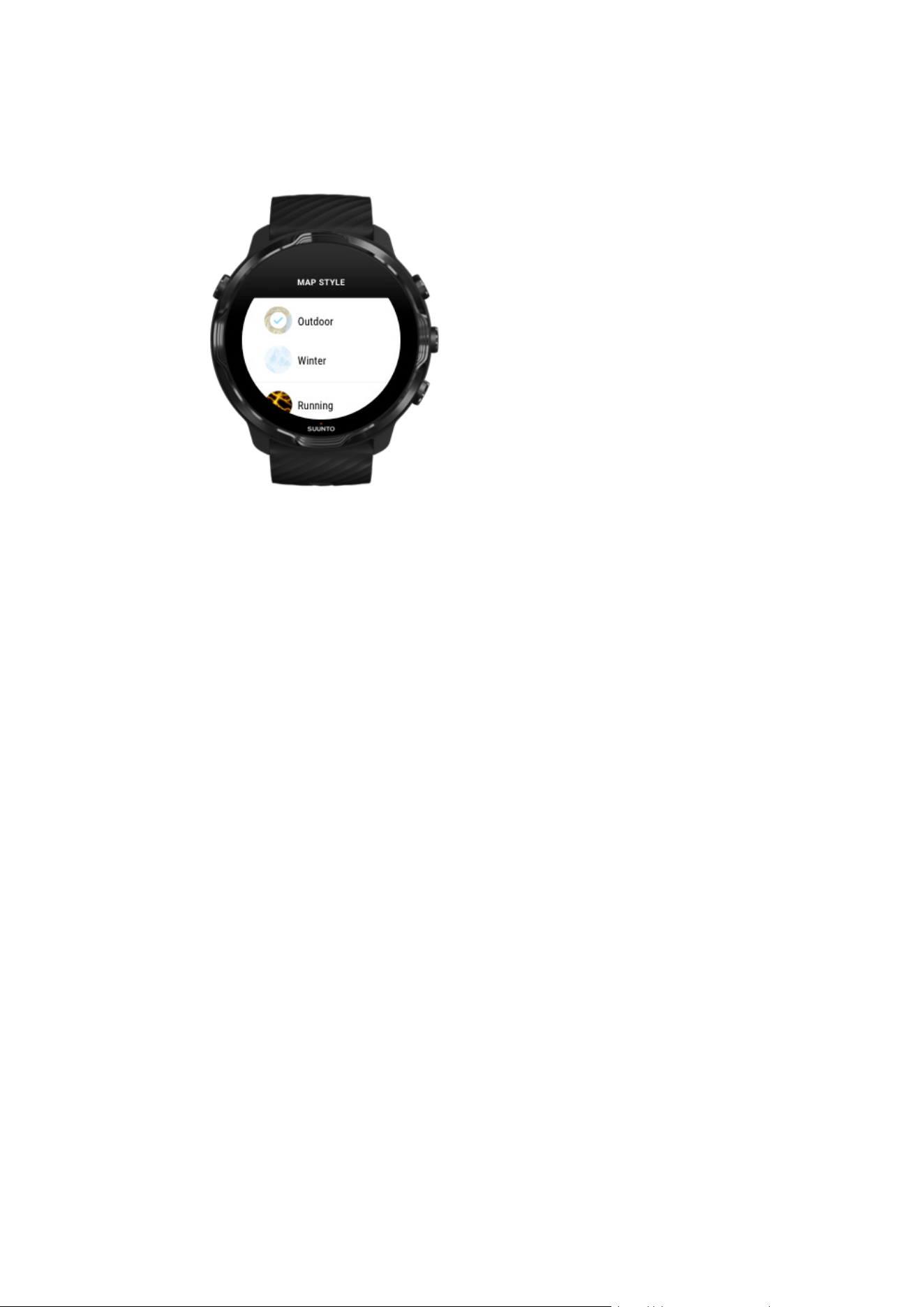
Map styles
Suunto Wear app has several map styles to choose from – an outdoor map, a winter
map and 15 types of heatmaps for
dierent sports like running, trail running, cycling
and swimming. By default, the map view displays the Suunto outdoor map.
Change map style
Heatmaps
Heatmaps show the most popular tracks explored by the Suunto community around
the world, based on millions of exercises. Discover new places to train in your own
neighborhood or
find out where the locals train when you are somewhere new. You
can also explore heatmaps directly on Suunto mobile app.
Suunto 7
76
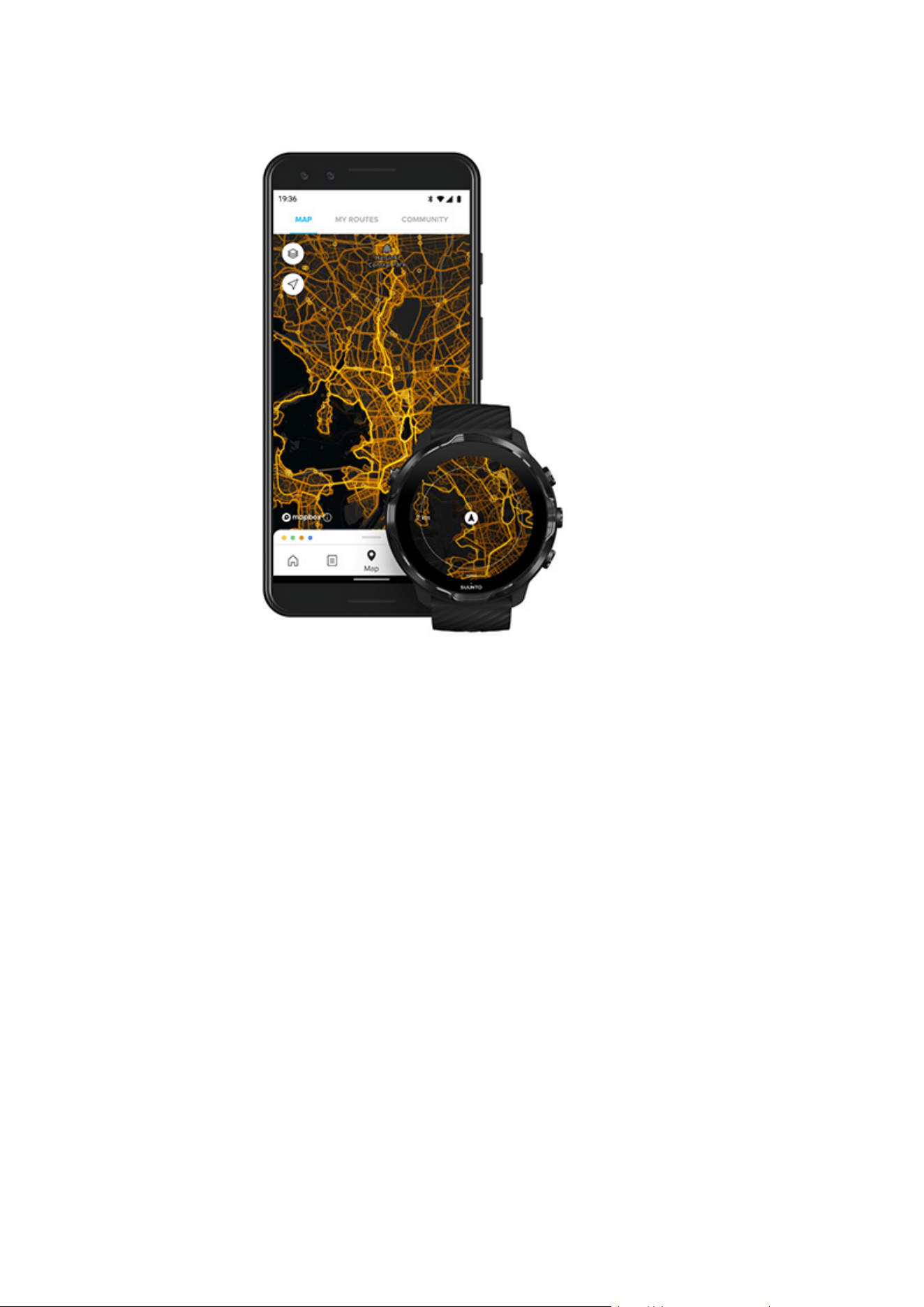
Suunto Wear app has heatmaps for:
•
running
•
trail running
•
cycling
•
mountain biking
•
all trails
•
all walking
•
mountaineering
•
swimming
•
surf & beach
•
all paddling
•
cross-country skiing
•
downhill
•
ski touring
•
roller skiing / skating
•
golf
Suunto 7
77
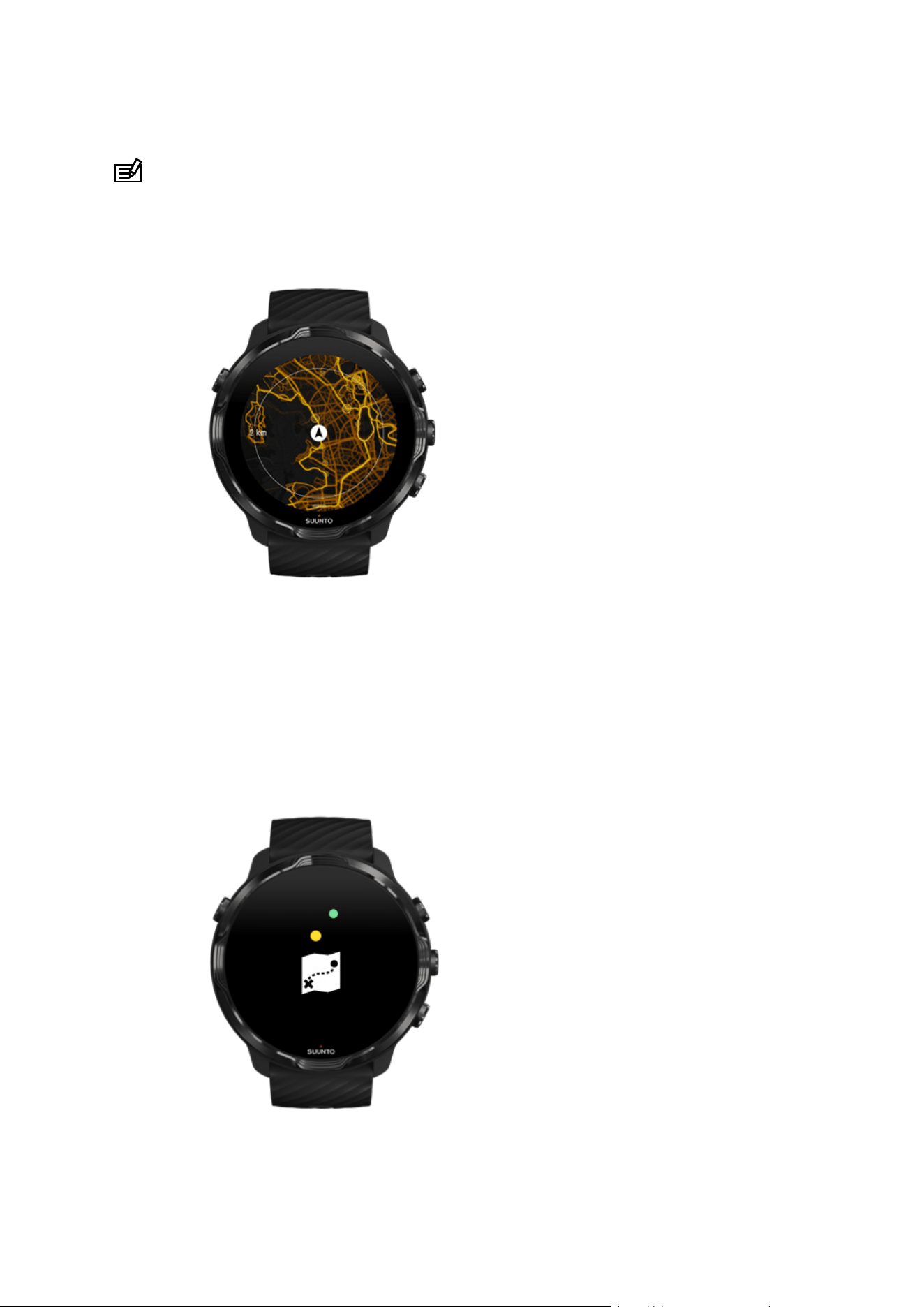
Explore with heatmaps
NOTE: Heatmaps are created based on exercises that are shared publicly.
Popular starting points
When heading to a new place or route, it’s often hard to figure out where to start.
Check out popular starting points in Suunto Wear app or Suunto mobile app. The
popular starting points are visible on the heatmap as small dots.
Oine maps
Suunto 7
78

With Suunto Wear app you can have Suunto maps downloaded on your watch, leave
your phone behind and use maps without an Internet connection. Suunto Wear app
downloads and updates local oine maps with heatmaps for you automatically when
your watch is charging and connected to Wifi. You can also create custom oine
maps for your travels and adventures away from home.
With oine maps you can:
•
use Suunto maps and heatmaps without a phone or an Internet connection
•
enjoy a faster maps browsing experience
•
avoid roaming and data costs
NOTE: All heatmap styles are included in oine map downloads.
Download a custom
oine map
Get
oine maps for routes
Connect to Wifi
Get local oine maps automatically
Local oine maps and heatmaps are updated and downloaded automatically from an
area around when your watch is charging and connected to Wifi based on your last
known location. The downloaded map area varies from 35 km × 35 km to 50 km × 50
km (from 22 mi × 22 mi to 31 mi × 31 mi) depending on where you are located.
You will get a
notification on your watch when the map download is complete.
Suunto 7
79
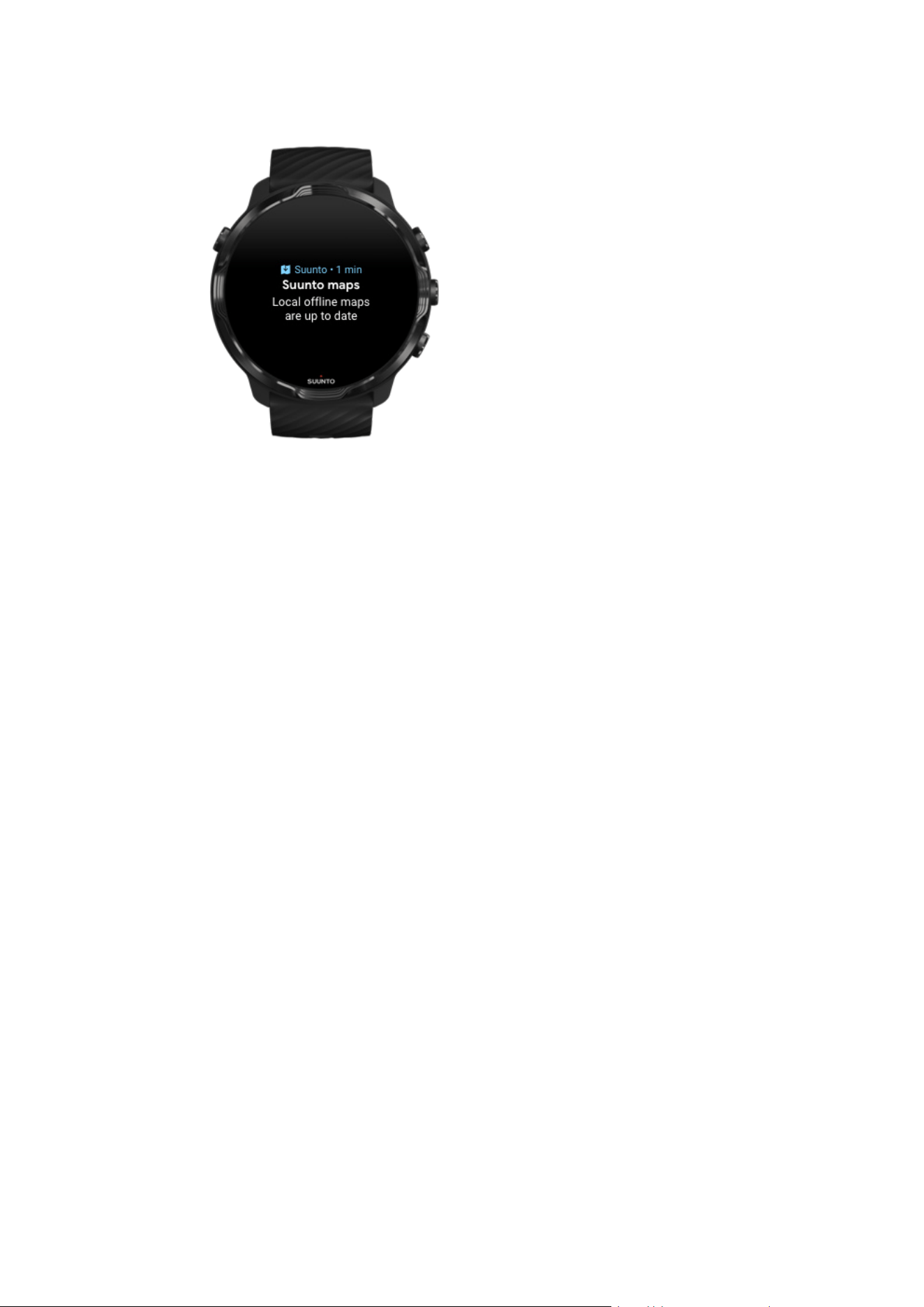
Can’t see the map?
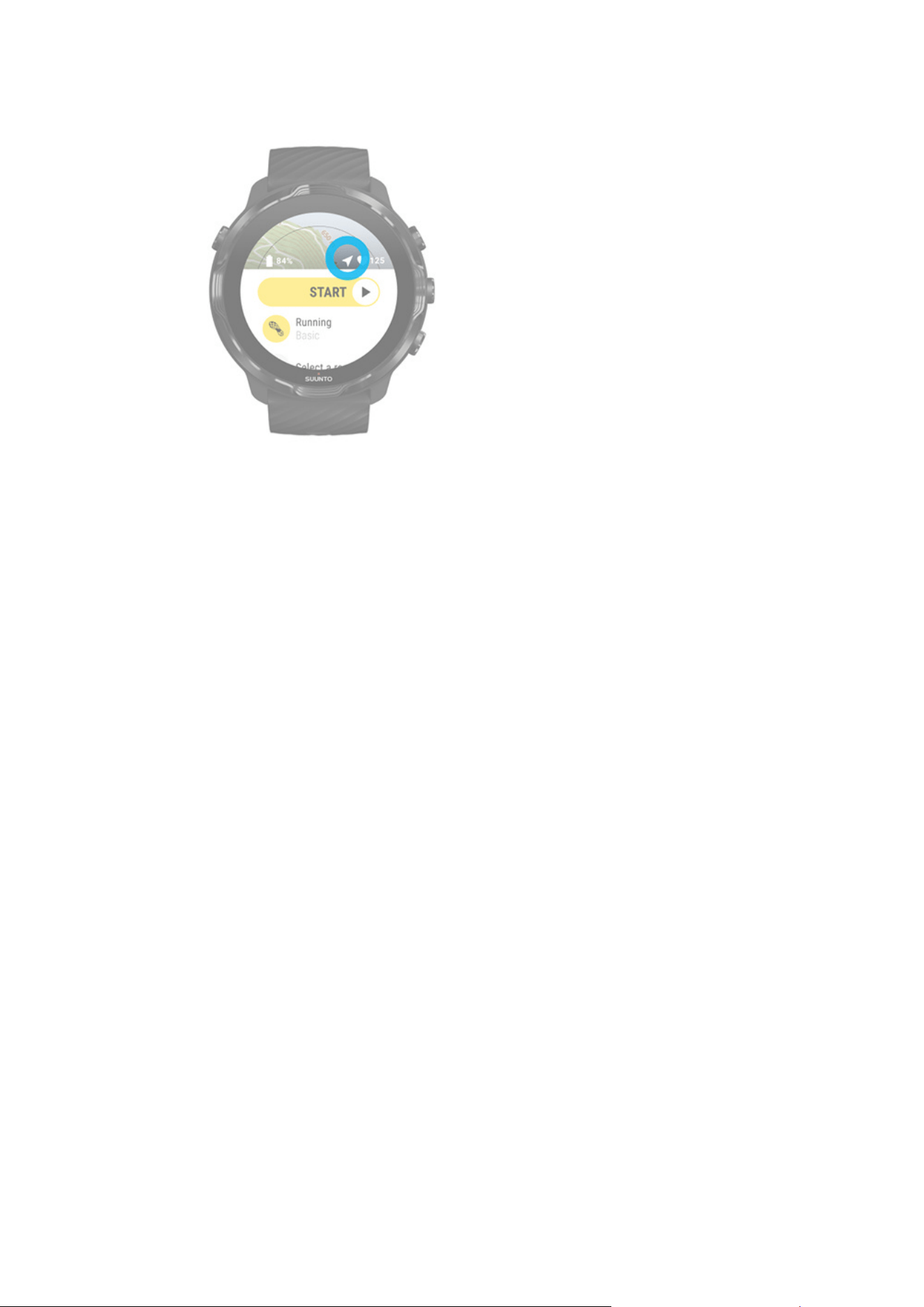
Be patient, activating the map can take a few seconds. If you still can’t see the map
after waiting:
1. Make sure your watch is connected to the Internet.
If there is no
Wifi available, check that your watch is connected to the Wear OS
companion app on your phone and that your phone has an Internet connection.
Learn more
Suunto 7
80
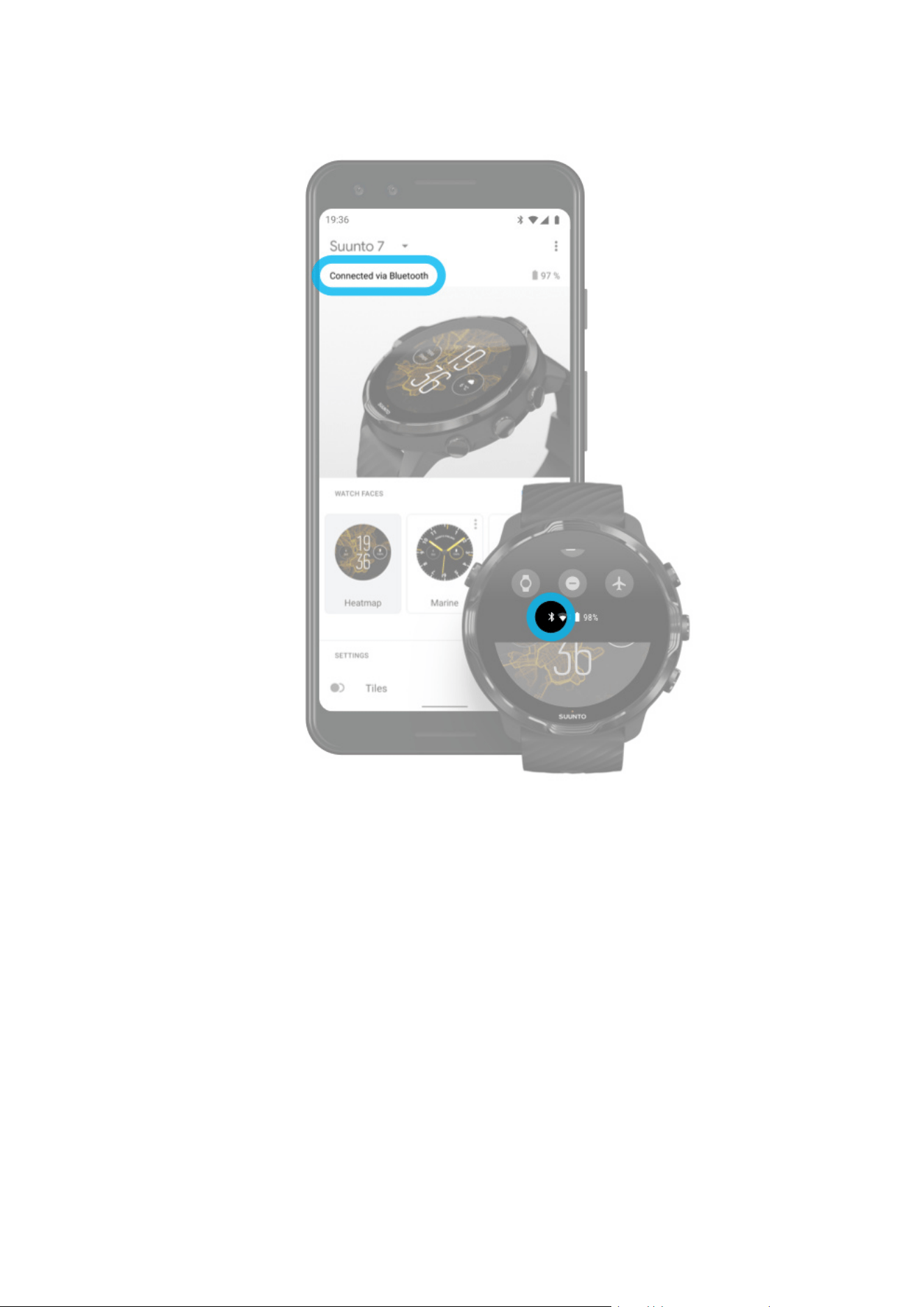
3. Get oine maps.
With
oine maps, you can enjoy a faster and smoother map experience without
being connected to your phone or the Internet.
Learn more
Dierent sports and measurements
Suunto Wear app provides accurate and insightful sports measurements via built-in
GPS, barometer and wrist heart rate sensor. The way your exercise is recorded – what
you see on the screen during your exercise and what data you can see afterwards –
depends on the sport mode you choose.
Sport modes
Heart rate during exercise
Follow your progress with laps
GPS: speed, distance & location
Altitude, ascent & descent
Barometer
Suunto 7
82
Sport modes
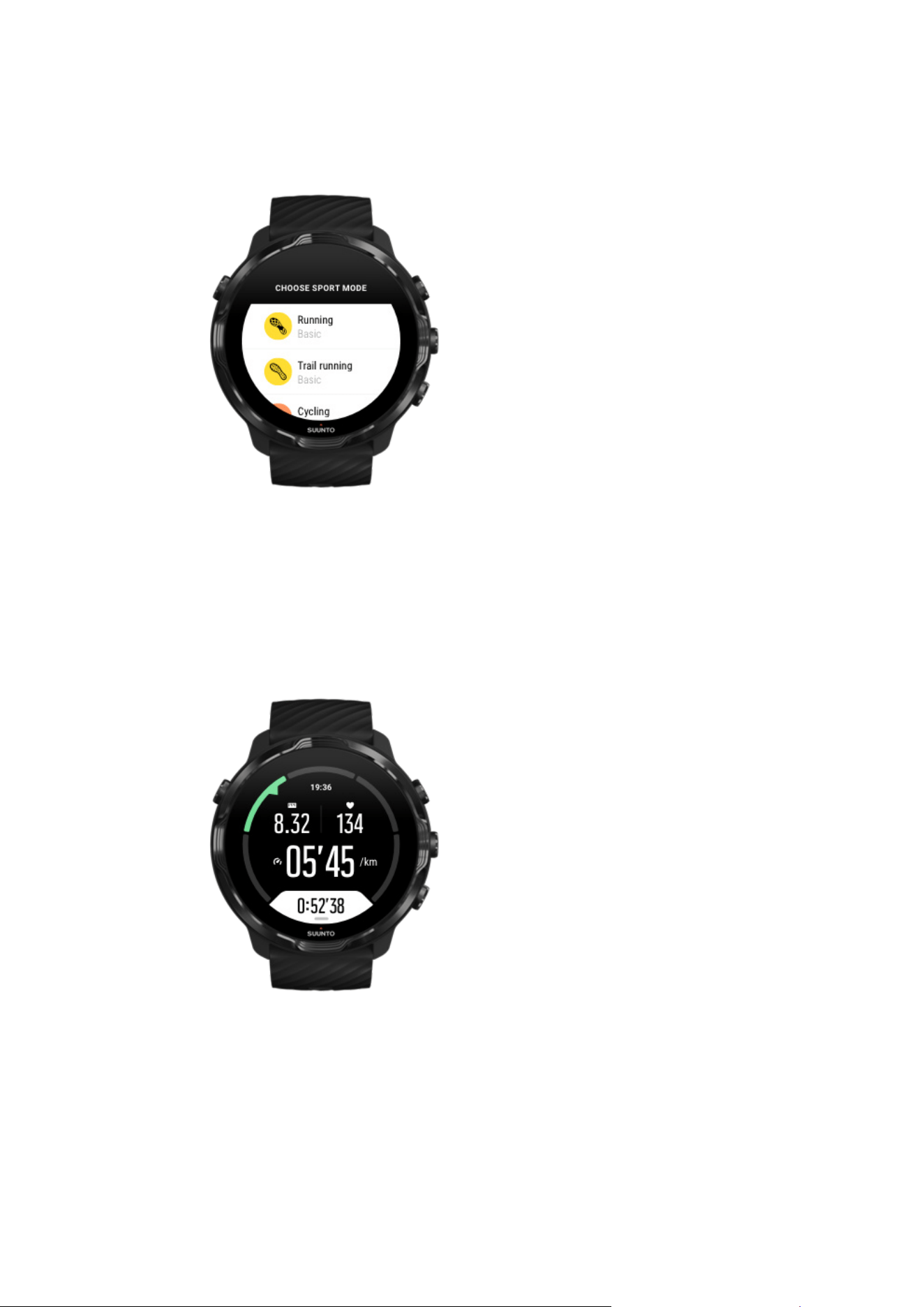
Suunto Wear app has over 70 sport modes (dierent sports), ready to track all your
sports – run, bike, swim, hike – you choose. Each sport mode has 2 to 4 exercise
views to show the most relevant stats during your exercise and a map when you are
exercising outdoors.
For instance, if you go running, you can follow your progress every kilometer or mile
with automatic lap updates, see your running pace and view your track on the map. If
you choose pool swimming, you get both your swimming intervals and overall
progress tracked automatically. Easy!
Suunto 7
83
Customize sport modes
Suunto 7
84
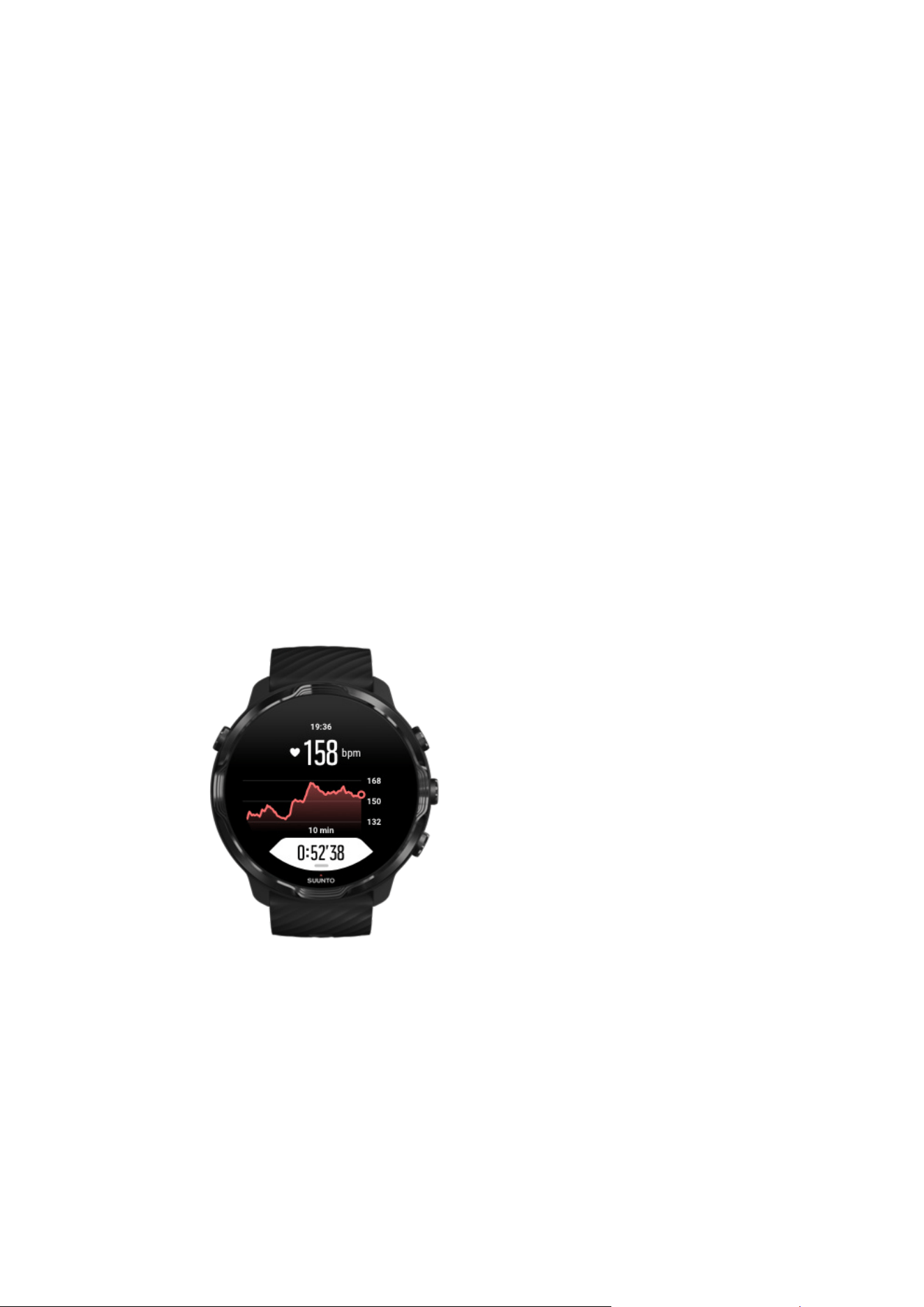
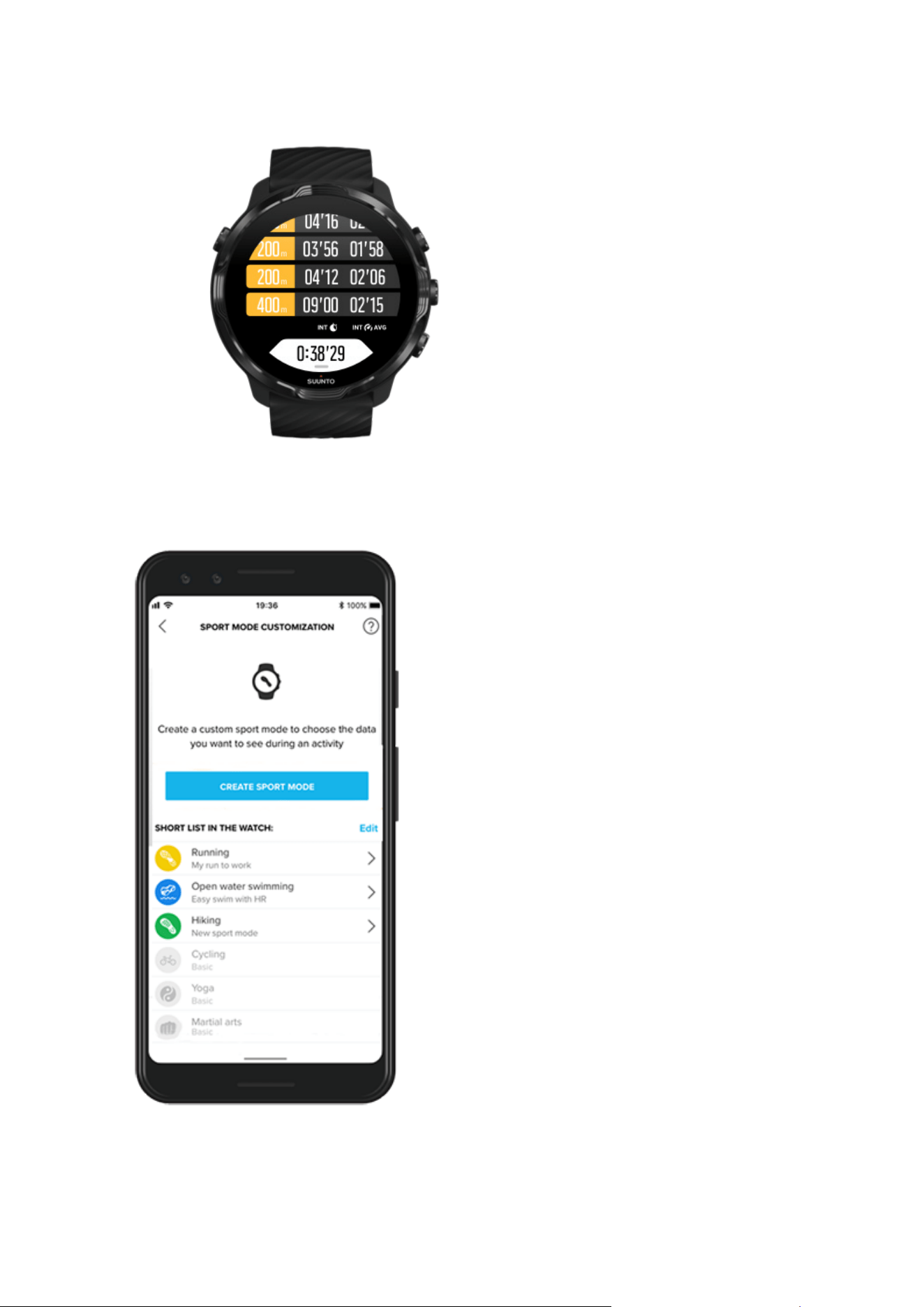
With a wide range of pre-defined sport modes, your Suunto 7 always shows the most
relevant data during your exercise. In addition to the pre-defined sport modes, you
can also create custom sport modes using Suunto app.
Learn how to create custom sport modes (Android).
Learn how to create custom sport modes (iOS).
Heart rate during exercise
Tracking your heart rate during exercise tells you precisely how hard – or easy – your
heart is working. Measuring your heart rate can help you to avoid making one of the
most common mistakes – training too hard too often, which puts you at risk for injury
and burnout.
Sport modes in Suunto Wear app are tailored to show heart rate in a meaningful way
for each activity. Depending on the sport mode you choose, you can for example
follow your current heart rate, average heart rate, heart rate during specific laps, or at
which heart rate zone you are exercising.
After your exercise you can see detailed information of your eorts and exercise
intensity such as what was your average heart rate, what was the peak training eect
(PTE) or estimated recovery time. If you are not familiar with all of the terms, you can
learn more in the Glossary.
Suunto 7
85
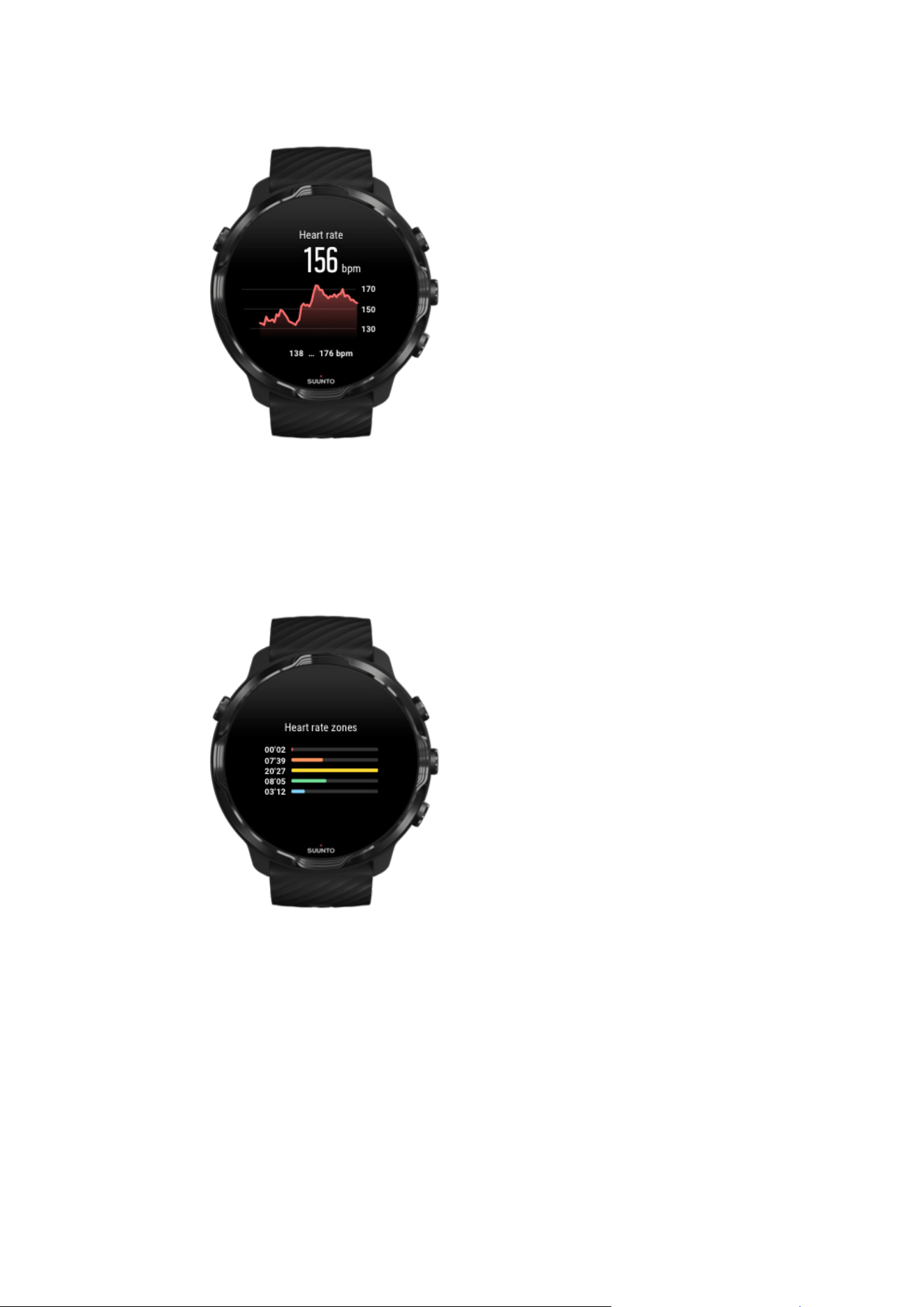
How to wear your watch to improve HR measurements
HR zones
Suunto Wear app has five dierent heart rate zones, numbered from 1 (lowest) to 5
(highest), defined as percentage range based on your maximum heart rate (max HR).
Understanding heart rate zones when exercising helps to guide your fitness
development. Each zone stresses your body in dierent ways, leading to dierent
eects on your physical fitness.
Suunto 7
86
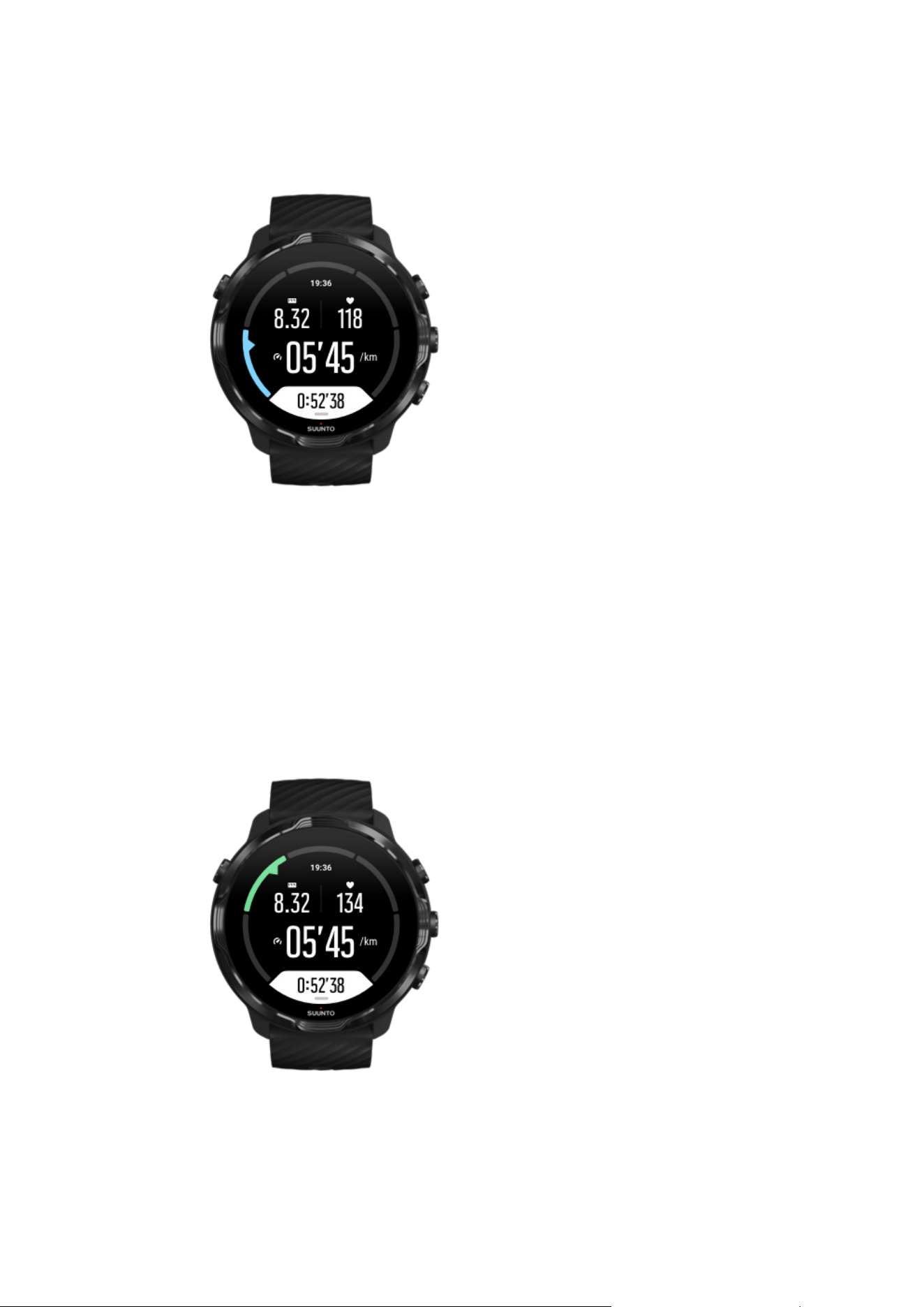
ZONE 1: EASY
Exercising in zone 1 is relatively easy on your body. When it comes to fitness training,
intensity this low is
significant mainly in restorative training and improving your basic
fitness when you are just beginning to exercise, or after a long break. Everyday
exercise – walking, climbing stairs, cycling to work, etc. – is usually performed within
this intensity zone.
ZONE 2: MODERATE
Exercising at zone 2 improves your basic fitness level eectively. Exercising at this
intensity feels easy, but workouts with a long duration can have a very high training
Suunto 7
87
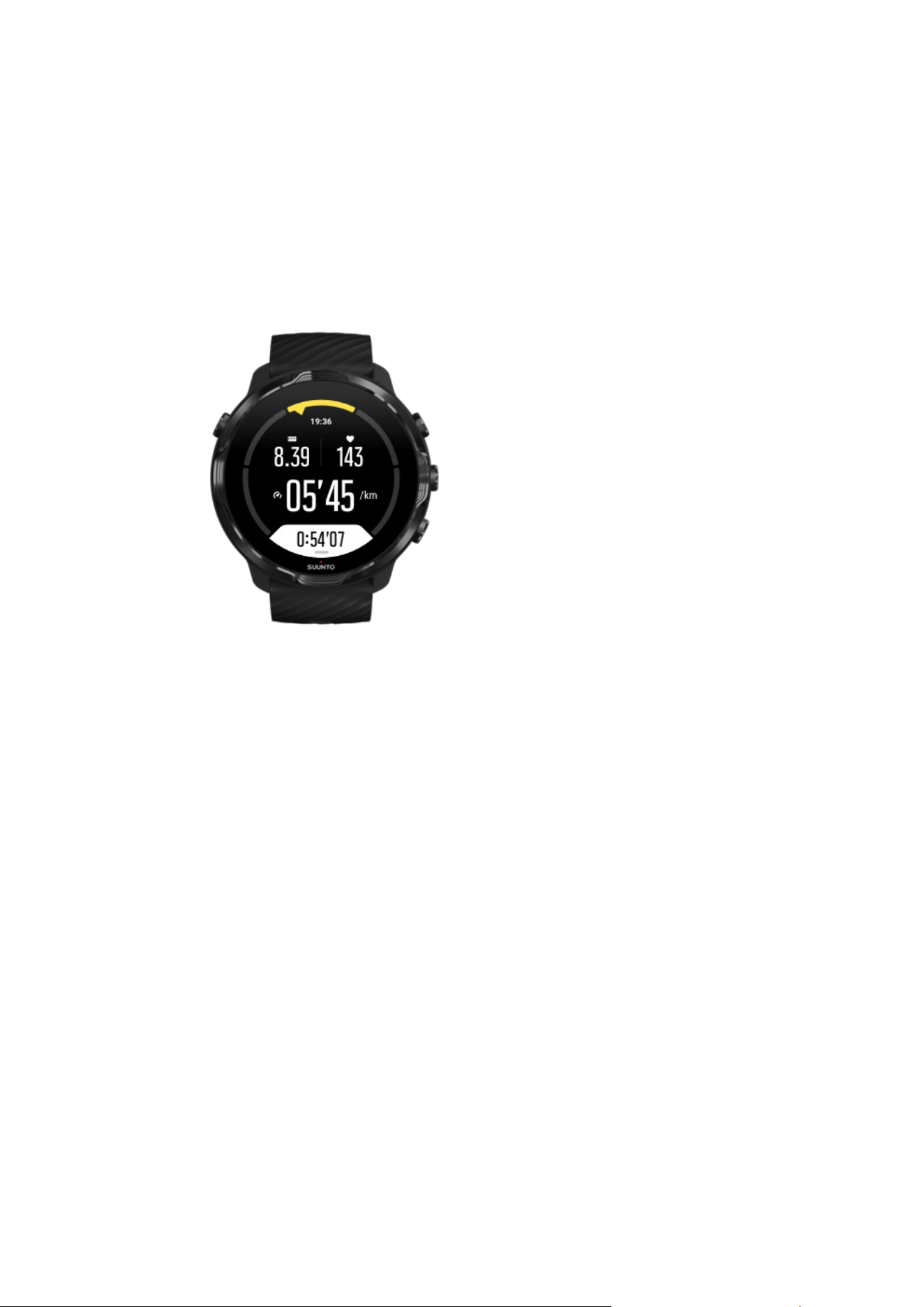
eect. The majority of cardiovascular conditioning training should be performed within
this zone. Improving basic fitness builds a foundation for other exercises and prepares
your system for more energetic activity. Long duration workouts at this zone consume
a lot of energy, especially from your body’s stored fat.
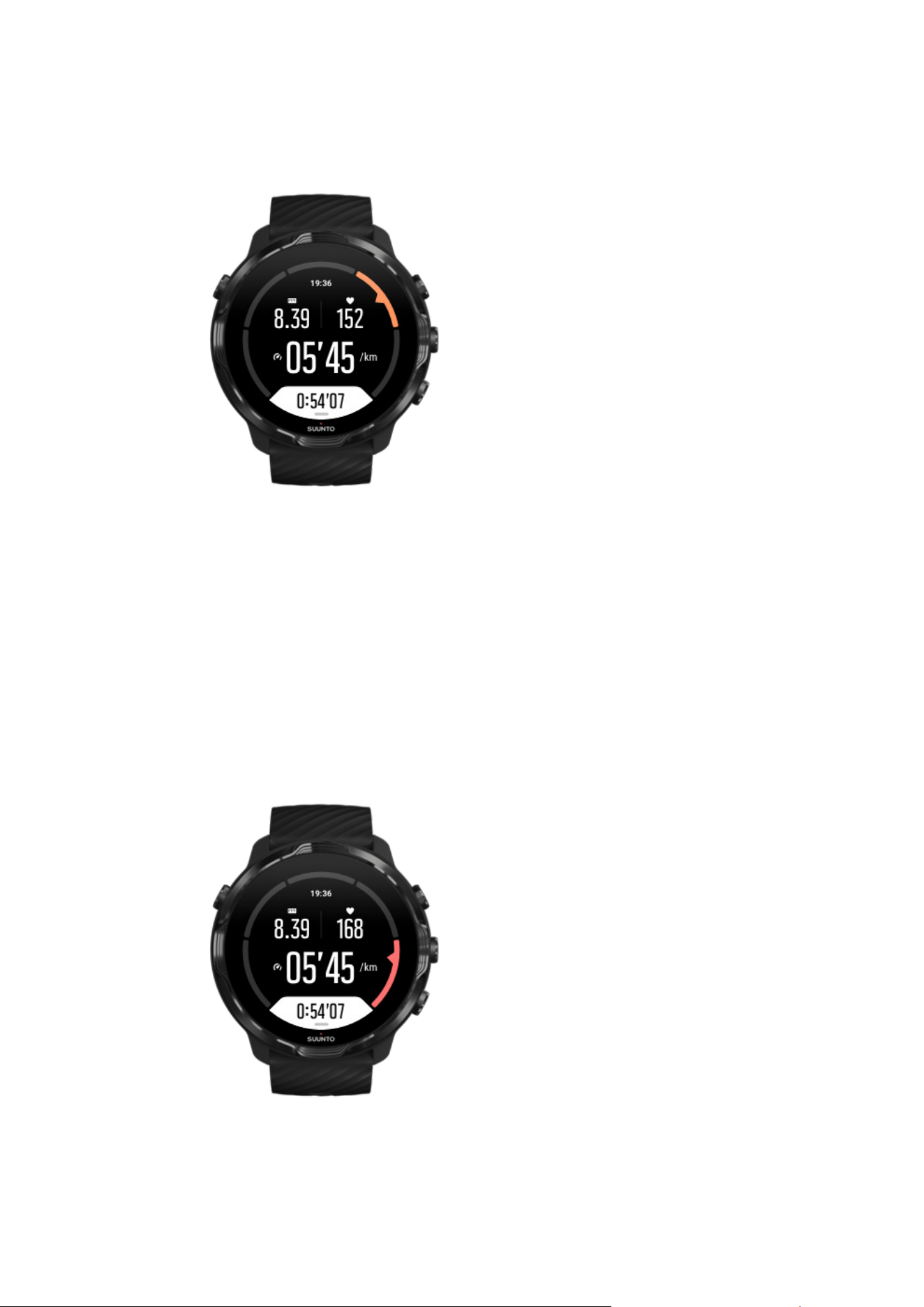
ZONE 3: HARD
Exercising at zone 3 begins to be quite energetic and feels like pretty hard going. It
will improve your ability to move quickly and economically. In this zone, lactic acid
begins to form in your system, but your body is still able to completely flush it out. You
should train at this intensity at most a couple of times per week, as it puts your body
under a lot of stress.
Suunto 7
88
ZONE 4: VERY HARD
Exercising at zone 4 will prepare your system for competition type events and high
speeds. Workouts in this zone can be performed either at constant speed or as
interval training (combinations of shorter training phases with intermittent breaks).
High-intensity training develops your
fitness level quickly and eectively, but done too
often or at too high intensity may lead to overtraining, which may force you to take a
long break from your training program.
ZONE 5: MAXIMAL
Suunto 7
89

When your heart rate during a workout reaches zone 5, the training will feel extremely
hard. Lactic acid will build up in your system much faster than it can be removed, and
you will be forced to stop after a few minutes at most. Athletes include these
maximum-intensity workouts in their training program in a very controlled manner,
fitness enthusiasts do not require them at all.
How are heart rate zones calculated?
Heart rate zones are
defined as percentage range based on your maximum heart rate
(max HR). Your max HR is calculated using the standard equation: 220 - your age.
The default zones used in Suunto Wear app, based on percentages of your maximum
heart rate, are:
Zone 5: 87–100%
Zone 4: 82–86%
Zone 3: 77–81%
Zone 2: 72–76%
Zone 1: < 71%
To adjust your max. heart rate, see
Profile settings.
Follow your progress with laps
Laps are a great way to follow your progress during exercise and to analyze your
eorts in more detail afterwards. With Suunto Wear app you can create lap marks
manually or choose a sport mode that creates laps automatically for you.
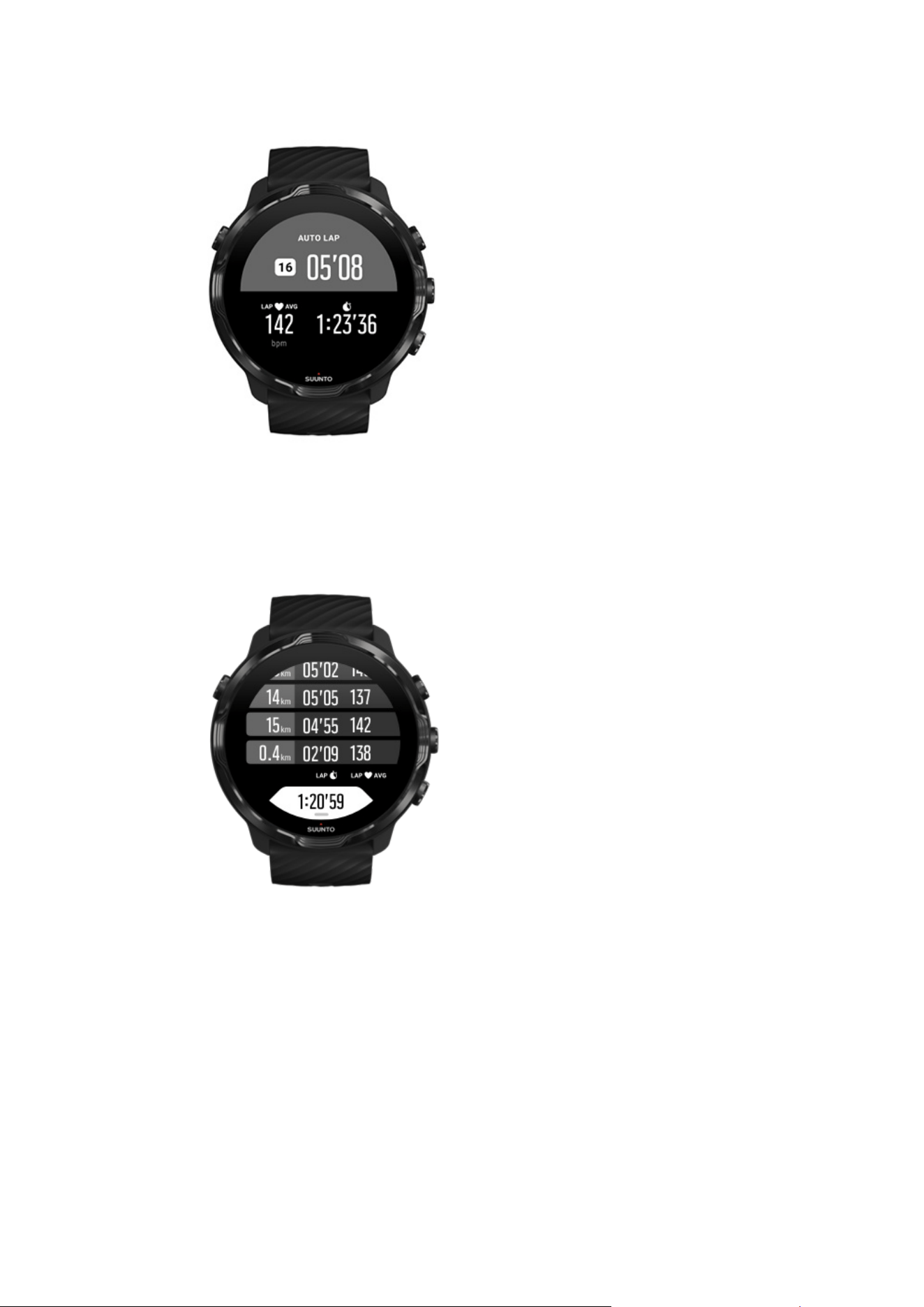
Autolaps
Sport modes, like running, cycling, and indoor rowing, come with automatic lap
updates to follow your progress based on certain distance or time. For instance, with
running sport mode, your watch alerts you every kilometer or mile and shows your
average pace and heart rate of your last kilometer on the screen.
Suunto 7
90
To follow and compare your eorts real-time between dierent laps, go to the
dedicated lap table view. In most sport modes it is the second exercise screen.
Suunto 7
91
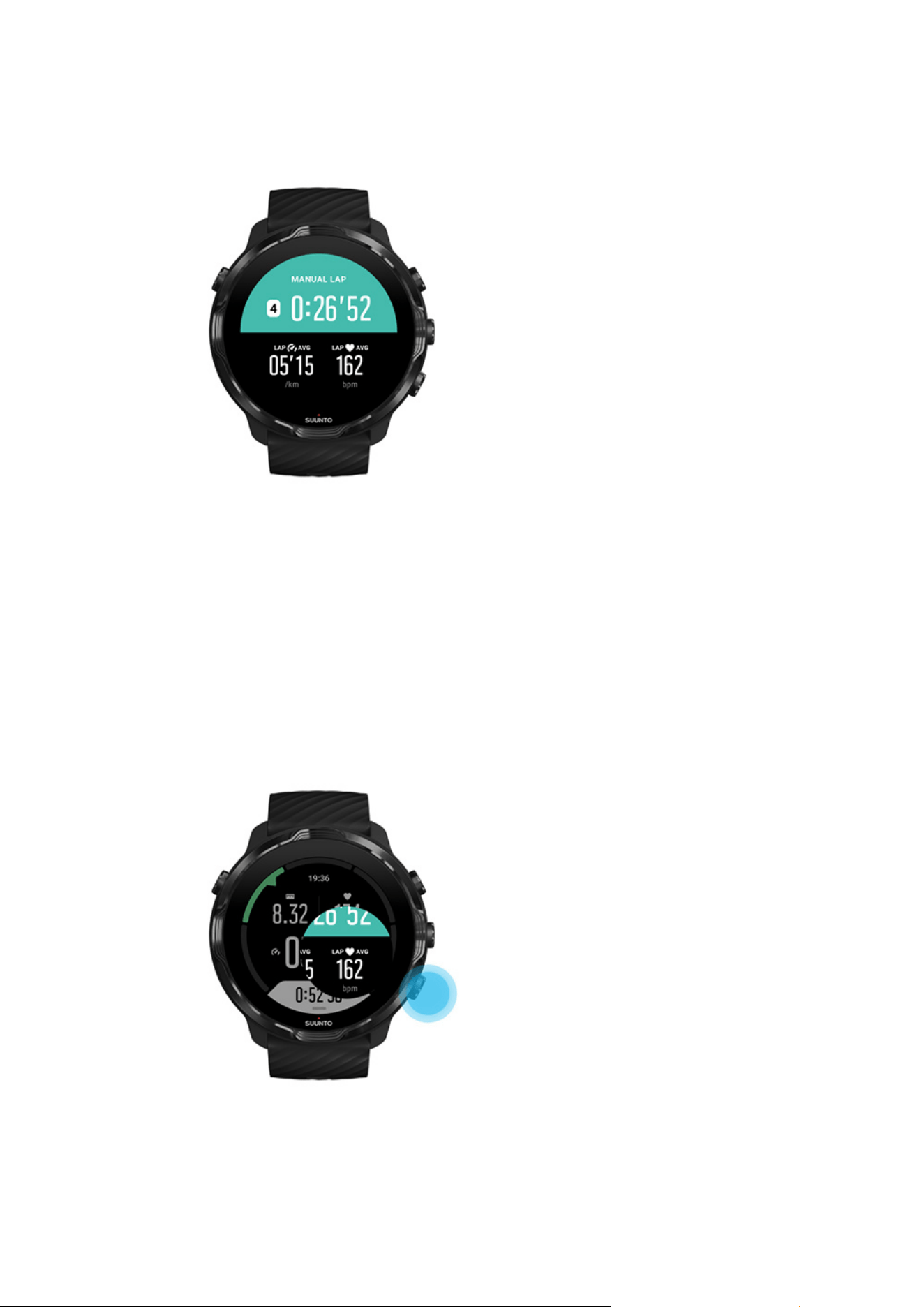
Mark a lap manually during exercise
In addition to autolaps, you can manually mark laps to track dierent sections of your
exercise. For example, during an interval session, you could create a lap mark for both
your intervals and rest periods to help analyze your session afterwards or you could
mark a lap to time reaching a milestone or a turning point on your regular training
route.
To mark a lap, press the bottom right button when you are in an exercise view. You
will
briefly see the key stats for that section of your exercise.
Suunto 7
92
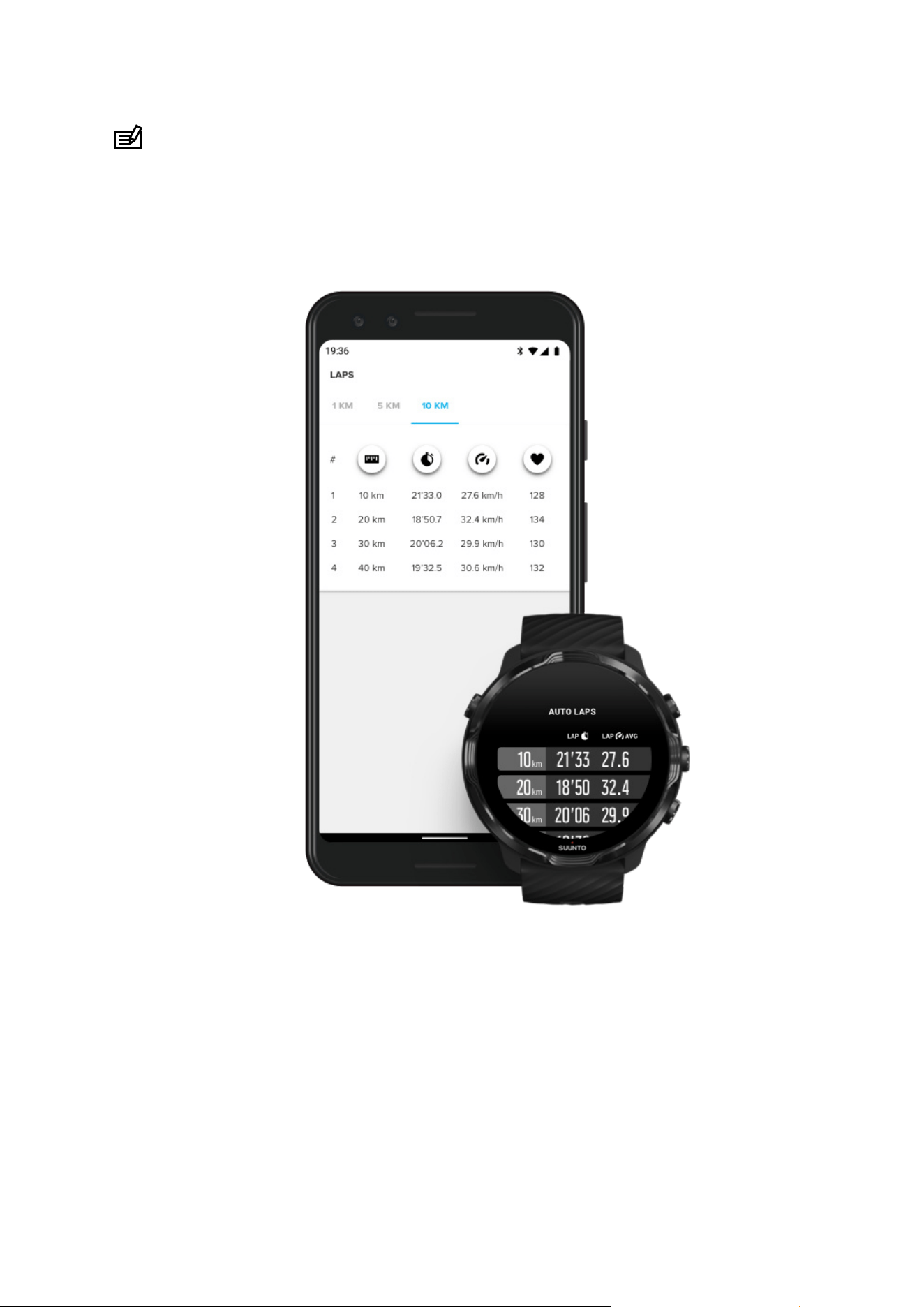
NOTE: With some sport modes, such as Track and field, you can also compare
your manually marked laps real-time in the lap table view.
View laps stats after exercise
To see your lap stats after your exercise, scroll down in the exercise summary and
select Laps.
Sync your exercises to Suunto mobile app on your phone to analyze your laps in more
detail.
Suunto 7
93
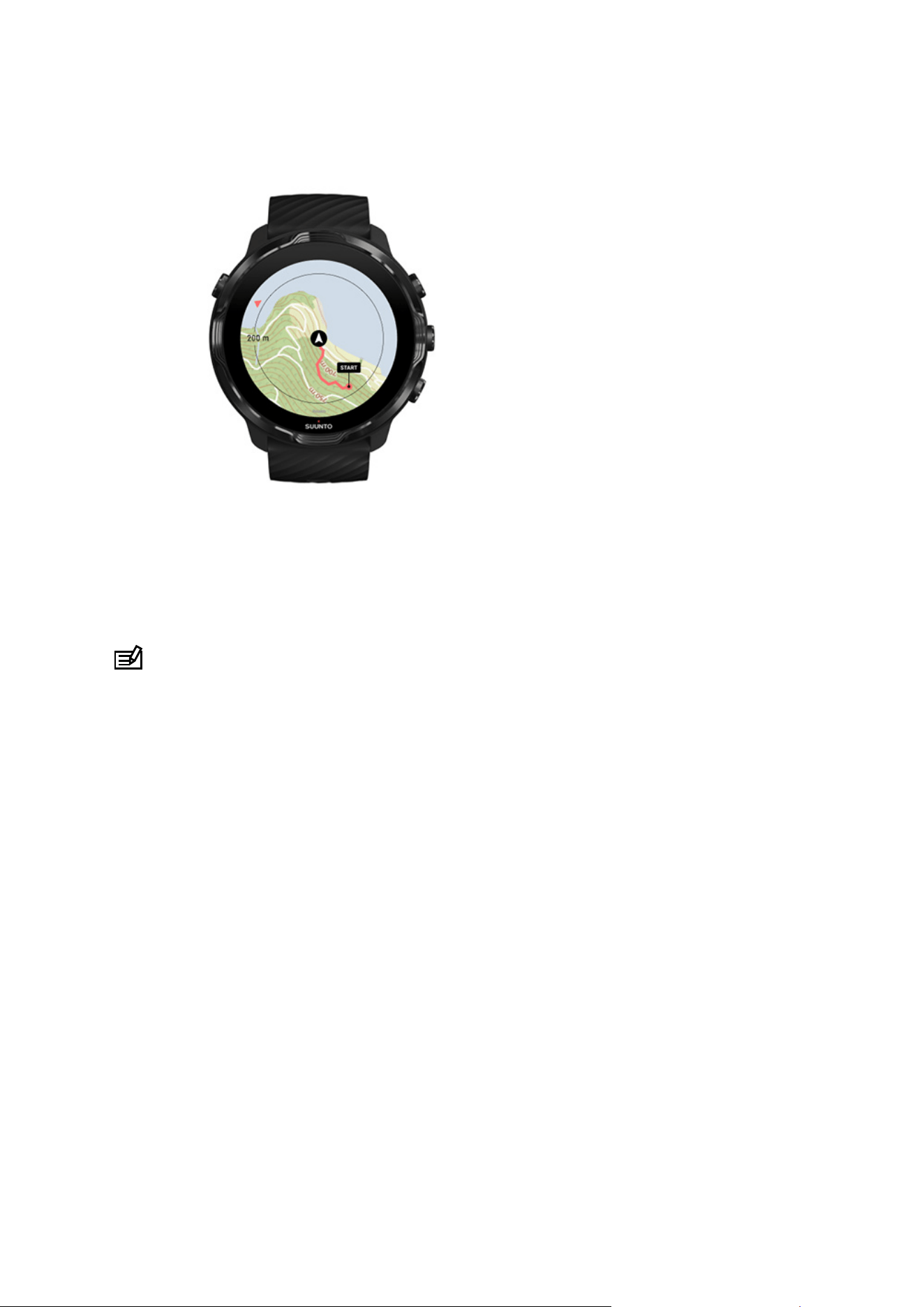
GPS: speed, distance & location
Suunto 7 uses GPS (location information) during exercise to draw your track on the
map and – together with accelerometer data – for measurements like speed and
distance.
NOTE: Suunto 7 can also use Glonass and BeiDou for location information.
How to improve GPS accuracy
To provide the best accuracy for your exercise stats, Suunto 7 uses, by default, 1
second GPS
fix rate to update GPS location information. However, there are several
other factors that also aect the signal strength and GPS accuracy.
See Change the location accuracy to change the GPS accuracy.
If you notice challenges with GPS accuracy, try these tips:
1. Wait for GPS signal before starting an exercise
Suunto 7
94
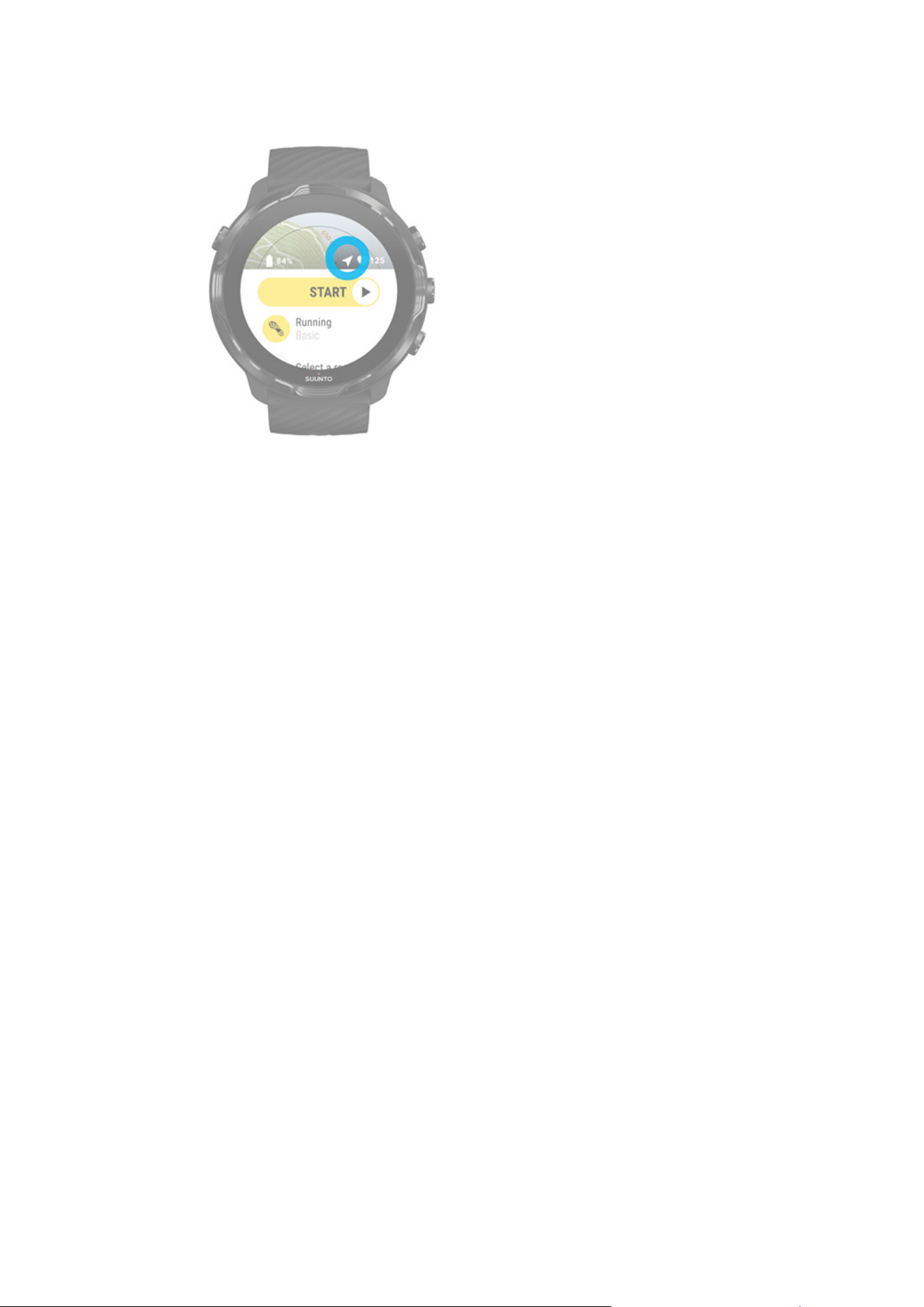
Before starting your exercise recording, go outside and wait for the watch to find the
GPS signal. When the watch is searching for a GPS signal, the arrow icon in the start
view is gray. Once the GPS signal is found, the arrow icon will turn white.
When you are open water swimming or exercising in dicult terrain, we recommend
you wait a couple of additional minutes after the signal is found to allow the watch to
download all needed GPS data to get a more accurate track.
2. Move to an open area
The GPS signal strength can be
aected by your surroundings and terrain such as:
•
trees
•
water
•
buildings
•
bridges
•
metal constructions
•
mountains
•
gullies or ravines
•
thick, humid clouds
If possible, try to move to a more open area outside when starting your exercise
and wait a couple of additional minutes after the GPS signal is found to allow the
watch to download all needed GPS data to get more accurate exercise stats.
3. Keep your watch connected to Wifi
Suunto 7
95
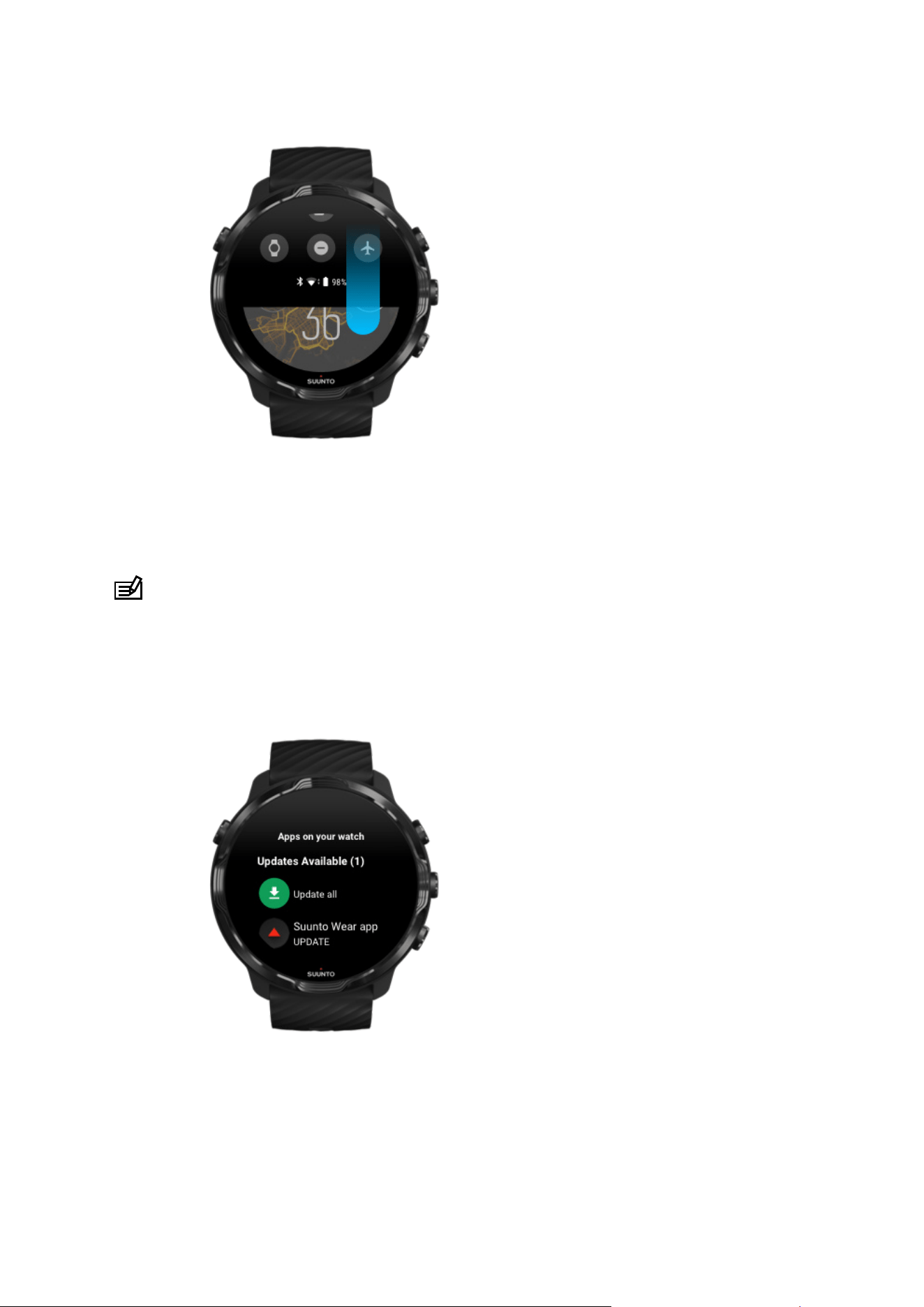
Connect your watch to Wifi to optimize your GPS with the latest satellite orbit data.
Your watch can acquire a GPS signal faster when GPS data is up to date.
NOTE: If you can’t connect to Wifi, you get GPS updates once a week via
Bluetooth.
4. Use the latest software for your watch
We continuously improve the software of our watches and fix possible bugs. Ensure
you have the latest software installed on your watch.
Suunto 7
96
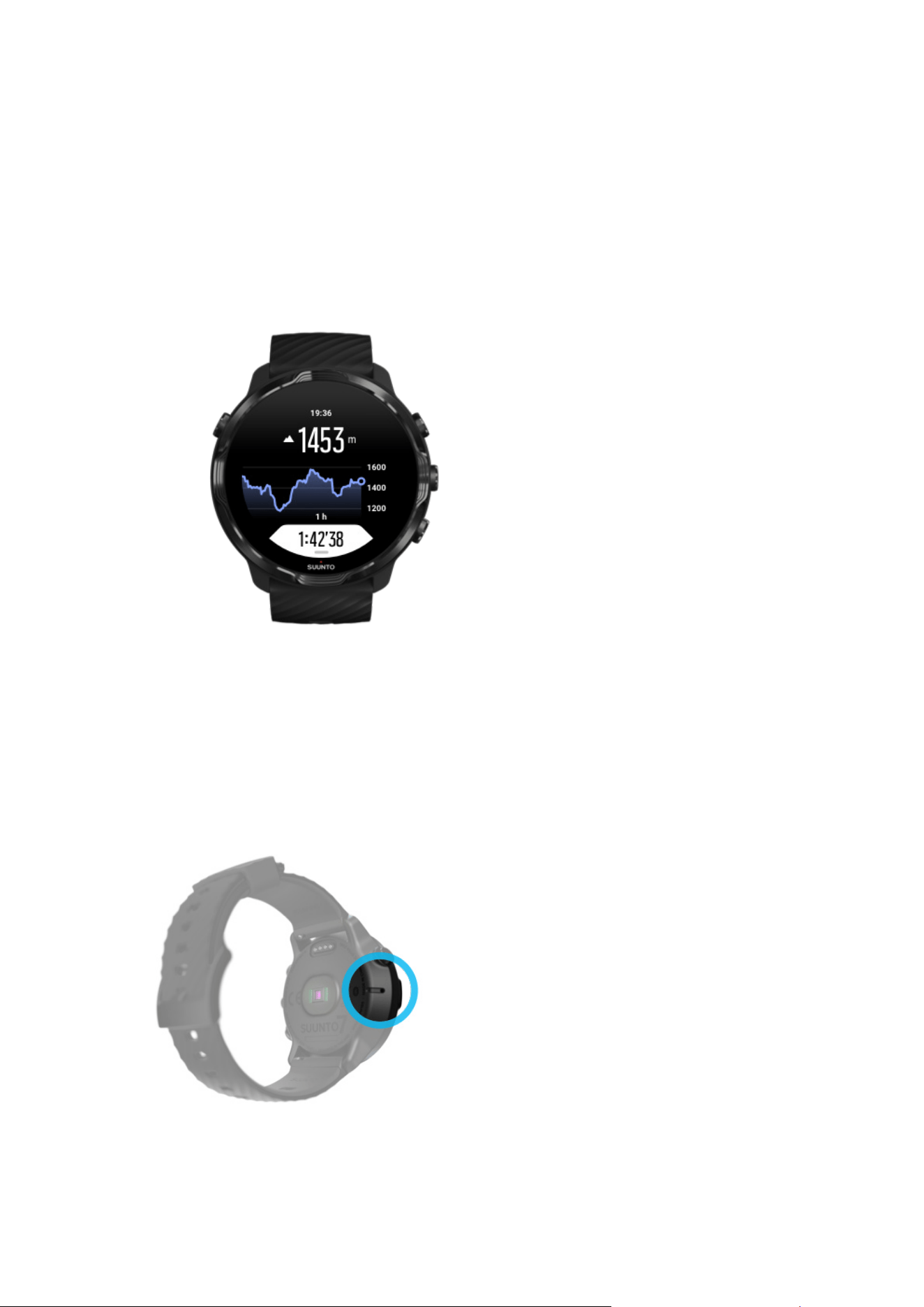
Learn how to update your watch
Altitude, ascent & descent
Suunto Wear app uses FusedAlti™– a combination of GPS and barometric altitude – to
provide an altitude reading and derived ascent and descent values during exercise.
Barometer
Suunto 7 has a built-in pressure sensor that measures absolute air pressure. Suunto
Wear app uses both GPS and air pressure data (FusedAlti™) to provide a more
accurate altitude reading.
Suunto 7
97

CAUTION: Keep the area around the air pressure sensor holes on the left-side of
your watch free of dirt and sand. Never insert any objects into the holes as this may
damage the sensor.
Start an exercise
Before you begin
Start an exercise
Waiting to start
Avoid accidental touch and button actions during exercise
Before you begin
•
The way you wear your watch has a big impact on the heart rate accuracy during
your exercise.
Learn how to wear your watch to improve HR measuerements
•
GPS accuracy is important for measurements such as speed and distance. Make
sure you are outside in an open area before you start your exercise to get a good
GPS signal.
Learn how to improve GPS accuracy
•
Suunto 7 is ideal for all sorts of exercise, but battery use varies depending on your
sport and the way you interact with your watch during exercise.
Learn how to maximize battery life during exercise
Start an exercise
1. Press the top right button to open Suunto Wear app.
Suunto 7
98
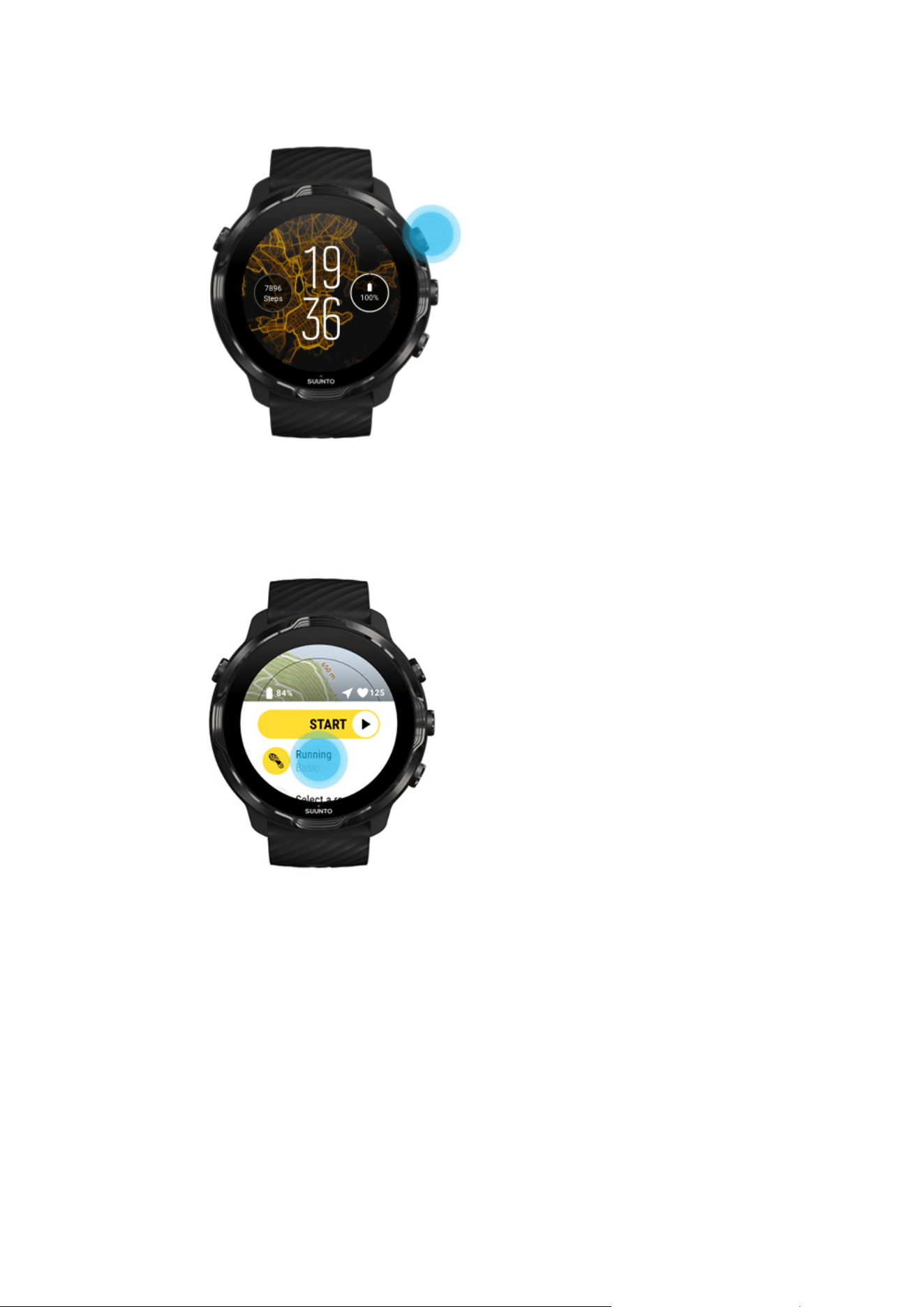
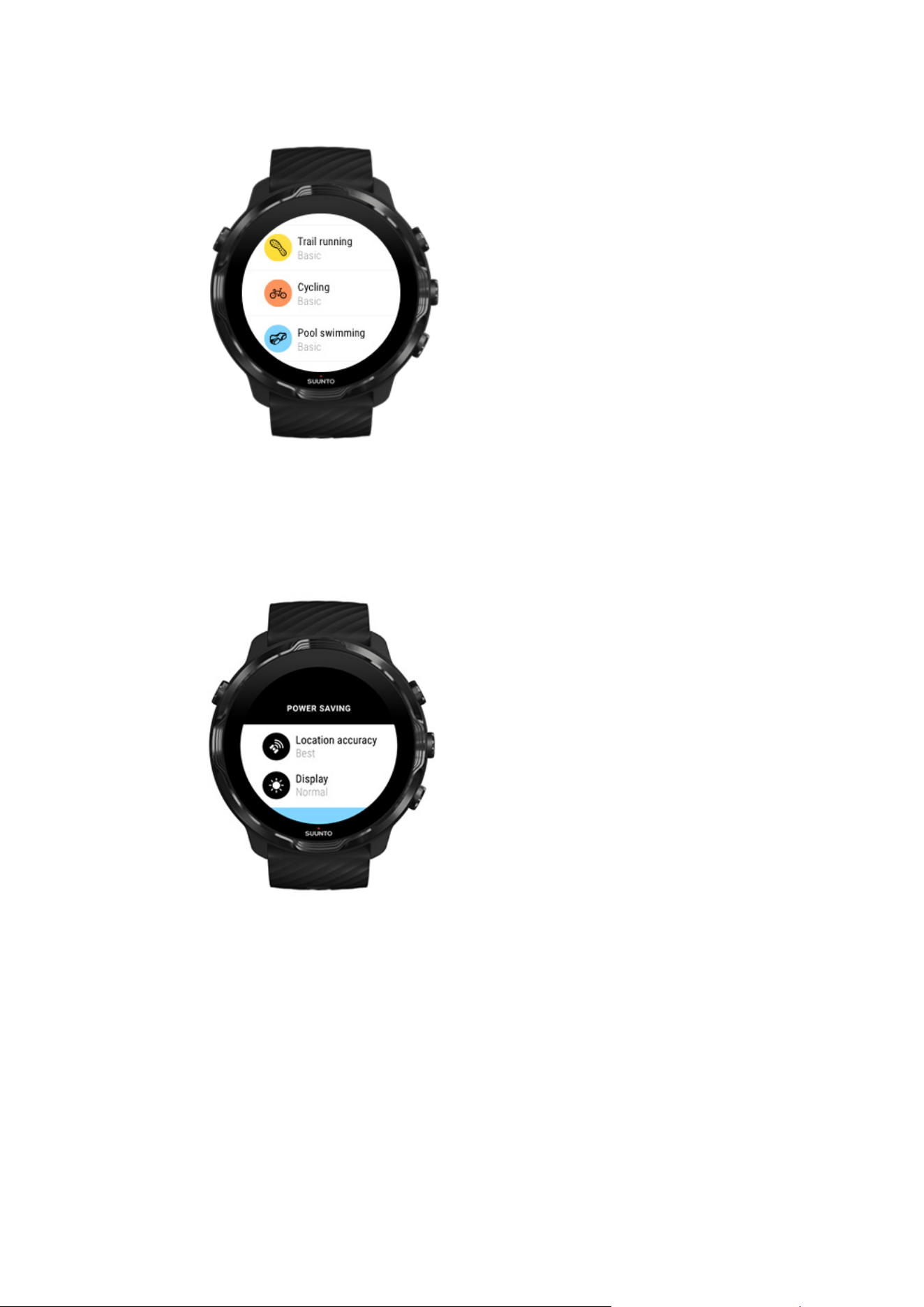
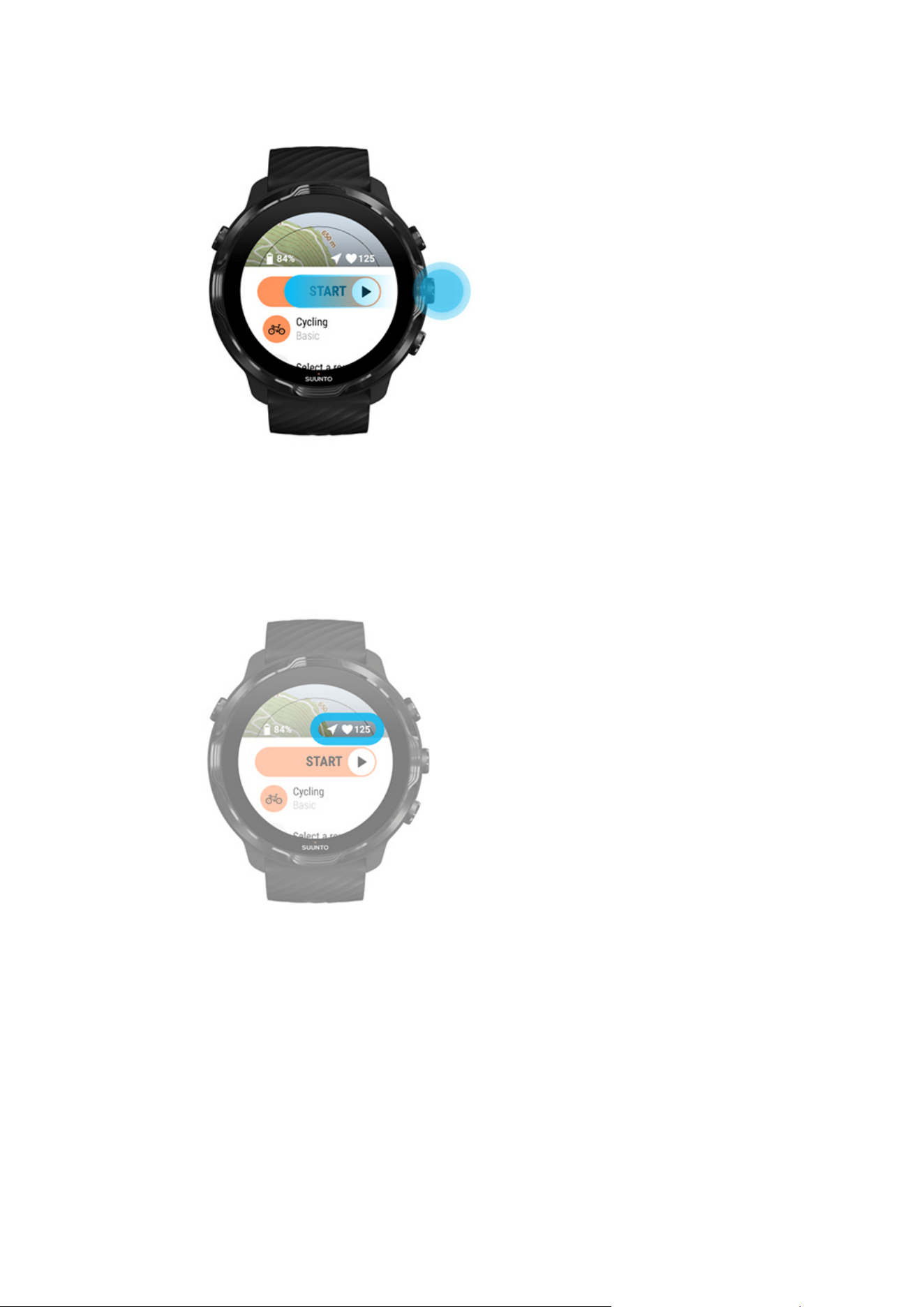
To get the most accurate HR and GPS data from the start, you can wait until the arrow
icon (location) and heart icon (heart rate) above the start button turn white before
starting your exercise.
If the heart rate icon stays gray, try moving your watch on your wrist about two fingers
up from the wrist bone. If the arrow icon stays gray, move outside to an open area and
wait for a better GPS signal.
Waiting to start
If you stay in the start view for a while, for example when you wait for your watch to
acquire its GPS location or get ready to start your race, you might see that the display
Suunto 7
101
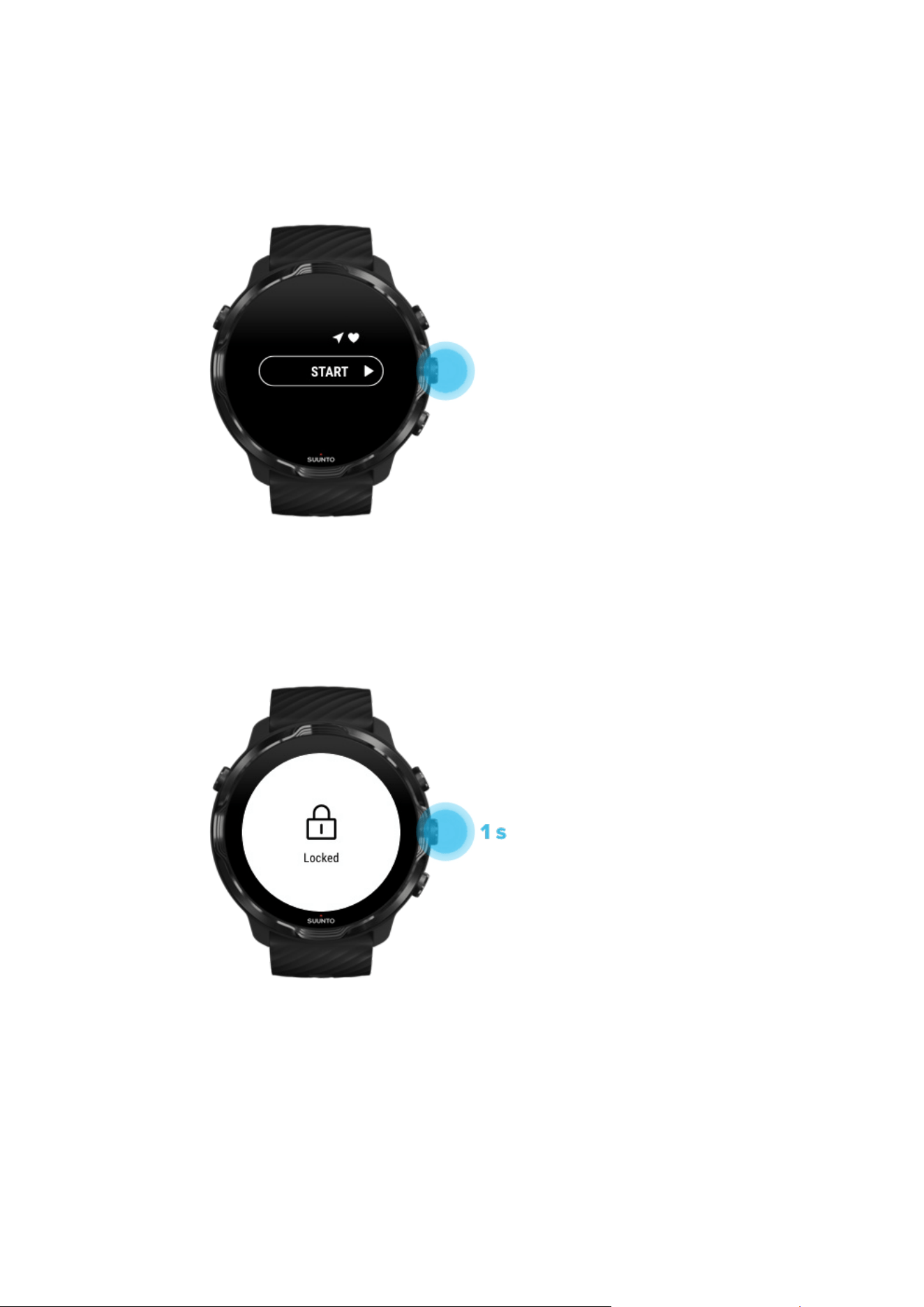
switches to a low-power mode. Don’t worry, you can still start your exercise recording
immediately by pressing the middle button.
Avoid accidental touch and button actions during
exercise
Wet conditions or, for instance, the gear you are wearing can sometimes accidentally
interrupt your exercise recording. To avoid accidental taps and button presses during
exercise, you can lock the touch screen and button actions.
Suunto 7
102

NOTE: Unwanted actions such as rain drops or a wet sleeve can also drain your
battery faster than expected by waking up the display repeatedly without you
noticing.
Lock touch screen and button actions
1. To lock the screen and button actions, keep the middle button pressed.
2. To unlock, keep the middle button pressed again.
When the screen and buttons actions are locked, you can:
•
change the exercise view with middle button
•
return to the watch face with Power button
•
zoom the map with the top right and bottom right buttons
When the screen and buttons actions are locked, you can’t:
•
pause or end the exercise
•
create manual laps
•
access exercise options or map options
•
swipe the screen or pan the map
•
tap to wake up screen
Control watch during exercise
Wake up display
Change exercise views
Open other apps while exercising
Buttons and touch screen use during exercise
Wake up display
While recording an exercise with Suunto Wear app the display and gestures to
interact with your watch are optimized for sports and longer battery life.
Your stats during exercise are always visible but to wake up the display, you can:
•
Press the Power button
•
Touch the screen
Suunto 7
103
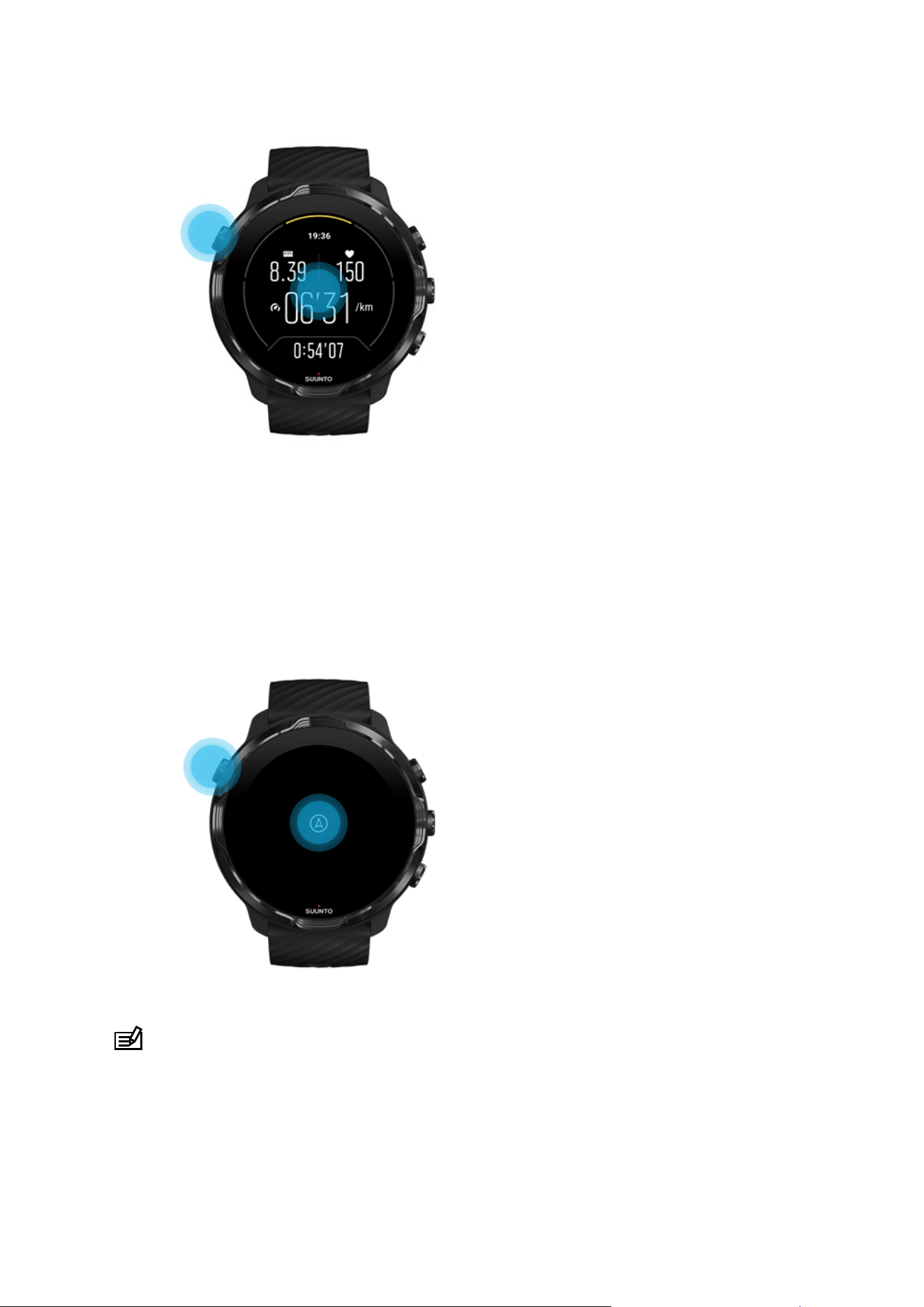
To wake up the display during exercise when in the map view, you can:
•
Turn your wrist
•
Press the Power button
•
Touch the screen
NOTE: During water sports, like swimming and kayaking, the touch screen for
Suunto Wear app is disabled to avoid wet conditions causing unwanted touch
actions.
If you exit Suunto Wear app during any exercise (including swimming), the touch
screen will be enabled.
Suunto 7
104
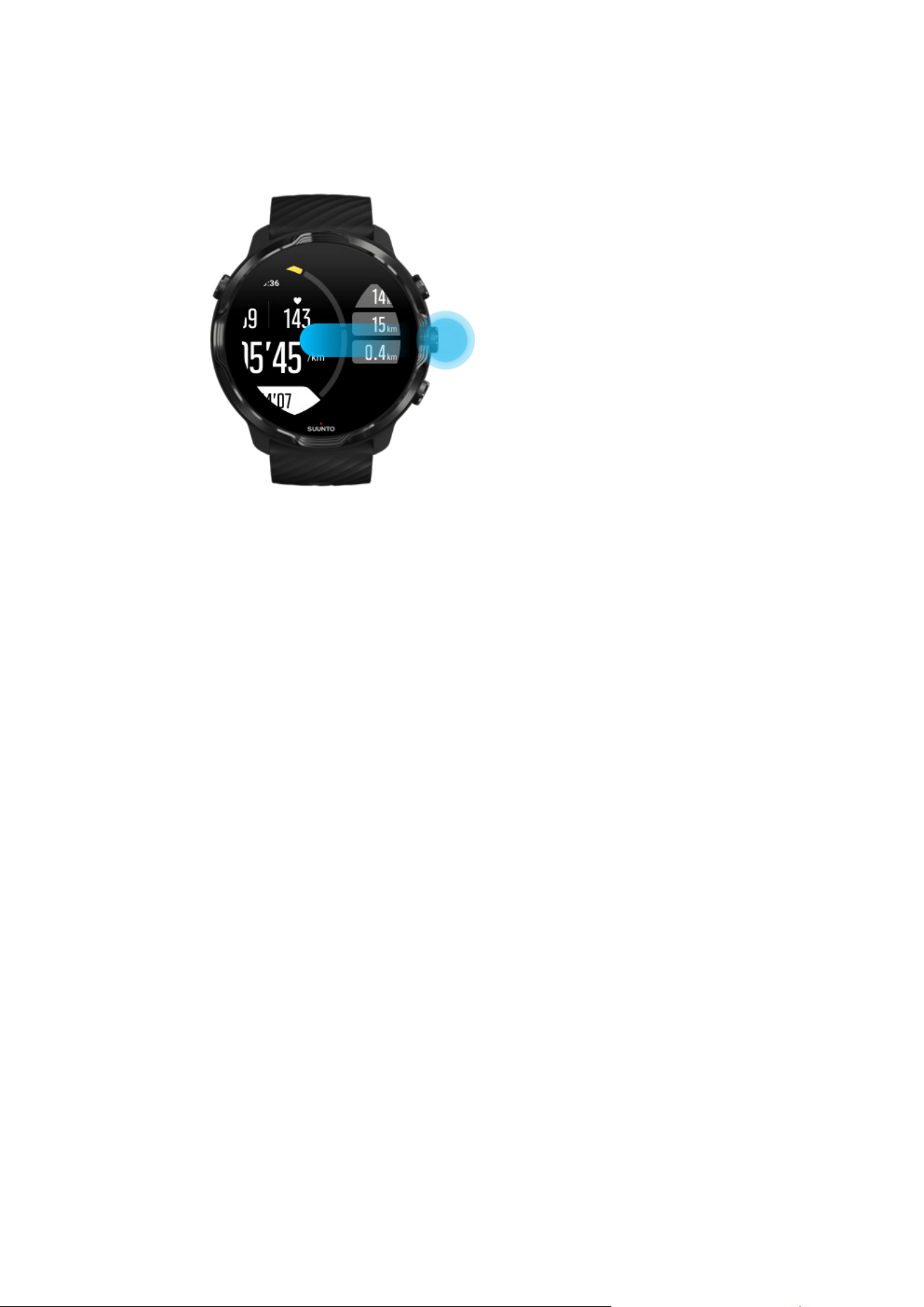
Change exercise views
The stats you can follow during your exercise depend on the sport mode you choose.
Most sport modes have 2 to 4
dierent exercise views displaying the most relevant
exercise data for each sport. When you do outdoor sports, you can also see your track
on a map.
To change between views:
•
Press the middle button
•
Swipe left or right
Suunto 7
105
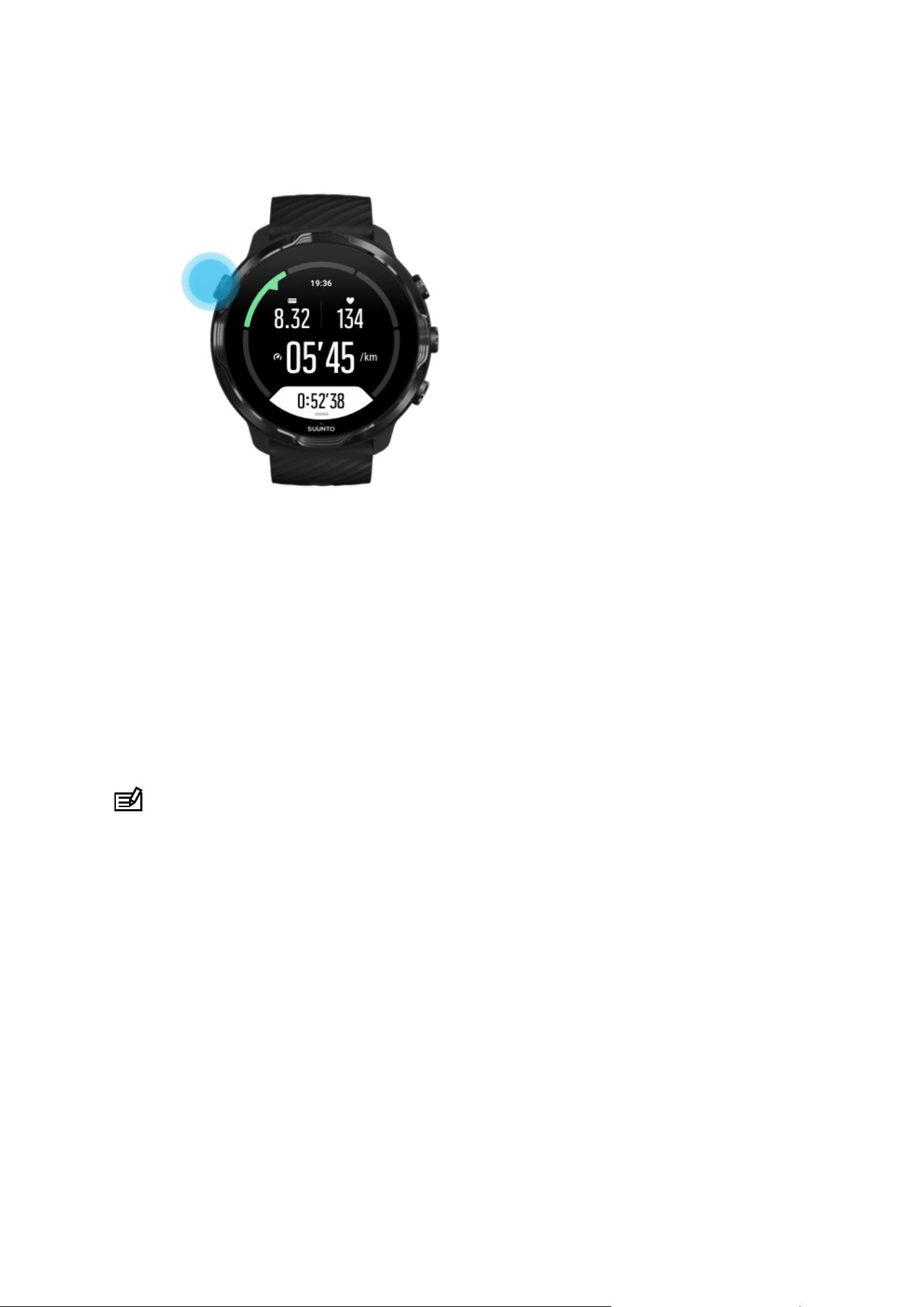
Open other apps while exercising
If you need to use another app during your exercise, for example to skip a song or to
check the weather, you can exit Suunto Wear app and keep the exercise recording.
1. Press the Power button or touch the screen to wake up the display.
2. Press the Power button to go to the watch face.
3. Use your watch as you wish.
4. Press the Power button to go back to the watch face.
5. Press the top right button to go back to your exercise.
NOTE: Keep in mind that some actions and apps can consume a lot of battery,
which may aect how long you can record your exercise.
Buttons and touch screen use during exercise
You can start your exercise and adjust your watch during exercise even with gloves on
or underwater. All sport features are optimized to work with buttons only if needed.
Change between views
Press the middle button or swipe left or right to see dierent metrics or to check the
map.
Pause
Press the top right button. Press again to resume.
Suunto 7
106
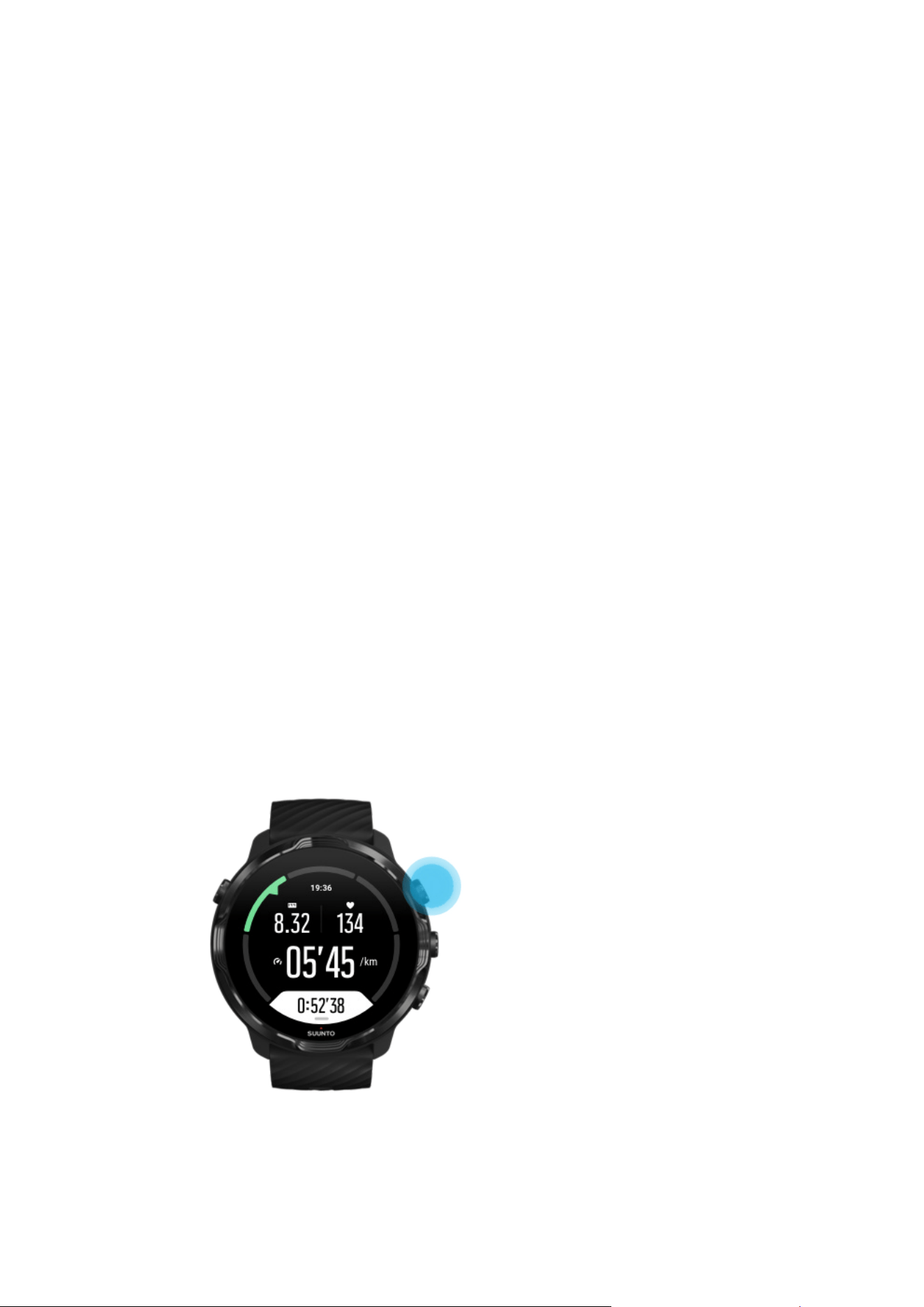
End
Press the top right button, then press the bottom right button.
Mark a lap
Press the bottom right button.
Lock buttons
Keep the middle button pressed.
Control the map
While in the map view, use the top right and bottom right button to zoom in and out.
Adjust exercise options
Keep the bottom right button pressed or swipe up from the bottom of the screen to
open the menu.
Change map style
Keep the bottom right button pressed or swipe up from the bottom of the screen to
open the menu.
Pause and resume exercise
1. Make sure you are in an exercise view.
2. Press the top right button to pause your exercise.
Suunto 7
107
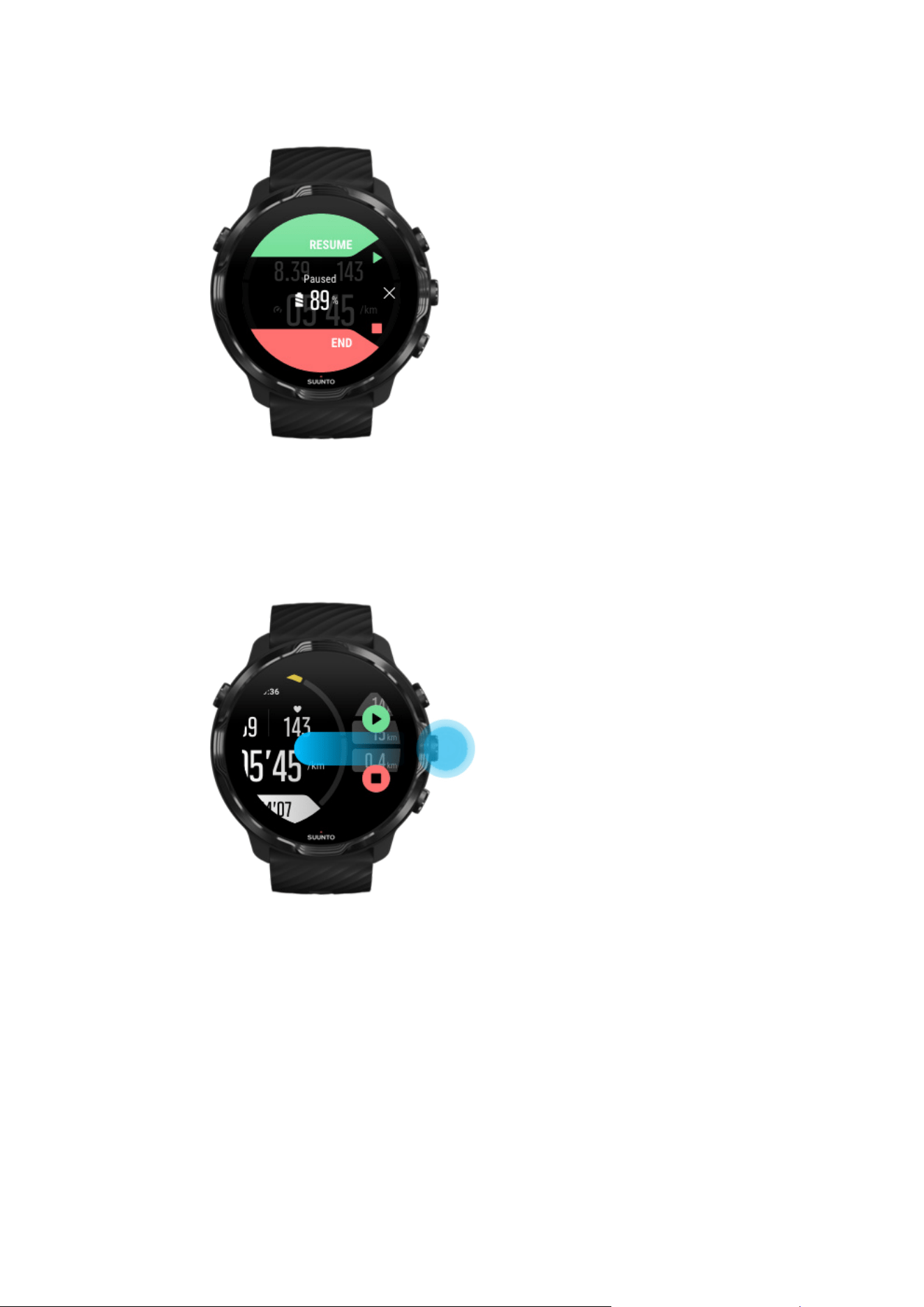
3. While paused, you can view your data and change displays with the middle button
or by swiping left or right.
4. To resume your exercise, press the top right button.
Suunto 7
108
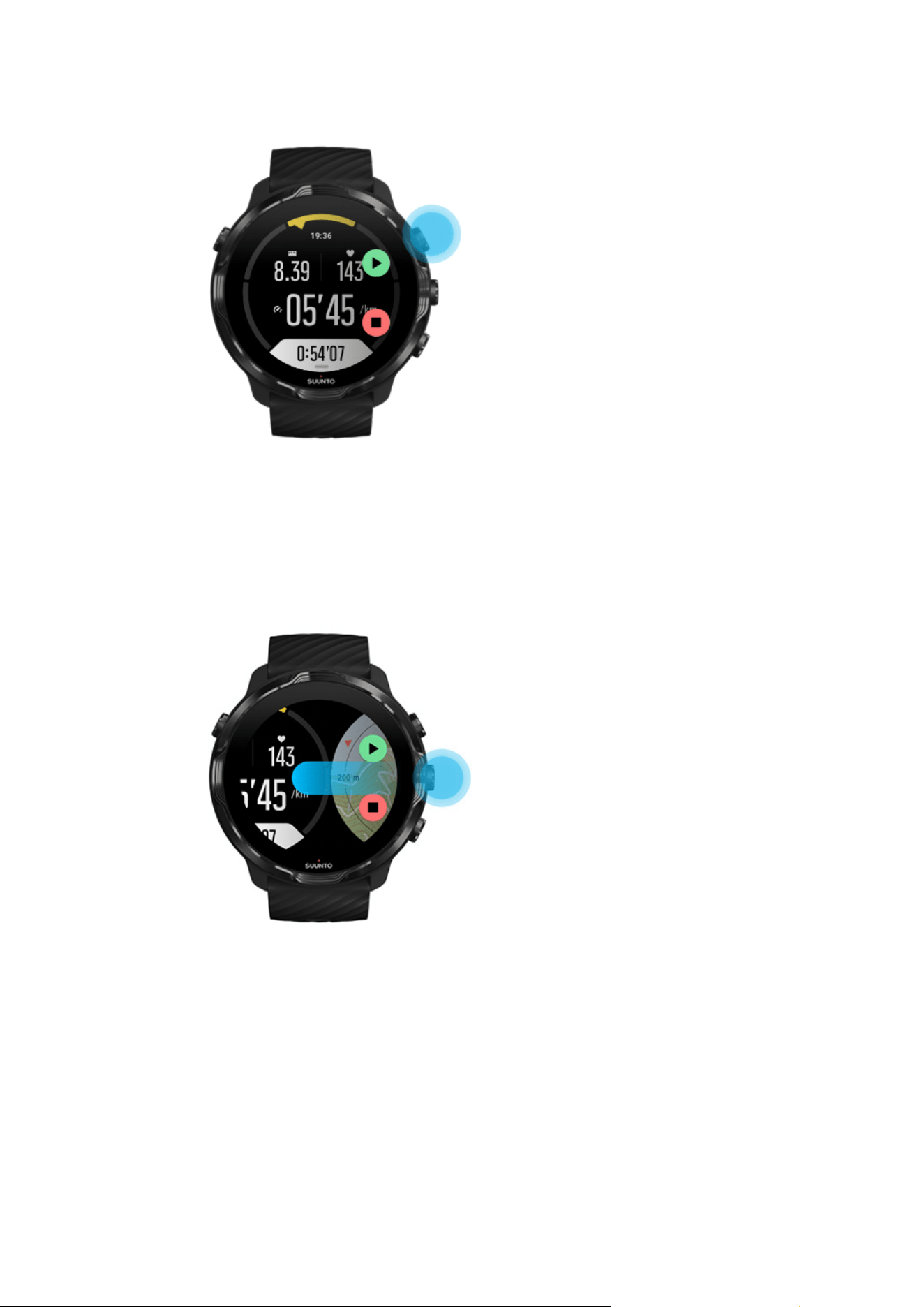
Check your location while paused
1. While paused, press the middle button until you are in the map view.
2. While in the map view, you can zoom the map with the top right and bottom right
buttons and touch and drag the map to move it around.
Suunto 7
109
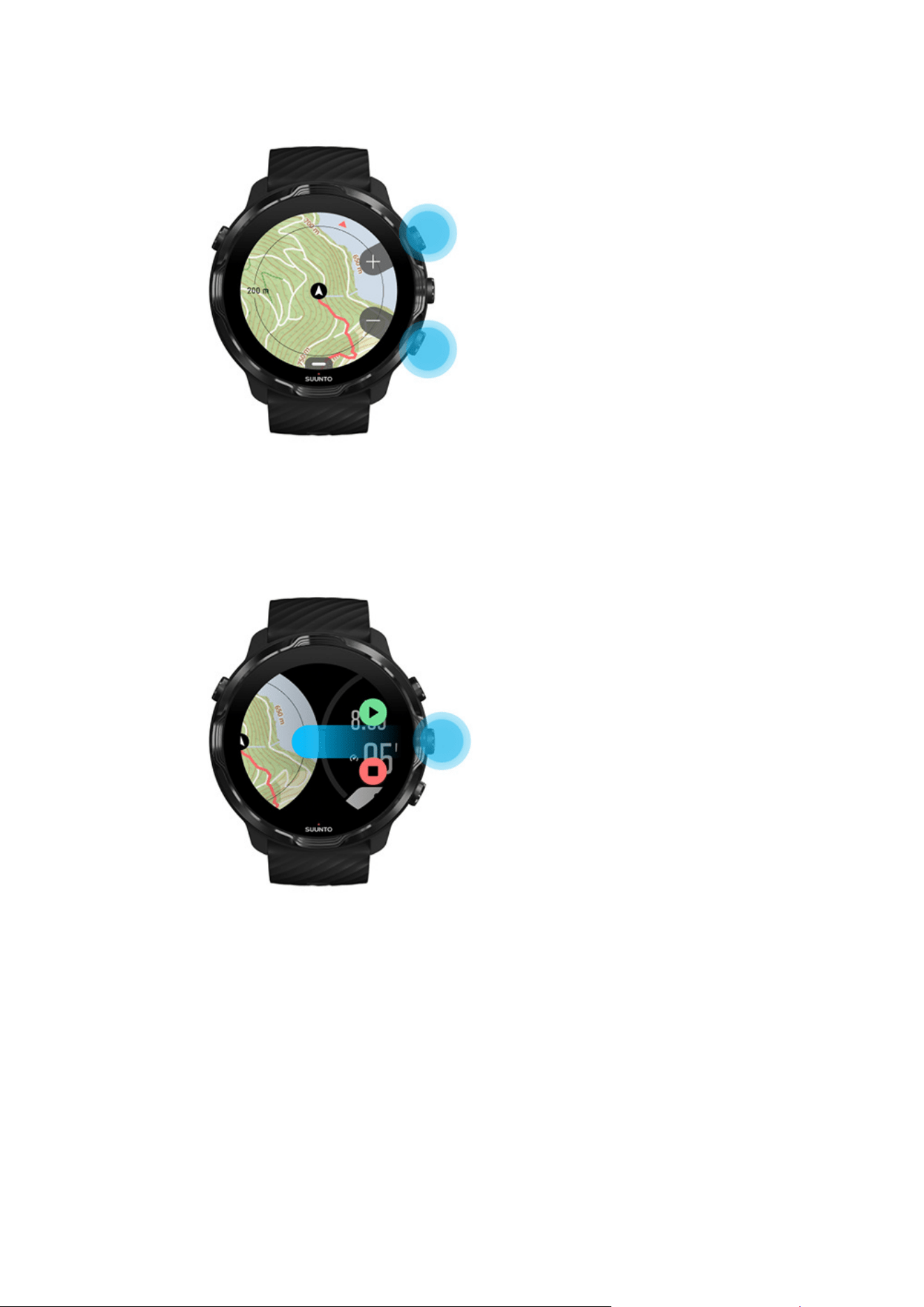
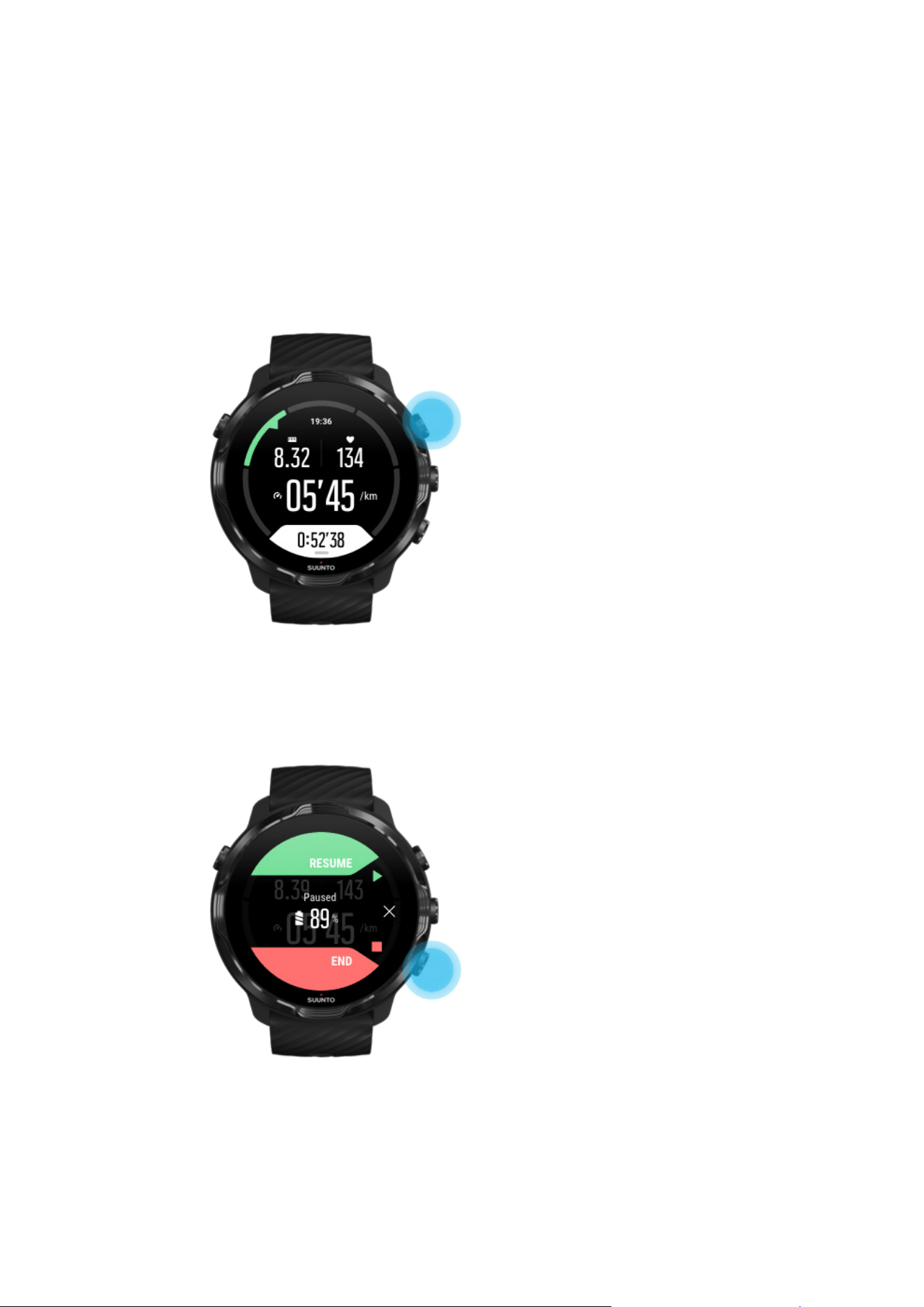
End your exercise
When you are finished and ready to end your exercise:
1. Make sure you are in an exercise view.
2. Press the top right button.
3. Then press the bottom button to end and save the exercise.
Suunto 7
111
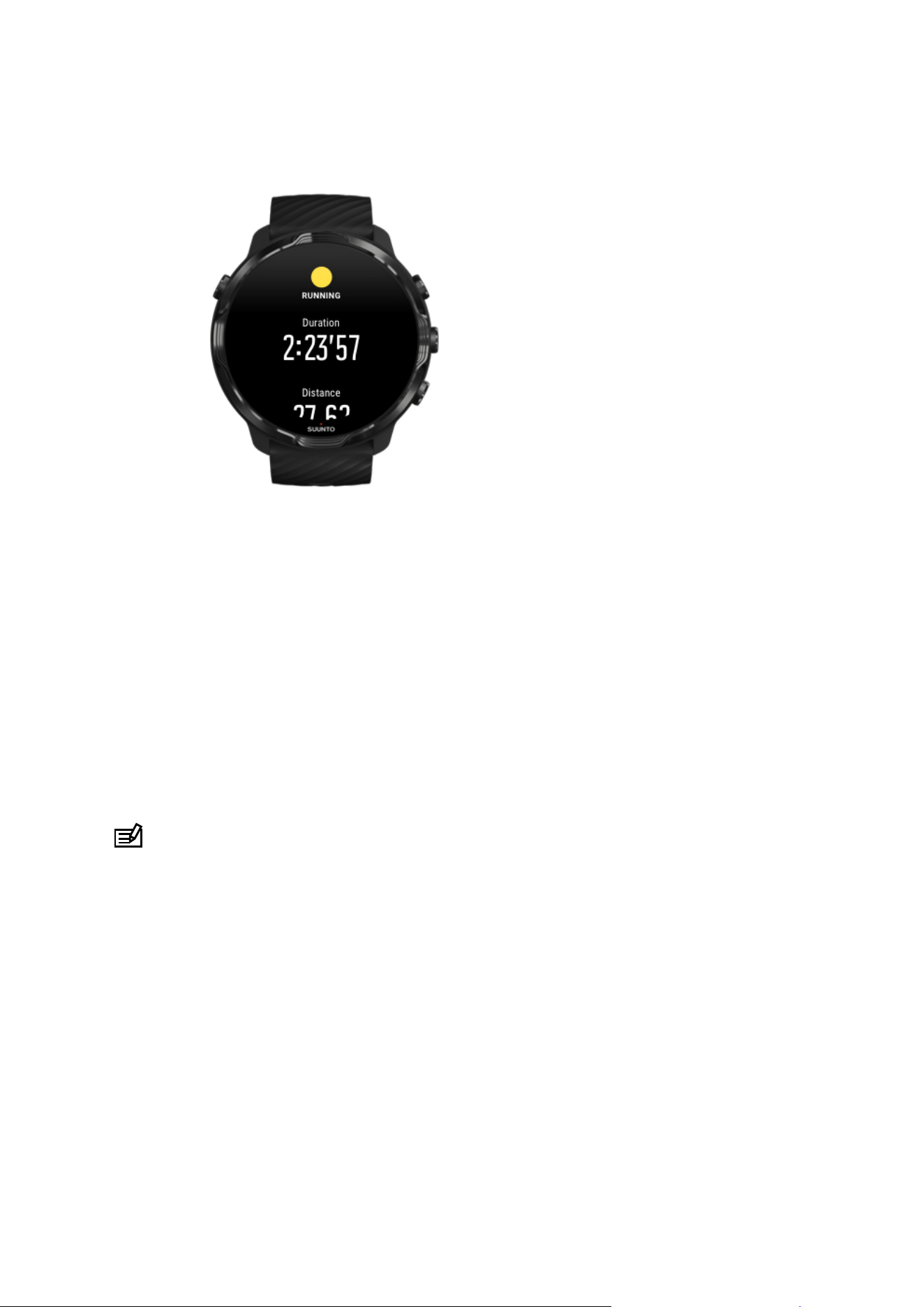
View your exercise summary
When you have finished your exercise, you will get an exercise summary to see how
you did. Scroll down to see detailed information of your eorts and exercise intensity
such as what was your average heart rate, what was the peak training eect (PTE) or
estimated recovery time. If you are not familiar with all of the terms, you can learn
more in the Glossary.
To exit the exercise summary, you can:
•
Swipe right
•
Scroll down and select Close.
NOTE: The content of the summary depends on the sport mode and measured
values.
Delete your exercise
If you don’t want to save the exercise you just recorded, you can delete it from your
watch before you exit the summary.
1. Scroll down to the bottom of the exercise summary.
2. Tap Delete.
Suunto 7
112
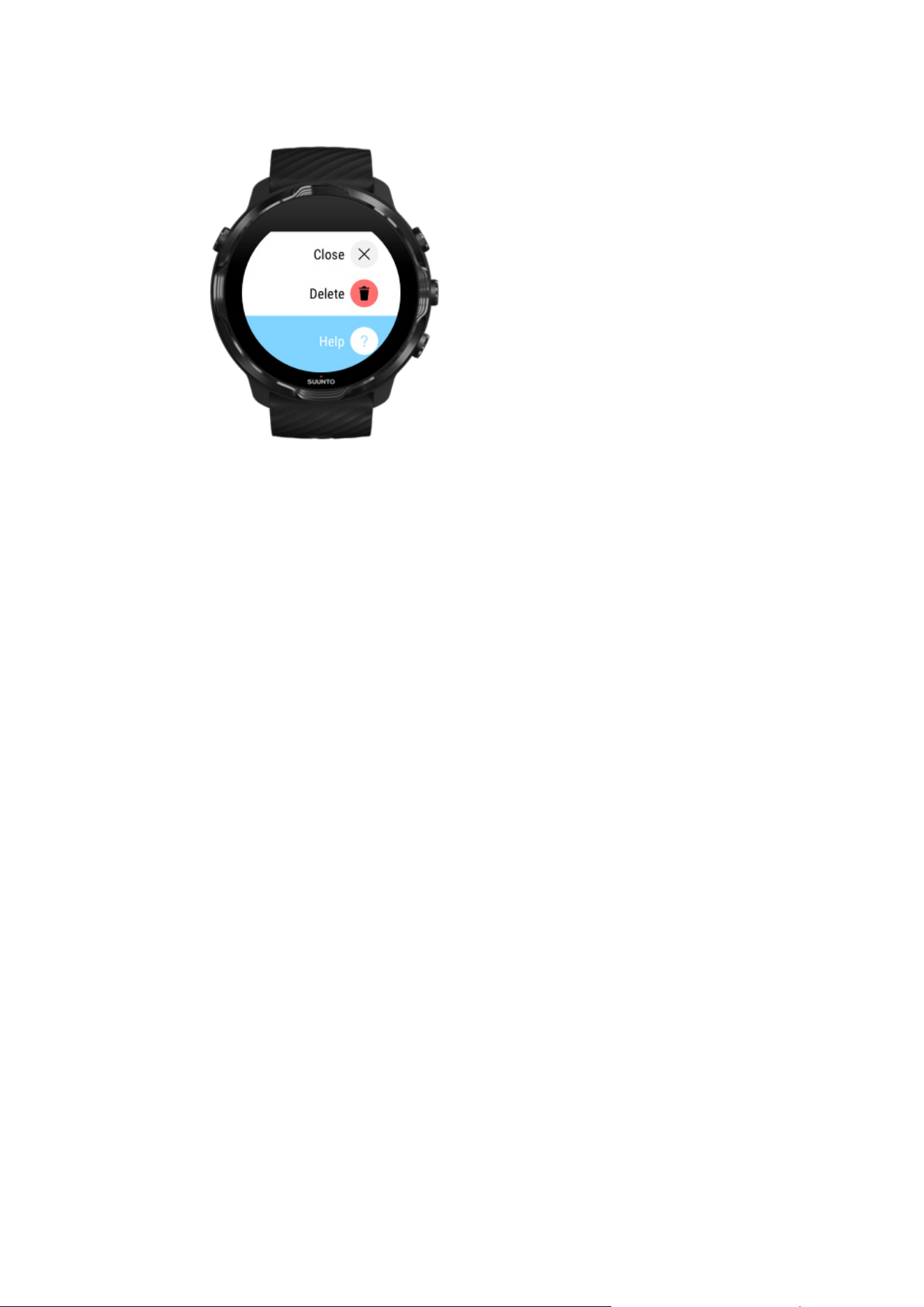
Suunto 7
113
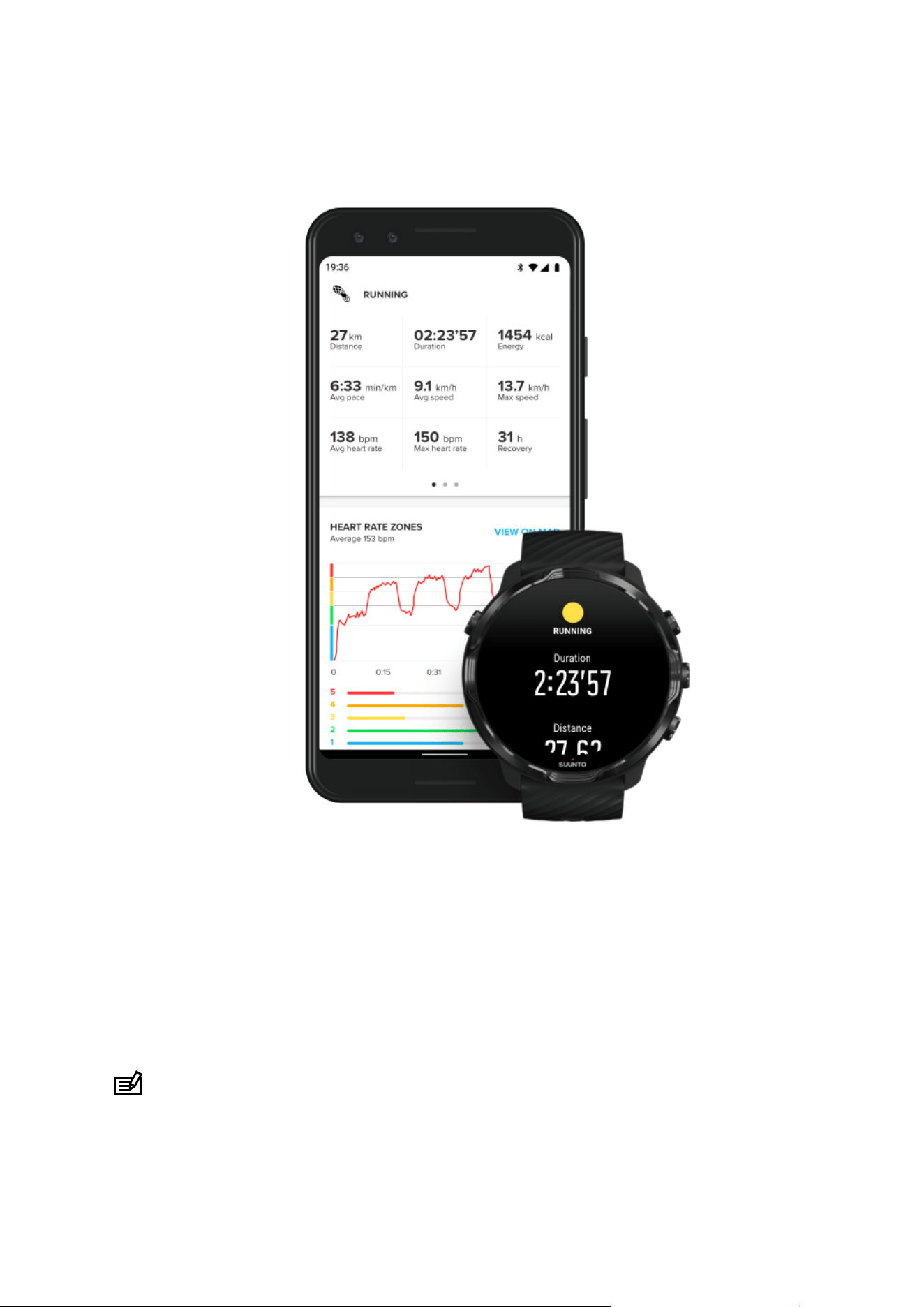
View your exercise details in Suunto mobile app
When your watch is connected to Suunto mobile app, your exercises will be
automatically synced and saved to the app on your phone. In Suunto mobile app, you
can view and analyze your exercise in more detail, add photos and videos, sync them
to your favorite sport services like Strava and Relive and share your best moments
with friends.
Connect to Suunto mobile app
NOTE: Suunto mobile app syncs exercises via Bluetooth so that you can sync
your exercises even when there is no
Wifi available.
Suunto 7
114
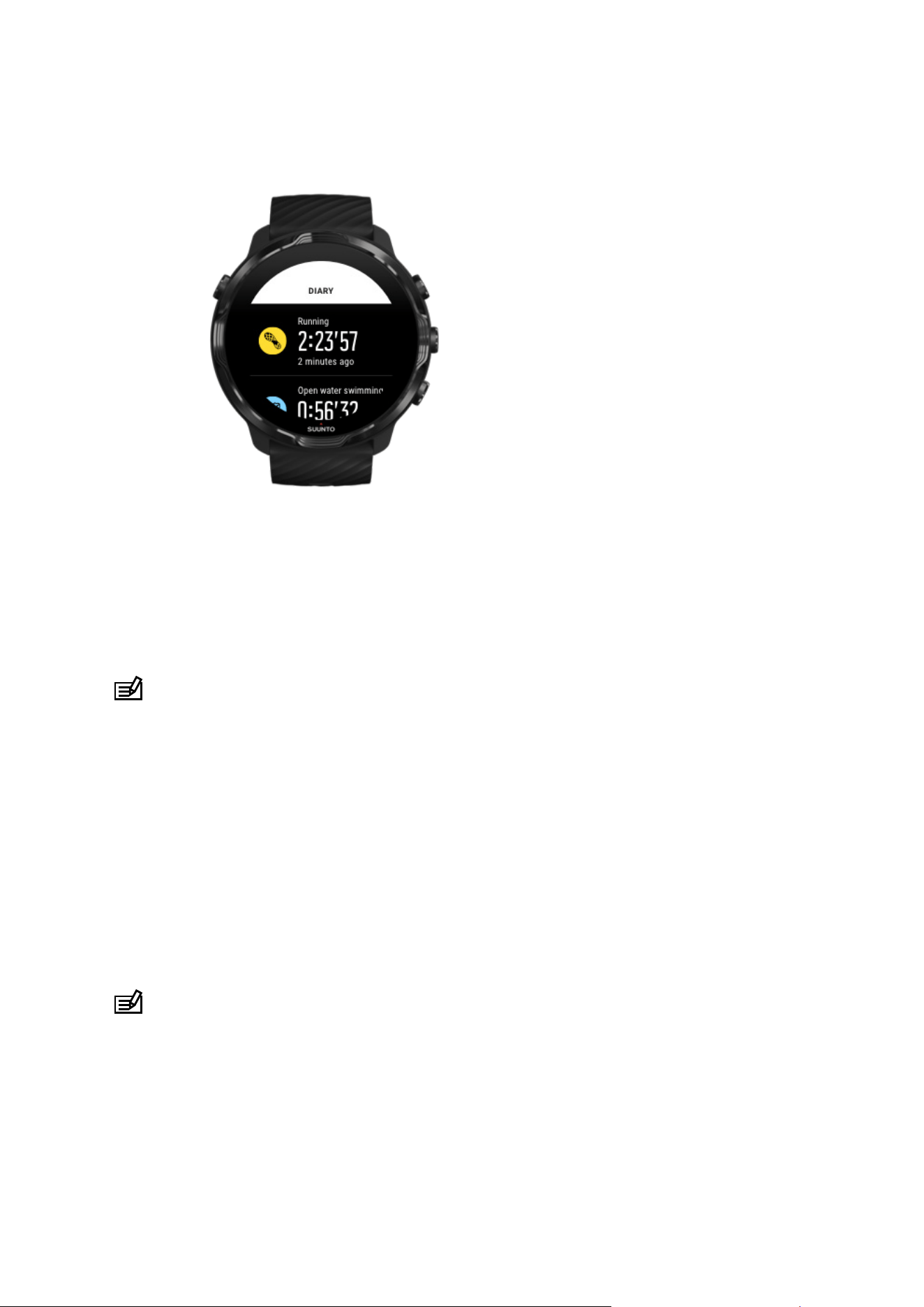
Access your exercise diary on your watch
To quickly check your previous exercises, open Suunto Wear app on your watch and
swipe up the menu. Scroll down and tap Diary to view your previous exercises, daily
activity or sleep. You can also access your Diary by tapping any of the following
Suunto Tiles: Heart rate, Resources, Today or Sleep.
NOTE: Remember to sync (and save) your exercises to Suunto mobile app. If you
ever need to reset your watch, all unsynced exercises in the Diary will be lost.
Swimming with Suunto 7
Suunto 7 is a great companion for swimming with tailored sport modes for swimming
exercises in pools or in open water. You can take your watch under water without a
worry and even press buttons – your watch is waterproof for up to 50 m.
Pool swimming
Open water swimming
NOTE: To avoid unwanted touch actions caused by wet conditions, the touch
screen is disabled by default when using swimming sport modes.
Suunto 7
115
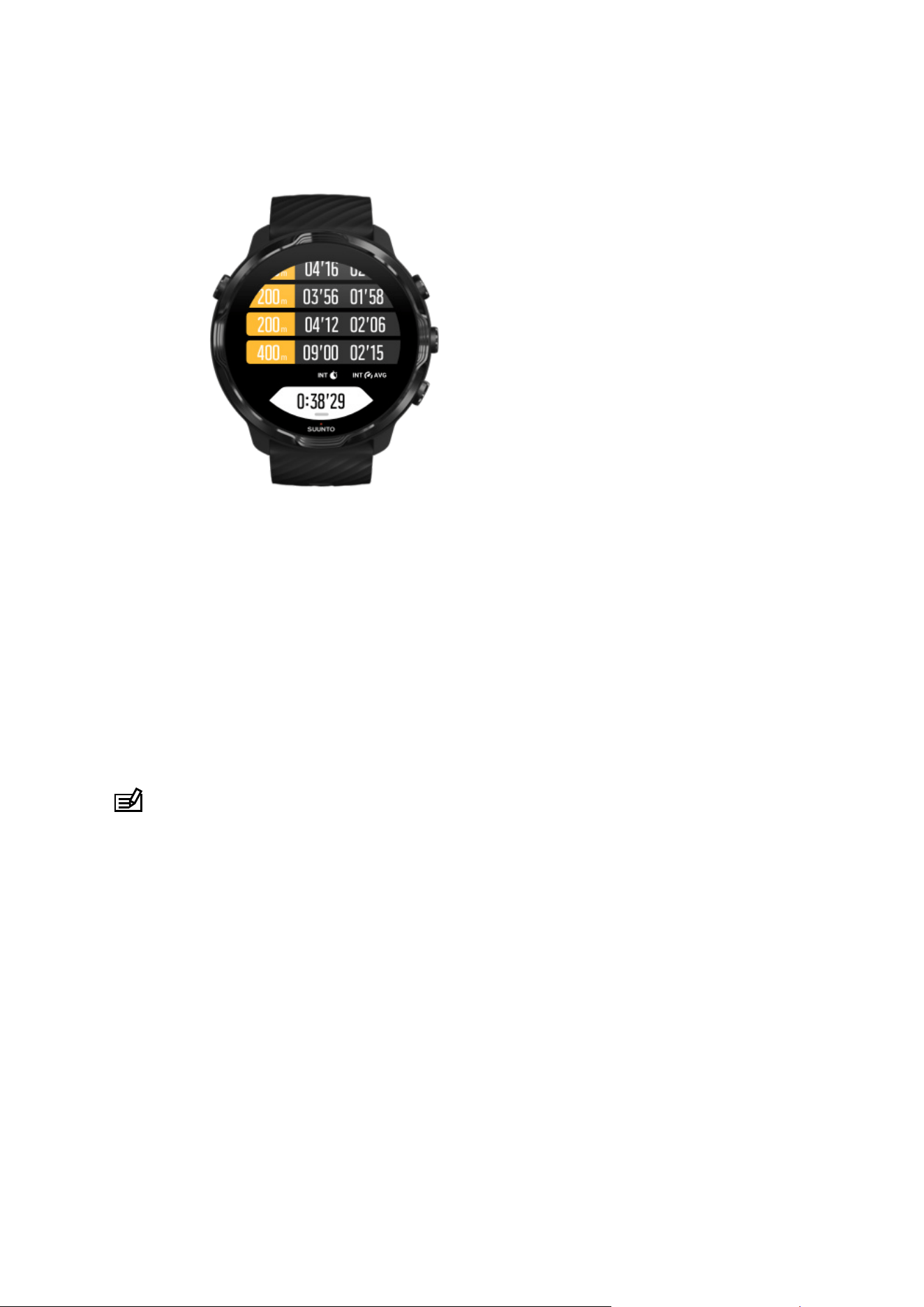
Pool swimming
With pool swimming sport mode, it is easy to follow your overall progress as well as
your swimming intervals. Whenever you stop for a rest at the end of the pool, your
watch marks a swimming interval for you and shows it real time in the lap table view.
Your watch relies on the pool length to determine the swimming intervals and to
measure your swimming pace and distance. You can easily set pool length in exercise
options before you start swimming.
Learn how to set pool length.
NOTE: You can analyze the laps later in your exercise summary on the watch or
in Suunto mobile app on your phone.
Suunto 7
116
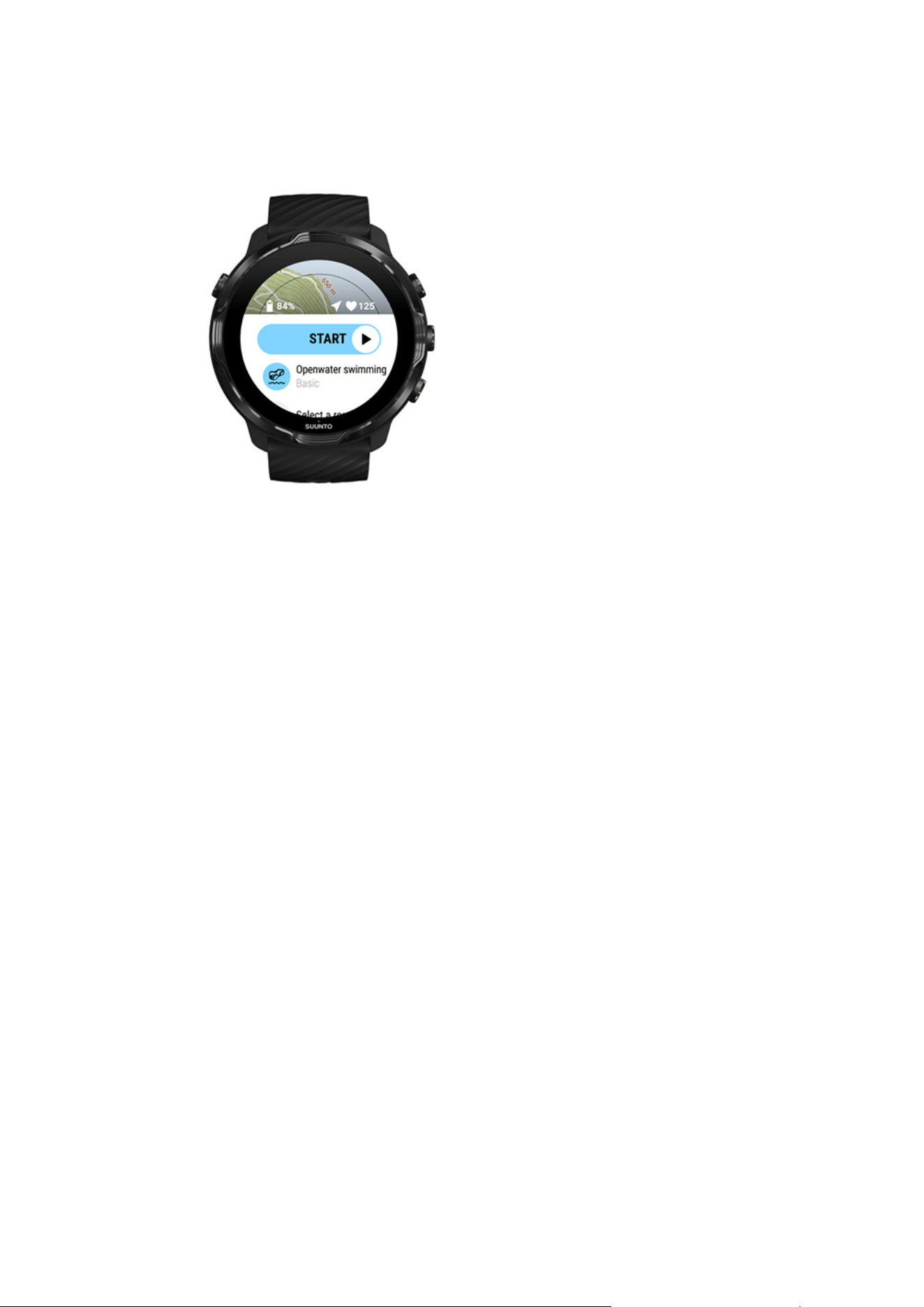
Open water swimming
With open water swimming mode, you can follow your swimming pace and distance
as well as see your track on the map. To find the best open water area near you,
check the swimming heatmap on your watch or explore heatmaps in Suunto mobile
app.
Suunto 7
117
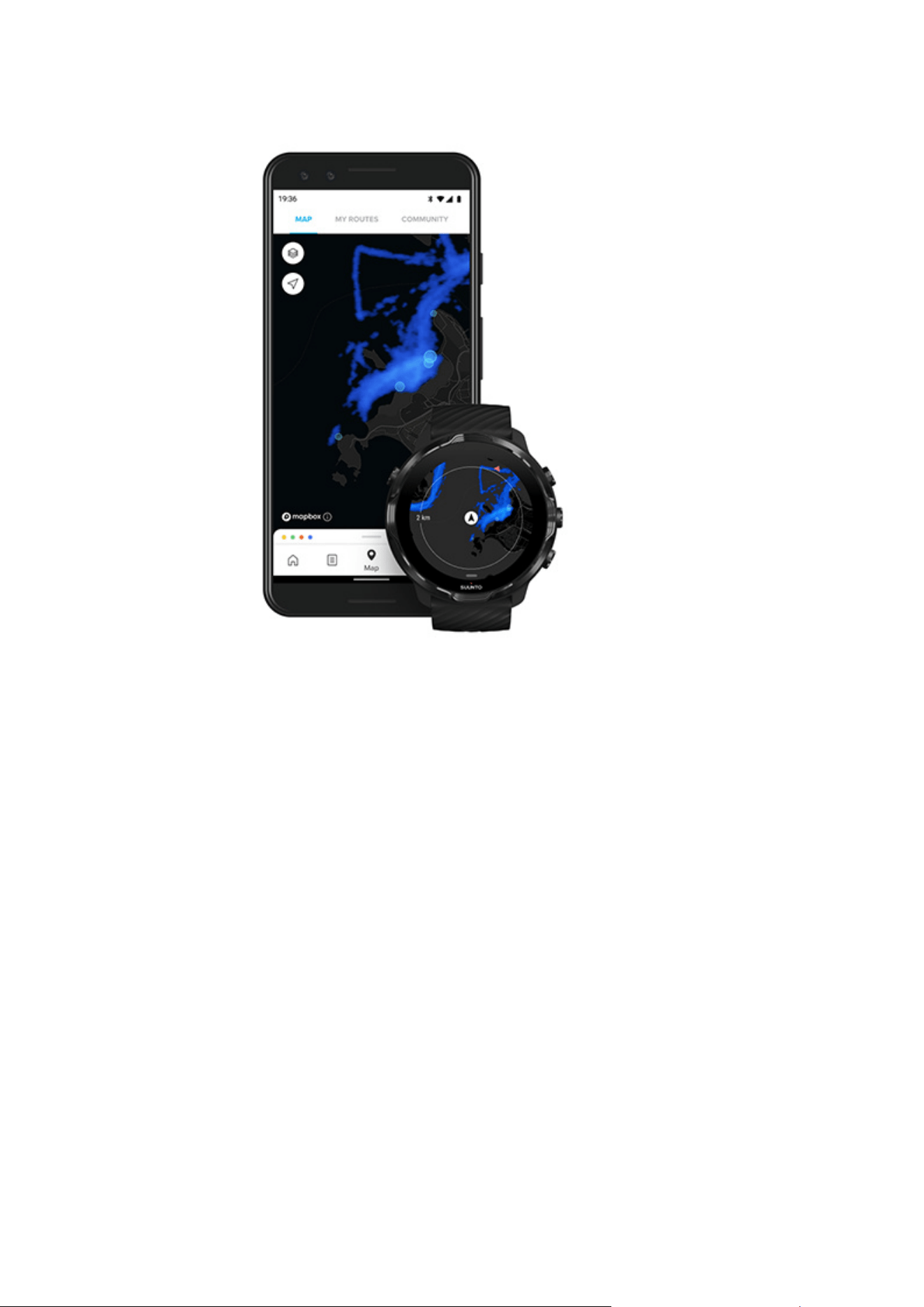
Open water swimming relies on GPS to calculate distance. Because GPS signals do
not travel underwater, the watch needs to come out of the water periodically, such as
with the freestyle stroke, to get a GPS fix.
These are challenging conditions for GPS, so it is important that you have a strong
GPS signal before you jump in the water. To ensure good GPS, you should:
•
Connect your watch to
Wifi to optimize your GPS with the latest satellite orbit data.
•
Wait at least three minutes before starting your swim after you select an open
water swimming sport mode and a GPS signal is acquired. This gives the GPS time
to establish strong positioning.
Suunto 7
118
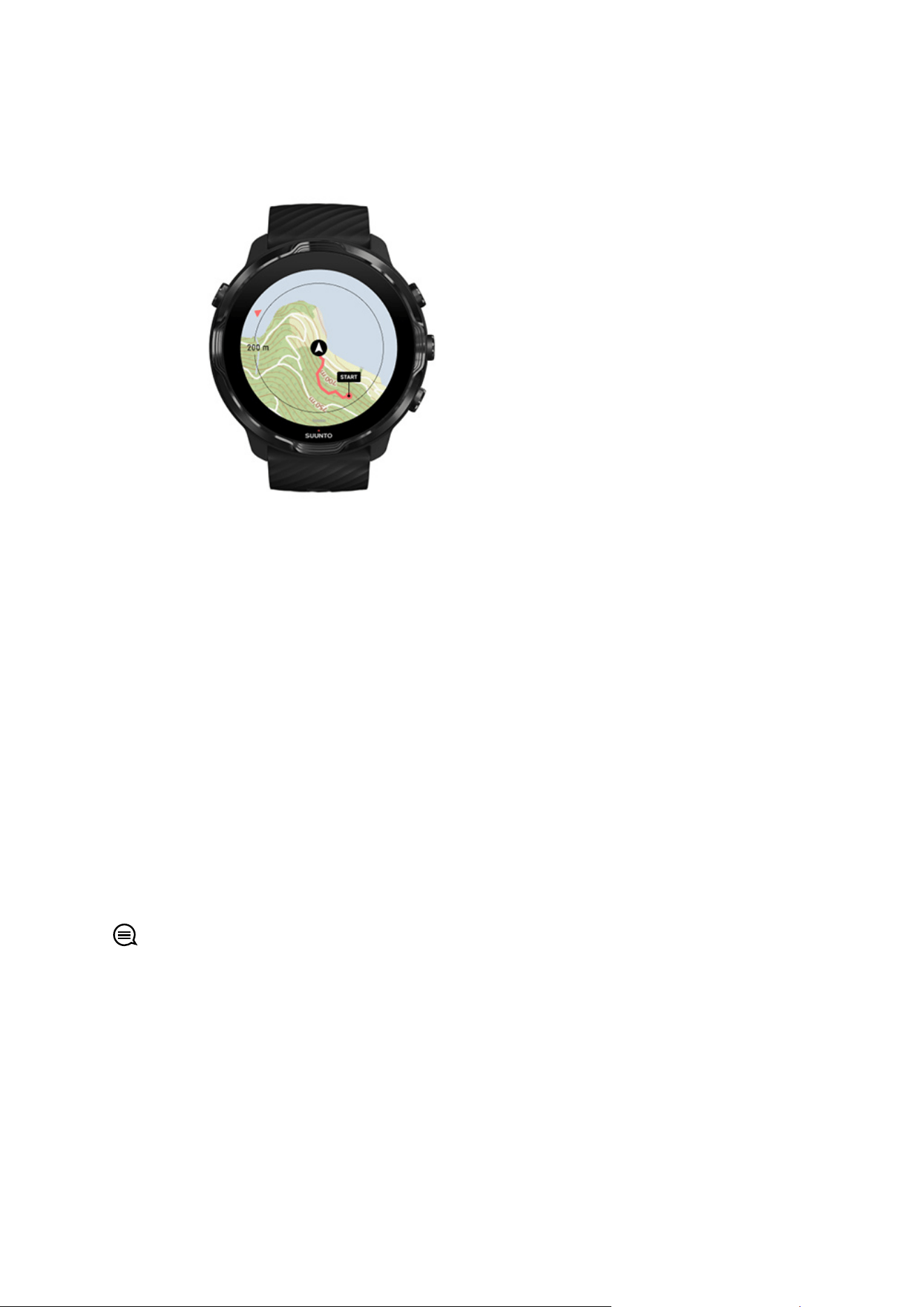
Exercise with maps
With Suunto Wear app, you have easy access to an outdoor map and heatmaps when
you’re exercising outdoors. You can see your track on the map, use your own or other
popular routes to navigate with, use heatmaps to explore new routes or follow your
track to
find your way back to where you started from.
To use Suunto maps, you need to be connected to the Internet or have oine maps
downloaded on your watch.
Start an exercise with maps
Leave the map to end your exercise
Explore with heatmaps
See your track on the map
Find your way back
Route navigation
Maximize battery life during exercise
TIP: Whenever your watch is connected to Wifi while charging, local maps with
heatmaps are automatically downloaded on your watch. Learn more
Start an exercise with maps
1. Press the top right button to open Suunto Wear app.
Suunto 7
119
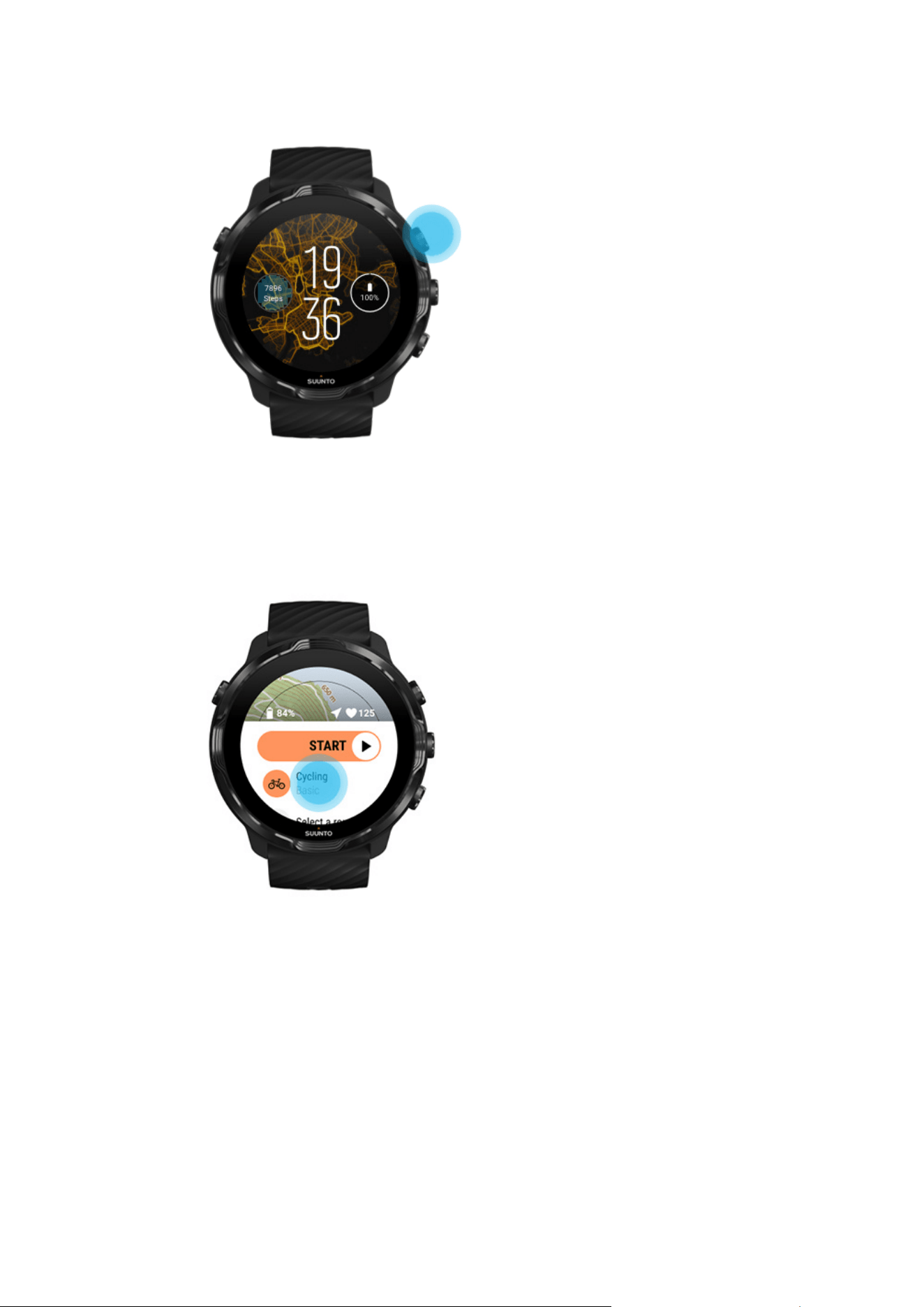
2. Choose a sport mode for an outdoor activity with GPS like running, cycling or
mountaineering.
3. To change a map style, swipe up the menu and go to Map options » Map style.
Suunto 7
120
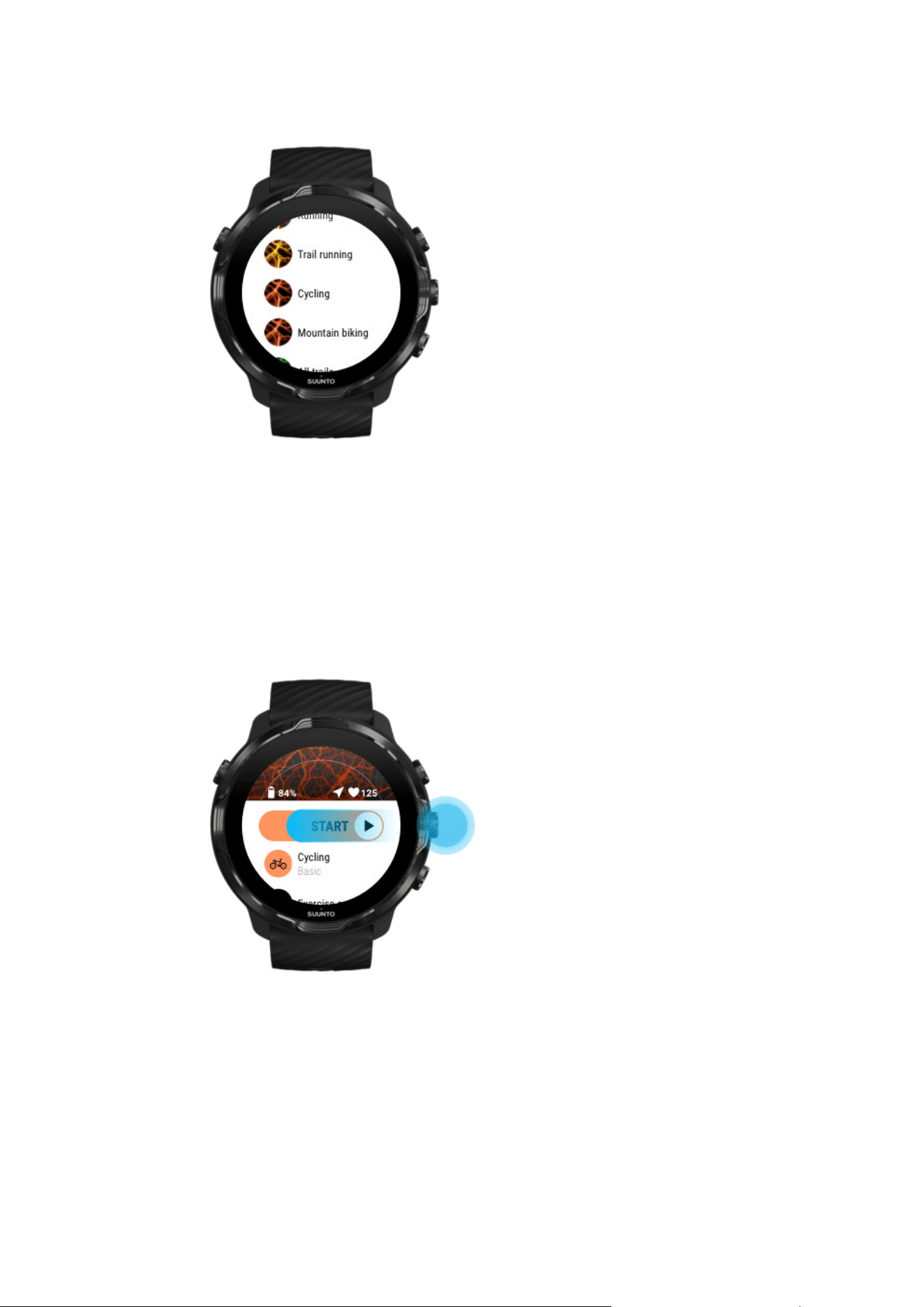
4. Browse the list to find a map style or a heatmap you would like to use.
You can scroll with buttons or touch.
5. Press the middle button or tap to select a new mapstyle.
6. Swipe right to exit the menu and scroll up back to the start.
7. Press the middle button or swipe left on the start button to start your exercise.
8. To follow your progress on the map, press the middle button or swipe left or right
until you see the map view.
Suunto 7
121
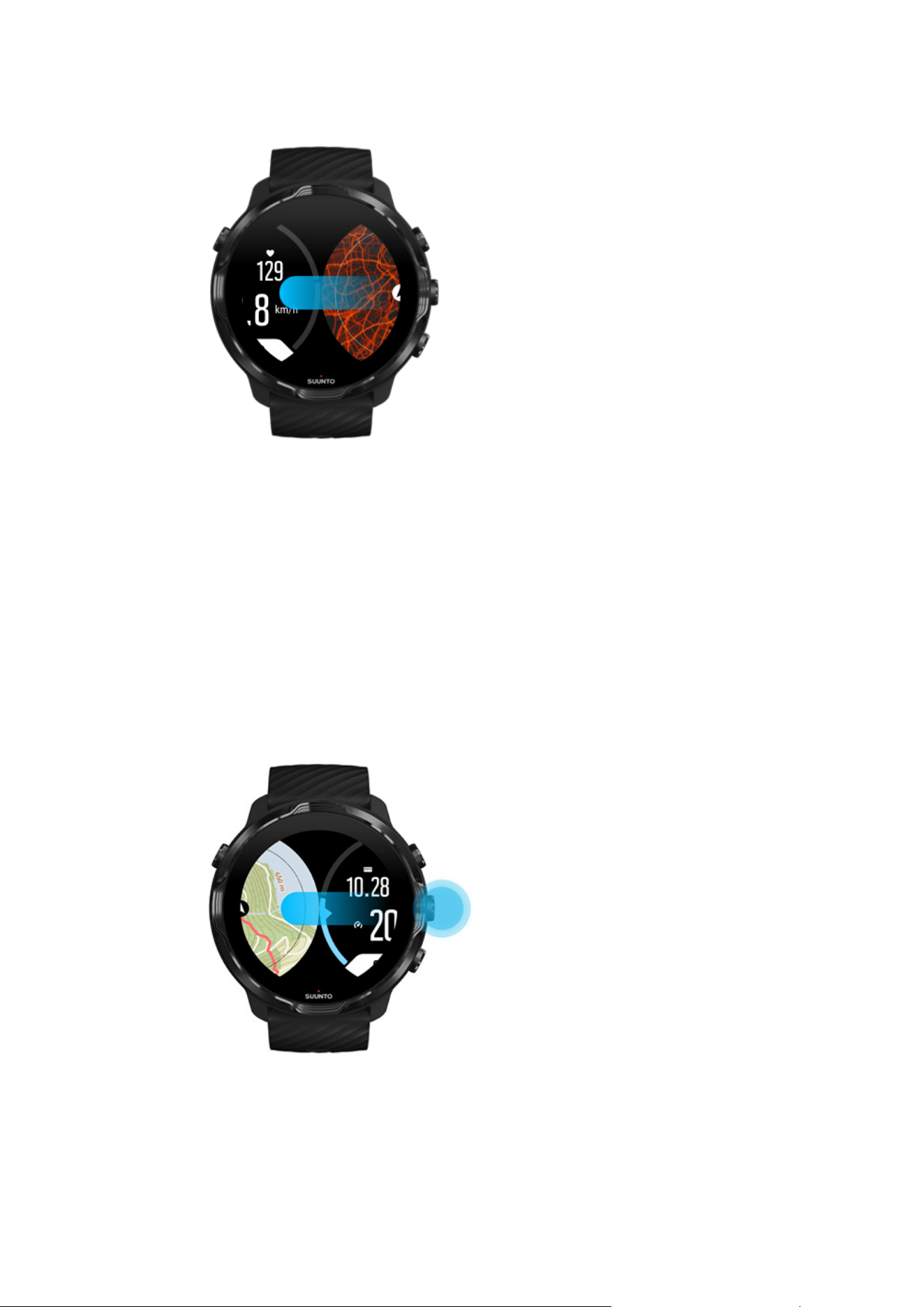
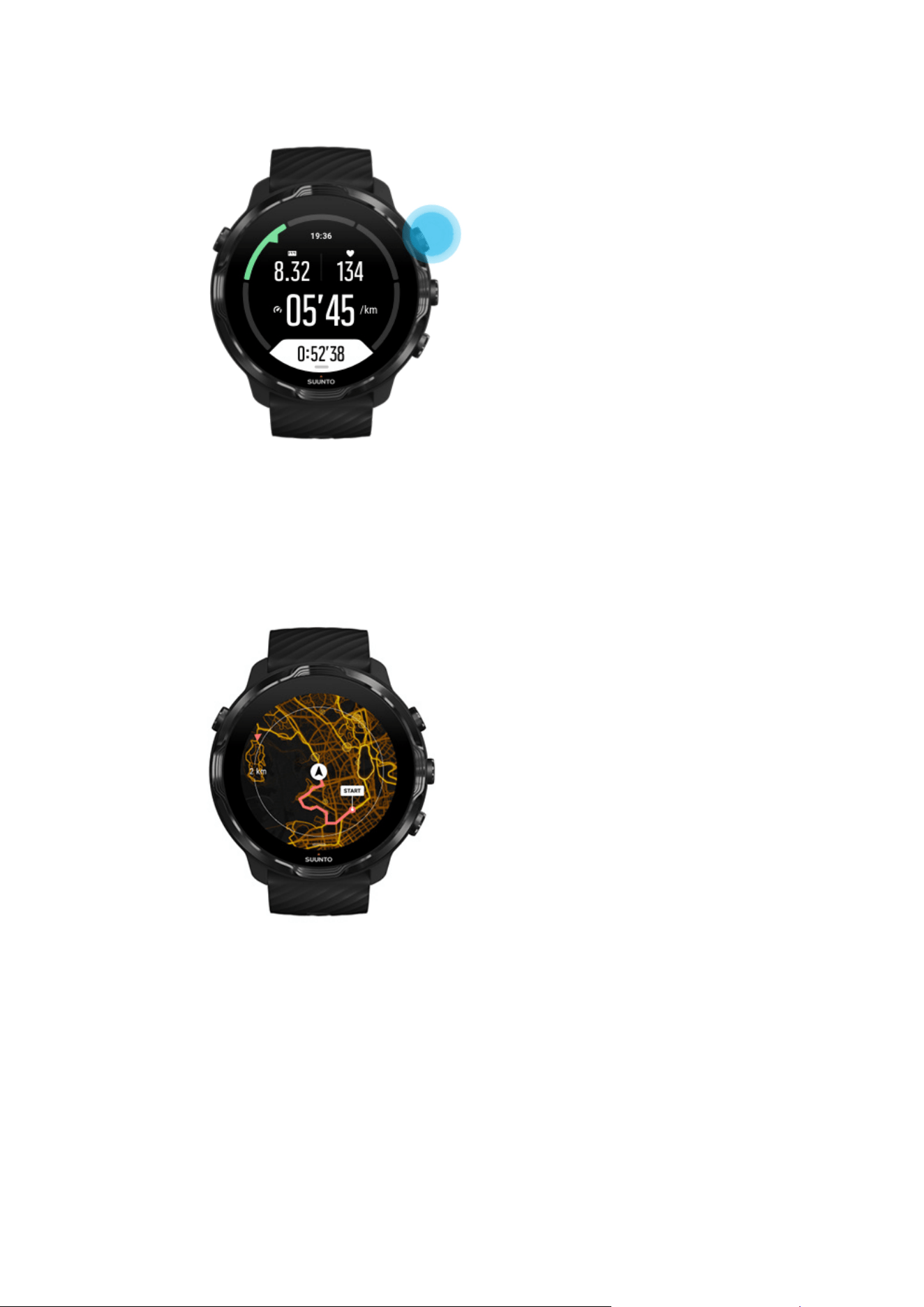
3. Press the bottom right button to end and save the exercise.
Explore with heatmaps
Suunto’s heatmaps make it easy to find new trails on the go. Switch the heatmap on
and see where other passionate Suunto users have been exercising and explore the
outdoors with more
confidence.
Change map style during exercise
Suunto 7
123
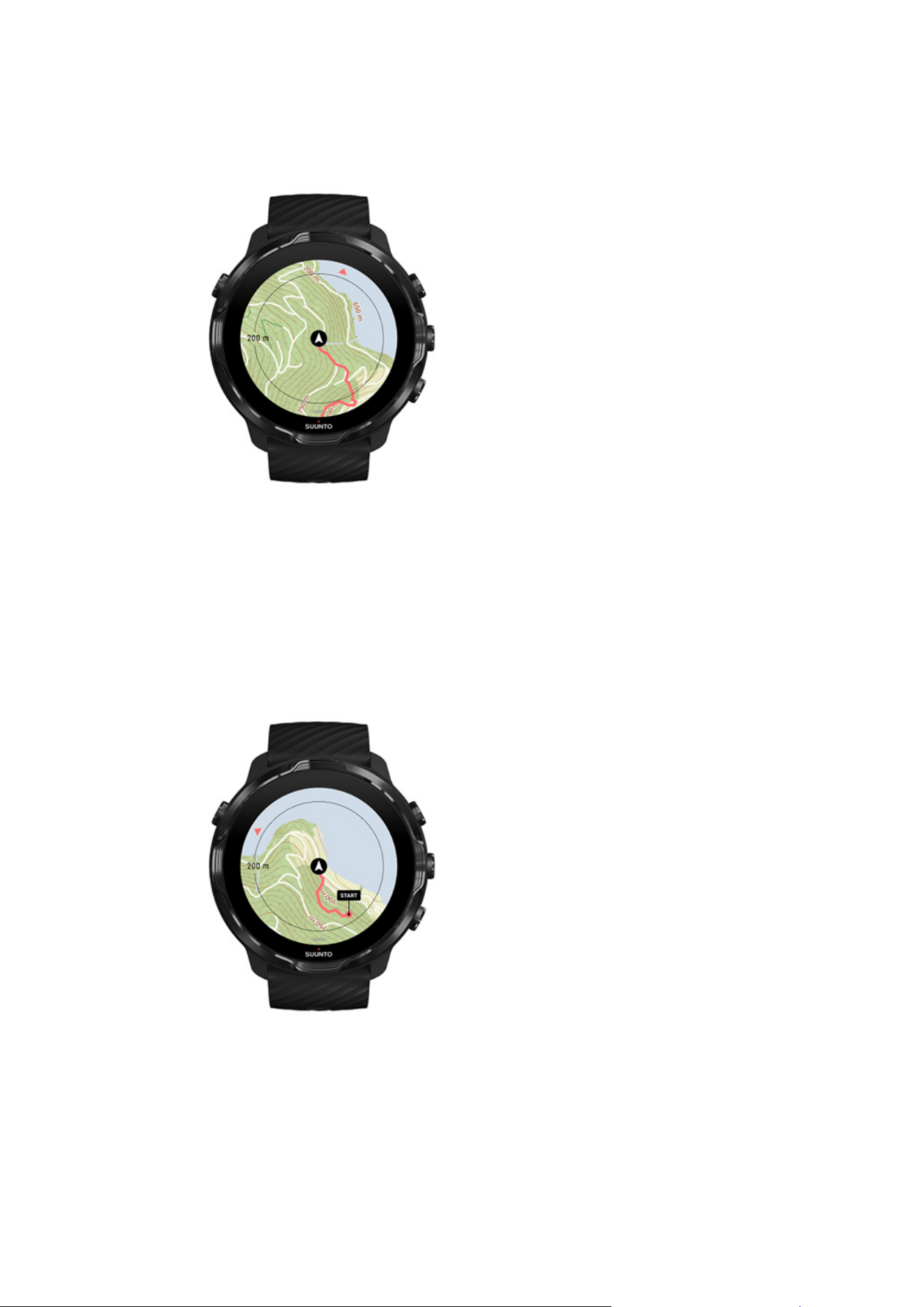
See your track on the map
When you are doing outdoor sports, you can see your track and follow your progress
on the map in real time. Use Suunto’s outdoor maps to choose where to go next –
check where the forest path leads to or where the biggest hills are.
Find your way back
During exercise, Suunto Wear app marks your starting point and draws the route you
have travelled as long as you have GPS available – even if the map is not yet loaded.
If you need help to find your way back, go to the map view and zoom out to see your
full route and see which way you need to go.
Suunto 7
124
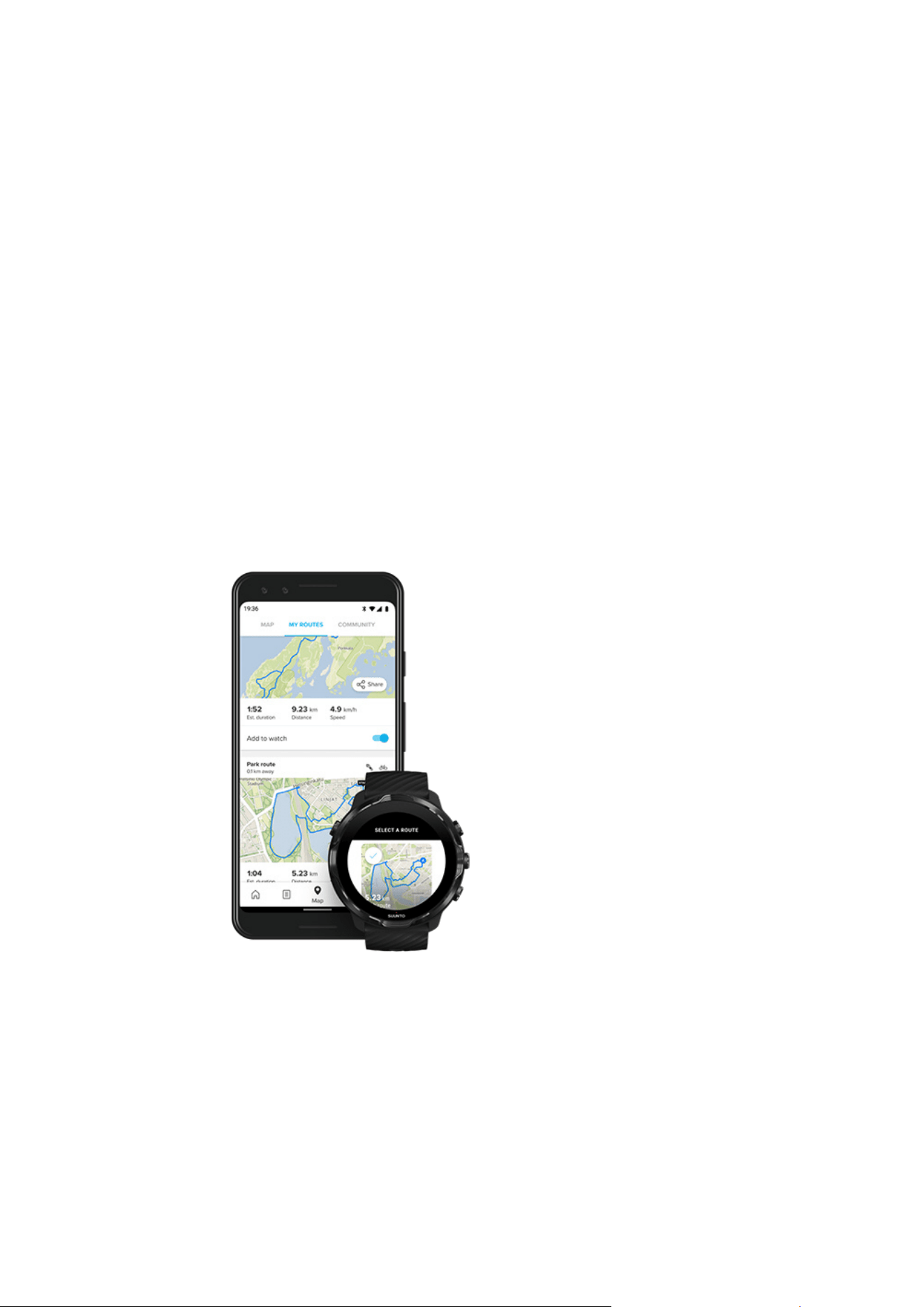
Route navigation
Suunto 7
oers you easy oine route navigation with outdoor maps. It is possible to
create your own routes or use other popular routes from Suunto community as well as
other partner services via Suunto mobile app. The routes are synced to your Suunto 7
via Bluetooth and route navigation works with all outdoor sport modes where a map is
available and GPS is enabled.
Sync routes to watch
Get
oine maps for routes
Select a route
Navigating a route
Deleting a route
Sync routes to watch
It is possible to create your own routes or use other popular routes from Suunto
community as well as other partner services via Suunto app.
To be able to sync routes to your watch make sure that it is connected to Suunto
mobile app and the Wear OS companion app on your phone.
Learn how to create routes in Suunto app (Android).
Suunto 7
125
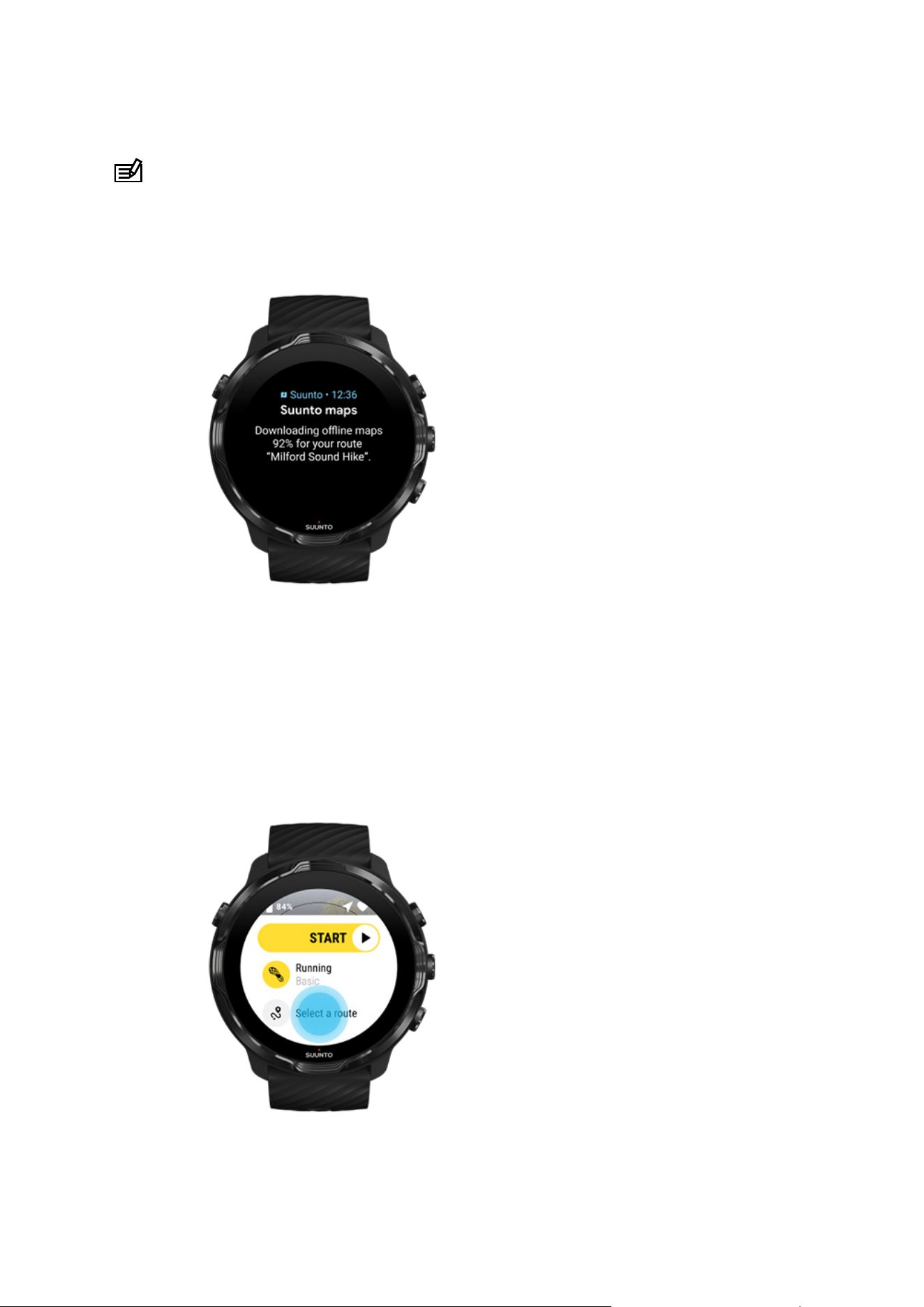
Learn how to create routes in Suunto app (iOS).
NOTE: a maximum of 15 routes can be stored in the watch.
Get oine maps for routes
When the watch is charging and connected to Wifi, an oine map is downloaded for
each route on watch automatically. The download includes the basic outdoor map (no
heatmaps).
Select a route
Suunto 7
126
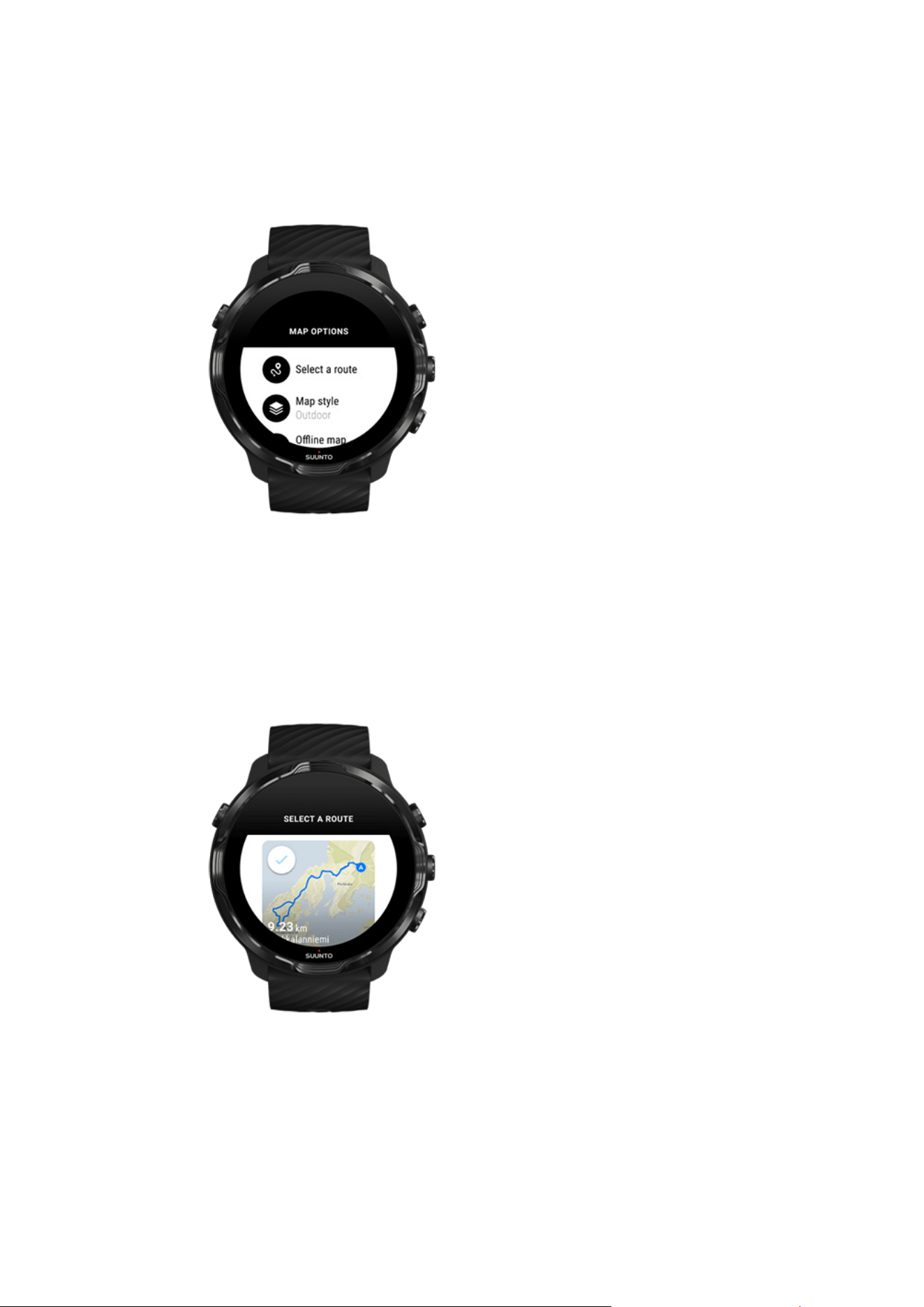
When selecting a sport mode that uses GPS, a shortcut to route selection is visible
right below the selected sport mode.
You can also go to Map options » Select a route to find a list of your routes. Tap or
press the middle button to select a route.
The map preview is visible for the route if the route has an
oine map downloaded.
View the route before exercise
The selected route can also be viewed on the map before you started your exercise.
Suunto 7
127
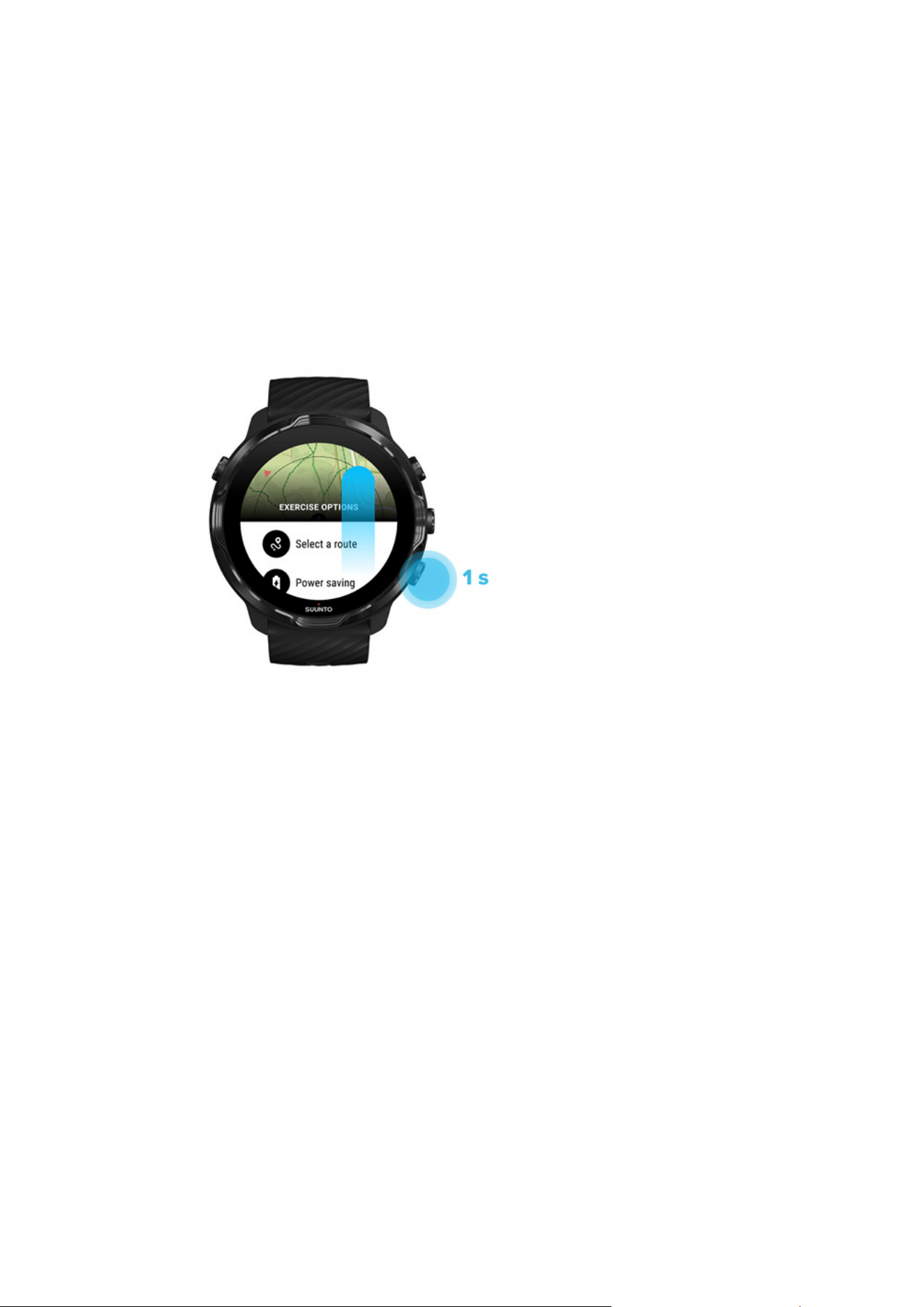
On the start view, press the top right button or swipe down to view the map with an
overview of the route length. Tap the map to see a zoomed in view with distance
(birds-eye-view) to the starting point.
Select a route during exercise
1. During exercise, keep the bottom button pressed or swipe up from the bottom of
the screen to open the menu.
2. Select
Select a route
3. Choose the route you want to use.
4. To exit the menu, press the top right button or swipe down.
Navigating a route
The selected route is automatically visible in the map view during exercise if the
chosen sport mode has a map available and GPS enabled. Depending on the
selected sport mode and while on route, you can see the distance left, ETA (Estimated
Time of Arrival) and ascent left or ETE (Estimated Time Enroute) to the route end.
If you are using waypoints, the distance, ETA, ascent left and ETE are referring to the
next waypoint instead of the route end.
Suunto 7
128
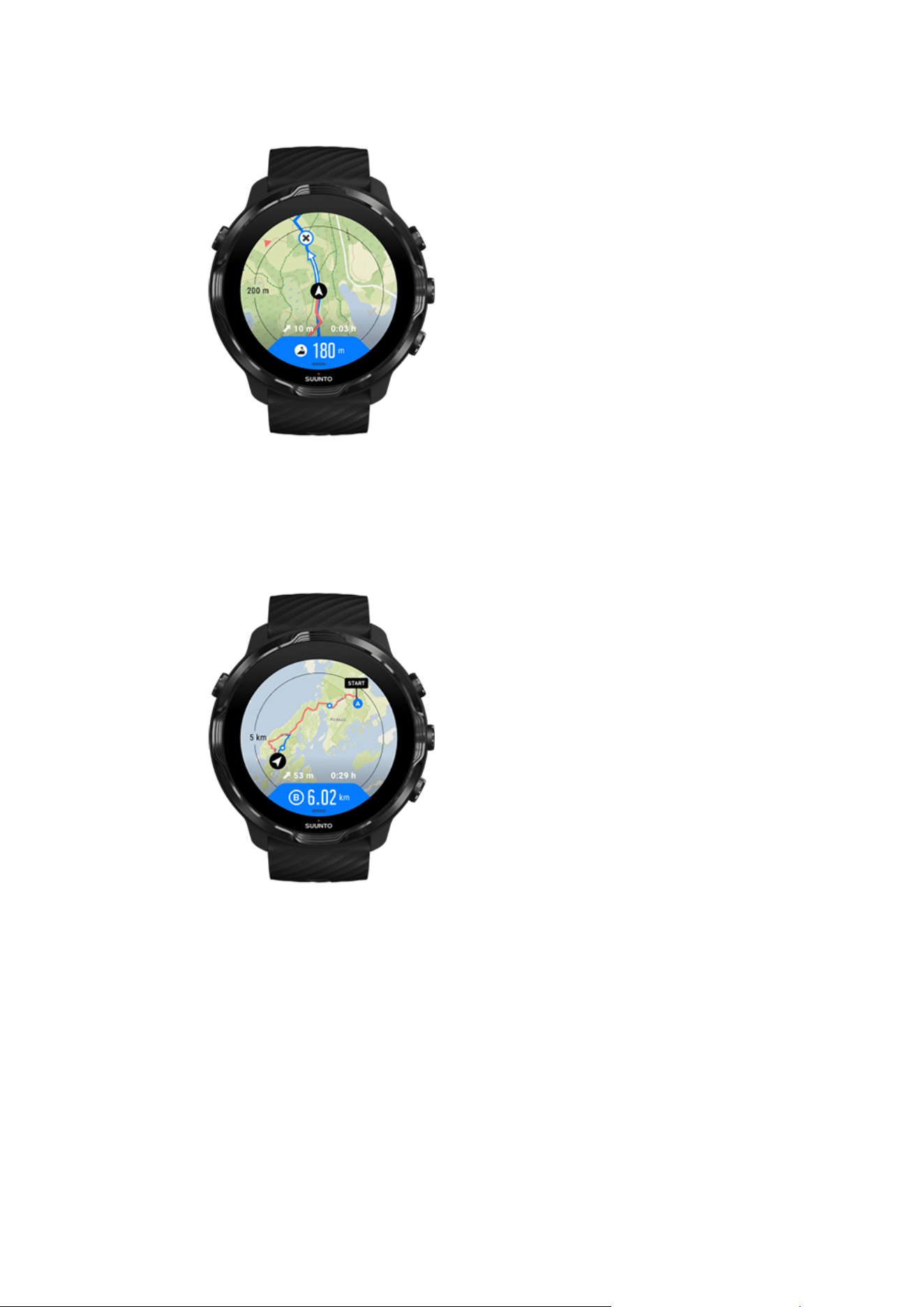
Tap the map to see the overview of the route and the distance to the route end. The
watch automatically returns to the default view after a while.
All route information is not visible in low-power mode.
Suunto 7
129
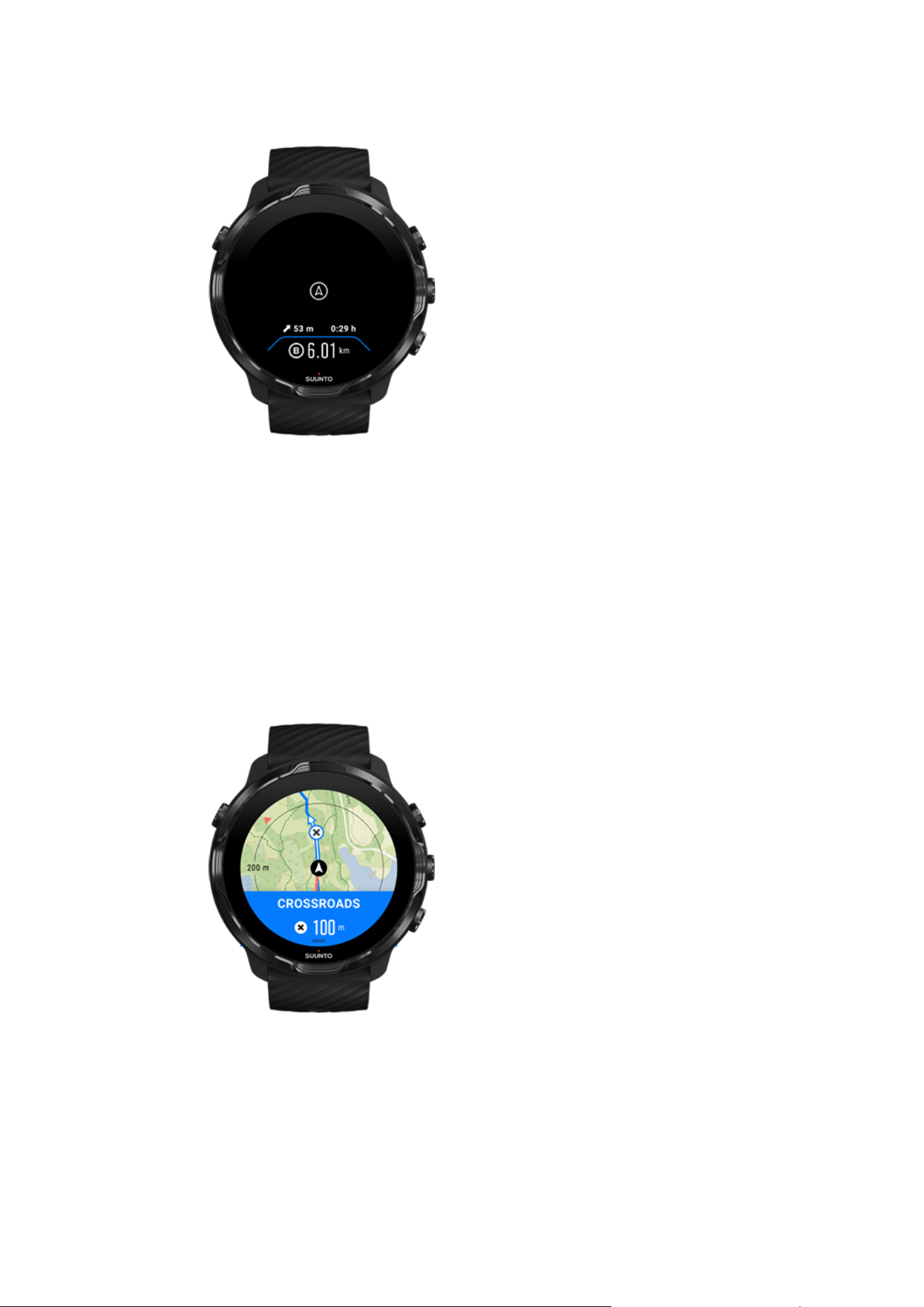
Turn your wrist, touch the screen or press the Power button to wake up the display.
As you navigate a route, your watch helps you stay on the correct path by giving you
additional notifications as you progress along the route.
For example, if you go
o route, the watch notifies you that you are not on the right
track, as well as lets you know when you are back on route.
Once you reach a waypoint on the route, you get an informative popup showing you
the distance to the next waypoint.
Suunto 7
130
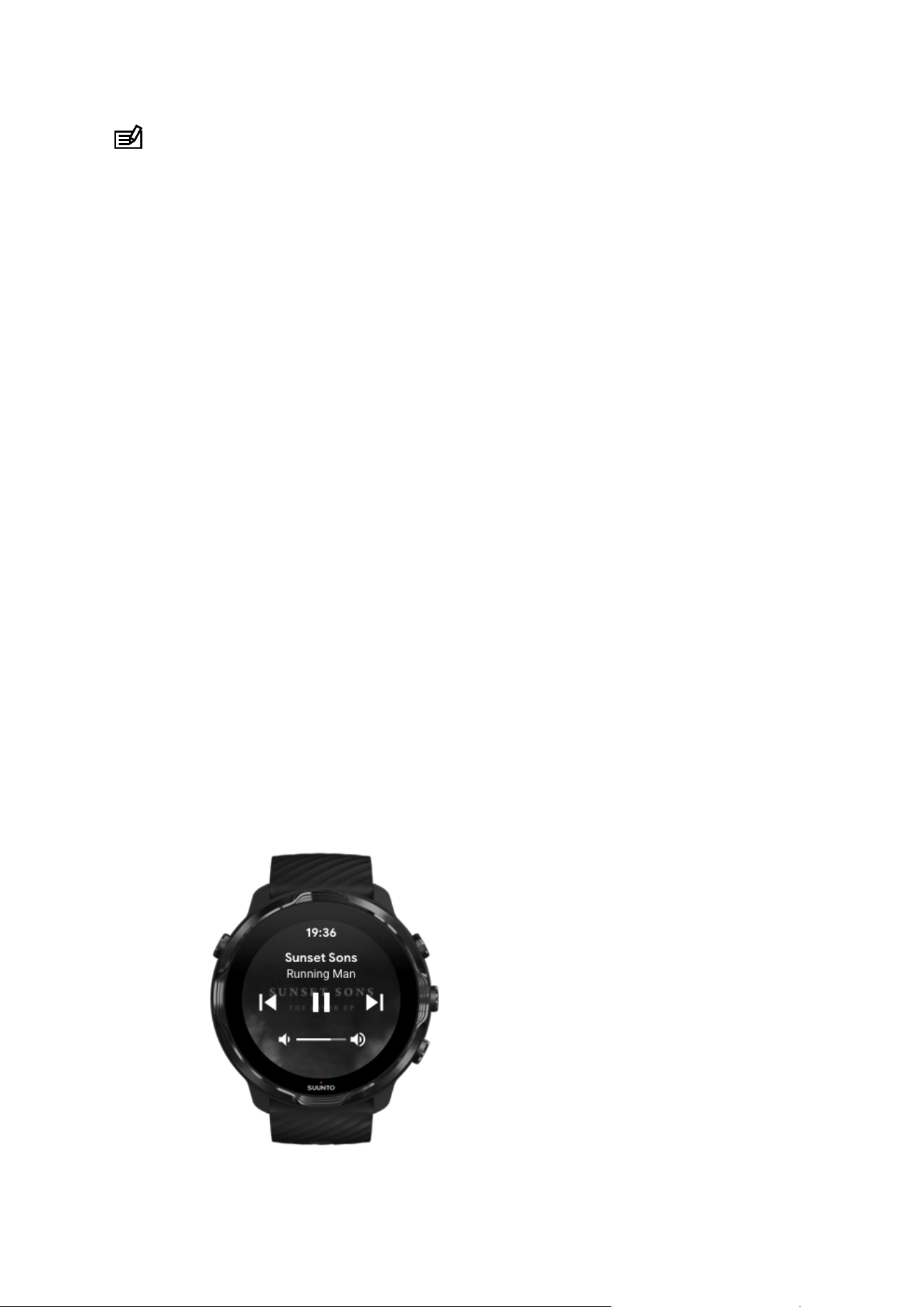
NOTE: If you have changed the Location accuracy to Good a small delay for
notifications can occur.
Deleting a route
If you want to remove a route from your watch but still keep it in Suunto mobile app,
select the route in the app on your phone and uncheck the option Add to watch.
Make sure that your watch is connected to Suunto mobile app and synced after the
changes..
To delete a route completely from both the watch and Suunto mobile app, select the
route in Suunto mobile app and choose the delete option.
Exercise with music
With Suunto 7, you have access to your music and other audio during sports – even
with gloves on or in wet conditions.
Automatic media controls
Open media controls during exercise
Pause and skip tracks with buttons
Listen to music without your phone
Automatic media controls
Suunto 7
131
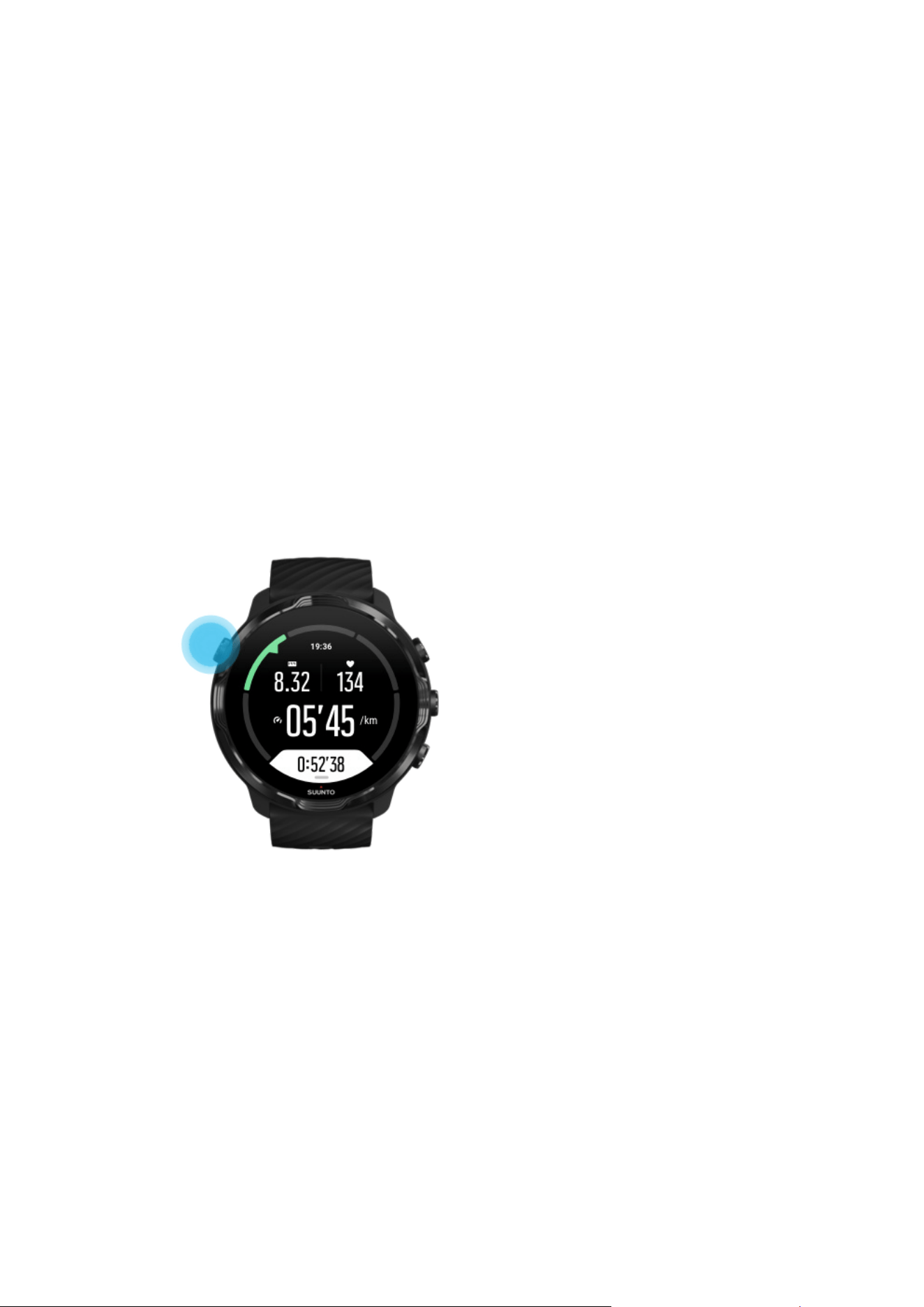
If you start playing music from your phone during exercise, the media controls can
appear on top of your exercise views.
To exit the media control view, swipe right.
Manage media controls
Open media controls during exercise
If you need to pause or skip tracks during exercise you need to
first leave Suunto
Wear app, then open media controls.
Using a button shortcut this is easy even with gloves on or in wet conditions:
1. Press the Power button to leave Suunto Wear app during your exercise.
2. While on the watch face, press the middle button to open media control view.
Suunto 7
132
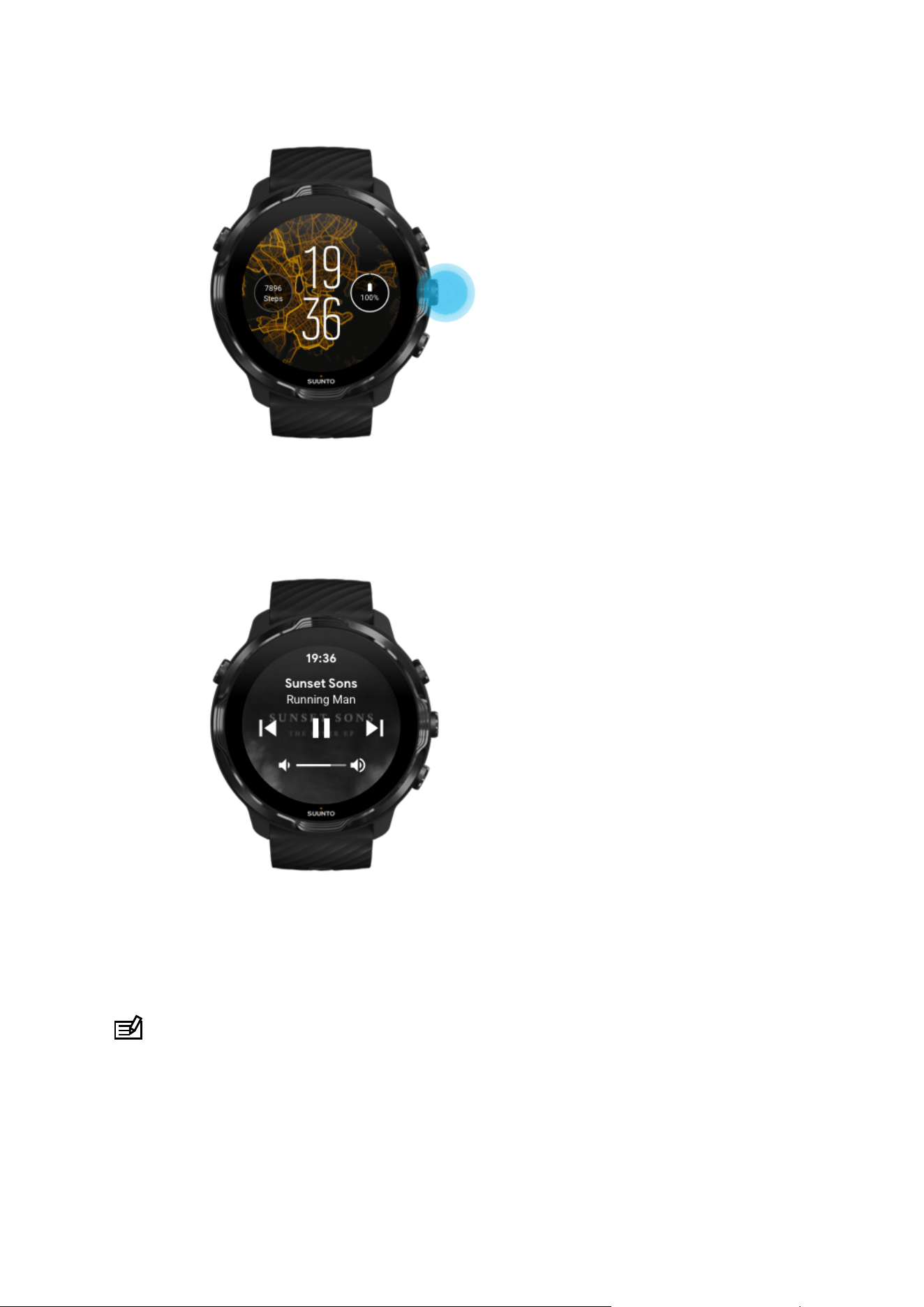
3. Adjust your music however you want, you can use touch or buttons.
4. Press the Power button to go back to the watch face.
5. Press the top right button to go back to your exercise recording.
NOTE: Your exercise continues to record even if you leave Suunto Wear app.
Suunto 7
133
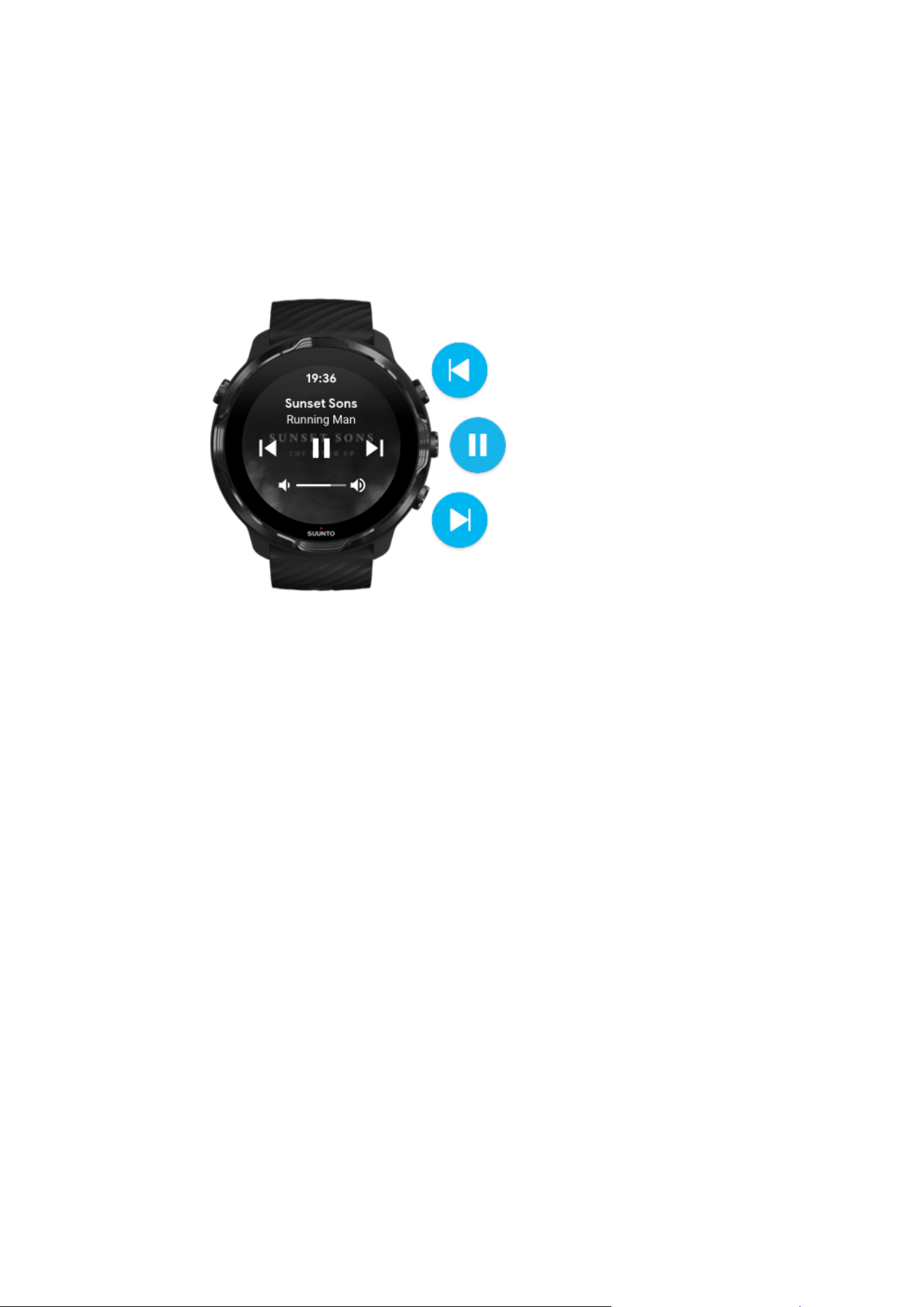
Pause and skip tracks with buttons
The media controls app supports using buttons in addition to touch gestures. With
buttons, you can control your music even if your hands are sweaty or you have gloves
on.
Pause & play
Press the middle button to pause, press again to play.
Next track
Press the top right button.
Previous track
Press the bottom right button.
Exercise options
Tones & vibration during exercise
Pool length
Power saving
Tones & vibration during exercise
Suunto Wear app uses sound and vibration to notify you during your exercise so that
you can follow your progress without checking the screen all the time. For example,
Suunto 7
134
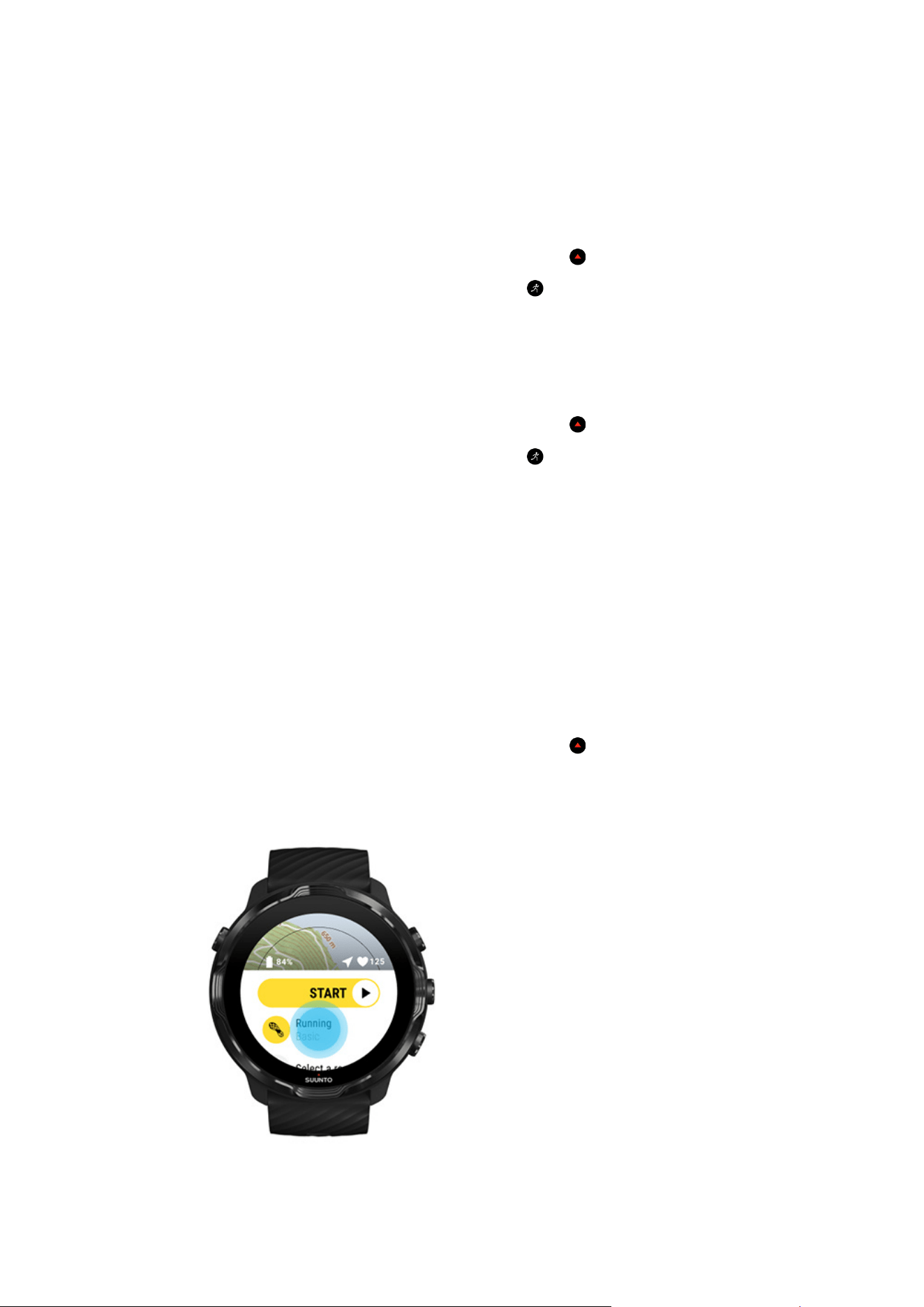
you hear a sound and feel the watch vibrate when you get an automatic lap update to
make sure you won’t miss key stats.
Manage tones
1. Press the top right button to open Suunto Wear app .
2. Swipe up the menu and go to Exercise options
» Tones & vibration.
3.
Turn Tones on or
o.
Manage vibration
1. Press the top right button to open Suunto Wear app
.
2. Swipe up the menu and go to Exercise options
» Tones & vibration.
3. Turn Vibration on or o.
Pool length
Your watch relies on pool length to determine the swimming intervals and to measure
your swimming pace and distance. You can easily set pool length in exercise options
before you start swimming.
Set pool length
1.
Press the top right button to open Suunto Wear app
.
2. Tap the activity below the start button.
Suunto 7
135
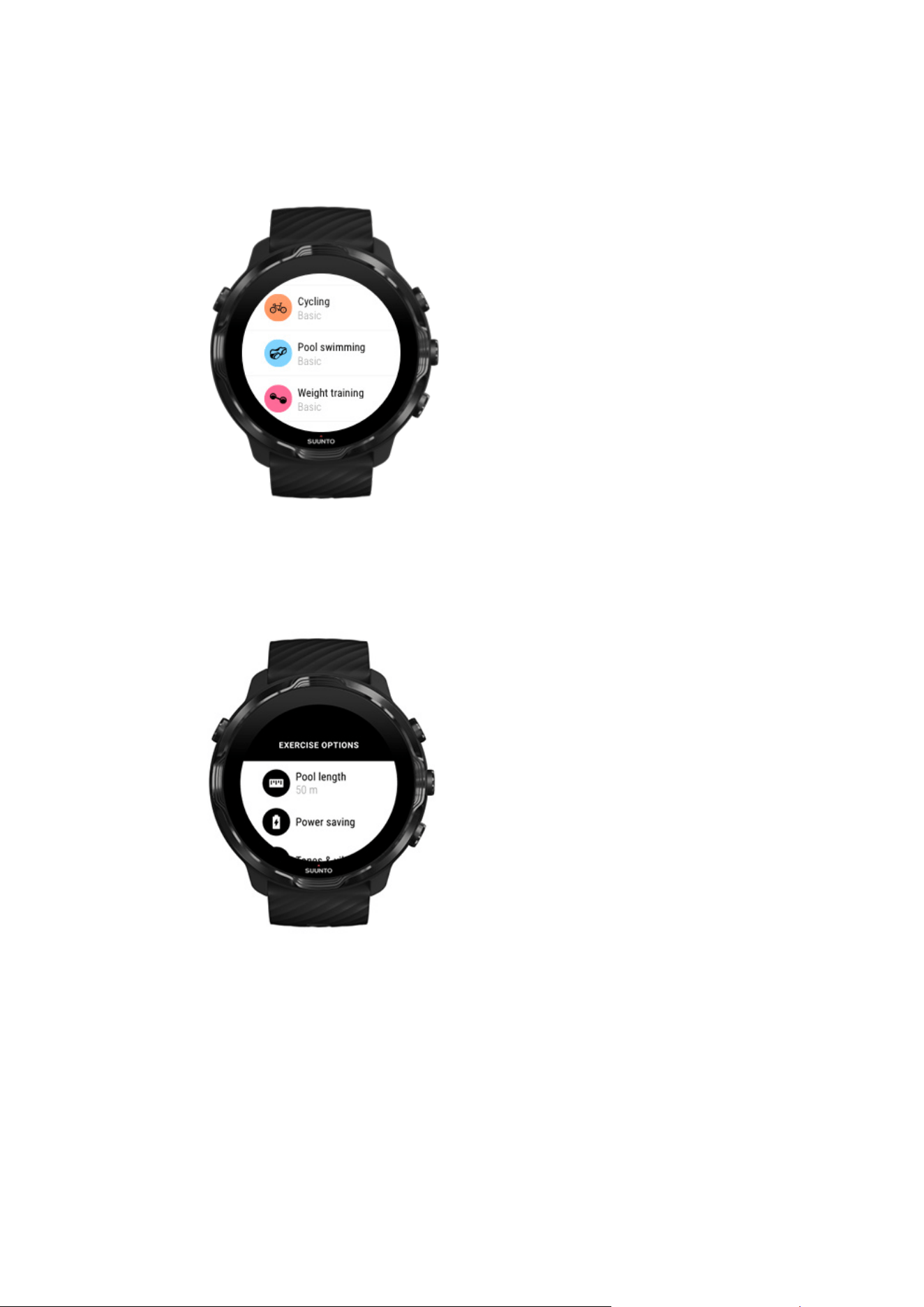
3. Choose Pool swimming sport mode.
4. Swipe up the menu and go to Exercise options » Pool length.
5. Set correct pool length.
6. Return to the start view and start your exercise.
Suunto 7
136
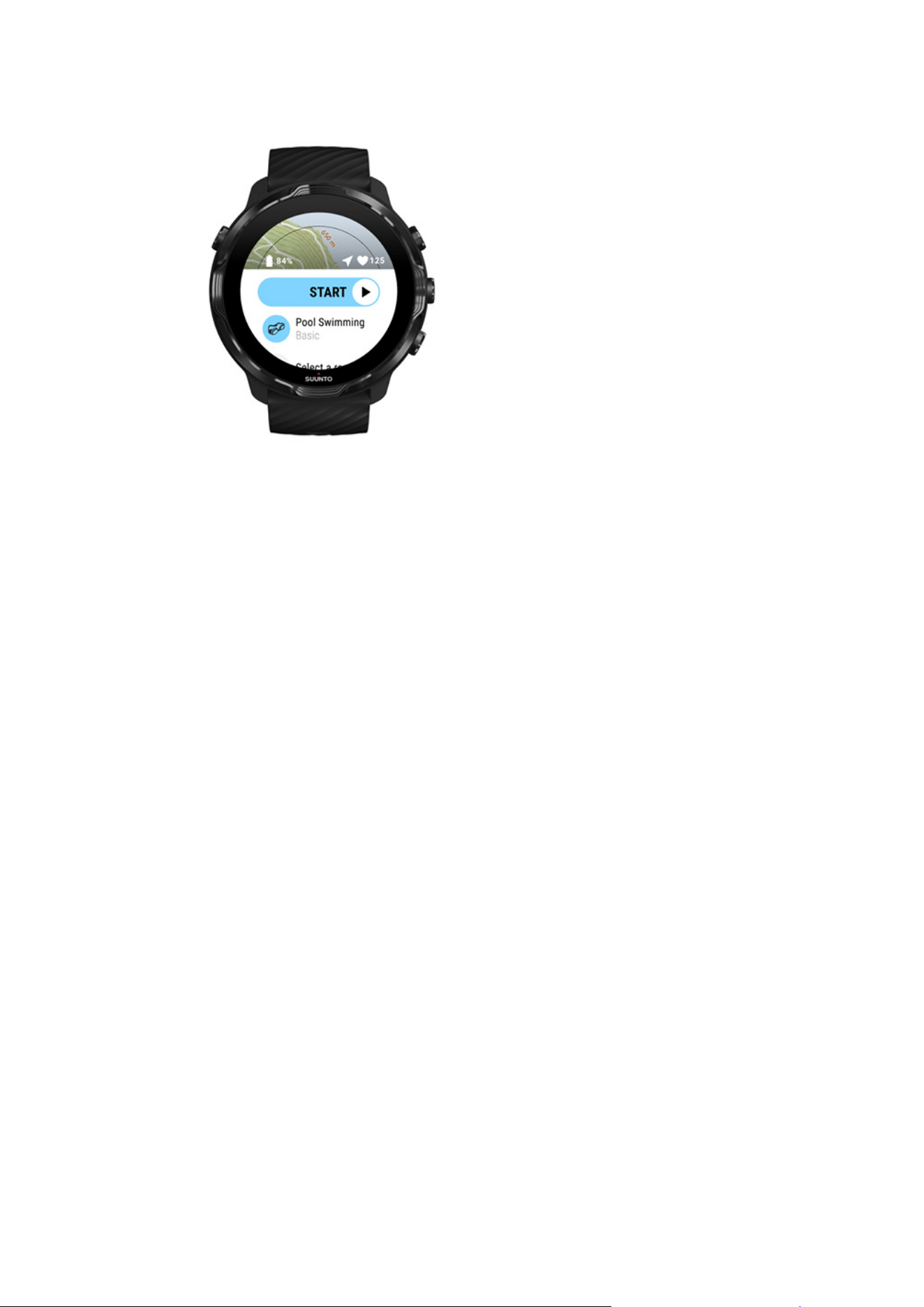
Power saving
Change the location accuracy
Change the display settings
Change the location accuracy
When you are recording an exercise, Suunto 7 updates your location information
every 1 second. To save battery power, you can change the GPS accuracy before or
during your exercise.
The Location accuracy options are:
•
Best: ~ 1 sec GPS
fix interval, highest power consumption
•
Good: ~ 10 sec GPS fix interval, moderate power consumption
If you select Good Location accuracy your battery will last longer during your outdoor
workouts. For some sport modes such as running or cycling, FusedTrack™ is used to
improve tracking quality. FusedTrack™ uses motion sensors to log your movement
between the
dierent GPS readings, which will provide better tracking of your
exercise.
How to change the Location accuracy before an exercise:
1. Choose a sport mode for an outdoor activity with GPS like running, cycling or
walking.
Suunto 7
137

2. Scroll down and select Power saving » Location accuracy.
3. Change Location accuracy to Good.
How to change the Location accuracy during an exercise:
1. Keep the bottom button pressed or swipe up from the bottom of the screen to
open the menu.
2. Scroll down and select Power saving » Location accuracy.
3. Change Location accuracy to Good.
NOTE: The power-saving settings you choose are saved to the sport mode.
Selecting the same sport mode (ex. running) a second time will automatically employ
the previously used power-saving
configuration (Location accuracy, display settings,
etc).
Change the display settings
By default, Display settings during exercise are set to o to optimize battery life.
Always-on map
Manage Always-on map during exercise
Always-on map
If you are doing a workout where you need to see the map at all times, you can
choose to keep the map on during exercise.
Good to remember:
•
Keeping the screen on through the whole exercise
significantly decreases the
battery life.
•
As image persistence or screen burn-in is normal behaviour for OLED displays,
keeping your screen on for long periods of time
aects the life span of your
display.
Enable Always-on map before exercise
Activate Always-on map to see the map constantly without turning your wrist or
pressing the power button:
Suunto 7
138
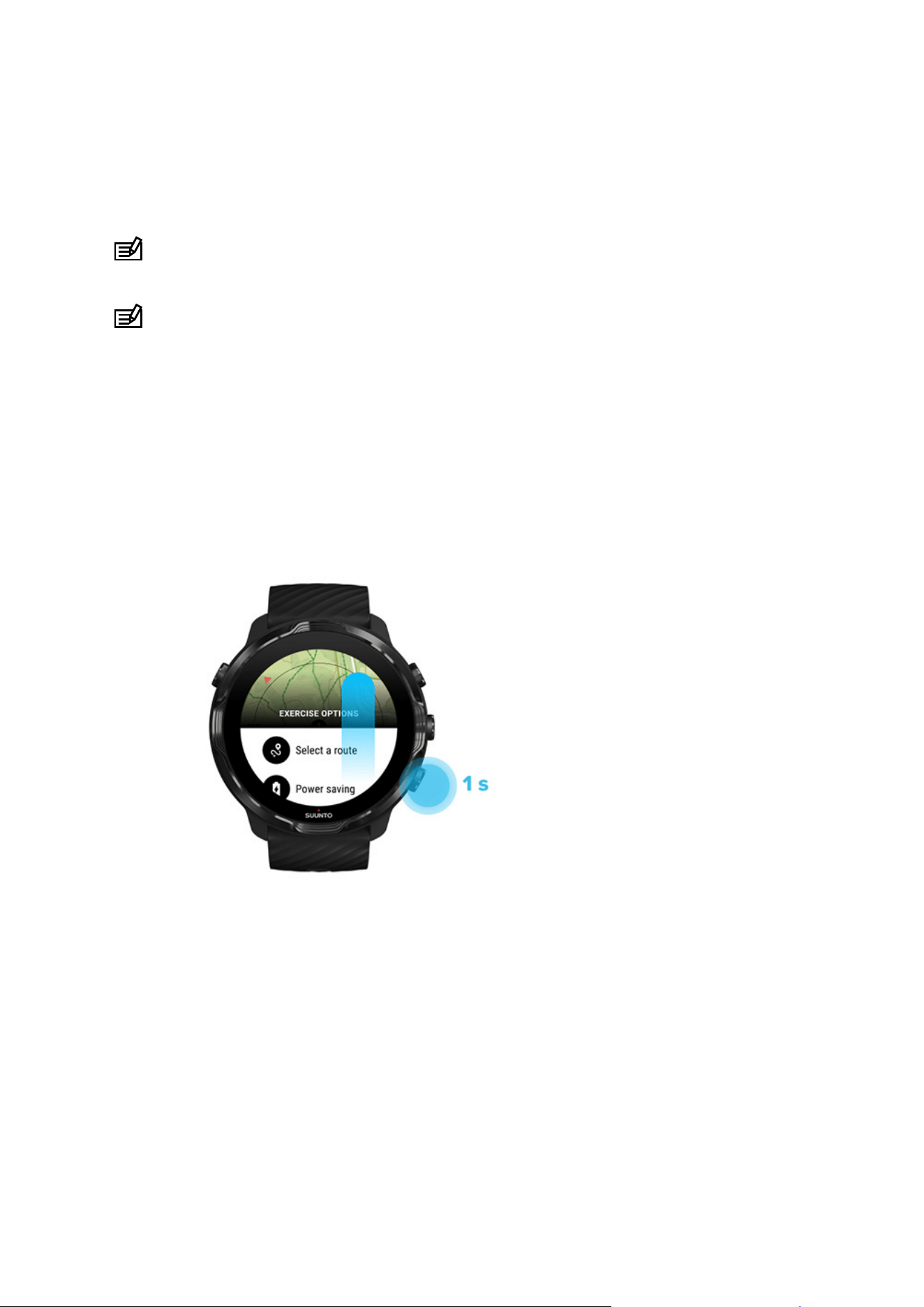
1. Choose the sport mode you want to use.
2. Scroll down and select Power saving » Display » Always-on map
3. Activate Always-on map.
NOTE: Activating Always-on map will increase battery consumption.
NOTE: The Power saving settings you choose are saved to the sport mode.
Selecting the same sport mode (ex. running) a second time will automatically employ
the previously used Power saving
configuration (Always-on map, Location accuracy,
etc).
Manage Always-on map during exercise
1. Keep the bottom button pressed or swipe up from the bottom of the screen to
open the menu.
2. Select Power saving » Display » Always-on map
3. Activate Always-on map.
4. To exit the menu, press the top right button or swipe down.
Map options
Change map style
Download a custom
oine map
Select a route
Suunto 7
139
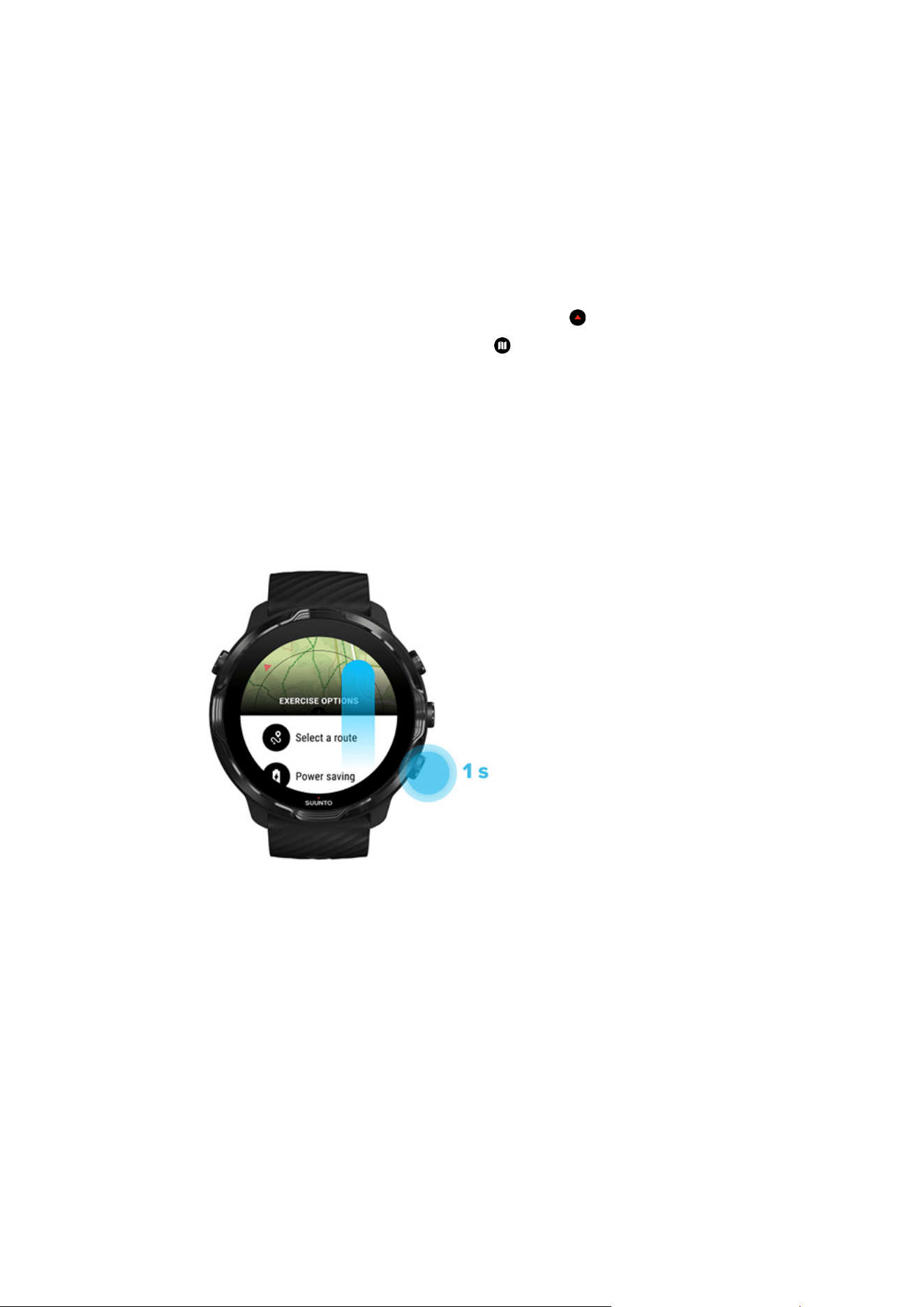
Change the location accuracy
Always-on map
Change map style
Suunto Wear app has
dierent map styles. To change map styles:
1. Press the top right button to open Suunto Wear app .
2.
Swipe up the menu and go to Map options
» Map style.
3. Browse the list and select the preferred map style.
Change map style during exercise
1. Keep the bottom button pressed or swipe up from the bottom of the screen to
change the map style.
2. Browse the list to find a map style or a heatmap you would like to use. You can
scroll with buttons or touch.
3. Press the middle button or tap to select a new map style.
4. Keep exploring, the menu will close automatically after your selection!
Suunto 7
140
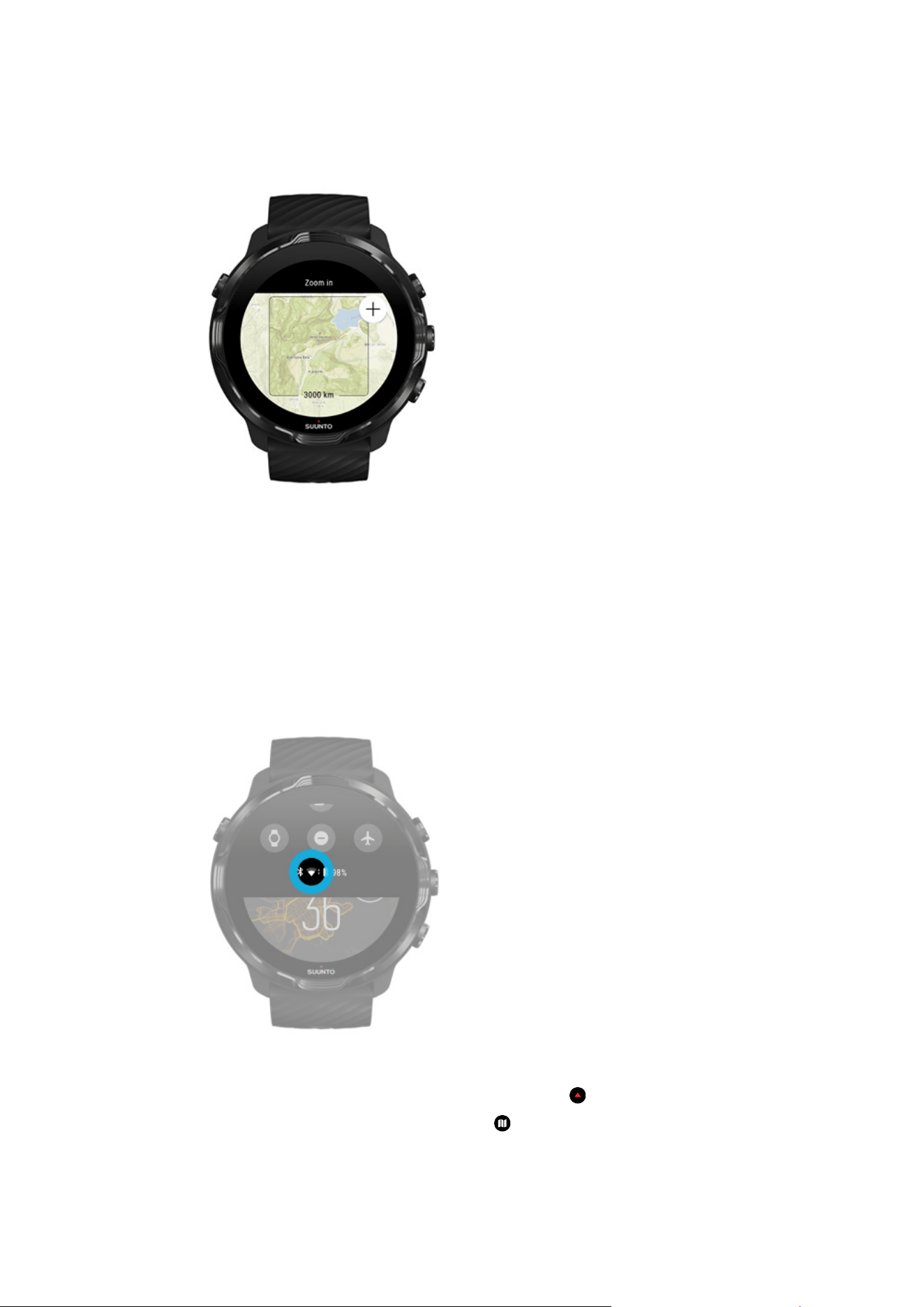
Download a custom oine map
In addition to automatically downloaded local maps, Suunto Wear app allows you to
download a custom oine map for your adventures away from home. For example, if
you are not sure your travel destination has a Wifi network available, you can
download a map for the area in advance.
1. Make sure your watch is connected to
Wifi.
2. Press the top right button to open Suunto Wear app .
3. Swipe up the menu and go to Map options » Oine map.
Suunto 7
141
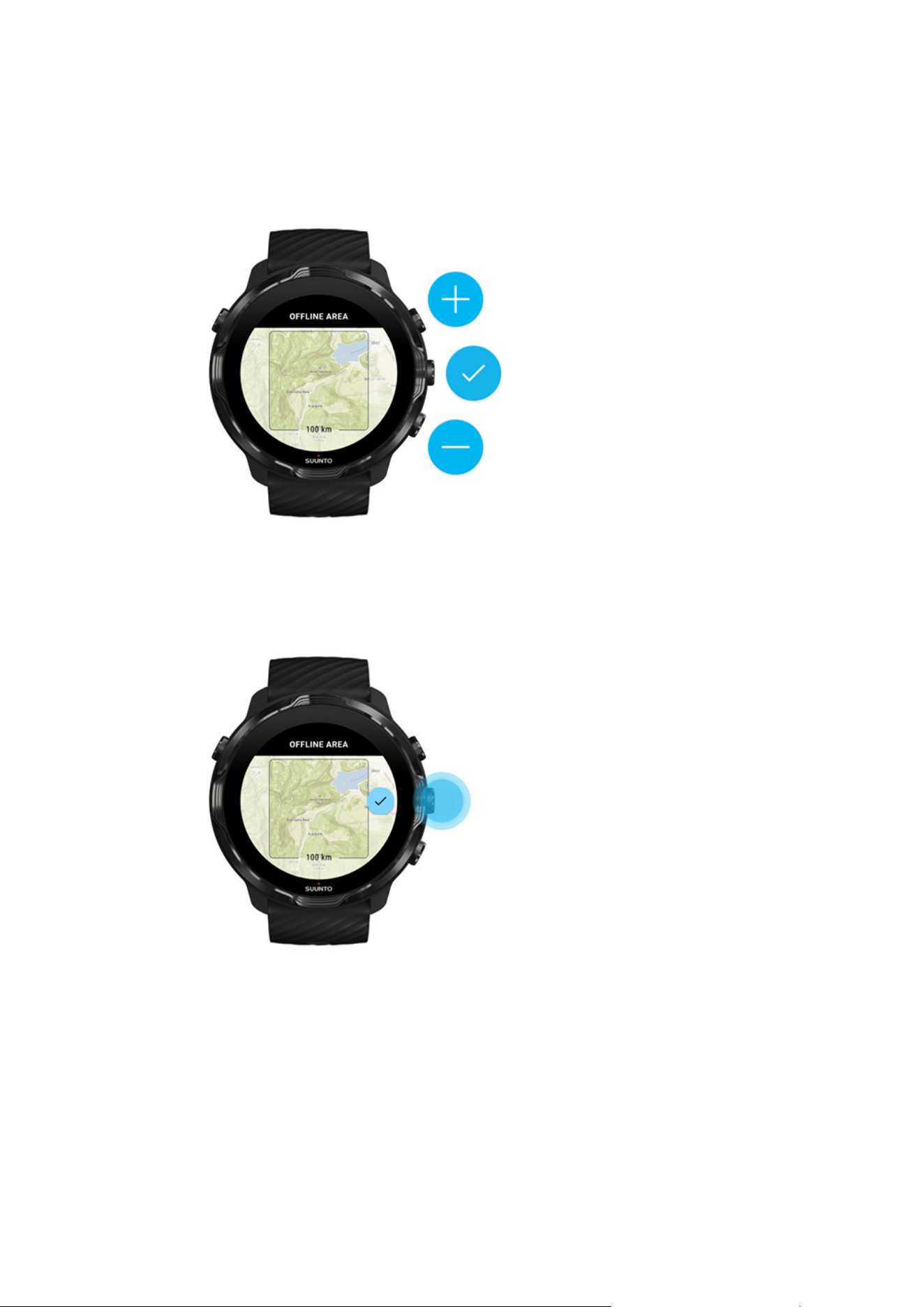
4. Zoom the map with the top right and bottom right buttons and touch and drag to
pan the map to define a map area to be downloaded.
5. Tap the check mark or press the middle button to select the area.
6. The map will start downloading when the watch is charging and connected to Wifi.
7. You will get a notification on your watch when the map download is complete.
Suunto 7
142
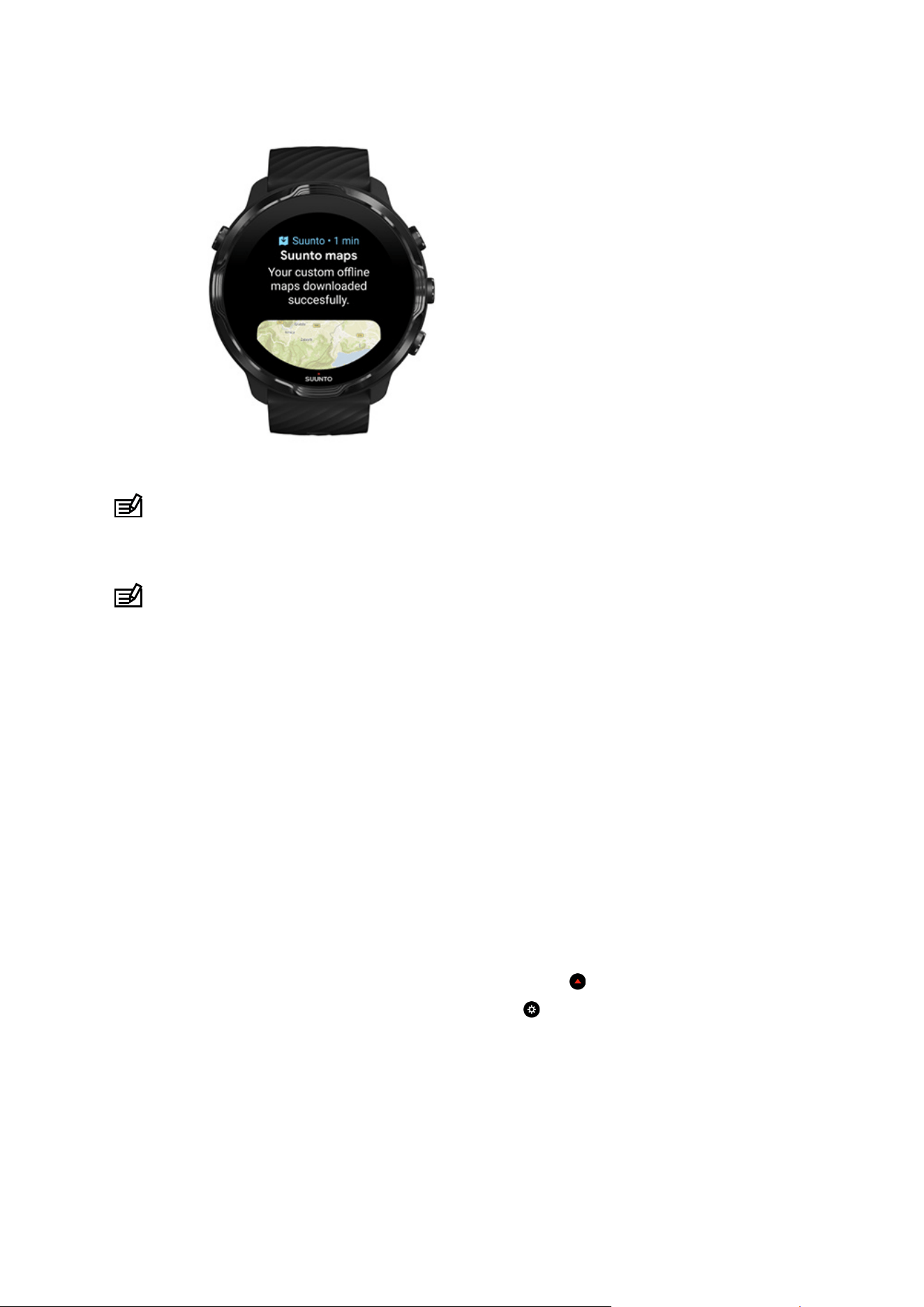
NOTE: For local and custom oine maps, all heatmap styles are included in the
download.
NOTE: You can save one custom map on your watch at a time.
General options
Profile settings
Units
Google Fit
Check your Suunto Wear app version
Profile settings
You can check your weight, height, birth year, gender, resting heart rate and max heart
rate in your personal settings. To adjust the settings:
1. Press the top right button to open Suunto Wear app .
2. Swipe up the menu and go to General options » Profile.
3. Choose which setting you need to adjust.
4. Adjust the setting.
5. To confirm, tap the check mark or press the middle button.
Suunto 7
143
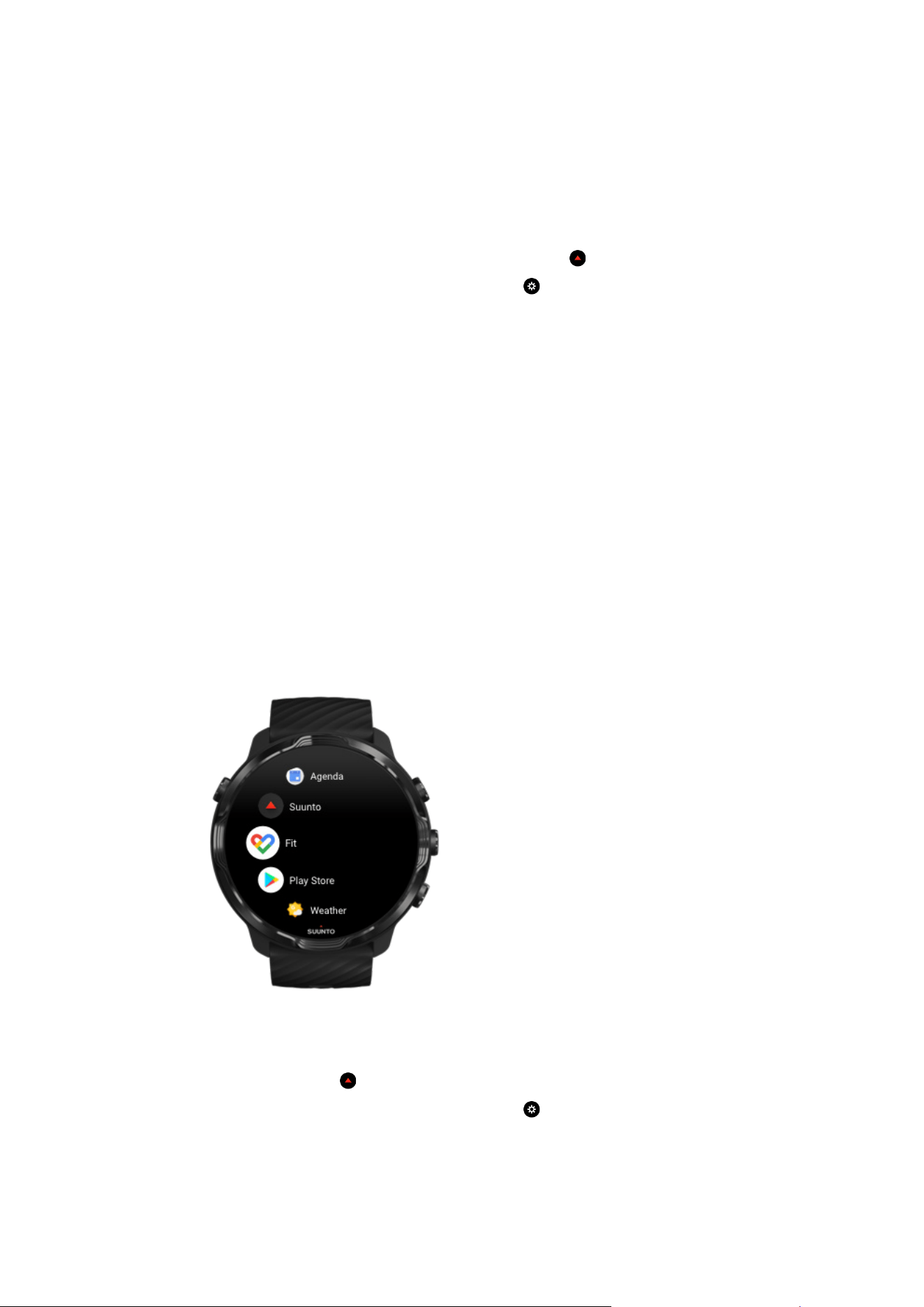
Units
Suunto Wear app supports both metric (kg, km) and imperial (mi., lbs) unit systems for
setting your personal information and for viewing your exercise stats.
1. Press the top right button to open Suunto Wear app .
2. Swipe up the menu and go to General options » Units.
3. Adjust the setting.
4. To
confirm, tap the check mark or press the middle button.
Google Fit
If you use Google Fit to track your daily activities and want to see how your exercises,
daily activity and sleep recorded with Suunto Wear app impact your daily activity
goals, connect Suunto Wear app with Google Fit. When connected, training insights
from exercises recorded with Suunto Wear app will also be accessible in Google Fit.
Connect to Google Fit
1. Go to Google Fit on your watch.
2. Sign in to Google Fit with your Google account.
3. Go to Suunto Wear app
.
4. Swipe up the menu and go to General options » Google Fit.
Suunto 7
144
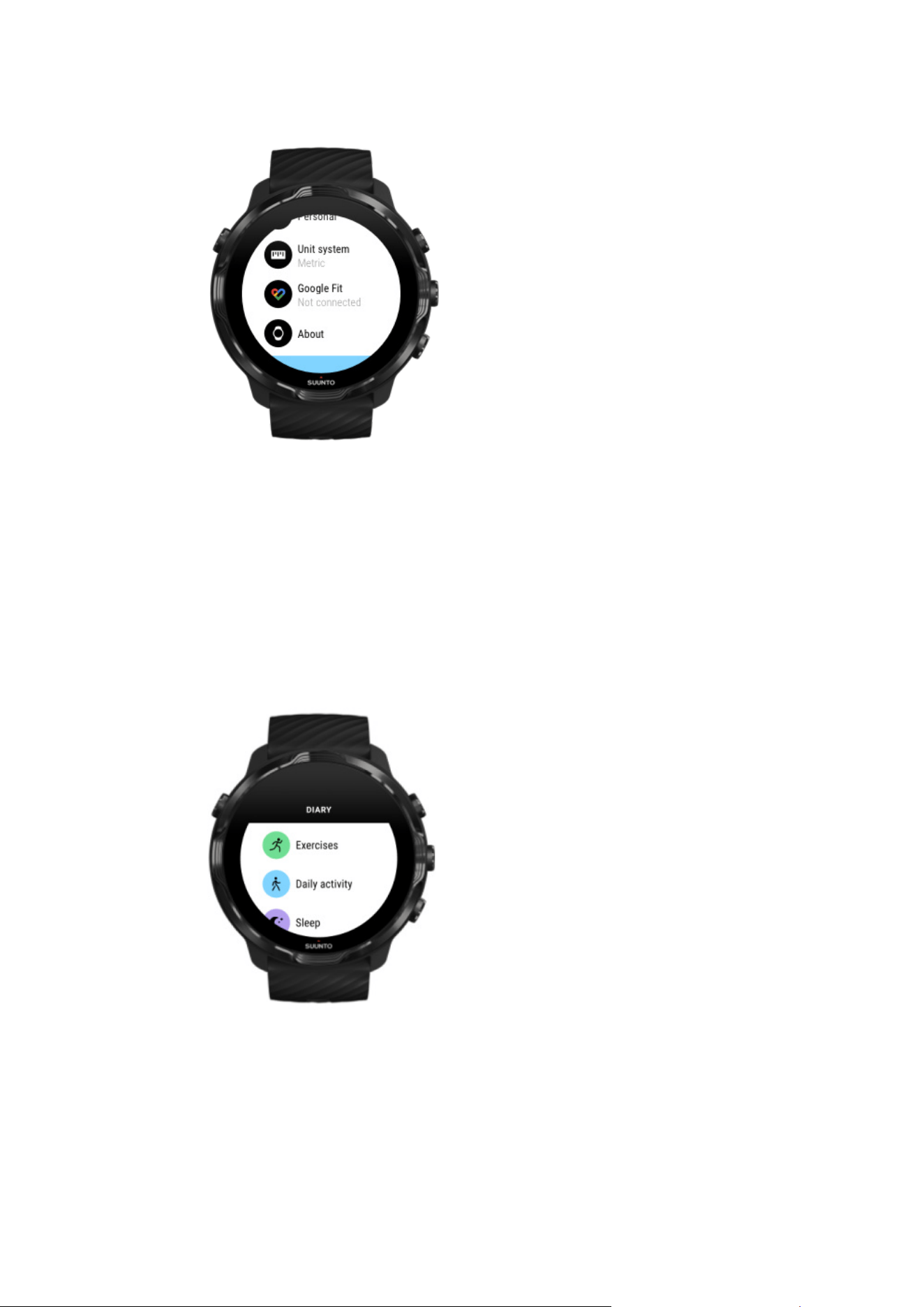
5. Tap Connect.
6. Select the same Google account you used to sign in to Google Fit.
7. Scroll down and tap the check mark to allow Suunto to sync data recorded during
your activity to Google Fit.
Diary
In the diary you can find your previous exercises and see today’s daily activity stats
and your last sleep.
To view your Diary on your watch:
Suunto 7
145

1. Press the top right button to open Suunto Wear app .
2. Swipe up the menu and tap Diary to open a list of exercise summaries.
3. Tap the exercise you would like to see in more detail.
NOTE: Remember to sync (and save) your exercises to Suunto mobile app. If you
ever need to reset your watch, all unsynced exercises in the Diary will be lost.
Suunto 7
146
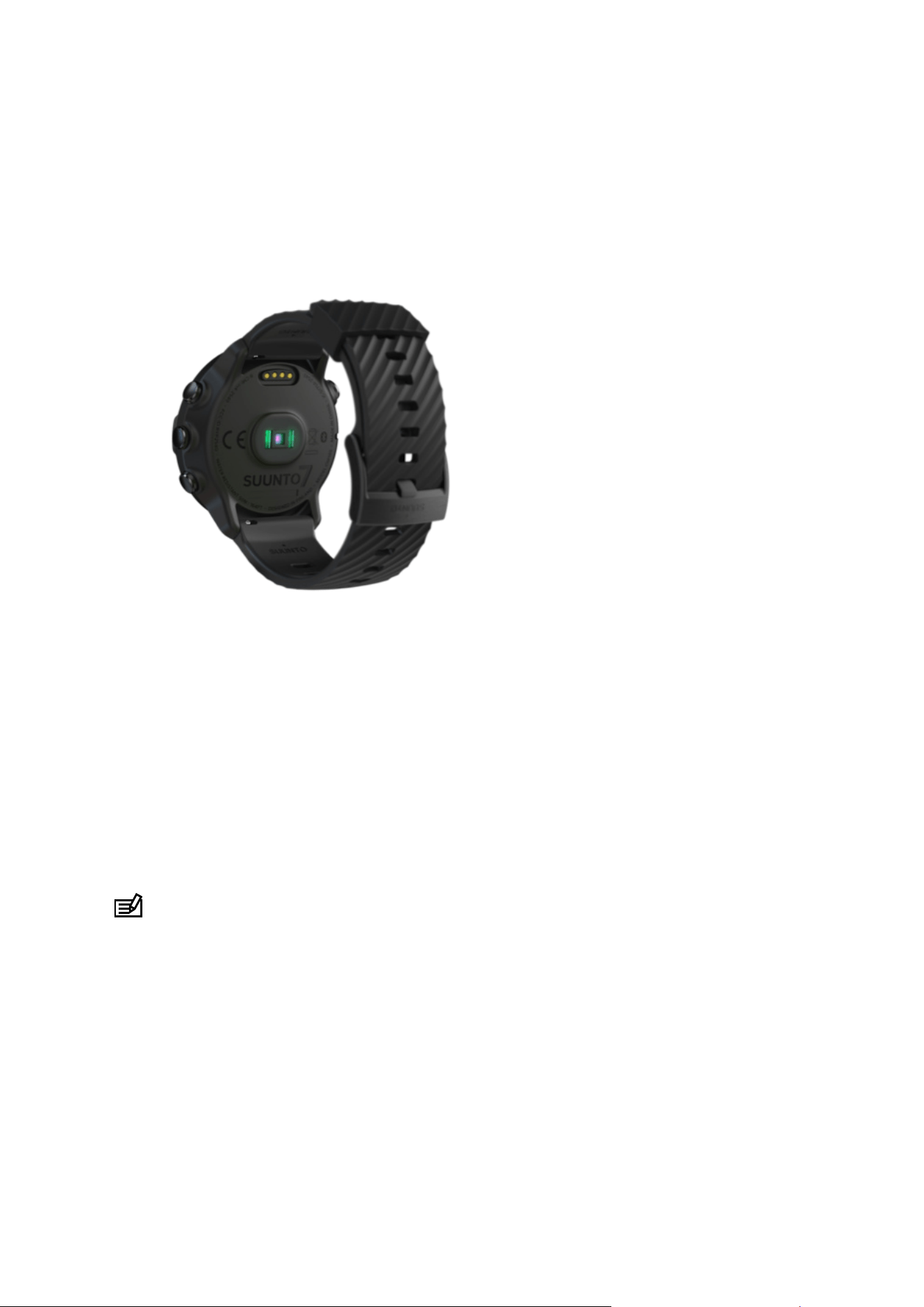
6. HEART RATE
Follow your heart rate with Suunto 7
Suunto 7 uses wrist heart rate (WHR) technology, also known as optical heart rate,
which measures heart rate via LEDs to track blood flow in your wrist. This means that
you can see your heart rate data during your exercise or in daily use without a chest
heart rate strap.
Factors that
aect wrist heart rate measurements
How to wear your watch to improve HR measurements
Heart rate during exercise
Daily heart rate
NOTE: Suunto Wear app does not support using an external heart rate belt.
Factors that aect wrist heart rate measurements
•
The watch must be worn directly against your skin. No clothing, however thin, can
be between the sensor and your skin.
•
The watch may need to be higher on your arm compared to where watches are
normally worn. The sensor reads blood
flow through tissue, so the more tissue it
can read, the better.
•
Arm movements and flexing muscles, such as gripping a tennis racket, can change
the accuracy of sensor readings.
Suunto 7
147
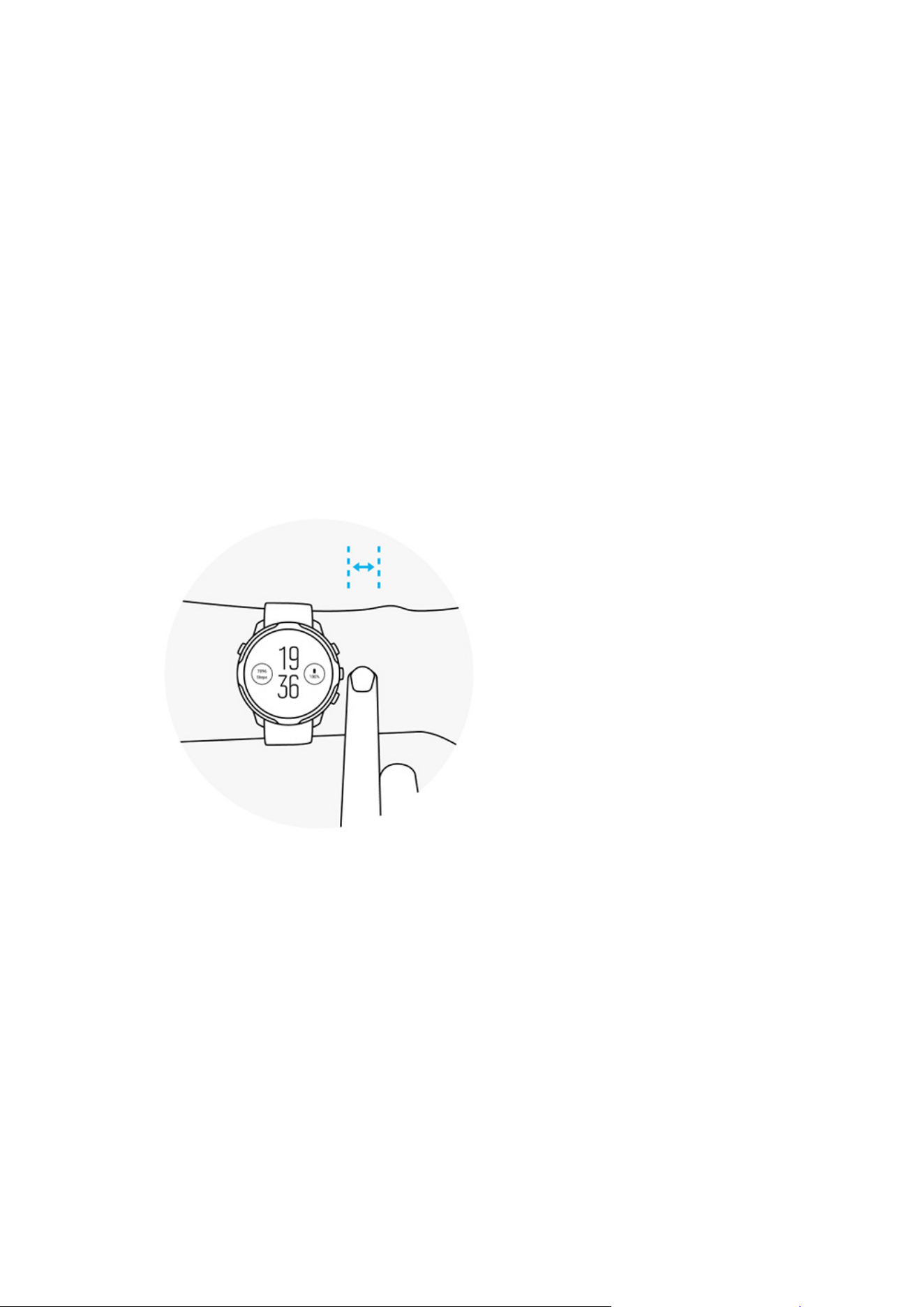
•
When your heart rate is low, the sensor may not be able to provide stable
readings. A short warm-up of a few minutes before you start the recording helps.
•
Skin pigmentation and tattoos block light and prevent reliable readings from the
optical sensor.
•
The optical sensor may not provide accurate heart rate readings for swimming
activities.
How to wear your watch to improve HR measurements
The accuracy of optical HR measurement is
influenced by a number of factors and it
can dier depending on the person. One of the factors that makes the biggest
dierence is how you wear your watch. The right fit can help improve the accuracy of
your heart rate readings. Start with the following tips, then test and improve the fit of
your watch until you
find your personal optimal spot.
During daily use
Wear your Suunto watch at least 1 finger above your wrist bone and make sure the
watch is snug on your wrist. Your watch should always maintain contact with your skin
so that you can't see the light shining from the sensor.
Suunto 7
148
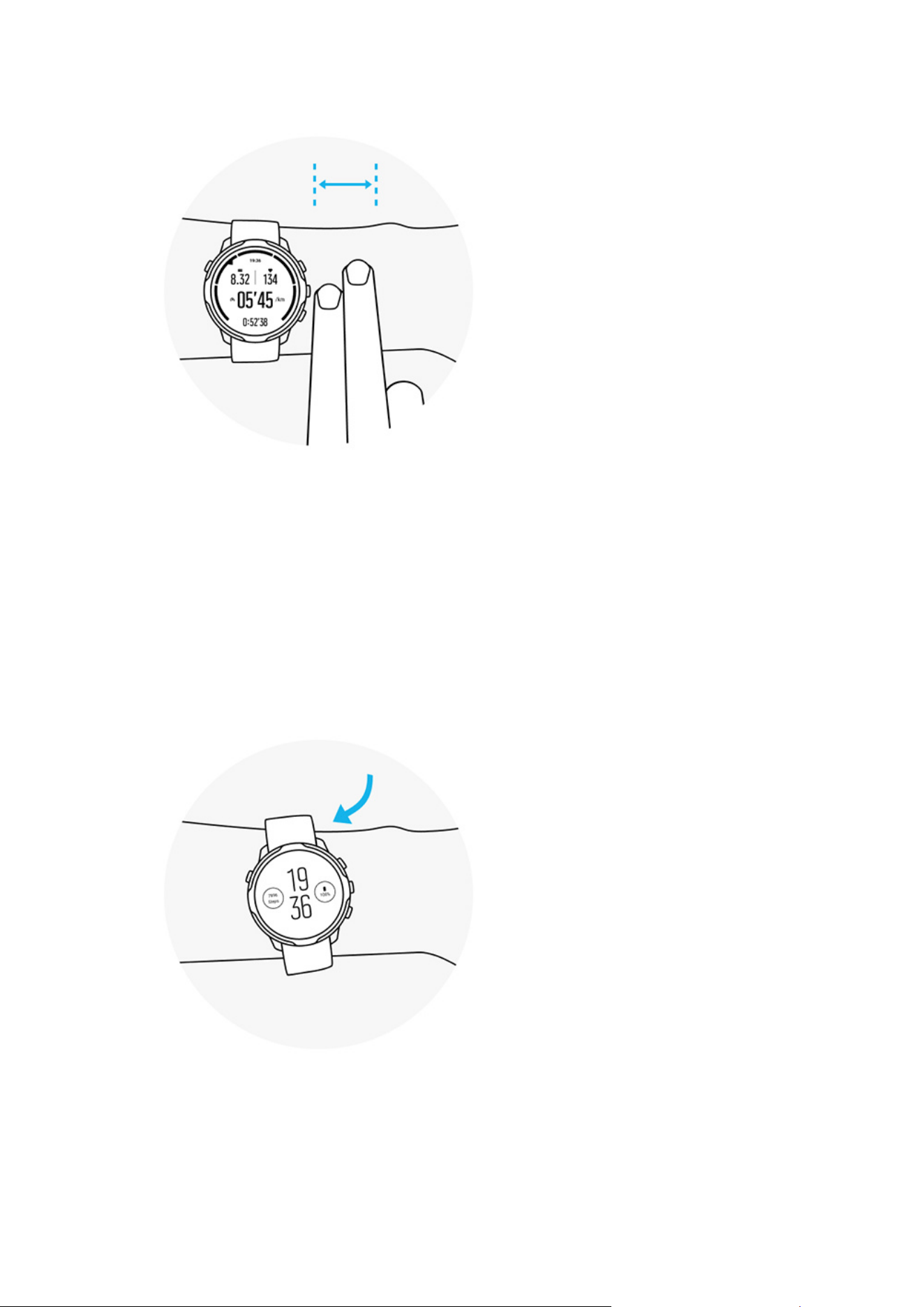
During exercise
Test the fit – the key is to wear the watch as high up on your wrist as possible, and to
prevent it from sliding down during exercise. A good indicator is to wear it about 2
fingers above your wrist bone. Again, make sure you wear the watch tight and close
against the skin, however not tight enough to cut
o blood circulation.
Too loose
Just right
Suunto 7
149
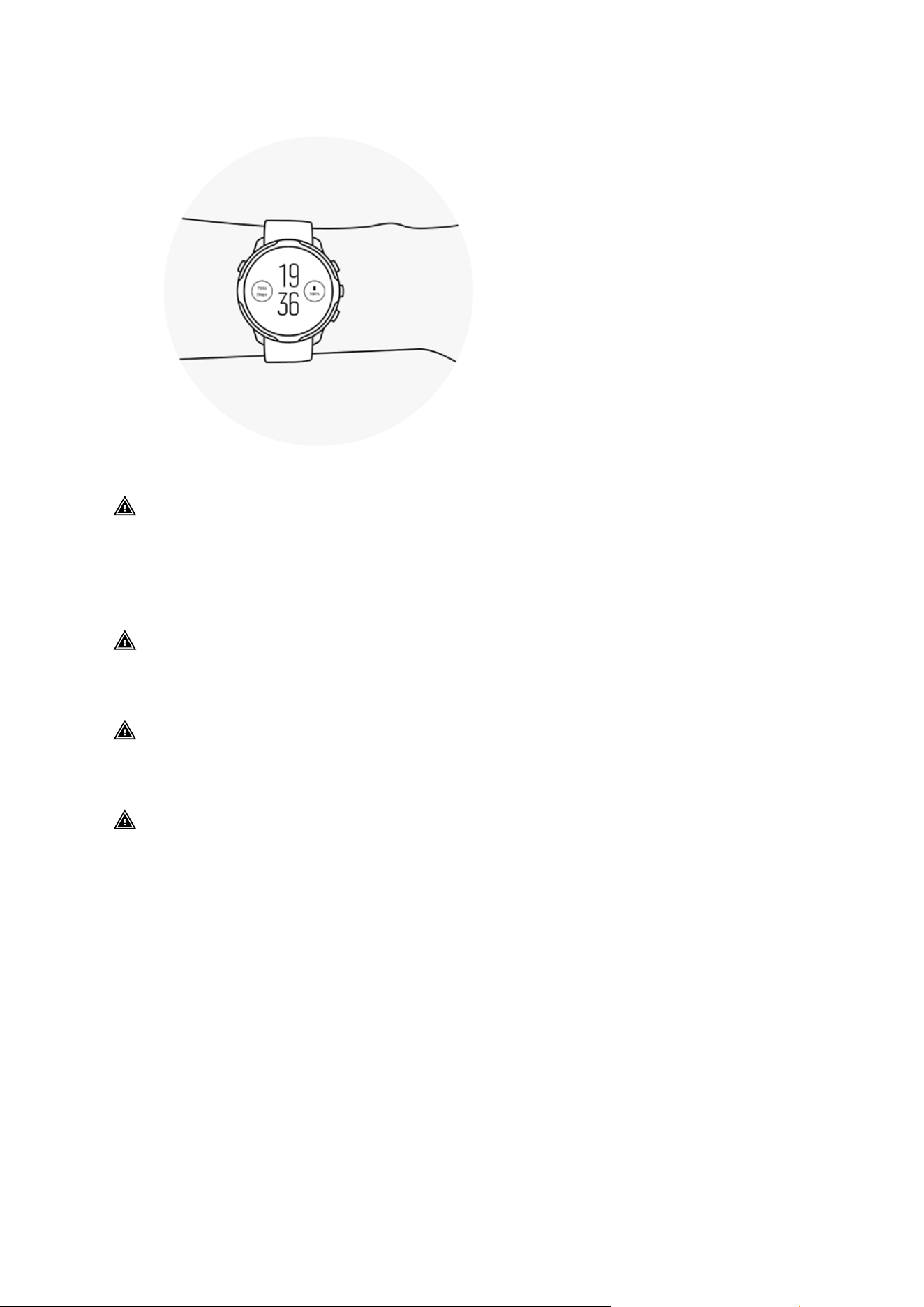
WARNING: The optical heart rate feature may not be accurate for every user
during every activity. Optical heart rate may also be aected by an individual’s
unique anatomy and skin pigmentation. Your actual heart rate may be higher or lower
than the optical sensor reading.
WARNING: Only for recreational use; the optical heart rate feature is not for
medical use.
WARNING: Always consult a doctor before beginning a training program.
Overexertion may cause serious injury.
WARNING: Allergic reaction or skin irritations may occur when products are in
contact with skin, even though our products comply with industry standards. In such
event, stop use immediately and consult a doctor.
Suunto 7
150

7. DAILY ACTIVITY
In addition to sports tracking, you can use your Suunto 7 to keep track of your daily
activity and recovery. You can follow your daily steps, calories, heart rate, body
resources and sleep on your watch and follow the trends with the Suunto mobile app.
Steps
Calories
Daily heart rate
Body resources
Sleep
Google Fit
Daily heart rate
Your watch can measure your heart rate throughout the day to give you an overview
of your activity and recovery level.
The Heart rate Tile provides a quick way to check your current heart rate and the 24
hour graph visualizes how your heart rate changes throughout the day — when you
rest and when you are active. While the graph updates every 10 minutes, your current
heart rate is measured every second to give you up to date feedback.
You can also go to your Diary > Daily activity to see your daily heart rate information.
Body resources
Your watch can measure your stress and recovery throughout the day to help you
ensure you have enough in the tank to make it through the day and to maintain a
healthy balance between activity, stress and recovery.
The Resources Tile provides a quick way to check your current resource level or see
how sleep, daily activity and stress
aect your body resources from the 24 hour
graph. While the graph updates every 30 minutes, your current resource level is
updated more frequently. The green bars indicate periods where you have been
recovering.
Suunto 7
151

If you are tracking sleep with your Suunto 7, you can also follow the amount of body
resources you have gained during the night and level of your total body resources
when you wake up.
Body resources information can also be find in Suunto Wear app via Diary > Daily
activity.
Turn on Daily heart rate & resources
To turn on Daily heart rate & resources from Tiles:
1. While on the watch face, swipe left on your screen to view your Tiles.
2. Find the Heart rate Tile or Resources Tile.
3. Tap Turn on and follow the on-screen instructions to continue.
To turn on Daily heart rate & resources from Suunto Wear app:
1. Press the top right button to open Suunto Wear app.
2. Scroll down the menu and go to Diary > Daily activity.
3. Turn on Daily heart rate & resources and follow the on-screen instructions to
continue.
NOTE: The Daily heart rate & resources tracking slightly increases battery
usage.
NOTE: Sleep tracking requires heart rate data. If you have turned sleep tracking
on, Daily heart rate & resources are turned on as well.
Suunto 7
152

8. SLEEP
With Suunto 7, you can keep track of how you sleep. One of the commonly agreed
things about sleep is that we rest to recover and the single best way to do this is
during sleep. If you want to improve your performance, a good and restorative sleep
is a key.
The two fundamentals of getting the most out of your sleep are:
1. Make sure you get enough sleep.
2. Maintain a regular sleep rhythm.
Suunto’s sleep tracking solution is founded on these two principles.
Turn sleep tracking on
Sleep Tile
Sleep report
Cinema mode
Sleep insights in Suunto mobile app
Turn sleep tracking on
Sleep tracking is not activated by default, so to track sleep you
first need to activate
this feature. There are two ways of activating the sleep tracking.
You can activate sleep tracking features from Suunto Sleep Tile:
1. While on the watch face, swipe right to access Tiles
2. Find the Sleep Tile and press Turn on
3. Follow the on-screen instructions.
It is also possible to activate the feature from Suunto Wear app:
1. Press the top right button to open Suunto Wear app
2. Scroll down the menu and go to Diary > Sleep > Sleep tracking
3. Follow the on-screen instructions.
Suunto 7
153
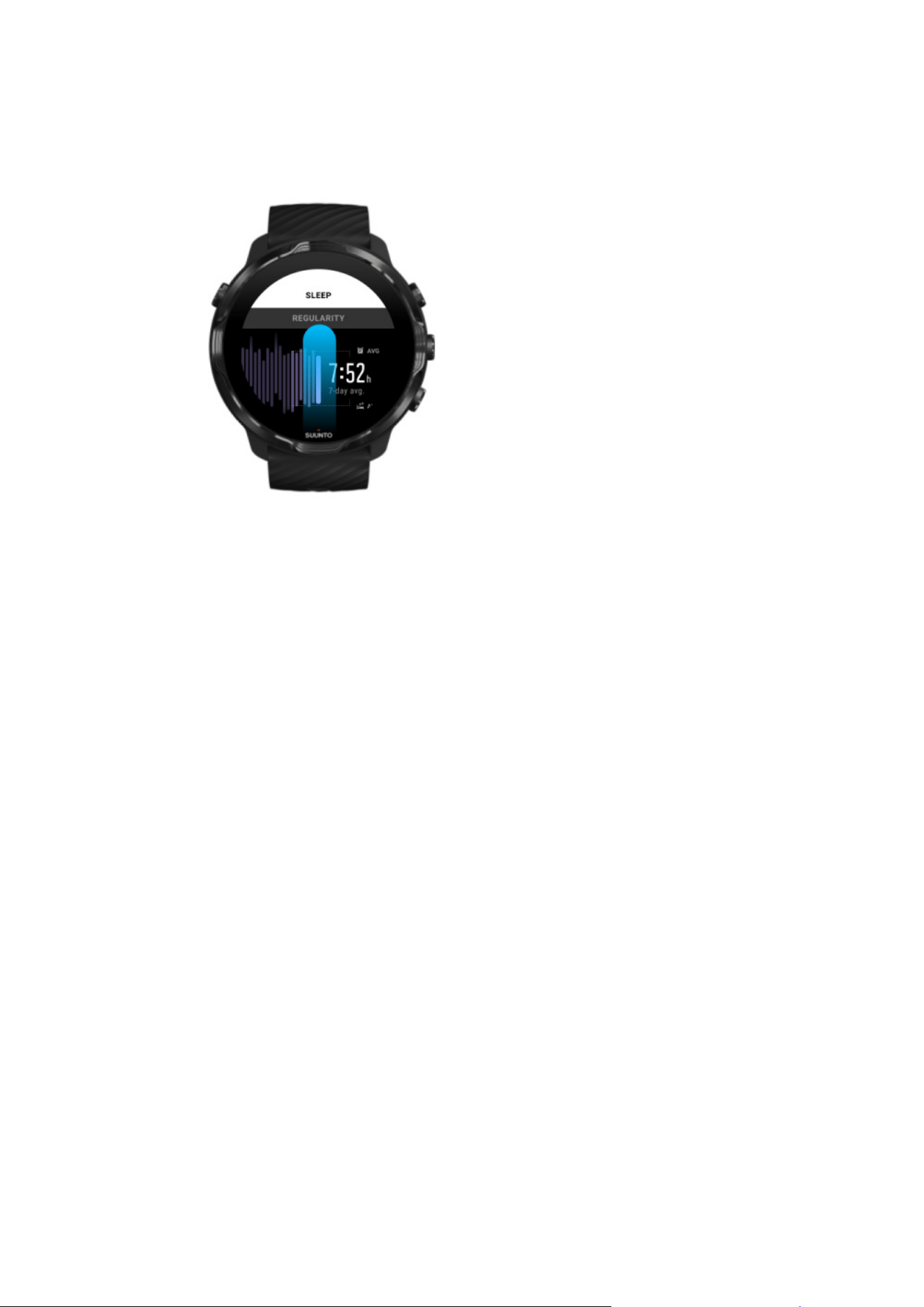
Sleep report
You can get more insights into your sleep from the sleep report. The sleep report
summarizes your sleep quality and the various sleep stages. It also shows your heart
rate during your sleep and your body resources at your wake-up time.
To access your sleep report from the Sleep Tile:
1. While on the watch face, swipe left on your screen to view your Tiles.
2. Find the Sleep Tile and tap it.
The sleep report can also be accessed from Suunto Wear app:
1. Press top right button to open Suunto Wear app
2. Scroll down the menu and go to Diary > Sleep.
Suunto 7
154
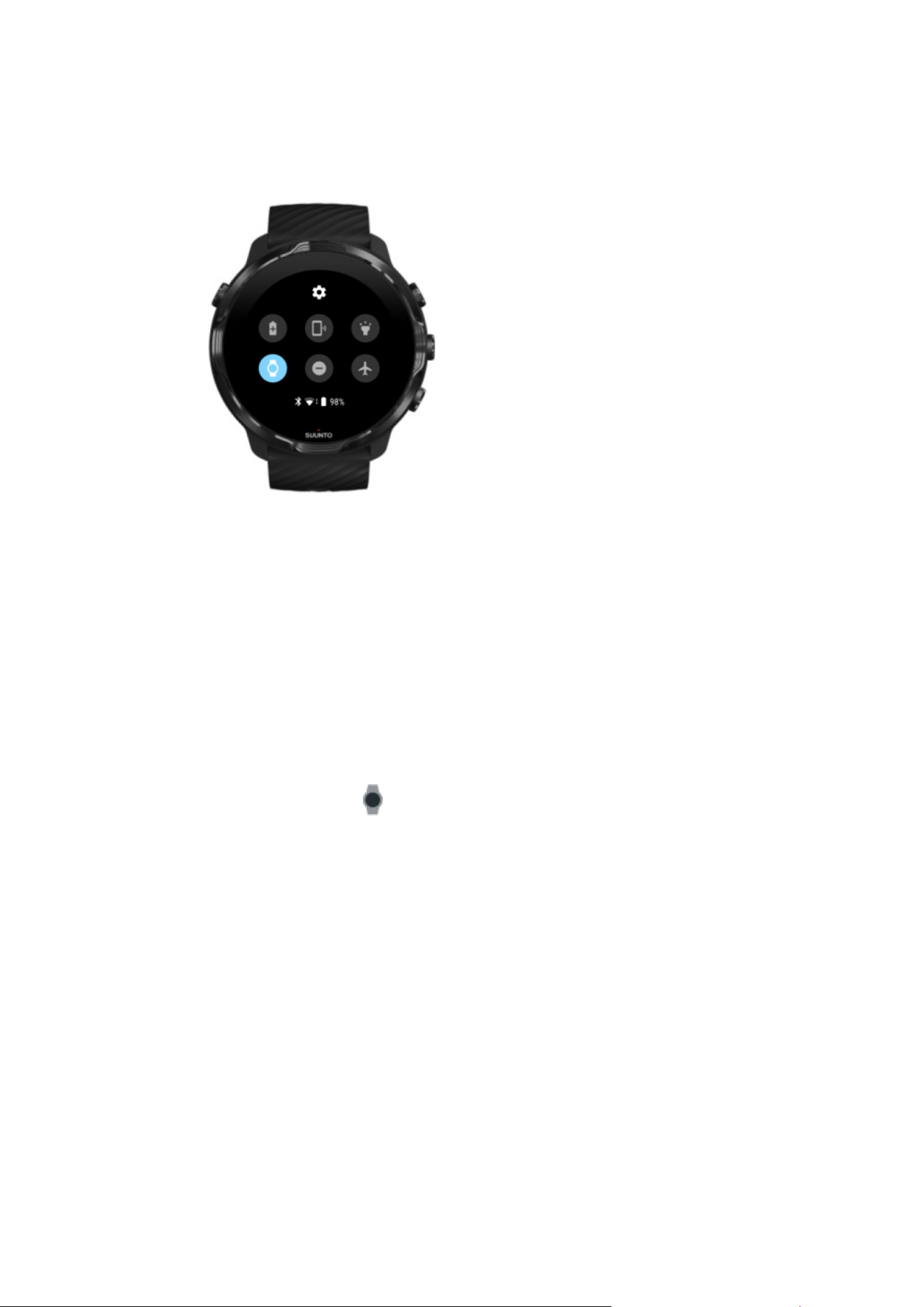
Cinema mode
You can silence your watch during sleep by turning on Cinema mode from the watch
system settings. Cinema mode turns your display
o so that it will not disturb you
during sleep or while getting to sleep.
While in Cinema mode, your watch will also silence all notifications excluding alarms.
To activate Cinema mode:
1. While on the watch face, swipe down from the top of the screen.
2.
Tap the Cinema mode icon
Suunto 7
155
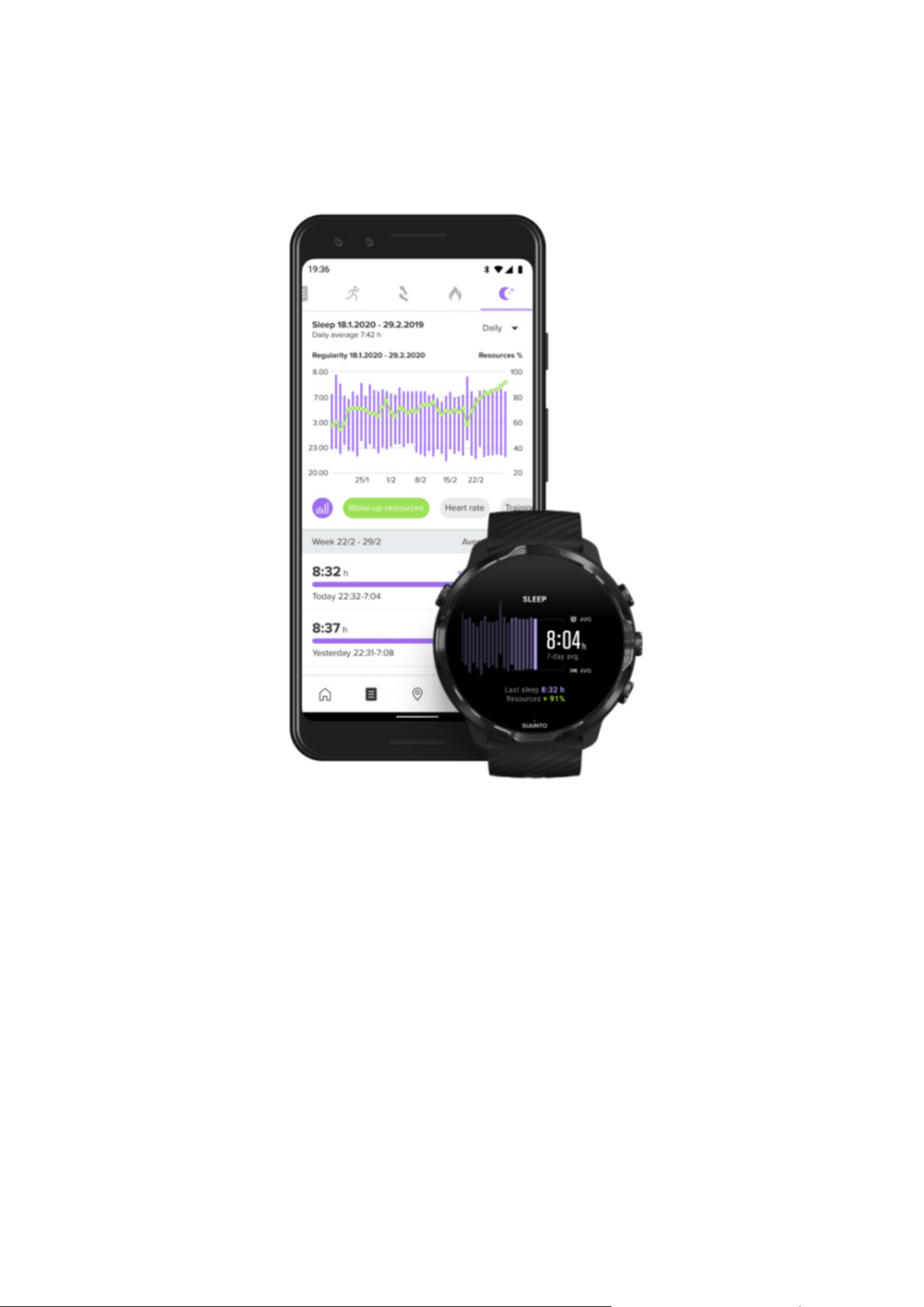
Sleep insights in Suunto mobile app
Suunto mobile app provides even more insights into your sleep. From Suunto mobile
app, you can check your sleep history logs and long term analysis.
The detailed sleep analysis and history logs can be found from day and diary views.
Suunto 7
156
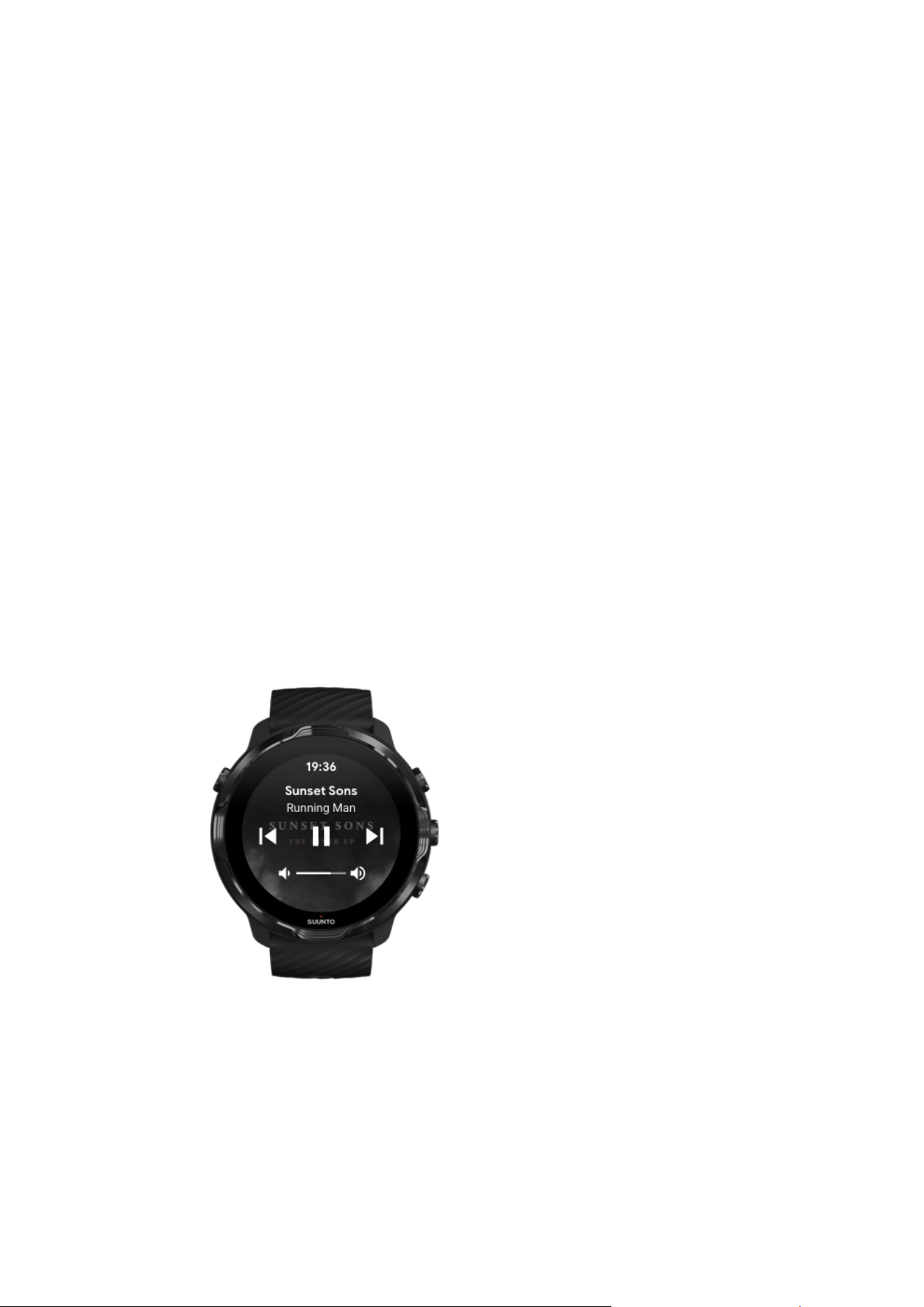
9. MUSIC
Listen to tracks that take you further – connect your headphones to your phone and
control music from your wrist or download your favorite songs to your watch and
leave your phone behind.
Control music from your wrist
Connect your headphones to your phone and control music and other audio – adjust
volume, pause and skip tracks – straight from your wrist without taking your phone
out of your pocket.
Automatic media controls
Button shortcut to media controls
Download an app for your music
Exercise with music
Automatic media controls
Media controls will automatically appear on your watch when you start playing music
or other audio from your phone.
To exit media controls, swipe right or press the Power button.
Suunto 7
157
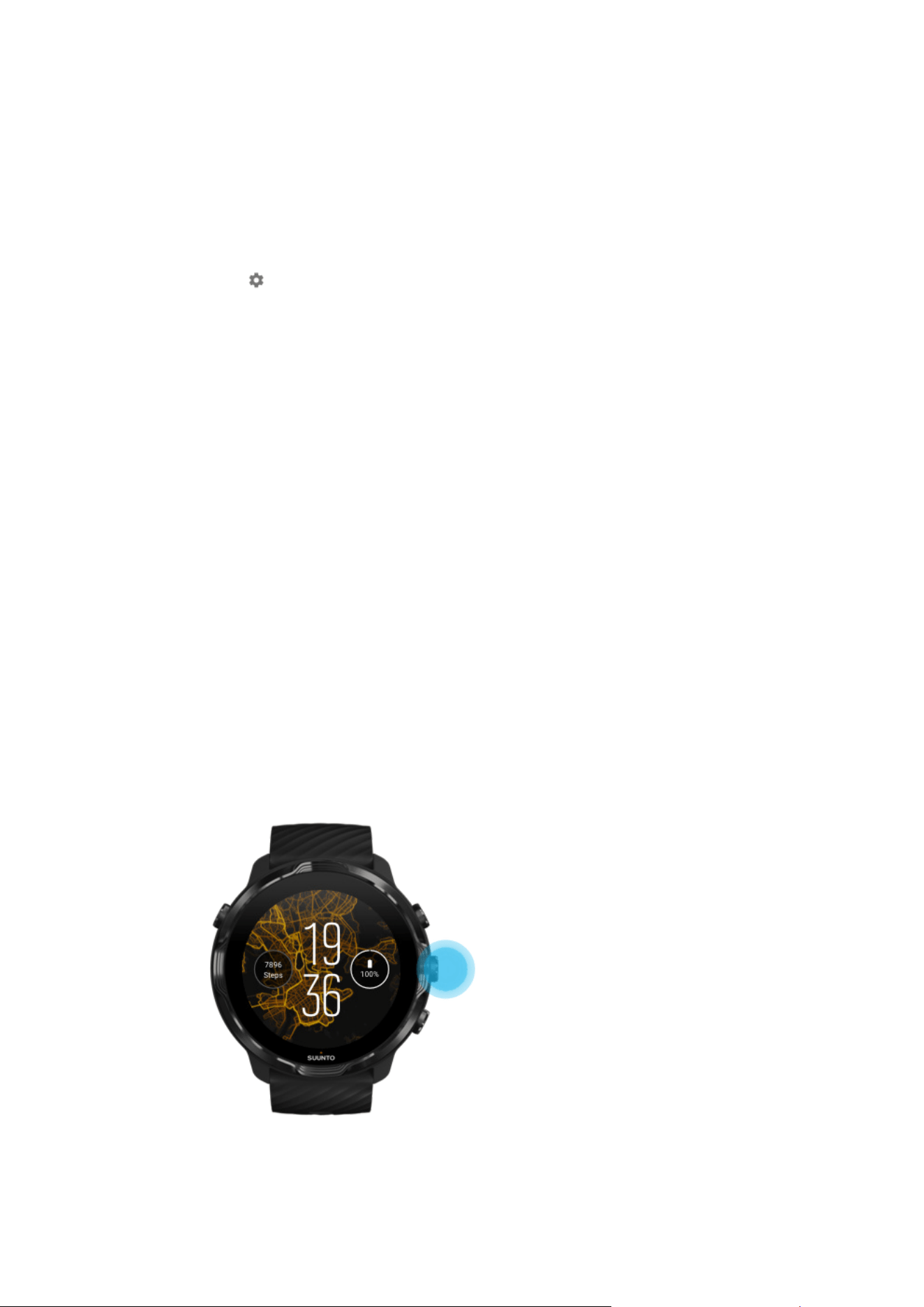
To go back to media controls while on the watch face, swipe down from the top of
your screen or use the button shortcut (press middle button).
Manage media controls
1. While on the watch face, swipe down from the top of your screen.
2. Tap Settings » General.
3. Turn Autolaunch media controls on or
o.
If media controls won’t appear on your watch
If you can’t see the media controls automatically on your watch when you start playing
music from your phone:
1. Make sure your watch is connected to the Wear OS by Google app on the phone
that you are playing music from, then try again.
2. Go to Settings » General » Autolaunch media controls and make sure it is turned
on.
Button shortcut to media controls
By default, Suunto 7 has a button shortcut to media controls for easy access to your
music and other audio – also during exercise.
1. While on the watch face, press the middle button on the right to open media
controls.
Suunto 7
158
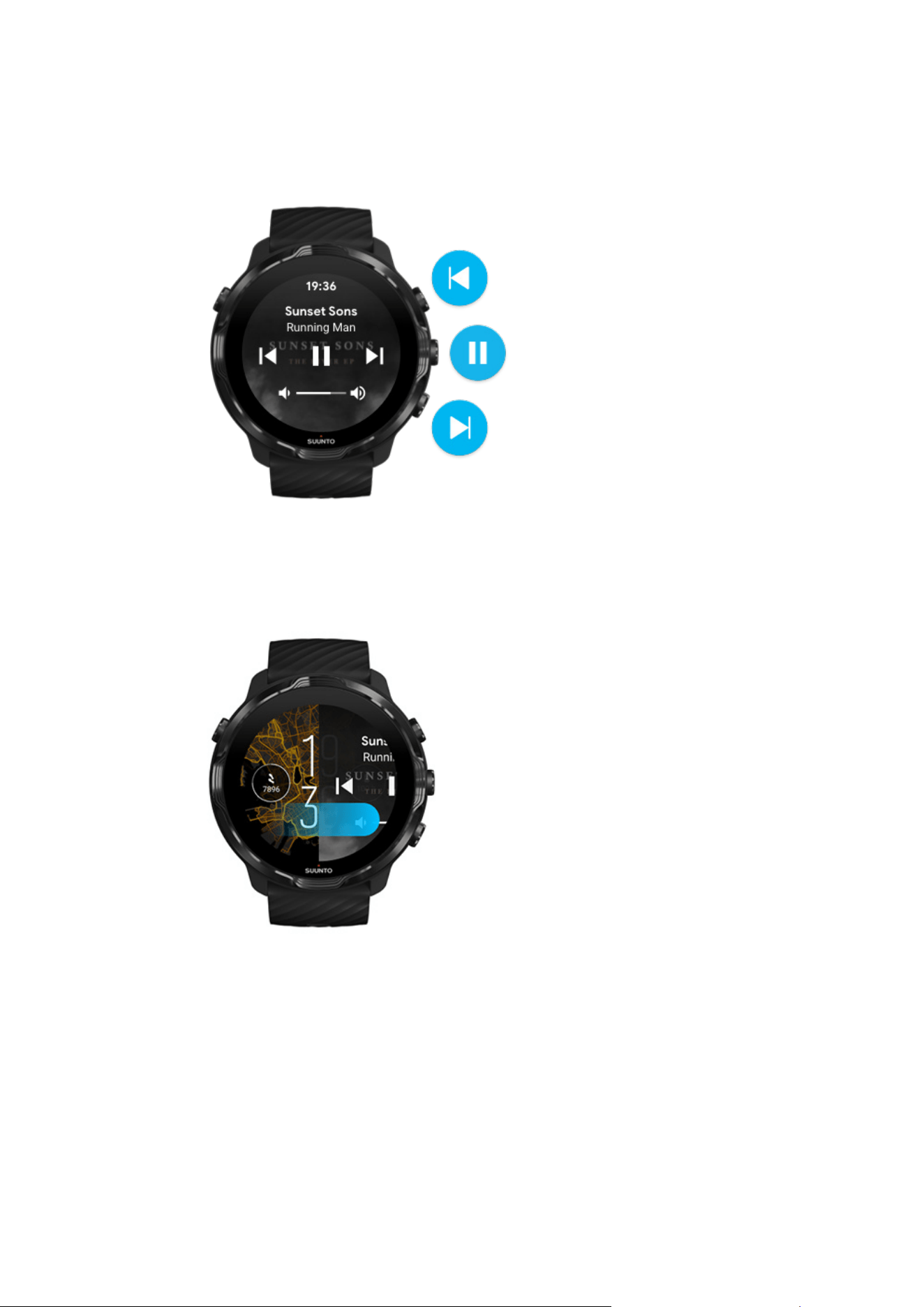
2. Use touch or buttons to control your music or other audio.
3. To exit media controls, swipe right or press the Power button.
Learn more about button shortcuts
Download an app for your music
Some music services like Spotify and Pandora oer an app for controlling your music
with the watch. With a music app you can, for example, see your recently played
Suunto 7
159

tracks or save your favorite songs with your watch. You can find and download apps
from Google Play Store on your watch.
Listen to music without your phone
Suunto 7 can store thousands of tracks so that you can listen to your favorite songs or
other audio on the go – without your phone.
To listen to music on your watch without your phone you need:
•
a music app on your watch that supports
oine use
•
Bluetooth headphones connected to your watch
Connect headphones to your watch
Long exercise and music
Connect headphones to your watch
You need Bluetooth headphones to listen to music or other audio on your watch.
To connect your headphones to your watch:
1. Follow the steps that came with your Bluetooth headphones to put them in pairing
mode.
2. While on the watch face, swipe down from the top of your screen and tap Settings
.
3. Go to Connectivity » Bluetooth » Available devices.
4. Your watch will search for nearby devices. When you see the name of your
headphones, tap the name to connect. Your watch will then connect with the
headphones.
Long exercise and music
Listening to music directly from your watch with Bluetooth headphones consumes a
lot of power and makes the battery drain faster. This is good to keep in mind when
you are planning to record longer exercises.
Learn how to maximize battery life during exercise
Suunto 7
160
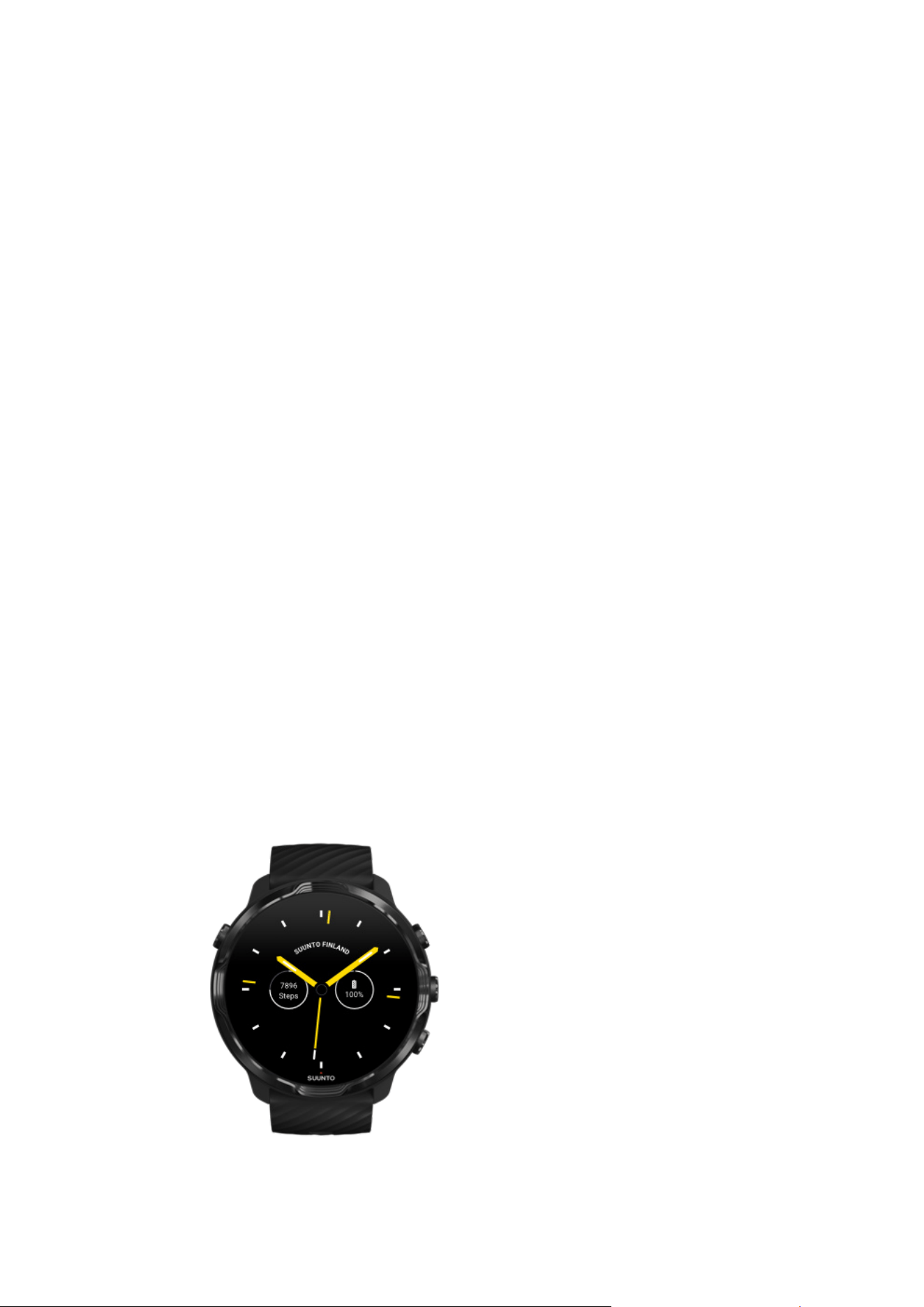
10. BATTERY LIFE
Suunto 7 is full of powerful features for your sports and everyday life and it is
optimized to save power whenever possible. The actual battery life varies depending
on the features and apps you use, and the way you use them. Also, the sports you do
can have a big eect on your overall battery life, as outdoor sports with GPS consume
more power than training indoors.
Maximize battery life in daily use
Maximize battery life during exercise
Check battery life & usage
Charge your watch
Maximize battery life in daily use
The features, apps and watch faces you use, and the way you use them, all
aect how
long your battery will last. Also, the more you interact with your watch – check and
scroll through your
notifications, browse maps and use features that require Internet
connection such as asking your Google Assistant for help – the more power is
consumed.
To maximize the battery life of your watch in daily use, try the solutions below.
Use Suunto’s watch faces
Suunto 7
161

All watch faces designed by Suunto are power optimized to show time in a low-power
mode without waking up the display and activating your watch. Keep in mind that
other watch faces might not be optimized the same way.
If you recently added a new watch face and notice that your battery is draining faster
than normal, try uninstalling that watch face.
Change your watch face
Delete a watch face
Use default settings for Display and Gestures
By default, the display and gestures to interact with your Suunto 7 are set up to use a
minimum amount of power in daily use. For the best experience, use default settings
with Suunto’s power optimized watch faces.
•
Keep Power saver tilt on
With Power saver tilt, you can turn your wrist to check the time without activating
your watch.
Adjust gestures
NOTE: You need to use a power optimized watch face to use Power saver tilt.
•
Keep Tilt-to-wake o
If you turn Tilt-to-wake on, the display wakes up and activates your watch every
time you turn your wrist. For longer battery life, press the Power button or use
touch to wake up the display. Adjust display settings
•
Keep Always-on screen turned o
Let the screen turn o when you are not using your watch to save power.
Adjust display settings
Suunto 7
162
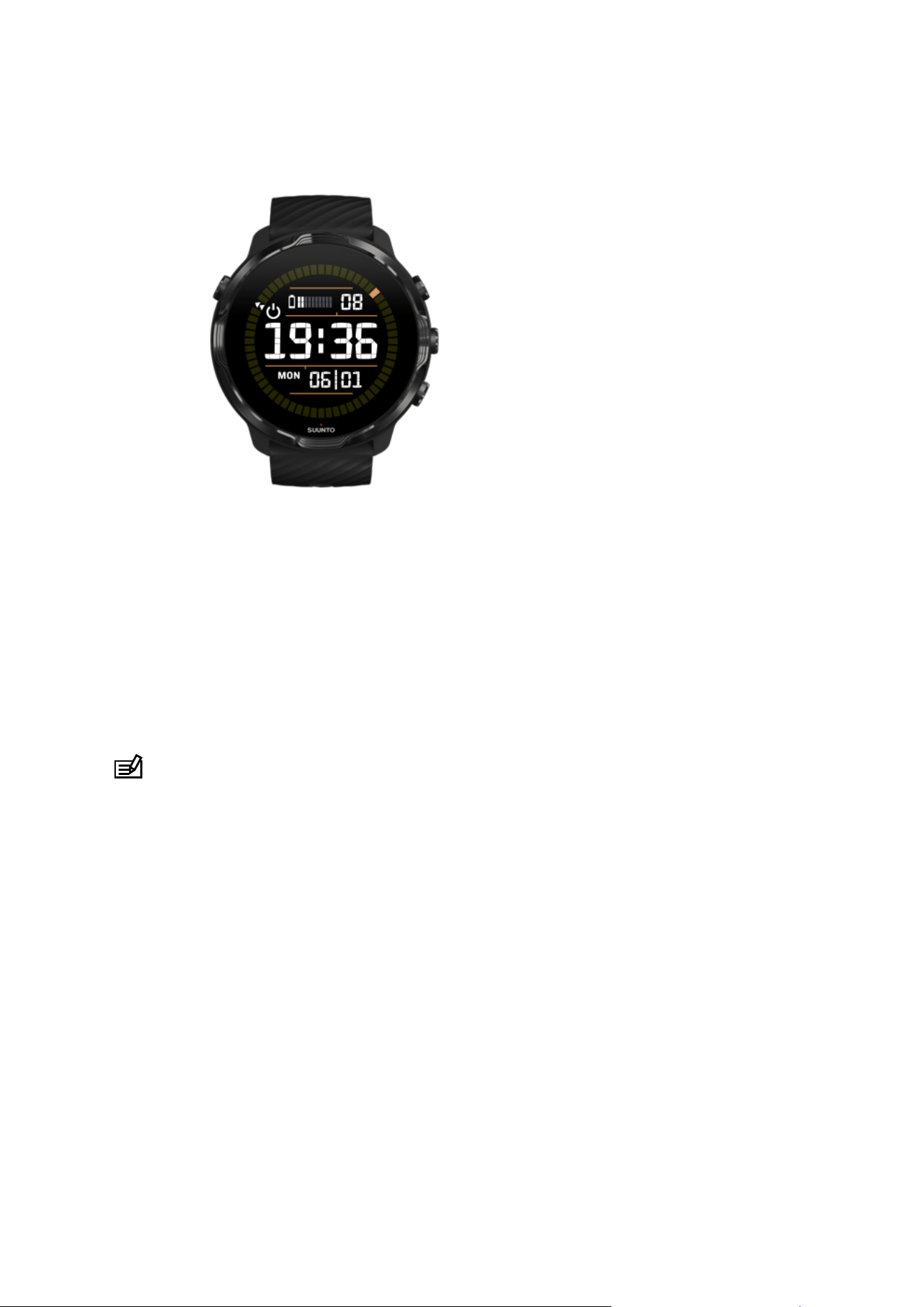
Use Battery Saver mode
When your watch’s battery gets low or you are, for instance traveling, you can turn
Battery Saver on to use your watch for longer. When Battery Saver is turned on, your
Suunto 7 works just like a traditional watch – you can check the time and date, and
see an estimation of remaining battery level.
If you turn Battery Saver on with a full battery, you can use Suunto 7 as a traditional
watch for up to 40 days.
NOTE: Battery Saver turns on automatically when the battery is getting critically
low.
Turn on Battery Saver
1. While on the watch face, swipe down from the top of your screen.
2. Tap Battery Saver.
Suunto 7
163
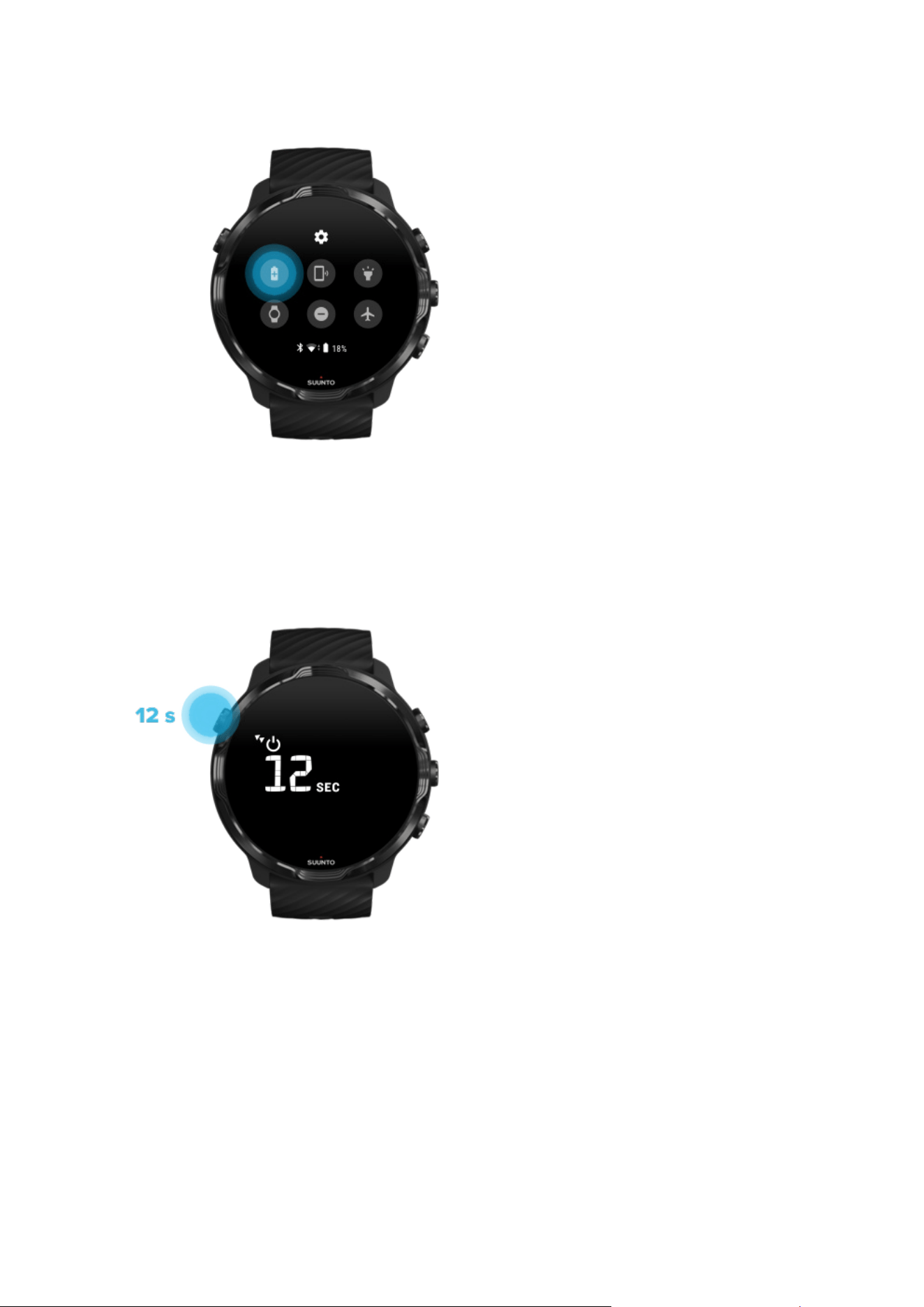
When Battery Saver is on, check the time by pressing the Power button.
Restart your watch to turn Battery Saver o
1. Keep the Power button pressed for 12 seconds to restart your watch.
2. Attach your watch to a charger and your watch will automatically restart.
Turn o notifications you don't want on your watch
Turning less important notifications o will reduce unnecessary interaction with your
watch – you can stay focused and save battery at the same time.
Suunto 7
164
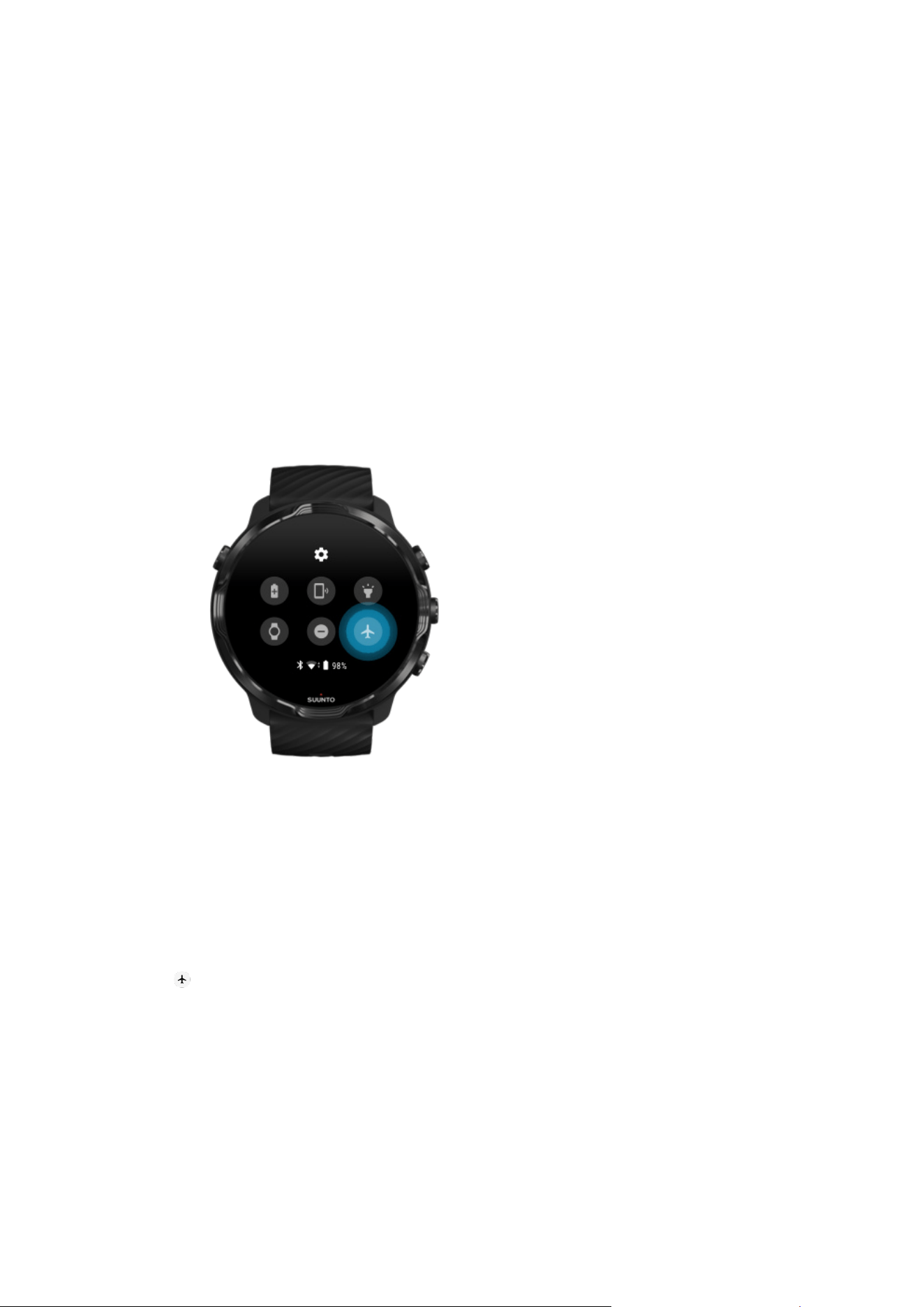
Select which notifications show on your watch
Remove apps
If you recently installed an app and notice that your battery is draining faster than
normal, try uninstalling that app. You can also remove apps that you don’t use to avoid
any unnecessary data connections to your phone or the Internet.
Remove apps
Turn the Airplane mode on
When your watch is on, even with the screen o, it is still searching for and
maintaining data connections. When you don’t need to be connected, you can save
power by turning the connections to your phone and the Internet o using the
Airplane mode.
1. While on the watch face, swipe down from the top of the screen.
2. Tap to turn Airplane mode on.
What happens when you take o your watch
After 30 minutes of inactivity, your watch will recognize that it’s not on your wrist and
then switch to a low-power mode.
Suunto 7
165
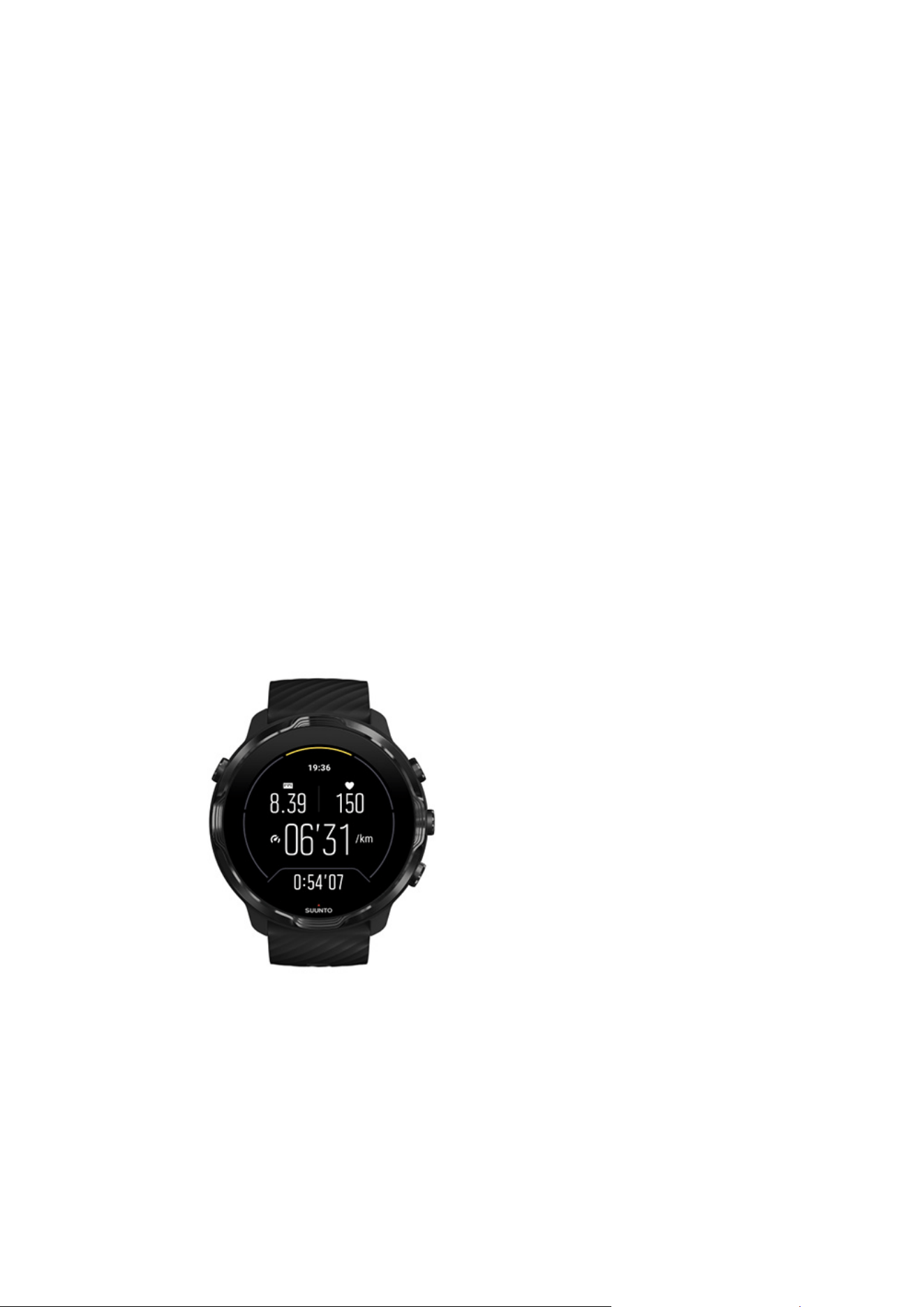
Maximize battery life during exercise
Suunto 7 is ideal for all sorts of activities. Battery consumption varies depending on
your choice of sports – training outdoors with GPS uses up more power than training
indoors. Also, the way you interact with your watch during the exercise – check your
stats, browse maps, or use other features on your watch – will also influence the
battery consumption.
To maximize the battery life of your watch during exercise, try the solutions below.
Change location accuracy
If you select Good Location accuracy your battery will last longer during your outdoor
workouts. For some sport modes such as running or cycling, FusedTrack™ is used to
improve tracking quality.
Change the location accuracy
Stay in low-power mode
During exercise, Suunto Wear app automatically switches the display to a low-power
mode after 10 seconds of inactivity to save more power. Suunto Wear app will still
record and show your current exercise stats in this mode.
To save even more power, please check that Always-on map is not enabled.
Suunto 7
166
NOTE: Low-power mode does not aect the accuracy of your exercise data.
NOTE: Using low-power mode together with Always-on map enabled will
increase the power consumption.
Avoid accidental touch and button actions during
exercise
Some movements and wet conditions such as rain drops or a wet sleeve, can
sometimes wake up your display repeatedly without you noticing, and drain your
battery faster than expected. To avoid accidental taps and button presses during
exercise, you can lock the touch screen and button actions.
Lock touch screen and button actions
Stay in Suunto Wear app during exercise recording
Suunto Wear app supports low-power mode during exercise. If you leave Suunto
Wear app during your exercise, keep in mind that some actions and apps can
consume a lot of battery, which may
aect how long you can record your exercise.
Use your watch to control music on your phone
Listening to music directly from your watch with Bluetooth headphones consumes a
lot of power and makes the battery drain faster. When you are planning to train longer
Suunto 7
167
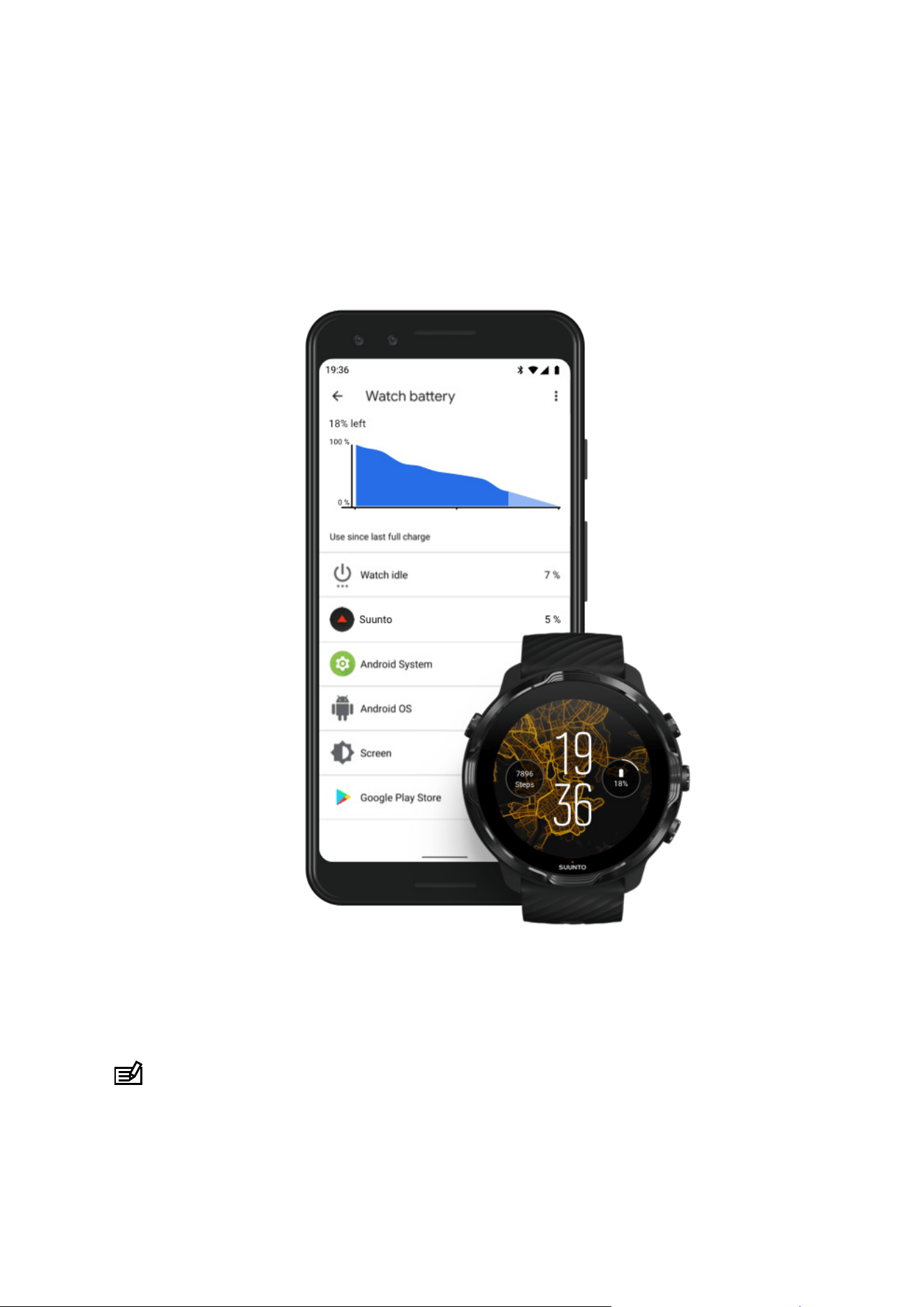
and want to listen to music, use your watch to control music that’s playing on your
phone.
Check battery life & usage
To get information about battery usage on your watch, open the Wear OS by Google
app on your phone and go to Advanced settings » Watch battery.
NOTE: Your battery info resets each time your watch is fully charged. The battery
usage for apps and watch faces is an estimate, and not guaranteed to be accurate.
Watch faces may use more battery than estimated.
Suunto 7
168


13. CARE AND SUPPORT
Handling guidelines
Handle the unit with care – do not knock or drop it.
Under normal circumstances, the watch does not require servicing. On a regular
basis, rinse it with fresh water, mild soap, and carefully clean the housing with a moist,
soft cloth or chamois.
Use only original Suunto accessories - damage caused by non-original accessories is
not covered by warranty.
Disposal
Please dispose of the device in accordance with local regulations for electronic waste.
Do not throw it in the garbage.
If you wish, you may return the device to your nearest Suunto dealer.
Getting support
For more help with Wear OS by Google, please visit:
Wear OS by Google Help
Google Help
For more help with sport features by Suunto, please visit:
Suunto’s product support
Our online support provides a comprehensive range of support materials, including
the user guide, frequently asked questions, how to videos, service and repair options,
Suunto 7
171

our service center locator, warranty terms and conditions as well as contact details for
our customer support.
If you could not
find answers to your questions on our online support, please contact
our customer support. We are happy to assist you.
Suunto 7
172

14. GLOSSARY
EPOC
Excess Post-exercise Oxygen Consumption (EPOC)
If you want to know about intensity, think EPOC! The higher your EPOC number, the
higher the intensity of your workout - and the higher the amount of energy you'll
spend recovering from your (presumably epic) exercise.
Beidou
Beidou is a Chinese satellite navigation system.
FusedAlti™
FusedAlti™ provides an altitude reading that is a combination of GPS and barometric
altitude. It minimizes the eect of temporary and oset errors in the final altitude
reading.
FusedTrack™
FusedTrack™ technology combines movement data with GPS data to ensure more
accurate tracking.
Glonass
Global Navigation Satellite System (GLONASS) is an alternative positioning system to
GPS.
GPS
The Global Positioning System (GPS) provides location and time information in all
weather conditions by satellites orbiting Earth.
Popular starting points
Popular starting points are generated from exercises done by the Suunto community
and are visible as small dots in the heatmaps for Suunto Wear app and Suunto app.
PTE
Peak Training
Eect (PTE)
Check out PTE when you want to know how big of an impact your exercise had on
your overall aerobic
fitness. Looking at the PTE scale is the easiest way to grasp why
it's useful: 1-2: Improves basic endurance, builds a good foundation for progress 3-4:
Suunto 7
173

Doing this 1-2 times a week eectively improves aerobic fitness 5: You're really
exerting yourself and you shouldn't do this often.
Recovery time
Recovery time pretty much does what it states: it gives you an estimation on how long
you need to recover from your exercise based on stats like duration and intensity.
Recovery is a key element of both your training and overall wellness. Taking time to
rest when needed is as important as your activities, and will help prepare you for
adventures to come.
Suunto Wear app
A built-in app on your Suunto 7 to track your sports and adventures with accurate real-
time data and free
oine maps and heatmaps.
Suunto app
A mobile companion app to sync and save your exercises from your watch to your
sports diary on your phone.
SWOLF
SWOLF is a not-all-that-catchy way of saying “how eciently you swim”. Basically, it
measures how many strokes you need to cover a certain distance when you’re
swimming. That’s why a lower SWOLF number means a more
ecient swimming
technique.
Wear OS by Google companion app
A mobile companion app that connects your Suunto 7 with your phone so that you
can use smart features like
notifications, the Google Assistant, Google Pay and more.
Suunto 7
174

15. REFERENCE
Manufacturer's info
Manufacturer
Suunto Oy
Tammiston kauppatie 7 A
FI-01510 Vantaa
FINLAND
Date of manufacture
The manufacturing date can be determined from your device’s serial number. The
serial number is always 12 characters long: YYWWXXXXXXXX.
In the serial number, the
first two digits (YY) are the year and the following two digits
(WW) are the week within the year when the device was manufactured.
Technical
specifications
For detailed technical specifications of Suunto 7 see “Product Safety and Regulatory
Information” delivered together with your Suunto 7 or available at www.suunto.com/
Suunto7Safety.
Compliance
For compliance related information, see “Product Safety and Regulatory Information”
delivered together with your Suunto 7 or available at www.suunto.com/Suunto7Safety
Suunto 7
175

Trademark
Suunto 7, its logos, and other Suunto brand trademarks and made names are
registered or unregistered trademarks of Suunto Oy. All rights are reserved.
Google, Wear OS by Google, Google Play, Google Pay, Google Fit and other related
marks and logos are trademarks of Google LLC.
App Store and iPhone are trademarks of Apple Inc., registered in the U.S. and other
countries.
Other trademarks and trade names are those of their respective owners.
Patent notice
This product is protected by patents and pending patent applications and their
corresponding national rights. For a list of the current patents, visit:
www.suunto.com/patents
Additional patent applications have been
filed.
Copyright
© Suunto Oy 01/2020. All rights reserved. Suunto, Suunto product names, their logos
and other Suunto brand trademarks and names are registered or unregistered
trademarks of Suunto Oy. This document and its contents are proprietary to Suunto
Oy and are intended solely for the use of clients to obtain knowledge and information
regarding the operation of Suunto products. Its contents shall not be used or
distributed for any other purpose and/or otherwise communicated, disclosed or
reproduced without the prior written consent of Suunto Oy. While we have taken great
care to ensure that information contained in this documentation is both
comprehensive and accurate, no warranty of accuracy is expressed or implied. This
document content is subject to change at any time without notice. The latest version
of this documentation can be downloaded at www.suunto.com.
©Mapbox, ©OpenStreetMap
Suunto 7
176

Prints use map data from Mapbox and OpenStreetMap and their data sources. To
learn more, visit https://www.mapbox.com/about/maps/ and http://
www.openstreetmap.org/copyright.
International Limited Warranty
Suunto warrants that during the Warranty Period Suunto or a Suunto Authorized
Service Center (hereinafter Service Center) will, at its sole discretion, remedy defects
in materials or workmanship free of charge either by a) repairing, or b) replacing, or c)
refunding, subject to the terms and conditions of this International Limited Warranty.
This International Limited Warranty is valid and enforceable regardless of the country
of purchase. The International Limited Warranty does not
aect your legal rights,
granted under mandatory national law applicable to the sale of consumer goods.
Warranty Period
The International Limited Warranty Period starts at the date of original retail purchase.
The Warranty Period is two (2) years for Watches, Smart Watches, Dive Computers,
Heart Rate Transmitters, Dive Transmitters, Dive Mechanical Instruments, and
Mechanical Precision Instruments unless otherwise
specified.
The Warranty Period is one (1) year for accessories including but not limited to Suunto
chest straps, watch straps, chargers, cables, rechargeable batteries, bracelets and
hoses.
The Warranty Period is
five (5) years for failures attributable to the depth
measurement (pressure) sensor on Suunto Dive Computers.
Exclusions and Limitations
This International Limited Warranty does not cover:
1. a. normal wear and tear such as scratches, abrasions, or alteration of the color
and/or material of non-metallic straps, b) defects caused by rough handling, or
c) defects or damage resulting from use contrary to intended or recommended
use, improper care, negligence, and accidents such as dropping or crushing;
2. printed materials and packaging;
Suunto 7
177

3. defects or alleged defects caused by use with any product, accessory, software
and/or service not manufactured or supplied by Suunto;
4. non-rechargeable batteries.
Suunto does not warrant that the operation of the Product or accessory will be
uninterrupted or error free, or that the Product or accessory will work with any
hardware or software provided by a third party.
This International Limited Warranty is not enforceable if the Product or accessory:
1. has been opened beyond intended use;
2. has been repaired using unauthorized spare parts;
modified or repaired by
unauthorized Service Center;
3. serial number has been removed, altered or made illegible in any way, as
determined at the sole discretion of Suunto; or
4. has been exposed to chemicals including but not limited to sunscreen and
mosquito repellents.
Access to Suunto warranty service
You must provide proof of purchase to access Suunto warranty service. You must also
register your product online at www.suunto.com/register to receive international
warranty services globally. For instructions how to obtain warranty service, visit
www.suunto.com/warranty, contact your local authorized Suunto retailer, or call
Suunto Contact Center.
Limitation of Liability
To the maximum extent permitted by applicable mandatory laws, this International
Limited Warranty is your sole and exclusive remedy and is in lieu of all other
warranties, expressed or implied. Suunto shall not be liable for special, incidental,
punitive or consequential damages, including but not limited to loss of anticipated
benefits, loss of data, loss of use, cost of capital, cost of any substitute equipment or
facilities, claims of third parties, damage to property resulting from the purchase or
use of the item or arising from breach of the warranty, breach of contract, negligence,
strict tort, or any legal or equitable theory, even if Suunto knew of the likelihood of
such damages. Suunto shall not be liable for delay in rendering warranty service.
Suunto 7
178
16. SAFETY
Types of safety precautions
WARNING: - is used in connection with a procedure or situation that may result
in serious injury or death.
CAUTION: - is used in connection with a procedure or situation that will result in
damage to the product.
NOTE: - is used to emphasize important information.
TIP: - is used for extra tips on how to utilize the features and functions of the
device.
Safety precautions
WARNING: Allergic reactions or skin irritations may occur when product is in
contact with skin, even though our products comply with industry standards. In such
event, stop use immediately and consult a doctor.
WARNING: Always consult your doctor before beginning an exercise program.
Overexertion may cause serious injury.
WARNING: Only for recreational use.
WARNING: Do not entirely rely on the GPS or battery lifetime of the product.
Always use maps and other backup material to ensure your safety.
CAUTION: Do not apply solvent of any kind to the product, as it may damage the
surface.
CAUTION: Do not apply insect repellent on the product, as it may damage the
surface.
Suunto 7
179

CAUTION: Do not throw the product away, but treat it as electronic waste to
preserve the environment.
CAUTION: Do not knock or drop the product, as it may get damaged.
NOTE: At Suunto we use advanced sensors and algorithms to generate metrics
that can help you in your activities and adventures. We strive to be as accurate as
possible. However, none of the data our products and services collect is perfectly
reliable, nor are the metrics they generate absolutely precise. Calories, heart rate,
location, movement detection, shot recognition, physical stress indicators and other
measurements may not match the real world. Suunto products and services are
intended for recreational use only and are not meant for medical purposes of any
kind.
Suunto 7
180

Suunto 7
181