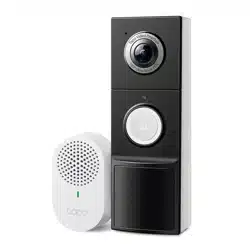

User Guide
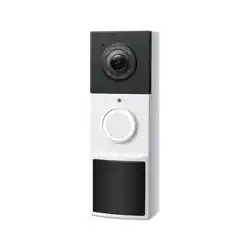
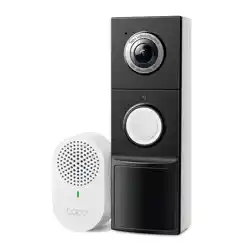
Smart Video Doorbell Camera
©2024 TP-Link 1910013854 REV1.0.1

Contents
About This Guide ·········································································· 1
Introduction ····················································································· 2
Before You Start ·············································································3
Install Jumper Wire for Your Existing Chime ··················· 4
Preparations for Installing Your Doorbell ··························5
Install Your Doorbell ······································································6
Set Up Your Doorbell and Chime ······································10
Set Up Using Amazon Frustration-Free Setup ···········12
Manage Your Doorbell······························································16
Authentication ··············································································26
1
About This Guide
This guide provides a brief introduction to the Smart Video Doorbell Camera and the Tapo app, as well as regulatory information.
Please note that features available in Tapo may vary by model and software version. Tapo availability may also vary by region. All images, steps, and
descriptions in this guide are only examples and may not reect your actual Tapo Camera experience.
Conventions
In this guide, the following convention is used:
Convention Description
Blue
Key information appears in blue, including management page text such as menus, items, buttons and so on.
Underline
Hyperlinks are in blue and underlined. You can click to redirect to a website.
Note:
Ignoring this type of note might result in a malfunction or damage to the device.
More Info
• Specications can be found on the product page at https://www.tapo.com.
• Our Technical Support and troubleshooting information can be found at https://www.tapo.com/support/.

2
Introduction
Tapo dual-power smart doorbell is exible in placement. Replace your existing doorbell with a smarter one and answer your door from anywhere with
your phone. Receive instant notications whenever someone comes by—even before they knock. Keep an eye out for the visitors, or possible intruders
with crystal clear video and audio.
• 2K 5MP Ultra-Clear Images – Always know what happens in front of your door through the Tapo app. With the spotlight and 2K 5MP resolution,
check all the ne details captured even in low-light environments.
• 180° Ultra-Wide Diagonal FOV* – Featuring a 180° ultra-wide diagonal eld of view and 4:3 aspect ratio, Tapo Doorbell delivers full head-to-toe
visibility at your door, even when visitors are just 0.4 m away.*
*The data is measured based on the doorbell’s optimal installation height of 1.2 m. The actual distance will be aected by the installation height.
• 10000mAh Battery Life – The built-in 10000mAh rechargeable battery leads to a long-lasting life (up to 365 days)^, extending your usage.
^The time of use includes recording and watching live views. Actual battery life may vary due to device settings, usage, router specications and environmental
factors.
• Color Night Vision – Reveals high-delity details and color at night with the spotlight.
• Dual Power Options – Enhance your viewing with pre-roll footage when the doorbell is hardwired.
• Quick Response – Respond to your deliveries without saying a word with customizable responses through the Tapo app.
• Multiple Ways to Answer – With two-way audio or a recorded quick response, communicate directly with your deliveries through the Tapo app.
• Flexible Storage Choices – Save recorded videos on the microSD card
†
(up to 512 GB ) or by using Tapo Care** cloud storage services.
†
microSD card needs to be purchased separately.
**Tapo Care needs to be subscribed separately.
• Two-Way Audio – Enables communication through a built-in microphone and speaker.
• IP66 Weatherproof – Oers excellent waterproof and dustproof performance for outdoor scenarios.
• Free AI Detection – Enjoy free AI detection to identify people and vehicles, and notify you as needed.
3
Before You Start
If you want hardwire the doorbell into your home circuit:
WARNING: Risk of Electric Shocks
• Your existing doorbell must be wired (not battery powered) and supplied by an 8-24V AC, 10VA Minimum transformer.
• Ensure that your existing doorbell works by ringing the doorbell.
• Locate your existing doorbell chime.
• Make sure the doorbell is in an area with a strong Wi-Fi signal.
• Disconnect power at the fuse or circuit breaker before installing.
• You can always nd detailed wiring and installation instructions in the Tapo app.
OR
4
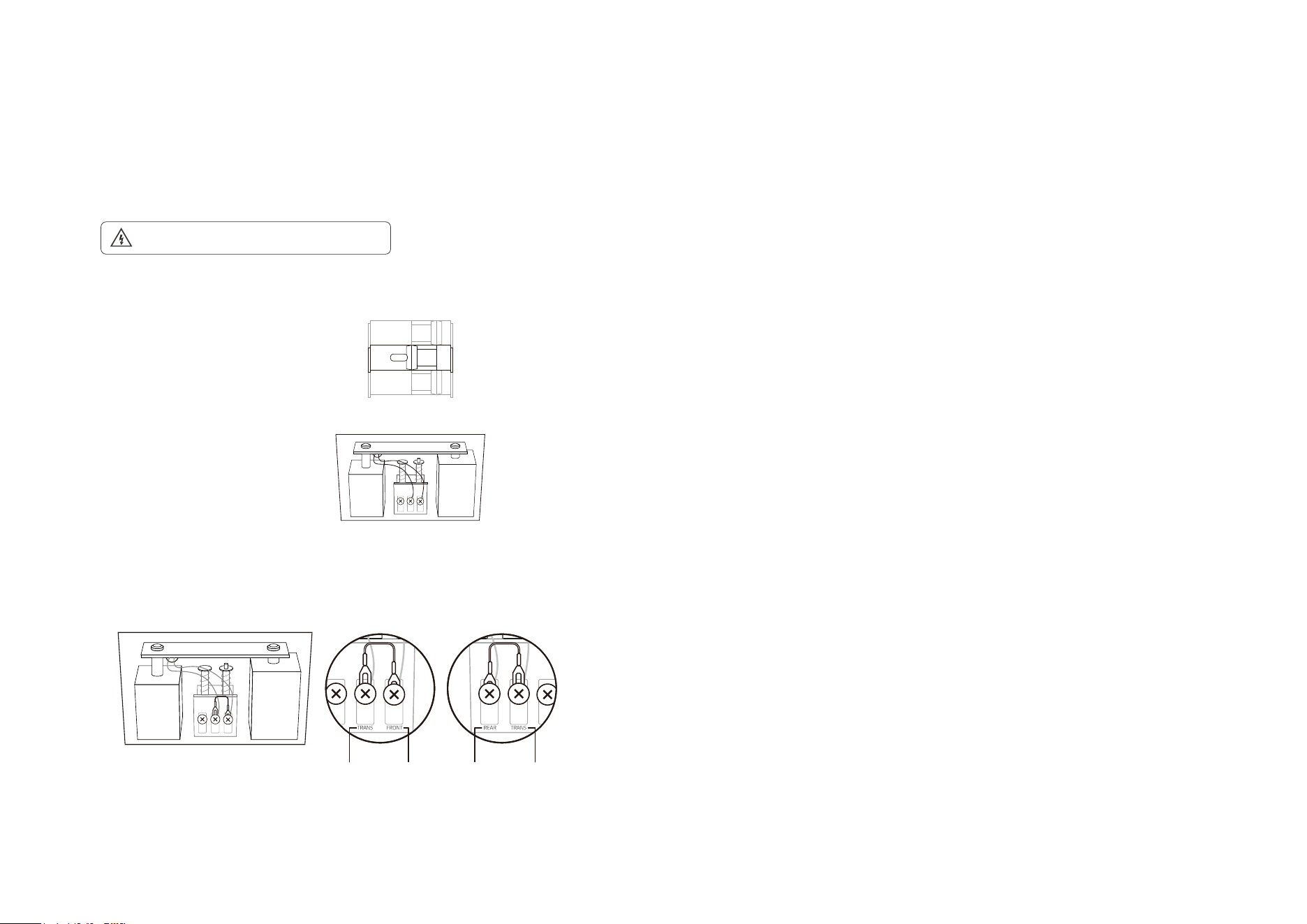
Install Jumper Wire for Your Existing Chime
Install the jumper wire to bypass the existing chime on the circuit so that the Tapo doorbell can get sucient power to operate stably. This is only
necessary when you want to hardwire the doorbell and enable Always-On Mode.
1. Turn o the circuit breaker. Make sure the power is o by ringing your doorbell a few times.
OFF
Take care to avoid electric shocks.
2. Remove the chime cover and take a photo of the wiring in case you want to reconnect it.
4. Tighten the screws and replace the chime cover.
Note: If your doorbell chime has dierent markings, refer to instructions in the Tapo app or consult a licensed electrician.
3. Slightly loosen the screws for the Front and Trans of your front doorbell or the Rear and
Trans of your rear doorbell, then insert the jumper wire.
Front Doorbell
TRANS TRANSREARFRONT
Rear Doorbell
5
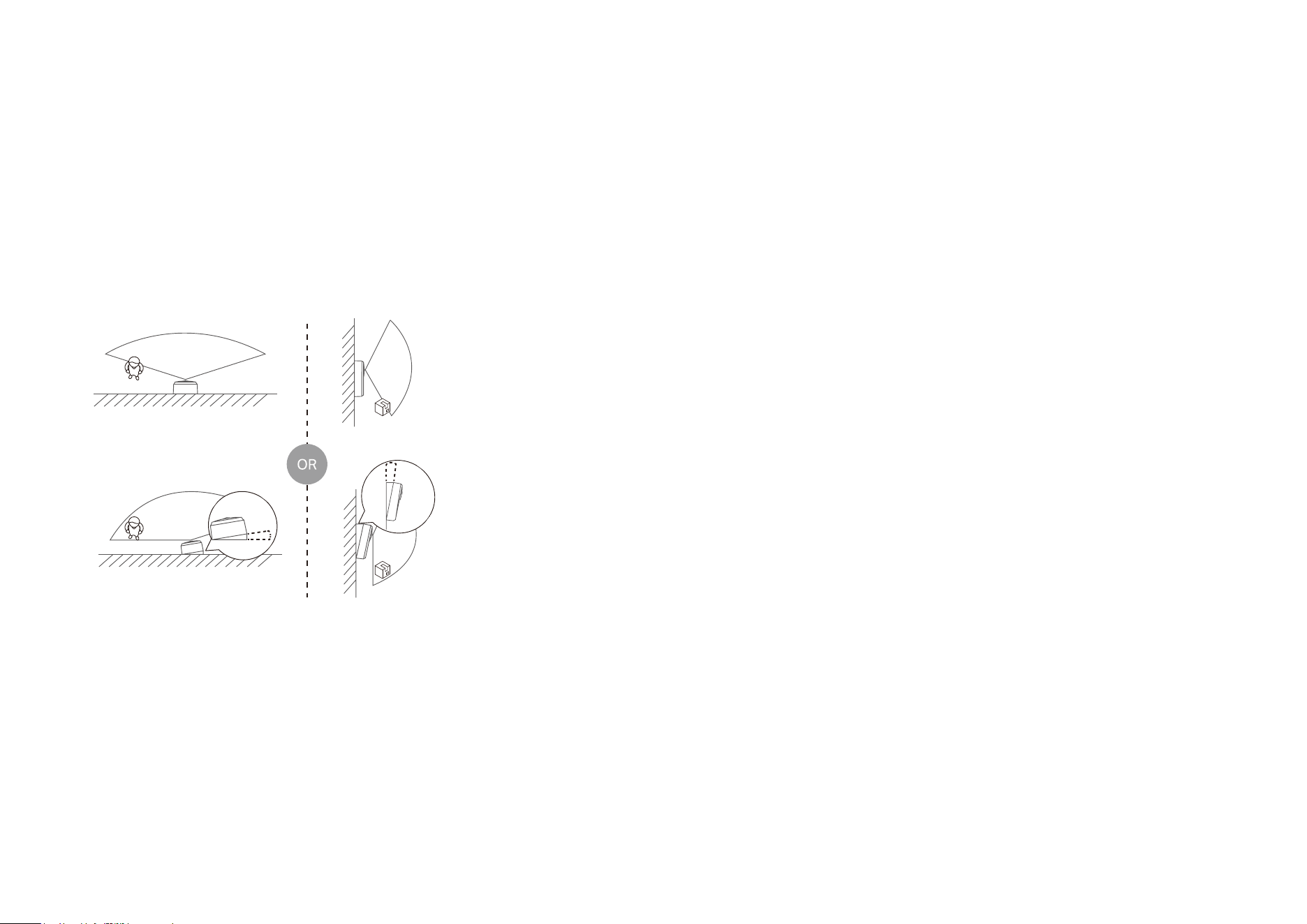
Preparations for Installing Your Doorbell
Before installing the new doorbell, remove your existing doorbell, and determine if you need a mounting wedge to adjust the viewing angle of the
doorbell.
1. Install the doorbell on a at and clean wall.
2. The doorbell should be placed 1.2 m (4 ft) above the ground.
3. (Optional) Use the included mounting wedges for a more focused view from a specic side.
Without Mounting
Wedge
With Vertical
Mounting Wedge
Without Mounting
Wedge
With Horizontal
Mounting Wedge
15°
5°
4. Avoid placing the doorbell close to a side wall in the eld of view. If you must, use the mounting wedge to adjust the viewing angle to reduce reected
light from the wall for better night vision performance.
6
Install Your Doorbell
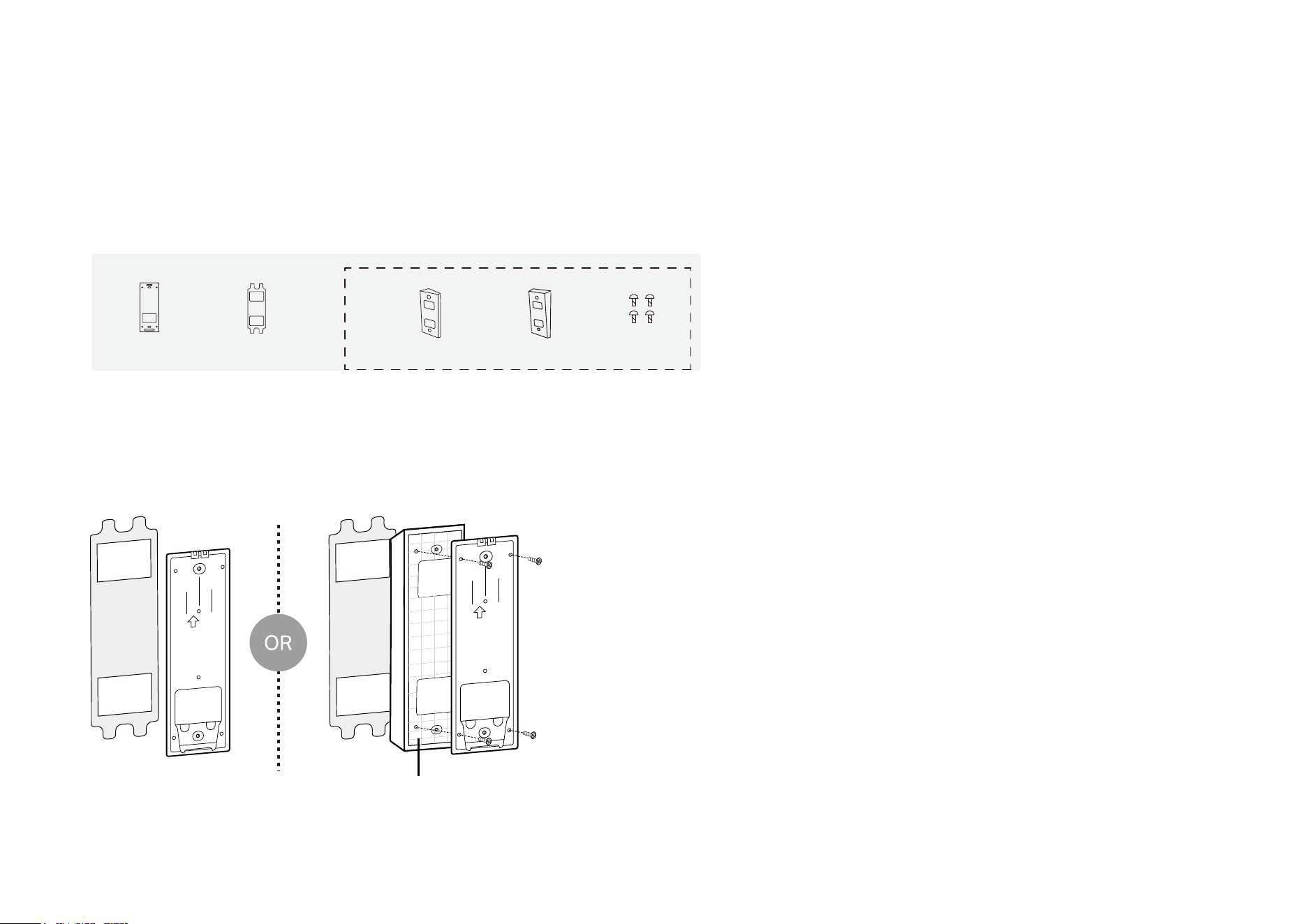
Follow the steps below to install your new doorbell.
Required Accessories:
Mounting Bracket 3M Adhesive
Optional
Horizontal
Mounting wedge
Vertical
Mounting wedge
Mounting Wedge
Screws ×4
3M
3M
3M
3M
UP
Attach the wedge’s
grid-side to the bracket.
UP
Option 1. Stick to a smooth wall
1. Attach the included adhesive to the back of the bracket or the
wedge. If you use the wedge to adjust angle, rst ax the bracket
and the wedge with screws.
Note: The adhesive is for one-time use. Avoid re-using the adhesive to
ensure its adhesion.
2. Route the wires through the bracket (if there are existing wires) .
Wipe o the dust from the surface using a dry cloth, stick the bracket
with adhesive to the smooth wall, and press it down for 15 seconds
to ensure the bracket is rmly attached.
Note: This is applicable with tile, glass, marble, metal, stainless steel, and
smooth wall surfaces.

7
3. Mount the doorbell to the bracket.
Option A: Battery Powered Option B: Hardwire Powered
Connect the wires to the doorbell and tighten the screws. Mount the
doorbell to the bracket and turn on the circuit breaker.
Note: If the wires are too short, use the included extension wires and
wire nuts to make them longer.
Starting from the bottom, attach the doorbell to
the bracket.
8
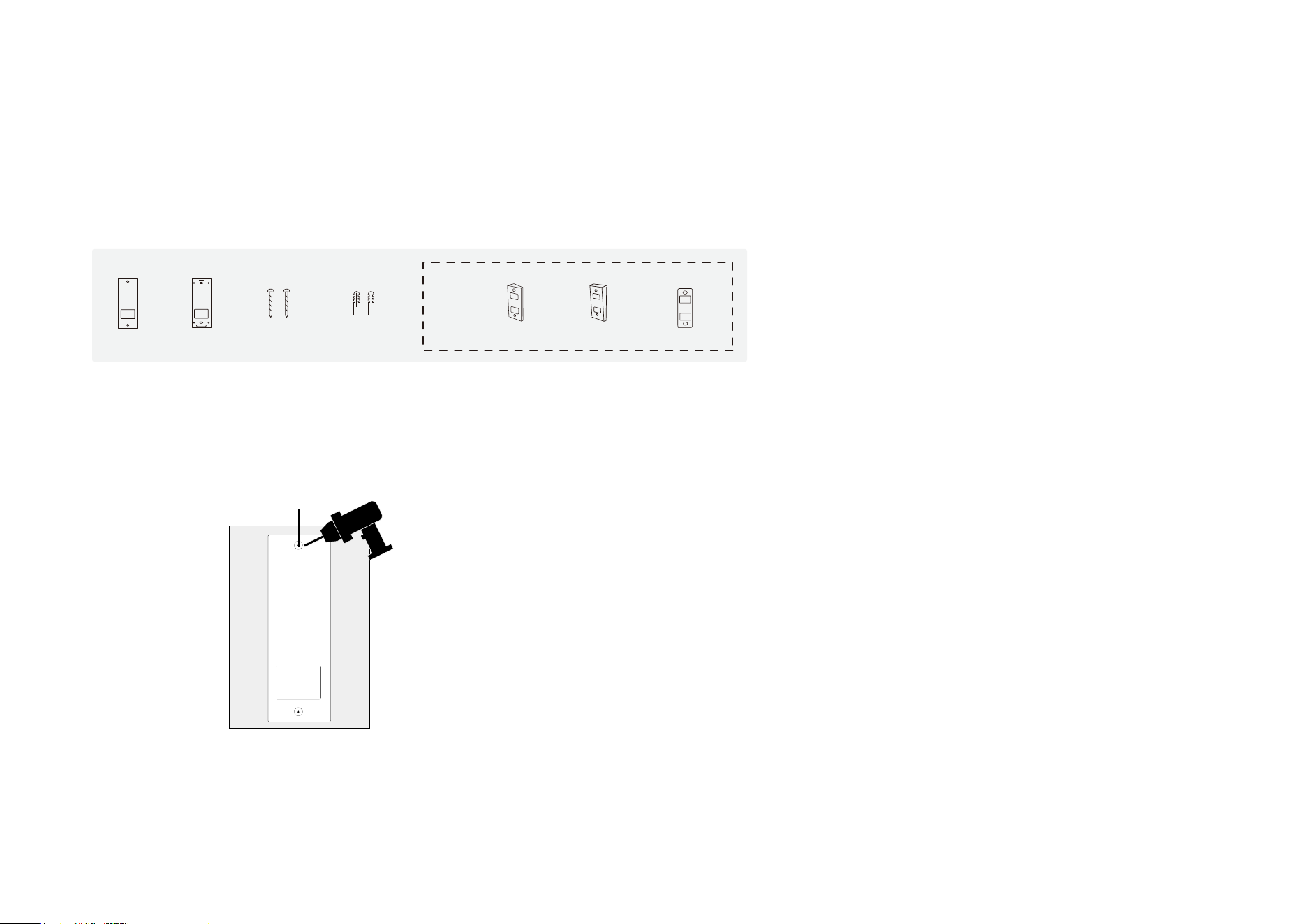
Φ=6 mm (15/64 in.)
Option 2. Mount to the wall
1. Stick the mounting template to the desired place. Drill two holes
according to the template.
2. Route the wires (if there are existing wires) through the bracket.
Insert two anchors into the holes and use the screws to ax the
bracket over the anchors.
Note: When mounting to uneven walls, stick the foam pad on the back of the
wedge.
Install Your Doorbell
Follow the steps below to install your new doorbell.
Required Accessories:
Mounting
Bracket
Mounting
Screws ×2
Anchors ×2Mounting
Template
Optional
Foam Pad
Horizontal Mounting
wedge
Vertical Mounting
wedge

9
3. Mount the doorbell to the bracket.
Note: If you have trouble attaching the doorbell to the bracket or it causes false anti-theft alarms, check if you tightened the screws too much that the
bracket bent. Adjust the depth of the screw and then reinstall the doorbell.
Option A: Battery Powered Option B: Hardwire Powered
Connect the wires to the doorbell and tighten the screws. Mount the
doorbell to the bracket and turn on the circuit breaker.
Note: If the wires are too short, use the included extension wires and
wire nuts to make them longer.
Starting from the bottom, attach the doorbell to
the bracket.
10
Set Up Your Doorbell and Chime
After installing the doorbell, follow the steps below to set up the doorbell, and pair with the chime.
Step 1. Download Tapo App
Get the Tapo app from the App Store or
Google Play, or by scanning the QR code
below.
Step 2. Log In
Open the app, and log in with your TP-Link ID.
If you don't have an account, create one rst.
OR
11
Step 3. Add Your Camera
Tap the button in the app and search for your model. Follow the app instructions to set up your
doorbell. Then plug in your chime and pair with the doorbell.
12
Set Up Using Amazon Frustration-Free Setup
What is Amazon Frustration-Free Setup?
Amazon Frustration-Free Setup can help connect and set up Tapo smart devices in fewer steps, without having to remember and re-enter your Wi-Fi
password on each device.
To use this feature, conrm the following:
● The new Tapo device supports Amazon FFS.
● The new Tapo device is purchased from Amazon.
● You have an Amazon FFS enabled Alexa device or router.
● You have saved your Wi-Fi information to Amazon by using Alexa echo.
● Your Tapo device and router are on the same network as your Alexa echo.
LED Indications during Amazon Frustration-Free Setup
LED Status
Blinking red and green Ready for setup
Blinking amber FFS setup in progress
Solid white Working properly
If the LED does not turn solid white after a long time, you can try to add the Tapo device manually. (Press the Reset button on your Tapo device once.
Then open the Tapo app, tap the + button on the page, select your device model, and follow the app instructions. )

13
1. Open the Amazon Alexa app. Then tap More and select Skills &
Games.
How to use Amazon Frustration-Free Setup with Tapo devices
2. Enter Tapo in the search bar and choose Tapo.

14
3. Tap the ENABLE TO USE button.
4. Log in with your TP-Link ID that has bound to your Tapo device, and tap Authorize. After authorized
successfully, the message Tapo has been successfully linked will come up.

15
5. Plug in your Tapo device and the setup will complete automatically in two minutes.
For setting up more Tapo devices, just plug in and enjoy!
Done!
If this device displays on the Home page in the Tapo app, it indicates this device has been successfully associated with your Amazon account and
joined your Wi-Fi network automatically.
If this device does not display on the Home page in the Tapo app, try setting it up manually. (Tap the + button on the page, select your device model,
and then follow the app instructions.)
16
Manage Your Doorbell
After setup, your device will be listed on the Home page. You can tap your device to manage it.
1. Home Page
You can check your battery, favorite/unfavorite,
and remove your device on the Home page.
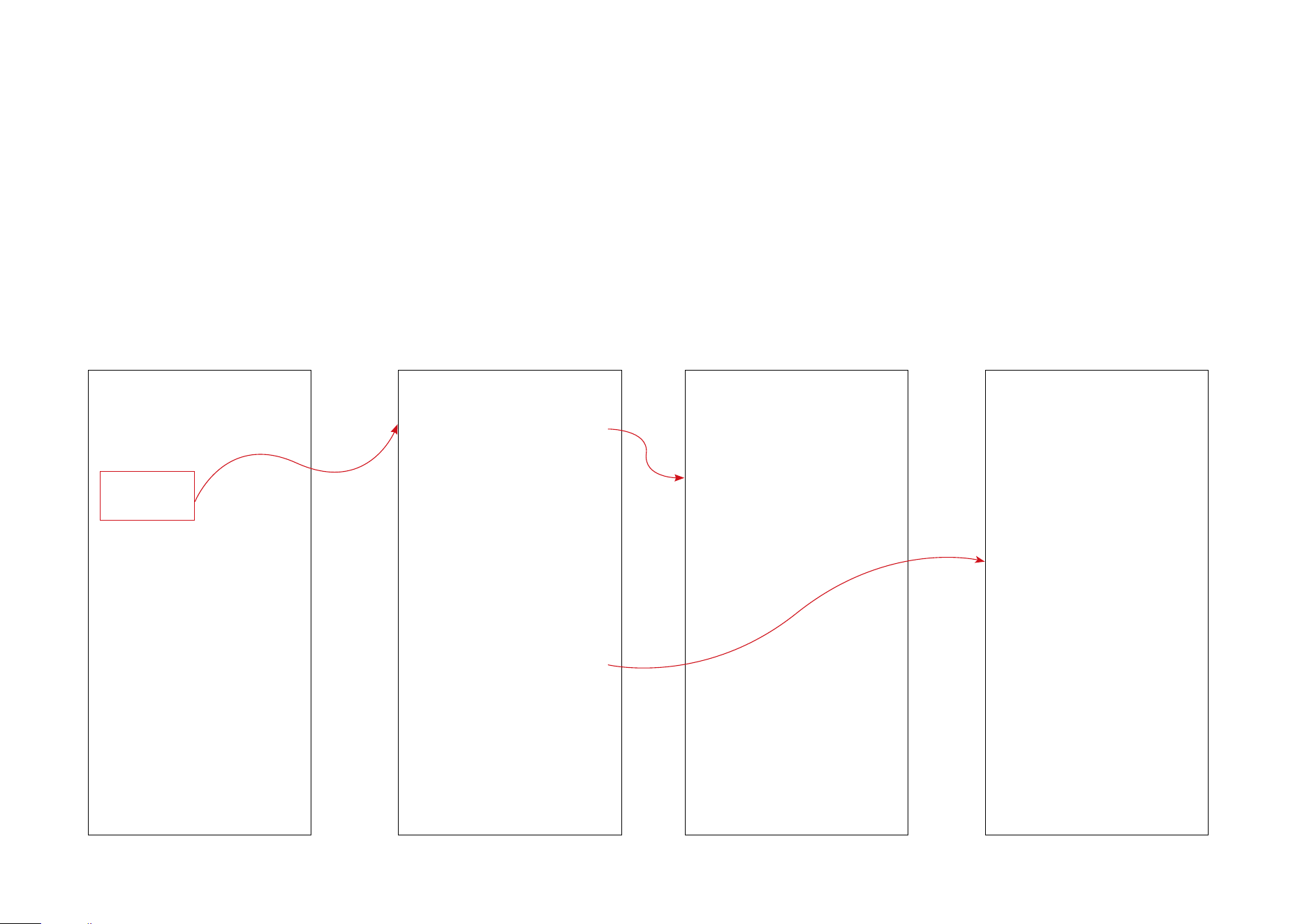
2. Status Page
Tap your device to enter its Status page.
Take a screen shot
Record a clip
Talk to your visitors
Enable/disable Privacy Mode
Turn on/o spotlight
Watch multiple Tapo
cameras/doorbells
simultaneously.
Play back event
recordings and check the
photos and videos you
take yourself
Adjust the volume
Quickly select a preset
response to communicate
with visitors
Choose whether to have
the tag when people or
vehicles are detected.
Make a video call
Switch to landscape mode
Subscribe to Tapo Care
to enjoy unlimited cloud
storage and other features.
17
3. Settings Page
Tap on the Status page to enter the Device Settings page.
3.1 Set Detection Settings
You can set when to wake up your doorbell, and the detection zones and sensitivity for each detection type.
18
3.2 Check Power Options
You can check battery status, choose whether to show the battery status and percentage on Live View, select the power supply, set the
working mode and Auto Privacy Mode, and check battery usage and wake-up times for the past 7 or 30 days.
If you want to choose the Hardwire Powered supply method, you need to hardwire your doorbell to your home circuit rst.
19
3.2 Check Power Options
If you have hardwired your doorbell to your home circuit rst, you can choose whether to enable Always-On Mode, which supports 24/7
recording.
20
3.3 Set Doorbell settings
Doorbell Ring: Set the ringtone volume of your doorbell.
Paired Chimes: Check paired chimes/hub and add new chimes/hubs.
Doorbell Video Call: When someone presses the doorbell, you'll receive a ring call if the Tapo app is already open on your screen.
Spoken Language: Choose what language your doorbell speaks.
Anti-theft Alarm: When enabled, an alarm will be triggered once the doorbell is removed from the wall.
21
3.4 Subscribe to Tapo Care
Tapo Care is a comprehensive service with unlimited cloud storage. You can subscribe to Tapo Care to save recorded videos by your
doorbell.
22
3.5 Storage & Recording
Check your microSD card status, enable microSD Card Recording for 24/7 recording, set recording schedule and the clips settings, and
choose whether to record sound during recording.
23
3.6 Video & Display
Night Mode Settings: Set the recording eect at night.
Video Quality: Set the video resolution for the doorbell.
Privacy Zones: Customize zones that cannot be viewed or monitored to protect your privacy.
Frame Rate: Choose the frame rate you want. A higher frame rate will reduce the battery life.
On-screen Display Info: Custom information that overlays the doorbell's footage.
Display Tag on Screen: Display the detection tag on your screen.
24
3.7 Spotlight Settings
If you have turned on the spotlight on Live View, you can adjust the
brightness here.
3.8 Privacy Mode
When enabled, streaming and recording feature will be temporarily
unavailable.
25
3.9 Notications
Choose whether to receive rich notications (notications with
snapshots) and what type of activity notications you want to
receive.
4.0 Share Device
When enabled, streaming and recording feature will be temporarily
unavailable.

26
Authentication
FCC compliance information statement
Product Name: Tapo Video Doorbell Camera
Model Number: Tapo D235/TD25
Responsible Party:
TP-Link USA Corporation
Address: 10 Mauchly, Irvine, CA 92618
Website: https://www.tp-link.com/us/
Tel: +1 626 333 0234
Fax: +1 909 527 6804
E-mail: [email protected]om
This equipment has been tested and found to comply with the limits for a Class B digital device, pursuant to part 15 of the FCC Rules. These limits are
designed to provide reasonable protection against harmful interference in a residential installation. This equipment generates, uses and can radiate
radio frequency energy and, if not installed and used in accordance with the instructions, may cause harmful interference to radio communications.
However, there is no guarantee that interference will not occur in a particular installation. If this equipment does cause harmful interference to radio
or television reception, which can be determined by turning the equipment off and on, the user is encouraged to try to correct the interference by
one or more of the following measures:
• Reorient or relocate the receiving antenna.
• Increase the separation between the equipment and receiver.
• Connect the equipment into an outlet on a circuit different from that to which the receiver is connected.
• Consult the dealer or an experienced radio/ TV technician for help.
This device complies with part 15 of the FCC Rules. Operation is subject to the following two conditions:
1. This device may not cause harmful interference.

27
2. This device must accept any interference received, including interference that may cause undesired operation.
Any changes or modifications not expressly approved by the party responsible for compliance could void the user’s authority to operate the
equipment.
Note: The manufacturer is not responsible for any radio or TV interference caused by unauthorized modifications to this equipment. Such modifications
could void the user’s authority to operate the equipment.
FCC RF Radiation Exposure Statement
This equipment complies with FCC RF radiation exposure limits set forth for an uncontrolled environment. This device and its antenna must not be
co-located or operating in conjunction with any other antenna or transmitter.
“To comply with FCC RF exposure compliance requirements, this grant is applicable to only Mobile Configurations. The antennas used for this
transmitter must be installed to provide a separation distance of at least 20 cm from all persons and must not be co-located or operating in conjunction
with any other antenna or transmitter.”
We, TP-Link USA Corporation, has determined that the equipment shown as above has been shown to comply with the applicable technical standards,
FCC part 15. There is no unauthorized change is made in the equipment and the equipment is properly maintained and operated.
Issue Date: 2024-07-07

28
CE Mark Warning
This is a class B product. In a domestic environment, this product may cause radio interference, in which case the user may be required to take
adequate measures.
OPERATING FREQUENCY (the maximum transmitted power)
2412MHz—2472MHz (20dBm)
EU Declaration of Conformity
TP-Link hereby declares that the device is in compliance with the essential requirements and other relevant provisions of directives 2014/53/EU,
2009/125/EC, 2011/65/EU and (EU)2015/863.
The original EU Declaration of Conformity may be found at https://www.tapo.com/en/support/ce/.
RF Exposure Information
This device meets the EU requirements (2014/53/EU Article 3.1a) on the limitation of exposure of the general public to electromagnetic fields by way
of health protection.
The device complies with RF specifications when the device used at 20 cm from your body.

29
UKCA Mark
UK Declaration of Conformity
TP-Link hereby declares that the device is in compliance with the essential requirements and other relevant provisions of the Radio Equipment
Regulations 2017.
The original UK Declaration of Conformity may be found at https://www.tapo.com/support/ukca/.
Canadian Compliance Statement
This device contains licence-exempt transmitter(s)/receiver(s) that comply with Innovation, Science and Economic Development Canada’s licence-
exempt RSS(s). Operation is subject to the following two conditions:
1. This device may not cause interference.
2. This device must accept any interference, including interference that may cause undesired operation of the device.
L’émetteur/récepteur exempt de licence contenu dans le présent appareil est conforme aux CNR d’Innovation, Sciences et Développement
économique Canada applicables aux appareils radio exempts de licence. L’exploitation est autorisée aux deux conditions suivantes :
1. l’appareil ne doit pas produire de brouillage;
2. l’utilisateur de l’appareil doit accepter tout brouillage radioélectrique subi, meme si le brouillage est susceptible d’en compromettre le fonctionnement
Radiation Exposure Statement:
This equipment complies with IC radiation exposure limits set forth for an uncontrolled environment. This equipment should be installed and operated
with minimum distance 20cm between the radiator & your body.
Déclaration d’exposition aux radiations:
Cet équipement est conforme aux limites d’exposition aux rayonnements IC établies pour un environnement non contrôlé. Cet équipement doit être
installé et utilisé avec un minimum de 20 cm de distance entre la source de rayonnement et votre corps.
Industry Canada Statement
CAN ICES-3 (B)/NMB-3(B)
30
Korea Warning Statements:
당해 무선설비는 운용중 전파혼신 가능성이 있음.
NCC Notice & BSMI Notice
注意!
取得審驗證明之低功率射頻器材,非經核准,公司、商號或使用者均不得擅自變更頻率、加大功率或變更原設計之特性及功能。
低功率射頻器材之使用不得影響飛航安全及干擾合法通信;經發現有干擾現象時,應立即停用,並改善至無干擾時方得繼續使用。
前述合法通信,指依電信管理法規定作業之無線電通信。
低功率射頻器材須忍受合法通信或工業、科學及醫療用電波輻射性電機設備之干擾。
為避免本器材影像畫面遭偷窺或擷取,本器材使用者應先修改預設密碼,並定期更新密碼。
安全諮詢及注意事項
• 請使用原裝電源供應器或只能按照本產品注明的電源類型使用本產品。
• 清潔本產品之前請先拔掉電源線。請勿使用液體、噴霧清潔劑或濕布進行清潔。
• 注意防潮,請勿將水或其他液體潑灑到本產品上。
• 插槽與開口供通風使用,以確保本產品的操作可靠並防止過熱,請勿堵塞或覆蓋開口。
• 請勿將本產品置放於靠近熱源的地方。除非有正常的通風,否則不可放在密閉位置中。
• 不要私自拆開機殼或自行維修,如產品有故障請與原廠或代理商聯繫。
31
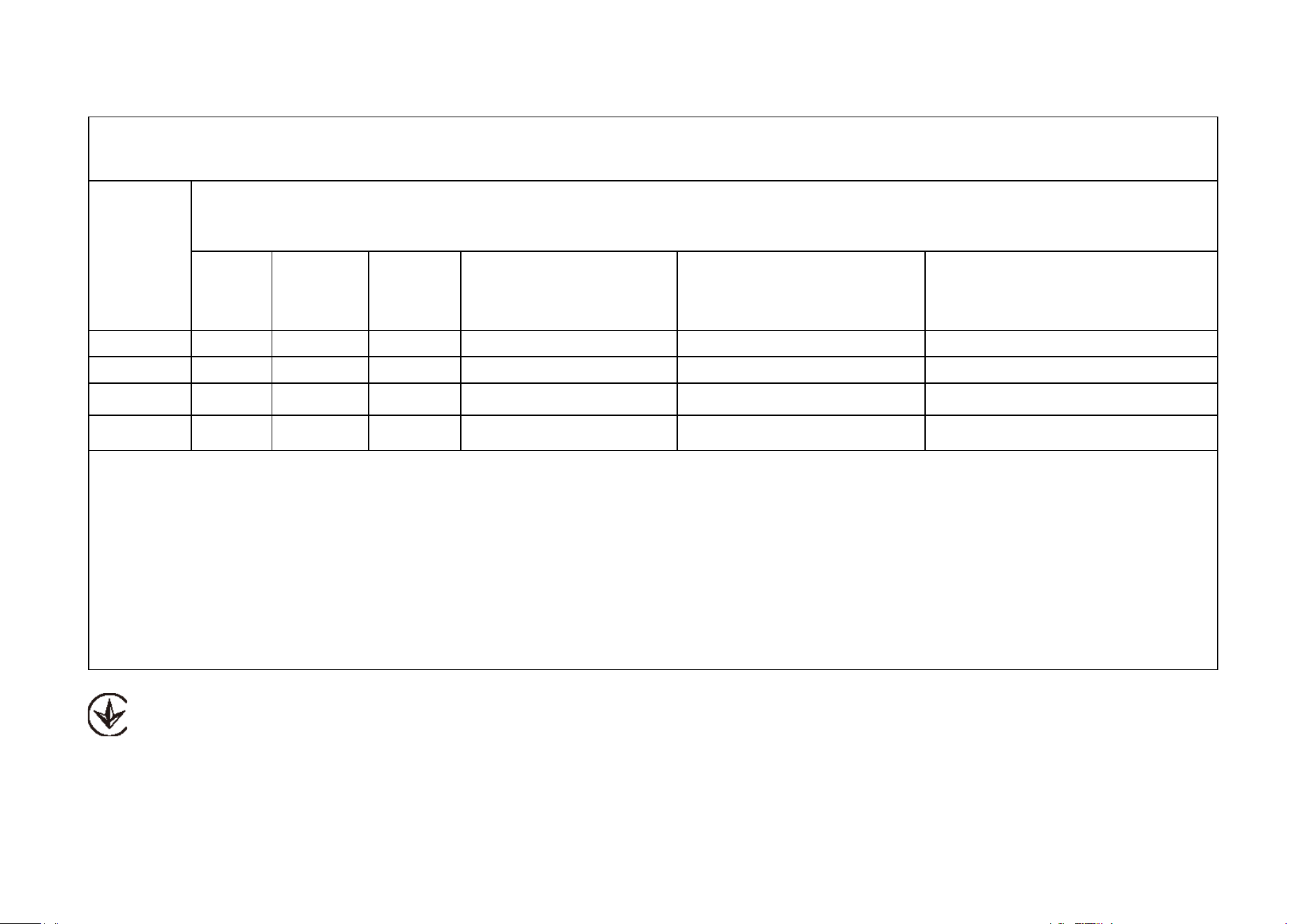
限用物質含有情況標示聲明書
設備名稱:Tapo 電池監控門鈴 型號(型式):Tapo D235,TD25
Equipment name Type designation (Type)
單元
Unit
限用物質及其化學符號
Restricted substances and its chemical symbols
鉛
Lead
(Pb)
汞
Mercury
(Hg)
鎘
Cadmium
(Cd)
六價鉻
Hexavalent chromium
(Cr
+6
)
多溴聯苯
Polybrominated biphenyls
(PBB)
多溴二苯醚
Polybrominated diphenyl ethers
(PBDE)
PCB ○ ○ ○ ○ ○ ○
外殼 ○ ○ ○ ○ ○ ○
天線 − ○ ○ ○ ○ ○
塑膠組件 ○ ○ ○ ○ ○ ○
備考 1.〝超出 0.1 wt %〞及〝超出 0.01 wt %〞係指限用物質之百分比含量超出百分比含量基準值
Note 1:“Exceeding 0.1 wt %” and “exceeding 0.01 wt %” indicate that the percentage content of the restricted substance
exceeds the reference percentage value of presence condition.
備考 2.〝○〞係指該項限用物質之百分比含量未超出百分比含量基準值。
Note 2:“○” indicates that the percentage content of the restricted substance does not exceed the percentage of reference value
of presence.
備考 3.〝−〞係指該項限用物質為排除項目。
Note 3:The “−” indicates that the restricted substance corresponds to the exemption.
Продукт сертифіковано згідно с правилами системи УкрСЕПРО на відповідність вимогам нормативних документів та вимогам,
що передбачені чинними законодавчими актами України.

32
Safety Information
• Never touch the product with wet hands.
• Do not disassemble, repair or modify the product.
• Do not use the device where wireless devices are not allowed.
• Do not use the product if the casing has been broken. Danger of electric shock.
• Keep the device away from fire or hot environments. DO NOT immerse in water or any other liquid.
• Do not place near automatically controlled devices such as fire alarms. Radio waves emitted from this product may cause such devices to
malfunction resulting in an accident.
• Observe restrictions on using wireless products in fuel depots, chemical plants or when blasting operations are in progress.
• Do not use liquid to clean the product. Only use a dry cloth.
• Never put metal objects inside the product. If a metal object enters the product turn off the circuit breaker and contact an authorised electrician.
• This product is not intended to be used when providing medical care. Consult the manufacturer of any personal medical devices, such as
pacemakers or hearing aids to determine if they are adequality shielded from external RF (radio frequency) energy.
• Do not use this product in health care facilities. Hospitals or health care facilities may be using equipment that could be sensitive to external RF
energy.
• Do not use this product near water for example near a bath tub, wash bowl, kitchen sink or laundry tub, in a wet basement or near a swimming
pool.
• The product should be kept free from excessive smoke, dust or high temperature and vibration.
• This product should not be exposed to direct sunlight
• Do not place heavy objects on top of the product.
• This product may interfere with other electronic products such as TV, radios, personal computers, phones or other wireless devices.
• This equipment shall be installed at a height of fewer than 2 meters when sticking to a clean wall.
• Doorbell Operating Temperature: -20 °C ~ 45°C (-4°F ~ 113°F)
• Chime Operating Temperature: 0 °C ~ 40°C (32°F ~ 104°F)
• Maximum installation height: 6ft (2m)
33
CAUTION!
Avoid replacement of a battery with an incorrect type that can defeat a safeguard. Avoid disposal of a battery into fire or a hot oven, or
mechanically crushing or cutting of a battery, that can result in an explosion. Do not leave a battery in an extremely high temperature surrounding
environment that can result in an explosion or the leakage of flammable liquid or gas. Do not leave a battery subjected to extremely low air
pressure that may result in an explosion or the leakage of flammable liquid or gas.
Please read and follow the above safety information when operating the device. We cannot guarantee that no accidents or damage will occur due to
improper use of the device. Please use this product with care and operate at your own risk.
34
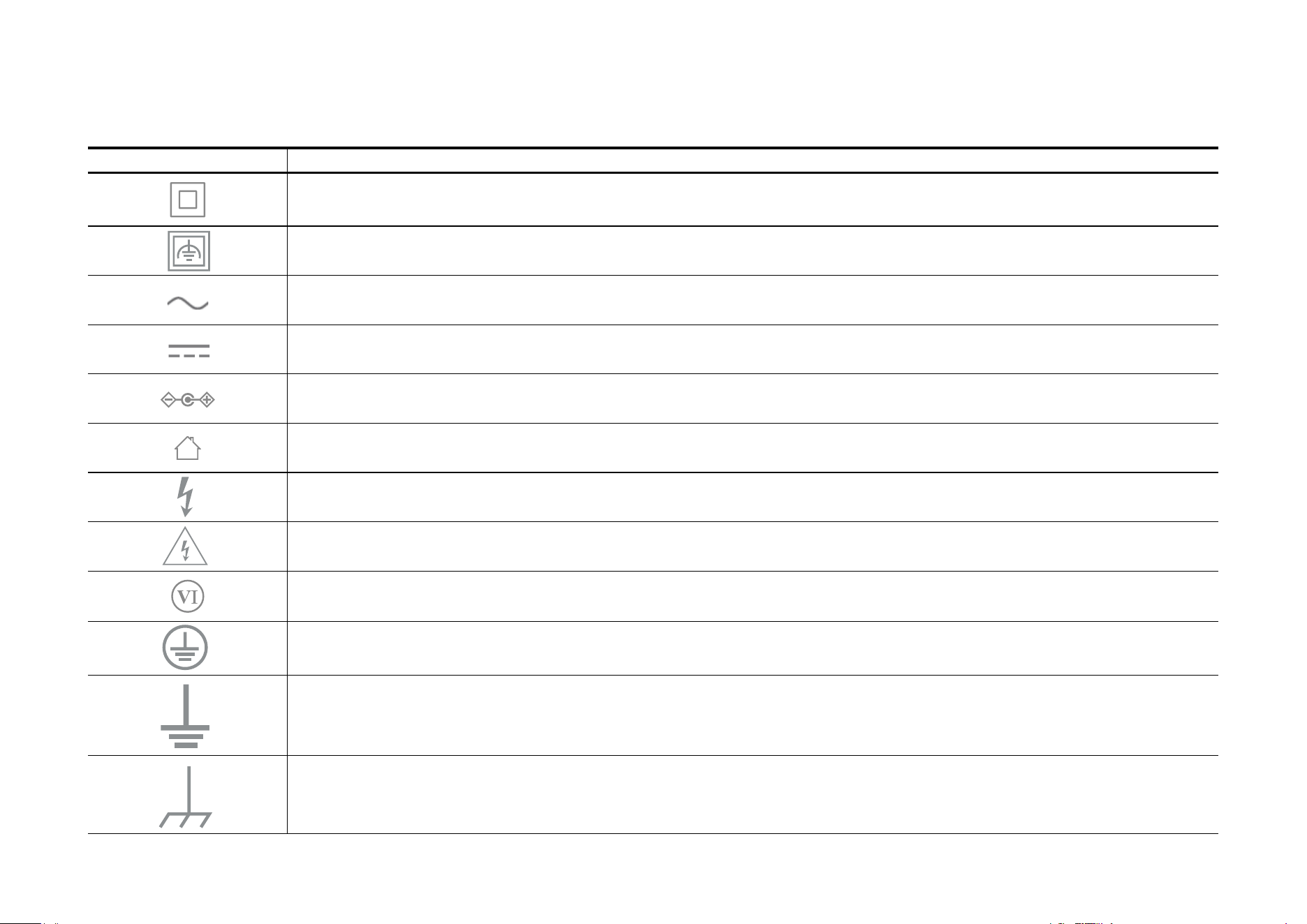
Explanation of the symbols on the product label
Note: The product label is on the bottom of the product. Symbols may vary from products.
Symbol Explanation
Class II equipment
Class II equipment with functional earthing
Alternating current
DC voltage
Polarity of output terminals
Indoor use only
Dangerous voltage
Caution, risk of electric shock
Energy efficiency Marking
Protective earth
Earth
Frame or chassis
35
Symbol Explanation
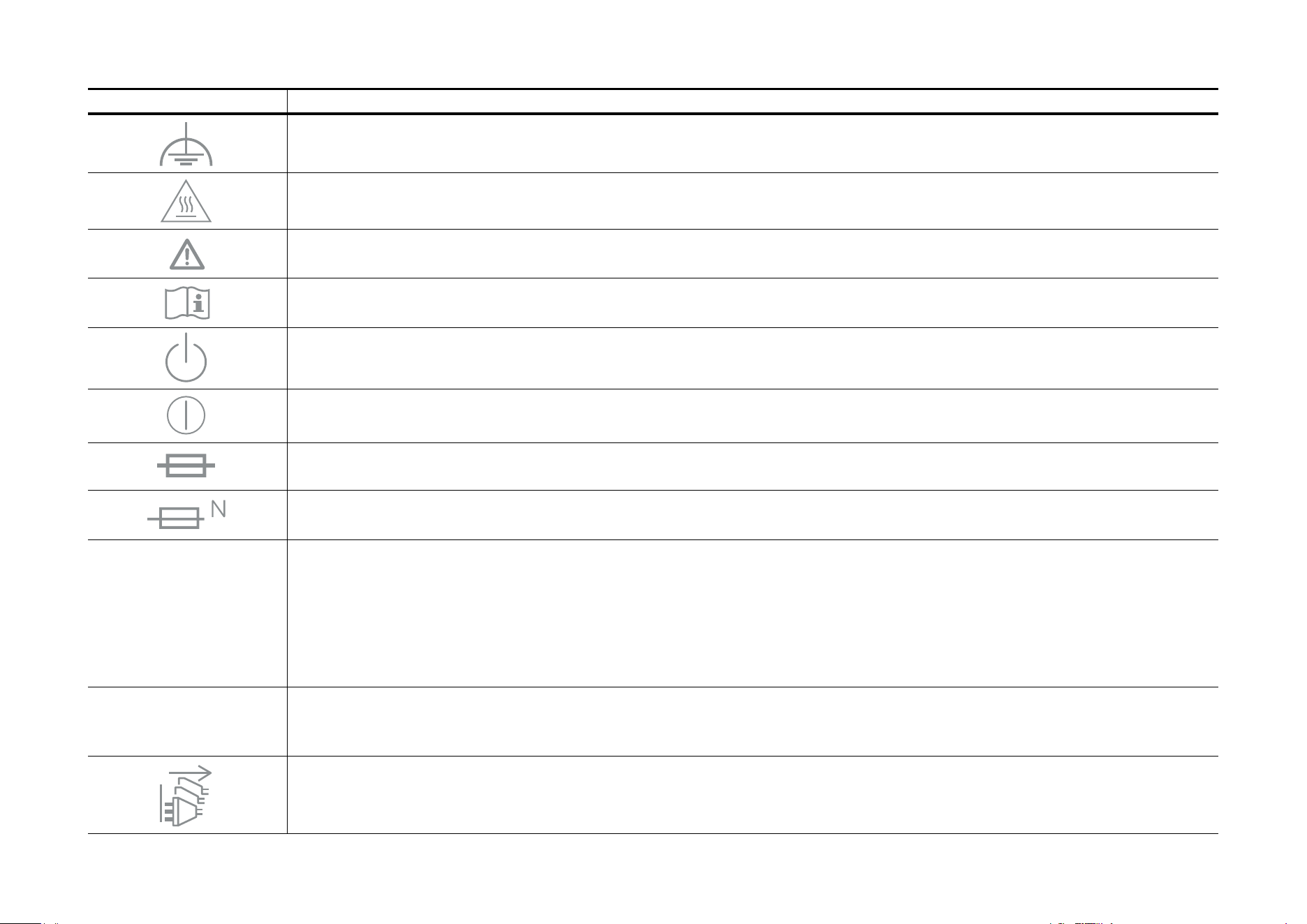
Functional earthing
Caution, hot surface
Caution
Operator’s manual
Stand-by
“ON”/”OFF” (push-push)
Fuse
Fuse is used in neutral N
RECYCLING
This product bears the selective sorting symbol for Waste electrical and electronic equipment (WEEE). This means
that this product must be handled pursuant to European directive 2012/19/EU in order to be recycled or dismantled to
minimize its impact on the environment.
User has the choice to give his product to a competent recycling organization or to the retailer when he buys a new
electrical or electronic equipment.
Caution, avoid listening at high volume levels for long periods
Disconnection, all power plugs
36
Symbol Explanation
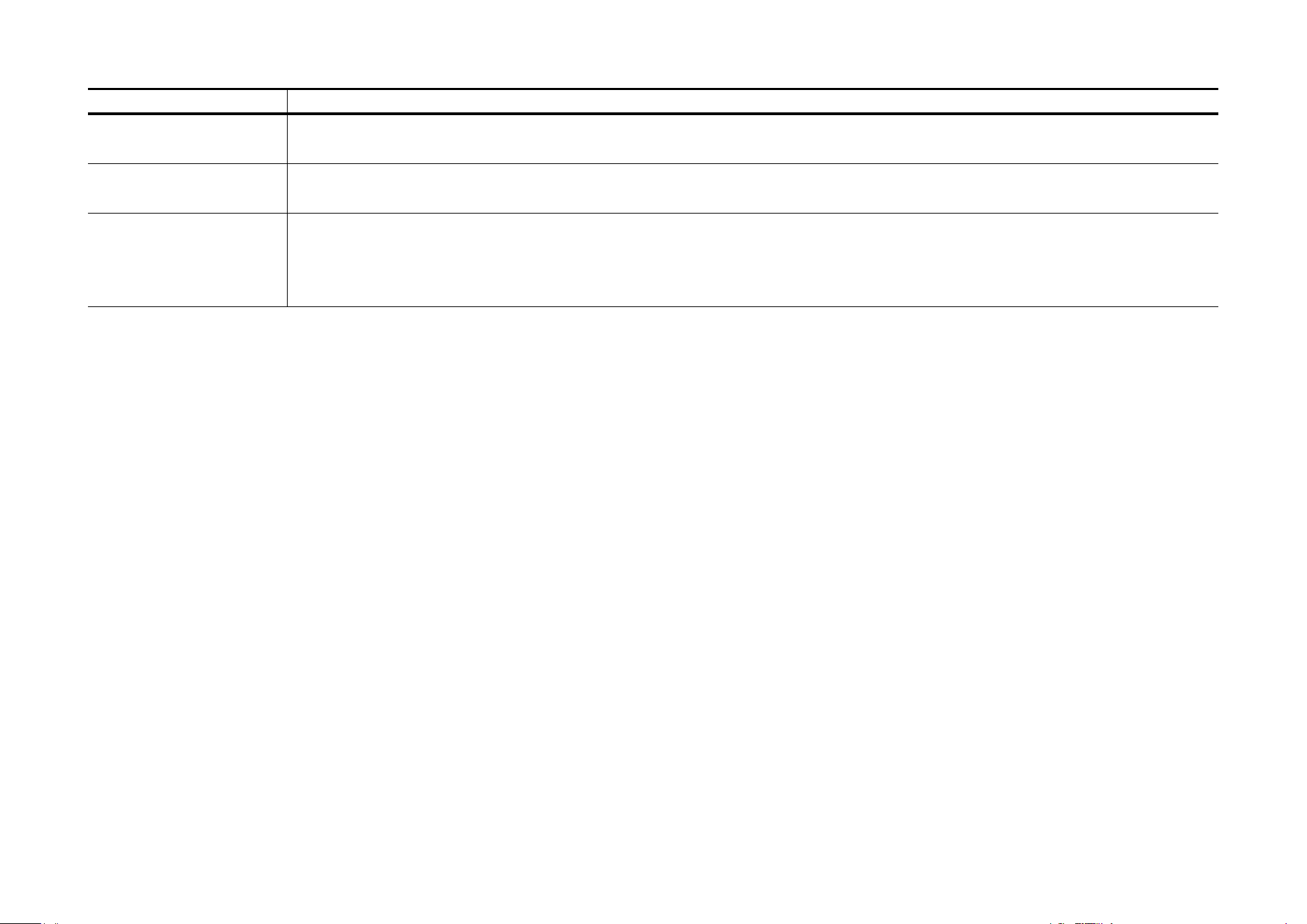
m Switch of mini-gap construction
µ
Switch of micro-gap construction (for US version)
Switch of micro-gap / micro-disconnection construction (for other versions except US)
ε Switch without contact gap (Semiconductor switching device)