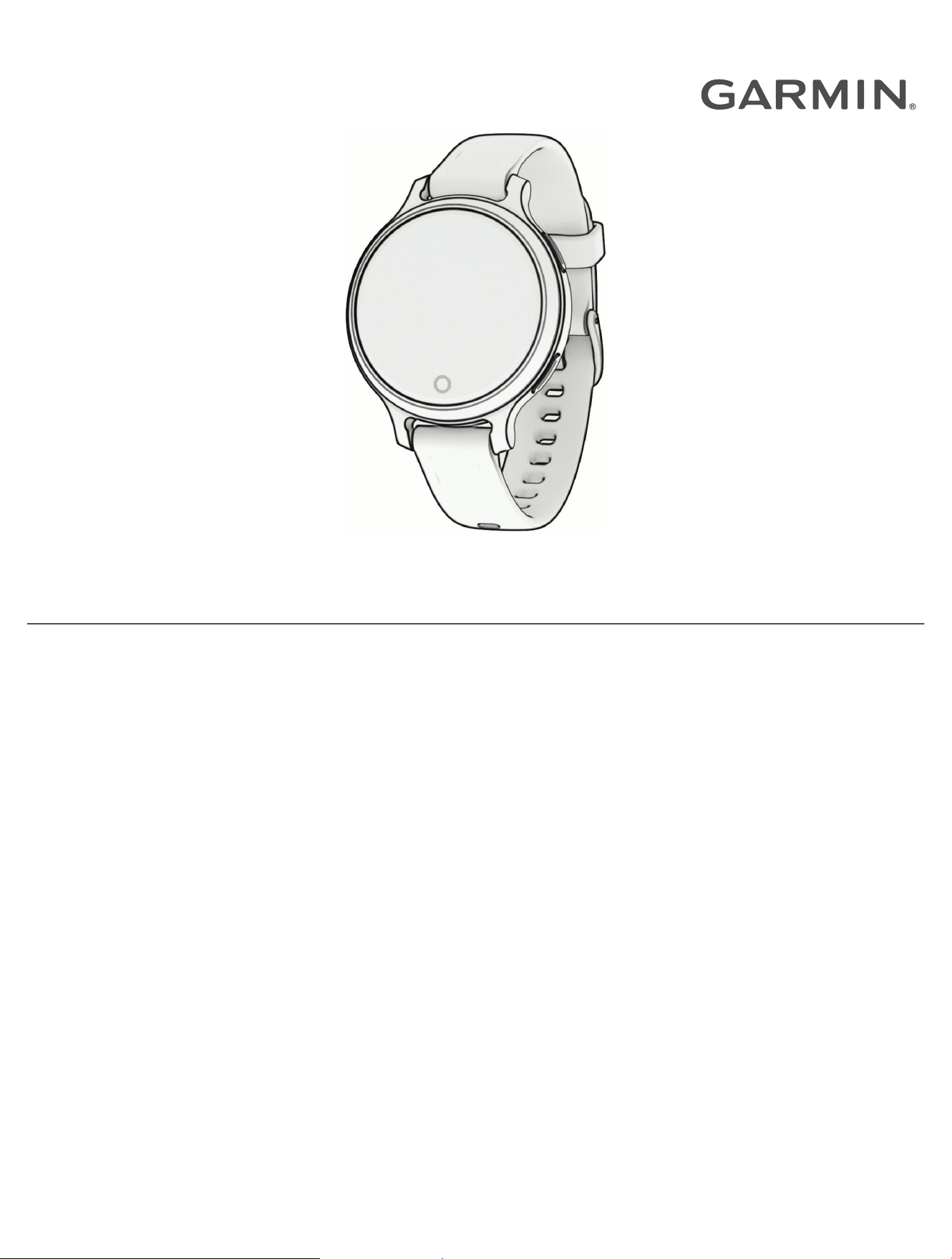
LILY
®
2 ACTIVE
Owner’s Manual

© 2024 Garmin Ltd. or its subsidiaries
All rights reserved. Under the copyright laws, this manual may not be copied, in whole or in part, without the written consent of Garmin. Garmin reserves the right to change
or improve its products and to make changes in the content of this manual without obligation to notify any person or organization of such changes or improvements. Go to
www.garmin.com for current updates and supplemental information concerning the use of this product.
Garmin
®
, the Garmin logo, ANT+
®
, Auto Lap
®
, Edge
®
, Lily
®
, Move IQ
®
, and VIRB
®
are trademarks of Garmin Ltd. or its subsidiaries, registered in the USA and other countries. Body
Battery
™
, Firstbeat Analytics
™
, Garmin AutoShot
™
, Garmin Connect
™
, Garmin Express
™
, Garmin Golf
™
, Garmin Pay
™
, Health Snapshot
™
, HRM-Fit
™
, HRM-Pro
™
, and Index
™
are
trademarks of Garmin Ltd. or its subsidiaries. These trademarks may not be used without the express permission of Garmin.
American Academy of Sleep Medicine
®
is a registered trademark of the American Academy of Sleep Medicine (AASM). Android
™
is a trademark of Google Inc. The BLUETOOTH
®
word mark and logos are owned by Bluetooth SIG, Inc. and any use of such marks by Garmin is under license. iOS
®
is a registered trademark of Cisco Systems, Inc. used under
license by Apple Inc. iPhone
®
is a trademark of Apple Inc., registered in the U.S. and other countries. The Cooper Institute
®
, as well as any related trademarks, are the property of The
Cooper Institute. Other trademarks and trade names are those of their respective owners.
M/N: A04799

Table of Contents
Introduction......................................1
Overview.................................................. 1
Touchscreen Tips................................ 2
Locking and Unlocking the
Touchscreen........................................ 2
Setting Up Your Watch............................ 2
Activities.......................................... 2
Starting an Activity.................................. 2
Tips for Recording Activities.............. 3
Stopping an Activity............................ 3
Evaluating an Activity.......................... 3
Indoor Activities...................................... 3
Recording a Dance Fitness
Activity..................................................3
Recording a Breathwork Activity........ 4
Recording a Strength Training
Activity..................................................4
Tips for Recording Strength Training
Activities...........................................4
Recording a HIIT Activity.....................5
Calibrating the Treadmill Distance..... 5
Going for a Pool Swim........................ 5
Setting the Pool Size....................... 5
Swim Terminology........................... 6
Outdoor Activities....................................6
Going for a Run.................................... 6
Going for a Ride................................... 6
Recording a Skiing or Snowboarding
Activity..................................................6
Golfing.................................................. 7
Downloading Golf Courses............. 7
Garmin Golf™ App............................ 7
Playing Golf...................................... 8
Golf Menu......................................... 9
Viewing Layup and Dogleg
Distances......................................... 9
Viewing Hazards.............................. 9
Measuring a Shot with Garmin
AutoShot........................................ 10
Adding a Shot Manually................ 10
Keeping Score................................ 10
Viewing Your Shot History............ 10
Viewing Your Round Summary..... 10
Ending a Round.............................. 11
Health Snapshot™................................. 11
Customizing Activity Options............... 11
Marking Laps..................................... 11
Customizing the Activities List.............11
Appearance.................................... 11
Changing the Watch Face.....................12
Controls Menu....................................... 12
GarminPay........................................ 13
Setting Up Your GarminPay
Wallet............................................. 13
Adding a Card to Your GarminPay
Wallet............................................. 14
Paying for a Purchase Using Your
Watch............................................. 14
Managing Your GarminPay
Cards.............................................. 14
Changing Your GarminPay
Passcode....................................... 14
Customizing the Controls Menu.......15
Widgets.................................................. 15
Viewing Widgets and Menus............ 17
Customizing the Widget Loop...... 17
Health Stats Widget.......................... 17
Body Battery...................................... 17
Viewing the Body Battery
Widget............................................ 18
Tips for Improved Body Battery
Data................................................ 18
Viewing the Stress Level Widget...... 18
Heart Rate Variability Status............ 18
Using the Hydration Tracking
Widget................................................ 19
Women's Health................................ 19
Menstrual Cycle Tracking............. 19
Pregnancy Tracking.......................20
Controlling Music Playback.............. 20
Morning Report..................................... 20
Customizing Your Morning Report... 21
Setting Up the Touch Button
Shortcut................................................. 21
Training..........................................21
Unified Training Status......................... 21
Syncing Activities and Performance
Measurements.................................. 21
Activity Tracking....................................21
Auto Goal........................................... 22
Table of Contents i

Using the Move Alert......................... 22
Turning on the Move Alert............ 22
Sleep Tracking................................... 22
Using Automated Sleep
Tracking......................................... 22
Recording a Nap............................ 22
Breathing Variations...................... 23
Intensity Minutes............................... 23
Earning Intensity Minutes............. 23
Move IQ®........................................... 23
Enabling Self Evaluation................... 24
Activity Tracking Settings................. 24
Turning Off Activity Tracking........ 24
Workouts............................................... 24
Starting a Workout............................ 25
Following a Workout From Garmin
Connect.............................................. 25
Using Garmin Connect Training
Plans.................................................. 25
Adaptive Training Plans................ 25
Starting Today's Workout..............25
Viewing Scheduled Workouts....... 26
Health and Wellness Settings and
Alerts...................................................... 26
Heart Rate Features........................26
Wrist-based Heart Rate.........................27
Wearing the Watch............................ 27
Tips for Erratic Heart Rate Data....... 27
Viewing the Heart Rate Widget.........28
Setting an Abnormal Heart Rate
Alert.................................................... 28
Broadcasting Heart Rate Data to
Garmin Devices................................. 28
Wrist Heart Rate Monitor Settings... 28
Turning Off the Wrist-based Heart
Rate Monitor...................................... 29
About Heart Rate Zones....................... 29
Setting Your Heart Rate Zones......... 29
Heart Rate Zone Calculations...........30
Fitness Goals..................................... 30
Pulse Oximeter...................................... 30
Getting Pulse Oximeter Readings.... 30
Turning On Pulse Oximeter Sleep
Tracking............................................. 31
Tips for Erratic Pulse Oximeter
Data.................................................... 31
About VO2 Max. Estimates.................. 31
Getting Your VO2 Max. Estimate......31
Viewing Your Fitness Age..................... 32
Connectivity................................... 32
Garmin Connect.................................... 32
Syncing Your Data with the Garmin
Connect App...................................... 33
Syncing Your Data with Your
Computer........................................... 33
Setting Up Garmin Express........... 33
Pairing Your Phone............................... 33
Viewing Notifications............................33
Replying to a Text Message............. 34
Managing Notifications.................... 34
Enabling Bluetooth Notifications......... 34
Turning Off the Bluetooth Phone
Connection............................................ 34
Receiving an Incoming Phone Call.......34
Finding Your Phone............................... 35
Using Do Not Disturb Mode.................. 35
Safety and Tracking Features......... 35
Adding Emergency Contacts................ 35
Requesting Assistance......................... 36
Incident Detection................................. 36
Turning Incident Detection On and
Off.......................................................36
Turning On and Off LiveTrack.............. 36
Adding Contacts....................................37
Clocks............................................ 37
Setting an Alarm....................................37
Deleting an Alarm.................................. 37
Using the Stopwatch............................. 37
Starting the Countdown Timer............. 37
Syncing the Time with GPS.................. 38
Setting the Time Manually.................... 38
Wireless Sensors............................38
Pairing Your Wireless Sensors............. 38
Heart Rate Accessory Running Pace and
Distance................................................. 39
Tips for Recording Running Pace and
Distance............................................. 39
Using an Optional Bike Speed or
Cadence Sensor.................................... 39
Calibrating Your Speed Sensor.........39
ii Table of Contents

Customizing Your Watch................ 40
Watch Settings...................................... 40
Alert Settings..................................... 40
System Settings................................ 40
Customizing the Display
Settings.......................................... 41
Changing the Units of Measure.... 41
Setting Your Watch Passcode...... 41
Time Settings.................................... 42
Time Zones........................................ 42
User Profile........................................ 42
Setting Up Your User Profile......... 42
Gender Settings............................. 42
Calibrating the Compass.................. 42
Garmin Connect Settings......................42
Garmin Connect User Profile
Settings.............................................. 43
Gender Settings............................. 43
Device Information......................... 44
Charging the Watch.............................. 44
Device Care............................................44
Cleaning the Watch........................... 45
Cleaning the Leather Bands..............45
Changing the Bands.............................. 45
Viewing Device Information................. 45
Viewing E-label Regulatory and
Compliance Information................... 46
Product Updates................................... 46
Updating the Software Using the
Garmin Connect App......................... 46
Updating the Software Using Garmin
Express.............................................. 46
Specifications........................................46
Troubleshooting............................. 47
Is my phone compatible with my
watch?....................................................47
My phone will not connect to the
watch..................................................... 47
Activity Tracking....................................47
My step count does not seem
accurate............................................. 47
The step counts on my watch and my
Garmin Connect account do not
match................................................. 47
My stress level does not appear...... 47
The heart rate on my watch is not
accurate................................................. 47
Maximizing Battery Life........................ 48
My watch display is difficult to see
outside................................................... 48
My watch is in the wrong language..... 48
Restoring All Default Settings.............. 48
Acquiring Satellite Signals.................... 48
Improving GPS Satellite Reception.. 49
Getting More Information..................... 49
Device Service....................................... 49
Appendix........................................ 49
Activities List......................................... 49
VO2 Max. Standard Ratings................. 51
Wheel Size and Circumference............ 51
Table of Contents iii

Introduction
WARNING
See the Important Safety and Product Information guide in the product box for product warnings and other
important information.
Always consult your physician before you begin or modify any exercise program.
Overview
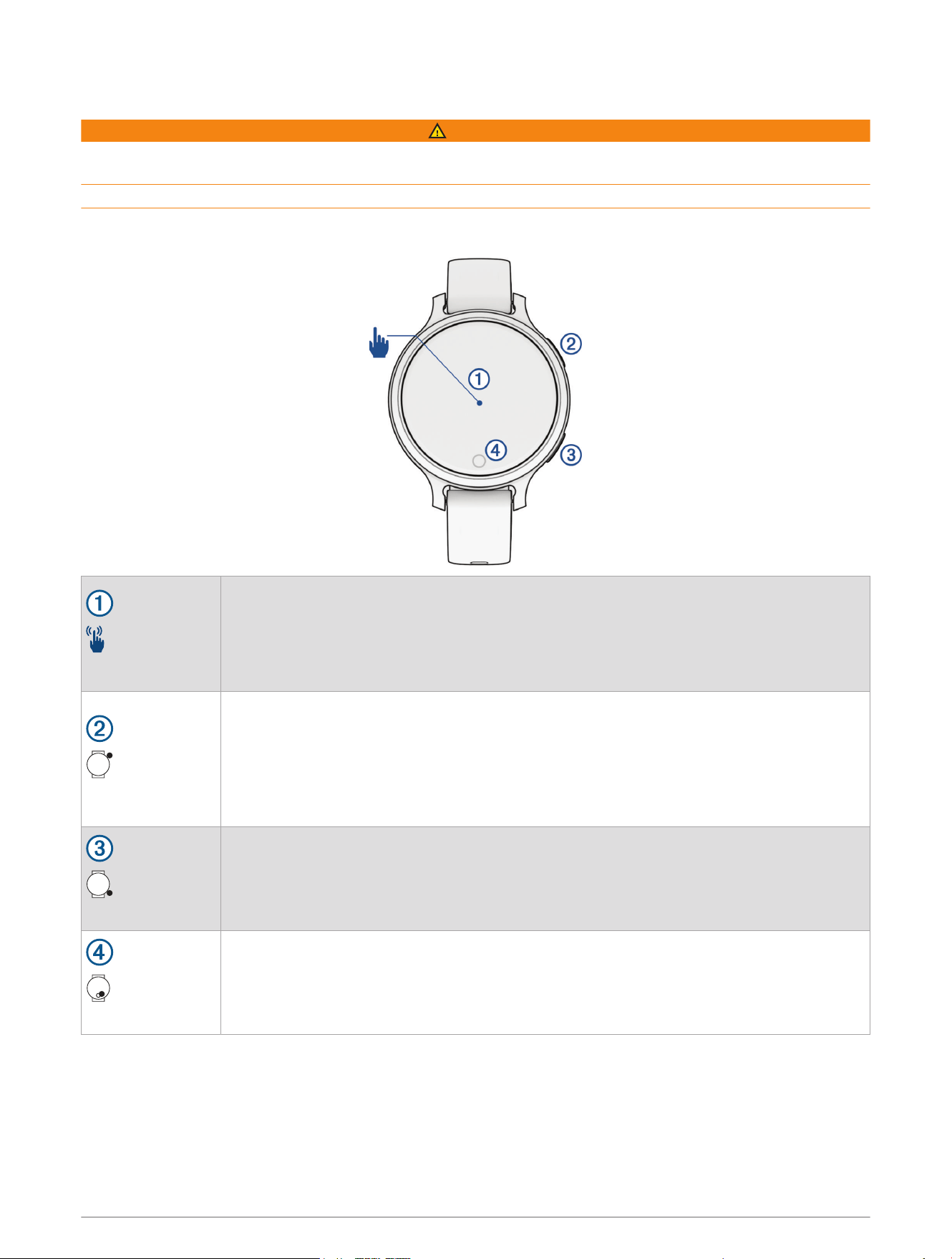
Touchscreen
• Tap to choose an option in a menu.
• Tap to open the widget to view more data.
• Double-tap to wake the watch.
• Swipe right or left to scroll through widgets.
• Swipe up or down to scroll through menus.
Upper-right button
• Press to turn on the watch.
• Press to wake the watch.
• Press to open the activities and apps menu.
• Press to start and stop the activity timer.
• Hold for 2 seconds to view the controls menu, including power.
• Hold until the watch vibrates to request assistance (Requesting Assistance, page36).
Lower-right button
• Press to return to the previous screen, except during an activity.
• During an activity, press to mark a new lap, start a new set or pose, or advance to the
next stage of a workout.
• Hold to view a menu of watch settings and options for the current screen.
Touch button
• Press to return to the previous screen, except during an activity.
• Hold to view the shortcut feature (Setting Up the Touch Button Shortcut, page21).
• From the watch face, press to cycle through data, such as steps and heart rate.
Introduction 1
Touchscreen Tips
• Drag up or down to scroll through lists and menus.
• Swipe up or down to scroll quickly.
• Tap to select an item.
• Double-tap to wake the watch.
• From the watch face, swipe right or left to scroll through the widgets on the watch.
• Tap a widget to view additional information, if available.
• During an activity, swipe left or right to view the next data screen.
• After selecting an activity, select to view the settings and options for that activity.
• Perform each menu selection as a separate action.
Locking and Unlocking the Touchscreen
You can lock the touchscreen to prevent inadvertent screen touches.
NOTE: You can customize the controls menu (Customizing the Controls Menu, page15).
1 Hold to view the controls menu.
2 Select .
The touchscreen locks and does not respond to touches until you unlock it.
3 Hold any button to unlock the touchscreen.
Setting Up Your Watch
To take full advantage of the Lily 2 Active features, complete these tasks.
• Pair the watch with your phone using the Garmin Connect
™
app (Pairing Your Phone, page33).
• Set up your GarminPay
™
wallet (Setting Up Your GarminPay Wallet, page13).
• Set up safety features (Safety and Tracking Features, page35).
• Set up your user profile (Setting Up Your User Profile, page42).
Activities
Your watch comes preloaded with indoor and outdoor activities, including running, cycling, strength training,
golfing, and more. When you start an activity, the watch displays and records sensor data, which you can save
and share with the Garmin Connect community.
For more information about activity tracking and fitness metric accuracy, go to garmin.com/ataccuracy.
Starting an Activity
When you start an activity, GPSturns on automatically (if required).
1 From the watch face, press .
2 If this is the first time you are starting an activity, select the checkbox next to each activity to add to your
favorites, and select .
3 Select an option:
• Select an activity from your favorites.
• Select , and select an activity from the extended activity list.
4 If the activity requires GPS signals, go outside to an area with a clear view of the sky, and wait until the watch
is ready.
The watch is ready after it establishes your heart rate, acquires GPSsignals (if required), and connects to
your wireless sensors (if required).
5 Press to start the activity timer.
The watch records activity data only while the activity timer is running.
2 Activities
Tips for Recording Activities
• Charge the watch before starting an activity (Charging the Watch, page44).
• Press to record laps, start a new set or pose, or advance to the next workout step.
• Swipe left or right to view additional data screens (Customizing Activity Options, page11).
Stopping an Activity
1 Press .
2 Select an option:
• To save the activity, select .
• To discard the activity, select .
• To resume the activity, press .
Evaluating an Activity
NOTE: This feature is not available for all activities.
You can customize the self-evaluation setting for certain activities (Customizing Activity Options, page11).
1 After you complete an activity, select (Stopping an Activity, page3).
2 Select how you felt during the activity.
3 Select a number that corresponds with your perceived effort.
NOTE: You can select Skip to skip the self evaluation.
You can view evaluations in the Garmin Connect app.
Indoor Activities
The watch can be used for training indoors, such as running on an indoor track or using a stationary bike or
indoor trainer. GPS is turned off for indoor activities (Customizing Activity Options, page11).
When running or walking with GPS turned off, speed and distance are calculated using the accelerometer in the
watch. The accelerometer is self-calibrating. The accuracy of the speed and distance data improves after a few
outdoor runs or walks using GPS.
TIP: Holding the handrails of the treadmill reduces accuracy.
Recording a Dance Fitness Activity
1 From the watch face, press .
2 Select Dance Fitness.
The first time you select the dance fitness activity, you must select your dance type.
3 Select to set up alerts, dance type, and song count.
4 Select Alerts to set heart rate, time, and calorie alerts.
5 Select Dance Type to set the dance type.
6 Select Song Count to include rests between songs or turn song counting off.
7 Press to return to the activity timer screen.
8 Press to start the activity timer.
9 Start your first dance.
10 Swipe to view additional data screens (optional).
11 Press to finish a song.
12 If you include rests between songs, press to begin the next song.
13 Repeat steps 11 and 12 until your activity is complete.
14 After you complete your activity, press to stop the activity timer (Stopping an Activity, page3).
Activities 3
Recording a Breathwork Activity
1 From the watch face, press .
2 Select Breathwork.
3 Select an option:
• Select Coherence to achieve a state of calm alertness.
• Select Relax and Focus to relax your body and focus the mind.
• Select Relax and Focus (Short) to relax your body and focus the mind in a shorter time frame.
• Select Tranquility to lower your stress level and get ready for sleep.
4 Press to start the activity.
5 Follow the on-screen instructions as the watch guides you through the breathing exercises.
6 Press to skip to the next step in the breathwork phase.
7 Press to stop the activity (Stopping an Activity, page3).
Your stress level change and breaths per minute appear.
Recording a Strength Training Activity
You can record sets during a strength training activity. A set is multiple repetitions (reps) of a single move.
1 Press .
2 Select Strength.
3 Press to start the activity timer.
4 Start your first set.
By default, the watch counts your reps. Your rep count appears when you complete at least four reps. You
can disable rep counting in the activity settings (Customizing Activity Options, page11).
TIP: The watch can only count reps of a single move for each set. When you want to change moves, you
should finish the set and start a new one.
5 Press to finish the set.
The watch displays the total reps for the set. After several seconds, the rest timer appears.
6 If necessary, edit the number of reps, and select to add the weight used for the set.
7 When you are done resting, press to start your next set.
8 Repeat for each strength training set until your activity is complete.
9 After you complete your activity, press , and select .
Tips for Recording Strength Training Activities
• Do not look at the watch while performing reps.
You should interact with the watch at the beginning and end of each set, and during rests.
• Focus on your form while performing reps.
• Perform bodyweight or free weight exercises.
• Perform reps with a consistent, wide range of motion.
Each rep is counted when the arm wearing the watch returns to the starting position.
NOTE: Leg exercises may not be counted.
• Turn on automatic set detection to start and stop your sets.
• Save and send your strength training activity to your Garmin Connect account.
You can use the tools in your Garmin Connect account to view and edit activity details.
4 Activities
Recording a HIIT Activity
You can use specialized timers to record a high-intensity interval training (HIIT) activity.
1 Press .
2 Select HIIT.
3 Select an option:
• Select Free to record an open, unstructured HIIT activity.
• Select HIIT Timers > AMRAP to record as many rounds as possible during a set time period.
• Select HIIT Timers > EMOM to record a set number of moves every minute on the minute.
• Select HIIT Timers > Tabata to alternate between 20-second intervals of maximum effort with 10 seconds
of rest.
• Select HIIT Timers > Custom to set your move time, rest time, number of moves, and number of rounds.
• Select Workouts to follow a saved workout.
4 If necessary, follow the on-screen instructions.
5 Press to start your first round.
The watch displays a countdown timer and your current heart rate.
6 If necessary, press to manually move to the next round or rest.
7 After you finish the activity, press to stop the activity timer.
8 Select .
Calibrating the Treadmill Distance
To record more accurate distances for your treadmill runs, you can calibrate the treadmill distance after you run
at least 2.4km (1.5mi.) on a treadmill. If you use different treadmills, you can manually calibrate the treadmill
distance on each treadmill or after each run.
1 Start a treadmill activity (Starting an Activity, page2).
2 Run on the treadmill until your Lily 2 Active watch records at least 2.4km (1.5mi.).
3 After you complete your run, press .
4 Check the treadmill display for the distance traveled.
5 Select an option:
• To calibrate the first time, enter the treadmill distance on your watch.
• To manually calibrate after the first-time calibration, swipe up, select , and enter the treadmill distance
on your watch.
Going for a Pool Swim
NOTE: The touchscreen is not available during swim activities.
1 Press .
2 Select Pool Swim.
The first time you select the pool swim activity, you must select your pool size.
3 Press to start the activity timer.
4 Start swimming.
The watch automatically records swim intervals and lengths.
5 After you complete your activity, press to stop the activity timer (Stopping an Activity, page3).
Setting the Pool Size
1 From the watch face, select > Pool Swim > > Pool Size.
2 Select your pool size.
Activities 5
Swim Terminology
Length: One trip down the pool.
Interval: One or more consecutive lengths. A new interval starts after a rest.
Stroke: A stroke is counted every time your arm wearing the watch completes a full cycle.
Swolf: Your swolf score is the sum of the time for one pool length and the number of strokes for that length.
For example, 30 seconds plus 15 strokes equals a swolf score of 45. Swolf is a measurement of swimming
efficiency and, like golf, a lower score is better.
Outdoor Activities
The Lily 2 Active watch comes preloaded with outdoor activities, such as running and biking. GPS is turned on
for outdoor activities.
Going for a Run
Before you can use a wireless sensor for your run, you must pair the sensor with your watch (Pairing Your
Wireless Sensors, page38).
1 Put on your wireless sensors, such as a heart rate monitor (optional).
2 Press .
3 Select Run.
4 When using optional wireless sensors, wait while the watch connects to the sensors.
5 Go outside, and wait while the watch locates satellites.
6 Press to start the activity timer.
The watch records activity data only while the activity timer is running.
7 Start your activity.
8 Press to record laps (optional) (Marking Laps, page11).
9 Swipe left or right to scroll through data screens.
10 After you complete your activity, press , and select .
Going for a Ride
Before you can use a wireless sensor for your ride, you must pair the sensor with your watch (Pairing Your
Wireless Sensors, page38).
1 Pair your wireless sensors, such as a heart rate monitor, speed sensor, or cadence sensor (optional).
2 Press .
3 Select Bike.
4 When using optional wireless sensors, wait while the watch connects to the sensors.
5 Go outside, and wait while the watch locates satellites.
6 Press to start the activity timer.
The watch records activity data only while the activity timer is running.
7 Start your activity.
8 Swipe left or right to scroll through data screens.
9 After you complete your activity, press , and select .
Recording a Skiing or Snowboarding Activity
1 Start a skiing or snowboarding activity.
2 Press to record a run.
3 Swipe left or right to view details of your current run and your total number of runs.
The run screens include time, distance traveled, maximum speed, average speed, and total descent.
4 After you complete your activity, press to stop the activity timer (Stopping an Activity, page3).
6 Activities

Golfing
Downloading Golf Courses
Before you play a course for the first time, you must download it using the Garmin Connect app.
1 From the Garmin Connect app, select .
2 Select Download Golf Courses > .
3 Select a golf course.
4 Select Download.
After the course finishes downloading, it appears in the list of courses on your Lily 2 Active watch.
Garmin Golf
™
App
The Garmin Golf app allows you to upload scorecards from your Lily 2 Active device to view detailed statistics
and shot analyses. Golfers can compete with each other at different courses using the Garmin Golf app. More
than 43,000 courses have leaderboards that anyone can join. You can set up a tournament event and invite
players to compete.
The Garmin Golf app syncs your data with your Garmin Connect account. You can download the Garmin Golf
app from the app store on your phone (garmin.com/golfapp).
Activities 7
Playing Golf
Before you play golf for the first time, you must download the Garmin Golf app from the app store on your phone
(Garmin Golf
™
App, page7).
Before you play golf, you should charge the watch (Charging the Watch, page44).
1 Press .
2 Select Golf.
The watch locates satellites, calculates your location, and selects a course if there is only one course nearby.
3 If the course list appears, select a course from the list.
Courses are updated automatically.
4 Press .
5 Select to keep score.
6 Select a tee box.
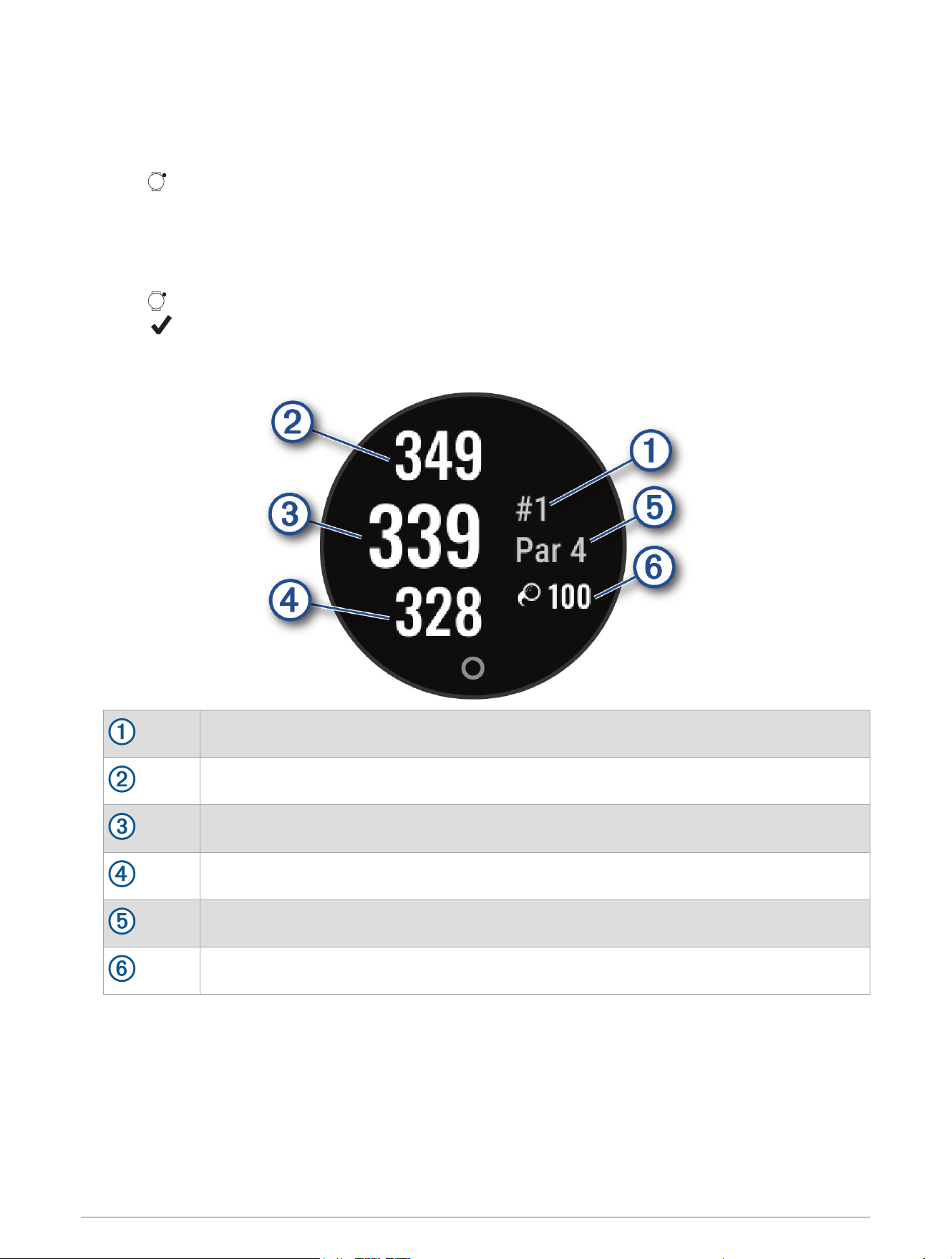
The hole information screen appears.
Current hole number
Distance to the back of the green
Distance to the middle of the green
Distance to the front of the green
Par for the hole
Garmin AutoShot
™
distance
When you move to the next hole, the watch automatically transitions to display the new hole information.
8 Activities
Golf Menu
During a round, you can press to view additional features in the golf menu.
Hazards: Shows the bunkers and water hazards for the current hole.
Layups: Shows the layup and distance options for the current hole (par 4 and par 5 holes only).
Scorecard: Opens the scorecard for the round (Keeping Score, page10).
Round Summary: During a round, view your score, statistics, and step information.
Last Shot: View information for your last shot.
NOTE: You can view distances for all shots detected during the current round. If needed, you can manually
add a shot (Adding a Shot Manually, page10).
End Round: Ends the current round.
Viewing Layup and Dogleg Distances
You can view a list of layup and dogleg distances for par 4 and 5 holes.
1 Press .
2 Select Layups.
NOTE: Distances and locations are removed from the list as you pass them.
Viewing Hazards
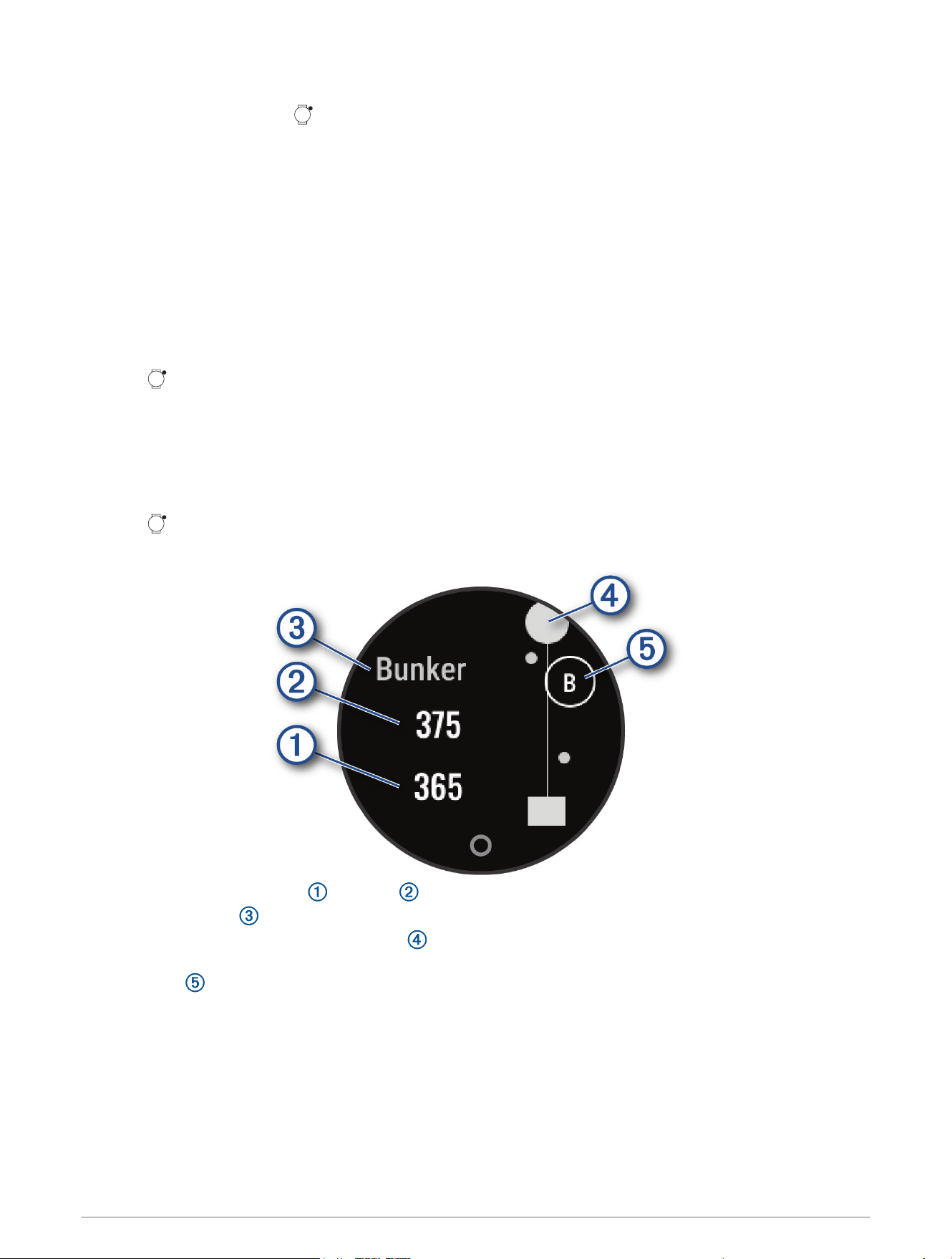
You can view distances to hazards along the fairway for par 4 and 5 holes. Hazards that affect shot selection
are displayed individually or in groups to help you determine the distance to layup or carry.
1 Press .
2 Select Hazards.
• The distances to the front and back of the nearest hazard appear on the screen.
• The hazard type is listed at the top of the screen.
• The green is represented as a half circle at the top of the screen. The line below the green represents
the center of the fairway.
• Hazards are indicated by a letter signifying the order of the hazards on the hole, and are shown below
the green in approximate locations relative to the fairway.
Activities 9
Measuring a Shot with Garmin AutoShot
Each time you take a shot along the fairway, the watch records your shot distance so you can view it later
(Viewing Your Shot History, page10). Putts are not detected.
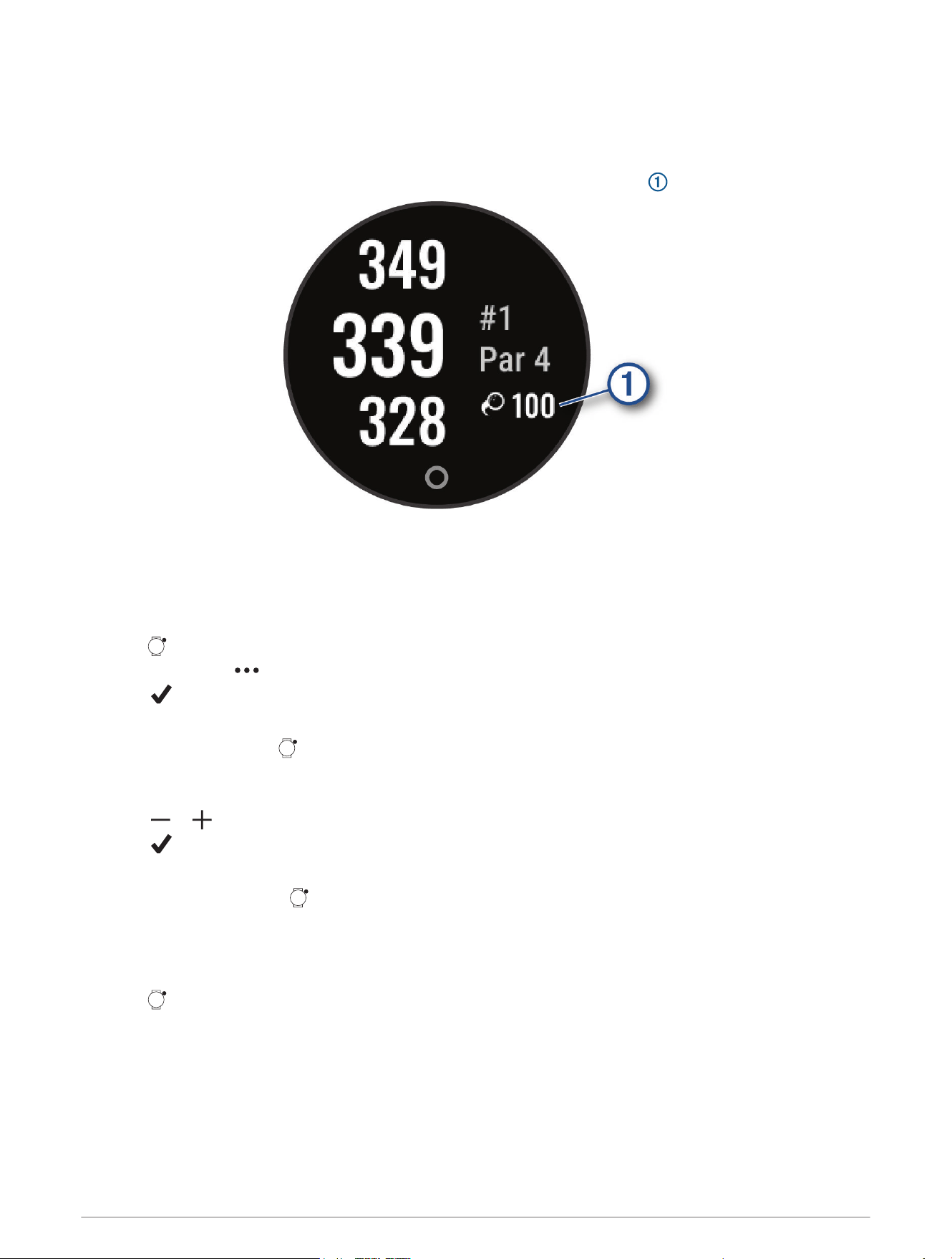
1 While playing golf, wear the watch on your leading wrist for better shot detection.
When the watch detects a shot, your distance from the shot location appears below the par.
2 Hit your next shot.
The watch records the distance of your last shot.
Adding a Shot Manually
You can manually add a shot if the device doesn't detect it. You must add the shot from the location of the
missed shot.
1 Press .
2 Select Last Shot > > Add Shot.
3 Select to start a new shot from your current location.
Keeping Score
1 While playing golf, press .
2 Select Scorecard.
3 Select a hole.
4 Select or to set the score.
5 Select .
Viewing Your Shot History
1 After playing a hole, press .
2 Select Last Shot to view information for your last shot.
Viewing Your Round Summary
During a round, you can view your score, statistics, and step information.
1 Press .
2 Select Round Summary.
3 Swipe left or right to view more information.
10 Activities

Ending a Round
1 Press .
2 Select End Round.
3 Select an option:
• To save the round and return to watch mode, select .
• To discard the round and return to watch mode, select .
• To resume the round, select .
Health Snapshot
™
The Health Snapshot feature is an activity on your watch that records several key health metrics while you hold
still for two minutes. It provides a glimpse of your overall cardiovascular status. The watch records metrics
such as your average heart rate, stress level, and respiration rate. You can add the Health Snapshot activity to
the list of your favorite activities (Customizing Activity Options, page11).
Customizing Activity Options
You can select activities to display on your watch.
1 From your Garmin Connect device menu, select Activity Options > Edit.
2 Select the activities to display on your watch.
3 If necessary, select an activity to customize its settings, such as alerts and data fields.
Marking Laps
You can set your watch to use the Auto Lap
®
feature, which marks a lap automatically at every kilometer or mile.
This feature is helpful for comparing your performance over different parts of an activity.
NOTE: The Auto Lap feature is not available for all activities.
1 From your Garmin Connect device menu, select Activity Options.
2 Select an activity.
3 Select Auto Lap.
Customizing the Activities List
1 Press .
2 Select Edit.
3 Select an option:
• To add an activity or app, select Add.
• To remove an activity or app, select the activity or app, and select Remove.
•
NOTE: To reorder the list, select an activity or app, select Reorder, and complete the on-screen instructions in
the Garmin Connect app (Garmin Connect Settings, page42).
Appearance
You can customize the appearance of the watch face and the quick access features in the glance loop and
controls menu.
Appearance 11
Changing the Watch Face
You can choose from several preloaded watch faces.
1 From the watch face, hold .
2 Select Watch Face.
3 Swipe right or left to scroll through the available watch faces.
4 Select gear icon to change the data on the watch face (optional).
5 Select .
6 Tap the touchscreen to select the watch face.
Controls Menu
The controls menu lets you quickly access watch features and options. You can add, reorder, and remove the
options in the controls menu (Customizing the Controls Menu, page15).
From the watch face, hold .
12 Appearance
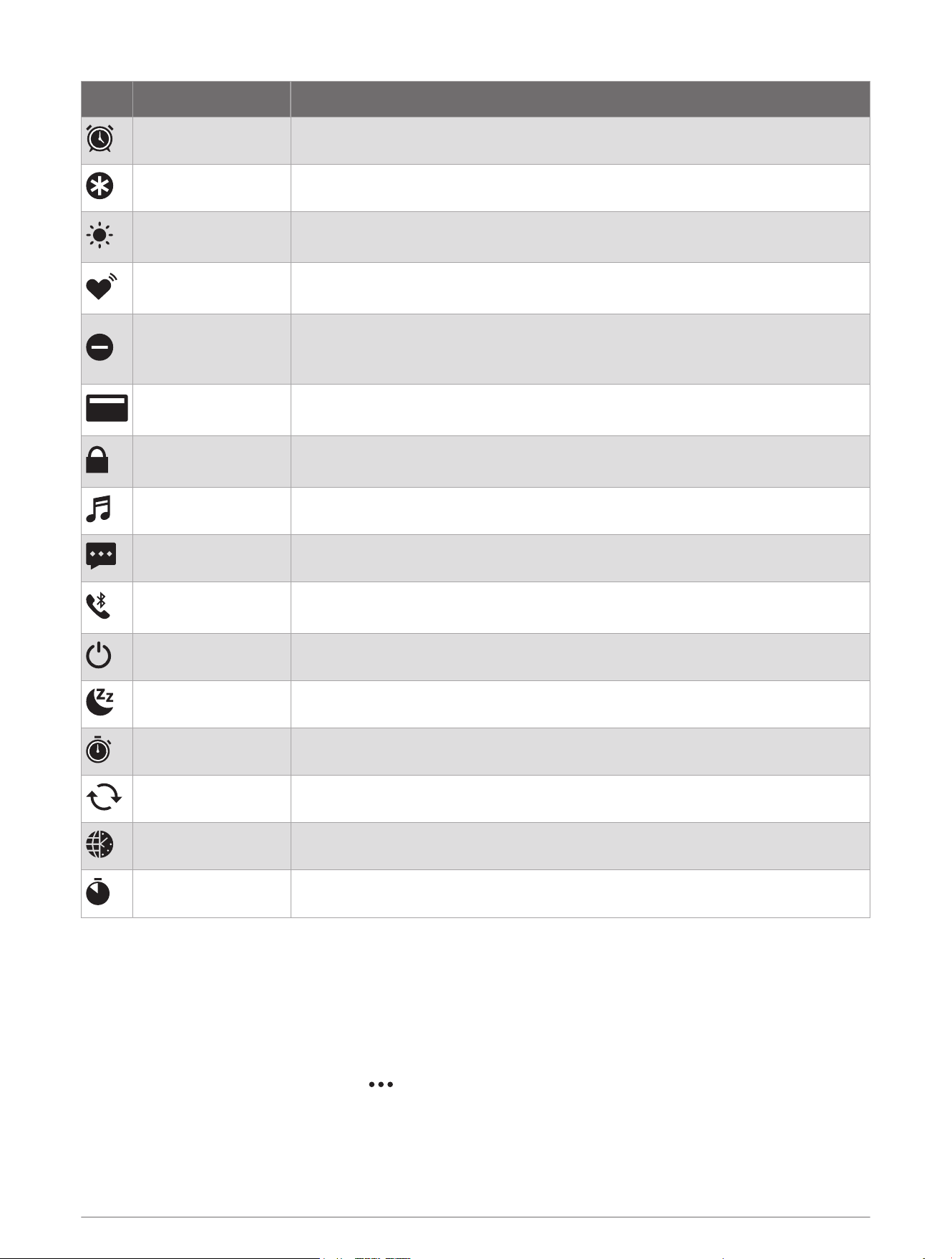
Icon Name Description
Alarms Adds or edits an alarm (Setting an Alarm, page37).
Assistance Sends an assistance request (Requesting Assistance, page36).
Brightness
Select to adjust the screen brightness (Customizing the Display Settings,
page41).
Broadcast Heart
Rate
Select to turn on heart rate broadcasting to a paired device (Broadcasting Heart
Rate Data to Garmin Devices, page28).
Do Not Disturb
Enables or disables do not disturb mode to dim the screen and disable alerts and
notifications. For example, you can use this mode while watching a movie (Using
Do Not Disturb Mode, page35).
Garmin Pay
Select to open your GarminPay wallet and pay for purchases with your watch
(GarminPay, page13).
Lock Device
Select to lock the buttons and the touchscreen to prevent inadvertent presses
and swipes.
Music Controls music playback on your phone.
Notifications Displays notifications from your phone.
Phone
Enables or disables Bluetooth
®
technology and your connection to your paired
phone.
Power Off Select to turn off the watch.
Sleep Mode Select to enable or disable Sleep Mode.
Stopwatch Starts the stopwatch (Using the Stopwatch, page37).
Sync Syncs your watch with your paired phone.
Time Sync Select to sync your watch with the time on your phone or using satellites.
Timer Sets a countdown timer (Starting the Countdown Timer, page37).
GarminPay
The GarminPay feature allows you to use your watch to pay for purchases in participating locations using credit
or debit cards from a participating financial institution.
Setting Up Your GarminPay Wallet
You can add one or more participating credit or debit cards to your GarminPay wallet. Go to garmin.com
/garminpay/banks to find participating financial institutions.
1 From the Garmin Connect app, select .
2 Select Garmin Pay > Get Started.
3 Follow the on-screen instructions.
Appearance 13
Adding a Card to Your GarminPay Wallet
You can add up to 10 credit or debit cards to your GarminPay wallet.
1 From the Garmin Connect app, select .
2 Select Garmin Pay > > Add Card.
3 Follow the on-screen instructions.
After the card is added, you can select the card on your watch when you make a payment.
Paying for a Purchase Using Your Watch
Before you can use your watch to pay for purchases, you must set up at least one payment card.
You can use your watch to pay for purchases in a participating location.
NOTE: You can customize the controls menu (Customizing the Controls Menu, page15).
1 From the watch face, hold to view the controls menu.
2 Select .
3 Enter your four-digit passcode.
NOTE: If you enter your passcode incorrectly three times, your wallet locks, and you must reset your
passcode in the Garmin Connect app.
Your most recently used payment card appears.
4 If you have added multiple cards to your GarminPay wallet, swipe to change to another card (optional).
5 Within 60 seconds, hold your watch near the payment reader, with the watch facing the reader.
The watch vibrates and displays a check mark when it is finished communicating with the reader.
6 If necessary, follow the instructions on the card reader to complete the transaction.
TIP: After you successfully enter your passcode, you can make payments without a passcode for 24 hours while
you continue to wear your watch. If you remove the watch from your wrist or disable heart rate monitoring, you
must enter the passcode again before making a payment.
Managing Your GarminPay Cards
You can temporarily suspend or delete a card.
NOTE: In some countries, participating financial institutions may restrict the GarminPay features.
1 From the Garmin Connect app, select .
2 Select Garmin Pay.
3 Select a card.
4 Select an option:
• To temporarily suspend or unsuspend the card, select Suspend Card.
The card must be active to make purchases using your Lily 2 Active watch.
• To delete the card, select .
Changing Your GarminPay Passcode
You must know your current passcode to change it. If you forget your passcode, you must reset the GarminPay
feature for your Lily 2 Active watch, create a new passcode, and reenter your card information.
1 From the Garmin Connect app, select .
2 Select Garmin Pay > Change Passcode.
3 Follow the on-screen instructions.
The next time you pay using your Lily 2 Active watch, you must enter the new passcode.
14 Appearance
Customizing the Controls Menu
You can add, remove, and change the order of the menu options in the controls menu.
1 From the watch face, hold to view the controls menu.
The controls menu appears.
2 Hold .
The controls menu switches to edit mode.
3 Select an option:
• To change the location of a menu option in the controls menu, drag the option to a new location.
• To remove a menu option from the controls menu, drag the option to .
4 If necessary, select to add a menu option to the controls menu.
NOTE: This option is available only after you remove at least one menu option from the controls menu.
Widgets
Your watch comes preloaded with widgets that provide at-a-glance information. You can swipe the touchscreen
to scroll through the widgets. Some widgets require a Bluetooth connection to a compatible phone.
NOTE: You can customize the widget loop (Customizing the Widget Loop, page17).
Appearance 15
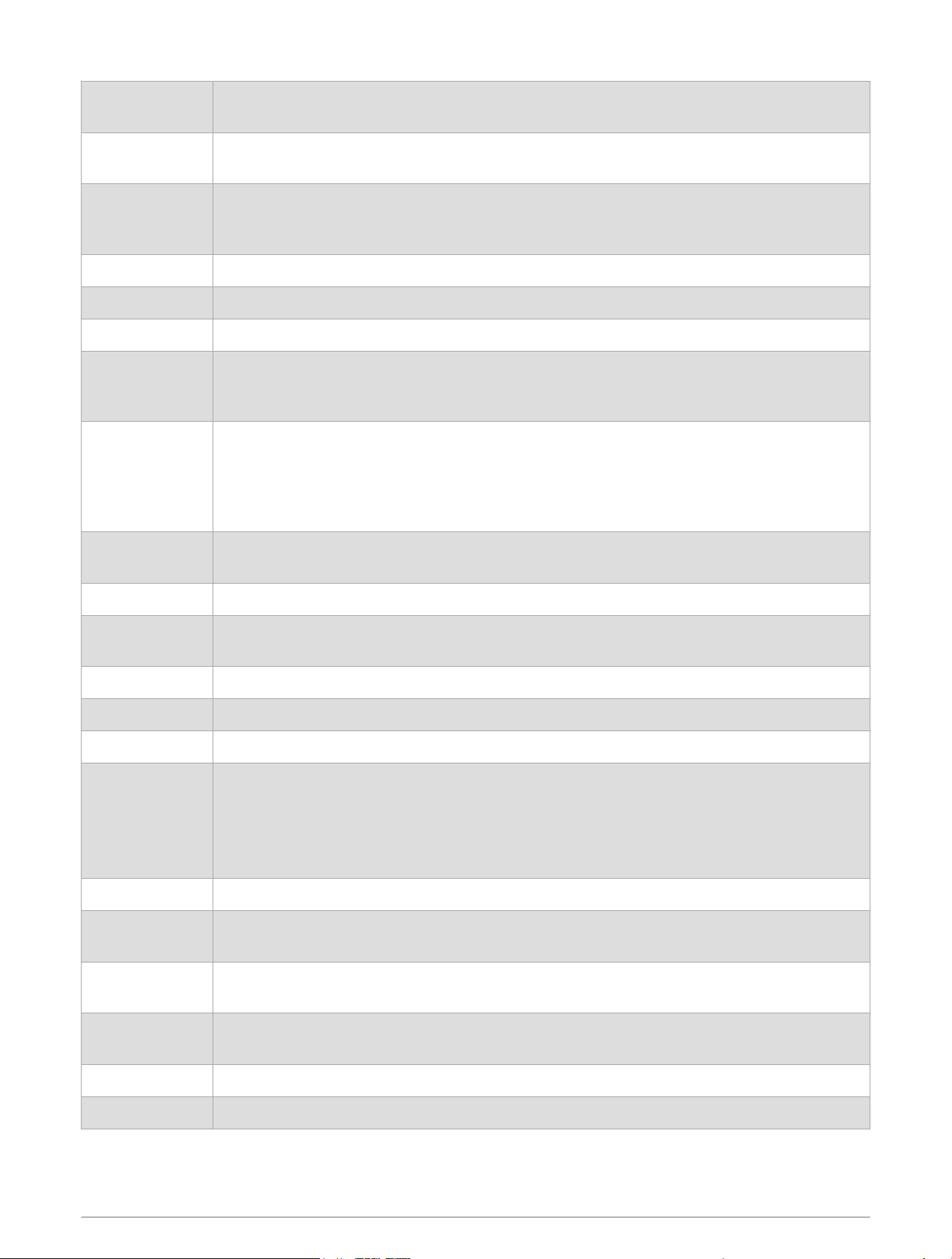
Watch face
The watch face includes the current time and date. The time and date are set automatically
when the watch syncs with your Garmin Connect account.
Body Battery
Your current Body Battery
™
energy level. The watch calculates your current energy reserves
based on sleep, stress, and activity data. A higher number indicates a higher energy reserve.
Breathwork
Your current respiration rate in breaths per minute and seven-day average. The watch
measures your breathing rate while you are inactive to detect any unusual breathing activity,
as well as how it changes in relation to stress.
Calendar Upcoming appointments from your phone calendar.
Calories The amount of total calories burned for the day, including both active and resting calories.
Distance The distance traveled in kilometers or miles for the day.
Garmin Coach
Displays scheduled workouts when you select a Garmin
®
coach adaptive training plan in
your Garmin Connect account. The plan adjusts to your current level of fitness, coaching
and schedule preferences, and race date.
Health Snapshot
Starts a Health Snapshot session on your watch that records several key health metrics
while you hold still for two minutes. It provides a glimpse of your overall cardiovascular
status. The watch records metrics such as your average heart rate, stress level, and respira
tion rate.
Displays summaries of your saved Health Snapshot sessions (Health Snapshot
™
, page11).
Health Stats
A dynamic summary of your current health statistics. The measurements include heart rate,
stress, and Body Battery level.
Heart Rate Your current heart rate in beats per minute (bpm) and seven-day average resting heart rate.
HRV Status
Displays your seven-day average of your overnight heart rate variability (Heart Rate Varia
bility Status, page18).
Hydration The total amount of water consumed and your goal for the day.
Intensity Minutes Your intensity minutes total and goal for the week.
Last Activity Displays a brief summary of your last recorded activity.
Last Golf
Last Ride
Last Run
Last Strength
Last Swim
Displays a brief summary of your last recorded activity and history of the specified sport.
Music Controls Controls for the music player on your phone.
My Day
A dynamic summary of your activity today. The metrics include steps, intensity minutes, and
sleep.
Naps
Displays total nap time and Body Battery level gains. You can start the nap timer and set an
alarm to wake you up.
Notifications
Notifications from your phone, including calls, texts, social network updates, and more,
based on your phone notification settings.
Pulse Ox Allows you to take a manual pulse oximeter reading.
Sleep Your sleep data for the previous night, including total sleep time. (Sleep Tracking, page22)
16 Appearance
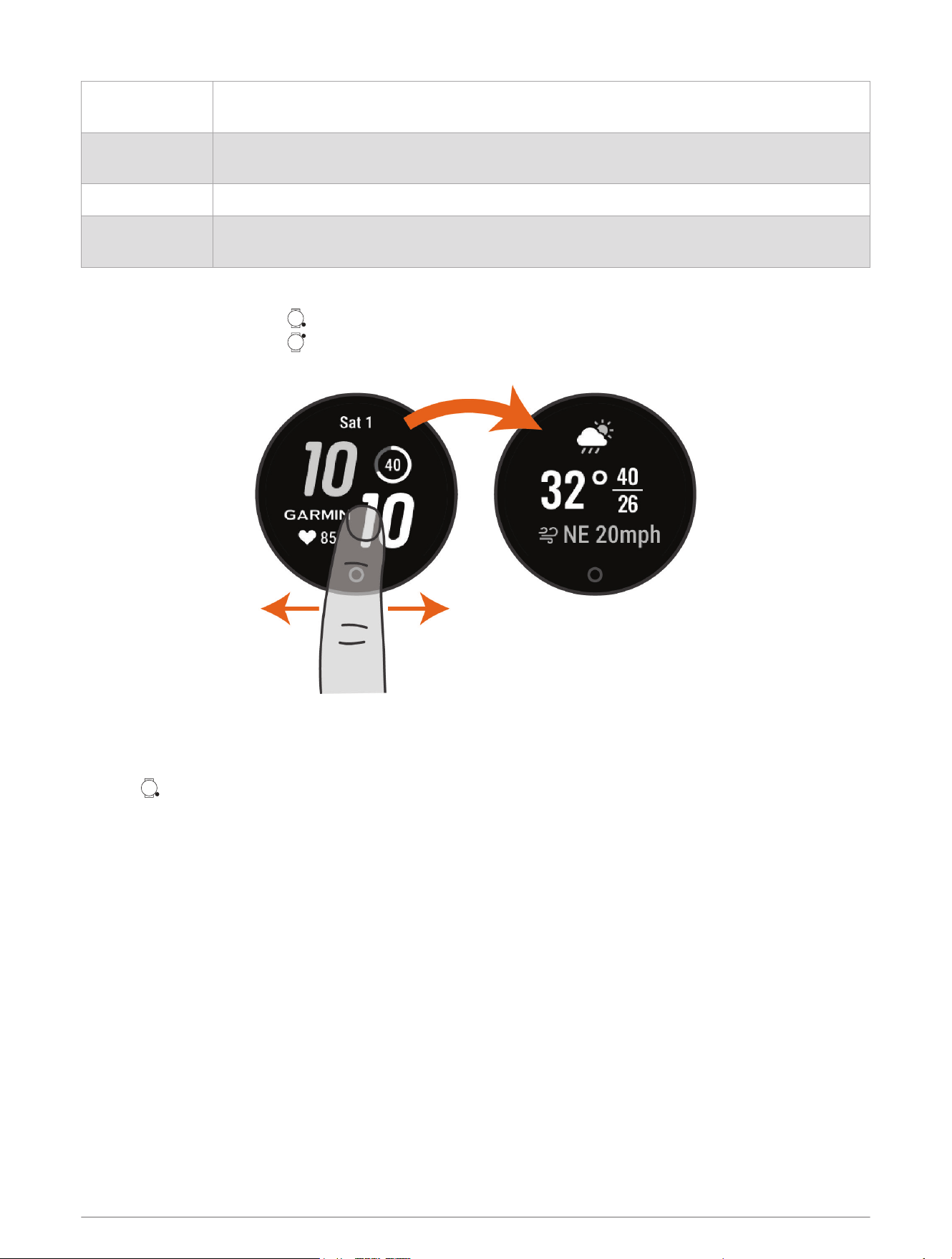
Steps
The total number of steps taken and your goal for the day. The watch learns and proposes a
new step goal for you each day.
Stress
Your current stress level. The watch measures your heart rate variability while you are
inactive to estimate your stress level. A lower number indicates a lower stress level.
Weather The current temperature and weather forecast from a paired phone.
Women's Health
Status of your current monthly menstrual cycle. You can view and log your daily symptoms.
You can also track your pregnancy with weekly updates and health information.
Viewing Widgets and Menus
• From the watch face, hold to view the main menu.
• From the watch face, hold to view the controls menu.
• From the watch face, swipe left or right to view the widgets.
• Tap each widget and swipe left or right to view additional data.
Customizing the Widget Loop
1 Swipe to view any widget.
2 Hold .
3 Select Manage Widget.
4 Select an option:
• Select Add to add a widget to the widget loop.
• Select Remove to remove a widget from the widget loop.
Health Stats Widget
The Health Stats widget provides an at-a-glance view of your health data. This is a dynamic summary that
updates throughout the day. The metrics include your heart rate, stress level, and Body Battery level.
NOTE: You can select each metric to view additional information.
Body Battery
Your watch analyzes your heart rate variability, stress level, sleep quality, and activity data to determine your
overall Body Battery level. Like a gas gauge on a car, it indicates your amount of available reserve energy. The
Body Battery level range is from 5 to 100, where 5 to 25 is very low reserve energy, 26 to 50 is low reserve
energy, 51 to 75 is medium reserve energy, and 76 to 100 is high reserve energy.
You can sync your watch with your Garmin Connect account to view your most up-to-date Body Battery level,
long-term trends, and additional details (Tips for Improved Body Battery Data, page18).
Appearance 17
Viewing the Body Battery Widget
The Body Battery widget displays your current Body Battery level.
1 Swipe to view the Body Battery widget.
NOTE: You may need to add the widget to your widget loop (Customizing the Widget Loop, page17).
2 Tap the touchscreen to view the Body Battery graph.
The graph displays your recent Body Battery activity, and high and low levels for the last three hours.
3 Tap the touchscreen to view your high and low levels since midnight.
4 Swipe left or right to view your Body Battery level with stress and your Body Battery factors.
Tips for Improved Body Battery Data
• For more accurate results, wear the watch while sleeping.
• Good sleep charges your Body Battery.
• Strenuous activity and high stress can cause your Body Battery to drain more quickly.
• Food intake, as well as stimulants like caffeine, has no impact on your Body Battery.
Viewing the Stress Level Widget
The stress level widget displays your current stress level.
1 Swipe to view the stress level widget.
NOTE: You may need to add the widget to your widget loop (Customizing the Widget Loop, page17).
2 Tap the touchscreen to view the stress level graph.
The stress level graph displays your stress readings, and high and low levels for the last three hours.
3 Tap the touchscreen to view your high and low levels since midnight.
4 Swipe to view your overall stress level for the past seven days and the amount of time spent at rest or at
each stress level.
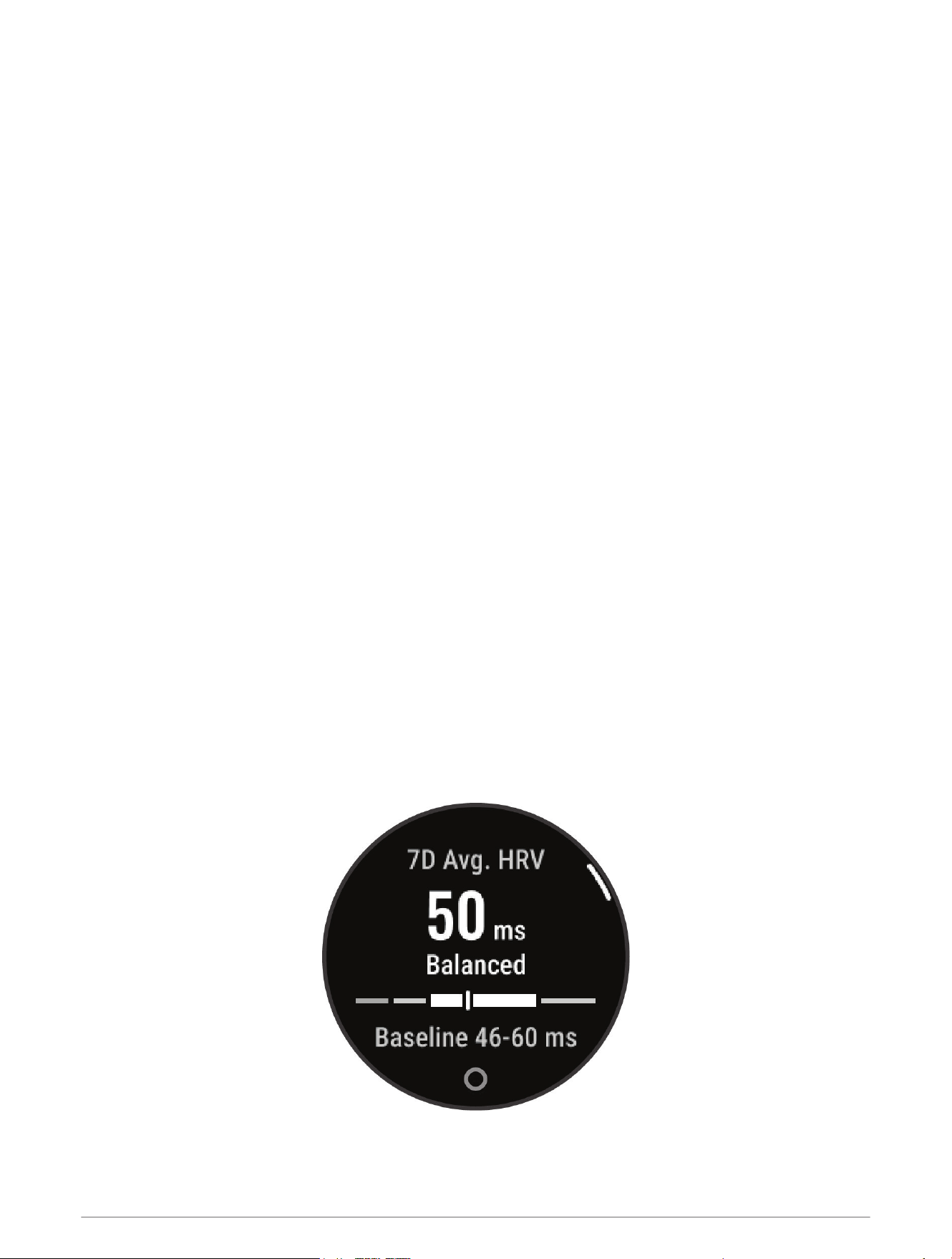
Heart Rate Variability Status
Your watch analyzes your wrist heart rate readings while you are sleeping to determine your heart rate variability
(HRV). Training, physical activity, sleep, nutrition, and healthy habits all impact your heart rate variability. HRV
values can vary widely based on gender, age, and fitness level. A balanced HRV status may indicate positive
signs of health such as good training and recovery balance, greater cardiovascular fitness, and resilience to
stress. An unbalanced or poor status may be a sign of fatigue, greater recovery needs, or increased stress. For
best results, you should wear the watch while sleeping. The watch requires three weeks of consistent sleep data
to display your heart rate variability status.
18 Appearance
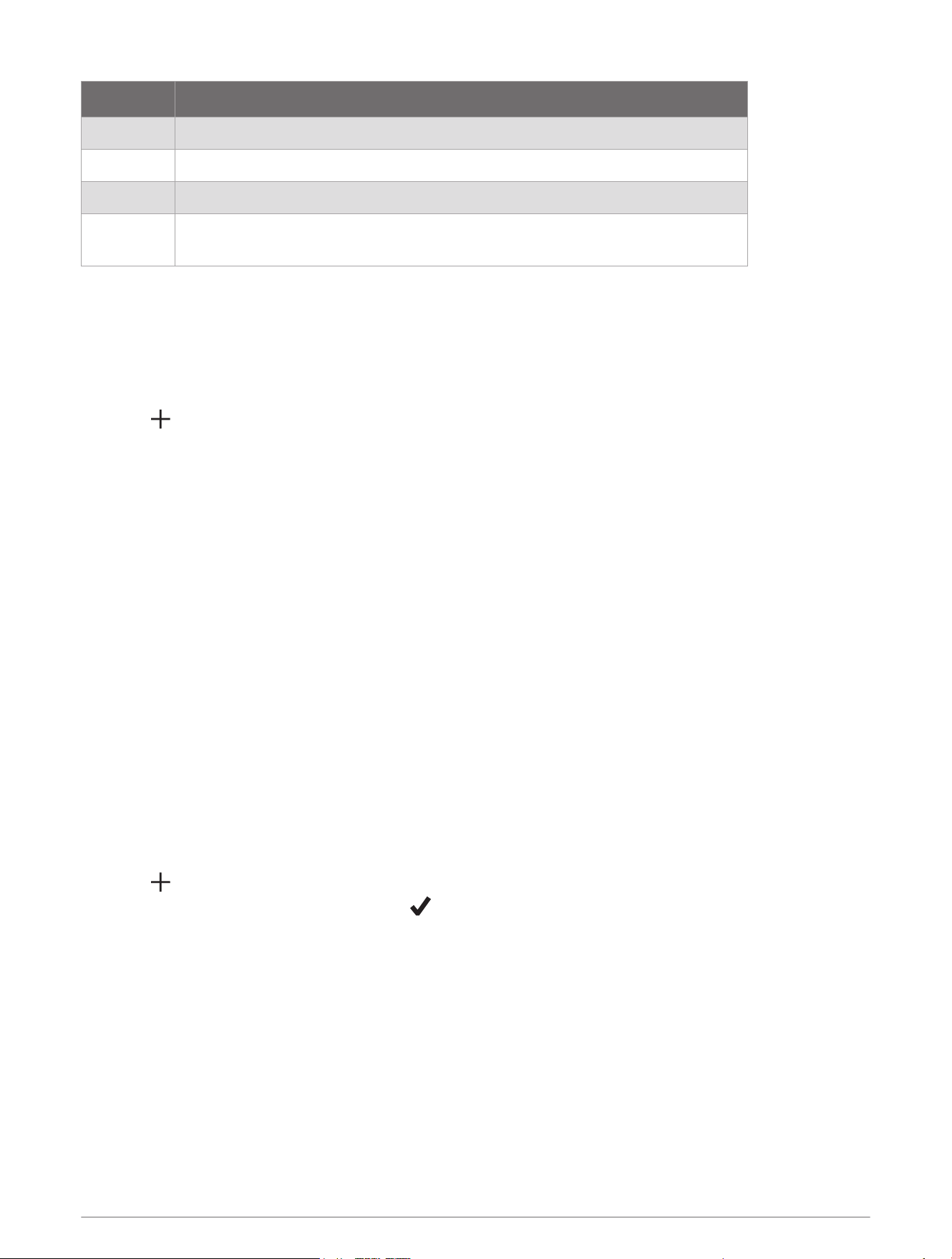
Status Description
Balanced Your seven-day average HRV is within your baseline range.
Unbalanced Your seven-day average HRV is above or below your baseline range.
Low Your seven-day average HRV is well below your baseline range.
Poor
No status
Your HRV values are averaging well below the normal range for your age.
No status means that there is insufficient data to generate a seven-day average.
You can sync your watch with your Garmin Connect account to view your current heart rate variability status,
trends, and educational feedback.
Using the Hydration Tracking Widget
The hydration tracking widget displays your fluid intake and your daily hydration goal.
1 Swipe to view the hydration widget.
2 Select for each serving of fluid you consume (1 cup, 8 oz., or 250 mL).
TIP: You can customize your hydration settings, such as units used and daily goal, on your Garmin Connect
account.
TIP: You can set a hydration reminder (Health and Wellness Settings and Alerts, page26).
Women's Health
Menstrual Cycle Tracking
Your menstrual cycle is an important part of your health. You can use your watch to log physical symptoms, sex
drive, sexual activity, ovulation days, and more (Logging Your Menstrual Cycle Information, page19). You can
learn more and set up this feature in the Health Stats settings of the Garmin Connect app.
• Menstrual cycle tracking and details
• Physical and emotional symptoms
• Period and fertility predictions
• Health and nutrition information
NOTE: You can use the Garmin Connect app to add and remove widgets.
Logging Your Menstrual Cycle Information
Before you can log your menstrual cycle information from your Lily 2 Active watch, you must set up menstrual
cycle tracking in the Garmin Connect app.
1 Swipe to view the women's health tracking widget.
2 Tap the touchscreen.
3 Select .
4 If today is a period day, select Period Day > .
5 Select an option:
• To rate your flow from light to heavy, select Flow.
• To log your physical symptoms, such as acne, backache, and fatigue, select Symptoms.
• To log your mood, select Mood.
• To log your discharge, select Discharge.
• To designate the current date as an ovulation day, select Ovulation Day.
• To log your sexual activity, select Sexual Activity.
• To rate your sex drive from low to high, select Sex Drive.
• To designate the current date as a period day, select Period Day.
Appearance 19
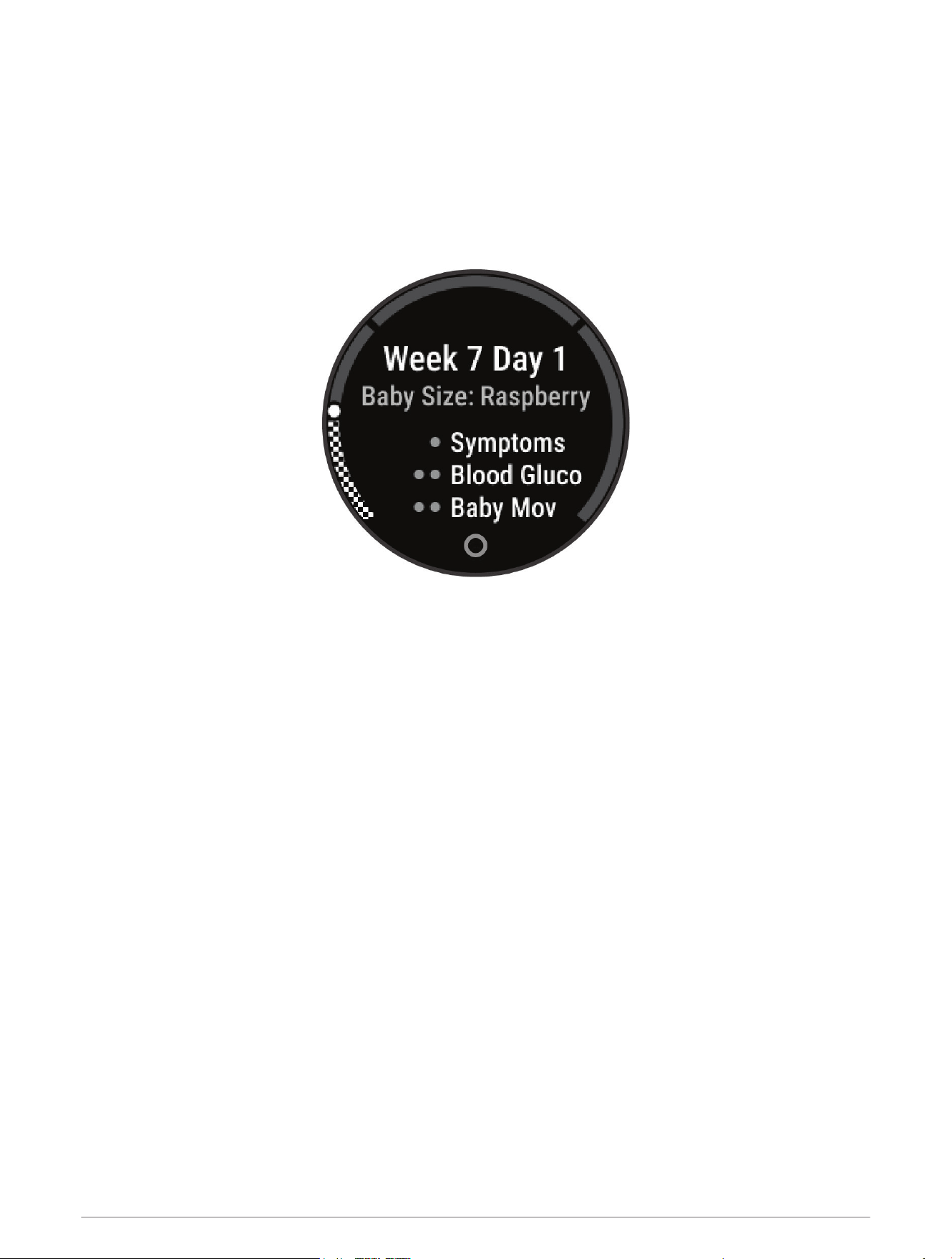
Pregnancy Tracking
The pregnancy tracking feature displays weekly updates on your pregnancy and provides health and nutrition
information. You can use your watch to log physical and emotional symptoms, blood glucose readings, and
baby movement (Logging Your Pregnancy Information, page20). You can learn more and set up this feature in
the Health Stats settings of the Garmin Connect app.
Logging Your Pregnancy Information
Before you can log your information, you must set up pregnancy tracking in the Garmin Connect app.
1 Swipe to view the women's health tracking widget.
2 Tap the touchscreen.
3 Select an option:
• Select Symptoms to log your physical symptoms, mood, and more.
• Select Blood Glucose to log your glucose levels before and after meals and before bed.
• Select Movement to use a stopwatch or timer to log the baby's movements.
4 Follow the on-screen instructions.
Controlling Music Playback
The music control widget allows you to control music on your phone using your Lily 2 Active watch. The widget
controls the currently active or most recently active media player app on your phone. If no media player is
active, the widget does not display track information, and you must start playback from your phone.
1 On your phone, start playing a song or playlist.
2 On your Lily 2 Active watch, swipe to view the music control widget.
Morning Report
Your watch displays a morning report based on your normal wake time. Tap the touchscreen to view the
report, which can include weather, Body Battery, steps, women's health information, calendar events, and sleep
information.
NOTE: You can customize the information in your morning report (Customizing Your Morning Report, page21).
You can customize your display name in your Garmin Connect account (Garmin Connect User Profile Settings,
page43).
20 Appearance

Customizing Your Morning Report
NOTE: You can customize these settings on your watch or in your Garmin Connect account.
1 Hold .
2 Select Settings > Notifications & Alerts > Morning Report.
3 Select Status to turn the morning report on or off.
4 Select Options.
5 Select an option to include or exclude it from your morning report.
Setting Up the Touch Button Shortcut
You can set up a shortcut to your favorite app, glance, or control, such as your GarminPay wallet or the music
controls.
1 Hold .
2 Select Settings > Shortcut > Hold Touch Button.
3 Select an option:
• Select a shortcut.
• Select Disable to turn off the touch button shortcut function.
Training
Unified Training Status
When you use more than one Garmin device with your Garmin Connect account, you can choose which device is
the primary data source for everyday use and for training purposes.
From the Garmin Connect app, select > Settings.
Primary Training Device: Sets the priority data source for training metrics like your training status and load
focus.
NOTE: Garmin devices that do not have the training status feature cannot be set as the Primary Training
Device, but can still be used to record your training data.
Primary Wearable: Sets the priority data source for daily health metrics like steps and sleep. This should be the
watch you wear most often.
TIP: For the most accurate results, Garmin recommends that you sync often with your Garmin Connect account.
Syncing Activities and Performance Measurements
You can sync activities and performance measurements from other Garmin devices to your Lily 2 Active watch
using your Garmin Connect account. This allows your watch to more accurately reflect your training and fitness.
For example, you can record a ride with an Edge
®
bike computer, and view your activity details and recovery time
on your Lily 2 Active watch.
Sync your Lily 2 Active watch and other Garmin devices to your Garmin Connect account.
TIP: You can set a primary training device and primary wearable in the Garmin Connect app (Unified Training
Status, page21).
Recent activities and performance measurements from your other Garmin devices appear on your Lily 2 Active
watch.
Activity Tracking
The activity tracking feature records your daily step count, distance traveled, intensity minutes, calories burned,
and sleep statistics for each recorded day. Your calories burned includes your base metabolism plus activity
calories.
The number of steps taken during the day appears on the steps glance. The step count is updated periodically.
For more information about activity tracking and fitness metric accuracy, go to garmin.com/ataccuracy.
Training 21
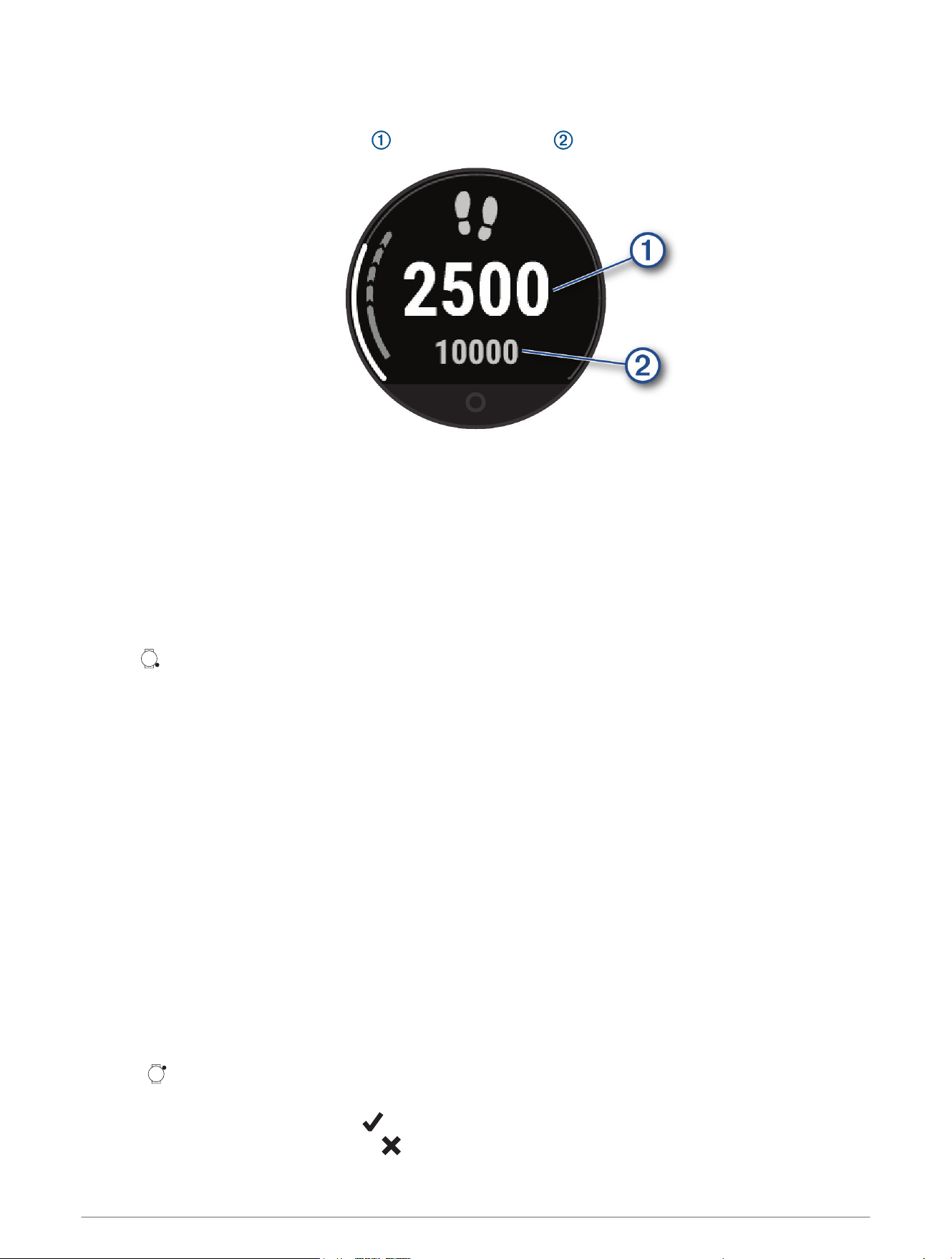
Auto Goal
Your watch creates a daily step goal automatically, based on your previous activity levels. As you move during
the day, the watch records your progress toward your daily goal .
If you choose not to use the auto goal feature, you can set personalized goals on your Garmin Connect account.
Using the Move Alert
Sitting for prolonged periods of time can trigger undesirable metabolic state changes. The move alert reminds
you to keep moving. After one hour of inactivity, a message appears. The watch also vibrates, if vibration is
turned on (System Settings, page40).
Go for a short walk (at least a couple of minutes), or complete the suggested on-screen movements to reset
the move alert.
Turning on the Move Alert
1 Hold .
2 Select Notifications & Alerts > Health & Wellness > Move Alert > On.
Sleep Tracking
While you are sleeping, the watch automatically detects your sleep and monitors your movement during your
normal sleep hours. You can set your normal sleep hours in the Garmin Connect app. Sleep statistics include
total hours of sleep, sleep stages, sleep movement, and sleep score. Naps are added to your sleep statistics,
and can also impact your recovery. You can view detailed sleep statistics in your Garmin Connect account.
NOTE: You can use do not disturb mode to turn off notifications and alerts, with the exception of alarms (Using
Do Not Disturb Mode, page35).
Using Automated Sleep Tracking
1 Wear your watch while sleeping.
2 Upload your sleep tracking data to your Garmin Connect account.
You can view your sleep statistics on your Garmin Connect account.
You can view sleep information, including naps, on your Lily 2 Active watch (Widgets, page15).
Recording a Nap
1 Swipe left or right to view the naps widget.
2 Tap the touchscreen.
3 Press .
4 Select an option:
• To set a timer for your nap, select .
• To take a nap without a timer, select .
22 Training
Breathing Variations
The optical heart rate sensor on the Lily 2 Active device has a pulse oximeter feature that can detect any
overnight sleep variations of your oxygen saturation percentage to alert you to potential sleep apnea. While
measuring your pulse ox (SpO
2
) during your sleep window, the device indicates if your SpO
2
percentage drops
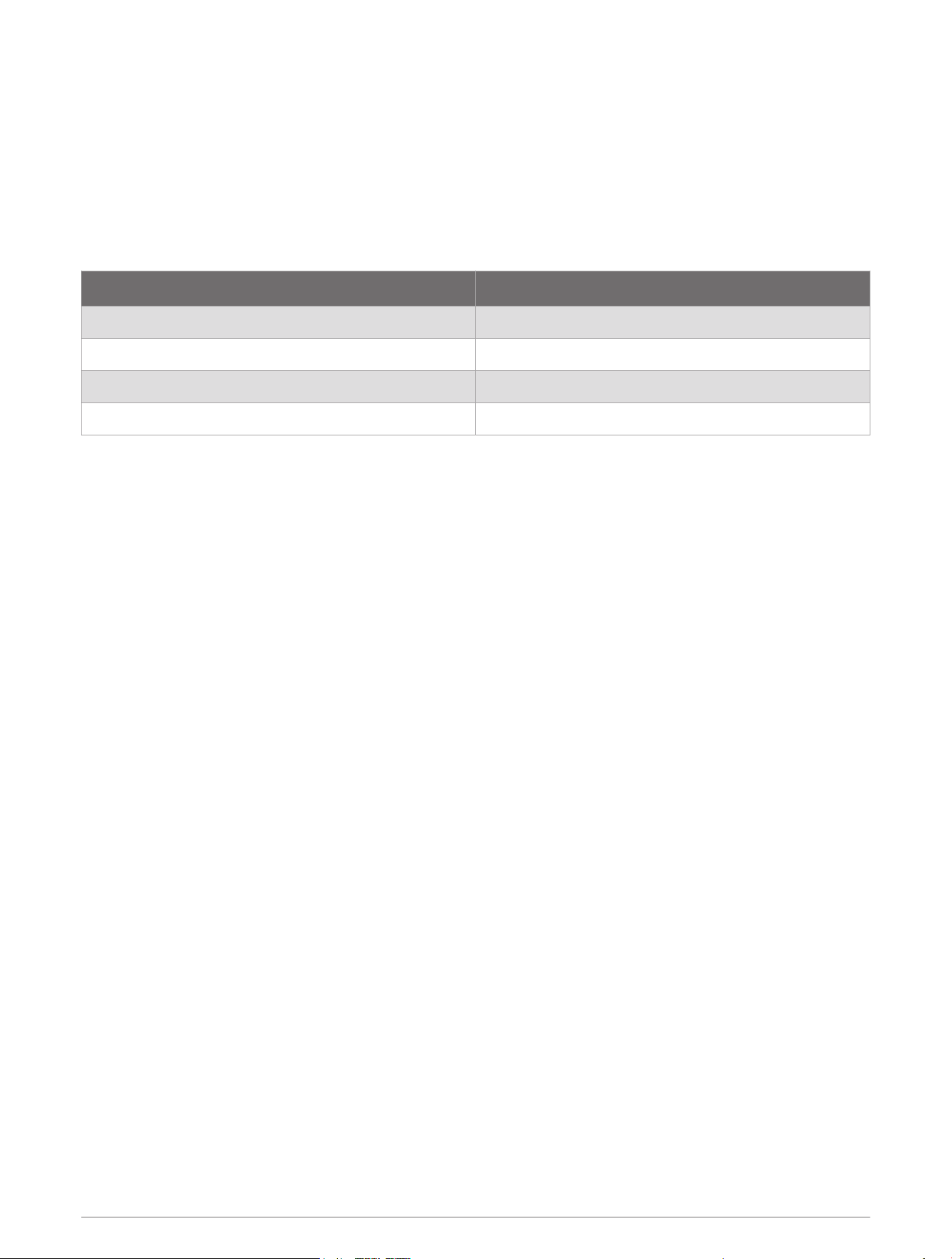
by more than 3%, and lasts for longer than 10 seconds. This is referred to as a breathing variation. The device
calculates all breathing variations that occur during a one-hour window to give you a severity level based on the
American Academy of Sleep Medicine criteria for diagnosing sleep apnea.
NOTE: You must turn on pulse oximeter sleep tracking to detect breathing variations (Turning On Pulse Oximeter
Sleep Tracking, page31).
Severity Level Number of Breathing Variation Events
None Less than 5
Low 5 to 15
Medium 15 to 30
High More than 30
The sleep score glance displays your current breathing variations data.
NOTE: You may need to add the glance to your glance loop (Customizing the Widget Loop, page17).
On your Garmin Connect account, you can view additional details about breathing variations, including trends
over multiple days. For more information on pulse oximeter accuracy, go to garmin.com/ataccuracy.
Intensity Minutes
To improve your health, organizations such as the World Health Organization recommend at least 150 minutes
per week of moderate intensity activity, such as brisk walking, or 75 minutes per week of vigorous intensity
activity, such as running.
The watch monitors your activity intensity and tracks your time spent participating in moderate to vigorous
intensity activities (heart rate data is required to quantify vigorous intensity). The watch adds the amount of
moderate activity minutes with the amount of vigorous activity minutes. Your total vigorous intensity minutes
are doubled when added.
Earning Intensity Minutes
Your Lily 2 Active watch calculates intensity minutes by comparing your heart rate data to your average resting
heart rate. If heart rate is turned off, the watch calculates moderate intensity minutes by analyzing your steps
per minute.
• Start a timed activity for the most accurate calculation of intensity minutes.
• Wear your watch all day and night for the most accurate resting heart rate.
Move IQ
®
When your movements match familiar exercise patterns, the Move IQ feature automatically detects the event
and displays it in your timeline. The Move IQ events show activity type and duration, but they do not appear in
your activities list or newsfeed.
The Move IQ feature can automatically start a timed activity for walking and running using time thresholds you
set in the Garmin Connect app or the watch activity settings. These activities are added to your activities list.
Training 23
Enabling Self Evaluation
When you save an activity, you can evaluate your perceived effort and how you felt during the activity. Your self
evaluation information can be viewed in your Garmin Connect account.
1 From your Garmin Connect device menu, select Activity Options.
2 Select an activity.
NOTE: This feature is not available for all activities.
3 Select Self Evaluation.
4 Select an option:
• To complete self evaluation only after workouts, select Workouts Only.
• To complete self evaluation after every activity, select Always.
Activity Tracking Settings
You can update some activity tracking settings on the watch. You must update your weekly intensity minutes
and step goal in the Garmin Connect app.
Hold , and select Settings > Activity Tracking.
Status: Turns off the activity tracking features.
Move IQ: Allows you to turn on and off Move IQ events.
Auto Activity Start: Allows your watch to create and save timed activities automatically when the Move IQ
feature detects you are walking or running. You can set the minimum time threshold for running and walking.
Turning Off Activity Tracking
When you turn off activity tracking, your steps, intensity minutes, sleep tracking, and Move IQ events are not
recorded.
1 Hold .
2 Select Settings > Activity Tracking > Status > Off.
Workouts
Your watch can guide you through multiple-step workouts that include goals for each workout step, such as
distance, time, reps, or other metrics. Your watch includes several preloaded workouts for multiple activities,
including strength, cardio, running, and biking. You can create and find more workouts and training plans using
the Garmin Connect app and transfer them to your watch.
On your watch: You can open the workouts app from the activity list to show all workouts currently loaded on
your watch (Customizing Activity Options, page11).
You can also view your workout history.
On the app: You can create and find more workouts, or select a training plan that has built-in workouts and
transfer them to your watch (Following a Workout From Garmin Connect, page25).
You can schedule workouts.
You can update and edit your current workouts.
24 Training

Starting a Workout
Your watch can guide you through multiple steps in a workout.
1 Press .
2 Select an activity.
3 Select > Workouts.
4 Select a workout.
NOTE: Only workouts that are compatible with the selected activity appear in the list.
5 Swipe up to view the workout steps (optional).
6 Press to start the activity timer.
After you begin a workout, the watch displays each step of the workout, step notes (optional), and the target
(optional). You can swipe right or left to view the current workout data.
Following a Workout From Garmin Connect
Before you can download a workout from Garmin Connect, you must have a Garmin Connect account (Garmin
Connect, page32).
1 Select an option:
• Open the Garmin Connect app, and select .
• Go to www.garminconnect.com.
2 Select Training & Planning > Workouts.
3 Find a workout, or create and save a new workout.
4 Select or Send to Device.
5 Follow the on-screen instructions.
Using Garmin Connect Training Plans
Before you can download and use a training plan, you must have a Garmin Connect account (Garmin Connect,
page32), and you must pair the Lily 2 Active watch with a compatible phone.
1 From the Garmin Connect app, select .
2 Select Training & Planning > Training Plans.
3 Select and schedule a training plan.
4 Follow the on-screen instructions.
5 Review the training plan in your calendar.
Adaptive Training Plans
Your Garmin Connect account has an adaptive training plan and Garmin coach to fit your training goals. For
example, you can answer a few questions and find a plan to help you complete a 5 km race. The plan adjusts
to your current level of fitness, coaching and schedule preferences, and race date. When you start a plan, the
Garmin coach glance is added to the glances list on your Lily 2 Active watch.
Starting Today's Workout
After you send a training plan to your watch, the Garmin coach glance appears in your glance loop.
1 From the watch face, swipe to view the Garmin coach glance.
2 Select the glance.
If a workout for this activity is scheduled for today, the watch shows the workout name and prompts you to
start it.
3 Select a workout.
4 Select View to view the workout steps, and swipe right when you are finished viewing the steps (optional).
5 Select Do Workout.
6 Follow the on-screen instructions.
Training 25
Viewing Scheduled Workouts
You can view workouts scheduled in your training calendar and start a workout.
1 Press .
2 Select an activity.
3 Swipe up.
4 Select Training Calendar.
Your scheduled workouts appear, sorted by date.
5 Select a workout.
6 Scroll to view the steps for the workout.
7 Press to start the workout.
Health and Wellness Settings and Alerts
Hold , and select Settings > Notifications & Alerts > Health & Wellness.
Wrist HR: See Setting an Abnormal Heart Rate Alert, page28.
Move Alert: Enables the Move Alert feature (Using the Move Alert, page22).
Stress Alerts: Notifies you when periods of stress have drained your Body Battery (Viewing the Stress Level
Widget, page18).
Rest Alerts: Notifies you after you have a restful period and its impact on your Body Battery (Body Battery,
page17).
Daily Summary: Enables the Body Battery daily summary that appears a few hours before the start of your sleep
window. The daily summary provides insight on how your daily stress and activity history impacted your Body
Battery (Viewing the Body Battery Widget, page18).
Goals: Allows you to turn on and off goal alerts, or turn them on during general use while not in an activity. Goal
alerts appear for your daily steps goal and weekly intensity minutes goal.
Hydration Alerts: Allows you to turn on and off hydration alerts.
Heart Rate Features
The Lily 2 Active watch enables you to view wrist-based heart rate data.
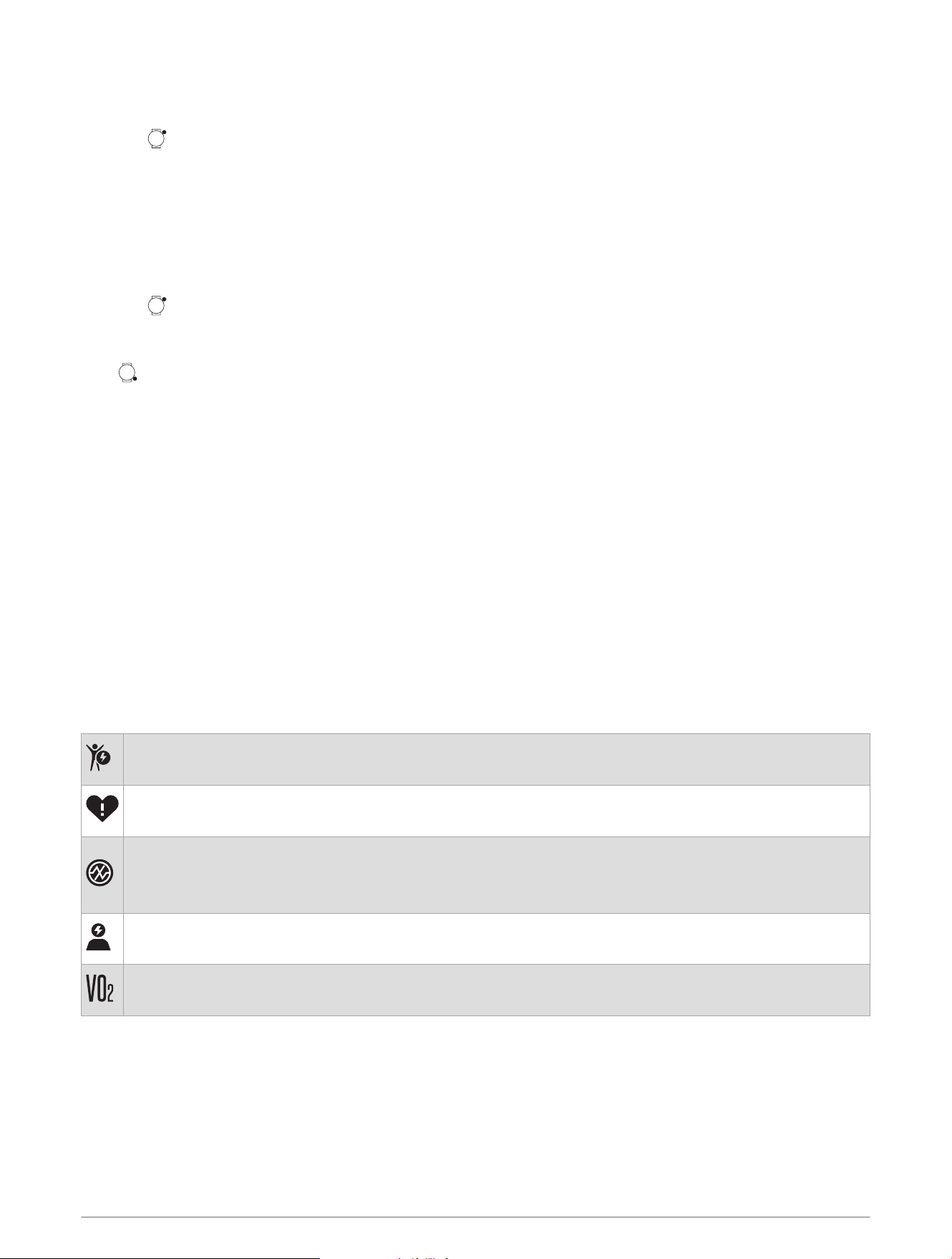
Your current Body Battery energy level. The watch calculates your current energy reserves based on
sleep, stress, and activity data. A higher number indicates a higher energy reserve.
Alerts you when your heart rate exceeds or drops below a certain number of beats per minute after a
period of inactivity.
Monitors the saturation of oxygen in your blood. Knowing your oxygen saturation can help you determine
how your body is adapting to exercise and stress.
NOTE: The pulse oximeter sensor is located on the back of the watch.
Your current stress level. The watch measures your heart rate variability while you are inactive to
estimate your stress level. A lower number indicates a lower stress level.
Displays your current VO2 max., which is an indication of athletic performance and should increase as
your level of fitness improves.
26 Heart Rate Features
Wrist-based Heart Rate
Wearing the Watch
CAUTION
Some users may experience skin irritation after prolonged use of the watch, especially if the user has sensitive
skin or allergies. If you notice any skin irritation, remove the watch and give your skin time to heal. To help
prevent skin irritation, ensure the watch is clean and dry, and do not overtighten the watch on your wrist. For
more information, go to garmin.com/fitandcare.
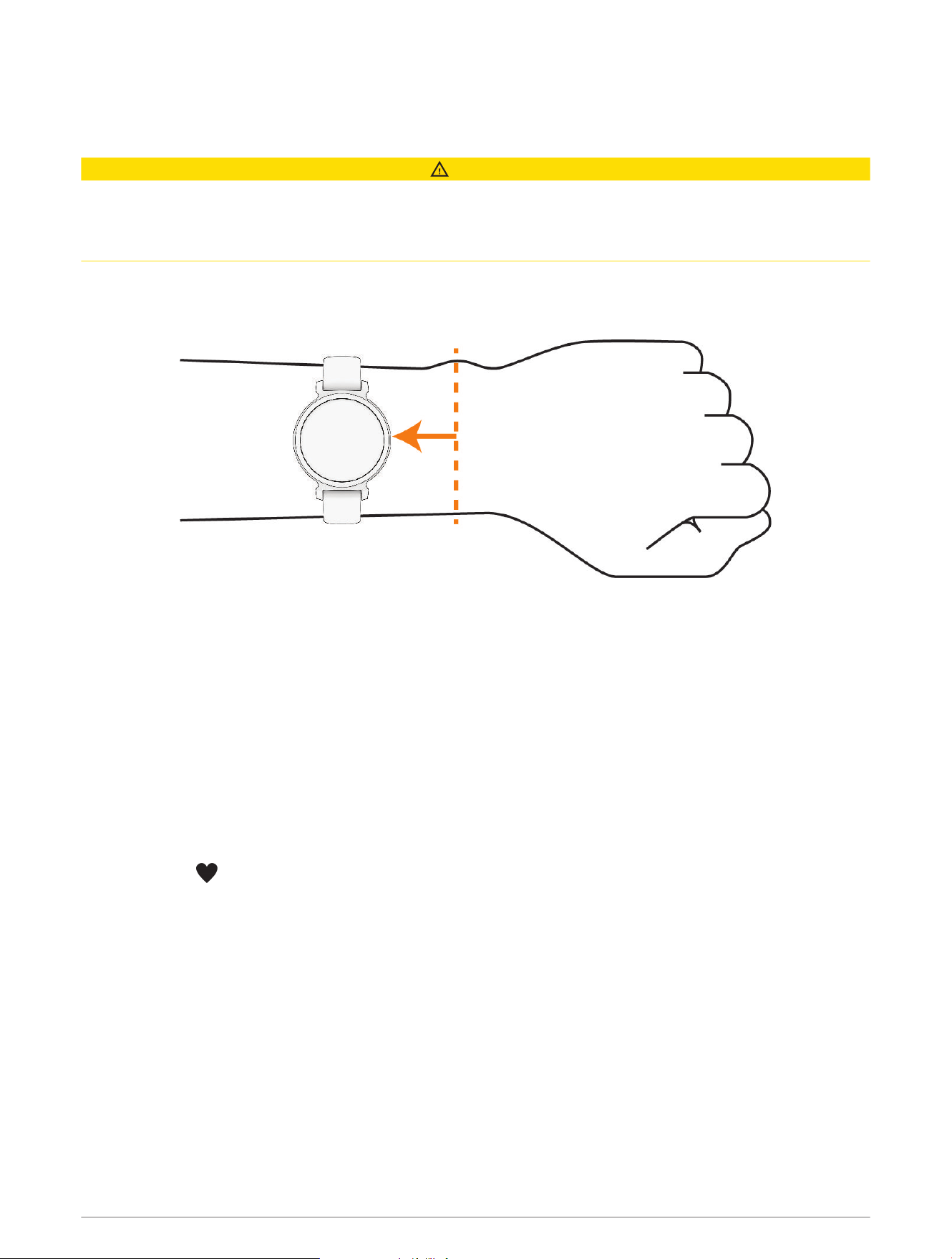
• Wear the watch above your wrist bone.
NOTE: The watch should be snug but comfortable. For more accurate heart rate readings, the watch should
not shift while running or exercising. For pulse oximeter readings, you should remain motionless.
NOTE: The optical sensor is located on the back of the watch.
• See Troubleshooting, page47 for more information about wrist-based heart rate.
• See Tips for Erratic Pulse Oximeter Data, page31 for more information about the pulse oximeter sensor.
• For more information about accuracy, go to garmin.com/ataccuracy.
• For more information about watch wear and care, go to www.garmin.com/fitandcare.
Tips for Erratic Heart Rate Data
If the heart rate data is erratic or does not appear, you can try these tips.
• Clean and dry your arm before putting on the watch.
• Avoid wearing sunscreen, lotion, and insect repellent under the watch.
• Avoid scratching the heart rate sensor on the back of the watch.
• Wear the watch above your wrist bone. The watch should be snug but comfortable.
• Wait until the icon is solid before starting your activity.
• Warm up for 5 to 10 minutes and get a heart rate reading before starting your activity.
NOTE: In cold environments, warm up indoors.
• Rinse the watch with fresh water after each workout.
Heart Rate Features 27
Viewing the Heart Rate Widget
The heart rate widget displays your current heart rate in beats per minute (bpm). For more information on heart
rate accuracy, go to garmin.com/ataccuracy.
1 From the watch face, swipe left or right to view the heart rate widget.
NOTE: You may need to add the widget to your widget loop (Customizing the Widget Loop, page17).
2 Select the widget to view your current heart rate in beats per minute (bpm) and a graph of your heart rate for
the last three hours.
3 Select an option:
• Tap the graph, and swipe left or right to pan the graph.
• Swipe left or right to view your average resting heart rate values for the last seven days.
Setting an Abnormal Heart Rate Alert
CAUTION
This feature only alerts you when your heart rate exceeds or drops below a certain number of beats per minute,
as selected by the user, after a period of inactivity. This feature does not notify you when your heart rate drops
below the selected threshold during your chosen sleep window configured in the Garmin Connect app. This
feature does not notify you of any potential heart condition and is not intended to treat or diagnose any medical
condition or disease. Always defer to your health care provider for any heart-related issues.
1 Hold .
2 Select Settings > Notifications & Alerts > Health & Wellness > Heart Rate.
3 Select High Alert or Low Alert to turn on the alert.
4 Select a heart rate threshold value.
Each time you exceed or drop below the custom value, a message appears and the watch vibrates.
Broadcasting Heart Rate Data to Garmin Devices
You can broadcast your heart rate data from your Lily 2 Active watch and view it on paired Garmin devices. For
example, you can broadcast your heart rate data to an Edge bike computer while cycling.
NOTE: Broadcasting heart rate data decreases battery life.
1 Hold to view the controls menu.
NOTE: You can customize the controls menu (Customizing the Controls Menu, page15).
2 Select .
3 Press .
The Lily 2 Active watch starts broadcasting your heart rate data.
NOTE: The time appears on the screen while broadcasting heart rate data.
4 Pair your Lily 2 Active watch with your Garmin ANT+
®
compatible device.
NOTE: The pairing instructions differ for each Garmin compatible device. See your owner's manual.
5 Repeat steps 1 through 3 to stop broadcasting your heart rate data.
Wrist Heart Rate Monitor Settings
Hold , and select Settings > Watch Sensors > Wrist Heart Rate.
Status: Enables or disables the wrist heart rate monitor. The default value is Auto, which automatically uses the
wrist heart rate monitor unless you pair an external heart rate monitor.
NOTE: Disabling the wrist heart rate monitor also disables the wrist-based pulse oximeter sensor. You can
perform a manual reading from the pulse oximeter glance.
During Swim: Enables or disables the wrist heart rate monitor during swimming activities.
28 Heart Rate Features
Turning Off the Wrist-based Heart Rate Monitor
The default value for the Wrist Heart Rate setting is Auto. The watch automatically uses the wrist-based heart
rate monitor unless you pair a chest heart rate monitor to the watch. Chest heart rate data is only available
during an activity.
NOTE: Disabling the wrist-based heart rate monitor also disables features such as your VO2 max. estimate,
sleep tracking, intensity minutes, the all-day stress feature, and the wrist-based pulse oximeter sensor.
NOTE: Disabling the wrist-based heart rate monitor also disables the on-wrist detection feature for GarminPay
payments, and you must enter a passcodebefore making each payment (GarminPay, page13).
1 Hold .
2 Select Settings > Watch Sensors > Wrist Heart Rate > Status > Off.
Some sensor lights may flash after the wrist-based heart rate monitor is turned off.
About Heart Rate Zones
Many athletes use heart rate zones to measure and increase their cardiovascular strength and improve their
level of fitness. A heart rate zone is a set range of heartbeats per minute. The five commonly accepted
heart rate zones are numbered from 1 to 5 according to increasing intensity. Generally, heart rate zones are
calculated based on percentages of your maximum heart rate.
Setting Your Heart Rate Zones
The watch uses your user profile information from the initial setup to determine your default heart rate zones.
For the most accurate calorie data during your activity, set your maximum heart rate. You can also enter your
resting heart rate manually. You can manually adjust your zones on the watch or using your Garmin Connect
account.
1 Hold .
2 Select Settings > User Profile > Heart Rate Zones.
3 Select Max. HR, and enter your maximum heart rate.
4 Select .
5 Select Resting HR.
6 Select an option:
• Select Use Average to use your average resting heart rate from the watch.
• Select Set Custom to set a custom resting heart rate.
7 Select Zones > Based On.
8 Select an option:
• Select BPM to view and edit the zones in beats per minute.
• Select %Max. HR to view and edit the zones as a percentage of your maximum heart rate.
9 Select a zone, and enter a value for each zone.
Heart Rate Features 29
Heart Rate Zone Calculations
Zone
% of Maximum Heart
Rate
Perceived Exertion Benefits
1 50–60% Relaxed, easy pace, rhythmic breathing
Beginning-level aerobic training,
reduces stress
2 60–70%
Comfortable pace, slightly deeper
breathing, conversation possible
Basic cardiovascular training, good
recovery pace
3 70–80%
Moderate pace, more difficult to hold
conversation
Improved aerobic capacity, optimal
cardiovascular training
4 80–90%
Fast pace and a bit uncomfortable,
breathing forceful
Improved anaerobic capacity and
threshold, improved speed
5 90–100%
Sprinting pace, unsustainable for long
period of time, labored breathing
Anaerobic and muscular endurance,
increased power
Fitness Goals
Knowing your heart rate zones can help you measure and improve your fitness by understanding and applying
these principles.
• Your heart rate is a good measure of exercise intensity.
• Training in certain heart rate zones can help you improve cardiovascular capacity and strength.
If you know your maximum heart rate, you can use the table (Heart Rate Zone Calculations, page30) to
determine the best heart rate zone for your fitness objectives.
If you do not know your maximum heart rate, use one of the calculators available on the Internet. Some gyms
and health centers can provide a test that measures maximum heart rate. The default maximum heart rate is
220 minus your age.
Pulse Oximeter
The Lily 2 Active watch has a wrist-based pulse oximeter to gauge the saturation of oxygen in your blood.
Knowing your oxygen saturation can be valuable in understanding your overall health and help you determine
how your body is adapting to altitude. Your watch gauges your blood oxygen level by shining light into the skin
and checking how much light is absorbed. This is referred to as SpO
2
.
On the watch, your pulse oximeter readings appear as an SpO
2
percentage. On your Garmin Connect account,
you can view additional details about your pulse oximeter readings, including trends over multiple days
(Turning On Pulse Oximeter Sleep Tracking, page31). For more information on pulse oximeter accuracy, go
to garmin.com/ataccuracy.
Getting Pulse Oximeter Readings
You can manually begin a pulse oximeter reading on your watch at any time. The accuracy of these readings
can vary based on your blood flow, the watch placement on your wrist, and your stillness (Tips for Erratic Pulse
Oximeter Data, page31).
1 Wear the watch above your wrist bone.
The watch should be snug but comfortable.
2 Swipe to view the pulse oximeter widget.
3 Hold the arm wearing the watch at heart level while the watch reads your blood oxygen saturation.
4 Keep still.
The watch displays your oxygen saturation as a percentage.
NOTE: You can turn on and view pulse oximeter sleep data in your Garmin Connect account (Turning On Pulse
Oximeter Sleep Tracking, page31).
30 Heart Rate Features

Turning On Pulse Oximeter Sleep Tracking
Before you can use pulse oximeter sleep tracking, you must set your Lily 2 Active watch as your primary
wearable in your Garmin Connect account (Unified Training Status, page21).
You can set your watch to continuously measure your blood oxygen level, or SpO2, for up to 4 hours during your
defined sleep window (Tips for Erratic Pulse Oximeter Data, page31).
NOTE: Unusual sleep positions can cause abnormally low sleep-time SpO2 readings.
1 Hold to view the menu.
2 Select Settings > Watch Sensors > Sleep Pulse Ox.
3 Select the toggle switch to turn on tracking.
Tips for Erratic Pulse Oximeter Data
If the pulse oximeter data is erratic or does not appear, you can try these tips.
• Remain motionless while the watch reads your blood oxygen saturation.
• Wear the watch above your wrist bone. The watch should be snug but comfortable.
• Hold the arm wearing the watch at heart level while the watch reads your blood oxygen saturation.
• Use a silicone or nylon band.
• Clean and dry your arm before putting on the watch.
• Avoid wearing sunscreen, lotion, and insect repellent under the watch.
• Avoid scratching the optical sensor on the back of the watch.
• Rinse the watch with fresh water after each workout.
About VO2 Max. Estimates
VO2 max. is the maximum volume of oxygen (in milliliters) you can consume per minute per kilogram of body
weight at your maximum performance. In simple terms, VO2 max. is an indication of cardiovascular strength
and should increase as your level of fitness improves. The Lily 2 Active watch requires wrist-based heart rate or
a compatible chest heart rate monitor to display your VO2 max. estimate.
On the watch, your VO2 max. estimate appears as a number and description. On your Garmin Connect account,
you can view additional details about your VO2 max. estimate.
VO2 max. data is provided by Firstbeat Analytics
™
. VO2 max. analysis is provided with permission from The
Cooper Institute
®
. For more information, see the appendix (VO2 Max. Standard Ratings, page51), and go to
www.CooperInstitute.org.
Getting Your VO2 Max. Estimate
The watch requires wrist-based heart rate data and a timed 15 minute brisk walk or run to display your VO2
max. estimate.
1 Hold to view the menu.
2 Select Settings > User Profile > VO2 Max.
If you have already recorded a 15 minute brisk walk or run, your VO2 max. estimate may appear. The watch
updates your VO2 max. estimate each time you complete a timed walk or run.
3 Follow the on-screen instructions to get your VO2 max. estimate.
A message appears when the test is complete.
4 To manually start a VO2 max. test to get an updated estimate, tap your current reading and follow the
instructions.
The watch will update with your new VO2 max. estimate.
Heart Rate Features 31
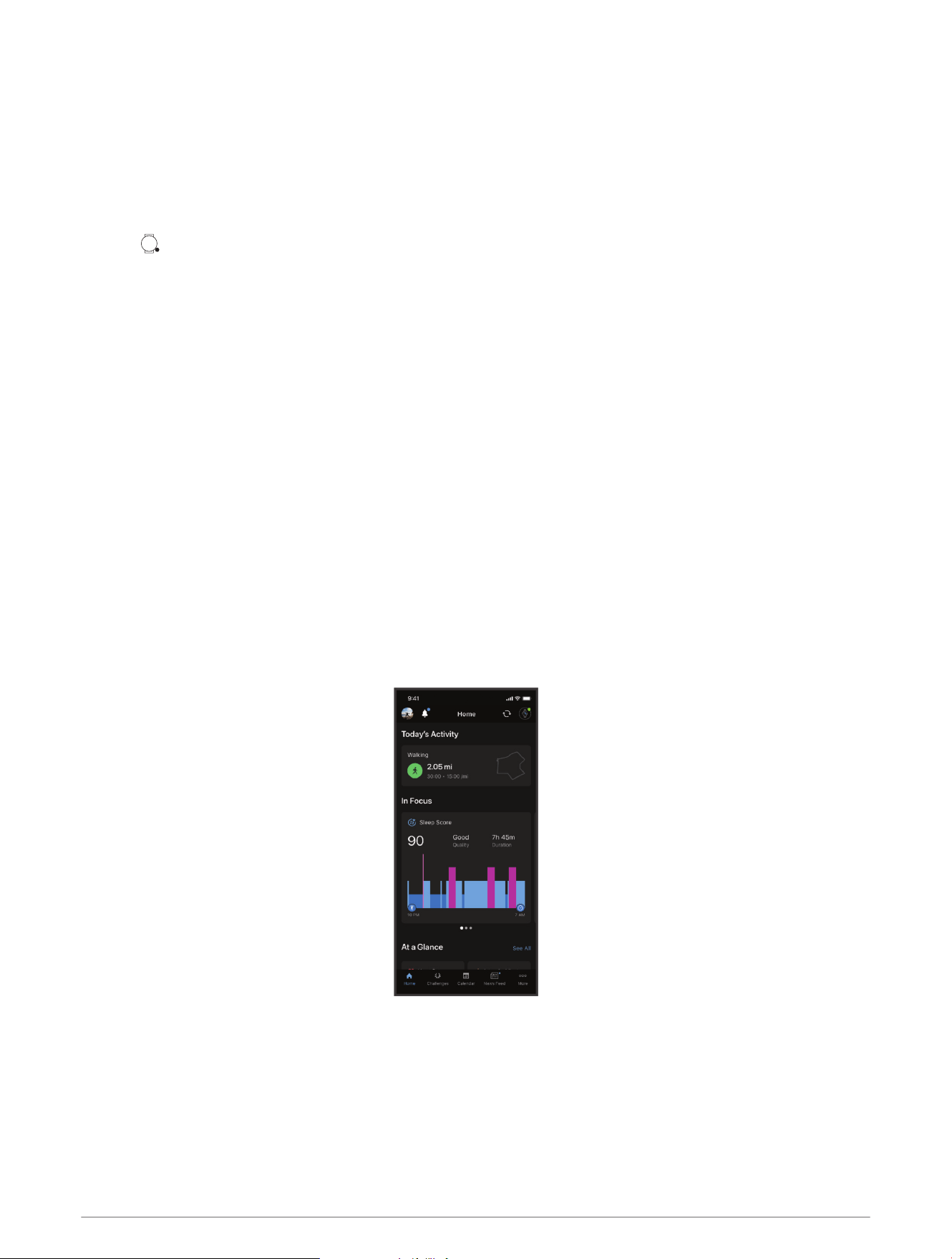
Viewing Your Fitness Age
Before the watch can calculate an accurate fitness age, you must complete the user profile setup in the Garmin
Connect app.
Your fitness age gives you an idea of how your fitness compares with a person of the same sex. Your watch
uses information, such as your age, body mass index (BMI), resting heart rate data, and vigorous activity history
to provide a fitness age. If you have an Index
™
scale, your watch uses the body fat percentage metric instead of
BMI to determine your fitness age. Exercise and lifestyle changes can impact your fitness age.
1 Hold to view the menu.
2 Select Settings > User Profile > Fitness Age.
Connectivity
Connectivity features are available for your watch when you pair with your compatible phone (Pairing Your
Phone, page33).
Garmin Connect
You can connect with your friends on your Garmin Connect account. Your Garmin Connect account gives you
the tools to track, analyze, share, and encourage each other. Record the events of your active lifestyle including
runs, walks, rides, and more.
You can create your free Garmin Connect account when you pair your watch with your phone using the Garmin
Connect app, or you can go to www.garminconnect.com.
Track your progress: You can track your daily steps, join a friendly competition with your connections, and meet
your goals.
Store your activities: After you complete and save a timed activity with your watch, you can upload that activity
to your Garmin Connect account and keep it as long as you want.
Analyze your data: You can view more detailed information about your activity, including time, distance, heart
rate, calories burned, and customizable reports.
NOTE: Some data requires an optional accessory such as a heart rate monitor.
Share your activities: You can connect with friends to follow each other's activities or share links to your
activities.
Manage your settings: You can customize your watch and user settings on your Garmin Connect account.
32 Connectivity
Syncing Your Data with the Garmin Connect App
Your watch automatically syncs data with the Garmin Connect app each time you open the app. Your watch
periodically syncs data with the Garmin Connect app automatically. You can also manually sync your data at
any time.
1 Bring the watch near your phone.
2 Open the Garmin Connect app.
TIP: The app can be open or running in the background.
3 Hold to view the menu.
4 Select Settings > System > Phone > Sync.
5 Wait while your data syncs.
6 View your current data in the Garmin Connect app.
Syncing Your Data with Your Computer
Before you can sync your data with the Garmin Connect application on your computer, you must install the
Garmin Express
™
application (Setting Up Garmin Express, page33).
1 Connect the watch to your computer using the USB cable.
2 Open the Garmin Express application.
The watch enters mass storage mode.
3 Follow the on-screen instructions.
4 View your data on your Garmin Connect account.
Setting Up Garmin Express
1 Connect the device to your computer using a USBcable.
2 Go to www.garmin.com/express.
3 Follow the on-screen instructions.
Pairing Your Phone
To set up the Lily 2 Active watch, it must be paired directly through the Garmin Connect app, instead of from the
Bluetooth settings on your phone.
1 During the initial setup on your watch, select when you are prompted to pair with your phone.
NOTE: If you previously skipped the pairing process, you can hold , and select System > Phone > Pair
Phone to manually enter pairing mode.
2 Scan the QR code with your phone, and follow the on-screen instructions to complete the pairing and setup
process.
Viewing Notifications
When your watch is paired with the Garmin Connect app, you can view notifications from your phone on your
watch, such as text messages and emails.
1 Swipe to view the notifications widget.
2 Select a notification.
TIP: Swipe to view older notifications.
3 Tap the touchscreen, and select to dismiss the notification.
Connectivity 33

Replying to a Text Message
NOTE: This feature is available only for Android
™
phones.
When you receive a text message notification on your Lily 2 Active watch, you can send a quick reply by
selecting from a list of messages.
NOTE: This feature sends text messages using your phone. Regular text message limits and charges may apply.
Contact your mobile carrier for more information.
1 Swipe to view the notifications widget.
2 Select a text message notification.
3 Tap the touchscreen to view the notification options.
4 Select .
5 Select a message from the list.
Your phone sends the selected message as a text message.
Managing Notifications
You can use your compatible phone to manage notifications that appear on your Lily 2 Active watch.
Select an option:
• If you are using an iPhone
®
, go to the iOS
®
notifications settings to select the items to show on the watch.
• If you are using an Android phone, from the Garmin Connect app, select > Settings > Notifications.
Enabling Bluetooth Notifications
Before you can enable notifications, you must pair the Lily 2 Active watch with a compatible phone (Pairing Your
Phone, page33).
1 Hold .
2 Select Settings > Notifications & Alerts > Smart Notifications.
3 Select an option:
• Select General Use to set preferences for notifications that appear when in watch mode.
• Select During Activity to set preferences for notifications that appear when recording an activity.
• Select During Sleep to turn Do Not Disturb on or off.
• Select Privacy to set a privacy preference.
Turning Off the Bluetooth Phone Connection
You can turn off the Bluetooth phone connection from the controls menu.
NOTE: You can add options to the controls menu (Customizing the Controls Menu, page15).
1 Hold to view the controls menu.
2 Select to turn off the Bluetooth phone connection on your Lily 2 Active watch.
Refer to the owner's manual for your phone to turn off Bluetooth technology on your phone.
Receiving an Incoming Phone Call
When you receive a phone call on your connected phone, the Lily 2 Active watch displays the name or phone
number of the caller.
• To accept the call, select .
NOTE: To talk to the caller, you must use your connected phone.
• To decline the call, select .
34 Connectivity
Finding Your Phone
You can use this feature to help locate a lost phone that is paired using Bluetooth technology and currently
within range.
1 Hold .
2 Select .
Signal strength bars appear on the Lily 2 Active screen, and an audible alert sounds on your phone. The bars
increase as you move closer to your phone.
3 Press to stop searching.
Using Do Not Disturb Mode
You can use do not disturb mode to turn off vibrations and the display for alerts and notifications (Customizing
the Display Settings, page41). For example, you can use this mode while sleeping or watching a movie.
• To manually turn on or off do not disturb mode, hold , and select .
• To automatically turn on do not disturb mode during your sleep hours, open the device settings in the Garmin
Connect app, and select Notifications and Alerts > Smart Notifications > During Sleep.
Safety and Tracking Features
CAUTION
The safety and tracking features are supplemental features and should not be relied on as a primary method to
obtain emergency assistance. The Garmin Connect app does not contact emergency services on your behalf.
NOTICE
To use the safety and tracking features, the Lily 2 Active watch must be connected to the Garmin Connect app
using Bluetooth technology. Your paired phone must be equipped with a data plan and be in an area of network
coverage where data is available. You can enter emergency contacts in your Garmin Connect account.
For more information about safety and tracking features, go to www.garmin.com/safety.
Assistance: Allows you to send a message with your name, LiveTrack link, and GPS location (if available) to
your emergency contacts.
Adding Emergency Contacts
Emergency contact phone numbers are used for the safety and tracking features.
1 From the Garmin Connect app, select .
2 Select Safety & Tracking > Safety Features > Emergency Contacts > Add Emergency Contacts.
3 Follow the on-screen instructions.
Your emergency contacts receive a notification when you add them as an emergency contact, and can accept or
decline your request. If a contact declines, you must choose another emergency contact.
Safety and Tracking Features 35
Requesting Assistance
CAUTION
Assistance is a supplemental feature and should not be relied upon as a primary method to obtain emergency
assistance. The Garmin Connect app does not contact emergency services on your behalf.
NOTICE
Before you can request assistance, you must set up emergency contacts in the Garmin Connect app (Adding
Emergency Contacts, page35). Your paired phone must be equipped with a data plan and be in an area of
network coverage where data is available. Your emergency contacts must be able to receive emails or text
messages (standard text messaging rates may apply).
1 Hold .
2 When you feel three vibrations, release the button to activate the assistance feature.
The countdown screen appears.
3 If necessary, select an option before the countdown is complete:
• To send a customized message with your request, select .
• To cancel the message, select .
Incident Detection
CAUTION
Incident detection is a supplemental feature available only for certain outdoor activities. Incident detection
should not be relied on as a primary method to obtain emergency assistance.
NOTICE
Before you can enable incident detection on your watch, you must set up emergency contacts in the Garmin
Connect app (Adding Emergency Contacts, page35). Your paired phone must be equipped with a data plan and
be in an area of network coverage where data is available. Your emergency contacts must be able to receive
emails or text messages (standard text messaging rates may apply).
Turning Incident Detection On and Off
1 Hold to view the menu.
2 Select Settings > Safety & Tracking > Incident Detection.
3 Select an activity.
NOTE: Incident detection is available only for certain outdoor activities.
When an incident is detected by your Lily 2 Active watch and your phone is connected, the Garmin Connect
app can send an automated text message and email with your name and GPS location (if available) to your
emergency contacts. A message appears on your watch and paired phone indicating your contacts will be
informed after 15 seconds have elapsed. If assistance is not needed, you can cancel the automated emergency
message.
Turning On and Off LiveTrack
Before you can start your first LiveTrack session, you must set up contacts in the Garmin Connect app (Adding
Contacts, page37).
NOTE: You must turn LiveTrack on in the Garmin Connect app.
1 From the Garmin Connect app, select > Safety & Tracking > LiveTrack.
2 Select Auto Start > On for your watch.
3 Hold to view the menu.
4 Select Settings > Safety & Tracking > LiveTrack.
5 Select Off to turn off LiveTrack.
36 Safety and Tracking Features
Adding Contacts
1 From the Garmin Connect app, select > Contacts.
2 Follow the on-screen instructions.
After you add contacts, you must sync your data to apply the changes to your Lily 2 Active watch (Syncing Your
Data with the Garmin Connect App, page33).
Clocks
Setting an Alarm
You can set multiple alarms. You can set each alarm to occur one time or to repeat regularly.
1 Hold .
2 Select Clocks > Alarm > .
3 Enter a time.
4 Select the alarm.
5 Select Repeat, and select an option.
Deleting an Alarm
1 Hold .
2 Select Clocks > Alarm.
3 Select an alarm, and select Delete.
Using the Stopwatch
1 Hold .
2 Select Clocks > Stopwatch.
3 Press to start the timer.
4 Press to restart the lap timer.
The total stopwatch time continues running.
5 Press to stop the timer.
6 Select an option:
• To resume the timer, press .
• To reset the timer, select .
• To save the stopwatch time as an activity, select , and select Save Activity.
• To review the lap timers, select , and select Review Laps.
• To exit the stopwatch, select , and select Done.
Starting the Countdown Timer
1 Hold .
2 Select Clocks > Timer.
3 Enter the time, and select .
4 Press .
Clocks 37
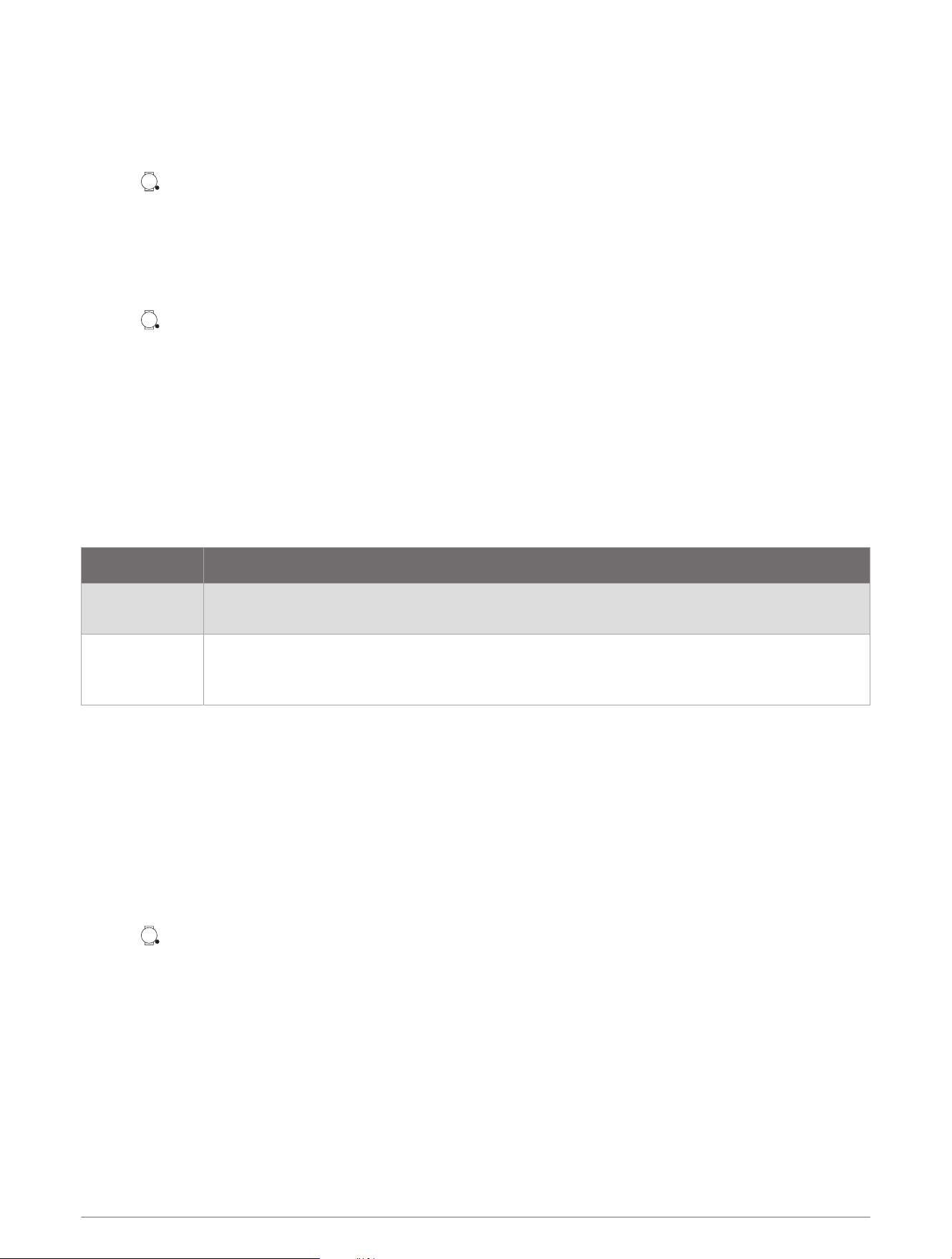
Syncing the Time with GPS
Each time you turn on the watch and acquire satellites, the watch automatically detects your time zones and the
current time of day. You can also manually sync the time with GPS when you change time zones and to update
for daylight saving time.
1 Hold .
2 Select Clocks > Time > Time Sync.
3 Wait while the watch locates satellites (Acquiring Satellite Signals, page48).
Setting the Time Manually
By default, the time is set automatically when the Lily 2 Active watch is paired with a phone.
1 Hold .
2 Select Clocks > Time > Time Source > Manual.
3 Select Time, and enter the time of day.
Wireless Sensors
Your watch can be paired and used with wireless sensors using ANT+ or Bluetooth technology (Pairing
Your Wireless Sensors, page38). After the devices are paired, you can customize the optional data fields
(Customizing Activity Options, page11). If your watch was packaged with a sensor, they are already paired.
For information about specific Garmin sensor compatibility, purchasing, or to view the owner's manual, go to
buy.garmin.com for that sensor.
Sensor Type Description
Heart Rate
You can use an external sensor, such as the HRM-Pro
™
series or HRM-Fit
™
heart rate monitor,
to view heart rate data during your activities.
Speed/Cadence
You can attach speed or cadence sensors to your bike and view the data during your ride. If
necessary, you can manually enter your wheel circumference (Calibrating Your Speed Sensor,
page39).
Pairing Your Wireless Sensors
The first time you connect a wireless sensor to your watch using ANT+ or Bluetooth technology, you must
pair the watch and sensor. After they are paired, the watch connects to the sensor automatically when you
start an activity and the sensor is active and within range. For more information about connection types, go to
garmin.com/hrm_connection_types.
1 Put on the heart rate monitor, install the sensor, or press the button to wake up the sensor.
NOTE: See your wireless sensor owner's manual for pairing information.
2 Bring the watch within 3m (10ft.) of the sensor.
NOTE: Stay 10m (33ft.) away from other wireless sensors while pairing.
3 Hold .
4 Select Settings > Accessories > Add New.
5 Select an option:
• Select Search All.
• Select your sensor type.
After the sensor is paired with your watch, the sensor status changes from Searching to Connected. Sensor
data appears in the data screen loop or a custom data field. You can customize the optional data fields
(Customizing Activity Options, page11).
38 Wireless Sensors

Heart Rate Accessory Running Pace and Distance
The HRM-Fit and HRM-Pro series accessories calculate your running pace and distance based on your user
profile and the motion measured by the sensor on every stride. The heart rate monitor provides running pace
and distance when GPS is not available, such as during treadmill running. You can view your running pace and
distance on your compatible Lily 2 Active watch when connected using ANT+ technology. You can also view it
on compatible third-party training apps when connected using Bluetooth technology.
The pace and distance accuracy improves with calibration.
Automatic calibration: The default setting for your watch is Auto Calibrate. The heart rate accessory calibrates
each time you run outside with it connected to your compatible Lily 2 Active watch.
NOTE: Automatic calibration does not work for indoor, trail, or ultra run activity profiles (Tips for Recording
Running Pace and Distance, page39).
Manual calibration: You can select Calibrate & Save after a treadmill run with your connected heart rate
accessory (Calibrating the Treadmill Distance, page5).
Tips for Recording Running Pace and Distance
• Update your Lily 2 Active watch software (Product Updates, page46).
• Complete several outdoor runs with GPS and your connected HRM-Fit or HRM-Pro series accessory. It's
important that your outdoor range of paces matches your range of paces on the treadmill.
• If your run includes sand or deep snow, go to the sensor settings, and turn off Auto Calibrate.
• If you previously connected a compatible foot pod using ANT+ technology, set the foot pod status to Off, or
remove it from the list of connected sensors.
• Complete a treadmill run with manual calibration (Calibrating the Treadmill Distance, page5).
• If automatic and manual calibrations don't seem accurate, go to the sensor settings, and select HRM Pace &
Distance > Reset Calibration Data.
NOTE: You can try turning off Auto Calibrate, and then manually calibrate again (Calibrating the Treadmill
Distance, page5).
Using an Optional Bike Speed or Cadence Sensor
You can use a compatible bike speed or cadence sensor to send data to your watch.
• Pair the sensor with your watch (Pairing Your Wireless Sensors, page38).
• Set your wheel size (Calibrating Your Speed Sensor, page39).
• Go for a ride (Going for a Ride, page6).
Calibrating Your Speed Sensor
Before you can calibrate your speed sensor, you must pair your watch with a compatible speed sensor (Pairing
Your Wireless Sensors, page38).
Manual calibration is optional and can improve accuracy.
1 Hold .
2 Select Settings > Accessories > Speed/Cadence > Wheel Size.
3 Select an option:
• Select Auto to automatically calculate your wheel size and calibrate your speed sensor.
• Select Manual, and enter your wheel size to manually calibrate your speed sensor (Wheel Size and
Circumference, page51).
Wireless Sensors 39

Customizing Your Watch
Watch Settings
You can customize some settings on your Lily 2 Active watch. Additional settings can be customized in the
Garmin Connect app.
Hold to view the menu, and select Settings.
Shortcut: Allows you to set up a shortcut (Setting Up the Touch Button Shortcut, page21).
Notifications & Alerts: Allows you to adjust the alert settings (Alert Settings, page40).
Watch Sensors: Allows you to adjust the wrist heart rate sensor settings (Wrist Heart Rate Monitor Settings,
page28), sleep pulse ox settings (Turning On Pulse Oximeter Sleep Tracking, page31), and calibrate the
compass (Calibrating the Compass, page42).
Accessories: Allows you to pair your Lily 2 Active watch with wireless sensors (Wireless Sensors, page38).
User Profile: Allows you to adjust the user profile settings (Setting Up Your User Profile, page42).
Safety & Tracking: Allows you to adjust the safety and tracking settings (Safety and Tracking Features, page35).
Activity Tracking: Allows you to adjust the activity tracking settings (Activity Tracking, page21).
System: Allows you to adjust the system settings (System Settings, page40).
Alert Settings
Hold to view the menu, and select Settings > Notifications & Alerts.
Smart Notifications: Allows you to adjust settings for the Bluetooth notifications from your phone (Enabling
Bluetooth Notifications, page34).
Morning Report: Allows you to adjust the morning report settings (Morning Report, page20).
Health & Wellness: Allows you to adjust the health and wellness alerts settings (Health and Wellness Settings
and Alerts, page26).
System Settings
Hold , and select Settings > System.
Display: Sets the display timeout and brightness (Customizing the Display Settings, page41).
Alert Vibration: Turns vibration on or off and sets the vibration intensity.
Phone: Allows you to pair and sync your phone (Pairing Your Phone, page33).
Format: Sets the measurement units used to display data (Changing the Units of Measure, page41).
Language: Sets the language displayed on the watch.
Reset: Allows you to reset the default settings or delete personal data and reset the settings (Restoring All
Default Settings, page48).
NOTE: If you have set up a GarminPay wallet, restoring default settings also deletes the wallet from your
device.
About: Displays the unit ID, software version, regulatory information, and license agreement.
40 Customizing Your Watch
Customizing the Display Settings
1 Hold .
2 Select Settings > System > Display.
3 Select Brightness to set the brightness level of the screen.
4 Select General Use or During Activity.
5 Select an option:
• Select Gesture to turn on the screen by raising and turning your arm to look at your wrist.
• Select Gesture Sensitivity to adjust the gesture sensitivity to turn on the display more or less often.
• Select Timeout to set the length of time before the screen turns off.
6 Select During Sleep.
7 Select an option:
• Select Watch Face to set the watch face to dim during your defined sleep window.
• Select Brightness to set the brightness level of the screen during your defined sleep window.
• Select Timeout to set the length of time before the screen turns off during your defined sleep window.
Changing the Units of Measure
You can customize units of measure for distance, pace and speed, elevation, and more.
1 Hold .
2 Select Settings > System > Format.
3 Select an option.
• Select Units to set the primary units of measure for the watch.
• Select Pace/Speed to display your pace or speed in miles or kilometers during a timed activity.
Setting Your Watch Passcode
NOTICE
If you enter your passcode incorrectly three times, the watch locks temporarily. After five incorrect attempts, the
watch locks until you reset your passcode in the Garmin Connect app. If you have not paired your watch with
your phone, the watch deletes your data and resets to the factory default settings after five incorrect attempts.
You can set up a watch passcode to secure your personal information when the watch is not on your wrist. If
you are using the GarminPay feature, the watch uses the same four-digit passcode required to open your wallet
(GarminPay, page13).
1 Hold .
2 Select System > Passcode > Set Passcode.
3 Enter a four-digit passcode.
The next time you remove the watch from your wrist, you must enter the passcode before you can view any
information.
Changing Your Watch Passcode
You must know your existing watch passcode to change it. If you forget your passcode or make too many
incorrect passcode attempts, you must reset it in the Garmin Connect app.
1 Hold .
2 Select System > Passcode > Change Passcode.
3 Enter your existing four-digit passcode.
4 Enter a new four-digit passcode.
The next time you remove the watch from your wrist, you must enter the passcode before you can view any
information.
Customizing Your Watch 41
Time Settings
Hold , and select Clocks > Time.
Time Format: Sets the watch to show time in a 12-hour or a 24-hour format.
Time Source: Allows you to set the time manually or automatically based on the time on your phone.
Time Sync: Allows you to manually sync the time when you change time zones and update for daylight saving
time.
Time Zones
Each time you turn on the device and acquire satellites or sync with your phone, the device automatically
detects your time zone and the current time of day.
User Profile
You can update your user profile on your watch or on the Garmin Connect app.
Setting Up Your User Profile
You can update your sex, birth year, height, weight, wrist, and heart rate zones (Setting Your Heart Rate Zones,
page29) settings. The watch uses this information to calculate accurate training data.
1 Hold .
2 Select Settings > User Profile.
3 Select an option.
Gender Settings
When you first set up the watch, you must choose a sex. Most fitness and training algorithms are binary. For the
most accurate results, Garmin recommends selecting your sex assigned at birth. After the initial setup, you can
customize the profile settings in your Garmin Connect account.
Profile & Privacy: Enables you to customize the data on your public profile.
User Settings: Sets your sex. If you select Not Specified, the algorithms that require a binary input will use the
sex you specified when you first set up the watch.
Calibrating the Compass
NOTICE
Calibrate the electronic compass outdoors. To improve heading accuracy, do not stand near objects that
influence magnetic fields, such as vehicles, buildings, and overhead power lines.
Your device was already calibrated at the factory, and the device uses automatic calibration by default. If you
experience irregular compass behavior, for example, after moving long distances or after extreme temperature
changes, you can manually calibrate the compass.
1 Hold .
2 Select Settings > Watch Sensors > Compass > Start Calibration.
3 Follow the on-screen instructions.
Garmin Connect Settings
You can customize your watch settings, activity options, and user settings on your Garmin Connect account,
using either the Garmin Connect app or the Garmin Connect website. Some settings can also be customized on
your Lily 2 Active watch.
• From the Garmin Connect app, select > Garmin Devices, and select your watch.
• From the devices widget in the Garmin Connect application, select your watch.
After customizing settings, you must sync your data to apply the changes to your watch (Syncing Your Data with
the Garmin Connect App, page33) (Syncing Your Data with Your Computer, page33).
42 Customizing Your Watch

Garmin Connect User Profile Settings
From your Garmin Connect device menu, select User Profile.
VO2 Max: Allows you to see your current VO2 max. and when it was last updated (Getting Your VO2 Max.
Estimate, page31).
Fitness Age: Allows you to see your current fitness age (Viewing Your Fitness Age, page32).
Display Name: Sets the display name used in your morning report and alerts (Morning Report, page20).
Gender: Sets your sex (Gender Settings, page43).
Birth Date: Set your birth date.
Height: Sets your height.
Weight: Sets your weight.
Wrist: Allows you to select which wrist you wear your watch on.
Sleep Schedule: Allows you to set your sleep schedule (Sleep Tracking, page22).
Heart Rate Zones: Allows you to estimate your maximum heart rate and determine custom heart rate zones
(About Heart Rate Zones, page29).
Gender Settings
When you first set up the watch, you must choose a sex. Most fitness and training algorithms are binary. For the
most accurate results, Garmin recommends selecting your sex assigned at birth. After the initial setup, you can
customize the profile settings in your Garmin Connect account.
Profile & Privacy: Enables you to customize the data on your public profile.
User Settings: Sets your sex. If you select Not Specified, the algorithms that require a binary input will use the
sex you specified when you first set up the watch.
Customizing Your Watch 43
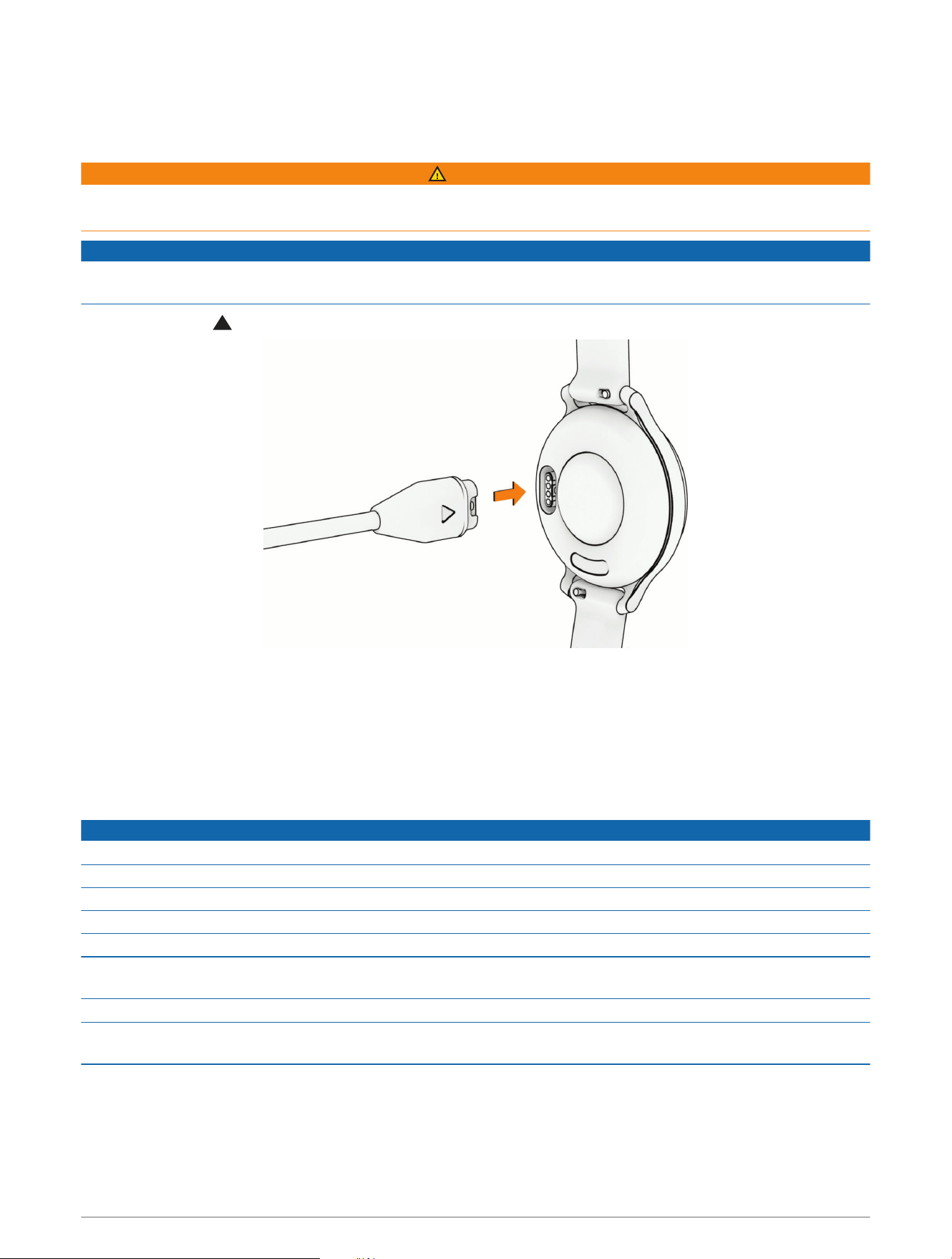
Device Information
Charging the Watch
WARNING
This device contains a lithium-ion battery. See the Important Safety and Product Information guide in the product
box for product warnings and other important information.
NOTICE
To prevent corrosion, thoroughly clean and dry the contacts and the surrounding area before charging or
connecting to a computer. Refer to the cleaning instructions (Cleaning the Watch, page45).
1 Plug the cable ( end) into the charging port on your watch.
2 Plug the other end of the cable into a USB-C
®
computer port or AC adapter (5 V minimum output power).
The watch displays the current battery charge level.
3 If necessary, go to buy.garmin.com, or contact your Garmin dealer for information about optional
accessories and replacement parts.
4 Disconnect the watch after the battery charge level reaches 100%.
Device Care
NOTICE
Avoid extreme shock and harsh treatment, because it can degrade the life of the product.
Avoid pressing the buttons under water.
Do not use a sharp object to clean the device.
Never use a hard or sharp object to operate the touchscreen, or damage may result.
Avoid chemical cleaners, solvents, and insect repellents that can damage plastic components and finishes.
Thoroughly rinse the device with fresh water after exposure to chlorine, salt water, sunscreen, cosmetics,
alcohol, or other harsh chemicals. Prolonged exposure to these substances can damage the case.
Do not place in high temperature environments, such as a clothes dryer.
Do not store the device where prolonged exposure to extreme temperatures can occur, because it can cause
permanent damage.
44 Device Information
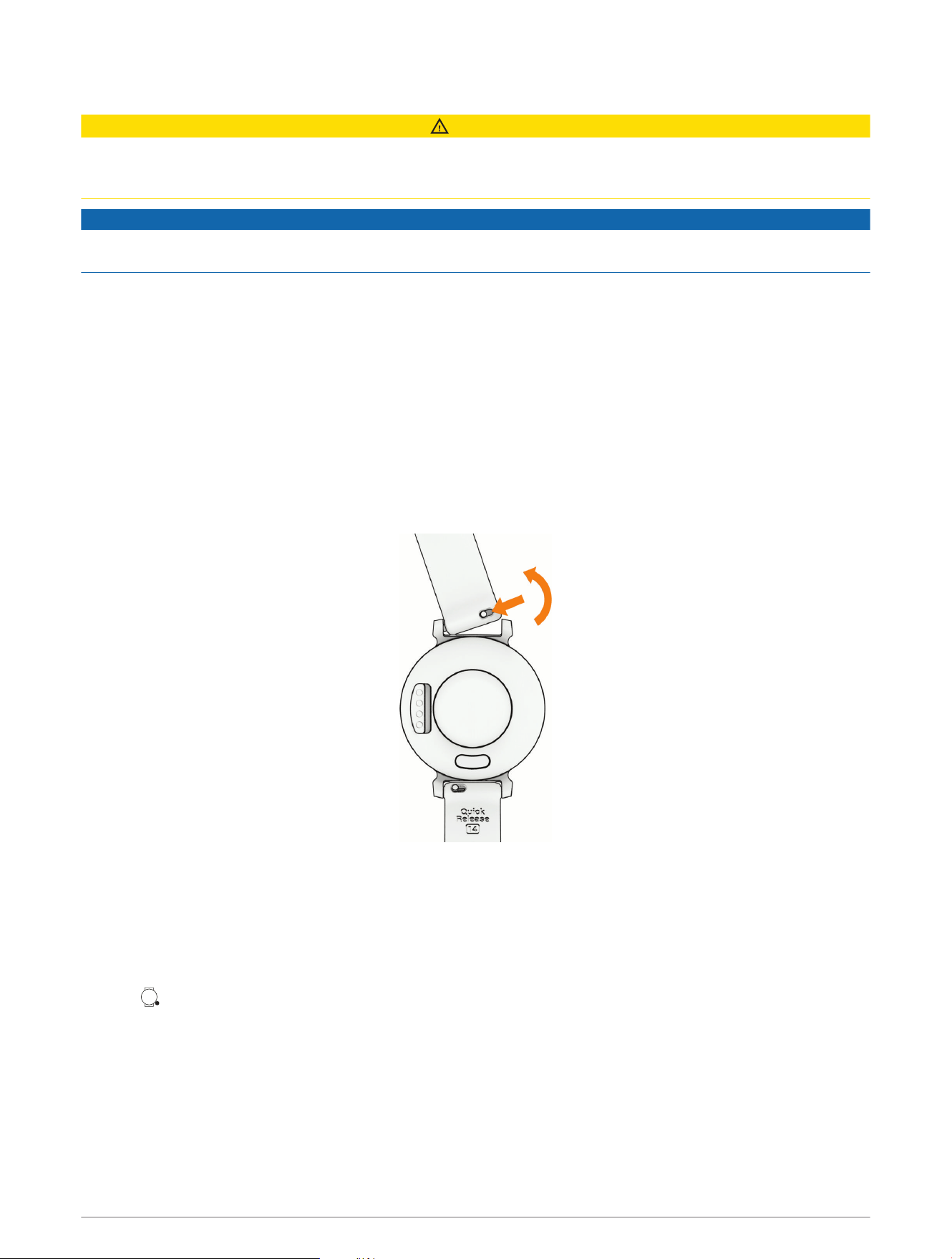
Cleaning the Watch
CAUTION
Some users may experience skin irritation after prolonged use of the watch, especially if the user has sensitive
skin or allergies. If you notice any skin irritation, remove the watch and give your skin time to heal. To help
prevent skin irritation, ensure the watch is clean and dry, and do not overtighten the watch on your wrist.
NOTICE
Even small amounts of sweat or moisture can cause corrosion of the electrical contacts when connected to a
charger. Corrosion can prevent charging and data transfer.
TIP: For more information, go to www.garmin.com/fitandcare.
1 Rinse with water, or use a damp lint-free cloth.
2 Allow the watch to dry completely.
Cleaning the Leather Bands
1 Wipe the leather bands with a dry cloth.
2 Use a leather conditioner to clean the leather bands.
Changing the Bands
The watch is compatible with 14mm wide, standard, quick-release bands.
1 Slide the quick-release pin on the spring bar to remove the band.
2 Insert one side of the spring bar for the new band into the watch.
3 Slide the quick-release pin, and align the spring bar with the opposite side of the watch.
4 Repeat steps 1 through 3 to change the other band.
Viewing Device Information
You can view the unit ID, software version, regulatory information, and license agreement.
1 Hold .
2 Select Settings > System > About.
Device Information 45
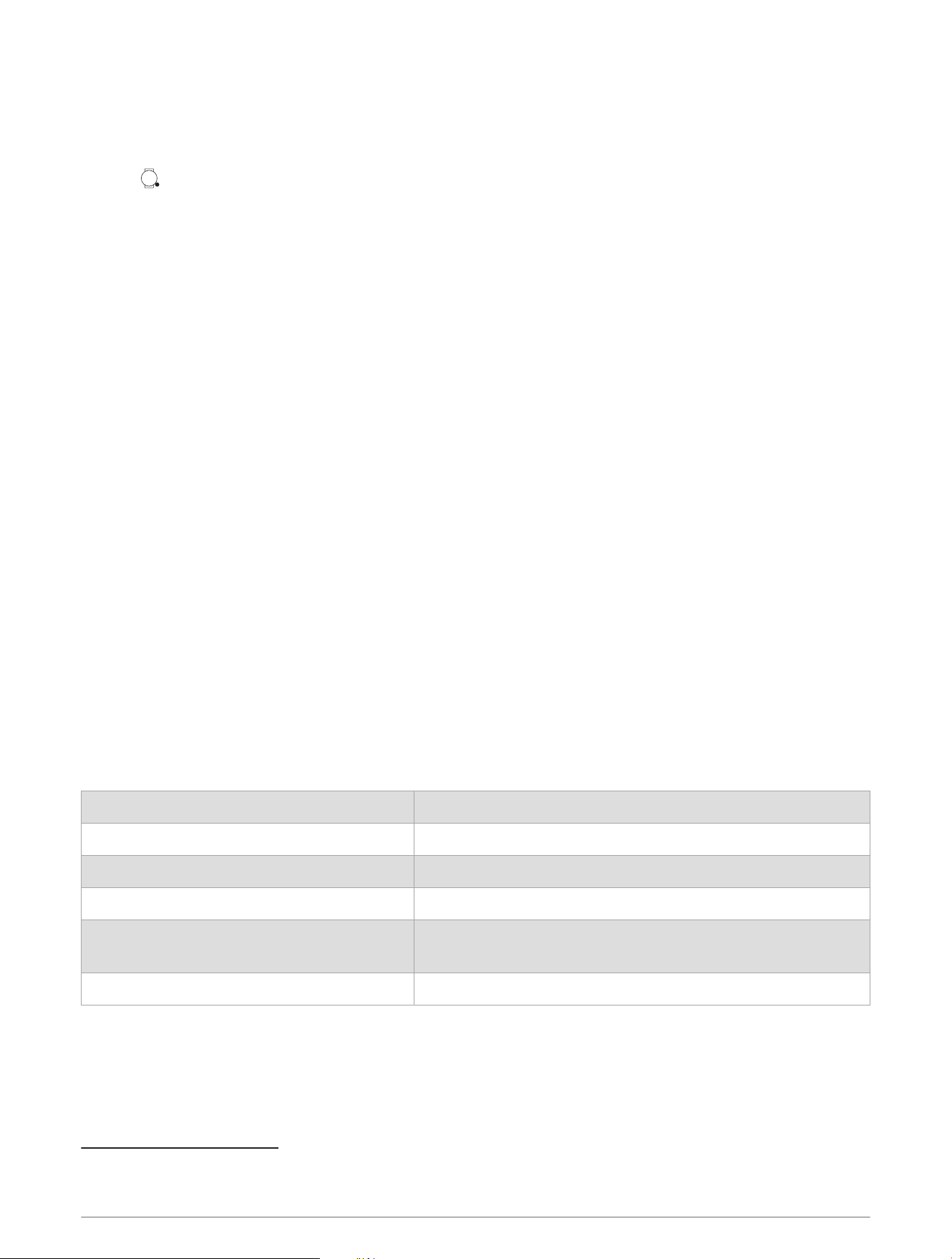
Viewing E-label Regulatory and Compliance Information
The label for this device is provided electronically. The e-label may provide regulatory information, such as
identification numbers provided by the FCC or regional compliance markings, as well as applicable product and
licensing information.
1 Hold .
2 Select Settings > System > About.
Product Updates
Your watch automatically checks for updates when connected using Bluetooth technology. On your computer,
you can install Garmin Express (garmin.com/express). On your phone, you can install the Garmin Connect app.
This provides easy access to these services for Garmin devices:
• Software updates
• Data uploads to Garmin Connect
• Product registration
Updating the Software Using the Garmin Connect App
Before you can update your watch software using the Garmin Connect app, you must have a Garmin Connect
account, and you must pair the watch with a compatible phone (Pairing Your Phone, page33).
Sync your watch with the Garmin Connect app (Syncing Your Data with the Garmin Connect App, page33).
When new software is available, the Garmin Connect app automatically sends the update to your watch.
The update is applied when you are not actively using the watch. When the update is complete, your watch
restarts.
Updating the Software Using Garmin Express
Before you can update your watch software, you must download and install the Garmin Express application and
add your watch (Syncing Your Data with Your Computer, page33).
1 Connect the watch to your computer using the USB cable.
When new software is available, the Garmin Express application sends it to your watch.
2 After the Garmin Express application finishes sending the update, disconnect the watch from your computer.
Your watch installs the update.
Specifications
Battery type Rechargeable, built-in lithium-ion battery
Battery life Up to 9days
1
Operating temperature range From -20º to 60ºC (from -4º to 140ºF)
Charging temperature range From 0º to 45ºC (from 32º to 113ºF)
Wireless frequencies
2.4 GHz @ -1.3 dBm maximum
13.56 MHz @ -40 dBm maximum
Water rating 5 ATM
2
1
The battery life estimate is based on certain usage assumptions. For more information, go to www.garmin.com/lily2activebatterylifeassumptions.
2
The device withstands pressure equivalent to a depth of 50m. For more information, go to www.garmin.com/waterrating.
46 Device Information

Troubleshooting
Is my phone compatible with my watch?
The Lily 2 Active watch is compatible with phones using Bluetooth technology.
Go to www.garmin.com/ble for Bluetooth compatibility information.
My phone will not connect to the watch
• Bring the watch within range of your phone.
• If your watch and phone are already paired, turn Bluetooth technology off on both devices, and turn it back
on.
• If your watch and phone are not paired, enable Bluetooth technology on your phone.
• On your phone, open the Garmin Connect app, and select > Garmin Devices > Add Device to enter pairing
mode.
• On your watch, hold to view the menu, and select Settings > System > Phone > Pair Phone to enter pairing
mode.
• Go to www.garmin.com/bluetoothtroubleshooting for additional troubleshooting steps.
Activity Tracking
For more information about activity tracking accuracy, go to garmin.com/ataccuracy.
My step count does not seem accurate
If your step count does not seem accurate, you can try these tips.
• Wear the watch on your non-dominant wrist.
• Carry the watch in your pocket when pushing a stroller or lawn mower.
• Carry the watch in your pocket when actively using your hands or arms only.
NOTE: The watch may interpret some repetitive motions, such as washing dishes, folding laundry, or clapping
your hands, as steps.
The step counts on my watch and my Garmin Connect account do not match
The step count on your Garmin Connect account updates when you sync your watch.
1 Sync your step count with the Garmin Connect app (Syncing Your Data with the Garmin Connect App,
page33).
2 Wait while the watch syncs your data.
Syncing can take several minutes.
NOTE: Refreshing the Garmin Connect app does not sync your data or update your step count.
My stress level does not appear
Before the watch can detect your stress level, wrist-based heart rate monitoring must be turned on.
The watch samples your heart rate variability throughout the day during periods of inactivity to determine your
stress level. The watch does not determine your stress level during timed activities.
If dashes appear instead of your stress level, be still, and wait while the watch measures your heart rate
variability.
The heart rate on my watch is not accurate
For more information on your heart rate sensor, go to www.garmin.com/heartrate.
Troubleshooting 47

Maximizing Battery Life
• Decrease the screen brightness and timeout (Customizing the Display Settings, page41).
• Reduce the vibration level (System Settings, page40).
• Turn off wrist gestures (Customizing the Display Settings, page41).
• In your phone notification center settings, limit the notifications that appear on your Lily 2 Active watch
(Managing Notifications, page34).
• Turn off smart notifications (Enabling Bluetooth Notifications, page34).
• Turn off Bluetooth wireless technology when you are not using connected features (Turning Off the Bluetooth
Phone Connection, page34).
• Turn off pulse oximeter sleep tracking (Turning On Pulse Oximeter Sleep Tracking, page31).
• Turn off wrist-based heart rate monitoring (Wrist Heart Rate Monitor Settings, page28).
NOTE: Wrist-based heart rate monitoring is used to calculate vigorous intensity minutes, VO2 max., body
battery, stress level, and calories burned.
My watch display is difficult to see outside
The watch detects ambient light and automatically adjusts the backlight brightness to maximize battery life.
In direct sunlight, the screen gets brighter, but it may still be difficult to read. The automatic activity detection
feature can be helpful when starting outdoor activities (Activity Tracking Settings, page24).
My watch is in the wrong language
You can change the language selection if you have accidently selected the wrong language on the watch.
1 Hold to view the menu.
2 Scroll down to the last item in the list, and select it.
3 Scroll down to the last item in the list, and select it.
4 Scroll down to the sixth item in the list, and select it.
5 Select your language.
Restoring All Default Settings
You can restore all of the watch settings back to the factory default values.
1 Hold to view the menu.
2 Select Settings > System > Reset.
3 Select an option:
• To reset all of the watch settings to the factory default values and save all user-entered information and
activity history, select Reset Default Settings.
• To reset all of the watch settings to the factory default values and delete all user-entered information and
activity history, select Delete Data and Reset Settings.
4 Follow the on-screen instructions.
Acquiring Satellite Signals
The watch may need a clear view of the sky to acquire satellite signals.
1 Go outdoors to an open area.
The front of the watch should be oriented toward the sky.
2 Wait while the watch locates satellites.
It may take 30 to 60 seconds to locate satellite signals.
48 Troubleshooting

Improving GPS Satellite Reception
• Frequently sync the device to your Garmin account:
◦ Connect your device to a computer using the USB cable and the Garmin Express application.
◦ Sync your device to the Garmin Connect app using your Bluetooth enabled phone.
While connected to your Garmin account, the device downloads several days of satellite data, allowing it to
quickly locate satellite signals.
• Take your device outside to an open area away from tall buildings and trees.
• Remain stationary for a few minutes.
Getting More Information
• Go to support.garmin.com for additional manuals, articles, and software updates.
• Go to buy.garmin.com, or contact your Garmin dealer for information about optional accessories and
replacement parts.
• Go to www.garmin.com/ataccuracy.
This is not a medical device. The pulse oximeter feature is not available in all countries.
Device Service
If your device needs to be repaired or replaced, go to support.garmin.com for information about submitting a
service request with Garmin Product Support.
Appendix
Activities List
The activities below are available on your Lily 2 Active watch.
NOTE: Make sure to update your watch software to get the latest activities (Updating the Software Using the
Garmin Connect App, page46, Updating the Software Using Garmin Express, page46).
• Customizing Activity Options, page11
• Starting an Activity, page2
Appendix 49
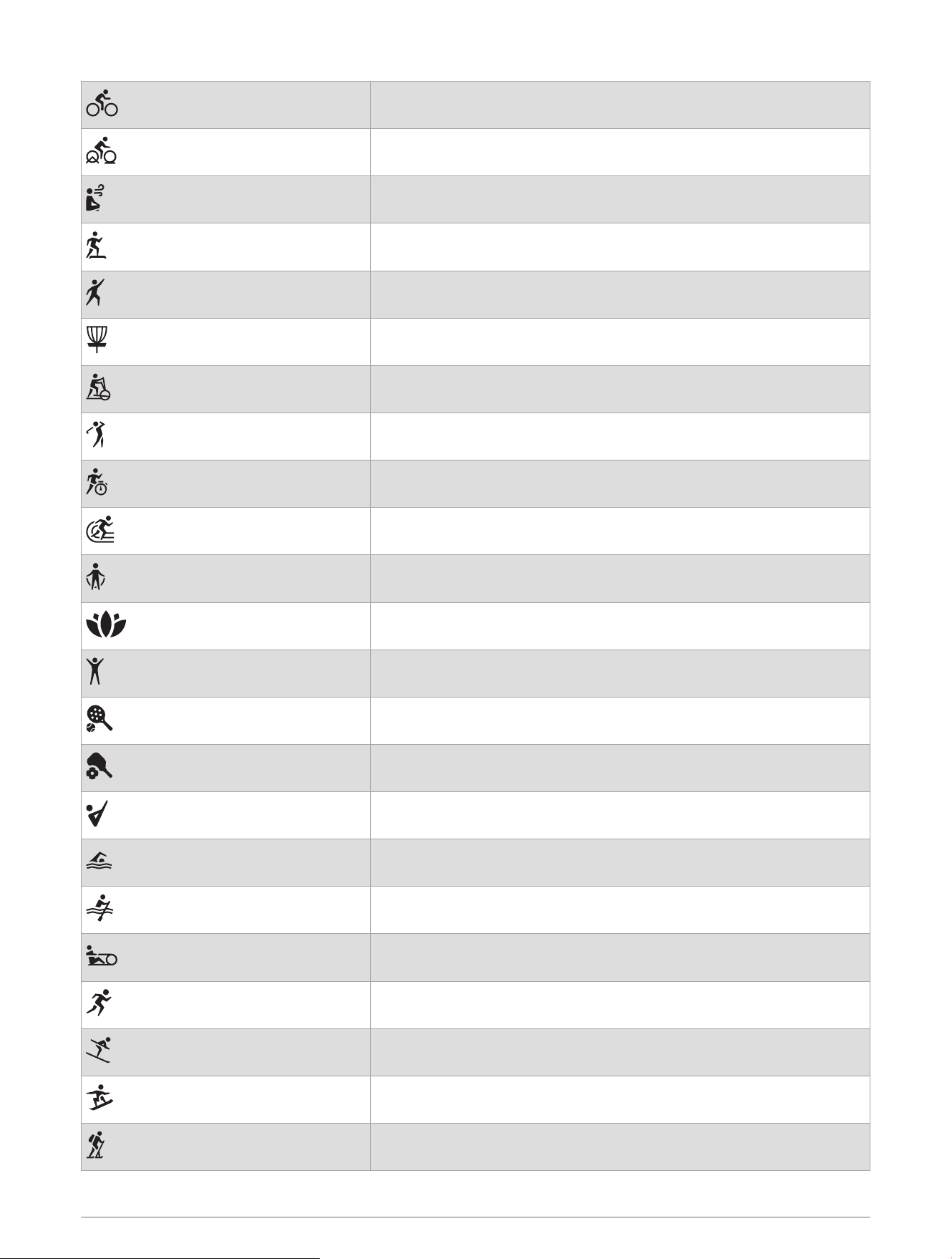
Bike
Bike Indoor
Breathwork
Cardio
Dance Fitness
Disc Golf
Elliptical
Golf
HIIT
Indoor Track
Jump Rope
Meditation
Other
Padel
Pickleball
Pilates
Pool Swim
Row
Row Indoor
Run
Ski
Snowboard
Snowshoe
50 Appendix
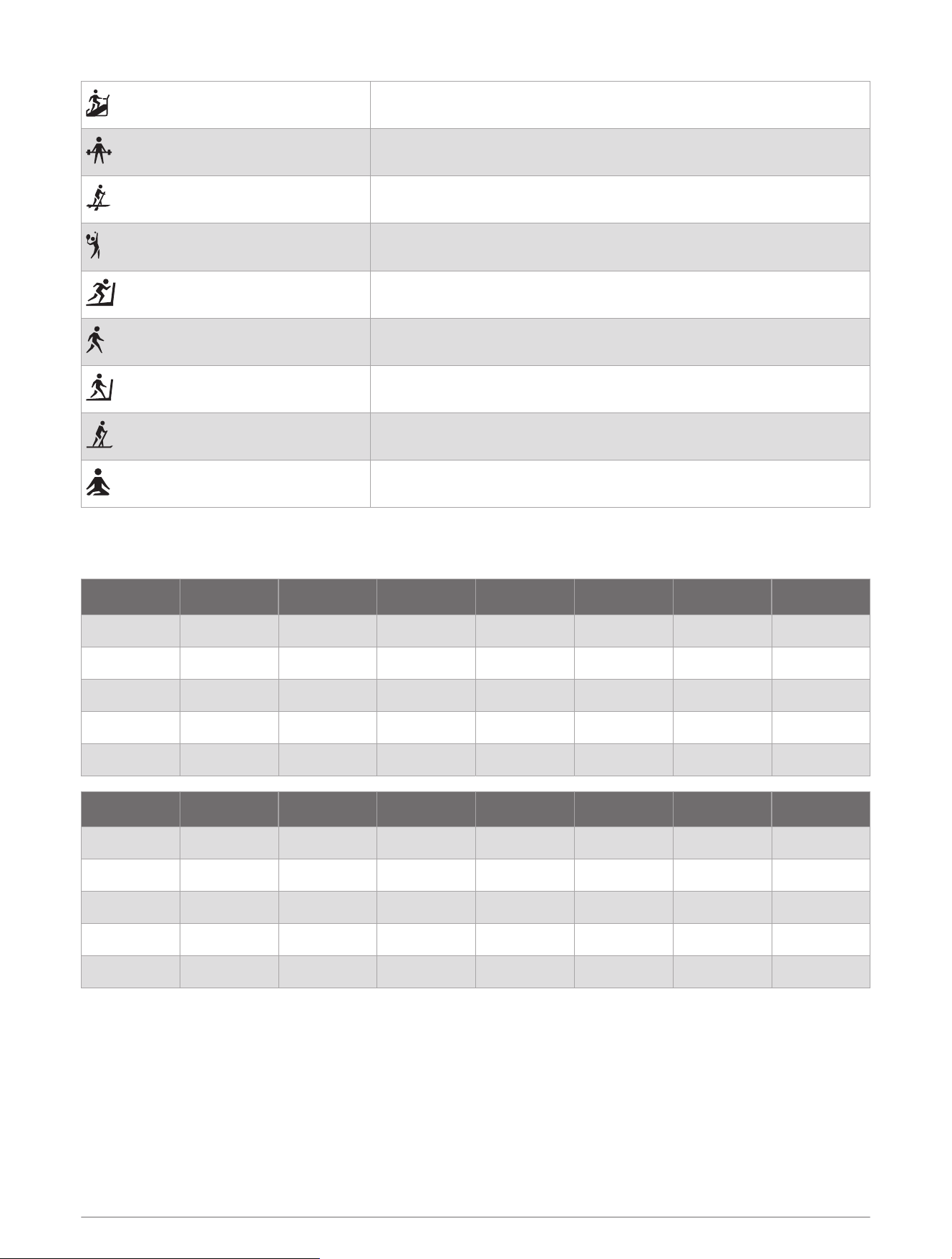
Stair Stepper
Strength
SUP
Tennis
Treadmill
Walk
Walk Indoor
XC Classic Ski
Yoga
VO2 Max. Standard Ratings
These tables include standardized classifications for VO2 max. estimates by age and sex.
Males Percentile 20–29 30–39 40–49 50–59 60–69 70–79
Superior 95 55.4 54 52.5 48.9 45.7 42.1
Excellent 80 51.1 48.3 46.4 43.4 39.5 36.7
Good 60 45.4 44 42.4 39.2 35.5 32.3
Fair 40 41.7 40.5 38.5 35.6 32.3 29.4
Poor 0–40 <41.7 <40.5 <38.5 <35.6 <32.3 <29.4
Females Percentile 20–29 30–39 40–49 50–59 60–69 70–79
Superior 95 49.6 47.4 45.3 41.1 37.8 36.7
Excellent 80 43.9 42.4 39.7 36.7 33 30.9
Good 60 39.5 37.8 36.3 33 30 28.1
Fair 40 36.1 34.4 33 30.1 27.5 25.9
Poor 0–40 <36.1 <34.4 <33 <30.1 <27.5 <25.9
Data reprinted with permission from The Cooper Institute. For more information, go to www.CooperInstitute.org.
Wheel Size and Circumference
When used for cycling, your speed sensor automatically detects your wheel size. If necessary, you can manually
enter your wheel circumference in the speed sensor settings.
The tire size for cycling is marked on both sides of the tire. You can measure the circumference of your wheel or
use one of the calculators available on the internet.
Appendix 51

support.garmin.com
GUID-FABAD210-C716-48B1-AB1D-A09097F1CED4 v2May 2025