Help Guide
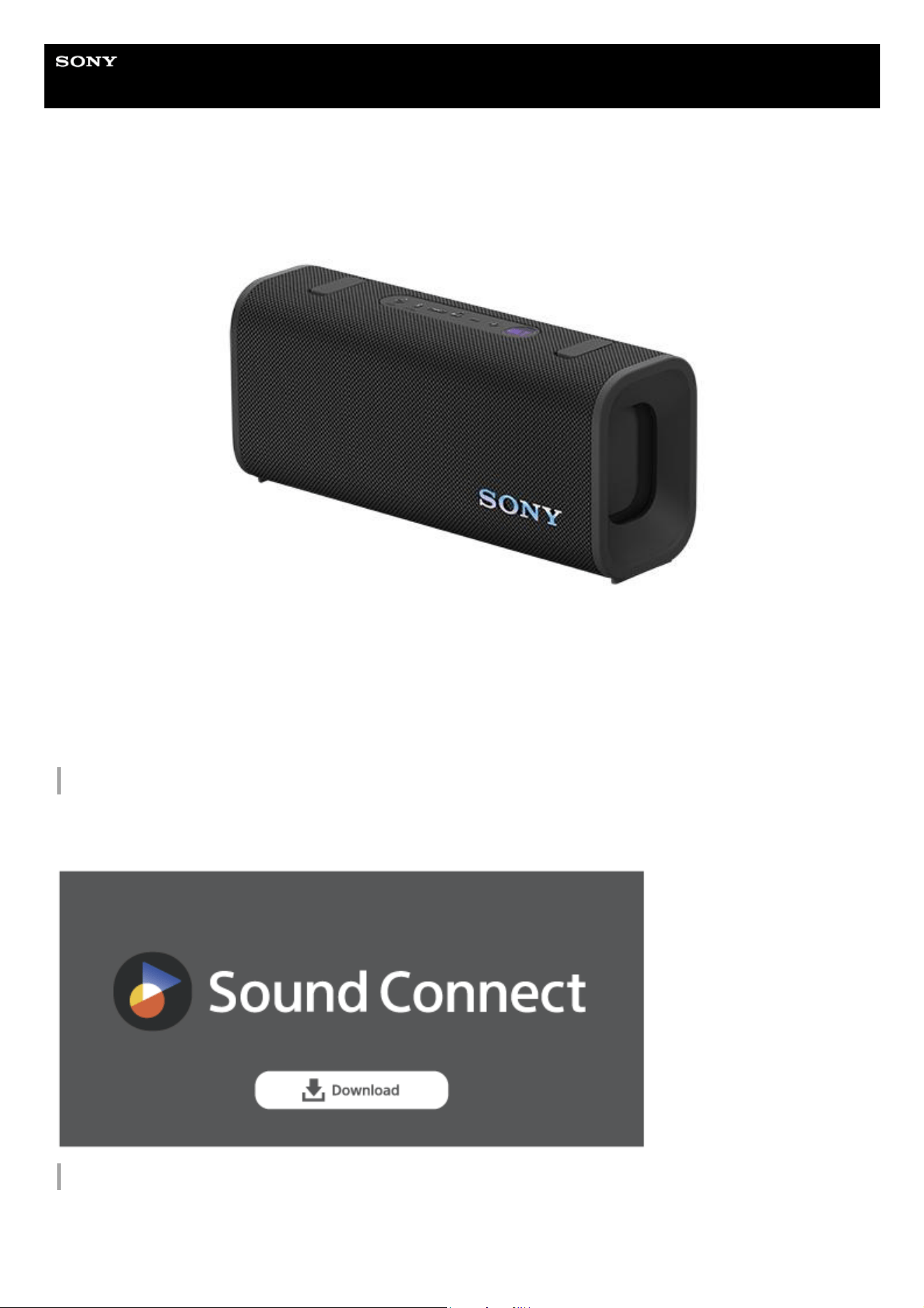
Wireless Speaker
ULT FIELD 3
Model: YY7866E
Design and specifications are subject to change without notice.
Quick Start Guide
Connect to the app for even more fun and convenience
Many useful features are out there in your device.
Download the “Sound Connect” app and get the most out of what you have.
Let’s start to use
After purchasing the speaker, follow the procedure below to play music.
1
SRS-ULT30
Turning the power on
Press the power button on the speaker. When you use the speaker for the first time after purchase,
the speaker automatically enters pairing mode and the BLUETOOTH indicator on the speaker starts
double flashing.
Connecting with BLUETOOTH
®
devices
Follow the instructions on the downloaded “Sound Connect” app to establish a BLUETOOTH
connection between the speaker and your smartphone or iPhone. When a BLUETOOTH connection
is established, you hear the notification sound from the speaker and the activity of the BLUETOOTH
indicator on the speaker changes from flashing to lit.
Listening to music
Start playback on a BLUETOOTH device.
Getting started
Parts and controls
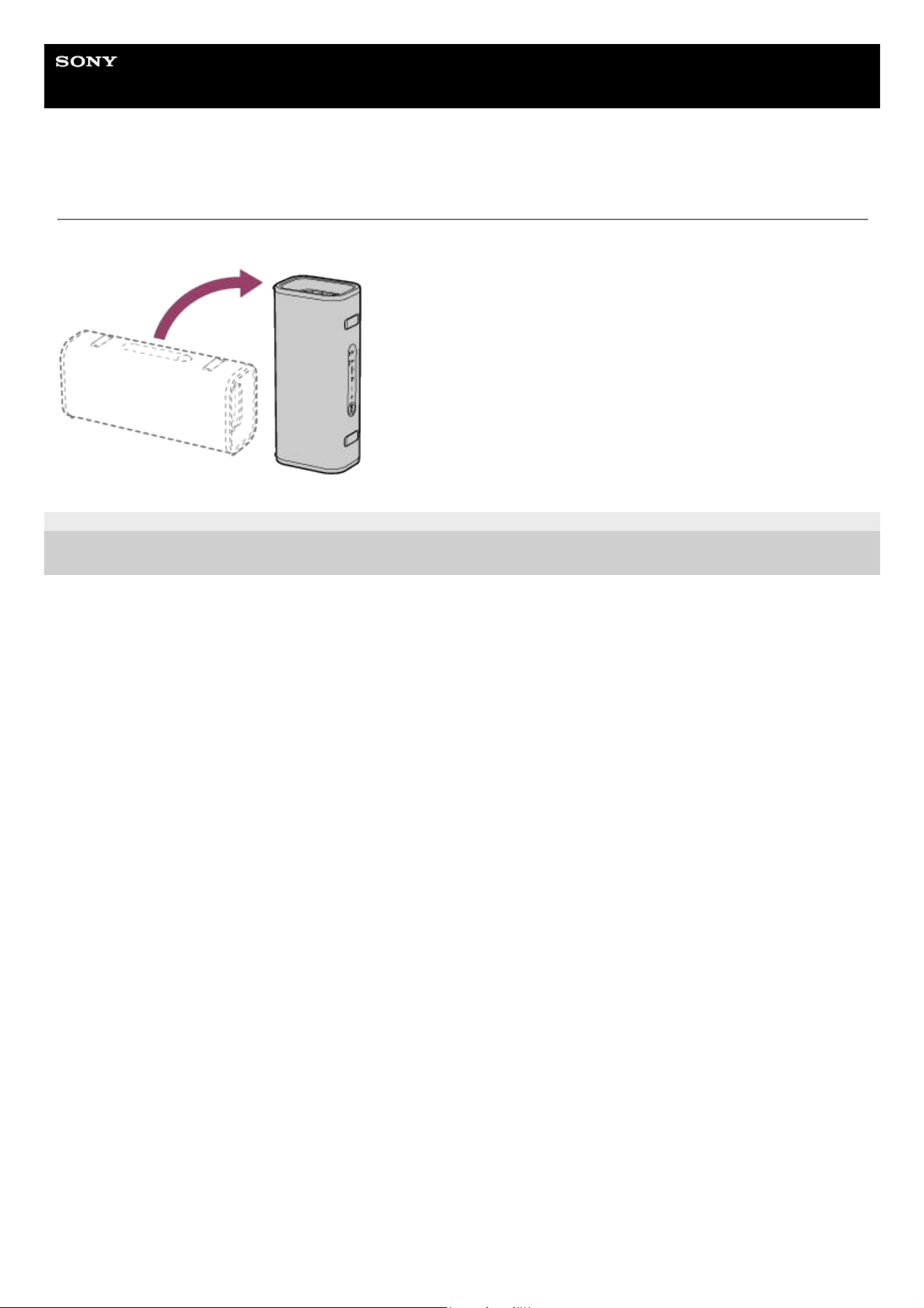
Placing the speaker
Included items
Using the shoulder strap
Power source/charging
Charging the speaker
Turning the power on
Turning the power off
Using the BLUETOOTH standby (auto power on) function
Charging a USB device such as a smartphone or iPhone
Automatic Power Off (power saving) function
Using the speaker with less power consumption of the rechargeable battery (STAMINA)
Making connections
BLUETOOTH device
How to make wireless connections to BLUETOOTH devices
Connecting to BLUETOOTH devices easily with the “Sound Connect” app via a BLUETOOTH connection
2
Pairing and connecting with BLUETOOTH devices
Connecting with a computer via a BLUETOOTH connection (Windows
®
)
Connecting with a computer via a BLUETOOTH connection (Mac)
Multipoint connection
Connecting the speaker concurrently with 2 BLUETOOTH devices (multipoint connection)
Listening to music
BLUETOOTH device
Listening to music of a device via a BLUETOOTH connection
Selecting the quality for music playback via a BLUETOOTH connection (Codec)
Supported codecs
Terminating the BLUETOOTH connection (After use)
Enjoying switching the sound effects
Stereo Pair function
Listening to music wirelessly with 2 speakers (Stereo Pair function)
Party Connect function
Enjoying wireless playback using multiple speakers (Party Connect function)
Phone calls
Making a video call on a computer
Receiving a call
Making a call
Using the apps
What you can do with the “Sound Connect” app
Installing the “Sound Connect” app
Accessing support information from the “Sound Connect” app
How to keep the software up-to-date (for comfortable use of the speaker)
Using the voice assist function
Using the voice assist function (Google™ app)
Using the voice assist function (Siri)
3
5-064-345-11(1) Copyright 2025 Sony Corporation
Information
About the indicators
Notes on use
Precautions
Notes on charging
Notes on waterproof and dustproof features
How to care for the speaker
About the BLUETOOTH wireless technology
Licenses
Trademarks
Troubleshooting
Troubleshooting
Reset
Restarting the speaker
Initializing the speaker
Specifications
Specifications
4

Note
The port on the speaker is not designed for waterproof and dustproof. Do not use the speaker in places where the speaker is
likely to have water splashed on it. When you are finished with using the speaker, be sure to securely close the cap.
Related Topic
About the indicators
5-064-345-11(1) Copyright 2025 Sony Corporation
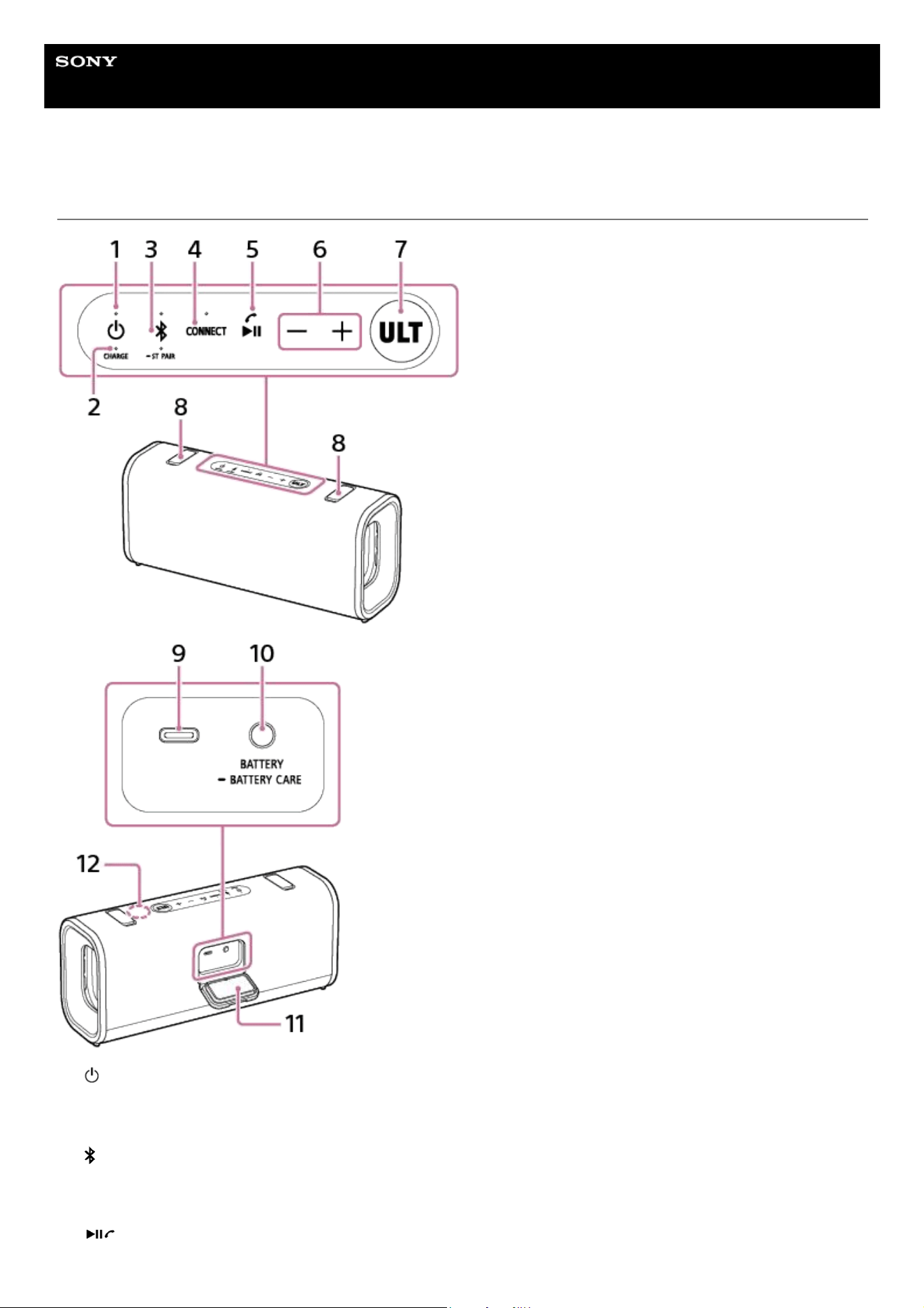
volume buttons6.
ULT button7.
Storage caps8.
DC IN/OUT port (USB Type-C
®
) (*2)
9.
BATTERY button/BATTERY CARE button10.
Cap11.
Microphone12.
(*1) Pressing and holding the playback button on the speaker for about 5 seconds makes the speaker play the music track stored for
demonstration purposes. To disable this feature, press the playback button on the speaker once again. When the speaker is connected with a
smartphone or mobile phone with HFP or HSP, this feature is disabled.
(*2) This port is not compatible with music playback.
6
Help Guide
Wireless Speaker
ULT FIELD 3
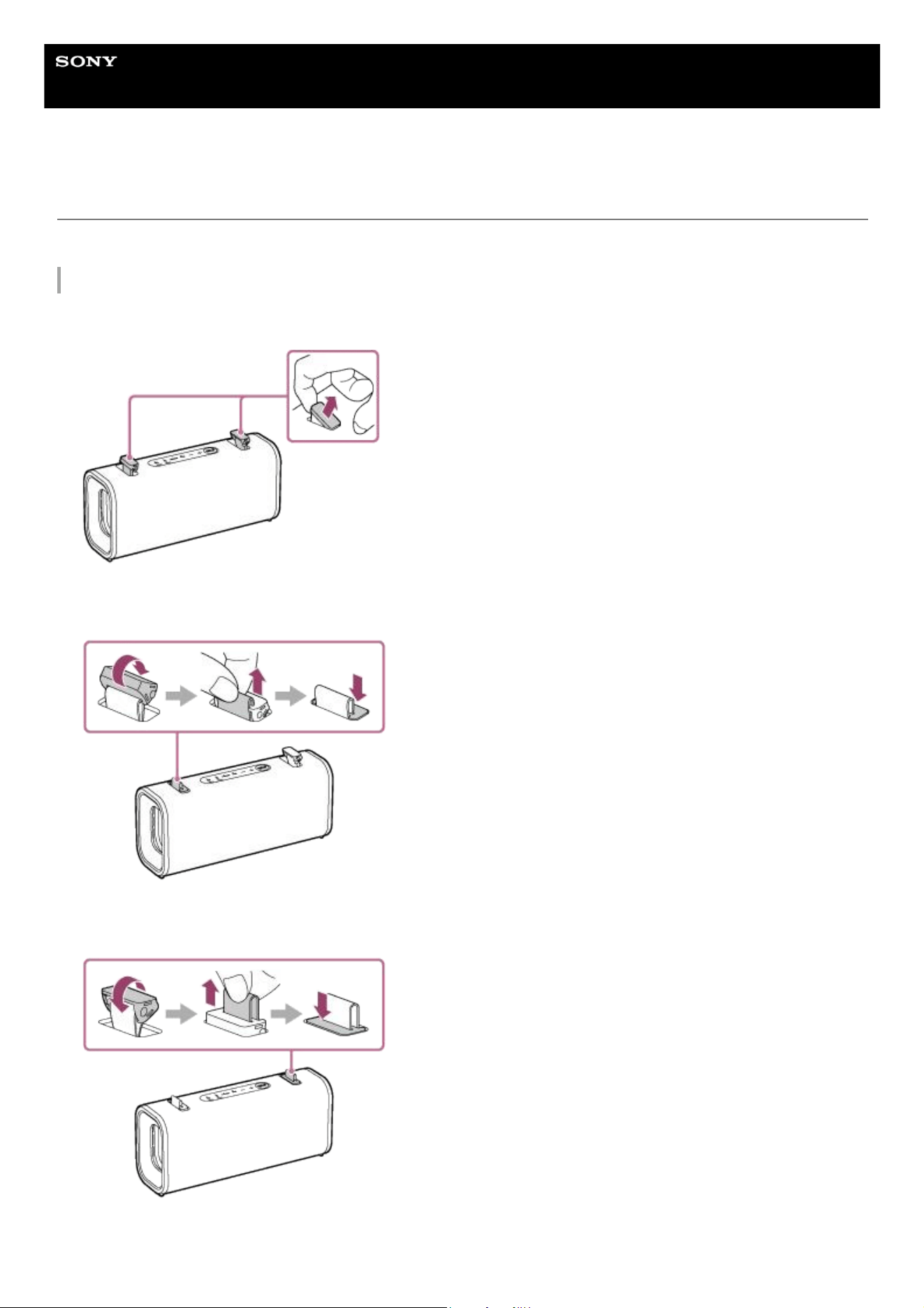
Using the shoulder strap
It is recommended that you attach the supplied shoulder strap to the speaker in advance and carry it with the strap.
Attaching the shoulder strap
Hook your finger on the tab of the storage cap on the speaker and lift it up.1.
Rotate the storage cap on the left side clockwise as shown in the illustration. While pinching and lifting the attachment
loop with your fingers, push the storage cap down.
2.
Rotate the storage cap on the right side counterclockwise as shown in the illustration. While pinching and lifting the
attachment loop with your fingers, push the storage cap down.
3.
Pass the hooks of the shoulder strap through the left and right attachment loops.4.
8
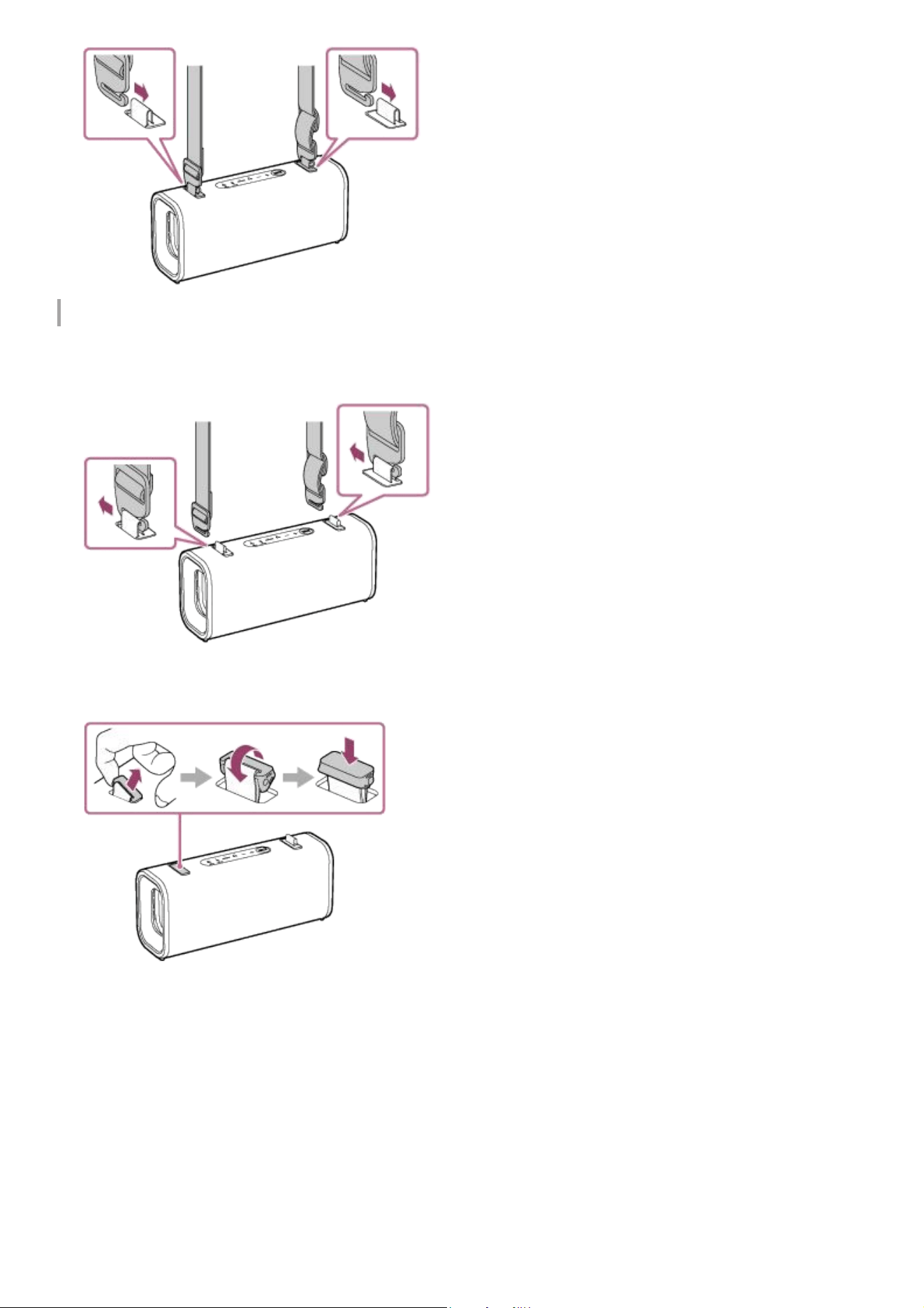
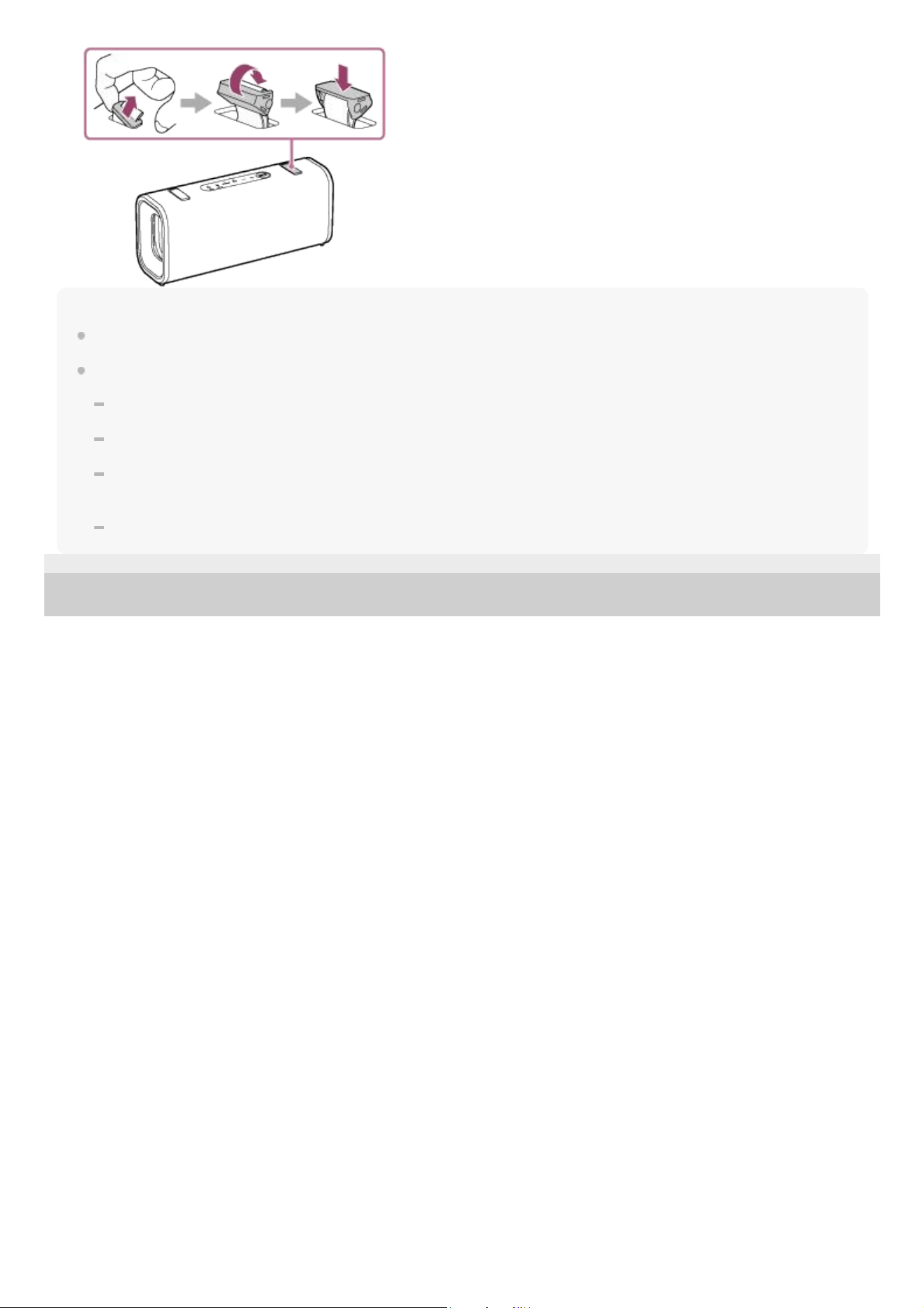
Removing the shoulder strap
Remove the hooks of the shoulder strap from the attachment loops on the speaker.
To make it easier to remove the hook, pinch and lift the attachment loop with your fingers, and then tilt the hook.
1.
Hook your finger on the tab of the storage cap on the left side and lift it up. Rotate the storage cap counterclockwise
as shown in the illustration and push it down.
2.
Hook your finger on the tab of the storage cap on the right side and lift it up. Rotate the storage cap clockwise as
shown in the illustration and push it down.
3.
9
Note
Do not use any strap other than the supplied shoulder strap.
When using the shoulder strap, note the following:
Be aware that the shoulder strap may catch on surrounding objects. This may cause it to tighten around your neck.
Do not engage in strenuous exercise.
Wear the shoulder strap diagonally across your body while carrying the speaker. Otherwise, you may accidentally drop the
speaker.
If the hook of the shoulder strap is not fully passed through the attachment loop, the speaker may fall.
5-064-345-11(1) Copyright 2025 Sony Corporation
10

Help Guide
Wireless Speaker
ULT FIELD 3
Charging the speaker
The speaker can be operated using the following power supply methods.
Power from an AC outlet connected by a commercially available USB AC adaptor along with the supplied USB Type-
C cable
Power from the rechargeable built-in battery
You can use both USB PD compatible and non-compatible USB AC adaptors.
USB PD: USB Power Delivery
When using the speaker for the first time, be sure to charge the built-in battery for more than 1 hour before turning on the
speaker.
With the built-in battery charged in advance, you can use the speaker solely with battery power.
System requirements for charging battery using USB
Using a commercially available USB PD compatible AC adaptor capable of delivering DC 5 V / 3.0 A or DC 9 V / 3.0
A. (*1)
Using a commercially available USB AC adaptor capable of delivering an output current of 1.5 A or more. (*2)
Use of any other USB AC adaptor is not guaranteed for battery charging.
Hint
For charging the built-in battery of the speaker, the Battery Care mode option is available in addition to the normal charging
method. Battery Care mode limits the maximum charge capacity to approximately 90% and makes the battery life last longer. The
playback time available in Battery Care mode is shorter than the time available when the built-in battery is charged by the normal
charging method. At the time of purchase, the speaker is not in Battery Care mode.
You can enable or disable Battery Care mode using the BATTERY CARE button. The BATTERY CARE button is located behind
the cap on the rear side of the speaker.
Press and hold the button for about 2 seconds while the speaker is turned on.
When Battery Care mode is enabled, you will hear the following voice guidance from the speaker.
Battery Care mode, ON
When Battery Care mode is disabled, you will hear the following voice guidance from the speaker.
Battery Care mode, OFF
You can enable or disable Battery Care mode with the “Sound Connect” app as well.
(*1) We do not guarantee the operations with all the devices compatible with USB PD.
(*2) You can use a USB AC adaptor with an output current of 500 mA or more and less than 1.5 A as well, but the charging time will be several
times longer. If you use such a USB AC adaptor, it is recommended that you turn off the speaker before battery charging.
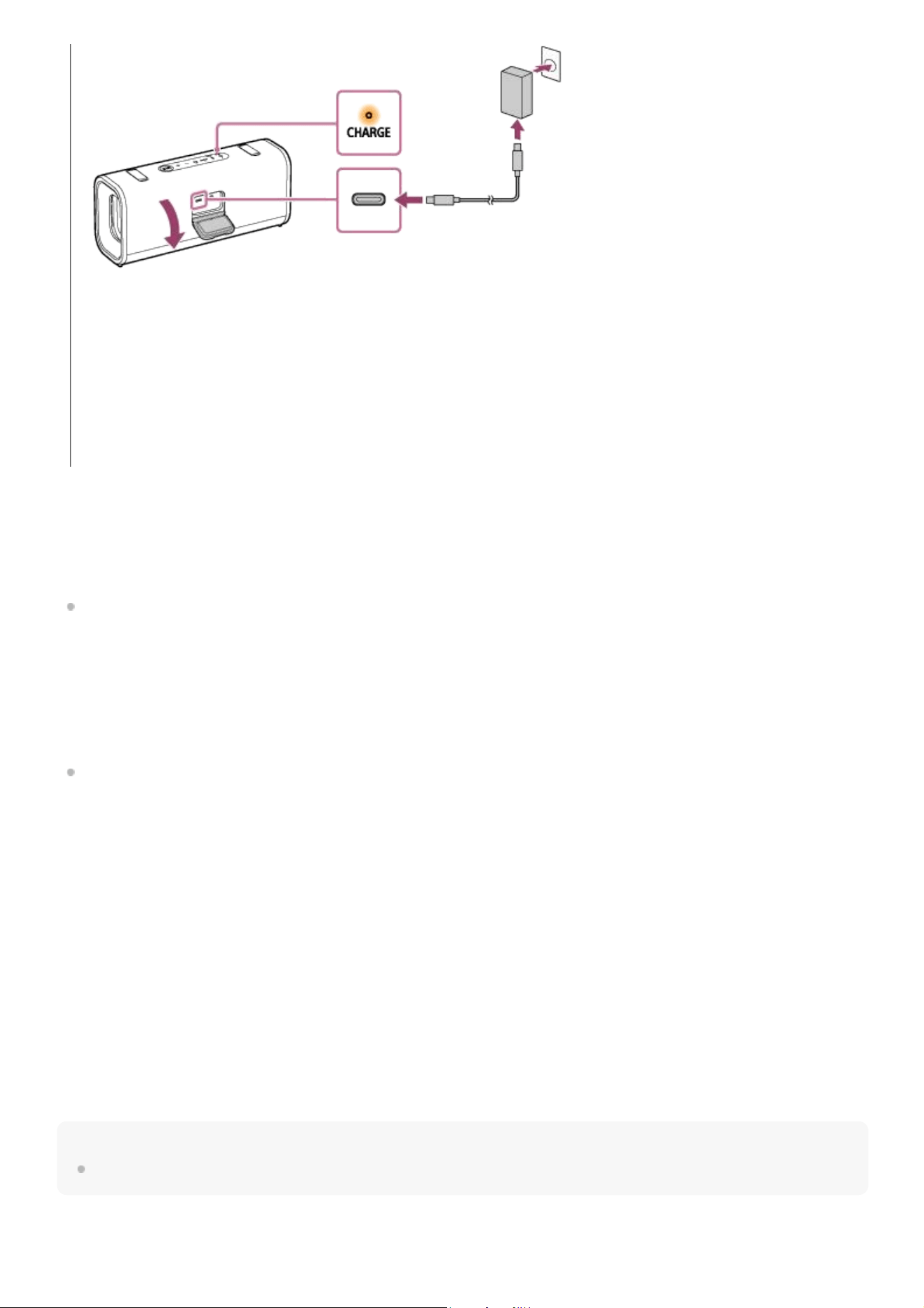
Connect the speaker to an AC outlet to charge it.
Connect one end of the supplied USB Type-C cable to the DC IN/OUT port on the speaker. Connect the other end
to a USB AC adaptor. Then, connect the USB AC adaptor to an AC outlet.
1
11
Checking the charging completion
When the built-in battery is fully charged and you try to charge it again, the CHARGE indicator on the speaker lights up in
orange. Then, it turns off after about 1 minute.
When using the Android™ smartphone with Android 8.1 or later installed
When the speaker is connected with the Android smartphone via an HFP (Hands-free Profile) BLUETOOTH
connection, tap [Settings] - [Device connection] - [Bluetooth] on the smartphone. The remaining battery power of the
speaker is displayed along with the connected BLUETOOTH device name. For details, refer to the operating
instructions supplied with the Android smartphone.
Note that the remaining battery power displayed on the smartphone may vary from the actual remaining battery
power of the speaker. Consider this information as a reference.
When using the iPhone
While the speaker is connected with the iPhone via an HFP (Hands-free Profile) BLUETOOTH connection, the
remaining battery power of the speaker is displayed on the widget screen of the iPhone. For details, refer to the
operating instructions supplied with the iPhone.
Note that the remaining battery power displayed on the iPhone may vary from the actual remaining battery power of
the speaker. Consider this information as a reference.
Checking the remaining level of the rechargeable built-in battery
Press the BATTERY button behind the cap on the rear side of the speaker when the speaker is turned on. The remaining
built-in battery power is indicated by the following voice guidance.
81% - 100%: “Battery fully charged”
81% - 90% (Battery Care mode): “Battery Care Mode, Fully Charged, Battery About 90%”
61% - 80%: “Battery about 80%”
41% - 60%: “Battery about 60%”
21% - 40%: “Battery about 40%”
1% - 20%: “Low Battery”
Hint
By using the “Sound Connect” app, you can enable or disable the voice guidance.
Battery hours of the built-in rechargeable battery
The CHARGE indicator on the speaker lights up in orange while charging is in progress and turns off when charging
is complete.
When a commercially available USB PD compatible AC adaptor capable of delivering DC 9 V 3.0 A is connected,
charging completes in about 3.5 hours (*).
After you disconnect the USB cable from the speaker, be sure to close the cap securely.
The cap plays a very important role in maintenance of the waterproof and dustproof performance.
(*) Time required for the empty battery to be fully charged (100%) while the speaker is powered off.
12

The following battery hours has been measured under the respective conditions.
Approx. 24 hours
The Battery Care mode is disabled.
A BLUETOOTH connection is established.
The volume level is set to 22.
The sound mode is set to ULT POWER SOUND.
Approx. 5 hours
The Battery Care mode is disabled.
A BLUETOOTH connection is established.
The volume level is set to 50 (maximum).
The sound mode is set to ULT POWER SOUND.
Time required for charging the built-in rechargeable battery
The following charging time has been measured under the respective conditions.
Approx. 3.5 hours (*1) (*2)
10 minutes of charging provide approximately 120 minutes of music playback.
The Battery Care mode is disabled.
The volume level is set to 22.
The sound mode is set to ULT POWER SOUND.
Note
The estimated charging time varies depending on the power output capacity of the connected commercially available USB AC
adaptor. In addition, it may take longer than the charging time stated above depending on the type and specification of the USB
AC adaptor and USB cable. The charging time may vary depending on the ambient temperature or the usage of the speaker as
well. You can use both USB PD compatible and non-compatible USB AC adaptors.
The built-in battery hours above is measured using our specified music source.
Actual performance time may vary from the listed time due to the volume, songs played, surrounding temperature, and
usage conditions.
When the built-in battery is running low
Depending on the remaining battery power, the voice guidance or the speaker behaves as follows.
“Low Battery”
The built-in battery is running low. The CHARGE indicator on the speaker starts flashing slowly. The speaker will
automatically turn off after a while. Charge the speaker. The speaker may not be capable of supplying power to other
devices.
“Battery is empty”
The built-in battery is empty. Even if you try to turn on the speaker, the speaker cannot be turned on. Charge the
speaker.
(*1) Time required for the empty battery to be fully charged (100%) while the speaker is powered off.
(*2) When using a USB PD compatible AC adaptor capable of delivering DC 9 V 3.0 A.
13

The CHARGE indicator on the speaker flashes 3 times in orange when you try to turn on the speaker.
The built-in battery is nearly empty. The speaker cannot be turned on. Charge the speaker.
Hint
You can play music while charging the built-in battery using a commercially available USB AC adaptor. However, charging may
take a long time depending on the speaker's usage. If charging is your priority, stop playback or turn off the speaker before
charging. For charging the built-in battery, you can use both USB PD compatible and non-compatible USB AC adaptors.
Enable the STAMINA power option on the “Sound Connect” app to reduce power consumption while using the built-in battery.
This allows you to enjoy longer music playback.
Note
When you use the speaker at a high volume, the speaker consumes more battery power.
As a result, the following may occur.
Remaining power of the built-in battery decreases faster than usual.
The speaker may turn off sooner than expected.
However, this is not a malfunction. Fully charge the speaker before use.
The maximum power output of the speaker may be lower when the built-in battery is running low.
For safety reasons, the speaker automatically stops charging in the following cases.
When the speaker is charged in an extremely cold or hot environment
When charging takes too long
To resolve this issue, disconnect the USB cable and connect it again when the battery charging temperature is between 5 °C and
35 °C (41 °F and 95 °F).
If the built-in battery is under a high load during charging, charging stops for safety. In such a case, turn down the volume or stop
the playback.
Do not charge the speaker's built-in battery in places where water may splash on it. The supplied accessories and the USB port
are neither waterproof nor dustproof.
Even if you do not intend to use the speaker for a long time, charge the built-in battery sufficiently once every 6 months to
maintain its performance.
When the Android smartphone is configured to use only A2DP (Advanced Audio Distribution Profile) for establishing BLUETOOTH
connections, the remaining battery power of the speaker is not displayed on the smartphone.
Related Topic
Parts and controls
Turning the power on
What you can do with the “Sound Connect” app
Notes on charging
5-064-345-11(1) Copyright 2025 Sony Corporation
14
Help Guide
Wireless Speaker
ULT FIELD 3
Turning the power on
Note
When the built-in battery starts running low, you hear voice guidance (Low battery). Then, the CHARGE indicator on the speaker
starts flashing slowly. The speaker will automatically turn off after a while. You need to charge the speaker. The speaker may not
be capable of supplying power to other devices.
When the remaining battery decreases to such a level that the speaker cannot be turned on, you hear voice guidance (Battery is
empty.) and the speaker automatically turns off. In such a case, charge the speaker.
When the built-in battery is nearly empty and you try to turn on the speaker, the CHARGE indicator on the speaker flashes 3
times in orange. However, the speaker cannot be turned on. You need to charge the speaker.
Related Topic
Parts and controls
Charging the speaker
Turning the power off
5-064-345-11(1) Copyright 2025 Sony Corporation
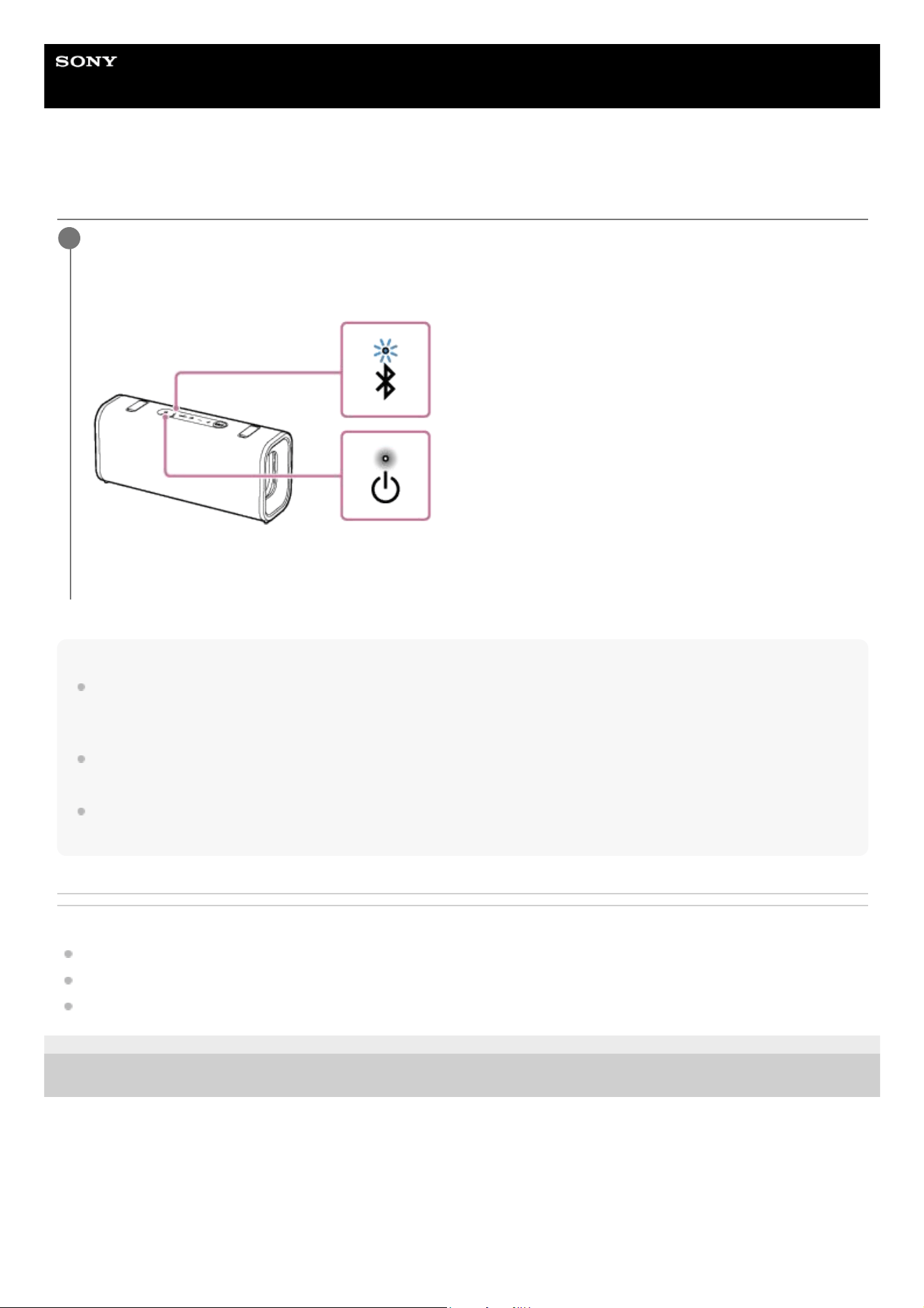
Press the power button on the speaker.
You hear the notification sound from the speaker. Then, the power indicator on the speaker lights up in white and
the BLUETOOTH indicator on the speaker starts flashing slowly in blue.
When the speaker has no pairing information, the BLUETOOTH indicator on the speaker keeps double flashing in
blue. This applies to cases such as when using the BLUETOOTH function for the first time after purchase.
1
15
Help Guide
Wireless Speaker
ULT FIELD 3
Turning the power off
Hint
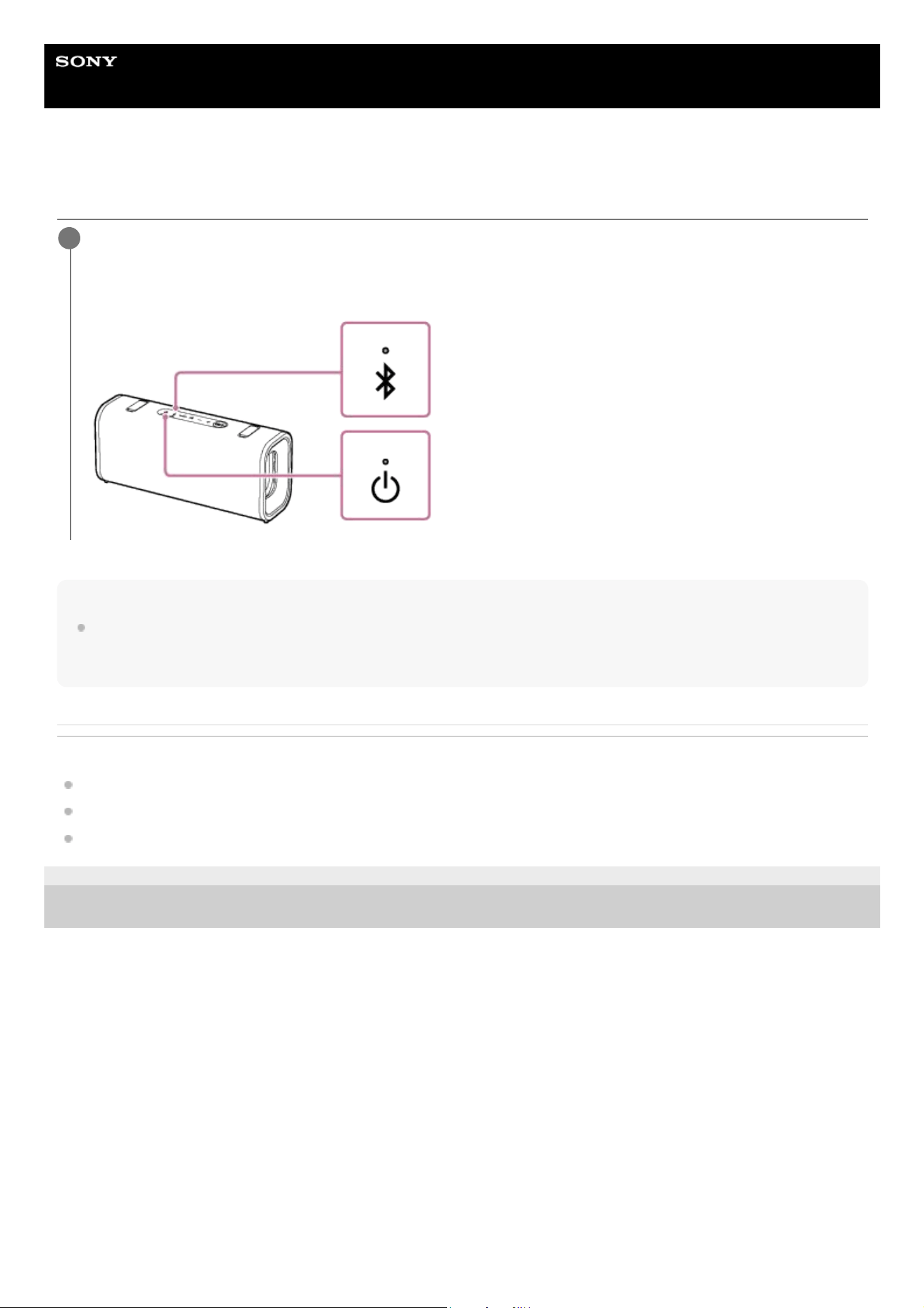
The power indicator on the speaker may light up in orange even after you turn off the speaker. This indicates that the
BLUETOOTH standby function is activated (*).
Related Topic
Parts and controls
Using the BLUETOOTH standby (auto power on) function
Automatic Power Off (power saving) function
5-064-345-11(1) Copyright 2025 Sony Corporation
Press the power button on the speaker.
You hear the notification sound from the speaker. Then, the power indicator and the BLUETOOTH indicator on the
speaker turn off.
1
(*) At the time of purchase, the BLUETOOTH standby function is deactivated.
16
Help Guide
Wireless Speaker
ULT FIELD 3
Using the BLUETOOTH standby (auto power on) function
The BLUETOOTH standby function allows you to automatically establish a BLUETOOTH connection by operating a
BLUETOOTH device. At the time of purchase, the BLUETOOTH standby function is deactivated. You need to activate the
function before using it.
Before operating the speaker, note the following:
The BLUETOOTH standby function is activated only while the speaker is connected to an AC outlet by a USB PD
compatible AC adaptor. While the speaker is running only on power from the rechargeable built-in battery, the
BLUETOOTH standby function is deactivated.
When the BLUETOOTH standby function is activated, the power indicator on the speaker lights up in orange while
the speaker is turned off.
Pair the speaker with a BLUETOOTH device in advance. If pairing information is not stored in the speaker, such as
when the speaker is used for the first time after purchase, the speaker will not enter the BLUETOOTH standby mode.
To deactivate the BLUETOOTH standby function
In step 3 above, deactivate [Bluetooth Standby].
Related Topic
Parts and controls
Charging the speaker
Turning the power on
About the indicators
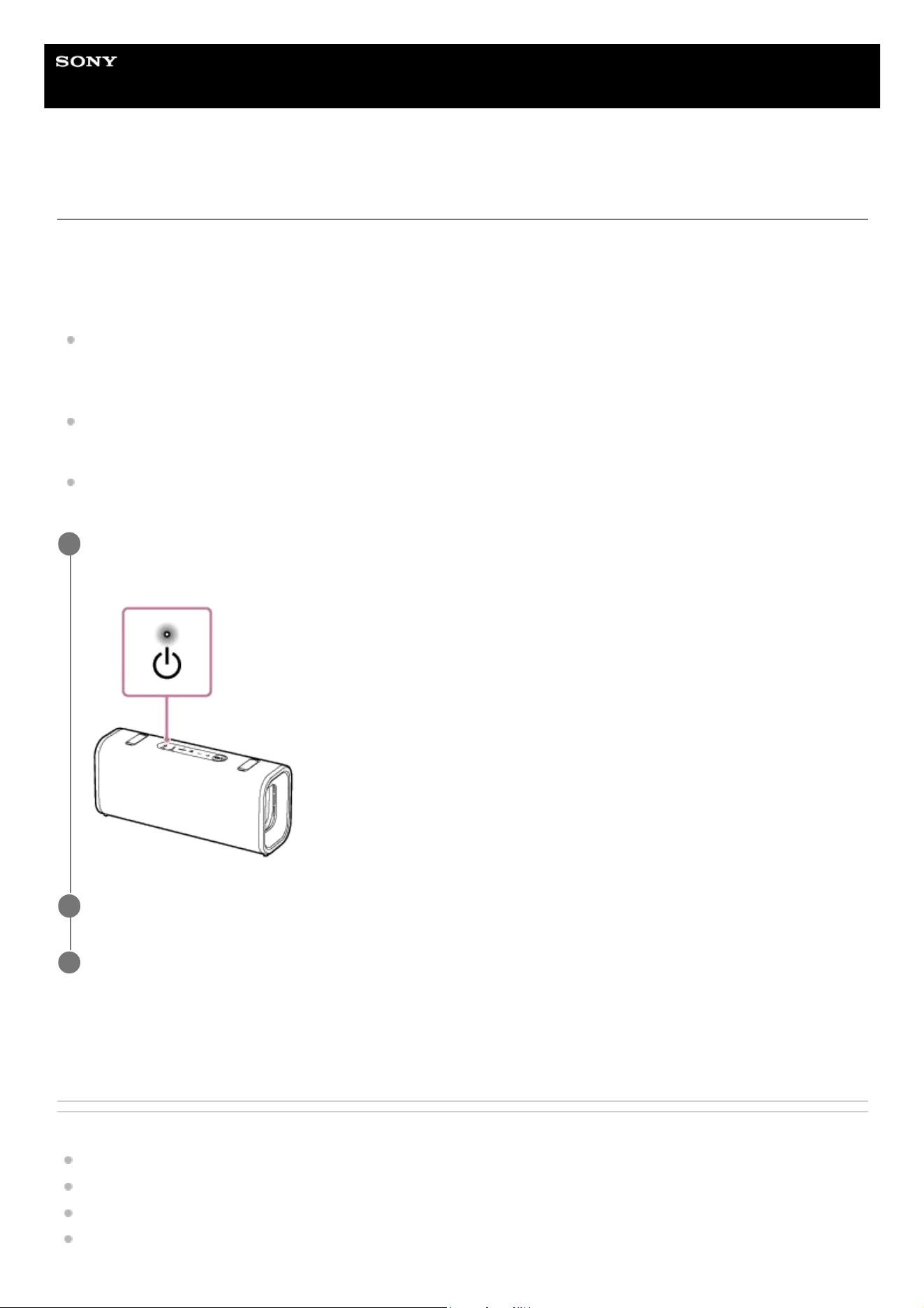
Turn on the speaker.
You hear the notification sound from the speaker, and the power indicator on the speaker lights up in white.
1
Start the “Sound Connect” app on your smartphone.
2
Activate [Bluetooth Standby].
3
17

5-064-345-11(1) Copyright 2025 Sony Corporation
18
Help Guide
Wireless Speaker
ULT FIELD 3
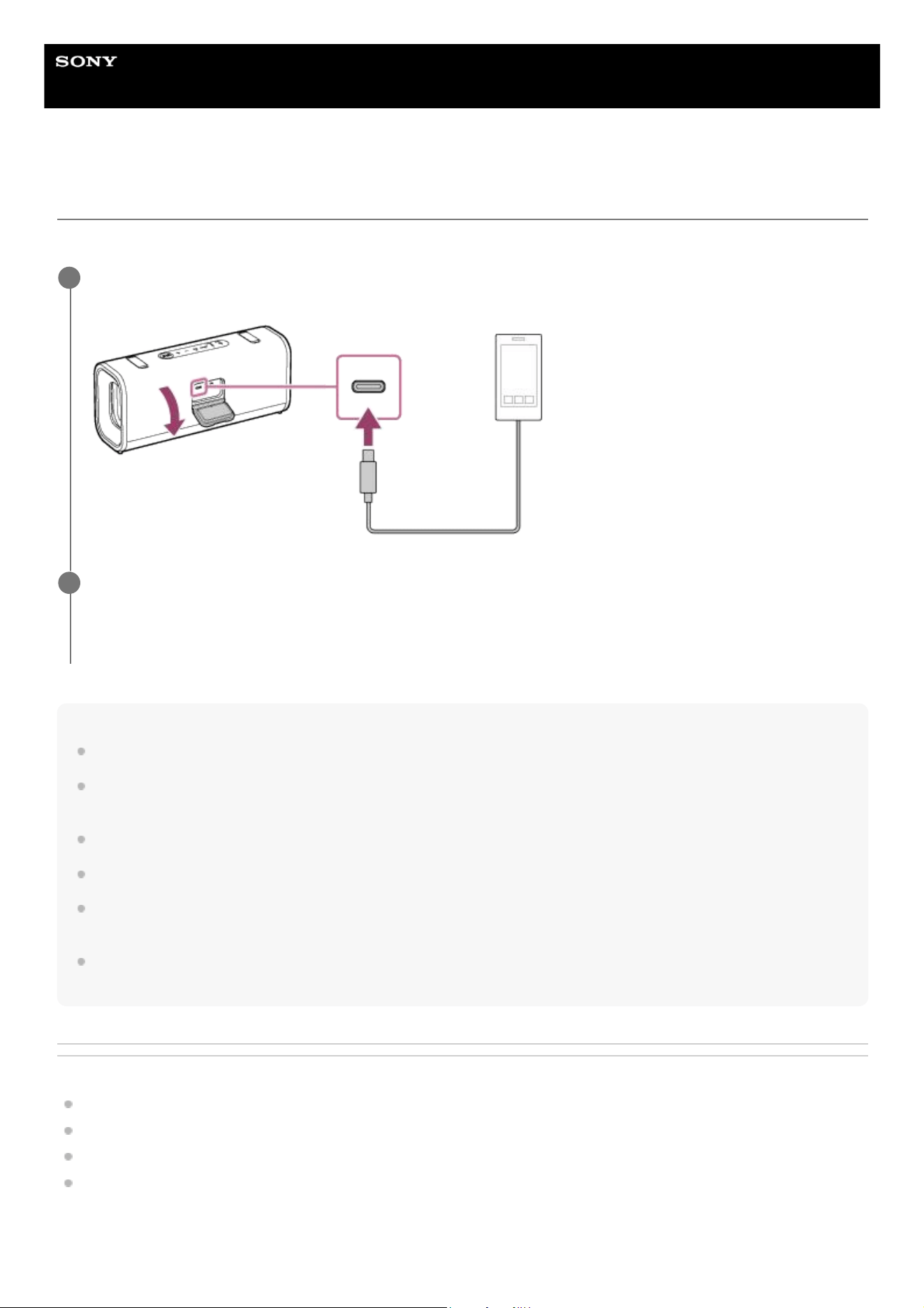
Charging a USB device such as a smartphone or iPhone
You can charge a USB device, such as a smartphone or iPhone, by connecting it to the speaker via USB.
Note
While the speaker is supplying power to the other device, the Automatic Power Off function is deactivated.
Depending on the USB device, the speaker may be charged by supplying power from the USB device. In this case, the speaker
does not supply power to the USB device. Disconnect the USB cable.
Turning off the speaker stops power supply to the connected USB device.
When the built-in battery is running low, the speaker may not be capable of supplying power to other devices.
Do not charge the speaker's built-in battery in places where the speaker is likely to have water splashed on it. The supplied
accessories and the USB port of this speaker are neither waterproof nor dustproof.
After you disconnect the USB cable from the speaker, be sure to close the cap securely. The cap plays a very important role in
maintenance of the waterproof and dustproof performance.
Related Topic
Parts and controls
Charging the speaker
Turning the power on
Automatic Power Off (power saving) function
Connect a USB device, such as a smartphone or an iPhone, to the DC IN/OUT port with a commercially
available USB cable. The DC IN/OUT port is located behind the cap on the rear side of the speaker.
1
Turn on the speaker.
You hear the notification sound from the speaker. Then, the power indicator on the speaker lights up in white and
the speaker starts supplying power to the connected USB device for battery charging.
2
19

5-064-345-11(1) Copyright 2025 Sony Corporation
20
Help Guide
Wireless Speaker
ULT FIELD 3
Automatic Power Off (power saving) function
If any of the following conditions continues for about 15 minutes, the speaker will automatically turn off. This is to
conserve the power of the rechargeable built-in battery.
At the time of purchase, the Automatic Power Off function is activated.
For details on how to operate your smartphone or mobile phone, refer to the operating instructions supplied with the
smartphone or mobile phone.
The speaker is not being operated.
The hands-free function of the smartphone or mobile phone connected via a BLUETOOTH connection is deactivated.
The smartphone or mobile phone connected via a BLUETOOTH connection is not playing music (audio).
The smartphone or mobile phone connected via a BLUETOOTH connection is not being operated.
The connected BLUETOOTH device is not playing music (audio), nor is it being operated.
Hint
You can activate or deactivate the Automatic Power Off function by using the “Sound Connect” app.
Note
While the Automatic Power Off function is deactivated, the speaker does not automatically turn off if the speaker is not used or
music or audio is not playing for a certain period of time, thus more power is consumed.
While the speaker is connected with an Android smartphone or an iPhone via an HFP (Hands-free Profile) BLUETOOTH
connection, the Automatic Power Off function is deactivated.
While the speaker is supplying power to the other device, the Automatic Power Off function is deactivated.
Activating or deactivating the Automatic Power Off function
Related Topic
Parts and controls
What you can do with the “Sound Connect” app
Turn on the speaker.
1
Press and hold the volume down button and the volume up button on the speaker simultaneously for about
5 seconds.
When the Automatic Power Off function is deactivated, the power indicator on the speaker flashes 3 times in
orange.
When the Automatic Power Off function is activated, the power indicator on the speaker flashes twice in orange.
2
21

5-064-345-11(1) Copyright 2025 Sony Corporation
22

Help Guide
Wireless Speaker
ULT FIELD 3
Using the speaker with less power consumption of the rechargeable battery
(STAMINA)
Reduce the power consumed while the speaker is running on the rechargeable built-in battery so you can use the
speaker for a longer period of time.
To use STAMINA
At the time of purchase, the STAMINA power option is deactivated.
On the “Sound Connect” app, enable the STAMINA power option.
While the STAMINA power option is enabled, the sound effects are disabled. This also applies to the ULT POWER
SOUND effect.
5-064-345-11(1) Copyright 2025 Sony Corporation
23
Help Guide
Wireless Speaker
ULT FIELD 3
How to make wireless connections to BLUETOOTH devices
You can enjoy music and hands-free calling with the speaker wirelessly by using your BLUETOOTH device’s
BLUETOOTH function.
Pairing
Pairing is the process required to mutually register the information on BLUETOOTH devices to be connected wirelessly.
To use multiple BLUETOOTH devices in combination with the speaker, pairing is required for each device you want to
connect.
Perform the pairing operation on both the speaker and the device.
Connecting to a paired device
Once a device is paired, it is not necessary to pair it again. Connect to devices already paired with the speaker using the
methods necessary for each device.
For details about pairing and connection operations, see the related topics below.
Related Topic
Connecting to BLUETOOTH devices easily with the “Sound Connect” app via a BLUETOOTH connection
Pairing and connecting with BLUETOOTH devices
Connecting with a computer via a BLUETOOTH connection (Windows
®
)
Connecting with a computer via a BLUETOOTH connection (Mac)
5-064-345-11(1) Copyright 2025 Sony Corporation
24
Help Guide
Wireless Speaker
ULT FIELD 3
Connecting to BLUETOOTH devices easily with the “Sound Connect” app via a
BLUETOOTH connection
Launch the “Sound Connect” app on your Android smartphone or iPhone to connect the speaker to a smartphone or
iPhone.
Hint
When pairing a second or subsequent device, you can place the speaker into pairing mode with the “Sound Connect” app.
Note
The connection with some smartphones and iPhone devices may become unstable when connecting using the “Sound Connect”
app. In that case, follow the procedures in “Pairing and connecting with BLUETOOTH devices” to connect to the speaker.
Related Topic
How to make wireless connections to BLUETOOTH devices
Pairing and connecting with BLUETOOTH devices
Connecting with a computer via a BLUETOOTH connection (Windows
®
)
Connecting with a computer via a BLUETOOTH connection (Mac)
What you can do with the “Sound Connect” app
Installing the “Sound Connect” app
5-064-345-11(1) Copyright 2025 Sony Corporation
25
Help Guide
Wireless Speaker
ULT FIELD 3
Pairing and connecting with BLUETOOTH devices
Pairing is the process required to mutually register the information on BLUETOOTH devices to be connected wirelessly.
To use multiple BLUETOOTH devices in combination with the speaker, perform the following pairing procedure for each
device.
The pairing information of the BLUETOOTH devices is stored on the speaker when the speaker is turned off.
Before operating the speaker, be sure to do the following:
Place the BLUETOOTH device within 1 m (3.2 ft) of the speaker.
Connect the speaker to an AC outlet via a USB PD compatible AC adaptor. Or charge the built-in battery sufficiently.
To avoid any sudden loud sound output from the speaker immediately after pairing, turn down the volume of both the
BLUETOOTH device and the speaker or stop music playback.
Depending on the BLUETOOTH device, the volume of the device may be synchronized with the speaker volume
when music playback starts after a BLUETOOTH connection is established between the BLUETOOTH devices and
the speaker.
Prepare the operating instructions supplied with the BLUETOOTH device for reference.
Turn on the speaker.
1
Check the status of the BLUETOOTH indicator on the speaker.
When the indicator is double flashing
2
26
When the speaker has no pairing information, it will automatically enter pairing mode when it is turned on. Proceed
to step 4.
Hint
The speaker does not have pairing information in the following cases.
When the speaker is paired with a BLUETOOTH device for the first time after purchase
After the speaker has been initialized
When the indicator is flashing slowly
The speaker is searching for a BLUETOOTH device.
To pair the speaker with a second or subsequent BLUETOOTH device, proceed to step 3.
To reconnect the speaker with one of the BLUETOOTH devices that have been paired with the speaker before,
proceed to step 4.
The speaker will automatically be connected just by turning on the BLUETOOTH function on the BLUETOOTH
device.
Depending on the BLUETOOTH device, the speaker may be reconnected with the device right after it is turned
on. For details, refer to the operating instructions supplied with your BLUETOOTH device.
When the indicator stays lit
27
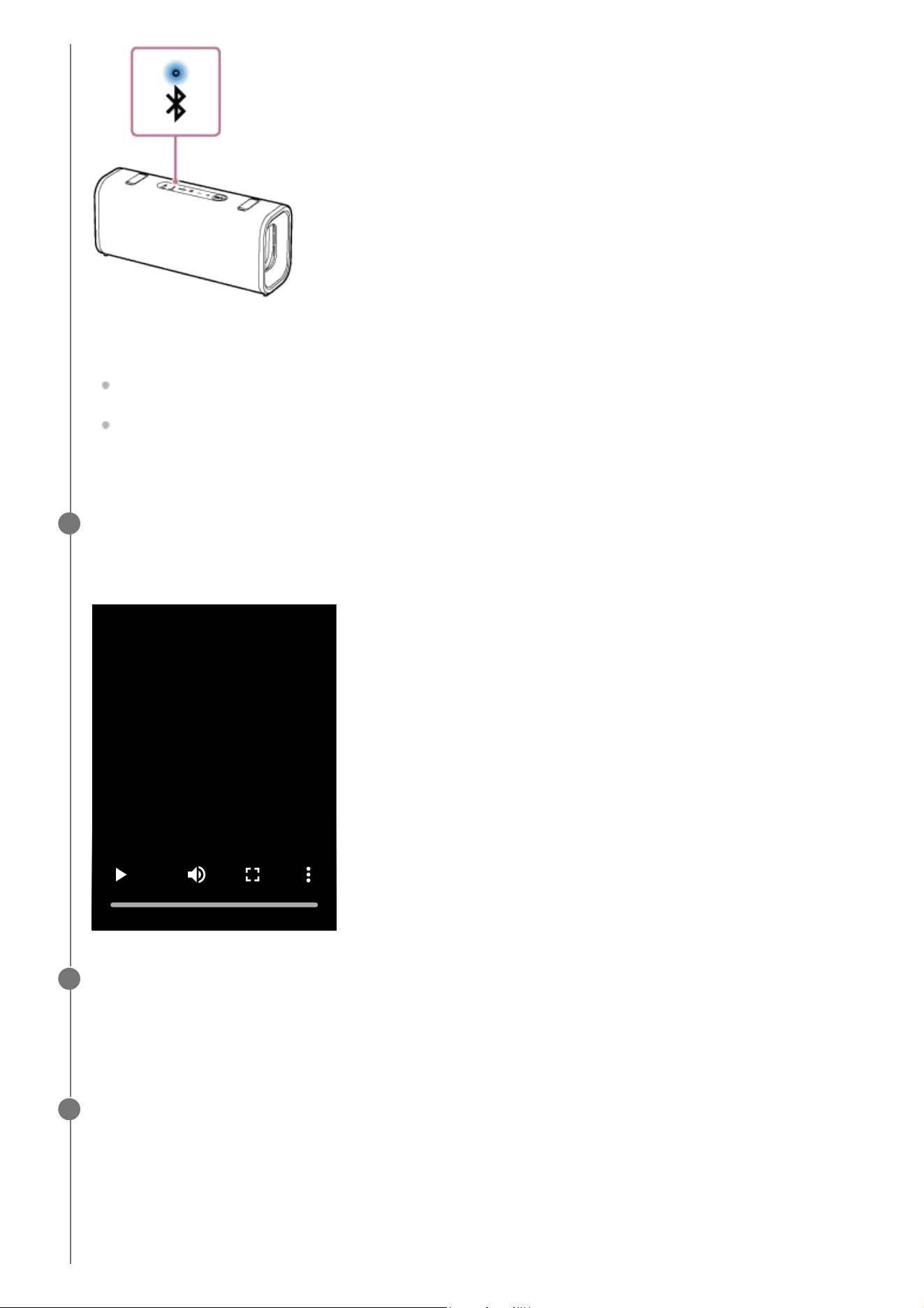
The speaker has been connected to the BLUETOOTH device.
To connect to other BLUETOOTH devices, follow one of the procedures below.
To pair the speaker with a second or subsequent BLUETOOTH device, proceed to step 3.
To reconnect the speaker with one of the BLUETOOTH devices that have been paired with the speaker before,
proceed to step 4. The speaker will automatically be connected just by turning on the BLUETOOTH function on
the BLUETOOTH device.
Press the BLUETOOTH button on the speaker.
You hear the voice guidance from the speaker (Pairing). Then, the BLUETOOTH indicator on the speaker starts
double flashing. The speaker enters pairing mode.
3
Perform the pairing procedure on the BLUETOOTH device to detect the speaker.
When a list of detected devices appears on the display of the BLUETOOTH device, select “ULT FIELD 3.”
If a passkey (*) is required on the display of the BLUETOOTH device, enter “0000.”
4
(*) The passkey may be called a “passcode,” “PIN code,” “PIN number,” or “password.”
Make the BLUETOOTH connection from the BLUETOOTH device.
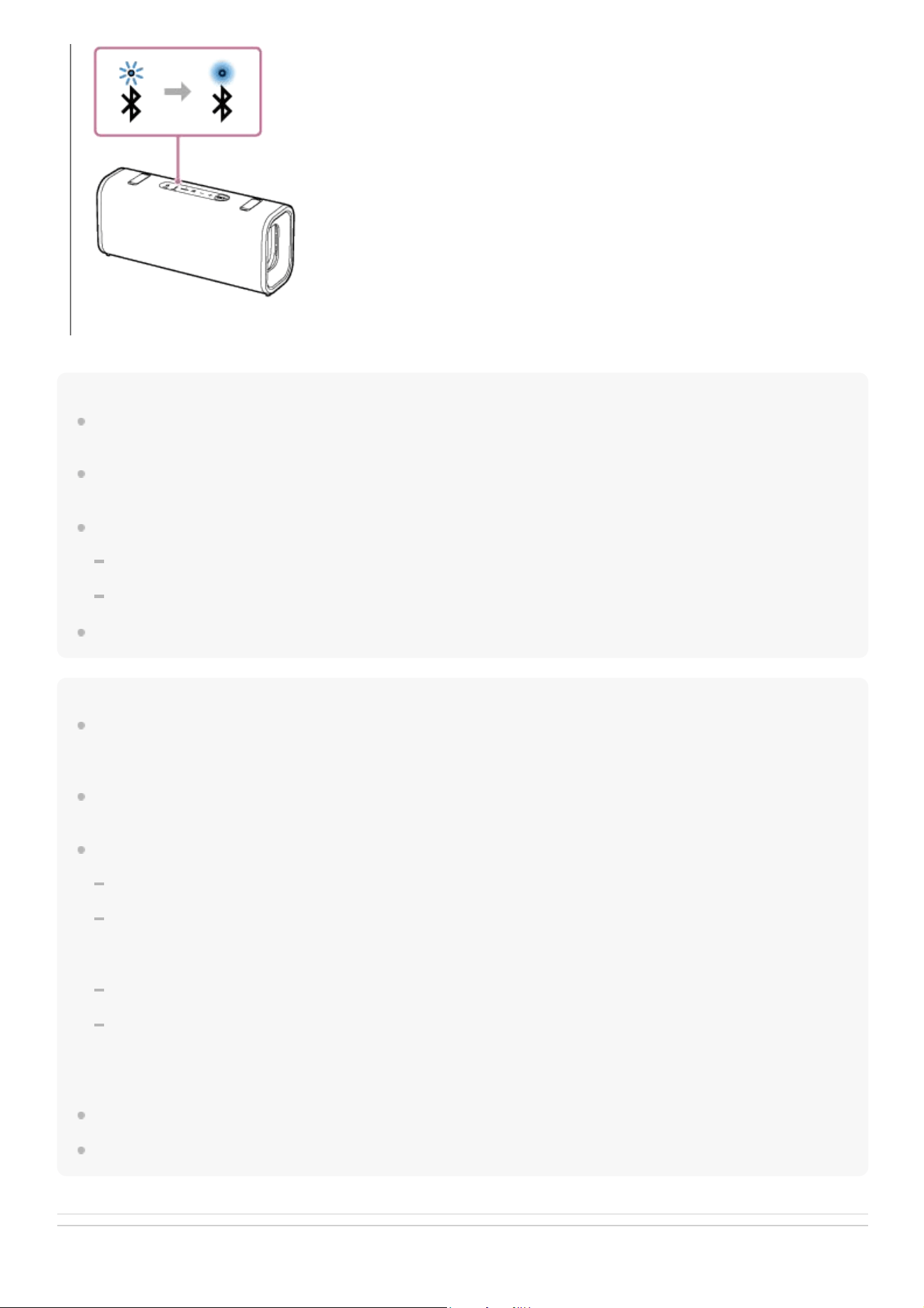
When the BLUETOOTH connection is established, you hear the notification sound from the speaker. Then, the
activity of the BLUETOOTH indicator on the speaker changes from flashing to lit.
5
28
Hint
As long as the BLUETOOTH function is activated on a BLUETOOTH device that has previously been connected with the speaker,
the speaker is reconnected with the device right after the speaker is turned on.
The above instructions on the BLUETOOTH device are provided as an example. For details, refer to the operating instructions
supplied with the BLUETOOTH device.
With the “Sound Connect” app, you can adjust various settings such as the following.
Establishing or disconnecting BLUETOOTH connections
Unpairing BLUETOOTH devices
You can connect the speaker concurrently with up to 2 BLUETOOTH devices. (Multipoint connection)
Note
The pairing mode of the speaker is released after about 5 minutes. Then, the BLUETOOTH indicator on the speaker flashes
slowly. However, when the speaker has no pairing information, such as at the factory settings, the pairing mode is not released. If
the pairing mode is released before finishing the process, repeat from step 3.
The passkey of the speaker is “0000.” If a passkey besides “0000” is set on the BLUETOOTH device, pairing cannot be done with
the speaker.
Once the BLUETOOTH devices are paired, there is no need to pair them again, except in the following cases:
Pairing information has been deleted after repair, etc.
The speaker is already paired with 8 devices and another device is to be paired.
The speaker can be paired with up to 8 devices. When a new device is paired in addition to 8 paired devices, the pairing
information of the earliest device connected via a BLUETOOTH connection is replaced by the information of the new one.
The pairing information with the speaker has been deleted from the BLUETOOTH device.
The speaker is initialized.
All pairing information will be deleted. If you initialize the speaker, it may not be able to connect your BLUETOOTH device. In
this case, erase the pairing information of the speaker on your BLUETOOTH device, and then perform the pairing procedure
again.
The speaker can be paired with multiple devices, but can only play music from one paired device at a time.
When using the Stereo Pair function or the Party Connect function, you cannot use the multipoint connection capability.
Related Topic
If the BLUETOOTH connection is not established, repeat from step 3.
29

Help Guide
Wireless Speaker
ULT FIELD 3
Connecting with a computer via a BLUETOOTH connection (Windows
®
)
Pairing is the process required to mutually register the information on BLUETOOTH devices to be connected wirelessly.
To use multiple BLUETOOTH devices in combination with the speaker, perform the following pairing procedure for each
device.
The pairing information of the BLUETOOTH devices is stored on the speaker when the speaker is turned off.
Supported operation systems
Windows 11, Windows 10
Do the following before starting.
Place your computer within 1 m (3.2 ft) of the speaker.
Connect the speaker to an AC outlet via a USB PD compatible AC adaptor. Or charge the built-in battery sufficiently.
Prepare the operating instructions supplied with the computer for reference.
To avoid any sudden loud sound output from the speaker immediately after pairing, turn down the volume of both the
computer and the speaker or stop music playback.
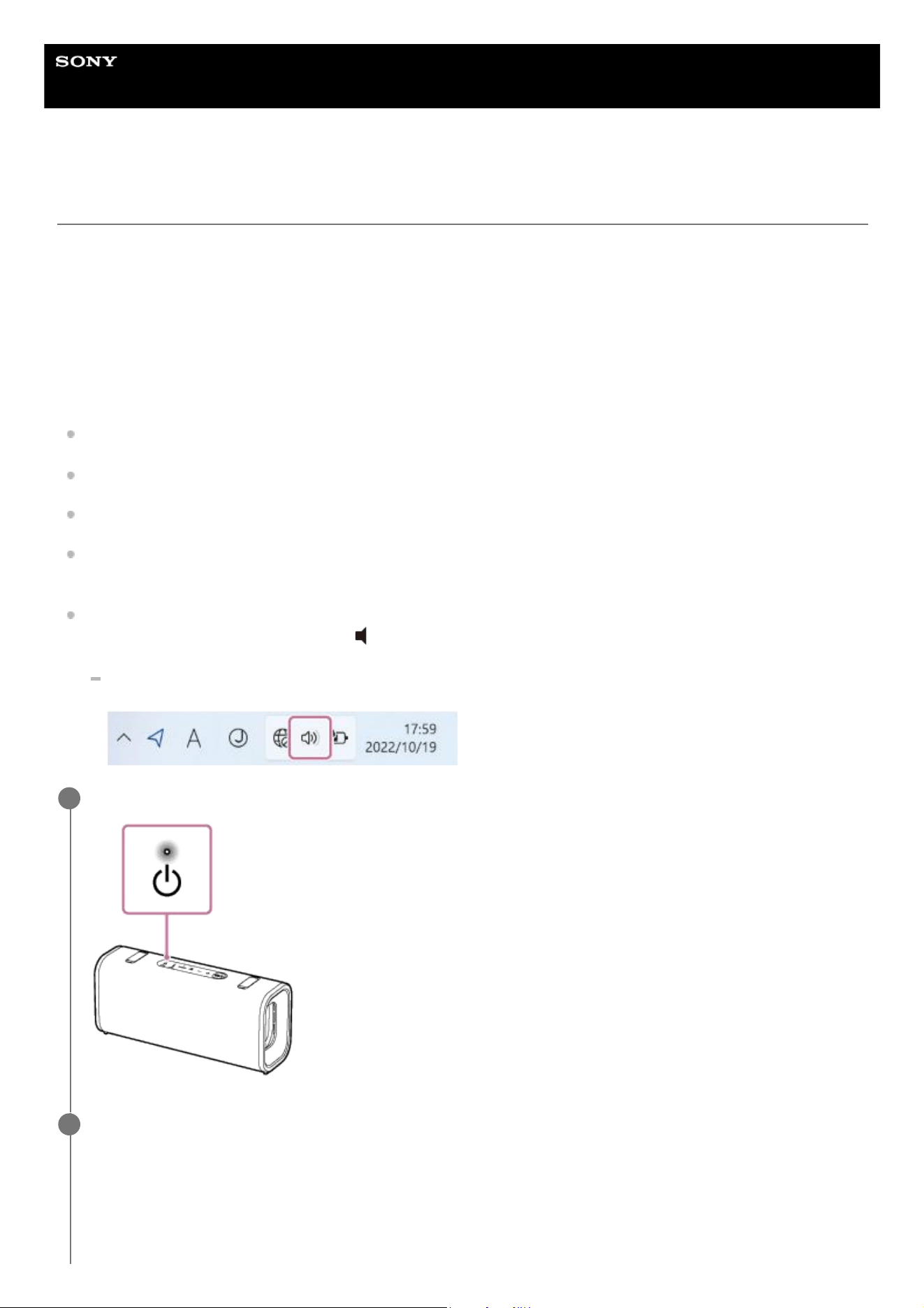
Set the speaker of your computer to on.
If the speaker of your computer is set to (mute), sound does not output on the BLUETOOTH speaker.
When the speaker of your computer is set to on:
Turn on the speaker.
1
Check the BLUETOOTH indicator on the speaker for activity.
When the indicator is double flashing
2
31
When the speaker has no pairing information, it will automatically enter pairing mode when it is turned on. Proceed
to step 4.
Hint
The speaker does not have pairing information in the following cases.
When the speaker is paired with a BLUETOOTH device for the first time after purchase
After the speaker has been initialized
When the indicator is flashing slowly
The speaker is searching for BLUETOOTH connections.
To pair the speaker with a second or subsequent BLUETOOTH device, proceed to step 3.
To reconnect the speaker with one of the BLUETOOTH devices that have been paired with the speaker before,
proceed to step 6.
The speaker will automatically be connected with the computer just by turning on the BLUETOOTH function on
the computer.
Depending on the BLUETOOTH device, the speaker may be reconnected with the device right after it is turned
on. For details, refer to the operating instructions supplied with your BLUETOOTH device.
When the indicator stays lit
32
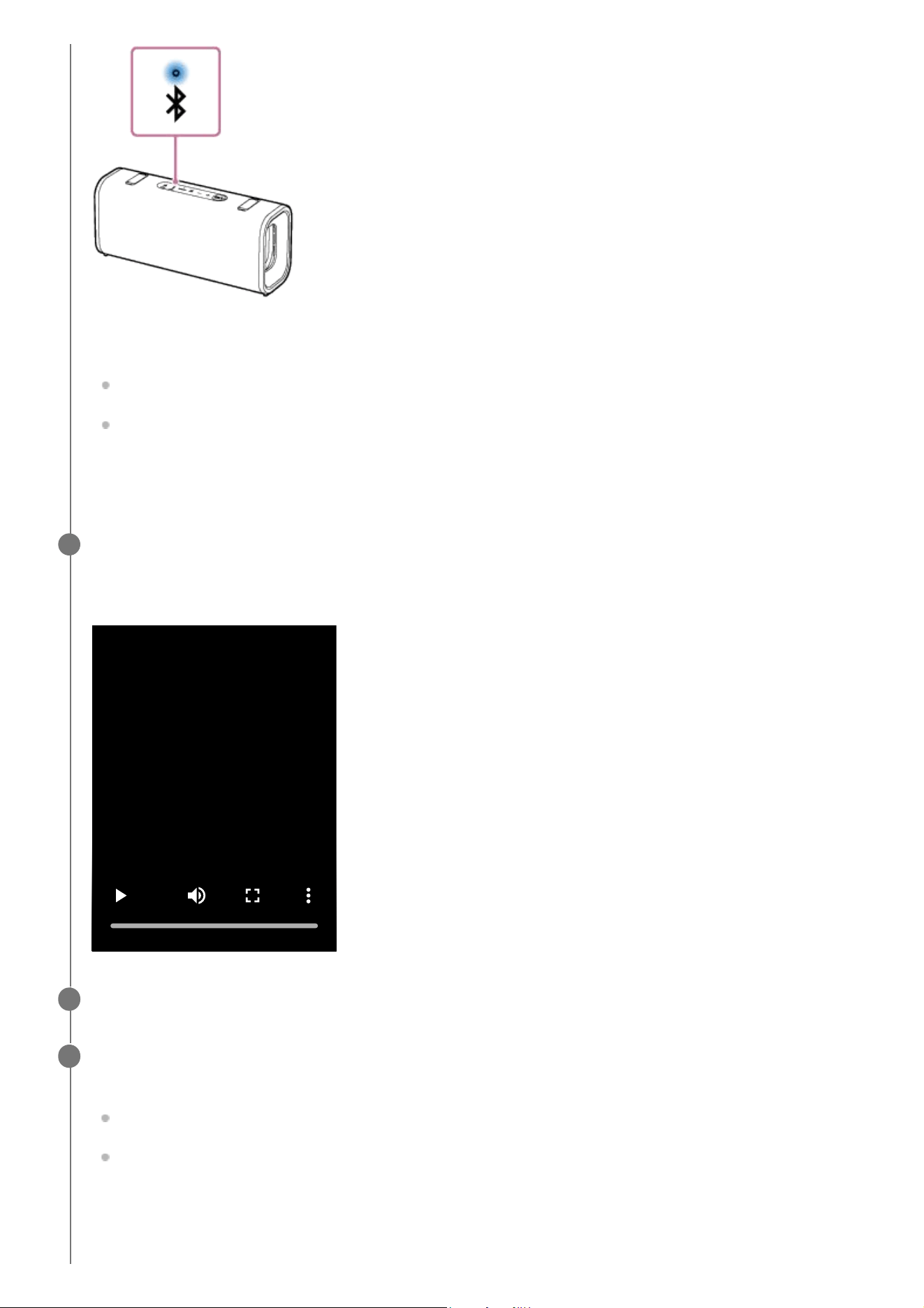
The speaker is already connected with one of the BLUETOOTH devices.
To connect the speaker with another BLUETOOTH device, do either of the following:
To pair the speaker with a second or subsequent BLUETOOTH device, proceed to step 3.
To reconnect the speaker with one of the BLUETOOTH devices that have been paired with the speaker before,
proceed to step 6.
The speaker will automatically be connected with the computer just by turning on the BLUETOOTH function on
the computer.
Press the BLUETOOTH button on the speaker.
You hear the voice guidance from the speaker (Pairing). Then, the BLUETOOTH indicator on the speaker starts
double flashing. The speaker enters pairing mode.
3
Wake the computer up if the computer is in standby (sleep) or hibernation mode.
4
Register the speaker to the computer.
On Windows 11
Click the [Start] button, then [Settings].
Click [Bluetooth & devices].
5
33
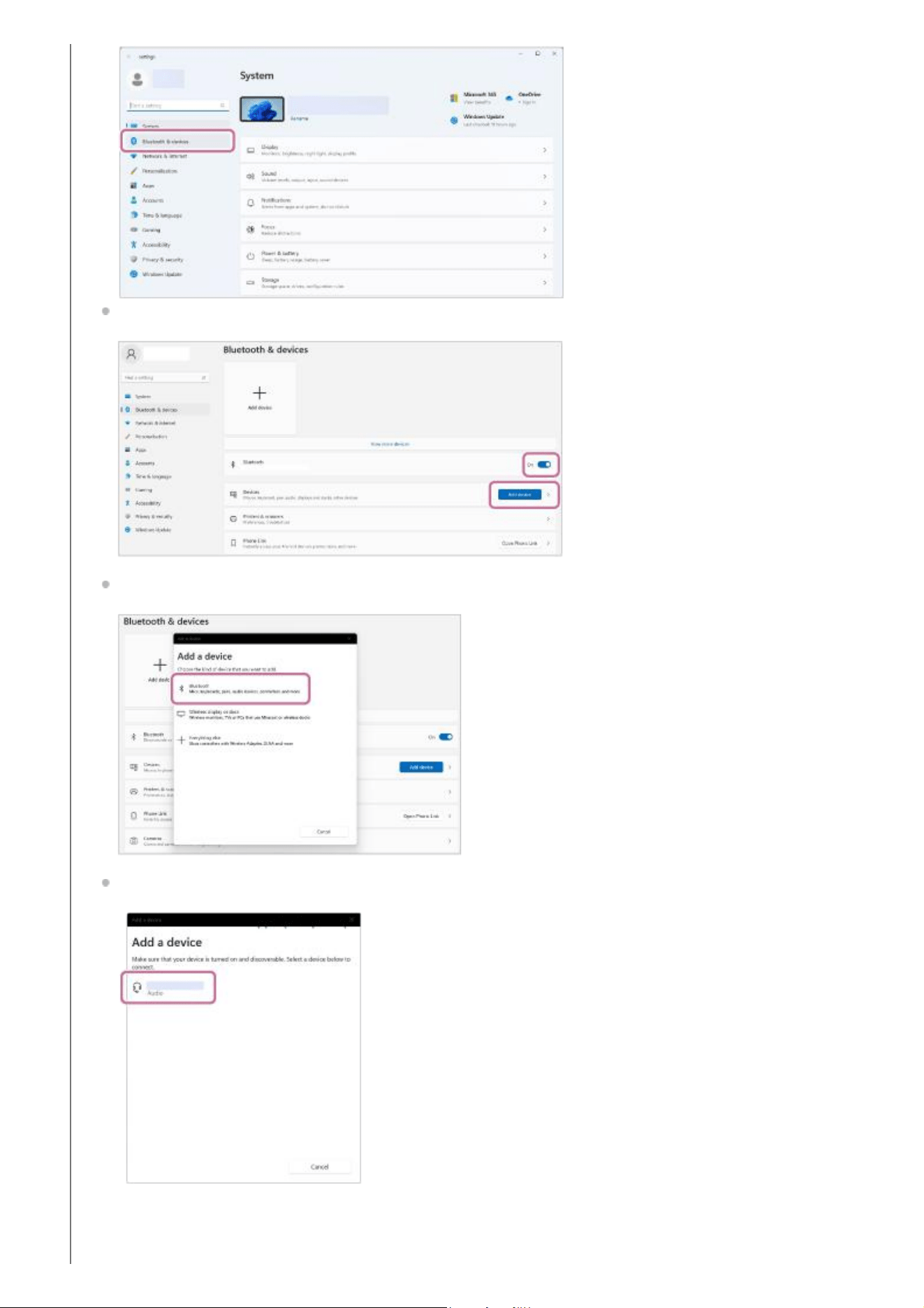
Click the [Bluetooth] switch to turn on the BLUETOOTH function, and then click [Add device].
Click [Bluetooth].
Select [ULT FIELD 3].
If a passkey (*) is required, enter “0000.”
If [ULT FIELD 3] does not appear, perform the operation again from step 3.
(*) The passkey may be called a “passcode,” “PIN code,” “PIN number,” or “password.”
34
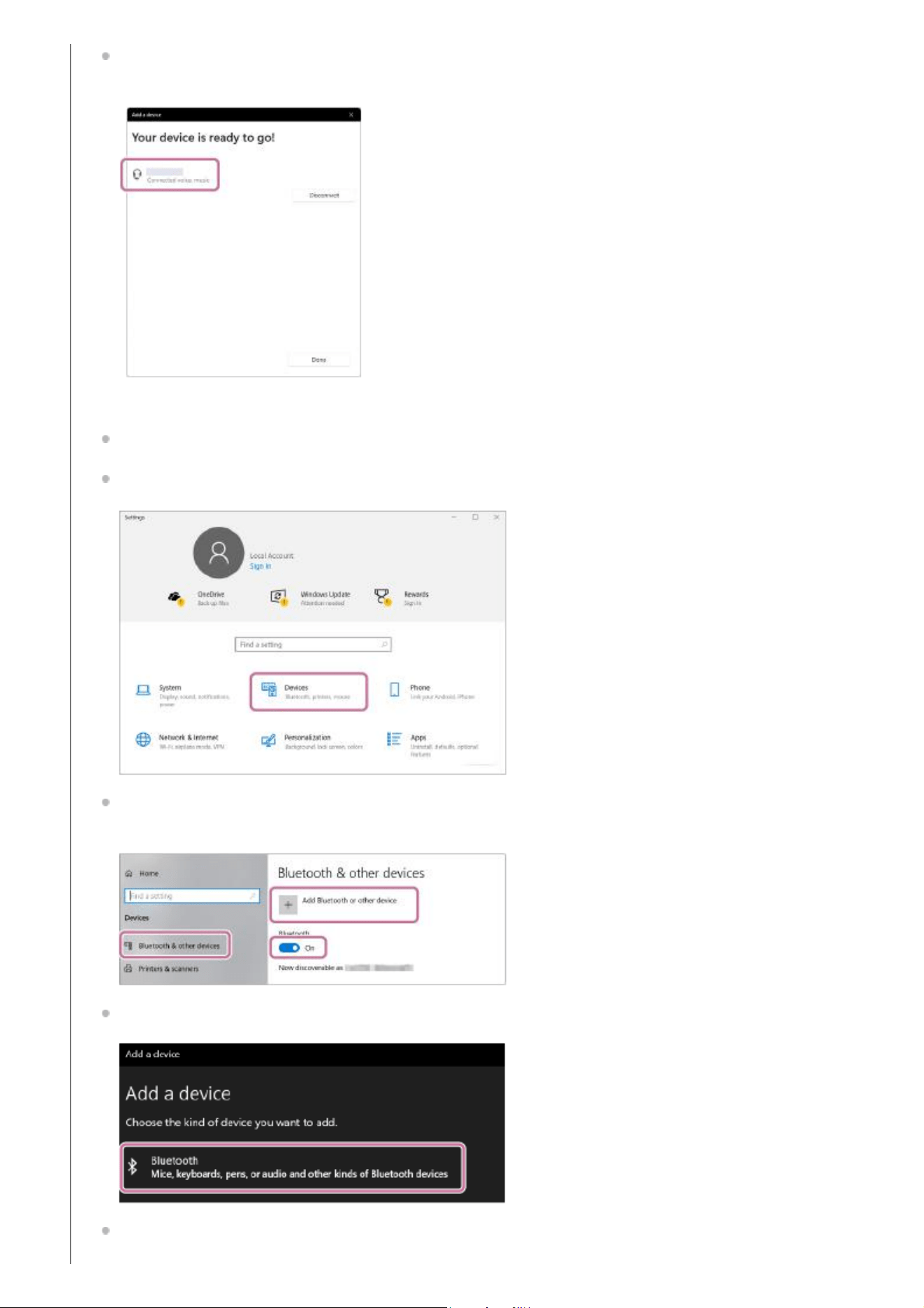
After pairing, the BLUETOOTH connection establishes automatically and [Connected music] or [Connected
voice, music] will be displayed on the screen. Proceed to step 7.
On Windows 10
Click the [Start] button, then [Settings].
Click [Devices].
Click the [Bluetooth & other devices] tab, click the [Bluetooth] switch to turn on the BLUETOOTH function, and
then click [Add Bluetooth or other device].
Click [Bluetooth].
Select [ULT FIELD 3].
35
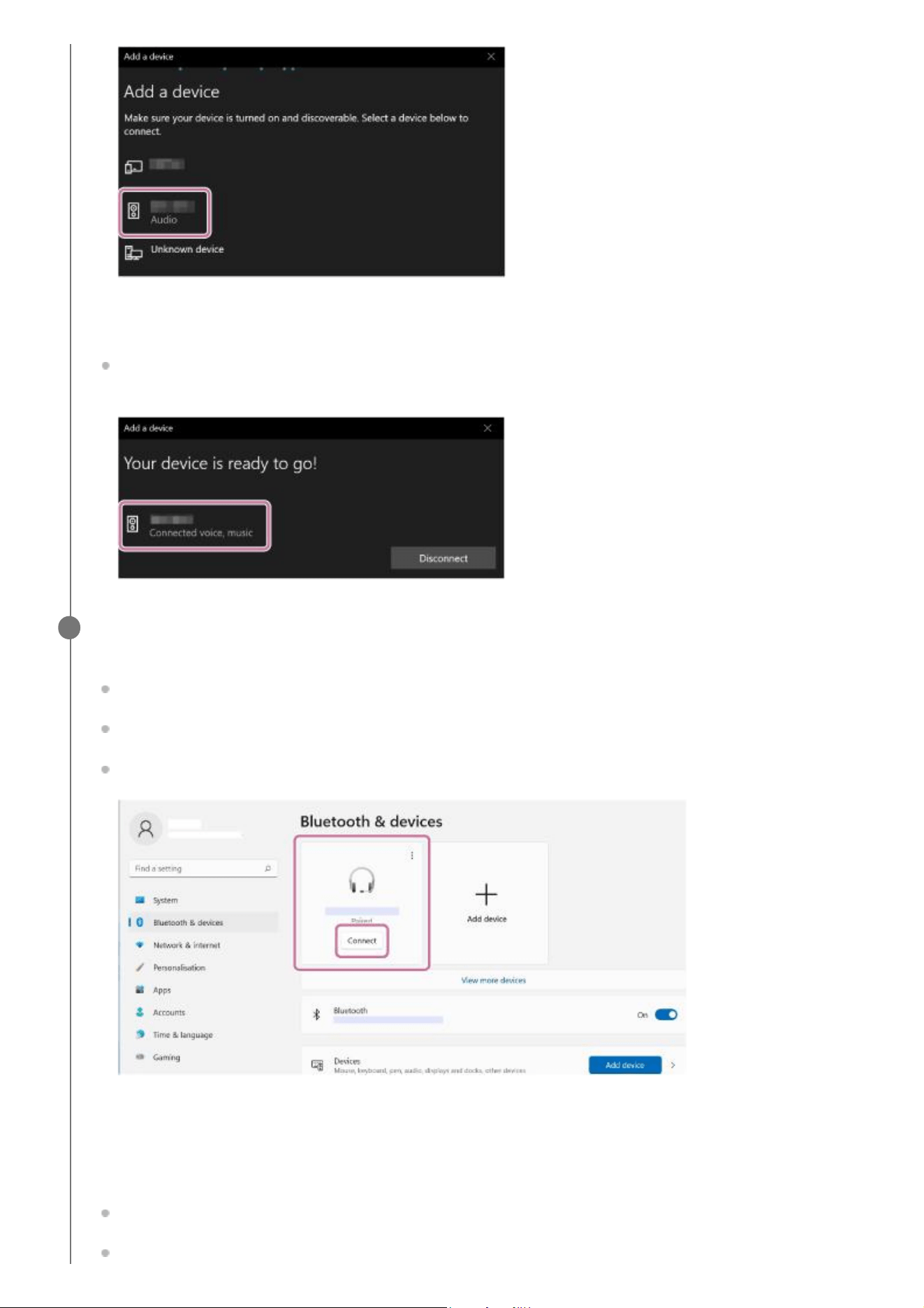
If a passkey (*) is required, enter “0000.”
If [ULT FIELD 3] does not appear, perform the operation again from step 3.
After pairing, the BLUETOOTH connection establishes automatically and [Connected music] or [Connected
voice, music] will be displayed on the screen. Proceed to step 7.
(*) The passkey may be called a “passcode,” “PIN code,” “PIN number,” or “password.”
Select the speaker on the computer.
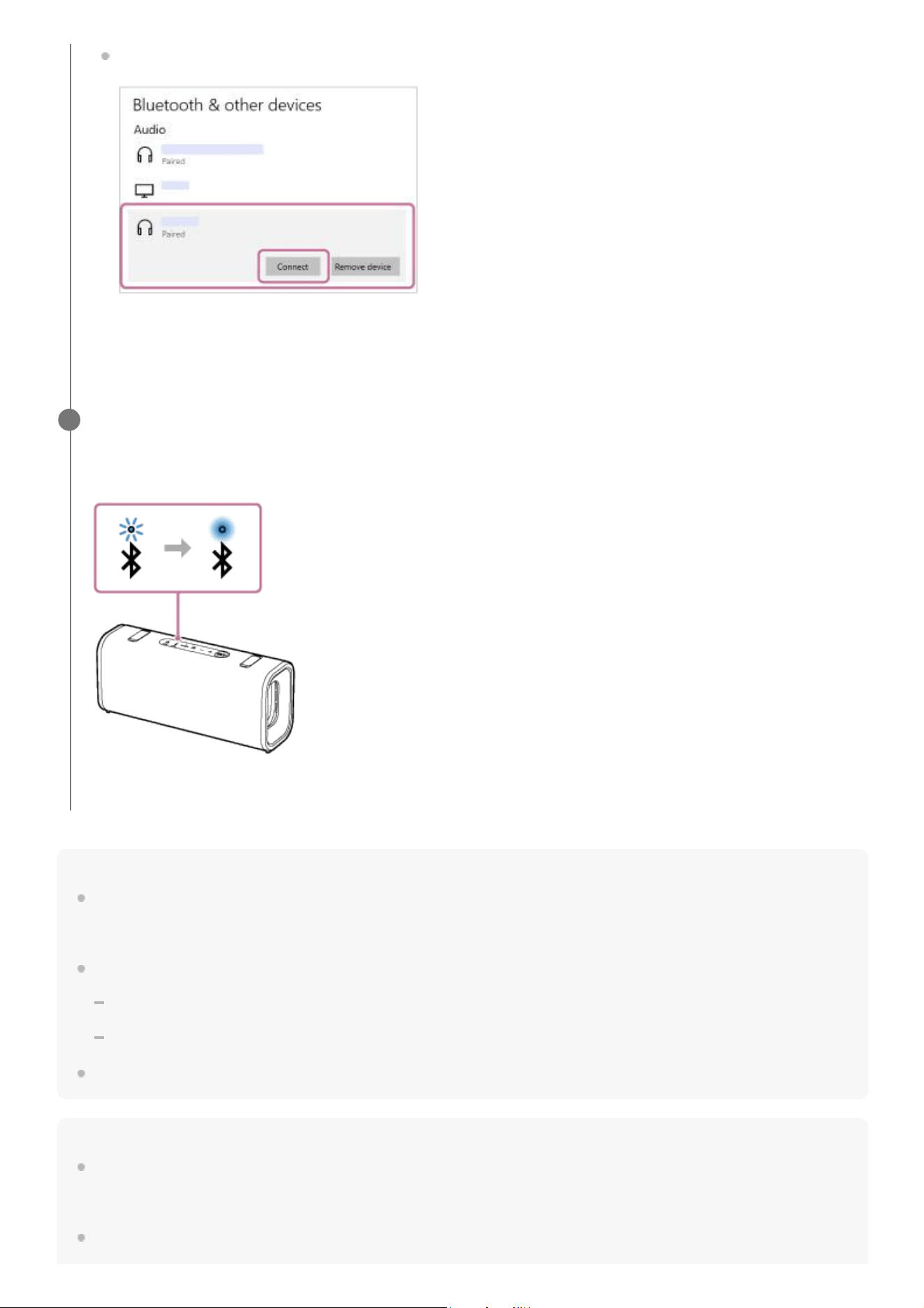
On Windows 11
Click the [Start] button, then [Settings].
Click [Bluetooth & devices].
Select [ULT FIELD 3] and click [Connect].
The icon on the screen may look different from what you actually see.
When a BLUETOOTH connection is established, [Connected music] or [Connected voice, music] will be
displayed on the screen. Proceed to step 7.
On Windows 10
Click the [Start] button, then [Settings].
Click [Devices].
6
36
Hint
The above instructions on the computer are provided as an example. For details, refer to the operating instructions supplied with
your computer. In addition, not all the computers are tested and found compatible with the above procedure and the procedure is
not applicable to home-built computers.
With the “Sound Connect” app, you can adjust various settings such as the following.
Establishing or disconnecting BLUETOOTH connections
Unpairing BLUETOOTH devices
You can connect the speaker concurrently with up to 2 BLUETOOTH devices. (Multipoint connection)
Note
The pairing mode of the speaker is released after about 5 minutes. Then, the BLUETOOTH indicator on the speaker flashes
slowly. However, when the speaker has no pairing information, such as at the factory settings, the pairing mode is not released. If
the pairing mode is released before finishing the process, repeat from step 3.
Once BLUETOOTH devices are paired, there is no need to pair them again, except in the following cases:
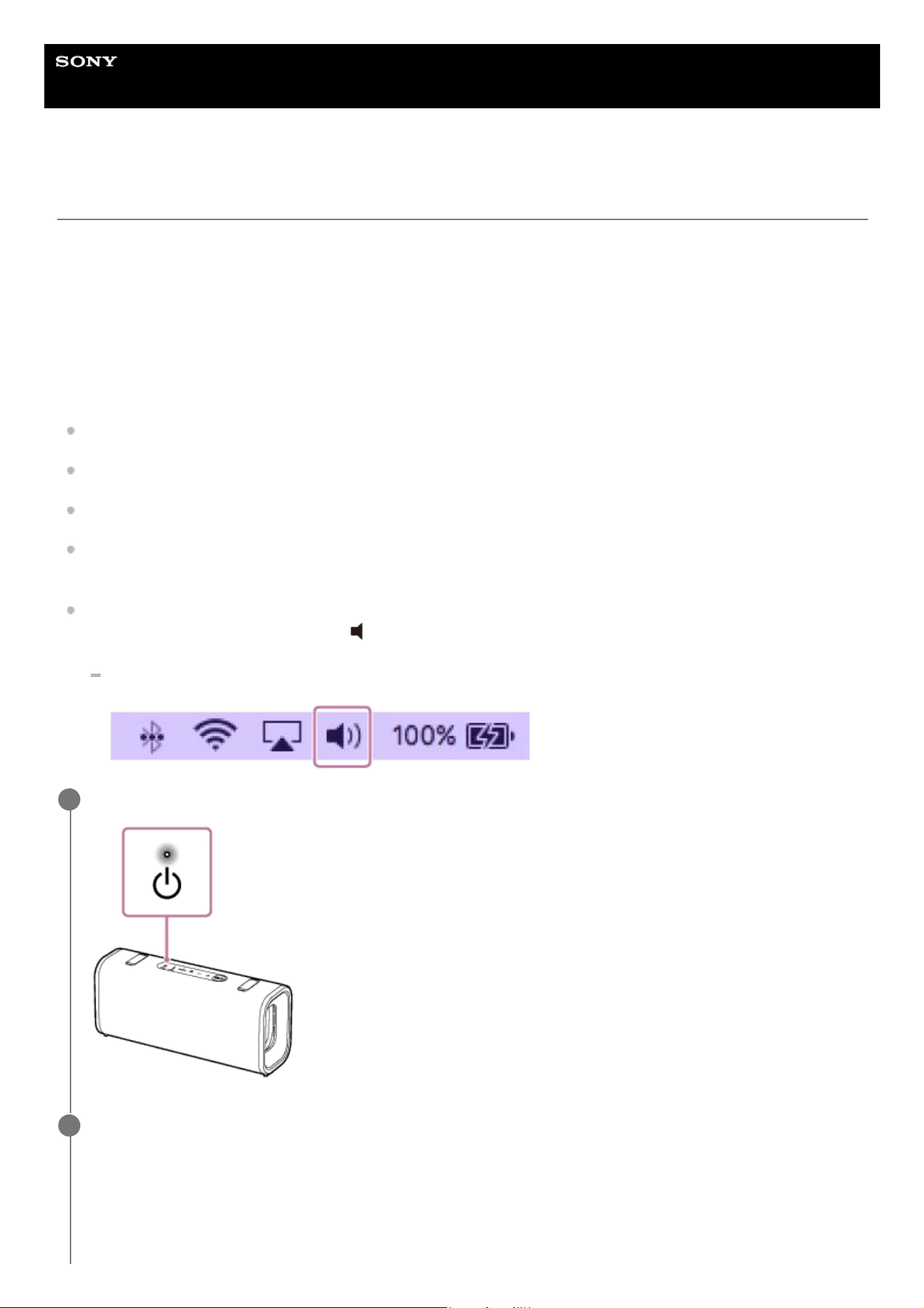
Select [ULT FIELD 3] under [Audio] on the [Bluetooth & other devices] tab, and then click [Connect].
The icon on the screen may look different from what you actually see.
When a BLUETOOTH connection is established, [Connected music] or [Connected voice, music] will be
displayed on the screen. Proceed to step 7.
Follow the on-screen instructions to establish a BLUETOOTH connection.
When the BLUETOOTH connection is established, you hear the notification sound from the speaker. Then, the
activity of the BLUETOOTH indicator on the speaker changes from flashing to lit.
If the connection attempt fails, repeat the procedure from step 3.
7
37

Pairing information has been deleted after repair, etc.
The speaker is already paired with 8 devices and another device is to be paired.
The speaker can be paired with up to 8 devices. When a new device is paired in addition to 8 paired devices, the pairing
information of the earliest device connected via a BLUETOOTH connection is replaced by the information of the new one.
The pairing information with the speaker has been deleted from the BLUETOOTH device.
The speaker is initialized.
All pairing information will be deleted. If you initialize the speaker, it may not be able to connect your computer. In this case,
erase the pairing information of the speaker on your computer, and then perform the pairing procedure again.
The speaker can be paired with multiple devices, but can only play music from one paired device at a time.
The passkey of the speaker is “0000.” If a passkey besides “0000” is set on the BLUETOOTH device, pairing cannot be done with
the speaker.
When using the Stereo Pair function or the Party Connect function, you cannot use the multipoint connection capability.
Related Topic
Parts and controls
Connecting the speaker concurrently with 2 BLUETOOTH devices (multipoint connection)
Listening to music of a device via a BLUETOOTH connection
Terminating the BLUETOOTH connection (After use)
5-064-345-11(1) Copyright 2025 Sony Corporation
38
Help Guide
Wireless Speaker
ULT FIELD 3
Connecting with a computer via a BLUETOOTH connection (Mac)
Pairing is the process required to mutually register the information on BLUETOOTH devices to be connected wirelessly.
To use multiple BLUETOOTH devices in combination with the speaker, perform the following pairing procedure for each
device.
The pairing information of the BLUETOOTH devices is stored on the speaker when the speaker is turned off.
Supported operation systems
macOS (version 12.7 or later)
Do the following before starting.
Place your computer within 1 m (3.2 ft) of the speaker.
Connect the speaker to an AC outlet via a USB PD compatible AC adaptor. Or charge the built-in battery sufficiently.
Prepare the operating instructions supplied with the computer for reference.
To avoid any sudden loud sound output from the speaker immediately after pairing, turn down the volume of both the
computer and the speaker or stop music playback.
Set the speaker of your computer to on.
If the speaker of your computer is set to (mute), sound does not output on the BLUETOOTH speaker.
When the speaker of your computer is set to on:
Turn on the speaker.
1
Check the BLUETOOTH indicator on the speaker for activity.
When the indicator is double flashing
2
39
When the speaker has no pairing information, it will automatically enter pairing mode when it is turned on. Proceed
to step 4.
Hint
The speaker does not have pairing information in the following cases.
When the speaker is paired with a BLUETOOTH device for the first time after purchase
After the speaker has been initialized
When the indicator is flashing slowly
The speaker is searching for BLUETOOTH connections.
To pair the speaker with a second or subsequent BLUETOOTH device, proceed to step 3.
To reconnect the speaker with one of the BLUETOOTH devices that have been paired with the speaker before,
proceed to step 4.
The speaker will automatically be connected with the computer just by turning on the BLUETOOTH function on
the computer.
Depending on the BLUETOOTH device, the speaker may be reconnected with the device right after it is turned
on. For details, refer to the operating instructions supplied with your BLUETOOTH device.
When the indicator stays lit
40
The speaker is already connected with one of the BLUETOOTH devices.
To connect the speaker with another BLUETOOTH device, do either of the following:
To pair the speaker with a second or subsequent BLUETOOTH device, proceed to step 3.
To reconnect the speaker with one of the BLUETOOTH devices that have been paired with the speaker before,
proceed to step 4.
The speaker will automatically be connected with the computer just by turning on the BLUETOOTH function on
the computer.
Press the BLUETOOTH button on the speaker.
You hear the voice guidance from the speaker (Pairing). Then, the BLUETOOTH indicator on the speaker starts
double flashing. The speaker enters pairing mode.
3
Search for the speaker on the computer.
Click [ (System Preferences)] - [Bluetooth] in the taskbar on the right-bottom of the screen.
4
41
Select [ULT FIELD 3] from the Bluetooth screen, then click [Pair].
Follow the on-screen instructions to establish a BLUETOOTH connection.
When the BLUETOOTH connection is established, you hear the notification sound from the speaker. Then, the
activity of the BLUETOOTH indicator on the speaker changes from flashing to lit.
If the connection attempt fails, repeat the procedure from step 3.
5
Click the speaker icon in the top-right of the screen and select [ULT FIELD 3] from [Output Device].
You can enjoy playing back music, etc. from your computer.
6
42
Hint
The above instructions on the computer are provided as an example. For details, refer to the operating instructions supplied with
your computer. In addition, not all the computers are tested and found compatible with the above procedure and the procedure is
not applicable to home-built computers.
With the “Sound Connect” app, you can adjust various settings such as the following.
Establishing or disconnecting BLUETOOTH connections
Unpairing BLUETOOTH devices
You can connect the speaker concurrently with up to 2 BLUETOOTH devices. (Multipoint connection)
Note
The pairing mode of the speaker is released after about 5 minutes. Then, the BLUETOOTH indicator on the speaker flashes
slowly. However, when the speaker has no pairing information, such as at the factory settings, the pairing mode is not released. If
the pairing mode is released before finishing the process, repeat from step 3.
Once BLUETOOTH devices are paired, there is no need to pair them again, except in the following cases:
Pairing information has been deleted after repair, etc.
The speaker is already paired with 8 devices and another device is to be paired.
The speaker can be paired with up to 8 devices. When a new device is paired in addition to 8 paired devices, the pairing
information of the earliest device connected via a BLUETOOTH connection is replaced by the information of the new one.
The pairing information with the speaker has been deleted from the BLUETOOTH device.
The speaker is initialized.
All pairing information will be deleted. If you initialize the speaker, it may not be able to connect your computer. In this case,
erase the pairing information of the speaker on your computer, and then perform the pairing procedure again.
The speaker can be paired with multiple devices, but can only play music from one paired device at a time.
The passkey of the speaker is “0000.” If a passkey besides “0000” is set on the BLUETOOTH device, pairing cannot be done with
the speaker.
When using the Stereo Pair function or the Party Connect function, you cannot use the multipoint connection capability.
Related Topic
Parts and controls
Connecting the speaker concurrently with 2 BLUETOOTH devices (multipoint connection)
Listening to music of a device via a BLUETOOTH connection
Terminating the BLUETOOTH connection (After use)
43

5-064-345-11(1) Copyright 2025 Sony Corporation
44
Help Guide
Wireless Speaker
ULT FIELD 3
Connecting the speaker concurrently with 2 BLUETOOTH devices (multipoint
connection)
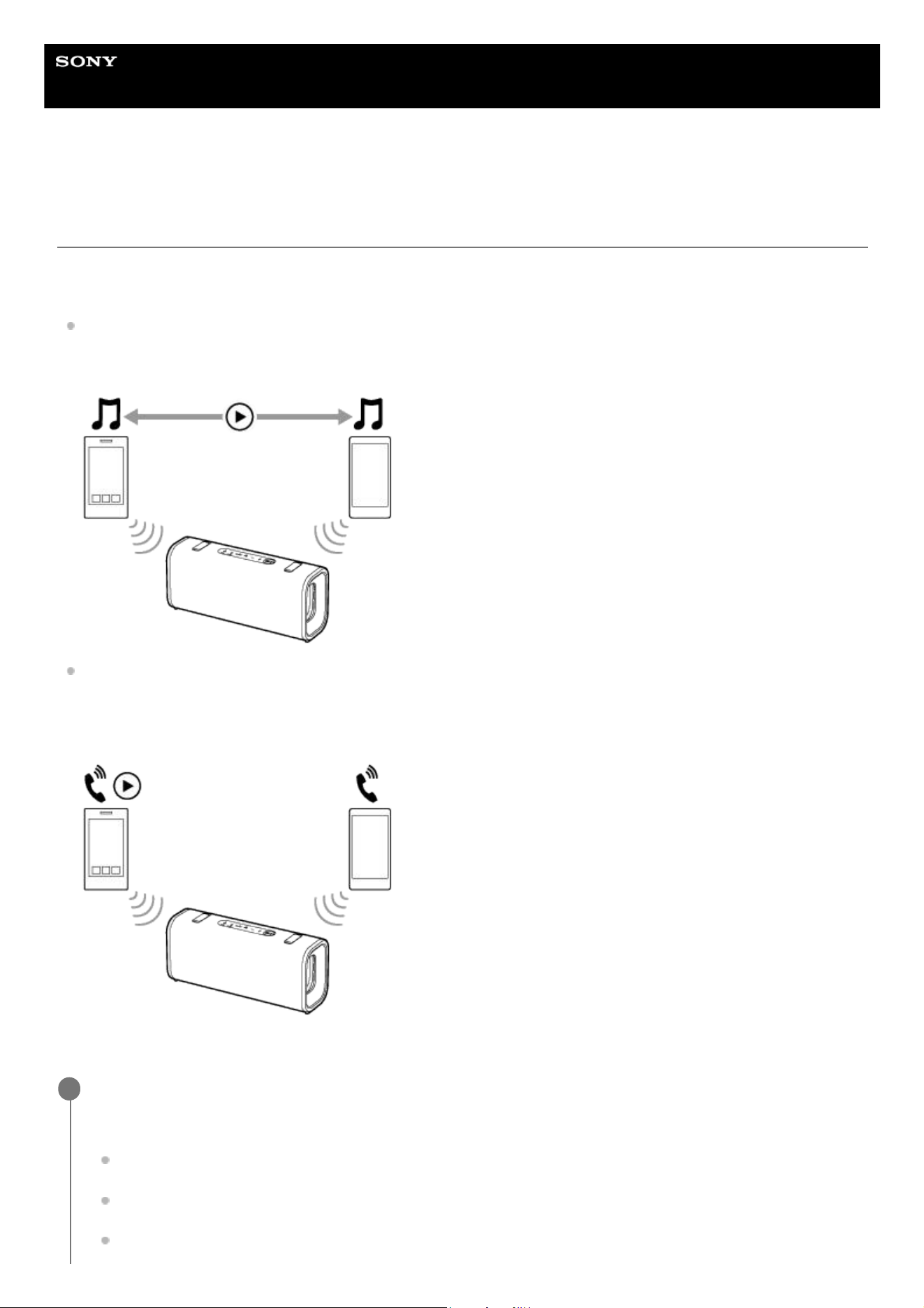
While the speaker is connected concurrently with 2 BLUETOOTH devices via BLUETOOTH connections, you can do the
following:
Switching the music playback source between 2 devices
You can switch the music playback source from one device to the other without reestablishing the BLUETOOTH
connection.
Standing by for an incoming call to either of the 2 smartphones/iPhone devices
You can keep both of the 2 smartphones/iPhone devices on standby for an incoming call while listening to music
playing on one of the smartphones/iPhone devices, and receive an incoming call to either of the smartphones/iPhone
devices when it arrives.
Connecting the speaker concurrently with 2 devices via BLUETOOTH connections
Connect the speaker with the first BLUETOOTH device.
For details about the BLUETOOTH connection procedure, see one of the following that is applicable to your device.
Connecting to BLUETOOTH devices easily with the “Sound Connect” app via a BLUETOOTH connection
Pairing and connecting with BLUETOOTH devices
Connecting with a computer via a BLUETOOTH connection (Windows
®
)
1
45
Changing the BLUETOOTH devices in multipoint connection
While keeping the speaker connected with 2 devices in multipoint connection, you can attempt to connect another device
via a BLUETOOTH connection.
When you operate the speaker and the third device in an attempt to establish a BLUETOOTH connection, the
BLUETOOTH connection with one of the 2 devices used for the previous music playback or phone talking is retained and
the BLUETOOTH connection with the other device is disconnected. Then, a BLUETOOTH connection is established
between the speaker and the third device.
Music playback while the speaker is connected with 2 devices in multipoint connection
Connecting with a computer via a BLUETOOTH connection (Mac)
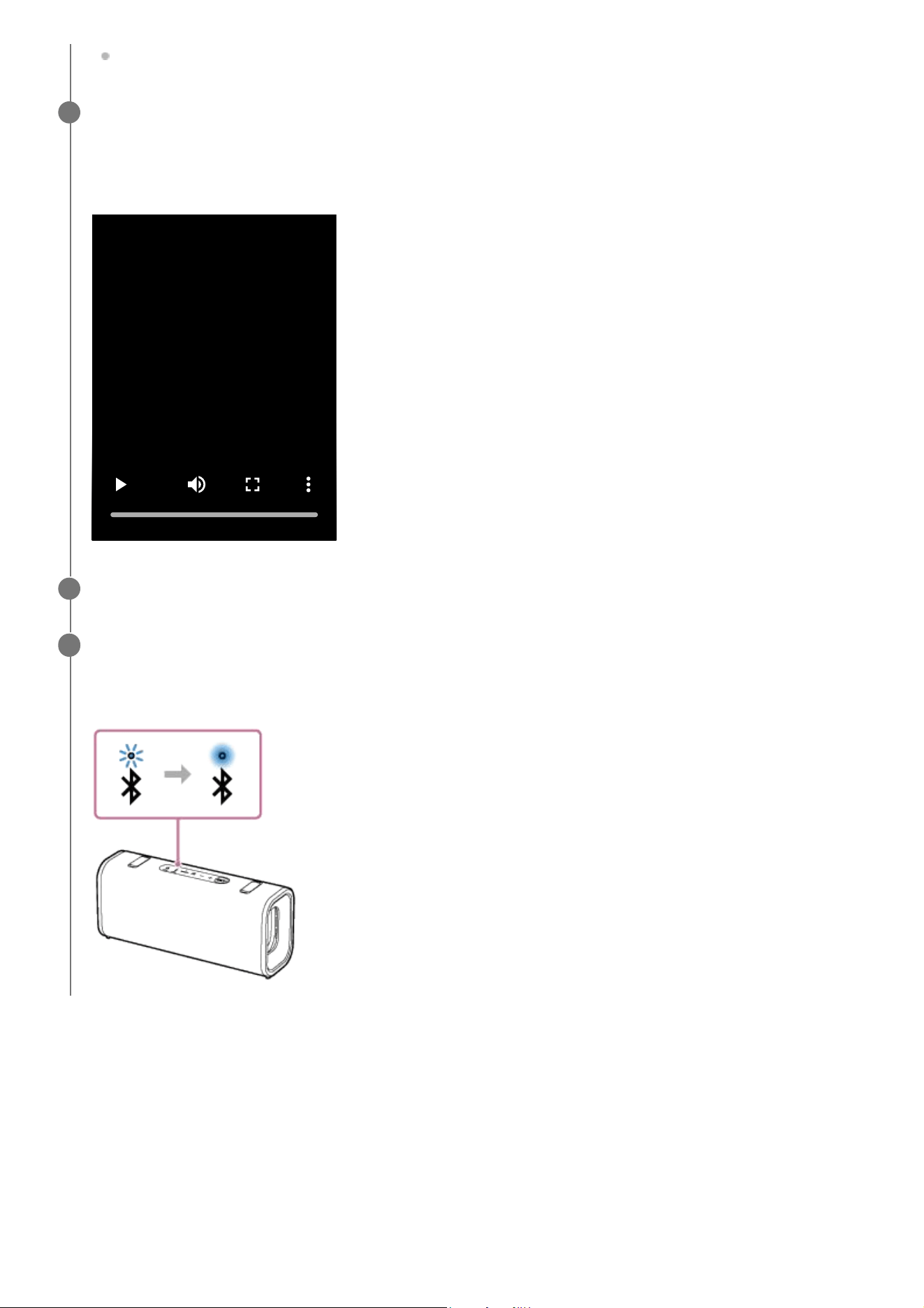
While keeping the speaker connected with the first BLUETOOTH device, press the BLUETOOTH button on
the speaker.
You hear the voice guidance from the speaker (Pairing). Then, the BLUETOOTH indicator on the speaker starts
double flashing. The speaker enters pairing mode.
2
Operate the second BLUETOOTH device to search for the speaker.
3
Follow the on-screen instructions to establish a BLUETOOTH connection.
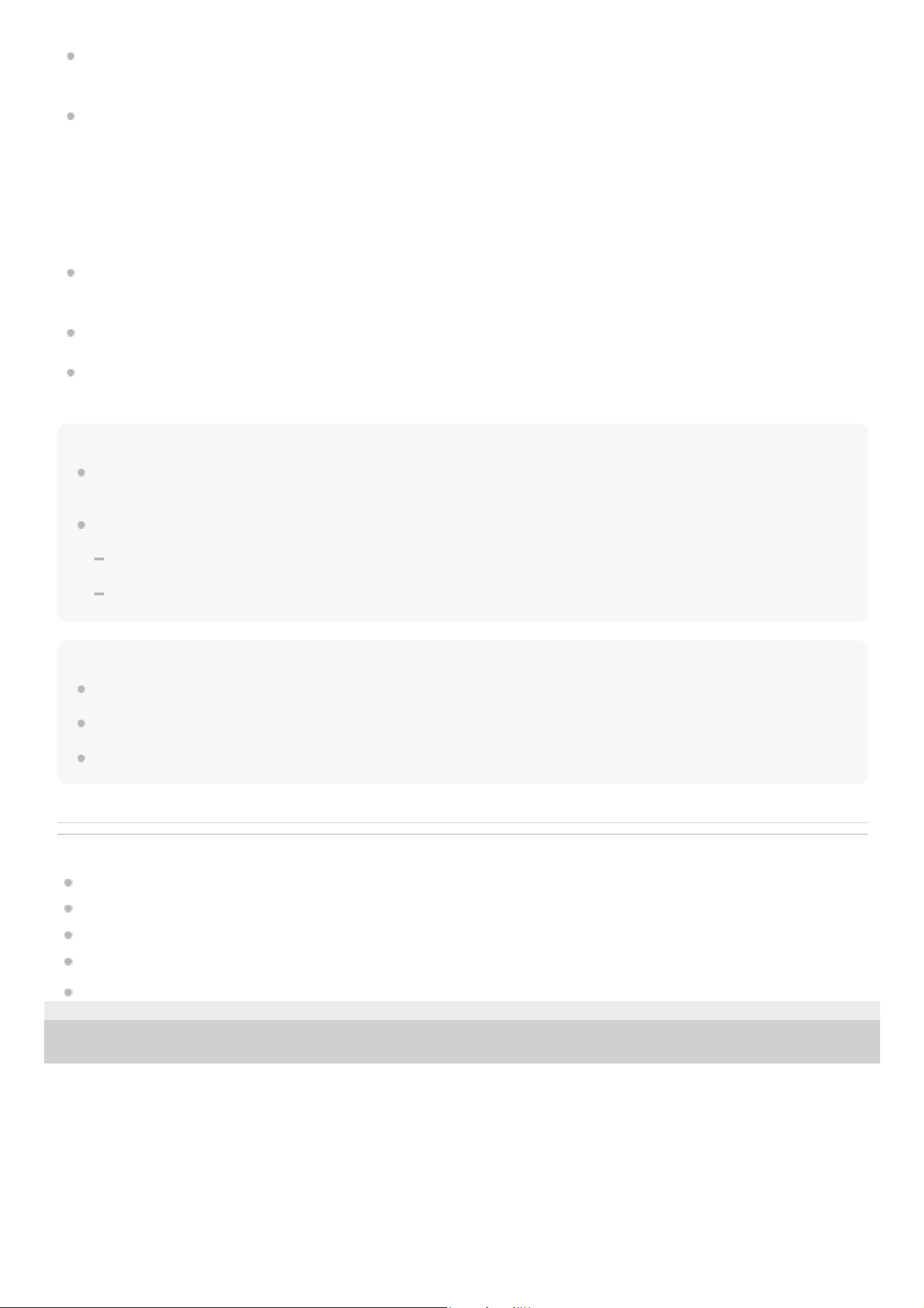
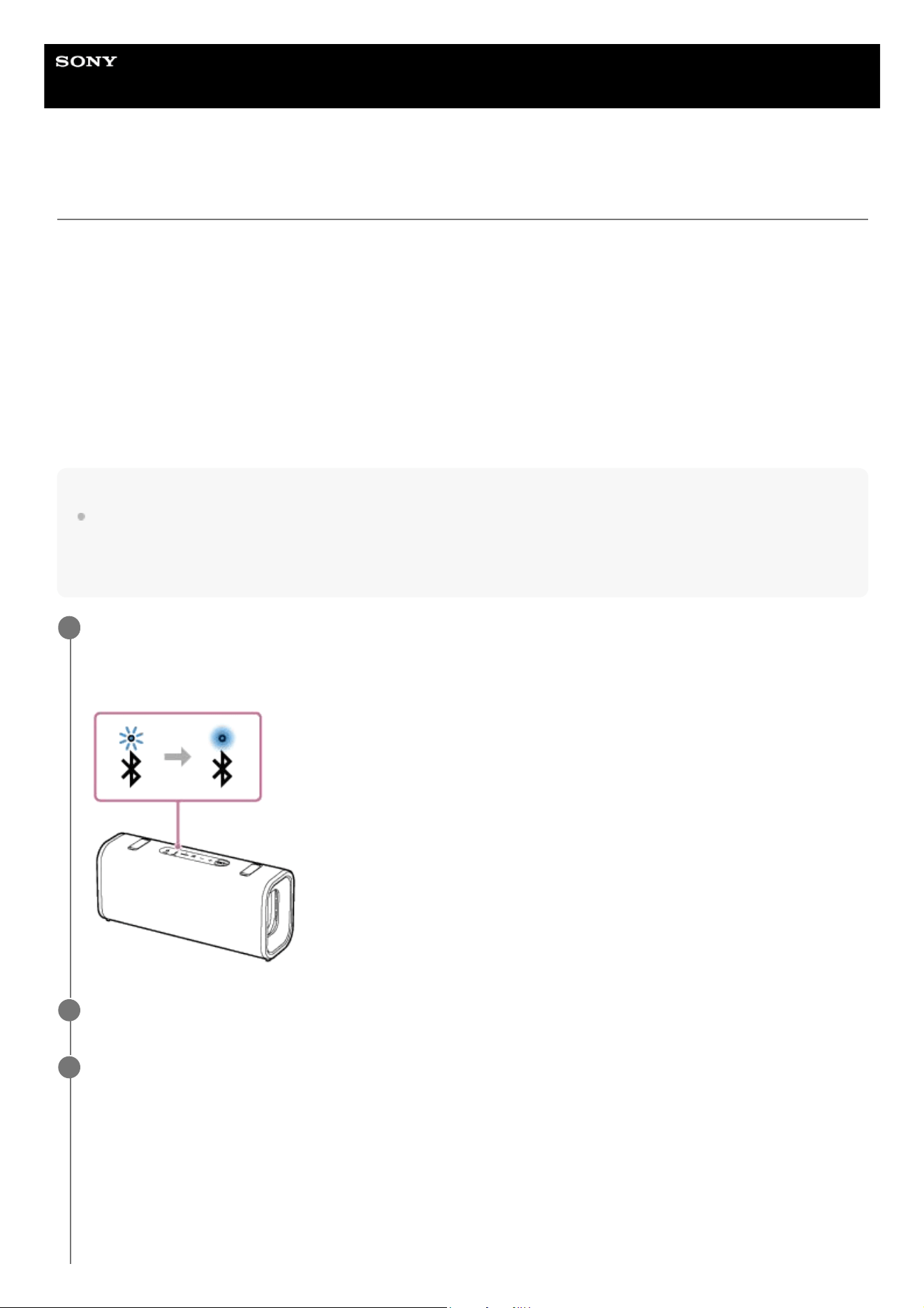
When the BLUETOOTH connection is established, you hear the notification sound from the speaker. Then, the
activity of the BLUETOOTH indicator on the speaker changes from flashing to lit.
4
46
When you operate the speaker to play music, music starts playing on one of the devices in multipoint connection that
was used for the previous playback.
To play music on the other (second) device in multipoint connection, operate the second one to start music playback.
Depending on the condition, you may still hear music playing on the same (first) device from the speaker after you
operate the second device to start playback. In such a case, stop the playback on the first one. Then, you can listen
to music playing on the second one.
Receiving a call while the speaker is connected with 2 smartphones/iPhone devices in multipoint
connection
Connecting the speaker with 2 smartphones/iPhone devices in multipoint connection places both of the devices on
standby for an incoming call.
When an incoming call arrives at the first device in multipoint connection, you hear a ring tone via the speaker.
When another incoming call arrives at the other (second) device while you are talking on the first call via the speaker,
a ring tone is heard from the second device.
By ending the call on the first device, you hear a ring tone on the second device via the speaker.
Hint
As long as the BLUETOOTH function is activated on a BLUETOOTH device that has previously been connected with the speaker,
the speaker is reconnected with the device right after the speaker is turned on.
With the “Sound Connect” app, you can adjust various settings such as the following.
Establishing or disconnecting BLUETOOTH connections
Unpairing BLUETOOTH devices
Note
When using the Stereo Pair function or the Party Connect function, you cannot use the multipoint connection capability.
Depending on the BLUETOOTH device, you may not be able to use the multipoint connection capability.
The multipoint connection cannot be disabled.
Related Topic
Parts and controls
Connecting to BLUETOOTH devices easily with the “Sound Connect” app via a BLUETOOTH connection
Pairing and connecting with BLUETOOTH devices
Connecting with a computer via a BLUETOOTH connection (Windows
®
)
Connecting with a computer via a BLUETOOTH connection (Mac)
5-064-345-11(1) Copyright 2025 Sony Corporation
47
Help Guide
Wireless Speaker
ULT FIELD 3
Listening to music of a device via a BLUETOOTH connection
You can enjoy listening to music of a BLUETOOTH device and operate it by the speaker via a BLUETOOTH connection if
it supports the following BLUETOOTH profiles.
A2DP (Advanced Audio Distribution Profile)
Enables you to enjoy high-quality audio contents wirelessly.
AVRCP (Audio Video Remote Control Profile)
Enables you to adjust the volume and operate to play, pause or skip to the beginning of the next/current track.
Operations may vary depending on the BLUETOOTH device. Refer also to the operating instructions supplied with the
BLUETOOTH device.
Note
Make sure beforehand that the volume on the BLUETOOTH device and speaker are set to a moderate level to avoid sudden loud
sound output from the speaker.
Depending on the BLUETOOTH device, adjusting the volume of the speaker may not be possible on the BLUETOOTH device
while playback on the device is stopped/paused.
Connect the speaker with the BLUETOOTH device.
When the BLUETOOTH connection is established, you hear the notification sound from the speaker. Then, the
activity of the BLUETOOTH indicator on the speaker changes from flashing to lit.
1
Start playback on the BLUETOOTH device.
2
Adjust the volume by pressing the volume buttons on the speaker or operating the BLUETOOTH device.
When you press the volume buttons on the speaker or adjust the volume on the BLUETOOTH device, power
indicator on the speaker flashes once or 3 times.
Depending on the BLUETOOTH device you are using, power indicator on the speaker may not flash even if you
adjust the volume on the BLUETOOTH device.
Press and hold the volume buttons on the speaker for rapid adjustments.
3
48
Hint
You can play music while charging the built-in battery using a USB PD compatible AC adaptor. However, charging may take a
long time depending on the speaker's usage. If charging is your priority, stop playback or turn off the speaker before charging.
The speaker supports content protection by the SCMS-T method. You can listen to music (or audio) from the smartphone or
mobile phone, which supports the SCMS-T method, through the speaker.
When you set the volume to the maximum or minimum level on the speaker, the power indicator on the speaker flashes 3 times.
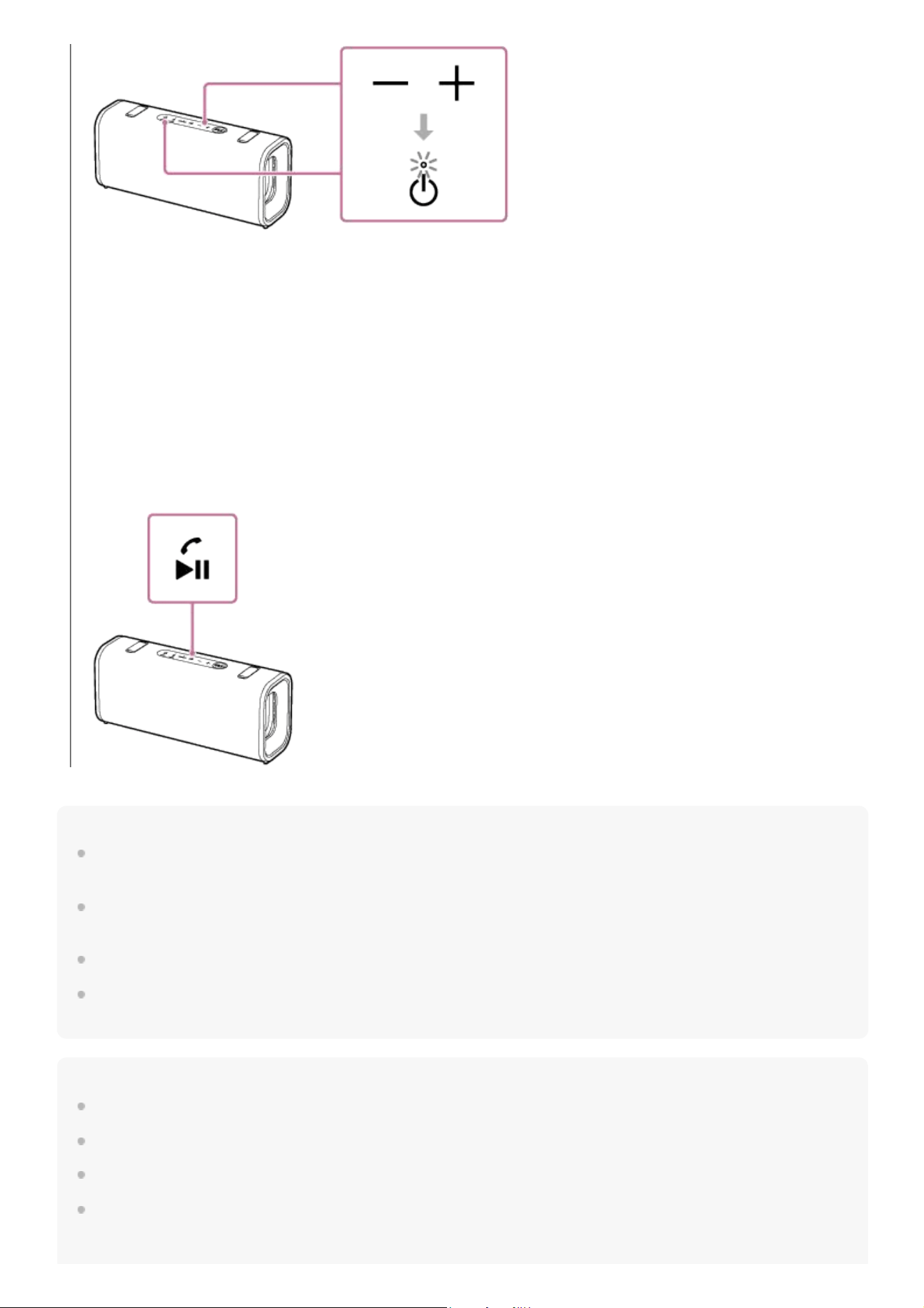
Pressing and holding the playback button on the speaker for about 5 seconds makes the speaker play the music track stored for
demonstration purposes. To disable this feature, press the playback button on the speaker once again.
Note
If the communication condition is poor, the BLUETOOTH device may react incorrectly to the operations on the speaker.
When using in a place with a high temperature, the volume may decrease to protect the built-in battery.
When the built-in battery is running low, the maximum speaker volume may decrease.
Depending on the BLUETOOTH device, it may be necessary to adjust the volume or set the audio output setting on the
connected device.
During playback, you can use the playback button on the speaker to perform the following operating procedures.
Pause
Press the playback button on the speaker during playback to pause. Press it again to cancel pause.
Skip to the beginning of the next track
Press the playback button on the speaker twice quickly during playback.
Skip to the beginning of the current or previous track (*)
Press the playback button on the speaker 3 times quickly during playback.
(*) The above operating procedures vary depending on the BLUETOOTH device in use.
49

Noise or sound interruption may occur depending on the BLUETOOTH device connected with the speaker, the communication
environment or the usage environment.
Related Topic
Parts and controls
Charging the speaker
Terminating the BLUETOOTH connection (After use)
5-064-345-11(1) Copyright 2025 Sony Corporation
50
Help Guide
Wireless Speaker
ULT FIELD 3
Selecting the quality for music playback via a BLUETOOTH connection (Codec)
The “Prioritize Sound Quality” and “Prioritize Stable Connection” preferences are available on the speaker for the
BLUETOOTH connection quality. The “Prioritize Sound Quality” preference provides compatibility not only with SBC but
also with AAC for music playback of high sound quality, whereas the “Prioritize Stable Connection” preference enables
music playback via more stable BLUETOOTH connections. At the time of purchase, the “Prioritize Sound Quality”
preference is selected.
Prioritize Sound Quality (default setting): Optimal codec is automatically selected from AAC and SBC.
Prioritize Stable Connection: SBC is selected.
Turn on the speaker.
You hear the notification sound from the speaker, and the BLUETOOTH indicator on the speaker flashes (*) in blue.
1
(*) If the BLUETOOTH device that has previously been connected with the speaker is located nearby, the speaker may be connected
automatically with the device. In such a case, the BLUETOOTH indicator on the speaker lights up in blue.
Change the BLUETOOTH connection quality.
When using the buttons of the speaker
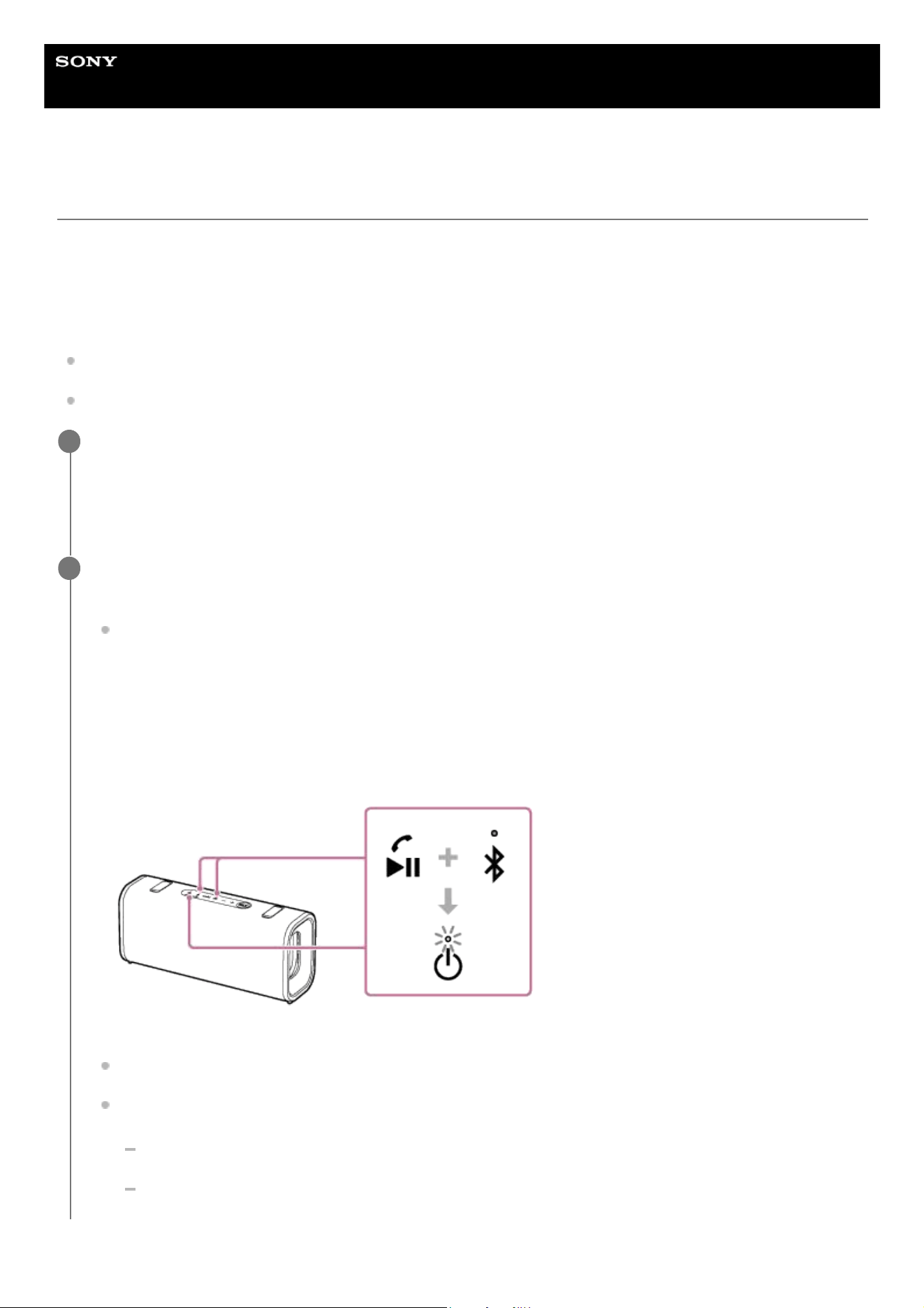
Press and hold the playback button and the BLUETOOTH button on the speaker simultaneously for about 2
seconds.
When the setting is changed to the “Prioritize Stable Connection” preference, the power indicator on the speaker
flashes 3 times in white.
When the setting is changed to the “Prioritize Sound Quality” preference, the power indicator on the speaker
flashes twice in white.
When the speaker is connected with BLUETOOTH devices, all the connections are automatically disconnected
and reestablished, and then the preference turns effective.
When using the “Sound Connect” app
Start the “Sound Connect” app.
Select either of the codec preferences through [Bluetooth Connection Quality].
[Prioritize Sound Quality]
[Prioritize Stable Connection]
2
51

Hint
As long as the speaker is connected to an AC outlet by a USB PD compatible AC adaptor, you can change the BLUETOOTH
connection quality while the speaker is turned off as well.
When using the Stereo Pair function or the Party Connect function, the codec automatically switches to SBC.
Note
While the “Prioritize Sound Quality” preference is selected, noise or sound interruption may occur depending on the setting of
your BLUETOOTH device and ambient conditions. In such a case, change the BLUETOOTH connection quality to the “Prioritize
Stable Connection” preference.
Related Topic
Parts and controls
Using the BLUETOOTH standby (auto power on) function
Supported codecs
What you can do with the “Sound Connect” app
5-064-345-11(1) Copyright 2025 Sony Corporation
52

Help Guide
Wireless Speaker
ULT FIELD 3
Supported codecs
A codec is an audio coding algorithm used for wirelessly transmitting audio via BLUETOOTH connections.
The speaker supports the following 2 codecs for music playback via an A2DP connection: SBC and AAC.
SBC
This is an abbreviation for Subband Codec.
SBC is the standard audio coding technology used by BLUETOOTH devices.
AAC
This is an abbreviation for Advanced Audio Coding.
AAC is mainly used by Apple products such as iPhone that can provide a higher sound quality than that of SBC.
When music in one of the above codecs is transmitted from a connected device, the speaker switches to that codec
automatically and plays back the music.
If the connected device supports a codec of higher sound quality than SBC, you may need to set the device beforehand
to enjoy music with the desired codec from the supported codecs.
Refer to the operating instructions supplied with the device regarding setting the codec.
Related Topic
Selecting the quality for music playback via a BLUETOOTH connection (Codec)
5-064-345-11(1) Copyright 2025 Sony Corporation
53
Help Guide
Wireless Speaker
ULT FIELD 3
Terminating the BLUETOOTH connection (After use)
When you finish playing music with the BLUETOOTH device, perform any of the following operations to terminate the
BLUETOOTH connection.
When the BLUETOOTH connection is disconnected, you hear the notification sound from the speaker.
Turn off the BLUETOOTH function on the BLUETOOTH device.
For details, refer to the operating instructions supplied with the device.
Turn off the BLUETOOTH device.
Turn off the speaker.
Hint
When using the Stereo Pair function, if you turn off one speaker, the other speaker is automatically turned off. The BLUETOOTH
connection between them is disconnected.
When you finish playing music, the BLUETOOTH connection may terminate automatically depending on the BLUETOOTH
device.
Related Topic
Turning the power off
Automatic Power Off (power saving) function
What you can do with the “Sound Connect” app
5-064-345-11(1) Copyright 2025 Sony Corporation
54
Help Guide
Wireless Speaker
ULT FIELD 3
Enjoying switching the sound effects
You can enjoy switching the sound effects on the speaker.
Enjoying enhanced bass sound (ULT button)
You can take either of the following procedures for setup. At the time of purchase, the ULT POWER SOUND setting is
activated.
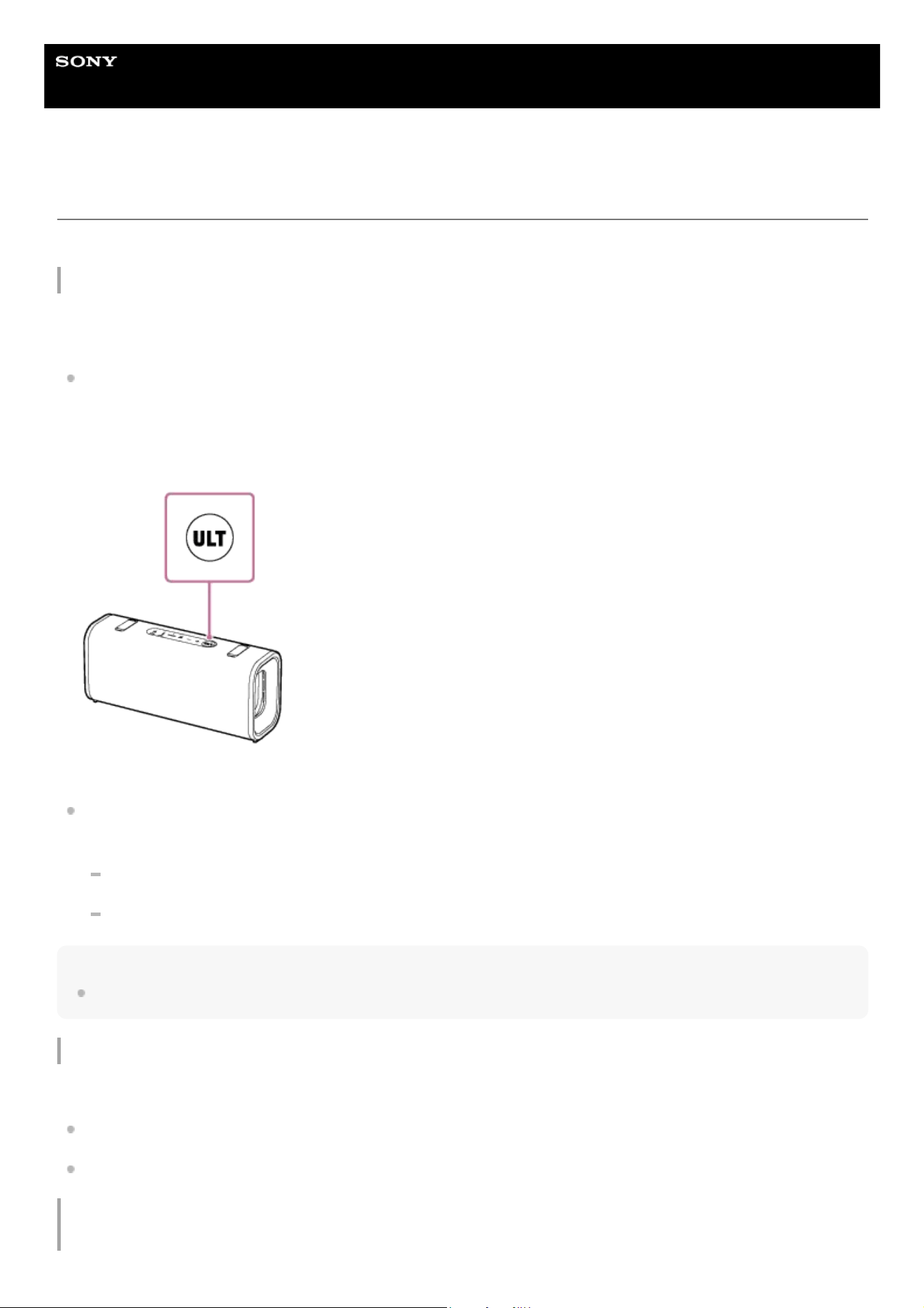
Press the ULT button on the speaker.
Each time you press the ULT button on the speaker, the ULT POWER SOUND setting switch between activated and
deactivated states.
Each time the setting is changed, you hear the notification sound from the speaker. At the same time, the ULT button
on the speaker lights up or goes out.
ULT POWER SOUND is a setting that emphasizes bass sound.
Use the “Sound Connect” app.
Tap [Sound Effect] on the “Sound Connect” app, and then select one of the following.
[Off]
[ULT POWER SOUND]
Hint
By using the “Sound Connect” app, you can enable or disable the sound when pressing the ULT button.
Adjusting the equalizer setting to your preference (CUSTOM)
On the “Sound Connect” app, tap the menu items in the following order to adjust the equalizer settings.
[Sound Effect] - [CUSTOM]
Tap [CUSTOM EQ] and adjusting the equalizer setting.
Automatically adjusting to the optimal sound according to the environment (Sound Field
Optimization)
55

This proprietary microphone sensing technology detects ambient noises around the speaker while playing music. Based
on the detected results, the speaker's sound is automatically adjusted and optimized. At the time of purchase, Sound
Field Optimization is activated.
To change the Sound Field Optimization setting
On the “Sound Connect” app, change the [Sound Field Optimization] setting.
Note
In some cases, the surrounding noise may prevent the sound from being optimized.
When using the following functions, the Sound Field Optimization setting is disabled.
The Stereo Pair function
The Party Connect function
The hands-free function
The STAMINA power option is disabled when the sound effects are enabled. The ULT POWER SOUND is included in the sound
effects.
Related Topic
Parts and controls
5-064-345-11(1) Copyright 2025 Sony Corporation
56
Help Guide
Wireless Speaker
ULT FIELD 3
Listening to music wirelessly with 2 speakers (Stereo Pair function)
To use the Stereo Pair function, 2 units of the ULT FIELD 3 are required. By connecting 2 speakers via a BLUETOOTH
connection, you can enjoy more powerful sound.
To provide stereo playback, one speaker connected via a BLUETOOTH connection plays the sound on the left channel
(left side). The other speaker connected via another BLUETOOTH connection plays the sound on the right channel (right
side).
Before operating the speaker, make sure of the following:
Update the pre-installed software to the latest version on each and every speaker to connect for the function.
When setting up the speakers for the Stereo Pair function, make sure that the 2 speakers to connect for the function
are located within 1 m (3.2 ft) from each other. Stop music playback if it is in progress.
When playing music, make sure that all of the devices to connect for the function are located within 30 m (98.4 ft) in
your line of sight.
Maximum communication range may shorten under the following conditions.
There is an obstacle such as a person, metal, or wall between the speaker and BLUETOOTH device.
A wireless LAN device is in use near the speaker.
A microwave oven is in use near the speaker.
A device that generates electromagnetic radiation is in use near the speaker.
Turn on both speakers.
The power indicator on the speaker lights up.
The BLUETOOTH indicator on the speaker flashes slowly.
If a previously connected BLUETOOTH device is nearby, the speaker may automatically connect to it. In this case,
either deactivate the BLUETOOTH function on the BLUETOOTH device or turn off the BLUETOOTH device itself.
When the speaker has no pairing information, the BLUETOOTH indicator on the speaker keeps double flashing in
blue. This applies to cases such as when using the BLUETOOTH function for the first time after purchase.
1
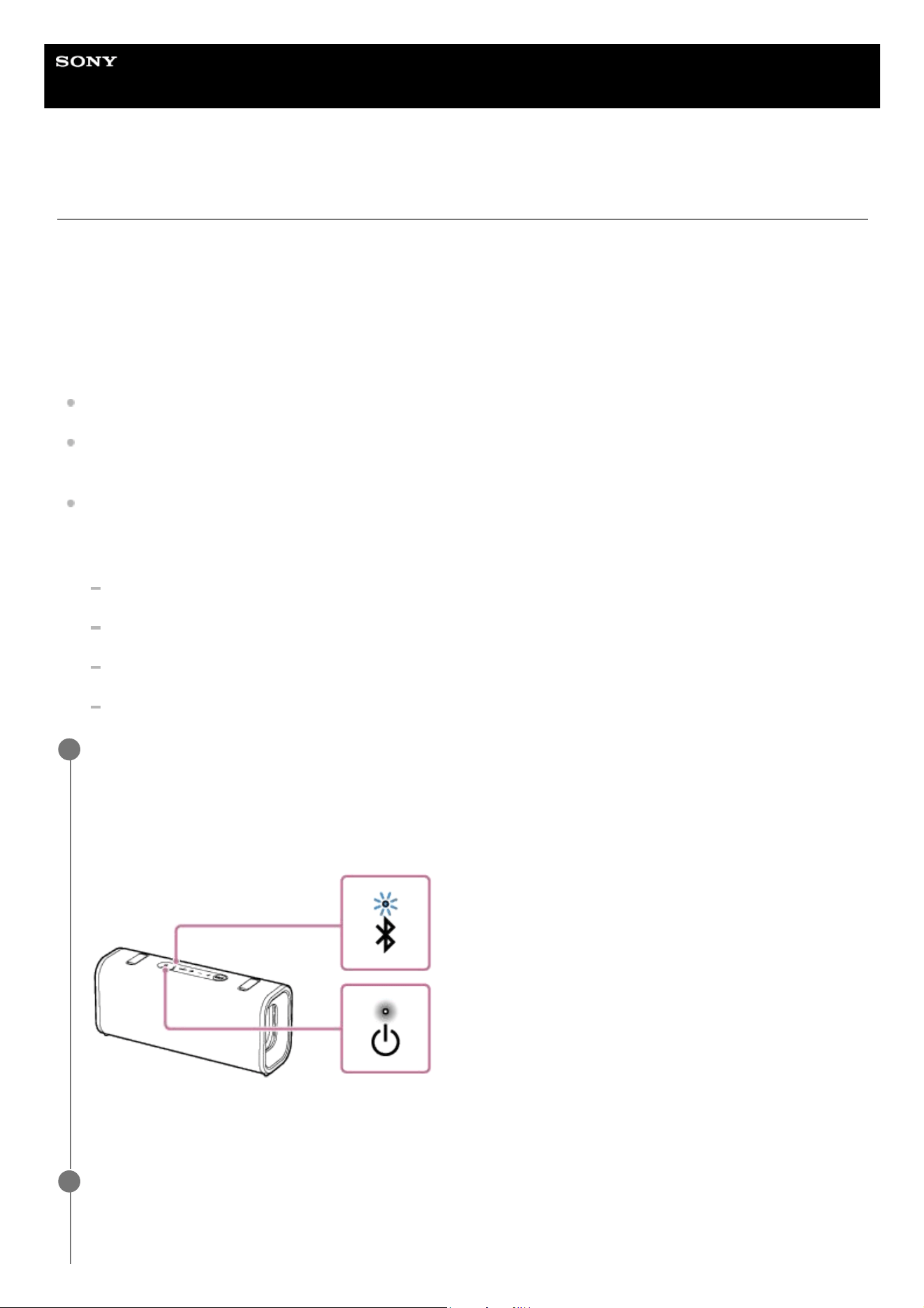
On either one of the speakers, press and hold the ST PAIR (Stereo Pair) button for about 2 seconds.
You hear the notification sound and the BLUETOOTH indicator and the ST PAIR (Stereo Pair) indicator on the
speaker flash slowly. In about 5 seconds, you will hear the notification sound from the speaker again, and the ST
2
57
PAIR (Stereo Pair) indicator on the speaker will stop flashing and stay lit.
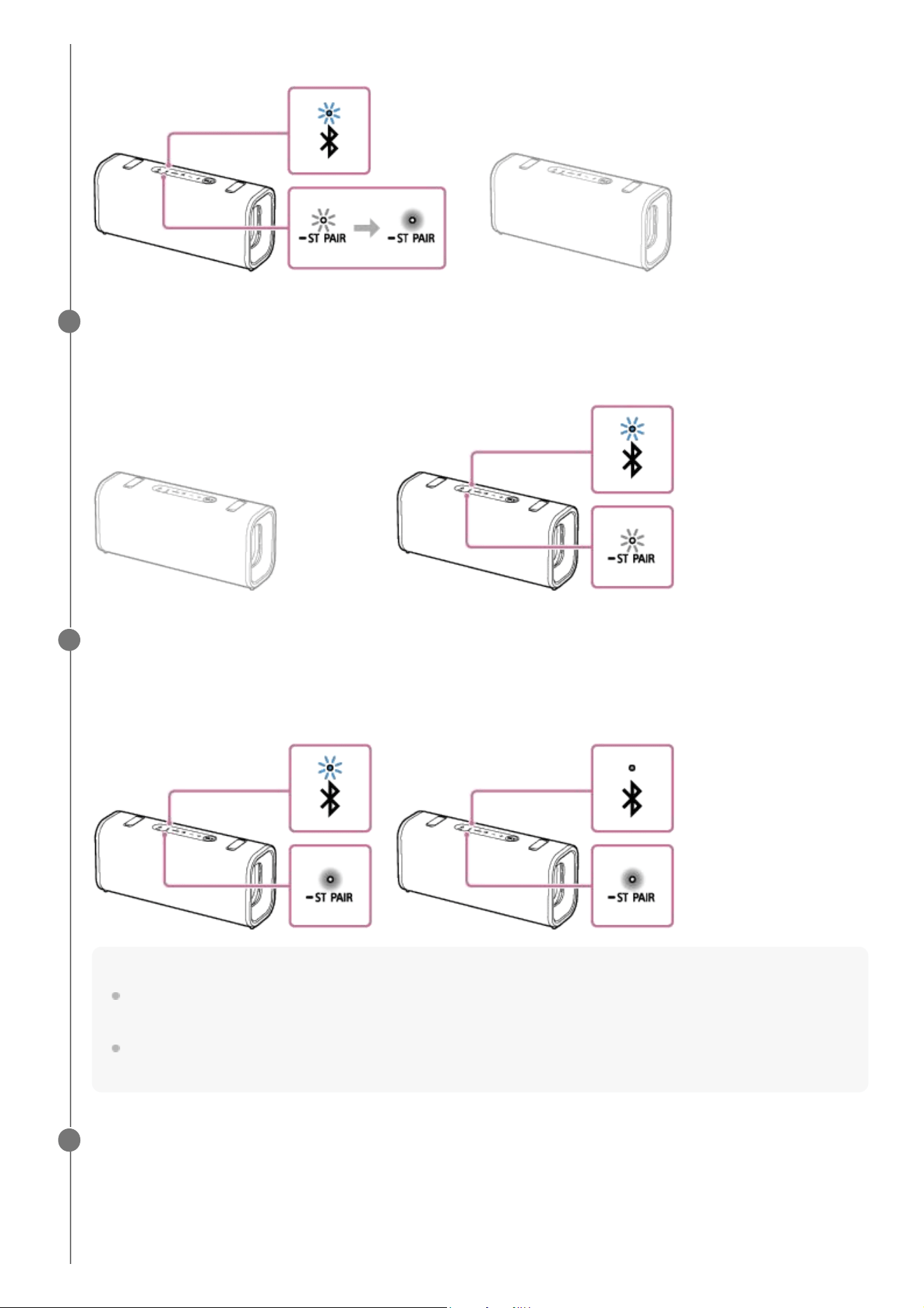
On the other speaker, press and hold the ST PAIR (Stereo Pair) button for about 2 seconds.
You hear the notification sound and the BLUETOOTH indicator and the ST PAIR (Stereo Pair) indicator on the
speaker flash slowly.
3
Check the state of the indicator on each of the 2 speakers.
When the speakers are connected by the Stereo Pair function, you hear voice guidance (Left/Right) from the
speaker. Then, the ST PAIR (Stereo Pair) indicators on both speakers stay lit and the BLUETOOTH indicator on the
second speaker turns off.
Hint
When the 2 speakers are immediately connected by the Stereo Pair function, the BLUETOOTH indicator and the ST PAIR
(Stereo Pair) indicator on the speaker may not flash and the ST PAIR (Stereo Pair) indicator may light instead.
Set up the second speaker within 1 minute. If you do not set it up within 1 minute, the setting of the first speaker will be
canceled.
4
Operate the speaker of which the BLUETOOTH indicator is flashing to establish a BLUETOOTH connection
with a BLUETOOTH device.
When the BLUETOOTH connection is established, you hear the notification sound from the speaker. Then, the
activity of the BLUETOOTH indicator on the speaker changes from flashing to lit.
5
58
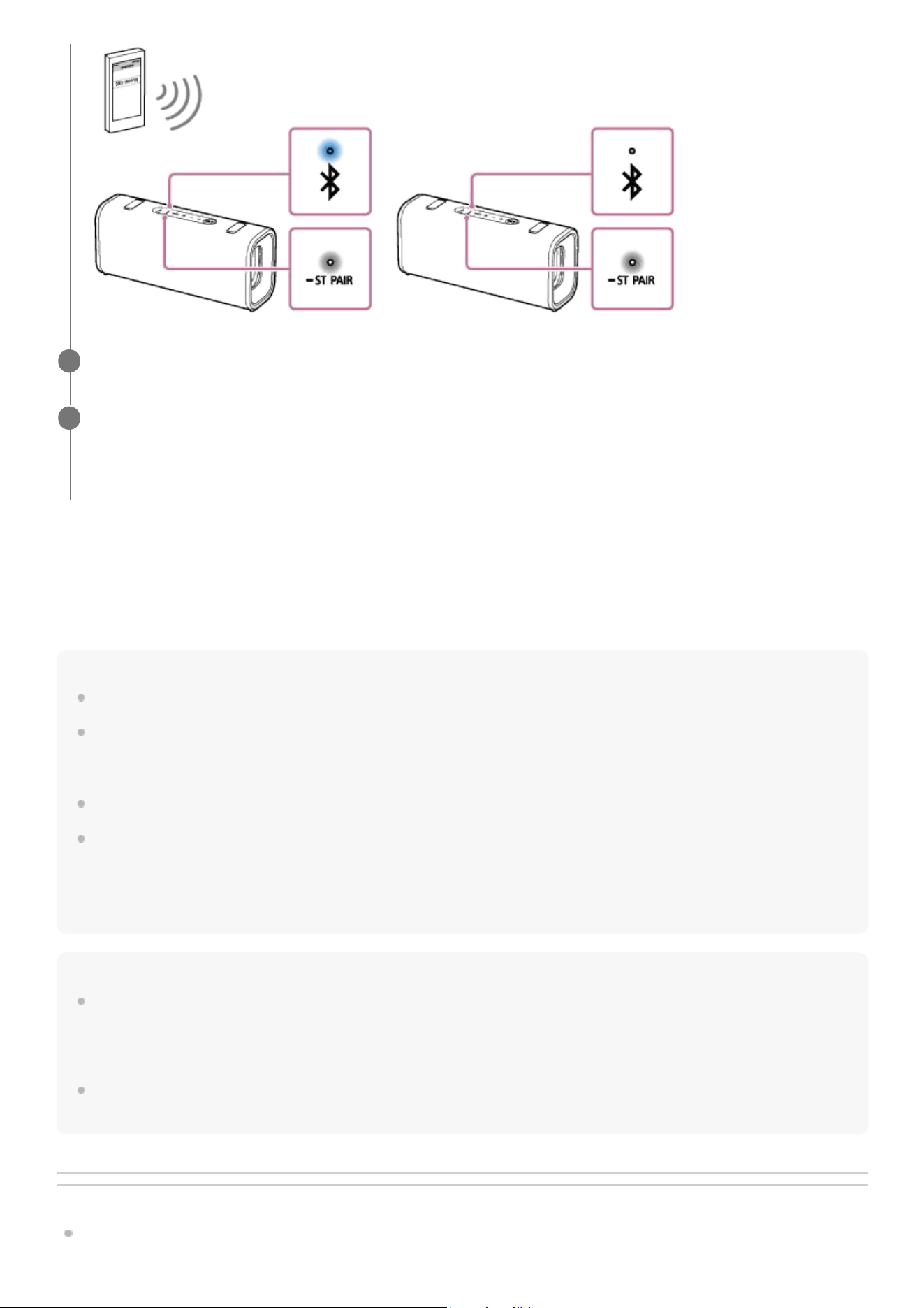
To terminate the Stereo Pair function
Press and hold the ST PAIR (Stereo Pair) button on one of the speakers for about 2 seconds until you hear the
notification sound.
The ST PAIR (Stereo Pair) indicator on the speaker turns off.
Hint
When making or receiving a call, only operate the speaker with the lit BLUETOOTH indicator.
If any other BLUETOOTH devices, such as a BLUETOOTH mouse or BLUETOOTH keyboard, are connected to the
BLUETOOTH device that is connected to the speaker, there may be distorted sound or noise in the speaker output. In this case,
terminate the BLUETOOTH connection between the BLUETOOTH device and other BLUETOOTH devices.
When using the Stereo Pair function, the codec automatically switches to SBC.
Turning off the speakers does not turn off the Stereo Pair function. When one of the speakers is turned back on, it attempts to
establish a connection for the Stereo Pair function. To use the Stereo Pair function, turn on the other speaker within 1 minute.
However, when the BLUETOOTH standby function remains active (*) on both of the speakers, turning on either of the speakers
automatically turns on the other and establish a connection for the Stereo Pair function between the speakers.
Note
After you restart or initialize either of the speakers while the Stereo Pair function is activated, be sure to press the ST PAIR
(Stereo Pair) button on the other speaker to terminate the Stereo Pair function. If you continue to use the speaker without
terminating the Stereo Pair function, you will have a problem, such as a failure to establish a BLUETOOTH connection or a sound
interruption.
While the Stereo Pair function is activated, any attempt, which is made from the connected BLUETOOTH device, to start the
second speaker fails.
Related Topic
Parts and controls
Start playback on the BLUETOOTH device, and adjust the volume to an adequate level.
6
Press the volume buttons on one of the speakers to adjust the volume.
Volume adjustment of one speaker is reflected in the other.
For stereo playback, the speaker with the lit BLUETOOTH indicator is set to the left channel (left side).
7
(*) The BLUETOOTH standby function is activated only while the speaker is connected to an AC outlet by a USB PD compatible AC adaptor.
59

Help Guide
Wireless Speaker
ULT FIELD 3
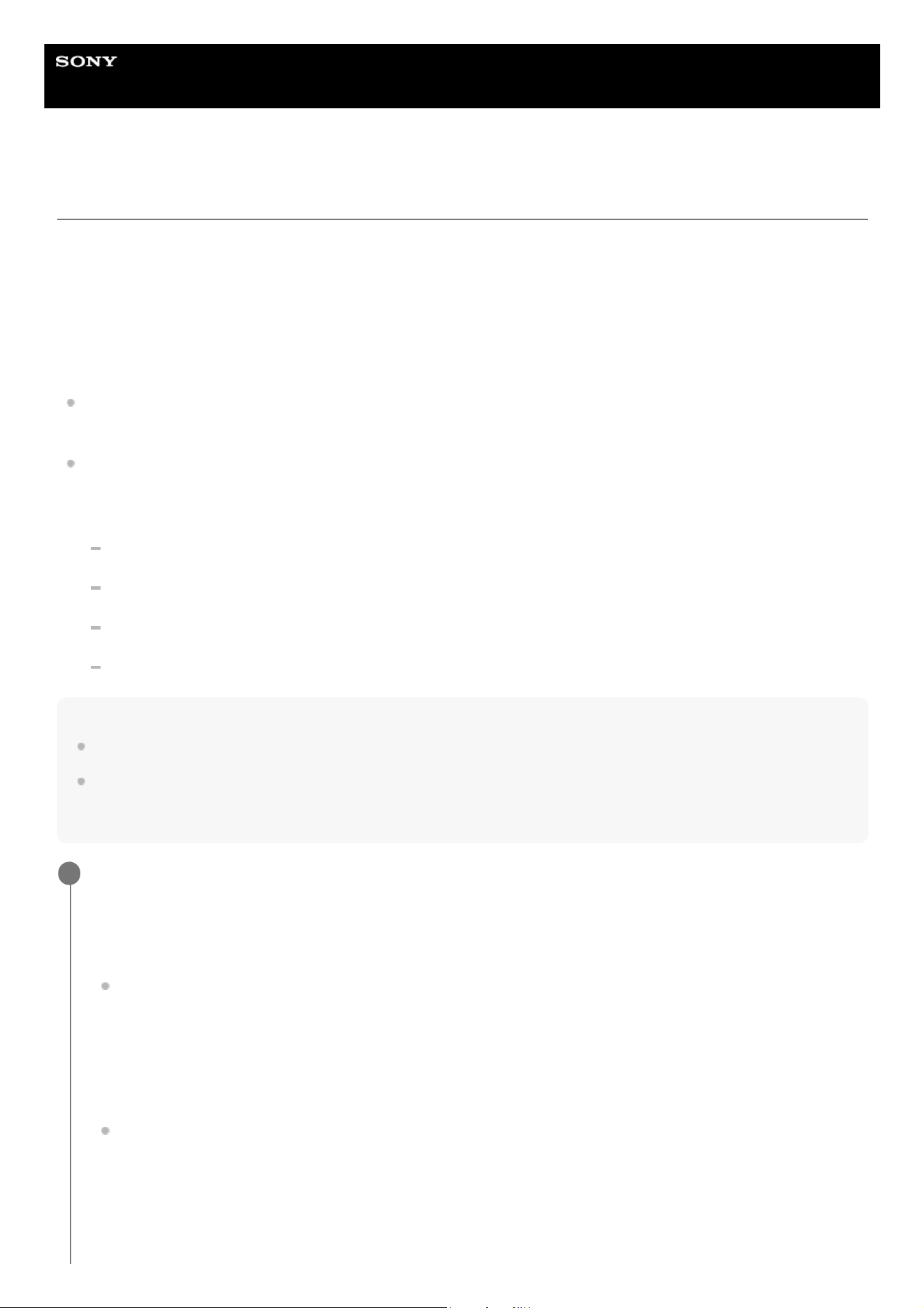
Enjoying wireless playback using multiple speakers (Party Connect function)
You can connect multiple speakers compatible with the Party Connect function via BLUETOOTH connections and enjoy
music playback. Up to 100 speakers can be connected.
Devices compatible with the Wireless Party Chain function are not applicable for connection.
For information about devices compatible with the Party Connect function, refer to the following URL:
https://www.sony.net/partyconnect-dvc/
Before operating the speaker, make sure of the following:
When setting up the speakers for the Party Connect function, make sure that all of the speakers to connect for the
function are located within 1 m (3.2 ft). Stop music playback if it is in progress.
When playing music, make sure that all of the devices to connect for the function are located within 30 m (98.4 ft) in
your line of sight.
Maximum communication range may shorten under the following conditions.
There is an obstacle such as a person, metal, or wall between the speaker and BLUETOOTH device.
A wireless LAN device is in use near the speaker.
A microwave oven is in use near the speaker.
A device that generates electromagnetic radiation is in use near the speaker.
Hint
Update the pre-installed software to the latest version on each and every speaker to be connected via the Party Connect function.
Speakers that require the “Music Center” app to use the Party Connect function cannot connect to ULT FIELD 3 using the “Music
Center” app. To connect, update the software of the speakers to the latest version, and you will be able to connect to ULT FIELD
3 using the speaker buttons. For details, refer to the Help Guide for the speakers.
Set up the first speaker.
The following operating procedure is an example of setting ULT FIELD 3 as the first speaker. Refer to the operating
instructions supplied with the device you are using to set up other devices compatible with the Party Connect
function.
Press the power button on the speaker.
The BLUETOOTH indicator on the speaker flashes slowly.
If the BLUETOOTH device which has been connected before is nearby, the speaker may be connected to the
device automatically, and then the BLUETOOTH indicator on the speaker may be lit.
When the speaker has no pairing information, the BLUETOOTH indicator on the speaker keeps double flashing
in blue. This applies to cases such as when using the BLUETOOTH function for the first time after purchase.
Connect the BLUETOOTH device to the speaker via a BLUETOOTH connection.
When the BLUETOOTH connection is established, you hear the notification sound from the speaker. Then, the
activity of the BLUETOOTH indicator on the speaker changes from flashing to lit.
1
61
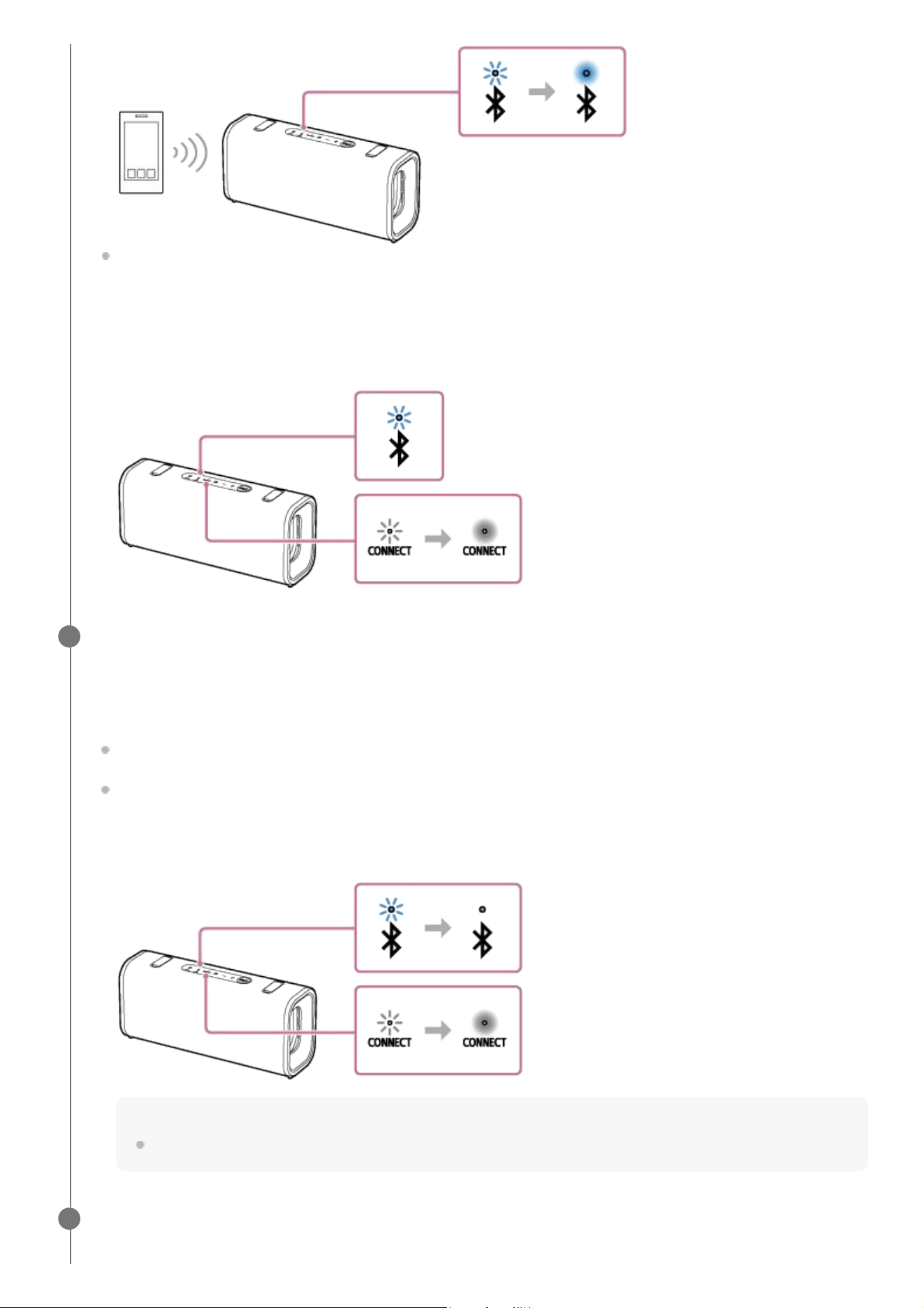
Press the CONNECT button on the speaker.
You hear the notification sound from the speaker. Then, the BLUETOOTH indicator and the CONNECT indicator
on the speaker flash slowly. In about 5 seconds, you will hear the notification sound from the speaker again, and
the CONNECT indicator on the speaker will stop flashing and stay lit. While a connection for the Party Connect
function is being established, the activity of the BLUETOOTH indicator on the speaker changes from lit to
flashing.
Set up a second speaker.
The following operation is an example of connecting ULT FIELD 3 as the second speaker. Refer to the operating
instructions supplied with the device you are using to connect other devices compatible with the Party Connect
function.
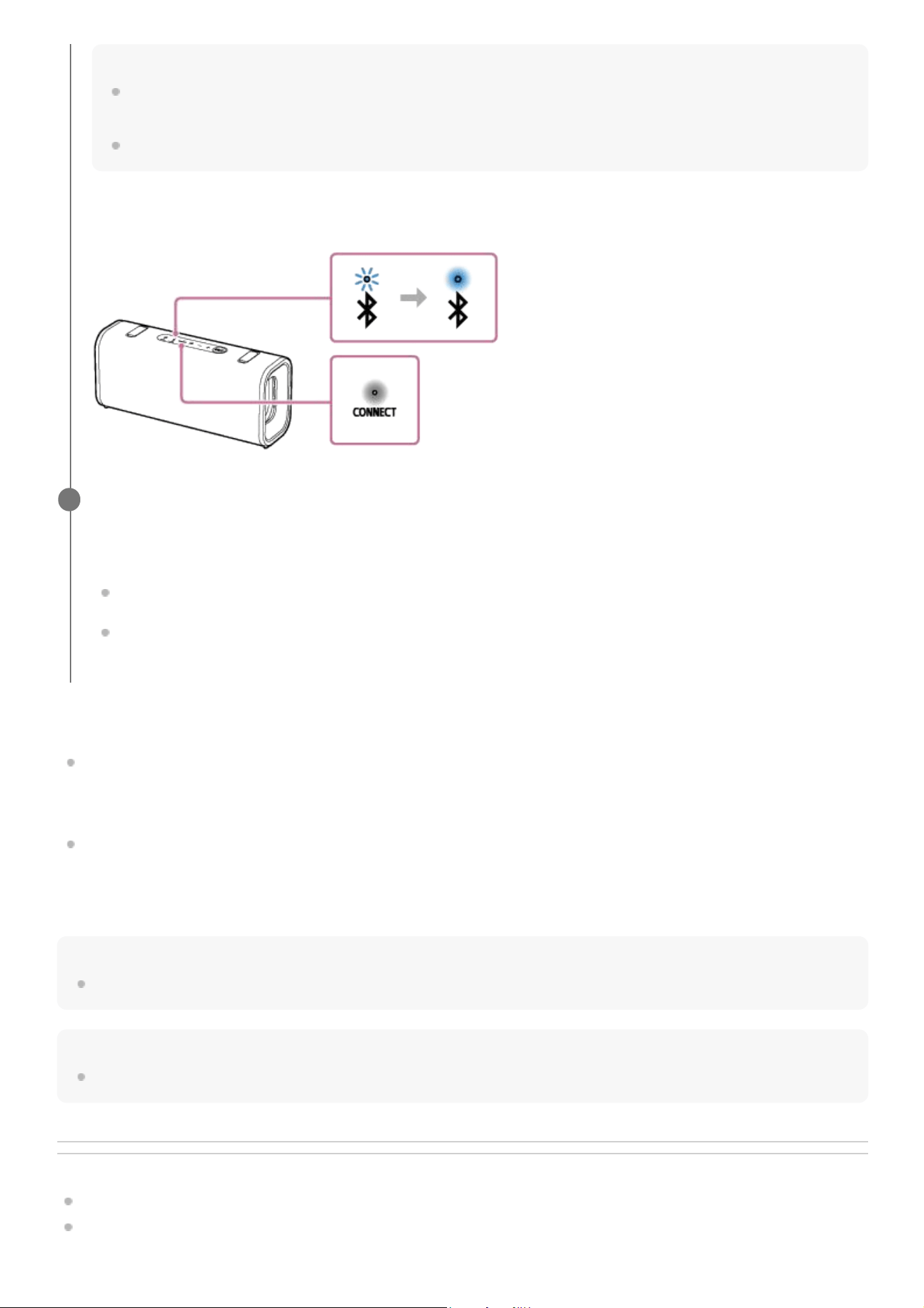
Press the power button on the speaker.
Press the CONNECT button on the speaker.
You hear the notification sound from the speaker. Then, the BLUETOOTH indicator and the CONNECT indicator
on the speaker flash slowly. When the speaker is connected to the first speaker, the BLUETOOTH indicator on
the speaker turns off. Then, the CONNECT indicator on the speaker stops flashing and stays lit.
Hint
Connect the second speaker within 1 minute. After 1 minute or more, the speaker setting is canceled.
2
Set up a third and subsequent speakers.
To connect additional speakers, repeat step 2.
3
62
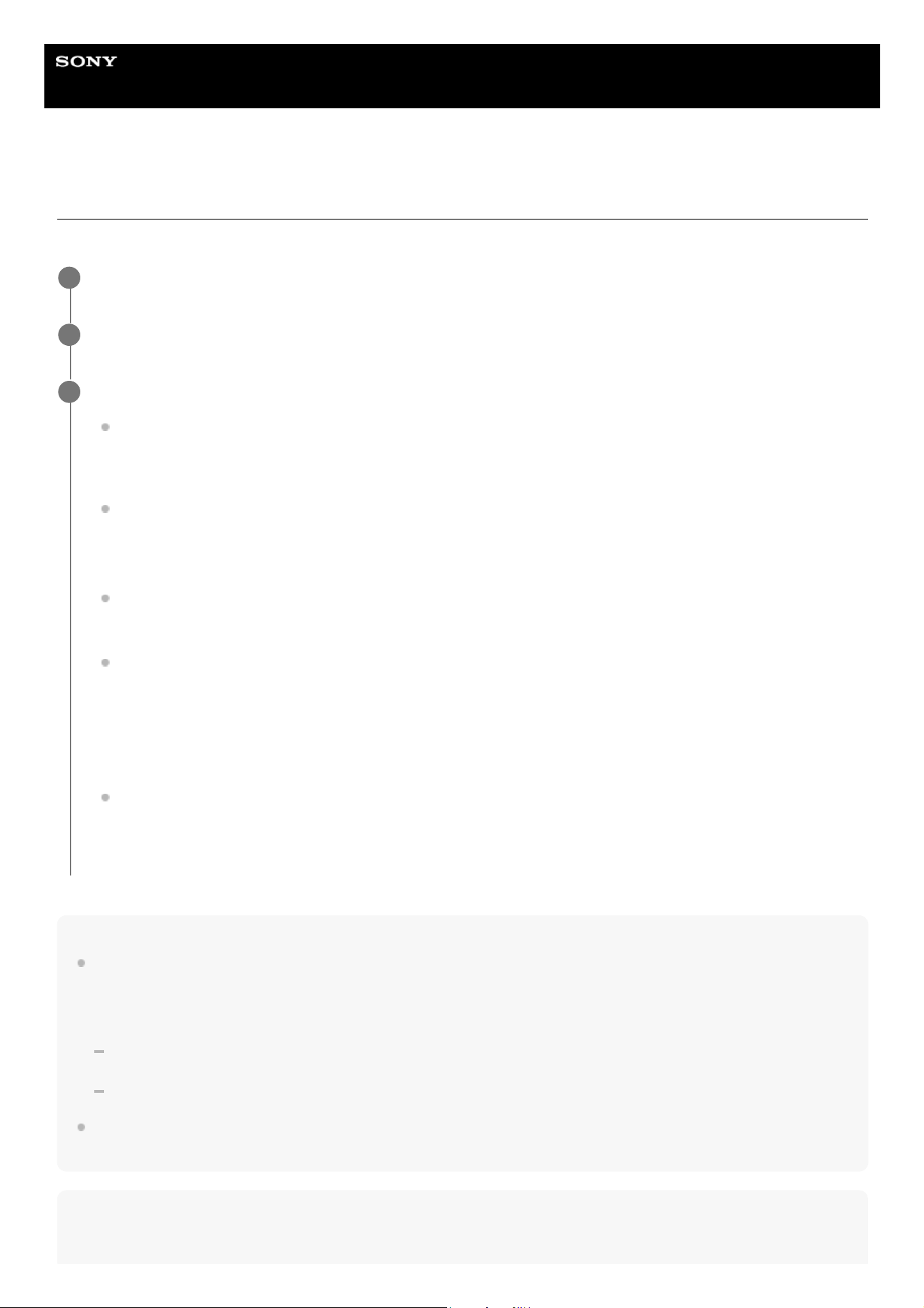
To terminate the Party Connect function
To terminate all connections and exit the Party Connect function
Press and hold the CONNECT button on the speaker that is set up as the first speaker. When you keep pressing it,
you hear a notification sound from the speaker and the CONNECT indicator turns off.
To terminate only 1 speaker
Select the second or any subsequent speaker you want to terminate from the Party Connect function. Press and hold
the CONNECT button on the selected speaker until you hear a notification sound from the speaker. Then, the
CONNECT indicator turns off.
Hint
When using the Party Connect function, the codec automatically switches to SBC.
Note
When watching movies using the Party Connect function, there may be a gap between video and audio.
Related Topic
Parts and controls
How to keep the software up-to-date (for comfortable use of the speaker)
Hint
When connecting a third or subsequent speaker, set up each one within 30 seconds of setting up the last speaker. After 30
seconds or more, the speaker cannot be connected.
If you want to add another speaker after 30 seconds or more have passed, press the CONNECT button on the first speaker.
When a connection for the Party Connect function is established, the CONNECT indicators on all the speakers stay
lit. Then, the activity of the BLUETOOTH indicator on the first speaker changes from flashing to lit.
Start playback on the connected BLUETOOTH device and adjust the volume.
The same music is played from all speakers.
To adjust the volume of all speakers at the same time, adjust the volume of the following devices.
The connected BLUETOOTH device
The speaker set up first
For other speakers, a second or later speaker connected, you can also adjust the volume on each other.
4
63

5-064-345-11(1) Copyright 2025 Sony Corporation
64
Help Guide
Wireless Speaker
ULT FIELD 3
Making a video call on a computer
During a video call on a computer, you can use the speaker for wireless phone talking.
Hint
When you cannot view the settings of the video call application or select [Headset earphone (ULT FIELD 3 Hands-Free)] or
[Headset microphone (ULT FIELD 3 Hands-Free)], the BLUETOOTH profile for phone talking (HFP/HSP connection), select
[Headset earphone (ULT FIELD 3 Hands-Free)] or [Headset microphone (ULT FIELD 3 Hands-Free)] for the settings on the
computer, and then establish a connection. For details, see the following topics.
Connecting with a computer via a BLUETOOTH connection (Windows
®
)
Connecting with a computer via a BLUETOOTH connection (Mac)
On a Mac computer, the BLUETOOTH profiles both for music playback (A2DP) and for phone talking (HFP/HSP connection) are
used for video calls and profile selection is not required.
Note
Connect the speaker with a computer via a BLUETOOTH connection.
1
Start up a video call application on the computer.
2
View the settings
*1
of the video call application.
For video calls on the computer, select the BLUETOOTH profile not for music playback (A2DP) but for phone
talking (HFP/HSP connection). While the BLUETOOTH profile for music playback (A2DP connection) is
selected, phone talking may not be available.
For the speaker settings, select [Headset earphone (ULT FIELD 3 Hands-Free)]
*2
, the BLUETOOTH profile for
phone talking (HFP/HSP connection). ([Speakers (ULT FIELD 3 Stereo)]
*2
is the BLUETOOTH profile for music
playback.)
For the microphone settings, select [Headset microphone (ULT FIELD 3 Hands-Free)]
*2
, the BLUETOOTH
profile for phone talking (HFP/HSP connection).
Depending on your video call application, selection of [Headset earphone (ULT FIELD 3 Hands-Free)]
*2
or
[Headset microphone (ULT FIELD 3 Hands-Free)]
*2
, the BLUETOOTH profile for phone talking (HFP/HSP
connection), or [Speakers (ULT FIELD 3 Stereo)]
*2
, the BLUETOOTH profile for music playback (A2DP
connection), may not be available for the speaker or microphone settings, and only [ULT FIELD 3] may be
displayed. In such a case, select [ULT FIELD 3].
For frequently asked questions and the answers to them, visit the customer support website.
3
Depending on your video call application, this function may not be available.
*1
Labels may vary depending on your computer or video call application.
*2
65

When the speaker is connected with a Mac computer and a smartphone in multipoint connection, the video call application may
fail to function properly. In such a case, terminate the BLUETOOTH connection between the speaker and the smartphone.
Related Topic
Connecting the speaker concurrently with 2 BLUETOOTH devices (multipoint connection)
Terminating the BLUETOOTH connection (After use)
Troubleshooting
5-064-345-11(1) Copyright 2025 Sony Corporation
66
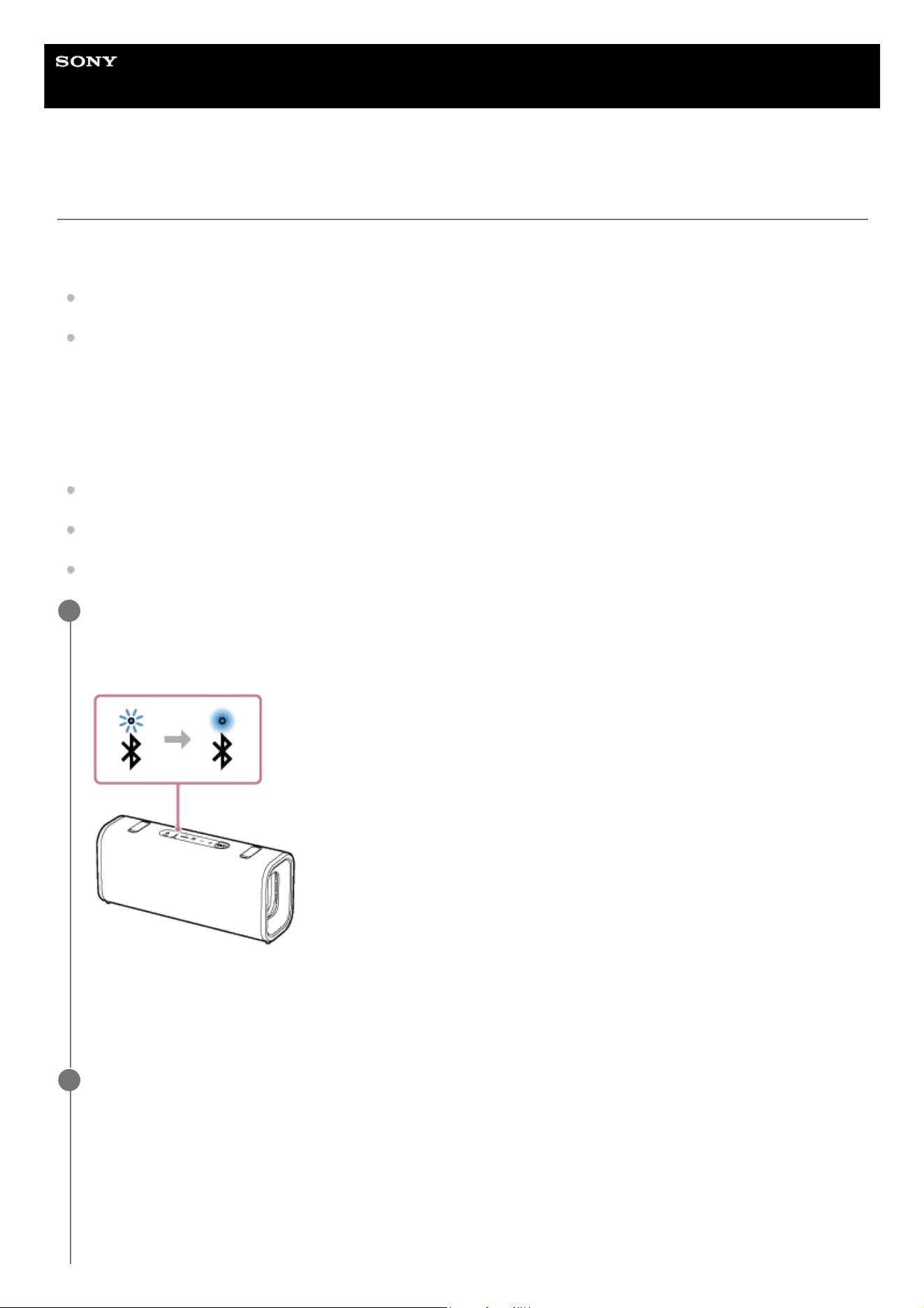
Help Guide
Wireless Speaker
ULT FIELD 3
Receiving a call
You can enjoy hands-free calls with a smartphone or mobile phone that supports the BLUETOOTH profile HFP (Hands-
free Profile) or HSP (Headset Profile) via a BLUETOOTH connection.
If your smartphone or mobile phone supports both HFP and HSP, set it to HFP.
Operations may vary depending on the smartphone or mobile phone. Refer to the operating instructions supplied with
the smartphone or mobile phone.
About ring tones
When an incoming call arrives, playback pauses and a ring tone will be heard via the speaker.
The ring tone varies in the following ways, depending on your smartphone or mobile phone.
Ring tone set on the speaker
Ring tone set on the smartphone or mobile phone
Ring tone set on the smartphone or mobile phone only for a BLUETOOTH connection
Connect the speaker with a smartphone or mobile phone.
When the BLUETOOTH connection is established, you hear the notification sound from the speaker. Then, the
activity of the BLUETOOTH indicator on the speaker changes from flashing to lit.
When using the Stereo Pair function
Connect to the speaker whose BLUETOOTH indicator flashes in blue. If you want to control a hands-free call using
the speaker, be sure to use the speaker you have connected.
1
Press the call button on the speaker when a call is received.
Talk into the microphone on the top surface of the speaker.
When an incoming call arrives, playback pauses and a ring tone is heard via the speaker.
2
67
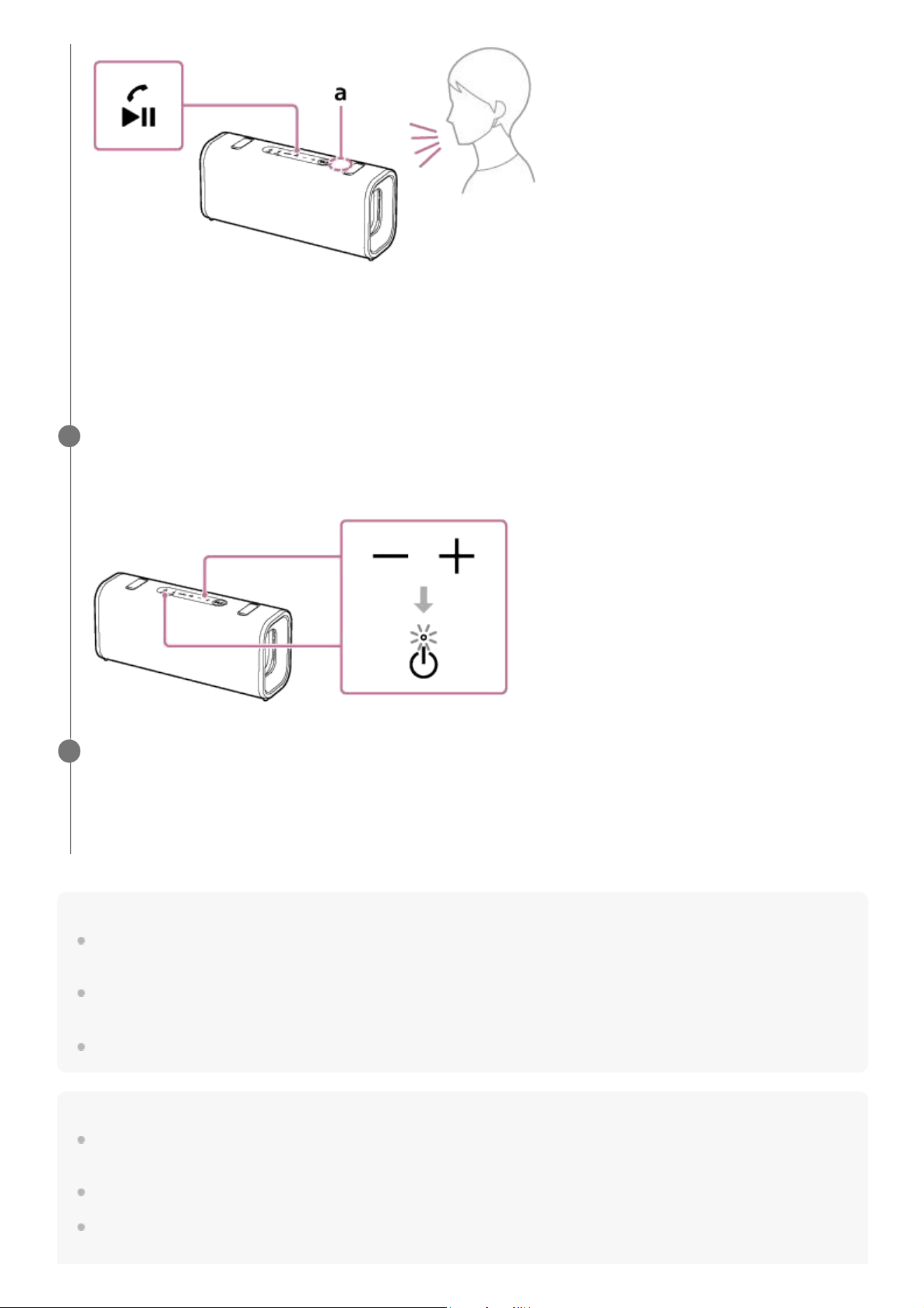
Hint
Some smartphones or mobile phones have handset use priority when receiving a call. In the case of the HFP/HSP connection,
switch the call device to the speaker by operating your smartphone or mobile phone.
When the caller is unable to hear or having trouble with hearing your voice, lean closer to the speaker and then talk into its
microphone.
The volume of music playback and calling is set independently in the speaker.
Note
When using the Stereo Pair function or the Party Connect function, the sound of the phone call is output from only the speaker
with the blue lit BLUETOOTH indicator.
Depending on the smartphone or mobile phone, playback may not pause when an incoming call arrives.
Use a smartphone or mobile phone at least 50 cm (1.6 ft) away from the speaker. Noise may result if the speaker and the
smartphone or mobile phone are too close.
“a” in the illustration indicates the location of the speaker's microphone.
If no ring tone is heard via the speaker
The speaker may not be connected with a smartphone or mobile phone with HFP or HSP. Check the connection
status on the smartphone or mobile phone.
Adjust the volume while the phone is ringing or a phone conversation is in progress.
Press the volume buttons on the speaker or operate the smartphone or mobile phone.
The power indicator on the speaker flashes once or 3 times.
3
To end a call, press the call button on the speaker.
If you were listening to music before the call, playback will resume when the call ends. If you end a call by operating
the smartphone or mobile phone, playback will also resume when the call ends if you were listening to music before
the call.
4
68

Depending on the model of your smartphone or mobile phone, the operation system or applications installed, some functions of
hands-free calling may not be used correctly.
Related Topic
Parts and controls
Pairing and connecting with BLUETOOTH devices
Terminating the BLUETOOTH connection (After use)
Making a call
5-064-345-11(1) Copyright 2025 Sony Corporation
69
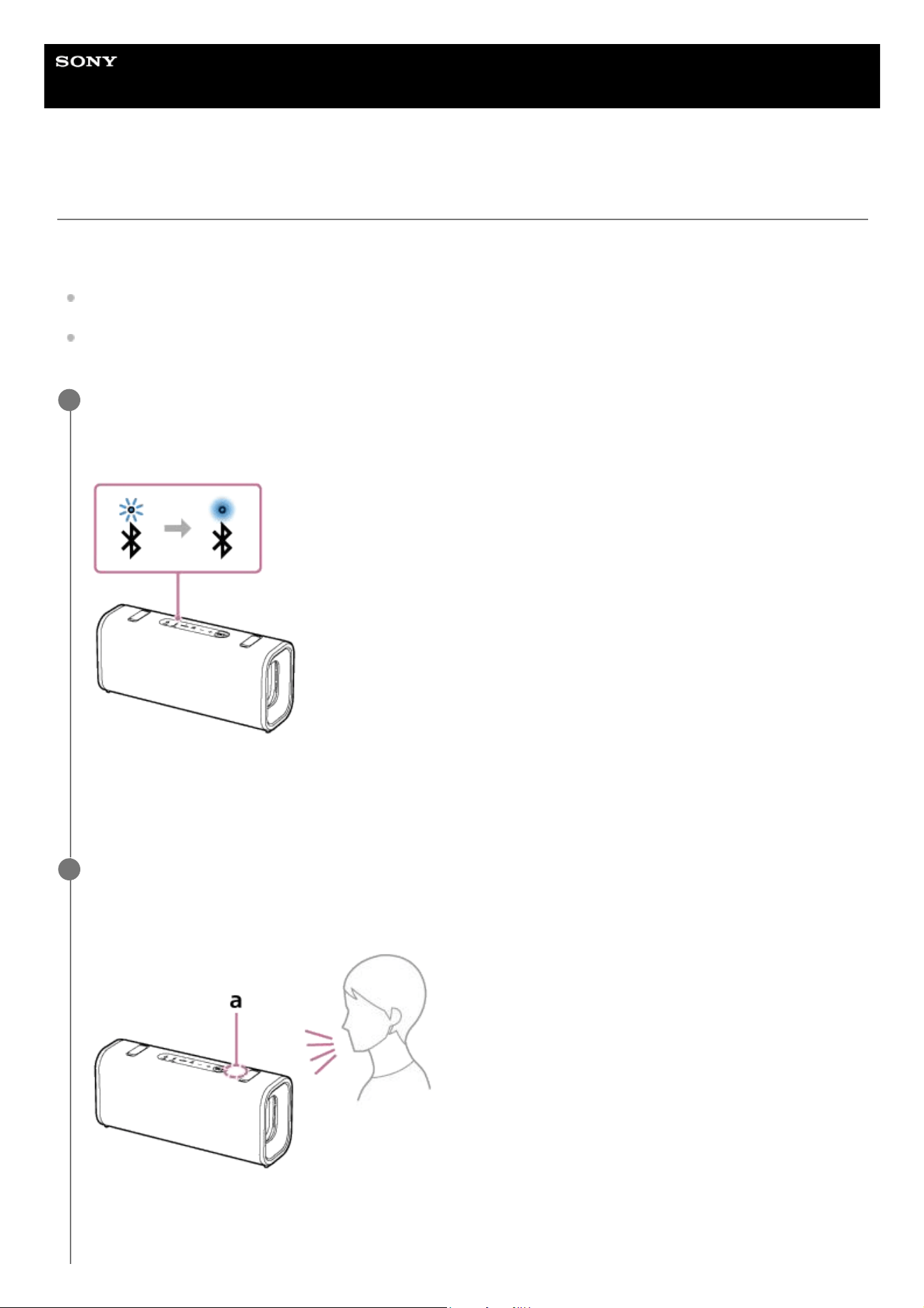
Help Guide
Wireless Speaker
ULT FIELD 3
Making a call
You can enjoy hands-free calls with a smartphone or mobile phone that supports the BLUETOOTH profile HFP (Hands-
free Profile) or HSP (Headset Profile) via a BLUETOOTH connection.
If your smartphone or mobile phone supports both HFP and HSP, set it to HFP.
Operations may vary depending on the smartphone or mobile phone. Refer to the operating instructions supplied with
the smartphone or mobile phone.
Connect the speaker with a smartphone or mobile phone.
When the BLUETOOTH connection is established, you hear the notification sound from the speaker. Then, the
activity of the BLUETOOTH indicator on the speaker changes from flashing to lit.
When using the Stereo Pair function
Connect to the speaker whose BLUETOOTH indicator flashes in blue. If you want to control a hands-free call using
the speaker, be sure to use the speaker you have connected.
1
Operate the smartphone or mobile phone to make a call.
When you make a call, playback pauses and the dial tone is heard via the speaker.
When the receiver takes the call, talk into the microphone on the top surface of the speaker.
“a” in the illustration indicates the location of the speaker's microphone.
If no dial tone is heard via the speaker
2
70
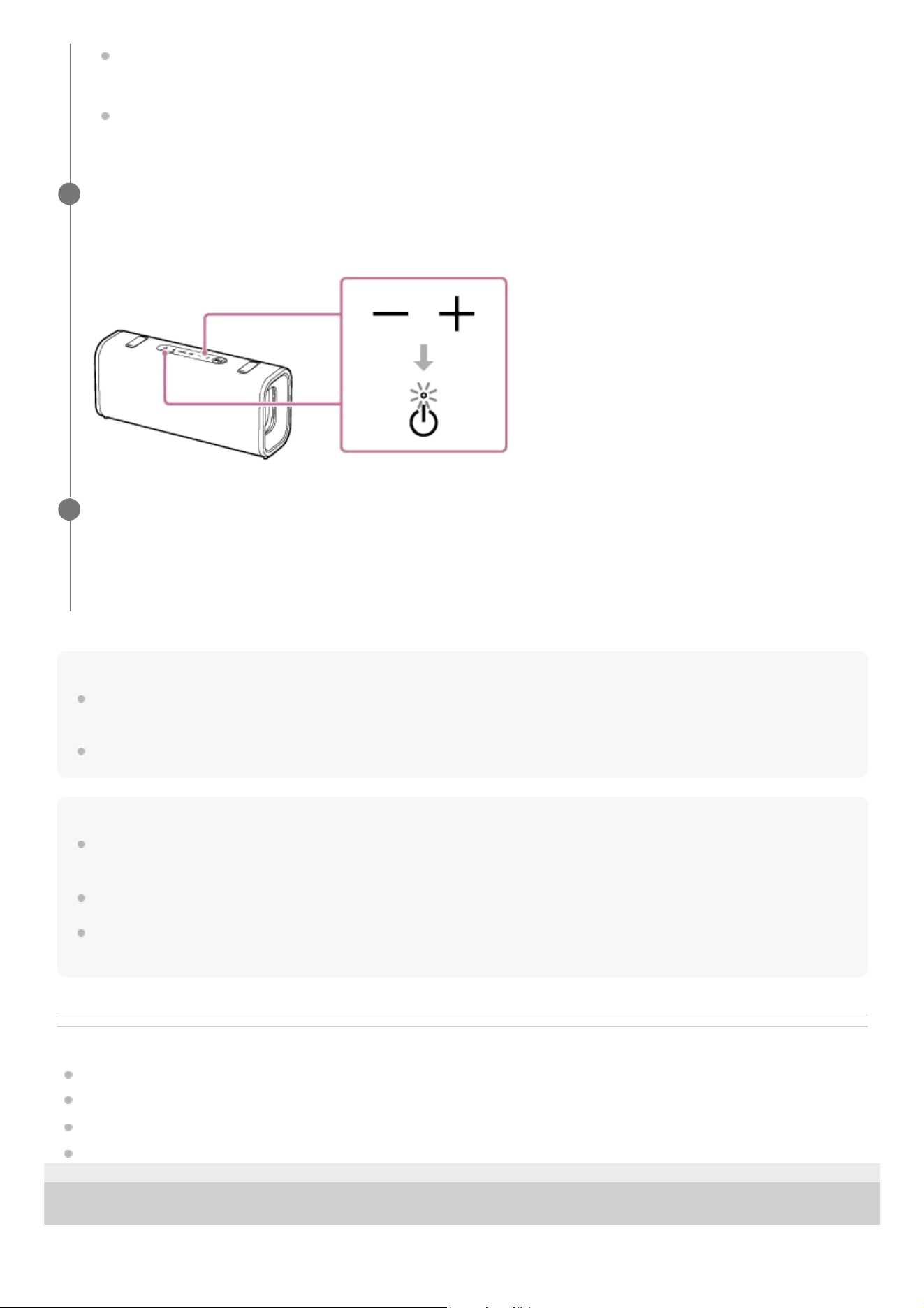
Hint
When the receiver is unable to hear or having trouble with hearing your voice, lean closer to the speaker and then talk into its
microphone.
The volume of music playback and calling is set independently in the speaker.
Note
When using the Stereo Pair function or the Party Connect function, the sound of the phone call is output only from the speaker
with the blue lit BLUETOOTH indicator.
Depending on the smartphone or mobile phone, playback may not pause when making a call.
Use a smartphone or mobile phone at least 50 cm (1.6 ft) away from the speaker. Noise may result if the speaker and the
smartphone or mobile phone are too close.
Related Topic
Parts and controls
Pairing and connecting with BLUETOOTH devices
Terminating the BLUETOOTH connection (After use)
Receiving a call
5-064-345-11(1) Copyright 2025 Sony Corporation
The speaker may not be connected with a smartphone or mobile phone with HFP or HSP. Check the connection
status on the smartphone or mobile phone.
Switch the call device to the speaker by pressing and holding the call button on the speaker for about 2
seconds.
Adjust the volume while the phone is ringing or a phone conversation is in progress.
Press the volume buttons on the speaker or operate the smartphone or mobile phone.
The power indicator on the speaker flashes once or 3 times.
3
To end a call, press the call button on the speaker.
If you were listening to music before the call, playback will resume when the call ends. If you end a call by operating
the smartphone or mobile phone, playback will also resume when the call ends if you were listening to music before
the call.
4
71

Help Guide
Wireless Speaker
ULT FIELD 3
What you can do with the “Sound Connect” app
The “Sound Connect” app allows you to do the following.
Operations that can be performed on a speaker with the “Sound Connect” app
Update the speaker software.
Specify the Notification & Voice Guide settings.
Select the Bluetooth Connection Quality. Prioritize Sound Quality or Prioritize Stable Connection.
Turn off the speaker.
Enable or disable the Battery Care mode.
Activate or deactivate the Bluetooth Standby function.
Specify the Automatic Power Off function settings.
Enable or disable the STAMINA power option.
Change the devices in multipoint connection.
View the version of the speaker software.
View the state of the BLUETOOTH connection between the speaker and the smartphone.
View the BLUETOOTH connection codec.
View the remaining power of the speaker's rechargeable battery.
View the state of the Stereo Pair function or the Party Connect function.
Set the sound quality and adjust the Equalizer settings.
Start or pause music playback. Skip to the beginning of the previous, current, or next music track.
Adjust the volume for music playback or phone calling.
Use Easy pairing.
Use the Party function (DJ Control).
Hint
What you can control with the “Sound Connect” app varies depending on the connected device. The specifications and design of
the app may change without notice.
Related Topic
Connecting the speaker concurrently with 2 BLUETOOTH devices (multipoint connection)
72

Listening to music of a device via a BLUETOOTH connection
Selecting the quality for music playback via a BLUETOOTH connection (Codec)
Enjoying switching the sound effects
Listening to music wirelessly with 2 speakers (Stereo Pair function)
Enjoying wireless playback using multiple speakers (Party Connect function)
Installing the “Sound Connect” app
How to keep the software up-to-date (for comfortable use of the speaker)
5-064-345-11(1) Copyright 2025 Sony Corporation
73
Help Guide
Wireless Speaker
ULT FIELD 3
Installing the “Sound Connect” app
Related Topic
What you can do with the “Sound Connect” app
5-064-345-11(1) Copyright 2025 Sony Corporation
Download the “Sound Connect” app, and install the app on your smartphone.
For models of countries and regions excluding Chinese mainland:
The “Sound Connect” app can be downloaded from the Google Play store or App Store.
For models of Chinese mainland:
The “Sound Connect” app can be downloaded from the Sony Style or App Store.
1
When the installation is complete, start the “Sound Connect” app.
2
74

Help Guide
Wireless Speaker
ULT FIELD 3
Accessing support information from the “Sound Connect” app
You can access the latest support information from the “Sound Connect” app.
5-064-345-11(1) Copyright 2025 Sony Corporation
Select [Help] on the “Sound Connect” app screen to open the support page.
1
Select the desired item.
2
75
Help Guide
Wireless Speaker
ULT FIELD 3
How to keep the software up-to-date (for comfortable use of the speaker)
Use the “Sound Connect” app to apply the latest updates to the speaker's software. This allows you to enjoy new
features and resolve certain issues.
Be sure to keep the speaker software up-to-date to use the speaker.
For detailed information about the latest updates to the speaker software and how to apply an update, visit the support
website and see notifications and the relevant information.
While [Download software automatically] is activated on the “Sound Connect” app, updates are automatically
downloaded and transferred to the speaker.
You can apply updates to the speaker software by following the procedure below as well.
Note
When the smartphone, which is used for downloading and transferring updates to the speaker, has other BLUETOOTH devices
connected, keep all the BLUETOOTH devices turned off until the updating process is finished on the speaker. If the devices
connected to the smartphone are devices compatible with the Bluetooth Low Energy standard (including a wearable device and a
smartwatch), the updating process on the speaker software may fail.
If the updating process on the speaker fails to finish, do the following and try again.
On your smartphone, close all the apps except the “Sound Connect” app.
Charge the batteries of the speaker and your smartphone sufficient enough for the updating process.
Bring the speaker and your smartphone, which is used for downloading and transferring updates to the speaker, as close as
possible with each other.
Move your smartphone away from the vicinity of other wireless LAN and/or BLUETOOTH devices when updating.
Bring your smartphone out of power-saving mode (*). While in power-saving mode, some smartphones do not let the updating
process finish depending on the version of the operating system.
Related Topic
What you can do with the “Sound Connect” app
5-064-345-11(1) Copyright 2025 Sony Corporation
Download an update from the server to your smartphone on which the “Sound Connect” app is installed.
1
Transfer the update from your smartphone to the speaker.
2
Update the speaker software following the on-screen instructions.
3
(*) The mode name varies depending on the smartphone in use.
76
Help Guide
Wireless Speaker
ULT FIELD 3
Using the voice assist function (Google™ app)
For models of countries and regions excluding Chinese mainland.
By using the Google app feature that comes with the Android smartphone, you can speak to the speaker’s microphone to
operate the Android smartphone.
The following shows how to use the Google app.
Note
The Google app cannot be activated when you say “Hey Google” through the speaker’s microphone even when the Android
smartphone’s [Hey Google] setting is on.
Related Topic
Parts and controls
5-064-345-11(1) Copyright 2025 Sony Corporation
Select the Google app for [Assist App] in [Assist & Voice input].
On the Android smartphone, select [Settings] - [Apps & notifications] - [Advanced] - [Default apps] - [Assist & Voice
input] and select the Google app for [Assist App].
The operation above is an example. For details, refer to the operating instructions supplied with the Android
smartphone.
For details on the Google app, refer to the operating instructions or the support website of the Android smartphone
or the Google Play store website.
Note
The latest version of the app may be required.
The Google app may not be activated from the speaker depending on specifications of the Android smartphone.
1
Connect the speaker to the Android smartphone via a BLUETOOTH connection.
2
While the Android smartphone connected to the speaker is in standby or playing music, press and hold the
playback button on the speaker for about 2 seconds.
The Google app is activated and you will hear the start-up sound.
3
Make a request to the Google app through the speaker’s microphone.
For details on the Google app, such as apps which work with the Google app, refer to the operating instructions
supplied with the Android smartphone.
4
77
Help Guide
Wireless Speaker
ULT FIELD 3
Using the voice assist function (Siri)
By using the Siri function that comes with the iPhone, you can speak to the speaker’s microphone to operate the iPhone.
The following shows how to use Siri.
Note
Siri cannot be activated when you say “Hey Siri” through the speaker’s microphone even when the iPhone’s [Listen for “Hey Siri”]
setting is on.
Related Topic
Parts and controls
5-064-345-11(1) Copyright 2025 Sony Corporation
Turn on Siri.
On the iPhone, select [Settings] - [Siri & Search] and enable [Listen for “Hey Siri”].
The operation above is an example. For details, refer to the operating instructions supplied with the iPhone.
For details on Siri, refer to the operating instructions or support website of the iPhone.
1
Connect the speaker to the iPhone via a BLUETOOTH connection.
2
While the iPhone connected to the speaker is in standby or playing music, press and hold the playback
button on the speaker for about 2 seconds.
The Siri is activated and you will hear the start-up sound.
3
Make a request to Siri through the speaker’s microphone.
For details on Siri, such as apps which work with Siri, refer to the operating instructions supplied with the iPhone.
4
78
Help Guide
Wireless Speaker
ULT FIELD 3
About the indicators
CHARGE indicator (orange)
Note
As long as the speaker is connected to an AC outlet by a USB PD compatible AC adaptor, the speaker's built-in battery is capable
of charging itself even while the speaker is turned on.
However, depending on the usage of the speaker, it may take a long time before charging completes. It is recommended that you
turn off the speaker before battery charging.
When you use the speaker at a high volume, the speaker consumes more battery power.
As a result, the following may occur.
Remaining power of the built-in battery decreases faster than usual.
The speaker may turn off sooner than expected.
However, this is not a malfunction. Fully charge the speaker before use.
For safety reasons, the speaker automatically stops charging in the following cases.
When the speaker is charged in an extremely cold or hot environment
When charging takes too long
To resolve this issue, disconnect the USB cable and connect it again when the battery charging temperature is between 5 °C and
35 °C (41 °F and 95 °F).
power indicator
Unlit Battery charging is complete.
Lit Battery charging is in progress.
Flashes slowly The built-in battery is running at 20% or less and needs to be charged.
Flashes 3 times and turns off The built-in battery is empty and needs to be charged.
Unlit The speaker is turned off.
Lit (white) The speaker is turned on.
Lit (orange) The speaker is turned off. The BLUETOOTH standby function is activated.
79
BLUETOOTH indicator (blue)
Flashes
(white or
orange)
Each time you press the volume buttons on the speaker, the indicator flashes once in white.
When the volume is set to the minimum or maximum level using the volume buttons on the
speaker, the indicator flashes 3 times in white.
The minimum volume level is 0.
The maximum volume level during music playback is 50.
The maximum volume level during a call is 15.
When the Automatic Power Off function is deactivated, the indicator flashes 3 times in orange. To
deactivate the function, press and hold the volume down button and the volume up button on the
speaker simultaneously for about 5 seconds.
When the Automatic Power Off function is activated, the indicator flashes twice in orange. To
activate the function, press and hold the volume down button and the volume up button on the
speaker simultaneously for about 5 seconds.
When the “Prioritize Stable Connection” preference is selected for the BLUETOOTH connection
quality, the indicator flashes 3 times in white. To change the BLUETOOTH connection quality,
press and hold the playback button and the BLUETOOTH button on the speaker simultaneously for
about 2 seconds.
When the “Prioritize Sound Quality” preference is selected for the BLUETOOTH connection quality,
the indicator flashes twice in white. To change the BLUETOOTH connection quality, press and hold
the playback button and the BLUETOOTH button on the speaker simultaneously for about 2
seconds.
Flashes
slowly
(white)
An update is being applied to the built-in software.
Double
flashing
(orange)
An abnormality in the interior temperature or in the built-in rechargeable battery is detected. Turn off
the speaker, disconnect the USB cable, wait for a while, and then restart the speaker. For details, see
Notes on charging.
Unlit The BLUETOOTH function is not activated on the speaker.
Lit The speaker is connected to a BLUETOOTH device.
80
ULT button (pink) (*)
ST PAIR (Stereo Pair) indicator (white)
CONNECT indicator (white)
Double flashing
The speaker is in pairing mode.
Slow flashing
The speaker is waiting for a BLUETOOTH device to connect to.
Lit The sound mode is set to ULT POWER SOUND.
Unlit The sound mode is set to other than ULT POWER SOUND.
(*) The lighting color of the ULT button on the speaker varies depending on the viewing angle.
Slow
flashing
The speaker is waiting for a connection for the Stereo Pair function to be established. The indicator
flashes when the connection for the Stereo Pair function fails.
Lit The Stereo Pair function is used on the speaker.
81

Related Topic
Parts and controls
What you can do with the “Sound Connect” app
5-064-345-11(1) Copyright 2025 Sony Corporation
Slow
flashing
The speaker is waiting for a connection for the Party Connect function to be established. The indicator
flashes when the connection for the Party Connect function fails.
Lit
The Party Connect function is used on the speaker. The CONNECT indicators of all speakers connected
for the Party Connect function light up.
82

Help Guide
Wireless Speaker
ULT FIELD 3
Precautions
On safety
Refer to the Reference Guide supplied with the speaker.
The nameplate and important information concerning safety are attached in the following locations:
the inner surface of the cap on the rear side of the speaker
On placement
To eliminate the risk of malfunctions, avoid the following locations when placing or leaving this speaker.
A place subject to high temperatures, such as under direct sunlight or lighting equipment, near a heat source, or
in a sauna
Inside a vehicle with the windows closed (especially in summertime)
A place exposed to hot air, such as from a hair dryer
A place subject to excessive dust
A place subject to strong vibration
Place this speaker on a flat, level surface. When placed on a sloped surface, the speaker may fall over or fall off the
surface due to its own vibration, resulting in injuries, malfunctions, or performance degradation.
Depending on the conditions where this speaker is placed, it may fall over or fall off the surface. Do not leave any
valuables near the speaker.
This speaker is not anti-magnetic. Keep objects susceptible to magnetism (recorded tapes, watches, cash cards and
credit cards with magnetic coding, etc.) away from the speaker. When you carry around the speaker, keep this in
mind as well.
Other notes
When placed in an extremely hot or cold environment, the speaker stops battery charging for safety reasons. When
the battery is kept charging itself for an extended period of time, the speaker may stop battery charging as well. In
such a case, make sure that the ambient temperature is within the battery charging temperature range (5 °C - 35 °C
(41 °F - 95 °F)), unplug and plug the USB cable, and then charge the battery all over again.
If you use this speaker for a long time, the temperature of this speaker may rise, but it is not a malfunction.
If you are playing music while the speaker is charging or in a location with high ambient temperatures, the volume
may be automatically adjusted for safety reasons.
Noise or sound interruption may occur depending on the BLUETOOTH device connected with the speaker, the
communication environment or the usage environment.
Even if you do not intend to use the speaker for a long time, charge the battery to its full capacity once every 6
months to maintain its performance.
83

If you have any questions or problems concerning this speaker that are not covered in this manual, please consult
Sony support contact or your nearest Sony dealer.
5-064-345-11(1) Copyright 2025 Sony Corporation
84
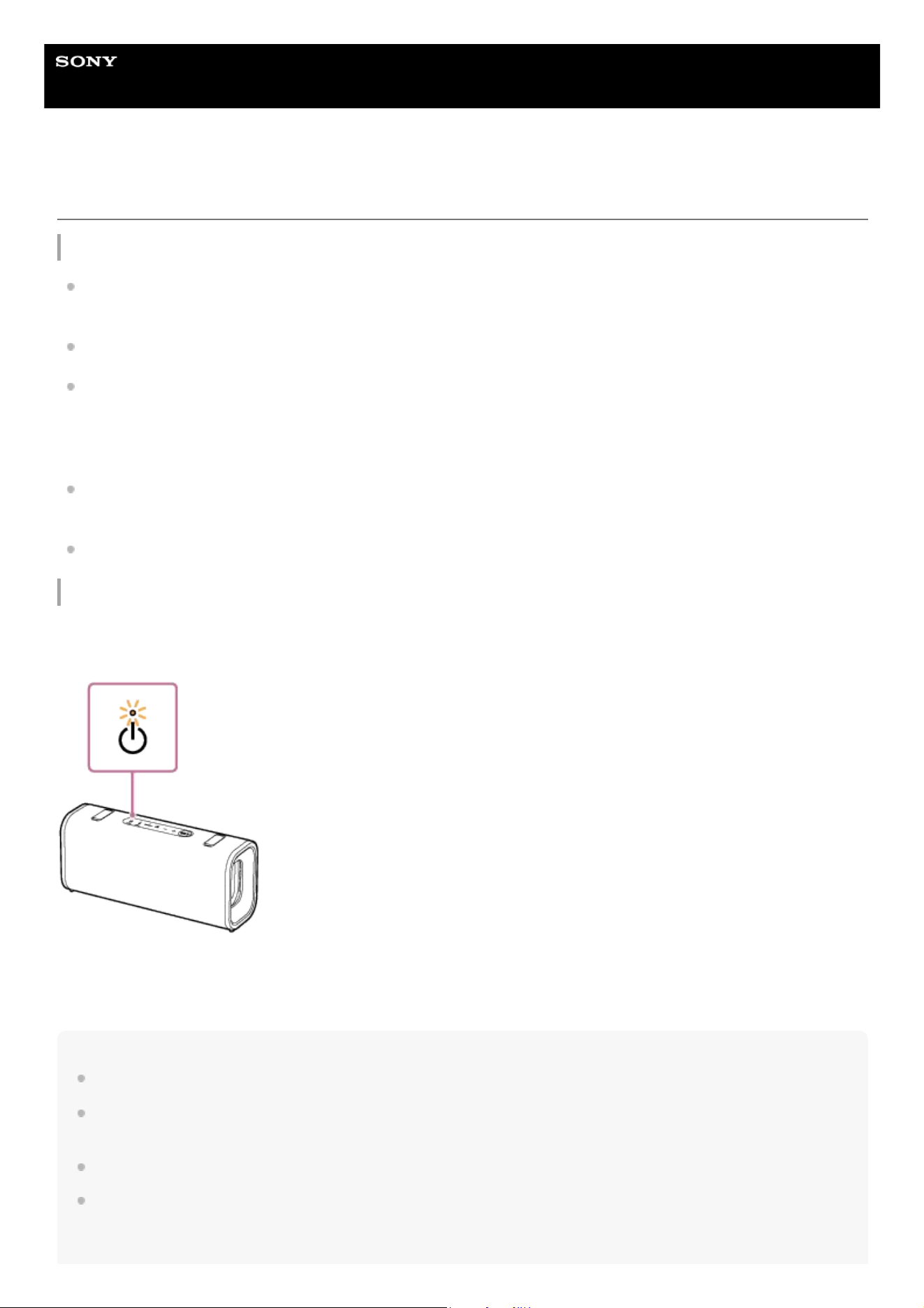
Help Guide
Wireless Speaker
ULT FIELD 3
Notes on charging
Life span of the built-in lithium ion battery
Even if you do not intend to use the speaker for a long time, charge the built-in battery sufficiently once every 6
months to maintain its performance.
If the speaker is not used for a long time, it may take longer to charge the built-in battery.
The rechargeable built-in battery has a life span. As time passes and the number of times that the built-in battery is
used increases, the capacity of the rechargeable built-in battery slowly decreases. When the amount of time that the
built-in battery can be used seems significantly shorter, despite having been fully charged, contact Sony support
contact or your nearest Sony dealer.
When the amount of time that the built-in battery can be used seems significantly shorter, it could mean that the
rechargeable built-in battery has expired.
The life span of the rechargeable built-in battery differs depending on the usage, environment, and storage method.
Caution
When the speaker detects an abnormality in the interior temperature or in the built-in rechargeable battery, the power
indicator on the speaker starts double flashing in orange.
If an abnormality is detected, disconnect the USB cable and wait for a while. Then, press and hold the power button on
the speaker for about 10 seconds to restart it. If the problem persists, contact Sony support contact or your nearest Sony
dealer.
Note
Charging time varies depending on built-in battery usage conditions.
Charge the speaker in an ambient temperature between 5 °C and 35 °C (41 °F and 95 °F). Be aware that the room temperature
may fall to 5 °C (41 °F) or lower depending on the season, for example, especially in wintertime.
The speaker becomes warm during charging. This is not a malfunction.
Avoid exposure to rapid temperature change, direct sunlight, mist, sand, dust, or mechanical shock. Also, never leave the speaker
in a car parked in the sun.
85

As long as the speaker is connected to an AC outlet by a USB PD compatible AC adaptor, the speaker's built-in battery is capable
of charging itself even while the speaker is turned on. However, it may take a long time before charging completes depending on
the usage of the speaker. It is recommended that you turn off the speaker before battery charging.
For safety reasons, the speaker automatically stops charging in the following cases.
When the speaker is charged in an extremely cold or hot environment
When charging takes too long
To resolve this issue, disconnect the USB cable and connect it again when the battery charging temperature is between 5 °C and
35 °C (41 °F and 95 °F).
If the built-in battery is under a high load during charging, charging stops for safety. In such a case, turn down the volume or stop
the playback.
If you are playing music while the speaker is charging or in a location with high ambient temperatures, the volume may be
automatically adjusted for safety reasons.
Charging from a USB hub is only guaranteed when you use a self-powered USB hub that carries an authorized logo.
Related Topic
Parts and controls
Charging the speaker
Restarting the speaker
5-064-345-11(1) Copyright 2025 Sony Corporation
86
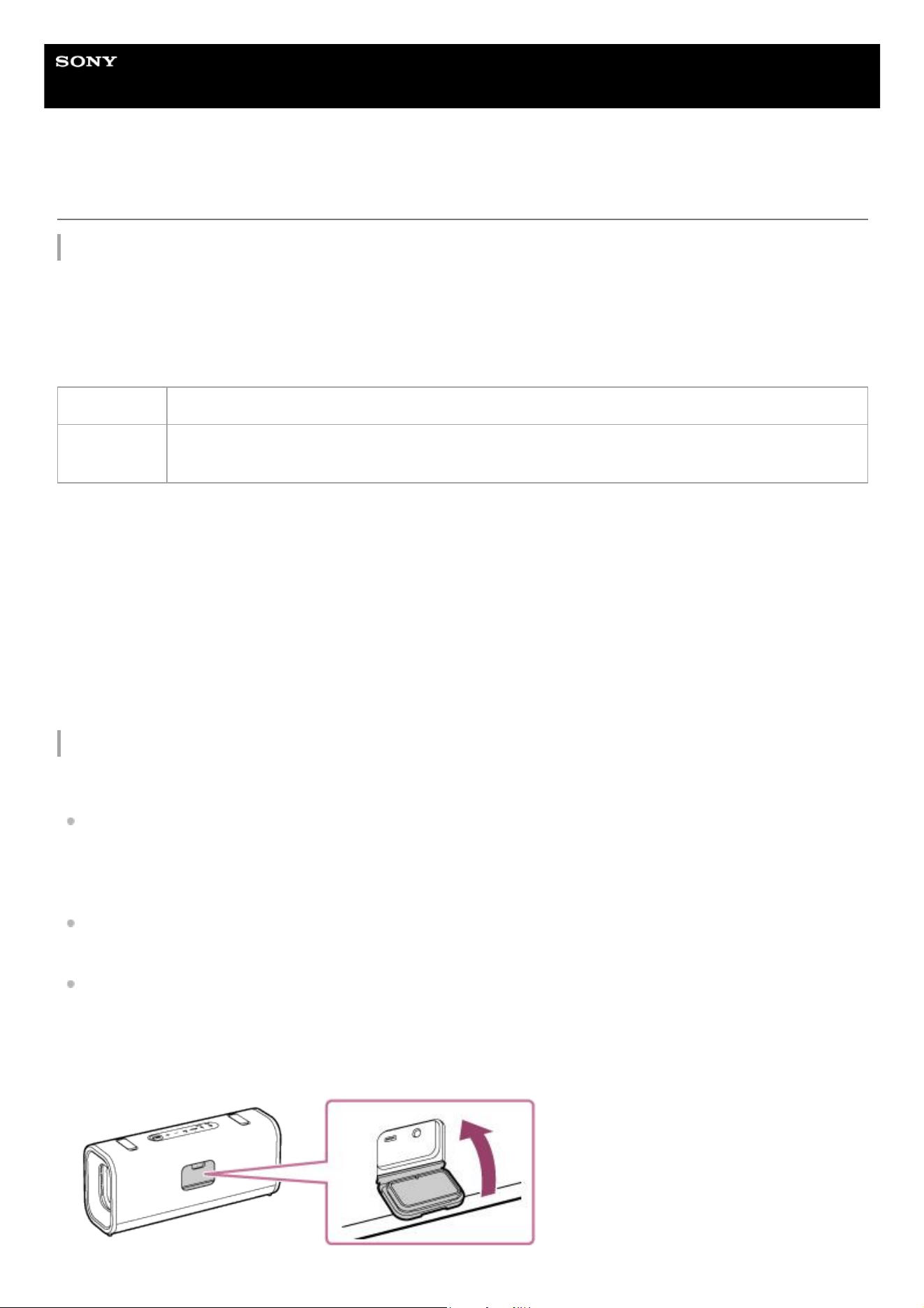
Help Guide
Wireless Speaker
ULT FIELD 3
Notes on waterproof and dustproof features
On waterproof and dustproof performance of the speaker
The speaker, with the cap fastened securely, has a waterproof specification of IPX7 (*1) as specified in “Degree of
protection against water immersion” of the IEC60529 “Ingress Protection Rating (IP Code)” (*3), and a dustproof
specification of IP6X (*2) as specified in “Degrees of protection against solid foreign objects” (*3).
Liquids that the waterproof performance specifications apply to
The waterproof performance of the speaker is based on our measurements under the conditions herein described. Note
that malfunctions as a result of water immersion or dust intrusion caused by misuse by the customer are not covered by
the warranty.
To maintain waterproof and dustproof performance
Carefully note the precautions below to ensure proper use of the speaker.
The speaker passes the drop test from 1.22 m (4.0 ft) on plywood of 5 cm (1.97 in) thickness conforming to MIL-
STD810H Method 516.8-Shock. However, this does not guarantee no damage, no breakdown, or waterproof and
dustproof performance in all conditions. Deformation or damage from dropping the speaker or subjecting it to
mechanical shock may cause deterioration of the waterproof and dustproof performance.
Do not pour high-temperature water or blow hot air from a hair dryer or any other appliance on the speaker directly.
Also never use the speaker in a place subject to high temperatures, such as in a sauna or near a heat source.
Handle the cap on the rear side of the speaker with care. The cap plays a very important role in maintenance of the
waterproof and dustproof performance. When using the speaker, make sure that the cap is closed completely. When
closing the cap, be careful not to allow foreign objects inside. If the cap is not closed completely the waterproof and
dustproof performance may deteriorate and may cause a malfunction of the speaker as a result of water or dust
particles entering the speaker.
Applicable fresh water, tap water, pool water, salt water
Not
applicable
liquids other than the above (soapy water, water with detergent or bath agents, shampoo, hot spring
water, etc.)
(*1) IPX7 equivalency: The speaker has been tested to and maintains its operability when gently submersed in water to a depth of 1 m (3.2 ft)
and left for 30 minutes.
(*2) IP6X equivalency: The speaker has been tested to and continues to block dust after stirring for 8 hours in a testing device which contains
dust particles that are up to 75 μm in diameter.
(*3) The supplied accessories and the connectors of this speaker (USB) are neither waterproof nor dustproof. To reduce the risk of fires or
electric shocks, do not expose the speaker to water or droplets while using any connectors (USB).
87

5-064-345-11(1) Copyright 2025 Sony Corporation
88
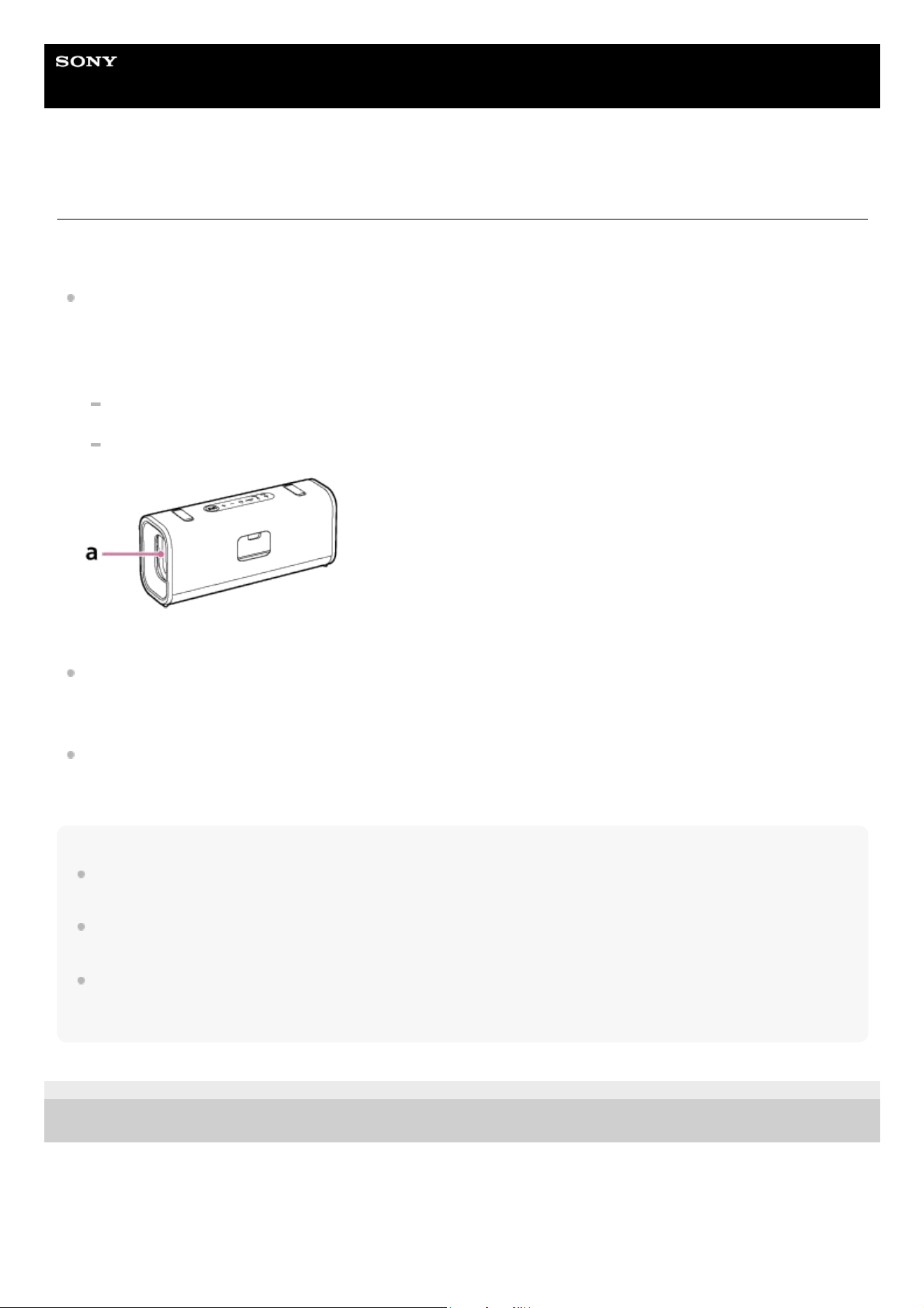
Help Guide
Wireless Speaker
ULT FIELD 3
How to care for the speaker
You can use the speaker and the shoulder strap more comfortably and for a longer period of time by following the
maintenance procedure below.
If the surface of the speaker gets dirty in the following cases, wash the speaker with fresh water (tap water, etc.)
promptly to remove the dirt. Leaving dirt on its surface may cause the fabric part or the passive radiator section to
discolor or deteriorate, or the speaker to malfunction.
Ex.
When salt, sand, etc. is stuck on the speaker after using it on a beach, pool side, etc.
When the speaker is stained with sweat or foreign substances (sunscreen, suntan oil, etc.)
“a” in the illustration indicates the location of the passive radiator section of the speaker.
Leaving the speaker wet causes limescale or mold to develop, resulting in soiling of the speaker. After using the
speaker in wet conditions, it is recommended that you wipe off water droplets all the speaker surfaces and let the
speaker dry in a well-ventilated location.
The sound quality may change when water enters the speaker or passive radiator section of the speaker. It is not
malfunction. Wipe off the moisture on its surface, and put the speaker on a dry soft cloth to drain the collected water
inside the speaker. Then, dry the speaker in an airy place until no moisture remains.
Note
If the surface of the speaker gets dirty, do not use detergent, thinner, benzine, alcohol, etc. to clean the speaker because it will
affect the water repellent function of the fabric part of the speaker.
Especially in cold regions, be sure to wipe off the moisture after using the speaker. Leaving moisture on its surface may cause the
speaker to freeze and malfunction.
If sand grains or other particles enter the fabric, the inside of the storage caps, or other parts of the speaker, remove them
carefully. Never use a vacuum cleaner or similar tool on the speaker. It may cause damage of the speaker section or other parts
of the speaker.
5-064-345-11(1) Copyright 2025 Sony Corporation
89

Help Guide
Wireless Speaker
ULT FIELD 3
About the BLUETOOTH wireless technology
The BLUETOOTH wireless technology is a short-range wireless technology that enables communication between digital
devices, such as smartphones and computers.
Supported version and profiles of the BLUETOOTH standard
A BLUETOOTH profile is a set of functions standardized for every characteristic of BLUETOOTH devices. The speaker
supports the following version and profiles of the BLUETOOTH standard.
Supported BLUETOOTH version:
BLUETOOTH standard, version 5.2
Supported BLUETOOTH profiles:
A2DP (Advanced Audio Distribution Profile): Enables transmission and reception of high-quality music contents.
AVRCP (Audio Video Remote Control Profile): Enables volume adjustment and operations to play/pause music and
skip to the beginning of the next/current track.
HFP (Hands-free Profile) (*): Enables hands-free phone call making and smartphone or mobile phone operations.
HSP (Headset Profile) (*): Enables phone call making and smartphone or mobile phone operations.
Maximum communication range
Use the BLUETOOTH wireless technology between the speaker and a device that are located within about 30 m (98.4 ft)
from each other.
Maximum communication range may shorten under the following conditions.
There is an obstacle such as a person, metal, or wall between the speaker and BLUETOOTH device.
A wireless LAN device is in use near the speaker.
A microwave oven is in use near the speaker.
A device that generates electromagnetic radiation is in use near the speaker.
Frequency band
2.4 GHz band (2.400 0 GHz - 2.483 5 GHz)
Corresponding content protection
SCMS-T
Transmission range (A2DP)
20 Hz - 20 000 Hz (Sampling frequency 44.1 kHz)
Interference from other devices
Because BLUETOOTH devices and wireless LAN (IEEE802.11ax/b/g/n) use the same frequency (2.4 GHz), microwave
interference may occur and result in communication speed deterioration, noise, or invalid connection if the speaker is
used near a wireless LAN device.
Interference to other devices
(*) If the smartphone or mobile phone with the BLUETOOTH function supports both HFP and HSP, use HFP (Hands-free Profile).
90

Microwaves emitting from a BLUETOOTH device may affect the operation of electronic medical devices. Turn off this
speaker and other BLUETOOTH devices in the following locations, as it may cause an accident:
in hospitals, near priority seating in trains, locations where inflammable gas is present, near automatic doors, or near
fire alarms.
Note
Depending on the network environment, there may be an interruption at the high bitrate transmission.
To be able to use the BLUETOOTH function, the BLUETOOTH device to be connected requires the same profile as the
speaker’s. Note also that even if the same profile exists, devices may vary in function depending on their specifications.
Due to the characteristic of BLUETOOTH wireless technology, the sound played on the speaker is slightly delayed from the sound
played on the BLUETOOTH device while talking on the telephone or listening to music.
The speaker supports security capabilities that comply with the BLUETOOTH standard to provide a secure connection when the
BLUETOOTH wireless technology is used, but security may not be enough depending on the setting. Be careful when
communicating using BLUETOOTH wireless technology.
We do not take any responsibility for the leakage of information during BLUETOOTH communication.
A device featuring the BLUETOOTH function is required to conform to the BLUETOOTH standard specified by the Bluetooth SIG,
Inc. and be authenticated. Even if the connected device conforms to the above mentioned BLUETOOTH standard, some devices
may not be connected or work correctly, depending on the features or specifications of the device.
Noise or sound interruption may occur depending on the BLUETOOTH device connected with the speaker, the communication
environment or the usage environment.
A device with a built-in radio or tuner cannot be connected to the speaker via a BLUETOOTH connection since noise may occur in
broadcasts.
Locate the speaker farther away from a TV, radio or tuner, etc. since noise may occur in broadcasts.
5-064-345-11(1) Copyright 2025 Sony Corporation
91

Help Guide
Wireless Speaker
ULT FIELD 3
Licenses
This product contains software that Sony uses under a licensing agreement with the owner of its copyright. We are
obligated to announce the contents of the agreement to customers under requirement by the owner of copyright for
the software. Please access the following URL and read the contents of the license.
https://rd1.sony.net/help/speaker/sl/25/
Use of the Made for Apple badge means that an accessory has been designed to connect specifically to the Apple
product(s) identified in the badge and has been certified by the developer to meet Apple performance standards.
Apple is not responsible for the operation of this device or its compliance with safety and regulatory standards.
Please note that the use of this accessory with an Apple product may affect wireless performance.
Network services, content and the (operating system and) software of this product may be subject to individual terms
and conditions and changed, interrupted or discontinued at any time and may require fees, registration and credit
card information.
5-064-345-11(1) Copyright 2025 Sony Corporation
92

Help Guide
Wireless Speaker
ULT FIELD 3
Trademarks
Google, Android and Google Play are trademarks of Google LLC.
Apple, the Apple logo, iPhone, iPod, iPod touch, Mac, macOS and Siri are trademarks of Apple Inc., registered in the
U.S. and other countries and regions.
App Store is a service mark of Apple Inc., registered in the U.S. and other countries and regions.
IOS is a trademark or registered trademark of Cisco in the U.S. and other countries and is used under license.
Microsoft and Windows are registered trademarks or trademarks of Microsoft Corporation in the United States and/or
other countries.
The BLUETOOTH® word mark and logos are registered trademarks owned by Bluetooth SIG, Inc. and any use of
such marks by Sony Group Corporation and its subsidiaries is under license.
USB Type-C® and USB-C® are registered trademarks of USB Implementers Forum.
All other trademarks and registered trademarks are trademarks or registered trademarks of their respective holders. In
this manual, ™ and ® marks are not specified.
5-064-345-11(1) Copyright 2025 Sony Corporation
93
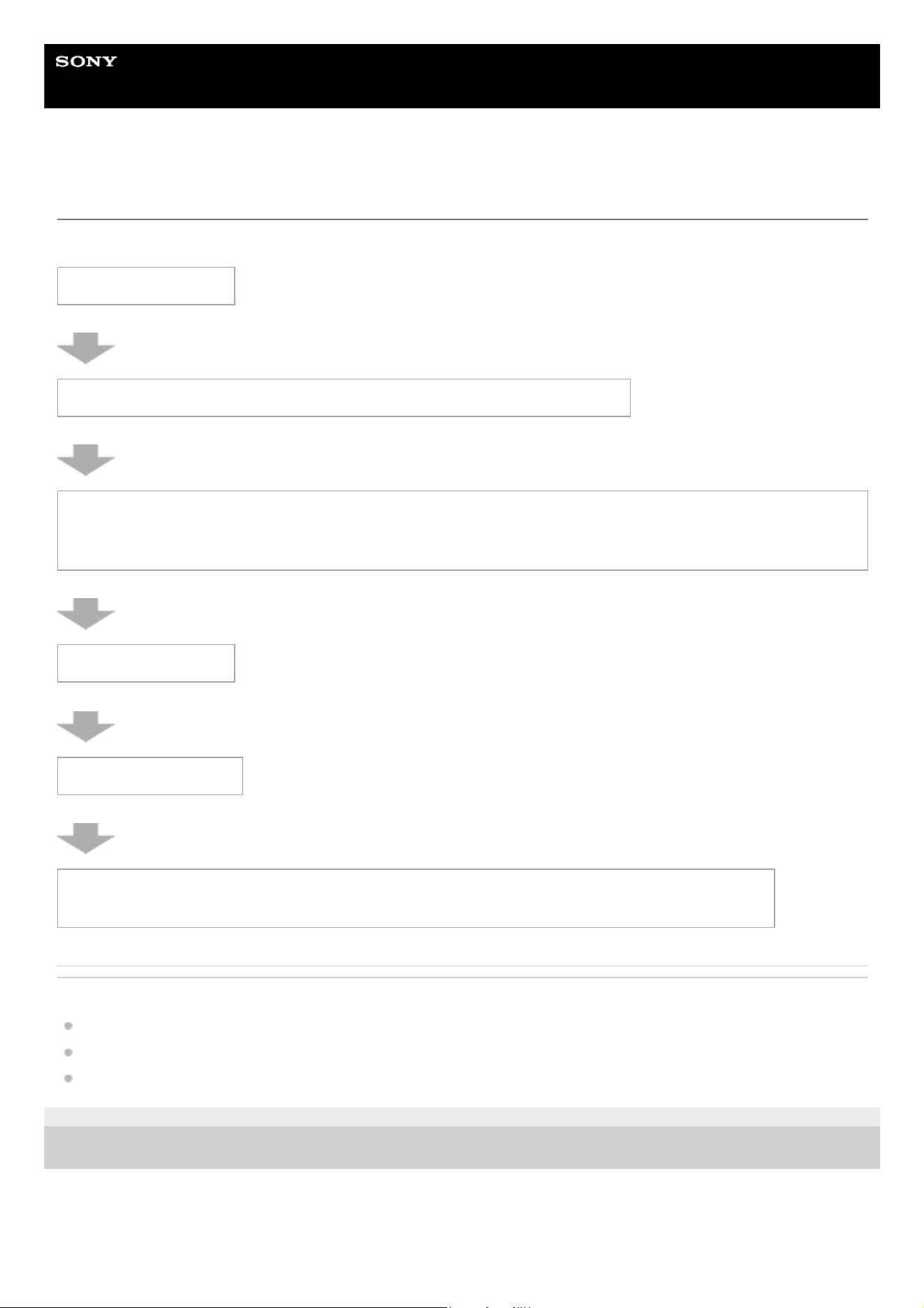
Help Guide
Wireless Speaker
ULT FIELD 3
Troubleshooting
If the speaker does not function as expected, try the following steps in order to resolve the issue.
Related Topic
Charging the speaker
Restarting the speaker
Initializing the speaker
5-064-345-11(1) Copyright 2025 Sony Corporation
1. Charge the speaker.
2. Restart the device being connected such as your smartphone or computer.
3. Access the Sony support site from the menu of the “Sound Connect” app to search for the cause and
solution of the issue, or check the support site below.
https://www.sony.net/support/SRS-ULT30/
4. Restart the speaker.
5. Initialize the speaker.
6. Should any problems persist, consult Sony support contact below or your nearest Sony dealer.
https://www.sony.net/support-contact
94
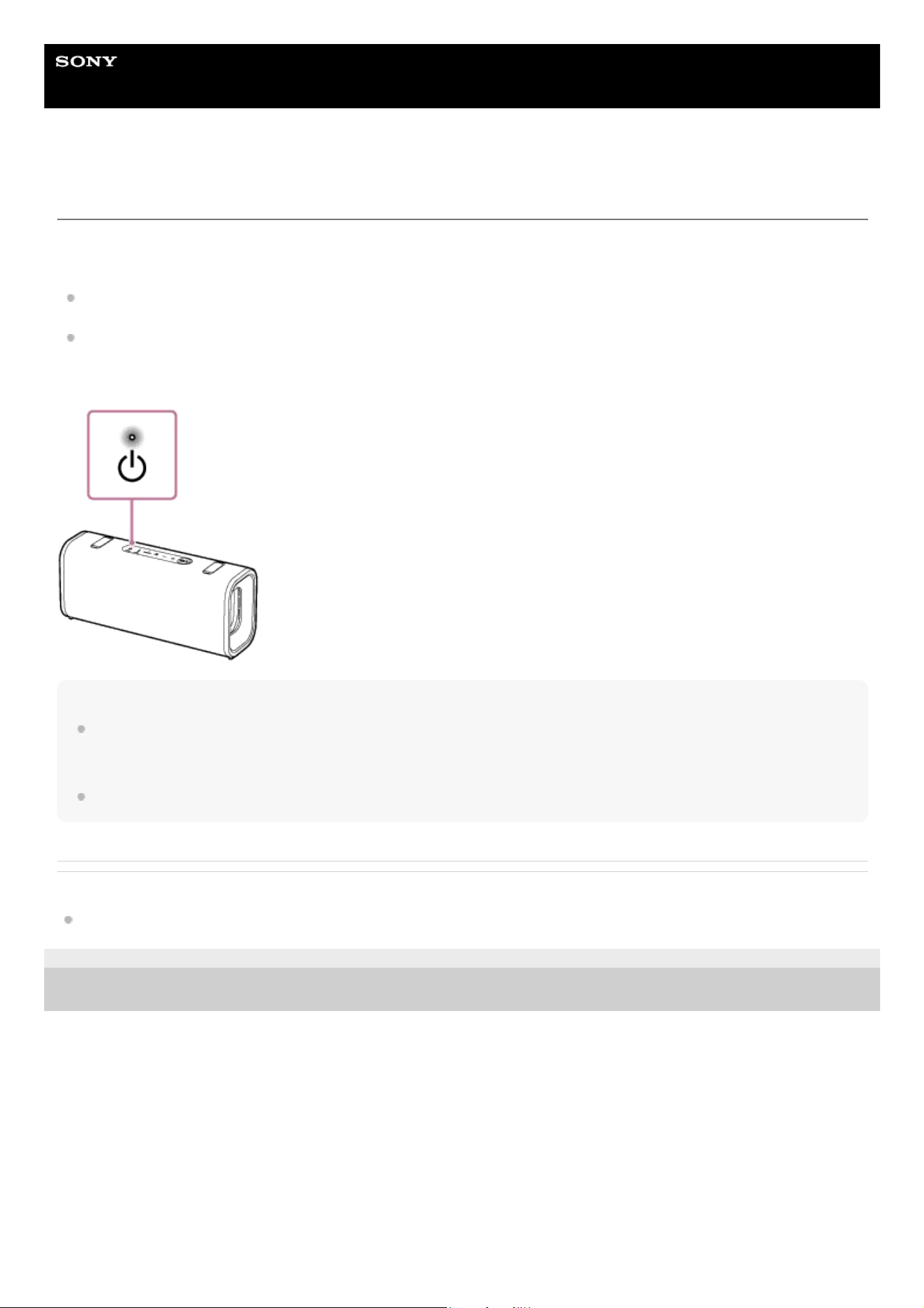
Help Guide
Wireless Speaker
ULT FIELD 3
Restarting the speaker
In the following cases, among others, press and hold the power button on the speaker for about 10 seconds to restart the
speaker.
You cannot operate the speaker after you turn it on.
You cannot operate the speaker after you troubleshoot pairing issues.
The speaker is turned off during the restart process, and then turned back on upon completion of the process.
Note
Restarting the speaker does not delete its pairing information. The pairing information, however, is stored on the speaker when
the speaker is turned off. After pairing the speaker with a new device, turn off the speaker and turn it back on, and then restart the
speaker.
Restarting the speaker may change its volume, function, or sound settings.
Related Topic
Parts and controls
5-064-345-11(1) Copyright 2025 Sony Corporation
95
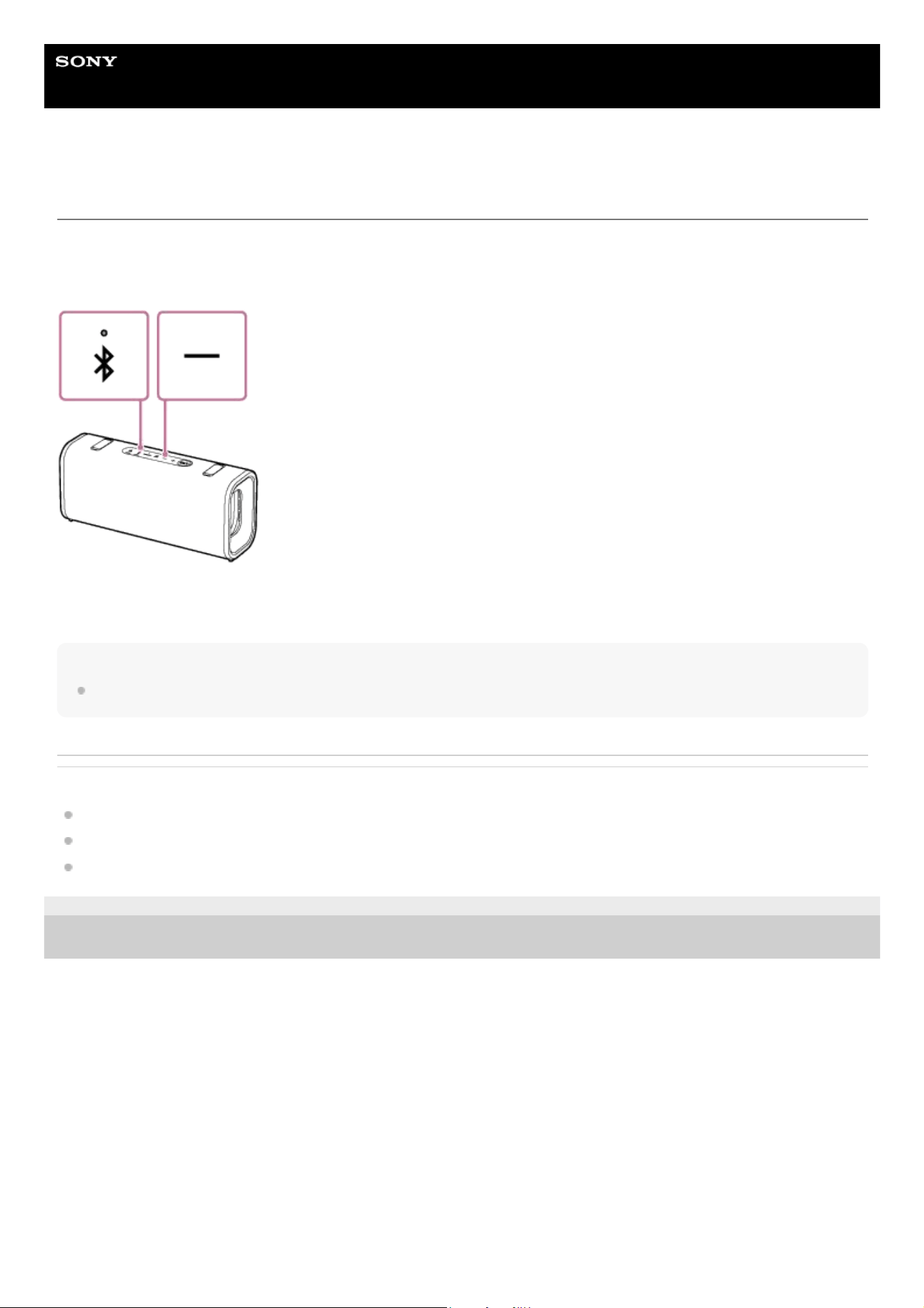
Help Guide
Wireless Speaker
ULT FIELD 3
Initializing the speaker
If the speaker fails to operate successfully after you restart it, initialize the speaker to restore its default settings.
While the speaker is turned on, press and hold the volume down button and the BLUETOOTH button on the speaker for
5 seconds or more until the speaker turns off.
The speaker is initialized. Settings such as volume, etc., are restored to the default settings, and all pairing information is
deleted.
Note
The speaker cannot be initialized while the power is off.
Related Topic
Parts and controls
Pairing and connecting with BLUETOOTH devices
Restarting the speaker
5-064-345-11(1) Copyright 2025 Sony Corporation
96

Help Guide
Wireless Speaker
ULT FIELD 3
Specifications
Speaker section
Speaker
Woofer unit:
Approx. 86 mm × 46 mm (3.4 in × 1.9 in) (1)
Tweeter unit:
Approx. 20 mm (0.8 in) dia. (1)
Enclosure type
Passive radiator model
Microphone section
Built-in microphone specifications
Type:
Micro Electronics Mechanical System
Directional characteristic:
Omni directional
Effective frequency range:
100 Hz - 10 000 Hz
General
DC OUT
USB Type-C
®
port (for charging the battery of a connected device) (DC 5 V/MAX. 1.5 A)
Power
DC 5 V 3.0 A or DC 9 V 3.0 A (using a commercially-available USB PD compatible AC adaptor capable of feeding in 3.0
A) or, using built-in lithium-ion battery
Standby power consumption (*)
When BLUETOOTH standby mode is set to on: 0.5 W or less
When BLUETOOTH standby mode is set to off: 0.3 W or less
Operating temperature
–5 °C - +35 °C (23 °F - 95 °F)
Battery charging temperature
5 °C - 35 °C (41 °F - 95 °F)
Dimensions (W × H × D)
Including projecting parts and controls
Approx. 256 mm × 113 mm × 79 mm (10.1 in × 4.5 in × 3.1 in)
Mass (Including battery)
Approx. 1.2 kg (2 lb 11 oz)
Hint
For the time required for charging the built-in rechargeable battery and the built-in battery life while audio playback from a
BLUETOOTH device is in progress, see “Charging the speaker.”
Compatible iPhone/iPod models
iPhone 15 Pro Max, iPhone 15 Pro, iPhone 15 Plus, iPhone 15, iPhone 14 Pro Max, iPhone 14 Pro, iPhone 14 Plus,
iPhone 14, iPhone SE (3rd generation), iPhone 13 Pro Max, iPhone 13 Pro, iPhone 13, iPhone 13 mini, iPhone 12 Pro
(*) When using a USB PD compatible AC adaptor capable of delivering DC 9 V 3.0 A.
97

Max, iPhone 12 Pro, iPhone 12, iPhone 12 mini, iPhone SE (2nd generation), iPhone 11 Pro Max, iPhone 11 Pro, iPhone
11, iPhone XS Max, iPhone XS, iPhone XR, iPod touch (7th generation)
(As of August 2024)
Note
Design and specifications are subject to change without notice.
Refer to the Reference Guide included with your product, which may contain specification information not listed above.
5-064-345-11(1) Copyright 2025 Sony Corporation
98