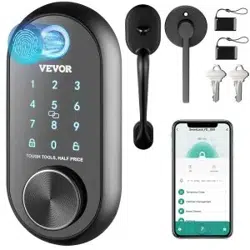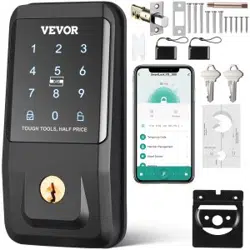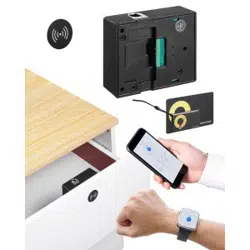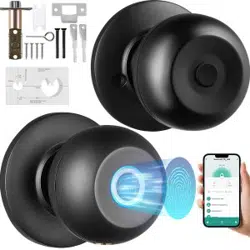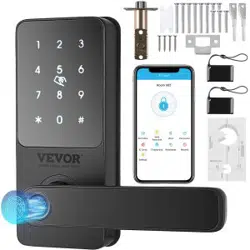

Digital Smart Door Lock Manual
Digital lock
FCC ID: 2A4W4-HMI-2005

- 2 -
1. Product Introduction
This smart lock is a new type of intelligent door lock independently
developed by our company. Currently, TTLOCK App can be download and
applied in 159 countries and regions. Advanced electronic technology enables
the smart lock to have intelligent recognition capabilities, making users' work
and life easier and more convenient.
This smart lock supports application scenarios such as commercial office,
apartment building, tenement and bedroom.
Please read this manual carefully before using this product.
2. Safety Assistant Function
Unlock Mode
Password: 100 PCS
Card: 150 PCS
Bluetooth: Unlock by App
Power Supply
4 AA batteries
Work Temperature
-40~70℃
Button Type
Capacitive touch button
Door Thickness
35~55mm
Passage Mode
When you need to open/close the doors frequently
Low Battery Alarm
When the voltage is lower than 4.8V, the alarm is activated each time
with the unlock, and the lock could be unlocked 200 times after the first
alarm
Access Records
Query
You can check access records at anytime by TTLOCK App
- 3 -
3. Installation Instruction
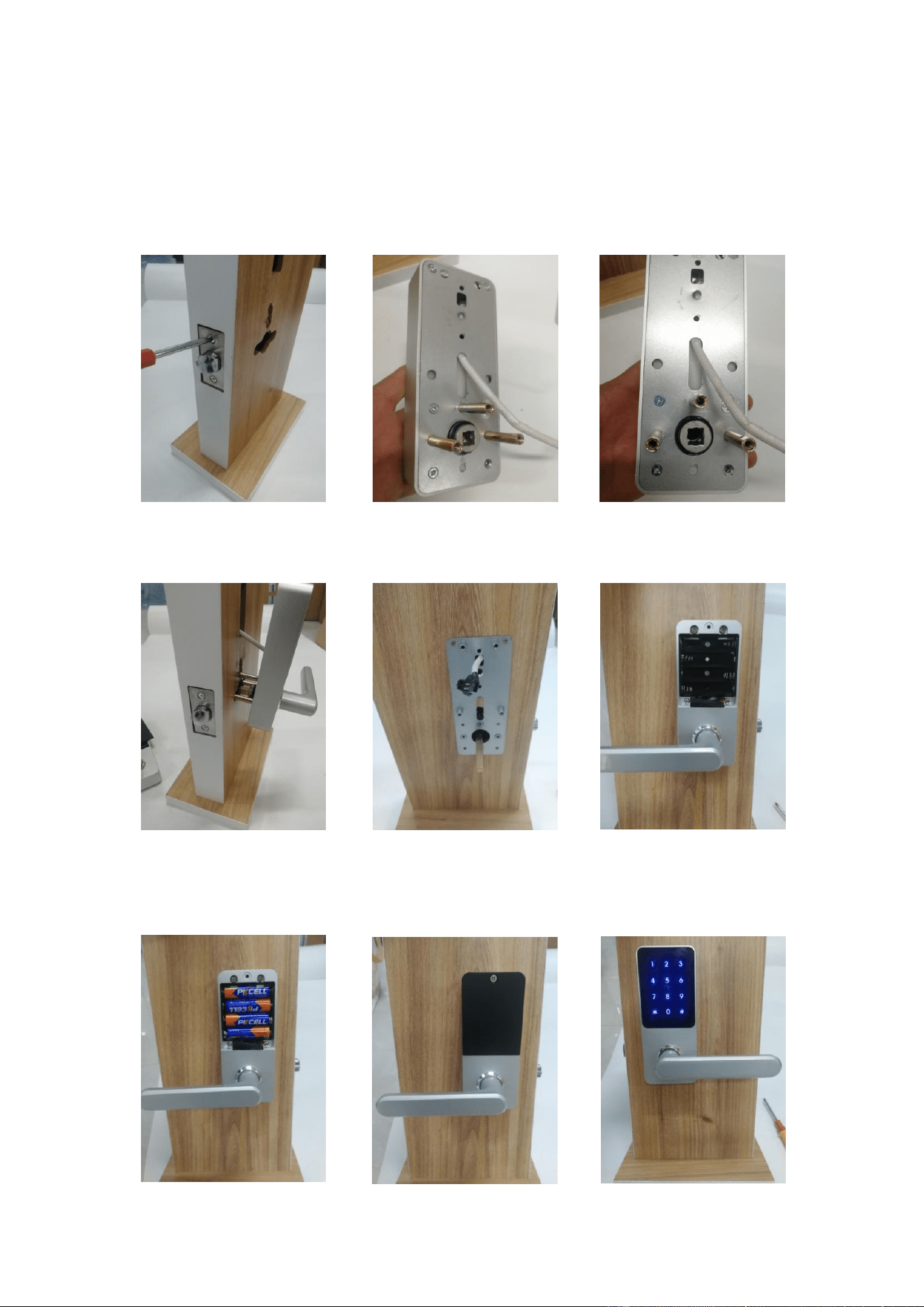
4:Put into battery and install cover back. Then you will hear a beep when
the lock get into power. Finally, enter password to check if the lock works
normmally.
3:Install front panel on the door. Then remove the cover of the battery salver
on the back panel, and connect the cables before install them.
1:Install latch on the door.
2:Fix the connection screws and square bar.(Tips:If the door lock is opened to
the right, please point the arrow to “R” )
- 4 -
4. Operation in APP
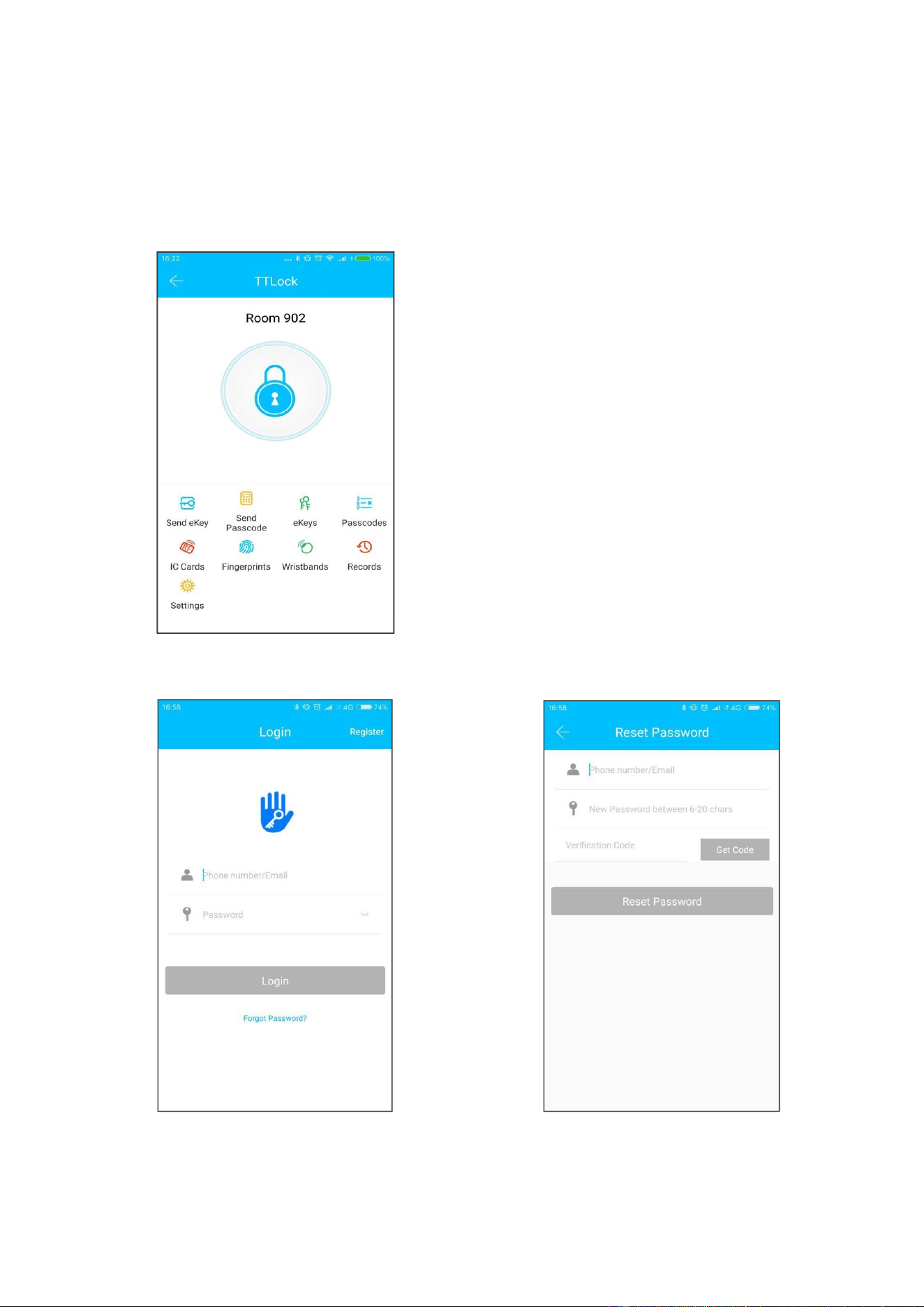
4.1. Add Bluetooth User
Download TTLock App from apple store and android market.
Registration and Login By App
TTLock users can use their phone number and email to register their account.
Currently, TTLock App has supported the phone number registration in 159
countries and regions. When users are registering their account, the
The software (IOS version)
can be downloaded from the
app store, and the Android
version can be downloaded
from the application store of
Google play
- 5 -
verification code will be sent to the mobile phone or the email address. After
the verification is passed, the registration is successful, and then the page will
jump directly to the home page.
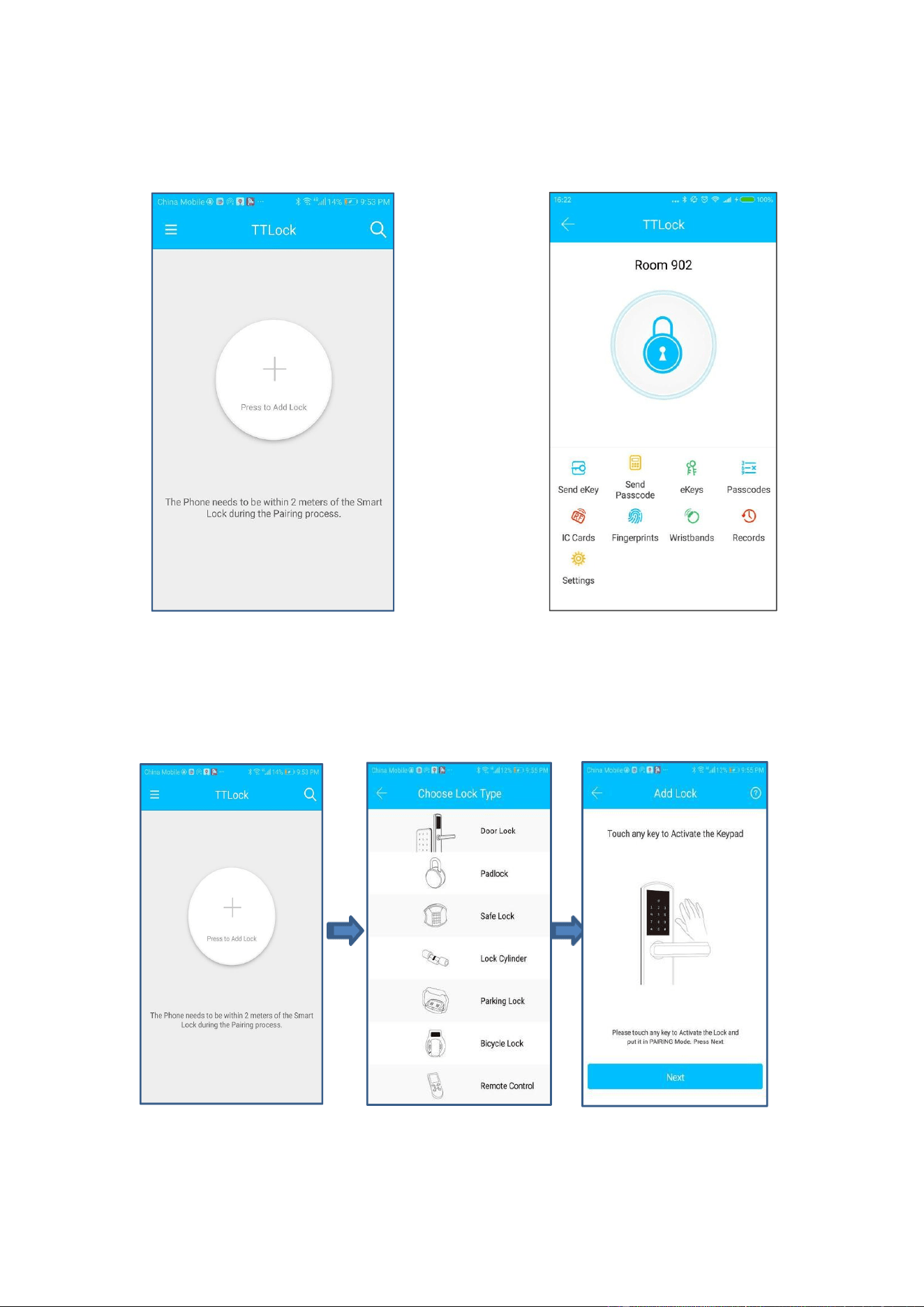
There is no lock or key data in the user's account, when TTLock App is used
for the first time. The user can add a lock in the front page. If a lock is already
added in the account, the lock information will be displayed.
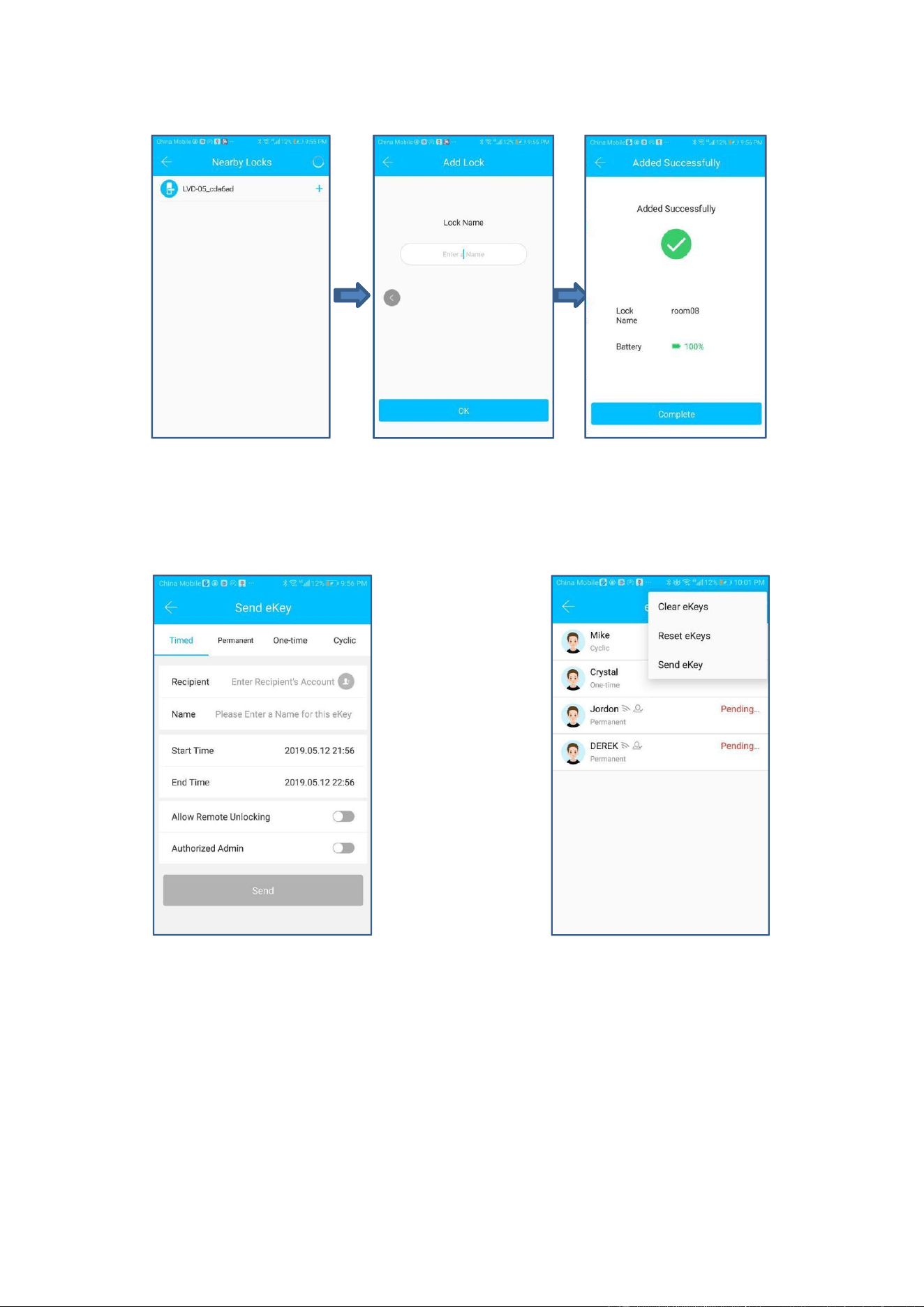
4.2. Add Lock By App
Add a lock
Select “Door Lock” Light up touch screen
No lock bound with App
lock bound with App
- 6 -
Select lock
Input lock name Operation Successfully
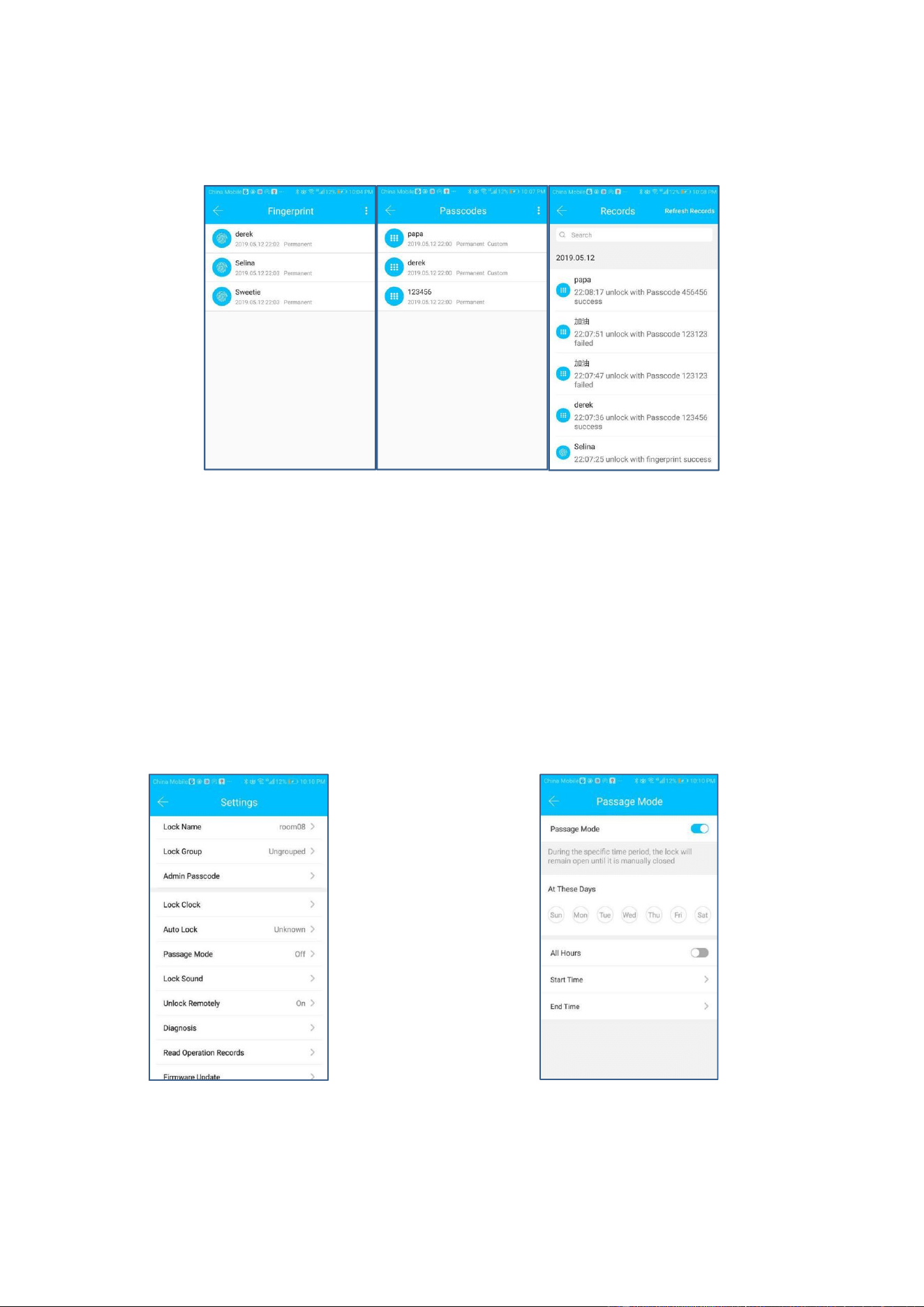
4.3. Send Key By App
After adding the lock successfully, the user has the highest authority of the lock,
which is the administrator of the lock. The user can send the Bluetooth key to
others with setting the time limit, and has the right to select the limited time,
permanent or one-time Bluetooth key. The key is sent to recipient's mobile
phone or email and the recipient will get the key and authority of the lock in the
TTLock App.
Administrators can manage all the keys they send out, including clearing keys,
resetting keys, sending keys, adjusting the time limit of the keys, and viewing
the access records.
- 7 -
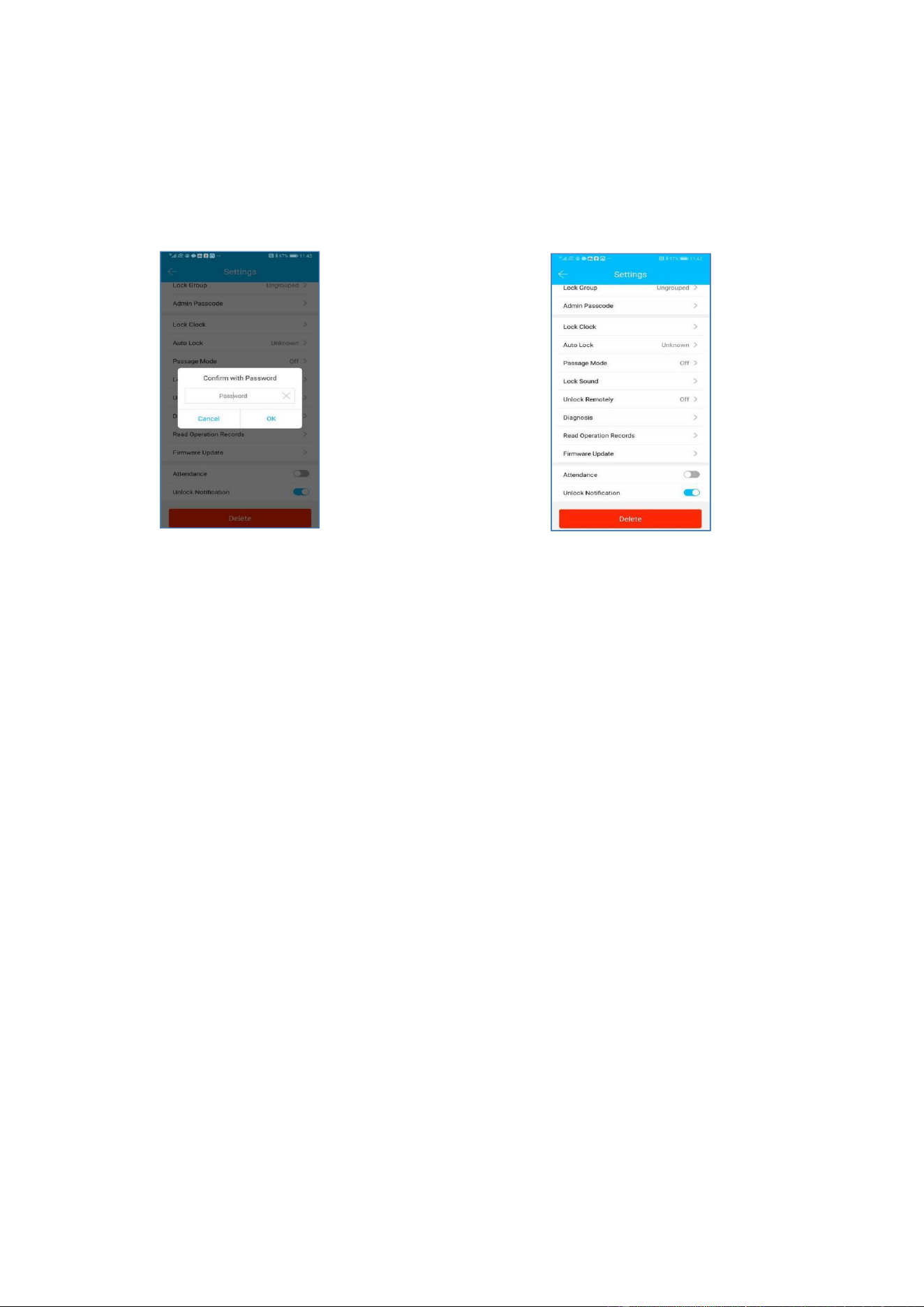
4.4. Add Users By App
In the main interface of the TTLock App, select fingerprint ,Passwords, IC
Cards, and click on the upper right to add and manage fingerprint , passwords
and IC cards. You can add users for limited time or permanent access. The
access records can be queried in the main interface.
For Example: Add Cards
When the user selects the “Add Cards” function, the lock screen will light and
with two beeps. You will hear a beep when swiping card. That means operation
successful.
4.5. Passage Mode
In the main interface of the app, select the passage mode in the settings, and
the date of the passage mode can be set, and the start time and end time of
the passage mode can also be set.
- 8 -
After the passage mode is activated, everyone can directly unlock the door
without any access permission. The passage mode can be turned off by
clicking again.
4.6. System Initialization
TTLock Release Administrator
The phone must be operated within the range of the Bluetooth of the lock to
initialize the lock and APP administrator at the same time. Enter the "Settings"
in the main interface of the TTLock App, click on the "Delete" at the bottom,
and input the login password to successfully release the administrator.
5. Operation in Touch Screen
5.1. Add Users
A. Add Bluetooth Administrator
When the backlight is off, the user touches the button to wake up the door
lock.And then add the Bluetooth administrator to the app. After the addition
operation is successful, the user can hear a beeps.
B. Verify Administrator
After the user inputs “C85#”, user can hear two beeps, then inputs the
administrator password and “#”, after the verification is successful, will hear
two beeps, otherwise will hear three beeps.
C. Add Password
After the administrator's verification is successful, the user inputs the
password and presses the “# “key, and then inputs the same password again,
when the password is added successfully, will hear a beep.
D. Add IC Card
After the administrator's verification is successful, the user swipes the card

- 9 -
and recognizes it. Will hear a beeps if successful.
5.2. Delete Users
A. Delete All Password
The user inputs “C71#Administrator password#” to delete all the added
passwords, including the password generated by the App (the administrator
password will not be deleted). In this process, the user inputs "C71#", after
that, the user inputs the administrator password and “#”, when the verification
is successful,will hear a beep.
B. Delete All IC Card
The user inputs “C69#Administrator password#” to delete all IC cards. In this
process, the user inputs "C69#", after that, the user inputs the administrator
password and “#”, and when the verification is successful,will hear a beep.
5.3. Modify password
A. Modify Administrator Password(Default password :123456)
User inputs “C12#old password#new password#New password#” to modify
the management password. In this process,inputting “C12#”, and then the
user inputs the password and press “#”. If the original password is wrong, will
hear three beeps, otherwise you can input new password. After the user
inputs the new password twice. if the modification is successful, will hear a
beep, otherwise will hear three beeps.
B. Modify User Password
User inputs “C10#old password#new password#New password#” to modify
the password. In this process, after inputting “C10#”, the user inputs the
password and presses “#”. If the old password is wrong, will hear three
beeps, otherwise will hear a beep. After the user inputs the new password
twice, will hear two beeps if the modification is successful, otherwise, will
hear three beeps.
5.4. Passage Mode
A. Open Passage Mode
After successfully unlocking with password, IC card or Bluetooth, input
“123#” in 5 seconds, before the lock automatically turned off. When the
passage mode is activated, the user can directly turn the handle and unlock
the door without, password, IC card or Bluetooth.
B. Close Passage Mode
After the passage mode is opened, it will be turned off automatically until the
lock is unlocked with password, IC card or Bluetooth next time.

FCC WARNING
This device complies with part 15 of the FCC Rules. Operation is subject to the following two
conditions: (1) This device may not cause harmful interference, and (2) this device must accept
any interference received, including interfere nce that may cause undesired operation.
Note: This equipment has been tested and found to comply with the limits for a Class B digital
device, pursuant to part 15 of the FCC Rules. These limits are designed to provide reasonable
protection against harmful interference in a residential installation. This equipment generates,
uses and can radiate radio frequency energy and, if not installed and used in accordance with the
instructions, may cause harmful interference to radio communications. However, there is no
guarantee that interference will not occur in a particular installation. If this equipment does
cause harmful interference to radio or television reception, which can be determined by turning
the equipment off and on, the user is encouraged to try to correct the interference by one or
more of the following measures:
—Reorient or relocate the receiving antenna.
—Increase the separation between the equipment and receiver.
—Connect the equipment into an outlet on a circuit different from that to which the receiver is
connected.
—Consult the dealer or an experienced radio/TV technician for help.
Note: The Grantee is not responsible for any changes or modifications not expressly approved by
the party responsible for compliance. such modifications could void the user's authority to
operate the equipment.
The device has been evaluated to meet general RF exposure requirement.
To maintain compliance with FCC's RF exposure guidelines, the distance must be at least 20 cm
between the radiator and your body, and fully supported by the operating and installation
configurations of the transmitter and its antenna(s).