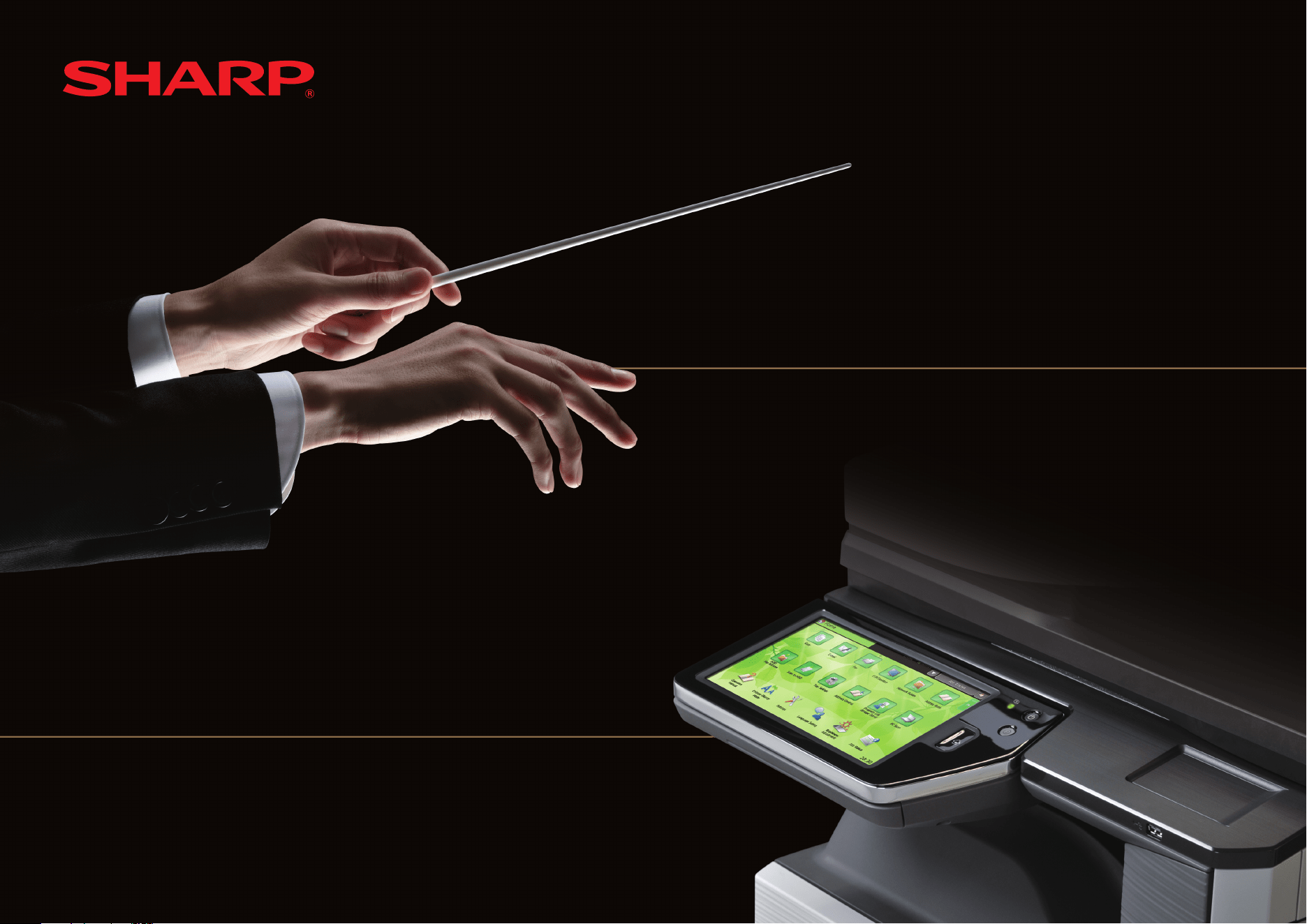
QUICK START GUIDE
DIGITAL FULL COLOR MULTIFUNCTIONAL SYSTEM
MX-2610N/MX-3110N/MX-3610N
Keep this manual close at hand for reference whenever needed.
2
For the users of the fax function
ABOUT THE TELEPHONE CONSUMER PROTECTION ACT OF 1991
The Telephone Consumer Protection Act of 1991 makes it unlawful for any person to use a computer or other electronic device, including FAX machines, to send any message unless such
message clearly contains in a margin at the top or bottom of each transmitted page or on the first page of the transmission, the date and time it is sent and an identification of the business or other
entity, or other individual sending the message and the telephone number of the sending machine or such business, other entity, or individual.
(The telephone number provided may not be a 900 number or any other number for which charges exceed local or long-distance transmission charges.)
In order to program this information into your FAX machine, you should complete the following steps:
See “Own Name and Destination Set” of Operation Guide.
Important safety instructions
If any of your telephone equipment is not operating properly, you should immediately •
remove it from your telephone line, as it may cause harm to the telephone network.
Never install telephone wiring during a lightning storm.•
Never install telephone jacks in wet locations unless the jack is specifically designed for wet •
locations.
Never touch uninsulated telephone wires or terminals unless the telephone line has been •
disconnected at the network interface.
Use caution when installing or modifying telephone lines.•
Avoid using a telephone (other than a cordless type) during an electrical storm. There may •
be a remote risk of electric shock from lightning.
Do not use a telephone to report a gas leak in the vicinity of the leak.•
Do not install or use the machine near water, or when you are wet. Take care not to spill any •
liquids on the machine.
Save these instructions.•
This equipment complies with Part 68 of the FCC rules and the requirements adopted by the
ACTA.
On this equipment is a label that contains, among other information, a product identifier in the
format US:AAAEQ##TXXXX.
If requested, this number must be provided to the telephone company.
The REN is used to determine the number of devices that may be connected to a telephone
line.
Excessive RENs on a telephone line may result in the devices not ringing in response to an
incoming call.
In most but not all areas, the sum of RENs should not exceed five (5.0).
To be certain of the number of devices that may be connected to a line, as determined by the
total RENs, contact the local telephone company.
For products approved after July 23, 2001, the REN for this product is part of the product
identifier that has the format US:AAAEQ##TXXXX.
The digits represented by ## are the REN without a decimal point (e.g., 03 is a REN of 0.3).
For earlier products, the REN is separately shown on the label.
If this equipment causes harm to the telephone network, your telephone company may
disconnect your service temporarily. If possible, They will notify you in advance. If advance
notice is not practical, you will be notified as soon as possible. You will also be advised of
your right to file a compliant with the FCC.
Your telephone company may make changes in its facilities, equipment, operations, or
FCC Notice to users:
procedures that could affect the operation of your equipment. If this happens, the telephone
company will provide advance notice in order for you to make necessary modifications to
maintain uninterrupted service. If the equipment is causing harm to the telephone network,
your telephone company may ask you to disconnect the equipment until the problem is
resolved.
If you have any questions or problems which cannot be solved by reading this manual, please
contact.
Sharp Electronics Corporation
1 Sharp Plaza,
Mahwah, NJ 07495
Telephone: 1-800-BE-SHARP
A plug and jack used to connect this equipment to the premises wiring and telephone network
must comply with the applicable FCC Part 68 rules and requirements adopted by the ACTA.
A compliant telephone cord and modular plug is provided with this product.
It is designed to be connected to a compatible modular jack that is also compliant. See
installation instructions for details.
3
This equipment connects to the telephone network through a standard USOC RJ-11C network
interface jack.
If your home has specially wired alarm equipment connected to the telephone line, ensure the
installation of this equipment does not disable your alarm equipment.
If you have questions about what will disable alarm equipment, consult your telephone
company or a qualified installer.
NOTICE FOR USERS IN CANADA
“NOTICE : This product meets the applicable Industry Canada technical specifications.”
“NOTICE : The Ringer Equivalence Number is an indication of the maximum number of
devices allowed to be connected to a telephone interface. The termination on an interface
may consist of any combination of devices subject only to the requirement that the sum of the
RENs of all the devices does not exceed five.”
The REN of this equipment is indicated on the facsimile expansion kit.
This equipment may not be used on coin service provided by the telephone company.
Connection to party lines service is subject to state tariffs.
Contact your state’s public utility commission, public service commission or corporation
commission for more information.
NOTICE for users in the USA
BE SURE TO ASK YOUR AUTHORIZED SHARP DEALER ABOUT THE WARRANTY THAT
YOUR SELLING DEALER EXTENDS TO YOU. In order to assure you, the end-user, of
warranty protection, Sharp extends a limited warranty to each of its authorized dealers and,
in turn, requires each of its authorized dealers to extend its own warranty to you on terms
that are no less favorable than those given to the dealer by Sharp. You should be aware,
however, that Sharp does not itself extend any warranties, either express or implied, directly
to you, the end-user, and no one is authorized to make any representations or warranties on
behalf of Sharp. Specifically, SHARP DOES NOT EXTEND TO YOU, THE END-USER, ANY
EXPRESS WARRANTY OR ANY IMPLIED WARRANTY OF MERCHANTABILITY, FITNESS
FOR USE OR FITNESS FOR ANY PARTICULAR PURPOSE IN CONNECTION WITH THE
HARDWARE, SOFTWARE OR FIRMWARE EMBODIED IN, OR USED IN CONJUNCTION WITH
THIS PRODUCT. Sharp is not responsible for any damages or loss, either direct, incidental or
consequential, which you, the end-user, may experience as a result of your purchase or use of
the hardware, software or firmware embodied in or used in conjunction with this Product. Your
sole remedy, in the event that you encounter any difficulties with this Product, is against the
authorized dealer from which you purchased the Product.
MX-2610N/MX-3110N/MX-3610N Digital Full color Multifunctional System
In the event that this authorized dealer does not honor its warranty commitments, please
contact the General Manager, Business Products Group, Sharp Electronics Corporation,
1 Sharp Plaza, Mahwah, NJ 07495-1163, so that Sharp can try to help assure complete
satisfaction of all the warranty rights to which you are entitled from the authorized dealer.
AVIS POUR NOS UTILISATEURS AU CANADA
AVIS : Le présent matériel est conforme aux spécifications techniques applicables d’Industrie
Canada.
Remarque : L’indice d’équivalence de la sonnerie (IES) sert à indiquer le nombre maximal
de terminaux qui peuvent être raccordés à une interface téléphonique. La terminaison d’une
interface peut consister en une combinaison quelconque de dispositifs, à la seule condition
que la somme d’indices d’équivalence de la sonnerie de tous les dispositifs n’excède pas 5.
L’indice d’équivalence de la sonnerie (IES) de cet équipement est indiqué sur le kit
d’extension télécopieur.
Sharp Electronics of Canada Ltd.
335 Britannia Road East,
Mississauga, Ontario, L4Z 1W9
Canada
4
Each instruction also covers the optional units used with these products.
Caution!
For complete electrical disconnection, pull out the main plug.
The socket-outlet shall be installed near the equipment and shall be easily accessible.
FAX interface cable and Line cable
These special accessories must be used with the device.
To reduce the risk of fire, use only UL-Listed No.26 AWG or larger telecommunication line cord.
FOR YOUR RECORDS ...
To protect against loss or theft, record and retain for reference the machine’s serial number located at the lower left corner of the left side of the machine.
Model Number
Serial Number
Date of Purchase
Place of Purchase
Authorized Sharp Printer
Service Department Number
Notice for Users in U.S.A.
EMC (this machine and peripheral devices)
WARNING:
FCC Regulations state that any unauthorized changes or modifications to this equipment not expressly approved by the manufacturer could void the user’s authority to operate
this equipment.
Shielded interface cables must be used with this equipment to maintain compliance with EMC regulations.
This equipment has been tested and found to comply with the limits for a Class A digital device, pursuant to Part 15 of the FCC Rules.
These limits are designed to provide reasonable protection against harmful interference when the equipment is operated in a commercial environment. This equipment generates, uses, and can radiate radio frequency energy and, if not
installed and used in accordance with the instruction manual, may cause harmful interference to radio communications. Operation of this equipment in a residential area is likely to cause harmful interference in which case the user will be
required to correct the interference at his own expense.
5
This machine contains the software having modules developed by Independent
JPEG Group.
This product includes Adobe
®
Flash
®
technology of Adobe Systems Incorporated.
Copyright© 1995-2007 Adobe Macromedia Software LLC. All rights reserved.
SOFTWARE LICENSE
The SOFTWARE LICENSE will appear when you install the software from the CD-ROM. By using all or any portion of the software on the CD-ROM or in the machine, you are
agreeing to be bound by the terms of the SOFTWARE LICENSE.
The explanations in this manual are based on American English and the North American version of the software.
Software for other countries and regions may vary slightly from the North American version.
The explanations in this manual assume that you have a working knowledge of your Windows or Macintosh computer.•
For information on your operating system, please refer to your operating system manual or the online Help function.•
The explanations of screens and procedures in this manual are primarily for Windows Vista•
®
in Windows
®
environments. The screens may vary depending on the version of the operating system.
Considerable care has been taken in preparing this manual. If you have any comments or concerns about the manual, please contact your dealer or nearest SHARP Service Department.•
This product has undergone strict quality control and inspection procedures. In the unlikely event that a defect or other problem is discovered, please contact your dealer or nearest SHARP Service Department.•
Aside from instances provided for by law, SHARP is not responsible for failures occurring during the use of the product or its options, or failures due to incorrect operation of the product and its options, or other failures, or for any •
damage that occurs due to use of the product.
Products that have earned the ENERGY STAR
®
are designed to
protect the environment through superior energy efficiency.
Warranty
While every effort has been made to make this document as accurate and helpful
as possible, SHARP Corporation makes no warranty of any kind with regard to its
content. All information included herein is subject to change without notice. SHARP
is not responsible for any loss or damages, direct or indirect, arising from or related
to the use of this operation manual.
© Copyright SHARP Corporation 2010. All rights reserved. Reproduction, adaptation
or translation without prior written permission is prohibited, except as allowed under
copyright laws.

Contents
6
OPERATION MANUALS AND HOW TO USE THEM ————————— 7
CAUTIONS ——————————————————————————— 8
Symbols in this manual ——————————————————————— 8
Power notes ———————————————————————————— 8
Installation notes —————————————————————————— 9
About consumables ————————————————————————— 10
Handling precautions ———————————————————————— 10
NAMES OF PARTS AND COMPONENTS,
TURNING ON THE POWER ——————————————————— 12
HOME SCREEN ———————————————————————— 13
For operating the touch panel and functions the icon.
OVERVIEW OF COPY OPERATION ——————————————— 14
OVERVIEW OF OTHER OPERATIONS —————————————— 16
For functions other than copy.
MAINTENANCE ———————————————————————— 17
SPECIFICATIONS ——————————————————————— 18
SUPPLIES —————————————————————————— 23
OTHERS ——————————————————————————— 24
TO THE ADMINISTRATOR OF THE MACHINE —————————— 25
TRADEMARk ACkNOWLEDGMENTS —————————————— 26
7
OPERATION MANUALS AND HOW TO USE THEM
3
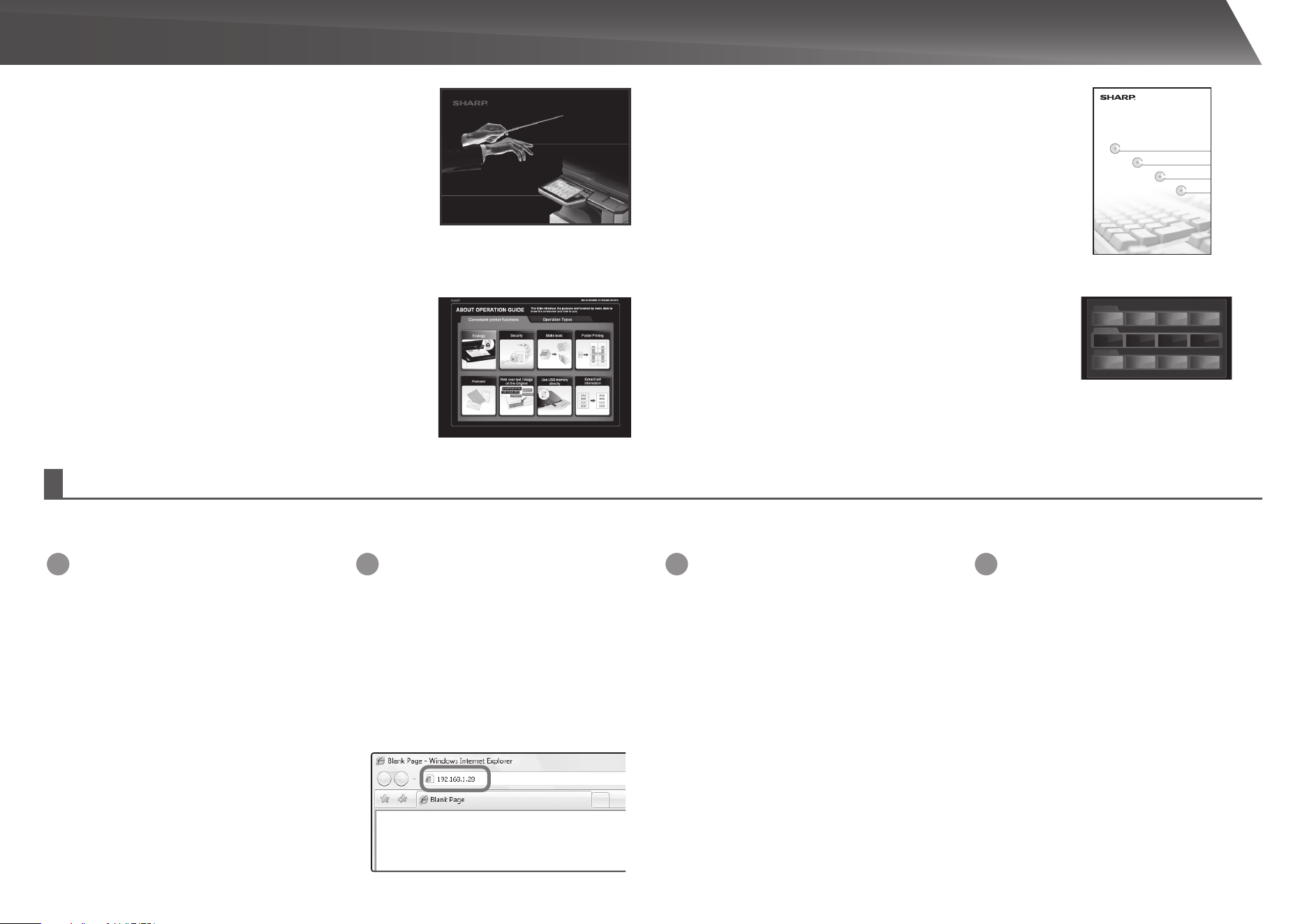
Download the [Operation Guide (PC)]
Click [Download Operation Guide] on the
displayed page. Next, select the desired
language from the “Language to download”
list, and then click the [Download] button.
4
Double-click on the downloaded file to
display the Operation Guide (PC).
2
Insert the machine’s IP address into
the address bar of your web browser
to access the machine.
http://machine’s IP address/
User verification may be required
depending on the machine’s settings.
Please check with the machine’s
administrator to obtain the account
information necessary for verification.
1
Confirm the machine’s IP address
First, press the [Settings] key on the operation
panel and then touch [List Print (User)] when it
appears on the touch panel.
Next, touch the [Print] key in the [All Custom
Setting List], and confirm the IP address in the
printed list.
Quick Start Guide (this document)
Features important safety notes, names of parts and
components, information about the power-on procedure,
operation overviews, information for people who manage
the machine, and information about other aspects of this
machine.
Read this section before using the machine for the first time.
QUICK START GUIDE
DIGITAL FULL COLOR MULTIFUNCTIONAL SYSTEM
MX-2610N/MX-3110N/MX-3610N
Keep this manual close at hand for reference whenever needed.
Downloading the Operation Guide (PC)
You can download the [Operation Guide (PC)] by following the procedures below while the machine is connected to the network.
Operation Guide (PC)
Can be downloaded from the machine to a computer and
viewed. Refer to this document to learn more about printer
mode and settings mode, and to learn about the details of
each type of mode.
Operation Guide (Built-in)
Can be viewed by touching the operation guide icon on the
machine’s touch panel. When you are using this machine,
use this document to see an overview of a particular mode or
when you are having trouble operating the machine.
Software Setup Guide (CD-PDF)
Explains how to install the various drivers needed when
using this machine as a printer, network scanner, or fax
machine. Refer to this document when using this machine
from a computer. The Software Setup Guide can be found on
the “Software CD-ROM”.
Software Setup Guide
DIGITAL FULL COLOR MULTIFUNCTIONAL SYSTEM
Windows環境でのセットアッ プ
Macintosh環境でのセットアッ プ
困 っ た と き は
SETUP IN A WINDOWS ENVIRONMENT
TROUBLESHOOTING
SETUP IN A MACINTOSH ENVIRONMENT
ソ フ ト ウ ェ ア を イ ンストールする前に
BEFORE INSTALLING THE SOFTWARE
Operation Guide Index
Common operations
By mode
Home screen
Copier
EcoMaintenance
Troubleshooting
Appendix
Facsimile Image send
Preview screen
Text entry
How to set the
original and
paper
Document
filing
Others
To close Operation Guiude, tap [close] key or press Home button.
8
When moving the machine, switch off the main power and remove the power plug from the outlet
before moving.
The cord may be damaged, creating a risk of fire or electrical shock.
CAUTION
When removing the power plug from the outlet, do not pull on the cord.
Pulling on the cord may cause damage such as wire exposure and breakage, and may result in fire or
electrical shock.
If you will not use the machine for a long time, be sure to remove the power plug from the outlet for
safety.
Power notes
WARNING
Be sure to connect the power cord only to a power outlet that meets the specified voltage and current
requirements. Also make certain the outlet is properly grounded. Do not use an extension cord or
adapter to connect other devices to the power outlet used by the machine. Using an improper power
supply may cause fire or electrical shock.
* For the power supply requirements, see the name plate in the lower left corner of the left side of the
machine.
Do not damage or modify the power cord.
Placing heavy objects on the power cord, pulling it, or forcibly bending it
will damage the cord, resulting in fire or electrical shock.
Do not insert or remove the power plug with wet hands.
This may cause electrical shock.
Meaning of the symbols
CAUTION!
HOT
PINCH POINT
KEEP CLEAR
PROHIBITED
ACTIONS
DO NOT
DISASSEMBLE
MANDATORY
ACTIONS
Symbols in this manual
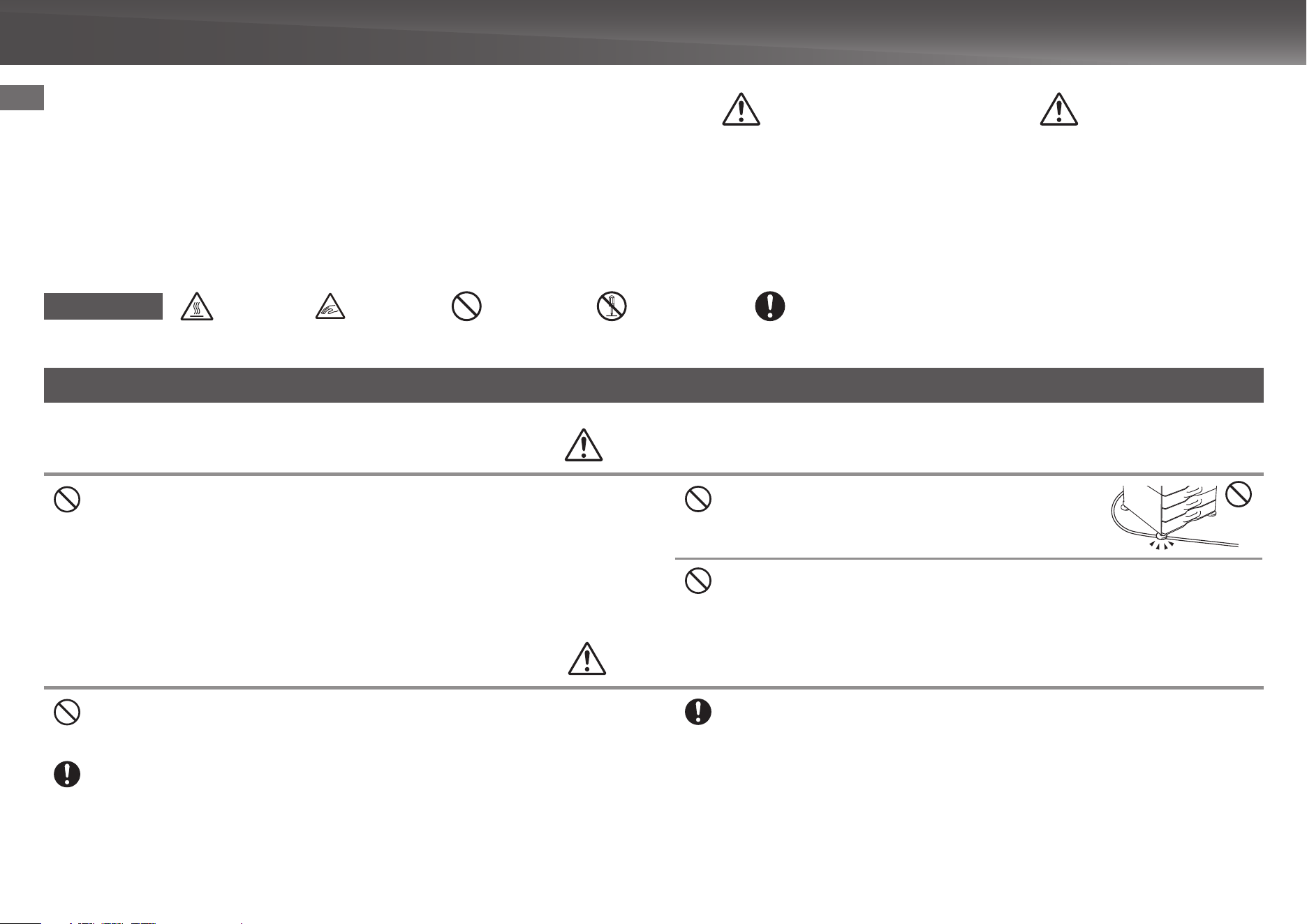
To ensure safe use of the machine, this manual uses various safety symbols. The
safety symbols are classified as explained below. Be sure you understand the
meaning of the symbols when reading the manual.
WARNING
Indicates a risk of death or serious injury.
CAUTION
Indicates a risk of human injury or property damage.
CAUTIONS
9
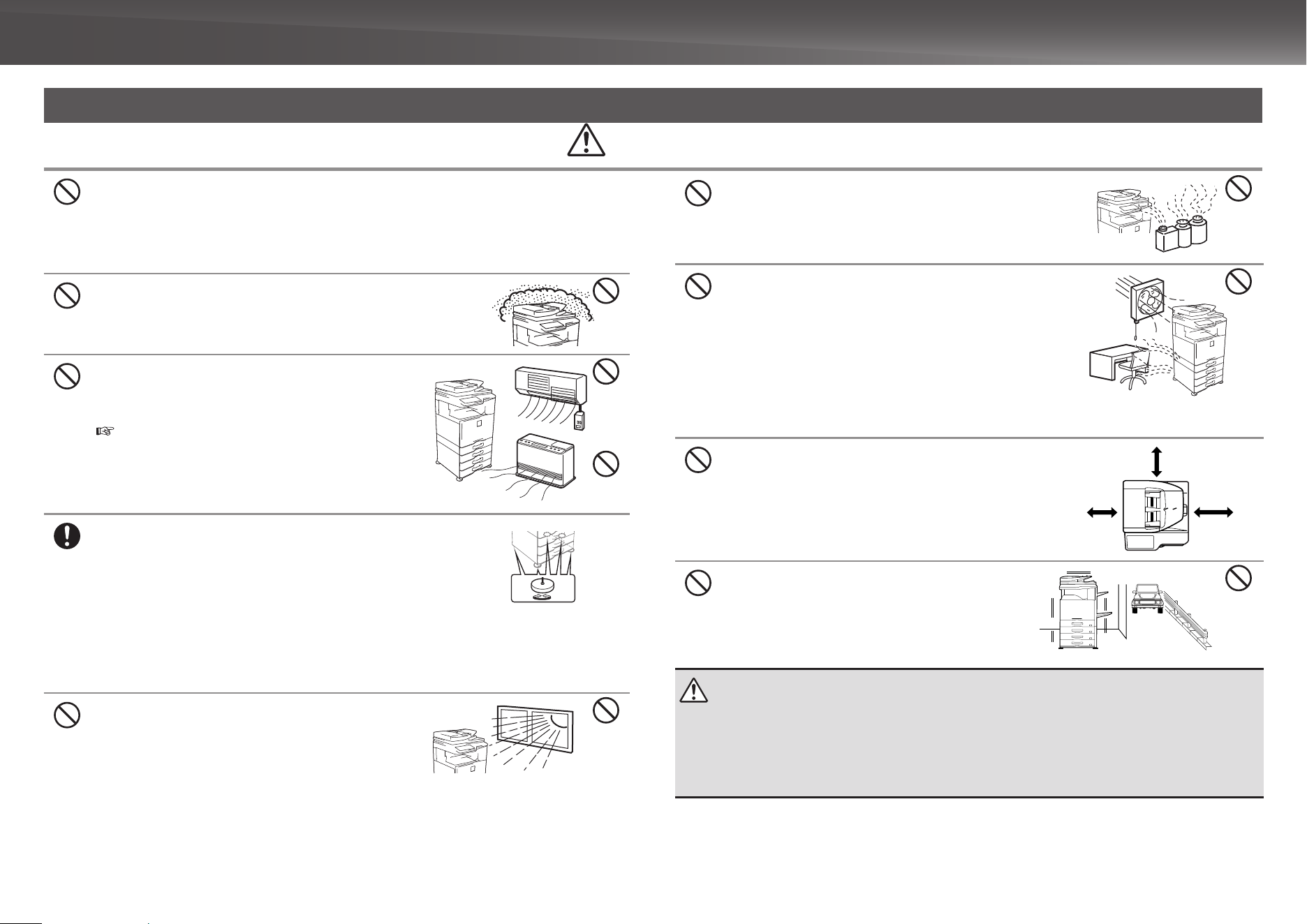
Do not install the machine on an unstable or slanted surface. Install the machine on a surface that can
withstand the weight of the machine.
Risk of injury due to the machine falling or toppling.
If peripheral devices are to be installed, do not install on an uneven floor, slanted surface, or otherwise
unstable surface. Danger of slippage, falling, and toppling. Install the product on a flat, stable surface that
can withstand the weight of the product.
Do not install in a location with moisture or dust.
Risk of fire and electrical shock.
If dust enters the machine, dirty output and machine failure may result.
Locations that are excessively hot, cold, humid, or dry
(near heaters, humidifiers, air conditioners, etc.)
The paper will become damp and condensation may form
inside the machine, causing misfeeds and dirty output.
SPECIFICATIONS (page 18)
If the location has an ultrasonic humidifier, use pure water
for humidifiers in the humidifier. If tap water is used,
minerals and other impurities will be emitted, causing
impurities to collect on the inside of the machine and create
dirty output.
When the machine is installed, the adjusters (5) must be lowered to the
floor to secure the machine (prevent it from moving).
Rotate the adjusters in the locking direction until they are in firm contact
with the floor.
If you find it necessary to reposition the machine due to
rearrangement of your office layout or other reason, retract the
adjusters from the floor, turn off the power, and then move the
machine.
(After moving the machine, lower the adjusters again to secure the
machine.)
Locations exposed to direct sunlight
Plastic parts may become deformed and dirty output may result.
Lock
Release
Installation notes
CAUTION
Locations with ammonia gas
Installing the machine next to a diazo copy machine may cause
dirty output.
Do not install the machine in a location with poor air
circulation.
A small amount of ozone is created inside the machine during
printing. The amount of ozone created is not sufficient to be
harmful; however, an unpleasant odor may be noticed during
large copy runs, and thus the machine should be installed in a
room with a ventilation fan or windows that provide sufficient air
circulation. (The odor may occasionally cause headaches.)
* Install the machine so that people are not directly exposed to
exhaust from the machine. If installed near a window, ensure
that the machine is not exposed to direct sunlight.
Near a wall
Be sure to allow the required space around the machine for
servicing and proper ventilation. (The machine should be no
closer than the distances indicated below from walls. The
indicated distances are for the case when a saddle finisher and
large capacity paper tray are not installed.)
30 cm
30 cm
45 cm
Locations subject to vibration.
Vibration may cause failure.
CAUTION
The machine includes a built-in hard drive. Do not subject the machine to shock or vibration. In particular, never
move the machine while the power is on.
The machine should be installed near an accessible power outlet for easy connection.•
Connect the machine to a power outlet which is not used for other electric appliances. If a lighting fixture is •
connected to the same outlet, the light may flicker.
10
CAUTIONS
Do not throw a toner cartridge into a fire.
Toner may fly and cause burns.
About consumables
CAUTION
Store a toner cartridge out of the reach of children.
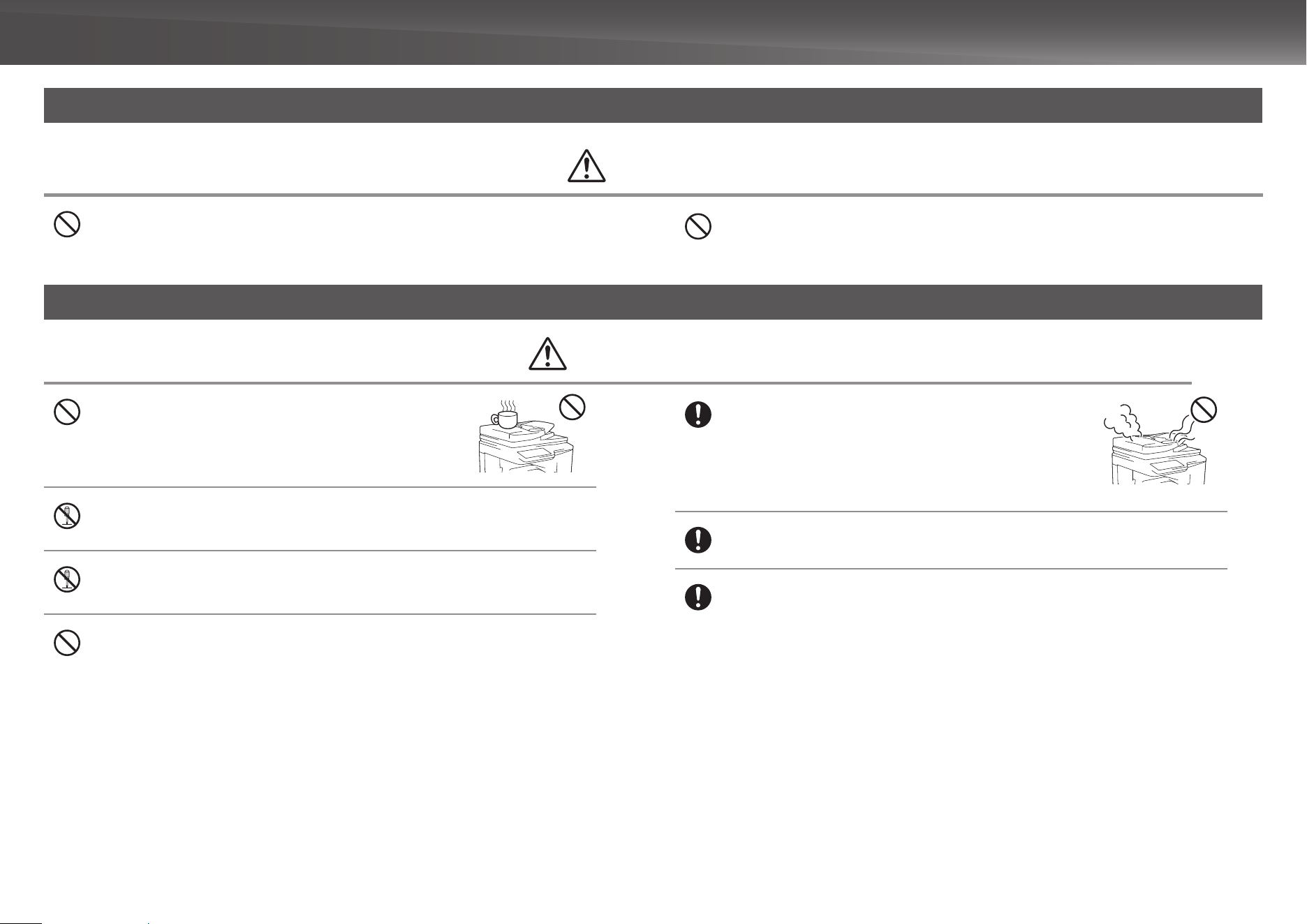
Do not place a container of water or other liquid, or a metal
object that might fall inside, on the machine.
If the liquid spills or the object falls into the machine, fire or electrical
shock may result.
Do not remove the machine casing.
High-voltage parts inside the machine may cause electrical shock.
Do not make any modifications to this machine.
Doing so may result in personal injury or damage to the machine.
Do not use a flammable spray to clean the machine.
If gas from the spray comes in contact with hot electrical components or the fusing unit inside
the machine, fire or electrical shock may result.
Handling precautions
WARNING
If you notice smoke, a strange odor, or other abnormality, do not
use the machine.
If used in this condition, fire or electrical shock may result.
Immediately switch off the main power and remove the power plug from
the power outlet.
Contact your dealer or nearest SHARP Service Department.
If a thunder storm begins, switch off the main power and remove the power plug from the outlet
to prevent electrical shock and fire due to lightning.
If a piece of metal or water enters the machine, switch off the main power and remove the
power plug from the power outlet.
Contact your dealer or nearest SHARP Service Department. Using the machine in this condition may
result in electrical shock or fire.
11
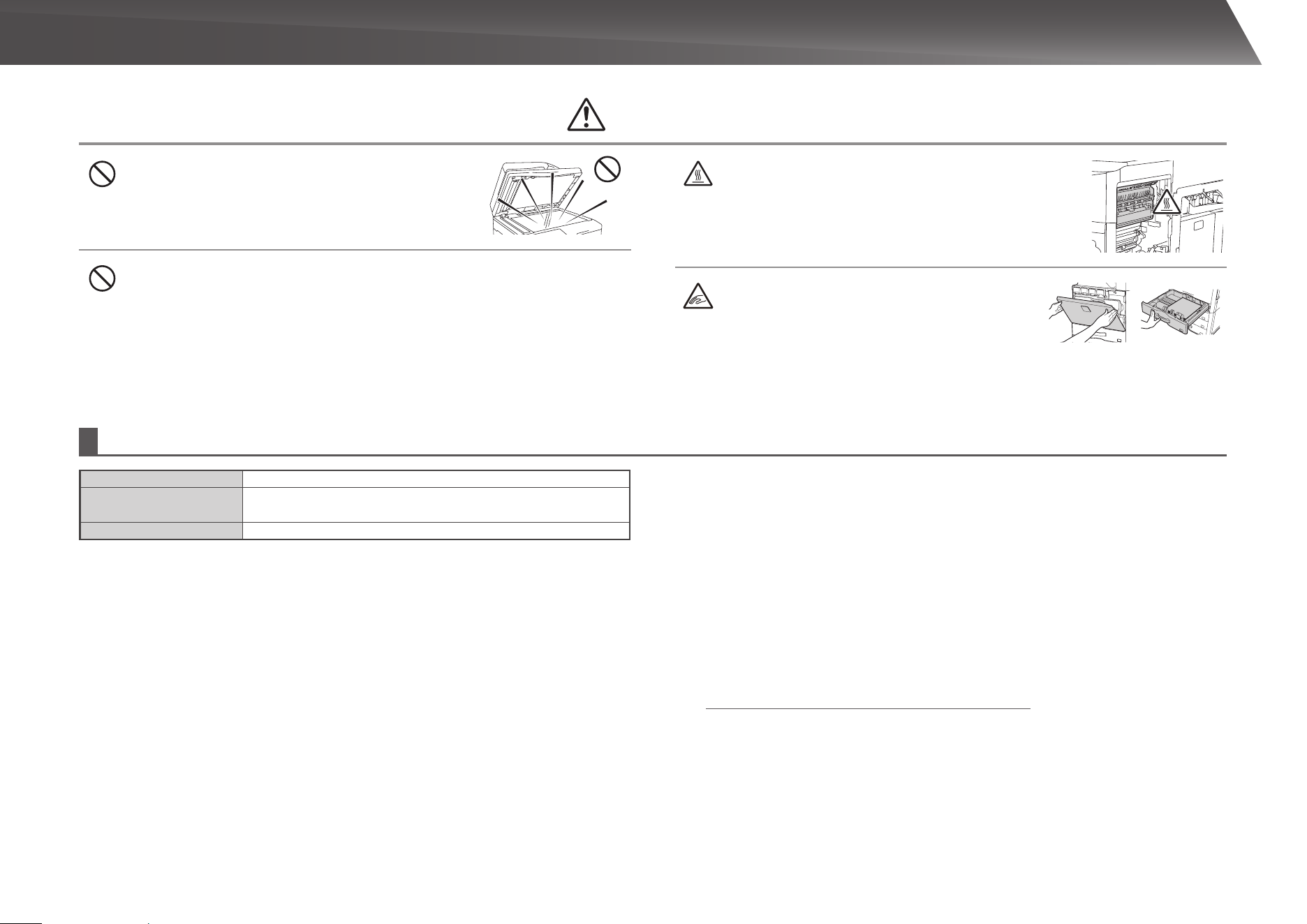
Do not look directly at the light source.
Doing so may damage your eyes.
Do not block the ventilation ports on the machine. Do not install the machine in a location that
will block the ventilation ports.
Blocking the ventilation ports will cause heat to build up in the machine, creating a risk of fire.
CAUTION
The fusing unit and paper exit area are hot. When removing a
misfeed, do not touch the fusing unit and paper exit area. Take care
not to burn yourself.
When loading paper, removing a misfeed, performing
maintenance, closing the front and side covers, and
inserting and removing trays, take care that your fingers
are not pinched.
The machine includes the document filing function, which stores document image data on the machine's hard drive. Stored documents can be called up and printed or transmitted as needed. If a hard drive failure occurs, it will no longer
be possible to call up the stored document data. To prevent the loss of important documents in the unlikely event of a hard drive failure, keep the originals of important documents or store the original data elsewhere.
With the exception of instances provided for by law, Sharp Corporation bears no responsibility for any damages or loss due to the loss of stored document data.
Laser information
Wave length 790 nm ± 10 nm
Pulse times
Normal paper mode (P/S = 104 mm/s) = (5.15 µs ± 0.03 ns) / 7 mm
Heavy paper mode (P/S = 70 mm/s) = (3.83 µs ± 0.03 ns) / 7 mm
Output power Max 0.405 mW
Caution
Use of controls or adjustments or performance of procedures other than those
specified herein may result in hazardous radiation exposure.
This Digital Equipment is CLASS 1 LASER PRODUCT (IEC 60825-1 Edition
2-2007)
SAFETY PRECAUTIONS
This Digital Equipment is rated Class 1 and complies with 21 CFR 1040.10
and 1040.11 of the CDRH standards. This means that the equipment does not
produce hazardous laser radiation. For your safety, observe the precautions
below.
Do not remove the cabinet, operation panel or any other covers.•
The equipment’s exterior covers contain several safety interlock switches. Do •
not bypass any safety interlock by inserting wedges or other items into switch
slots.
“BATTERY DISPOSAL”
THIS PRODUCT CONTAINS A LITHIUM PRIMARY MEMORY BACK-UP
BATTERY THAT MUST BE DISPOSED OF PROPERLY.
PLEASE CONTACT YOUR LOCAL SHARP DEALER OR AUTHORIZED SERVICE
REPRESENTATIVE FOR ASSISTANCE IN DISPOSING OF THIS BATTERY.
This product utilizes a CR coin Lithium battery which contains a Perchlorate
material. Special handling for this material may apply, California residents,
See www.dtsc.ca.gov/hazardouswaste/perchlorate/
Others, consult local environmental officers.
This product utilizes tin-lead solder, and fluorescent lamp containing a small
amount of mercury. Disposal of these materials may be regulated due to
environmental consideration. For disposal or recycling information, please
contact your local authorities, the Electronics Industries Alliance: www.eiae.org,
the lamp recycling organization: www.lamprecycle.org or Sharp at 1-800-BE-
SHARP. (For U.S.A. Only)
12
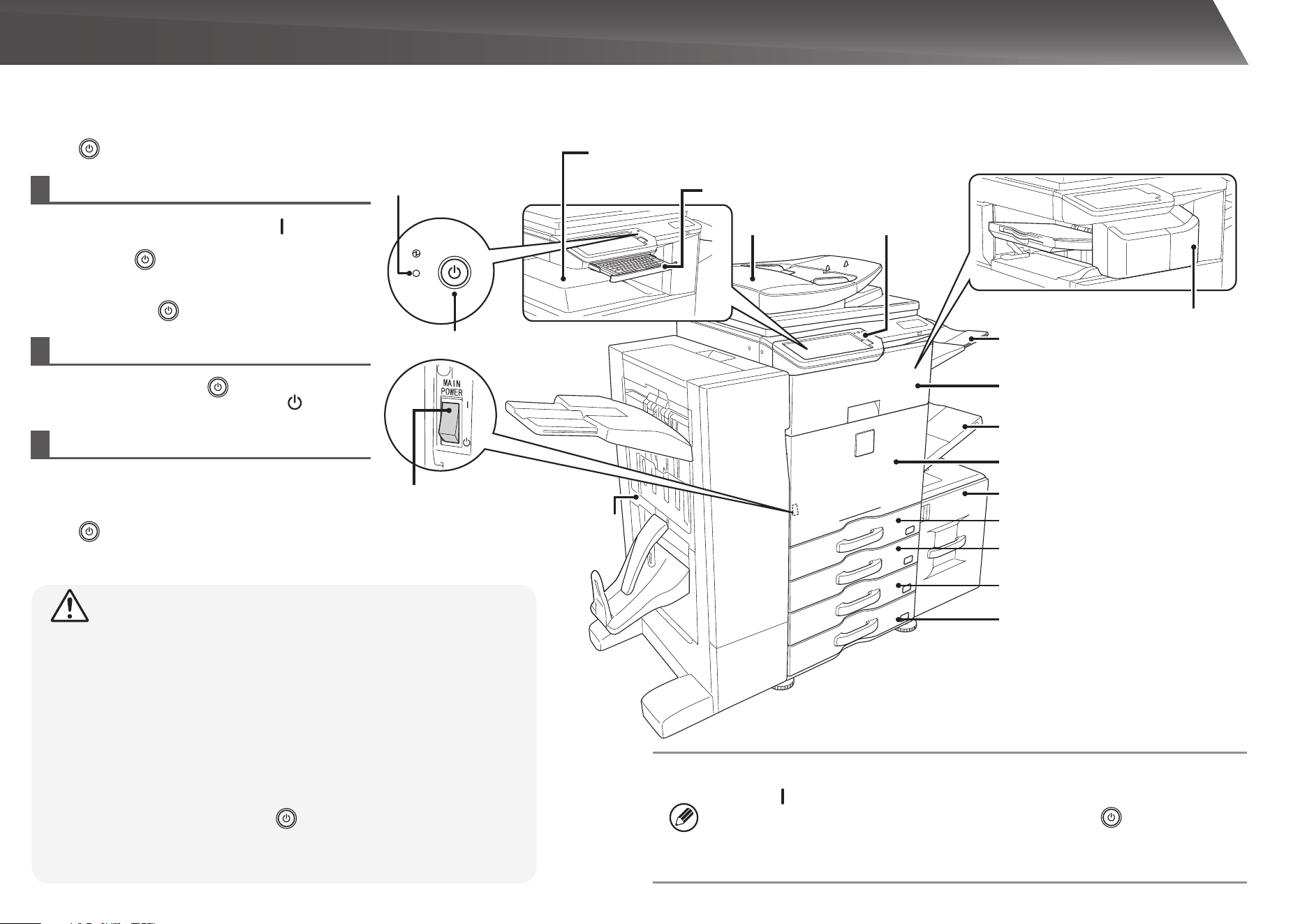
NAMES OF PARTS AND COMPONENTS, TURNING ON THE POWER
This machine has a main power switch, found at the
bottom left after the front cover is opened, and a power
button ( ), located on the operation panel.
CAUTION
When turning off the power, make sure that the indicators on the •
operation panel turn off as well.
If the machine suddenly turns off, such as in the event of a power failure, •
turn the machine on again, and then turn off the machine following the
correct procedure for turning off the machine.
Switching off the main power switch or removing the power cord from the
outlet while any of the indicators are lit or blinking may damage the hard
drive and cause data to be lost.
Switch off both the power button (• ) and the main power switch and
unplug the power cord if you suspect a machine failure, if there is a bad
thunderstorm nearby, or when you are moving the machine.
When using the fax or Internet fax function, always keep the main power switch •
in the “
” position.
In some states of the machine, pressing the power button (• ) to restart will not
make the settings take effect. In this case, use the main power switch to switch
the power off and then on.
Tray 1
Tray 5
(when a large capacity tray is installed)*
* Optional
Tray 2
(when a paper feed tray is installed)*
Tray 3
(when a paper feed tray is installed)*
Tray 4
(when a paper feed tray is installed)*
Automatic
document feeder
Operation
panel
Finisher*
Right tray
Paper pass unit*
Bypass tray
Front cover
Saddle Finisher*
Main power switch
Main power
indicator
Power button
Output tray (Center tray)
Keyboard*
Turning on the power
Switch the main power switch to the “ •
” position.
The main power indicator will light in orange. The
power button ( ) does not function while the main
power indicator is lit in orange.
After the main power indicator lights in green, press •
the power button ( ).
Turning off the power
(1) Press the power button ( ) to turn off the power.
(2) Switch the main power switch to the “ ” position.
Restarting the machine
In order for some settings to take effect, the machine
must be restarted. If a message in the touch panel
prompts you to restart the machine, press the power
button ( ) to turn off the power and then press the
key again to turn the power back on.
13
Double-tap
Lightly strike the touch panel two times. Used
to change the preview display mode, or
enlarge the preview image.
Flick
Flick (quickly swipe with the finger) to scroll
the preview image.
Tap
Touch and then quickly release the finger.
Used to select keys, tabs, checkboxes, etc.
Long-touch
Touch a key and keep the finger on the key
for a short time.
Slide
Slide the finger on the scroll bar to move up
or down through a long list.
Drag
Drag (slide the finger in the desired direction)
to rotate or delete original pages displayed as
a preview.
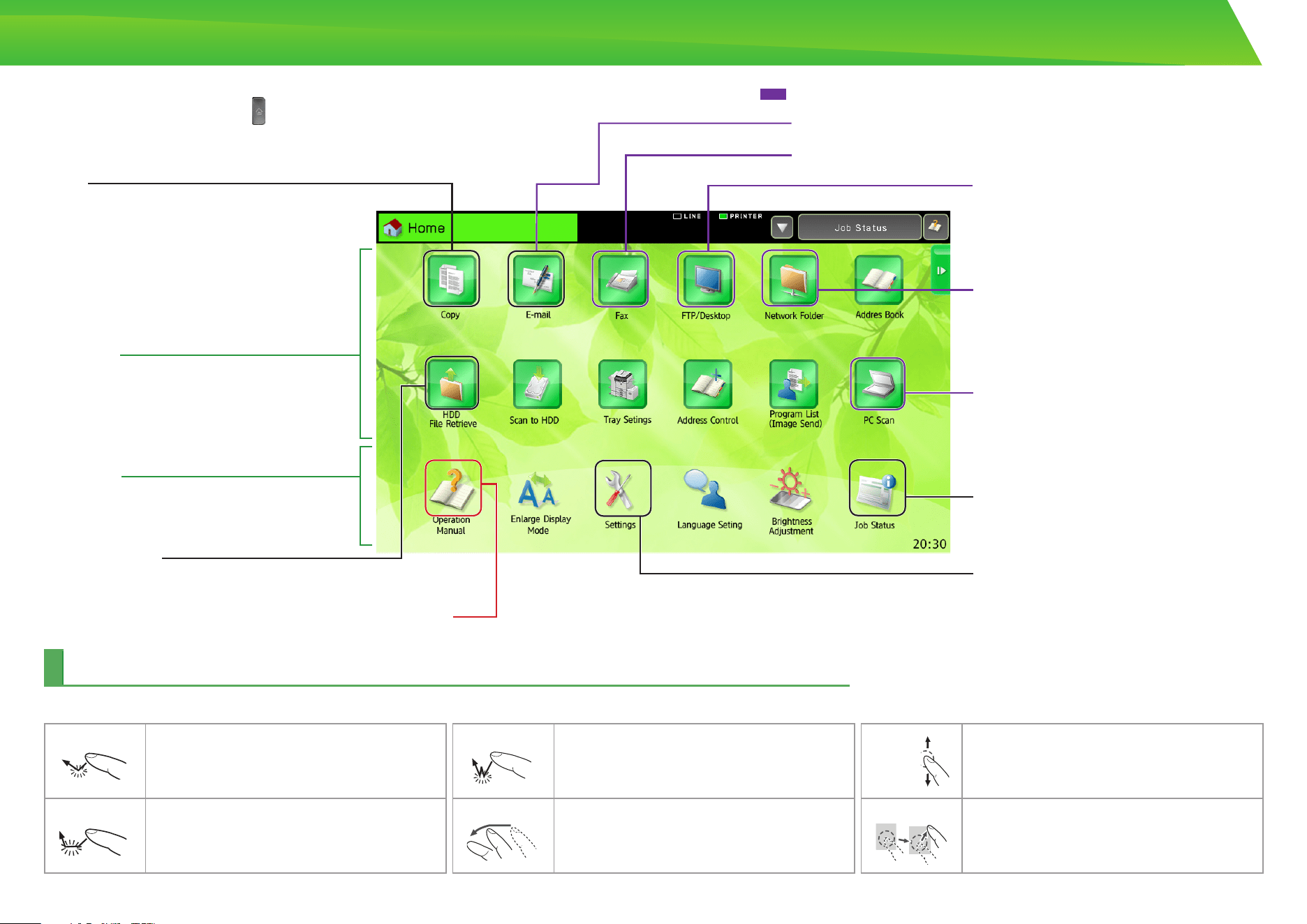
The home screen is the first screen to be displayed. Touch an icon to display the
corresponding screen. When the button is pressed on the operation panel, this
home screen is displayed.
* The actual screen displayed may vary depending on the model or how the machine
has been customized.
OPERATING THE TOUCH PANEL
In addition to the conventional "single tap" operation, you can also operate the touch panel using long touches, flicks, and slides.
HOME SCREEN
Up to 10 icons are always displayed.
Fixed area
Up to 12 icons are displayed.
Ic on s th a t a re no t di sp l ay ed c an be
displayed by scrolling horizontally.
Scroll area
HDD file retrieve
Operation Guide
Job status
System settings
The scanned original is saved.
Saved data can be edited and used again for another operation.
Copy
The scanned original is printed.
E-mail
Fax
The scanned original is attached to an e-mail and sent.
The scanned original is sent using the telephon line.
FTP/Desktop
The scanned file is sent to a specified
directory of an FTP server or to a specified
folder on a computer connected to the
network.
Network folder
The scanned original is sent to the specified
shared folder on a computer connected to
the Windows network.
Displays the status of the current job.
PC scan
A T WA IN -c om pl i a n t a p p li ca ti on o n a
computer connected to the network is used
to scan a document or image.
Image send
The scanned original is sent to the specified destination.
Allows various settings to be adjusted
according to how the machine will be used
or its current state of use.
Refer to the Operation Guide when you have
questions about operating the machine.
14
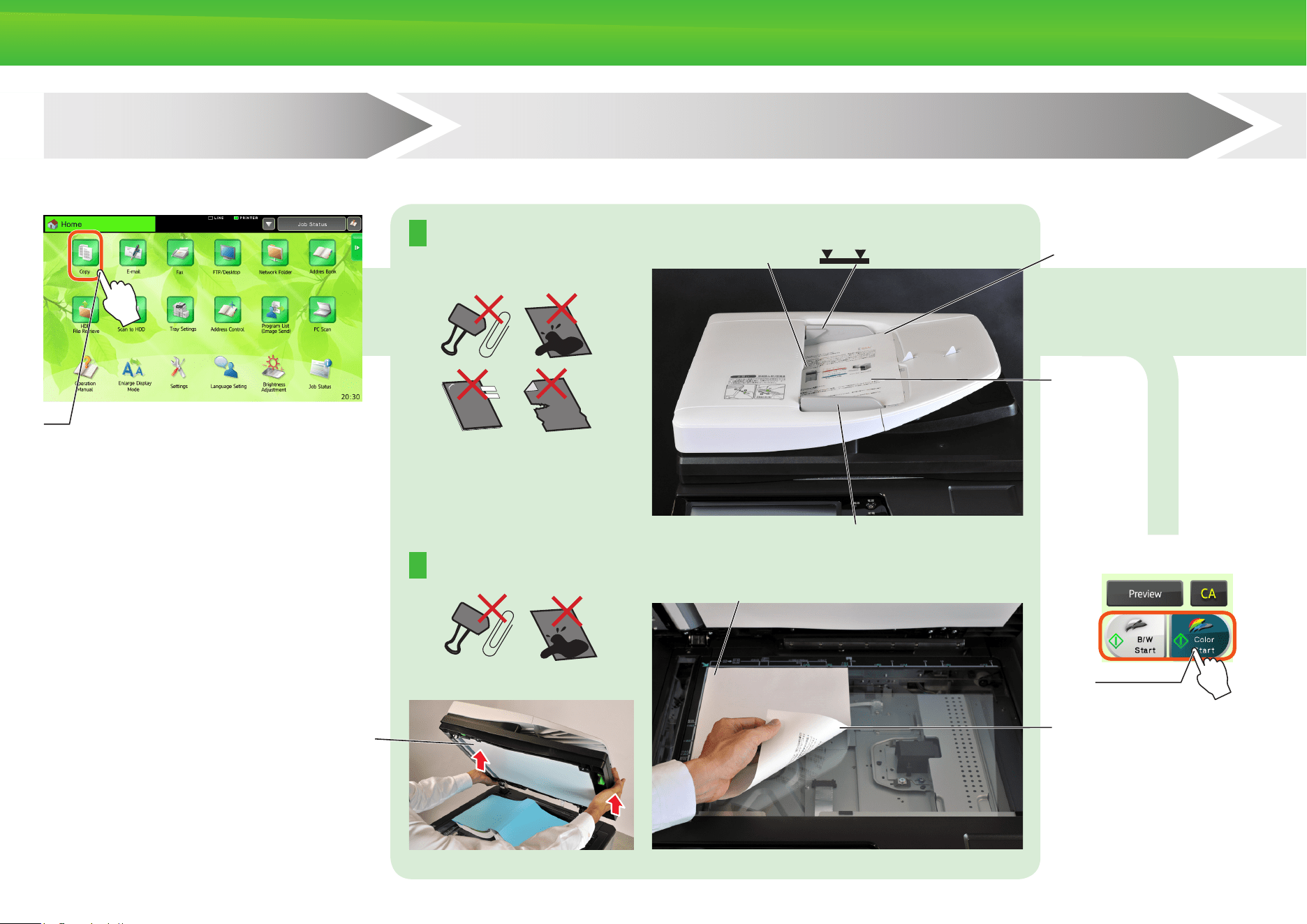
OVERVIEW OF COPY OPERATION
Step
1
Select a function
Step
2
Place the original
Select the Copy icon.
Tap
Place the original on the document glass
Select the automatic document feeder or the document glass according to the type of original.
Lift open
Placing a thick book
Align to corner
Place image-side down
Tap
Insert all the way Do not pass this line Align the edges
Place the original in the automatic document feeder
Print 1 set of copies
Adjust to original size
Place
image-side
up
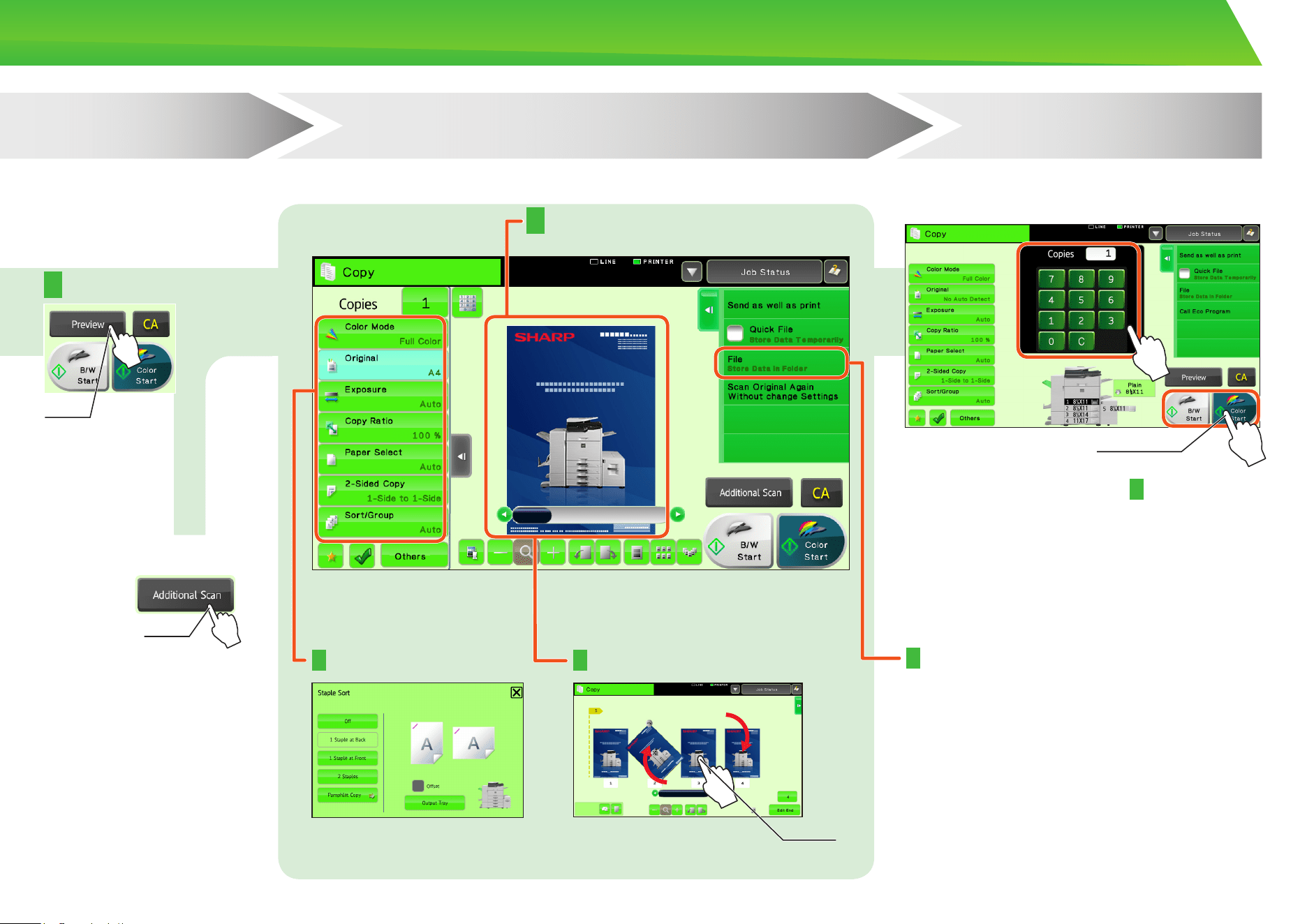
15
Drag
Output settings
Print
Editing
Confirmation
Scan the original
Document filing
Confirm the results of the scan and any edits or settings. Enter the number of prints and start printing.
Tap
Scan another original
Step
3
Scan
Step
4
Confirming while viewing the preview
Face up/down, orientation,
missing pages, folded pages
The scanned original and the settings are
saved on the hard disk and can be used
again.
Page editing, deleting, etc.
Tap
Step
5
Start
Tap
16
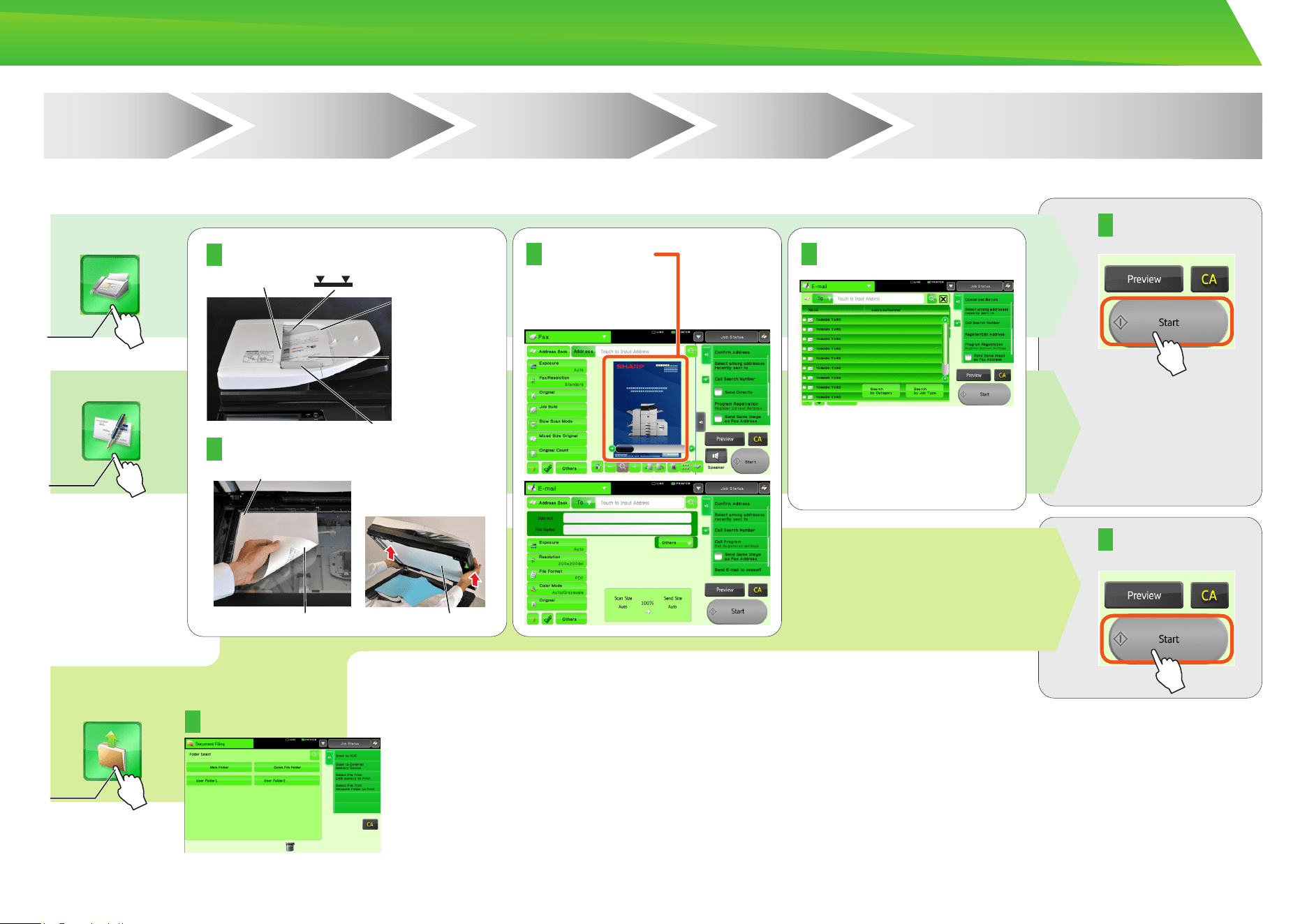
Transmission
Storing
For functions other than copy.
OVERVIEW OF OTHER OPERATIONS
Step
1
Select a function
Step
5
Step
2
Place the original
Step
3
Scan
Step
4
Confirmation
Start
HDD file
retrieve
Scan and store the file
E-mail
Fax
Place the original in the automatic document feeder
Confirmation
Place the original on the document glass
Select the folder
Insert all the way
Do not pass this line
Align the edges
Face up/down
Orientation
Missing pages
Folded pages
Upward
Adjust to original size
Align to corner
Lift open
Downward
Placing a thick book
Tap
Tap
Tap
Select the address
17
Do not dispose of used toner cartridges. Place them in a plastic bag and keep them. The technician will collect the used toner cartridges when performing maintenance.•
To view the approximate amount of toner remaining, continually touch the [Home Screen] key during printing or when the machine is idle. The percentage of toner remaining will •
appear in the display while the key is touched.
When the percentage falls to • “25-0%”, obtain a new toner cartridge and keep it ready for replacement.
Depending on your conditions of use, the color may become faint or the image blurred.•
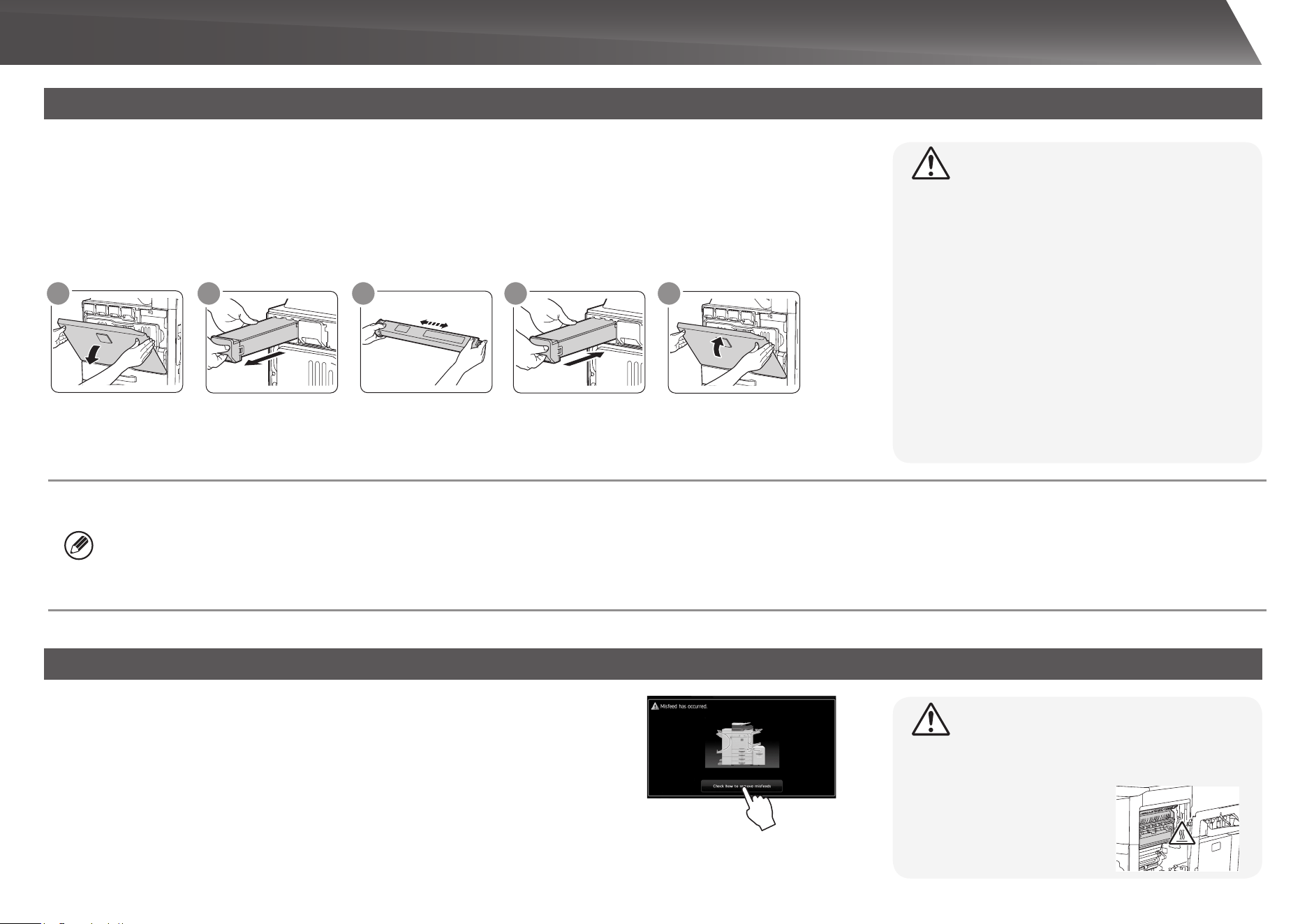
MAINTENANCE
When toner runs low, the color and the message “Prepare a new toner cartridge.” appears.
Prepare a new toner cartridge for the indicated color.
When toner runs out, the color and the message “Replace the toner cartridge.” appears.
Replace the toner cartridge for the indicated color.
Example: Replacing the yellow toner cartridge
When a paper misfeed occurs, the message “A misfeed has occurred.” will appear in the
touch panel and printing and scanning will stop.
In this event, touch the [Check how to remove misfeeds.] key in the touch panel.
When the key is touched, instructions for removing the misfeed will appear. Follow the
instructions. When the misfeed is cleared, the message will automatically clear.
Old toner cartridge
Shake 5 or 6 times Gently insert straight
into the machine
until it locks
CloseOpen
New toner cartridge
1 2 3 4 5
Do not throw toner cartridges into a fire. Toner may •
fly and cause burns.
Store toner cartridges out of the reach of small •
children.
Always store toner cartridges on their sides. If toner •
cartridges are stored on end, the toner may harden
and become unusable.
Please use SHARP-recommended toner cartridges. •
If toner cartridges other than SHARP-recommended
toner cartridges are used, the machine may not
attain full quality and performance and there is a risk
of damage to the machine.
The fusing unit and the output unit are hot.•
Take care not to touch the fusing unit when •
removing a misfeed.
There is a risk of burning.•
Replacing a toner cartridge
Removing misfeeds
Caution
Caution
Gently pull straight
out with both
hands
18
Basic Specifications / Copier specifications
Name
MX-2610N/MX-3110N/MX-3610N
Type
Desktop
Color
Full color
Copier system
Laser electrostatic copier
Scanning
resolution
Scan (B/W): 600 × 600 dpi, 600 × 400 dpi, 600 × 300 dpi
Scan (full color): 600 × 600 dpi
Print: 600 × 600 dpi, equivalent to 9,600 dpi × 600 dpi
Gradation
Scan: equivalent to 256 levels / Print: equivalent to 256 levels
Original paper
sizes
Max. 11" x 17” (A3) for sheets and bound documents
Copy sizes
12" × 18" (A3 wide) to 5-1/2" × 8-1/2"R, A5R, Transparency film, Heavy paper, Envelopes
Tray 1-4: 11" × 17", 8-1/2" × 14", 8-1/2" × 13-1/2", 8-1/2" × 13-2/5",
8-1/2" × 13", 8-1/2" × 11", 8-1/2" × 11"R, 7-1/4 × 10-1/2"R,
5-1/2" × 8-1/2"R A3, B4, A4, A4R, B5, B5R, A5R
Multi-bypass tray: 12" × 18" (A3 wide) to 5-1/2" × 8-1/2"R, A5R, Transparency film, Heavy paper,
Envelopes
Lost margin (leading edge): 11/64" (4 mm) ± 3/64" (± 1 mm)
Lost margin (trailing edge): 6/64" (2 mm) - 13/64" (- 5 mm)
Leading edge / trailing edge: total 21/64" (8 mm) or less
Near edge / far edge: total 11/64" (4 mm) ± 6/64" (± 2 mm) or less
Warm-up time
20 seconds or less
This may vary depending on the ambient conditions.
First-copy time
MX-2610N MX-3110N MX-3610N
Full color: 8.1 seconds 7.9 seconds 6.8 seconds
B/W: 5.9 seconds 5.8 seconds 5.2 seconds
This may vary depending on the state of the machine.
Continuous
copying speeds*
(when shifter is
not in operation)
MX-2610N
8-1/2" × 11"R, A4R 7-1/4" × 10-1/2"R, B5 26 copies/min.
8-1/2" × 11", A4 7-1/4" × 10-1/2", B5 19 copies/min.
8-1/2" × 14", B4 16 copies/min.
11" × 17", A3 14 copies/min.
* Continuous speed for same original source. Output may be
temporarily interrupted to stabilize image quality.
MX-3110N
31 copies/min.
20 copies/min.
17 copies/min.
15 copies/min.
MX-3610N
36 copies/min.
23 copies/min.
20 copies/min.
17 copies/min.
Copy ratios
Same size: 1:1 ± 0.8 % Enlarge: 115 %, 122 %, 141 %, 200 %, 400 %
Reduce: 25 %, 50 %, 70 %, 81 %, 86 %
Zoom range: 25 to 400 % (25 - 200 % using RSPF) in 1 % increments, total 376
increments. Can calculate zoom rate when mm is specified.
Paper feed / capacity
500 sheets in one tray plus 100-sheet multi-bypass tray
Using 21 lbs. (80 g/m
2
) weight paper
Max. paper feed / max. capacity
5,600 sheets in 4 trays (500 × 4) plus 100-sheet multi-bypass tray plus 3,500
sheets in large capacity tray
Using 21 lbs. (80 g/m
2
) weight paper
Continuous copy
Max. 999 copies
Memory
Standard: 2 GB HDD: 160 GB SD card 4 GB PCL accelerator 1 GB
1 GB = One billion bytes when referring to hard drive capacity. Actual
format capacity is less.
Ambient
environment
Operating
environment
54 °F (10 °C) to 91 °F (35 °C) (20 % to 85 % RH) 590 - 1,013 hpa
Standard
environment
68 °F (20 °C) to 77 °F (25 °C) (65 ± 5 % RH)
Required power supply
AC 120V ±10% 60Hz
Power consumption Max. 1.44 kW (including options such as the desk)
Dimensions
MX-2610N/MX-3110N
22-61/64" (W) × 25-29/32" (D) × 32-27/32" (H)
(583 mm (W) × 658 mm (D) × 834 mm (H))
MX-3610N
24-5/16" (W) × 26-25/32" (D) × 32-27/32" (H)
(608 mm (W) × 680 mm (D) × 834 mm (H))
Weight
MX-2610N/MX-3110N MX-3610N
Approx. 165 lbs. (75 kg) Approx. 171 lbs. (78 kg)
Overall
dimensions
With multi-bypass
tray extended
MX-2610N/MX-3110N
33-15/32" (W) × 25-29/32" (D) (850 mm (W) × 658 mm (D))
MX-3610N
34-31/64" (W) × 26-25/32" (D) (876 mm (W) × 680 mm (D))
With right side exit
tray extended
MX-2610N/MX-3110N
37-59/64" (W) × 25-29/32" (D) (963 mm (W) × 658 mm (D))
MX-3610N
39-31/32" (W) × 26-25/32" (D) (1,015 mm (W) × 680 mm (D))
SPECIFICATIONS

19
Automatic document feeder (Standard equipment)
Name
Reversing Single Pass Feeder (RSPF)
Document feeder types
Reversing Single Pass Feeder (RSPF)
Original paper sizes
11" × 17" (A3) to 5-1/2" × 8-1/2" (A5)
Original paper types
Paper weight Thin paper 9 lbs. (35 g/m
2
) to 13 lbs. (49 g/m
2
)
Plain paper 13 lbs. (50 g/m
2
) to 34 lbs. (129 g/m
2
)
Two-sided 13 lbs. (50 g/m
2
) to 28 lbs. (105 g/m
2
)
Paper storage capacity
100 sheets (21 lbs. (80 g/m
2
))
(or maximum stack height of 33/64" (13 mm))
Scan speed (copy)
B/W: 50 one-sided sheets/minute (8-1/2" × 11" (A4) horizontal)
(600 × 400 dpi)
Color: 36 one-sided sheets/minute (8-1/2" × 11" (A4) horizontal)
(600 × 600 dpi)
Tray
Name
Tray 1
(MX-DE12)
Tray 2
(MX-DE13)
Tray 3
(MX-DE14)
Large capacity tray
(MX-LC11)
Paper sizes
11" × 17" (A3) to 5-1/2" × 8-1/2"R (A5R)
8-1/2" × 11" (A4, B5)
Useable paper
16 lbs. (60 g/m
2
) to 56 lbs. (209 g/m
2
)
16 lbs.(60 g/m
2
) to
28 lbs. (105 g/m
2
)
Paper capacity
500 sheets 1,000 (500 × 2) 1,500 (500 × 3) 3,500
Dimensions
MX-DE12/13/14
22-61/64" (W) × 22-46/64" (D) × 15-3/64" (H)
(583 mm (W) × 577 mm (D) × 382 mm (H))
MX-LC11
14-53/64" (W) × 20-19/32" (D) × 22-41/64" (H)
(376 mm (W) × 523 mm (D) × 575 mm (H))
Weight
MX-DE12: Approx. 46 lbs. (21 kg)
MX-DE13: Approx. 53 lbs. (24 kg)
MX-DE14: Approx. 64 lbs. (29 kg)
MX-LC11: Approx. 66 lbs. (30 kg)
Finisher
Name
Finisher (MX-FN17)
Paper sizes
Depends on feeder specifications
Useable paper
Paper weight 15 lbs. (55 g/m
2
) to 68 lbs. (256 g/m
2
)
No. of trays
1
Tray capacity (21 lbs. (80g/m
2
))
Non-stapled 12" × 18" (A3 wide) / 11" × 17" (A3) /
8-1/2" × 14" (B4): 250 sheets
8-1/2" × 11" (A4) / 8-1/2" × 11"R (A4R, B5) /
7-1/4" × 10-1/2"R (B5R) / 5-1/2" × 8-1/2"R (A5R):
500 sheets
Staple function 11" × 17" (A3) / 8-1/2" × 14" (B4): 30 units or 250 sheets
8-1/2" × 11" (A4) / 8-1/2" × 11"R (A4R, B5) /
30 units or 500 sheets
Offset output is not available for 12" × 18" (A3 wide) /
7-1/4" × 10-1/2"R (B5R) / 5-1/2" × 8-1/2"R (A5R).
Max. no. of stapled sheets
Max. no. of 50 sheets (8-1/2" × 11" (A4), 8-1/2" × 11"R (A4R, B5))
Max. no. of 30 sheets (11" × 17" (A3), 8-1/2" × 14" (B4))
Staple position
1 bottom, 1 top, 2 middle
Required power supply
Supplied from this machine
Weight
Approx. 33 lbs. (15 kg)
Dimensions
When output paper tray is stored
16-55/64" (W) × 23-22/64" (D) × 7-51/64" (H)
(428 mm (W) × 593 mm (D) × 198mm (H))
When output paper tray is extended
24-6/64" (W) × 23-22/64" (D) × 7-51/64" (H)
(612 mm (W) × 593 mm (D) × 198 mm (H))
20
Punch module (for saddle finisher)
Name
Punch module
MX-PNX5B
Paper size for punch module
11" × 17" (A3) to 7-1/4" × 10-1/2"R (A4)
Holes
3 holes
Required power supply
Supplied from saddle finisher
Dimensions
4-27/32" (W) × 24-5/32" (D) × 9-59/64" (H)
(122 mm (W) × 604 mm (D) × 248 mm (H))
Weight
Approx. 7.7 lbs. (3.5 kg)
SPECIFICATIONS
Punch module (for finisher)
Name
Punch module
MX-PN11B
Paper size for punch module
11" × 17" (A3) to 7-1/4" × 10-1/2"R (A4)
Holes
3 holes
Required power supply
Supplied from finisher
Dimensions
3-55/64" (W) × 18-50/64" (D) × 5-26/64" (H)
(98 mm (W) × 477 mm (D) × 137 mm (H))
Weight
Approx. 7 lbs. (3 kg)
Saddle Finisher
Name
Finisher (MX-FN10)
Paper sizes
Depends on feeder specifications
Useable paper
Paper weight 15 lbs. (55 g/m
2
) to 68 lbs. (256 g/m
2
)
No. of trays
1
Tray capacity (21 lbs. (80g/m
2
))
Non-stapled 12" × 18" (A3 wide) / 11" × 17" (A3) /
8-1/2" × 14" (B4) / 5-1/2" × 8-1/2"R (A5R): 500 sheets
8-1/2" × 11" (A4) / 8-1/2" × 11"R (A4R, B5) /
7-1/4" × 10-1/2"R (B5R): 1,000 sheets
Staple function 11" × 17" (A3) / 8-1/2" × 14" (B4): 50 units or 500 sheets
8-1/2" × 11" (A4) / 8-1/2" × 11"R (A4R, B5, B5R):
50 units or 1,000 sheets
Offset output is not available for 12" × 18" (A3 wide) /
5-1/2" × 8-1/2"R (A5R).
Required power supply
Supplied from this machine
Weight
Approx. 88 lbs. (40 kg)
Dimensions
When output paper tray is stored
19-9/16" (W) × 24-27/32" (D) × 38-57/64" (H)
(497 mm (W) × 631 mm (D) × 988 mm (H))
When output paper tray is extended
25-53/64" (W) × 24-27/32" (D) × 38-57/64" (H)
(656 mm (W) × 631 mm (D) × 988 mm (H))
Max. no. of stapled sheets
Max. no. of 50 sheets (8-1/2" × 11" (A4), 8-1/2" × 11"R (A4R, B5, B5R))
Max. no. of 25 sheets (11" × 17" (A3), 8-1/2" × 14" (B4))
Staple position
1 bottom, 1 top, 2 middle
Staple method (for saddle stitch)
Centered fold with stapling in 2 center places
Saddle stitch fold position
Centered fold
Saddle usable sizes
11" × 17" (A3) / 8-1/2 × 14" (B4) / 8-1/2" × 11"R (A4R)
Saddle usable paper weight
16 lbs. (60 g/m
2
) to 56 lbs. (209 g/m
2
)

21
Type
Built-in type
Continuous print speed
Same as continuous copy speed
Resolution
Data processing: 600 × 600 dpi, 1,200 × 1,200 dpi
Print: 600 × 600 dpi, equivalent to 9,600 dpi × 600 dpi, 1,200 × 1,200 dpi
Page description language
Standard: PCL6 emulation, PS3 emulation *1
Compatible protocols
TCP/IP, IPv4/IPv6, IPX/SPX, NetBEUI, IPP, EtherTalk *1
Compatible OS
Windows 2000, Windows XP, Windows 2000 Server, Windows Server 2003,
Windows Vista, Windows Server 2008, Windows 7
Macintosh (Mac OS 9.0 ~ 9.2.2, OS X 10.2.8, 10.3.9, 10.4 ~ 10.4.11, 10.5 ~
10.5.8, 10.6 ~ 10.6.2)*1
Network Printer Specifications
Internal fonts (options)
80 fonts for PCL, 136 fonts for PS3 emulation
Memory
Machine system memory and hard disk
Interface
10BASE-T/100BASE-TX/1000BASE-T, USB 1.1, USB 2.0 (high speed mode)
*1: When equipped with a PS extension kit (MX-PK11).
Fax Specifications
Transmission time
Approx. 2 seconds *1 (8-1/2" × 11" (A4) Sharp standard paper, normal
characters, Super G3 (JBIG))
Approx. 6 seconds (G3 ECM)
Memory
1 GB
Notes
Touch dial memory Max. of 2,000 entries (Including group dialing for fax,
scanner, and Internet fax)
Entries per group Max. of 500 entries
Mass transmissions Max. of 500 recipients
*1 Complies with the 33.6 kbps transmission method for Super G3 facsimiles standardized by the International
Telecommunications Union (ITU-T). This is the speed for when sending an 8-1/2" × 11" (A4) size piece of paper
of around 700 characters at standard image quality (8 × 3.85 chars/mm) in Hi-speed mode (33.6 kbps). This is
the transmission speed for image information only and does not include time for transmission control. The actual
time needed for a transmission depends on the content of the text, type of receiving fax machine, and telephone
line conditions.
Name
Facsimile expansion kit (MX-FX11)
Useable lines
General phone lines (PSTN), private branch exchange (PBX)
Scanning line density
Normal characters: 8 dot/mm × 3.85 chars/mm
Small characters: 8 dot/mm × 7.7 line/mm
Fine characters: 8 dot/mm × 15.4 line/mm
High-definition: 16 dot/mm × 15.4 line/mm
Connection speed
Super G3: 33.6 kbps, G3: 14.4 kbps
Coding method
MH, MR, MMR, JBIG
Connection mode
Super G3 / G3
Original paper sizes for transmission
11" × 17" (A3) to 5-1/2" × 8-1/2" (A5) (Paper with a max. length of
1,000 mm* can be transmitted (one-sided and B/W only).)
Registered paper size
11" × 17" (A3) to 5-1/2" × 8-1/2" (A5)

22
SPECIFICATIONS
Network Scanner Specifications
Type
Color scanner
Scan resolution (main × vertical)
100 × 100 dpi, 150 × 150 dpi, 200 × 200 dpi, 300 × 300 dpi,
400 × 400 dpi, 600 × 600 dpi (push scan)
50 to 9,600 dpi *1 (pull scan)
Scan speed
(8-1/2" × 11" (A4))
B/W: 50 sheets/minute (one-sided)
Color: 50 sheets/minute (one-sided)
When in standard mode using Sharp standard paper (8-1/2" × 11" (A4) size
with 6% coverage) and the auto color detector is turned off. The speed
varies depending on the data volume of the original.
Interface
10BASE-T/100BASE-TX/1000BASE-T,
USB 2.0 (during USB memory scanning)
Compatible protocols
TCP/IP (IPv4/IPv6)
Compatible OS *2
Pull scan (TWAIN) Windows 2000, Windows XP, Windows 2000 Server,
Windows Server 2003, Windows Vista, Windows Server
2008, Windows 7
Output format
(B/W)
TIFF, PDF, PDF/A, encrypted PDF, XPS *3
Compression method: decompression, G3 (MH), G4 (MMR)
(Gray scale/color)
TIFF, JPEG, PDF, PDF/A, encrypted PDF, high compression PDF, XPS *3
Compression method: JPEG (high, mid, and low compression, Emphasis black
letter)
Driver
TWAIN compliant
*1: You must decrease the scan size when increasing the resolution.
*2: There are cases when a connection cannot be established. Please contact your local dealer for more information.
*3: XPS (XML Paper Specification)
23
SUPPLIES
Standard supplies for this product that can be replaced by the user include paper,
toner cartridges, and staple cartridges for the finisher.
Be sure to use only SHARP-specified products for the toner cartridges, finisher
staple cartridge, and transparency film.
The supply of spare parts for repair of the machine is guaranteed for at least 7 years following the termination of production. Spare parts are those parts of the machine which
may break down within the scope of the ordinary use of the product, whereas those parts which normally exceed the life of the product are not to be considered as spare parts.
Consumables too, are available for 7 years following the termination of production.
Proper storage
1. Store the supplies in a location that is:
clean and dry,•
at a stable temperature,•
not exposed to direct sunlight.•
2. Store paper in the wrapper and lying flat.
3. Paper stored in packages standing up or out of the wrapper may curl or become
damp, resulting in paper misfeeds.
GENUINE SUPPLIES
For best copying results, be sure to use only Sharp Genuine
Supplies which are designed, engineered, and tested to
maximize the life and performance of Sharp products. Look for
the Genuine Supplies label on the toner package.
Storage of supplies
Supply of spare parts and consumables
Storing toner cartridges
Store a new toner cartridge box horizontally with the top side up. Do not store
a toner cartridge standing on end. If stored standing on end, the toner may not
distribute well even after shaking the cartridge vigorously, and will remain inside the
cartridge without flowing out.
Staple cartridge
The finisher and saddle finisher require the following staple cartridge:
MX-SCX1 (for finisher and saddle finisher)
Approx. 5000 per cartridge x 3 cartridges
AR-SC3 (for saddle stitch of saddle finisher)
Approx. 2000 per cartridge x 3 cartridges
24
OTHERS
Noise emission values
Sound power level L
WA
d
MX-2610N MX-3110N MX-3610N
Printing mode
(continuous printing)
7.3 B 7.6 B 7.5 B
Standby mode - - -
Sound pressure level LpA (actual measurement)
MX-2610N MX-3110N MX-3610N
Printing mode
(continuous printing)
56 dB 58 dB 57 dB
Standby mode - - -
Noise emission values as measured according to ISO7779 are listed to the right.
Emission density (measured according to RALUZ122: Edition Jun.2006)
Measured chemicals Condition of copier Color mode Diffusion speed
Ozone
When copier is in operation
Color 3.0 mg/h or less
Black and white 1.5 mg/h or less
Dust
Color
4.0 mg/h or less
Black and white
Styrene
Color
-
Black and white
Benzene
Color
Black and white
TVOC
Color 18 mg/h or less
Black and white 10 mg/h or less
When on standby - 2.0 mg/h or less
Emission of noise and chemicals
25
Forwarding all transmitted and received data to the administrator (document administration function)
This function is used to forward all data transmitted and received by the machine to a specified destination (Scan to E-mail address, Scan to FTP destination, Scan to Network
Folder destination, or Scan to Desktop destination).
This function can be used by the administrator of the machine to archive all transmitted and received data.
To configure the document administration settings, click [Application Settings] and then [Document Administration Function] in the [Settings mode] (Administrator-level access
privileges are required.)
The format, exposure, and resolution settings of transmitted and received data remain in effect when the data is forwarded.•
When forwarding is enabled for data sent in fax mode,•
The [Direct TX] key does not appear in the touch panel.•
Quick online transmission and dialing using the speaker cannot be used.•
Settings mode password
The administrator password is required to change the machine’s settings mode.
Settings mode can be changed from either the operation panel or using a computer
web browser. After setting up the machine, refer to [Settings mode] in the Operation
Guide (PC) to set a new password.
The same passwords are used for logging in from the operation panel and from a web browser. If
the administrator changes a password, that password will be effective when logging in from both the
operational panel and a web browser.
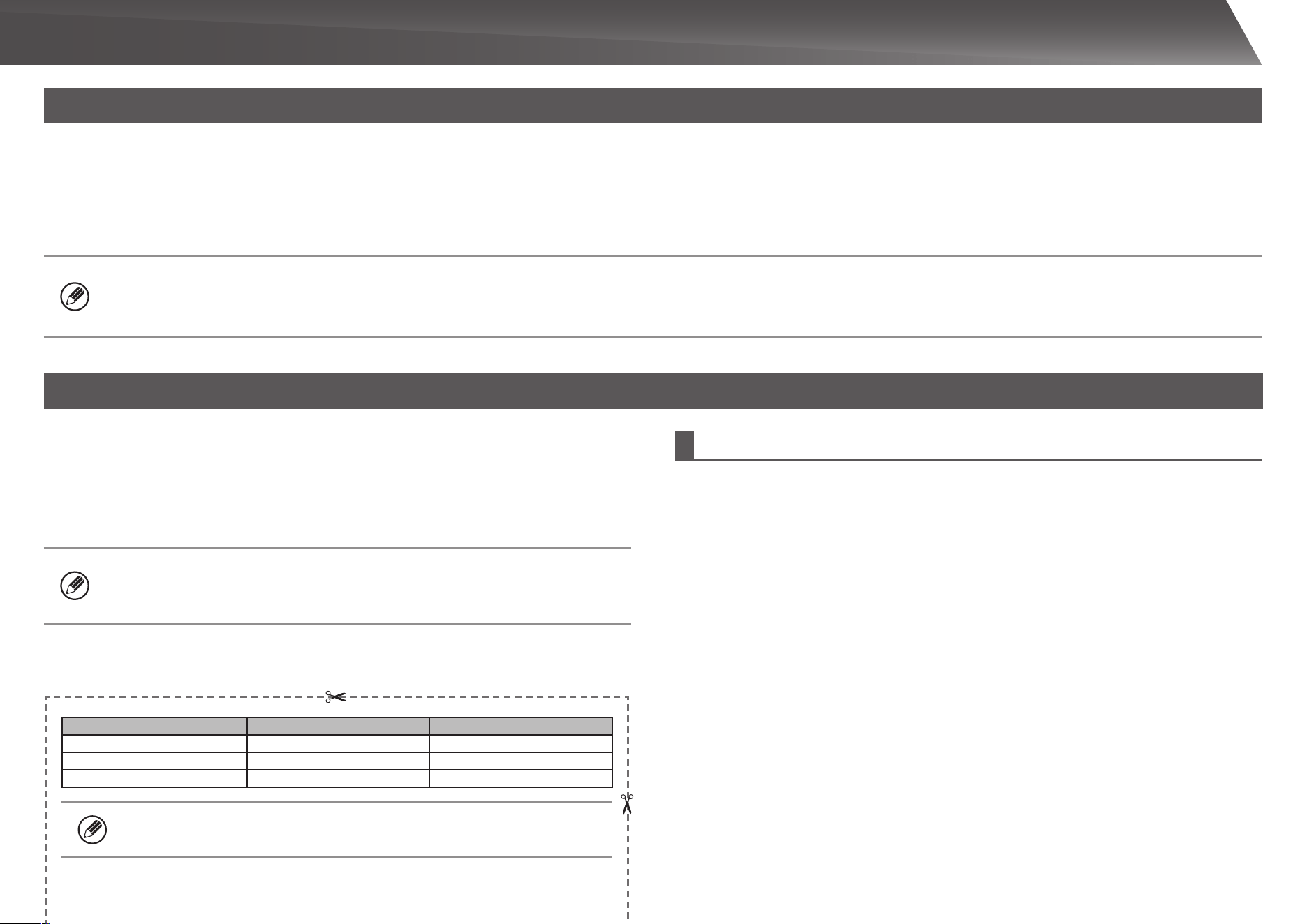
Account Password
User users users
Administrator admin admin
System Administrator sysadmin sysadmin
Please take care not to forget newly set administrator passwords.
Password for logging in from a computer
There are three accounts that can log in from a web browser: “Administrator”,
“System Administrator” and “User”. The factory default passwords for each account
are shown on the below. Logging in as an “Administrator” or “System Administrator”
will allow you to manage all the settings available via web browser.
(Cut along the dotted line and keep in a safe place.)
TO THE ADMINISTRATOR OF THE MACHINE

26
The following trademarks and registered trademarks are used in conjunction with the machine
and its peripheral devices and accessories.
Microsoft•
®
, Windows
®
, Windows
®
2000, Windows
®
XP, Windows Server
®
2003, Windows
Vista
®
, Windows Server
®
2008, Windows
®
7 and Internet Explorer
®
are registered
trademarks or trademarks of Microsoft Corporation in the U.S.A. and other countries.
PostScript is a registered trademark of Adobe Systems Incorporated.•
Adobe and Flash are registered trademarks or trademarks of Adobe Systems Incorporated •
in the United States and other countries.
Adobe, the Adobe logo, Acrobat, the Adobe PDF logo, and Reader are registered •
trademarks or trademarks of Adobe Systems Incorporated in the United States and other
countries.
Macintosh, Mac OS, AppleTalk, EtherTalk and LaserWriter are trademarks of Apple Inc., •
registered in the U.S. and other countries.
Netscape Navigator is a trademark of Netscape Communications Corporation.•
Mozilla•
®
and Firefox
®
are registered trademarks or trademarks of the Mozilla Foundation in
the U.S.A. and other countries.
PCL is a registered trademark of the Hewlett-Packard Company.•
IBM, PC/AT, and PowerPC are trademarks of International Business Machines Corporation.•
Sharpdesk is a trademark of Sharp Corporation.•
Sharp OSA is a trademark of Sharp Corporation.•
RealVNC is a trademark of RealVNC Limited.•
All other trademarks and copyrights are the property of their respective owners.•
Candid and Taffy are trademarks of Monotype Imaging, Inc. registered in the United
States Patent and Trademark Office and may be registered in certain jurisdictions. CG
Omega, CG Times, Garamond Antiqua, Garamond Halbfett, Garamond Kursiv, Garamond
and Halbfett Kursiv are trademarks of Monotype Imaging, Inc. and may be registered in
certain jurisdictions. Albertus, Arial, Coronet, Gill Sans, Joanna and Times New Roman
are trademarks of The Monotype Corporation registered in the United States Patent and
Trademark Office and may be registered in certain jurisdictions. Avant Garde, ITC Bookman,
Lubalin Graph, Mona Lisa, Zapf Chancery and Zapf Dingbats are trademarks of International
Typeface Corporation registered in the United States Patent and Trademark Office and may
be registered in certain jurisdictions. Clarendon, Eurostile, Helvetica, Optima, Palatino,
Stempel Garamond, Times and Univers are trademarks of Heidelberger Druckmaschinen
AG, which may be registered in certain jurisdictions, exclusively licensed through Linotype
Library GmbH, a wholly owned subsidiary of Heidelberger Druckmaschinen AG. Apple
Chancery, Chicago, Geneva, Monaco and New York are trademarks of Apple Inc. and may be
registered in certain jurisdictions. HGGothicB, HGMinchoL, HGPGothicB and HGPMinchoL
are trademarks of Ricoh Company, Ltd. and may be registered in some jurisdictions.
Wingdings is a registered trademark of Microsoft Corporation in the United States and other
countries. Marigold and Oxford are trademarks of Arthur Baker and may be registered in
some jurisdictions. Antique Olive is a trademark of Marcel Olive and may be registered in
certain jurisdictions. Hoefler Text is a trademark of Johnathan Hoefler and may be registered
in some jurisdictions. ITC is a trademark of International Typeface Corporation registered in
the United States Patent and Trademark Office and may be registered in certain jurisdictions.
Agfa is a trademark of the Agfa-Gevaert Group and may be registered in certain jurisdictions.
Intellifont, MicroType and UFST are trademarks of Monotype Imaging, Inc. registered in the
United States Patent and Trademark Office and may be registered in certain jurisdictions.
Macintosh and TrueType are trademarks of Apple Inc. registered in the United States Patent
and Trademark Office and other countries. PostScript is a trademark of Adobe Systems
Incorporated and may be registered in some jurisdictions. HP, PCL, FontSmart and LaserJet
are trademarks of Hewlett-Packard Company and may be registered in some jurisdictions.
The Type 1 processor resident in Monotype Imaging’s UFST product is under license from
Electronics For Imaging, Inc. All other trademarks are the property of their respective owners.
TRADEMARk ACkNOWLEDGMENTS


MX-2610N/MX-3110N/MX-3610N
SHARP ELECTRONICS CORPORATION
1 Sharp Plaza, Mahwah, New Jersey 07495-1163.
www.sharpusa.com
SHARP ELECTRONICS OF CANADA LTD.
335 Britannia Road East, Mississauga, Ontario, L4Z 1W9
PRINTED IN CHINA
L2010 KS1
TINSE4899FCZZ
This manual has been printed using a vegetable-based soy oil ink
to help protect the environment.
QUICK START GUIDE

