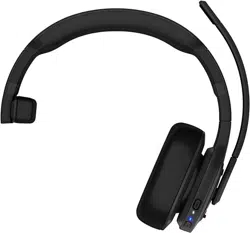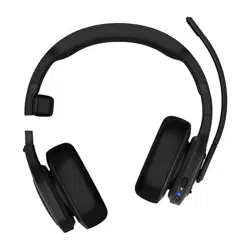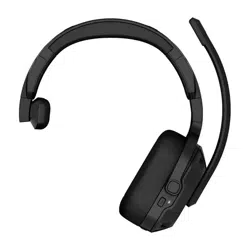
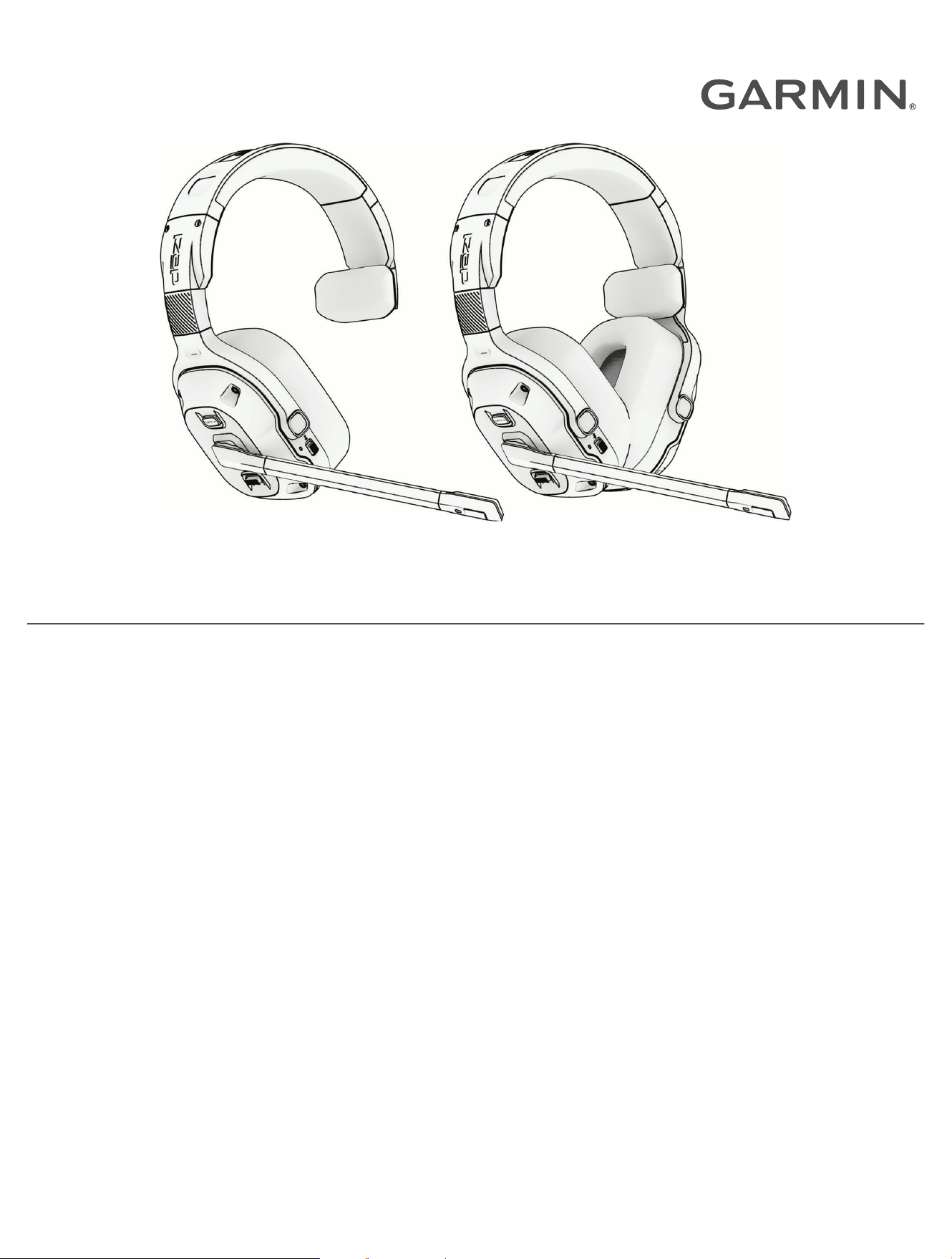
DĒZL
™
HEADSET110 / 210
Owner’s Manual

© 2024 Garmin Ltd. or its subsidiaries
All rights reserved. Under the copyright laws, this manual may not be copied, in whole or in part, without the written consent of Garmin. Garmin reserves the right to change
or improve its products and to make changes in the content of this manual without obligation to notify any person or organization of such changes or improvements. Go to
www.garmin.com for current updates and supplemental information concerning the use of this product.
Garmin
®
and the Garmin logo are trademarks of Garmin Ltd. or its subsidiaries, registered in the USA and other countries. These trademarks may not be used without the express
permission of Garmin.
dēzl
™
is a trademark of Garmin Ltd. or its subsidiaries. This trademark may not be used without the express permission of Garmin.
The BLUETOOTH
®
word mark and logos are owned by the Bluetooth SIG, Inc., and any use of such word mark or logo by Garmin is under license. USB-C
®
is a registered trademark
of USB Implementers Forum.

Table of Contents
Getting Started................................. 1
Device Overview...................................... 1
Charging the Device................................ 3
Turning the Headset On or Off............... 3
Using Active Noise Cancellation and
Transparency Mode................................ 4
Microphone Controls.............................. 4
Using the Flashlight.................................5
Controlling Media.................................... 6
Controlling Phone Calls.......................... 6
Removing the Earcup.............................. 7
Installing the Storage Hook.................... 7
Pairing with Your Smartphone.......... 8
Voice Assistant Features.................. 9
Tips for Using Voice Commands........... 9
Launching Garmin Voice-Activated
Navigation............................................. 10
Using the Voice Assistant on Your
Smartphone........................................... 11
Settings..........................................11
Device Maintenance....................... 11
Updating the Software Using the Garmin
dēzl App................................................. 11
Garmin Support Center......................... 11
Device Care............................................12
Device Information......................... 12
Status LEDs........................................... 12
Specifications........................................13
Troubleshooting............................. 13
My headset battery does not charge... 13
OK Garmin voice commands do not
work....................................................... 13
Left and right audio channels are
reversed................................................. 13
Resetting the Headset to Factory Default
Settings.................................................. 13
Table of Contents i

Getting Started
WARNING
See the Important Safety and Product Information guide in the product box for product warnings and other
important information.
WARNING
You can permanently damage your ears and lose hearing if you listen to the device, earbuds, or headphones
at high volume. If you experience ringing in your ears or muffled speech, stop listening and have your hearing
checked.
This device is intended to enhance your situational awareness when used properly. If used improperly, you
could become distracted by the device or its connected display, which could lead to an accident causing serious
personal injury or death. Always maintain awareness of your surroundings and do not stare at the connected
display or become distracted by the device. Focusing on the device or its connected display could prevent you
from avoiding obstacles or hazards.
Device Overview
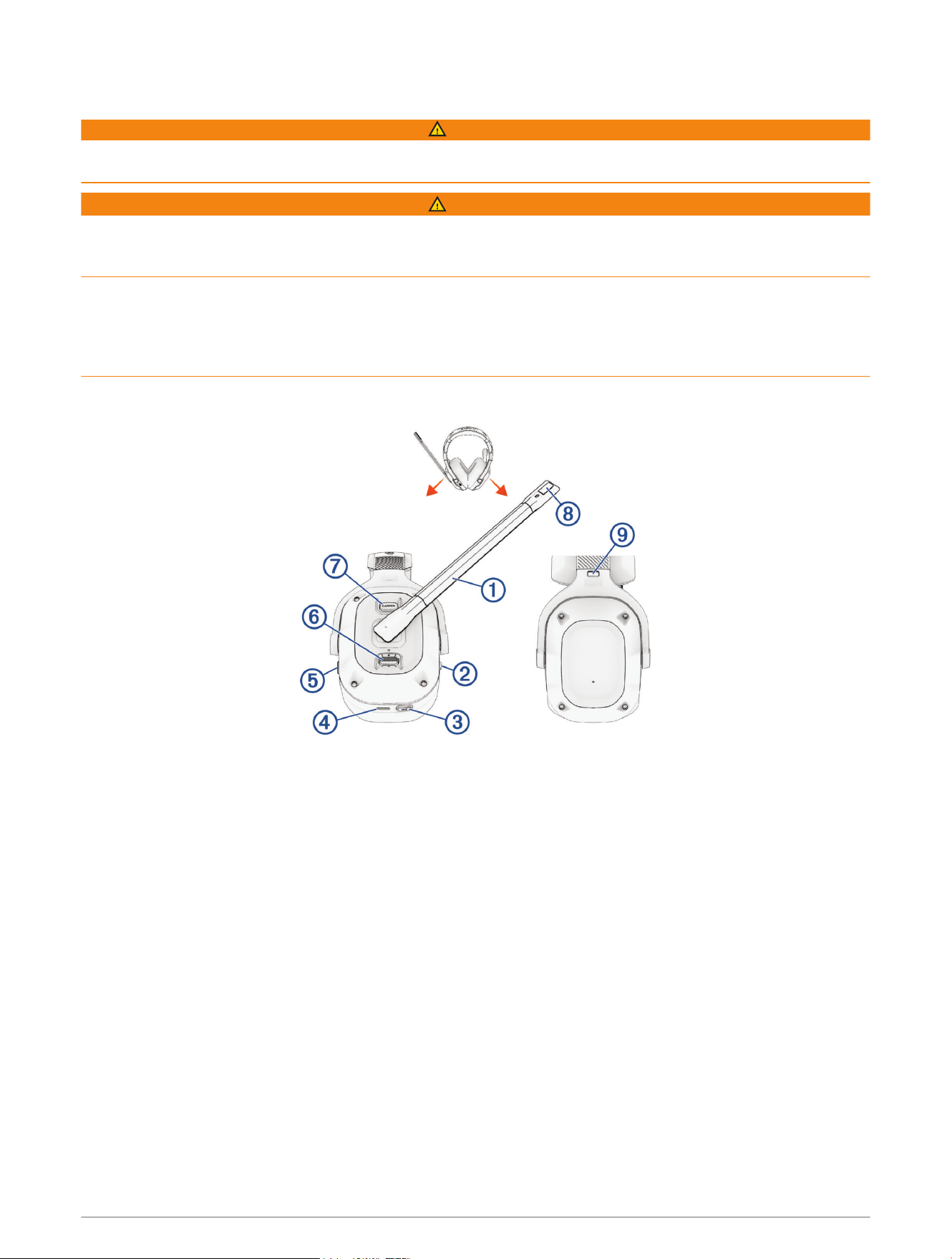
Getting Started 1
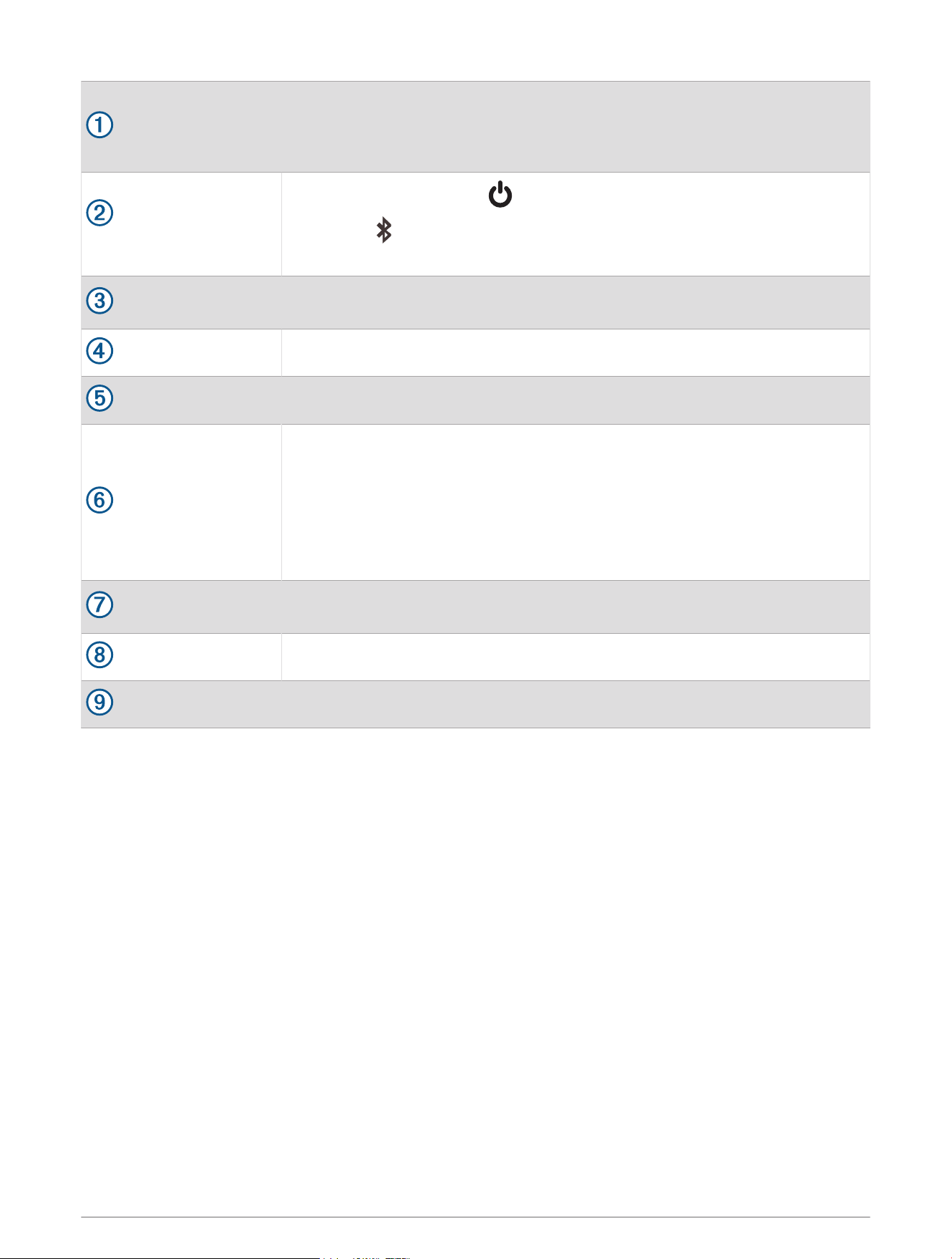
Microphone boom
Move the microphone boom to the vertical position to mute the microphone and
turn off the flashlight.
Move the microphone boom left or right to enable the microphone and change the
headset orientation.
Power and Bluetooth
®
switch
Move to the center position ( ) to turn on the headset.
Hold toward to enter Bluetooth pairing mode.
Move to the lowest position to turn off the headset.
Flashlight button
Press to cycle through flashlight modes.
Hold to turn off the flashlight.
USB-C
®
power port
Connect a USB-C power cable to charge the headset.
ANC button
Press to cycle through active noise cancellation modes.
Rocker
Move up to increase the volume.
Move down to decrease the volume.
Hold up to move to the next audio track.
Hold down to move to the previous audio track.
Press to play, pause, or resume media.
Press to answer incoming calls or switch to a second call.
Press and hold to hang up a call.
Garmin
®
button
Press to activate OK Garmin voice commands with a paired navigation device.
Hold to activate the voice assistant on your phone.
Flashlight LEDs
Earcup release button
Press to remove the earcup (dēzl Headset 210 only).
2 Getting Started
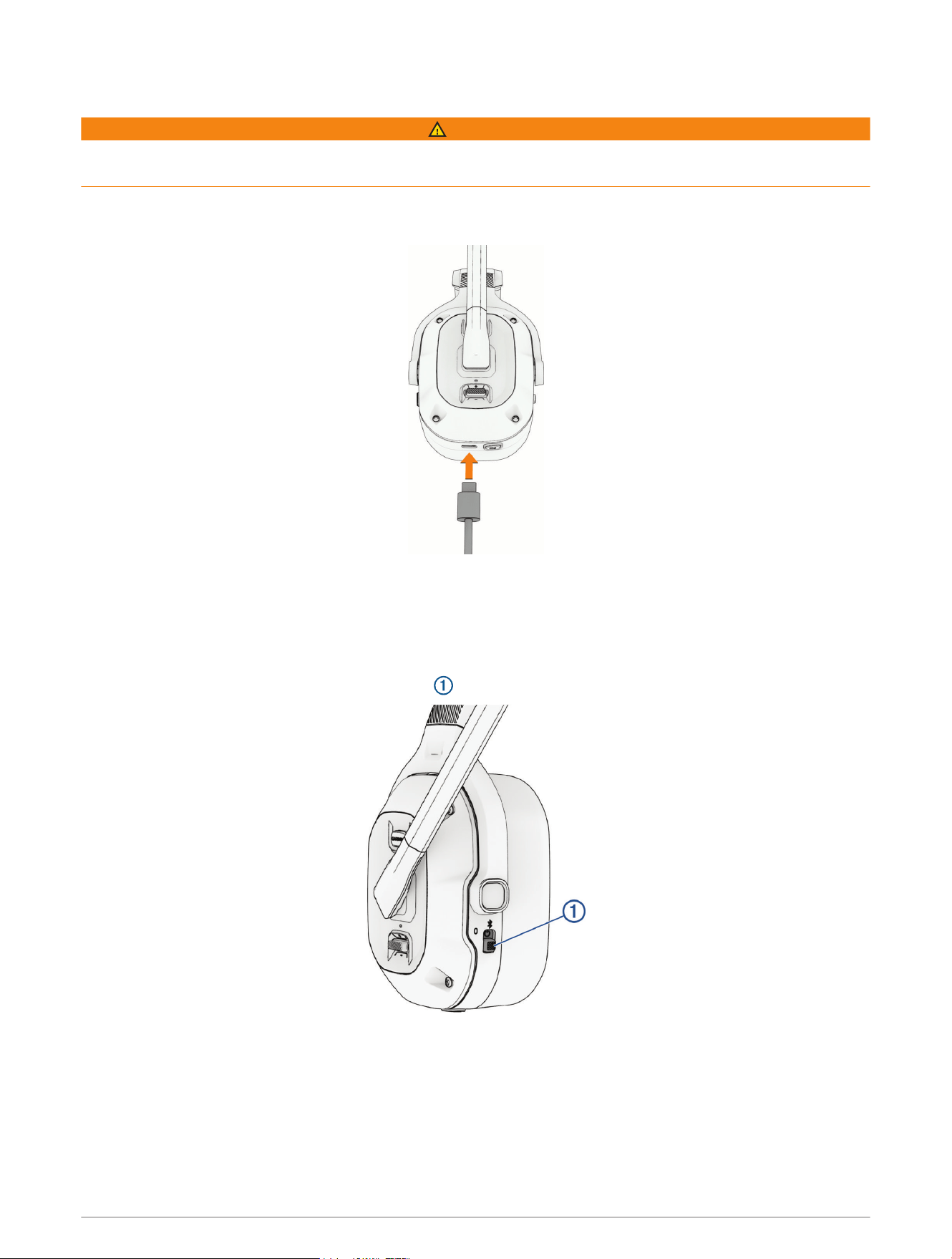
Charging the Device
WARNING
This device contains a lithium-ion battery. See the Important Safety and Product Information guide in the product
box for product warnings and other important information.
NOTE: The device does not charge when outside the approved temperature range (Specifications, page13).
1 Plug the small end of the USB cable into the USB port on the headset.
2 Plug the large end of the USB cable into a power source, such as a USB wall charger or a computer USB port.
3 Charge the device completely.
The status LED flashes green while charging. The status LED is solid green when charging is complete.
Turning the Headset On or Off
• To turn on the headset, move the power switch to the center position.
• To turn off the headset, move the power switch to the bottom position.
Getting Started 3
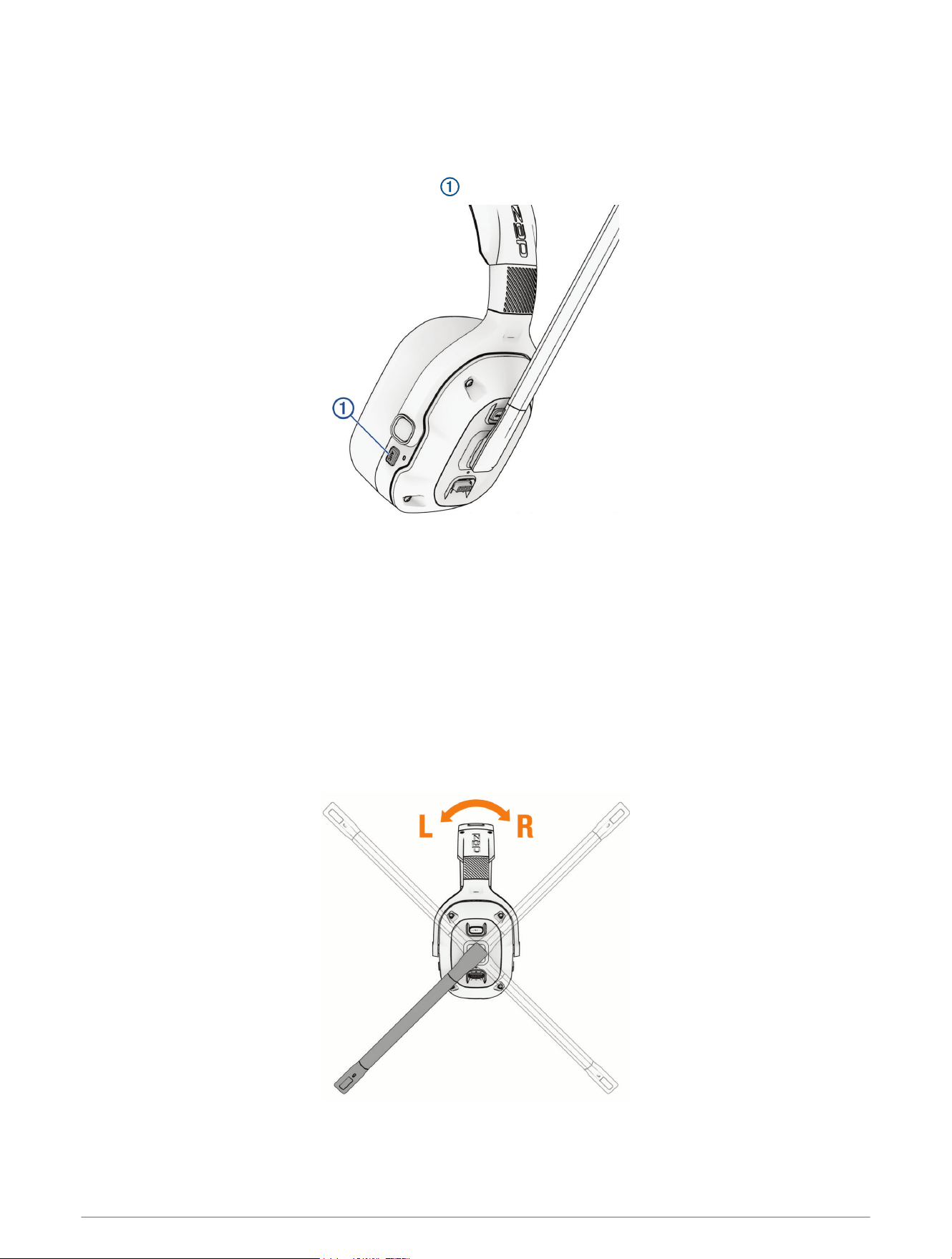
Using Active Noise Cancellation and Transparency Mode
Active noise cancellation filters out background noise from the world around you. Transparency mode filters
background sounds into the headset so you can hear them.
NOTE: You cannot use active noise cancellation while the headset is charging.
1 To turn on active noise cancellation, press ANC .
A tone plays and the ANC LED turns on.
2 To turn on transparency mode, press ANC a second time.
A tone plays and transparency mode activates.
3 To turn off active noise cancellation, press ANC a third time.
A tone plays and the ANC LED turns off.
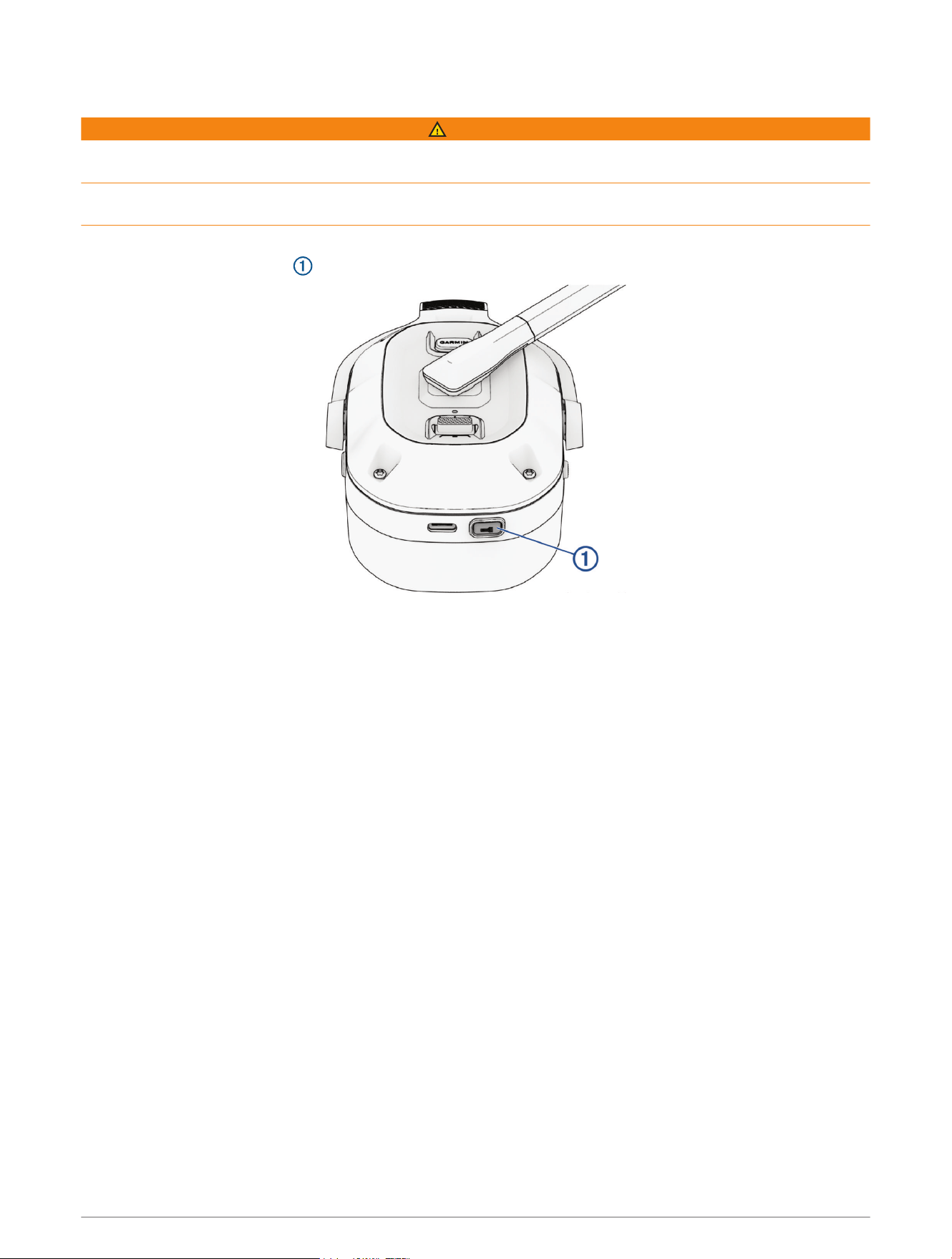
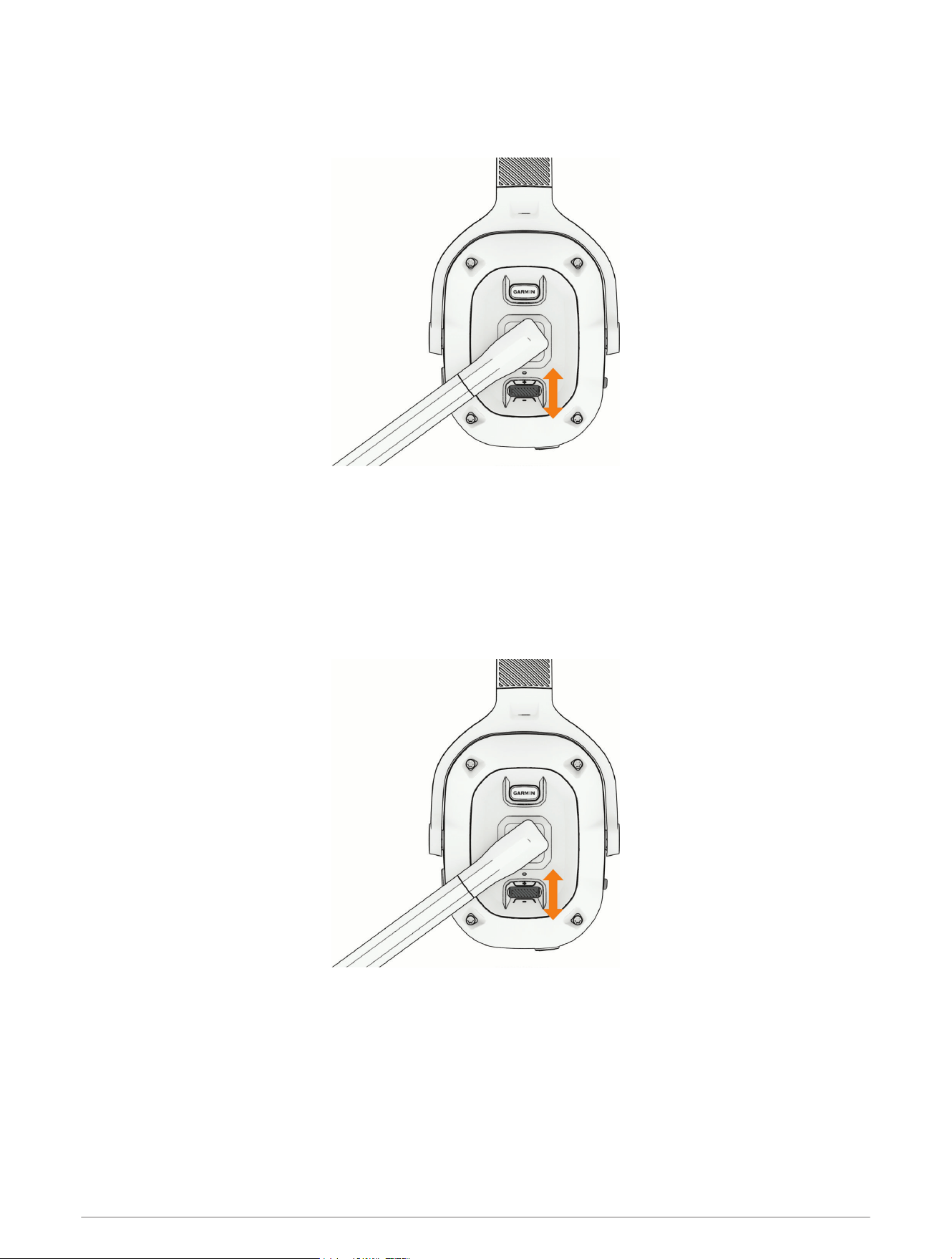
Microphone Controls
You can move the microphone boom to either side to turn it on. If you have a stereo headset model, the left and
right orientation of the headset adjusts automatically to match the direction of the microphone boom. You can
move the microphone boom upward to a vertical position to mute the microphone.
TIP: If you receive a phone call while the microphone is muted, you can move the microphone boom forward to
answer the call automatically.
4 Getting Started
Using the Flashlight
WARNING
The device has a built-in flashlight that can emit light at varying degrees of brightness. Consult your physician if
you have epilepsy or are sensitive to bright light.
Use the flashlight sparingly while driving in dark or low-light conditions, because such use can lead to
momentary obscured vision as your eyes adjust to the change in brightness around you.
1 Move the microphone boom to the forward position.
2 Press the flashlight button .
The flashlight turns on.
3 Select an option:
• To cycle through the available lighting modes and colors, press the flashlight button.
• To turn off the flashlight, move the microphone boom up to the vertical position or hold the flashlight
button for 2 seconds.
Getting Started 5
Controlling Media
You can use the rocker to control the headset volume, and music playback. You can move the rocker up and
down, and you can press it like a button.
• To increase or decrease the media volume, move the rocker up or down.
• To play the next audio track, hold the rocker up.
• To play the previous audio track, hold the rocker down.
• To play, pause, or resume audio playback, press the rocker.
Controlling Phone Calls
You can use your headset controls to answer, hang up, or hold incoming phone calls from your paired
smartphone. You can move the rocker up and down, and you can press it like a button.
• To increase or decrease the volume, move the rocker up or down.
• To answer incoming phone calls from your paired smartphone, move the microphone to the forward position,
or press the rocker.
• To cancel an outgoing call, press the rocker while a call is in progress.
• To answer a second active call and put the first call on hold, press the rocker.
• To transfer audio to your phone, press and hold the rocker during an active call.
• To hang up a call, press the rocker.
• To reject an incoming call, press and hold the rocker.
6 Getting Started
• To switch between two active calls, press and hold the rocker.
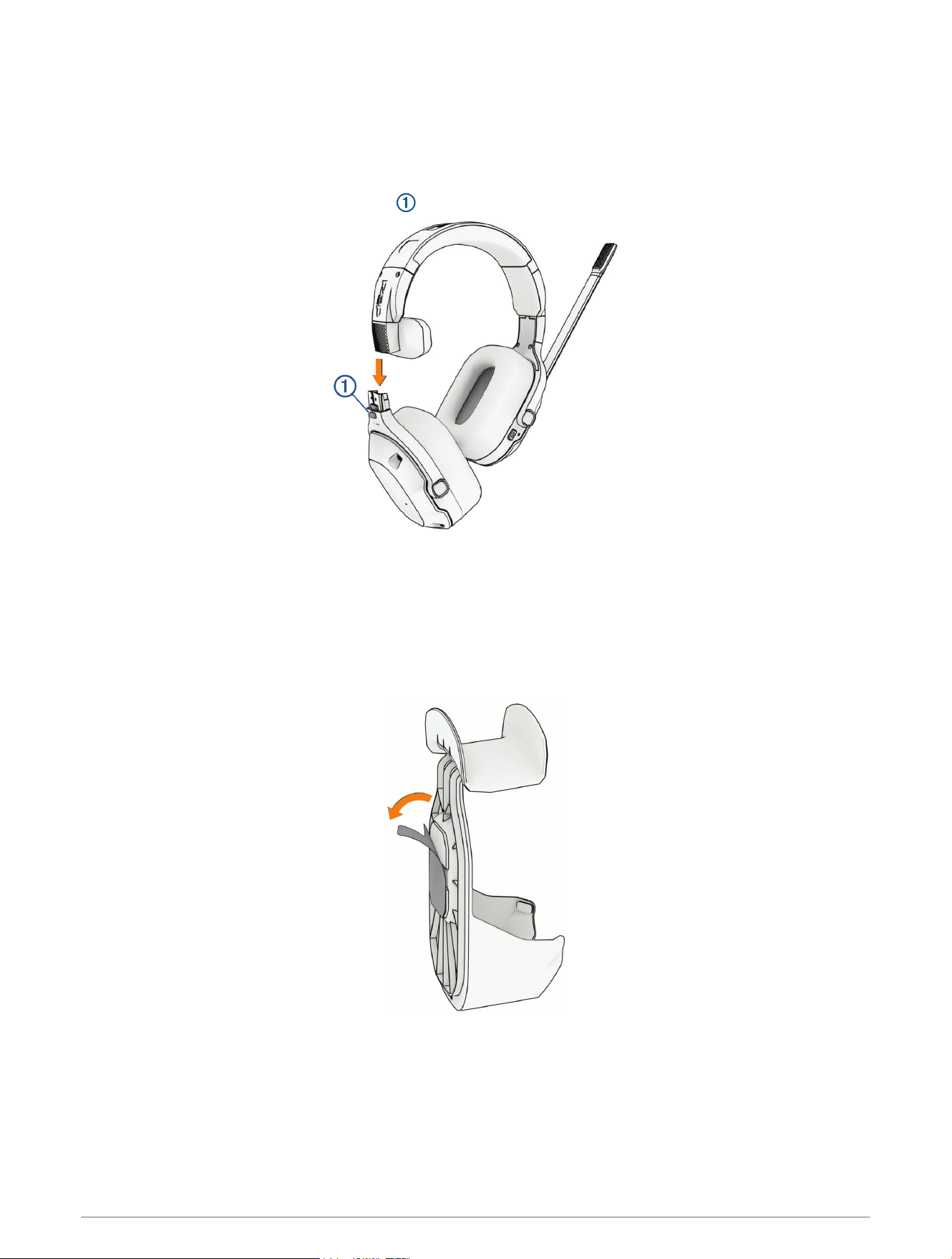
Removing the Earcup
You can remove an earcup from the stereo headset to keep one ear open while you drive.
NOTE: The removable earcup is available only on the dēzl Headset 210.
1 Press and hold the earcup release button .
2 Pull the earcup off of the headset.
Installing the Storage Hook
You can install the storage hook to hang up your headset when you aren't using it.
1 Clean the mounting location using water or isopropyl alcohol, and a lint-free cloth.
The mounting location must be free of dust, wax, oils, or coatings.
2 Remove the protective film from the adhesive on the back of the storage hook.
Getting Started 7
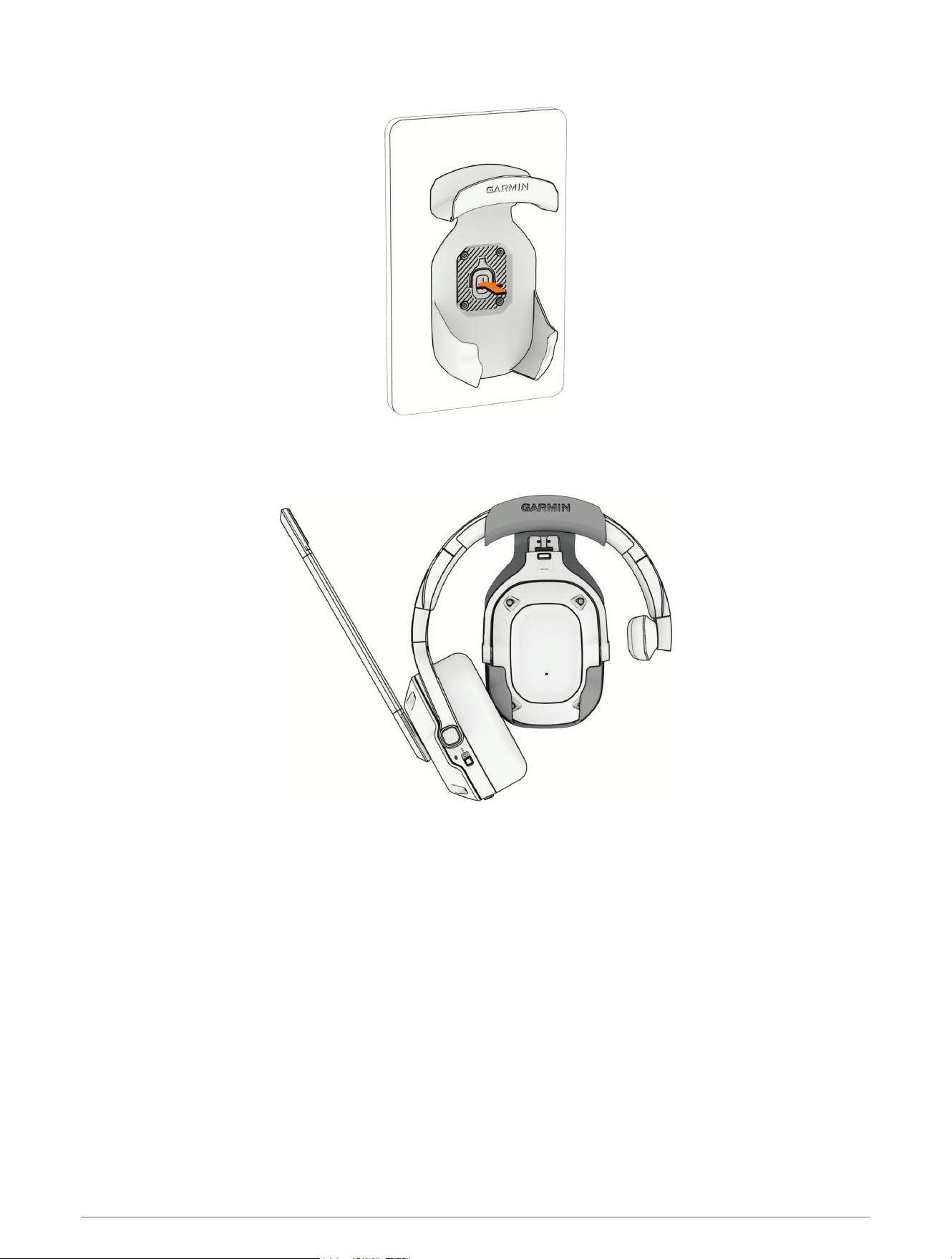
3 Press the storage hook against the mounting surface and apply pressure for 30 seconds.
4 Wait at least one hour before using the storage hook.
You can hang the headset over the storage hook. If your headset has a removable earcup, you can place the
earcup in the compartment at the center of the storage hook.
Pairing with Your Smartphone
You can pair your dēzl headset with your smartphone and the dēzl app. You can also pair the dēzl app with a
compatible Garmin dēzl navigation device to enable advanced Garmin voice-activated navigation through your
headset. You can download the dēzl app from the app store on your phone, or you can go to garmin.com
/dezlapp.
NOTE: If you plan to use your headset with a compatible Garmin RV navigation device, you can also pair your
headset with the Garmin Drive
™
app. You can download the Garmin Drive app from the app store on your phone,
or you can go to garmin.com/driveapp.
1 From the app store on your smartphone, install the dēzl app.
2 Turn on your dēzl headset, and place the headset and your smartphone within 3m (10ft.) of each other.
3 On your smartphone, open the dēzl app.
8 Pairing with Your Smartphone
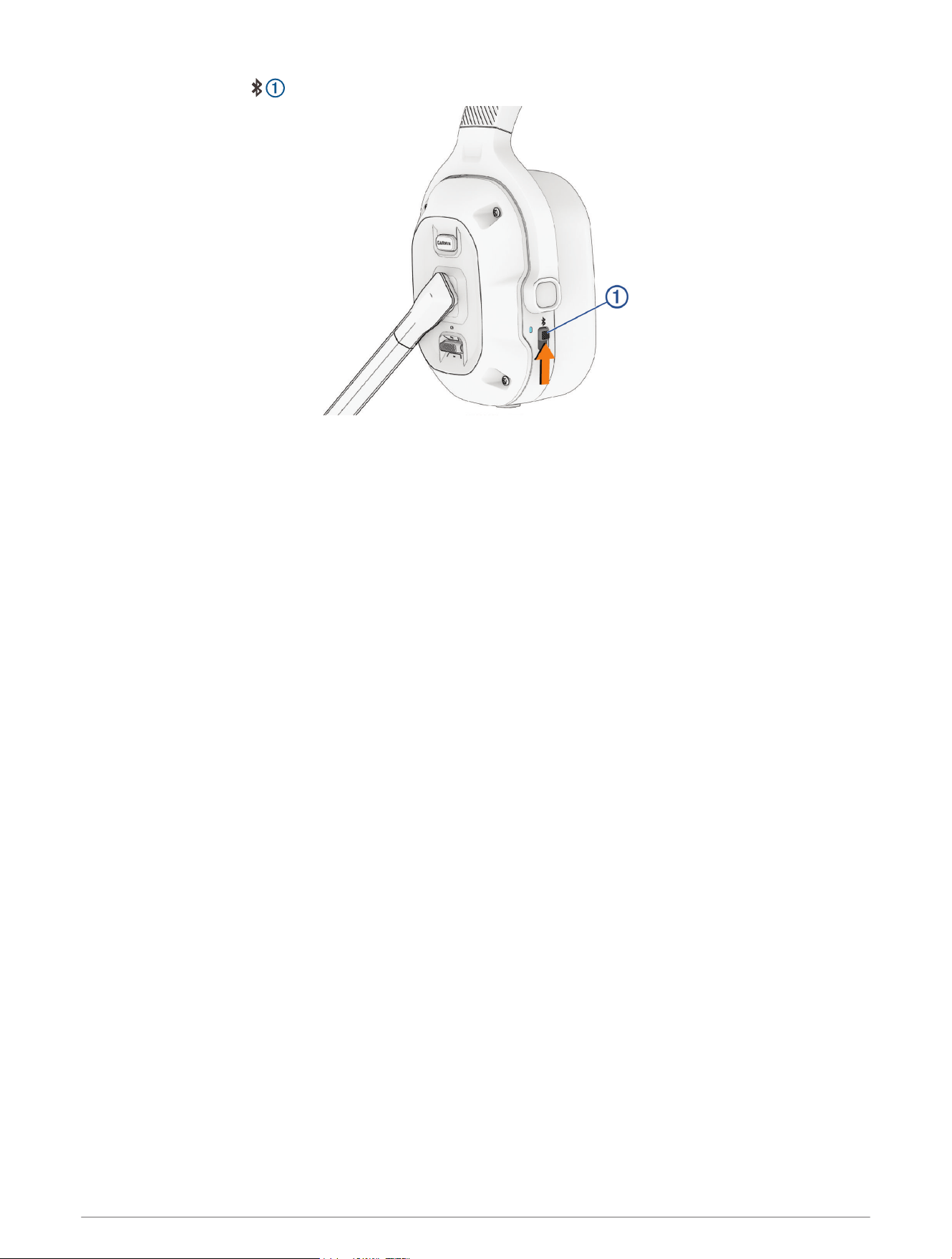
4 On the headset, hold until the blue LED flashes.
5 From the dēzl app, select Garmin dēzl Headset.
6 Follow the on-screen instructions on your smartphone to finish setting up your headset.
The main app dashboard appears. After the devices are paired, they connect automatically when they are turned
on and within range.
Voice Assistant Features
NOTE: Voice assistant features are not available for all languages and regions.
Voice assistant features allow you to use your smartphone or a compatible Garmin navigation device by saying
words and commands.
Tips for Using Voice Commands
• Speak in a clear voice.
• Respond to voice prompts from the device as needed.
• If you do not receive a useful response, try rephrasing your request.
Voice Assistant Features 9
Launching Garmin Voice-Activated Navigation
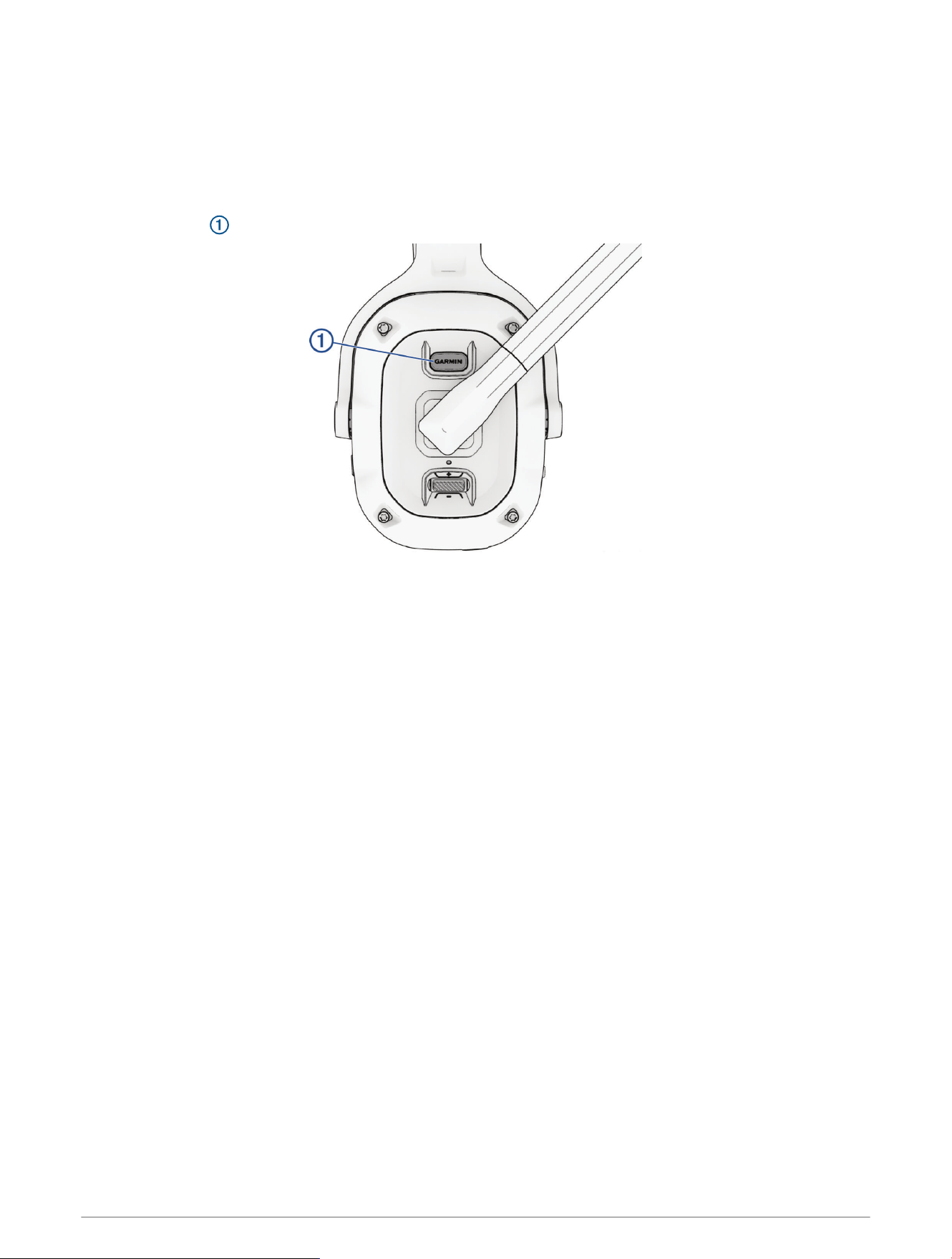
Before you can use voice-activated navigation features through your headset, you must pair your headset and
your compatible dēzl navigation device with the dēzl app on your smartphone.
You can pair your headset and a compatible dēzl navigation device with the dēzl app to enable Garmin
voice-activated navigation features. You can receive navigation prompts through the headset and use voice
commands to control your navigation device while your hands remain on the wheel.
• Press GARMIN , and make a spoken request.
For example, you can say phrases like these:
◦ Take me home.
◦ Where's the library?
Placing a Phone Call Using Your Headset
You can use your headset to call a contact from the phone book of your paired smartphone.
1 Move the microphone to the forward position.
2 Press GARMIN.
3 Say Call, and say the contact name.
For example, you can say Call Mom..
10 Voice Assistant Features
Using the Voice Assistant on Your Smartphone
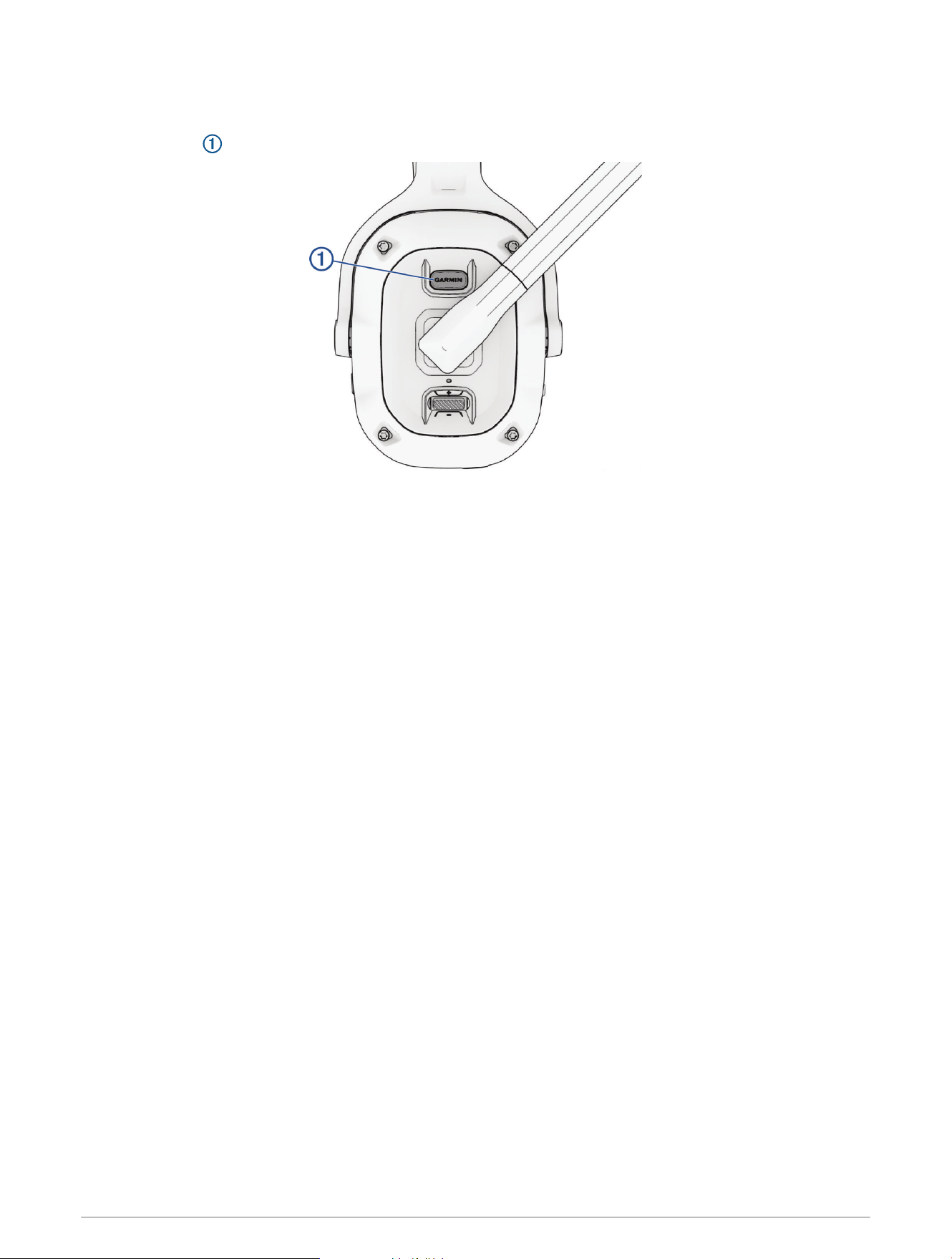
You can activate the voice assistant on your smartphone using your dēzl headset.
• Hold GARMIN for at least two seconds.
A tone plays and your phone's voice assistant activates.
Settings
The settings for your dēzl headset are configured using the dēzl app. Before you can configure settings, you
must pair your headset with the dēzl app (Pairing with Your Smartphone, page8).
From the dēzl app, select Settings.
Equalizer: Sets the headset audio filter to boost or lower some audio frequencies. For example, you can set the
headset to focus on bass sounds or vocals.
Standby: Sets the amount of time the headset remains on while it is not being used.
Noise Cancellation: Enables active noise cancellation or transparent mode.
Version: Displays the headset software version.
Check for Updates: Checks for headset software updates. The dēzl app sends updates to your headset
automatically while the headset is connected to your smartphone.
Help: Opens a link to the Garmin support center.
Forget Device: Removes pairing information from the dēzl app.
Device Maintenance
Updating the Software Using the Garmin dēzl App
When an update is available, the dēzl app sends it to the headset automatically.
The next time you start your headset, it notifies you that it is installing an update.
Do not turn off your headset while the update is installing.
After the update is complete, the headset restarts and operates normally.
Garmin Support Center
Go to support.garmin.com for help and information, such as product manuals, frequently asked questions,
videos, and customer support.
Settings 11
Device Care
NOTICE
Avoid extreme shock and harsh treatment, because it can degrade the life of the product.
Do not use a sharp object to clean the device.
Avoid chemical cleaners, solvents, and insect repellents that can damage plastic components and finishes.
Do not store the device where prolonged exposure to extreme temperatures can occur, because it can cause
permanent damage.
Cleaning the Outer Casing
NOTICE
Avoid chemical cleaners and solvents that can damage plastic components.
1 Clean the outer casing of the device using a cloth dampened with a mild detergent solution.
2 Wipe the device dry.
Cleaning the USB Port
1 Turn off the device and disconnect the device from power.
2 Clean the USB port using a soft, clean, lint-free cloth or cotton swab.
NOTE: If necessary, you can lightly dampen the cloth or cotton swab with isopropyl alcohol.
3 Allow the device to dry completely before you connect it to power.
Device Information
Status LEDs
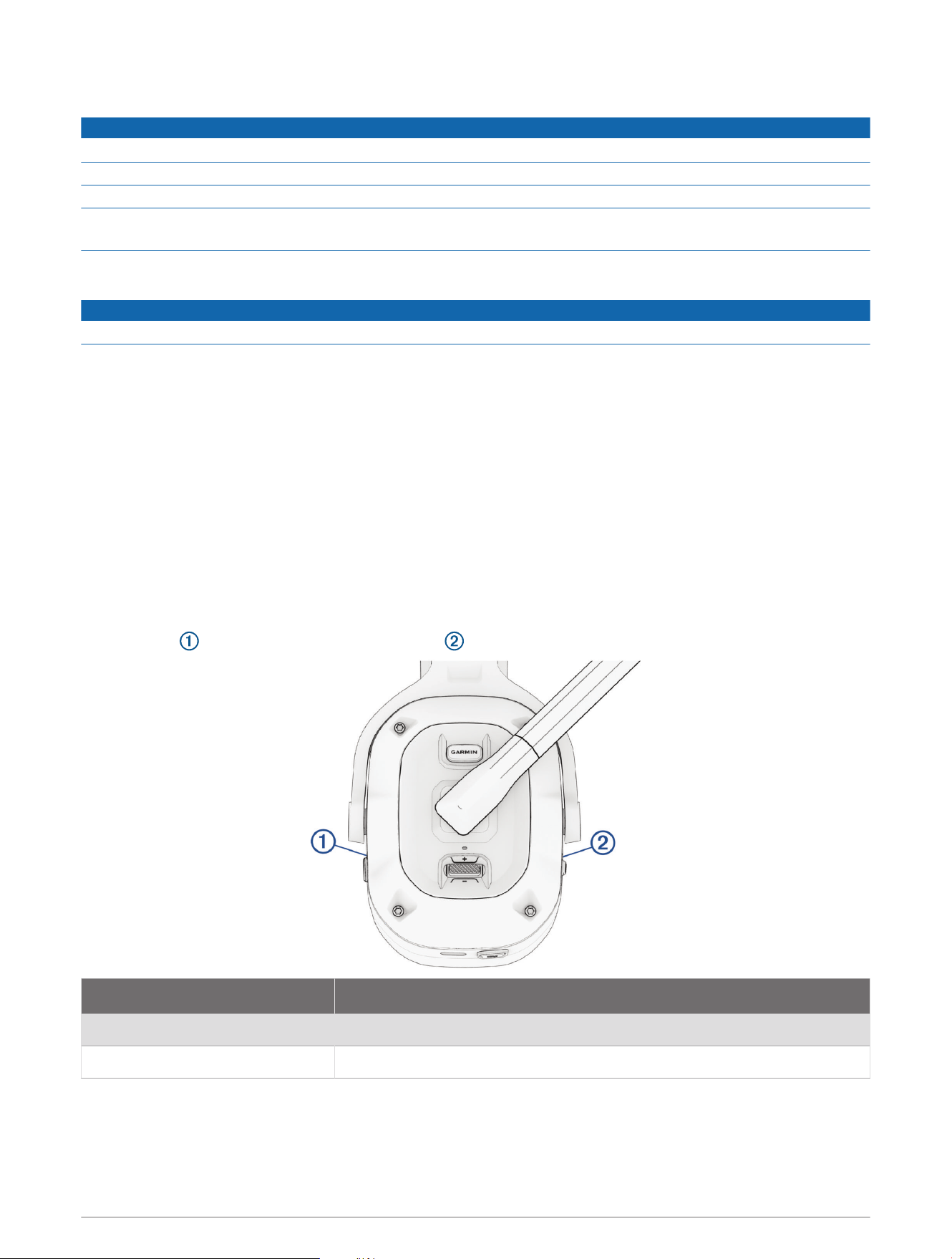
The ANC LED , and the power and Bluetooth LED show the headset status.
ANC LED Activity Status
White Active noise cancellation is turned on.
Off Active noise cancellation is turned off.
12 Device Information
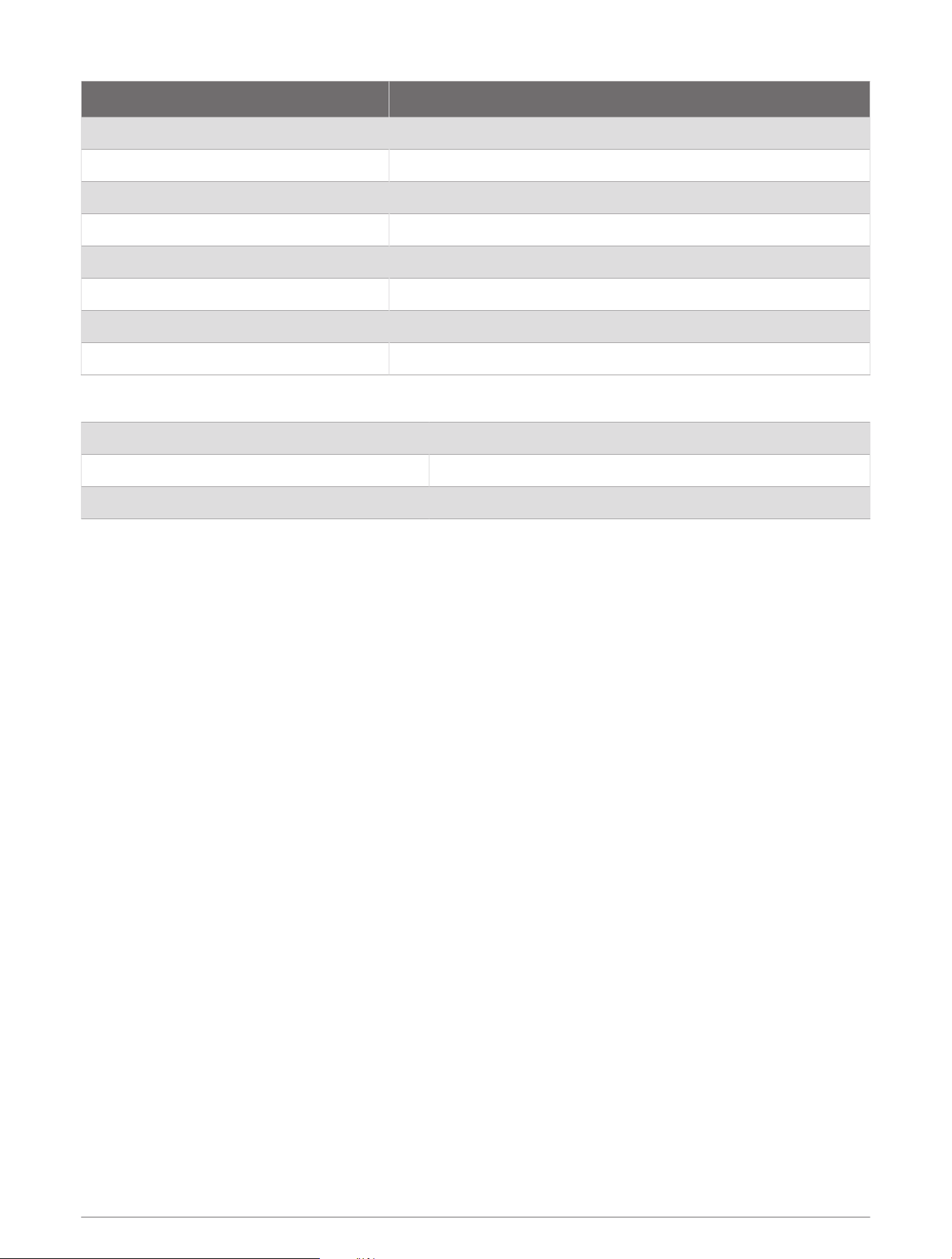
Power and Bluetooth LED Activity Status
Blue The headset is connected to a Bluetooth device.
Flashing blue The headset is in Bluetooth pairing mode.
White The headset is turned on and is operating normally.
Flashing green The headset is charging.
Green The headset is fully charged.
Flashing red The headset battery is low.
Red The headset software has detected an error or a fault.
Off The headset is turned off or does not have power.
Specifications
Operating temperature range From -20° to 60°C (from -4° to 140°F)
Charging temperature range From 0° to 45°C (from 32° to 113°F)
Input voltage From 4.75 to 5.25Vdc, 60mA
Troubleshooting
My headset battery does not charge
• Verify the headset is receiving power from the connected USB cable.
The power LED flashes green while the headset is charging.
• Inspect the power LED (Status LEDs, page12).
If the LED is solid red, the headset has detected an error or a fault that prevents the battery from charging.
OK Garmin voice commands do not work
If you have paired your phone and headset, but some features do not work, you can take these actions to
resolve the issue.
• In the app store on your smartphone, update the dēzl app to the most recent version.
• Verify the dēzl app on your smartphone is paired with both your headset and a compatible dēzl navigation
device.
Left and right audio channels are reversed
The dēzl headset determines the orientation of the audio channels automatically based on the last position of
the microphone boom.
Turn on the headset, and move the microphone boom to the forward position.
The audio channels reset automatically.
Resetting the Headset to Factory Default Settings
You can reset your headset to the factory default settings. Resetting clears all data from the headset.
1 Turn on the headset.
2 Hold GARMIN and ANC for five seconds.
The LEDs flash while the headset resets.
Troubleshooting 13

support.garmin.com
GUID-38D1301E-EF1D-4AE0-813B-48D604610572 v1August 2024