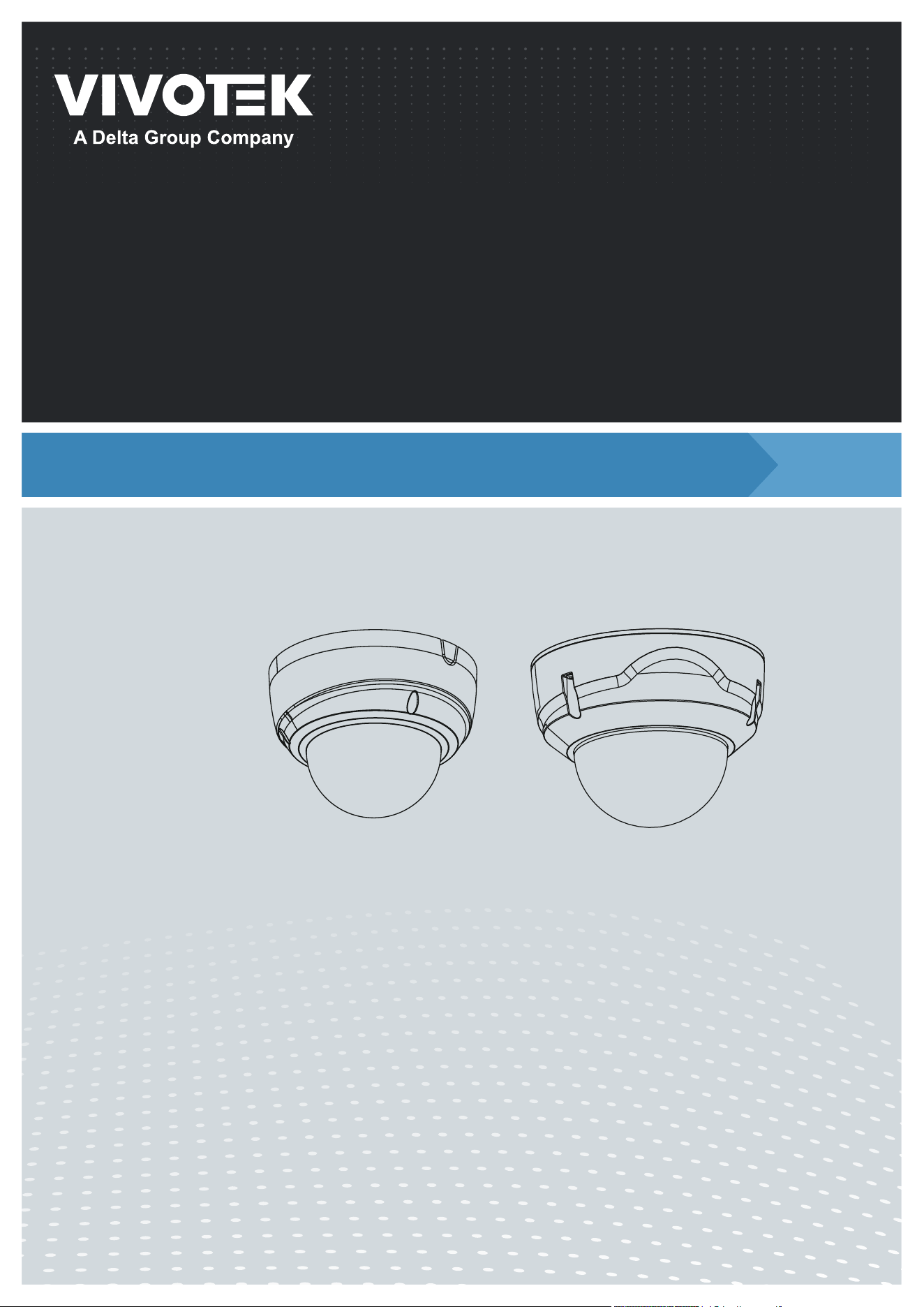

VIVOTEK
2 - User's Manual
Table of Contents
Overview
....................................................................................................................................................................
3
Revision History ..................................................................................................................................................... 4
Read Before Use .................................................................................................................................................... 4
Package Contents .................................................................................................................................................. 5
Symbols and Statements in this Document ............................................................................................................ 5
Physical Description .............................................................................................................................................. 6
Hardware Installation: FD9189 ............................................................................................................................ 10
Software Installation ............................................................................................................................................. 15
Hardware Installation: FD9389 ............................................................................................................................ 21
Software Installation ............................................................................................................................................. 28
Network Deployment ............................................................................................................................................ 36
Ready to Use ........................................................................................................................................................ 37
Accessing the Network Camera
...........................................................................................................................
40
Using Web Browsers ............................................................................................................................................ 40
Using RTSP Players ............................................................................................................................................. 43
Using 3GPP-compatible Mobile Devices .............................................................................................................. 44
Using VIVOTEK Recording Software ................................................................................................................... 45
Main Page
................................................................................................................................................................
46
Client Settings
.........................................................................................................................................................
51
Conguration
...........................................................................................................................................................
56
System > General settings ................................................................................................................................... 57
System > Homepage layout ................................................................................................................................ 60
System > Logs ..................................................................................................................................................... 63
System > Parameters .......................................................................................................................................... 66
System > Maintenance ......................................................................................................................................... 67
Media > Image ................................................................................................................................................... 70
Media > Video ...................................................................................................................................................... 85
Media > Video ...................................................................................................................................................... 87
Media > Audio....................................................................................................................................................... 96
Media proles ....................................................................................................................................................... 97
Network > General settings .................................................................................................................................. 98
Network > Streaming protocols ........................................................................................................................ 105
Network > SNMP
(Simple Network Management Protocol) ..................................................................11 4
Network > FTP ................................................................................................................................................... 115
Bonjour ............................................................................................................................................................... 11 6
Security > User accounts ................................................................................................................................... 117
Security > HTTPS
(Hypertext Transfer Protocol over SSL)
............................................................. 119
Security > Access List ...................................................................................................................................... 126
PTZ > PTZ settings ............................................................................................................................................ 132
Event > Event settings........................................................................................................................................ 136
Applications > Motion detection.......................................................................................................................... 152
Applications > Smart VCA .................................................................................................................................. 153
Applications > Tampering detection ................................................................................................................... 154
Applications > Audio detection ......................................................................................................................... 155

VIVOTEK
User's Manual - 3
Applications > Package management - a.k.a., VADP (VIVOTEK Application Development Platform) ... 156
Recording > Recording settings ..............................................................................................................159
Storage .................................................................................................................................................... 164
Storage > SD card management ..............................................................................................................164
Storage > NAS management ...................................................................................................................165
Storage > Content management ..............................................................................................................167
Appendix
....................................................................................................................................................
170
URL Commands for the Network Camera ................................................................................................ 170
Technology License Notice .......................................................................................................................445
Electromagnetic Compatibility (EMC) .......................................................................................................446
Overview
The FD9189/9389-v2 is an outdoor/indoor xed dome network camera capable of 2560 x
1920 resolution at 30 fps. With the WDR Pro technology, the camera series is capable of
capturing the highest quality images in both low light and high contrast environments.
These models support local video stroage on the MicroSD cards if network service should
be interrupted. The camera also comes with congurable motion detection and tampering
detection with up to 5 privacy mask areas.
The camera comes with seamless recording that allows recording to the SD card when the
network connection is down. When the network connection is restored, the recorded video
will be retrieved from SD card to your NVR or VAST recording station.
IMPORTANT:
The equipment comes with a RTC battery. Note the following:
• High or low extreme temperatures that a battery can be subjected to during use,
storage or transportation; and low air pressure at high altitude.
• Replacement of a battery with an incorrect type that can defeat a safeguard (for
example, in the case of some lithium battery types);
• Disposal of a battery into re or a hot oven, or mechanically crushing or cutting of a
battery, that can result in an explosion;
• Leaving a battery in an extremely high temperature surrounding environment that can
result in an explosion or the leakage of ammable liquid or gas; and
• A battery subjected to extremely low aire pressure that may result in an explosion or the
leakage of ammale liquid or gas.
• CAUTION: Risk of re or explosion if the battery is replaced by an incorrect type.

VIVOTEK
4 - User's Manual
Read Before Use
The use of surveillance devices may be prohibited by law in your country. The Network Camera
is not only a high-performance web-ready camera but can also be part of a exible surveillance
system. It is the user’s responsibility to ensure that the operation of such devices is legal before
installing this unit for its intended use.
It is important to first verify that all contents received are complete according to the Package
Contents listed below. Take note of the warnings in the Quick Installation Guide before the Network
Camera is installed; then carefully read and follow the instructions in the Installation chapter to
avoid damage due to faulty assembly and installation. This also ensures the product is used
properly as intended.
The Network Camera is a network device and its use should be straightforward for those who
have basic networking knowledge. It is designed for various applications including video sharing,
general security/surveillance, etc. The Configuration chapter suggests ways to best utilize the
Network Camera and ensure proper operations. For creative and professional developers, the URL
Commands of the Network Camera section serves as a helpful reference to customizing existing
homepages or integrating with the current web server.
Revision History
■ Rev. 1.0: Initial release.
IMPORTANT:
1. The product must be installed and protected in a location that is not easily accessible,
and is away from impacts or heavy vibration. For example, at the location where the
surveillance cameras are looking down or installed at high positions such as on a wall,
or at least 3 meters above the ground.
2. The camera should be installed at least 10 centimeters away from the eave of a building.
3. If powered by a power adapter, the adapter should be properly grounded.
4. Maintenance and repair work must always be carried out by qualified technical
personnel.
5. Disconnect power from the unit when performing a maintenance task.
6. Please contact VIVOTEK's certied dealers for power adapters.
VIVOTEK
User's Manual - 5
Symbols and Statements in this Document
i
INFORMATION:
provides important messages or advices that might help prevent
inconvenient or problem situations.
NOTE
: Notices provide guidance or advices that are related to the functional integrity of
the machine.
Tips
: Tips are useful information that helps enhance or facilitae an installation, function,
or process.
WARNING: or IMPORTANT:
: These statements indicate situations that can be
dangerous or hazardous to the machine or you.
Electrical Hazard
: This statement appears when high voltage electrical hazards might
occur to an operator.
Package Contents
■ FD9189-v2 or FD9389-v2
■ Screw pack.
■ Alignment sticker.
■ Quick Installation Guide.
IMPORTANT:
1. The camera is only to be connected to PoE networks without routing to outside plants.
2. For PoE connection, use only UL listed I.T.E. with PoE output.
1. La caméra ne doit être raccordée qu’à des réseaux PoE, sans routage vers des
installations extérieures.
2. Pour les raccordements PoE, utilisez uniquement un équipement de TI homologué UL,
avec une sortie PoE.
Use the camera only with a DC power supply that is UL listed, and limited power source
(LPS) certied. The power supply should bear the UL listed and LPS marks. The power
supply should also meet any safety and compliance requirements for the country of use.
n’utilisez la caméra qu’avec un bloc d’alimentation CC homologué UL, ainsi qu’avec
une alimentation limitée (LPS) certiée. Le bloc d’alimentation doit porter les indications
d'homologation UL et LPS. Il doit également répondre aux exigences en matière de
sécurité et de conformité relatives au pays d’utilisation.
VIVOTEK
6 - User's Manual
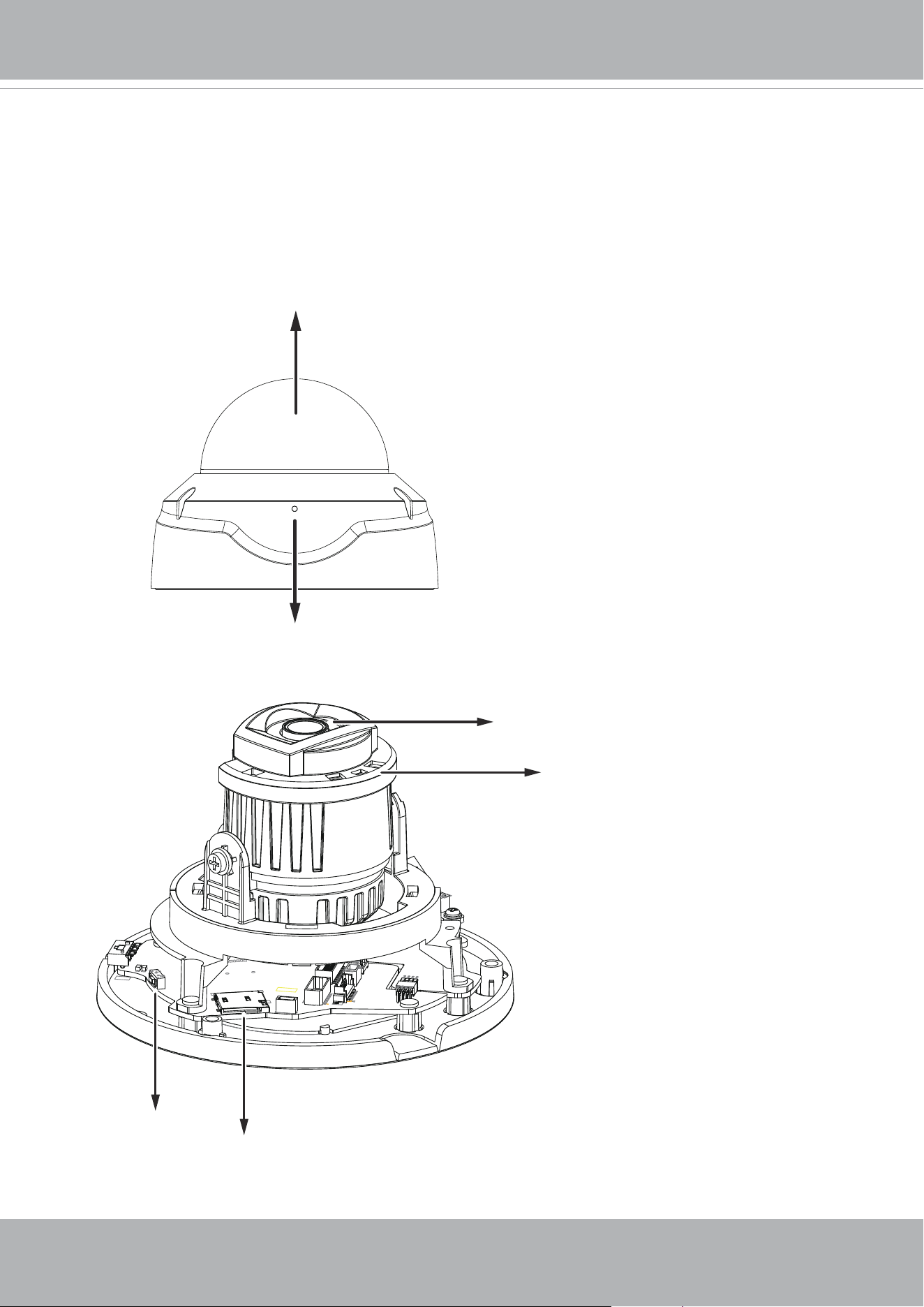
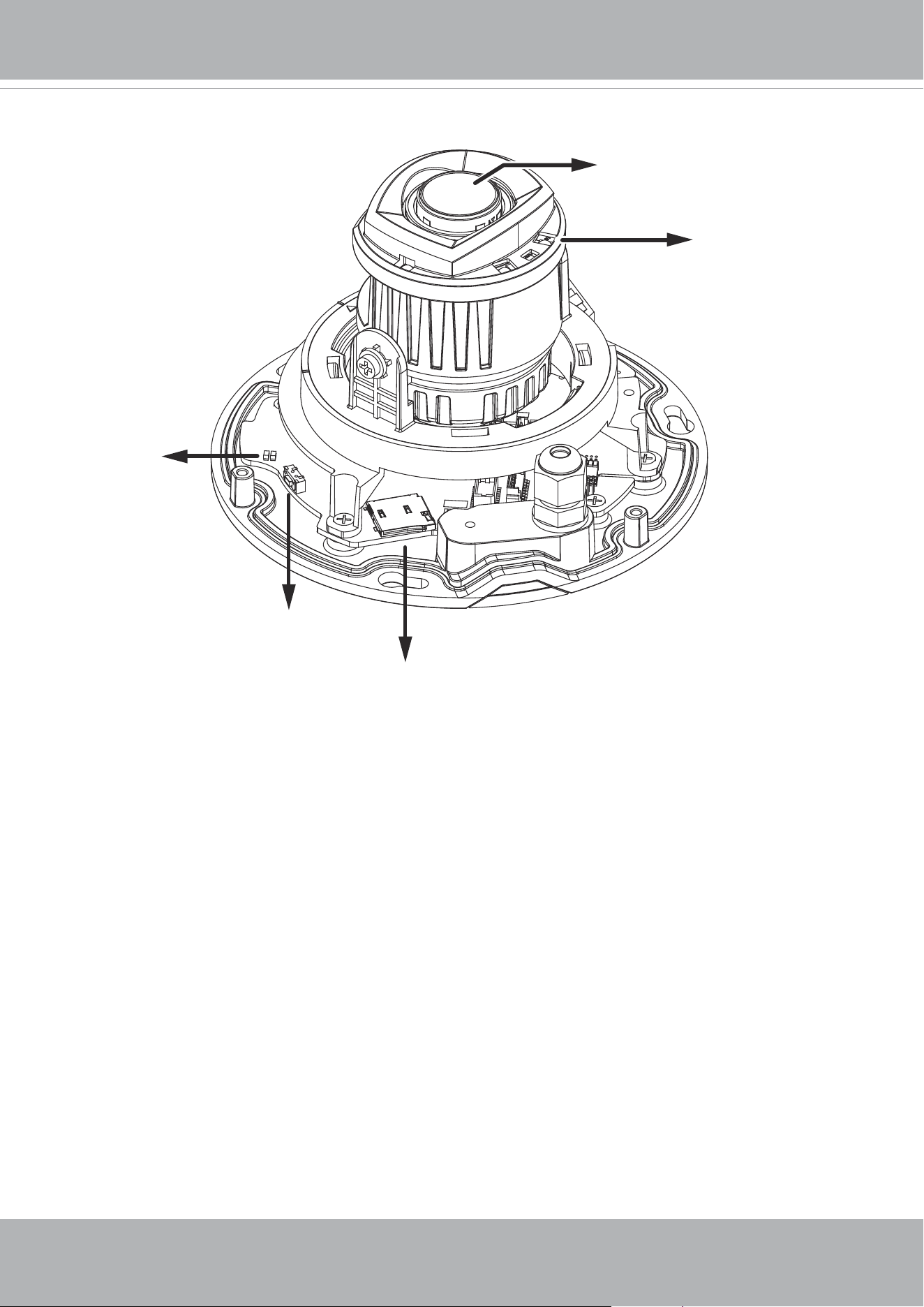
Dome cover
Outer View
Inner View
Physical Description
Lens
IR LED
Microphone
MicroSD card slot
Reset button
FD9189-v2
VIVOTEK
User's Manual - 7
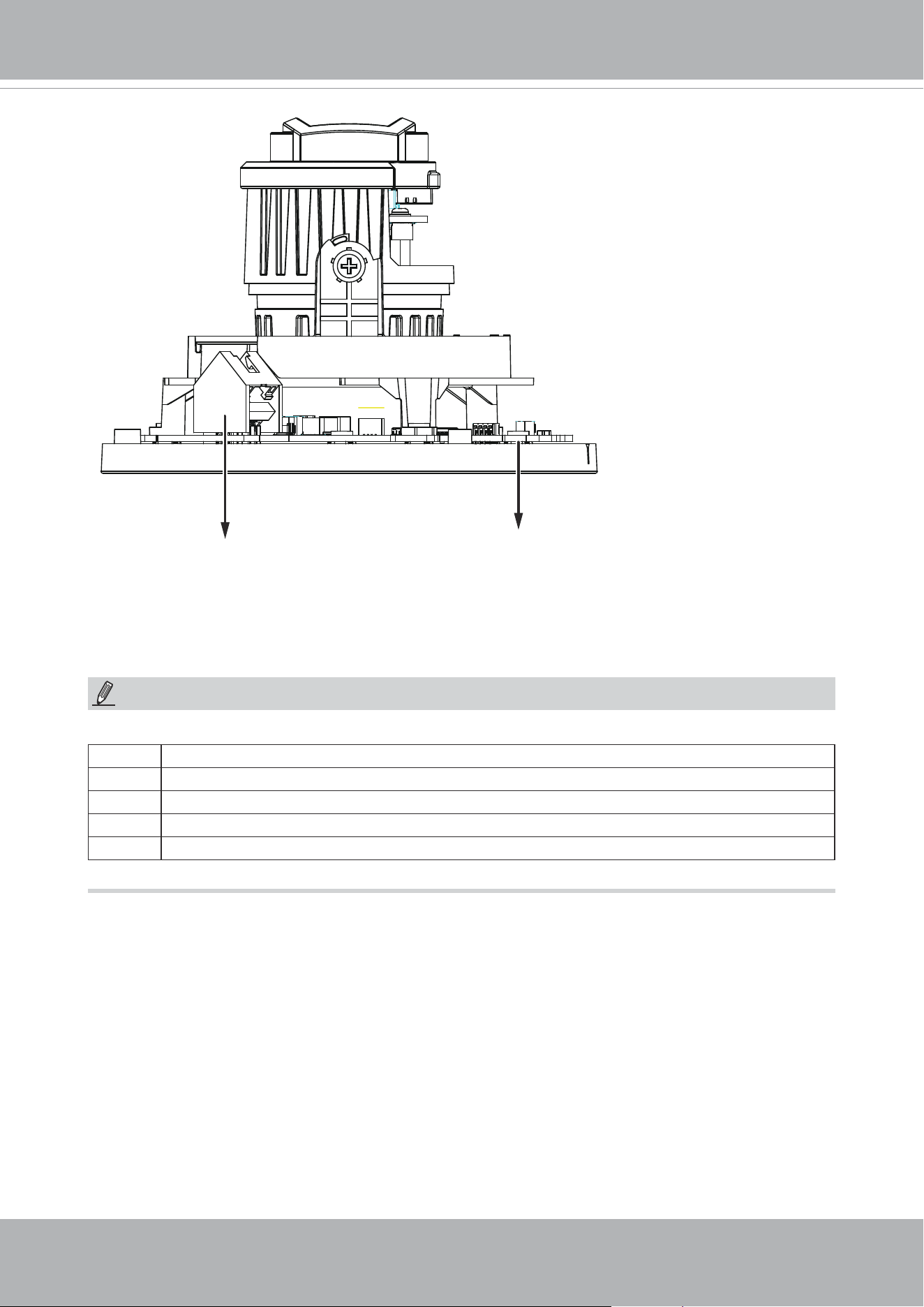
RJ45 Ethernet connector
Some of the sux syntax used in model naming are listed below:
E w/ heater for extreme weather
Fx Focal length w/ number
T w/ Remote focus lens
R w/ PoE repeater
H w/ High Dynamic Range functionality
NOTE:
LEDs
VIVOTEK
8 - User's Manual
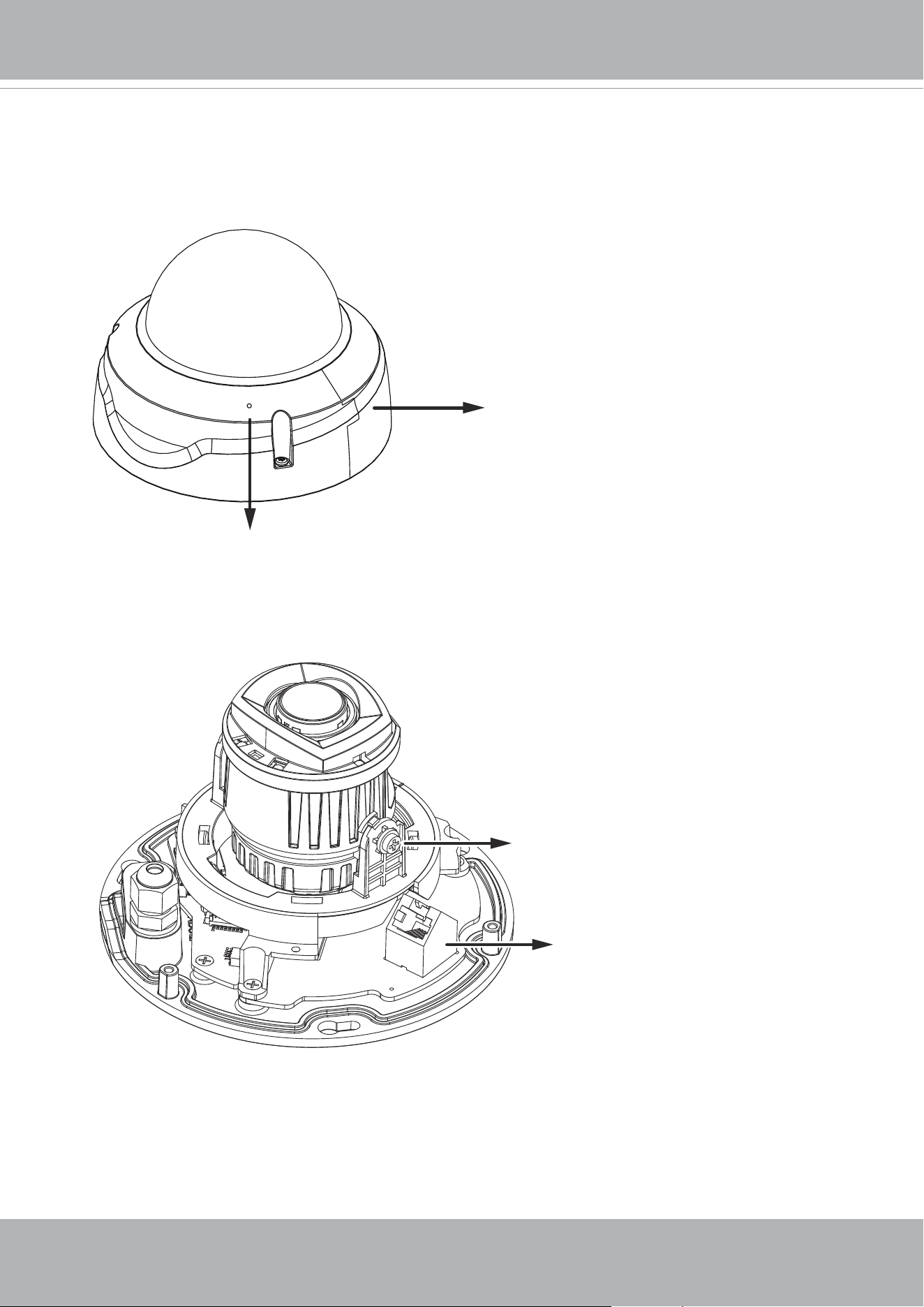
Outer View
FD9389-v2
RJ45 Ethernet socket
Tilt retention screw
Microphone
Dome cover
VIVOTEK
User's Manual - 9
Lens
IR LEDs
Reset button
MicroSD card slot
LEDst
VIVOTEK
10 - User's Manual
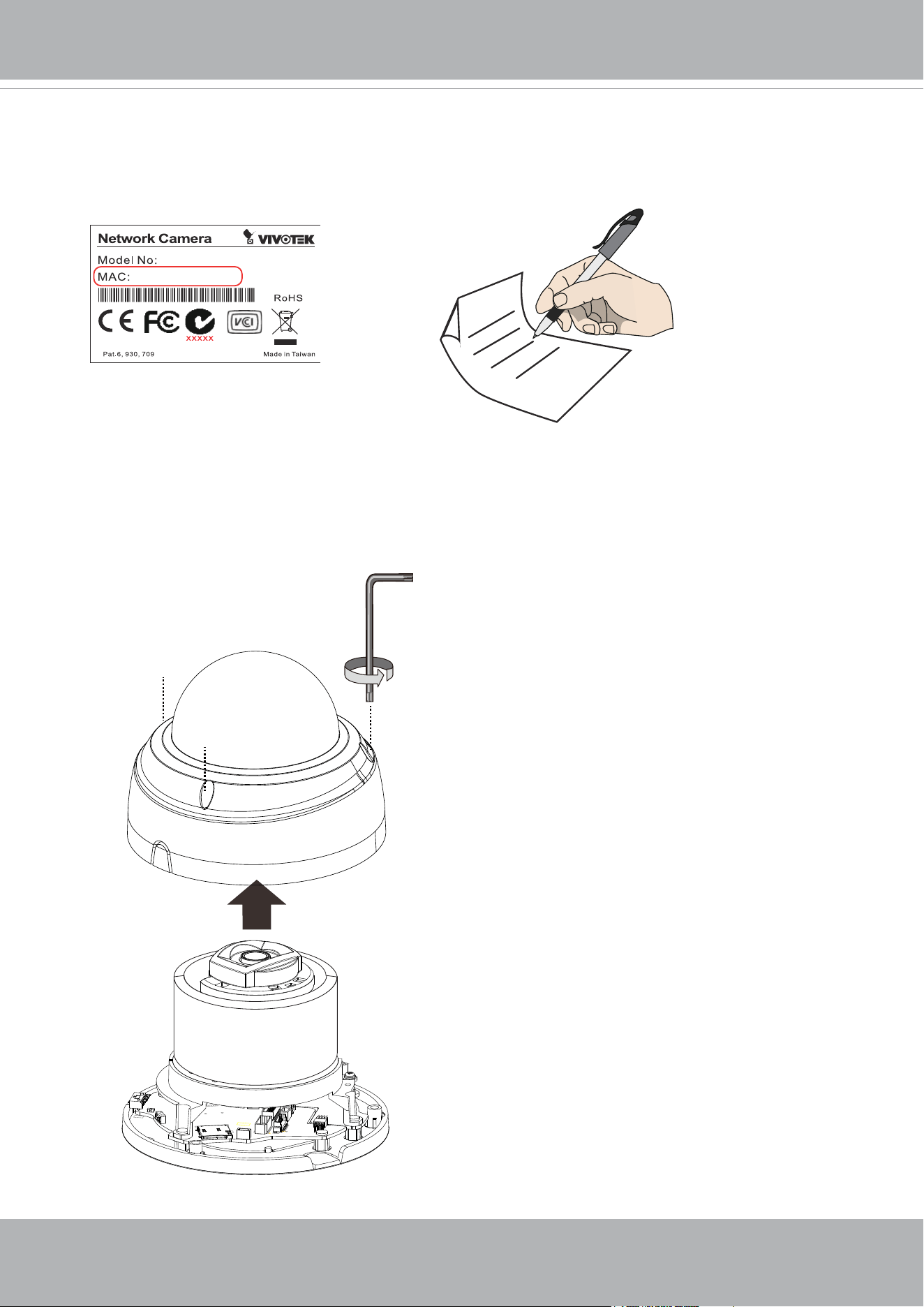
Hardware Installation: FD9189-2
0002D10766AD
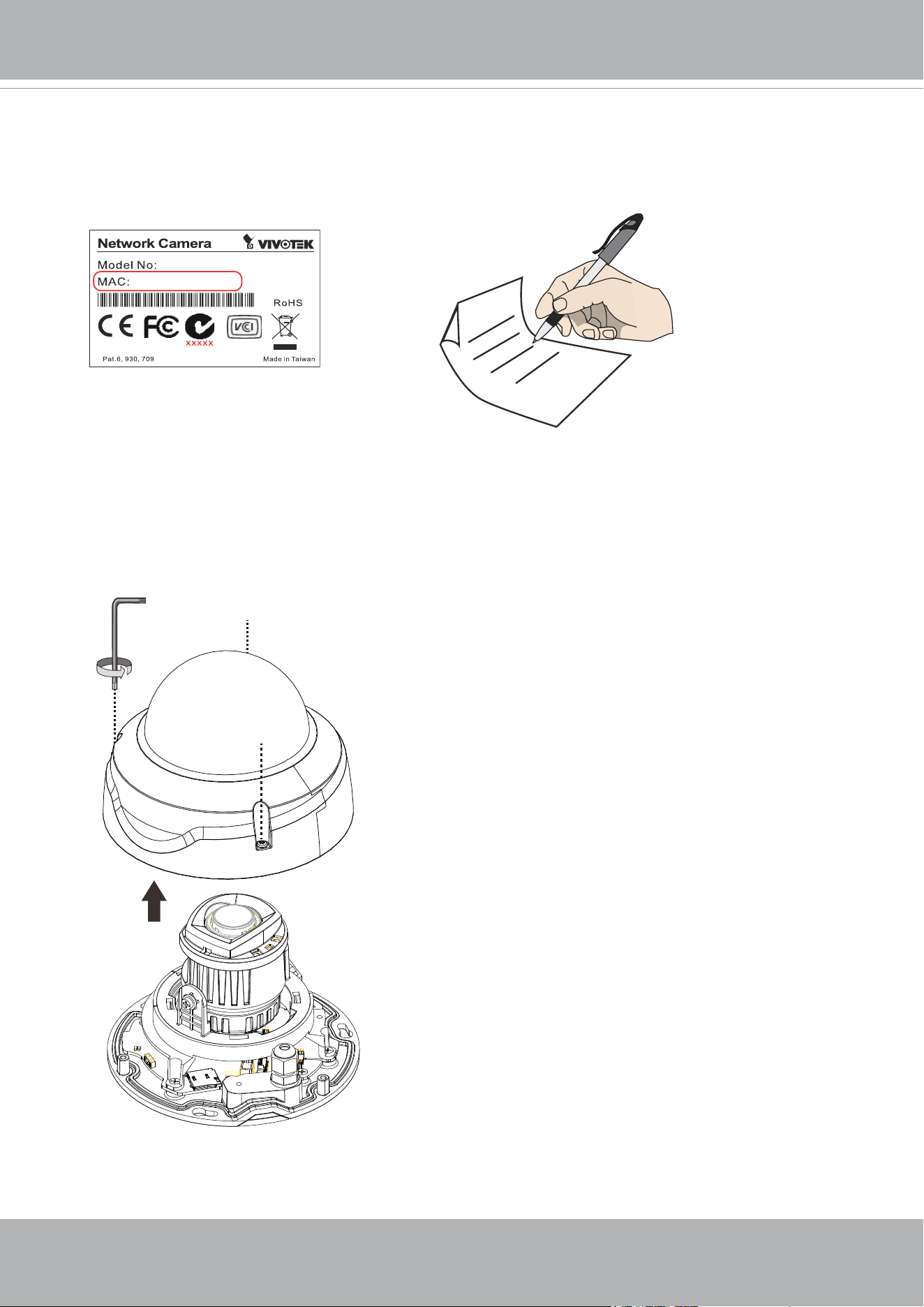
XXXXXX
1. Jot down the camera's MAC address for later reference.
2. Open the top cover by loosening the T10 anti-tamper screws.
VIVOTEK
User's Manual - 11
64
GB
10
I
1
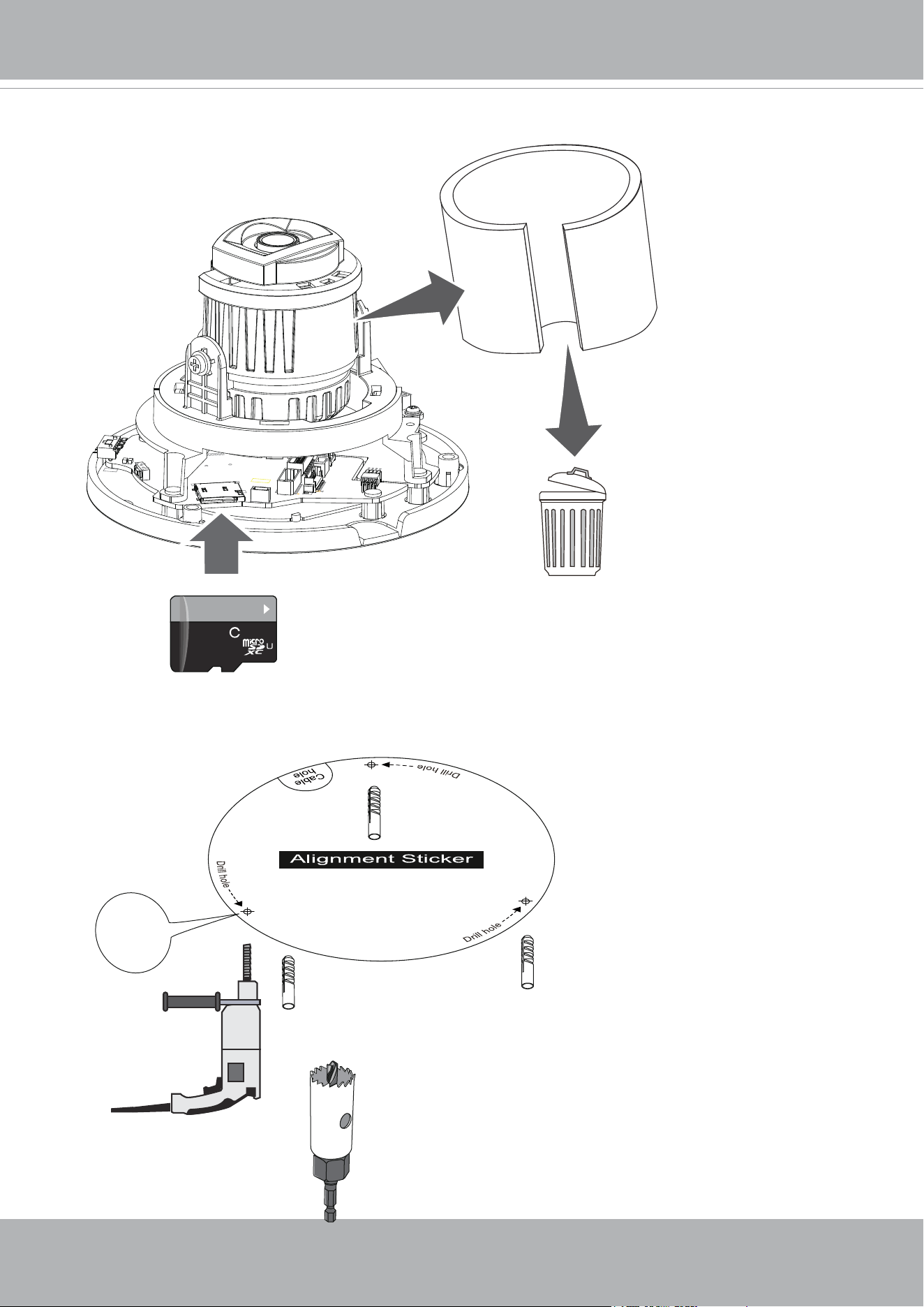
3. Install a MicroSD card if onboard storage is preferred. Remove the protective foam pad.
4. Use the alignment sticker to drill mounting holes on the wall or ceiling. Drill a cabling
routing hole if preferred.
Ø 4mm
VIVOTEK
12 - User's Manual
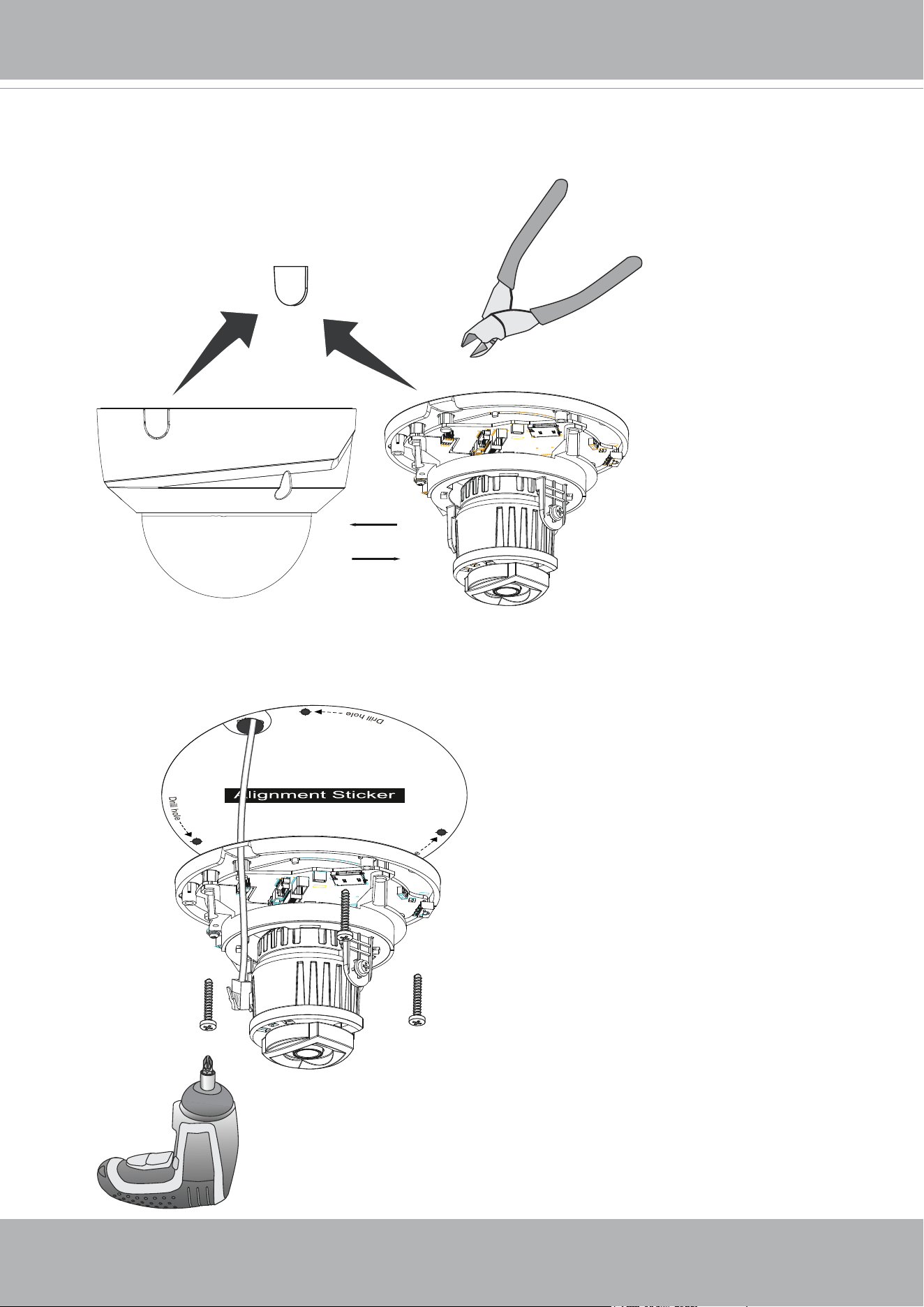
6. Route an Ethernet cable through the cabling hole. Secure the camera to wall or ceiling.
OR
5. You can use the side-routing tab to route the cable along the wall or use the knock-out
tab at the base plate if routing through a hole.
VIVOTEK
User's Manual - 13
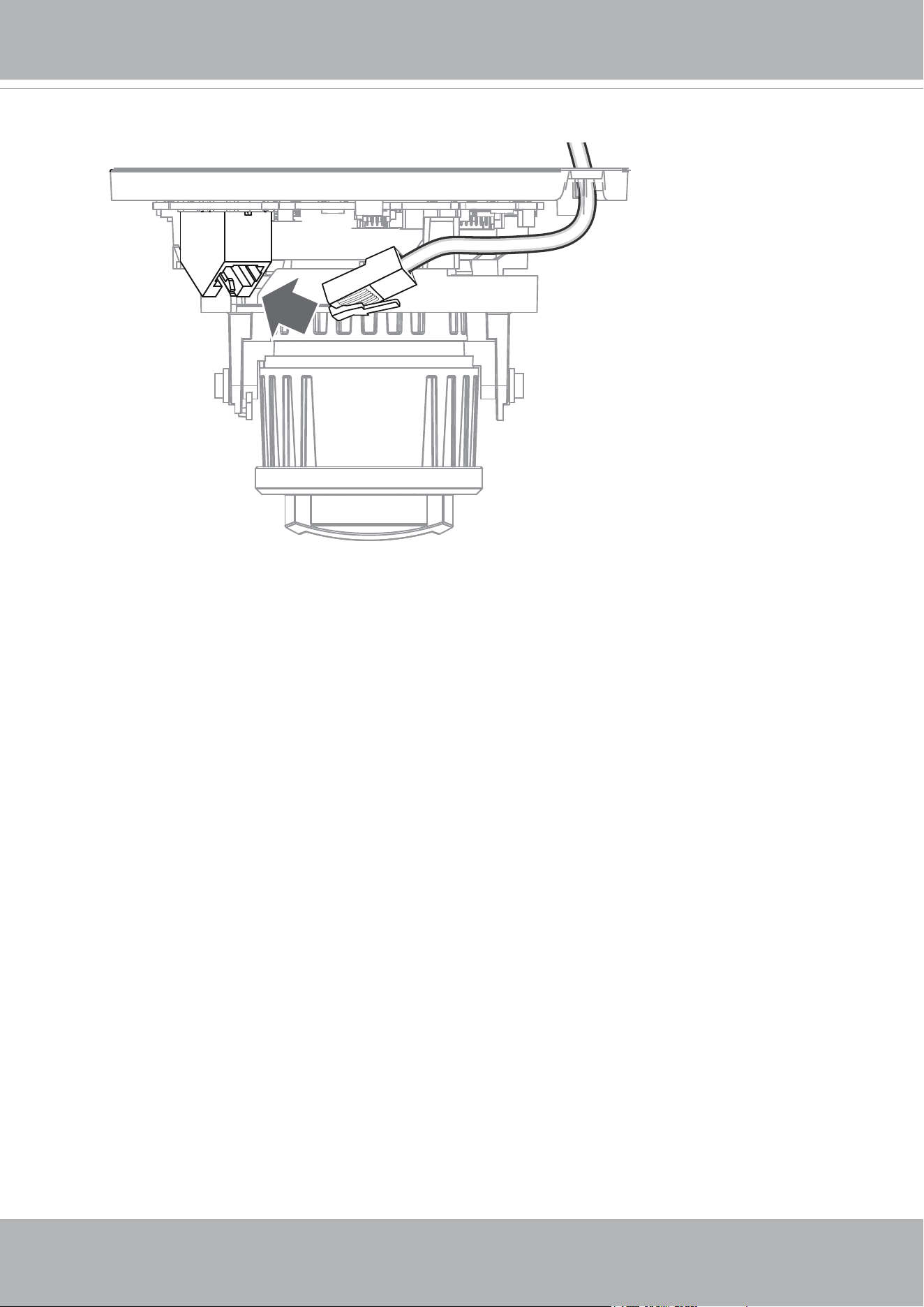
7. Connect the Ethernet cable to the RJ45 socket.
VIVOTEK
14 - User's Manual
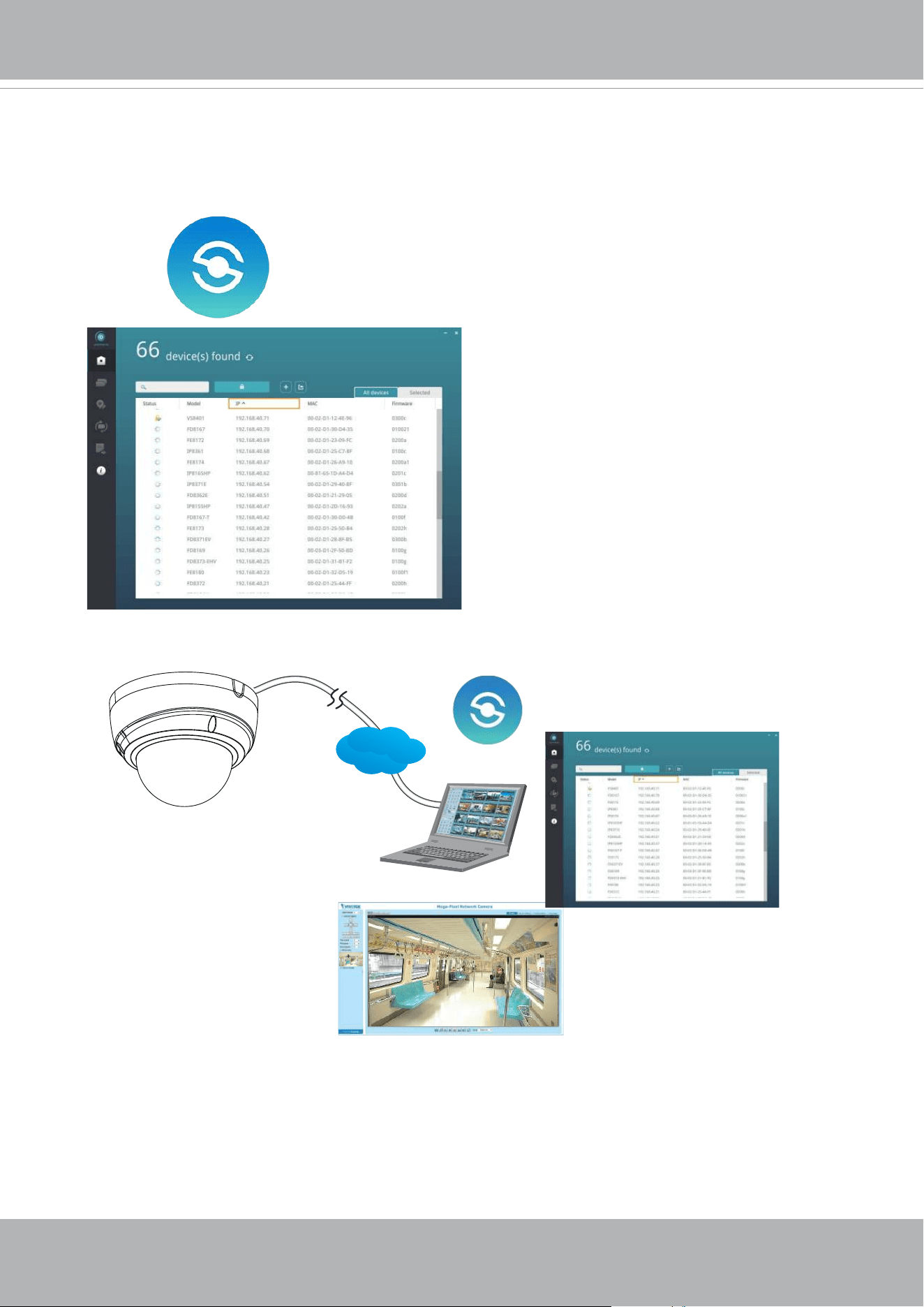
8. Please visit VIVOTEK’s website to Install the "Shepherd” software utility. The program
will search for VIVOTEK Video Receivers, Video Servers or Network Cameras on the
same LAN.
Double-click on the camera’s MAC address to open a web console to the camera.
Browser
LAN
Shepherd
VIVOTEK
User's Manual - 15
Software Installation
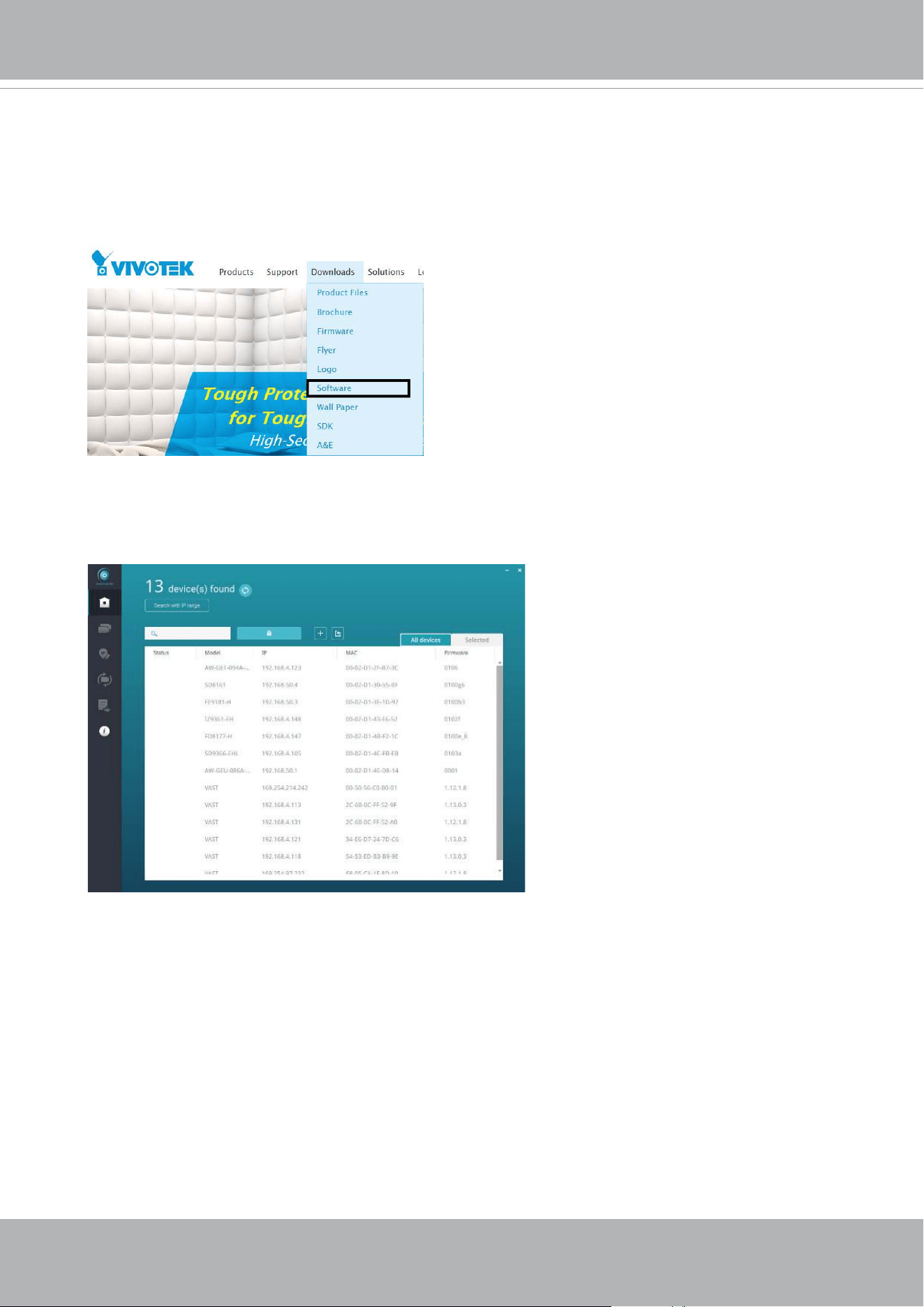
9. Install the
Shepherd
utility, which helps you locate and congure your Network Camera
in the local network. If your camera comes without the CD, go to VIVOTEK’s website,
and locate the utility in the Downloads > Software page.
9-1. Run the Shepherd utility.
9-2. The program will conduct an analysis of your network environment.
VIVOTEK
16 - User's Manual
0002D1730202
IB8360-W 192.168.4.151 00-02-D1-73-02-02
FD9389-EHV-v2
Network Camera
Model No: FD9389-EHV-v2
Made in Taiwan
This device complies with part 15 of the FCC rules. Operation is subject to the following two conditions:
(1)This device may not cause harmful interference, and
(2) this device must accept any interference received, including interference that may cause undesired operation.
Pat. 6,930,709
MAC:0002D1730202
R o HS
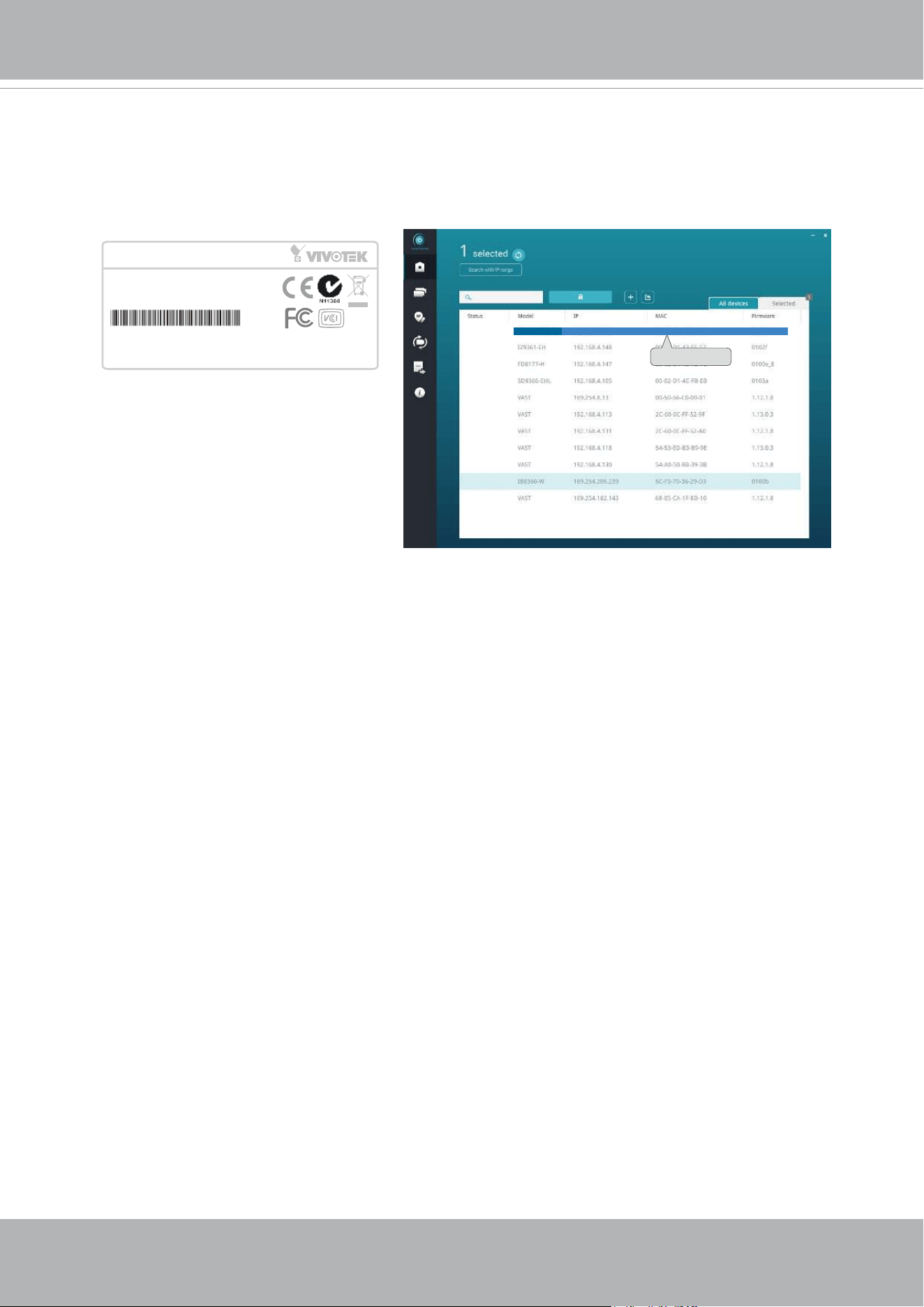
9-3. The program will search for all VIVOTEK network devices on the same LAN.
9-4. After a brief search, the installer window will prompt. Click on the MAC and model
name that matches the one printed on the product label. You can then double-click on
the address to open a management session with the Network Camera.
VIVOTEK
User's Manual - 17
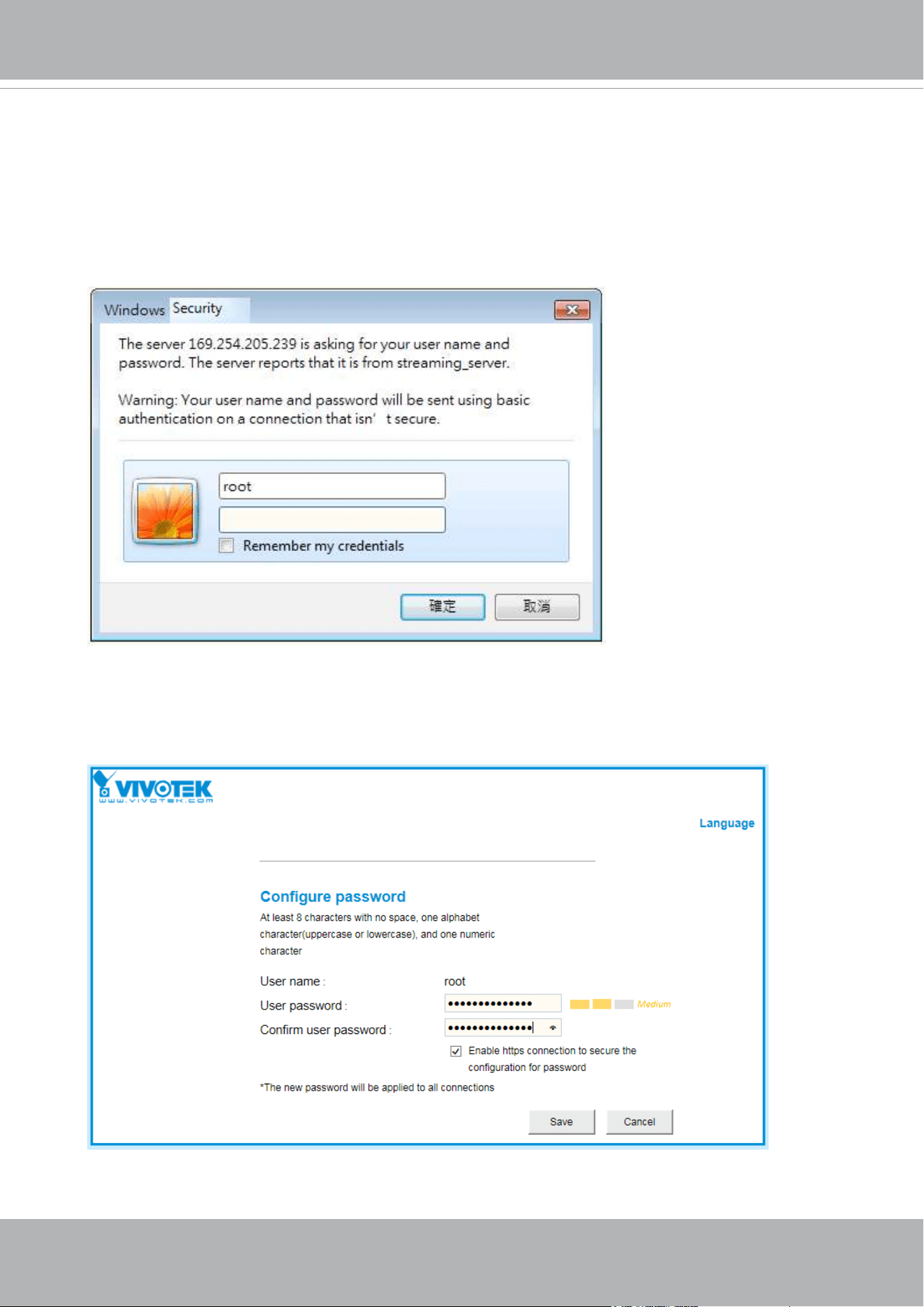
Forceful Password Conguration
10. The first time you log in to the camera, the firmware will prompt for a password
conguration for security concerns.
10-1. Since your camera is used for the rst time, there is no password. Enter “root” as the
user name, and nothting for the password.
10-2. Enter the combination of alphabetic and numeric characters to fulll the password
strength. requirement. The default name for the camera administrator is “root”, and can
not be changed.
VIVOTEK
18 - User's Manual
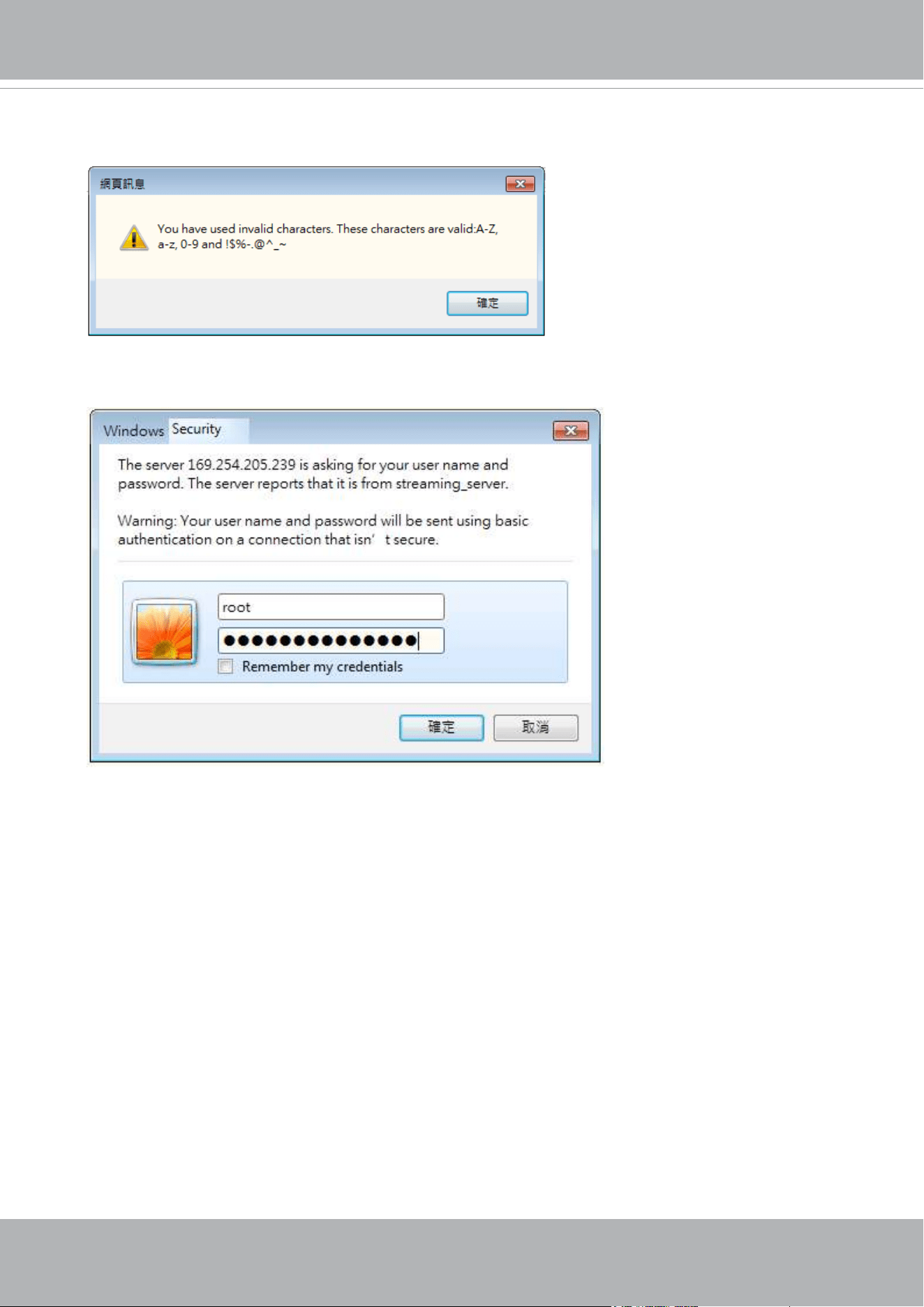
Some, but not all special ASCII characters are supported: !, $, %, -, ., @, ^, _, and ~.
You can use them in the password combination.
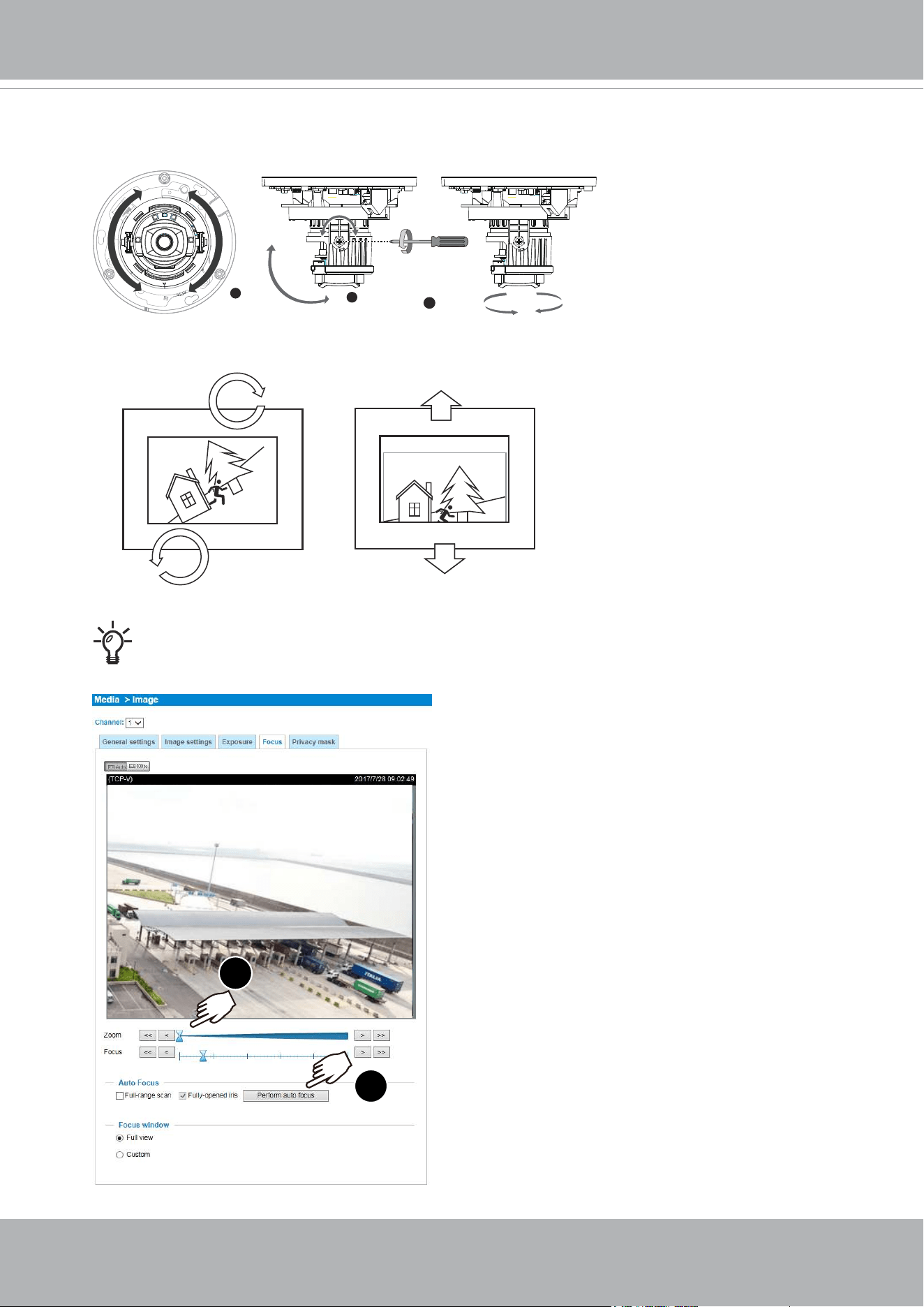
10-3. Another prompt will request for the password you just congured. Enter the password
and then you can start congure your camera and see the live view.
VIVOTEK
User's Manual - 19
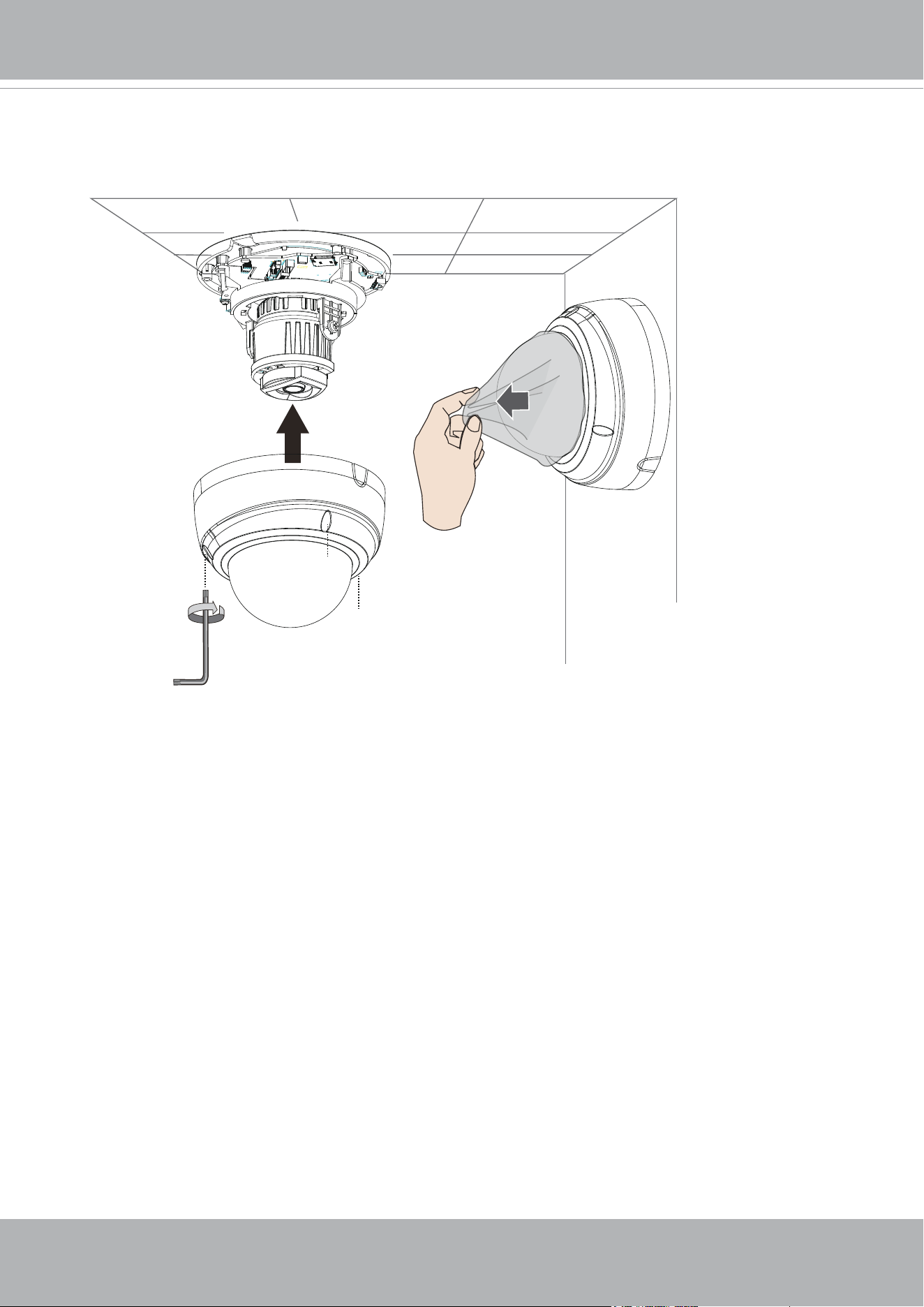
11. With a live view on your computer, rotate, pan, or tilt the camera until you acquire an
optimal field of view.
1
3
2
350°
350°
80°
Conguration > Media > Image > Focus
FD9189-HT-v2
1
2
For a model that comes with a remote focus lens, use the
automatic focusing function.
VIVOTEK
20 - User's Manual
12. Install the dome cover.
13. Remove the protective sheet from the dome cover.
VIVOTEK
User's Manual - 21
0002D10766AD
XXXXXX
1. Jot down the camera's MAC address for later reference.
2. Open the top cover by loosening the T10 anti-tamper screws.
Hardware Installation: FD9389
VIVOTEK
22 - User's Manual
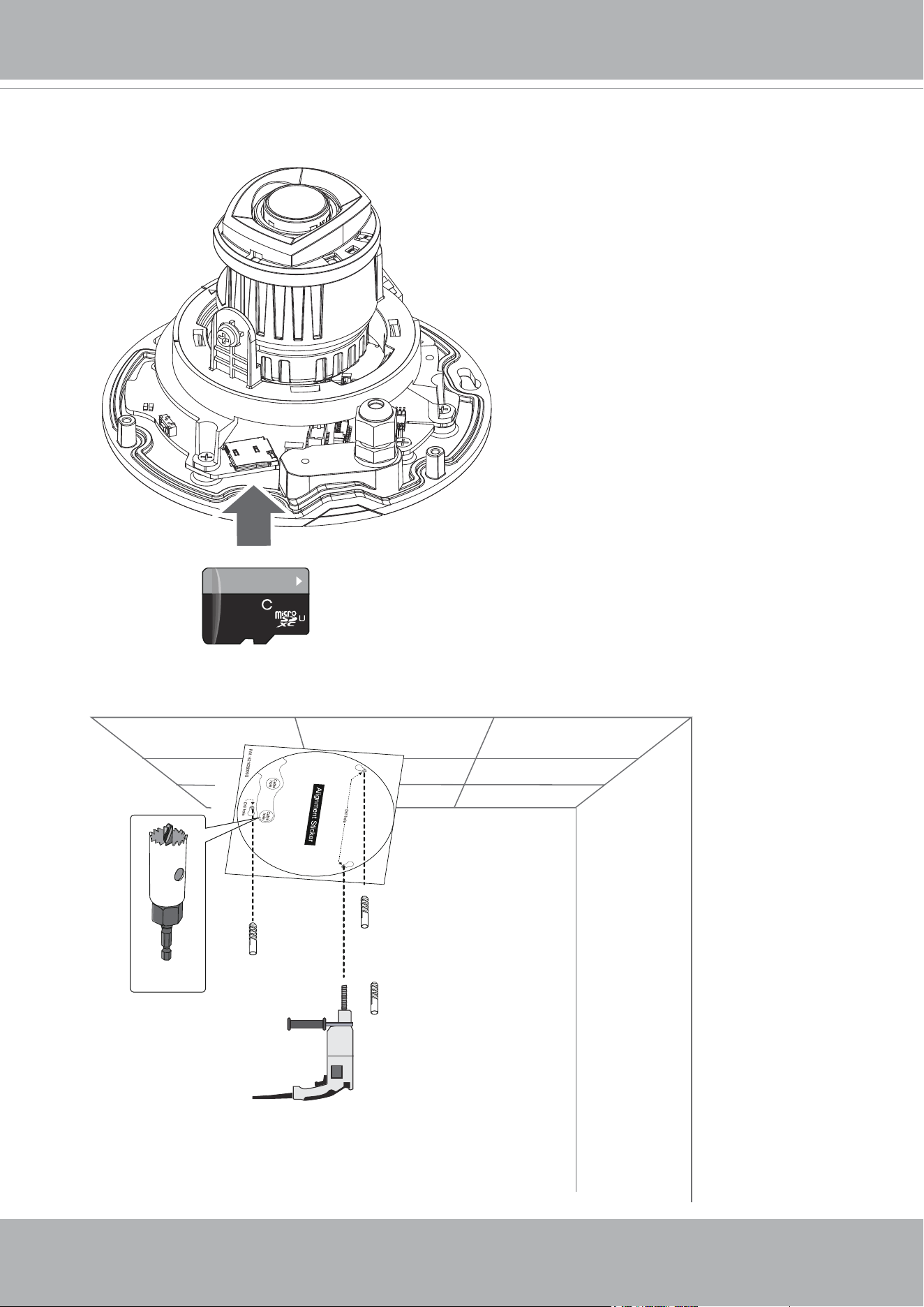
3. Install a MicroSD card if onboard storage is preferred. Remove the protective foam pad.
4. Use the alignment sticker to drill mounting holes on the wall or ceiling. Drill a cabling
routing hole if preferred.
64
GB
10
I
1
VIVOTEK
User's Manual - 23
Max. Power Consumption (via PoE)
Model Watts Voltage Amp
FD9389-EHV-v2 12.3 37 ~ 57 0.33 ~ 0.21
FD9389-EHTV-v2 12.3 37 ~ 57 0.33 ~ 0.21
M8X1.25
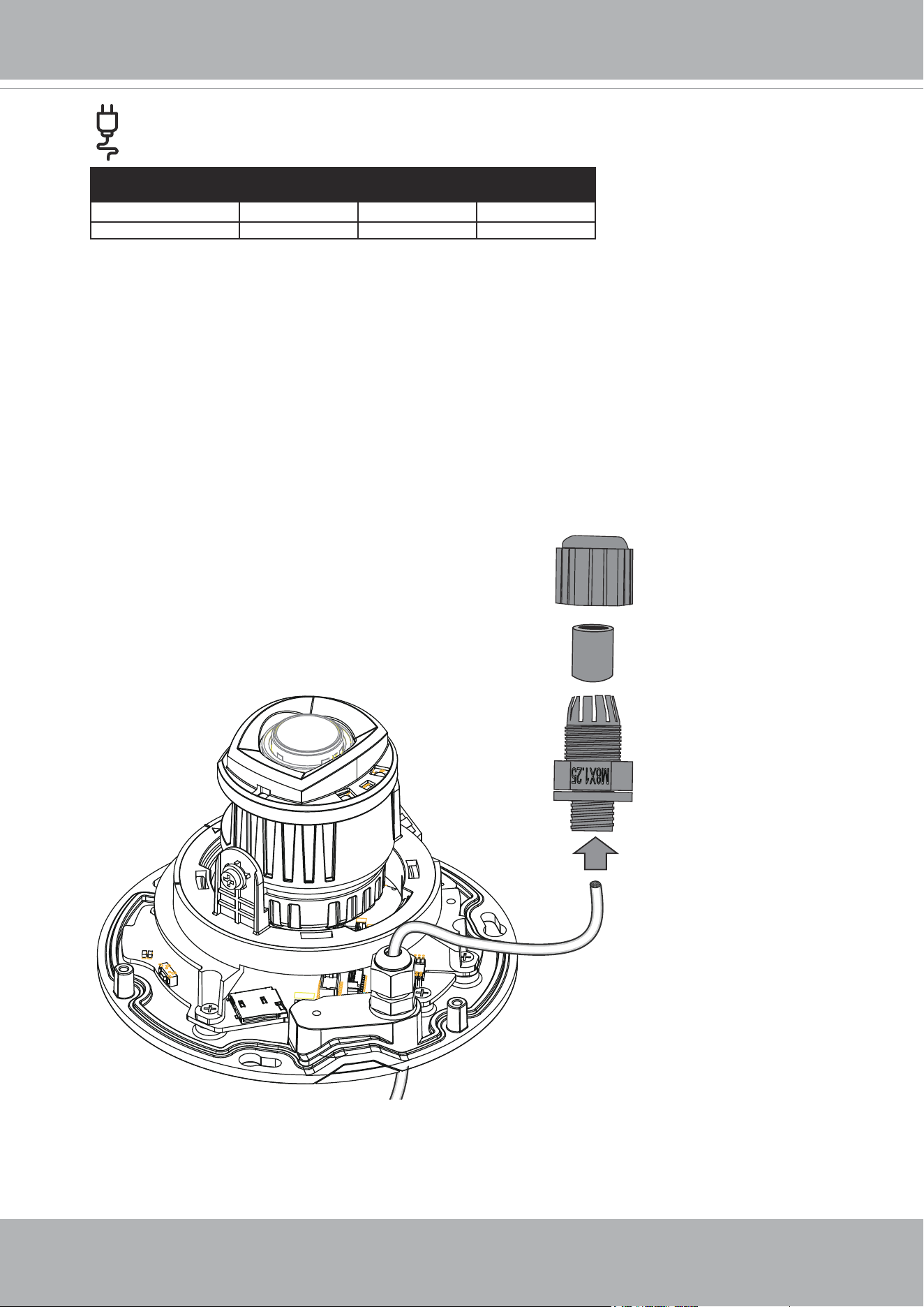
5. Pass an Ethernet cable through the included cable gland components.
VIVOTEK
24 - User's Manual
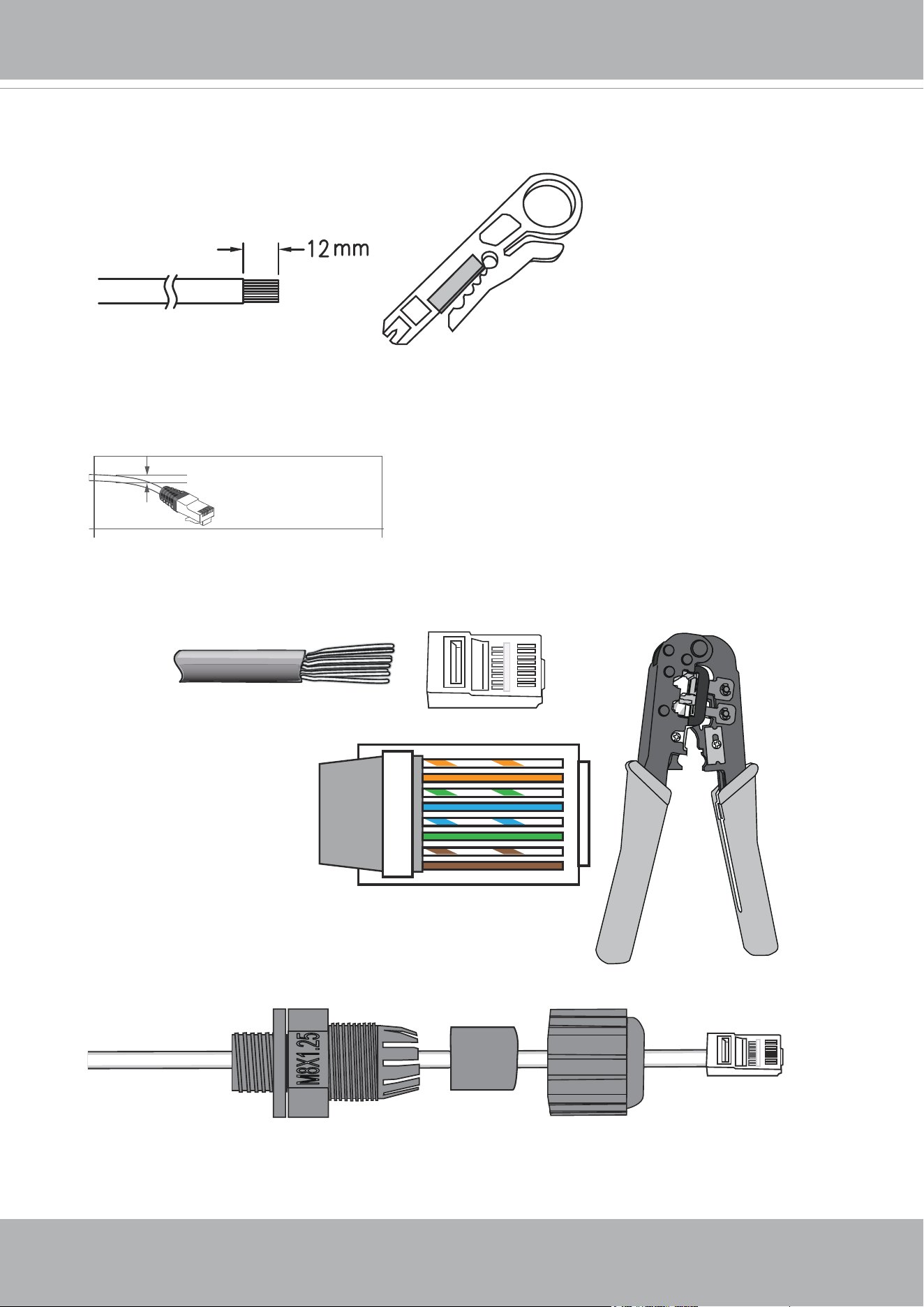
6. Use a crimping tool to remove 12mm of plastic sheath from the end of cable. Do not cut
too deep and cause damage to the insulation of core.
5~6.3mm
7. Connect all 8 unstrapped color wires into the connector using a crimping tool. Make
sure the cable passed through all waterproof components before you make the cable
connector.
o
O
g
B
b
G
br
BR
1
2
3
4
5
6
7
8
o: white/orange stripe
O: orange solid
g: white/green stripe
B: blue solid
b: white/blue stripe
G: green solid
br: white/brown stripe
BR: brown solid
M8X1.25
VIVOTEK
User's Manual - 25
11.3cm
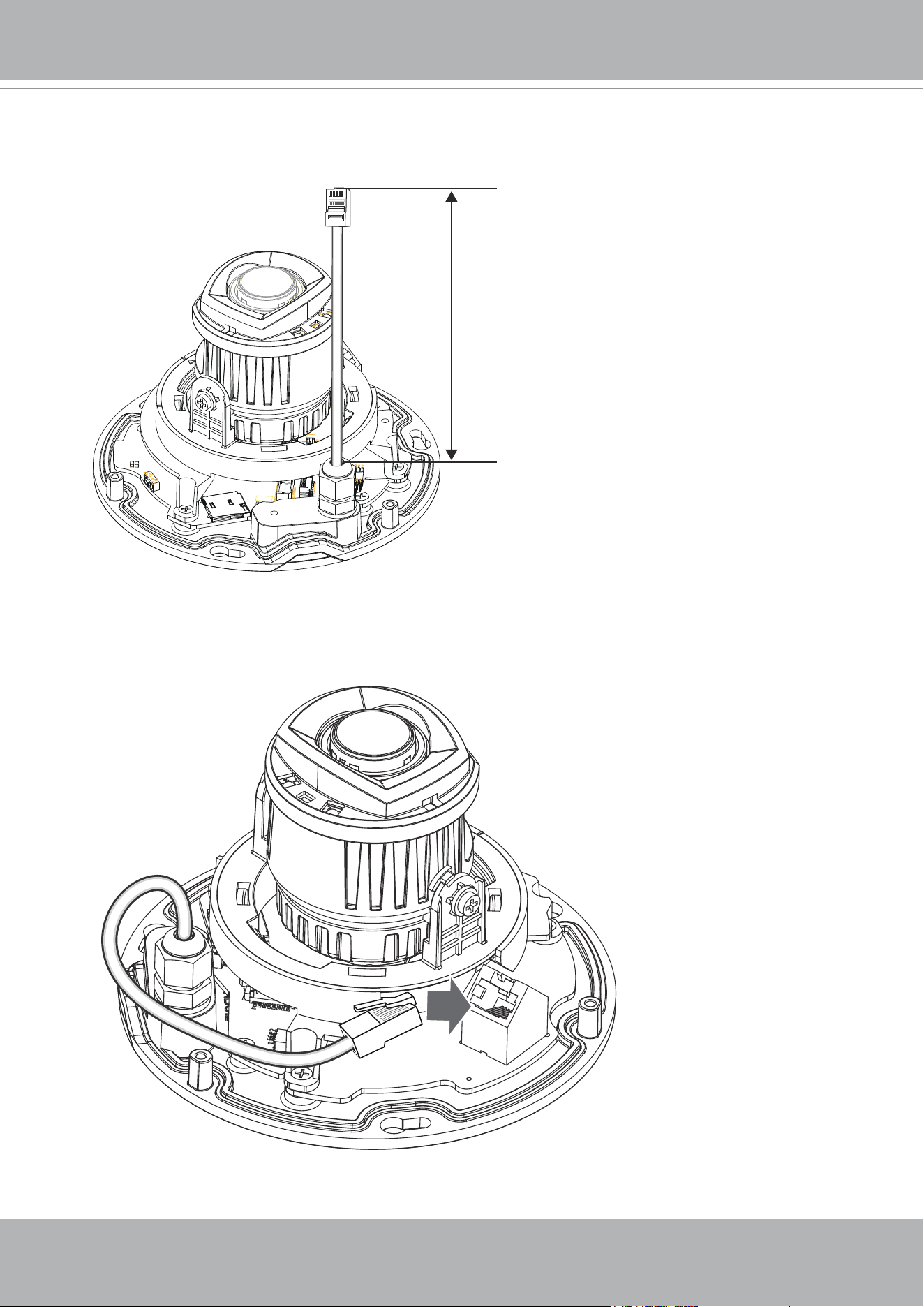
8. The length of the cable inside the camera canister is approximately 11.3cm. Tighten the
waterproof components.
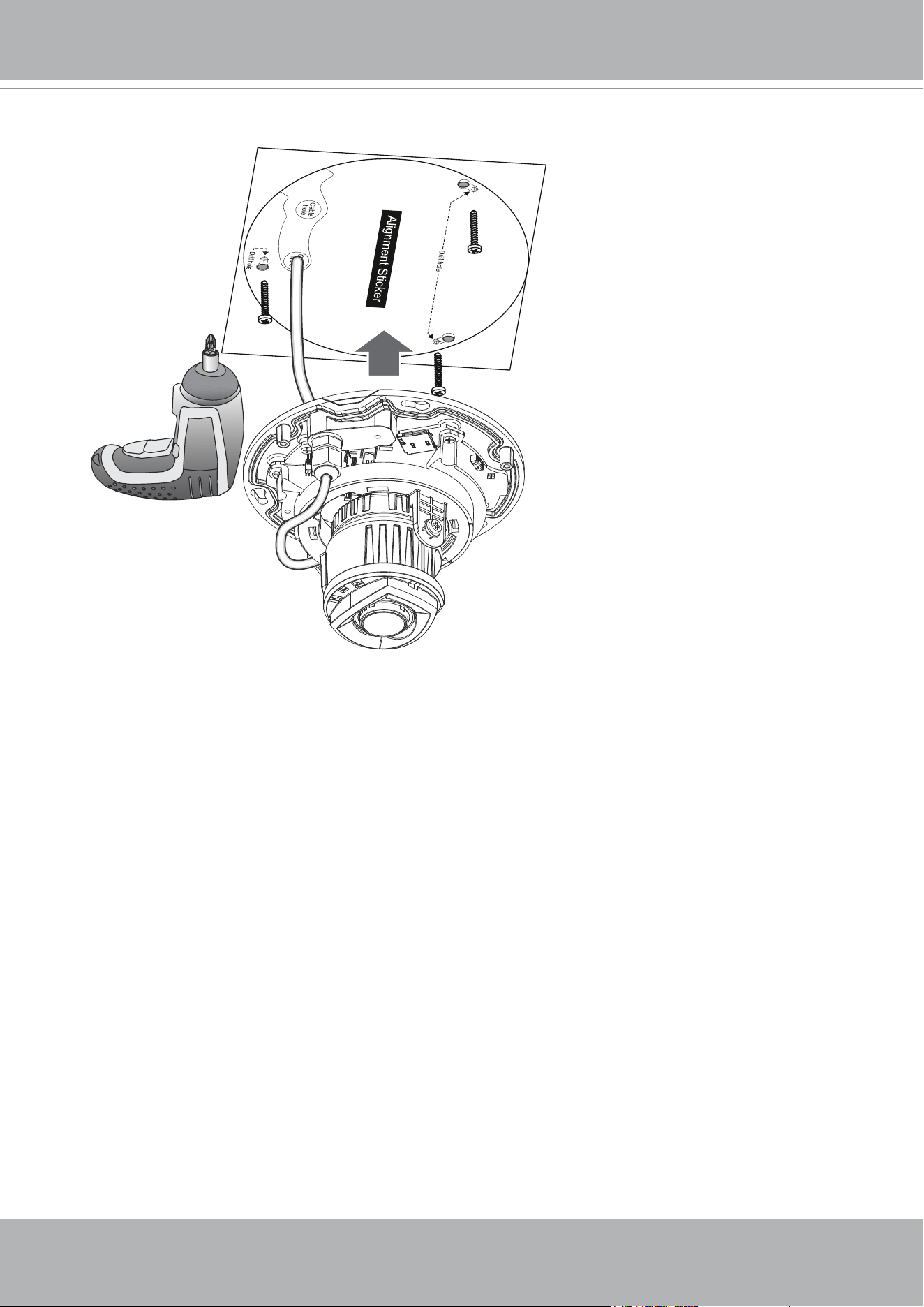
9. Connect the Ethernet connector to the RJ45 socket.
VIVOTEK
26 - User's Manual
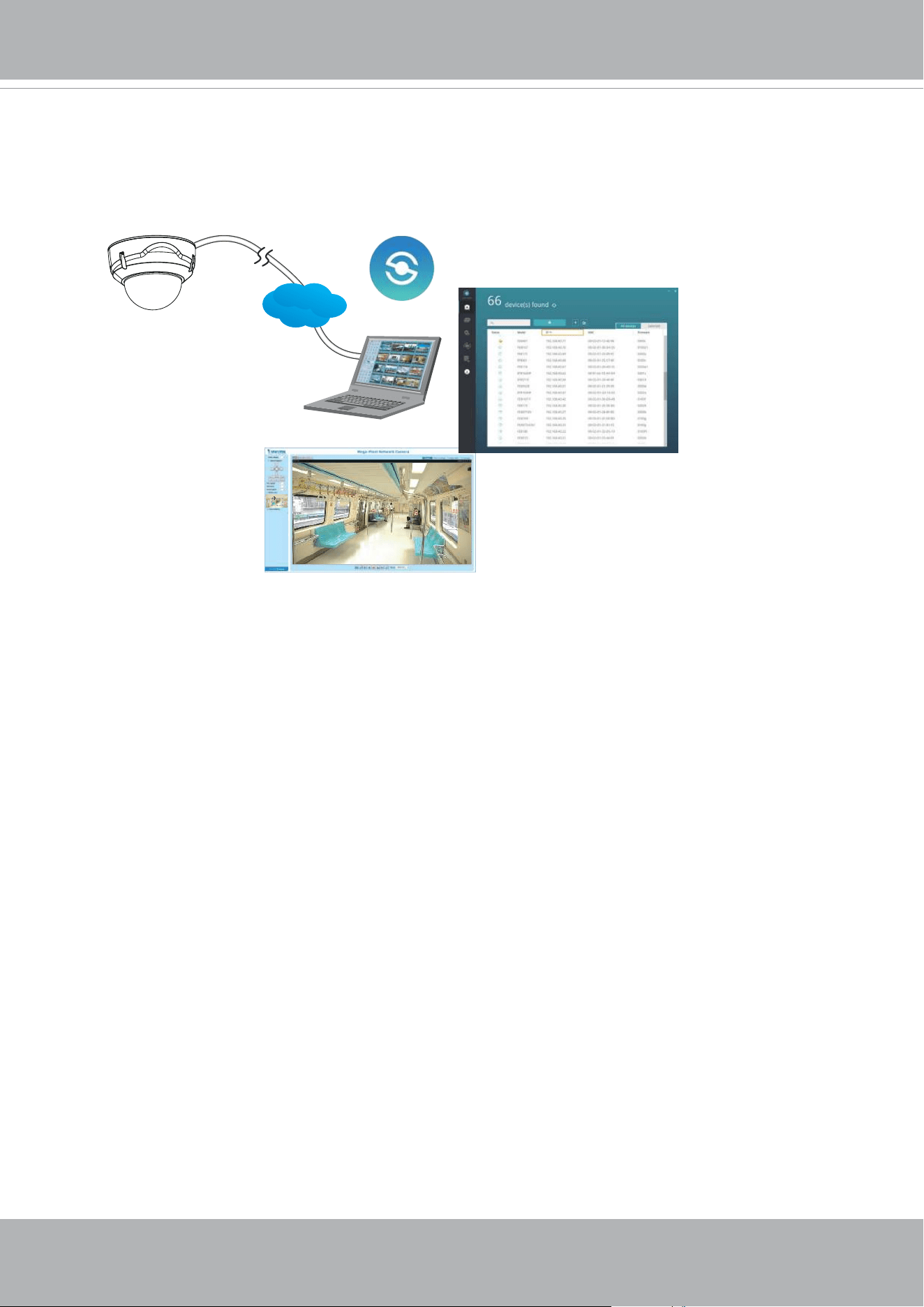
10. Secure the camera to wall or ceiling using the included screws.
VIVOTEK
User's Manual - 27
Browser
LAN
Shepherd
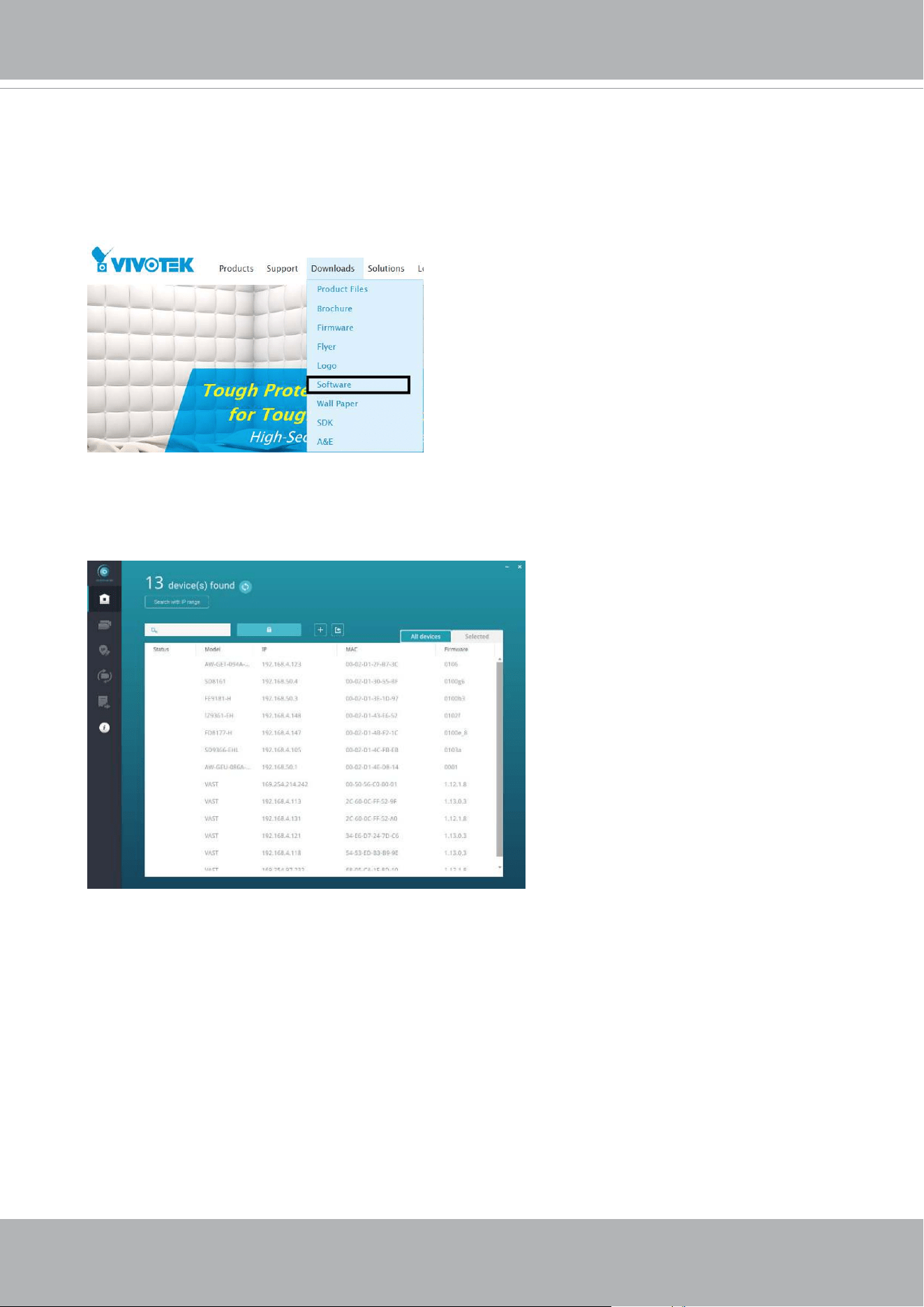
11. Please visit VIVOTEK’s website to Install the "Shepherd” software utility. The program
will search for VIVOTEK Video Receivers, Video Servers or Network Cameras on the
same LAN.
Double-click on the camera’s MAC address to open a web console to the camera.
VIVOTEK
28 - User's Manual
Software Installation
12. Install the
Shepherd
utility, which helps you locate and congure your Network Camera
in the local network. If your camera comes without the CD, go to VIVOTEK’s website,
and locate the utility in the Downloads > Software page.
12-1. Run the Shepherd utility.
12-2. The program will conduct an analysis of your network environment.
VIVOTEK
User's Manual - 29
0002D1730202
IB8360-W 192.168.4.151 00-02-D1-73-02-02
FD9389-EHV-v2
Network Camera
Model No: FD9389-EHV-v2
Made in Taiwan
This device complies with part 15 of the FCC rules. Operation is subject to the following two conditions:
(1)This device may not cause harmful interference, and
(2) this device must accept any interference received, including interference that may cause undesired operation.
Pat. 6,930,709
MAC:0002D1730202
R o HS
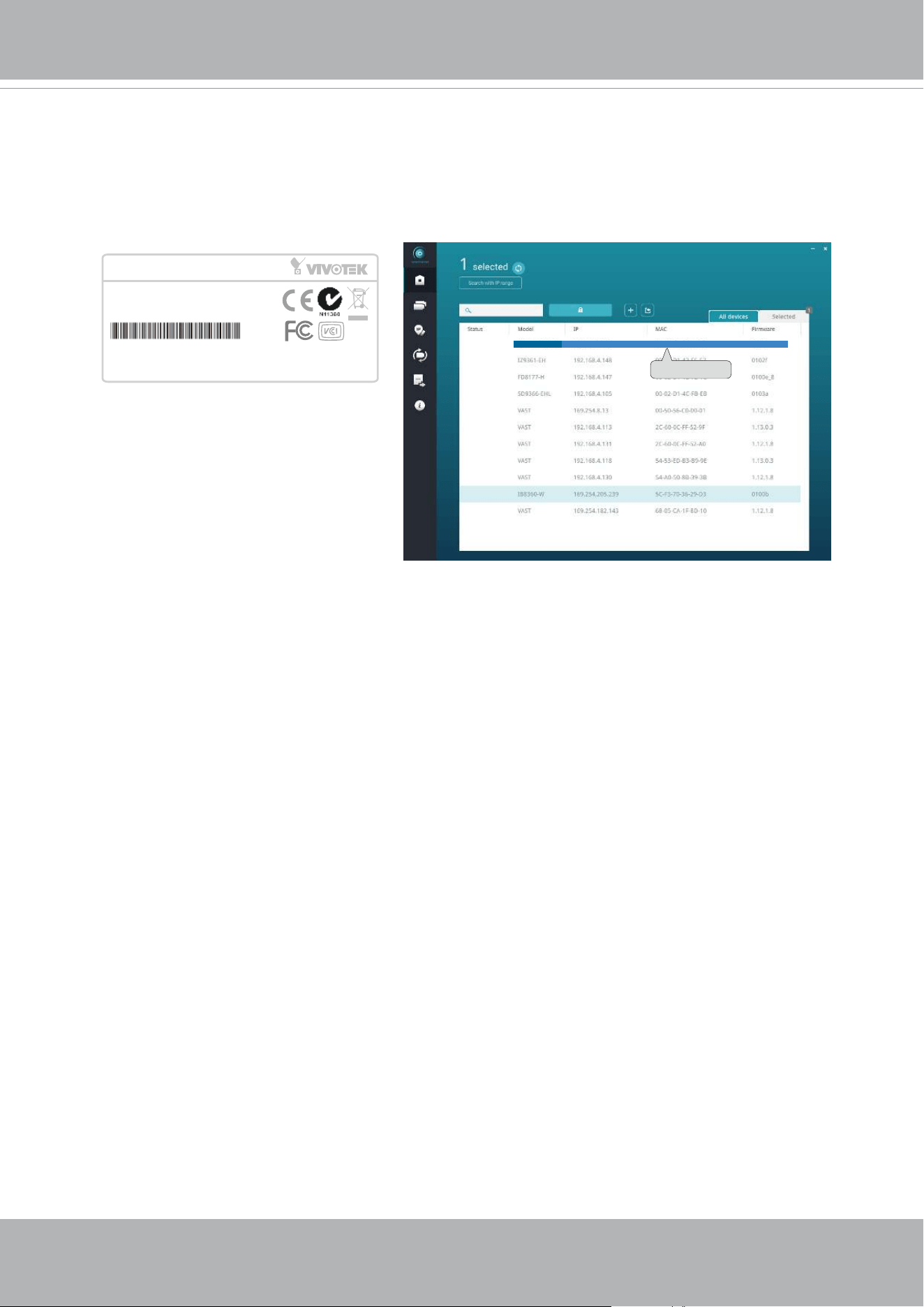
12-3. The program will search for all VIVOTEK network devices on the same LAN.
12-4. After a brief search, the installer window will prompt. Click on the MAC and model
name that matches the one printed on the product label. You can then double-click on
the address to open a management session with the Network Camera.
VIVOTEK
30 - User's Manual
Forceful Password Conguration
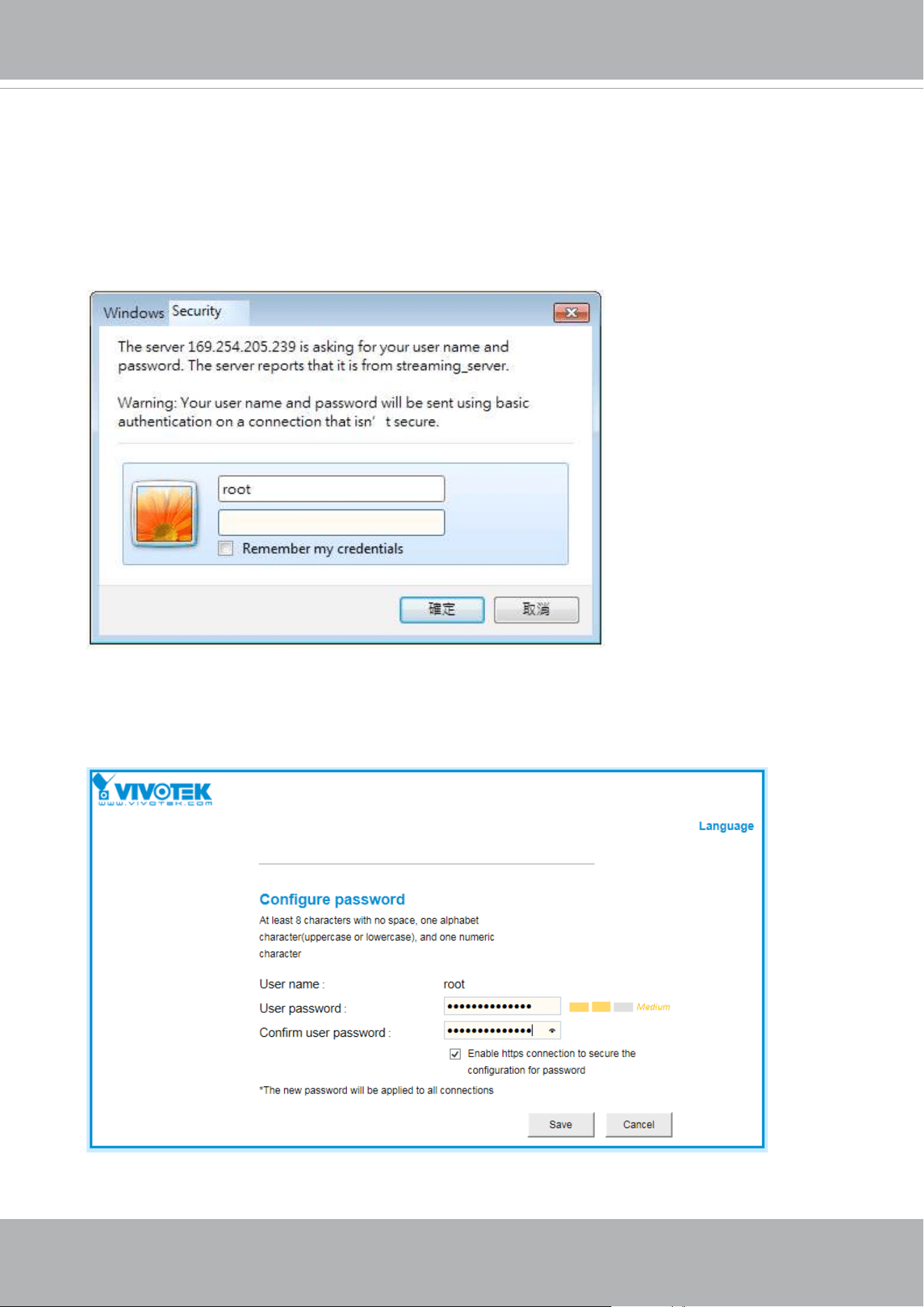
13. The first time you log in to the camera, the firmware will prompt for a password
conguration for security concerns.
13-1. Since your camera is used for the rst time, there is no password. Enter “root” as the
user name, and nothting for the password.
13-2. Enter the combination of alphabetic and numeric characters to fulll the password
strength. requirement. The default name for the camera administrator is “root”, and can
not be changed.
VIVOTEK
User's Manual - 31
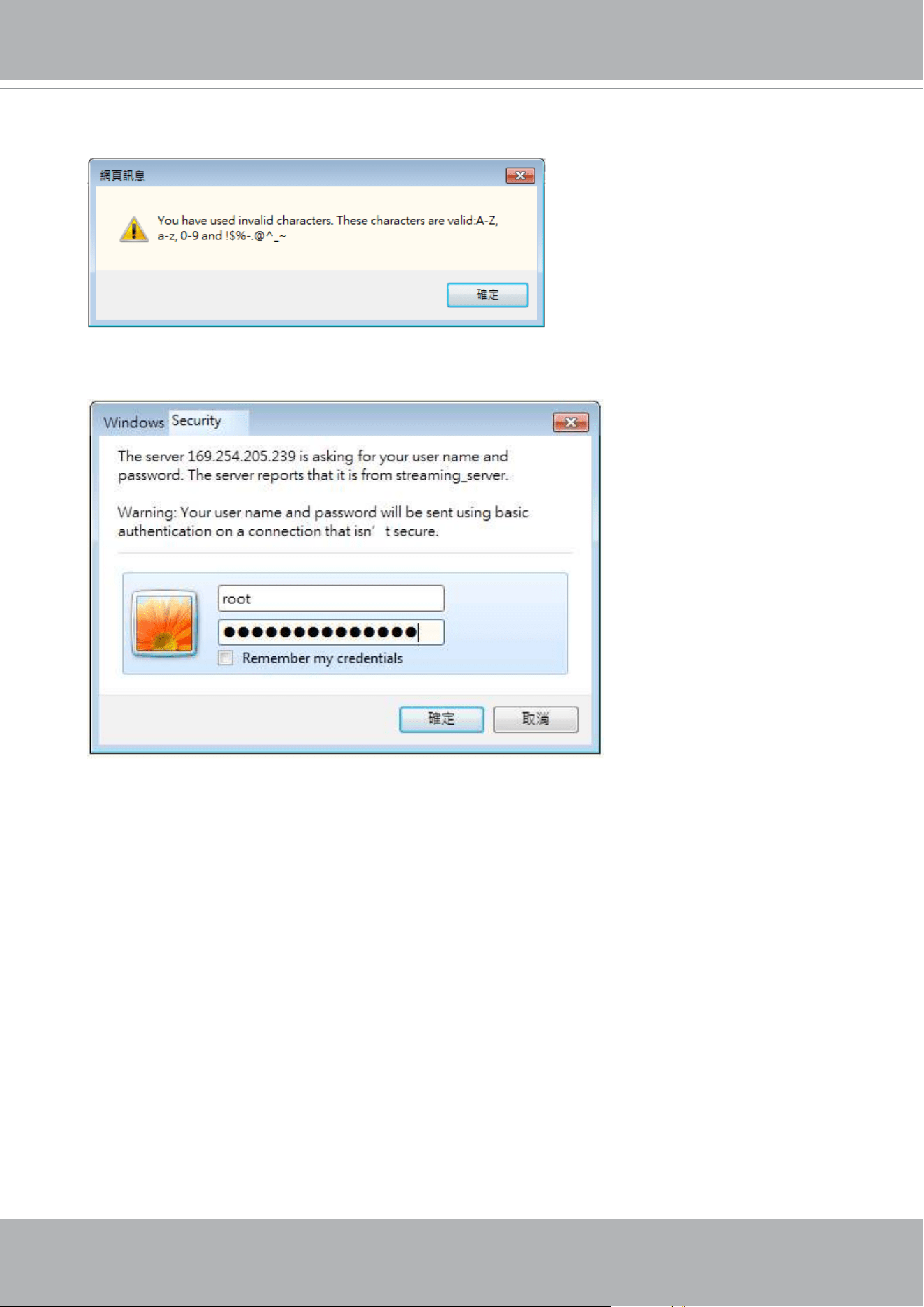
Some, but not all special ASCII characters are supported: !, $, %, -, ., @, ^, _, and ~.
You can use them in the password combination.
13-3. Another prompt will request for the password you just congured. Enter the password
and then you can start congure your camera and see the live view.
VIVOTEK
32 - User's Manual
350°
350°
80°
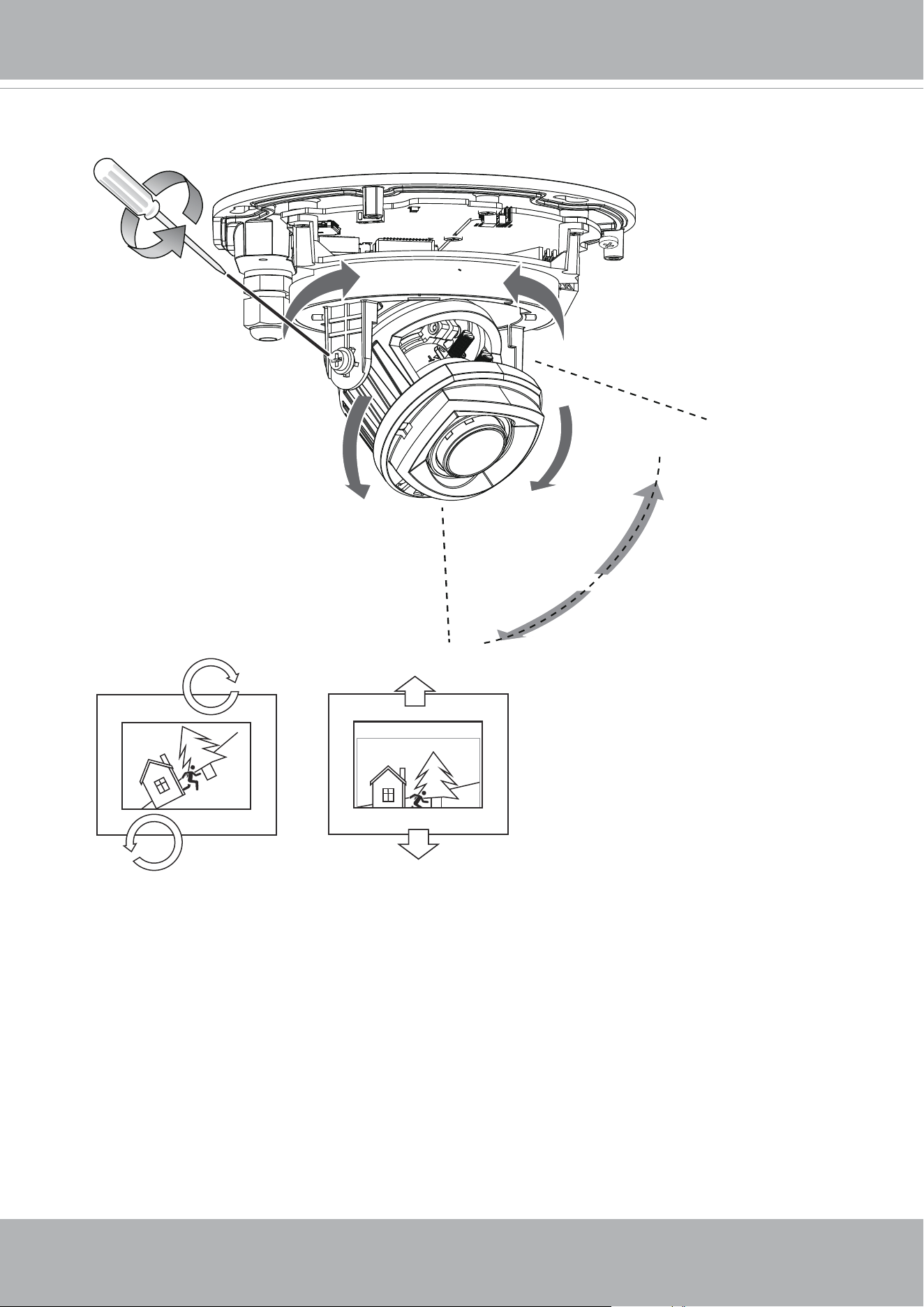
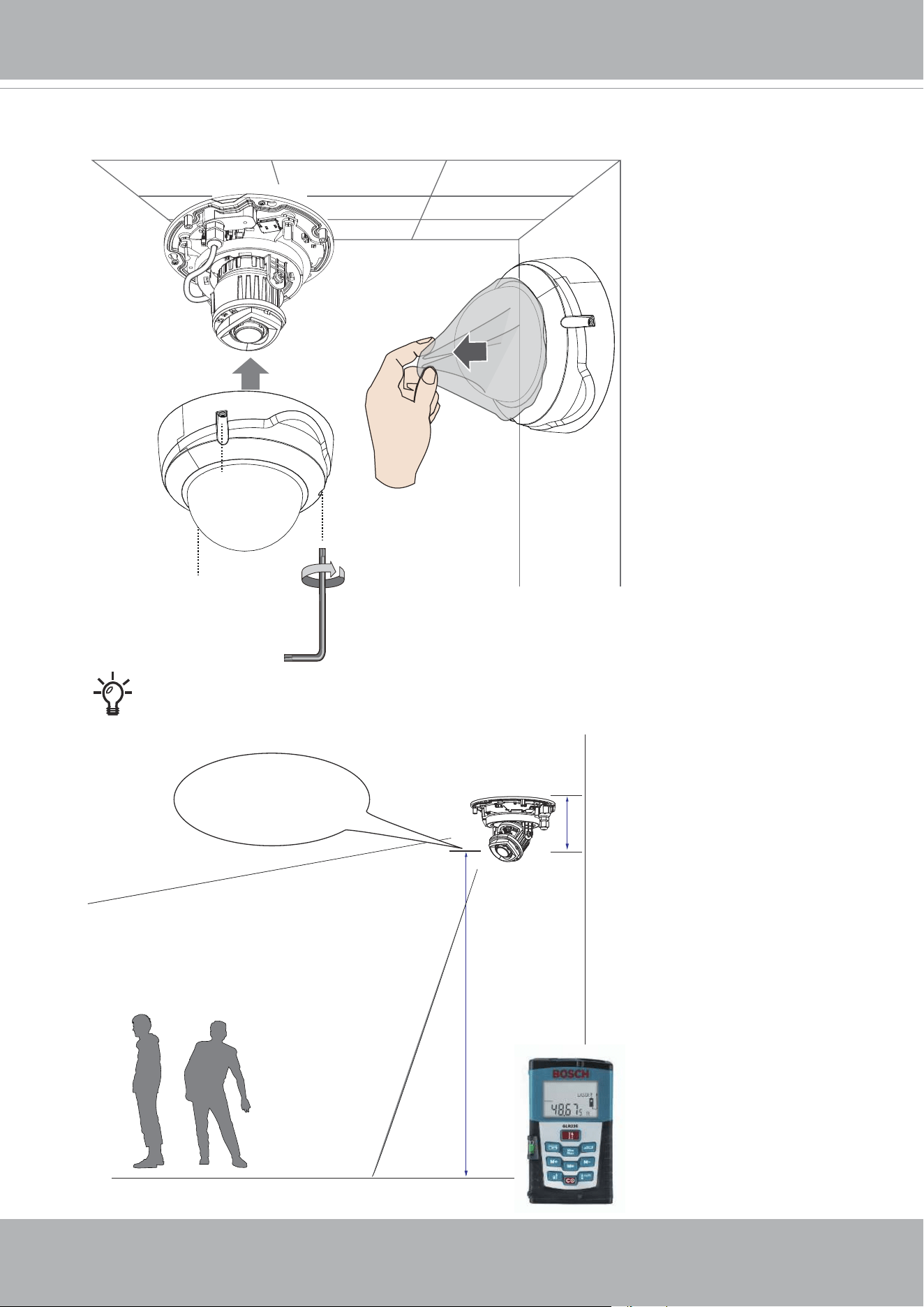
14. With a live, pan or tilt the camera lens to nd a best view angle. Tighten the retention
screws on the side to secure the shooting angle.
VIVOTEK
User's Manual - 33
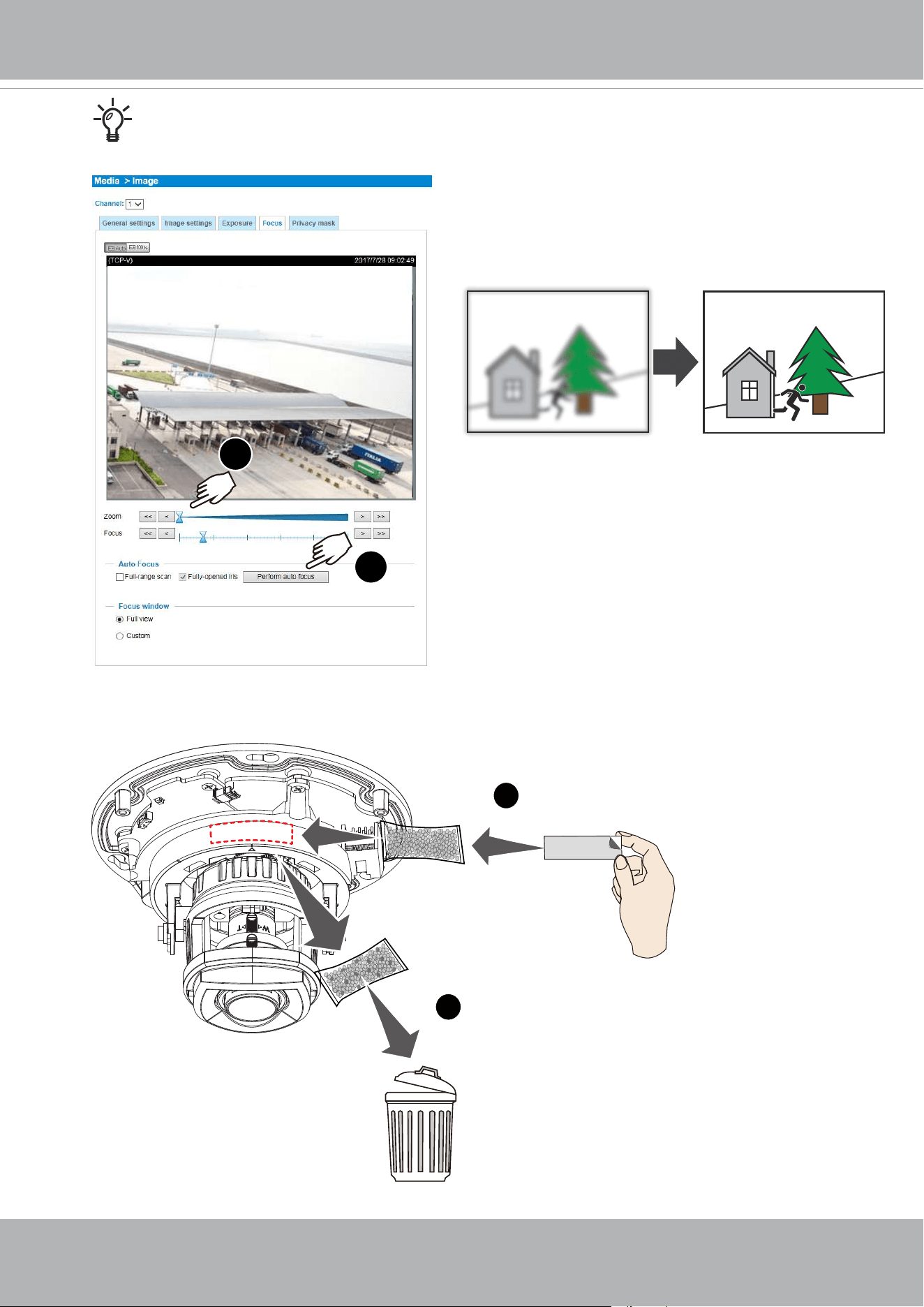
Conguration > Media > Image > Focus
1
2
For a model that comes with a remote focus lens, use the
automatic focusing function.
FD9389-EHTV-v2
1
2
15. Replace the desiccant bag on the camera to avoid moisture gathering inside.
VIVOTEK
34 - User's Manual
Installation
height
Measured to the
approx. lens position.
Not to the ceiling.
If Using Smart Motion detection, measure the height of the camera.
16. Install the dome cover and then remove the protective sheet on the cover.

VIVOTEK
User's Manual - 35
Hardware Reset
The reset button is used to reset the system or restore the factory default settings.
Sometimes resetting the system can return the camera to normal operation. If the system
problems remain after reset, restore the factory settings and install again.
Reset: Press the recessed reset button. Wait for the Network Camera to reboot.
Restore: Press and hold the reset button until the status LED rapidly blinks. Note that all
settings will be restored to factory default. Upon successful restore, the status LED will
blink green and red during normal operation.
SD/SDHC/SDXC Card Capacity
This network camera is compliant with
SD/SDHC/SDXC 16GB / 8GB / 32GB / 64GB / ,
and up to 512 / 1024GB
and other preceding standard SD cards.
VIVOTEK
36 - User's Manual
Network Deployment
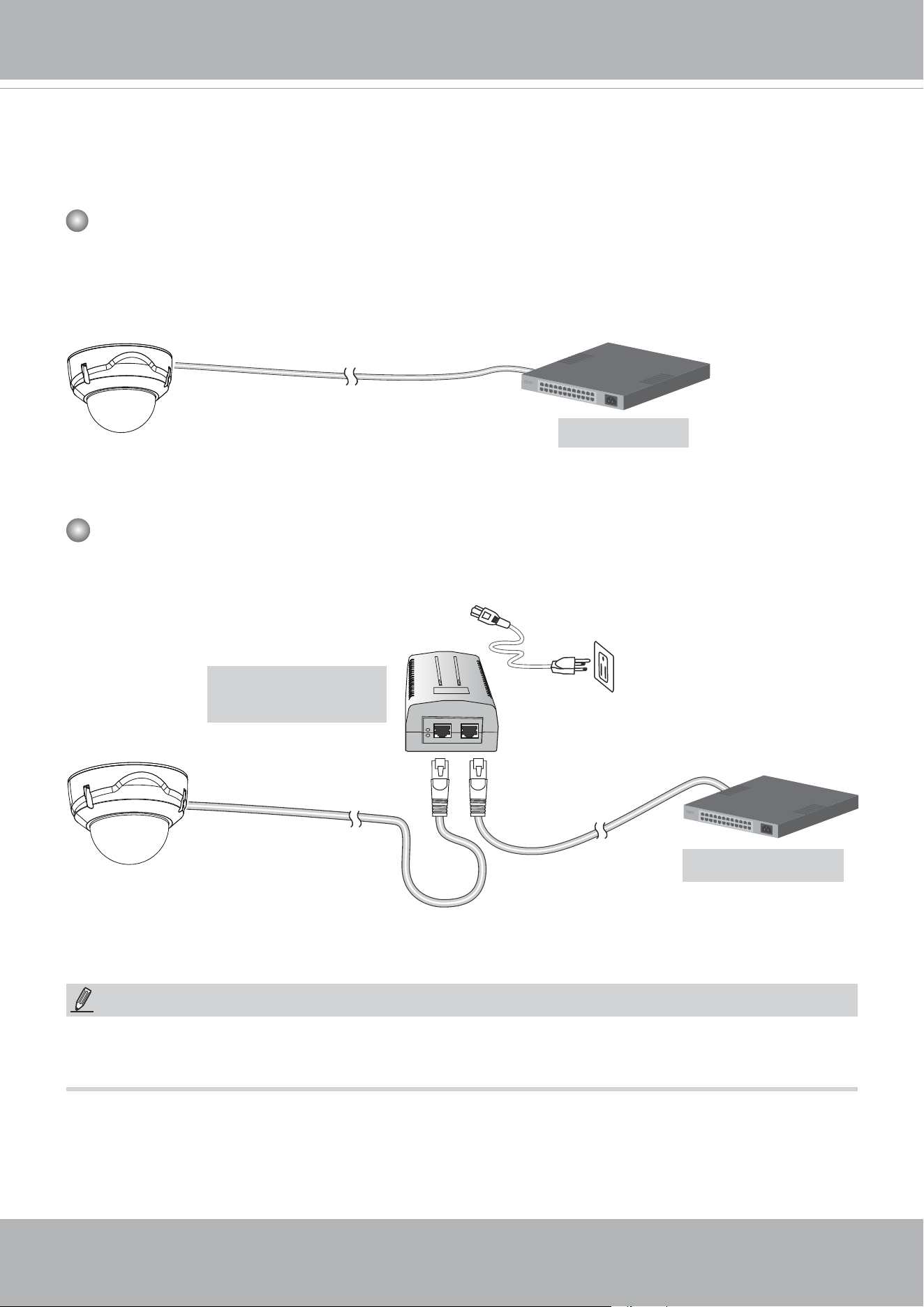
General Connection (PoE)
When using a PoE-enabled switch
The Network Camera is PoE-compliant, allowing transmission of power and data via a sin-
gle Ethernet cable. Follow the below illustration to connect the Network Camera to a PoE-
enabled switch via Ethernet cable.
PoE Switch
When using a non-PoE switch
Use a PoE power injector (optional) to connect between the Network Camera and a non-
PoE switch.
Non-PoE Switch
PoE Power Injector
(optional)
NOTE:
1. The camera is only to be connected to PoE networks without routing to outside plants.
2. For PoE connection, use only UL listed I.T.E. with PoE output.
802.3af
VIVOTEK
User's Manual - 37
Ready to Use
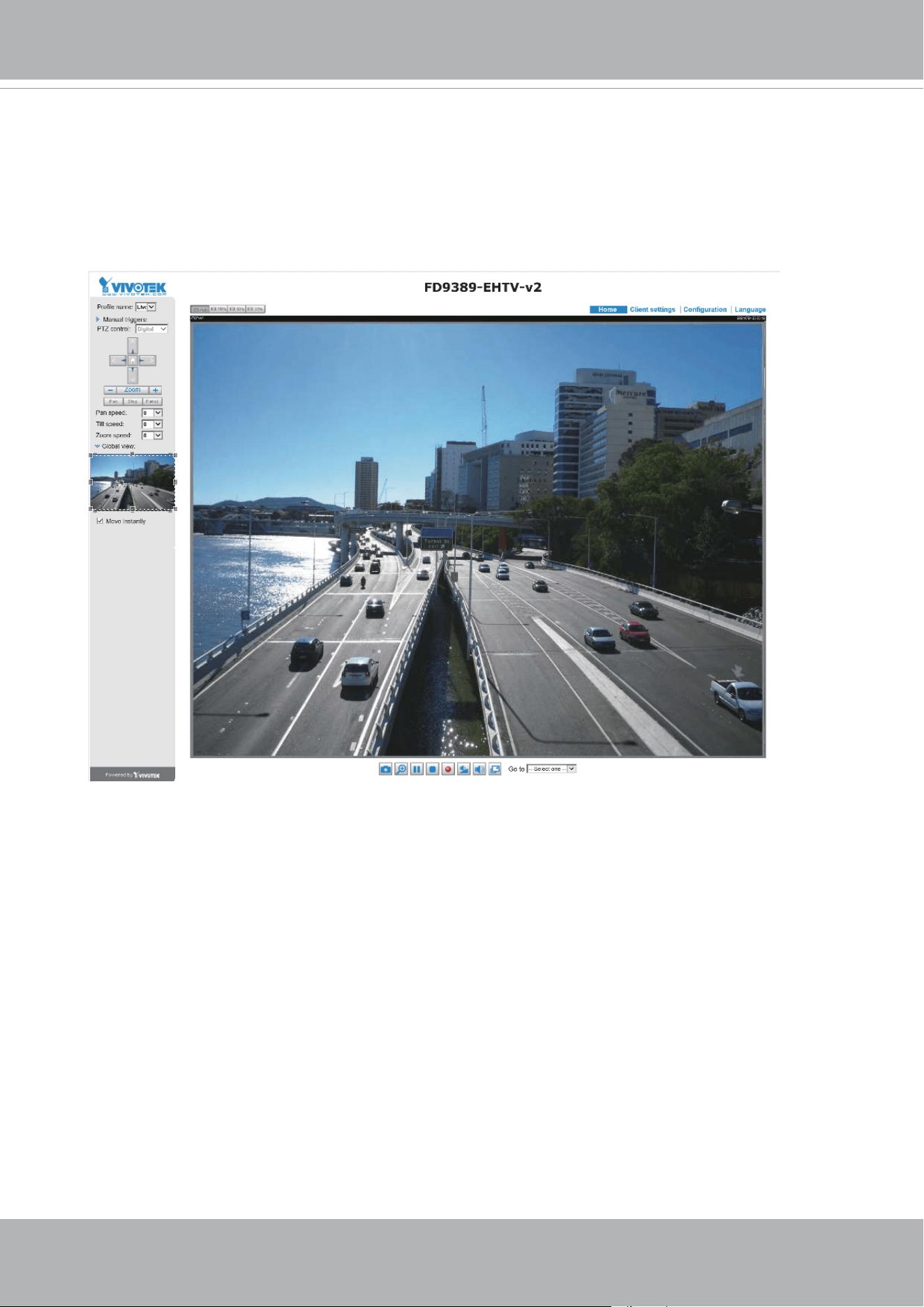
1. A browser session to the Network Camera should prompt as shown below.
2. You should be able to see live video from your camera. You may also install the
32-channel recording software in a deployment consisting of multiple cameras. For its
installation details, please refer to its related documents.
VIVOTEK
38 - User's Manual
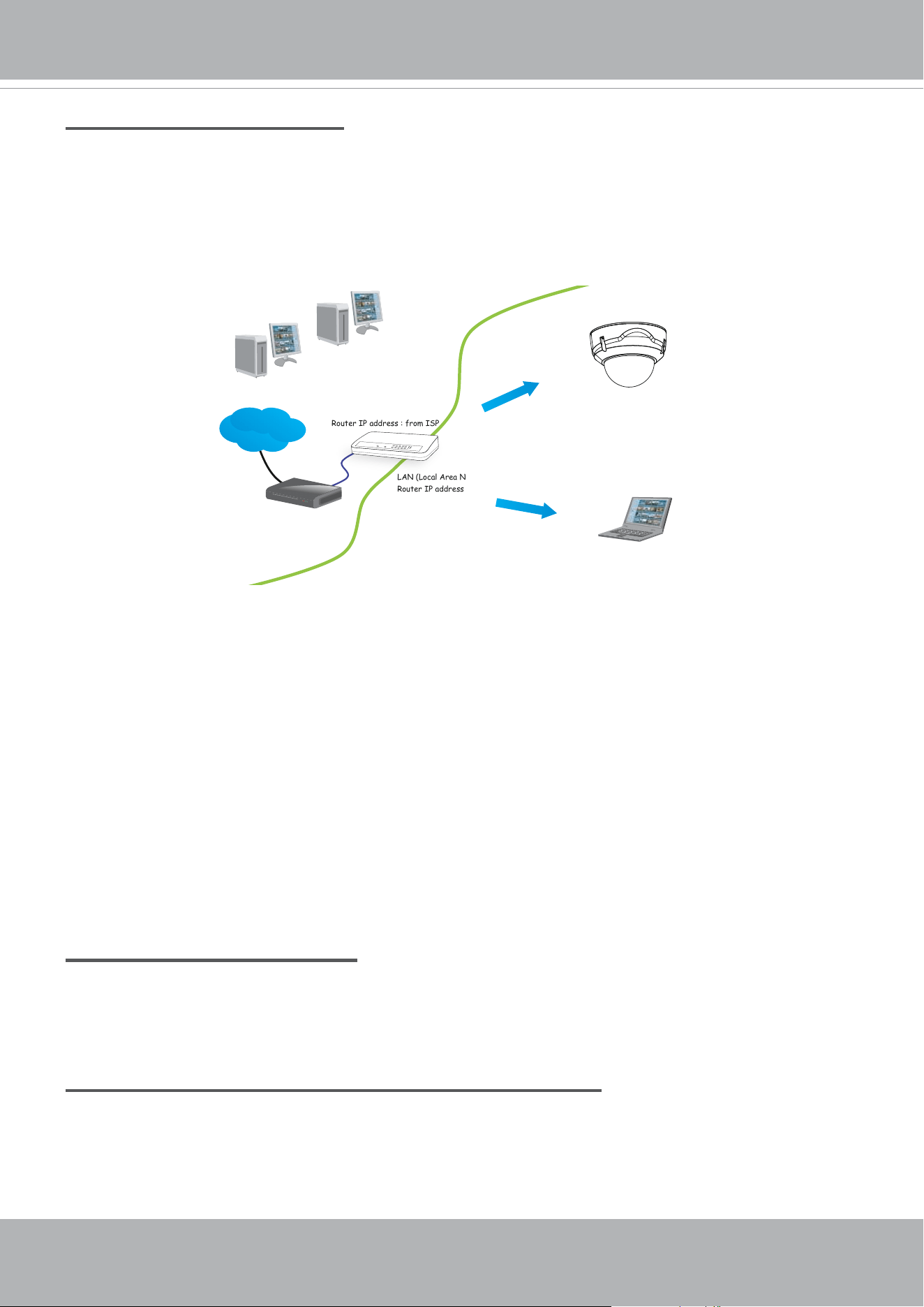
Internet connection via a router
Before setting up the Network Camera over the Internet, make sure you have a router and follow
the steps below.
1. Connect your Network Camera behind a router, the Internet environment is illustrated below.
Regarding how to obtain your IP address, please refer to Software Installation on page 20 for
details.
IP address : 192.168.0.3
Subnet mask : 255.255.255.0
Default router : 192.168.0.1
IP address : 192.168.0.2
Subnet mask : 255.255.255.0
Default router : 192.168.0.1
LAN (Local Area Network)
Router IP address : 192.168.0.1
WAN (Wide Area Network )
Router IP address : from ISP
Cable or DSL Modem
POWER
COLLISION
LINK
RECEIVE
PARTITION
1
2
3
4
5
Internet
2. In this case, if the Local Area Network (LAN) IP address of your Network Camera is
192.168.0.3, please forward the following ports for the Network Camera on the router.
■ HTTP port: default is 80
■ RTSP port: default is 554
■ RTP port for video: default is 5556
■ RTCP port for video: default is 5557
If you have changed the port numbers on the Network page, please open the ports
accordingly on your router. For information on how to forward ports on the router, please refer
to your router’s user’s manual.
3. Find out the public IP address of your router provided by your ISP (Internet Service Provider).
Use the public IP and the secondary HTTP port to access the Network Camera from the
Internet. Please refer to Network Type on page 99 for details.
Internet connection with static IP
Choose this connection type if you are required to use a static IP for the Network Camera.
Please refer to LAN setting on page 98 for details.
Internet connection via PPPoE (Point-to-Point over Ethernet)
Choose this connection type if you are connected to the Internet via a DSL Line. Please refer to
PPPoE on page 99 for details.
VIVOTEK
User's Manual - 39
For example, your router and IP settings may look like this:
Device IP Address: internal port IP Address: External Port (Mapped
port on the router)
Public IP of router 122.146.57.120
LAN IP of router 192.168.2.1
Camera 1 192.168.2.10:80 122.146.57.120:8000
Camera 2 192.168.2.11:80 122.146.57.120:8001
... ... ...
Congure the router, virtual server or rewall, so that the router can forward any data com-
ing into a precongured port number to a network camera on the private network, and
allow data from the camera to be transmitted to the outside of the network over the same
path.
From Forward to
122.146.57.120:8000 192.168.2.10:80
122.146.57.120:8001 192.168.2.11:80
... ...
When properly congured, you can access a camera behind the router using the HTTP
request as follows: http://122.146.57.120:8000
If you change the port numbers on the Network conguration page, please open the ports
accordingly on your router. For example, you can open a management session with your
router to congure access through the router to the camera within your local network.
Please consult your network administrator for router conguration if you have troubles with
the conguration.
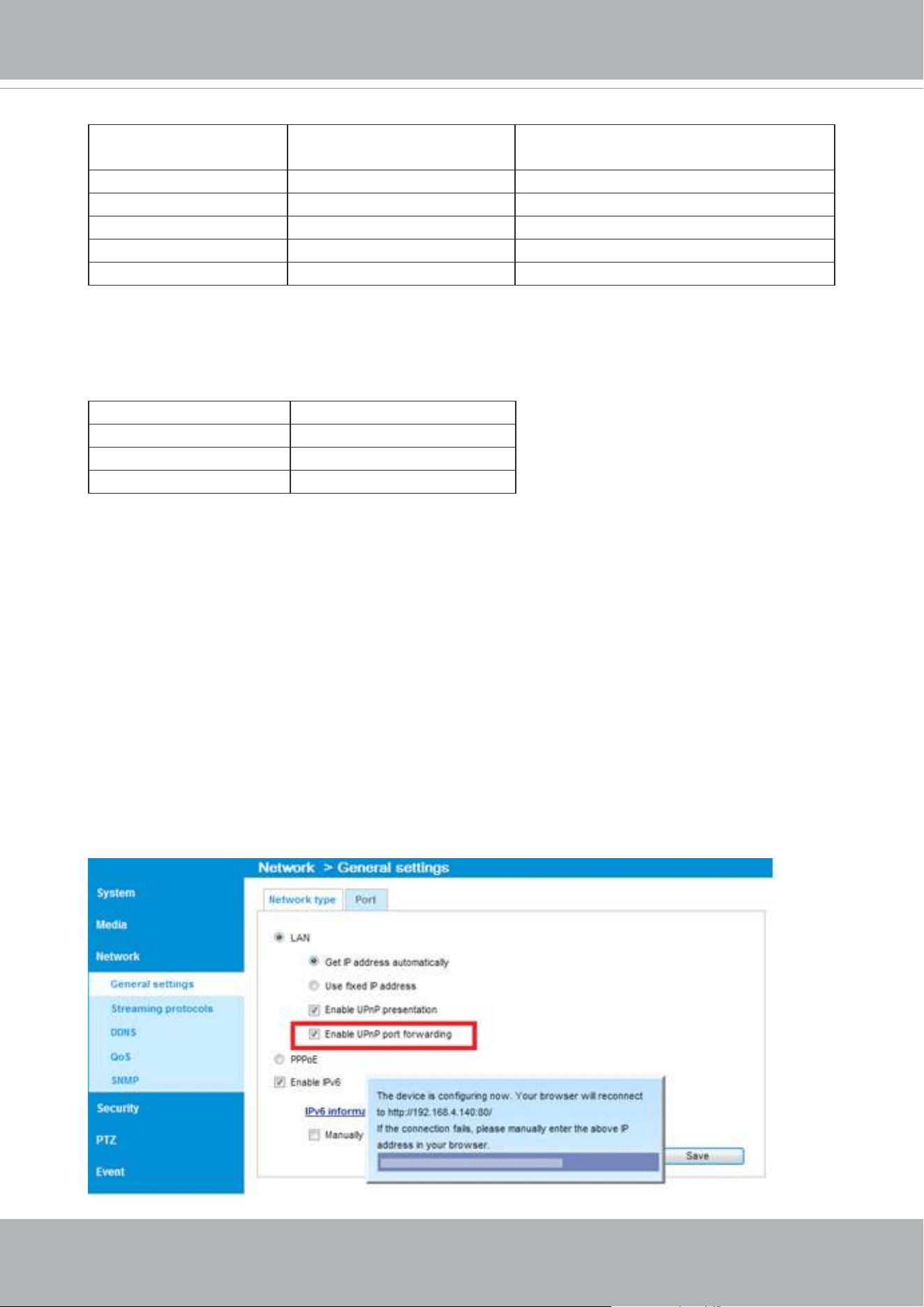
For more information with network conguration options (such as that of streaming ports),
please refer to Conguration > Network Settings. VIVOTEK also provides the automatic
port forwarding feature as an NAT traversal function with the precondition that your router
must support the UPnP port forwarding feature.
VIVOTEK
40 - User's Manual
Accessing the Network Camera
This chapter explains how to access the Network Camera through web browsers, RTSP players,
3GPP-compatible mobile devices, and VIVOTEK recording software.
Using Web Browsers
Use Installation Wizard 2 (IW2) to access the Network Cameras on LAN.
If your network environment is not a LAN, follow these steps to access the Netwotk Camera:
1. Launch your web browser (e.g., Microsoft
®
Internet Explorer or Mozilla Firefox).
2. Enter the IP address of the Network Camera in the address eld. Press
Enter
.
3. Live video will be displayed in your web browser.
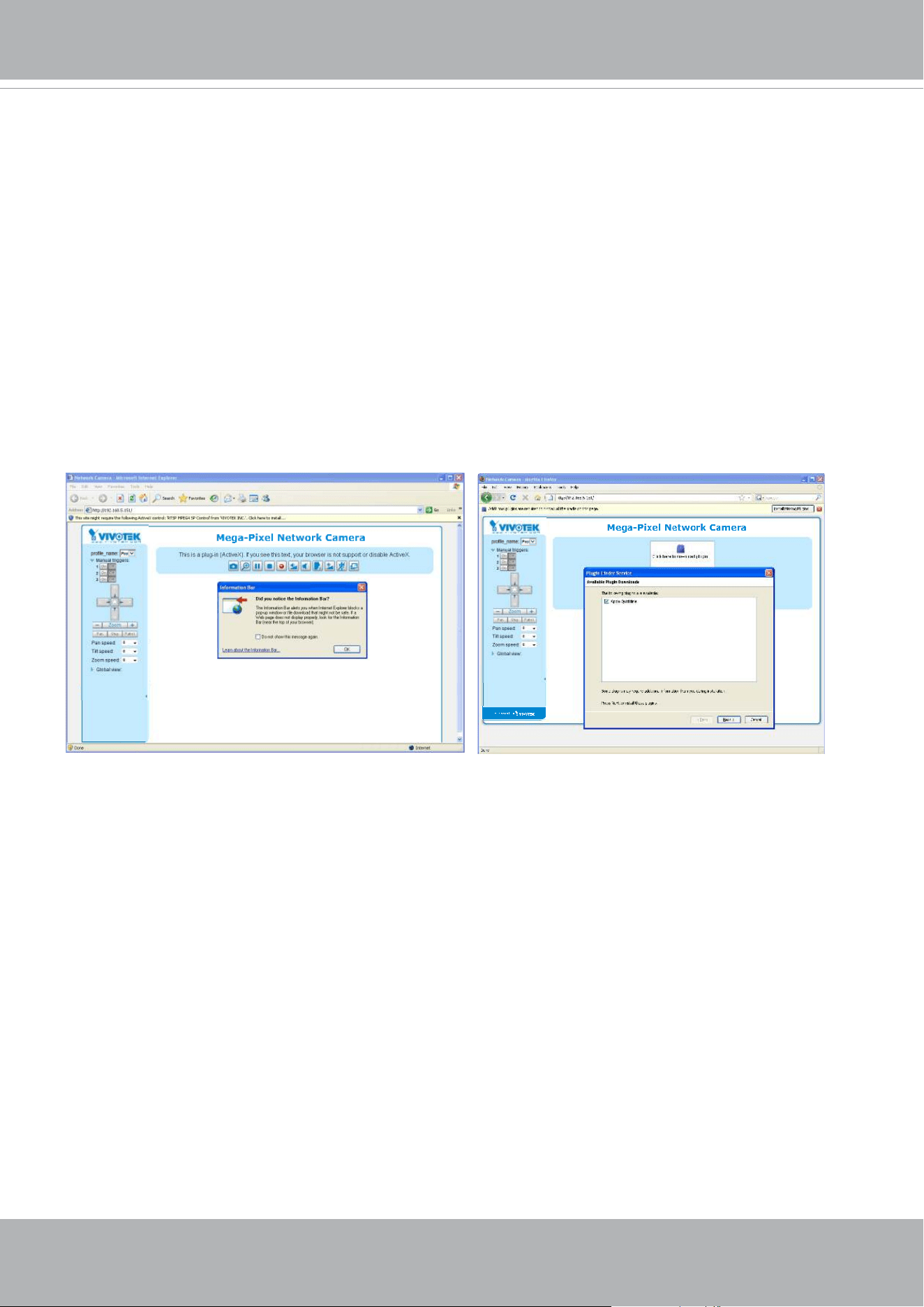
4. If it is the rst time installing the VIVOTEK network camera, an information bar will prompt as
shown below. Follow the instructions to install the required plug-in on your computer.
VIVOTEK
User's Manual - 41
► By default, the Network Camera is not password-protected. To prevent unauthorized access,
it is highly recommended to set a password for the Network Camera.
For more information about how to enable password protection, please refer to Security on
page 117.
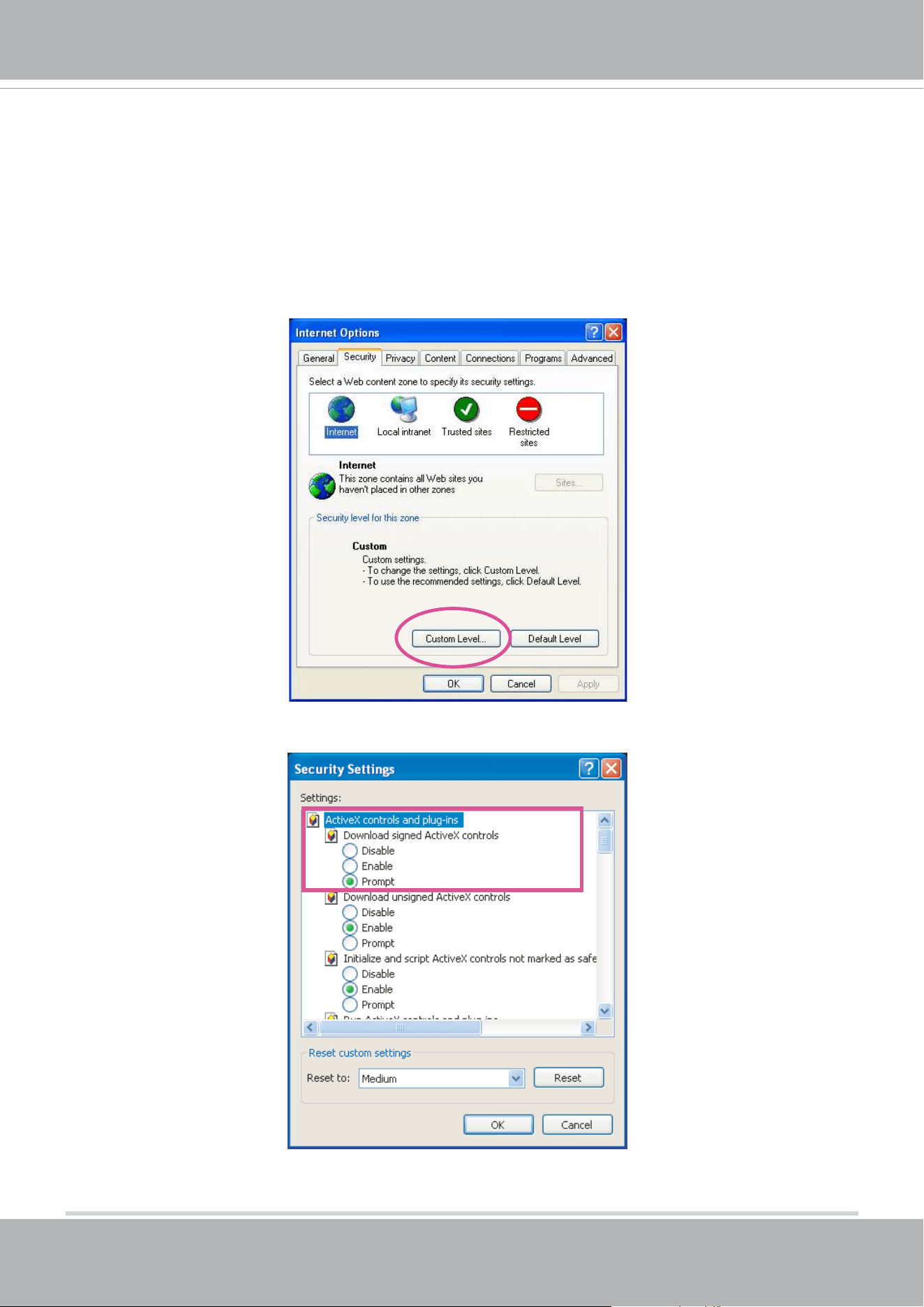
► If you see a dialog box indicating that your security settings prohibit running ActiveX
®
Controls, please enable the ActiveX
®
Controls for your browser.
1. Choose Tools > Internet Options > Security > Custom Level.
2. Look for Download signed ActiveX
®
controls; select Enable or Prompt. Click
OK
.
3. Refresh your web browser, then install the ActiveX
®
control. Follow the instructions to
complete installation.
VIVOTEK
42 - User's Manual
•
Currently the Network Camera utilizes a 32-bit ActiveX plugin. You CAN NOT open a
management/view session with the camera using a 64-bit IE browser.
•
If you encounter this problem, try execute the Iexplore.exe program from C:\Windows\
SysWOW64. A 32-bit version of IE browser will be installed.
•
On Windows 7, the 32-bit explorer browser can be accessed from here:
C:\Program Files (x86)\Internet Explorer\iexplore.exe
•
If you open a web session from the Shepherd utility, a 32-bit IE browser will be
opened.
IMPORTANT:
1. The onscreen Java control can malfunction under the following situations: A PC con-
nects to dierent cameras that are using the same IP address (or the same camera
running dierent rmware versions). Removing your browser cookies will solve this
problem.
2. If you encounter problems with displaying the conguration menus or UI items, try dis-
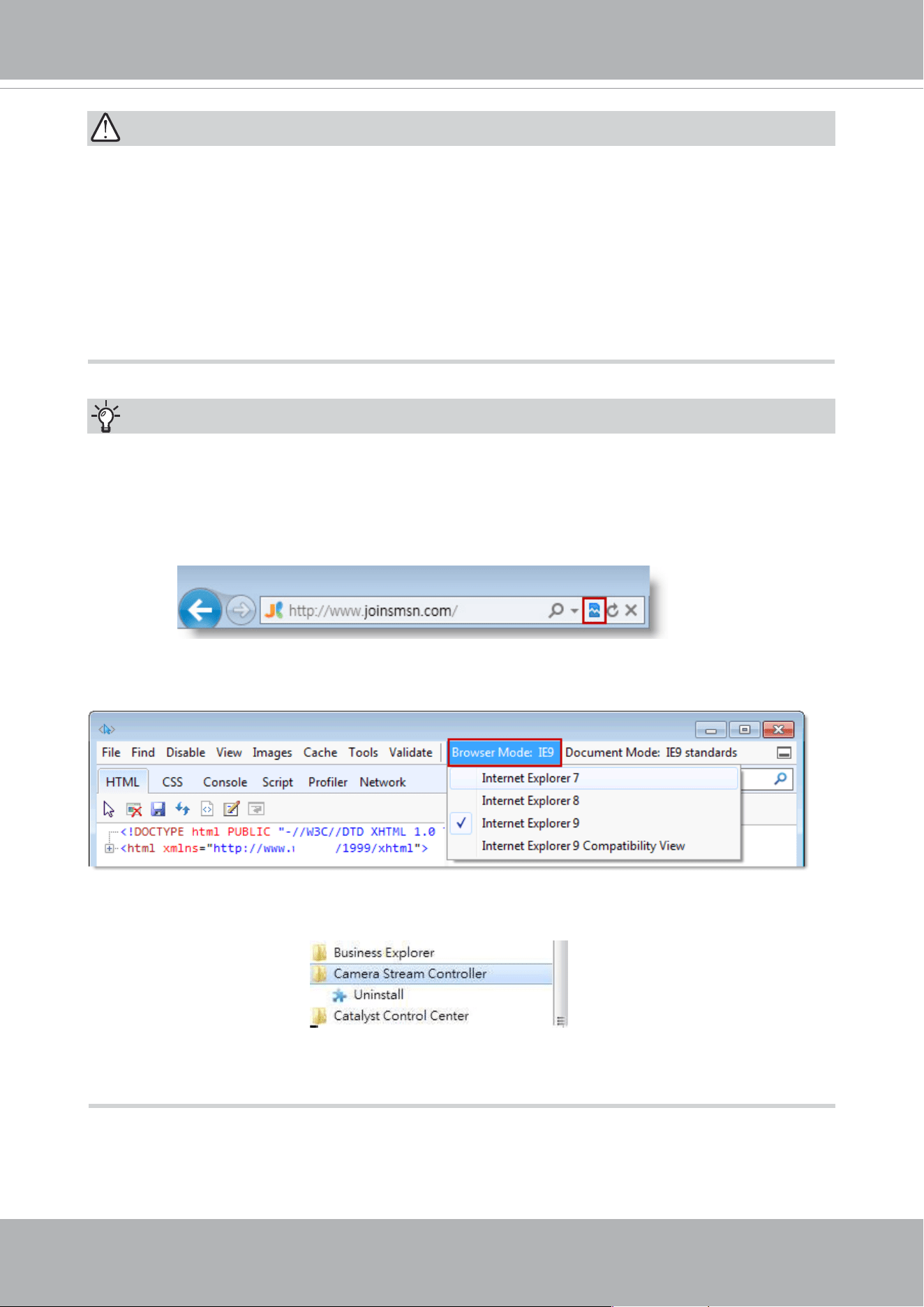
able the Compatibility View on IE8 or IE9.
You may also press the F12 key to open the developer tools utility, and then change the
Browser Mode to the genuine IE8 or IE9 mode.
Tips:
• In the event of plug-in compatibility issues, you may try to uninstall the plug-in that was
previously installed.
VIVOTEK
User's Manual - 43
Using RTSP Players
To view the streaming media using RTSP players, you can use one of the following players that
support RTSP streaming.
VLC media player
VLC media player
mpegable Player
pvPlayer
As most ISPs and players only allow RTSP streaming through port number 554, please set the
RTSP port to 554. For more information, please refer to RTSP Streaming on page 106.
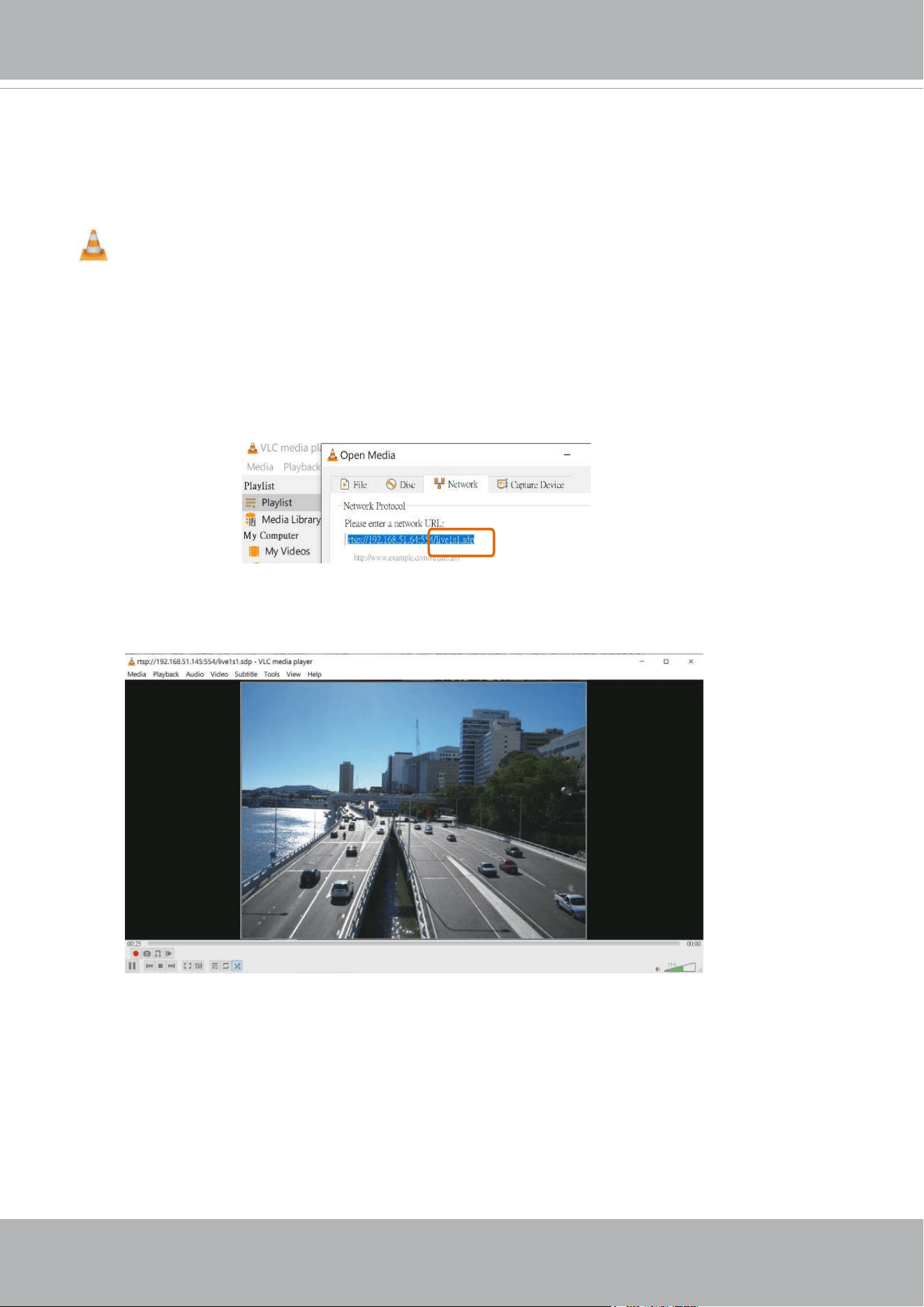
For example:
4. The live video will be displayed in your player.
For more information on how to configure the RTSP access name, please refer to RTSP
Streaming on page 106 for details.
1. Launch the RTSP player.
2. Choose File > Open URL. A URL dialog box will pop up.
3. The address format is rtsp://<ip address>:<rtsp port>/<RTSP streaming access name for
stream1 or stream2>
rtsp://192.168.5.151:554/live1s1.sdp
VIVOTEK
44 - User's Manual
Using 3GPP-compatible Mobile Devices
To view the streaming media through 3GPP-compatible mobile devices, make sure the Network
Camera can be accessed over the Internet. For more information on how to set up the Network
Camera over the Internet, please refer to Setup the Network Camera over the Internet on page
36.
To utilize this feature, please check the following settings on your Network Camera:
1. Because most players on 3GPP mobile phones do not support RTSP authentication, make
sure the authentication mode of RTSP streaming is set to disable.
For more information, please refer to RTSP Streaming on page 106.
2. As the the bandwidth on 3G networks is limited, you will not be able to use a large video size.
Please set the video streaming parameters as listed below.
For more information, please refer to Stream settings on page 86.
Video Mode H.264
Frame size 176 x 144
Maximum frame rate 5 fps
Intra frame period 1S
Video quality (Constant bit rate) 40kbps
3. As most ISPs and players only allow RTSP streaming through port number 554, please set
the RTSP port to 554. For more information, please refer to RTSP Streaming on page 106.
4. Launch the player on the 3GPP-compatible mobile devices (e.g., VLC player).
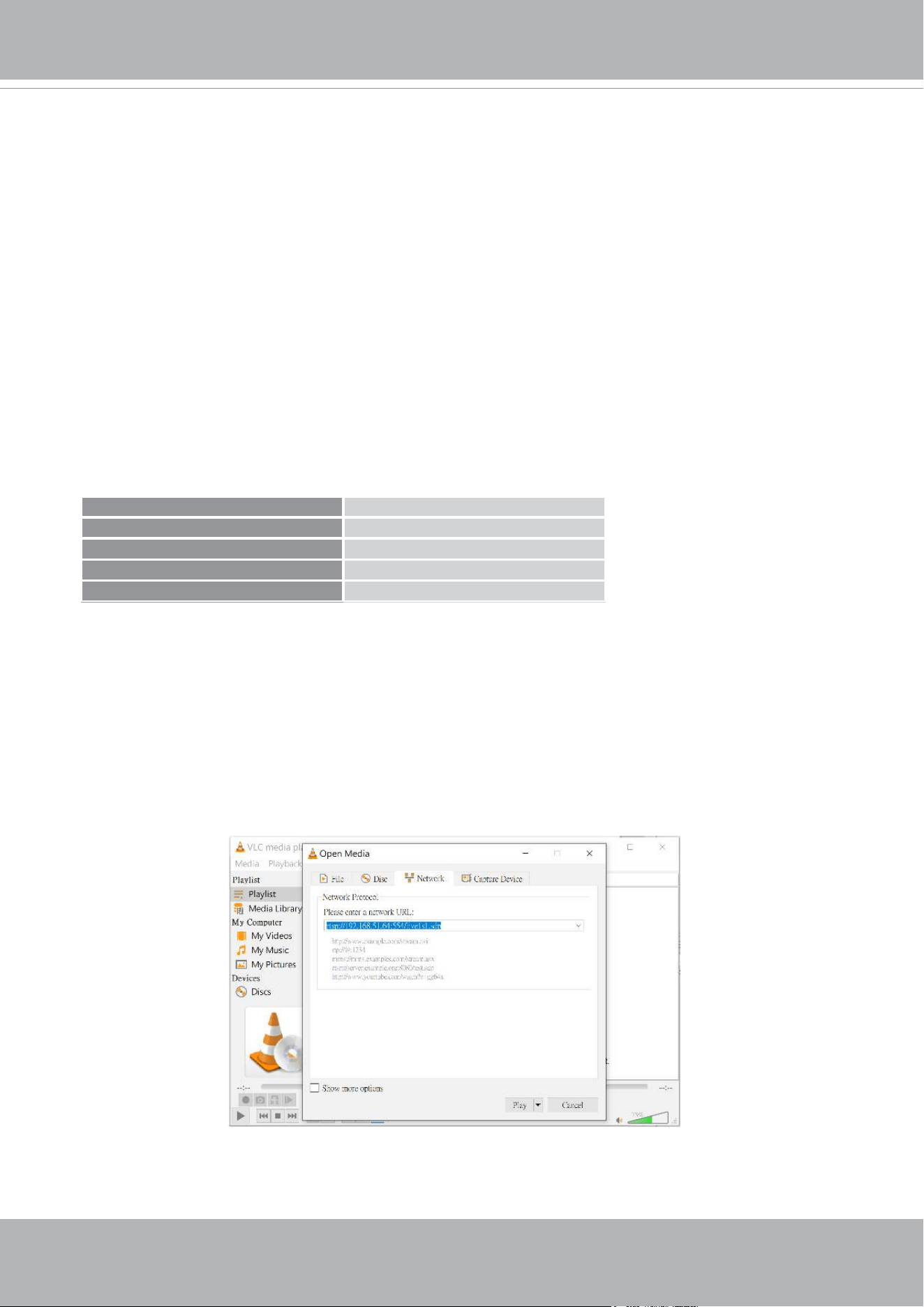
5. Type the following URL commands into the player.
The address format is rtsp://<public ip address of your camera>:<rtsp port>/<RTSP streaming
access name for stream # with small frame size and frame rate>.
For example:
You can configure Stream #2 into the suggested stream settings as listed above for live
viewing on a mobile device.
VIVOTEK
User's Manual - 45
Using VIVOTEK Recording Software
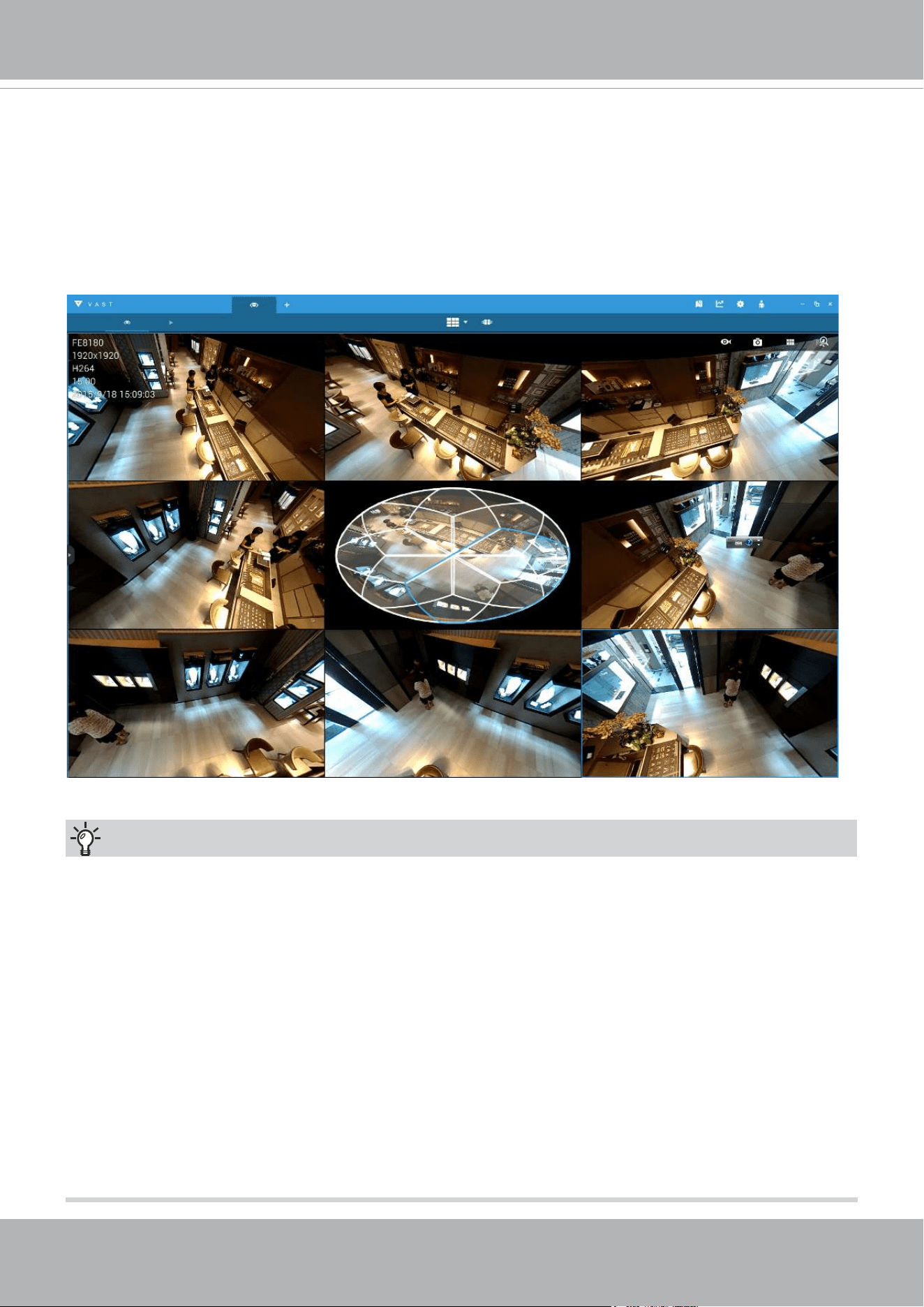
Visit our website for download the VAST recording software that provides simultaneous
monitoring and video recording for multiple Network Cameras. Please install the recording
software; then launch the program to add the Network Camera to the Channel list. For detailed
information about how to use the recording software, please refer to the user’s manual of the
software or download it from http://www.vivotek.com.
Tips:
1. If you encounter problems with displaying live view or the onscreen plug-in control, you may try
to remove the plug-ins that might have been installed on your computer. Remove the following
folder: C:\Program Files (x86)\Camera Stream Controller\.
2. If you forget the root (administrator) password for the camera, you can restore the camera
defaults by pressing the reset button for longer than 5 seconds.
3. If DHCP is enabled in your network, and the camera cannot be accessed, run the Shepherd
utility to search the network. If the camera has been congured with xed IP that does not
comply with your local network, you may see its default IP 169.254.x.x. If you still cannot nd
the camera, you can restore the camera to its factory defaults.
4. If you change your network parameters, e.g., added a connection to a LAN card, re-start the
Shepherd utility.
VIVOTEK
46 - User's Manual
Main Page
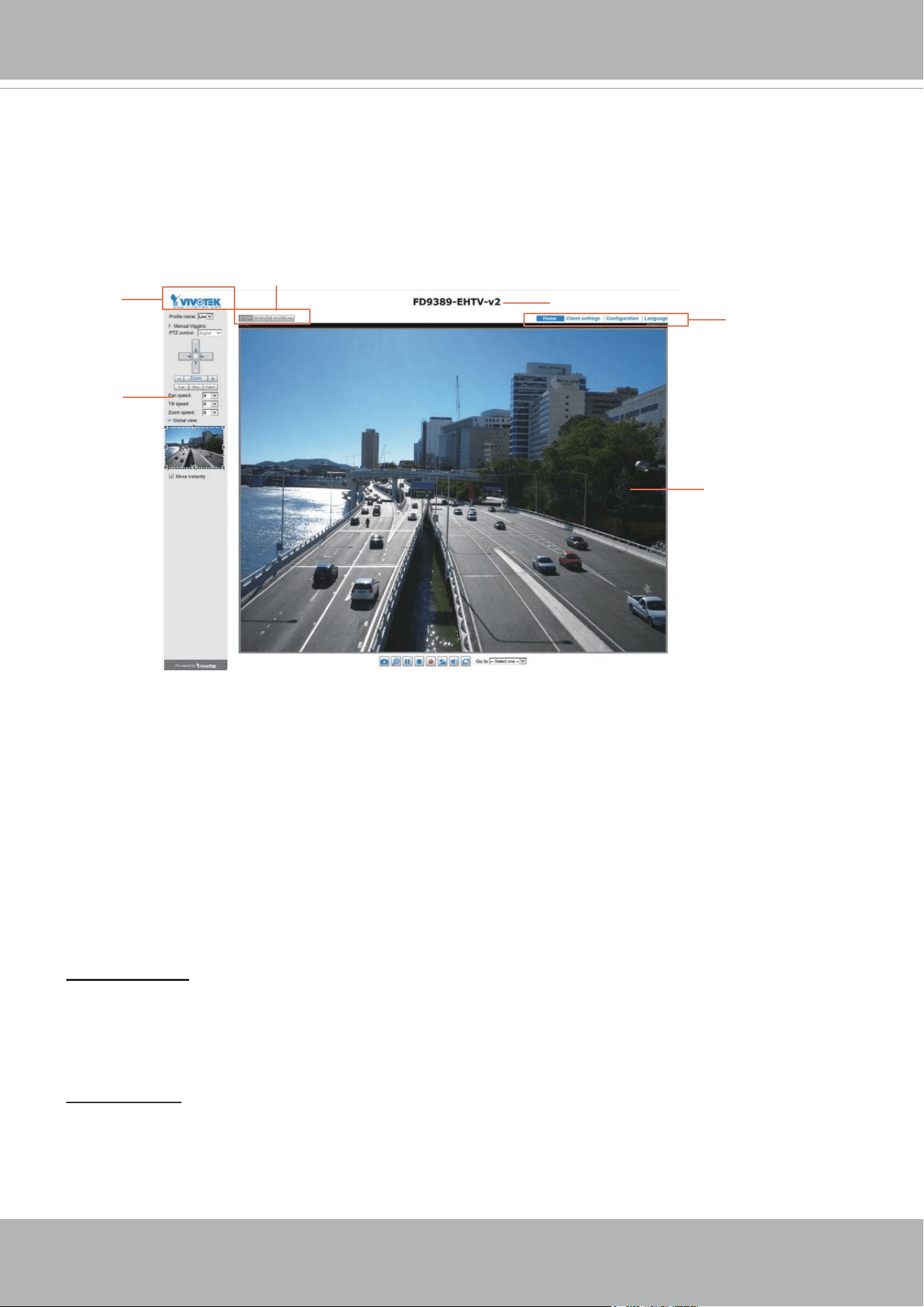
This chapter explains the layout of the main page. It is composed of the following sections:
VIVOTEK INC. Logo, Host Name, Camera Control Area, Configuration Area, Menu, and Live
Video Window. Note that only the Liveview prole supports a digital zoom window.
VIVOTEK INC. Logo
Click this logo to visit the VIVOTEK website.
Host Name
The host name can be customized to t your needs. The name can be changed especially there are many
cameras in your surveillance deployment. For more information, please refer to System on page 57.
Camera Control Area
VIVOTEK INC.
Logo
Live View Window
Camera Control
Area
Configuration
Area
Host Name
Resize Buttons
Profile mode:
4 pre-configured streaming profiles are provided through here: Max. view, Recording
view, Live view, and App. Each mode features a dierent stream source (channel), resolution, multicast,
and metadata conguration.
The proles can be congured in
Conguration
>
Media
>
Media proles
.
Manual Trigger: Click to enable/disable an event trigger manually. Please congure an event setting on
the Application page before you enable this function. A total of 3 event conguration can be congured.
For more information about event setting, please refer to page 135. If you want to hide this item on
the homepage, please go to
Configuration> System > Homepage Layout > General settings >
Customized button
to deselect the “show manual trigger button” checkbox.
VIVOTEK
User's Manual - 47
Conguration Area
Client Settings: Click this button to access the client setting page. For more information, please refer to
Client Settings on page 51.
Conguration: Click this button to access the conguration page of the Network Camera. It is suggested
that a password be applied to the Network Camera so that only the administrator can configure the
Network Camera. For more information, please refer to Conguration on page 56.
Language: Click this button to choose a language for the user interface. Language options are available
in: English, Deutsch, Español, Français, Italiano,
日本語
, Português,
簡体中文
, and
繁體中文
. Please
note that you can also change a language on the Conguration page; please refer to page 56.
Hide Button
You can click the hide button to hide or display the control panel.
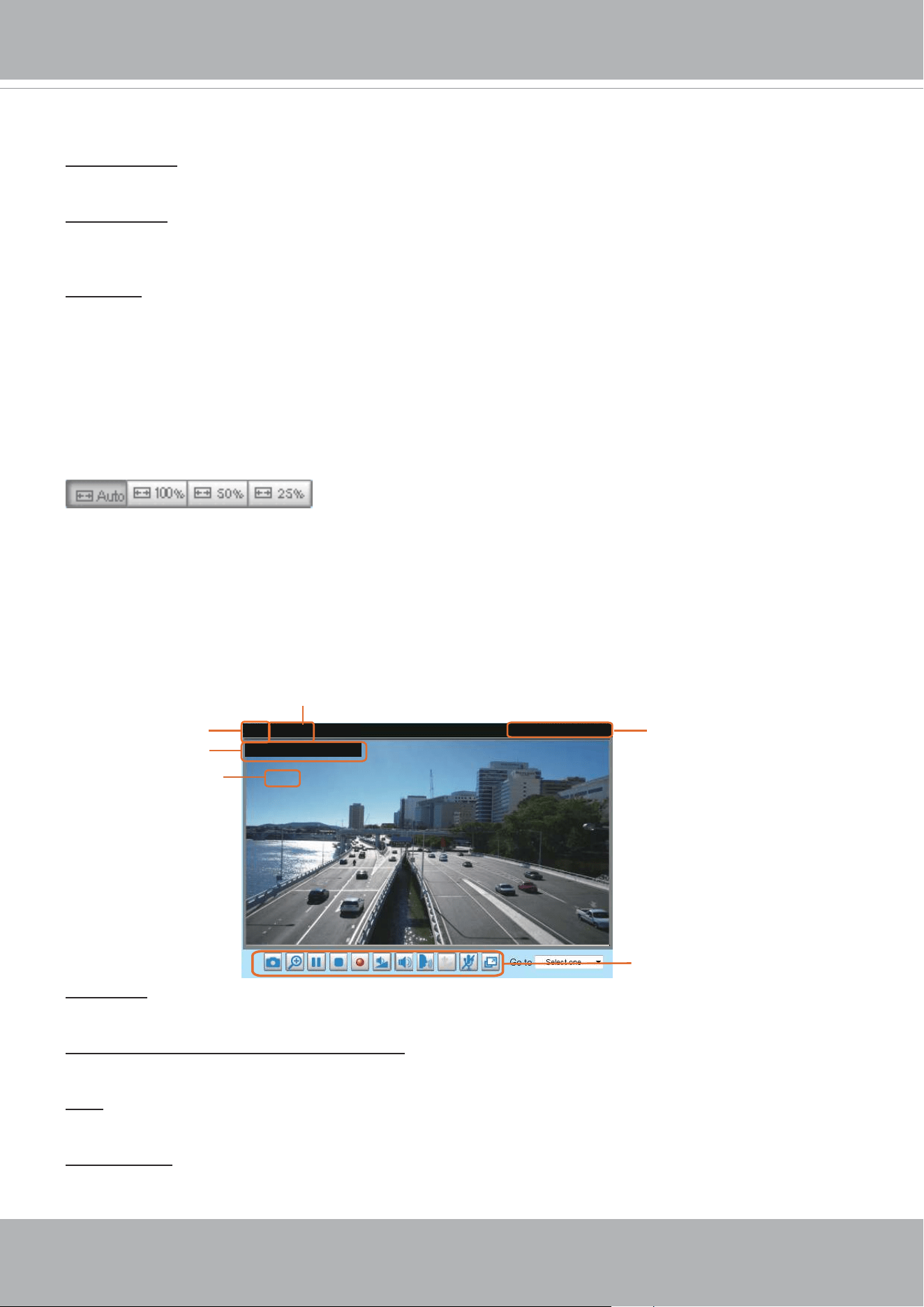
Resize Buttons
:
Click the Auto button, the video cell will resize automatically to t the monitor.
Click 100% is to display the original homepage size.
Click 50% is to resize the homepage to 50% of its original size.
Click 25% is to resize the homepage to 25% of its original size.
Live Video Window
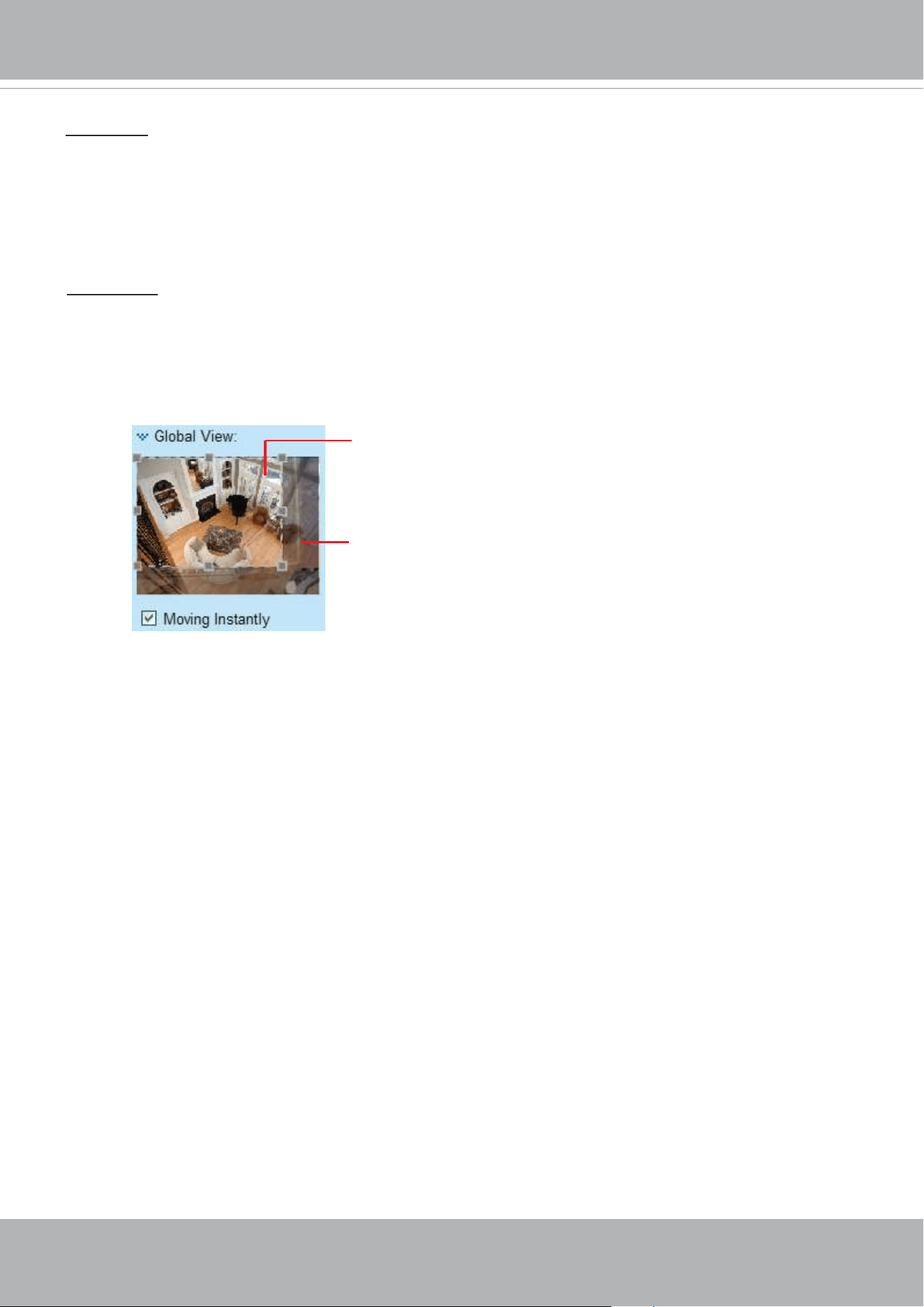
■ The following window is displayed when the video mode is set to H.264 or H.265:
Video Title: The video title can be congured. For more information, please refer to Video Settings on
page 70.
H.264 or H. 265 Protocol and Media Options: The transmission protocol and media options for H.264 or
H.265 video streaming. For further conguration, please refer to Client Settings on page 51.
Time: Display the current time. For further conguration, please refer to Media > Image > Genral settings
on page 70.
Title and Time: The video title and time can be stamped on the streaming video. For further conguration,
please refer to Media > Image > General settings on page 75.
Video 17:08:56 2018/03/25
Title and Time
2018/03/25 17:08:56
Time
Video (TPC-AV)
H.265/264 Protocol and Media Options
Video Title
x4.0
Zoom Indicator
Video Control Buttons
VIVOTEK
48 - User's Manual
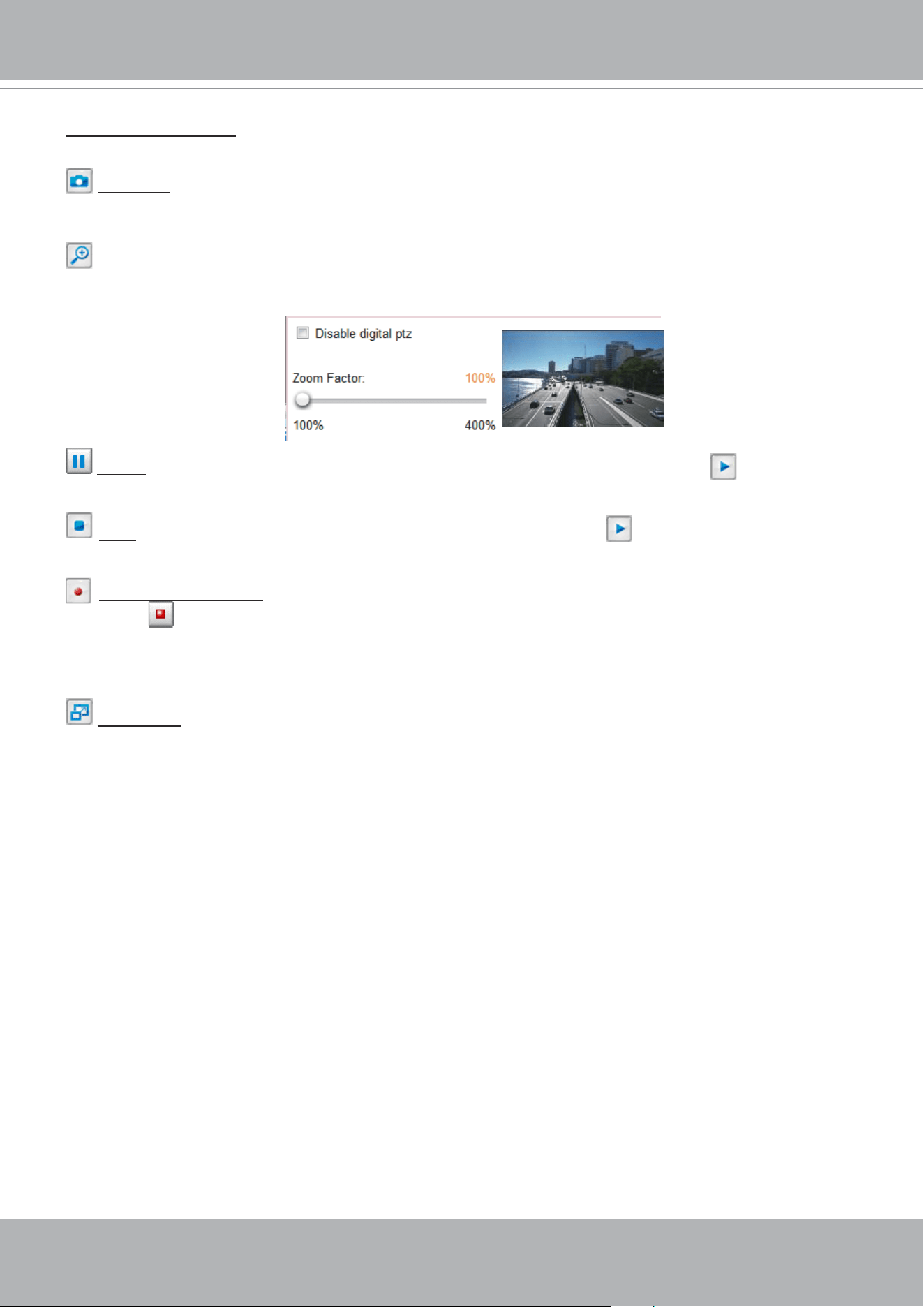
Global View: Global view is available with the 3rd or the last video prole. Click on this item to display the
Global View window. The Global View window contains a full view image (the largest frame size of the
captured video) and a oating frame (the viewing region of the current video stream). The oating frame
allows users to control the e-PTZ function (Electronic Pan/Tilt/Zoom). For more information about e-PTZ
operationG, please refer to E-PTZ Operation on page 132. For more information about how to set up the
viewing region of the current video stream, please refer to page 132.
The viewing region of
the curruent video
stream
The largest frame size
PTZ Panel: This Network Camera supports “digital“ (e-PTZ) pan/tilt/zoom control, which allows roaming
a smaller view frame within a large view frame. Please refer to PTZ settiings on page 132 for detailed
information. Global view and the PTZ panel are available with the 3rd or the last video prole.
Note that the PTZ buttons on the panel are not operational unless you are showing only a portion of the
full image. If the live view window is displaying the full view, the PTZ buttons are not functional.
VIVOTEK
User's Manual - 49
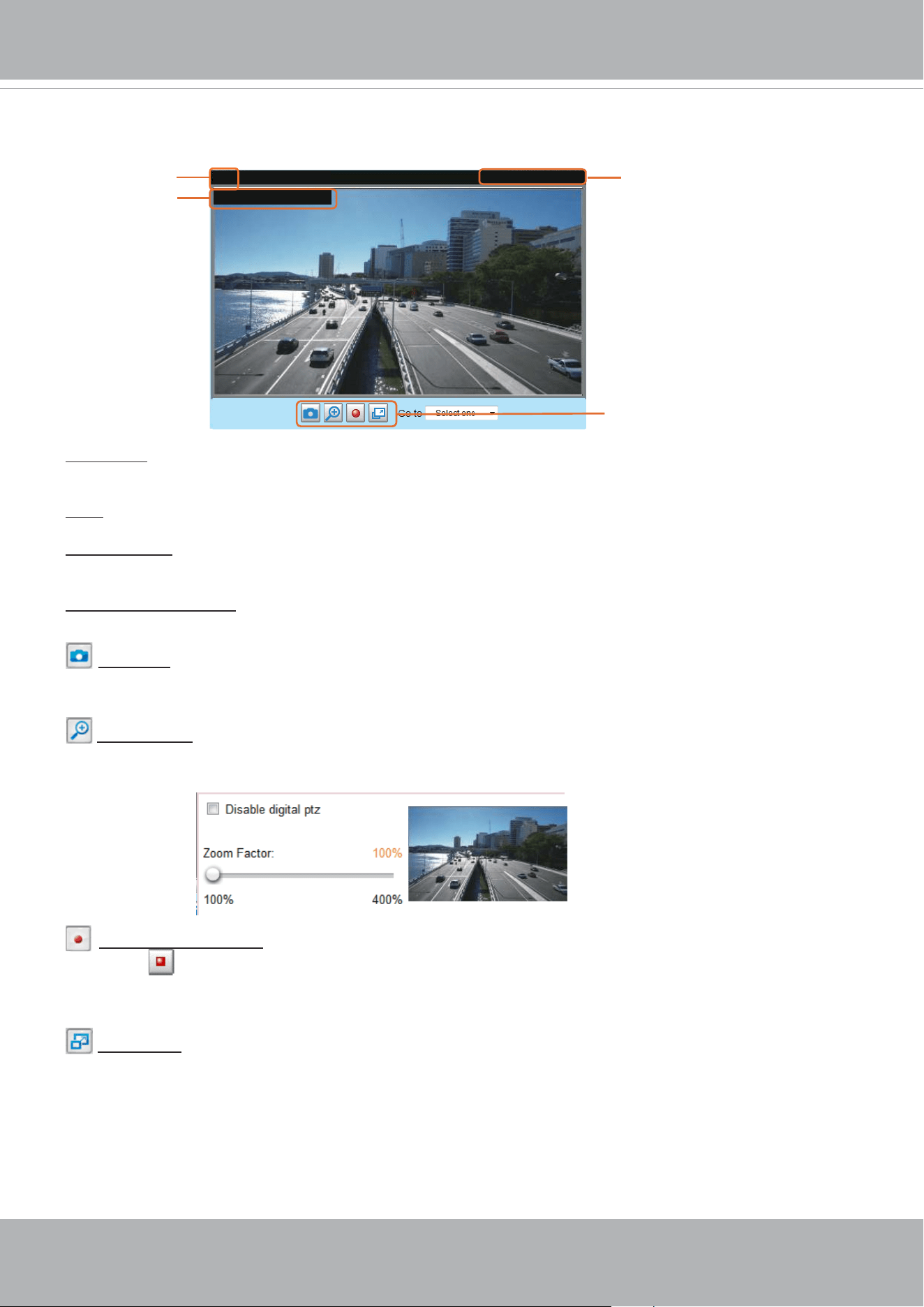
Video Control Buttons: Depending on the Network Camera model and Network Camera conguration,
some buttons may not be available.
Snapshot: Click this button to capture and save still images. The captured images will be displayed
in a pop-up window. Right-click the image and choose
Save Picture As
to save it in JPEG (*.jpg) or BMP
(*.bmp) format.
Digital Zoom: Click and uncheck “Disable digital zoom” to enable the zoom operation. The navigation
screen indicates the part of the image being magnied. To control the zoom level, drag the slider bar. To
move to a dierent area you want to magnify, drag the navigation screen.
Pause: Pause the transmission of the streaming media. The button becomes the Resume button
after clicking the Pause button.
Stop: Stop the transmission of the streaming media. Click the Resume button to continue
transmission.
Start MP4 Recording: Click this button to record video clips in MP4 file format to your computer.
Press the Stop MP4 Recording button to end recording. When you exit the web browser, video
recording stops accordingly. To specify the storage destination and le name, please refer to MP4 Saving
Options on page 52 for details.
Full Screen: Click this button to switch to full screen mode. Press the “Esc” key to switch back to normal
mode.
VIVOTEK
50 - User's Manual
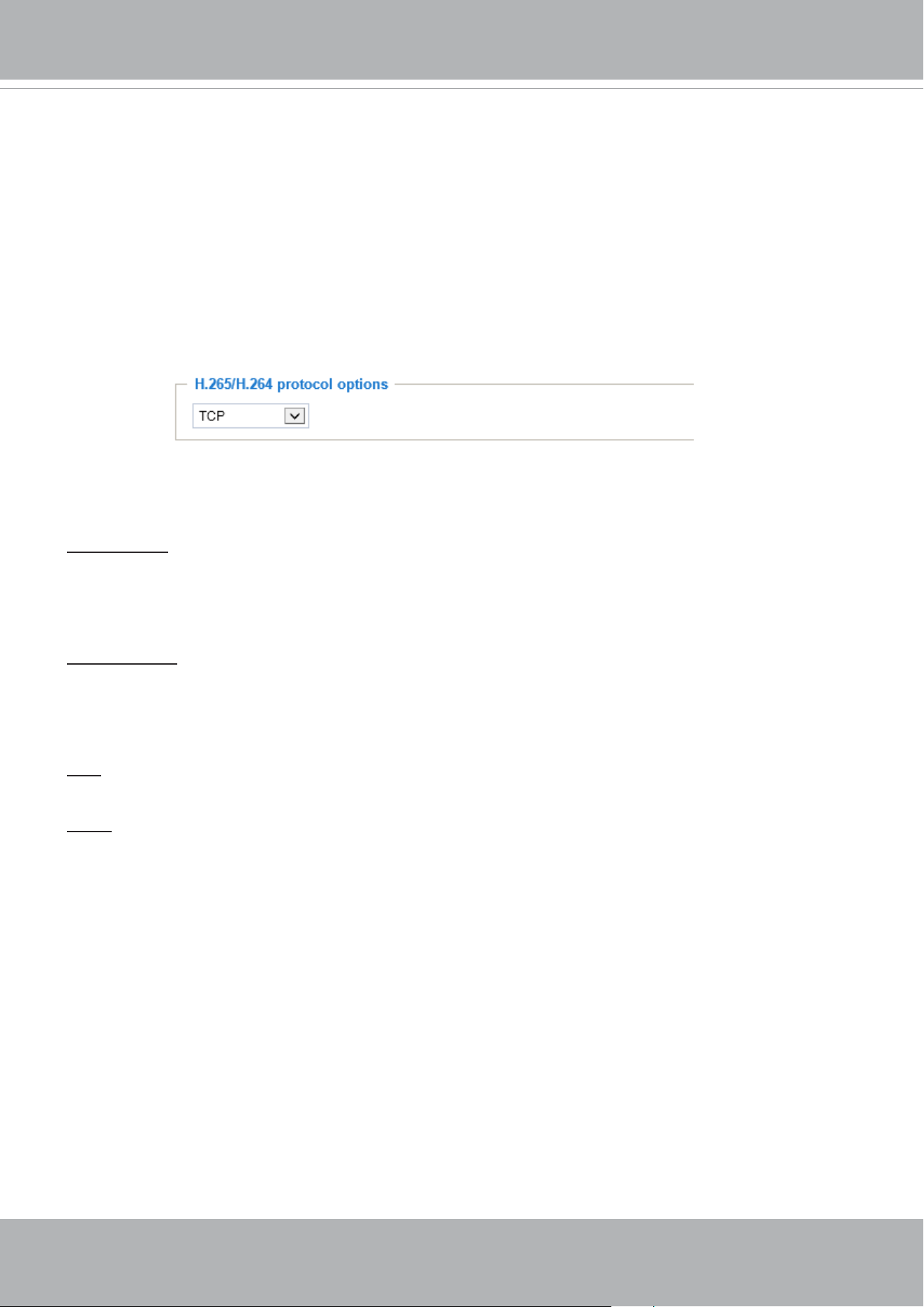
■ The following window is displayed when the video mode is set to MJPEG:
Video Title: The video title can be congured. For more information, please refer to Media > Image on
page 75.
Time: Display the current time. For more information, please refer to Media > Image on page 75.
Title and Time: Video title and time can be stamped on the streaming video. For more information, please
refer to Media > Image on page75
.
Video Control Buttons: Depending on the Network Camera model and Network Camera conguration,
some buttons may not be available.
Snapshot: Click this button to capture and save still images. The captured images will be displayed
in a pop-up window. Right-click the image and choose
Save Picture As
to save it in JPEG (*.jpg) or BMP
(*.bmp) format.
Digital Zoom: Click and uncheck “Disable digital zoom” to enable the zoom operation. The navigation
screen indicates the part of the image being magnied. To control the zoom level, drag the slider bar. To
move to a dierent area you want to magnify, drag the navigation screen.
Start MP4 Recording: Click this button to record video clips in MP4 file format to your computer.
Press the Stop MP4 Recording button to end recording. When you exit the web browser, video
recording stops accordingly. To specify the storage destination and le name, please refer to MP4 Saving
Options on page 52 for details.
Full Screen: Click this button to switch to full screen mode. Press the “Esc” key to switch back to normal
mode.
Video 17:08:56 2021/03/25
Title and Time
2021/03/25 17:08:56
Time
Video (HTTP-V)
Video Title
Video Control Buttons
VIVOTEK
User's Manual - 51
Client Settings
This chapter explains how to select the stream transmission mode and saving options on the
local computer. When completed with the settings on this page, click
Save
on the page bottom
to enable the settings.
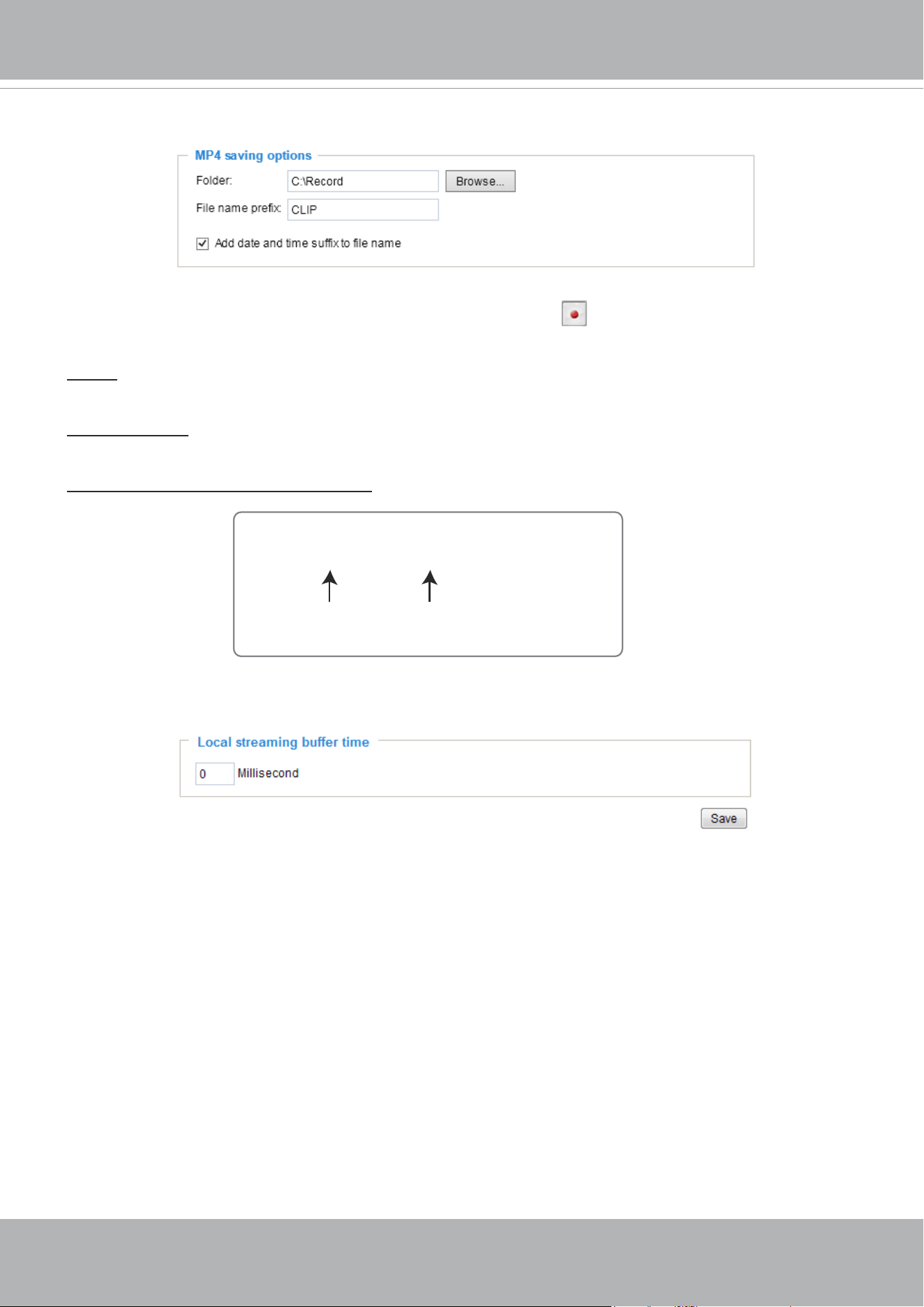
H.265/H.264 Protocol Options
Depending on your network environment, there are four transmission modes of H.264 streaming:
UDP unicast: This protocol allows for more real-time audio and video streams. However, network
packets may be lost due to network burst trac and images may be broken. Activate UDP connection
when occasions require time-sensitive responses and the video quality is less important. Note that each
unicast client connecting to the server takes up additional bandwidth and the Network Camera allows up
to ten simultaneous accesses.
UDP multicast: This protocol allows multicast-enabled routers to forward network packets to all clients
requesting streaming media. This helps to reduce the network transmission load of the Network Camera
while serving multiple clients at the same time. Note that to utilize this feature, the Network Camera must
be configured to enable multicast streaming at the same time. For more information, please refer to
RTSP Streaming on page 106.
TCP: This protocol guarantees the complete delivery of streaming data and thus provides better video
quality. The downside of this protocol is that its real-time eect is not as good as that of the UDP protocol.
HTTP: This protocol allows the same quality as TCP protocol without needing to open specic ports for
streaming under some network environments. Users inside a firewall can utilize this protocol to allow
streaming data through.
H.264 Protocol Options
VIVOTEK
52 - User's Manual
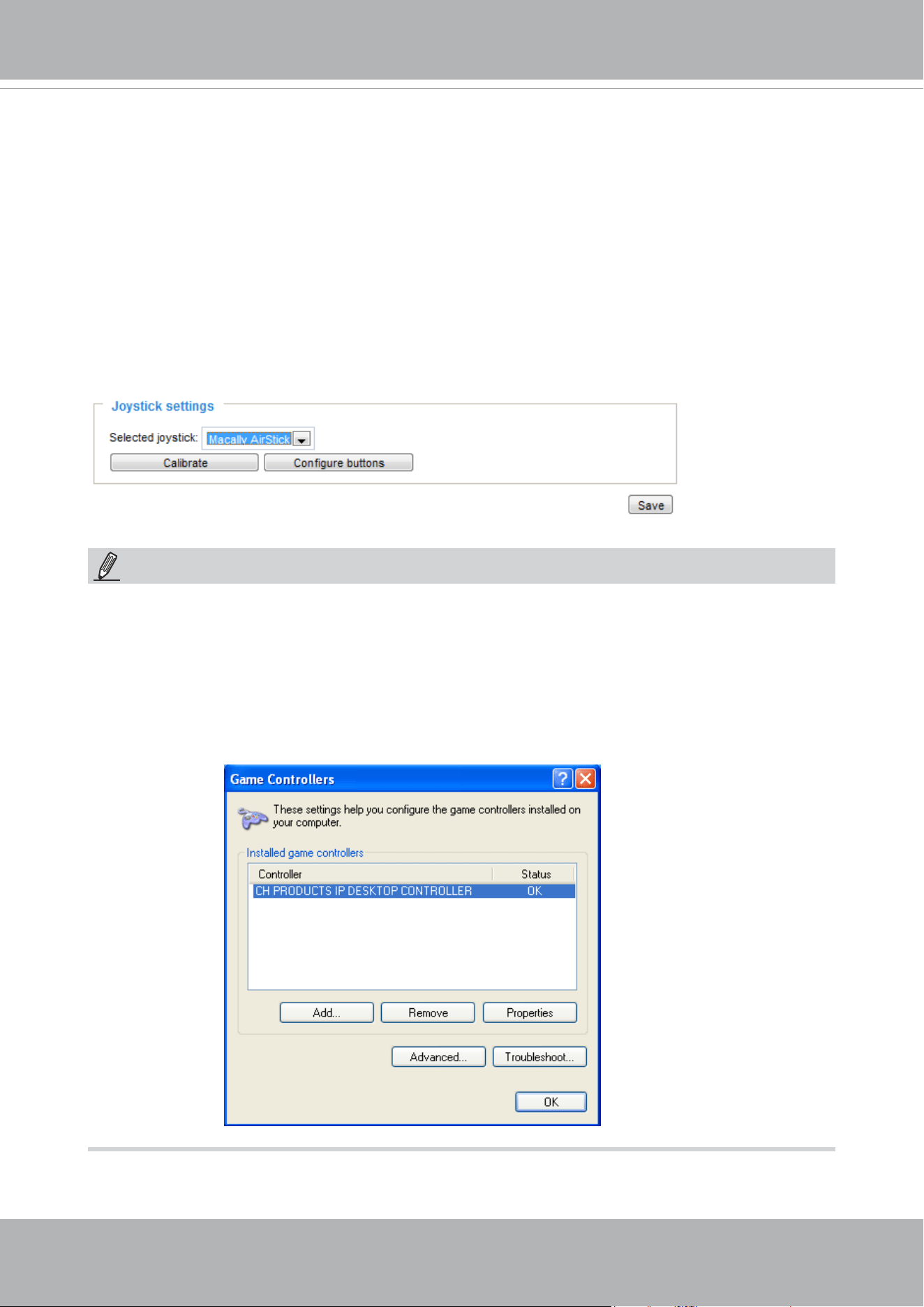
MP4 Saving Options
Users can record live video as they are watching it by clicking Start MP4 Recording on the main
page. Here, you can specify the storage destination and le name.
Folder: Specify a storage destination on your PC for the recorded video files. The location can be
changed.
File name prex: Enter the text that will be appended to the front of the video le name. A specied folder
will be automatically created on your local hard disk.
Add date and time sux to the le name: Select this option to append the date and time to the end of the
le name.
Local Streaming Buer Time
In the case of encountering unsteady bandwidth, live streaming may lag and video streaming may not be
very smoothly. If you enable this option, the live streaming will be stored temporarily on your PC’s cache
memory for a few milli seconds before being played on the live viewing window. This will help you see
the streaming more smoothly. If you enter 3,000 Millisecond, the streaming will delay for 3 seconds.
CLIP_20210321-180853
Date and time suffix
The format is: YYYYMMDD_HHMMSS
File name prefix
VIVOTEK
User's Manual - 53
Joystick settings
Enable Joystick
Connect a joystick to a USB port on your management computer. Supported by the plug-in
(Microsoft’s DirectX), once the plug-in for the web console is loaded, it will automatically detect if
there is any joystick on the computer. The joystick should work properly without installing any other
driver or software.
Then you can begin to configure the joystick settings of connected devices. Please follow the
instructions below to enable joystick settings.
1. Select a detected joystick, if there are multiple, from the Selected joystick menu. If your joystick
is not detected, if may be defective.
2. Click Calibrate or Congure buttons to congure the joystick-related settings.
• If you want to assign Preset actions to your joystick, the preset locations should be congured
in advance in the
Conguration
>
PTZ
page. In Windows, use the search function on the Start
menu to search for Game Controller.
• If your joystick is not working properly, it may need to be calibrated. Click the
Calibrate
button
to open the Game Controllers window located in Microsoft Windows control panel and follow the
instructions for trouble shooting.
NOTE:
• The joystick will appear in the
Game Controllers
list in the Windows Control panel. If you want to
check out for your devices, go to the following page: Start -> Control Panel -> Game Controllers.
VIVOTEK
54 - User's Manual
Buttons Conguration
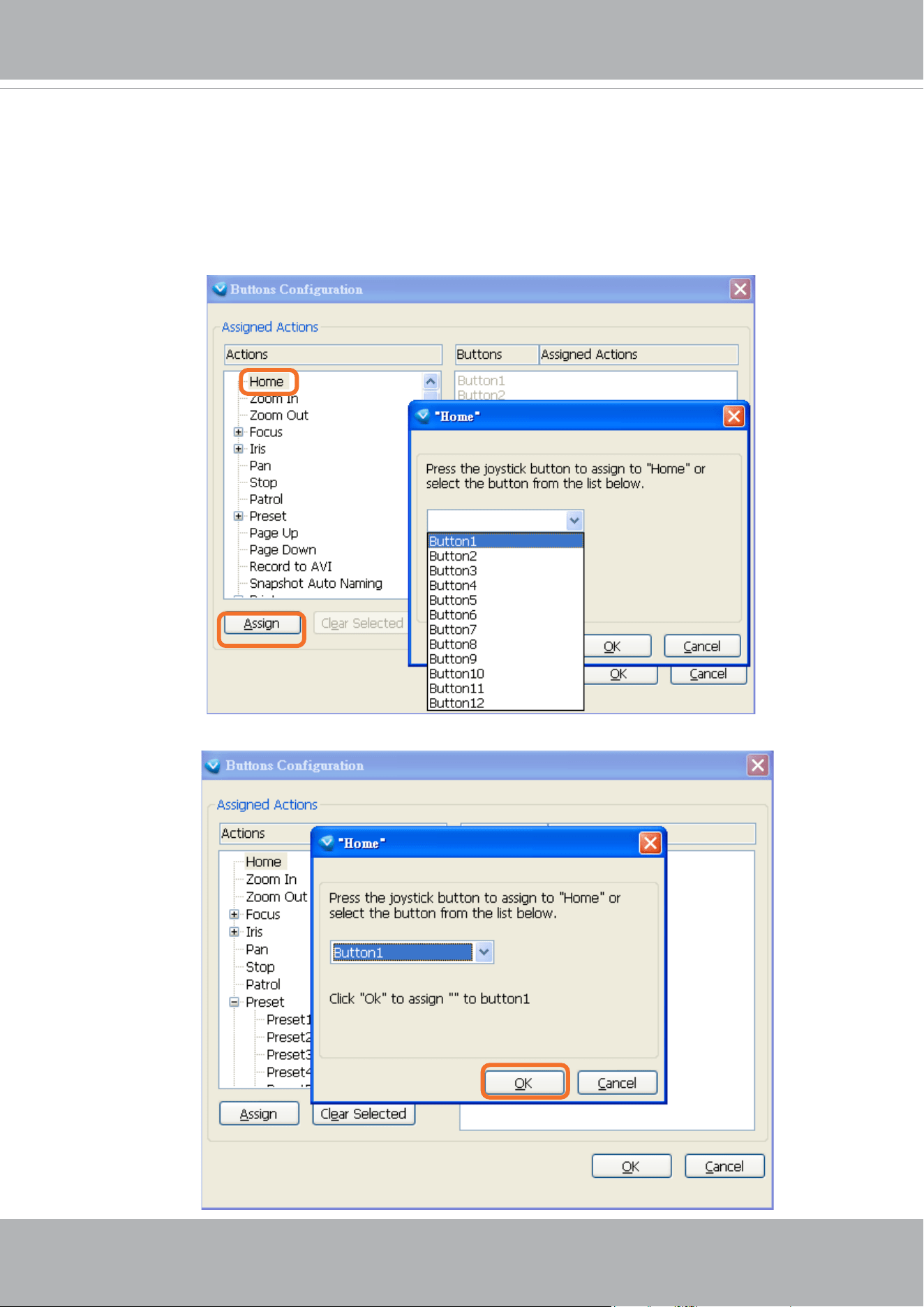
In the Button Conguration window, the left column shows the actions you can assign, and the right
column shows the functional buttons and assigned actions. The number of buttons may dier from
dierent joysticks.
Please follow the steps below to congure your joystick buttons:
1. Choosing one of the actions and click
Assign
will pop up a dialog. Then you can assign this
action to a button by pressing the joystick button or select it from the drop-down list.
For example: Assign
Home
(move to home position) to Button 1.
2. Click
OK
to conrm the conguration.
VIVOTEK
User's Manual - 55
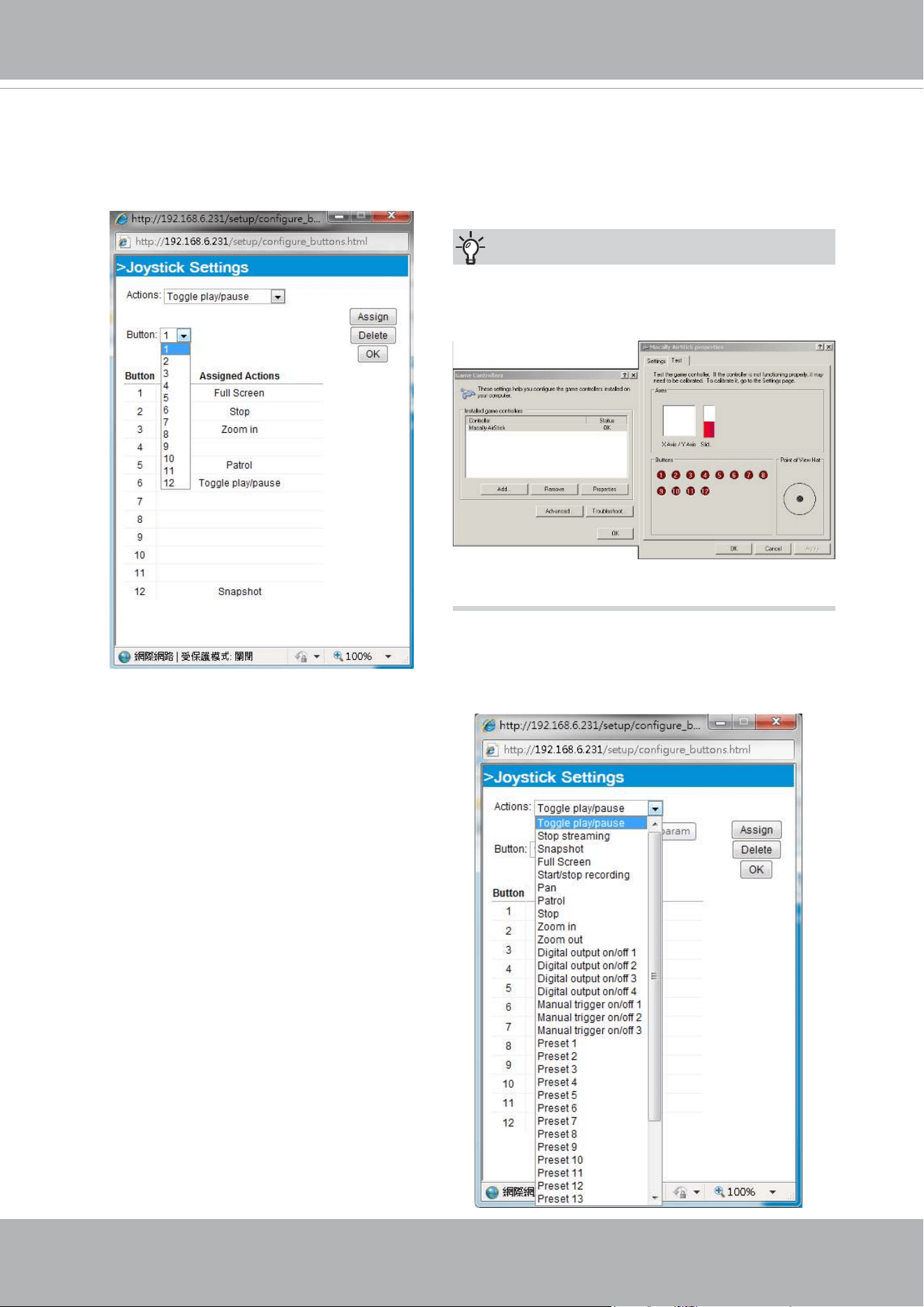
Buttons Conguration
Click the
Congure Buttons
button, a window will prompt as shown below. Please follow the steps
below to congure your joystick buttons:
1. Select a button number from the Button # pull-down menu.
2. Select a corresponding action, such as Patrol or Preset#.
If you are not sure of the locations of each
button, use the
Properties
window in the
Game
Controllers
utility.
Tips:
3.
Click the
Assign
button to assign an action to
the button. You can delete an association by
selecting a button number, and then click the
Delete
button.
Repeat the process until you are done with the
conguration of all preferred actions.
The buttons you define should appear on the
button list accordingly.
4. Please remember to c
lick the
Save
button
on the Client settings page to preserver your
settings.
VIVOTEK
56 - User's Manual
Conguration
Click
Configuration
on the main page to enter the camera setting pages. Note that only
Administrators can access the conguration page.
VIVOTEK provides an easy-to-use user interface that helps you set up your network camera
with minimal effort. In order to simplify the user interface, detailed information will be hidden
unless you click on the function item. When you click on the first sub-item, the detailed
information for the rst sub-item will be displayed; when you click on the second sub-item, the
detailed information for the second sub-item will be displayed and that of the rst sub-item will
be hidden.
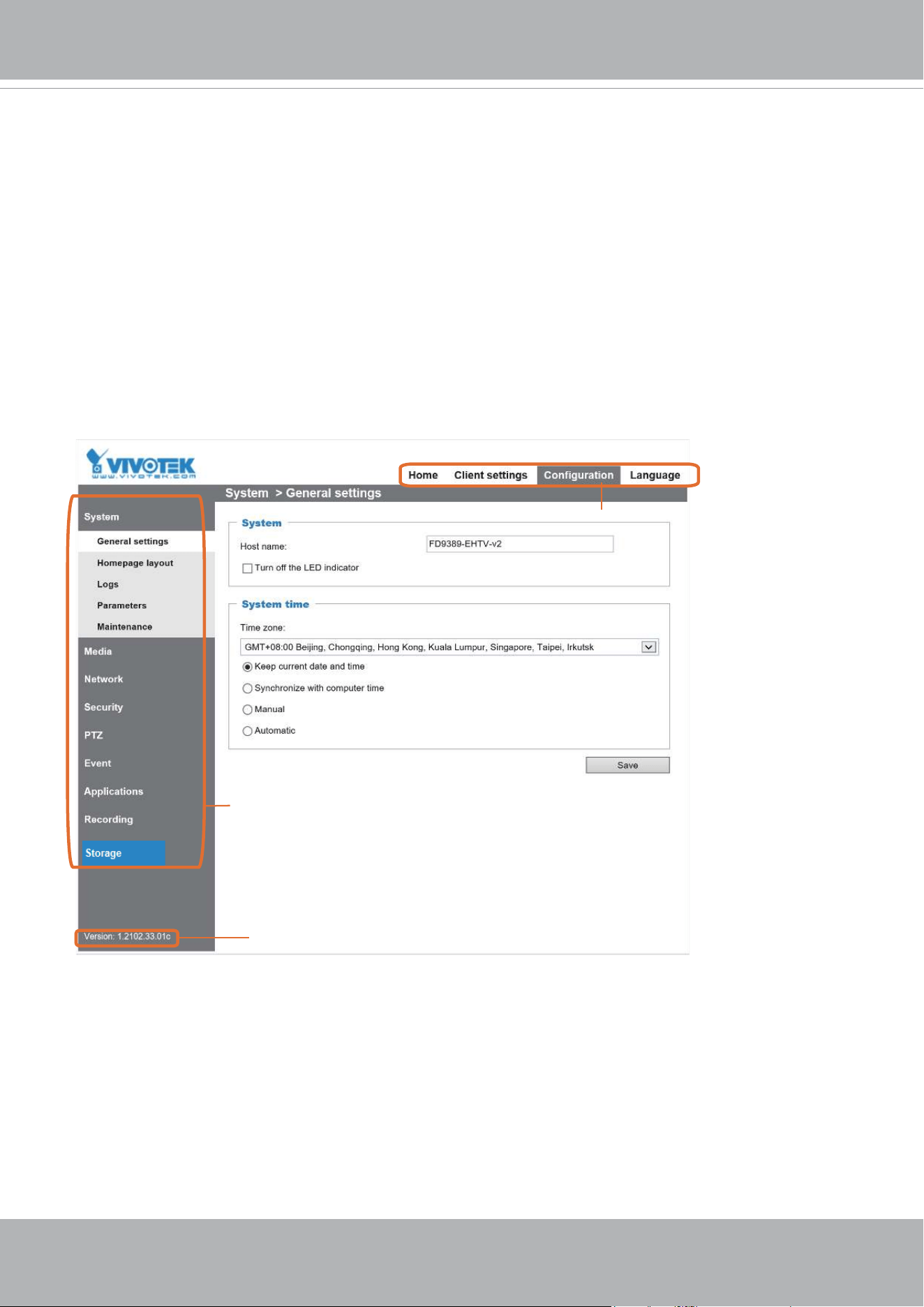
The following is the interface of the main page:
Configuration List
Firmware Version
Navigation Area
Each function on the conguration list will be explained in the following sections.
The Navigation Area provides access to all different views from the
Home
page (for live viewing),
Conguration
page, and multi-language selection.
VIVOTEK
User's Manual - 57
System > General settings
This section explains how to congure the basic settings for the Network Camera, such as the
host name and system time. It is composed of the following two columns: System, and System
Time. When finished with the settings on this page, click
Save
at the bottom of the page to
enable the settings.
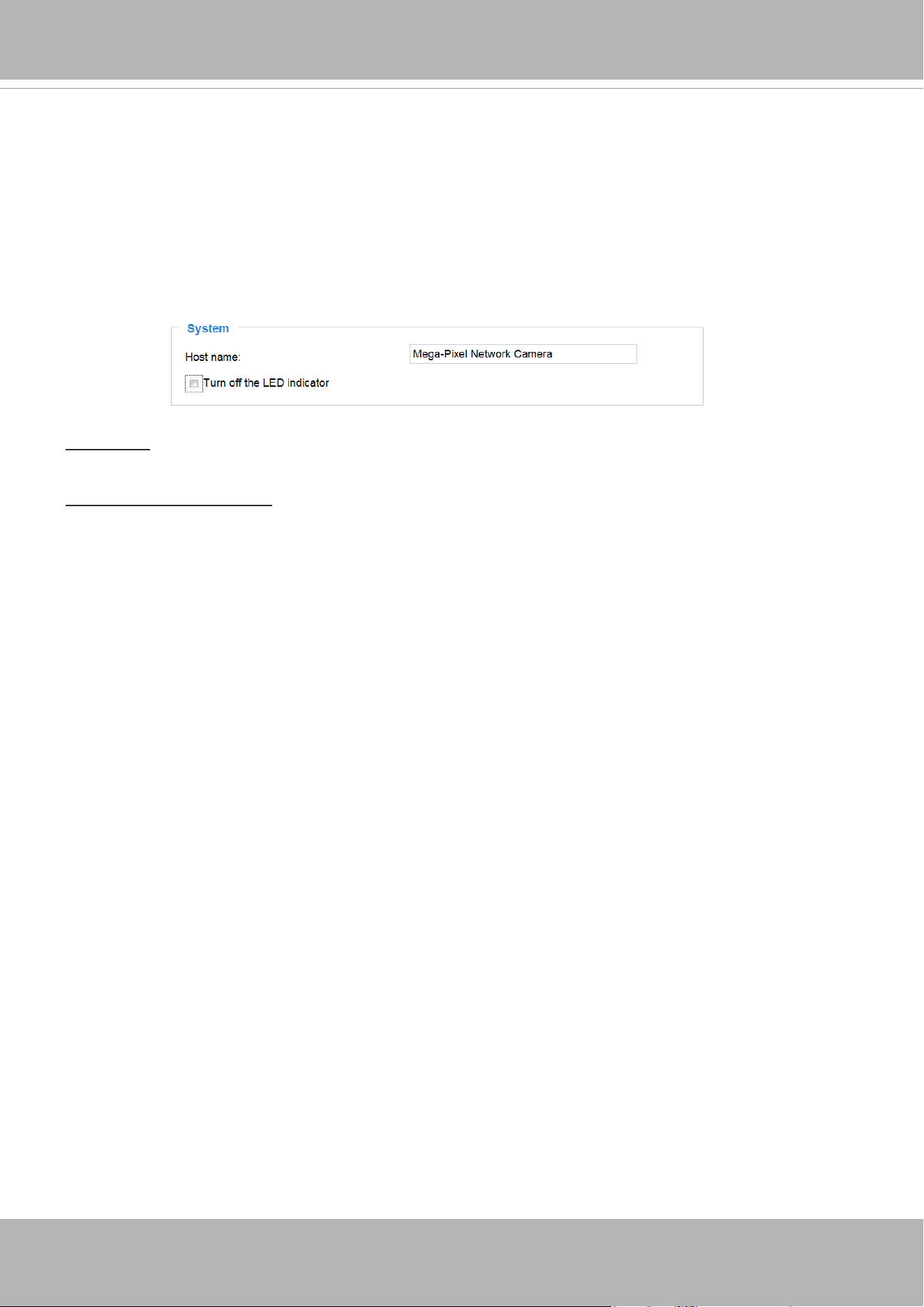
System
Host name: Enter a desired name for the Network Camera. The text will be displayed at the top of the
main page, and also on the view cells of the ST7501 and VAST management software.
Turn o the LED indicators: If you do not want others to notice the network camera is in operation, you
can select this option to turn o the LED indicators.
VIVOTEK
58 - User's Manual
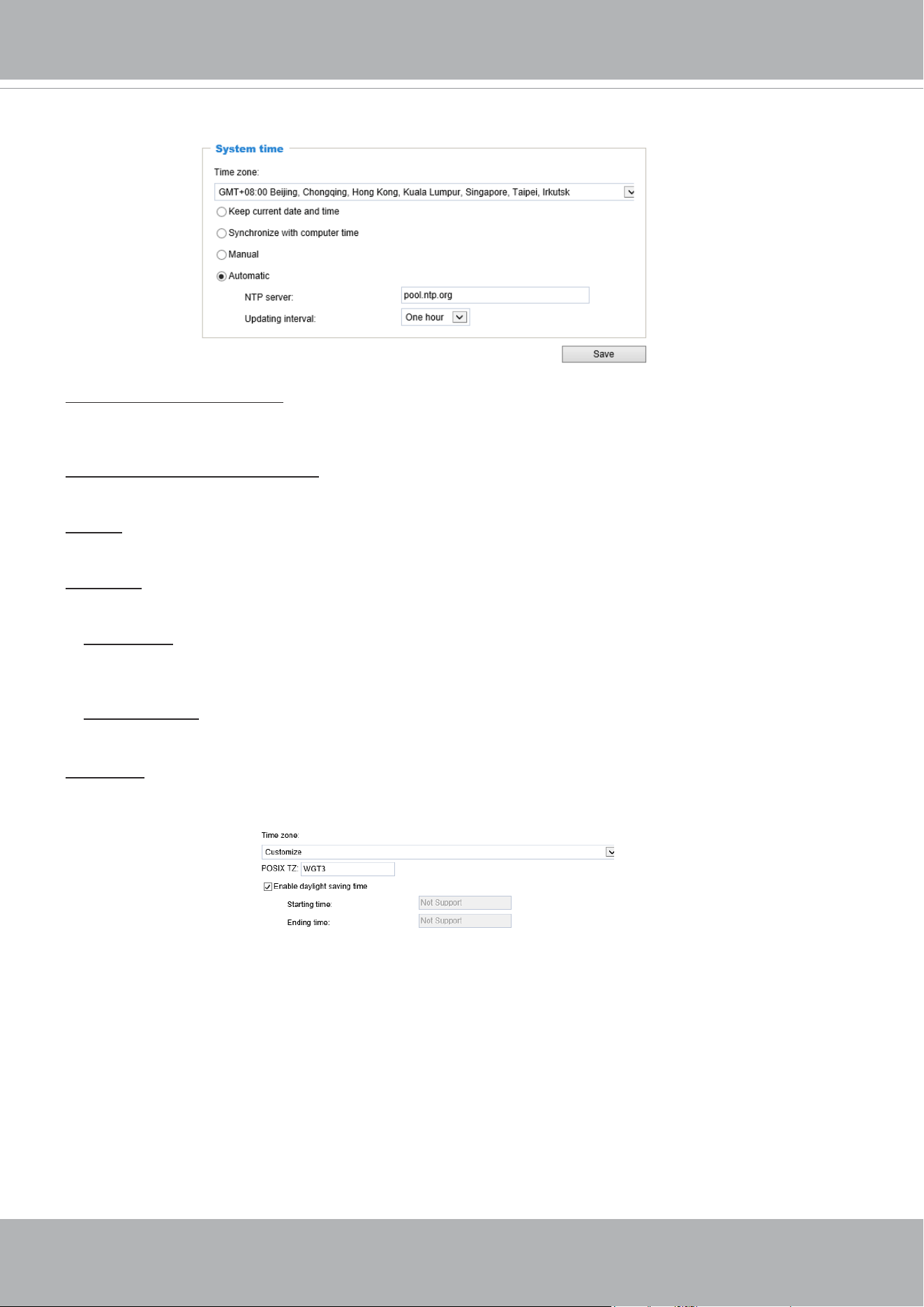
System time
Keep current date and time: Select this option to preserve the current date and time of the Network
Camera. The Network Camera’s internal real-time clock maintains the date and time even when the
power of the system is turned o.
Synchronize with computer time: Select this option to synchronize the date and time of the Network
Camera with the local computer. The read-only date and time of the PC is displayed as updated.
Manual: The administrator can enter the date and time manually. Note that the date and time format are
[yyyy/mm/dd] and [hh:mm:ss].
Automatic: The Network Time Protocol is a protocol which synchronizes computer clocks by periodically
querying an NTP Server.
NTP server: Assign the IP address or domain name of the time-server. Leaving the text box blank
connects the Network Camera to the default time servers. The precondition is that the camera must
have the access to the Internet.
Update interval: Select to update the time using the NTP server on an hourly, daily, weekly, or monthly
basis.
Time zone : Select the appropriate time zone from the list. You can scroll down on the Time zone menu to
nd the Customize option and use the POSIX TZ variables. For example,
http://www.gnu.org/software/
libc/manual/html_node/TZ-Variable.html.
Here are some examples for TZ values, including the appropriate Daylight Saving Time and its
dates of applicability. In North American Eastern Standard Time (EST) and Eastern Daylight
Time (EDT), the normal offset from UTC is 5 hours; since this is west of the prime meridian,
the sign is positive. Summer time begins on March’s second Sunday at 2:00am, and ends on
November’s rst Sunday at 2:00am. EST+5EDT,M3.2.0/2,M11.1.0/2
Israel Standard Time (IST) and Israel Daylight Time (IDT) are 2 hours ahead of the prime
meridian in winter, springing forward an hour on March’s fourth Thursday (i.e., on the rst Friday
on or after March 23), and falling back on October’s last Sunday.
IST-2IDT,M3.4.4,M10.5.0

VIVOTEK
User's Manual - 59
Western Argentina Summer Time (WARST) is 3 hours behind the prime meridian all year.
There is a dummy fall-back transition on December 31 at 25:00 daylight saving time (i.e.,
24:00 standard time, equivalent to January 1 at 00:00 standard time), and a simultaneous
spring-forward transition on January 1 at 00:00 standard time, so daylight saving time is in
eect all year and the initial WART is a placeholder.
The format is TZ = local_timezone,date/time,date/time.
Here, date is in the Mm.n.d format, where:
Mm (1-12) for 12 months
n (1-5) 1 for the rst week and 5 for the last week in the month
d (0-6) 0 for Sunday and 6 for Saturday
CST6CDT is the name of the time zone
CST is the abbreviation used when DST is o
6 hours is the time dierence from GMT
CDT is the abbreviation used when DST is on
,M3 is the third month
.2 is the second occurrence of the day in the month
.0 is Sunday
/2 is the time
,M11 is the eleventh month
.1 is the rst occurrence of the day in the month
.0 is Sunday
/2 is the time
The minimum specier is down to the hour.
VIVOTEK
60 - User's Manual
System > Homepage layout
This section explains how to set up your own customized homepage layout.
General settings
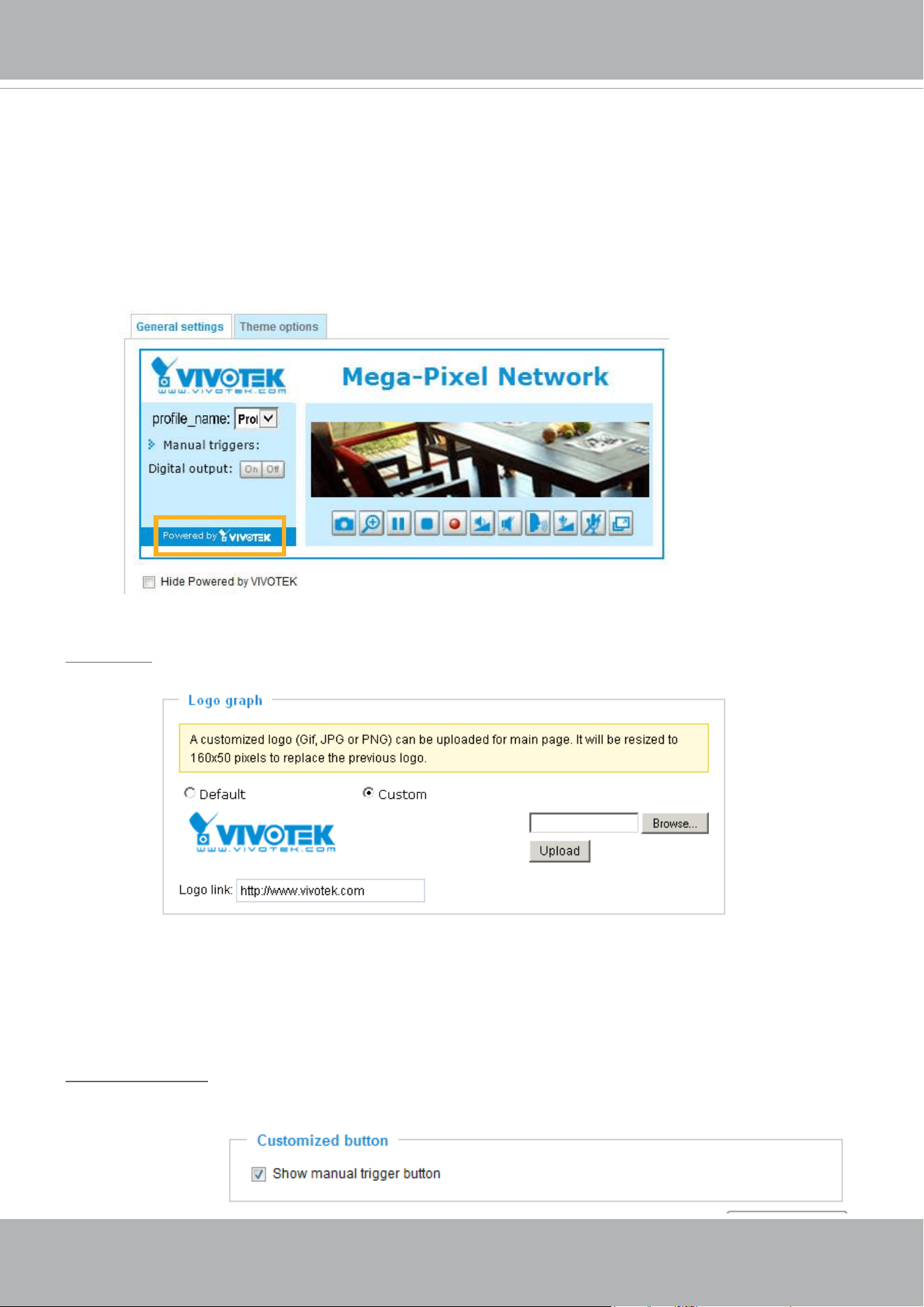
This column shows the settings of your hompage layout. You can manually select the background and
font colors in Theme Options (the second tab on this page). The settings will be displayed automatically
in this Preview eld. The following shows the homepage using the default settings:
Follow the steps below to upload a new logo:
1. Click
Custom
and the Browse eld will appear.
2. Select a logo from your les.
3. Click
Upload
to replace the existing logo with a new one.
4. Enter a website link if necessary.
5. Click
Save
to enable the settings.
Customized button
If you want to hide manual trigger buttons on the homepage, please uncheck this item. This item is
checked by default.
Logo graph
Here you can change the logo that is placed at the top of your homepage.
■ Hide Powered by VIVOTEK: If you check this item, it will be removed from the homepage.
VIVOTEK
User's Manual - 61
Theme Options
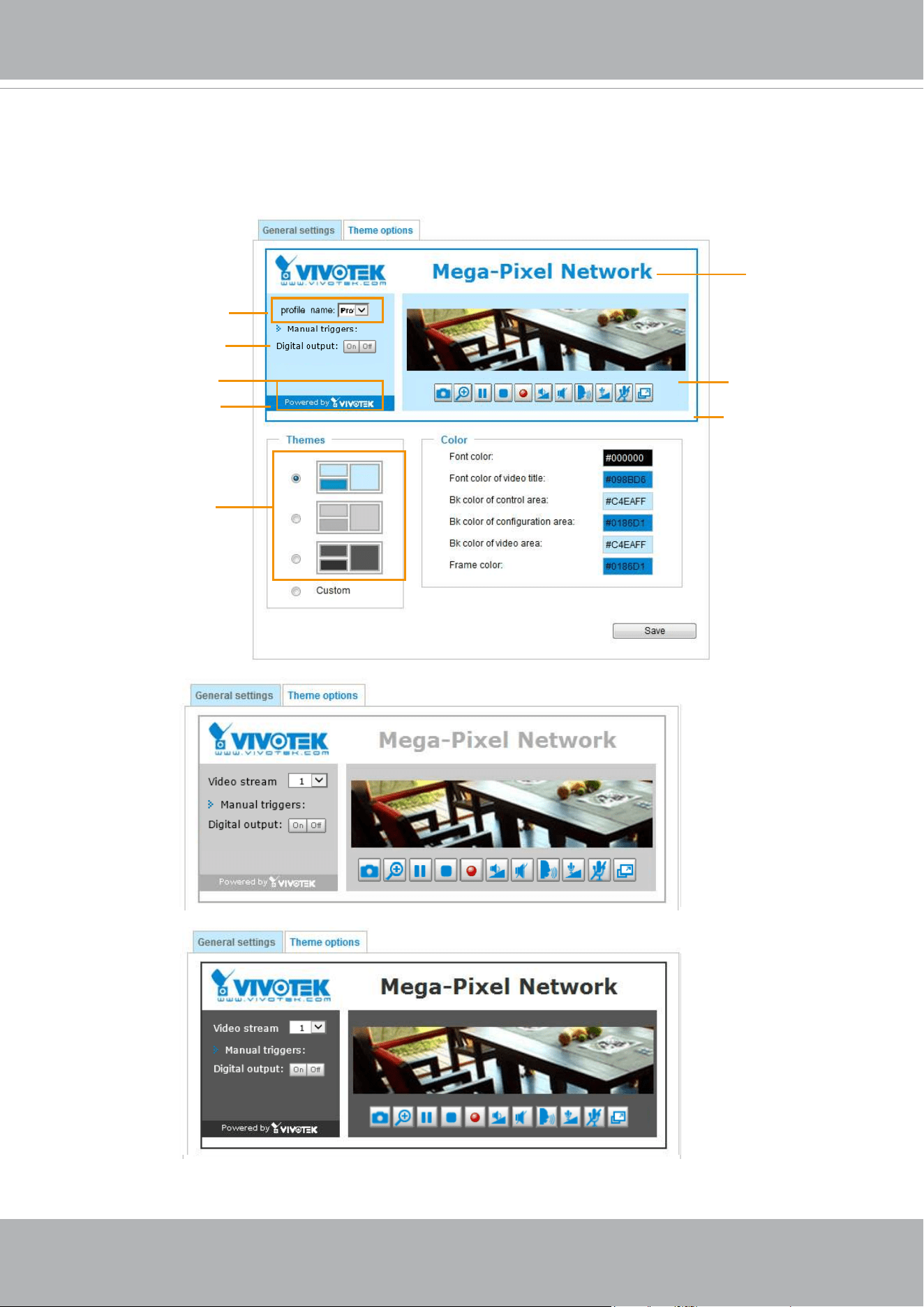
Here you can change the color of your homepage layout. There are three types of preset patterns for you
to choose from. The new layout will simultaneously appear in the
Preview
led. Click
Save
to enable the
settings.
Font Color of the
Video Title
Background Color of
the Video Area
Frame Color
Font Color
Background Color of the
Control Area
Font Color of
the Configuration Area
Background Color of the
Configuration Area
Preset patterns
VIVOTEK
62 - User's Manual
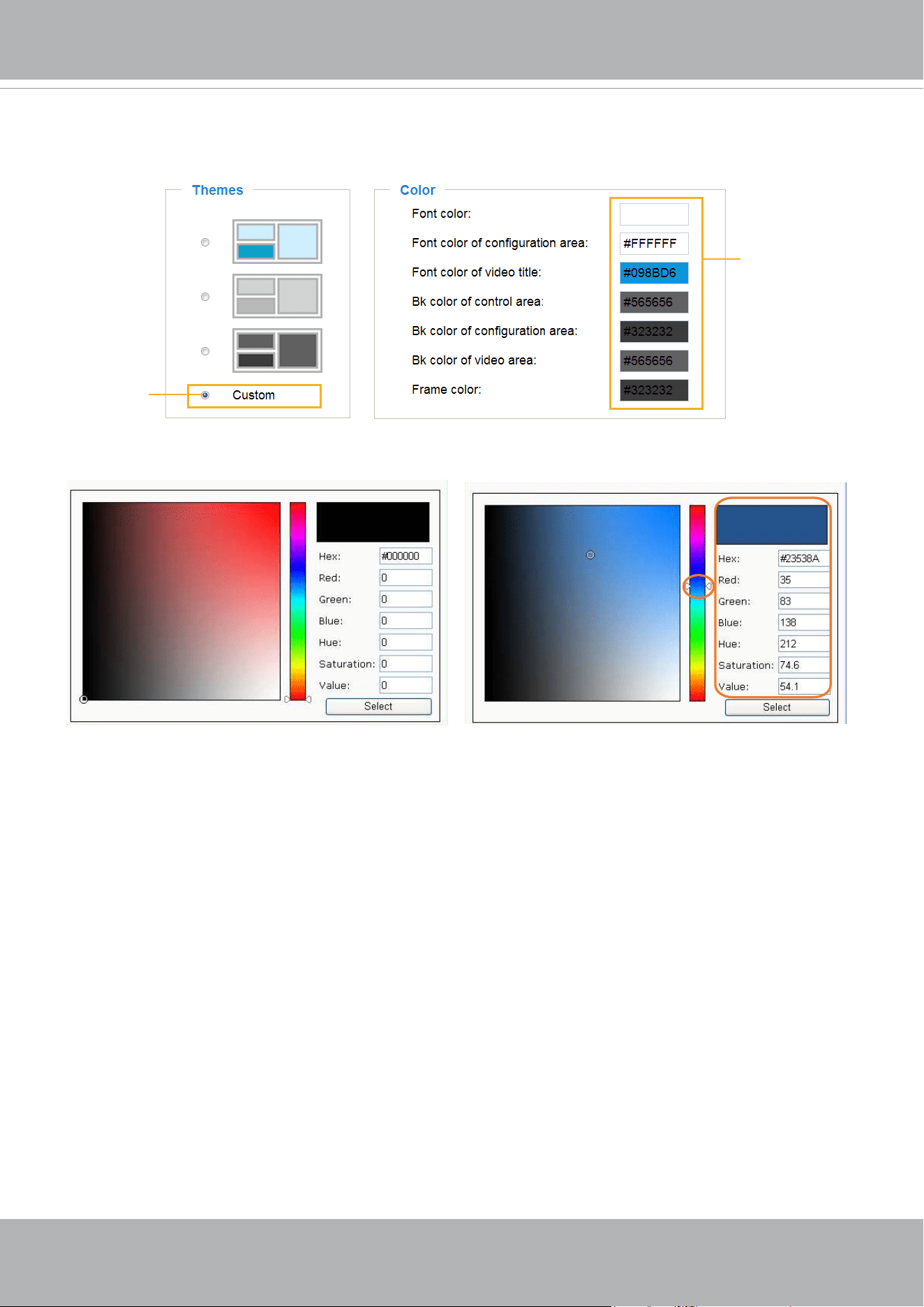
■ Follow the steps below to set up the customized homepage:
1. Click
Custom
on the left column.
2. Click the eld where you want to change the color on the right column.
3. The palette window will pop up as shown below.
4. Drag the slider bar and click on the left square to select a desired color.
5. The selected color will be displayed in the corresponding elds and in the
Preview
column.
6. Click
Save
to enable the settings.
1
2
3
4
Color Selector
Custom
Pattern
VIVOTEK
User's Manual - 63
System > Logs
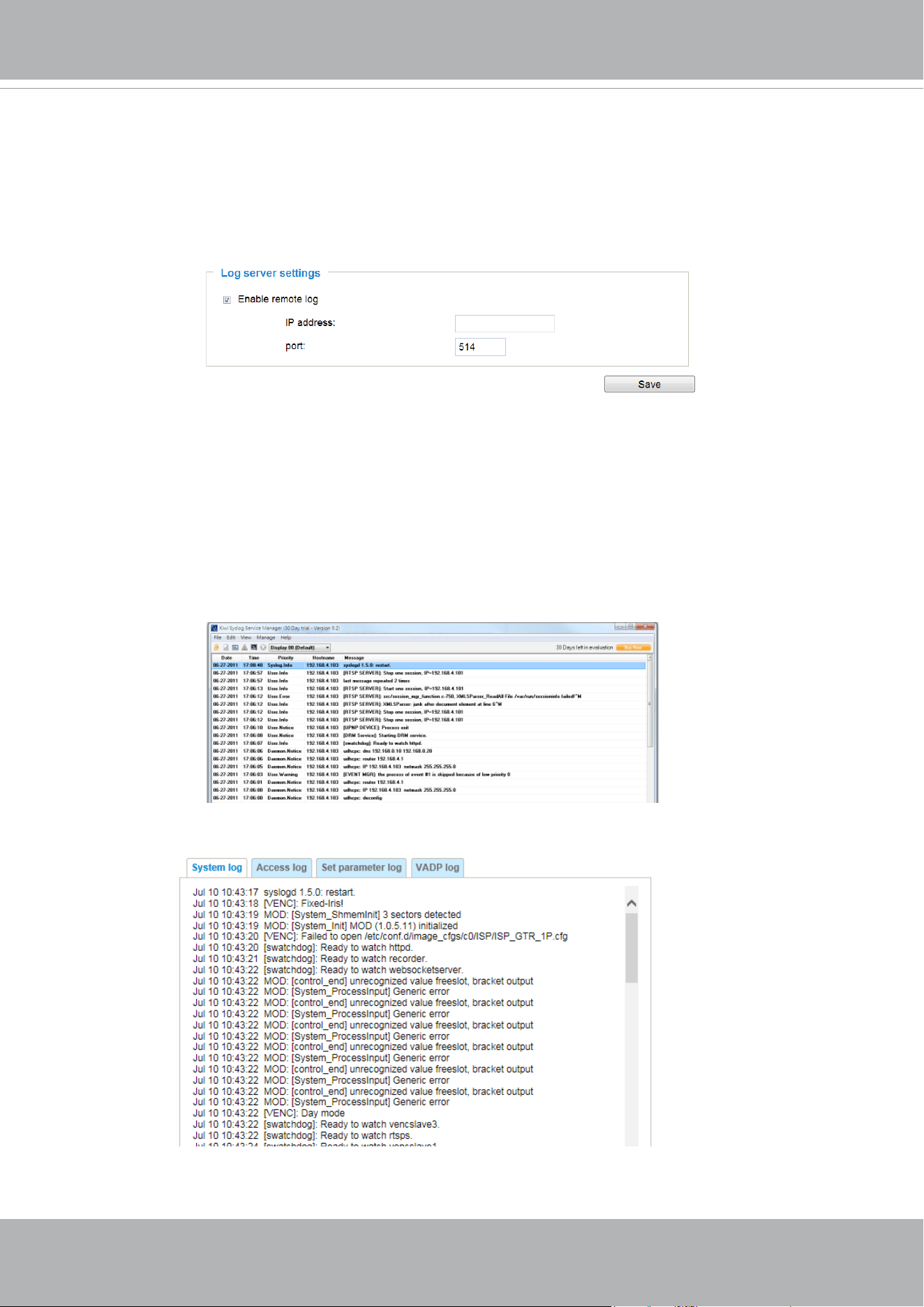
This section explains how to congure the Network Camera to send the system log to a remote
server as backup.
Log server settings
Follow the steps below to set up the remote log:
1. Select
Enable remote log
.
2. In the IP address text box, enter the IP address of the remote server.
2. In the port text box, enter the port number of the remote server.
3. When completed, click
Save
to enable the setting.
You can congure the Network Camera to send the system log le to a remote server as a log backup.
Before utilizing this feature, it is suggested that the user install a log-recording tool to receive system log
messages from the Network Camera. An example is Kiwi Syslog Daemon. Visit http://www.kiwisyslog.
com/kiwi-syslog-daemon-overview/.
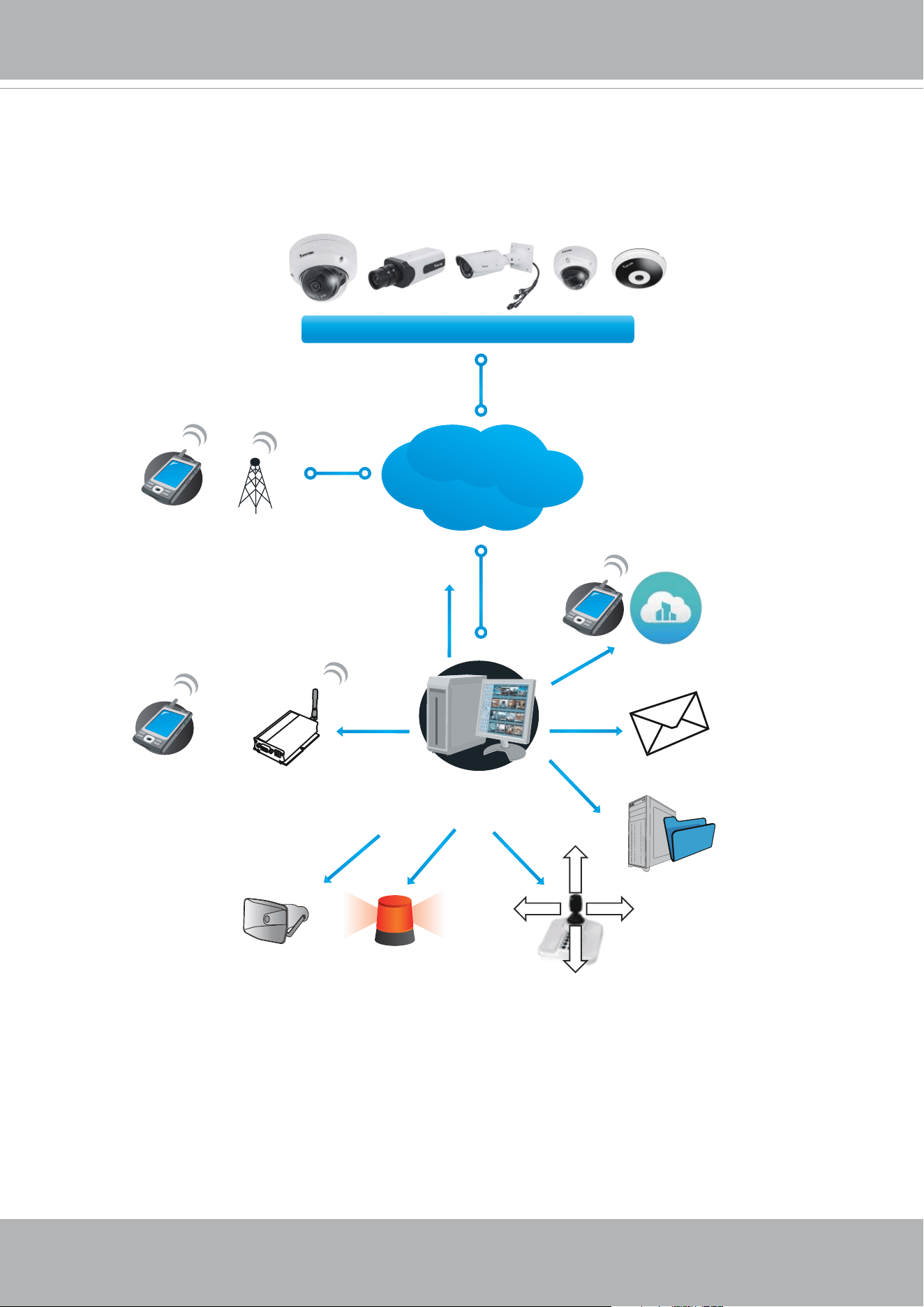
This column displays the system log in a chronological order. The system log is stored in the Network
Camera’s buer area and will be overwritten when reaching a certain limit.
System log
VIVOTEK
64 - User's Manual
Server with
VAST Recording Software
Internet
VIVOTEK Network Cameras
3G Cell phone
Cell phone
Short message
EmailGSM
Modem
HTTP
Digital output
VIVOCloud
PTZ
Deterrent
FTP
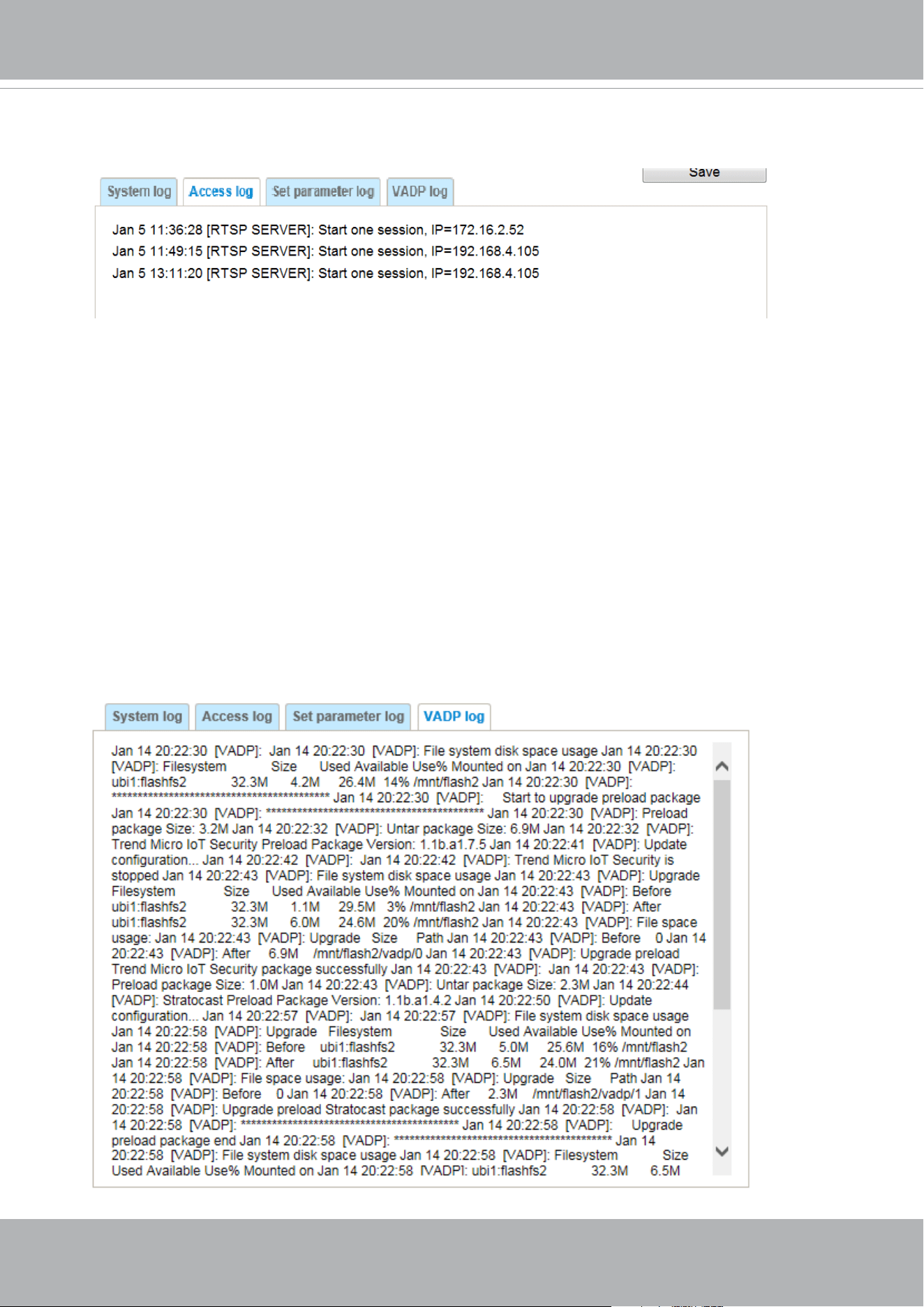
You can install the included VAST recording software, which provides an Event
Management function group for delivering event messages via emails, GSM short
messages, onscreen event panel, or to trigger an alarm, etc. For more information, refer to
the VAST User Manual.
VIVOTEK
User's Manual - 65
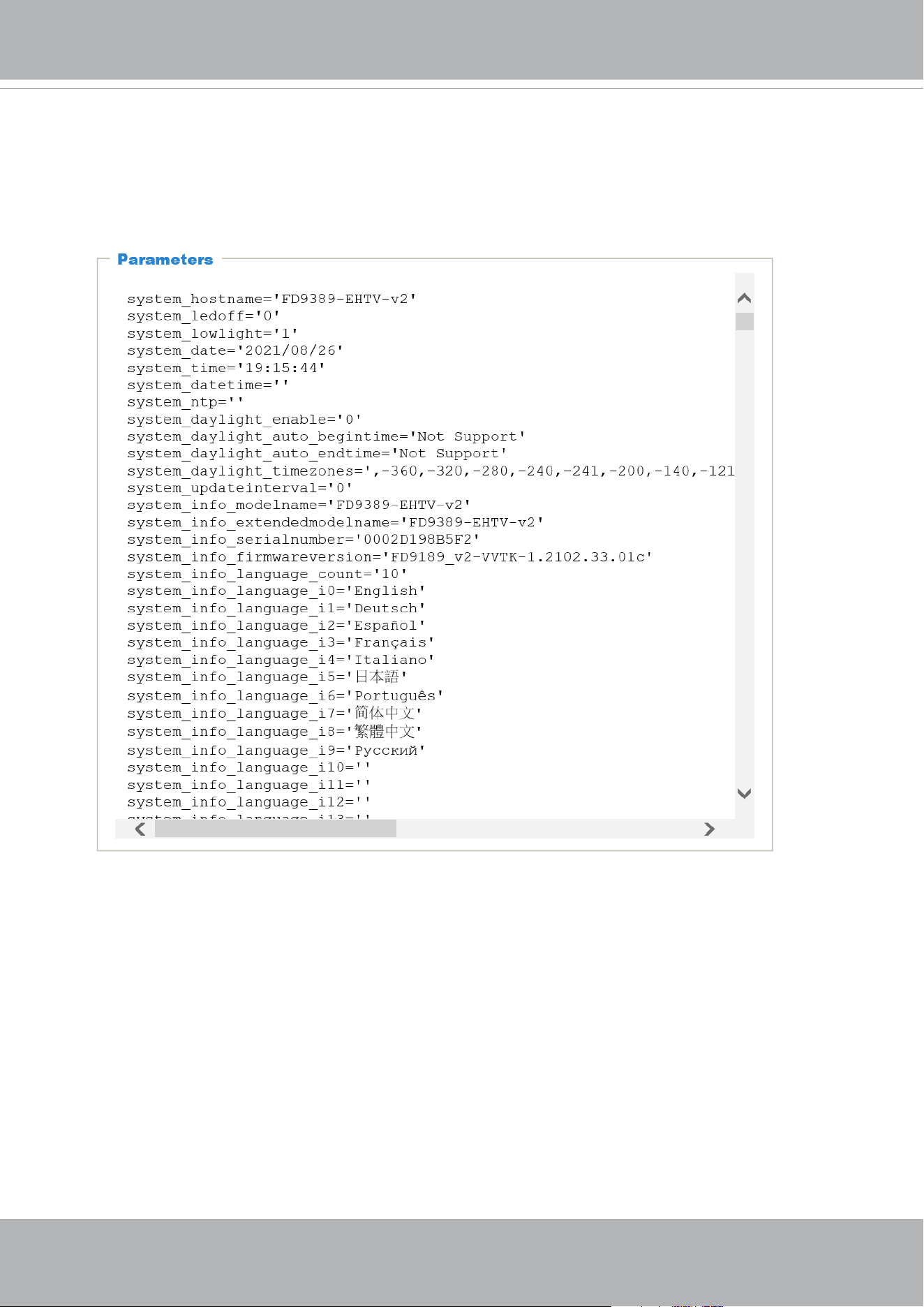
Access log
Access log displays the access time and IP address of all viewers (including operators and
administrators) in a chronological order. The access log is stored in the Network Camera’s buer
area and will be overwritten when reaching a certain limit.
VADP log
VADP log contains the information for the onboard VADP packages, including memory usage,
module load and unload information.
Set Parameter log
VADP log contains the history of changes made to system parameters such as recording, imaging
parameters, and all other parameters.
VIVOTEK
66 - User's Manual
System > Parameters
The View Parameters page lists the entire system’s parameters. If you need technical
assistance, please provide the information listed on this page.
VIVOTEK
User's Manual - 67
System > Maintenance
This chapter explains how to restore the Network Camera to factory default, upgrade rmware
version, etc.
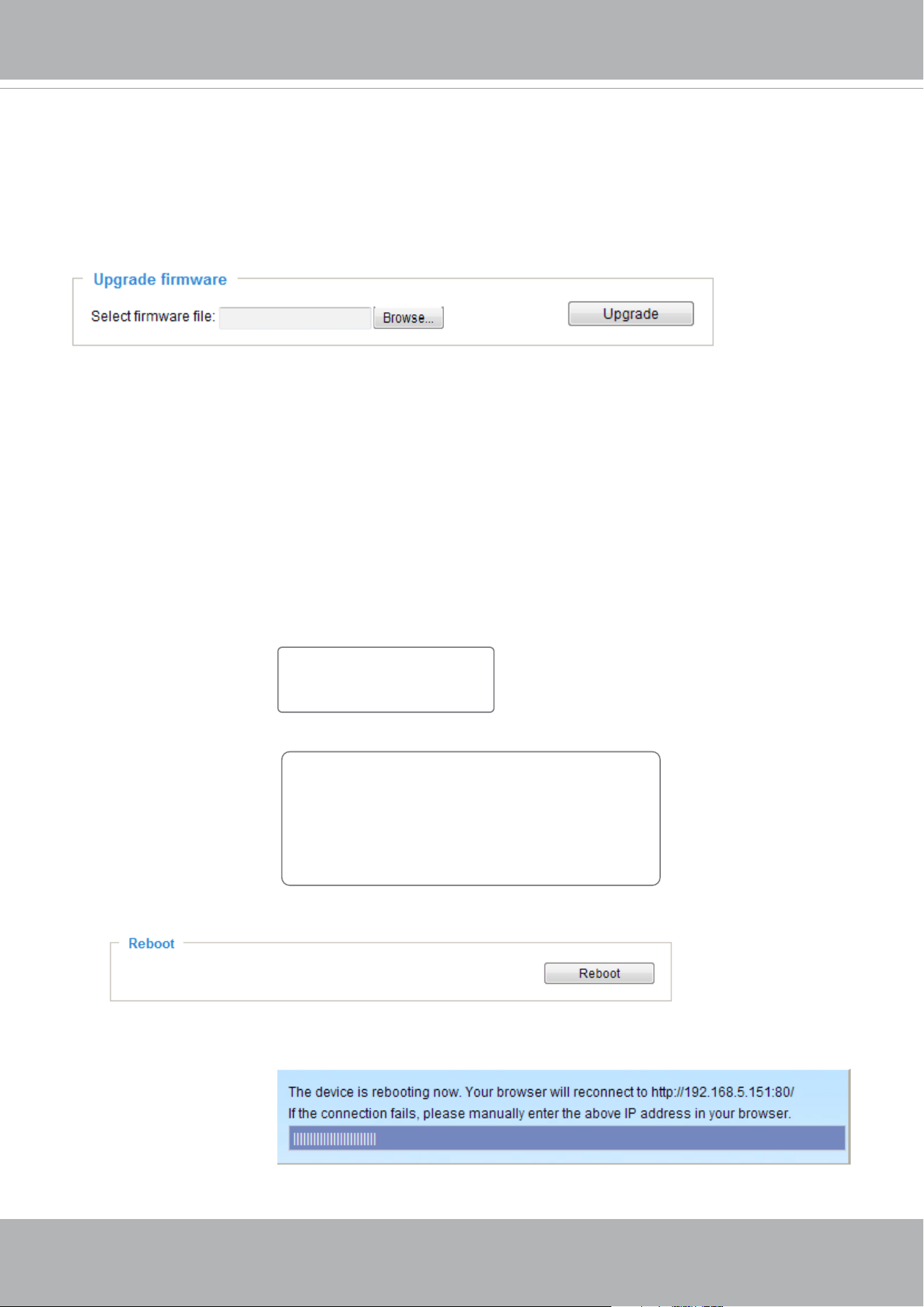
General settings > Upgrade rmware
This feature allows you to upgrade the firmware of your Network Camera. It takes a few minutes to
complete the process.
Note: Do not power o the Network Camera during the upgrade!
Follow the steps below to upgrade the rmware:
1. Download the latest rmware le from the VIVOTEK website. The le is in .pkg le format.
2. Click
Browse…
and locate the rmware le.
3. Click
Upgrade
. The Network Camera starts to upgrade and will reboot automatically when the upgrade
completes.
If the upgrade is successful, you will see “Reboot system now!! This connection will close”. After that, re-
access the Network Camera.
The following message is displayed when the upgrade has succeeded.
The following message is displayed when you have selected an incorrect rmware le.
General settings > Reboot
This feature allows you to reboot the Network Camera, which takes about one minute to complete. When
completed, the live video page will be displayed in your browser. The following message will be displayed
during the reboot process.
If the connection fails after rebooting, manually enter the IP address of the Network Camera in the
address eld to resume the connection.
Starting firmware upgrade...
Do not power down the server during the upgrade.
The server will restart automatically after the upgrade is
completed.
This will take about 1 - 5 minutes.
Wrong PKG file format
Unpack fail
Reboot system now!!
This connection will close.
VIVOTEK
68 - User's Manual
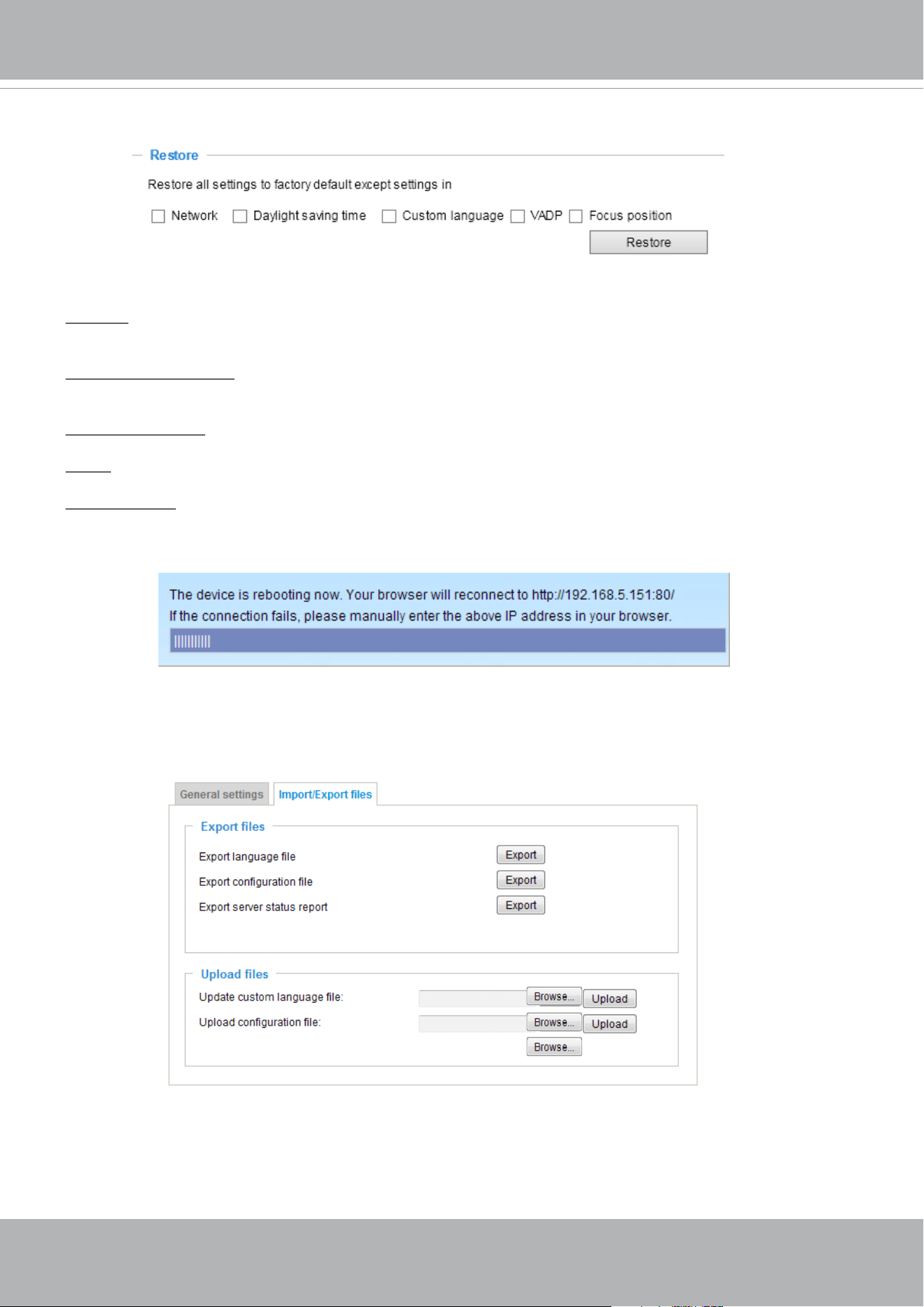
General settings > Restore
This feature allows you to restore the Network Camera to factory default settings.
Network: Select this option to retain the Network Type settings (please refer to Network Type on page
99).
Daylight Saving Time: Select this option to retain the Daylight Saving Time settings (please refer to
Import/Export les below on this page).
Custom Language: Select this option to retain the Custom Language settings.
VADP: Retain the VADP modules (3rd-party software stored on the SD card) and related settings.
Focus position: Retain the lens focus position using the previously saved position parameters.
If none of the options is selected, all settings will be restored to factory default. The following message is
displayed during the restoring process.
Import/Export les
This feature allows you to Export / Update custom language file, configuration file, and server status
report.
VIVOTEK
User's Manual - 69
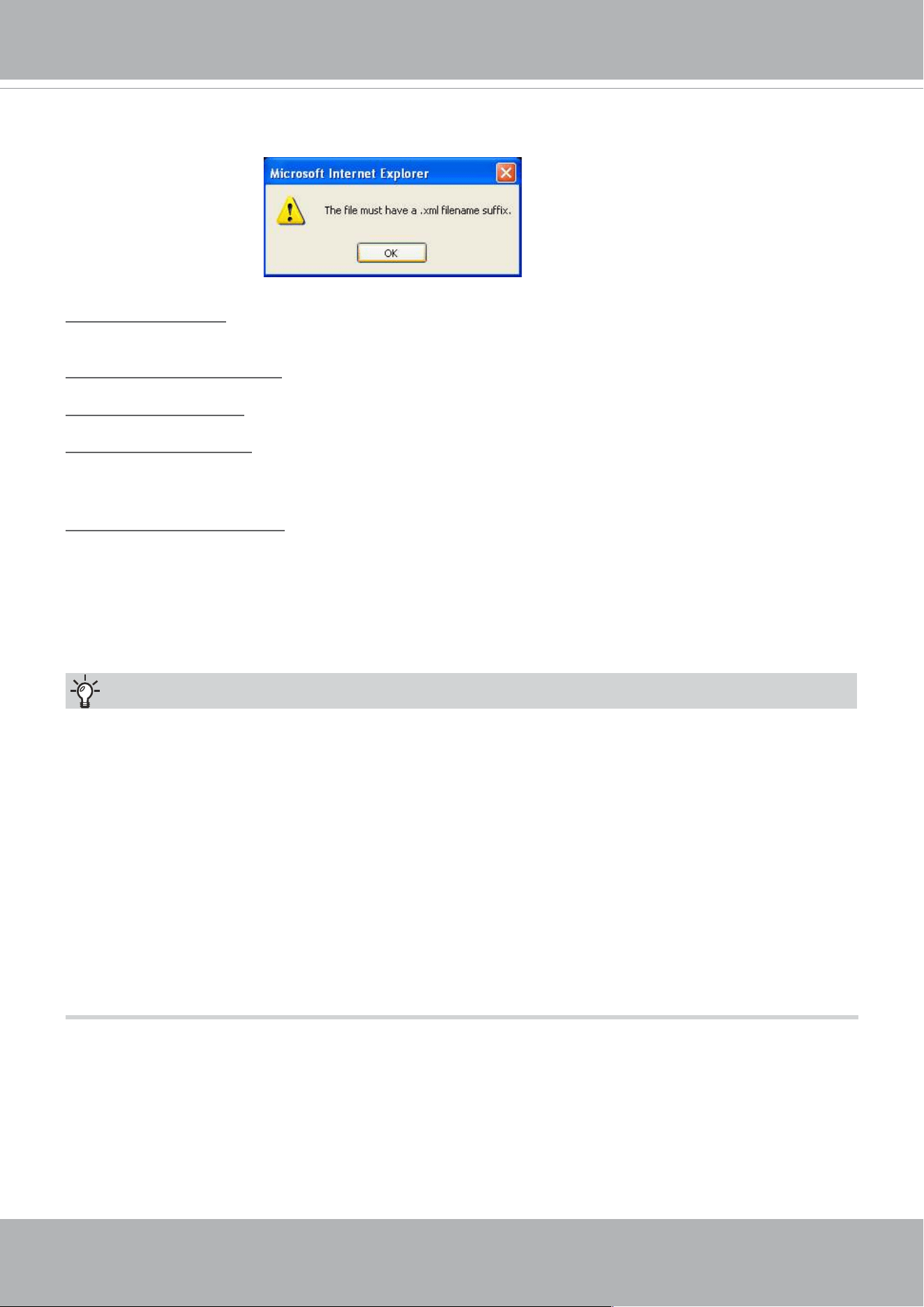
The following message is displayed when attempting to upload an incorrect le format.
Export language file: Click to export language strings. VIVOTEK provides nine languages: English,
Deutsch, Español, Français, Italiano,
日本語,
Português,
簡体中文
, and
繁體中文
.
Update custom language le: Click
Browse…
and specify your own custom language le to upload.
Export conguration le: Click to export all parameters for the device and user-dened scripts.
Update conguration le: Click
Browse…
to update a conguration le. Please note that the model and
rmware version of the device should be the same as the conguration le. If you have set up a xed IP
or other special settings for your device, it is not suggested to update a conguration le.
Export server staus report: Click to export the current server status report, such as time, logs,
parameters, process status, memory status, le system status, network status, kernel message ... and so
on.
Tips:
• If a firmware upgrade is accidentally disrupted, say, by a power outage, you still have a last resort
method to restore normal operation. See the following for how to bring the camera back to work:
Applicable scenario:
(a) Power disconnected during rmware upgrade.
(b) Unknown reason causing abnormal LED status, and a Restore cannot recover normal working
condition.
You can use the following methods to activate the camera with its backup rmware:
(a) Press and hold down the reset button for at least one minute.
(b) Power on the camera until the Red LED blinks rapidly.
(c) After boot up, the rmware should return to the previous version before the camera hanged. (The
procedure should take 5 to 10 minutes, longer than the normal boot-up process). When this
process is completed, the LED status should return to normal.
VIVOTEK
70 - User's Manual
Media > Image
This section explains how to configure the image settings of the Network Camera. It is
composed of the following columns: General settings, IR control, Image settings, Exposure,
Focus, and Privacy mask. The Focus window is available only for models that come with
motorized lens.
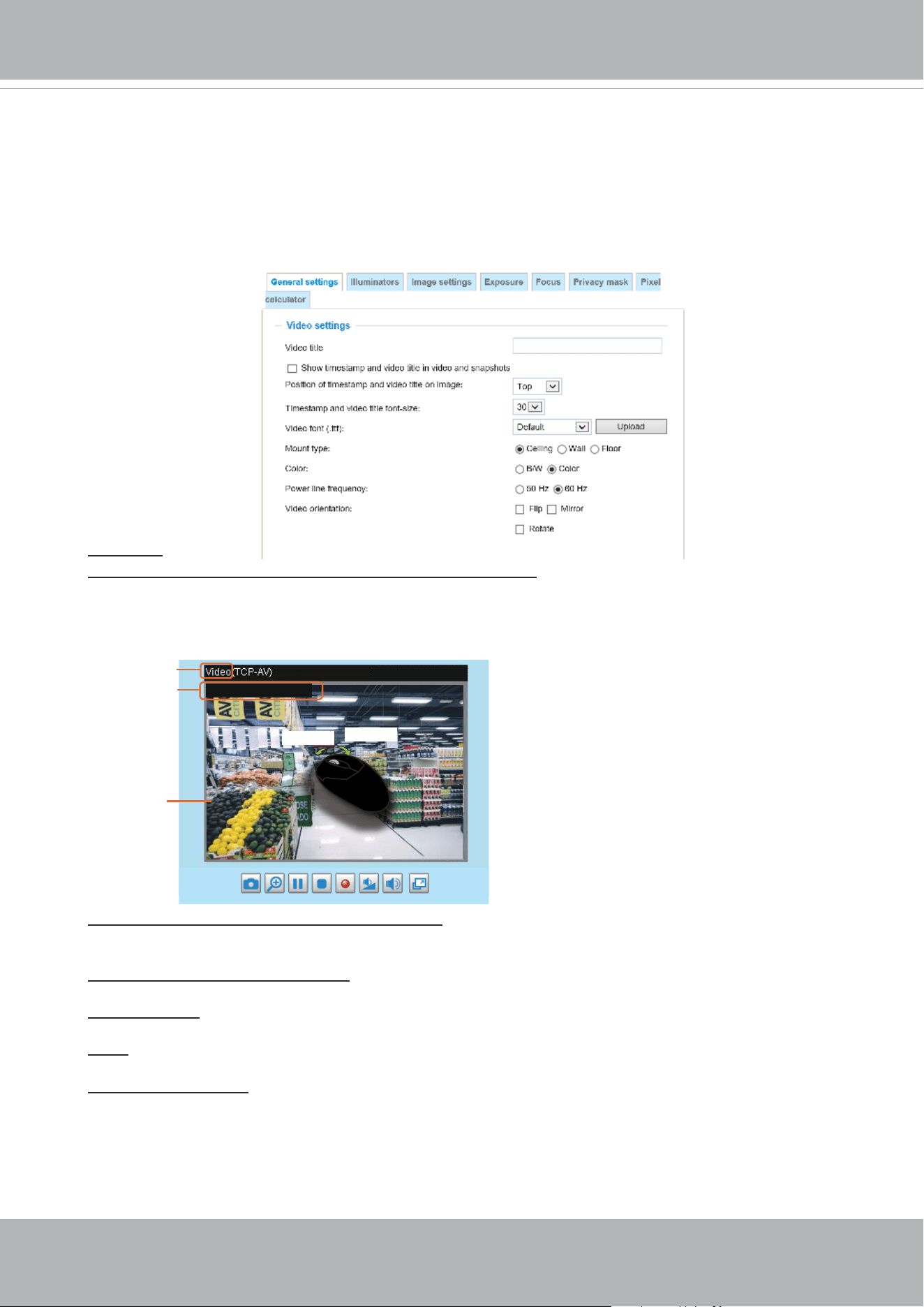
General settings
Video title
Show_timestamp_and video_title_in_video_and_snapshots: Enter a name that will be displayed on
the title bar of the live video as the picture shown below. A zoom indicator will be displayed on the
Home page when you zoom in/out on the live viewing window as shown below. You may zoom in/
out on the image by scrolling the mouse wheel inside the live viewing window, and the maximum
zoom in will be up to 12 times.
Position of timestamp and video title on image: Select to display time stamp and video title on the
top or at the bottom of the video stream.
Timestamp and video title font size: Select the font size for the time stamp and title.
Video font (.ttf): You can select a True Type font le for the display of textual messages on video.
Color: Select to display color or black/white video streams.
Power line frequency: Set the power line frequency consistent with local utility settings to eliminate
image flickering associated with fluorescent lights. Note that after the power line frequency is
changed, you must disconnect and reconnect the power cord of the Network Camera in order for
the new setting to take eect.
Video Title
Title and Time
Video 17:08:56 2018/7/09
2018/7/09 17:08:56
X2.1
Zoom Factor
Zoom In
Zoom Out
VIVOTEK
User's Manual - 71
Day/Night Settings
Switch to B/W in night mode
Select this to enable the Network Camera to automatically switch to Black/White during night
mode.
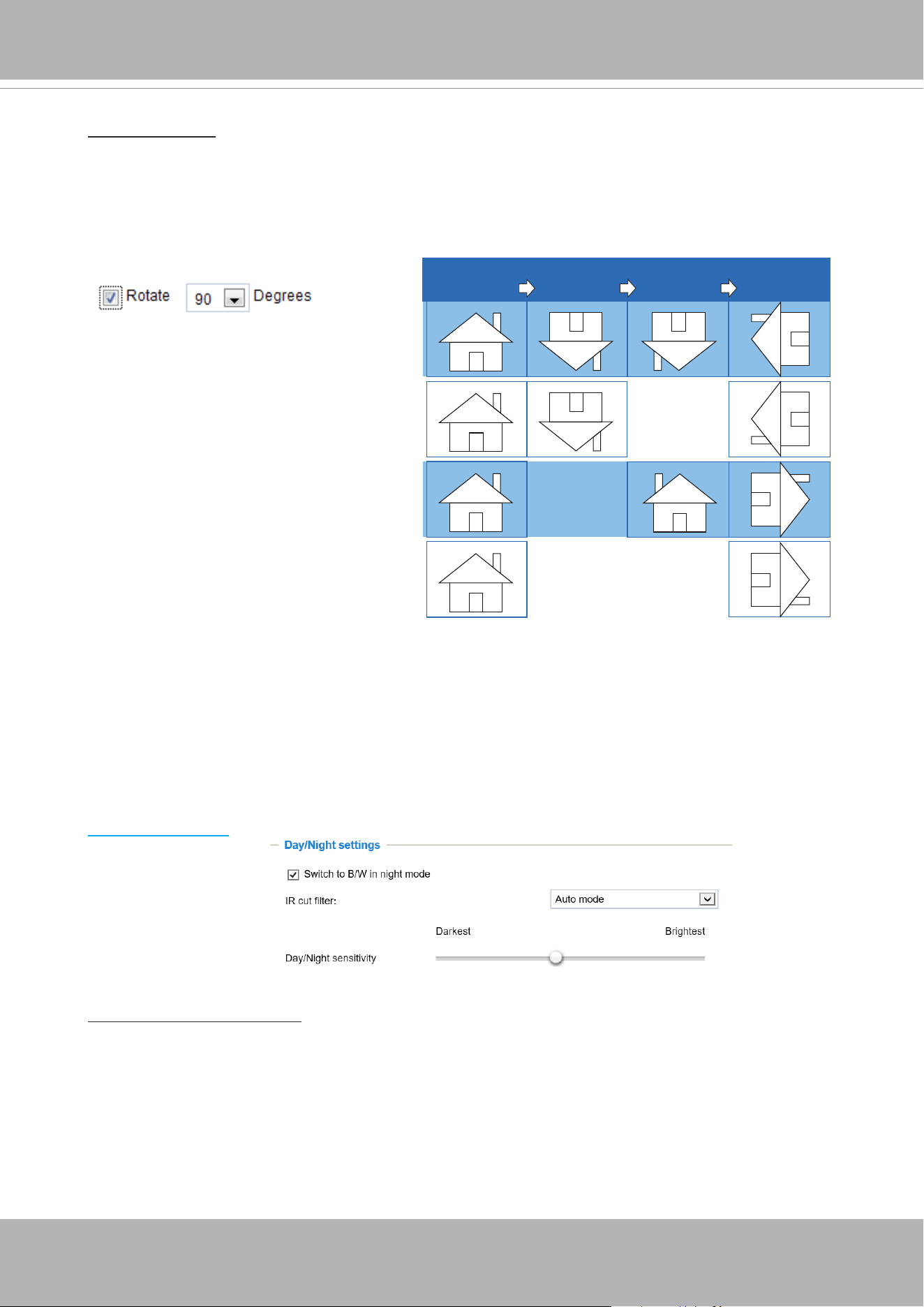
Rotate
-
MirrorNormal Flip Rotate 90°
clockwise
The camera may be installed on a vertical, side-facing, or tilted surface in order to accommodate
the interior or exterior design of a building. The interior of a building can be shaped as a narrow
rectangular space, such as a corridor. The conventional HD image, such as that of a 16:9 aspect
ratio, will be incongruous with its wide horizontal view. With video rotation, the camera can more
readily cover the eld of view on a tall and narrow scene.
The rotation here indicates clockwise
rotation. Rotation can be applied with
flip, mirror, and physical lens rotation
(see below) settings to adapt to different
mounting locations.
The gures in the illustration are shown in
a consecutive order.
Video orientation: Flip - vertically reect the display of the live video; Mirror - horizontally reect the
display of the live video. Select both options if the Network Camera is installed upside-down (e.g.,
on the ceiling) to correct the image orientation. Please note that if you have preset locations, those
locations will be cleared after ip/mirror setting.

VIVOTEK
72 - User's Manual
IR cut lter
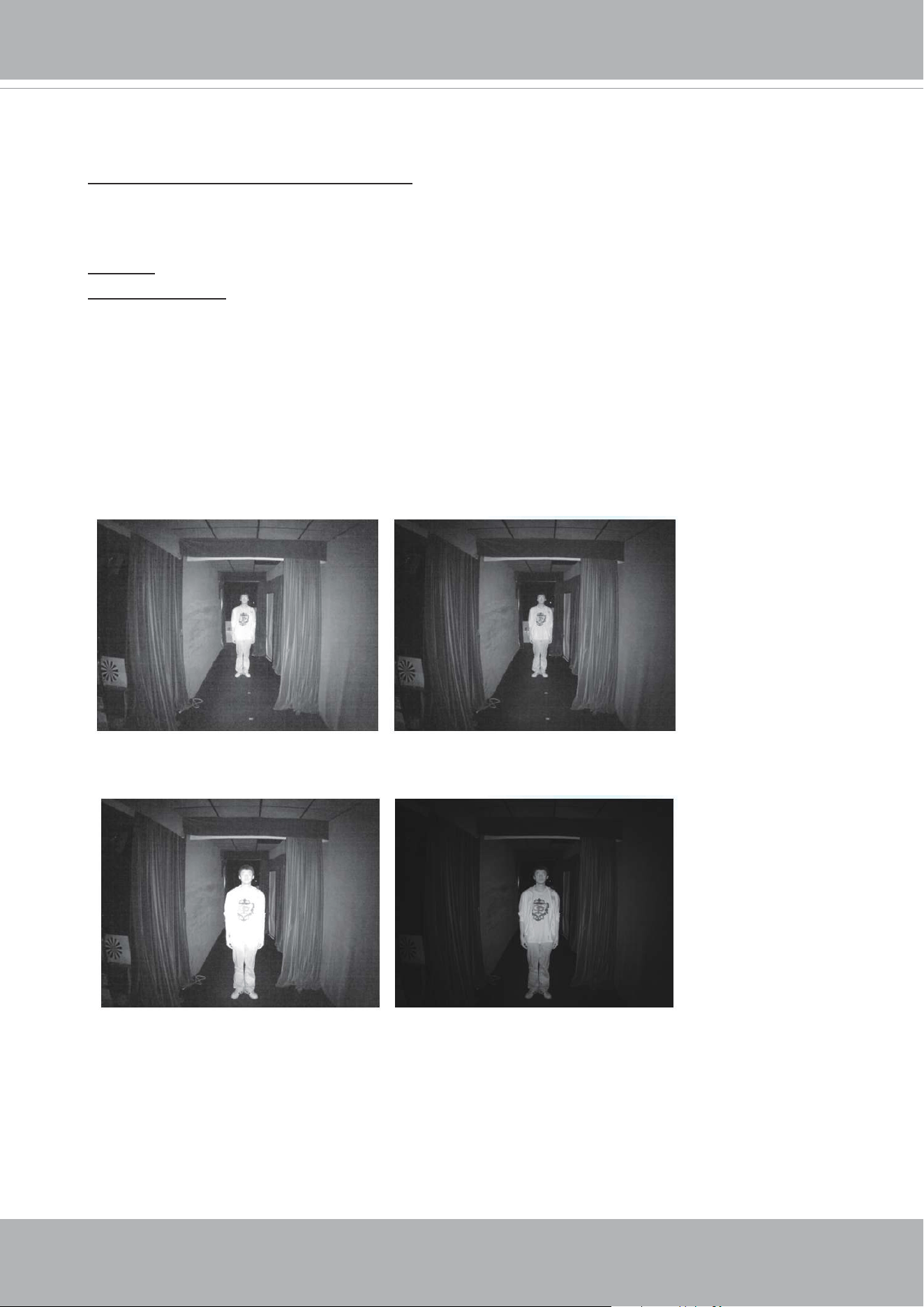
With a removable IR-cut filter, this Network Camera can automatically remove the filter to let
Infrared light pass into the sensor during low light conditions.
■ Auto mode (The
Day/Night Exposure Prole
will not be available if Auto mode is selected)
The Network Camera automatically removes the lter by judging the level of ambient light.
■ Day mode
In day mode, the Network Camera switches on the IR cut lter at all times to block infrared light
from reaching the sensor so that the colors will not be distorted.
■ Night mode
In night mode, the Network Camera switches o the IR cut lter at all times for the sensor to
accept infrared light, thus helping to improve low light sensitivity.
■ Synchronize with digital input
If an external IR device is connected that comes with its own light sensor, you can use a digital
input from it to trigger the IR cut filter. Doing so can synchronize the detection of light level
between the camera and the external IR device.
■ Schedule mode
The Network Camera switches between day mode and night mode based on a specified
schedule. Enter the start and end time for day mode. Note that the time format is [hh:mm] and is
expressed in 24-hour clock time. By default, the start and end time of day mode are set to 07:00
and 18:00.
Sensitivity of IR cut lter
Tune the responsiveness of the IR lter to lighting conditions as Low, Normal, or High.
When completed with the settings on this page, click
Save
to enable the settings.
VIVOTEK
User's Manual - 73
IlluminatorsI
Turn on built-in IR illuminator in night mode
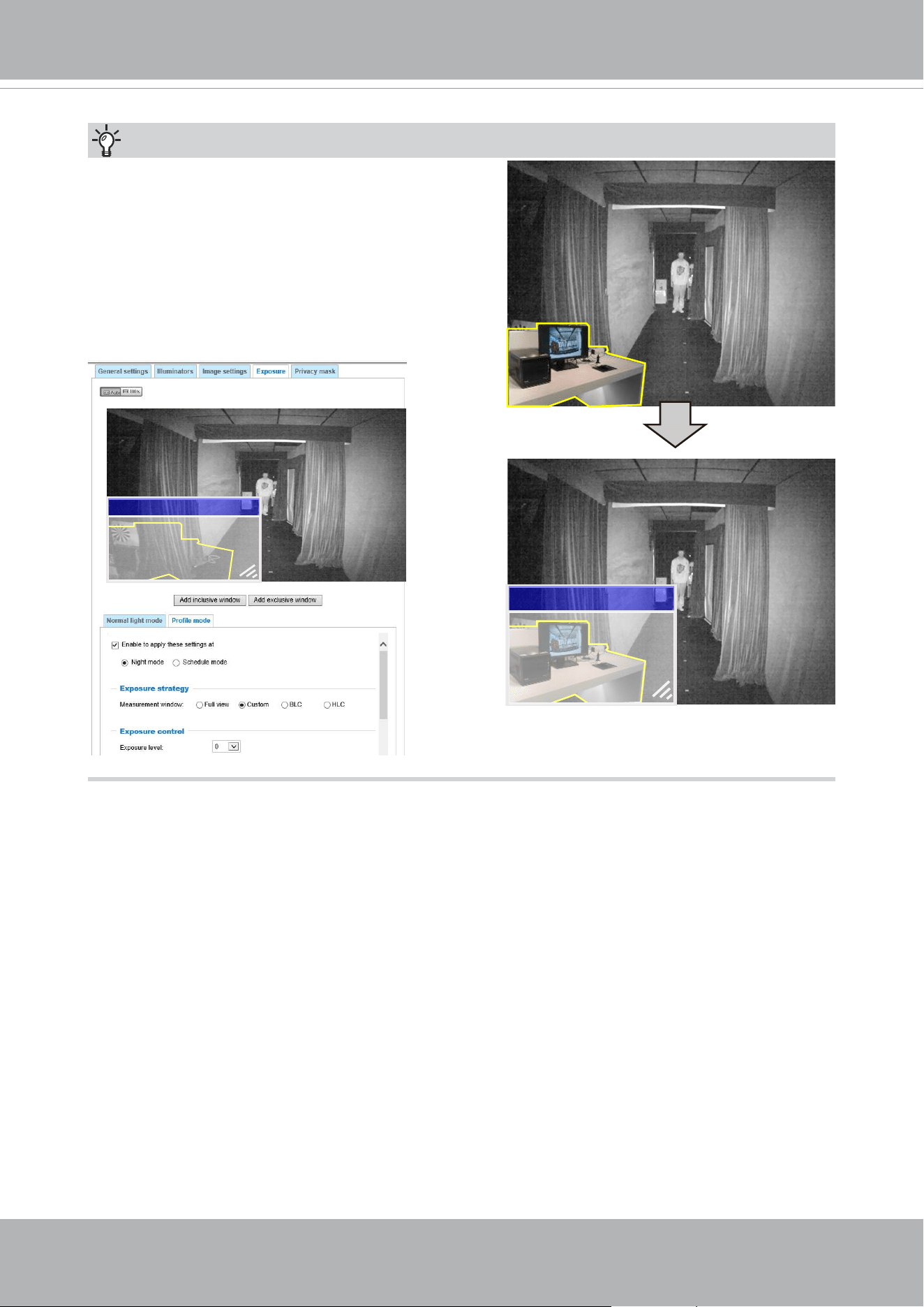
Select this to turn on the camera’s onboard IR illuminator when the camera detects low light
condition and enters the night mode.
Smart IR disabled; distance: 5M
Smart IR enabled; distance: 5M
Smart IR disabled; distance: 3M
Smart IR enabled; distance: 3M
The Smart IR function is more benecial when the spot of intrusions or an object of your interest
is close to the lens and the IR lights. For example, if an intruder has a chance of getting near the
range of 3 meters, Smart IR can eectively reduce the over-exposure. For a surveillance area at a
greater distance, e.g., 5 meters or farther away, the Smart IR function may not bring as signicant
benets as in close range.
Smart IR
Anti-overexposure: When enabled, the camera automatically adjusts the IR projection to adjacent
objects in order to avoid over-exposure in the night mode.
VIVOTEK
74 - User's Manual
Exclude x
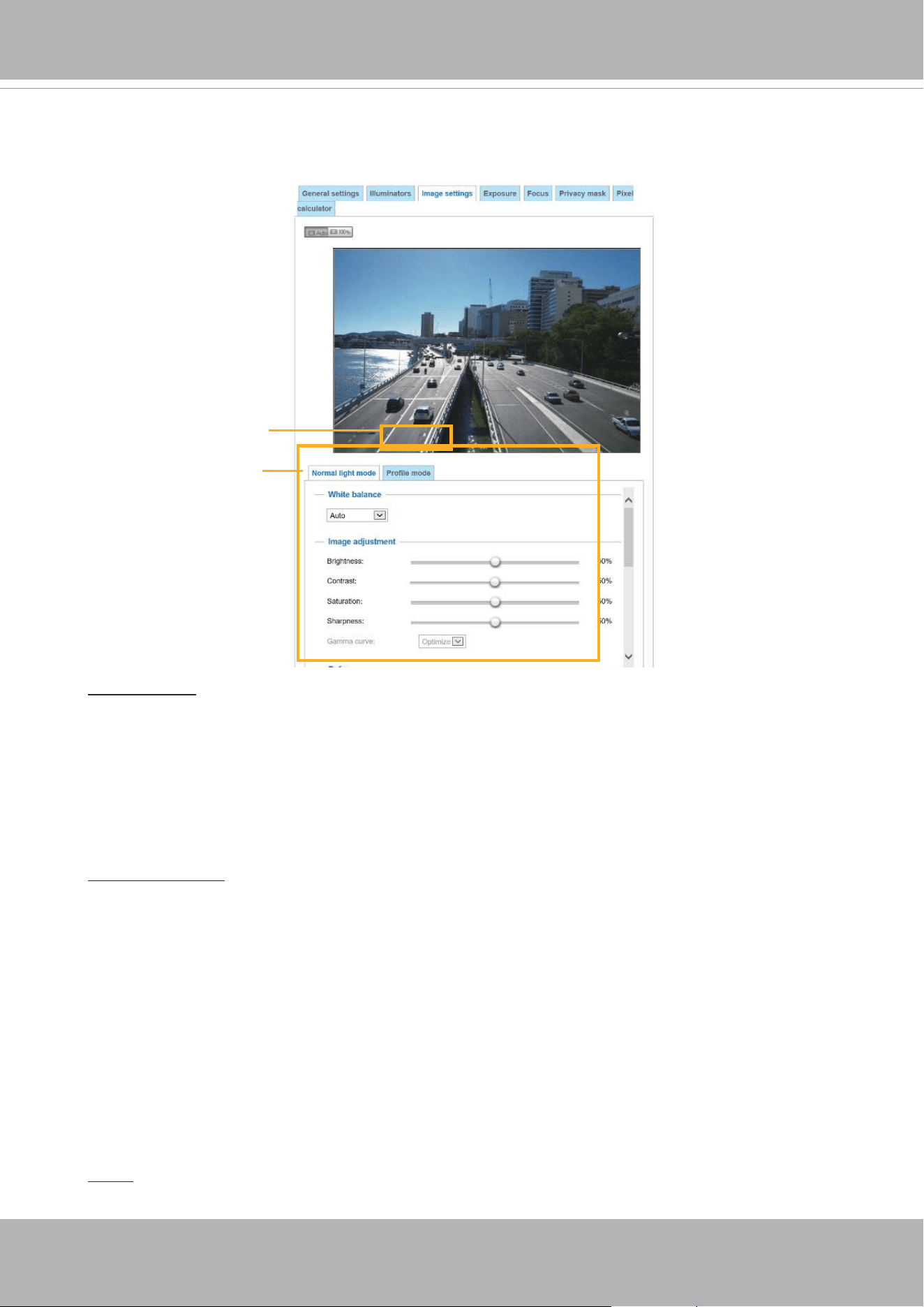
Tips:
If there is an object in close proximity, the IR lights
reflected back from it can mislead the Smart IR’s
calculation of light level. To solve this problem, you
can place an “Exposure Exclude” window on an
unavoidable object in the Exposure setting window.
See page 78 for how to do it.
You can also configure the “Exposure Exclude”
window in a night mode “Prole” setting so that your
day time setting is not aected.
x
Exclude
VIVOTEK
User's Manual - 75
Image settings
On this page, you can tune the White balance and Image adjustment.
White balance: Adjust the value for the best color temperature.
■ You may follow the steps below to adjust the white balance to the best color temperature.
1. Place a sheet of paper of white or cooler-color temperature color, such as blue, in front of the
lens, then allow the Network Camera to automatically adjust the color temperature.
2. Click the
On
button to
Fix current value
and conrm the setting while the white balance is being
measured.
■ You may also manually tune the color temperature by pulling the RGain and BGain slide bars.
Image Adjustment
■ Brightness: Adjust the image brightness level, which ranges from
0% to 100%
.
■ Contrast: Adjust the image contrast level, which ranges from 0% to 100%.
■ Saturation: Adjust the image saturation level, which ranges from 0% to 100%.
■ Sharpness:
Adjust the image sharpness level, which ranges from
0% to 100%
.
■ Gamma curve:
Adjust the image sharpness level, which ranges from 0.45 to
1, from Detailed to
Contrast
. You may let rmware
Optimize
your display or select the
Manual
mode, and pull the
slide bar pointer to change the preferred level of Gamma correction towards higher contrast or
towards the higher luminance for detailed expression for both dark and lighted areas of an image.
This option is disabled when the WDR feature is enabled.
Defog: Defog helps improve the visibility quality of captured image in poor weather conditions such
as smog, fog, or smoke.
Sensor Setting 2:
For special situations
Sensor Setting 1:
For normal situations

VIVOTEK
76 - User's Manual
Note that the
Preview
button has been cancelled, all changes made to image settings is directly
shown on screen. You can click
Restore
to recall the original settings without incorporating the
changes. When completed with the settings on this page, click
Save
to enable the setting. You
can also click on
Prole mode
to adjust all settings above in a tabbed window for special lighting
conditions.
Enable to apply these settings at:
Select the mode this prole to apply to: Day mode, Night mode,
or Schedule mode. Please manually enter a range of time if you choose the Schedule mode. Then
check
Save
to take eect.
Noise reduction
■ Enable noise reduction: Check to enable noise reduction in order to reduce noises and ickers
in image. This applies to the onboard 3D Noise Reduction feature. Use the slide bar to adjust
the reduction strength. Note that applying this function to the video channel will consume system
computing power.
3D Noise Reduction is mostly applied in low-light conditions. When enabled in a low-light
condition with fast moving objects, trails of after-images may occur. You may then select a lower
strength level or disable the function.
Highlight mask
■ Strong light sources will be masked from the scene, and the image contrast will be strengthened.
This function is useful to prevent the spot-light eects in a high dynamic scene.
False color may be observed around the edges of strong light sources.
Scene mode: deblur
■ When enabled, shutter time will be xed to 1/120 second to reduce image smear. This feature
is designed to apply with human movement at the pace of 1.4~2.2m/s. The deblur function
is related to Motion detection where motion-alerted pixels need to be suppressed in order to
increase the accuracy of motion detection. In certain conditions, shadows or light changes can
all cause false alarms in motion detection.
The deblur function uses the same detection window as that of the Motion detection.
Enable digital image stabilizer
If you experience problems such as vibration occurs when on a pole mount, try enable the image
stabilizer.
VIVOTEK
User's Manual - 77
Exposure
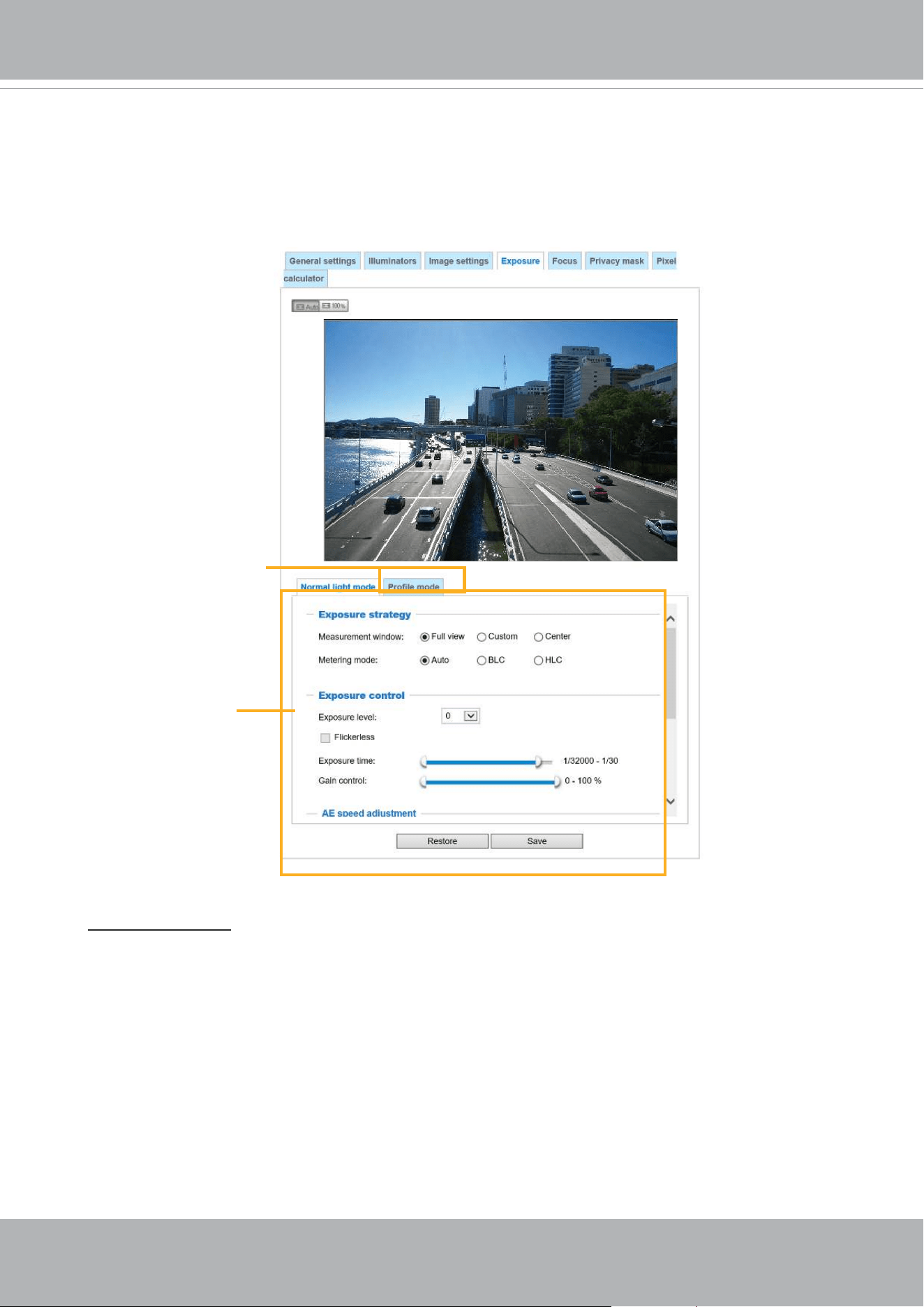
On this page, you can set the Exposure measurement window, Exposure level, Exposure mode,
Exposure time, Gain control, and Day/Night mode settings. You can congure two sets of Exposure
settings: one for normal situations, the other for special situations, such as the day/night/schedule
mode.
Exposure strategy:
Measurement window
: This function allows users to set measurement window(s) for low light
compensation. For example, where low-light objects are posed against an extremely bright
background. You may want to exclude the bright sunlight shining through a building's corridor.
■ Full view: Calculate the full range of view and oer appropriate
light compensation.
■ Custom: This option allows you to manually add customized windows as inclusive or exclusive
regions. A total of 10 windows can be configured. Please refer to the next page for detailed
illustration.
Sensor Setting 1:
For normal situations
Sensor Setting 2:
For special situations
■
Auto:
Firmware automatically determines an optimal exposure level.
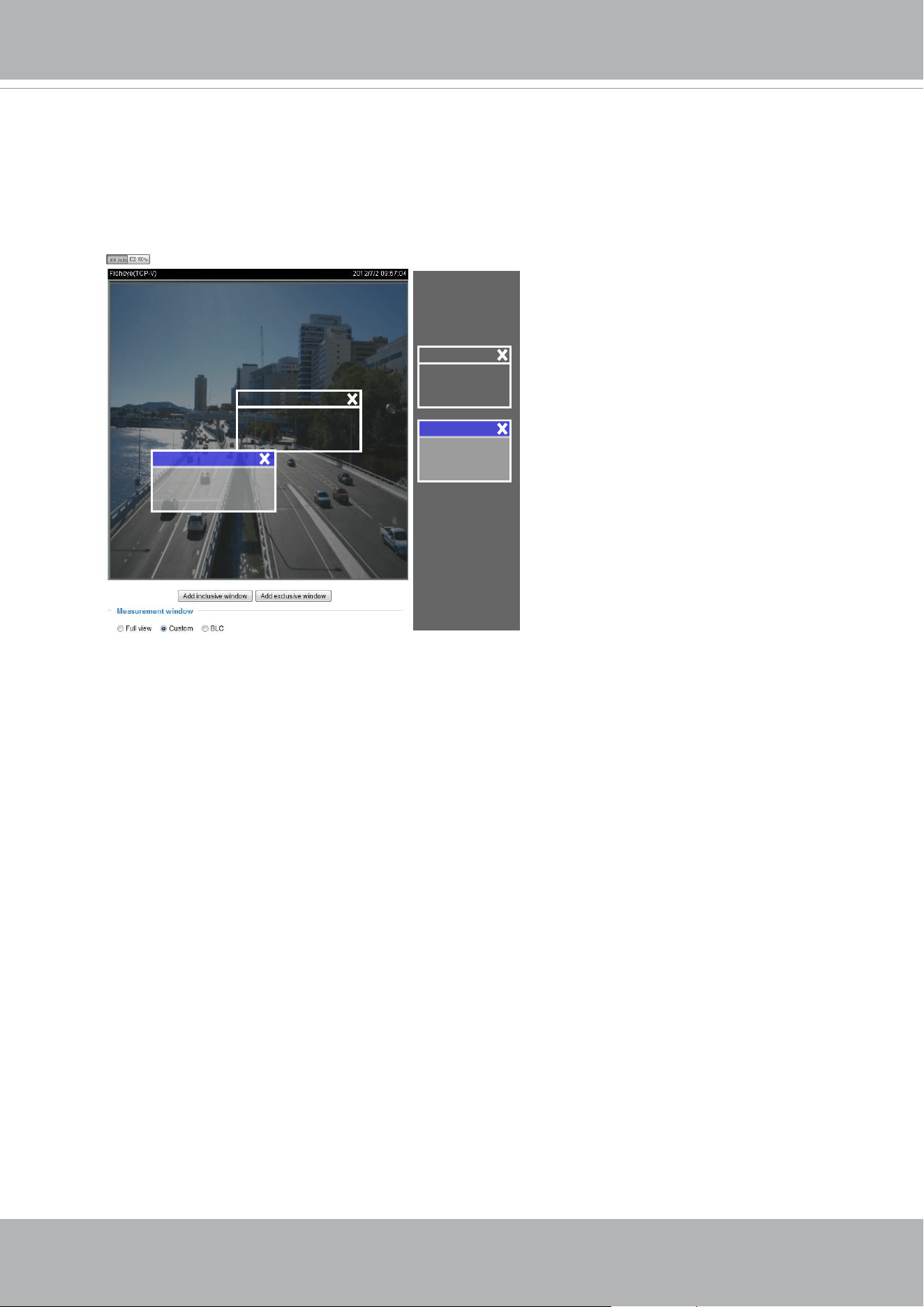
VIVOTEK
78 - User's Manual
The inclusive window refers to the “weighted window“; the exclusive window refers to “ignored
window“. It adopts the weighted averages method to calculate the value. The inclusive windows
have a higher priority. You can overlap these windows, and, if you place an exclusive window
within a larger inclusive window, the exclusive part of the overlapped windows will be deducted
from the inclusive window. An exposure value will then be calculated out of the remaining of the
inclusive window.
Include
Exclude
Weighted region
Ignored region
Include
Exclude
■ Center: Use the center portion of the screen to determine the exposure level.
■
HLC
: (Highlight Compensation). Firmware detects strong light sources and compensates on
affected spots to enhance the overall image quality. For example, the HLC helps reduce the
glares produced by spotlights or headlights.
■
BLC
(Back Light Compensation): This option will automatically add a “weighted region“ in the
middle of the window and give the necessary light compensation.
■
Auto
: Lets rmware automatically detect the exposure measurement.
Metering mode
:

VIVOTEK
User's Manual - 79
Enable WDR enhanced:
This function allows users to identify more image details with an extreme
contrast from an object of interest with one shadowed side against a bright background, e.g., an
entrance. You may select the
Enable WDR enhanced
checkbox, and then adjust the strength (low,
medium, high) to reach the best image quality.
■
AE Speed Adjustment
:
This function applies when you need to monitor fast changing lighting conditions. For example,
the camera may need to monitor a highway lane or entrance of a parking area at night where
cars passing by with their lights on can bring fast changes in light levels. The same applies if
the camera is installed on a vehicle, and when it needs to adapt to fast changes of light when
entering and leaving a tunnel.
Exposure control:
■
Exposure level
: You can manually set the Exposure level, which ranges from -2.0 to +2.0 (dark
to bright). You can click and drag the semi-circular pointers on the
Exposure time
and
Gain
control
slide bars to specify a range of shutter time and Gain control values within which the
camera can automatically tune to an optimal imaging result. You may prefer a shorter shutter
time to better capture moving objects, while a faster shutter reduces light and needs to be
compensated by electrical brightness gains.
■
Exposure mode:
(available when WDR is disabled)
You can click and drag the semi-circular pointers on the
Exposure time
and
Gain control
slide
bars to specify a range of shutter time and Gain control values within which the camera can
automaticallly tune to an optimal imaging result. You can also configure the iris size to control
the amount of light. For example, you may prefer a shorter shutter time to better capture moving
objects, while a faster shutter reduces light and needs to be compensated by electrical brightness
gains.
■
Flickerless:
Under some circumstances when there is a dierence between the video capture
frequency and local AC power frequency (NTSC or PAL), the mismatch causes color shifts or
ickering images. If the above mismatch occurs, select the
Flickerless
checkbox, and the range
of Exposure time (the shutter time) will be limited to a range in order to match the AC power
frequency. When selected, the exposure time will be forced to stay longer than 1/120 second.
For cameras that come with xed iris lens, setting the exposure time to longer than 1/120 second
may introduce too much lights to the lens. Users can use this option to observe whether the
result of long exposure time is satisfactory.
■
WDR Pro:
This refers to the Wide Dynamic Range function that enables the camera to capture details in
a high contrast environment. Use the checkbox to enable the function, and use the slide bar
to select the strength of the WDR Pro functionality, depending on the lighting condition at the
installation site. You can select a higher eect when the contrast is high (between the shaded
area and the light behind the objects).
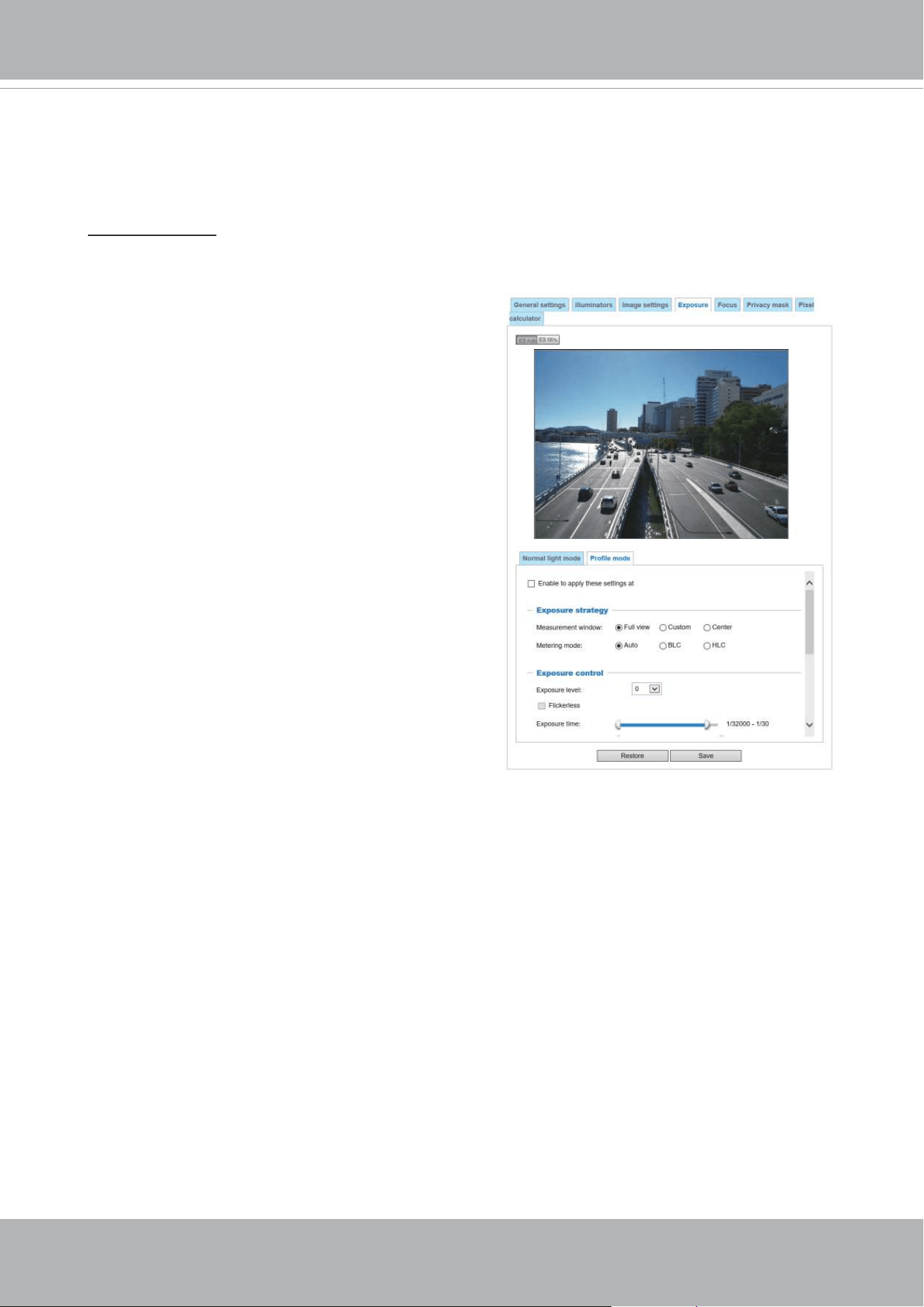
VIVOTEK
80 - User's Manual
Please follow the steps below to set up a prole:
1. Select the
Prole mode
tab.
2. Select the applicable mode: Night mode or
Schedule mode. Please manually enter a range of
time if you choose the Schedule mode.
3. Congure Exposure control settings in the folowing
columns. Please refer to previous dicussions for
detailed information.
4. Click
Save
to enable the setting and click
Close
to
exit the page.
You can click
Restore
to recall the original settings without incorporating the changes. When
completed with the settings on this page, click
Save
to enable the settings.
If you want to congure another sensor setting for day/night/schedule mode, please click
Prole
to
open the Prole of exposure settings page as shown below.
Activated period:
Select the mode this profile to apply to: Day mode, Night mode, or Schedule
mode. Please manually enter a range of time if you choose Schedule mode. Then check
Save
to
take eect.
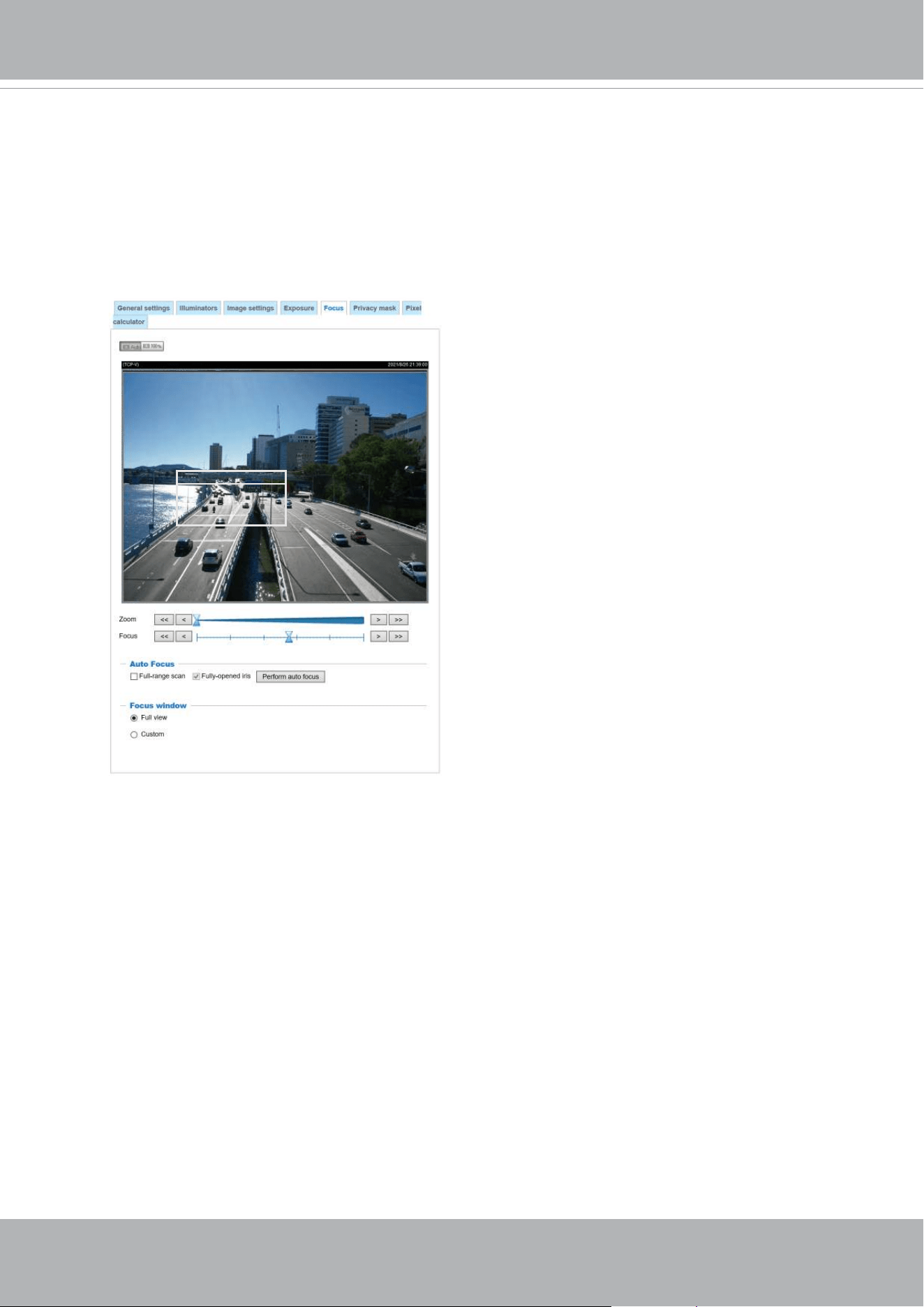
VIVOTEK
User's Manual - 81
Focus
Focus here refers to the
Remote Focus
, applicable to Network Cameras that are equipped
with a stepping motor lens. The automated focus adjustment function eliminates the needs
to physically adjust camera focus. In an outdoor deployment consisting of a large number
of cameras, the auto focus function can be very helpful when these cameras become out
of focus after days or weeks of operation. And that can easily result from the effects of
natural forces, e.g., shrink and expand due to a wide range of operating temperatures and
the vibration caused by wind.
Below is the procedure to perform the automated Focus function:
1. Select from the bottom of the screen whether you want to perform focus adjustment on
the
Full view
or within a
Custom
focus window. You can create a custom window and
click and drag the window to a desired position on screen.
2. It is recommended to
Reset
to the default back focus position of the sensor board.
3. You can use the
Fully-opened iris
checkbox (default) to increase the iris size for a
better focus adjustment result.
4. Click to select the
Fully-opened iris
or the
Full-range scan
buttons. When a full-range
scan is selected, a full-range scan through the camera's entire focal length can take
about 30 to 80 seconds. If not, the auto focus scan will only go through the length where
optimal focus may occur, and that takes about 15 to 20 seconds. In theory, best results
of the auto scan can be acquired when the camera's iris is fully open.
Focus window
x

VIVOTEK
82 - User's Manual
5. Wait for the scan to complete. After a short while, the clearest image obtained should be
displayed and the optimal focus range achieved. Use the arrow marks on the sides to ne-tune
the focus if you are not satised with the results.
You may still need to use the arrow marks to
ne-tune the focus depending on the live image on your screen. “>” means moving from wide to
tele end; and “<” tele to wide.
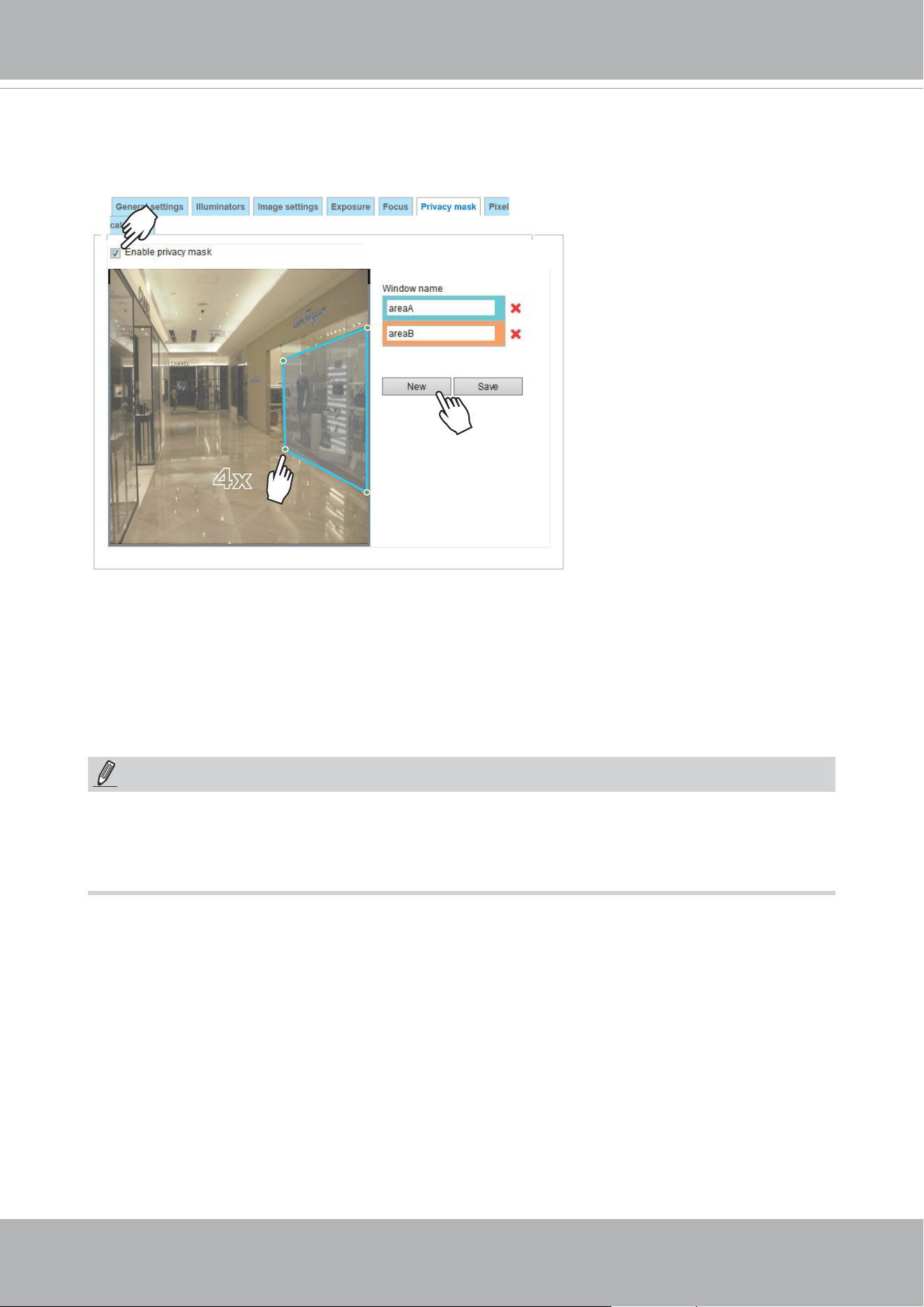
VIVOTEK
User's Manual - 83
Privacy mask
Click
Privacy Mask
to open the settings page. On this page, you can block out sensitive zones to
address privacy concerns.
4x
NOTE:
►
Up to 5 privacy mask windows can be congured on the same screen.
► If you want to delete the
privacy mask
window, please click the ‘x’ mark on the side of window
name.
■ To congure privacy mask windows,
1. Click
New
to add a new window.
2. You can use 4 mouse clicks to create a new masking window, which is recommended to be at
least twice the size of the object (height and width) you want to cover.
3. Enter a Window Name and click
Save
to enable the setting.
4. Click on the
Enable privacy mask
checkbox to enable this function.
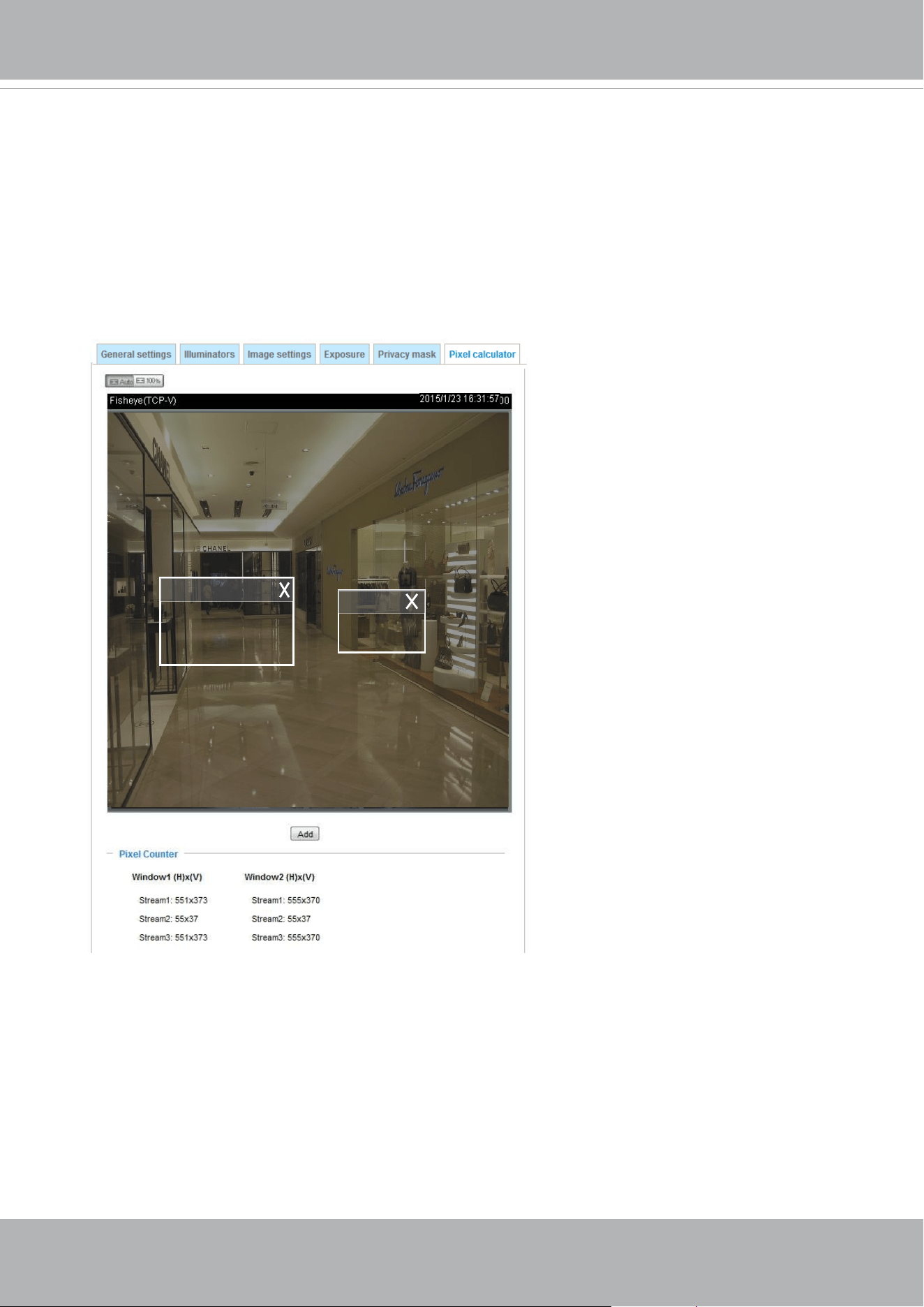
VIVOTEK
84 - User's Manual
Pixel Calculator
Click the
Add
button at the lower screen to create a pixel calculator window. Place your cursor on
the window to move it to an area of your interest, and change the size of window to t the area of
interest.
Once they are drawn, the numbers of pixels on the sides of windows will appear. This allows you to
calculate if your current conguration fullls a requirement, for instance, for recognizing the faces
of persons passing through a location. A facial recognition usually requires around 130 pixels per
meter or higher.
Pixel Calculator
1
2
The pixels thus calculated are listed
at the lower screen on a per-stream
basis depending on the frame size you
congured for each video stream.
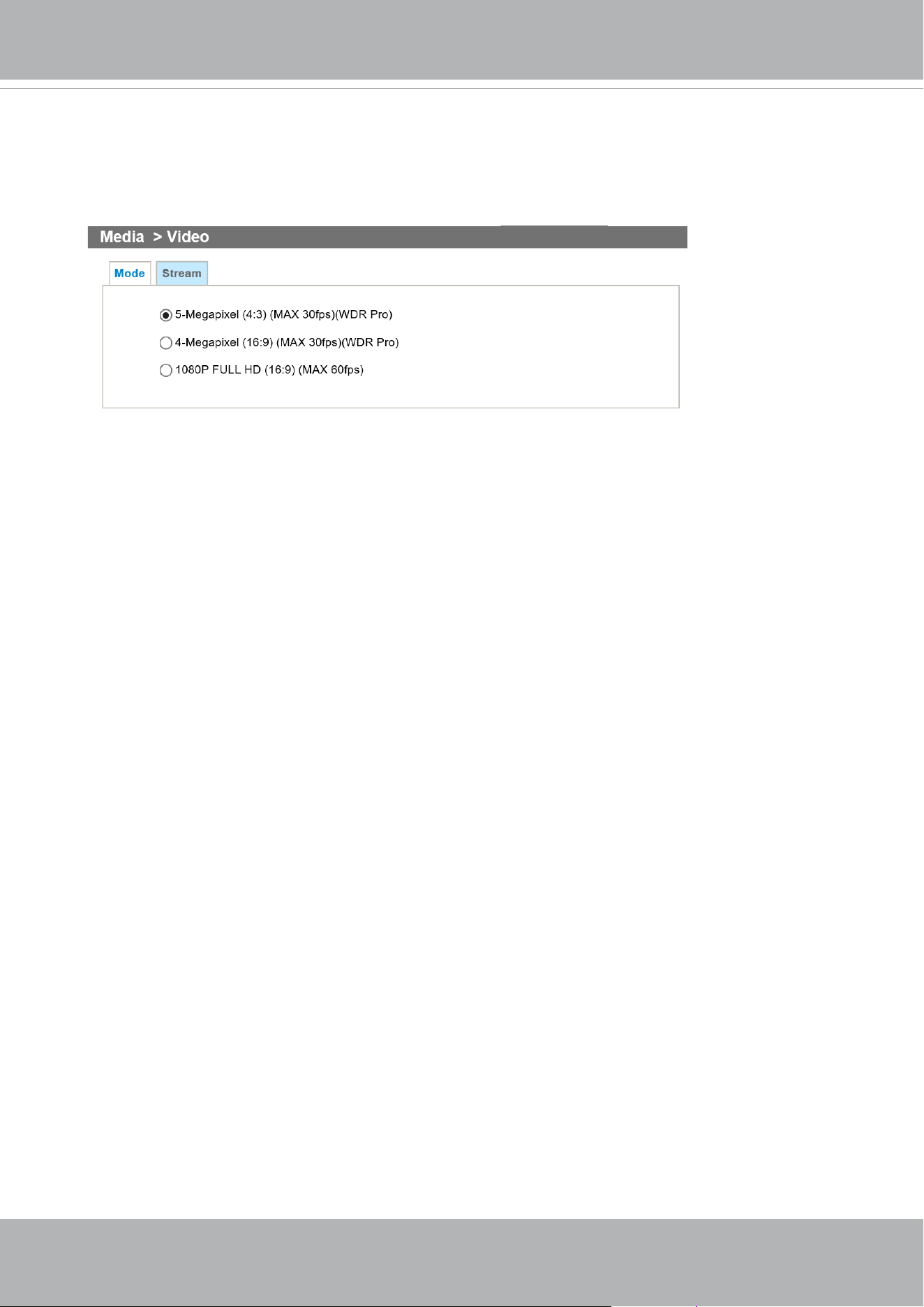
VIVOTEK
User's Manual - 85
Media > Video
Mode
The applicable video modes include:
■ 5-Megapixel (4:3)(MAX 30fps) (WDR Pro): This is the full resolution at 5 megapixels in a 4:3
screen aspect ratio, with the WDR function enabled.
■ 4-Megapixel (16:9)(MAX 30fps) (WDR Pro): This is the full resolution at 4 megapixels in a 16:9
screen aspect ratio, with the WDR function enabled.
■ 1080P FULL HD (16:9) (MAX 60fps): At the 16:9 aspect ratio, the highest frame rate can reach
60fps, without the WDR function.
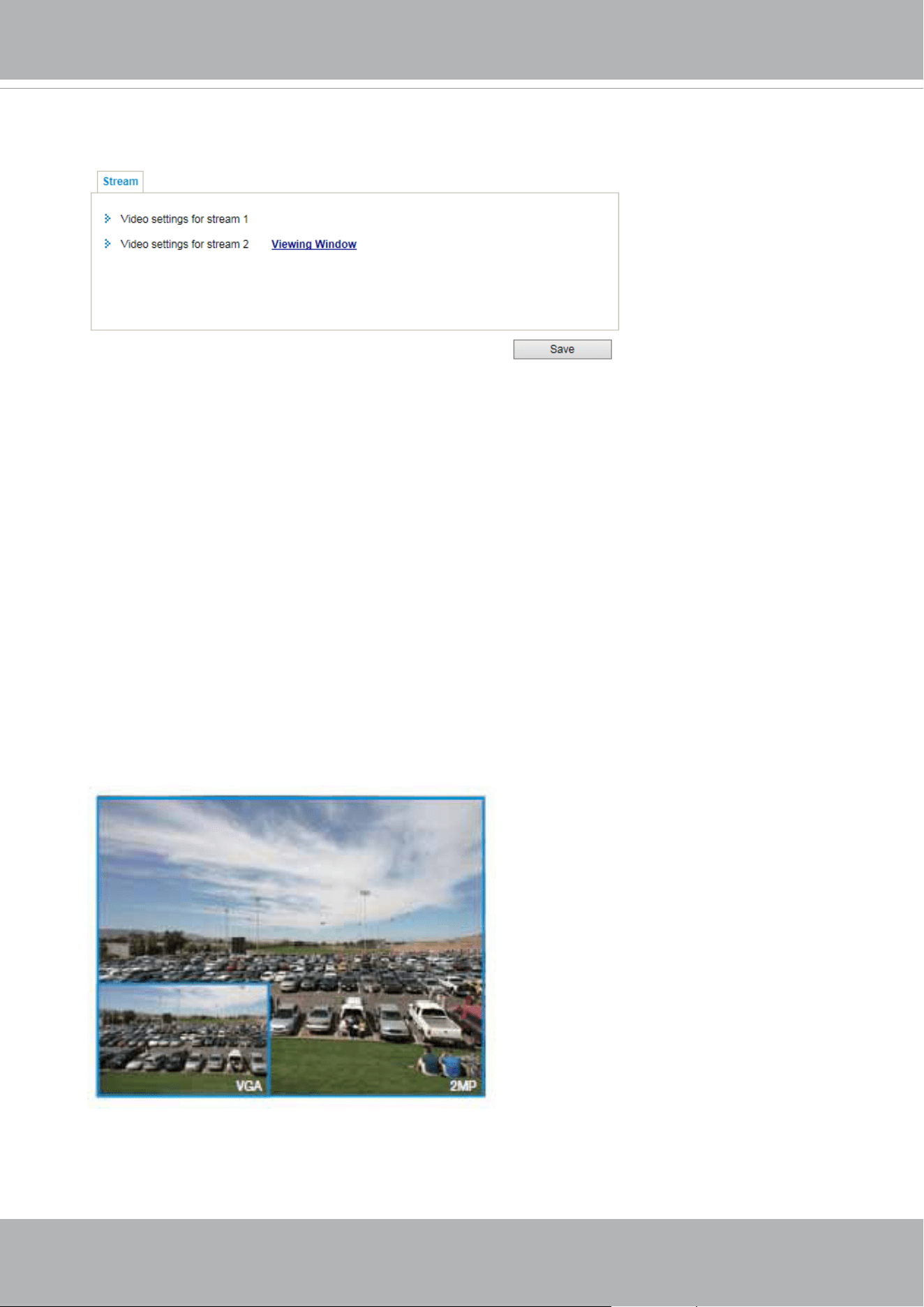
VIVOTEK
86 - User's Manual
Stream settings
This Network Camera supports multiple streams with frame sizes ranging from 480 x 272 to 2560 x
1920 pixels
The denition of multiple streams:
■ Stream 1: Users can dene the "Region of Interest" (viewing region) and the "Output Frame Size"
(size of the live view window).
■ Stream 2: The default frame size for Stream 2 is set to the 1600 x 1200.
Click
Viewing Window
to open the viewing region settings page. On this page, you can congure
the
Region of Interest
and the
Output Frame Size
for a video stream. For example, you can crop
only a portion of the image that is of your interest, and thus save the bandwidth needed to transmit
the video stream. As the picture shown below, the area of your interest in a parking lot should be
the vehicles. The blue sky is of little value for the surveillance purpose.
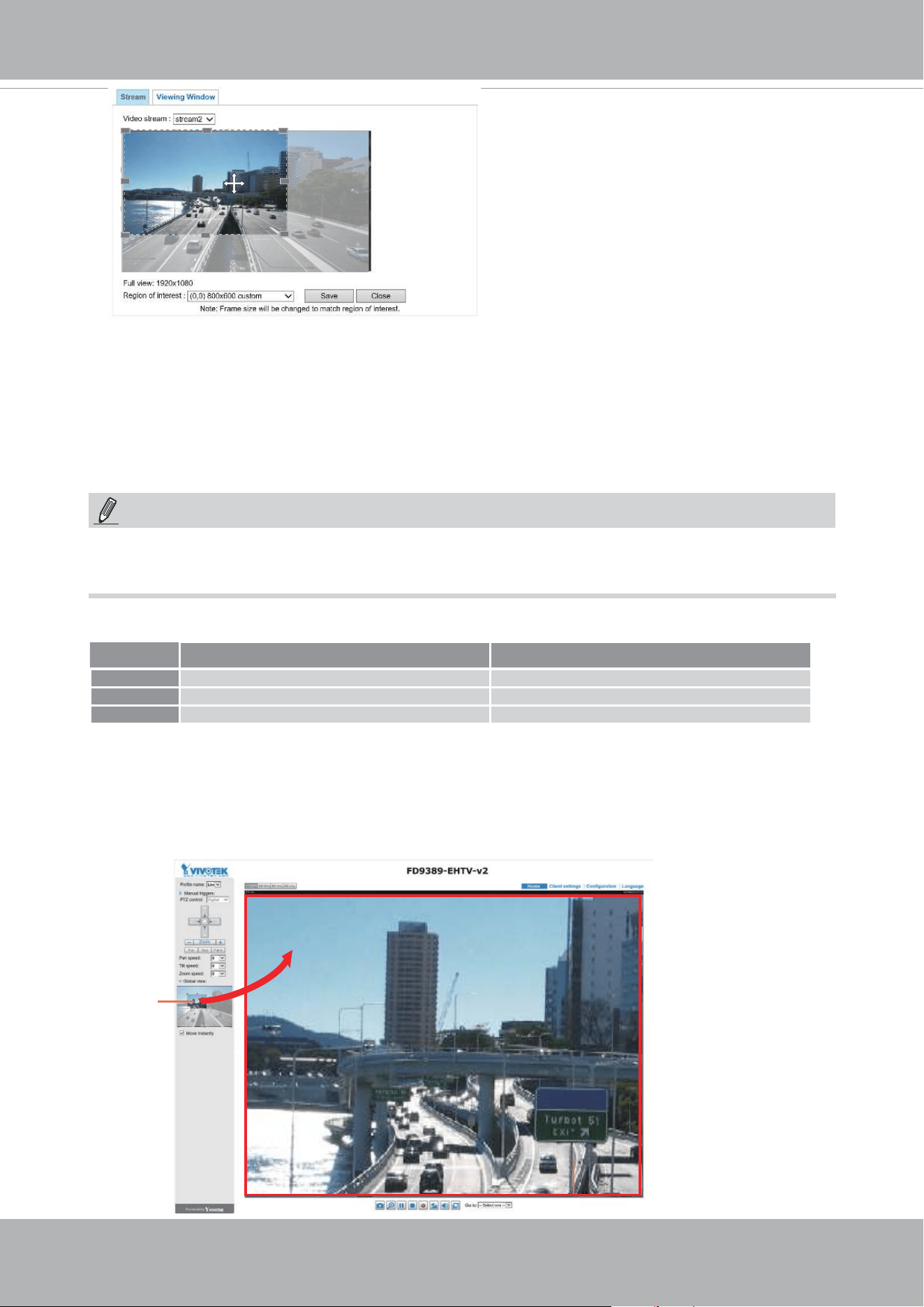
VIVOTEK
User's Manual - 87
Media > Video
► All the items in the “Region of Interest” should not be larger than the “Output Frame Size“
(current maximum resolution).
■ The parameters of the multiple streams:
X2.1
Region of Interest
(Viewing Region)
Output Frame Size
(Size of the Live View Window)
Region of Interest Output frame size
Stream 1 2560 x 1920 ~ 640 x 480 (Fixed) 2560 x 1920 ~ 640 x 480 (Fixed)
Stream 2 2560 x 1920 ~ 640 x 480 (Fixed)) 2560 x 1920 ~ 640 x 480 (Fixed)
Stream 3 1280 x 960 ~ 640 x 480 (Selectable) 1280 x 960 ~ 640 x 480 (Selectable)
NOTE:
Please follow the steps below to set up those settings for a stream:
1. Select a stream for which you want to set up the viewing region.
2. Select a
Region of Interest
from the drop-down list. The oating frame, the same as the one
in the Gloabl View window on the home page, will resize accordingly. If you want to set up
a customized viewing region,
you can also resize and drag the floating frame to a desired
position with your mouse.
3. Choose a proper
Output Frame Size
from the drop-down list according to the size of your
monitoring device.
When completed with the settings in the Viewing Window, click
Save
to enable the settings and
click
Close
to exit the window. The selected
Output Frame Size
will immediately be applied to
the
Frame size
of each video stream. Then you can go back to the home page to test the e-PTZ
function. For more information about the e-PTZ function, please refer to page 132.
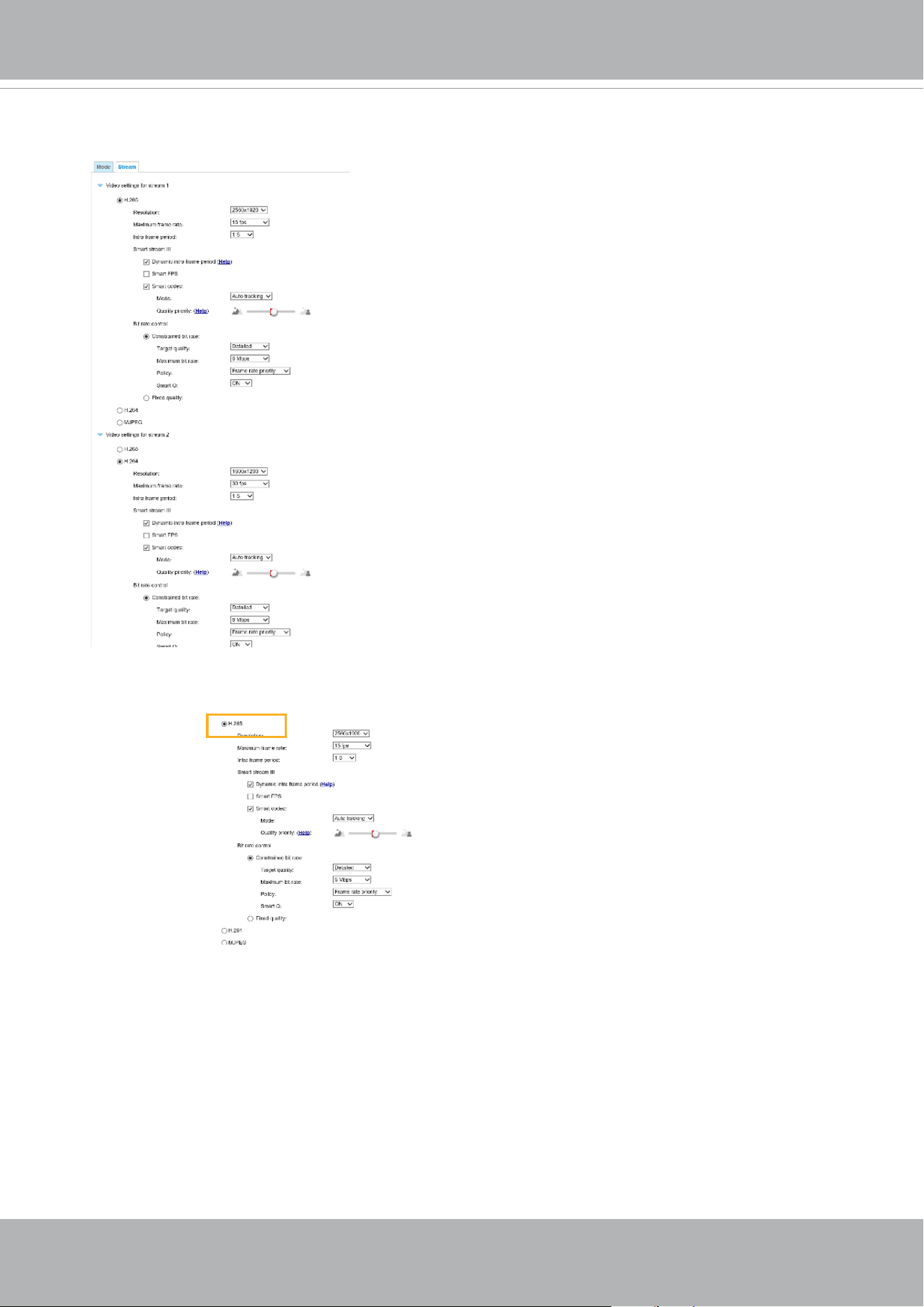
VIVOTEK
88 - User's Manual
Click the stream item to display the detailed information. The maximum frame size will follow your
settings in the above Viewing Window sections.
This Network Camera provides real-time H.265, H.264 and MJPEG compression standards (Triple
Codec) for real-time viewing. If the
H.265
or
H.264
mode is selected, the video is streamed via
RTSP protocol. There are several parameters through which you can adjust the video performance:
■ Frame size
You can set up dierent video resolutions for dierent viewing devices. For example, you can
congure a smaller frame size and lower bit rate for remote viewing on mobile phones and a
larger video size and a higher bit rate for live viewing on web browsers, or recording the stream
to an NVR. Note that a larger frame size takes up more bandwidth.
■ Maximum frame rate
This limits the maximum refresh frame rate per second. Set the frame rate higher for smoother
video quality and for recognizing moving objects in the eld of view.
If the power line frequency is set to 50Hz , the frame rates are selectable at 1fps, 2fps, 3fps,
5fps, 8fps, 10fps, 12fps, 15fps, and up to 25fps. If the power line frequency is set to 60Hz, the
frame rates are selectable at 1fps, 2fps, 3fps, 5fps, 8fps, 10fps, 12fps, 15fps, and up to 30fps.
You can also select
Customize
and manually enter a value. The IB9365 supports a frame rate of
up to 60fps.
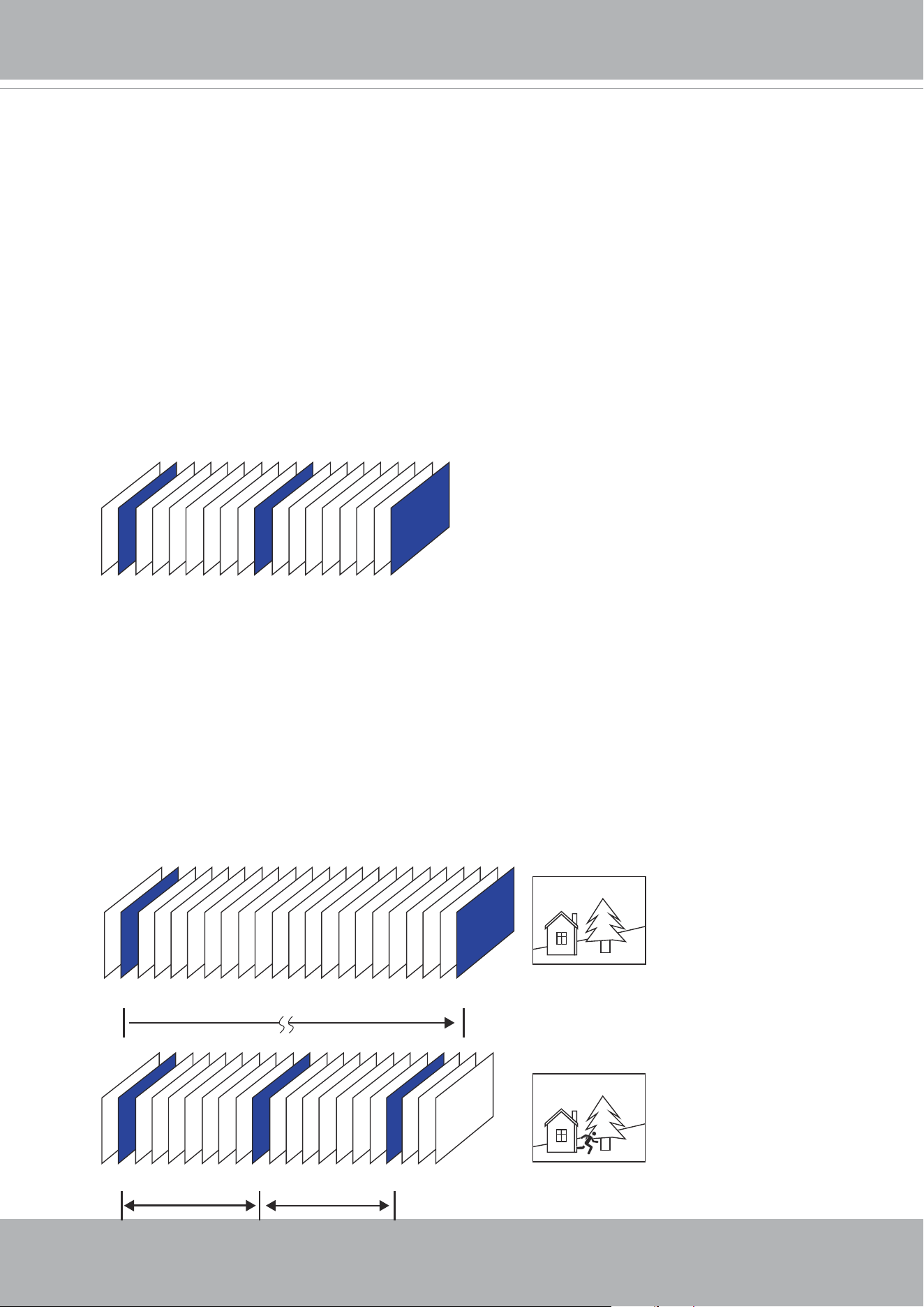
VIVOTEK
User's Manual - 89
The frame rate will decrease if you select a higher resolution.
■ Intra frame period
Determine how often for rmware to plant an I frame. The shorter the duration, the more likely
you will get better video quality, but at the cost of higher network bandwidth consumption. Select
the intra frame period from the following durations: 1/4 second, 1/2 second, 1 second, 2 seconds,
3 seconds, and 4 seconds.
■ Dynamic Intra frame period
High quality motion codecs, such as H.265, utilize the redundancies between video frames to
deliver video streams at a balance of quality and bit rate.
The encoding parameters are summarized and illustrated below. The
I-frames
are completely
self-referential and they are largest in size. The
P-frames
are predicted frames. The encoder
refers to the previous I- or P-frames for redundant image information.
P I P P P P P P P P P P P P P P P P P P P I
P I P P P P P P P I P P P P P P P I
Static scene
Activities
P P P
P I P P P P P P P I P P P P P P P I
By dynamically prolonging the intervals for I-frames insertion to up to 10 seconds, the bit rates
required for streaming a video can be tremendously reduced. When streaming a video of a
static scene, the Dynamic Intra frame feature can save up to 53% of bandwidth. The amount of
bandwidth thus saved is also determined by the activities in the eld of view. If activities occur
in the scene, rmware automatically shortens the I-frame insertion intervals in order to maintain
image quality. In the low light or night conditions, the sizes of P-frames tend to be enlarged due
to the noises, and hence the bandwidth saving eect is also reduced.
Streaming a typical 2MP scene normally requires 3~4Mb/s of bandwidth. With the Dynamic Intra
frame function, the bandwidth for streaming a medium-trac scene can be reduced to 2~3Mb/s,
and during the no-trac period of time, down to 500kb/s.
H.264/265 Frame Types
Dynamic Intra Frame w/
static scenes
Dynamic Intra Frame w/
activities in scenes
■
Smart stream III
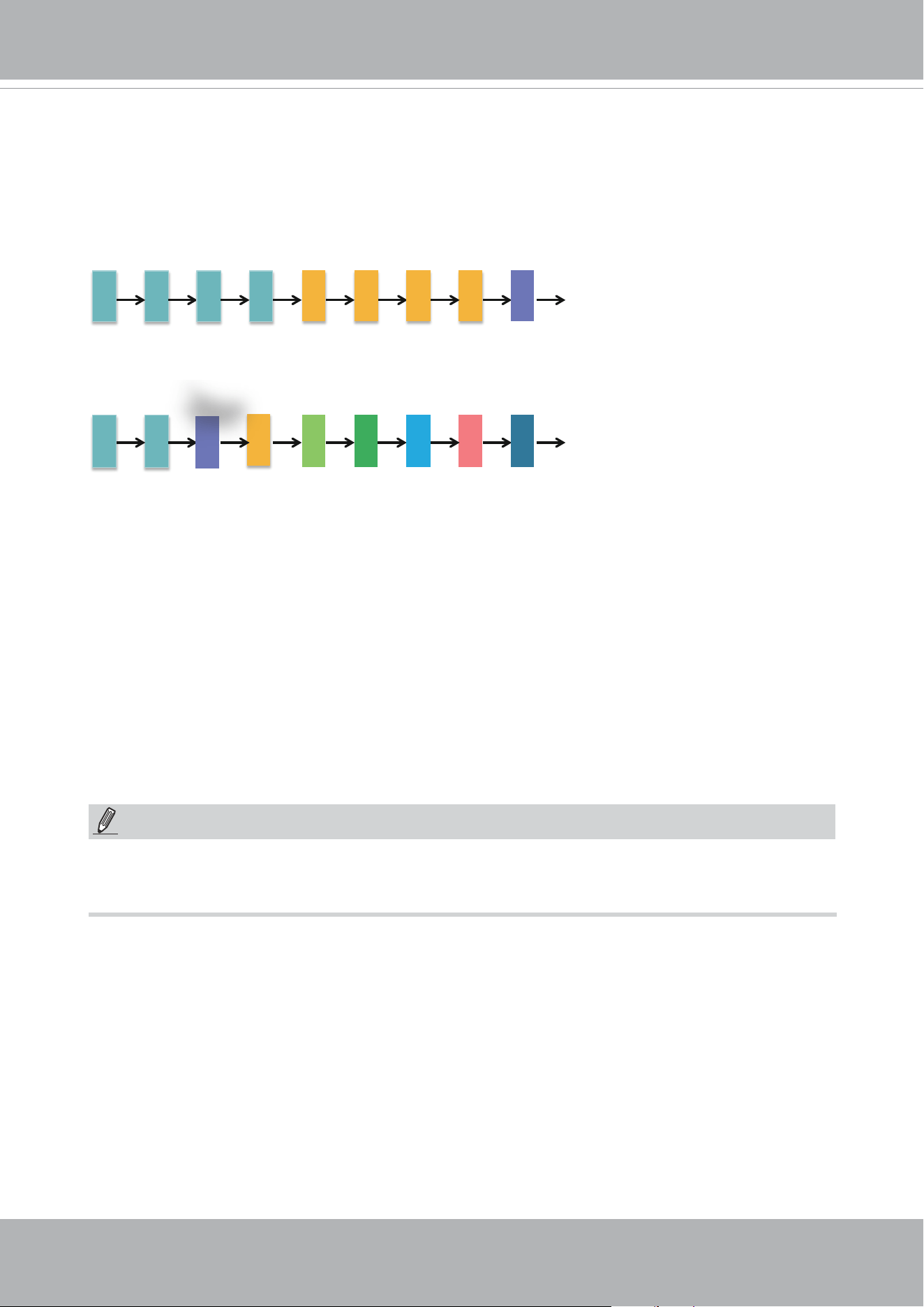
VIVOTEK
90 - User's Manual
With the H.265 codec in an optimal scenario and when Dynamic Intra frame is combined with
the Smart Stream function, an 80% of bandwidth saving can be achieved compared with using
H.264 without enabling these bandwidth-saving features.
f1 f1 f1
f1
f5 f5 f5 f5 f9
f1 f1
f3
f4 f5 f6 f7 f8 f9
Motions Occur.
Comparing with Smart Stream II, Smart Stream III has two more congurable options: Smart Q,
and Smart FPS.
NOTE:
By queuing the old frames from a static scene, both the computing efforts and the size of P
frames are reduced. It is benecial for keeping up with the frame rate requirements.
A default frame dierence threshold, 1%, is embedded in rmware for returning from Smart FPS
to normal encoding when motions occur.
■ Smart FPS
In a static scene, the algorithm puts old frames in queue when no motions occur in scene. When
motions occur, the encoding returns to normal to deliver real-time streaming.
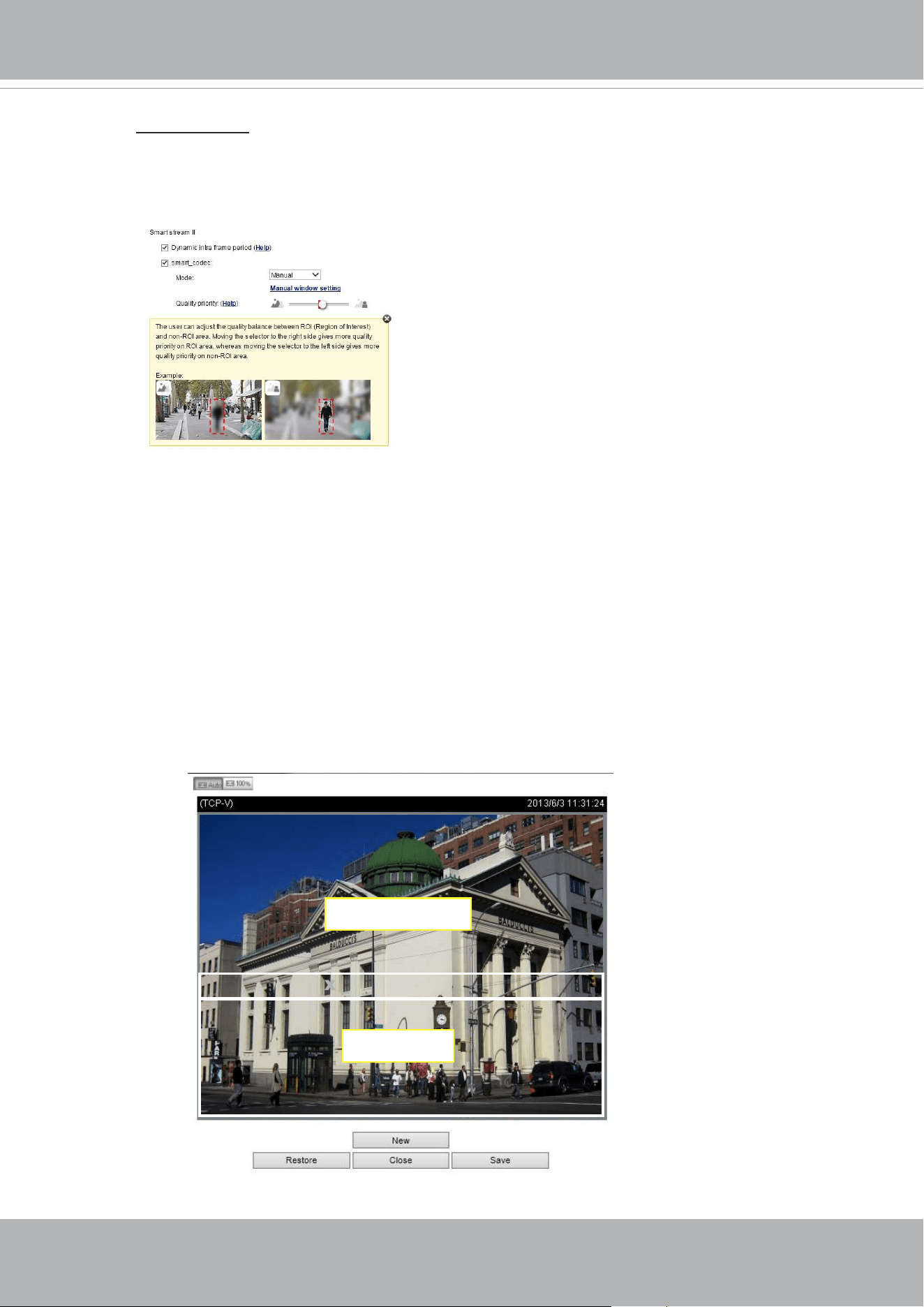
VIVOTEK
User's Manual - 91
• Smart codec: Smart codec eectively reduces the quality of the whole or the non-
interested areas on a screen and therefore reduces the bandwidth consumed.
You can manually specify the video quality for the foreground and the background
areas.
Select an operation mode if Smart codec is preferred.
-
Auto tracking
: The Auto mode congures the whole screen into the non-interested
area. The video quality of part of the screen returns to normal when one or
more objects move in that area. The remainder of the screen where there are
no moving objects (no pixel changes) will still be transmitted in low-quality
format.
-
Manual
: The Manual mode allows you to configure 3 ROI windows (Region of
Interest, with Foreground quality) on the screen. Areas not included in any
ROI windows will be considered as the non-interested areas. The details in
the ROI areas will be transmitted in a higher-quality video format.
As illustrated below, the upper screen may contain little details of your
interest, while the sidewalk on the lower screen is included in an ROI
window.
XROI_0 XROI_0
ROI
non-interested
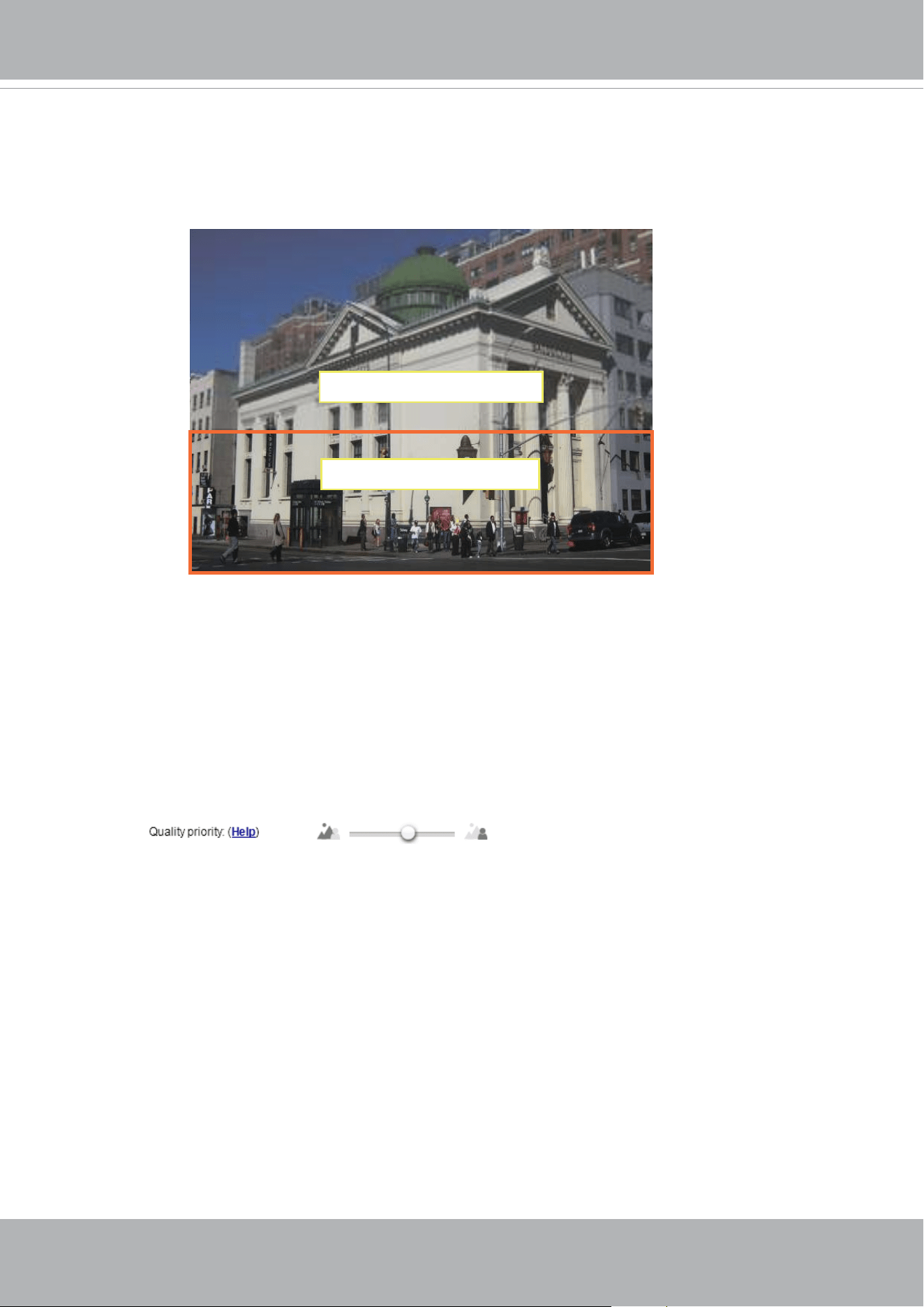
VIVOTEK
92 - User's Manual
ROI: higher-quality
non-ROI: lower-quality
As the result, the lower screen is constantly displayed in high details, while the
upper half is transmitted using a lower-quality format. Although the upper half is
transmitted using a lower quality format, you still have an awareness of what is
happening on the whole screen.
-
Hybrid
: The major dierence between the “Manual” mode and the “Hybrid” mode
is that:
In the “
Hybrid
“ mode, any objects entering the non-interested area will
restore the video quality of the moving objects and the area around them.
The video quality of the associated non-interested area is immediately
restored to normal to cover the moving objects.
In the “
Manual
” mode, the non-interested area is always transmitted using
a low-quality format regardless of the activities occurring inside.
You should also select the Maximum bit rate from the pull-down menu as the
threshold to contain the bandwidth consumption for both the high- and low-quality
video sections in a smart stream.
-
Quality priority
: Use the slide bar to tune the quality contrast between the ROI
and non-interested areas.
The farther the slide bar button is to the right, the higher the image quality
of the ROI areas. On the contrary, the farther the slide bar button to the left,
the higher the image quality of the non-interested area.
In this way, you may set up an ROI window as a privacy mask by covering a
protected area using an ROI window, while the rest of the screen becomes
the non-interested area. You may then congure the non-interested area to
have a high image quality, or vice versa.

VIVOTEK
User's Manual - 93
■
Bit rate control
Constrained bit rate:
A complex scene generally produces a larger le size, meaning that higher bandwidth
will be needed for data transmission. The bandwidth utilization is configurable to
match a selected level, resulting in mutable video quality performance. The bit rates
are selectable at the following rates: 20Kbps, 30Kbps, 40Kbps, 50Kbps, 64Kbps,
128Kbps, 256Kbps, 512Kbps, 768Kbps, 1Mbps, 2Mbps, 3Mbps, 4Mbps, 6Mbps,
8Mbps, 10Mbps, 12Mbps, 14Mbps, ~ to 80Mbps. You can also select
Customize
and manually enter a value up to 80Mbps.
• - Target quality: Select a desired quality ranging from Medium to Excellent.
- Maximum bit rate: select a bit rate from the pull-down menu. The bit rate ranges
from 20kbps to a maximum of 80Mbps. The bit rate then becomes the Average or
Upper bound bit rate number. The Network Camera will strive to deliver video streams
around or within the bit rate limitation you impose.
- Policy: If Frame Rate Priority is selected, the Network Camera will try to maintain
the frame rate per second performance, while the image quality will be compromised.
If Image quality priority is selected, the Network Camera may drop some video
frames in order to maintain image quality.
Smart Q: Select ON or OFF to enable or disable the feature. Smart Q is scene-aware.
The Smart Q reduces frame size and bit rate consumption through the following:
■
Dynamically adjusting the image quality for scenes in dierent luminosities in low
light frames. Less noises means less of the bandwidth consumed.
■
Endorsing dierent qualities for the I frames and P frames, and hence reduces
the frame size.
■ Dividing a single frame into dierent sections, and giving these sections dierent
qualities. For a highly complex area, such as an area with dense vegetation,
screen windows, or repeated patterns (complex textiles patterns like wall paper),
having a lower quality value actually poses little eects on human eyes.
Unnecessary quality is unrecognized by human eyes and wastes the bit rate.
The Smart Q streaming can save up to 50% to 80% of bandwidth in different
illumination conditions while keeping the same imaging quality. These numbers come
from the comparison between Smart Stream II and Smart Stream III streamings.

VIVOTEK
94 - User's Manual
Maximum bit rate: With the guaranteed image quality, you might still want to place
a bit rate limitation to control the size of video streams for bandwidth and storage
concerns. The congurable bit rate starts from 1Mbps to 80Mbps.
The Maximum bit rate setting in the Fixed quality configuration can ensure a
reasonable and limited use of network bandwidth. For example, in low light conditions
where a Fixed quality setting is applied, video packet sizes can tremendously
increase when noises are produced with electrical gains.
You may also manually enter a bit rate number by selecting the
Customized
option.
Fixed quality:
On the other hand, if
Fixed quality
is selected, all frames are transmitted with the
same quality; bandwidth utilization is therefore unpredictable. The video quality
can be adjusted to the following settings: Medium, Standard, Good, Detailed, and
Excellent. You can also select
Customize
and manually enter a value.
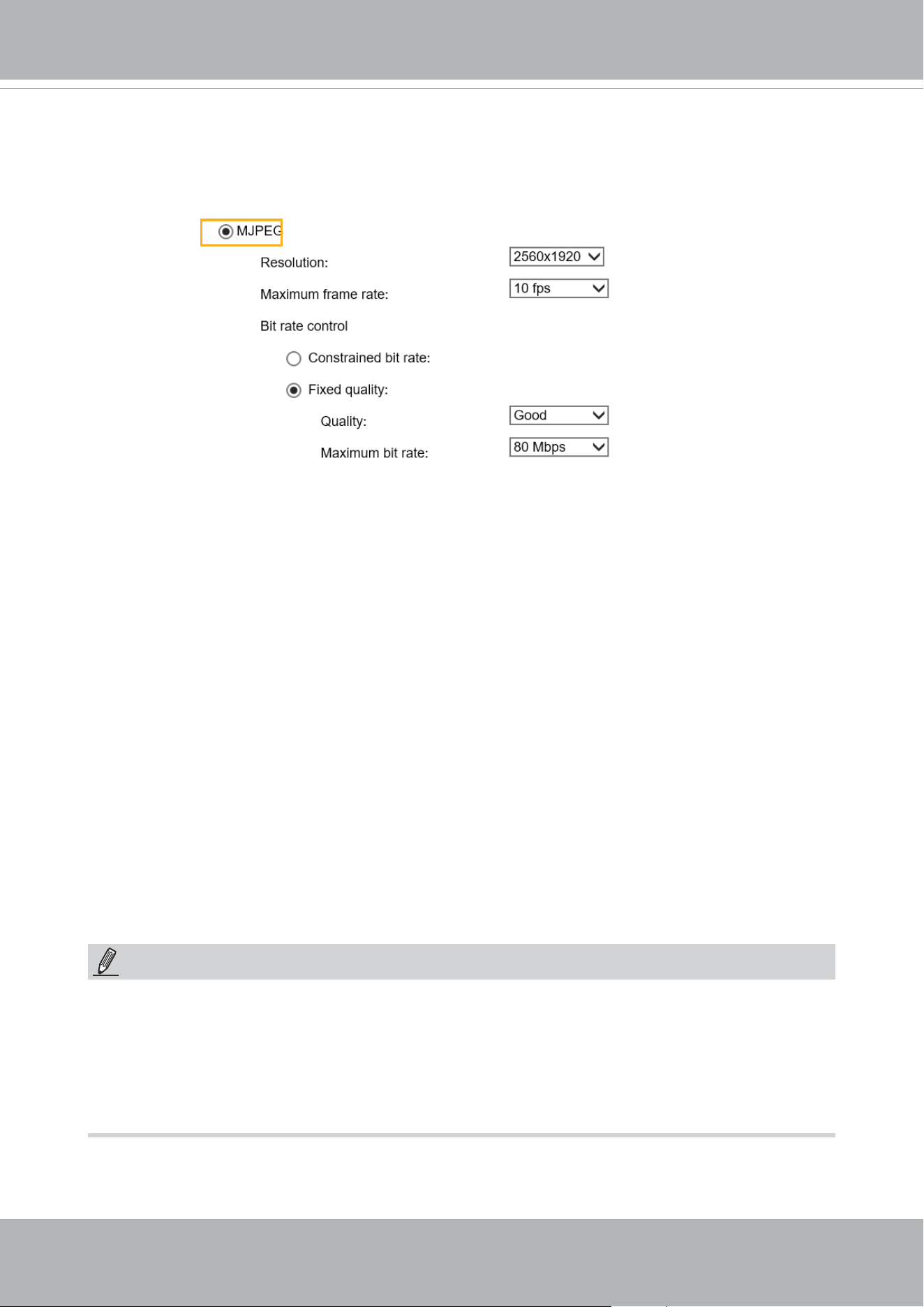
VIVOTEK
User's Manual - 95
If the
JPEG
mode is selected, the Network Camera sends consecutive JPEG images to the client,
producing a moving eect similar to a lmstrip. Every single JPEG image transmitted guarantees
the same image quality, which in turn comes at the expense of variable bandwidth usage. Because
the media contents are a combination of JPEG images, no audio data is transmitted to the client.
There are three parameters provided in MJPEG mode to control the video performance:
■ Frame size
You can set up dierent video resolution for dierent viewing devices. For example, set a smaller
frame size and lower bit rate for remote viewing on mobile phones and a larger video size and
a higher bit rate for live viewing on web browsers. Note that a larger frame size takes up more
bandwidth.
■ Maximum frame rate
This limits the maximum refresh frame rate per second. Set the frame rate higher for smoother
video quality.
If the power line frequency is set to 50Hz (at the 5MP resolution), the frame rates are selectable
at 1fps, 2fps, 3fps, 5fps, 8fps, 10fps, and 15fps. If the power line frequency is set to 60Hz, the
frame rates are selectable at 1fps, 2fps, 3fps, 5fps, 8fps, 10fps, and 15fps. You can also select
Customize
and manually enter a value. The frame rate will decrease if you select a higher
resolution.
■ Video quality
Refer to the previous page setting an average or upper bound threshold for controlling the
bandwidth consumed for transmitting motion jpegs. The conguration method is identical to that
for H.264.
For Constant Bit Rate and other settings, refer to the previous page for details.
►
Video quality and xed quality refers to the
compression rate
, so a lower value will produce higher
quality.
►
Converting high-quality video may signicantly increase the CPU loading, and you may encounter
streaming disconnection or video loss while capturing a complicated scene. In the event of
occurance, we suggest you customize a lower video resolution or reduce the frame rate to obtain
smooth video.
NOTE:
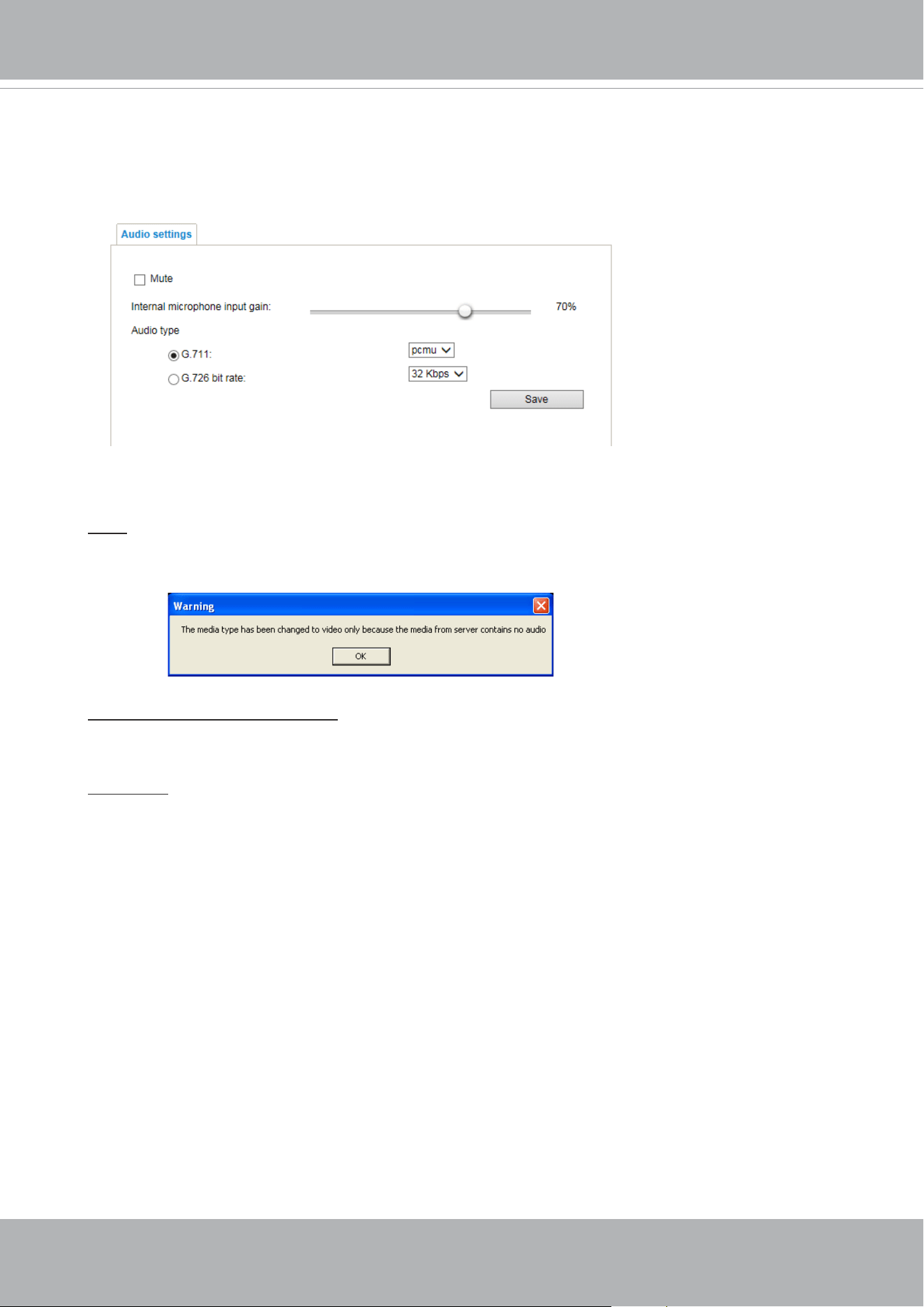
VIVOTEK
96 - User's Manual
Media > Audio
Audio Settings
Mute: Select this option to disable audio transmission from the Network Camera to all clients.
Note that if mute mode is turned on, no audio data will be transmitted even if audio transmission is
enabled on the Client Settings page. In that case, the following message is displayed:
Internal microphone input gain: Select the gain of the internal audio input according to ambient
conditions. Adjust the gain from 0% (least) to 100% (most).
Audio type: Select audio codec as G.711 or G.726 and the bit rate.
■ G.711 provides good sound quality and requires about 64Kbps. Select pcmu (μ-Law) or pcma
(A-Law) mode.
■ G.726 is a speech codec standard covering voice transmission at rates of 16, 24, 32, and 40kbit/
s.
When completed with the settings on this page, click
Save
to enable the settings.
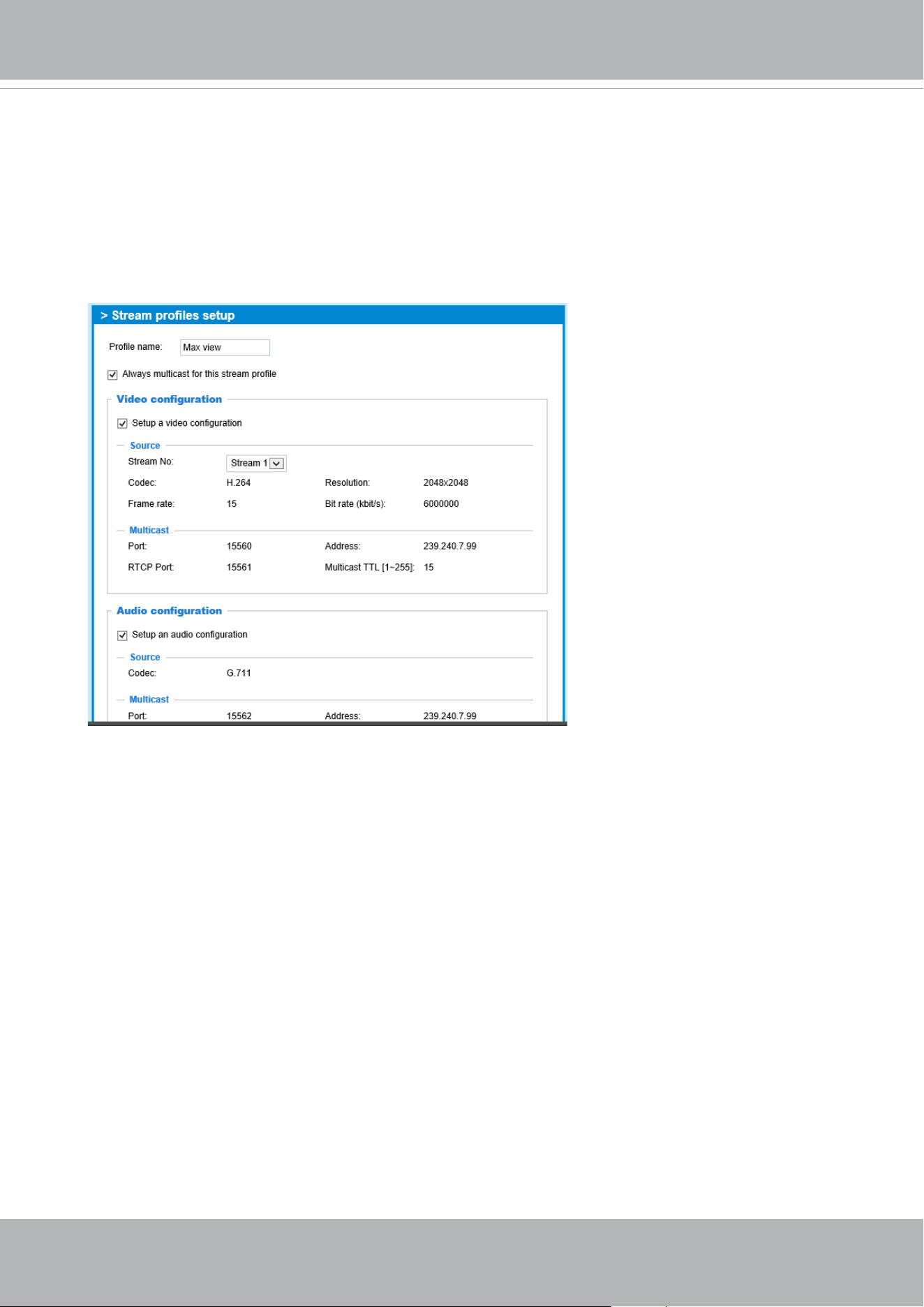
VIVOTEK
User's Manual - 97
Media proles
You can configure a different video stream for each of the 3 default profiles, Max. view,
Recording, Live view, and App.
The related video stream information will display, including stream number, resolution,
codec used, frame rate, etc. The Multicast port number, and address for video, audio, and
Metadata conguration will also be listed.
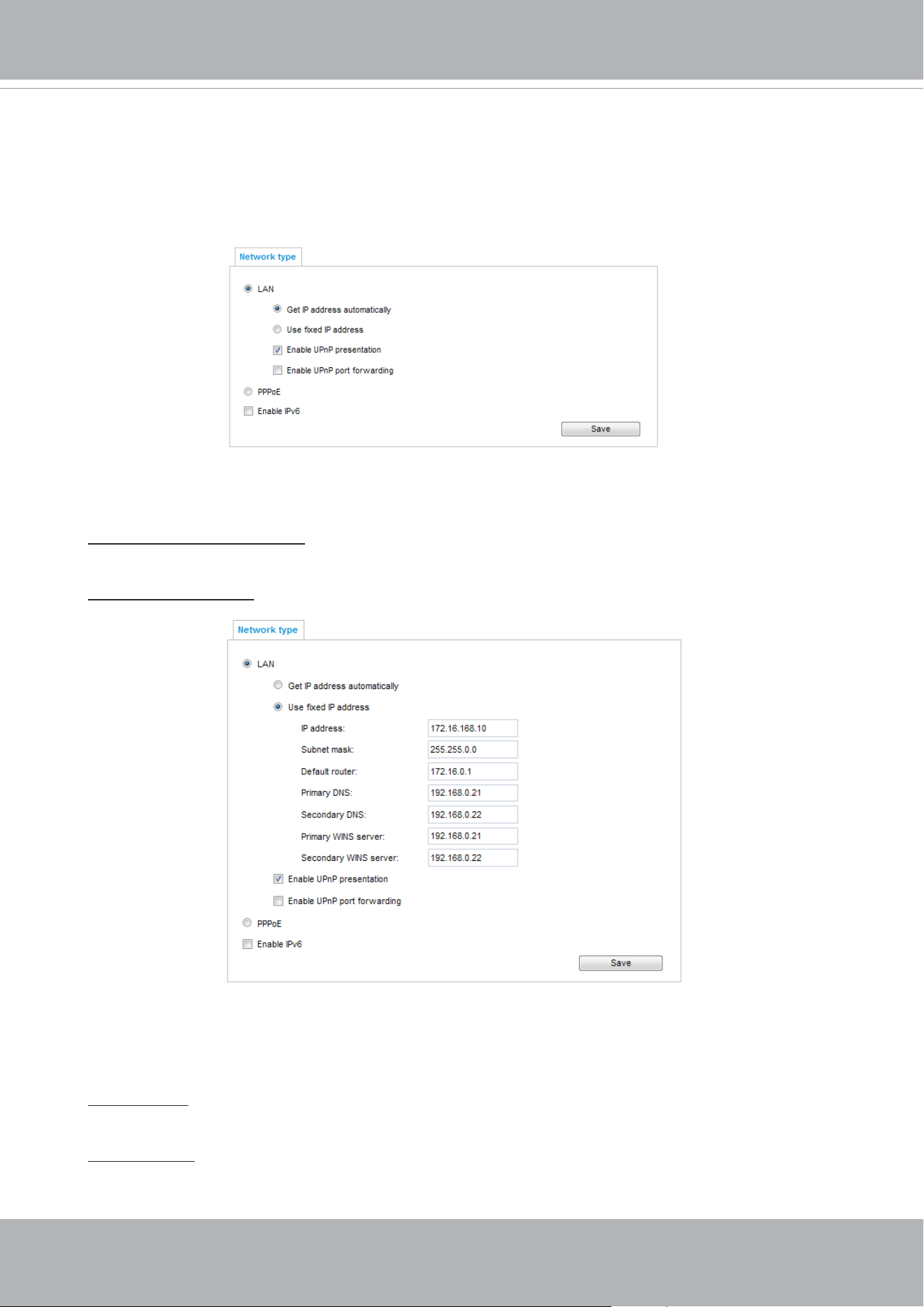
VIVOTEK
98 - User's Manual
Network > General settings
This section explains how to configure a wired network connection for the Network
Camera.
Network Type
LAN
Select this option when the Network Camera is deployed on a local area network (LAN) and is
intended to be accessed by local computers. The default setting for the Network Type is LAN.
Please rememer to click on the
Save
button when you complete the Network setting.
Get IP address automatically: Select this option to obtain an available dynamic IP address assigned
by the DHCP server each time the camera is connected to the LAN.
Use fixed IP address: Select this option to manually assign a static IP address to the Network
Camera.
1. You can make use of VIVOTEK Installation Wizard 2 on the software CD to easily set up the
Network Camera on LAN. Please refer to Software Installation on page 15 for details.
2. Enter the Static IP, Subnet mask, Default router, and Primary DNS provided by your ISP or
network administrator.
Subnet mask: This is used to determine if the destination is in the same subnet. The default value
is “255.255.255.0”.
Default router: This is the gateway used to forward frames to destinations in a different subnet.
Invalid router setting will disable the transmission to destinations across dierent subnets.
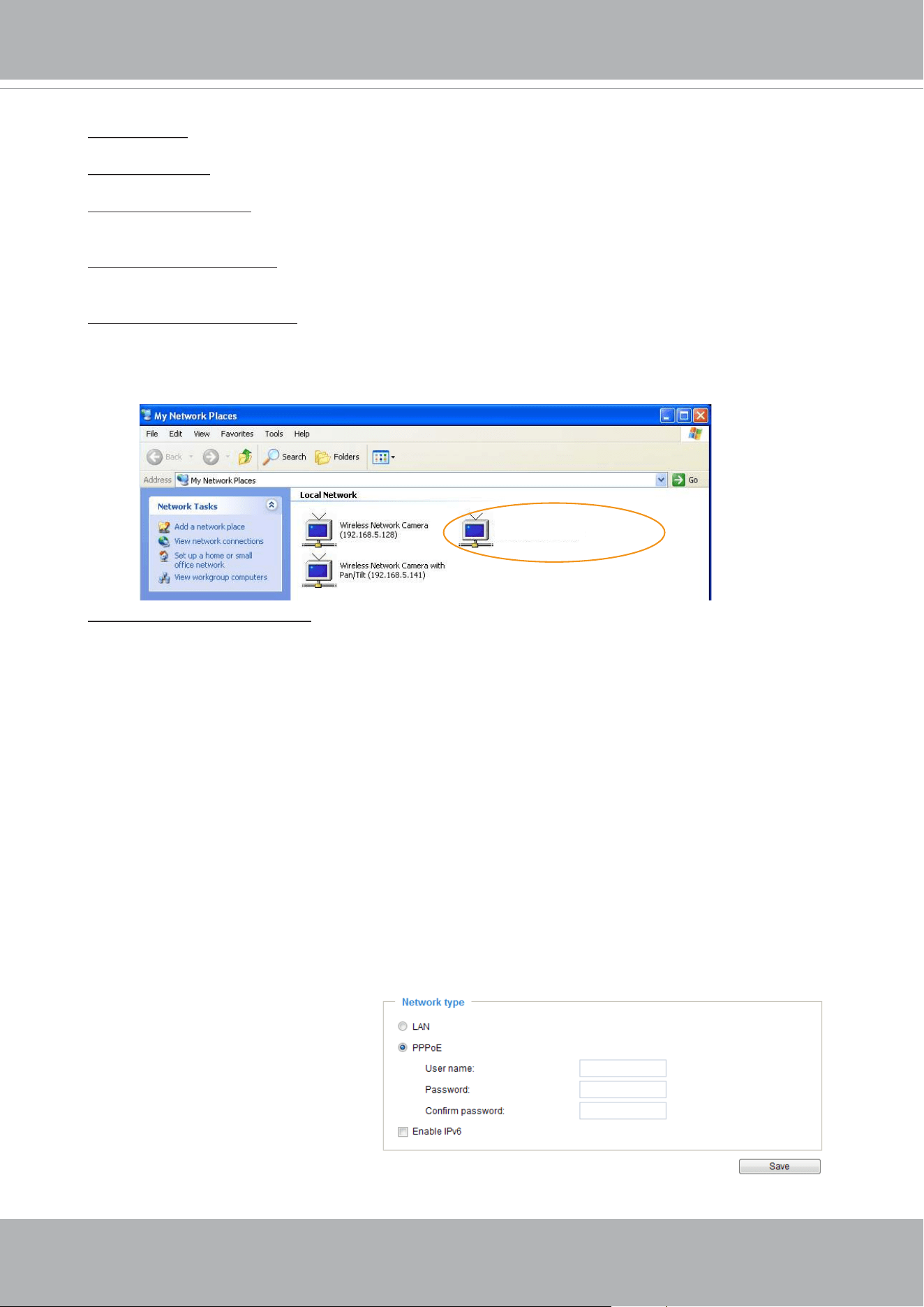
VIVOTEK
User's Manual - 99
Primary DNS: The primary domain name server that translates hostnames into IP addresses.
Secondary DNS: Secondary domain name server that backups the Primary DNS.
Primary WINS server: The primary WINS server that maintains the database of computer names
and IP addresses.
Secondary WINS server: The secondary WINS server that maintains the database of computer
names and IP addresses.
Enable UPnP presentation: Select this option to enable UPnP
TM
presentation for your Network
Camera so that whenever a Network Camera is presented to the LAN, the shortcuts to connected
Network Cameras will be listed in My Network Places. You can click the shortcut to link to the web
browser. Currently, UPnP
TM
is supported by Windows XP or later. Note that to utilize this feature,
please make sure the UPnP
TM
component is installed on your computer.
Enable UPnP port forwarding: To access the Network Camera from the Internet, select this option
to allow the Network Camera to open ports automatically on the router so that video streams can
be sent out from a LAN. To utilize of this feature, make sure that your router supports UPnP
TM
and
it is activated.
PPPoE (Point-to-point over Ethernet)
Select this option to congure your Network Camera to make it accessible from anywhere as long
as there is an Internet connection. Note that to utilize this feature, it requires an account provided
by your ISP.
Follow the steps below to acquire your Network Camera’s public IP address.
1. Set up the Network Camera on the LAN.
2. Go to Conguration > Event > Event settings > Add server (please refer to Add server on page
140) to add a new email or FTP server.
3. Go to Conguration > Event > Event settings > Add media (please refer to Add media on page
148).
Select System log so that you will receive the system log in TXT le format which contains the
Network Camera’s public IP address in your email or on the FTP server.
4. Go to Conguration > Network > General settings > Network type. Select PPPoE and enter the
user name and password provided by your ISP. Click
Save
to enable the setting.
5. The Network Camera will reboot.
6. Disconnect the power to the Network Camera; remove it from the LAN environment.
Mega-pixel Network Camera (192.168.5.151)
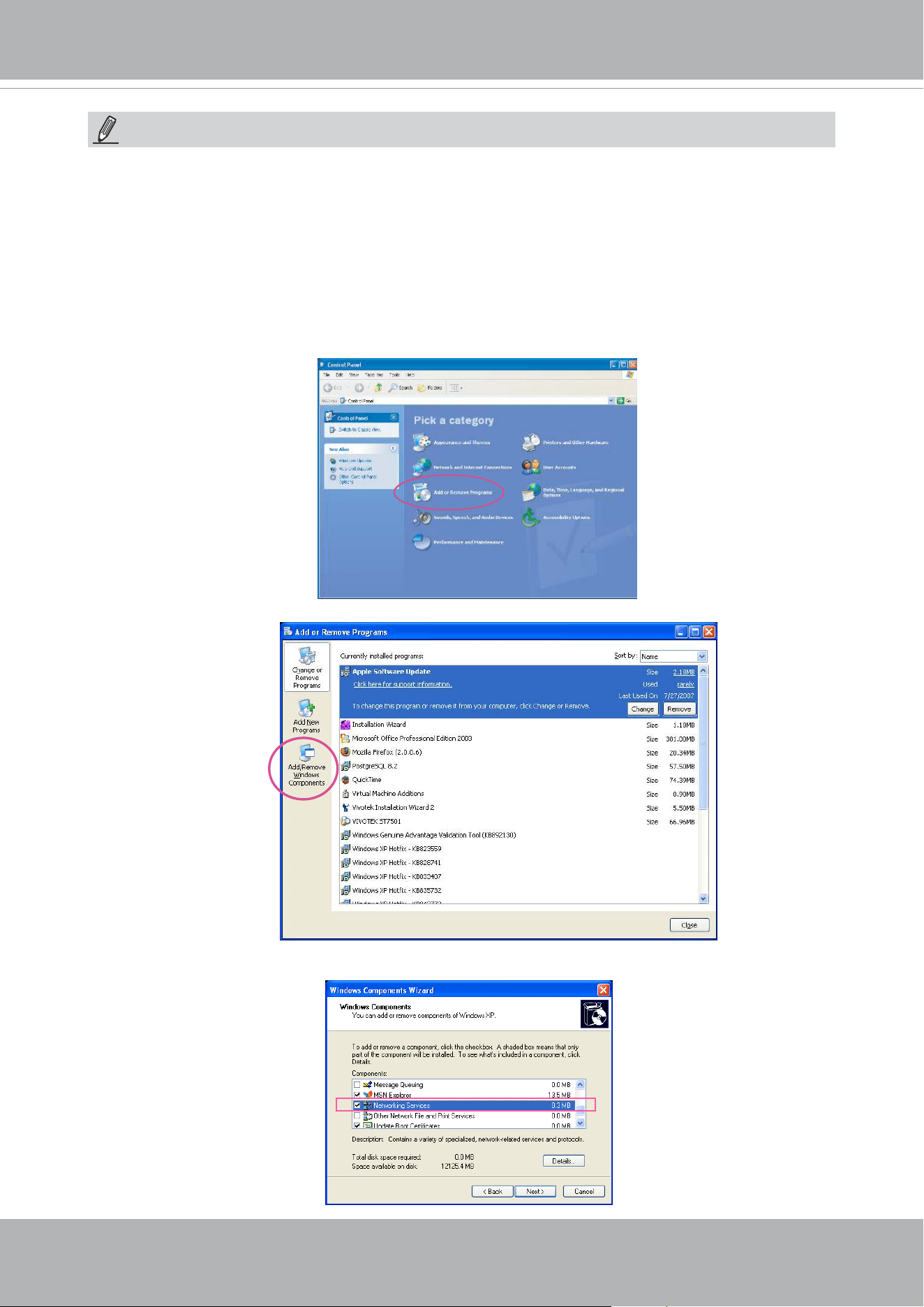
VIVOTEK
100 - User's Manual
► If the default ports are already used by other devices connected to the same router, the Network
Camera will select other ports for the Network Camera.
► If UPnP
TM
is not supported by your router, you will see the following message:
Error: Router does not support UPnP port forwarding.
► Steps to enable the UPnP
TM
user interface on your computer:
Note that you must log on to the computer as a system administrator to install the UPnP
TM
components.
1. Go to Start, click
Control Panel
, then click
Add or Remove Programs
.
2. In the Add or Remove Programs dialog box, click
Add/Remove Windows Components
.
3.
In the Windows Components Wizard dialog box, select
Networking Services
and click
Details
.
NOTE:
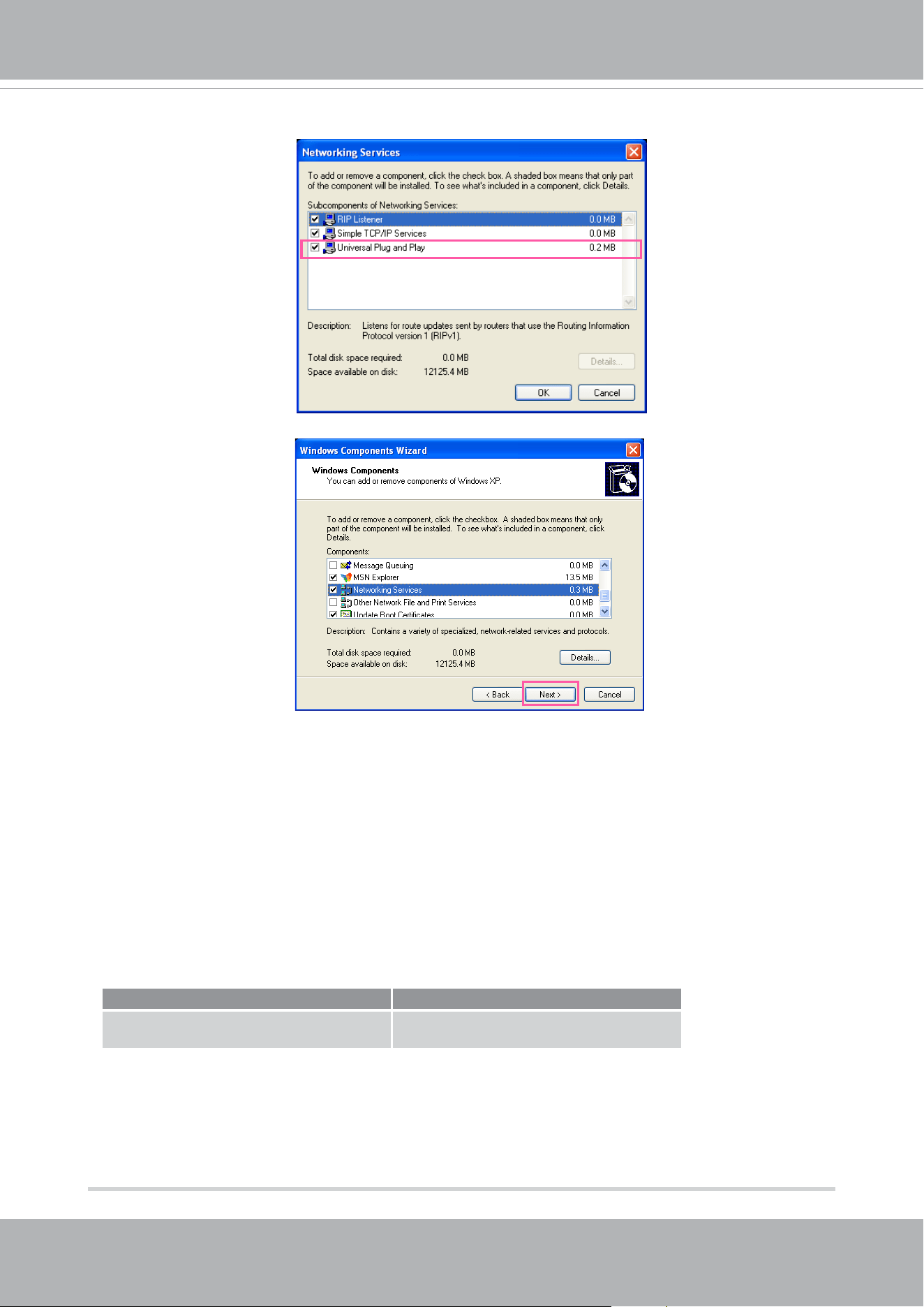
VIVOTEK
User's Manual - 101
4. In the Networking Services dialog box, select
Universal Plug and Play
and click
OK
.
5. Click
Next
in the following window.
6. Click
Finish
. UPnP
TM
is enabled.
► How does UPnP
TM
work?
UPnP
TM
networking technology provides automatic IP configuration and dynamic discovery of
devices added to a network. Services and capabilities oered by networked devices, such as
printing and file sharing, are available among each other without the need for cumbersome
network conguration. In the case of Network Cameras, you will see Network Camera shortcuts
under My Network Places.
► Enabling UPnP port forwarding allows the Network Camera to open a secondary HTTP port on
the router-not HTTP port-meaning that you have to add the secondary HTTP port number to the
Network Camera’s public address in order to access the Network Camera from the Internet. For
example, when the HTTP port is set to 80 and the secondary HTTP port is set to 8080, refer to
the list below for the Network Camera’s IP address.
From the Internet In LAN
http://203.67.124.123:8080 http://192.168.4.160 or
http://192.168.4.160:8080
► If the PPPoE settings are incorrectly congured or the Internet access is not working, restore
the Network Camera to factory default; please refer to Restore on page 68 for details. After the
Network Camera is reset to factory default, it will be accessible on the LAN.
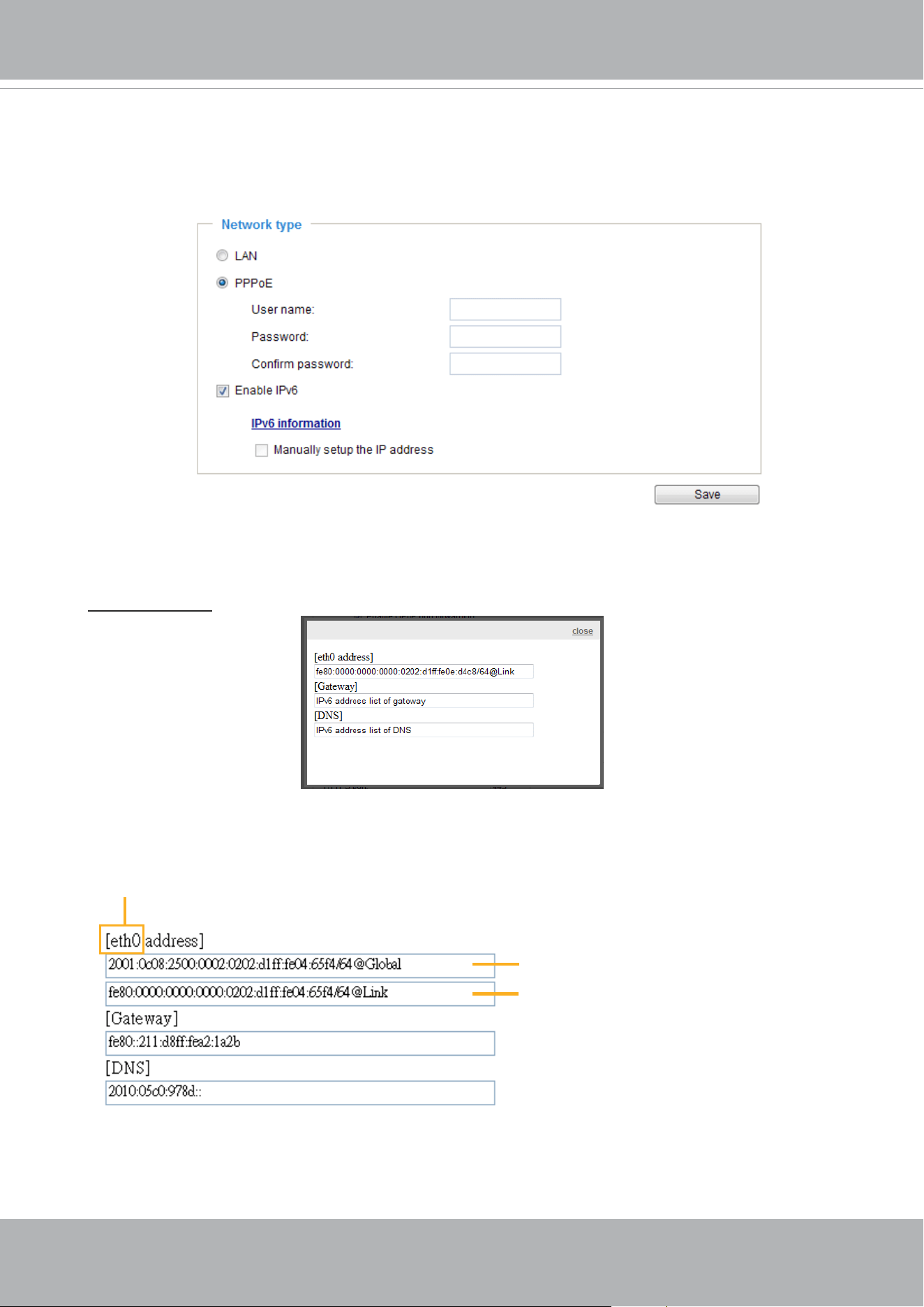
VIVOTEK
102 - User's Manual
Enable IPv6
Select this option and click
Save
to enable IPv6 settings.
Please note that this only works if your network environment and hardware equipment support
IPv6. The browser should be Microsoft
®
Internet Explorer 6.5, Mozilla Firefox 3.0 or above.
When IPv6 is enabled, by default, the network camera will listen to router advertisements and be
assigned with a link-local IPv6 address accordingly.
IPv6 Information: Click this button to obtain the IPv6 information as shown below.
If your IPv6 settings are successful, the IPv6 address list will be listed in the pop-up window. The
IPv6 address will be displayed as follows:
Link-global IPv6 address/network mask
Link-local IPv6 address/network mask
Refers to Ethernet
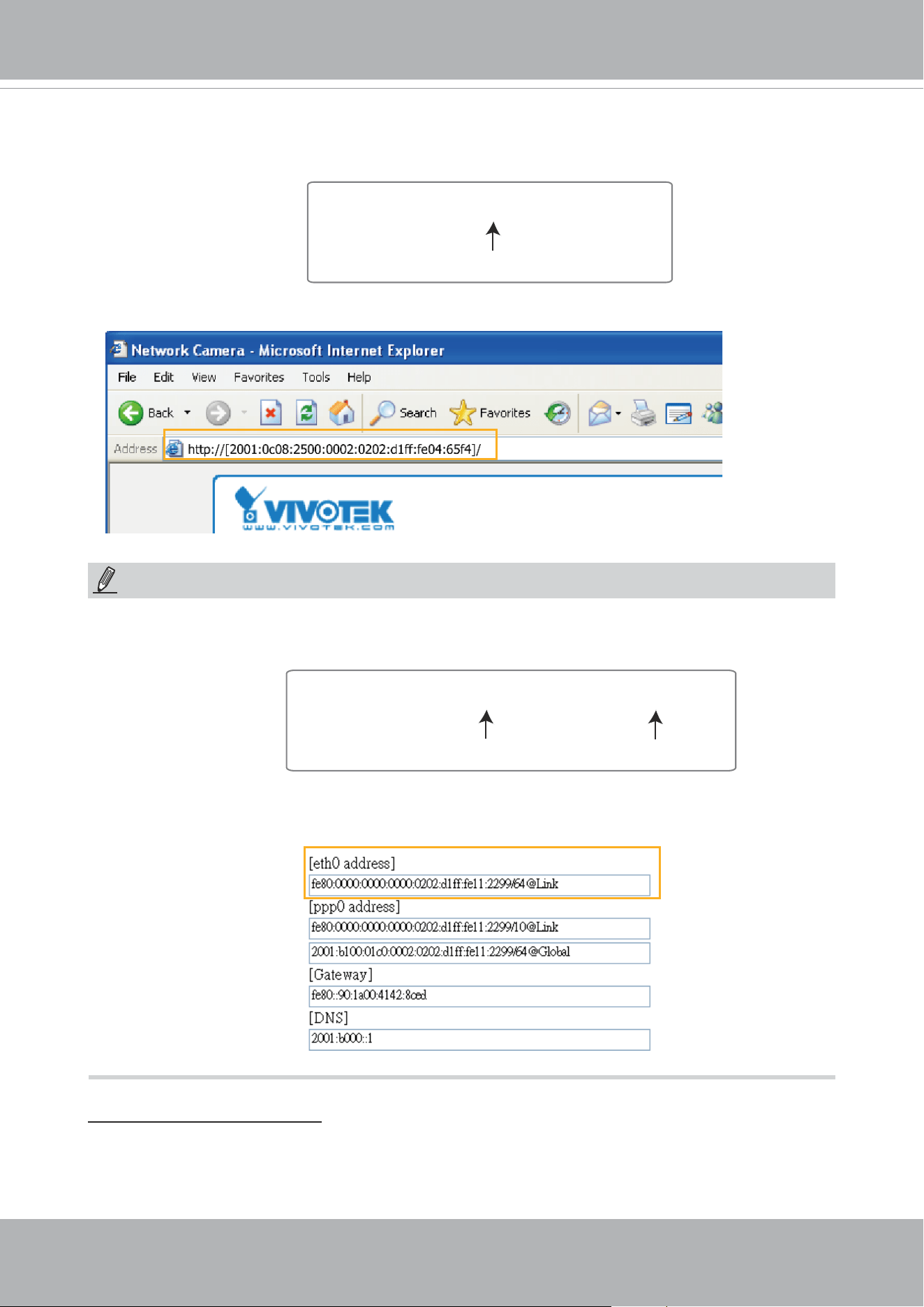
VIVOTEK
User's Manual - 103
Please follow the steps below to link to an IPv6 address:
1. Open your web browser.
2. Enter the link-global or link-local IPv6 address in the address bar of your web browser.
3. The format should be:
4. Press
Enter
on the keyboard or click
Refresh
button to refresh the webpage.
For example:
► If you have a Secondary HTTP port (the default value is 8080), you can also link to the webpage
using the following address format: (Please refer to
HTTP
streaming on page 105 for detailed
information.)
► If you choose PPPoE as the Network Type, the [
PPP0 address] will be displayed in the IPv6
information column as shown below.
Manually setup the IP address: Select this option to manually set up IPv6 settings if your network
environment does not have DHCPv6 server and router advertisements-enabled routers. If
you check this item, the following blanks will be displayed for you to enter the corresponding
information:
http://[2001:0c08:2500:0002:0202:d1ff:fe04:65f4]/
IPv6 address
http://[2001:0c08:2500:0002:0202:d1ff:fe04:65f4]/:8080
IPv6 address
Secondary HTTP port
NOTE:
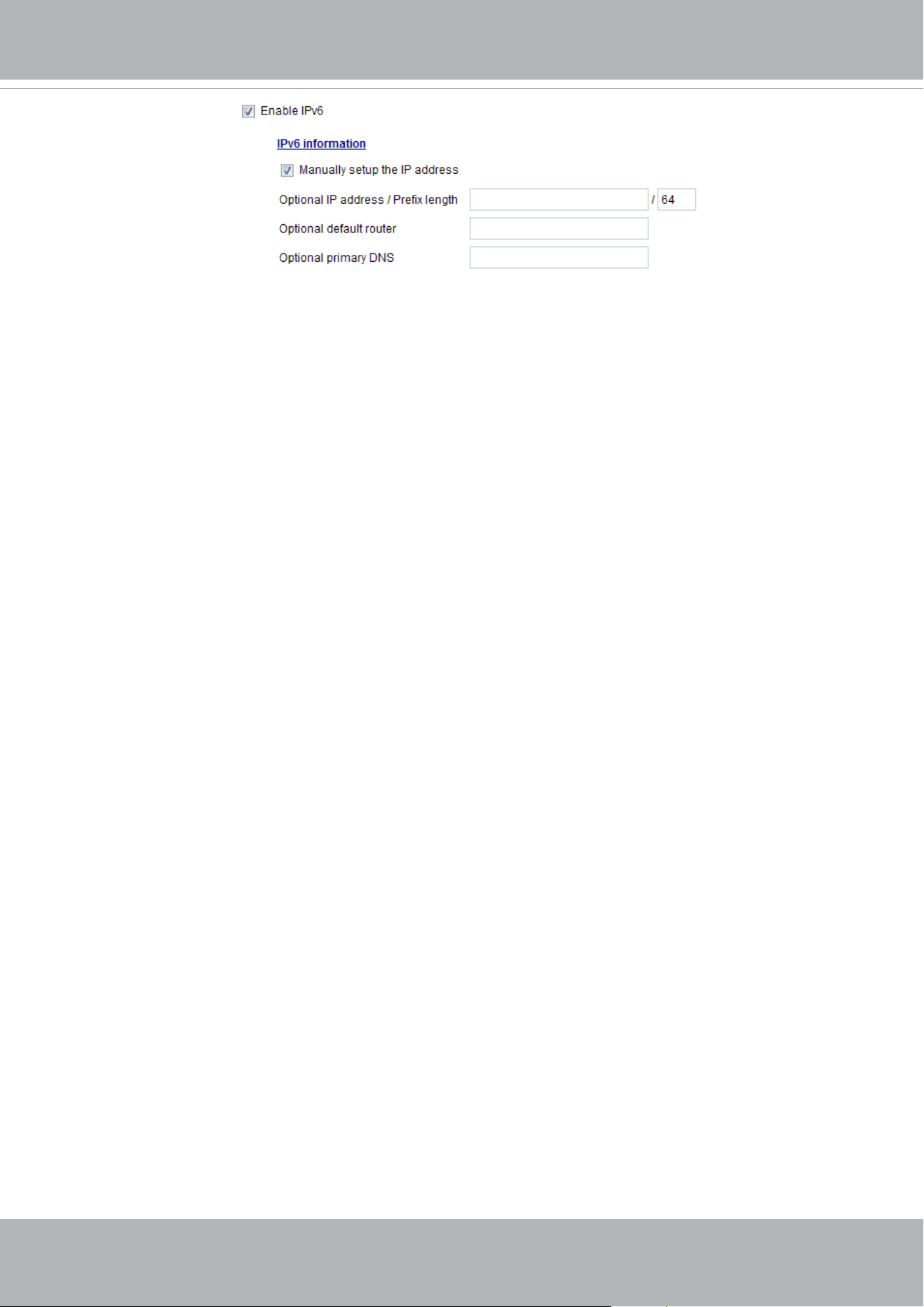
VIVOTEK
104 - User's Manual
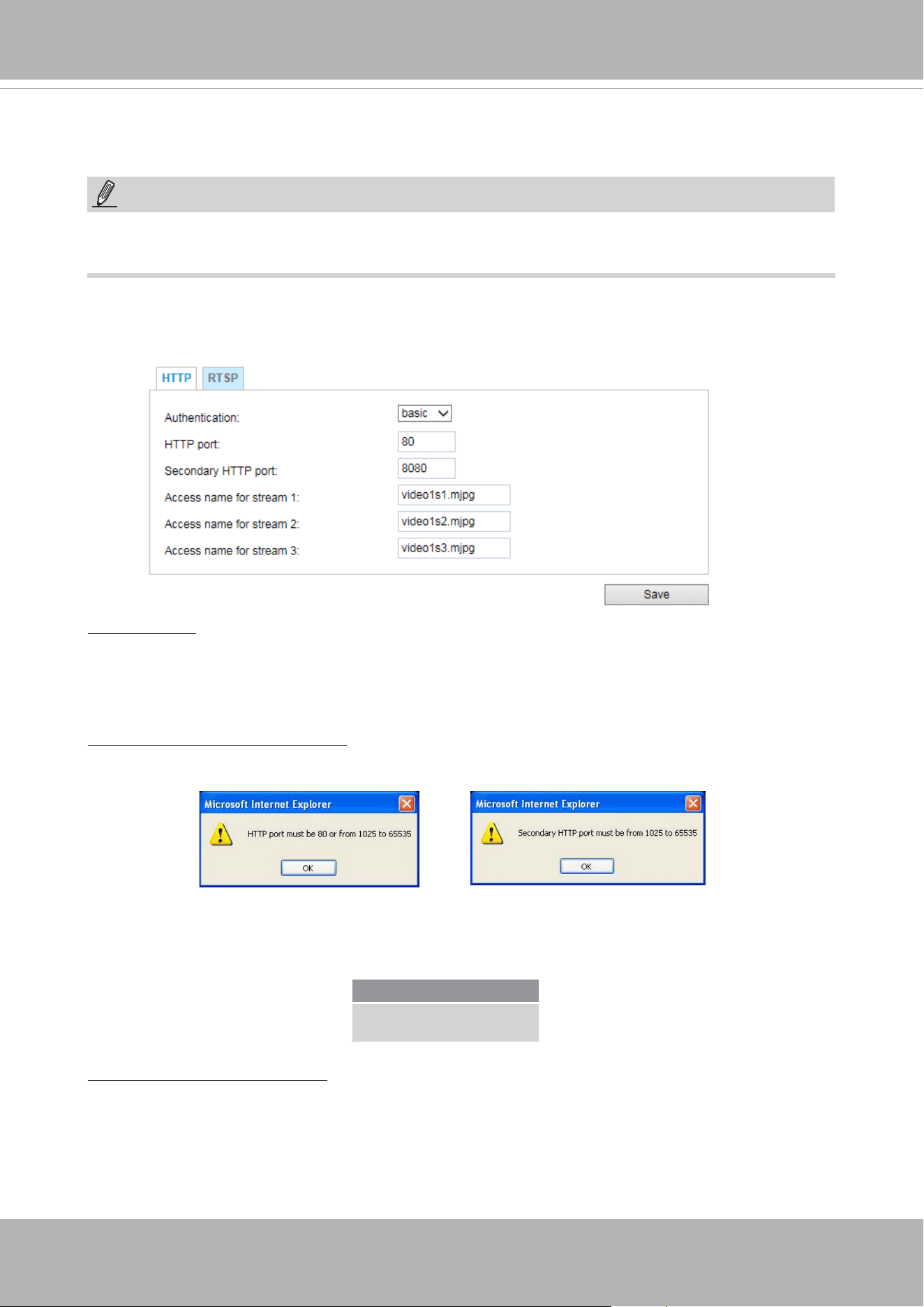
VIVOTEK
User's Manual - 105
Network > Streaming protocols
HTTP streaming
To utilize HTTP authentication, make sure that your have set a password for the Network Camera
rst; please refer to Security > User account on page 117 for details.
Authentication: Depending on your network security requirements, the Network Camera provides
two types of security settings for an HTTP transaction: basic and digest.
If
basic
authentication is selected, the password is sent in plain text format and there can be
potential risks of being intercepted. If
digest
authentication is selected, user credentials are
encrypted using MD5 algorithm and thus provide better protection against unauthorized accesses.
HTTP port / Secondary HTTP port: By default, the HTTP port is set to 80 and the secondary HTTP
port is set to 8080. They can also be assigned to another port number between 1025 and 65535. If
the ports are incorrectly assigned, the following warning messages will be displayed:
To access the Network Camera on the LAN, both the HTTP port and secondary HTTP port can
be used to access the Network Camera. For example, when the HTTP port is set to 80 and the
secondary HTTP port is set to 8080, refer to the list below for the Network Camera’s IP address.
Access name for stream 1 ~ 3: This Network camera supports multiple streams simultaneously.
The access name is used to identify different video streams. Users can click
Media > Video >
Stream settings
to set up the video quality of linked streams. For more information about how to
set up the video quality, please refer to Stream settings on page 86.
When using
Mozilla Firefox
to access the Network Camera and the video mode is set to JPEG,
users will receive video comprised of continuous JPEG images. This technology, known as “server
push”, allows the Network Camera to feed live pictures to Mozilla Firefox.
On the LAN
http://192.168.4.160 or
http://192.168.4.160:8080
NOTE:
The metadata information can only be transmitted through the HTTP main port. Metadata is not
available through the secondary HTTP port.
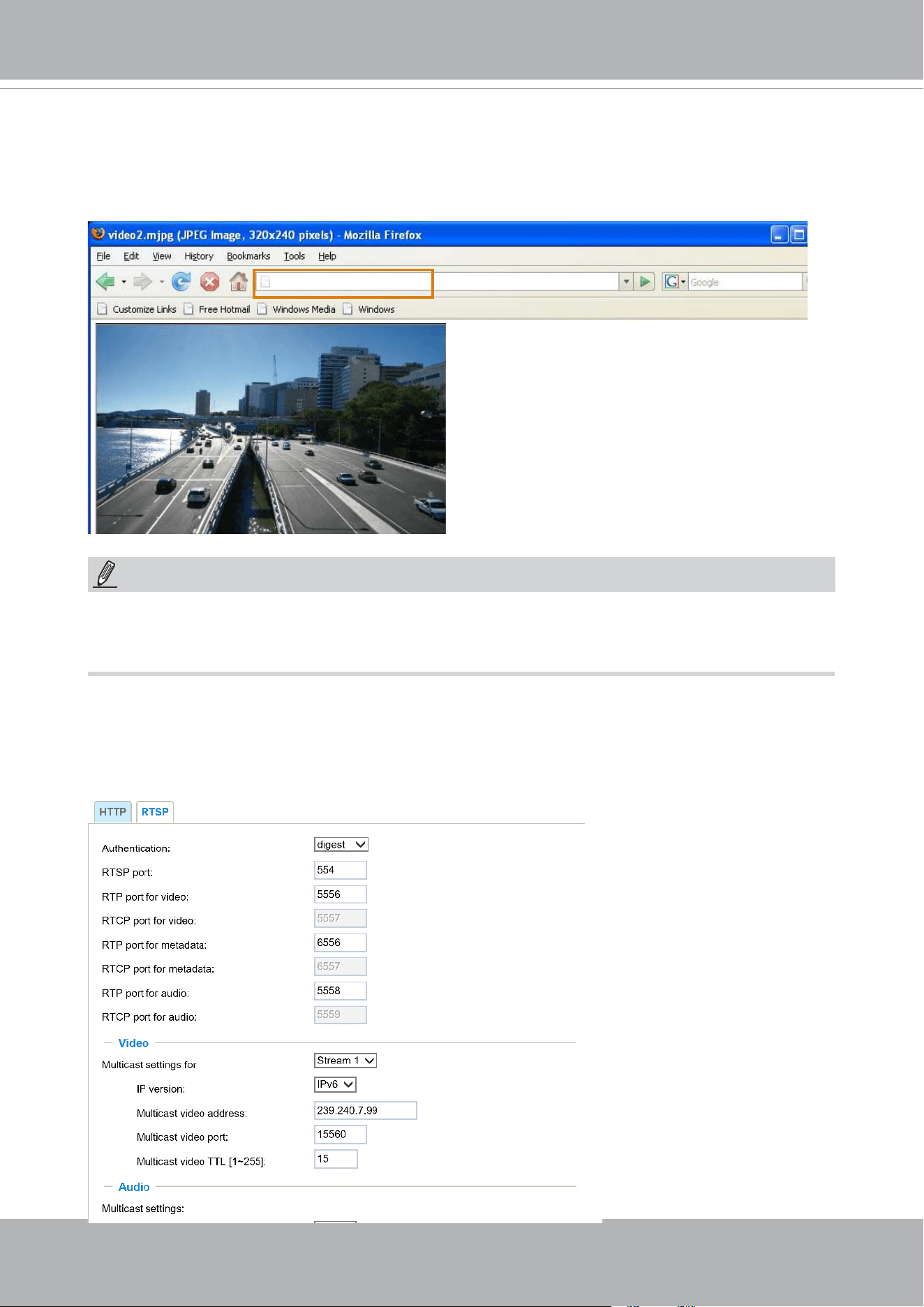
VIVOTEK
106 - User's Manual
URL command -- http://<ip address>:<http port>/<access name for stream 1, 2, 3>
For example, when the Access name for stream 2 is set to video1s2.mjpg:
1. Launch Mozilla Firefox or Netscape.
2. Type the above URL command in the address bar. Press
Enter
.
3. The JPEG images will be displayed in your web browser.
NOTE
► Microsoft
®
Internet Explorer does not support server push technology; therefore, you will not be
able to access a video stream using http://<ip address>:<http port>/<access name for stream 1,
2, 3> .
RTSP Streaming
To utilize RTSP streaming authentication, make sure that you have set a password for controlling
the access to video stream rst. Please refer to Security > User account on page 117 for details.
http://192.168.5.151/video1s2.mjpg
NOTE:
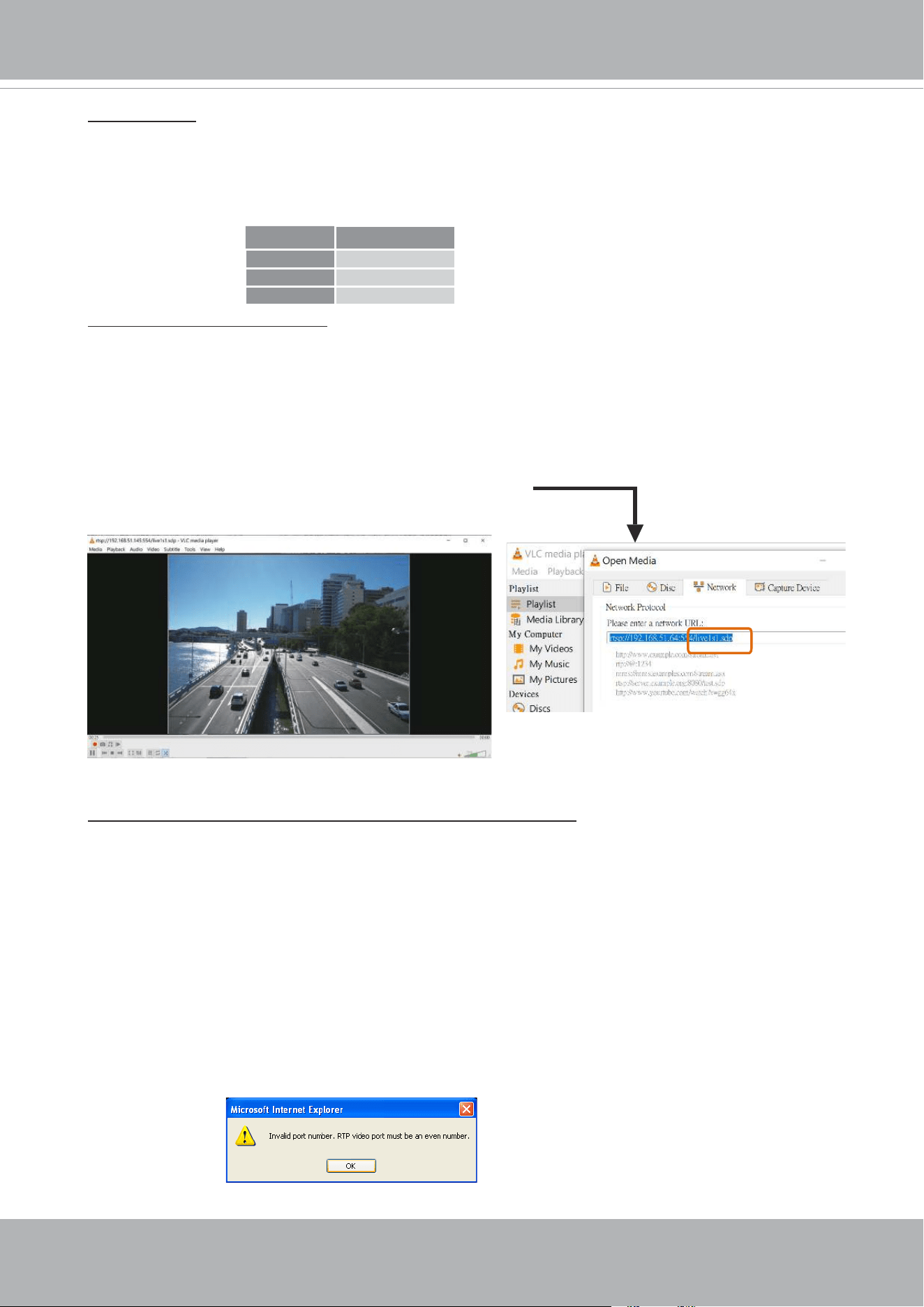
VIVOTEK
User's Manual - 107
Authentication: Depending on your network security requirements, the Network Camera provides
three types of security settings for streaming via RTSP protocol: disable, basic, and digest.
If
basic
authentication is selected, the password is sent in plain text format, but there can be
potential risks of it being intercepted. If
digest
authentication is selected, user credentials are
encrypted using MD5 algorithm, thus providing better protection against unauthorized access.
The availability of the RTSP streaming for the three authentication modes is listed below:
Access name for stream 1 ~ 3: This Network camera supports multiple streams simultaneously.
The access name is used to dierentiate the streaming source.
If you want to use an RTSP player to access the Network Camera, you have to set the video mode
to H.264 or H.265 and use the following RTSP URL command to request transmission of the
streaming data.
rtsp://<ip address>:<rtsp port>/<access name for stream 1 to 3>
For example, when the access name for stream 1 is set to live1s1.sdp:
1. Launch an RTSP player.
2. Choose File > Open URL. A URL dialog box will pop up.
3. Type the above URL command in the text box.
4. The live video will be displayed in your player as shown below.
RTSP port /RTP port for video, audio/ RTCP port for video, audio
■ RTSP (Real-Time Streaming Protocol) controls the delivery of streaming media. By default, the
port number is set to 554.
■ The RTP (Real-time Transport Protocol) is used to deliver video and audio data to the clients. By
default, the RTP port for video is set to 5556.
■ The RTCP (Real-time Transport Control Protocol) allows the Network Camera to transmit the
data by monitoring the Internet trac volume. By default, the RTCP port for video is set to 5557.
The ports can be changed to values between 1025 and 65535. The RTP port must be an even
number and the RTCP port is the RTP port number plus one, and thus is always an odd number.
When the RTP port changes, the RTCP port will change accordingly.
If the RTP ports are incorrectly assigned, the following warning message will be displayed:
VLC
Disable O
Basic O
Digest X
rtsp://192.168.5.151:554/live1s1.sdp
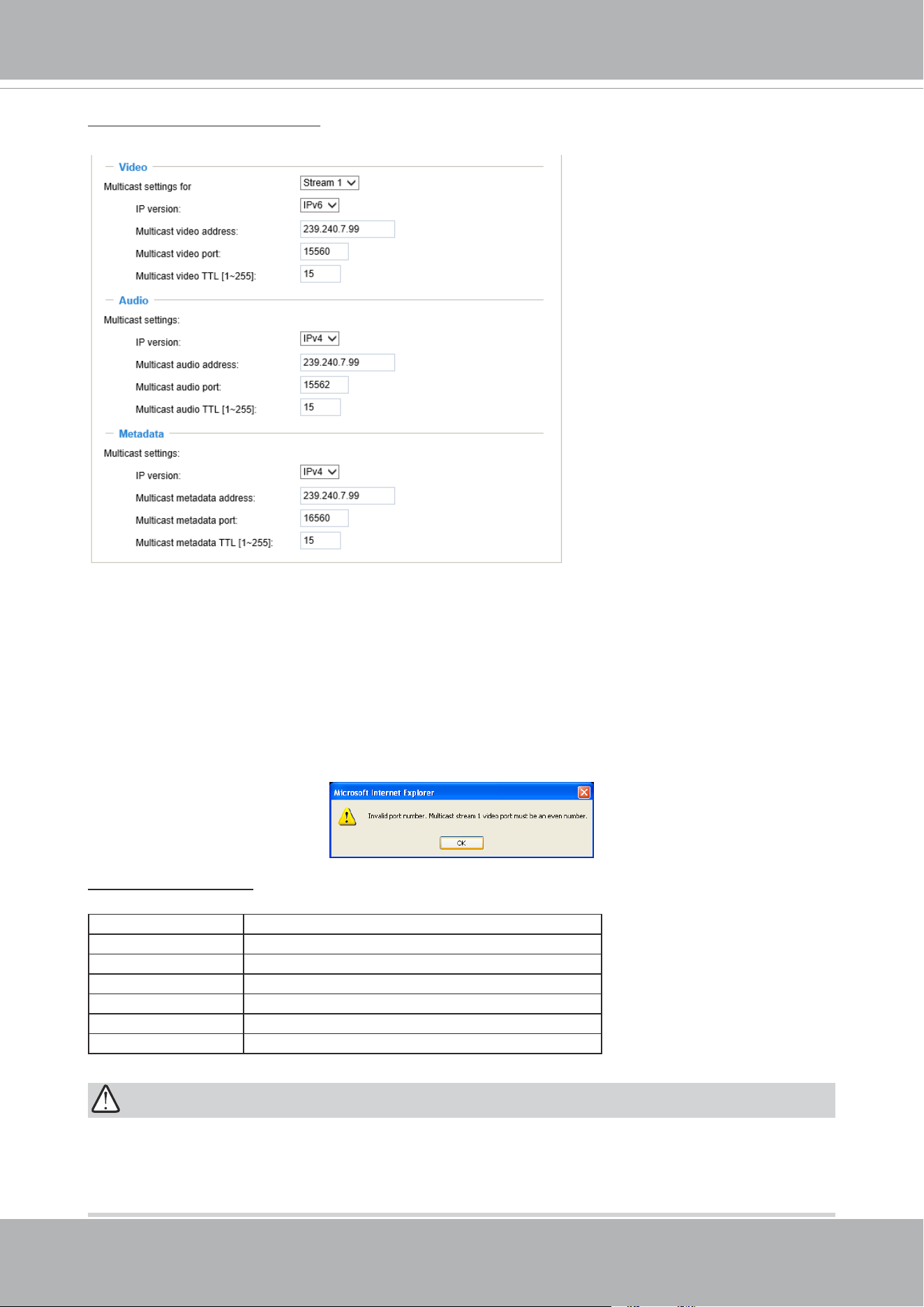
VIVOTEK
108 - User's Manual
Multicast settings for streams: Click the items to display the detailed configuration information.
Select the Always multicast option to enable multicast for video streams.
Unicast video transmission delivers a stream through point-to-point transmission; multicast, on the
other hand, sends a stream to the multicast group address and allows multiple clients to acquire
the stream at the same time by requesting a copy from the multicast group address. Therefore,
enabling multicast can eectively save Internet bandwith.
The ports can be changed to values between 1025 and 65535. The multicast RTP port must be an
even number and the multicast RTCP port number is the multicast RTP port number plus one, and
thus is always odd. When the multicast RTP port changes, the multicast RTCP port will change
accordingly.
If the multicast RTP video ports are incorrectly assigned, the following warning message will be
displayed:
Multicast TTL [1~255]: The multicast TTL (Time To Live) is the value that tells the router the range
a packet can be forwarded.
Initial TTL Scope
0 Restricted to the same host
1 Restricted to the same subnetwork
32 Restricted to the same site
64 Restricted to the same region
128 Restricted to the same continent
255 Unrestricted in scope
IMPORTANT:
The Multicast metadata port is utilized by VIVOTEK VADP modules to transfer video analytics
results, PTZ stream, textual data, and event messages between the camera and the client side
running and observing the video analysis. If your client side computer is located outside the local
network, you may need to open the associated TCP port on routers and rewall.
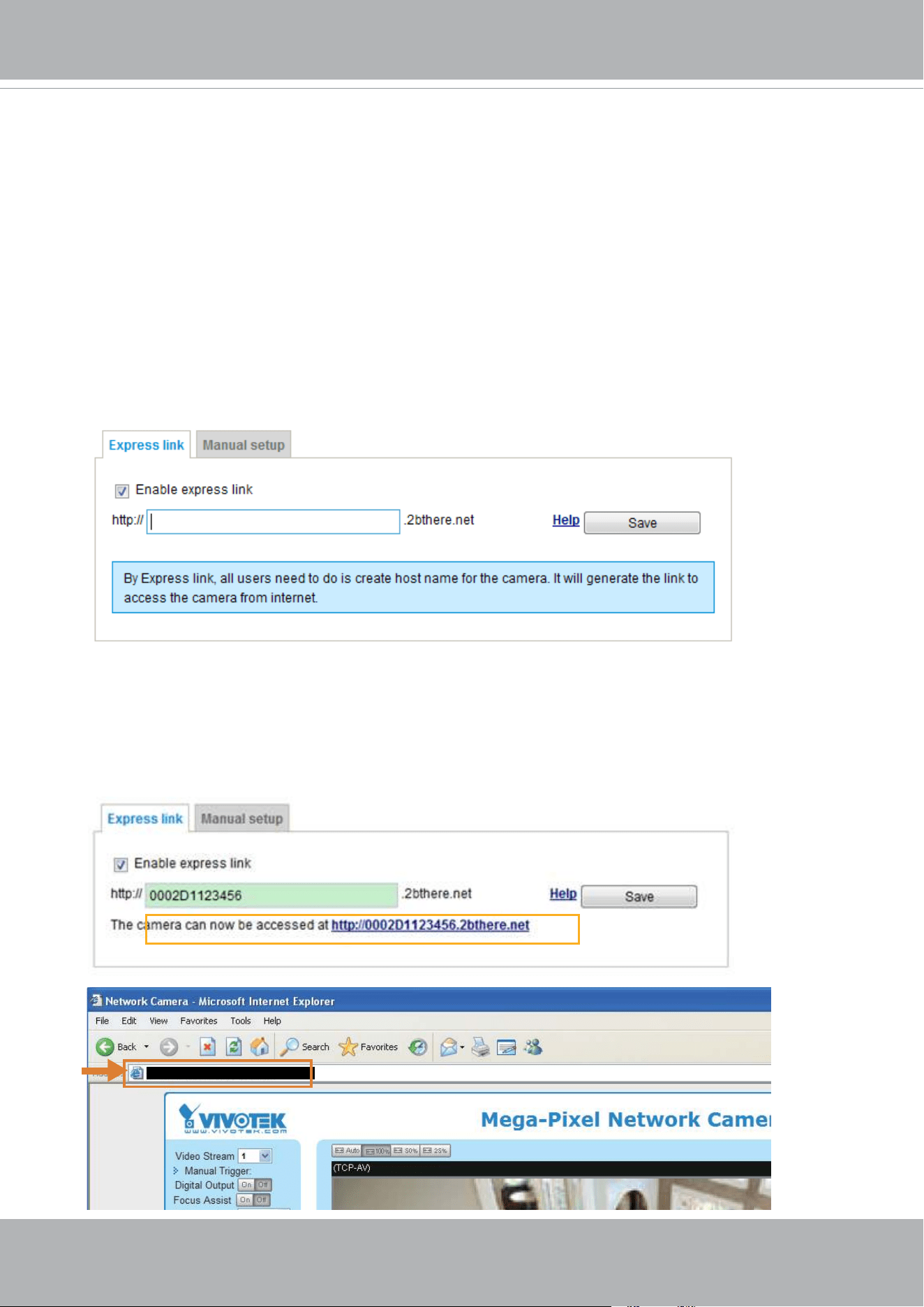
VIVOTEK
User's Manual - 109
Network > DDNS
This section explains how to congure the dynamic domain name service for the Network
Camera. DDNS is a service that allows your Network Camera, especially when assigned
with a dynamic IP address, to have a xed host and domain name.
Express link
Express Link is a free service provided by VIVOTEK server, which allows users to register
a domain name for a network device. One URL can only be mapped to one MAC address.
This service will examine if the host name is valid and automatically open a port on your
router. If using DDNS, the user has to manually congure UPnP port forwarding. Express
Link is more convenient and easier to set up.
Please follow the steps below to enable Express Link:
1. Make sure that your router supports UPnP port forwarding and it is activated.
2. Check
Enable express link
.
3. Enter a host name for the network device and click
Save
. If the host name has been used by
another device, a warning message will show up. If the host name is valid, it will display a
message as shown below.
https://0002D1123456.2bthere.net
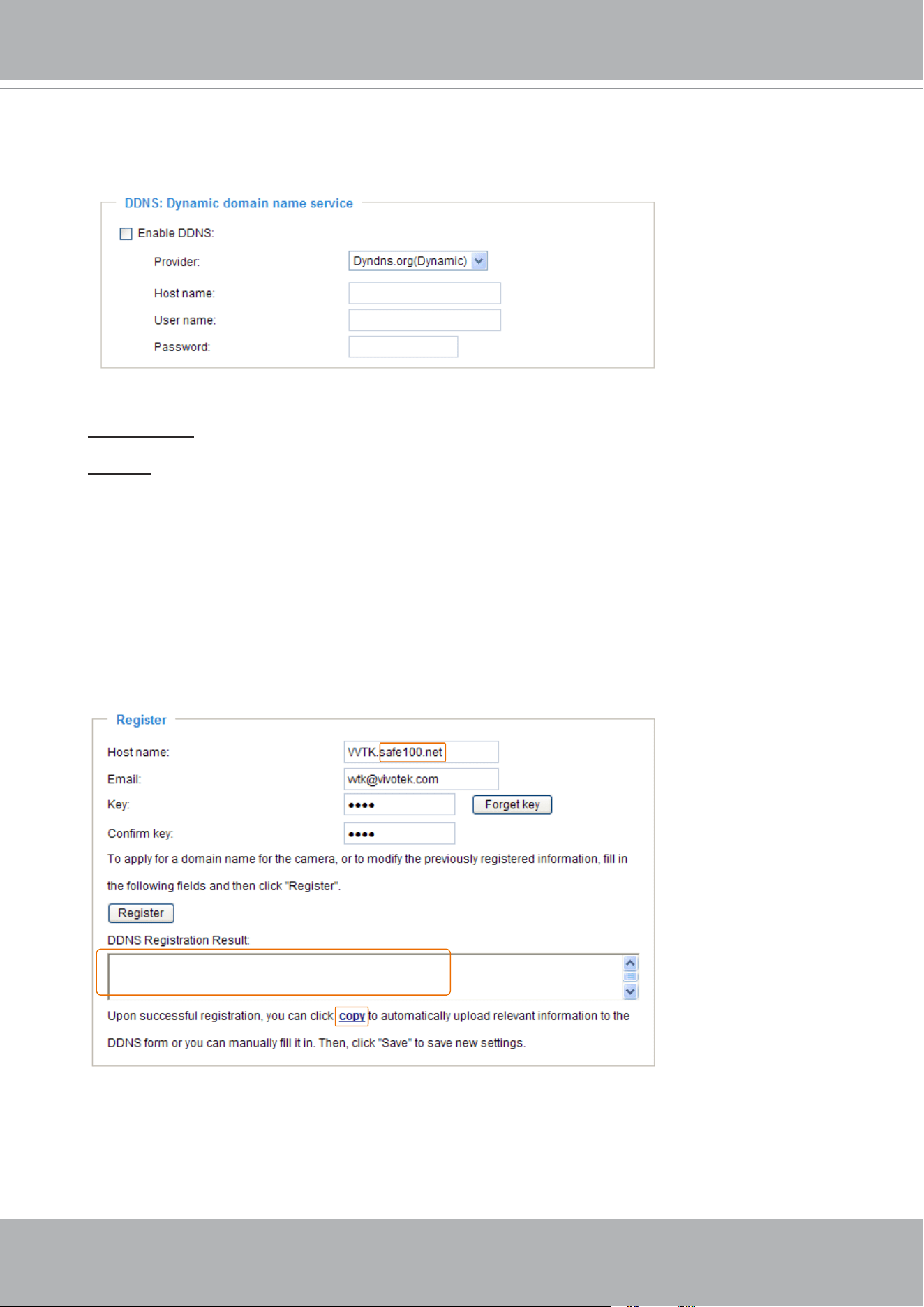
VIVOTEK
110 - User's Manual
Manual setup
DDNS: Dynamic domain name service
Enable DDNS: Select this option to enable the DDNS setting.
Provider: Select a DDNS provider from the provider drop-down list.
VIVOTEK offers
Safe100.net
, a free dynamic domain name service, to VIVOTEK customers. It
is recommended that you register
Safe100.net
to access VIVOTEK’s Network Cameras from the
Internet. Additionally, we offer other DDNS providers, such as Dyndns.org(Dynamic), Dyndns.
org(Custom), TZO.com, DHS.org, CustomSafe100, dyn-interfree.it.
Note that before utilizing this function, please apply for a dynamic domain account rst.
■
Safe100.net
1. In the DDNS column, select
Safe100.net
from the drop-down list. Click
I accept
after reviewing
the terms of the Service Agreement.
2. In the Register column, ll in the Host name (xxxx.safe100.net), Email, Key, and Conrm Key,
and click
Register
. After a host name has been successfully created, a success message will
be displayed in the DDNS Registration Result column.
3. Click
Copy
and all the registered information will automatically be uploaded to the corresponding
elds in the DDNS column at the top of the page as seen in the picture.
[Register] Successfully Your account information has
been mailed to registered e-mail address
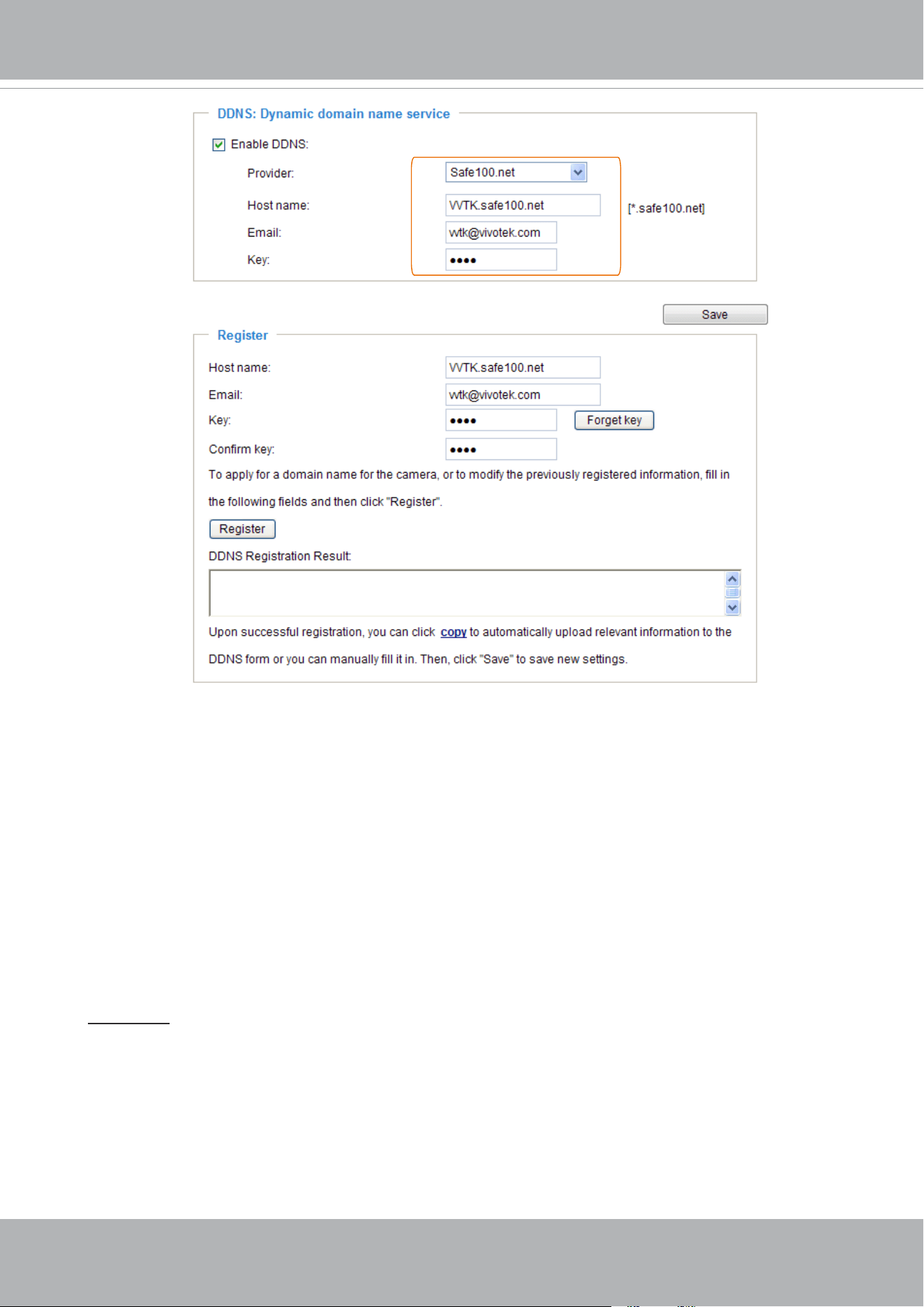
VIVOTEK
User's Manual - 111
[Register] Successfully Your account information has
been mailed to registered e-mail address
4. Select Enable DDNS and click
Save
to enable the setting.
■
CustomSafe100
VIVOTEK offers documents to establish a CustomSafe100 DDNS server for distributors and
system integrators. You can use CustomSafe100 to register a dynamic domain name if your
distributor or system integrators oer such services.
1. In the DDNS column, select CustomSafe100 from the drop-down list.
2. In the Register column, ll in the Host name, Email, Key, and Conrm Key; then click
Register
.
After a host name has been successfully created, you will see a success message in the DDNS
Registration Result column.
3. Click
Copy
and all for the registered information will be uploaded to the corresponding elds in
the DDNS column.
4. Select Enable DDNS and click
Save
to enable the setting.
Forget key: Click this button if you have forgotten the key to Safe100.net or CustomSafe100. Your
account information will be sent to your email address.
Refer to the following links to apply for a dynamic domain account when selecting other
DDNS providers:
■ Dyndns.org(Dynamic) / Dyndns.org(Custom): visit http://www.dyndns.com/
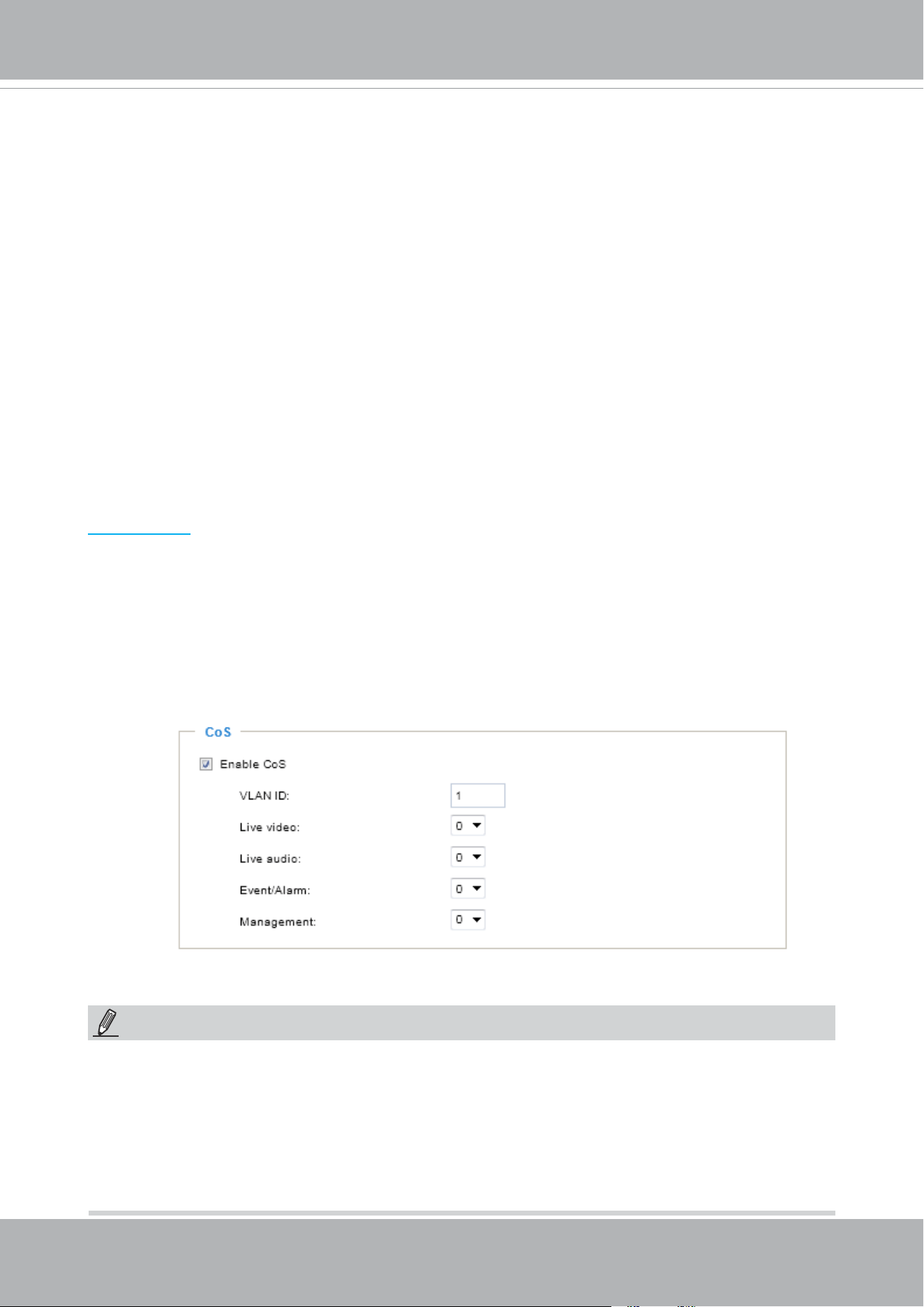
VIVOTEK
112 - User's Manual
Network > QoS (Quality of Service)
Quality of Service refers to a resource reservation control mechanism, which guarantees a certain
quality to different services on the network. Quality of service guarantees are important if the
network capacity is insucient, especially for real-time streaming multimedia applications. Quality
can be dened as, for instance, a maintained level of bit rate, low latency, no packet dropping, etc.
The following are the main benets of a QoS-aware network:
■
The ability to prioritize trac and guarantee a certain level of performance to the data ow.
■
The ability to control the amount of bandwidth each application may use, and thus provide higher
reliability and stability on the network.
Requirements for QoS
To utilize QoS in a network environment, the following requirements must be met:
■
All network switches and routers in the network must include support for QoS.
■
The network video devices used in the network must be QoS-enabled.
QoS models
CoS (the VLAN 802.1p model)
IEEE802.1p denes a QoS model at OSI Layer 2 (Data Link Layer), which is called CoS, Class of
Service. It adds a 3-bit value to the VLAN MAC header, which indicates the frame priority level from
0 (lowest) to 7 (highest). The priority is set up on the network switches, which then use dierent
queuing disciplines to forward the packets.
Below is the setting column for CoS. Enter the
VLAN ID
of your switch (0~4095) and choose the
priority for each application (0~7).
If you assign Video the highest level, the switch will handle video packets rst.
NOTE:
► A VLAN Switch (802.1p) is required. Web browsing may fail if the CoS setting is incorrect.
►The Class of Service technologies do not guarantee a level of service in terms of bandwidth
and delivery time; they oer a "best-eort." Users can think of CoS as "coarsely-grained" trac
control and QoS as "nely-grained" trac control.
► Although CoS is simple to manage, it lacks scalability and does not oer end-to-end guarantees
since it is based on L2 protocol.
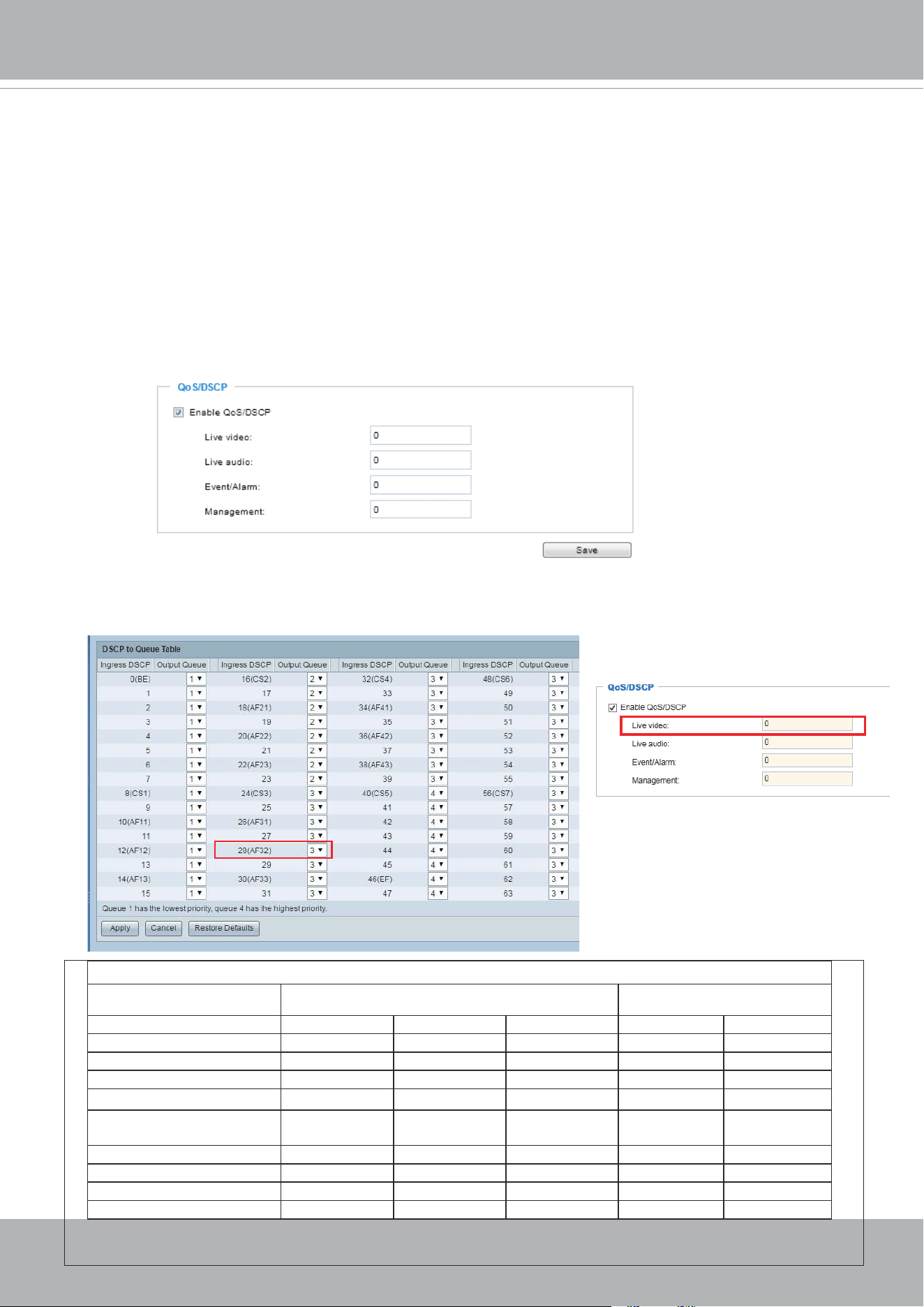
VIVOTEK
User's Manual - 113
QoS/DSCP (the DiServ model)
DSCP-ECN denes QoS at Layer 3 (Network Layer). The Dierentiated Services (DiServ) model
is based on packet marking and router queuing disciplines. The marking is done by adding a eld
to the IP header, called the DSCP (Differentiated Services Codepoint). This is a 6-bit field that
provides 64 different class IDs. It gives an indication of how a given packet is to be forwarded,
known as the Per Hop Behavior (PHB). The PHB describes a particular service level in terms of
bandwidth, queueing theory, and dropping (discarding the packet) decisions. Routers at each
network node classify packets according to their DSCP value and give them a particular forwarding
treatment; for example, how much bandwidth to reserve for it.
Below are the setting options of DSCP (DiffServ Codepoint). Specify the DSCP value for each
application (0~63).
Note that different vendors of network devices might have different methodologies and unique
implementations. Shown below is a sample corresponding information from a Cisco switch. You
should enter a DSCP tag value according to the information provided by the network devices.
32
QoS Baseline/Technical Marketing Classication and Marking Recommendations
Application Layer3 Classication Layer 2 CoS/MPLS EXP
IPP PHB DSCP
IP Routing 6 CS6 48 6
Voice 5 EF 46 5
Interactive Video 4 AF41 34 4 QoS B
Streaming-Video 4 CS4 32 4
Locally-dened Mission-
Critical Data
3 - 25 3
Call-signaling 3 AF31/CS3 26/24 3
Transactional Data 2 AF21 18 2
Network Management 2 CS2 16 2
Bulk Data 1 AF11 10 1
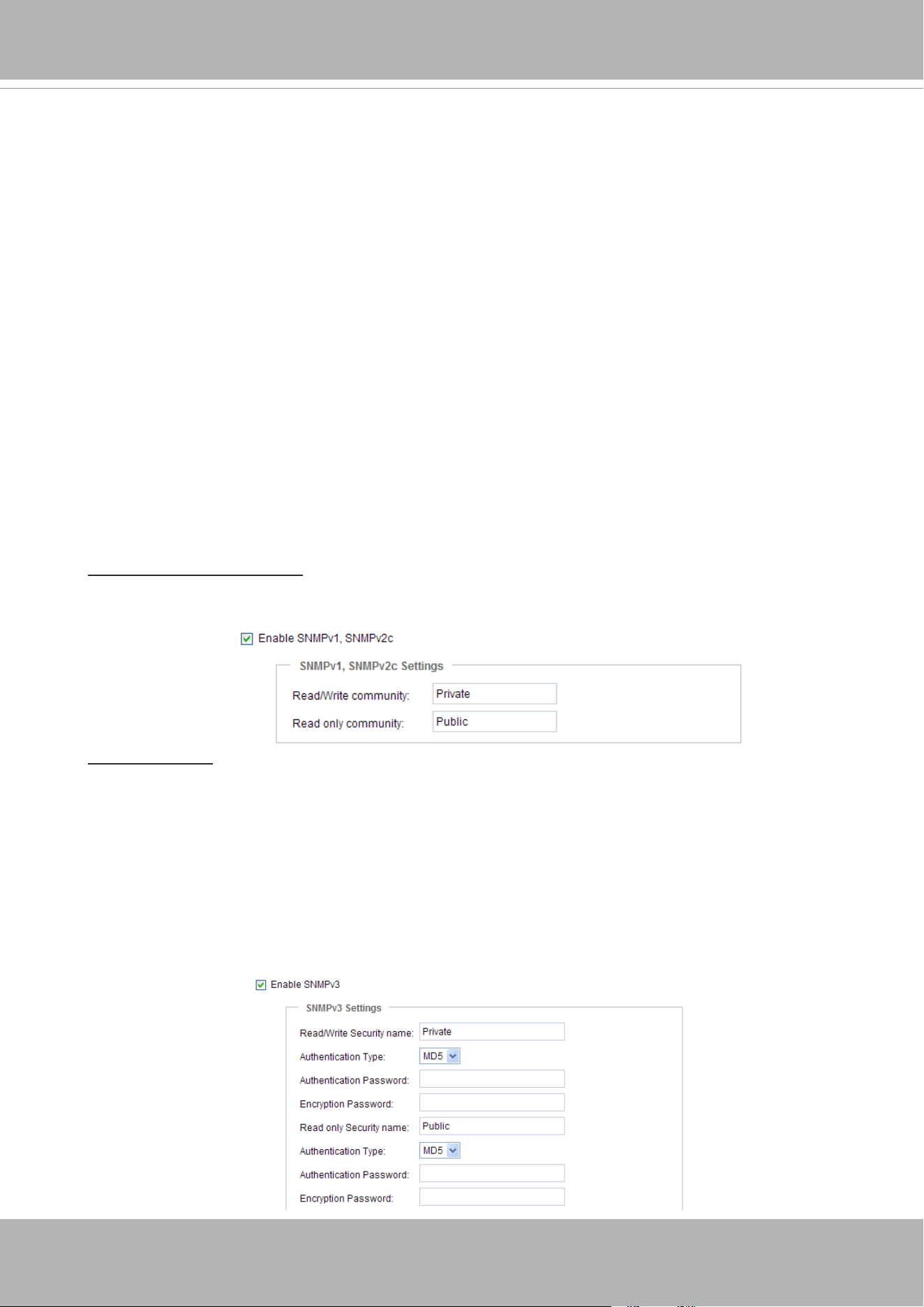
VIVOTEK
114 - User's Manual
Network > SNMP
(Simple Network Management Protocol)
This section explains how to use the SNMP on the network camera. The Simple Network
Management Protocol is an application layer protocol that facilitates the exchange of
management information between network devices. It helps network administrators to
remotely manage network devices and nd, solve network problems with ease.
■ The SNMP consists of the following three key components:
1. Manager: Network-management station (NMS), a server which executes applications that
monitor and control managed devices.
2. Agent: A network-management software module on a managed device which transfers the status
of managed devices to the NMS.
3. Managed device: A network node on a managed network. For example: routers, switches,
bridges, hubs, computer hosts, printers, IP telephones, network cameras, web server, and
database.
Before conguring SNMP settings on the this page, please enable your NMS rst.
SNMP Conguration
Enable SNMPv1, SNMPv2c
Select this option and enter the names of Read/Write community and Read Only community
according to your NMS settings.
Enable SNMPv3
This option contains cryptographic security, a higher security level, which allows you to set the
Authentication password and the Encryption password.
■ Security name: According to your NMS settings, choose Read/Write or Read Only and enter the
community name.
■ Authentication type: Select MD5 or SHA as the authentication method.
■ Authentication password: Enter the password for authentication (at least 8 characters).
■ Encryption password: Enter a password for encryption (at least 8 characters).
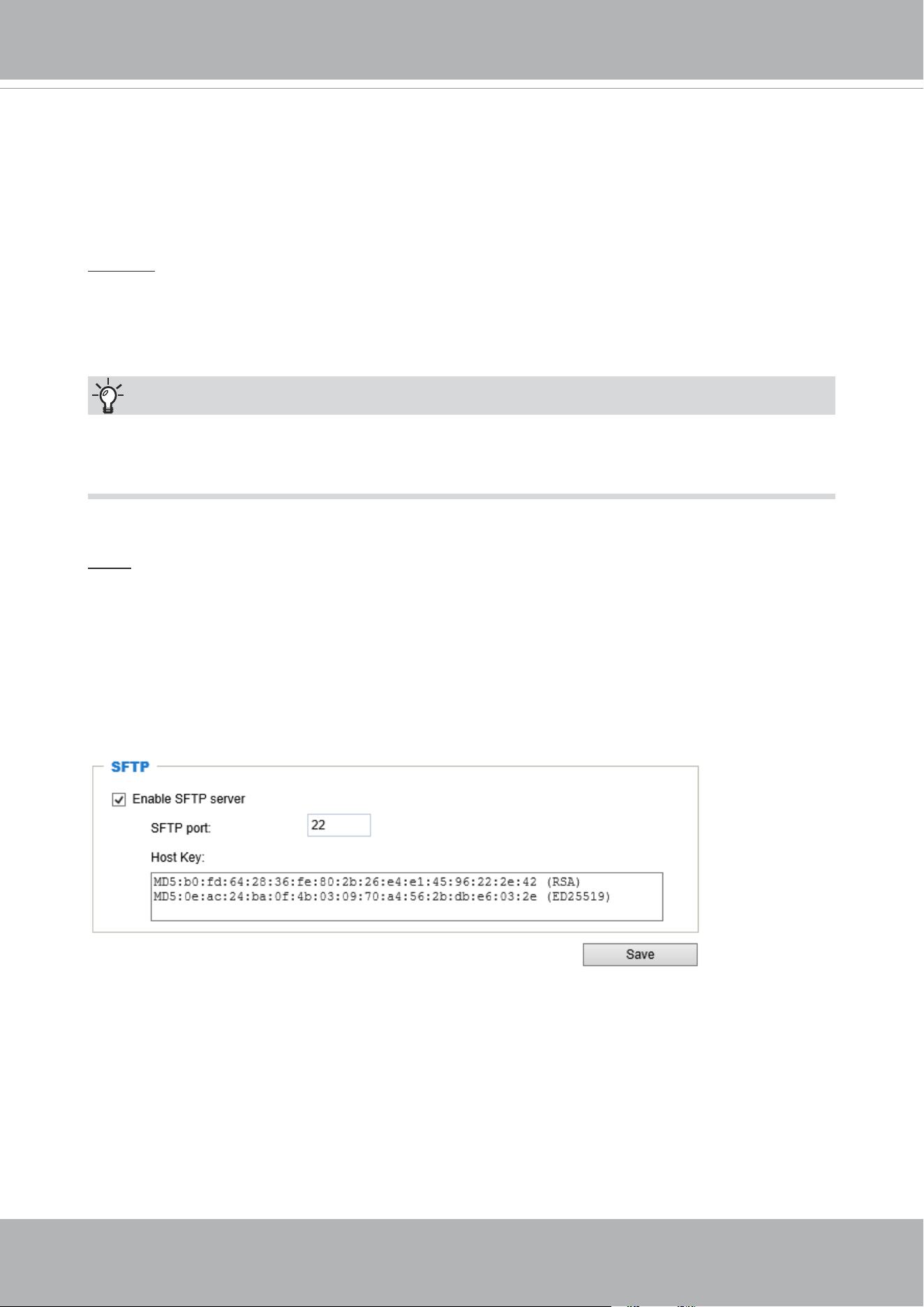
VIVOTEK
User's Manual - 115
You can FTP the camera’s IP address to download videos recorded in the SD card, or use the “http://
ip/cgi-bin/admin/lsctrl.cgi?cmd=search” command to examine the recorded les on your SD card.
Tips:
Network > FTP
The newer rmware disabled the FTP port for security concerns. You can manually enable the FTP
server service to enable the FTP function. You can disable the FTP server function when it is not in
use.
FTP port: The FTP server allows the user to save recorded video clips. You can utilize VIVOTEK's
Shepherd utility to upgrade the rmware via FTP server. By default, the FTP port is set to 21. It can
also be assigned to another port number between 1025 and 65535.
SFTP:
This is the embedded SFTP client. Host Key: A host key is the SFTP server's public key.
Ensuring the SFTP server is validated is an important aspect of the SFTP protocol. It is
designed to protect against man-in-the-middle attacks where the hacker intercepts and
relays an impersonated message to the other party.
Click the
Save
button and the camera SFTP server MD5 key will display. The default
format is ED25519 and RSA.
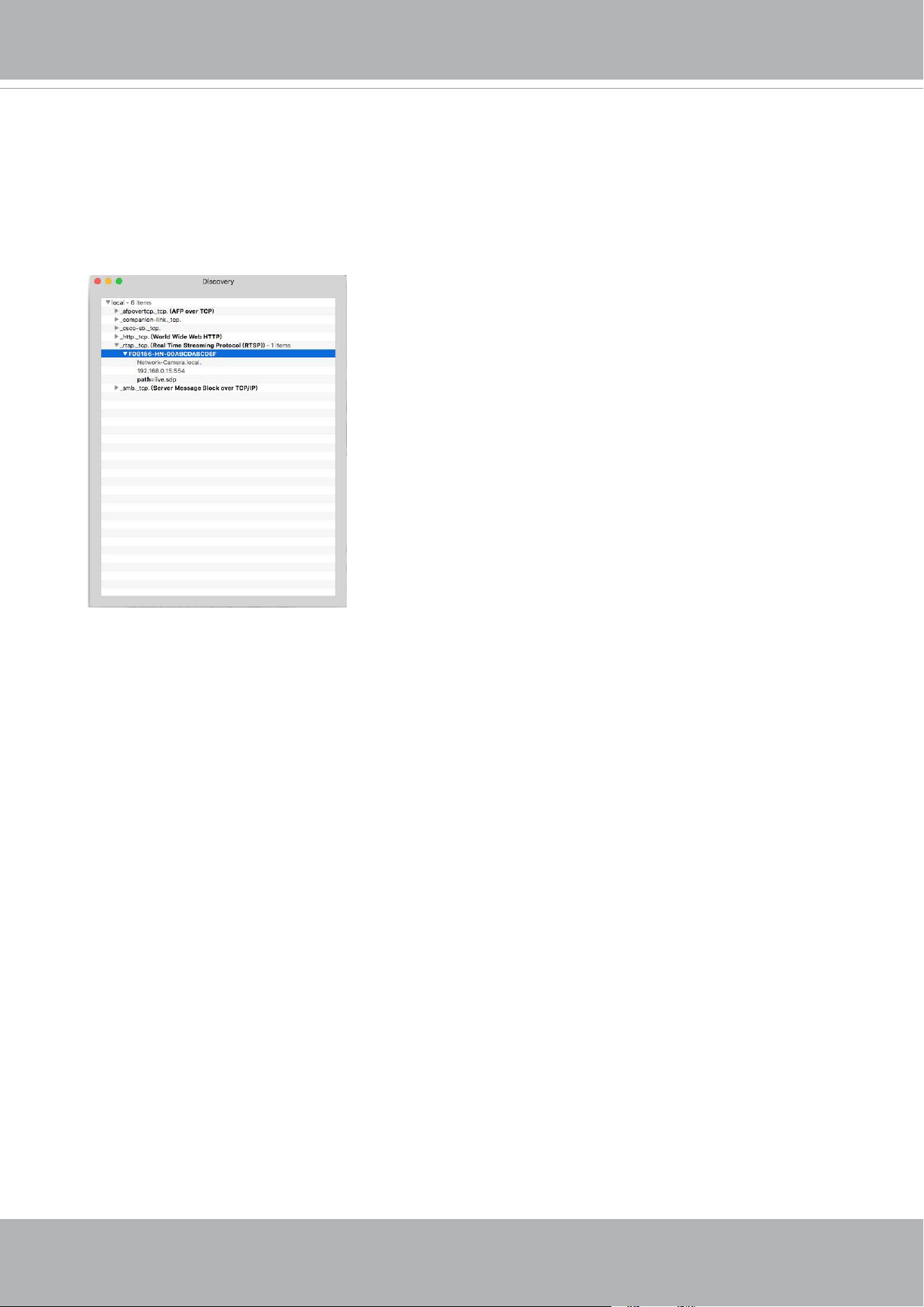
VIVOTEK
116 - User's Manual
Bonjour
To access the camera from a Mac computer, go to Safari, click on Bonjour and select the camera
from a drop-down list.
You can go to Safari > Preferences to enter your user name and password, and provide the root
password the rst time you access the camera. The camera main page will open in your browser.
Some later iOSes may come without the Bonjour option. Install the Discovery utility instead.
Find the Discovery (formerly Bonjour Browser) from the Mac App Store.
Discovery is a utility that displays all the Bonjour services on your local network or on Wide-Area
Bonjour domains. The utility is previously called Bonjour Browser, it is now distributed on the Mac
App Store.
Discovery requires macOS 10.12 or higher. For older versions of Mac OS you can download the
old version of Bonjour Browser.
Bonjour Browser (obsolete)
http://www.tildesoft.com/les/BonjourBrowser.dmg - Version 1.5.6
Discovery for iOS
https://itunes.apple.com/us/app/discovery-dns-sd-browser/id305441017?mt=8
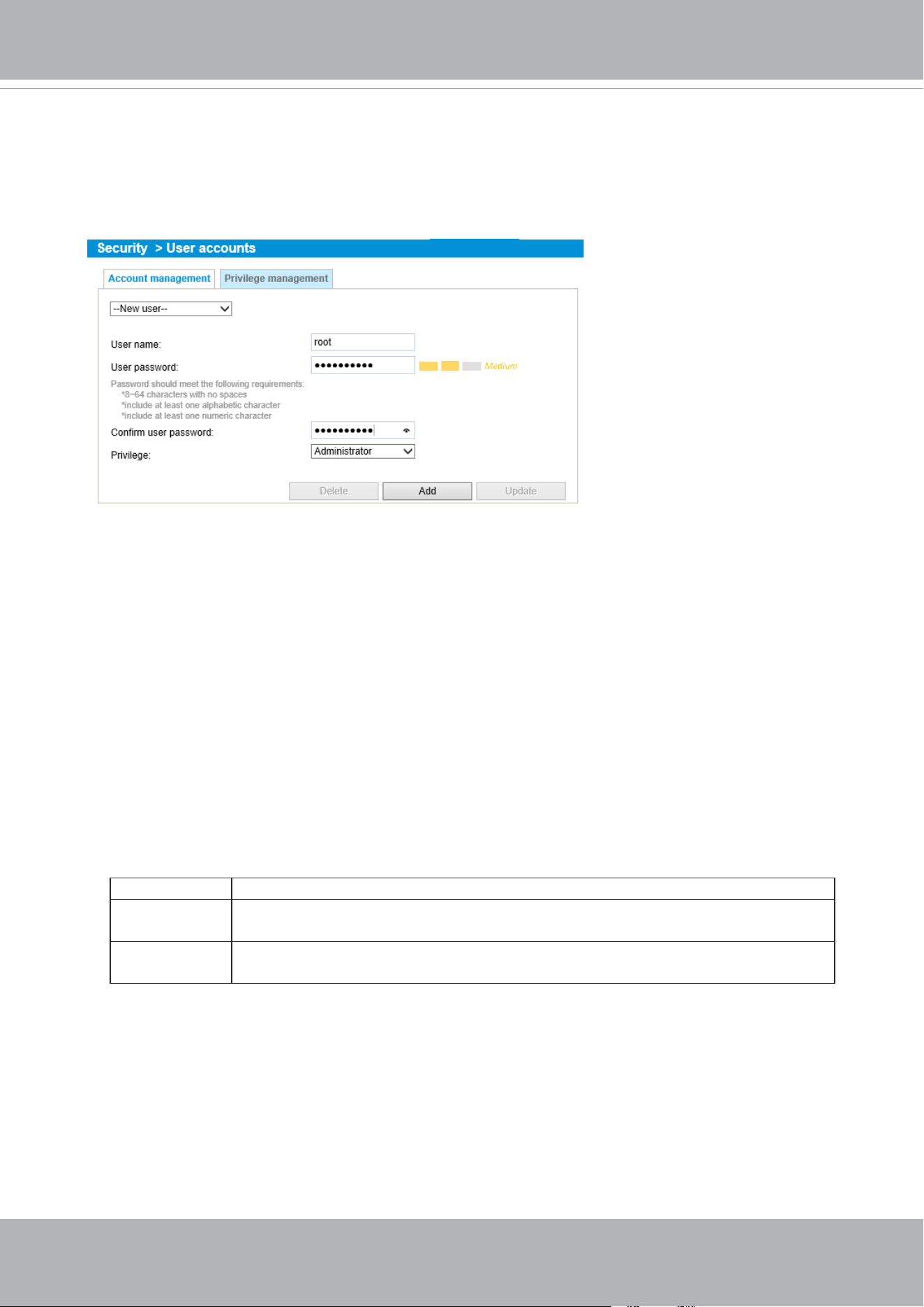
VIVOTEK
User's Manual - 117
Security > User accounts
This section explains how to enable password protection and create multiple accounts.
Account management
The administrator account name is “root”, which is permanent and can not be deleted. If you want
to add more accounts in the Account management window, please apply the password for the “root”
account rst.
The administrator can create up to 20 user accounts.
To create a new user,
1. Click to unfold the pull-down menu. Select
New user
.
2. Enter the new user’s name and password. Type the password identically in both text boxes.
Some, but not all special ASCII characters are supported: !, $, %, -, ., @, ^, _, and ~.
You can use them in the password combination.
The strength of your password combination is shown on the right, use the combination of
alphabetic, numeric, upper case, and lower case characters until the password strength is good
enough.
3. Select the privilege level for the new user account. Click
Add
to enable the setting.
The privilege levels are listed below:
Administrator Full control
Operator Control DO, white-light illuminator, snapshot, and PTZ;
unable to enter the camera Conguration page.
Viewer Control DO, white-light illuminator, view, listen, PTZ, and talk through the
camera interface.
Access rights are sorted by user privilege (Administrator, Operator, and Viewer). Only
administrators can access the Configuration page. Although operators cannot access the
Conguration page, they can use the URL Commands to get and set the value of parameters. For
more information, please refer to URL Commands of the Network Camera on page 170. Viewers
can only access the main page for live viewing.
Here you also can change a user’s access rights or delete user accounts.
1. Select an existing account to modify.
2. Make necessary changes and click
Update
or
Delete
to enable the setting.
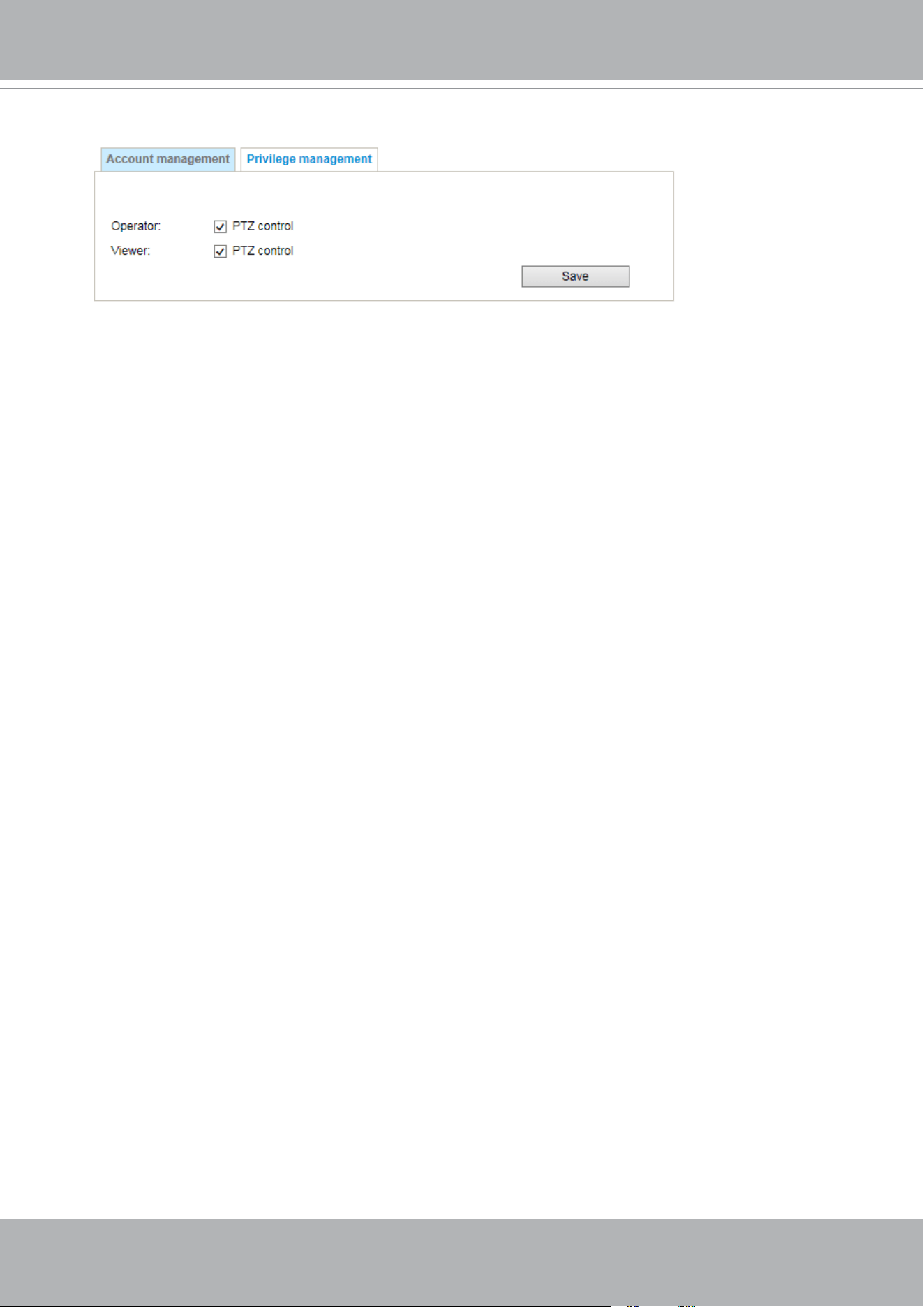
VIVOTEK
118 - User's Manual
Privilege management
Digital Output & PTZ control: You can modify the management privilege as operators or viewers.
Select or de-select the checkboxes, and then click
Save
to enable the settings. If you give Viewers
the privilege, Operators will also have the ability to control the Network Camera through the main
page. (Please refer to Conguration on page 56).
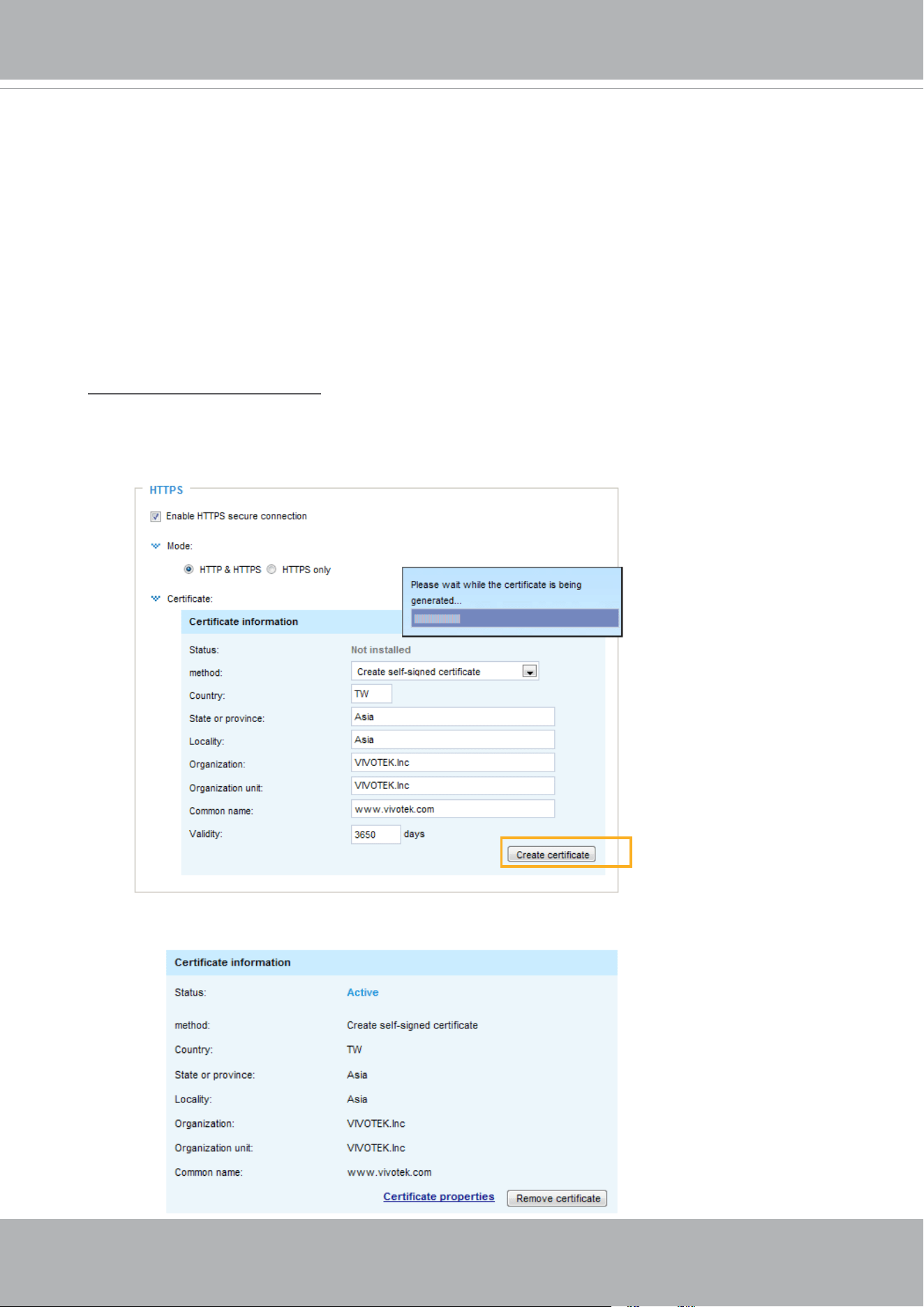
VIVOTEK
User's Manual - 119
Security > HTTPS
(Hypertext Transfer Protocol over SSL)
This section explains how to enable authentication and encrypted communication over
SSL (Secure Socket Layer). It helps protect streaming data transmission over the Internet
on higher security level.
Create and Install Certicate Method
Before using HTTPS for communication with the Network Camera, a
Certicate
must be created
rst. There are three ways to create and install a certicate:
Create self-signed certificate
1. Select this option from a pull-down menu.
2. In the rst column, select
Enable HTTPS secure connection
, then select a connection option:
“HTTP & HTTPS” or “HTTPS only”.
3. Click
Create certicate
to generate a certicate.
4. The Certicate Information will automatically be displayed as shown below. You can click
Certi-
cate properties
to view detailed information about the certicate.
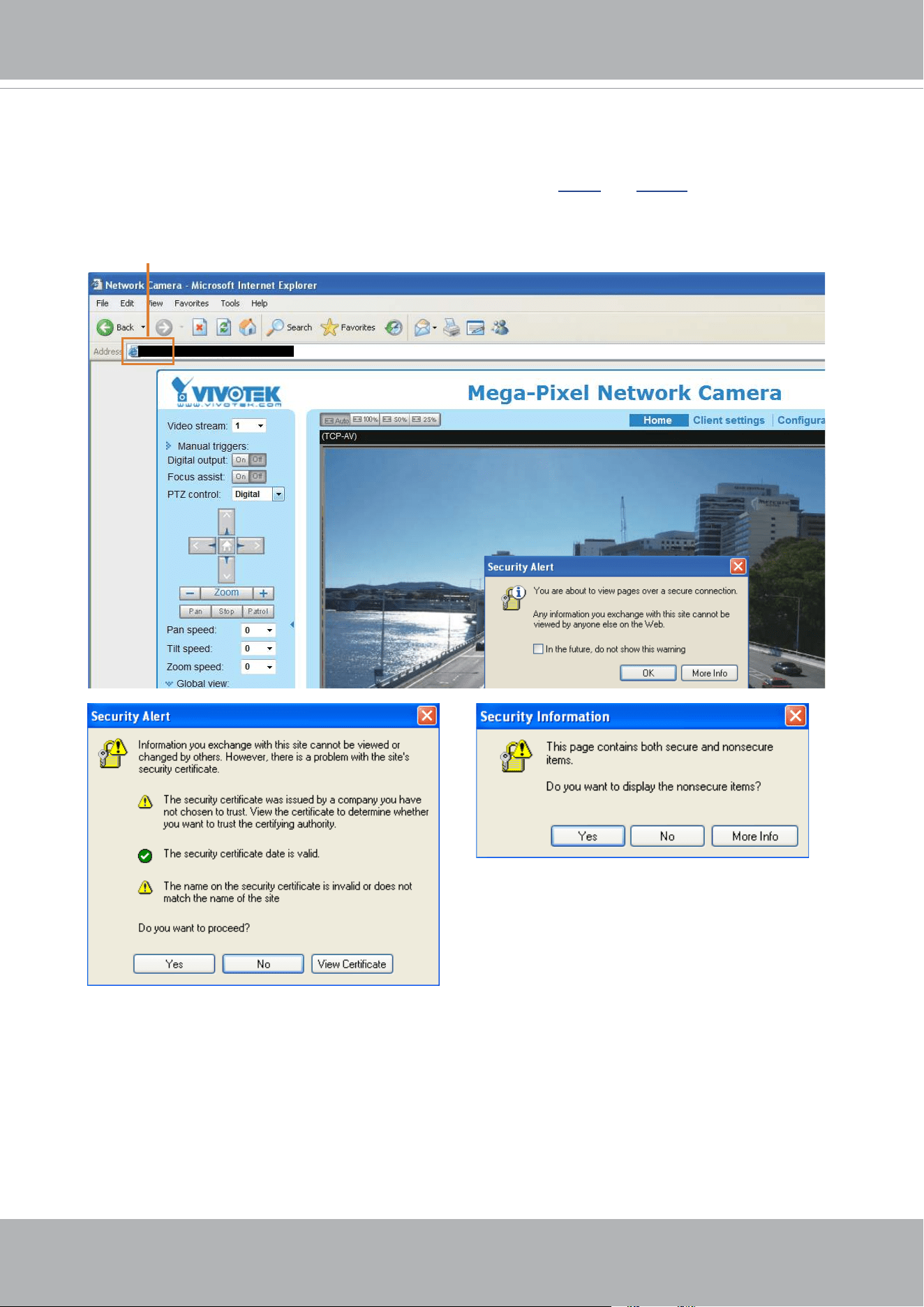
VIVOTEK
120 - User's Manual
5. Click
Save
to preserve your conguration, and your current session with the camera will change
to the encrypted connection.
6. If your web session does not automatically change to an encrypted HTTPS session, click
Home
to return to the main page. Change the URL address from “http://” to “https://“ in the address bar
and press
Enter
on your keyboard. Some Security Alert dialogs will pop up. Click
OK
or
Yes
to
enable HTTPS.
https://192.168.5.151/index.html
https://
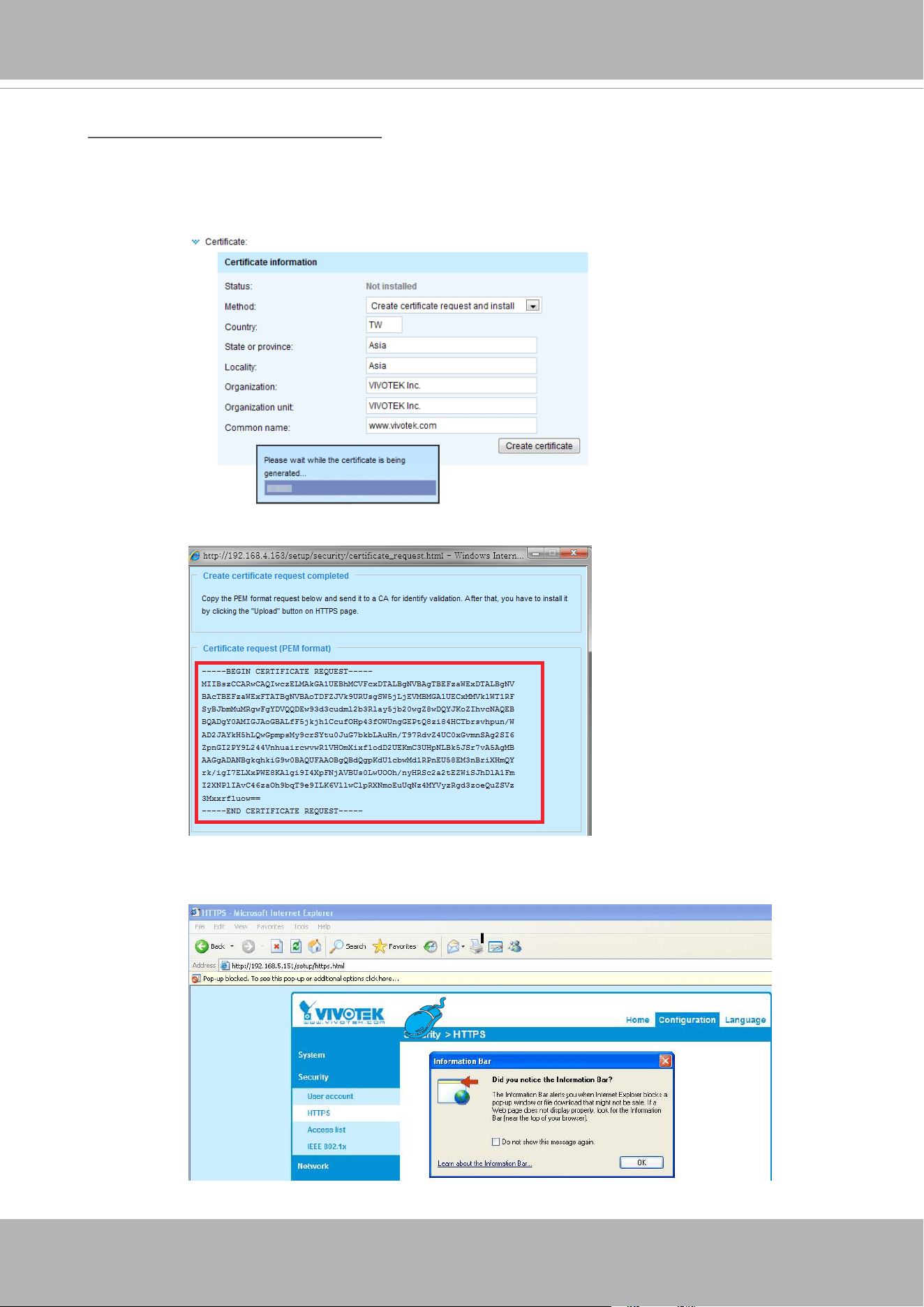
VIVOTEK
User's Manual - 121
Create certificate request and install
1. Select the option from the
Method
pull-down menu.
2. Click
Create certicate
to proceed.
3. The following information will show up in a pop-up window after clicking
Create
. Then click
Save
to generate the certicate request.
4. The Certicate request window will prompt.
If you see the following Information bar, click
OK
and click on the Information bar at the top of
the page to allow pop-ups.
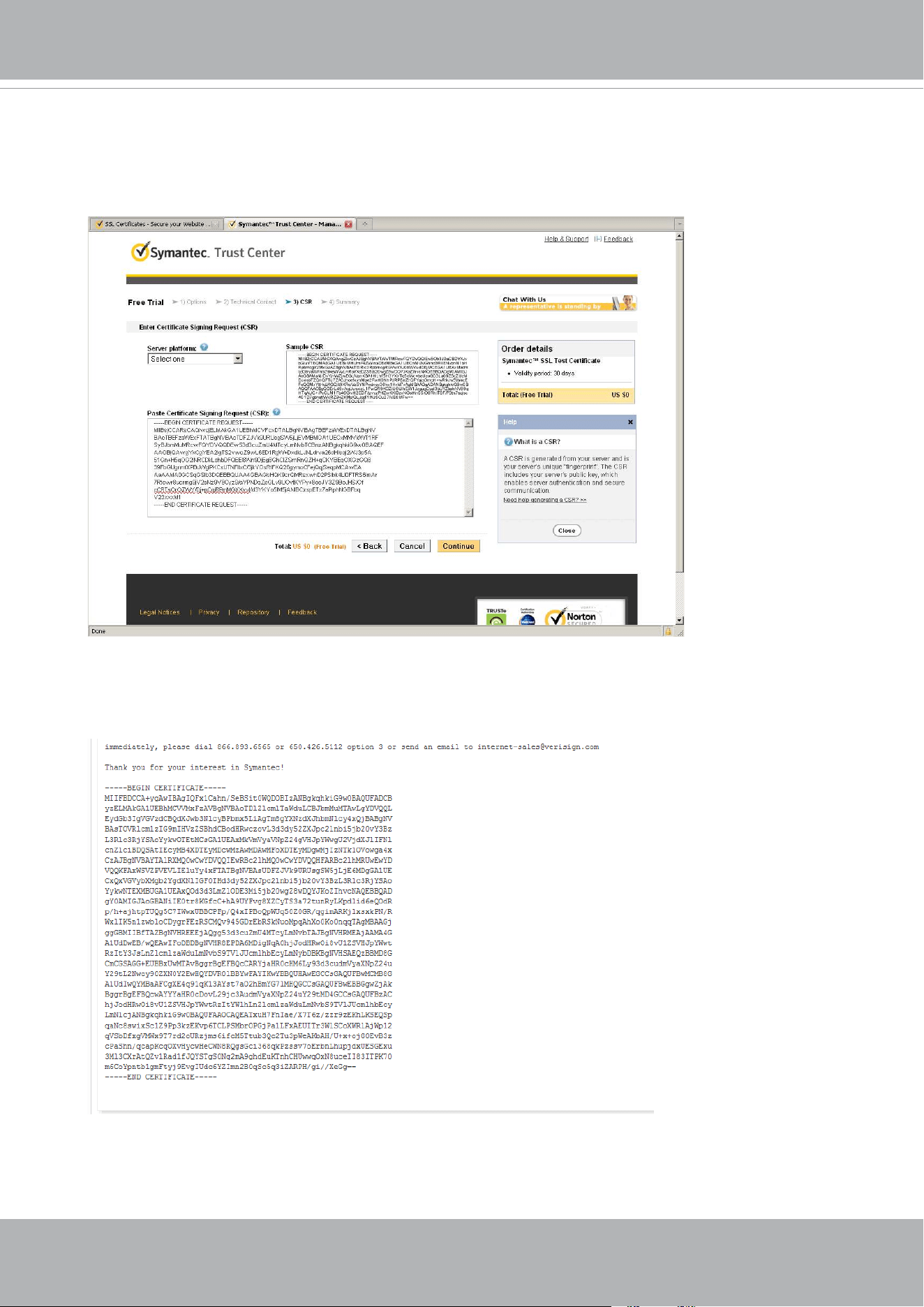
VIVOTEK
122 - User's Manual
5. Look for a trusted certicate authority, such as Symantec’s VeriSign Authentication Services, that
issues digital certicates. Sign in and purchase the SSL certication service. Copy the certicate
request from your request prompt and paste it in the CA’s signing request window. Proceed with
the rest of the process as CA’s instructions on their webpage.
6. Once completed, your SSL certicate should be delivered to you via an email or other means.
Copy the contents of the certicate in the email and paste it in a text/HTML/hex editor/converter,
such as IDM Computer Solutions’ UltraEdit.
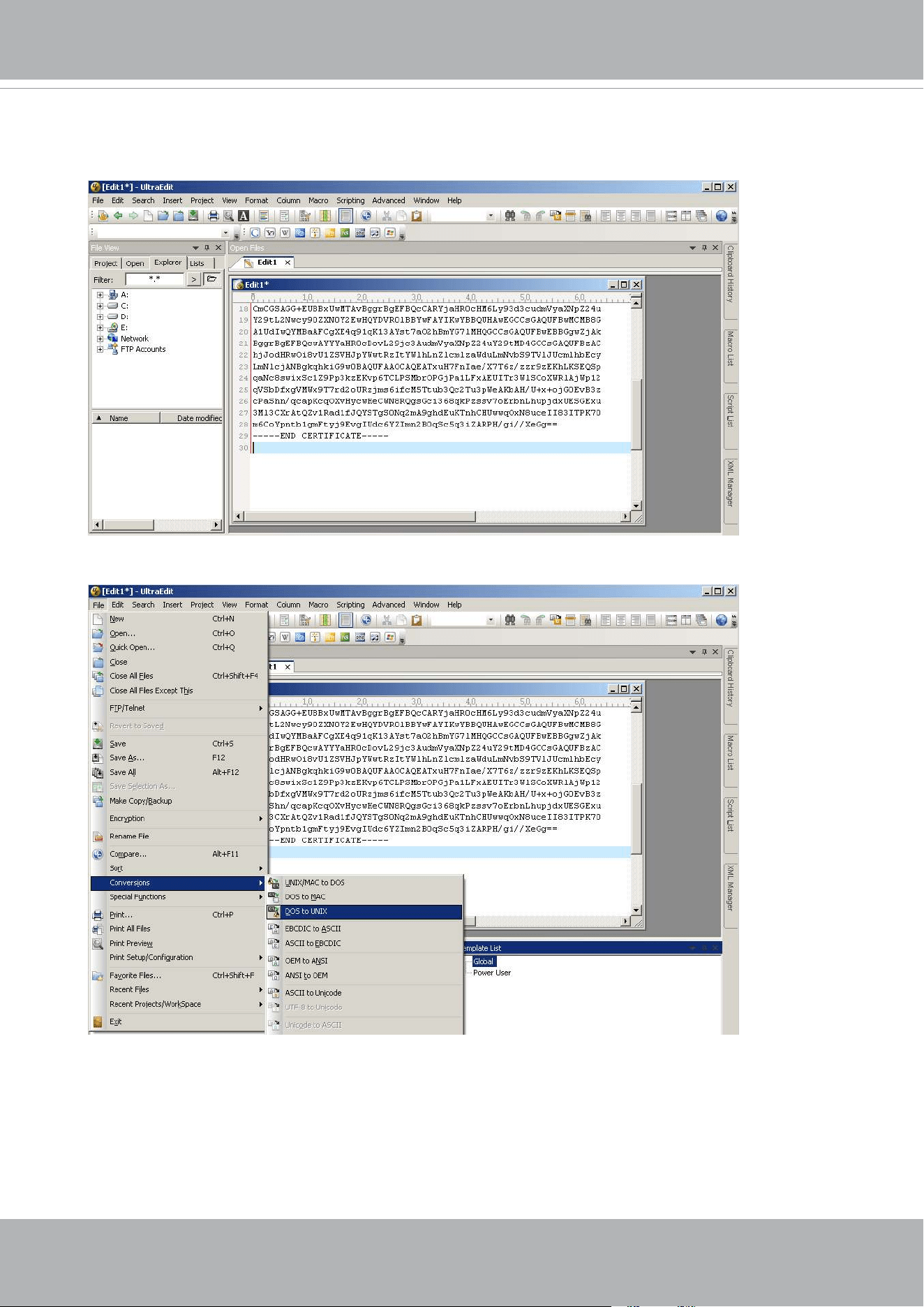
VIVOTEK
User's Manual - 123
7. Open a new edit, paste the certicate contents, and press ENTER at the end of the contents to
add an empty line.
8. Convert le format from DOS to UNIX. Open
File
menu >
Conversions
>
DOS to Unix
.
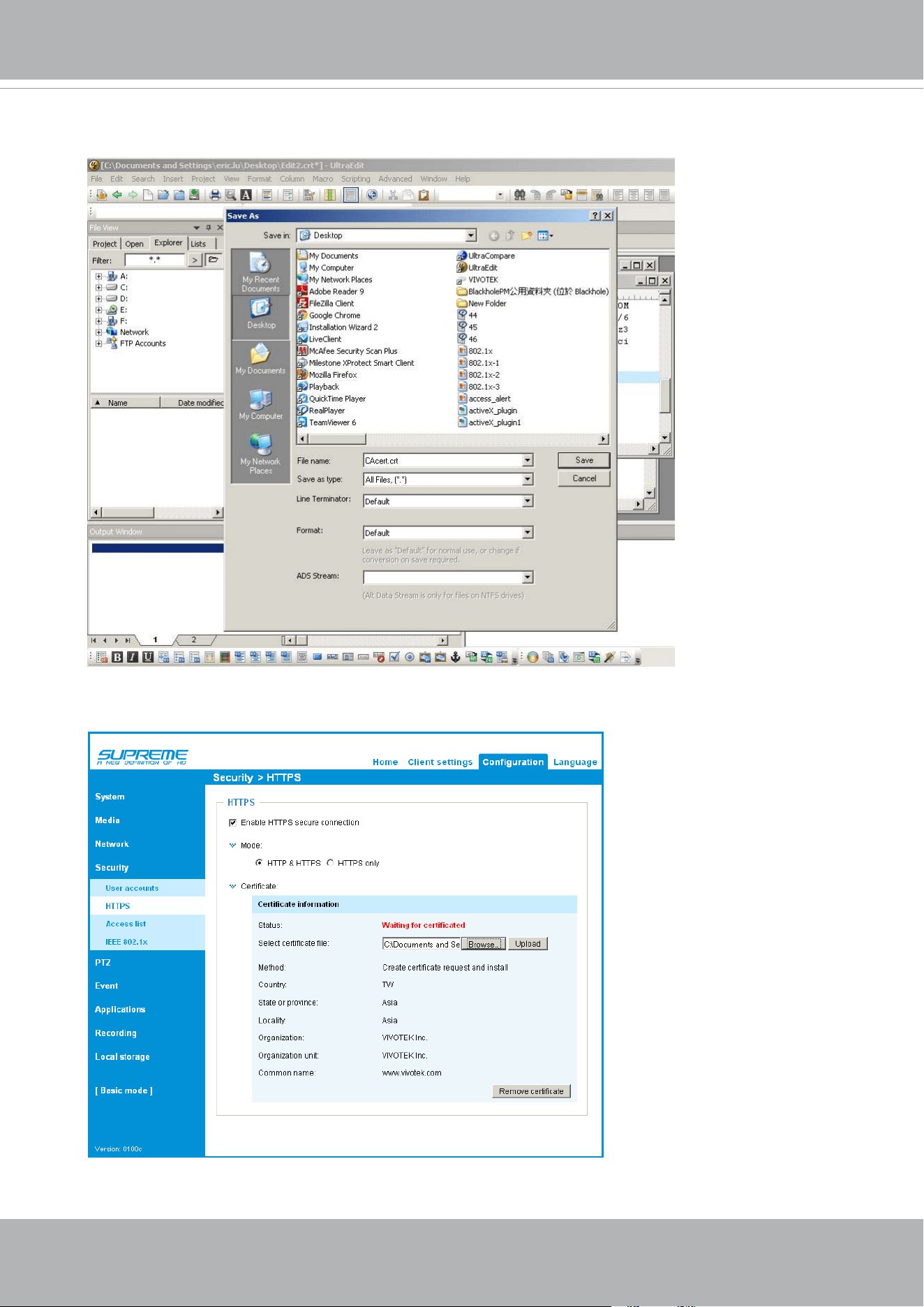
VIVOTEK
124 - User's Manual
9. Save the edit using the “.crt” extension, using a le name like “CAcert.crt.”
10. Return to the original rmware session, use the
Browse
button to locate the crt certicate le,
and click
Upload
to enable the certication.
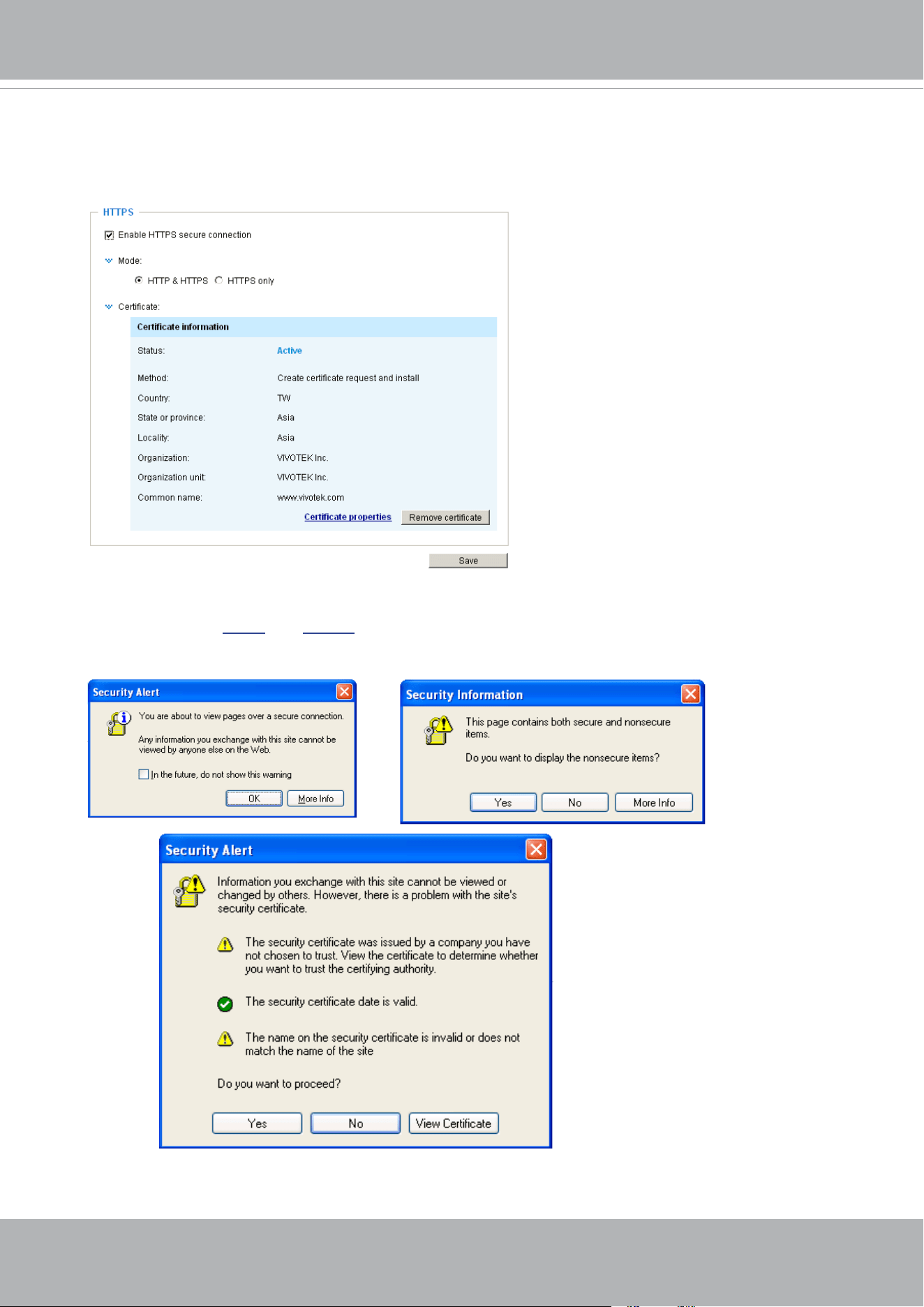
VIVOTEK
User's Manual - 125
11. When the certifice file is successfully loaded, its status will be stated as
Active
.
Note that
a certicate must have been created and installed before you can click on the “
Save
"
button for the conguration to take eect.
12.To begin an encrypted HTTPS session, click
Home
to return to the main page. Change the URL
address from “http://” to “https://“ in the address bar and press
Enter
on your keyboard. Some
Security Alert dialogs will pop up. Click
OK
or
Yes
to enable HTTPS.
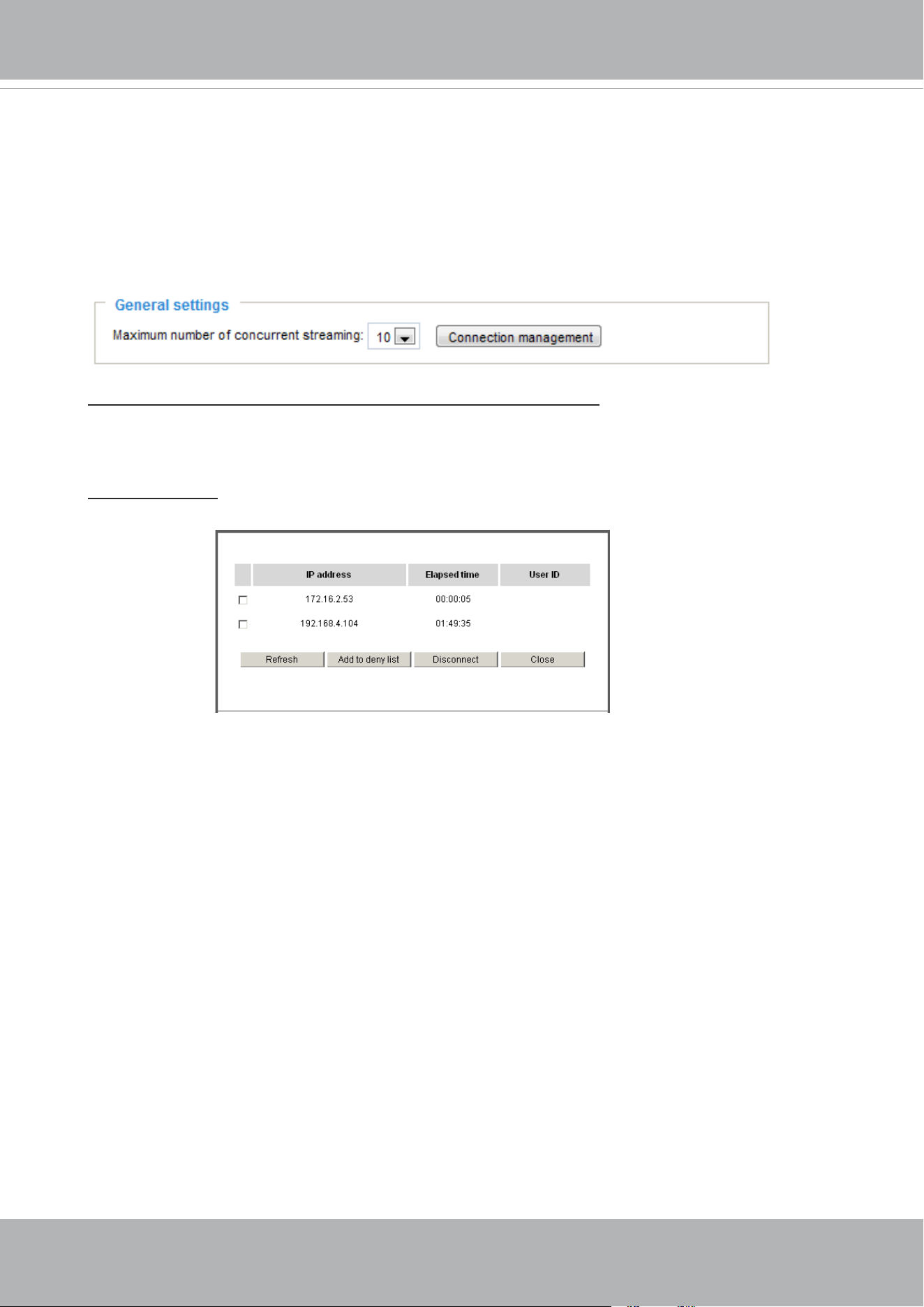
VIVOTEK
126 - User's Manual
Security > Access List
This section explains how to control access permission by verifying the client PC’s IP
address.
General Settings
Maximum number of concurrent streaming connection(s) limited to: Simultaneous live viewing for
1~10 clients (including stream 1 to stream 3). The default value is 10. If you modify the value and
click
Save
, all current connections will be disconnected and automatically attempt to re-link (IE
Explorer or Quick Time Player).
View Information: Click this button to display the connection status window showing a list of the
current connections. For example:
Note that only consoles that are currently displaying live streaming will be listed in the View
Information list.
■ IP address: Current connections to the Network Camera.
■ Elapsed time: How much time the client has been at the webpage.
■ User ID: If the administrator has set a password for the webpage, the clients have to enter a
user name and password to access the live video. The user name will be displayed in the User
ID column. If the administrator allows clients to link to the webpage without a user name and
password, the User ID column will be empty.
There are some situations that allow clients access to the live video without a user name and
password:
1. The administrator does not set up a root password. For more information about how to set up
a root password and manage user accounts, please refer to Security > User account on page
117.
2. The administrator has set up a root password, but set
RTSP Authentication
to “disable“. For
more information about
RTSP Authentication
,
please refer to RTSP Streaming on page 106.
3. The administrator has set up a root password, but allows anonymous viewing. For more
information about
Allow Anonymous Viewing,
please refer to page 117.
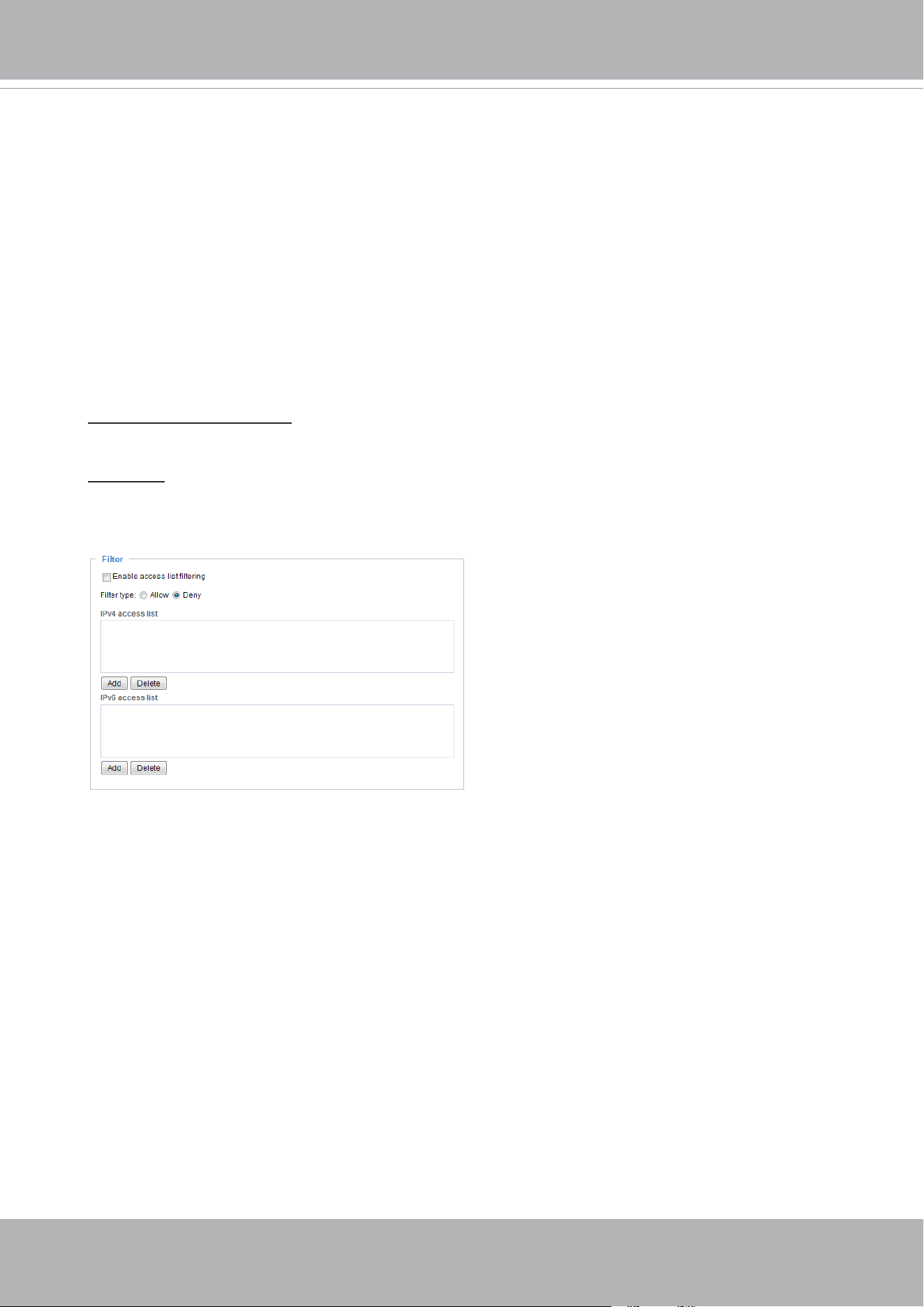
VIVOTEK
User's Manual - 127
■ Refresh: Click this button to refresh all current connections.
■ Add to deny list: You can select entries from the Connection Status list and add them to the
Deny List to deny access. Please note that those checked connections will only be disconnected
temporarily and will automatically try to re-link again (IE Explore or Quick Time Player). If you
want to enable the denied list, please check
Enable access list ltering
and click
Save
in the
rst column.
■ Disconnect: If you want to break o the current connections, please select them and click this
button. Please note that those checked connections will only be disconnected temporarily and
will automatically try to re-link again (IE Explore or Quick Time Player).
Filter
Enable access list ltering: Check this item and click
Save
if you want to enable the access list
ltering function.
Filter type: Select
Allow
or
Deny
as the lter type. If you choose
Allow Type
, only those clients
whose IP addresses are on the Access List below can access the Network Camera, and the others
cannot. On the contrary, if you choose
Deny Type
, those clients whose IP addresses are on the
Access List below will not be allowed to access the Network Camera, and the others can.
Then you can
Add
a rule to the following Access List. Please note that the IPv6 access list column
will not be displayed unless you enable IPv6 on the Network page. For more information about
IPv6 Settings
, please refer to Network > General settings on page 98 for detailed information.
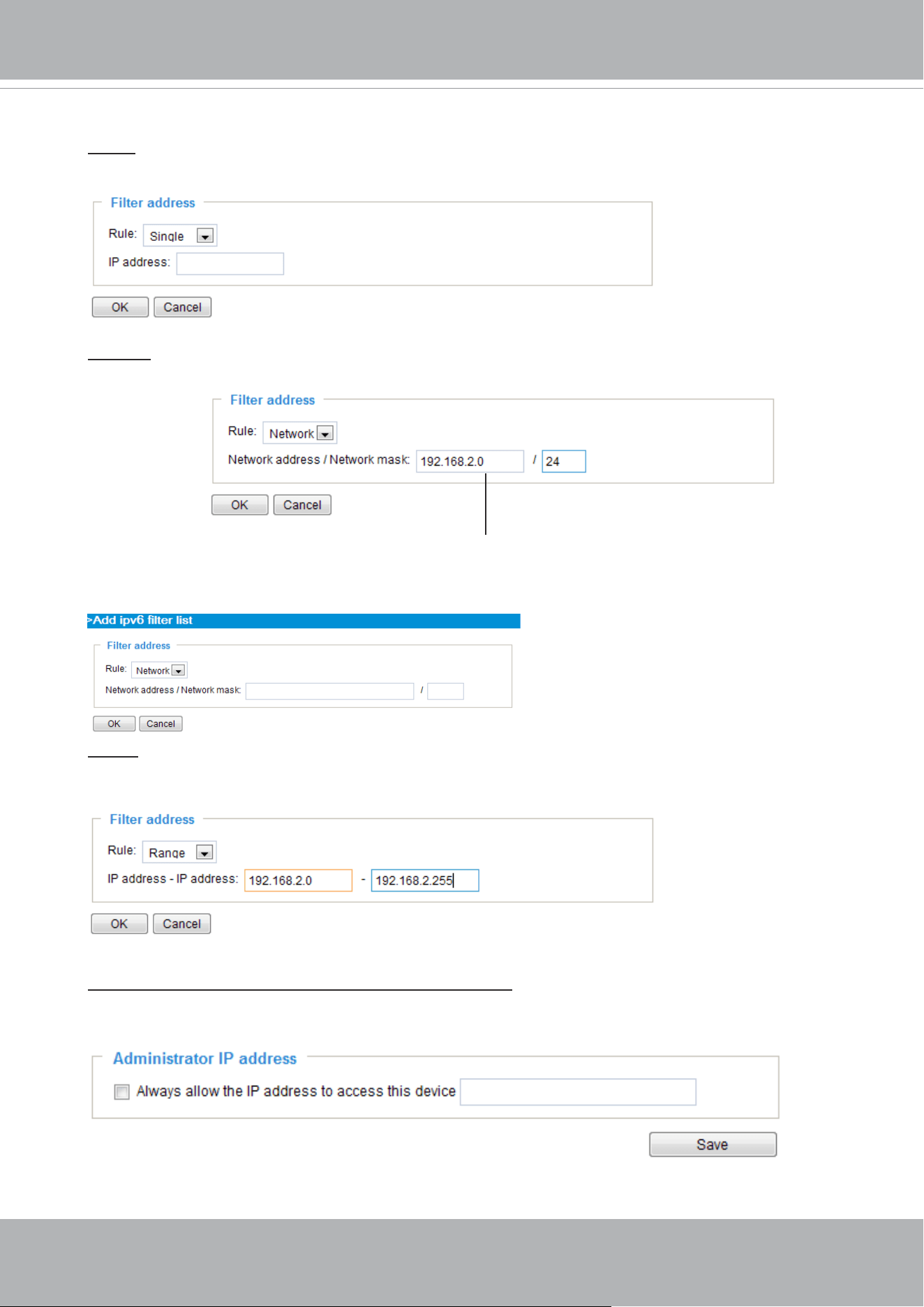
VIVOTEK
128 - User's Manual
Network: This rule allows the user to assign a network address and corresponding subnet mask to
the Allow/Deny List. The address and network mask are written in CIDR format.
For example:
Range: This rule allows the user to assign a range of IP addresses to the Allow/Deny List.
Note: This rule only applies to IPv4 addresses.
For example:
Administrator IP address
Always allow the IP address to access this device: You can check this item and add the
Administrator’s IP address in this eld to make sure the Administrator can always connect to the
device.
IP address range 192.168.2.x will be bolcked.
There are three types of rules:
Single: This rule allows the user to add an IP address to the Allowed/Denied list.
For example:
192.168.2.1
If IPv6 lter is preferred, you will be prompted by the following window. Enter the IPv6 address and
the two-digit prex length to specify the range of IP addresses in your conguration.
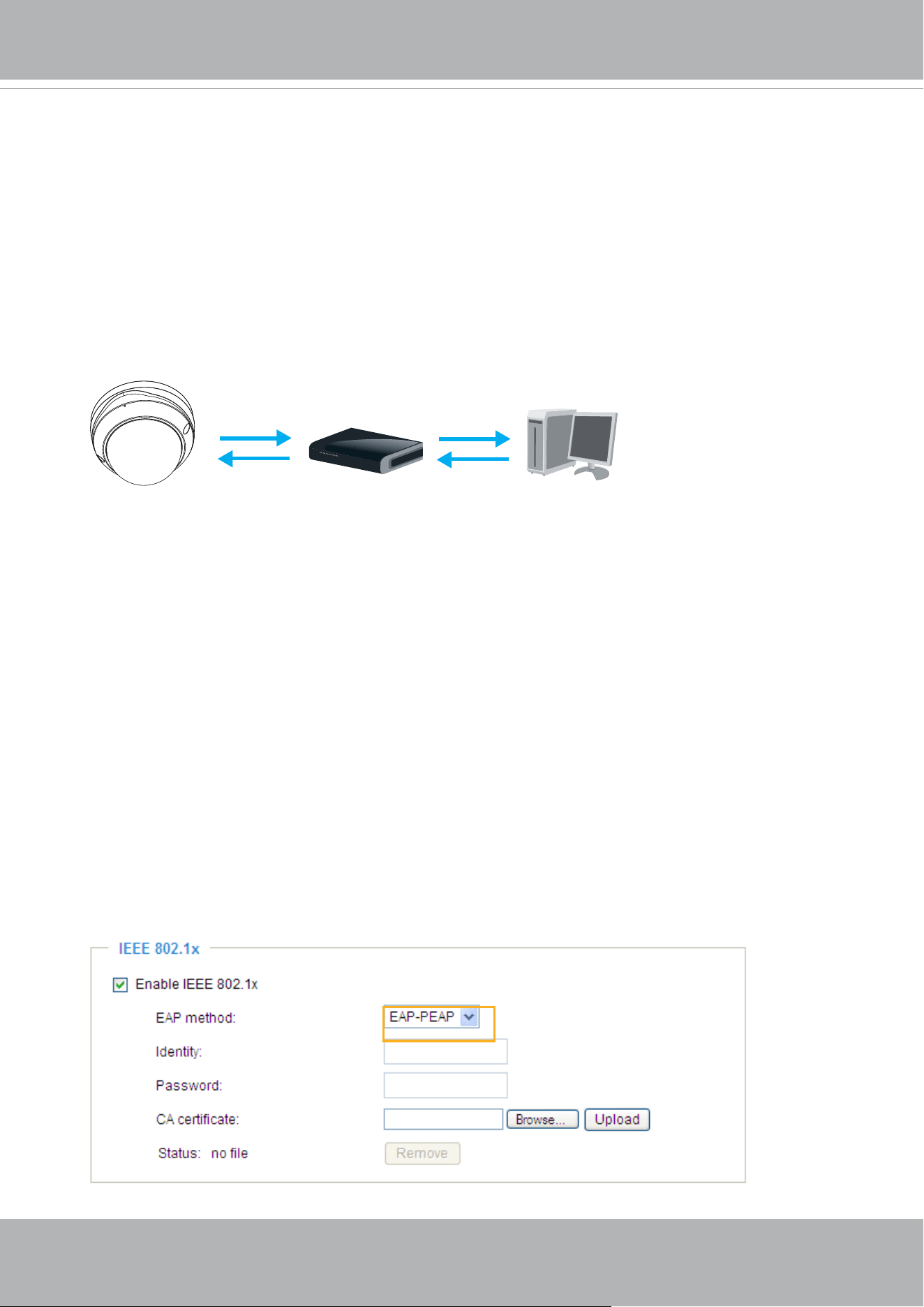
VIVOTEK
User's Manual - 129
Security > IEEE 802.1X
Enable this function if your network environment uses IEEE 802.1x, which is a port-based network
access control. The network devices, intermediary switch/access point/hub, and RADIUS server
must support and enable 802.1x settings.
The 802.1x standard is designed to enhance the security of local area networks, which provides
authentication to network devices (clients) attached to a network port (wired or wireless). If all
certicates between client and server are veried, a point-to-point connection will be enabled; if
authentication fails, access on that port will be prohibited. 802.1x utilizes an existing protocol, the
Extensible Authentication Protocol (EAP), to facilitate communication.
■
The components of a protected network with 802.1x authentication:
1.
Supplicant: A client end user (camera), which requests authentication.
2.
Authenticator (an access point or a switch): A “go between” which restricts unauthorized end
users from communicating with the authentication server.
3.
Authentication server (usually a RADIUS server): Checks the client certificate and decides
whether to accept the end user’s access request.
■
VIVOTEK Network Cameras support two types of EAP methods to perform authentication:
EAP-
PEAP
and
EAP-TLS
.
Please follow the steps below to enable 802.1x settings:
1. Before connecting the Network Camera to the protected network with 802.1x, please apply
a digital certificate from a Certificate Authority (i.e., your network administrator) which can be
validated by a RADIUS server.
2. Connect the Network Camera to a PC or notebook outside of the protected LAN. Open the
conguration page of the Network Camera as shown below. Select
EAP-PEAP
or
EAP-TLS
as
the EAP method. In the following blanks, enter your ID and password issued by the CA, then
upload related certicate(s).
Supplicant
(Network Camera)
Authenticator
(Network Switch)
Authentication Server
(RADIUS Server)
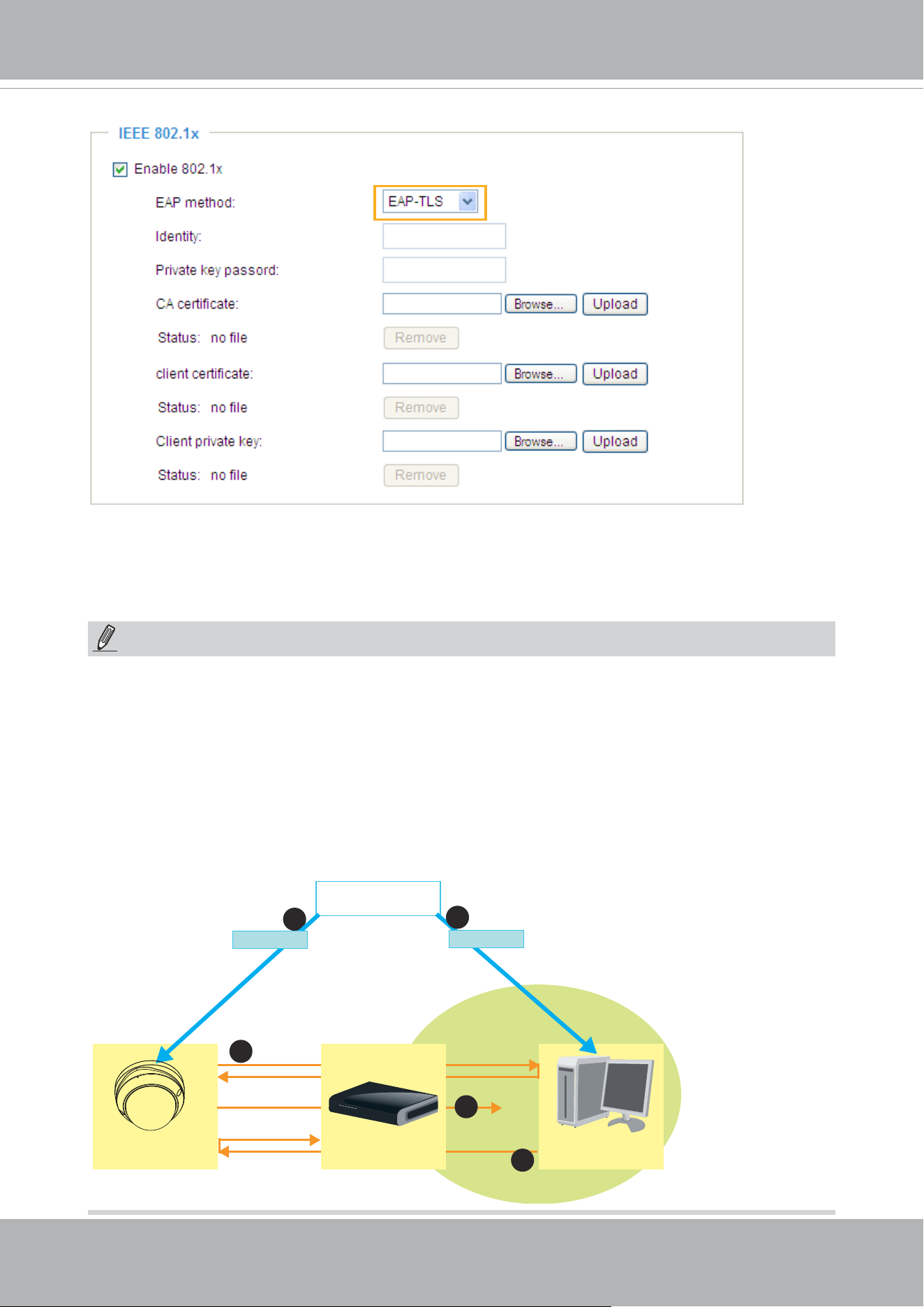
VIVOTEK
130 - User's Manual
3. When all settings are complete, move the Network Camera to the protected LAN by connecting
it to an 802.1x enabled switch. The devices will then start the authentication automatically.
VIVOTEK
Network Camera
RADIUS Server
Certificate Authority
(CA)
Protected LAN
Certificate
1
1
2
3
4
Network Switch
Certificate
NOTE:
► The authentication process for 802.1x:
1. The Certicate Authority (CA) provides the required signed certicates to the Network Camera
(the supplicant) and the RADIUS Server (the authentication server).
2. A Network Camera requests access to the protected LAN using 802.1X via a switch (the
authenticator). The client oers its identity and client certicate, which is then forwarded by the
switch to the RADIUS Server, which uses an algorithm to authenticate the Network Camera and
returns an acceptance or rejection back to the switch.
3. The switch also forwards the RADIUS Server’s certicate to the Network Camera.
4. Assuming all certicates are validated, the switch then changes the Network Camera’s state to
authorized and is allowed access to the protected network via a pre-congured port.
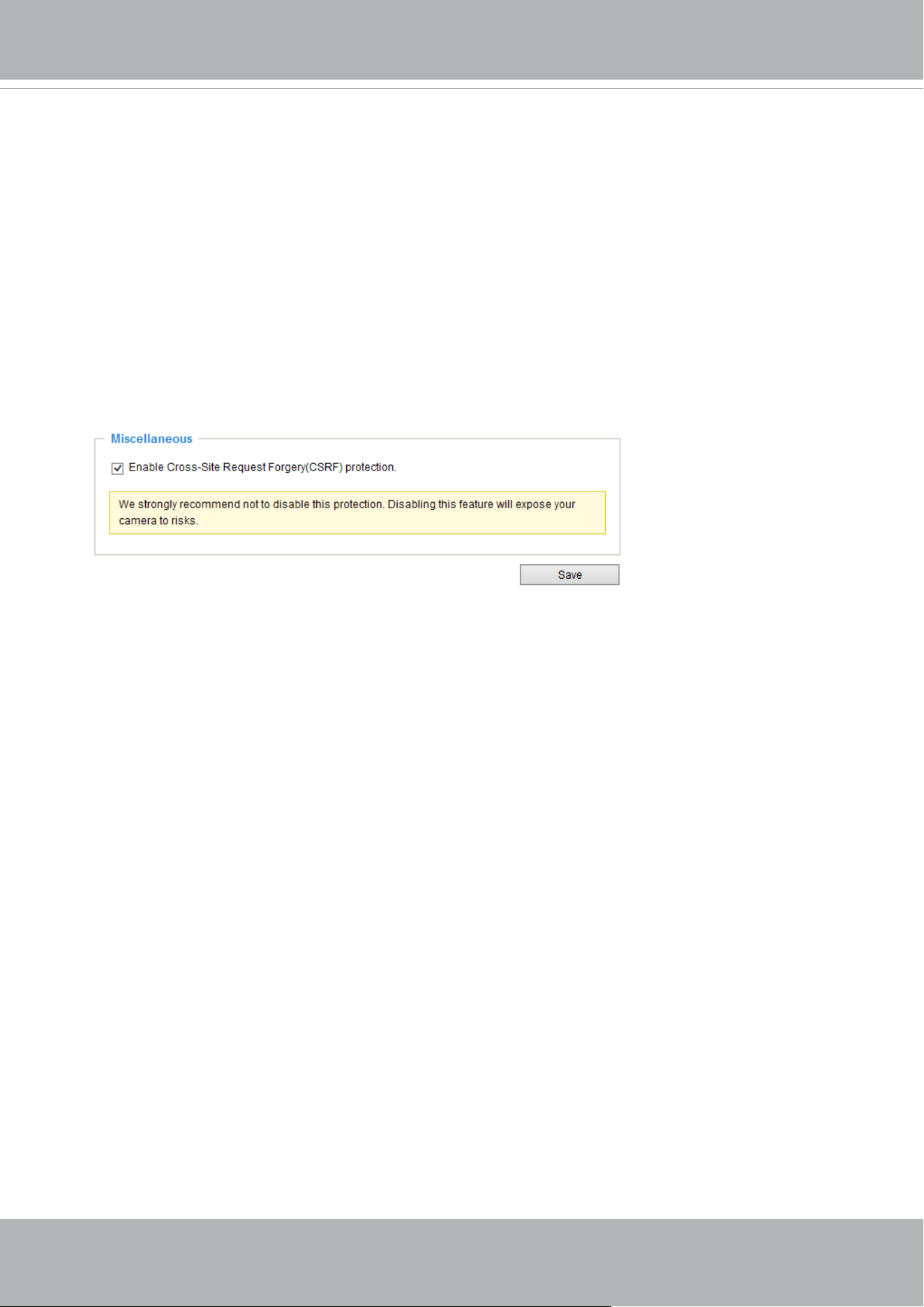
VIVOTEK
User's Manual - 131
Security > Miscellaneous
The embedded TrendMicro utitlity provides the protection against Cross-Site Request
Forgery. Cross-site request forgery is also known as one-click attack or session riding and
is abbreviated as CSRF. CSRF is a type of malicious exploit of a website, in this case, the
camera. Unauthorized commands are transmitted from a user that the web application
trusts, using the mechanism of forging a trusted user's own request with a request
containing his own cookies, etc. Different ways can be used for a malicious website to
transmit such commands. They can be specially-crafted image tags, hidden forms, and
JavaScript XMLHttpRequests. The malicious attack can occur without users' interaction or
even knowing it.
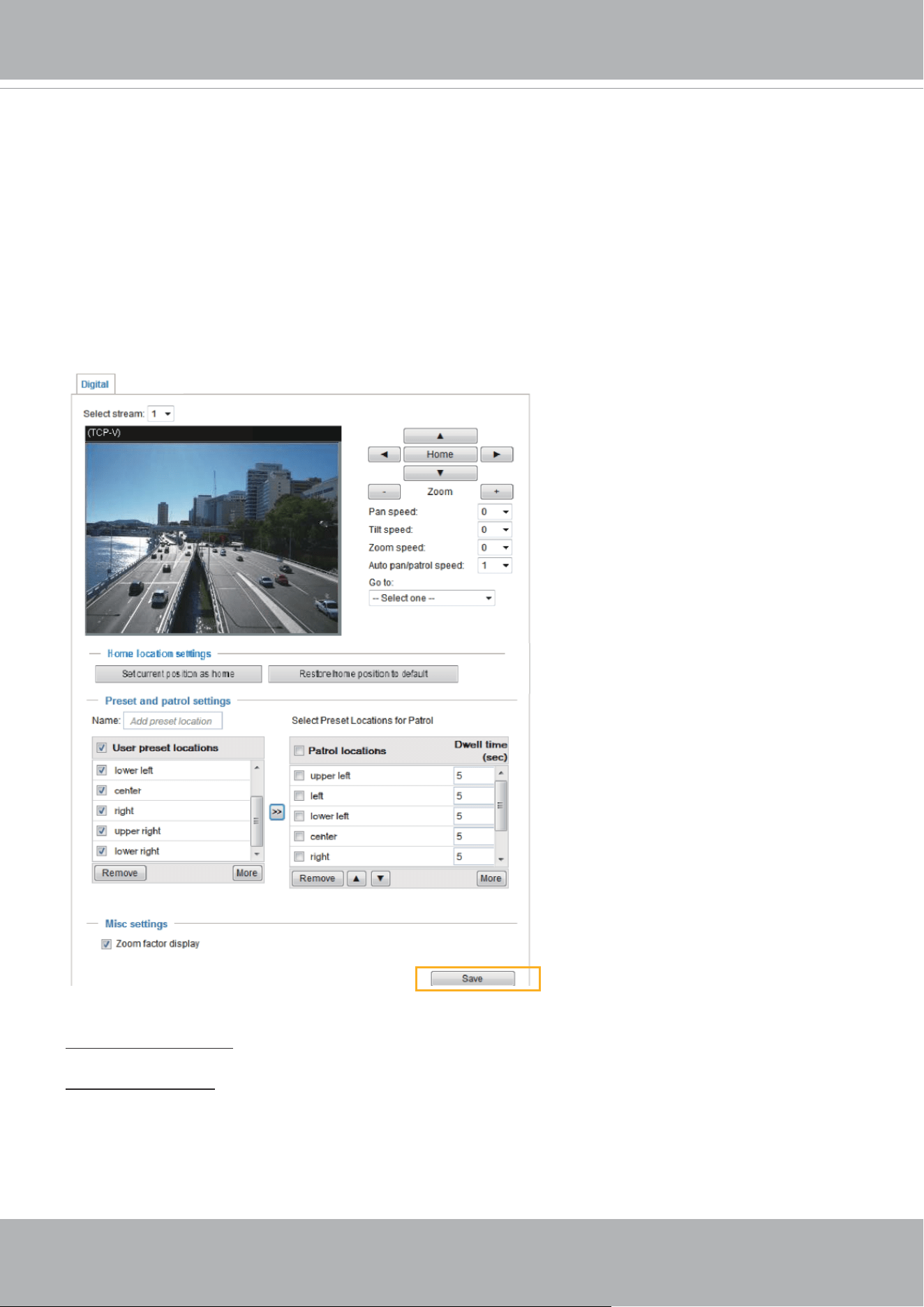
VIVOTEK
132 - User's Manual
PTZ > PTZ settings
This section explains how to control the Network Camera’s Pan/Tilt/Zoom operation (available in
the 3rd or the last video prole).
Digital: Control the e-PTZ operation. Within a eld of view,it allows users to quickly move the
focus to a target area for close-up viewing without physically moving the camera.
Digital PTZ Operation (E-PTZ Operation)
The e-PTZ control settings section will be displayed as shown below:
For e-PTZ related details, please refer to page 134.
Auto pan/patrol speed: Select the speed from 1~5 (slow/fast) to set up the Auto pan/patrol speed control.
Zoom factor display
If you check this item, the zoom indicator will be displayed on the home page when you zoom in/out the
live viewing window as the picture shown on the next page.
When completed with the e-PTZ settings, click
Save
to enable the settings on this page.
x1.8
x1.8
2015/05/20 09:57:30
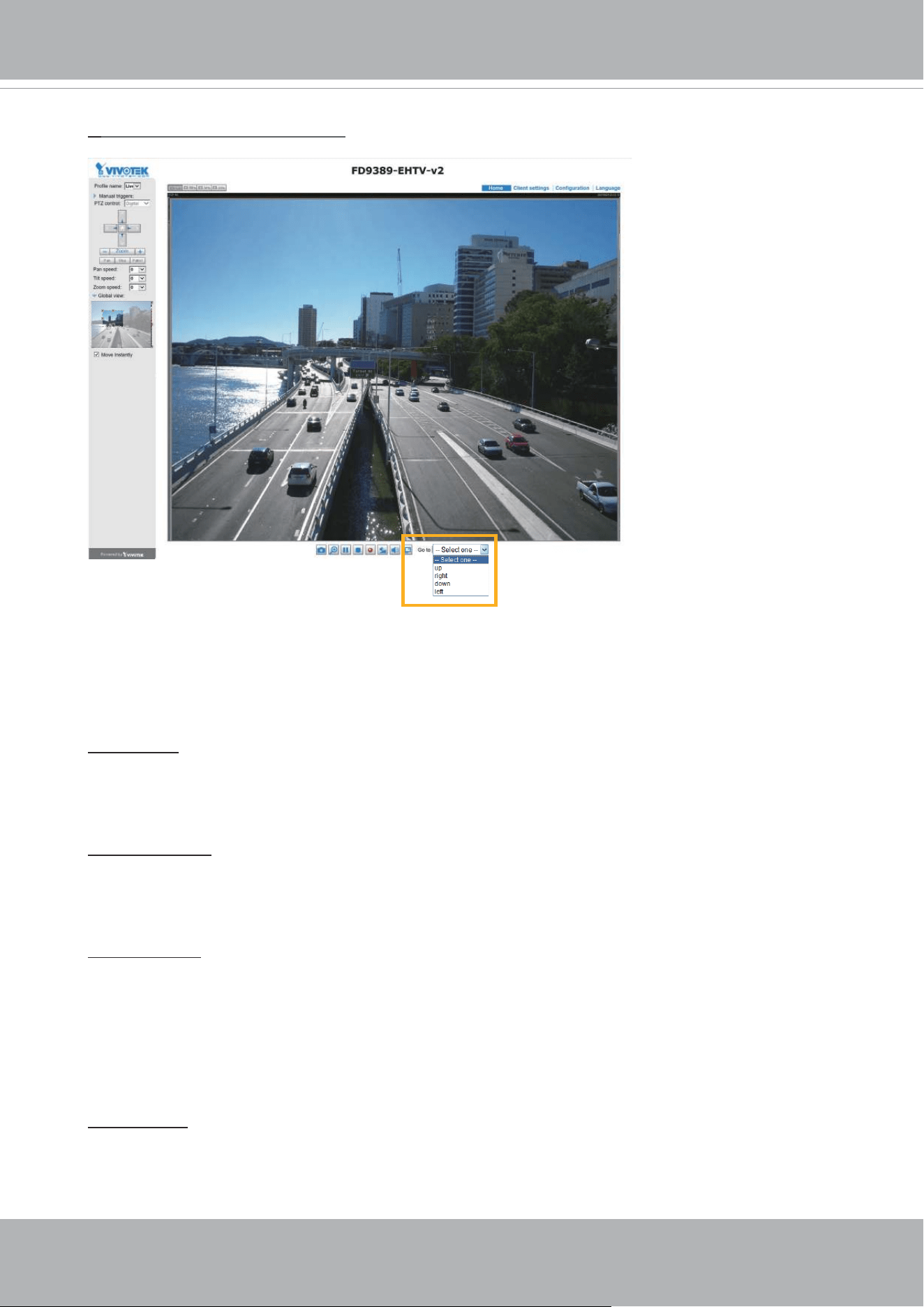
VIVOTEK
User's Manual - 133
Home page in the E-PTZ Mode
■ The e-Preset Positions will also be displayed on the home page. Select one from the drop-down
list, and the Network Camera will move to the selected position.
■ If you have set up dierent preset positions for dierent streams, you can select one of the video
streams to display its separate preset positions.
Global View
In addition to using the e-PTZ control panel, you can also use the mouse to drag or resize the
floating frame to pan/tilt/zoom the viewing region. The live view window will also move to the
viewing region accordingly.
Moving Instantly
If you check this item, the live view window will switch to the new viewing region instantly after you
move the oating frame. If not selected, the process of moving from one position to another will be
shown.
Click on Image
The e-PTZ function also supports “Click on Image“. When you click on any point of the Global View
Window or Live View Window, the viewing region will also move to that point.
Note that the”Click on Image” function only applies when you have congured a smaller “Region
of Interest” out of the maximum output frame! e.g., an 800 x 600 region from out of the camera’s
maximum frame size.
Patrol button: Click this button, then the Network Camera will patrol among the selected preset
positions continuously.
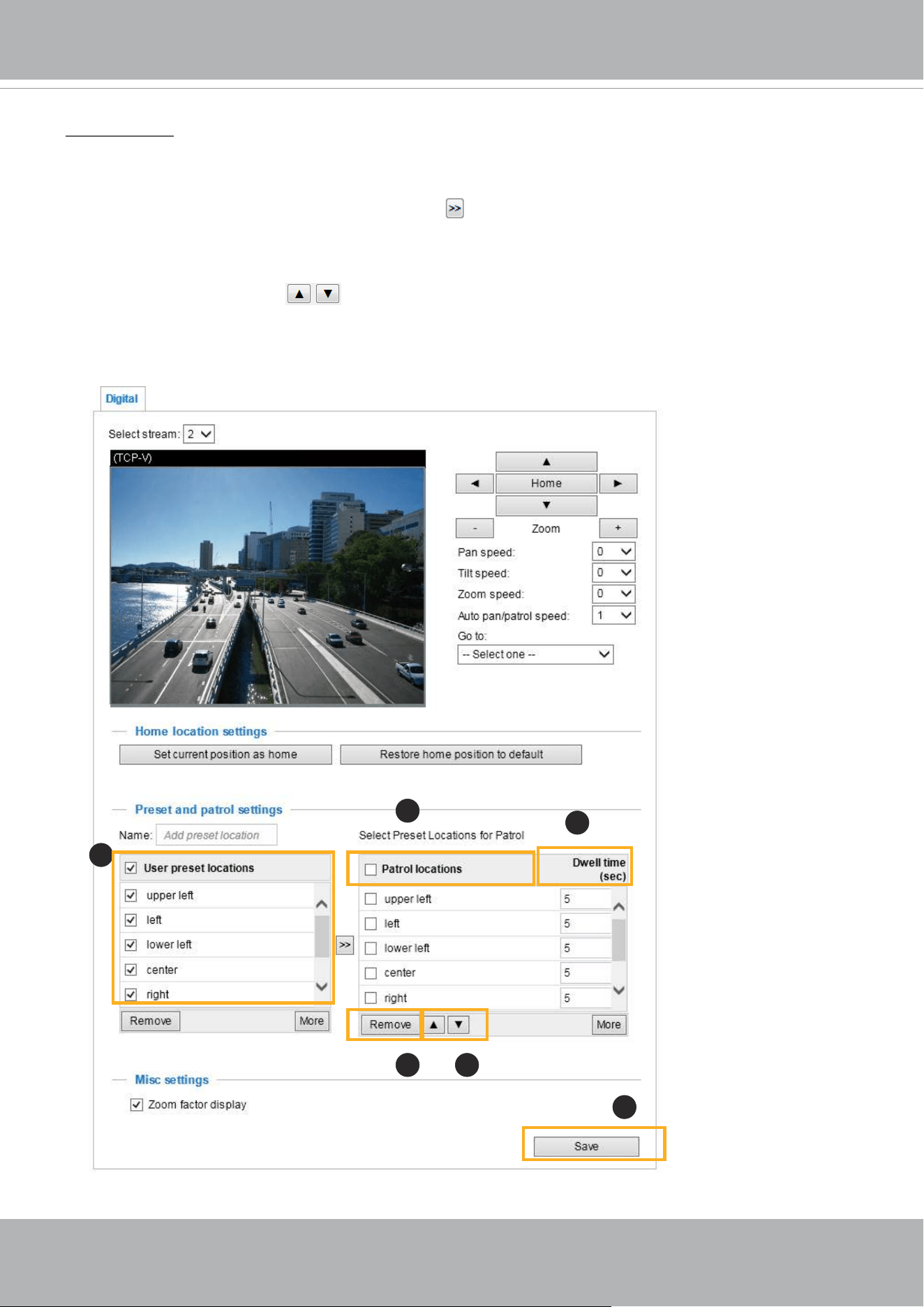
VIVOTEK
134 - User's Manual
Patrol settings
You can select some preset positions for the Network Camera to patrol.
Please follow the steps below to set up a patrol schedule:
1. Select the preset locations on the list, and click .
2. The selected preset locations will be displayed on the
Patrol locations
list.
3. Set the
Dwelling time
for the preset location during an auto patrol.
4. If you want to delete a preset location from the Patrol locations list, select it and click
Remove
.
5. Select a location and click
to rearrange the patrol order.
6. Select patrol locations you want to save in the list and click
Save
to enable the patrol settings.
7. To implement the patrol schedule, please go to homepage and click on the
Patrol
button.
x1.8
2018/3/20 09:57:30
1
2
6
54
3

VIVOTEK
User's Manual - 135
NOTE:
• The Preset Positions will also be displayed on the Home page. Select one from the Go to
menu, and the Network Camera will move to the selected preset position.
• Click Patrol: The Network Camera will patrol along the selected positions repeatedly.
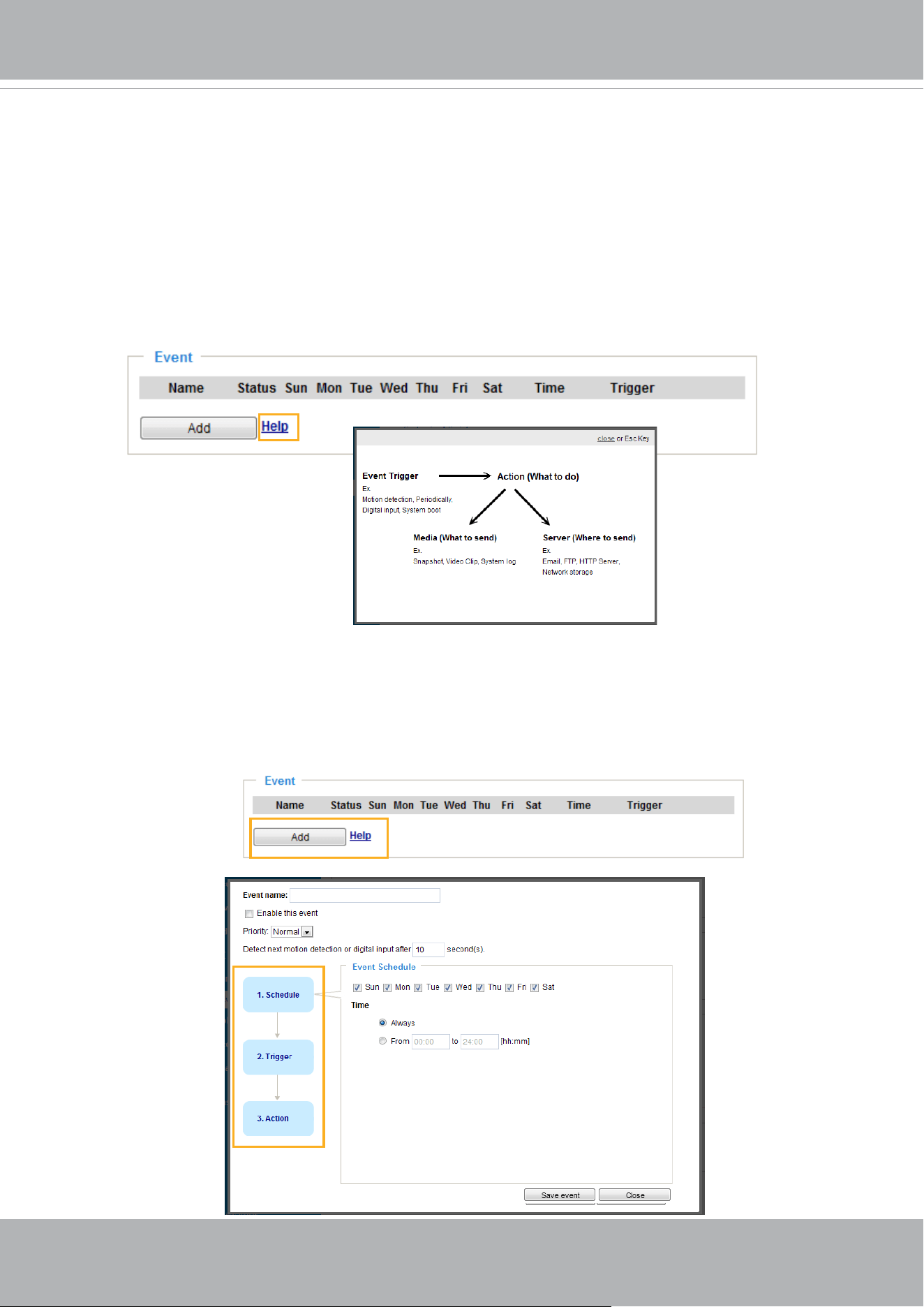
VIVOTEK
136 - User's Manual
Event > Event settings
This section explains how to congure the Network Camera to respond to particular situations
(event). A typical application is that when a motion is detected, the Network Camera sends
buffered images to an FTP server or e-mail address as notifications. Click on
Help
, there is
an illustration shown in the pop-up window explaining that an event can be triggered by many
sources, such as motion detection or external digital input devices. When an event is triggered,
you can specify what type of action that will be performed. You can configure the Network
Camera to send snapshots or videos to your email address or FTP site.
Event
To congure an event with reactive measures such as recording video or snapshots, it is necessary to
congure the server and media settings so that the Network Camera will know what action to take (such
as which server to send the media les to) when a trigger is activated. An event is an action initiated by a
user-dened trigger source
.
In the
Event
column, click
Add
to open the event settings window. Here you
can arrange three elements -- Schedule, Trigger, and Action to set an event. A total of 3 event settings
can be congured.
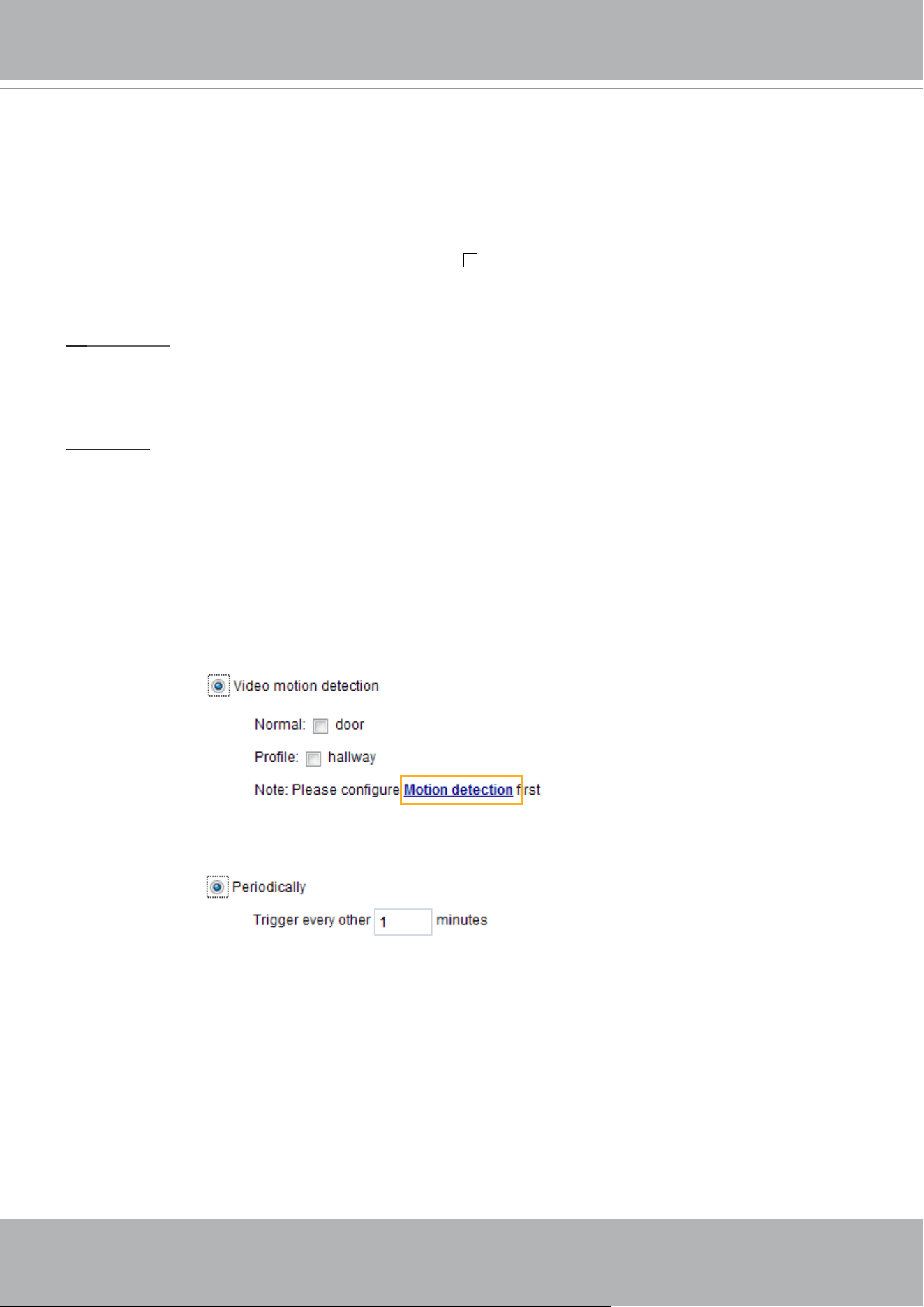
VIVOTEK
User's Manual - 137
■ Event name: Enter a name for the event setting.
■ Enable this event: Select this checkbox to enable the event setting.
■ Priority: Select the relative importance of this event (High, Normal, or Low). Events with a higher
priority setting will be executed rst.
■ Detect next motion detection or digital input after seconds: Enter the duration in seconds to pause
motion detection after a motion is detected. This can prevent event-related actions to take place too
frequently.
1. Schedule
Specify the period of time during which the event trigger will take eect. Please select the days of the
week and the time in a day (in 24-hr time format) for the event triggering schedule. For example, you
may prefer an event to be triggered only during the o-oce hours.
2. Trigger
This is the cause or stimulus which denes when to trigger the Network Camera. The trigger source can
be congured to use the Network Camera’s built-in motion detection mechanism or external digital input
devices.
There are several choices of trigger sources as shown on the next page.
Select the item to display the
detailed conguration options.
■ Video motion detection
This option makes use of the built-in motion detection mechanism as a trigger source. To enable this
function, you need to congure a Motion Detection Window rst. For more information, please refer to
Motion Detection on page 152 for details.
■ Periodically
This option allows the Network Camera to trigger periodically for every other dened minute. Up to 999
minutes are allowed.
■ System boot
This option triggers the Network Camera when the power to the Network Camera is disconnected and
re-connected.
■ Recording notify
This option allows the Network Camera to trigger when the recording disk is full or when recording
starts to overwrite older data.
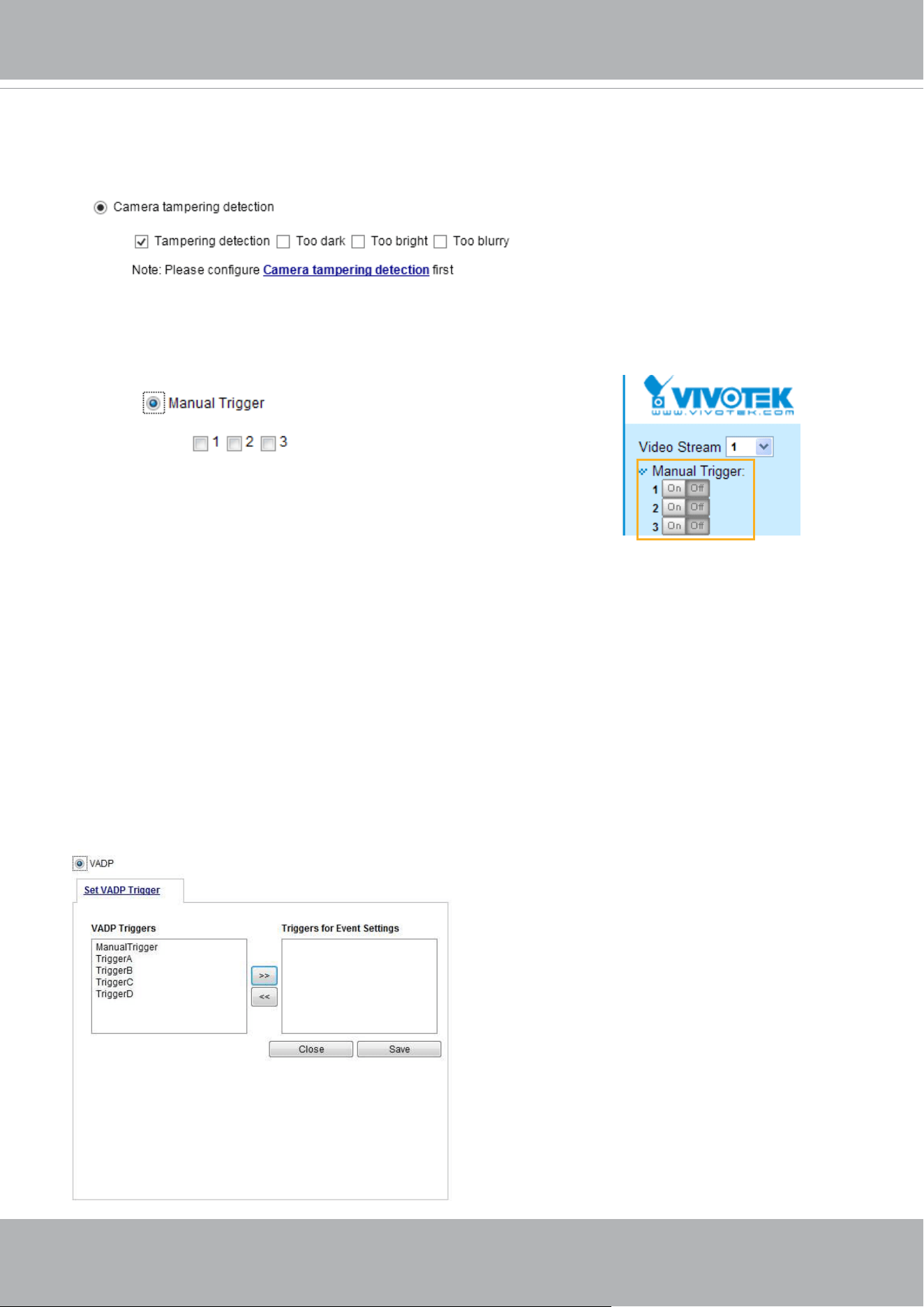
VIVOTEK
138 - User's Manual
■ Camera tampering detection
This option allows the Network Camera to trigger when the camera detects that is is being tampered
with. To enable this function, you need to congure the Tampering Detection option rst. Please refer
to page 154 for detailed information.
■ Manual Triggers
This option allows users to enable event triggers manually by clicking the on/off button on the
homepage. Please congure 1 to 3 associated events before using this function.
■ VADP
It is presumed that you already uploaded and enabled the VADP modules before you can associatee
VADP triggers with an Event setting.
Click on the Set VADP Trigger button to open the VADP setup menu. The triggering conditions
available with 3rd-party software modules known as VADP will be listed. Use the arrow buttons to
select these triggers. Users may implant these modules for different purposes such as triggering
motion detection, or applications related to video analysis, etc. Please refer to page 145 for the
conguration options with VADP modules.
■ Shock detection
A shock accelerometer comes with the camera. If impact to the camera occurs, such as someone tries
to destroy the camera, the impact can be detected and reported. The Shock detection conguration is
found in Conguration > Applications > Shock detection.
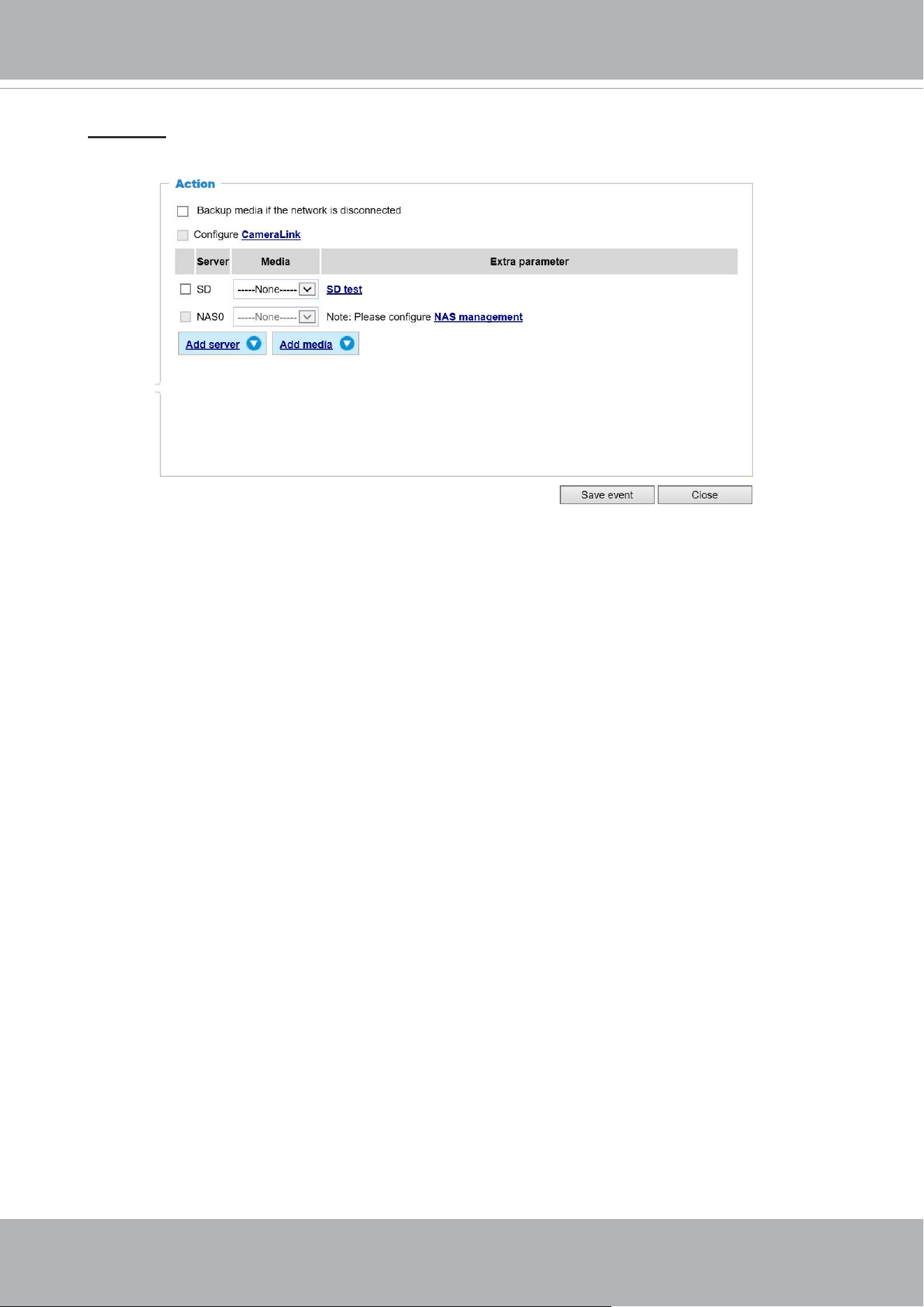
VIVOTEK
User's Manual - 139
3. Action
Dene the actions to be performed by the Network Camera when a trigger is activated.
■ Backup media if the network is disconnected
Select this option to backup media le on SD card if the network is disconnected. This function
will only be displayed after you set up a network storage (NAS). The media to back up can
include snapshot images, video, or system logs depending on your event settings.
■ Congure CameraLink
The camera can be associated with another camera with responsive actions. For example, if a
thermal camera detects some abnormal situations, e.g., a re, the camera can tell another camera,
say, a PTZ camera to move to a preset position to observe the current situation.
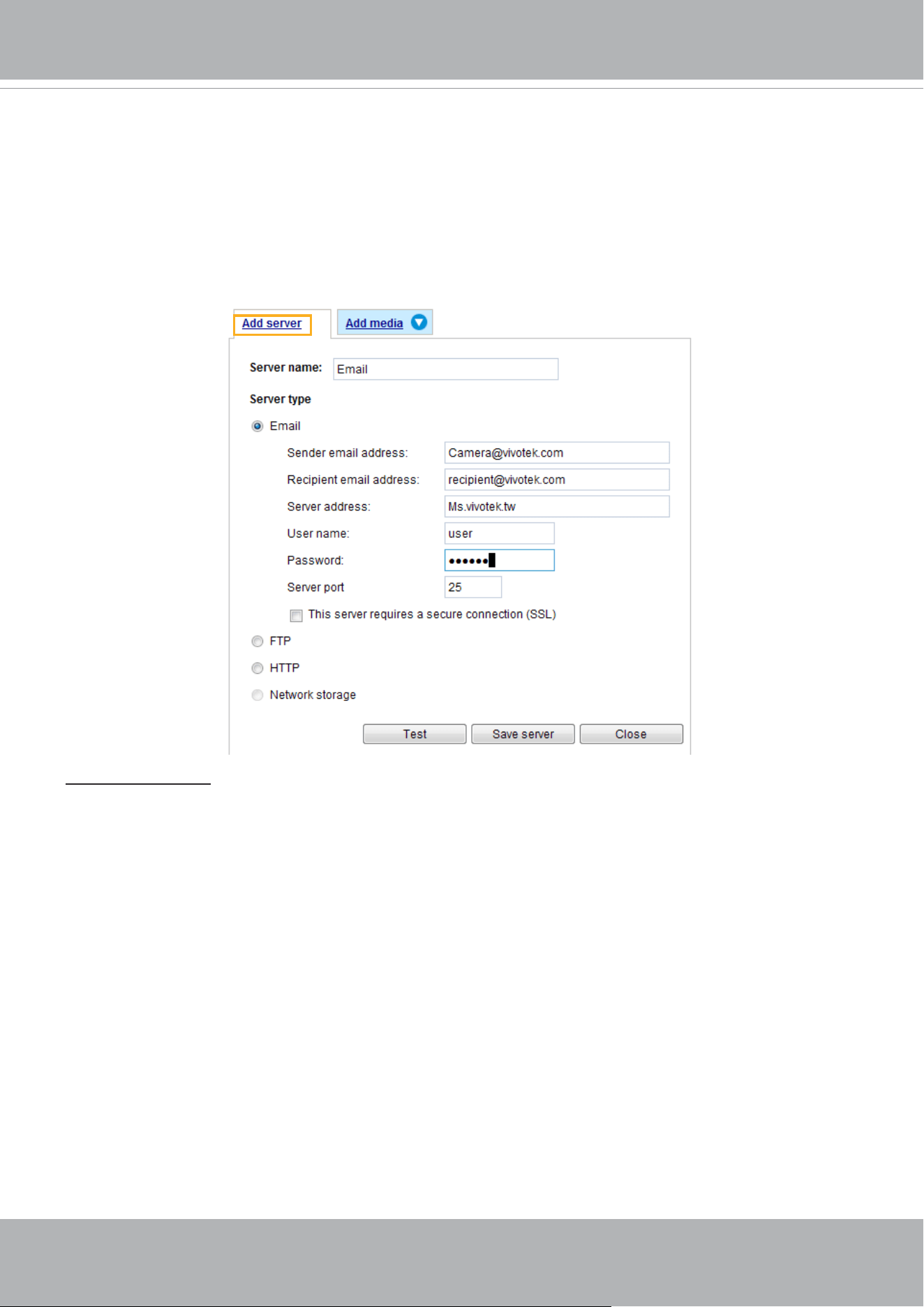
VIVOTEK
140 - User's Manual
Add server
It is necessary to congure the server and media settings so that the Network Camera will know what
action to take (such as which server to send the media les to) when a trigger is activated. Click
Add
server
to open the server setting window. You can specify where the notication messages are sent to
when a trigger is activated. A total of 5 server settings can be congured.
There are four choices of server types available: Email, FTP, HTTP, and Network storage.
Select the item
to display the detailed conguration options. You can congure either one or all of them.
Server type - Email
Select to send the media les via email when a trigger is activated.
■ Server name: Enter a name for the server setting.
■ Sender email address: Enter the email address of the sender.
■ Recipient email address: Enter the email address of the recipient.
■ Server address: Enter the domain name or IP address of the email server.
■ User name: Enter the user name of the email account if necessary.
■ Password: Enter the password of the email account if necessary.
■ Server port: The default mail server port is set to 25. You can also manually set another port.
If your SMTP server requires a secure connection (SSL), select
This server requires a secure
connection (SSL).
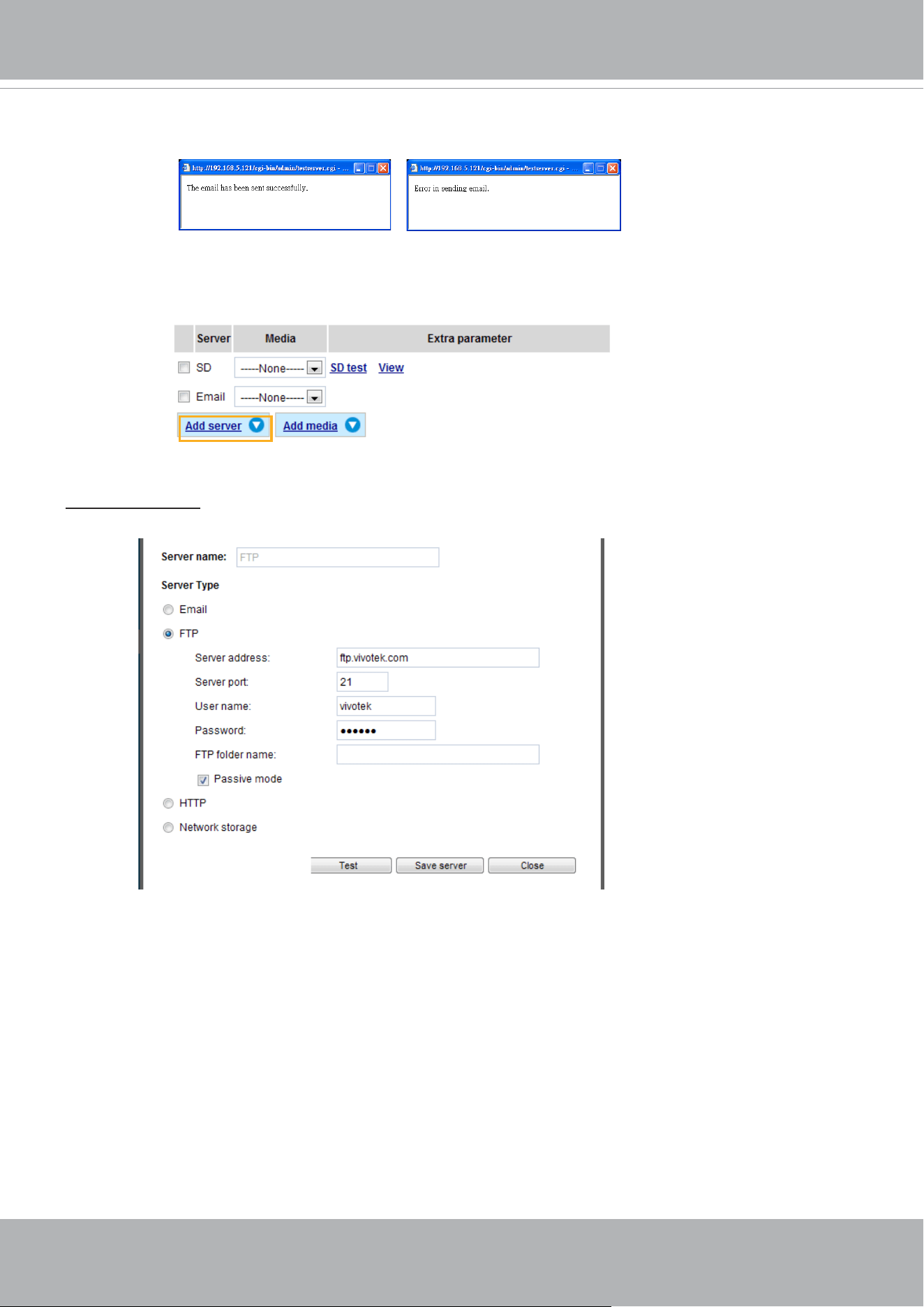
VIVOTEK
User's Manual - 141
To verify if the email settings are correctly congured, click
Test
. The result will be shown in a pop-up
window. If successful, you will also receive an email indicating the result.
Click
Save
server
to enable the settings.
Note that after you congure the rst event server, the new event server will automatically display on the
Server list. If you wish to add other server options, click
Add server
.
Server type - FTP
Select to send the media les to an FTP server when a trigger is activated.
■ Server name: Enter a name for the server setting.
■ Server address: Enter the domain name or IP address of the FTP server.
■ Server port: By default, the FTP server port is set to 21. It can also be assigned to another port number
between 1025 and 65535.
■ User name: Enter the login name of the FTP account.
■ Password: Enter the password of the FTP account.
■ FTP folder name
Enter the folder where the media les will be placed. If the folder name does not exist, the Network
Camera will automatically create one on the FTP server.
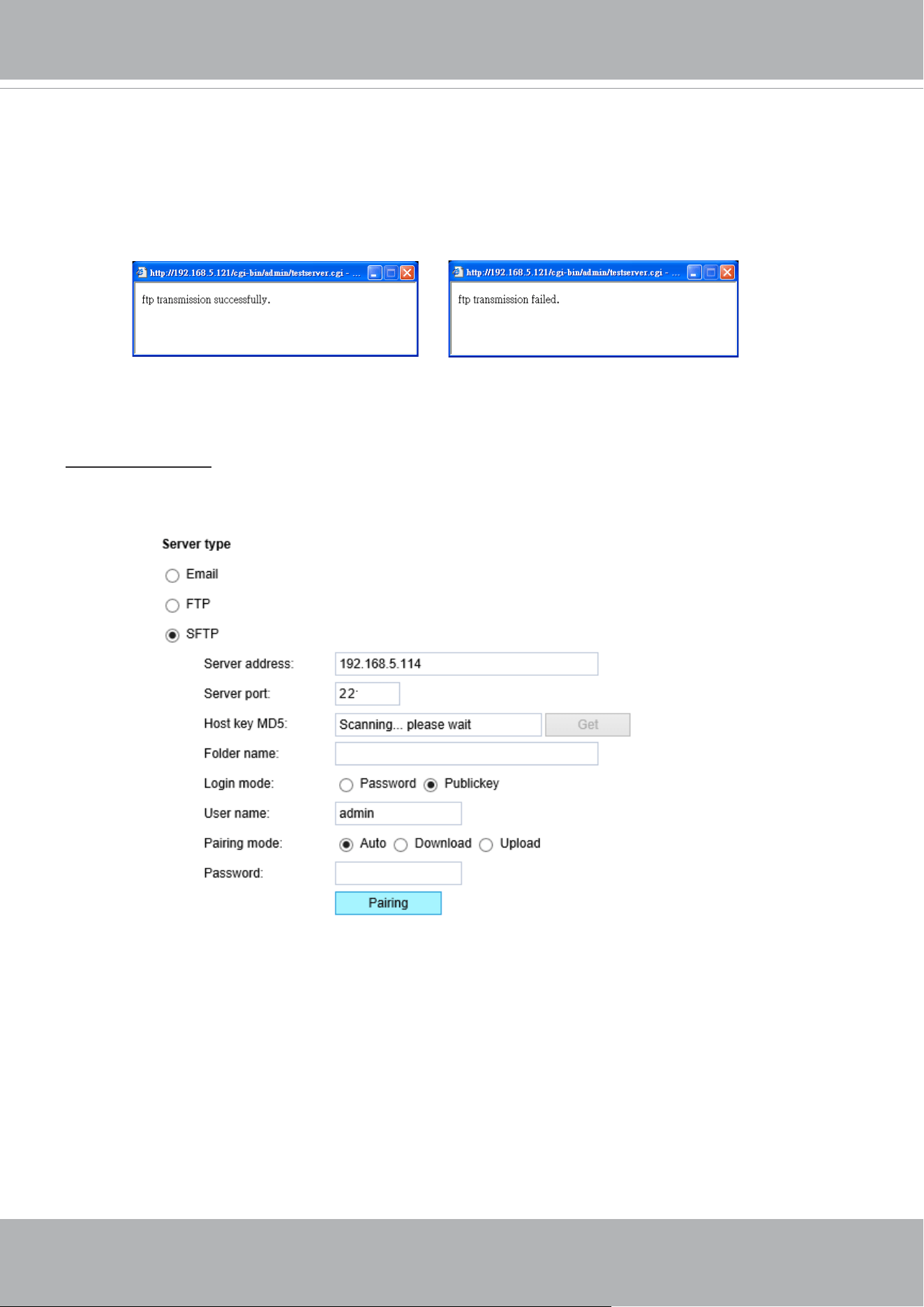
VIVOTEK
142 - User's Manual
■ Passive mode
Most firewalls do not accept new connections initiated from external requests. If the FTP server
supports passive mode, select this option to enable passive mode FTP and allow data transmission to
pass through the rewall. The rmware default has the Passive mode checkbox selected.
To verify if the FTP settings are correctly congured, click
Test
. The result will be shown in a pop-up
window as shown below. If successful, you will also receive a test.txt le on the FTP server.
Click
Save
server
to enable the settings.
Server type - SFTP
Select to send the media files to an SFTP (Secure File Transfer Protocol) server when a trigger is
activated. This page contains the client side settings.
■ Server address: Enter the SFTP server address in either the domain name or IP address.
■ Server port: By default, the FTP server port is set to 22. It can also be assigned to another port number
between 1025 and 65535.
■ Host key MD5: You have the option to use public/private key authentication instead of a username and
password to connect to the server. This option requires that you have a private/public SSH key pair,
and that the public key is in place on your SFTP server.
If you wish to Use key authentication for this SFTP server, click the
Get
(Read Fingerprint) button to
request the public key ngerprint from the server. The host key MD5 is a hash of the FTP server’s
public key, which the camera stores in order to verify that it is connecting to the correct SFTP server.
You can copy that ngerprint and save it for later reference.
The max. length of MD5 ngerprint is 47 characters.
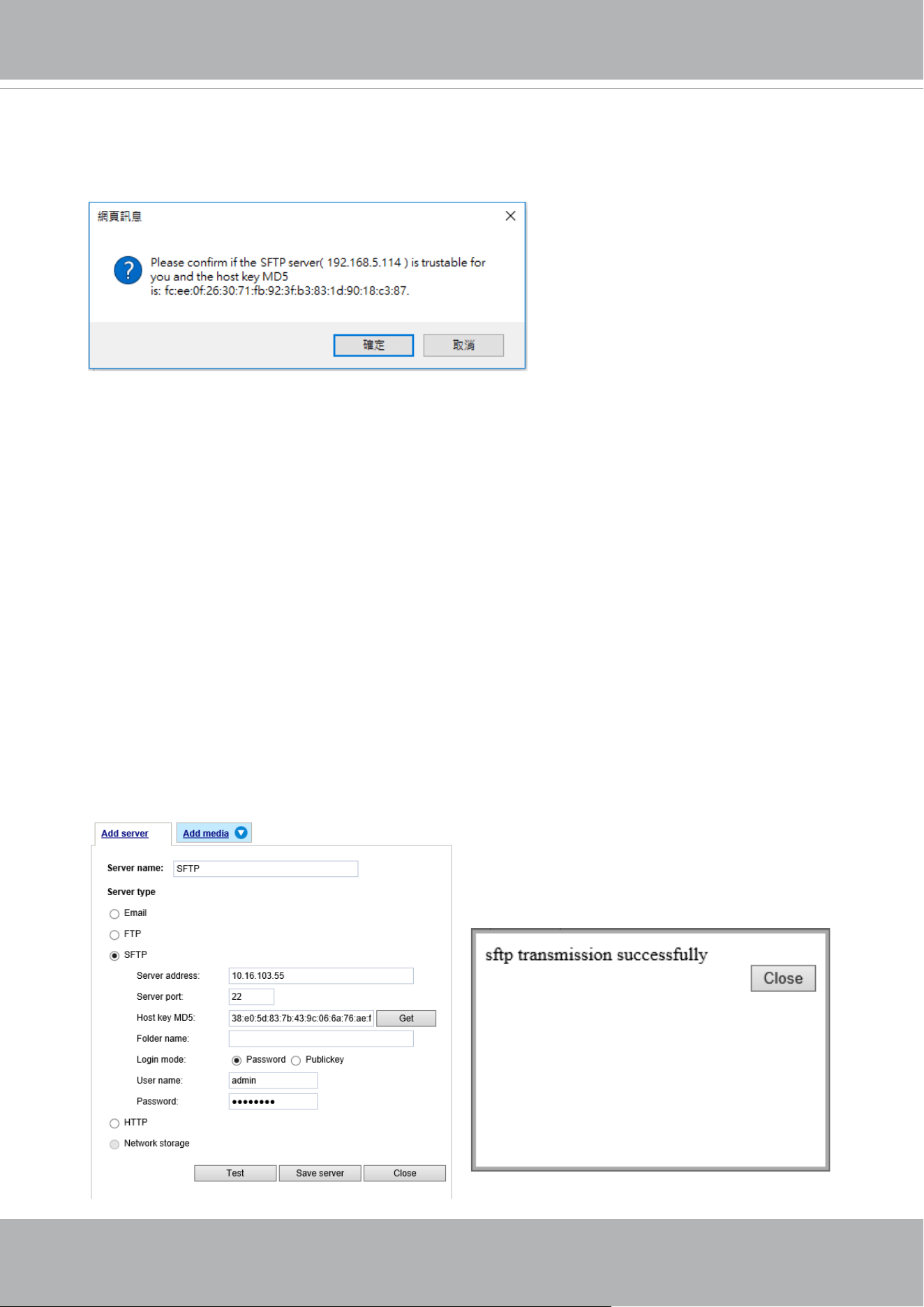
VIVOTEK
User's Manual - 143
Password mode:
■ User name: Enter the login name of the SFTP account.
■ Password: Enter the password of the SFTP account.
■ Folder name
Enter the folder where the media file will be placed. If the folder name does not exist, the Network
Camera will create one on the SFTP server.
Use backslash “\” when you need to specify a path. Leave it blank to use the SFTP server’s default
root directory. The max. length of folder name is 128 characters.
■ Login mode
Select a Login mode as either the
Password
or the
Public key
mode.
When using SFTP, you can authenticate using a public/private SSH key pair instead of a password.
If key authentication is not enabled, you need to specify a password instead. The administrator of the
SFTP server will need to manually add the corresponding public key to the SFTP server.
If key authentication is not preferred, you can specify a username and password in the section below.
An RSA key ngerprint will look like this: da:47:93:b4:3a:90:5b:50:1f:20:a8:f9:b7:a1:d0:e1. Verify if this
is the SFTP server you want to connect to.
Use the
Test
button to test the connectivity. When
done, enter the server name and click the
Save server
button to preserve your settings.
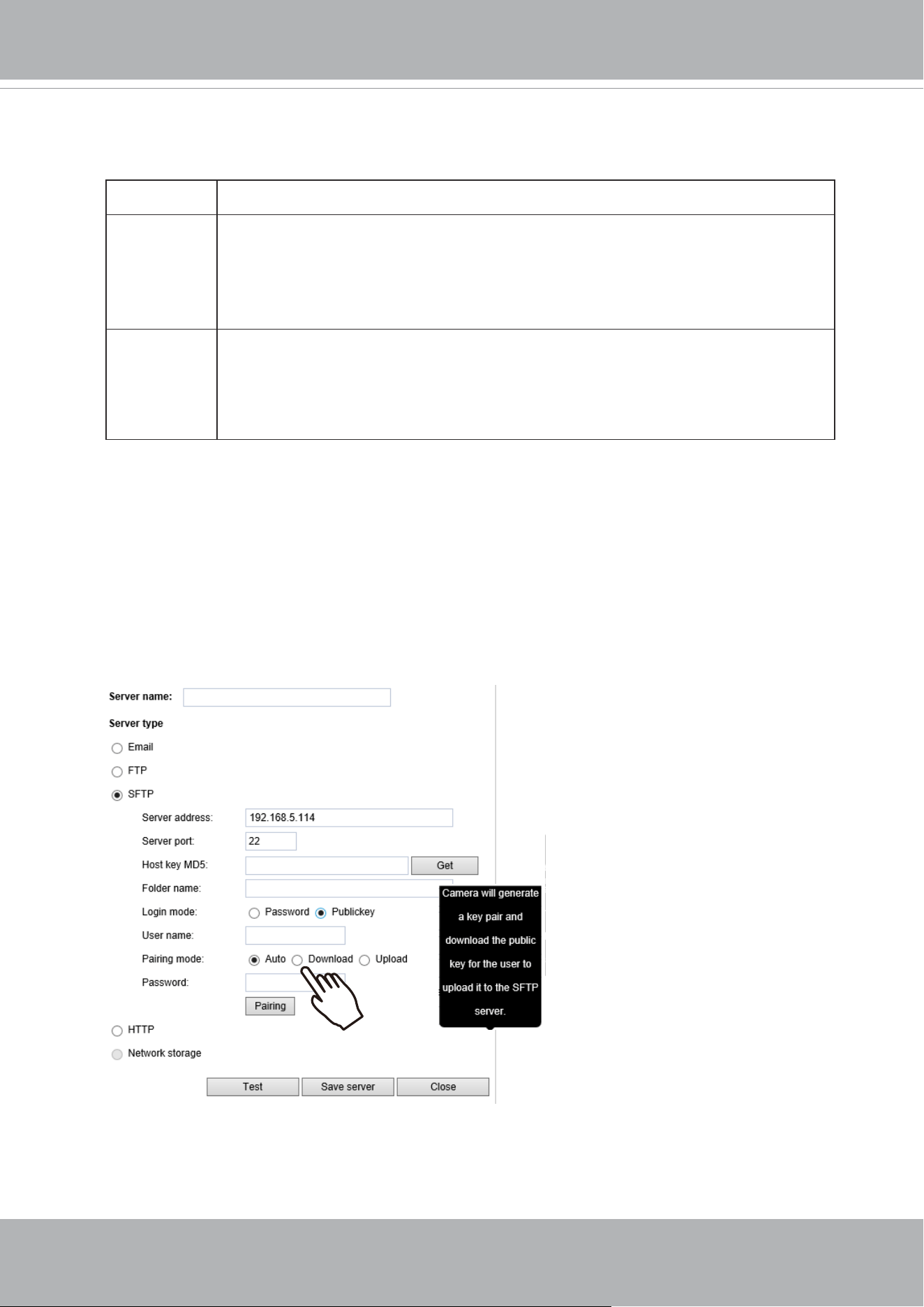
VIVOTEK
144 - User's Manual
Publickey mode:
Selecting the
Public key
mode will bring up the
Pairing mode
options: Auto, Download, Upload.
Auto
Camera will generate a key pair and auto pair public key with the SFTP server.
Download
Camera will generate a key pair and download the public key for the user to
upload it to the SFTP server. The supported formats are: ED25519 (default.
Elliptic curve signature scheme Edwards-curve Digital Signature Algorithm; with
faster key creation, encryption and decryption), RSA (Rivest–Shamir–Adleman,
with greater portability
), ECDSA (Elliptic Curve Digital Signature Algorithm).
Upload
Upload the private key here and upload the public key to the SFTP server.
A private key is a guarded secret and it can be stored on disk in an encrypted
form. A passphrase is used in order to decrypt it. It is a login password to the
SSH server, the passphrase is only used to decrypt the private key on the local
system. The passphrase is not transmitted over the network.
When using SFTP, you can authenticate using a public/private SSH key pair instead of a
password. If key authentication is not enabled, you need to specify a password instead. The
administrator of the SFTP server will need to manually add the corresponding public key to the
SFTP server.
The key benet of a key-based authentication is that instead of a using a password, you are less
vulnerable to brute-force attacks and you do not expose valid credentials, if the server has been
compromised.
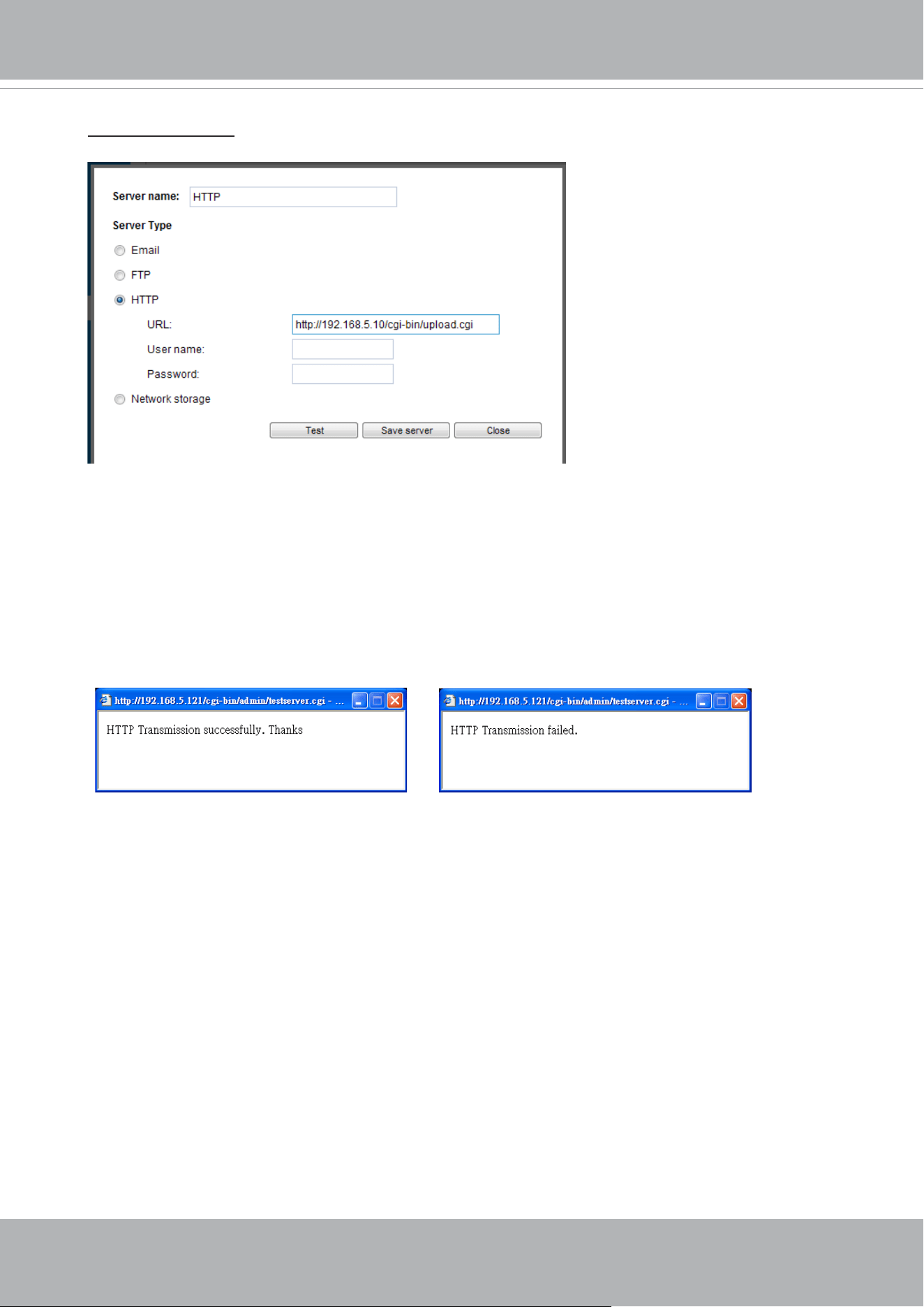
VIVOTEK
User's Manual - 145
Server type - HTTP
Select to send the media les to an HTTP server when a trigger is activated.
■ Server name: Enter a name for the server setting.
■ URL: Enter the URL of the HTTP server.
■ User name: Enter the user name if necessary.
■ Password: Enter the password if necessary.
To verify if the HTTP settings are correctly congured, click
Test
. The result will be shown in a pop-
up window as shown below. If successful, you will receive a test.txt le on the HTTP server.
Click
Save
server
to enable the settings.
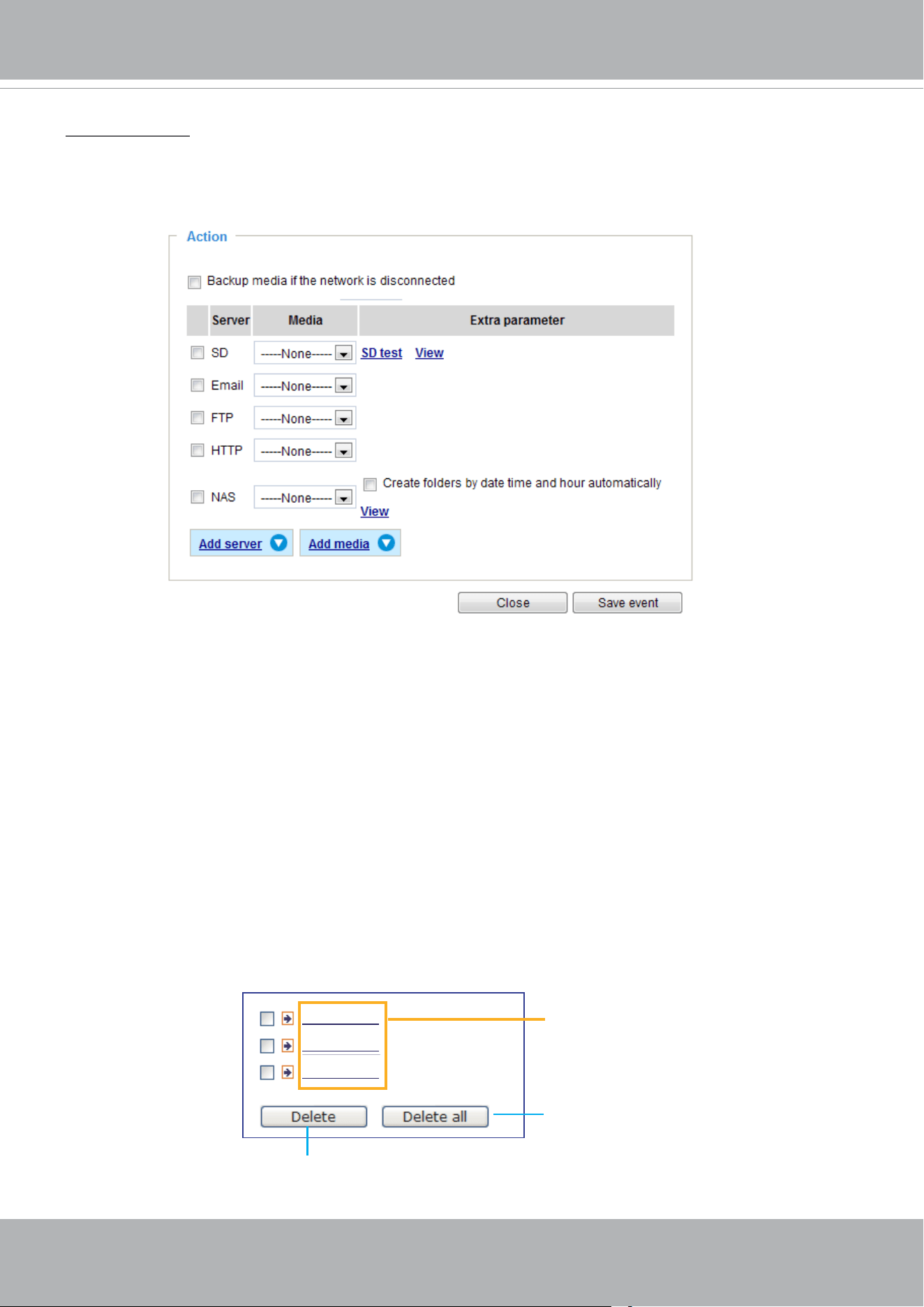
VIVOTEK
146 - User's Manual
Network storage:
Select to send the media les to a networked storage when a trigger is activated. Please refer to
NAS
server
on page 162 for details. Note that only one NAS server can be congured.
Click
Save
server
to enable the settings.
■ SD Test: Click to test your SD card. The system will display a message indicating the result as a
success or a failure. If you want to use your SD card for local storage, please format it before use.
Please refer to page 148 for detailed information.
■ View: Click this button to open a le list window. This function is only for SD card and Network Storage.
If you click the View button for an SD card, a Local storage page will prompt so that you can manage
the recorded les on SD card. For more information about Local storage, please refer to page 164.
If you click the View button for a Network storage, a le directory window will prompt for you to view
recorded data on Network storage. For detailed illustration, please refer to the next page.
■ Create folders by date, time, and hour automatically: If you select this item, the system will
automatically create folders by the date when video footages are stored onto the networked storage.
The following is an example of a le destination with video clips:
20210120
20210121
20210122
Click to delete selected items
Click to delete all recorded data
The format is: YYYYMMDD
Click to open the directory
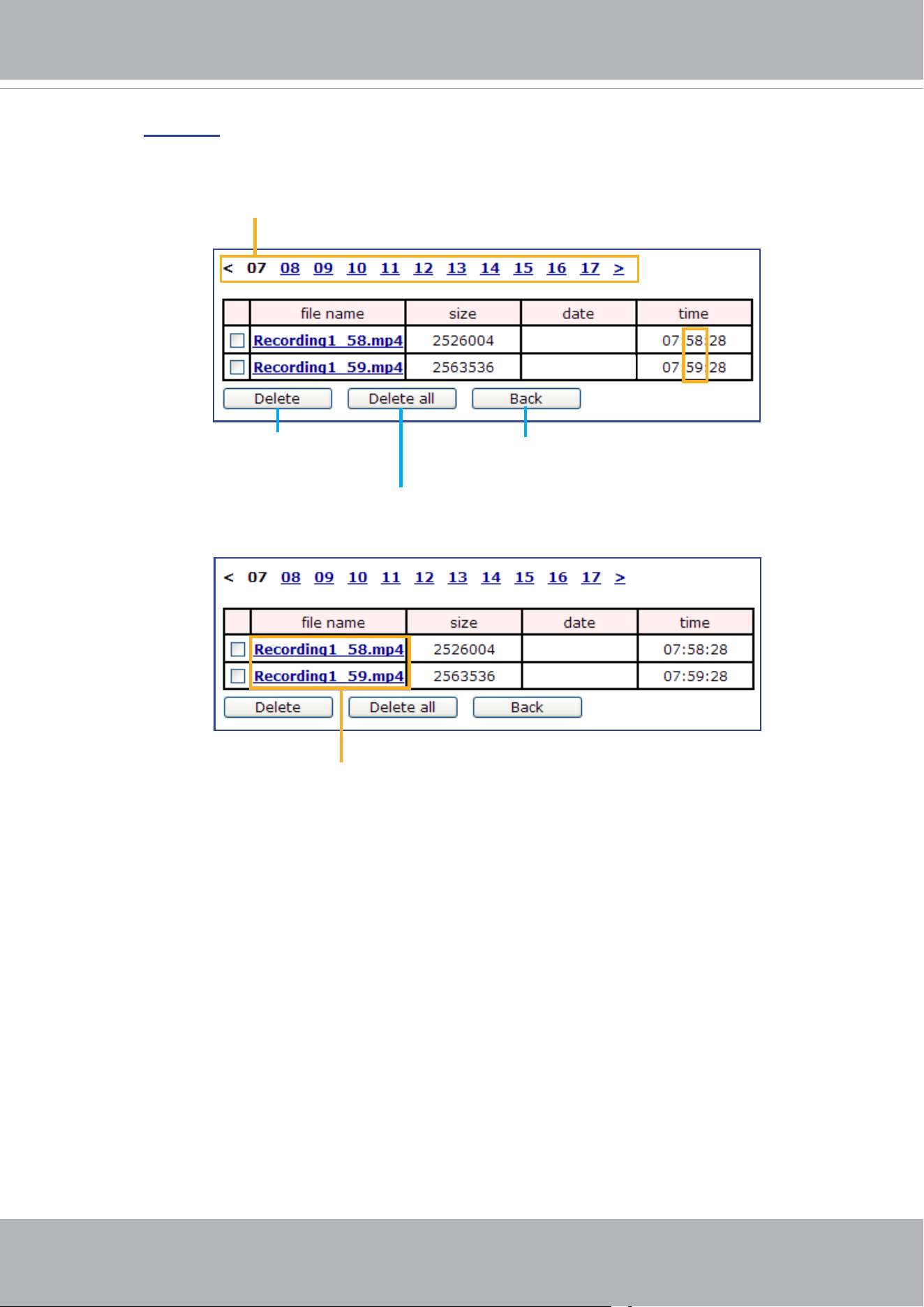
VIVOTEK
User's Manual - 147
Click
20210120
to open the directory:
Click to delete
selected items
Click to delete all
recorded data
Click to go back to the previous
level of the directory
The format is: HH (24r)
Click to open the le list for that hour
The format is: File name prex + Minute (mm)
You can set up the le name prex on Add media page. Please
refer to next page for detailed information.
2021/01/20
2021/01/20
2021/01/20
2021/01/20
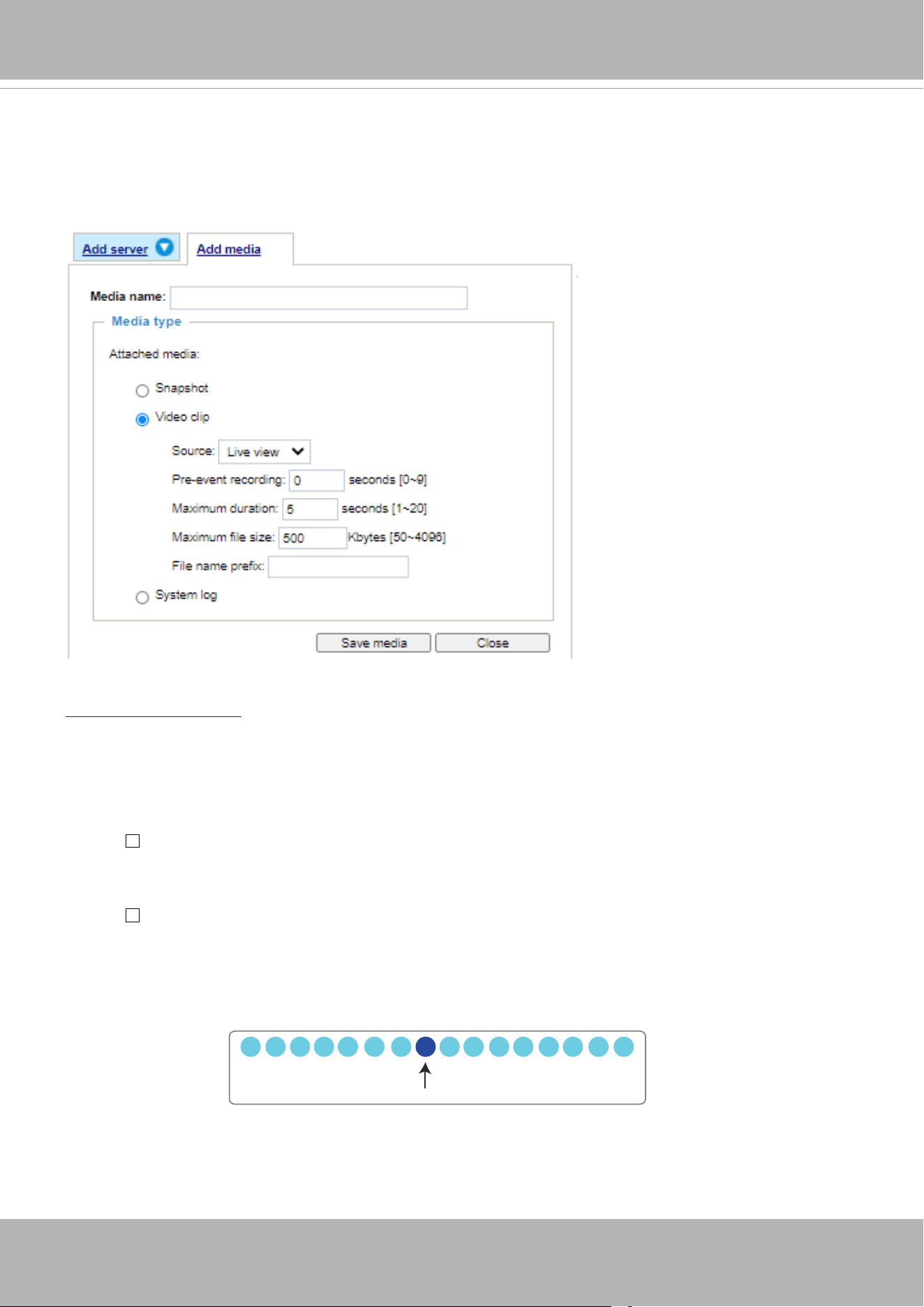
VIVOTEK
148 - User's Manual
Add media
Click
Add media
to open the media setting window. You can specify the type of media that will be
sent when a trigger is activated. A total of 5 media settings can be congured. There are three choices
of media types available: Snapshot, Video Clip, and System log.
Select the item to display the detailed
conguration options. You can congure either one or all of them.
Media type - Snapshot
Select to send snapshots when a trigger is activated.
■ Media name: Enter a name for the media setting.
■ Source: Select to take snapshots from any of the video proles.
■ Send pre-event images
The Network Camera has a buffer to temporarily hold data up to a certain limit. Enter a number to
decide how many images to capture before a trigger is activated. Up to 7 images can be generated.
■ Send post-event images
Enter a number to decide how many images to capture after a trigger is activated. Up to 7 images can
be generated.
For example, if both the Send pre-event images and Send post-event images are set to 7, a total of 15
images can be generated after a trigger is activated.
■ File name prex
Enter the text that will be appended to the front of the le name.
1 pic. 2 pic. 3 pic. 4 pic. 5 pic. 6 pic. 7 pic. 8 pic. 9 pic.
10 pic. 11 pic. 10 pic. 12 pic. 13 pic. 14 pic. 15 pic.
Trigger Activation
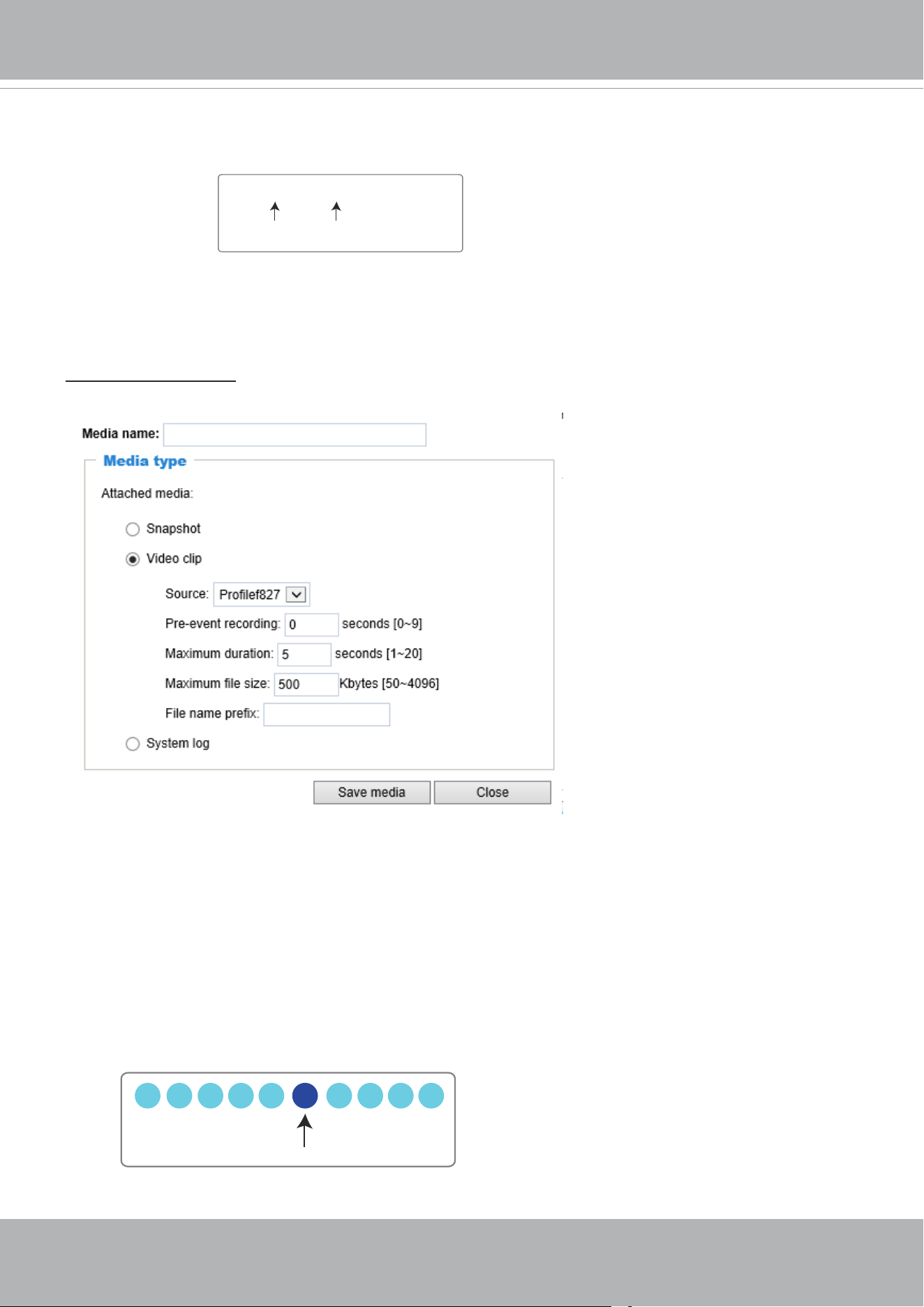
VIVOTEK
User's Manual - 149
■ Add date and time sux to the le name
Select this option to add a date/time sux to the le name.
For example:
Click
Save media
to enable the settings.
Note that after you set up the rst media server, a new column for media server will automatically display
on the Media list. If you wish to add more media options, click
Add media
.
Media type -
Video clip
Select to send video clips when a trigger is activated.
■ Media name: Enter a name for the media setting.
■ Source: Select a video stream prole as the source of video clip.
■ Pre-event recording
The Network Camera has a buffer to temporarily hold data up to a certain limit. Enter a number to
decide the duration of recording before a trigger is activated. Up to 9 seconds can be set.
■ Maximum duration
Specify the maximum recording duration in seconds. The duration can be up to 10 seconds.
For example, if pre-event recording is set to five seconds and the maximum duration is set to ten
seconds, the Network Camera continues to record for another 4 seconds after a trigger is activated.
Snapshot_20210513_100341
Date and time suffix
The format is: YYYYMMDD_HHMMSS
File name prefix
1 sec. 2 sec. 3 sec. 4 sec. 5 sec. 6 sec. 7 sec. 8 sec. 9 sec. 10 sec.
Trigger Activation
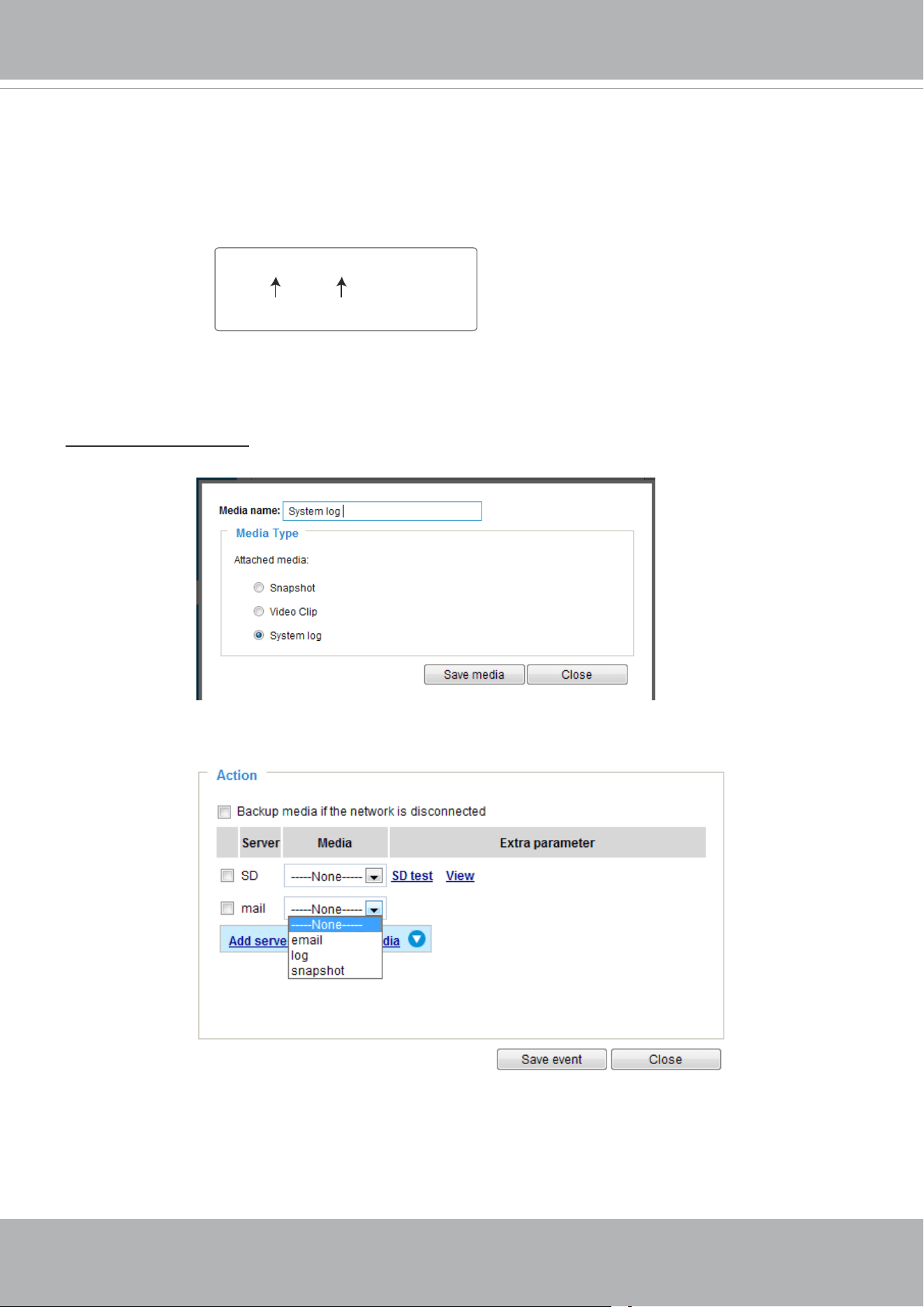
VIVOTEK
150 - User's Manual
■ Maximum le size
Specify the maximum le size allowed. Some users may need to stitch the video clips together when
searching and packing up forensic evidence.
■ File name prex
Enter the text that will be appended to the front of the le name.
For example:
Click
Save
media
to enable the settings.
Media type - System log
Select to send a system log when a trigger is activated.
Click
Save
media
to enable the settings, then click
Close
to exit the page.
Video_20210513_100341
Date and time suffix
The format is: YYYYMMDD_HHMMSS
File name prefix
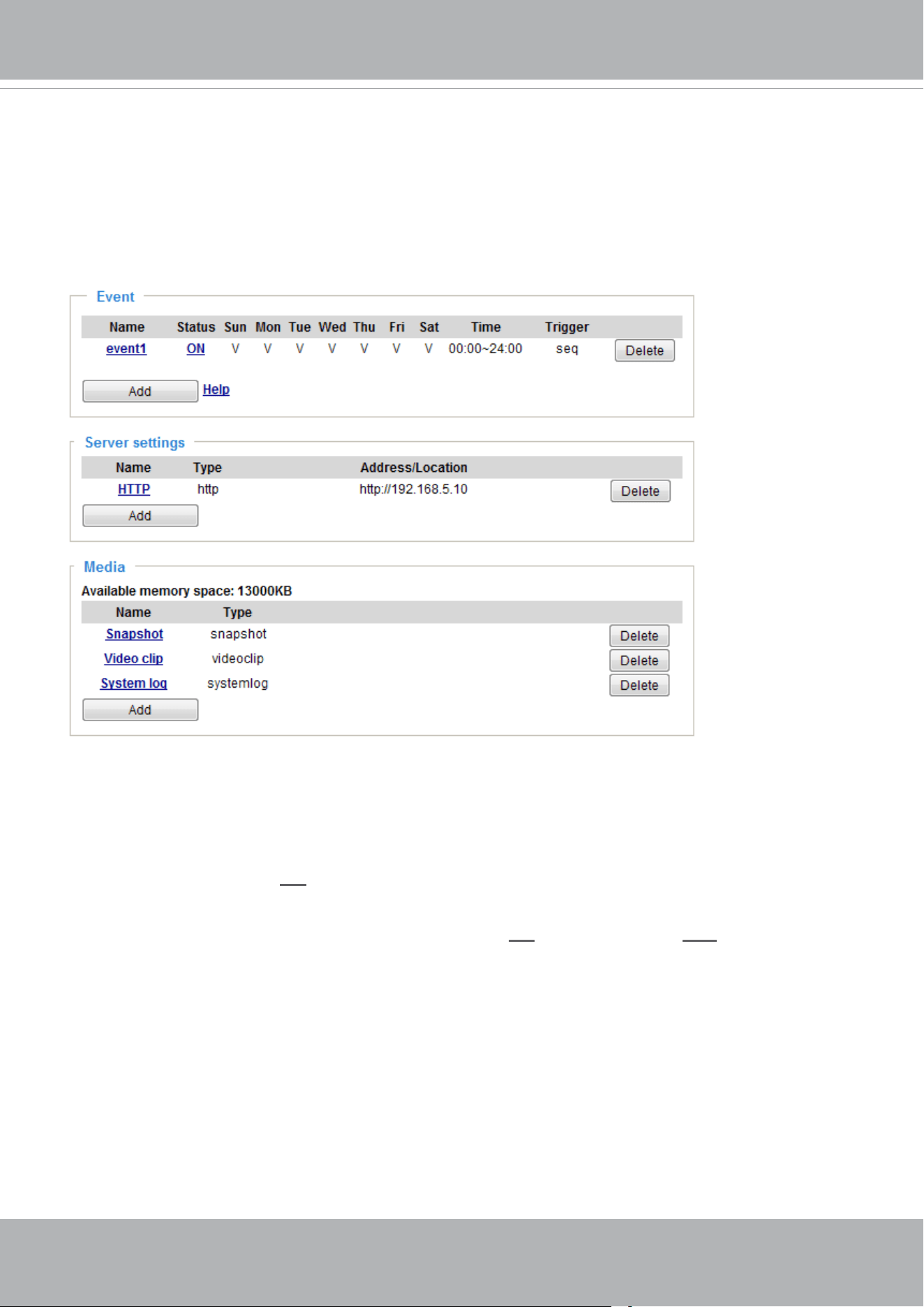
VIVOTEK
User's Manual - 151
In the Event settings column, the Servers and Medias you congured will be listed; please make sure the
Event -> Status is indicated as
ON
, in order to enable the event triggering action.
When completed, click the
Save
event
button to enable the settings and click
Close
to exit Event
Settings page. The new Event / Server settings / Media will appear in the event drop-down list on the
Event setting page.
Please see the example of the Event setting page below:
When the Event Status is
ON
, the event configuration above is triggered by motion detection, the
Network Camera will automatically send snapshots via e-mail.
If you want to stop the event trigger, you can click on the
ON
button to turn it to
OFF
status or click the
Delete
button to remove the event setting.
To remove a server setting from the list, select a server name from the drop-down list and click
Delete
.
Note that you can only delete a server setting when it is not applied in an existing event setting.
To remove a media setting from the list, select a media name from the drop-down list and click
Delete
.
Note that you can only delete a media setting when it is not applied in an existing event setting.
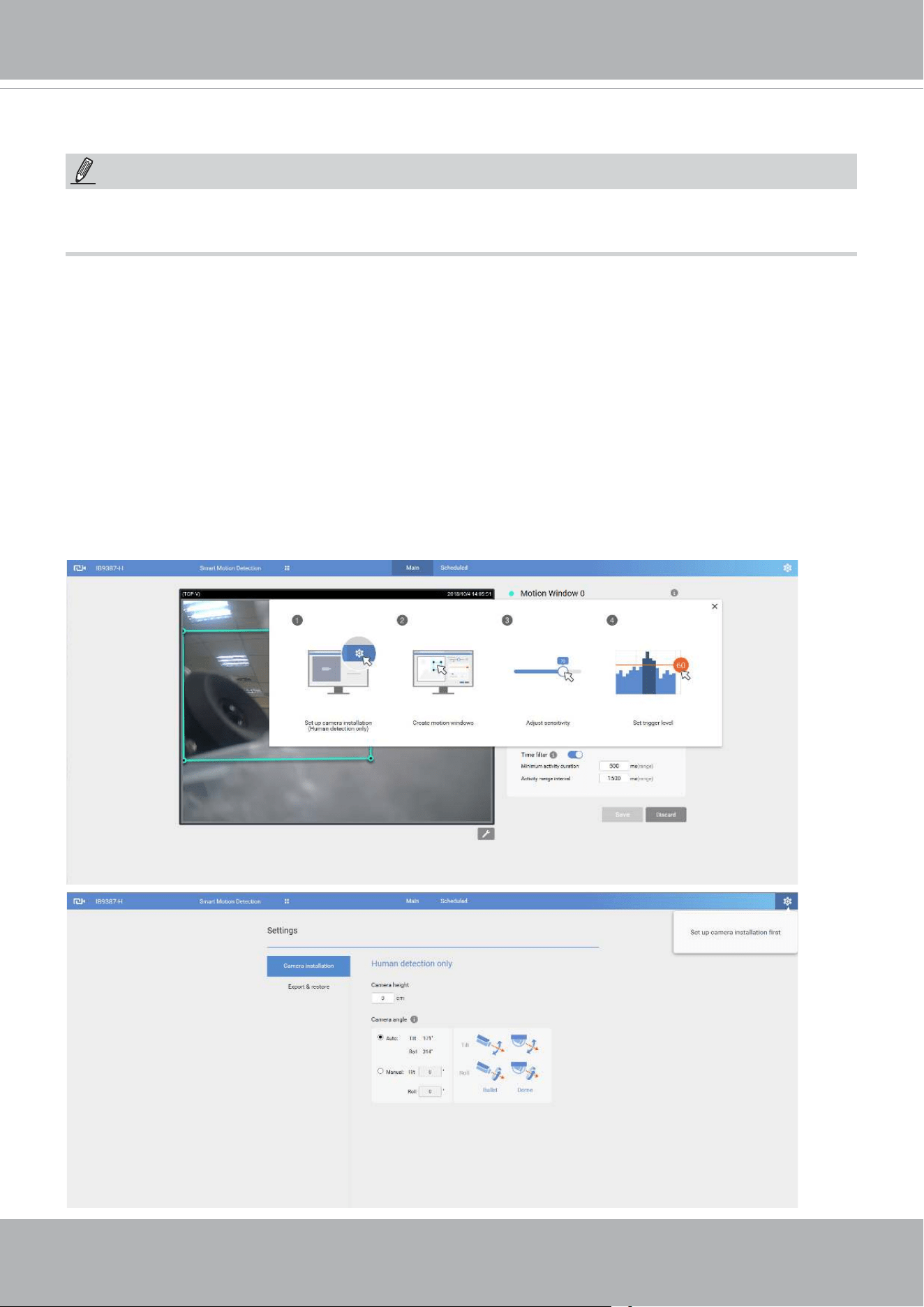
VIVOTEK
152 - User's Manual
The camera comes with a Smart Motion Detection utility as its pre-loaded VCA package. Please
refer to its User Guide for more information:
http://download.vivotek.com/downloadfile/solutions/vadp/smart-motion-detection-manual_
en.pdf.
Click on Configuration > Applications > Motion detection. The Smart Motion utility will be
automatically started.
If Human detection is applied, make sure you measured the height of your camera at the installation site.
It is important for a correct video analysis. You should enter the installation height in the Motion detection
Settings page.
Applications > Motion detection
NOTE:
• Due to system resources concern, the motion tracking blocks and the Human detection area
will not display when running motion detection on this model.
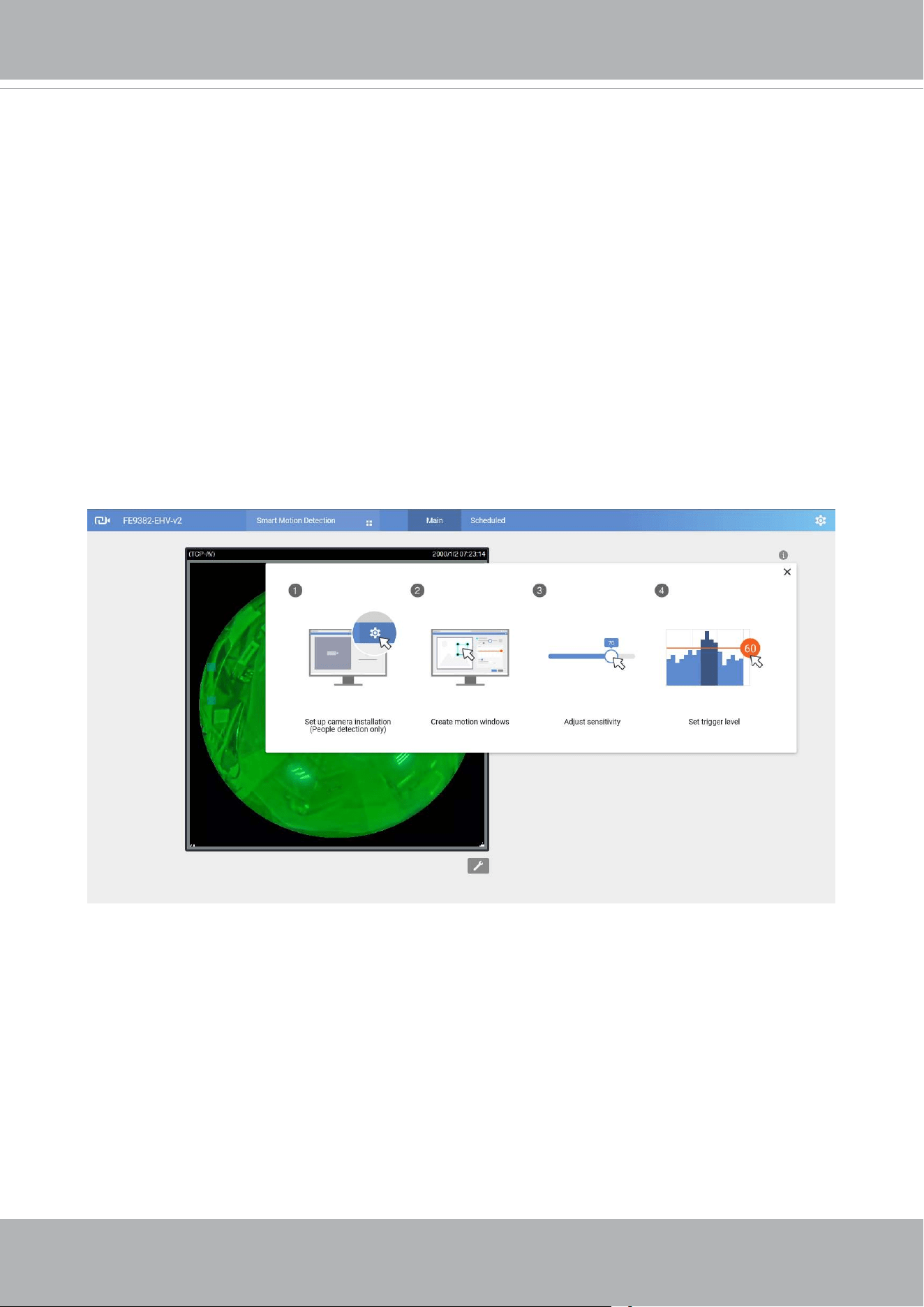
VIVOTEK
User's Manual - 153
Applications > Smart VCA
Smart VCA provides the following features:
Intrusion detection, Loitering detection, Missing object detection, Unattended
Object detection, Line Crossing detection, and Face detection.
Please refer to Smart VCA’s user documentation for more information.
Click on Configuration > Applications > Smart VCA. The Smart VCA utility will be
automatically started. The Smart Motion detection and Smart VCA share the same utility
window.
If Smart VCA is applied, make sure you measured the height of your camera at the
installation site. It is important for a correct video analysis. You should enter the installation
height in the Smart VCA Settings page.
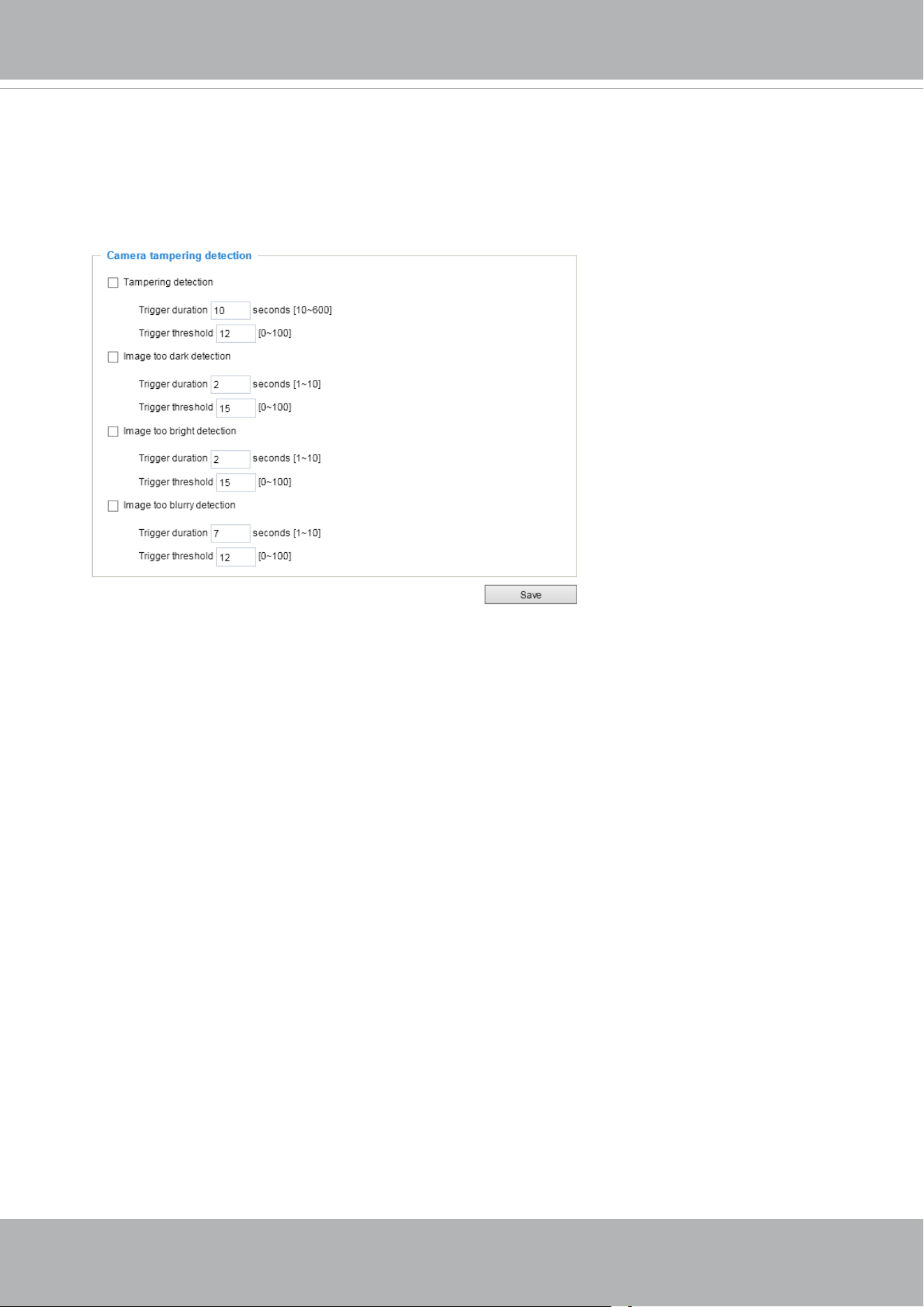
VIVOTEK
154 - User's Manual
Applications > Tampering detection
This section explains how to set up camera tamper detection. With tamper detection, the
camera is capable of detecting incidents such as
redirection
,
blocking or defocusing
, or
even
spray paint
.
Please follow the steps below to set up the camera tamper detection function:
1. Click to select the checkbox before tampering conditions: Tampering detection, Image
too dark, Image too bright, and Image too blurry. Enter the tamper trigger duration.
(10 sec. ~ 10 min.). The duraction specifies the set of time before the tampering is
considered as a real alarm. This helps avoid false alarms by short-lived changes.
The tamper alarm will be triggered only when the tampering factor (the difference
between current frame and pre-saved background) exceeds the trigger threshold.
Conditions such as image too dark, too bright, or too blurry (defocused) can also be
configured as tampering conditions. The Trigger threshold determines how sensitive
your is tamper detection setting. Lower the threshold number, easier to trigger.
Too bright: shining a flash light. The average lighting level of the scene is taken into
consideration.
Too dark: covering the objective or spraying paint.
Too blurry: blurry scene can be the result of strong interference on the device, such as
EMI interference.
2. You can configure Tampering Detection as a trigger element to the proactive event
congurations in
Event -> Event settings -> Trigger.
For example, when the camera is
tampered with, camera can be congured to send the pre- and post-event video clips to
a networked storage device. Please refer to page 137 for detailed information.
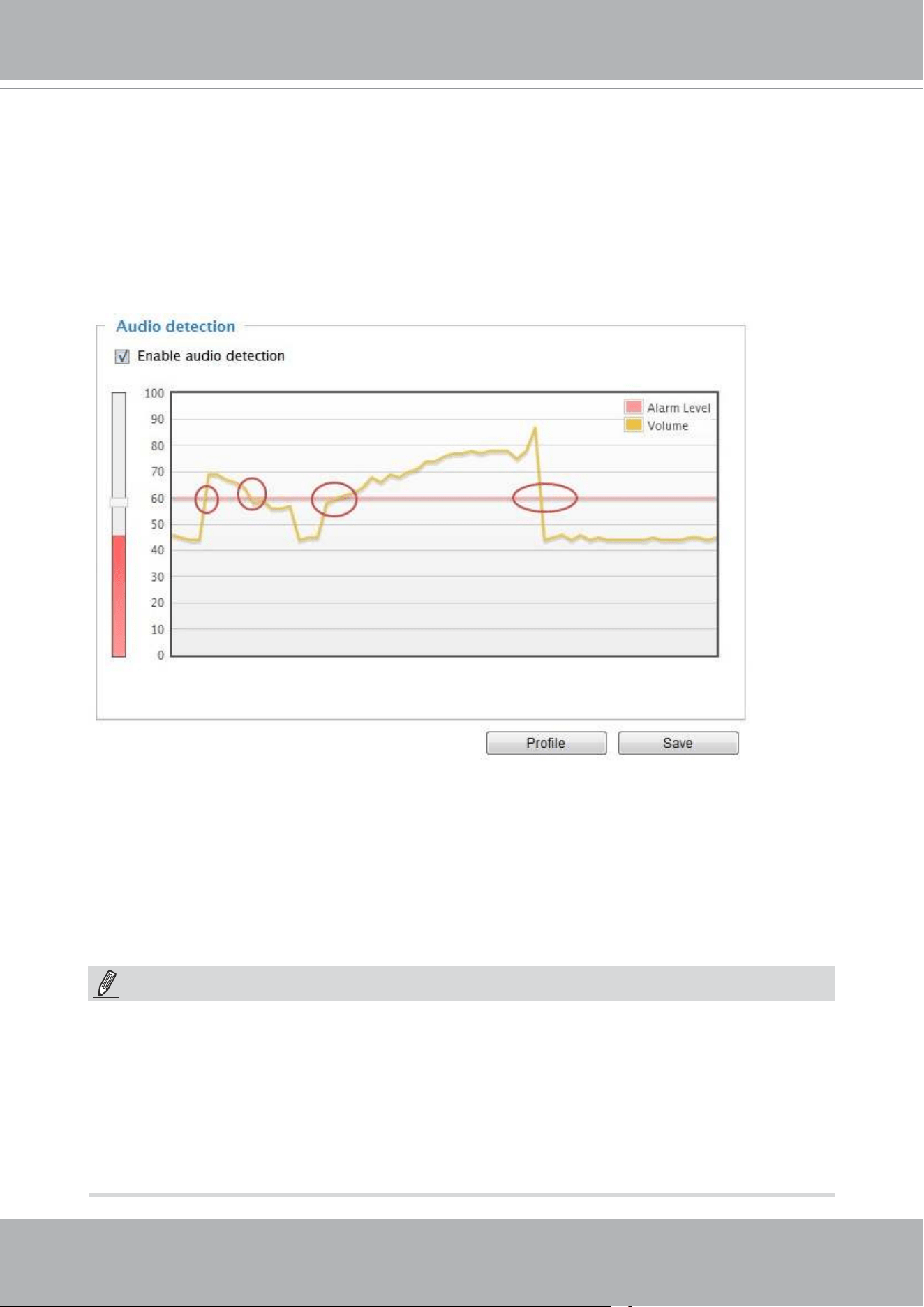
VIVOTEK
User's Manual - 155
Applications > Audio detection
Audio detection, along with video motion detection, is applicable in the following scenarios:
1. Detection of activities not covered by camera view, e.g., a loud input by gun shots or breaking a
door/window.
2. A usually noisy environment, such as a factory, suddenly becomes quiet due to a breakdown of
machines.
3. A PTZ camera can be directed to turn to a preset point by the occurrence of audio events.
4. Dark environments where video motion detection may not function well.
The red circles indicate where the audio alarms can be triggered when breaching or falling below
the preset threshold.
How to congure Audio detection:
1. Once the Audio detection window is opened, the current sound input will be interactively
indicated by a uctuating yellow wave diagram.
2. Use a mouse click to drag the Alarm level tab to a preferred location on the slide bar.
3. Select the “Enable audio detection“ checkbox and click Save to enable the feature.
1. Note that the volume numbers (0~100) on the side of wave diagram does not represent decibel
(dB). Sound intensity level has already been mapped to preset values. You can, however, use
the real-world inputs at your installation site that are shown on the wave diagram to congure
an alarm level.
2. To configure this feature, you must not mute the audio in
Configuration > Media > Audio
.
The default of the camera can be muted due to the lack of an internal microphone. An external
microphone is provided by users.
NOTE:
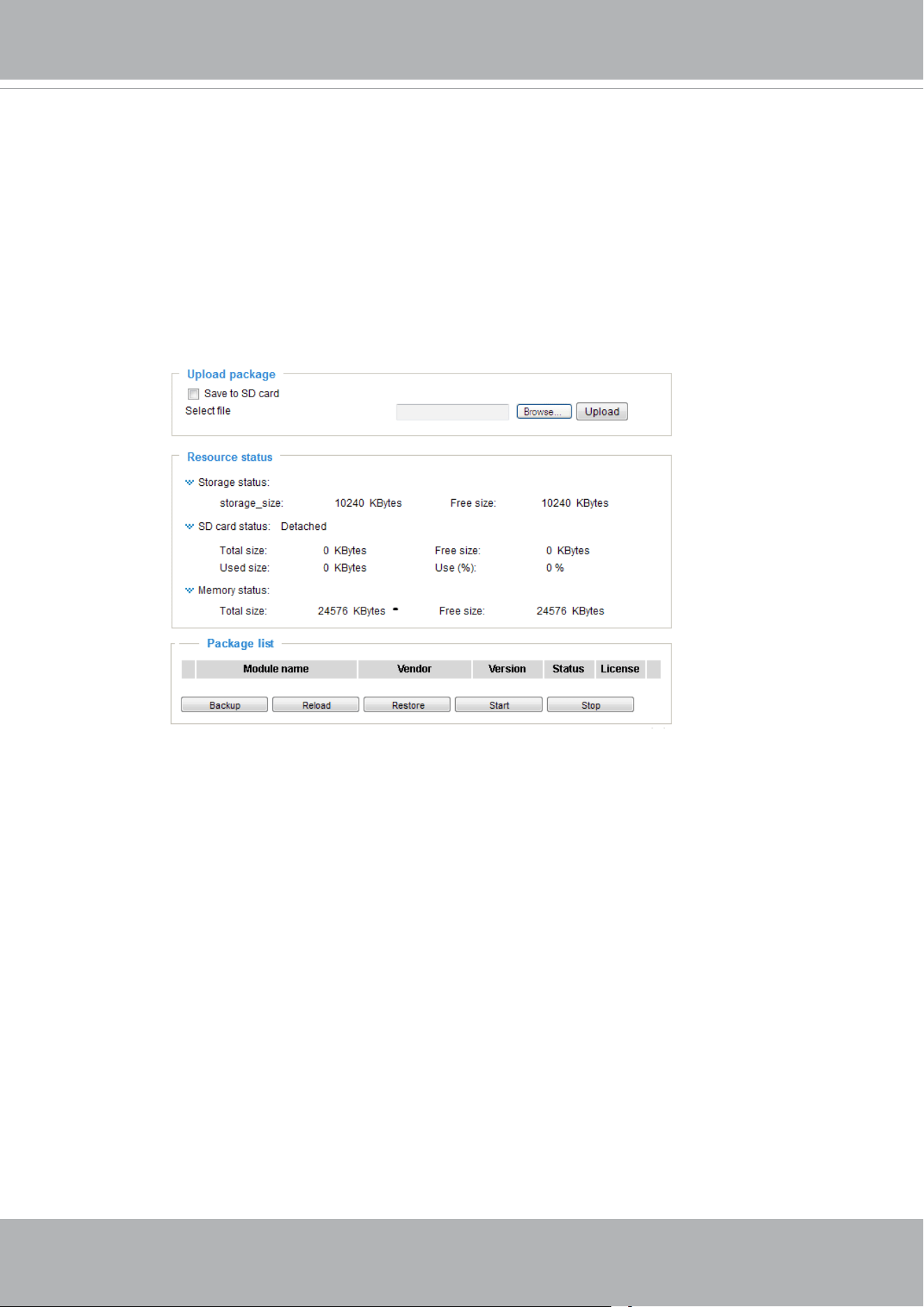
VIVOTEK
156 - User's Manual
Applications > Package management - a.k.a., VADP (VIVOTEK
Application Development Platform)
The IB9365-HT is the rst camera line to come embedded with the Smart Motion Detection
feature. The Smart Motion detection, with Human detection and tunable time filter, can
eliminate the defects of traditional motion detection and facilitate the configuration at a
surveillance site.
To learn more about this feature, download its User Guide in:
http://download.vivotek.com/downloadfile/solutions/vadp/smart-motion-detection-manual_
en.pdf
Users can store and execute VIVOTEK's or 3rd-party software modules onto the camera's
flash memory or SD card. These software modules can apply in video analysis for
intelligent video applications such as license plate recognition, object counting, or as an
agent for edge recording, etc.
• Once the software package is successfully uploaded, the module conguration (vadp.
xml) information is displayed. When uploading a module, the camera will examine
whether the module fits the predefined VADP requirements. Please contact our
technical support or the vendor of your 3rd-party module for the parameters contained
within.
• Users can also run VIVOTEK's VADP packages as a means to access updated
functionality instead of replacing the entire rmware.
• Note that for some cameras the flash is too small to hold VADP packages. These
cameras will have its "Save to SD card" checkbox selected and grayed-out for all time.
• The le system of SD card (FAT32) does not support soft (symbolic) link. It will return
failure if your module tries to create soft links on SD card.
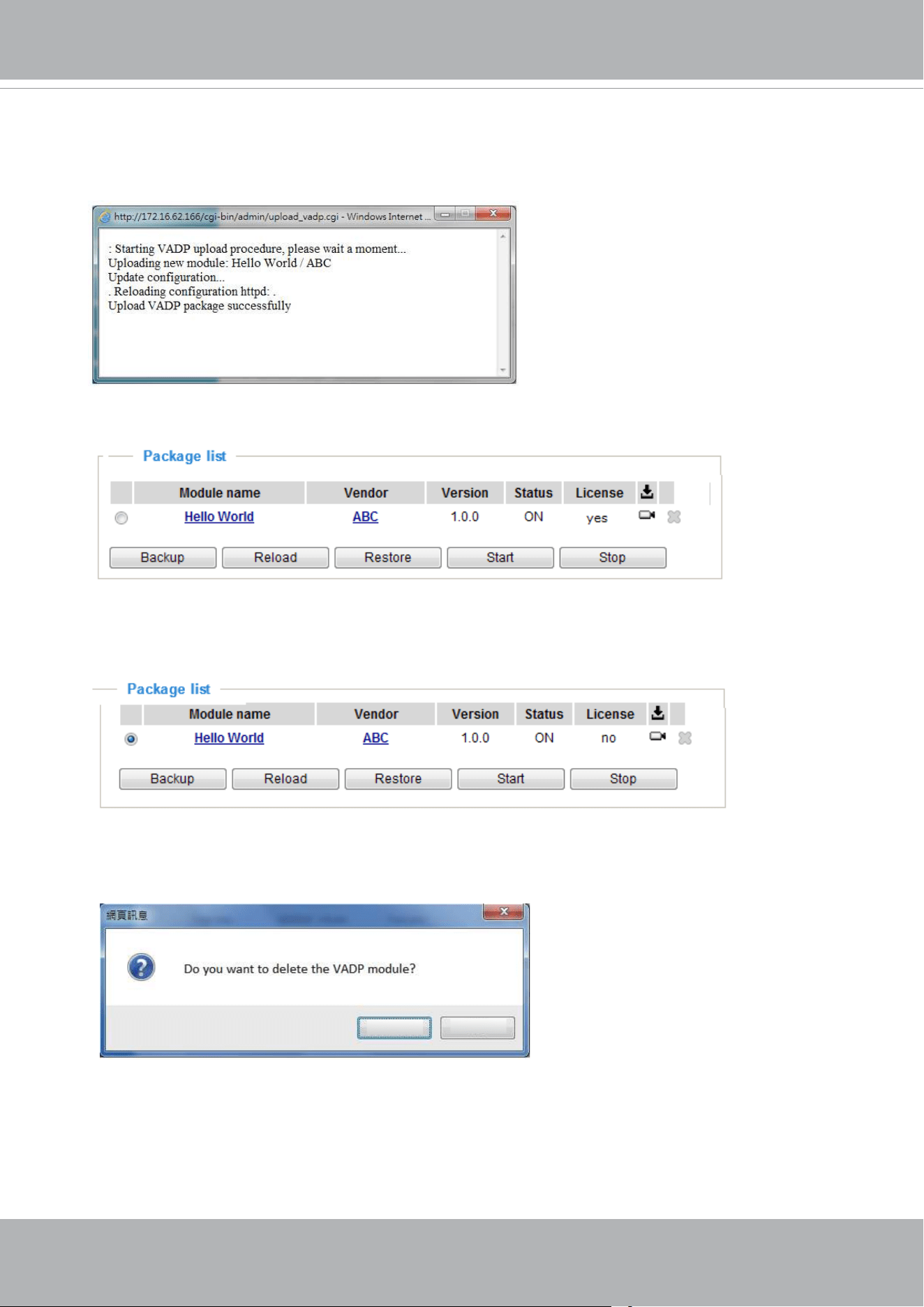
VIVOTEK
User's Manual - 157
To start a module, select the checkcircle in front, and click the
Start
button.
If you should need to remove a module, select the checkcircle in front and then click the
Stop
button. By then the module status will become
OFF
, and the
X
button will appear at
the end of the row. Click on the
X
button to remove an existing module.
When prompted by a conrm message, Click
Yes
to proceed.
Yes
No
Note that the actual memory consumed while operating the module will be indicated on the
Memory status
eld. This helps determine whether a running module has consumed too
much of system resources.
To utilize a software module, acquire the software package and click
Browse
and
Upload
buttons. The screen message for a successful upload is shown below:
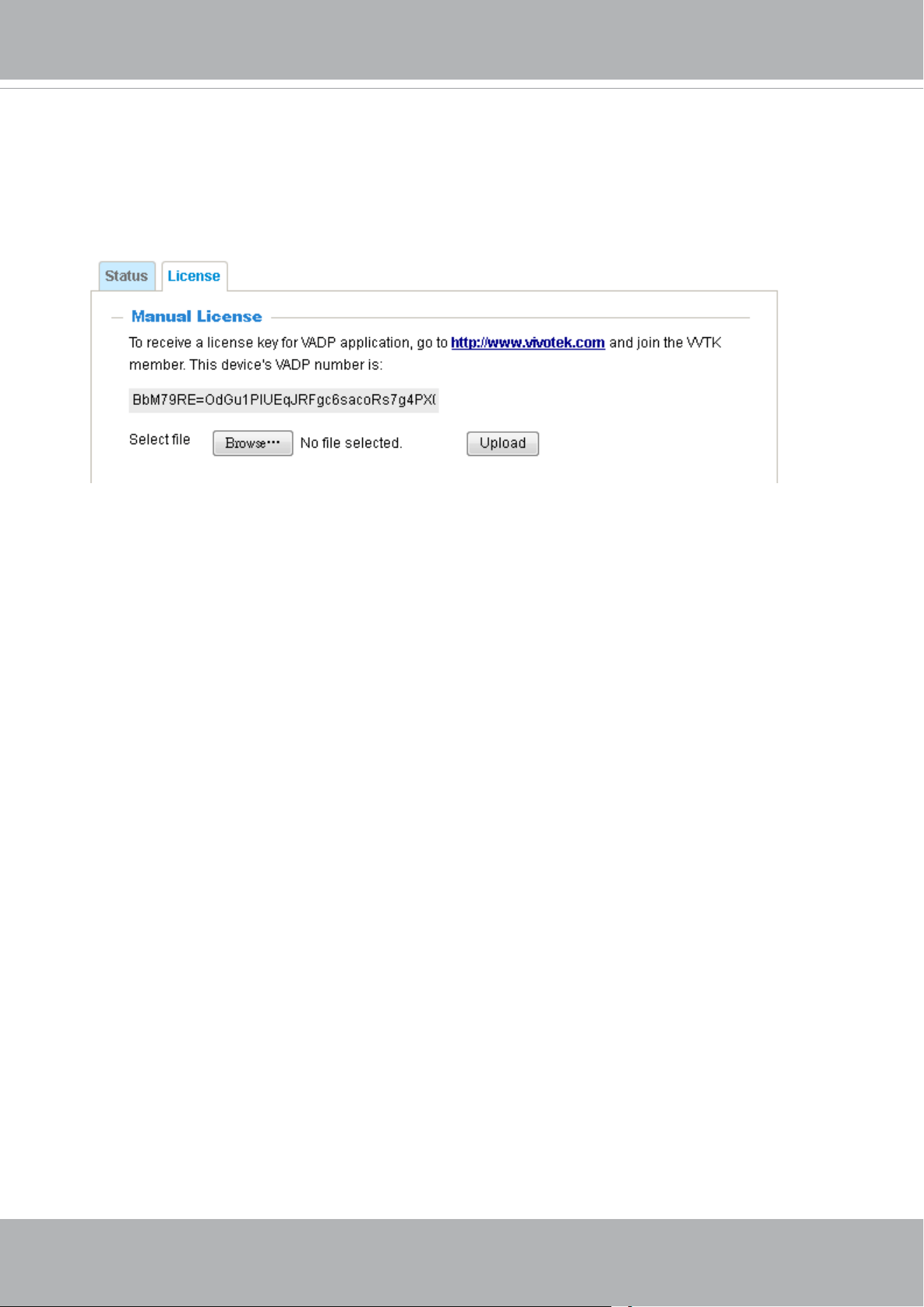
VIVOTEK
158 - User's Manual
On the License page, register and activate the license for using VIVOTEK's VADP
modules. You should acquire the license key elsewhere, and manually upload to the
network camera.
Follow the onscreen instruction on VIVOTEK's website for the registration procedure.
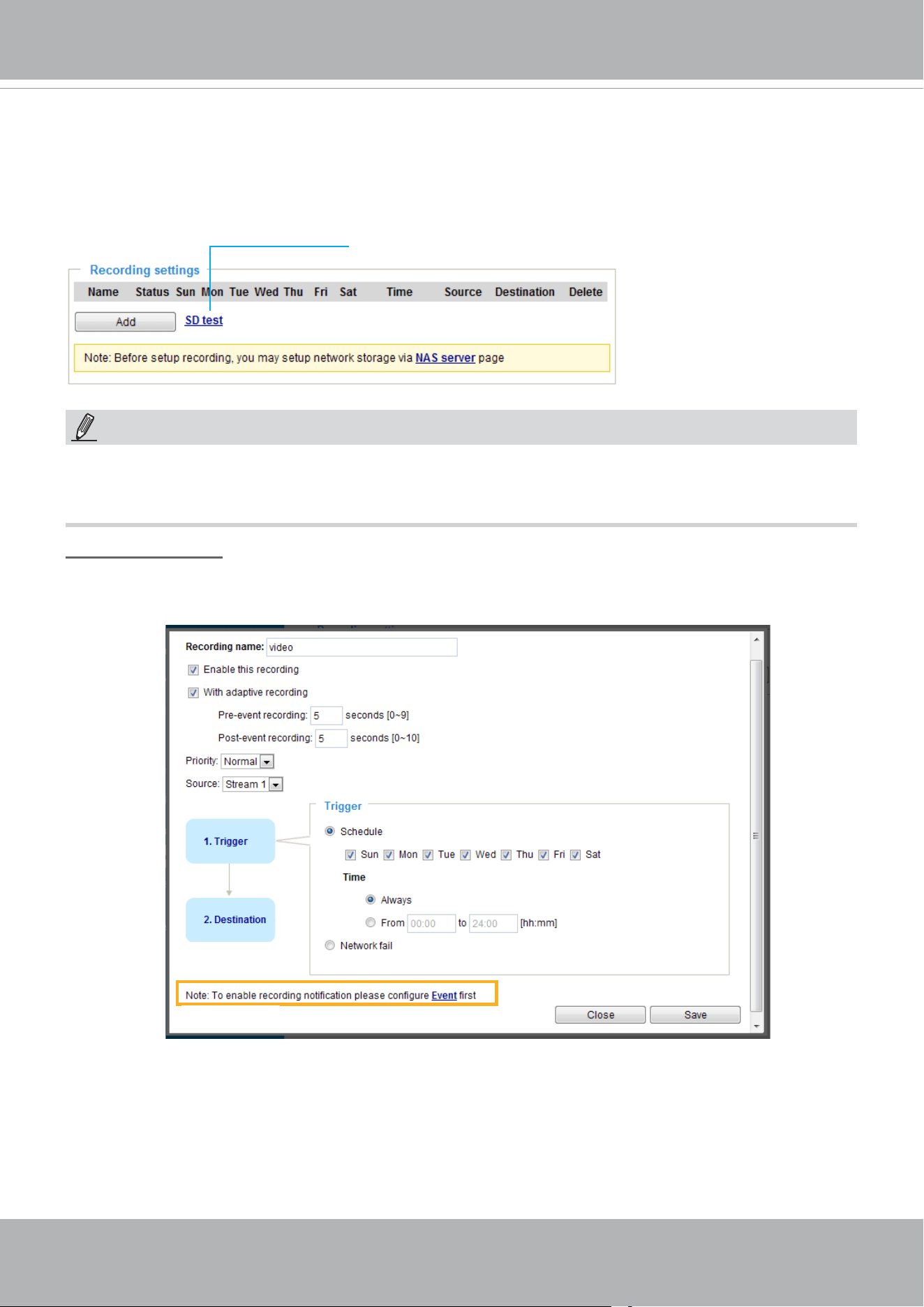
VIVOTEK
User's Manual - 159
Recording > Recording settings
This section explains how to congure the recording settings for the Network Camera.
Recording Settings
► Please remember to format your SD card via the camera’s web console (in the Local storage .
SD card management page) when using it for the first time. Please refer to page 164 for detailed
information.
Insert your SD card and click here to test
Recording Settings
Click
Add
to open the recording setting window. On this page, you can dene the adaptive recording,
recording source, recording schedule, and recording capacity. A total of 2 recording settings can be
congured.
■ Recording name: Enter a name for the recording setting.
■ Enable this recording: Select this option to enable video recording.
■ With adaptive recording:
Select this option will activate the frame rate control according to alarm trigger.
The frame control means that when there is a triggered alarm, the frame rate will raise up to the value
you’ve congured on the Video quality page. Please refer to page 89 for more information.
NOTE:
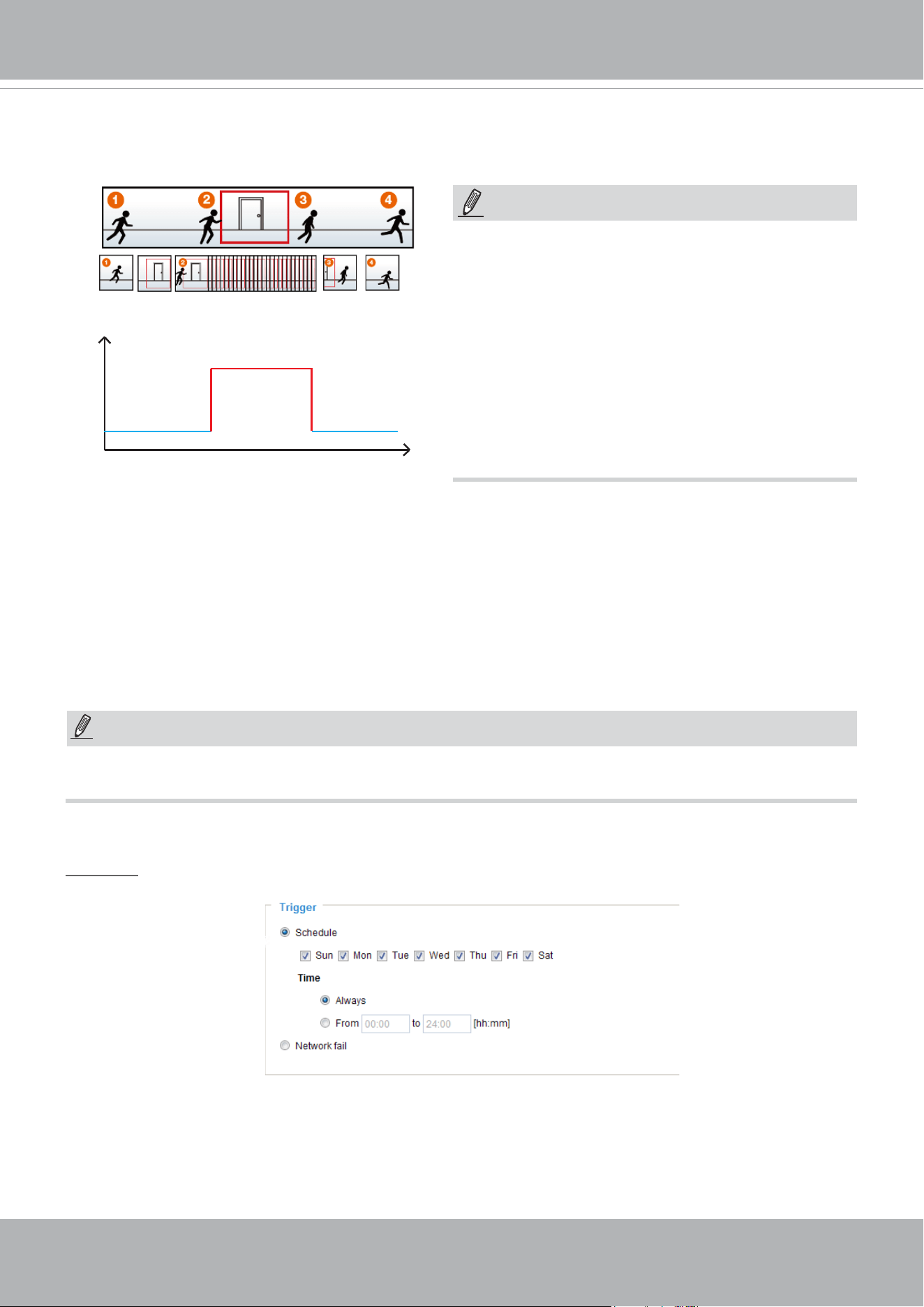
VIVOTEK
160 - User's Manual
The alarm trigger includes: motion detection and DI detection. Please refer to Event Settings on page 136.
■ Pre-event recording and post-event recording
The Network Camera has a buer that temporarily holds data for a period of time. Therefore, when an
event occurs, the camera can restrieve image frames taken several seconds ago. Enter a number to
dene the duration of recording before and after a trigger is activated.
■ Priority: Select the relative importance of this recording (High, Normal, or Low). Recording with a higher
priority setting will be executed rst.
■ Source: Select a video stream as the recording source.
► To enable recording notication please congure
Event
settings
rst . Please refer to page 136.
If you enable adaptive recording on a camera, only when an event is triggered on Camera A will the
server record the full frame rate streaming data; otherwise, it will only request the I frame data during
normal monitoring, thus eectively saves bandwidths and storage space.
Time
Bandwidth
Bandwidth
Activity Adaptive Streaming
for Dynamic Frame Rate Control
I frame ---> Full frame rate ---> I frame
Continuous recording
► To enable adaptive recording, please make sure
you’ve set up the trigger source such as Motion
Detection, DI Device, or Manual Trigger.
► When there is no alarm trigger:
- JPEG mode: record 1 frame per second.
- H.264 mode: record the I frame only.
► When the I frame period is >1s on Video settings
page, firmware will force decrease the I frame
period to 1s when adaptive recording is enabled.
Please follow the steps below to set up the recording.
1. Trigger
Select a trigger source.
■ Schedule: The server will start to record les on the local storage or network storage (NAS).
■ Network fail: Since network fail, the server will start to record les on the local storage (SD card).
NOTE:
NOTE:
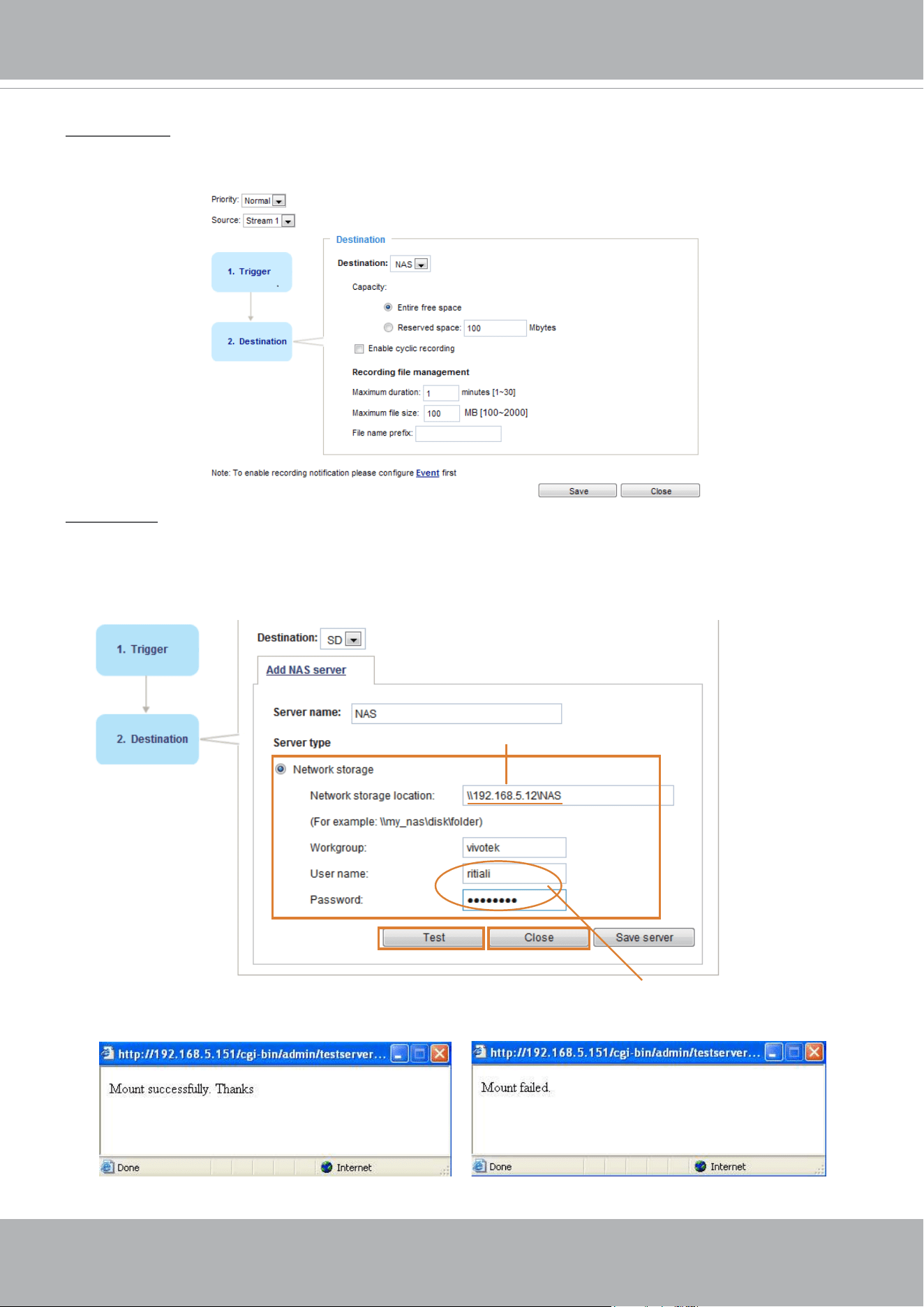
VIVOTEK
User's Manual - 161
2. Destination
You can select the SD card or networked storage (NAS) for the recorded video files. If you have not
congured a NAS server, see details in the following.
NAS server
Click
Add NAS server
to open the server setting window and follow the steps below to set up:
1. Fill in the information for your server.
For example:
2. Click
Test
to check the setting. The result will be shown in the pop-up window.
1
2
3
4
Network storage path
(\\server name or IP address\folder name)
User name and password for your server
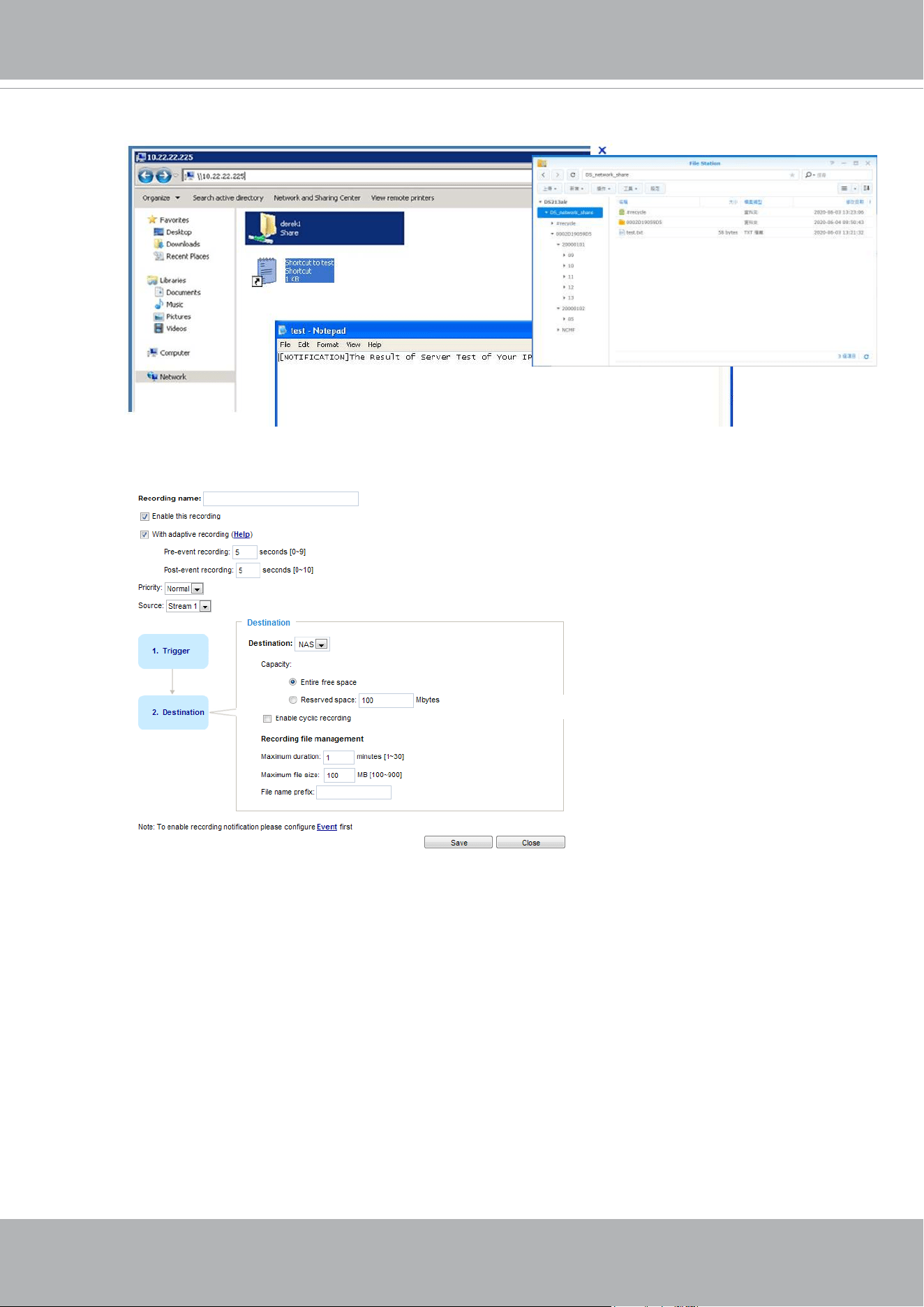
VIVOTEK
162 - User's Manual
If successful, you will receive a test.txt le on the network storage server.
3. Enter a server name.
4. Click
Save
to complete the settings and click
Close
to exit the page.
■ Capacity: You can choose either the entire free space available or limit the reserved space. The
recording size limit must be larger than the reserved amount for cyclic recording. The reserved space
is a small amount of space used only for the transaction stage when the capacity is about to be used
up or recycled.
■ Enable cyclic recording: If you check this item, when the maximum capacity is reached, the oldest le
will be overwritten by the latest one. The reserved amount is reserved for the transaction stage when
the storage space is about to be full and new data arrives. The minimum for the Reserved space must
be larger than 15 MegaBytes.
■ Recording file management: You can manually assign the Maximum duration and the Maximum
file size for each recording footage. You may need to stitch individual files together under some
circumstances. You may also designate a le name prex by lling in the responsive text eld.
■ File name prex: Enter the text that will be appended to the front of the le name.
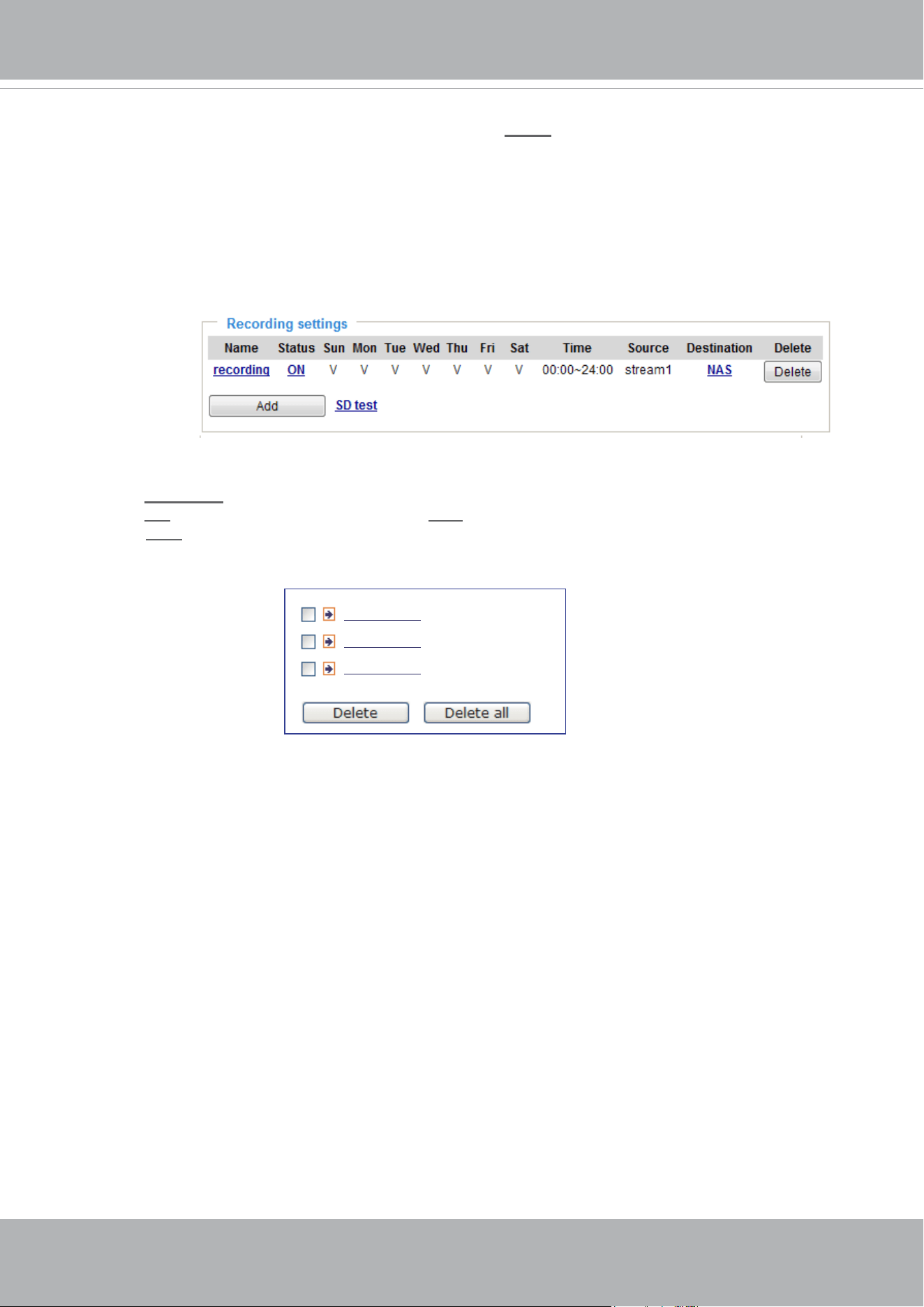
VIVOTEK
User's Manual - 163
To remove a recording setting from the list, select a recording name from the drop-down list and
click
Delete
.
■ Click
recording (Name)
: Opens the Recording Settings page to modify.
■ Click
ON (Status)
: The Status will become
OFF
and stop recording.
■ Click
NAS (Destination)
: Opens the le list of recordings as shown below. For more information
about folder naming rules, please refer to page 146 for details.
20210210
20210211
20210212
f you want to enable recording notication, please click
Event
to congure event triggering settings.
Please refer to
Event > Event settings
on page 136 for more details.
When completed, select
Enable this recording
. Click
Save
to enable the setting and click
Close
to exit this page. When the system begins recording, it will send the recorded les to the network
storage. The new recording name will appear in the drop-down list on the recording page as shown
below.
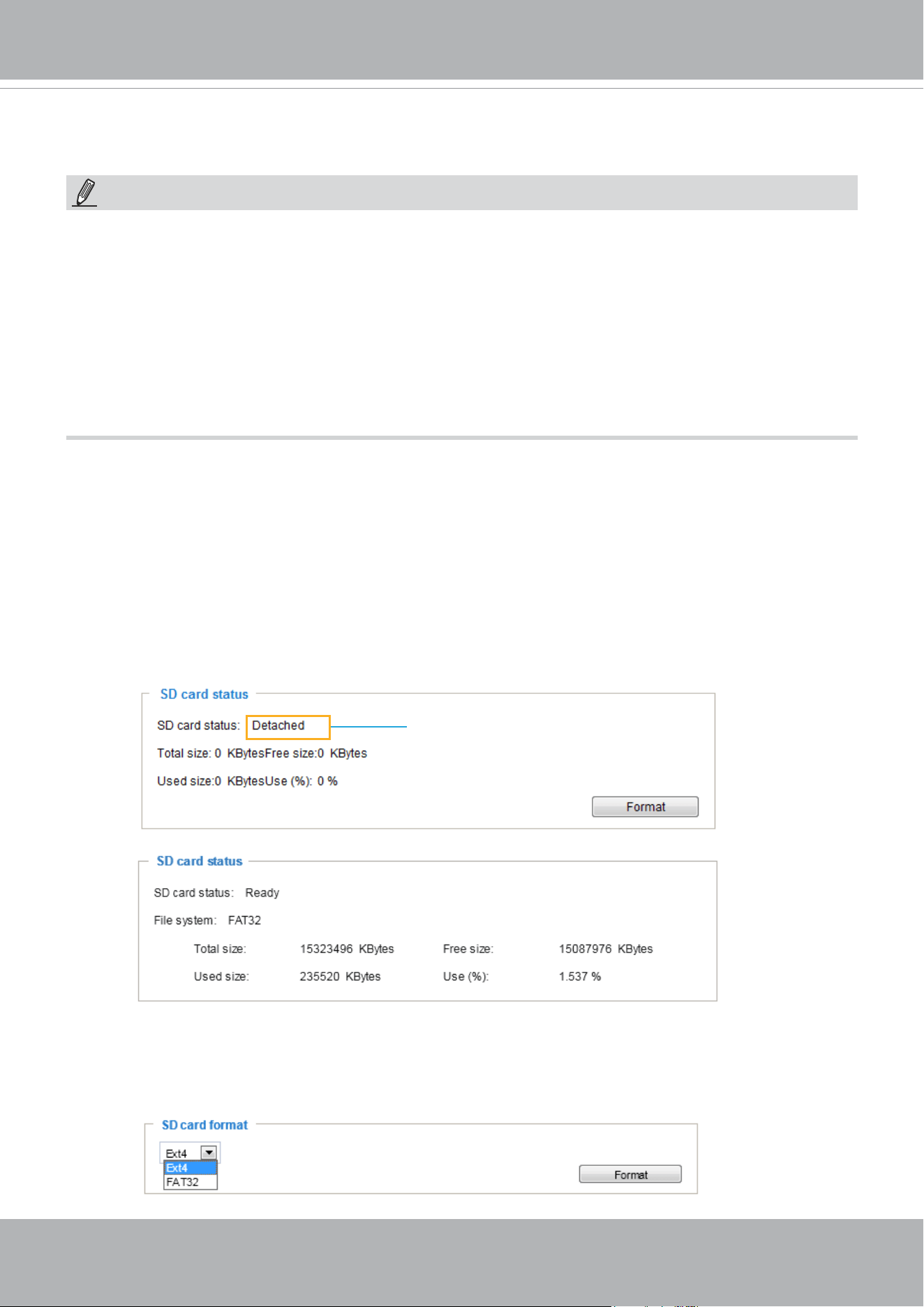
VIVOTEK
164 - User's Manual
Storage
SD card format
The Linux kernel EXT4 file system format applies to SD card larger than 32GB. However, if EXT4 is
applied, the computers running Windows will not be able to access the contents on the SD card unless
using some 3rd-party software .
This section explains how to manage the local storage on the Network Camera. Here you can
view SD card status, and implement SD card control.
SD card staus
This column shows the status and reserved space of your SD card. Please remember to format the SD
card when using for the rst time.
no SD card
NOTE:
• It is recommended to turn OFF the recording activity before you remove an SD card from the
camera.
• The lifespan of an SD card is limited. Regular replacement of the SD card can be necessary.
• Camera lesystem takes up several megabytes of memory space. The storage space cannot
be used for recording.
• Using an SD card that already contains data recorded by another device should not be used
in this camera.
• Please do not modify or change the folder names in the SD card. That may result in camera
malfunctions.
Storage > SD card management
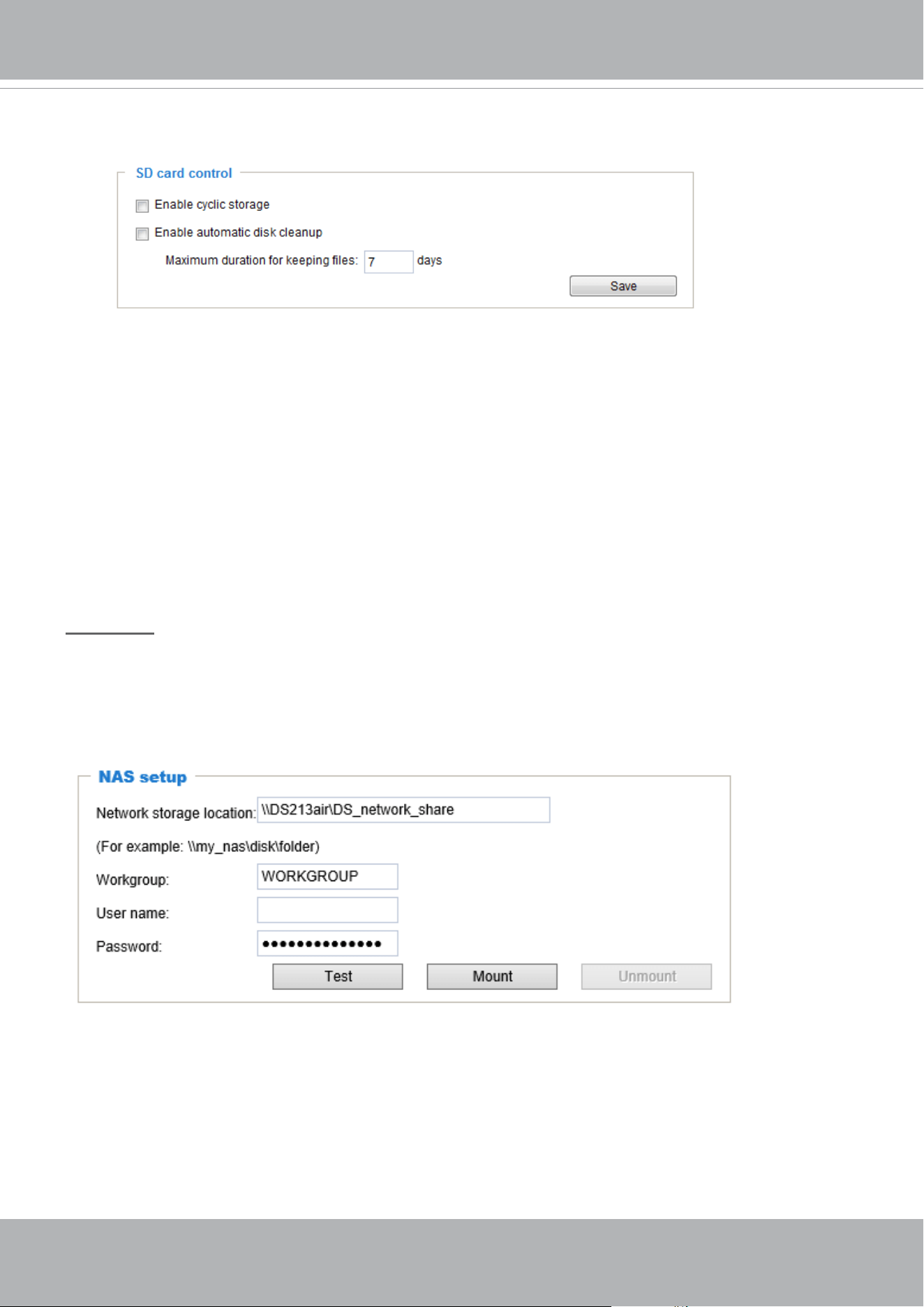
VIVOTEK
User's Manual - 165
SD card control
■ Enable cyclic storage: Check this item if you want to enable cyclic recording. When the maximum
capacity is reached, the oldest le will be overwritten by the latest one.
■ Enable automatic disk cleanup: Check this item and enter the number of days you wish to retain a le.
For example, if you enter “7 days”, the recorded les will be stored on the SD card for 7 days.
Click
Save
to enable your settings.
Storage > NAS management
NAS Setup
Click
NAS management
tab to open the server setting window and follow the steps below to set up:
1. Fill in the information for the access to the shared networked storage.
For example:
\\192.160.5.122\NAS
vivotek
rita.li
admin
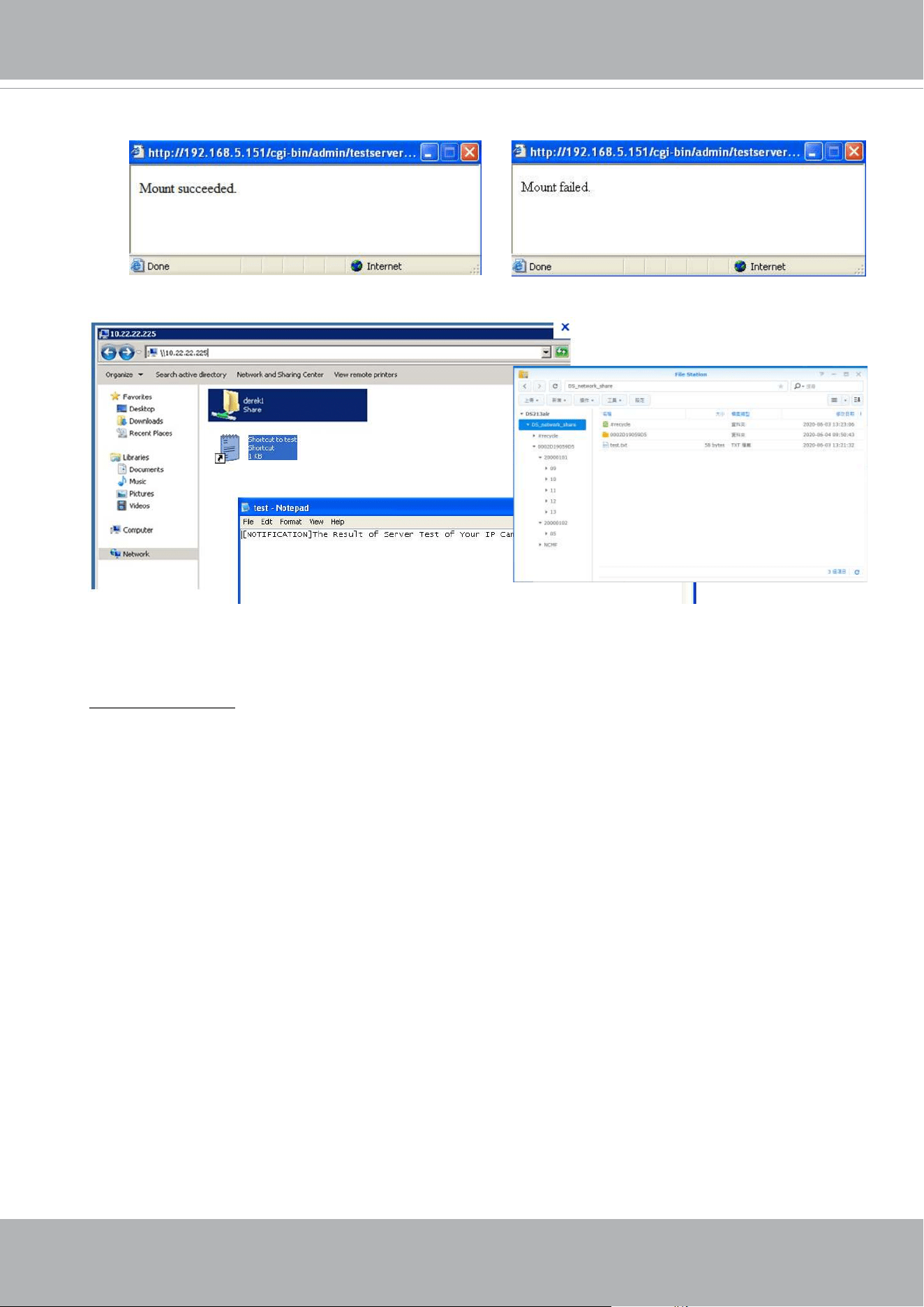
VIVOTEK
166 - User's Manual
If successful, you will receive a test.txt le on the networked storage server.
3. Click
Mount
to complete the settings.
2. Click
Test
to check the setting. The result will be shown in the pop-up window.
NAS management
■ Minimum reserved storage space: The reserved space can be used as a safe buer especially when
the cyclic recording function is enabled, during the transaction stage when a storage space is full and
the incoming streaming data is about to overwrite the previously saved videos.
■ Enable cyclic storage: Allows previous recordings to be overwritten by new recordings.
■ Enable automatic disk cleanup: Allows you to specify how long the recording les will be kept on the
NAS storage.
Maximum duration for keeping les: __ days: Specify the days of retention of the video les recorded
to the NAS storage.
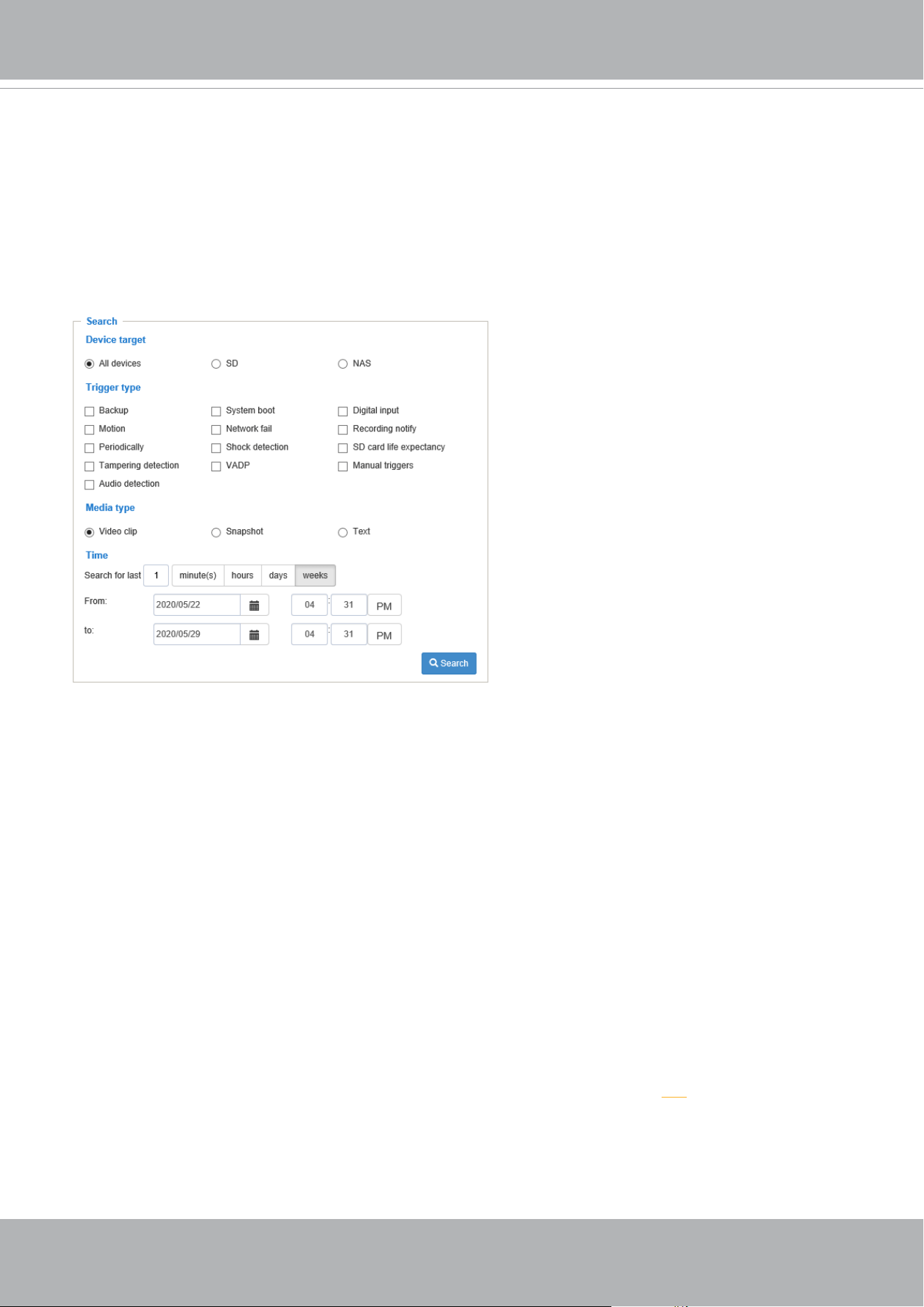
VIVOTEK
User's Manual - 167
Storage > Content management
This section explains how to manage the content of recorded videos on the Network Camera. Here you
can search and view the records and view the searched results.
Searching and Viewing the Records
This column allows the user to set up search criteria for recorded data. If you do not select any criteria
and click
Search
button, all recorded data will be listed in the
Search Results
column.
■ File attributes: Select one or more items as your search criteria.
■ Trigger time: Manually enter the time range you want to search for contents created at a specic point
in time.
Click
Search
and the recorded data corresponding to the search criteria will be listed in
Search Results
window.
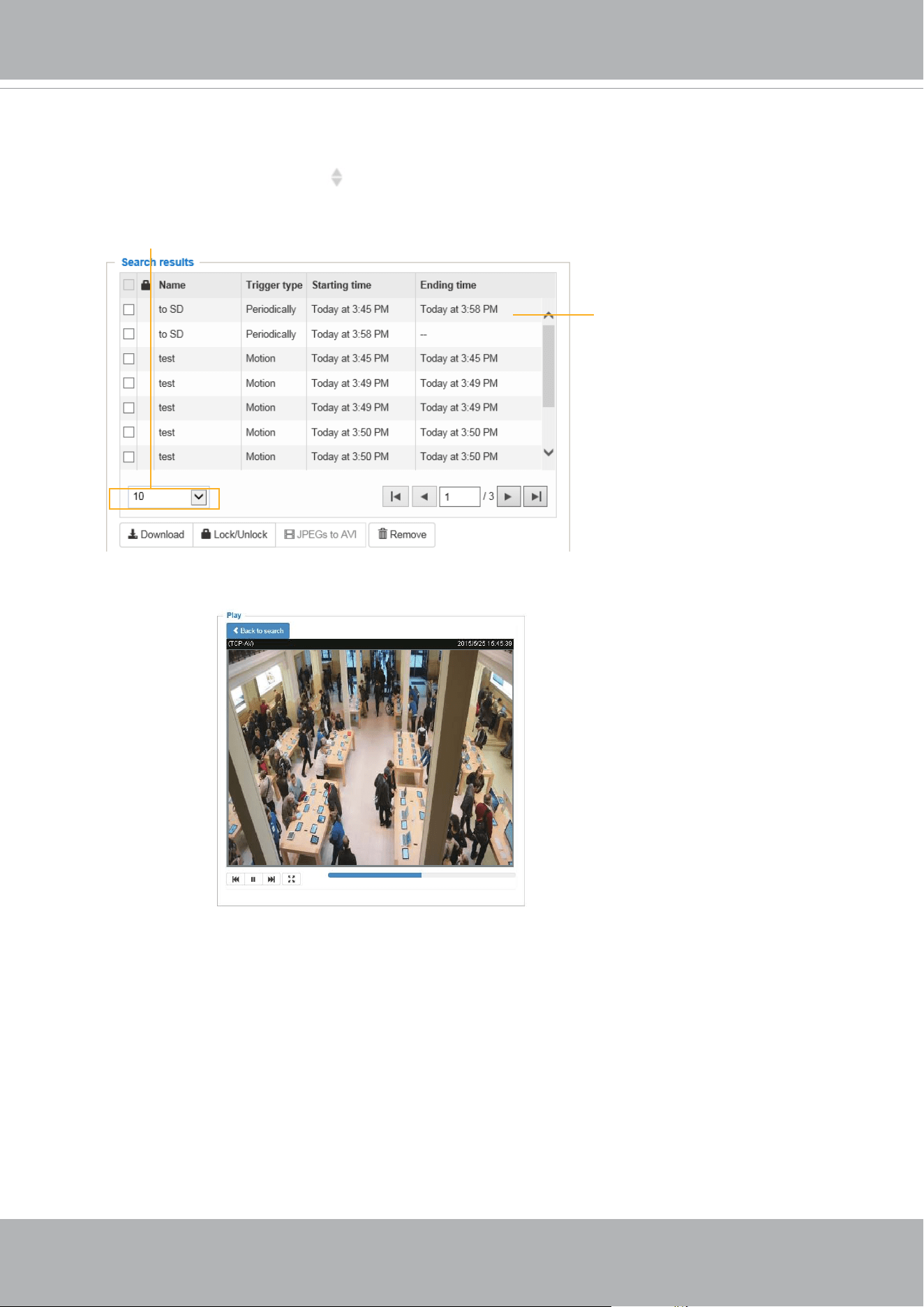
VIVOTEK
168 - User's Manual
Search Results
The following is an example of search results. There are four columns: Trigger time, Media type,
Trigger type, and Locked. Click to sort the search results in either direction.
Numbers of entries displayed
on one page
Click to open a live view
■ Play: Click on a search result which will highlight the selected item. A Play window will appear on
top for immediate review of the selected le.
For example:
■ Download: Click on a search result to highlight the selected item in purple as shown above. Then
click the
Download
button and a le download window will pop up for you to save the le.
■ JPEGs to AVI: This functions only applies to “JPEG“ format files such as snapshots. You can
select several snapshots from the list, then click this button. Those snapshots will be converted
into an AVI le.
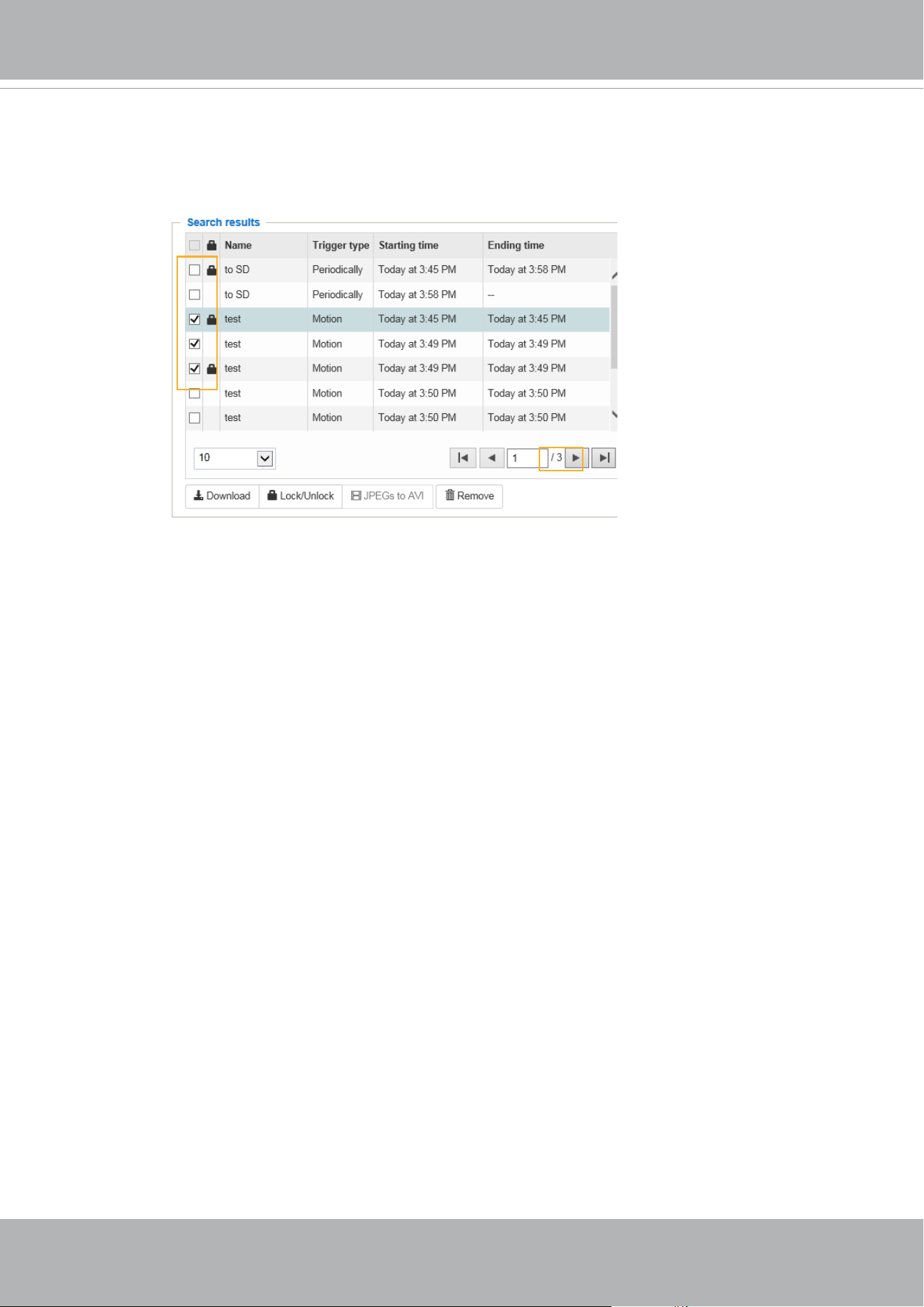
VIVOTEK
User's Manual - 169
■ Lock/Unlock: Select the checkbox in front of a desired search result, then click this button. The
selected items will become Locked, which will not be deleted during cyclic recording. You can
click again to unlock the selections.
For example:
■ Remove: Select the desired search results, then click this button to delete the les.
Click to
switch pages

VIVOTEK
170 - User's Manual
Appendix
URL Commands for the Network Camera
1. Overview
For some customers who already have their own web site or web control application, the Network
Camera/Video Server can be easily integrated through URL syntax. This section specifies the external
HTTP-based application programming interface. The HTTP-based camera interface provides the
functionality to request a single image, control camera functions (PTZ, output relay etc.), and get and set
internal parameter values. The image and CGI-requests are handled by the built-in Web server.
2. Style Convention
In URL syntax and in descriptions of CGI parameters, text within angle brackets denotes content that
is to be replaced with either a value or a string. When replacing the text string, the angle brackets
should also be replaced. An example of this is the description of the name for the server, denoted with
<servername> in the URL syntax description below, that is replaced with the string myserver in the URL
syntax example further down in the page.
URL syntax is denoted with the word "Syntax:" written in bold face followed by a box with the referenced
syntax as shown below. For example, name of the server is written as <servername> and is intended to
be replaced with the name of the actual server. This can either be a name, e.g., "mywebcam" or "thecam.
adomain.net" or the associated IP number for the server, e.g., 192.168.0.220.
Syntax:
http://<servername>/cgi-bin/viewer/video.jpg
Description of returned data is written with "
Return:
" in bold face followed by the returned data in a box. All data is
returned in HTTP format, i.e., each line is separated with a Carriage Return and Line Feed (CRLF) printed as \r\n.
Return:
HTTP/1.0 <HTTP code> <HTTP text>\r\n
URL syntax examples are written with "
Example:
" in bold face followed by a short description and a light grey box
with the example.
Example:
request a single snapshot image
http://mywebserver/cgi-bin/viewer/video.jpg
VIVOTEK
User's Manual - 171
© 2020 VIVOTEK INC. All Right Reserved
28
3. General CGI URL Syntax and Parameters
CGI parameters are written in lower-case and as one word without any underscores or other
separators. When the CGI request includes internal camera parameters, these parameters must be
written exactly as they are named in the camera or video server. The CGIs are organized in
functionally-related directories under the cgi-bin directory. The file extension .cgi is required.
Syntax:
http://<servername>/cgi-bin/<subdir>[/<subdir>...]/<cgi>.<ext>
[?<parameter>=<value>[&<parameter>=<value>...]]
Example: Set digital output #0 to active
http://mywebserver/cgi-bin/dido/setdo.cgi?do0=1
VIVOTEK
172 - User's Manual
© 2020 VIVOTEK INC. All Right Reserved
29
4. Security Level
SECURITY LEVEL
SUB-DIRECTORY DESCRIPTION
0 anonymous Unprotected.
1 [view] viewer Can view, listen, and talk to camera.
4 [operator] operator Operator access rights can modify most of the camera’s
parameters except some privileges and network options.
6 [admin] admin Administrator access rights can fully control the
camera’s operations.
7 N/A Internal APIs. Unable to be changed by any external
interfaces.
A viewer account can access all APIs with security level 0 and 1. An operator account can access all
APIs with security level 0, 1, or 4. An admin account can access all APIs except internal APIs.
Access management is based on the URL directory structure and is described in following
paragraphs.

VIVOTEK
User's Manual - 173
© 2020 VIVOTEK INC. All Right Reserved
30
5. Get Server Parameter Values
Note: The access right depends on the URL directory.
Method: GET/POST
Syntax:
http://<servername>/cgi-bin/
anonymous/getparam.cgi?[<parameter>]
[&<parameter>…]
http://<servername>/cgi-bin/
viewer/getparam.cgi?[<parameter>]
[&<parameter>…]
http://<servername>/cgi-bin/
operator/getparam.cgi?[<parameter>]
[&<parameter>…]
http://<servername>/cgi-bin/
admin/getparam.cgi?[<parameter>]
[&<parameter>…]
Where the <parameter> should be <group>[_<name>] or <group>[.<name>]. If you do not specify
any parameters, all the parameters on the server will be returned. If you specify only <group>, the
parameters oftherelated group will be returned.
When querying parameter values, the current parameter values are returned.
A successful control request returns parameter pairs as follows:
Return:
HTTP/1.0 200 OK\r\n
Content-Type: text/html\r\n
Context-Length: <length>\r\n
\r\n
<parameter pair>
where<parameter pair> is
<parameter>=<value>\r\n
[<parameter pair>]
<length> is the actual length of content.
Example: Request IP address and its response
Request:

VIVOTEK
174 - User's Manual
© 2020 VIVOTEK INC. All Right Reserved
31
http://192.168.0.123/cgi-bin/admin/getparam.cgi?network_ipaddress
Response:
HTTP/1.0 200 OK\r\n
Content-Type: text/html\r\n
Context-Length: 33\r\n
\r\n
network.ipaddress=192.168.0.123\r\n

VIVOTEK
User's Manual - 175
© 2020 VIVOTEK INC. All Right Reserved
32
6. Set Server Parameter Values
Note: The access right depends on the URL directory.
Method: GET/POST
Syntax:
http://<servername>/cgi-bin/
anonymous/setparam.cgi? <parameter>=<value>
[&<parameter>=<value>…][&return=<return page>]
http://<servername>/cgi-bin/
viewer/setparam.cgi? <parameter>=<value>
[&<parameter>=<value>…][&return=<return page>]
http://<servername>/cgi-bin/
operator/setparam.cgi? <parameter>=<value>
[&<parameter>=<value>…][&return=<return page>]
http://<servername>/cgi-bin/
admin/setparam.cgi? <parameter>=<value>
[&<parameter>=<value>…][&return=<return page>]
PARAMETER DESCRIPTION
<parameter> A full path like: "videoin_c0_s0_h264_resolution",
"videoin_c0_s0_h264_maxframe", etc.
<value> The assigned <value> to the <parameter>.
<return page>
Redirect to the page <return page>after the <parameter> is assigned. The <return
page>can be a full URL path or relative path according to the current path. If you
omit this parameter, it will redirect to an empty page.
(Note: The return page can be a general HTML file (.htm, .html). It cannot be a CGI
command or have any extra parameters. This parameter must be placed at the end
of the parameter list.
Return:
HTTP/1.0 200 OK\r\n
Content-Type: text/html\r\n
Context-Length: <length>\r\n
\r\n
<parameter pair>
where<parameter pair> is
<parameter>=<value>\r\n

VIVOTEK
176 - User's Manual
© 2020 VIVOTEK INC. All Right Reserved
33
[<parameter pair>]
Only the parameters that you set and are readable will be returned.
Example: Set the IP address of server to 192.168.0.123:
Request:
http://myserver/cgi-bin/admin/setparam.cgi?network_ipaddress=192.168.0.123
Response:
HTTP/1.0 200 OK\r\n
Content-Type: text/html\r\n
Context-Length: 33\r\n
\r\n
network.ipaddress=192.168.0.123\r\n

VIVOTEK
User's Manual - 177
© 2020 VIVOTEK INC. All Right Reserved
34
7. Available Parameters on the Server
Valid values:
VALID VALUES DESCRIPTION
string[<n>] Text strings shorter than ‘n’ characters. The characters “,’,<,>,& are
invalid.
string[n~m] Text strings longer than `n’ characters and shorter than `m’ characters.
The characters “,’,<,>,& are invalid.
password[<n>] The same as string but displays‘*’ instead.
<integer> Any single integer number in 32-bits.
The range is -2147483648~2147483647.
<positive integer> Any single positive integer number in 32-bits.
The range is 1~ 4294967295.
<m> ~ <n> Any number between ‘m’ and ‘n’.
domain name[<n>] A string limited to a domain name shorter than ‘n’ characters (eg.
www.ibm.com).
email address [<n>] A string limited to an email address shorter than ‘n’ characters (eg.
joe@www.ibm.com).
<ip address> A string limited to an IP address (eg. 192.168.1.1).
<mac address> A string limited to contain a MAC address without hyphens or colons.
<boolean> A boolean value of 1 or 0 represents [Yes or No], [True or False],
[Enable or Disable].
<value1>,
<value2>,
<value3>,
…
Enumeration. Only given values are valid.
blank A blank string.
everything inside <> A description
integer primary key SQLite data type. A 32-bit signed integer. The value is assigned a unique
integer by the server.
<text> SQLite data type. The value is a text string, stored using the database
encoding (UTF-8, UTF-16BE or UTF-16-LE).
<coordinate> x, y coordinate (eg. 0,0)
<window size> window width and height (eg. 800x600)
<W,H> The format for coordinate in 2D.
W is the pixel number of width.
H is the pixel number of height.
EX: (176,144)

VIVOTEK
178 - User's Manual
© 2020 VIVOTEK INC. All Right Reserved
35
VALID VALUES DESCRIPTION
<WxH> The format for resolution.
W is the pixel number of width.
H is the pixel number of height.
Ex: 1920x1080, 2048x1536
available The API is listed in product WebAPIs.
non-available The API is not in product WebAPIs.
valid The API is listed in product WebAPIs, and is functional.
non-valid The API is listed in product WebAPIs, but is malfunction in this status.
<decimal> Any decimal number expressed in 32-bits ranging from
1.18e-38~3.40e+38.
NOTE: The camera should not be restarted when parameters are changed.
7.1 System
Group: system
NAME VALUE SECURITY
(get/set)
DESCRIPTION
hostname string[64] 1/6 Host name of server
(Network Camera,
Wireless Network Camera,
Video Server,
Wireless Video Server).
ledoff <boolean> 6/6 Turn on (0) or turn off (1) all led
indicators.
date <YYYY/MM/DD
>,
keep,
auto
6/6 Current date of system. Set to ‘keep’ to
keep date unchanged. Set to ‘auto’ to
use NTP to synchronize date.
time <hh:mm:ss>,
keep,
auto
6/6 Current time of the system. Set to ‘keep’
to keep time unchanged. Set to ‘auto’ to
use NTP to synchronize time.
datetime <MMDDhhmm
YYYY.ss>
6/6 Another current time format of the
system.
ntp <domain
name>,
<ip address>,
6/6 NTP server.
*Do not use “skip to invoke default
server” for default value.

VIVOTEK
User's Manual - 179
© 2020 VIVOTEK INC. All Right Reserved
36
NAME VALUE SECURITY
(get/set)
DESCRIPTION
<blank>
timezoneindex
<Not recommended to
use this>
-489 ~ 529 6/6 Indicate timezone and area.
-480: GMT-12:00 Eniwetok, Kwajalein
-440: GMT-11:00 Midway Island, Samoa
-400: GMT-10:00 Hawaii
-360: GMT-09:00 Alaska
-320: GMT-08:00 Las Vegas,
San_Francisco,
Vancouver
-280: GMT-07:00 Mountain Time, Denver
-281: GMT-07:00 Arizona
-240: GMT-06:00 Central America,
Central Time, Mexico City, Saskatchewan
-200: GMT-05:00 Eastern Time, New
York, Toronto
-201: GMT-05:00 Bogota, Lima, Quito,
Indiana
-180: GMT-04:30 Caracas
-160: GMT-04:00 Atlantic Time, Canada,
La Paz, Santiago
-140: GMT-03:30 Newfoundland
-120: GMT-03:00 Brasilia, Buenos Aires,
Georgetown, Greenland
-80: GMT-02:00 Mid-Atlantic
-40: GMT-01:00 Azores, Cape_Verde_IS.
0: GMT Casablanca, Greenwich Mean
Time: Dublin,
Edinburgh, Lisbon, London
40: GMT 01:00 Amsterdam, Berlin,
Rome, Stockholm, Vienna, Madrid, Paris
41: GMT 01:00 Warsaw, Budapest, Bern
80: GMT 02:00 Athens, Helsinki, Istanbul,
Riga
81: GMT 02:00 Cairo
82: GMT 02:00 Lebanon, Minsk
83: GMT 02:00 Israel

VIVOTEK
180 - User's Manual
© 2020 VIVOTEK INC. All Right Reserved
37
NAME VALUE SECURITY
(get/set)
DESCRIPTION
120: GMT 03:00 Baghdad, Kuwait,
Riyadh, Moscow, St. Petersburg, Nairobi
121: GMT 03:00 Iraq
140: GMT 03:30 Tehran
160: GMT 04:00 Abu Dhabi, Muscat,
Baku,
Tbilisi, Yerevan
180: GMT 04:30 Kabul
200: GMT 05:00 Ekaterinburg, Islamabad,
Karachi, Tashkent
220: GMT 05:30 Calcutta, Chennai,
Mumbai, New Delhi
230: GMT 05:45 Kathmandu
240: GMT 06:00 Almaty, Novosibirsk,
Astana, Dhaka, Sri Jayawardenepura
260: GMT 06:30 Rangoon
280: GMT 07:00 Bangkok, Hanoi, Jakarta,
Krasnoyarsk
320: GMT 08:00 Beijing, Chongging,
Hong Kong, Kuala Lumpur, Singapore,
Taipei
360: GMT 09:00 Osaka, Sapporo, Tokyo,
Seoul, Yakutsk
380: GMT 09:30 Adelaide, Darwin
400: GMT 10:00 Brisbane, Canberra,
Melbourne, Sydney, Guam, Vladivostok
440: GMT 11:00 Magadan, Solomon Is.,
New Caledonia
480: GMT 12:00 Aucklan, Wellington, Fiji,
Kamchatka, Marshall Is.
520: GMT 13:00 Nuku'Alofa
* We replace this parameter with
“system_tz” when the version number
(httpversion) is equal or greater than
0314b.
daylight_enable <boolean> 6/6 Enable automaticdaylight saving time in

VIVOTEK
User's Manual - 181
© 2020 VIVOTEK INC. All Right Reserved
38
NAME VALUE SECURITY
(get/set)
DESCRIPTION
time zone.
daylight_auto_begintim
e
string[19] 6/7 Display the current daylight saving start
time.
daylight_auto_endtime
string[19] 6/7 Display the current daylight saving end
time.
daylight_timezones string 6/6 List time zone index which support
daylight saving time.
updateinterval 0,
3600,
86400,
604800,
2592000
6/6 0 to Disable automatic time adjustment,
otherwise, it indicates the seconds
between NTP automatic update
intervals.
utctime <string> 6/7 Current UTC timestamp.
* We support this parameter when the
version number (httpversion) is equal or
greater than 0314b.
tz <POSIX TZ
string>
6/6 POSIX timezone setting.
* We support this parameter when the
version number (httpversion) is equal or
greater than 0314b.
restore 0,
<positive
integer>
7/6 Restore the system parameters to default
values after <value> seconds.
reset 0,
<positive
integer>
7/6 Restart the server after <value> seconds
if <value> is non-negative.
restoreexceptnet 0,
<positive
integer>
7/6 Restore the system parameters to default
values except (ipaddress, subnet, router,
dns1, dns2, pppoe).
This command can cooperate with other
“restoreexceptXYZ” commands. When
cooperating with others, the system
parameters will be restored to the
default value except for a union of the
combined results.
restoreexceptdst 0, 7/6 Restore the system parameters to default

VIVOTEK
182 - User's Manual
© 2020 VIVOTEK INC. All Right Reserved
39
NAME VALUE SECURITY
(get/set)
DESCRIPTION
<positive
integer>
values except all daylight saving time
settings.
This command can cooperate with other
“restoreexceptXYZ” commands. When
cooperating with others, the system
parameters will be restored to default
values except for a union of combined
results.
restoreexceptlang 0,
<positive
integer>
7/6 Restore the system parameters to default
values except the custom language file
the user has uploaded.
This command can cooperate with other
“restoreexceptXYZ” commands. When
cooperating with others, the system
parameters will be restored to the
default value except for a union of the
combined results.
restoreexceptvadp 0,
<positive
integer>
7/6 Restore the system parameters to default
values except the vadp parameters and
VADP modules that stored in the system.
This command can cooperate with other
“restoreexceptXYZ” commands. When
cooperating with others, the system
parameters will be restored to the
default value except for a union of the
combined results.
restoreexceptfocusvalu
e
0,
<positive
integer>
7/6 Restore the system parameters to default
values except zoom and focus value.
This command can cooperate with other
“restoreexceptXYZ” commands. When
cooperating with others, the system
parameters will be restored to the
default value except for a union of the
combined results.
* Only available when
"capability_image_c<0~(n-1)>_remotefo

VIVOTEK
User's Manual - 183
© 2020 VIVOTEK INC. All Right Reserved
40
NAME VALUE SECURITY
(get/set)
DESCRIPTION
cus" != 0.
restoreexceptlen 0,
<positive
integer>
7/6 Restore the system parameters to default
values except lens profile.
This command can cooperate with other
“restoreexceptXYZ” commands. When
cooperating with others, the system
parameters will be restored to the
default value except for a union of the
combined results.
* Only available when
"capability_image_c<0~(n-1)>_lensconfig
uration_support" != 0.
connection_timeout <integer> 6/6 Session connection timeout interval.
* Only available when
"capability_taics_support" = 1.
7.1.1 System.Info
Subgroup of system: info (The fields in this group are unchangeable.)
NAME VALUE SECURITY
(get/set)
DESCRIPTION
modelname string[40] 0/7 Internal model name of the server
extendedmodelname string[40] 0/7 ODM specific model name of server (eg.
DCS-5610). If it is not an ODM model,
this field will be equal to “modelname”
serialnumber <mac address> 1/7 12 characters MAC address (without
hyphens).
firmwareversion string[40] 0/7 Firmware version, including model,
company, and version number in the
format:<MODEL-BRAND-VERSION>
language_count <positive
integer>
0/7 Number of webpage languages available
on the server.
language_i<0~(count-
1)>
string[16]
language_i0 :
English
0/7 Available language lists.

VIVOTEK
184 - User's Manual
© 2020 VIVOTEK INC. All Right Reserved
41
NAME VALUE SECURITY
(get/set)
DESCRIPTION
language_i1 :
Deutsch
language_i2 :
Español
language_i3 :
Français
language_i4 :
Italiano
language_i5 :
日本語
language_i6 :
Português
language_i7 :
简体中文
language_i8 :
繁體中文
customlanguage_max
count
0,<positive
integer>
0/6 Maximum number of custom languages
supported on the server.
customlanguage_coun
t
0,<positive
integer>
0/6 Number of custom languages which have
been uploaded to the server.
customlanguage_i<0~
(maxcount-1)>
string 0/6 Custom language name.
7.2 Status
Group: status
NAME VALUE
SECURITY
(get/set)
DESCRIPTION
di_i<0~(capability_ndi-1)>
<product dependent>
<boolean> 1/7 0 => Inactive, normal
1 => Active, triggered
(capability_ndi > 0)
do_i<0~(capability_ndo-1)>
<product dependent>
<boolean> 1/7 0 => Inactive, normal
1 => Active, triggered
(capability_ndo > 0)
onlinenum_rtsp 0,<positive
integer>
6/7 Current number of RTSP
connections.
VIVOTEK
User's Manual - 185
日本語
简体中文
繁體中文
TY
© 2020 VIVOTEK INC. All Right Reserved
42
NAME VALUE
SECURITY
(get/set)
DESCRIPTION
onlinenum_httppush 0,<positive
integer>
6/7 Current number of HTTP push server
connections.
onlinenum_sip 0,<positive
integer>
6/7 Current number of SIP connections.
eth_i0 <string> 1/7 Get network information from
mii-tool.
vi_i<0~(capability_nvi-1)>
<product dependent>
<boolean> 1/7 Virtual input
0 => Inactive
1 => Active
(capability_nvi > 0)
7.2.1 Status per Channel
Group: status_c<0~(n-1)> for n channel products
n denotes the value of "capability_nvideoin"
NAME VALUE
SECURITY
(get/set)
DESCRIPTION
signal_detect <boolean> 1/7 Indicates whether the video source is
connected or not.
* Only available when
capability_videoin_type is 0 or 1.
signal_type ntsc,pal 1/7 The actual modulation type.
* Only available when
capability_videoin_type is 0 or 1.
7.3 Digital Input Behavior Define
Group: di_i<0~(n-1)> for n is the value of "capability_ndi" (capability_ndi > 0)
NAME VALUE
SECURITY
(get/set)
DESCRIPTION
normalstate high,
low
1/1 Indicates open circuit or closed circuit
(inactive status)
7.4 Digital Output Behavior Define
Group: do_i<0~(n-1)>
for n is the value of "capability_ndo" (capability_ndo > 0)

VIVOTEK
186 - User's Manual
© 2020 VIVOTEK INC. All Right Reserved
43
NAME VALUE
SECURITY
(get/set)
DESCRIPTION
normalstate open,
grounded
1/1 Indicate open circuit or closed circuit
(inactive status)
7.5 Security
Group: security
NAME VALUE
SECURITY
(get/set)
DESCRIPTION
privilege_do
view, operator,
admin
1/6 Indicate which privileges and above
can control digital output
(capability_ndo > 0)
privilege_camctrl
view, operator,
admin
1/6 Indicate which privileges and above
can control PTZ
(capability_ptzenabled > 0 or
capability_eptz > 0 or
capability_fisheye > 0)
user_i0_name string[64] 6/7 User name of root
user_i<1~20>_name string[64] 6/7 User name
user_i0_pass password[64] 7/6 Root password
user_i<1~20>_pass password[64] 7/6 User password
user_i0_privilege view,
operator,
admin
6/7 Root privilege
user_i<1~20>_ privilege
view,
operator,
admin
6/6 User privilege
7.6 Network
Group: network
NAME VALUE SECURITY
(get/set)
DESCRIPTION
preprocess <positive integer> 6/6 An 32-bit integer, each bit can be set
separately as follows:
Bit 0 => HTTP service;
Bit 1=> HTTPS service;

VIVOTEK
User's Manual - 187
TY
TY
© 2020 VIVOTEK INC. All Right Reserved
44
NAME VALUE SECURITY
(get/set)
DESCRIPTION
Bit 2=> FTP service;
Bit 3 => Two way audio and RTSP
Streaming service;
To stop service before changing its port
settings. It’s recommended to set this
parameter when change a service port
to the port occupied by another service
currently. Otherwise, the service may
fail.
Stopped service will auto-start after
changing port settings.
Ex:
Change HTTP port from 80 to 5556, and
change RTP port for video from 5556 to
20480.
Then, set preprocess=9 to stop both
service first.
”/cgi-bin/admin/setparam.cgi?
network_preprocess=9&network_http_
port=5556&
network_rtp_videoport=20480”
type lan,
pppoe
6/6 Network connection type.
resetip <boolean> 6/6 1 => Get ipaddress, subnet, router,
dns1, dns2 from DHCP server at next
reboot.
0 => Use preset ipaddress, subnet,
rounter, dns1, and dns2.
ipaddress <ip address> 6/6 IP address of server.
subnet <ip address> 6/6 Subnet mask.
router <ip address> 6/6 Default gateway.
dns1 <ip address> 6/6 Primary DNS server.
dns2 <ip address> 6/6 Secondary DNS server.
wins1 <ip address> 6/6 Primary WINS server.

VIVOTEK
188 - User's Manual
© 2020 VIVOTEK INC. All Right Reserved
45
NAME VALUE SECURITY
(get/set)
DESCRIPTION
wins2 <ip address> 6/6 Secondary WINS server.
7.6.1 802.1x
Subgroup of network: ieee8021x (capability_protocol_ieee8021x > 0)
NAME VALUE SECURITY
(get/set)
DESCRIPTION
enable <boolean> 6/6 Enable/disable IEEE 802.1x
eapmethod eap-peap, eap-tls 6/6 Selected EAP method
identity_peap string[64] 6/6 PEAP identity
identity_tls string[64] 6/6 TLS identity
password string[200] 7/6 Password for TLS
privatekeypassword string[200] 7/6 Password for PEAP
ca_exist <boolean> 6/6 CA installed flag
ca_time 0,<positive
integer>
6/7 CA installed time. Represented in
EPOCH
ca_size 0,<positive
integer>
6/7 CA file size (in bytes)
certificate_exist <boolean> 6/6 Certificate installed flag (for TLS)
certificate_time 0,<positive
integer>
6/7 Certificate installed time. Represented
in EPOCH
certificate_size 0,<positive
integer>
6/7 Certificate file size (in bytes)
privatekey_exist <boolean> 6/6 Private key installed flag (for TLS)
privatekey_time 0,<positive
integer>
6/7 Private key installed time. Represented
in EPOCH
privatekey_size 0,<positive
integer>
6/7 Private key file size (in bytes)
7.6.2 QOS
Subgroup of network: qos_cos
(capability_protocol_qos_cos > 0)
NAME VALUE
SECURITY
(get/set)
DESCRIPTION
enable <boolean> 6/6 Enable/disable CoS (IEEE 802.1p)
vlanid 1~4095 6/6 VLAN ID

VIVOTEK
User's Manual - 189
TY
© 2020 VIVOTEK INC. All Right Reserved
46
NAME VALUE
SECURITY
(get/set)
DESCRIPTION
video 0~7 6/6 Video channel for CoS
audio
<product dependent>
0~7 6/6 Audio channel for CoS
(capability_naudioin > 0)
eventalarm 0~7 6/6 Event/alarm channel for CoS
management 0~7 6/6 Management channel for CoS
eventtunnel 0~7 6/6 Event/Control channel for CoS
Subgroup of network: qos_dscp
(capability_protocol_qos_dscp > 0)
NAME VALUE
SECURITY
(get/set)
DESCRIPTION
enable <boolean> 6/6 Enable/disable DSCP
video 0~63 6/6 Video channel for DSCP
audio 0~63 6/6 Audio channel for DSCP
(capability_naudioin > 0)
eventalarm 0~63 6/6 Event/alarm channel for DSCP
management 0~63 6/6 Management channel for DSCP
eventtunnel 0~63 6/6 Event/Control channel for DSCP
7.6.3 IPV6
Subgroup of network: ipv6 (capability_protocol_ipv6 > 0)
NAME VALUE
SECURITY
(get/set)
DESCRIPTION
enable <boolean> 6/6 Enable IPv6.
addonipaddress <ip address> 6/6 IPv6 IP address.
addonprefixlen 0~128 6/6 IPv6 prefix length.
addonrouter <ip address> 6/6 IPv6 router address.
addondns <ip address> 6/6 IPv6 DNS address.
allowoptional <boolean> 6/6 Allow manually setup of IP address
setting.
7.6.4 FTP
Subgroup of network: ftp
NAME VALUE
SECURITY
(get/set)
DESCRIPTION

VIVOTEK
190 - User's Manual
© 2020 VIVOTEK INC. All Right Reserved
47
NAME VALUE
SECURITY
(get/set)
DESCRIPTION
port 21, 1025~65535 6/6 Local ftp server port.
enable <boolean> 6/6 Enable ftp.
7.6.5 HTTP
Subgroup of network: http
NAME VALUE SECURITY
(get/set)
DESCRIPTION
port 80, 1025 ~
65535
1/6 HTTP port.
alternateport 1025~65535 6/6 Alternate HTTP port.
authmode basic,
digest
1/6 HTTP authentication mode.
s<0~(capability_nmed
iastream*capability_n
videoin)-1)>_accessna
me
<product dependent>
<Not recommended
to use this>
string[32]
1/6 Http server push access name for stream
N, N=
1~(capability_nmediastream*capability_
nvideoin)-1).
(capability_protocol_spush_mjpeg =1
and capability_nmediastream > 0)
The value are shown as
video1s1.mjpg = c0_s0_accessname,
(channel1stream1)
video1s2.mjpg = c0_s1_accessname,
(channel1stream2)
video1s3.mjpg = c0_s2_accessname,
(channel1stream3)
video1s4.mjpg = c0_s3_accessname,
(channel1stream4)
etc.
* We replace this parameter with
"network_http_c<0~(capability_nvideoin
-1)>_s<0~(capability_nmediastream-1)>_
accessname
" when the version number (httpversion)
is equal or greater than 0311c.

VIVOTEK
User's Manual - 191
TY
© 2020 VIVOTEK INC. All Right Reserved
48
7.6.6 HTTP per Channel
Subgroup of network: http_c<0~(n-1)> for n channel products
n denotes the value of "capability_nvideoin"
NAME VALUE SECURITY
(get/set)
DESCRIPTION
s<0~(capability_nmedia
stream-1)>_accessname
<product dependent>
string[32]
1/6 Http server push access name for
channel N and stream M, N= 1~
capability_nvideoin, M= 1~
capability_nmediastream.
(capability_protocol_spush_mjpeg =1
and capability_nmediastream > 0)
The value are shown as
video1s1.mjpg = c0_s0_accessname,
(channel1stream1)
video1s2.mjpg = c0_s1_accessname,
(channel1stream2)
video2s1.mjpg = c1_s0_accessname,
(channel2stream1)
video2s2.mjpg = c1_s1_accessname,
(channel2stream2)
etc.
* We support this parameter when the
version number (httpversion) is equal or
greater than 0311c.
7.6.7 HTTS Port
Subgroup of network: https
(capability_protocol_https > 0)
NAME VALUE S
ECURITY
(get/set)
DESCRIPTION
port 443, 1025 ~
65535
1/6 HTTPS port.
7.6.8 RTSP
Subgroup of network: rtsp (capability_protocol_rtsp > 0)

VIVOTEK
192 - User's Manual
© 2020 VIVOTEK INC. All Right Reserved
49
NAME VALUE SECURITY
(get/set)
DESCRIPTION
port 554, 1025 ~ 65535 1/6 RTSP port.
(capability_protocol_rtsp=1)
authmode disable,
basic,
digest
1/6 RTSP authentication mode.
(capability_protocol_rtsp=1)
s<0~(capability_nmed
iastream*capability_n
videoin)-1)>_accessna
me
<product dependent>
string[32]
1/6 RTSP access name for channel and
stream.
(capability_protocol_spush_mjpeg
=1 and capability_nmediastream > 0)
The value are shown as
live1s1.sdp = s0_accessname,
(channel1stream1)
live1s2.sdp = s1_accessname,
(channel1stream2)
live1s3.sdp = s2_accessname,
(channel1stream3)
live1s4.sdp = s3_accessname,
(channel1stream4)
etc.
* Values start with prefix “cgi-bin”
are prohibited. For example, “c, cg,
cgi, cgi-, cgi-b, cgi-bi, cgi-bin” are not
allowed.
* We modify the value of RTSP
access name after version
number(httpversion) is 0311c
c<0~(capability_nvide
oin)-1>_s<0~(capabilit
y_nmediastream)-1)>
_accessname
<product dependent>
string[32]
1/6 RTSP access name for channel N
stream M, N= 1~
capability_nvideoin, M =
1~capability_nmediastream.
The value are shown as
live1s1.sdp = c0_s0_accessname,
(channel1stream1)
live1s2.sdp = c0_s1_accessname,
(channel1stream2)
live1s3.sdp = c0_s2_accessname,

VIVOTEK
User's Manual - 193
© 2020 VIVOTEK INC. All Right Reserved
50
NAME VALUE SECURITY
(get/set)
DESCRIPTION
(channel1stream3)
live1s4.sdp = c0_s3_accessname,
(channel1stream4)
etc.
* Values start with prefix “cgi-bin”
are prohibited. For example, “c, cg,
cgi, cgi-, cgi-b, cgi-bi, cgi-bin” are not
allowed.
* We modify the value of RTSP
access name after version
number(httpversion) is 0311c
pimssm_enable <boolean> 7/6 To enable the feature of Protocol
Independent Multicast - Source
Specific Multicast.
* We support this parameter when
the version number (httpversion) is
equal or greater than 0313a.
7.6.9 RTSP Multicast
Subgroup of network: rtsp_s<0~(n-1)>_multicast
n denotes the value of "capability_nmediastream * capability_nvideoin"
NAME VALUE SECURITY
(get/set)
DESCRIPTION
alwaysmulticast <boolean> 4/4 Enable always multicast.
ipaddress <ip
address>
4/4 Multicast video IP address.
* We replace
"network_rtsp_s<0~(n-1)>_multicast_ipaddress"
with "
network_rtsp_s<0~(n-1)>_multicast_videoipadd
ress ".
* Reserved for compatibility, and suggest don't
use this since [httpversion] > 0304a
videoipaddress <ip
address>
4/4 Multicast video IP address.
* We support this parameter when the version
number (httpversion) is equal or greater than

VIVOTEK
194 - User's Manual
© 2020 VIVOTEK INC. All Right Reserved
51
NAME VALUE SECURITY
(get/set)
DESCRIPTION
0304a.
audioipaddress
<product
dependent>
<ip
address>
4/4 Multicast audio IP address.
* We support this parameter when the version
number (httpversion) is equal or greater than
0304a.
* Only available when capability_naudioin > 0
metadataipaddres
s
<ip
address>
4/4 Multicast metadata IP address.
* We support this parameter when the version
number (httpversion) is equal or greater than
0304a.
videoport 1025 ~
65535
4/4 Multicast video port.
audioport
<product
dependent>
1025 ~
65535
4/4 Multicast audio port.
* Only available when capability_naudioin > 0
metadataport 1026~6553
4
4/4 Multicast metadata port.
ttl 1 ~ 255 4/4 Multicasttime to live value.
7.6.10 SIP Port
Subgroup of network: sip (capability_protocol_sip> 0)
NAME VALUE
SECURITY
(get/set)
DESCRIPTION
port 1025 ~ 65535 1/6 SIP port.
7.6.11 RTP Port
Subgroup of network: rtp
NAME VALUE SECURITY
(get/set)
DESCRIPTION
videoport 1025 ~ 65535 6/6 Video channel port for RTP.
audioport 1025 ~ 65535 6/6 Audio channel port for RTP.

VIVOTEK
User's Manual - 195
TY
© 2020 VIVOTEK INC. All Right Reserved
52
NAME VALUE SECURITY
(get/set)
DESCRIPTION
metadataport 1025 ~ 65535 6/6 Metadata channel port for RTP.
7.6.12 PPPoE
Subgroup of network: pppoe (capability_protocol_pppoe > 0)
NAME VALUE
SECURITY
(get/set)
DESCRIPTION
user string[128] 6/6 PPPoE account user name.
pass password[64] 7/6 PPPoE account password.
7.6.13 Bonjour
Subgroup of network: service_bonjour
NAME VALUE
SECURITY
(get/set)
DESCRIPTION
enable <boolean> 6/6 Enable bonjour service feature.
* We support this parameter when the
version number (httpversion) is equal
or greater than 0312a.
servicename <string> 6/6 A friendly name for bonjour service.
* We support this parameter when the
version number (httpversion) is equal
or greater than 0312a.
7.6.14 SFTP server
* Only available when bit 1 of "capability_protocol_ftp_server " is 1.
Subgroup of network: sftp
NAME VALUE
SECURITY
(get/set)
DESCRIPTION
port 22,
1025~65535
6/6 Local sftp server port.
enable <boolean> 6/6 Enable sftp.
7.7 IP Filter
Group: ipfilter

VIVOTEK
196 - User's Manual
© 2020 VIVOTEK INC. All Right Reserved
53
NAME VALUE SECURITY
(get/set)
DESCRIPTION
enable <boolean> 6/6 Enable access list filtering.
admin_enable <boolean> 6/6 Enable administrator IP address.
admin_ip string[43] 6/6 Administrator IP address.
maxconnection 1~
"capability_protoc
ol_maxconnection"
6/6 Maximum number of (s).
type 0, 1 6/6 Ipfilter policy :
0 => allow
1 => deny
ipv4list_i<0~9> Single address: <ip
address>
Network address:
<ip address /
network mask>
Range
address:<start ip
address - end ip
address>
6/6 IPv4 address list.
ipv6list_i<0~9> string[43] 6/6 IPv6 address list.
7.8 Video Input
<Not Recommended to use>
Group: videoin
* We do not support this parameter when "capability_nvideoin > 1".
NAME VALUE SECURITY
(get/set)
DESCRIPTION
cmosfreq
50, 60 4/4 CMOS frequency.
* Only available when
capability_videoin_type is 2.
* We do not support this parameter
when "capability_nvideoin > 1".
* This parameter will not be used
after the version number (httpversion)
is equal or greater than 0400a.
whitebalance auto, 4/4 Modes of white balance.

VIVOTEK
User's Manual - 197
© 2020 VIVOTEK INC. All Right Reserved
54
NAME VALUE SECURITY
(get/set)
DESCRIPTION
<product dependent>
panorama,
manual,
rbgain,
widerange,
outdoor,
indoor,
sodiumauto,
etc
(Available values
are listed in
"capability_image_
c<0~(n-1)>_wbmo
de")
"auto": Auto white balance
"panorama": indicates that camera
would try to balance the white
balance effect of every sensor.
"rbgain": Use rgain and bgain to set
white balance manually.
"manual": 2 cases:
a. if "rbgain" is not supported, this
means keep current white balance
status.
b. if "rbgain" is supported, "rgain"
and "bgain" are updated to the
current values which is got from
white balance module. Then, act as
rbgain mode
"widerange": Auto Tracing White
balance (2000K to 10000K).
"outdoor": auto white balance mode
specifically for outdoor.
"indoor": auto white balance mode
specifically for indoor.
"sodiumauto": sodium vapor lamps.
* Only available when
"capability_image_c<0~(n-1)>_wbmo
de" !="-"
* We do not support this parameter
when "capability_nvideoin > 1".
* This parameter will not be used
after the version number (httpversion)
is equal or greater than 0400a.
exposurelevel 0~12 4/4 Exposure level
"0,12": This range takes the concept
from DC's exposure tuning options.
The definition is:
0: EV -2.0
1: EV -1.7

VIVOTEK
198 - User's Manual
© 2020 VIVOTEK INC. All Right Reserved
55
NAME VALUE SECURITY
(get/set)
DESCRIPTION
2: EV -1.3
3: EV -1.0
4: EV -0.7
5: EV -0.3
6: EV 0
7: EV +0.3
8: EV +0.7
9: EV +1.0
10: EV +1.3
11: EV +1.7
12: EV +2.0
* Only available when
"capability_image_c<0~(n-1)>_exposu
re_mode" !=0
* We do not support this parameter
when "capability_nvideoin > 1".
* This parameter will not be used
after the version number (httpversion)
is equal or greater than 0400a.
irismode
fixed, indoor,
outdoor
<product
independent>
4/4 Control DC-Iris mode.
"outdoor": Auto-setting DC-Iris to get
best quality, but easy to meet rolling
or flicker effect in indoor
environment.
"indoor": Avoid rolling and flicker
effect first.
"fixed": Open the iris to maximum.
* Only available when
"capability_image_c<0~(n-1)>_iristype
"=dciris
* We do not support this parameter
when "capability_nvideoin > 1".
* This parameter will not be used
after the version number (httpversion)
is equal or greater than 0400a.
enableblc <boolean> 4/4 Enable backlight compensation.

VIVOTEK
User's Manual - 199
© 2020 VIVOTEK INC. All Right Reserved
56
NAME VALUE SECURITY
(get/set)
DESCRIPTION
<Not support
anymore>
* Not support this parameter
anymore when the version number
(httpversion) is equal or greater than
0301a.
* It's recommanded to use
"exposurewin_c<0~(n-1)>_mode" to
switch on/off BLC.
color 0, 1 4/4 0 =>monochrome
1 => color
* Only available when "
capability_videoin_c<0~(n-1)>_color_
support" is 1.
* We do not support this parameter
when "capability_nvideoin > 1".
* This parameter will not be used
after the version number (httpversion)
is equal or greater than 0400a.
flip <boolean> 4/4 Flip the image.
* We do not support this parameter
when "capability_nvideoin > 1".
* This parameter will not be used
after the version number (httpversion)
is equal or greater than 0400a.
mirror <boolean> 4/4 Mirror the image.
* We do not support this parameter
when "capability_nvideoin > 1".
* This parameter will not be used
after the version number (httpversion)
is equal or greater than 0400a.
rotate 0,90,180,270 1/4
The rotation angle of image.
Support only in Rotation mode.
* Only available when "
capability_videoin_c<0~(n-1)>_rotatio
n"=1
* We do not support this parameter
when "capability_nvideoin > 1".

VIVOTEK
200 - User's Manual
© 2020 VIVOTEK INC. All Right Reserved
57
NAME VALUE SECURITY
(get/set)
DESCRIPTION
* This parameter will not be used
after the version number (httpversion)
is equal or greater than 0400a.
ptzstatus
<Not support
anymore>
0,<positive
integer>
1/7 A 32-bit integer, each bit can be set
separately as follows:
Bit 0 => Support camera control
function; 0(not support), 1(support)
Bit 1 =>Built-in or external camera; 0
(external), 1(built-in)
Bit 2 => Support pan operation; 0(not
support), 1(support)
Bit 3 => Support tilt operation; 0(not
support), 1(support)
Bit 4 => Support zoom operation;
0(not support), 1(support)
Bit 5 => Support focus operation;
0(not support), 1(support)(SD/PZ/IZ
series only)
* Not support this parameter
anymore when the version number
(httpversion) is equal or greater than
0309a.
text string[64] 1/4 Enclose caption.
* We do not support this parameter
when "capability_nvideoin > 1".
* This parameter will not be used
after the version number (httpversion)
is equal or greater than 0400a.
imprinttimestamp <boolean> 4/4 Overlay time stamp on video.
* We do not support this parameter
when "capability_nvideoin > 1".
* This parameter will not be used
after the version number (httpversion)
is equal or greater than 0400a.
minexposure
<product dependent>
<1~32000>,
<5~32000>,
4/4 Minimum exposure time
1~32000 => 1s ~ 1/32000s

VIVOTEK
User's Manual - 201
© 2020 VIVOTEK INC. All Right Reserved
58
NAME VALUE SECURITY
(get/set)
DESCRIPTION
<1~8000>,
<5~8000>,
etc.
* Available value is
listed in
"capability_image_
c<0~(n-1)>_exposu
re_minrange"
5~32000 => 1/5s ~ 1/32000s
1~8000 => 1s ~ 1/8000s
5~8000 => 1/5s ~ 1/8000s
etc.
* Only available when
"capability_image_c<0~(n-1)>_exposu
re_minrange" != "-"
* Only valid when
"piris_mode"=manual or
"irismode"=fixed
* Only available when
"capability_image_c<0~(n-1)>_exposu
re_rangetype" is "twovalues".
* We do not support this parameter
when "capability_nvideoin > 1".
* This parameter will not be used
after the version number (httpversion)
is equal or greater than 0400a.
maxexposure
<product dependent>
<1~32000>,
<5~32000>,
<1~8000>,
<5~8000>,
etc.
* Available value is
listed in
"capability_image_
c<0~(n-1)>_exposu
re_maxrange"
4/4 Maximum exposure time
1~32000 => 1s ~ 1/32000s
5~32000 => 1/5s ~ 1/32000s
1~8000 => 1s ~ 1/8000s
5~8000 => 1/5s ~ 1/8000s
etc.
* This parameter may also restrict
image frame rate from sensor due to
sensor generates a frame per
exposure time. Ex: If this is set to 1/5s
~ 1/8000s and camera takes 1/5s on
the night, then sensor only outputs 5
frame/s.
* Only available when
"capability_image_c<0~(n-1)>_exposu
re_maxrange" != "-"
* Only valid when
"piris_mode"=manual or

VIVOTEK
202 - User's Manual
© 2020 VIVOTEK INC. All Right Reserved
59
NAME VALUE SECURITY
(get/set)
DESCRIPTION
"irismode"=fixed
* Only available when
"capability_image_c<0~(n-1)>_exposu
re_rangetype" is "twovalues".
* We do not support this parameter
when "capability_nvideoin > 1".
* This parameter will not be used
after the version number (httpversion)
is equal or greater than 0400a.
enablepreview <boolean> 1/4 Usage for UI of exposure settings.
Preview settings of video profile.
* Only available when
"capability_image_c<0~(n-1)>_exposu
re_mode" !=0
* We do not support this parameter
when "capability_nvideoin > 1".
* This parameter will not be used
after the version number (httpversion)
is equal or greater than 0400a.
7.8.1 Video Input Setting per Channel
Group: videoin_c<0~(n-1)> for n channel products, and m is stream number
n denotes the value of "capability_nvideoin", m denotes the value of "capability_nmediastream"
NAME VALUE SECURITY(
get/set)
DESCRIPTION
cmosfreq
50, 60 4/4 CMOS frequency.
* Only available when "
capability_videoin_type " is 2
mode 0 ~
"capability_videoin_c<0~(
n-1)>_nmode"-1
4/4 Indicate the video mode on use.
whitebalance
<product
dependent>
auto,
panorama,
manual,
rbgain,
4/4 Modes of white balance.
"auto": Auto white balance
"panorama": indicates that camera
would try to balance the white

VIVOTEK
User's Manual - 203
© 2020 VIVOTEK INC. All Right Reserved
60
NAME VALUE SECURITY(
get/set)
DESCRIPTION
widerange,
outdoor,
indoor,
sodiumauto,
etc
(Available values are listed
in
"capability_image_c<0~(n-
1)>_wbmode")
balance effect of every sensor.
"rbgain": Use rgain and bgain to set
white balance manually.
"manual": 2 cases:
a. if "rbgain" is not supported, this
means keep current white balance
status.
b. if "rbgain" is supported, "rgain"
and "bgain" are updated to the
current values which is got from
white balance module. Then, act as
rbgain mode
"widerange": Auto Tracing White
balance (2000K to 10000K).
"outdoor": auto white balance mode
specifically for outdoor.
"indoor": auto white balance mode
specifically for indoor.
"sodiumauto": sodium vapor lamps.
* Only available when
"capability_image_c<0~(n-1)>_wbmo
de" !="-"
rgain 0~100 4/4 Manual set rgain value of gain control
setting.
0: Weak <-> 100: Strong
* Only available when "rbgain" is
listed in
"capability_image_c<0~(n-1)>_wbmo
de".
* Only valid when
"videoin_c<0~(n-1)>_whitebalance" !
= auto
* Normalized range.
bgain 0~100 4/4 Manual set bgain value of gain control
setting.
0: Weak <-> 100: Strong

VIVOTEK
204 - User's Manual
© 2020 VIVOTEK INC. All Right Reserved
61
NAME VALUE SECURITY(
get/set)
DESCRIPTION
* Only available when "rbgain" is
listed in
"capability_image_c<0~(n-1)>_wbmo
de".
* Only valid when
"videoin_c<0~(n-1)>_whitebalance" !
= auto
* Normalized range.
exposurelevel 0~12 4/4 Exposure level
"0,12": This range takes the concept
from DC's exposure tuning options.
The definition is:
0: EV -2.0
1: EV -1.7
2: EV -1.3
3: EV -1.0
4: EV -0.7
5: EV -0.3
6: EV 0
7: EV +0.3
8: EV +0.7
9: EV +1.0
10: EV +1.3
11: EV +1.7
12: EV +2.0
* Only available when
"capability_image_c<0~(n-1)>_exposu
re_mode" !=0
exposuremode
<product
dependent>
auto,
shutterpriority,
irispriority,
qualitypriority,
manual,
etc
(Available options are list
4/4 Select exposure mode.
"auto": Automatically adjust the Iris,
Gain and Shutter Speed to fit the
exposure level.
"shutterpriority": Manually adjust
with variable Shutter Speed, and keep
adjusting Iris, Gain automatically.
"irispriority": Manually adjust with

VIVOTEK
User's Manual - 205
© 2020 VIVOTEK INC. All Right Reserved
62
NAME VALUE SECURITY(
get/set)
DESCRIPTION
in
"capability_image_c<0~(n-
1)>_exposure_modetype")
variable Iris, and keep adjusting Gain
and Shutter speed automatically.
"qualitypriority": Automatically
adjust the Iris, Gain and Shutter Speed
by VIVOTEK quality algorithm.
"manual": Manually adjust with
variable Shutter, Iris and Gain.
* We support this parameter when
the version number (httpversion) is
equal or greater than 0302a.
* Only available when
"capability_image_c<0~(n-1)>_exposu
re_mode" !=0
irismode
fixed, indoor, outdoor
<product dependent>
4/4 Control DC-Iris mode.
"outdoor": Auto-setting DC-Iris to get
best quality, but easy to meet rolling
or flicker effect in indoor
environment.
"indoor": Avoid rolling and flicker
effect first.
"fixed": Open the iris to maximum.
* Only available when
"capability_image_c<0~(n-1)>_iristype
"=dciris
piris_mode
<product
dependent>
manual, indoor, outdoor,- 1/4 Control P-Iris mode.
"outdoor": Auto-setting P-Iris to get
best quality, but easy to meet rolling
or flicker effect in indoor
environment.
"indoor": Avoid rolling and flicker
effect first.
"manual": Manual set P-Iris by
"piris_position".
"-": not support. (only available when
"capability_image_c<0~(n-1)>_sensor
type" is "smartsensor")

VIVOTEK
206 - User's Manual
© 2020 VIVOTEK INC. All Right Reserved
63
NAME VALUE SECURITY(
get/set)
DESCRIPTION
* Only available when
"capability_image_c<0~(n-1)>_iristype
"=piris
piris_position
<product
dependent>
1~100 1/4 Manual set P-Iris.
1: Open <-> 100: Close
* Only valid when
"piris_mode"=manual or
"capability_image_c<0~(n-1)>_sensor
type" is "smartsensor"
* Only available when
"capability_image_c<0~(n-1)>_iristype
"=piris
enableblc
<Not support
anymore>
<boolean> 4/4 Enable backlight compensation
* Not support this parameter
anymore when the version number
(httpversion) is equal or greater than
0301a.
* It's recommanded to use
"exposurewin_c<0~(n-1)>_mode" to
switch on/off BLC.
maxgain 0~100 4/4 Maximum gain value.
0: Low <-> 100: High
* Only available when
"capability_image_c<0~(n-1)>_agc_m
axgain" != "-"
* Only valid when
"piris_mode"=manual or
"irismode"=fixed
* Normalized range.
* Only available when
"capability_image_c<0~(n-1)>_exposu
re_rangetype" is "twovalues".
mingain 0~100 4/4 Minimum gain value.
0: Low <-> 100: High
* Only available when
"capability_image_c<0~(n-1)>_agc_mi

VIVOTEK
User's Manual - 207
© 2020 VIVOTEK INC. All Right Reserved
64
NAME VALUE SECURITY(
get/set)
DESCRIPTION
ngain" != "-"
* Only valid when
"piris_mode"=manual or
"irismode"=fixed
* Normalized range.
* Only available when
"capability_image_c<0~(n-1)>_exposu
re_rangetype" is "twovalues".
gainvalue 0~100 4/4 Gain value.
0: Low <-> 100: High
* Only available when
"capability_image_c<0~(n-1)>_agc_m
axgain" != "-" and
"capability_image_c<0~(n-1)>_exposu
re_rangetype" is "onevalue".
* Normalized range.
* We support this parameter when
the version number (httpversion) is
equal or greater than 0302a.
color 0, 1 4/4 0 =>monochrome
1 => color
* Only available when "
capability_videoin_c<0~(n-1)>_color_
support" is 1.
flip <boolean> 4/4 Flip the image.
mirror <boolean> 4/4 Mirror the image.
rotate 0,90,180,270 1/4 The rotation angle of image.
Support only in Rotation mode
(capability_videoin_c<0~(n-1)>_rotati
on=1)
ptzstatus
<Not support
anymore>
0,<positive integer> 1/7 A 32-bit integer, each bit can be set
separately as follows:
Bit 0 => Support camera control
function; 0(not support), 1(support)
Bit 1 =>Built-in or external camera; 0
(external), 1(built-in)

VIVOTEK
208 - User's Manual
© 2020 VIVOTEK INC. All Right Reserved
65
NAME VALUE SECURITY(
get/set)
DESCRIPTION
Bit 2 => Support pan operation; 0(not
support), 1(support)
Bit 3 => Support tilt operation; 0(not
support), 1(support)
Bit 4 => Support zoom operation;
0(not support), 1(support)
Bit 5 => Support focus operation;
0(not support), 1(support)(SD/PZ/IZ
series only)
* Not support this parameter
anymore when the version number
(httpversion) is equal or greater than
0309a.
text string[64] 1/4 Enclose caption.
imprinttimesta
mp
<boolean> 4/4 Overlay time stamp on video.
textonvideo_p
osition
top, bottom 4/4 Text on video string position
textonvideo_si
ze
20~40 4/4 Text on video font size
textonvideo_fo
ntpath
/usr/share/font/Default.ttf
, /mnt/flash2/upload.ttf
4/4 Choose camera default font file
(/usr/share/font/Default.ttf) or user
uploaded font
file(/mnt/flash2/upload.ttf).
textonvideo_u
ploadfilename
Depends on the font file
name uploaded by user
1/7 Show the uploaded font file name.
minexposure
<product
dependent>
<1~32000>,
<5~32000>,
<1~8000>,
<5~8000>,
etc.
* Available value is listed
in
"capability_image_c<0~(n-
1)>_exposure_minrange"
4/4 Minimum exposure time
1~32000 => 1s ~ 1/32000s
5~32000 => 1/5s ~ 1/32000s
1~8000 => 1s ~ 1/8000s
5~8000 => 1/5s ~ 1/8000s
etc.
* Only available when
"capability_image_c<0~(n-1)>_exposu
re_minrange" != "-"
* Only valid when

VIVOTEK
User's Manual - 209
© 2020 VIVOTEK INC. All Right Reserved
66
NAME VALUE SECURITY(
get/set)
DESCRIPTION
"piris_mode"=manual or
"irismode"=fixed
* Only available when
"capability_image_c<0~(n-1)>_exposu
re_rangetype" is "twovalues".
maxexposure
<product
dependent>
<1~32000>,
<5~32000>,
<1~8000>,
<5~8000>,
etc.
* Available value is listed
in
"capability_image_c<0~(n-
1)>_exposure_maxrange"
4/4 Maximum exposure time
1~32000 => 1s ~ 1/32000s
5~32000 => 1/5s ~ 1/32000s
1~8000 => 1s ~ 1/8000s
5~8000 => 1/5s ~ 1/8000s
etc.
* This parameter may also restrict
image frame rate from sensor due to
sensor generates a frame per
exposure time. Ex: If this is set to 1/5s
~ 1/8000s and camera takes 1/5s on
the night, then sensor only outputs 5
frame/s.
* Only available when
"capability_image_c<0~(n-1)>_exposu
re_maxrange" != "-"
* Only valid when
"piris_mode"=manual or
"irismode"=fixed
* Only available when
"capability_image_c<0~(n-1)>_exposu
re_rangetype" is "twovalues".
shuttervalue
<product
dependent>
<1~32000>,
<5~32000>,
<1~8000>,
<5~8000>,
etc.
* Available value is listed
in
"capability_image_c<0~(n-
4/4 Exposure time
1~32000 => 1s ~ 1/32000s
5~32000 => 1/5s ~ 1/32000s
1~8000 => 1s ~ 1/8000s
5~8000 => 1/5s ~ 1/8000s
etc.
* This parameter may also restrict
image frame rate from sensor due to
sensor generates a frame per

VIVOTEK
210 - User's Manual
© 2020 VIVOTEK INC. All Right Reserved
67
NAME VALUE SECURITY(
get/set)
DESCRIPTION
1)>_exposure_maxrange" exposure time. Ex: If this is set to 1/5s
~ 1/8000s and camera takes 1/5s on
the night, then sensor only outputs 5
frame/s.
* Only available when
"capability_image_c<0~(n-1)>_exposu
re_maxrange" != "-" and
"capability_image_c<0~(n-1)>_exposu
re_rangetype" is "onevalue".
* We support this parameter when
the version number (httpversion) is
equal or greater than 0302a.
enablepreview
<boolean> 1/4 Usage for UI of exposure settings.
Preview settings of video profile.
* Only available when
"capability_image_c<0~(n-1)>_exposu
re_mode" !=0
meteringmode
auto,
blc,
hlc
* Available value is listed
in
"capability_image_c<0~(n-
1)>_exposure_meteringm
ode"
4/4 "auto": The algorithm chooses the
best metering strategy.
"blc": This metering method increases
the weight of dark area.
"hlc": The metering method can
detect strong light and make affected
area clear.
* We support this parameter when
the version number (httpversion) is
equal or greater than 0311a.
crop_position <coordinate>
(x,y)
1/7 Crop left-top corner coordinate.
crop_size <window size>
(WxH)
1/7 Crop width and height.
(width must be 16x or 32x and height
must be 8x)
zoomratiodispl
ay
<boolean> 1/4 Indicates multiple of zoom in is
“on-screen display” or not.
* We support this parameter when

VIVOTEK
User's Manual - 211
© 2020 VIVOTEK INC. All Right Reserved
68
NAME VALUE SECURITY(
get/set)
DESCRIPTION
the version number (httpversion) is
equal or greater than 0302a.
bracketing_lev
el
1~100 4/4 The total available lists
(capability_image_c<0~(n-1)>_ex
posure_bracketing_range) will be
normalized to 1~100 scale.
For example, the total available
list is 7. (2x,3x,4x,5x,6x,7x,8x)
1 ~ 14 that correspond with 2x.
15 ~ 30 that correspond with 3x.
*Only available when
"capability_image_c<0~(n-1)>_exposu
re_bracketing_mode"=1.
* We support this parameter when
the version number (httpversion) is
equal or greater than 0310a.
s<0~(m-1)>_en
ableeptz
<boolean> 4/4 Indicate whether stream supprts eptz
or not
s<0~(m-1)>_co
dectype
Listed at
"capability_videoin_codec
"
Possible values are: mjpeg,
h264,h265
<product dependent>
1/4 Codec type for this stream
s<0~(m-1)>_re
solution
Available options are list in
"capability_videoin_c<0~(
n-1)>_resolution".
Besides, available options
is referred to
"capability_videoin_c<0~(
n-1)>_maxresolution" and
"capability_videoin_c<0~(
n-1)>_minresolution"
1/4 Video resolution in pixels.
s<0~(m-1)>_s
martfps_enabl
<boolean> 4/4 Enable "Smart fps" function.
* Only available when

VIVOTEK
212 - User's Manual
© 2020 VIVOTEK INC. All Right Reserved
69
NAME VALUE SECURITY(
get/set)
DESCRIPTION
e "capability_videoin_c<0~(n-1)>_smart
fps_support" is 1.
* We support this parameter when
the version number (httpversion) is
equal or greater than 0309a.
s<0~(m-1)>_h2
64_dintraperio
d_enable
<boolean> 4/4 Enable "Dynamic intra frame period".
* Only available when
"capability_videoin_c<0~(n-1)>_dintra
period_support" is 1.
* We support this parameter when
the version number (httpversion) is
equal or greater than 0301c.
s<0~(m-1)>_h2
64_intraperiod
250, 500, 1000, 2000,
3000, 4000
4/4 The time interval between two
I-frames (Intra coded picture).
The unit is millisecond (ms).
s<0~(m-1)>_h2
64_ratecontrol
mode
cbr, vbr 4/4 cbr: Constant bit rate mode.
vbr: Fixed quality mode, all frames are
encoded in the same quality.
s<0~(m-1)>_h2
64_quant
1~5,
99, 100
4/4 Set the pre-defined quality level:
1: Medium
2: Standard
3: Good
4: Detailed
5: Excellent
100: Use the quality level in
"qpercent"
99: Use the quality level in "qvalue"
* Only valid when
"h264_ratecontrolmode"= vbr.
s<0~(m-1)>_h2
64_qvalue
0~51 4/4 Manual video quality level input. The
Q value which is used by encoded
library directly.
* Only valid when
"h264_ratecontrolmode"= vbr and
s<0~(m-1)>_h264_quant = 99.
s<0~(m-1)>_h2 1~100 4/4 Select customized quality in a

VIVOTEK
User's Manual - 213
© 2020 VIVOTEK INC. All Right Reserved
70
NAME VALUE SECURITY(
get/set)
DESCRIPTION
64_qpercent normalized full range.
1: Worst quality
100: Best quality
* Only valid when
"h264_ratecontrolmode"= vbr and
"quant"= 100.
s<0~(m-1)>_h2
64_maxvbrbitr
ate
20000~"capability_videoin
_c<0~(n-1)>_h264_maxbit
rate"
4/4 The maximum allowed bit rate in fixed
quality mode.
When the bit rate exceeds this value,
frames will be dropped to restrict the
bit rate.
* Only valid when
"h264_ratecontrolmode"= vbr
s<0~(m-1)>_h2
64_cbr_quant
1~5, 100 4/4 Set the pre-defined quality level:
1: Medium
2: Standard
3: Good
4: Detailed
5: Excellent
100: Use the quality level in
"cbr_qpercent"
* Only available when
"h264_ratecontrolmode"= cbr.
s<0~(m-1)>_h2
64_cbr_qperce
nt
1~100 4/4 Select customized quality in a
normalized full range.
1: Worst quality
100: Best quality
* Only valid when
"h264_ratecontrolmode"= cbr and
"quant"= 100.
s<0~(m-1)>_h2
64_bitrate
20000~"capability_videoin
_c<0~(n-1)>_h264_maxbit
rate"
4/4 The target bit rate in constant bit rate
mode.
* Only valid when
"h264_ratecontrolmode"= cbr
s<0~(m-1)>_h2
64_prioritypoli
framerate,imagequality 4/4 Set prioritypolicy
* Only valid when

VIVOTEK
214 - User's Manual
© 2020 VIVOTEK INC. All Right Reserved
71
NAME VALUE SECURITY(
get/set)
DESCRIPTION
cy "h264_ratecontrolmode"= cbr
s<0~(m-1)>_h2
64_maxframe
1~"capability_videoin_c<0
~(n-1)>_h264_maxframera
te"
1/4 The maximum frame rates of a H264
stream at different
resolutions("capability_videoin_c<0~(
n-1)>_resolution") are recorded in
"capability_videoin_c<0~(n-1)>_h264
_maxframerate"
s<0~(m-1)>_h2
64_profile
0~2
* Available values can also
be <string> listed in
"capability_videoin_c<n>_
h264_profile"
1/4 Indicate H264 profiles
0: baseline
1: main
2: high
* It’s recommended to use available
values from
"capability_videoin_c<n>_h264_profil
e".
s<0~(m-1)>_h2
64_smartq_en
able
<boolean> 4/4 Enable "Smart Q" function.
* Only available when
"capability_videoin_c<0~(n-1)>_smart
q_support" is 1.
* We support this parameter when
the version number (httpversion) is
equal or greater than 0309a.
s<0~(m-1)>_h2
65_dintraperio
d_enable
<boolean> 4/4 Enable "Dynamic intra frame period".
* Only available when
"capability_videoin_c<0~(n-1)>_dintra
period_support" is 1 and h265 is listed
in "capability_videoin_codec".
* We support this parameter when
the version number (httpversion) is
equal or greater than 0301c.
s<0~(m-1)>_h2
65_intraperiod
250, 500, 1000, 2000,
3000, 4000
4/4 The time interval between two
I-frames (Intra coded picture).
The unit is millisecond (ms).
* Only available when h265 is listed in
"capability_videoin_codec".
s<0~(m-1)>_h2 cbr, vbr 4/4 cbr: Constant bit rate mode.

VIVOTEK
User's Manual - 215
© 2020 VIVOTEK INC. All Right Reserved
72
NAME VALUE SECURITY(
get/set)
DESCRIPTION
65_ratecontrol
mode
vbr: Fixed quality mode, all frames are
encoded in the same quality.
* Only available when h265 is listed in
"capability_videoin_codec".
s<0~(m-1)>_h2
65_quant
1~5,
99, 100
4/4 Set the pre-defined quality level:
1: Medium
2: Standard
3: Good
4: Detailed
5: Excellent
100: Use the quality level in
"qpercent"
99: Use the quality level in "qvalue"
* Only available when h265 is listed in
"capability_videoin_codec" .
* Only valid when
"h265_ratecontrolmode"= vbr
s<0~(m-1)>_h2
65_qvalue
0~51 4/4 Manual video quality level input. The
Q value which is used by encoded
library directly.
* Only available when h265 is listed in
"capability_videoin_codec".
* Only valid when
"h265_ratecontrolmode"= vbr and
s<0~(m-1)>_h265_quant = 99.
s<0~(m-1)>_h2
65_qpercent
1~100 4/4 Select customized quality in a
normalized full range.
1: Worst quality
100: Best quality
* Only available when h265 is listed in
"capability_videoin_codec".
* Only valid when
"h265_ratecontrolmode"= vbr and
"quant"= 100.
s<0~(m-1)>_h2
65_maxvbrbitr
20000~"capability_videoin
_c<0~(n-1)>_h265_maxbit
4/4 The maximum allowed bit rate in fixed
quality mode.

VIVOTEK
216 - User's Manual
© 2020 VIVOTEK INC. All Right Reserved
73
NAME VALUE SECURITY(
get/set)
DESCRIPTION
ate rate" When the bit rate exceeds this value,
frames will be dropped to restrict the
bit rate.
* Only available when h265 is listed in
"capability_videoin_codec".
* Only valid when
"h265_ratecontrolmode"= vbr
s<0~(m-1)>_h2
65_cbr_quant
1~5, 100 4/4 Set the pre-defined quality level:
1: Medium
2: Standard
3: Good
4: Detailed
5: Excellent
100: Use the quality level in
"cbr_qpercent"
* Only available when h265 is listed in
"capability_videoin_codec" and
"h265_ratecontrolmode"= cbr.
s<0~(m-1)>_h2
65_cbr_qperce
nt
1~100 4/4 Select customized quality in a
normalized full range.
1: Worst quality
100: Best quality
* Only available when h265 is listed in
"capability_videoin_codec".
* Only valid when
"h265_ratecontrolmode"= cbr and
"quant"= 100.
s<0~(m-1)>_h2
65_bitrate
20000~"capability_videoin
_c<0~(n-1)>_h265_maxbit
rate"
4/4 The target bit rate in constant bit rate
mode.
* Only available when h265 is listed in
"capability_videoin_codec".
* Only valid when
"h265_ratecontrolmode"= cbr
s<0~(m-1)>_h2 framerate,imagequality 4/4 Set prioritypolicy

VIVOTEK
User's Manual - 217
© 2020 VIVOTEK INC. All Right Reserved
74
NAME VALUE SECURITY(
get/set)
DESCRIPTION
65_prioritypoli
cy
* Only available when h265 is listed in
"capability_videoin_codec".
* Only valid when
"h265_ratecontrolmode"= cbr
s<0~(m-1)>_h2
65_maxframe
1~"capability_videoin_c<0
~(n-1)>_h265_maxframera
te"
1/4 The maximum frame rates of a H265
stream at different
resolutions("capability_videoin_c<0~(
n-1)>_resolution") are recorded in
"capability_videoin_c<0~(n-1)>_h265
_maxframerate"
* Only available when h265 is listed in
"capability_videoin_codec".
s<0~(m-1)>_h2
65_profile
Available values are listed
in "
capability_videoin_c<0~(n
-1)>_h265_profile"
1/4 Indicate H265 profiles
* Only available when h265 is listed in
"capability_videoin_codec".
s<0~(m-1)>_h2
65_smartq_en
able
<boolean> 4/4 Enable "Smart Q" function.
* Only available when h265 is listed in
"capability_videoin_codec".
* Only available when
"capability_videoin_c<0~(n-1)>_smart
q_support" is 1.
* We support this parameter when
the version number (httpversion) is
equal or greater than 0309a.
s<0~(m-1)>_mj
peg_ratecontr
olmode
cbr, vbr 4/4 cbr: Constant bit rate mode.
vbr: Fixed quality mode, all frames are
encoded in the same quality.
s<0~(m-1)>_mj
peg_quant
1~5,
99, 100
4/4 * Only valid when
"mjpeg_ratecontrolmode"= vbr.
Set the pre-defined quality level:
1: Medium
2: Standard
3: Good
4: Detailed

VIVOTEK
218 - User's Manual
© 2020 VIVOTEK INC. All Right Reserved
75
NAME VALUE SECURITY(
get/set)
DESCRIPTION
5: Excellent
100: Use the quality level in
"qpercent"
99: Use the quality level in "qvalue"
s<0~(m-1)>_mj
peg_qvalue
10~200
(Only valid when
"capability_api_httpversio
n" format is XXXXX_1 or
XXXXX_3 or XXXXX_4
ex: 0301a_1 or 0301a_3 or
0301a_4)
or 1~99
(Only valid when
"capability_api_httpversio
n" format is XXXXX_2,
ex: 0301a_2)
<product dependent>
4/4 Manual video quality level input. The
Q value which is used by encoded
library directly.
* Only valid when
"mjpeg_ratecontrolmode"= vbr and
s<0~(m-1)>_mjpeg_quant = 99
s<0~(m-1)>_mj
peg_qpercent
1~100 4/4 Select customized quality in a
normalized full range.
1: Worst quality
100: Best quality
* Only valid when
"mjpeg_ratecontrolmode"= vbr and
s<0~(m-1)>_mjpeg_quant = 100.
s<0~(m-1)>_mj
peg_maxvbrbit
rate
20000~"capability_videoin
_c<0~(n-1)>_mjpeg_maxbi
trate"
4/4 The maximum allowed bit rate in fixed
quality mode.
When the bit rate exceeds this value,
frames will be dropped to restrict the
bit rate.
* Only valid when
"mjpeg_ratecontrolmode"= vbr
s<0~(m-1)>_mj
peg_cbr_quant
1~5, 100 4/4 Set the pre-defined quality level:
1: Medium
2: Standard
3: Good
4: Detailed

VIVOTEK
User's Manual - 219
© 2020 VIVOTEK INC. All Right Reserved
76
NAME VALUE SECURITY(
get/set)
DESCRIPTION
5: Excellent
100: Use the quality level in
"cbr_qpercent"
* Only valid when
"mjpeg_ratecontrolmode"= cbr.
s<0~(m-1)>_mj
peg_cbr_qperc
ent
1~100 4/4 Select customized quality in a
normalized full range.
1: Worst quality
100: Best quality
* Only valid when
"mjpeg_ratecontrolmode"= cbr and
"quant"= 100.
s<0~(m-1)>_mj
peg_bitrate
20000~"capability_videoin
_c<0~(n-1)>_mjpeg_maxbi
trate"
4/4 The target bit rate in constant bit rate
mode.
* Only valid when
"mjpeg_ratecontrolmode"= cbr
s<0~(m-1)>_mj
peg_prioritypo
licy
framerate,imagequality 4/4 Set prioritypolicy
* Only valid when
"mjpeg_ratecontrolmode"= cbr
s<0~(m-1)>_mj
peg_maxframe
1~"capability_videoin_c<0
~(n-1)>_mjpeg_maxframer
ate"
1/4 The maximum frame rates of a mjpeg
stream at different
resolutions("capability_videoin_c<0~(
n-1)>_resolution") are recorded in
"capability_videoin_c<0~(n-1)>_mjpe
g_maxframerate"
s<0~(m-1)>_ra
tiocorrect
<boolean> 1/4 Change resolution to fit 4:3 ratio.
For PAL:
D1/4CIF(720/704x576) -> (768x576)
CIF(352x288)->(384x288)
For NTSC:
D1/4CIF(720/704x480) -> (640x480)
CIF(352x240)->(320x240)
* Only available when
capability_videoin_type is 0 or 1.

VIVOTEK
220 - User's Manual
© 2020 VIVOTEK INC. All Right Reserved
77
NAME VALUE SECURITY(
get/set)
DESCRIPTION
wdrpro_mode
<product
dependent>
0, 1, 2 4/4 0: Disable WDR Pro.
1: Enable WDR Pro.
* Only valid when
"capability_image_c<0~(n-1)>_wdrpro
_mode" = 1
2: Enable WDR Pro II.
* Only valid when
"capability_image_c<0~(n-1)>_wdrpro
_mode" = 2
wdrpro_streng
th
<product
dependent>
1~100 4/4 The strength of WDR Pro.
The bigger value means the stronger
strength of WDR Pro.
* Only available when
"capability_image_c<0~(n-1)>_wdrpro
_strength" is 1
wdrc_mode
<product
dependent>
<boolean> 4/4 Enable WDR enhanced.
* Only available when
"capability_image_c<0~(n-1)>_wdrc_
mode" is 1
wdrc_strength
<product
dependent>
1~100 4/4 The strength of WDR enhanced.
The bigger value means the stronger
strength of WDR enhanced.
* Only available when
"capability_image_c<0~(n-1)>_wdrc_
mode" is 1
aespeed_mod
e
<product
dependent>
<boolean> 4/4 Turning AE converge speed on or off.
0: off
1: on
* Only available when
"capability_image_c<0~(n-1)>_aespee
d" is 1
aespeed_spee
dlevel
<product
dependent>
1~100 4/4 The speed level of AE converge speed.
1~20: level 1
21~40: level 2
41~60: level 3
61~80: level 4

VIVOTEK
User's Manual - 221
© 2020 VIVOTEK INC. All Right Reserved
78
NAME VALUE SECURITY(
get/set)
DESCRIPTION
81~100: level 5
Level 1~4(low ~ high)
The higher speed level meas shorter
AE converged time during AE
executing.
* Only available when
"capability_image_c<0~(n-1)>_aespee
d" is 1
aespeed_sensi
tivity
<product
dependent>
1~100 4/4 The sensitivity of AE converge speed.
1~20: level 1
21~40: level 2
41~60: level 3
61~80: level 4
81~100: level 5
Level 1~4(low ~ high)
The higher sensitivity level meas that
it is easy to be trigger while scene
changed.
* Only available when
"capability_image_c<0~(n-1)>_aespee
d" is 1 and
"capability_image_c<0~(n-1)>_aespee
dsupportsensitivity" is 1.
flickerless
<product
dependent>
<boolean> 4/4 Turn on(1) or turn off(0) the flickerless
mode
* Only available when
"capability_image_c<0~(n-1)>_flickerl
ess" is 1.
mounttype ceiling, wall, floor 1/6 Hardware installation.
* Only available when
"capability_videoin_c<0~(n-1)>_moun
ttype" != "-".
enablewaterm
ark
<product
dependent>
0, 1 1/6 0: Not to add watermarks on images
1: Add watermarks on images
* Only available when
"capability_fisheye" > 0

VIVOTEK
222 - User's Manual
© 2020 VIVOTEK INC. All Right Reserved
79
NAME VALUE SECURITY(
get/set)
DESCRIPTION
s<0~(m-2)>_fis
heyedewarpm
ode
<product
dependent>
‘1O, 1P, 2P, 1R, 4R’ for
ceiling/floor mount
‘1O, 1P, 1R, 4R’ for wall
mount
<product dependent>
* Available value is listed
in
"capability_videoin_c<0~(
n-1)>_localdewarp_typece
ilingmount" and
"capability_videoin_c<0~(
n-1)>_localdewarp_typew
allmount"
1/4 Local dewarp mode.
“1O” is original mode (disable).
Supported dewarp mode is different
by mount type.
* Only available when
"capability_fisheyelocaldewarp_c<0~(
capability_nvideoin)-1>" > 0
Group: videoin_c<0~(n-1)>_s<0~(m-1)>_h264_smartstream2
(capability_smartstream_support=1
and capability_smartstream_version>=2.0)
Group: videoin_c<0~(n-1)>_s<0~(m-1)>_h265_smartstream2 (capability_smartstream_support=1,
capability_smartstream_version>=2.0 and h265 is listed in "capability_videoin_codec")
n denotes the value of "capability_nvideoin",m denotes the value of " capability_nmediastream"
NAME VALUE SECURITY
(get/set)
DESCRIPTION
enable <boolean> 4/4 Enable or Disable smart codec
function
mode autotracking,manual,hybri
d
4/4 Set Smart stream mode
"autotracking": only available when
"capability_smartstream_mode_autot
racking" is 1.
"manual": only available when
"capability_smartstream_mode_man
ual" is 1.
"hybrid": only available when
"capability_smartstream_mode_hybri
d" is 1.
qualitypriority -5,-4,-3,-2,-1,1,2,3,4,5 4/4 The differential value of Q between
the regions of interest (ROI) and the
areas of non-interest (non-ROI) of the

VIVOTEK
User's Manual - 223
© 2020 VIVOTEK INC. All Right Reserved
80
NAME VALUE SECURITY
(get/set)
DESCRIPTION
display image.
If the value is a positive number, the
video quality of ROI is better than the
non-ROI areas. The level is from 1 to
5. Level 5 is the maximum level of the
quality difference between the ROI
and non-ROI areas.
If the value is a negative number, the
video quality of non-ROI areas is
better than the ROI. The level is from
-1 to -5. Level -5 is the maximum level
of the quality difference between the
ROI and non-ROI areas.
Group: videoin_c<0~(n-1)>_s<0~(m-1)>_h264_smartstream2_win_i<0~(k-1)>
(capability_smartstream_support=1, capability_smartstream_version>=2.0 and
capability_smartstream_mode_manual = 1)
Group: videoin_c<0~(n-1)>_s<0~(m-1)>_h265_smartstream2_win_i<0~(k-1)>
(capability_smartstream_support=1, capability_smartstream_version>=2.0 and h265 is listed in
"capability_videoin_codec" and capability_smartstream_mode_manual = 1)
n denotes the value of "capability_nvideoin",m denotes the value of " capability_nmediastream",k
denotes the value of "capability_smartstream_nwindow_manual".
NAME VALUE SECURITY
(get/set)
DESCRIPTION
enable <boolean> 4/4 Enable or disable the window.
home 0~320,0~240 4/4 Left-top corner coordinate of the
window.
size 0~320x0~240 4/4 Width and height of the window
7.8.1.1 Alternative Video Input Profiles per Channel
In addition to the primary setting of video input, there can be alternative profile video input setting
for each channel which might be for different scene of light (daytime or nighttime).
Group: videoin_c<0~(n-1)>_profile_i<0~(m-1)> for n channel products and m profile
n denotes the value of "capability_nvideoin" and m denotes the value of
"capability_nvideoinprofile"
(capability_nvideoinprofile> 0)

VIVOTEK
224 - User's Manual
© 2020 VIVOTEK INC. All Right Reserved
81
NAME VALUE SECURITY
(get/set)
DESCRIPTION
enable
<boolean> 4/4 Enable/disable this profile setting
policy night,
schedule
<product dependent>
4/4 The mode which the profile is applied
to.
* Not support "policy=day" anymore
when the version number
(httpversion) is equal or greater than
0301a.
* "policy=night" is only available when
"capability_daynight_c<0~(n-1)>_sup
port > 0".
begintime hh:mm 4/4 Begin time of schedule mode.
endtime hh:mm 4/4 End time of schedule mode.
minexposure
<product
dependent>
<1~32000>,
<5~32000>,
<1~8000>,
<5~8000>,
etc.
* Available value is listed
in
"capability_image_c<0~(n-
1)>_exposure_minrange"
4/4 Minimum exposure time
1~32000 => 1s ~ 1/32000s
5~32000 => 1/5s ~ 1/32000s
1~8000 => 1s ~ 1/8000s
5~8000 => 1/5s ~ 1/8000s
etc.
* Only available when
"capability_image_c<0~(n-1)>_exposu
re_minrange" != "-"
* Only valid when
"piris_mode"=manual or
"irismode"=fixed
* Only available when
"capability_image_c<0~(n-1)>_exposu
re_rangetype" is "twovalues".
maxexposure
<product
dependent>
<1~32000>,
<5~32000>,
<1~8000>,
<5~8000>,
etc.
* Available value is listed
in
4/4 Maximum exposure time
1~32000 => 1s ~ 1/32000s
5~32000 => 1/5s ~ 1/32000s
1~8000 => 1s ~ 1/8000s
5~8000 => 1/5s ~ 1/8000s
etc.
* This parameter may also restrict
image frame rate from sensor due to

VIVOTEK
User's Manual - 225
© 2020 VIVOTEK INC. All Right Reserved
82
NAME VALUE SECURITY
(get/set)
DESCRIPTION
"capability_image_c<0~(n-
1)>_exposure_maxrange"
sensor generates a frame per
exposure time. Ex: If this is set to 1/5s
~ 1/8000s and camera takes 1/5s on
the night, then sensor only outputs 5
frame/s.
* Only available when
"capability_image_c<0~(n-1)>_exposu
re_maxrange" != "-"
* Only valid when
"piris_mode"=manual or
"irismode"=fixed
* Only available when
"capability_image_c<0~(n-1)>_exposu
re_rangetype" is "twovalues".
shuttervalue
<product
dependent>
<1~32000>,
<5~32000>,
<1~8000>,
<5~8000>,
etc.
* Available value is listed
in
"capability_image_c<0~(n-
1)>_exposure_maxrange"
4/4 Exposure time
1~32000 => 1s ~ 1/32000s
5~32000 => 1/5s ~ 1/32000s
1~8000 => 1s ~ 1/8000s
5~8000 => 1/5s ~ 1/8000s
etc.
* This parameter may also restrict
image frame rate from sensor due to
sensor generates a frame per
exposure time. Ex: If this is set to 1/5s
~ 1/8000s and camera takes 1/5s on
the night, then sensor only outputs 5
frame/s.
* Only available when
"capability_image_c<0~(n-1)>_exposu
re_maxrange" != "-" and
"capability_image_c<0~(n-1)>_exposu
re_rangetype" is "onevalue".
* We support this parameter when
the version number (httpversion) is
equal or greater than 0302a.
enableblc <boolean> 4/4 Enable backlight compensation.

VIVOTEK
226 - User's Manual
© 2020 VIVOTEK INC. All Right Reserved
83
NAME VALUE SECURITY
(get/set)
DESCRIPTION
<Not support
anymore>
* Not support this parameter
anymore when the version number
(httpversion) is equal or greater than
0301a.
* It's recommanded to use
"exposurewin_c<n>_mode" to switch
on/off BLC.
exposurelevel 0~12 4/4 Exposure level
"0,12": This range takes the concept
from DC's exposure tuning options.
The definition is:
0: EV -2.0
1: EV -1.7
2: EV -1.3
3: EV -1.0
4: EV -0.7
5: EV -0.3
6: EV 0
7: EV +0.3
8: EV +0.7
9: EV +1.0
10: EV +1.3
11: EV +1.7
12: EV +2.0
*Only available when
"capability_image_c0_exposure_mod
e" != 0
exposuremode
<product
dependent>
auto,
shutterpriority,
irispriority,
qualitypriority,
manual,
etc
(Available options are list
in
4/4 Select exposure mode.
"auto": Automatically adjust the Iris,
Gain and Shutter Speed to fit the
exposure level.
"shutterpriority": Manually adjust
with variable Shutter Speed, and keep
adjusting Iris, Gain automatically.
"irispriority": Manually adjust with
variable Iris, and keep adjusting Gain

VIVOTEK
User's Manual - 227
© 2020 VIVOTEK INC. All Right Reserved
84
NAME VALUE SECURITY
(get/set)
DESCRIPTION
"capability_image_c<0~(n-
1)>_exposure_modetype")
and Shutter speed automatically.
"qualitypriority": Automatically
adjust the Iris, Gain and Shutter Speed
by VIVOTEK quality algorithm.
"manual": Manually adjust with
variable Shutter, Iris and Gain.
* We support this parameter when
the version number (httpversion) is
equal or greater than 0302a.
*Only available when
"capability_image_c0_exposure_mod
e" != 0
whitebalance
<product
dependent>
auto,
panorama,
manual,
rbgain,
widerange,
outdoor,
indoor,
sodiumauto,
etc
(Available values are listed
in
"capability_image_c<0~(n-
1)>_wbmode")
4/4 Modes of white balance.
"auto": Auto white balance
"panorama": indicates that camera
would try to balance the white
balance effect of every sensor.
"rbgain": Use rgain and bgain to set
white balance manually.
"manual": 2 cases:
a. if "rbgain" is not supported, this
means keep current white balance
status.
b. if "rbgain" is supported, "rgain"
and "bgain" are updated to the
current values which is got from
white balance module. Then, act as
rbgain mode
"widerange": Auto Tracing White
balance (2000K to 10000K).
"outdoor": auto white balance mode
specifically for outdoor.
"indoor": auto white balance mode
specifically for indoor.
"sodiumauto": sodium vapor lamps.
* Only available when

VIVOTEK
228 - User's Manual
© 2020 VIVOTEK INC. All Right Reserved
85
NAME VALUE SECURITY
(get/set)
DESCRIPTION
"capability_image_c<0~(n-1)>_wbmo
de" !="-"
rgain 0~100 4/4 Manual set rgain value of gain control
setting.
0: Weak <-> 100: Strong
* Only available when "rbgain" is
listed in
"capability_image_c<0~(n-1)>_wbmo
de".
* Only valid when
"videoin_c<0~(n-1)>_whitebalance" !
= auto
* Normalized range.
bgain 0~100 4/4 Manual set bgain value of gain control
setting.
0: Weak <-> 100: Strong
* Only available when "rbgain" is
listed in
"capability_image_c<0~(n-1)>_wbmo
de".
* Only valid when
"videoin_c<0~(n-1)>_whitebalance" !
= auto
* Normalized range.
maxgain 0~100 4/4 Maximum gain value.
0: Low <-> 100: High
* Only available when
"capability_image_c<0~(n-1)>_agc_m
axgain" != "-"
* Only valid when
"piris_mode"=manual or
"irismode"=fixed
* Normalized range.
* Only available when
"capability_image_c<0~(n-1)>_exposu
re_rangetype" is "twovalues".

VIVOTEK
User's Manual - 229
© 2020 VIVOTEK INC. All Right Reserved
86
NAME VALUE SECURITY
(get/set)
DESCRIPTION
mingain 0~100 4/4 Minimum gain value.
0: Low <-> 100: High
* Only available when
"capability_image_c<0~(n-1)>_agc_mi
ngain" != "-"
* Only valid when
"piris_mode"=manual or
"irismode"=fixed
* Normalized range.
* Only available when
"capability_image_c<0~(n-1)>_exposu
re_rangetype" is "twovalues".
gainvalue 0~100 4/4 Gain value.
0: Low <-> 100: High
* Only available when
"capability_image_c<0~(n-1)>_agc_m
axgain" != "-" and
"capability_image_c<0~(n-1)>_exposu
re_rangetype" is "onevalue".
* Normalized range.
* We support this parameter when
the version number (httpversion) is
equal or greater than 0302a.
meteringmode
auto,
blc,
hlc
* Available value is listed
in
"capability_image_c<0~(n-
1)>_exposure_meteringm
ode"
4/4 "auto": The algorithm chooses the
best metering strategy.
"blc": This metering method increases
the weight of dark area.
"hlc": The metering method can
detect strong light and make affected
area clear.
* We support this parameter when
the version number (httpversion) is
equal or greater than 0311a.
piris_mode
<product
dependent>
manual, indoor, outdoor,- 1/4 Control P-Iris mode.
"outdoor": Auto-setting P-Iris to get
best quality, but easy to meet rolling

VIVOTEK
230 - User's Manual
© 2020 VIVOTEK INC. All Right Reserved
87
NAME VALUE SECURITY
(get/set)
DESCRIPTION
or flicker effect in indoor
environment.
"indoor": Avoid rolling and flicker
effect first.
"manual": Manual set P-Iris by
"piris_position".
"-": not support (only available when
"capability_image_c<0~(n-1)>_sensor
type" is "smartsensor")
* Only available when
"capability_image_c<0~(n-1)>_iristype
"=piris
piris_position
<product
dependent>
1~100 1/4 Manual set P-Iris.
1: Open <-> 100: Close
* Only valid when
"piris_mode"=manual or
"capability_image_c<0~(n-1)>_sensor
type" is "smartsensor"
* Only available when
"capability_image_c<0~(n-1)>_iristype
"=piris
irismode
fixed, indoor, outdoor
<product dependent>
4/4 Control DC-Iris mode.
"outdoor": Auto-setting DC-Iris to get
best quality, but easy to meet rolling
or flicker effect in indoor
environment.
"indoor": Avoid rolling and flicker
effect first.
"fixed": Open the iris to maximum.
* Only available when
"capability_image_c<0~(n-1)>_iristype
"=dciris
wdrpro_mode
<product
dependent>
0, 1, 2 4/4 0: Disable WDR Pro.
1: Enable WDR Pro.
* Only valid when
"capability_image_c<0~(n-1)>_wdrpro

VIVOTEK
User's Manual - 231
© 2020 VIVOTEK INC. All Right Reserved
88
NAME VALUE SECURITY
(get/set)
DESCRIPTION
_mode" = 1
2: Enable WDR Pro II.
* Only valid when
"capability_image_c<0~(n-1)>_wdrpro
_mode" = 2
wdrpro_streng
th
<product
dependent>
1~100 4/4 The strength of WDR Pro.
The bigger value means the stronger
strength of WDR Pro.
* Only available when
"capability_image_c<0~(n-1)>_wdrpro
_strength" is 1
wdrc_mode
<product
dependent>
<boolean> 4/4 Enable WDR enhanced.
* Only available when
"capability_image_c<0~(n-1)>_wdrc_
mode" is 1
wdrc_strength
<product
dependent>
1~100 4/4 The strength of WDR enhanced.
The bigger value means the stronger
strength of WDR enhanced.
* Only available when
"capability_image_c<0~(n-1)>_wdrc_
mode" is 1
aespeed_mod
e
<product
dependent>
<boolean> 4/4 Turning AE converge speed on or off.
0: off
1: on
* Only available when
"capability_image_c<0~(n-1)>_aespee
d" is 1
aespeed_spee
dlevel
<product
dependent>
1~100 4/4 The speed level of AE converge speed.
1~20: level 1
21~40: level 2
41~60: level 3
61~80: level 4
81~100: level 5
Level 1~4(low ~ high)
The higher speed level meas shorter
AE converged time during AE

VIVOTEK
232 - User's Manual
© 2020 VIVOTEK INC. All Right Reserved
89
NAME VALUE SECURITY
(get/set)
DESCRIPTION
executing.
* Only available when
"capability_image_c<0~(n-1)>_aespee
d" is 1
aespeed_sensi
tivity
<product
dependent>
1~100 4/4 The sensitivity of AE converge speed.
1~20: level 1
21~40: level 2
41~60: level 3
61~80: level 4
81~100: level 5
Level 1~4(low ~ high)
The higher sensitivity level meas that
it is easy to be trigger while scene
changed.
* Only available when
"capability_image_c<0~(n-1)>_aespee
d" is 1 and
"capability_image_c<0~(n-1)>_aespee
dsupportsensitivity" is 1.
flickerless
<product
dependent>
<boolean> 4/4 Turn on(1) or turn off(0) the flickerless
mode
* Only available when
"capability_image_c<0~(n-1)>_flickerl
ess" is 1
7.8.2 Multicast Settings for Video Streaming
Group: videoin_c<0~(n-1)>_s<0~(m-1)>_multicast
(capability_media_streamprofiles_support = 1)
n denotes the value of "capability_nvideoin", m denotes the value of "capability_nmediastream"
NAME VALUE SECURITY(
get/set)
DESCRIPTION
ipaddress <ip address> 4/4 Multicast video IP address.
port 1025 ~ 65535 4/4 Multicast video port.
ipversion IPv4, IPv6 4/4 The version of internet protocol.

VIVOTEK
User's Manual - 233
© 2020 VIVOTEK INC. All Right Reserved
90
ttl 1 ~ 255 4/4 Multicast video time to live value.
7.9 Time Shift Settings
Group: timeshift for n channel products and m stream
n denotes the value of "capability_nvideoin", m denotes the value of "capability_nmediastream"
(capability_timeshift > 0)
NAME VALUE SECURITY
(get/set)
DESCRIPTION
enable
<Not
recommended
to use>
<boolean> 4/4 Enable time shift streaming.
* We replace this parameter with "
timeshift_c<0~(n-1)>_enable"
when the version number
(httpversion) is equal or greater than
0312a.
* We do not support this parameter
when "capability_nvideoin > 1".
* This parameter will not be used
after the version number (httpversion)
is equal or greater than 0400a.
c<0~(n-1)>_en
able
<boolean> 4/4 Enable time shift streaming.
* We support this parameter when
the version number (httpversion) is
equal or greater than 0312a.
c<0~(n-1)>_s<
0~(m-1)>_allo
w
<boolean> 4/4 Enable time shift streaming for
specific stream.
7.10 IR Cut Control
<Not recommended to use this>
Group: ircutcontrol
(capability_nvideoinprofile> 0 and capability_daynight_c<0~(n-1)>_support > 0)
n denotes the value of "capability_nvideoin"
* We do not support these parameters when "capability_nvideoin > 1"
NAME VALUE SECURITY
(get/set)
DESCRIPTION
mode auto, 6/6 Set IR cut control mode

VIVOTEK
234 - User's Manual
© 2020 VIVOTEK INC. All Right Reserved
91
NAME VALUE SECURITY
(get/set)
DESCRIPTION
<Not
recommended to
use this>
day,
night,
di,
schedule…etc
* Available values are
listed in
"capability_daynight_
c<0~(n-1)>_mode"
<product dependent>
* We replace this parameter with
“ircutcontrol_c0_mode” when the
version number (httpversion) is equal
or greater than 0312a.
* We do not support this parameter
when "capability_nvideoin > 1".
* This parameter will not be used
after the version number (httpversion)
is equal or greater than 0400a.
sir
<product
dependent>
<Not
recommended to
use this>
<boolean> 6/6 Enable/disable Smart IR* Only
available when
"capability_daynight_c<0~"capability_
nvideoin"-1>_smartir" is 1
* We replace this parameter with
“ircutcontrol_c<0~(n-1)>_sir” when
the version number (httpversion) is
equal or greater than 0312a.
* We do not support this parameter
when "capability_nvideoin > 1".
* This parameter will not be used
after the version number (httpversion)
is equal or greater than 0400a.
daymodebegintime
<Not
recommended to
use this>
00:00~23:59 6/6 Day mode begin time
* We replace this parameter with
“ircutcontrol_c<0~(n-1)>_daymodebe
gintime” when the version number
(httpversion) is equal or greater than
0312a.
* We do not support this parameter
when "capability_nvideoin > 1".
* This parameter will not be used
after the version number (httpversion)
is equal or greater than 0400a.
daymodeendtime
<Not
recommended to
00:00~23:59 6/6 Day mod end time
* We replace this parameter with
“ircutcontrol_c<0~(n-1)>_daymodeen

VIVOTEK
User's Manual - 235
© 2020 VIVOTEK INC. All Right Reserved
92
NAME VALUE SECURITY
(get/set)
DESCRIPTION
use this>
dtime” when the version number
(httpversion) is equal or greater than
0312a.
* We do not support this parameter
when "capability_nvideoin > 1".
* This parameter will not be used
after the version number (httpversion)
is equal or greater than 0400a.
disableirled
<Not
recommended to
use this>
<boolean> 6/6 Enable/disable built-in IR led
* Only available when "
capability_daynight_c<0~"capability_
nvideoin"-1>_builtinir > 0".
* We replace this parameter with
"ircutcontrol_illuminators_builtin_irle
d_enabled" when the version number
(httpversion) is equal or greater than
0312a.
* We do not support this parameter
when "capability_nvideoin > 1".
* This parameter will not be used
after the version number (httpversion)
is equal or greater than 0400a.
enableextled
<Not
recommended to
use this>
<boolean> 1/6 Enable/disable external IR led
* Only available when
"capability_daynight_c<0~"capability_
nvideoin"-1>_externalir > 0".
* We replace this parameter with
"ircutcontrol_illuminators_external_d
o_enabled" when the version number
(httpversion) is equal or greater than
0312a.
* We do not support this parameter
when "capability_nvideoin > 1".
* This parameter will not be used
after the version number (httpversion)
is equal or greater than 0400a.

VIVOTEK
236 - User's Manual
© 2020 VIVOTEK INC. All Right Reserved
93
NAME VALUE SECURITY
(get/set)
DESCRIPTION
enablewled
<Not
recommended to
use this>
<boolean> 6/6 Enable/disable built-in White led
* Only available when "
capability_daynight_c<0~"capability_
nvideoin"-1>_builtinwled > 0".
* We replace this parameter with
"ircutcontrol_illuminators_builtin_whi
teled_enabled" when the version
number (httpversion) is equal or
greater than 0312a.
* We do not support this parameter
when "capability_nvideoin > 1".
* This parameter will not be used
after the version number (httpversion)
is equal or greater than 0400a.
bwmode
<Not
recommended to
use this>
<boolean> 6/6 Switch to B/W in night mode if
enabled.
* Only available when
"capability_daynight_c<0~(n-1)>_
blackwhitemode" is 1.
* We replace this parameter with
“ircutcontrol_c<0~(n-1)>_bwmode”
when the version number
(httpversion) is equal or greater than
0312a.
* We do not support this parameter
when "capability_nvideoin > 1".
* This parameter will not be used
after the version number (httpversion)
is equal or greater than 0400a.
sensitivity
<Not
recommended to
use this>
low,normal,high,1~10
0
6/6 Sensitivity of day/night control.
There are two value format:
"low,normal,high": if
capability_daynight_c<0~(n-1)>_ircuts
ensitivity_type=options
"1~100": if
capability_daynight_c<0~(n-1)>_ircuts

VIVOTEK
User's Manual - 237
© 2020 VIVOTEK INC. All Right Reserved
94
NAME VALUE SECURITY
(get/set)
DESCRIPTION
ensitivity_type=normalize
* Only available when
"capability_daynight_c<0~(n-1)>
_ircutsensitivity_type" is not "-".
* We replace this parameter with
ircutcontrol_c<0~(n-1)>_sensitivity”
when the version number
(httpversion) is equal or greater than
0312a.
* We do not support this parameter
when "capability_nvideoin > 1".
* This parameter will not be used
after the version number (httpversion)
is equal or greater than 0400a.
spectrum_mode
<Not
recommended to
use this>
visible,
ir,
irenhanced,
blueenhanced
<product dependent>
* Available values are
listed in
"capability_daynight_
c<0~(n-1)>_spectrum
_mode".
6/6 Set spectrum method .
* Only available when
"capability_daynight_c<0~(n-1)>_spec
trum_support" is 1.
* We replace this parameter with
"ircutcontrol_illuminators_spectrum_
mode" when the version number
(httpversion) is equal or greater than
0312a.
* We do not support this parameter
when "capability_nvideoin > 1".
* This parameter will not be used
after the version number (httpversion)
is equal or greater than 0400a.
7.10.1 IR cut control setting per channel
Group: ircutcontrol_c<0~(n-1)> for n channel products (capability_daynight_c<0~(n-1)>_support >
0)
n denotes the value of "capability_nvideoin"
NAME VALUE SECURIT
Y
DESCRIPTION

VIVOTEK
238 - User's Manual
© 2020 VIVOTEK INC. All Right Reserved
95
(get/set)
mode auto,
day,
night,
di,
schedule…etc
* Available values
are listed in
"capability_daynig
ht_c<0~(n-1)>_mo
de"
<product
dependent>
6/6 Set IR cut control mode
* We support this parameter when
the version number (httpversion) is
equal or greater than 0312a.
sir
<product dependent>
<boolean> 6/6 Enable/disable Smart IR
* Only available when
"capability_daynight_c<0~"capability_
nvideoin"-1>_smartir" is 1
* We support this parameter when
the version number (httpversion) is
equal or greater than 0312a.
daymodebegintime 00:00~23:59 6/6 Day mode begin time
* We support this parameter when
the version number (httpversion) is
equal or greater than 0312a.
daymodeendtime 00:00~23:59 6/6 Day mod end time
* We support this parameter when
the version number (httpversion) is
equal or greater than 0312a.
bwmode <boolean> 6/6 Switch to B/W in night mode if
enabled.
* Only available when
"capability_daynight_c<0~(n-1)>_
blackwhitemode" is 1.
* We support this parameter when
the version number (httpversion) is
equal or greater than 0312a.
sensitivity low,normal,high,1
~100
6/6 Sensitivity of day/night control.

VIVOTEK
User's Manual - 239
© 2020 VIVOTEK INC. All Right Reserved
96
There are two value format:
"low,normal,high": if
capability_daynight_c<0~(n-1)>_ircuts
ensitivity_type=options
"1~100": if
capability_daynight_c<0~(n-1)>_ircuts
ensitivity_type=normalize
* Only available when
"capability_daynight_c<0~(n-1)>
_ircutsensitivity_type" is not "-".
* We support this parameter when
the version number (httpversion) is
equal or greater than 0312a.
7.10.2 IR cut control Illuminators
Group: ircutcontrol_illuminators (capability_daynight_c<0~(n-1)>_support > 0)
n denotes the value of "capability_nvideoin"
NAME VALUE SECURIT
Y
(get/set)
DESCRIPTION
builtin_irled_enabled <boolean> 6/6 Enable/disable built-in IR led
* Only available when
"capability_daynight_illuminators_buil
tin_support > 0" and "irled" is listed in
"capability_daynight_ illuminators
_builtin_type"
* We support this parameter when
the version number (httpversion) is
equal or greater than 0312a.
builtin_whiteled_enable
d
<boolean> 6/6 Enable/disable built-in white led
* Only available when
"capability_daynight_illuminators_buil
tin_support > 0" and "whiteled" is
listed in "capability_daynight_
illuminators _builtin_type"

VIVOTEK
240 - User's Manual
© 2020 VIVOTEK INC. All Right Reserved
97
* We support this parameter when
the version number (httpversion) is
equal or greater than 0312a.
external_do_enabled <boolean> 1/6 Enable/disable external led mounted
on do1
* Only available when
"capability_daynight_illuminators_ext
ernal_support > 0" and "do" is listed
in
"capability_daynight_illuminators_ext
ernal_interface".
* We support this parameter when
the version number (httpversion) is
equal or greater than 0312a.
external_do<2~(capabili
ty_ndo)>_enabled
<boolean> 1/6 Enable/disable external led mounted
on do<
2~(capability_ndo)>
* Only available when "capability_ndo
> 1"
* Only available when
"capability_daynight_illuminators_ext
ernal_support > 0" and
"do<2~(capability_ndo)>" are listed in
"capability_daynight_illuminators_ext
ernal_interface".
* We support this parameter when
the version number (httpversion) is
equal or greater than 0312a.
spectrum_mode visible,
ir,
irenhanced,
blueenhanced
<product
dependent>
* Available values
are listed in
"capability_daynig
ht_illuminators
6/6 Set spectrum method .
* We support this parameter when
the version number (httpversion) is
equal or greater than 0312a.
* Only available when
"capability_daynight_illuminators_
spectrum _support > 0".

VIVOTEK
User's Manual - 241
© 2020 VIVOTEK INC. All Right Reserved
98
_spectrum_mode"
.
7.11 Image Setting per Channel
Group: image_c<0~(n-1)> for n channel products and m profile
n denotes the value of "capability_nvideoin" and m denotes the value of
"capability_nvideoinprofile"
NAME VALUE SECURITY
(get/set)
DESCRIPTION
brightness
<Not
recommended to
use this>
-5~5,100 4/4 -5: Darker <-> 5: Bright
100: Use "
image_c<n>_brightnesspercent"
* Only available when bit 0 of
"capability_image_c<0~(n-1)>_basicse
tting" is 1
* We replace "brightness" with
"brightnesspercent".
* This parameter will not be used
after the version number (httpversion)
is equal or greater than 0400a.
contrast
<Not
recommended to
use this>
-5~5,100 4/4 -5: Less contrast <-> 5: More contrast
100: Use "
image_c<0~(n-1)>_contrastpercent"
* Only available when bit 1 of
"capability_image_c<0~(n-1)>_basicse
tting" is 1.
* We replace "contrast" with
"contrastpercent ".
* This parameter will not be used
after the version number (httpversion)
is equal or greater than 0400a.
saturation
<Not
recommended to
use this>
-5~5,100 4/4 -5: Less saturation <-> 5: More
saturation
100: Use "
image_c<n>_saturationpercent"
* Only available when bit 2 of
"capability_image_c<0~(n-1)>_basicse

VIVOTEK
242 - User's Manual
© 2020 VIVOTEK INC. All Right Reserved
99
NAME VALUE SECURITY
(get/set)
DESCRIPTION
tting" is 1.
* We replace "saturation" with
"saturationpercent".
* This parameter will not be used
after the version number (httpversion)
is equal or greater than 0400a.
sharpness
<Not
recommended to
use this>
-3~3,100 4/4 -3: Softer <-> 3: Sharper
100: Use "
image_c<0~(n-1)>_sharpnesspercent"
* Only available when bit 3 of
"capability_image_c<0~(n-1)>_basicse
tting" is 1.
* We replace "sharpness" with
"sharpnesspercent".
* This parameter will not be used
after the version number (httpversion)
is equal or greater than 0400a.
brightnesspercent 0~100 4/4 Set brightness in the normalized
range.
0: Darker <-> 100: Bright
* Only available when bit 0 of
"capability_image_c<0~(n-1)>_basicse
tting" is 1.
contrastpercent 0~100 4/4 Set contrast in the normalized range.
0: Less contrast <-> 100: More
contrast
* Only available when bit 1 of
"capability_image_c<0~(n-1)>_basicse
tting" is 1
saturationpercent 0~100 4/4 Set saturation in the normalized
range.
0: Less saturation <-> 100: More
saturation
* Only available when bit 2 of
"capability_image_c<0~(n-1)>_basicse
tting" is 1.

VIVOTEK
User's Manual - 243
© 2020 VIVOTEK INC. All Right Reserved
100
NAME VALUE SECURITY
(get/set)
DESCRIPTION
sharpnesspercent 0~100 4/4 Set sharpness in the normalized
range.
0: Softer <-> 100: Sharper
* Only available when bit 3 of
"capability_image_c<0~(n-1)>_basicse
tting" is 1
gammacurve
<product
dependent>
0~100 4/4 0: Fine-turned gamma curve by
Vivotek.
1: Gamma value = 0.01
2: Gamma value = 0.02
3: Gamma value = 0.03
...
100: Gamma value = 1
* Note: Although we set gamma value
to 100 level, but not all gamma values
are valid. Internal module will take the
closest valid one. For example, 1~45
may all be mapped to gamma value =
0.45, etc.
* Only available when
"capability_image_c<0~(n-1)>_gamm
acurve" is 1
lowlightmode
<product
dependent>
<boolean> 4/4 Enable/disable low light mode.
* Only available when
"capability_image_c<0~(n-1)>_lowligh
tmode" is 1
hlm
<product
dependent>
<boolean> 4/4 Enable/disable hightlight mask.
* Only available when
"capability_image_c<0~(n-1)>_hlm" is
1
dnr_mode
<product
dependent>
<boolean> 4/4 3D noise reduction.
0:disable
1:enable
* Only available when
"capability_image_c<0~(n-1)>_dnr" is
1

VIVOTEK
244 - User's Manual
© 2020 VIVOTEK INC. All Right Reserved
101
NAME VALUE SECURITY
(get/set)
DESCRIPTION
dnr_strength
<product
dependent>
1~100 4/4 Strength of 3DNR
* Only available when
"capability_image_c<0~(n-1)>_dnr" is
1
defog_mode
<product
dependent>
<boolean> 4/4 Enable/disable defog mode.
0:disable
1:enable
* Only available when
"capability_image_c<0~(n-1)>_defog_
mode" is 1
defog_strength
<product
dependent>
1~100 4/4 Strength of defog
* Only available when
"capability_image_c<0~(n-1)>_defog_
mode" is 1
eis_mode
<product
dependent>
<boolean> 4/4 Electronic image stabilizer
0:disable
1:enable
* Only available when 'eis' is listed in
"capability_image_c<0~(n-1)>_is_mod
e".
eis_strength
<product
dependent>
1~100 4/4 Strength of electronic image stabilizer
* Only available when 'eis' is listed in
"capability_image_c<0~(n-1)>_is_mod
e".
dis_mode
<product
dependent>
<boolean> 4/4 Digital image stabilizer
0:disable
1:enable
* Only available when 'dis' is listed in
"capability_image_c<0~(n-1)>_is_mod
e".
dis_strength
<product
dependent>
1~100 4/4 Strength of digital image stabilizer
* Only available when 'dis' is listed in
"capability_image_c<0~(n-1)>_is_mod
e".

VIVOTEK
User's Manual - 245
© 2020 VIVOTEK INC. All Right Reserved
102
NAME VALUE SECURITY
(get/set)
DESCRIPTION
scene_mode
<product
dependent>
visibility,
noiseless,
lpcparkinglot,
lpcstreet,
lpchighway,
auto,
deblur,
lpcfreeway
<product dependent>
* Available values are
listed in
"capability_image_c<
0~(n-1)>_scenemode_
supporttype"
4/4 Value of scene mode
* Only available when
"capability_image_c<0~(n-1)>_scene
mode_support" is 1
restoreatwb
<positive integer>
4/4 Restore of adjusting white balance of
image according to mode settings
freeze
<product
dependent>
<boolean> 4/4 Enable/disable Image freeze while
patrolling.
0: disable
1: enable
* Only available when
"capability_image_c<0~(n-1)>_freeze"
is 1
deinterlace_enable
<boolean> 4/4 Enable/disable deinterlace function.
0: disable
1: enable
* Only available when
"capability_image_c<0~(n-1)>_deinter
lace_support" is 1.
deinterlace_mode spatial,blend 4/4 Users can choose between two
different deinterlacing techniques:
Spatical mode provides the best
image quality, while Blend mode
provides better image quality (than
not using the deinterlace function at
all).

VIVOTEK
246 - User's Manual
© 2020 VIVOTEK INC. All Right Reserved
103
NAME VALUE SECURITY
(get/set)
DESCRIPTION
* Only available when
"capability_image_c<0~(n-1)>_deinter
lace_support" is 1.
xoffset 0~100 4/4 Adjusting the image to proper
position horizontally.
* Only available when the bit 4 of
capability_image_c<0~(n-1)>_basicset
ting is 1.
yoffset 0~100 4/4 Adjusting the image to proper
position vertically.
* Only available when the bit 5 of
capability_image_c<0~(n-1)>_basicset
ting is 1.
lens_alignment 0~100 4/4 Stitch the sensors together into
focused position.
* Only available when
"capability_image_c<0~(n-1)>_lens_al
ignment" is 1.
lens_ldc_mode <boolean> 4/4 Enable/disable lens distortion
correction.
* Only available when
"capability_image_c<0~(n-1)>_lens_ld
c_support" is 1.
palette_mode Available value is
listed in
"capability_image_c<
0~(n-1)>_palette_mo
de"
1/4 Set color palette option.
* Only available when
"capability_image_c<0~(n-1)>_palette
_support" is 1.
profile_i<0~(m-1)>
_enable
<boolean> 4/4 Enable/disable this profile setting
profile_i<0~(m-1)>
_policy
night,
schedule
<product dependent>
4/4 The mode which the profile is applied
to.
* Not support "policy=day" anymore
when the version number

VIVOTEK
User's Manual - 247
© 2020 VIVOTEK INC. All Right Reserved
104
NAME VALUE SECURITY
(get/set)
DESCRIPTION
(httpversion) is equal or greater than
0301a.
* "policy=night" is only available when
"capability_daynight_c<0~(n-1)>_sup
port > 0".
profile_i<0~(m-1)>
_begintime
hh:mm 4/4 Begin time of schedule mode.
profile_i<0~(m-1)>
_endtime
hh:mm 4/4 End time of schedule mode.
profile_i<0~(m-1)>
_brightness
<Not
recommended to
use this>
-5~5,100 4/4 -5: Darker <-> 5: Bright
100: Use "
image_c<0~(n-1)>_brightnesspercent"
* Only available when bit 0 of
"capability_image_c<0~(n-1)>_basicse
tting" is 1
* We replace "profile_i0_brightness"
with "profile_i0_brightnesspercent".
* This parameter will not be used
after the version number (httpversion)
is equal or greater than 0400a.
profile_i<0~(m-1)>
_contrast
<Not
recommended to
use this>
-5~5,100 4/4 -5: Less contrast <-> 5: More contrast
100: Use "
image_c<0~(n-1)>_contrastpercent"
* Only available when bit 1 of
"capability_image_c<0~(n-1)>_basicse
tting" is 1.
* We replace "profile_i0_contrast"
with "profile_i0_contrastpercent ".
* This parameter will not be used
after the version number (httpversion)
is equal or greater than 0400a.
profile_i<0~(m-1)> -5~5,100 4/4 -5: Less saturation <-> 5: More

VIVOTEK
248 - User's Manual
© 2020 VIVOTEK INC. All Right Reserved
105
NAME VALUE SECURITY
(get/set)
DESCRIPTION
_saturation
<Not
recommended to
use this>
saturation
100: Use "
image_c<0~(n-1)>_saturationpercent"
* Only available when bit 2 of
"capability_image_c<0~(n-1)>_basicse
tting" is 1.
* We replace "profile_i0_saturation"
with "profile_i0_saturationpercent".
* This parameter will not be used
after the version number (httpversion)
is equal or greater than 0400a.
profile_i<0~(m-1)>
_sharpness
<Not
recommended to
use this>
-3~3,100 4/4 -5: Less saturation <-> 5: More
saturation
100: Use "
image_c<0~(n-1)>_saturationpercent"
* Only available when bit 2 of
"capability_image_c<0~(n-1)>_basicse
tting" is 1.
* We replace "profile_i0_saturation"
with "profile_i0_saturationpercent".
* This parameter will not be used
after the version number (httpversion)
is equal or greater than 0400a.
profile_i<0~(m-1)>
_brightnesspercent
0~100 4/4 Set brightness in the normalized
range.
0: Darker <-> 100: Bright
* Only available when bit 0 of
"capability_image_c<0~(n-1)>_basicse
tting" is 1.
profile_i<0~(m-1)>
_contrastpercent
0~100 4/4 Set contrast in the normalized range.
0: Less contrast <-> 100: More
contrast

VIVOTEK
User's Manual - 249
© 2020 VIVOTEK INC. All Right Reserved
106
NAME VALUE SECURITY
(get/set)
DESCRIPTION
* Only available when bit 1 of
"capability_image_c<0~(n-1)>_basicse
tting" is 1
profile_i<0~(m-1)>
_saturationpercent
0~100 4/4 Set saturation in the normalized
range.
0: Less saturation <-> 100: More
saturation
* Only available when bit 2 of
"capability_image_c<0~(n-1)>_basicse
tting" is 1.
profile_i<0~(m-1)>
_sharpnesspercent
0~100 4/4 Set sharpness in the normalized
range.
0: Softer <-> 100: Sharper
* Only available when bit 3 of
"capability_image_c<0~(n-1)>_basicse
tting" is 1
profile_i<0~(m-1)>
_gammacurve
0~100 4/4 0: Fine-turned gamma curve by
Vivotek.
1: Gamma value = 0.01
2: Gamma value = 0.02
3: Gamma value = 0.03
...
100: Gamma value = 1
* Note: Although we set gamma value
to 100 level, but not all gamma values
are valid. Internal module will take the
closest valid one. For example, 1~45
may all be mapped to gamma value =
0.45, etc.
* Only available when
"capability_image_c<0~(n-1)>_gamm
acurve" is 1
profile_i<0~(m-1)>
_lowlightmode
<product
dependent>
<boolean> 4/4 Enable/disable low light mode.
* Only available when
"capability_image_c<0~(n-1)>_lowligh
tmode" is 1

VIVOTEK
250 - User's Manual
© 2020 VIVOTEK INC. All Right Reserved
107
NAME VALUE SECURITY
(get/set)
DESCRIPTION
profile_i<0~(m-1)>
_hlm
<product
dependent>
<boolean> 4/4 Enable/disable hightlight mask.
* Only available when
"capability_image_c<0~(n-1)>_hlm" is
1
profile_i<0~(m-1)>
_dnr_mode
<product
dependent>
<boolean> 4/4 3D noise reduction.
0:disable
1:enable
* Only available when
"capability_image_c<0~(n-1)>_dnr" is
1
profile_i<0~(m-1)>
_dnr_strength
<product
dependent>
1~100 4/4 Strength of 3DNR
* Only available when
"capability_image_c<0~(n-1)>_dnr" is
1
profile_i<0~(m-1)>
_defog_mode
<product
dependent>
<boolean> 4/4 Enable/disable defog mode.
0:disable
1:enable
* Only available when
"capability_image_c<0~(n-1)>_defog_
mode" is 1
profile_i<0~(m-1)>
_defog_strength
<product
dependent>
1~100 4/4 Strength of defog
* Only available when
"capability_image_c<0~(n-1)>_defog_
mode" is 1
profile_i<0~(m-1)>
_eis_mode
<product
dependent>
<boolean> 4/4 Electronic image stabilizer
0:disable
1:enable
* Only available when 'eis' is listed in
"capability_image_c<0~(n-1)>_is_mod
e".
profile_i<0~(m-1)>
_eis_strength
<product
dependent>
1~100 4/4 Strength of electronic image stabilizer
* Only available when 'eis' is listed in
"capability_image_c<0~(n-1)>_is_mod
e".
profile_i<0~(m-1)>
_dis_mode
<boolean> 4/4 Digital image stabilizer
0:disable

VIVOTEK
User's Manual - 251
© 2020 VIVOTEK INC. All Right Reserved
108
NAME VALUE SECURITY
(get/set)
DESCRIPTION
<product
dependent>
1:enable
* Only available when 'dis' is listed in
"capability_image_c<0~(n-1)>_is_mod
e".
profile_i<0~(m-1)>
_dis_strength
<product
dependent>
1~100 4/4 Strength of digital image stabilizer
* Only available when 'dis' is listed in
"capability_image_c<0~(n-1)>_is_mod
e".
7.12 Exposure Window Setting per Channel
Group: exposurewin_c<0~(n-1)> for n channel profucts
n denotes the value of "capability_nvideoin"
(Only available when "capability_image_c<0~(n-1)>_exposure_mode"=1)
NAME VALUE SECURITY
(get/set)
DESCRIPTION
mode auto, custom,blc,hlc,center
* Available values are listed
in
"capability_image_c<0~(n-1)
>_exposure_winmode"
4/4 "auto": Use full image view as the
only exposure window.
"custom": Use custom windows.
"blc": Use BLC(Back Light
Compensation), and the only
exposure window is located at the
center of view.
"hlc": Use HLC (High Light
Compensation), and to perform the
masking of bright light area.
"center": Use Center window as
metering area and give the necessary
light compensation.
7.12.1. Exposure Window Setting for Each Window
Group: exposurewin_c<0~(n-1)>_win_i<0~(k-1)>
n denotes the value of "capability_nvideoin",
k denotes the value of "capability_image_c<0~(n-1)>_exposure_winnum".

VIVOTEK
252 - User's Manual
© 2020 VIVOTEK INC. All Right Reserved
109
(Only available when "capability_image_c<0~(n-1)>_exposure_mode"=1 and when custom is listed
in "capability_image_c<0~(n-1)>_exposure_winmode" and valid when
"exposurewin_c<0~(n-1)>_mode"=custom or "exposurewin_c<0~(n-1)>_mode"=hlc)
NAME VALUE SECURITY
(get/set)
DESCRIPTION
enable <boolean> 4/4 Enable or disable the window.
policy 0~1 4/4 0: Indicate exclusive.
1: Indicate inclusive.
* Only available when exclusive is
listed in
"capability_image_c<0~(n-1)>_exposu
re_wintype".
home <0~320,0~240> 4/4 Left-top corner coordinate of the
window.
* Only available when qvga is listed in
"capability_image_c<0~(n-1)>_exposu
re_windomain".
size <0~320x0~240> 4/4 Width and height of the window.
* Only available when qvga is listed in
"capability_image_c<0~(n-1)>_exposu
re_windomain".
homepx <0~W,0~H>
W: 0~ The current image width
-1
H: 0~ The current image height
-1
4/4 Left-top corner coordinate of the
window.
* Only available when px is listed in
"capability_image_c<0~(n-1)>_exposu
re_windomain".
sizepx <0~Wx0~ H>
W: 0~ The current image width
-1
H: 0~ The current image height
-1
4/4 Width and height of the window.
* Only available when px is listed in
"capability_image_c<0~(n-1)>_exposu
re_windomain".
homestd
<0~9999,0~9999> 4/4 Left-top corner coordinate of the
window.

VIVOTEK
User's Manual - 253
© 2020 VIVOTEK INC. All Right Reserved
110
NAME VALUE SECURITY
(get/set)
DESCRIPTION
* Only available when std is listed in
"capability_image_c<0~(n-1)>_exposu
re_windomain".
sizestd <0~9999x0~9999> 4/4 Width and height of the window.
* Only available when std is listed in
"capability_image_c<0~(n-1)>_exposu
re_windomain".
Group: exposurewin_c<0~(n-1)>_profile_i<0~(m-1)> for n channel profuct and m profile,
n denotes the value of "capability_nvideoin", m denotes the value of "capability_nvideoinprofile",
(Only available when "capability_image_c<0~(n-1)>_exposure_mode"=1)
NAME VALUE SECURITY
(get/set)
DESCRIPTION
mode auto, custom,blc,hlc,center
* Available values are listed
in
"capability_image_c<0~(n-1)
>_exposure_winmode"
4/4 The mode indicates how to decide the
exposure.
"auto": Use full view as the only one
exposure window.
"custom": Use inclusive and exclusive
window.
"blc": Use BLC(Back Light
Compensation), and the only
exposure window is located at the
center of view.
"hlc": Use HLC (High Light
Compensation), and to perform the
masking of bright light area.
"center": Use Center window as
metering area and give the necessary
light compensation.
Group: exposurewin_c<0~(n-1)>_profile_i<0~(m-1)>_win_i<0~(k-1)> for m profile and n channel
product,
n denotes the value of "capability_nvideoin", m denotes the value of "capability_nvideoinprofile",
k denotes the value of "capability_image_c<0~(n-1)>_exposure_winnum".

VIVOTEK
254 - User's Manual
© 2020 VIVOTEK INC. All Right Reserved
111
(Only available when "capability_image_c<0~(n-1)>_exposure_mode"=1 and when custom is listed
in "capability_image_c<0~(n-1)>_exposure_winmode" and valid when
"exposurewin_c<0~(n-1)>_mode"=custom or "exposurewin_c<0~(n-1)>_mode"=hlc)
NAME VALUE SECURITY
(get/set)
DESCRIPTION
enable <boolean> 4/4 Enable or disable the window.
policy 0~1 4/4 0: Indicate exclusive.
1: Indicate inclusive.
* Only available when exclusive is
listed in
"capability_image_c<0~(n-1)>_exposu
re_wintype".
* "policy=night" is only available when
"capability_daynight_c<0~(n-1)>_sup
port > 0".
home <0~320,0~240> 4/4 Left-top corner coordinate of the
window.
* Only available when qvga is listed in
"capability_image_c<0~(n-1)>_exposu
re_windomain".
size <0~320x0~240> 4/4 Width and height of the window.
* Only available when qvga is listed in
"capability_image_c<0~(n-1)>_exposu
re_windomain".
homepx <0~W,0~H>
W: 0~ The current image width
-1
H: 0~ The current image height
-1
4/4 Left-top corner coordinate of the
window.
* Only available when px is listed in
"capability_image_c<0~(n-1)>_exposu
re_windomain".
sizepx <0~Wx0~ H>
W: 0~ The current image width
-1
H: 0~ The current image height
-1
4/4 Width and height of the window.
* Only available when px is listed in
"capability_image_c<0~(n-1)>_exposu
re_windomain".

VIVOTEK
User's Manual - 255
© 2020 VIVOTEK INC. All Right Reserved
112
NAME VALUE SECURITY
(get/set)
DESCRIPTION
homestd
<0~9999,0~9999> 4/4 Left-top corner coordinate of the
window.
* Only available when std is listed in
"capability_image_c<0~(n-1)>_exposu
re_windomain".
sizestd <0~9999x0~9999> 4/4 Width and height of the window.
* Only available when std is listed in
"capability_image_c<0~(n-1)>_exposu
re_windomain".
7.13 Audio Input per Channel
Group: audioin_c<0~(n-1)> (capability_naudioin>0)
n denotes the value of "capability_naudioin"
NAME VALUE SECURITY
(get/set)
DESCRIPTION
source
<Not recommended
to use this>
micin, linein
<product
dependent>
4/4 micin => use built-in microphone
input.
linein => use external microphone
input.
* We replace this parameter with
“audioin_c<0~(n-1)>_input” when the
version number (httpversion) is equal
or greater than 0301a.
input intmic, extmic
<product
dependent>
4/4 intmic: Internal (built-in) microphone.
(Only available when
capability_audio_intmic = 1)
extmic: External microphone input.
(Only available when
capability_audio_extmic =1)
* Note: If physical microphone switch
is showed on product, this value is
updated during booting to fit switch
status.
volume_internal 0~100 4/4 Volume when take internal
microphone as input source.

VIVOTEK
256 - User's Manual
© 2020 VIVOTEK INC. All Right Reserved
113
NAME VALUE SECURITY
(get/set)
DESCRIPTION
0: Minimum
100: Maximum
* Only available when the channel
supports internal microphone (The
related bit of
"capability_audio_intmic" is equal to
1).
volume_external 0~100 4/4 Volume when take external
microphone as input source.
0: Minimum
100: Maximum
* Only available when the channel
supports external microphone (The
related bit of
"capability_audio_extmic" is equal to
1).
mute 0, 1 1/4 0: Mute off
1: Mute on
gain
<Not recommended
to use this>
0~100 4/4 Gain of input.
(audioin_c<0~(n-1)>_source = linein)
* Reserved for compatibility, and
suggest don't use this since the
version number (httpversion) is equal
or greater than 0301a.
* We replace "gain" with
"volume_internal" and
"volume_external". More details,
please refer the parameter
description of "volume_internal" and
"volume_external".
boostmic
<Not recommended
to use this>
0~100 4/4 Enable microphone boost.
Gain of input.
(audioin_c<0~(n-1)>_source = micin)

VIVOTEK
User's Manual - 257
© 2020 VIVOTEK INC. All Right Reserved
114
NAME VALUE SECURITY
(get/set)
DESCRIPTION
* Reserved for compatibility, and
suggest don't use this since the
version number (httpversion) is equal
or greater than 0301a.
* We replace "boostmic" with
"volume_internal" and
"volume_external". More details,
please refer the parameter
description of "volume_internal" and
"volume_external".
s0_codectype aac4, gamr, g711,
g726
(Available codec are
listed in
"capability_audioin_
codec")
4/4 Set audio codec type for input.
aac4: Advanced Audio Coding (AAC)
gamr: Adaptive Multi-Rate (AMR)
g711: G.711
g726: G.726
s0_aac4_bitrate
16000,
32000,
48000,
64000,
96000,
128000
4/4 Set AAC4 bitrate in bps.
* Only available if AAC is supported.
s0_gamr_bitrate 4750,
5150,
5900,
6700,
7400,
7950,
10200,
12200
4/4 AMR encoded bitrate in bps.
* Only available if AMR is supported.
s0_g711_mode
pcmu,
pcma
4/4 Set G.711 companding algorithm.
pcmu: µ-law algorithm
pcma: A-law algorithm
* Only available if G.711 is supported.
s0_g726_bitrate
16000,
24000,
4/4 Set G.726 encoded bitrate in bps.
* Only available if G.726 is supported.

VIVOTEK
258 - User's Manual
© 2020 VIVOTEK INC. All Right Reserved
115
NAME VALUE SECURITY
(get/set)
DESCRIPTION
32000,
40000
s0_g726_bitstreamp
ackingmode
little, big 4/4 Set G.726 bit streaming packing
mode.
little: Little-endian bitstream format.
big: Big-endian bitstream format.
* Only available if G.726 is supported.
s0_g726_vlcmode 0, 1 4/4 Enable vlcmode for G.726.
0: Standard mode.
1: Solve compatibility problem with
VLC player.
* Only available if G.726 is supported.
aec_enable <boolean> 4/4 Enable acoustic echo cancellation.
* Only available when
"capability_audio_aecmode" is
"manual".
* We support this parameter when
the version number (httpversion) is
equal or greater than 0306b.
alarm_enable <boolean> 4/4 Enable audio detection
alarm_level 1~100 4/4 Audio detection alarm level
profile_i0_enable <boolean> 4/4 Enable/disable this profile setting
profile_i0_policy night,
schedule
<product
dependent>
4/4 The mode which the profile is applied
to.
* Not support "policy=day" anymore
when the version number
(httpversion) is equal or greater than
0301a.
* "policy=night" is only available when
"capability_daynight_c<0~(n-1)>_sup
port > 0".
profile_i0_begintime
hh:mm 4/4 Begin time of schedule mode.
profile_i0_endtime hh:mm 4/4 End time of schedule mode.
profile_i0_alarm_lev
el
1~100 4/4 Audio detection alarm level

VIVOTEK
User's Manual - 259
© 2020 VIVOTEK INC. All Right Reserved
116
7.13.1. Multicast Settings for Audio Streaming
Group: audioin_c<0~(n-1)>_s0_multicast
(capability_naudioin > 0 and
capability_media_streamprofiles_support = 1)
n denotes the value of "capability_naudioin"
NAME VALUE SECURITY(
get/set)
DESCRIPTION
ipaddress <ip address> 4/4 Multicast audio IP address.
port 1025 ~ 65535 4/4 Multicast audio port.
ipversion IPv4, IPv6 4/4 The version of internet protocol.
ttl 1 ~ 255 4/4 Multicast audio time to live value.
7.14 Audio Output per Channel
Group: audioout_c<0~(n-1)> for n channel products (capability_naudioout>0)
n denotes the value of "capability_naudioout"
NAME VALUE SECURITY
(get/set)
DESCRIPTION
volume 0~100 4/4 Adjusting audio volume
7.15 Play an Audio Clip
Group: audioclip_i<0~1> (capability_audio_audioclip=1)
NAME VALUE SECURITY
(get/set)
DESCRIPTION
name string[40] 1/4 Specify the audio clip name that can
be played when an event occurs.
size 0,<positive integer> 1/4 The size of audio clip.
Group: audioclip
(capability_audio_audioclip=1)
NAME VALUE SECURITY
(get/set)
DESCRIPTION
prerecord_seconds 1~10 1/4 Indicates the seconds that can be
waited before audio clip start to

VIVOTEK
260 - User's Manual
© 2020 VIVOTEK INC. All Right Reserved
117
NAME VALUE SECURITY
(get/set)
DESCRIPTION
record.
7.16 Motion Detection Settings
Group: motion_c<0~(n-1)> for n channel products
n denotes the value of "capability_nvideoin"
NAME VALUE
SECURITY
(get/set)
DESCRIPTION
enable <boolean> 4/4 Enable motion detection.
win_sensitivity 0 ~ 100 4/4 Sensitivity of all motion detection
windows.
* The value "0" is reserved for
compatibility and will not be used after
the version number (httpversion) is
equal or greater than 0400a.
7.16.1. Motion Detection for Each Window
Group: motion_c<0~(n-1)>_win_i<0~(k-1)>
n denotes the value of "capability_nvideoin", k denotes the value of "capability_nmotion".
NAME VALUE
SECURITY
(get/set)
DESCRIPTION
enable <boolean> 4/4 Enable motion detection window.
name string[14] 4/4 Name of motion window.
polygonstd 0 ~ 9999,0 ~ 9999, 0
~ 9999,0 ~ 9999, 0 ~
9999,0 ~ 9999, 0 ~
9999,0 ~ 9999
4/4 Coordinate of polygon window
position.
(4 points: x0,y0,x1,y1,x2,y2,x3,y3)
* Only available when
"capability_motion_wintype" =
polygon.
* Only available when std is listed in
"capability_motion_windomain"
objsize 1 ~ 100 4/4 Percent of motion detection window.
sensitivity
<Not recommended
to use this>
0 ~ 100 4/4 Sensitivity of motion detection window.
* We replace "sensitivity" with
"win_sensitivity".
* This parameter will not be used after

VIVOTEK
User's Manual - 261
TY
TY
© 2020 VIVOTEK INC. All Right Reserved
118
NAME VALUE
SECURITY
(get/set)
DESCRIPTION
the version number (httpversion) is
equal or greater than 0400a.
polygonpx
<Not recommended
to use this>
0 ~ W,0 ~ H, 0 ~ W,0
~ H, 0 ~ W,0 ~ H, 0 ~
W,0 ~ H
W: 0~ The current
image width -1
H: 0~ The current
image height -1
4/4 Coordinate of polygon window
position.
(4 points: x0,y0,x1,y1,x2,y2,x3,y3)
* Only available when
"capability_motion_wintype" =
polygon.
* Only available when px is listed in
"capability_motion_windomain".
* It's recommended to use polygonsd
* This parameter will not be used after
the version number (httpversion) is
equal or greater than 0400a.
polygon
<Not recommended
to use this>
0 ~ 320,0 ~ 240, 0 ~
320,0 ~ 240, 0 ~
320,0 ~ 240, 0 ~
320,0 ~ 240
4/4 Coordinate of polygon window
position.
(4 points: x0,y0,x1,y1,x2,y2,x3,y3)
* Only available when
"capability_motion_wintype" =
polygon.
* Only available when qvga is listed in
"capability_motion_windomain".
* It's recommended to use polygonsd
* This parameter will not be used after
the version number (httpversion) is
equal or greater than 0400a.
left
<Not recommended
to use this>
0 ~ 320 4/4 Left coordinate of window position.
* Only available when
"capability_motion_wintype" =
rectangle.
* Only available when qvga is listed in
"capability_motion_windomain".
* It's recommended to use polygonsd
* This parameter will not be used after
the version number (httpversion) is
equal or greater than 0400a.

VIVOTEK
262 - User's Manual
© 2020 VIVOTEK INC. All Right Reserved
119
NAME VALUE
SECURITY
(get/set)
DESCRIPTION
top
<Not recommended
to use this>
0 ~ 240 4/4 Top coordinate of window position.
* Only available when
"capability_motion_wintype" =
rectangle.
* Only available when qvga is listed in
"capability_motion_windomain".
* It's recommended to use polygonsd
* This parameter will not be used after
the version number (httpversion) is
equal or greater than 0400a.
width
<Not recommended
to use this>
0 ~ 320 4/4 Width of motion detection window.
* Only available when
"capability_motion_wintype" =
rectangle.
* Only available when qvga is listed in
"capability_motion_windomain".
* It's recommended to use polygonsd
* This parameter will not be used after
the version number (httpversion) is
equal or greater than 0400a.
height
<Not recommended
to use this>
0 ~ 240 4/4 Height of motion detection window.
* Only available when
"capability_motion_wintype" =
rectangle.
* Only available when qvga is listed in
"capability_motion_windomain".
* It's recommended to use polygonsd
* This parameter will not be used after
the version number (httpversion) is
equal or greater than 0400a.
Group: motion_c<0~(n-1)>_profile_i<0~(m-1)> for m profile and n channel product,
n denotes the value of "capability_nvideoin", m denotes the vaule of " capability_nmotionprofile ",
(capability_nmotionprofile > 0)
NAME VALUE
SECURITY
(get/set)
DESCRIPTION

VIVOTEK
User's Manual - 263
TY
TY
© 2020 VIVOTEK INC. All Right Reserved
120
NAME VALUE
SECURITY
(get/set)
DESCRIPTION
enable <boolean> 4/4 Enable profile 1 ~ (m-1).
policy night,
schedule
4/4 The mode which the profile is applied to.
* Not support "policy=day" anymore
when the version number (httpversion) is
equal or greater than 0301a.
* "policy=night" is only available when
"capability_daynight_c<0~(n-1)>_support
> 0".
begintime hh:mm 4/4 Begin time of schedule mode.
endtime hh:mm 4/4 End time of schedule mode.
win_sensitivity 0 ~ 100 4/4 Sensitivity of all motion detection
windows.
* The value "0" is reserved for
compatibility and will not be used after
the version number (httpversion) is equal
or greater than 0400a.
Group: motion_c<0~(n-1)>_profile_i<0~(m-1)>_win_i<0~(k-1)> for m profile and n channel
product,
n denotes the value of "capability_nvideoin", m denotes the vaule of "capability_nmotionprofile",
k denotes the value of "capability_nmotion".
NAME VALUE
SECURITY
(get/set)
DESCRIPTION
enable <boolean> 4/4 Enable motion detection window.
name string[14] 4/4 Name of motion window.
polygonstd 0 ~ 9999,0 ~ 9999,
0 ~ 9999,0 ~ 9999,
0 ~ 9999,0 ~ 9999,
0 ~ 9999,0 ~ 9999
4/4 Coordinate of polygon window position.
(4 points: x0,y0,x1,y1,x2,y2,x3,y3)
* Only available when
"capability_motion_wintype" = polygon.
* Only available when std is listed in
"capability_motion_windomain
objsize 1 ~ 100 4/4 Percent of motion detection window.
sensitivity
<Not recommended
0 ~ 100 4/4 Sensitivity of motion detection window.
* We replace "sensitivity" with

VIVOTEK
264 - User's Manual
© 2020 VIVOTEK INC. All Right Reserved
121
NAME VALUE
SECURITY
(get/set)
DESCRIPTION
to use this> "win_sensitivity".
* This parameter will not be used after
the version number (httpversion) is equal
or greater than 0400a.
polygonpx
<Not recommended
to use this>
0 ~ W,0 ~ H, 0 ~
W,0 ~ H, 0 ~ W,0 ~
H, 0 ~ W,0 ~ H
W: 0~ The current
image width -1
H: 0~ The current
image height -1
4/4 Coordinate of polygon window position.
(4 points: x0,y0,x1,y1,x2,y2,x3,y3)
* Only available when
"capability_motion_wintype" = polygon.
* Only available when px is listed in
"capability_motion_windomain".
* It's recommended to use polygonsd
* This parameter will not be used after
the version number (httpversion) is equal
or greater than 0400a.
polygon
<Not recommended
to use this>
0 ~ 320,0 ~ 240, 0 ~
320,0 ~ 240, 0 ~
320,0 ~ 240, 0 ~
320,0 ~ 240
4/4 Coordinate of polygon window position.
(4 points: x0,y0,x1,y1,x2,y2,x3,y3)
* Only available when
"capability_motion_wintype" = polygon.
* Only available when qvga is listed in
"capability_motion_windomain".
* It's recommended to use polygonsd
* This parameter will not be used after
the version number (httpversion) is equal
or greater than 0400a.
left
<Not recommended
to use this>
0 ~ 320 4/4 Left coordinate of window position.
* Only available when
"capability_motion_wintype" =
rectangle.
* Only available when qvga is listed in
"capability_motion_windomain".
* It's recommended to use polygonsd
* This parameter will not be used after
the version number (httpversion) is equal
or greater than 0400a.
top
<Not recommended
0 ~ 240 4/4 Top coordinate of window position.
* Only available when

VIVOTEK
User's Manual - 265
TY
y".
© 2020 VIVOTEK INC. All Right Reserved
122
NAME VALUE
SECURITY
(get/set)
DESCRIPTION
to use this> "capability_motion_wintype" =
rectangle.
* Only available when qvga is listed in
"capability_motion_windomain".
* It's recommended to use polygonsd
* This parameter will not be used after
the version number (httpversion) is equal
or greater than 0400a.
width
<Not recommended
to use this>
0 ~ 320 4/4 Width of motion detection window.
* Only available when
"capability_motion_wintype" =
rectangle.
* Only available when qvga is listed in
"capability_motion_windomain".
* It's recommended to use polygonsd
* This parameter will not be used after
the version number (httpversion) is equal
or greater than 0400a.
height
<Not recommended
to use this>
0 ~ 240 4/4 Height of motion detection window.
* Only available when
"capability_motion_wintype" =
rectangle.
* Only available when qvga is listed in
"capability_motion_windomain".
* It's recommended to use polygonsd
* This parameter will not be used after
the version number (httpversion) is equal
or greater than 0400a.
7.17 Tampering Detection Settings
Group: tampering_c<0~(n-1)> for n channel products
(capability_tampering > 0)
n denotes the value of "capability_nvideoin"
NAME VALUE SECURITY
(get/set)
DESCRIPTION
enable <boolean> 4/4 Enable or disable tamper detection.

VIVOTEK
266 - User's Manual
© 2020 VIVOTEK INC. All Right Reserved
123
NAME VALUE SECURITY
(get/set)
DESCRIPTION
threshold 0~100 4/4 Threshold of tamper detection.
duration 10~600 4/4 If tampering value exceeds the
"threshold" for more than "duration"
second(s), then tamper detection is
triggered.
ignorewidth 0,<positive
integer>
1/7 Indicate the width to offset to start to
analysis the image.
dark_enable <boolean> 4/4 Enable or disable image too dark
detection
dark_threshold 0~100 4/4 Threshold of image too dark detection
dark_duration 1~10 4/4 If image too dark value exceeds the
"threshold" for more than "duration"
second(s), then image too dark
detection is triggered.
bright_enable <boolean> 4/4 Enable or disable image too bright
detection
bright_threshold 0~100 4/4 Threshold of image too bright
detection
bright_duration 1~10 4/4 If image too bright value exceeds the
"threshold" for more than "duration"
second(s), then image too bright
detection is triggered.
blurry_enable <boolean> 4/4 Enable or disable image too blurry
detection
blurry_threshold 0~100 4/4 Threshold of image too blurry
detection
blurry_duration 1~10 4/4 If image too blurry value exceeds the
"threshold" for more than "duration"
second(s), then image too blurry
detection is triggered.
7.18 DDNS
Group: ddns
(capability_protocol_ddns > 0)
NAME VALUE SECURITY
(get/set)
DESCRIPTION

VIVOTEK
User's Manual - 267
© 2020 VIVOTEK INC. All Right Reserved
124
NAME VALUE SECURITY
(get/set)
DESCRIPTION
enable <boolean> 6/6 Enable or disable the dynamic DNS.
provider DyndnsDynamic,
DyndnsCustom,
Safe100
6/6 DyndnsDynamic => dyndns.org
(dynamic)
DyndnsCustom => dyndns.org
Safe100 => safe100.net
<provider>_hostnam
e
string[128] 6/6 Your DDNS hostname.
<provider>_usernam
eemail
string[64] 6/6 Your user name or email to login to
the DDNS service provider
<provider>_passwor
dkey
string[64] 7/6 Your password or key to login to the
DDNS service provider.
7.19 Express Link
Group: expresslink
PARAMETER VALUE SECURITY
(get/set)
DESCRIPTION
enable <boolean> 6/6 Enable or disable express link.
state onlycheck,
onlyoffline,
checkonline,
badnetwork
6/6 Camera will check the status of
network
environment and express link URL
url string[64] 6/6 The url user define to link to camera
7.20 UPnP Presentation
Group: upnppresentation
NAME VALUE SECURITY
(get/set)
DESCRIPTION
enable <boolean> 6/6 Enable or disable the UPnP
presentation service.
7.21 UPnP Port Forwarding
Group: upnpportforwarding

VIVOTEK
268 - User's Manual
© 2020 VIVOTEK INC. All Right Reserved
125
NAME VALUE
SECURITY
(get/set)
DESCRIPTION
enable <boolean> 6/6 Enable or disable the UPnP port
forwarding service.
upnpnatstatus 0~3 6/7 The status of UPnP port forwarding,
used internally.
0 = OK, 1 = FAIL, 2 = no IGD router, 3 =
no need for port forwarding
7.22 System Log
Group: syslog
NAME VALUE
SECURITY
(get/set)
DESCRIPTION
enableremotelog <boolean> 6/6 Enable remote log.
serverip <IP address> 6/6 Log server IP address.
serverport 514, 1025~65535
6/6 Server port used for log.
level 0~7 6/6 Levels used to distinguish the
importance of the information:
0: LOG_EMERG
1: LOG_ALERT
2: LOG_CRIT
3: LOG_ERR
4: LOG_WARNING
5: LOG_NOTICE
6: LOG_INFO
7: LOG_DEBUG
setparamlevel 0~2 6/6 Show log of parameter setting.
0: disable
1: Show log of parameter setting set
from external.
2. Show log of parameter setting set
from external and internal.
7.23 SNMP
Group: snmp (capability_protocol_snmp > 0)

VIVOTEK
User's Manual - 269
TY
TY
© 2020 VIVOTEK INC. All Right Reserved
126
NAME VALUE SECURITY
(get/set)
DESCRIPTION
v2 <boolean> 6/6 SNMP v2 enabled. 0 for disable, 1 for
enable
v3 <boolean> 6/6 SNMP v3 enabled. 0 for disable, 1 for
enable
secnamerw string[31] 6/6 Read/write security name
secnamero string[31] 6/6 Read only security name
authpwrw string[8~128] 7/6 Read/write authentication password
authpwro string[8~128] 7/6 Read only authentication password
authtyperw MD5,SHA 6/6 Read/write authentication type
authtypero MD5,SHA 6/6 Read only authentication type
encryptpwrw string[8~128] 7/6 Read/write passwrd
encryptpwro string[8~128] 7/6 Read only password
encrypttyperw DES 6/6 Read/write encryption type
encrypttypero DES 6/6 Read only encryption type
rwcommunity string[31] 6/6 Read/write community
rocommunity string[31] 6/6 Read only community
syslocation string[128] 6/6 System location
syscontact string[128] 6/6 System contact
7.24 Layout Configuration
Group: layout
NAME VALUE SECURITY
(get/set)
DESCRIPTION
logo_default <boolean> 1/6 0 => Custom logo
1 => Default logo
logo_link string[128]
http://www.vivot
ek.com
1/6 Hyperlink of the logo
logo_powerbyvvtk_hidd
en
<boolean> 1/6 0 => display the power by vivotek logo
1 => hide the power by vivotek logo

VIVOTEK
270 - User's Manual
© 2020 VIVOTEK INC. All Right Reserved
127
NAME VALUE SECURITY
(get/set)
DESCRIPTION
custombutton_manualtr
igger_show
<boolean> 1/6 Show or hide manual trigger (VI)
button in homepage
0 -> Hidden
1 -> Visible
theme_option 1~4 1/6 1~3: One of the default themes.
4: Custom definition.
theme_color_font string[7] 1/6 Font color
theme_color_configfont
string[7] 1/6 Font color of configuration area.
theme_color_titlefont string[7] 1/6 Font color of video title.
theme_color_controlba
ckground
string[7] 1/6 Background color of control area.
theme_color_configbac
kground
string[7] 1/6 Background color of configuration
area.
theme_color_videoback
ground
string[7] 1/6 Background color of video area.
theme_color_case string[7] 1/6 Frame color
defaultpassword_specia
lcharacter
!%-.@^_~ 6/7 Allowed special characters
* We support this parameter when
the version number (httpversion) is
equal or greater than 0314b.
defaultpassword_type <positive
integer>
6/7 Required character type for password.
An 32-bit integer, each bit can be set
separately as follows:
Bit 0 => Require English alphabet
letter (uppercase or lowercase)
Bit 1 => Require special character
Bit 2 => Require digit number
Bit 3 => Require lowercase letter
Bit 4 => Require uppercase letter
Bit 5 => Allow checking username and
password; if "bit=1" means
username=password is allowed,
otherwise is not allowed.
* We support this parameter when
the version number (httpversion) is

VIVOTEK
User's Manual - 271
© 2020 VIVOTEK INC. All Right Reserved
128
NAME VALUE SECURITY
(get/set)
DESCRIPTION
equal or greater than 0314b.
defaultpassword_length
8 ~ 64 6/7 Allowed password length.
* We support this parameter when
the version number (httpversion) is
equal or greater than 0314b.

VIVOTEK
272 - User's Manual
© 2020 VIVOTEK INC. All Right Reserved
129
7.25 Privacy Mask
Group: privacymask_c<0~(n-1)> for n channel products and m privacy mask window.
n denotes the value of "capability_nvideoin" and m denotes the value of
"capability_videoin_c<0~(n-1)>_nprivacymask"
NAME VALUE SECURITY
(get/set)
DESCRIPTION
enable <boolean> 4/4 Enable privacy mask.
win_i<0~(m-1)>_enable
<boolean> 4/4 Enable privacy mask window.
win_i<0~(m-1)>_name string[14] 4/4 Name of the privacy mask window.
win_i<0~(m-1)>_left 0 ~ 320 4/4 Left coordinate of window position.
* Only available when
"capability_image_c<0~(n-1)>_privacy
mask_wintype" = rectangle.
win_i<0~(m-1)>_top 0 ~ 240 4/4 Top coordinate of window position.
* Only available when
"capability_image_c<0~(n-1)>_privacy
mask_wintype" = rectangle.
win_i<0~(m-1)>_width 0 ~ 320 4/4 Width of privacy mask window.
* Only available when
"capability_image_c<0~(n-1)>_privacy
mask_wintype" = rectangle.
win_i<0~(m-1)>_height 0 ~ 240 4/4 Height of privacy mask window.
* Only available when
"capability_image_c<0~(n-1)>_privacy
mask_wintype" = rectangle.
win_i<0~(m-1)>_polygo
n
0 ~ 320,0 ~ 240,
0 ~ 320,0 ~ 240,
0 ~ 320,0 ~ 240,
0 ~ 320,0 ~ 240
4/4 Coordinate of polygon window
position.
(4 points: x0,y0,x1,y1,x2,y2,x3,y3)
* Only available when
"capability_image_c<n>_privacymask
_wintype" = polygon.
* Only available when qvga is listed in
"capability_image_c<0~(n-1)>_privacy
mask_windomain".
win_i<0~(m-1)>_polygo
npx
0 ~ W,0 ~ H,
0 ~ W,0 ~ H,
4/4 Coordinate of polygon window
position.

VIVOTEK
User's Manual - 273
© 2020 VIVOTEK INC. All Right Reserved
130
NAME VALUE SECURITY
(get/set)
DESCRIPTION
0 ~ W,0 ~ H,
0 ~ W,0 ~ H
W: 0~ The
current image
width -1
H: 0~ The current
image height -1
(4 points: x0,y0,x1,y1,x2,y2,x3,y3)
* Only available when
"capability_image_c<0~(n-1)>_privacy
mask_wintype" = polygon.
* Only available when px is listed in
"capability_image_c<0~(n-1)>_privacy
mask_windomain".
win_i<0~(m-1)>_polygo
nstd
0 ~ 9999,0 ~
9999, 0 ~ 9999,0
~ 9999, 0 ~
9999,0 ~ 9999, 0
~ 9999,0 ~ 9999
4/4 Coordinate of polygon window
position.
(4 points: x0,y0,x1,y1,x2,y2,x3,y3)
* Only available when
"capability_image_c<0~(n-1)>_privacy
mask_wintype" = polygon.
* Only available when std is listed in
"capability_image_c<0~(n-1)>_privacy
mask_windomain".
7.26 3D Privacy Mask
Group: privacymask3d_c<0~(n-1)> for n channel products and m privacy mask window.
(capability_image_c<0~(n-1)>_privacymask_wintype = 3Drectangle)
n denotes the value of "capability_nvideoin" and m denotes the value of
"capability_videoin_c<0~(n-1)>_nprivacymask"
NAME VALUE SECURITY
(get/set)
DESCRIPTION
enable <boolean> 4/4 Enable the 3D privacy mask
color 0~"
capability_image_c<0~(n-
1)>_privacymask_ncolor"
-1
4/4 Privacy mask color
win_i<0~(m-1)>_name
string[40] 4/4 Name of the privacy mask
window.
win_i<0~(m-1)>_pan "capability_ptz_c<0~(n-1)
>_minpan" ~
"capability_ptz_c<0~(n-1)
>_maxpan"
4/4 Pan position of window
position.
* Only available when bit0 of
"capability_camctrl_c<0~(n-1)>_

VIVOTEK
274 - User's Manual
© 2020 VIVOTEK INC. All Right Reserved
131
NAME VALUE SECURITY
(get/set)
DESCRIPTION
buildinpt" is "1"
win_i<0~(m-1)>_tilt "capability_ptz_c<0~(n-1)
>_mintilt" ~
"capability_ptz_c<0~(n-1)
>_maxtilt"
4/4 Tilt position of window position.
* Only available when bit1 of
"capability_camctrl_c<0~(n-1)>_
buildinpt" is "1"
win_i<0~(m-1)>_zoom "capability_ptz_c<0~(n-1)
>_minzoom" ~
"capability_ptz_c<0~(n-1)
>_maxzoom"
4/4 Zoom position of window
position.
win_i<0~(m-1)>_fliped
<boolean> 4/4 Flip side of window position.
0: Non-flip side
1: Flip side
7.27 Capability
Group: capability
NAME VALUE SECURITY
(get/set)
DESCRIPTION
api_httpversion <string>
This number start
with 0301a.
0/7 The version of VIVOTEK WebAPI with
4 integers plus 1 alphabet, There are
composed by "major version", "minor
version", "revision","_platform". ex:
0301a_1
Major version
Increase the major version when
change, remove the old
features/interfaces or the firmware
has substantially change in
architecture and not able to roll back
to previous version. This may cause
incompatibility with supporting
software.
Minor version
Increase the minor version when add
new features/interfaces without
change the old features and

VIVOTEK
User's Manual - 275
© 2020 VIVOTEK INC. All Right Reserved
132
NAME VALUE SECURITY
(get/set)
DESCRIPTION
interfaces.
Revision
Increase the revision when fix bugs
without change any features of the
output.
_platform
This is a constant, it is used to
distinguish between different
platforms
API version format:
MMmmr_k
Where "MM" is the major version,
"mm" is the minor version and "r" is
the revision.
'M' and 'm' and 'k' are decimal digit
from 0 to 9, while 'r' is an alphabetic.
EX: 0302b_1 => Major version = 03,
minor version = 02, revision = b,
platform = 1
The 4 integer numbers are WebAPI
version, we use short name:
[httpversion] for it in this document.
The 5th character is model-based
version for API bug-fix and it's default
to "a".
Ex: If some APIs in a model does not
follow the API definition of 0301a_1,
we will fix them and change this API
value to 0301b_1.
bootuptime <positive integer> 0/7 Server bootup time.
nir
<Not support
anymore>
0,
<positive integer>
0/7 Number of IR interfaces.
(Recommand to use
capability_daynight_c<0~"capability_
nvideoin"-1>_builtinir for built-in IR
and
capability_daynight_c<0~"capability_

VIVOTEK
276 - User's Manual
© 2020 VIVOTEK INC. All Right Reserved
133
NAME VALUE SECURITY
(get/set)
DESCRIPTION
nvideoin"-1>_externalir for external
IR)
* Not support this parameter
anymore when the version number
(httpversion) is equal or greater than
0301a.
npir 0,
<positive integer>
0/7 Number of PIRs.
ndi 0,
<positive integer>
0/7 Number of digital inputs.
nvi 0,
<positive integer>
0/7 Number of virtual inputs (manual
trigger)
ndo 0,
<positive integer>
0/7 Number of digital outputs.
naudioin 0,
<positive integer>
0/7 The number of audio input channel. 0
means no audio input support.
naudioout 0,
<positive integer>
0/7 The number of audio output channel
nvideoin <positive integer> 0/7 Number of video inputs.
nvideoout 0, <Positive Integer> 0/7 Number of video out interface.
nvideoinprofile <positive integer> 0/7 Number of video input profiles.
nmediastream <positive integer> 0/7 Number of media stream per
channels.
naudiosetting
<Not support
anymore>
<positive integer> 0/7 Number of audio settings per channel.
* Not support this parameter
anymore when the version number
(httpversion) is equal or greater than
0301a.
* We replace "naudiosetting" with
"naudioin". More details, please refer
the parameter description of
"volume_internal" and
"volume_external".
nuart 0,
<positive integer>
0/7 Number of UART interfaces.

VIVOTEK
User's Manual - 277
© 2020 VIVOTEK INC. All Right Reserved
134
NAME VALUE SECURITY
(get/set)
DESCRIPTION
nmotion <positive integer> 0/7 The number of motion window.
nmotionprofile 0, <positive integer> 0/7 Number of motion profiles.
nevent 0, <positive integer> 0/7 Number of event.
* We support this parameter when
the version number (httpversion) is
equal or greater than 0311c.
nrecording 0, <positive integer> 0/7 Number of recording.
* We support this parameter when
the version number (httpversion) is
equal or greater than 0309a.
ptzenabled 0, <positive integer> 0/7 An 32-bit integer, each bit can be set
separately as follows:
Bit 0 => Support camera control
function;
0(not support), 1(support)
Bit 1 =>
(only available when bit0 is 1)
Built-in or external video source;
0(external), 1(built-in)
Bit 2 =>
(only available when bit0 is 1)
Support pan operation;
0(not support), 1(support)
Bit 3 =>
(only available when bit0 is 1)
Support tilt operation;
0(not support), 1(support)
Bit 4 =>
(only available when bit0 is 1)
Support zoom operation;
0(not support), 1(support)
(only available when RS-485 interface
is supported or SD/PZ/PT/PD/video
server series)
Bit 5 =>
(only available when bit0 is 1)
Support focus operation;
0(not support), 1(support)
(only available when RS-485 interface
is supported or SD/PZ/PT/PD/video

VIVOTEK
278 - User's Manual
© 2020 VIVOTEK INC. All Right Reserved
135
NAME VALUE SECURITY
(get/set)
DESCRIPTION
server series)
Bit 6 =>
(only available when bit0 is 1)
Reserved bit; always 0.
Bit 7 =>
(only available when bit0 is 1)
External or built-in PT;
0(built-in), 1(external)
windowless
<boolean> 0/7 Indicate whether to support
windowless plug-in.
evctrlchannel <boolean> 0/7 Indicate whether to support HTTP
tunnel for event/control transfer.
joystick <boolean> 0/7 Indicate whether to support joystick
control.
remotefocus
<Not
recommended to
use this>
0,<positive integer> 0/7 An 4-bit integer, which indicates the
supportive application of
remotefocus.
If the value of this parameter is larger
than 0, it means that the camera
supports remotefocus function.
bit 0 => Indicate whether to support
both zoom and focus function.
bit 1 => Only support zoom function.
bit 2 => Only support focus
function.
bit 3 => Currently, this is a reserved
bit, and the default value is 0.
* It's strongly non-recommended to
use this.
* This is reserved for compatibility
and will not be used after the version
number (httpversion) is equal or
greater than 0400a.
* We replace
"capability_remotefocus" with "
capability_image_c0_remotefocus".
npreset 0, <positive integer> 0/7 Number of preset locations

VIVOTEK
User's Manual - 279
© 2020 VIVOTEK INC. All Right Reserved
136
NAME VALUE SECURITY
(get/set)
DESCRIPTION
presettourdirection
<boolean> 0/7 Indicate whether to support preset
tour direction function. It means users
can choose which direction the preset
tour goes.
* We support this parameter when
the version number (httpversion) is
equal or greater than 0307a.
eptz 0, <positive integer> 0/7 For "nvideoin" = 1, the definition is as
following:
A 32-bits integer, each bit can be set
separately as follows:
Bit 0 => 1st stream supports ePTZ or
not.
Bit 1 => 2nd stream supports ePTZ or
not, and so on.
For nvideoin >= 2, the definition is
different:
First all 32 bits are divided into groups
for channel.
Ex:
nvideoin = 2, bit 0~15 are the 1st
group for 1st channel, bit 16~31 are
the 2nd group for 2nd channel.
nvideoin = 3, bit 0~9 are the 1st group
for 1st channel, bit 10~19 are the 2nd
group for 2nd channel, bit 20~31 are
the 3rd group for 3rd channel.
Then, the 1st bit of the group
indicates 1st stream of a channel
support ePTZ or not. The 2nd bit of
the group indicates 2nd stream of a
channel support ePTZ or not, and so
on.
* For most products, the last stream
of a channel will not support ePTZ. It
is reserved for full view of the

VIVOTEK
280 - User's Manual
© 2020 VIVOTEK INC. All Right Reserved
137
NAME VALUE SECURITY
(get/set)
DESCRIPTION
channel. For some dual-stream
products, both streams support ePTZ.
nanystream 0, <positive integer> 0/7 number of any media stream per
channel
iva <boolean> 0/7 Indicate whether to support
Intelligent Video analysis
whitelight
<Not
recommended to
use this>
<boolean> 0/7 Indicate whether to support white
light led.
* We replace this parameter with
"capability_daynight_c<0~(n-1)>_built
inwled" when the version number
(httpversion) is equal or greater than
0309d.
iris <boolean> 0/7 Indicate whether to support iris
control.
supportsd <boolean> 0/7 Indicate whether to support local
storage.
fisheye <boolean> 0/7 The parameter is used to determine
whether the product is fisheye or not.
tampering <boolean> 0/7 Indicate whether to support
tampering detection.
tamperingmode tamper,toodark,toobri
ght,tooblurry
0/7 Available tampering mode list.
* Only available when
"capability_tampering" is 1.
adaptiverecording <boolean> 0/7 Indicate whether to support adaptive
recording.
adaptivestreaming <boolean> 0/7 Indicate whether to support adaptive
streaming.
supporttriggertype
s
seq,boot,motion,netw
orkfail,recnotify,tamp
ering,vi,vadp,di,volala
rm,temperature,pir,
visignal,
backup,smartsd,
shockalarm,virestore
<product dependent>
0/7 list all the trigger types which are
supported in the camera:
"seq" = Periodic condition
"boot" = System boot
"motion" = Video motion detection
"networkfail" = network connection
failure
"recnotify" = Recording notification.

VIVOTEK
User's Manual - 281
© 2020 VIVOTEK INC. All Right Reserved
138
NAME VALUE SECURITY
(get/set)
DESCRIPTION
"tampering" = Tamper detection.
"vi" = Virtual input (Manual trigger)
"vadp" = VADP trigger.
"di"= Digital input.
"volalarm" = Audio detection.
"temperature" = Temperature
detection.
"pir" = PIR detection.
"visignal" = Video input signal loss.
"backup" = Backing up recorded files.
"smartsd" = Lifetime detection of SD
card.
"shockalarm" = Shock detection.
"virestore" = Video input signal
restore.
* Only available when [httpversion] >=
0301a
media_num 0,<positive integer> 0/7 Number of media number.
* We support this parameter when
the version number (httpversion) is
equal or greater than 0311c.
storage_dbenabled
<boolean> 0/7 Media files are indexed in database.
protocol_https < boolean > 0/7 Indicate whether to support HTTP
over SSL.
protocol_rtsp < boolean > 0/7 Indicate whether to support RTSP.
protocol_sip <boolean> 0/7 Indicate whether to support SIP.
protocol_maxconn
ection
<positive integer> 0/7 The maximum number of allowed
simultaneous connections.
protocol_maxgenc
onnection
<Not
Recommended to
use this>
<positive integer> 0/7 The maximum general streaming
connections .
* We replaced this parameter with
“capability_protocol_maxconnection”
when the version number
(httpversion) is equal or greater than
0311c.

VIVOTEK
282 - User's Manual
© 2020 VIVOTEK INC. All Right Reserved
139
NAME VALUE SECURITY
(get/set)
DESCRIPTION
protocol_rtp_multi
cast_scalable
<boolean> 0/7 Indicate whether to support scalable
multicast.
protocol_rtp_multi
cast_backchannel
<boolean> 0/7 Indicate whether to support
backchannel multicast.
protocol_rtp_tcp <boolean> 0/7 Indicate whether to support RTP over
TCP.
protocol_rtp_http <boolean> 0/7 Indicate whether to support RTP over
HTTP.
protocol_spush_mj
peg
<boolean> 0/7 Indicate whether to support server
push MJPEG.
protocol_snmp <boolean> 0/7 Indicate whether to support SNMP.
protocol_ipv6 <boolean> 0/7 Indicate whether to support IPv6.
protocol_pppoe <boolean> 0/7 Indicate whether to support PPPoE.
protocol_ieee8021
x
<boolean> 0/7 Indicate whether to support
IEEE802.1x.
protocol_qos_cos <boolean> 0/7 Indicate whether to support CoS.
protocol_qos_dscp
<boolean> 0/7 Indicate whether to support
QoS/DSCP.
protocol_ddns <boolean> 0/7 Indicate whether to support DDNS.
protocol_ftp_serve
r
<positive integer> 0/7 An 32-bit integer, each bit can be set
separately as follows:
Bit 0 => ftp;
Bit 1=> sftp;
* We support this parameter when
the version number (httpversion) is
equal or greater than 0314a.
protocol_ftp_client
<positive integer> 0/7 An 32-bit integer, each bit can be set
separately as follows:
Bit 0 => ftp;
Bit 1=> sftp;
* We support this parameter when
the version number (httpversion) is
equal or greater than 0314a.
videoin_type 0, 1, 2 0/7 0 => Interlaced CCD

VIVOTEK
User's Manual - 283
© 2020 VIVOTEK INC. All Right Reserved
140
NAME VALUE SECURITY
(get/set)
DESCRIPTION
1 => Progressive CCD
2 => CMOS
videoin_nresolutio
n
<positive integer> 0/7 This equals
"capability_videoin_c0_nresolution".
* This is kept for compatibility.
videoin_resolution A list of <WxH>
<product dependent>
0/7 This equals
"capability_videoin_c0_resolution".
* This is kept for compatibility.
videoin_maxframer
ate
A list of <Integer> 0/7 This equals
"capability_videoin_c0_maxframerate
".
* This is kept for compatibility.
videoin_mjpeg_ma
xframerate
A list of <Integer> and
"-"
0/7 This equals
"capability_videoin_c0_mjpeg_maxfra
merate".
* This is kept for compatibility.
videoin_h264_max
framerate
A list of <Integer> and
"-"
0/7 This equals
"capability_videoin_c0_h264_maxfra
merate".
* This is kept for compatibility.
videoin_codec mjpeg, h264, h265
<product dependent>
0/7 Available codec of a device, split by
comma.
The sequence is not limited.
EX:
FD8183 supports H.264 and MJPEG,
then this is "mjpeg,h264".
IP9171 supports H.264, MJPEG and
H.265, then this is "mjpeg,h264,h265"
videoin_streamcod
ec
A list of <Positive
Integer>
0/7 This equals
"capability_videoin_c0_streamcodec".
* This is kept for compatibility.
videoin_flexiblebitr
ate
<boolean> 0/7 Indicate whether to support
flexible bit rate control.
videoout_codec A list of the available
codec types separated
0/7 Available codec list.
"-": not supported

VIVOTEK
284 - User's Manual
© 2020 VIVOTEK INC. All Right Reserved
141
NAME VALUE SECURITY
(get/set)
DESCRIPTION
by commas
<product dependent>
timeshift <boolean> 0/7 Indicate whether to support time shift
caching stream.
audio_aec <boolean> 0/7 Indicate whether to support acoustic
echo cancellation.
audio_aecmode auto,
manual
0/7 Indicate the acoustic echo
cancellation control mode.
"auto": control by camera
automatically.
"manual": Manually turn on/off the
control mode.
*Only available when
"capability_audio_aec" is "1".
* We support this parameter when
the version number (httpversion) is
equal or greater than 0306b.
audio_aecaffect -,
maxframerate:fixed:1
5
<product dependent>
0/7 When acoustic echo cancellation
function is enabled, some features
may become malfunction or be forced
to a given value. The affected
functions are list here.
The format is "Affect API
name":"Policy":"Description"
"Policy" can be categorized into
following groups:
- (disabled) : UI turns grey and users
can't select it.
- (unchanged) : UI keeps the status as
before and user can't change it.
- (hidden) : UI is hidden.
- (fixed) : UI is fixed to one selection or
value.
- (ranged) : UI is fixed to multiple
selections or values.
- (enabled) : UI is checked.

VIVOTEK
User's Manual - 285
© 2020 VIVOTEK INC. All Right Reserved
142
NAME VALUE SECURITY
(get/set)
DESCRIPTION
- (notsupport) : the affected function
is not available.
"Affect API name" can be described in
hierarchy, such as
"exposurewin.mode.blc:disabled:"
which means blc exposure window is
disabled. API name can be one word
as well, such as
"exposurelevel:fixed:6" which means
exposurelevel is fixed to level 6.
"Description" can be a nonnegative
integer or string or NULL.
For example:
"maxframerate: fixed:15" which
means the max frame rate is 15fps
when acoustic echo cancellation
function is enabled.
"-" means no feature is affected.
* Only available when
"capability_audio_aec" is "1".
* We support this parameter when
the version number (httpversion) is
equal or greater than 0306b.
audio_mic
<Not support
anymore>
<boolean> 0/7 Indicate whether to support built-in
microphone input.
* Not support this parameter
anymore when the version number
(httpversion) is equal or greater than
0301a.
* We replace "audio_mic" with
"audio_intmic".
audio_intmic <0~Positive Integer> 0/7 Internal (Built-in) Microphone.
0: Not support
1: Support
Bit 0 for CH0, bit 1 for CH1, and so on.
audio_extmic <0~Positive Integer> 0/7 External Microphone.

VIVOTEK
286 - User's Manual
© 2020 VIVOTEK INC. All Right Reserved
143
NAME VALUE SECURITY
(get/set)
DESCRIPTION
0: Not support
1: Support
Bit 0 for CH0, bit 1 for CH1, and so on.
audio_alarm <0~Positive Integer> 0/7 0: Not support audio alarm.
1: Support audio alarm.
Bit 0 for CH0, bit 1 for CH1, and so on.
audio_linein
<Not support
anymore>
<boolean> 0/7 Indicate whether to support external
line input.
* Not support this parameter
anymore when the version number
(httpversion) is equal or greater than
0301a.
* It will be replaced by audio_intmic
and audio_extmic.
audio_lineout <boolean> 0/7 Indicate whether to support line
output.
audio_michardwar
eswitch
<boolean> 0/7 Indicate whether the hardware
supports built-in/external mic switch
audio_headphoneo
ut
<Not support
anymore>
<boolean> 0/7 Indicate whether to support
headphone output.
* Not support this parameter
anymore when the version number
(httpversion) is equal or greater than
0301a.
audio_audioclip <boolean> 0/7 Indicate whether to support audio clip
function.
* We support this parameter when
the version number (httpversion) is
equal or greater than 0309a.
audioin_codec aac4, gamr, g711,
g726, -
<product dependent>
0/7 Available audio codec. We take
comma to split codec without any
space.
"aac4": Advanced Audio Coding (AAC)
"gamr": Adaptive Multi-Rate (AMR)
"g711": G.711

VIVOTEK
User's Manual - 287
© 2020 VIVOTEK INC. All Right Reserved
144
NAME VALUE SECURITY
(get/set)
DESCRIPTION
"g726": G.726
"-": Not supported.
audioout_codec g711, -
<product dependent>
0/7 Available codec list for SIP.
"-": Not supported.
motion_wintype rectangle, polygon,- 0/7 The supported motion window type.
"polygon": The window is a 2D
polygon shape.
"rectangle": The window is a 2D
rectangle shape.
"-": Not supported.
motion_windomai
n
qvga, px, std, - 0/7 The domain to set an motion window.
"qvga": a 320x240 range to represent
the whole image.
"px": Locate a window in the image
with pixels.
"std": A normalized 0~9999 range.
"-": Not supported.
smartstream_supp
ort
<boolean> 0/7 Indicate whether smart stream is
supported.
smartstream_versi
on
<integer> 0/7 Number of smart stream version.
* Only available when
"capability_smartstream_support" is 1
smartstream_nstre
am
<positive integer> 0/7 Number of stream that support smart
stream.
* Only available when
"capability_smartstream_support" is 1
smartstream_wind
omain
qvga, px, std, - 0/7 The domain to set an focus window.
"qvga": a 320x240 range to represent
the whole image.
"px": Locate a window in the image
with pixels.
"std": A normalized 0~9999 range.
"-": Not supported.
* Only available when
"capability_smartstream_support" is 1
smartstream_mod <boolean> 0/7 Indicate whether autotracking smart

VIVOTEK
288 - User's Manual
© 2020 VIVOTEK INC. All Right Reserved
145
NAME VALUE SECURITY
(get/set)
DESCRIPTION
e_autotracking stream is supported.
* Only available when
"capability_smartstream_support" is 1
smartstream_mod
e_manual
<boolean> 0/7 Indicate whether manual smart
stream is supported.
* Only available when
"capability_smartstream_support" is 1
smartstream_mod
e_hybrid
<boolean> 0/7 Indicate whether hybrid(autotracking+
manual) smart stream is supported.
* Only available when
"capability_smartstream_support" is 1
smartstream_nwin
dow_autotracking
<positive integer> 0/7 Maximum number of tracking window
of autotracking.
* Only available when
"capability_smartstream_support" is 1
smartstream_nwin
dow_manual
<positive integer> 0/7 Maximum number of tracking window
of manual.
* Only available when
"capability_smartstream_support" is 1
smartstream_nwin
dow_hybrid_autotr
acking
<positive integer> 0/7 Maximum number of tracking window
of autotracking in hybrid mode.
* Only available when
"capability_smartstream_support" is 1
smartstream_nwin
dow_hybrid_manu
al
<positive integer> 0/7 Maximum number of tracking window
of manual in hybrid mode.
* Only available when
"capability_smartstream_support" is 1
vadp_supportfeatu
re
<positive integer> 0/7 An 32-bit integer, each bit can be set
separately as follows:
Bit 0 => VADP interface
Bit 1 => Capture video raw data
Bit 2 => Support encode jpeg
Bit 3 => Capture audio raw data
Bit 4 => Support event trigger
Bit 5 => Support license registration
Bit 6 => Support shared memory API

VIVOTEK
User's Manual - 289
© 2020 VIVOTEK INC. All Right Reserved
146
NAME VALUE SECURITY
(get/set)
DESCRIPTION
Bit 7 => Support digital signature of
package
Bit 8 => Support snapshot
Bit 9 => Support upload encrypted
package
vadp_npackage <positive integer> 0/7 Indicate the maximum number of
VADP package that can be uploaded
to the device.
camctrl_httptunnel
<Not support
anymore>
<boolean> 0/7 Indicate whether to support
httptunnel.
* Not support this parameter
anymore when the version number
(httpversion) is equal or greater than
0301b.
* It will be replaced by
capability_camctrl_ptztunnel.
camctrl_ptztunnel <boolean> 0/7 Indicate whether to support
ptztunnel.
* We support this parameter when
the version number (httpversion) is
equal or greater than 0301b.
This equals
"capability_camctrl_c0_ptztunnel".
* This is kept for compatibility.
camctrl_privilege <boolean> 0/7 Indicate whether to support “Manage
Privilege” of PTZ control in the
security page.
1: support both
/cgi-bin/camctrl/camctrl.cgi and
/cgi-bin/viewer/camctrl.cgi
0: support only
/cgi-bin/viewer/camctrl.cgi
This is equivalent
to"capability_camctrl_c0_privilege".
* This is kept for compatibility.
uart_httptunnel <boolean> 0/7 Indicate whether to support HTTP

VIVOTEK
290 - User's Manual
© 2020 VIVOTEK INC. All Right Reserved
147
NAME VALUE SECURITY
(get/set)
DESCRIPTION
tunnel for UART transfer.
transmission_mod
e
Tx,
Rx,
Both
0/7 Indicate transmission mode of the
machine: TX = server, Rx = receiver
box, Both = DVR.
network_wire <boolean> 0/7 Indicate whether to support Ethernet.
network_wireless <boolean> 0/7 Indicate whether to support wireless.
network_dualmod
e
<boolean> 0/7 Indicate whether network dual mode
is supported.
* Only available when
"capability_network_wireless" is "1".
* We support this parameter when
the version number (httpversion) is
equal or greater than 0305a.
wireless_s802dot1
1b
<boolean> 0/7 Indicate whether to support wireless
802.11b+.
wireless_s802dot1
1g
<boolean> 0/7 Indicate whether to support wireless
802.11g.
wireless_s802dot1
1n
<boolean> 0/7 Indicate whether to support wireless
802.11n.
wireless_begincha
nnel
1 ~ 14 0/7 Indicate the begin channel of wireless
network
wireless_endchann
el
1 ~ 14 0/7 Indicate the end channel of wireless
network
wireless_encrypt_
wep
<boolean> 0/7 Indicate whether to support wireless
WEP.
wireless_encrypt_
wpa
<boolean> 0/7 Indicate whether to support wireless
WPA.
wireless_encrypt_
wpa2
<boolean> 0/7 Indicate whether to support wireless
WPA2.
wireless_apmode_
enable
<boolean> 0/7 Indicate whether wireless AP mode is
supported.
* Only available when
"capability_network_wireless" is "1".
* We support this parameter when
the version number (httpversion) is

VIVOTEK
User's Manual - 291
© 2020 VIVOTEK INC. All Right Reserved
148
NAME VALUE SECURITY
(get/set)
DESCRIPTION
equal or greater than 0305a.
wireless_apmode_
ssidprefix
<string> 0/7 Indicate the prefix of broadcasted
SSID when camera is in wireless AP
mode.
* Only available when
"capability_wireless_apmode_enable"
is "1".
* We support this parameter when
the version number (httpversion) is
equal or greater than 0305a.
derivative_brand <boolean> 0/7 Indicate whether to support the
upgrade function for the derivative
brand. For example, if the value is
true, the VVTK product can be
upgraded to VVXX. (TCVV<->TCXX is
excepted)
test_ac <boolean> 0/7 Indicate whether to support test ac
key.
version_onvifdaem
on
<string> 0/7 Indicate ONVIF daemon version
version_onviftestto
ol
<string> 0/7 Indicate ONVIF test tool version
version_genetec <string> 0/7 Indicate Genetec daemon version
* We support this parameter when
the version number (httpversion) is
equal or greater than 0312a.
media_totalspace <positive integer> 0/7 Available memory space (KB) for
media.
media_snapshot_
maxpreevent
<positive integer> 0/7 Maximum snapshot number before
event occurred.
media_snapshot_
maxpostevent
<positive integer> 0/7 Maximum snapshot number after
event occurred.
media_snapshot_
maxsize
<positive integer> 0/7 Maximum size (KB) of a snapshot.
media_videoclip_
maxsize
<positive integer> 0/7 Maximum size (KB) of a videoclip.

VIVOTEK
292 - User's Manual
© 2020 VIVOTEK INC. All Right Reserved
149
NAME VALUE SECURITY
(get/set)
DESCRIPTION
media_videoclip_
maxlength
<positive integer> 0/7 Maximum length (second) of a
videoclip.
media_videoclip_
maxpreevent
<positive integer> 0/7 Maximum duration (second) after
event occurred in a videoclip.
media_streamprofi
les_support
<boolean> 0/7 Indicates support of stream profile
feature.
* We support this parameter when
the version number (httpversion) is
equal or greater than 0313a.
media_streamprofi
les_num
<positive integer> 0/7 Maximum number of stream profiles.
* We support this parameter when
the version number (httpversion) is
equal or greater than 0313a.
image_iristype
<Not
recommended to
use this>
<string> 0/7 Indicate iris type.
"piris": P-Iris
"dciris": DC-Iris
"-": No Iris control support
* When "capability_iris"=0, this value
must be "-".
* Note: For some box-type cameras,
this value may be varied depending on
mounted lens.
* We replace
"capability_image_iristype" with
"capability_image_c0_iristype".
* Reserved for compatibility, and
suggest don't use this since
[httpversion] > 0301a
image_focusassist
<Not
recommended to
use this>
<boolean> 0/7 Indicate whether to support focus
assist.
* We replace "capability_image_
focusassist "with
"capability_image_c0_ focusassist".
* Reserved for compatibility, and
suggest don't use this since
[httpversion] > 0301a

VIVOTEK
User's Manual - 293
© 2020 VIVOTEK INC. All Right Reserved
150
NAME VALUE SECURITY
(get/set)
DESCRIPTION
localstorage_mana
geable
<boolean> 0/7 Indicate whether manageable local
storage is supported.
* Only available when
"capability_supportsd" is 1 or
"capability_storage_dbenabled" is 1.
localstorage_seaml
ess
0,
<positive integer>
0/7 Indicate whether seamless recording
is supported.
One bit represents one channel.
Ex: “3” means channel 0 and channel1
support seamless recording .
* Only available when
"capability_supportsd" is 1 or
"capability_storage_dbenabled" is 1.
localstorage_modn
um
<Not
recommended to
use this>
0,
<positive integer>
0/7 The maximum MOD connection
numbers.
* Only available when
"capability_supportsd" is 1 or
"capability_storage_dbenabled" is 1.
* We replace this parameter with
“capability_storage_management_mo
dnum” when the version number
(httpversion) is equal or greater than
0312a.
localstorage_modv
ersion
<string> 0/7 Indicate MOD daemon version.
* Only available when
"capability_supportsd" is 1 or
"capability_storage_dbenabled" is 1.
localstorage_storm
grversion
<string> 0/7 Indicate storage manager daemon
version.
* Only available when
"capability_supportsd" is 1 or
"capability_storage_dbenabled" is 1.
localstorage_suppo
rtedge
0,
<positive integer>
0/7 An 32-bit integer, which indicates the
supportive application of edge
storage.
If the value of this parameter is larger

VIVOTEK
294 - User's Manual
© 2020 VIVOTEK INC. All Right Reserved
151
NAME VALUE SECURITY
(get/set)
DESCRIPTION
than 0, it means that the camera
supports edge recording function.
bit 0 : It supports to record directly to
an on-board SD-Card.
bit 1~: Currently, they are reserved
bit, and the default value is 0.
* Only available when
"capability_supportsd" is 1 or
"capability_storage_dbenabled" is 1.
localstorage_slcon
num
0,<positive integer> 0/7 The maximum seamless connection
number for each channel.
* Only available when
"capability_supportsd" is 1 or
"capability_storage_dbenabled" is 1.
localstorage_smart
sd
<boolean> 0/7 The "Lifetime and Log SD Card"
feature allows users to obtain the
card's remaining lifetime information.
0: Non-support this feature
1: Support this feature
* Only Sony, Micron SD card can
support this function now.
* Only available when
"capability_supportsd" is 1 or
"capability_storage_dbenabled" is 1.
remotecamctrl_ma
ster
0, <positive integer> 0/7 Indicate whether to support remote
auxiliary camera (master side), this
value means supporting max number
of auxiliary camera.
remotecamctrl_sla
ve
<boolean> 0/7 Indicate whether to support remote
camera control (slave side).
fisheyelocaldewarp
_c<0~(capability_n
videoin)-1>
<product
dependent>
0, <positive integer> 0/7 Indicate the supported streams of
local dewarp. One bit represents
one supported stream. The LSB
indicates stream 0.
Ex: “3” means stream 0 and stream 1
support local dewarp.

VIVOTEK
User's Manual - 295
© 2020 VIVOTEK INC. All Right Reserved
152
NAME VALUE SECURITY
(get/set)
DESCRIPTION
* Only available when
"capability_fisheye" > 0
shockalarm_suppo
rt
<boolean> 0/7 Indicate whether to support the shock
detection.
* We support this parameter when
the version number (httpversion) is
equal or greater than 0306e.
layout_redirection <string> 0/7 Indicate which function will be
redirected to the vadp package path.
"-": Not supported.
* We support this parameter when
the version number (httpversion) is
equal or greater than 0309a.
securecam_suppor
t
<Boolean> 0/7 Indicate support for security camera.
* We support this parameter when
the version number (httpversion) is
equal or greater than 0314a.
securecam_version
<string> 0/7 Indicate the security camera feature
phases.
* Only available when
capability_securecam_support=1.
* We support this parameter when
the version number (httpversion) is
equal or greater than 0314a.
taics_support <boolean> 0/7 Support the feature for Video
Surveillance System Security from
TAICS.
* We support this parameter when
the version number (httpversion) is
equal or greater than 0314b.
taics_level 0, <positive integer> 0/7 Indicate the support level for Video
Surveillance System Security from
TAICS.
* Only available when
"capability_taics_support" is 1.
* We support this parameter when

VIVOTEK
296 - User's Manual
© 2020 VIVOTEK INC. All Right Reserved
153
NAME VALUE SECURITY
(get/set)
DESCRIPTION
the version number (httpversion) is
equal or greater than 0314b.
7.27.1 Capability for Camctrl
Group: capability_camctrl_c<0~(n-1)> n denotes the value of "capability_nvideoin"
(capability_ptzenabled > 0)
* We support this group when the version number (httpversion) is equal or greater than 0303b.
PARAMETER VALUE SECURITY
(get/set)
DESCRIPTION
ptztunnel <boolean> 0/7 Indicate whether to support ptztunnel
in this video input.
privilege <boolean> 0/7 Indicate whether to support “Manage
Privilege” of PTZ control in the security
page in this video input.
1: support both
/cgi-bin/camctrl/camctrl.cgi and
/cgi-bin/viewer/camctrl.cgi
0: support only
/cgi-bin/viewer/camctrl.cgi
rs485 <boolean> 0/7 An 32-bit integer, each bit can be set
separately as follows:
Bit 0 => support rs485-in
Bit 1 => support rs485-out
buildinpt <boolean> 0/7 An 32-bit integer, each bit can be set
separately as follows:
Bit 0 => support build-in pan
Bit 1 => support build-in tilt

VIVOTEK
User's Manual - 297
© 2020 VIVOTEK INC. All Right Reserved
154
PARAMETER VALUE SECURITY
(get/set)
DESCRIPTION
zoommodule <boolean> 0/7 Indicate whether to support zoom lens.
In our product, only SD series and IZ
series use the zoom lens.
* Both varifocal and zoom lenses are
built with movable elements that
permit changing the effective focal
length. And the key difference between
a varifocal and a zoom lens can be
explained by thinking about a lens that
has been focused on an object at any
focal length. A varifocal will need to be
refocused whenever the focal length is
adjusted; the zoom will stay in focus
when the focal length is adjusted.
focusmode auto,onetimeauto,sp
otlight,manual
<product
dependent>
0/7 Focus mode selection:
"auto": Camera will automatically
adjust the focus position full time to
adapt a clear picture.
"onetimeauto": Camera will
automatically adjust the focus position
one time, which follows any PTZ
control.
"spotlight": Camera will automatically
adjust the focus position full time, and
to consider a spotlight avoidance
situation.
"manual": Turn off the automatically
focus function. For user to control the
focus position manually as their
purpose.
* Only available when
"capability_camctrl_c<0~(n-1)_zoommo
dule" is 1.
* We support this parameter when the
version number (httpversion) is equal
or
greater than 0304a.

VIVOTEK
298 - User's Manual
© 2020 VIVOTEK INC. All Right Reserved
155
7.27.2 Capability for PTZ
Group: capability_ptz_c<0~(n-1)> n denotes the value of "capability_nvideoin"
(capability_ptzenabled > 0 and capability_camctrl_c<0~(n-1)>_zoommodule !=0)
* We support this group when the version number (httpversion) is equal or greater than 0303b.
PARAMETER VALUE SECURITY
(get/set)
DESCRIPTION
panspeedlv 0, <positive integer>
0/7 The maximum speed level of pan
motion.
*Only available when bit0 of
"capability_camctrl_c<0~(n-1)>_buildin
pt" is "1"
minpan 0, <positive integer>
0/7 The lower limit for pan position.
*Only available when bit0 of
"capability_camctrl_c<0~(n-1)>_buildin
pt" is "1"
maxpan 0, <positive integer>
0/7 The upper limit for pan position.
*Only available when bit0 of
"capability_camctrl_c<0~(n-1)>_buildin
pt" is "1"
minpanangle <integer> 0/7 The lower limit for pan angle.
*Only available when bit0 of
"capability_camctrl_c<0~(n-1)>_buildin
pt" is "1"
maxpanangle <integer> 0/7 The upper limit for pan angle.
*Only available when bit0 of
"capability_camctrl_c<0~(n-1)>_buildin
pt" is "1"
tiltspeedlv 0, <positive integer>
0/7 The maximum speed level of tilt
motion.
*Only available when bit1 of
"capability_camctrl_c<0~(n-1)>_buildin
pt" is "1"
mintilt 0, <positive integer>
0/7 The lower limit for tilt position.
*Only available when bit1 of
"capability_camctrl_c<0~(n-1)>_buildin
pt" is "1"

VIVOTEK
User's Manual - 299
© 2020 VIVOTEK INC. All Right Reserved
156
PARAMETER VALUE SECURITY
(get/set)
DESCRIPTION
maxtilt 0, <positive integer>
0/7 The upper limit for tilt position.
*Only available when bit1 of
"capability_camctrl_c<0~(n-1)>_buildin
pt" is "1"
mintiltangle <integer> 0/7 The lower limit for tilt angle.
*Only available when bit1 of
"capability_camctrl_c<0~(n-1)>_buildin
pt" is "1"
maxtiltangle <integer> 0/7 The upper limit for tilt angle.
*Only available when bit1 of
"capability_camctrl_c<0~(n-1)>_buildin
pt" is "1"
zoomspeedlv 0, <positive integer>
0/7 The maximum speed level of zoom
motion.
*Only available when the value of
"capability_camctrl_c<0~(n-1)>_zoomm
odule" is "1"
minzoom 0, <positive integer>
0/7 The lower limit for zoom position.
*Only available when the value of
"capability_camctrl_c<0~(n-1)>_zoomm
odule" is "1"
maxzoom 0, <positive integer>
0/7 The upper limit for zoom position.
*Only available when the value of
"capability_camctrl_c<0~(n-1)>_zoomm
odule" is "1"
maxdzoom 0, <positive integer>
0/7 The upper limit for digital zoom
position.
*Only available when the value of
"capability_camctrl_c<0~(n-1)>_zoomm
odule" is "1"
focusspeedlv 0, <positive integer>
0/7 The maximum speed level of focus
motion.
*Only available when the value of
"capability_camctrl_c<0~(n-1)>_zoomm
odule" is "1"

VIVOTEK
300 - User's Manual
© 2020 VIVOTEK INC. All Right Reserved
157
PARAMETER VALUE SECURITY
(get/set)
DESCRIPTION
minfocus 0, <positive integer>
0/7 The lower limit for focus position.
*Only available when the value of
"capability_camctrl_c<0~(n-1)>_zoomm
odule" is "1"
maxfocus 0, <positive integer>
0/7 The upper limit for focus position.
*Only available when the value of
"capability_camctrl_c<0~(n-1)>_zoomm
odule" is "1"
7.27.3 Capability for IR Led
Group: capability_daynight_c<0~(n-1)> n denotes the value of "capability_nvideoin"
PARAMETER VALUE SECURITY
(get/set)
DESCRIPTION
support <boolean> 0/7 Indicate whether the camera supports
day/night mode switch
builtinir
<boolean> 0/7 Indicate whether to support built-in IR
led.
* We replaced this parameter with
“capability_daynight_illuminators_builti
n_support” when the version number
(httpversion) is equal or greater than
0312a.
builtinwled
<boolean> 0/7 Indicate whether to support built-in
white led.
* We replaced this parameter with
“capability_daynight_illuminators_builti
n_type=whiteled” when the version
number
(httpversion) is equal or greater
than 0312a.

VIVOTEK
User's Manual - 301
ter
© 2020 VIVOTEK INC. All Right Reserved
158
PARAMETER VALUE SECURITY
(get/set)
DESCRIPTION
externalir
<boolean> 0/7 Indicate whether to support external IR
led.
* We replaced this parameter with
“capability_daynight_illuminators_exter
nal_support” when the version number
(httpversion) is equal or greater than
0312a.
optimizedir
<boolean> 0/7 Indicate whether to support optimized
IR control technology.
* We replaced this parameter with
“capability_daynight_illumintators_opti
mizedir” when the version number
(httpversion) is equal or greater than
0312a.
smartir <boolean> 0/7 Indicate whether to support smart IR.
ircutfilter <boolean> 0/7 Indicate whether to support IR cut.
lightsensor <boolean> 0/7 Indicate whether to support light
sensor.
blackwhitemode <boolean> 0/7 Indicate whether to support
automatically switch to Black & White
display during the night mode.
* We support this parameter when the
version number
(httpversion) is equal or
greater than 0302a.

VIVOTEK
302 - User's Manual
© 2020 VIVOTEK INC. All Right Reserved
159
PARAMETER VALUE SECURITY
(get/set)
DESCRIPTION
ircutsensitivity_type <string> 0/7 Indicate the cgi interface of
"ircutcontrol_sensitivity".
"options": the value of
"ircutcontrol_sensitivity" parameter is
"low, normal,high".
"normalize": the value of
"ircutcontrol_sensitivity" parameter is
"1~100"
"-":not support
* Only available when
"capability_daynight_c<0~(n-1)>_suppo
rt" is 1.
* We support this parameter when the
version number (httpversion) is equal or
greater than 0302a.
ircutsensitivity_supportle
vel
0,
<positive integer>
0/7 The value indicate the support strength
level of ircutsensitivity.
* Only available when
"capability_daynight_c<0~(n-1)>_suppo
rt" is 1 and
"capability_daynight_c<0~(n-1)>_ircuts
ensitivity_type" is not "-".
* We support this parameter when the
version number (httpversion) is equal or
greater than 0302a.
extled_interface
do
<product
dependent>
0/7 The device interface of external IR led:
"do": digital output
* Only available when
"capability_daynight_c<0~(n-1)>_extern
alir" is 1
* We replaced this parameter with
“capability_daynight_illuminators_exter
nal_interface” when the version
number (httpversion) is equal or greater
than 0312a.

VIVOTEK
User's Manual - 303
or
or
ter
© 2020 VIVOTEK INC. All Right Reserved
160
PARAMETER VALUE SECURITY
(get/set)
DESCRIPTION
spectrum_support
<boolean> 0/7 Indicate whether to support proposed a
brightness enhancement method based
on CCM(Color Correction Matrix) model
to improve the brightness effect of the
images if the IR and blue light exists.
* Only available when
"capability_daynight_c<0~(n-1)>_suppo
rt" is 1
* We replaced this parameter with
“capability_daynight_illuminators_spect
rum_support” when the version
number (httpversion) is equal or greater
than 0312a.
spectrum_mode
visible,ir,irenhanced,
blueenhanced
<product
dependent>
0/7 Indicate the spectrum mode.
"visible": The ideal default setting for
visible light.
"ir": The ideal default setting for IR
light.
"irenhanced": This CCM model
increases the brightness effect of IR
light.
"blueenhanced": This CCM model
increases the brightness effect of blue
light.
*Only available when
"capability_daynight_c<0~(n-1)>_suppo
rt" is 1 and
"capability_daynight_c<0~(n-1)>_spectr
um_support" is 1
* We replaced this parameter with
“capability_daynight_illuminators_spect
rum_mode” when the version number
(httpversion) is equal or greater than
0312a.

VIVOTEK
304 - User's Manual
© 2020 VIVOTEK INC. All Right Reserved
161
PARAMETER VALUE SECURITY
(get/set)
DESCRIPTION
mode auto,daynight,di,di2,
di3,di4,schedule,-
<product
dependent>
0/7 Indicate the day / night switch mode.
"auto": The Camera automatically
judges the current operation mode by
the level of ambient light detected.
"daynight": support day mode and night
mode. In day mode, the camera
streams color video. In night mode, the
camera streams black and white video
in low light environments.
"di": the camera automatically switches
the current mode when a ditigal input 1
is triggered.
"di2": the camera automatically
switches the current mode when a
ditigal input 2 is triggered.
"di3": the camera automatically
switches the current mode when a
ditigal input 3 is triggered.
"di4": the camera automatically
switches the current mode when a
ditigal input 4 is triggered.
"schedule": The Camera switches
between day mode and night mode
based on a specified schedule.
"-": not support
* We support this parameter when the
version number (httpversion) is equal or
greater than 0309d.
7.27.4 Capability for IR Illuminators
Group: capability_daynight_illuminators
PARAMETER VALUE SECURITY
(get/set)
DESCRIPTION

VIVOTEK
User's Manual - 305
ht
or
© 2020 VIVOTEK INC. All Right Reserved
162
optimizedir <boolean> 0/7 Indicate whether to support optimized IR
control technology.
* We support this parameter when the
version number (httpversion) is equal or
greater than 0312a.
builtin_support <boolean> 0/7 Indicate whether to support built-in led.
* We support this parameter when the
version number (httpversion) is equal or
greater than 0312a.
builtin_type irled,whiteled,-
<product
dependent>
0/7 Indicate whether to support built-in led
type.
"irled": IR led
"whiteled": white led
"-": not support
* We support this parameter when the
version number (httpversion) is equal or
greater than 0312a.
external_support <boolean> 0/7 Indicate whether to support external led.
* We support this parameter when the
version number (httpversion) is equal or
greater than 0312a.
external_interface do,do2,do3,do4
<product
dependent>
* Available values
are do,
do<2~(capability_nd
o)>
0/7 The device interface of external led:
"do": digital output 1
"do2": digital output 2
"do3": digital output 3
"do4": digital output 4
* We support this parameter when the
version number (httpversion) is equal or
greater than 0312a.
* Only available when
"capability_daynight_illuminators_
external_support" is 1

VIVOTEK
306 - User's Manual
© 2020 VIVOTEK INC. All Right Reserved
163
spectrum_support <boolean> 0/7 Indicate whether to support proposed a
brightness enhancement method based on
CCM(Color Correction Matrix) model
to improve the brightness effect of the
images if the IR and blue light exists.
* Only available when
"capability_daynight_c<0~(n-1)>_support"
is 1
* We support this parameter when the
version number (httpversion) is equal or
greater than 0312a.
spectrum_mode visible,ir,irenhanced,
blueenhanced
<product
dependent>
0/7 Indicate the spectrum mode.
"visible": The ideal default setting for
visible light.
"ir": The ideal default setting for IR light.
"irenhanced": This CCM model increases
the brightness effect of IR light.
"blueenhanced": This CCM model
increases the brightness effect of blue
light.
*Only available when
"capability_daynight_c<0~(n-1)>_support"
is 1 and
"capability_daynight_illuminators_spectru
m_support " is 1
* We support this parameter when the
version number (httpversion) is equal or
greater than 0312a.
7.27.5 Capability for Storage Management
Group: capability_storage_management
PARAMETER VALUE SECURITY
(get/set)
DESCRIPTION
ndevice <positive integer> 0/7 Indicate the number of storage devices.
* We support this parameter when the
version number (httpversion) is equal or
greater than 0312a.

VIVOTEK
User's Manual - 307
on
© 2020 VIVOTEK INC. All Right Reserved
164
device sd, nas
<product
dependent>
0/7 Indicate the supported storage devices.
* Only available when
"capability_storage_dbenabled" is 1.
* We support this parameter when the
version number (httpversion) is equal or
greater than 0312a.
* Note: If “nas” storage is supported, the
media storage path format is “\<mac
address>\date\hour”. “\date\
hour” format
is “\YYYYMMDD\hh”.
modnum 0,
<positive integer>
0/7 The maximum MOD connection numbers.
* Only available when
"capability_storage_dbenabled" is 1.
* We support this parameter when the
version number (httpversion) is equal or
greater than 0312a.
7.27.6 Capability for Video Input
Group: capability_videoin_c<0~(n-1)> n denotes the value of "capability_nvideoin"
PARAMETER VALUE SECURITY
(get/set)
DESCRIPTION
lens_type fisheye, fixed,
varifocal,
changeable,
motor, ics,-
<product
dependent>
0/7 The lens type of this channel.
"fisheye": Fisheye lens
"fixed": Build-in fixed-focus lens.
"varifocal": Build-in varifocal lens.
"changeable": changeable lens. Like
box-type camera, users can install any
C-Mount or CS-Mount lens as they wish.
"motor": Lens with motor to support zoom,
focus, etc.
"ics": An i-CS lens is an intelligent CS-mount
lens that contains information about,
among other things, its own geometrical
distortion and the exact position of its
zoom, focus, and iris opening.
"-": N/A
* Only available when [httpversion] >=
0301a

VIVOTEK
308 - User's Manual
© 2020 VIVOTEK INC. All Right Reserved
165
PARAMETER VALUE SECURITY
(get/set)
DESCRIPTION
color_support <boolean> 0/7 1 : camera can select to display color or
black/white video streams.
0: camera do not support this feature.
* We support this parameter when the
version number (httpversion) is equal or
greater than 0310a.
eptz_zoomratio <string> 0/7 Indicate the support zoom ratio of eptz.
"-": not support ePTZ
* We support this parameter when the
version number (httpversion) is equal or
greater than 0310a.
rotation <boolean> 0/7 Indicate current mode whether support
video rotation

VIVOTEK
User's Manual - 309
© 2020 VIVOTEK INC. All Right Reserved
166
PARAMETER VALUE SECURITY
(get/set)
DESCRIPTION
rotationaffect -
<product
dependent>
0/7 When rotation is enabled, some features
may become malfunction or be forced to a
given value. The affected functions are list
here.
The format is "Affect API
name":"Policy":"Description"
"Policy" can be categorized into following
groups:
- (disabled) : UI turns grey and users can't
select it.
- (unchanged
) : UI keeps the status as before
and user can't change it.
- (hidden) : UI is hidden.
- (fixed) : UI is fixed to one selection or
value.
- (ranged) : UI is fixed to multiple selections
or values.
- (enabled) : UI is checked.
- (notsupport) : the affected function is not
available.
"Affect API name" can be described in
hierarchy, such as
"exposurewin.mode.blc:disabled:" which
means blc exposure window is disabled. API
name can be one word as well, such as
"exposurelevel:fixed:6" which means
exposurelevel is fixed to level 6.
"Description" can be a nonnegative integer
or string or NULL.
"-" means no feature is affected.
* When "rotation"=0, this value must be "-"
* We support this parameter when the
version number (httpversion) is equal or
greater than 0304b.

VIVOTEK
310 - User's Manual
© 2020 VIVOTEK INC. All Right Reserved
167
PARAMETER VALUE SECURITY
(get/set)
DESCRIPTION
rotationangle <string> 0/7 The different angles which camera supports
for rotation.
* Only avaliable when
"capability_videoin_c<0~(n-1)>_rotation" is
1.
* We support this parameter when the
version number (httpversion) is equal or
greater than 0309b.
orientation flip,mirror,rotatio
n
<product
dependent>
0/7 Indicates the camera supports flip, mirror or
rotation.
* We support this parameter when the
version number (httpversion) is equal or
greater than 0309b.
streamcodec <positive integer>
0/7 Represent supported codec types of each
stream.
This contains a list of positive integers, split
by comma. Each one stands for a stream,
and the definition is as following:
Bit 0: Support MPEG4.
Bit 1: Support MJPEG
Bit 2: Support H.264
Bit 3: Support H.265
mode 0,<positive
integer>
0/7 Indicate current video mode.
nmode <positive integer>
0/7 Indicate how many video modes supported
by this channel.
maxsize <WxH> 0/7
The maximum resolution of all modes in this
channel, the unit is pixel.
nprivacymask 0, <positive
integer>
0/7 Number of privacy mask per channel
nresolution <positive integer>
0/7 The maximum resolution options (listed in
"resolution") in current video mode.

VIVOTEK
User's Manual - 311
his
© 2020 VIVOTEK INC. All Right Reserved
168
PARAMETER VALUE SECURITY
(get/set)
DESCRIPTION
resolution A list of <WxH>
<product
dependent>
0/7 Resolution options in current video mode.
These options are the possible options for
"videoin_c<n>_s<m>_resolution".
The last one is the maximum resolution in
current mode.
maxresolution A list of <Integer>
0/7 Represent supported maximum resolution
of each stream in current video mode.
* The element number is defined as
"capability_nmediastream".
minresolution A list of <Integer>
0/7 Represent supported minimum resolution
of each stream in current video mode.
* The element number is defined as
"capability_nmediastream".
* We support this parameter when the
version number (httpversion) is equal or
greater than 0304b.
maxframerate A list of <Integer>
0/7 Indicate frame rate that the video source
outputs in current video mode.
One to one mapping to the resolution in
"resolution".
* The element number is defined as
"nresolution" in this group.
* This parameter may be changed when
"videoin_c<n>_cmosfreq"=50 or
"videoin_c<n>_modulation"=pal.
Ex: 30 fps is changed to 25 fps, 60 fps is
changed to 50 fps, and so on.

VIVOTEK
312 - User's Manual
© 2020 VIVOTEK INC. All Right Reserved
169
PARAMETER VALUE SECURITY
(get/set)
DESCRIPTION
mjpeg_maxframerate
A list of <Positive
Integer> and "-"
0/7 Maximum fps that the device can encoded
with MJPEG on resolutions in current video
mode.
"-" means not support.
* One to one mapping to the resolution in
"resolution".
* The element number is defined as
"nresolution" in this group.
* This parameter may be changed when
"videoin_c<n>_cmosfreq"=50 or
"videoin_c<n>_modulation"=pal.
Ex: 30 fps is changed to 25 fps, 60 fps is
changed to 50 fps, and so on.
* Only available when 'mjpeg' is listed in
"capability_videoin_codec".
mjpeg_maxbitrate <positive
integer>, -
0/7 Maximum bitrates of MJPEG.
The unit is bps.
"-" means MJPEG does not support bit rate
control.
* Only available when 'mjpeg' is listed in
"capability_videoin_codec".
h264_maxframerate A list of <Positive
Integer> and "-"
0/7 Maximum fps that the device can encoded
with H.264 on resolutions in current video
mode.
"-" means not support.
* One to one mapping to the resolution in
"resolution".
* The element number is defined as
"nresolution" in this group.
* This parameter may be changed when
"videoin_c<n>_cmosfreq"=50 or
"videoin_c<n>_modulation"=pal.
Ex: 30 fps is changed to 25 fps, 60 fps is
changed to 50 fps, and so on.
* Only available when 'h264' is listed in
"capability_videoin_codec".

VIVOTEK
User's Manual - 313
© 2020 VIVOTEK INC. All Right Reserved
170
PARAMETER VALUE SECURITY
(get/set)
DESCRIPTION
h264_maxbitrate <positive integer>
0/7 Maximum bitrates of H.264.
The unit is bps.
* Only available when 'h264' is listed in
"capability_videoin_codec".
h264_profile baseline,main,hig
h
0/7 Indicate H264 profiles
* Only available when 'h264' is listed in
"capability_videoin_codec".
* We support this parameter when the
version number (httpversion) is equal or
greater than 0309a.
h265_maxframerate A list of <Positive
Integer> and "-"
0/7 Maximum fps that the device can encoded
with H.265 on resolutions in current video
mode.
"-" means not support.
* One to one mapping to the resolution in
"resolution".
* The element number is defined as
"nresolution" in this group.
* This parameter may be changed when
"videoin_c<n>_cmosfreq"=50 or
"videoin_c<n>_modulation"=pal.
Ex: 30 fps is changed to 25 fps, 60 fps is
changed to 50 fps, and so on.
* Only available when 'h265' is listed in
"capability_videoin_codec".
h265_maxbitrate <positive integer>
0/7 Maximum bitrates of H.265.
The unit is bps.
* Only available when 'h265' is listed in
"capability_videoin_codec".
h265_profile main,main10
<product
dependent>
0/7 Indicate H265 profiles
* Only available when 'h265' is listed in
"capability_videoin_codec".
* We support this parameter when the
version number (httpversion) is equal or
greater than 0309a.

VIVOTEK
314 - User's Manual
© 2020 VIVOTEK INC. All Right Reserved
171
PARAMETER VALUE SECURITY
(get/set)
DESCRIPTION
fisheye_mounttype
<Not recommended
to use this>
ceiling, wall, floor
<product
dependent>
0/7 Indicate the supported type.
wall mount: 180° panoramic view
ceiling mount: 360° surround view without
blind spots
floor mount: 360° surround view without
blind spots
* Only available when "capability_fisheye" >
0
* It's recommended to use
"capability_videoin_c<0~(n-1)>_mounttype"
mounttype ceiling, wall,
floor,-
<product
dependent
* Available values
are listed in "
capability_videoin
_c<0~(n-1)>_mou
nttype "
0/7 Indicate the supported mount type.
"-": not support
* We support this parameter when the
version number (httpversion) is equal or
greater than 0309c.
dintraperiod_support
<boolean> 0/7 0: Non-support "Dynamic intra frame
period"
1: Support "Dynamic intra frame period"
"Dynamic intra frame period" can be used
to reduce bitrate by reducing the number of
I-frame.
* We support this parameter when the
version number (httpversion) is equal or
greater than 0301c.

VIVOTEK
User's Manual - 315
© 2020 VIVOTEK INC. All Right Reserved
172
PARAMETER VALUE SECURITY
(get/set)
DESCRIPTION
cameraunit_name CU8131,
CU8171,
CU8161-H,
CU8162-H,
CU8163-H,
CU8361-H,
...,
-
<product
dependent>
0/7 A "camera unit" name of a split-
type camera
system, which the camera unit and the
video core are separated.
-: If the camera is not a split-type camera
system, the value of this parameter is "-".
* We support this parameter when the
version number (httpversion) is equal or
greater than 0302b.
cmosfreq_support <boolean> 0/7 0: The power line frequency(50/60Hz) is
detected by camera automatically.
1: The power line frequency(50/60Hz) can
be set by user.
* We support this parameter when the
version number (httpversion) is equal or
greater than 0308a.
smartfps_support <boolean> 0/7 Indicate whether to support Smart fps
function.
* We support this parameter when the
version number (httpversion) is equal or
greater than 0309a.
smartq_support <boolean> 0/7 Indicate whether to support Smart Q
function.
* We support this parameter when the
version number (httpversion) is equal or
greater than 0309a.
7.27.7 Capability for Local Dewarp
Group: capability_videoin_c<0~(n-1)>_localdewarp
(capability_fisheyelocaldewarp_c<0~(capability_nvideoin)-1> > 0)
n denotes the value of "capability_nvideoin"
PARAMETER VALUE SECURITY
(get/set)
DESCRIPTION
typeceilingmount 1O, 1P, 2P, 1R, 4R 0/7 Available dewarp types of ceiling and
floor mount.

VIVOTEK
316 - User's Manual
© 2020 VIVOTEK INC. All Right Reserved
173
PARAMETER VALUE SECURITY
(get/set)
DESCRIPTION
typewallmount 1O, 1P, 1R, 4R 0/7 Available dewarp types of wall mount.
resolutionC1P A list of <WxH> 0/7 Available resolutions of 1P mode of
ceiling and floor mount.
resolutionC2P A list of <WxH> 0/7 Available resolutions of 2P mode of
ceiling and floor mount.
resolutionC1R A list of <WxH> 0/7 Available resolutions of 1R mode of
ceiling and floor mount.
resolutionC4R A list of <WxH> 0/7 Available resolutions of 4R mode of
ceiling and floor mount.
resolutionW1P A list of <WxH> 0/7
Available resolutions of 1P mode of wall
mount.
resolutionW1R A list of <WxH> 0/7
Available resolutions of 1R mode of wall
mount.
resolutionW4R A list of <WxH> 0/7
Available resolutions of 4R mode of wall
mount.
panorama_pancontrol <Boolean> 0/7 Indicate whether to support
localdewarp panorama pan control.
* We support this parameter when the
version number (httpversion) is equal or
greater than 0312b.
7.27.8 Capability for Video Mode
Group: capability_videoin_c<0~(n-1)>_mode<0~(m-1)> n denotes the value of
"capability_nvideoin", m denotes the value of "capability_videoin_c<0~(n-1)>_nmode"
PARAMETER VALUE SECURITY
(get/set)
DESCRIPTION
rotation <boolean> 0/7 Indicate this mode whether support
video rotation

VIVOTEK
User's Manual - 317
all
wall
wall
or
© 2020 VIVOTEK INC. All Right Reserved
174
PARAMETER VALUE SECURITY
(get/set)
DESCRIPTION
eptz 0, <positive integer>
0/7
Indicate this mode whether support eptz.
For "nvideoin" = 1, the definition is as following:
A 32-bits integer, each bit can be set separately as
follows:
Bit 0 => 1st stream supports ePTZ or not.
Bit 1 => 2nd stream supports ePTZ or not, and so on.
For nvideoin >= 2, the definition is different:
First all 32 bits are divided into groups for channel.
Ex:
nvideoin = 2, bit 0~15 are the 1st group for 1st channel,
bit 16~31 are the 2nd group for 2nd channel.
nvideoin = 3, bit 0~9 are the 1st group for 1st channel,
bit 10~19 are the 2nd group for 2nd channel, bit 20~31
are the 3rd group for 3rd channel.
Then, the 1st bit of the group indicates 1st stream of a
channel support ePTZ or not. The 2nd bit of the group
indicates 2nd stream of a channel support ePTZ or not,
and so on.
* We support this parameter when the version number
(httpversion) is equal or greater than 0304b.
wdrpro 0, 1, 2 0/7
Indicate this mode whether support WDR pro.
0: Non-support WDR Pro
1: Support WDR Pro
2: Support WDR Pro and WDR Pro II
* We support this parameter when the
version number (httpversion) is equal or
greater than 0304b.
effectivepixel <WxH> 0/7 The visible area of full scene in this video
mode.
The unit is pixel in source.
* If
"effectivepixel"<"capability_videoin_c<0~
(n-1)>_maxsize", then the visible area is
located at the center of full scene.

VIVOTEK
318 - User's Manual
© 2020 VIVOTEK INC. All Right Reserved
175
PARAMETER VALUE SECURITY
(get/set)
DESCRIPTION
outputsize <WxH> 0/7 The output size of source, equal to the
captured size by device, in this video
mode. The unit is pixel.
This value is used as a basic coordinate
system for many features, like ePTZ,
privacy mask, motion, etc.
* Source (most for image sensor) may
perform scale or binning, etc on image
data, and output data with smaller size.
This parameter is designed to represent
this.
binning 0, 1, 3 0/7 Indicate binning is used or not in this
video mode.
0: No binning
1: 2x2 binning
3: 3x3 binning
* Binning is a technology to increase light
sensitivity by combining multiple pixels
to one. The drawback is reduced
resolution. We design this parameter to
disclose this information.
nresolution <positive integer> 0/7 How many resolution options in this
video mode.
resolution A list of <WxH> 0/7 Resolution options in this video mode.
The last one is the maximum resolution
in this video mode.
* The element number is defined as
"nresolution" in this group.
maxresolution A list of <Integer> 0/7 Represent supported maximum
resolution of each stream in current
video mode.
* The element number is defined as
"capability_nmediastream".

VIVOTEK
User's Manual - 319
© 2020 VIVOTEK INC. All Right Reserved
176
PARAMETER VALUE SECURITY
(get/set)
DESCRIPTION
minresolution A list of <Integer> 0/7 Represent supported minimum
resolution of each stream in current
video mode.
* The element number is defined as
"capability_nmediastream".
* We support this parameter when the
version number (httpversion) is equal or
greater than 0304b.
maxframerate A list of <Positive
Integer>
0/7 Indicates frame rate that the video
source outputs in this video mode.
* One to one mapping to the resolution
in "resolution".
* The element number is defined as
"nresolution" in this group.
* This parameter records the frame rate
when
"videoin_c<0~(n-1)>_cmosfreq"=60 or
"videoin_c<0~(n-1)>_modulation"=ntsc
maxfps_mjpeg A list of <Positive
Integer> and "-"
0/7 Maximum fps which the device can
encoded with MJPEG on resolutions in
this video mode.
"-" means not support.
* One to one mapping to the resolution
in "resolution".
* The element number is defined as
"nresolution" in this group.
* This parameter records the frame rate
when
"videoin_c<0~(n-1)>_cmosfreq"=60 or
"videoin_c<0~(n-1)>_modulation"=ntsc
* Only available when 'mjpeg' is listed in
"capability_videoin_codec".

VIVOTEK
320 - User's Manual
© 2020 VIVOTEK INC. All Right Reserved
177
PARAMETER VALUE SECURITY
(get/set)
DESCRIPTION
maxfps_h264 A list of <Positive
Integer> and "-"
0/7 Maximum fps which the device can
encoded with H.264 on resolutions in this
video mode.
"-" means not support.
* One to one mapping to the resolution
in "resolution".
* The element number is defined as
"nresolution" in this group.
* This parameter records the frame rate
when
"videoin_c<0~(n-1)>_cmosfreq"=60 or
"videoin_c<0~(n-1)>_modulation"=ntsc
* Only available when 'h264' is listed in
"capability_videoin_codec".
maxfps_h265 A list of <Positive
Integer> and "-"
0/7 Maximum fps which the device can
encoded with H.265 on resolutions in this
video mode.
"-" means not support.
* One to one mapping to the resolution
in "resolution".
* The element number is defined as
"nresolution" in this group.
* This parameter records the frame rate
when
"videoin_c<0~(n-1)>_cmosfreq"=60 or
"videoin_c<0~(n-1)>_modulation"=ntsc
* Only available when 'h265' is listed in
"capability_videoin_codec".
description <string[128]> 0/7 Description about this mode.
7.27.9 Capability for Image
Group: capability_image_c<0~(n-1)> n denotes the value of "capability_nvideoin"
NAME VALUE SECURITY
(get/set)
DESCRIPTION
basicsetting 0, <positive
integer>
0/7 A 32-bits integer, each bit can be set
separately as follows:

VIVOTEK
User's Manual - 321
his
his
© 2020 VIVOTEK INC. All Right Reserved
178
NAME VALUE SECURITY
(get/set)
DESCRIPTION
Bit 0 => Supports Brightness or not.
Bit 1 => Supports Contrast or not.
Bit 2 => Supports Saturation or not.
Bit 3 => Supports Sharpness or not.
Bit 4 => Supports adjusting the image
to proper position horizontally or not.
Bit 5 => Supports adjusting the image
to proper position vertically or not.
hlm <boolean> 0/7 Hightlight Mask: The function will
strengthen the image contrast and
mask the specified zone of image if
any strong spot-light exists.
* We support this parameter when
the version number (httpversion) is
equal or greater than 0311a.
wdrpro_mode 0, 1, 2 0/7 0: Non-support WDR Pro
1: Support WDR Pro
2: Support WDR Pro and WDR Pro II
wdrpro_strength 0, 1 0/7 0: Non-support tuning strength of
WDR Pro
1: Support tuning strength of WDR Pro
* If
"capability_image_c<0~(n-1)>_wdrpro
"=1, this may be either 0 or 1.
wdrpro_supportlevel 0, <positive
integer>
0/7 This contains a list of positive integers,
split by comma.
If "wdrpro_mode" =1, then the value
indicate the support strength level of
WDR Pro.
If "wdrpro_mode" =2, then the first
number indicate the support strength
level of WDR Pro, and the scecond
number indicate the support strength
level of WDR Pro II.
wdrpro_affect -,
exposurewin.mode
0/7 When WDR Pro is enabled, some
features may become malfunction or

VIVOTEK
322 - User's Manual
© 2020 VIVOTEK INC. All Right Reserved
179
NAME VALUE SECURITY
(get/set)
DESCRIPTION
:fixed:auto,
exposurelevel:hidd
en:,
exposurelevel:fixed
:<x>,
exposurelevel:fixed
:<x>/<x>,
exposuremode:fixe
d:auto,
gammacurve:disabl
ed:,
exposurewin.mode
.blc:hidden:,
exposurewin.mode
.hlc:hidden:,
exposuretime:hidd
en:,
gaincontrol:hidden:
,
flickerless:unchang
ed:,
wdrc:enabled:,
wdrc:enabled:only
once,
wdrc:unchanged:,
<x>: nonnegative
integer
<product
dependent>
be forced to a given value. The
affected functions are list here.
The format is "Affect API
name":"Policy":"Description"
"Policy" can be categorized into
following groups:
- (disabled) : UI turns grey and users
can't select it.
- (unchanged) : UI keeps the status as
before and user can't change it.
- (hidden) : UI is hidden.
- (fixed) : UI is fixed to one selection or
value.
- (ranged) : UI is fixed to multiple
selections or values.
- (enabled) : UI is checked.
- (notsupport) : the affected function
is not available.
- (onlyonce) : when wdrpro is enabled,
wdrc is checked; when wdrpro is
disable, wdrc is unchecked.
"Affect API name" can be described in
hierarchy, such as
"exposurewin.mode.blc:disabled:"
which means blc exposure window is
disabled. API name can be one word
as well, such as
"exposurelevel:fixed:6" which means
exposurelevel is fixed to level 6.
"Description" can be a nonnegative
integer or string or NULL.
For example:
"exposurelevel:fixed:6/8/12" which
means exposurelevel is fixed to level
6, level 8 and level 12.
"-" means no feature is affected.

VIVOTEK
User's Manual - 323
© 2020 VIVOTEK INC. All Right Reserved
180
NAME VALUE SECURITY
(get/set)
DESCRIPTION
* When "wdrpro"=0, this value must
be "-"
wdrpro_description <string> 0/7 Description about WDR Pro mode.
* Only available when
"capability_image_c<0~(n-1)>_wdrpro
_mode" > 0
wdrc_mode 0, 1 0/7 0: Non-support WDR Enhanced
1: Support WDR Enhanced
wdrc_supportlevel 0, <positive
integer>
0/7 Indicate the support strength level of
WDR Enhanced.
wdrc_affect -,
gammacurve:disabl
ed:,
<x>: nonnegative
integer
<product
dependent>
0/7 When WDR Enhanced is enabled,
some features may become
malfunction or be forced to a given
value. The affected functions are list
here.
The format is "Affect API
name":"Policy":"Description"
"Policy" can be categorized into
following groups:
- (disabled) : UI turns grey and users
can't select it.
- (unchanged) : UI keeps the status as
before and user can't change it.
- (hidden) : UI is hidden.
- (fixed) : UI is fixed to one selection or
value.
- (ranged) : UI is fixed to multiple
selections or values.
- (enabled) : UI is checked.
- (notsupport) : the affected function
is not available.
"Affect API name" can be described in
hierarchy, such as
"exposurewin.mode.blc:disabled:"
which means blc exposure window is
disabled. API name can be one word

VIVOTEK
324 - User's Manual
© 2020 VIVOTEK INC. All Right Reserved
181
NAME VALUE SECURITY
(get/set)
DESCRIPTION
as well, such as
"exposurelevel:fixed:6" which means
exposurelevel is fixed to level 6.
"Description" can be a nonnegative
integer or string or NULL.
For example:
"exposurelevel:fixed:6/8/12" which
means exposurelevel is fixed to level
6, level 8 and level 12.
"-" means no feature is affected.
* When "wdrc"=0, this value must be
"-"
dnr 0,1 0/7 0: Non-support 3D digital noise
reduction
1: Support 3D digital noise reduction
dnrstrength <positive integer> 0/7 Indicate the support strength level of
3D digital noise reduction.
* Only available when
"capability_image_c<0~(n-1)>_dnr" >
0.
* We support this parameter when
the version number (httpversion) is
equal or greater than 0306d.
dnrtype 2d,3d 0/7 Description about DNR type.
* Only available when
"capability_image_c<0~(n-1)>_dnr" >
0.
* We support this parameter when
the version number (httpversion) is
equal or greater than 0308a.
eis 0,1 0/7 0: Non-support electronic image
stabilizer
1: Support electronic image stabilizer
is_mode eis,
dis,
-
0/7 Indicate the image stabilizer mode.
"eis": electronic image stabilizer
"dis": digital image stabilizer

VIVOTEK
User's Manual - 325
© 2020 VIVOTEK INC. All Right Reserved
182
NAME VALUE SECURITY
(get/set)
DESCRIPTION
"-": not support
* We support this parameter when
the version number (httpversion) is
equal or greater than 0302a.
is_strength <boolean> 0/7 0: Non-support tuning strength of
image stabilizer mode.
1: Support tuning strength of image
stabilizer mode.
* Only available when
"capability_image_c<0~(n-1)>_is_mod
e" is not "-".
* We support this parameter when
the version number (httpversion) is
equal or greater than 0302a.
is_supportlevel 0, <positive
integer>
0/7 Indicate the support strength level of
image stabilizer mode.
* Only available when
"capability_image_c<0~(n-1)>_is_mod
e" is not "-".
* We support this parameter when
the version number (httpversion) is
equal or greater than 0302a.
is_affect -,
<x>: nonnegative
integer
<product
dependent>
0/7 When Is mode is not "-", some
features may become malfunction or
be forced to a given value. The
affected functions are list here.
The format is "Affect API
name":"Policy":"Description"
"Policy" can be categorized into
following groups:
- (disabled) : UI turns grey and users
can't select it.
- (unchanged) : UI keeps the status as
before and
user can't change it.
- (hidden) : UI is hidden.

VIVOTEK
326 - User's Manual
© 2020 VIVOTEK INC. All Right Reserved
183
NAME VALUE SECURITY
(get/set)
DESCRIPTION
- (fixed) : UI is fixed to one selection or
value.
- (ranged) : UI is fixed to multiple
selections or values.
- (enabled) : UI is checked.
- (notsupport) : the affected function
is not available.
"Affect API name" can be described in
hierarchy, such as
"exposurewin.mode.blc: disabled:"
which means blc exposure window is
disabled. API name can be one word
as well, such as
"exposurelevel:fixed:6" which means
exposurelevel is fixed to level 6.
"Description" can be a nonnegative
integer or string or NULL.
"-" means no feature is affected.
* Only available when
"capability_image_c<0~(n-1)>_is_mod
e" is not "-".
* We support this parameter when
the version number (httpversion) is
equal or greater than 0302a.
scenemode_support 0,1 0/7 0: Non-support scene mode
1: Support scene mode
scenemode_supportty
pe
<product dependent>
visibility,
noiseless,
lpcparkinglot,
lpcstreet,
lpchighway,
auto,
deblur,
lpcfreeway
<product
dependent>
0/7 list all the scene mode which are
supported in the camera.
* Only available when
"capability_image_c<0~(n-1)>_
scenemode_support" is 1

VIVOTEK
User's Manual - 327
© 2020 VIVOTEK INC. All Right Reserved
184
NAME VALUE SECURITY
(get/set)
DESCRIPTION
wbmode auto,
panorama,
manual,
rbgain,
widerange,
outdoor,indoor,
sodiumauto,
-
<product
dependent>
0/7 Available white balance mode.
"-" means white balance is not
supported.
iristype piris,
dciris,
-
0/7 Indicate iris type.
"piris": P-Iris
"dciris": DC-Iris
"-": No Iris control support
* Note: For some cameras, this value
may be varied depending on mounted
lens.
sensortype rawsensor,
smartsensor,
thermalsensor,
-
0/7 Indicate sensor type.
"rawsensor": Raw sensor
"smartsensor": Smart sensor
"thermalsensor": Thermal sensor
"-": N/A
* We support this parameter when
the version number (httpversion) is
equal or greater than 0302a.
exposure_mode 0,1 0/7 0: Non-support exposure control.
1: Support exposure control.
exposure_modetype auto,
shutterpriority,
irispriority,
manual
<product
dependent>
0/7 Available mode of exposure setting.
* Only available when
"capability_image_c<0~(n-1)>_
exposure_mode" is 1.
* We support this parameter when
the version number (httpversion) is
equal or greater than 0302a.
exposure_rangetype onevalue,
twovalues
0/7 Support interface of exposure range.
"onevalue": The parameter is a

VIVOTEK
328 - User's Manual
© 2020 VIVOTEK INC. All Right Reserved
185
NAME VALUE SECURITY
(get/set)
DESCRIPTION
constant value.
"twovalues": Need two parameters to
indicate the exposure range.
* Only available when
"capability_image_c<0~(n-1)>_
exposure_mode" is 1.
* We support this parameter when
the version number (httpversion) is
equal or greater than 0302a.
exposure_shuttervalu
etype
fixed,
maximum,
-
0/7 * One to one mapping to the mode
type in "exposure_modetype".
"fixed": The shutter value is the
assigned value
(videoin_c<0~(n-1)>_shuttervalue).
"maximum": The shutter value can be
up to the assigned value
(videoin_c<0~(n-1)>_shuttervalue).
"-": not support.
* Only available when
"capability_image_c<0~(n-1)>_
exposure_mode" is 1 and
"capability_image_c<0~(n-1)>_exposu
re_rangetype" is "onevalue".
* We support this parameter when
the version number (httpversion) is
equal or greater than 0302a.
exposure_gainvaluety
pe
fixed,
maximum,
-
0/7 * One to one mapping to the mode
type in "exposure_modetype".
"fixed": The shutter value is the
assigned value
(videoin_c<0~(n-1)>_gainvalue).
"maximum": The shutter value can be
up to the assigned value
(videoin_c<0~(n-1)>_gainvalue)
"-": not support.
* Only available when

VIVOTEK
User's Manual - 329
© 2020 VIVOTEK INC. All Right Reserved
186
NAME VALUE SECURITY
(get/set)
DESCRIPTION
"capability_image_c<0~(n-1)>_
exposure_mode" is 1 and
"capability_image_c<0~(n-1)>_exposu
re_rangetype" is "onevalue".
* We support this parameter when
the version number (httpversion) is
equal or greater than 0302a.
exposure_automode_
affect
-,
exposurewin.mode
.blc:hidden:,
defog:disabled:,
wdrpro:disabled:,
exposurelevel:hidd
en:,
defaultgain:fixed:x
or others
<x>: nonnegative
integer
<product
dependent>
0/7 When exposure auto mode is
enabled, some features may become
malfunction or be forced to a given
value. The affected functions are list
here.
The format is "Affect API
name":"Policy":"Description"
"Policy" can be categorized into
following groups:
- (disabled) : UI turns grey and users
can't select it.
- (unchanged) : UI keeps the status as
before and
user can't change it.
- (hidden) : UI is hidden.
- (fixed) : UI is fixed to one selection or
value.
- (ranged) : UI is fixed to multiple
selections or values.
- (enabled) : UI is checked.
- (notsupport) : the affected function
is not available.
"Affect API name" can be described in
hierarchy, such as
"exposurewin.mode.blc:disabled:"
which means blc exposure window is
disabled. API name can be one word
as well, such as
"exposurelevel:fixed:6" which means

VIVOTEK
330 - User's Manual
© 2020 VIVOTEK INC. All Right Reserved
187
NAME VALUE SECURITY
(get/set)
DESCRIPTION
exposurelevel is fixed to level 6.
"Description" can be a nonnegative
integer or string or NULL.
"-" means no feature is affected.
* Only available when auto is listed in
"capability_image_c<0~(n-1)>_
exposure_modetype" and
"capability_image_c<0~(n-1)>_
exposure_mode" is 1.
* We support this parameter when
the version number (httpversion) is
equal or greater than 0302a.
exposure_shutterprior
itymode_affect
-,
exposurewin.mode
.blc:hidden:,
defog:disabled:,
wdrpro:disabled:,
exposurelevel:hidd
en:,
defaultgain:fixed:x
or others
<x>: nonnegative
integer
<product
dependent>
0/7 When exposure shutter priority mode
is enabled, some features may
become malfunction or be forced to a
given value. The affected functions
are list here.
The format is "Affect API
name":"Policy":"Description"
"Policy" can be categorized into
following groups:
- (disabled) : UI turns grey and users
can't select it.
- (unchanged) : UI keeps the status as
before and
user can't change it.
- (hidden) : UI is hidden.
- (fixed) : UI is fixed to one selection or
value.
- (ranged) : UI is fixed to multiple
selections or values.
- (enabled) : UI is checked.
- (notsupport) : the affected function
is not available.
"Affect API name" can be described in
hierarchy, such as

VIVOTEK
User's Manual - 331
© 2020 VIVOTEK INC. All Right Reserved
188
NAME VALUE SECURITY
(get/set)
DESCRIPTION
"exposurewin.mode.blc:disabled:"
which means blc exposure window is
disabled. API name can be one word
as well, such as
"exposurelevel:fixed:6" which means
exposurelevel is fixed to level 6.
"Description" can be a nonnegative
integer or string or NULL.
"-" means no feature is affected.
* Only available when shutterpriority
is listed in
"capability_image_c<0~(n-1)>_
exposure_modetype" and
"capability_image_c<0~(n-1)>_
exposure_mode" is 1.
* We support this parameter when
the version number (httpversion) is
equal or greater than 0302a.
exposure_irispriority
mode_affect
-,
exposurewin.mode
.blc:hidden:,
defog:disabled:,
wdrpro:disabled:,
exposurelevel:hidd
en:,
defaultgain:fixed:x
or others
<x>: nonnegative
integer
<product
dependent>
0/7 When exposure iris priority mode is
enabled, some features may become
malfunction or be forced to a given
value. The affected functions are list
here.
The format is "Affect API
name":"Policy":"Description"
"Policy" can be categorized into
following groups:
- (disabled) : UI turns grey and users
can't select it.
- (unchanged) : UI keeps the status as
before and
user can't change it.
- (hidden) : UI is hidden.
- (fixed) : UI is fixed to one selection or
value.
- (ranged) : UI is fixed to multiple

VIVOTEK
332 - User's Manual
© 2020 VIVOTEK INC. All Right Reserved
189
NAME VALUE SECURITY
(get/set)
DESCRIPTION
selections or values.
- (enabled) : UI is checked.
- (notsupport) : the affected function
is not available.
"Affect API name" can be described in
hierarchy, such as
"exposurewin.mode.blc:disabled:"
which means blc exposure window is
disabled. API name can be one word
as well, such as
"exposurelevel:fixed:6" which means
exposurelevel is fixed to level 6.
"Description" can be a nonnegative
integer or string or NULL.
"-" means no feature is affected.
* Only available when irispriority is
listed in
"capability_image_c<0~(n-1)>_
exposure_modetype" and
"capability_image_c<0~(n-1)>_
exposure_mode" is 1.
* We support this parameter when
the version number (httpversion) is
equal or greater than 0302a.
exposure_qualityprior
itymode_affect
-,
exposurewin.mode
.blc:hidden:,
defog:disabled:,
wdrpro:disabled:,
exposurelevel:hidd
en:,
defaultgain:fixed:x
or others
<x>: nonnegative
integer
<product
0/7 When exposure quality priority mode
is enabled, some features may
become malfunction or be forced to a
given value. The affected functions
are list here.
The format is "Affect API
name":"Policy":"Description"
"Policy" can be categorized into
following groups:
- (disabled) : UI turns grey and users
can't select it.
- (unchanged) : UI keeps the status as

VIVOTEK
User's Manual - 333
© 2020 VIVOTEK INC. All Right Reserved
190
NAME VALUE SECURITY
(get/set)
DESCRIPTION
dependent> before and
user can't change it.
- (hidden) : UI is hidden.
- (fixed) : UI is fixed to one selection or
value.
- (ranged) : UI is fixed to multiple
selections or values.
- (enabled) : UI is checked.
- (notsupport) : the affected function
is not available.
"Affect API name" can be described in
hierarchy, such as
"exposurewin.mode.blc:disabled:"
which means blc exposure window is
disabled. API name can be one word
as well, such as
"exposurelevel:fixed:6" which means
exposurelevel is fixed to level 6.
"Description" can be a nonnegative
integer or string or NULL.
"-" means no feature is affected.
* Only available when qualitypriority
is listed in
"capability_image_c<0~(n-1)>_
exposure_modetype" and
"capability_image_c<0~(n-1)>_
exposure_mode" is 1.
* We support this parameter when
the version number (httpversion) is
equal or greater than 0305a.
exposure_manualmod
e_affect
-,
exposurewin.mode
.blc:hidden:,
defog:disabled:,
wdrpro:disabled:,
exposurelevel:hidd
0/7 When exposure manual mode is
enabled, some features may become
malfunction or be forced to a given
value. The affected functions are list
here.
The format is "Affect API

VIVOTEK
334 - User's Manual
© 2020 VIVOTEK INC. All Right Reserved
191
NAME VALUE SECURITY
(get/set)
DESCRIPTION
en:,
icrmode.auto:nots
upport:
or others
<x>: nonnegative
integer
<product
dependent>
name":"Policy":"Description"
"Policy" can be categorized into
following groups:
- (disabled) : UI turns grey and users
can't select it.
- (unchanged) : UI keeps the status as
before and
user can't change it.
- (hidden) : UI is hidden.
- (fixed) : UI is fixed to one selection or
value.
- (ranged) : UI is fixed to multiple
selections or values.
- (enabled) : UI is checked.
- (notsupport) : the affected function
is not available.
"Affect API name" can be described in
hierarchy, such as
"exposurewin.mode.blc:disabled:"
which means blc exposure window is
disabled. API name can be one word
as well, such as
"exposurelevel:fixed:6" which means
exposurelevel is fixed to level 6.
"Description" can be a nonnegative
integer or string or NULL.
"-" means no feature is affected.
* Only available when manual is listed
in "capability_image_c<0~(n-1)>_
exposure_modetype" and
"capability_image_c<0~(n-1)>_
exposure_mode" is 1.
* We support this parameter when
the version number (httpversion) is
equal or greater than 0302a.
exposure_levelrange -, 0/7 Available range for

VIVOTEK
User's Manual - 335
© 2020 VIVOTEK INC. All Right Reserved
192
NAME VALUE SECURITY
(get/set)
DESCRIPTION
"0,12" "videoin_c<0~(n-1)>_exposurelevel"
* When "exposure_mode"=0, this
value must be set to "-".
* Only available when
"capability_image_c<0~(n-1)>_
exposure_mode" is 1.
exposure_winmode auto,
custom,
blc,
hlc,
center,
-
<product
dependent>
0/7 Available options for
"exposurewin_c<0~(n-1)>_mode"
* "-" means group: exposurewin is not
supported.
* When exposure_mode="0", this
value must be set to "-".
* Only available when
"capability_image_c<0~(n-1)>_
exposure_mode" is 1.
exposure_meteringm
ode
auto,
blc,
hlc
<product
dependent>
0/7 Available options for
"videoin_c<0~(n-1)>_meteringmode"
* Only available when
"capability_image_c<0~(n-1)>_
exposure_mode" is 1.
exposure_hlcmode_s
upportwindow
<boolean> 0/7 Indicate whether to support exposure
window in hlc mode.
* Only available when
"capability_image_c<0~(n-1)>_
exposure_mode" is 1 and hlc is listed
in "capability_image_c<0~(n-1)>_
exposure_winmode".
exposure_hlcmode_af
fect
-,
sir:hidden:
or others
<x>: nonnegative
integer
<product
dependent>
0/7 When hlc mode is enabled, some
features may become malfunction or
be forced to a given value. The
affected functions are list here.
The format is "Affect API
name":"Policy":"Description"
"Policy" can be categorized into
following groups:
- (disabled) : UI turns grey and users

VIVOTEK
336 - User's Manual
© 2020 VIVOTEK INC. All Right Reserved
193
NAME VALUE SECURITY
(get/set)
DESCRIPTION
can't select it.
- (unchanged) : UI keeps the status as
before and
user can't change it.
- (hidden) : UI is hidden.
- (fixed) : UI is fixed to one selection or
value.
- (ranged) : UI is fixed to multiple
selections or values.
- (enabled) : UI is checked.
- (notsupport) : the affected function
is not available.
"Affect API name" can be described in
hierarchy, such as
"exposurewin.mode.blc:disabled:"
which means blc exposure window is
disabled. API name can be one word
as well, such as
"exposurelevel:fixed:6" which means
exposurelevel is fixed to level 6.
"Description" can be a nonnegative
integer or string or NULL.
"-" means no feature is affected.
* Only available when
"capability_image_c<0~(n-1)>_
exposure_mode" is 1 and hlc is listed
in "capability_image_c<0~(n-1)>_
exposure_winmode".
* We support this parameter when
the version number (httpversion) is
equal or greater than 0304a.
exposure_wintype inclusive,
exclusive,
-
0/7 The supported exposure window type.
"inclusive": The image inside a
window is the target area of exposure
control.
"exclusive": The image inside a

VIVOTEK
User's Manual - 337
© 2020 VIVOTEK INC. All Right Reserved
194
NAME VALUE SECURITY
(get/set)
DESCRIPTION
window is omitted by exposure
control.
"-": Not supported.
* Only available when
"capability_image_c<0~(n-1)>_
exposure_mode" is 1.
exposure_windomain qvga, px, std, - 0/7 The domain to set an exposure
window.
"qvga": a 320x240 range to represent
the whole image.
"px": Locate a window in the image
with pixels.
"std": A normalized 0~9999 range.
"-": Not supported.
* Only available when
"capability_image_c<0~(n-1)>_
exposure_mode" is 1.
exposure_winnum 0, <Positive
Integer>
0/7 Indicate the number of custom
exposure windows.
* If no "custom" is listed in
"exposure_winmode", this should be
0.
* Only available when
"capability_image_c<0~(n-1)>_
exposure_mode" is 1.
exposure_ntsc_totalra
nge
A list of <Positive
Integer>
0/7 Available total range for NTSC analog
output.
* Only available when
"capability_image_c<0~(n-1)>_
exposure_mode" is 1.
* We support this parameter when
the version number (httpversion) is
equal or greater than 0301a.
exposure_pal_totalra
nge
A list of <Positive
Integer>
0/7 Available total range for PAL analog
output.
* Only available when

VIVOTEK
338 - User's Manual
© 2020 VIVOTEK INC. All Right Reserved
195
NAME VALUE SECURITY
(get/set)
DESCRIPTION
"capability_image_c<0~(n-1)>_
exposure_mode" is 1.
* We support this parameter when
the version number (httpversion) is
equal or greater than 0301a.
exposure_maxrange "1,32000",
"1,8000",
-,
or others
<product
dependent>
0/7 Available range for
"videoin_c<n>_maxexposure"
"1,32000" => 1s ~ 1/32000s
"1,8000" => 1s ~ 1/8000s
etc.
"-" means maximum exposure time is
not available.
* When "exposure_mode"=0, this
value must be set to "-".
* Only available when
"capability_image_c<0~(n-1)>_
exposure_mode" is 1.
exposure_minrange "1,32000",
"1,8000",
-,
or others
<product
dependent>
0/7 Available range for
"videoin_c<n>_minexposure"
"1,32000" => 1s ~ 1/32000s
"1,8000" => 1s ~ 1/8000s
etc.
"-" means minimum exposure time is
not available.
* When "exposure_mode"=0, this
value must be set to "-".
* Only available when
"capability_image_c<0~(n-1)>_
exposure_mode" is 1.
exposure_bracketing_
mode
<boolean> 0/7 0: Non-support Auto Exposure
Bracketing (AEB)
1: Support Auto Exposure Bracketing
(AEB)
Auto Exposure Bracketing (AEB) is a
term that is used to signify a process
where the camera automatically takes

VIVOTEK
User's Manual - 339
© 2020 VIVOTEK INC. All Right Reserved
196
NAME VALUE SECURITY
(get/set)
DESCRIPTION
two or more exposures but with
different exposure values.
* Only available when
"capability_image_c<0~(n-1)>_
exposure_mode" is 1.
* We support this parameter when
the version number (httpversion) is
equal or greater than 0310a.
exposure_bracketing_
range
A list of ratio
For example:
2x,3x,4x
0/7 The input parameter decides how
much ratio of exposure compensation
will be expanded on the next stream,
which is based on the original
exposure time (first stream).
* Only available when
"capability_image_c<0~(n-1)>_
exposure_bracketing_mode " is 1.
* We support this parameter when
the version number (httpversion) is
equal or greater than 0310a.
privacymask_wintype rectangle,
polygon,
3Drectangle
0/7 The supported mask window type.
"polygon": The window is a 2D
polygon shape.
"rectangle": The window is a 2D
rectangle shape.
"3Drectangle": The window is a 3D
rectangle shape.
privacymask_windom
ain
qvga, px, std, - 0/7 The domain to set an window.
"qvga": a 320x240 range to represent
the whole image.
"px": Locate a window in the image
with pixels.
"std": A normalized 0~9999 range.
"-": Not supported.
privacymask_ncolor <Positive Integer> 0/7 Available total color numbers of
privacy mask.
agc_maxgain "0,100", 0/7 Available range for

VIVOTEK
340 - User's Manual
© 2020 VIVOTEK INC. All Right Reserved
197
NAME VALUE SECURITY
(get/set)
DESCRIPTION
"-" "videoin_c<n>_maxgain"
“0,100” => 0~100 percent
"-" means "videoin_c<n>_maxgain" is
not available.
agc_mingain "0,100",
"-"
0/7 Available range for
"videoin_c<n>_mingain"
“0,100” => 0~100 percent
"-" means "videoin_c<n>_mingain" is
not available.
flickerless 0,1 0/7 0: Non-support flickerless
1: Support flickerless
flickerlessaffect -,
minexposure.lower
bound:fixed:x
or others
<x>: nonnegative
integer
<product
dependent>
0/7 When flickerless is enabled, some
features may become malfunction or
be forced to a given value. The
affected functions are list here.
The format is "Affect API
name":"Policy":"Description"
"Policy" can be categorized into
following groups:
- (disabled) : UI turns grey and users
can't select it.
- (unchanged) : UI keeps the status as
before and
user can't change it.
- (hidden) : UI is hidden.
- (fixed) : UI is fixed to one selection or
value.
- (ranged) : UI is fixed to multiple
selections or values.
- (enabled) : UI is checked.
- (notsupport) : the affected function
is not available.
"Affect API name" can be described in
hierarchy, such as
"exposurewin.mode.blc:disabled:"
which means blc exposure window is

VIVOTEK
User's Manual - 341
© 2020 VIVOTEK INC. All Right Reserved
198
NAME VALUE SECURITY
(get/set)
DESCRIPTION
disabled. API name can be one word
as well, such as
"exposurelevel:fixed:6" which means
exposurelevel is fixed to level 6.
"Description" can be a nonnegative
integer or string or NULL.
"-" means no feature is affected.
* When "flickerless" = 0, this value
must be "-"
defog_mode 0,1 0/7 0: Non-support defog
1: Support defog
defog_strength 0, 1 0/7 0: Non-support tuning strength of
defog
1: Support tuning strength of defog
* If
"capability_image_c<0~(n-1)>_defog_
mode"=1, this may be either 0 or 1.
defog_supportlevel 0, <positive
integer>
0/7 The value indicate the support
strength level of defog.
defog_affect -,
wdrc:unchanged:
contrast:hidden:
or others
<x>: nonnegative
integer
<product
dependent>
0/7 When defog is enabled, some features
may become malfunction or be forced
to a given value. The affected
functions are list here.
The format is "Affect API
name":"Policy":"Description"
"Policy" can be categorized into
following groups:
- (disabled) : UI turns grey and users
can't select it.
- (unchanged) : UI keeps the status as
before and
user can't change it.
- (hidden) : UI is hidden.
- (fixed) : UI is fixed to one selection or
value.
- (ranged) : UI is fixed to multiple

VIVOTEK
342 - User's Manual
© 2020 VIVOTEK INC. All Right Reserved
199
NAME VALUE SECURITY
(get/set)
DESCRIPTION
selections or values.
- (enabled) : UI is checked.
- (notsupport) : the affected function
is not available.
"Affect API name" can be described in
hierarchy, such as
"exposurewin.mode.blc:disabled:"
which means blc exposure window is
disabled. API name can be one word
as well, such as
"exposurelevel:fixed:6" which means
exposurelevel is fixed to level 6.
"Description" can be a nonnegative
integer or string or NULL.
"-" means no feature is affected.
* When "defog" = 0, this value must
be "-"
aespeed 0,1 0/7 0: Non-support AE speed
1: Support AE speed
aespeedsupportlevel <positive integer> 0/7 The value indicate the support
strength level of aespeed.
* Only available when
"capability_image_c<0~(n-1)>_aespee
d" is 1.
aespeedsupportsensit
ivity
0,1 0/7 0: Non-support tuning the sensitivity
of AE converge speed.
1: Support tuning the sensitivity of AE
converge speed.
* Only available when
"capability_image_c<0~(n-1)>_aespee
d" is 1.
gammacurve 0,1 0/7 0: Non-support tuning Gamma curve
1: Support tuning Gamma curve
lowlightmode -,0,1 0/7 -: Internal parameter, must not open
to user.
0: Non-support low light mode

VIVOTEK
User's Manual - 343
© 2020 VIVOTEK INC. All Right Reserved
200
NAME VALUE SECURITY
(get/set)
DESCRIPTION
1: Support low light mode
focusassist 0,1 0/7 0: Non-support focus assist
1: Support focus assist
remotefocus 0,<positive
integer>
0/7 An 4-bit integer, which indicates the
supportive application of remotefocus
in this channel.
If the value of this parameter is larger
than 0, it means that the camera
supports remotefocus function in this
channel.
bit 0 => Indicate whether to support
both zoom and focus function.
bit 1 => Only support zoom function.
bit 2 => Only support focus
function.
bit 3 => Currently, this is a reserved
bit, and the default value is 0.
focuswindomain qvga, px, std, - 0/7 The domain to set a focus window.
"qvga": a 320x240 range to represent
the whole image.
"px": Locate a window in the image
with pixels.
"std": A normalized 0~9999 range.
"-": Not supported.
focuswindow_nwindo
w
0,<positive
integer>
0/7 Number of focus window
focuswindow_range <leftrange,rightran
ge,toprange,lowran
ge>
<product
dependent>
0/7 Available range for focuswindow.
* We support this parameter when
the version number (httpversion) is
equal or greater than 0305d.
*-: Not supported.
lensconfiguration_sup
port
0,1 0/7 Indicate whether to support different
image library configuration files for
specific exchangeable lens.
freeze <boolean> 0/7 0: Non-support image freeze feature
1: Support image freeze feature

VIVOTEK
344 - User's Manual
© 2020 VIVOTEK INC. All Right Reserved
201
NAME VALUE SECURITY
(get/set)
DESCRIPTION
* We support this parameter when
the version number (httpversion) is
equal or greater than 0302a.
autotrack_support <boolean> 0/7 0: Non-support auto tracking feature
1: Support auto tracking feature
* We support this parameter when
the version number (httpversion) is
equal or greater than 0302a.
smartsensor_iristotalr
ange
A list of iris value 0/7 Available total step for iris value.
* We support this parameter when
the version number (httpversion) is
equal or greater than 0302a.
* Only available when
"capability_image_c<0~(n-1)>_sensor
type" is "smartsensor"
deinterlace_support <boolean> 0/7 Indicate whether to support
deinterlace function.
* We support this parameter when
the version number (httpversion) is
equal or greater than 0308a.
deinterlace_mode spatial, blend 0/7 Spatical mode provides the best
image quality, while Blend mode
provides better image quality (than
not using the deinterlace function at
all).
* Only available when
capability_image_c<0~(n-1)>_deinterl
ace_support is 1
lens_alignment <boolean> 0/7 Indicate whether to support lens
alignment function.
* We support this parameter when
the version number (httpversion) is
equal or greater than 0309b.
lens_alignmentlevel <positive integer> 0/7 The value indicate the support level of
alignment.
* Only available when

VIVOTEK
User's Manual - 345
© 2020 VIVOTEK INC. All Right Reserved
202
NAME VALUE SECURITY
(get/set)
DESCRIPTION
"capability_image_c<0~(n-1)>_lens_al
ignment" is 1.
lens_ldc_support <boolean> 0/7 Indicate whether to support lens
distortion correction function.
* We support this parameter when
the version number (httpversion) is
equal or greater than 0309d.
palette_support <boolean> 0/7 Indicate support color palettes or not.
Thermal cameras provide a choice of
color palettes on the camera, that
help quickly distinguish thermal
variations and patterns in an image.
The color tones correspond to the
apparent surface temperatures of the
target.
* We support this parameter when
the version number (httpversion) is
equal or greater than 0310a.
palette_mode A list of palette
options
0/7 Palette options used in thermal
surveillance.
*Only available when
"capability_image_c<0~(n-1)>_palette
_support"=1.
* We support this parameter when
the version number (httpversion) is
equal or greater than 0310a.
7.27.10 Capability for Peripheral Device
Group: capability_peripheral_c<0~(n-1)> n denotes the value of "capability_nvideoin"
PARAMETER VALUE SECURITY
(get/set)
DESCRIPTION
devicecontrol <boolean> 0/7 Indicate whether to support the
peripheral device control.
* We support this parameter when the
version number (httpversion) is equal or
greater than 0305c.

VIVOTEK
346 - User's Manual
© 2020 VIVOTEK INC. All Right Reserved
203
7.28 Event Setting
Group: event_i<0~(n-1)> n denotes the value of "capability_nevent"
(capability_nevent > 0)
PARAMETER VALUE SECURITY
(get/set)
DESCRIPTION
name string[40] 6/6 Identification of this entry.
enable 0, 1 6/6 Enable or disable this event.
priority 0, 1, 2 6/6 Indicate the priority of this event:
“0”= low priority
“1”= normal priority
“2”= high priority
delay 1~999 6/6 Delay in seconds before detecting the
next event.
trigger boot,
di,
pir,
motion,
seq,
recnotify,
tampering,
vi,
volalarm,
visignal,
vadp,
smartsd
<product
dependent>
6/6 Indicate the trigger condition:
"boot" = System boot.
"di"= Digital input.
"pir"= PIR detection.
"motion" = Video motion detection.
"seq" = Periodic condition.
"visignal" = Video input signal loss.
"recnotify" = Recording notification.
"tampering" = Tamper detection.
"vi"= Virtual input (Manual trigger).
"volalarm"= Audio detection.
"smartsd"= Lifetime detection of SD card.
"shockalarm" = Shock detection.
"virestore" = Video input signal restore.
"vadp" = VADP trigger.
* "smartsd" is only valid when smart SD
card is inserted
triggerstatus string[40] 6/6 The status for event trigger

VIVOTEK
User's Manual - 347
© 2020 VIVOTEK INC. All Right Reserved
204
PARAMETER VALUE SECURITY
(get/set)
DESCRIPTION
di 0,<positive
integer>
6/6 Indicate the source id of di trigger.
This field is required when trigger
condition is “di”.
One bit represents one digital input. The
LSB indicates DI 0.
* Only available when "capability_ndi" >
0
mdwin 0,<positive
integer>
6/6 Indicate the source window id of motion
detection.
This field is required when trigger
condition is “md”.
One bit represents one window.
The LSB indicates the 1
st
window.
For example, to detect the 1
st
and 3
rd
windows, set mdwin as 5.
mdwin0 0,<positive
integer>
6/6 Similar to mdwin. The parameter takes
effect when profile 1 of motion detection
is enabled.
vi 0,<positive
integer>
6/6 Indicate the source id of vi trigger.
This field is required when trigger
condition is “vi”.
One bit represents one digital input. The
LSB indicates VI 0.
vadp
<product dependent>
0,<positive
integer>
6/6 Indicate the source id of vadp event
notification.
Each bit corresponds to one vadp source,
and the LSB indicates source id 0.
For example, to detect event from any
one of source id 0, 1 and 3, set vadp to
11.
* Only available when vadp is listed in
"capability_supporttriggertypes"
valevel 0,1 6/6 Select audio detection event.
0: not select
1: select

VIVOTEK
348 - User's Manual
© 2020 VIVOTEK INC. All Right Reserved
205
PARAMETER VALUE SECURITY
(get/set)
DESCRIPTION
valevel0 0,1 6/6 Select audio detection profile event.
0: not select
1: select
inter 1~999 6/6 Interval of snapshots in minutes.
This field is used when trigger condition
is “seq”.
weekday 0~127 6/6 Indicate which weekday is scheduled.
One bit represents one weekday.
bit0 (LSB) = Saturday
bit1 = Friday
bit2 = Thursday
bit3 = Wednesday
bit4 = Tuesday
bit5 = Monday
bit6 = Sunday
For example, to detect events on Friday
and Sunday, set weekday as 66.
begintime hh:mm 6/6 Begin time of the weekly schedule.
endtime hh:mm 6/6 End time of the weekly schedule.
(00:00 ~ 24:00 sets schedule as always
on)
lowlightcondition
<product dependent>
0, 1 6/6 Switch on white light LED in low light
condition
0 => Do action at all times
1 => Do action in low-light conditions
action_do_i<0~(ndo-1)>_
enable
<boolean> 6/6 Enable or disable trigger digital output.
* Only available when "capability_ndo" >
0
action_do_i<0~(ndo-1)>_
duration
1~999 6/6 Duration of the digital output trigger in
seconds.
* Only available when "capability_ndo" >
0
action_cf_enable <Boolean> 6/6 Enable or disable sending media to SD
card.
* Only available when
"capability_supportsd" > 0

VIVOTEK
User's Manual - 349
© 2020 VIVOTEK INC. All Right Reserved
206
PARAMETER VALUE SECURITY
(get/set)
DESCRIPTION
action_cf_folder
<Not recommended to
use this>
string[128] 6/6 Path to store media.
* Only available when
"capability_supportsd" > 0
foldername string[128] 6/6 Path to store media.
* We support this parameter when the
version number (httpversion) is equal or
greater than 0312a.
action_cf_media NULL, 0~4,101 6/6 Index of the attached media.
101 means “Recording Notify”
* Only available when
"capability_supportsd" > 0
action_cf_datefolder <boolean> 6/6 Enable this to create folders by date,
time, and hour automatically.
* Only available when
"capability_supportsd" > 0
action_cf_backup <Boolean> 6/6 Enable or disable the function that send
media to SD card for backup if network is
disconnected.
* Only available when
"capability_supportsd" > 0
action_server_i<0~4>_en
able
<boolean> 6/6 Enable or disable this server action.
action_server_i<0~4>_m
edia
NULL, 0~4,101 6/6 Index of the attached media.
101 means "Recording Notify"
action_server_i<0~4>_da
tefolder
<boolean> 6/6 Enable this to create folders by date,
time, and hour automatically.
action_goto_enable
<product dependent>
<boolean> 6/6 Enable/disable ptz goto preset position
on event triggered.
* Only available when
"capability_ptzenabled" > 0.
action_goto_name
<product dependent>
string[40] 6/6 Specify the preset name that ptz goto on
event triggered.
* Only available when
"capability_ptzenabled" > 0.

VIVOTEK
350 - User's Manual
© 2020 VIVOTEK INC. All Right Reserved
207
PARAMETER VALUE SECURITY
(get/set)
DESCRIPTION
action_goto_sync
<product dependent>
<boolean> 6/6 Capture media after moving to the
location.
* Only avaliable when the bit4 of
capability_ptzenabled is 1 and the bit7 of
capability_ptzenabled is 0, or
capability_camctrl_c0_zoommodule > 0
action_autotrack_enable
<product dependent>
<boolean> 6/6 Enable/disable auto tracking on event
triggerd.
* Only avaliable when the bit4 of
capability_ptzenabled is 1 and the bit7 of
capability_ptzenabled is 0
action_audioclip_enable
<boolean> 6/6 Enable/disable the function the play an
audio clip when an event is triggered.
* Only avaliable when
"capability_audio_audioclip" is 1.
action_audioclip_media 0,<positive
integer>
6/6 Indicate the source id of audioclip event
notification.
* Only avaliable when
"capability_audio_audioclip" is 1.
tampering 0,<positive
integer>
6/6 Indicate the source channel id of
tampering detection.
A 4-bit integer, each bit represents each
channel.
bit 0 => tampering detection for first
channel.
bit 1 => tampering detection for second
channel.
bit 2 => tampering detection for third
channel.
bit 3 => tampering detection for fourth
channel.
* We support this parameter when the
version number (httpversion) is equal or
greater than 0311c.

VIVOTEK
User's Manual - 351
© 2020 VIVOTEK INC. All Right Reserved
208
7.29 Server Setting for Event Action
Group: server_i<0~4>
PARAMETER VALUE SECURITY
(get/set)
DESCRIPTION
name string[40] 6/6 Identification of this entry
type email,
ftp,
http,
ns,
sftp
6/6 Indicate the server type:
“email” = email server
“ftp” = FTP server
“http” = HTTP server
“ns” = network storage
“sftp” = secure FTP
* “sftp” is only available when bit 1 of
“capability_protocol_ftp_client” is 1.
http_url string[128] 6/6 URL of the HTTP server to upload.
http_username string[64] 6/6 Username to log in to the server.
http_passwd string[64] 7/6 Password of the user.
ftp_address string[128] 6/6 FTP server address.
ftp_username string[64] 6/6 Username to log in to the server.
ftp_passwd string[64] 7/6 Password of the user.
ftp_port 0~65535 6/6 Port to connect to the server.
ftp_location string[128] 6/6 Location to upload or store the media.
ftp_passive <boolean> 6/6 Enable or disable passive mode.
0 = disable passive mode
1 = enable passive mode
email_address string[128] 6/6 Email server address.
email_sslmode <boolean> 6/6 Enable support SSL.
email_port 0~65535 6/6 Port to connect to the server.
email_username string[64] 6/6 Username to log in to the server.
email_passwd string[64] 7/6 Password of the user.
email_senderemail string[128] 6/6 Email address of the sender.
email_recipientemail string[640] 6/6 Email address of the recipient.

VIVOTEK
352 - User's Manual
© 2020 VIVOTEK INC. All Right Reserved
209
PARAMETER VALUE SECURITY
(get/set)
DESCRIPTION
ns_location string[128] 6/6 Location to upload or store the media.
* For httpversion is equal or greater than
0312a:
The media storage path format is “\<mac
address>\date\hour
”. (Only available when
“nas” is included in
“capability_storage_management_device”)
* For httpversion smaller than 0312a:
The media storage format is “\date\hour”.
* Note: “\date\hour” format is
“\YYYYMMDD\hh”.
ns_username string[64] 6/6 Username to log in to the server.
ns_passwd string[64] 7/6 Password of the user.
ns_workgroup string[64] 6/6 Workgroup for network storage.
7.29.1. Server Setting for Event Action of sftp
Group: server_i<0~4>_sftp
* Only available when bit 1 of “capability_protocol_ftp_client” is 1.
PARAMETER VALUE SECURITY
(get/set)
DESCRIPTION
address string[128] 6/6 Server address
loginmode passwd,
publickey
6/6 authentication method:
”passwd” = password authentication.
You have to setup sftp_passwd for this
login mode to work.
”publickey” = Public key authentication
is more secure than password
authentication.
Please see sftpclient.cgi for more detail
settings.
username string[64] 6/6 Username
passwd string[64] 7/6 User password
port 0~65535 6/6 Server port
location string[128] 6/6 Login path on server

VIVOTEK
User's Manual - 353
e when
detail
© 2020 VIVOTEK INC. All Right Reserved
210
fingerprint_enable boolean 6/6 Verify server fingerprint to avoid
connect to fake server.
fingerprint_content string[128] 6/6 Server fingerprint(MD5).
You can get it by calculate server host
key(public) md5.
publickey_pairmode auto,
download,
upload
6/6 "autopair": Autopair mode is selected
for this event server.
"downloadkey": Download key pair
mode is selected for this event server.
"uploadkey": Upload key pair mode is
selected for this event server.
publickey_downloadkeytype ed25519,
rsa,
ecdsa
6/6 The keytype used for key pair.
"ed25519": faster to generate with
higher security level, some old server
might not support.
"rsa": slower to generate with slightly
lower security level than ed25519.
"ecdsa": low security level.
publickey_passphrase_enable
boolean 6/6 The private key file be encrypted or
not.
publickey_passphrase_content
string[128] 7/6 The encryption passphrase.
7.30 Media Setting for Event Action
Group: media_i<0~(n-1)> n denotes the value of "capability_media_num"
(capability_media_num > 0)
PARAMETER VALUE SECURITY
(get/set)
DESCRIPTION
Name string[40] 6/6 Identification of this entry
Type snapshot,
systemlog,
videoclip,
recordmsg
6/6 Media type to send to the server
or store on the server.

VIVOTEK
354 - User's Manual
© 2020 VIVOTEK INC. All Right Reserved
211
PARAMETER VALUE SECURITY
(get/set)
DESCRIPTION
snapshot_channel 0~"capability_nvideoin"-1 6/6 Indicate the source of media
channel.
0 means the first channel.
1 means the second channel.
2 means the third channel.
3 means the fourth channel.
* We support this parameter
when the version number
(httpversion) is equal or greater
than 0311c.
snapshot_source 0~"capability_nmediastream
"-1
6/6 Indicate the source of media
stream.
0 means the first stream.
1 means the second stream and
etc.
2 means the third stream and etc.
3 means the fourth stream and
etc.
snapshot_prefix string[16] 6/6 Indicate the prefix of the
filename.
media_i0=> Snapshot1_
media_i1=> Snapshot2_
media_i2=> Snapshot3_
media_i3=> Snapshot4_
media_i4=> Snapshot5_
snapshot_datesuffix 0, 1 6/6 Add date and time suffix to
filename:
1 = Add date and time suffix.
0 = Do not add.
snapshot_preevent 0~"
capability_media_snapshot_
maxpreevent"
6/6 Indicates the number of pre-
event
images.
snapshot_postevent 0~"
capability_media_snapshot_
maxpostevent"
6/6 Indicates the number of
post-event images.

VIVOTEK
User's Manual - 355
nt
© 2020 VIVOTEK INC. All Right Reserved
212
PARAMETER VALUE SECURITY
(get/set)
DESCRIPTION
videoclip_channel 0~"capability_nvideoin"-1 6/6 Indicate the source of media
channel.
0 means the first channel.
1 means the second channel.
2 means the third channel.
3 means the fourth channel.
* We support this parameter
when the version number
(httpversion) is equal or greater
than 0311c.
videoclip_source 0~"capability_nmediastream
"-1
6/6 Indicate the source of media
stream.
0 means the first stream.
1 means the second stream and
etc.
2 means the third stream and etc.
3 means the fourth stream and
etc.
videoclip_prefix string[16] 6/6 Indicate the prefix of the
filename.
videoclip_preevent 0 ~ "
capability_media_videoclip_
maxpreevent"
6/6 Indicates the time for pre-event
recording in seconds.
videoclip_maxduration
1 ~ "
capability_media_videoclip_
maxlength"
6/6 Maximum duration of one video
clip in seconds.
videoclip_maxsize 50 ~ "
capability_media_videoclip_
maxsize"
6/6 Maximum size of one video clip
file in Kbytes.
videoclip_profiletoken string[64] 6/6 Indicate the source for media
profile.
* We support this parameter
when the version number
(httpversion) is equal or greater
than 0314b.

VIVOTEK
356 - User's Manual
© 2020 VIVOTEK INC. All Right Reserved
213
7.31 Recording
Group: recording_i<0~(n-1)> n denotes the value of "capability_nrecording"
(capability_nrecording > 0)
PARAMETER VALUE SECURITY
(get/set)
DESCRIPTION
name string[40] 6/6 Identification of this entry.
trigger schedule,
networkfail
6/6 The event trigger type
schedule: The event is triggered by
schedule
networkfail: The event is triggered by
the failure of network connection.
enable <boolean> 6/6 Enable or disable this recording.
priority 0, 1, 2 6/6 Indicate the priority of this recording:
“0” indicates low priority.
“1” indicates normal priority.
“2” indicates high priority.
channel 0~"capability_nvideoin"-1
6/6 Indicate the source of recording
channel.
0 means the first channel.
1 means the second channel.
2 means the third channel.
3 means the fourth channel.
* We support this parameter when the
version number (httpversion) is equal or
greater than 0311c.
source 0~"capability_nmediastrea
m"-1
6/6 Indicate the source of media stream.
0 means the first stream.
1 means the second stream and so on.

VIVOTEK
User's Manual - 357
or
© 2020 VIVOTEK INC. All Right Reserved
214
PARAMETER VALUE SECURITY
(get/set)
DESCRIPTION
maxretentiontime <string> 6/6 To specify the expired time for
automatic clean up, and it only takes
effect for video clip generated by
recording_i <0~1>.
Format is
“‘P[Y]Y[MM]M[DDD]DT[hh]H[mm]M[ss]
S’
, similar with ISO8601 with symbols P
Ex. P7D, it means 7 days. P1DT10H, it
means 1 days and 10 hours.
The parameter takes effect when
autocleanup_
maxretentiontime_recording_enabled
is enabled.
notify <boolean> 6/6 0: Disable recording notification
1: Enable recording notification
notifyserver 0~31 6/6 Indicate which notification server is
scheduled.
One bit represents one application
server (server_i0~i4).
bit0 (LSB) = server_i0.
bit1 = server_i1.
bit2 = server_i2.
bit3 = server_i3.
bit4 = server_i4.
For example, enable server_i0,
server_i2, and server_i4 as notification
servers; the notifyserver value is 21.

VIVOTEK
358 - User's Manual
© 2020 VIVOTEK INC. All Right Reserved
215
PARAMETER VALUE SECURITY
(get/set)
DESCRIPTION
weekday 0~127 6/6 Indicate which weekday is scheduled.
One bit represents one weekday.
bit0 (LSB) = Saturday
bit1 = Friday
bit2 = Thursday
bit3 = Wednesday
bit4 = Tuesday
bit5 = Monday
bit6 = Sunday
For example, to detect events on Friday
and Sunday, set weekday as 66.
begintime hh:mm 6/6 Start time of the weekly schedule.
endtime hh:mm 6/6 End time of the weekly schedule.
(00:00~24:00 indicates schedule always
on)
prefix string[16] 6/6 Indicate the prefix of the filename.
dest cf,
0~4
6/6 The destination to store the recorded
data.
“cf” means local storage (CF or SD card).
“0” means the index of the network
storage.
cffolder
<Not
recommended to
use this>
string[128] 6/6 Folder name.
foldername string[128] 6/6 Folder name.
* We support this parameter when the
version number (httpversion) is equal or
greater than 0312a.
maxsize
100~2000 6/6 Unit: Mega bytes.
When this condition is reached,
recording file is truncated.
maxduration
60~3600 6/6 Unit: Second
When this condition is reached,
recording file is truncated.

VIVOTEK
User's Manual - 359
or
© 2020 VIVOTEK INC. All Right Reserved
216
PARAMETER VALUE SECURITY
(get/set)
DESCRIPTION
adaptive_enable
<boolean> 6/6 Indicate whether the adaptive
recording is enabled
adaptive_preevent
0~9 6/6 Indicate when is the adaptive recording
started before the event trigger point
(seconds)
adaptive_postevent
0~10 6/6 Indicate when is the adaptive recording
stopped after the event trigger point
(seconds)
recordingjob_Sourc
eToken_Token
string[64] 6/6 Indicate the source for media profile.
* We support this parameter when the
version number (httpversion) is equal or
greater than 0314b.
7.32 HTTPS
Group: https (capability_protocol_https > 0)
NAME VALUE SECURITY
(get/set)
DESCRIPTION
enable <boolean> 6/6 To enable or disable secure HTTP.
policy <Boolean> 6/6 If the value is 1, it will force HTTP
connection redirect to HTTPS
connection
method auto,
manual,
install
6/6 auto =>Create self-signed certificate
automatically.
manual =>Create self-signed certificate
manually.
install =>Create certificate request and
install.
status -3 ~ 1 6/6 Specify the https status.
-3= Certificate not installed
-2 = Invalid public key
-1 = Waiting for certificate
0= Not installed
1 = Active
countryname string[2] 6/6 Country name in the certificate
information.

VIVOTEK
360 - User's Manual
© 2020 VIVOTEK INC. All Right Reserved
217
NAME VALUE SECURITY
(get/set)
DESCRIPTION
stateorprovincen
ame
string[128] 6/6 State or province name in the
certificate information.
localityname string[128] 6/6 The locality name in thecertificate
information.
organizationname
string[64]
VIVOTEK Inc.
6/6 Organization name in the certificate
information.
unit string[64]
VIVOTEK Inc.
6/6 Organizational unit name in
thecertificate information.
commonname string[64]
www.vivotek.com
6/6 Common name in the certificate
information.
validdays 0 ~ 825 6/6 Valid period for the certification.
7.33 Storage Management Setting
Group: disk_i<0~(n-1)> n denotes the value of "capability_storage_management_ndevice"
(capability_storage_management_ndevice > 0)
PARAMETER VALUE SECURITY
(get/set)
DESCRIPTION
cyclic_enabled <boolean> 6/6 Enable cyclic storage method.
cyclic_reserve 10 ~ 99 6/6 The reserved percentage of this disk.
* We support this parameter when the
version number (httpversion) is equal or
greater than 0312a.
type sd, nas
<product
dependent>
6/7 The storage device type.
* We support this parameter when the
version number (httpversion) is equal or
greater than 0312a.

VIVOTEK
User's Manual - 361
© 2020 VIVOTEK INC. All Right Reserved
218
PARAMETER VALUE SECURITY
(get/set)
DESCRIPTION
autocleanup_mode targetbase,
sourcebase
6/6 Specify the automatic clean up method
for storage devices, where “targetbase”
indicate the automatic clean up is based
on the attached devices such as nas or sd
card, whereas “sourcebase” indicate
automatic clean up is based on the
selected recording track.
* We support this parameter when the
version number (httpversion) is equal or
greater than 0312a.
autocleanup_enabled
<Not recommended to
use this>
<boolean> 6/6 Enable automatic clean up method.
Expired and not locked media files will be
deleted.
* For forward compatibility reservations,
but only group disk_i0_autocleanup is
effective.
* Not recommended to use this. Please
refers "autocleanup" group.
* This parameter will not be used after
the version number (httpversion) is equal
or greater than 0400a.
autocleanup_maxage
<Not recommended to
use this>
<positive integer>
6/6 To specify the expired days for automatic
clean up.
* For forward compatibility reservations,
but only group disk_i0_autocleanup is
effective.
* Not recommended to use this. Please
refers "autocleanup" group.
* This parameter will not be used after
the version number (h
ttpversion) is equal
or greater than 0400a.

VIVOTEK
362 - User's Manual
© 2020 VIVOTEK INC. All Right Reserved
219
7.34 Region of Interest
Group: roi_c<0~(n-1)> for n channel product and m is the index of video stream which support ePTZ.
(capability_eptz > 0)
PARAMETER VALUE SECURITY
(get/set)
DESCRIPTION
s<0~(m-1)>_home <W,H>
<product
dependent>
1/6 ROI left-top corner coordinate.* If the
minimal window size is 64x64, then the
"win_i0_home"=(0~resolution_W-64,
0~resolution_H-64), which the resolution
is the value in current stream.
* If the stream doesn’t support ePTZ, the
permissions of this parameter must be
set as 1/7.
s<0~(m-1)>_size <WxH>
<product
dependent>
1/6 ROI width and height. The width value
must be multiples of 16 and the height
value must be multiples of 8
* The minimal window size is 64x64, and
then resolution_W, resolution_H is the
value in current stream.
* If the stream doesn’t support ePTZ, the
permissions of this parameter must be
set as 1/7.
7.35 ePTZ Setting
Group: eptz_c<0~(n-1)> for n channel product. (capability_eptz > 0)
PARAMETER VALUE SECURITY
(get/set)
DESCRIPTION
osdzoom
<Not recommended to
use this>
<boolean> 1/4 Indicates multiple of zoom in is
“on-screen display” or not.
* Reserved for compatibility, and suggest
don't use this since [httpversion] > 0302a
* We replace
"eptz_c<0~(n-1)>_osdzoom" with "
videoin_c<0~(n-1)>_zoomratiodisplay".
smooth <boolean> 1/4 Enable the ePTZ "move smoothly"
feature

VIVOTEK
User's Manual - 363
© 2020 VIVOTEK INC. All Right Reserved
220
PARAMETER VALUE SECURITY
(get/set)
DESCRIPTION
tiltspeed -5 ~ 5 1/7 Tilt speed
(It should be set by eCamCtrl.cgi rather
than by setparam.cgi.)
panspeed -5 ~ 5 1/7 Pan speed
(It should be set by eCamCtrl.cgi rather
than by setparam.cgi.)
zoomspeed -5 ~ 5 1/7 Zoom speed
(It should be set by eCamCtrl.cgi rather
than by setparam.cgi.)
autospeed 1 ~ 5 1/7 Auto pan/patrol speed
(It should be set by eCamCtrl.cgi rather
than by setparam.cgi.)
7.35.1. ePTZ Settings for Each Stream
Group: eptz_c<0~(n-1)>_s<0~(m-1)> for n channel product and m is the index of video stream.
(capability_eptz > 0)
PARAMETER VALUE SECURITY
(get/set)
DESCRIPTION
patrolseq string[120] 1/4 The patrol sequence of ePTZ. All the
patrol position indexes will be separated
by ","
patroldwelling string[160] 1/4 The dwelling time (unit: second) of each
patrol point, separated by “,”.
preset_i<0~19>_name string[40] 1/7 Name of ePTZ preset.
(It should be set by ePreset.cgi rather
than by setparam.cgi.)
preset_i<0~19>_pos <W,H>
<product
dependent>
1/7 Left-top corner coordinate of the preset.
(It should be set by ePreset.cgi rather
than by setparam.cgi.)

VIVOTEK
364 - User's Manual
© 2020 VIVOTEK INC. All Right Reserved
221
PARAMETER VALUE SECURITY
(get/set)
DESCRIPTION
preset_i<0~19>_size <WxH>
<product
dependent>
1/7 Width and height of the preset.
(It should be set by ePreset.cgi rather
than by setparam.cgi.)
7.36 Focus Window Setting
Group: focuswindow_c<0~(n-1)> for n channel products
n denotes the value of "capability_nvideoin".
(capability_image_c<0~(n-1)>_focuswindow_nwindow > 0)
PARAMETER VALUE SECURITY
(get/set)
DESCRIPTION
win_i0_enable <boolean> 4/4 Enable or disable the window.
win_i0_home <W,H>
<product
dependent>
4/4 Left-top corner coordinate of the
window.
* If the minimal window size is 192x144,
then the
"win_i0_home"=(0~resolution_W-192,
0~resolution_H-144), resolution_W and
resolution_H based on
"capability_image_
c<0~(n-1)>_focuswindow_range" .
win_i0_size <WxH>
<product
dependent>
4/4 Width and height of the window.
* The minimal window size is 192x144,
and resolution_W and resolution_H is
based on "capability_image_
c<0~(n-1)>_focuswindow_range" .
7.37 Seamless Recording Setting
<Not recommended to use>
Group: seamlessrecording
(capability_localstorage_seamless> 0)
* We do not support this parameter when "capability_nvideoin > 1".
PARAMETER VALUE SECURITY
(get/set)
DESCRIPTION

VIVOTEK
User's Manual - 365
© 2020 VIVOTEK INC. All Right Reserved
222
PARAMETER VALUE SECURITY
(get/set)
DESCRIPTION
diskmode
seamless,
manageable
1/6 “seamless” indicates enable seamless
recording.
“manageable” indicates disable seamless
recording.
* We replace this parameter with
“seamlessrecording_c<0~(n-1)>_diskmode”
when the version number (httpversion) is
equal or greater than 0312a.
* We do not support this parameter when
"capability_nvideoin > 1".
* This parameter will not be used after the
version number (httpversion) is equal or
greater than 0400a.
maxconnection
3 1/7 Maximum number of connected seamless
streaming.
* We replace this parameter with
“seamlessrecording_c<0~(n-1)>_maxconnecti
on” when the version number (httpversion) is
equal or greater than 0312a.
* We do not support this parameter when
"capability_nvideoin > 1".
* This parameter will not be used after the
version number (httpversion) is equal or
greater than 0400a.
enable
<boolean> 1/7 Indicate whether seamless recording is
recording to local storage or not at present.
(Read only)
* We replace this parameter with
“seamlessrecording_c<0~(n-1)>_triggerrecord
” when the version number (httpversion) is
equal or greater than 0312a.
* We do not support this parameter when
"capability_nvideoin > 1".
* This parameter will not be used after the
version number (httpversion) is equal or
greater than 0400a.

VIVOTEK
366 - User's Manual
© 2020 VIVOTEK INC. All Right Reserved
223
PARAMETER VALUE SECURITY
(get/set)
DESCRIPTION
guid<0~2>_id
string[127] 1/7 The connected seamless streaming ID.
(Read only)
* We replace this parameter with
“seamlessrecording_c<0~(n-1)>_guid<0~2>_i
d” when the version number (httpversion) is
equal or greater than 0312a.
* We do not support this parameter when
"capability_nvideoin > 1".
* This parameter will not be used after the
version number (httpversion) is equal or
greater than 0400a.
guid<0~2>_number
0~3 1/7 Number of connected seamless streaming
with guid<0~(k-1)>_id.
(Read only)
* We replace this parameter with
“seamlessrecording_c<0~(n-1)>_guid<0~2>_n
umber” when the version number
(httpversion) is equal or greater than 0312a.
* We do not support this parameter when
"capability_nvideoin > 1".
* This parameter will not be used after the
version number (httpversion) is equal or
greater than 0400a.
7.37.1 Seamless recording setting per channel
Group: seamlessrecording_c<0~(n-1)> for n channel products
n denotes the value of "capability_nvideoin".
(capability_localstorage_seamless> 0)
PARAMETER VALUE
SECURITY
(get/set)
DESCRIPTION

VIVOTEK
User's Manual - 367
TY
© 2020 VIVOTEK INC. All Right Reserved
224
diskmode seamless,
manageable
1/6 “seamless” indicates enable seamless
recording.
“manageable” indicates disable
seamless recording.
* We support this parameter when the
version number (httpversion) is equal or
greater than 0312a.
maxconnection 3 1/7 Maximum number of connected
seamless streaming.
* We support this parameter when the
version number (httpversion) is equal or
greater than 0312a.
triggerrecord <boolean> 1/7 Indicate whether seamless recording is
recording to local storage or not at
present.
(Read only)
* We support this parameter when the
version number (httpversion) is equal or
greater than 0312a.
guid<0~(k-1)>_id
string[127] 1/7 The connected seamless streaming ID.
(Read only)
* k denotes the value of
"seamlessrecording_c<0~(n-1)>_maxco
nnection"
* We support this parameter when the
version number (httpversion) is equal or
greater than 0312a.
guid<0~(k-1)>_number 0~3 1/7 Number of connected seamless
streaming with guid<0~(k-1)>_id.
(Read only)
* k denotes the value of
"seamlessrecording_c<0~(n-1)>_maxco
nnection"
* We support this parameter when the
version number (httpversion) is equal or
greater than 0312a.

VIVOTEK
368 - User's Manual
© 2020 VIVOTEK INC. All Right Reserved
225
7.38 VIVOTEK Application Development Platform Setting
Group: vadp
NAME VALUE
SECURITY
(get/set)
DESCRIPTION
version <string> 6/7 Indicate the VADP version.
resource_total_memory
0,<positive
integer>
6/7 Indicate total available memory size
for VADP modules.
resource_total_storage 0,<positive
integer>
6/7 Indicate total size of the internal
storage space for storing VADP
modules.
resource_free_memory 0,<positive
integer>
6/7 Indicate free memory size for VADP
modules.
resource_free_storage 0,<positive
integer>
6/7 Indicate current free storage size for
uploading VADP modules.
module_number 0,<positive
integer>
6/7 Record the total module number that
already stored in the system.
module_order string[40] 6/6 The execution order of the enabled
modules.
module_save2sd <boolean> 6/6 Indicate if the module should be
saved to SD card when user want to
upload it.
If the value is false, save module to
the internal storage space and it will
occupy storage size.
number string[128] 6/7 This number is used to register
license key for VADP application.
status string[40] 6/7 Indicate the hardware restore status
developer_mode <Boolean> 6/6 Developer mode provide ways to
establish communication between
the developer of VADP vendor and
your camera.
* Only available when
capability_securecam_support=1.
7.38.1. VADP Settings for Each Hyperlink
Group: vadp_hyperlink_i<0~(n-1)>

VIVOTEK
User's Manual - 369
TY
© 2020 VIVOTEK INC. All Right Reserved
226
Maximum of n=10 hyperlink is supported.
NAME VALUE
SECURITY
(get/set)
DESCRIPTION
moduleidx 0,<positive
integer>
1/7 Refer to the package index.
title string[40] 1/7 Name of the vadp hyperlink.
url string[120] 1/7 The URL address of vadp hyperlink.
status string[40] 1/7 Value of “on” indicates a valid
connection of vadp hyperlink.
Value of “off” indicates a invalid
connection of vadp hyperlink.
7.38.2. VADP Settings for Each Package
Group: vadp_module_i<0~(n-1)> for n VADP package number (capability_vadp_npackage > 0)
n denotes the value of "capability_vadp_npackage".
NAME VALUE SECURITY
(get/set)
DESCRIPTION
enable <boolean> 6/6 Indicate if the module is enabled or
not.
If yes, also add the index of this module
to the module_order.
name string[40] 6/6 Module name
extendedname string[40] 6/6 Extended module name. If this value is
not blank, it will be shown on the VADP
UI first instead of
vadp_module_i<n>_name.
url string[120] 6/6 Define the URL string after the IP
address if the module provides it own
web page.
vendor string[40] 6/6 The provider of the module.
vendorurl string[120] 6/6 URL of the vendor.
version string[40] 6/6 Version of the module.
license string[40] 6/6 Indicate the license status of the
module.
licmsg string[128] 6/6 Indicate the message that will be show
on license status when mouse over.
path string[40] 6/6 Record the storage path of the module.
VIVOTEK
370 - User's Manual
© 2020 VIVOTEK INC. All Right Reserved
227
NAME VALUE SECURITY
(get/set)
DESCRIPTION
initscr string[40] 6/6 The script that will handle operation
commands from the system.
status string[40] 6/6 Indicate the running status of the
module.
statmsg string[128] 6/6 Indicate the message that will be show
on the running status when mouse
over.
vvtklicensemec string[40] 6/7 Indicate the module use VIVOTEK
license mechanism
7.38.3. VADP Schedule Settings
Group: vadp_schedule_i<0~(n-1)> for n VADP package number
n denotes the value of "capability_vadp_npackage".
(Only available when "capability_vadp_npackage" > 0 and the version number of "vadp_version" >=
"1.3.2.0")
NAME VALUE SECURITY
(get/set)
DESCRIPTION
enable <boolean> 6/6 Enable or disable the schedule mode to
control the execution of the VADP
package
begintime hh:mm 6/6 Begin time of the schedule
endtime hh:mm 6/6 End time of the schedule
7.38.4. VADP Event Settings
Group: vadp_event
NAME VALUE SECURITY
(get/set)
DESCRIPTION
ntrigger 0,<positive
integer>
6/7 Indicate the number of topics to be
transferred to event manager for
trigger.
triggerlist_i<0~(n-1)>_t
opic
string[256] 6/6 Indicate the event notification with this
topic will be transferred to event
manager as trigger.
n is equal to ntrigger above.

VIVOTEK
User's Manual - 371
© 2020 VIVOTEK INC. All Right Reserved
228
7.39 Camera PTZ Control
Group: camctrl (capability_camctrl_ptztunnel > 0)
NAME VALUE SECURITY
(get/set)
DESCRIPTION
enableptztunnel <boolean> 1/4 Enable PTZ tunnel for camera control.
Group: camctrl_c<0~(n-1)> for n channel products
(capability_ptzenabled > 0)
n denotes the value of "capability_nvideoin" and k denotes the value of "capability_npreset"
NAME VALUE SECURITY
(get/set)
DESCRIPTION
panspeed -5 ~ 5 1/4 Pan speed
tiltspeed -5 ~ 5 1/4 Tilt speed
zoomspeed -5 ~ 5 1/4 Zoom speed
focusspeed -5 ~ 5 1/4 Auto focus speed
patrolseq string[120] 1/4 (For external device)
The indexes of patrol points, separated
by “,”
patroldwelling string[160] 1/4 (For external device)
The dwelling time of each patrol point,
separated by “,”
* only available when
capability_camctrl_c0_rs485=2
preset_i<0~(k-1)>_nam
e
string[40] 1/4 Name of the preset location.
preset_i<0~(k-1)>_
dwelling
0 ~ 999 1/4 The dwelling time of each preset
location
* only available when
capability_camctrl_c0_rs485=2
uart 0 ~ "
capability_nuar
t"-1
1/4 Select corresponding uart
(capability_nuart>0).
* only available when
capability_camctrl_c0_rs485=2
cameraid 0~255 1/4 Camera ID controlling external PTZ
camera.
isptz 0 ~ 2 1/4 0: disable PTZ commands.
1: enable PTZ commands with PTZ

VIVOTEK
372 - User's Manual
© 2020 VIVOTEK INC. All Right Reserved
229
NAME VALUE SECURITY
(get/set)
DESCRIPTION
driver.
2: enable PTZ commands with UART
tunnel.
* only available when
capability_camctrl_c0_rs485=2
disablemdonptz <boolean> 1/4 Disable motion detection on PTZ
operation.
7.40 Camera PTZ Control (IZ Series)
Group: camctrl_c<0~(n-1)> for n channel products (capability_camctrl_c0_zoommodule = 1 and
capability_camctrl_c0_buildinpt = 0)
n denotes the value of "capability_nvideoin" and k denotes the value of "capability_npreset"
NAME VALUE SECURITY
(get/set)
DESCRIPTION
ccdtype string[16] 6/7 (Internal used, read only)
motortype string[16] 6/7 (Internal used, read only)
cameraid 0 ~ 255 1/4 Camera ID controlling external PTZ
camera.
Note:
Please set your speed dome to the
appropriate baud rate, and Camera ID,
e.g. 2400bps, camera ID 1,2,3,,,,etc.
All Camera IDs on the same controlling
system (NVR or rs485 keyboard) have to
be distinct.
Therefore, once you send a controlling
signal, each camera will only accept the
inputs with the corresponding ID.
panspeed -5 ~ 5 1/4 Pan speed
tiltspeed -5 ~ 5 1/4 Tilt speed
zoomspeed -5 ~ 5 1/4 Zoom speed
autospeed -5 ~ 5 1/4 Auto pan speed
focusspeed -5 ~ 5 1/4 Auto focus speed
focusmode auto,onetimeau
to,spotlight,ma
1/4 Indicate the focus control mode.

VIVOTEK
User's Manual - 373
© 2020 VIVOTEK INC. All Right Reserved
230
NAME VALUE SECURITY
(get/set)
DESCRIPTION
nual
* Available
values are
listed in
"capability_cam
ctrl_c<0~(n-1)>
_focusmode"
uart 0 ~
"capability_nua
rt"-1
1/4 Select corresponding uart
(capability_nuart>0).
* only available when
capability_camctrl_c0_rs485=2
isptz 0 ~ 2 1/4 0: disable PTZ commands.
1: enable PTZ commands with PTZ
driver.
2: enable PTZ commands with UART
tunnel.
* only available when
capability_camctrl_c0_rs485=2
preset_i<0~(k-1)>_name
string[40] 1/4 Name of the preset location.
preset_i<0~(k-1)>_zoom
capability_ptz_
c<0~(n-1)>_min
zoom ~
capability_ptz_
c<0~(n-1)>_ma
xzoom
1/4 Zoom position at each preset location.
preset_i<0~(k-1)>_focus
capability_ptz_
c<0~(n-1)>_min
focus ~
capability_ptz_
c<0~(n-1)>_ma
xfocus
1/4 Focus position at each preset location.
preset_i<0~(k-1)>_
dwelling
0 ~ 999 1/4 The dwelling time of each preset
location
* only available when
capability_camctrl_c0_rs485=2
preset_i<0~(k-1)>_focus sync, 1/4 The focus mode of each preset, which is

VIVOTEK
374 - User's Manual
© 2020 VIVOTEK INC. All Right Reserved
231
NAME VALUE SECURITY
(get/set)
DESCRIPTION
setting fixcurrent essential and should be grouped with
“preset_i<0~(k-1)>_name.”
* We support this parameter when the
version number (httpversion) is equal
or greater than 0305b.
patrolseq string[120] 1/4 (For external device)
The indexes of patrol points, separated
by “,”
patroldwelling string[160] 1/4 (For external device)
The dwelling time of each patrol point,
separated by “,”
* only available when
capability_camctrl_c0_rs485=2
disablemdonptz <boolean> 1/4 Disable motion detection on PTZ
operation.
defaulthome <boolean> 1/4 This field tells system to use default
home position or not.
axisz capability_ptz_
c<0~(n-1)>_min
zoom ~
capability_ptz_
c<0~(n-1)>_ma
xzoom
1/4 Custom home zoom position.
axisf capability_ptz_
c<0~(n-1)>_min
focus ~
capability_ptz_
c<0~(n-1)>_ma
xfocus
1/4 Custom home focus position.
digitalzoom <boolean> 1/4 Enable/disable digital zoom
zoomenhance <boolean> 1/4 Enable /disable zoom enhancement
returnhome <boolean> 1/4 Enable/disable return home while idle.
returnhomeinterval 1~999 1/4 While idle over this time interval, idle
action will be taken.
idleaction_enable <boolean> 1/4 Enable/disable idle action while idle
idleaction_type home 1/4 This field tells what kind of action

VIVOTEK
User's Manual - 375
© 2020 VIVOTEK INC. All Right Reserved
232
NAME VALUE SECURITY
(get/set)
DESCRIPTION
should be taken while idle.
idleaction_interval 1~999 1/4 While idle over this time interval, idle
action will be taken.
P
LEASE REFER TO PTZ CONTROL API
7.41 Camera PTZ Control (SD Series)
Group: camctrl_c<0~(n-1)> for n channel products (the bit7 of capability_ptzenabled is 0 and the
bit4 of capability_ptzenabled is 1)
n denotes the value of "capability_nvideoin" and k denotes the value of "capability_npreset"
NAME VALUE SECURITY
(get/set)
DESCRIPTION
ccdtype string[16] 6/7 (Internal used, read only)
motortype string[16] 6/7 (Internal used, read only)
cameraid 1 ~ 255 1/4 Camera ID controlling external
PTZ camera.
Note:
Please set your speed dome to
the appropriate baud rate, and
Camera ID, e.g. 2400bps, camera
ID 1,2,3,,,,etc.
All Camera IDs on the same
controlling system (NVR or rs485
keyboard) have to be distinct.
Therefore, once you send a
controlling signal, each camera
will only accept the inputs with
the corresponding ID.
panspeed -5 ~ 5 1/4 Pan speed
tiltspeed -5 ~ 5 1/4 Tilt speed
zoomspeed -5 ~ 5 1/4 Zoom speed
autospeed -5 ~ 5 1/4 Auto pan speed
focusspeed -5 ~ 5 1/4 Auto focus speed
focusmode auto,onetimeauto,sp
otlight,manual
1/4 Indicate the focus control mode.

VIVOTEK
376 - User's Manual
© 2020 VIVOTEK INC. All Right Reserved
233
NAME VALUE SECURITY
(get/set)
DESCRIPTION
* Available values are
listed in
"capability_camctrl_c
<0~(n-1)>_focusmod
e"
preset_i<0~(k-1)>_name
string[40] 1/4 Name of the preset location.
preset_i<0~(k-1)>_pan capability_ptz_c<0~(
n-1)>_minpan ~
capability_ptz_c<0~(
n-1)>_maxpan
1/4 Pan position at each preset
location.
preset_i<0~(k-1)>_tilt capability_ptz_c<0~(
n-1)>_mintilt ~
capability_ptz_c<0~(
n-1)>_maxtilt
1/4 Tilt position at each preset
location.
preset_i<0~(k-1)>_zoom
capability_ptz_c<0~(
n-1)>_minzoom ~
capability_ptz_c<0~(
n-1)>_maxzoom
1/4 Zoom position at each preset
location.
preset_i<0~(k-1)>_focus
capability_ptz_c<0~(
n-1)>_minfocus ~
capability_ptz_c<0~(
n-1)>_maxfocus
1/4 Focus position at each preset
location.
preset_i<0~(k-1)>_focus
setting
sync,
fixcurrent
1/4 The focus mode of each preset,
which is essential and should be
grouped with
“preset_i<0~(k-1)>_name.”
* We support this parameter
when the version number
(httpversion) is equal or greater
than 0305b.
preset_i<0~(k-1)>_fliped
<boolean> 1/4 Flip side at each preset location.
patrol_i<0~39>_name string[40] 1/4 (For internal device)
The name of patrol location
patrol_i<0~39>_
dwelling
0 ~ 999 1/4 (For internal device)
The dwelling time of each patrol
location

VIVOTEK
User's Manual - 377
© 2020 VIVOTEK INC. All Right Reserved
234
NAME VALUE SECURITY
(get/set)
DESCRIPTION
disablemdonptz <boolean> 1/4 Disable motion detection on PTZ
operation.
defaulthome <boolean> 1/4 This field tells system to use
default home position or not.
axisx capability_ptz_c<0~(
n-1)>_minpan ~
capability_ptz_c<0~(
n-1)>_maxpan
1/4 Custom home pan position.
axisy capability_ptz_c<0~(
n-1)>_mintilt ~
capability_ptz_c<0~(
n-1)>_maxtilt
1/4 Custom home tilt position.
axisz capability_ptz_c<0~(
n-1)>_minzoom ~
capability_ptz_c<0~(
n-1)>_maxzoom
1/4 Custom home zoom position.
axisf capability_ptz_c<0~(
n-1)>_minfocus ~
capability_ptz_c<0~(
n-1)>_maxfocus
1/4 Custom home focus position.
axisflip <boolean> 1/4 Custom home flip side.
returnhome <boolean> 1/4 Enable/disable return home while
idle.
returnhomeinterval 1~999 1/4 While idle over this time interval,
idle action will be taken.
digitalzoom <boolean> 1/4 Enable/disable digital zoom
idleaction_enable <boolean> 1/4 Enable/disable idle action while
idle
idleaction_type pan,patrol,tour,home
,objtrack,prev
1/4 This field tells what kind of action
should be taken while idle.
idleaction_interval 1~999 1/4 While idle over this time interval,
idle action will be taken.
zoomenhance <boolean> 1/4 Enable /disable zoom
enhancement
tour_index -1, 0~19 1/4 Index of the enabled tour group,
from 0 to 19.

VIVOTEK
378 - User's Manual
© 2020 VIVOTEK INC. All Right Reserved
235
NAME VALUE SECURITY
(get/set)
DESCRIPTION
Set -1 to disable all the tour
groups.
tour_i<0~19>_name string[40] 1/4 Name of the tour.
tour_i<0~19>_type <boolean> 1/4 0 = Recorded tour
1 = Preset tour
tour_i<0~19>_speed -5 ~ 5 1/4 Preset tour: pan and tilt speed
when moving between presets.
Recorded tour: unnecessary.
tour_i<0~19>_direction forward,backward,ra
ndom
1/4 User can choose which direction
the preset tour goes.
"forward": preset tour goes in
forward order.
"backward": preset tour goes in
backward order.
"random": the presets of the tour
will be recalled randomly.
* Only available when
"capability_presettourdirection"
is 1.
* We support this parameter
when the version number
(httpversion) is equal or greater
than 0307a.
tour_i<0~19>_checklist string[512] 1/4 The indexes of preset positions,
separated by “,”
tour_i<0~19>_dwelltim
e
string[512] 1/4 Preset tour: time to wait before
moving to the next preset
position, separated by “,”
Recorded tour: number of
seconds to wait
before continuing a loop tour.
P
LEASE REFER TO PTZ CONTROL API
7.42 UART Control

VIVOTEK
User's Manual - 379
© 2020 VIVOTEK INC. All Right Reserved
236
Group: uart (capability_nuart > 0 and capability_fisheye = 0)
NAME VALUE SECURITY
(get/set)
DESCRIPTION
ptzdrivers_i<0~19,
127>_name
string[40] 1/4 Name of the PTZ driver.
ptzdrivers_i<0~19,
127>_location
string[128] 1/4 Full path of the PTZ driver.
enablehttptunnel <boolean> 1/4 Enable HTTP tunnel channel to control
UART.
Group: uart_i<0~(n-1)> n is uart port count
(capability_nuart > 0 and capability_fisheye = 0)
NAME VALUE SECURITY
(get/set)
DESCRIPTION
baudrate 300,600,1200,2400,
4800,9600,19200,38
400,57600,115200
4/4 Set baud rate of COM port.
databit 5,6,7,8 4/4 Data bits in a character frame.
paritybit none,
odd,
even
4/4 For error checking.
stopbit 1,2 4/4 "1": One stop bit is transmitted to
indicate the end of a byte.
"2": Two stop bits are transmitted to
indicate the end of a byte.
If you want to transfer the stopbit for
150% of the normal time used to
transfer one bit, the
uart_i<0~(n-1)>_stopbit should be set
as 2 and the uart_i<0~(n-1)>_databit
set as 5 as well.
uartmode rs485,
rs232
4/4 RS485 or RS232.
customdrvcmd_i<0~
9>
string[128] 1/4 PTZ command for custom camera.
* only available when
capability_camctrl_c0_rs485=2
speedlink_i<0~4>_n
ame
string[40] 1/4 Additional PTZ command name.
* only available when
capability_camctrl_c0_rs485=2

VIVOTEK
380 - User's Manual
© 2020 VIVOTEK INC. All Right Reserved
237
NAME VALUE SECURITY
(get/set)
DESCRIPTION
speedlink_i<0~4>_c
md
string[40] 1/4 Additional PTZ command list.
* only available when
capability_camctrl_c0_rs485=2
ptzdriver 0~19,
127 (custom),
128 (no driver)
1/4 The PTZ driver is used by this COM
port.
* only available when
capability_camctrl_c0_rs485=2
7.43 UART Control (SD Series)
Group: uart_i<0~(n-1)> n is uart port count (capability_nuart > 0 and the bit7 of
capability_ptzenabled is 0, the bit4 of capability_ptzenabled is 1)
NAME VALUE SECURITY
(get/set)
DESCRIPTION
cameraid 1~255 4/4 Camera ID controlling external PTZ
camera.
Note:
Please set your speed dome to the
appropriate baud rate, and Camera ID,
e.g. 2400bps, camera ID 1,2,3,,,,etc.
All Camera IDs on the same controlling
system (NVR or rs485 keyboard) have to
be distinct.
Therefore, once you send a controlling
signal, each camera will only accept the
inputs with the corresponding ID.
baudrate 2400,4800,9600,19
200,38400,57600,1
15200
4/4 Set baud rate of COM port.
databit 5,6,7,8 4/4 Data bits in a character frame.
paritybit none,
odd,
even
4/4 For error checking.

VIVOTEK
User's Manual - 381
© 2020 VIVOTEK INC. All Right Reserved
238
NAME VALUE SECURITY
(get/set)
DESCRIPTION
stopbit 1,2 4/4 "1": One stop bit is transmitted to
indicate the end of a byte.
"2": Two stop bits are transmitted to
indicate the end of a byte.
If you want to transfer the stopbit for
150% of the normal time used to
transfer one bit, the
uart_i<0~(n-1)>_stopbit should be set
as 2 and the uart_i<0~(n-1)>_databit
set as 5 as well.
uartmode rs485 4/7 RS485 mode.
7.44 Lens Configuration
Group: lens for n channel products
n denotes the value of "capability_nvideoin"
(capability_image_c<0~(n-1)>_lensconfiguration_support = 1)
NAME VALUE SECURITY
(get/set)
DESCRIPTION
selected <string> 6/7 Current selected lens profile.
e.g. lens_selected=lens_default_i0, it
means choosen lens configuration is i0
lens of default group.
Group: lens_default
NAME VALUE SECURITY
(get/set)
DESCRIPTION
totalnumbers 0,<positive
integer>
6/7 Totoal support number of the default
lens profiles
Group: lens_user
NAME VALUE SECURITY
(get/set)
DESCRIPTION
totalnumbers 0,<positive
integer>
6/7 Totoal support number of the user lens
profiles

VIVOTEK
382 - User's Manual
© 2020 VIVOTEK INC. All Right Reserved
239
Group: lens_default_i<0~(n-1)>
n denotes the value of "lens_default_totalnumbers"
NAME VALUE SECURITY
(get/set)
DESCRIPTION
name <string> 6/7 Default lens name
Group: lens_user_i<0~(n-1)>
n denotes the value of "lens_user_totalnumbers"
NAME VALUE SECURITY
(get/set)
DESCRIPTION
name <string> 6/7 User-defined lens name
7.45 Fisheye Info.
Group: fisheyeinfo (capability_fisheye > 0)
NAME VALUE SECURITY
(get/set)
DESCRIPTION
revisedcenteraxis <coordinate> 1/7 The actual center axis coordinate
radius 0, <positive
integer>
1/7 The actual center radius
7.46 Fisheye Local Dewarp Setting
Group: fisheyedewarp_c<0~(n-1)> (capability_fisheyelocaldewarp_c<0~(n-1)> > 0)
n denotes the value of "capability_nvideoin", m denotes the value of "capability_nmediastream"
NAME VALUE SECURITY
(get/set)
DESCRIPTION
panspeed -5 ~ 5 1/4 Pan speed of regional view
tiltspeed -5 ~ 5 1/4 Tilt speed of regional view
zoomspeed -5 ~ 5 1/4 Zoom speed of regional
s<0~(m-2)>_panora
ma_panstart
0~359 1/4 Initial pan position of panorama view.
(only available for 1P and 2P mode at
ceiling or floor mount)
s<0~(m-2)>_region_
pan
-90~359 1/4 Pan home angle of regional view (for
1R mode)
Pan range of ceiling/floor mount is
[0~359].
Pan range of wall mount is [-90~90].

VIVOTEK
User's Manual - 383
© 2020 VIVOTEK INC. All Right Reserved
240
NAME VALUE SECURITY
(get/set)
DESCRIPTION
s<0~(m-2)>_region_t
ilt
-90~90 1/4 Tilt home angle of regional view (for
1R mode)
Tilt range of ceiling/floor mount is
[0~90].
Tilt range of wall mount is [-90~90].
s<0~(m-2)>_region_
zoom
100~300 1/4 Zoom home ratio of regional view (for
1R mode)
s<0~(m-2)>_region_r
<0~(i-1)>_pan
-90~359 1/4 Pan home angle of regional view (for
4R mode, i is the view index and range
from 0 to 3)
Pan range of ceiling/floor mount is
[0~359].
Pan range of wall mount is [-90~90].
s<0~(m-2)>_region_r
<0~(i-1)>_tilt
-90~90 1/4 Tilt home angle of regional view (for
4R mode, i is the view index and range
from 0 to 3)
Tilt range of ceiling/floor mount is
[0~90].
Tilt range of wall mount is
[-90~90].
s<0~(m-2)>_region_r
<0~(i-1)>_zoom
100~300 1/4 Zoom home ratio of regional view (for
4R mode, i is the view index and range
from 0 to 3)
7.47 PIR Behavior Define
Group: pir (capability_npir > 0)
NAME VALUE SECURITY
(get/set)
DESCRIPTION
enable <boolean> 1/1 Enable/disable PIR
7.48 Auto Tracking Setting
Group: autotrack_c<0~(n-1)> (capability_image_c<0~(n-1)>_autotrack_support > 0)
n denotes the value of "capability_nvideoin"

VIVOTEK
384 - User's Manual
© 2020 VIVOTEK INC. All Right Reserved
241
PARAMETER VALUE SECURITY
(get/set)
DESCRIPTION
objsize_type -1~2 1/4 Type of object size.
-1 : customized width and height
0 : object size = 30 x 30
1 : object size = 10 x 20
2 : object size = 10 x 10
objsize_customized_w
idth
10~320 1/4 The minimum width of tracking target.
objsize_customized_h
eight
10~240 1/4 The minimum height of tracking target.
sensitivity 0~2 1/4 Tracking sensitivity.
0: Low
1: Medium
2: High
7.49 Wireless
Group: wireless (capability_network_wireless > 0)
PARAMETER VALUE SECURITY
(get/set)
DESCRIPTION
ssid string[32] 6/6 SSID for wireless lan settings.
wlmode Infra,
Adhoc
6/6 Wireless mode.
Infra: Infrastructure
channel 1~11 or
1~13 or
10~11 or
10~13 or
1~14
6/6 A list of WLAN channels.
Countries apply their own regulations
to the allowable channels.
1~11: USA and Canada
1~13: Europe
10~11: Spain
10~13: France
1~14: Japan
* Only valid when "wireless_wlmode"
is "Adhoc"

VIVOTEK
User's Manual - 385
© 2020 VIVOTEK INC. All Right Reserved
242
PARAMETER VALUE SECURITY
(get/set)
DESCRIPTION
encrypt none,
wep,
wpa,
wpa2
6/6 Encryption method:
none: NONE,
wep: WEP,
wpa: WPA,
wpa2: WPA2PSK
authmode OPEN, SHARED 6/6 Authentication mode.
* Only valid when "wireless_encrypt" is
"wep"
keylength 64, 128 6/6 Key length in bits.
* Only valid when "wireless_encrypt" is
"wep"
keyformat HEX, ASCII 6/6 Key1 ~ key4 presentation format.
* Only valid when "wireless_encrypt" is
"wep"
keyselect 1 ~ 4 6/6 Default key number.
* Only valid when "wireless_encrypt" is
"wep"
key1 password [26] 6/6 WEP key1 for encryption.
* Only valid when "wireless_encrypt" is
"wep"
key2 password [26] 6/6 WEP key2 for encryption.
* Only valid when "wireless_encrypt" is
"wep"
key3 password [26] 6/6 WEP key3 for encryption.
* Only valid when "wireless_encrypt" is
"wep"
key4 password [26] 6/6 WEP key4 for encryption.
* Only valid when "wireless_encrypt" is
"wep"
algorithm AES, TKIP 6/6 Algorithm
* Only valid when "wireless_encrypt" is
"wpa" or "wpa2"
presharedkey password [64] 6/6 WPA/WPA2PSK mode pre-shared key.
* Only valid when "wireless_encrypt" is
"wpa" or "wpa2"

VIVOTEK
386 - User's Manual
© 2020 VIVOTEK INC. All Right Reserved
243
7.50 Shock Detection
Group: shock_c<0~(n-1)> for n channel products
n denotes the value of "capability_nvideoin" (capability_shockalarm_support > 0)
PARAMETER VALUE SECURITY
(get/set)
DESCRIPTION
alarm_enable <boolean> 4/4 Enable shock detection's alarm.
alarm_level 1~100 4/4 The value indicate the support strength
level of shock detection's alarm.
7.51 Stream Profiles
Group: streamprofile_i<0~(n-1)> for n profiles product.
n denotes the value of " capability_media_streamprofiles_num"
(capability_media_streamprofiles_support = 1)
PARAMETER VALUE SECURITY
(get/set)
DESCRIPTION
profilename <string> 1/6 Friendly name of the profile.
token <string> 1/7 An unique identifier of the profile.
fixed <boolean> 1/7 The value indicates whether the profile
can be deleted or not.
Ex. fixed=1 indicates the profile cannot
be deleted.
occupied <boolean> 1/6 Indicates the action of creating profile.
Ex. If occupied=1 indicates the current
profile is to be created; otherwise, if
occupied=0 indicates the current
profile is to be deleted.
alwaysmulticast <boolean> 1/6 Enable always multicast.
videoconfiguration_en
able
<boolean> 1/6 To enable the selected
videoconfiguration source for this
profile.

VIVOTEK
User's Manual - 387
© 2020 VIVOTEK INC. All Right Reserved
244
PARAMETER VALUE SECURITY
(get/set)
DESCRIPTION
videoconfiguration_so
urce
c<0~(n-1)>s<0~(m-1)
>
* n denotes the value
of
“capability_nvideoin,
and m denotes the
value of
“capability_nmediastr
eam”
1/6 The videoconfiguration source for the
profile.
Ex. videoconfiguration_source=
c<0~(n-1)>s<0~(m-1)> indicates video
stream of channel n stream m is
selected for the profile.
audioconfiguration_en
able
<boolean> 1/6 To enable the selected
audioconfiguration source for this
profile.
* Only available when
capability_naudioin > 0
audioconfiguration_so
urce
c<0~(n-1)>s0
* n denotes the value
of
"capability_naudioin"
1/6 The audioconfiguration source for the
profile.
Ex. audioconfiguration_source=
c<0~(n-1)>s0 indicates audio stream of
channel n and stream 1 is selected for
the profile.
* Only available when
capability_naudioin > 0
metadataconfiguratio
n_enable
<boolean> 1/6 To enable the selected
metadataconfiguration source for the
profile.
metadataconfiguratio
n_source
c<0~(n-1)>s0
* n denotes the value
of
"capability_nvideoin"
1/6 The metadataconfiguration source for
the profile
Ex. metadataconfiguration_source=
c<0~(n-1)>s0 indicates metadata
stream of channel n and stream 1 is
selected for the profile.
7.52 Multicast Settings for Metadata Streaming
VIVOTEK
388 - User's Manual
© 2020 VIVOTEK INC. All Right Reserved
245
Group: metadata_c<0~(n-1)>_s0_multicast (capability_media_streamprofiles_support = 1)
n denotes the value of "capability_nvideoin"
NAME VALUE SECURITY(
get/set)
DESCRIPTION
ipaddress <ip address> 4/4 Multicast metadata IP address.
port 1025 ~ 65535 4/4 Multicast metadata port.
ipversion IPv4, IPv6 4/4 The version of internet protocol.
ttl 1 ~ 255 4/4 Multicast metadata time to live value.

VIVOTEK
User's Manual - 389
© 2020 VIVOTEK INC. All Right Reserved
246
8. Useful Functions
8.1 Drive the Digital Output
(capability_ndo > 0)
Note: This request requires Viewer privileges.
Method: GET/POST
Syntax:
http://<servername>/cgi-bin/dido/setdo.cgi?do1=<value> [&do2=<value>]
[&do3=<value>][&do4=<value>]
Where state is 0 or 1; “0” means inactive or normal state, while “1” means active or triggered state,
and trigger time is indicated in seconds.
PARAMETER VALUE DESCRIPTION
do<num> state[trigger time]
Where "state" is 0, 1.
“0” means inactive or
normal state while
“1” means active or
triggered state.
Where "trigger time"
is reset time after
state change.
Ex: do1=1
Setting digital output 1 to trigger state.
Ex: do1=0[30]
Setting digital output 1 to normal state, waiting 30
seconds, setting it to trigger state.
Example: Drive the digital output 1 to triggered state, reset do0 after 20 seconds and redirect to an
empty page.
http://myserver/cgi-bin/dido/setdo.cgi?do1=1[20]
8.2 Query Status of the Digital Input
(capability_ndi > 0)
Note: This request requires Viewer privileges
Method: GET/POST
Syntax:
http://<servername>/cgi-bin/dido/getdi.cgi?[di0][&di1][&di2][&di3]
If no parameter is specified, all of the digital input statuses will be returned.
VIVOTEK
390 - User's Manual
© 2020 VIVOTEK INC. All Right Reserved
247
Return:
HTTP/1.0 200 OK\r\n
Content-Type: text/plain\r\n
Content-Length: <length>\r\n
\r\n
[di0=<state>]\r\n
[di1=<state>]\r\n
[di2=<state>]\r\n
[di3=<state>]\r\n
where <state> can be 0 or 1.
Example: Query the status of digital input 1 .
Request:
http://myserver/cgi-bin/dido/getdi.cgi?di1
Response:
HTTP/1.0 200 OK\r\n
Content-Type: text/plain\r\n
Content-Length: 7\r\n
\r\n
di1=1\r\n
8.3 Query Status of the Digital Output
(capability_ndo > 0)
Note: This request requires Viewer privileges
Method: GET/POST
Syntax:
http://<servername>/cgi-bin/dido/getdo.cgi?[do0][&do1][&do2][&do3]
If no parameter is specified, all the digital output statuses will be returned.
Return:
HTTP/1.0 200 OK\r\n
Content-Type: text/plain\r\n
Content-Length: <length>\r\n
\r\n
[do0=<state>]\r\n

VIVOTEK
User's Manual - 391
<length>
<state>
servername
<length>
© 2020 VIVOTEK INC. All Right Reserved
248
[do1=<state>]\r\n
[do2=<state>]\r\n
[do3=<state>]\r\n
where <state> can be 0 or 1.
Example: Query the status of digital output 1.
Request:
http://myserver/cgi-bin/dido/getdo.cgi?do1
Response:
HTTP/1.0 200 OK\r\n
Content-Type: text/plain\r\n
Content-Length: 7\r\n
\r\n
do1=1\r\n
8.4 Capture Single Snapshot
Note: This request requires Normal User privileges.
Method: GET/POST
Syntax:
http://<servername>/cgi-bin/viewer/video.jpg?[channel=<value>][&resolution=<value>]
[&quality=<value>][&streamid=<value>]
If the request contains invalid parameters, a full FOV snapshot will return.
PARAMETER
VALUE DESCRIPTION
channel 0~(capability_nvideoin -1) The channel number of the video
source.
Default: 0
resolution Available options are list in
"capability_videoin_c<0~(n-1)>_resolution".
Besides, available options is referred to
"capability_videoin_c<0~(n-1)>_maxresolution
" and
"capability_videoin_c<0~(n-1)>_minresolution"
The resolution of the image.
Default: Returns snapshot of current
resolution by [channel] and
[streamid].
VIVOTEK
392 - User's Manual
© 2020 VIVOTEK INC. All Right Reserved
249
PARAMETER
VALUE DESCRIPTION
quality 1~5 The quality of the image.
streamid 0~( capability_nmediastream -1) The stream number.
Default: Returns snapshot of
maxmum resolution for current
channel.
The server will return the most up-to-date snapshot of the selected channel and stream in JPEG
format. The size and quality of the image will be set according to the video settings on the server.
Return:
HTTP/1.0 200 OK\r\n
Content-Type: image/jpeg\r\n
[Content-Length: <image size>\r\n]
<binary JPEG image data>
8.5 Account Management
Note: This request requires Administrator privileges.
Method: POST
Syntax:
http://<servername>/cgi-bin/admin/editaccount.cgi?
method=<value>&username=<name>[&userpass=<value>][&privilege=<value>][&return=<return
page>]
PARAMETER VALUE DESCRIPTION
method add Add an account to the server. When using this method,
the“username” field is necessary. It will use the default
value of other fields if not specified.
delete Remove an account from the server. When using this
method, the “username” field is necessary, and others are
ignored.
edit Modify the account password and privilege. When using
this method, the“username” field is necessary, and other
fields are optional. If not specified, it will keep the original
settings.

VIVOTEK
User's Manual - 393
servername
<name> <value> <value> <return
page>
© 2020 VIVOTEK INC. All Right Reserved
250
PARAMETER VALUE DESCRIPTION
username <name> The name of the user to add, delete, or edit.
userpass <value> The password of the new user to add or that of the old
user to modify. The default value is an empty string.
privilege view The privilege of the user to add or to modify.
“view”: Viewer privilege.
“operator”: Operator privilege.
“admin”: Administrator privilege.
operator
admin
return <return page> Redirect to the page <return page> after the parameter is
assigned. The <return page> should be the relative path
according to the root of camera. If you omit this
parameter, it will redirect to an empty page.
* If the <return page> is invalid path, it will ignore this
parameter.
Note:
1. Rules of password settings is defined by layout_defaultpassword group.
Example:
Request:
http://myserver/cgi-bin/admin/editaccount.cgi?method=add&username=test&userpass=123&privi
lege=view
Response of success:
HTTP/1.1 200 OK\r\n
Content-Type: text/html\r\n
Content-Length: 2\r\n
\r\n
Response of failure:
HTTP/1.1 200 OK\r\n
Content-Type: text/html\r\n
Content-Length: <Error Message Length>\r\n
\r\n
<Error Message>
List of error message:
ERROR: Add user fail!
ERROR: Delete user fail!
ERROR: Update user's password fail!
VIVOTEK
394 - User's Manual
© 2020 VIVOTEK INC. All Right Reserved
251
ERROR: Update user's privilege fail!
8.6 Upgrade Firmware
Note: This request requires Administrator privileges.
Method: POST
Syntax:
http://<servername>/cgi-bin/admin/upgrade.cgi
Post data:
fimage=<file name>[&return=<return page>]\r\n
\r\n
<multipart encoded form data>
Server will accept the file named <file name> to upgradethe firmware and return with <return
page> if indicated.

VIVOTEK
User's Manual - 395
servername
© 2020 VIVOTEK INC. All Right Reserved
252
8.7 ePTZ Camera Control (capability_eptz > 0 and
Capability_fisheye = 0)
Note: This request requires camctrl privileges.
Method: GET/POST
Syntax:
http://<servername>/cgi-bin/camctrl/eCamCtrl.cgi?channel=<value>&stream=<value>
[&move=<value>] – Move home, up, down, left, right
[&auto=<value>] – Auto pan, patrol
[&zoom=<value>]
–Zoom in, out
[&zooming=<value>&zs=<value>] –Zoom without stopping, used for joystick
[&x=<value>&y=<value>&w=<value>&h=<value>&resolution=<value>] - Zoom in, out on a specific
area
[&vx=<value>&vy=<value>&vs=<value>] – Shift without stopping, used for joystick
[&x=<value>&y=<value>&videosize=<value>&resolution=<value>&stretch=<value>]
–Click on
image
(Move the center of image to the coordination (x,y) based on resolution or videosize.)
[ [&speedpan=<value>][&speedtilt=<value>][&speedzoom=<value>][&speedapp=<value>] ]
– Set
speeds
[&return=<return page>]
Example:
http://myserver/cgi-bin/camctrl/eCamCtrl.cgi?channel=0&stream=0&move=right
http://myserver/cgi-bin/camctrl/eCamCtrl.cgi?channel=0&stream=1&vx=2&vy=2&vz=2
http://myserver/cgi-bin/camctrl/eCamCtrl.cgi?channel=0&stream=1&x=100&y=100&
videosize=640x480&resolution=640x480&stretch=0
In zoom operation, there are two ways to control it, scale zoom and area zoom.
1. [Scale zoom]: contains two control method, relative movement and continuous movement
a. relative movement -
If you trigger a relative movement, it will only zoom certain ratio and stop by itself.
http://IPAddr/cgi-bin/camctrl/eCamCtrl.cgi?stream=0&zoom=tele
http://IPAddr/cgi-bin/camctrl/eCamCtrl.cgi?stream=0&zoom=wide
The zoom ratio to move by relative movement is according to the setting of speedzoom [-5~5].
http://IPAddr/cgi-bin/camctrl/eCamCtrl.cgi?stream=0&speedzoom=5

VIVOTEK
396 - User's Manual
© 2020 VIVOTEK INC. All Right Reserved
253
b. continuous movement -
If you trigger a continuous movement, you have to handle the stop time by yourself.
A continuous movement is convenient to integrate a joystick control.
http://IPAddr/cgi-bin/camctrl/eCamCtrl.cgi?stream=0&zooming=tele&zs=1
http://IPAddr/cgi-bin/camctrl/eCamCtrl.cgi?stream=0&zooming=wide&zs=5
zooming is used to indicate the moving direction, and zs is used to indicate the speed.
To stop a continuous movement, you have to use the command as below:
http://IPAddr/cgi-bin/camctrl/eCamCtrl.cgi?stream=0&zoom=stop&zs=0
2. [Area zoom]: it means to zoom in on a specific area, here is an example for a directly moving
[x, y] is the desired coordinate, and it will be the center after movement
[w, h] is the scaled area size
[resolution] is the base range of this coordinate system
The example shows [w, h] = [864, 488], which means to zoom in to ratio x2.2 based on [1920x1080].
Pay attention to that [x, y, w, h] are essential parameters in an area zoom case, and the stream index
is counted from 0 as the first stream.
http://IPAddr/cgi-bin/camctrl/eCamCtrl.cgi?channel=0&stream=0&x=912&y=297&w=864&h=488&r
esolution=1920x1080
PARAMETER VALUE DESCRIPTION
channel <0~(n-1)> Channel of video source.
stream <0~(m-1)> Stream.
move home Move to home ROI.
up Move up.
down Move down.
left Move left.
right Move right.
auto pan Auto pan.
patrol Auto patrol.
stop Stop auto pan/patrol.
zoom wide Zoom larger view with current speed.
tele Zoom further with current speed.
zooming wide or tele
Zoom without stopping for larger view or further view with
zs speed, used for joystick control.
zs 0 ~ 6 Set the speed of zooming, “0” means stop.
x <integer> The desired coordinate, and it will be the center after

VIVOTEK
User's Manual - 397
view with
© 2020 VIVOTEK INC. All Right Reserved
254
PARAMETER VALUE DESCRIPTION
y <integer> movement
w <integer> The scaled area size
h <integer>
resolution <window size> The resolution of streaming.
vx <integer> The direction of movement, used for joystick control.
vy <integer>
vs 0 ~ 7 Set the speed of movement, “0” means stop.
x <integer> x-coordinate clicked by user.
It will be the x-coordinate of center after movement.
y <integer> y-coordinate clicked by user.
It will be the y-coordinate of center after movement.
videosize <window size> The size of plug-in (ActiveX)window in web page
resolution <window size> The resolution of streaming.
stretch <boolean> 0 indicates that it usesresolution(streaming size) as the
range of the coordinate system.
1 indicates that it usesvideosize(plug-in size) as the range
of the coordinate system.
speedpan -5 ~ 5 Set the pan speed.
speedtilt -5 ~ 5 Set the tilt speed.
speedzoom -5 ~ 5 Set the zoom speed.
speedapp 1 ~ 5 Set the auto pan/patrol speed.
return <return page> Redirect to the page <return page> after the parameter is
assigned. The <return page> should be the relative path
according to the root of camera. If you omit this
parameter, it will redirect to an empty page.
* If the <return page> is invalid path, it will ignore this
parameter.
VIVOTEK
398 - User's Manual
© 2020 VIVOTEK INC. All Right Reserved
255
8.8 ePTZ Recall (capability_eptz > 0 and capability_fisheye = 0)
Note: This request requires camctrl privileges.
Method: GET/POST
Syntax:
http://<servername>/cgi-bin/camctrl/eRecall.cgi?channel=<value>&stream=<value>&
recall=<value>[&return=<return page>]
PARAMETER VALUE DESCRIPTION
channel <0~(n-1)> Channel of the video source.
stream <0~(m-1)> Stream.
recall Text string less than
40 characters
One of the present positions to recall.
return <return page> Redirect to the page <return page> after the parameter is
assigned. The <return page> should be the relative path
according to the root of camera. If you omit this
parameter, it will redirect to an empty page.
* If the <return page> is invalid path, it will ignore this
parameter.
8.9 ePTZ Preset Locations
(capability_eptz > 0 and
capability_fisheye = 0)
Note: This request requires Operator privileges.
Method: GET/POST
Syntax:
http://<servername>/cgi-bin/operator/ePreset.cgi?channel=<value>&stream=<value>
[&addpos=<value>][&delpos=<value>][&return=<return page>]
PARAMETER VALUE DESCRIPTION
channel <0~(n-1)> Channel of the video source.
stream <0~(m-1)> Stream.

VIVOTEK
User's Manual - 399
servername
<return page>
servername
<return page>
© 2020 VIVOTEK INC. All Right Reserved
256
PARAMETER VALUE DESCRIPTION
addpos <Text string less than
40 characters>
Add one preset location to the preset list.
delpos <Text string less than
40 characters>
Delete preset location from the preset list.
return <return page> Redirect to the page <return page> after the parameter is
assigned. The <return page> should be the relative path
according to the root of camera. If you omit this
parameter, it will redirect to an empty page.
* If the <return page> is invalid path, it will ignore this
parameter.
8.10 IP Filtering for ONVIF
Syntax:<product dependent>
http://<servername>/cgi-bin/admin/ipfilter.cgi?type[=<value>]
http://<servername>/cgi-bin/admin/ipfilter.cgi?method=add<v4/v6>&ip=<ipaddress>[&index=<val
ue>][&return=<return page>]
http://<servername>/cgi-bin/admin/ipfilter.cgi?method=del<v4/v6>&index=<value>[&return=<retu
rn page>]
PARAMETER VALUE DESCRIPTION
type NULL Get IP filter type
allow, deny Set IP filter type
method addv4 Add IPv4 address into access list.
addv6 Add IPv6 address into access list.
delv4 Delete IPv4 address from access list.
delv6 Delete IPv6 address from access list.
ip <IP address> Single address: <IP address>
Network address: <IP address / network mask>
Range address:<start IP address - end IP address>
index <value> The start position to add or to delete.
8.11 UART HTTP Tunnel Channel
(capability_nuart > 0)
Note: This request requires Operator privileges.
Method: GET and POST

VIVOTEK
400 - User's Manual
© 2020 VIVOTEK INC. All Right Reserved
257
Syntax:
http://<servername>/cgi-bin/operator/uartchannel.cgi?[channel=<value>]
-------------------------------------------------------------------------
GET /cgi-bin/operator/uartchannel.cgi?[channel=<value>]
x-sessioncookie: string[22]
accept: application/x-vvtk-tunnelled
pragma: no-cache
cache-control: no-cache
-------------------------------------------------------------------------
POST /cgi-bin/operator/uartchannel.cgi
x-sessioncookie: string[22]
content-type: application/x-vvtk-tunnelled
pragma : no-cache
cache-control : no-cache
content-length: 32767
expires: Sun, 9 Jam 1972 00:00:00 GMT
User must use GET and POST to establish two channels for downstream and upstream. The
x-sessioncookie in GET and POST should be the same to be recognized as a pair for one session. The
contents of upstream should be base64 encoded to be able to pass through a proxy server.
This channel will help to transfer the raw data of UART over the network.
Please see UART tunnel spec for detail information
PARAMETER VALUE DESCRIPTION
channel 0 ~ (n-1) The channel number of UART.
8.12 Event/Control HTTP Tunnel Channel
(capability_evctrlchannel > 0)
Note: This request requires
Administrator privileges.
Method: GET and POST
Syntax:
http://<servername>/cgi-bin/admin/ctrlevent.cgi

VIVOTEK
User's Manual - 401
servername
servername
© 2020 VIVOTEK INC. All Right Reserved
258
-------------------------------------------------------------------------
GET /cgi-bin/admin/ctrlevent.cgi
x-sessioncookie: string[22]
accept: application/x-vvtk-tunnelled
pragma: no-cache
cache-control: no-cache
-------------------------------------------------------------------------
POST /cgi-bin/admin/ ctrlevent.cgi
x-sessioncookie: string[22]
content-type: application/x-vvtk-tunnelled
pragma : no-cache
cache-control : no-cache
content-length: 32767
expires: Sun, 9 Jam 1972 00:00:00 GMT
User must use GET and POST to establish two channels for downstream and upstream. The
x-sessioncookie in GET and POST should be the same to be recognized as a pair for one session. The
contents of upstream should be base64 encoded to be able to pass through the proxy server.
This channel will help perform real-time event subscription and notification as well as camera
control more efficiently. The event and control formats are described in another document.
See Event/control tunnel spec for detail information
8.13 Get SDP of Streams
Note: This request requires Viewer access privileges.
Method: GET/POST
Syntax:
http://<servername>/<network_rtsp_s<0~(n*m)-1>_accessname>
n denotes the value of "capability_nvideoin", m denotes the value of "capability_nmediastream".
Example:
For m=2, the values are shown as
network_rtsp_s0_accessname = live1s1.sdp
network_rtsp_s1_accessname = live1s2.sdp

VIVOTEK
402 - User's Manual
© 2020 VIVOTEK INC. All Right Reserved
259
network_rtsp_s2_accessname = live2s1.sdp
network_rtsp_s3_accessname = live2s2.sdp
etc.
* Note: RTSP access name format is modified to “live<n>s<m>.sdp” after version
number(httpversion) is 0311c.
Please refer to the “subgroup of network: rtsp” for setting the accessname of SDP.
You can get the SDP by HTTP GET.
When using scalable multicast, Get SDP file which contains the multicast information via HTTP.
8.14 Open the Network Stream
Note: This request requires Viewer access privileges.
Syntax:
For HTTP push server (MJPEG):
http://<servername>/<network_http_s<0~m-1>_accessname>
For RTSP (MP4), the user needs to input theURL below into an RTSP compatible player.
rtsp://<servername>/<network_rtsp_s<0~m-1>_accessname>
“m” is the stream number.
For details on streaming protocol, please refer to the “control signaling” and “data format”
documents.
8.15 Send Data
(capability_nuart > 0)
Note: This request requires Viewer privileges.
Method: GET/POST
Syntax:
http://<servername>/cgi-bin/viewer/senddata.cgi?
[com=<value>][&data=<value>][&flush=<value>] [&wait=<value>] [&read=<value>]
PARAMETER VALUE DESCRIPTION
com 1 ~ <max. com port
number>
The target COM/RS485 port number.

VIVOTEK
User's Manual - 403
servername
servername
servername
© 2020 VIVOTEK INC. All Right Reserved
260
data <hex decimal
data>[,<hex decimal
data>]
The <hex decimal data> is a series of digits from 0 ~ 9, A ~
F. Each comma separates the commands by 200
milliseconds.
flush yes,no yes: Receive data buffer of the COM port will be cleared
before read.
no: Do not clear the receive data buffer.
wait
1 ~ 65535
Wait time in milliseconds before read data.
read
1 ~ 128
The data length in bytes to read. The read data will be in
the return page.
Return:
HTTP/1.0 200 OK\r\n
Content-Type: text/plain\r\n
Content-Length: <system information length>\r\n
\r\n
<hex decimal data>\r\n
Where hexadecimal data is digits from 0 ~ 9, A ~ F.
8.16 Storage Managements
(capability_storage_dbenabled > 0)
Method: GET and POST
Note: This request requires administrator privileges.
In the past time, all the recorded files could be searched/updated/deleted independently. However,
this implementation provides no abstraction of recorded video clips, and which is not easy to use.
Thus edge storage API try to provide a higher abstraction of these video clips.
Ability to change database content from lsctrl.cgi was removed, lsctrl.cgi is changed to read-only.
P
LEASE REFER TO EDGE STORAGE API
Syntax:
http://<servername>/cgi-bin/admin/lsctrl.cgi?cmd=<cmd_type>[&<parameter>=<value>…]
The commands usage and their input arguments are as follows.
PARAMETER VALUE DESCRIPTION
cmd_type <string> Required.
Command to be executed, including search and
queryStatus.

VIVOTEK
404 - User's Manual
© 2020 VIVOTEK INC. All Right Reserved
261
Command: search
PARAMETER VALUE DESCRIPTION
label <integer primary key>
Optional.
The integer primary key column will automatically be
assigned a unique integer.
triggerType <text> Optional.
Indicate the event trigger type.
Please embrace your input value with single quotes.
Ex. triggerType=’vi’
mediaType <text> Optional.
Indicate the file media type.
Ex. mediaType=videoclip
* logical “OR” is not supported for this parameter.
destPath <text> Optional.
Indicate the file location in camera.
Please embrace your input value with single quotes.
Ex. destPath =’/mnt/auto/CF/NCMF/abc.mp4’
resolution <text> Optional.
Indicate the media file resolution.
Please embrace your input value with single quotes.
Ex. resolution=’800x600’
isLocked <boolean> Optional.
Indicate if the file is locked or not.
0: file is not locked.
1: file is locked.
A locked file would not be removed from UI or cyclic
storage.
triggerTime <text> Optional.
Indicate the event trigger time. (not the file created
time)
Format is “YYYY-MM-DD HH:MM:SS”
Please embrace your input value with single quotes.
Ex. triggerTime=’2008-01-01 00:00:00’
If you want to search for a time period, please apply
“TO” operation.
Ex. triggerTime=’2008-01-01 00:00:00’+TO+’2008-01-01
23:59:59’ is to search for records from the start of Jan 1
st
2008 to the end of Jan 1
st
2008.
VIVOTEK
User's Manual - 405
© 2020 VIVOTEK INC. All Right Reserved
262
PARAMETER VALUE DESCRIPTION
limit <positive integer> Optional.
Limit the maximum number of returned search records.
offset <positive integer> Optional.
Specifies how many rows to skip at the beginning of the
matched records.
Note that the offset keyword is used after limit keyword.
To increase the flexibility of search command, you may use “OR” connectors for logical “OR” search
operations. Moreover, to search for a specific time period, you can use “TO” connector.
Ex. To search records triggered by motion or di or sequential and also triggered between
2008-01-01 00:00:00 and 2008-01-01 23:59:59.
http://<servername>/cgi-bin/admin/lsctrl.cgi?cmd=search&triggerType=’motion’+OR+’di’+OR+’seq’
&triggerTime=’2008-01-01 00:00:00’+TO+’2008-01-01 23:59:59’
Command: queryStatus
PARAMETER VALUE DESCRIPTION
retType xml or javascript Optional.
Ex. retype=javascript
The default return message is in XML format.
Ex. Query local storage status and call for javascript format return message.
http://<servername>/cgi-bin/admin/lsctrl.cgi?cmd=queryStatus&retType=javascript
8.17 Virtual Input
(capability_nvi > 0)
Note: Change virtual input (manual trigger) status.
Method: GET
Syntax:
http://<servername>/cgi-bin/admin/setvi.cgi?vi0=<value>[&vi1=<value>][&vi2=<value>]
[&return=<return page>]
PARAMETER VALUE DESCRIPTION
vi<num> state[(duration)nstate]
Where "state" is 0, 1. “0”
means inactive or normal
Ex: vi0=1
Setting virtual input 0 to trigger state

VIVOTEK
406 - User's Manual
© 2020 VIVOTEK INC. All Right Reserved
263
PARAMETER VALUE DESCRIPTION
state while “1” means
active or triggered state.
Where "nstate" is next
state after duration.
Ex: vi0=0(200)1
Setting virtual input 0 to normal state, waiting 200
milliseconds, setting it to trigger state.
Note that when the virtual input is waiting for next
state, it cannot accept new requests.
return <return page> Redirect to the page <return page> after the
parameter is assigned. The <return page> should
be the relative path according to the root of
camera. If you omit this parameter, it will redirect
to an empty page.
* If the <return page> is invalid path, it will ignore
this parameter.
Return Code Description
200 The request is successfully executed.
400 The request cannot be assigned, ex. incorrect parameters.
Examples:
setvi.cgi?vi0=0(10000)1(15000)0(20000)1
No multiple duration.
setvi.cgi?vi3=0
VI index is out of range.
setvi.cgi?vi=1
No VI index is specified.
503 The resource is unavailable, ex. Virtual input is waiting for next state.
Examples:
setvi.cgi?
vi0=0(15000)1
setvi.cgi?
vi0=1
Request 2 will not be accepted during the execution time(15 seconds).
8.18 Open Timeshift Stream
(capability_timeshift > 0,
timeshift_enable=1, timeshift_c<n>_s<m>_allow=1)
Note: This request requires Viewer access privileges.
Syntax:
For HTTP push server (MJPEG):

VIVOTEK
User's Manual - 407
© 2020 VIVOTEK INC. All Right Reserved
264
http://<servername>/<network_http_s<m>_accessname>?maxsft=<value>[&tsmode=<value>&reft
ime=<value>&forcechk&minsft=<value>]
For RTSP (MP4 and H264), the user needs to input theURL below into an RTSP compatible player.
rtsp://<servername>/<network_rtsp_s<m>_accessname>?maxsft=<value>[&tsmode=<value>&refti
me=<value>&forcechk&minsft=<value>]
“n” is the channel index.
“m” is the timeshift stream index.
For details on timeshift stream, please refer to the “TimeshiftCaching” documents.
PARAMETER VALUE DEFAULT DESCRIPTION
maxsft <positive
integer>
0 Request cached stream at most how many seconds
ago.
The value must be a positive integer. (>0)
tsmode normal,
adaptive
normal Streaming mode:
normal => Full FPS all the time.
adaptive => Default send only I-frame for MP4 and
H.264, and send 1 FPS for MJPEG. If DI or motion
window are triggered, the streaming is changed to
send full FPS for 10 seconds.
(*Note: this parameter also works on non-timeshift
streams.)
tsmode must exactly match well-defined wording
(normal, adaptive), unknown parameters are always
ignored.
reftime mm:ss The time
camera
receives the
request.
Reference time for maxsft and minsft.
(This provides more precise time control to eliminate
the inaccuracy due to network latency.)
Ex: Request the streaming from 12:20
rtsp://10.0.0.1/live.sdp?maxsft=10&reftime=12:30
forcechk N/A N/A Check if the requested stream enables timeshift,
feature and if minsft is achievable.
If false, return “415 Unsupported Media Type”.
minsft <positive
integer>
0 How many seconds of cached stream client can
accept at least.
(Used by forcechk)
The value must be a positive integer. (>0)

VIVOTEK
408 - User's Manual
© 2020 VIVOTEK INC. All Right Reserved
265
Return Code Description
400 Bad Request Request is rejected because some parameter values are illegal.
415 Unsupported Media Type Returned, if forcechk appears,when minsft is not achievable or
the timeshift feature of the target stream is not enabled.
8.19 RemoteFocus
(capability_image_c<0~(n-1)>_remotefocus=1)
Note: This request requires Administrator privileges.
Method: GET/POST
Syntax:
(for control API)
http://<servername>/cgi-bin/admin/remotefocus.cgi?channel=<value>&[function=<value>][&direct
ion=<value>][&position=<value>][&steps=<value>][&iris]
PARAMETER
VALUE DESCRIPTION
channel 0~"capability_nvideoin"-1
Channel of the video source.
function zoom,
focus,
auto,
scan,
stop,
positioning,
irisopen,
irisenable
zoom - Move focus motor
focus – Move focus motor
auto – Perform auto focus
scan – Perform focus scan
stop – Stop current operation
positioning – Position the motors
irisopen – Fully open iris. It will maintain fully open iris
status until sending function=irisenable cgi.
irisenable – return back to user setting status of iris.
direction direct,
forward,
backward
Motor’s moving direction.
It works only if function=zoom or function=focus.

VIVOTEK
User's Manual - 409
servername
© 2020 VIVOTEK INC. All Right Reserved
266
PARAMETER
VALUE DESCRIPTION
position <motor_start> ~
<motor_end>
Motor’s position.
It works only if function=zoom or function= focus and
direction=direct.
<motor_start> : remote_focus_zoom_motor_start or
remote_focus_focus_motor_start,
<motor_end> : remote_focus_zoom_motor_end or
remote_focus_focus_motor_end replied from
"function=getstatus"
steps 1 ~ 30 Motor’s moving steps.
It works only if function=zoom or function=focus and
direction=forward and direction=backward.
* Motor will stop when it reaches to <motor_start> or
<motor_end>.
* This parameter is for additional fine-tune, the value is
from 1 to 30.
iris N/A Open iris or not.
It works only if function=auto or function=scan.
Syntax:
(for query API)
http://<servername>/cgi-bin/admin/remotefocus.cgi?channel=<value>&[function=<value>]

VIVOTEK
410 - User's Manual
© 2020 VIVOTEK INC. All Right Reserved
267
function getstatus Information of motors, return value as below:
remote_focus_zoom_motor_max: Maximum steps of zoom
motor
remote_focus_focus_motor_max: Maximum steps of focus
motor
remote_focus_zoom_motor_start: Start point of zoom motor
remote_focus_zoom_motor_end: End point of zoom motor
remote_focus_focus_motor_start: Start point of effective focal
length
remote_focus_focus_motor_end: End point of effective focal
length
remote_focus_zoom_motor: Current position of zoom motor
remote_focus_focus_motor: Current position of focus motor
remote_focus_zoom_enable: Current function of zoom motor
remote_focus_focus_enable: Current function of focus motor
remote_focus_iris_open: The current status of iris. 0: irisenable,
1: irisopen
Current function of zoom/focus motor, return value as below:
0: no service
1: zooming
2. focusing
3: auto focus
4: focus scan
5: positioning (both zoom motor and focus motor)
12: reset focus
8.20 BackFocus
(capability_image_c<0~(n-1)>_remotefocus=4)
Note: This request requires Administrator privileges.
Method: GET/POST
Syntax:
(for control API)
http://<servername>/cgi-bin/admin/remotefocus.cgi?channel=<value>&[function=<value>][&direct
ion=<value>][&position=<value>][&steps=<value>][&iris]
PARAMETER VALUE DESCRIPTION
channel 0~"capability_nvideoin"-1
Channel of the video source.

VIVOTEK
User's Manual - 411
servername
© 2020 VIVOTEK INC. All Right Reserved
268
PARAMETER VALUE DESCRIPTION
function focus,
auto,
scan,
stop,
positioning,
irisopen,
irisenable,
resetfocus
focus – Move focus motor
auto – Perform auto focus
scan – Perform focus scan
stop – Stop current operation
positioning – Position the motors
resetfocus – reset focus position to default
irisopen – Fully open iris. It will maintain fully open iris
status until sending function=irisenable cgi.
irisenable – return back to user setting status of iris.
direction direct,
forward,
backward
Motor’s moving direction.
It works only if function= focus.
position <motor_start> ~
<motor_end>
Motor’s position.
It works only if function=focus and direction=direct.
<motor_start> : remote_focus_zoom_motor_start or
remote_focus_focus_motor_start,
<motor_end> : remote_focus_zoom_motor_end or
remote_focus_focus_motor_end replied from
"function=getstatus"
steps 1 ~ 30 Motor’s moving steps.
It works only if function=focus and direction=forward or
direction=backward.
* Motor will stop when it reaches to <motor_start> or
<motor_end>.
* This parameter is for additional fine-
tune, the value is from 1
to 30.
iris N/A Open iris or not.
It works only if function=auto or function=scan.
Syntax:
(for query API)
http://<servername>/cgi-bin/admin/remotefocus.cgi?channel=<value>&[function=<value>]

VIVOTEK
412 - User's Manual
© 2020 VIVOTEK INC. All Right Reserved
269
function getstatus
Information of motors, return value as below:
remote_focus_focus_motor_max: Maximum steps of
focus motor
remote_focus_focus_motor_start: Start point of
effective focal length
remote_focus_focus_motor_end: End point of effective
focal length
remote_focus_focus_motor: Current position of focus
motor
remote_focus_focus_enable: Current function of focus
motor
remote_focus_iris_open: The current status of iris. 0:
irisenable, 1: irisopen
Current function of zoom/focus motor, return value as
below:
0: no service
1: zooming
2. focusing
3: auto focus
4: focus scan
5: positioning (both zoom motor and focus motor)
12: reset focus
8.21 Export Files
Note: This request requires Administrator privileges.
Method: GET
Syntax:
For daylight saving time configuration file:
* This CGI is not supported when the version number (httpversion) is equal or greater than 0314b,
please use “system_tz” as a replacement.
http://<servername>/cgi-bin/admin/exportDst.cgi
For language file:
http://<servername>/cgi-bin/admin/export_language.cgi?currentlanguage=<value>
PARAMETER VALUE DESCRIPTION

VIVOTEK
User's Manual - 413
servername
servername
© 2020 VIVOTEK INC. All Right Reserved
270
currentlanguage
0~20 Available language lists.
Please refer to:
system_info_language_i0 ~ system_info_language_i19
.
For setting backup file:
http://<servername>/cgi-bin/admin/export_backup.cgi?backup
8.22 Upload Files
Note: This request requires Administrator privileges.
Method: POST
Syntax:
For daylight saving time configuration file:
* This CGI is not supported when the version number (httpversion) is equal or greater than 0314b,
please use “system_tz” as a replacement.
http://<servername>/cgi-bin/admin/upload_dst.cgi
Post data:
filename =<file name>\r\n
\r\n
<multipart encoded form data>
For language file:
http://<servername>/cgi-bin/admin/upload_lan.cgi
Post data:
filename =<file name>\r\n
\r\n
<multipart encoded form data>
For setting backup file:
http://<servername>/cgi-bin/admin/upload_backup.cgi
Post data:
filename =<file name>\r\n
\r\n
<multipart encoded form data>
VIVOTEK
414 - User's Manual
© 2020 VIVOTEK INC. All Right Reserved
271
Server will accept the file named <file name> to upload this one to camera.
8.23 Update Lens Configuration
(capability_image_c<0~(n-1)>_lensconfiguration_support > 0)
Note: This request requires Administrator privileges.
Method: GET
Syntax:
For list a name of lens currently used:
http://<servername>/cgi-bin/admin/update_lens.cgi?get_currentlens
For list all names of lens installed in camera:
http://<servername>/cgi-bin/admin/update_lens.cgi?list_lens
For choose selected lens configuration:
http://<servername>/cgi-bin/admin/update_lens.cgi?choose_lens=<value>
You need to reboot manually after you choose another lens configuration.
For choose selected lens configuration and reboot camera:
http://<servername>/cgi-bin/admin/update_lens.cgi?choose_reboot_lens=<value>
The camera will reboot after using this cgi.
For delete selected lens configuration:
http://<servername>/cgi-bin/admin/update_lens.cgi?delete_lens=<value>
PARAMETER VALUE DESCRIPTION
value <string> Available lens name.
Please refer to:
lens_default_i<0~(n-1)>_name
lens_user_i<0~(n-1)>_name
n is a positive integer.
Method: POST
Syntax:

VIVOTEK
User's Manual - 415
servername
servername
servername
servername
servername
© 2020 VIVOTEK INC. All Right Reserved
272
For upload user-defined lens configuration:
http://<servername>/cgi-bin/admin/update_lens.cgi?upload_lens
Post data:
upload_lens_profile_input = <file name>\r\n
\r\n
<multipart encoded form data>
Server will accept the file named <file name> to upload the lens profile to camera.
8.24 Media on Demand
(capability_localstorage.modnum > 0)
Media on demand allows users to select and receive/watch/listen to metadata/video/audio
contents on demand.
Note: This request requires Viewer access privileges.
Syntax:
rtsp://<servername>/mod.sdp?[&stime=<value>][&etime=<value>][&length =<value>][&loctime
=<value>][&file=<value>][&tsmode=<value>]
PARAMETER
VALUE DEFAULT DESCRIPTION
stime <YYYYMMDD_HHMMSS.MMM>
N/A Start time.
etime <YYYYMMDD_HHMMSS.MMM>
N/A End time.
length <positive integer> N/A The length of media of interest.
The unit is second.
loctime <boolean> 0 Specify if start/end time is local time
format.
1 for local time, 0 for UTC+0
file <string> N/A The media file to be played.
tsmode <positive integer> N/A Timeshift mode, the unit is second.
Ex.
stime etime length file Description
V V X X Play recordings between stime and etime
rtsp://10.10.1.2/mod.sdp?stime=20110312_040400.000&etime=2011_0312_040
510.000
V X V X Play recordings for length seconds which start from
stime
rtsp://10.10.1.2/mod.sdp?stime=20110312_040400.000&length=120

VIVOTEK
416 - User's Manual
© 2020 VIVOTEK INC. All Right Reserved
273
X V V X Play recordings for length seconds which ends at
etime
rtsp://10.10.1.2/mod.sdp?etime=20110312_040400.000&length=120
X X X V Play file file
rtsp://10.10.1.2/mod.sdp?filename=/mnt/link0/

VIVOTEK
User's Manual - 417
© 2020 VIVOTEK INC. All Right Reserved
274
8.25 3D Privacy Mask
(Capability_image_c<0~(n-1)>_privacymask_wintype =
3Drectangle)
n denotes the value of "capability_nvideoin"
Note: This request requires admin user privilege
Method: GET/POST
Syntax:
http://<servername>/cgi-bin/admin/setpm3d.cgi?method=<value>&maskname=<value>&[maskhei
ght=<value>&maskwidth=<value>&videosize=<value>&return=<return page>]
PARAMETER VALUE DESCRIPTION
method add Add a 3D privacy mask at current location
delete Delete a 3D privacy mask
edit Edit a 3D privacy mask
maskname string[40] 3D privacy mask name
maskheight integer 3D privacy mask height
maskwidth integer 3D privacy mask width
videosize <window size> Optimal.
The size of plug-in (ActiveX) window in web page is the
size of the privacy window size. This field is not
necessary, it will use the default value if not specified.
320x180 for 16:9 resolution and 320x240 for 4:3
resolution.
return <return page> Redirect to the page <return page> after the parameter
is assigned. The <return page> should be the relative
path according to the root of camera. If you omit this
parameter, it will redirect to an empty page.
* If the <return page> is invalid path, it will ignore this
parameter.

VIVOTEK
418 - User's Manual
© 2020 VIVOTEK INC. All Right Reserved
275
8.26 Camera Control
(capability_camctrl_c<0~(n-1)>_zoommodule = 1)
Note: This request requires Viewer privileges.
Method: GET/POST
Syntax:
(for control API)
http://<servername>/cgi-bin/camctrl/camctrl.cgi?[channel=<value>][&camid=<value>]
[&move=<value>] – Move home, up, down, left, right
[&focus=<value>] – Focus operation
[&zoom=<value>] – Zoom in, out
[&zooming=<value>&zs=<value>] – Zoom without stopping, used for joystick
[&vx=<value>&vy=<value>&vs=<value>] – Shift without stopping, used for joystick
[&x=<value>&y=<value>&videosize=<value>&resolution=<value>&stretch=<value>] – Click on
image
(Move the center of image to the coordination (x,y) based on resolution or videosize.)
[ [&speedpan=<value>][&speedtilt=<value>][&speedzoom=<value>][&speedapp=<value>][&speedl
ink=<value>] ]
– Set speeds
[&return=<return page>]
Example:
http://myserver/cgi-bin/camctrl/camctrl.cgi?channel=0&camid=1&move=right
http://myserver/cgi-bin/camctrl/camctrl.cgi?channel=0&camid=1&zoom=tele
http://myserver/cgi-bin/camctrl/camctrl.cgi?channel=0&camid=1&x=300&y=200&resolution=704x
480&videosize=704x480&strech=1
Example: (set the ptz preset with focus mode)
* We support this function when the version number of the PTZ control module is equal or greater
than 5.0.0.20.
http://myserver/cgi-bin/camctrl/camctrl.cgi?name=xxx&focussetting=sync&cam=getsetpreset
PARAMETER VALUE DESCRIPTION
channel <0~(n-1)> Channel of video source.
camid 0,<positive integer> Camera ID.
move home Move to camera to home position.
up Move camera up.

VIVOTEK
User's Manual - 419
servername
< >
© 2020 VIVOTEK INC. All Right Reserved
276
PARAMETER VALUE DESCRIPTION
down Move camera down.
left Move camera left.
right Move camera right.
speedpan -5 ~ 5 Set the pan speed.
speedtilt -5 ~ 5 Set the tilt speed.
speedzoom -5 ~ 5 Set the zoom speed.
speedfocus -5 ~ 5 Set the focus speed.
speedapp -5 ~ 5 Set the auto pan/patrol speed.
auto pan Auto pan.
patrol Auto patrol.
stop Stop camera.
zoom wide Zoom larger view with current speed.
tele Zoom further with current speed.
stop Stop zoom.
zooming wide or tele Zoom without stopping for larger view or further
view with
zs speed, used for joystick control.
zs 0 ~ 8 <SD8362> Set the speed of zooming, “0” means stop.
vx <integer , excluding
0>
The slope of movement = vy/vx, used for joystick control.
vy <integer>
vs 0 ~ 127 Set the speed of movement, “0” means stop.
x <integer> x-coordinate clicked by user.
It will be the x-coordinate of center after movement.
y <integer> y-coordinate clicked by user.
It will be the y-coordinate of center after movement.
videosize <window size> The size of plug-in (ActiveX) window in web page
resolution <window size> The resolution of streaming.
stretch <boolean> 0 indicates that it uses resolution (streaming size) as the
range of the coordinate system.
1 indicates that it uses videosize (plug-in size) as the range
of the coordinate system.

VIVOTEK
420 - User's Manual
© 2020 VIVOTEK INC. All Right Reserved
277
PARAMETER VALUE DESCRIPTION
focus auto Auto focus.
far Focus on further distance.
near Focus on closer distance.
focusseting sync Applies the selected focus mode in
camctrl_c<0~(n-1)>_focusmode to this preset.
fixcurrent Applies the current focus position to this preset.
* We support this function when the version number of the PTZ control module is
equal or greater than 5.0.0.20.
cam getsetpreset Adds a named preset at current position, and return the
preset index.
* We support this function when the version number of
the PTZ control module is equal or greater than 5.0.0.20.
Syntax:
(for query API)
http://<servername>/cgi-bin/camctrl/camctrl.cgi?[<parameter>] [&<parameter>...]
Example:
http://myserver/cgi-bin/camctrl/camctrl.cgi?getpan
Response:
HTTP/1.0 200 OK\r\n
Cache-control: no-cache\r\n
Pragma: no-cache\r\n
\r\n
pan=4117\r\n
PARAMETER VALUE DESCRIPTION
getversion <string> Get the version of the PTZ control module.
getaction idle,
autopan,
tracking,
tour,
patrol,
Get the current status of the camera.
* We support this parameter when the version number
(getversion) is equal or greater than 5.0.0.12
getpan 0, <positive integer> Get the current pan position.
*Only available when bit0 of
"capability_camctrl_c<0~(n-1)>_buildinpt" is "1"

VIVOTEK
User's Manual - 421
e is
servername
© 2020 VIVOTEK INC. All Right Reserved
278
PARAMETER VALUE DESCRIPTION
getpanangle <integer> Get the current pan angle.
*Only available when bit0 of
"capability_camctrl_c<0~(n-1)>_buildinpt" is "1"
gettilt 0, <positive integer> Get the current tilt position.
*Only available when bit1 of
"capability_camctrl_c<0~(n-1)>_buildinpt" is "1"
gettiltangle <integer> Get the current tilt angle.
*Only available when bit1 of
"capability_camctrl_c<0~(n-1)>_buildinpt" is "1"
getzoom 0, <positive integer> Get the current zoom position.
getratio <decimal> Get the current zoom ratio.
getfocus 0, <positive integer> Get the current focus position.
getminspeedlv 0, <positive integer> Get the minimum speed level of the PTZ control. Normally,
the speed level is ‘0,’ which denotes halting a continuous
movement.
getmaxptspeedlv
0, <positive integer> Get the maximum speed level of pan/tilt moving.
*Only available when
"capability_camctrl_c<0~(n-1)>_buildinpt" > 0
getmaxzspeedlv
0, <positive integer> Get the maximum speed level of zoom moving.
getmaxfspeedlv
0, <positive integer> Get the maximum speed level of focus moving.
getminpan 0, <positive integer> Get the lower limit for pan position.
*Only available when bit0 of
"capability_camctrl_c<0~(n-1)>_buildinpt" is "1"
getmaxpan 0, <positive integer> Get the upper limit for pan position.
*Only available when bit0 of
"capability_camctrl_c<0~(n-1)>_buildinpt" is "1"
getminpanangle
<integer> Get the lower limit for pan angle.
*Only available when bit0 of
"capability_camctrl_c<0~(n-1)>_buildinpt" is "1"
getmaxpanangle
<integer> Get the upper limit for pan angle.
*Only available when bit0 of
"capability_camctrl_c<0~(n-1)>_buildinpt" is "1"
getmintilt 0, <positive integer> Get the lower limit for tilt position.
*Only available when bit1 of
"capability_camctrl_c<0~(n-1)>_buildinpt" is "1"
getmaxtilt 0, <positive integer> Get the upper limit for tilt position.
*Only available when bit1 of
VIVOTEK
422 - User's Manual
© 2020 VIVOTEK INC. All Right Reserved
279
PARAMETER VALUE DESCRIPTION
"capability_camctrl_c<0~(n-1)>_buildinpt" is "1"
getmintiltangle <integer> Get the lower limit for tilt angle.
*Only available when bit1 of
"capability_camctrl_c<0~(n-1)>_buildinpt" is "1"
getmaxtiltangle <integer> Get the upper limit for tilt angle.
*Only available when bit1 of
"capability_camctrl_c<0~(n-1)>_buildinpt" is "1"
getminzoom 0, <positive integer> Get the lower limit for zoom position.
getmaxzoom 0, <positive integer> Get the upper limit for zoom position.
getmaxdzoom 0, <positive integer> Get the upper limit for digital zoom position.
getmaxratio <decimal> Get the maximum ratio of optical zoom.
* We support this parameter when the version number
(getversion) is equal or greater than 5.0.0.14
getmaxdratio <decimal> Get the maximum ratio of digital zoom.
* We support this parameter when the version number
(getversion) is equal or greater than 5.0.0.14
getminfocus 0, <positive integer> Get the lower limit for focus position.
getmaxfocus 0, <positive integer> Get the upper limit for focus position.
8.27 Recall
(capability_camctrl_c<0~(n-1)>_zoommodule = 1)
Note: This request requires Viewer privileges.
Method: GET
Syntax:
http://<servername>/cgi-bin/viewer/recall.cgi?
recall=<value>[&channel=<value>][&return=<return page>]
PARAMETER VALUE DESCRIPTION
recall string[30] One of the present positions to recall.
channel 0~"
capability_nvideoin"-1
Channel of the video source.
VIVOTEK
User's Manual - 423
servername
<return page>
© 2020 VIVOTEK INC. All Right Reserved
280
8.28 Preset Locations
(capability_camctrl_c<0~(n-1)>_zoommodule = 1)
Note: This request requires Operator privileges.
Method: GET/POST
Syntax:
http://<servername>/cgi-bin/operator/preset.cgi?[channel=<value>]
[&addpos=<value>][&delpos=<value>][&return=<return page>]
PARAMETER VALUE DESCRIPTION
addpos string[30] Add one preset location to the preset list.
channel 0~"capability_nvideoin"-1
Channel of the video source.
delpos string[30] Delete preset location from preset list.
return <return page> Redirect to the page <return page> after the parameter
is assigned. The <return page> should be the relative
path according to the root of camera. If you omit this
parameter, it will redirect to an empty page.
* If the <return page> is invalid path, it will ignore this
parameter.
8.29 SmartSD
(capability_localstorage_smartsd > 0)
Note: This request requires Administrator privileges.
Method: GET/POST
Syntax:
http://<servername>/cgi-bin/admin/smartsd.cgi?function=<value>

VIVOTEK
424 - User's Manual
© 2020 VIVOTEK INC. All Right Reserved
281
PARAMETER VALUE DESCRIPTION
function getstatus
Function type
getstauts : Information of smartSD internal status return
value as below:
smartsd_lifetime_num:
Accumulated amount of data that has been written
smartsd_lifetime_den:
Card-guaranteed amount of data that can be written
smartsd_lifetime_rate:
The ratio of smartsd_lifetime_num to
smartsd_lifetime_den.
It means the accumulated percentage amount of flash
block has been written. The
range is from 0 to 100 (unit: %).
The SD card is recommended to be replaced if the
percentage reaches above 90%.
smartsd_spare_block_rate:
Usage rate of spare blocks.
It means the usage percentage of total spare block. The
range is from 0 to 100 (unit: %). The SD card is
recommended to be replaced if the percentage reaches
above 90%.
smartsd_data_size_per_unit:
Size (in sectors) of data to be written when Life
Information1 is updated.
smartsd_num_of_sudden_power_failure:
Indicates how many times power disconnection occurred during write/erase
operations
smartsd_operation_mode:
Enables/disables power-off detection and write error notification
smartsd_attached:
Indicate the smartSD is attached or not.
8.30 Connect to AP
(capability_network_wireless > 0)
Note: This request requires Administrator privileges.
Method: GET/POST

VIVOTEK
User's Manual - 425
: %).
© 2020 VIVOTEK INC. All Right Reserved
282
Syntax:
http://<servername>/cgi-bin/admin/connect_ap.cgi
PARAMETER VALUE DESCRIPTION
N/A N/A Apply the wireless settings and connect to AP.
8.31 Get Wireless Information
(capability_network_wireless >
0)
Note: This request requires Administrator privileges.
Method: GET/POST
Syntax:
http://<servername>/cgi-bin/admin/getwirelessinfo.cgi
PARAMETER VALUE DESCRIPTION
N/A N/A Get wireless information. Camera will return following
information.
1. Wireless channel
2. Link quality
3. Signal level
4. Noise level
5. SNR
6. TX Rate
7. RX Rate
8.32 Get Wireless Signal Strength
(capability_network_wireless
> 0)
Note: This request requires Administrator privileges.
Method: GET/POST
Syntax:
http://<servername>/cgi-bin/admin/getwlsignalstrength.cgi
VIVOTEK
426 - User's Manual
© 2020 VIVOTEK INC. All Right Reserved
283
PARAMETER VALUE DESCRIPTION
N/A N/A Get wireless signal strength.
8.33 WPS Transaction
(capability_network_wireless > 0)
Note: This request requires Administrator privileges.
Method: GET/POST
Syntax:
http://<servername>/cgi-bin/admin/start_wps.cgi
PARAMETER VALUE DESCRIPTION
N/A N/A Start WPS transaction.
8.34 Peripheral Control
(capability_peripheral_c<0~(n-1)>_
devicecontrol > 0)
Note: This request requires Administrator privileges.
Method: GET/POST
Syntax:
(for control API)
http://<servername>/cgi-bin/admin/peripheral.cgi?channel=<value>&operation=set
[&washer_mode=<value>] – Set washer mode
[&washer_status=<value>] – Set washer status
[&washer_dwelltime=<value>] – Set washer clean time
[&heater_status=<value>] – Set heater status
Example:
http://myserver/cgi-bin/admin/peripheral.cgi?channel=0&operation=set&washer_mode=wiper&
washer_status=on
Response:
HTTP/1.0 200 OK\r\n
Cache-control: no-cache\r\n
Pragma: no-cache\r\n
\r\n

VIVOTEK
User's Manual - 427
<servername>
© 2020 VIVOTEK INC. All Right Reserved
284
"washer_mode : OK\r\n"
"washer_status : FAIL\r\n"
PARAMETER VALUE DESCRIPTION
channel 0~"capability_nvideoin"-1 Channel of the video source.
washer_mode wiper Apply the wiper to the mode of washer
control system.
washer Apply the washer to the mode of washer
control system.
washer_status on Enable the functionality of washer control
system.
off Disable the functionality of washer control
system.
washer_dwelltime 15~999 Apply washer washer control system
operation time (including the time when
spraying and wiper actions take place).
heater_status auto automatic control the heater component to
keep the device in a workable environment.
trigger heater component is work in force heater
once.
Syntax:
(for query API)
http://<servername>/cgi-bin/admin/peripheral.cgi?channel=<value>&operation=get
[&supportdevice] –Get support peripheral device
[&washer_supportmode] – Get washer support modes
[&washer_mode] – Get washer mode
[&washer_status] – Get washer status
[&washer_dwelltime] – Get washer clean time
[&heater_supportstatus] – Get heater support control status
[&heater_status] – Get heater status
Example:
http://myserver/cgi-bin/admin/peripheral.cgi?channel=0&operation=get&supportdevice&washer_
status
Response:
HTTP/1.0 200 OK\r\n
Cache-control: no-cache\r\n

VIVOTEK
428 - User's Manual
© 2020 VIVOTEK INC. All Right Reserved
285
Pragma: no-cache\r\n
\r\n
supportdevice=washer,heater\r\n
washer_status=off\r\n
PARAMETER VALUE DESCRIPTION
channel 0~"capability_nvideoin"-1
Channel of the video source.
supportdevice N/A Get support peripheral device.
washer_supportmode
N/A Get the support mode of washer control system.
washer_mode N/A
Get the current mode of washer control system.
It return the value of "washer_mode"
washer_status N/A
Get the current status of washer control module.
The status is 'off' as default, which means the
washer is stopped; and the status 'on' means the
washer is running.
washer_dwelltime N/A Get the current washer clean period of washer
control system.
heater_supportstatus
N/A Get the support status of heater control system.
heater_status N/A
Get the current heater status.
Normally it will be 'auto', it means the heater
device is control by internal algorithm to keep in
a suitable environment; Otherwise is 'trigger', it
means the heater device is force enable to heat
to an internal condition.‘trigger’ status will be
transfer to ‘auto’ after reach the internal
condition.

VIVOTEK
User's Manual - 429
dule.
he
© 2020 VIVOTEK INC. All Right Reserved
286
8.35 Optimized IR control
(capability_daynight_c<0~(n-1)>_optimizedir > 0)
Note: This request requires Administrator privileges.
Method: GET/POST
Syntax:
http://<servername>/cgi-bin/admin/optimizedir.cgi?function=<value>[&channel=<value>]
PARAMETER VALUE DESCRIPTION
channel 0~"capability_nvideoin"-1
Channel of the video source.
function getstatus,
onetimeauto
"onetimeauto": Camera will automatically adjust the IR
zone one time only.
"getstatus"
: Information of optimized IR control status and
return value as below:
optimizedir_c<0~(n-1)>_irmode:
Indicate the IR current mode, available value is “auto” and
“manual” mode.
optimizedir_c<0~(n-1)>_irnum:
The number of IR that camera supports.
optimizedir_c<0~(n-1)>_irstrength:
Only available when irmode is set as manual. It’s a set of
integers, which indicate the strength of each IR LED (e.g.
23,45,100,100).
optimizedir_c<0~(n-1)>_irstatus:
Current IR status, normal / adjusting:
"normal": the IR LED strength has been fixed.
"adjusting": the IR LED strength is adjusting.
optimizedir_c<0~(n-1)>_supportmode:
“auto”: automatically adjust the IR control.
“manual”: manual adjustment.
Example:

VIVOTEK
430 - User's Manual
© 2020 VIVOTEK INC. All Right Reserved
287
http://myserver/cgi-bin/admin/optimizedir.cgi?function=getstatus
Response:
HTTP/1.0 200 OK\r\n
Cache-control: no-cache\r\n
Pragma: no-cache\r\n
\r\n
"optimizedir_c0_irmode='auto'"
"optimizedir_c0_irnum='5'"
"optimizedir_c0_irstrength='1,97,100,100,100'"
"optimizedir_c0_irstatus='normal'"
Syntax:
(for control API)
http://<servername>/cgi-bin/admin/optimizedir.cgi?channel=<value>&operation=<value>&irmode=
manual[&strength=<value>] – Set IR strength
PARAMETER VALUE DESCRIPTION
channel 0~"capability_nvideoin"-1 Channel of the video source.
operation set,
settoall
"set": set the strength of each IR LED separately
"settoall": use fixed strength for all IR LED
irmode auto,
manual
Irmode needs to be set as manual for adjusting IR
LED strength.
strength 1~100 If the operation is set as "set", the number of
strength values need to be the same as it of
irnum. However, it needs only one value for
strength when the operation is set as "settoall".
Example:
http://myserver/cgi-bin/admin/optimizedir.cgi?channel=0&operation=set&irmode=manual&
strength=50,70,50,50,50
Response:
HTTP/1.0 200 OK\r\n
Cache-control: no-cache\r\n
Pragma: no-cache\r\n
\r\n
"optimizedir_c0_irstrength='50,70,50,50,50'"
"optimizedir_c0_irmode='manual'"

VIVOTEK
User's Manual - 431
© 2020 VIVOTEK INC. All Right Reserved
288
Example:
http://myserver/cgi-bin/admin/optimizedir.cgi?channel=0&operation=settoall&irmode=manual&str
ength=100
Response:
HTTP/1.0 200 OK\r\n
Cache-control: no-cache\r\n
Pragma: no-cache\r\n
\r\n
"optimizedir_c0_irstrength='100,100,100,100,100'"
"optimizedir_c0_irmode='manual'"
Example:
http://myserver/cgi-bin/admin/optimizedir.cgi?channel=0&operation=set&irmode=auto&strength=
50,70,50,50,50
Response:
HTTP/1.0 200 OK\r\n
Cache-control: no-cache\r\n
Pragma: no-cache\r\n
\r\n
ERROR: Parameter "irmode" must be set as "manual"!
Example:
http://myserver/cgi-
bin/admin/optimizedir.cgi?channel=0&operation=set&strength=50,70,50,50,50
Response:
HTTP/1.0 200 OK\r\n
Cache-control: no-cache\r\n
Pragma: no-cache\r\n
\r\n
ERROR: Must have the "irmode=manual" argument!
Syntax:
(for query API)
VIVOTEK
432 - User's Manual
© 2020 VIVOTEK INC. All Right Reserved
289
http://<servername>/cgi-bin/admin/optimizedir.cgi?channel=<value>&operation=get
[&support_irmode] – list all adjustment mode that IR supports
[&irmode] – Get current IR mode
[&irnum] – Get the number of IR zone
PARAMETER VALUE DESCRIPTION
channel 0~"capability_nvideoin"-1
Channel of the video source.
support_irmode N/A List all adjustment mode that IR supports
irmode N/A Get the current IR control mode.
irnum N/A Get the number of IR that camera supports.
Example:
http://myserver/cgi-bin/admin/optimizedir.cgi?channel=0&operation=get&irmode
Response:
HTTP/1.0 200 OK\r\n
Cache-control: no-cache\r\n
Pragma: no-cache\r\n
\r\n
"optimizedir_c0_irmode='auto'"
8.36 Lens Thermal Control
(capabiltiy_image_c<0~(n-1)>_sensortype=thermalsensor)
Note: This request requires Administrator privileges.
Method: GET/POST
Syntax:
(for control API)
http://<servername>/cgi-bin/admin/thermalctrl.cgi?operation=set
&action=<value>
Example:
http://myserver/cgi-bin/admin/thermalctrl.cgi?operation=set&action=shuttercompensate
Response:
HTTP/1.0 200 OK\r\n
Cache-control: no-cache\r\n
Pragma: no-cache\r\n

VIVOTEK
User's Manual - 433
servername
© 2020 VIVOTEK INC. All Right Reserved
290
\r\n
OK
Example:
http://myserver/cgi-bin/admin/thermalctrl.cgi?operation=set&action=shuttercompensate
Response:
HTTP/1.0 200 OK\r\n
Cache-control: no-cache\r\n
Pragma: no-cache\r\n
\r\n
ERROR: time out
Example:
http://myserver/cgi-bin/admin/thermalctrl.cgi?operation=set&action=shuttercompensate
Response:
HTTP/1.0 200 OK\r\n
Cache-control: no-cache\r\n
Pragma: no-cache\r\n
\r\n
ERROR: fail
PARAMETER VALUE DESCRIPTION
action shuttercompensate Camera will do shutter compensate.
Syntax:
(for query API)
http://<servername>/cgi-bin/admin/thermalctrl.cgi?operation=get&version=<value>
PARAMETER VALUE DESCRIPTION
version N/A
Indicate lensctrl thermal version
Example:
http://myserver/cgi-bin/admin/thermalctrl.cgi?operation=get&version

VIVOTEK
434 - User's Manual
© 2020 VIVOTEK INC. All Right Reserved
291
Response:
HTTP/1.0 200 OK\r\n
Cache-control: no-cache\r\n
Pragma: no-cache\r\n
\r\n
version=1120B15
8.37 Audio Clip Control
(capability_audio_audioclip=1)
Note: This request requires Administrator privileges.
Method: GET/POST
Syntax:
(for control API)
http://<servername>/cgi-bin/admin/audioclip.cgi?operation=<value>[&name=<value>][&index=<value>]
PARAMETER VALUE DESCRIPTION
operation startrecording,
stoprecording,
play,
stopplayback,
remove,
download
"startrecording" = Record a new audio clip.
"stoprecording" = Stop an ongoing recording.
"play" = Play an audio clip.
"stopplayback" = Stop to playback of an audio
clip.
"remove" = Delete a clip.
"download" = Download a clip to the client.
* Recording time is limited to 60 seconds.
name <string> Name of the audio clip.
The audio clip the action applies to. We
support two interfaces (name or index) to
specify the media clip to be played.
index 0, 1 Number of the audio clip.
The audio clip the action applies to. We
support two interfaces (name or index) to
specify the media clip to be played.
Syntax:
(for control API)
Add a new audio clip by uploading a file:
* File size is limited to 10MB.
* Support .wav format only
http://<servername>/cgi-bin/admin/upload_audioclip.cgi[&clipname=<value>][&clipindex=<value>]
PARAMETER VALUE DESCRIPTION

VIVOTEK
User's Manual - 435
© 2020 VIVOTEK INC. All Right Reserved
292
clipname <string> Name of the audio clip.
clipindex 0, 1 Number of the audio clip.
8.38 Format SD card
Note: This request requires Administrator privileges.
Method: GET/POST
Syntax:
(for control API)
http://<servername>/cgi-bin/admin/format_sdcard.cgi?operation=set[&<parameter>=<value>]
If the user requests a size larger than all stream settings on the server, this request will fail.
If the user requests include an invalid parameter value, we will use the default value.
PARAMETER
VALUE DESCRIPTION
operation Set Set formatting parameters and start
formatting
fstype fat32, ext4 fat32: High compatibility for PC, but
low stability for Data
ext4 : Low compatibility for PC, but
high stability for Data.
fullformat 0, 1 1: Completely clean data (fat32
support only)
blockingmo
de
blocking blocking: Send an HTTP response at
the end of the format.
nonblocking: Send an HTTP response
at the start of the format
index 0~N which one SD card
Example:
Request of format SD card:
http://myserver/cgi-bin/admin/format_sdcard.cgi?operation=set&fstype=ext4
Response of success:
HTTP/1.1 200 OK\r\n
Content-Type: text/plain\r\n
Content-Length: 2\r\n
\r\n
ok

VIVOTEK
436 - User's Manual
© 2020 VIVOTEK INC. All Right Reserved
293
Response of formatting fail:
HTTP/1.1 200 OK\r\n
Content-Type: text/plain\r\n
Content-Length: <Error Message Length>\r\n
\r\n
<Error Message>
Syntax:
(for query API)
http://<servername>/cgi-bin/admin/ format_sdcard.cgi?operation=get
PARAMETER
VALUE DESCRIPTION
Get Get formatting progress(0~100) or
result(error message)
*It is unnecessary when using the
blocking mode.
Example:
Request of get formatting progress(0~100):
http://myserver/cgi-bin/admin/format_sdcard.cgi?operation=get
Response of success:
HTTP/1.1 200 OK\r\n
Content-Type: text/plain\r\n
Content-Length: <Success Message Length>\r\n
\r\n
<Success Message>
List of success message:
0~100 and 100 represents formatting completed
List of error message:
ERROR: You cannot format an SD card repeatedly
ERROR: Format SD failed, but removed all contents success
ERROR: Format SD failed, and failed to remove all contents
ERROR: Please insert SD card
ERROR: Please use ext file system
ERROR: File system type is not supported

VIVOTEK
User's Manual - 437
servername
© 2020 VIVOTEK INC. All Right Reserved
294
ERROR: The device does not exist or is busy
ERROR: Formatted successfully, but cannot create database
8.39 Methods for Accessing Streaming
8.39.1 Get Stream URI
(capability_media_streamprofiles_support = 1)
Note: This request requires Viewer access privileges.
Syntax:
For RTSP, the user needs to input the URL below into a RTSP compatible player.
rtsp://<servername>:<port>/media2/stream.sdp?profile=<streamprofile_i<0~(n-1)>_token>[&<par
ameter>=<value>]
“n” is the maximum stream profile number (capability_media_streamprofiles_num)
“streamprofile_i<x>_token” is the unique identifier for each profile, x is within
0~(capability_media_streamprofiles_num)-1.
port is the rtsp port.
Please refer to the streamprofile group for requesting the stream profile token value for each
profile.
PARAMETER
VALUE DESCRIPTION
pimssm 1 1: Enable the feature of Protocol
Independent Multicast - Source
Specific Multicast.
* This field is only required when
using PIM-SSM feature.
* Only valid when
network_rtsp_pimssm_enable=1.
Example:
Request the streaming of streamprofile_i0_token=profile200,
rtsp://192.168.1.1:554/media2/stream.sdp?profile=profile200
Note:
If the requested certain profile streamprofile_i<x>_occupied=0, which indicates stream profile <x>
has not been created, the above method for requesting RTSP streaming will fail.
8.39.2 Get SDP for always multicast
(capability_media_streamprofiles_support = 1)

VIVOTEK
438 - User's Manual
© 2020 VIVOTEK INC. All Right Reserved
295
Note: This request requires Viewer access privileges.
Method: GET/POST
Syntax:
http://<servername>:<port>/media2/<streamprofile_i<0~(n-1)>_profilename>.sdp?[<parameter>=
<value>]
“n” is the maximum stream profile number (capability_media_streamprofiles_num)
“streamprofile_i<x>_profilename” is a friendly name for certain profile, x is within
0~(capability_media_streamprofiles_num)-1.
port is the http port.
Please refer to the streamprofile group for requesting the stream profile name value for each
profile.
You can get the SDP by HTTP GET.
When using scalable multicast, Get SDP file which contains the multicast information via HTTP.
PARAMETER
VALUE DESCRIPTION
pimssm 1 1: Enable the feature of Protocol
Independent Multicast - Source
Specific Multicast.
* This field is only required when
using PIM-SSM feature.
* Only valid when
network_rtsp_pimssm_enable=1.
Note:
1. This method is only valid when always multicast is enabled, i.e.
streamprofile_i<x>_alwaysmulticast=1.
2. If the requested certain streamprofile_i<x>_profilename is empty, which indicates stream profile
<x> doesn’t have a valid SDP file, the above method of requesting SDP file will fail.
3. If there existed two or more streamprofile_i<x>_profilename which have the same value, the
requested SDP file will be overwrite by the last request.
8.40 Accessing SFTP server and client
8.40.1 SFTP server setting for event action
* Only available when bit 1 of "capability_protocol_ftp_client" is 1.
Syntax: (for control API)

VIVOTEK
User's Manual - 439
servername
© 2020 VIVOTEK INC. All Right Reserved
296
http://<servername>/cgi-bin/admin/sftpclient.cgi?operation=<value>[¶meter=<value>]
PARAMETER VALUE DESCRIPTION
operation automode, manualmode
"automode": Key pair will be generated, and
automatically copy public key to server.
"manualmode": Key should be downloaded or
uploaded by user.
* This field is required.
key download, upload "download": Download public key.
"upload": Upload private key. Only support HTTP
POST and “content-type: multipart/form-data”.
HTTP headers with its name=”parameter” or
name=” uploadKeyFile” will be describing the
request body, see examples below.
* Required when operation=manualmode
address <sftp server address or
hostname>
sftp server address or hostname
* This field is required.
port <sftp port> sftp port
index 0~4 Event setting server index
* This field is required.
username string[64] Sftp server username
* This field is required.
passwd string[64] Sftp server password
* Required when operation=automode.
fingerprint_enable <Boolean> Verify fingerprint
* Default is 1.
fingerprint_content
<128-bit hash value> Fingerprint content
* Required when fingerprint_enable=1.
passphrase_enable <Boolean> Enable passphrase

VIVOTEK
440 - User's Manual
© 2020 VIVOTEK INC. All Right Reserved
297
* Only valid when operation=manualmode and
key=upload.
passphrase_content
<128-bit hash value > Passphrase
* Only valid when operation=manualmode and
key=upload.
location string[128] sftp server file location
name string[40] Username for server_i<index>_name
* The default value is sftp<index>.
keytype ed25519, rsa, ecdsa "ed25519": faster to generate with higher
security level, some old server might not support.
"rsa": slower to generate with slightly lower
security level than ed25519.
"ecdsa": low security level.
A keytype will be automatically selected if the
parameter is not provided. The selected order
will be ed25519/rsa/ecdsa until successful
pairing, an error message will return if all keytype
failed.
* Required when operation=download.
Example of download key:
Request:
http://<servername>/cgi-bin/admin/sftpclient.cgi?operation=manualmode&key=download&index=
1&address=<ip>&username=xxx&fingerprint_enable=1&fingerprint_content=<MD5
value>&keytype=ecdsa
Response of success:
HTTP/1.1 200 OK\r\n
Content-Type: text/plain\r\n
Content-Length: <Success Message Length>\r\n
\r\n
ok
Request:
http://<servername>/cgi-bin/admin/sftpclient.cgi?operation=manualmode&key=download&index=
1&address=<ip>&username=xxx&fingerprint_enable=1&fingerprint_content=<MD5

VIVOTEK
User's Manual - 441
© 2020 VIVOTEK INC. All Right Reserved
298
value>&keytype=test
Response of failure:
HTTP/1.1 200 OK\r\n
Content-Type: text/plain\r\n
Content-Length: <Error Message Length>\r\n
\r\n
ERROR: Invalid keytype
Example of upload private key:
POST http://172.16.219.217/cgi-bin/admin/sftpclient.cgi HTTP/1.1
Accept: text/html, application/xhtml+xml, */*
Accept-Language: zh-TW
User-Agent: Mozilla/5.0 (Windows NT 6.1; WOW64; Trident/7.0; rv:11.0) like Gecko
Content-Type: multipart/form-data; boundary=---------------------------7e1309282ed0f1a
Accept-Encoding: gzip, deflate
Host: 172.16.219.217
Content-Length: 6123
Connection: Keep-Alive
Pragma: no-cache
Cookie: webptzmode=continuous; activatedmode=digital; g_mode=1; viewsizemode=Auto;
4x3=false; lan=8
Authorization: Basic cm9vdDpGREQwMDAwMA==
-----------------------------7e1309282ed0f1a
Content-Disposition: form-data; name="parameter"
operation=manualmode&key=upload&index=1
-----------------------------7e1309282ed0f1a
Content-Disposition: form-data; name="uploadKeyFile"; filename="id_rsa"
Content-Type: text/plain
-----BEGIN RSA PRIVATE KEY-----
Proc-Type: 4,ENCRYPTED
DEK-Info: AES-128-CBC,E6B9F3F257EF2DA03BA8A4832BC6386F
NYzaqdoY7OxS0XhviOKncGbMLpnx6n3VRYbeArSBwn+6wA7Y4lknFoMQiuC4HrCa
oHgEex609584TWFBrkR+DfqKB73RCALTeAqAhEtywq75KQTWyHJcpOu8qZxquoKE

VIVOTEK
442 - User's Manual
© 2020 VIVOTEK INC. All Right Reserved
299
TovnyQQANfyNLykEtP7U7Htxbdqg4dqYdFahJEBNs0QHxhmYHTESccKM4NOB0qMY
5+9gwlMZqNIymxGlGwylTMcV7gV6JaY/bX0K4J0B6AhNHjCIOFErrQivp026TXj9
m+bnnrAt7v5uBMH4oclPC8oDHqd1jWwHIBcbqjRPWL37VW5B+YPZQ7FVUP496OKp
riheNLTF6yOtYFw9syyoOnRF+gxpFpQrSO7skENGyv4CO7kH/S7Kpc7qmMgTk/rL
s12230NogZsqghhTJIpg2vX5Ha3wCDIZZVKPUGItQl0MB6t74nsV1o8YVtRovI5F
YX2d8sPIIkcTDWBO498+v98DQ7DH51/i39JoJouRojz+n3ffsSGjY2AKEcTde2xI
v2f81KqAxkraXllScl1SNEGXQpngXy3IK2GrVw9BzJILMSBuj30Ar2zfTbc0C5VC
YqWK1FcMA5Jb6AvYwmpgijIb52T9P7g07RwFGJpumvaqTchBeSp8pXa3C++DoBdY
9zYohmuSSs52QLoIkTPzDjJJHvncddPi6VuUkSyaK5x75p0+aoljPjlAQHXbXsmt
8HAdPs9Fwab9GbC2aumH4XT1xoWFnYJ9lBHc3iZRiI/nSIPev2YneyyOhJg4tHYD
swUUEydNC8Q5qrbLfHESDrkHlx0sQiM7A/DyY1akkoxKEFW9LxqsJpcf7LM2TrlX
IjSd+RMqL3yCFzM0aqcQNjd77nDP6+u9RYYyGT8dH5ud7pJVofxI+pvpQN3k5Tlb
Pm9IM6OJPDy/Netcu6YEl3ULa6XHkYldqezJDnUfCBHe3OKjhue2FTBRmM2/j9Zl
DkUrO7lQz7X88T/w5+rI2OnDIm3szOhzMCYPtHxf8ygMKXI/DKp3OR2/cu6ayGhb
DezpoSyTjL1fTFINQAymDtP5tbomfESjFDW1fmfD9h1FivqYEy7017djPWrq8mjH
N6nAhlaLVVuTVJ+xxaJAzYiQwMdwWY8SGUq062ksDvfixYCQfhXUd629oEX82fJU
8OxF8CM0WEHFCIotJVbFjDyT5lP4qln5EMeMlPE8jrmUKEEV+AJw9AbaqvCYUNaH
EVZ7nlYjrnQqMCktYlO/Um8vSiVsOaMFLUdiYJwj2pzyceTzyW19/KEo//8ufOFD
LaSp5EGH6lBCTBfQ9PGeOkB2ZVf0jLFB9Sage8Ln5frWYOAROxzumUJWSvOoBael
15OdV5hApqQjGrn1vbc/kC8p478ZCzx2iDyckPqyVpHSke70T5bV6vcDZcCTrwkA
PHdD4Q0cqd7sX0R2OAScwJk2AkaQ+PsLwS05hw1nQBsQrC4m9e8Kmg32RgCGDAES
xpV9dkSkvoaLZmN1qfBwnyOxsjmx9OAOBKWzMlW5PoPCR9z8Z1gsiACBnrT+K5ec
NZdgsxvxMfdI7vfj6mkO89MvwLX8YEtnFrihIZmDnnVMuHfq6g5kbwlHbHVaoImo
-----END RSA PRIVATE KEY-----
-----------------------------7e1309282ed0f1a--
Syntax: (for query API)
http://<servername>/cgi-bin/admin/sftpclient.cgi?operation=<value>[¶meter=<value>]
PARAMETER VALUE DESCRIPTION
operation getserverhostkey " getserverhostkey ": Auto scan
SFTP server host key.
* This field is required.
address <sftp server address or hostname> sftp server address or hostname

VIVOTEK
User's Manual - 443
© 2020 VIVOTEK INC. All Right Reserved
300
* This field is required.
Example of scanning SFTP server host key:
Request:
http://<servername>/cgi-bin/admin/sftpclient.cgi?operation=getserverhostkey&address=<ip>
Response of success:
HTTP/1.1 200 OK\r\n
Content-Type: text/plain\r\n
Content-Length: <Success Message Length>\r\n
\r\n
<MD5 value>
8.40.2 SFTP Server Setting
* Only available when bit 1 of "capability_protocol_ftp_server" is 1.
Syntax: (for control API)
http://<servername>/cgi-bin/admin/sftpserver.cgi?operation=<value>
PARAMETER VALUE DESCRIPTION
operation updatehostkey "updatehostkey": Re-generate host
key for SFTP server.
* It might take several seconds to
generate key, you can use
“gethostkey” after key is generated.
* This field is required.
Example of re-generate host key:
Request:
http://<servername>/cgi-bin/admin/sftpserver.cgi?operation=updatehostkey
Response of success:
HTTP/1.1 200 OK\r\n
Content-Type: text/plain\r\n
Content-Length: <Success Message Length>\r\n
\r\n
ok

VIVOTEK
444 - User's Manual
© 2020 VIVOTEK INC. All Right Reserved
301
Syntax: (for query API)
http://<servername>/cgi-bin/admin/sftpserver.cgi?operation=<value>
PARAMETER VALUE DESCRIPTION
operation gethostkey "gethostkey": Get host key for
SFTP server.
* This field is required.
* If “updatehostkey” is not yet
finished, you will receive error
message.
Example of get host key:
Request:
http://<servername>/cgi-bin/admin/sftpserver.cgi?operation=gethostkey
Response of success
HTTP/1.1 200 OK\r\n
Content-Type: text/plain\r\n
Content-Length: <Success Message Length>\r\n
\r\n
MD5:a5:8a:7d:e2:2a:f8:c9:a0:ee:93:93:b8:0a:7a:18:97 (RSA)
MD5:7a:f4:07:48:e3:70:d5:89:15:36:6f:d5:25:f2:7e:0d (ED25519)
<End of document>

VIVOTEK
User's Manual - 445
Technology License Notice
AMR-NB Standard
THIS PRODUCT IS LICENSED UNDER THE AMR-NB STANDARD PATENT LICENSE AGREEMENT. WITH
RESPECT TO THE USE OF THIS PRODUCT, THE FOLLOWING LICENSORS’ PATENTS MAY APPLY:
TELEFONAKIEBOLAGET ERICSSON AB: US PAT. 6192335; 6275798; 6029125; 6424938; 6058359. NOKIA
CORPORATION: US PAT. 5946651; 6199035. VOICEAGE CORPORATION: AT PAT. 0516621; BE PAT. 0516621;
CA PAT. 2010830; CH PAT. 0516621; DE PAT. 0516621; DK PAT. 0516621; ES PAT. 0516621; FR PAT. 0516621;
GB PAT. 0516621; GR PAT. 0516621; IT PAT. 0516621; LI PAT. 0516621; LU PAT. 0516621; NL PAT. 0516621;
SE PAT 0516621; US PAT 5444816; AT PAT. 819303/AT E 198805T1; AU PAT. 697256; BE PAT. 819303; BR PAT.
9604838-7; CA PAT. 2216315; CH PAT. 819303; CN PAT. ZL96193827.7; DE PAT. 819303/DE69611607T2; DK
PAT. 819303; ES PAT. 819303; EP PAT. 819303; FR PAT. 819303; GB PAT. 819303; IT PAT. 819303; JP PAT. APP.
8-529817; NL PAT. 819303; SE PAT. 819303; US PAT. 5664053. THE LIST MAY BE UPDATED FROM TIME TO
TIME BY LICENSORS AND A CURRENT VERSION OF WHICH IS AVAILABLE ON LICENSOR’S WEBSITE AT
HTTP://WWW.VOICEAGE.COM.
Notices from HEVC Advance:
THIS PRODUCT IS SOLD WITH A LIMITED LICENSE AND IS AUTHORIZED TO BE USED ONLY
IN CONNECTION WITH HEVC CONTENT THAT MEETS EACH OF THE THREE FOLLOWING
QUALIFICATIONS: (1) HEVC CONTENT ONLY FOR PERSONAL USE; (2) HEVC CONTENT THAT
IS NOT OFFERED FOR SALE; AND (3) HEVC CONTENT THAT IS CREATED BY THE OWNER OF
THE PRODUCT. THIS PRODUCT MAY NOT BE USED IN CONNECTION WITH HEVC ENCODED
CONTENT CREATED BY A THIRD PARTY, WHICH THE USER HAS ORDERED OR PURCHASED
FROM A THIRD PARTY, UNLESS THE USER IS SEPARATELY GRANTED RIGHTS TO USE THE
PRODUCT WITH SUCH CONTENT BY A LICENSED SELLER OF THE CONTENT. YOUR USE OF
THIS PRODUCT IN CONNECTION WITH HEVC ENCODED CONTENT IS DEEMED ACCEPTANCE OF
THE LIMITED AUTHORITY TO USE AS NOTED ABOVE.
H.264
THIS PRODUCT IS LICENSED UNDER THE AVC PATENT PORTFOLIO LICENSE FOR THE
PERSONAL AND NON-COMMERCIAL USE OF A CONSUMER TO (i) ENCODE VIDEO IN
COMPLIANCE WITH THE AVC STANDARD ("AVC VIDEO") AND/OR (ii) DECODE AVC VIDEO
THAT WAS ENCODED BY A CONSUMER ENGAGED IN A PERSONAL AND NON-COMMERCIAL
ACTIVITY AND/OR WAS OBTAINED FROM A VIDEO PROVIDER LICENSED TO PROVIDE AVC
VIDEO. NO LICENSE IS GRANTED OR SHALL BE IMPLIED FOR ANY OTHER USE. ADDITIONAL
INFORMATION MAY BE OBTAINED FROM MPEG LA, L.L.C. SEE HTTP://WWW.MPEGLA.COM

VIVOTEK
446 - User's Manual
Electromagnetic Compatibility (EMC)
FCC Statement
This device compiles with FCC Rules Part 15. Operation is subject to the following two conditions.
■ This device may not cause harmful interference, and
■ This device must accept any interference received, including interference that may cause undesired
operation.
This equipment has been tested and found to comply with the limits for a Class B digital device, pursuant
to Part 15 of the FCC Rules. These limits are designed to provide reasonable protection against harmful
interference in a residential installation. This equipment generates, uses and can radiate radio frequency
energy and, if not installed and used in accordance with the instructions, may cause harmful interference
to radio communications. However, there is no guarantee that interference will not occur in a partial
installation. If this equipment does cause harmful interference to radio or television reception, which
can be determined by turning the equipment off and on, the user is encouraged to try to correct the
interference by one or more of the following measures:
■ Reorient or relocate the receiving antenna.
■ Increase the separation between the equipment and receiver.
■ Connect the equipment into an outlet on a circuit different from that to which the receiver is connected.
■ Consult the dealer or an experienced radio/TV technician for help.
Shielded interface cables must be used in order to comply with emission limits.
CE Mark Warning
This is a Class B product. In a domestic environment, this product may cause radio interference, in which
case the user may be required to take adequate measures.
VCCI 規制について
この装置は、クラスB情報技術装置です。この装置は、家庭環境で使用することを目的としていますが、
この装置がラジオやテレビジョン受信機に近接して使用されると、受信障害を引き起こすことがありま
す。取扱説明書に従って正しい取扱いをして下さい。 VCCI-B
Liability
VIVOTEK Inc. cannot be held responsible for any technical or typographical errors and reserves the right
to make changes to the product and manuals without prior notice. VIVOTEK Inc. makes no warranty
of any kind with regard to the material contained within this document, including, but not limited to, the
implied warranties of merchantability and fitness for any particular purpose.