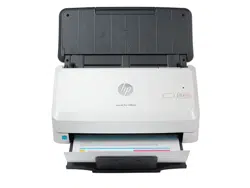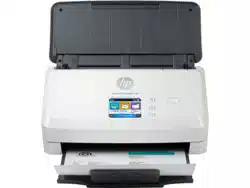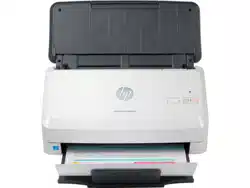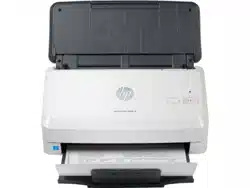
User Guide
www.hp.com/support/sj2000s2
www.hp.com/support/sj3000s4
www.hp.com/support/sjn4000snw1
www.hp.com/support/sjflow5000s5
www.hp.com/support/sjflow7000s3
www.hp.com/support/sjflown7000snw1
HP ScanJet Pro 2000 s2, 3000 s4, N4000 snw1
HP ScanJet Enterprise Flow 5000 s5, 7000 s3, N7000 snw1

SUMMARY
This guide provides conguration, use, maintenance, troubleshooting, safety and environmental information.
HP ScanJet Pro 2000 s2, 3000 s4, N4000 snw1
HP ScanJet Enterprise Flow 5000 s5, 7000 s3, N7000 snw1
User Guide

Legal information
Copyright and License
© Copyright 2020 HP Development Company,
L.P.
Reproduction, adaptation, or translation without
prior written permission is prohibited, except as
allowed under the copyright laws.
The information contained herein is subject to
change without notice.
The only warranties for HP products and
services are set forth in the express warranty
statements accompanying such products and
services. Nothing herein should be construed
as constituting an additional warranty. HP shall
not be liable for technical or editorial errors or
omissions contained herein.
Edition 1, 4/2020
Trademark Credits
Adobe
®
, Adobe Photoshop
®
, Acrobat
®
, and
PostScript
®
are trademarks of Adobe Systems
Incorporated.
Apple and the Apple logo are trademarks of
Apple Inc., registered in the U.S. and other
countries.
macOS is a trademark of Apple Inc., registered in
the U.S. and other countries.
AirScan is a trademark of Apple Inc., registered in
the U.S. and other countries.
Google™ and Gmail™ are trademarks of Google
Inc.
Microsoft®, Windows®, Windows® XP,
SharePoint®, and Internet Explorer® are U.S.
registered trademarks of Microsoft Corporation.
UNIX
®
is a registered trademark of The Open
Group.
Yahoo!® is a registered trademark of OATH Inc.

Table of contents
1 Product overview ........................................................................................................................................................................................1
Product views..........................................................................................................................................................................................1
Front view (2000 s2, 3000 s4 and N4000 snw1 models)......................................................................................................1
Front view (5000 s5, 7000 s3 and N7000 snw1 models)......................................................................................................2
Back view (2000 s2 models) .......................................................................................................................................................3
Back view (3000 s4 models) .......................................................................................................................................................3
Back view (5000 s5 and 7000 s3 models)................................................................................................................................4
Back view (N4000 snw1 models) ...............................................................................................................................................5
Back view (N7000 snw1 models) ...............................................................................................................................................5
Serial number and product number location............................................................................................................................6
Control panel view (2000 s2 and 3000 s4 models) ................................................................................................................6
Control panel view (5000 s5 and 7000 s3 models) ................................................................................................................6
Touch panel view (N4000 snw1 and N7000 snw1 models)...................................................................................................7
Product specications ...........................................................................................................................................................................9
Supported operating systems.....................................................................................................................................................9
Product dimensions................................................................................................................................................................... 10
Power consumption, electrical specications, and acoustic emissions............................................................................. 10
Operating environmental range............................................................................................................................................... 11
Product hardware setup and software installation ....................................................................................................................... 11
Scanner software (Windows) ............................................................................................................................................................ 12
HP Scan software ...................................................................................................................................................................... 12
HP TWAIN..................................................................................................................................................................................... 12
ISIS ................................................................................................................................................................................................ 12
WIA................................................................................................................................................................................................ 13
Scanner software (macOS) ............................................................................................................................................................... 13
HP Easy Scan............................................................................................................................................................................... 13
HP Utility ...................................................................................................................................................................................... 13
Embedded Web Server....................................................................................................................................................................... 13
HP Web Jetadmin ................................................................................................................................................................................ 13
Sleep Mode and auto-o settings.................................................................................................................................................... 14
Change the default sleep and auto-o settings using the HP Scanner Tools Utility ...................................................... 14
Change the default auto-o setting using the HP Utility..................................................................................................... 14
2 Use the scanner ....................................................................................................................................................................................... 15
Set up the scanner (N4000 snw1 and N7000 snw1 models)...................................................................................................... 15
Set up Scan to Email .................................................................................................................................................................. 15
Set up Scan to Network Folder................................................................................................................................................. 18
Set up Scan to USB Drive .......................................................................................................................................................... 20
Set up Scan to SharePoint ........................................................................................................................................................ 22
Set up access control................................................................................................................................................................. 24
Load originals....................................................................................................................................................................................... 25
iii

Document loading tips .............................................................................................................................................................. 25
Supported paper sizes and types ............................................................................................................................................ 27
Load documents (2000 s2, 3000 s4, and N4000 snw1 models)....................................................................................... 27
Load documents (5000 s5, 7000 s3, and N7000 snw1 models)....................................................................................... 29
Load cards (2000 s2, 3000 s4, and N4000 snw1 models) ................................................................................................. 32
Load cards (5000 s5, 7000 s3, and N7000 snw1 models) ................................................................................................. 33
Load folded media (5000 s5 , 7000 s3, and N7000 snw1 models) .................................................................................. 35
Start a scan from the hardware........................................................................................................................................................ 36
Scan from the control panel buttons (2000 s2 and 3000 s4 models).............................................................................. 36
Scan from the control panel buttons (5000 s5 and 7000 s3 models).............................................................................. 36
Scan from the touch screen (N4000 snw1 and N7000 snw1 models) ............................................................................. 37
Use the scanning software (Windows) ............................................................................................................................................ 39
Work with scan shortcuts.......................................................................................................................................................... 39
Scan to a picture ......................................................................................................................................................................... 39
Scan to a PDF .............................................................................................................................................................................. 40
Scan text for editing (OCR)........................................................................................................................................................ 40
Scan to email............................................................................................................................................................................... 40
Scan to cloud............................................................................................................................................................................... 40
Scan to FTP.................................................................................................................................................................................. 41
Scan to SharePoint..................................................................................................................................................................... 41
Scan long or extra-long documents........................................................................................................................................ 41
Detect multi-feeds ..................................................................................................................................................................... 41
Everyday Scan............................................................................................................................................................................. 42
Automatically delete blank pages............................................................................................................................................ 42
Automatically adjust page orientation.................................................................................................................................... 42
Reserved Jobs (N4000 snw1 and N7000 snw1 models) .................................................................................................... 42
Filter out color from a document (color dropout) ................................................................................................................. 43
Automatically detect page size ................................................................................................................................................ 43
Automatically crop or pad scanned image to selected page size....................................................................................... 43
Automatically detect color ........................................................................................................................................................ 44
Scan using text-enhanced black and white mode ................................................................................................................ 44
Automatically straighten scanned images............................................................................................................................. 44
Add or remove a device ............................................................................................................................................................. 44
Scan by using other scan software.......................................................................................................................................... 45
Use the scanning software (macOS)................................................................................................................................................ 45
Scan to email............................................................................................................................................................................... 45
HP Easy Scan............................................................................................................................................................................... 45
Scan from other applications ................................................................................................................................................... 46
Advanced conguration with HP Utility (macOS) ........................................................................................................................... 46
Open HP Utility............................................................................................................................................................................ 46
HP Utility features ...................................................................................................................................................................... 46
Scanning tips........................................................................................................................................................................................ 46
Optimize scanning and task speeds........................................................................................................................................ 47
Scanning fragile originals ......................................................................................................................................................... 47
3 Care and maintenance ............................................................................................................................................................................ 48
Test and calibrate the touch screen ................................................................................................................................................. 48
iv

Clean the product................................................................................................................................................................................ 48
Clean the scanning strips .......................................................................................................................................................... 48
Clean the paper path.................................................................................................................................................................. 49
Clean the rollers.......................................................................................................................................................................... 50
Replace parts ....................................................................................................................................................................................... 53
Replace the roller kit (2000 s2, 3000 s4 and N4000 snw1 models)................................................................................. 53
Replace the roller kit (5000 s5, 7000 s3 and N7000 snw1 models)................................................................................. 56
Order parts and accessories.............................................................................................................................................................. 58
4 Solve problems......................................................................................................................................................................................... 60
Basic troubleshooting tips ................................................................................................................................................................. 60
Reset the scanner(N4000 snw1 and N7000 snw1 models)........................................................................................................ 61
Interpret control panel lights and patterns (2000 s2 and 3000 s4 models)............................................................................. 61
Scanner installation problems .......................................................................................................................................................... 62
Check the cables......................................................................................................................................................................... 62
Uninstall and then reinstall the HP ScanJet drivers and tools (Windows)......................................................................... 63
Power issues ........................................................................................................................................................................................ 63
Check that the scanner has power.......................................................................................................................................... 63
The scanner will not turn on..................................................................................................................................................... 64
The scanner has paused or shut down................................................................................................................................... 64
The scanner keeps turning o ................................................................................................................................................. 65
Paper jams............................................................................................................................................................................................ 65
Clear jams from the document feeder.................................................................................................................................... 66
An item loaded in the scanner jams repeatedly .................................................................................................................... 66
Paper feed issues................................................................................................................................................................................ 66
Paper jamming, skewing, misfeeds, or multiple-page feeds.............................................................................................. 66
Paper does not feed from the scanner................................................................................................................................... 67
Image quality problems ..................................................................................................................................................................... 67
The scanned images are not straight...................................................................................................................................... 67
The scanned images have streaks or scratches.................................................................................................................... 68
The scanned image is fuzzy ..................................................................................................................................................... 68
The scanned image is completely black or completely white............................................................................................. 68
The bottom of the scanned image is cut o.......................................................................................................................... 68
The scanned image cannot be enlarged ................................................................................................................................ 68
Scanner operation problems............................................................................................................................................................. 68
Connection issues....................................................................................................................................................................... 68
Buttons are not working properly............................................................................................................................................ 70
LCD issues (5000 s5 and 7000 s3 models)............................................................................................................................ 70
The touch panel display issues (N4000 snw1 and N7000 snw1 models)........................................................................ 71
Scanning performance issues .................................................................................................................................................. 71
Issues with text recognition (OCR) (Windows) ....................................................................................................................... 72
Email problems (N4000 snw1 and N7000 snw1 models) .................................................................................................. 73
Additional troubleshooting ................................................................................................................................................................ 73
Index............................................................................................................................................................................................................... 75
v

Product overview1
This user guide covers important information about the scanner.
The following information is correct at the time of publication. For current information, visit the support home
page for the scanner:
●
2000 s2 models: www.hp.com/support/sj2000s2
● 3000 s4 models: www.hp.com/support/sj3000s4
● N4000 snw1 models: www.hp.com/support/sjn4000snw1
● 5000 s5 models: www.hp.com/support/sjow5000s5
● 7000 s3 models: www.hp.com/support/sjow7000s3
● N7000 snw1 models: www.hp.com/support/sjown7000snw1
HP’s all-inclusive help for this product includes the following:
● Install and congure
● Learn and use
● Solve problems
● Download software updates
● Join support forums
● Find warranty and regulatory information
Product views
This section describes the physical components of the scanners.
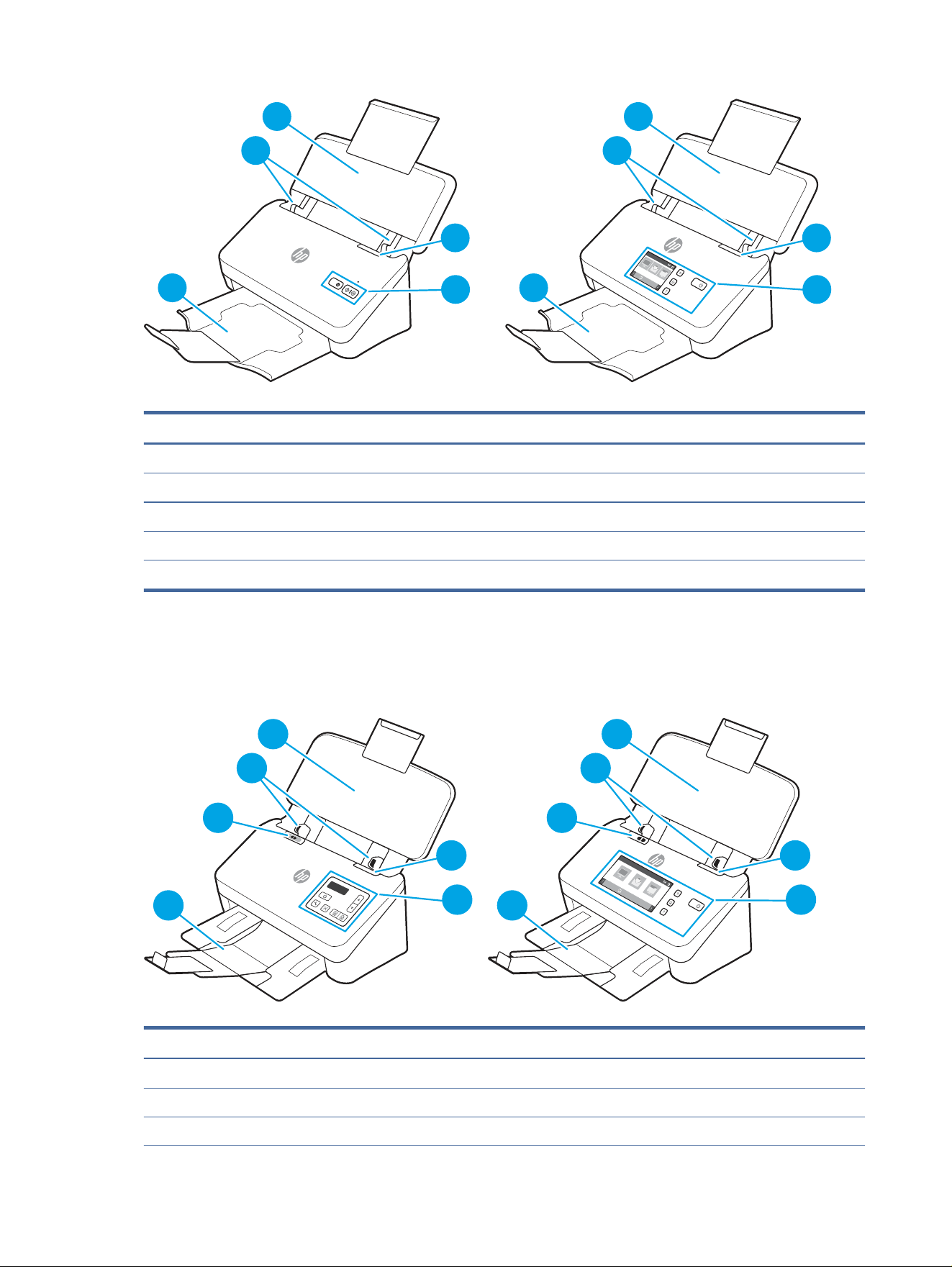
Front view (2000 s2, 3000 s4 and N4000 snw1 models)
Identify the parts on the front of the scanner.
Product overview 1
5
3
1
1
2
2
4
5
3
1
1
2
2
4
Table 1-1 Front view (2000 s2, 3000 s4 and N4000 snw1 models)
Callout Description
1 Document feeder latch
2 Control panel
3 Document output tray with extension
4 Paper guides
5 Document input tray with extension
Front view (5000 s5, 7000 s3 and N7000 snw1 models)
Identify the parts on the front of the scanner.
4
6
3
1
1
2
2
5
4
6
3
1
1
2
2
5
Table 1-2
Front view (5000 s5, 7000 s3 and N7000 snw1 models)
Callout Description
1 Document feeder latch
2 Control panel
3 Document output tray with extension
2 Chapter 1 Product overview
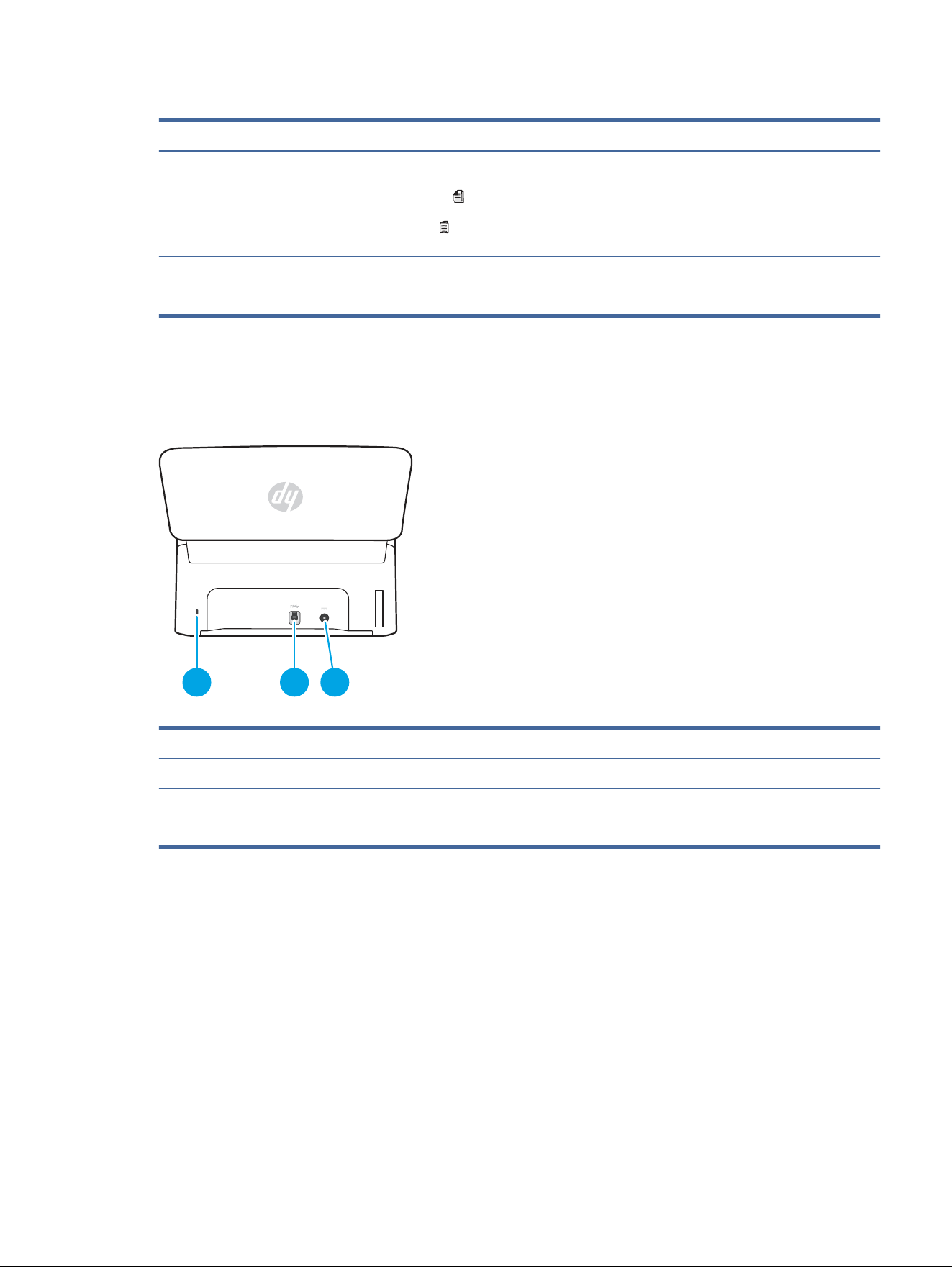
Table 1-2 Front view (5000 s5, 7000 s3 and N7000 snw1 models) (continued)
Callout Description
4 Thick media switch
● When the button is in the unfolded position, the scanner is set to scan unfolded media, which is the default setting.
● When the button is in the folded position, the scanner is set to scan folded media or heavier, smaller media, such as
embossed cards.
5 Paper guides
6 Document input tray with extension
Back view (2000 s2 models)
Identify the parts on the back of the scanner.
1
1
3
2
2
Table 1-3 Back view (2000 s2 models)
Callout Description
1 Slot for a cable-type security lock
2 USB 3.0 interface port
3 Power supply input
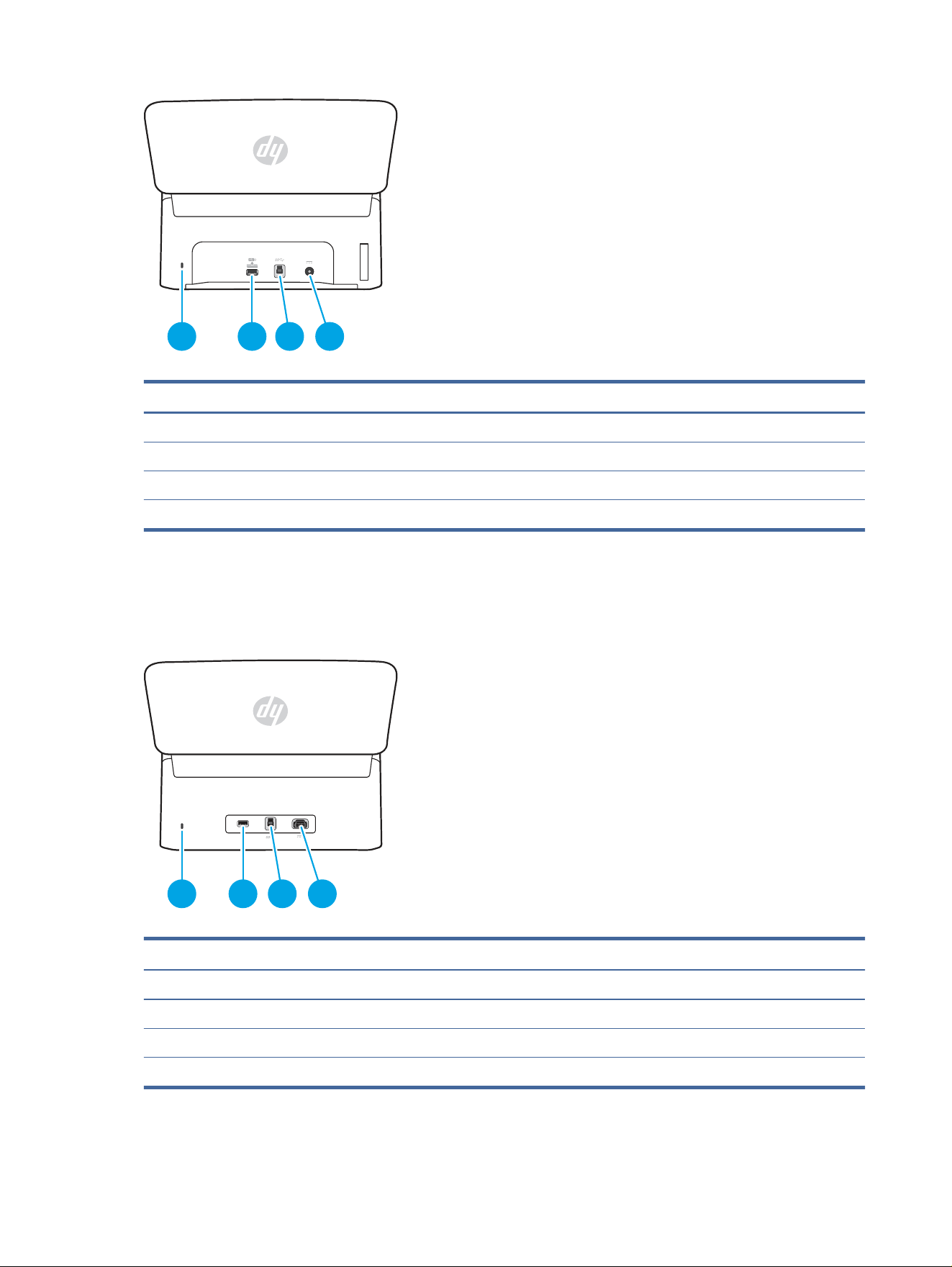
Back view (3000 s4 models)
Identify the parts on the back of the scanner.
Back view (2000 s2 models)
3
1
1
3
2
2
4
Table 1-4 Back view (3000 s4 models)
Callout Description
1 Slot for a cable-type security lock
2 USB host for USB ash drive
3 USB 3.0 interface port
4 Power supply input
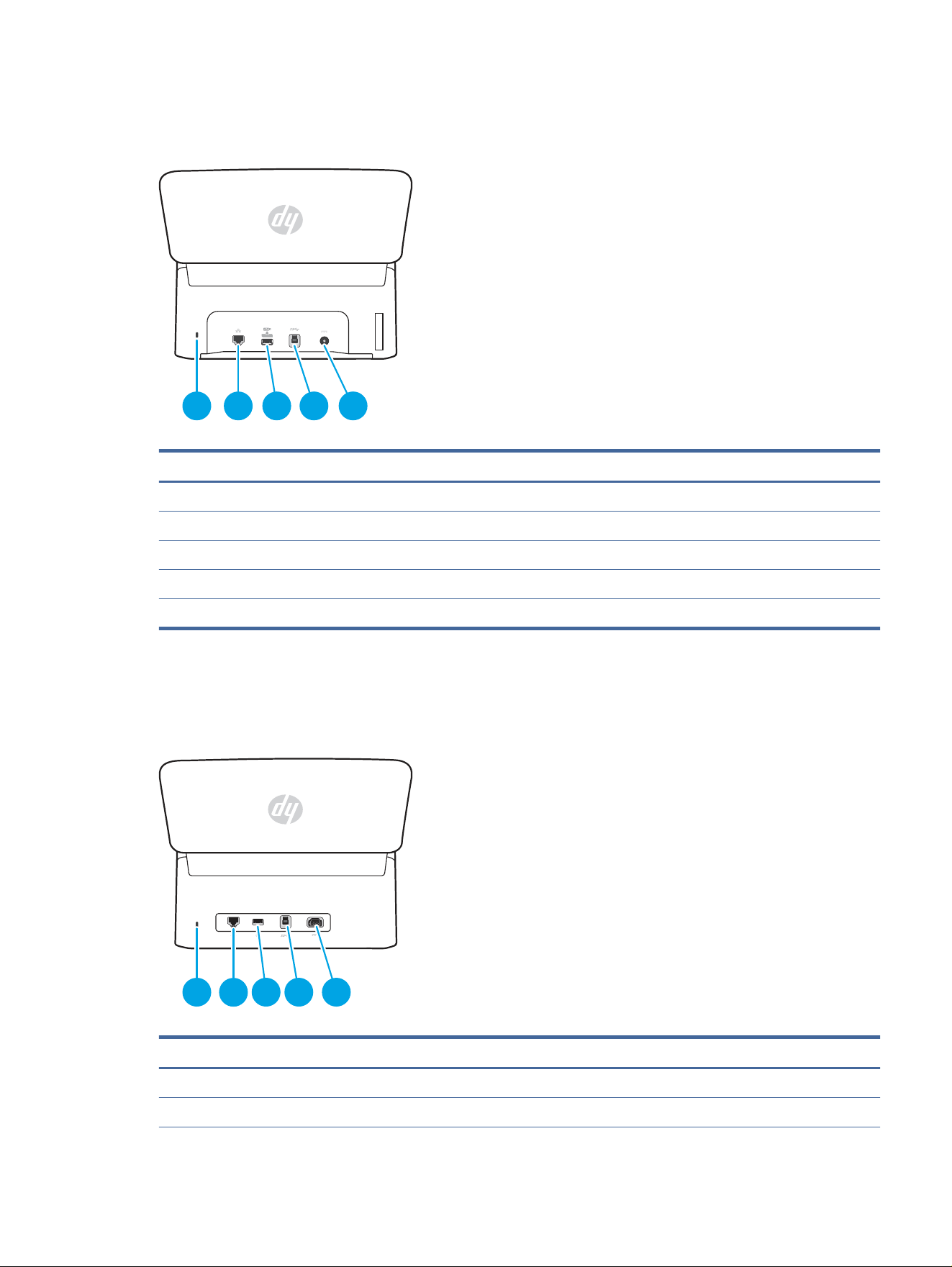
Back view (5000 s5 and 7000 s3 models)
Identify the parts on the back of the scanner.
1
1
3
2
2
4
Table 1-5
Back view (5000 s5 and 7000 s3 models)
Callout Description
1 Slot for a cable-type security lock
2 USB host for USB ash drive
3 USB 3.0 interface port
4 Power supply input
4 Chapter 1 Product overview
Back view (N4000 snw1 models)
Identify the parts on the back of the scanner.
1
1
53
2
2
4
Table 1-6 Back view (N4000 snw1 models)
Callout Description
1 Slot for a cable-type security lock
2 LAN port
3 USB host for USB ash drive
4 USB 3.0 interface port
5 Power supply input
Back view (N7000 snw1 models)
Identify the parts on the back of the scanner.
1
1
4
2
3
5
2
2
Table 1-7
Back view (N7000 snw1models)
Callout Description
1 Slot for a cable-type security lock
2 LAN port
Back view (N4000 snw1 models) 5
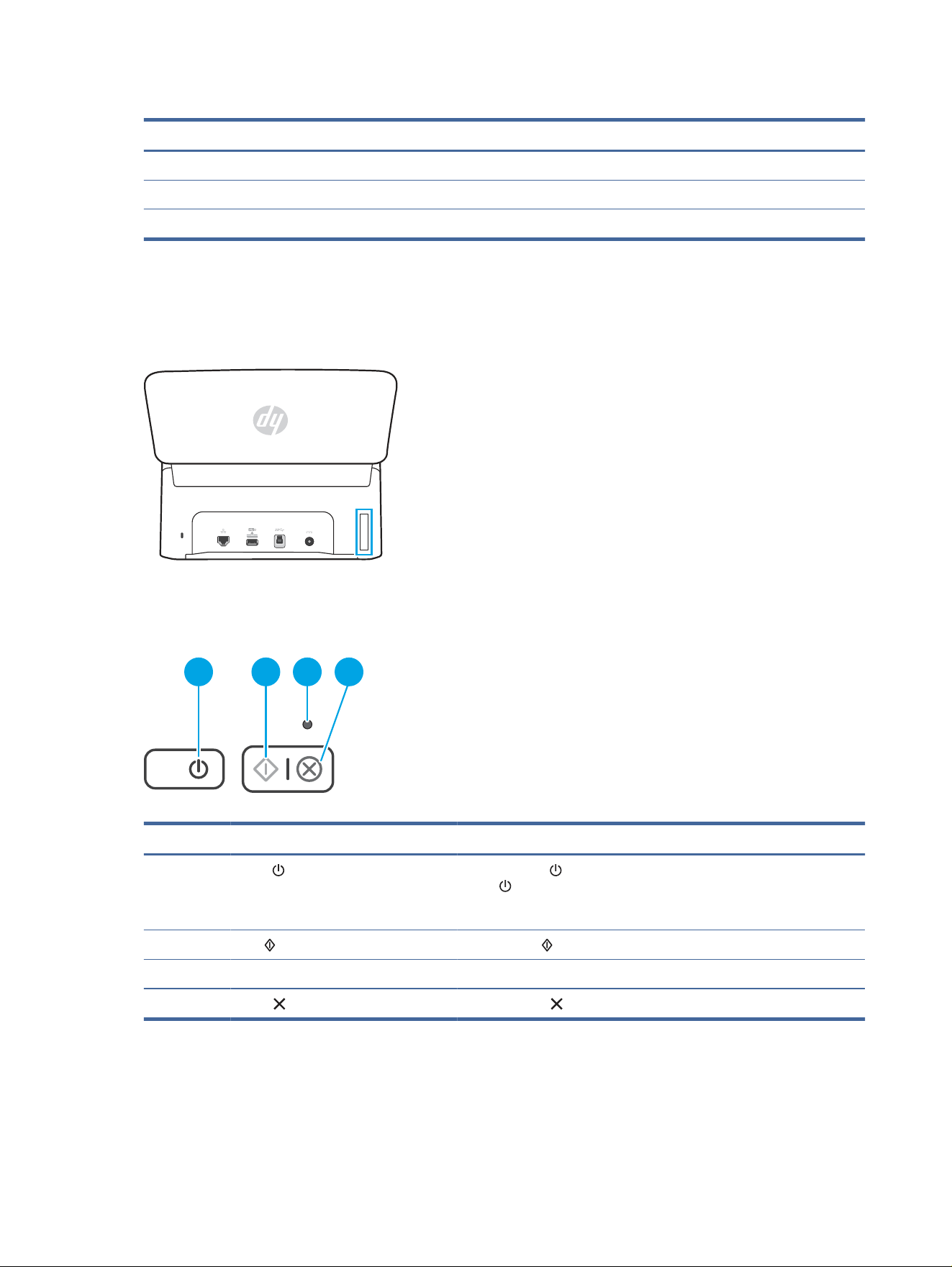
Table 1-7 Back view (N7000 snw1models) (continued)
Callout Description
3 USB host for USB ash drive
4 USB 3.0 interface port
5 Power supply input
Serial number and product number location
The serial and product numbers label is located on the rear cover.
Control panel view (2000 s2 and 3000 s4 models)
Use the buttons on the control panel to start or cancel a scan, and to turn the unit on and
o.
3 4
1
1
2
2
Table 1-8
Control panel view (2000 s2 and 3000 s4 models)
Callout Name Description
1 Power button and LED Press the Power button to turn on the scanner. Press and hold the
Power button for three seconds to turn o the scanner.
A lit Power LED indicates that the scanner is turned on.
2 Scan button Press the Scan button to initiate a scan.
3 Error LED A blinking or lit Error LED indicates that an error has occurred.
4 Cancel button Press the Cancel button to cancel a scan in progress.
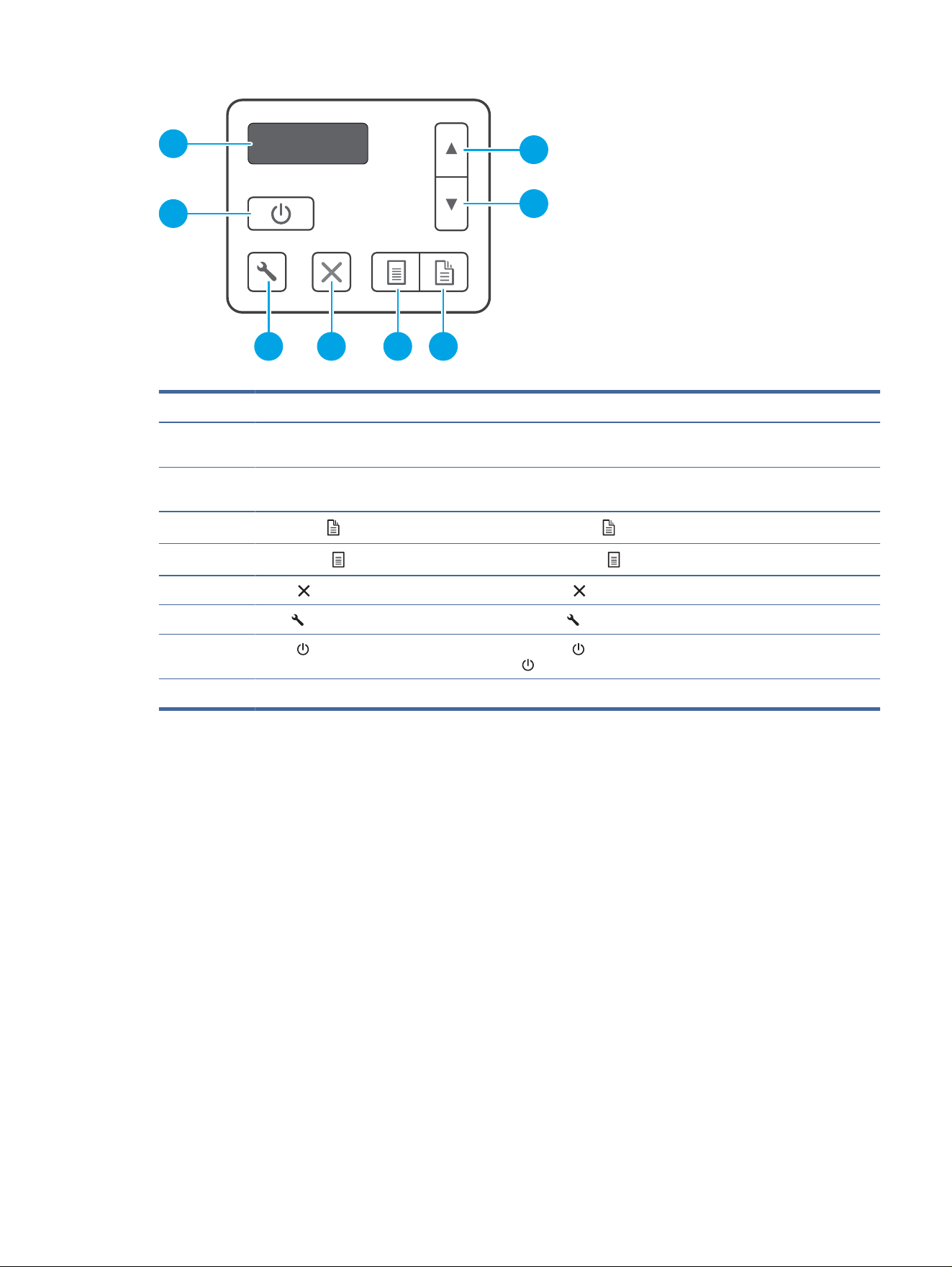
Control panel view (5000 s5 and 7000 s3 models)
Use the buttons on the control panel to start or cancel a scan, and to turn the unit on and o.
6
Chapter 1 Product overview
1
2
5 346
7
8
Table 1-9 Control panel view (5000 s5 and 7000 s3 models)
Callout Name Description
1 Up arrow button Use the Up arrow button to increase settings values or navigate menu
items.
2 Down arrow button Use the Down arrow button to decrease settings values or navigate menu
items.
3
Duplex Scan button Press the Duplex Scan button to initiate a two-sided scan.
4
Simplex Scan button Press the Simplex Scan button to initiate a one-sided scan.
5 Cancel button Press the Cancel button to cancel a scan in progress.
6 Tools button Press the Tools button to open the HP Scanner Tools Utility.
7 Power button and LED Press the Power button to turn on the scanner. Press and hold the
Power button for three seconds to turn o the scanner.
8 LCD area Watch the two-line display to view product status and error messages.
Touch panel view (N4000 snw1 and N7000 snw1 models)
Identify the buttons on the control panel.
Touch screen menu structure
Identify the features on the touch panel.
Touch panel view (N4000 snw1 and N7000 snw1 models) 7
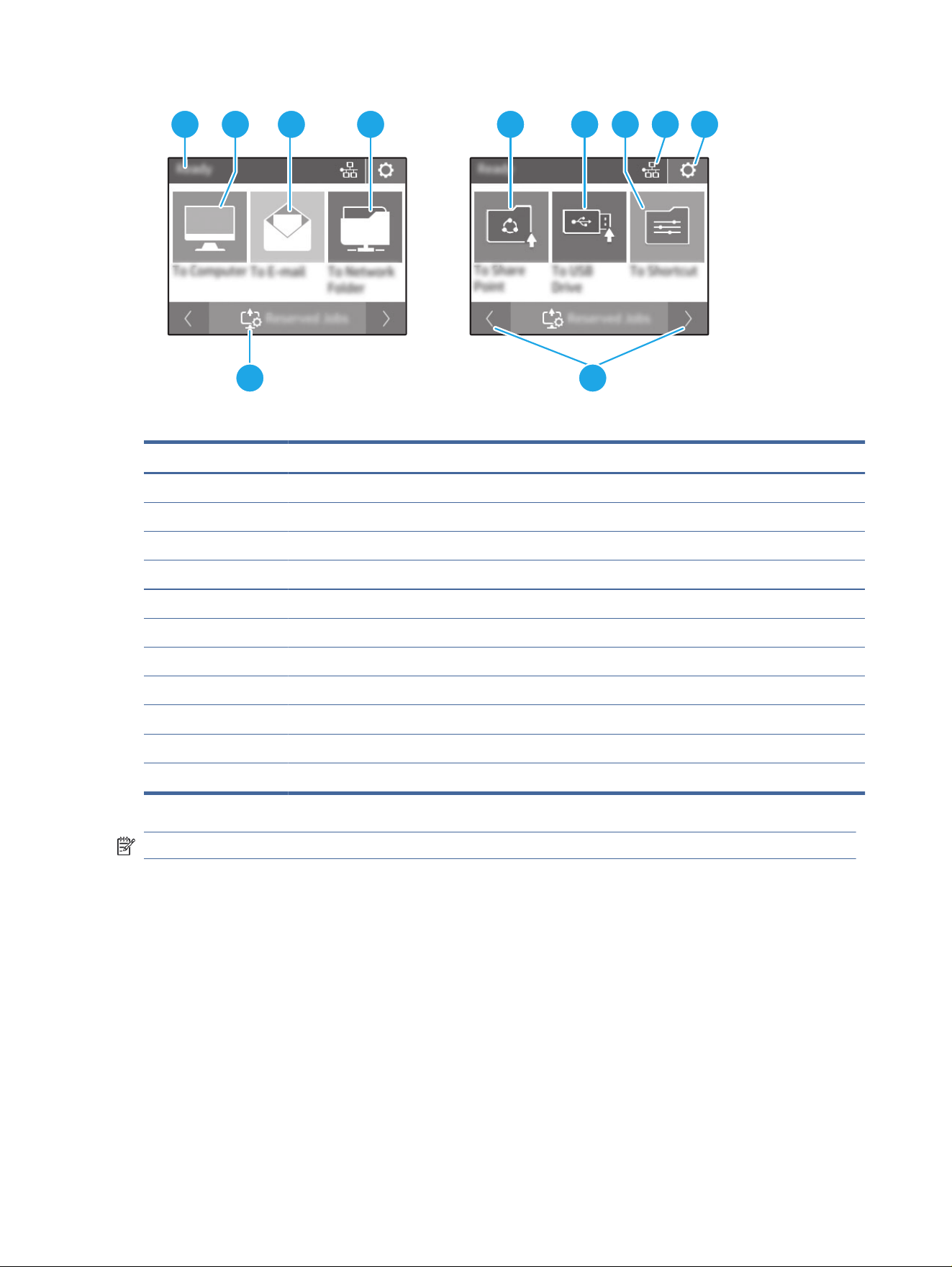
1 32 4 5 6 7 8 9
10 11
Table 1-10 Touch screen menu
Callout Description
1 Ready
2 Starts a scan to a connected computer
3 Starts a scan to an email address
4 Starts a scan to a network folder
5 Starts a scan to Sharepoint
6 Starts a scan to a USB ash drive
7 Select a scan shorcut
8 Network connection status
9 Settings
10 Reserved jobs
11 Go to previous or next page
NOTE: The features that appear on the Home screen can vary, depending on the scanner conguration.
Buttons on the touch panel
Use the buttons on the touch panel to start or cancel a scan, and to power the unit on and o.
8 Chapter 1 Product overview
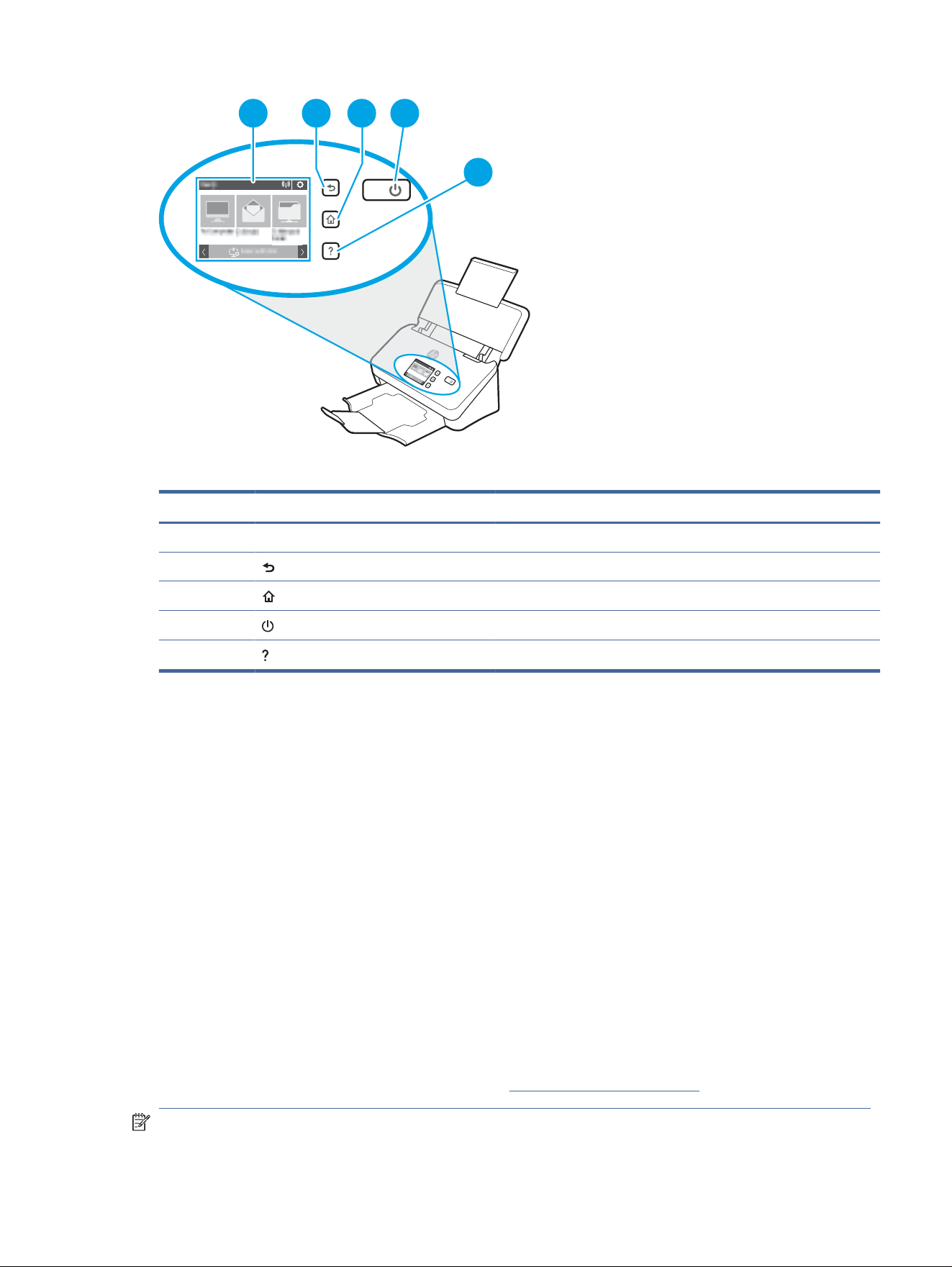
3 4
5
2
2
1
1
Table 1-11 Buttons on the touch panel
Callout Name Description
1 Touch panel
2 Back
3 Home
4 Power/Sleep
5 Help
Product specications
This section introduces the product specications.
Supported operating systems
The following information applies to the scanner-specic Windows and HP scan drivers for macOS and to the
software installer.
Windows: See the software installation notes for more information.
macOS: Mac computers are supported with this scanner. Download the software from the product support home
page, and then use it to install the HP scan driver.
1. Go to the product support home page.
2. Follow the steps provided to download the scanner software.
Linux: For information and scan drivers for Linux, go to www.hp.com/go/linuxprinting.
NOTE: For a current list of supported operating systems, go to the product support home page for HP's all-
inclusive help for the scanner:
Product
specications 9
● 2000 s2 models: www.hp.com/support/sj2000s2
● 3000 s4 models: www.hp.com/support/sj3000s4
● N4000 snw1 models: www.hp.com/support/sjn4000snw1
● 5000 s5 models: www.hp.com/support/sjow5000s5
● 7000 s3 models: www.hp.com/support/sjow7000s3
● N7000 snw1 models: www.hp.com/support/sjown7000snw1
Table 1-12 Minimum system requirements
Windows 10, 8.1, 7 macOS Catalina v10.15, macOS Mojave
v10.14, macOS High Sierra v10.13
Mobile devices, Android
● 32-bit or 64-bit
● 2 GB of available hard disk space
● Microsoft Internet Explorer
● Internet connection
● USB port
● 2 GB of available hard disk space
● Internet connection
Router connection not required
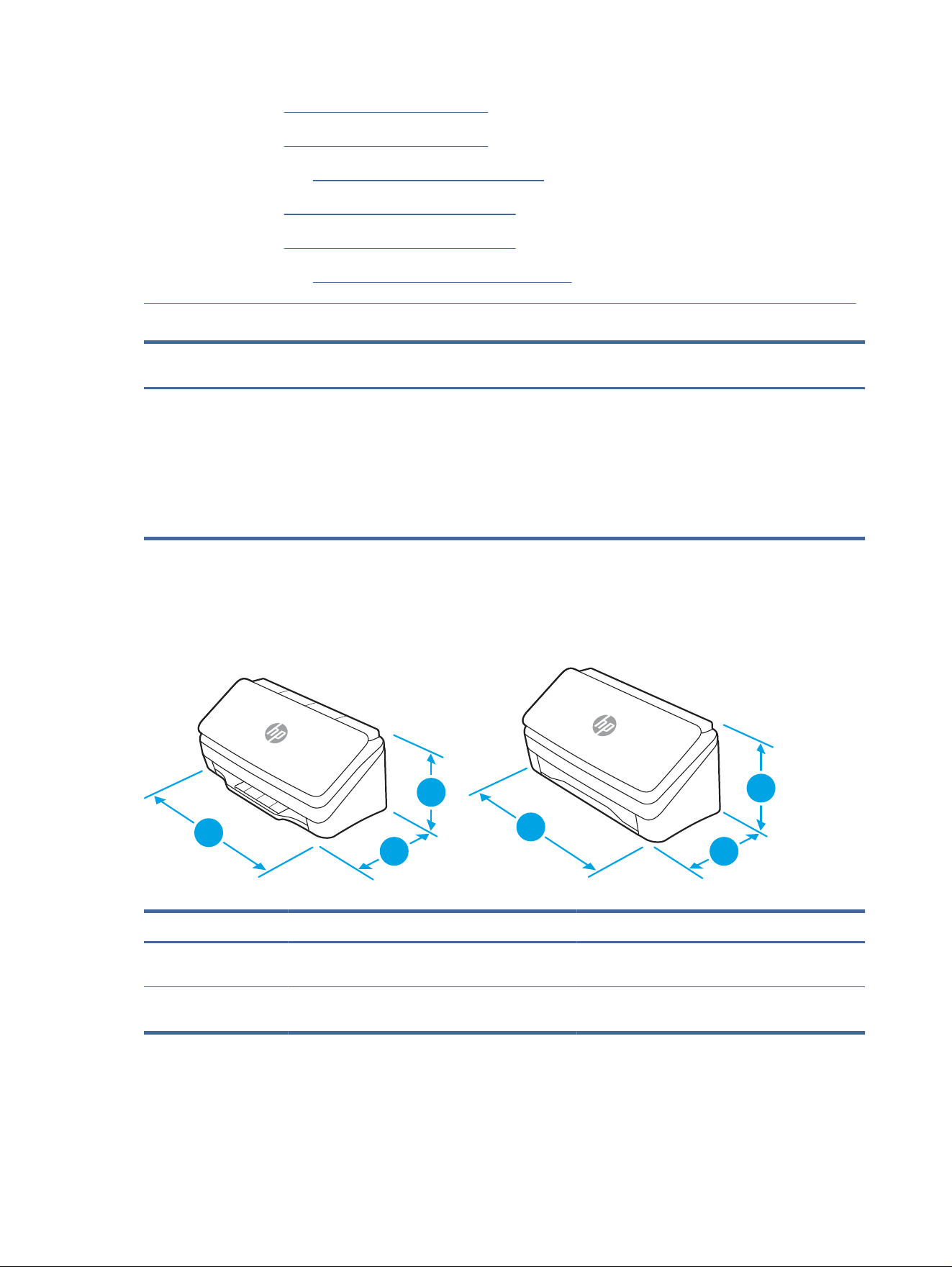
Product dimensions
Make sure your scanner environment is large enough to accommodate the scanner.
1
3
2
1
3
2
Table 1-13
Product dimensions
Model 1. Height 2. Depth 3. Width Weight
2000 s2, 3000 s4 and
N4000 snw1 models
154 mm (6.1 in) 172 mm (6.8 in) 300 mm (11.8 in) 2.7 kg (6 lb)
5000 s5, 7000 s3 and
N7000 snw1 models
190 mm (7.5 in) 198 mm (7.8 in) 310 mm (12.2 in) 4.0 kg (8.8 lb)
Power consumption, electrical specications, and acoustic emissions
In order to operate properly, the scanner must be in an environment that meets certain power specications.
10
Chapter 1 Product overview

See www.hp.com/support for current information.
Ensure to connect the power cord of power adapter to a socket-outlet with earthing connection.
CAUTION: Power requirements are based on the country/region where the product is sold. Do not convert
operating voltages. This will damage the product and void the product warranty.
Operating environmental range
Review the recommended operating-environment specications for your scanner.
Table 1-14 Operating environmental range
Environment Recommended Allowed
Temperature 17.5° to 25°C (63.5° to 77°F) 10° to 35°C (50° to 95°F)
Relative humidity 30% to 70% relative humidity (RH) 10% to 80% RH
Altitude Not applicable 0 to 3048 m (0 to 10,000 ft)
Product hardware setup and software installation
For basic setup instructions, see the Installation Guide that came with the product. For additional instructions, go
to HP support on the web.
Go to the product support home page for HP's all-inclusive help for the product:
● 2000 s2 models: www.hp.com/support/sj2000s2
● 3000 s4 models: www.hp.com/support/sj3000s4
● N4000 snw1 models: www.hp.com/support/sjn4000snw1
● 5000 s5 models: www.hp.com/support/sjow5000s5
● 7000 s3 models: www.hp.com/support/sjow7000s3
● N7000 snw1 models: www.hp.com/support/sjown7000snw1
HP's all-inclusive help for the product includes the following:
● Install and congure
● Learn and use
● Solve problems
● Download software and rmware updates
● Join support forums
● Find warranty and regulatory information
Operating environmental range
11

Scanner software (Windows)
The scanner comes with a variety of Windows scanning software and drivers, including HP Scan.
HP Scan software
Use the HP Scan software to complete the following tasks:
● Scan to a PDF
●
Scan to a JPEG
● Email as a PDF
● Email as a JPEG
● Scan text for editing (OCR)
● Scan to cloud
● Everyday scan
HP Scanner Tools Utility
Use the HP Scanner Tools Utility to complete the following tasks:
● Set maintenance and status update notication options
● Change the scanner's power management settings
● View scanner information (rmware version, serial number, total number of pages scanned)
● Modify scan proles
● Modify properties of Scan to USB Drive
To open the utility, do one of the following:
● Windows 8.1 and 10: On the Start screen, click the HP Scanner Tools Utility tile.
● Launch HP Scan Assistant from your desktop, and then select Tools.
HP TWAIN
HP TWAIN provides a software interface between imaging/scanning hardware and TWAIN-compliant software
applications. Not all TWAIN-compliant software works in the same way, so consult the software documentation
for details on how to acquire scans.
ISIS
ISIS (Image and Scanner Interface Specication) provides a software interface between imaging/scanning
hardware and ISIS based software applications. ISIS drivers provide a consistent interaction with all ISIS
compliant scanners.
12
Chapter 1 Product overview

WIA
WIA provides a software interface between imaging/scanning hardware and WIA-compliant software
applications. Not all WIA-compliant software works in the same way, so consult the software documentation
for details on how to acquire scans.
Scanner software (macOS)
The product is compliant with Apple AirScan functionality. Without installing any additional software, you can
scan using Image Capture or other ICA-compliant applications.
To take advantage of all features of your scanner, HP recommends installing the HP provided scan solution,
including HP Easy Scan and HP Utility.
HP Easy Scan
Scan documents and photos, and manage scan shortcuts.
HP Utility
You can use the HP Utility when the scanner is connected with a USB cable.
The Maintenance pane in HP Utility displays the scanner usage, maintenance history, and noties the user when
maintenance is due. The notication displays in HP Utility when the Maintenance pane is selected.
HP Utility allows you to congure the scanner and assign the Scan button workow on a Mac. HP Utility is
available in the Applications > HP folder.
Embedded Web Server
The product is equipped with an Embedded Web Server, which provides access to information about product and
network activities. This information appears in a Web browser, such as Microsoft Internet Explorer, Mozilla Firefox,
or Google Chrome.
The Embedded Web Server resides on the product. It is not hosted on a network server.
The Embedded Web Server provides an interface to the product that anyone who has a network-connected
computer and a standard Web browser can use. No special software is installed or congured, but you must have
a supported Web browser on your computer. To gain access to the Embedded Web Server, type the IP address for
the product in the address line of the browser. To nd the IP address, touch the Network or icon in the
top right corner of the home screen, and then touch Wireless or Wired (LAN).
HP Web Jetadmin
HP Web Jetadmin is an award-winning, industry-leading tool for
eiciently managing a wide variety of networked
HP products, including printers, multifunction printers, and digital senders. This single solution allows you
to remotely install, monitor, maintain, troubleshoot, and secure your printing and imaging environment —
ultimately increasing business productivity by helping you save time, control costs, and protect your investment.
HP Web Jetadmin upgrades are periodically made available to provide support for specic product features. Go to
www.hp.com/go/webjetadmin for more information.
WIA
13

Sleep Mode and auto-o settings
By default, the scanner will enter Sleep Mode prior to 15 minutes of inactivity, and will turn o automatically after
two hours of inactivity to conserve power.
Change the default sleep and auto-o settings using the HP Scanner Tools Utility
Windows: To change the default sleep and auto-o settings, use the HP Scanner Tools Utility.
1. Start the HP Scanner Tools Utility.
2. Click the Settings tab.
3. Select the desired values from the Turn o the scanner after drop-down list and the Put the scanner to
sleep after drop-down list.
Change the default auto-o setting using the HP Utility
macOS: To change the default auto-o setting use the HP Utility Energy pane.
1. Start HP Utility.
2. Click the Energy icon.
3. Select a Lamp Mode setting.
4. Select an auto-o time setting from the Automatically power o the scanner: drop-down box.
14 Chapter 1 Product overview

Use the scanner2
The following topics describe how to set up and use the scanner.
Set up the scanner (N4000 snw1 and N7000 snw1 models)
The following topics describe how to set up the scanner.
Set up Scan to Email
The following steps describe how to set up Scan to Email.
Step one: Check the network connection and gather SMTP information
To set up the Scan to Email feature, the product must have an active network connection to the same network as
the computer that will run the setup process.
Gather the following information before beginning the conguration process:
● Administrative access to the product
● SMTP server (e.g., smtp.mycompany.com)
NOTE: If you do not know the SMTP server name, SMTP port number, or authentication information,
contact the email/Internet service provider or system administrator for the information. SMTP server
names and port names are typically found by doing an Internet search. For example, use terms like "Gmail
smtp server name" or "Yahoo smtp server name" to search.
● SMTP server authentication requirements for outgoing email messages, including the user name and
password used for authentication, if applicable.
NOTE: Consult your email service provider's documentation for information on digital sending limits for your
email account. Some providers may temporarily lock your account if you exceed your sending limit.
Step two: Access the HP Embedded Web Server (EWS)
To access the HP Embedded Web Server (EWS), complete the following steps:
1. From the Home screen on the product control panel, touch the Network or icon according to your
network connection method, and then touch Wireless or Wired (LAN) to display the IP address or host name.
2. Open a web browser, and in the address line, type the IP address or host name exactly as it displays on the
product control panel. Press the Enter key on the computer keyboard. The EWS opens.
Figure 2-1 Example of an IP address in a web browser
Use the scanner
15
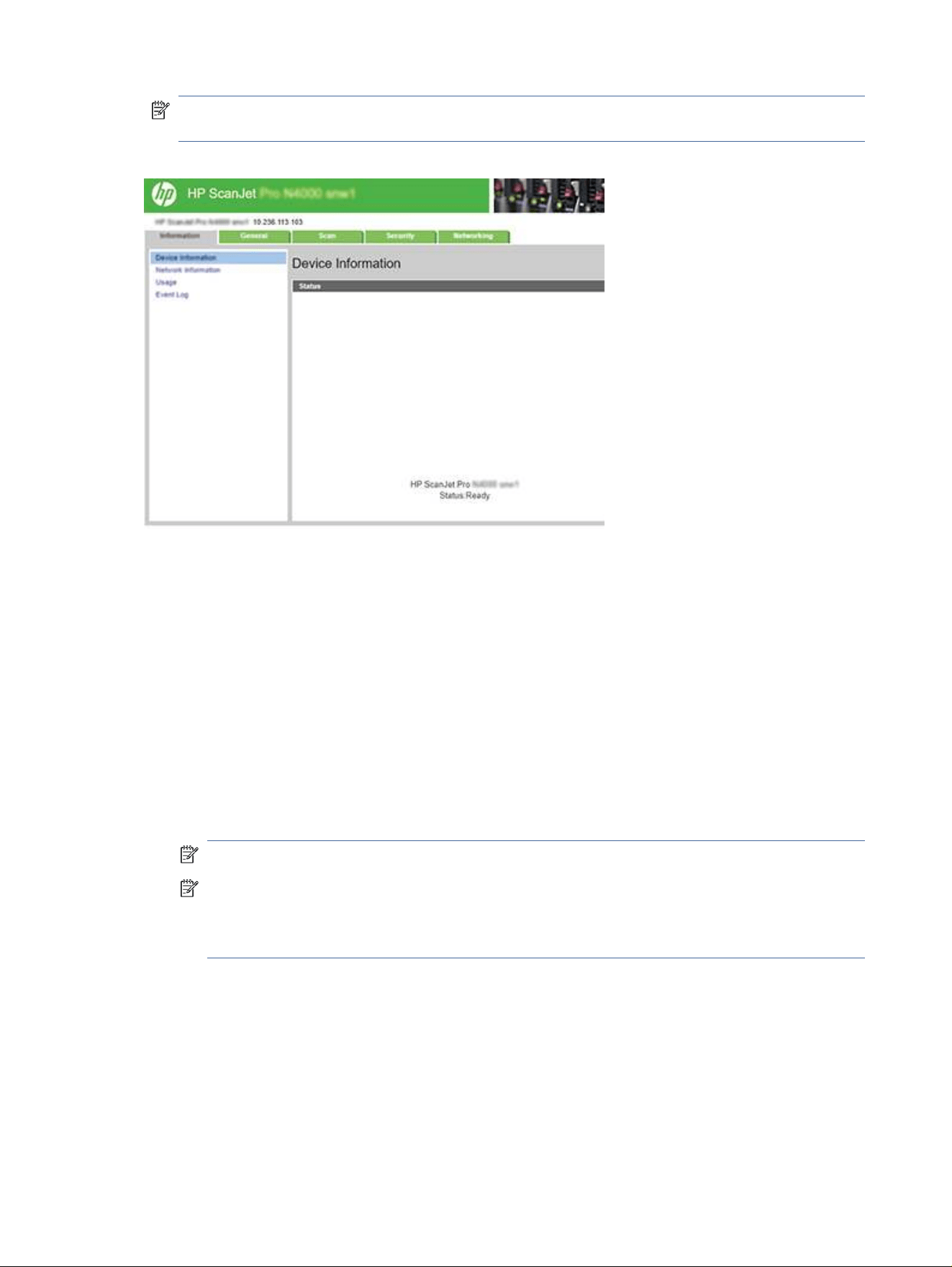
NOTE: If the web browser displays a message indicating that accessing the website might not be safe,
select the option to continue to the website. Accessing this website will not harm the computer.
Figure 2-2 Example of the EWS screen
Step three: Congure the Scan to Email feature
Use Scan to E-mail Setup in the HP Embedded Web Server (EWS) for basic conguration.
1. Among the EWS top navigation tabs, click the Scan tab.
2. In the left navigation pane, click Scan to E-mail Setup.
3. In the E-mail Address area, enter the sender’s email address for the new outgoing email prole in the From
E-mail Address eld.
4. In the SMTP Server Settings area, complete the following elds:
● In the SMTP Server eld, enter the address of the SMTP server.
● In the SMTP Port eld, enter the SMTP port number.
NOTE: In most cases, the default port number does not need to be changed.
NOTE: If you are using a hosted SMTP service such as Gmail, verify the SMTP address, port number,
and SSL settings from the service provider’s website or other sources. Typically, for Gmail, the SMTP
address is smtp.gmail.com, port number 465, and the SSL should be enabled. Please refer to online
sources to conrm these server settings are current and valid at the time of conguration.
● If you are using Gmail for email service, select the Always use secure connection (SSL/TLS) check box.
5. If the SMTP server requires authentication to send an email, complete the following elds in the SMTP
Authentication area:
● In the SMTP User ID eld, enter the user ID for the SMTP server.
● In the SMTP Password eld, enter the password for the SMTP server.
16
Chapter 2 Use the scanner

6. Review all the information, and then click one of the following options:
● Save and Test: Select this option to save the information and test the connection.
● Save Only: Select this option to save the information without testing the connection.
Step four: Add contacts to the Email Address Book
In the left navigation pane, click E-mail Address Book Setup to add email addresses to the address book
accessible from the product.
To add an individual email address:
1. In the E-mail Address eld, enter the email address of the new email contact.
2. Click Save.
Step
ve: Congure the default Settings for Scan to Email
In the left navigation pane, click
Scan Settings to congure the default Scan to Email settings.
1. In the Default Settings for Scan to E-Mail area, congure the following email settings:
Table 2-1 Email settings
Option Description
Subject Provide a default subject line for the email messages.
Body Text Create a custom default message for all emails sent from the product.
2. Congure the following le scan settings:
Table 2-2
File scan settings
Option Description
File Name Prex Enter a le name prex (e.g., MyScan).
File Type Select the default le type for the scanned document.
PDF Type Select the default PDF type for the scanned document.
Resolution Select the default scan resolution for the scanned document.
NOTE: Higher resolution images have more dots per inch (dpi), so they show more detail.
Lower resolution images have fewer dots per inch and show less detail, but the le size is
smaller.
Color Select whether scanned les will be in black and white or in color.
De-skew Select On or O to enable or disable image skew correction.
Delete Blank Page Select On or O to indicate whether blank pages should be removed from the scanned
output.
Misfeed Detection Select On or O to enable or disable the detection of multiple pages fed simultaneously into
the document feeder.
Combine Documents Select On or O to indicate whether multiple documents should be combined into one
scanned output le.
JPEG le compression Select a compression value for JPEG le.
Step four: Add contacts to the Email Address Book 17

3. Click Apply at the bottom of the screen.
Set up Scan to Network Folder
The following steps describe how to set up Scan to Network Folder.
Step one: Gather network information
Before you begin to set up the Scan to Network Folder feature, gather the following information and get
prepared.
NOTE: To set up the Scan to Network Folder feature, the product must have an active network connection to
the same network as the computer that will run the setup process.
Administrators need the following items before beginning the conguration process.
● Administrative access to the product
● The fully-qualied domain name (FQDN) (e.g., \\servername.us.companyname.net\scans) of the destination
folder or the IP address of the server (e.g., \\16.88.20.20\scans).
NOTE: The use of the term "server" in this context refers to the computer where the shared folder resides.
Step two: Access the HP Embedded Web Server (EWS)
To access the HP Embedded Web Server (EWS), complete the following steps:
1. From the Home screen on the product control panel, touch the Network or icon according to your
network connection method, and then touch Wireless or Wired (LAN) to display the IP address or host name.
2. Open a web browser, and in the address line, type the IP address or host name exactly as it displays on the
product control panel. Press the Enter key on the computer keyboard. The EWS opens.
Figure 2-3 Example of an IP address in a web browser
NOTE: If the web browser displays a message indicating that accessing the website might not be safe,
select the option to continue to the website. Accessing this website will not harm the computer.
18 Chapter 2 Use the scanner
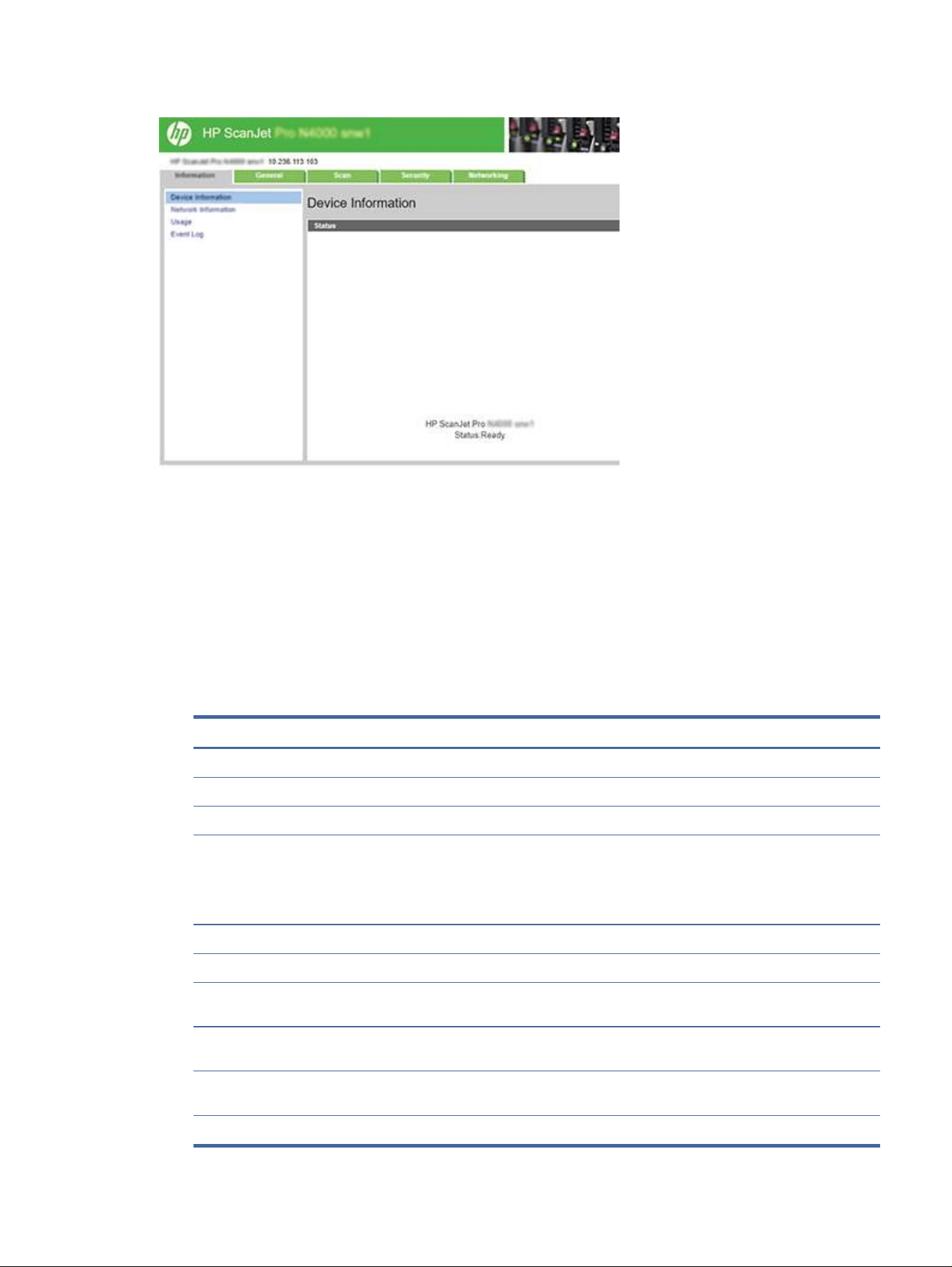
Figure 2-4 Example of the EWS screen
Step three: Congure the Scan to network feature
Use Network Folder Setup in the HP Embedded Web Server (EWS) for basic conguration.
1. Among the EWS top navigation tabs, click Scan.
2. In the left navigation pane, click Network Folder Setup.
3. On the Network Folder Setup page, click the New button.
4. In the Scan Settings area, complete the following elds:
Table 2-3
File scan settings
Option Description
File Name Prex Enter a le name prex (e.g., MyScan).
File Type Select the default le type for the scanned document.
PDF Type Select the default PDF type for the scanned document.
Resolution Select the default scan resolution for the scanned document.
NOTE: Higher resolution images have more dots per inch (dpi), so they show more detail.
Lower resolution images have fewer dots per inch and show less detail, but the le size is
smaller.
Color Select whether scanned les will be in black and white or in color.
De-skew Select On or O to enable or disable image skew correction.
Delete Blank Page Select On or O to indicate whether blank pages should be removed from the scanned
output.
Misfeed Detection Select On or O to enable or disable the detection of multiple pages fed simultaneously into
the document feeder.
Combine Documents Select On or O to indicate whether multiple documents should be combined into one
scanned output le.
JPEG le compression Select a compression value for JPEG le.
Step three: Congure the Scan to network feature 19

5. In the Network Folder Information area, complete the following elds:
● In the Display Name eld, enter the name to display for the folder.
● In the Network Path eld, enter the network path to the folder.
● In the Username eld, enter the user name needed to access the folder on the network.
● In the Password eld, enter the password needed to access the folder on the network.
6. Review all the information, and then click one of the following options:
● Save and Test: Select this option to save the information and test the connection.
● Save Only: Select this option to save the information without testing the connection.
● Cancel: Select this option to quit the conguration without saving.
Set up Scan to USB Drive
The product can scan a le and save it on a USB ash drive. Before using this feature, follow the steps below to
enable and congure it.
Step one: Access the HP Embedded Web Server (EWS)
To access the HP Embedded Web Server (EWS), complete the following steps:
1. From the Home screen on the product control panel, touch the Network or icon according to your
network connection method, and then touch Wireless or Wired (LAN) to display the IP address or host name.
2. Open a web browser, and in the address line, type the IP address or host name exactly as it displays on the
product control panel. Press the Enter key on the computer keyboard. The EWS opens.
Figure 2-5 Example of an IP address in a web browser
NOTE: If the web browser displays a message indicating that accessing the website might not be safe,
select the option to continue to the website. Accessing this website will not harm the computer.
20 Chapter 2 Use the scanner
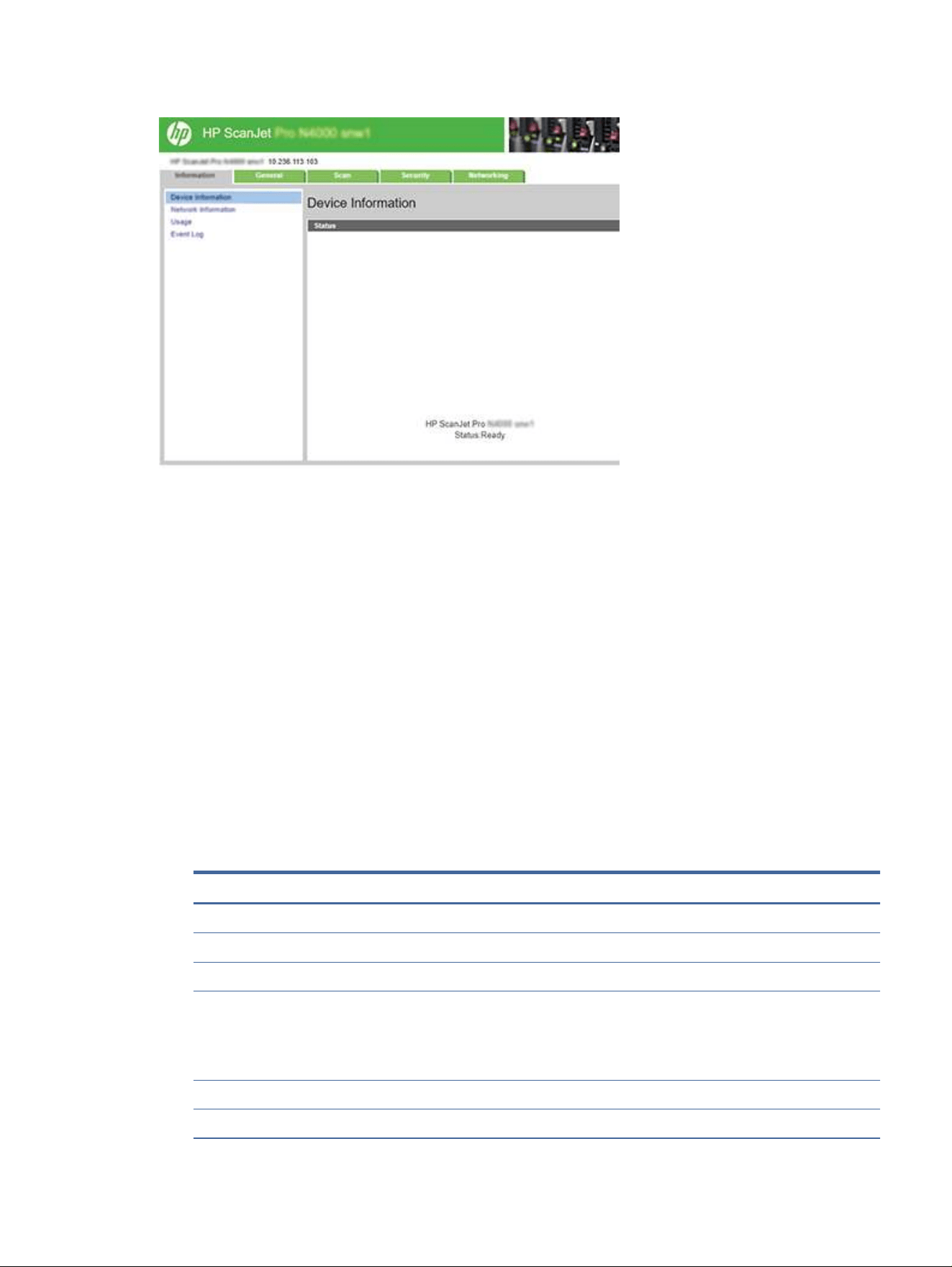
Figure 2-6 Example of the EWS screen
Step two: Enable Scan to USB Drive
To enable Scan to USB Drive:
1. Among the EWS top navigation tabs, click the Security tab.
2. In the left navigation pane, click Access Control.
3. Check the current user account. If USB is not checked, click Edit, select Enable USB, and then click OK.
Step three:
Congure the default settings for Scan to USB Drive
To congure the default Scan to USB Drive settings:
1. Among the EWS top navigation tabs, click the Scan tab.
2. In the left navigation pane, click Scan Settings.
3. In the Default Settings for Scan to USB area, enter a folder name for Stored Folder, and then congure the
following settings:
Table 2-4
File scan settings
Option Description
File Name Prex Enter a le name prex (e.g., MyScan).
File Type Select the default le type for the scanned document.
PDF Type Select the default PDF type for the scanned document.
Resolution Select the default scan resolution for the scanned document.
NOTE: Higher resolution images have more dots per inch (dpi), so they show more detail.
Lower resolution images have fewer dots per inch and show less detail, but the le size is
smaller.
Color Select whether scanned les will be in black and white or in color.
De-skew Select On or O to enable or disable image skew correction.
Step two: Enable Scan to USB Drive 21

Table 2-4 File scan settings (continued)
Option Description
Delete Blank Page Select On or O to indicate whether blank pages should be removed from the scanned
output.
Misfeed Detection Select On or O to enable or disable the detection of multiple pages fed simultaneously into
the document feeder.
Combine Documents Select On or O to indicate whether multiple documents should be combined into one
scanned output le.
JPEG le compression Select a compression value for JPEG le.
4. Click Apply at the bottom of the screen.
Set up Scan to SharePoint
The following steps describe how to set up Scan to SharePoint.
Step one: Prepare
Before you begin to set up the Save to SharePoint feature, make the following preparations.
Administrators need the following items before beginning the conguration process.
● Administrative access to the product.
● The destination folder that the scanned les will be saved to must exist on the SharePoint site, and write
access must be enabled to the destination folder.
Step two: Access the HP Embedded Web Server (EWS)
To access the HP Embedded Web Server (EWS), complete the following steps:
1. From the Home screen on the product control panel, touch the Network or icon according to your
network connection method, and then touch Wireless or Wired (LAN) to display the IP address or host name.
2. Open a web browser, and in the address line, type the IP address or host name exactly as it displays on the
product control panel. Press the Enter key on the computer keyboard. The EWS opens.
Figure 2-7 Example of an IP address in a web browser
NOTE: If the web browser displays a message indicating that accessing the website might not be safe,
select the option to continue to the website. Accessing this website will not harm the computer.
22
Chapter 2 Use the scanner
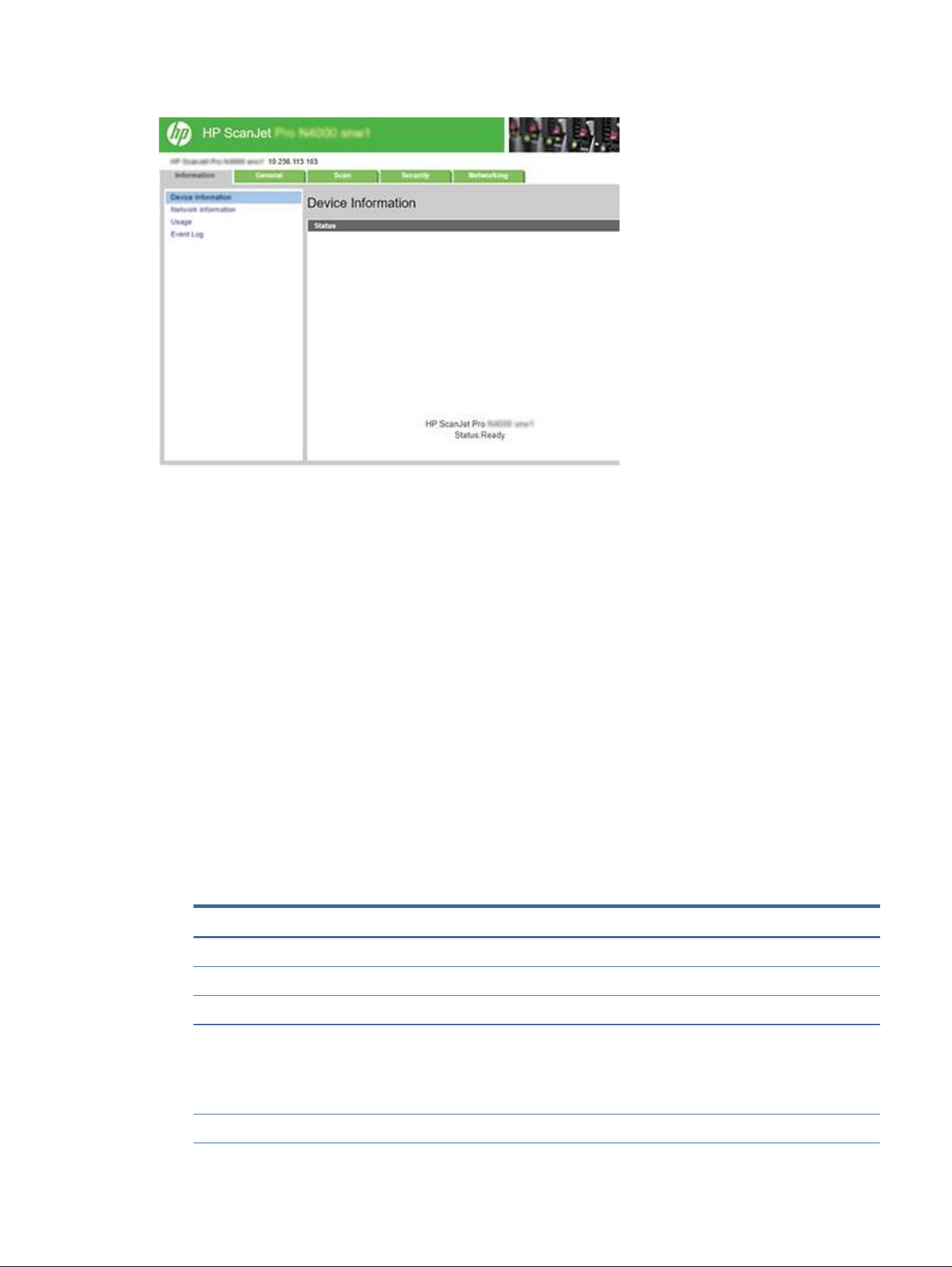
Figure 2-8 Example of the EWS screen
Step three: Enable Scan to SharePoint
To enable Scan to SharePoint:
1. Among the EWS top navigation tabs, click the Security tab.
2. In the left navigation pane, click Access Control.
3. Check the current user account. If SharePoint is not checked, click Edit, select Enable SharePoint, and then
click OK.
Step four:
Congure the Scan to SharePoint feature
Use SharePoint Setup in the HP Embedded Web Server (EWS) for basic conguration.
1. Among the EWS top navigation tabs, click the Scan tab.
2. In the left navigation pane, click SharePoint Setup.
3. On the SharePoint Setup page, click the New button.
4. In the Scan Settings area, complete the following elds:
Table 2-5
File scan settings
Option Description
File Name Prex Enter a le name prex (e.g., MyScan).
File Type Select the default le type for the scanned document.
PDF Type Select the default PDF type for the scanned document.
Resolution Select the default scan resolution for the scanned document.
NOTE: Higher resolution images have more dots per inch (dpi), so they show more detail.
Lower resolution images have fewer dots per inch and show less detail, but the le size is
smaller.
Color Select whether scanned les will be in black and white or in color.
Step three: Enable Scan to SharePoint 23

Table 2-5 File scan settings (continued)
Option Description
De-skew Select On or O to enable or disable image skew correction.
Delete Blank Page Select On or O to indicate whether blank pages should be removed from the scanned
output.
Misfeed Detection Select On or O to enable or disable the detection of multiple pages fed simultaneously into
the document feeder.
Combine Documents Select On or O to indicate whether multiple documents should be combined into one
scanned output le.
JPEG le compression Select a compression value for JPEG le.
5. In the SharePoint Information area, complete the following elds:
● In the Display Name eld, enter the name to display for the SharePoint path.
● In the Network Path eld, enter the SharePoint path.
●
If you want the product to overwrite an existing le that has the same le name as the new le, select
Overwrite existing les.
● In the Windows Domain eld, enter the domain name.
● In the Username eld, enter the user name needed to access the SharePoint path.
● In the Password eld, enter the password needed to access the SharePoint path.
6. Review all the information, and then click one of the following options:
● Save and Test: Select this option to save the information and test the connection.
● Save Only: Select this option to save the information without testing the connection.
● Cancel: Select this option to quit the conguration without saving.
Set up access control
The Access Control option in the HP Embedded Web Server (EWS) provides controls to manage the scanner
features users can access.
NOTE: If the administrator has set a password to limit access to the EWS, the password is required before
setting up access control.
1. From the Home screen on the product control panel, touch the Network or icon according to your
network connection method, and then touch Wireless or Wired (LAN) to display the IP address or host name.
2. Open a web browser, and in the address line, type the IP address or host name exactly as it displays on the
product control panel. Press the Enter key on the computer keyboard. The EWS opens.
Figure 2-9 Example of an IP address in a web browser
24
Chapter 2 Use the scanner

NOTE: If the web browser displays a message indicating that accessing the website might not be safe,
select the option to continue to the website. Accessing this website will not harm the computer.
3. Among the EWS top navigation tabs, click the Security tab.
4. In the left navigation pane, click Access Control.
5. Select Enable Access Control.
● If you want to use the current user account, click Edit to set a PIN code and select scanner features that
you want the current user account to access.
● If you want to create a new user account, click New. Enter an account name, set a PIN code, and then
select scanner features that you want this user account to access.
6. Click OK.
Once the access control has been set up, users cannot access the disabled scanner features and need to enter
the PIN to use the enabled scanner features.
Load originals
The following topics describe how to load originals into the input tray.
Document loading tips
Use the following tips to load originals correctly.
● The maximum capacity of the input tray is 50 sheets of 75 g/m
2
(20 lb) paper (2000 s2, 3000 s4, and
N4000 snw1 models) or 80 sheets of 75 g/m
2
(20 lb) paper (5000 s5, 7000 s3, and N7000 snw1 models).
When using heavier paper, the maximum capacity is decreased.
TIP: Use the lines on the input tray paper guides to help you to not exceed the input tray capacity.
● The maximum name card capacity is approximately 9 or 10 cards. For rigid cards, bank cards, and embossed
cards, load only one card at a time.
● Be sure that original documents are within these guidelines:
Table 2-6
Supported paper size and weight
Item Size
Width: 50.8 to 216 mm (2 to 8.5 in)
Length: 50.8 to 3100 mm (2 to 122 in)
Weight: 2000 s2, 3000 s4, and N4000 snw1 models:40 g/m2 (10.7 lb) to 210 g/m2 (56 lb)
5000 s5, 7000 s3, and N7000 snw1 models:43 g/m2 (11.4 lb) to 350 g/m2 (93.3 lb)
● Scanning the following types of documents might result in paper jams or damage to the documents.
Load originals
25
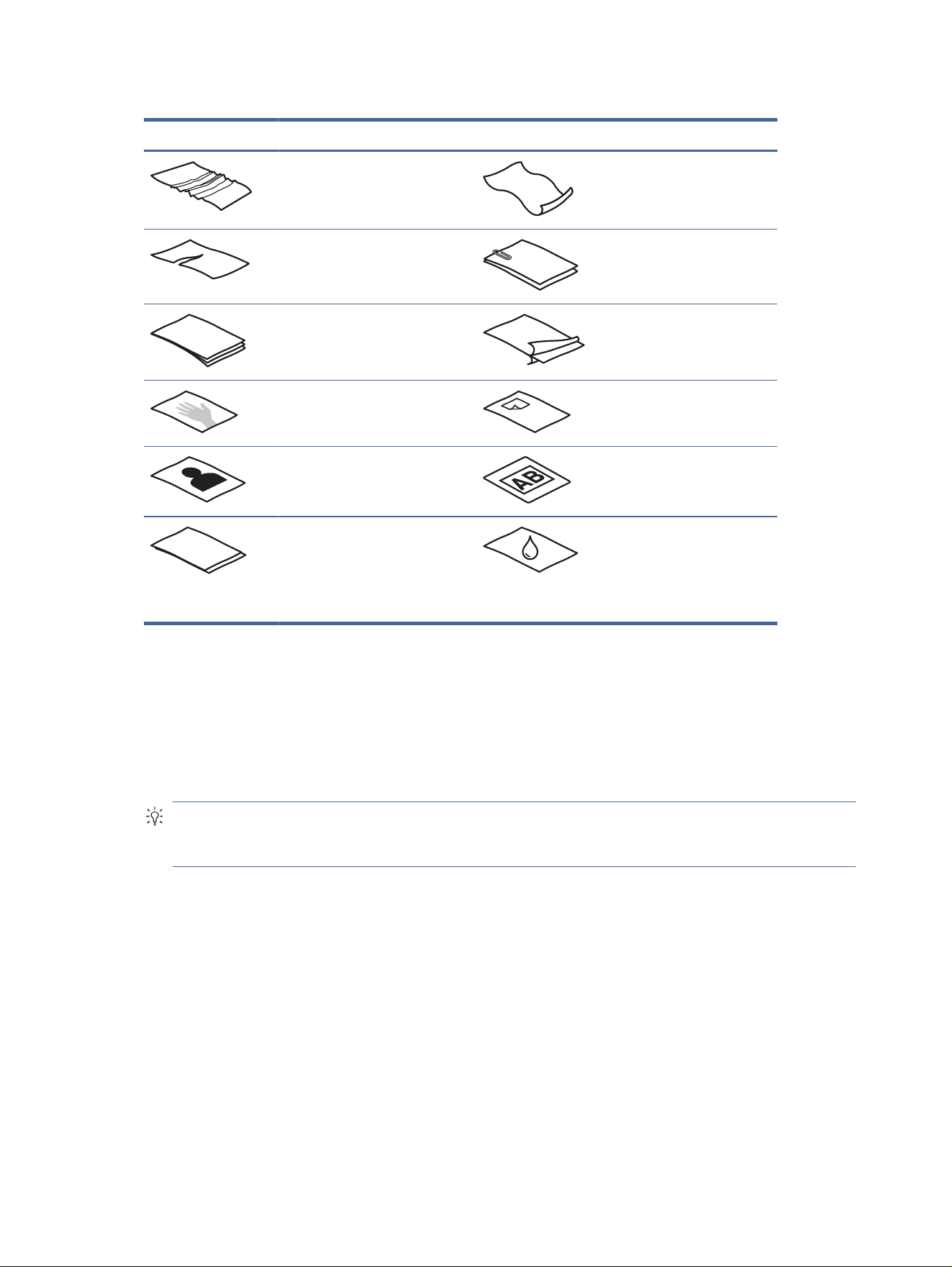
Table 2-7 Inappropriate types of documents
Example Document type Example Document type
Wrinkled or creased documents Curled documents
Torn documents Documents with
paper clips or staples
Carbon paper Coated paper
Extremely thin, translucent paper Paper with adhesive
notes or ags
attached
Photos Overhead
transparencies
Papers that are stuck together Paper where the
toner has not fully
dried, or with wet
substances such as
glue or correction
uid
●
Smooth out any folds or curls in your documents before placing them into the feeder. If the leading edge of a
document is curled or folded, it might cause a paper jam.
● To scan fragile documents (such as photos or documents on wrinkled or very lightweight paper), place the
document in a clear, heavyweight document sleeve no wider than 216 mm (8.5 in) before loading them into
the input tray.
TIP: If you do not have an appropriately-sized document sleeve, consider using a sleeve intended for use
in a ring binder. Trim the ring-side edge so the sleeve is no more than 216 mm (8.5 in) wide. Also, disable
multipick detection before scanning, as the document sleeve will trigger a multipick error.
● Make sure that the document feeder hatch is securely latched. To properly close the hatch, press rmly on
both sides of the hatch.
● Adjust the paper guides to the width of the documents. Make sure that the paper guides touch the edges
of the original. If there is any clearance between the paper guides and the edges of the documents, the
scanned image might be skewed.
● When placing a stack of documents into the feeder, gently set the stack in the input tray. Do not drop the
stack into the tray and do not tap the top edge of the stack after you have placed the stack in the input tray.
● Clean the scan rollers if the rollers are visibly dirty or after scanning a document written with or written on
with pencil.
26
Chapter 2 Use the scanner
Supported paper sizes and types
Supported paper types and sizes for the product are shown below.
● U.S.-Letter: 215.9 x 279.4 mm (8.5 x 11 in)
● U.S.-Legal: 215.9 x 355.6 mm (8.5 x 14 in)
● U.S.-Executive: 184.2 x 266.7 mm (7.25 x 10.5 in)
● ISO A4: 210 x 297 mm (8.3 x 11.7 in)
● JIS B5: 182 x 257 mm (7.2 x 10.1 in)
● ISO B5: 176 x 250 mm (7 x 9.9 in)
● ISO A5: 148 x 210 mm (5.8 x 8.3 in)
● ISO A6: 105 x 148 mm (4.1 x 5.8 in)
● ISO A7: 74 x 104 mm (2.9 x 4.1 in)
● ISO A8: 52 x 74 mm (2 x 2.9 in)
● Custom
– Minimum: 50.8 x 50.8 mm (2 x 2 in)
– Maximum: 216 x 3100 mm (8.5 x 122 in)
Load documents (2000 s2, 3000 s4, and N4000 snw1 models)
To load documents into the input tray, follow these steps:
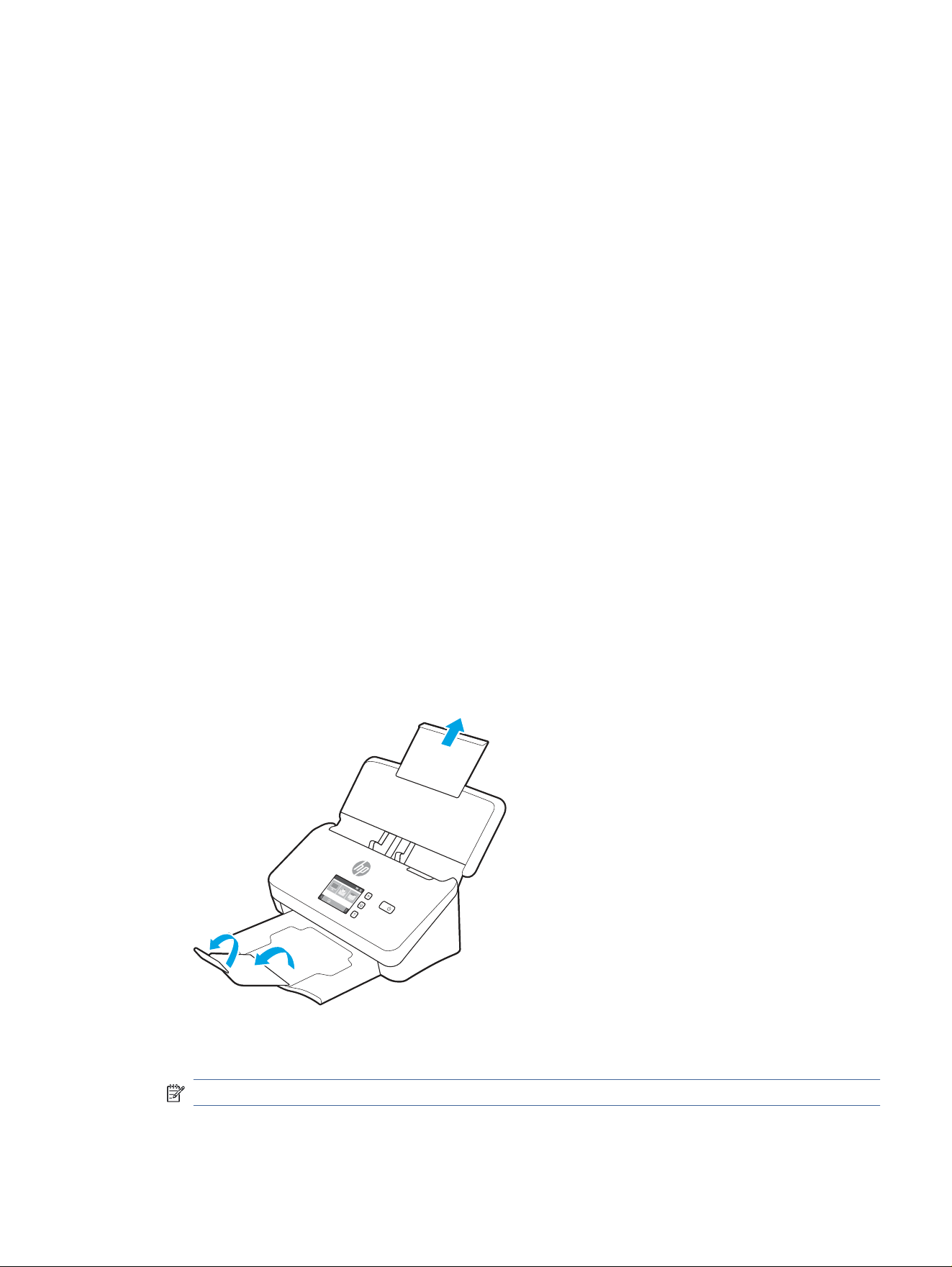
1. Open the document input and output trays, and then extend the tray extensions.
For the output tray, slide the tray out from underneath the scanner, unfold the rst extension, and then
slide the second extension outward.
NOTE: For sheets longer than Letter or A4, such as Legal, leave the second extension folded.
Supported paper sizes and types
27
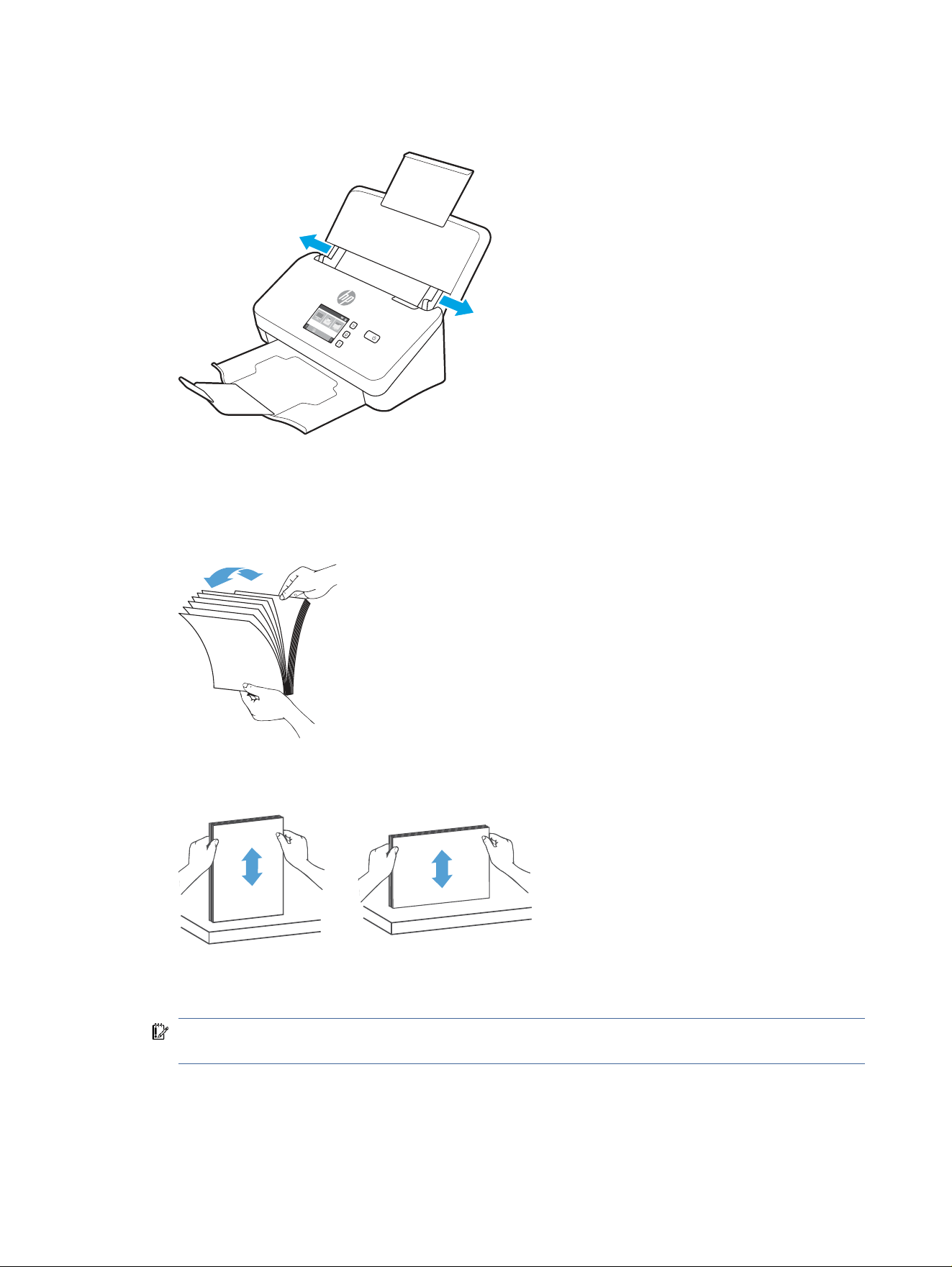
2. Adjust the paper guides on the input tray to the width of the documents. Take care not to over tighten the
guides, which can restrict paper feeding.
When scanning small originals such as checks, it is especially important that the paper guides t snugly
against the edges of the original yet not restrict paper feeding.
3. Fan the stack of document pages to ensure that the pages do not stick together. Fan the edge that will be
pointing into the feeder in one direction, and then fan that same edge in the opposite direction.
4. Align the edges of the documents by tapping the bottom of the stack against the table top. Rotate the stack
90 degrees and repeat.
5. Gently set the stack in the input tray. Load the pages face down with the top of the pages pointing into the
feeder.
IMPORTANT: For best results, do not drop the stack into the feeder and do not tap the top edge of the
stack after you have placed it in the input tray.
28
Chapter 2 Use the scanner
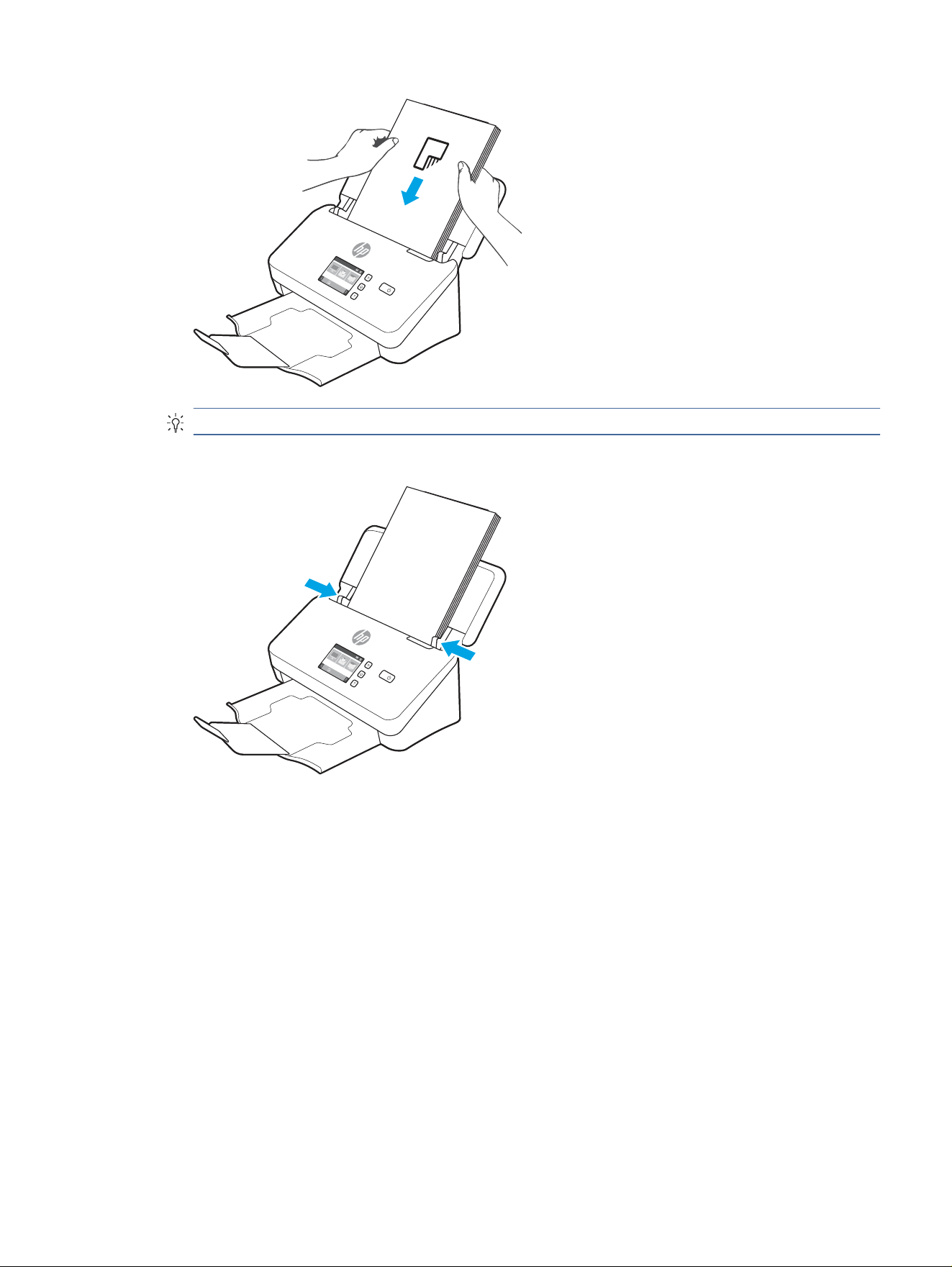
TIP: Avoid feeding a document with a leading edge that has been folded or frayed.
6. Verify that the paper guides are aligned with the edges of the stack.
Load documents (5000 s5, 7000 s3, and N7000 snw1 models)
To load documents into the input tray, follow these steps:
Load documents (5000 s5, 7000 s3, and N7000 snw1 models) 29
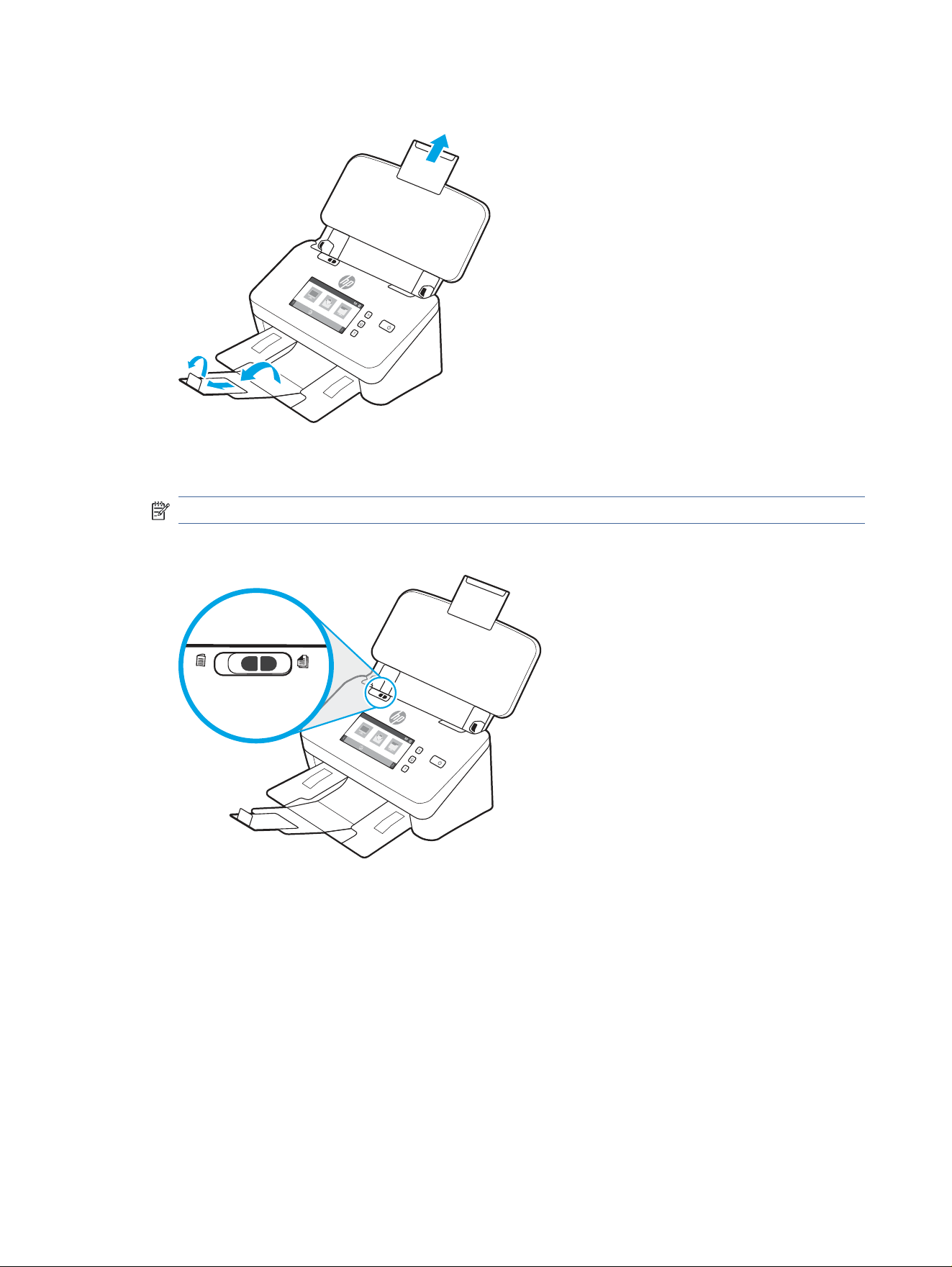
1. Open the document input and output trays, and then extend the tray extensions.
For the output tray, slide the tray out from underneath the scanner, unfold the rst extension, slide the
second extension outward, and then rotate the small third tab 90 degrees.
NOTE: For sheets longer than Letter or A4, such as Legal, leave the small tab folded.
2. Verify that the thick media switch is set to the unfolded media icon.
30 Chapter 2 Use the scanner
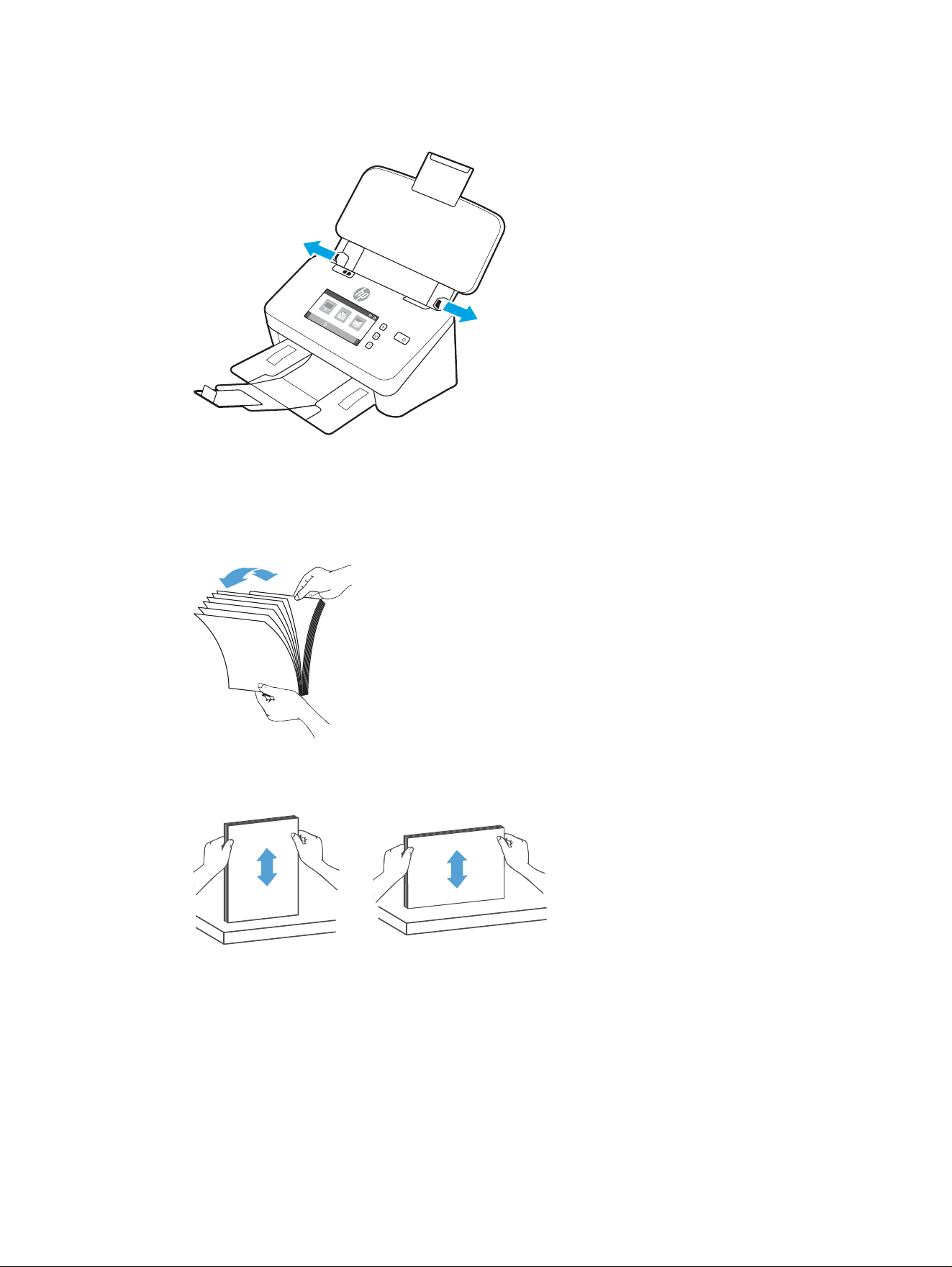
3. Adjust the paper guides on the input tray to the width of the documents. Take care not to overtighten the
guides, which can restrict paper feeding.
When scanning small originals such as checks, it is especially important that the paper guides t snugly
against the edges of the original yet not restrict paper feeding.
4. Fan the stack of document pages to ensure that the pages do not stick together. Fan the edge that will be
pointing into the feeder in one direction, and then fan that same edge in the opposite direction.
5. Align the edges of the documents by tapping the bottom of the stack against the table top. Rotate the stack
90 degrees and repeat.
Load documents (5000 s5, 7000 s3, and N7000 snw1 models) 31
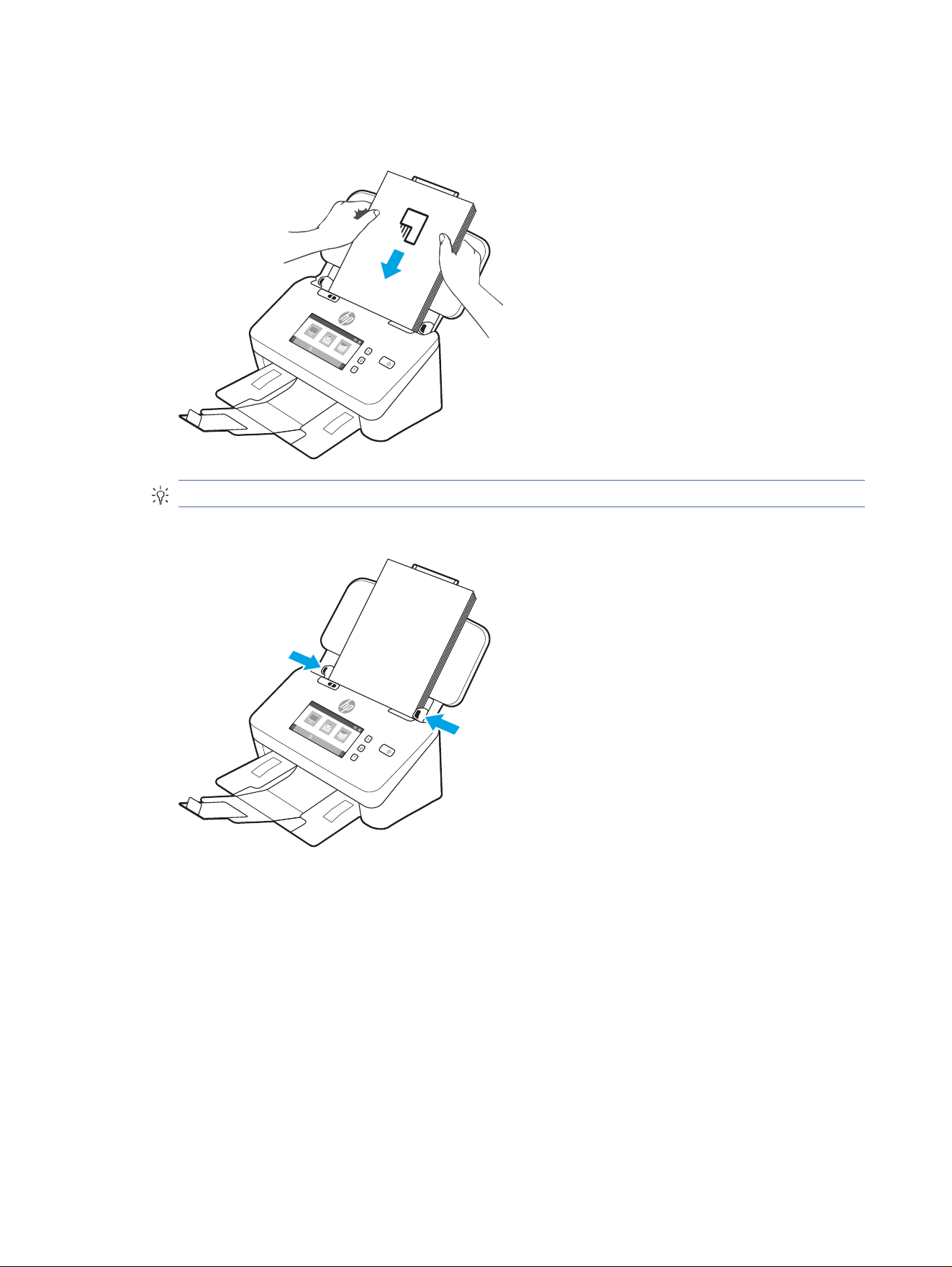
6. Gently set the stack in the input tray. Load the pages face down with the top of the pages pointing into the
feeder. For best results, do not drop the stack into the feeder and do not tap the top edge of the stack after
you have placed it in the input tray.
TIP:
Avoid feeding a document with a leading edge that has been folded or frayed.
7. Verify that the paper guides are aligned with the edges of the stack.
Load cards (2000 s2, 3000 s4, and N4000 snw1 models)
To load cards into the input tray, follow these steps:
32 Chapter 2 Use the scanner
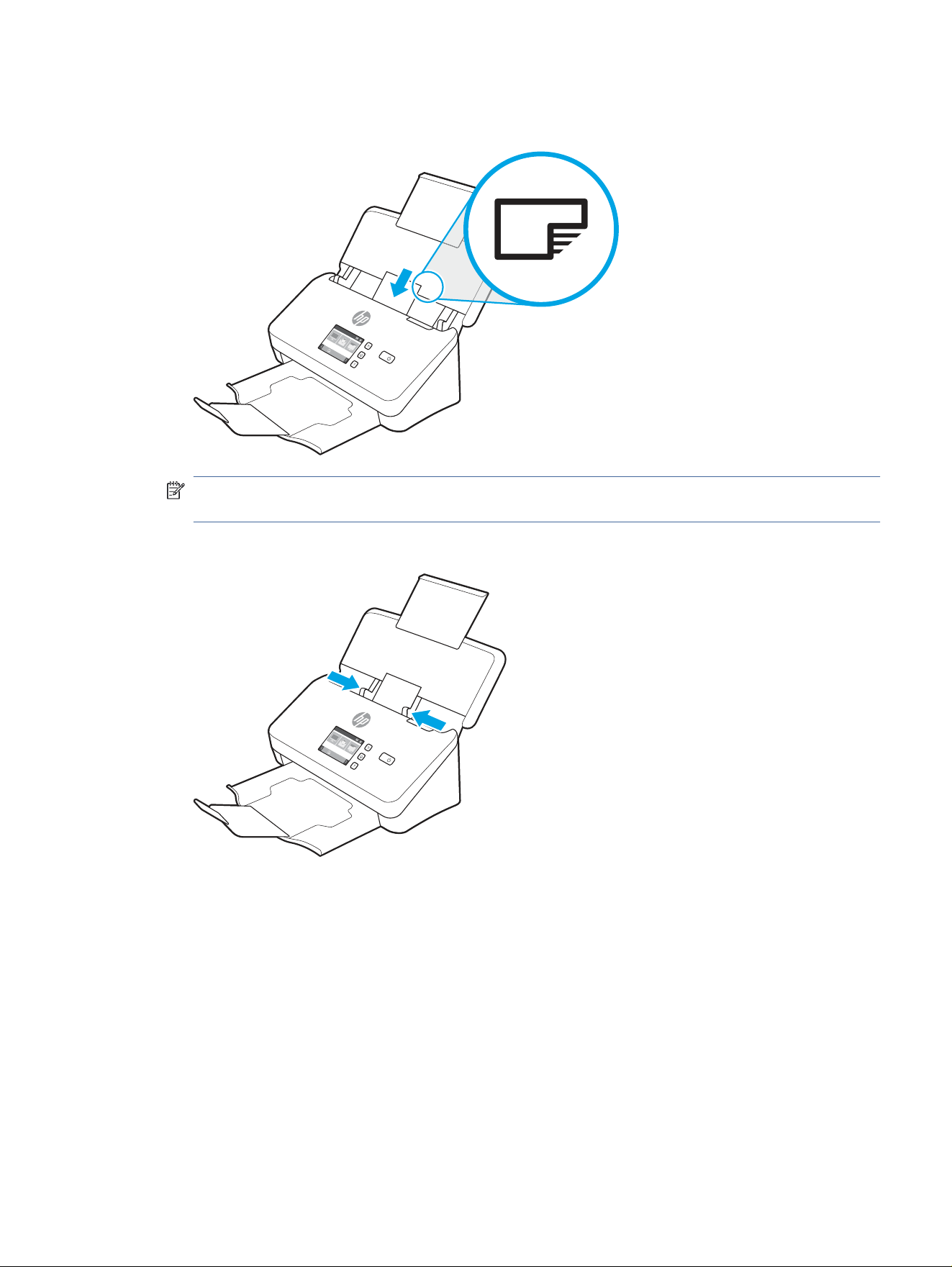
1. Load the stack of cards face down in landscape orientation, with the short dimension parallel to the paper
guides.
NOTE: To ensure the best scan quality, load rigid or embossed cards in this orientation, and load only one
at a time.
2. Adjust the paper guides to center the cards, making sure the paper guides touch the edges of the cards.
Load cards (5000 s5, 7000 s3, and N7000 snw1 models)
To load cards into the input tray, follow these steps:
Load cards (5000 s5, 7000 s3, and N7000 snw1 models) 33
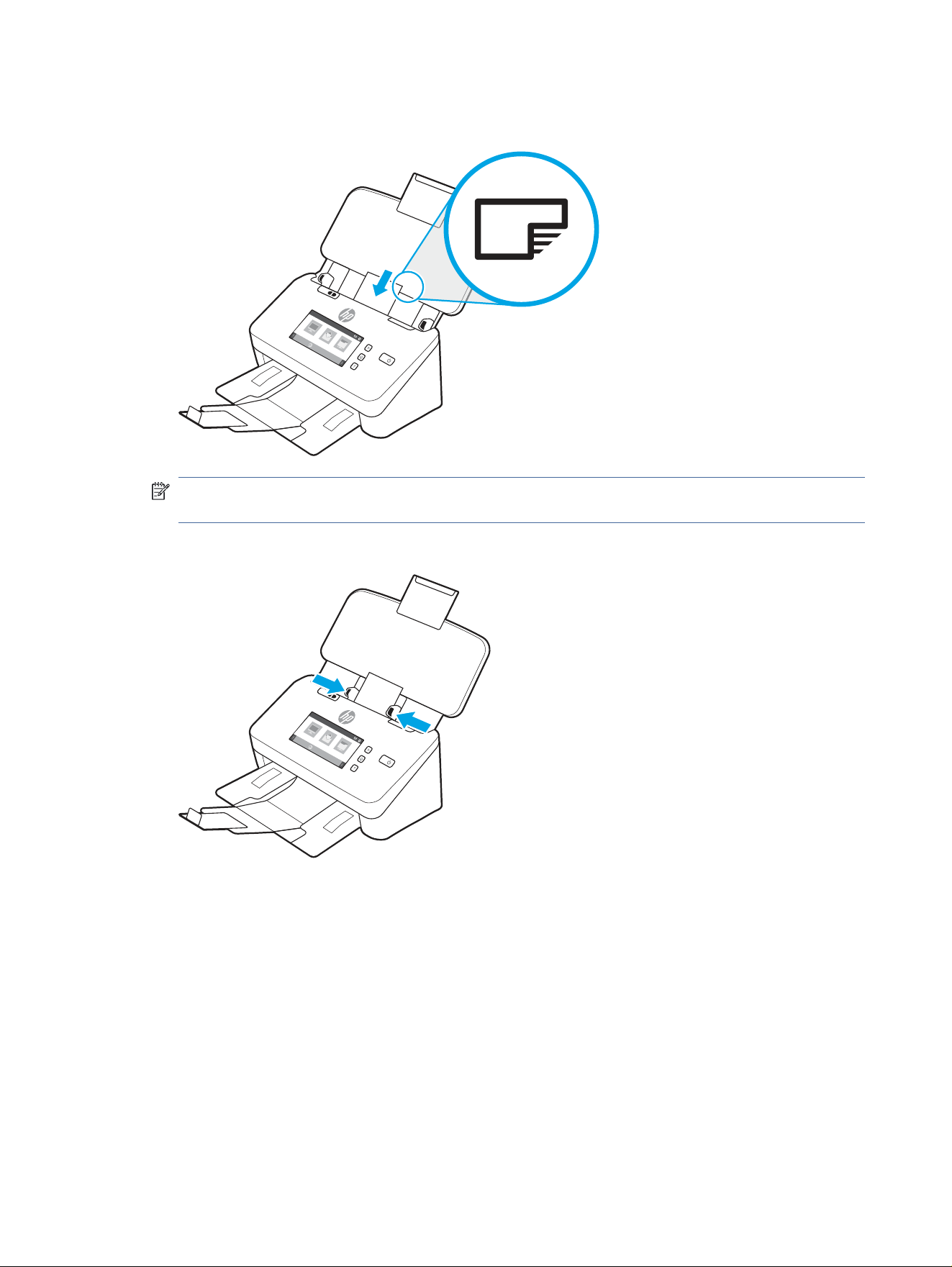
1. Load the stack of cards face down in landscape orientation, with the short dimension parallel to the paper
guides.
NOTE: To ensure the best scan quality, load rigid or embossed cards in this orientation, and load only one
at a time.
2. Adjust the paper guides to center the cards, making sure the paper guides touch the edges of the cards.
34 Chapter 2 Use the scanner
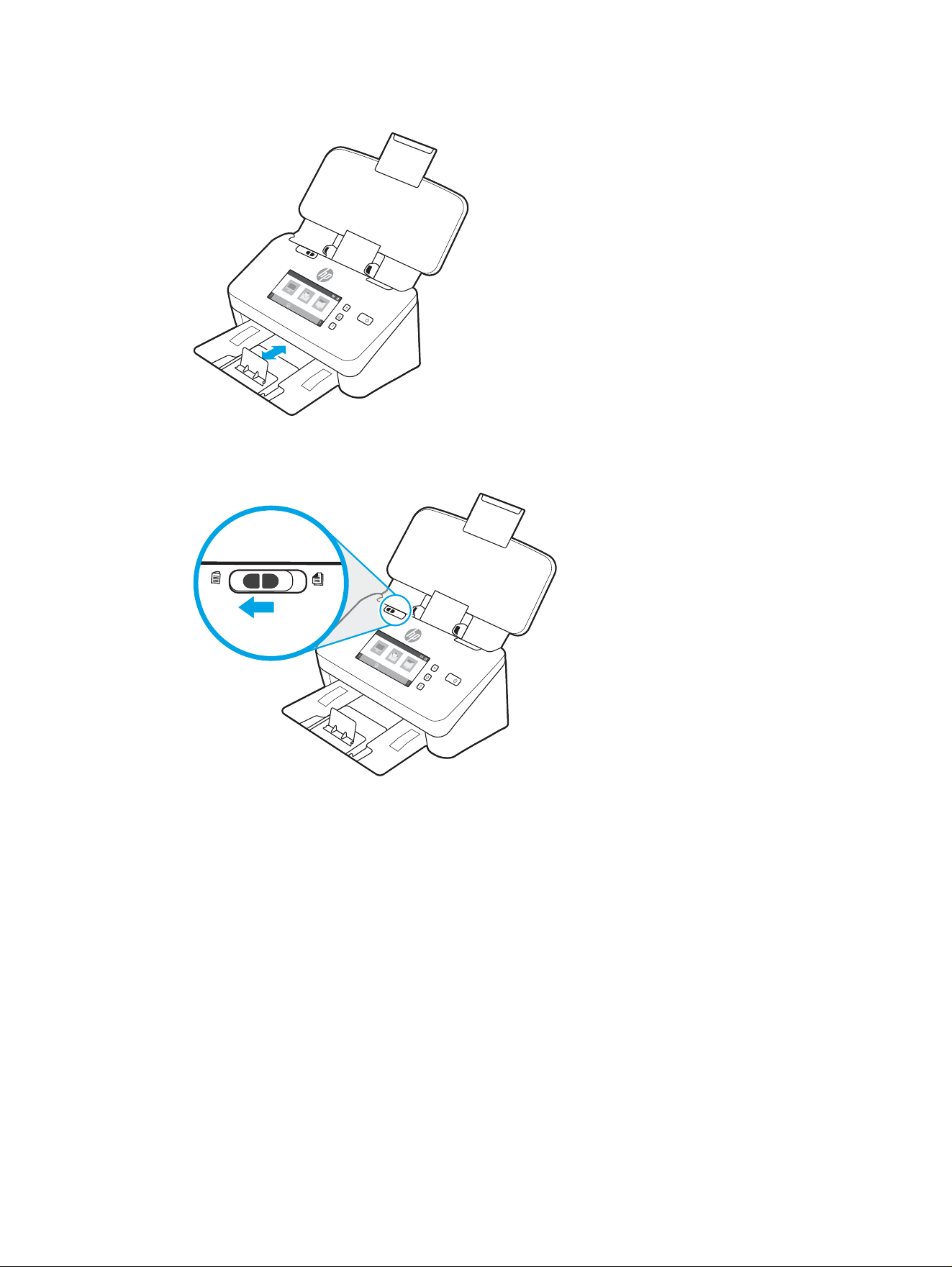
3. Set the output tray small media guide.
4. For thicker, more rigid cards, slide the thick media switch to the disabled position to avoid causing a
multipick error.
Load folded media (5000 s5 , 7000 s3, and N7000 snw1 models)
The scanner supports A3 merging by folding an A3 page into A4 size and then feeding the page through scanner
using the scanning software on the computer. The scanning software can merge the two A4 scanned images into
one A3 scanned image.
When using the A3 merging feature, follow these general guidelines:
● Feed only one folded A3 sheet at any one time. Feeding more than one folded A3 page will cause the paper
jam or will prevent a successful nal merged A3 scanned image.
● Do not use thicker, heavier paper. Using thicker A3 folded paper might result in skew in the nal scanned
images.
To enable A3 merging with HP Scan, follow these steps:
1. Open the HP Scan software.
2. Select a scan prole, select a duplex scan setting from the Page Sides drop-down list, and then click More.
Load folded media (5000 s5 , 7000 s3, and N7000 snw1 models)
35

3. On the Scan tab, click Merge.
4. Select the Merge sides of a 2-sided (duplex) scan into single page check box, select an option to specify the
location of the front side, and then click OK.
5. Click Misfeed, clear the Misfeed (multipick) detection check box, and then click OK.
6. Load the folded A3 media, which is now an A4 size, into the scanner input tray.
7. Make sure that the folded edge of the A3 media is aligned to the scanner right paper guide.
8. Slide the thick media switch to the disabled position (to the left side) before scanning the folded A3 media.
NOTE: If the thick media switch is not set correctly, it will cause the scanner to damage the folded A3
paper.
NOTE: Content that is located where the document is folded might appear missing or corrupted in the nal
merged A3 scanned image.
Start a scan from the hardware
Learn how to start a scan from the control panel.
Scan from the control panel buttons (2000 s2 and 3000 s4 models)
To scan from the control panel, follow these steps:
1. Load the original into the input tray.
2. Press the Scan button.
TIP: To cancel a scan, press the Cancel button on the control panel.
Scan from the control panel buttons (5000 s5 and 7000 s3 models)
To scan from the control panel, follow these steps:
1. Load the original into the input tray.
2. Use the arrow buttons to select the scan prole you want. If you refrain from selecting a prole, the scanner
will use the default scan prole.
3. Press the Simplex Scan button or the Duplex Scan button.
TIP: To cancel a scan, press the Cancel button on the control panel.
The thick media switch is a mechanical switch on the scanner to enable or disable paper separation.
36
Chapter 2 Use the scanner
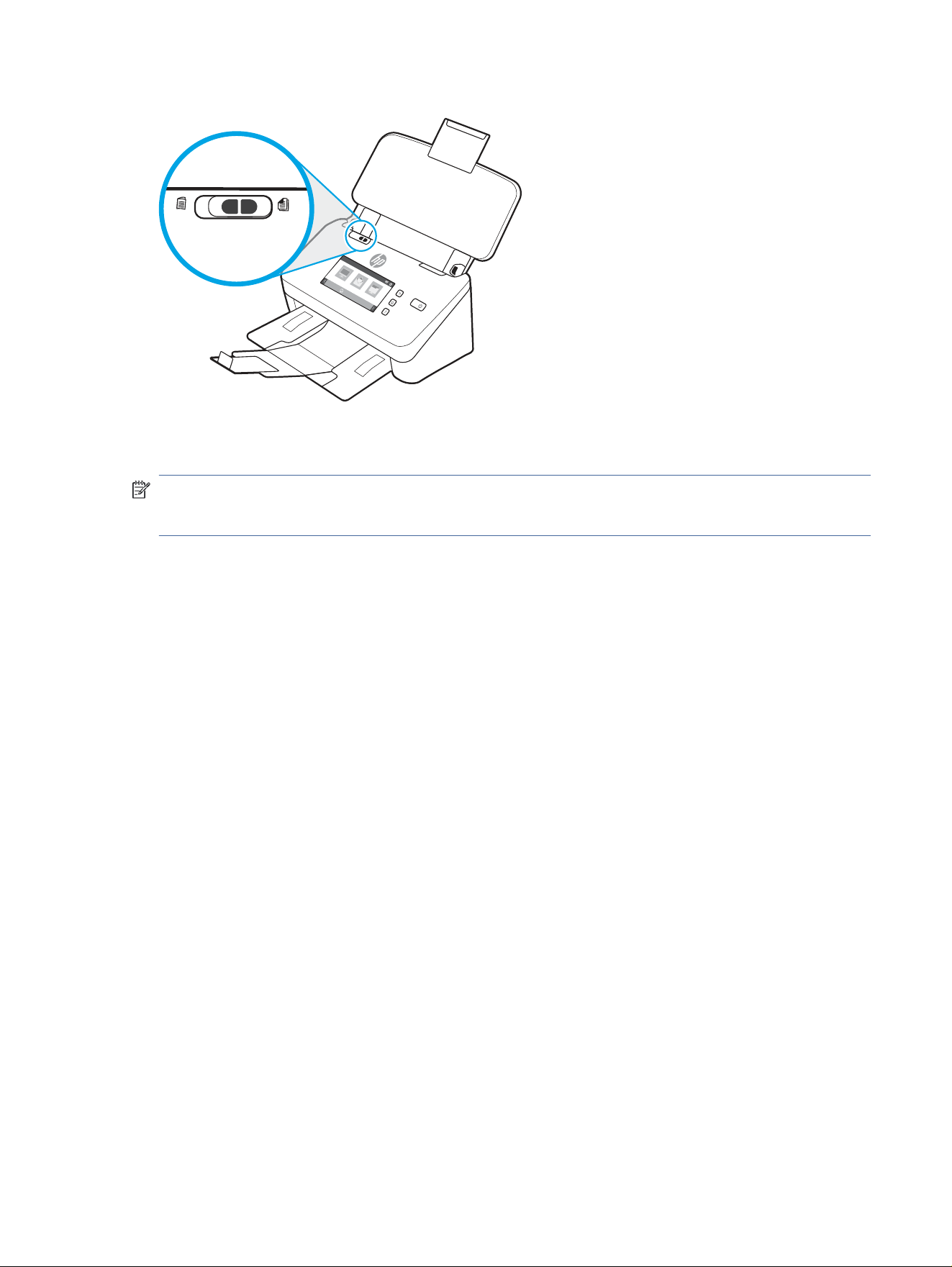
Figure 2-10 Thick media switch
By default, it is enabled for most media. It should be disabled before scanning folded sheets or fragile originals
placed in a plastic carrier sheet. Only one folded page or plastic carrier sheet can be loaded at any one time.
NOTE: Disabling this switch might cause multi-pick errors or a paper jam.
Enabling this switch with folded paper might cause damage to the sheet.
Scan from the touch screen (N4000 snw1 and N7000 snw1 models)
The following topics describe how to scan from the touch screen.
Scan to a computer
To scan to a computer, follow these steps:
1. Load the original into the input tray.
2. From the Home screen on the product control panel, touch To Computer.
3. The scanner displays a list of computers that have the HP software installed and are enabled to receive
scans from the scanner. Select a computer to receive the scan.
4. If you want to change scan settings:
● Touch Shortcut to select a dierent scan shortcut.
● Touch Sides to switch between one-sided and two-sided settings.
5. Touch Scan. The scan will be sent to the selected computer.
Scan to a network location
To scan to a network location, follow these steps:
1. Load the original into the input tray.
2. From the Home screen on the product control panel, touch To Network Folder.
3. If you have set up multiple network destinations, the scanner displays a list of network folders. Select a
network folder to receive the scan.
Scan from the touch screen (N4000 snw1 and N7000 snw1 models)
37

4. If prompted, enter PIN password.
5. If you want to congure scan settings:
● Touch Options to change le type, resolution, color, or other advanced settings.
● Touch Sides to switch between one-sided and two-sided settings.
6. Touch Scan.
Scan to email
To scan to an email, follow these steps:
1. Load the original into the input tray.
2. From the Home screen on the product control panel, touch To Email.
3. Follow the onscreen instructions to select or enter an email address.
4. If you want to congure scan settings:
● Touch Options to change le type, resolution, color or other advanced settings.
● Touch Sides to switch between one-sided and two-sided settings.
5. Touch Scan.
Scan to a Microsoft SharePoint site
Use Save to SharePoint to scan documents directly to a Microsoft SharePoint site. This feature eliminates the
need to scan the documents to a network folder, USB ash drive, or email message, and then manually upload
the les to the SharePoint site.
1. Load the original into the input tray.
2. From the Home screen on the product control panel, touch Scan to SharePoint.
3. If you have set up multiple SharePoint destinations, the scanner displays a list of SharePoint folders. Select
a SharePoint folder to receive the scan.
4. If you want to congure scan settings:
● Touch Options to change le type, resolution, color, or other advanced settings.
● Touch Sides to switch between one-sided and two-sided settings.
5. Touch Scan.
Scan to a USB
ash drive
The product can scan a le and save it on a USB ash drive. Before using this feature, use the HP Embedded Web
server to enable and congure it.
1. Load the original into the input tray.
2. Insert the USB ash drive into the USB port.
3. From the Home screen on the product control panel, touch Scan to USB Drive.
38
Chapter 2 Use the scanner

4. If you want to congure scan settings:
● Touch Options to change le type, resolution, color, or other advanced settings.
● Touch Sides to switch between one-sided and two-sided settings.
5. Touch Scan.
Use the scanning software (Windows)
The following topics describe how to use the scanning software.
Work with scan shortcuts
Scan shortcuts provide a fast, eicient way to select the settings for frequently performed scanning tasks. Use
HP Scan software to create and modify scan shortcuts.
View scan shortcuts
To view existing scan shortcuts, open HP Scan. Existing scan shortcuts will display in a list to the left.
Create scan shortcuts
To create a scan shortcut, follow these steps:
1. Open the HP Scan software.
2. Click Create New Scan Shortcut.
3. Enter a name for the new shortcut.
4. Choose to create the new shortcut from current settings, or a previous existing shortcut.
5. Click Create.
6. Modify the settings for the new scan shortcut. Click More for more settings.
7. Click the Save icon next to the name of the new shortcut in the shortcut list to save the modications to the
shortcut, or click the Undo icon to undo modications.
Modify shortcuts
To modify a scan shortcut, follow these steps:
1. Open the HP Scan software.
2. Select the shortcut to be modied from the list to the left.
3. Change settings on the right side of the screen. Click More for more settings.
4. Click the Save icon to the right of the shortcut name to save changes.
Scan to a picture
To save your scan as a picture, follow these steps:
1. Load the document into the input tray.
Use the scanning software (Windows)
39

2. Open the HP Scan software.
3. Follow one of the steps:
● Select Save as JPEG or Email as JPEG, and then click Scan.
● Choose any other scan shortcut, change the Item Type to Photo, select a picture le type from the File
Type drop-down list, and then click Scan.
Scan to a PDF
To save your scan as a PDF, follow these steps:
1. Load the document into the input tray.
2. Open the HP Scan software.
3. Follow one of the steps:
● Select Save as PDF or Email as PDF, and then click Scan.
● Choose any other scan shortcut and select PDF, Searchable PDF (.PDF), or PDF/A (.PDF) from the File
Type drop-down list, and then click Scan.
Scan text for editing (OCR)
The HP Scan software uses optical character recognition (OCR) to convert text on a page to text that can be
edited on a computer. The OCR software comes with the HP Scan and ReadIris Pro software. For information
about using the OCR software, see scan text for editing in the online Help.
Scan to email
Learn how to scan to email by using the HP Scan software.
NOTE: To scan to email, make sure there is an Internet connection.
1. Load the document into the input tray.
2. Open the HP Scan software.
3. Follow one of the steps:
● Select Email as PDF or Email as JPEG, and then click Scan.
● Choose any other scan shortcut and select Email from the Send To drop-down list, and then click Scan.
Scan to cloud
Learn how to scan to cloud by using the HP Scan software.
NOTE: To scan to the cloud, make sure there is an Internet connection.
1. Load the document into the input tray.
2. Open the HP Scan software.
3. Select Send to Cloud, and then select the le destination, such as Google Drive or DropBox.
40
Chapter 2 Use the scanner

4. Select Scan.
Scan to FTP
You can upload a scanned image to a FTP folder by using the HP Scan software.
1. Load the document into the input tray.
2. Open the HP Scan software.
3. Select a scan shortcut. From the Destination area, select Send to.
4. Select a FTP folder as destination. If this is the rst time you have used this feature, click Add to set up an
FTP destination rst.
5. Click OK, and then click Scan.
Scan to SharePoint
You can upload a scanned image to a SharePoint site directly by using the HP Scan software.
1. Load the document into the input tray.
2. Open the HP Scan software.
3. Select a scan shortcut. From the Destination area, select Send to.
4. Select a SharePoint site as destination. If you haven't set up this feature before, click Add to set up a
SharePoint site destination rst.
5. Click OK, and then click Scan.
Scan long or extra-long documents
By default, the scanner automatically detects page size using the Detect Size selection for page lengths less than
or equal to 356 mm (14 in).
For long or extra-long documents, select Long (8.50 x 34 inches) or Extra Long (8.50 x 122 inches) from the page
size drop-down list in the scan shortcut settings.
NOTE: Only one page at a time can be scanned when using a long or extra-long page setting.
If the scanner is set to scan long or extra-long pages, it will scan one page at a time. Using this setting to scan
regular pages will slow down the process and should only be used to scan pages longer than 356 mm (14 in).
Detect multi-feeds
The multi-feed detection feature stops the scan process if it senses that multiple pages are fed into the scanner
at one time. This feature is enabled by default.
Disabling this feature might be helpful when scanning:
● Multipart forms (a use that HP does not recommend).
● Documents which have labels or sticky notes attached to them.
NOTE: Use the ISIS, WIA, or TWAIN user interface to enable multi-feed detection when scanning from non-HP
software.
Scan to FTP
41

Everyday Scan
The Everyday Scan shortcut allows users to dene and save a scan shortcut for their everyday needs. The
following Scan Shortcut Settings are customizable when the Everyday Scan shortcut is selected:
● Item Type
● Page Sides
● Page Size
● Color Mode
● Destination/File Type
Automatically delete blank pages
When the Delete blank pages feature is enabled, scanned pages are evaluated for content. Pages detected
as blank show up in the viewer with a delete notation on them. These detected blank pages are deleted
automatically when the scan is saved to the destination.
1. Open the HP Scan software.
2. Select a scan shortcut.
3. Click More. Select the Document tab, select Delete blank pages from the Adjust documents drop-down box,
and then click OK.
TIP: The Sensitivity slider allows you to adjust the sensitivity value on how blank pages are detected and
deleted. At the lower end of the slider, more pages are detected as blank and deleted. At the upper end of
the slider, pages must be almost completely blank to be detected and deleted. The sensitivity value can be
also set by entering a value or clicking the arrow buttons.
Automatically adjust page orientation
Use this feature to automatically adjust page orientation by language.
1. Open the HP Scan software.
2. Select a scan shortcut.
3. Click More. Under the Scan tab, select the Page Orientation drop-down box, and then select the Auto Orient
check box.
4. Select a document language, click OK, and then start scan.
Reserved Jobs (N4000 snw1 and N7000 snw1 models)
The
Reserved Jobs feature allows you to initiate a job from the HP Scan software on the computer with preset
options, and then trigger the job on the scanner, saving trips between the scanner and the computer.
1. If this is the rst time you have used this feature, you need to reserve a scan job from the HP Scan software
rst.
a. On your computer, open the HP Scan software, and then click Job Reservation.
b. In the Job Reservation Settings dialog box, select Enable Reservation.
c. If you want to set a PIN, select Use PIN, enter a PIN, and then click OK.
42
Chapter 2 Use the scanner

2. Select a scan shortcut, change settings if needed, and then click Scan.
3. Go to the scanner. Load the original into the input tray.
4. From the Home screen on the control panel, touch Reserved Jobs to start scan.
Filter out color from a document (color dropout)
You can lter out a color channel (red, green, or blue) or up to three individual colors. For specic colors, the
sensitivity setting controls how closely a scanned color must approximate the specied color.
Removing colors from the scan might reduce the scan le size and improve optical character recognition (OCR)
results.
To select colors to eliminate from a scan in HP Scan software, follow these steps:
1. Open the HP Scan software.
2. Scan a sample page, which has the colors to be dropped, into the viewer.
3. Click the More button, and then click the Image tab and select the Color Dropout feature.
4. Enable a color to drop and select the color from the preview using the eyedropper tool. Be sure to save the
colors.
Only the color dropout options available for your scanner are selectable.
For information about the color dropout settings, see the online help for the scanning software that you are
using.
Automatically detect page size
The HP Scan software is capable of automatically detecting page size using the Detect Size option. When the
Detect Size option is selected from the Page Size drop-down list, the scanned image is cropped to the size of the
detected page and any skewed content is straightened.
Automatically crop or pad scanned image to selected page size
Use this feature to crop or pad a scanned image to a selected page size.
To automatically crop or pad a scanned image to a selected page size, follow these steps:
1. Open the HP Scan software.
2. Select a scan shortcut, and then click More for more settings.
3. Select your crop option from the Input Page Size drop-down list.
● To automatically crop to the content of the document, select Detect Content on Page.
● To automatically crop to the dimensions of the document, select Detect Size.
NOTE: Use the ISIS or TWAIN user interface to set crop options when scanning from non-HP scanning
software.
For information about the auto-crop settings, see the online help for the scanning software that you are
using.
4. Make sure the Same as Input option is selected for Output Page Size, and then click Scan.
Filter out color from a document (color dropout)
43

Automatically detect color
Use this feature to reduce the size of the scanned le by only saving pages that contain color as color scans, and
saving all other pages as black and white.
To automatically detect color in a scanned image, follow these steps:
1. Open the HP Scan software.
2. Select a scan shortcut.
3. To adjust the Auto Detect Color sensitivity and output mode settings, click More, select Image.
4. Click on the Color Mode drop-down box, and then select Auto Detect Color.
5. Select the Auto Detect Color drop-down box, change settings, and then click OK.
6. Click Scan.
NOTE: For information about the automatic color detection settings, see the online help for the scanning
software that you are using.
Use the ISIS, WIA, or TWAIN user interface to automatically detect color when scanning from non-HP scanning
software.
Scan using text-enhanced black and white mode
Use this feature to enhance the scanned image when scanning black and white text. To use this feature, complete
the following steps:
1. Open the HP Scan software.
2. Select a scan shortcut.
3. Click More, select the Image tab, and then select Black/White (1 bit) from the Color Mode drop-down box.
4. Select Threshold for Black/White, select Enhance Content, and then click OK.
Automatically straighten scanned images
Use the Straighten Content feature to straighten content that is skewed relative to the page dimensions in the
source document. Use the Detect Size feature to deskew page images that might have become skewed during
the scanning process.
1. Open the HP Scan software.
2. Select a scan shortcut.
3. Click More, select the Document tab, and then select Straighten Content.
Add or remove a device
You can use the HP Scan software to add or remove a device on the computer.
1. Open the HP Scan software.
2. Click the Settings icon to open the Device Settings window.
44
Chapter 2 Use the scanner

3. Do one of the following:
● To add a device, click the Plus + icon, click Connect a new device, and then follow the onscreen
instructions.
● To remove a device, select the scanner name from the existing scanner list, and then click the Delete
button.
TIP: You can select multiple scanners to delete them at once.
TIP: You can also use HP Scan Assistant to add a new device. Launch HP Scan Assistant from the computer
desktop, click
Tools, click Device Setup & Software, and then select Connect a new device.
Scan by using other scan software
The following third-party applications are also supported by the scanner:
● Readiris Pro: OCR application.
● Cardiris: Business card application.
● Third-party applications that support TWAIN, ISIS, and WIA.
Use the scanning software (macOS)
The following topics describe how to scan by using the scanning software.
Scan to email
To scan to an email, complete these steps:
NOTE: To scan to email, make sure there is an Internet connection.
1. Load the document into the input tray.
2. In the Applications folder, double-click the Apple Image Capture icon.
3. In the Image Capture window, select your scanner from the Devices list.
TIP: For more Apple Image Capture scanning options, click Show Details.
4. Select Mail in the Scan To list to automatically attach the scan to an email message.
NOTE: If you use an email application other than Apple Mail, you can scan the document to a le and
manually attach it to an email, or you can add your email application to the Scan To list.
To add your email application to the list, select Other, select your email application, and then click Choose.
5. On the resulting email message, enter the email address, subject, and any message text, and then send the
email.
HP Easy Scan
To scan from HP Easy Scan:
1. Load the document into the input tray.
Scan by using other scan software
45

2. In the Applications folder, double-click the HP Easy Scan icon.
3. Find the product by its name and ensure it is the selected scanner.
4. Select a scan preset appropriate for the scan job.
5. Click the Scan button.
6. Once all the pages have been scanned, click File and then Save.
7. Specify how and where the le is to be saved, and then click Save.
Scan from other applications
An image can be scanned directly into any ICA-compliant application. In the application, look for options to import
or acquire images from a scanner.
NOTE: The HP software does not support TWAIN scanning. If the application has import or acquire functions
but your HP scanner is not listed, the application might only be searching for scanners that support TWAIN.
Advanced
conguration with HP Utility (macOS)
Use the HP Utility to check scanner status or to view or change scanner settings from your computer. You can
use the HP Utility when the scanner is connected with a USB cable.
Open HP Utility
To open HP Utility, follow these steps:
1. At the computer, open the Applications folder.
2. Select HP, and then select HP Utility.
HP Utility features
The HP Utility toolbar includes these items:
● Devices: Click this button to show or hide Mac products found by the HP Utility.
● All Settings: Click this button to return to the HP Utility main view.
● HP Support: Click this button to open a browser and go to the HP support website.
● Supplies: Click this button to open the HP SureSupply website.
● Registration: Click this button to open the HP registration website.
● Recycling: Click this button to open the HP Planet Partners Recycling Program website.
HP Utility consists of pages that you open by clicking in the All Settings list.
Scanning tips
Use the following tips to optimize scanning performance and scan fragile originals.
46
Chapter 2 Use the scanner

Optimize scanning and task speeds
Several settings inuence the total time for a scanning job. To optimize scanning performance, consider the
following information.
● To optimize performance, make sure the computer meets the recommended system requirements. To view
minimum and recommended system requirements, see www.hp.com, and then search for the scanner
model plus the word specications.
● Saving a scanned image to a searchable format (for example, searchable PDF) takes more time than saving
to an image format because the scanned image is analyzed using optical character recognition (OCR). Verify
the need for a searchable output le before selecting a searchable scan format.
● Scanning at a higher resolution than necessary increases scanning time and creates a larger le with no
additional benet. If scanning at a high resolution, set the resolution to a lower level to increase scanning
speed.
Scanning fragile originals
To scan fragile document (such as photos or documents on wrinkled or very lightweight paper), place the
document in a clear carrier sheet before loading it into the input tray.
5000 s5, 7000 s3, and N7000 snw1 models: Before starting scan, slide the thick media switch to the disabled
position (to the left side).
Optimize scanning and task speeds 47

Care and maintenance3
This section presents information about how to care for and maintain the scanner.
For the latest maintenance information, visit the product support home page:
● 2000 s2 models: www.hp.com/support/sj2000s2
● 3000 s4 models: www.hp.com/support/sj3000s4
● N4000 snw1 models: www.hp.com/support/sjn4000snw1
● 5000 s5 models: www.hp.com/support/sjow5000s5
● 7000 s3 models: www.hp.com/support/sjow7000s3
● N7000 snw1 models: www.hp.com/support/sjown7000snw1
Test and calibrate the touch screen
To test and calibrate the touch screen, do the following:
1. Select the Settings icon.
2. Select Display.
3. Scroll down and select Screen Recalibration.
4. Follow the onscreen instructions to perform the calibration.
5. Recalibration complete will display when the process is completed.
Clean the product
Occasional cleaning of the scanner helps ensure high-quality scans. The amount of care necessary depends on
several factors, including the amount of use and the environment. Perform routine cleaning as necessary.
Clean the scanning strips
To clean the scanning strip components, follow these steps:
1. Press the Power button to turn o the scanner, and then disconnect the USB cable and power supply
from the scanner.
48
Chapter 3 Care and maintenance
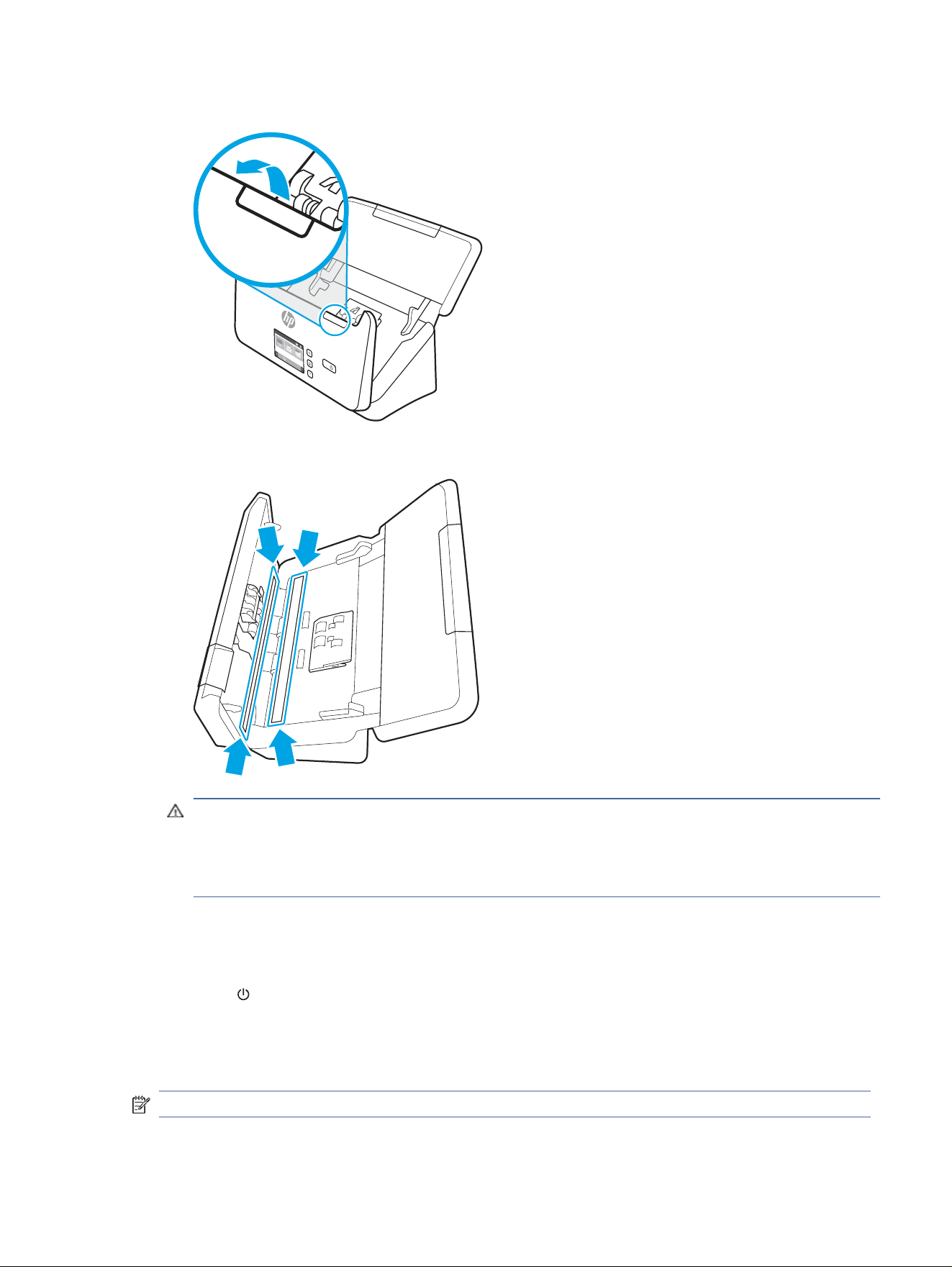
2. Pull forward on the latch to open the document feeder hatch.
3. Clean the scanning strips with a soft, lint-free cloth that has been sprayed with a mild glass cleaner.
CAUTION: Use only glass cleaner to clean the scanning strips. Avoid cleaners that contain abrasives,
acetone, benzene, and carbon tetrachloride, all of which can damage the scanning strips. Avoid isopropyl
alcohol because it can leave streaks on the scanning strips.
Do not spray the glass cleaner directly on the scanning strips.
4. Dry the scanning strips with a dry, soft, lint-free cloth. Wipe the strips of gray, reective material on each
strip.
5. Close the document feeder, reconnect the USB cable and power supply to the scanner, and then press the
Power button to turn on the scanner. The scanner is now ready to use.
Clean the paper path
If scanned images have streaks or scratches, use an HP paper path cleaning cloth to clean the paper path.
NOTE: If you experience repeated document jams, clean the rollers.
Clean the paper path
49
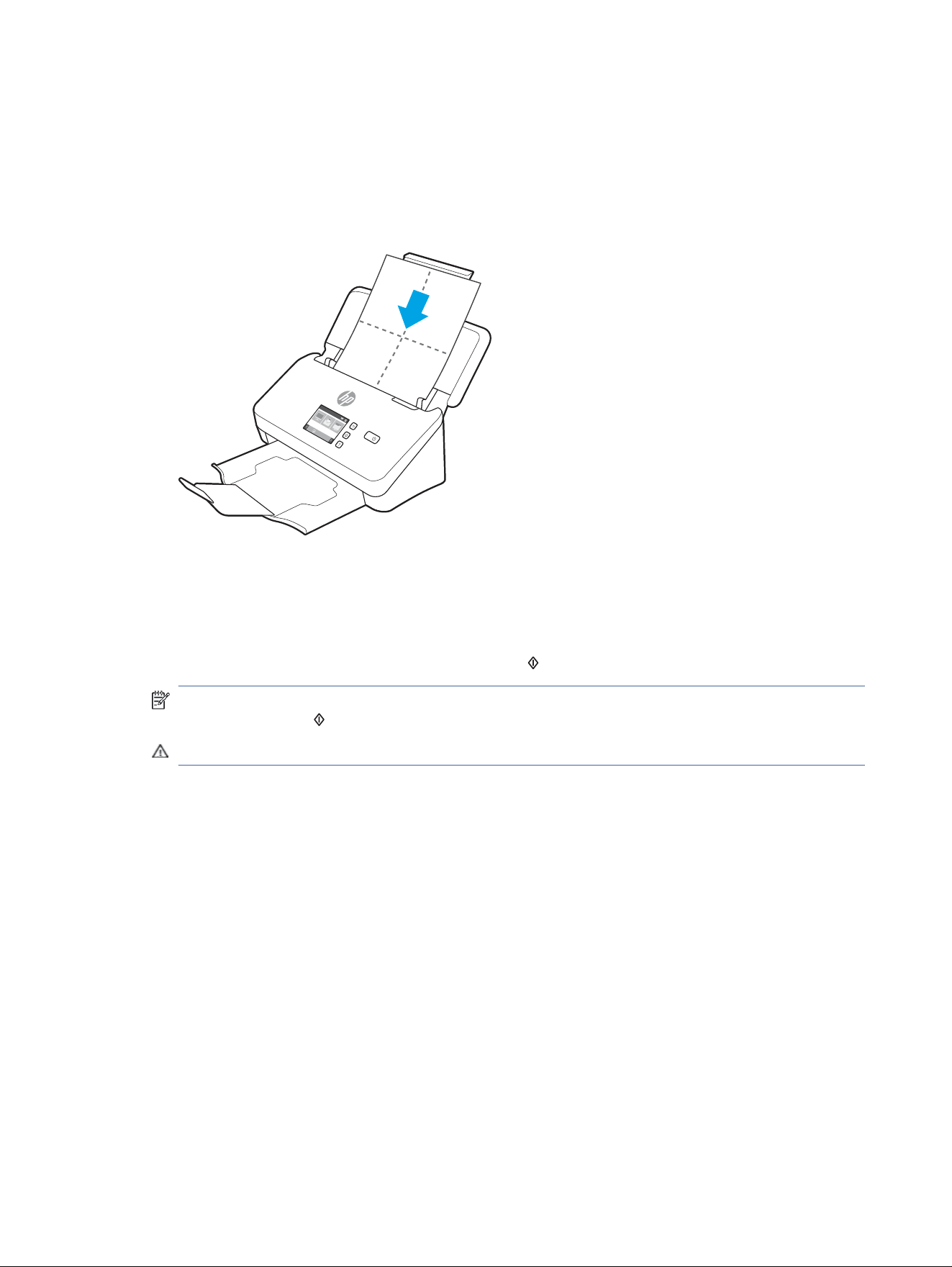
To clean the paper path, follow these steps:
1. Open the sealed HP paper path cleaning cloth container, starting at the notch. Take care not to tear the
cleaning cloth.
2. Remove the cleaning cloth and unfold it.
3. Load the unfolded cloth into the input tray.
4. Windows: Launch the HP Scanner Tools Utility, and then click the Maintenance tab.
5. Feed the cloth through the scanner.
Windows: Under Clean Paper Path, click Clean to feed the cloth through the scanner.
macOS (2000 s2 and 3000 s4 models): Press the Scan button to feed the cloth through the scanner.
NOTE: In addition to feeding the cloth through the scanner, the Mac will perform the scan shortcut
assigned to the Scan button.
CAUTION: Wait two minutes for the components to dry before proceeding to the next step.
6. Place up to ve pages of printed paper in the scanner. Scan and view the results.
7. If streaks still appear, repeat steps 3 through 6.
The cleaning cloth can be cycled through the scanner up to ve times within 30 minutes. After that, the
cloth will dry out. If repeated cycling of the cleaning cloth does not remove the streaks from the scanned
images, clean the rollers.
8. Windows: Under Record Cleaning Paper Path, click Record Cleaning to log this cleaning activity and update
the paper path cleaning history.
Clean the rollers
Clean the rollers under the following conditions:
● Windows: The HP Scanner Tools Utility indicates that cleaning is needed.
● You experience repeated document jams.
● The document feeder does not pull pages into the paper path.
50
Chapter 3 Care and maintenance
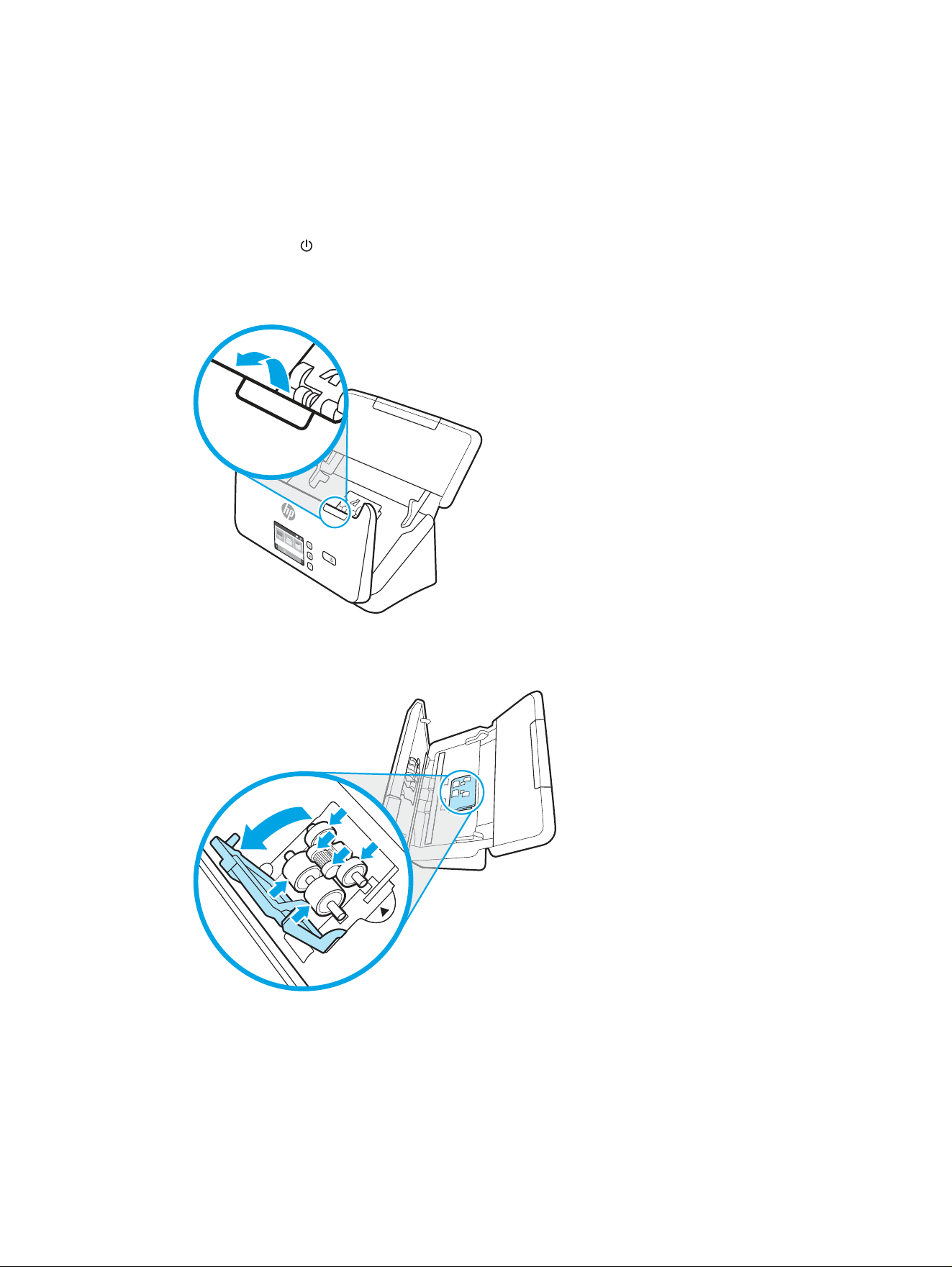
● The scanned images are elongated.
● You frequently scan any of the following types of documents: coated paper, chemically treated documents
such as carbonless paper, documents with a large amount of calcium carbonate, documents written with or
written on with pencil, documents on which the toner has not fused.
To clean the rollers, follow these steps:
1. Press the Power button to turn o the scanner, and then disconnect the USB cable and power supply
from the scanner.
2. Pull forward on the latch to open the document feeder hatch.
3. On the rear of the open document feeder, use a ngertip to press the tab at the upper right corner of the
pickup roller cover, and then forward to open the cover and expose the pickup rollers.
4. Using an HP paper path cleaning cloth or a clean, lint-free cloth moistened with isopropyl alcohol, wipe the
pickup rollers.
Wipe the rollers from the top down, rotating the rollers a full 360 degrees to ensure that you wipe the
complete surface, and then close the roller cover.
Clean the rollers
51
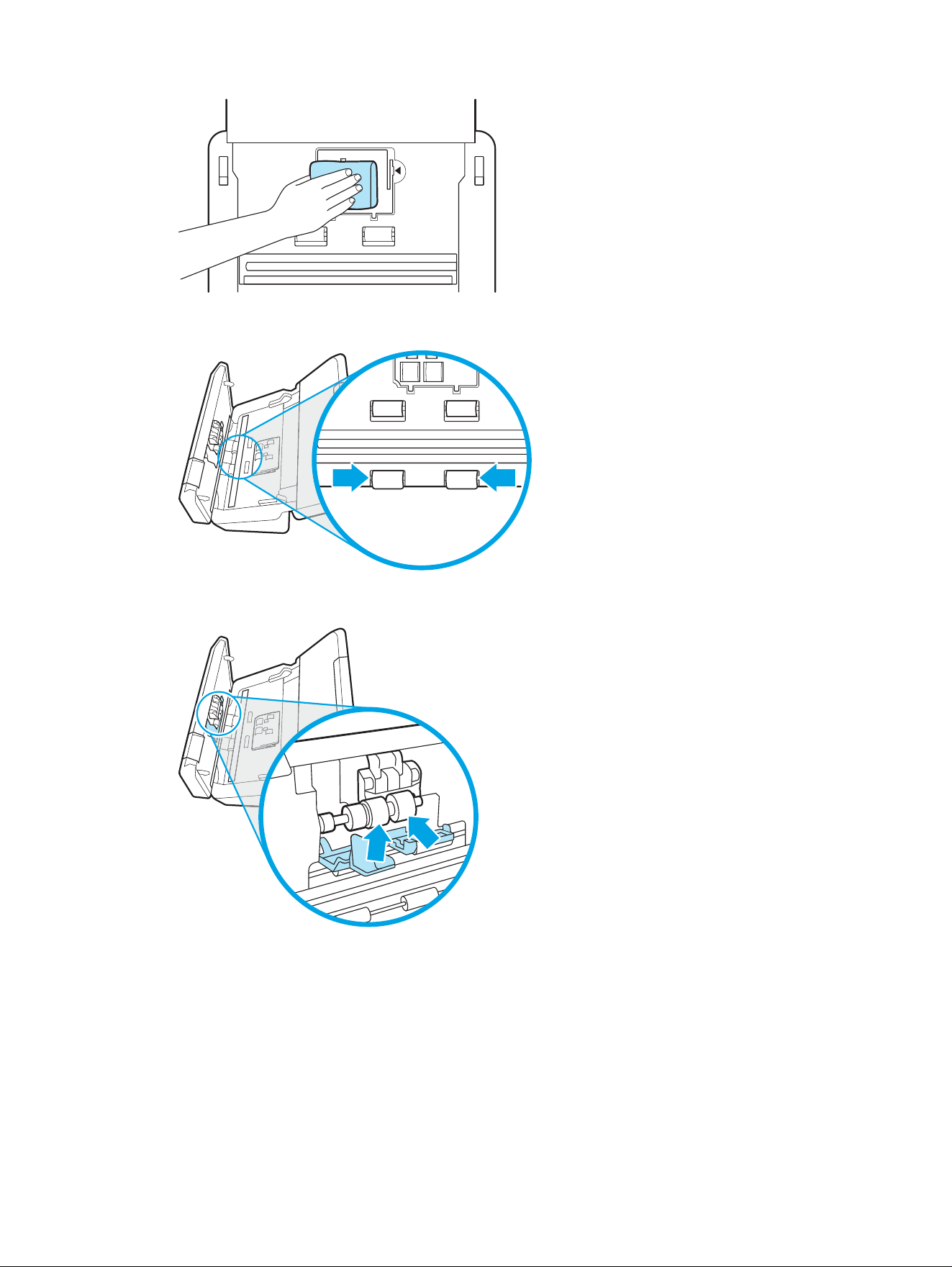
5. Below the pickup rollers, wipe the rollers above and below the scanning strip.
6. Open the separation rollers cover, and then wipe the separation rollers.
52 Chapter 3 Care and maintenance
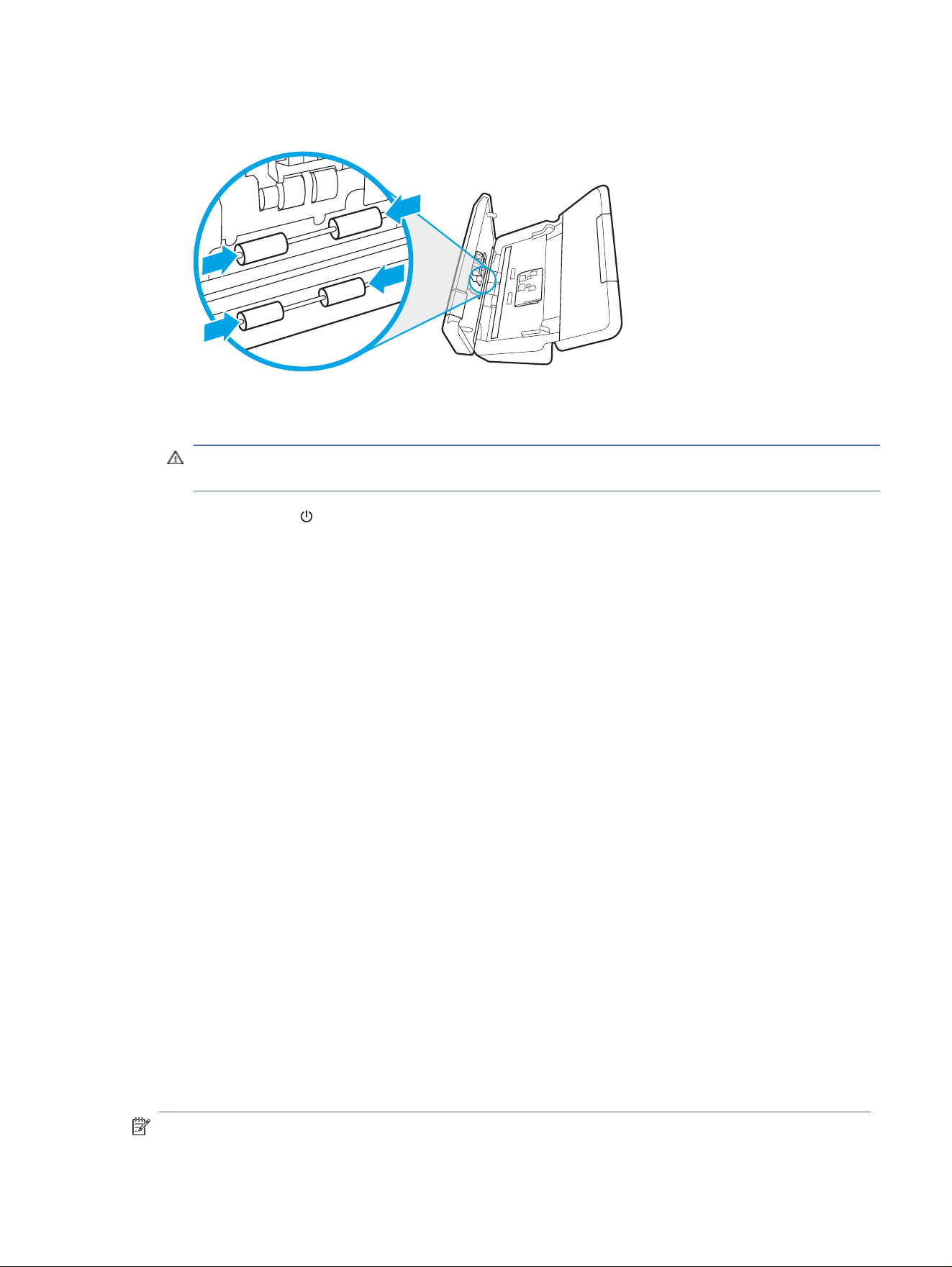
7. Close the separation rollers cover. Below the separation rollers, wipe the rollers above and below the
scanning strip.
8. Press on both sides of the document feeder hatch at the same time to close the hatch, and then reconnect
the USB cable and power supply to the scanner.
CAUTION: Wait two minutes for the feed rollers to dry before loading documents into the document
feeder.
9. Press the Power button to turn on the scanner.
10. Windows: Update the scanner maintenance history.
a. Launch the HP Scanner Tools Utility, and then click the Maintenance tab.
b. Under Record Cleaning Rollers, click Record Cleaning to log this cleaning activity and update the roller
cleaning history.
For more information, see the HP Scanner Tools Utility Help.
Replace parts
Replacing parts when necessary helps ensure high-quality scans. Parts might need to be replaced when
indicated by the HP Scanner Tools Utility, or if the scanner is not working correctly.
The roller replacement kit includes the following replacement parts:
● Pickup rollers
● Separation rollers
The replacement kit also includes detailed instructions for replacing each of these parts.
Replace the roller kit (2000 s2, 3000 s4 and N4000 snw1 models)
The following topics describe how to replace the roller kit.
Replace the rollers under the following conditions:
● Windows: When the Maintenance Recommended dialog indicates they are due for maintenance.
● If the scanner experiences repeated document jams.
NOTE: HP recommends replacing the rollers every 100,000 scans.
Replace parts
53
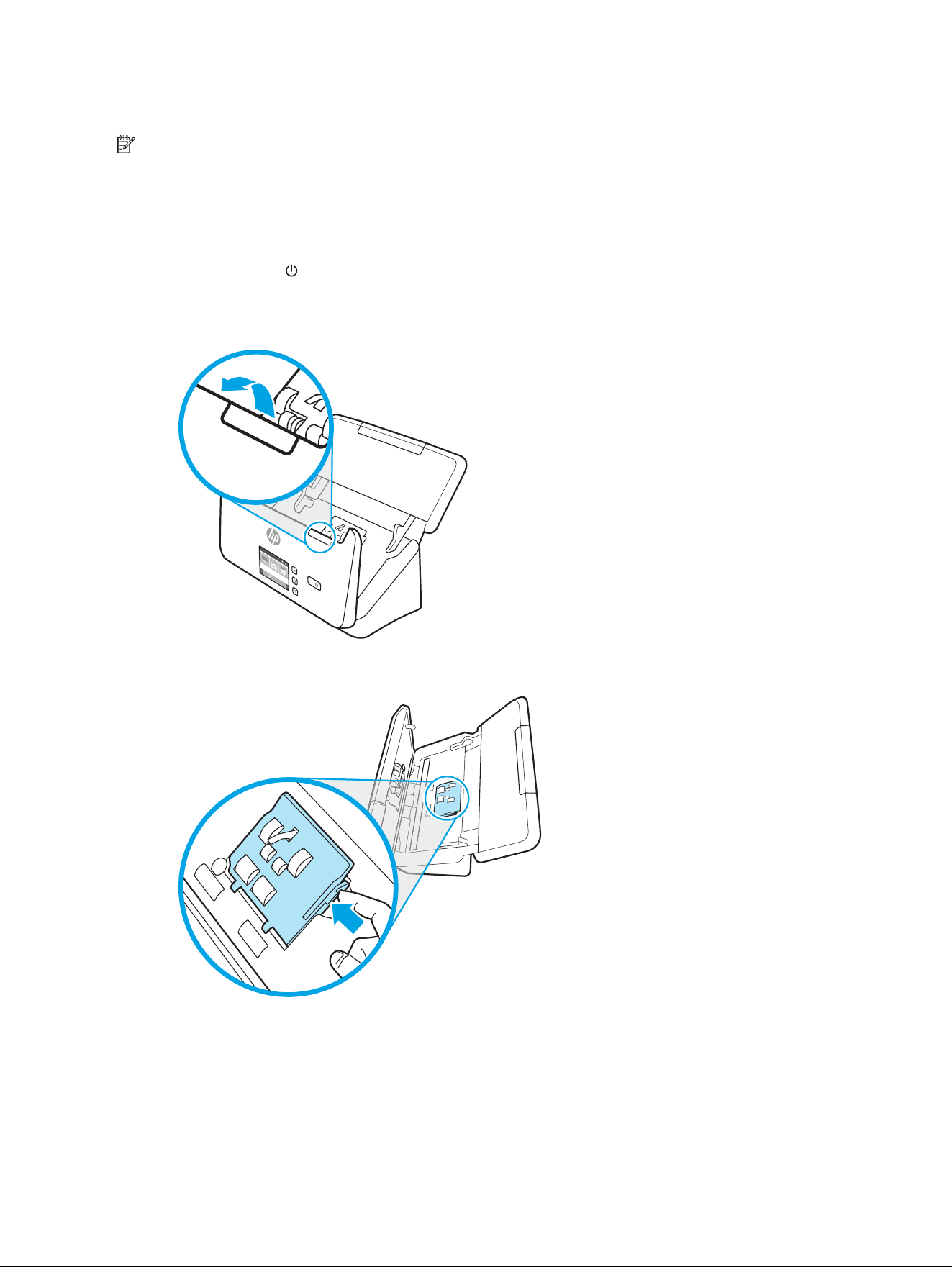
Windows: The HP Scanner Tools Utility can provide a reminder when service is needed, which depends on many
conditions and might be sooner than this replacement interval.
NOTE: The roller replacement kit is a consumable and is not covered under warranty or standard service
agreements.
Replace the pickup roller module
To replace the roller module, follow these steps:
1. Press the Power button to turn o the scanner, and then disconnect the USB cable and power supply
from the scanner.
2. Pull forward on the latch to open the document feeder hatch.
3. Release the pickup roller cover tab.
54 Chapter 3 Care and maintenance
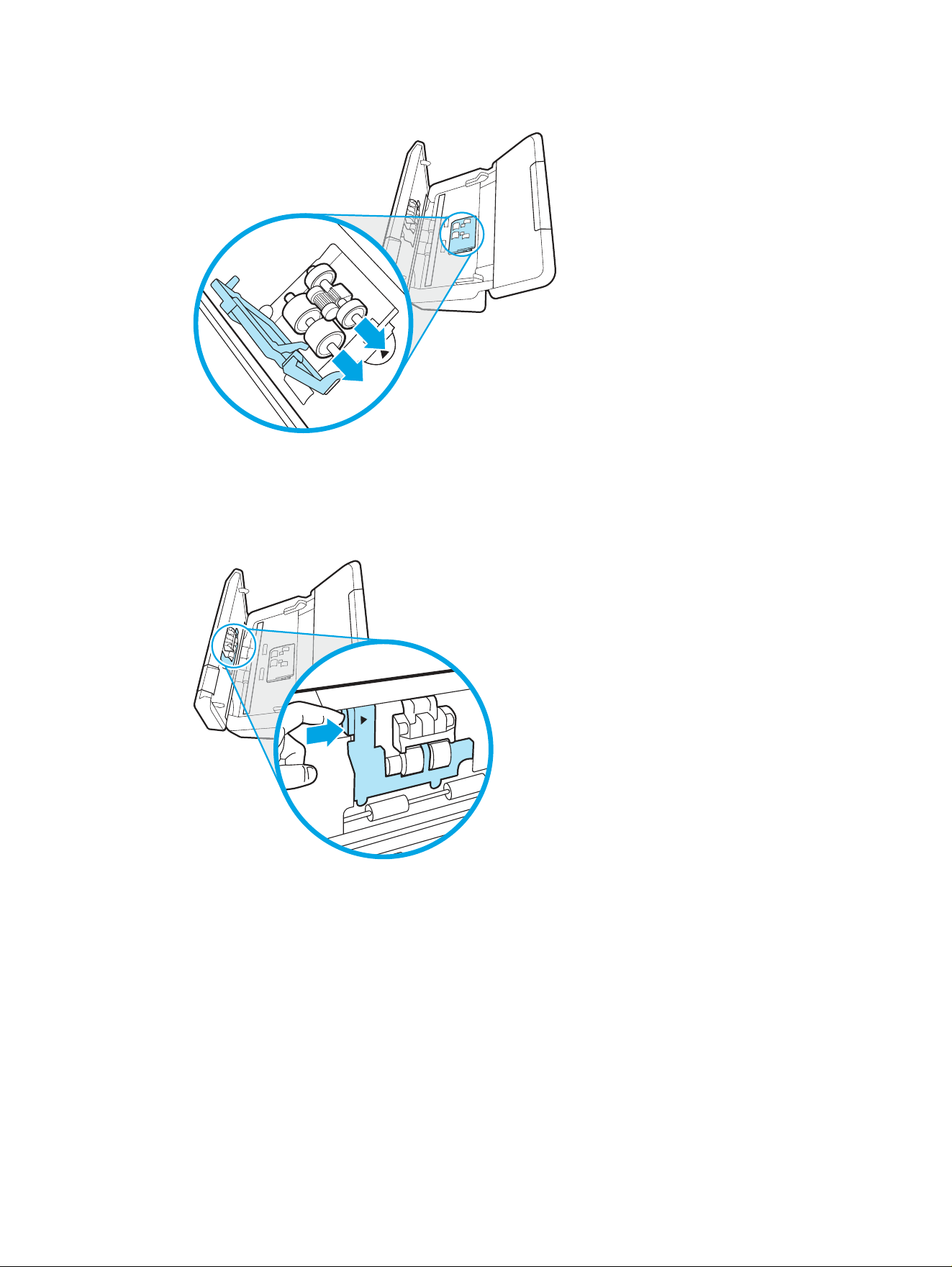
4. Remove and replace the rollers as described in the instructions that were included with the replacement kit.
Replace the separation rollers
To replace the separation rollers, follow these steps:
1. Release the separation roller cover tab.
Replace the separation rollers 55
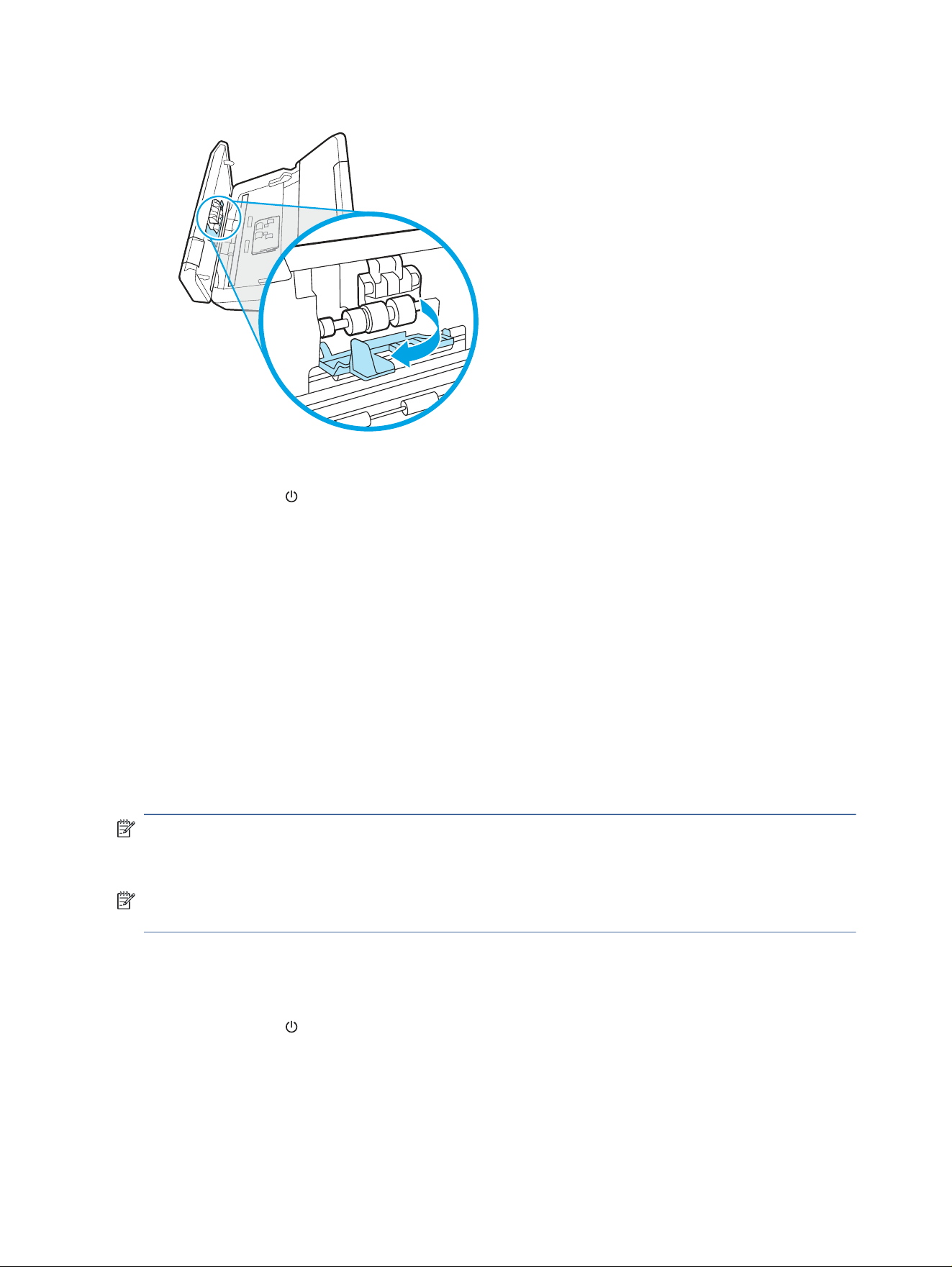
2. Remove and replace the rollers as described in the instructions included with the replacement kit.
3. Press rmly on both sides of the document feeder hatch at the same time to close the hatch.
4. Press the Power button to turn on the scanner.
5. Windows: Update the scanner maintenance history.
a. Open the HP Scanner Tools Utility.
b. Under Record Replacement, click Record Replacement to log this replacement activity and update the
roller replacement history.
Replace the roller kit (5000 s5, 7000 s3 and N7000 snw1 models)
The following topics describe how to replace the roller kit.
Replace the rollers under the following conditions:
● Windows: When the Maintenance Recommended dialog indicates they are due for maintenance.
● If the scanner experiences repeated document jams.
NOTE: HP recommends replacing the rollers every 100,000 scans.
Windows: The HP Scanner Tools Utility can provide a reminder when service is needed, which depends on many
conditions and might be sooner than this replacement interval.
NOTE: The roller replacement kit is a consumable and is not covered under warranty or standard service
agreements.
Replace the pickup roller module
To replace the roller module, follow these steps:
1. Press the Power button to turn o the scanner, and then disconnect the USB cable and power supply
from the scanner.
56
Chapter 3 Care and maintenance
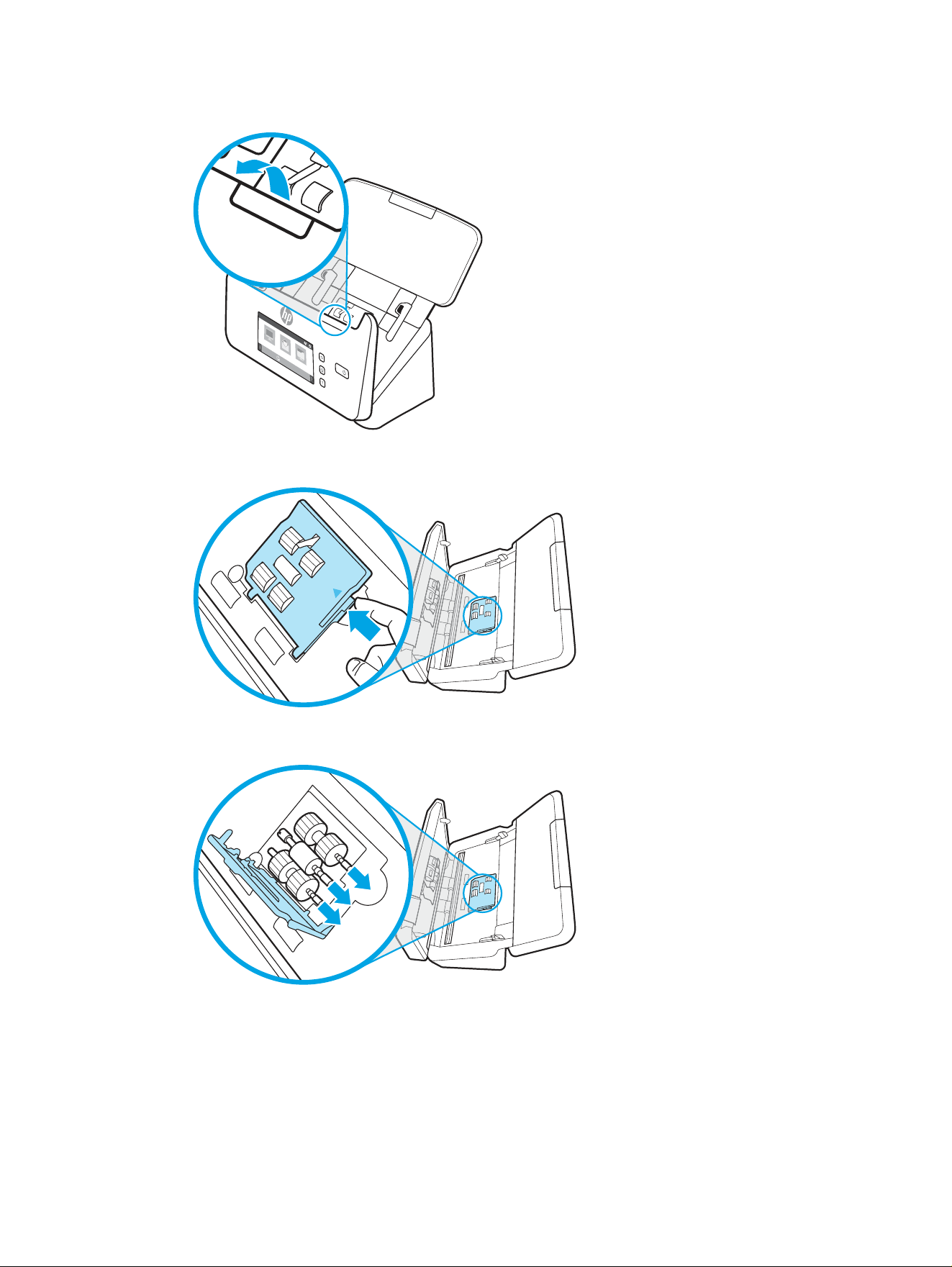
2. Pull forward on the latch to open the document feeder hatch.
3. Release the pickup roller cover tab.
4. Remove and replace the rollers as described in the instructions that were included with the replacement kit.
Replace the separation rollers
To replace the separation rollers, follow these steps:
Replace the separation rollers
57
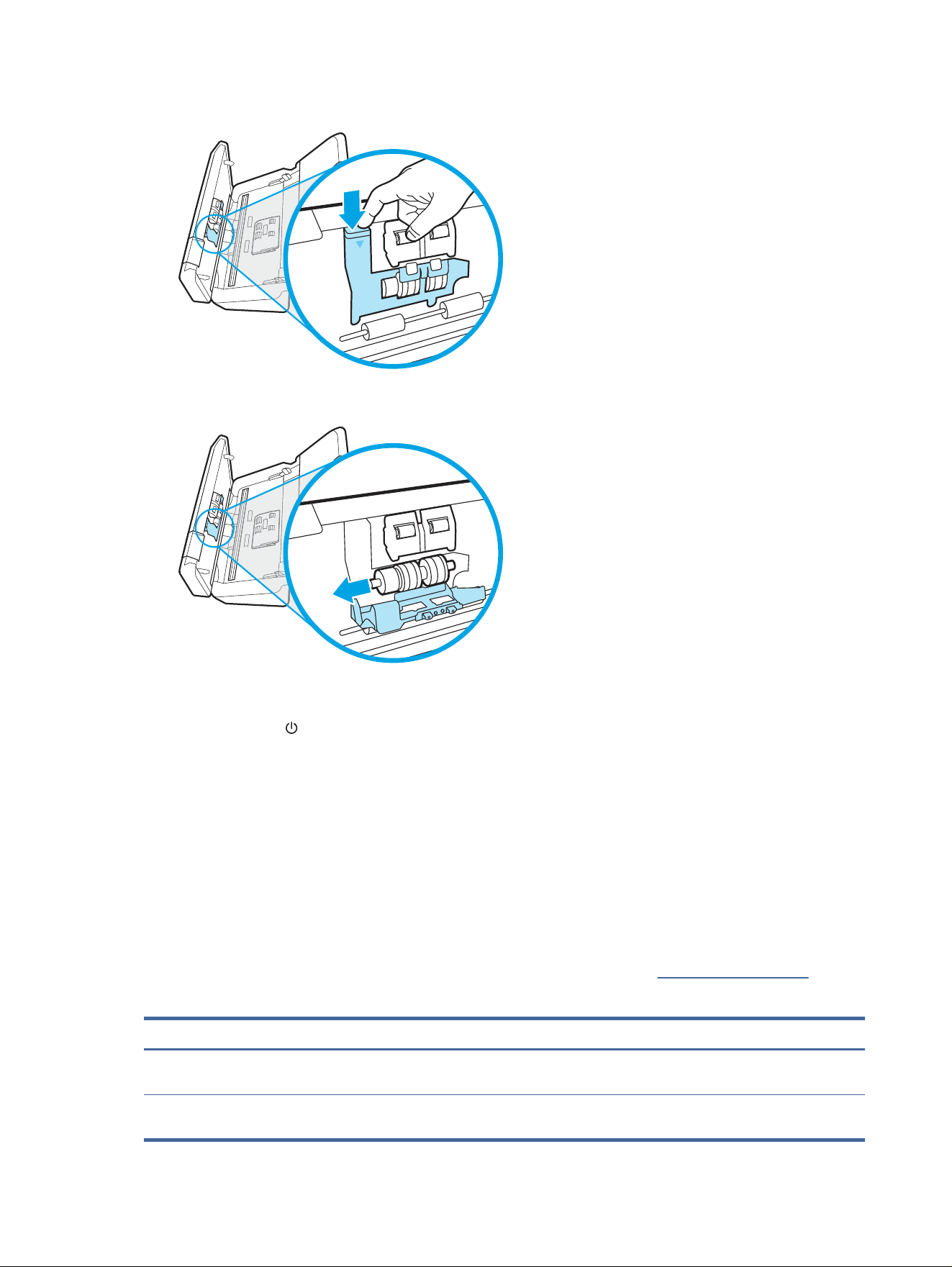
1. Release the separation roller cover tab.
2. Remove and replace the rollers as described in the instructions included with the replacement kit.
3. Press rmly on both sides of the document feeder hatch at the same time to close the hatch.
4. Press the Power button to turn on the scanner.
5. Windows: Update the scanner maintenance history.
a. Open the HP Scanner Tools Utility.
b. Under Record Replacement, click Record Replacement to log this replacement activity and update the
roller replacement history.
Order parts and accessories
The maintenance parts in the following table can be ordered online.
To order maintenance parts for the scanner, see the HP scanner parts website at www.hp.com/buy/parts.
Table 3-1
Roller replacement kit
Item Description Part number
Roller replacement kit Replacement pickup and separation rollers for 2000 s2, 3000 s4
and N4000 snw1 models.
6FW06-60001
Roller replacement kit Replacement pickup and separation rollers for 5000 s5, 7000 s3
and N7000 snw1 models.
L2755-60001
58 Chapter 3 Care and maintenance

Order parts and accessories 59

Solve problems4
This section contains solutions for common problems with the scanner. For additional troubleshooting, see the
Help for the HP scanning program being used.
Basic troubleshooting tips
Simple issues such as smudges on the scanning strips or loose cables can cause the scanner to produce fuzzy
scans, operate in an unexpected manner, or fail to operate. Always check the following items when encountering
scanning problems.
● If scanning a document that will be analyzed using optical character recognition (OCR), make sure that the
original document is clear enough to be analyzed.
● Make sure that the USB and power cables are rmly seated in their respective connectors on the back of the
scanner, and that the power cord is plugged into a working electrical outlet or surge protector.
● Make sure the scanner has not automatically powered o. If it has, press the Power button to turn on the
scanner.
● Ensure that the scanner is receiving power.
– Check that the Power LED on the control panel is on.
– If the Power LED is not on, ensure that power is available to the power outlet or surge protector that the
power supply is plugged into.
– If power is available to the power outlet or surge protector but the Power LED is still not on, the power
supply might be defective. Go to the product support home page for assistance:
○ 2000 s2 models: www.hp.com/support/sj2000s2
○ 3000 s4 models: www.hp.com/support/sj3000s4
○ N4000 snw1 models: www.hp.com/support/sjn4000snw1
○ 5000 s5 models: www.hp.com/support/sjow5000s5
○ 7000 s3 models: www.hp.com/support/sjow7000s3
○ N7000 snw1 models: www.hp.com/support/sjown7000snw1
● If the scanning software displays a Scanner not found message when trying to use the scanner, turn o the
scanner, wait 30 seconds, and then turn on the scanner. If the message still displays, the scanner might need
to be reset.
● If the scanner is connected to the computer through a USB hub or through a USB port on the front of the
computer, disconnect the scanner and then reconnect it to a USB port on the back of the computer.
● Windows: Make sure that the Scan button, the Simplex Scan button, or the Duplex Scan button is
enabled from the HP scanning software.
● Turn o the scanner, wait 30 seconds, and then turn on the scanner.
60
Chapter 4 Solve problems

● Make sure the document feeder hatch is closed.
● Restart the computer.
If problems continue, it is possible that the HP scanning software, rmware, or associated drivers are out of date
or have become corrupted. Visit the product support home page to locate software, rmware, and driver updates
for the scanner:
● 2000 s2 models: www.hp.com/support/sj2000s2
● 3000 s4 models: www.hp.com/support/sj3000s4
● N4000 snw1 models: www.hp.com/support/sjn4000snw1
● 5000 s5 models: www.hp.com/support/sjow5000s5
● 7000 s3 models: www.hp.com/support/sjow7000s3
● N7000 snw1 models: www.hp.com/support/sjown7000snw1
Reset the scanner(N4000 snw1 and N7000 snw1 models)
To reset the scanner, follow these steps:
1. Close the HP Scan software if it is open.
2. Touch the Settings icon from the Home screen on the control panel, select Reset, and then touch Reset.
3. Wait 30 seconds. The scanner resets.
Interpret control panel lights and patterns (2000 s2 and 3000 s4
models)
If the scanner requires attention, the Error light either blinks or is solidly lit on the control panel display.
The following table describes the solution to follow, based on the possible cause of the Error light blinking.
Table 4-1
Cause and solution
Cause Solution
The user pressed the Scan button while the USB cable was
disconnected.
1. Turn o the scanner.
2. Reconnect the USB cable.
3. Turn on the scanner.
The image sensor is not properly calibrated. 1. Turn o the scanner.
2. Turn on the scanner.
There is a jam in the document feeder. 1. Turn o the scanner.
2. Pull forward on the latch to open the document feeder hatch.
3. Clear the jam.
4. Turn on the scanner.
Reset the scanner(N4000 snw1 and N7000 snw1 models) 61

Table 4-1 Cause and solution (continued)
Cause Solution
The document feeder hatch is not properly closed. ▲ Press rmly on both sides of the document feeder hatch at
the same time to close the hatch.
Scanner installation problems
Review the following information about resolving scanner installation problems.
Check the cables
Table 4-2 Check cable
Cable type Action
Power cable The power cable is connected between the scanner and a power outlet.
● Ensure that the power cable is securely connected between the scanner and a live electrical outlet
or surge protector.
● If the power cable is connected to a surge protector, ensure that the surge protector is plugged
into an outlet and turned on.
● Press the Power button to turn o the scanner, and then turn o the computer. After 30
seconds, turn on the scanner and then turn on the computer, in that order.
USB cable The USB cable is connected between the scanner and the computer.
● Use the cable that was included with the scanner. Another USB cable might not be compatible
with the scanner.
● Ensure that the USB cable is securely connected between the scanner and the computer.
● If the USB cable is connected to a USB port on the front of the computer, move it to a USB port on
the back of the computer.
For additional USB troubleshooting information, visit the product support home page, select your
country/region, and then use the search tool to nd USB troubleshooting topics.
● 2000 s2 models: www.hp.com/support/sj2000s2
● 3000 s4 models: www.hp.com/support/sj3000s4
● N4000 snw1 models: www.hp.com/support/sjn4000snw1
● 5000 s5 models: www.hp.com/support/sjow5000s5
● 7000 s3 models: www.hp.com/support/sjow7000s3
● N7000 snw1 models: www.hp.com/support/sjown7000snw1
Ethernet cable (N4000 snw1
and N7000 snw1 models)
Ensure that the Ethernet cable is securely connected between the scanner and your network port.
For additional Ethernet troubleshooting information, see www.hp.com/support, select your country/
region, and then use the search tool to nd Ethernet troubleshooting topics.
62 Chapter 4 Solve problems

Uninstall and then reinstall the HP ScanJet drivers and tools (Windows)
If checking the scanner cable connections did not solve the problem, the problem might have occurred because
of an incomplete installation. Try uninstalling and then reinstalling the HP ScanJet drivers and tools.
1. Press the Power button to turn o the scanner, and then disconnect the USB cable and power cable from
the scanner.
2. On the computer, open Control Panel and use the Programs and Features tool to uninstall the following
applications:
● HP ScanJet Basic Device Software
● HP ScanJet ISIS Driver
● HP Scan
● HP ScanJet Plugin
3. Restart the computer.
4. Reinstall the HP ScanJet Drivers and Tools.
● Turn o the scanner, wait 30 seconds, and then turn on the scanner. The required software and drivers
should install automatically.
● If the drivers and tools do not install automatically, install them manually.
5. Reconnect the USB cable and power cable to the scanner, and then press the Power button to turn on the
scanner.
Power issues
Review the following information about resolving power issues.
Check that the scanner has power
The power cable is connected between the scanner and a power outlet.
● Ensure that the power cable is securely connected between the scanner and a live electrical outlet.
● If the power cable is connected to a surge protector, ensure that the surge protector is plugged into an outlet
and turned on.
● Ensure that the scanner is receiving power.
– Check that the Power LED on the control panel is on.
– If the Power LED is not on, ensure that power is available to the power outlet or surge protector that the
power supply is plugged into.
– If power is available to the power outlet or surge protector but the Power LED is still not on, the power
supply might be defective. Go to the product support home page for assistance:
○ 2000 s2 models: www.hp.com/support/sj2000s2
○ 3000 s4 models: www.hp.com/support/sj3000s4
Uninstall and then reinstall the HP ScanJet drivers and tools (Windows)
63

○ N4000 snw1 models: www.hp.com/support/sjn4000snw1
○ 5000 s5 models: www.hp.com/support/sjow5000s5
○ 7000 s3 models: www.hp.com/support/sjow7000s3
○ N7000 snw1 models: www.hp.com/support/sjown7000snw1
The scanner will not turn on
If the scanner will not turn on after pressing the Power
button, check the following:
● The scanner might have been unplugged. Check to see that the power supply has not become disconnected
from the scanner or unplugged from the power source.
● The power supply might not be working.
– Check that the Power LED on the control panel is on.
– If the Power LED is not on, ensure that power is available to the power outlet or surge protector that the
power supply is plugged into.
– If power is available to the power outlet or surge protector but the Power LED is still not on, the power
supply might be defective. Go to the product support home page for assistance:
○ 2000 s2 models: www.hp.com/support/sj2000s2
○ 3000 s4 models: www.hp.com/support/sj3000s4
○ N4000 snw1 models: www.hp.com/support/sjn4000snw1
○ 5000 s5 models: www.hp.com/support/sjow5000s5
○ 7000 s3 models: www.hp.com/support/sjow7000s3
○ N7000 snw1 models: www.hp.com/support/sjown7000snw1
The scanner has paused or shut down
If the scanner stops scanning, follow these steps. After each step, start a scan to see if the scanner is working. If
the problem persists, proceed with the next step.
1. A cable might be loose. Ensure that both the USB cable and power supply are properly connected.
Use the cable that was included with the scanner. Another USB cable might not be compatible with the
scanner.
2. Ensure that the scanner is receiving power.
a. Check that the Power LED on the control panel is on.
b. If the Power LED is not on, ensure that power is available to the power outlet or surge protector that
the power supply is plugged into.
c. If power is available to the power outlet or surge protector but the Power LED is still not on, unplug the
power cable from the power source, wait 30 seconds, and then plug it back in.
d. If the issue is not xed, the power supply might be defective. Go to the product support home page for
assistance:
64
Chapter 4 Solve problems

● 2000 s2 models: www.hp.com/support/sj2000s2
● 3000 s4 models: www.hp.com/support/sj3000s4
● N4000 snw1 models: www.hp.com/support/sjn4000snw1
● 5000 s5 models: www.hp.com/support/sjow5000s5
● 7000 s3 models: www.hp.com/support/sjow7000s3
● N7000 snw1 models: www.hp.com/support/sjown7000snw1
3. Restart your computer.
4. Windows: On the computer, open Control Panel and use the Programs and Features tool to uninstall the
following applications:
● HP ScanJet Basic Device Software
● HP ScanJet ISIS Driver
● HP ScanJet Plugin
● HP Scan
5. Reconnect the USB cable and power supply to the scanner, and then press the Power button to turn on
the scanner. Reinstall the HP ScanJet software and drivers.
The scanner keeps turning
o
If the scanner keeps turning o, try these steps according to your operating system.
By default, the scanner will enter Sleep Mode prior to 15 minutes of inactivity, and will turn o automatically after
two hours of inactivity to conserve power.
Windows: To change the defaults, complete these steps:
1. Launch the HP Scanner Tools Utility.
2. Click the Settings tab, and then select the appropriate Sleep Mode and Auto-O settings.
● To specify the period of inactivity after which the scanner goes into Sleep Mode, select 15 minutes or 1
hour from the Put the scanner to sleep after drop-down list.
● To specify the period of inactivity after which the scanner automatically turns o, select the appropriate
value (1 hour, 2 hours, 4 hours, or 8 hours) from the Turn o the scanner after drop-down list.
3. Click Apply.
macOS: Use HP Utility to change these defaults.
Paper jams
Review the following information about clearing paper jams.
NOTE: Scanning damp or wet pages can cause paper jams. Make sure that the pages being fed are completely
dry (such as, the toner is dry, or there are no wet substances such as glue or correction uid on the page).
The scanner keeps turning
o 65
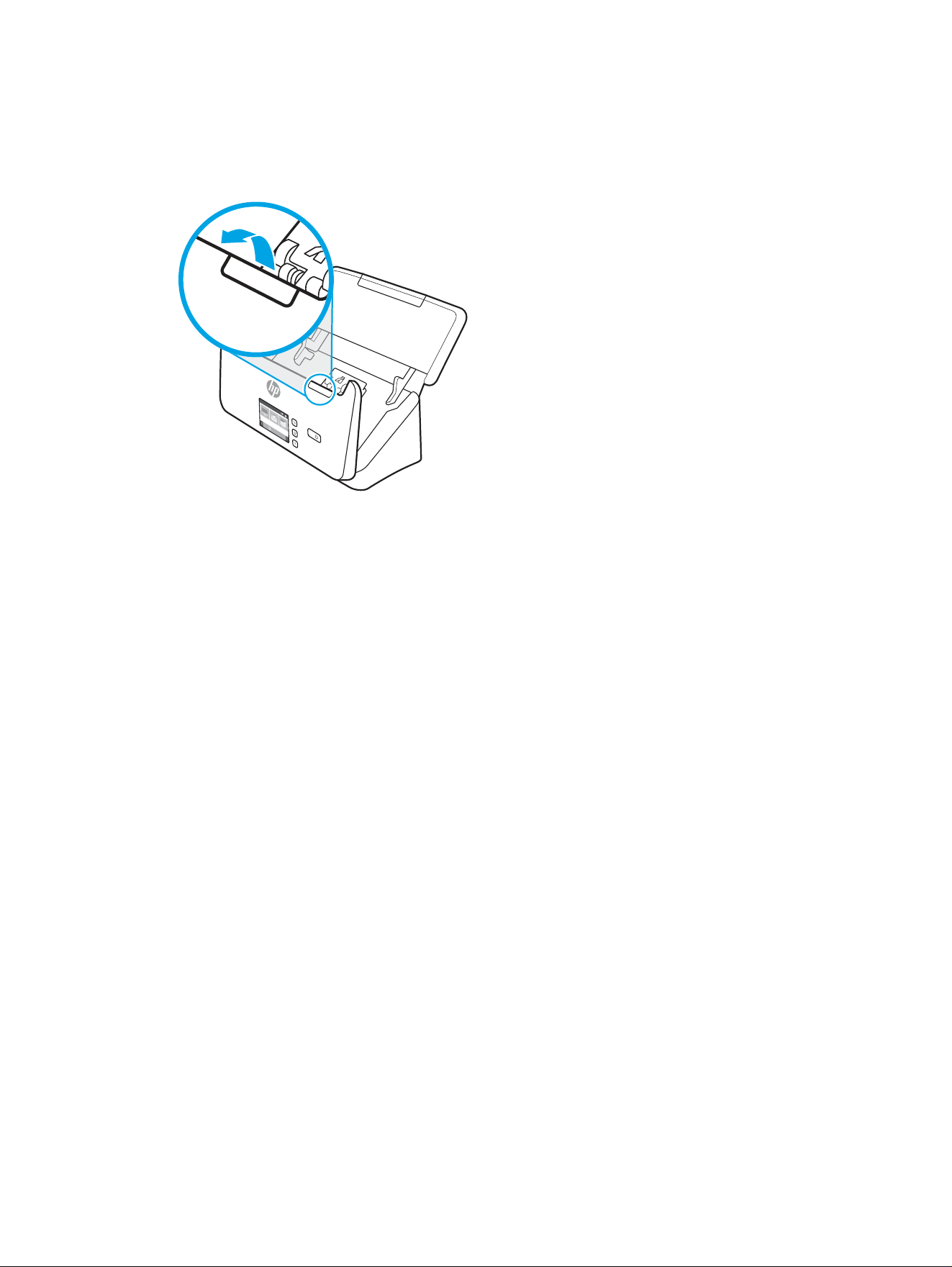
Clear jams from the document feeder
To clear a paper jam, complete these steps:
1. Pull forward on the latch to open the document feeder hatch.
2. Remove any pages from the input tray.
3. Remove the originals or any obstructions from the paper path.
4. Remove any visible debris (for example, paper, staples, or clips) from the paper path.
5. Inspect the four rollers on the front and ve rollers on the rear of the document feeder hatch, and remove
any visible debris.
6. Press rmly on both sides of the document feeder hatch at the same time to close the hatch.
7. Reload all originals in the input tray and scan again.
An item loaded in the scanner jams repeatedly
Check the following for resolving the issue.
● The item might not meet the guidelines for acceptable originals.
● The item might have something on it, such as staples or self-adhesive notes on the original that must be
removed.
● Make sure the paper guides touch the edges of the original.
Paper feed issues
Review the following information about resolving paper feed issues.
Paper jamming, skewing, misfeeds, or multiple-page feeds
Review the following information for resolving the issue.
● Scanning damp or wet pages can cause paper jams. Make sure that the pages you are feeding are
completely dry (toner is dry, there are no wet substances such as glue or correction uid).
66
Chapter 4 Solve problems

● Check that all rollers are in place and that the roller door and document feeder hatch are closed.
● If the pages look skewed as they feed into the scanner paper path, check the resulting scanned images in the
software to ensure that they are not skewed.
● The pages might not be placed correctly. Straighten the pages and adjust the paper guides to center the
stack.
● The paper guides must be touching the sides of the paper stack to work properly. Please ensure that the
paper stack is straight and the guides are against the paper stack.
● The input tray or output tray might contain more than the maximum number of pages. Load fewer pages in
the input tray, and remove pages from the output tray.
● Clean the scanner paper path to help reduce misfeeds. If misfeeds still occur, clean the rollers. If misfeeds
still occur, replace the rollers.
Paper does not feed from the scanner
If paper does not feed from the scanner, try the following:
Reload the pages into the input tray, ensuring that they make contact with the rollers.
The document feeder hatch might not be securely latched. Open the hatch and then close it, pressing rmly on
both sides to ensure the hatch is closed.
A problem with the scanner hardware might exist. Follow this procedure to test the scanner:
1. Ensure that the power supply is securely connected between the scanner and a live electrical outlet or
surge protector. Check that the Power LED on the control panel is on to verify that the power supply is
functional.
2. If the power supply is connected to a surge protector, ensure that the surge protector is plugged into an
outlet and turned on.
3. Press the Power button to turn o the scanner, disconnect the power supply from the scanner, and then
turn of the computer to which the scanner is connected. Wait 30 seconds, reconnect the power supply to
the scanner, press the Power button to turn on the scanner, and then turn on the computer.
4. Try to rescan.
Image quality problems
Review the following information about resolving image quality problems.
The scanned images are not straight
Check the following to resolve the issue.
● Verify that the paper guides are centered on the scanner and set to an appropriate width for the original
being scanned. Make sure the paper guides touch the edges of the original.
● Windows: Use the Straighten Content feature to straighten content that is skewed relative to the page
dimensions in the source document. Use the Detect Size feature to deskew page images that might have
become skewed during the scanning process.
Paper does not feed from the scanner
67

The scanned images have streaks or scratches
Try the following to resolve the issue.
● Check that the originals are clean and unwrinkled.
● Clean the scanner strips. For information on cleaning the scanner, see Care and maintenance on page 48.
The scanned image is fuzzy
Check the following to resolve the issue.
● Check for any obstructions in the scanner paper path and make sure the paper guides are positioned
appropriately. Try another scan.
● Verify that the document is not fuzzy.
● Dust can build up on the scanning strips inside the document feeder and cause low-quality scans. Clean the
scanning strips with a soft, lint-free cloth that has been sprayed with a mild glass cleaner.
The scanned image is completely black or completely white
Check the following to resolve the issue.
● The item might not be placed correctly in the input tray. Make sure that the item being scanned is placed face
down in the input tray.
● Windows: If scanning to a black and white image, make sure neither the black nor the white threshold is set
to extreme. Setting the threshold to an extreme will result in an image that is all white or all black.
● macOS: If scanning to a text image using the Image Capture application, set Image Correction to Manual and
use the Threshold slider bar to adjust the threshold.
The bottom of the scanned image is cut
o
By default, the scanning software can scan media that is up to 356 mm (14 in) long.
Verify that the page size selected in the scanning software (or the scan shortcut selected) will accommodate the
length of the document being scanned.
The scanned image cannot be enlarged
The software might be setting the exposure for the entire scan area instead of for one small original. Select and
drag the handles around the selection area until you see the image area you want to scan.
Scanner operation problems
Review the following information about resolving scanner operation problems.
Connection issues
Review the following information about resolving connection issues.
68
Chapter 4 Solve problems

Check the USB connection
Follow these steps to check the USB connection.
Check the physical connection to the scanner.
● Use the cable that was included with the scanner. Another USB cable might not be compatible with the
scanner.
● Ensure that the USB cable is securely connected between the scanner and the computer. The trident icon on
the USB cable faces down when the cable is properly connected to the scanner.
If the problem persists after verifying the above items, try the following:
1. Do one of the following tasks depending on how the scanner is connected to the computer:
● If the USB cable is connected to a USB hub or a docking station for a laptop, disconnect the USB cable
from the USB hub or the docking station, and then connect the USB cable to a USB port on the back of
the computer.
● If the USB cable is directly connected to the computer, plug it into a dierent USB port on the back of
the computer.
● Remove all other USB devices from the computer except for the keyboard and the mouse.
2. Press the Power button to turn o the scanner, wait 30 seconds, and then turn on the scanner.
3. Restart the computer.
4. After the computer has restarted, try using the scanner.
● If the scanner works, reconnect any additional USB devices one at a time; try the scanner after
connecting each additional device. Disconnect any USB devices that prevent the scanner from working.
● Windows: If the scanner does not work, uninstall and then reinstall the HP ScanJet drivers and
software.
Check the ethernet connection (N4000 snw1 and N7000 snw1 models)
Follow these steps to check the ethernet connection.
1. Ensure that the Ethernet cable is rmly connected between the product and a router, Ethernet jack, or
Ethernet switch.
2. If the Ethernet cable is connected to a network router or Ethernet switch, try connecting it to a dierent port
on the router or switch.
3. Press the Power button to turn o the scanner, wait 30 seconds, and then turn on the scanner.
Check the wireless connection (N4000 snw1 and N7000 snw1 models)
Review the following to check the wireless connection.
● Verify that the network cable is not connected.
● Verify that the scanner and the wireless router are turned on and have power. Also make sure that the
wireless radio in the scanner is turned on.
● Verify that the service set identier (SSID) is correct. If you are not sure the SSID is correct, run the wireless
setup again.
Check the USB connection
69

● With secured networks, verify that the security information is correct. If the security information is incorrect,
run the wireless setup again.
● If the wireless network is working correctly, try accessing other computers on the wireless network. If the
network has Internet access, try connecting to the Internet over a wireless connection.
● Verify that the encryption method (AES or TKIP) is the same for the scanner as it is for the wireless access
point (on networks using WPA security).
● Verify that the scanner is within the range of the wireless network. For most networks, the scanner must be
within 30 m (100 ft) of the wireless access point (wireless router).
● Verify that obstacles do not block the wireless signal. Remove any large metal objects between the access
point and the scanner. Make sure poles, walls, or support columns containing metal or concrete do not
separate the scanner and wireless access point.
● Verify that the scanner is located away from electronic devices that might interfere with the wireless signal.
Many devices can interfere with the wireless signal including motors, cordless phones, security system
cameras, other wireless networks, and some Bluetooth devices.
● Verify that the scan driver is installed on the computer.
● Verify that the computer and scanner connect to the same wireless network.
● For macOS, verify that the wireless router supports Bonjour.
Buttons are not working properly
If the buttons are not working properly, complete the following steps.
1. A cable might be loose. Ensure that the USB cable and the power supply are securely connected.
2. Turn o the scanner, wait 30 seconds, and then turn the scanner back on.
3. Restart the computer.
4. If the problem still persists, there might be a problem with the control panel. Contact HP Support at:
● 2000 s2 models: www.hp.com/support/sj2000s2
● 3000 s4 models: www.hp.com/support/sj3000s4
● N4000 snw1 models: www.hp.com/support/sjn4000snw1
● 5000 s5 models: www.hp.com/support/sjow5000s5
● 7000 s3 models: www.hp.com/support/sjow7000s3
● N7000 snw1 models: www.hp.com/support/sjown7000snw1
LCD issues (5000 s5 and 7000 s3 models)
Review the following information to resolving LCD issues.
The LCD is having display issues
The following symptoms indicate a problem with the scanner control panel.
● LCD issues: The display is blank, or part of the display content is missing.
70
Chapter 4 Solve problems

● LED issues: LEDs are not working, or are staying in the wrong state.
If the scanner exhibits any of these problems, contact HP support at www.hp.com/support.
The scanner buttons are not working as expected
The following symptoms indicate a problem with the scanner control panel.
● Button issues: Buttons are unresponsive, or the wrong action occurs when you press a button. For example,
you get a single-sided scan when you press the Duplex Scan button.
● LED issues: LEDs are not working, or are staying in the wrong state.
If the scanner exhibits any of these problems, contact HP support at www.hp.com/support.
The touch panel display issues (N4000 snw1 and N7000 snw1 models)
The following symptoms indicate a problem with the scanner touch panel.
● Touch panel issues: The display is blank, or part of the display content is missing.
● Button issues: Buttons are unresponsive, or the wrong action occurs when you press a button (for example,
you get a single-sided scan when you press the Duplex Scan button.
If the scanner exhibits any of these problems, contact HP support at www.hp.com/support.
Scanning performance issues
Review the following information about resolving scanning performance issues.
The scanner does not scan immediately
Make sure the document feeder hatch is closed, and that the scanner is turned on.
The scanner is scanning items very slowly
When scanning to edit text, the optical character recognition (OCR) causes the scanner to scan more slowly, which
is normal. Wait for the item to scan.
NOTE: Windows: For the best OCR results, scanner compression should be set to the minimum compression
level or be disabled.
Scanning at a higher resolution than necessary increases scanning time and creates a larger le with no
additional benet. If you are scanning at a high resolution, set the resolution to a lower level to increase scanning
speed.
The scanner scans only one side of a two-sided page
Verify that the selected scan shortcut species two-sided scanning.
Scanned pages are missing at the scan destination
When scanning, pages that stick together are scanned as one item. Check to conrm that scanned pages are not
stuck together.
The scanner buttons are not working as expected
71

Scanned pages are out of order at the scan destination
If scanned pages are out of order at the scan destination, check the following.
● Verify that the page order of the original document is correct before placing the document face down into
the input tray.
● Make sure that there are no staples, paper clips, or any other attached material (such as adhesive notes) that
might cause the pages to feed incorrectly.
● Verify that pages are not stuck together.
Scanned les are too large
If scan
les are too large, check the following.
● Most scanning software allows a smaller le size to be selected when selecting the output le type. For more
information, see the Help for the scanning software being used.
● Verify the scan resolution setting (for more information, see the Help for the scanning software being using):
– 200 dpi is suicient for storing documents as images.
–
For most fonts, 300 dpi is suicient for using optical character recognition (OCR) to create editable text.
– For Asian fonts and small fonts, choosing a higher resolution is recommended.
NOTE: For some special black dot background scans, saving the image as a .tif le might make the image
smaller.
Scanning at a higher resolution than necessary creates a larger le with no additional benet.
● Color scans create larger les than do black and white scans.
● If scanning a large number of pages at one time, consider scanning fewer pages at a time to create more,
smaller les.
Issues with text recognition (OCR) (Windows)
The scanner uses optical character recognition (OCR) to convert text on a page to text that can be edited on a
computer.
● If text can be scanned but cannot be edited, make the following selections before scanning:
– Select a scan shortcut that supports OCR. The following scan shortcuts support OCR:
○ Save as PDF
○ Email as PDF
○ Save as Editable Text (OCR)
○ Send to Cloud
○ Everyday Scan
– Select one of the following OCR-based, output-le types from the File Type drop-down box:
○ Text (.txt)
72
Chapter 4 Solve problems

○ Rich Text (.rtf)
○ Word (.doc, .docx)
○ Excel (.xls, .xlsx)
○ CSV (.csv)
○ XML (.xml)
○ Searchable PDF (.pdf)
○
PDF/A (.pdf)
NOTE: If an OCR-based, output-le type is not selected, the document is scanned as a graphic and the text is
not editable.
● Check the originals
– The software might not recognize text that is tightly spaced. For example, if the text that the software
converts has missing or combined characters, "rn" might appear as "m".
– The accuracy of the software depends on the image quality, text size, and structure of the original and
the quality of the scan itself. Make sure that the original has good image quality.
– Colored backgrounds can cause images in the foreground to blend too much.
● If the scanner strips are dirty, the scan le does not have optimum clarity. Make sure the scanner strips are
clean.
Email problems (N4000 snw1 and N7000 snw1 models)
To resolve email problems, try the following.
Validate the SMTP gateway address
Open the Embedded Web Server to conrm that the SMTP gateway address is correct. Also conrm that the
email address being used is valid.
Validate the LDAP gateway (Windows)
Use the following procedure to validate the LDAP gateway in Windows.
1. Open Windows Explorer. In the address bar, type LDAP:// immediately followed by the LDAP gateway
address. For example, type LDAP://12.12.12.12 where "12.12.12.12" represents the LDAP gateway
address.
2. Press the Enter key. If the LDAP gateway address is valid, the Find People dialog box opens.
3. If the LDAP gateway address is not valid, contact the network administrator.
Additional troubleshooting
Email problems (N4000 snw1 and N7000 snw1 models) 73

Table 4-3 Additional troubleshooting support
Support Where to get
Get telephone support for your country/region
Have the product name, serial number, date of purchase, and
problem description ready.
Country/region phone numbers are on the yer that was in the box
with the product or at www.hp.com/support.
Get 24-hour Internet support, and download software utilities,
drivers, and electronic information
Product support home page:
● 2000 s2 models: www.hp.com/support/sj2000s2
● 3000 s4 models: www.hp.com/support/sj3000s4
● N4000 snw1 models: www.hp.com/support/sjn4000snw1
● 5000 s5 models: www.hp.com/support/sjow5000s5
● 7000 s3 models: www.hp.com/support/sjow7000s3
● N7000 snw1 models: www.hp.com/support/
sjown7000snw1
Order additional HP service or maintenance agreements www.hp.com/support
74 Chapter 4 Solve problems

Index
A
acoustic specications 1, 9, 10
Auto color detect 15, 39
automatically crop or pad scanned
image to selected page size 15,
39
automatically detect page size 15,
39, 43
B
black scans
troubleshoot 60, 67, 68
blurry images 60, 67, 68
buttons
Cancel 1, 6
Duplex Scan 6
Power 1, 6
Scan 1, 6
scanner control panel 1, 6
scanner touch panel 7
Simplex Scan 6
C
cables
troubleshoot 60, 62
Cancel button 1, 6
clean
paper path 48
rollers 48
cleaning cloth 48
cloud, scan to 15, 39
control panel 1
buttons 6
See control panel
locating 1, 2
crooked images 60, 67
crop or pad scanned image to
selected page size 15, 39
customer support
online 60, 73
cut-o images
troubleshoot 60, 67, 68
D
detect multi-feeds 15, 39, 41
detect page size 15, 39, 43
display problems 70, 71
drivers
paper sizes 15, 25, 27
Duplex Scan button 6
E
electrical specications 1, 9, 10
extra-long-page support 15, 39, 41
F
features
auto color detect 15, 39
crop or pad scanned image to
selected page size 15, 39
detect page size 15, 39, 43
extra-long-page support 15, 39,
41
long-page support 15, 39, 41
multi-feed detection 15, 39, 41
scan shortcuts 39
feeding problems 60, 65
fragile items, scanning 15, 46, 47
fuzzy images 60, 67, 68
H
HP Customer Care 60, 73
HP paper path cleaning cloth 48
HP Scan Extended software
about 1, 12
HP Scanner Tools Utility
uses for 1, 12
HP TWAIN 1, 12
HP Utility 15, 45, 46
HP Utility for Mac
Bonjour 15, 45, 46
features 15, 45, 46
HP Utility, Mac 15, 45, 46
HP Web Jetadmin 13
I
input and output trays
locating 1
input tray
load cards 15, 25
load documents 15, 25
locating 2
tips on loading 15, 25
install software
troubleshoot 60, 62
ISIS 1, 12, 13
J
jams
troubleshoot 60, 65, 66
Jetadmin, HP Web 13
L
LCD problems 70
LED
error 60, 61
long-page support 15, 39, 41
M
Macintosh
HP Utility 15, 45, 46
macOS software 1, 13
maintenance
clean paper path 48
clean rollers 48
manage power settings 60, 63
media
jams 60, 65, 66
misfeeds 60, 66
not feeding 60, 66
troubleshoot 60, 66
memory
included 1, 9
minimum system requirements 9
misfeeds
troubleshoot 60, 66
multi-feed detection 15, 39, 41
multiple-page feeds 60, 66
N
networks
HP Web Jetadmin 13
supported 1, 9
O
on/o button, locating 1, 2
online support 60, 73
operating systems (OS)
supported 1, 9
Index
75

operating systems, supported 9
order
roller replacement kit 48, 53, 56
supplies 48, 58
OS (operating system)
supported 1, 9
output tray
locating 1, 2
P
pages missing, troubleshoot 60, 68,
71
pages out of order 60, 68, 69, 71,
72
pages per minute 1, 9
paper
jams 60, 65, 66
misfeeds 60, 66
not feeding 60, 66
supported sizes 15, 25, 27
troubleshoot 60, 66
paper guides, locating 1, 2
paper path
clean 48
feeding problems 60, 65
parts
order 48, 53, 56
power
consumption 1, 9, 10
Power button 1, 6
power button, locating 1, 2
Power LED 1, 6
power management 60, 63
power supply
troubleshoot cable 60, 62
problems with LCD 70
problems with touch panel 71
product
auto-o 1, 14
Sleep Mode 1, 14
product info 1
R
replace rollers 48, 53, 56
roller kit
replace 48, 53, 56
rollers
clean 48
replace 48, 53, 56
S
scan
cards 15, 25
feeding problems 60, 65
les too large 60, 68, 71, 72
fragile items 15, 46, 47
originals 15, 25
Scan 37
Scan button 1, 6
scan shortcuts 39
scan to cloud 15, 39
Scan to Email
conguration 15
Scan to Network Folder
initial setup 15, 18
Scan to SharePoint
enabling 15
Scan to USB Drive
enabling 15, 20
scanner
control panel 1, 6
touch panel 7
scanner software
Mac 1, 13
Windows 1, 12
Simplex Scan button 6
skewed images 60, 67
Sleep Mode 1, 14
software
HP Utility 15, 45, 46
Mac 1, 13
troubleshoot installation 60, 62
uninstall and reinstall 60, 62, 63
Windows 1, 12
specications
electrical and acoustic 1, 9, 10
speed
troubleshoot 60, 68, 71
speed, troubleshoot 15, 46, 47
status
HP Utility, Mac 15, 45, 46
streaks
troubleshoot 60, 67, 68
supplies
order 48, 58
status, viewing with HP Utility for
Mac 15, 45, 46
support
online 60, 73
supported operating systems 9
system requirements
minimum 9
T
technical support
online 60, 73
touch panel problems 71
trays
capacity 1, 9
included 1, 9
troubleshoot
basic tips 60
black scans 60, 67, 68
cables 60, 62
check power 60, 63
crooked images 60, 67
cut-o images 60, 67, 68
feeding problems 60, 65
fragile items 15, 46, 47
fuzzy images 60, 67, 68
installation 60, 62
jams 60, 65, 66
large scan les 60, 68, 71, 72
misfeeds 60, 66
page order 60, 68, 69, 71, 72
pages missing 60, 68, 71
paper not feeding 60, 66
power 60, 63, 64
scanning fragile items 15, 46, 47
speed 15, 46, 47, 60, 68, 71
stops working 60, 63
streaks 60, 67, 68
two-sided scans 60, 68, 71
uninstall and reinstall
software 60, 62, 63
white scans 60, 67, 68
troubleshooting
buttons 70, 71
display 70, 71
LCD 70
touch panel 71
turn on scanner
troubleshoot 60, 63, 64
TWAIN 1, 12
two-sided scans
troubleshoot 60, 68, 71
U
uninstall and reinstall software 60,
62, 63
USB cable
troubleshoot 60, 62
W
Web sites
HP Web Jetadmin,
downloading 13
websites
customer support 60, 73
order supplies 48, 58
replacement parts 48, 53, 56
76
Index