Step 3
Step 1
Operation
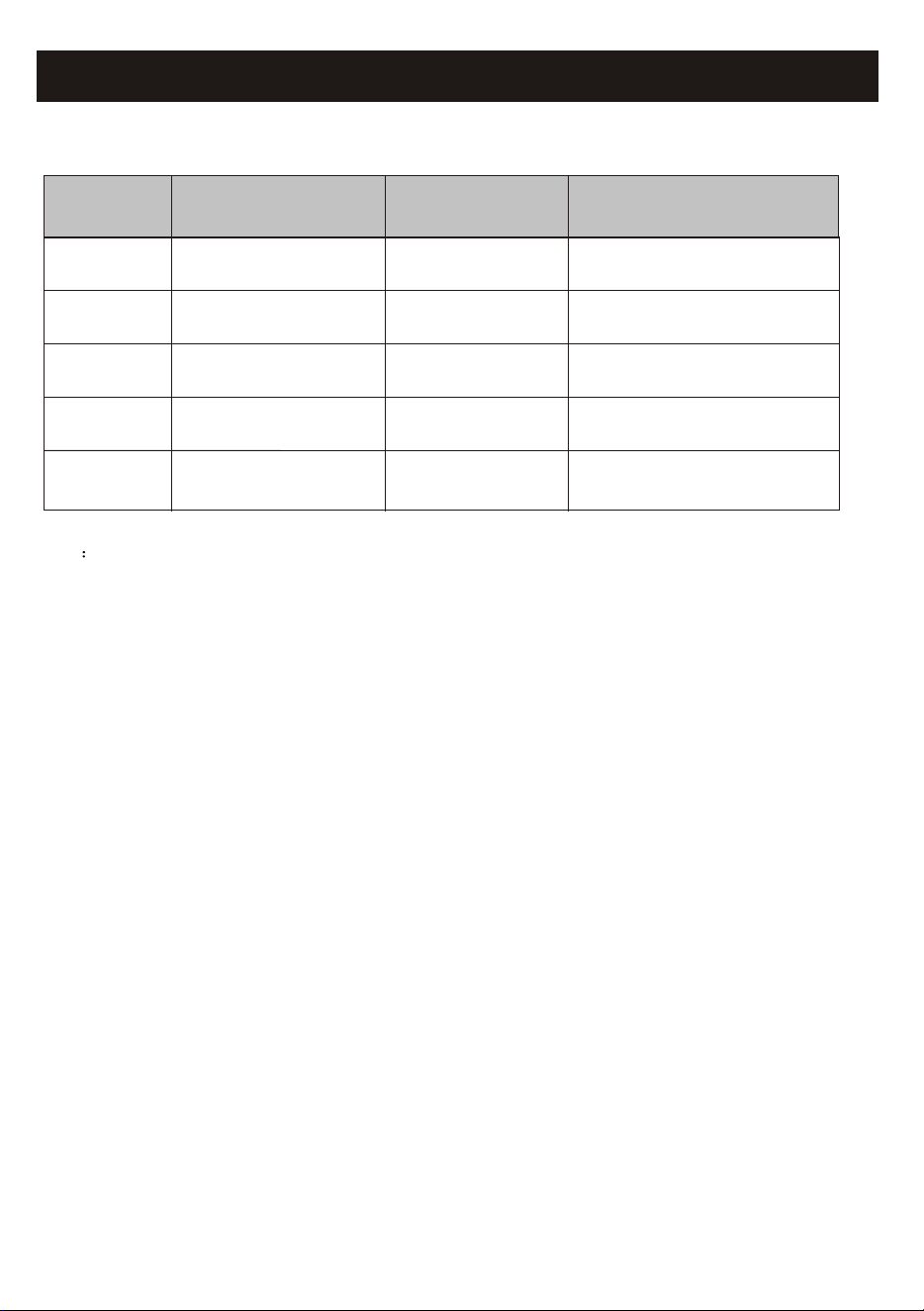
Steps
Step 4
Step 2
Step 5
Registration
Account
Download and
Install APP
Operation
Items
Login
Activate APP
Add Device to control
YES
YES
New Account
YES
YES
YES
NO
YES
Re-install APP
(registered before)
YES
YES
Registered Device will remain.
Operation guideline. Please take below simple guideline instruction as reference.
Note If you registered the account and added device before, when you re-install the APP again and login,
the added device will remain .
FCC Caution (
FCC ID: 2AJCLTWAC-TYWFS)
This device complies with part 15 of the FCC Rules. Operation is subject to the following two
conditions: (1) This device may not cause harmful interference, and (2) this device must accept
any interference received, including interference that may cause undesired operation.
Any Changes or modifications not expressly approved by the party responsible for compliance
could void the user's authority to operate the equipment.
Note: This equipment has been tested and found to comply with the limits for a Class B digital
device, pursuant to part 15 of the FCC Rules. These limits are designed to provide reasonable
protection against harmful interference in a residential installation. This equipment generates
uses and can radiate radio frequency energy and, if not installed and used in accordance with
the instructions, may cause harmful interference to radio communications. However, there is
no guarantee that interference will not occur in a particular installation. If this equipment does
cause harmful interference to radio or television reception, which can be determined by turning
the equipment off and on, the user is encouraged to try to correct the interference by one or
more of the following measures:
-Reorient or relocate the receiving antenna.
-Increase the separation between the equipment and receiver.
-Connect the equipment into an outlet on a circuit different from that to which the receiver is
connected.
-Consult the dealer or an experienced radio/TV technician for help.
The distance between user and device should be no less than 20cm.
Let's get start!

CONTENTS
Wi-Fi Module specification and basic information ..............................................1
Download and Install the App.............................................................................2
Activate APP.........................................................................................................3
Registration.........................................................................................................4
Login....................................................................................................................6
Add device........................................................................................................8
Air conditioner control.......................................................................................10
Account management........................................................................................29
Trouble Shooting...............................................................................31
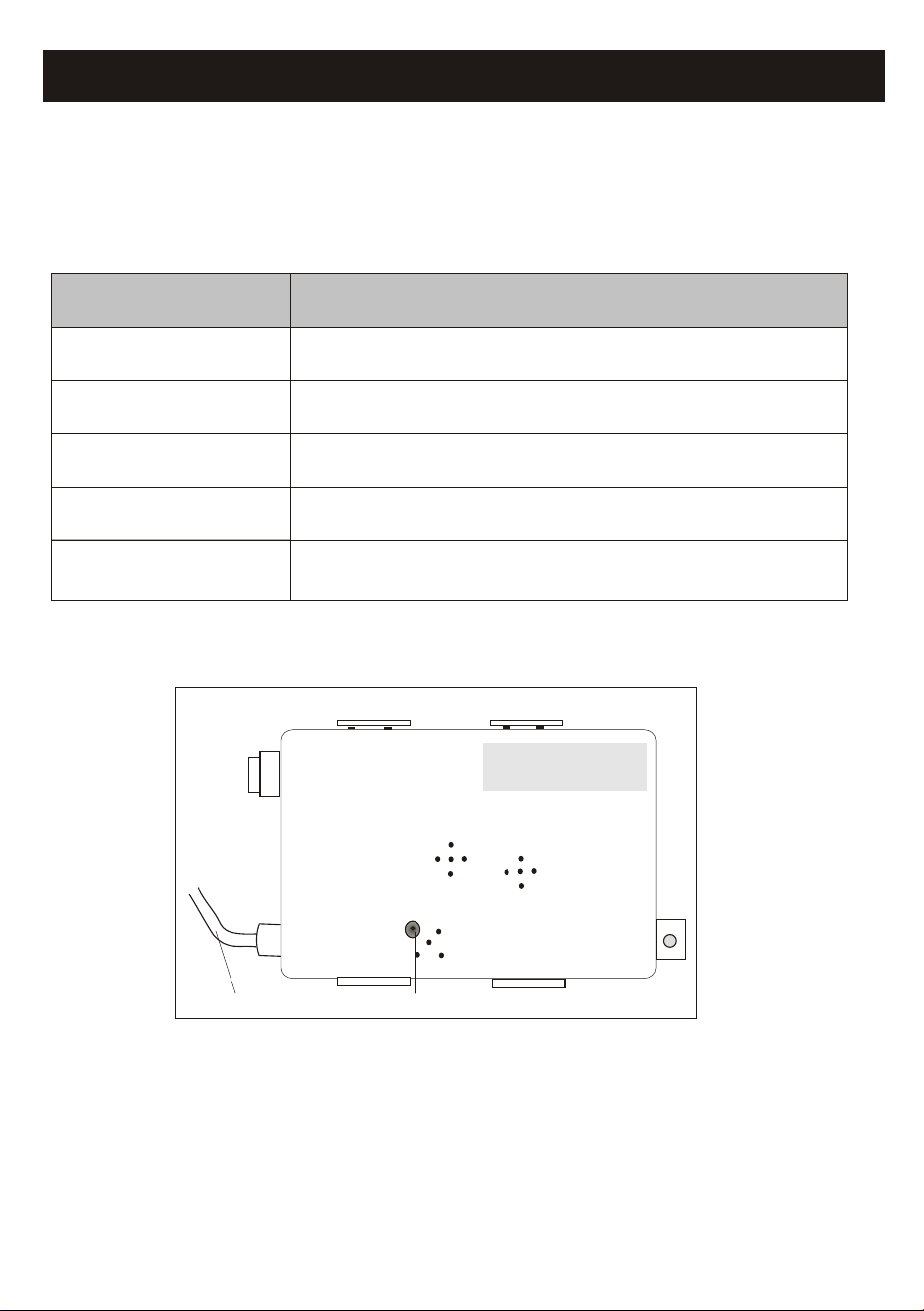
1. Minimum specifications on a Smart phone:
Android 5.0 version or higher
IOS 9.0 version or higher
Wi-Fi Module specification and basic information
1
3. Wi-Fi module location and appearance in indoor unit
Open the front panel, the Wi-Fi module is nearby the electric box cover or on the panel.
RESET
SN:
Reset button
Connecting cable
2. Basic parameters for Wi-Fi module
2.400 - 2.500GHz
Protocol stack support
IEEE 802.11 b/g/n(channels 1-14)
Network frequency
Parameters
IPv4/IPv6/TCP/UDP/HTTPS/TLS/MulticastDNS
Security support
WEP/WPA/WPA2/AES128
Details
Standards of WLAN
Network type support
STA/AP/STA+AP
Download and Install the App
2
Smart Life
Note:
Please enable the permissions of Storage/Location/Camera for this APP when installing.
Otherwise it will have some problems when operating.
For Android smart phone
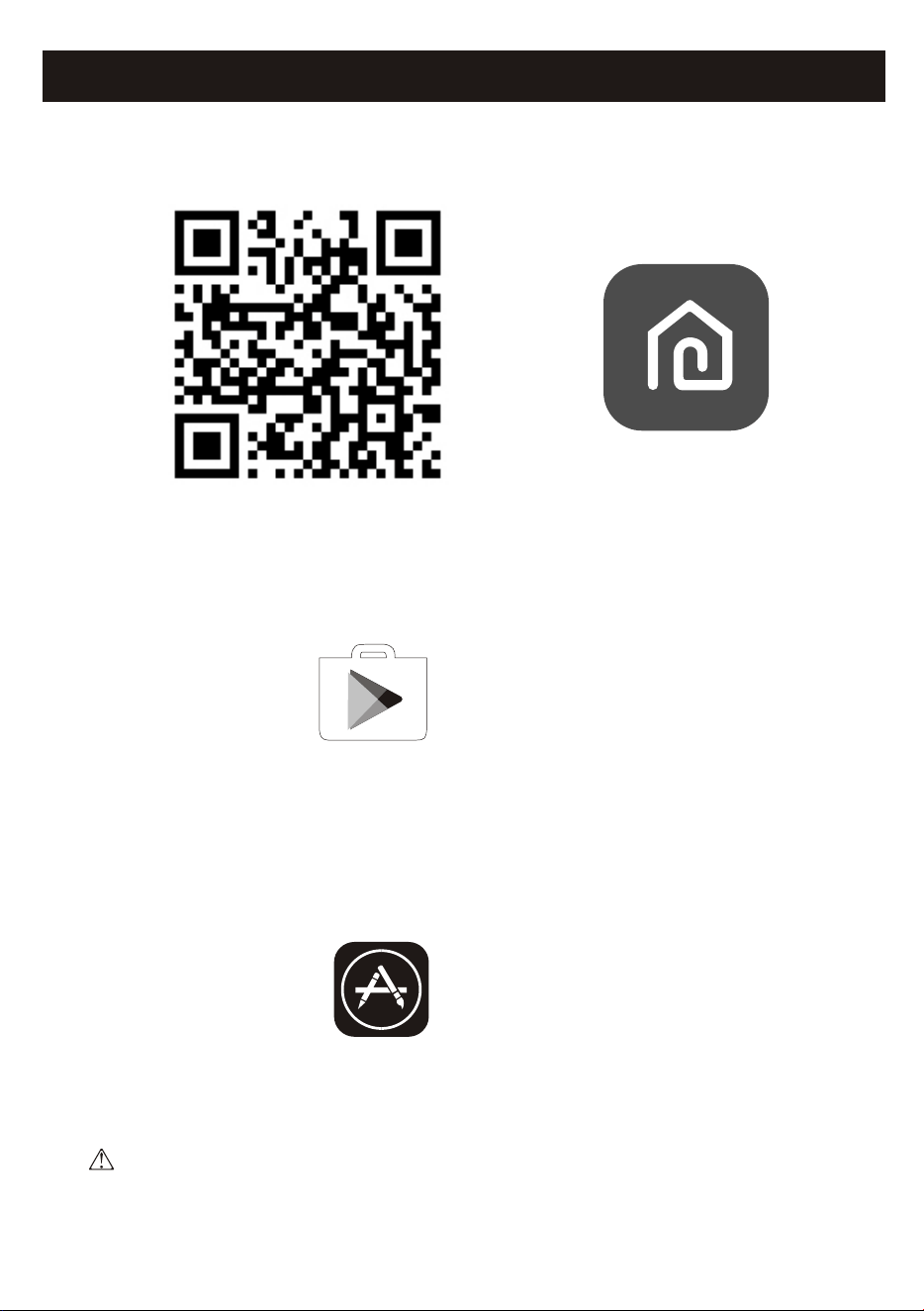
Method1: Please scan the QR code with a browser scanner, download and install the APP.
Method2: Open the Google "Play Store" on your smart phone and search "Smart Life",
download and install the APP.
For IOS smart phone
Method1: Please scan the QR code and follow the tips to get into "AppStore", download
and install the APP.
Method2: Open the Apple "AppStore" on your smart phone and search "Smart Life",
download and install the APP.
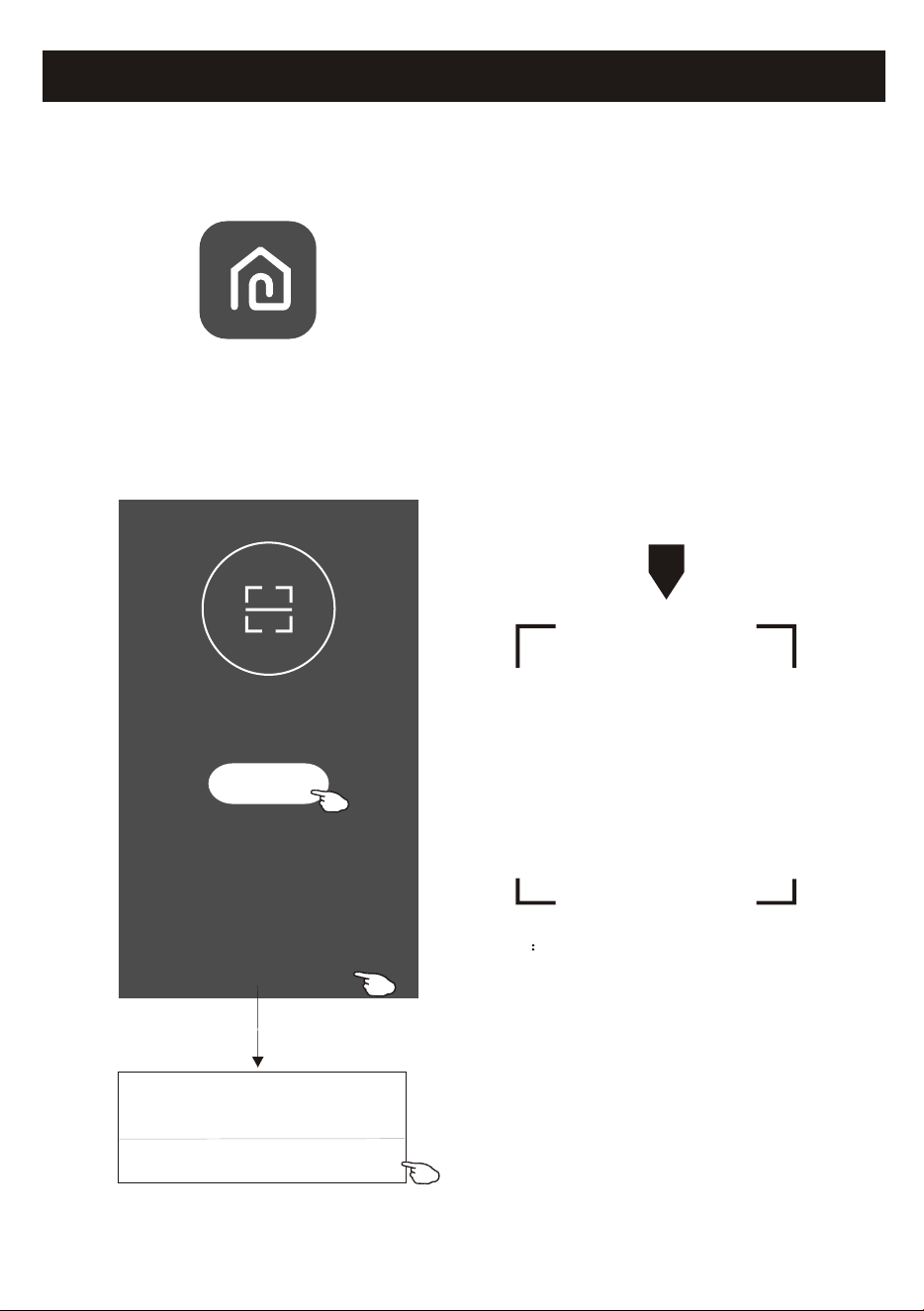
1. Launch the APP "Smart Life" on your smart phone.
3
Activate APP
2. Method1:Tap button "Scan" and scan the right Activate QR code
Method2: Tap "or Enter Activation Code" in bottom of the screen,
then enter the activate code and tap "CONFIRM".
Smart Life
Activate QR code and activation code
Note Without the QR code or activation code,
you can't active the APP and using it,
please keep them safe.
Scan
Scan the activation QR code
from instructions or device
or Enter Activation Code
or Enter Activation Code
CANCEL
CONFIRM
******
The first time the app is used, it will need activating.
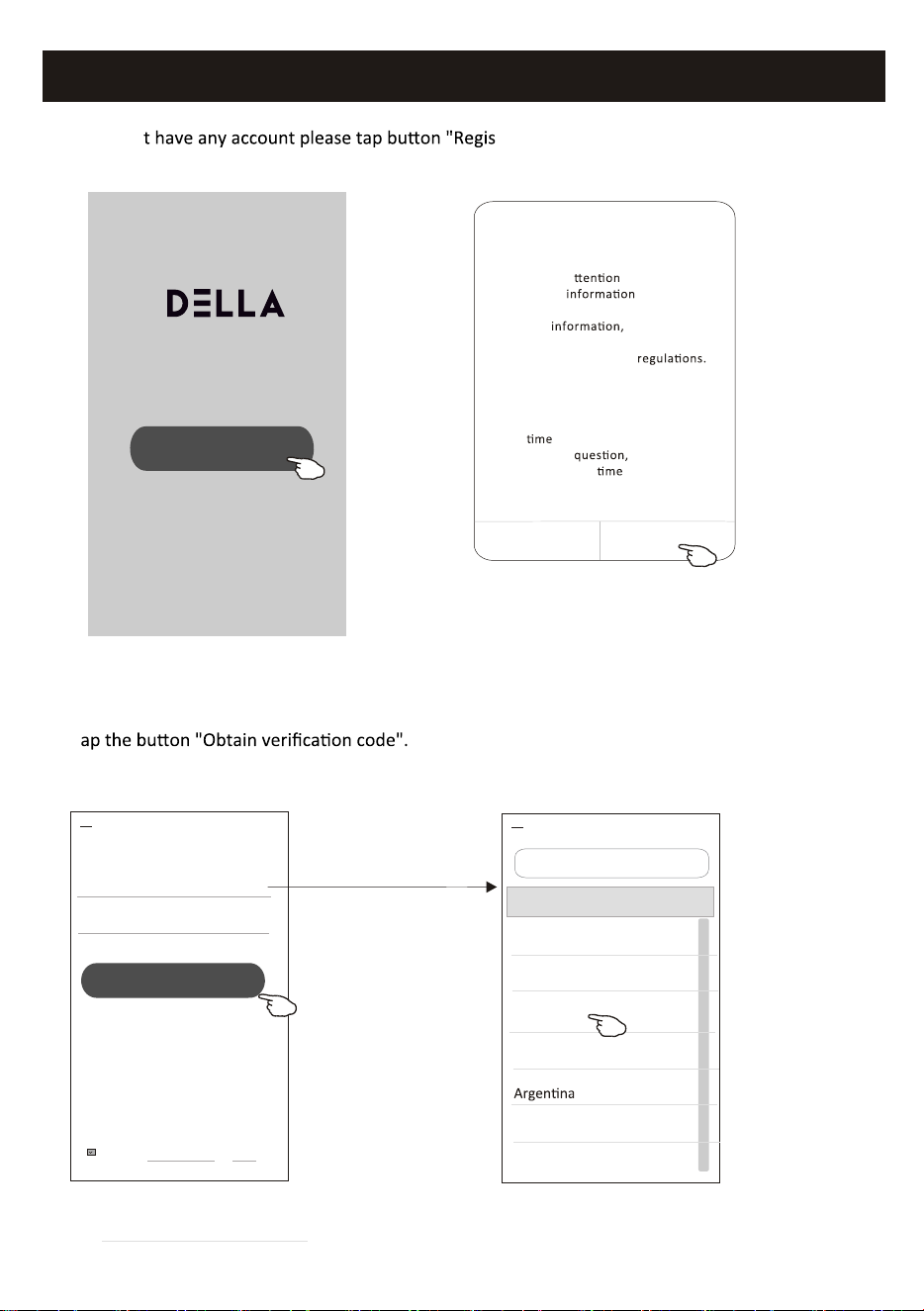
Registration
1.If you don' ter".
2.Read the Privacy Policy and tap "Agree".
4
3.Tap">" and choose the country.
4.Enter your phone number or e-mail address.
5.T
Log in with existing account
Privacy Policy
we pay high a to the privacy
of personal
. To fully
present how we collect and use your
personal
we revised the
Privacy Policy in detail in compliance
with the latest laws and
By clicking Agree, you agree that you
have fully read, understood and
accepted all the content of the
revised Privacy policy. Please take
your
to read the Privacy Policy. If
you have any
please
contact us at any
.
Privacy Policy
Disagree
Agree
#
A
B
C
D
E
F
G
H
I
J
K
L
M
N
O
P
Q
R
S
T
U
V
W
X
Y
Z
Country Choosed
A
Afghanistan
Albania
Algeria
Angola
Armenia
Australia
Search
Resister
USA
+01 >
USA +01 X
enter your mobile phone number
or e-mail address here
Search the country or slide the
screen up/down to find
and choose the Country.
<
<
I agree with Service Agreement and Policy
Register
Obtain verification code
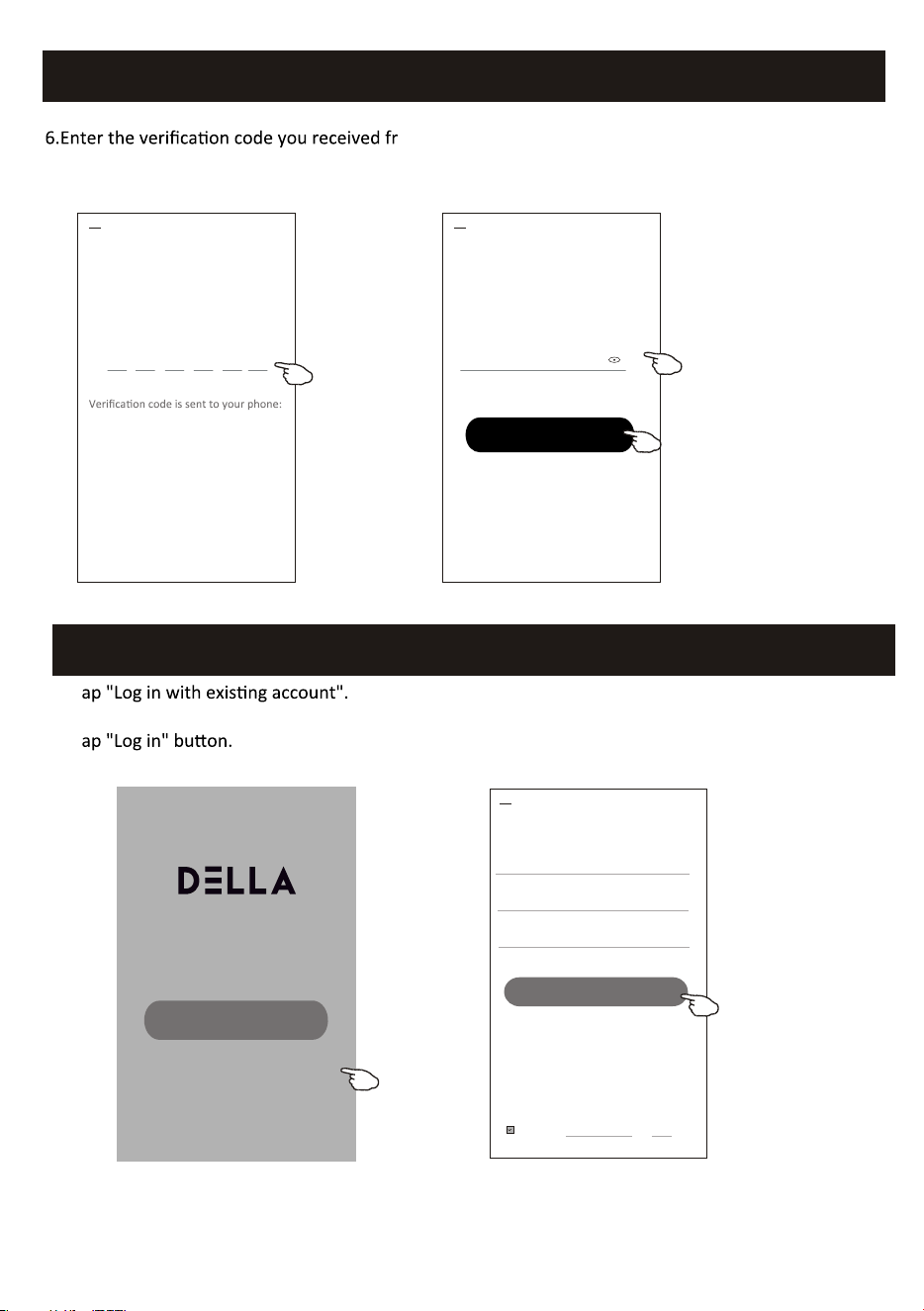
Registration
om phone message or e-mail.
7.Set the Password with 6-20 characters including characters and numbers.
8.Tap "Done".
5
Enter verification
code
86-***********,Resend(55s)
* * * * * *
<
Set Password
6-20 characters for password, including character, numbers
******
<
Login
Login
Login
USA +01 >
USA +01
<
I agree with Service Agreement and Policy
Log in
******
SMS verify and sign in
Forgot password
1.T
2.Enter your registered account and password.
3.T
enter the password
enter your account here
Log in with existing account
Register
Done
Living Room
Master Bedroom
Second Bedroom
Dining Room
Kitchen Study Room Porch
Balcony Kids Room Closet
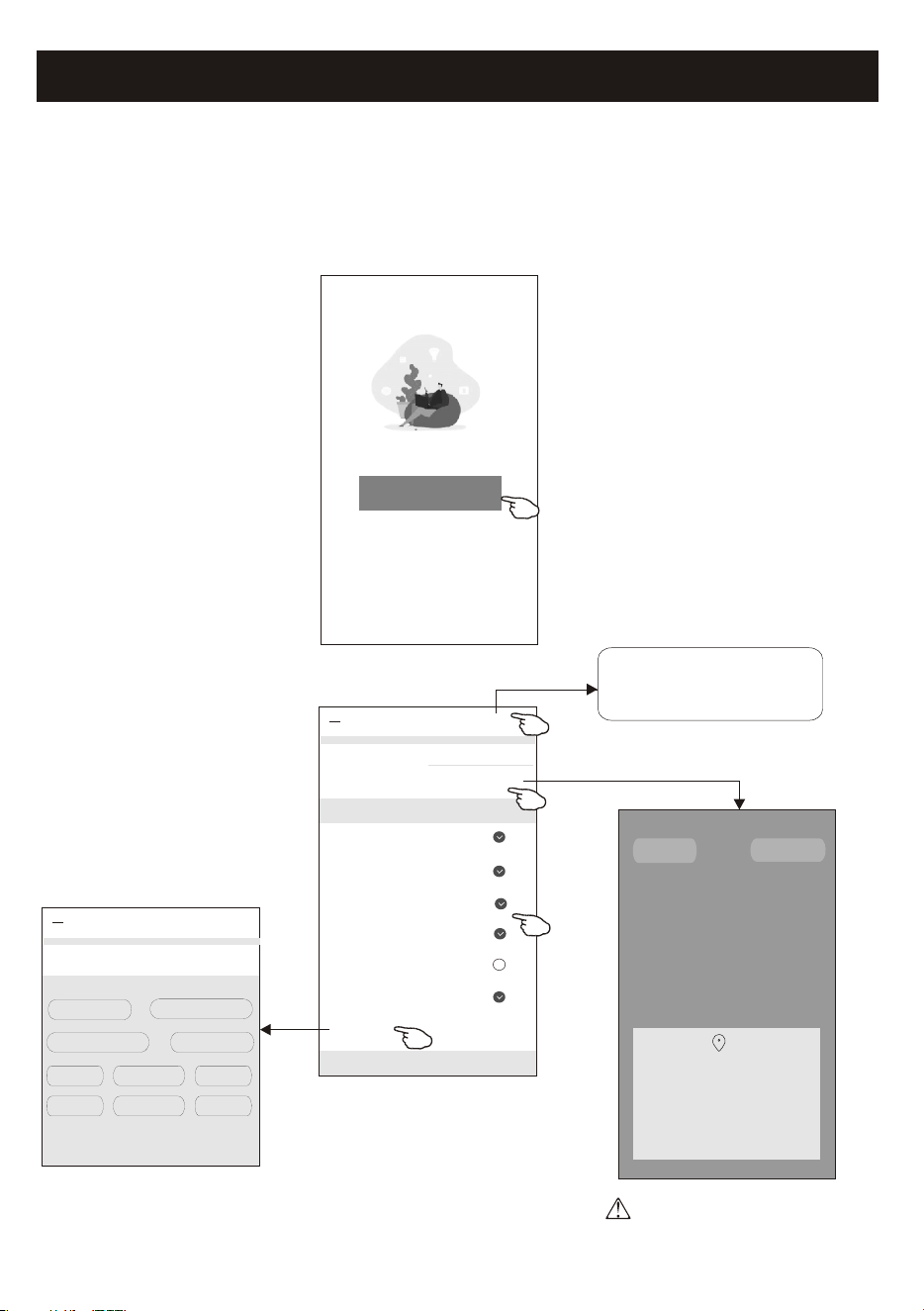
Login
The first time the APP is used, Create family is needed:
4.Tap "Create family".
5.Make name for the family.
6.Set the location.
7.Choose default rooms or add new rooms.
8.Tap "Done" and "Completed".
Turn on your smart life
Create family
Log out
#
A
B
C
D
E
F
G
H
I
J
K
L
M
N
O
P
Q
R
S
T
U
V
W
X
Y
Z
Family Name
<
Add family
Done
Family Location Set location >
Smart devices in rooms:
Living Room
Master Bedroom
Second Bedroom
Dining Room
Kitchen
Study Room
Add Room
You can change the room settings anytime
My home
choose the recommended room
or make a new room, then tap
Done.
Room Name
<
Add Room
Done
Recommended
*******
6
#
A
B
C
D
E
F
G
H
I
J
K
L
M
N
O
P
Q
R
S
T
U
V
W
X
Y
Z
Allow Smart Life to access this device's
location?
ALLOW ONLY WHILE IN USE
ALLOW ALL THE TIME
DENY
CANCEL
CONFIRM
Note:
The app can open the map on your
phone and you can set the location
where you are.
Family created successfully
View family Completed
Login
7
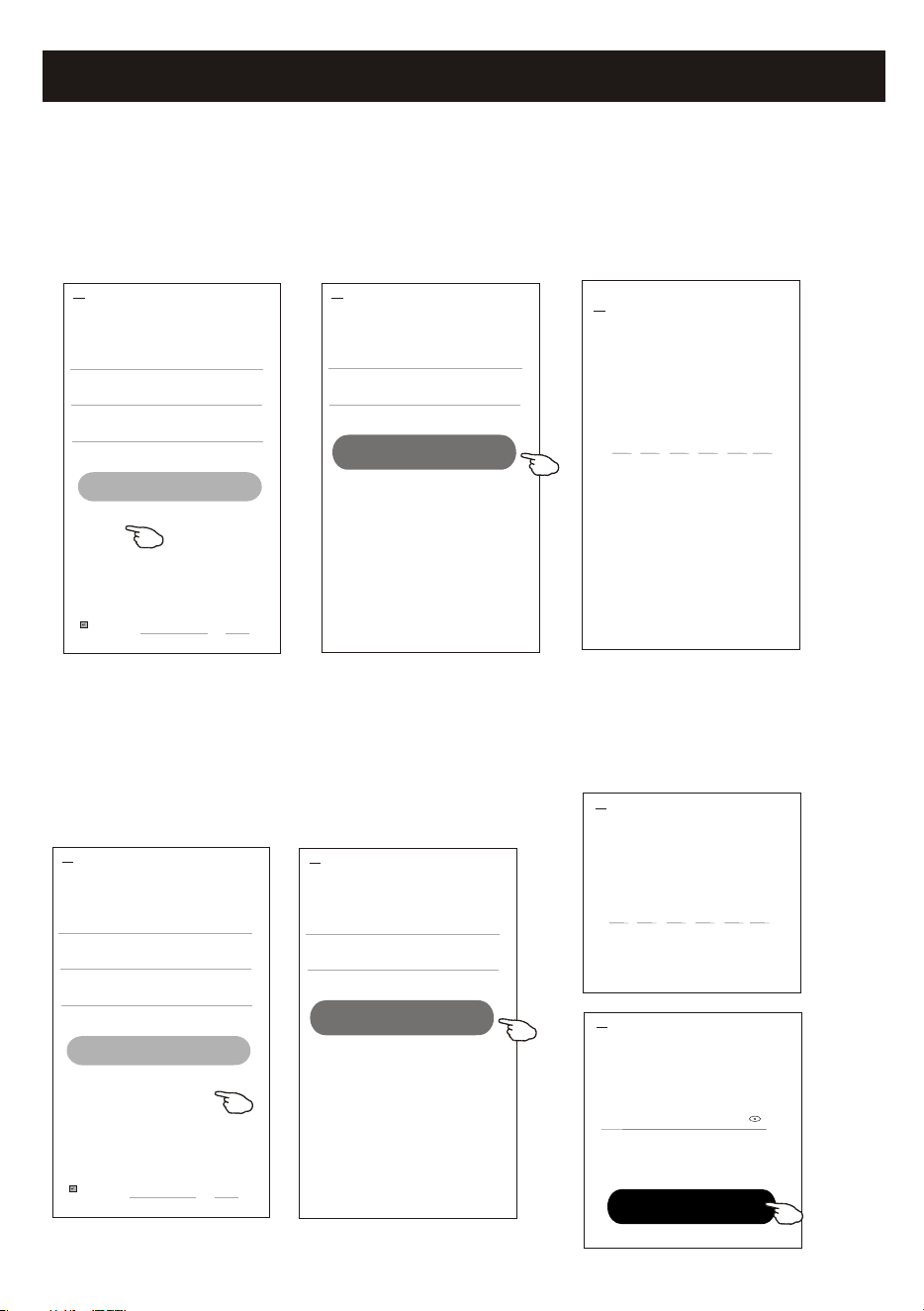
Forgot the password
If you forgot the password, you can login as below:
(Only for phone number accounts)
1.Tap "SMS verify and sign in".
2.Enter your phone number and tap buon "Obtain verificaon code".
3.Enter the verificaon code received by your phone.
Login
USA + 01 >
Mobile number/e-mail address
<
I agree with Service Agreement and Policy
Log in
Password
SMS verify and sign in
Forgot password
SMS verify and sign in
USA + 01 >
USA + 01 X
<
Obtain verific ation c ode
Enter verification
code
Verificaon code is sent to your phone:
86-***********,Resend(55s)
* * * * * *
<
Or you can reset the password as below:
1.Tap "Forgot password".
2.Enter your account(phone number or e-mail address) and tap buon
"Obtain verificaon code".
3.Enter the verificaon code received by your phone or e-mail.
4.Set the new password and tap buon "Done".
Login
USA +01 >
Mobile number/e-mail address
<
I agree with Service Agreement and Policy
Log in
Password
SMS verify and sign in
Forgot password
Forgot password
USA +01 >
USA +01 X
<
Obtain verific ation c ode
Enter verification
code
Verificaon code is sent to your phone:
86-***********,Resend(55s)
* * * * * *
<
Set Password
6-20 characters for password, including character, numbers
******
<
Done
8
my home
+
>
Set your home location, get more
information
Welcome home
V
All Devices
Living Room
room
Master Bed
...
No device
Add Device
Home
Me
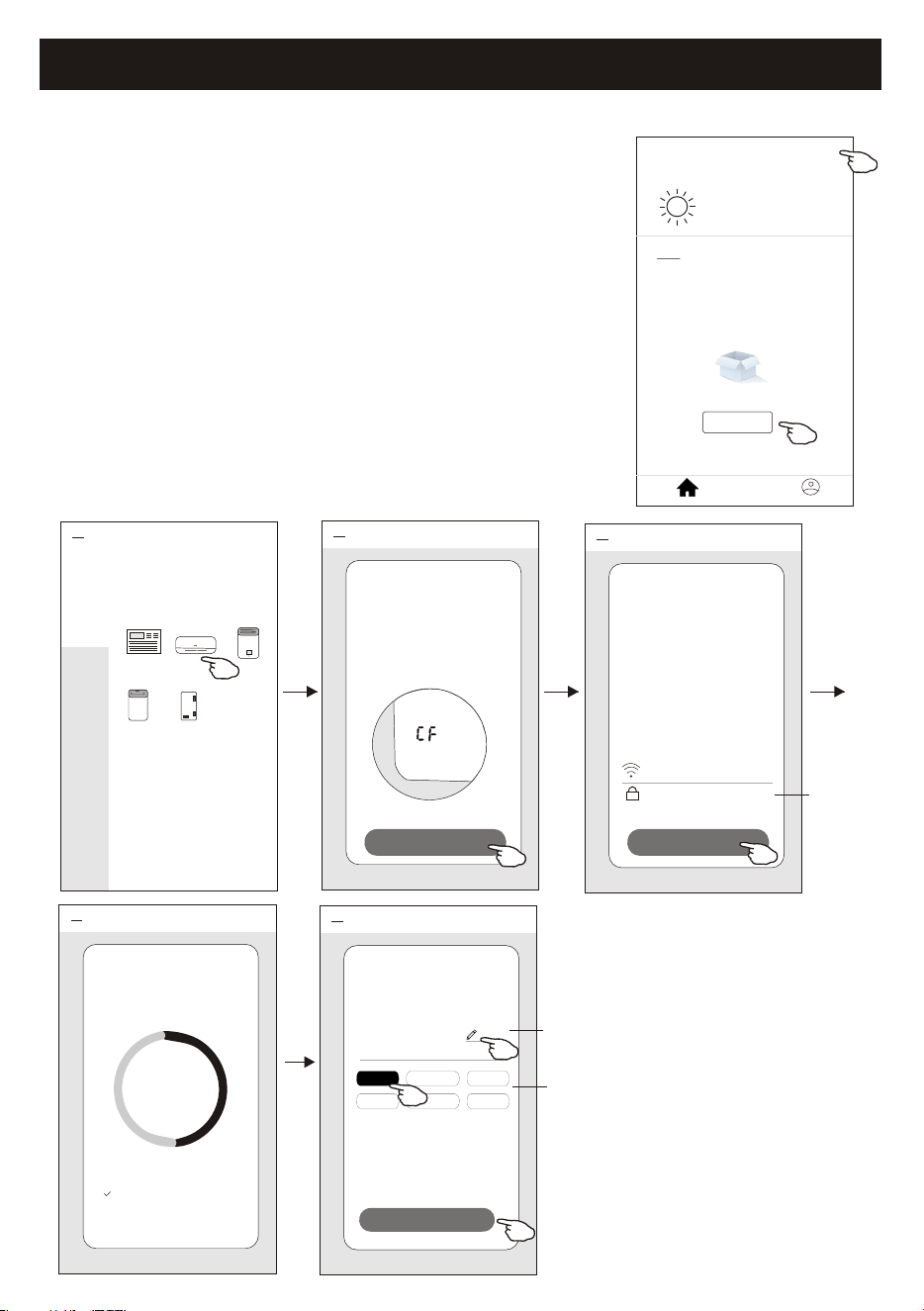
1.Power on the indoor unit, no need to launch the air conditioner.
2.Click "+" in the upper right corner of the "Home" screen
or tap "Add device" on the room which has no device.
3.Tap the "Split Air conditioner" logo.
4.Reset the Wi-Fi module by pressing the "DISPLAY" on the remote
controller 6 times , or use a suitable tool to press the reset button
on the Wi-Fi module, until it shows "CF" on the indoor display,
then tap"Next Step".
5.Input the password of the Wi-Fi which the same as your smart
phone connected, tap "Confirm"(You can change network if needed).
6.You can see the percent rate of connecting process, at the same time
PP","SA","AP" shining in turn on the indoor display.
"PP" means "Searching the router"
"SA" means "connected to the router"
"AP" means "connected to the server"
Add Device
<
Add Manually
Search Device
Large
Home Ap...
Security &
Sensors
Split Air condi-
tioner
Window Ty
pe Air Conditi...
Dehumidifier
Port-
able Air cond...
Fresh air
purifier
Add Device
<
AP Mode
Add Device
Press the DISPLAY on the remote
control key 6 times in the time of 6
seconds until the LCD screen show
"CF"
View help
Next Step
Add Device
<
AP Mode
Enter Wi-Fi
password
This app is supported only on
2.4GHz Wi-Fi channels
******
Confirm
Change network
wifiname
Add Device
<
Connecting now
Make sure your phone and device
are as close to your router as possible.
Searching for device
o Registering device to the cloud
o Initializing your device
50%
Add Device
<
Device added
successfully
Sample1
Living Ro... Master Be... Second B...
Dining R... Kitchen Study Ro...
Rename the
device
Select the
location room
enter password
Done
Add device
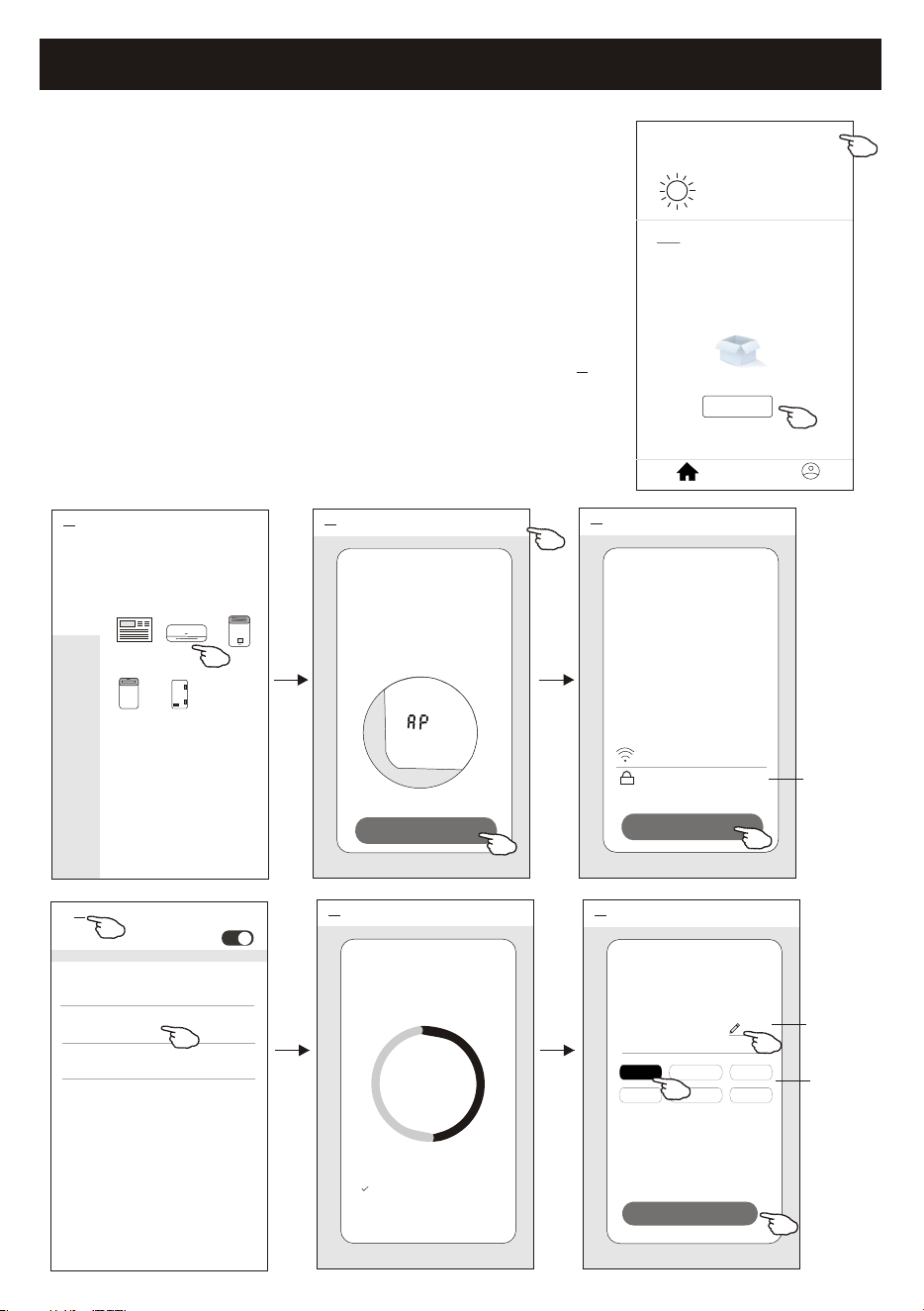
There are 2 modes CF(Quick connection) and AP(Access Point) for adding device.
CF mode
9
Add device
my home
+
>
Set your home location, get more
information
Welcome home
V
All Devices
Living Room
room
Master Bed
...
No device
Add Device
Home
Me
1.Power on the indoor unit, no need to launch the air conditioner.
2.Click "+" in the upper right corner of the "Home" screen
or tap "Add device" on the room which has no device.
3.Tap the "Split Air conditioner" logo.
4.Reset the Wi-Fi module by pressing the "DISPLAY" on the remote
controller 6 times , or use a suitable tool to press the reset button
on the Wi-Fi module, until it shows "AP" on the indoor display,
then tap"Next Step".
5.Input the password of the Wi-Fi which the same as your smart
phone connected, tap "Confirm".
6.In the network setting screen, select "SmartLife-****", and tap" ".
7.You can see the percent rate of connecting process, at the same time
PP","SA","AP" shining in turn on the indoor display.
"PP" means "Searching the router"
"SA" means "connected to the router"
"AP" means "connected to the server"
Add Device
<
Add Manually
Search Device
Large
Home Ap...
Security &
Sensors
Split Air condi-
tioner
Window Ty
pe Air Conditi...
Dehumidifier
Port-
able Air cond...
Fresh air
purifier
Add Device
<
AP Mode
Add Device
Press the DISPLAY on the remote
control key 6 times in the time of 6
seconds until the LCD screen show
"AP"
View help
Next Step
<
AP Mode
Enter Wi-Fi
password
This app is supported only on
2.4GHz Wi-Fi channels
******
Confirm
Change network
wifiname
AP mode
<
Connecting now
Make sure your phone and device
are as close to your router as possible.
Searching for device
o Registering device to the cloud
o Initializing your device
50%
AP mode
<
Device added
successfully
Sample2
Living Ro... Master Be... Second B...
Dining R... Kitchen Study Ro...
Rename the
device
Select the
location room
Done
enter password
<
<
WLAN
AVAILABLE NETWORKS
SmartLife-****
office wifi
WIFI1
AP mode
Air conditioner control
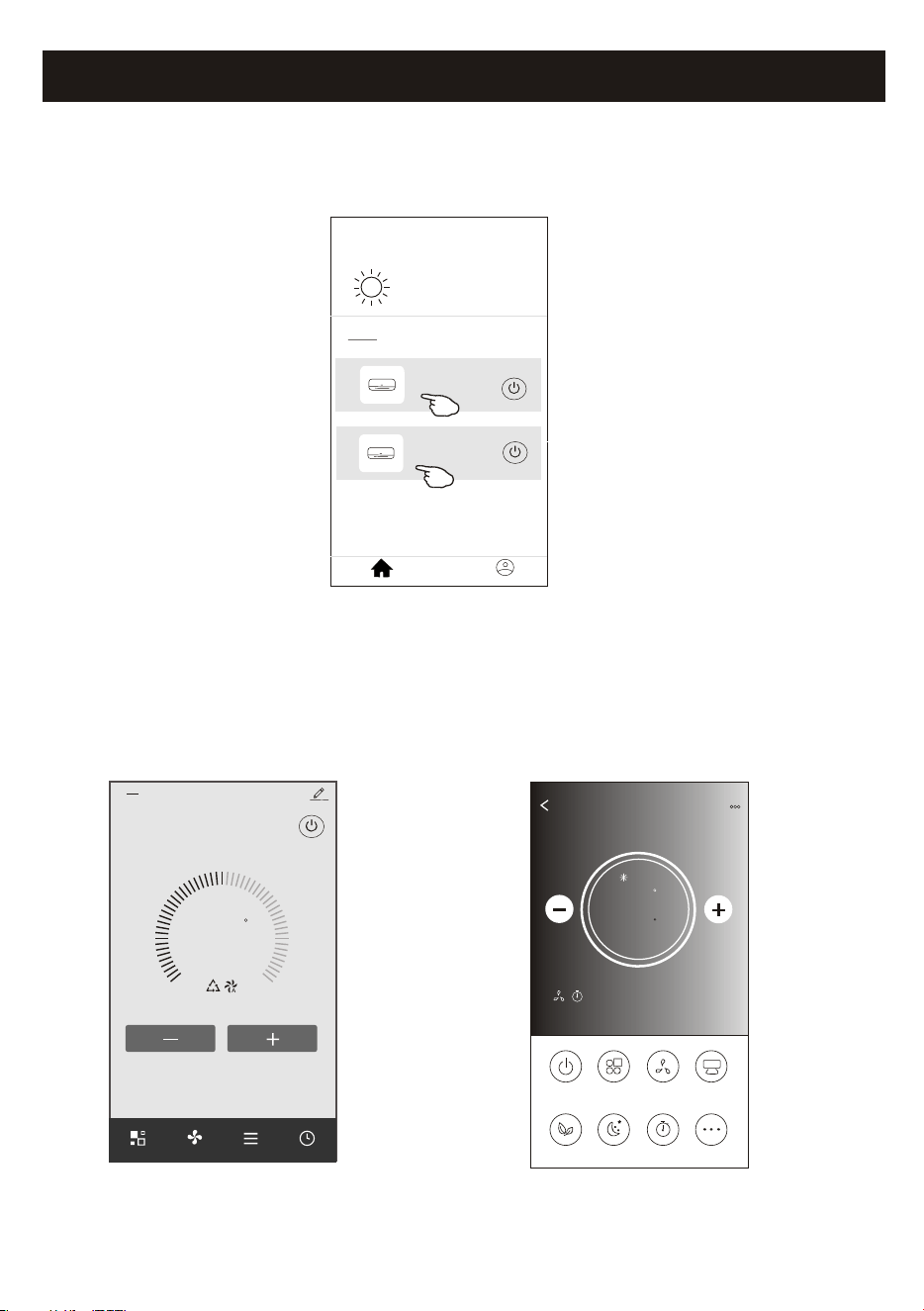
The device control screen will pop up automatically after adding the device.
The device control screen will pop up manually by tapping the device name on the home screen.
<
my home
+
>
Set your home locaon, get more
informaon
Welcome home
V
All Devices
Living Room
room
Master Bed
...
Home
Me
Sample1
Sample2
Turned off
Already On
ON/OFF
Fan Speed
Precision
Air Flow
More
Eco Sleep
Mode
Timer
Sample1
77
Cool
0
Note:
There are two different control forms base on different software or Wi-Fi module firmware.
Please read the manual carefully base on the real control interface.
73
F
Set Temperature
Timer
Function
Fan
Mode
Sample2
<
10
Control form1
Control form2
F
11
Air conditioner control
73
F
Set Temperature
Timer
Function
Fan
Mode
Sample2
<
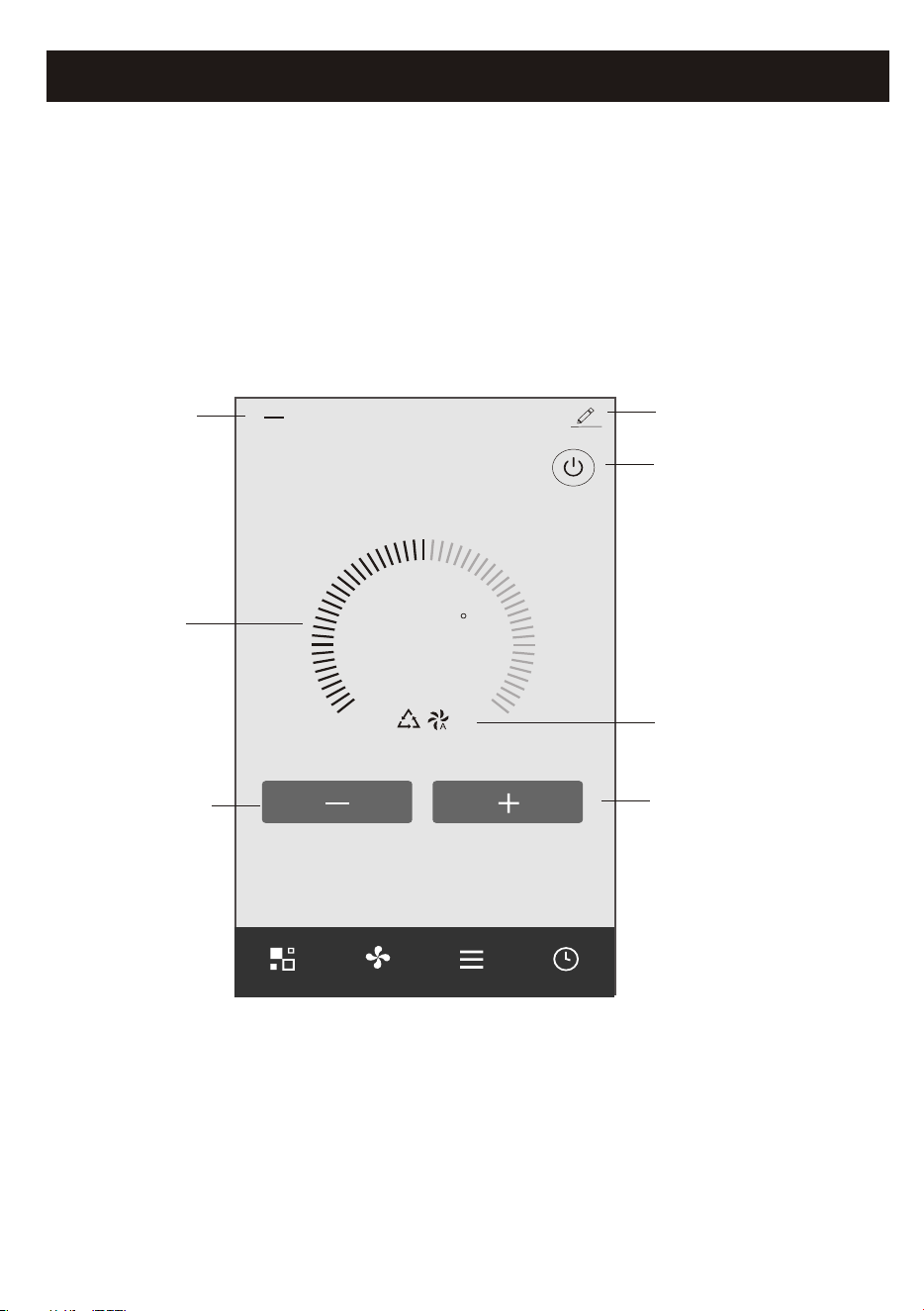
Turn ON/OFF the
air conditioner
Device details
and management
Increase the
setting temperature
Decrease the
setting temperature
The main control interface
Back to the
Home screen
Indicator of
setting temperature
Selected Mode/Fan speed/
Functions indicator
Control form1
Air conditioner control
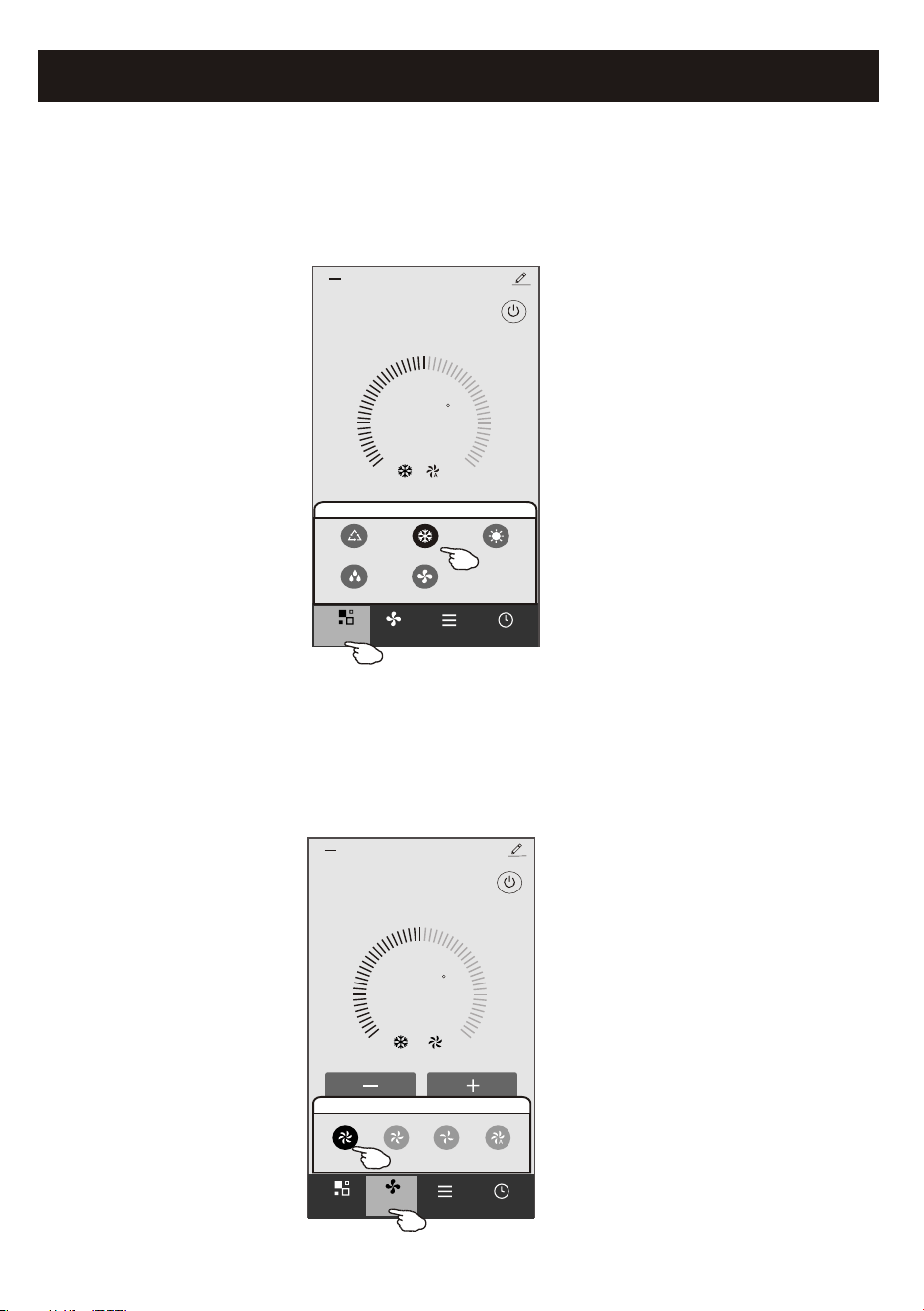
Control form1-Mode setting
1.Tap Mode to pop up the Mode screen.
2.Select one of the mode Feel/Cool/Heat/Dry/Fan.
3.Tap anywhere around the setting temperature to cancel the Mode setting.
73
F
Set Temperature
Timer
Function
Fan
Sample2
<
Mode
FanDry
Feel
Cool Heat
Mode
Control form1-Select fan speed
73
F
Set Temperature
Timer
Function
Sample2
<
Mode
Fan
Fan
Med Low Auto
High
1.Tap Fan to pop up the Fan screen.
2.Select one of the fan speed High/med/Low/Auto.
3.Tap anywhere around the setting temperature to cancel the selection.
12
Air conditioner control
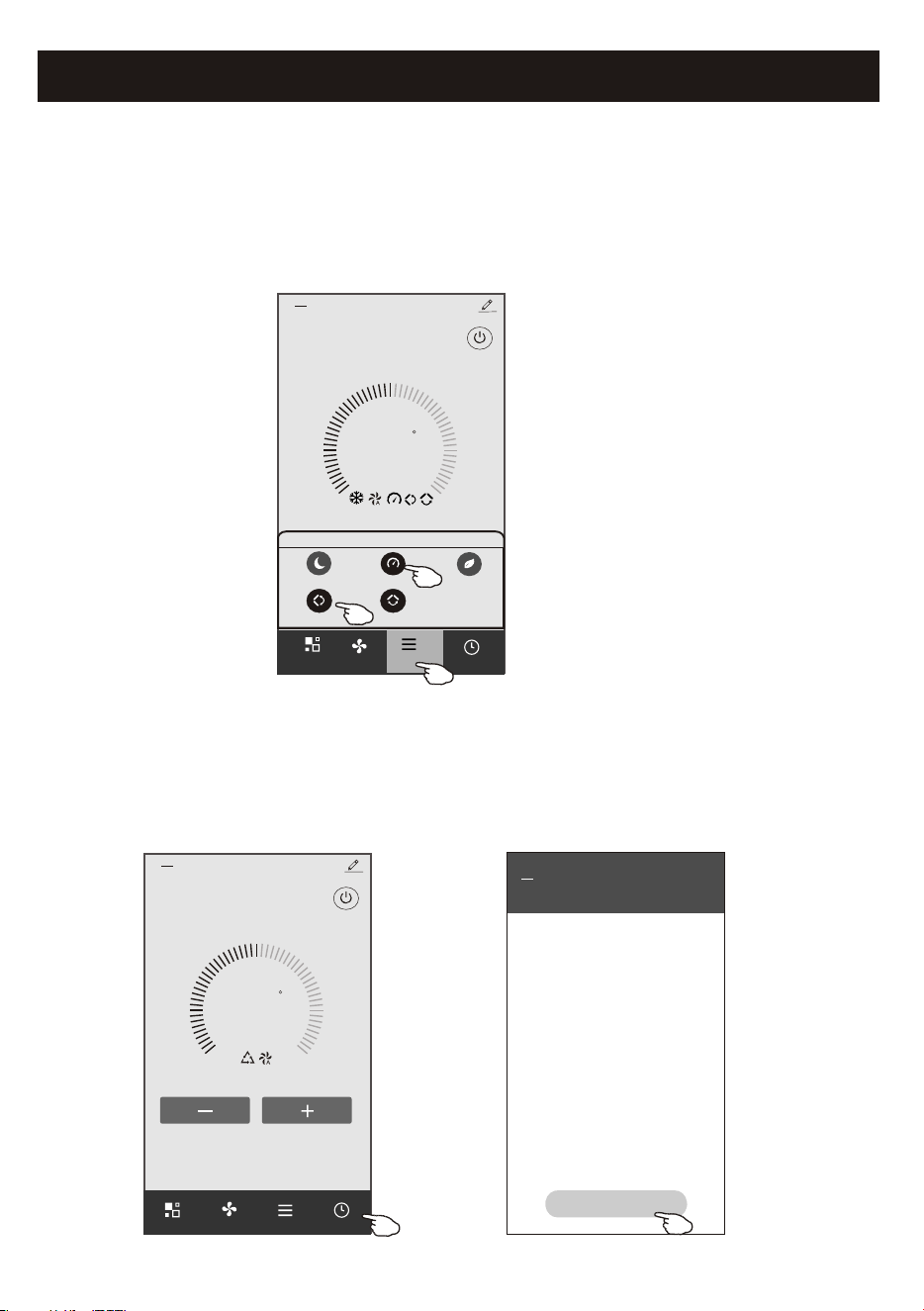
Control form1-Function setting
1.Tap Function to pop up the Function screen.
2.Select one of the functions Sleep/Turbo/ECO.
3.Select UP-DOWN/LEFT-RIGHT for auto swing with direction of UP-DOWN/LEFT-RIGHT.
4.Tap anywhere around the setting temperature to cancel the Function setting.
73
F
Set Temperature
Timer
Fan
Sample2
<
Mode
Control form1-Timer adding
1.Tap Timer to pop up the Add Timer screen.
2.Tap Add Timer.
13
Function
UP-DOWN
LEFT-RIGHT
Turbo
Sleep
ECO
Function
73
F
Set Temperature
Timer
Function
Fan
Mode
Sample2
<
WLAN
<<
Add Timer
Add timer
Air conditioner control
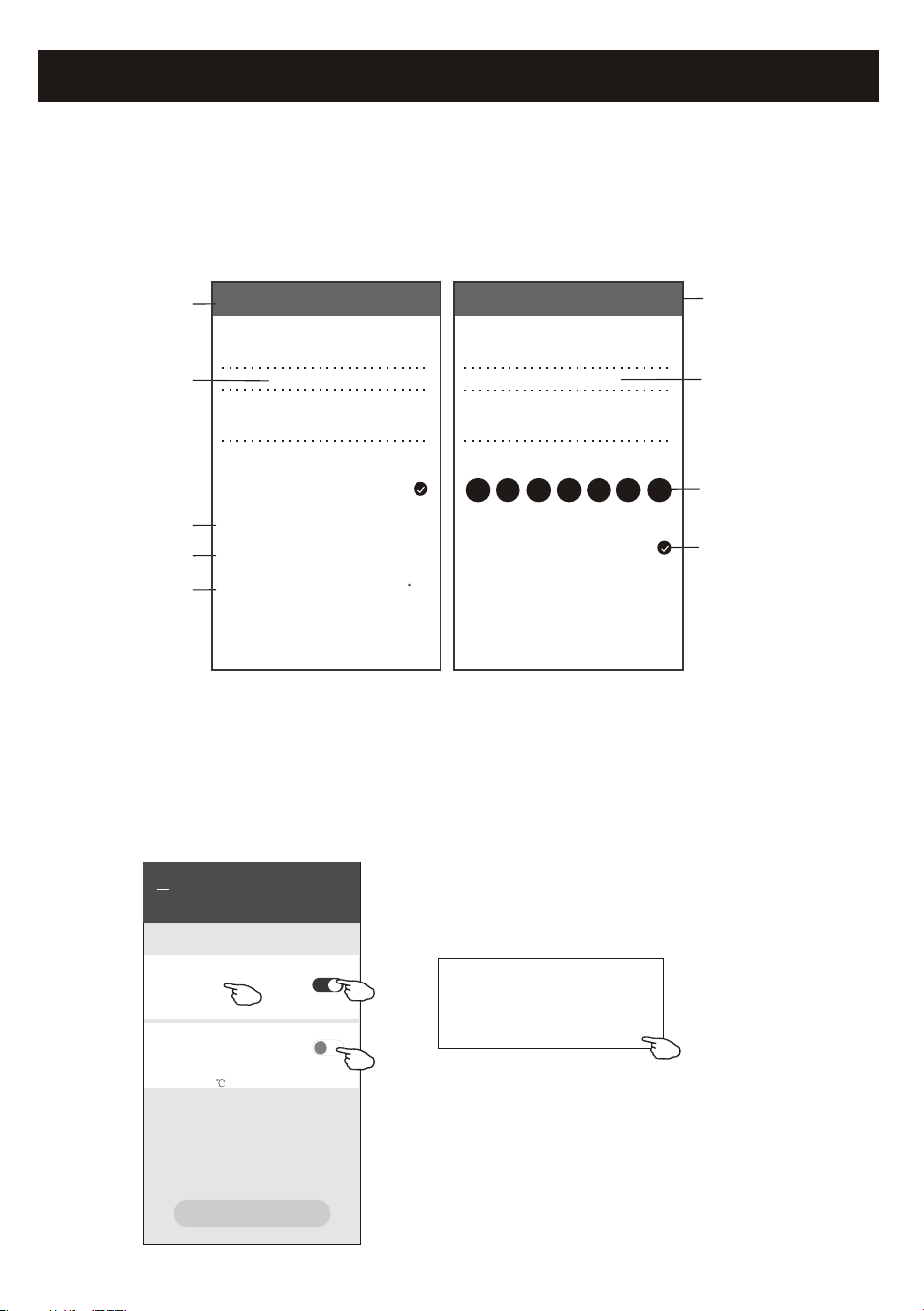
Control form1-Timer adding
3.Select the time, select the repeat days and Timer on/off.
4.Select the Mode/Fan speed/Function and select the setting temperature for Timer on.
5.Tap Save to add the timer.
14
Hour setting
Minute setting
Mode setting
Fan Speed
setting
Weekly setting
Timer cancel
Timer submit
Temperature
setting
Timer ON/OFF
setting
Cancel Add Timer Save
15 10
14 09
13 08
12 07
16 11
17 12
18 13
Timer Off
Timer On
Mode
Fan
Set Temperature
Function
Cool
Auto
23 C
<
<
<
<
Cancel Add Timer Save
15 28
14 27
13 26
12 25
16 29
17 30
18 31
Select days to use Smart Mode
Timer Off
Mon
Tues
Wed Thur Fri Sat Sun
Timer On
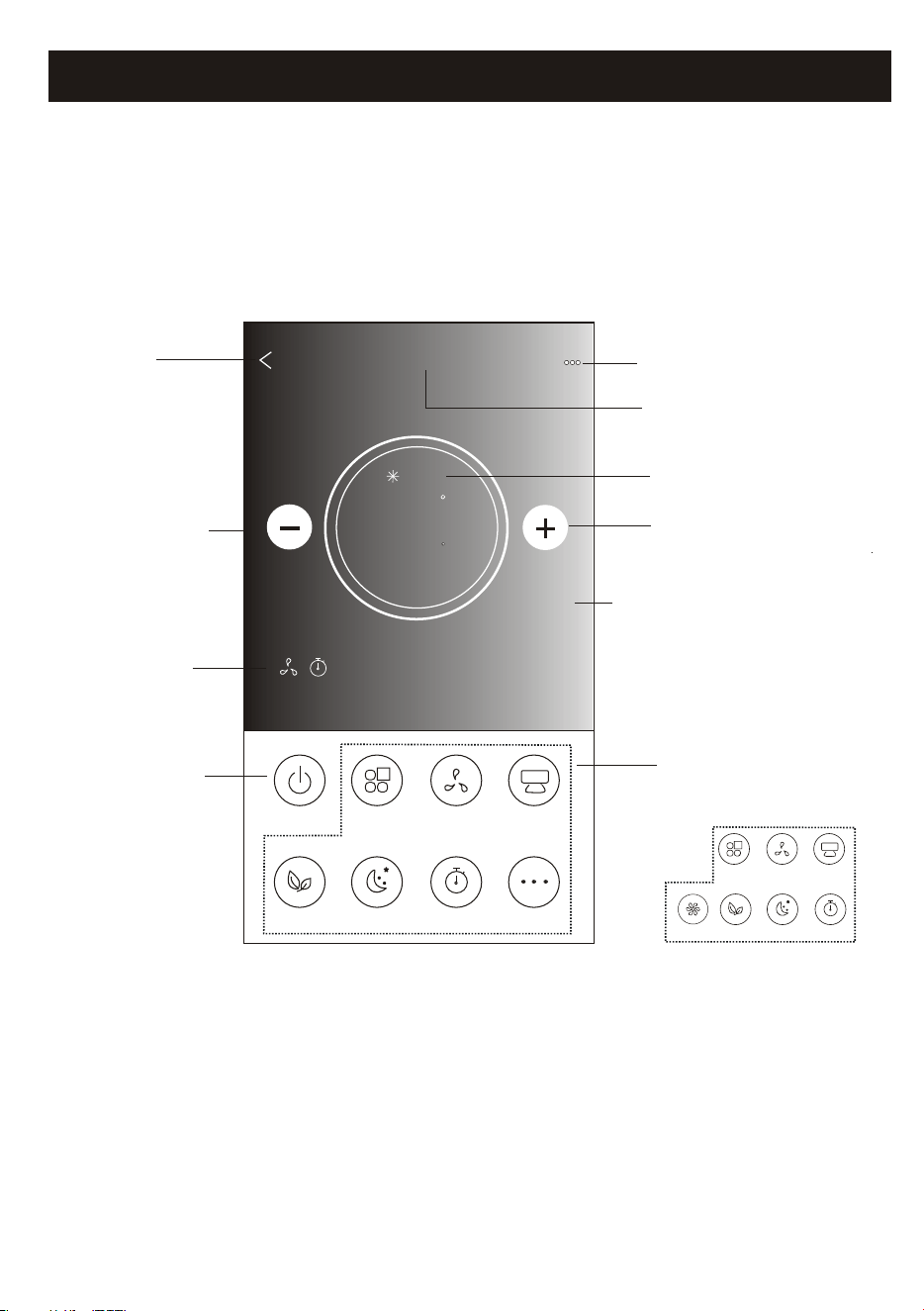
Control form1-Timer Management
WLAN
<<
Add Timer
Add timer
Timer accuracy is -/+ 30 seconds
12:20
Once
Timer:Off
12:20
Mon, Tue, Wed, Thurs
Timer: On 16 Cool Turbo UP-DOWN
1.Tap the bar of timer to edit the Timer like the Timer adding process.
2.Click the switch to enable or disable the Timer.
3.Holdind the bar of Timer about 3seconds and pop up the Remove Timer screen,
tap CONFIRM and remove the Timer.
Remove Timer
Remove the timer?
CANCEL CONFIRM
Timer on
Timer off
Air conditioner control
15
Back to the
Home screen
Name of the device
Current mode
Increase the
seng temperature
Decrease the
seng temperature
Power on/off
Selected Funcons
indicator
Note: it may appear slightly different ,
depending on the air conditioner model.
Example as below:
Tips
Different background for
different mode:
Cool/Heat/Dry/Fan/Auto
ON/OFF
Fan Speed
Precision
Air Flow
More
Eco Sleep
Mode
Timer
Sample1
7
C
5
ool
0
Fan Speed
Swing Flow
Eco Sleep
Mode
Timer
Turbo
Funcon Buons
Control form2
The main control interface
F
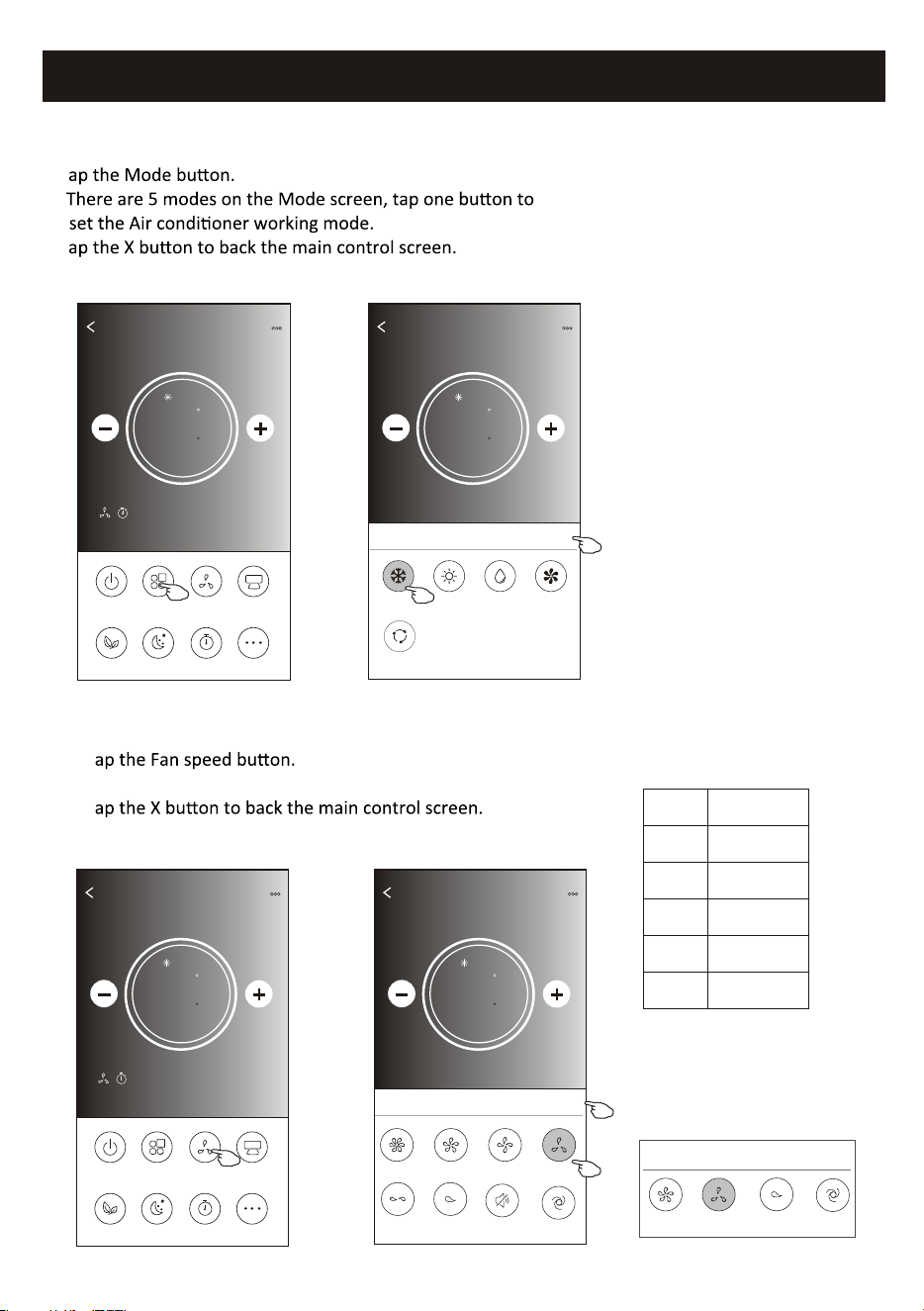
Air conditioner control
1.T
2.
3.T
4.The mode and background will change on the screen.
ON/OFF
Fan Speed
Precision
Air Flow
More
Eco Sleep
Mode
Timer
Sample1
77
Cool
0
Back
Sample1
77
Cool
0
Cool
Dry
Fan
Heat
Auto
Mode
X
Note: please read the details of each mode
in the user manual to control more comfortable.
ON/OFF
Fan Speed
Precision
Air Flow
More
Eco Sleep
Mode
Timer
Sample1
77
Cool
0
1.T
2.Choose your desired fan speed and tap it.
3.T
4.The selected fan speed indicator will appear on the screen.
Back
Sample1
77
Cool
0
Turbo
Mid-High
Mid
high
Fan Speed
X
Mid-Low
Mute
Auto
Low
Mode Fan Speed
Cool
Fan
Dry
Heat
Auto
All speeds
All speeds
All speeds
All speeds
16
Note: Fan Speed screen may appear slightly different
depending on the air conditioner model.
Example as below:
Mid
high
Fan Speed
X
Auto
Low
Note:
Fan Speed can'
t be adjusted on Dry mode .
Control form2-Mode setting
Control form2-Fan speed selection
F
F F
F
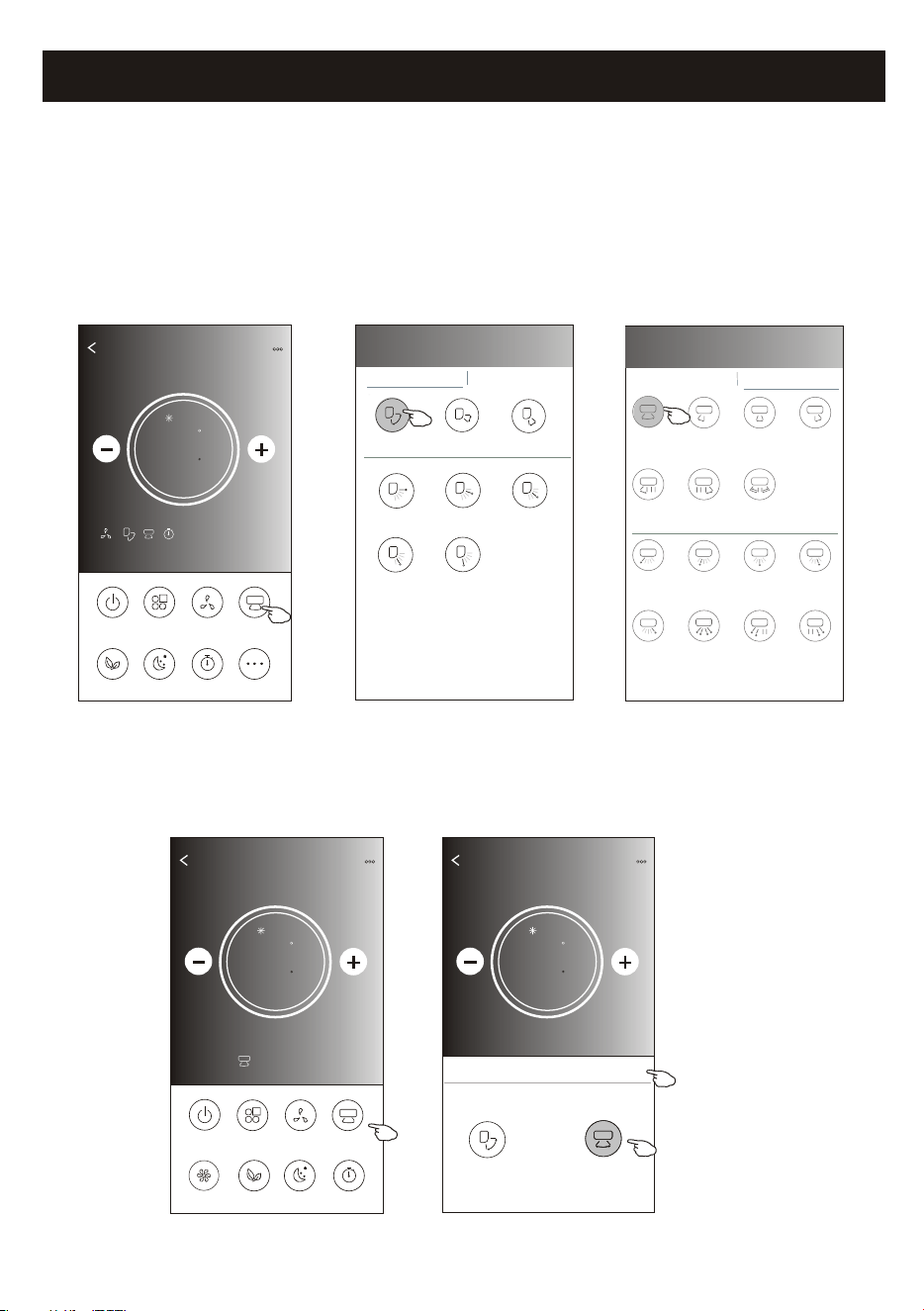
Air conditioner control
1.Tap the Precision Air Flow buon or Swing Flow buon.
2.Choose your desired air flow and tap it.
3.Tap the X buon to back to the main control screen.
4.The selected air flow indicator will appear on the screen.
ON/OFF
Fan Speed
Precision
Air Flow
More
Eco Sleep
Mode
Timer
Sample1
77
Cool
0
17
ON/OFF
Sample1
77
Cool
0
Fan Speed
Swing Flow
Eco Sleep
Mode
Timer
Turbo
Le-Right Flow
Note: The Main control screen and Air Flow screen may appear slightly different ,
depending on the air conditioner model.Example as below:
Get verificaon code
< Precision Air Flow
Up-Down Flow Control Le-Right Flow Control
Downwards
Swing
Up-Down
Swing
Upwards
Swing
Middle Fix
Top Fix
Upper Fix
Lower Fix
Boom Fix
< Precision Air Flow
Up-Down Flow Control Le-Right Flow Control
Right
Swing
Le-Right
Swing
Le
Swing
Middle
Swing
Center-Le
Swing
Center-Right
Swing
Wide
Swing
Center-Right
Fix
Le fix
Center-Le
Fix
Middle Fix
Right Wide
Angle Fix
Right Fix
Whole
Anger Fix
Le Wide
Angle Fix
Back
Sample1
77
Cool
0
Swing Flow
X
Up-Down
Le-Right
Note: For some models without auto Left-Right wind, If you active it, you will hear a beep,but no any actions.
Control form2-Air Flow control
F
F F
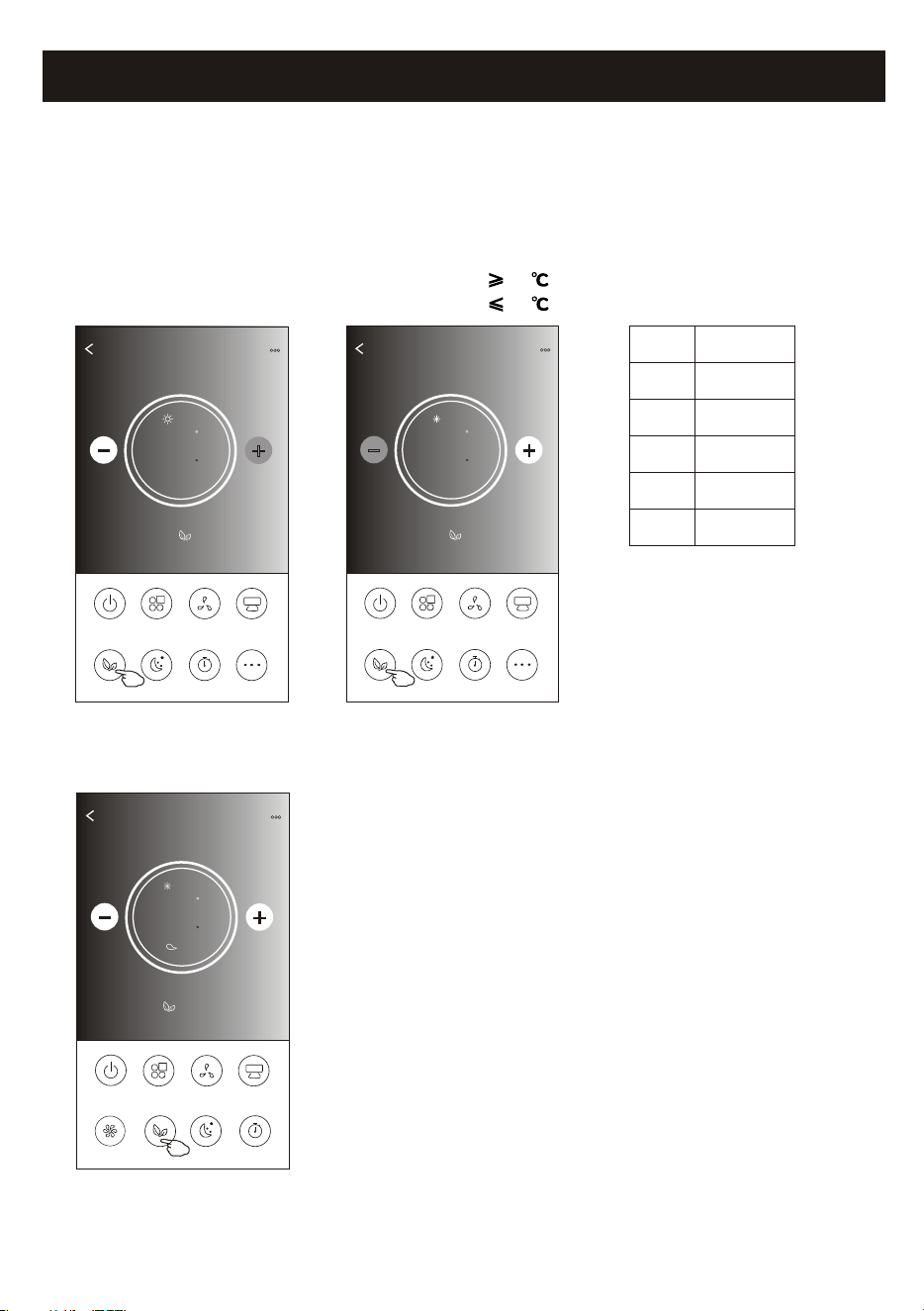
Air conditioner control
1.For Eco funcon, just tap the buon to acvate the funcon, the buon will be lighng
and the indicator will appear on the screen.
2.Tap again to disable the funcon.
3.Temperature controlled for some air condioner model:
In Cooling mode, the new seng temperature will 26 .
In heang mode, the new seng temperature will 25 .
ON/OFF
Fan Speed
Precision
Air Flow
More
Eco Sleep
Mode
Timer
Sample1
77
Heat
0
18
ON/OFF
Sample1
73
Cool
0
Fan Speed
Swing Flow
Eco Sleep
Mode
Timer
Turbo
Note: The Main control screen and ECO control method may appear slightly different ,
depending on the air conditioner model.Example as below:
ON/OFF
Fan Speed
Precision
Air Flow
More
Eco Sleep
Mode
Timer
Sample1
79
Cool
0
Mode
ECO enabled
Cool
Fan
Dry
Heat
Auto
Yes
Yes
ECO is disabled on Fan/ Dry/Auto mode .
Note:
ECO is disabled on Turbo/Sleep mode too
for some air conditioner model.
ECO
Low
Control form2-ECO function
F
F
F
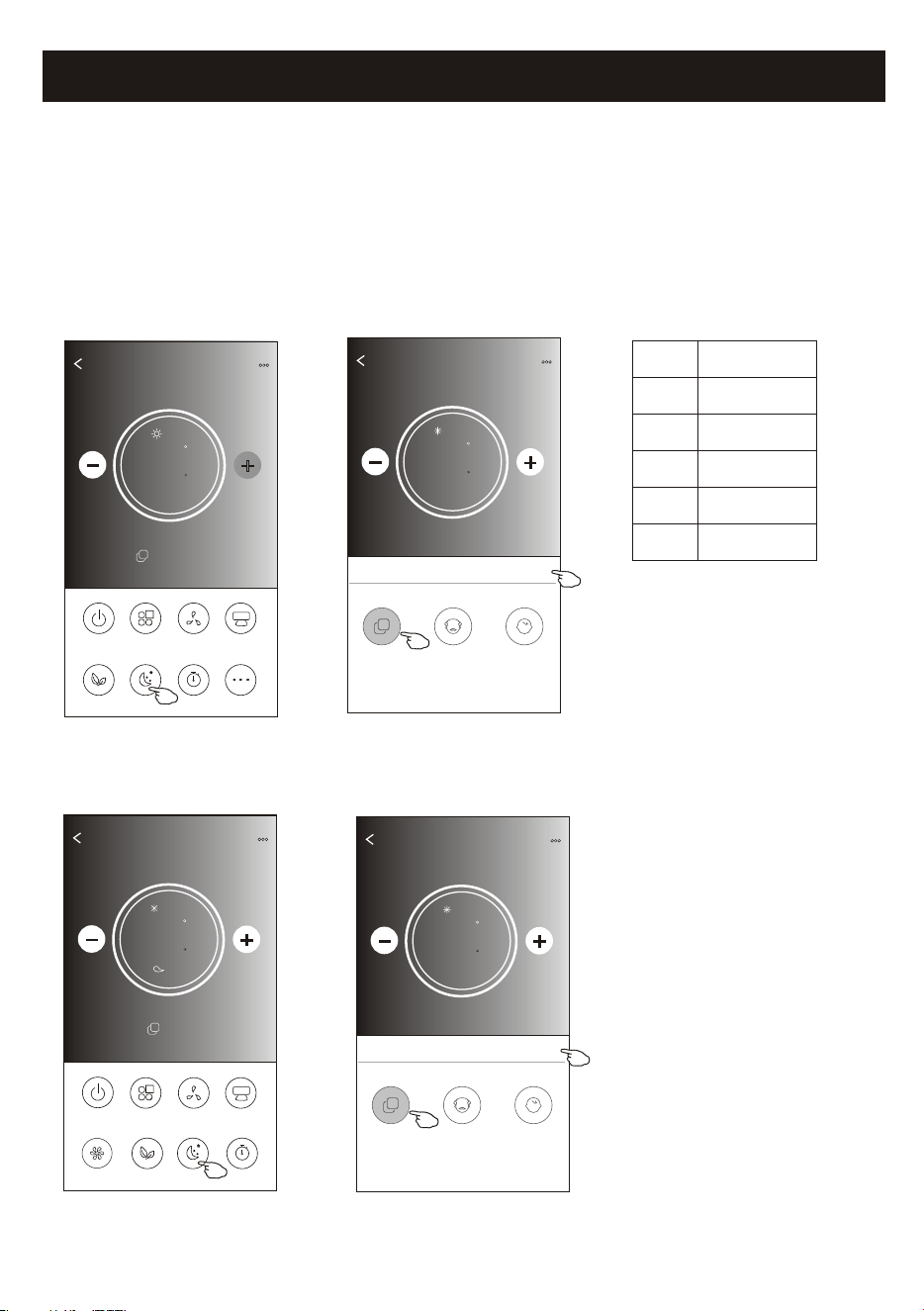
Air conditioner control
1.Tap the Sleep buon.
2.Choose your desired sleep mode and tap it.
3.Tap the X buon to back to the main control screen.
4.The selected sleep mode indicator will appear on the screen.
ON/OFF
Fan Speed
Precision
Air Flow
More
Eco Sleep
Mode
Timer
Sample1
77
Heat
0
19
ON/OFF
Sample1
73
Cool
0
Fan Speed
Swing Flow
Eco Sleep
Mode
Timer
Turbo
Note:
The Main control screen may appear slightly different ,depending on the air conditioner model.
Example as below:
Mode
Sleep enabled
Cool
Fan
Dry
Heat
Auto
Yes
Yes
Note:
Sleep is disabled on Turbo/Sleep mode too
for some air conditioner model..
Sleep
Low
Sleep is disabled on Fan/ Dry/Auto mode .
Back
Sample1
77
Cool
0
Sleep
X
Standard
Child
The aged
Back
Sample1
77
Cool
0
Sleep
X
Child
The aged
Standard
Control form2-Sleep function
F
F
F
F
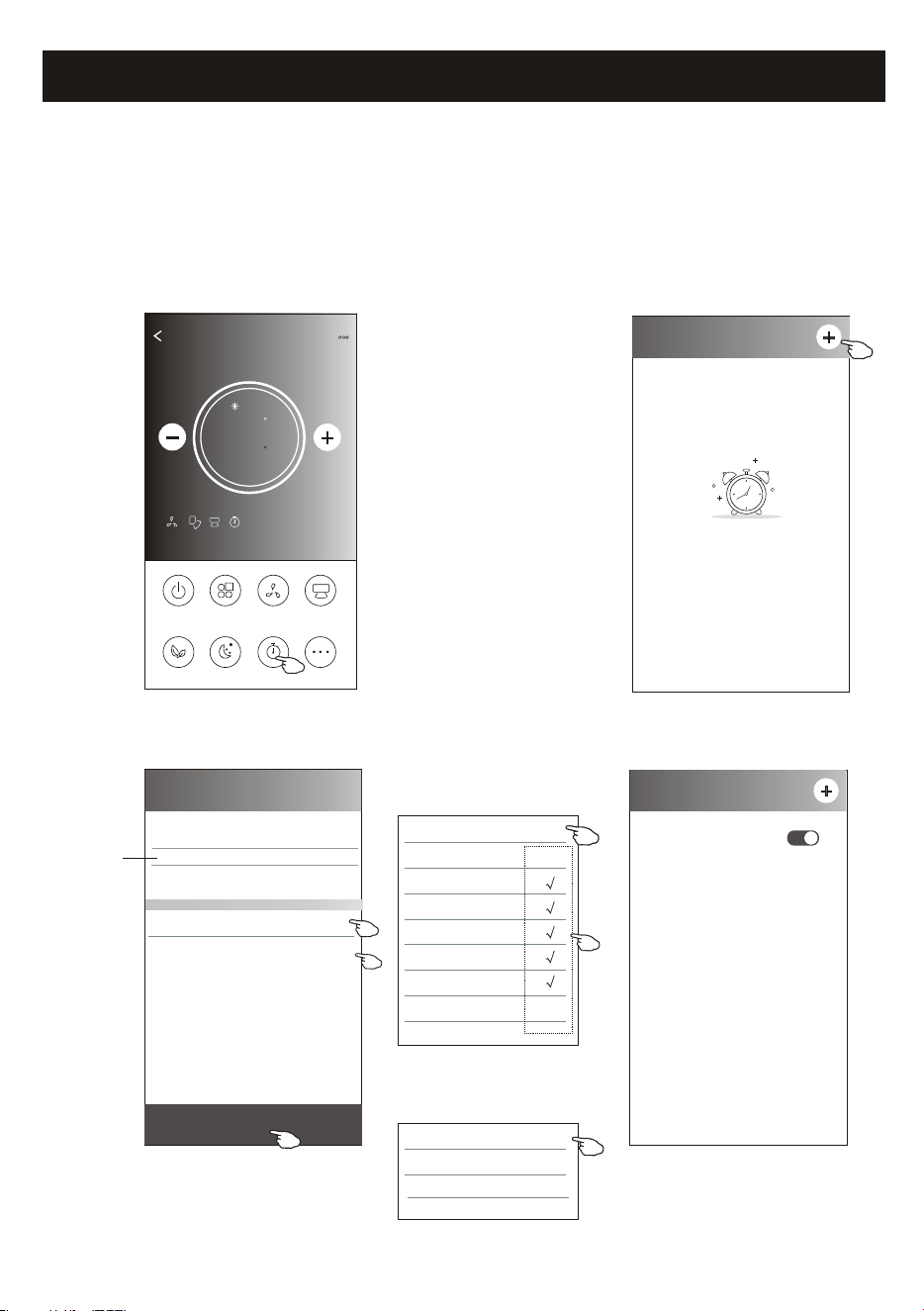
Air conditioner control
1.Tap the Timer buon.
2.Tap + in the upper right corner of the Timer main screen.
3.Choose the Time/Repeat/Switch OFF then tap Save.
4.The mer(off) will appear on the Timer main screen.
ON/OFF
Fan Speed
Precision
Air Flow
More
Eco Sleep
Mode
Timer
Sample1
77
Cool
0
< Timer
No Timer
< Timer
19 27
20 28
22 30
23 31
Save
21 : 29
Repeat Monday.... >
Switch OFF>
Once
Monday
Tuesday
Wednesday
Thursday
Friday
Saturday
Sunday
Cancel Repeat Confirm
20
Slide up or down
to select me
Tap repeat > then tap your desired
repeat days or Once, then tap
Confirm your selecon.
< Timer
21:29
OFF, Weekday
ON
Cancel Switch Confirm
OFF
Tap Switch > then slide the
screen to choose ON
and Confirm.
Control form2-Timer(on) setting
F
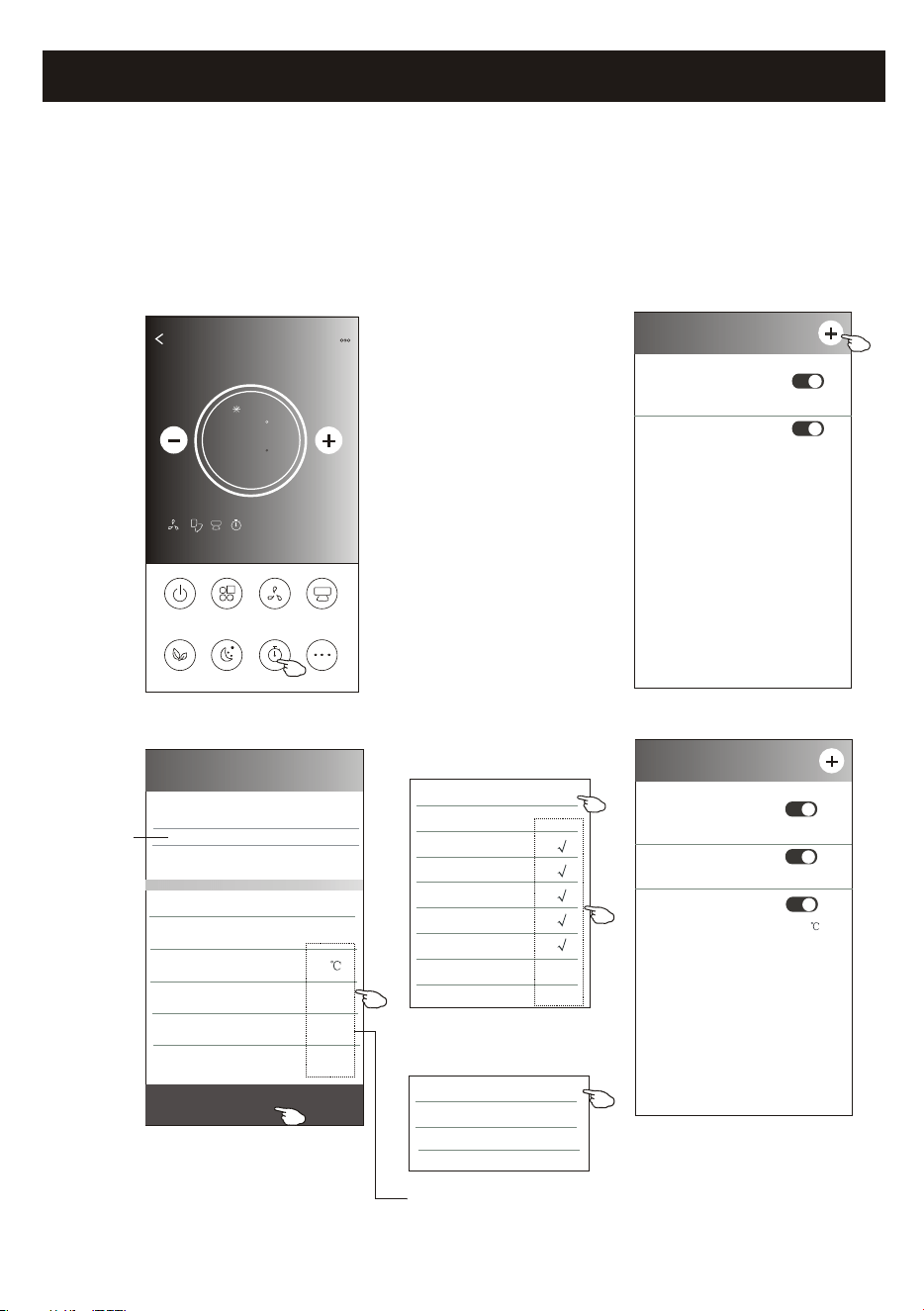
Air conditioner control
1.Tap the Timer buon.
2.Tap + in the upper right corner of the Timer main screen.
3.Set the Time/Repeat Date/Switch(ON)/Temperature/Mode/
Fan speed/Air Flow as your desired and then tap Save.
4.The mer will appear on the Timer main screen.
ON/OFF
Fan Speed
Precision
Air Flow
More
Eco Sleep
Mode
Timer
Sample1
77
Cool
0
< Timer
14 17
15 18
17 20
18 21
Save
16 : 19
Repeat Monday.... >
Switch ON>
Temperature 25 >
Mode Cool>
Fan Speed Mid>
Precision Air Flow Up-Down Swing>
Slide up or down
to select me
21
Once
Monday
Tuesday
Wednesday
Thursday
Friday
Saturday
Sunday
Cancel Repeat Confirm
Tap repeat > then tap your desired
repeat days or Once, then tap
Confirm your selecon.
< Timer
ON
Cancel Switch Confirm
OFF
Tap Switch > then slide the
screen to choose ON
and Confirm.
16:19
ON,Cool,Mid,Up-Down Swing 25 ,M...
< Timer
21:29
OFF, Weekday
Tap Temperature/Mode/Fan Speed/
Air Flow > one by one then set as your
desired as menoned on the previous
chapter and tap Confirm the seng.
04:30
OFF
21:29
OFF, Weekday
04:30
OFF
Control form2-Timer(off) setting
F
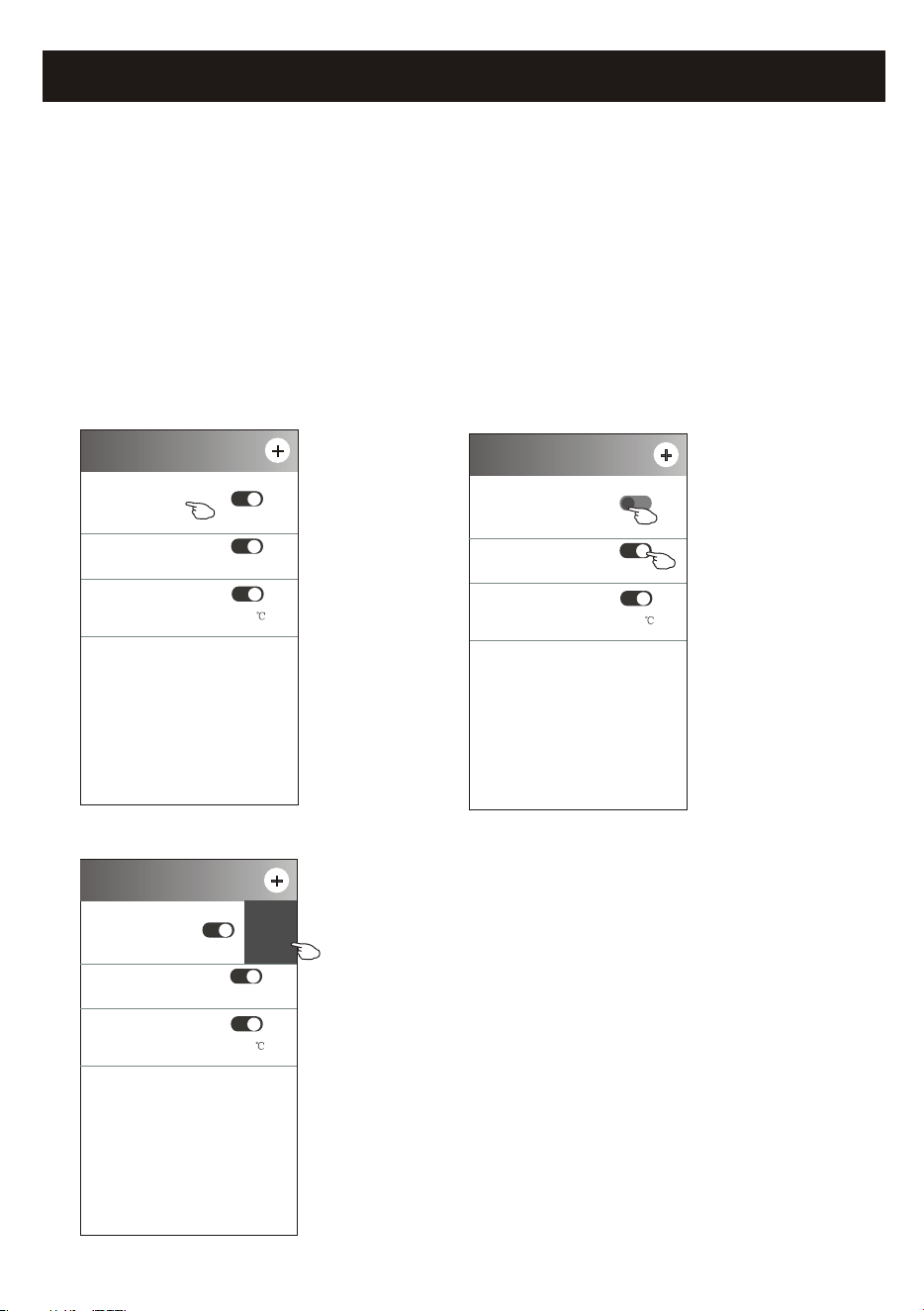
Air conditioner control
1.Change the Timer setting:
Tap anywhere of the timer list bar except the switch bar to get into the Timer
setting screen, change the setting and then tap save.
2.Enable or Disable the Timer:
Tap the left of the switch to disable the Timer.
Tap the right of the switch to enable the Timer.
3.Delete the Timer:
Slide the list bar of the Timer from right to left until Delete button appear,
then tap delete.
< Timer
16:19
ON,Cool,Mid,Up-Down Swing 25 ,M...
21:29
OFF, Weekday
04:30
OFF
22
< Timer
16:19
ON,Cool,Mid,Up-Down Swing 25 ,M...
21:29
OFF, Weekday
04:30
OFF
Slid left to disable the Timer.
Slid right to enable the Timer.
< Timer
16:19
ON,Cool,Mid,Up-Down Swing 25 ,M...
29
kday
04:30
OFF
Delete
Control form2-Timer management
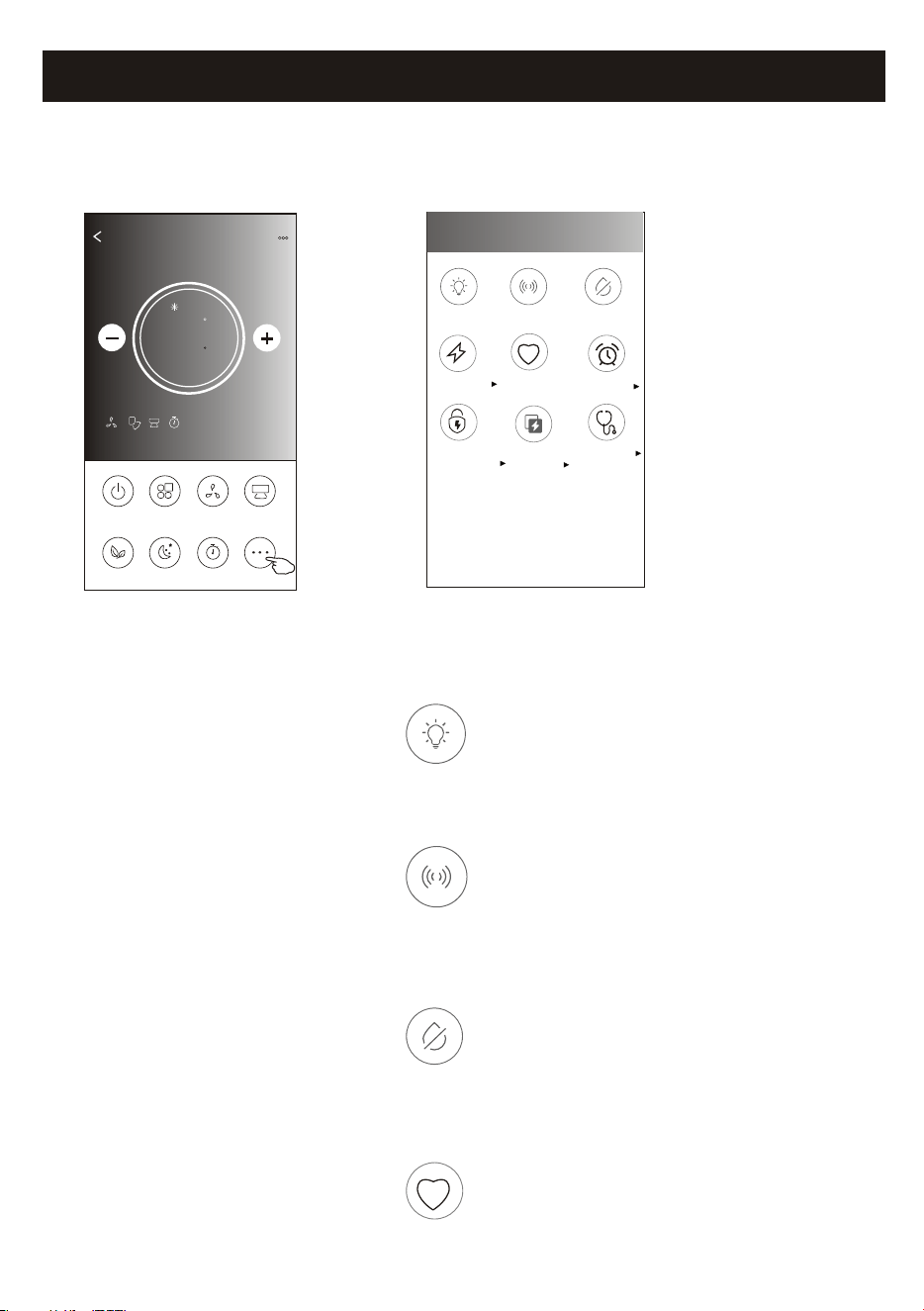
Air conditioner control
1.Tap the More buon to operate addional funcons if it appears on the screen.
ON/OFF
Fan Speed
Precision
Air Flow
More
Eco Sleep
Mode
Timer
Sample1
77
Cool
0
23
Note: The appearance maybe different , some icons
will be hidden if the air conditional do no have this
function or do not enable on the current mode.
< More
Buzzer
An-Mildew
Display
Health
Reservaon
GEN Mode
Electricity
Monitoring
Self-diagnosis
Electricity
Management
2. Tap the to switch on/off the indoor LED display."Display"
Display
3. Tap the to switch on/off the buzzing when operang through Wi-Fi APP."Buzzer"
Buzzer
Note:
Some air conditioner model
don't have the more button.
4. Tap the "An-Mildew" buon to acvate the An-Mildew funcon, if it is available on the screen.
Aer AC turning off , it will start drying , reduce residual moisture and prevent mould, aer funcon
finish, it will automacally turn off.
An-Mildew
Health
5. Tap the "Health" buon to switch on/off the healthy funcon, if it is available on the screen.
It acvate the anbacterial ioniser funcon.This funcon only for models with the ioniser generator.
Control form2-More functions
F
24
Air conditioner control
6. Tap the "GEN Mode" button, if it is available on the screen.
In this Mode, you can choose one of the three levels of current.
The air conditioner will maintain proper current to save energy.
GEN Mode
GEN Mode
X
LV1
LV3
LV2
30%
80%
50%
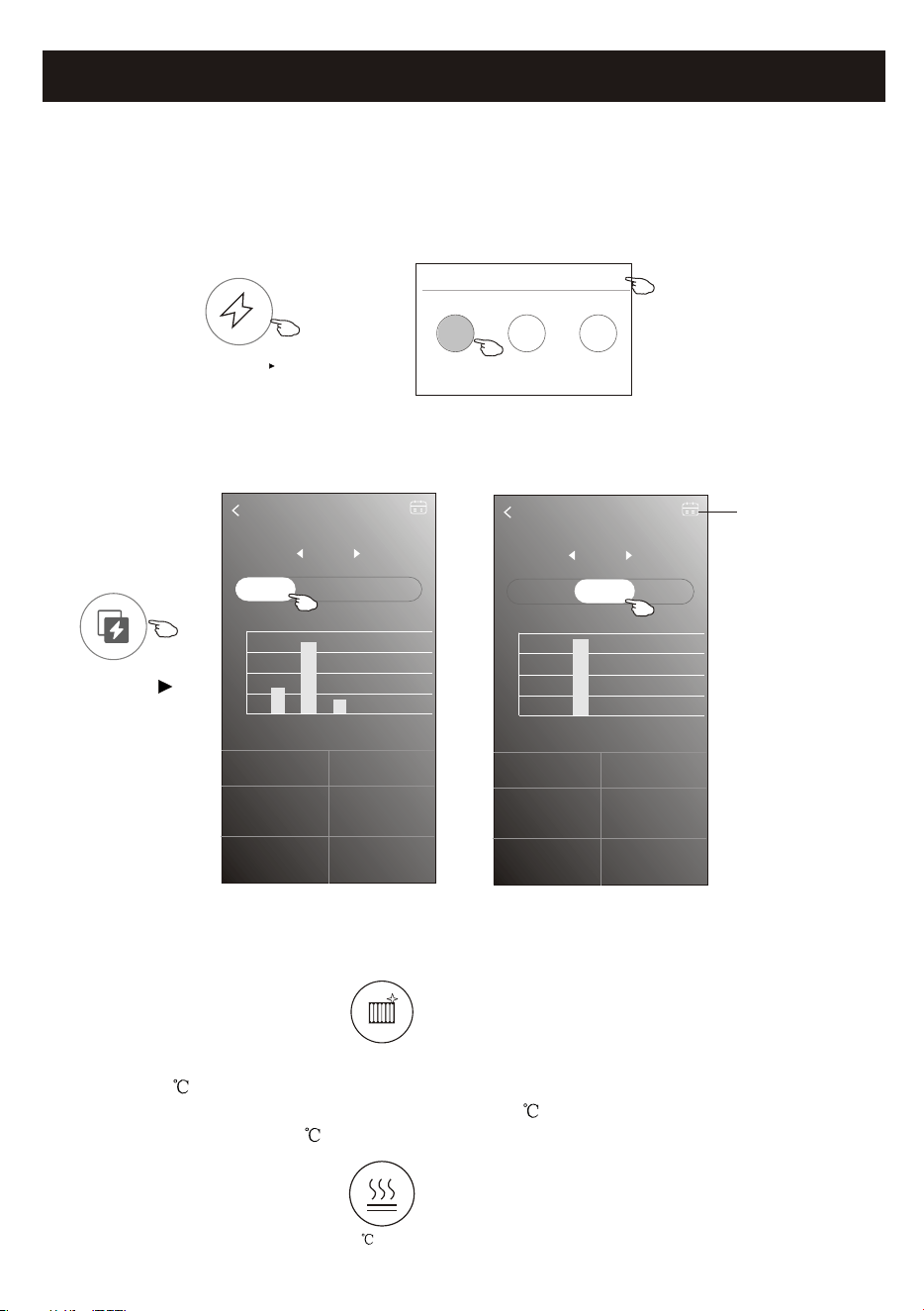
7. Tap the "Electricity Monitoring" button if it is available on the screen.
In this function, you can monitor the air conditioner electricity consumption.
Electricity monitoring
2019-03-11
DAY Month Year
2019-03-10 2019-03-11
0 kwh
Total Electricity
Consumption
0.14 kwh
Total Electricity
Consumption
4.6 hour
Running time statistics
0 hour
Running time statistics
13:00 14:00 15:00 16:00 17:00 18:00 19:00
(Kwh)
0.032
0.024
0.016
0.008
0
Electricity monitoring
2019-03
DAY Month Year
2019-02 2019-03
0.13 kwh
Total Electricity
Consumption
0.32 kwh
Total Electricity
Consumption
10.83 hour
Running time statistics
4.33hour
Running time statistics
03-09 03-10 03-11 03-12 03-13 03-14 03-15
(Kwh)
0.16
0.12
0.08
0.04
0
Electricity
Monitoring
You can tap this button to
pop up the calender then
select the date.
8. Tap the "Self-Cleaning" button, if it is available on the screen.
Check the details of the Self-Cleaning function on User Manual.
9. Tap the "8 Heat" button , if it is available on the screen.
This function help keep the room temperature over 8 .
Check the details of the 8 Heat function on User Manual.
Self-Cleaning
8 Heat
Control form2-More functions
25
Air conditioner control
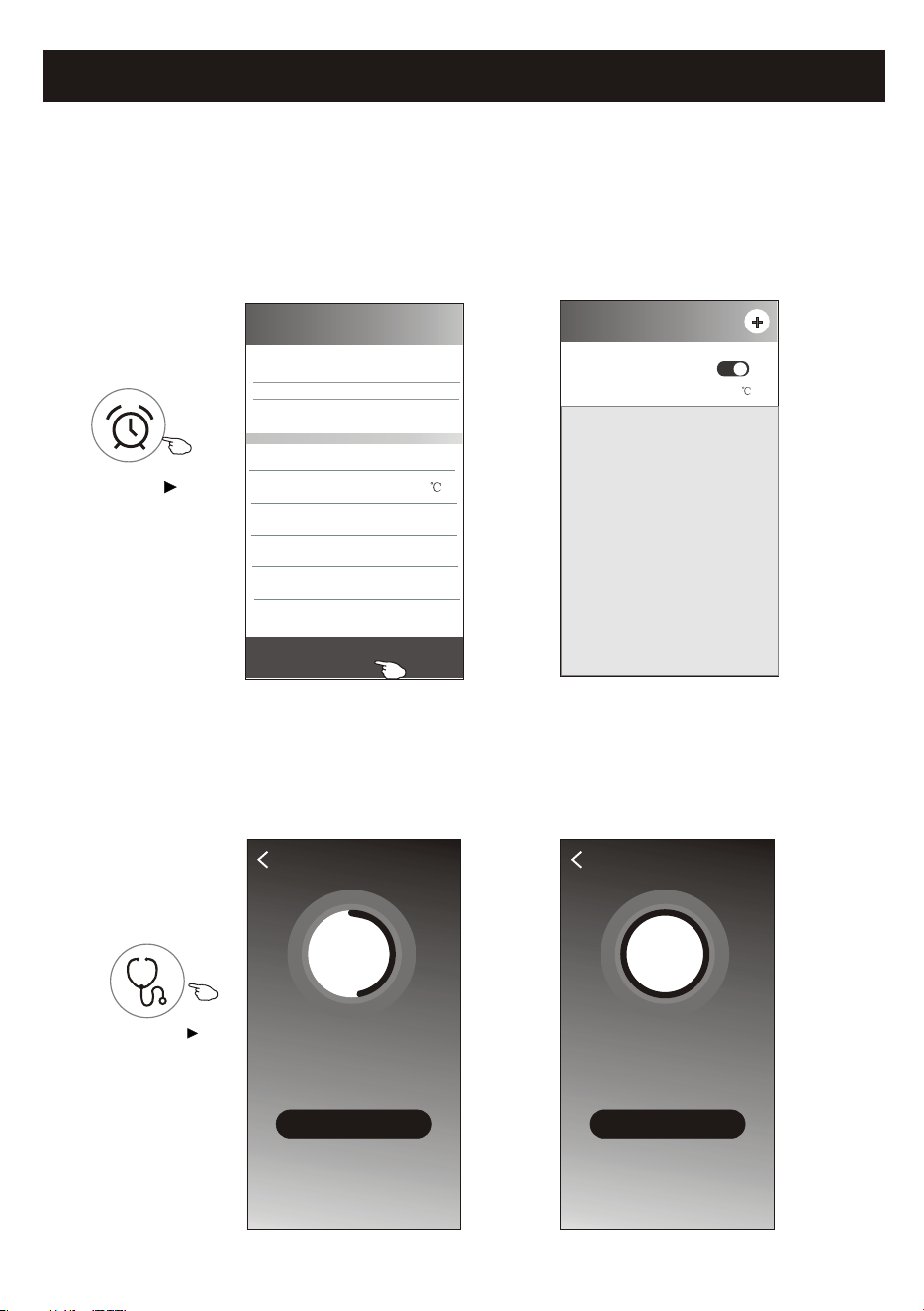
10.Tap the "Reservation" button , if it is available on the screen.
You can set the time, repeat day, temperature, mode, fan speed, air flow as you desired
and then tap Save to activate the function.
The air conditioner will automatically reach your settings at the appointment time.
< Reservation
14 17
15 18
17 20
18 21
Save
16 : 19
Repeat setting Monday.... >
Temperature 25 >
Mode Cool>
Fan Speed Mid>
Precision Air Flow Up-Down Swing>
< Reservation
16:19:00
ON,Cool,Mid,Up-Down Swing 25 ,M...
After the reservation is set up, the air conditioner
will automatically reach your set requirement at your
appointment time.
11.Tap the "Self-diagnosis" button, if it is available on the screen.
The air conditioner will automatically diagnosis itself and indicate the Error code
and the problem instructions if possible.
Reservation
Self-diagnosis
48%
Checking
Cancel
48
OK
Self-diagnosis
100%
Complete
Error code: E0
Indoor and outdoor
communication failure
Self-diagnosis
Control form2-More functions
26
Air conditioner control-Additional functions(More)Air conditioner control
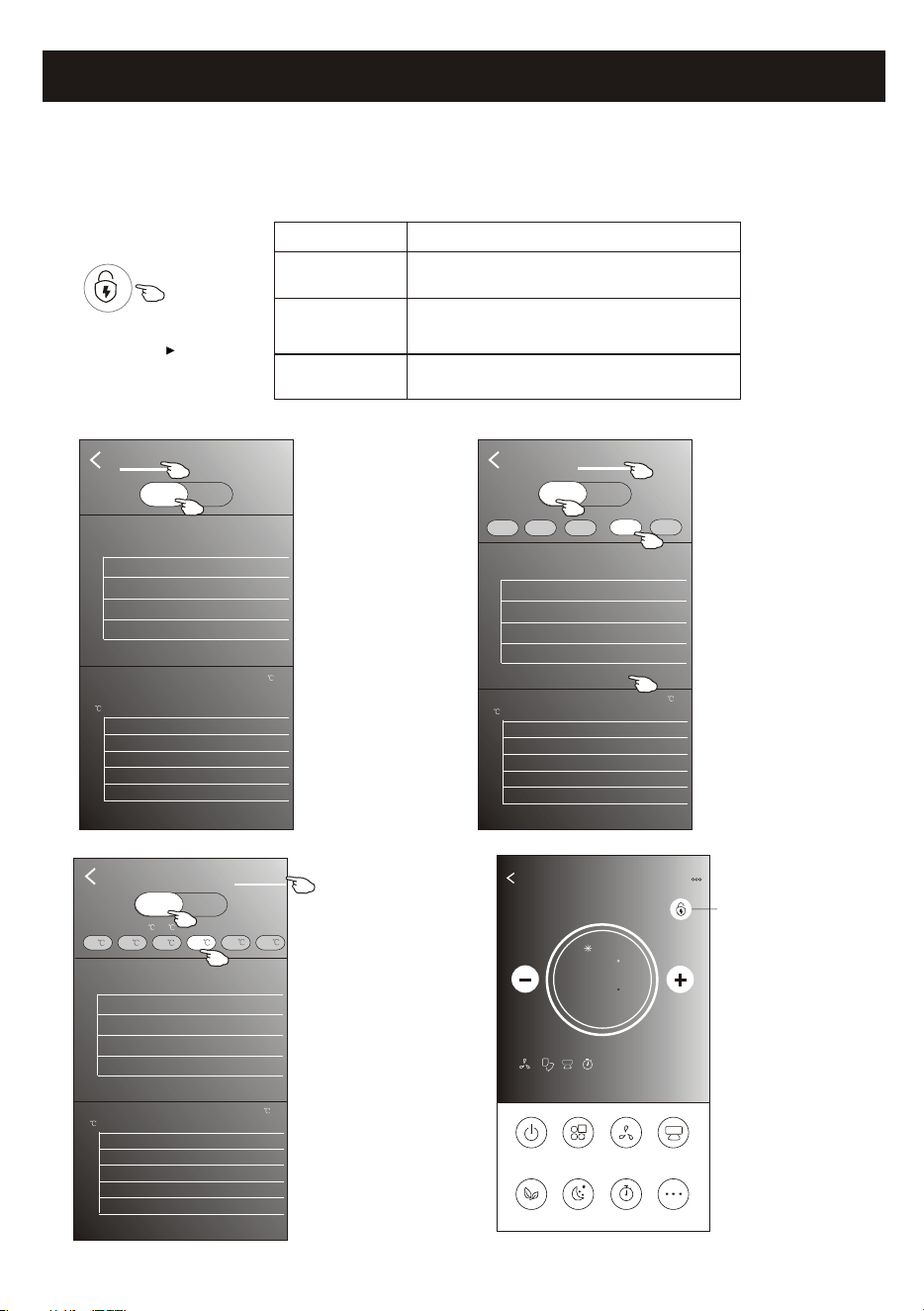
12. Tap the "Electricity Management" buon if it is available on the screen.
Electricity
Management
XXXXX
ON OFF
Default mode
Fixed Electricity Fixed Temp
Remaining electricity Total Electricity: 0 kwh
Room Temperature Curve
Average Temp:0
(%)
100
75
50
25
0
( )
50
40
30
20
10
0
Fix Mode
Air conditioner actions
Default mode
AC auto operate. Ulmate smart energy saving,
have a comfortable and cooling sleep at night.
Fixed Electricity
AC auto operate as per the fixed electricity
power, the user can select the fixed
electricity power every night.
Fixed Temp
AC auto operate as per the fixed temp,the
user can select different temp every night.
XXXXX
ON
OFF
Default mode
Fixed Electricity Fixed Temp
Remaining electricity
Total Electricity: 0 kwh
Room Temperature Curve
Average Temp:0
(%)
100
75
50
25
0
( )
50
40
30
20
10
0
1kwh 2kwh 3kwh
4kwh 5kwh
XXXXX
ON
OFF
Default mode
Fixed Electricity Fixed Temp
Remaining electricity Total Electricity: 0 kwh
Room Temperature Curve
Average Temp:0
(%)
100
75
50
25
0
( )
50
40
30
20
10
0
26 27 28
29
30 31
Set temperature(26 ~31 )
ON/OFF
Fan Speed
Precision
Air Flow
More
Eco Sleep
Mode
Timer
Sample1
77
Cool
0
1.6kwh
Default
1.Choose Default mode
2.Switch ON
The other 2 modes
will be deactivate.
1.Choose Fix Electricity mode
2. Select the fixed power consumption
3.Switch ON
The other 2 modes
will be deactivate.
1.Choose Fix Temp mode
2. Select the fixed temperature
3.Switch ON
The other 2 modes
will be deactivate.
Electricity Management indicator
The time can be slide left or
right to show more list.
Control form2-More functions
22:00 23:00 00:00 01:00 02:00 03:00 04:00
22:00 23:00 00:00 01:00 02:00 03:00 04:00
22:00 23:00 00:00 01:00 02:00 03:00 04:00
22:00 23:00 00:00 01:00 02:00 03:00 04:00
22:00 23:00 00:00 01:00 02:00 03:00 04:00
22:00 23:00 00:00 01:00 02:00 03:00 04:00
F
Air conditioner control
ON/OFF
Fan Speed
Precision
Air Flow
More
Eco Sleep
Mode
Timer
Sample1
77
Cool
0
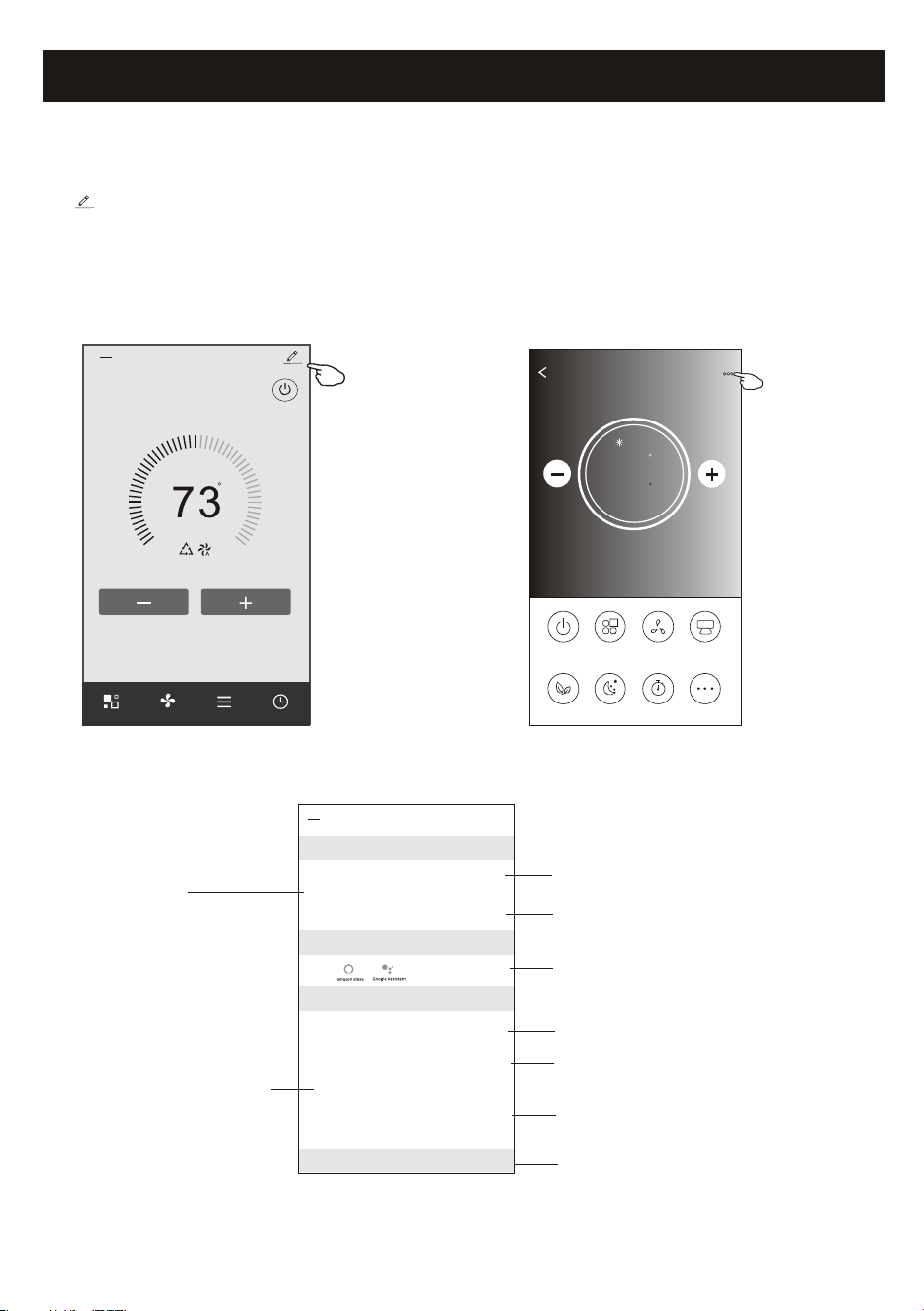
Tap on control form1 or tap ... on control form2 , get into the device details screen.
Here you can get some useful informaon and sharing the device to other accounts.
Check the following pictures and instrucons carefully.
27
F
Set Temperature
Timer
Function
Fan
Mode
Sample2
<
Control form2Control form1
<
Details of device
Information
Remove Device
Supported Third-part Control
Others
Modify Device Name *** >
Device Locaon Dining Room >
Check Device Network Check Now >
Device Sharing >
Device Info >
Feedback >
Check for Firmware Update >
Tap to change the device
locaon to another room
Tap to check the network status
Tap to got the instrucon for connecng the
amazon alexa or Google Assistant voice controller
Tap to check the Virtual ID/Wi-Fi name/IP address
MAC address/Time Zone/Wi-Fi single strength
Feed back the problems or some
suggesons to the APP administrator.
Check and update the firmware
Tap to remove the device and the
device will be reset automacally
once be deleted.
Tap to check the network status
Tap to sharing the device to other account
Device details and management
F
Air conditioner control
<
Details of device
Information
Remove Device
Supported Third-part Control
Others
Modify Device Name *** >
Device Location Dining Room >
Check Device Network Check Now >
Device Sharing >
Create Group >
Device Info >
Feedback >
Check for Firmware Update >
Device details and management
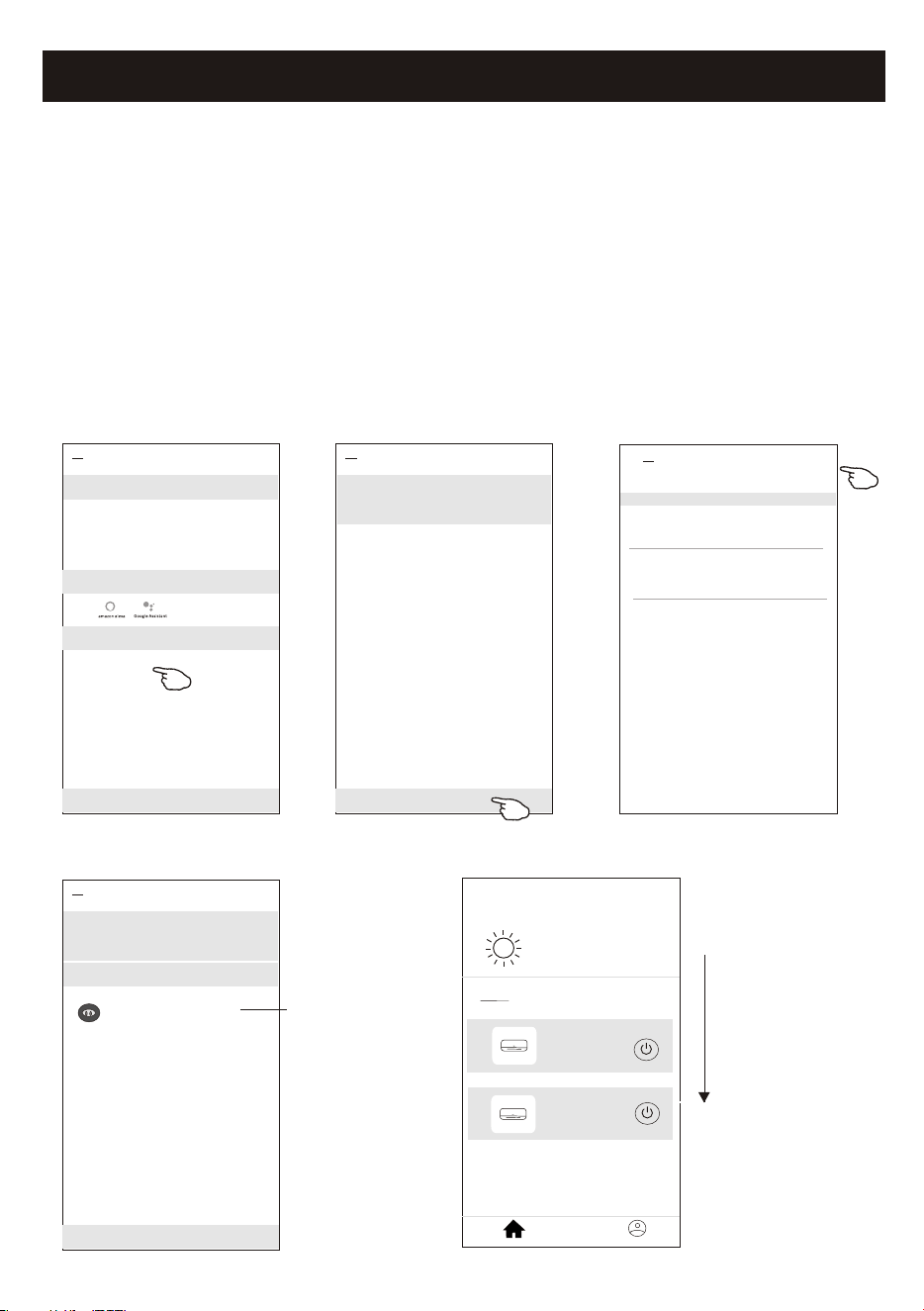
How to share the devices to other accounts?
1. Tap "Device Sharing" and pop up Device Sharing screen.
2. Tap "Add Sharing".
3. Select the region and enter the account which you want to sharing.
4. Tap "Completed", the account will appear on your sharing list.
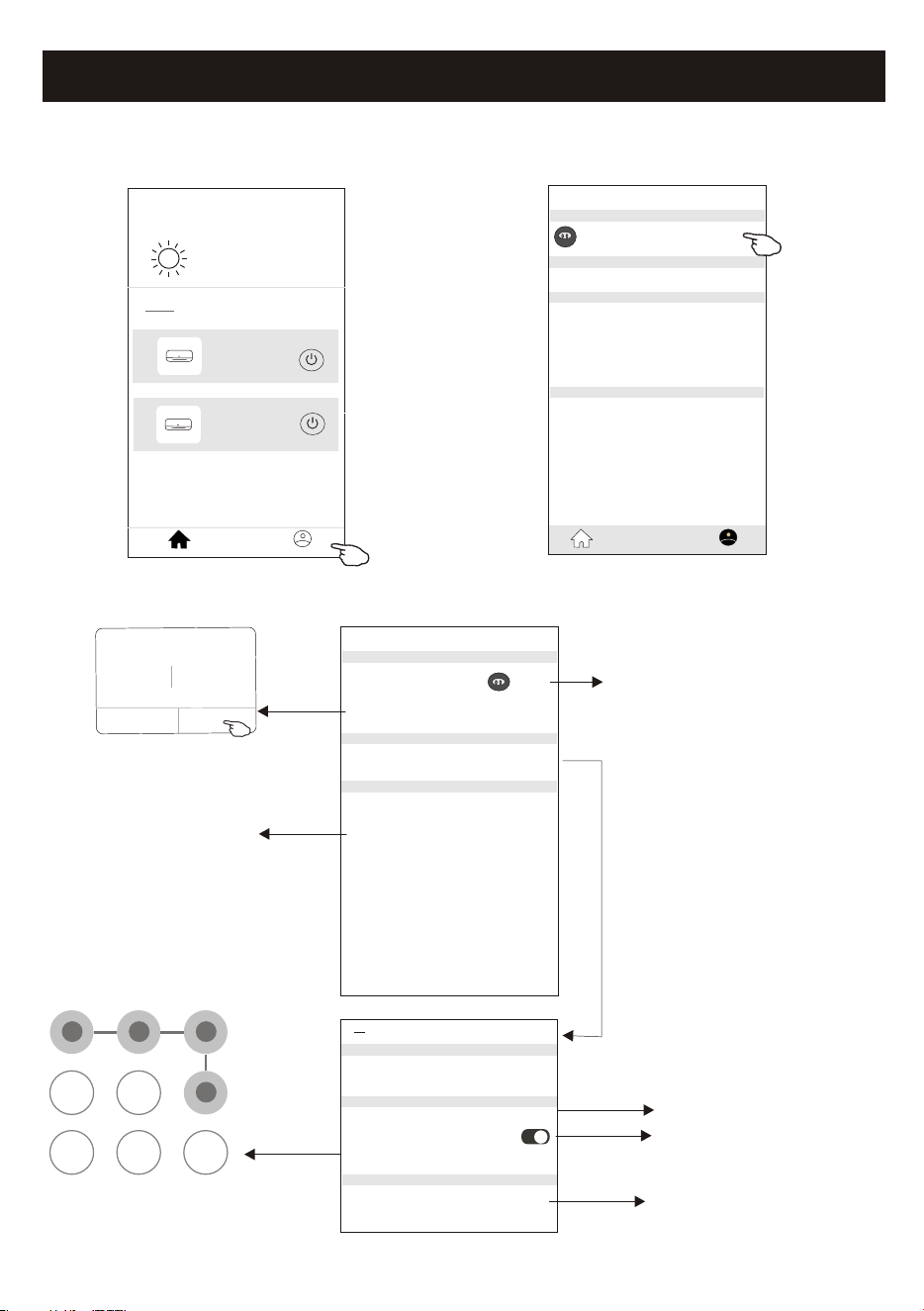
5. The received sharing members should hold pressing the home screen and slide
down to refresh the device list, the device will appear on the device list.
<
Details of device
Adding sharing
It is recommended to set permanent resident as family
member to control the device Family Settings
<
Add Sharing Completed
Region China +86 >
Account
number
***********
<
Details of device
Adding sharing
It is recommended to set permanent resident as family
member to control the device Family Settings
Sharing List
Alias name1
************
Hold the bar about 3s
then you can delete the
sharing account.
28
<<
my home
+
>
Set your home location, get more
information
Welcome home
V
All Devices
Living Room
room
Master Bed
...
Home
Me
Sample1
Sample2
Turned off
Already On
Hold on and slide down to
refresh the device list
Account management
29
<<
my home
+
>
Set your home location, get more
information
Welcome home
V
All Devices
Living Room
room
Master Bed
...
Home
Me
Sample1
Sample2
Turned off
Already On
Profile
Nick name >
Account******
Message Center >
Help Center >
More Services >
Settings >
Home Management >
Home
Me
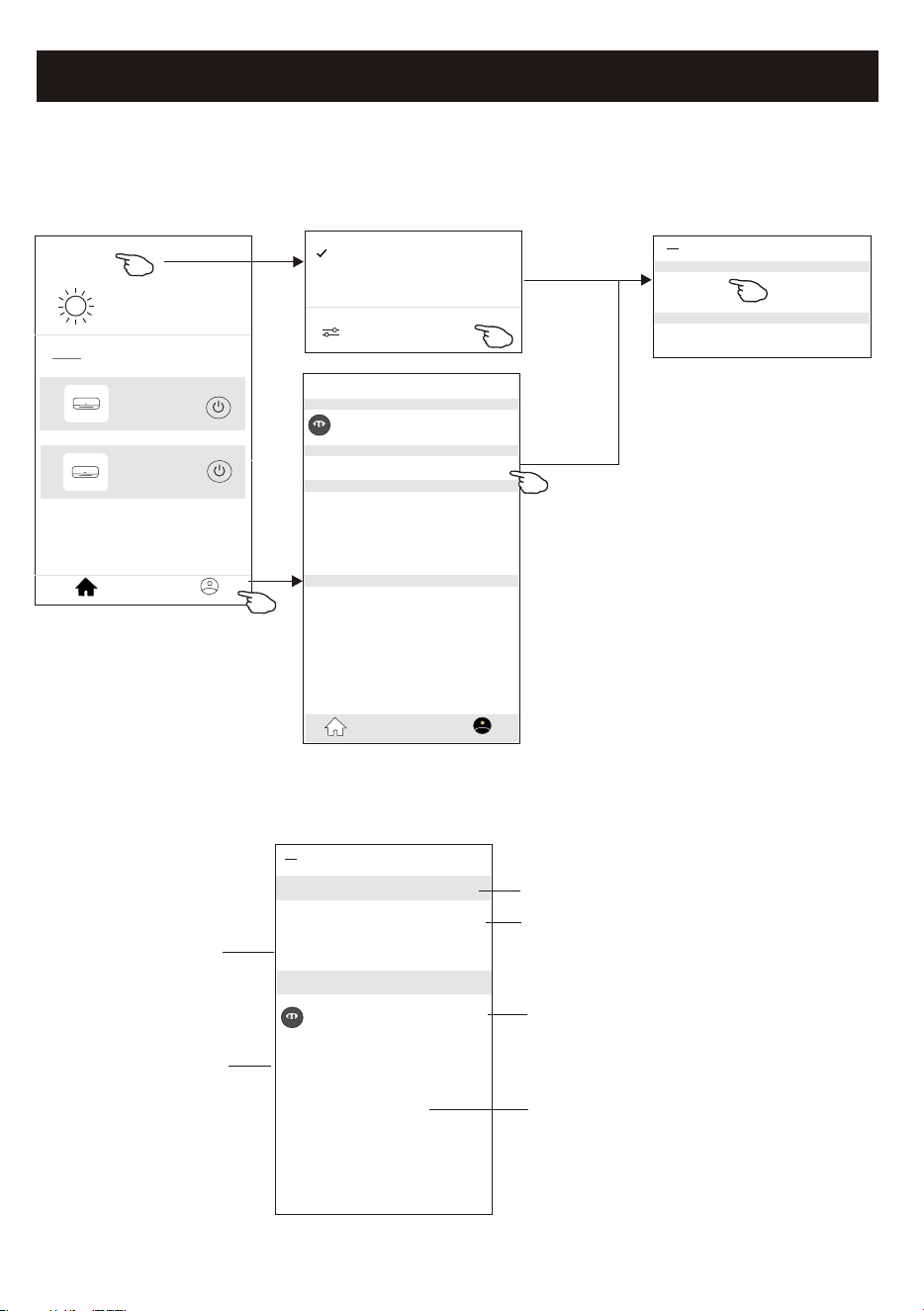
Account Profile setting
Profile
Profile Picture >
Account Security >
Time Zone Universal >
Nickname ******** >
Select a picture for the
account from local album
Edit name
Cancel Save
Account one
Select the time zone
Change the nick
name of your account
Account Security
Phone Number ********
Change Login Password >
Deactivate Account >
Location China
<
Pattern Unlock
Change Pattern Password >
Change the password
like reset password on page7
Please carefully to
deactivate the account
for all data will be deleted.
Set a pattern password
for launching the APP
Tap the switch to enable
or disable the Pattern password
Account management
Home(Family) management
30
<<
My Home
+
>
Set your home location, get more
information
Welcome home
V
All Devices
Living Room
room
Master Bed
...
Home
Me
Sample1
Sample2
Turned off
Already On
Profile
Nick name >
Account******
Message Center >
Help Center >
More Services >
Settings >
Home Management >
Home
Me
Home Management
My Home >
My Office >
<
Add family
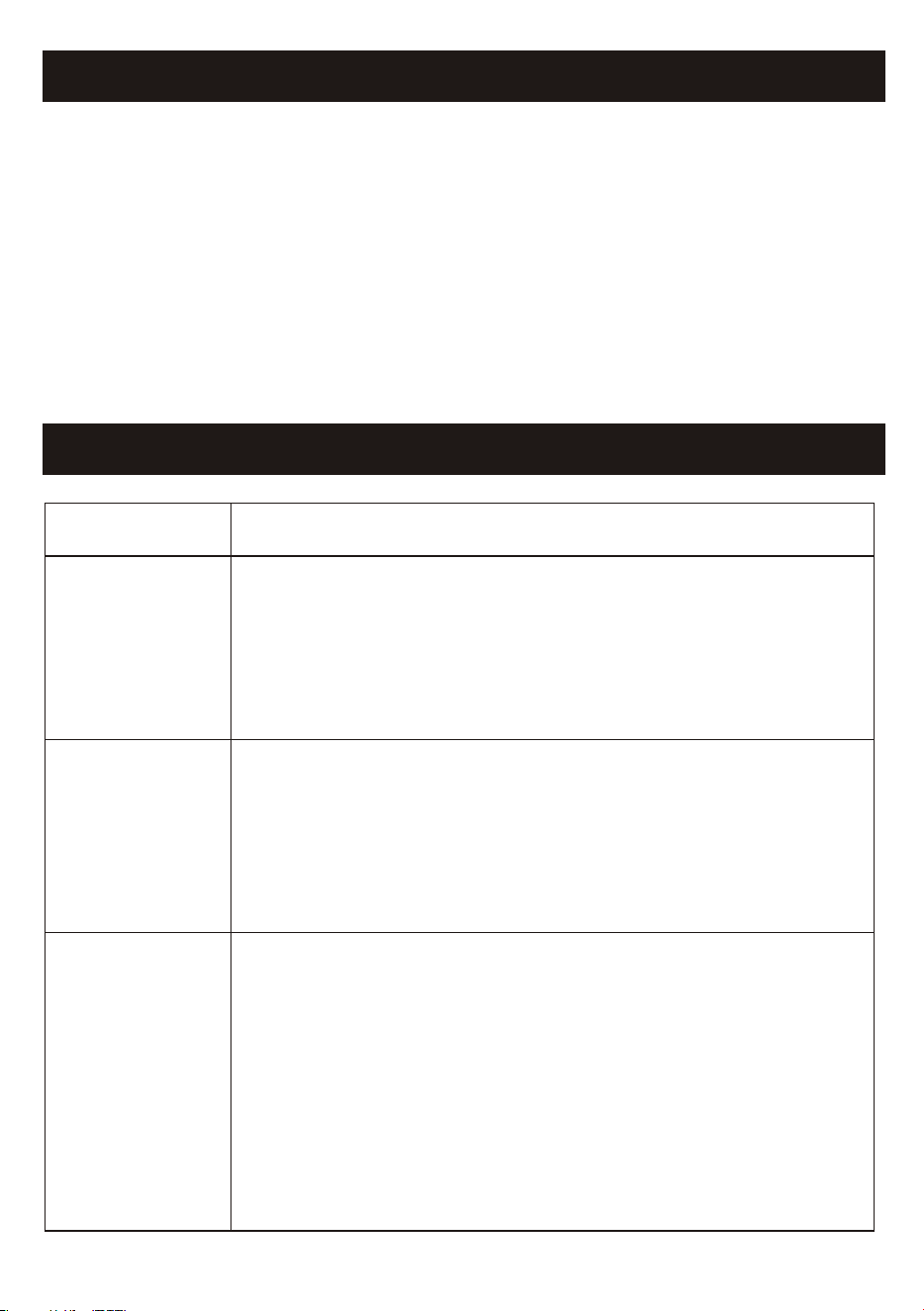
1.Tap the name of home at the left upper corner of the Home Screen and select the Home Management.
Or tap Me and tap Home Management.
2. Tap one of the families in the family list and get into Family Settings screen.
<
Family settings
Family members
Room Management 2 rooms >
Family Location >
Family Name My Home >
Remove Family
Add Menber
Nick name >
Account******
Tap to rename the family name
Tap to get into Room Management
Open the map automatically
then you can set the location
Add other account into this
family to control the device
Remove the Family
from your account
Home Management >
My Home
My Office
Tap to set a name and
select picture for the
family member
Note:
Tap "Add family"
and refer to page 6
to add a new family
3.Set the family as the following indicators.
31
Description
Analysis of cause
Air conditioner
can't be configured
successfully
1. Check the mobile connected Wi-Fi address and password is correct;
2. Check the air conditioner under configuration status;
3. There are any firewall or other restrictions have been set or not;
4. check the router work normally;
5. Make sure air conditioner, router and mobile work within signal scope;
6. Check router shielding App or not;
Software display: Identification failed,
It means the air conditioner has been reset, and the mobile phone lost
control permission.
You need to connect Wi-Fi to get permission again.
Please connect the local network and refresh it.
After all still can't work, please delete air conditioner and wait its refresh.
Mobile can't control
air conditioner
Software display: Air conditioner out of line.
Please check network working;
1. The air conditioner has been reconfiguration;
2. Air conditioner out of power;
3. Router out of power;
4. Air conditioner can't connect to router;
5. Air conditioner can't connect to network through the router
(under remote control mode);
6. Mobile can't connect to router(Under local control mode);
7. The mobile phone can't connect to network (under remote control mode).
Mobile can't find air
conditioner
Trouble Shooting
Notice
1. For technical update, there is maybe deviation of the actual items from what is on the manual. We
express our apologies. Please refer to your actual product and APP.
2. Smart air conditioner APP can be altered without notice for quality improvement and also be deleted
depending on the circumstances of manufacturing firms .
3. In case Wi-Fi signal strength is weakened, smart App may be disconnected. So make sure the indoor
unit near to wireless router.
4. DHCP server function should be activated for wireless router.
5. The internet connection may fail because of a firewall problem. In this case, contact your internet
service provider.
6. For smart phone system security and network setting, make sure Smart air conditioner APP is trusted.