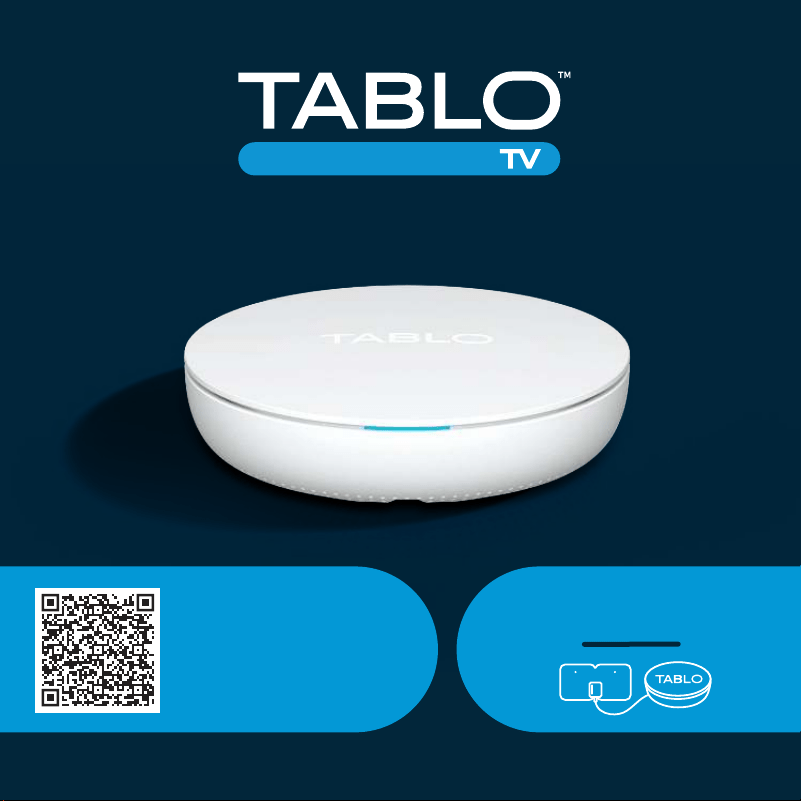
Download the Tablo
app to get started.
TabloTV.com/install
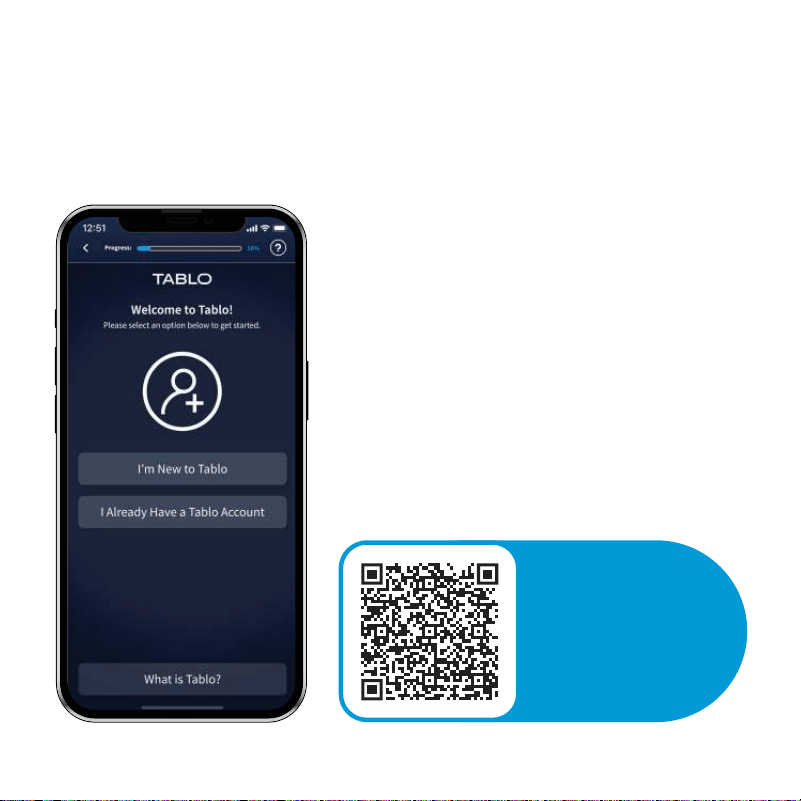
Download the Tablo app on your phone
to get started.
The app will walk you
through all the steps to set up your Tablo.
To download the app,
scan this code or visit
TabloTV.com/install
on your phone.
• Positioning your antenna
• Connecting Tablo to the internet
• Scanning for your channels
The Tablo app lets you watch TV and
manage recordings from your phone.
You also need the app for the initial
setup process of your Tablo, including:
01 | Quick-Start Guide
i
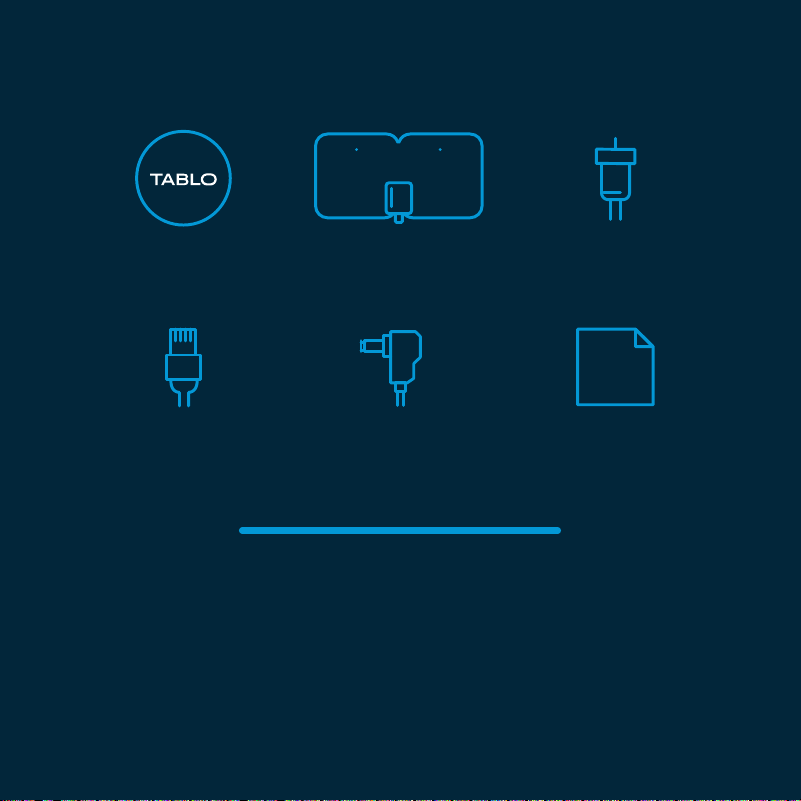
Quick-Start GuideEthernet Cable
Power Supply
Tablo Device Antenna Coaxial Cable
WHAT’S REQUIRED FOR SETUP
1. Smartphone
(iPhone or Android)
2. Internet
(Wi-Fi or Ethernet)
WHAT’S IN THE BOX
Quick-Start Guide | 02
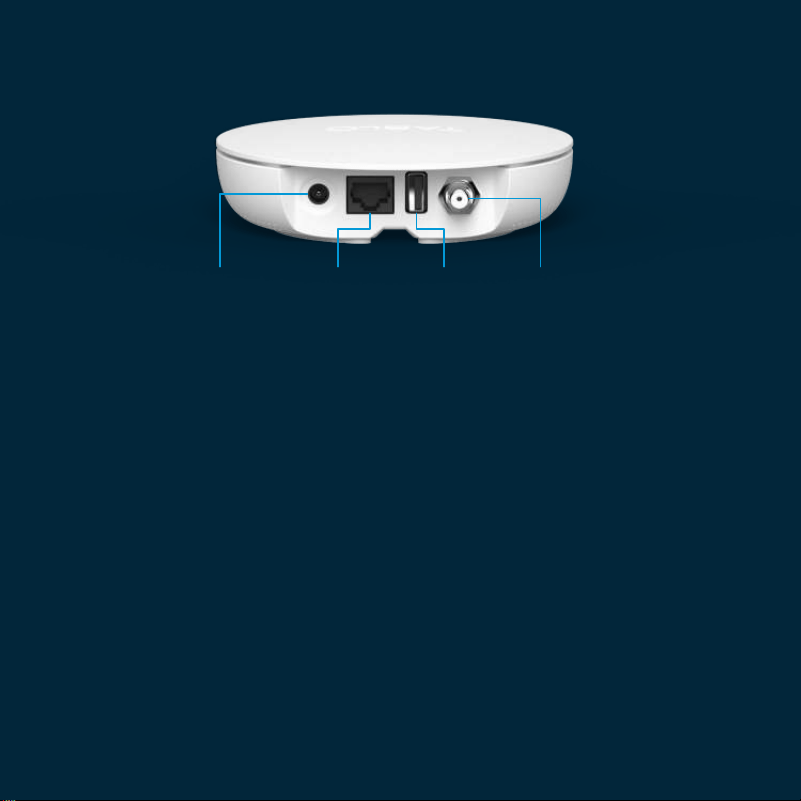
POWER ETHERNET ANTENNAUSB
Connect the Power Adapter (Provided)
Your Tablo must be powered on at all times, including overnight.
Connect Tablo to Your Internet
Use the Ethernet cable (provided) to connect your Tablo to your
router. If your antenna placement does not enable you to connect
via Ethernet, connect Tablo to your home network via Wi-Fi by
following the instructions within the Tablo mobile app.
(Optional) Connect a USB Hard Drive*
Tablo’s internal memory can store up to 50 hours of HD recordings.
If you want to add more storage, connect any USB hard drive up to 8TB.
*Before connecting a USB hard drive, you must first configure your Tablo device using the Tablo mobile
app. Once first-time setup is complete, you can connect an external hard drive.
SETTING UP YOUR TABLO
03 | Quick-Start Guide
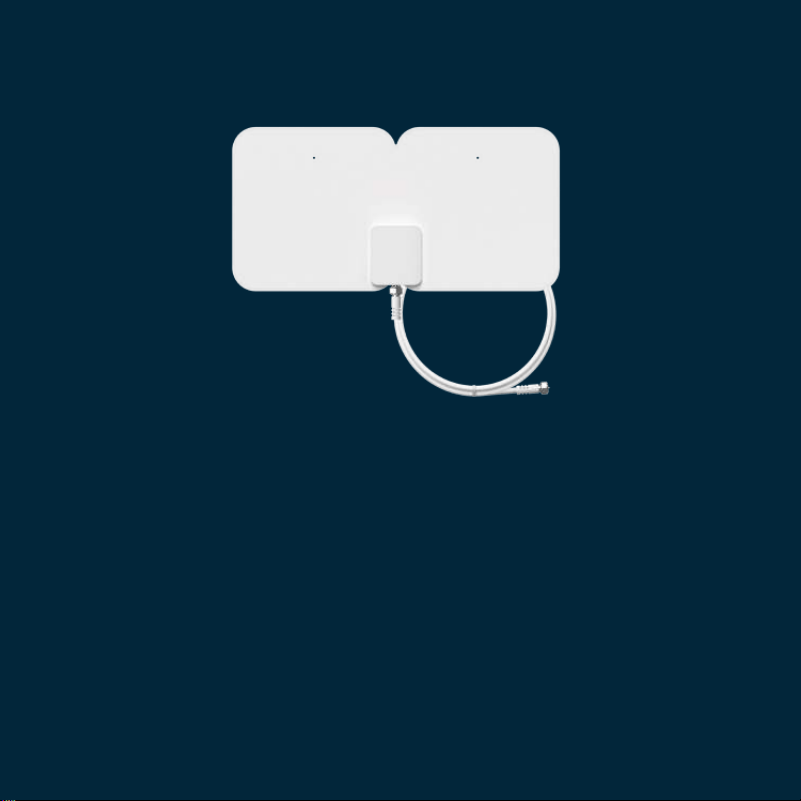
SETTING UP YOUR ANTENNA
1. Remove protective seal on both sides of the antenna.
2. Use the Tablo mobile app to find the best location
for your antenna. Need the app? Visit
TabloTV.com/install
to download on your mobile device.
3. Use the provided adhesive stickers to mount the antenna.
4. Connect the coaxial cable to the antenna and Tablo.
(Hand-tighten only)
5. (Optional) Use the cable clips to neatly position your cable.
Quick-Start Guide | 04
ENJOY TABLO ON ALL YOUR DEVICES
Tablo supports a wide variety of mobile devices, streaming media
systems and smart TVs for playback of live TV and recordings.
In order to enjoy Tablo content on those devices, you will need to
download the appropriate Tablo app and follow the on-screen prompts
to connect it to your Tablo.
A full list of supported devices and apps can be found at
TabloTV.com/apps.*
*Tablo is not endorsed, sponsored or affiliated by or with these companies, platforms or services.
05 | Quick-Start Guide
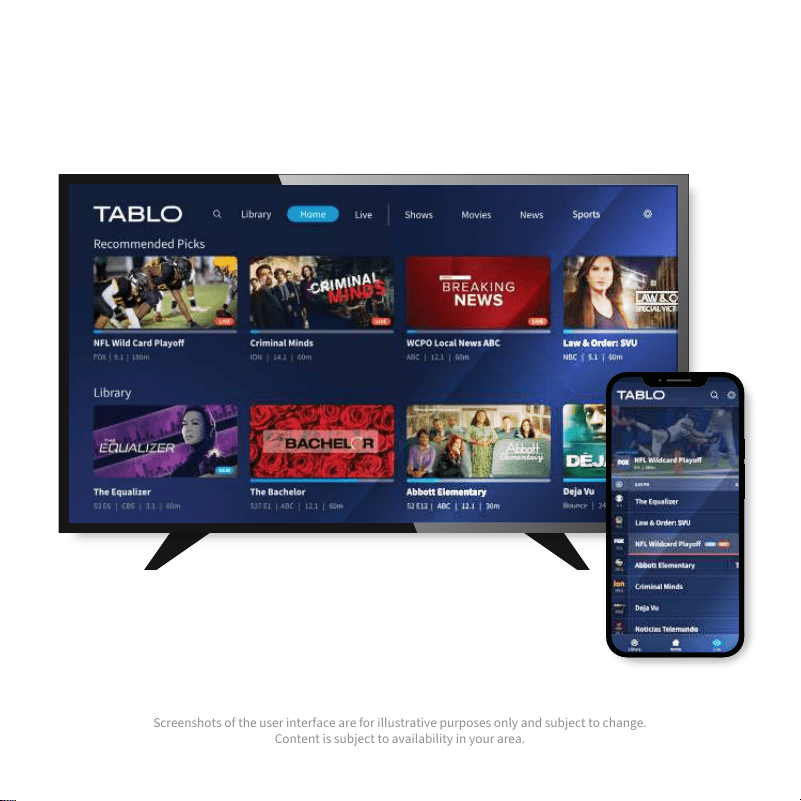
Screenshots of the user interface are for illustrative purposes only and subject to change.
Content is subject to availability in your area.
Quick-Start Guide | 06
FAQS & TROUBLESHOOTING
Cannot Connect Tablo to My Wireless Network
Trouble With Wi-Fi Setup?
Don’t worry. We have a whole page with device-specific instructions,
tips and how-tos for connecting Tablo to your network over Wi-Fi.
Visit
TabloTV.com/wifi
Apps and Supported Devices
A full list of supported devices
and apps can be found at
TabloTV.com/devices.
Closed Captioning
Closed captioning is available for
live TV and recordings on most
playback devices. For details,
visit
TabloTV.com/cc.
Hard Drive Not Recognized
If you have connected a USB hard
drive and its details are not shown
in your settings screen, try
rebooting the Tablo using the
reset button on the underside of
the device. If you still do not see
an option to format the drive in
the settings screen, contact Tablo
Support for assistance.
TabloTV.com/support.
07 | Quick-Start Guide

More detailed instructions, user manuals and troubleshooting tips can be found
online in the Tablo support portal at TabloTV.com/support.
Missing or Incorrect
Guide Data
Our nightly maintenance
processes may find and fix this
issue automatically. Please wait
1-2 days and if the issue persists,
visit TabloTV.com/guide for help.
Video Playback Is Pixelated
and/or Audio Drops Out
TV antenna signal strength is
inadequate or reduced. Check
your TV antenna’s connection to
Tablo and/or its position. Run
a new channel scan within
settings to determine current
signal strength.
Video Playback Loads
or Pauses Frequently
This is typically a home network
bandwidth issue. If possible, connect
your playback device and/or Tablo
via Ethernet instead of Wi-Fi to rule
out potential Wi-Fi interference
and/or network congestion.
(Note: Mesh networking equipment
can also cause frequent buffering
on video playback).
Recordings Failed
or Incomplete
TV signal was weak and/or external
hard drive was unavailable at
the time of the recording. TV
antenna and/or hard drive may
require attention.
Quick-Start Guide | 08
WARRANTIES & RETURNS
Having trouble?
Before returning Tablo to the store, contact us first!
For questions about warranties or returns, please contact us directly at
1-844-TABLOTV (822-5688) or email us at support@TabloTV.com.
We hope you love your Tablo, but if you’re unhappy for any reason, we offer a
30-day return policy on new units purchased through
TabloTV.com.
For units purchased through retail partners, the retailer’s return policy applies.
All Tablo units include a 100% repair or replacement warranty for 12 months from
the original purchase date.
Tablo’s complete warranty and return policy can be found on our website
at
TabloTV.com/warranty-returns.
Federal Communication Commission Statement
This equipment has been tested and found to comply with the limits for a Class B digital device, pursuant to Part 15 of the FCC Rules. These limits are designed to provide
reasonable protection against harmful interference in a residential installation. This equipment generates uses and can radiate radio frequency energy and, if not installed
and used in accordance with the instructions, may cause harmful interference to radio communications. However, there is no guarantee that interference will not occur in a
particular installation. If this equipment does cause harmful interference to radio or television reception, which can be determined by turning the equipment off and on, the
user is encouraged to try to correct the interference by one or more of the following measures:
• Reorient or relocate the receiving antenna.
• Increase the separation between the equipment and receiver.
• Connect the equipment into an outlet on a circuit different from that to which the receiver is connected.
• Consult the dealer or an experienced radio/TV technician for help.
This device complies with Part 15 of the FCC Rules. Operation is subject to the following two conditions: (1) This device may not cause harmful interference and (2) this
device must accept any interference received, including interference that may cause undesired operation. Changes or modifications not expressly approved by the party
responsible for compliance could void the user’s authority to operate the equipment.
09 | Quick-Start Guide
Live chat: TabloTV.com/support
Email: [email protected]
Phone: 1-844-TABLOTV (822-5688)
Or speak directly with our helpful
team of support gurus:
CONTACT US
Find answers to common questions,
how-to guides and troubleshooting
tips at TabloTV.com/support.
Need
Help?
Quick-Start Guide | 10

TabloTV.com
NUV-TF1282B-AN-03