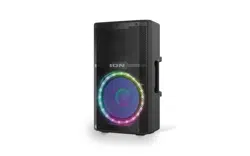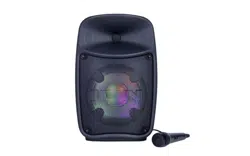
ION Audio Pro Glow
TM
Ultra User Guide 2
I
NTRODUCTION ......................................................................... 3
Box Contents ....................................................................................................... 3
Support ................................................................................................................. 3
SETUP ........................................................................................ 4
Quick Start ........................................................................................................... 4
Connection Diagram ......................................................................................... 4
Stand Mounting .................................................................................................. 5
FEATURES ................................................................................. 6
Rear Panel ............................................................................................................ 6
OPERATION ............................................................................... 9
Using the Control Knob .................................................................................... 9
Pairing a Bluetooth® Device ........................................................................... 10
Linking Two Speakers ...................................................................................... 11
USB Mode ............................................................................................................ 12
Light Modes ........................................................................................................ 13
App Control ....................................................................................................... 14
TROUBLESHOOTING ............................................................... 15
APPENDIX ................................................................................. 16
Technical Specifications .................................................................................. 16
Trademarks & Licenses .................................................................................... 17
TABLE OF CONTENTS
ION Audio Pro Glow
TM
Ultra User Guide 3
Thank you for purchasing the Pro Glow™ Ultra. At ION, your entertainment is as important to
us as it is to you. That’s why we design our products with one thing in mind—to make your life
more fun and more convenient.
Box Contents
Pro Glow™ Ultra
IEC320 C13 Power Cable (5 ft / 150 cm)
Microphone with cable (8.2 ft / 250 cm)
Quickstart Guide
Support
For the latest information about this product (documentation, technical specifications, system
requirements, compatibility information, etc.) and product registration, visit i
onaudio.com.
For additional product support, visit i
onaudio.com/support.
INTRODUCTION
ION Audio Pro Glow
TM
Ultra User Guide 4
Quick Start
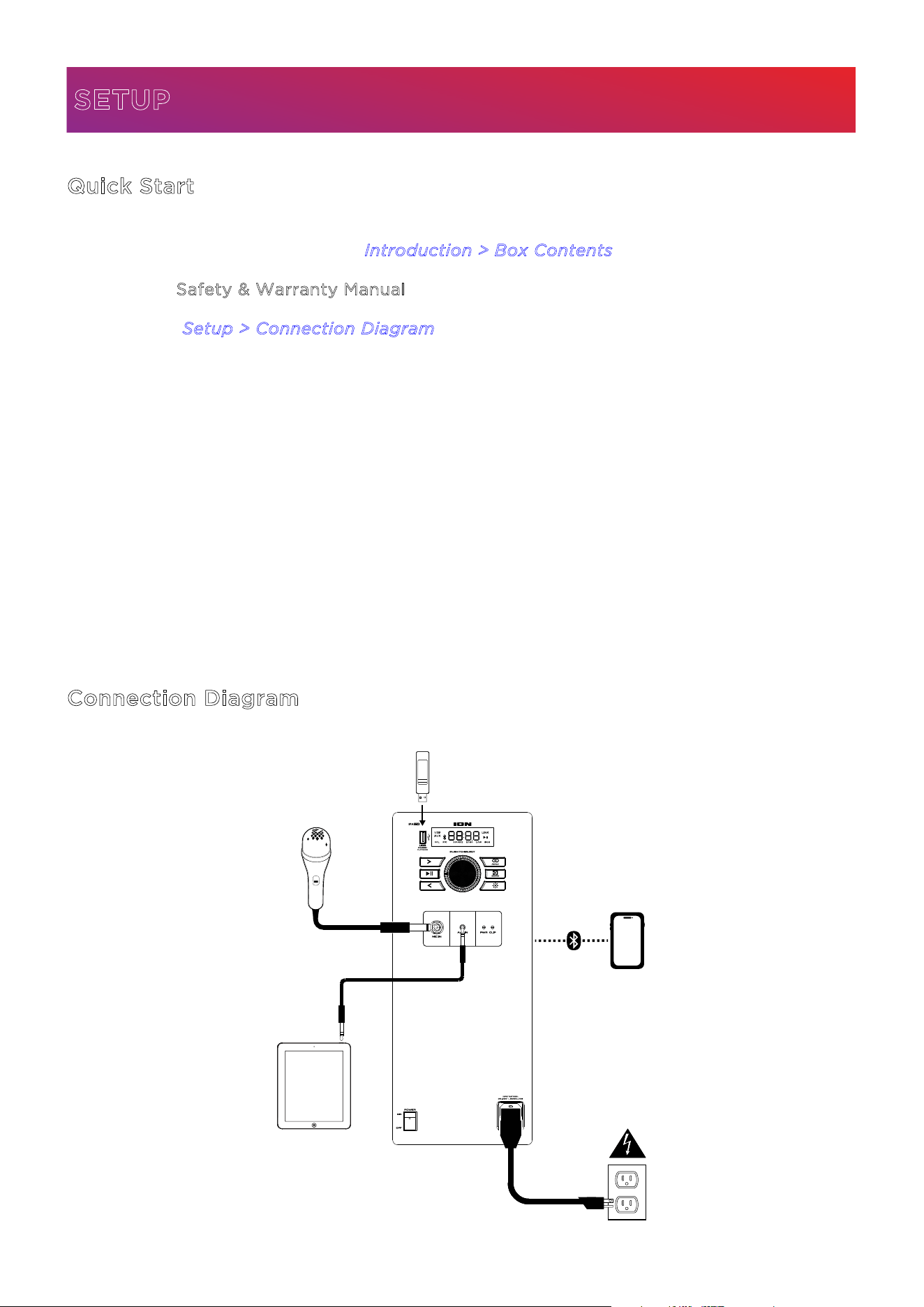
1. Make sure all items listed in the I
ntroduction > Box Contents are included in the box.
2. Read the S
afety & Warranty Manual before using the product.
3. Study the S
etup > Connection Diagram.
4. Make sure all input devices (such as microphones, CD players, or digital media players) are
turned o with their volume settings set to “zero.”
5. Connect all devices as shown in the Connection Diagram.
6. Switch everything on in the following order:
a. Audio input devices (e.g. microphones, instruments, CD players)
b. Pro Glow™ Ultra
7. When you are finished using Pro Glow™ Ultra, switch everything o in the following order:
a. Pro Glow™ Ultra
b. Audio input devices
Connection Diagram
SETUP
USB Drive
Microphone
Bluetooth
®
Device
Tablet, etc.
Power
USB Drive
Microphone
Bluetooth
®
Device
Tablet, etc.
Power
ION Audio Pro Glow
TM
Ultra User Guide 5
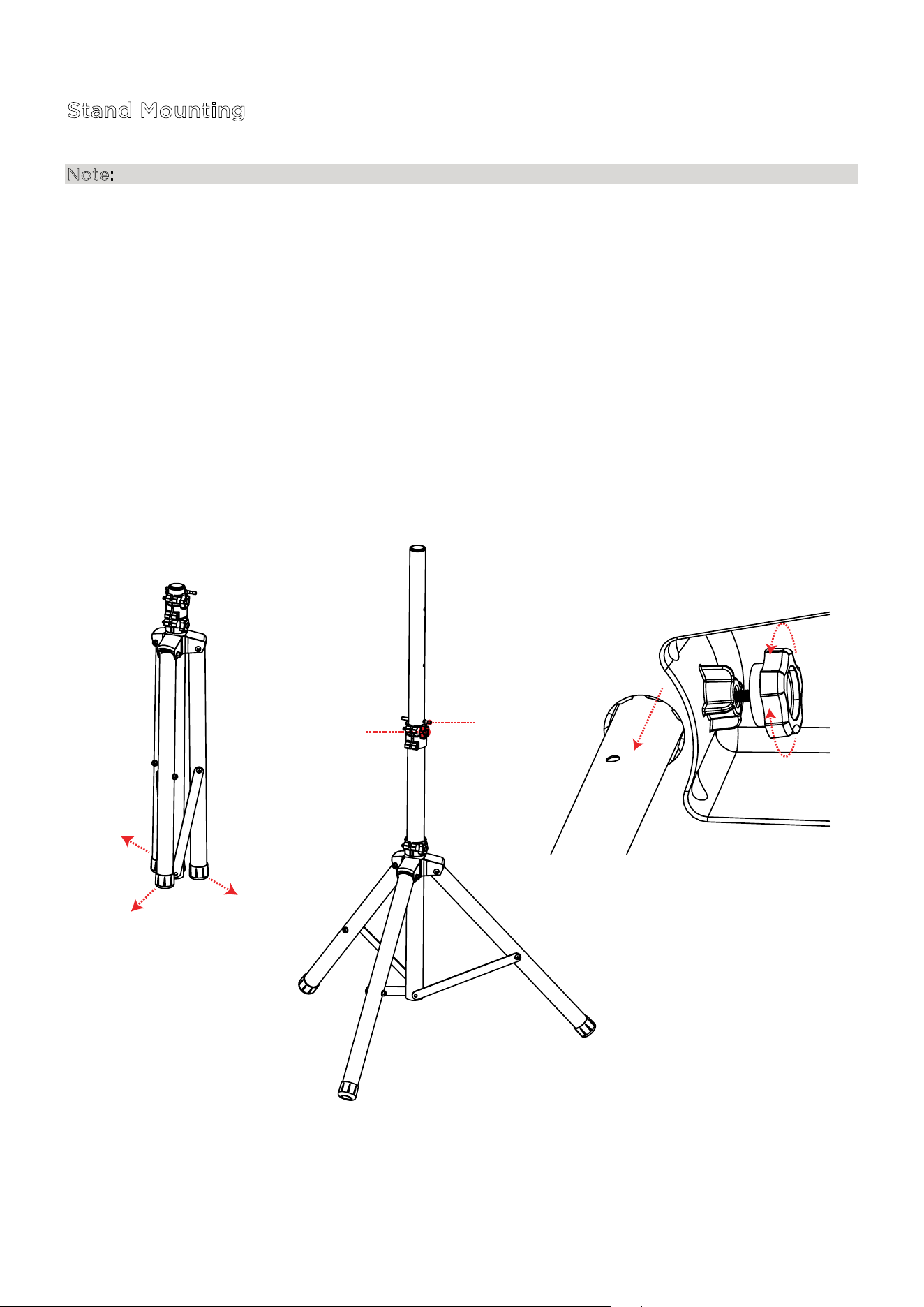
Stand Mounting
Note: Speaker stand not included, sold separately.
1. Fully extend the speaker stand tripod legs on a flat, stable surface.
2. Raise the mounting pole up to the appropriate height needed and tighten the side
adjustment knob.
3. Insert the pin into the bottom pin-hole so the mounting pole stays at your set height.
4. On the Pro Glow
TM
Ultra, adjust the bottom knob counter-clockwise so the screw is not
blocking the opening.
5. Line up the Pro Glow
TM
Ultra mounting hole with the speaker stand pole and place on the
pole.
6. Tighten the mounting knob clockwise on Pro Glow
TM
Ultra to secure it to the pole.
1
2
3
5
4
6
ION Audio Pro Glow
TM
Ultra User Guide 7
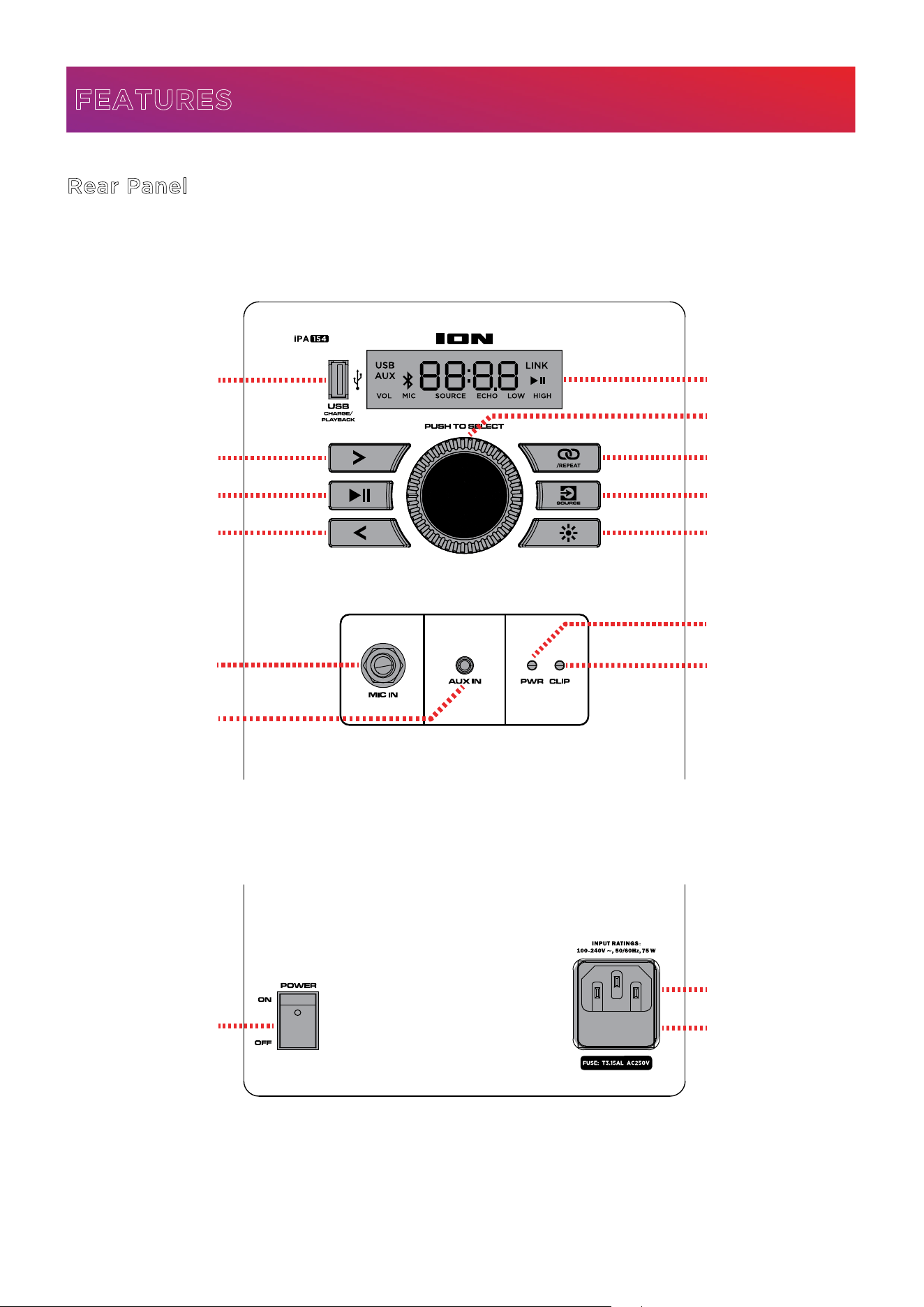
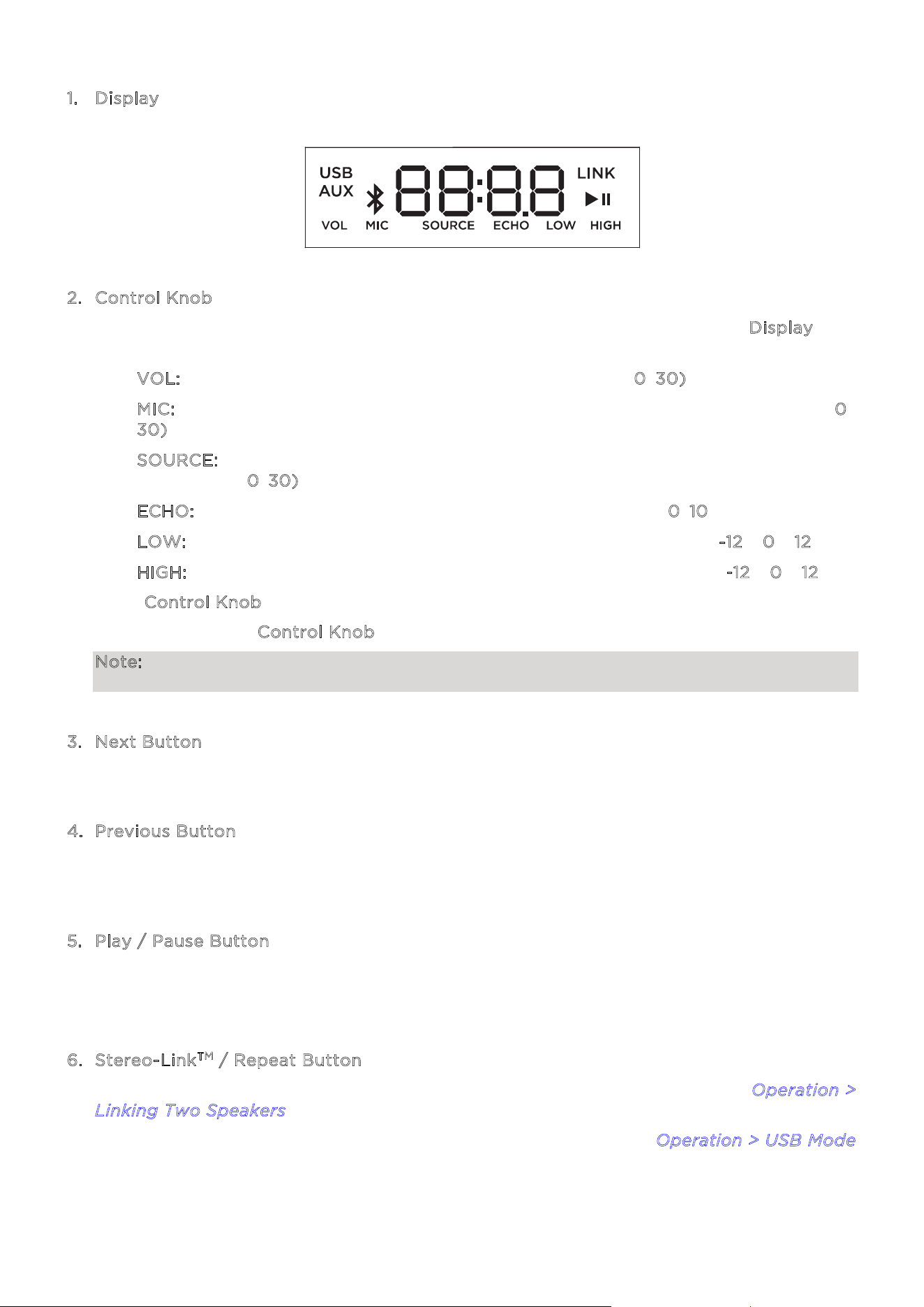
1
. Display
This screen shows information relevant to Pro Glow™ Ultra’s current operation.
2
. Control Knob
Push this knob to cycle between the following controls, as indicated on the D
isplay, and
then turn the knob to adjust the selected control:
• V
OL: Adjusts the overall main volume of the loudspeaker (0–30).
• M
IC: Adjusts the microphone input volume, independently of the other channels (0–
3
0).
• S
OURCE: Adjusts the source volume (Bluetooth, AUX, or USB), independently of the
Mic channel (0
–30).
• E
CHO: Adjusts the amount of echo eect on the microphone (0–10).
• L
OW: Increases or decreases the low frequency EQ for all channels (-12 – 0 – 12).
• H
IGH: Increases or decreases the high frequency EQ for all channels (-12 – 0 – 12).
If the C
ontrol Knob is not moved for five seconds, the function will return to VOL.
Press and hold the C
ontrol Knob for five seconds to restore the default settings.
Note: For the best sound quality, set your input source volume to 100% and use the Source
and Main Volume control of the speaker to adjust the volume.
3
. Next Button
Press this button to skip to the next Bluetooth or USB track.
4
. Previous Button
Press this button to return to the start of the current Bluetooth or USB track. Press the
button again within one second to skip to the previous track.
5
. Play / Pause Button
Press this button to start and stop Bluetooth or USB audio.
Press and hold this button to enable or disable the voice prompts.
6
. Stereo-Link
TM
/ Repeat Button
Press this button to link Pro Glow™ Ultra to another compatible speaker. See O
peration >
L
inking Two Speakers for more information.
In USB mode, press this button to change the playback mode. See O
peration > USB Mode
for more information.
ION Audio Pro Glow
TM
Ultra User Guide 8
7
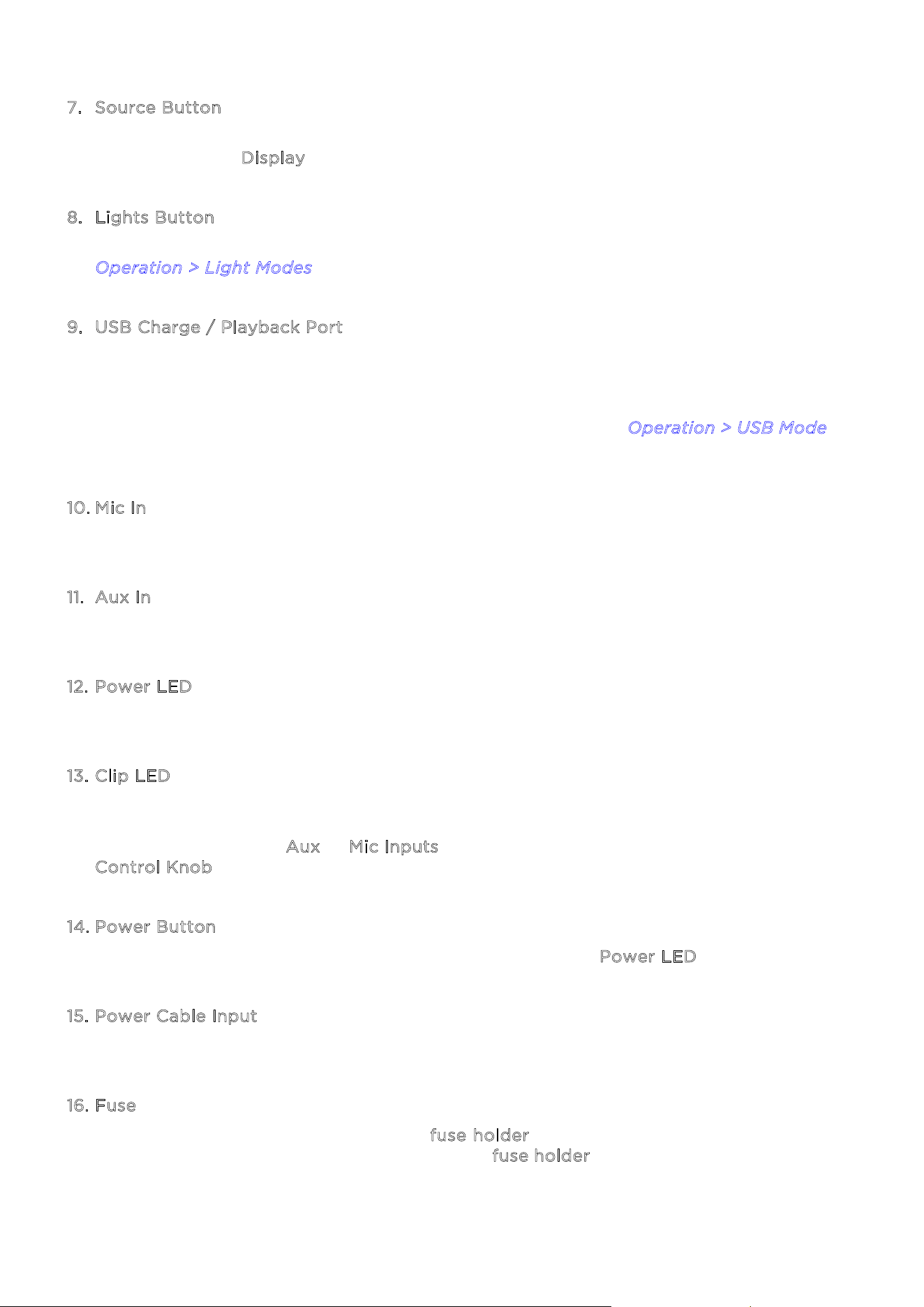
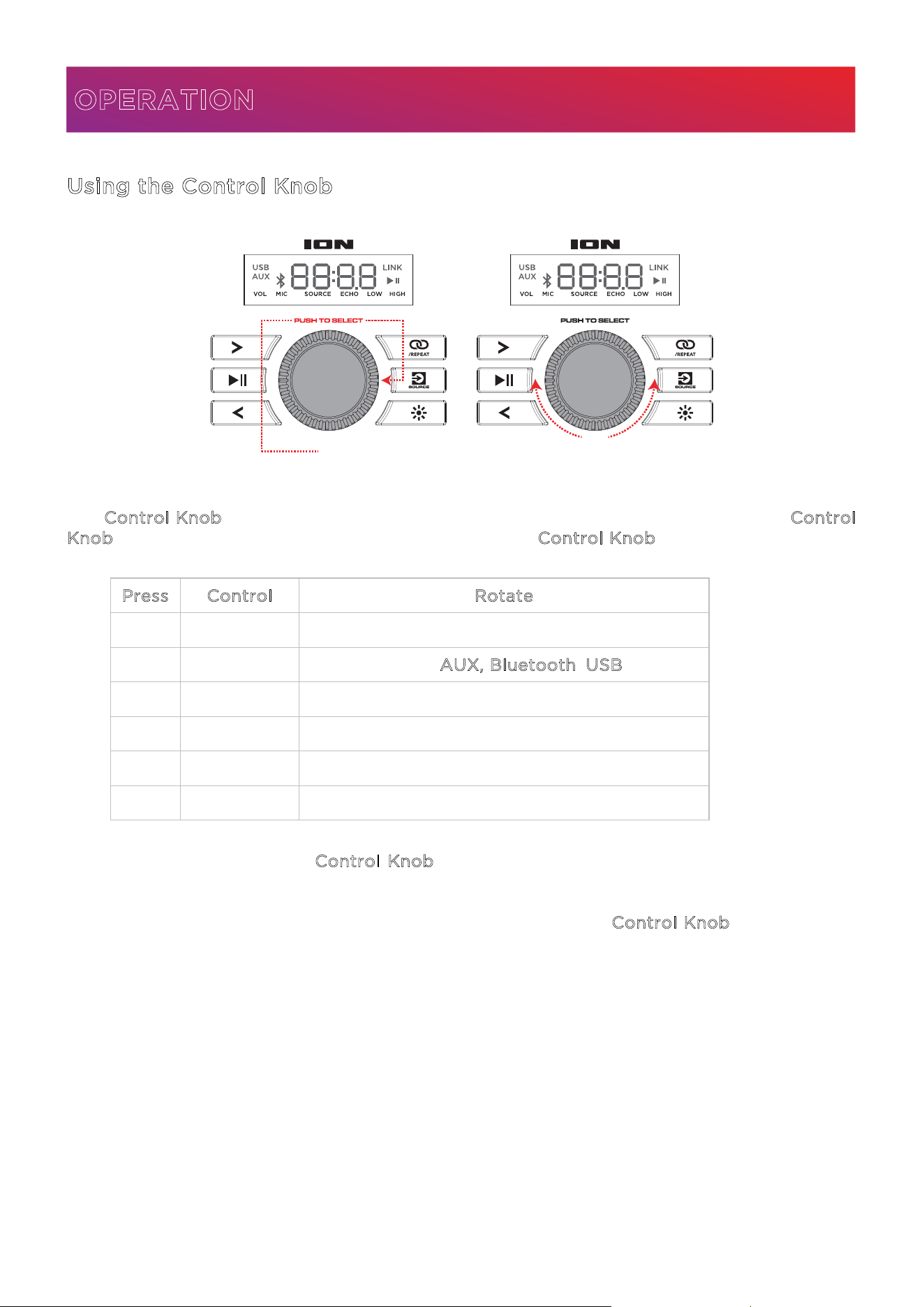
. Source Button
Press this button to cycle between Bluetooth, Aux, and USB modes. The current mode will
be shown on the D
isplay.
8
. Lights Button
Press this button to cycle between the five light modes, or to turn the lights o. See
O
peration > Light Modes for more information.
9
. USB Charge / Playback Port
You can use this port for charging the USB device, such as a tablet or smartphone. To
charge a device that is streaming music via Bluetooth, pause the music first and then wait
for it to reconnect after the USB cable (not included) is inserted.
You can also connect a USB flash drive here to play music. See O
peration > USB Mode for
more information.
1
0. Mic In
Connect the included microphone to this input using the 1/4" (6.35 mm) cable.
1
1. Aux In
Connect a CD player, MP3 player, or other audio source to this 1/8” (3.5 mm) input.
1
2. Power LED
This LED will be lit when the unit is powered on.
1
3. Clip LED
This LED will flash red if the signal from the input jacks or audio source is clipping
(distortion from an overly loud signal). If this happens, decrease the main volume or the
source volume for the A
ux or Mic Inputs (if a loud device is plugged into either) using the
C
ontrol Knob.
1
4. Power Button
Turns Pro Glow™ Ultra on or o. When the power is on, the P
ower LED will be lit green.
1
5. Power Cable Input
Connect the included power cable here to power the unit.
1
6. Fuse
If the unit’s fuse is broken, remove the f
use holder and replace the broken fuse with one
that has the correct rating (as indicated on the f
use holder). Using a fuse with an incorrect
rating can damage the unit and/or fuse.
ION Audio Pro Glow
TM
Ultra User Guide 9
Using the Control Knob
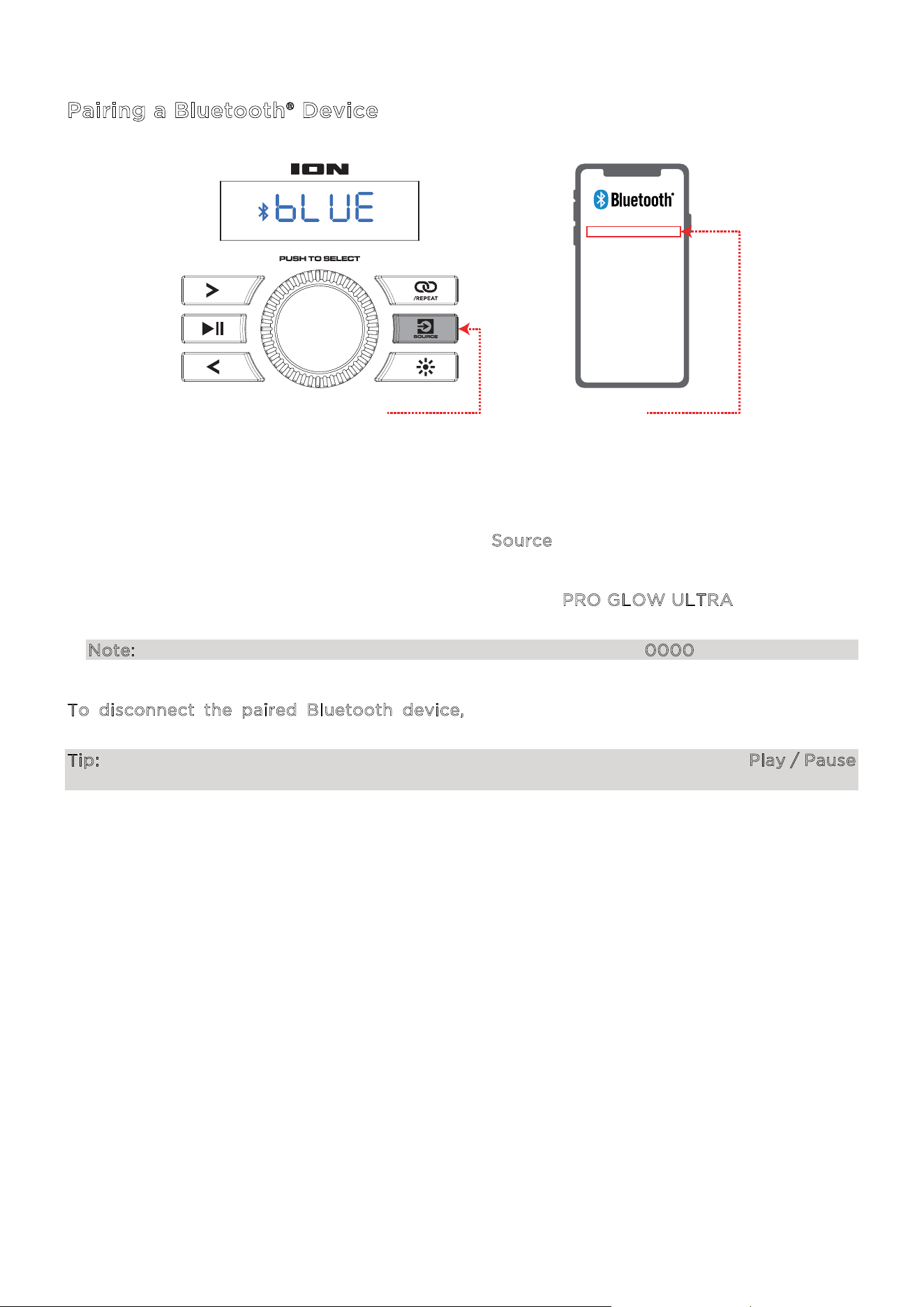
The C
ontrol Knob defaults to controlling the main volume for all channels. Press the Control
K
nob to toggle through dierent functions. Rotate the Control Knob to change the selected
setting:
P
ress Control Rotate
1x MIC Adjust mic volume
2x SOURCE Adjust source (AUX, Bluetooth, USB) volume
3x ECHO Adjust mic echo
QE wol tsujdA WOL x4
QE hgih tsujdA HGIH x5
6x VOL Adjust main volume
If there is no activity on the C
ontrol Knob for 5 seconds, the function will go back to main
volume.
To factory reset the speaker to default settings, hold down the C
ontrol Knob for 5 seconds.
The speaker will power cycle and the reset will be successful.
OPERATION
1 2
ION Audio Pro Glow
TM
Ultra User Guide 10
Pairing a Bluetooth® Device
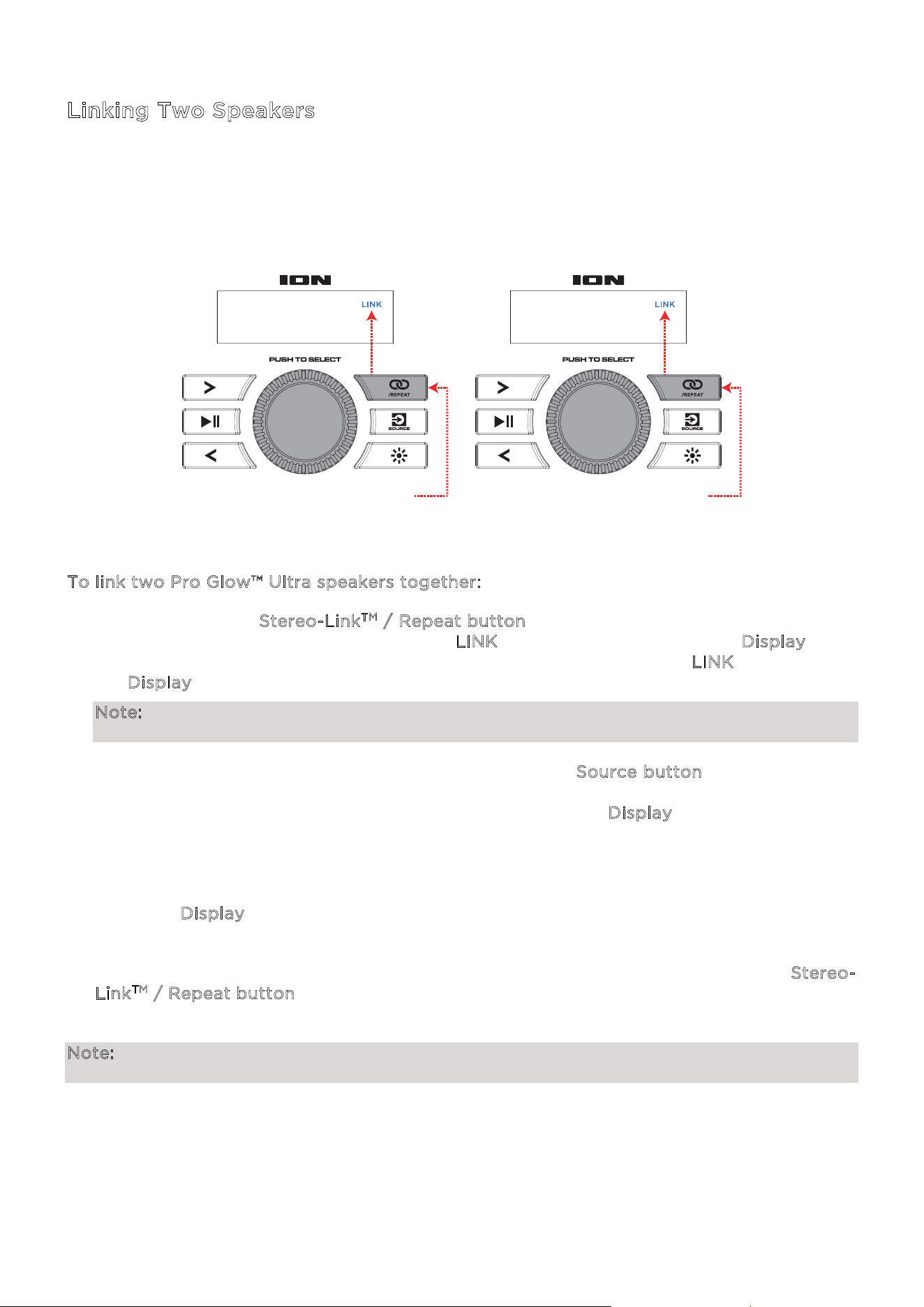
1. Turn on your Bluetooth device.
2. Power on Pro Glow™ Ultra. When the unit is first turned on, it will automatically enter
Bluetooth pairing mode. If necessary, press the S
ource button to select Bluetooth mode. If
voice prompts are enabled, you will hear “Bluetooth Pairing.”
3. Navigate to your Bluetooth device’s setup screen, find “P
RO GLOW ULTRA” and connect.
If voice prompts are enabled, you will hear “Bluetooth Connected.”
Note: If your Bluetooth device prompts for a pairing code, enter “0000”.
T
o disconnect the paired Bluetooth device, turn o or disconnect from your Bluetooth
device.
Tip: If you would like to disable (or enable) the voice prompts, press and hold the Play / Pause
button for five seconds.
1 - PRESS 2
PRO GLOW
TM
ULTRA
ION Audio Pro Glow
TM
Ultra User Guide 11
Linking Two Speakers
If you would like to play music from a Bluetooth device, you can first “link” two Pro Glow™
Ultras together in order to listen to your music in stereo. One Pro Glow™ Ultra will serve as the
left speaker and the other will serve as the right speaker.
T
o link two Pro Glow™ Ultra speakers together:
1. Press and hold the S
tereo-Link
TM
/ Repeat button on both speakers to enter Stereo-Link
mode. You will hear a tone, and the word L
INK will flash on each speaker’s Display while
they search for each other. Once a link has been established, the word L
INK will remain on
the D
isplay.
Note: The linking process can take up to a minute to complete. The closer the two speakers
are to each other, the quicker the link is established.
2. Once the two speakers are linked, press and release the S
ource button on either speaker
to select Bluetooth mode and begin the Bluetooth pairing process. The speaker you use
for Bluetooth pairing will serve as the primary speaker. On its D
isplay screen, the Bluetooth
icon will flash to indicate that Bluetooth pairing is in process.
3. Navigate to your Bluetooth device’s setup screen, find Pro Glow™ Ultra and connect. When
your Bluetooth device is connected, the Bluetooth icon will be lit solid on the primary
speaker’s D
isplay, and you will be able to play audio from the Bluetooth device through
your two linked speakers.
4. To disconnect two speakers or cancel linking between the two, double press the S
tereo-
Link
TM
/ Repeat button on either speaker.
Note: Pro Glow™ Ultra is not wireless link compatible with previous ION Audio Pro Glow™
models.
1 - PRESS & HOLD
(speaker 1)
2 - PRESS & HOLD
(speaker 2)
ION Audio Pro Glow
TM
Ultra User Guide 12
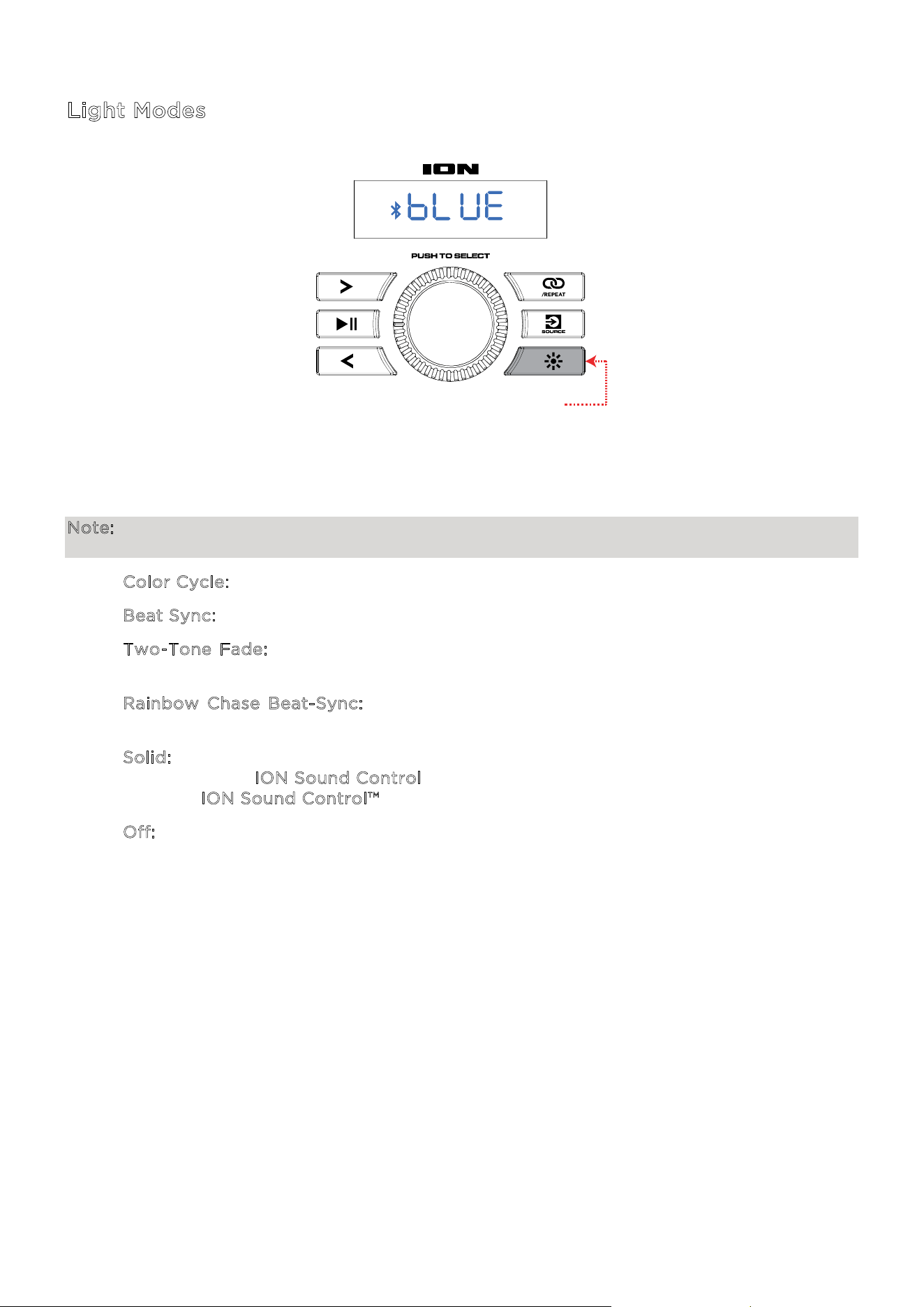
USB Mode
When a USB drive with compatible files is inserted into the U
SB Charge/Playback Port, Pro
Glow™ Ultra will automatically switch to USB mode. If the USB drive has already been inserted
and you are using another mode, press the S
ource button until USB mode is selected.
Pro Glow™ Ultra will automatically play the first compatible MP3 file. Files are played in
alphabetical order of what is on the root level, then alphabetical by folder, and then
alphabetical by track name. Media playback will stop when all media has been played on the
USB drive.
Note: The USB drive must have playable MP3 files for it to appear on the media panel’s display.
Press the N
ext and Previous buttons to go to the next or previous track. Press and hold these
buttons to fast forward or rewind within the track.
Press the S
tereo-Link™ / Repeat button to cycle through the repeat/shue options
(abbreviations will show on the display):
• Play the current USB track on repeat (O
nE). This is the default mode when powered on.
• Play the tracks in random order (r
An).
• Play all the tracks on the USB drive on repeat (A
LL).
• Play the current folder’s tracklist on repeat (F
OLd). The folder used is based on what song
is playing when it is activated. For instance, if a song playing is on the root level, selecting
FOLd will repeat only songs at the root level. If a song is in folder “A”, then only songs in
folder “A” will be repeated.
1 - PRESS
PRESS
(next)
PRESS
(previous)
2 - PRESS TO CYCLE
(OFF, ALL, FOLDER, ONE, RANDOM)
ION Audio Pro Glow
TM
Ultra User Guide 13
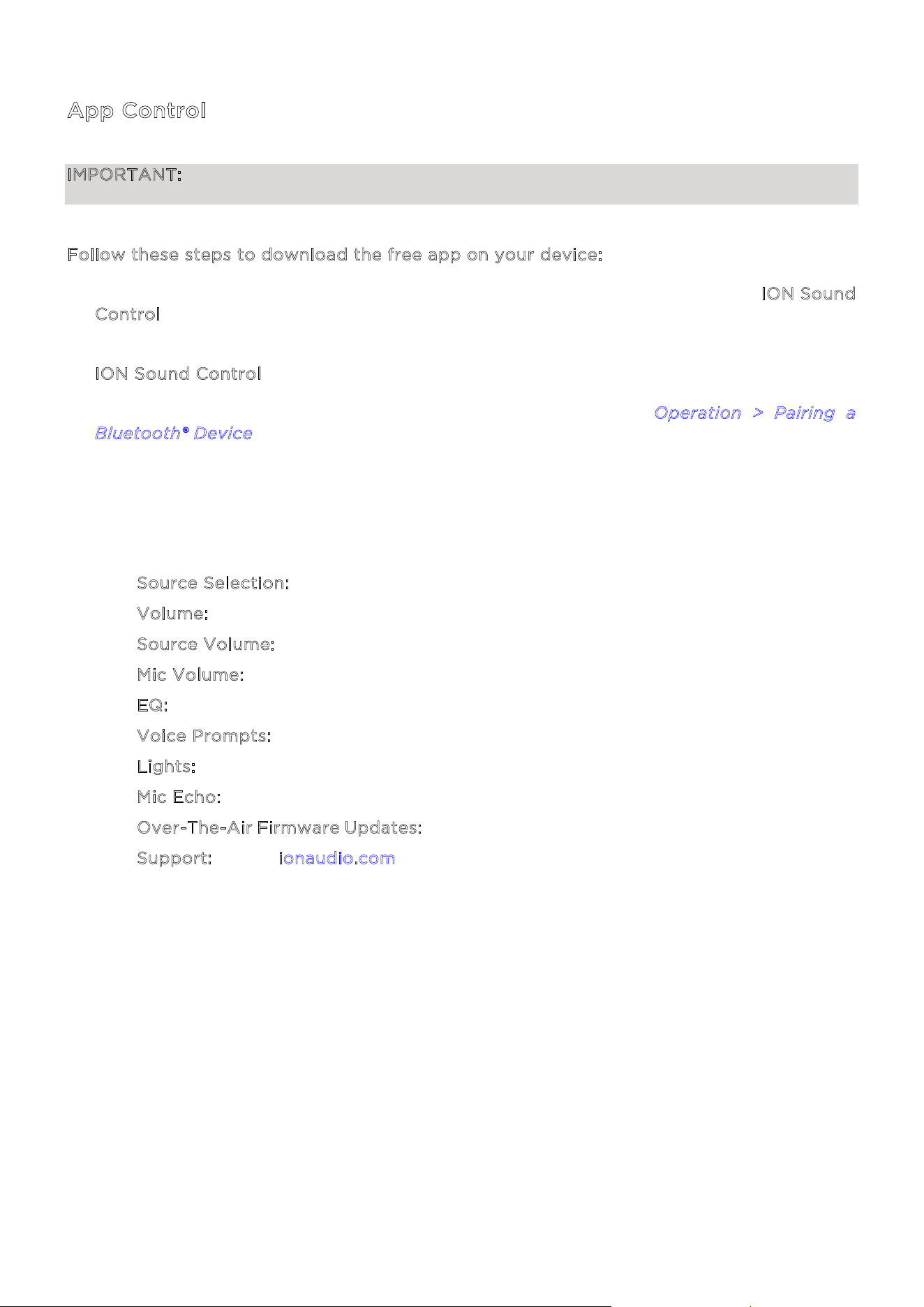
Light Modes
Press the Light button to toggle between five modes for the LEDs on Pro Glow™ Ultra.
Note: For the best lighting eect, you may need to increase the volume of your connected
device or input source.
• C
olor Cycle: The lights slowly glow and cycle through colors.
• B
eat Sync: The lights change color and flash in reaction to the beat of the music.
• T
wo-Tone Fade: The lights fade between colors with the top two LEDs in one color
and the bottom two in another color.
• R
ainbow Chase Beat-Sync: The lights will move clockwise around the woofer like a
rainbow. As the music changes in volume, the speed will increase or decrease.
• S
olid: The lights will all be lit in a single color (by default, blue). You can change the
color using the I
ON Sound Control
TM
app. There are the 15 colors that can be selected
from the I
ON Sound Control™ app.
• O
ff: All LEDs are o.
PRESS TO CYCLE
(5 light modes)
ION Audio Pro Glow
TM
Ultra User Guide 14
App Control
IMPORTANT: To ensure the best possible experience with the app, use the most current
Android OS or iOS on your device.
F
ollow these steps to download the free app on your device:
1. Open the Apple App Store or Google Play on your device. Then, search for the I
ON Sound
C
ontrol
TM
app.
2. Follow the on-screen instructions to download and install the app. Once downloaded, the
I
ON Sound Control
TM
app will appear on your device's home screen.
3. Connect your device to Pro Glow
TM
Ultra via Bluetooth. See Operation > Pairing a
B
luetooth® Device to learn how to do this.
4. Open the ION Sound Control
TM
app. If prompted, allow the app to access your device's
Bluetooth and Location Services.
5. Follow the steps on screen to find and connect to your Pro Glow
TM
Ultra. Once connected,
you can control various functions of the speaker, such as:
• S
ource Selection: Select the source to use (Bluetooth, USB, or Aux).
• V
olume: Adjust the speaker's volume.
• S
ource Volume: Adjust the incoming volume for the Bluetooth, USB, or Aux sources.
• M
ic Volume: Adjust the volume of the Mic input.
• E
Q: Adjust the speaker's equalization.
• V
oice Prompts: Enable or disable the voice prompts.
• L
ights: Change the light modes.
• M
ic Echo: Adjust the amount of echo applied to the microphone.
• O
ver-The-Air Firmware Updates: Stay up to date with the latest firmware installation.
• S
upport: Visit ionaudio.com, contact Technical Support, and view Warranty
information and Frequently Asked Questions.
ION Audio Pro Glow
TM
Ultra User Guide 15
I
f the sound is distorted: Try lowering the volume control of your sound source, musical
instrument, or microphone. Also, try to reduce the overall volume of Pro Glow
TM
Ultra using
the C
ontrol Knob.
I
hear a hum when cables are connected:
• Disconnect cables from the input jacks to see if it’s a faulty cable.
• Make sure the signal cables are not placed near power cables.
• Connect all audio equipment power cables to outlets which share a common ground.
I
f there is a high-pitched whistling noise when using microphones: This is probably
feedback. Point the microphone away from the speaker.
I
f you can’t hear the microphone over the music volume: Turn down the music volume from
your source.
I
f there is too much bass: Try adjusting the tone or EQ control on your sound source or on
Pro Glow
TM
Ultra via the ION Sound Control
TM
App to lower the bass level. This will allow you
to play the music louder before clipping (distortion) occurs.
I
f you cannot connect your audio device to Pro Glow
TM
Ultra via Bluetooth:
• Have your audio device (e.g., smartphone or tablet) and Pro Glow
TM
Ultra as close
together as possible while trying to connect. Make sure both the audio device and Pro
Glow
TM
Ultra are unobstructed by walls, furniture, etc.
• Double-press the Bluetooth button to disconnect Pro Glow
TM
Ultra from any other audio
device and restart the search process. If this does not work right away, power o Pro
Glow
TM
Ultra and then power it back on. See Operation > Pairing a Bluetooth® Device
for more information.
• Reset the Bluetooth connection on your audio device by turning Bluetooth o and back
on. You can find this under the Bluetooth menu in the Settings for your phone or other
audio device.
If this does not work, and you have connected to Pro Glow
TM
Ultra before, find Pro
Glow
TM
Ultra in the list of available or previously connected devices in your audio
device's Bluetooth menu, tap the "gear" or “i” icon located next to it and then select
U
npair or Forget. Turn Pro Glow
TM
Ultra o and back on and try pairing again once it
reappears in your available devices list.
Note: If Pro Glow
TM
Ultra has been paired to another audio device recently that is still
within range, you may need to repeat this process with that audio device to fully
disconnect.
TROUBLESHOOTING
ION Audio Pro Glow
TM
Ultra User Guide 16
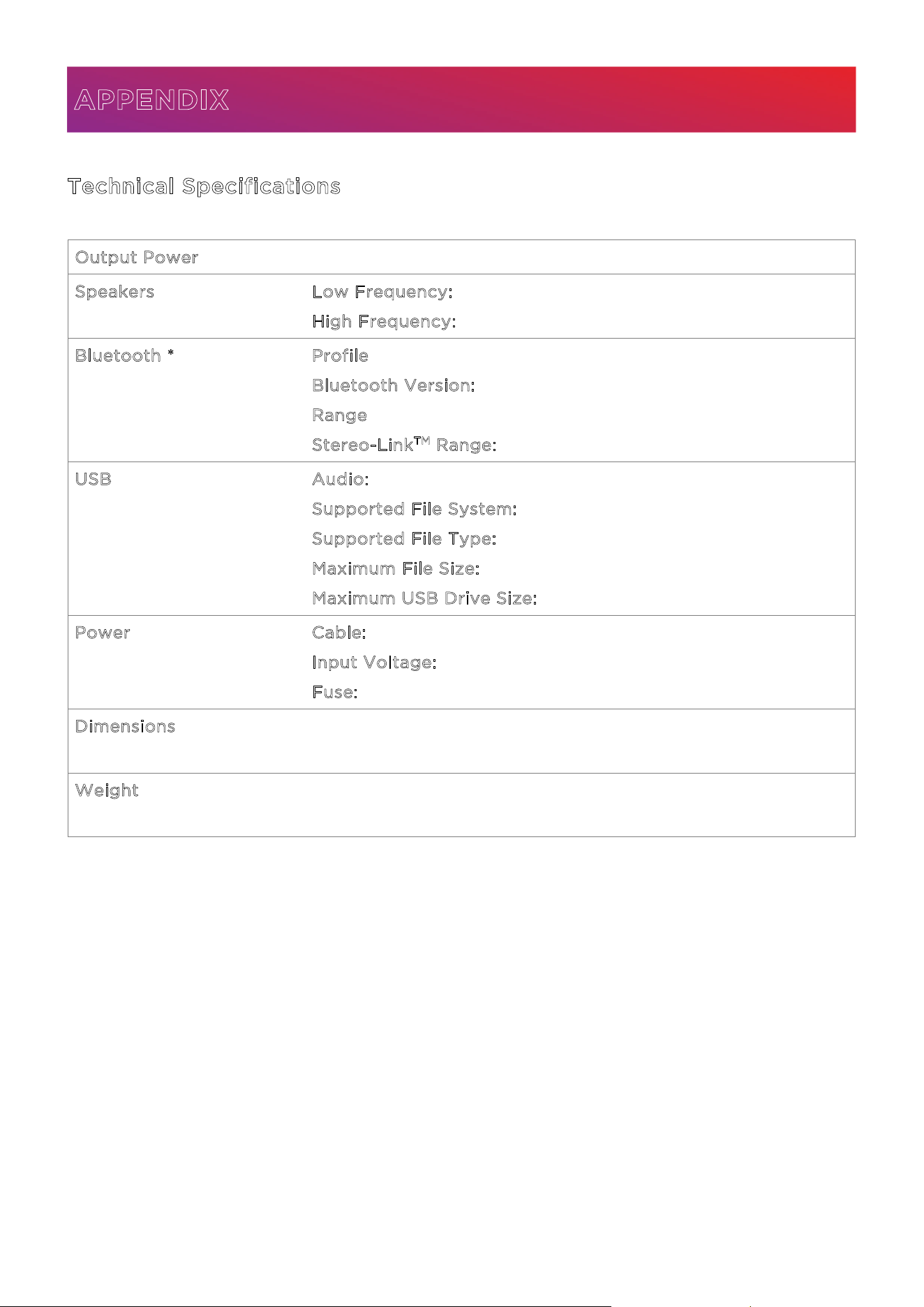
Technical Specifications
O
utput Power 300 W (peak)
Speakers Low Frequency: 12.0” (305 mm) woofer
H
igh Frequency: 1.0” (25.4 mm) tweeter
Bluetooth * Profile: A2DP, AVRCP
B
luetooth Version: 5.0
R
ange: Up to 100 ft. (30.5 m)
S
tereo-Link
TM
Range: Up to 85 ft. (29.5 m) between speakers
USB Audio: Music playback from USB drive
S
upported File System: FAT32
S
upported File Type: MP3
M
aximum File Size: 4 GB
M
aximum USB Drive Size: 128 GB
Power Cable: IEC C13
I
nput Voltage: 100–200 V~, 60 Hz, 75 W
F
use: T3.15AH AC250V
Dimensions
(width x depth x height)
15.6" x 12.6" x 23.3"
396 mm x 320 mm x 591 mm
Weight 19.95 lbs.
9.05 kg
Specifications are subject to change without notice.
* Bluetooth and wireless reception and range are aected by walls, obstructions, and
movement. For optimal performance, place the product so it is unobstructed by walls or
furniture and is raised o the ground.
APPENDIX

ION Audio Pro Glow
TM
Ultra User Guide 17
Trademarks & Licenses
ION Audio is a trademark of inMusic Brands, Inc., registered in the U.S. and other countries.
The Bluetooth word mark and logos are owned by the Bluetooth SIG, Inc., and any use of such
marks by ION Audio is under license.
App Store is a trademark of Apple Inc., registered in the U.S. and other countries.
Android and Google Play are registered trademarks of Google Inc. All other product names,
company names, trademarks, or trade names are those of their respective owners.