Instruction Manual
Robot Vacuum Cleaner
M2

1
Congratulations on the purchase of your Lefant ROBOTICS!
We hope it brings you many years of satisfaction. We trust the purchase of your new robot will help keep your
home clean and provide you more quality time to do other things.
Wisdom Inspired Freedom
Should you encounter situations that have not been properly addressed in this Instruction Manual, please
contactour Customer Service Center where a technician can address your specific problem or question.
For more information, please visit the Lefant ROBOTICS official website:
www.lefant.com or send email to [email protected]
The Company reserves the right to make technological and/or design changes to this product for
continuous improvement.

2
Important Safety Instructions
IMPORTANT SAFETY INSTRUCTIONS
READ ALL INSTRUCTIONS BEFORE
USING THIS APPLIANCE
When using an electrical Appliance, basic precautions
should always be followed, including the following:
This Appliance can be used by children aged from
8 years and above and persons with reduced
physical, sensory or mental capabilities or lack of
experience and knowledge if they have been given
supervision or instruction concerning use of the
Appliance in a safe way and understand the
hazards involved. Children shall not play with the
Appliance. Cleaning and user maintenance shall
not be made by children without supervision.
Clear the area to be cleaned. Remove power
cords and small objects from the floor that could
entangle the Appliance. Tuck rug fringe under the
rug base, and lift items such as curtains and
tablecloths off the floor.
If there is a drop off in the cleaning area due to
a step or stairs, you should operate the Appliance
to ensure that it can detect the step without falling
over the edge. It may become necessary to place a
physical barrier at the edge to keep the unit from
falling. Make sure the physical barrier is not a trip
hazard.
1.
2.
3.
Only use as described in this manual. Only use
attachments recommended or sold by the
manufacturer.
Please make sure your power supply source
voltage matches the power voltage marked on
the Docking Station.
For INDOOR household use ONLY. Do not use the
Appliance in outdoor, commercial or industrial
environments.
Use only the original rechargeable battery and
Docking Station provided with the Appliance
from the manufacturer. Non- rechargeable
batteries are prohibited.
Do not use without Dustbin and/or filters in
place.
Do not operate the Appliance in an area where
there are lit candles or fragile objects.
Do not use in extremely hot or cold environments
(below -5°C/23°F or above 40°C/104°F).
4.
5.
6.
7.
8.
9.
10.
Keep hair, loose clothing, fingers, and all parts of
body away from any openings and moving parts.
11.
Do not operate the Appliance in a room where an
infant or child is sleeping.
Do not use Appliance on wet surfaces or surfaces
with standing water.
12.
13.

3
Do not allow the Appliance to pick up large objects
like stones, large pieces of paper or any item that
may clog the Appliance.
Do not use Appliance to pick up flammable or
combustible materials such as gasoline, printer or
copier toner, or use in areas where they may be
present.
Do not use Appliance to pick up anything that is
burning or smoking, such as cigarettes, matches,
hot ashes, or anything that could cause a fire.
Do not put objects into the suction intake. Do not
use if the suction intake is blocked. Keep the intake
clear of dust, lint, hair, or anything that may reduce
air flow.
14.
15.
16.
17.
Take care not to damage the power cord. Do not
pull on or carry the Appliance or Docking Station
by the power cord, use the power cord as a handle,
close a door on the power cord, or pull power cord
around sharp edges or comers. Do not run
Appliance over the power cord. Keep power cord
away from hot surfaces.
18.
If the power cord is damaged, it must be replaced
by the manufacturer or its service agent in order
to avoid a hazard.
Do not use the Docking Station if it is damaged.
The power supply is not to be repaired and not
to be used any longer if it is damaged or defective.
Do not use with a damaged power cord or
receptacle. Do not use the Appliance or Docking
Station if it is not working properly, has been
dropped, damaged, left outdoors, or come in
contact with water. It must be repaired by the
manufacturer or its service agent in order to
avoid a hazard.
Turn OFF the power switch before cleaning or
maintaining the Appliance.
19.
20.
21.
22.
The plug must be removed from the receptacle
before cleaning or maintaining the Docking
Station.
23.
Remove the Appliance from the Docking Station,
and turn OFF the power switch to the Appliance
before removing the battery for disposal of the
Appliance.
24.
The battery must be removed and discarded
according to local laws and regulations before
disposal of the Appliance.
25.
Please dispose of used batteries according to
local laws and regulations.
Do not incinerate the Appliance even if it is
severely damaged. The batteries can explode in
a fire.
When not using the Docking Station for a long
period of time, please unplug it.
26.
27.
28.
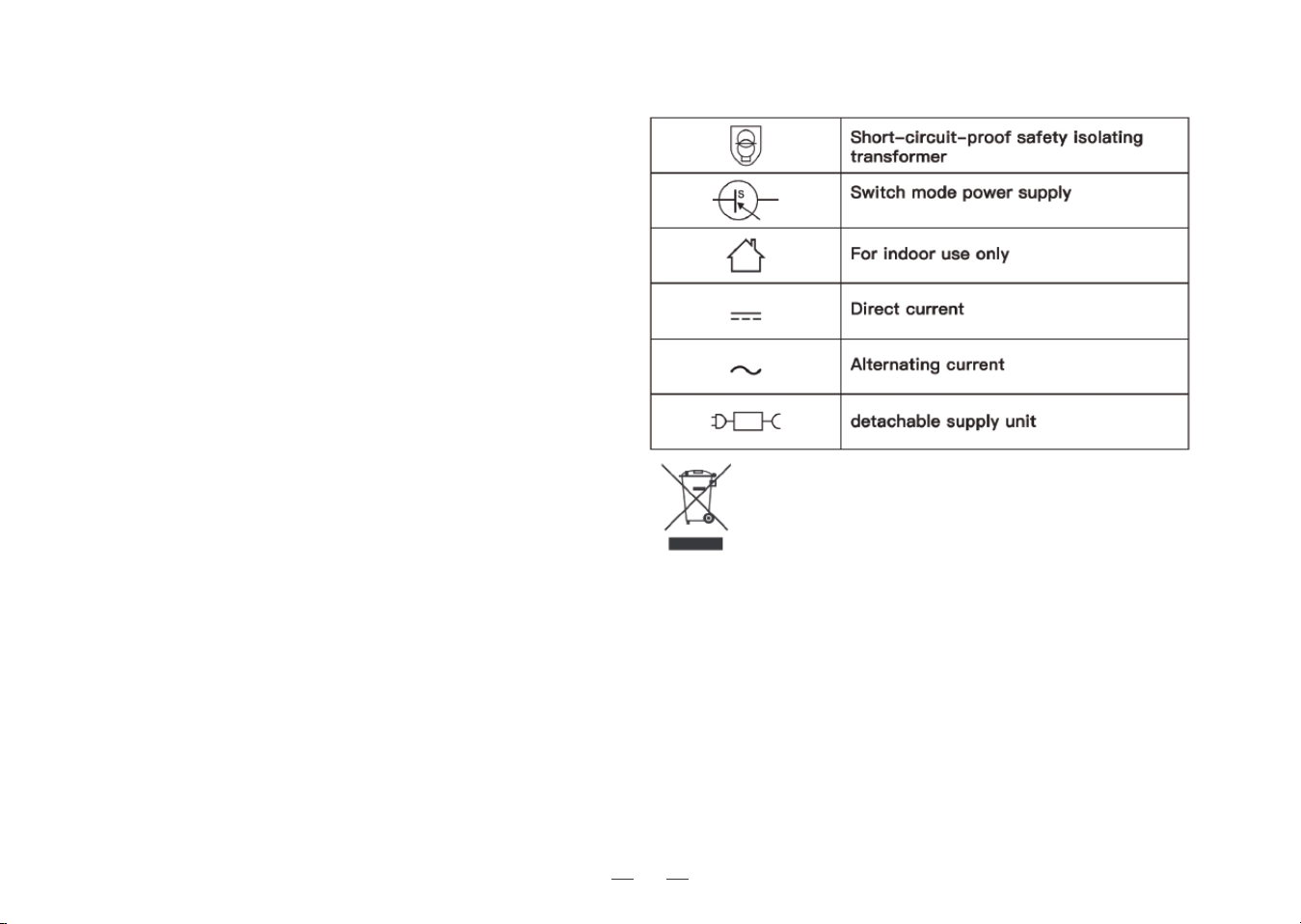
4
To satisfy RF exposure requirements, a separation
distance of 20 cm or more should be maintained
between this device and persons during device
operation.
To ensure compliance, operations at closer than
this distance is not recommended. The antenna
used for this transmitter must not be co-located
in conjunction with any other antenna or transmitter.
The Appliance must be used in accordance with
the directions in this Instruction Manual. Our
company cannot be held liable or responsible
for any damages or injuries caused by improper
use.
The robot contains batteries that are only
replaceable by skilled persons. To replace the
robot's battery, please contact Customer Service.
29.
If the robot will not be used for a long time, power
OFF the robot for storage and unplug the Docking
Station.
SAVE THESE INSTRUCTIONS
This marking indicates that this product should not be
disposed of with other household waste throughout the
EU. To prevent possible harm to the environment or
human health from uncontrolled waste disposal, recycle
it responsibly to promote the sustainable reuse of material
resources. To recycle your used device, please use the
return and collection systems or contact the retailer where
the product was purchased. They can safely recycle this
product.
Correct Disposal of this Product
31.
WARNING: For the purposes of recharging the
battery, only use the detachable supply unit
provided with the Appliance.
32.
30.

5
Contents
1.Package Contents
2.Operating and Programming.
3.Maintenance
4.Indicator Light and Alarm Sounds
5.Troubleshooting
6.Product Specifications
·····························································································
6
············································································
····································································································
······································································
································································································
·······················································································
9
15
18
20
23
6
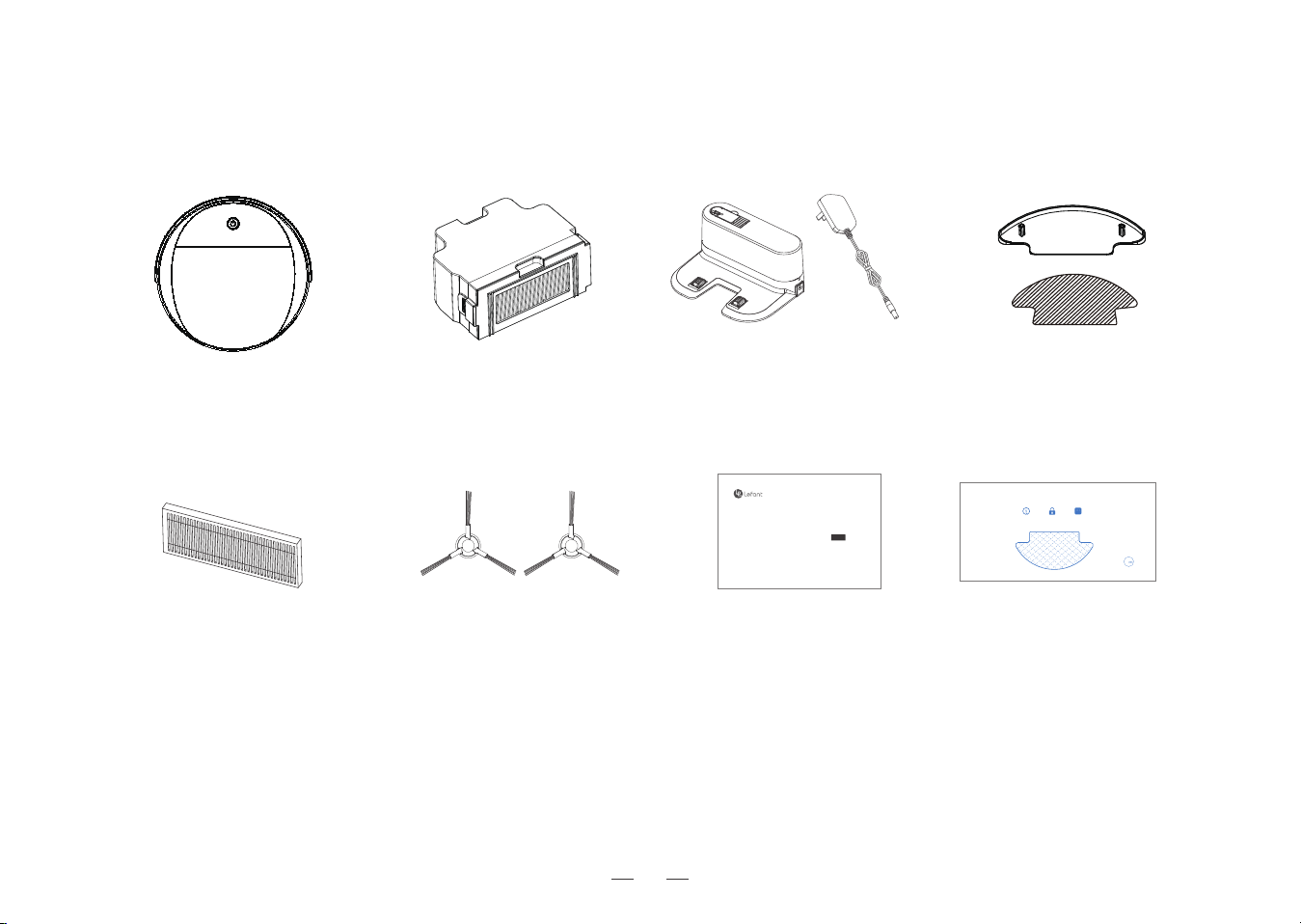
1. Package Contents /1.1 Package Contents
Robot
High Efficiency Filter
Side Brushes
Figures and illustrations are for reference only and may differ from actual product appearance. Product
design and specifications are subject to changes without notice.
Instruction Manual
Dust Bin
Note:
Instruction Manual
Robot Vacuum Cleaner
M2
Power Adapter
Docking Station
Mopping Cloth
& Mopping Cloth Bracket
Disposable Mopping Cloth
Disposable duster
Fast dry without any water stains
Disposable Locking Water Non-woven fabric
5
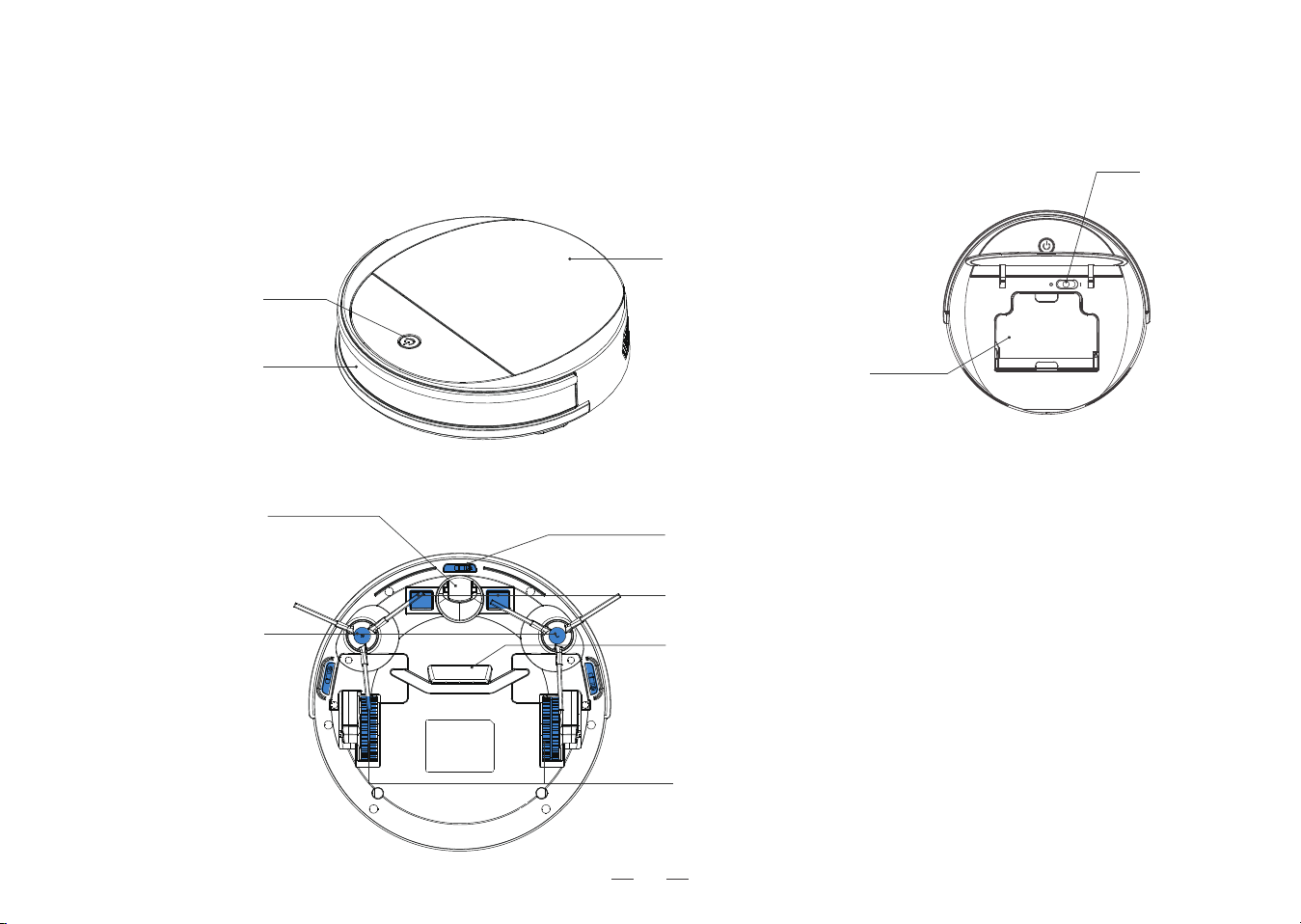
7
Dust Bin
Power Switch
(I=ON.O=OFF)
Top Cover
Start /Pause Button
Infrared Anti-Collision
Sensors
Driving Wheels
Anti-Drop Sensors
Suction port
Universal Wheel
Side Brushes
Charging Contacts
Robot
Bottom
1. Package Contents /1.2 Product Diagram
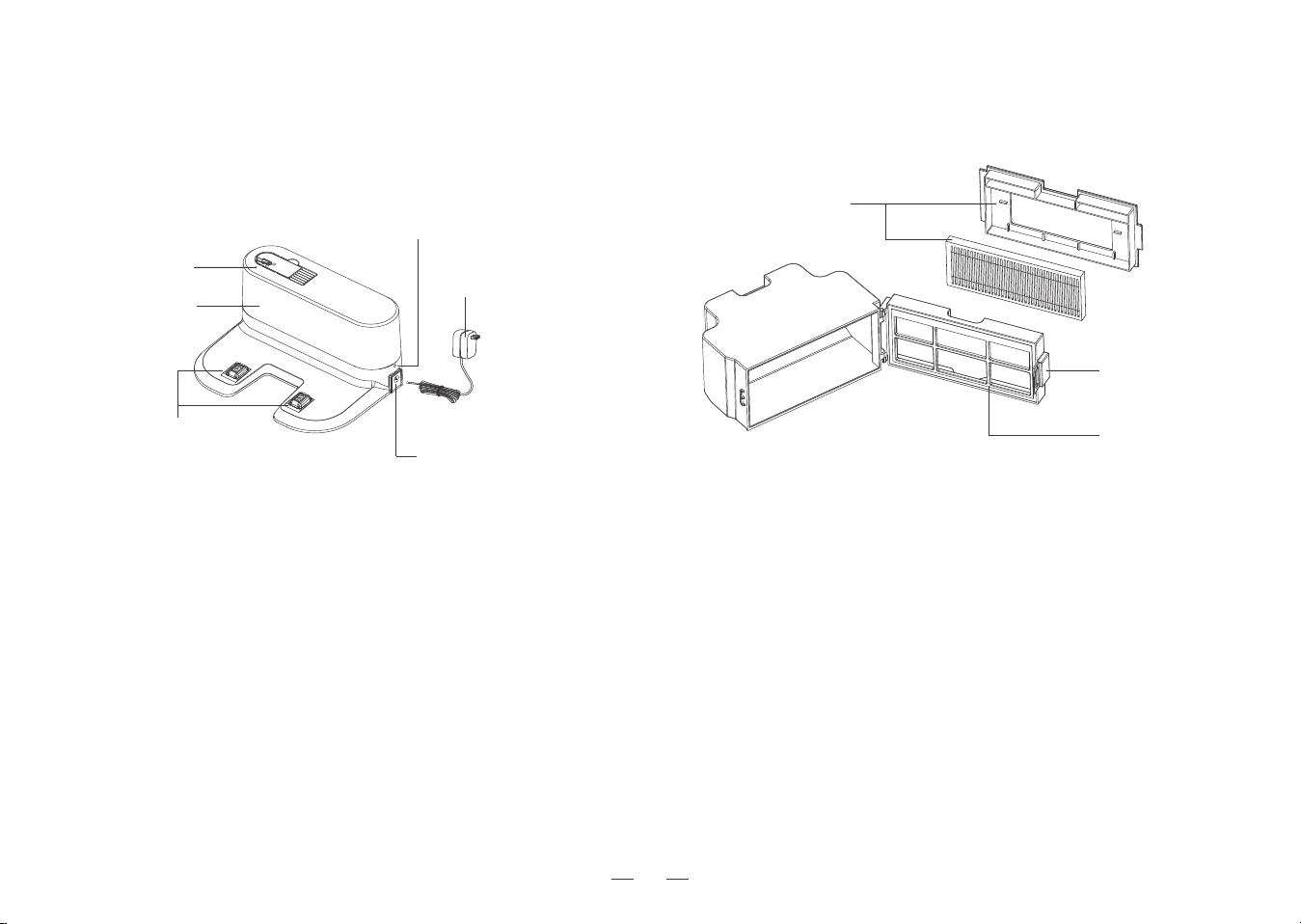
8
Multi-function
Cleaning Tool
Charging Contacts
Power Indicator Light
Power Adapter
Power Adapter Port
Dust BinDocking Station
Infrared Signal
Emitter
High Efficiency Filter
Filter Net
Release Button
9
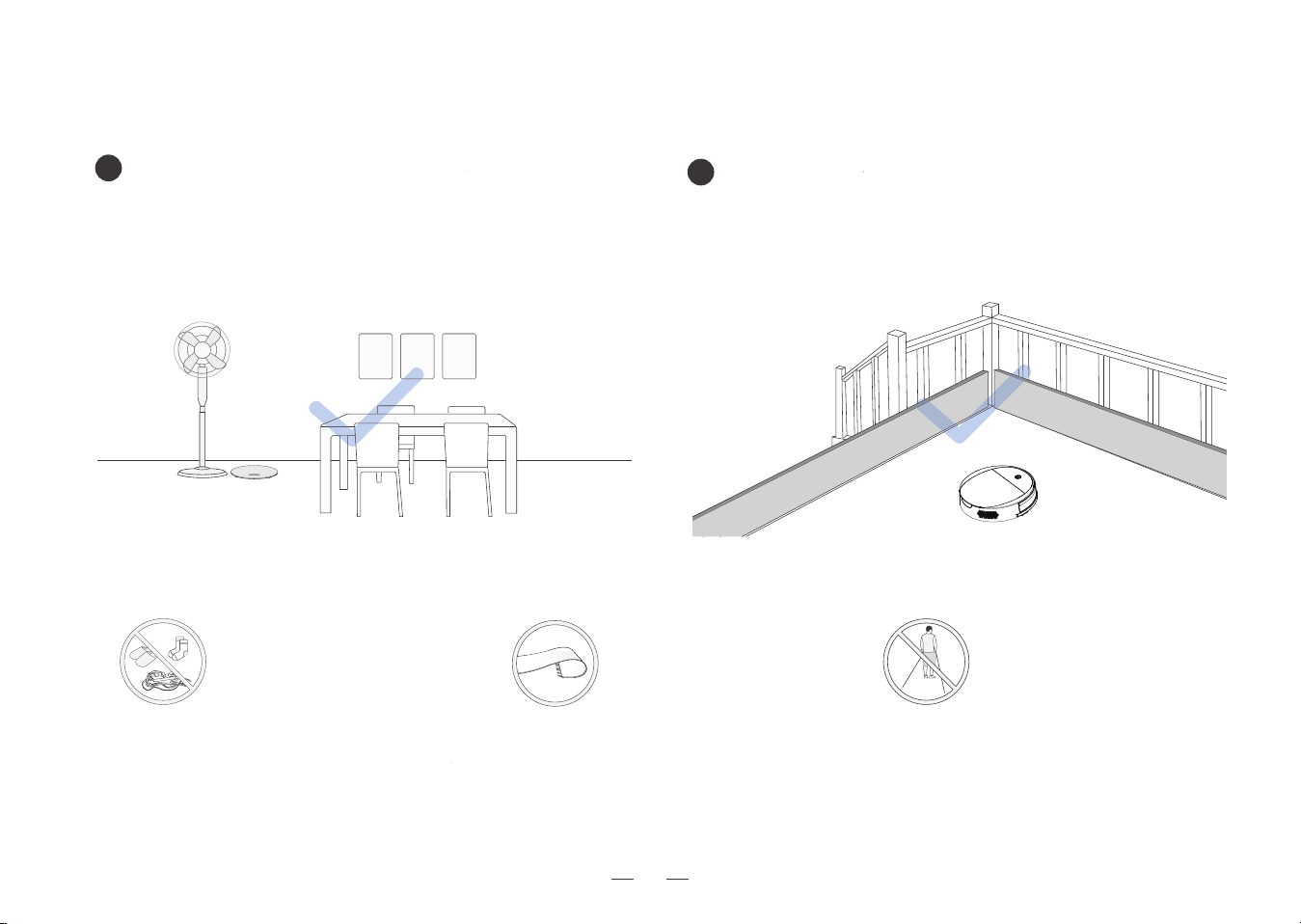
2. Operating and Programming /2.1 Notes Before Cleaning
Tidy up the area to be cleaned by putting furniture,
such as chairs, in their proper place.
It may be necessary to place a physical barrier at the
edge of a drop to stop the unit from falling over the
edge.
1
2
Before using the product on a rug
with tasseled edges, please fold
the rug edges under.
Put away objects including wires,
cloths and slippers, etc. on the
floor to improve the cleaning
efficiency.
Please do not stand in narrow
spaces, such as hallways, and
make sure not to block Robot.
10
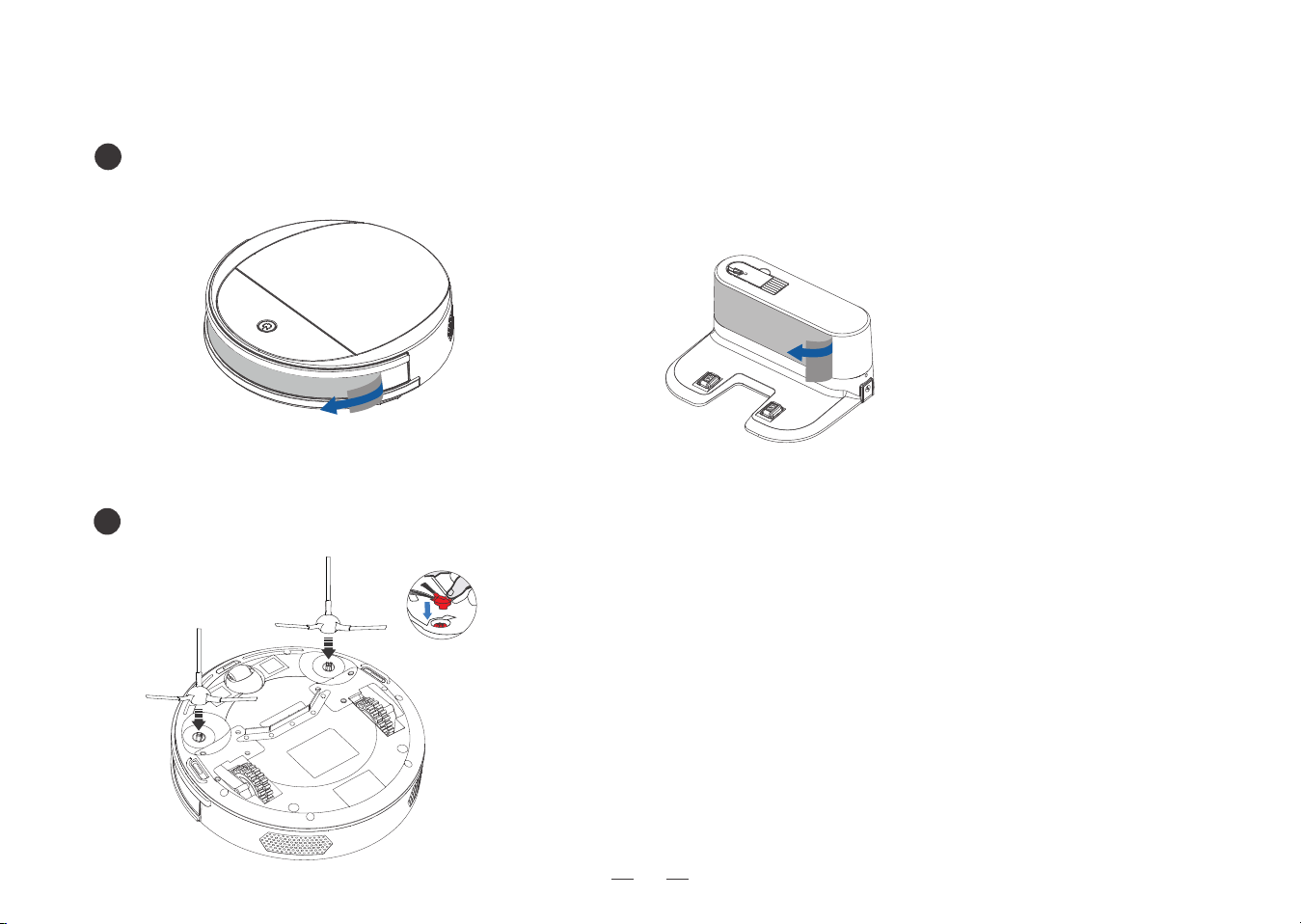
Remove Protective Materials
2
1
Install Side Brushes
2. Operating and Programming /2.2 Quick Start
11
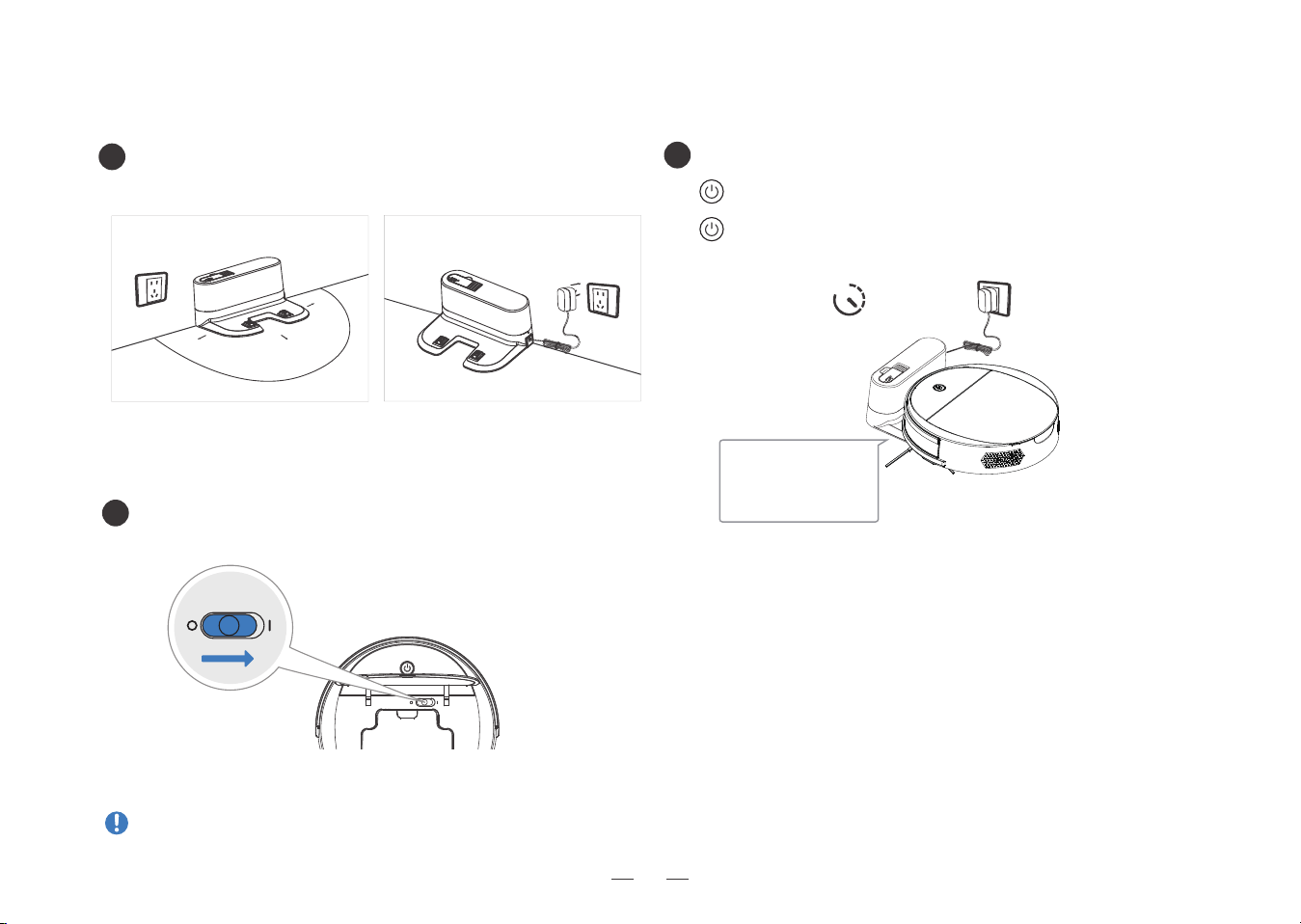
1
Docking Station Placement
Power ON
*It is suggested to avoid picking up or moving Robot during
the cleaning for Robot to return to charge successfully.
3
Charge Robot
Note: I = ON, O = OFF
2. Operating and Programming / 2.3 Charging Robot
Robot cannot be charged when being powered OFF.
flashes when Robot is charging.
goes out when Robot is fully charged
≥
3.5-4.5h
0.5M
0.5M
1.5M
Place the charging Dock
Connect the power supply
2
making sure the Charging
Contacts on robot and
the Charging Dock Pins
make a connection.
12
under the cover
2. Operating and Programming /2.4 App Download
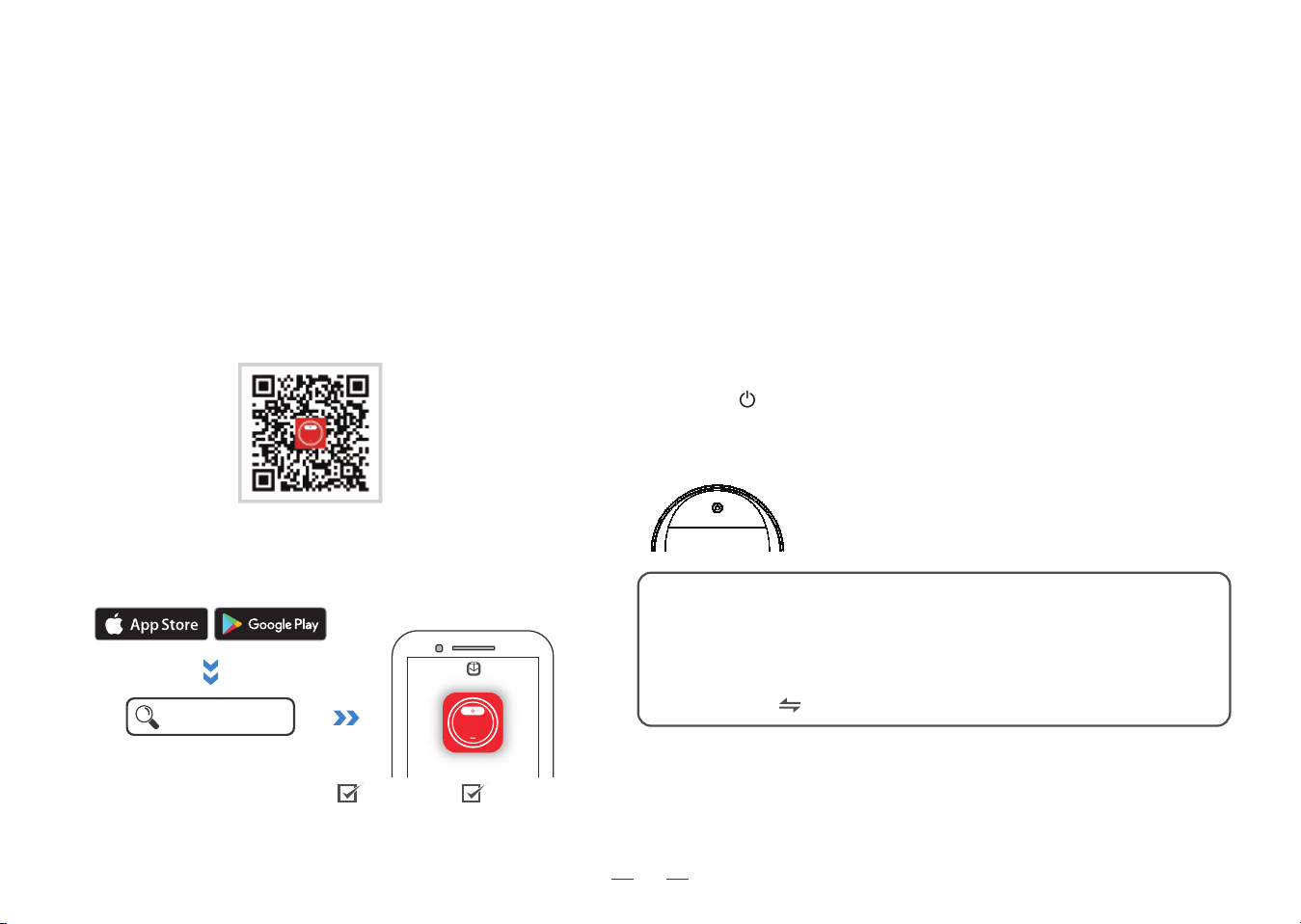
Download and Install App
Method 1:
Scan the QR code, download and install the App
according to the prompts.
Before you start, make sure that:
• Your mobile phone is connected to a Wi-Fi network.
• The 2.4GHz band wireless signal is enabled on your router.
To enjoy all available features , it is recommended to control your Robot via the Lefant Life App.
Method 2: Search for "Lefant Life", download and install.
IOS 9.0 or later Android 4.0 or later
Open the “Lefant Life” APP and log in (new users need to register first).
Select <Add device> on home page. Then pair the network following
the detailed instructions in the app.
Add device & Pair the network through the app
Reset the device
Lefant Life
Notes:
- This device only supports 2.4GHz Wi-Fi network.
(not compatible with 5GHz Wi-Fi)
- If you experience with network pairing failure, please restart the
robot and start over again. Or try the other network pairing method
instead (touch on the upper right corner).
Indicator light
• Wait for connection: EZ mode: blue light flashing rapidly
• Connecting / Wi-Fi connected: solid blue
If you experience with network pairing failure, please reset the device.
1. Turn on the power switch on your robot.
2. Press the button on your robot for 3 seconds to enter EZ network
pairing mode (robot gives 1 beep); press it for another 3 seconds to enter
AP network pairing mode (robot gives 2 beeps).
AP mode: blue light flashing slowly
13
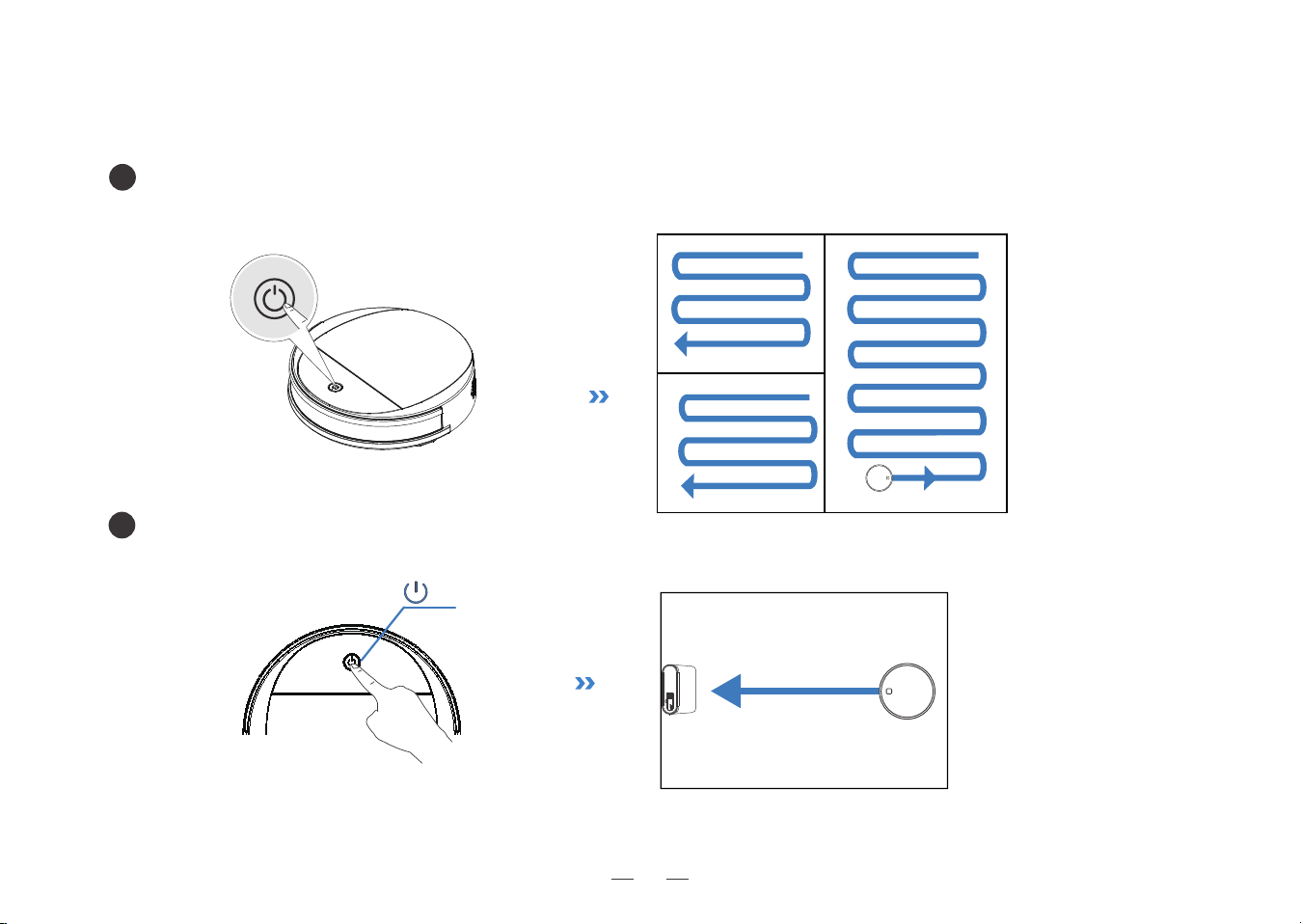
2. Operating and Programming /2.5 Start Cleaning
Auto Cleaning Mode
1
During the first cleaning, please supervise Robot and assist it should there be a problem.
Robot will clean in Programmed Cleaning Pattern optimized designed for hard floors cleaning by default.
2
Return to Charging Dock
×2
14
2
2
3
3
1
1
4
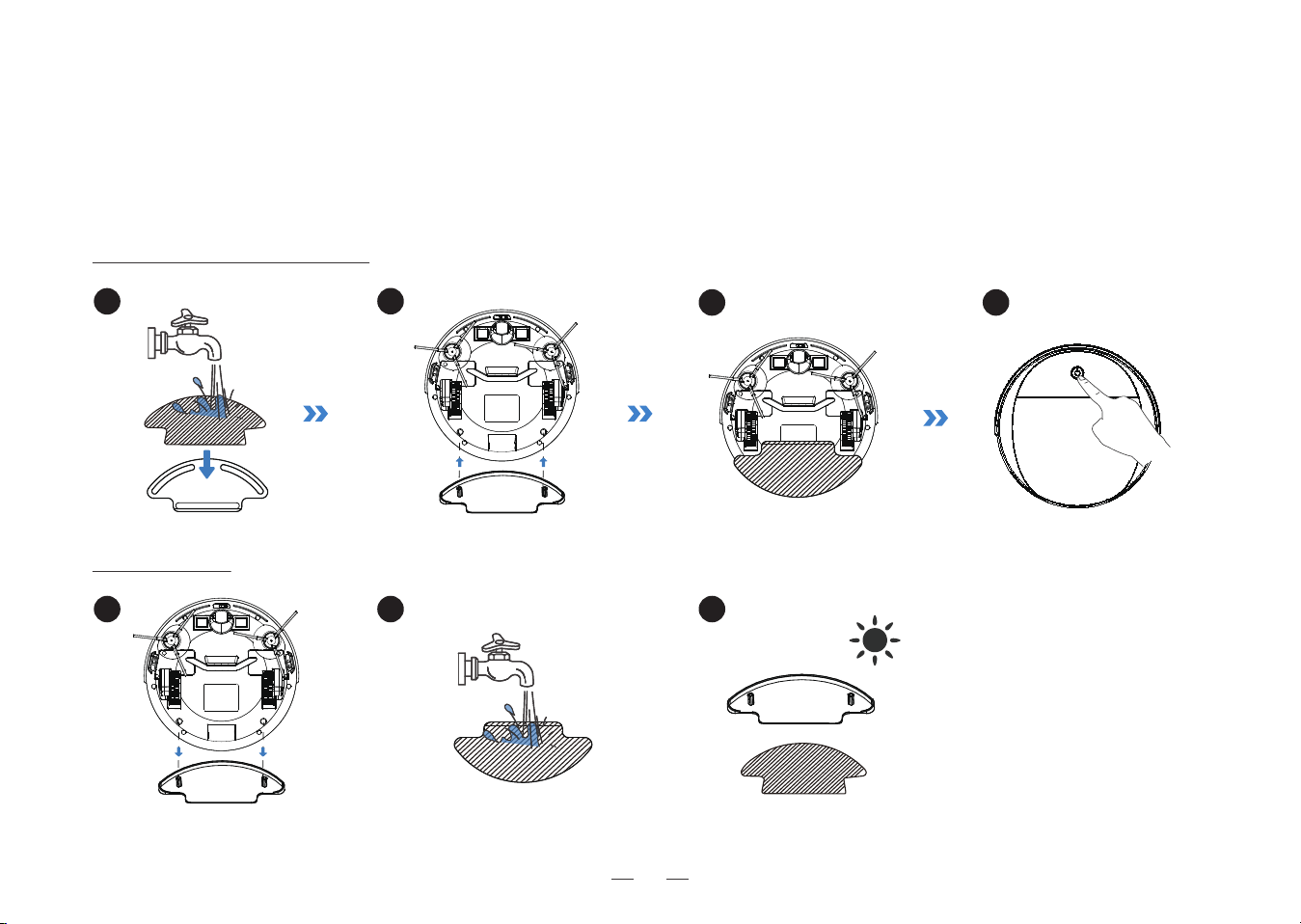
2.Operating and Programming /2.6 Mopping Function
Use the mopping function
Maintenance
• Do not use mopping function on carpets.
• Cleaning the mop cloth every 60 minutes to ensure the cleaning effect.
• Please remove the mopping cloth bracket before charging the robot.
Notes:
15
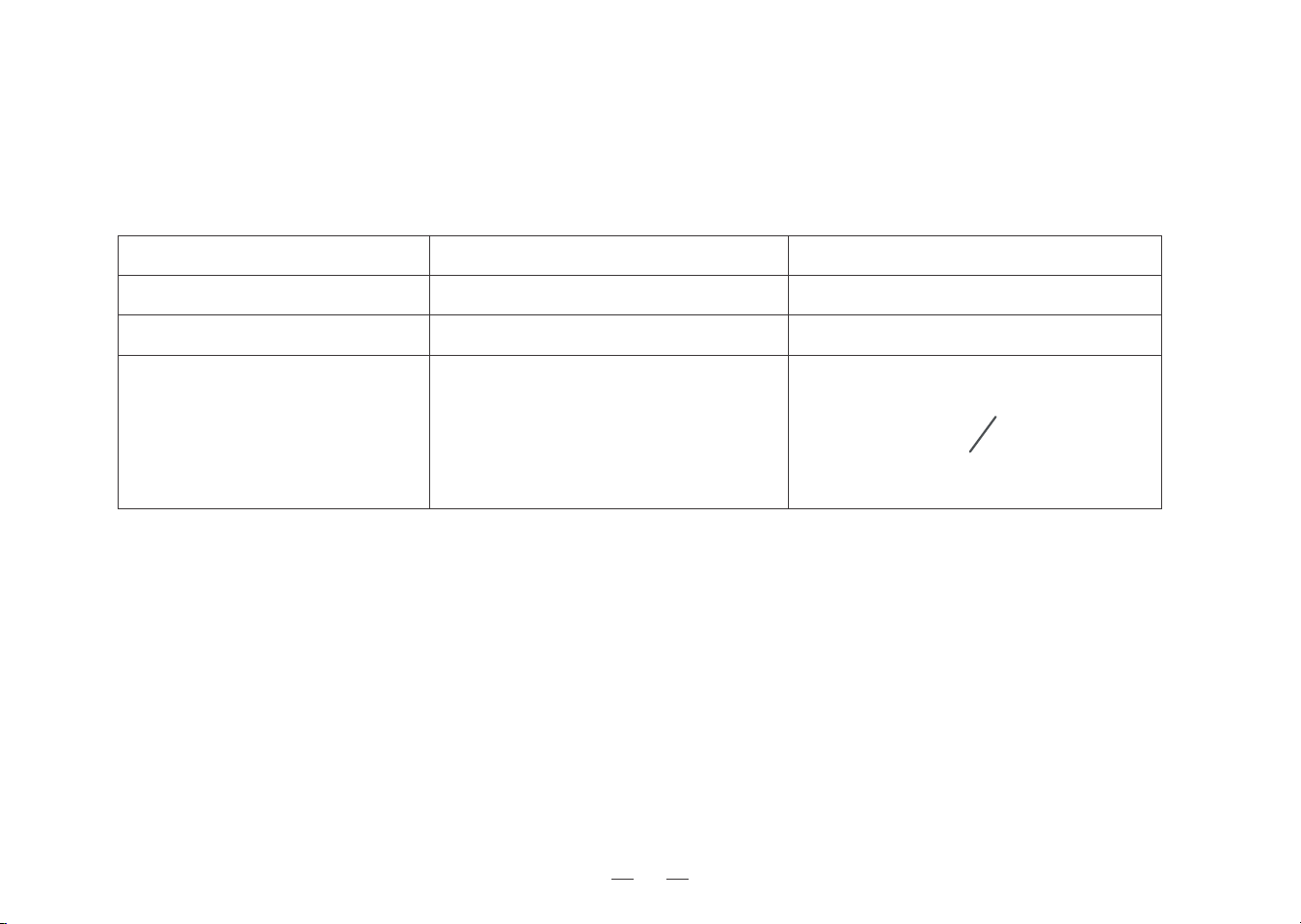
3.Maintenance /3.1 Regular Maintenance
To keep Robot running at peak performance, perform maintenance tasks and replace parts:
Robot Part
Every 3-6 months
Every 3-6 months
Replacement Frequency
Once per week
Maintenance Frequency
Once per week
Universal Wheel
Anti-Drop Sensors
Infrared Anti-Collision Sensors
Charging Contacts
Docking Station Pins
Dust Bin
High Efficiency Filter
Side Brush
Once every 2 weeks
Before performing cleaning and maintenance tasks on Robot turn the robot OFF and unplug the Docking Station.
A multi-function Cleaning Tool is provided for easy maintenance. Handle with care, this cleaning tool has sharp edges.
Note: We manufacture various replacement parts and fittings. Please contact Customer Service for more information
on replacement parts.
16
2
3
1
5
4
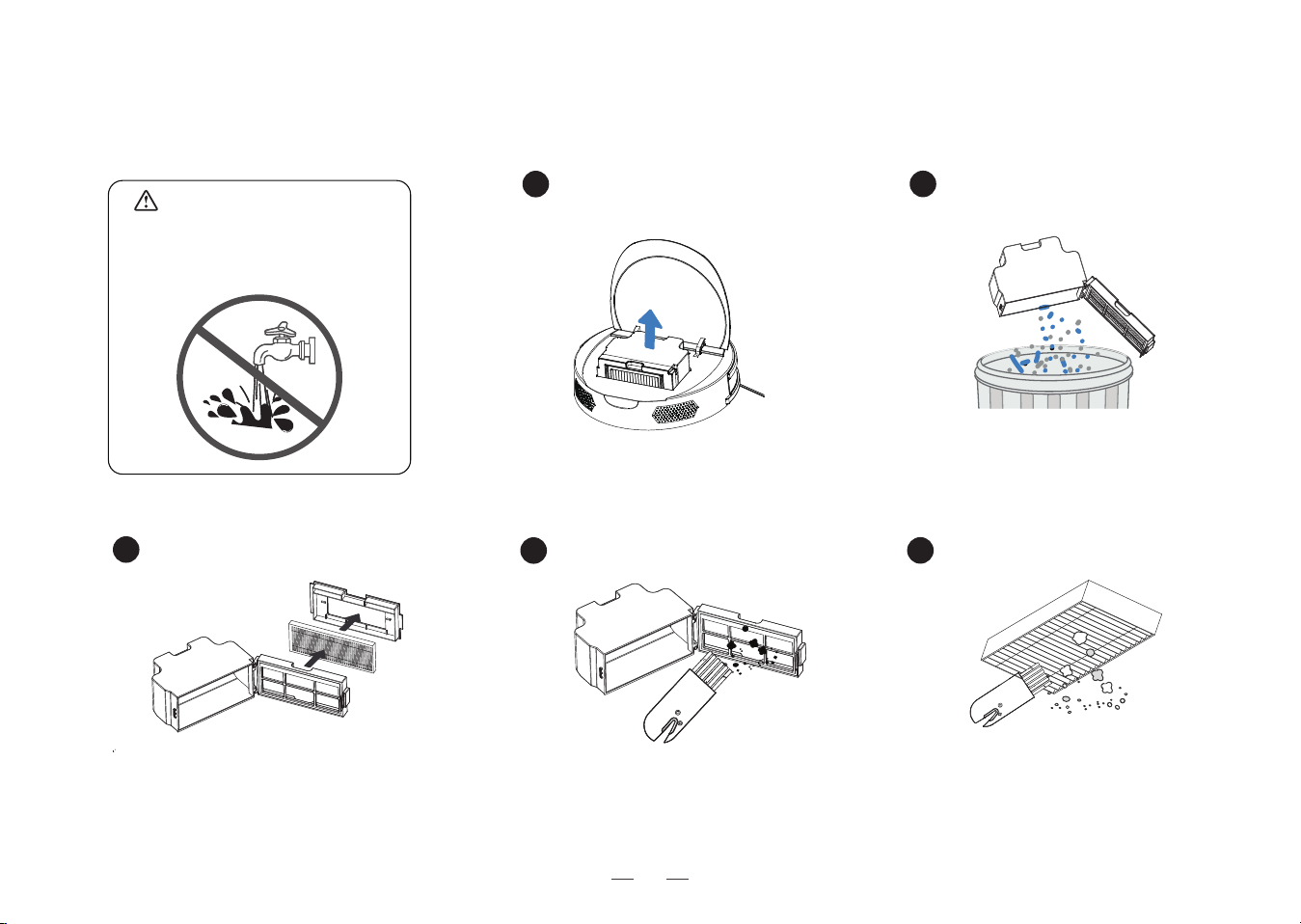
3.Maintenance /3.2 Dust Bin
Warning:
Do not use water to clean
Dust Bin and filter materials!
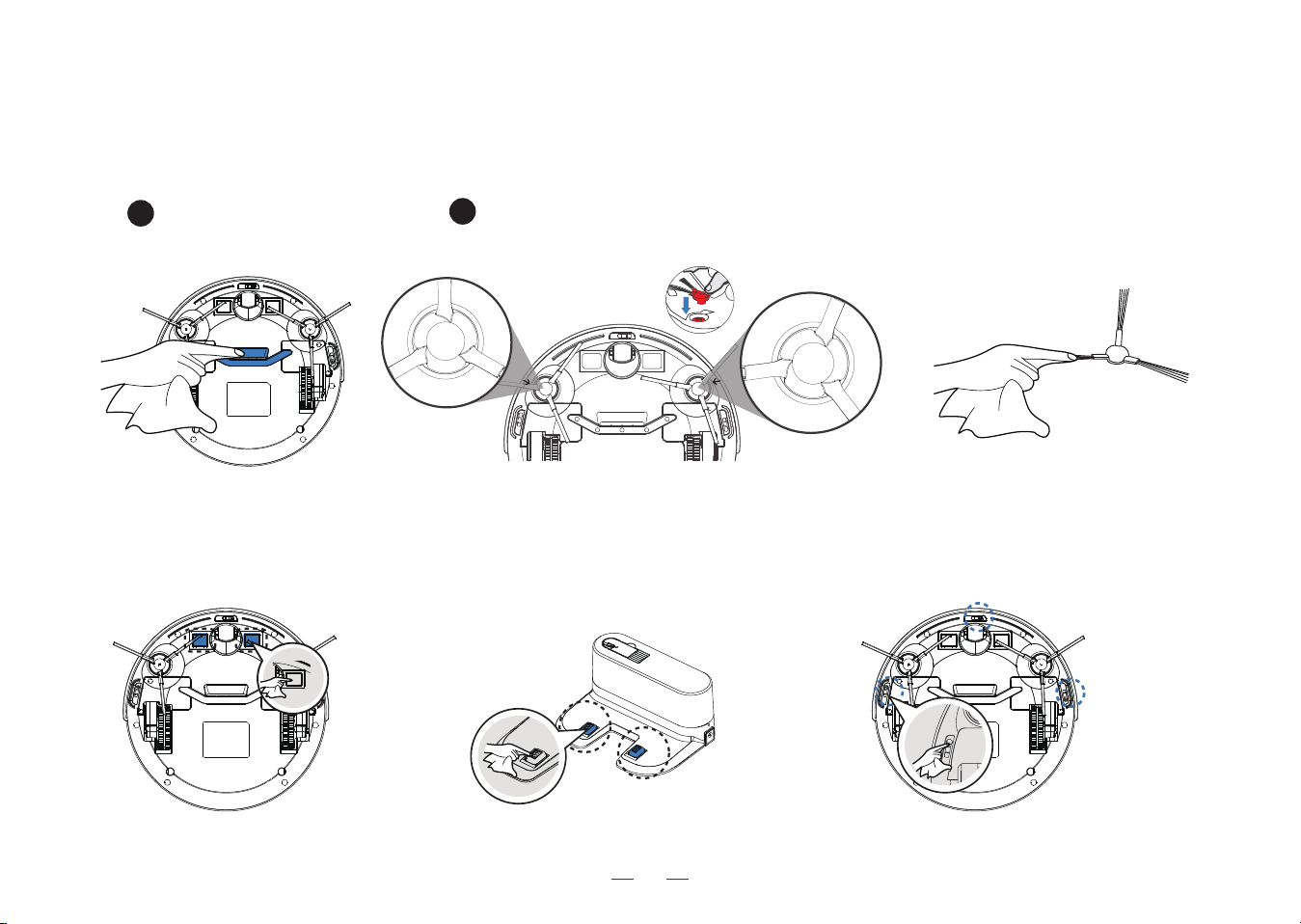
17
1
2
Direct Suction Option
Side Brushes
3.Maintenance /3.3 Direct Suction Option and Side Brushes
3.Maintenance /3.4 Other Components
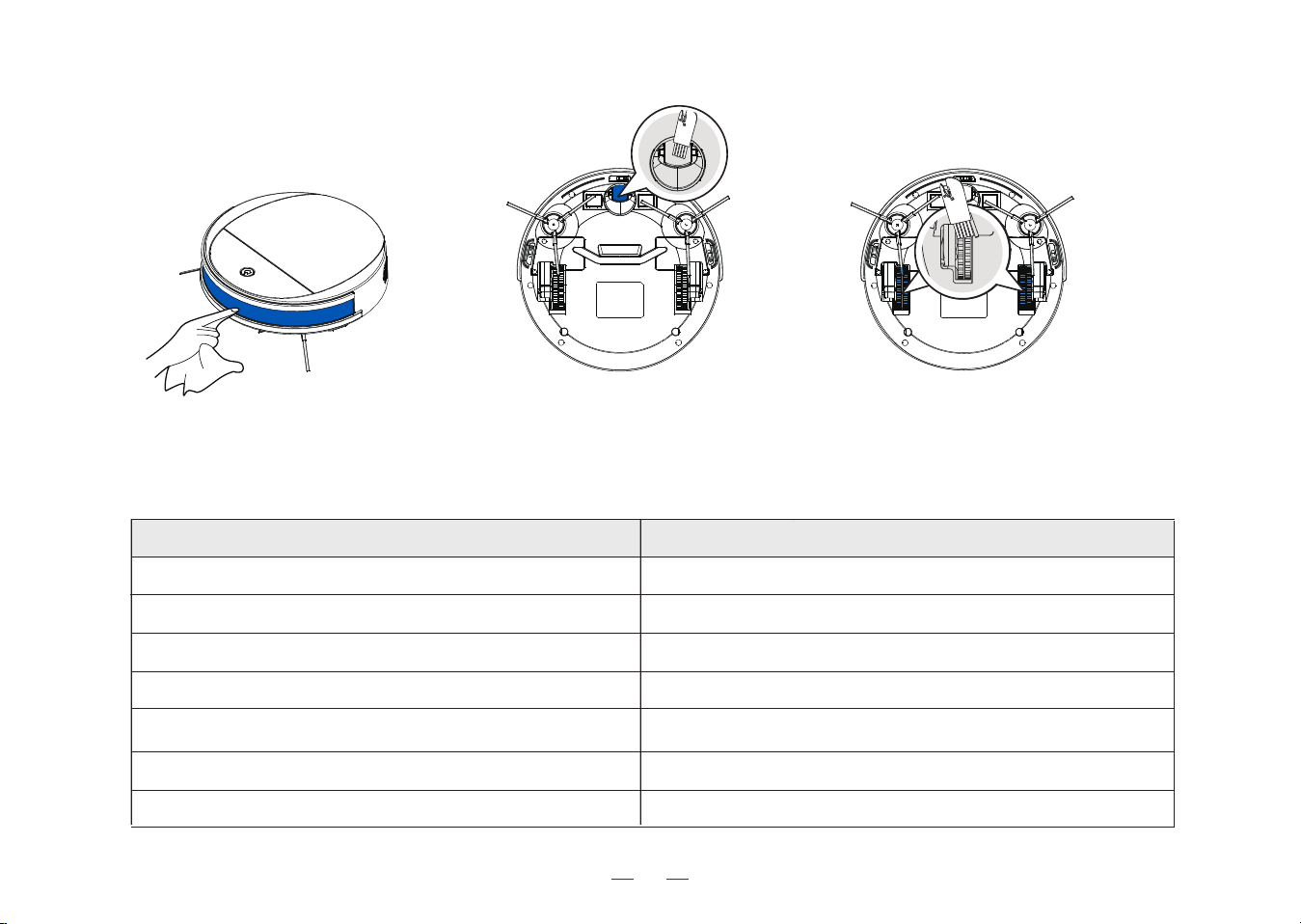
18
/4.1 Indicator Light
Flashes BLUE/ PINK
Flashes RED or glows a continuous RED
Status
The Robot is charging
The
Robot
has a problem
4.Indicator Light and Alarm Sounds
Start/Pause Button
Glows a continuous RED
The
Robot
has low battery
Glows a continuous BLUE
The
Robot
is cleaning
Flashes BLUE
Network configuration ends in 3 minutes. BLUE light off
In the state “pending for network configuration”
Network configuration in progress/Reconnection after the signal is lost
Glows a continuous BLUE
Network configuration completed
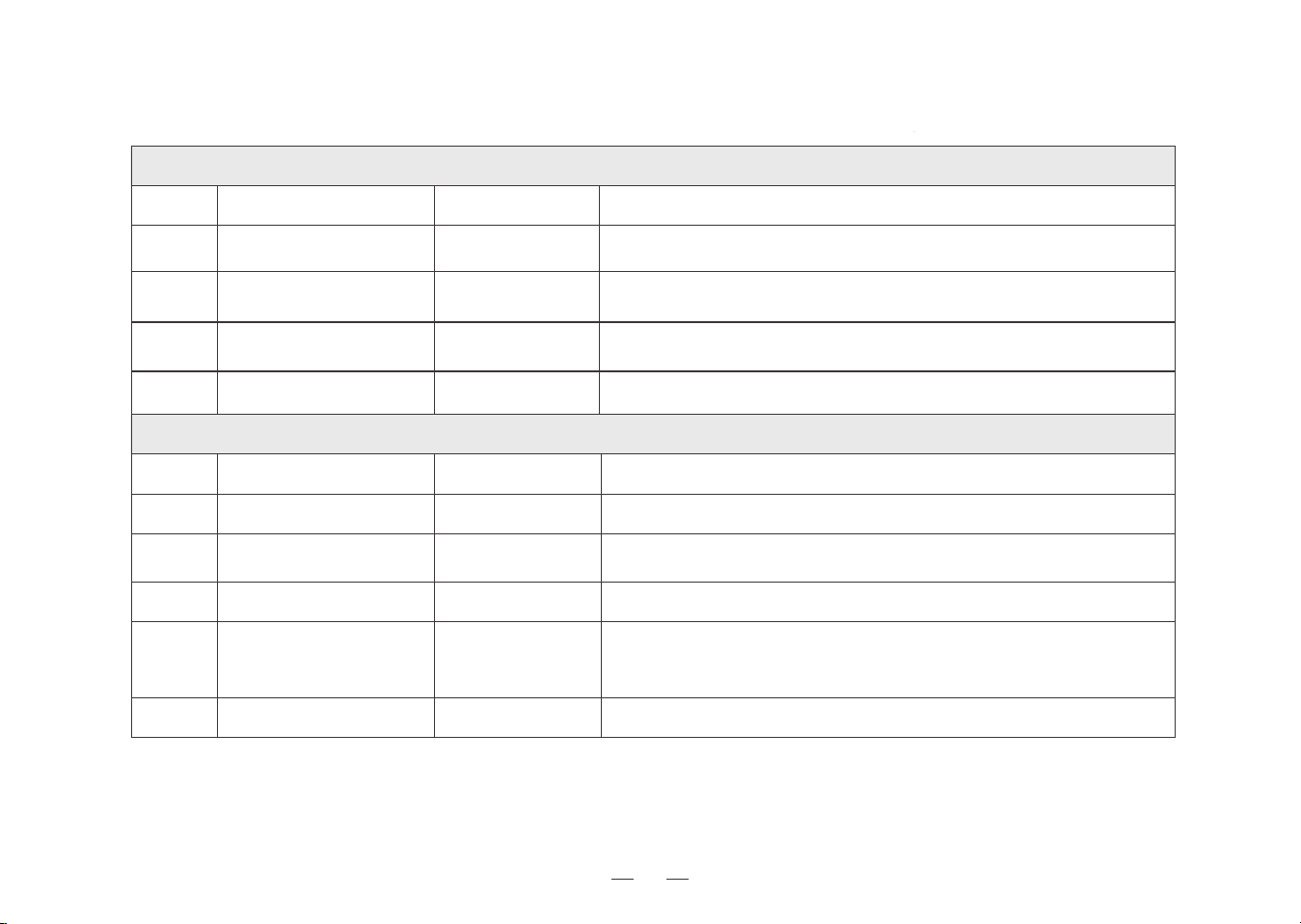
19
Tips: If the problem cannot be solved by means of the above mentioned measures, please try to turn on the power
switch beneath the face plate once again and restart the device.
4.Indicator Light and Alarm Sounds
/4.2 Alarm Sounds
3
4
2
1
Glowing a solid RED
No.
Cause of issue
Beeps
APP Error prompts and solutions
Vacuum fan does not work normally. Remove the dirt in the dust bin and
clean the vacuum inlet
Check Side Brushes for tangled hair or debris and clean as
described in section 3 Maintenance
Check Driving Wheel for tangled hair or debris and clean as
described in section 3 Maintenance
Vacuum fan not working
normally
Side Brush malfunction
Driving Wheel malfunction
3 Beep sounds 3 times
Please install the Dustbin.No Dustbin
5 Beep sounds 3 times
2 Beep sounds 3 times
1 Beep sounds 3 times
4
5
3
2
1
No.
Cause of issue
Beeps
APP Error prompts and solutions
Flashing RED
The charging voltage is abnormal. Clean the Charging Contacts of the
Docking Station and Robot, and make sure that you are using the original
adapter
Manually place the robot on the Charging Dock to charge
Place the robot on an even surface, or remove the obstacles,
and restart the robot
The is Robot longer in contact with the Floor. Put it back onto the floor
5 Beep sounds 3 times
4 Beep sounds 3 times
3 Beep sounds 3 times
2 Beep sounds 3 times
There is an error in charging. Check if the power switch is turned on6 Beep sounds 3 times
Charging adapter not
working normally
Low Battery
The robot is suspended
or Stuck
Floor sensor alarms
Charging error
If Robot detects a problem, it emits alarm beeps and the Start/Pause Button flashes RED or glows RED.
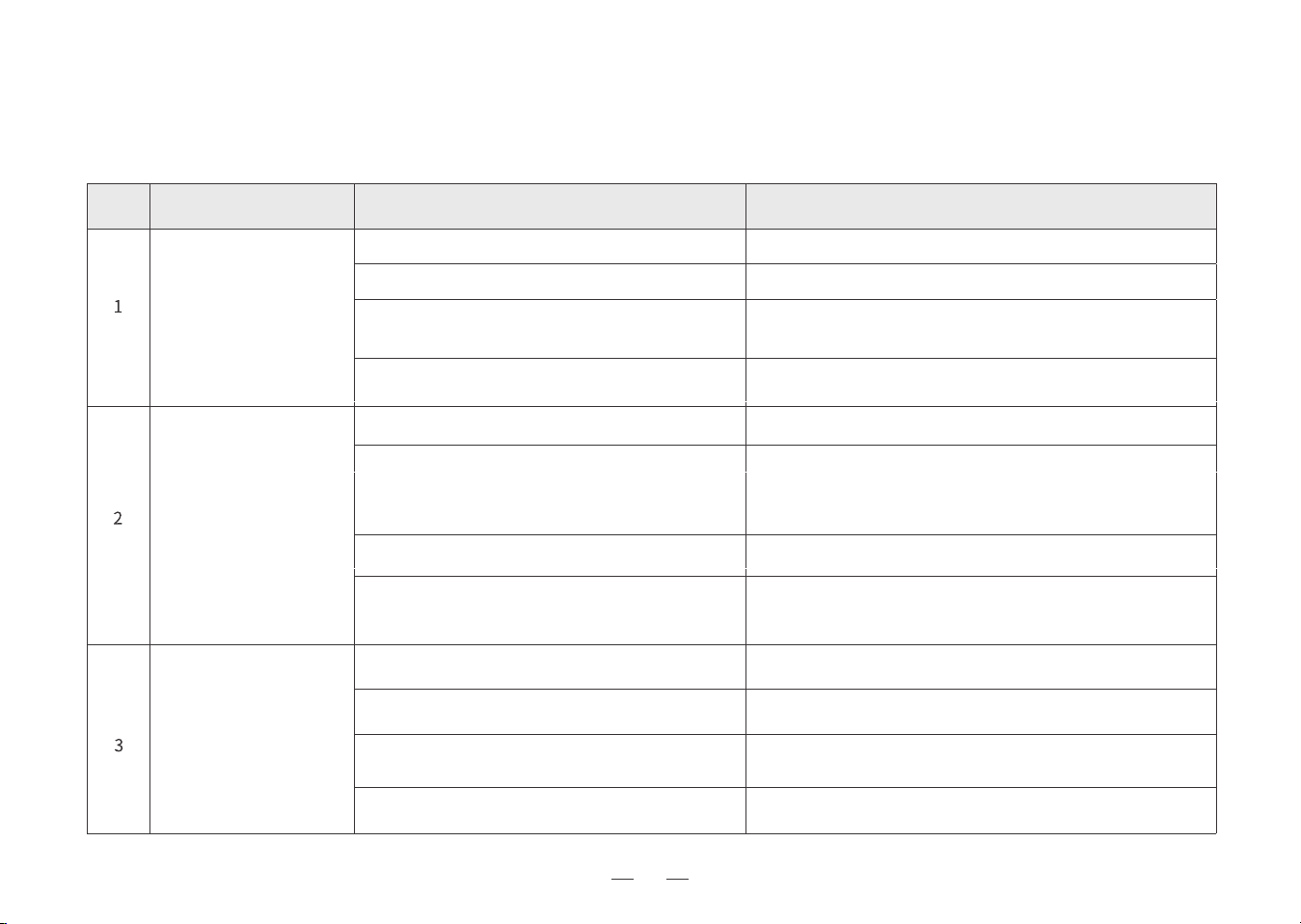
20
Be sure that the robot's Charging Contacts have connected to
the Docking Station Pins. Check if the Charging Contacts of the
Docking Station or Robot are contaminated. Clean the parts
according to measures described in the section “Maintenance”
Make sure the robot has been connected with 2.4 GHz Wi-Fi
network
Switch ON Robot
Incorrect home Wi-Fi username or password entered
Robot is not within range of your home Wi-Fi signal
Network setup started before Robot was ready
Robot does not support 5 GHz Wi-Fi
The Docking Station is not correctly placed
The Docking Station is not correctly connected
The Docking Station is manually moved during the
cleaning
Robot did not start cleaning from the Docking Station
Robot is not able to
connect to the home
Wi-Fi network
Refer to Section 2.3 correctly place the Docking Station
Make sure the Docking Station is correctly connected
It is suggested not to move the Docking Station during
the cleaning
Enter the correct home Wi-Fi username and password
Robot is not charging
Robot cannot return to
the Docking Station
Robot is not switched ON
Robot has not connected to the Docking Station
The Docking Station is not connected to the
power supply
Make sure the Docking Station is connected to the power supply
5.Troubleshooting /5.1 Troubleshooting
No. Malfunction Possible Cause Solutions
Make sure Robot is within range of your home Wi-Fi signal
The network can only be configured when the device is in the state
“Pending for configuration”. See the instructions given by the app
The battery is fully discharged after the device is not
in use for a long time
It is recommended to use the device on a regular basis. If it is
not in use for a long period of time and cannot be charged,
please contact our Customer Service personnel
Make sure Robot starts cleaning from the Docking Station
21
Robot misses cleaning
spots to be cleaned, or
repeats cleaning the
area cleaned
Robot gets stuck while
working and stops
Robot is making too much
noise when cleaning
The cleaning cycle is interfered by small objects or
barriers on the floor
Robot is working on slippery polished floors
Robot is unable to reach certain areas blocked by
furniture or barriers
Robot gets stuck while working and stops
Robot might be stuck under furniture with an entrance
of similar height
Robot is tangled or blocked with debris
Clean Robot as described in section Maintenance and
restart. If the trouble persists, please contact Customer
Care
It is recommended to raise the furniture a little bit or
block it with appropriate. means
Robot will try various ways to free itself. If it is unsuccessful,
manually remove the obstacles and restart
Make sure the floor wax is dried before Robot starts
cleaning
Tidy up the area to be cleaned by putting furniture and
small objects in their proper place
No. Malfunction Possible Cause Solutions
Remove power cords and small objects from the floor to
ensure cleaning efficiency. Robot will automatically clean
the area missed, please avoid moving Robot manually or
block the path during the cleaning cycle

22
5.Troubleshooting /5.2 Wi-Fi Connection
Before Wi-Fi setup, make sure Robot, mobile phone, and Wi-Fi network meet the following requirements.
Robot and Mobile Phone Requirements
•Robot is fully charged and the power switch of Robot is turned on.
•Robot is ready for network setup.
•Turn off mobile phone's cellular data (you can turn it back on after setup).
Wi-Fi Network Requirement
•You are using a 2.4G Hz or 2.4/5 GHz mixed network.
•Your router supports 802.11b/g/n and IPv4 protocol.
•Do not use a VPN (Virtual Private Network) or Proxy Server.
•Do not use a hidden network.
•WRA and WPA2 using TKIR PSK, AES/CCMP encryption.
•WEP EAP (Enterprise Authentication Protocol) is not supported.
•Use Wi-Fi channels 1-11 in North America and channels 1-13 outside North America (refer to local regulatoryagency).
•If you are using a network extender/repeater; the network name (SSID) and password are the same as your primary
network.
23
6.Product Specifications
*Note: Technical and design specifications may be changed for continuous product improvement.
Model M213
Rated Input 19 V
0.6A 11.4W
Docking Station Model
L1
Power Adapter Model
AD-0121900060UK
Power Adapter Input
100-240V~ 50-60Hz 0.5A
Off/Standby Mode Power
Networked Standby Power
Less than 0.5W
Less than 2.00W
Power Adapter Output
DC 19V, 0.6A, CLASS II
Rated Output Voltage Rated Output Current
19 V
0.6A

24
Warranty
This warranty covers the repair or replacement of the malfunction device at our company’s discretion for a period of 1-year.
In addition this certificate is void if altered. The serial number must be provided as well as all accessories to be eligible for
warranty coverage. Please kindly fill in below form accurately and completely.
Important:
When returning this device, carefully pack the product to avoid damage in shipping. Damage in shipping is not covered by the Warranty
and shall be the sole responsibility of Buyer. Damage or loss not covered by this Warranty or occurring outside the Warranty Period will
require a fee to cover the cost of handling and shipping. All such fees and costs shall be the sole responsibility of Buyer.
Exclusion
Unless agreed in writing, the warranty will not apply if the defects relate to:
• Consumable parts such as filters, or brushes etc, that are subject to normal wear and tear, and require regular maintenance and/or
replacement to ensure the proper functioning of your unit.
• Defects caused by rough or inappropriate handling or use or damage caused by accident, misuse, neglect, fire, water, lighting
or other acts of nature, external sources such as weather, electrical outages or power surges.
• Improper operation or maintenance, use not in accordance with the product instructions or connection to improper voltage supply.
• Accident, abuse, misapplication, or any unauthorized repair, modification, or disassembly of the product.
• Any failure to adequately package the Product for transportation.
• Use of parts not in accordance with the product instructions.
• Use of parts and accessories other than those produced or recommended by our company.
• Use in a commercial environment as the Product is designed for residential use only.
• Consequential and incidental damages.
• Any product(s) purchased from unauthorized dealers/resellers.
• Products used outside the country of purchase.
• Lost and/or stolen products.
Account Number:
Serial Number:
Date of Purchase:
M213-LH20210922-V01
Shenzhen lohas Technology Co.,LTD
http://www.lefant.com / [email protected]
Building 2, Fashion Brand Industrial Park, E'Bu Town, Shenzhen-Shanwei Special Cooperation Zone,
Shenzhen, Guangdong, China.
Official website