1
Installation Guide
AT-RON-444
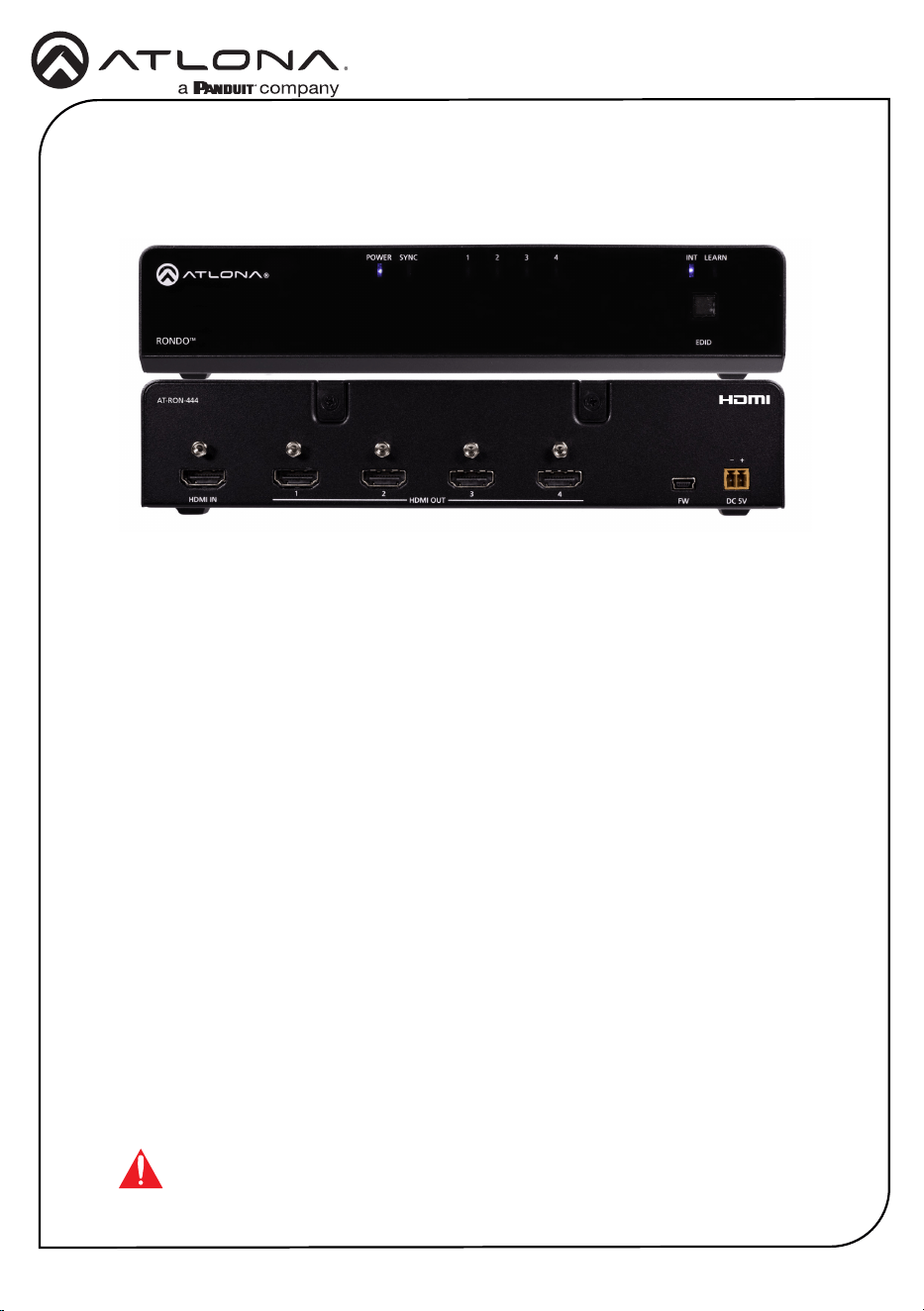
The Atlona Rondo™ 444 (AT-RON-444) is a 1×4 HDMI distribution amplier for high dynamic
range (HDR) formats. Part of the comprehensive family of Atlona 4K HDR integration products, it
is HDCP 2.2 compliant and supports 4K/UHD video @ 60 Hz with 4:4:4 chroma sampling, as well
as HDMI data rates up to 18 Gbps. The Rondo 444 is ideal for applications requiring the latest as
well as emerging 4K/UHD and HDR sources and displays. This Rondo Series HDMI distribution
amplier includes EDID management features, front panel LED indicators for power and signal
status, and the capability to cascade several units without compromising performance.
The Rondo 444 is designed to deliver dependable, pristine-quality image presentations in
commercial and residential applications. It includes Atlona’s award-winning 10 year limited
product warranty and customer support services, so that integrators can specify, purchase, and
install with condence.
4K HDR Four-Output HDMI Distribution Amplier
AT-RON-444
1 x AT-RON-444
1 x 2-pin captive screw connector
2 x Mounting plate
1 x Longer rack ear
1 x Rack Ear
4 x Screws (MAS-MF03+04D1 for mounting plate)
4 x Screws (MAS-MF04+06D for rack ear)
1 x Power supply 5V 4A
1 x AC cord
1 x Installation guide
IMPORTANT: Visit https://www.atlona.com/product/AT-RON-444 for the latest
rmware updates.
Package Contents
2
Installation Guide
AT-RON-444
RONDO
POWER SYNC
INT1 2 3 4
LEARN
EDID
TM
FW
HDMI OUT
HDMI IN
4321
DC 5V
+
AT-RON-444
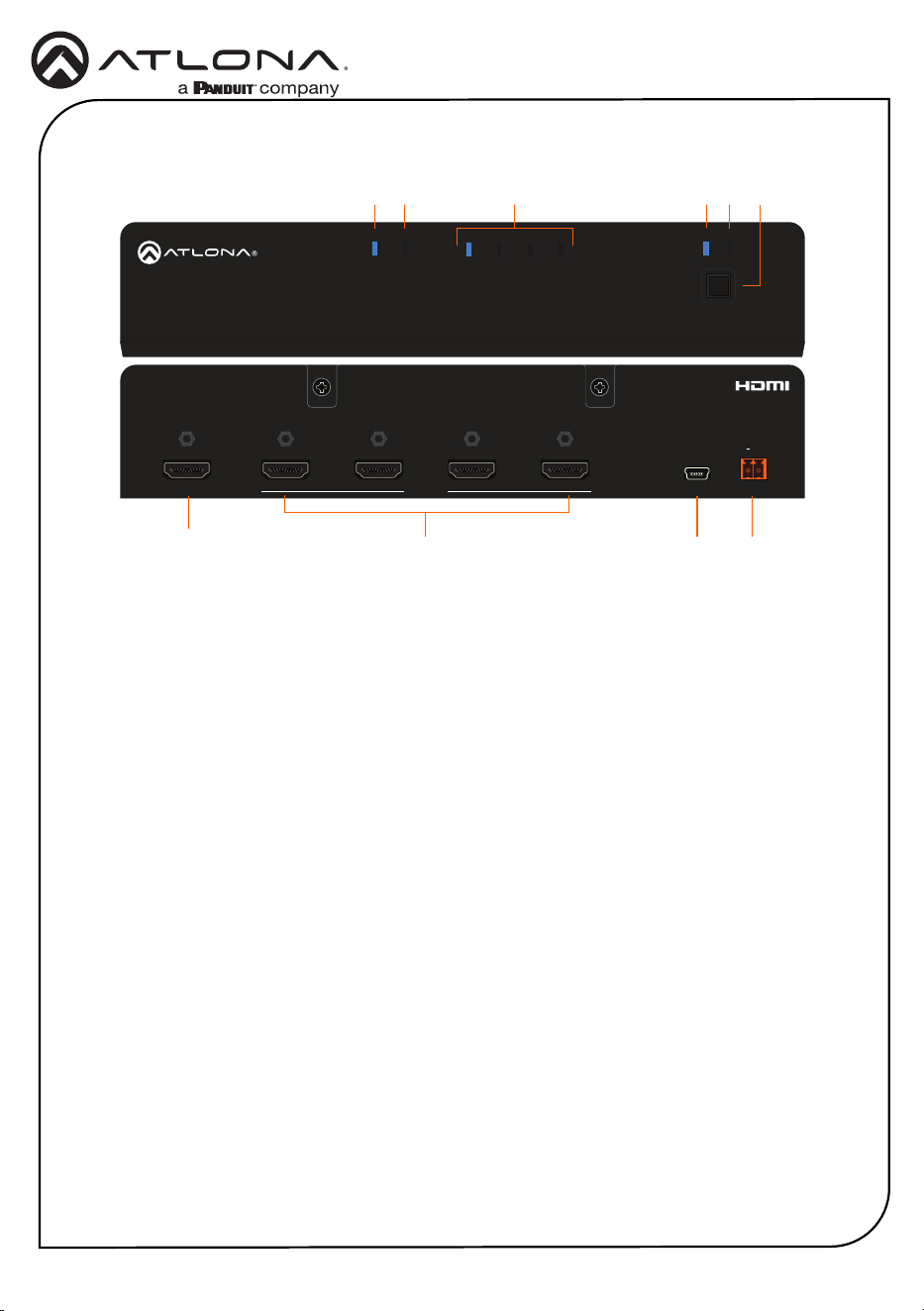
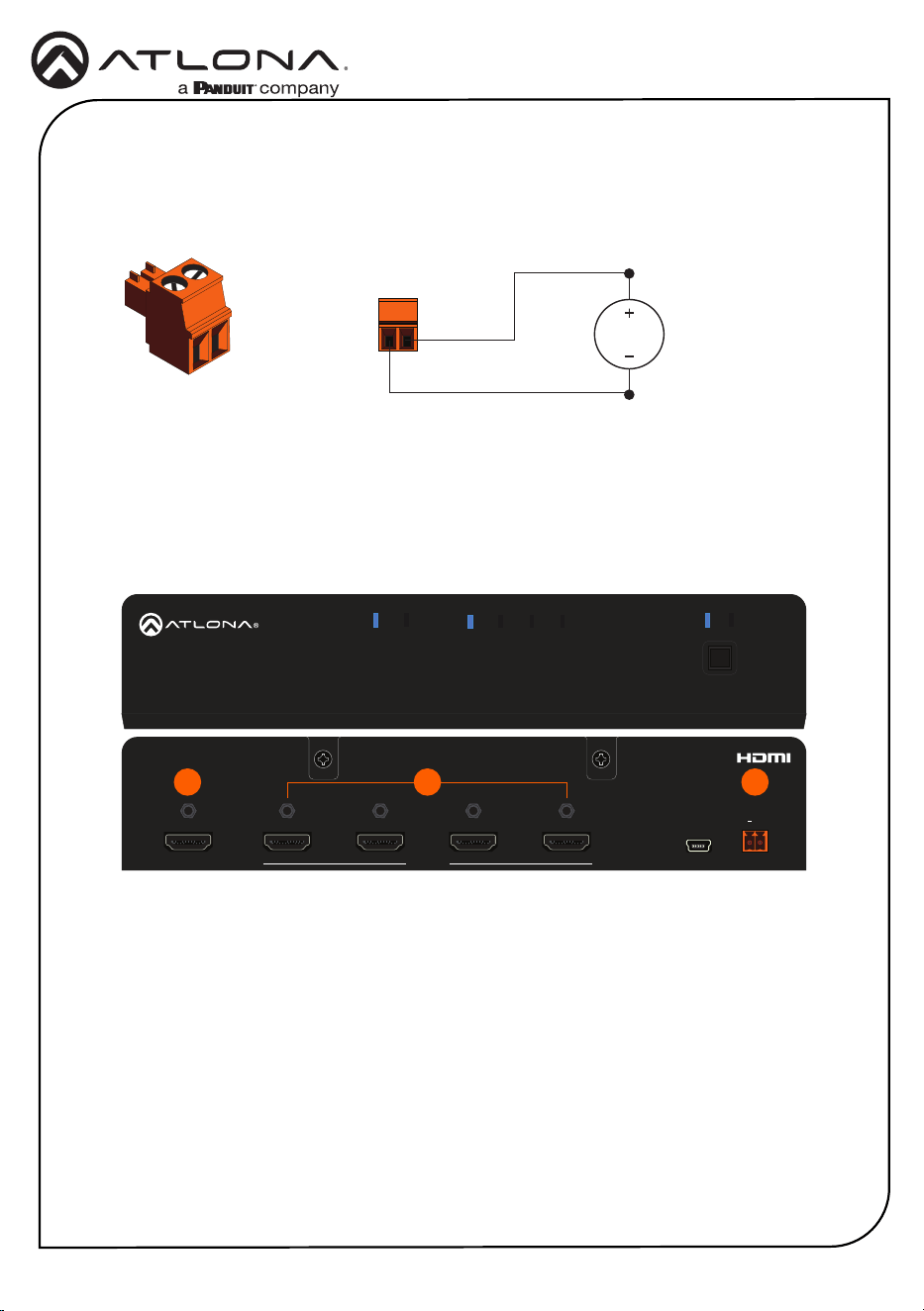
1 POWER
This LED indicator will glow solid blue
when the unit is powered.
2 SYNC
This LED indicator will glow solid blue
when an active source is detected on the
HDMI IN port.
3 Output Indicators
These LED indicator will glow solid blue
when a display or other sink device is
connected to the HDMI OUT ports.
4 INT
This LED indicator glows solid blue when
the unit is using the built-in EDID.
5 LEARN
This LED indicator glows solid blue when
the unit is in LEARN mode.
6 EDID button
Press this button to switch between INT
and LEARN modes.
7 HDMI IN
Connect an HDMI cable from this port to a
UHD/HD source.
8 HDMI OUT 1/2/3/4
Connect an HDMI cable from each of
these ports to a display or other sink
device.
9 FW
Connect a mini USB cable to this port to
update the rmware.
10 DC 5V
Connect the included 5V DC power
supply to this port.
2 5 63 41
7
8
9 10
Panel Descriptions
3
Installation Guide
AT-RON-444
1. Connect an HDMI cable from the UHD/HD source to the HDMI IN port on the AT-RON-444.
2. Connect display/sink devices to the AT-RON-444 to the HDMI OUT ports.
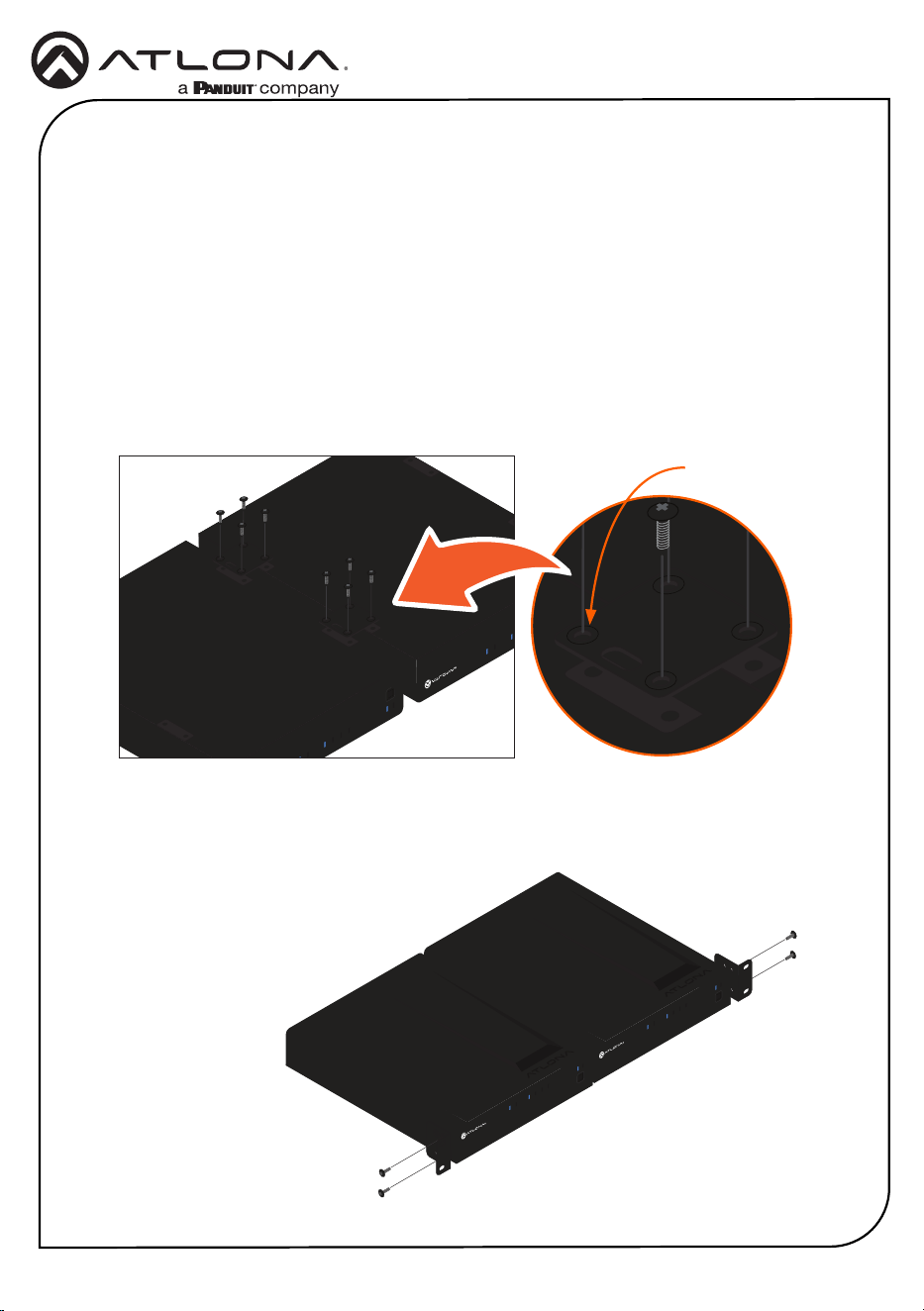
3. Connect the included power supply to the DC 5V Phoenix connector.
Installation
Power Connector
Locate the included orange Phoenix terminal block, and wire the included power supply to the
block as shown below. Do not use high-torque devices, when securing the wires, as this may
damage the screws and/or connector block.
Black
White
5V DC
power supply
RONDO
POWER SYNC
INT1 2 3 4
LEARN
EDID
TM
FW
HDMI OUT
HDMI IN
4321
DC 5V
+
AT-RON-444
1
3
2
4
Installation Guide
AT-RON-444
Mounting Instructions
RONDO
POWER SYNC
INT1 2 3 4
LEARN
EDID
TM
RONDO
POWER SYNC
INT
1
2 3 4
LEARN
EDID
TM
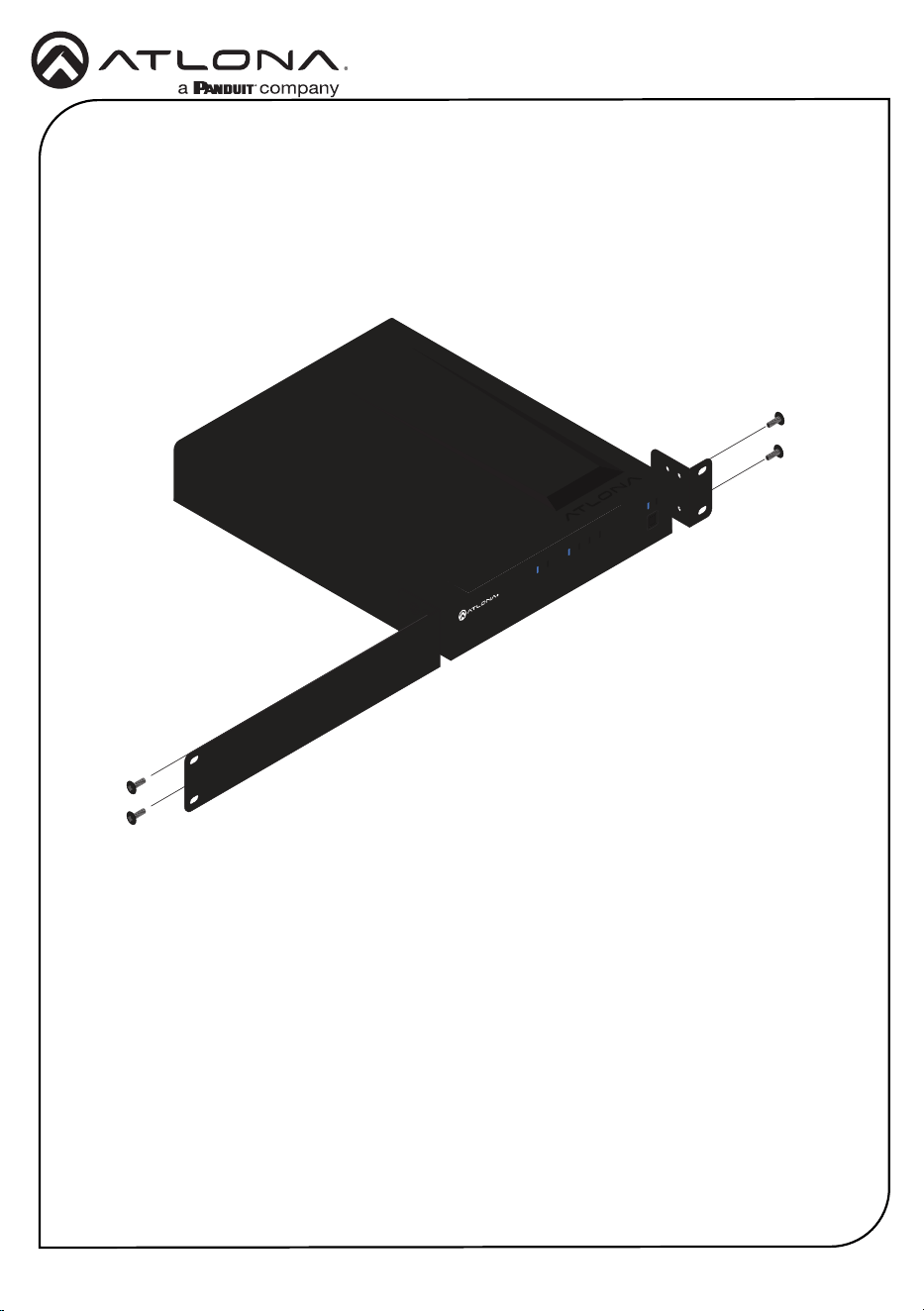
Two AT-RON-444 units can be connected to one another and installed in a 19” rack, using the
included mounting plates. Alternatively, a single AT-RON-444 can be mounted in the rack using
the included rack ears.
1. Turn the unit upside-down on a at surface.
2. Position the included mounting plates over the pre-drilled holes on the bottom of the
enclosure. When attaching mounting plates, the countersink bevels on the mounting plate
should face upward.
RONDO
POWER SYNC
INT1 2 3 4
LEARN
EDID
TM
RONDO
POWER SYNC
INT1 2 3 4
LEARN
EDID
TM
Countersink bevel
3. Turn the attached units over and remove the two screws on either side of each unit as
shown below, using a Philips screwdriver.
4. Secure each rack ear using the two screws.
AT-RON-444
+
RONDO
POWER SYNC
INT1 2 3 4
LEARN
EDID
TM
RONDO
POWER SYNC
INT1 2 3 4
LEARN
EDID
TM
AT-RON-444
Dual-Unit Rack Installation
5
Installation Guide
AT-RON-444
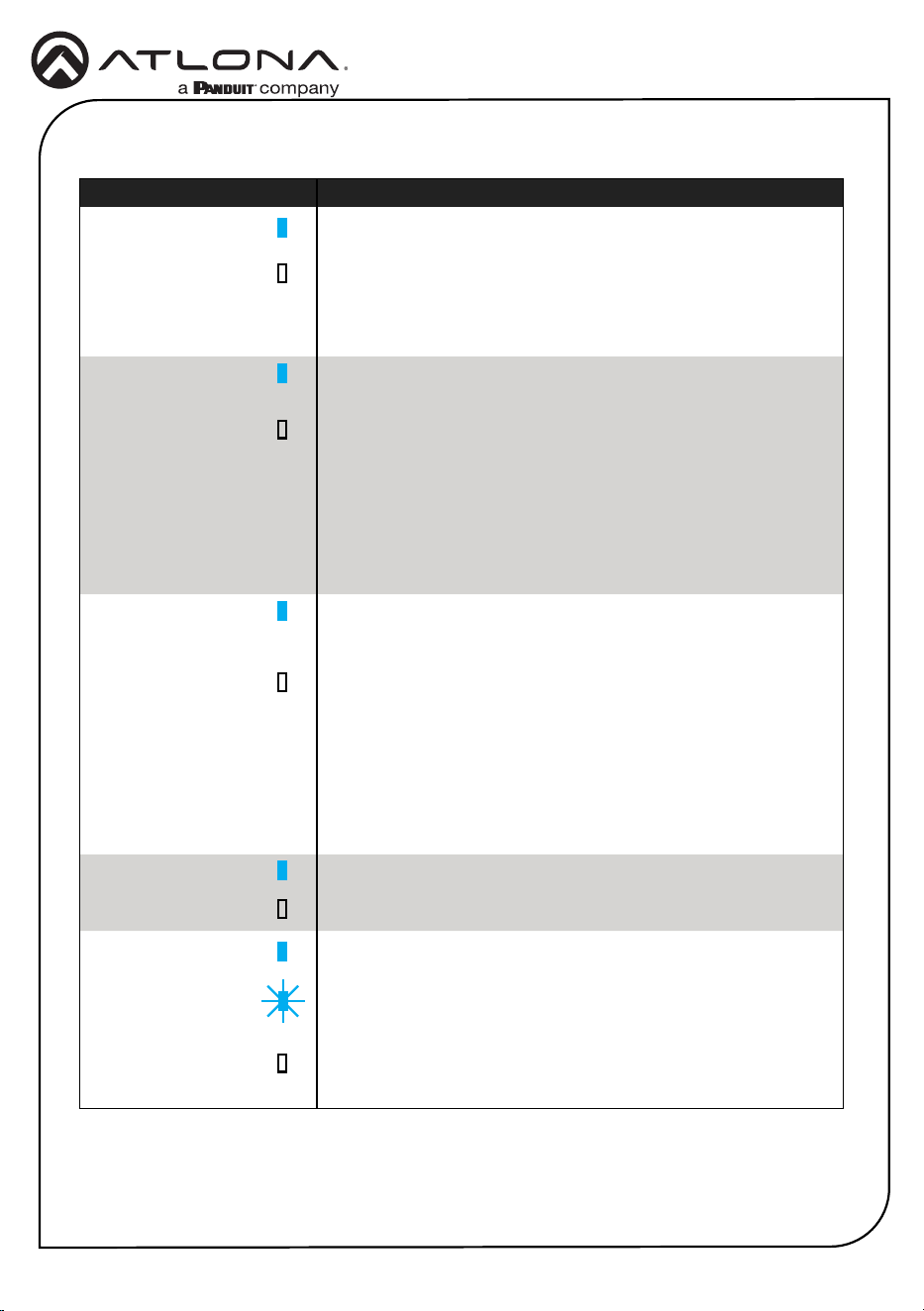
1. Remove the two screws on either side of each unit, as shown below.
2. Position the small rack ear to one side of the AT-RON-444 and secure with the two screws.
3. Position the longer rack ear to the opposite side of the AT-RON-444 and secure with the two
screws.
AT-RON-444
+
RONDO
POWER SYNC
INT1 2 3 4
LEARN
EDID
TM
Single-Unit Rack Installation
6
Installation Guide
AT-RON-444
LED Description
POWER The AT-RON-444 is powered.
The AT-RON-444 is not powered.
• Check that the power supply is connected to the AT-
RON-444 and that the electrical outlet is live.
SYNC The HDMI IN port is connected to an active source.
The AT-RON-444 is not detecting an active source.
• Check that the source is powered on and that the source is
connected to the HDMI IN port.
• Check that the HDMI cable, between the AT-RON-444 and
the source, is securely fastened.
• Try a dierent HDMI cable.
1, 2, 3, 4 The HDMI OUT port is connected to a display or other sink
device.
The AT-RON-444 is not detecting a sink device.
• Check that the sink device is connected to the proper
HDMI OUT port.
• Check that the HDMI cable, between the AT-RON-444 and
the sink device, is securely fastened.
• Try a dierent HDMI cable.
INT The AT-RON-444 is using the built-in internal EDID.
The internal EDID is not being used.
LEARN The EDID learning process is complete and the AT-RON-444 is
using a learned EDID from a sink device.
This LED will ash while the AT-RON-444 is learning the EDID.
The AT-RON-444 is not using a learned EDID.
LED Indicators
7
Installation Guide
AT-RON-444
The AT-RON-444 provides two EDID modes: INT (internal) and LEARN.
EDID
Internal (INT) Mode
LEARN Mode
1. Power the AT-RON-444.
2. Connect an HDMI cable from the HDMI OUT 1 port on the AT-RON-444 to the HDMI input
on the sink device containing the EDID to be stored.
3. Press and hold the EDID button on the AT-RON-444. While the EDID is being learned,
the LEARN LED indicator will begin ashing.
4. When the LEARN LED indicator is solid blue, release the EDID button.
5. The EDID from the sink device is now stored in the AT-RON-444.
1. Power the AT-RON-444.
2. Press and release the EDID button to toggle to INT mode.
3. Connect an HDMI cable from the source to the HDMI IN port.
4. Connect up to four displays to the AT-RON-444, using the HDMI OUT 1 - HDMI OUT 4.
NOTE: 4K, 3D, and multichannel audio may not be available when using INT
(internal) EDID mode.
When this mode is selected, the internal EDID stored in the AT-RON-442 is presented to the
HDMI source.
LEARN mode is used to learn an EDID from another sink device. When learning an EDID, the
device must be connected to the HDMI OUT 1 port.
8
Installation Guide
AT-RON-444
Problem Solution
How do I perform a
rmware update on the AT-
RON-444?
If updated rmware is available, both rmware and update
instructions can be found under the Firmware tab of each of the
following links. Note that if new rmware is not available, then
the Firmware tab will not be displayed.
http://www.atlona.com/product/AT-RON-444
Does the Rondo series
provide external automation
control?
No.
3D content is not being
displayed.
• If using INT (internal) EDID mode, all connected displays
must be able to display 3D content. If only one of the
connected displays is not 3D-capable, then none of the
displays will show 3D content.
• To pass 3D content when not all displays support 3D,
connect a 3D display to Output 1, then use the “learn EDID”
procedure.
Troubleshooting
9
Installation Guide
AT-RON-444
Notes
10
Installation Guide
AT-RON-444
Notes
11
Installation Guide
AT-RON-444
Notes
12
Installation Guide
AT-RON-444
Version 4
© 2022 Atlona Inc. All rights reserved. “Atlona” and the Atlona logo are registered trademarks of Atlona Inc. All other brand names and trademarks or registered
trademarks are the property of their respective owners. Pricing, specications and availability subject to change without notice. Actual products, product images,
and online product images may vary from images shown here.
25226-R4
Toll free US International
atlona.com • 408.962.0515 • 41.43.508.4321
English Declaration of Conformity
The English version can be found under the resources tab at:
https://atlona.com/product/at-ron-444/.
Warranty
Chinese Declaration of Conformity 中国RoHS合格声明
To view the product warranty, use the following link or QR code:
https://atlona.com/warranty/.
由SKU列出於:
https://atlona.com/about-us/china-rohs/.