NVR user manual
Updated September 8, 2025
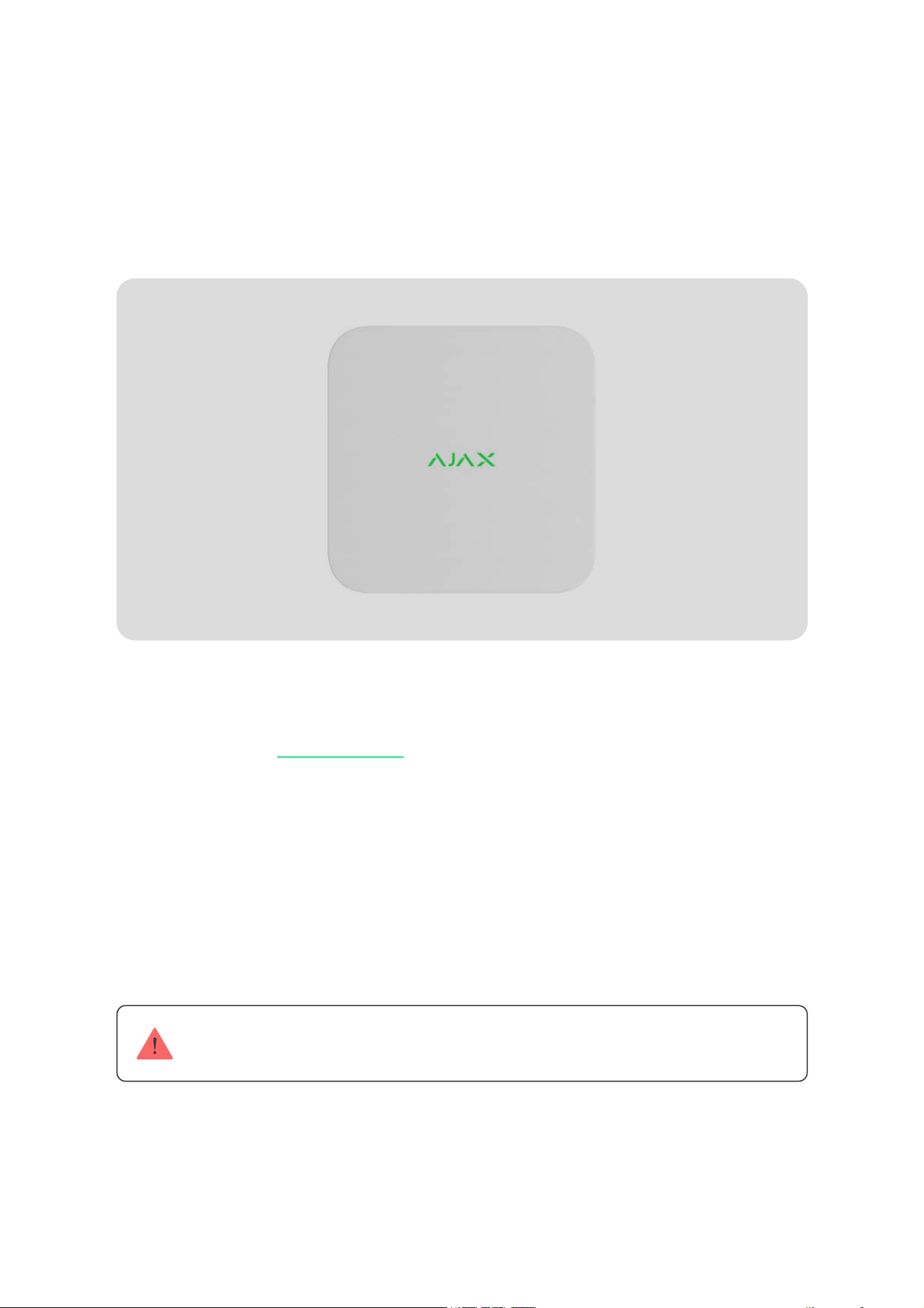
NVR is a network video recorder for home and office video surveillance.
You can connect and third-party IP cameras to the device.
The user can view archived and live videos in Ajax apps. NVR records the
received data with corresponding settings and a hard drive (not included).
If the hard drive is not installed, the video recorder is used only for
integrating third-party IP cameras into the Ajax system. NVR provides
users with video alarm verification.
Use a hard drive with a power consumption of no more than 7 W.
NVR requires Internet access to connect to the Ajax Cloud service. The
video recorder is connected to the network via Ethernet using the
corresponding connector.
Ajax cameras
The device is available in several versions:
Functional elements
NVR (8-ch);
NVR (16-ch);
NVR DC (8-ch);
NVR DC (16-ch).
Buy NVR
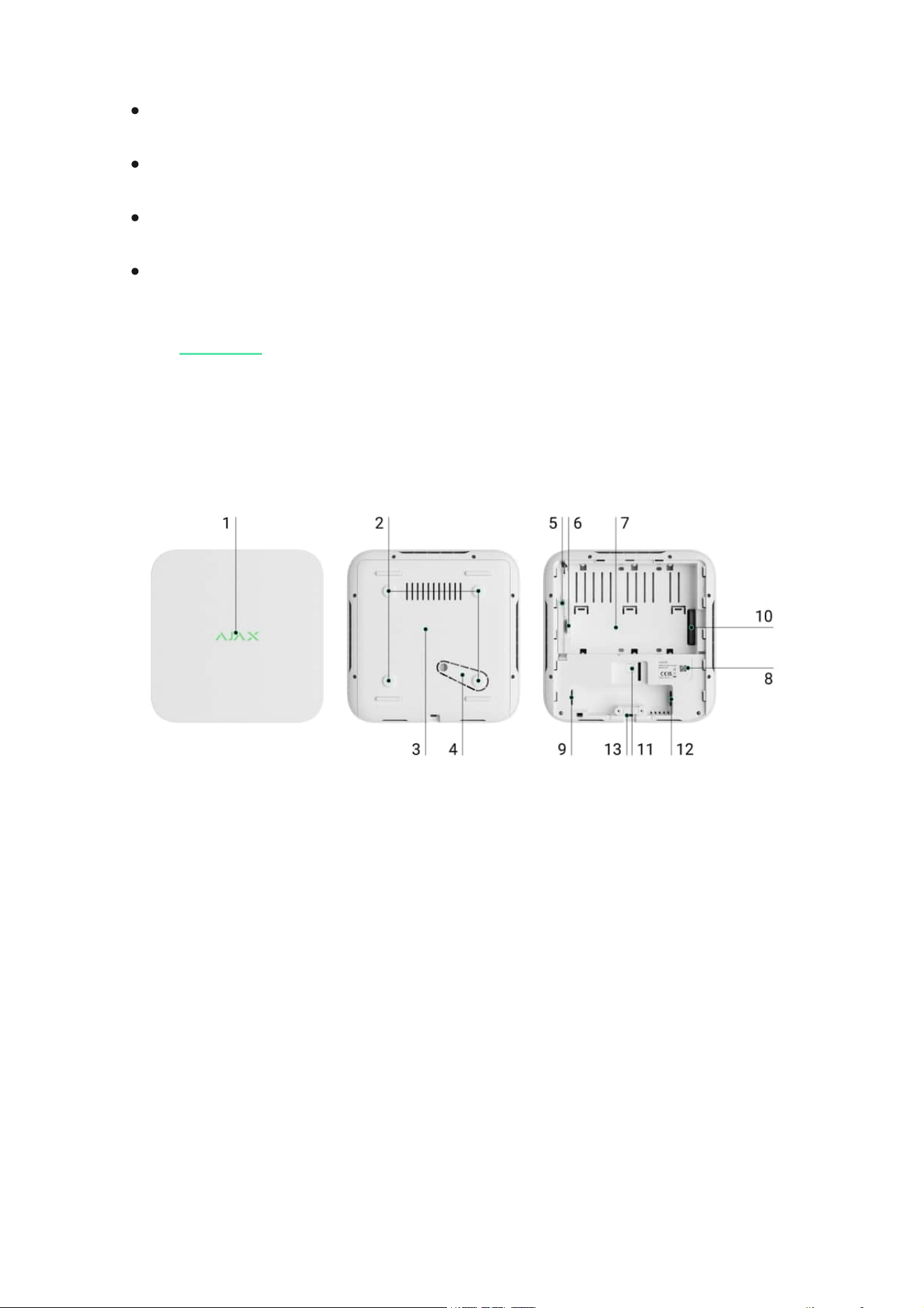
1. Logo with LED indicator.
2. Holes for attaching the SmartBracket mounting panel to the surface.
3. SmartBracket mounting panel.
4. Perforated part of the mounting panel. Do not break it off. Any attempt
to detach the device from the surface triggers a tamper.
5. A hole for attaching a hard drive latch using a screw.
6. Hard drive latch.
7. Place to install a hard drive.
8. QR code with the device ID. Used to add NVR to an Ajax system.
Operating principle
NVR is a video recorder for connecting third-party IP cameras that have
ONVIF and RTSP protocols and . Allows you to install a
storage device with a memory capacity of up to 16 TB (not included in the
NVR package). Also, NVR can work without a hard drive.
Using the , you can calculate the NVR required storage
capacity and estimated recording time based on the settings.
NVR enables:
9. Power supply connector.
10. Connector for the hard drive.
11. Button to reset parameters.
12. Ethernet cable connector.
13. Сable retainer clamp.
Ajax cameras
video storage calculator
How to choose a hard drive
1. Add and configure IP cameras (camera resolution, brightness,
contrast, etc.).
2. Watch video from added cameras in real-time with the ability to zoom.
3. Watch and export videos from the archive, navigating by the recording
chronology and calendar (if the hard drive is connected to the video
recorder).
4. Choose how to detect motion in the frame — on the camera or on the
NVR.
5. Configure motion detection on NVR (detection zones, sensitivity level).
6. View the that combines images from all connected
cameras.
Video wall
NVR is designed for indoor installation. We recommend installing the
video recorder on a flat horizontal or vertical surface for better heat
7. that send a short video from the selected
camera to the Ajax app when the detector is triggered.
The video recording segments downloaded from NVR with firmware
2.244and later have the Ajax digital signature that verifies the integrity of
the exported video. To verify the authenticity of the downloaded video
recordings, use the Ajax media player software.
Create video scenarios
Learn more about Ajax media player
How to download videos from the archive in Ajax apps
How to configure temporary camera video access
8. Configure connection via ONVIF to integrate the device with video
management systems (VMS) such as Milestone, Genetec, Axxon, and
Digifort.
ONVIF authorization is supported by NVR with a firmware version 2.289 or
later.
An admin or PRO with rights to configure the system can set up a
connection via ONVIF in:
with the app version 3.25 or later.Ajax Security System
with the app version 2.25 or later.Ajax PRO: Tool for Engineers
with the app version 4.20 or later.Ajax PRO Desktop
with the app version 4.21 or later.Ajax Desktop
How to configure ONVIF authorization
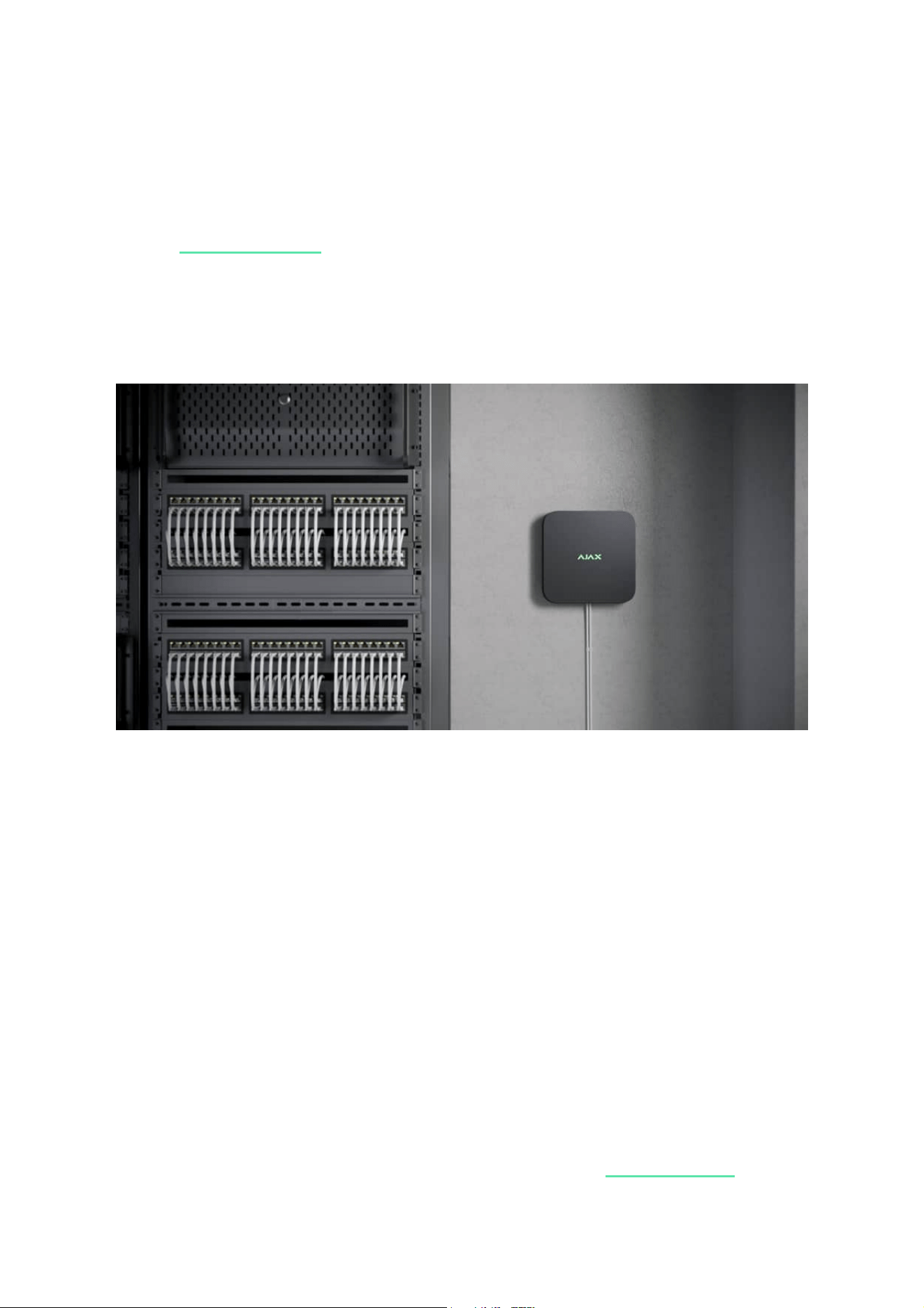
exchange of the hard drive. Do not cover it with other items.
The device is equipped with a tamper. The tamper reacts to attempts to
break or open the lid of the casing, reporting the activation through Ajax
apps.
Selecting the device location
It is advisable to choose an installation site where NVR is hidden from
prying eyes, for example, in the pantry. It will help to reduce the likelihood
of sabotage. Note that the device is intended for indoor installation only.
The device is made in a compact casing with passive cooling. If NVR is
installed in insufficiently ventilated rooms, the operating temperature of
the memory drive may be exceeded. Choose a hard, flat horizontal or
vertical surface for mounting the casing, and do not cover it with other
items.
Follow placement recommendations when designing the Ajax system for
an object. The security system should be designed and installed by
professionals. The list of authorized Ajax partners is .
Where NVR cannot be installed:
What is tamper
available here
Installation
NVR installation:
1. Outdoors. This may cause the breakdown of the video recorder.
2. Inside premises with temperature and humidity values that do not
correspond to the operating parameters.
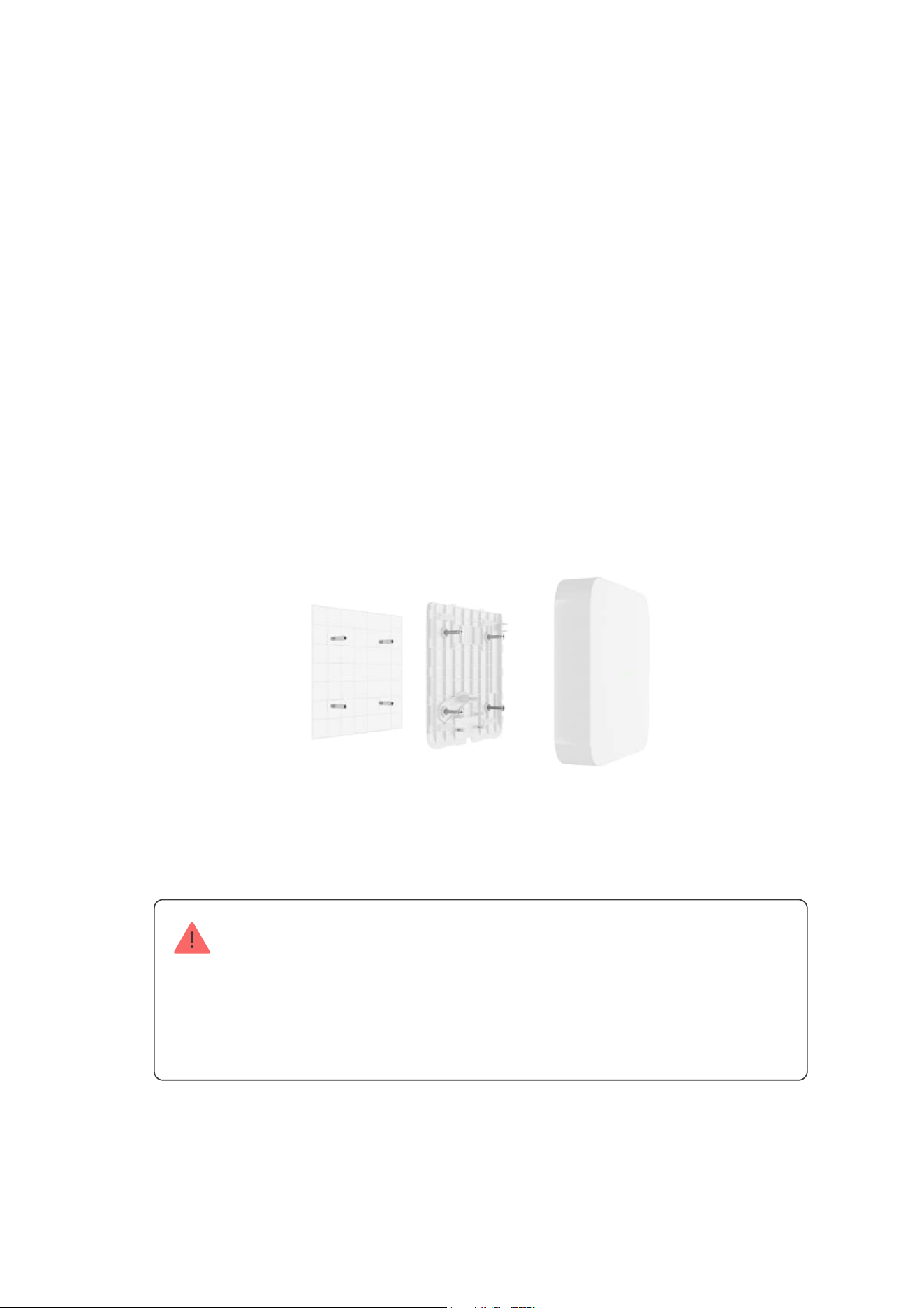
1. Remove SmartBracket from the video recorder by pulling down the
back panel.
2. Secure SmartBracket to a hard, flat surface with the bundled screws.
Use at least two fixation points. In order for the tamper to respond to
disassembly attempts, be sure to fix the enclosure at a point with a
perforated area.
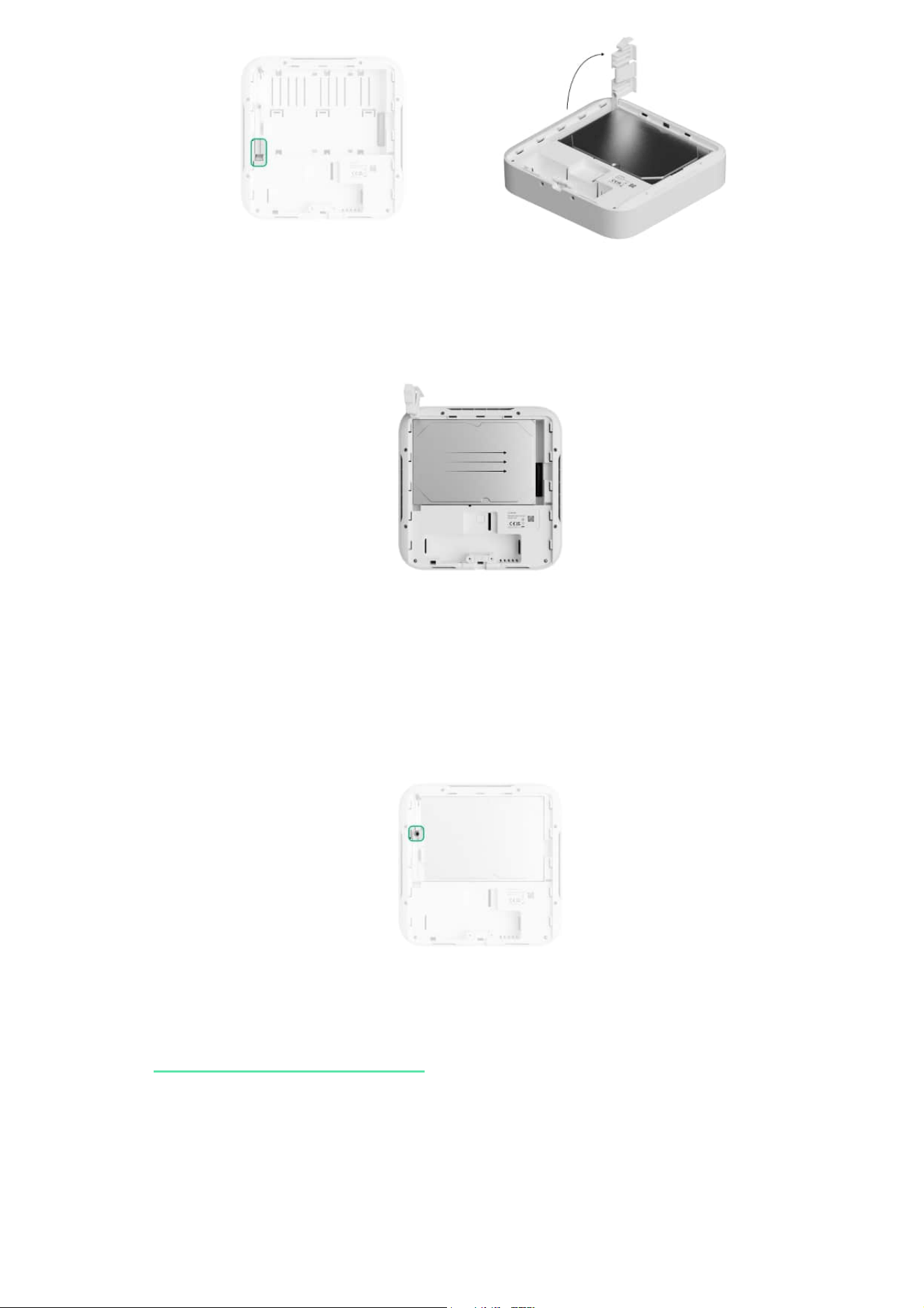
3. Lift the hard drive latch by pressing the button.
When replacing the hard drive, wait 10 seconds after disconnecting the
device from the power source. The hard drive contains rapidly rotating
platters. Sudden movements or impacts can disable the mechanism,
leading to physical damage and data loss.
Do not move or flip NVR until the hard drive has stopped spinning.
The LED indicator lights up yellow and turns green after the connection to
the Internet. If the connection to Ajax Cloud server fails, the logo lights up
red.
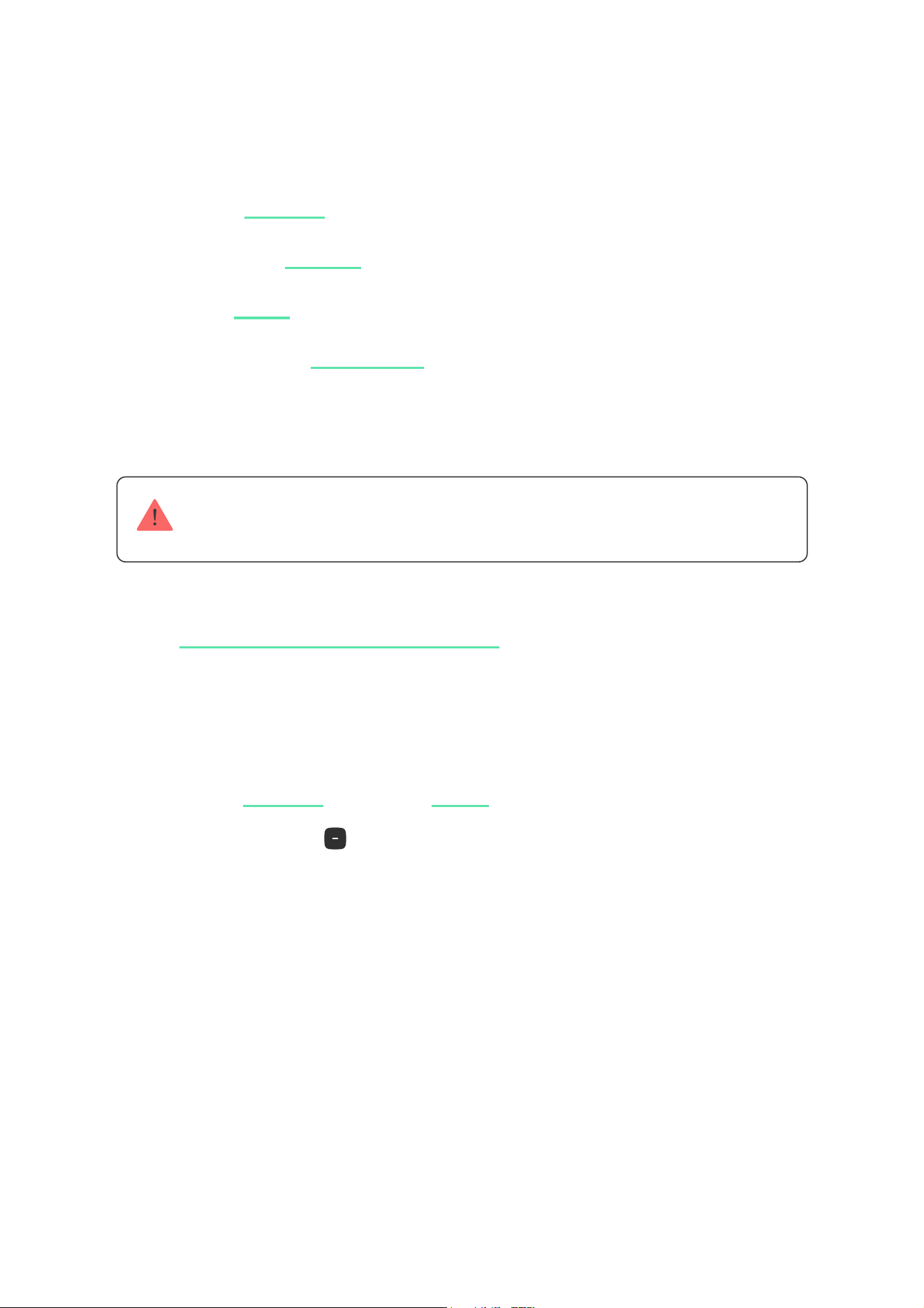
4. Install the hard drive in the NVR enclosure so that the connectors
match.
5. Lower the hard drive latch.
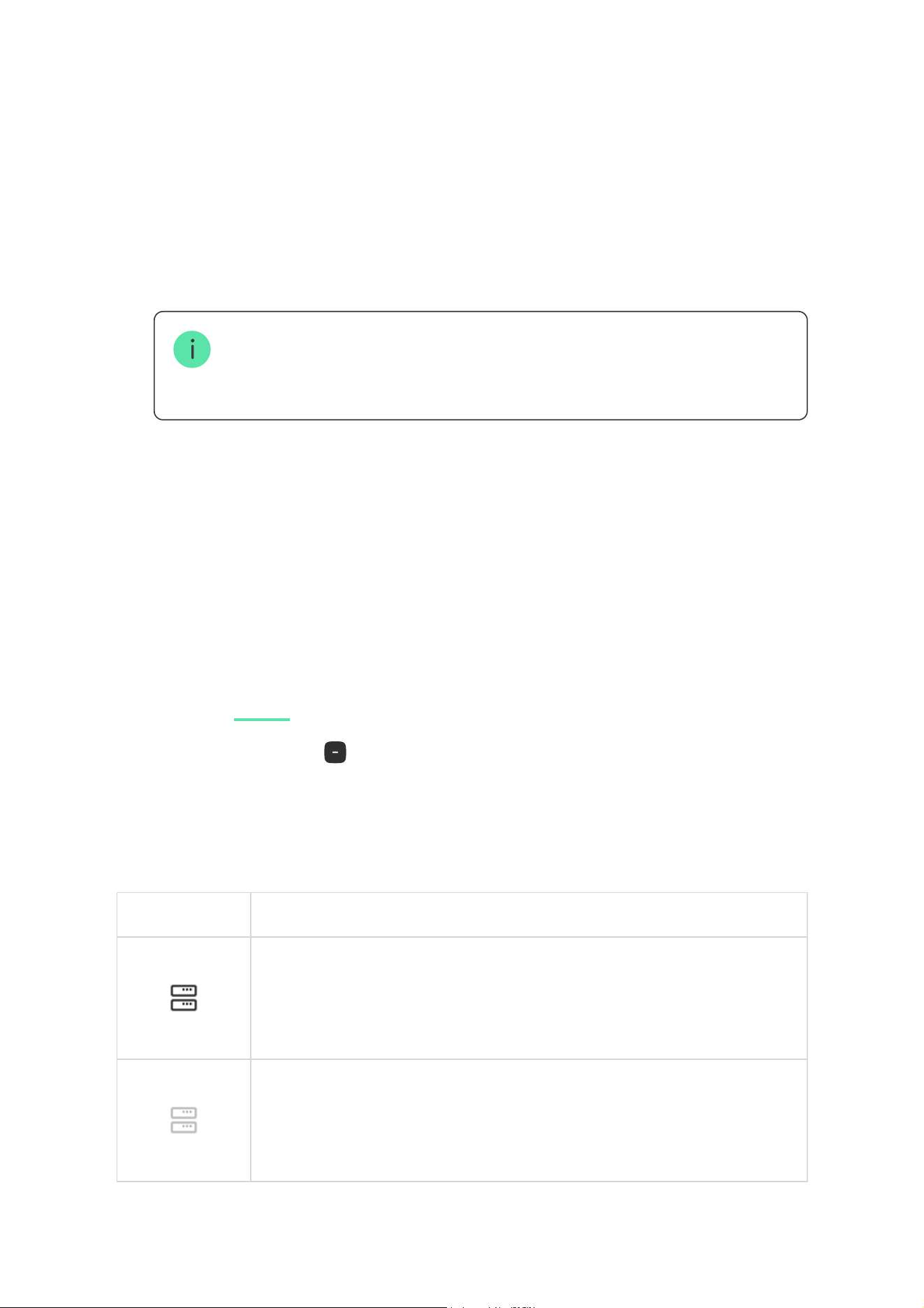
6. Secure the hard drive in the NVR enclosure with the bundled screw,
using the location for fixation.
7. Connect external power supply and Ethernet connection.
8. .Add the device to the system
9. Insert the video recorder into SmartBracket.
Adding to the system
Before adding a device
Only a PRO or a space admin with the rights to configure the system can add the
device to the space.
Adding to the space
1. Install an .Ajax app
2. Log in to your or create a new one.account
3. Select a or create a new one.space
4. Add at least one .virtual room
5. Ensure the space is disarmed.
Types of accounts and their rights
1. Open the . Select the to which you want to add NVR.Ajax app space
2. Go to the Devices tab and tap Add device.
3. Scan the QR code or enter it manually. Find the QR code on the back
of the enclosure under the SmartBracket mounting panel and on the
packaging.
4. Assign a name to the device.
5. Select a virtual room.
6. Tap Add.
7. Make sure that the video recorder is powered on and has access to
the Internet. The LED logo should light green.
8. Tap Add.

The connected device will appear in the list of devices in the Ajax app.
NVR only works with one space. To connect the video recorder to the new
space, remove NVR from the device list of the old one. This must be done
manually in the Ajax app.
Adding an IP camera to NVR
You can calculate the number of cameras and NVRs that can be added to
the space using the .
The IP camera connected to the video recorder will appear in the list of
NVR cameras in the Ajax app.
Resetting to the default settings
video device calculator
To add an IP camera automatically: To add a third-party IP camera manu
1. Open the . Select the with NVR added.Ajax app space
2. Go to the Devices tab.
3. Find NVR in the list, and tap Cameras.
4. Tap Add camera.
5. Wait until the network scan is completed and the available IP cameras
connected to the local network appear.
6. Select the camera.
7. Enter the username and password (specified in the camera
documentation) if the camera is third-party and tap Add.
8. If the login and password are entered correctly, the video preview from
the added camera will appear. In case of an error, check the
correctness of the entered data and try again.
9. Make sure the video matches the added camera. Tap Next.
To reset NVR to the default settings:
Icons
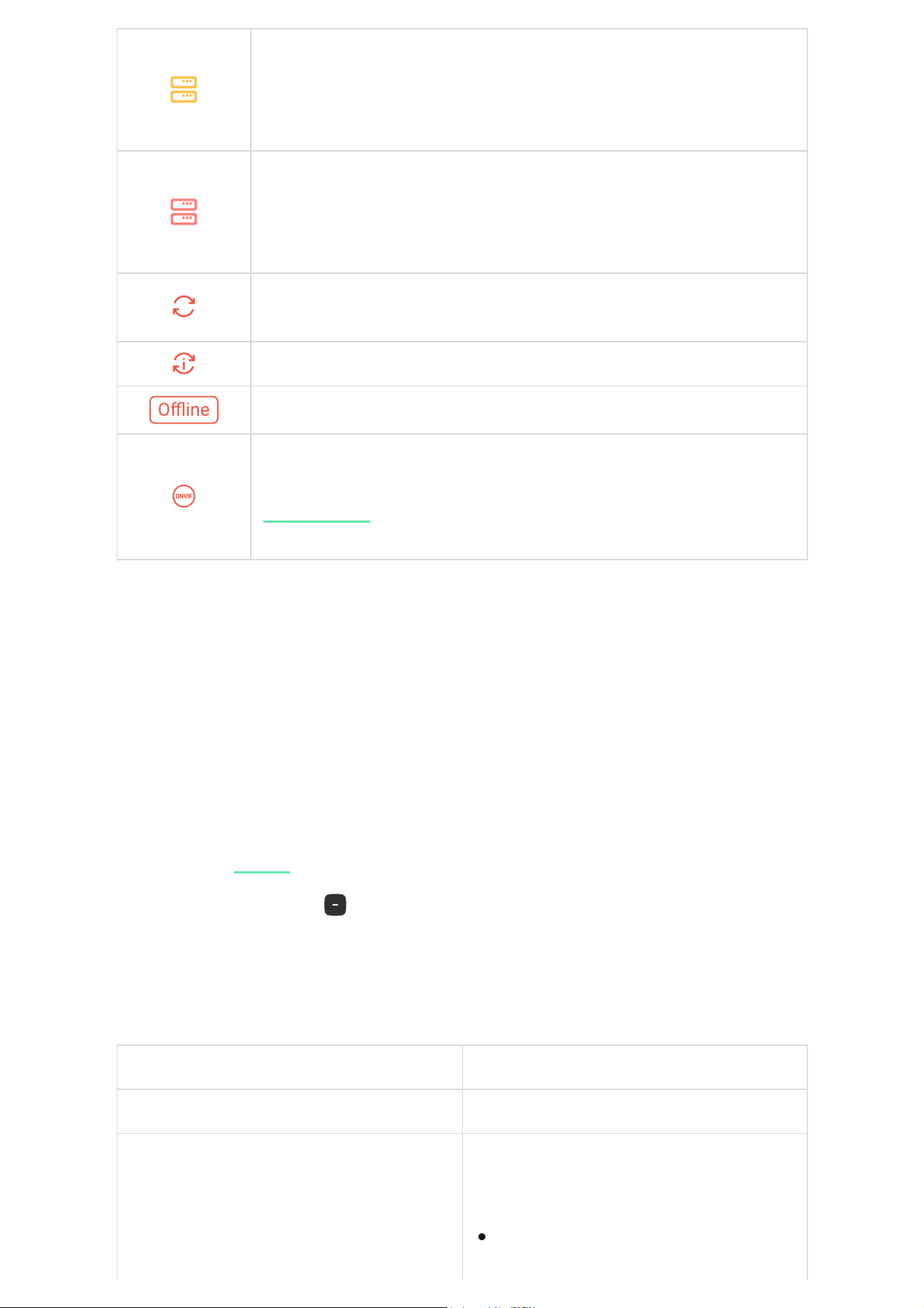
The icons show some device statuses. You can view them in Ajax apps:
Icon Meaning
The hard drive is connected.
The hard drive is not connected.
1. Turn it off by disconnecting the power supply.
2. Press and hold the reset button.
3. Power NVR while the reset button is pressed, and wait until the LED
indicator lights up violet. This will take about 50 s.
The NVR LED indicator lights up yellow for 20 s after powering the video
recorder with a pressed reset button. Then it turns off for 30 s and lights up
violet. This means that NVR has been restored to the default settings.
4. Release the reset button.
1. Select a in the Ajax app.space
2. Go to the Devices tab.
3. Find NVR in the list.
The hard drive is being formatted or has periodic malfunctions. If
formatting does not start, replace the hard drive.
The hard drive malfunctions have been detected. Rebooting NVR or
formatting the hard drive is recommended.
A firmware update is available. Go to the device states or settings to find
the description and launch an update.
New firmware installation has failed.
The device has lost connection with the Ajax Cloud server.
The device connection via ONVIF is enabled.
States
The states display information about the device and its operating
parameters. You can find out about the states of the video recorder in Ajax
apps:
Parameter Meaning
Connect via Bluetooth Ethernet setup using Bluetooth.
Firmware update The field is displayed when the firmware
update is available:
Learn more
1. Select a in the Ajax app.space
2. Go to the Devices tab.
3. Select NVR from the list of devices.
New firmware version available — the
new firmware is available for download
Tapping on opens more information
about the device’s firmware update.
Ethernet
NVR connection status to the Internet via
Ethernet:
Tapping the icon displays the network
parameters.
CPU usage Displayed from 0 to 100%.
RAM usage Displayed from 0 to 100%.
Hard drive Hard drive connection status to NVR:
and installation.
Downloading… — firmware downloading
is in progress. It is displayed as a
percentage.
Installing… — the firmware is being
installed.
Failed to update firmware — the new
firmware could not be installed.
Connected — NVR is connected to the
network. Normal state.
Not connected — NVR is not connected
to the network. Check your wired
internet connection or change the
.settings via Bluetooth
OK — the hard drive is communicating
with NVR. Normal state.
Error — an error occurred when
connecting the hard drive to the NVR.
Check the connection and compatibility
of the memory drive and video recorder.
Formatting required — hard drive
formatting is recommended. If the drive
contains data, it will be permanently
deleted.
Hard drive temperature The temperature of the hard drive.
Cameras (online / connected)
The number of cameras connected to the
video recorder.
Lid
The tamper status that responds to
detachment or opening of the casing:
Current archive depth
The depth of hard drive recording. Shows
how many days from the first record.
ONVIF integration
Shows the current status of the device’s
ONVIF integration.
This state is displayed only when ONVIF
integration is enabled.
Uptime NVR operating time since the last reboot.
Firmware Firmware version of the NVR.
Device ID
NVR ID/Serial Number. Also available on the
back part of the casing under the
SmartBracket mounting panel and the
packaging.
Settings
To change video recorder settings in an Ajax app:
Formatting… — the hard drive is being
formatted.
Not installed — the hard drive is not
installed in the NVR.
Closed — the device enclosure is closed.
Normal state of the enclosure.
Open — the enclosure lid is open or
otherwise violated the integrity of the
enclosure. Check the enclosure state.
Learn more
Settings Meaning
Name
Video recorder name. Appears in the list of
devices, SMS text and notifications in the
events feed.
To change the video recorder name, tap on
the text field.
The name can contain up to 12 Cyrillic
characters or up to 24 Latin characters.
Room
Selection of the NVR virtual room.
The room name is displayed in the text of
SMS and notifications in the events feed.
Firmware update NVR firmware version.
Ethernet
The setting of the connection type of NVR
to Ajax Cloud service via Ethernet.
Available connection types:
Archive
Selection of the maximum archive depth. It
can be set in the range of 1 to 360 days or
can be unlimited.
Allows to format the hard drive.
1. Go to the Devices tab.
2. Select NVR from the list.
3. Go to Settings by tapping on the gear icon .
4. Set the required parameters.
5. Tap Back to save the new settings.
DHCP;
Static.
Service
Opens a menu with Service settings.
Monitoring
The setting is available in
.
Allows a PRO with rights to configure the
system to set up Zone number for CMS
events — unique identifier of the device in
events it reports to CMS.
For cameras connected to NVR, the Send
events on detections to CMS option can be
set up additionally. This option defines
whether the camera will send notifications
on motion or object detection to CMS. To do
this, open the settings of the connected
camera and click the Monitoring menu.
Report a problem
Allows to describe a problem and send a
report.
User guide Opens the NVR user manual
Delete device Unpairs NVR from the space.
Service settings
Settings Meaning
Time zone
Time zone selection.
Set by the user and is displayed when
viewing video from IP cameras.
Learn more
Ajax Pro apps
LED brightness
The brightness level of the LED frame of the
device is adjusted with a scrollbar.
Connection via ONVIF
Configuring the device’s connection via
ONVIF to third-party VMSs.
Server connection
Delay of cloud connection loss alarm, sec
The delay helps to reduce the risk of a false
event about the lost connection with the
server.
The delay can be set in the range of 30 to
600 seconds.
Cloud polling interval, sec
The frequency of polling the Ajax Cloud
server is set in the range of 30 to 300
seconds.
The shorter the interval, the faster the cloud
connection loss will be detected.
Get notified of server connection loss
without alarm
When the toggle is enabled, the system
notifies users about server connection loss
using a standard notification sound instead
of a siren alert.
NVR settings via Bluetooth
If NVR has lost connection with the server or failed to connect the video
recorder due to incorrect network settings, you can change the Ethernet
settings via Bluetooth. The user with administrator rights to whose
account this NVR is added has access.
To connect NVR after losing connection to Ajax Cloud:
Learn more
1. Go to the Devices tab.
2. Select NVR from the list.
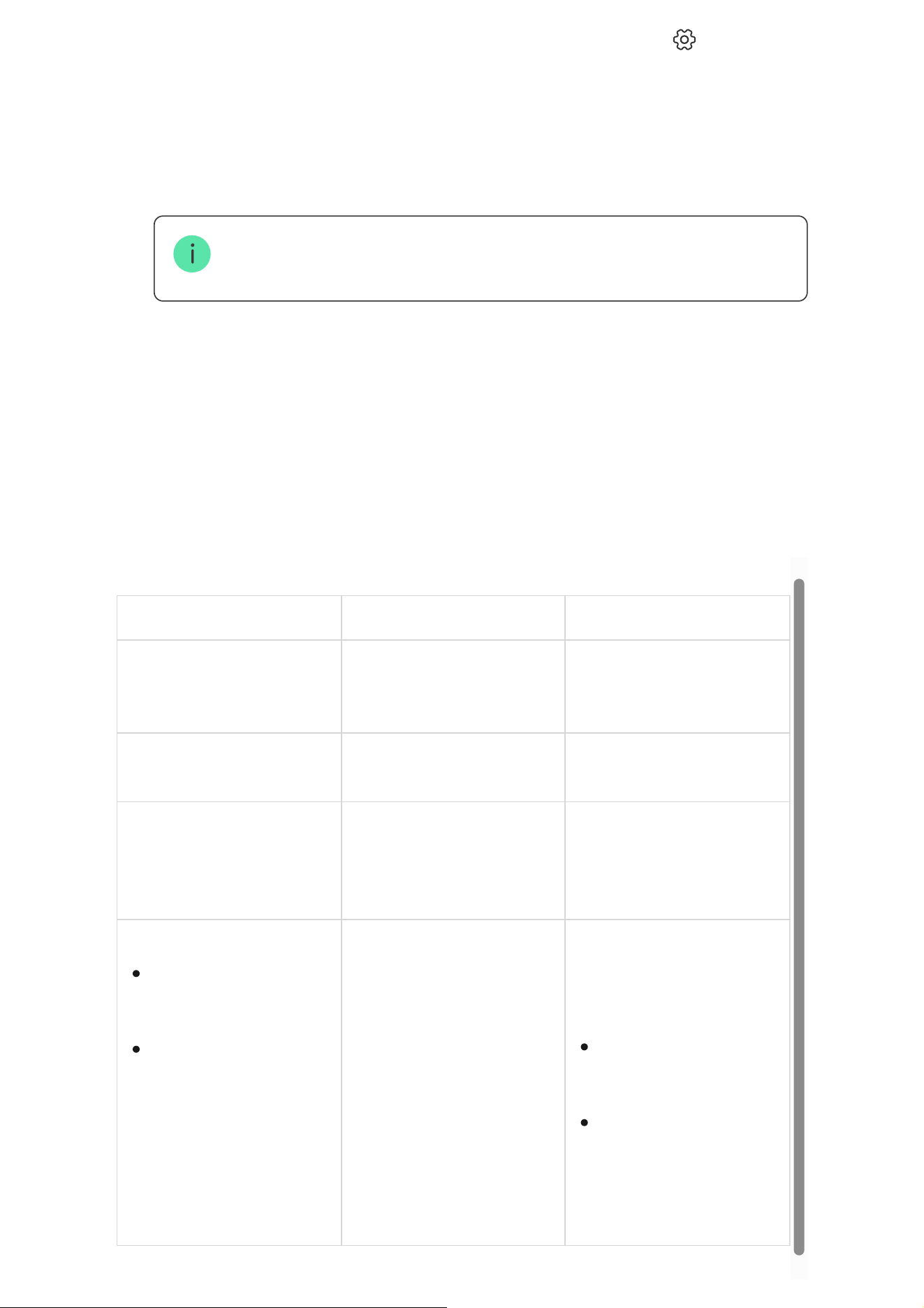
Indication
Event Indication Note
NVR boots after
connecting to power.
Lights up yellow.
If NVR is connected to Ajax
Cloud, the color indication
changes to green.
NVR has power and is
connected to the Internet.
Lights up green.
NVR is not connected to
the Internet or there is no
communication with the
Ajax Cloud server.
Lights up red.
Flashes green or red every
second, depending on the
status of the connection
with the Ajax Cloud server.
The indicator flashes until
one of the following
conditions is met:
3. Go to settings via Bluetooth by tapping on the gear icon .
4. Make sure that Bluetooth is enabled on your smartphone. Tap Next.
5. Reboot NVR by powering it off and then on.
The Bluetooth of the video recorder will be enabled within three minutes
after the power is on. If the connection fails, reboot NVR and try again.
6. Set the required network parameters.
7. Tap Connect.
NVR does not have a
hard drive installed.
The hard drive is
installed but does not
work correctly. For
example, when
formatting, if it has
errors, or when it needs
to be formatted.
The hard drive is
formatted/installed.
All cameras added to
NVR are configured not
to record video to the
NVR’s hard drive.

Maintenance
The device does not require maintenance.
Technical specifications
Warranty
Warranty for products of Limited Liability Company “Ajax Systems
Manufacturing” is valid for 2 years after purchase.
If the device does not function correctly, please contact Ajax Technical
Support first. In most cases, technical issues can be resolved remotely.
Contact Technical Support:
Manufactured by “AS Manufacturing” LLC
Technical specifications NVR (8-ch)
Technical specifications NVR (16-ch)
Technical specifications of NVR DC (8-ch)
Technical specifications of NVR DC (16-ch)
Compliance with standards
Warranty obligations
User Agreement
email
Telegram