User Manual
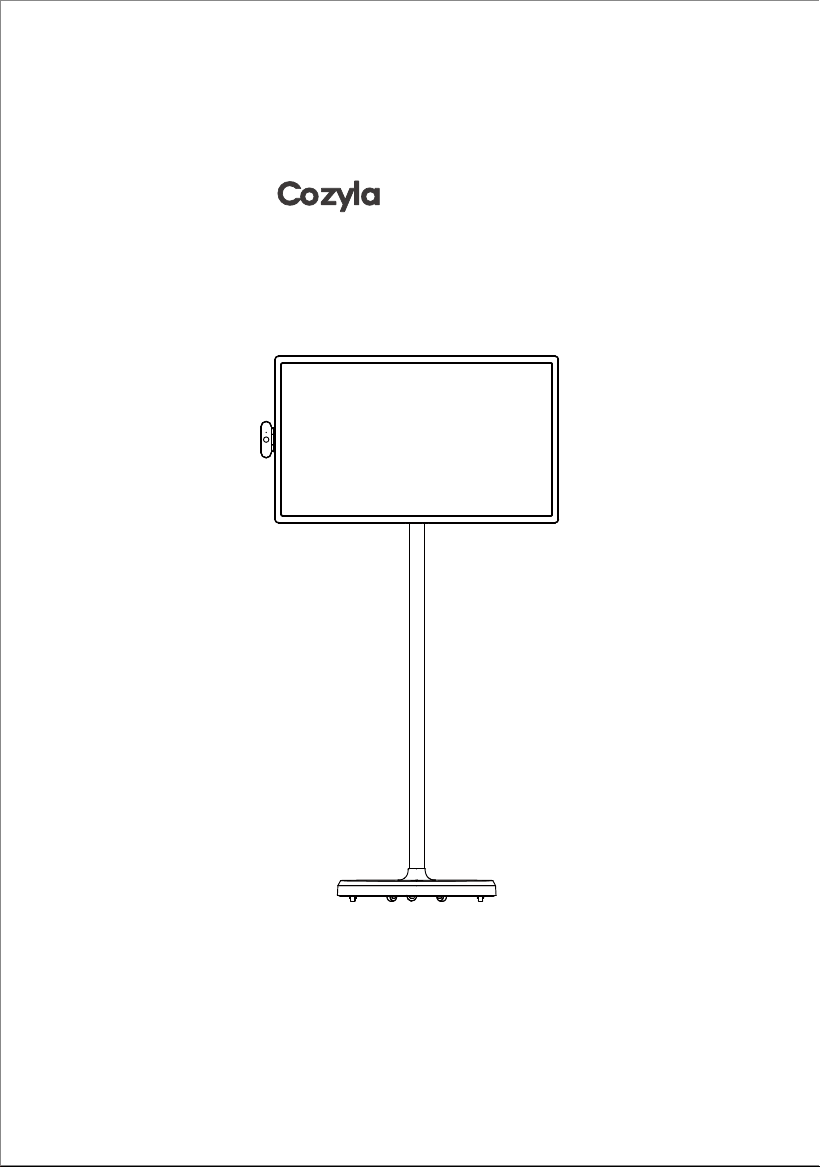
Tablet TV


1
Catalogue
Preface..................................................................................................................................2
Warning.................................................................................................................................2
Packing List............................................................................................................................3
Product Specifications...........................................................................................................4
Instructions for using the remote control..............................................................................5
Adjusting Angle and Height..................................................................................................6
24” Port Connection Instructions..........................................................................................6
21.5”/32” Port Connection Instructions................................................................................7
Button Instructions................................................................................................................8
Touch Function Instructions...................................................................................................8
Internal Battery Instructions...................................................................................................9
Screen Mirroring..................................................................................................................10
Download application software...........................................................................................10
Anti-slip Device Instructions................................................................................................10

2
Preface
Thank you for choosing Cozyla Tablet TV!
Before starting up, please carefully read this user manual to understand how to use the
device and important precautions.
* Use only the power adapter accessory provided by the original manufacturer.
* The gaps and openings on the device are designed for ventilation and heat dissipation.
Do not block or cover them.
* Do not use or store the device in dusty, humid, or high-temperature environments.
* Do not attempt to disassemble or repair the device if it malfunctions. Contact the
original manufacturer or dealer for assistance.
* Avoid stepping on the power cord or power adapter to prevent damage to the wires
that may cause electrical hazards. If the power adapter's cord is damaged, do not
continue to use it as it may be dangerous.
* During thunderstorms or when the device will not be used for an extended period,
unplug the power cord.
* Do not place the device on the edge of a desk or in areas where children may easily
access it to avoid damage or injury to the child.
* During transport, do not apply excessive pressure on the display screen or scratch it with
sharp or hard objects, as this may cause damage to the screen.
* Use a dry, soft cloth or a slightly dampened soft cloth with a mild cleaning solution to
clean the device. Do not use any type of solvent, such as alcohol or gasoline, as it may
damage the surface treatment layer.
* Make sure children understand the danger of climbing on the product, as dropping or
tilting the product may cause serious injury.
* Do not place the product in an unstable or tilted position.
* Keep the cables connected to the product organized to avoid tripping, pulling or
grabbing.
Warning
Incell Mobile Smart Screen
User Manual
Packing List
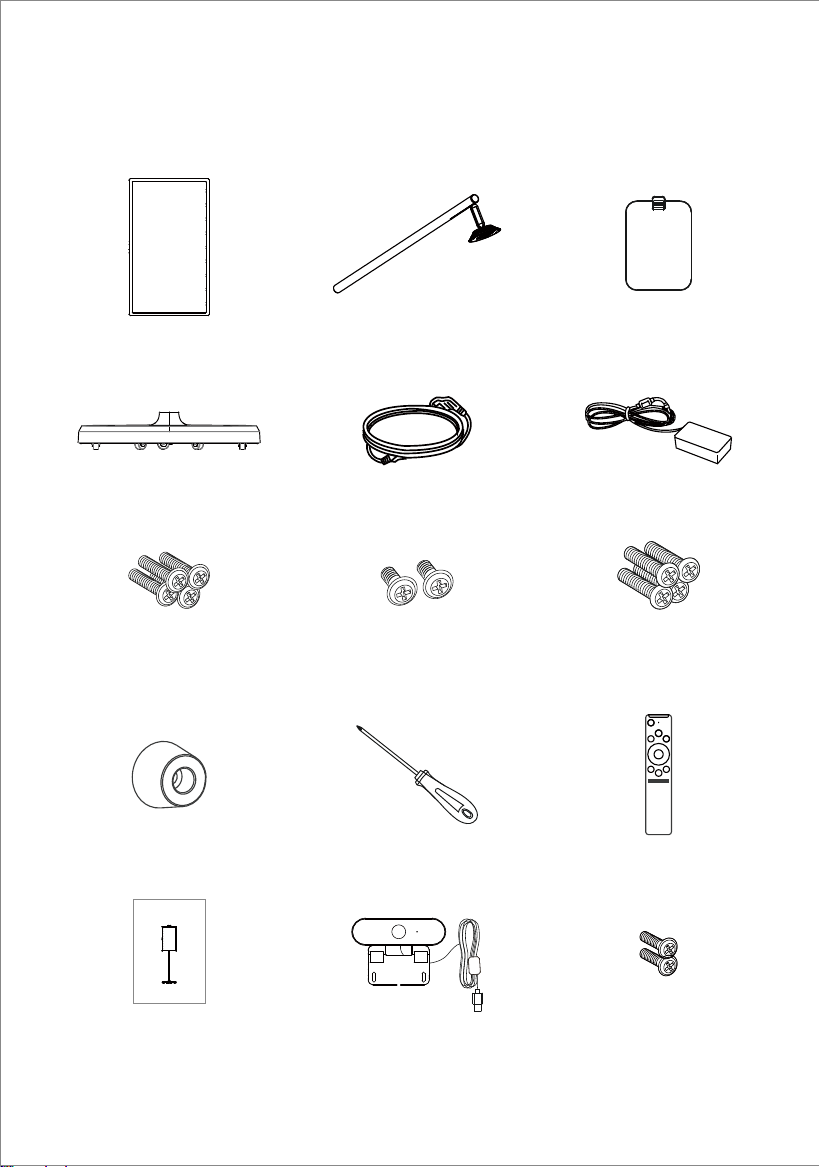
After opening the package, please confirm the contents of the package below.
Bluetooth remote control x1 Screwdriver x1
Base x1
Adapter x1Power cord x1
(B bag PWM4*6)
Mechanical screws x3
(A bag BM3*16)
Mechanical screws x5
Monitor x1 Stand x1
Cover x1
Foot pads x4
(PM4*16)
Mechanical screws x4
User manual x1
3
Camera x1
(PWM3*5)
Mechanical screws x2
4
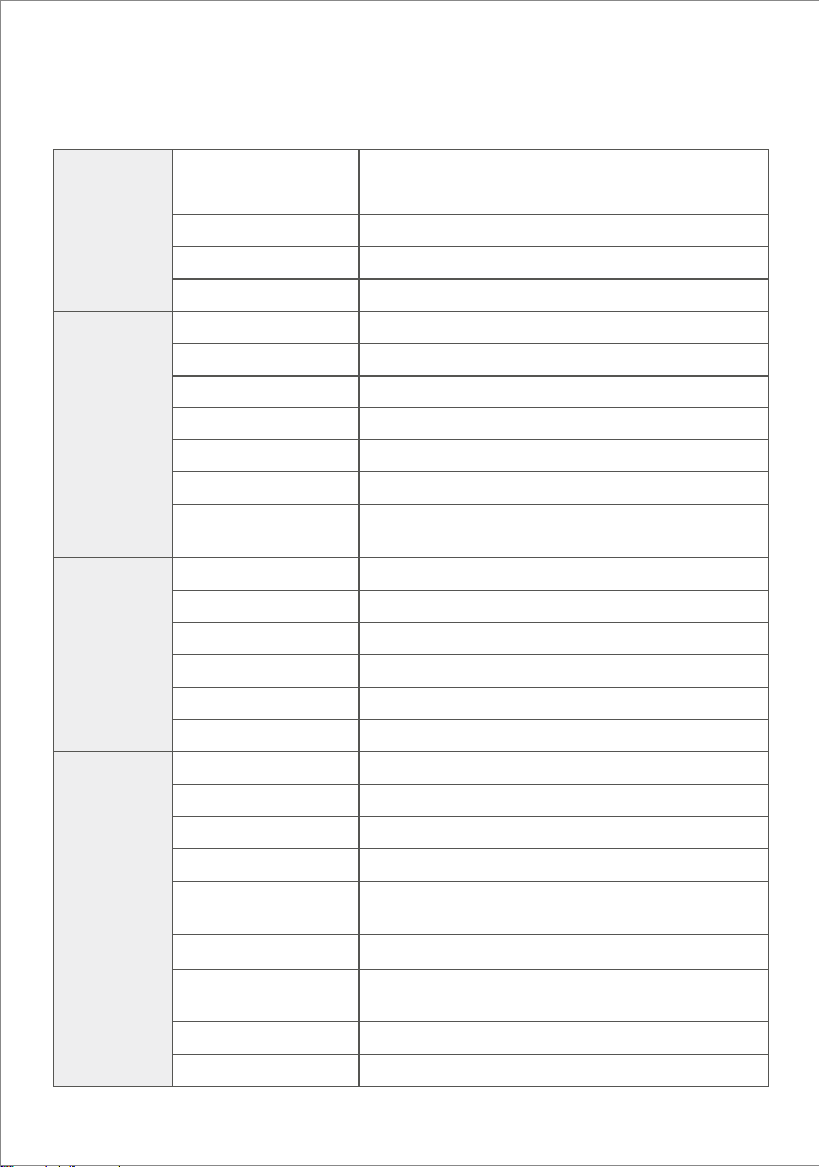
System
Display
Interface
Other
CPU
RAM
RK3399 Dual core cortex A72+Quad core cortex A53
RK3588 Quad core cortex A55+Quad core cortex A76
4GB / 8GB
64GB / 128GB
Android 12
21.5" 24” 32"LCD
Internal memory
Operation system
Panel Size
Resolution
Model Type
1920x1080
Aspect Ratio
Wi-Fi
16:9
802.11 a/b/g/n/ac or 802.11 a/b/g/n/ac/ax,
BT 5.0
Ethernet interface RJ45
External microphone input
Full Function ( Except for charging function )
USB Host*3 USB
1920*1080@60HZ
MIC-IN
Type-c
HDMI IN
3.5mm earphone output
100x100mm
Power/Vol+/Vol-
Support 90 degrees
4Ω*5W*2
Built in dual Microphone , Support noise reduction
and echo cancellation
18V/3A (21.5-inch) / 18V/5A (24/32-inch)
14.4V/5200mAh ( 21.5/24-inch)
14.4V/6800mAh (32-inch )
-20℃---60℃
0℃---45℃ 10~90%RH
Earphone Output
VESA
Button
G-sensor
Speaker
Microphone
Input Voltage
Built-in battery capacity
Storage Temperature
Working Temperature
Incell touch
Number of points
Interface for touch
10-Point
HID-USB
Specifications vary by model configuration.
Product Specifications
5
Instructions for using the remote control
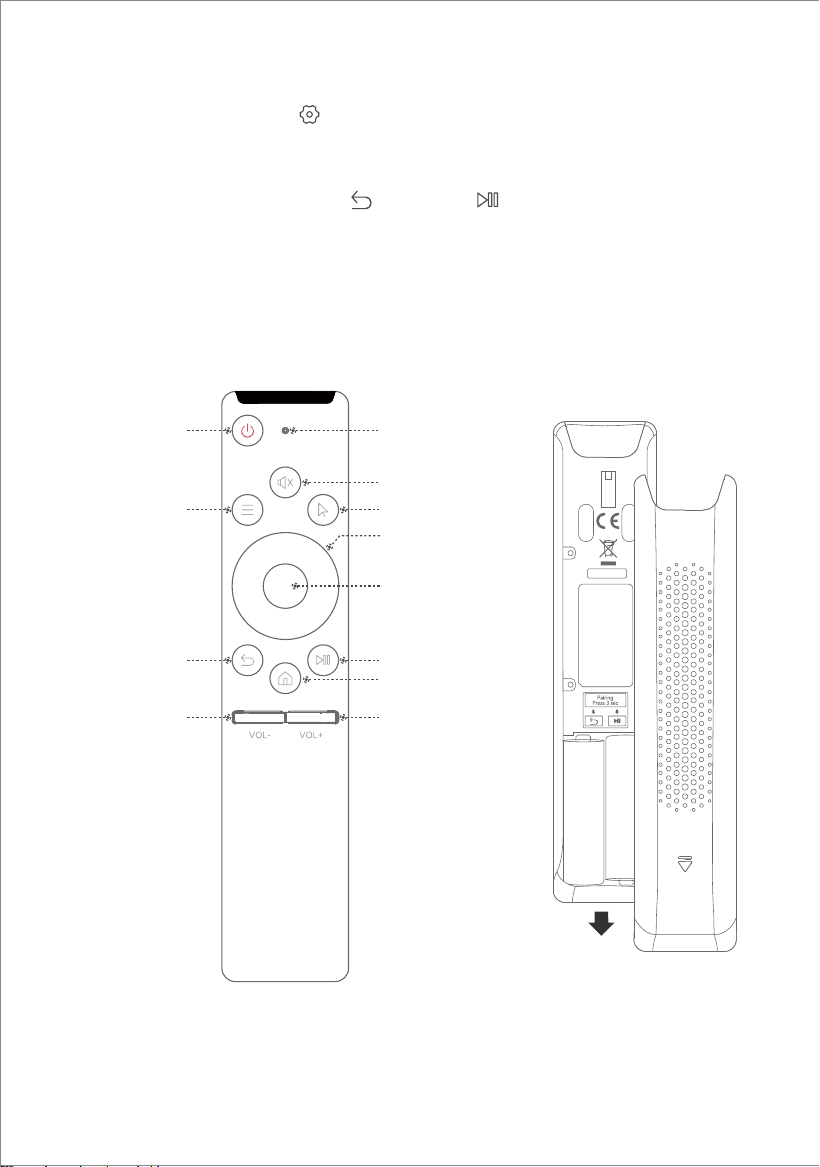
Power Button
Settings
Volume-
Return Button
Indicator Light
Mute Button
Directional Pad
Confirm Button
Home Button
Volume+
Play/Pause
Mouse Button
1. On the main page, click the settings button located in the top right corner.
2. Click on "Connected Devices"
3. Click on "+ Pair with Device"
4. Simultaneously press and hold the Return and Play/Pause buttons on the
remote control until the remote control indicator light flashes continuously, then release
the buttons.
5. A new connected device"Remote Controller" will appear below "Available Devices",
select "Remote Controller" to pair the device.
6. When prompted to pair, click "Pair" to complete the remote control setup.
MADE IN CHINA
Note: Debido a las regulaciones de seguridad, el control remoto no viene con pilas de
serie. Por favor, compre dos pilas AA por separado.
6
Adjusting Angle and Height
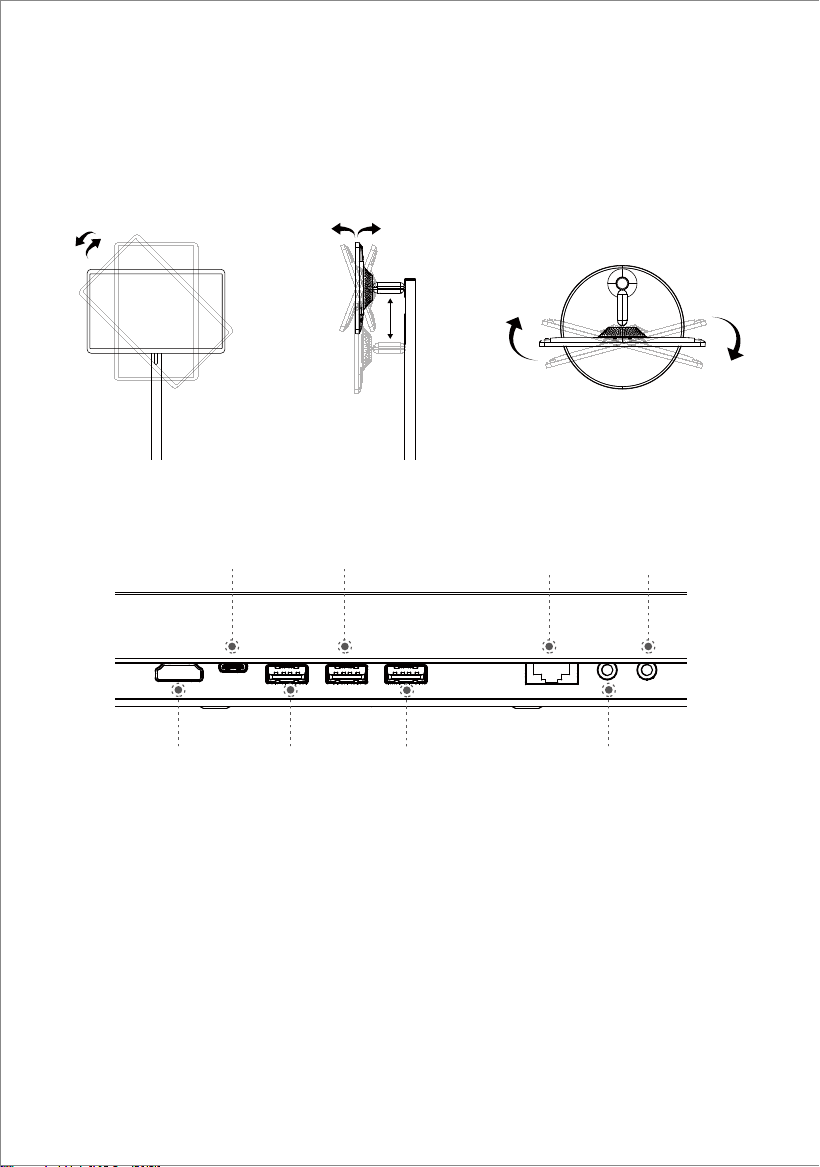
To achieve a better viewing experience, the monitor can be adjusted for tilt (front-back tilt
of -20° to 20°), swivel (left-right swivel of -15° to 15°), rotation (clockwise rotation of 90°),
and height (vertical adjustment of 180mm).
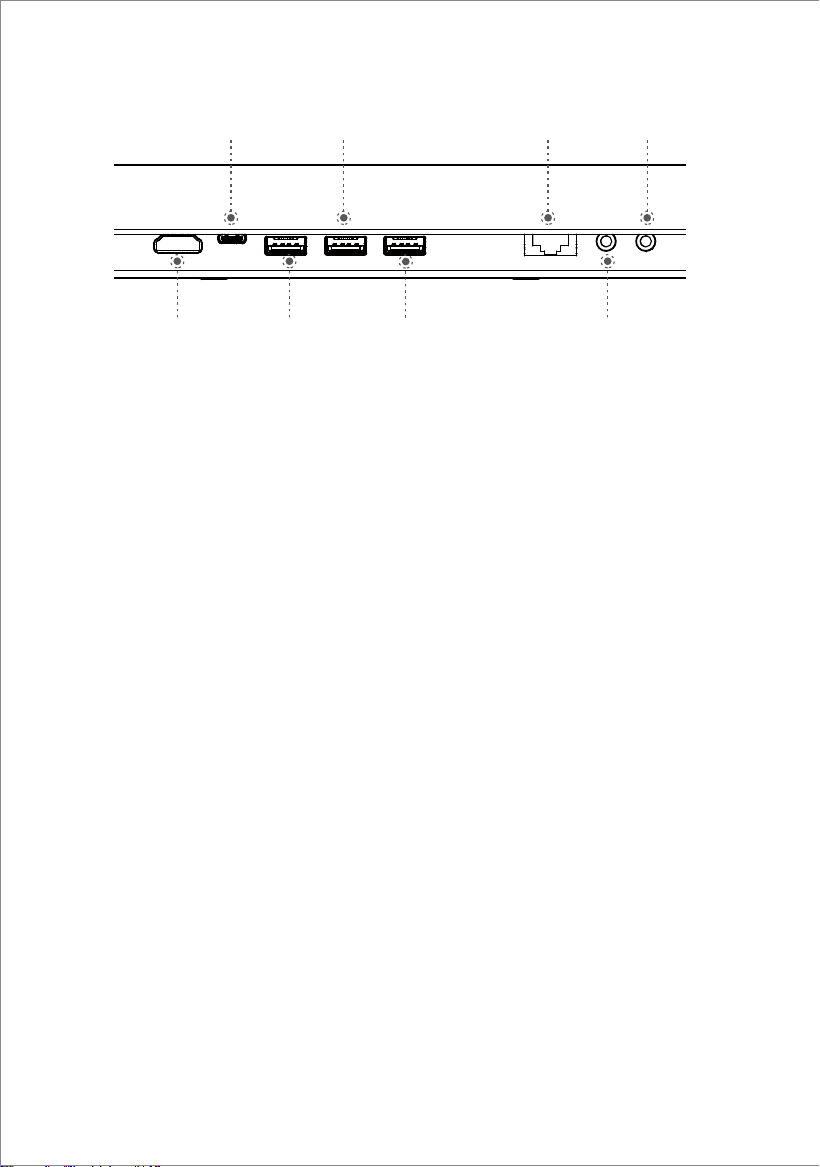
24” Port Connection Instructions
HDMI IN: High definition multimedia input Interface ,used for connecting to an Android
tablet or pc
USB/Touch: Multi-function interface:
1. USB cord can be used for connectting PC or android box to achieve touch function
2. Connect to Type-c docking station , you can connect a U disk ,mouse, keyboard etc.
USB*3 : Used for connecting USB storage device or mouse and keyboard receiver
LAN: Used for connecting router to realize the function of accessing the Internet.
Headphone hole : Used for connecting external active speaker and headset
Microphone input : used for connecting an external analog microphone
HDMI IN USB
USB
USB/Touch
USB
LAN Microphone input
Headphone hole
7
HDMI IN: High definition multimedia input Interface ,used for connecting to an Android
tablet or pc
Type-c: Connect to Type-c docking station, you can connect a U disk , mouse,keyboard etc.
USB*2 : Used for connecting USB storage device or mouse and keyboard receiver etc
USB/Touch: Multi-function interface:
1. USB cord can be used for connectting PC or android box to achieve touch function
2. Used for connecting USB storage device or mouse and keyboard receiver etc
LAN: Used for connecting router to realize the function of accessing the Internet.
Headphone hole : Used for connecting external active speaker and headset
Microphone input : used for connecting an external analog microphone
HDMI IN USB
USBType-c
USB/Touch
LAN Microphone input
Headphone hole
21.5" / 32" Port Connection Instructions
8
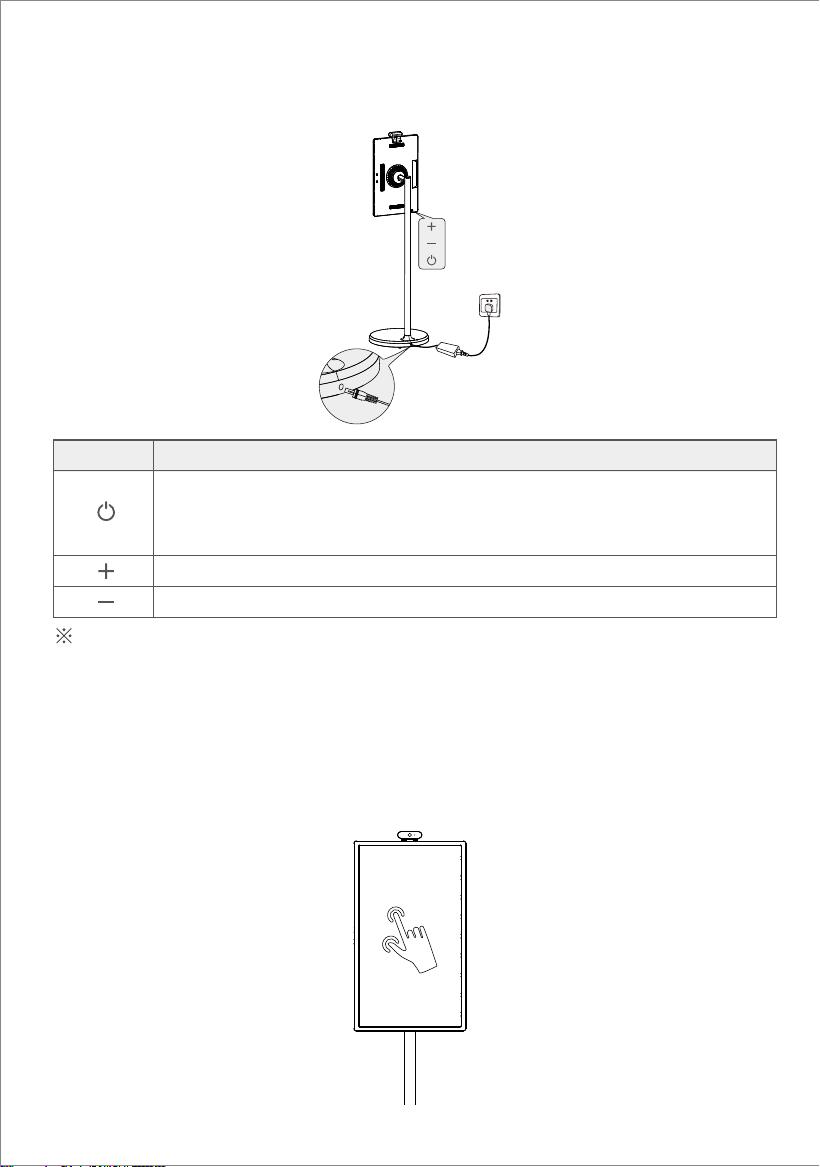
Button
Function
Button Instructions
Please use the included power adapter.
Adjust system volume up
Adjust system volume down
When the product is in the off state: press for 2-3 seconds to turn on
When the product is on:
Press for 2-3 seconds to enter the shutdown confirmation [shutdown/restart] menu
Short press to enter the screen off state, short press again to exit the screen off state
When the AC plug of the adapter is plugged into the wall to power the stand, move
the product as little as possible to avoid the risk of electric shock caused by forcefully
pulling or damaging the power cord.
Touch Function Instructions
Uses an INCELL full HD ten-point capacitive touch LCD display.
To maintain screen cleanliness, ensure that it is clean.
9
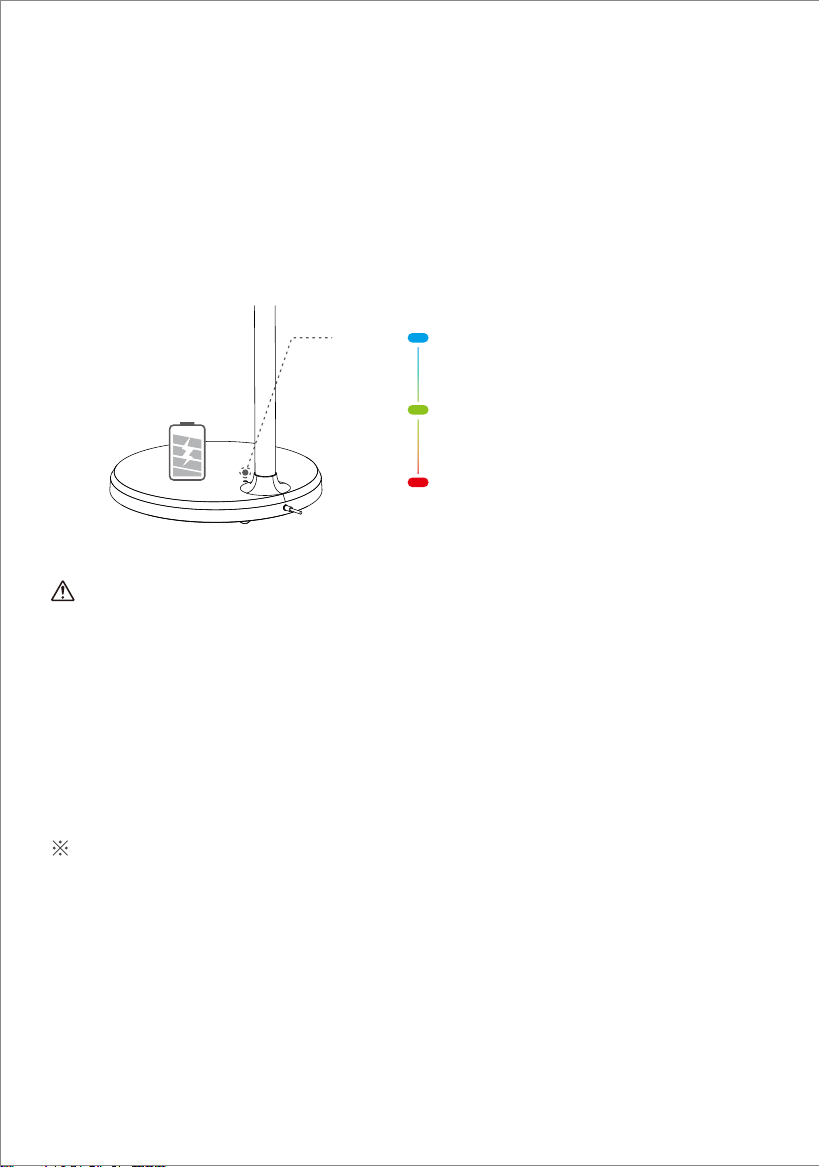
Internal Battery Instructions
This product's stand contains a built-in rechargeable battery that can be used for a period
of time without connecting to other power sources. When the battery is depleted, it can
be charged by connecting a charger. When the charger is plugged into the DC port on
the stand, the power indicator light will turn red. As the battery is charged, the power
indicator light will turn green when it is fully charged. After unplugging the charger, the
power indicator light will turn blue, indicating that the battery is providing power to the
stand.
Battery providing power to the stand
after the charger is unplugged
Green light:
Blue light:
Red light:
Sufficient battery power
Charging the battery and providing power
to the stand with the charger plugged in
Note:
It takes approximately 6 hours to fully charge the battery while using the device at the
same time, and approximately 4 hours to fully charge the battery when the device is turned
off. After the battery is fully charged, the device's battery life is approximately 3.5 hours.
The battery life and battery runtime are proportional to the device usage time.
To extend the battery life, it is recommended to charge the battery after using it for a
period of time. After the battery is fully charged, do not leave it in a fully charged state
for a long time, and do not charge the battery under extreme conditions.
The standard usage time in this manual is based on test data from our company's
laboratory and may vary depending on usage conditions.
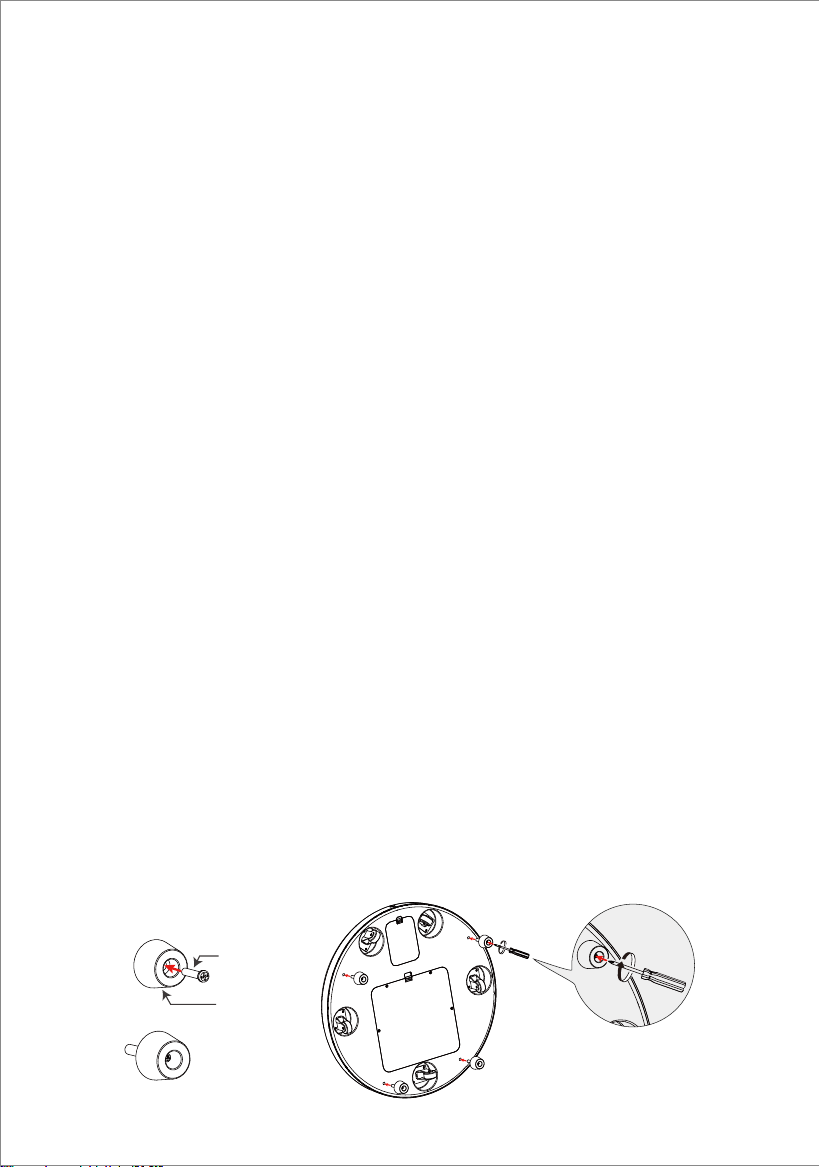
PM4*16mm
Screws
Footbed
Anti-slip Device Instructions
The anti-slip device is used to fix the device in place or on sloping surfaces.
Installation method: Remove the original screws from the corresponding position where
the anti-slip device will be installed according to the picture, put the PM4*16mm screw
into the foot pad, and use a screwdriver to tighten the screw cap, aligning the screw head
with the hole and tighten it.
Download application software
Wireless screen mirroring, supports multiple protocols: Apple AirPlay, Miracast, Android
DLNA, Chromecast.
For Android phones: Phone and device are on the same network -> Phone enters the
quick menu -> Click "Screen Mirroring" -> Select the name of the device to be mirrored
-> Device displays phone screen, screen mirroring successful.
For iPhone: Phone and device are on the same network -> iPhone enters the control
center -> Click "Screen Mirroring" -> Select the name of the device to be mirrored ->
Device displays iPhone screen, screen mirroring successful.
For Windows: Computer and device are on the same network -> Windows enters settings
-> System -> Screen -> Multiple displays -> Click "Connect to a wireless display" ->
Select the name of the device to be mirrored -> Device displays screen, screen mirroring
successful.
For Mac: Computer and device are on the same network -> Mac enters preferences ->
Display -> Add Display -> Select the name of the device to be mirrored -> Device displays
screen, screen mirroring successful.
Audio and video push: Mirroring device and device are on the same network -> Mirroring
device enters video app -> Select video -> Click "Screen Mirroring Icon" in the upper
right corner of the video -> Select the name of the device to be mirrored -> Device
displays video screen, screen mirroring successful.
Screen Mirroring
Overseas: Device enters "Google Play Store -> Log in to Google account -> Select the
downloaded application -> Install successfully."
10
To cast your screen, open the Wireless Cast app and switch on the screen casting button.
11
FCC STATEMENT :
This device complies with Part 15 of the FCC Rules. Operation is subject to the following
two conditions
1. This device may not cause harmful interference
2. This device must accept any interterence received, including intererence that may
cause undesired operation.
Warning: Changes or modifications not expressly approved by the party responsible for
compliance could void the user's authority to operate the equipment
NOTE: This equipment has been tested and found to comply with the limits for a Class B
digital device,pursuant to Part 15 of the FCC Rules. These limits are de signed to provide
reasonable protection against harmful interference in a residential installation.
This equipment generates uses and can radiate radio frequency energy if not installed and
used in accordance with the instructions, may cause harmful interterence to radio
communications. However, there is no guarantee that interference will not occur in a
particular installation. If this equipment does cause harmful interference to radio or
television reception which can be determined by turning the equipment off and on, the
user is encouraged to try to correct the interference by one or more of the following
measures:
Reorient or relocate the receiving antenna
Increase the separation between the equipment and receiver.
Connect the equipment into an outlet on a circuit different from that to which the
receiver is connected
Consult the dealer or an experienced radio/TV technician for help.
RF warning statement:
The device has been evaluated to meet general RF exposure requirement. The device can
be used inportable exposure condition without restriction.
This device complies with parts of the FCC rules. Operation is subject to
the folowing two conditions:
This device will not cause harmful interference;
This device must accept any interference received, including interfere
ncethat may cause undesired operation
This product complies with the essential requirements of European safety
regulations and has passed the product safety conformity assessment
procedure. It also has a manufacturer's declaration of conformity to ensure
that every product delivered to the customer is safe.


Customer service: [email protected]
We are ready to support
Live chat: https://www.cozyla.com -> chat with us
NOTE: Please keep the original packaging materials in case it needs
to be returned.